FOR SUPPORT, VISIT ELEMENTELECTRONICS.COM/SUPPORT 1
QUICK START GUIDE
100" MINI-LED
QLED 4K TV
QUICK START GUIDE2
WHAT’S
INCLUDED
+
_
+
_
MENU
CHVOL
123.
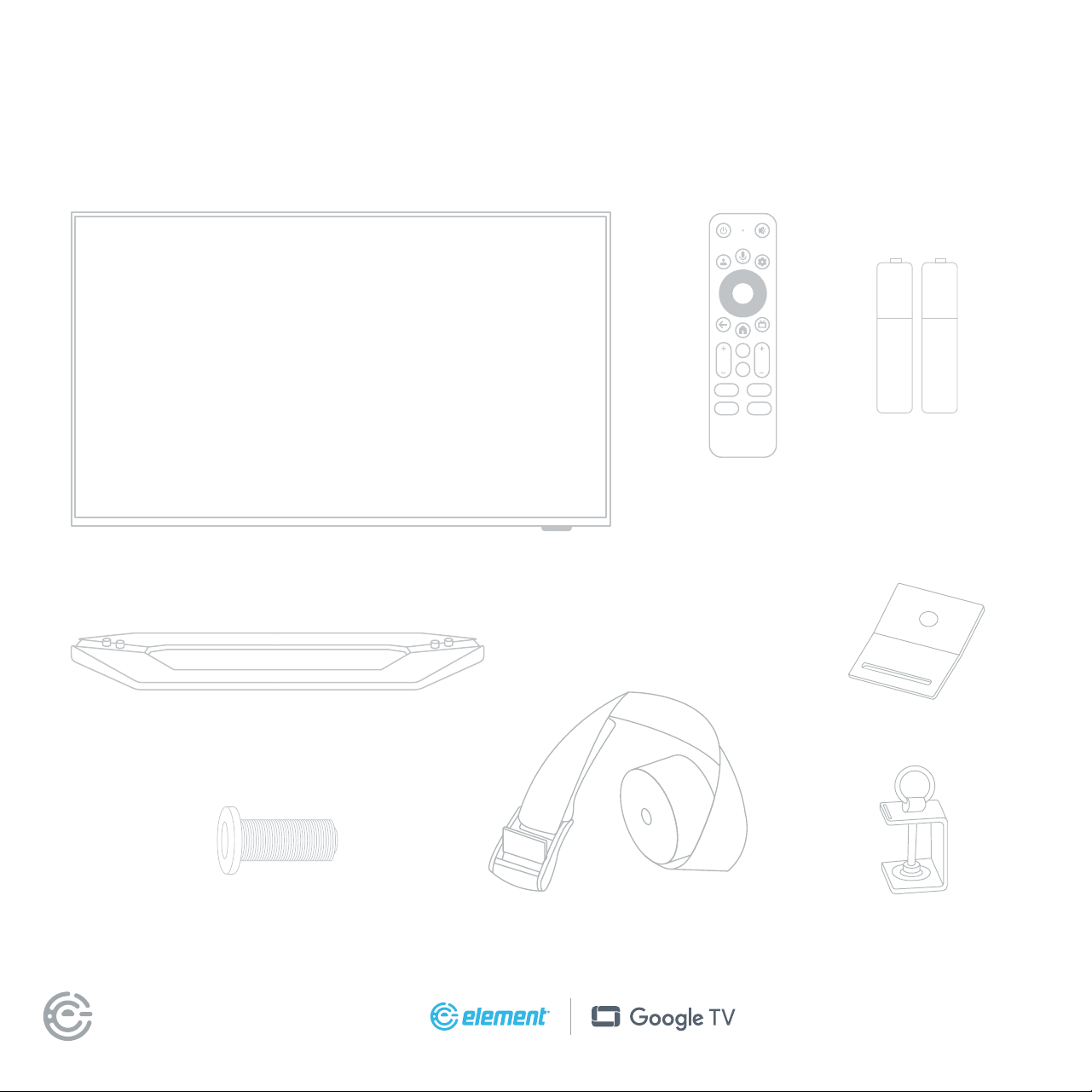
Your new TV!
TV Stand Wall Plates
Voice
Remote
Stand Screws Safety Straps x 2 Clamps
2 AAA
Remote
Batteries
FOR SUPPORT, VISIT ELEMENTELECTRONICS.COM/SUPPORT 3
WHAT YOU’LL NEED
(NOT INCLUDED)
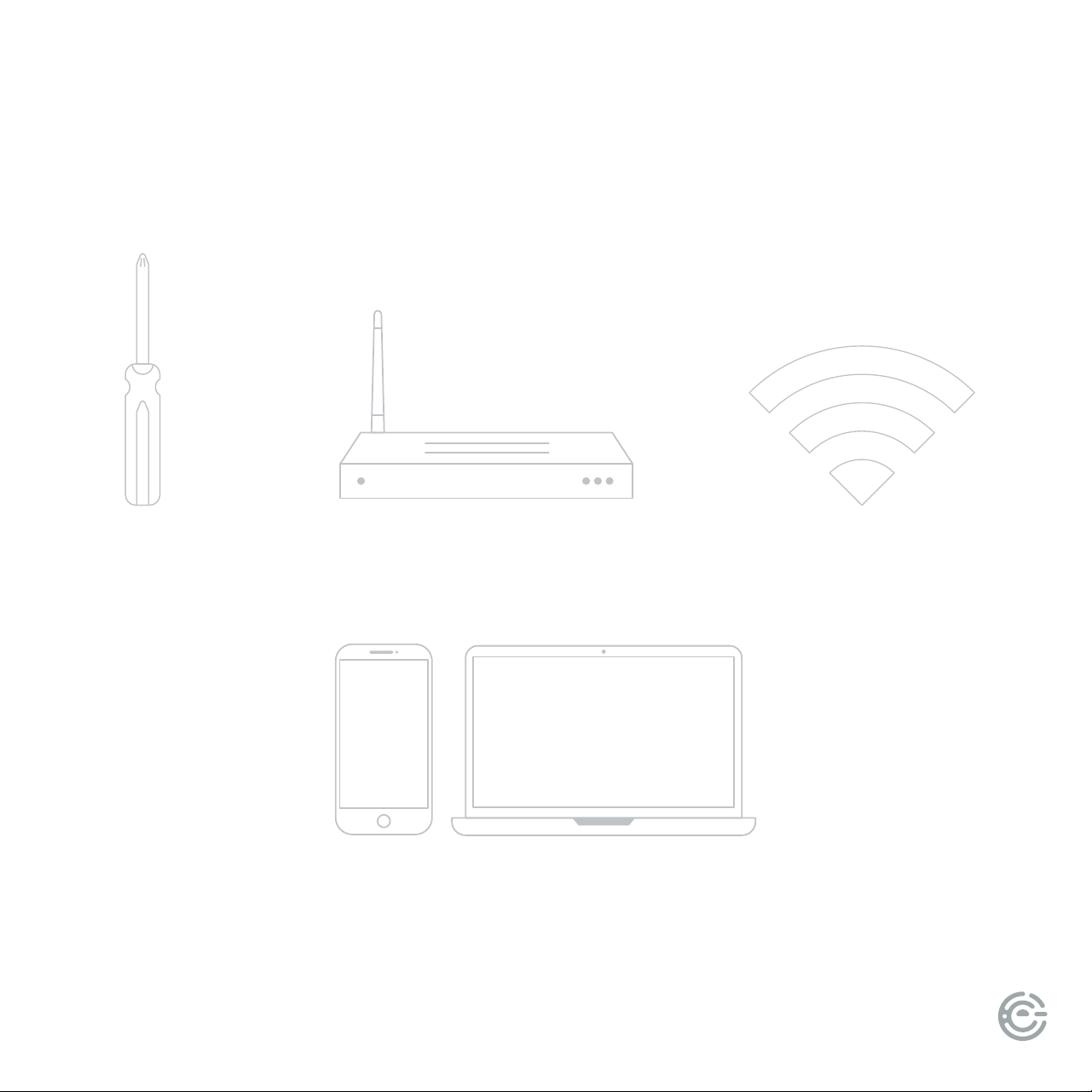
Screwdriver
Phillips head
Wireless Router
Needed for streaming
Smartphone, computer or tablet
Needed for setup
Internet connection
Needed for streaming
QUICK START GUIDE4
CONNECT DEVICES
TO YOUR TV
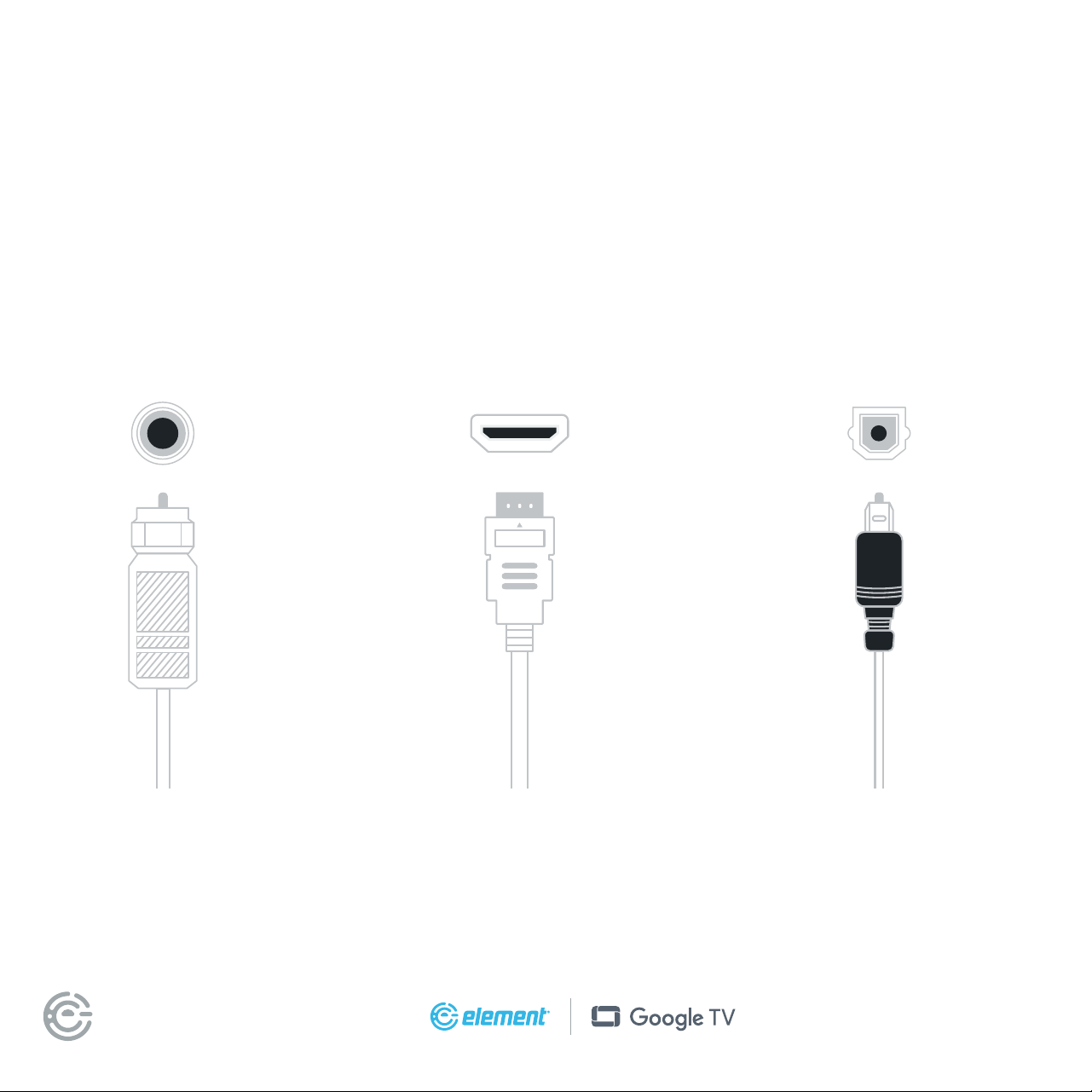
Check to ensure that you have selected the right cables for the ports and
that they are connected securely (cables and external devices not included).
Loose connections can aect your picture and audio quality.
ANT HDMI OPTICAL
Connect an
outdoor or indoor
antenna.
Connect a Blu-ray or DVD player,
gaming console, or other external
devices to your TV. Highest quality
audio/visual connection.
Connect an optical
cable from an external
digital audio system.
FOR SUPPORT, VISIT ELEMENTELECTRONICS.COM/SUPPORT 5
CONNECT DEVICES
TO YOUR TV
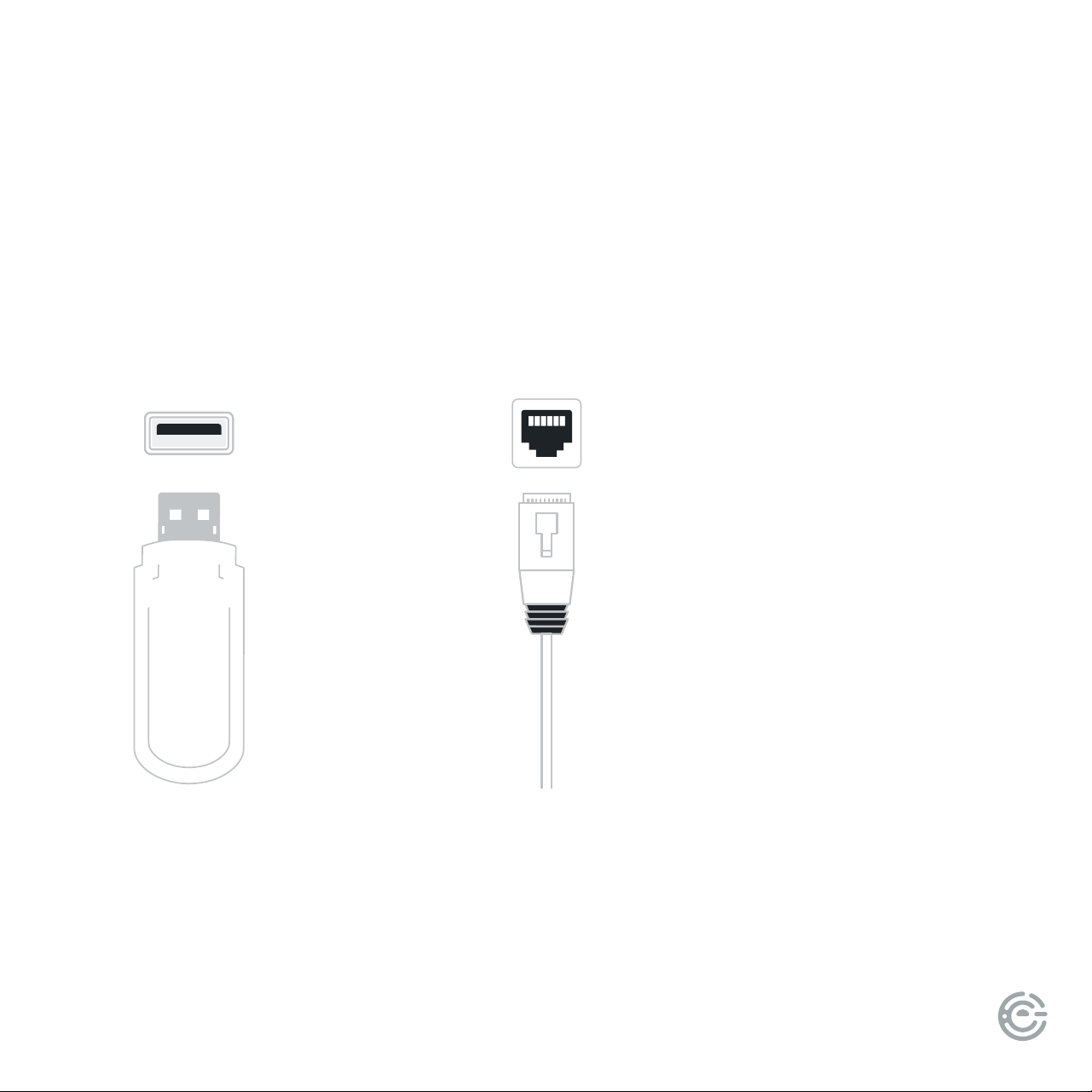
Connect a USB device
for browsing photos,
music, or videos.
(continued)
Connect an Ethernet cable
to access a network or the
Internet. e TV also has a
wireless connectivity feature.
USB
LAN
QUICK START GUIDE6
SETTING UP
YOUR TV
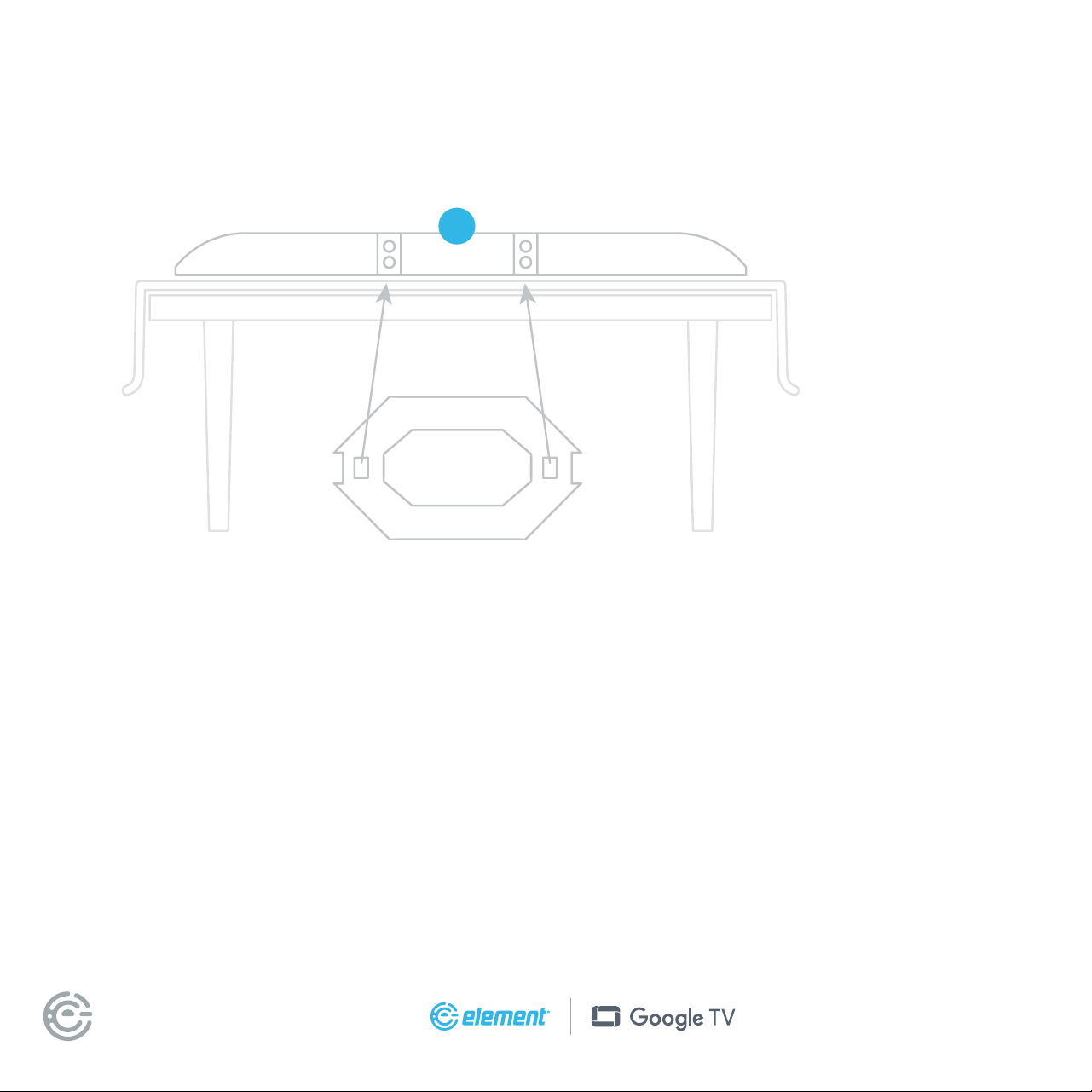
Installing the stands
Do not install the stand if you want to wall mount your TV. See instructions from
wall mounting kit (sold separately).
You will need: Phillips screwdriver (not included)
1. Use the box your TV came in to create a box table and place TV facedown on the box table
by following the unboxing instructions.
2. Use a Phillips screwdriver to attach the stand with the provided screws.
3. Li and place the TV upright on a stable, level surface with at least two people.
For illustration purposes only. Actual product
and number of screws may vary. Please refer
to the actual product.
To avoid damages, never carry your TV by holding or putting pressure onto the glass.
WARNING: Your new TV is heavy (166lbs). Please always use at least two people to
safely move and li the TV.
1
FOR SUPPORT, VISIT ELEMENTELECTRONICS.COM/SUPPORT 7
SETTING UP
YOUR TV
(continued)
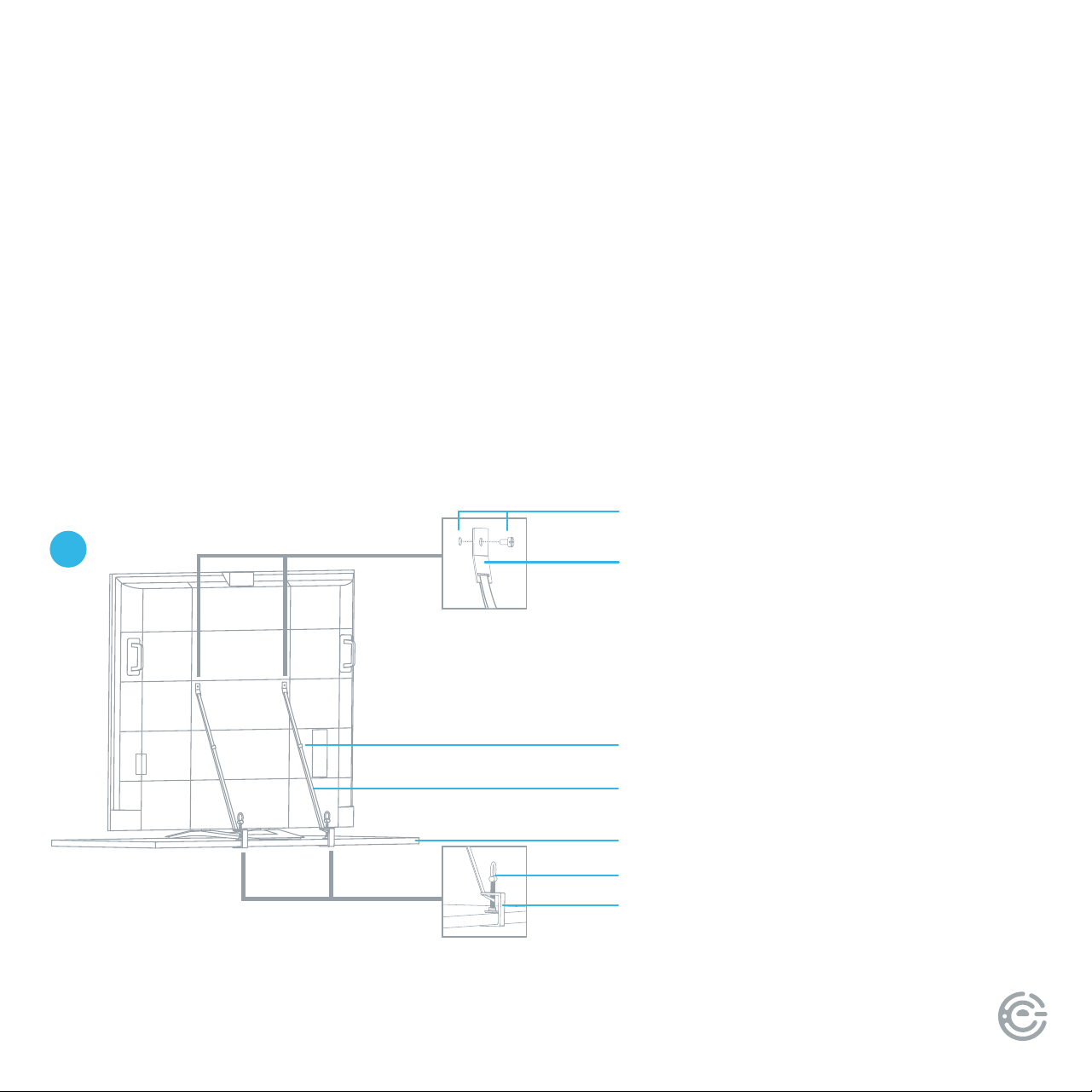
Attaching Safety Straps
e safety straps provided with the TV are required for stabilization when using a TV stand.
1. Remove the mounting screws on the back of the TV.
2. Ax the safety buckle with the screws to the back of the TV.
3. Secure the straps to the table using the fastening clip and bolt. Adjust the height of the screw to
securely install the clip to the table.
4. Fasten the anit-slip buckle as needed to secure the TV.
Mounting Hole & Screw
Wall Plate
Anti-slip Buckle
Safety Belt
Table
Fastening Bolt
Fastening Clamp
2
QUICK START GUIDE8
SETTING UP
YOUR TV
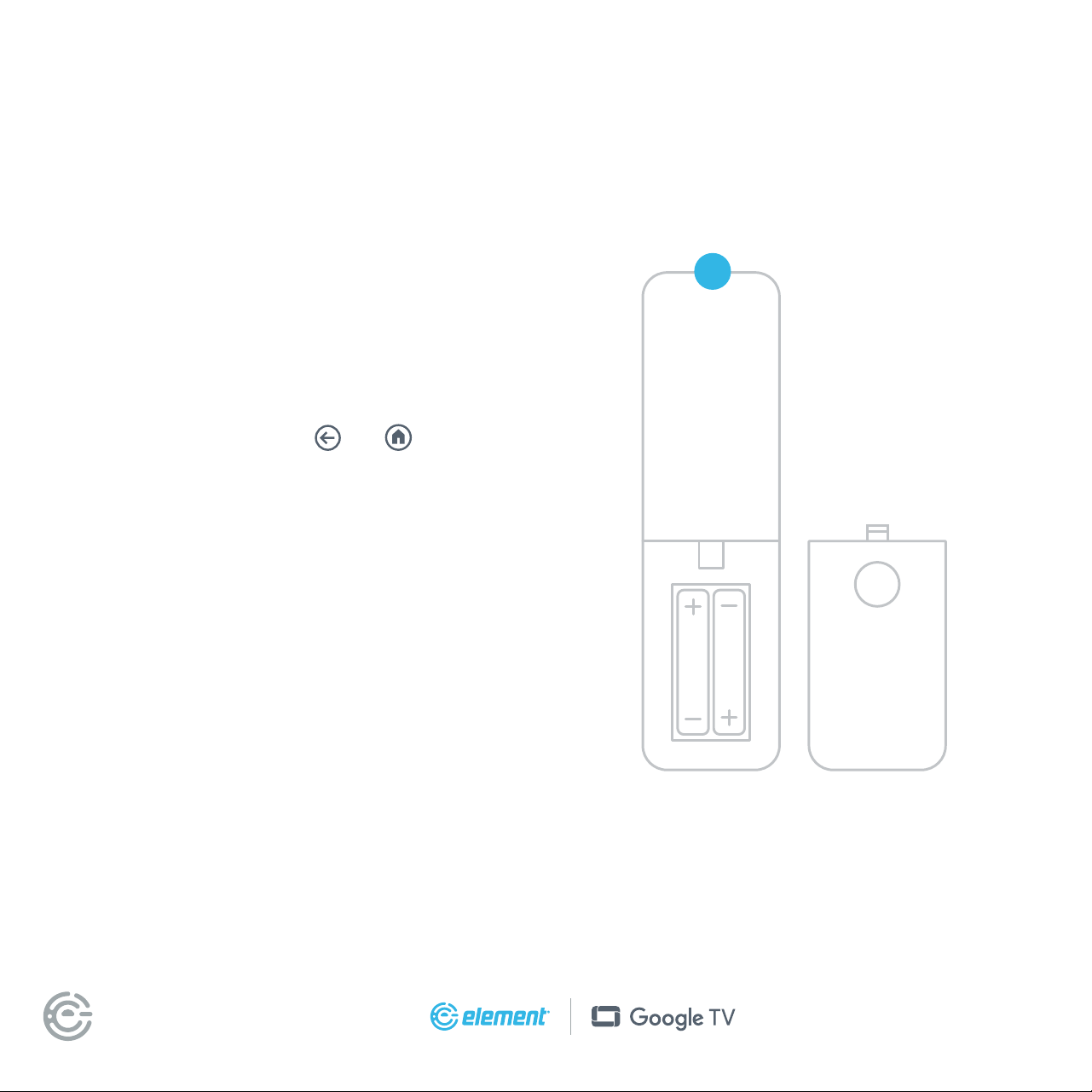
Setting up your remote
Power your TV remote by inserting the included
batteries carefully matching (+) and (-) indicated
inside the battery compartment.
Pairing your remote
When the TV prompts you to start pairing the
remote, press and hold the
and buttons
on the remote until the light on the remote
starts to pulse. Once complete, follow the
on-screen instructions.
Note: Internet connection is required in order to use
Google Assistant.
TIP: Always replace dead batteries with two brand
new batteries from the same manufacturer. Never
use damaged batteries.
If your remote gets warm/hot during use, discontinue
use and contact customer support immediately.
(continued)
3
FOR SUPPORT, VISIT ELEMENTELECTRONICS.COM/SUPPORT 9
SETTING UP
YOUR TV
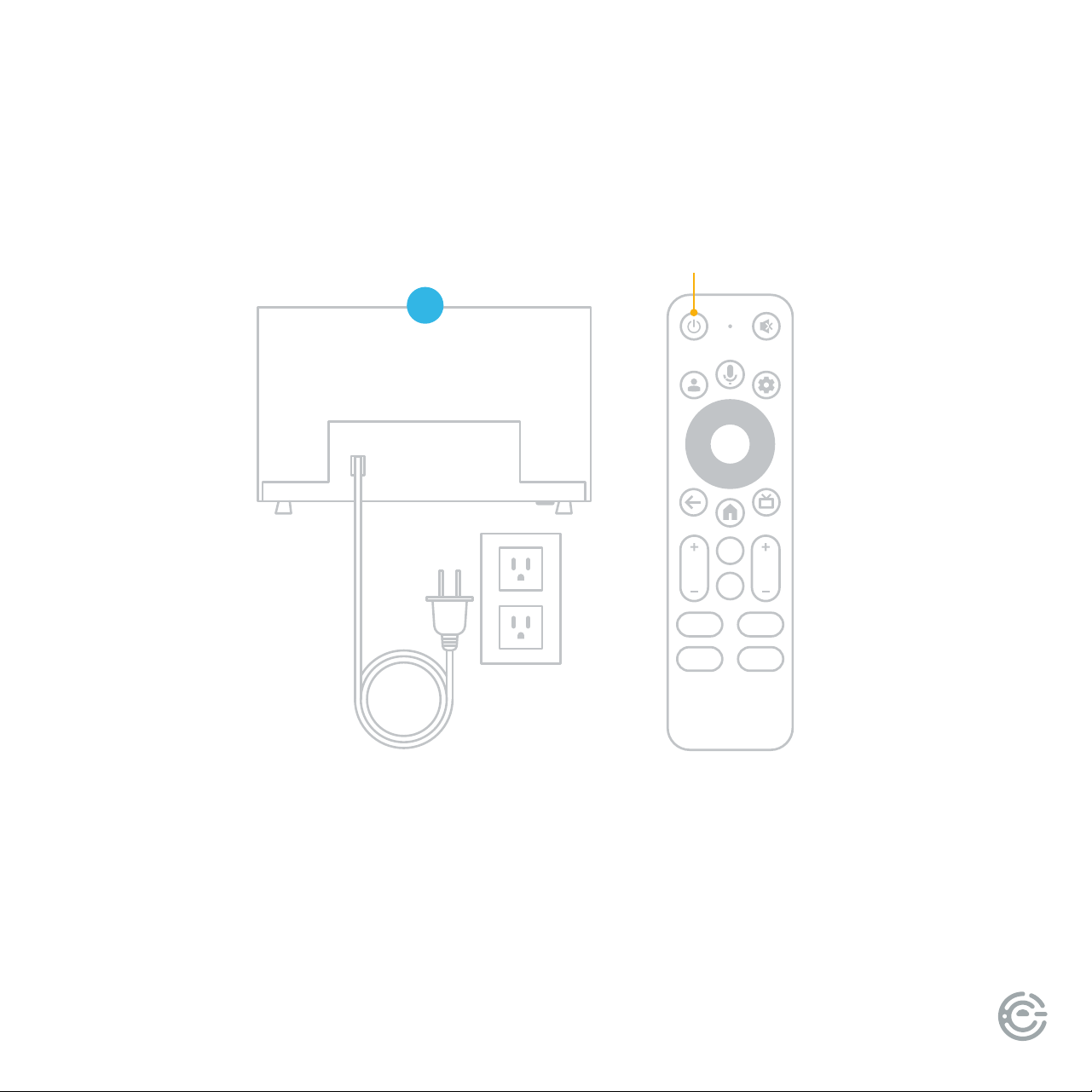
Plug in and turn on TV
Plug your TV into the wall outlet and press the power button on your remote control. Your TV will display a
launch screen followed by the rst setup screen.
(continued)
4
MENU
CHVOL
123.
Power
button
QUICK START GUIDE10
Welcome
English (United States
Español (Estados Unidos)
5
SETTING UP
YOUR TV
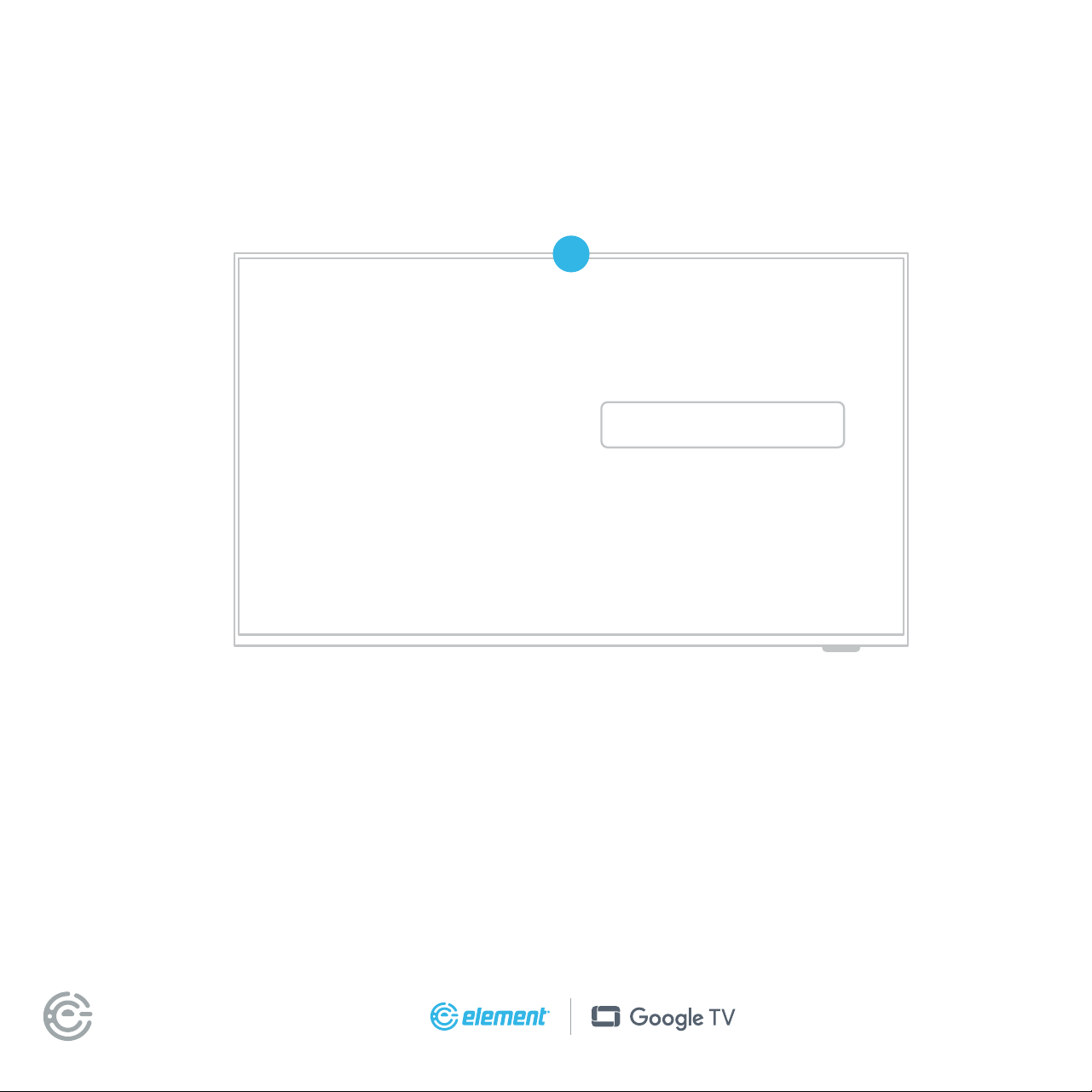
Follow the on-screen instructions
When your TV powers on, follow the easy on-screen instructions for setup.
Connecting your TV to the Internet gives you access to all the things that make your TV smart, including
apps, Google Assistant, and more. Your TV will automatically detect wireless networks in your area, so
have your network name and password handy. If you aren’t ready to connect to a wireless network you
can still use it as a basic TV and can connect it later within settings.
(continued)
FOR SUPPORT, VISIT ELEMENTELECTRONICS.COM/SUPPORT 11
SETTING UP
YOUR TV
(continued)
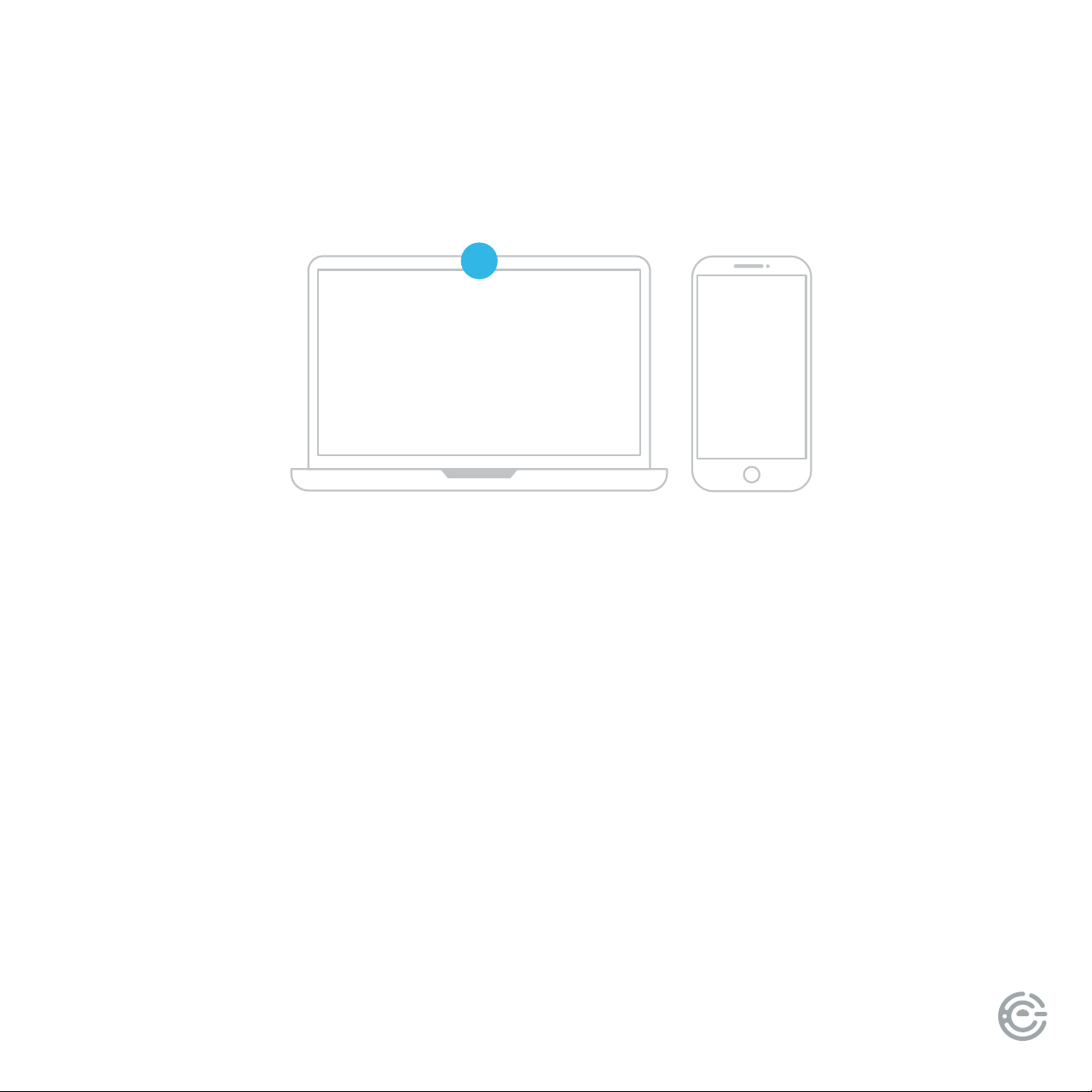
Activate your TV
To activate your TV you’ll need a computer, smartphone or tablet. When setup is complete you’ll be
directed to the home screen.
Set up Google TV
™
for full access to all of your TVs features like installing apps, personalized entertainment,
and Google Assistant. For this selection, a Google Account is required for activation. You can login to an
existing Google Account, or create a new one by following the prompts.
TIP: Download the Google Home app for faster set up, or continue set up on the TV using the remote.
Set up Basic TV if you prefer to use your TV without an Internet connection or without a Google Account.
Some features aren’t available in basic TV (ie: features that require a Google Account, installing apps,
Google Assistant, or casting content). You can always setup Google TV later within the TV settings.
A paid subscription or other payments may be required for some streaming channels.
Channel availability subject to change and varies by country or region.
6
QUICK START GUIDE12
USING YOUR
REMOTE
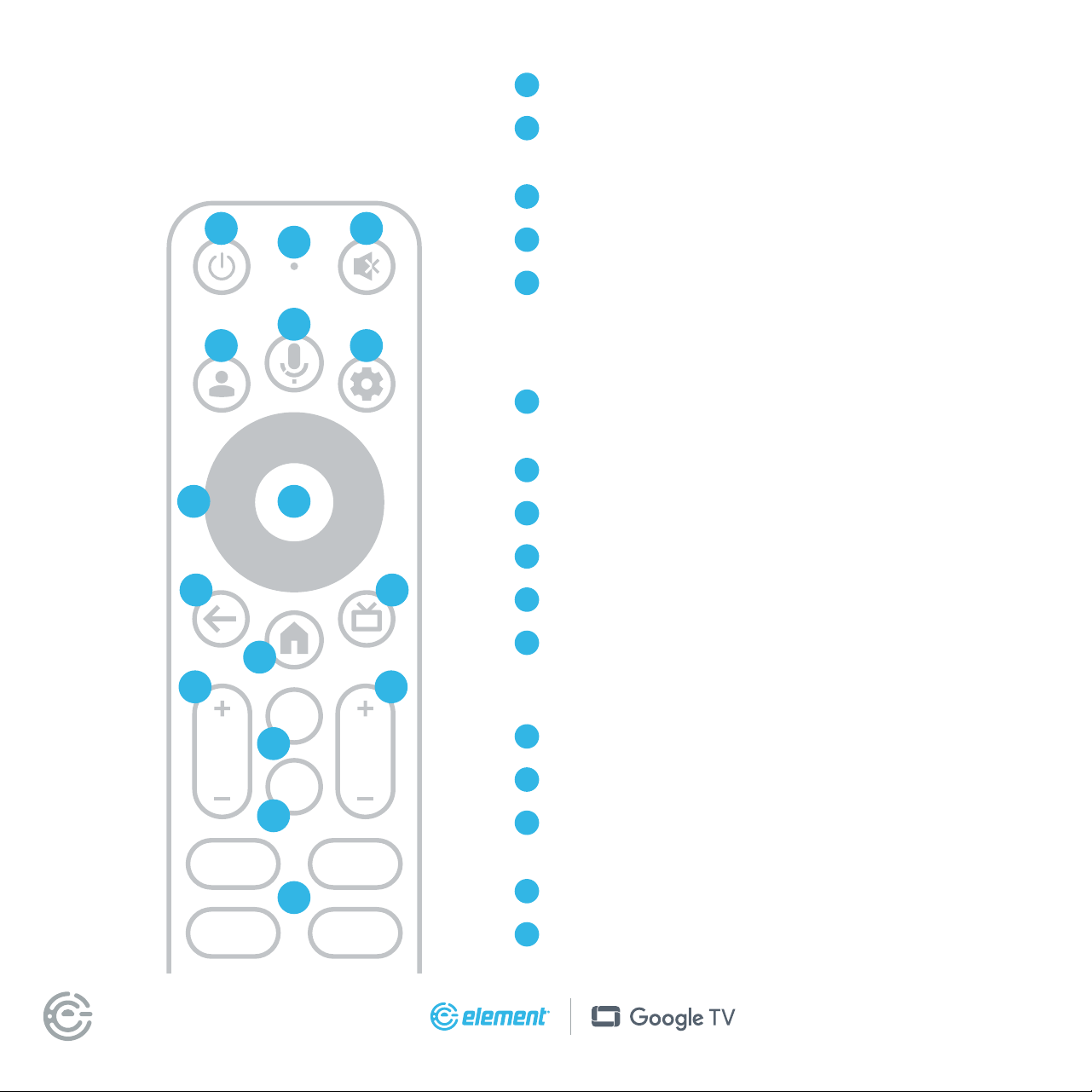
A
Power Turn your TV on and o
B
Microphone Speak into the microphone aer pressing
the Google Assistant button
C
Mute Turn your TV sound on and o
D
Prole Select your Google prole
E
Google Assistant Ask Google to nd movies, stream
apps, play music, control the TV, and more – all with
your voice. Press the Google Assistant button on the
remote to get started.
F
Dashboard Display the dashboard menu to access
quick TV settings, inputs, and more
G
Navigation Pad Select up, down, le and right
H
Select Conrm your selection
I
Back Return to the previous screen
J
Home Return to the home screen
K
Guide Display over-the-air live TV channels when the
TV is connected to an antenna; or when pressed in DTV
mode, the electronic program guide (EPG) will display
L
Volume Make your TV louder or soer
M
Channel Select the channel
N
Virtual Keyboard Display the on-screen
virtual keyboard
O
Menu Display the Menu settings
P
App shortcuts Launch the labeled app when your
TV is connected to the Internet
MENU
CHVOL
123.
A C
D
G
E
F
H
I
J
K
L M
N
O
P
B
FOR SUPPORT, VISIT ELEMENTELECTRONICS.COM/SUPPORT 13
CONNECTING
AN ANTENNA
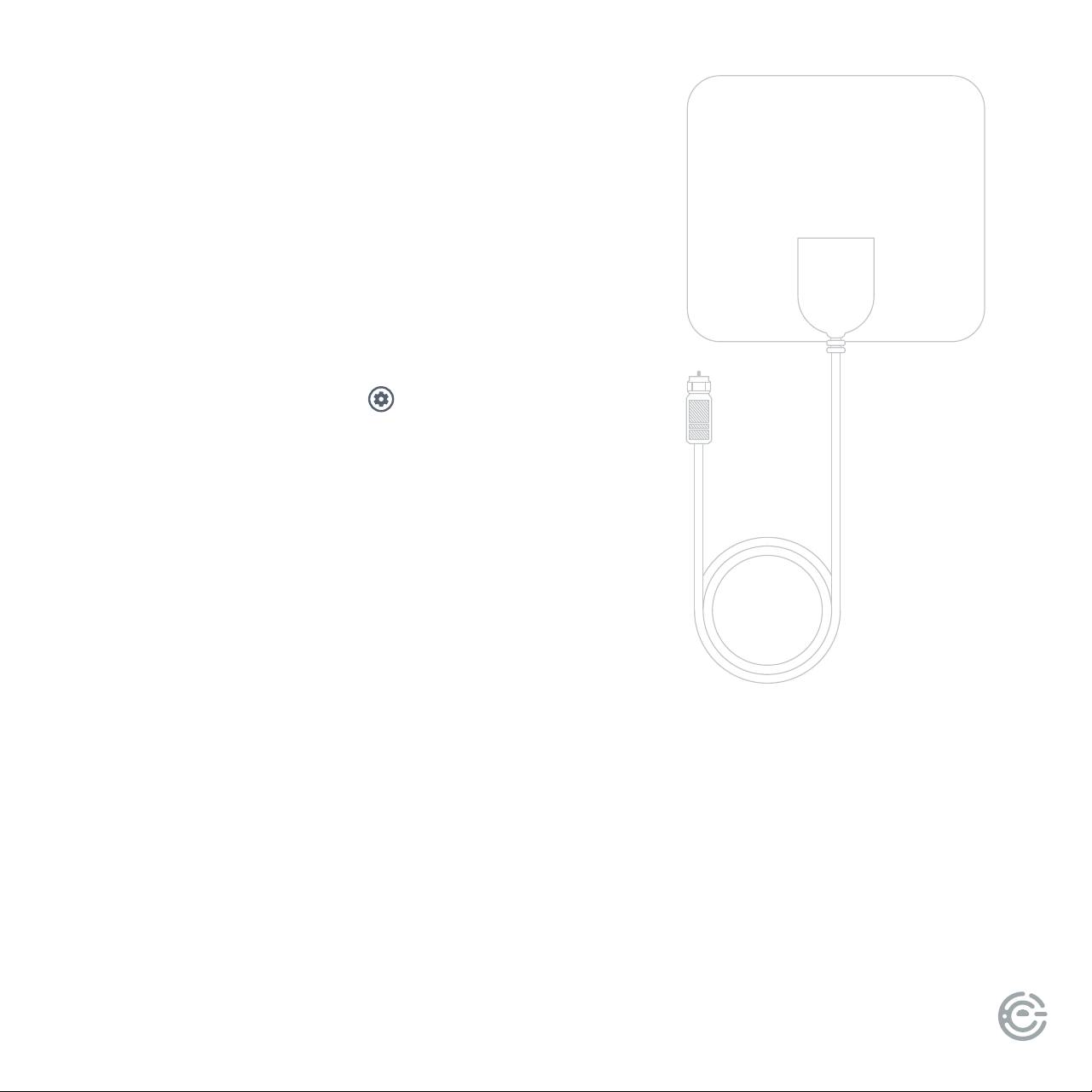
With the built-in tuner you can connect your TV to
an antenna and enjoy over-the-air entertainment.
1. To connect your TV to an antenna, connect a coax
cable (not included) into your TV’s ANT/CABLE port
and the other end into your device.
2. Turn your TV on and press the button
on your remote and then press Select.
3. Navigate channels & inputs > channels > channel scan
4. Follow the on-screen instructions.
UNIVERSAL
REMOTE SETUP
If you prefer to use your cable set-top box or satellite receiver remote as a
universal remote, please refer to the manual your cable or satellite service
provided. It includes instructions on how to program your remote to your TV.
QUICK START GUIDE14
LET’S REGISTER
YOUR PRODUCT
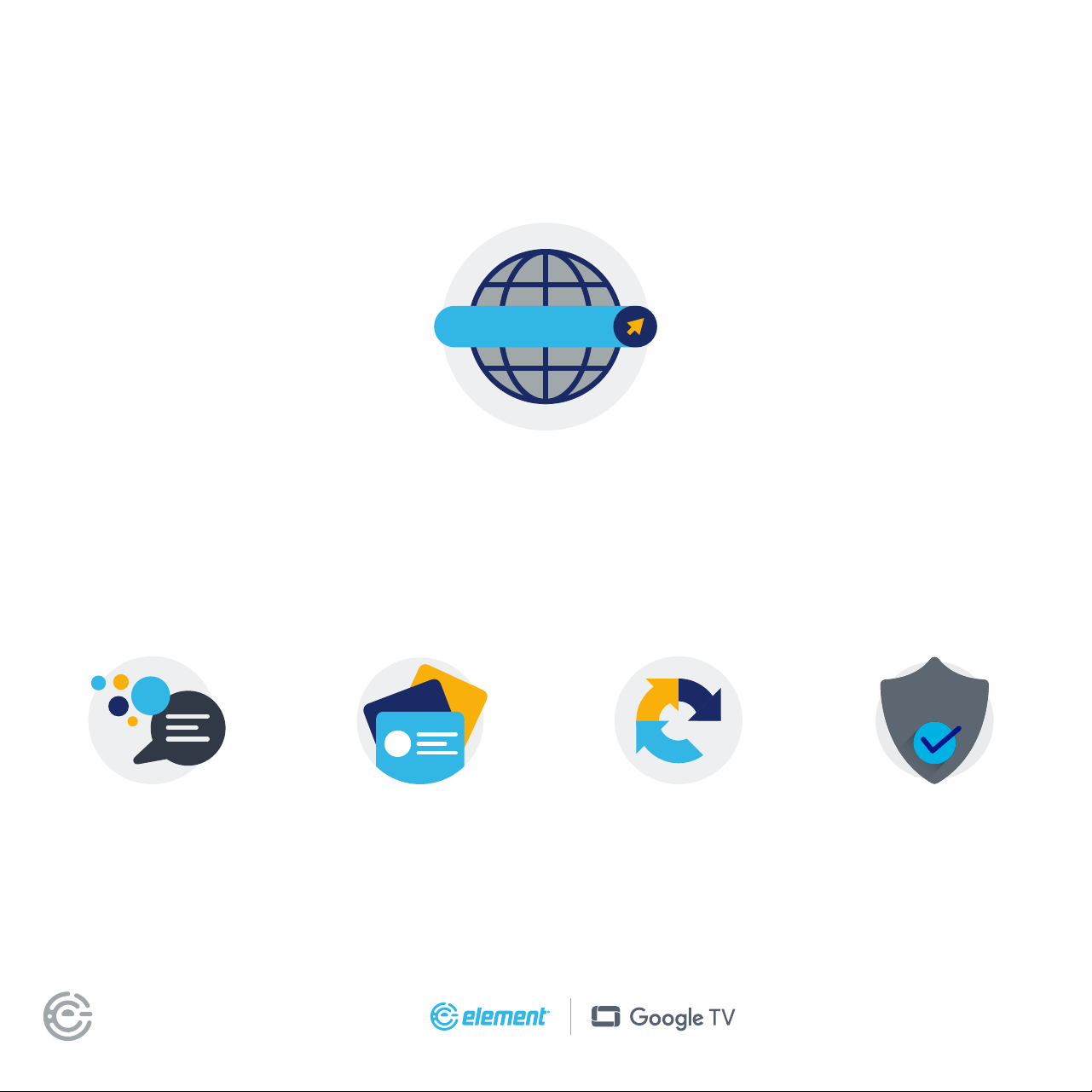
It’s super easy, just head on over to
elementelectronics.com/register
BENEFITS OF REGISTERING YOUR PRODUCT:
www
Updates
Stay current with
important product updates
and notications.
Support
Get assistance quickly
by pre-registering
your product.
News & Oers
Take advantage of the
latest news and special
oers from Element.
2-YEAR
LIMITED WARRANTY*
Warranty
Receive a 2-year
limited warranty with
registration*
*1-year manufacturer’s limited warranty with purchase, or 2-year limited warranty with
product registration within 90 days of purchase. See warranty card for details.
FOR SUPPORT, VISIT ELEMENTELECTRONICS.COM/SUPPORT 15
WE’RE HERE
TO HELP
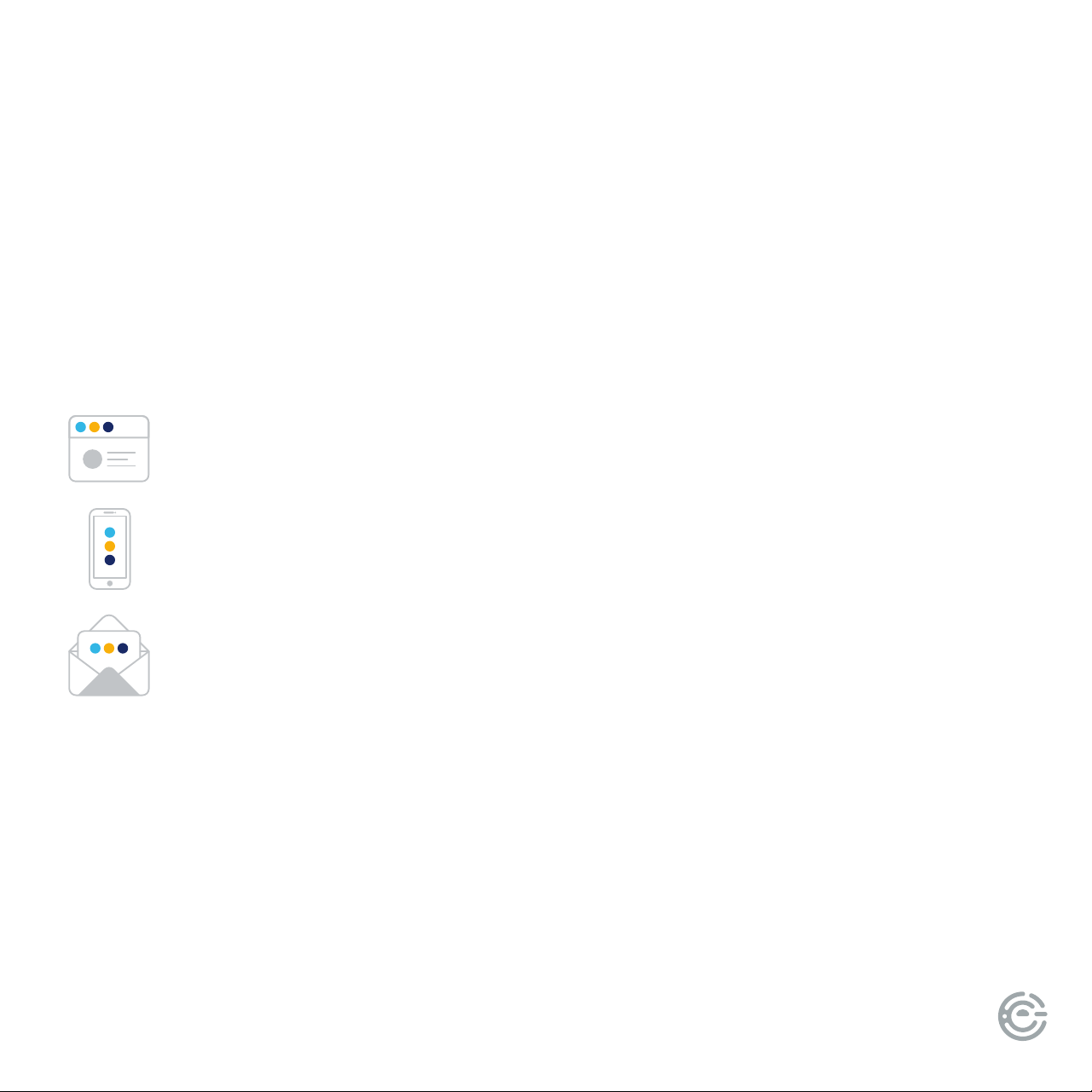
Find resources and get help with product setup, connecting devices, technical issues,
downloading manuals and more!
elementelectronics.com
1.888.842.3577
customerservice@elementelectronics.com
We’re available 24 hours a day, 7 days a week
To learn more about your Google TV, or to review common issues and solutions,
visit support.google.com/googletv
We recommend keeping your TV box for the duration of your warranty.
See your product warranty for details.

Bring it home.
®
Element, the Element Logo, and Bring it home are trademarks of Element Brand Holding, LLC. ©2024 Element Brand Holding, LLC. All Rights Reserved.
Google TV is the name of this device’s soware experience and a trademark of Google LLC.
Google and Google Cast are trademarks of Google LLC.
