
E-MANUAL
Thank you for purchasing this Samsung product.
To receive more complete service, please register your
product at
www.samsung.com
Model Serial No.
To directly go to the page that provides instructions on
how to use the manual for visually impaired users, select
the Learn the Menu Screen link below.
"Learn the Menu Screen
" Link

Contents
Guide
Projector Screen Adjustment
5
Guide to screen adjustment
Connections
7 Connection Guide
8 Connecting to the network
11
Displaying your mobile device screen on the Projector
13
Connection Cables for External Devices
14
Switching between external devices connected to the
Projector
16 Connection Notes
Remote Control and Peripherals
18
About the Samsung Smart Remote
20
Connecting the Samsung Smart Remote to the Projector
20
Learn how to use Samsung Smart Remote
21
Using Anynet+ (HDMI-CEC)
22 Controlling the Projector with a Keyboard, Mouse, or
Gamepad
24 Entering Text using the On-Screen Virtual Keyboard
Smart Features
26
Using Smart Hub
30
Using Ambient Mode
32 About the Media Home Screen
34 About the Menu Home Screen
38 Using a Samsung account
40 Using PC on Screen
46 Using TV Access
47 Using the Apps Service
51 Using the e-Manual
53 Using the Internet
54 Using SmartThings
57 Using Bixby
Projector Viewing
62 Projector-Viewing Support Functions
Picture and Sound
63 Setting the Viewing Environment for Projector
64 Adjusting the Picture Quality
67
Changing the Picture Size and Position
68
Setting the Viewing Environment for External Devices
69
Conguring a Sound Mode and Expert Settings
71 Using the Sound Support Functions
System and Support
73 Using the Time Functions and the Timers
75
Using the Power and Energy Saving Functions
76
Updating the Projector's Software
77
Using the Parental Settings function
78 Audio and Video Functions for the Visually or Hearing
Impaired
83 Using Voice Assistants on the Projector
84
Using Other Functions
Precautions and Notes
86
Read Before Using Apps
87 Read Before Using the Internet Function
89 Read After Installing the Projector
89 Read Before Connecting a Computer (Supported
Resolutions)
91
Supported Resolutions for Video Signals
92
Read Before Using Bluetooth Devices
93
Blocking programs based on their TV Rating
96
Licenses

Troubleshooting
Picture Issues
97
The screen is ashing or has become dark
97 The picture is not bright, or the picture colors do not look
clear
98 The picture colors are black and white or do not look the
way they should look
98 The Projector automatically turns off by itself
98 Unable to power on
99 Displayed video looks blurry
99 The picture is distorted
99
There is a dotted line on the edge of the screen
99 The picture won’t display in full screen
100 The Caption function in the Projector menu is deactivated
100 Captions appear on the Projector screen
Sound and Noise Issues
101
How can I connect an audio device to the Projector?
101
There is no sound or the sound is too low at maximum
volume.
101 The picture is good but there is no sound.
101 HDMI (eARC) is connected, and there is no sound.
102 The speakers are making an odd sound.
102
The sound is interrupted.
102
Whenever a function is used on the Projector or the channel
is changed, the Projector voices the activity. The Projector
explains in voice-over the video scenes displayed on the
screen.
102 The Projector audio is not being played through the Sound
bar or A/V receiver.
103 The sound is not heard clearly.
103 The volume of the external device cannot be adjusted.
103 I want to turn the Projector and audio device off and on at
the same time.
External Device Connectivity Issues
104
The "Mode Not Supported" message appears.
104
The video is OK but there is no audio.
104 I want to connect to a PC and mobile device via screen
mirroring.
105
No screen appears when connecting the Projector to an
external device.
105
I want to connect to a Bluetooth speaker.
105 The PC screen does not appear or it ickers.
Network Issues
106 Wireless network connection failed. Unable to connect to a
wireless access point. Unable to connect to the network.
106
Connected to a local network, but not to the Internet.
Anynet+ (HDMI-CEC) Issues
107
What is Anynet+?
107
Anynet+ does not work. The connected device is not
displayed.
107 I want to start Anynet+. I also want the connected devices to
turn on when the Projector is turned on.
108 I want to exit Anynet+. It is inconvenient to turn on
other devices because the Projector also turns on. It is
inconvenient because the connected devices (e.g. set-top
box) turn off together.
108 The message "Connecting to Anynet+ device..." or
"Disconnecting from Anynet+ device" appears on the screen.
108
The Anynet+ device won't play.
Remote Control Issues
109
The remote control does not work.
Apps
109 I launched an app, but it's in a different language. How can I
change the language?
109
The app does not work properly. Its image quality is poor.
109
The Smart Hub Home Screen keeps appearing whenever you
turn on the Projector.
Voice Assistant Issues
110 The voice commands do not work well.
110 Bixby/Alexa answers although I did not call it.
110 I spoke "Hi, Bixby/Alexa" but Bixby/Alexa does not answer.
111 Voice recognition does not work with the Samsung Smart
Remote unlike other features. There is no response even if
the Voice Assistant button is pressed.
111 During voice recognition, the heavy load message appears
and the function does not work.

111 I want to see weather information of the desired area.
Other issues
112 The Projector is hot.
112
The Projector smells like plastic.
112 The settings are lost after 5 minutes or every time the
Projector is turned off.
113 The Projector is making a popping noise.
113 The Projector is making a humming noise.
113 The Projector narrates the screen events in voice-over.
Diagnosing Projector operational issues
114 Self Diagnosis
114 Reset Smart Hub
114
Reset picture
114
Reset sound
Getting Support
115 Getting support through Remote Management
115 Finding the contact information for service
115 Requesting service
Accessibility Guidance
Learn the Menu Screen
116
Using the Samsung Smart Remote
117 Using the Accessibility Menu
121
Using the Projector with Voice Guide on
122 Using Smart Hub
124 Launching the e-Manual
125 Using Bixby
Guide
Learn how to use various features.
Projector Screen Adjustment
Move the Projector to adjust the size of the projected screen.
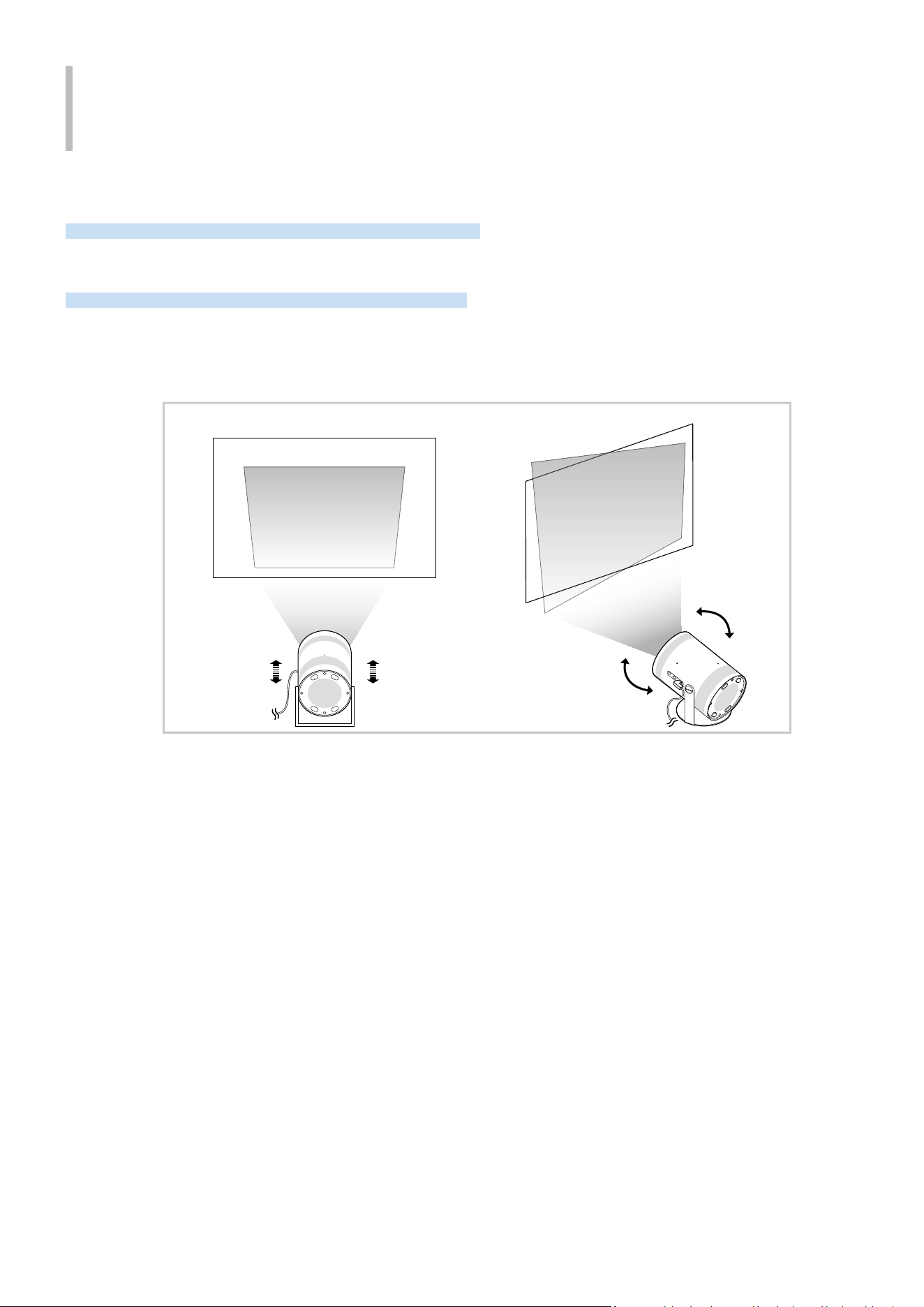
Guide to screen adjustment
When the screen looks skewed or blurry, adjust the screen.
1.
Move the Projector to the left or right to adjust its angle. Alternatively, adjust the top and bottom angles until
the screen shape becomes rectangular.
- 5 -
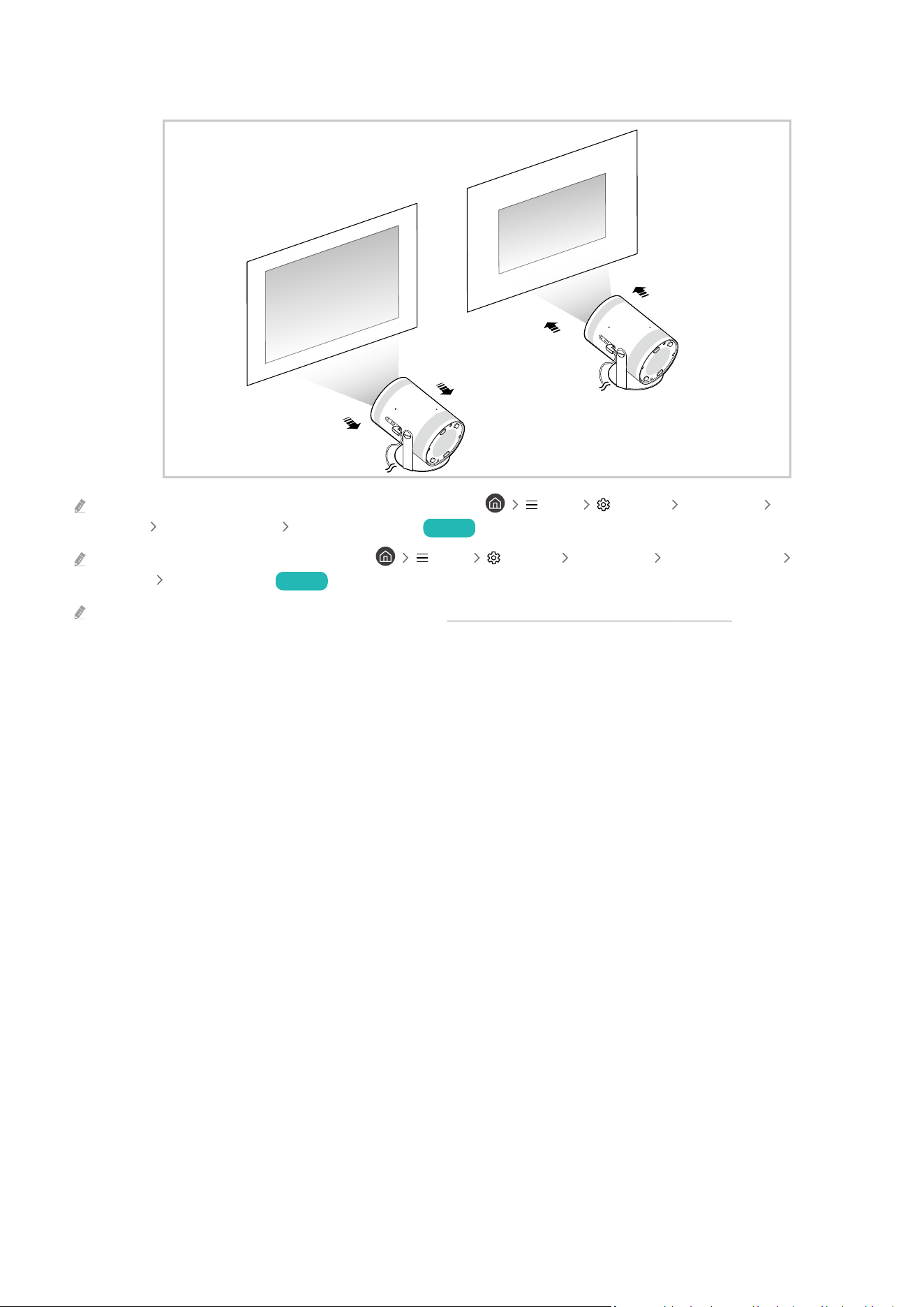
2.
Move the Projector back and forth to adjust the screen size.
When the screen looks skewed or distorted, use the, Keystone ( Menu Settings All Settings General &
Privacy Projector Settings Keystone) function. Try Now
When the screen looks blurry, use the Focus ( Menu Settings All Settings General & Privacy Projector
Settings Focus) function. Try Now
For more information about screen adjustment, refer to "Setting the Viewing Environment for Projector."
- 6 -
Connections
You can get access to the network by using a wireless access point. Using connectors, you can also connect external
devices to your Projector.
Connection Guide
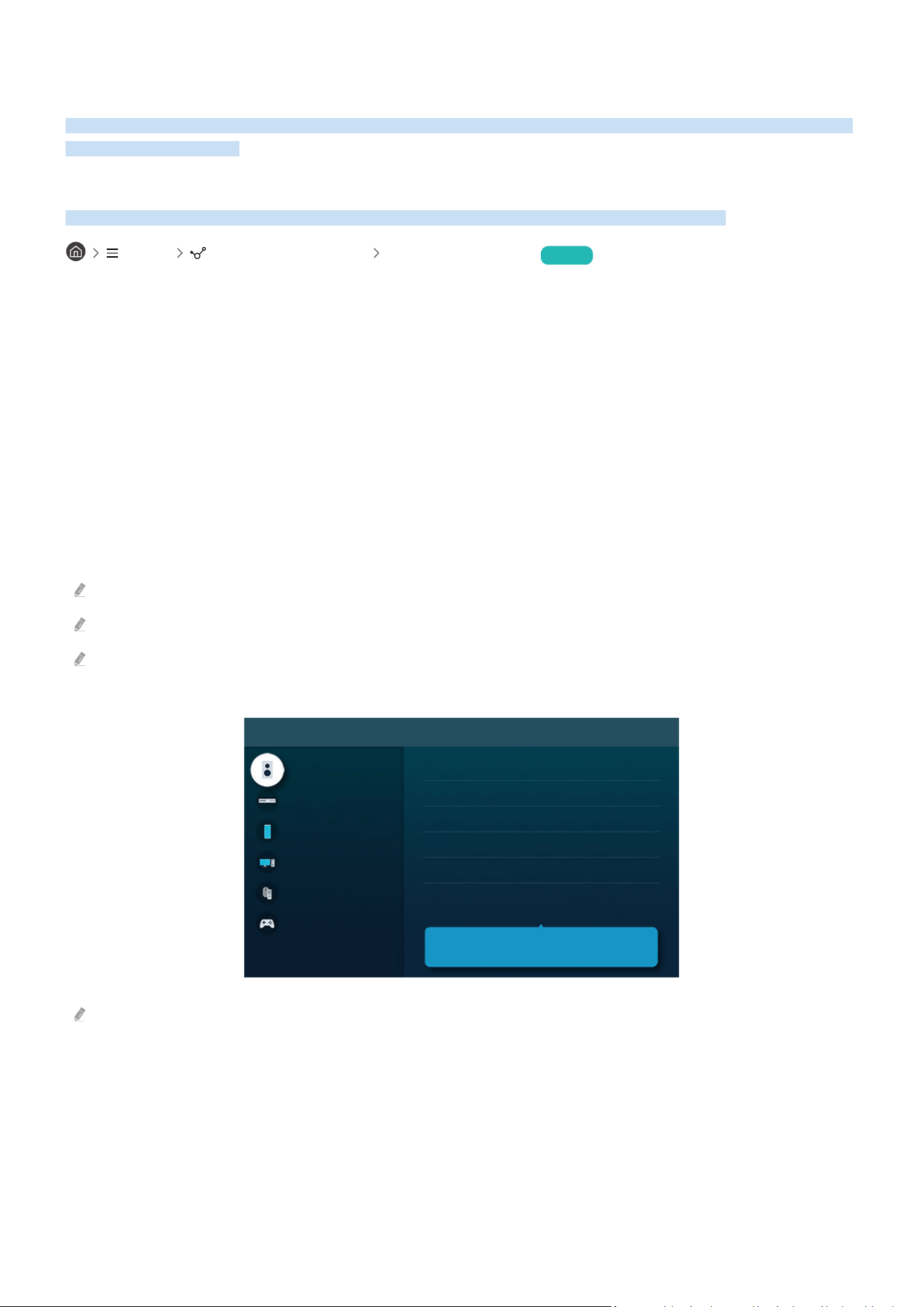
You can view detailed information about external devices that can be connected to the Projector.
Menu Connected Devices Connection Guide Try Now
It shows you how to connect various external devices, such as video devices, game consoles, and PCs using pictures.
If you select the connection method and an external device, the connection details appear.
• Audio Device: HDMI (eARC), Bluetooth, Wi-Fi, Wi-Fi Speaker Surround Setup
• Video Device: HDMI
• Smartphone: Screen Sharing (Smart View), Screen Sharing (Tap View), Samsung DeX, SmartThings, Apple
AirPlay
• PC: HDMI, Screen Sharing (Wireless), Easy Connection to Screen, Apple AirPlay
• Input Device: Remote Control, Bluetooth Device
• Game Console: HDMI
The connection method and available external devices may differ depending on the model.
Some functions may not be supported depending on the model or geographical area.
Using HDMI Troubleshooting, you can check the connection to HDMI cable and external devices (takes approximately 2
minutes).
Connection Guide
Audio Device
Video Device
Smartphone
PC
Input Device
Game Console
HDMI (eARC)
Bluetooth
Wi-Fi
Wi-Fi Speaker Surround Setup
HDMI Troubleshooting
Connect audio devices, such as speakers, sound bars,
headphones, or home theaters, to Projector.
The image on your Projector may differ from the image above depending on the model and geographical area.
- 7 -
Connecting to the network
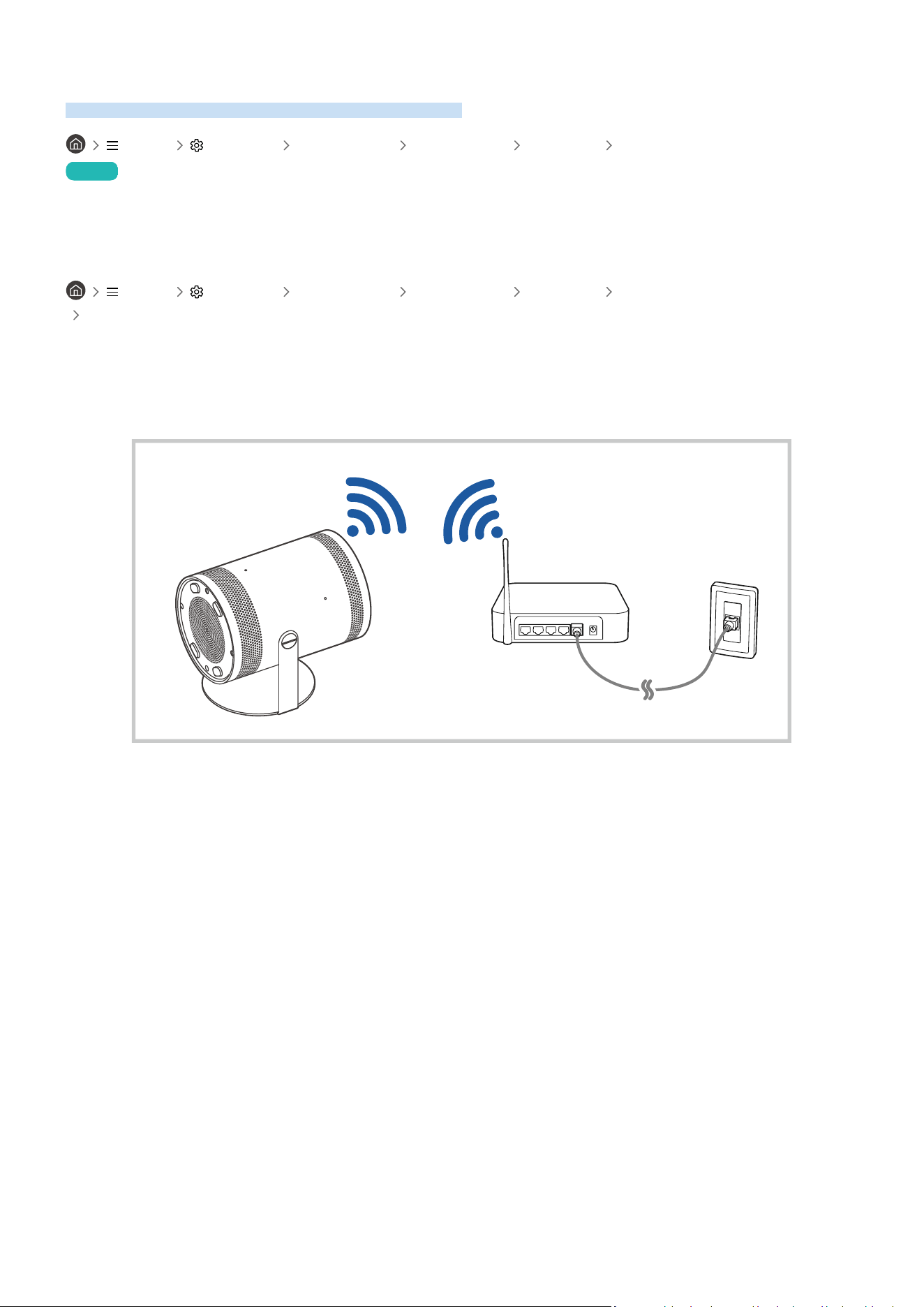
You can get access to the network through your Projector.
Menu Settings All Settings Connection Network Open Network Settings
Try Now
Congure network settings to connect to an available network.
Establishing a wireless network connection
Menu Settings All Settings Connection Network Open Network Settings
Wireless
Make sure that you have the wireless access point's name (SSID) and password settings before attempting to
connect. The network name (SSID) and security key are available on the wireless access point's conguration
screen. See the wireless access point's user manual for more information.
- 8 -
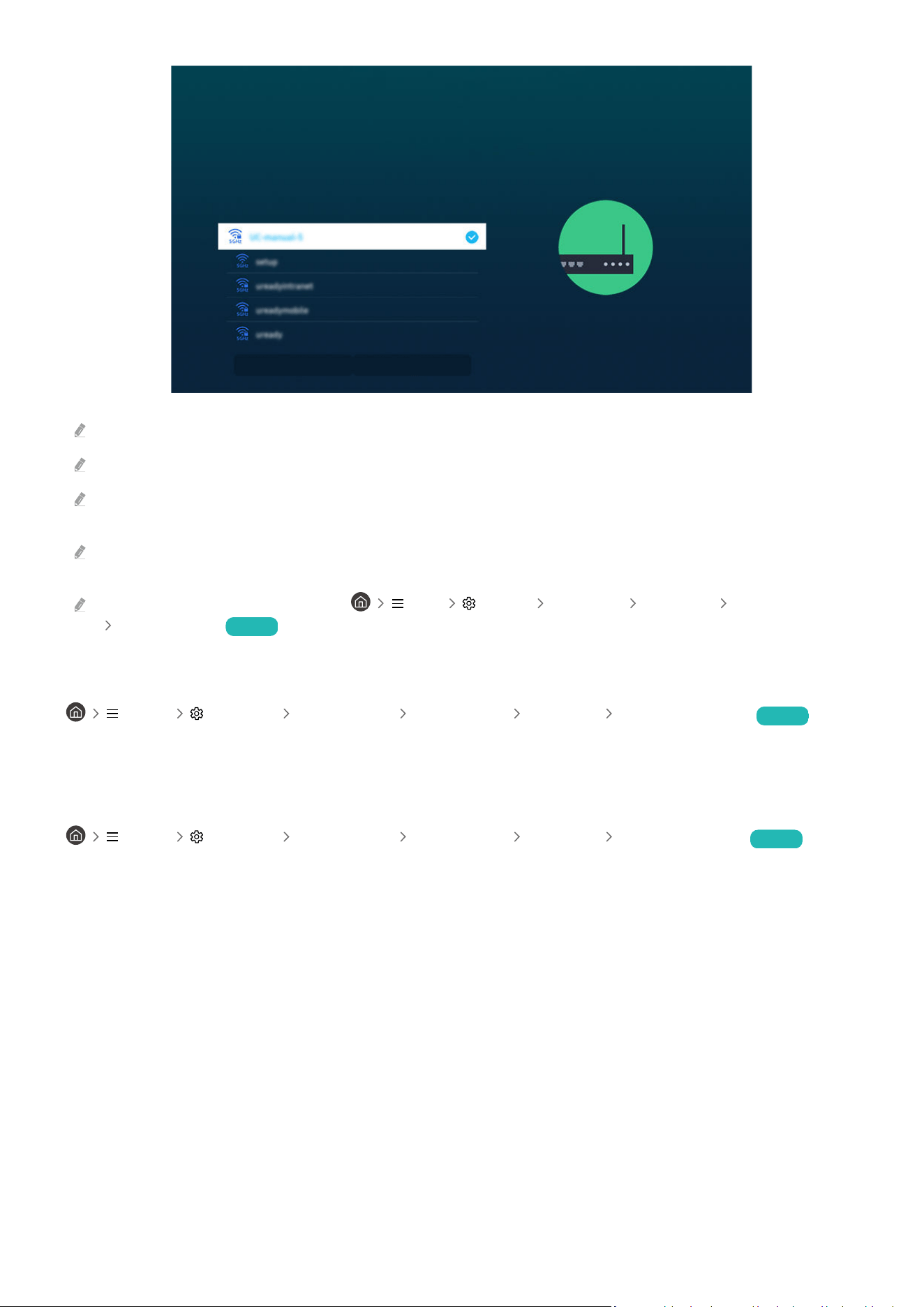
Wireless Connection
Select your Wi-Fi network.
Refresh
Manage Saved Networks
The image on your Projector may differ from the image above depending on the model and geographical area.
If no wireless access point is found, select Add Network at the bottom of the list and enter the network name (SSID).
If your wireless access point has a WPS or PBC button, select Use WPS at the bottom of the list, and then push the WPS or
PBC button on your access point within 2 minutes. The Projector will connect automatically.
To view or delete previously connected network names (SSIDs), move the focus to Manage Saved Networks, and then press
the Select button.
To disconnect Wi-Fi, select Disconnect in Menu Settings All Settings Connection Network
Network Status. Try Now
Checking the network connection status
Menu Settings All Settings Connection Network Network Status Try Now
View the current network status.
Resetting Your Network
Menu Settings All Settings Connection Network Reset Network Try Now
Restore the network settings to the factory default.
- 9 -

Turning on the Projector with a mobile device
Menu Settings All Settings Connection Network Expert Settings Power On
with Mobile Try Now
You can turn on the Projector using a mobile device connected to the same network as the Projector.
This function is available with a mobile device connected to the Projector through the SmartThings app or the Apple AirPlay
function.
Apple AirPlay may not be supported depending on the model or geographical area.
Connecting an IP control device to the Projector
Menu Settings All Settings Connection Network Expert Settings IP Remote
Try Now
You can connect an IP control device to the Projector remotely to manage your IP device.
To use this function, Power On with Mobile must be turned on.
Turning this feature on may allow other IP control devices to control your Projector. We recommend turning this feature
on only if an authorized third-party custom controller is installed and congured specically for a Samsung Projector and if
your Wi-Fi network is password protected.
This function may not be supported depending on the model.
Allowing to connect a wireless network
Menu Settings All Settings Connection Network Expert Settings Wi-Fi
Try Now
You can enable the connection to Wi-Fi.
To connect a wireless network, the function must be active.
Changing the name of the Projector
Menu Settings All Settings Connection Device Name Try Now
You can change the name of the Projector on the network. Select User Input at the bottom of the list and change
the name.
- 10 -

Displaying your mobile device screen on the Projector
You can watch the screen of your mobile device on the Projector screen through Smart View or Tap View.
For information on how to share the screen with your mobile device, refer to
Menu Connected
Devices Connection Guide Smartphone Screen Sharing (Smart View). Try Now
• To turn off Screen Sharing (Smart View), disconnect the mobile device or press the button on the remote
control.
• Using the Smart View menu on your mobile device, you can change the settings such as aspect ratio.
• Use AirPlay if you are an iPhone or iPad user. For more information, refer to Menu Connected
Devices Connection Guide Smartphone Apple AirPlay. Try Now
This function may not be supported depending on the model or geographical area.
• The screen sharing function (Smart View/Apple AirPlay) on your mobile device appears on the screen on your
mobile device.
This function may not be supported depending on the model or geographical area.
• If the Projector is connected to a wireless router and DFS channel, radio performance of the screen share
function may degrade. To prevent this, change the router settings to disable use of DFS channel. For details on
how to change the settings, refer to the user manual provided by the router manufacturer.
- 11 -

Using the Tap View
By tapping the mobile device on your Projector, you can watch mobile device's screen through the Projector screen.
When you tap a mobile device on your Projector while running a music app on your mobile device, the Projector
screen switches to the Music Wall screen.
This function is available in Samsung mobile devices with Android 8.1 or higher.
Music Wall screen is a function that allows you to enjoy music along with visual video effects that change according to the
genre and beat of the music.
1.
Enable Tap View on your mobile device.
For more information about conguration, refer to 'Enabling the Tap View' below for how to set.
2.
Turn on the screen of your mobile device.
3.
Tap your mobile device on the Projector. The Projector screen switches to Music Wall or mobile device's screen.
4.
Watch Music Wall or mobile device's screen on the Projector screen.
This function enables mirroring (Smart View) by detecting vibrations generated when you tap the mobile device on the
Projector.
We recommend using your mobile device with the cover in place and lightly tap it on any external edge of the Projector.
Enabling the Tap View
Enable Tap View in the SmartThings app.
Depending on the SmartThings app version, you may need to register the Projector with your mobile device.
1.
Launch the SmartThings app on your mobile device.
2.
Select Settings ( ) in SmartThings app on your mobile device.
3.
Set the Tap View to on.
Upon connection for the rst time, select Allow on a pop-up window of the Projector.
- 12 -
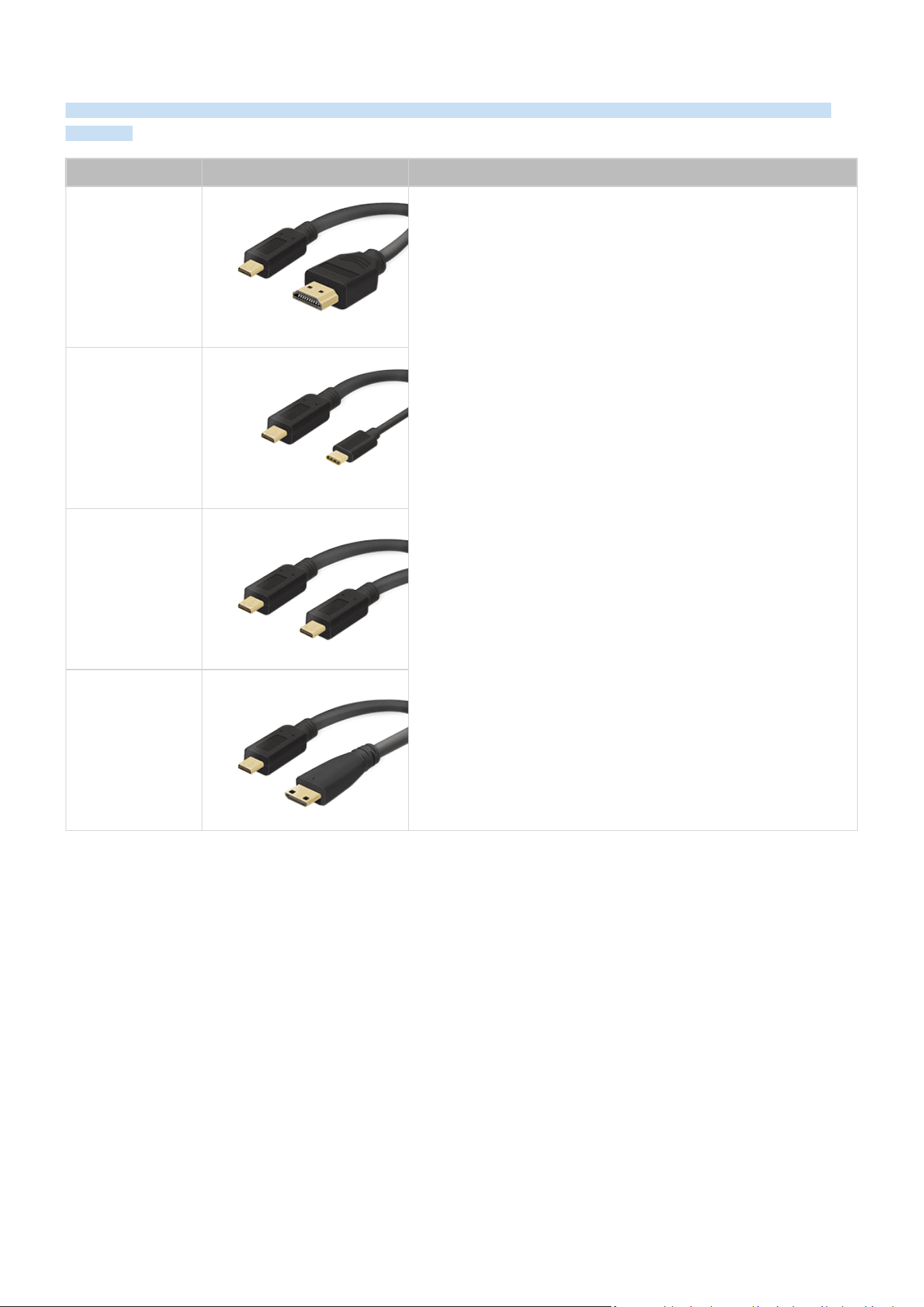
Connection Cables for External Devices
You can view detailed information about the connection cables for external devices that can be connected to the
Projector.
Cable name Image Description
Micro HDMI
to
HDMI
Each cable simultaneously transmits digital video and audio signals
from an external device to the Micro HDMI port on the Projector.
Cables are divided into various types according to the types of input
or output ports on external devices.
Micro HDMI
to
USB type-C
Micro HDMI
to
Micro HDMI
Micro HDMI
to
Mini HDMI
- 13 -
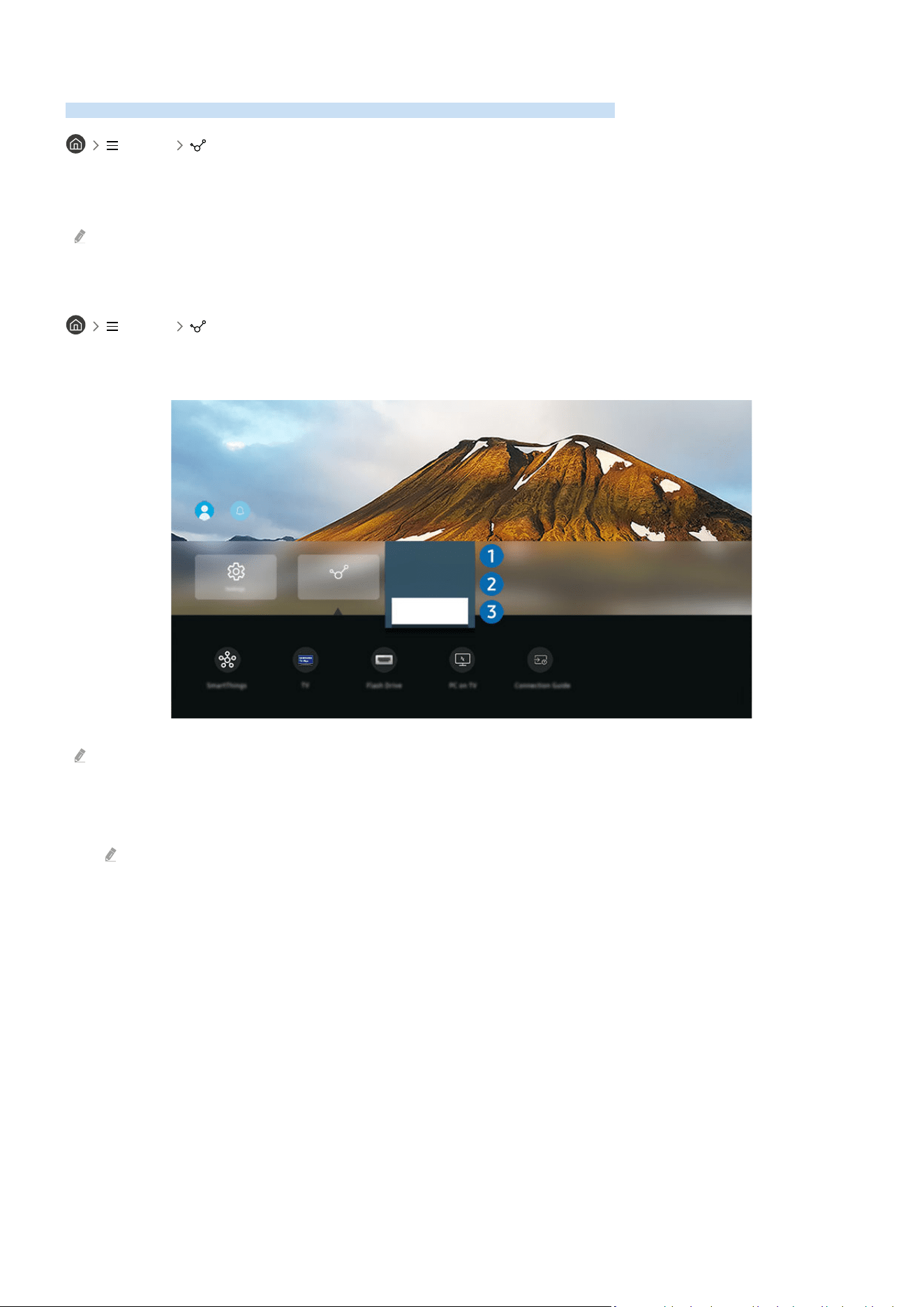
Switching between external devices connected to the Projector
You can switch between Projector programs and the content of external devices.
Menu Connected Devices
When you select a connected external device on the Source screen, the output of the selected device is displayed on
the Projector's screen.
This function may not be supported depending on the device and geographical area.
Editing the name and icon of an external device
Menu Connected Devices
You can change the port name for a connected external device or add it to the Home Screen.
Edit
Information
Add to Home
Connected Devices
The image on your Projector may differ from the image above depending on the model and geographical area.
1.
Move the focus to a connected external device.
2.
Press the down directional button. The following functions become available:
Available functions may differ depending on the port type.
- 14 -

1.Edit
You can rename the input ports and change the device icons.
2.Information
You can view detailed information about an external device.
3.Add to Home
You can add the port of an external device to the Home Screen for quick switching.
Using additional functions
You can use the following features on the Sources screen.
• PC on Screen
Use the Projector to access your PC via remote PC or Screen Sharing (Wireless).
For more information, refer to "Using PC on Screen."
• TV Access
By mirroring, you can watch TV from the Projector screen.
For more information, refer to "Using TV Access."
• Connection Guide
Displays device connection instructions.
For more information, refer to "Connection Guide."
- 15 -

Connection Notes
When connecting an external device, note the following:
The number of connectors, and their names and locations may differ with the model.
Refer to the external device's operating manual when connecting it to the Projector. The number of external device
connectors, and their names and locations may differ with the manufacturer.
Connection notes for HDMI
• The following types of HDMI cables are recommended:
– High Speed HDMI Cable
– High Speed HDMI Cable with Ethernet
– Premium High Speed HDMI Cable
– Premium High Speed HDMI Cable with Ethernet
– Ultra High Speed HDMI Cable
• Use an HDMI cable with a thickness of 0.66 inches (17 mm) or less.
• Using a non-certified HDMI cable may result in a blank screen or a connection error.
• Some HDMI cables and devices may not be compatible with the Projector due to different HDMI specifications.
• Many computer graphics adaptors do not have HDMI ports, but have DVI or DisplayPort ports instead.
• When the Projector is connected to an external device, such as a DVD/BD player or a set-top box via HDMI,
power sync mode will be automatically activated. In the power sync mode, the Projector continues to detect and
connect external devices via HDMI cable. This function can be deactivated by removing the HDMI cable of the
connected device.
- 16 -

Connection notes for computers
• For the resolutions supported by the Projector, refer to "
Read Before Connecting a Computer (Supported
Resolutions)."
• If you want to connect your PC and Projector wirelessly, both of them must be connected to each other on the
same network.
• When sharing content with other network-based devices, such as those in an IP (Internet Protocol) storage
system, sharing may not be supported due to the network’s configuration, quality, or functionality, for example,
if the network has an NAS (Network-Attached Storage) device.
Connection notes for mobile devices
• To use the Smart View function, the mobile device must support a mirroring function, such as Screen Mirroring
or Smart View. To check whether your mobile device supports the mirroring function, refer to the mobile
device's user manual.
• To use Wi-Fi Direct, the mobile device must support the Wi-Fi Direct function. To check whether your mobile
device supports Wi-Fi Direct, refer to the mobile device's user manual.
• The mobile device and your Projector must be connected to each other on the same network.
• Use AirPlay if you are an iPhone or iPad user. For more information, refer to
Menu Connected
Devices Connection Guide Smartphone Apple AirPlay. Try Now
This function may not be supported depending on the model or geographical area.
• The video or audio may stop intermittently, depending on network conditions.
• When sharing content with other network-based devices, such as those in an IP (Internet Protocol) storage
system, sharing may not be supported due to the network’s configuration, quality, or functionality, for example,
if the network has an NAS (Network-Attached Storage) device.
- 17 -
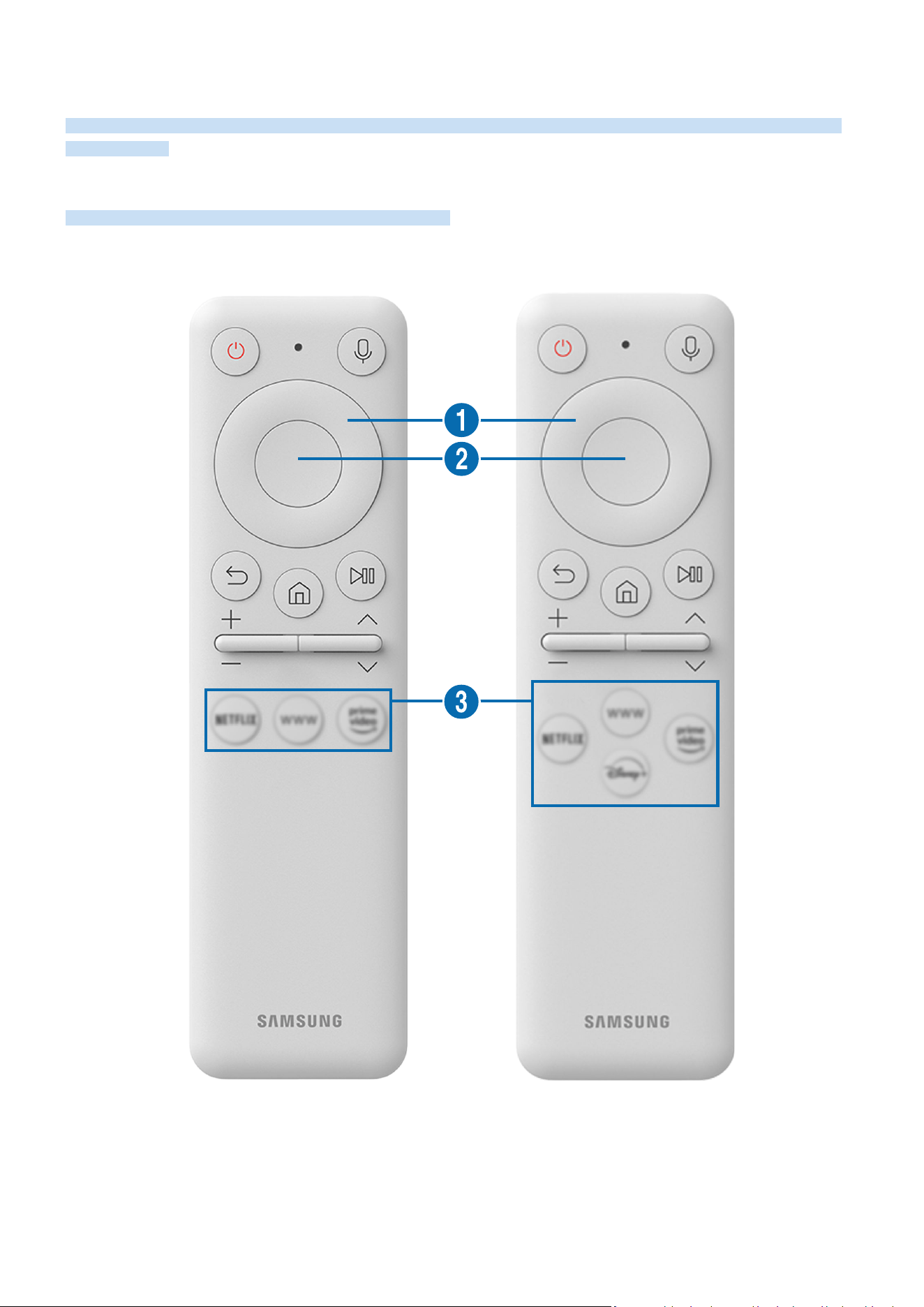
Remote Control and Peripherals
You can control Projector operations with your Samsung Smart Remote. Pair external devices, such as a keyboard,
for ease of use.
About the Samsung Smart Remote
Learn about the buttons on the Samsung Smart Remote.
- 18 -
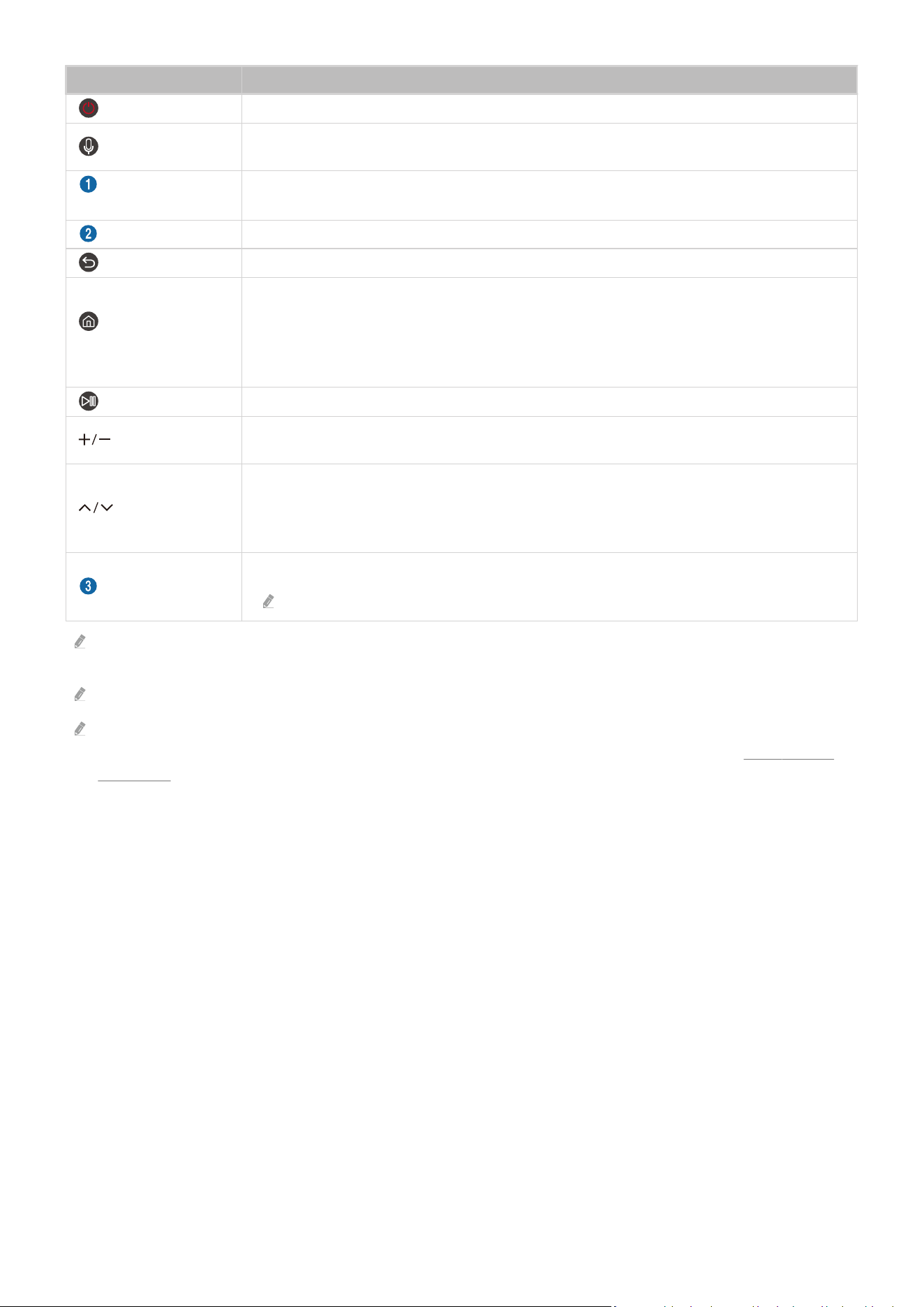
Button Description
(Power)
Press to turn the Projector on or off.
(Voice Assistant)
Runs Voice Assistant. Press and hold the button, say a command, and then release the button to
run Voice Assistant.
Directional button
(up, down, left, right)
Use to navigate the menu or move the focus to highlight items on the Home Screen.
Select
Selects or runs a focused item.
(Return)
Press to return to the previous menu.
(Smart Hub) +
(Control PAD)
Press to switch to the Media Home. From the Ambient screen, press to switch to the Ambient
Home.
When pressed for 1 second or more, the Control PAD appears. You can use Settings menu /
virtual numeric pad / Option pad with Color buttons by using Control PAD.
(Play/pause)
Using these controls, you can control the media content that is playing.
(Volume)
Move the button up or down to adjust the volume. To mute the sound, press the button. When
pressed for 2 seconds or more, the Accessibility Shortcuts appears.
(Channel)
Move the button up or down to change the channel. To see the Guide screen, press the button.
When pressed for 1 second or more, the Channel List screen appears.
Press and hold the button up or down to quickly change the channel.
(Launch app button)
Launch the app indicated by the button.
Available apps may differ depending on the geographical area or contents provider.
Use the Samsung Smart Remote less than 20 feet (6 m) from the Projector. The usable distance may vary with the wireless
environmental conditions.
The images, buttons, and functions of the Samsung Smart Remote may differ with the model or geographical area.
To use the Samsung Smart Remote to control a compatible external device that does support HDMI-CEC (Anynet+),
connect the device to an HDMI port on the Projector using an HDMI cable. For more information, refer to "Using Anynet+
(HDMI-CEC)."
- 19 -
Connecting the Samsung Smart Remote to the Projector
Connect the Samsung Smart Remote to your Projector to operate the Projector.
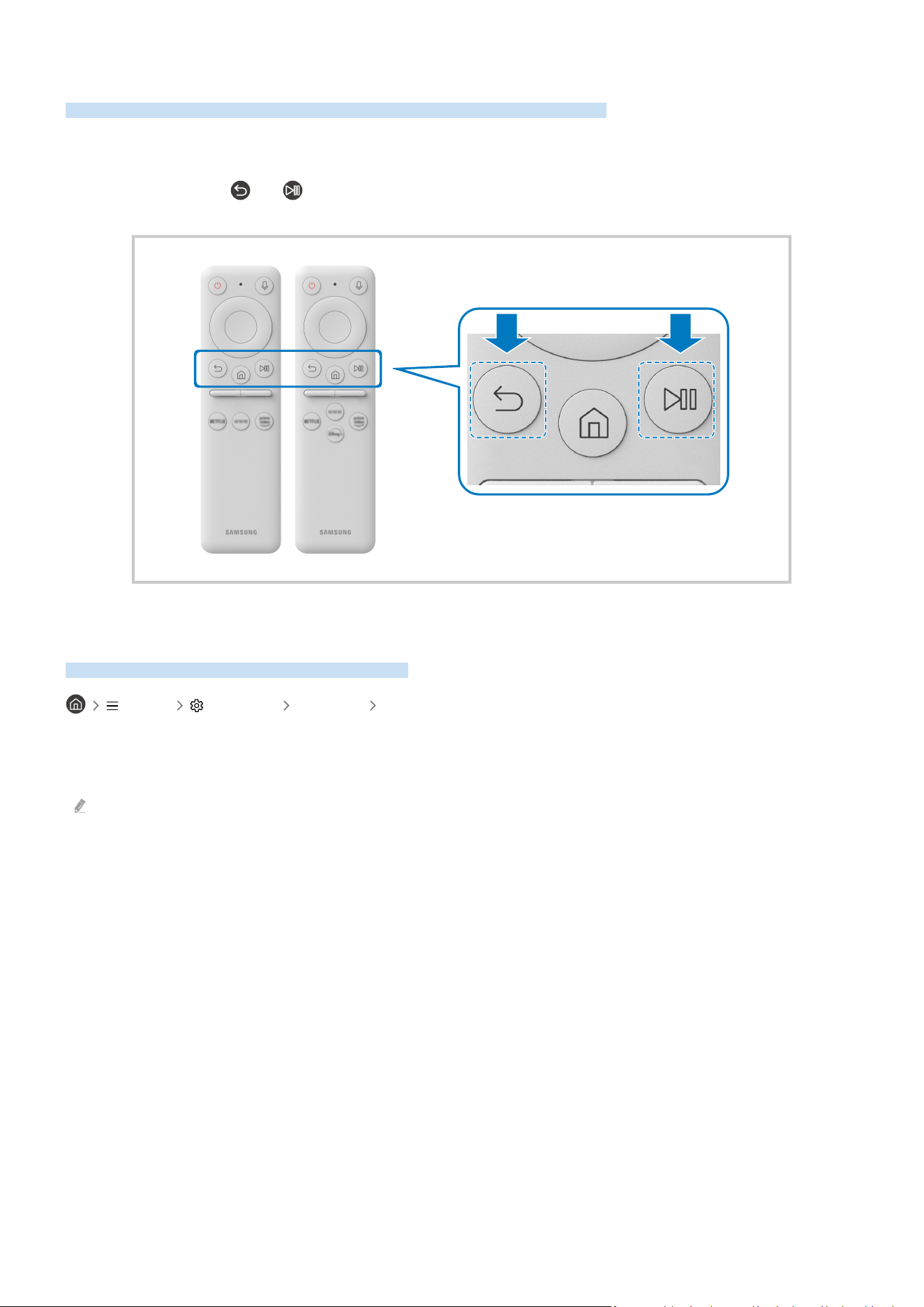
When you turn on the Projector for the rst time, the Samsung Smart Remote pairs to the Projector automatically.
If the Samsung Smart Remote does not pair to the Projector automatically, point it at the front of the Projector, and
then press and hold the
and buttons simultaneously for 3 seconds or more.
Learn how to use Samsung Smart Remote
You can learn how to use Samsung Smart Remote.
Menu Settings Support Remote Button Guide
Find details on how to use the Samsung Smart Remote.
Press the menu to use a variety of functions of the Samsung Smart Remote.
This function may not be supported depending on the model.
- 20 -

Using Anynet+ (HDMI-CEC)
Control an external device connected via Anynet+ (HDMI-CEC) with the remote control.
You can use the Projector's remote control to control external devices that are connected to the Projector by an
HDMI cable and that support Anynet+ (HDMI-CEC). Note that you can only set up and operate Anynet+ (HDMI-CEC)
with the remote control.
Connecting an external device through Anynet+ and using their menus
Menu Settings All Settings Connection External Device Manager Anynet+
(HDMI-CEC) Try Now
1.
Set Anynet+ (HDMI-CEC) to On.
2.
Connect an HDMI-CEC-compliant device to the Projector.
3.
Turn on the connected external device.
The device is automatically connected to the Projector. After the connection process is nished, you can access the
menu of the connected device using your Projector remote and control the device.
The connecting process can take up to 2 minutes to complete.
Read before connecting an Anynet+ (HDMI-CEC) device
Anynet+ (HDMI-CEC)-enabled devices must be connected to the Projector with an HDMI cable. Note that some HDMI cables
may not support Anynet+ (HDMI-CEC).
Anynet+ cannot be used to control external devices that do not support HDMI-CEC.
The Projector remote control may not work under certain circumstances. If this occurs, set up the device as an Anynet+
(HDMI-CEC)-enabled device again.
Anynet+ (HDMI-CEC) works only with external devices that support HDMI-CEC, and when those devices are either in
standby mode or turned on.
Anynet+ (HDMI-CEC) can control up to 12 compliant external devices (up to 3 of the same type) except for home theaters.
Anynet+ (HDMI-CEC) can control only one home theater system.
To listen to 5.1 channel audio from an external device, connect the device to the Projector via an HDMI cable and connect a
5.1 home theater system directly to the external device's digital audio output connector.
- 21 -

Controlling the Projector with a Keyboard, Mouse, or Gamepad
Connecting a keyboard, mouse, or gamepad to make it easier to control the Projector.
Menu Settings All Settings Connection External Device Manager Input Device
Manager Try Now
You can connect a keyboard, mouse, or gamepad to control the Projector easily.
Connecting a Bluetooth keyboard, mouse, or gamepad
Menu Settings All Settings Connection External Device Manager Input Device
Manager Bluetooth Device List Try Now
If your device was not detected, position the keyboard close to the Projector, and then select Refresh. The Projector scans
for available devices again.
If you connect a mouse, it is available only in the Internet app.
For more information, refer to the Bluetooth device's user manual.
This function may not be supported depending on the model or geographical area.
- 22 -

Using the keyboard and mouse
Button Description
Directional keys Use to navigate the menu, or move the focus to highlight items on the Home Screen.
Windows key Displays the Projector settings
Enter key Selects or runs a focused item
ESC key Returns to the previous screen
F1 / F2 / F3 / F4 key Color buttons ― / / /
F5 key Displays the Home Screen
F6 key Displays the Sources screen
F7 key Displays the Channel List
F8 key Mutes the sound
F9 / F10 key Adjusts the volume
F11 / F12 key Changes the channel
Page Up / Page Down Scrolls a web page displayed by the Internet app.
Left-click
Available only in the Internet app.
You can click a menu or link to start a function as you do on a PC.
Right-click
Available only in the Internet app. You can use the following functions:
The options displayed in the menu may differ depending on the selected item.
• Open
• Open Link in New Tab
• Enable Scroll Mode
The key operation may differ depending on some apps or the keyboard.
- 23 -
Setting up the input devices
Menu Settings All Settings Connection External Device Manager Input Device
Manager Try Now
• Keyboard Settings Try Now
You can set up the keyboard with the Keyboard Language and Keyboard Type functions.
• Mouse Settings
Try Now
You can set up the mouse with the Primary Button and Pointer Speed functions.
Entering Text using the On-Screen Virtual Keyboard
Use the virtual keyboard to enter text on your Projector.
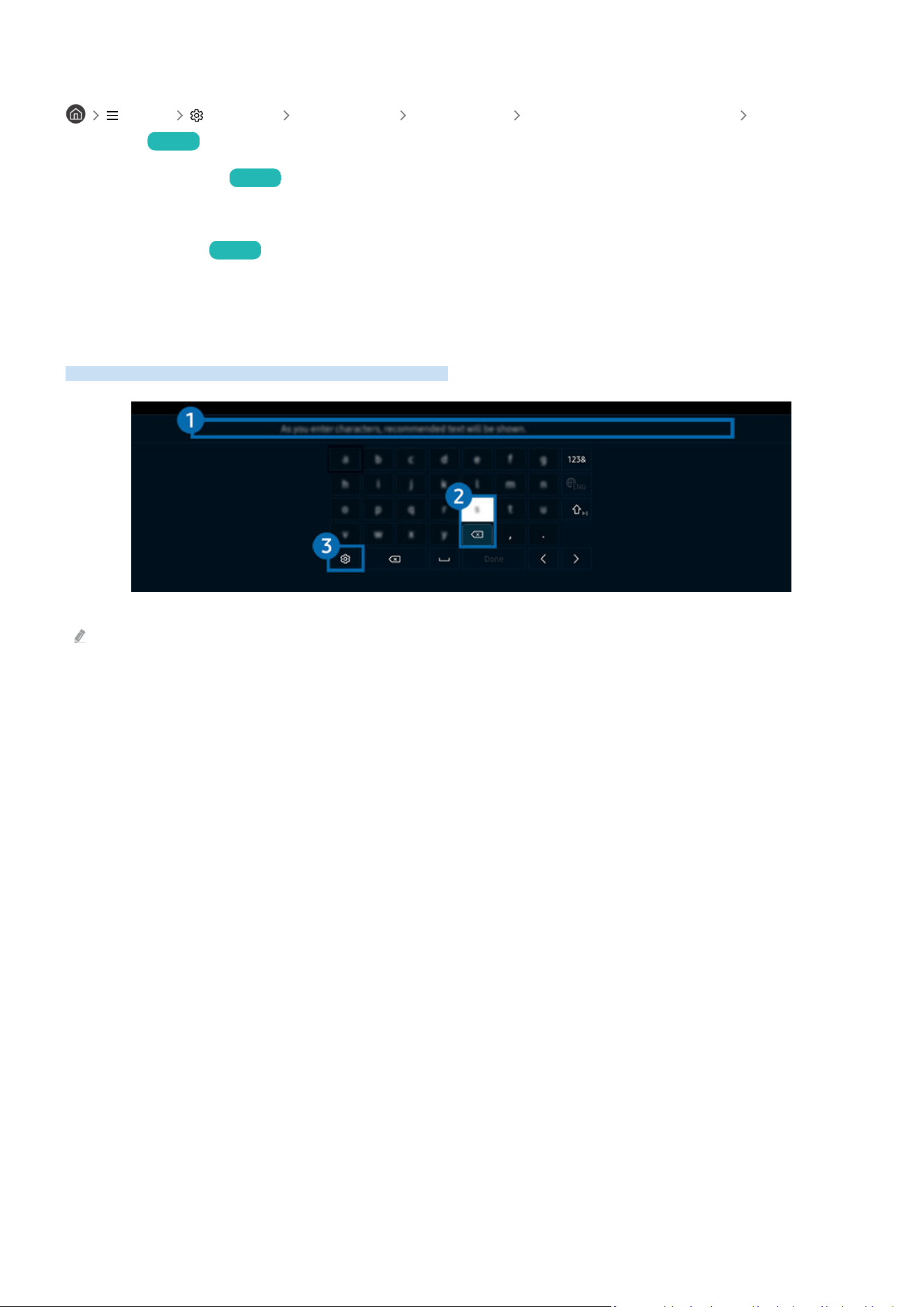
The image on your Projector may differ from the image above depending on the model and geographical area.
1.Recommended text
When you type a word you want to use as a search term, this function displays related suggestions from which you
can choose one.
- 24 -

2.Editing Buttons
By selecting any of pop-up Editing Buttons after entering characters on the virtual keyboard, you can quickly
perform the editing function.
3.Options
Select on the virtual keyboard screen. The following options are available:
The options available may differ depending on the function running currently.
• Recommended text
• Reset Recommended Text Memory
• Show Editing Buttons
• Language
Entering Text using the remote control's microphone and the on-screen virtual keyboard
When the virtual keyboard is on the screen, press and hold the button
on the Samsung Smart Remote, speak into
the microphone on the Samsung Smart Remote, and then release the button. What you say appears on the screen as
text.
Entering text with your voice may not be supported for some functions.
This function may not be supported depending on the model or geographical area.
The Samsung Smart Remote may not be supported depending on the model or geographical area.
- 25 -

Smart Features
You can enjoy various apps with Smart Hub.
Using Smart Hub
View descriptions of Smart Hub's basic functions.
From Smart Hub, you can use the Internet search function, install and use various apps, view photos and videos, or
listen to music stored on external storage devices, and perform more functions.
Some Smart Hub services are paid services.
To use Smart Hub, the Projector must be connected to the network.
Some Smart Hub features may not be supported depending on the service provider, language, or geographical area.
Smart Hub service outages can be caused by disruptions in your network service.
- 26 -
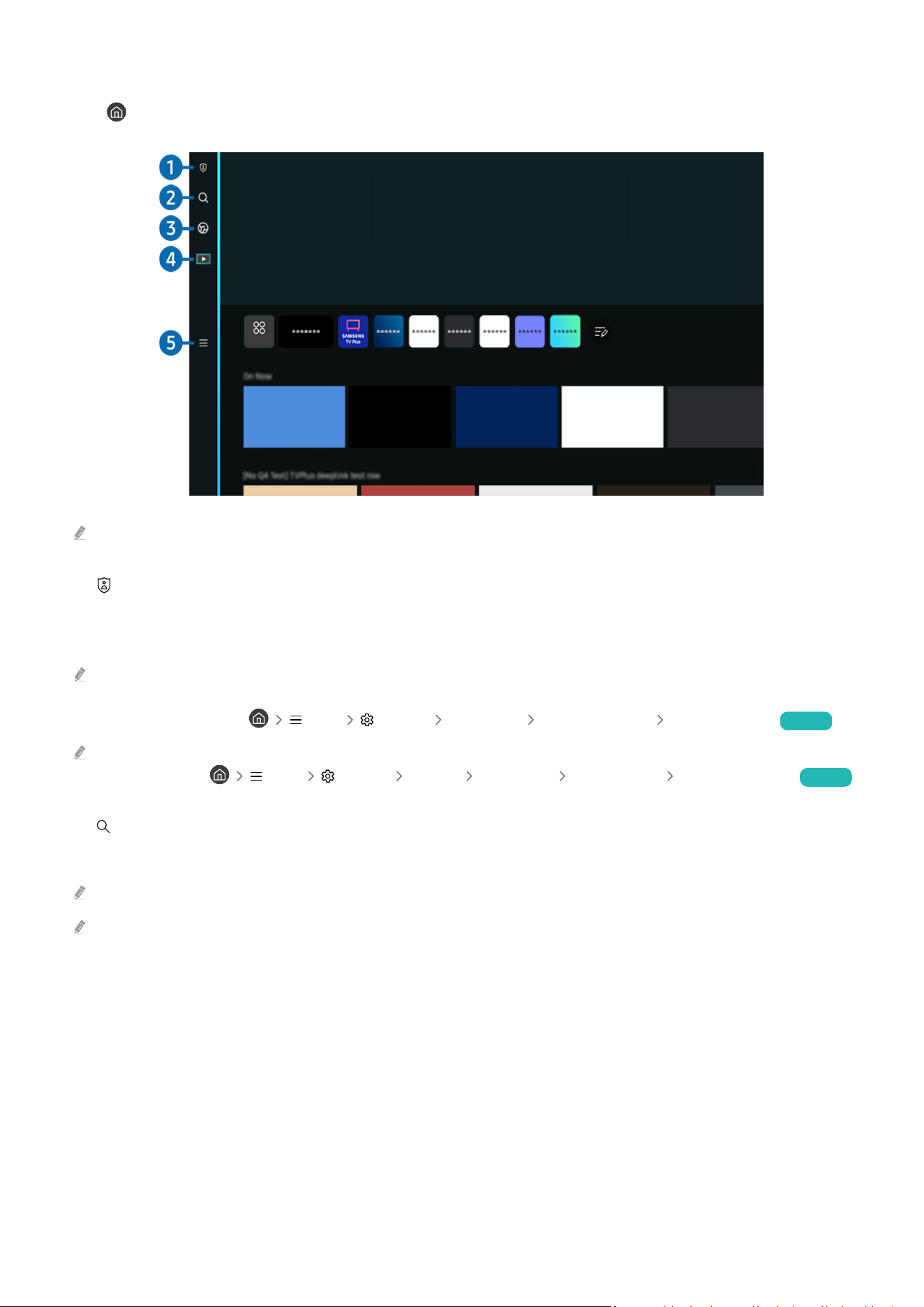
Displaying the Home Screen
Press button.
APPS
The image on your Projector may differ from the image above depending on the model and geographical area.
1. Privacy Choices
From your Projector, easily manage the privacy policy regarding services related to Smart Hub and verify how
personal information is protected.
To use Smart Hub, you must agree to the Smart Hub service agreement and the collection and use of personal information.
Without giving consent, you cannot use the additional features and services. You can view the entire text of the Terms &
Privacy by navigating to Menu Settings All Settings General & Privacy Terms & Privacy. Try Now
If you want to stop using Smart Hub, you can cancel the agreement. To cancel the Smart Hub service agreement, select
Reset Smart Hub (
Menu Settings Support Device Care Self Diagnosis Reset Smart Hub). Try Now
2. Search
Search for channels, programs, movies, and apps offered by Smart Hub.
To use the Search service, make sure the Projector is connected to a network.
This function may not be supported depending on the model or geographical area.
- 27 -

3. Ambient Mode
Set your Projector to display content you desire, when the Projector is not used.
To return to TV mode from Ambient Mode, press the left directional button Media. Press the button
to turn off the Projector.
This function may not be supported depending on the model or geographical area.
For more information about Ambient Mode, refer to 'Using Ambient Mode'
4. Media
View a variety of contents. Install various apps offered by Smart Hub, such as news, sports, weather and game apps,
and use the apps from the Projector.
For more information about Media, refer to 'About the Media Home Screen.'
5. Menu
Manage external devices connected to the Projector, and congure settings for various functions available on the
Projector.
For more information about Menu, refer to 'About the Menu Home Screen.'
- 28 -

Launching Smart Hub automatically
Menu Settings All Settings General & Privacy Start Screen Option Autorun
Smart Hub Try Now
Enabling Autorun Smart Hub automatically launches Smart Hub when the Projector is turned on. Navigate to this
option to enable or disable the feature.
Launching the last used app automatically
Menu Settings All Settings General & Privacy Start Screen Option Autorun
Last App Try Now
If Autorun Last App is set to on, the last used app is automatically run when you turn on the Projector. You can turn
this function on or off. Press the Select button at the current menu.
This function may not be supported depending on the app.
This function may not be supported depending on the model.
Testing Smart Hub connections
Menu Settings Support Device Care Self Diagnosis Smart Hub Connection
Test Try Now
Resetting Smart Hub
Menu Settings Support Device Care Self Diagnosis Reset Smart Hub Try Now
You can reset the Smart Hub settings. To reset Smart Hub, enter the PIN. The default PIN is "0000." You can set the PIN in
Menu Settings All Settings General & Privacy System Manager Change PIN. Try Now
Change PIN may not be supported depending on the model or geographical area.
- 29 -
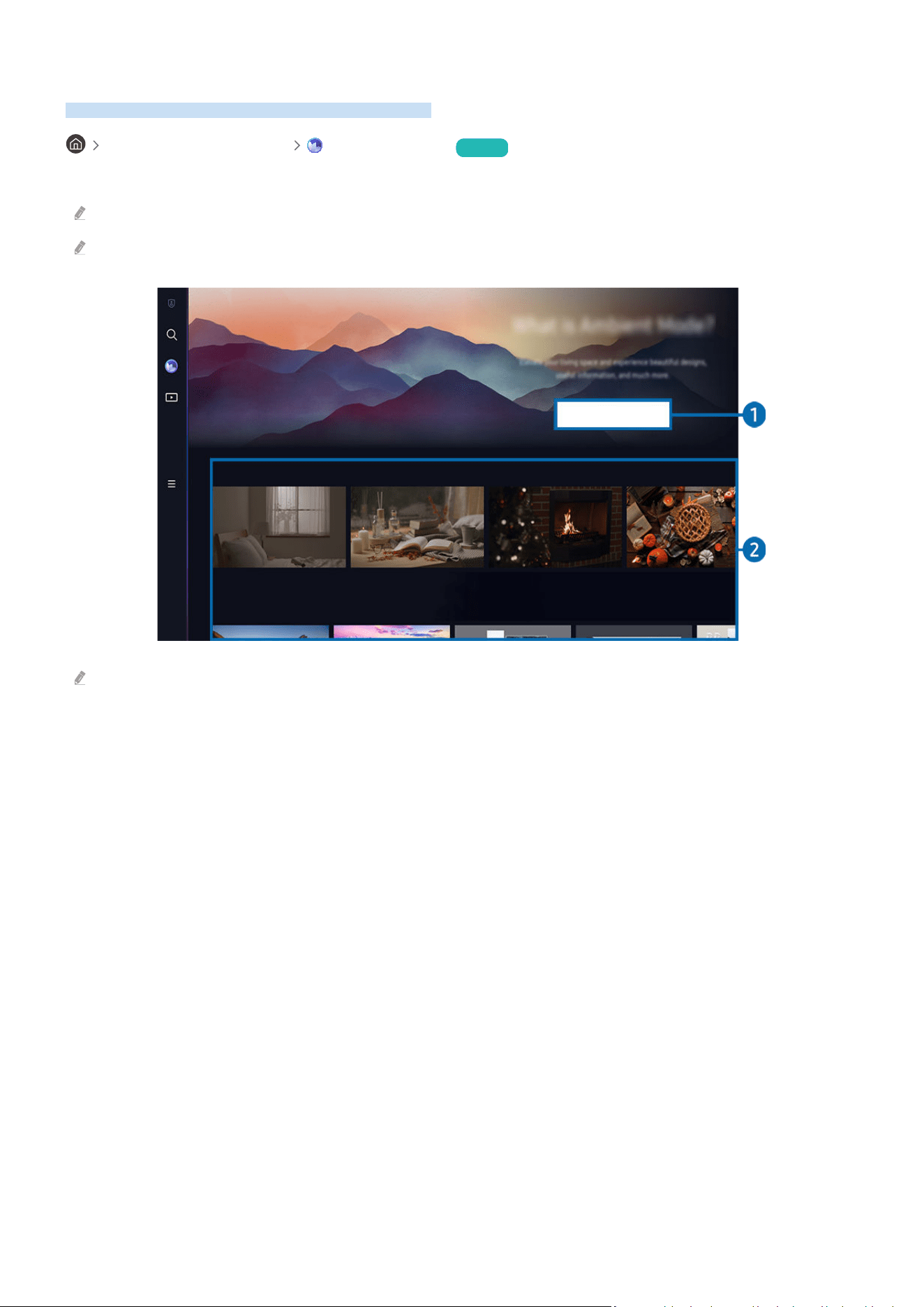
Using Ambient Mode
Learn about the functions available in Ambient Mode.
left directional button Ambient Mode Try Now
Set your Projector to display a photo or content you desire when the Projector is not used.
This function may not be supported depending on the model.
In Ambient Mode, some functions may not be supported.
View Help
Cinemagraph
My Album
The image on your Projector may differ from the image above depending on the model and geographical area.
1.Getting to Know Ambient Mode
Press View Help to briey view information about Ambient Mode, including functions.
- 30 -

2.Selecting Content Category
Select a preferred content and a preferred background and set them as your Ambient Mode. While in Ambient
Mode, press the Select button on the remote control to view the content details.
You can use the SmartThings app on a Mobile Device to select a desired content and change the settings. Indicates content
perfectly suited for the time of the day.
Available content categories may differ depending on the model or geographical area.
• Lighting
Provides lighting content options in stylish and beautiful designs.
• Scene
Provides atmospheric content options to suit the mood of your choice.
• Cinemagraph
Adds a looping animation to a specic part of the photo to make it more attention-grabbing.
• Prism
To experience amazing mood lighting, put Lens Cap on Projector.
• My Album
Allows you to set a photo stored in your mobile device or Samsung Cloud as the wallpaper of the Ambient Mode
screen.
To import photos from your mobile device or Samsung Cloud, use the SmartThings app on your mobile device.
For more information about how to congure the photo settings, select How to Select Photos.
.Ambient Screen Options
Following Ambient Mode options are congurable:
This menu can be found at the bottom of the Ambient Mode home. To congure the option settings, scroll down to the far
bottom.
Available options may vary depending on the model.
• Sleep After
Sets the time when the Ambient Mode screen turns off automatically.
If there is no remote control input for the set time, the screen goes off.
Entering the Projector viewing screen from Ambient Mode
To access the Projector screen from Ambient Mode, press either the or button to redirect to the Ambient
Mode Home Screen, press the left directional button on the remote control, and then select either or Media.
If the Projector is off and the button is pressed, the Media Home Screen appears.
- 31 -
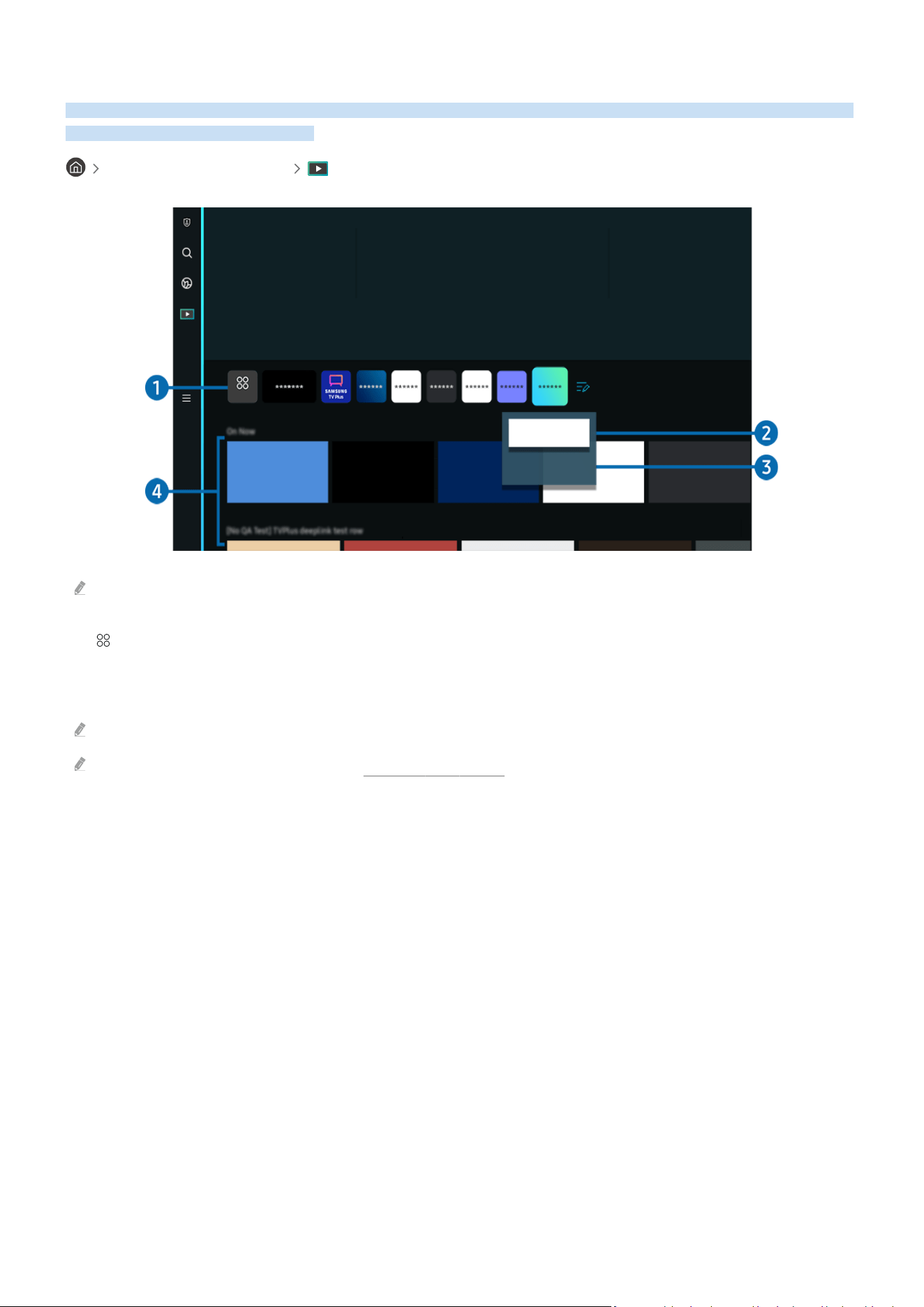
About the Media Home Screen
View a variety of contents. Install various apps offered by Smart Hub, such as news, sports, weather and game apps,
and use the apps from the Projector.
left directional button Media
APPS
Move
Remove
The image on your Projector may differ from the image above depending on the model and geographical area.
1. APPS
Install a variety of apps offered by Smart Hub, such as news, sports, weather and game apps, and use the apps from
the Projector.
To use APPS, make sure the Projector is connected to a network.
For more information about APPS, refer to 'Using the Apps Service.'
- 32 -

2.Moving an item on the Home Screen
From the end of the APPS list, select List Edit. Move the focus to the app to relocate, and press the down directional
button on the remote control. Select Move from the option menu. Use the left or right button to reposition the app
and then press Select. This repositions the app on the Home Screen.
An alternative way to move an app is to move the focus to the app to move and then press and hold the Select
button.
3.Removing an item on the Home Screen
From the end of the APPS list, select List Edit. Move the focus to the app to uninstall, and press the down directional
button on the remote control. Select Remove from the option menu. This removes the app from the Home Screen
list.
4.Universal Guide
Universal Guide is an app that allows you to search for and enjoy various content, such as news, dramas, and
movies, in one place. Universal Guide can recommend content tailored to your preferences.
You can use this feature on your mobile device with the Samsung SmartThings app.
To access Universal Guide, press the down directional button on the remote control in Home Screen.
To enjoy the content from these apps on your Projector, they must be installed on the Projector.
When you watch some paid content, you may need to make a payment using their associated app.
Some content may be restricted depending on your network conditions and your subscriptions to paid channels.
Parental control is necessary when children use this service.
Images may look blurry depending on the service provider's circumstances.
This function may not be supported depending on the model or geographical area.
.Media Options
This menu can be found at the bottom of the Media home. To congure the option settings, scroll down to the far bottom.
This function may not be supported depending on the model or geographical area.
• Preferences: Select a preferred service to receive content recommendations to suit your preference.
• Continue Watching: Choose content providers for Continue Watching. You can continue watching different
shows in one place from all the Continue Watching-supported content providers listed below.
• Parental Lock: Redirect to the Parental Lock menu. Turn all parental control settings on or off.
- 33 -
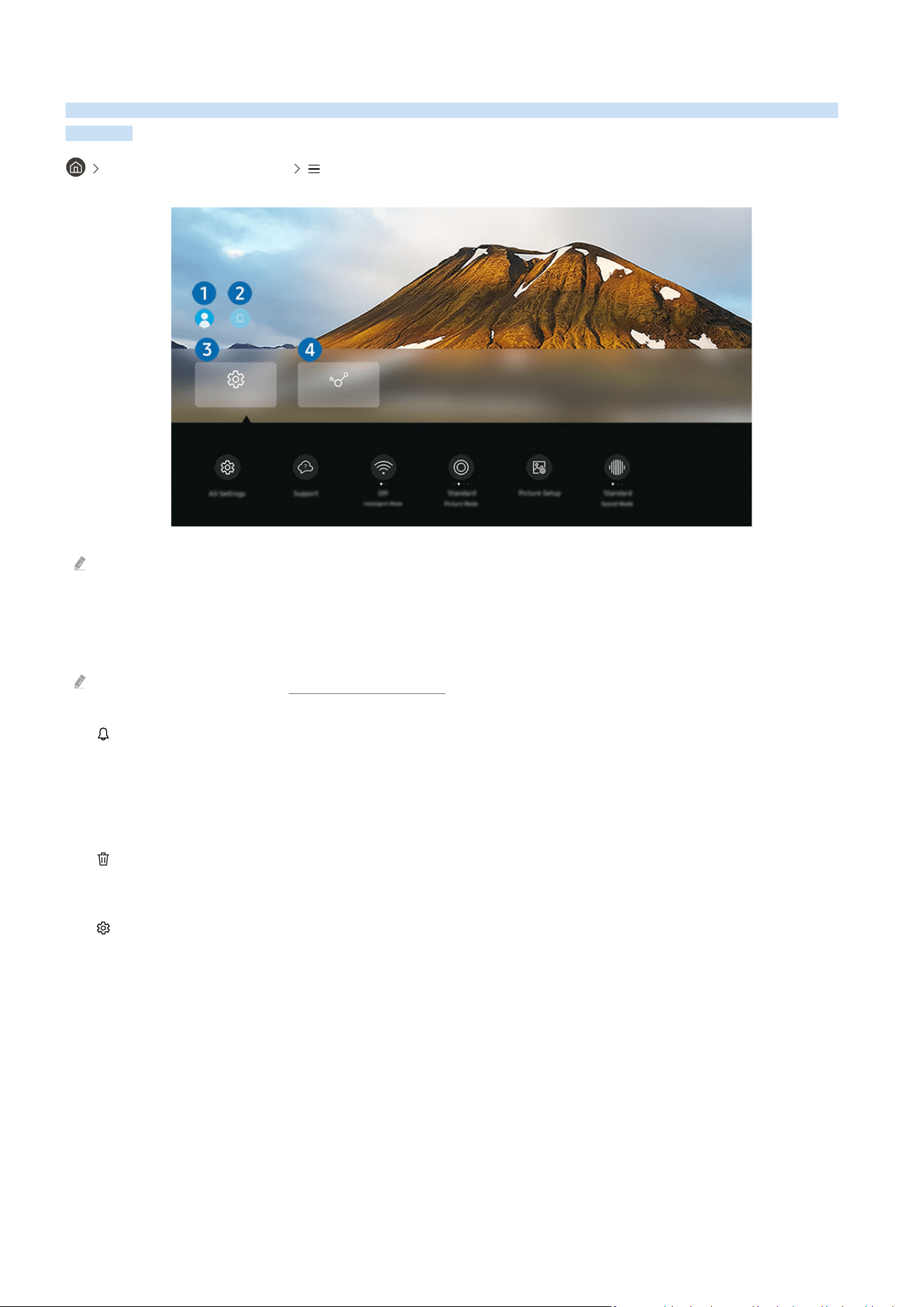
About the Menu Home Screen
Manage external devices connected to the Projector, and congure settings for various functions available on the
Projector.
left directional button Menu
Settings
Connected Devices
The image on your Projector may differ from the image above depending on the model and geographical area.
1.Samsung Account
Go to the Samsung Account screen to create a new account or sign out of your account.
For more information, refer to 'Using a Samsung account.'
2. Notication
You can view a list of notications for all events that occur on your Projector.
If you move the focus to Notication, and then press the Select button, a notication window appears on the right
and the following functions are available:
•
Delete All
You can delete all your notications.
• Settings
You can select services you want to be notied about.
When you select Allow sound, notications are displayed with a notication sound.
- 34 -

3. Settings
Move the focus to the Settings menu to display quick setting options below the menu. Quick Settings can be used to
quickly congure frequently used features.
• All Settings
Displays the Settings menu for conguring specic settings.
• Support
Displays the Support settings menu.
• Network
Check your network connection. To check your network connection or change the connection settings, press
the down directional button, and select either Network Status or Network Settings.
• Keystone
Fix a distortion on the screen based on the projection angle. You can also turn or off the vertical or horizontal
Keystone function, or manually adjust the function.
The automatic Keystone calibration function may not work, depending on the environment in which the product is
used.
• Focus
This feature adjusts the projected screen focus.
• Scale and Move Screen
Enlarge or reduce the screen scale. You can also move the screen.
• Picture Mode
Change the picture mode for the optimal viewing experience. Press the Select button to change the Picture
Mode.
• Picture Setup
Easily congure the screen settings: Brightness, Contrast, Sharpness, Color and Tint (G/R).
- 35 -

• Sound Mode
You can select a sound mode to optimize your listening experience. To change the sound mode, press the Select
button. To make ne adjustments, press the down directional button, and then select Equalizer Setup.
• Sound Output
You can select which speakers the Projector uses for audio output. To change the audio output, press the Select
button.
• Bluetooth Speaker List
Connect your Projector to Bluetooth speakers. This can be done by selecting Bluetooth Speaker List to
automatically search for Bluetooth audio devices.
Connecting Bluetooth speaker may not be supported depending on the model or geographical area.
• Game Mode
You can set the Game Mode to optimize the Projector screen for better gaming performance. To turn Game
Mode on or off, press the Select button. To set the detailed options, press the down directional button, and then
select Go to Game Mode Settings.
This function is only available when an external input source is being used.
For more information, refer to 'Setting the Viewing Environment for External Devices.'
This function may not be supported depending on the model or geographical area.
• Input Device Manager
Congure the connection settings for an input device connected to the Projector. This can be done by selecting
the Select button to display the menu that allows you to view the list of connected devices and to set options.
• Caption
You can watch contents with captions. To activate or deactivate the Caption function, press the Select button.
To run Accessibility Shortcuts, press the down directional button, and then select Accessibility Shortcuts.
- 36 -

• Sleep Timer
You can turn off the Projector automatically at a specic time. To change the sleep time, press the Select
button. To set the specic time at which the Projector turns off automatically, press the down directional
button, and then select Set Up Off Timer.
• Color Tone
You can select a color tone suitable for your viewing preferences. To change to a color tone that you want,
press the Select button.
• Picture Clarity
You can optimize pictures that contain a lot of motions. To turn this function on or off, press the Select button.
To set the detailed options, press the down directional button, and then select Picture Clarity Settings.
• Digital Output Audio Format
You can select an output format for digital audio. Note that the Dolby Digital+ option is only available via HDMI
(eARC) for external devices that support the Dolby Digital+ format.
• Power and Energy Saving
Display the Power and Energy Saving menu. Reduce energy consumption by changing your power preferences
and other energy-saving options.
These functions may not be supported depending on the model or geographical area.
4. Connected Devices
Select an external device that is connected to the Projector.
For more information, refer to 'Switching between external devices connected to the Projector'
- 37 -

Using a Samsung account
Create and manage your own Samsung account.
Menu Settings All Settings General & Privacy System Manager Samsung
Account Try Now
You can view the entire text of the Terms & Policy in Menu Settings All Settings General & Privacy
System Manager Samsung Account My Account Terms & Conditions, Privacy Policy after logging in to your
Samsung account.
Follow the instructions on your Projector screen to create or log in to a Samsung Account.
Samsung Account can be used on Projector, mobile device, and website with one ID.
Signing in to a Samsung account
Menu Settings All Settings General & Privacy System Manager Samsung
Account Sign In
Creating a new account
Menu Settings All Settings General & Privacy System Manager Samsung
Account Create Account
Managing your Samsung account
Menu Settings All Settings General & Privacy System Manager Samsung
Account My Account
When you sign in to your Samsung account, you can use the following functions:
• Sign Out
When multiple people share the Projector, you can sign out of your account to prevent others from using it.
To sign out of your Samsung Account ( Menu Settings All Settings General & Privacy System
Manager
Samsung Account), move the focus to your account's icon, and then press the Select button. When a pop-up
window appears, select Sign Out.
• Edit Profile
You can edit your account information.
To protect personal information, enter Edit Profile and then Sign-in Method is set to Select your ID and input password
(high security).
If you want the Projector to log you into your account automatically whenever you turn on the Projector, click Stay
Signed In.
When the Projector is used by multiple people, turn off Stay Signed In to protect personal information.
• PIN Setting
Set or change your PIN.
- 38 -

• Payment Info
You can view or manage your payment information.
• Back up
You can back up the Projector settings to your Cloud storage. When resetting or replacing the Projector, you can
also restore its settings with the backed-up settings.
• Product Registration
You can register the current Projector or see the registered information. You can easily receive services after
product registration.
You can see the registered information or delete it at the Samsung account website (https://account.samsung.com).
• Personalization Settings
Select to change settings for the Customization Service.
This function may not be supported depending on the model or geographical area.
• Sync Internet
Once you sign in to your Samsung account and configure the Sync Internet settings, you can share the favorites
and website bookmarks that you registered on other devices.
• Remove Account
You can delete an account from the Projector. Although you have deleted your Samsung account from the
Projector, you are not unsubscribed.
To unsubscribe from your Samsung Account, visit the Samsung Accounts website (https://account.samsung.com).
• Terms & Conditions, Privacy Policy
You can view the user agreement and privacy policy.
For more information about the terms and conditions, privacy policy, select View Details.
- 39 -

Using PC on Screen
Use the remote function to connect to and use a Windows PC, Mac, or mobile device from the Projector.
Menu Connected Devices PC on Screen Try Now
Connect a Windows PC, Mac, or mobile device to the Projector to easily use the device.
For easy computer use, connect a keyboard and a mouse to your Projector in advance.
Using Screen Sharing (Windows PC) / AirPlay (Mac)
Menu Connected Devices PC on Screen Windows PC Screen Sharing
Menu Connected Devices PC on Screen Mac Screen Mirroring
Follow the instructions on the screen to adjust the PC settings and wirelessly connect the Projector to the PC.
This function is only available for PCs that support wireless screen sharing.
This function may not be supported depending on the model or geographical area.
Connection via Windows OS is available in Windows 10 and later versions only.
Connection via Mac OS is available in AirPlay.
Using Easy Connection to Screen
Menu Connected Devices PC on Screen Windows PC Easy Connection
You can easily use remote access function after installing Easy Connection to Screen on your PC.
Follow the instructions on the screen to download and install the Easy Connection to Screen PC app. Then you can
easily connect a remote PC.
1.
Download the Easy Connection to Screen PC app from http://smsng.co/easy and then install it on your PC.
2.
Log in with the same Samsung Account for both Projector and PC.
3.
When the PC is turned on and connected via the network, PC on Screen's Home Screen displays the PC.
The Easy Connection to Screen PC app is available in Windows 10 and later versions only.
Depending on the network environment including the rewall conguration, router type, and wireless signal strength,
connection problems may occur, such as low speed, disconnection, or limited connection.
- 40 -

Connecting a Remote PC
Menu Connected Devices PC on Screen Windows PC Manual Connection Try Now
Menu Connected Devices PC on Screen Mac Remote Login Try Now
Provides Remote Desktop Connection (RDP) for remotely connecting to a PC running on Windows and Virtual
Network Computing (VNC) for a PC running on Mac. To remotely connect to a PC, you must enter the IP address of
the remote PC or select a saved prole. Enter a correct username and password. If there is any computer that can
be accessed via the same network, the found IP is displayed.
To register a frequently used PC, move the focus to Manage User Proles, and then press the Select button. When a
pop-up window appears, select Add, and then enter the PC information.
When your PC enters in power saving mode, connection is not available. It is recommended to cancel the power saving
mode.
1.
Congure your computer’s settings to use the PC on Screen function.
Connection to Windows via the RDP protocol is available in Windows 10 Professional or higher.
Remote connection to a PC running on Mac via the VNC protocol is only supported for Mac OS X 10.5 or later.
• Windows OS:
1)
Right-click the My PC icon on Desktop or Windows Explorer and then click Properties.
2)
Click Remote Desktop and select Activate Remote Desktop.
• Mac OS:
1)
Select Menu System Preferences and then click Sharing.
2)
Select the Screen Sharing and Remote Login check box.
3)
Run the resolution changing app downloaded from App Store and then change the resolution to 1440 x
900 or lower.
If you do not change the resolution in Mac OS, the previous image may appear while connecting a remote
computer.
- 41 -
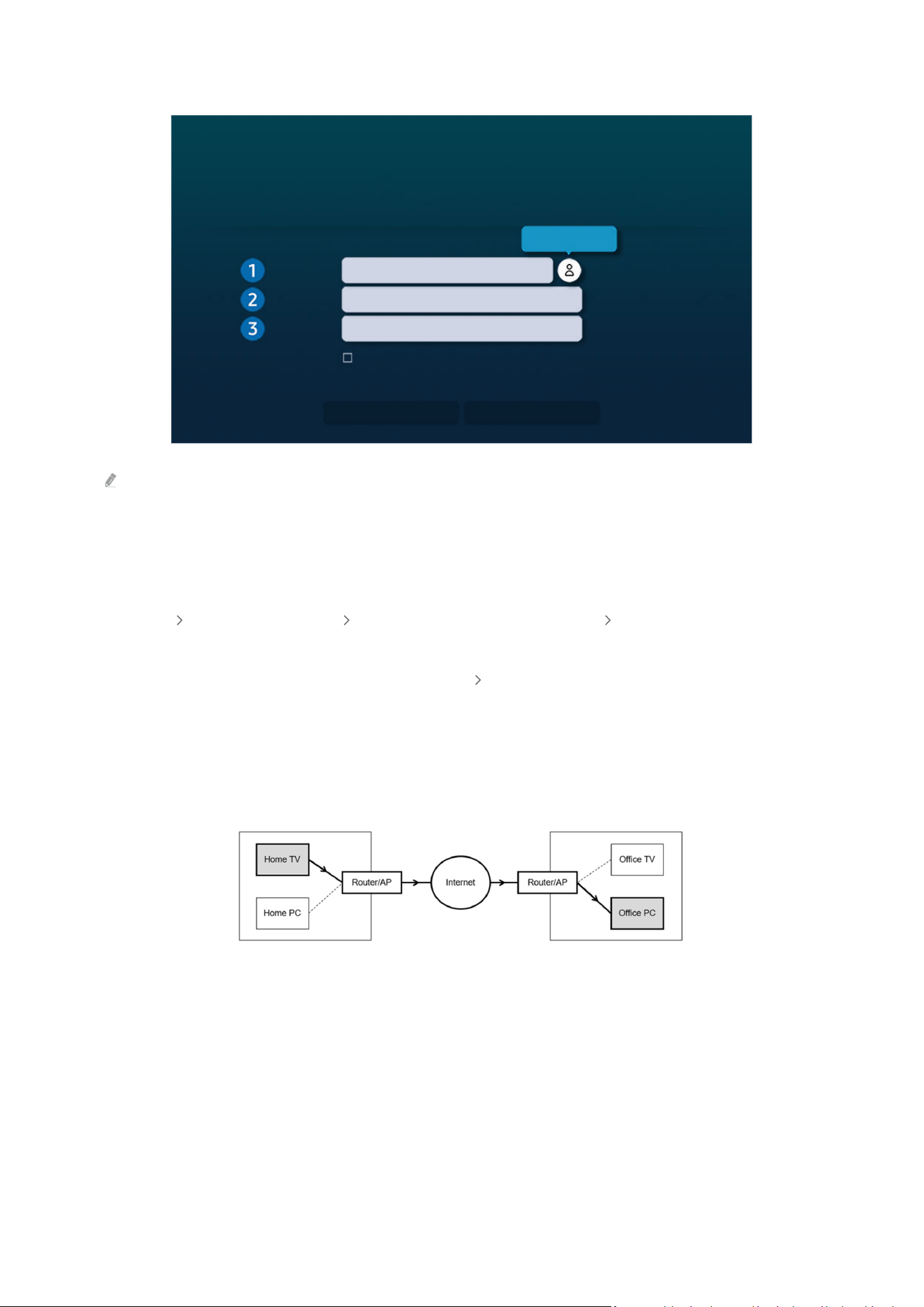
2.
Enter the required settings for connecting the computer remotely.
Manage User Proles
PC/Prole
IP address or prole
Username
Enter a username.
Password
Enter a password.
Remember my credentials and add to the Projector Home screen. You can
connect directly from the Home screen via shortcuts.
Help
Connect
The image on your Projector may differ from the image above depending on the model and geographical area.
1.PC/Prole
Enter the IP address or prole of the PC you want to connect to.
• In case of Windows, when the computer to connect is within the same network (router/AP), run “cmd" command
in Settings Network and Internet View Network Properties or in Start Run, and then run “ipconfig” to
check the IPv4 address of the computer.
• In case of Mac, you can check the IP address in Settings
Remote Access.
• When the Projector and computer are not within the same network, it is required to know the public IP and
configure the router and AP. Check whether the router connected to the computer supports port forwarding.
When the company provides additional security features such as firewall, seek help from a security officer.
Home
Ofce
- 42 -

2.Username
Enter the Username of the computer. How to check the Username:
• Windows OS: Control Panel User Account Control
• Mac OS: System Preferences Users & Groups
3.Password
Enter the password for the login account.
For use of PIN, do not enter PIN but the specied password of the computer.
Playing Multimedia Content on a Remote PC
When you move the mouse cursor to the top of the screen after accessing a remote computer, the top bar appears.
When the sharing folder icon is clicked in the top bar, the folders shared on Windows or Mac OS appear. You can
play back any media content in a folder.
To use this function, the folder sharing option on the computer to access must have been enabled as shown below:
• Windows OS:
1.
Run Windows Explorer and then move to the folder to share.
2.
Right-click the folder and then click Properties.
3.
After the Properties window appears, click the Sharing tab and then click Advanced Sharing.
4.
After the Advanced Sharing window appears, select the Share this folder check box.
• Mac OS:
1.
Select Menu System Preferences and then click Sharing.
2.
Select the File Sharing check box.
3.
To add a folder to share, click the Add+ button at the bottom.
4.
Select a folder and then click Add+.
When playing a video le via a remote computer, the screen or sound breaking may be encountered.
- 43 -

Using Samsung DeX
Run Samsung DeX on your mobile device to connect the software to the Projector.
Follow the on-screen instructions to connect Samsung DeX. Some models may not be searched when connecting
the Projector from a mobile device through Samsung DeX. If that is the case, follow the instructions shown on the
mobile device screen to connect the software.
This function is available only on mobile devices that support the wireless Samsung DeX.
Using Microsoft 365
You can read or create a document after accessing the Microsoft 365 website.
Run the site in full-screen mode.
URL modication is impossible in the Microsoft 365 page.
Adding the Web Service
Select the Add Web Service icon. Use the bookmarking function of the PC on Screen browser, you can add or delete
the web service link to or from PC on Screen.
To add the web service, you must be signed in to your Samsung account.
The number of web services that can be added to PC on Screen is limited.
PC on Screen browser not share data with Internet. (Web browser outside from PC on Screen)
- 44 -

Using Web Service
You can access the web service by selecting the web service icon added to PC on Screen.
The screen on the web page may differ from that of a computer.
You can copy or paste any text. Some image formats are supported.
For easy and secured login in Web Service, PC on TV Pass is additionally supported as well as Samsung Pass.
Setting Samsung Pass or PC on TV Pass.
Set Samsung Pass or PC on TV Pass to Use in Menu Connected Devices PC on Screen Run the PC on
Screen browser (Additionally select Microsoft 365 or Add Web Service) Menu Settings General.
PC on TV Pass allows you to easily manage the web service ID and password without biometric authentication on mobile
devices. For this purpose, you must be signed in to your Samsung account. The password is encrypted to be safely stored on
your Projector.
However, the log in to PC on TV Pass may not work depending on the site policy.
PC on TV Pass only working on PC on Screen.
To securely access the web service, you can use the PC on Screen browser's automatic shutdown or clear the history logs.
Before accessing the web service, refer to "Read Before Using the Internet Function."
PC on Screen browser not share data with Internet. (Web browser outside from PC on Screen)
The web service supports the following keyboard shortcuts:
• F1: Returns to PC on Screen's Home Screen.
• F5: Refresh.
• F8: Mutes the sound.
• F9/F10: Adjusts the volume.
• F11: Switches between full screen or default screen.
- 45 -
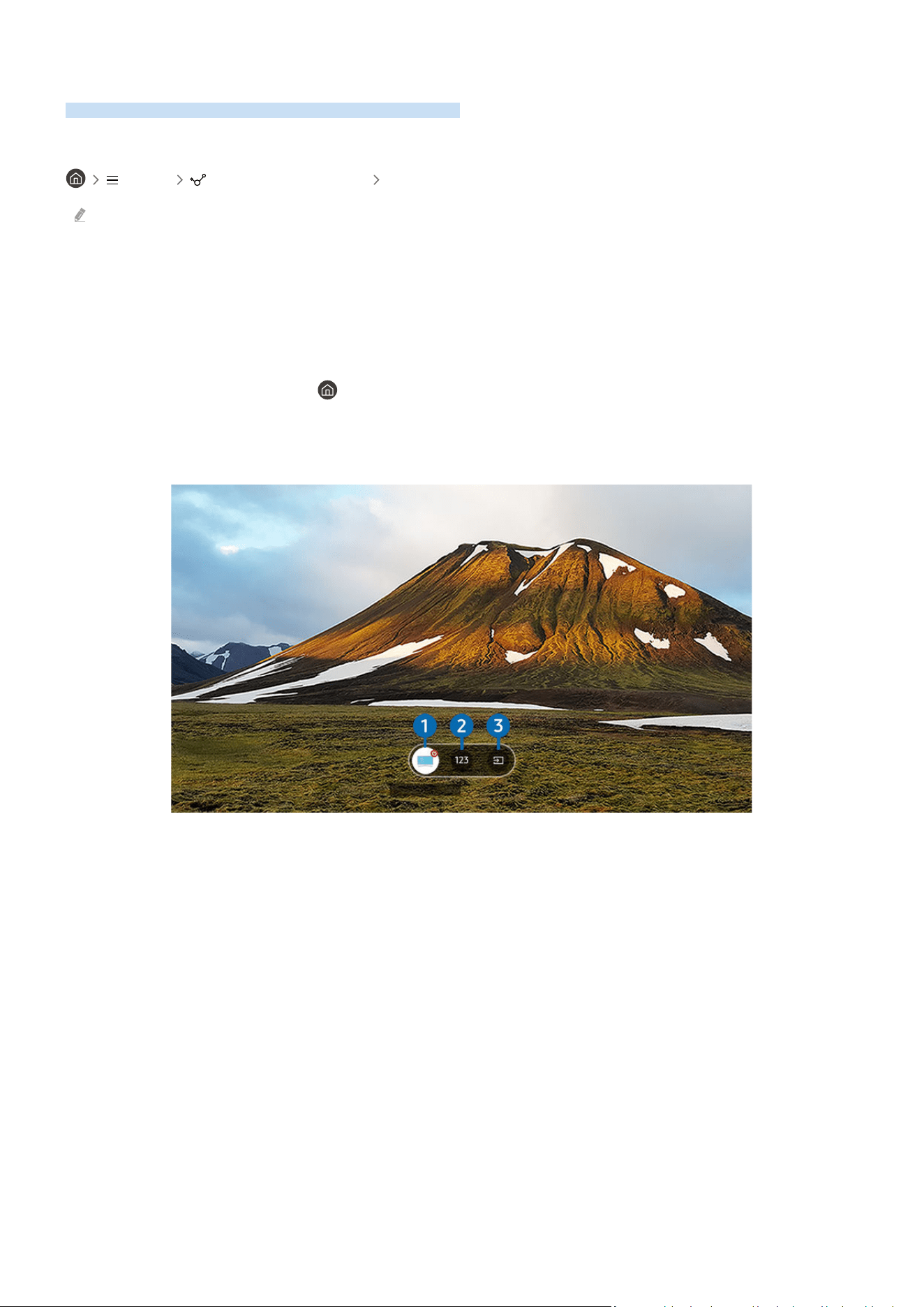
Using TV Access
By mirroring, you can watch TV from the Projector screen.
Select and mirror the desired TV to view the TV content from the Projector screen.
Menu Connected Devices TV Access
This function may not be supported depending on the model.
Connecting to a TV
Select TV Access to display a list of available TVs to connect to. Select and connect the desired TV to the Projector.
After a connection is established, the TV appears in the Connected Devices list of the Projector. To subsequently
connect to the same TV, select the TV from the Connected Devices list.
To disconnect from the TV, press the
button on the remote control.
Controlling the connected TV from the Projector
Device Name
When content is playing, press the down directional buttons on the remote control to display the control menu of
the Projector.
1.Power
Turn on or off the connected TV.
2.Numeric keypad window
Press a channel number to change the connected TV channel.
3.Source
Change the input source connected to the TV.
- 46 -
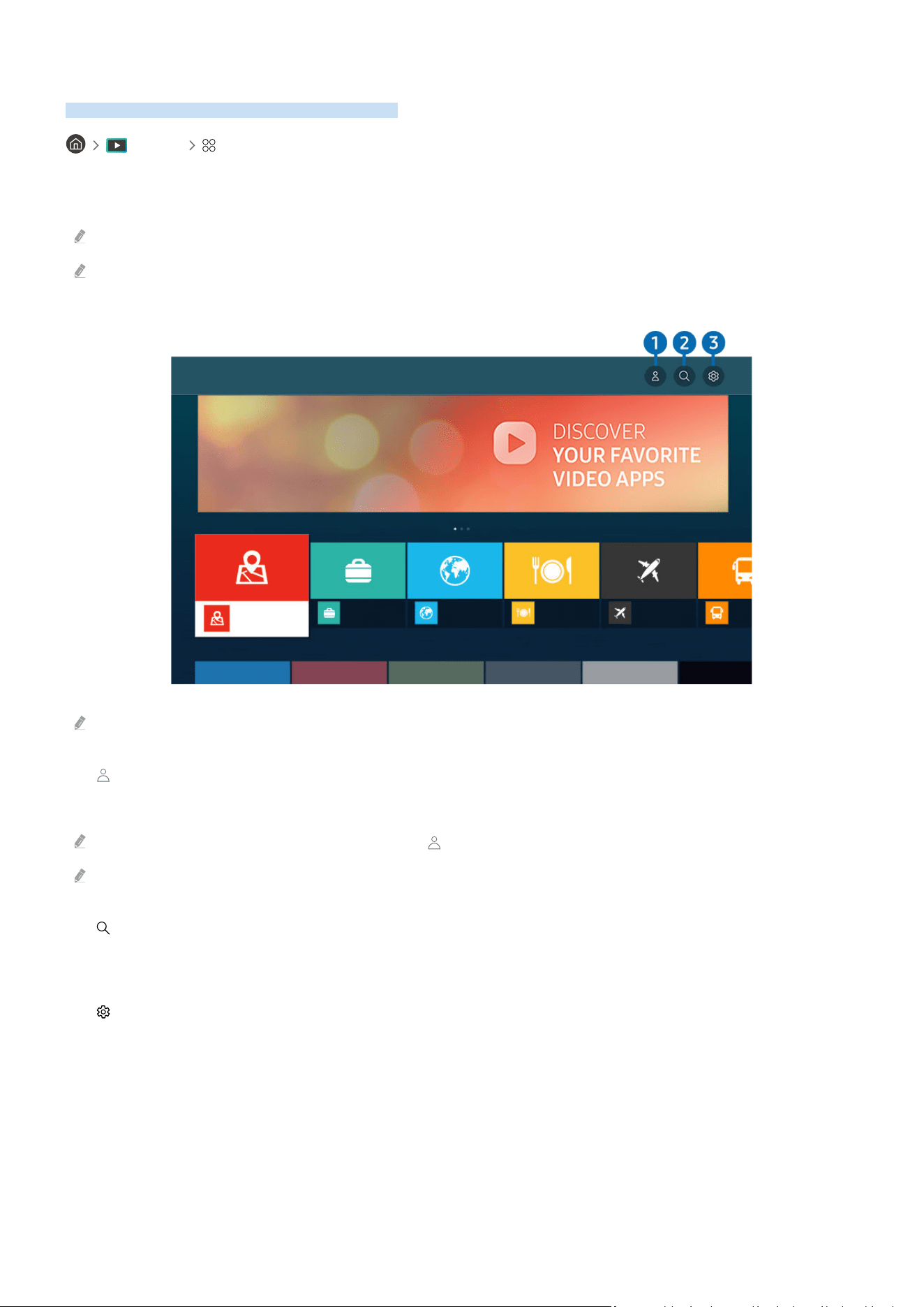
Using the Apps Service
Download and run various apps from Smart Hub.
Media APPS
You can enjoy a wide range of content, including news, sports, weather, and games by installing the corresponding
apps on your Projector.
To use this feature, the Projector must be connected to the network.
When Smart Hub is launched for the rst time, the default apps are automatically installed. The default apps may differ
depending on the model or geographical area.
Apps
Editor's Choice
Most Popular
The image on your Projector may differ from the image above depending on the model and geographical area.
1. Samsung Account
Go to the Samsung Account screen to create a new account or sign out of your account.
If you are signed out of your Samsung account, select Sign In to sign in.
If you want to download new apps using Apps, rst sign in to your Samsung account.
2. App Search
You can search for available apps.
3. Settings
You can manage the installed apps.
- 47 -

Installing an app
1.
Move to the app you want to install, and then press the Select button. The detailed information screen appears.
2.
Select Install. When the installation is complete, the Open menu appears.
3.
Select Open to run the app immediately.
You can view installed apps on the Settings screen.
Launching an app
You can run the app desired from Downloaded App.
The icons below appear within the selected app's icon and indicate the following:
–
: The app has a password.
– : The app needs to be updated.
– : The app supports the mirroring function.
- 48 -

Managing installed apps
Select Settings on Apps. You can manage installed apps.
Settings
Auto Update : ON
Update All
Delete
Add to Home
Lock
Move
Reinstall
View Details
The image on your Projector may differ from the image above depending on the model and geographical area.
1.Removing an app
1.
Select an app to delete.
2.
Select Delete.
The selected app is deleted.
Ensure that the related app data is also removed when you remove an app.
Standard apps cannot be uninstalled.
2.Adding apps to the Home Screen
1.
Select an app to add.
2.
Select Add to Home.
3.
After the Home Screen appears, move the selected app to the desired location.
4.
Press the Select button.
The selected app is added to the Home Screen.
If the selected app is already added to the Home Screen, this function is disabled.
- 49 -

3.Locking and unlocking apps
1.
Select an app to lock or unlock.
2.
Select Lock/Unlock.
The selected app is locked or unlocked.
To lock or unlock an app, enter the PIN. The default PIN is "0000." You can set the PIN in Menu Settings All
Settings General & Privacy System Manager Change PIN. Try Now
Change PIN may not be supported depending on the model or geographical area.
4.Moving apps
1.
Select an app to move.
2.
Select Move.
3.
Move the app to the desired location.
4.
Press the Select button.
The selected app is moved.
This function may not be supported depending on the model or geographical area.
5.Reinstalling an app
1.
Select the app to install again.
2.
Select Reinstall.
Reinstallation starts.
6.Checking the app information details
1.
Select the app to check.
2.
Select View Details.
The app information screen appears.
You can rate an app on the View Details screen.
7.Automatically updating apps
To automatically update the installed apps, set Auto Update to ON.
Automatic update is enabled only when the Projector is connected to the network.
- 50 -
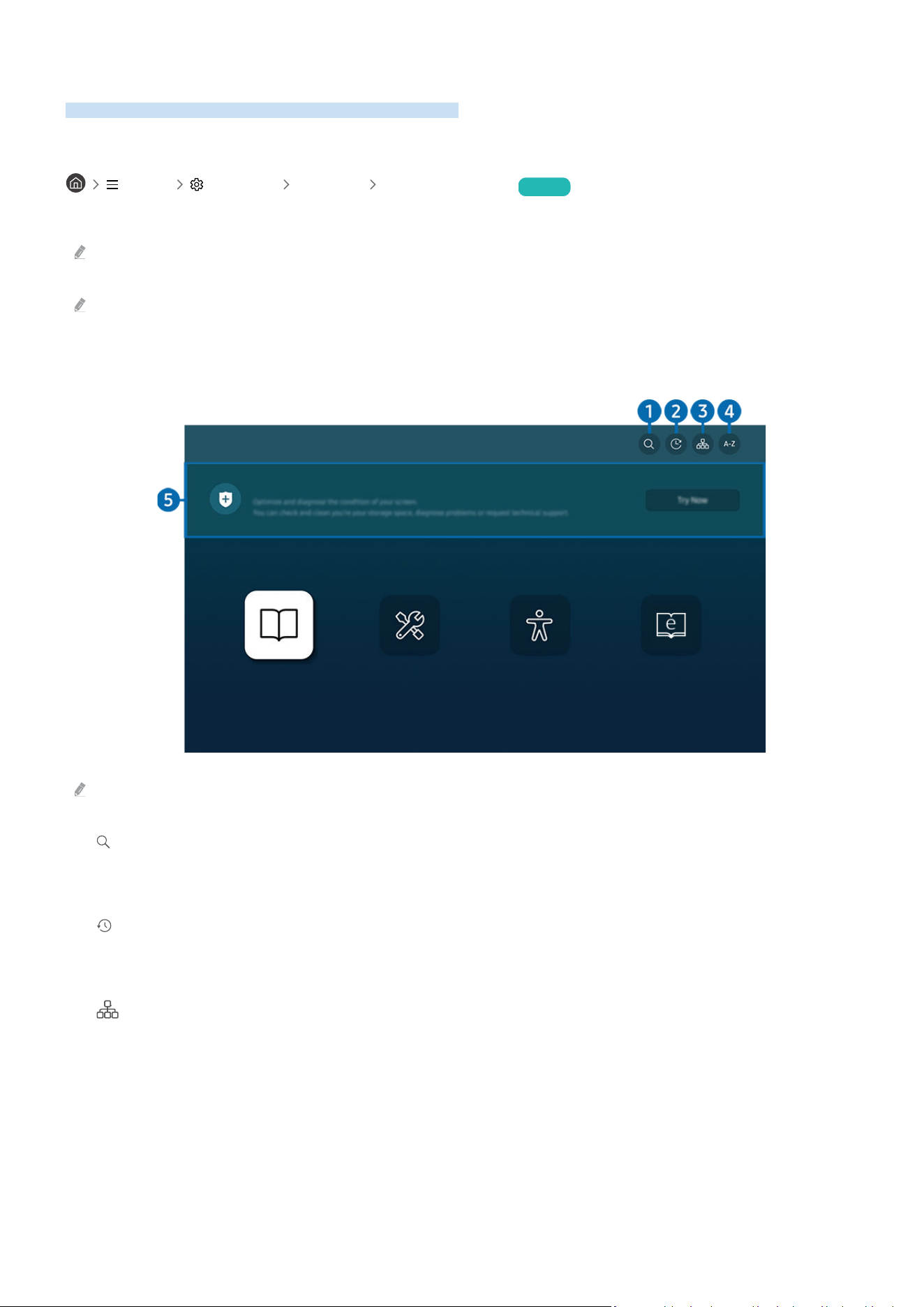
Using the e-Manual
Control and read the manual embedded in your Projector.
Launching the e-Manual
Menu Settings Support Open e-Manual Try Now
You can view the embedded e-Manual that contains information about your Projector's key features.
You can download a copy of the e-Manual from Samsung's website to view or print on your PC or mobile device (https://
www.samsung.com).
Some menu screens cannot be accessed from the e-Manual.
Using the buttons in the e-Manual
e-Manual
Device Care
Guide
Troubleshooting
Accessibility Guidance
e-Manual
The image on your Projector may differ from the image above depending on the model and geographical area.
1. (Search)
Select an item from the search results to load the corresponding page.
2. (Recently Viewed Topics)
Select a topic from the list of recently viewed topics.
3.
(Sitemap)
It displays the lists for each item in e-Manual.
- 51 -

4. (Index)
Select a keyword to navigate to the relevant page.
This function may not be supported depending on the model or geographical area.
5.Device Care
Optimize and diagnose the condition of your Projector. You can check and clean your storage space, diagnose
problems or request technical support.
Home
>
Guide
> Smart Features
Media
Internet
Surf the Internet on your Projector.
Before using the Internet, refer to "Read Before Using the Internet Function."
Words in blue (e.g., Internet) indicate a menu item.
The image on your Projector may differ from the image above depending on the model and geographical area.
6. (Try Now)
Allows you to access the corresponding menu item and try out the feature right away.
7. (Link)
Access an underlined topic referred to on an e-Manual page immediately.
- 52 -

Using the Internet
Surf the Internet on your Projector.
Media Internet
When you run Internet, you can see recently viewed web sites or featured recommendations. When you select a
desired web site, you can get immediate access to it.
You can use the Internet function more easily after connecting a keyboard and mouse.
You can scroll web pages with the directional button on the Samsung Smart Remote.
The web pages may differ from those on a PC.
Before using the Internet, refer to "Read Before Using the Internet Function."
The Internet app has an embedded Samsung Pass Settings ( Media Internet Internet Menu Settings
Samsung Pass).
With Samsung Pass, you can log into the website easily and securely. When you visit the website again, you can log in with
Samsung Pass Biometrics Authentication on your mobile device without entering your ID and password.
However, this Samsung Pass login may not work depending on the website policy. For this purpose, you must have been
logged in the mobile device with a Samsung account registered in Samsung Pass.
- 53 -

Using SmartThings
It allows the Projector to connect and control the detected various devices in the same space.
Menu Connected Devices SmartThings Try Now
Using the Projector, you can control devices connected via Bluetooth, BLE(Bluetooth Low Energy), or Wi-Fi by using
the remote control.
Depending on the Projector or device position, you may not operate functions with the remote control. In this case, move
the device.
This function may not be supported depending on the model.
This function may not be supported depending on the device type.
Registering a device
1.
When there is a device detected near the Projector, a registration pop-up appears on the Projector screen.
When there is no device detected, the pop-up may not appear.
2.
Select Register to register the device.
Select Close. Then the device registration pop-up does not appear.
You can register a device in Menu Connected Devices SmartThings Add Device.
A device connected via a HDMI cable is automatically registered.
Menu Connected Devices SmartThings, you can see available options for each device. Try Now
Supportable options may differ depending on the device.
- 54 -
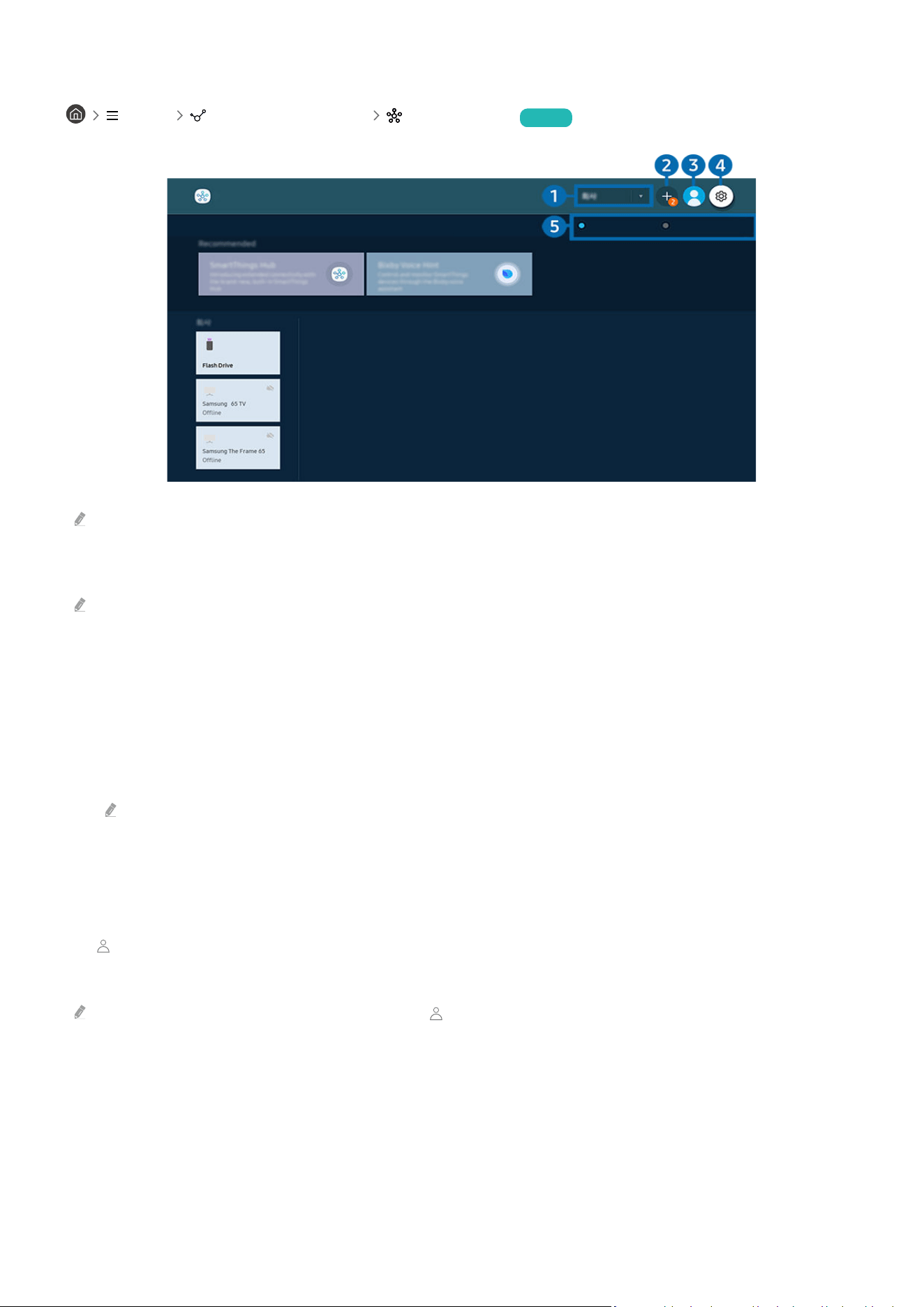
SmartThings screen layout
Menu Connected Devices SmartThings Try Now
SmartThings
List View
Map View
The image on your Projector may differ from the image above depending on the model and geographical area.
1.Device list category
Available options may differ depending on the device.
• Place
Displays all places connected via the SmartThings app.
• Devices near Projector
Displays all the detected devices that can be connected and controlled.
You can run the control options after selecting a desired device.
Available options may differ depending on the device.
2.Add Device
Displays the list of devices that can be registered on your Projector. You can register any by selecting a device.
3.
Samsung Account
Go to the Samsung Account screen to create a new account or sign out of your account.
If you are signed out of your Samsung Account, select Sign In to sign in.
- 55 -

4. Settings
You can congure the SmartThings settings.
5.List / Map
Displays the detected devices in a map or list.
Available devices
Type Description Detail
Mobile devices
Galaxy Series (S6, Android 7.0 or later)
iPhone Series (iOS 7.1 or later)
SmartThings app must have been installed in case of Android devices.
Bluetooth devices Bluetooth speaker, headset, Soundbar, keyboard, mouse, game pad
SmartThings devices For details on SmartThings devices, access https://www.smartthings.com/products.
External devices
DVD player, Blu-ray player, home theater system, game console, OTT box, set-top box
The devices must be connected to the HDMI port.
For a detailed list of supported devices, visit www.samsung.com.
This function may not be available depending on the external device.
- 56 -

Using Bixby
Set Voice Assistant to Bixby. Speak into the microphone on your Samsung Smart Remote or Projector to control
your Projector.
This function is available only if Voice Assistant is set to Bixby. ( Menu Settings All Settings General &
Privacy Voice Voice Assistant) Try Now
Bixby is available only when the Projector is connected to the network.
To use Bixby, you must register and sign in to your Samsung account. Some functions may not be supported if you are not
signed in to your Samsung account.
Bixby only supports some languages, and the supported functions may differ depending on the geographical area.
Bixby may not be supported depending on the model or geographical area.
Starting Bixby with voice
You can immediately start a conversation with Bixby by saying "Hi, Bixby." Say "Hi, Bixby", and the Bixby icon at the
bottom of the Projector screen is activated in Listen mode. Continue speaking.
For best results, you need to be within 5 feet (1-2 m) of your Projector. If Bixby does not answer, refer to "I spoke "Hi,
Bixby/Alexa" but Bixby/Alexa does not answer." in "Troubleshooting."
These functions may not be supported depending on the model or geographical area.
- 57 -

Starting Bixby using buttons on the Samsung Smart Remote
You can have conversation with Bixby using the Samsung Smart Remote buttons. Press and hold the button on
your Samsung Smart Remote, say a command, and then release the button.
To view the Bixby guide, press the button once:
• When you press the button, the Explore Now button appears at the bottom of the screen. Press the Select
button to go to the Explore Bixby screen.
- 58 -
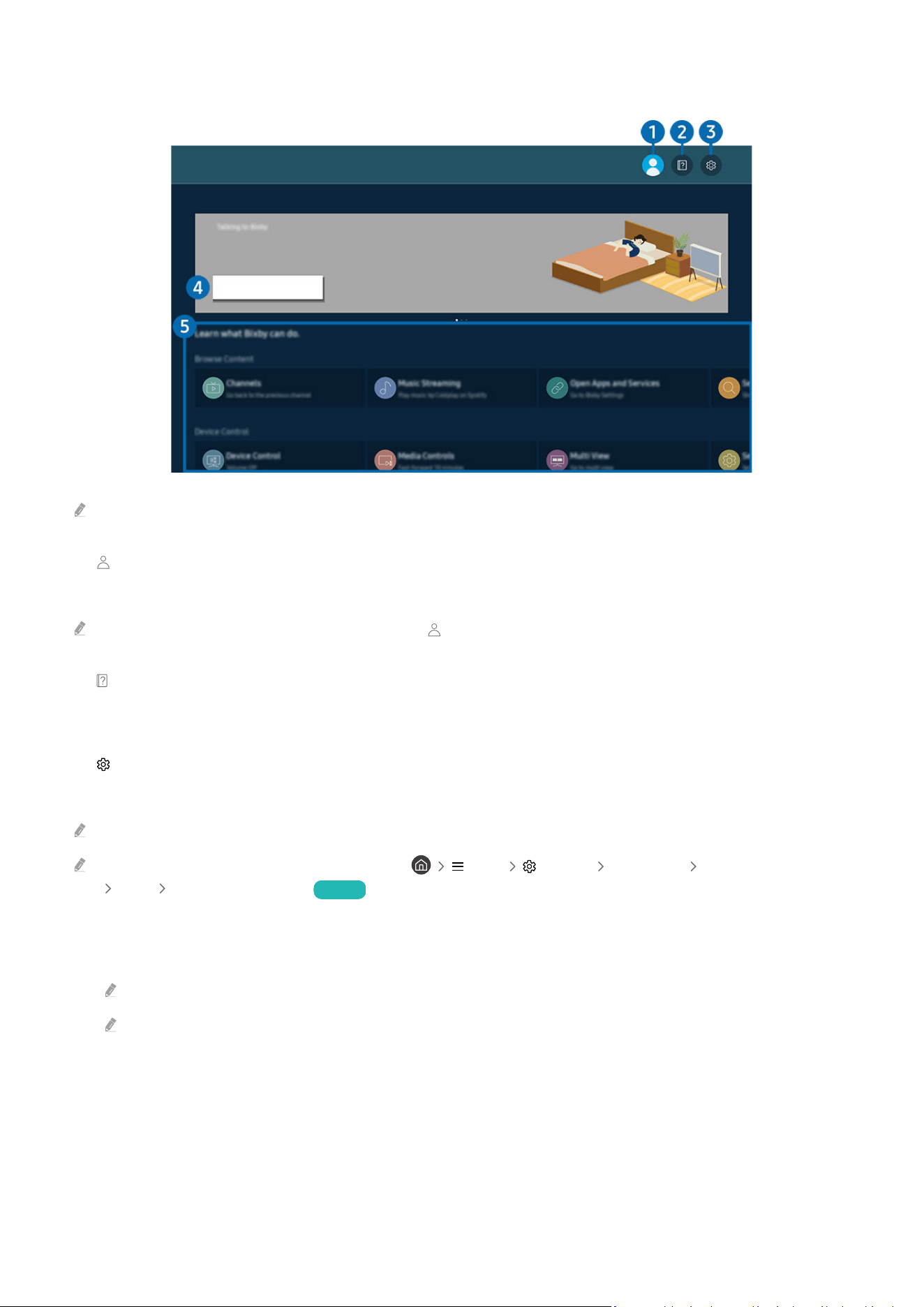
Learning about the Explore Bixby Screen
Bixby
Hi! Let’s learn about Bixby now.
Learn how to wake up Bixby.
Go to Tutorials
The image on your Projector may differ from the image above depending on the model and geographical area.
1. My Prole
Log out after going to the My Prole screen.
If you are signed out of your Samsung account, select My Prole to sign in.
2. Tutorials
The pop-up window on using Bixby appears.
3. Settings
You can change the settings for using Bixby.
These functions may not be supported depending on the model or geographical area.
These functions can be set in Bixby Voice Settings ( Menu Settings All Settings General & Privacy
Voice Bixby Voice Settings). Try Now
• Language
You can change Bixby's language.
The languages of the Projector and other apps will not change.
Bixby only supports some languages.
- 59 -

• Voice response
You can change or turn off Bixby's voice.
This function may not be supported depending on the language selected for Bixby.
• Voice Wake-up
Congure settings on how to wake up Bixby with your voice. You can congure the following settings: Use
Samsung Soundbar to interact with Bixby., Bixby wake-up options, and Wake-Up Sensitivity. ( Explore
Now Settings Voice Wake-up).
The Voice Wake-up function may not be supported depending on the model or geographical area.
This function can be used only when the sound sensor at the bottom of the Projector is active.
For best results, you need to be within 5 feet (1-2 m) of your Projector. If Bixby does not answer, refer to "I spoke "Hi,
Bixby/Alexa" but Bixby/Alexa does not answer." in "Troubleshooting."
• Sound feedback
Play a sound when Bixby starts and stops listening.
This function may not be supported depending on the model.
• Privacy
You can permit or prohibit Bixby from utilizing your personal information when you are using Bixby services.
• About Bixby Voice
Displays the detailed terms and conditions.
4.Recommended commands
Displays recommended commands you can use to control the Projector with Bixby given the current context.
If you do not want to see the recommended commands, set Voice Hint to Off ( Menu Settings All
Settings General & Privacy Voice Voice Hint). Try Now
5.All Services
You can learn the voice commands that let you use Bixby in various situations. Use the directional buttons to
move to the desired command, and then press the Select button. You can operate the Projector with various voice
commands.
- 60 -

Read Before Using Bixby
• The supported voice interaction languages and features may differ depending on the geographical area.
• If the language set differs from the language of your country, some features are not available.
• Bixby is available only when the Projector is connected to the network.
• Even if the Projector is connected to the network, there may be no response due to a Bixby server error.
• The existing functional specifications may be changed if Bixby is updated.
• Bixby is available only on Projectors that support it and come with remote controls that have a microphone.
• Symbols including "-" and special characters are not supported. Consequently, if a word or sentence contains
numeric values or symbols, the function may not operate properly.
• Searched results may not provide complete results.
• You may be required to pay for some apps. Consequently, you may encounter a service application or contract.
• To use the voice text input function and the search function, you must consent to provisions allowing third
parties to collect and use your voice data.
• To use the Bixby function, you must:
– Agree to Smart Hub's Terms of Use.
– Agree to a guidance regarding the collection and use of personal information for the Smart Hub service.
– Consent to the collection and use of personal information for the voice interaction-based service.
Provisions for using Bixby
• The voice interaction rate differs with the volume/tone, pronunciation, and ambient sound environment
(Projector sound and ambient noise).
- 61 -

Projector Viewing
You can use convenient features while watching programs.
Projector-Viewing Support Functions
Use the functions that are available while watching Projector.
Using Program Rating Lock
Menu Settings All Settings General & Privacy Parental Settings Program
Rating Lock Settings Try Now
This function is useful for controlling what programs children can watch on the Projector based on their ratings.
Program Rating Lock Settings does not, however, block programs originating from external sources, such as Blu-ray
players, DVD players, or USB les.
Every time you access Program Rating Lock Settings, you must enter the security PIN. You must also enter this PIN
to watch a blocked program. The default PIN is "0000." To change the PIN, go to Menu Settings All
Settings General & Privacy System Manager Change PIN. Try Now
Program Rating Lock Settings may not be supported depending on your input signal.
For more information about how to set your password, refer to "Setting up a password."
Change PIN may not be supported depending on the model or geographical area.
For more information about the rating system of different countries, refer to "Blocking programs based on their TV Rating."
Watching blocked / restricted programs
To watch a blocked program, enter the PIN when requested.
When initially showing a restricted program or movie, the screen is blank because the Program Rating Lock
Settings blocks it. Enter the PIN to unblock the program when a message appears requesting the code.
Conguring advanced broadcasting audio settings
Menu Settings All Settings Broadcasting Audio Options Try Now
Audio Options functions differently for channels.
• Preferred Language Try Now
This is the language you will hear while watching Projector if the language is included in the broadcast signal.
• Multi-Track Sound Try Now
You can select the multi-track sound function depending on broadcasting signal.
This function may not be supported depending on the model or geographical area.
- 62 -

Picture and Sound
You can change the settings for the picture and the sound according to your preference.
Setting the Viewing Environment for Projector
Adjust the Projector's mode options and installation settings for your viewing environment.
Guide to screen adjustment
Menu Settings All Settings General & Privacy Projector Settings
Adjust the Projector's mode options and installation settings for your viewing environment.
• Keystone Try Now
Fix a distorted image on the screen based on the projection angle. You can also turn on/off the vertical
automatic Keystone function or manually adjust vertical or horizontal Keystone.
• Focus
Try Now
This feature adjusts the projected screen focus.
• Scale and Move Screen Try Now
Enlarge or reduce the screen scale. You can also move the screen.
• Projection Mode Try Now
This feature changes the direction of the image projection according to the projector's installation direction.
• High-Altitude Mode
Try Now
This feature prevents the projector from overheating when operating at high altitudes.
To use the Projector at a height greater than 4000 ft (1219 m), turn on High-Altitude Mode. If this mode is turned on, the
fan speed increases and loud noise may be experienced.
The Projector can only be used at a height of 10000 ft (3048 m) or less.
• Setup Guide Try Now
This guide shows you how to adjust the size and shape of the projection screen when installing Projector.
- 63 -

Adjusting the Picture Quality
Change the Picture Mode and adjust Expert Settings.
Choosing a picture mode
Menu Settings All Settings Picture Picture Mode Try Now
You can select the Picture Mode that provides the best viewing experience.
Entertain and Graphic are supported only when you change the external device name to PC in PC mode.
• Dynamic
Makes the picture brighter and clearer in bright viewing environments.
• Standard
Is the default mode suitable for general viewing environments.
• Movie
Is suitable for watching Projector or movies in a dark room.
- 64 -

Conguring advanced picture settings
Menu Settings All Settings Picture Expert Settings Try Now
Congure the screen settings to your taste by using the following functions:
• Brightness Try Now
Adjust the overall picture brightness. The closer to 50, the brighter the picture.
• Contrast
Try Now
Adjust the difference between the darkest and brightest areas between objects and their background. The closer
to 50, the larger the difference.
• Sharpness Try Now
Adjust the outline sharpness of objects. The closer to 20, the sharper the object outlines.
• Color Try Now
Adjust the chroma of a video. The closer to 50, the deeper the colors.
• Tint (G/R) Try Now
Adjust the color tone. The higher either value, the redder or greener the video.
• Apply Picture Settings
Try Now
Apply the selected picture settings to the current input source or all input sources.
• Picture Clarity Settings Try Now
Optimize a video that has many dynamic scenes.
When LED Clear Motion is set to On, the screen appears darker than when it is Off.
• Contrast Enhancer Try Now
Automatically adjust the contrast to prevent excessive brightness differences between brighter and darker
areas.
- 65 -

•
Film Mode Try Now
Touch up an old video to improve the picture quality for a better viewing experience.
This function is only available when the input signal is Projector or HDMI (1080i). The terminals and inputable signals
may differ depending on the model.
• Color Tone Try Now
Select an appropriate color tone, according to the viewing situation.
• White Balance
Try Now
Adjust the brightness of the colors red, green and blue so that the brightest area of the picture becomes white.
• Gamma Try Now
Adjust the medium brightness of a video.
• Shadow Detail Try Now
Adjust the brightness of a dim picture. The closer to 5, the brighter the dim picture.
• Color Space Settings
Try Now
Select a range of colors that can be expressed on the picture.
• Smart Calibration Try Now
Calibrates picture quality so content can be viewed as the creator intended.
This function may not be supported depending on the model or geographical area.
To use this function, use a Smartphone that is compatible with the function. The list of compatible models is
shown below.
– Galaxy models: Galaxy S, Galaxy Note, Galaxy Fold, and Galaxy Flip series models that were released after
January 2019.
– iPhone models: Models with a Face ID function that were released after January 2019.
Supported models may differ depending on the situation.
• Reset Picture Try Now
Reset the picture settings to the default values.
- 66 -

Changing the Picture Size and Position
Change the picture size and position for your Projector.
Changing the picture size settings
Menu Settings All Settings Picture Picture Size Settings Try Now
These functions may not be available on Samsung TV Plus and some applications.
• Picture Size Try Now
You can change the size of the picture displayed on the Projector screen to 16:9 Standard, Custom, or 4:3.
Supported picture sizes differ with the input signal. For more information, refer to "Picture sizes and input signals."
• Fit to Screen Try Now
Fitting the picture to the screen.
This function may not be supported depending on the Picture Size setting.
This function may not be supported depending on the broadcast signals.
• Zoom and Position Try Now
Adjusting the picture size and/or position.
This function is available only if Picture Size is set to Custom.
- 67 -

Setting the Viewing Environment for External Devices
You can optimize the Projector for viewing specic video formats.
Playing games on an optimized screen
Menu Settings All Settings Connection Game Mode Try Now
You can enable game mode to optimize the Projector's settings for playing video games with a gaming console,
such as a PlayStation™, Xbox™, or Nintendo Switch™. You can also set the Game Mode quickly from Home Screen
( Menu Settings down directional button Game Mode ).
This function may not be supported depending on the model.
The screen may shake somewhat.
When Game Mode is set to On, some functions are not available.
To use a different external device on the same port, remove the game console connection, set Game Mode to Off, and then
connect the external device to the port.
The Game Mode functions used for Nintendo Switch™ are subject to change without prior notice.
Using Cable Box IP Remote
Menu Settings All Settings Connection External Device Manager Cable Box IP
Remote Try Now
Set the cable box that supports IP control to be controlled with Samsung remote control.
This function may not be supported depending on the model.
Using HDMI Black Level
Menu Settings All Settings Connection External Device Manager HDMI Black
Level Try Now
Use HDMI Black Level to adjust the black level to compensate for low black levels, low contrast, or dull colors
generated by external devices connected to the Projector via an HDMI cable.
This function is only available when the input signal connected to the Projector via an HDMI connector is set to RGB444.
- 68 -

Conguring a Sound Mode and Expert Settings
Change the Sound Mode and adjust Expert Settings.
Choosing a sound mode
Menu Settings All Settings Sound Sound Mode Try Now
You can select the available sound mode that you prefer for a content type or your listening environment.
When an external device is connected, Sound Mode may change accordingly.
This function may not be supported depending on the model.
Conguring advanced sound settings
Menu Settings All Settings Sound Expert Settings Try Now
You can personalize the sound quality by adjusting the following settings.
Supported menu options may vary depending on the Sound Output setting.
• Equalizer Try Now
Customize the Projector sound by adjusting the volume of high-pitched and low-pitched sounds.
The name and properties of this function may appear differently depending on the connected external device.
• HDMI-eARC Mode Try Now
You can connect an audio device that supports eARC via HDMI-eARC. Muting occurs temporarily during device
connection.
• Digital Output Audio Format
Try Now
Select a digital audio output format. If you select Auto, the audio output mode automatically changes to the
mode supported by the connected sound bar or A/V receiver.
- 69 -

•
Dolby Atmos Try Now
Set to On if the audio device connected via the HDMI (eARC) port supports Dolby Atmos. When the option is
set to On, Dolby Digital+ with Atmos stream, sent from an external device, can be received. If you change the
setting when the input source is set to HDMI, the screen may flicker. If this function is on, set Digital Output
Audio Format to Auto.
When watching Projector using the embedded speakers, the virtual surround sound effect of Dolby Atmos can
be turned on or off.
This function may not be supported depending on the model.
• Auto Volume Try Now
Automatically adjusts the sound to a certain level when changing channels or switching to another external
input.
• Sound Feedback
Try Now
Plays the notification sound when manipulating a menu or selecting an option.
• Reset Sound Try Now
Reset changed sound settings.
- 70 -

Using the Sound Support Functions
Congure the sound settings for your Projector.
Selecting speakers
Menu Settings All Settings Sound Sound Output Try Now
You can select which speakers the Projector uses for audio output.
External speakers may not be controlled with the Samsung Smart Remote. When an external speaker is enabled, some
sound menus are not supported.
Listening to the Projector through Bluetooth devices
Menu Settings All Settings Sound Sound Output Bluetooth Speaker List
You can connect Bluetooth audio devices to the Projector. They must be paired using the Projector's Bluetooth
function. Refer to the user manual for your audio device such as Bluetooth speaker, sound bar, and headphones for
detailed connection and usage.
If the Projector fails to nd a Bluetooth audio device, place the device closer to the Projector, and then select Refresh.
When you turn on a paired Bluetooth audio device, the Projector detects it automatically, and then displays a pop-up
window. Use this pop-up window to activate or deactivate the Bluetooth audio device.
The sound quality may be affected by the condition of the Bluetooth connection.
Before using a Bluetooth audio device, refer to "Read Before Using Bluetooth Devices."
On some models, you can connect and use two Bluetooth devices simultaneously.
- 71 -

Listening to the Projector through a Samsung audio device that supports the Wi-Fi function
Menu Settings All Settings Sound Wi-Fi Speaker Surround Setup Try Now
If you've connected one or more Samsung wireless audio devices that support the Wi-Fi function to the Projector,
you can create an optimal sound set up by conguring the surround effect settings. You can select any of the
surround sound congurations, with or without a sound bar.
A surround sound conguration can be used if all of the following conditions are met:
• Two or more Samsung wireless speakers of the same type must be connected to the same wireless network.
• The Samsung audio devices that support the Wi-Fi function must be connected to the same wireless network as
the Projector.
For more information about how to connect and use a Samsung audio device that supports the Wi-Fi function, refer to its
user manual.
Surround sound congurations with a sound bar may not be supported depending on the product.
If you activate the Screen Mirroring function while using Samsung audio devices that support the Wi-Fi function, the Wi-Fi
connection is disconnected.
Mismatched video and audio lip-syncing may occur depending on the device type.
- 72 -

System and Support
You can congure system and support settings, such as clock, timers, energy usage and software updates.
Using the Time Functions and the Timers
Set the current time and use the timer function.
Menu Settings All Settings General & Privacy System Manager Time Try Now
You can set the Clock manually or automatically. Once the Clock is set, you can view the current time on the
Projector anytime.
You must set the clock in the following cases:
• The power cable is disconnected and then connected.
• The Clock Mode is changed from Auto to Manual.
• The Projector is not connected to the network.
Setting the clock automatically
Menu Settings All Settings General & Privacy System Manager Time Clock
Clock Mode Auto
This function works only when the Projector is connected to the network.
Adjusting the clock
Menu Settings All Settings General & Privacy System Manager Time Clock
Try Now
You can set the current date and time using your remote control.
Changing the current time
Menu Settings All Settings General & Privacy System Manager Time Clock
Time Offset Try Now
Time Offset adjusts the time through a network connection.
This function is available only when Clock Mode is set to Auto, the Projector is connected to a network.
- 73 -

Setting the clock manually
Menu Settings All Settings General & Privacy System Manager Time Clock
Clock Mode Manual
When Clock Mode is set to Manual, you can directly enter the current date and time. Select the Date and Time by
using the directional buttons on the remote control.
Using the sleep timer
Menu Settings All Settings General & Privacy System Manager Time Sleep
Timer Try Now
You can use this function to automatically shut off the Projector after a pre-set period of time. You can set the sleep
timer for up to 180 minutes after which it will turn off the Projector.
This function may not be supported in some viewing modes.
Turning off the Projector using the off timer
Menu Settings All Settings General & Privacy System Manager Time Off
Timer Try Now
You can set Off Timer to shut off the Projector automatically at a specic time. Off Timer is only available if the
Clock has been set.
To use this function, rst set the Clock ( Menu Settings All Settings General & Privacy System
Manager Time Clock). Try Now
This function may not be supported in some viewing modes.
This function may not be supported depending on the model or geographical area.
- 74 -

Using the Power and Energy Saving Functions
Reduce the Projector's energy consumption.
Reducing the energy consumption of the Projector
Menu Settings All Settings General & Privacy Power and Energy Saving Try Now
Reduce energy consumption by changing your power preferences and other energy-saving options.
• Screen Saver Try Now
Activate a screensaver when your Projector displays a still image for two hours or more.
• Auto Power Saving
Try Now
When the Projector is connected to Wi-Fi, this feature checks Wi-Fi signals and remote control usage data to
determine whether the Projector is used. If the Projector is left idle, the feature automatically switches off the
screen.
This feature may not be supported, depending on the Wi-Fi router.
• Auto Power Off Try Now
Automatically turns off the Projector to reduce unnecessary power consumption if the Projector Controller and
the remote control are not used for the set period of time.
• Available Remote Battery Try Now
You can check the Samsung Smart Remote's remaining amount of the battery.
This function may not be supported depending on the model.
- 75 -

Updating the Projector's Software
View your Projector's software version and update it if necessary.
DO NOT turn off the Projector's power until the update is complete. The Projector will turn off and on
automatically after completing the software update. Video and audio settings may be reset to their defaults
after a software update.
Updating through the network
Menu Settings Support Software Update Update Now Try Now
Updating from the network requires an active network connection.
Updating the Projector automatically
Menu Settings Support Software Update Auto Update Try Now
If the Projector is connected to the network, you can have the Projector's software update itself automatically while
you are watching the Projector. When the background update is completed, it is applied the next time the Projector
is turned on.
If you agree to the Smart Hub terms and conditions, Auto Update is set to On automatically. If you want this
function disabled, use the Select button to turn it off.
This function may take a longer time if another network function is running concurrently.
This function requires an network connection.
- 76 -

Using the Parental Settings function
Congure content or app security settings.
Menu Settings All Settings General & Privacy Parental Settings Try Now
Restrict access to content or apps that require parental guidance. Locked content or apps can be accessed by
entering the password.
• Parental Lock Try Now
Enable or disable all Parental Settings.
• App Lock Settings Try Now
Set the installed app to lock or unlock.
- 77 -

Audio and Video Functions for the Visually or Hearing Impaired
You can congure the functions for the visually or hearing impaired.
Running the accessibility functions
Menu Settings All Settings General & Privacy Accessibility Try Now
Running Accessibility Shortcuts
The Accessibility Shortcuts provide easy access to the accessibility functions. To display the Accessibility Shortcuts,
press and hold the (Volume) button for 2 seconds or more. You can easily turn on or turn off the functions, such
as Voice Guide, Caption, Sign Language Zoom, Sign Language Guide, Learn Remote, Learn Menu Screen, Picture Off,
Multi-output Audio, High Contrast, Enlarge, Grayscale, Color Inversion, Slow Button Repeat, Accessibility Settings,
etc.
Even if the Voice Guide is set to Off or muted, the voice guide for Accessibility Shortcuts is enabled.
The shortcut menus may not appear depending on the model or geographical area.
The menu name may differ depending on the model.
Enabling voice guides for the visually impaired
Menu Settings All Settings General & Privacy Accessibility Voice Guide
Settings Try Now
You can activate voice guides that describe the menu options aloud to aid the visually impaired. To activate this
function, set Voice Guide to On. With Voice Guide on, the Projector provides voice guides for channel change,
volume adjust, information on current and upcoming programs, schedule viewing, other Projector functions, and
various content in the Internet, and in Search.
You can go to Voice Guide, and then press the Select button to turn the function on or off.
The Voice Guide is provided in the language that is specied on the Projector Language. However, some languages are not
supported by Voice Guide even though they are listed in the Projector Language. English is always supported.
For more information about the Projector Language settings, refer to "Changing the menu language."
Changing the volume, speed, pitch, and the Projector background volume of the Voice Guide
You can congure the Volume, Speed, Pitch, and the Projector Background Volume of the voice guide.
- 78 -

The Projector screen is turned off but audio continues
Menu Settings All Settings General & Privacy Accessibility Picture Off Try Now
Turn off the Projector screen and provide only sound to reduce overall power consumption. When you press a
button on the remote control other than Volume and Power while the screen is off, the Projector screen turns back
on.
White text on black background (high contrast)
Menu Settings All Settings General & Privacy Accessibility High Contrast
Try Now
You can change Smart Hub and setting menu screens to white text on a black background and change the
transparent Projector menus to opaque automatically so that text can be more easily read.
If High Contrast is on, some Accessibility menus are not available.
Setting the screen to black and white
Menu Settings All Settings General & Privacy Accessibility Grayscale Try Now
You can change the color of the Projector screen to black and white to sharpen blurred edges caused by colors.
If Grayscale is on, some Accessibility menus are not available.
This function may not be supported depending on the model or geographical area.
Inverting the screen color
Menu Settings All Settings General & Privacy Accessibility Color Inversion
Try Now
You can invert the colors of the text and background for the setting menus displayed on the Projector screen to
make it easier to read them.
If Color Inversion is on, some Accessibility menus are not available.
This function may not be supported depending on the model or geographical area.
- 79 -

Enlarging the font (for the visually impaired)
Menu Settings All Settings General & Privacy Accessibility Enlarge Try Now
You can enlarge the size of the font on the screen. To activate, set Enlarge to On.
Learning about the remote control (for the visually impaired)
Menu Settings All Settings General & Privacy Accessibility Learn Remote
Try Now
This function helps individuals with a visual impairment to learn the positions of the buttons on the remote control.
When this function is activated, you can press a button on the remote control and the Projector will tell you its
name. Press the
button twice to exit Learn Remote.
Learning about the Projector menu
Menu Settings All Settings General & Privacy Accessibility Learn Menu
Screen Try Now
Learn the menus on the Projector screen. Once enabled, your Projector will tell you the structure and features of
the menus you select.
- 80 -

Showing captions
Menu Settings All Settings General & Privacy Accessibility Caption Settings
Try Now
Set Caption to On to watch programs with the captions displayed.
Captions are not displayed by programs that do not support captions.
This function has no relationship with the features for controlling subtitles of DVD or Blu-ray players. To control DVD or
Blu-ray subtitles, use the subtitle feature of the DVD or Blu-ray player and the player's remote control.
Selecting the caption language
Menu Settings All Settings General & Privacy Accessibility Caption Settings
Caption Mode Try Now
• Default / Service1 ~ Service6 / CC1 ~ CC4 / Text1 ~ Text4
These functions may not be available in digital caption mode depending on the contents.
Setting the digital caption related options
Menu Settings All Settings General & Privacy Accessibility Caption Settings
Digital Caption Options Try Now
You can change the font color, background color, size settings, and position, etc.
The foreground and background colors and opacity settings cannot be the same.
- 81 -

Listening to the Projector through Bluetooth devices (for the hearing impaired)
Menu Settings All Settings General & Privacy Accessibility Multi-output
Audio Try Now
You can turn on both the Projector speaker and Bluetooth headphone at the same time. When this function is active,
you can set the volume of the Bluetooth headphone higher than the volume of the Projector speaker.
This function may not be supported depending on the model or geographical area.
For more information, refer to "Listening to the Projector through Bluetooth devices."
Enlarging the sign language screen for the hearing impaired
Menu Settings All Settings General & Privacy Accessibility Sign Language
Zoom Settings Try Now
You can zoom in the sign language screen when the program you are watching provides it. First, set Sign Language
Zoom to On, and then select Edit Sign Language Zoom to change the position and magnication of the sign
language screen.
This function may not be supported depending on the model or geographical area.
Conguring the repeat settings for remote control buttons
Menu Settings All Settings General & Privacy Accessibility Remote Button
Repeat Settings Try Now
You can congure the operation speed of the remote control buttons so that they slow down when you continually
press and hold them. First, set Slow Button Repeat to On, and then adjust the operation speed in Repeat Interval.
- 82 -

Using Voice Assistants on the Projector
You can change the settings of a Voice Assistant after selecting it.
Select the Voice Assistant
Menu Settings All Settings General & Privacy Voice Voice Assistant Try Now
Select which Voice Assistant you would like to help control your Projector.
To use this function, the Projector must be connected to the network.
This function and Voice Recognition Solution Partner may not be supported depending on the model or geographical area.
Voice Assistant only supports some languages, and the supported functions may differ depending on the geographical
area.
The Voice Wake-up function may not be supported depending on the model, Voice Assistant or geographical area.
• Bixby / Amazon Alexa / Google Assistant
To use the Voice Assistant, follow the instructions on the Projector screen to enable the selected Voice Assistant.
To change the settings for Voice Assistant, run the Settings menu under each Voice Assistant ( Menu
Settings All Settings General & Privacy Voice Voice Assistant). Try Now
To enable the Settings menus for each Voice Assistant, log in each Voice Assistant.
For an example of Voice command, see the Settings menus for each Voice Assistant.
- 83 -

Using Other Functions
You can view other functions.
Changing the menu language
Menu Settings All Settings General & Privacy System Manager Language
Try Now
Setting up a password
Menu Settings All Settings General & Privacy System Manager Change PIN
Try Now
The PIN input window appears. Enter a PIN. Enter it again to conrm it. The default PIN is "0000."
This function may not be supported depending on the model or geographical area.
If you forget your PIN, you can reset it with your remote control. With the Projector turned on, press the following buttons
on the remote control in the order shown to reset the PIN to "0000."
Press (Volume) button. Volume Up Volume Down Volume Up .
Selecting Usage or Retail Mode
Menu Settings All Settings General & Privacy System Manager Usage Mode
Try Now
You can set the Projector for retail environments by setting Usage Mode to Retail Mode.
For all other uses, select Home Mode.
Use Retail Mode only in a store. With Retail Mode, some functions are disabled, and the Projector settings automatically
reset after a preset amount of time.
This function may not be supported depending on the model.
- 84 -

Managing External Devices
Menu Settings All Settings Connection External Device Manager Device
Connect Manager Try Now
When you connect external devices, such as mobile devices or tablets connected to the same network as the
Projector so you can share content, you can view the list of allowed devices and connected devices.
• Access Notification
Set whether to display a notification when an external device such as a mobile device or tablet attempts to
connect to the Projector.
• Device List
Manage a list of external devices registered to the Projector.
Using AirPlay
Menu Settings All Settings Connection Apple AirPlay Settings Try Now
You can use AirPlay to view content from your iPhone, iPad, or Mac on the Projector screen.
This function may not be supported depending on the model.
Restoring the Projector to the factory settings
Menu Settings All Settings General & Privacy Reset Try Now
You can restore all Projector settings to the factory defaults.
1.
Select Reset. The security PIN entry window appears.
2.
Enter the security PIN, and then select Reset. All settings are then reset. The Projector turns off and on again
automatically and displays the Initial Setup screen.
For more information on Reset, refer to the user manual that came with the Projector.
- 85 -

Precautions and Notes
You can get instructions and information that you must read after installation.
Read Before Using Apps
Read this information before using Apps.
• If you want to download new apps using Apps, first sign in to your Samsung account.
• Due to the product characteristics featured on Samsung Smart Hub, as well as limitations in available content,
certain features, applications, and services may not be available on all devices or in all territories. Visit https://
www.samsung.com for more information on specific device information and content availability. Services and
content availability are subject to change without prior notice.
• Samsung Electronics takes no legal responsibility whatsoever for any interruption of app services caused by the
service provider for any reason.
• Application services may be provided in English only and available content may differ with the geographical
area.
• For more information about applications, visit the applicable service provider's website.
• An unstable network connection may cause delays or interruptions. In addition, applications may terminate
automatically depending on the network environment. If this occurs, check your network connection and try
again.
• Application services and updates may become unavailable.
• Application content is subject to change by the service provider without prior notice.
• Specific services may differ with the version of the application installed on the Projector.
• An application's functionality may change in future versions of the application. If this occurs, run the
application's tutorial or visit the service provider's website.
• Depending on the service provider's policies, certain applications may not support multitasking.
• For details on how to subscribe or unsubscribe from an app, please contact the service provider.
- 86 -

Read Before Using the Internet Function
Read this information before using the Internet function.
• File download is not supported.
• The Internet function may not be able to access certain websites, including websites operated by certain
companies.
• The Projector does not support playback of flash videos.
• E-commerce for online purchases is not supported.
• ActiveX is not supported.
• Only a limited number of fonts are supported. Certain symbols and characters may not be displayed properly.
• The response to remote commands and the resulting on-screen display may be delayed while a web page is
loading.
• Loading a web page may be delayed or suspended completely depending on the status of the participating
systems.
• Copy and paste operations are not supported.
• When composing an email or a simple message, certain functions such as the font size and color selection may
not be available.
• There is a limit to the number of bookmarks and the size of the log file that can be saved.
• The number of windows that can be opened concurrently is limited.
• Web browsing speed will differ with the network environment.
• Browsing history is saved from latest to oldest, with the oldest entries being overwritten first.
• Depending on the types of video/audio codecs supported, you may not be able to play certain HTML5 video and
audio files.
• Video sources from PC-optimized streaming service providers may not play properly on our proprietary Internet
browser.
- 87 -

Read before setting up a wireless network connection
Precautions for wireless network
• This Projector supports the IEEE 802.11 a /b /g /n /ac communication protocols. Video files stored on a device
connected to the Projector via a Home Network may not play back smoothly.
Some of the IEEE 802.11 communication protocols may not be supported depending on the model or geographical area.
• To use wireless network, the Projector must be connected to a wireless access point or modem. If the wireless
access point supports DHCP, the Projector can use a DHCP or static IP address to connect to the wireless
network.
• Select a channel that is not currently being used by the wireless access point. If the channel set is currently
being used by the wireless access point to communicate with another device, the result is usually interference
and/or a communications failure.
• Most wireless networks have an optional security system. To enable a wireless network's security system,
you need to create a password using characters and numbers. This password is then needed to connect to a
security-enabled access point.
Wireless security protocols
The Projector only supports the following wireless network security protocols. The Projector cannot connect to
non-certied wireless access point.
– Authentication Modes: WEP, WPAPSK, WPA2PSK
– Encryption Types: WEP, TKIP, AES
In compliance with the Wi-Fi certication specications, Samsung Projectors do not support WEP or TKIP security
encryption in networks running in the 802.11n mode. If the wireless access point supports WPS (Wi-Fi Protected
Setup), you can connect the Projector to your network using PBC (Push Button Conguration) or a PIN (Personal
Identication Number). WPS automatically congures the SSID and WPA key settings.
- 88 -

Read After Installing the Projector
Read this information after installing the Projector.
Picture sizes and input signals
The Picture Size is applied to the current source. The applied Picture Size will remain in effect whenever you select
that source unless you change them.
Input signal Picture size
HDMI (720p) 16:9 Standard, Custom, 4:3
HDMI (1080i, 1080p) 16:9 Standard, Custom, 4:3
The input ports for external devices may differ depending on the model and geographical area.
Read Before Connecting a Computer (Supported Resolutions)
Check the resolutions supported for PC input signals.
When you connect your Projector to a computer, set the computer's video card to one of the standard resolutions
listed in the tables below or on the next pages. The Projector will automatically adjust to the resolution you choose.
Note that the optimal and recommended resolution is 1920 x 1080 @ 60 Hz. Choosing a resolution not included in
the tables can result in a blank screen or just the remote control sensor turning on. Refer to the user manual of your
graphics card for compatible resolutions.
IBM
Resolution
(Dots x lines)
Display format
Horizontal
frequency
(KHz)
Vertical
frequency
(Hz)
Clock frequency
(MHz)
Polarity
(horizontal /
vertical)
720 x 400 70 Hz 31.469 70.087 28.322 - / +
MAC
Resolution
(Dots x lines)
Display format
Horizontal
frequency
(KHz)
Vertical
frequency
(Hz)
Clock frequency
(MHz)
Polarity
(horizontal /
vertical)
640 x 480 67 Hz 35.000 66.667 30.240 - / -
832 x 624 75 Hz 49.726 74.551 57.284 - / -
1152 x 870 75 Hz 68.681 75.062 100.000 - / -
- 89 -

VESA DMT
Resolution
(Dots x lines)
Display format
Horizontal
frequency
(KHz)
Vertical
frequency
(Hz)
Clock frequency
(MHz)
Polarity
(horizontal /
vertical)
640 x 480 60 Hz 31.469 59.940 25.175 - / -
640 x 480 72 Hz 37.861 72.809 31.500 - / -
640 x 480 75 Hz 37.500 75.000 31.500 - / -
800 x 600 60 Hz 37.879 60.317 40.000 + / +
800 x 600 72 Hz 48.077 72.188 50.000 + / +
800 x 600 75 Hz 46.875 75.000 49.500 + / +
1024 x 768 60 Hz 48.363 60.004 65.000 - / -
1024 x 768 70 Hz 56.476 70.069 75.000 - / -
1024 x 768 75 Hz 60.023 75.029 78.750 + / +
1152 x 864 75 Hz 67.500 75.000 108.000 + / +
1280 x 720 60 Hz 45.000 60.000 74.250 + / +
1280 x 800 60 Hz 49.702 59.810 83.500 - / +
1280 x 1024 60 Hz 63.981 60.020 108.000 + / +
1280 x 1024 75 Hz 79.976 75.025 135.000 + / +
1440 x 900 60 Hz 55.935 59.887 106.500 - / +
1600 x 900 60 Hz 60.000 60.000 108.000 + / +
1680 x 1050 60 Hz 65.290 59.954 146.250 - / +
1920 x 1080 60 Hz 67.500 60.000 148.500 + / +
- 90 -

Supported Resolutions for Video Signals
Check the resolutions supported for video signals.
CTA-861
Resolution
(Dots x lines)
Display format
Horizontal
frequency
(KHz)
Vertical
frequency
(Hz)
Clock frequency
(MHz)
Polarity
(horizontal /
vertical)
720 (1440) x 576i 50 Hz 15.625 50.000 27.000 - / -
720 (1440) x 480i 60 Hz 15.734 59.940 27.000 - / -
720 x 576 50 Hz 31.250 50.000 27.000 - / -
720 x 480 60 Hz 31.469 59.940 27.000 - / -
1280 x 720 50 Hz 37.500 50.000 74.250 + / +
1280 x 720 60 Hz 45.000 60.000 74.250 + / +
1920 x 1080i 50 Hz 28.125 50.000 74.250 + / +
1920 x 1080i 60 Hz 33.750 60.000 74.250 + / +
1920 x 1080 24 Hz 27.000 24.000 74.250 + / +
1920 x 1080 25 Hz 28.125 25.000 74.250 + / +
1920 x 1080 30 Hz 33.750 30.000 74.250 + / +
1920 x 1080 50 Hz 56.250 50.000 148.500 + / +
1920 x 1080 60 Hz 67.500 60.000 148.500 + / +
- 91 -

Read Before Using Bluetooth Devices
Read this information before using a Bluetooth device.
This function may not be supported depending on the model or geographical area.
Restrictions on using Bluetooth
• You can't use Bluetooth devices and the Wi-Fi Speaker Surround Setup feature simultaneously.
• Compatibility issues may occur, depending on the Bluetooth device (A Mobile exclusive headphone may not be
available, depending on the environment).
• Lip-sync errors may occur.
• The Projector and Bluetooth device may disconnect, depending on the distance between them.
• A Bluetooth device may hum or malfunction:
– When a part of your body is in contact with the receiving/transmitting system of the Bluetooth device or the
Projector.
– When the device is subject to electrical variation from obstructions caused by a wall, corner, or office
partitioning.
– When the device is exposed to electrical interference from same frequency-band devices including medical
equipment, microwave ovens, and wireless LANs.
• If the problem persists, we recommend you use a wired connection.
– HDMI (eARC) port
- 92 -

Blocking programs based on their TV Rating
Read this information before viewing a blocking program.
To block content in TV Rating, select a rating category to lock. All programs at that level and higher are blocked and
require the PIN to watch. To unblock a category, select the lock icon. To unblock all the categories in a row, select
the lock under ALL.
This function may not be supported depending on the model or geographical area.
Categories on the left:
• TV-Y: Young children.
• TV-Y7: Children 7 and over.
• TV-G: General audience.
• TV-PG: Parental guidance.
• TV-14: Viewers 14 and over.
• TV-MA: Mature audience.
Categories on the top:
• ALL: Lock all TV ratings.
• FV: Fantasy violence.
• V: Violence.
• S: Sexual situations.
• L: Adult language.
• D: Sexually suggestive dialog.
- 93 -

Blocking movies based on their Motion Picture Association of America (MPAA) rating
The Movie Rating (MPAA) system applies to all materials with supplied ratings in the U.S.A.
From the MPAA:
“The Motion Picture Association of America (MPAA) has implemented a rating system that provides parents or
guardians with advanced information on which lms are appropriate for children.”
Select a lock beside one of the rating categories to block that category and all higher categories. To unblock a
category, select the lock icon.
• G: General audience (no restrictions).
• PG: Parental guidance suggested.
• PG-13: Parents strongly cautioned.
• R: Restricted. Children under 17 should be accompanied by an adult.
• NC-17: No children under age 17.
• X: Adults only.
• NR: Not rated.
Blocking programs based on their Canadian English Rating
The Canadian English Rating system applies to all rated material viewed on English-Canadian Projector channels.
Select a lock beside one of the rating categories to block that category and all higher categories. To unblock a
category, select the lock icon.
• C: Programming intended for children under age 8.
• C8+: Programming generally considered acceptable for children 8 years and over to watch on their own.
• G: General programming, suitable for all audiences.
• PG: Parental Guidance.
• 14+: Programming containing themes or content that may not be suitable for viewers under the age of 14.
• 18+: Adult programming.
- 94 -

Blocking programs based on their Canadian French Rating
The Canadian French Rating system applies to all rated material viewed on French-Canadian Projector channels.
Select a lock beside one of the rating categories to block that category and all higher categories. To unblock a
category, select the lock icon.
• G: General.
• 8 ans+: Programming acceptable for children 8 years and over to watch on their own.
• 13 ans+: Programming that may not be suitable for children under the age of 13.
• 16 ans+: Programming not suitable for children under the age of 16.
• 18 ans+: Programming restricted to adults.
- 95 -

Licenses
Check the license information and trademarks applied in your Projector.
Dolby, Dolby Atmos, Dolby Audio and the double-D symbol are registered trademarks of Dolby Laboratories
Licensing Corporation. Manufactured under license from Dolby Laboratories. Condential unpublished works.
Copyright © 2012-2021 Dolby Laboratories. All rights reserved.
The terms HDMI and HDMI High-Denition Multimedia Interface, and the HDMI Logo are trademarks or registered
trademarks of HDMI Licensing Administrator, Inc. in the United States and other countries.
Open Source License Notice
Open Source used in this product can be found on the following webpage (https://opensource.samsung.com).
- 96 -
Troubleshooting
The following are troubleshooting solutions for each problem.
Picture Issues
When the Projector has trouble with the picture, these steps may help resolve the problem.
The screen is ashing or has become dark
If your Projector is ickering or dimming sporadically, you may need to disable some of the energy efciency
features.
Disable Contrast Enhancer.
• Menu Settings All Settings Picture Expert Settings Contrast Enhancer Try Now
Run Picture Test. When the tested image quality is normal, check the signal of the connected device.
•
Menu Settings Support Device Care Self Diagnosis Picture Test Try Now
The picture is not bright, or the picture colors do not look clear
If the screen appears too dim, try changing the settings under Reset Picture.
• Menu Settings All Settings Picture Expert Settings Reset Picture Try Now
Go to Picture and adjust the Picture Mode, Contrast, Brightness, and Sharpness settings.
•
Menu Settings All Settings Picture Picture Mode Try Now
• Menu Settings All Settings Picture Expert Settings Contrast Try Now
• Menu Settings All Settings Picture Expert Settings Brightness Try Now
•
Menu Settings All Settings Picture Expert Settings Sharpness Try Now
• Menu Settings All Settings Picture Expert Settings Color Try Now
• Menu Settings All Settings Picture Expert Settings Tint (G/R) Try Now
- 97 -

The picture colors are black and white or do not look the way they should
look
If the product’s colors or absolute whites/blacks seem to be off, launch Picture Test.
• Menu Settings Support Device Care Self Diagnosis Picture Test Try Now
Check whether Grayscale is set to On.
• Menu Settings All Settings General & Privacy Accessibility Grayscale Try Now
The Projector automatically turns off by itself
If your Projector appears to turn off by itself, try disabling some of the Projector's energy efciency functions.
See if Sleep Timer has been enabled. The Sleep Timer automatically turns the Projector off after a specied period
of time.
• Menu Settings All Settings General & Privacy System Manager Time Sleep Timer
Try Now
If the Sleep Timer has not been enabled, see if Auto Power Off or Off Timer has been enabled and disable it.
• Menu Settings All Settings General & Privacy Power and Energy Saving Auto Power Off
Try Now
•
Menu Settings All Settings General & Privacy System Manager Time Off Timer Try Now
Unable to power on
If you are having problems powering on your Projector, there are a number of things to check before calling the
service department.
Conrm that the Projector's power cord is connected correctly at both ends and that the remote control is operating
normally.
Make sure that the Projector cable is rmly connected.
- 98 -

Displayed video looks blurry
If you notice blurring or juddering on the screen, use the Picture Clarity Settings function to resolve the issue.
• Menu Settings All Settings Picture Expert Settings Picture Clarity Settings Try Now
The picture is distorted
The compression of video content may cause picture distortions, especially in fast moving pictures from sports
programs and action movies.
Remove and reconnect the power cord, and check the remote control battery.
If the signal reception is weak or poor, screen distortion may be visible but it is not a malfunction.
Mobile phones used close to the Projector (within 3.2 ft) may cause noise on channels.
There is a dotted line on the edge of the screen
Change Picture Size to 16:9 Standard.
•
Menu Settings All Settings Picture Picture Size Settings Picture Size Try Now
Change the output resolution of your external device.
The picture won’t display in full screen
HD channels will have black bars on either side of the screen when displaying upscaled SD (4:3) content.
Black bars will appear at the top and bottom of the screen when you watch movies that have aspect ratios different
from your Projector.
Adjust the picture size options on your external device or set the Projector to full screen.
•
Menu Settings All Settings Picture Picture Size Settings Picture Size Try Now
- 99 -

The Caption function in the Projector menu is deactivated
When an external device is connected with an HDMI, the Caption function is unavailable. Adjust the caption setting
on the external device.
Captions appear on the Projector screen
Turn off the Caption function in Caption Settings.
• Menu Settings All Settings General & Privacy Accessibility Caption Settings Caption
Try Now
- 100 -

Sound and Noise Issues
When the Projector has difculties with sound, these steps may help resolve the problem.
How can I connect an audio device to the Projector?
The connection method may differ depending on the audio device, such as HDMI (eARC), Bluetooth, and Wi-Fi.
For more information about how to connect an audio device, run Connection Guide.
•
Menu Connected Devices Connection Guide Audio Device
There is no sound or the sound is too low at maximum volume.
Check the volume control of your Projector, and then check the volume control of the external device (cable box or
satellite box, DVD, Blu-ray, etc.) connected to your Projector.
Check the cable connection between an external device and the Projector and then try cable connection again.
The picture is good but there is no sound.
Check the Sound Output setting. If it is set to Projector Speaker, check the volume setting.
• Menu Settings All Settings Sound Sound Output Try Now
If you are using an external device, check the device’s audio output option.
For example, you may need to change your cable box’s audio option to HDMI if the box connected to your Projector
is using an HDMI cable.
Reboot the connected device by disconnecting and then reconnecting the device’s power cable.
With a set-top box or cable box, check the cable connection and reboot the external device. When the symptom
persists, contact your service provider.
HDMI (eARC) is connected, and there is no sound.
It is recommended to set Digital Output Audio Format to Auto if only limited audio format is supported depending
on the performance of the connected sound bar or A/V receiver.
•
Menu Settings All Settings Sound Expert Settings Digital Output Audio Format Auto
- 101 -

The speakers are making an odd sound.
Run Sound Test.
• Menu Settings Support Device Care Self Diagnosis Sound Test Try Now
Make sure that the audio cable is connected to the correct audio output connector on the external device.
Check the Signal Information. A low signal level may cause sound distortions.
• Menu Settings Support Device Care Self Diagnosis Signal Information Try Now
The sound is interrupted.
Sound quality may become affected if the wireless router is close to the Bluetooth speaker. Place the Bluetooth
speaker as close as possible to the Projector without obstacle between them. Do not place the wireless router close
to the Bluetooth speaker body.
To minimize interruptions, we recommend a wireless access point that uses a 5 GHz frequency. 5 GHz may not be
available depending on the model.
Whenever a function is used on the Projector or the channel is changed, the
Projector voices the activity. The Projector explains in voice-over the video
scenes displayed on the screen.
Turn off the Voice Guide function in Voice Guide Settings.
• Menu Settings All Settings General & Privacy Accessibility Voice Guide Settings Voice
Guide Try Now
The Projector audio is not being played through the Sound bar or A/V
receiver.
Check the Sound bar or A/V receiver's power supply and its settings.
• In case of HDMI eARC connection, make sure that it is connected to the eARC dedicated HDMI port on your
Projector. However, the eARC can be used only when the Sound bar or A/V receiver supports the eARC feature.
- 102 -

The sound is not heard clearly.
Change to an appropriate sound mode.
• Menu Settings All Settings Sound Sound Mode Try Now
The volume of the external device cannot be adjusted.
Check the cable connection between the Projector and the external device.
When connecting an external speaker such as home theater via HDMI, make sure it is connected to the HDMI (eARC)
port on the Projector. Make sure that the
Menu Settings All Settings Connection External
Device Manager Anynet+ (HDMI-CEC) is active on your Projector. Try Now
I want to turn the Projector and audio device off and on at the same time.
When you connect the Samsung Soundbar to the Projector via Bluetooth, the power turns off and on together. It
may not be supported depending on the Samsung Soundbar model.
When you connect an audio device that supports HDMI eARC to the HDMI (eARC) port on the Projector, the power
turns off and on together.
- 103 -

External Device Connectivity Issues
When the Projector has difculties connecting to external devices such as a PC, game console, or mobile device,
these steps may help resolve the problem.
The "Mode Not Supported" message appears.
Adjust the output resolution of the external device to a resolution supported by the Projector.
The video is OK but there is no audio.
If you are using an HDMI connection, check the audio output setting on your PC.
To listen to the computer sound, connect external speakers to the audio output connection of the computer.
I want to connect to a PC and mobile device via screen mirroring.
To wirelessly connect the Projector to your PC, read the instructions at PC Screen Sharing (Wireless) in
Connection Guide, and then try to connect.
• Menu Connected Devices Connection Guide PC Screen Sharing (Wireless)
Conrm that the Projector and your PC are connected to the same network.
To wirelessly connect the Projector to your mobile device, read the instructions at Smartphone Screen Sharing
(Smart View) in Connection Guide, and then try to connect.
•
Menu Connected Devices Connection Guide Smartphone Screen Sharing (Smart View)
Try Now
If the Projector has difculties connecting to your PC or mobile device due to surrounding radio interferences,
change the frequency of the wireless access band, and then try to connect.
- 104 -

No screen appears when connecting the Projector to an external device.
For more information about how to connect an external device, run Connection Guide.
• Menu Connected Devices Connection Guide Try Now
Make sure that the external device is connected securely and turned on. Move to Sources to switch to other input
sources.
• Menu Connected Devices Sources
Using HDMI Troubleshooting, you can check the connection to HDMI cable and external devices (takes
approximately 2 minutes).
•
Menu Connected Devices Connection Guide Video Device HDMI Troubleshooting
When using a set-top box or cable box, check the broadcast signals or the network that is connected to the external
device.
I want to connect to a Bluetooth speaker.
For more information on how to connect a Bluetooth speaker, see Audio Device Bluetooth in Connection Guide.
•
Menu Connected Devices Connection Guide Audio Device Bluetooth
The PC screen does not appear or it ickers.
When the PC screen does not appear or the PC is not recognized, check the power supply of the PC and then
reconnect the HDMI cable between the PC and Projector. When the symptom persists, check that the PC is in Sleep
mode and then set Input Signal Plus to On.
• Menu Settings All Settings Connection External Device Manager Input Signal Plus
Try Now
When the set resolution is not matched, it may cause a blank or ickering screen. For the PC supported resolution,
see "
Read Before Connecting a Computer (Supported Resolutions)."
- 105 -

Network Issues
When the Projector has difculties connecting to the network, these steps may help resolve the problem.
Wireless network connection failed. Unable to connect to a wireless access
point. Unable to connect to the network.
Menu Settings Support Device Care Self Diagnosis Smart Hub Connection
Test Try Now Try Now
Ensure that the network cable is connected and the router is powered on.
Connect your mobile device to the router via Wi-Fi.
Turn the router off and back on again. (Requires 2 to 3 minutes)
If a security key is required, make sure it has been entered correctly.
Unplug the Projector’s power cord and plug it back in or long-press the power button for at least 3 seconds.
Make sure that there is no electromagnetic wave generating device placed between the Projector and router.
Connected to a local network, but not to the Internet.
1.
Check if the Internet LAN cable is connected to the access point's external LAN port.
2.
Check the DNS setting in IP Settings.
– Menu Settings All Settings Connection Network Network Status IP Settings
- 106 -

Anynet+ (HDMI-CEC) Issues
When Anynet+ (HDMI-CEC) isn't working, these steps may help resolve the problem.
What is Anynet+?
You can use the Projector's remote control to control external devices that support Anynet+ (HDMI-CEC) and that
are connected to the Projector via an HDMI cable. For example, if a connected external device supports Anynet+,
you can have the connected device turn on or off when you turn the Projector on or off.
Anynet+ does not work. The connected device is not displayed.
Make sure the device is an Anynet+ (HDMI-CEC) device. From the settings menu on the device, check and conrm
that the HDMI-CEC option is enabled.
From the Projector, check and conrm that the Anynet+ (HDMI-CEC) feature is set to On.
• Menu Settings All Settings Connection External Device Manager Anynet+ (HDMI-CEC)
Try Now
Check and conrm that the device’s power cable is securely plugged in.
Check the device's HDMI cable connection.
Anynet+ (HDMI-CEC) cannot function under specic circumstances. (when the Projector is scanning channels or
performing Reset)
When connecting or disconnecting an HDMI cable, turn the Projector off and then back on again.
I want to start Anynet+. I also want the connected devices to turn on when
the Projector is turned on.
Move the focus to the Anynet+ device at Menu Connected Devices Sources, press the down
directional button to move to Anynet+ (HDMI-CEC), and then press the Select button.
Check if the Anynet+ device is properly connected to the Projector, and then select Anynet+ (HDMI-CEC) menu to
see if Anynet+ (HDMI-CEC) is set to On.
•
Menu Settings All Settings Connection External Device Manager Anynet+ (HDMI-CEC)
Try Now
- 107 -

I want to exit Anynet+. It is inconvenient to turn on other devices because
the Projector also turns on. It is inconvenient because the connected devices
(e.g. set-top box) turn off together.
To turn off the Anynet+ function of a device connected to the Projector, turn off the Anynet+ (HDMI-CEC) function
of the device.
• Menu Settings All Settings Connection External Device Manager Anynet+ (HDMI-CEC)
Try Now
When Anynet+ (HDMI-CEC) is turned off, the sound bar connected via the HDMI (eARC) port does not turn off and on
together with the Projector. To prevent a specic device connected to the Projector from turning off automatically,
turn off the HDMI-CEC function on a specic device connected to the Projector.
The message "Connecting to Anynet+ device..." or "Disconnecting from
Anynet+ device" appears on the screen.
You cannot use the remote control when the Projector is conguring Anynet+ or switching to the Projector viewing
screen.
Use the remote control after the Projector has completed the Anynet+ conguration or has switched to the
Projector viewing screen.
The Anynet+ device won't play.
You cannot use the play function when Reset is in progress.
- 108 -

Remote Control Issues
When the remote control isn't working, these steps may help resolve the problem.
The remote control does not work.
The connection between the remote control and the Projector may be lost.
Point the Samsung Smart Remote at the front of the Projector, and then press and hold the and buttons
simultaneously for 3 seconds or more.
Also, if the remote control does not work properly or its response is very slow, the battery might be low or dead.
• Charge the remote control by using the USB port (C-type) on the bottom.
Apps
When apps aren't working, these steps may help resolve the problem.
I launched an app, but it's in a different language. How can I change the
language?
Languages supported by an app may be different from the Projector Language set in the menu.
The ability to change the language depends on the app's provider. Change the language from the settings menu in
the app.
The app does not work properly. Its image quality is poor.
Check the network connection. When the network speed is slow, the app may not work or its image quality may be
poor.
Uninstall and reinstall the app. For more information about app uninstallation, refer to "Managing installed apps."
The services of your application are not provided by the Projector but by the application service provider.
Refer to the Help section on the application service provider's website.
The Smart Hub Home Screen keeps appearing whenever you turn on the
Projector.
Turn off the Autorun Smart Hub function in Start Screen Option.
•
Menu Settings All Settings General & Privacy Start Screen Option Autorun Smart Hub
Try Now
- 109 -

Voice Assistant Issues
When the Voice Assistant isn't working, these steps may help resolve the problem.
The voice commands do not work well.
Voice commands may differ depending on the Voice Assistant. Refer to the command examples for each Voice
Assistant.
• Bixby:
Explore Now
• Amazon Alexa:
Menu Settings All Settings General & Privacy Voice Amazon Alexa
Settings Try Now
• Google Assistant: Menu Settings All Settings General & Privacy Voice Google Assistant
Settings Try Now
This function and Voice Recognition Solution Partner may not be supported depending on the model or geographical area.
Bixby/Alexa answers although I did not call it.
The Projector may recognize an ambient noise or everyday conversation as a call to Voice Assistant.
Turn off the Voice Wake-up function or set the Wake-Up Sensitivity to Low.
•
Explore Now Settings Voice Wake-up
This function and Voice Recognition Solution Partner may not be supported depending on the model or geographical area.
I spoke "Hi, Bixby/Alexa" but Bixby/Alexa does not answer.
When the Projector is far from you or the ambient noise is so loud, the Projector may be unable to recognize your
voice.
• For best results, you need to be within 5 feet (1-2 m) of your Projector. Please look at your Projector and speak.
Turn on the Voice Wake-up function.
•
Explore Now Settings Voice Wake-up
This function and Voice Recognition Solution Partner may not be supported depending on the model or geographical area.
- 110 -

Voice recognition does not work with the Samsung Smart Remote unlike
other features. There is no response even if the Voice Assistant button is
pressed.
The connection between the remote control and the Projector may be lost. Try pairing the remote control with the
Projector.
Point the Samsung Smart Remote at the front of the Projector, and then press and hold the and buttons
simultaneously for 3 seconds or more.
Also, if the remote control does not work properly or its response is very slow, the battery might be low or dead.
• Charge the remote control by using the USB port (C-type) on the bottom.
During voice recognition, the heavy load message appears and the function
does not work.
Unplug and then plug the Projector power cable and then try again after 1 minute and 30 seconds. It may take a
while if the voice recognition server is being inspected.
I want to see weather information of the desired area.
Say with the area name included.
- 111 -

Other issues
Use these procedures to resolve other issues that may occur in relation to the product.
The Projector is hot.
Watching Projector for an extended period of time causes the panel to generate heat, which is released through the
vents on the Projector.
The vents may feel hot to the touch when the Projector has been used for an extended period of time.
Adults should exercise extra care and ensure that children do not touch the vents on the Projector.
This heat, however, is not a defect and does not affect the Projector's functionality.
The Projector smells like plastic.
This smell is normal and will dissipate over time.
The settings are lost after 5 minutes or every time the Projector is turned off.
If Usage Mode is set to Retail Mode, the Projector's audio and video settings are automatically reset every 5
minutes.
Change Usage Mode to Home Mode.
• Menu Settings All Settings General & Privacy System Manager Usage Mode Home
Mode
- 112 -

The Projector is making a popping noise.
The expansion and contraction of the Projector's outer casing may cause a popping noise.
This does not indicate a product malfunction.
The Projector is safe to use.
The Projector is making a humming noise.
Your Projector utilizes high-speed switching circuits and high levels of electrical current. Depending on the
Projector's brightness level, the Projector may seem slightly noisier than a conventional Projector.
Your Projector has undergone strict quality control procedures that meet our demanding performance and
reliability requirements.
Some noise coming from the Projector is considered normal and is not an acceptable cause for an exchange or
refund.
The Projector narrates the screen events in voice-over.
To turn off Voice Guide, move the focus from Accessibility Shortcuts to Voice Guide and then press the Select
button. You can turn on or off Voice Guide. To run Accessibility Shortcuts, see the following:
• Press and hold the (Volume) button on your Samsung Smart Remote.
- 113 -

Diagnosing Projector operational issues
You can diagnose issues with your Projector and Smart Hub and run reset functions.
Self Diagnosis
Menu Settings Support Device Care Self Diagnosis Try Now
You can use the Picture Test to help diagnose video issues and the Sound Test to diagnose sound issues. You can
also test the Smart Hub network connection, and run the Smart Hub and Projector factory reset functions.
• Picture Test Try Now
• Sound Test
Try Now
• HDMI Troubleshooting
• Signal Information Try Now
• Smart Hub Connection Test
Try Now
• Reset Smart Hub Try Now
Reset Smart Hub
Resets all Smart Hub settings to their factory defaults and deletes all information related to Samsung accounts,
linked service accounts, Smart Hub service agreements, and Smart Hub applications.
•
Menu Settings Support Device Care Self Diagnosis Reset Smart Hub Try Now
Reset picture
Resets current picture settings to the default settings.
• Menu Settings All Settings Picture Expert Settings Reset Picture Try Now
Reset sound
Resets current sound settings to the default settings.
•
Menu Settings All Settings Sound Expert Settings Reset Sound Try Now
- 114 -

Getting Support
Get help directly from Samsung if you have a problem with your Projector.
Getting support through Remote Management
Menu Settings Support Remote Management Try Now
After consenting to our service agreement, you can use Remote Management to access Remote Support and have
a Samsung service technician diagnose your Projector, correct problems, and update your Projector's software
remotely via the web. You can also turn Remote Management on and off.
This function requires an network connection.
Finding the contact information for service
Menu Settings Support About Projector Try Now
You can view the address of the Samsung website, the call center phone number, your Projector's model number,
your Projector's software version, Open Source License and other information you may need to get service support
from a Samsung call agent or the Samsung website.
You can also view information by scanning the QR code of your Projector.
You can also start this function by pressing and holding the button for 5 or more seconds. Continue holding the button
until the customer information pop-up window appears.
Requesting service
Menu Settings Support Device Care Request Support Try Now
You can request service when you encounter a problem with the Projector. Select the item matching the problem
that you encountered, enter the required item, move the focus to Next, and then press the Select button. Select
Request Now Send or Schedule Appointment Request Send. Your service request will be registered. The
Samsung Contact Center will contact you to set up or conrm your service appointment.
You must agree to the terms and conditions for the service request.
This function may not be supported depending on the geographical area.
This function requires an network connection.
- 115 -

Accessibility Guidance
Provides a menu and a remote control guide that aid the visually impaired.
Learn the Menu Screen
Learn the menus on the Projector screen. Once enabled, your Projector will tell you the structure and features of
the menus you select.
Using the Samsung Smart Remote
You can see the description of the buttons on the Samsung Smart Remote.
The Samsung Smart Remote may not be supported depending on the model or geographical area.
Orientation of the Samsung Smart Remote
Hold the remote control with the buttons facing towards you. The remote is slightly thinner towards the top and
thicker towards the bottom.
Description of the Samsung Smart Remote
The images, buttons, and functions of the remote control may differ with the model or geographical area.
From top to bottom and left to right:
• The button is at the top left.
• There is a small LED (microphone) to the right of the button, but it cannot be felt by hand.
• There is a round button on the right of LED, which is the
button.
• Underneath these 2 buttons are a round button and a large outer circle button. The round button is the Select
button, and the large outer circle button consists of 4 directional buttons (up / down / left / right).
• Underneath the directional button are 3 buttons, one on the left, one on the right, and one in the center. The
one on the left is the button and the one on the right is the button. The round button in the middle is the
button.
• Underneath the
button are 2 thin horizontal buttons. These buttons protrude higher above the surface than
the other buttons on the remote control. The one on the left is the volume button and the one on the right is the
channel button. Push up from beneath or down from above to use these as rocker buttons to change the channel
or volume.
– Briefly press the (Volume) button to mute the sound.
– Press and hold the (Volume) button to open the Accessibility Shortcuts menu.
– Briefly press the
(Channel) button to open the Guide.
This function may not be supported depending on the model or geographical area.
- 116 -

Using the Accessibility Menu
View how to use the Accessibility functions and descriptions on their functions.
This function may not be supported depending on the model or geographical area.
Running the Accessibility Shortcuts menu
You can turn on or turn off the accessibility functions such as Voice Guide, Caption, Sign Language Zoom, Sign
Language Guide, Picture Off, High Contrast, Enlarge, Grayscale, Color Inversion, Slow Button Repeat, and you can
move to the Learn Remote, Learn Menu Screen, Multi-output Audio and Accessibility Settings pages.
The menu name may differ depending on the model.
• Samsung Smart Remote
On the Samsung Smart Remote, there are 2 thin horizontal rocker buttons next to each other located slightly
below the middle of the remote. The one on the left is the volume button. Press and hold the volume button to
open the Accessibility Shortcuts menu.
Even if the Voice Guide is set to Off or muted, when you press and hold the volume button, the voice guide for
Accessibility Shortcuts is enabled.
Running the Accessibility menu functions using the General menu
Menu Settings All Settings General & Privacy Accessibility Try Now
You can also go to the Accessibility menu from the Projector settings menu. This provides more options, for
example, to change the speed of Voice Guide.
The Projector will not verbalize this menu unless Voice Guide is already turned on.
1.
Press the button.
2.
Press the left directional button to navigate to Menu, and then press the right directional button to navigate
to Settings.
3.
Press the Select button, and press All Settings to open the menu. Press Select to load the Projector’s Set menu.
4.
Press the down directional button to reach General & Privacy, and then press the Select button to open this
menu.
- 117 -

5.
Place the focus on Accessibility, and press the Select button to open the menu.
6.
The menu will appear with Voice Guide Settings as the rst selection. Highlight Voice Guide Settings, and then
press the Select button.
7.
A menu appears with the options to change Voice Guide, Volume, Speed, Pitch, and Projector Background
Volume.
8.
Select the menu using the directional buttons, and then press the Select button.
The menus are activated when Voice Guide is on.
Running the Accessibility menu functions using Bixby
This function is available only if Voice Assistant is set to Bixby. ( Menu Settings All Settings General &
Privacy Voice Voice Assistant) Try Now
Bixby may not be supported depending on the model or geographical area.
To use Bixby, the Projector must be set up and tuned and must be connected to the network. You can connect the
Projector to the network during the initial setup or do it later through the settings menu.
There are many commands you can say to control the Projector. These can be used together with Voice Guide to
give you voice input and voice output. You can use the Samsung Smart Remote but the Projector must be connected
to the network.
To speak a command, press and hold the button (located near the top of the Samsung Smart Remote, directly
below the small LED (microphone) and above the directional button) and say the command, and then release the
button. The Projector will conrm the command.
For example you can:
• Turn Voice Guide on
Press the button on the Samsung Smart Remote, and then say "Voice Guide on."
• Turn High Contrast on
Press the button on the Samsung Smart Remote, and then say "High Contrast on."
- 118 -

Learning about the Accessibility menu functions
• Voice Guide Settings
Provides voice guides to make it easier for the visually impaired to use the Projector. Voice guide supports basic
operations such as changing channels and adjusting the volume, provides voice descriptions about the current
broadcast and the following broadcast. The feature also provides voice descriptions on Internet, Search, and
other smart services.
Move to Voice Guide and press the Select button to enable/disable the feature.
• Caption Settings
You can view the caption in programs that provide broadcast captions.
– Caption Mode
You can select a desired caption mode from the list.
– Digital Caption Options
You can set the caption display details.
The Position function is available only in the programs that provide captions. Your Projector supports the caption
from the broadcaster. Using this function, the caption can be positioned on a desired location. It can be used by the
hearing impaired for convenience.
• Sign Language Zoom Settings
You can zoom in the sign language screen when the program you are watching provides it. Set Sign Language
Zoom to On and then adjust the window’s position and aspect ratio under Edit Sign Language Zoom.
This function may not be supported depending on the model or geographical area.
• Sign Language Guide Settings
Provides a description of menu items with sign language.
• Learn Remote
Learn the names and functions of the buttons on remote control. On this screen, pressing the power button (top
left button) will turn off the Projector, but when any other button is pressed the Projector will say the button
name and briefly tell what that button does. This teaching mode helps you to learn the location and operation of
the buttons on the remote without affecting normal Projector operation. Press the
button twice to exit Learn
Remote.
- 119 -

• Learn Menu Screen
Learn the menus on the Projector screen. Once enabled, your Projector will tell you the structure and features of
the menus you select.
• Picture Off
Turn off the Projector screen and provide only sound to reduce overall power consumption. When you press a
button on the remote control other than Volume and Power while the screen is off, the Projector screen turns
back on.
• Multi-output Audio
You can turn on both the Projector speaker and Bluetooth headphone designed for the hearing impaired at the
same time. The hearing impaired can then set the volume of their Bluetooth headphone higher than the volume
of the Projector speaker without affecting the volume of the Projector speaker, allowing both the hearing
impaired and their families to listen to the Projector at comfortable sound levels.
This function may not be supported depending on the model or geographical area.
• High Contrast
To display all menus with an opaque black background and a white font, providing maximum contrast.
If High Contrast is on, some Accessibility menus are not available.
• Enlarge
You can enlarge important elements on the menu such as the names of programs.
• Grayscale
You can change the color of the Projector screen to black and white to sharpen blurred edges caused by colors.
If Grayscale is on, some Accessibility menus are not available.
This function may not be supported depending on the model or geographical area.
• Color Inversion
You can invert the colors of the text and background displayed on the Projector screen to make it easier to read
the text.
If Color Inversion is on, some Accessibility menus are not available.
This function may not be supported depending on the model or geographical area.
• Remote Button Repeat Settings
You can configure the operation speed of the remote control buttons so that they slow down when you
continually press and hold them.
- 120 -

Using the Projector with Voice Guide on
Turn on Voice Guide that describes the menu options aloud to aid the visually impaired.
Changing channel
Use the
(Channel) button on the right to change the channel. Every time you change channels, the new
channel details will be announced. The ways to change the channel are below.
Of the 2 buttons that protrude from the center of the Samsung Smart Remote, the right one is the (Channel)
button. Push up or pull down the (Channel) button to change the channel.
Changing volume
Use the
(Volume) button on the left to change the volume. Every time you change the volume, the new volume
level will be announced.
Of the 2 buttons that protrude from the center of the Samsung Smart Remote, the left one is the (Volume)
button. Push up or pull down the (Volume) button to change the volume.
Using program information
When watching Projector, press the Select button to view program information which then appears at the top of
the screen. Voice Guide will say program subtitles or audio descriptions if they are available. To view more detailed
program information, press and hold the Select button. Voice Guide will say more details such as a synopsis of the
program.
Press the left or right directional button to see what you can watch next on the same channel. Press the up or down
directional button to move to other channels and see which programs are currently being broadcast on them.
Press to go back or close the program details.
This function may not be supported depending on the geographical area.
- 121 -

Using Smart Hub
Learn how to use Smart Hub to access apps, games, movies, and more.
Smart Hub
Use a variety of Smart Hub content offered by your Samsung Projector.
Some Smart Hub services are for pay services.
To use Smart Hub, the Projector must be connected to the network.
Some Smart Hub features may not be supported depending on the service provider, language, or geographical area.
Smart Hub service outages can be caused by disruptions in your Internet service.
Press the button. You are redirected to the Home Screen of the content you are currently using. Press the left
directional button, and try moving the focus to other items.
Use a variety of Smart Hub content, as follows: Privacy Choices, Search, Ambient Mode, Media, Menu.
Supported Smart Hub content may vary depending on the model and geographical area.
Using the Smart Hub Home Screen
On the leftmost part of the Smart Hub Home Screen is the static menu listed. You can quickly and easily use the
listed menu items to access the main Projector settings or external devices, search, and apps.
• Privacy Choices
From your Projector, easily manage the privacy policy regarding services related to Smart Hub and verify how
personal information is protected.
To use Smart Hub, you must agree to the Smart Hub service agreement and the collection and use of personal
information. Without giving consent, you cannot use the additional features and services. You can view the entire text
of the Terms & Privacy by navigating to Menu Settings All Settings General & Privacy Terms &
Privacy.
Try Now
If you want to stop using Smart Hub, you can cancel the agreement. To cancel the Smart Hub service agreement,
select Reset Smart Hub ( Menu Settings Support Device Care Self Diagnosis Reset Smart Hub).
Try Now
• Search
Search for channels, programs, movies, and apps offered by Smart Hub.
To use the Search service, make sure the Projector is connected to a network.
This function may not be supported depending on the model or geographical area.
- 122 -

• Ambient Mode
Set your Projector to display content you desire, when the Projector is not used.
To return to TV mode from Ambient Mode, press the left directional button Media. Press the
button to turn off the Projector.
This function may not be supported depending on the model or geographical area.
For more information about Ambient Mode, refer to 'Using Ambient Mode'
• Media
View a variety of contents. Install various apps offered by Smart Hub, such as news, sports, weather and game
apps, and use the apps from the Projector.
For more information about Media, refer to 'About the Media Home Screen.'
• Menu
Manage external devices connected to the Projector, and configure settings for various functions available on
the Projector.
For more information about Menu, refer to 'About the Menu Home Screen.'
- 123 -

Launching the e-Manual
Open the user manual embedded in your Projector.
Menu Settings Support Open e-Manual Try Now
You can view the embedded e-Manual containing information about your Projector's key features.
Alternatively, you can download a copy of the e-Manual from Samsung's website (https://www.samsung.com).
Words in blue (e.g., Internet) indicate a menu item.
The e-Manual's Home Screen contains 1 row of menu icons. Use the left and right directional buttons to move within
a row. Press the Select button to open the section you want to read.
You can use the directional buttons on the remote control to use the functions on the top such as Search, Sitemap, and
Index.
The e-Manual contains a section called "Learn Remote" in "Accessibility Guidance". This is particularly useful for
people who cannot easily see the buttons on the control or who are not clear what each button does. When you are
viewing this section of the e-Manual, pressing the buttons on the remote control will not affect the Projector.
- 124 -

Using Bixby
Set Voice Assistant to Bixby. A guide to using Bixby to control your Projector.
To use Bixby, your Projector must be connected to the network and you must use the microphone on your Samsung
Smart Remote.
To use Bixby, press and hold the
button on the Samsung Smart Remote, say a command into the microphone on
the remote, and then release the button to run Bixby.
This function may not be supported depending on the model or geographical area.
The existing functional specications may be changed if Bixby is updated.
This function is available only if Voice Assistant is set to Bixby. ( Menu Settings All Settings General &
Privacy Voice Voice Assistant) Try Now
The supported language may differ depending on the geographical area.
Running Bixby
Press and hold the button on the Samsung Smart Remote. Bixby is activated in the listening mode, the Bixby
icon appears at the bottom of the Projector screen. Say a command, and then release the button. The Projector
provides feedback on how it understands the command, and then performs the commanded task.
If the Projector does not understand the command, try again with more precise pronunciation.
This function may not be supported depending on the model or geographical area.
You can nd a detailed description of the voice commands at Explore Bixby. Press the button. The Explore Now button
appears at the bottom of the screen. Press the Select button to go to the Explore Bixby screen.
- 125 -

