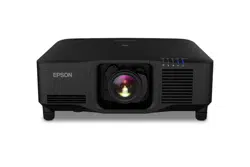

EB-PQ2213B/EB-PQ2216W/
EB-PQ2216B/EB-PQ2220B User's Guide


3
Contents
EB-PQ2213B/EB-PQ2216W/EB-PQ2216B/EB-PQ2220B User's Guide.................................................. 15
Introduction to Your Projector ................................................................................................................. 16
Projector Features.............................................................................................................................. 16
Product Box Contents.................................................................................................................... 17
Additional Components ................................................................................................................ 18
Additional Projector Software and Manuals................................................................................... 19
Optional Equipment and Replacement Parts................................................................................. 21
Warranty and Registration Information (U.S. and Canada) ........................................................... 24
Warranty and Registration Information (Latin America)................................................................. 24
Notations Used in the Documentation ................................................................................................ 24
Where to Go for Additional Information .............................................................................................. 24
Projector Part Locations..................................................................................................................... 25
Projector Parts - Front/Top ............................................................................................................ 26
Projector Parts - Rear .................................................................................................................... 28
Projector Parts - Interface Ports .................................................................................................... 29
Projector Parts - Base.................................................................................................................... 33
Projector Parts - Control Panel ...................................................................................................... 35
Projector Parts - Remote Control................................................................................................... 37
Projector Parts - External Camera................................................................................................. 42
Setting Up the Projector ........................................................................................................................... 44
Projector Placement........................................................................................................................... 44
Projector Setup and Installation Options ....................................................................................... 45
Projection Distance........................................................................................................................ 50
Attaching and Removing a Lens......................................................................................................... 50
Attaching a Lens ........................................................................................................................... 50
Removing a Lens .......................................................................................................................... 57
Attaching and Removing the Cable Cover.......................................................................................... 60
Installing the Safety Wire.................................................................................................................... 61
Installing Batteries in the Remote Control .......................................................................................... 61

4
Using the Projector on a Network ............................................................................................................ 64
Wired Network Projection................................................................................................................... 64
Connecting to a Wired Network ..................................................................................................... 64
Selecting Wired Network Settings ................................................................................................. 65
Wireless Network Projection .............................................................................................................. 68
Installing the Wireless LAN Module ............................................................................................... 69
Using a QR Code to Connect a Mobile Device .............................................................................. 70
Using Quick Wireless Connection (Windows)................................................................................ 72
Selecting Wireless Network Settings Manually.............................................................................. 73
Wireless LAN Menu Settings .................................................................................................... 77
Selecting Wireless Network Settings in Windows.......................................................................... 79
Selecting Wireless Network Settings on Mac ................................................................................ 79
Setting Up Wireless Network Security ........................................................................................... 80
Setting Up Projector Network E-Mail Alerts ........................................................................................ 82
Network Projector E-mail Alert Messages ..................................................................................... 84
Selecting Other Network Settings....................................................................................................... 84
Monitoring and Controlling the Projector ............................................................................................ 85
Epson Projector Management and Epson Projector Management Connected.............................. 86
Epson Web Control ....................................................................................................................... 86
SNMP ............................................................................................................................................ 87
ESC/VP21 Commands .................................................................................................................. 87
ESC/VP.net Commands ................................................................................................................ 88
PJLink............................................................................................................................................ 88
Art-Net ........................................................................................................................................... 88
sACN ............................................................................................................................................. 89
Controlling a Networked Projector Using a Web Browser.............................................................. 89
Web Control Options................................................................................................................. 91
Viewing an Image Capture of the Displayed Image from a Remote Location ........................... 99
Controlling a Networked Projector in Content Playback Mode .................................................... 103
Web Control Options in Content Playback Mode .................................................................... 105
Using Crestron Connected .......................................................................................................... 110
Setting Up Crestron Connected .............................................................................................. 111
Controlling a Networked Projector Using Crestron Connected ............................................... 113

5
Secure HTTP............................................................................................................................... 113
Importing a Web Server Certificate Using the Projector Menus .............................................. 114
Registering Digital Certificates from a USB Device................................................................. 115
Registering Digital Certificates from a Web Browser............................................................... 117
Digital Certificate Types .......................................................................................................... 119
Using Basic Projector Features ............................................................................................................. 121
Turning On the Projector .................................................................................................................. 122
Using the Home Screen............................................................................................................... 124
Turning Off the Projector .................................................................................................................. 125
Selecting the Language for the Projector Menus.............................................................................. 127
Setting the Date and Time................................................................................................................ 127
Resizing the Image with the Zoom Button ........................................................................................ 128
Focusing the Image Using the Focus Buttons .................................................................................. 129
Focusing the Image When Using an Optional Short Throw Lens ................................................ 129
Setting the Screen Type ................................................................................................................... 130
Adjusting the Image Position Using Lens Shift ................................................................................. 131
Adjusting the Image Position Using Screen Position........................................................................ 133
Displaying a Test Pattern ................................................................................................................. 134
Adjusting the Image Height .............................................................................................................. 135
Image Shape.................................................................................................................................... 136
Correcting Image Shape with H/V-Keystone ............................................................................... 136
Correcting Image Shape with Quick Corner ................................................................................ 139
Correcting Image Shape with Curved Surface ............................................................................ 141
Correcting Image Shape with Corner Wall................................................................................... 146
Correcting Image Shape with Point Correction............................................................................ 152
Selecting an Image Source .............................................................................................................. 157
Remote Control Operation ............................................................................................................... 157
Projection Modes ............................................................................................................................. 159
Changing the Projection Mode Using the Remote Control .......................................................... 159
Changing the Projection Mode Using the Menus......................................................................... 160
Image Aspect Ratio.......................................................................................................................... 160
Changing the Image Aspect Ratio ............................................................................................... 161
Color Mode ...................................................................................................................................... 161

6
Changing the Color Mode............................................................................................................ 161
Adjusting the Brightness................................................................................................................... 162
Constant Brightness Usage Hours .............................................................................................. 164
Adjusting Luminance Controls.......................................................................................................... 167
Controlling the Volume with the Volume Buttons.............................................................................. 169
Projecting in Content Playback Mode............................................................................................... 170
Projecting a Playlist in Content Playback Mode........................................................................... 170
Adding Effects to the Projected Image......................................................................................... 171
Adjusting the Menu Settings .................................................................................................................. 174
Using the Projector's Menus............................................................................................................. 174
Image Menu ..................................................................................................................................... 175
Color Mode.................................................................................................................................. 176
Brightness ................................................................................................................................... 176
Contrast....................................................................................................................................... 177
Color Saturation........................................................................................................................... 177
Tint .............................................................................................................................................. 177
Sharpness ................................................................................................................................... 177
White Balance ............................................................................................................................. 178
Image Preset Mode ..................................................................................................................... 178
Frame Interpolation ..................................................................................................................... 179
Super-resolution .......................................................................................................................... 179
Scene Adaptive Gamma.............................................................................................................. 180
Gamma........................................................................................................................................ 180
RGBCMY..................................................................................................................................... 180
Dynamic Contrast ........................................................................................................................ 181
Lights-Out Control ....................................................................................................................... 181
Reset (Image Menu).................................................................................................................... 181
Signal Menu ..................................................................................................................................... 182
Aspect ......................................................................................................................................... 182
Blanking....................................................................................................................................... 184
Color Space................................................................................................................................. 184
Dynamic Range........................................................................................................................... 184
Video Range................................................................................................................................ 185

7
EDID............................................................................................................................................ 185
Scale ........................................................................................................................................... 186
Switch Backup Source................................................................................................................. 187
Reset (Signal Menu).................................................................................................................... 188
Settings Menu .................................................................................................................................. 188
Geometry Correction ................................................................................................................... 189
Volume ........................................................................................................................................ 192
HDMI Link.................................................................................................................................... 192
Control Panel Lock ...................................................................................................................... 193
Lens Lock .................................................................................................................................... 193
Light Source Mode ...................................................................................................................... 193
Brightness Level .......................................................................................................................... 194
Constant Brightness .................................................................................................................... 194
Estimated Remains ..................................................................................................................... 195
Energy Saving Mode ................................................................................................................... 195
Remote Receiver......................................................................................................................... 196
User Button.................................................................................................................................. 196
Test Pattern ................................................................................................................................. 197
Memory ....................................................................................................................................... 198
Content Playback ........................................................................................................................ 199
NFC Settings ............................................................................................................................... 200
Reset (Settings Menu)................................................................................................................. 201
Extended Menu ................................................................................................................................ 201
Home Screen............................................................................................................................... 203
Menu Position.............................................................................................................................. 203
Message Position ........................................................................................................................ 203
Messages .................................................................................................................................... 203
Display Background..................................................................................................................... 204
Startup Screen............................................................................................................................. 204
Standby Confirmation .................................................................................................................. 204
Screen ......................................................................................................................................... 204
Panel Alignment .......................................................................................................................... 205
Color Uniformity........................................................................................................................... 206

8
OSD Rotation .............................................................................................................................. 207
User's Logo ................................................................................................................................. 208
Projection .................................................................................................................................... 208
Direct Power On .......................................................................................................................... 209
Sleep Mode ................................................................................................................................. 209
Sleep Mode Timer ....................................................................................................................... 209
High Altitude Mode ...................................................................................................................... 210
Auto Source Search .................................................................................................................... 210
Auto Power On ............................................................................................................................ 210
Startup Source............................................................................................................................. 211
Quick Startup............................................................................................................................... 211
USB Power .................................................................................................................................. 211
Shutter Settings ........................................................................................................................... 212
Beep............................................................................................................................................ 212
Indicators..................................................................................................................................... 213
Log Save Destination .................................................................................................................. 213
Batch Setup Range ..................................................................................................................... 213
AC Voltage Monitoring................................................................................................................. 213
Date & Time................................................................................................................................. 214
Lens Calibration........................................................................................................................... 214
A/V Settings................................................................................................................................. 214
Standby Mode ............................................................................................................................. 215
HDBaseT..................................................................................................................................... 215
Color Calibration.......................................................................................................................... 216
Projector ID.................................................................................................................................. 217
Batch Setup ................................................................................................................................. 217
Projector Grouping ...................................................................................................................... 218
Tiling............................................................................................................................................ 218
Edge Blending ............................................................................................................................. 219
Black Level .................................................................................................................................. 220
Reset (Multi-Projection Menu) ..................................................................................................... 221
Screen Matching.......................................................................................................................... 221
Color Matching ............................................................................................................................ 222

9
Simple Stacking........................................................................................................................... 223
Simple Blending........................................................................................................................... 224
Schedule Settings........................................................................................................................ 224
Language .................................................................................................................................... 225
Reset (Extended Menu)............................................................................................................... 226
Network Menu .................................................................................................................................. 226
Wireless Mode............................................................................................................................. 228
Net. Info. - Wireless LAN ............................................................................................................. 229
Net. Info. - Wired LAN.................................................................................................................. 229
Display the QR Code ................................................................................................................... 229
Remote Camera Access.............................................................................................................. 229
Projector Name............................................................................................................................ 230
PJLink Password ......................................................................................................................... 230
Remote Password ....................................................................................................................... 230
Web Control Password................................................................................................................ 231
Monitor Password........................................................................................................................ 231
Moderator Password ................................................................................................................... 231
Projector Keyword ....................................................................................................................... 232
Display Keyword.......................................................................................................................... 232
Display LAN Info.......................................................................................................................... 232
Connection Mode ........................................................................................................................ 233
Search Access Point ................................................................................................................... 233
SSID ............................................................................................................................................ 233
Security ....................................................................................................................................... 234
Passphrase ................................................................................................................................. 235
EAP Method ................................................................................................................................ 235
Channel ....................................................................................................................................... 236
IP Settings ................................................................................................................................... 237
SSID Display ............................................................................................................................... 237
IP Address Display ...................................................................................................................... 237
IPv6 Settings ............................................................................................................................... 238
Mail Notification ........................................................................................................................... 238
SMTP Server ............................................................................................................................... 239

10
Port Number ................................................................................................................................ 239
From ............................................................................................................................................ 239
Address 1/Address 2/Address 3 Setting ...................................................................................... 239
SNMP .......................................................................................................................................... 240
Trap IP Address 1/Trap IP Address 2 .......................................................................................... 240
Community Name........................................................................................................................ 240
PJLink Notification ....................................................................................................................... 240
Notified IP Address...................................................................................................................... 240
Command Communication .......................................................................................................... 241
Secure HTTP............................................................................................................................... 241
Web Server Certificate ................................................................................................................ 241
Web API Settings ........................................................................................................................ 242
Priority Gateway .......................................................................................................................... 242
Basic Control ............................................................................................................................... 242
PJLink.......................................................................................................................................... 243
AMX Device Discovery ................................................................................................................ 243
Crestron Connected .................................................................................................................... 243
Crestron Xio Cloud ...................................................................................................................... 244
Art-Net ......................................................................................................................................... 244
sACN ........................................................................................................................................... 245
Message Broadcasting ................................................................................................................ 245
Reset (Network Menu)................................................................................................................. 245
Info Menu ......................................................................................................................................... 246
Projector Info ............................................................................................................................... 246
Event ID Code List .................................................................................................................. 247
Light Source Info ......................................................................................................................... 249
Version ........................................................................................................................................ 249
Status Information ....................................................................................................................... 249
Voltage Warning Info ................................................................................................................... 250
Temp Warning Info ...................................................................................................................... 250
Power On/Off History................................................................................................................... 250
Firmware Update ......................................................................................................................... 250
Export Batch Settings .................................................................................................................. 251

11
Import Batch Settings .................................................................................................................. 251
Reset Menu...................................................................................................................................... 251
Reset All Memories ..................................................................................................................... 251
Refresh Mode .............................................................................................................................. 252
Light Source Calibration .............................................................................................................. 252
Reset All Config........................................................................................................................... 253
Reset All (Factory Default)........................................................................................................... 254
Adjusting Projector Features ................................................................................................................. 256
Shutting Off the Picture and Sound Temporarily (Shutter) ............................................................... 256
Stopping Video Action Temporarily .................................................................................................. 257
Projector Security Features.............................................................................................................. 257
Password Security Types ............................................................................................................ 258
Setting a Password ................................................................................................................. 258
Selecting Password Security Types........................................................................................ 260
Entering a Password to Use the Projector............................................................................... 260
Saving a User's Logo Image to Display................................................................................... 262
Locking the Projector's Lens Settings and Buttons...................................................................... 263
Unlocking the Projector's Buttons ........................................................................................... 265
Locking the Remote Control Buttons .......................................................................................... 265
Using Advanced Image Adjustment Features .................................................................................. 267
Creating Image Presets............................................................................................................... 267
Using Frame Interpolation .......................................................................................................... 269
Adjusting Scaled Resolution Images (Super-resolution) ............................................................. 270
Adjusting the Color Convergence (Panel Alignment)................................................................... 271
Adjusting the Color Tone (Color Uniformity) ................................................................................ 274
Running Light Source Calibration ................................................................................................ 276
Using Multiple Projectors ................................................................................................................. 278
Multiple Projector Adjustment Overview ...................................................................................... 278
Projector Identification System for Multiple Projector Control...................................................... 281
Setting the Projector ID ........................................................................................................... 281
Setting the Remote Control ID ................................................................................................ 282
Image Composition...................................................................................................................... 282
Blending Using the Epson Projector Professional Tool Software............................................ 283

12
Stacking Using the Epson Projector Professional Tool Software ............................................ 284
Stacking and Blending Using the Epson Projector Professional Tool Software ...................... 285
Tiling Images into One Image...................................................................................................... 286
Configuring Tiling Automatically.............................................................................................. 286
Configuring Tiling Manually..................................................................................................... 289
Blending the Image Edges........................................................................................................... 290
Adjusting the Black Level ............................................................................................................ 293
Matching Tint and Brightness (Screen Matching) ....................................................................... 297
Screen Matching Conditions ................................................................................................... 298
Matching the Screens Manually ............................................................................................. 298
Scaling an Image......................................................................................................................... 300
Simple Blending for One Large Image......................................................................................... 302
Simple Blending Conditions .................................................................................................... 303
Setting Up Simple Blending .................................................................................................... 303
Simple Stacking for One Bright Image......................................................................................... 304
Simple Stacking Conditions .................................................................................................... 305
Setting Up Simple Stacking..................................................................................................... 306
Saving Settings to Memory and Using Saved Settings .................................................................... 307
Saving a Scheduled Event ............................................................................................................... 310
Viewing Scheduled Events .......................................................................................................... 312
Editing a Scheduled Event........................................................................................................... 312
Copying Menu Settings Between Projectors .................................................................................... 313
Saving Settings to a USB Flash Drive.......................................................................................... 314
Transferring Settings from a USB Flash Drive............................................................................. 315
Saving Settings to a Computer .................................................................................................... 316
Transferring Settings from a Computer ....................................................................................... 316
Maintaining and Transporting the Projector ......................................................................................... 318
Projector Maintenance ..................................................................................................................... 318
Cleaning the Lens........................................................................................................................ 318
Cleaning the Projector Case........................................................................................................ 319
Cleaning the Air Vents ................................................................................................................. 319
Replacing the Remote Control Batteries ..................................................................................... 320
Transporting the Projector................................................................................................................ 322

13
Solving Problems .................................................................................................................................... 324
Projection Problem Tips ................................................................................................................... 324
Projector Light Status....................................................................................................................... 325
Using the Projector Help Displays .................................................................................................... 329
Solving Image or Sound Problems ................................................................................................... 329
Solutions When No Image Appears............................................................................................. 330
Solutions When "No Signal" Message Appears........................................................................... 330
Displaying From a PC Laptop ................................................................................................. 331
Displaying From a Mac Laptop ............................................................................................... 331
Solutions When "Not Supported" Message Appears ................................................................... 331
Solutions When Only a Partial Image Appears............................................................................ 331
Solutions When the Image is Not Rectangular ............................................................................ 332
Solutions When the Image Contains Noise or Static ................................................................... 332
Solutions When the Image is Fuzzy or Blurry .............................................................................. 333
Solutions When the Image Brightness or Colors are Incorrect .................................................... 333
Solutions When an Afterimage Remains On the Projected Image............................................... 334
Solutions When Automatic Adjustments are not Applied Correctly.............................................. 334
Solutions to Simple Stacking Problems ....................................................................................... 335
Solutions to Sound Problems ...................................................................................................... 336
Solving Projector or Remote Control Operation Problems ............................................................... 337
Solutions to Projector Power or Shut-Off Problems..................................................................... 337
Solutions to Remote Control Problems........................................................................................ 338
Solutions to Password Problems ................................................................................................. 338
Solutions When a Battery Message Appears ................................................................................... 339
Solving Network Problems ............................................................................................................... 339
Solutions When Wireless Authentication Fails ............................................................................ 339
Solutions When You Cannot Access the Projector Through the Web ......................................... 339
Solutions When the Image Contains Static During Network Projection ....................................... 340
Solutions When Network Alert E-Mails are Not Received............................................................ 340
Solutions to Problems Using Content Playback ............................................................................... 341
Where to Get Help (U.S. and Canada) ............................................................................................. 341
Where to Get Help (Latin America)................................................................................................... 342

14
Technical Specifications ........................................................................................................................ 345
General Projector Specifications...................................................................................................... 345
Projector Light Source Specifications............................................................................................... 347
Remote Control Specifications......................................................................................................... 348
Projector Dimension Specifications.................................................................................................. 348
Projector Electrical Specifications .................................................................................................... 349
Projector Environmental Specifications............................................................................................ 351
Projector Safety and Approvals Specifications................................................................................. 352
Notices ..................................................................................................................................................... 353
Recycling (U.S. and Canada) ........................................................................................................... 353
Important Safety Information............................................................................................................ 353
Important Safety Instructions............................................................................................................ 354
Laser Safety Information (EB-PQ2213B/EB-PQ2216B/EB-PQ2216W) ...................................... 358
Laser Safety Information (EB-PQ2220B)..................................................................................... 359
Laser Safety Labels (EB-PQ2213B/EB-PQ2216B/EB-PQ2216W).............................................. 360
Laser Safety Labels (EB-PQ2220B) ............................................................................................ 363
Laser Rating Labels (EB-PQ2213B/EB-PQ2116B/EB-PQ2216W).............................................. 365
Hazard Distance according to IEC62471-5 ................................................................................. 370
Restriction of Use ........................................................................................................................ 376
List of Safety Symbols (corresponding to IEC60950-1 A2)............................................................... 376
FCC Compliance Statement............................................................................................................. 380
Manufacturer and Importer Address................................................................................................. 382
Binding Arbitration and Class Waiver ............................................................................................... 382
Trademarks...................................................................................................................................... 385
Copyright Notice............................................................................................................................... 386
A Note Concerning Responsible Use of Copyrighted Materials................................................... 386
Copyright Attribution .................................................................................................................... 387

15
EB-PQ2213B/EB-PQ2216W/EB-PQ2216B/EB-PQ2220B User's
Guide
Welcome to the EB-PQ2213B/EB-PQ2216W/EB-PQ2216B/EB-PQ2220B User's Guide.
For a printable PDF copy of this guide, click here.
Note: Availability of products in this guide varies by country.

16
Introduction to Your Projector
Refer to these sections to learn more about your projector and this manual.
Projector Features
Notations Used in the Documentation
Where to Go for Additional Information
Projector Part Locations
Projector Features
Your projector includes these special features:
Bright, high-resolution projection system
• 13000, 16000 or 20000 lumens of brightness (white light output and color light output), depending on
your projector model
Note: Color brightness (color light output) and white brightness (white light output) will vary depending
on usage conditions. Color light output measured in accordance with IDMS 15.4; white light output
measured in accordance with ISO 21118.
• 4K UHD (3840 × 2160) resolution on-screen
• 4K Crystal Motion displays a 4K image
• 3-chip 3LCD technology provides brighter colors and uncompromising image quality
• Mechanical shutter
• HDR support for dynamic images
• Scene adaptive gamma correction for clear and natural images
Flexible connectivity
• Wired and wireless (optional) network support for projection, monitoring, and control via remote
network computer
• Variety of connection methods for a computer or video device including HDMI and HDBaseT
• SDI connectivity
• Port for connecting external speakers

17
• Optional camera for shooting remote images and accessing advanced tools to speed up and simplify
setup
Easy-to-use setup and operation features
• Interchangeable bayonet lens options available
• Built-in NFC chip provides reduced installation time for multiple projectors using the Epson Projector
Config Tool app for iOS and Android
• Stacking assist function allows you to create bright images by overlapping the images of multiple
projectors using the optional camera
• Side-by-side projection from two separate input sources
• Projection onto curved or corner surfaces
• Built-in Edge Blending tool can create one large seamless display when projecting from multiple
projectors
• Epson's Instant Off and Direct Power On features for quick setup and shut down
• Support for Crestron Connected network monitoring systems
• Network message broadcast system to project timely messages to all networked projectors (Windows
only)
• Sealed light source and optical engine removes need for air filter cleaning
Product Box Contents
Additional Components
Additional Projector Software and Manuals
Optional Equipment and Replacement Parts
Warranty and Registration Information (U.S. and Canada)
Warranty and Registration Information (Latin America)
Parent topic: Introduction to Your Projector
Product Box Contents
Save all the packaging in case you need to ship the projector. Always use the original packaging (or
equivalent) when shipping.
Make sure your projector box included all of these parts:
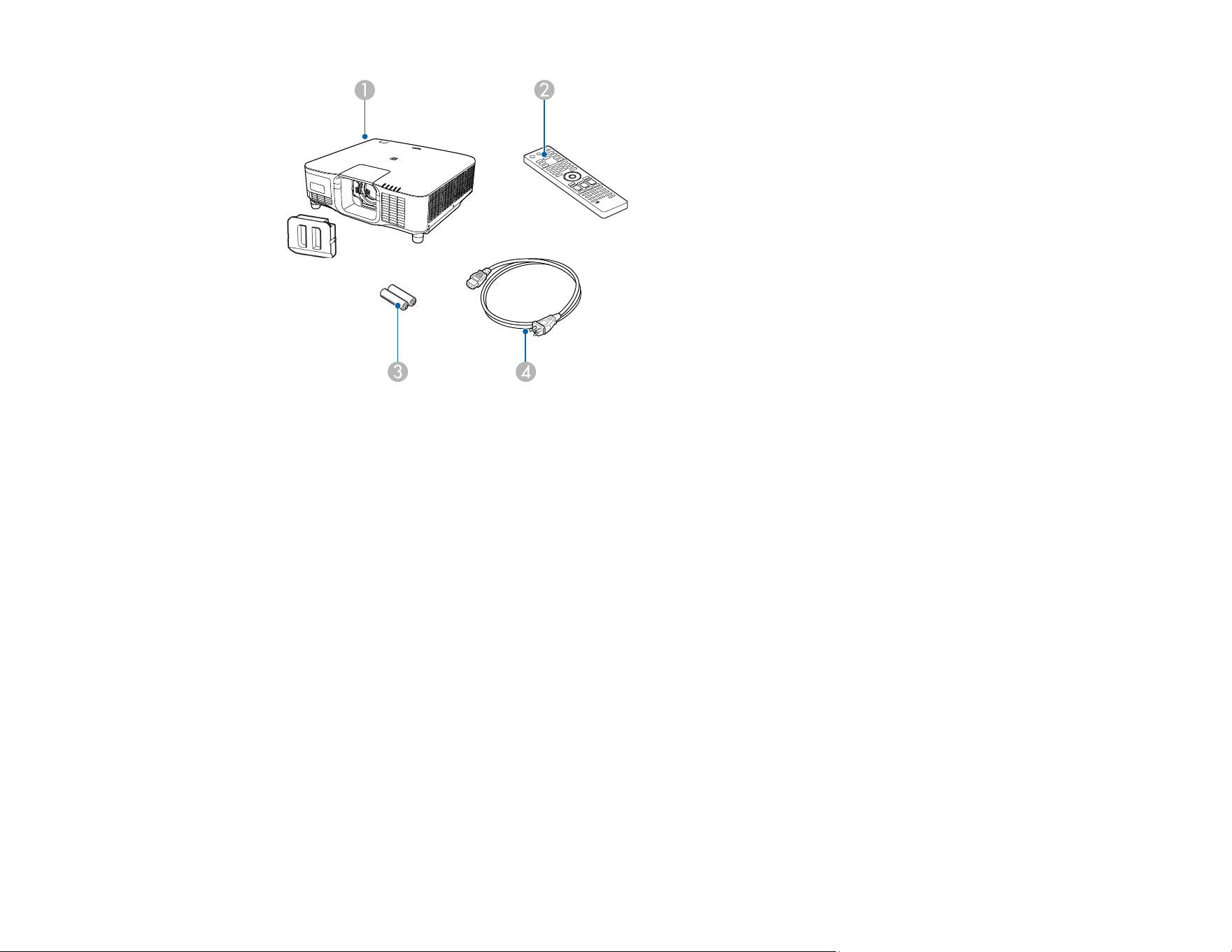
18
1 Projector (with cable cover)
Note: Projector does not include a lens.
2 Remote control
3 Remote control batteries (two AA alkaline)
4 Power cord
Note: The EB-PQ2216B, EBPQ2216W, and EB-PQ2220B models come with a 120 V and 220 V
power cord. Make sure you use the correct cable for your installation.
Parent topic: Projector Features
Additional Components
Depending on how you plan to use the projector, you may need to obtain additional components.
Note: To connect a Mac that does not include a compatible video output port, you need to obtain an
adapter that allows you to connect to an input port on the projector. Contact Apple for compatible
adapter options. To connect a smartphone or tablet, you may need to obtain an adapter that allows you
to connect to the projector. This allows you to mirror your smartphone or tablet screens, watch movies,
and more. Contact your device manufacturer for compatible adapter options.
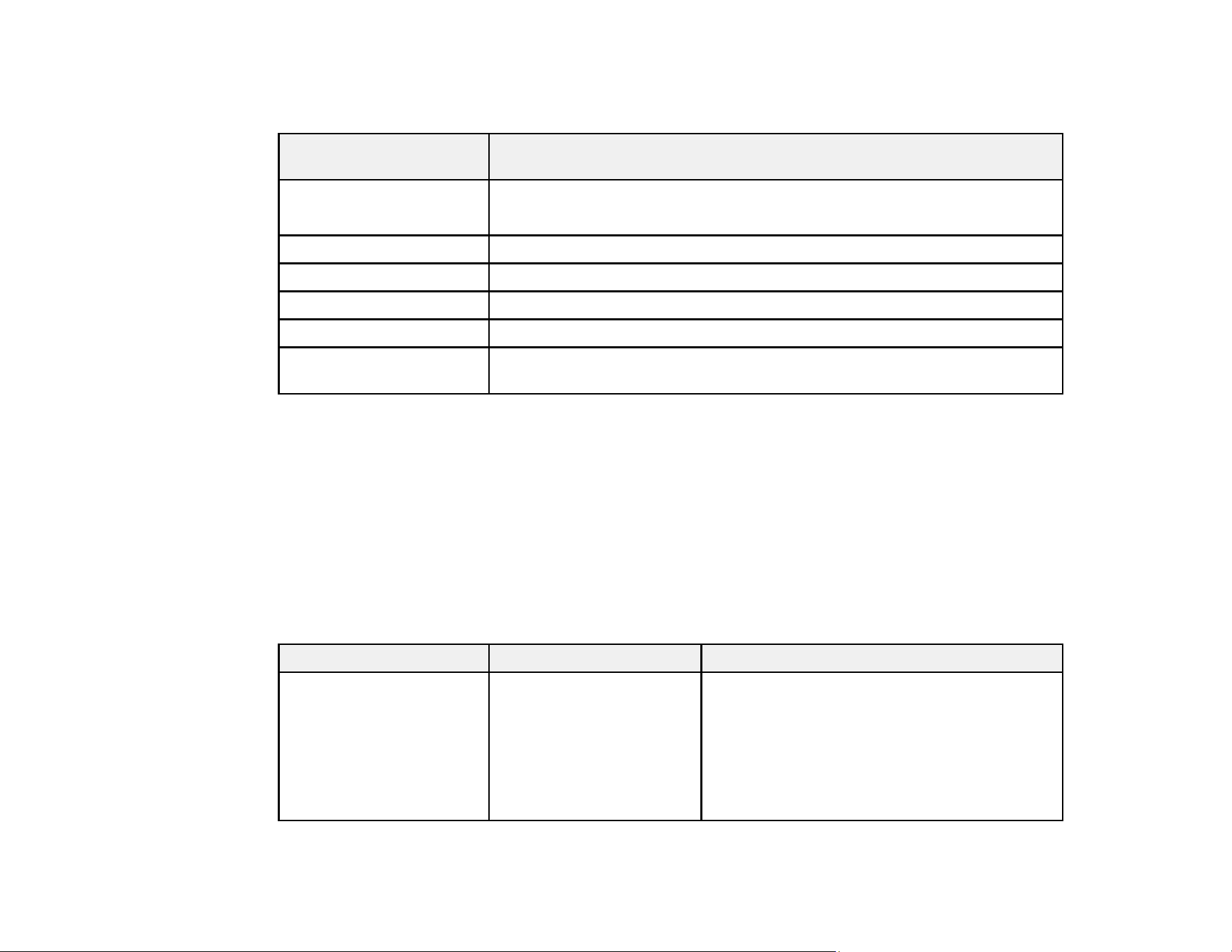
19
Unless listed as available from Epson in this table, see your local computer or electronics dealer for
purchase information.
Signal or connection
type
Additional component necessary
HDMI HDMI cable
Available for purchase from Epson or an authorized Epson reseller.
HDBaseT Compatible 100Base-TX LAN cable
SDI Compatible BNC video cable
Audio from certain ports Commercially available audio cable compatible with your device
USB Compatible USB cable
Controlling the projector
from a computer
D-sub, 9-pin, male cable, Ethernet CAT5e UTP/CAT6STP
Parent topic: Projector Features
Additional Projector Software and Manuals
After connecting and setting up the projector, install the projector software as necessary. You may need
to install it from a software CD, if included, or download the software and manuals as necessary.
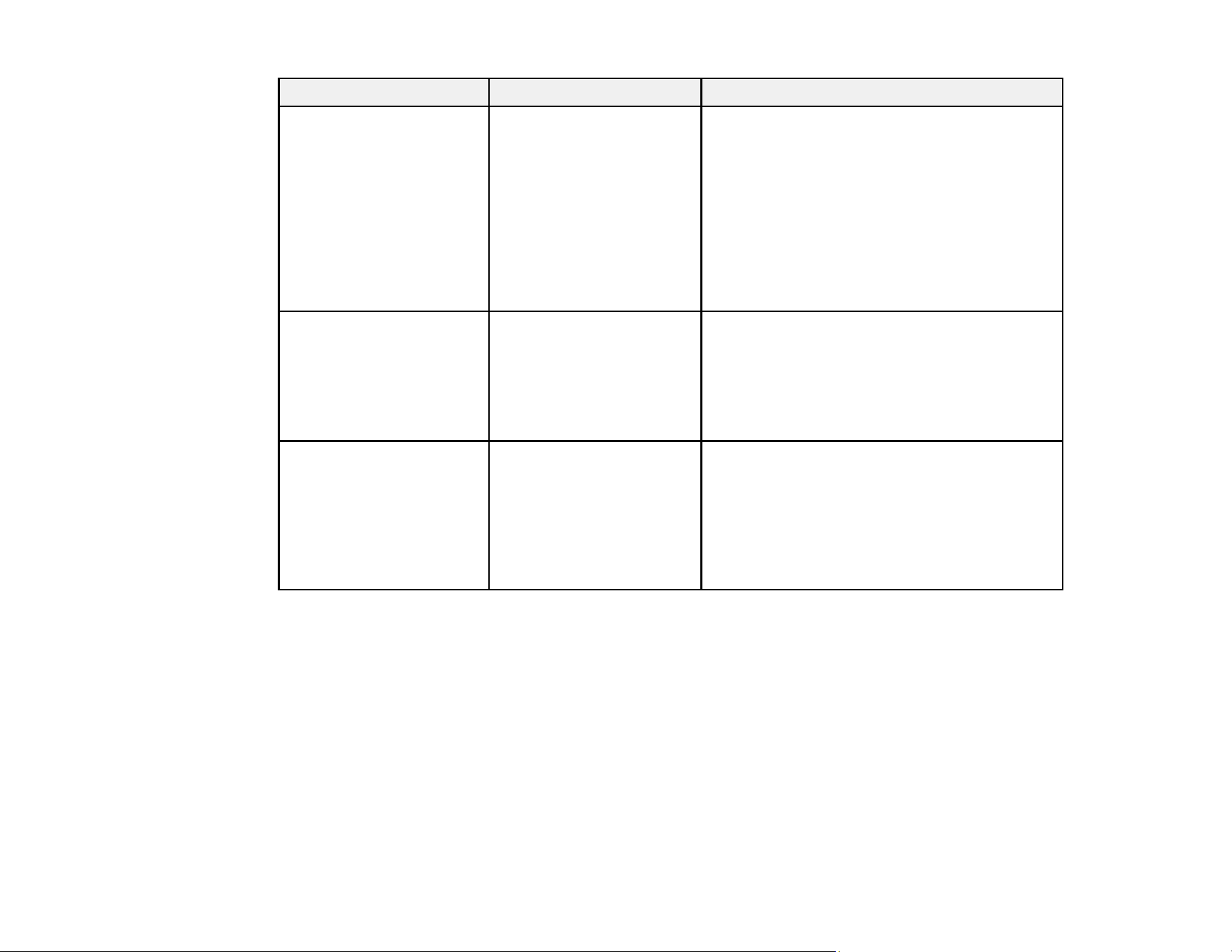
You can install the projector software programs listed here and view their manuals for instructions on
using them.
Note: If you still need help after checking this manual and the sources listed here, you can use the
Epson PrivateLine Support service to get help fast. For details, see "Where to Get Help."
Projector software Manual Description
Epson Projector
Management (Windows
only)
Epson Projector
Management Connected
Epson Projector
Management Operation
Guide
Lets you update firmware and monitor and
control your projector through the network.
You can download the latest software and
documentation from the Epson web site. Go to
epson.com/support (U.S.), epson.ca/support
(Canada), or latin.epson.com/support (Latin
America) and select your projector.

20
Projector software Manual Description
Epson iProjection
(Windows/Mac)
Epson iProjection
Operation Guide
(Windows/Mac)
Lets you project the computer screens of
users over a network.
You can download the latest software and
documentation from the Epson web site. Go to
epson.com/support (U.S.), epson.ca/support
(Canada), or latin.epson.com/support (Latin
America) and select your projector.
Epson iProjection app Instructions are included
with the app
Lets you project from an iOS device, Android
device, or Chromebook if your projector is
connected to a network that includes a
wireless access point.
Visit epson.com/support (U.S.),
epson.ca/support (Canada), or
latin.epson.com/support (Latin America) for
more information. (Software available only in
English.)
Epson Projector
Professional Tool
(Windows/Mac)
Epson Projector
Professional Tool
Operation Guide
Lets you manage multiple Epson projectors
simultaneously.
You can download the latest software and
documentation from the Epson web site. Go to
epson.com/support (U.S.), epson.ca/support
(Canada), or latin.epson.com/support (Latin
America) and select your projector. (Software
and documentation available only in English.)
— Open Source Software
License
You can download this document from the
Epson web site. Go to epson.com/support
(U.S.), epson.ca/support (Canada), or
latin.epson.com/support (Latin America) and
select your projector.
21
Projector software Manual Description
Epson Projector Content
Manager
Epson Projector Content
Manager Operation Guide
Lets you add images and movies to playlists,
and save them on a USB device; insert the
USB device into the projector to project your
playlist content without using a cable
connection.
You can download the latest software and
documentation from the Epson web site. Go to
epson.com/support (U.S.), epson.ca/support
(Canada), or latin.epson.com/support (Latin
America) and select your projector.
Epson Creative Projection
(iOS only)
Instructions are included
with the app (instructions
included with the app
available only in English)
Lets you create custom content using built-in
templates and stamps, and wirelessly transfer
it to the projector if it is connected to a network
that includes a wireless access point.
You can download the latest software and
documentation from the Apple App Store.
Epson Projector
Configuration Tool
Instructions are included
with the app (instructions
included with the app
available only in English)
Lets you use the NFC feature of your projector
to speed up installation (kitting), read and write
projector settings, manage installed projectors,
and more.
You can download the latest software and
documentation from the Apple App Store or
Google Play Store.
Note: Epson iProjection is not recommended for use with streaming video.
Parent topic: Projector Features
Optional Equipment and Replacement Parts
U.S. and Canada: You can purchase screens, other optional accessories, and replacement parts from
an Epson authorized reseller. To find the nearest reseller, call 800-GO-EPSON (800-463-7766) in the
U.S. or 800-807-7766 in Canada. Or you can purchase online at epsonstore.com (U.S. sales) or
epsonstore.ca (Canadian sales).

22
Latin America: You can purchase optional accessories and replacement parts from an Epson
authorized reseller. To find the nearest reseller, go to latin.epson.com. Or you can contact your nearest
sales office as described in "Where to Get Help."
Note: Availability of accessories varies by country.
Epson offers the following optional accessories and replacement parts for your projector:
U.S. and Canada:
Option or part Part number
PixAlign camera (ELPEC01) V12HA46010
Wireless LAN module (ELPAP11) V12H005A02
HDBaseT Transmitter (ELPHD02) V12H007A14
Remote control cable set (ELPKC28) V12H005C28
Ultra short-throw lens (ELPLX02S) V12H004X0B
Ultra short-throw lens (white) (ELPLX02WS) V12H004Y0B
Short-throw #1 zoom lens (ELPLU03S) V12H004UA3
Short-throw #2 zoom lens (ELPLU04) V12H004U04
Wide-throw #1 zoom lens (ELPLW05) * V12H004W05
Wide-throw #2 zoom lens (ELPLW06) V12H004W06
Wide-throw #3 zoom lens (ELPLW08) V12H004W08
Middle-throw #2 zoom lens (ELPLM15) V12H004M0F
Middle-throw #3 zoom lens (ELPLM10) V12H004M0A
Middle-throw #4 zoom lens (ELPLM11) V12H004M0B
Long-throw zoom lens (ELPLL08) V12H004L08
Projector ceiling mount (ELPMB67) V12HA54010
Fine Adjust Ceiling Mount (ELPMB68) V12H006AE0
Suspension adapter (ELPFP15) V12HA55010
Active speakers (ELPSP02) V12H467020
LANG rigging frame (ELPMB59) V12H996A01
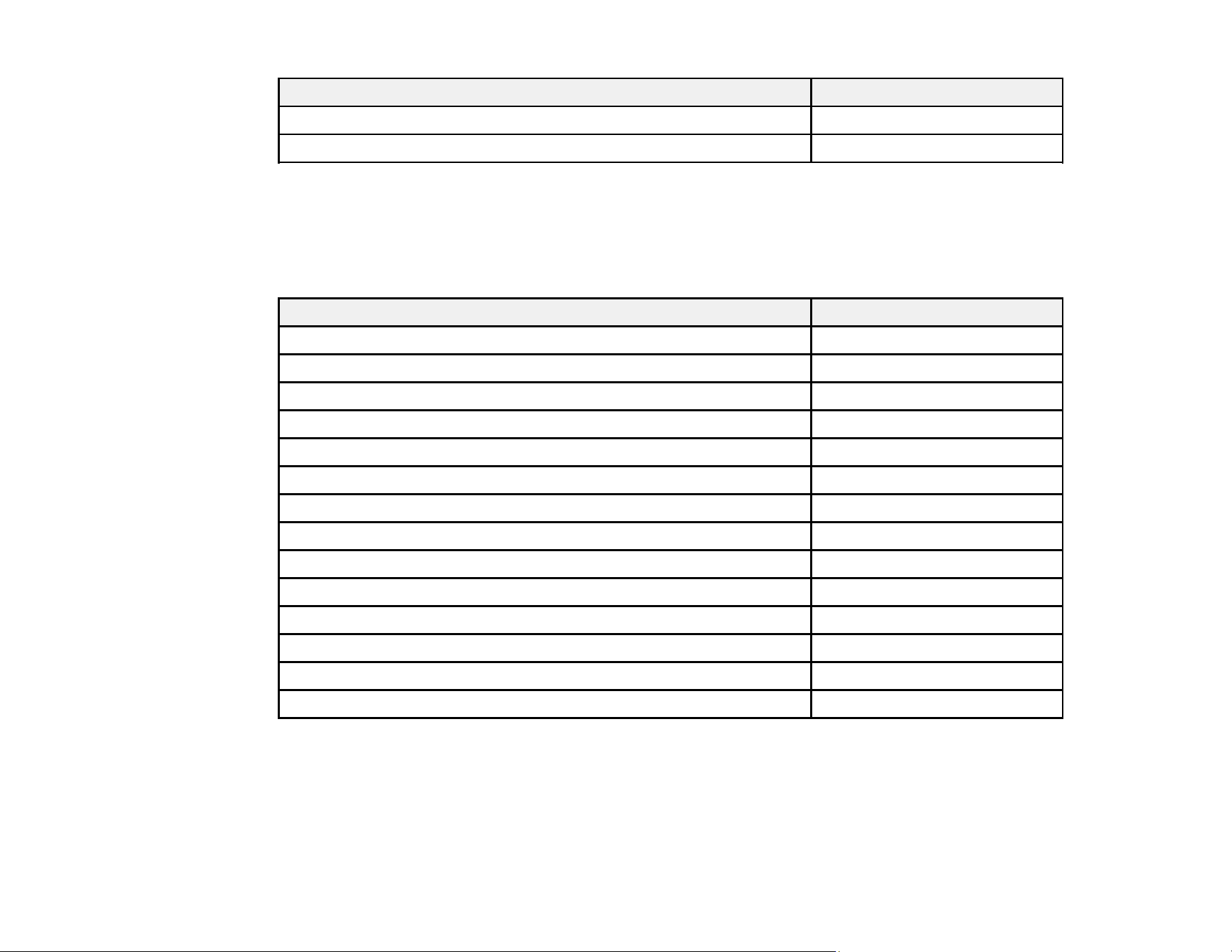
23
Option or part Part number
Stacking Frame (ELPMB84) V12H006AW0
Mounting Tilt Plate (ELPMB77) V12H006AP0
* Does not support full brightness with the EB-PQ2216B, EB-PQ2216W, and EB-PQ2220B projectors.
For the most recent list of accessories, visit the Epson web site and search for your product.
In addition to the accessories listed above, extended service plans are available.
Latin America:
Option or part Part number
PixAlign camera (ELPEC01) V12HA46010
Wireless LAN module (ELPAP11) V12H005A02
HDBaseT Transmitter (ELPHD02) V12H007A14
Remote control cable set (ELPKC28) V12H005C28
Ultra short-throw lens (ELPLX02S) V12H004X0B
Short-throw #1 zoom lens (ELPLU03S) V12H004UA3
Short-throw #2 zoom lens (ELPLU04) V12H004U04
Wide-throw #1 zoom lens (ELPLW05) * V12H004W05
Wide-throw #2 zoom lens (ELPLW06) V12H004W06
Wide-throw #3 zoom lens (ELPLW08) V12H004W08
Middle-throw #2 zoom lens (ELPLM15) V12H004M0F
Middle-throw #3 zoom lens (ELPLM10) V12H004M0A
Middle-throw #4 zoom lens (ELPLM11) V12H004M0B
Long-throw zoom lens (ELPLL08) V12H004L08
* Does not support full brightness with the EB-PQ2216B, EB-PQ2216W, and EB-PQ2220B projectors.
For the most recent list of accessories, visit the Epson web site and search for your product.
Parent topic: Projector Features

24
Related references
Where to Get Help (U.S. and Canada)
Where to Get Help (Latin America)
Warranty and Registration Information (U.S. and Canada)
Your projector comes with a basic warranty that lets you project with confidence. For details, see the
warranty that came with your projector.
Register your product online at this site: epson.com/webreg
Registering also lets you receive special updates on new accessories, products, and services.
Parent topic: Projector Features
Warranty and Registration Information (Latin America)
Your projector comes with a basic warranty that lets you project with confidence. For details, see the
warranty that came with your projector.
Register your product online at latin.epson.com/registro
Registering also lets you receive special updates on new accessories, products, and services.
Parent topic: Projector Features
Notations Used in the Documentation
Follow the guidelines in these notations as you read your documentation:
• Warnings must be followed carefully to avoid bodily injury.
• Cautions must be observed to avoid damage to your equipment.
• Notes contain important information about your projector.
• Tips contain additional projection information.
Parent topic: Introduction to Your Projector
Where to Go for Additional Information
Need quick help on using your projector? Here's where to look for help:
• epson.com/support (U.S.), epson.ca/support (Canada), or latin.epson.com/support (Latin America)
View FAQs (frequently asked questions) and e-mail your questions to Epson technical support 24
hours a day.

25
• If you still need help after checking this manual and any other sources listed here, you can use the
Epson PrivateLine Support service to get help fast (U.S. and Canada only). For details, see "Where to
Get Help."
Note: To learn about the specific changes in new firmware, see the release notes and the online
Projector Manual Update Information guide on your product's support page.
Parent topic: Introduction to Your Projector
Related references
Where to Get Help (U.S. and Canada)
Where to Get Help (Latin America)
Related tasks
Using the Projector Help Displays
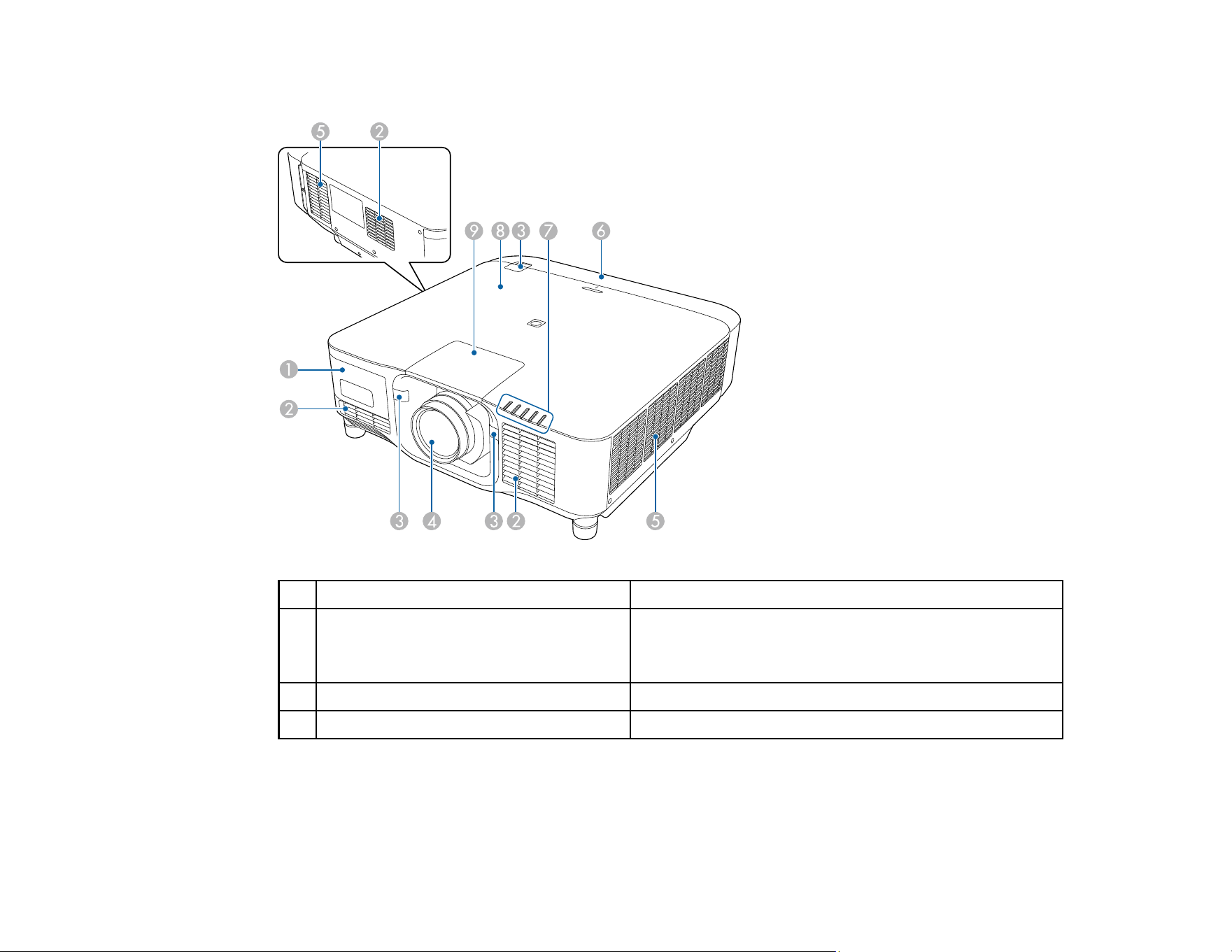
Projector Part Locations
Check the projector part illustrations to learn about the parts on your projector.
Projector Parts - Front/Top
Projector Parts - Rear
Projector Parts - Interface Ports
Projector Parts - Base
Projector Parts - Control Panel
Projector Parts - Remote Control
Projector Parts - External Camera
Parent topic: Introduction to Your Projector
26
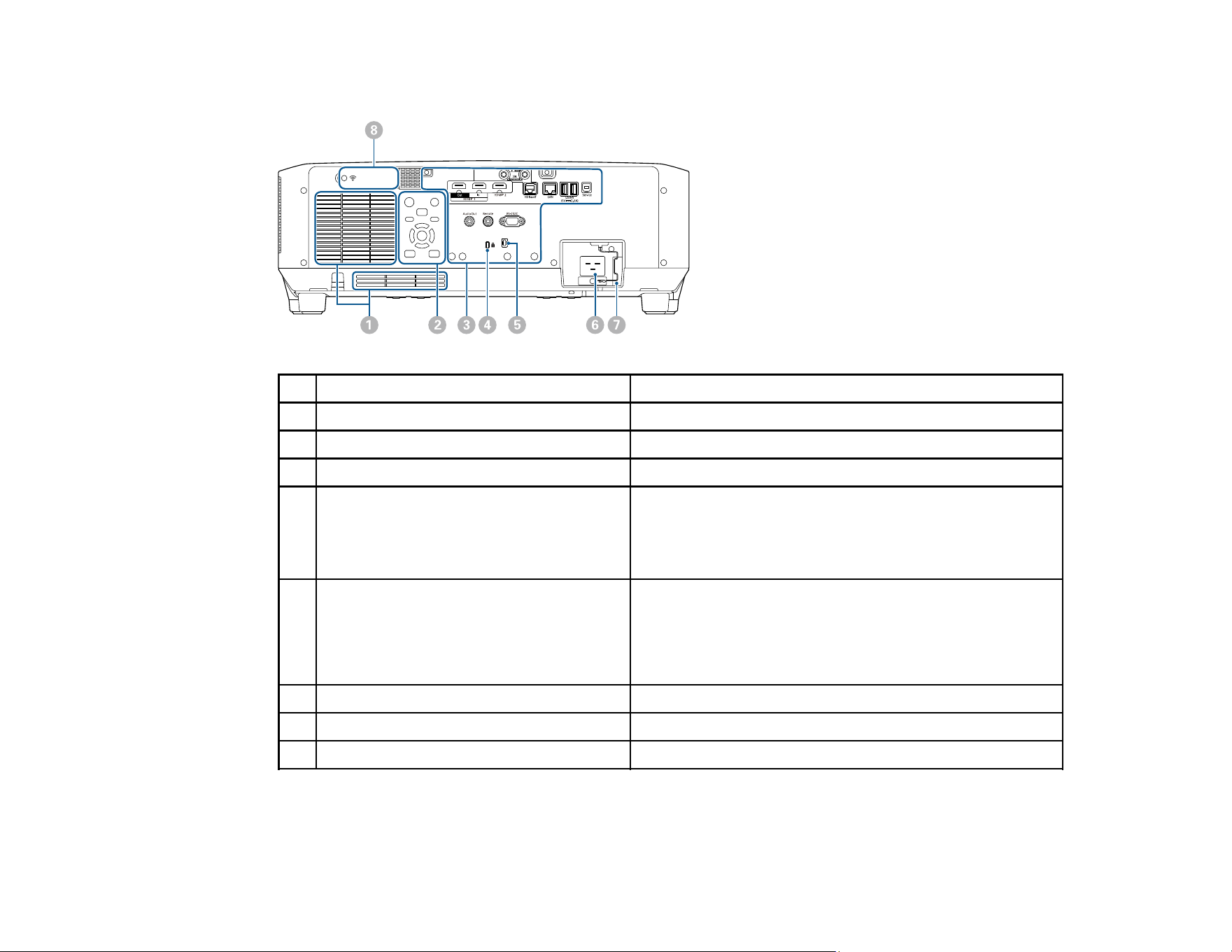
Projector Parts - Front/Top
Name Function
1 External camera cover Open this cover to install the optional external camera.
When using the ultra short-throw lens, install the
optional external camera on the lens.
2 Air intake vent Takes in air to cool the projector internally.
3 Remote receivers Receive signals from the remote control

27
4 Projection lens Projects images
Warning: Do not look into the projection lens while
projecting.
Caution: Do not place any objects or put your hand
near the projection lens. It could cause burns, fire, or the
object to warp because this area reaches a high
temperature due to the concentrated projection light.
5 Air exhaust vents Exhaust vent for air used to cool the projector internally.
Caution: While projecting, do not put your face or
hands near the air exhaust vent, and do not place
objects that may become warped or damaged by heat
near the vent. Hot air from the air exhaust vent could
cause burns, warping, or accidents to occur.
6 Cable cover Cover for the rear interface ports
7 Projector status lights Indicate the projector's status
8 NFC tag Uses NFC technology to transfer projector information
through your mobile device.
The Projector Config Tool app lets you scan projector
information and write settings.
You can download the Projector Config Tool app for free
from the App Store or Google Play. Any fees incurred
when communicating with the App Store or Google Play
are the responsibility of the customer.
9 Lens replacement cover
Remove when attaching or removing the lens
Caution: When moving the projector, do not hold the
lens replacement cover. The lens replacement cover
may be removed and the projector may fall, which could
cause an injury.
Parent topic: Projector Part Locations
28
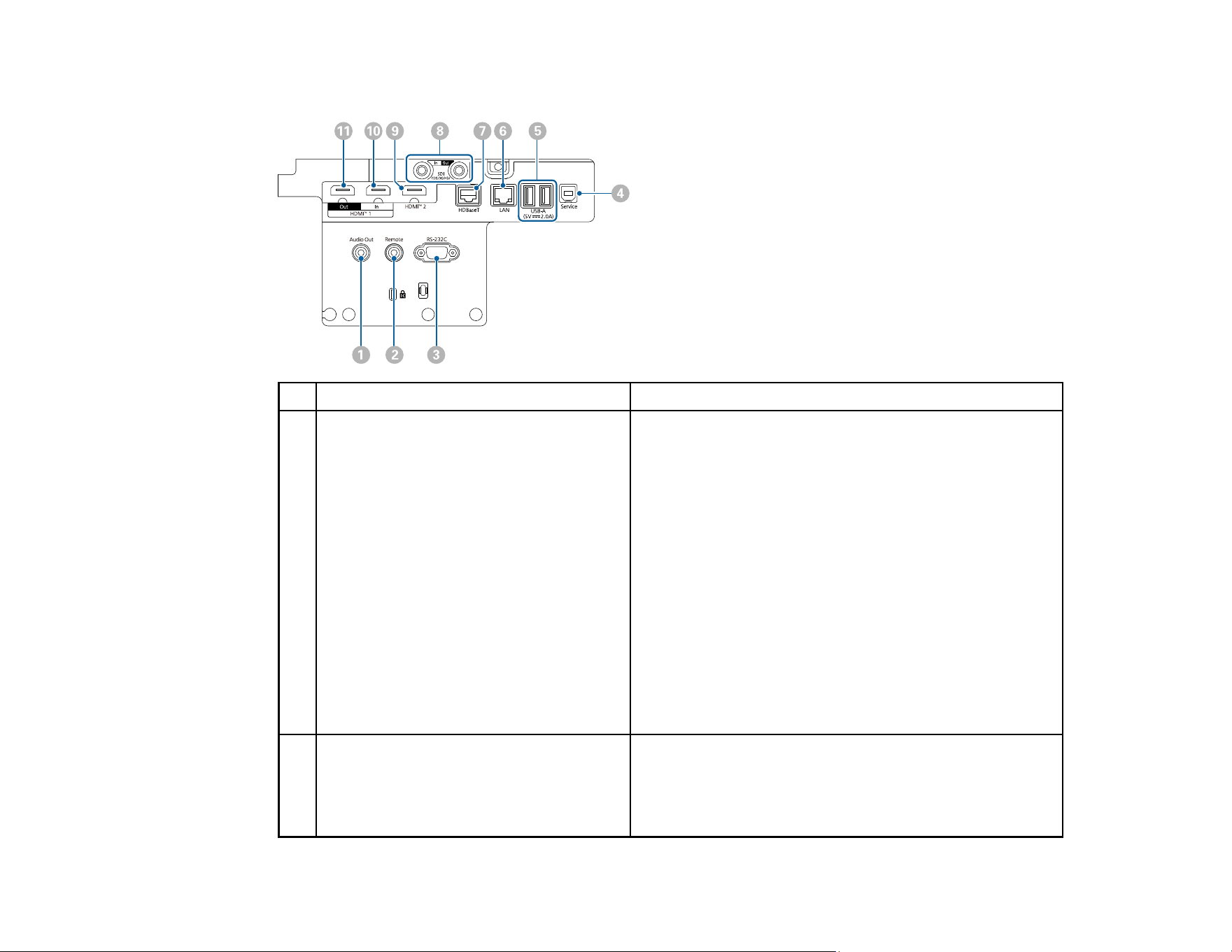
Projector Parts - Rear
Name Function
1 Air intake vent Takes in air to cool the projector internally
2 Control panel Operates the projector
3 Interface ports Connects interface cables
4 Kensington security slot The security slot is compatible with the Microsaver
Security System manufactured by Kensington.
For more details on the Microsaver Security System,
visit the Kensington web site.
5 Cable holder Pass a commercially available cable tie through here to
secure cables.
Warning: Do not bundle the power cord to the other
cables. Otherwise, a fire may occur.
6 AC power inlet Connects the power cord to the projector
7 Cable lock Secures the power cord to prevent it from falling out.
8 Wireless LAN module cover Open this cover to install the wireless LAN module
Parent topic: Projector Part Locations
29
Projector Parts - Interface Ports
Name Function
1 Audio Out port
(Stereo pin mini jack)
Outputs audio from the current input source to an
external speaker. You can also connect the projector to
an amplifier with speakers.
To output audio from the speaker connected to this port,
select Projector as the Audio Out Device setting in the
projector's Settings menu. When an audio/video
system is not connected to the projector, audio is output
from the speaker connected to this port even if Audio
Out Device is set to A V System.
• Settings > HDMI Link > Audio Out Device
If you want to output audio for the HDMI source from the
external speakers when the projector is turned off,
select Always On as the A/V Output setting in the
projector's Extended menu.
• Extended > A/V Settings > A/V Output
2 Remote controller cable port
(Stereo pin mini jack)
Connects the remote control to the projector using the
optional remote control cable set and inputs signals
from the remote control. When the remote control is
connected, the remote receiver on the projector is
disabled.

30
3 RS-232C port (Mini D-Sub 9-pin, male) Use to connect an RS-232C cable to control the
projector from a computer
4 Service port (USB connector Type B) Used for batch settings and firmware updates.
5 USB-A port
(USB connection Type A)
Use to connect a USB memory device for projecting
movies or images in Content Playback mode. It is also
used for batch settings and firmware update.
Use to connect the optional camera when using the
optional ultra short-throw zoom lens.
Provides a connection for a streaming media player to
power it.
This projector can be powered at 5 V/2 A or 5 V/
900mA.
Caution:
• Use the USB cable supplied with or specified for use
with the device.
• Do not connect a USB hub or a USB cable longer
than three meters, or the device may not operate
correctly.
6 LAN port
(RJ-45)
Use to connect a LAN cable to connect to a network.
Use a 100Base-TX or 10Base-T network cable.
To ensure proper data transmission, use a Category 5
shielded cable or better.

31
7 HDBaseT port
(RJ-45)
Use to connect a LAN cable to the optional HDBaseT
Transmitter. You can use a network cable up to 330 ft
(100 m) in length. To ensure proper data transmission,
use a Category 5e STP cable or better. However,
operation is not guaranteed for all input/output devices
and environments.
This port is compatible with HDCP2.3.
Check the following settings:
• To enable communication from the Ethernet and
serial ports on the transmitter, select On as the
Control Communications setting in the projector's
Extended menu.
Extended > HDBaseT > Control Communications
• If you have connected an Extron XTP transmitter or
switcher, select On as the Extron XTP setting in the
projector's Extended menu.
Extended > HDBaseT > Extron XTP
8 SDI In port
(BNC)
Inputs video signals from SDI-compatible video
equipment.
8 SDI Out port
(BNC)
Outputs video signals input from the SDI In port to an
external monitor. You can connect two projectors in a
daisy chain using an SDI cable. If you want to output
images to an external monitor when the projector is
turned off, select Always On as the A/V Output setting
in the projector's Extended menu.
Extended > A/V Settings > A/V Output
Note: When using 12G-SDI, use a cable that supports
12G-SDI.
Make sure the cable you are using is as short as
possible. Images may not display correctly when using
a long cable.

32
9 HDMI2 port Inputs video signals from HDMI compatible video
equipment and computers.
Connects the optional base unit of the Epson Wireless
Presentation System.
This port is compatible with HDCP2.3. (Audio is only
supported by PCM)
10 HDMI1 In port
(HDMI)
Inputs video signals from HDMI compatible video
equipment and computers.
Connects the optional base unit of the Epson Wireless
Presentation System.
This port is compatible with HDCP2.3. (Audio is only
supported by PCM)
11 HDMI1 Out port
(HDMI)
Outputs signals to an external monitor or another
projector.
Connecting an HDMI cable from this port to the HDMI1
In port of another projector lets you create and project a
single unified image.
We recommend connecting to a projector of the same
model.
This port is compatible with HDCP2.3.
Parent topic: Projector Part Locations
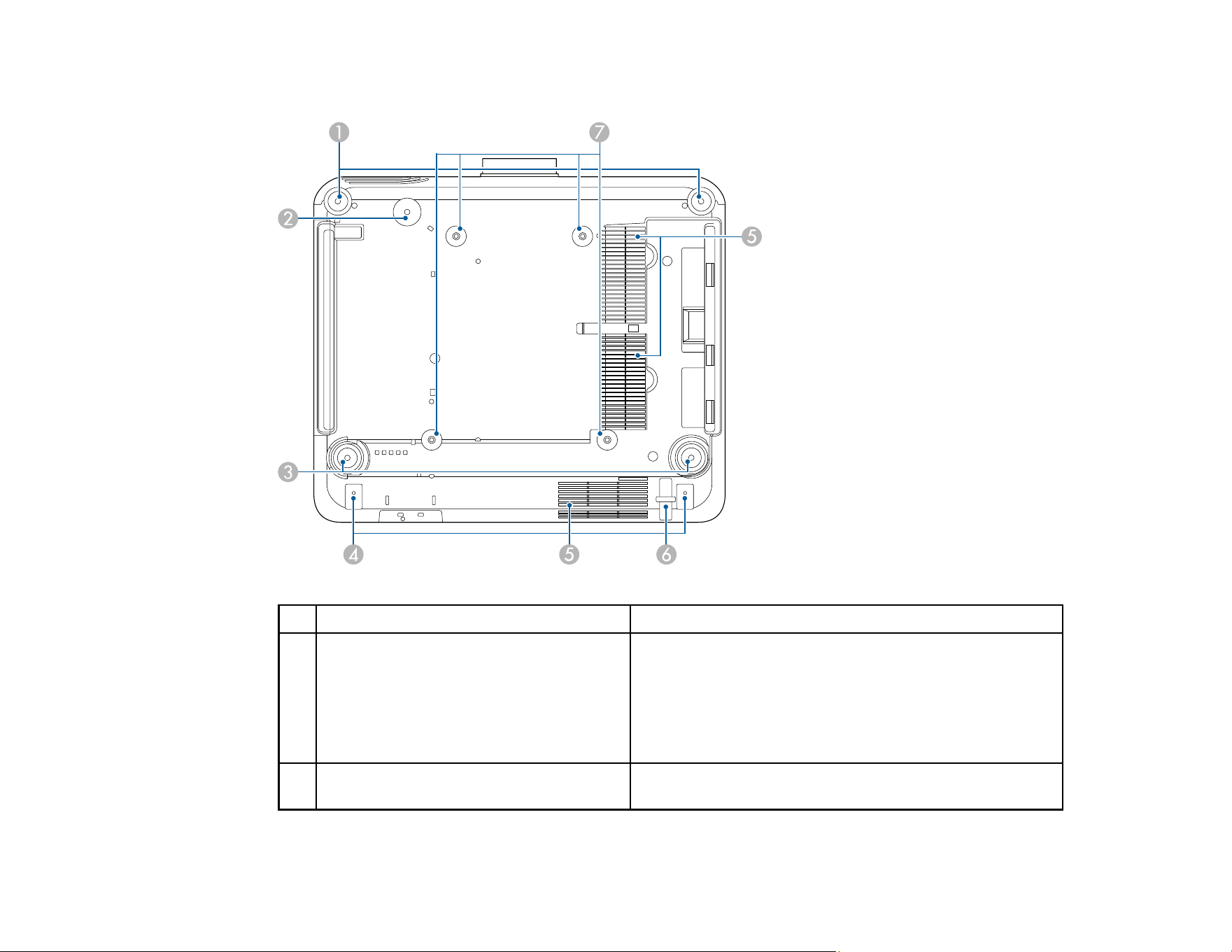
33
Projector Parts - Base
Name Function
1 Front adjustable feet When the projector is set up on a surface such as a
desk, turn to extend the foot to adjust the position of the
image.
You can adjust the tilt within a range of ±5°. The front
feet are detachable. You can extend the feet by
approximately 1.4 inches (35 mm) before they detach.
2 Safety wire screw hole Screw hole for securing the ring of the safety wire to
prevent the projector from falling from the ceiling or wall.
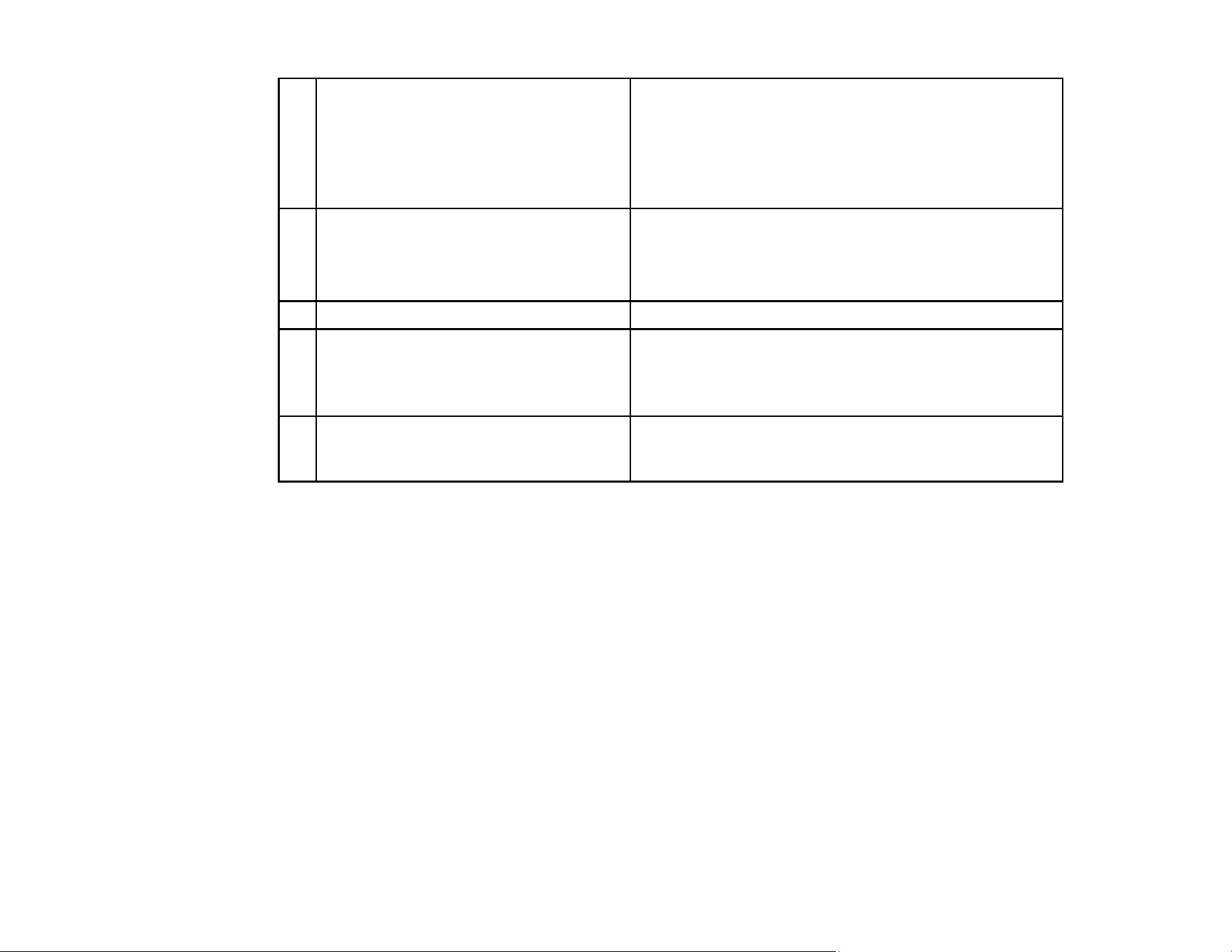
34
3 Rear adjustable feet When the projector is set up on a surface such as a
desk, turn to extend the foot to adjust the position of the
image.
You can adjust the tilt within a range of ±5°. The rear
feet are detachable. You can extend the feet by
approximately 1.4 inches (35 mm) before they detach.
4 Cable cover screw holes The screw holes for securing the cable cover.
Make sure the cables have been passed through the
notch on the base of the cable cover before attaching
the cable cover.
5 Air intake vent Takes in air to cool the projector internally.
6 Security cable attachment point Pass the theft-prevention wire lock through here and
lock it in place.
Warning: Do not attach the safety wire to this point.
7 Ceiling mount attachment points
(ELPMB67, 4 points)
Use these points to attach the optional ceiling mount
when installing the projector on a wall, or mounting the
projector from a ceiling.
Parent topic: Projector Part Locations
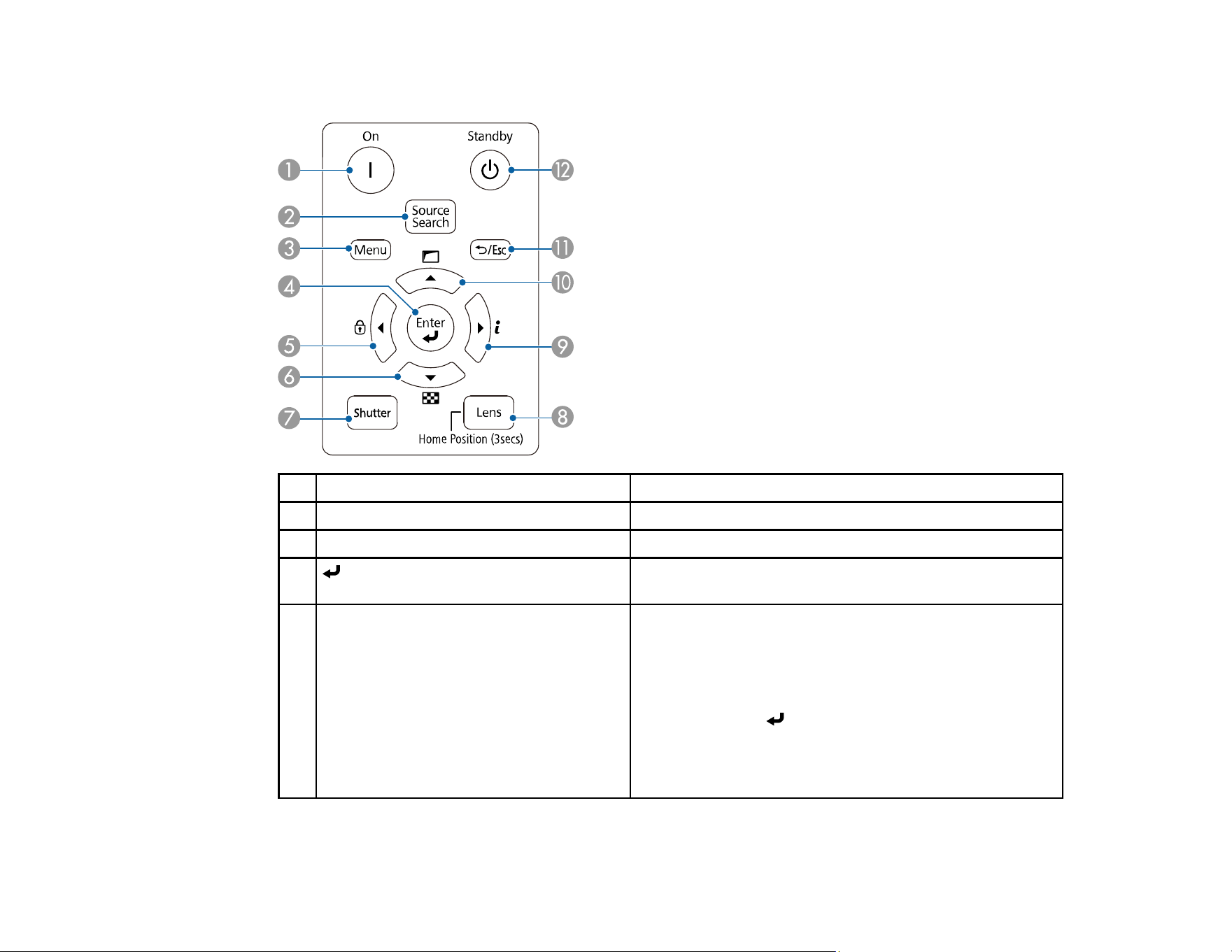
35
Projector Parts - Control Panel
1 On button Turns the projector on
2 Source Search button Changes to the next input source
3 Menu button Displays and closes the projector's menu.
4 Enter button Enters the current selection and moves to the next level
while displaying the projector's menu
5 Left arrow button Displays the Control Panel Lock screen allowing you to
lock the control panel buttons.
Do one of the following to unlock them:
• Set the Control Panel Lock setting to Off
• Hold down the Enter button on the control panel
for more than seven seconds.
Selects menu items while displaying the projector's
menu.

36
6 Down arrow button Displays a test pattern. The test pattern's shape is
determined by the Screen Type setting. Be sure to set
the correct screen type before adjusting with the test
pattern.
• Extended > Display > Screen > Screen Type
Selects menu items while displaying the projector's
menu.
7 Shutter button
Turns the video and audio on or off temporarily.
The projector's power automatically turns off two hours
after A/V Mute is enabled.
You can disable this feature.
• Extended > Operation > Shutter Settings > Shutter
Timer
8 Lens button Displays the adjustment screens for lens shift, zoom,
focus, and distortion in that order each time the button is
pressed. Wait 20 minutes after turning on the projector
before setting the focus, zoom, and lens shift for
maximum accuracy.
When adjusting the image position using vertical lens
shift, adjust it by moving the image from the bottom to
the top. If you adjust it from the top to the bottom, the
image position may move down slightly after adjusting.
Hold down the button for more than three seconds to
move the lens position to the home position. Keep the
lens position in the home position for the clearest
picture.
9 Right arrow button Displays the projector's Info menu.
Selects menu items while displaying the projector's
menu.
10 Up arrow button Corrects the shape of the image using the options in the
Geometry Correction setting.
Selects menu items while displaying the projector's
menu.
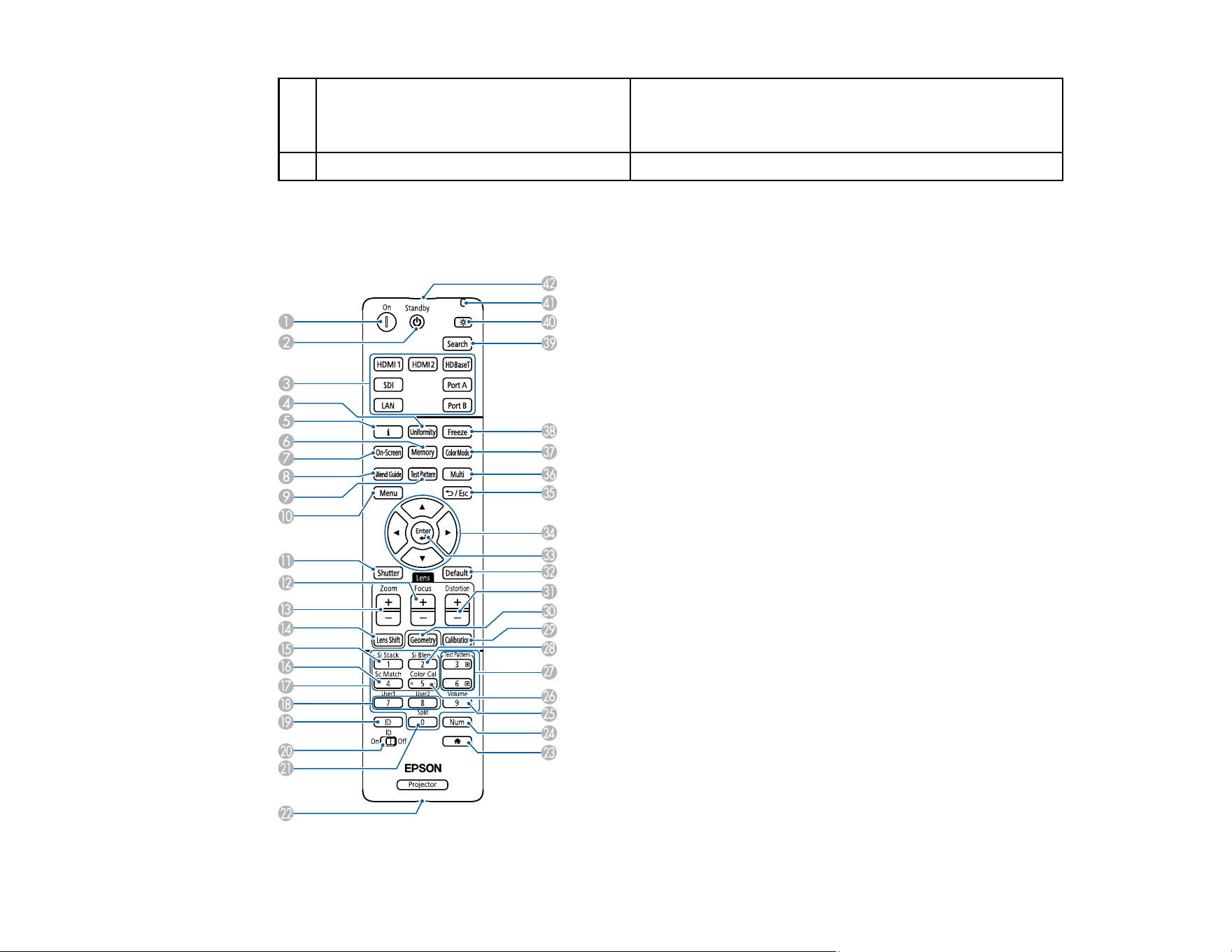
38
1 On button Turns the projector on
2 Standby button Turns the projector off
3 Source buttons Switch the image source to each port.
The Port A and Port B buttons are not available.
4 Uniformity button Displays the Color Uniformity screen where you can
adjust the color tone balance of the projected image.
5 i information button Displays the projector's Info menu.
6 Memory button Displays the Memory screen where you can save
customized settings and load saved settings. A memory
name that has already been used is indicated by a blue
mark. Saving over a previously saved memory
overwrites the settings with your current settings.
7 On-Screen button Turns the On-Screen Display function on and off
8 Blend Guide button Turns on/off the Line Guide and Pattern Guide from
the Edge Blending menu
9 Test Pattern button Displays a test pattern. The test pattern's shape is
determined by the Screen Type setting. Be sure to set
the correct screen type before adjusting with the test
pattern.
• Extended > Display > Screen > Screen Type
10 Menu button Displays and closes the projector's menu.
Hold down this button for more than 15 seconds to turn
on all remote control receivers.
11 Shutter button Turns the video and audio on or off temporarily.
The projector's power automatically turns off two hours
after A/V Mute is enabled. You can disable this feature.
• Extended > Operation > A/V Mute Settings > A/V
Mute Timer
Hold down this button for more than five seconds to flip
the image over top-to-bottom.
12 Focus +/- buttons Adjusts the focus in the projected image
13 Zoom +/- buttons Adjusts the image size
39
14 Lens Shift button Adjusts the position of the projected image. Wait 20
minutes after turning on the projector before setting the
focus, zoom, and lens shift for maximum accuracy.
When adjusting the image position using vertical lens
shift, adjust it by moving the image from the bottom to
the top. If you adjust it from the top to the bottom, the
image position may move down slightly after adjusting.
Hold down this button for more than three seconds to
move the lens position to the home position. Keep the
lens position in the home position for the clearest
picture.
15 Si Stack button Displays the simple stacking menu
16 Sc Match button Displays the screen matching menu
17 Numeric buttons Enters numbers in the projector's menu while holding
down the Num button.
In Content Playback mode, enter numbers while holding
down the Num button to play back your favorite
playlists.
18 User buttons Perform settings assigned in the User Button setting in
the projector's Settings menu.
19 ID button Press this button and press a number button within 5
seconds to select the ID for the projector you want to
operate using the remote control. (Enter a one-digit or
two-digit number.)
If you do not know the projector's ID, press this button
during projection to temporarily display the projector's
ID and the remote control's ID on the screen.
20 ID switch Enables (On) or disables (Off) ID settings for the remote
control.
21 Split button This button is not used.
22 Remote port Connects the remote control to the projector using the
optional remote control cable set and inputs signals
from the remote control. When the remote control is
connected, the remote receiver on the projector is
disabled.
40
23
button
Displays and closes the Home screen.
Hold down this button for more than five seconds to lock
or unlock the remote control buttons.
24 Num button Hold down this button to enter numbers using the
numeric buttons.
25 Volume button Adjusts the volume of the Audio Out port
26 Color Cal button Displays the color calibration menu
27 Test Pattern +/- buttons Display the previous or next test pattern while displaying
a test pattern.
Controls page up and down on your computer when you
connect a projector and computer over the network.
28 Si Blend button Displays the simple blending menu
29 Calibration button Adjusts the lens calibration
30 Geometry button Displays the Geometry Correction screen allowing you
to correct keystone distortion of the projected image
31 Distortion +/- buttons Adjusts the distortion in the projected image
32 Default button Returns the selected setting to its default value.
Hold down this button for more than three seconds to
start the lens calibration process.
33 Enter button Enters the current selection and moves to the next
levelwhile displaying the projector's menu
34 Arrow buttons Selects menu items while displaying the projector's
menu.
35 Esc button Stops the current function.
Moves back to the previous menu level while displaying
the projector's menu.
36 Multi button Displays the projector's Multi-Projection menu.
37 Color Mode button Changes the color mode
41
38 Freeze button Pauses or resumes images. Any sound or video action
continues to run, however, so you cannot resume
projection at the point that you stopped it.
Hold down this button for more than 5 seconds to set up
password security.
Note: When using a still image as a test pattern, you
can change the following settings even when the image
is frozen using the freeze function.
• Geometry Correction
• Focus, Zoom, Lens Shift, Distortion
• Setting Color Mode
• White Balance
39 Search button Switches to the next input source
40 Illumination button Illuminates the buttons on the remote control for
approximately 15 seconds. This is useful when using
the remote control in the dark.
41 Indicator light Lights up when the remote is sending signals
42 Remote control signal emitter Outputs remote control signals
Parent topic: Projector Part Locations
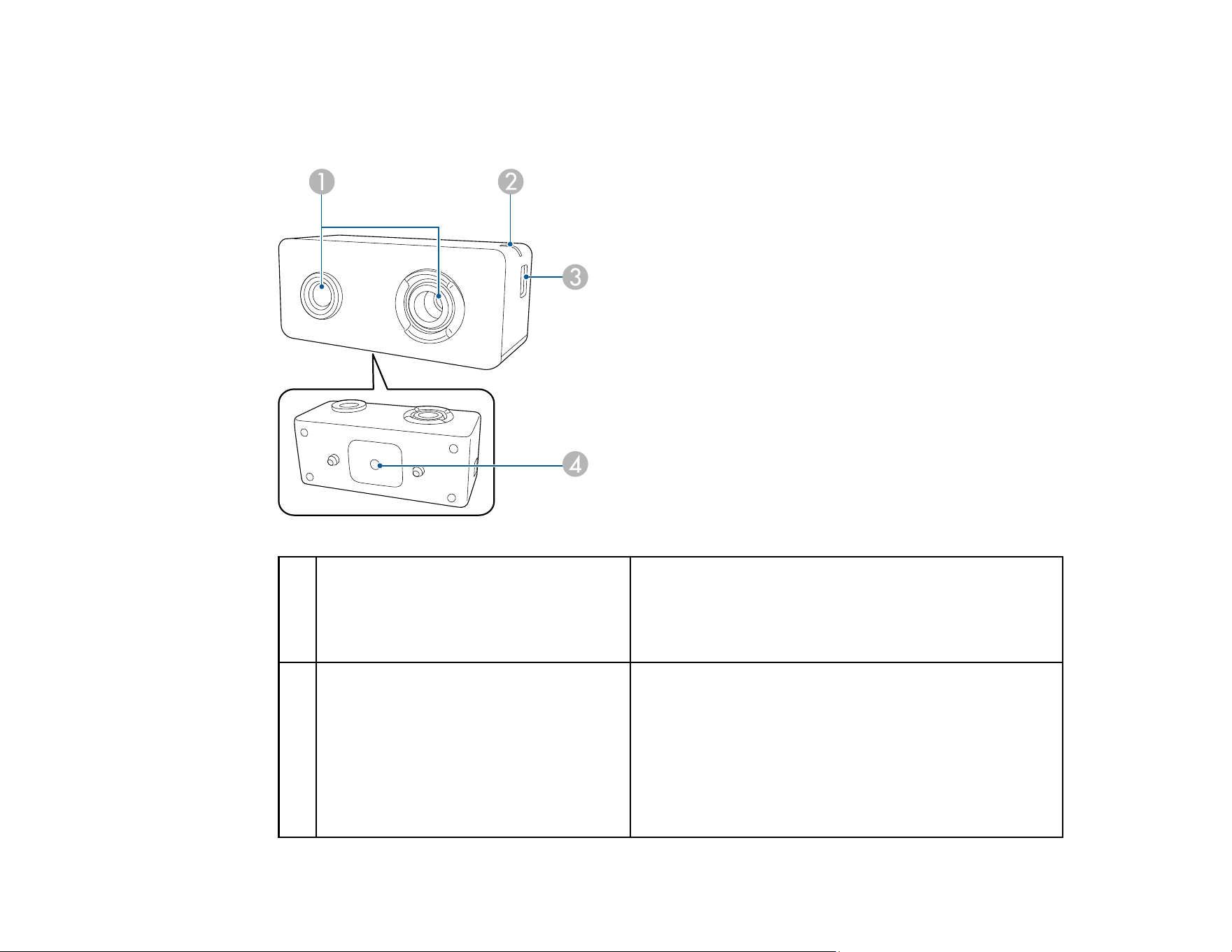
42
Projector Parts - External Camera
You can attach the optional external camera to the front of the projector or lens. See the external camera
manual for the installation method.
1 Camera lens Takes photos.
Note: Do not use or store the external camera in places
where it will be exposed to strong light. Otherwise,
burning or malfunction may occur.
2 Indicator light Indicates the external camera's status.
• Lit: standby
• Flashing (0.25-second intervals): external camera is
malfunctioning
• Flashing (0.5-second intervals): external camera is
operating
• Flashing (1 second intervals): updating the firmware
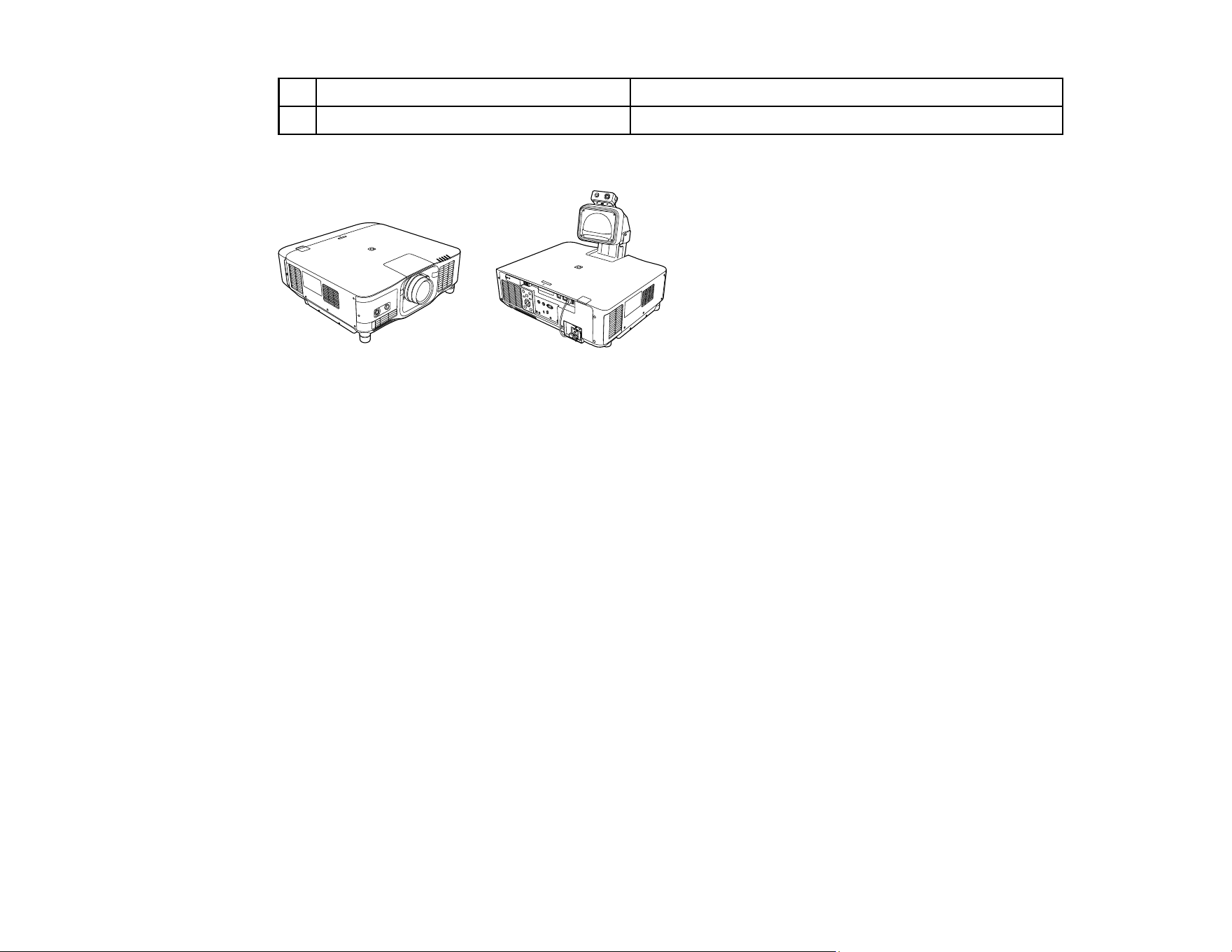
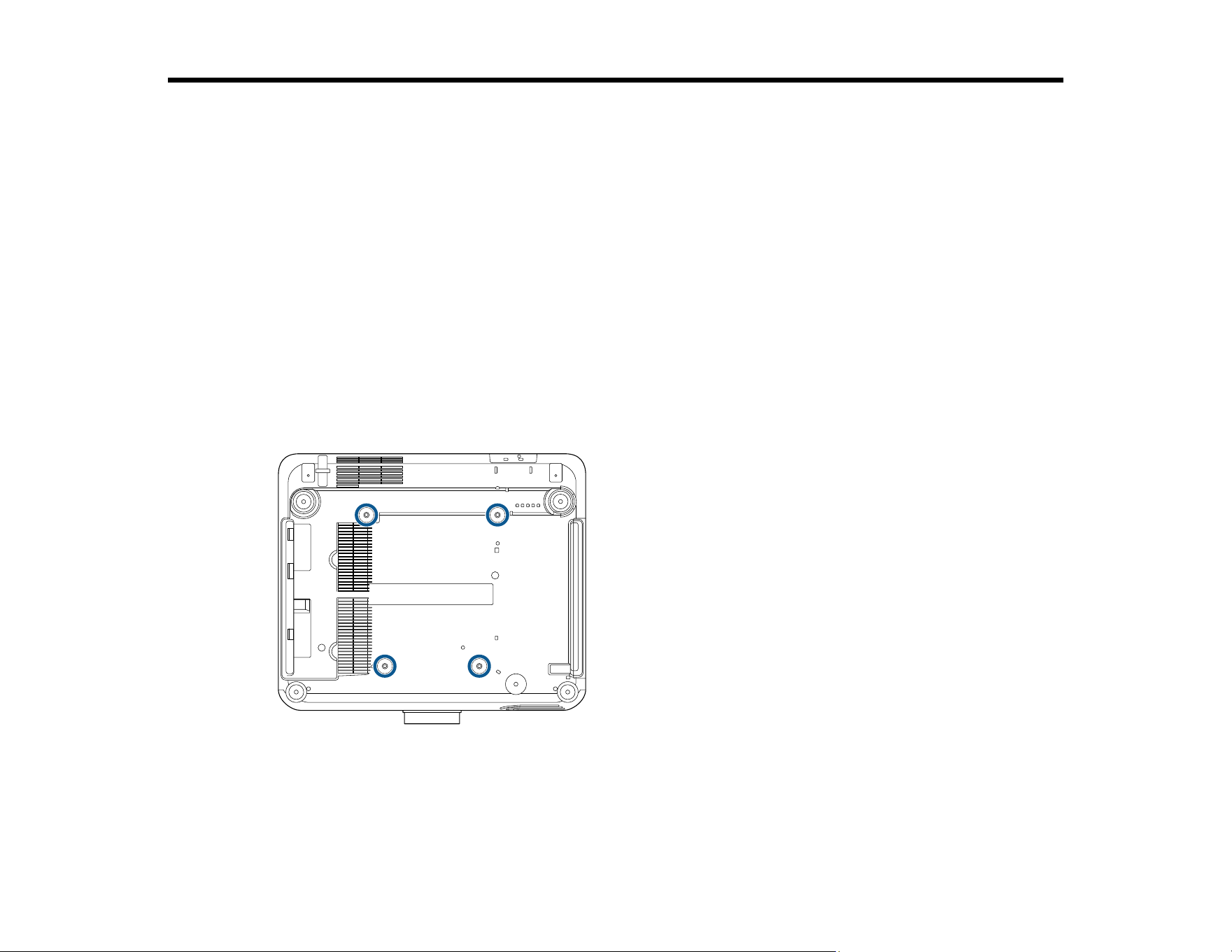
44
Setting Up the Projector
Follow the instructions in these sections to set up your projector for use.
Projector Placement
Attaching and Removing a Lens
Attaching and Removing the Cable Cover
Installing the Safety Wire
Installing Batteries in the Remote Control
Projector Placement
You can place the projector on almost any flat surface to project an image.
You can also install the projector in a ceiling mount if you want to use it in a fixed location.
Attention: When using a ceiling mount, use commercially available M6 screws (up to a depth of 0.55
inches [14 mm]) to attach the mount to the projector.
There is no vertical or horizontal limit to how the projector can be installed.
Warning: The EB-PQ2216B, EB-PQ2216W and EB-PQ2220B are class A products. In a domestic
environment this product may cause radio interference in which case the user may be required to take
adequate measures.
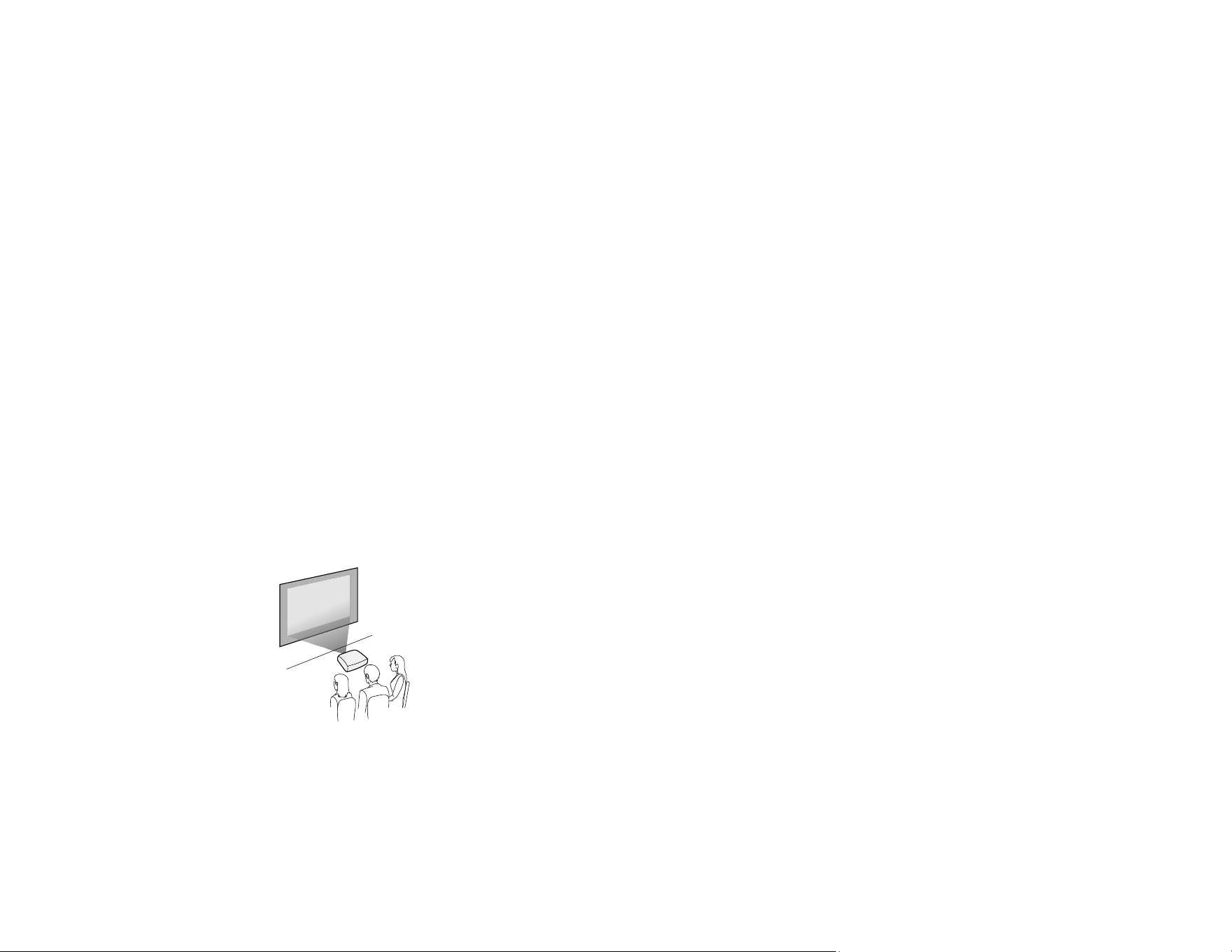
45
Keep these considerations in mind as you select a projector location:
• Place the projector on a sturdy, level surface or install it using a compatible mount.
• Place the projector parallel to the screen.
• Leave plenty of space around and under the projector for ventilation, and do not place it on top of or
next to anything that could block the vents.
• If there is not enough space around the projector and the internal temperature of the projector
increases, the brightness of the light source may decrease.
• Make sure hot air from the exhaust vent does not go into the air intake vent.
• Position the projector within reach of a grounded electrical outlet or extension cord.
Make sure you read the safety instructions when placing or mounting your projector. See the link below.
Projector Setup and Installation Options
Projection Distance
Parent topic: Setting Up the Projector
Related references
Important Safety Instructions
Projector Setup and Installation Options
You can set up or install your projector in the following ways:
Front
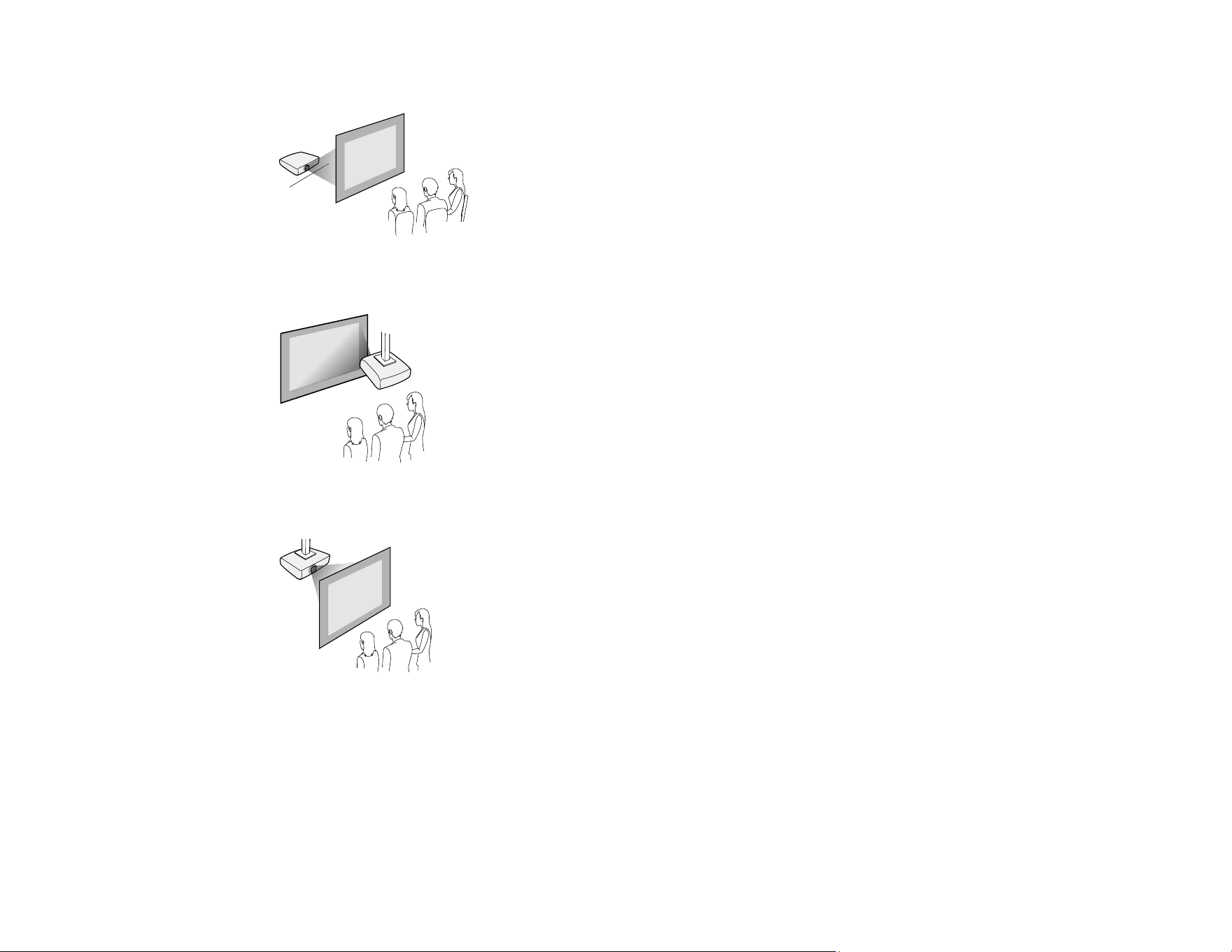
46
Rear
Front ceiling
Rear ceiling
Caution: Be sure to leave space around the projector to avoid blocking the air exhaust and intake vents.
Do not install the projector in a location that does not allow air to circulate, such as on a shelf or in a box.
If you want to install the projector on a shelf or in an enclosure, contact Epson for help.
If there is not enough space around the projector and the internal temperature of the projector increases,
the brightness of the light source may decrease. Make sure hot air from the exhaust vent does not go
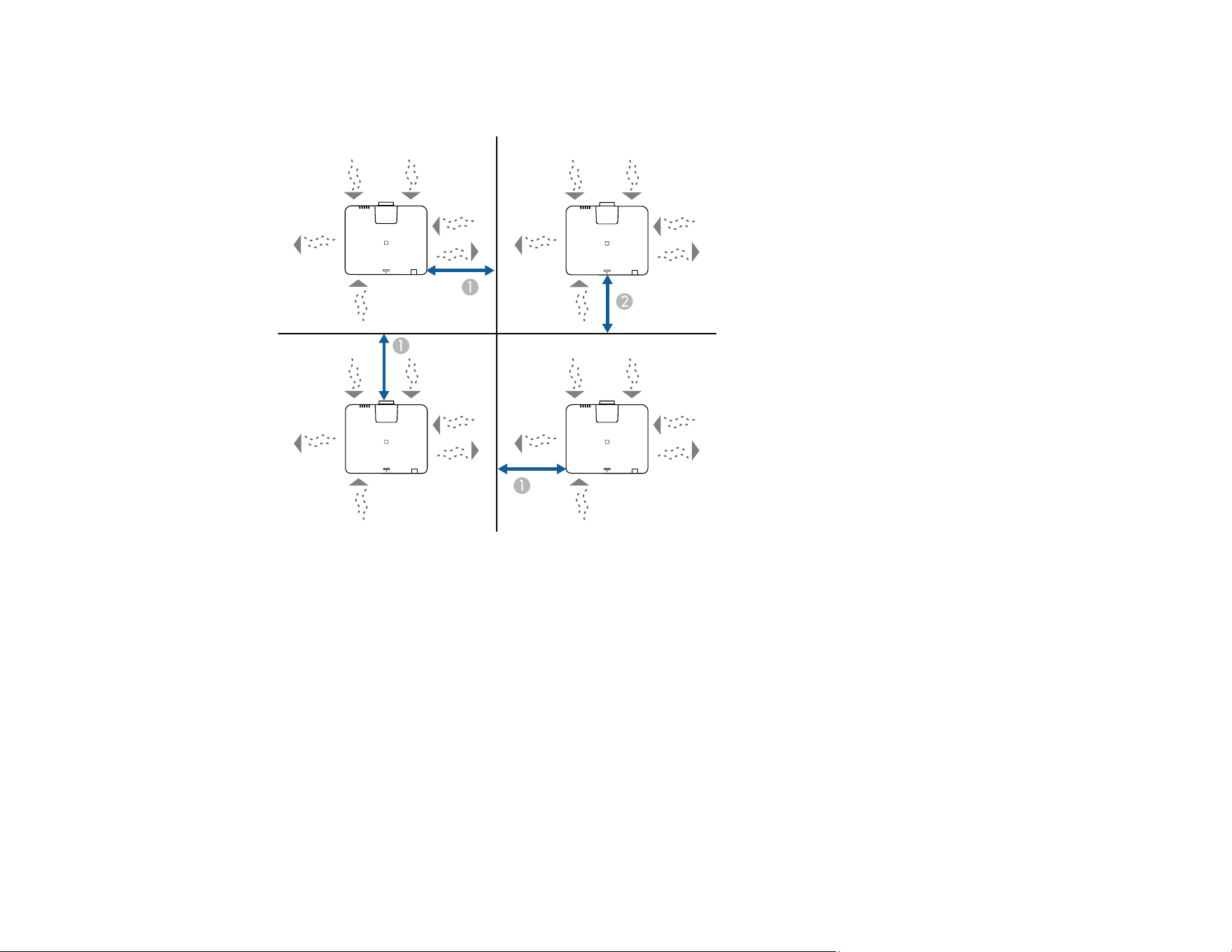
47
into the air intake vent. The following diagrams show the minimum amount of space required on a
specific side as long as the other sides are unobstructed.
1 11.8 inches (30 cm)
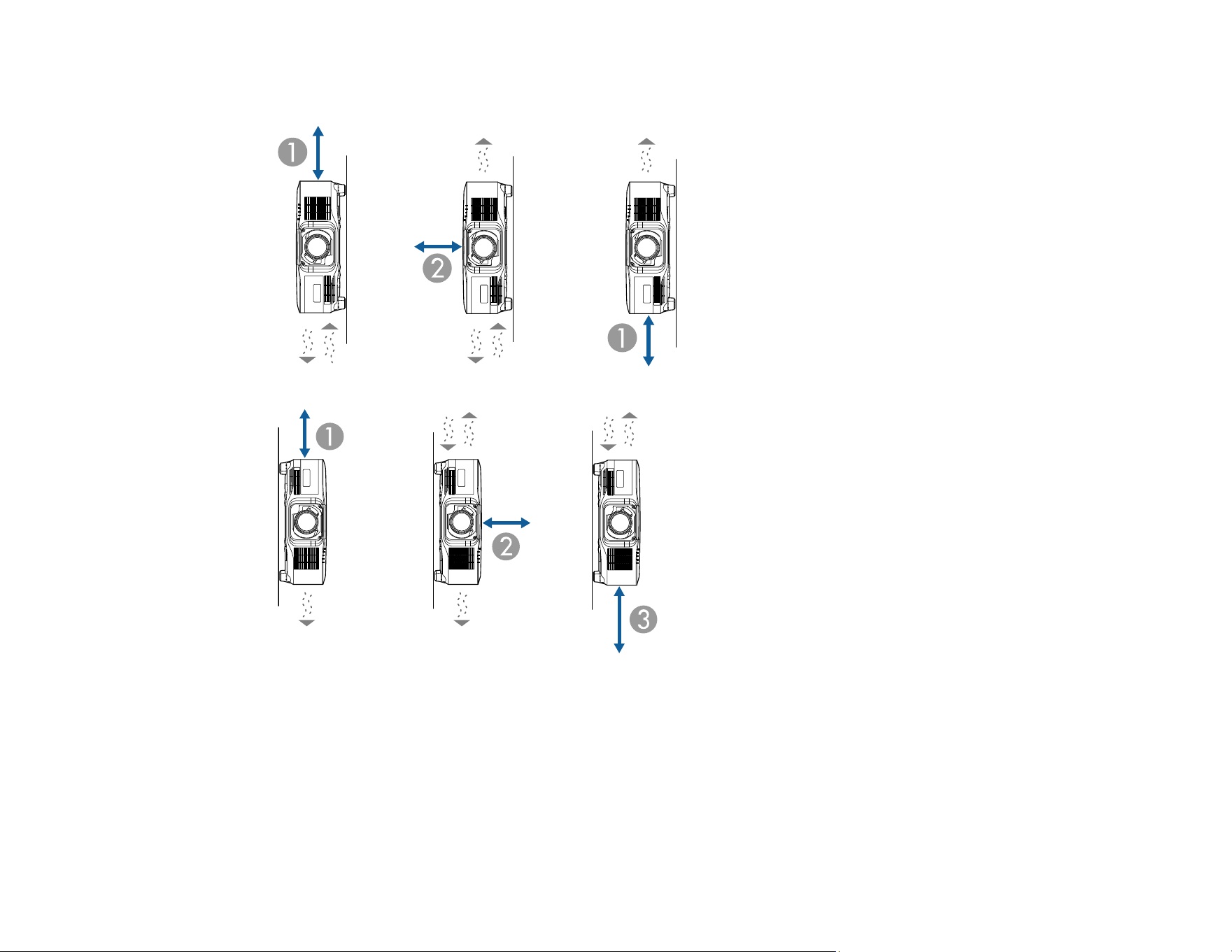
48
2 7.9 inches (20 cm)
1 11.8 inches (30 cm)
2 7.9 inches (20 cm)
3 23.6 inches (60 cm)
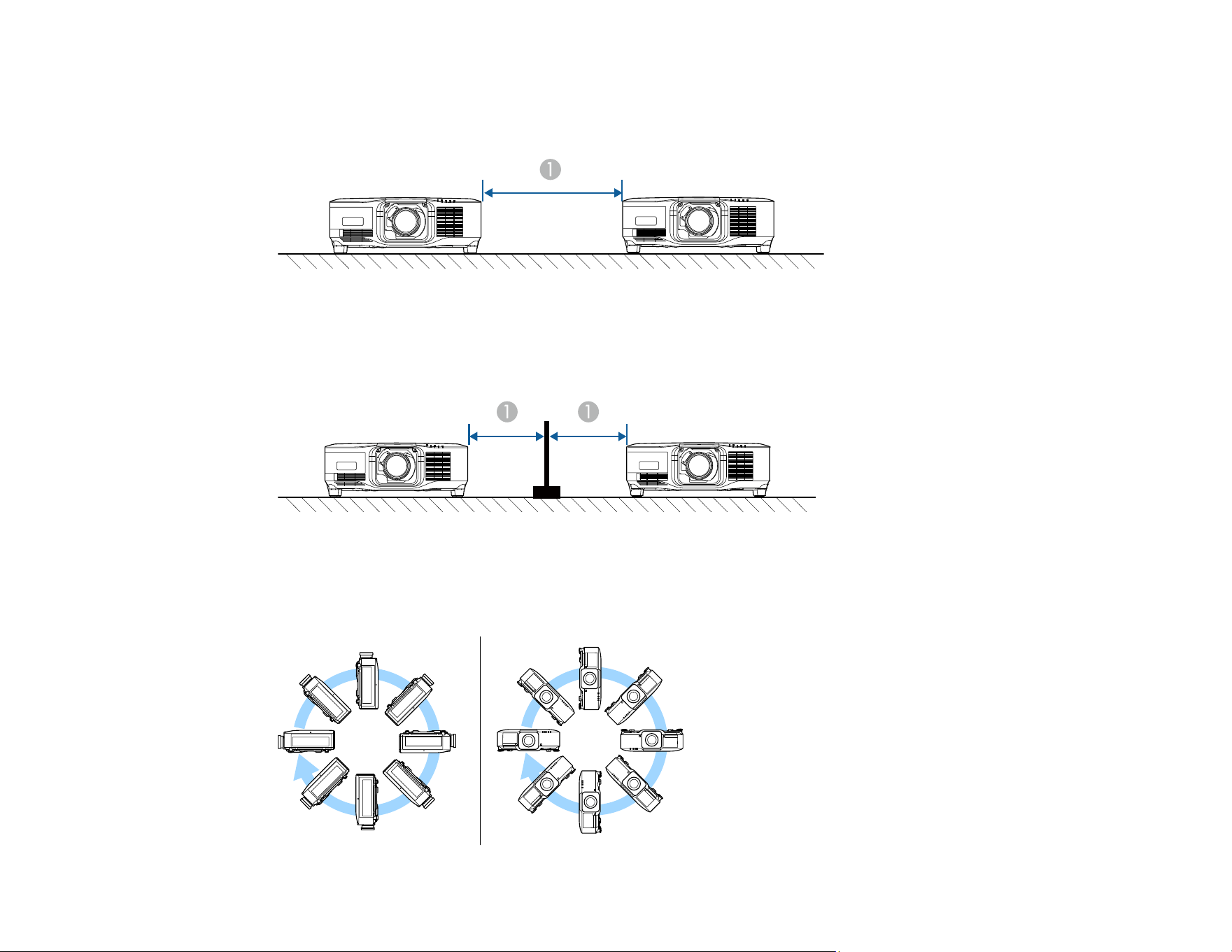
49
If you are installing multiple projectors next to each other, be sure to leave at least 28 inches (70 cm) of
space between the projectors. Also, make sure heated air from an exhaust vent does not go into the air
intake vent of another projector.
1 28 inches (70 cm)
With a partition:
1 11.8 inches (30 cm)
You can mount the projector to the ceiling at any horizontal or vertical angle.

50
Parent topic: Projector Placement
Related references
Where to Get Help (Latin America)
Where to Get Help (U.S. and Canada)
Projection
OSD Rotation
Projection Distance
The distance at which you place the projector from the screen determines the approximate size of the
image. The image size increases the farther the projector is from the screen, but can vary depending on
the zoom factor, aspect ratio, and other settings.
Use the Projection Distance Calculator here (U.S.), here (Canada), or here (Caribbean) to determine
approximately how far to place the projector from the screen based on the size of the projected image.
Parent topic: Projector Placement
Attaching and Removing a Lens
Follow the instructions in these sections to attach or remove a compatible lens.
Warning: Make sure you turn off the projector and unplug the power cord before attaching or removing a
lens. Otherwise, you may receive an electric shock.
Attaching a Lens
Removing a Lens
Parent topic: Setting Up the Projector
Attaching a Lens
You can attach a compatible lens to the projector.
Caution: Unplug the power cord from the projector before attaching the lens. Avoid touching the lens
with your bare hands to prevent fingerprints on or damage to the lens surface.
Be sure to observe the following precautions when handling.
• Make sure the front of the projector is not facing up when you attach or remove the lens.
• Remove the lens only when necessary.
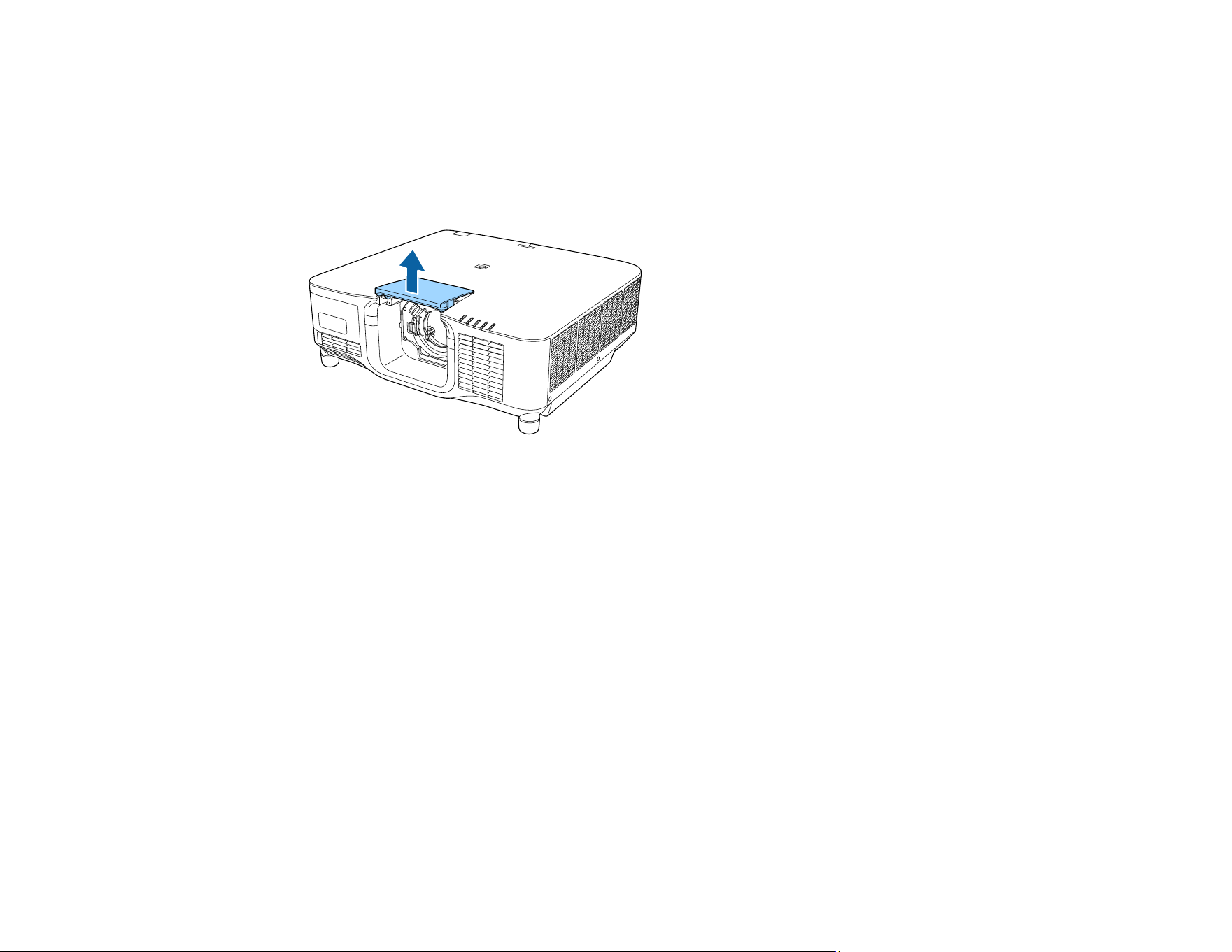
51
• Store the projector with the lens installed.
1. Turn the projector off and unplug the power cord.
2. Pull the lens replacement cover off of the projector.
Note: If necessary, remove the lens socket cap from the lens socket.
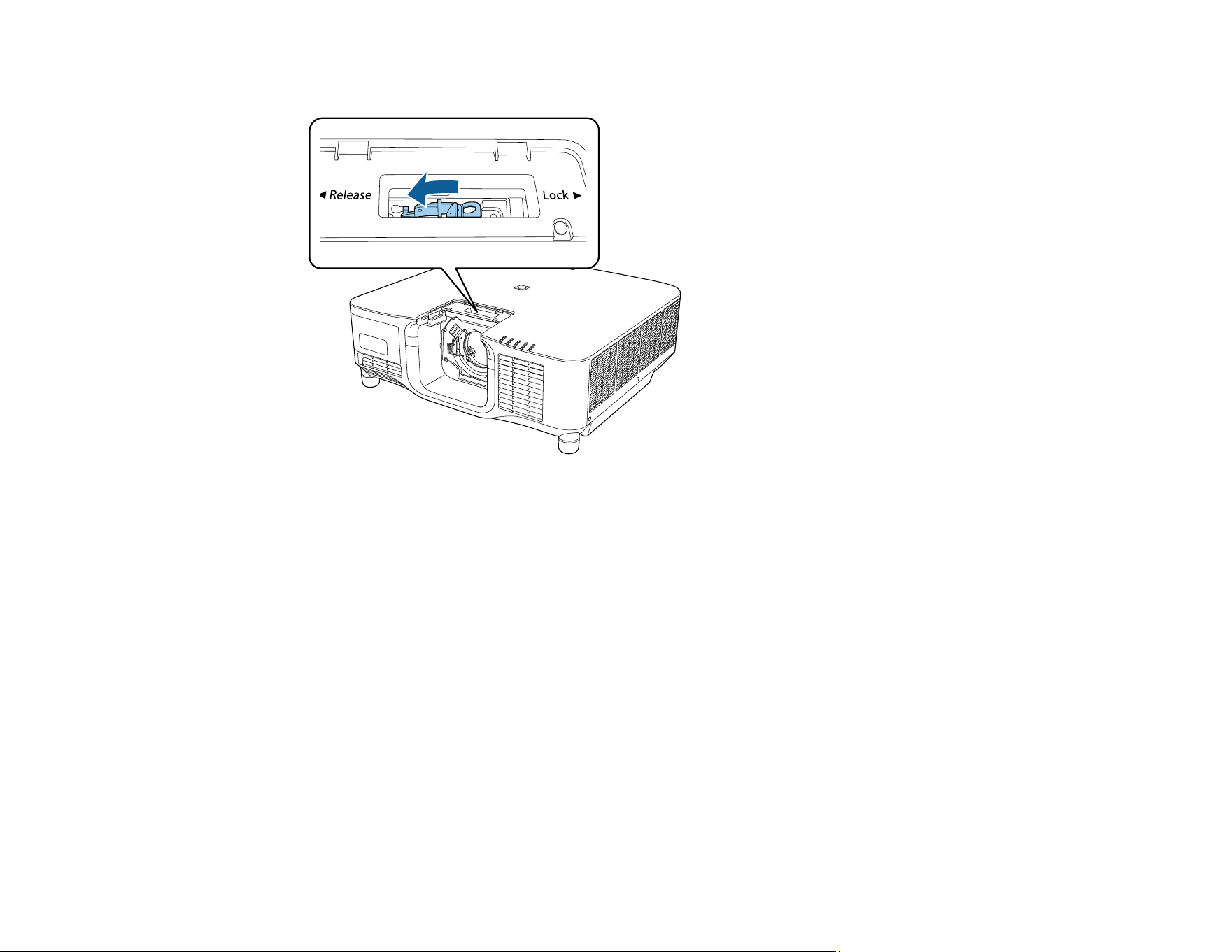
52
3. Pinch the lock lever and move it to the Release position.
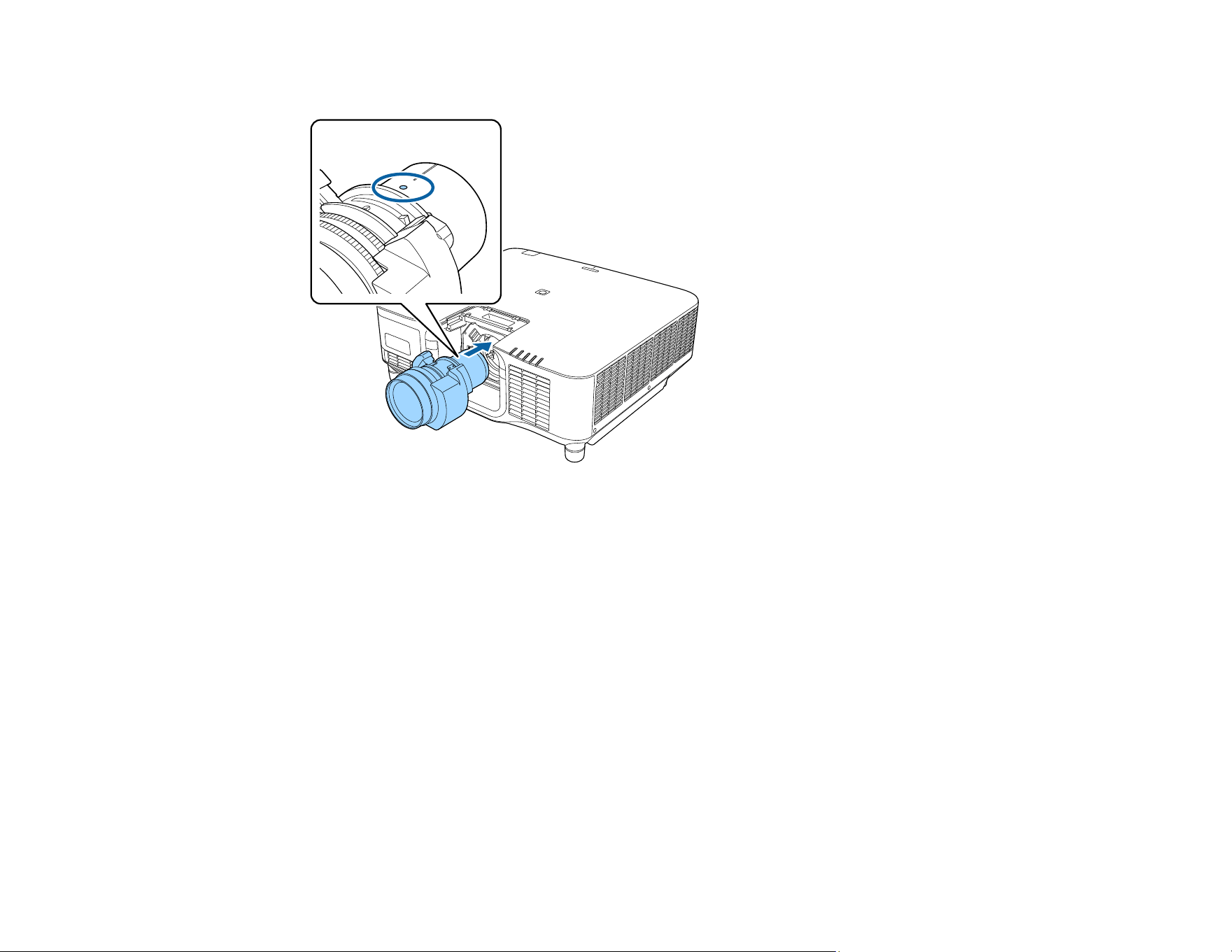
53
4. Insert the lens straight into the projector's lens socket with the white dot facing up.
Caution: Make sure you do not get your fingers caught between the lens and projector.
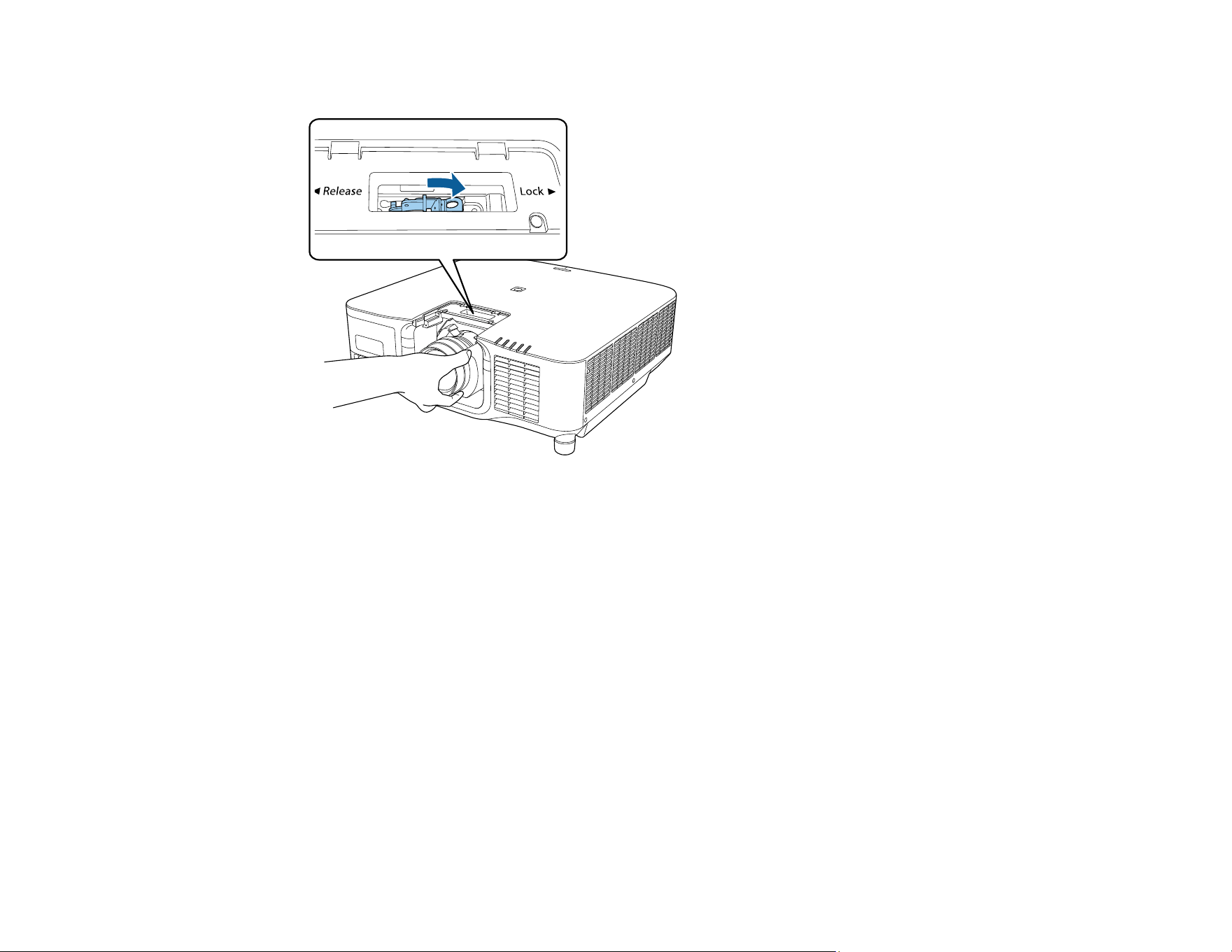
54
5. Hold the lens firmly after it is fully inserted, then pinch the lock lever and move it to the Lock position.
Note: Make sure the lens is securely attached and that you do not touch the glass surface of the
lens.
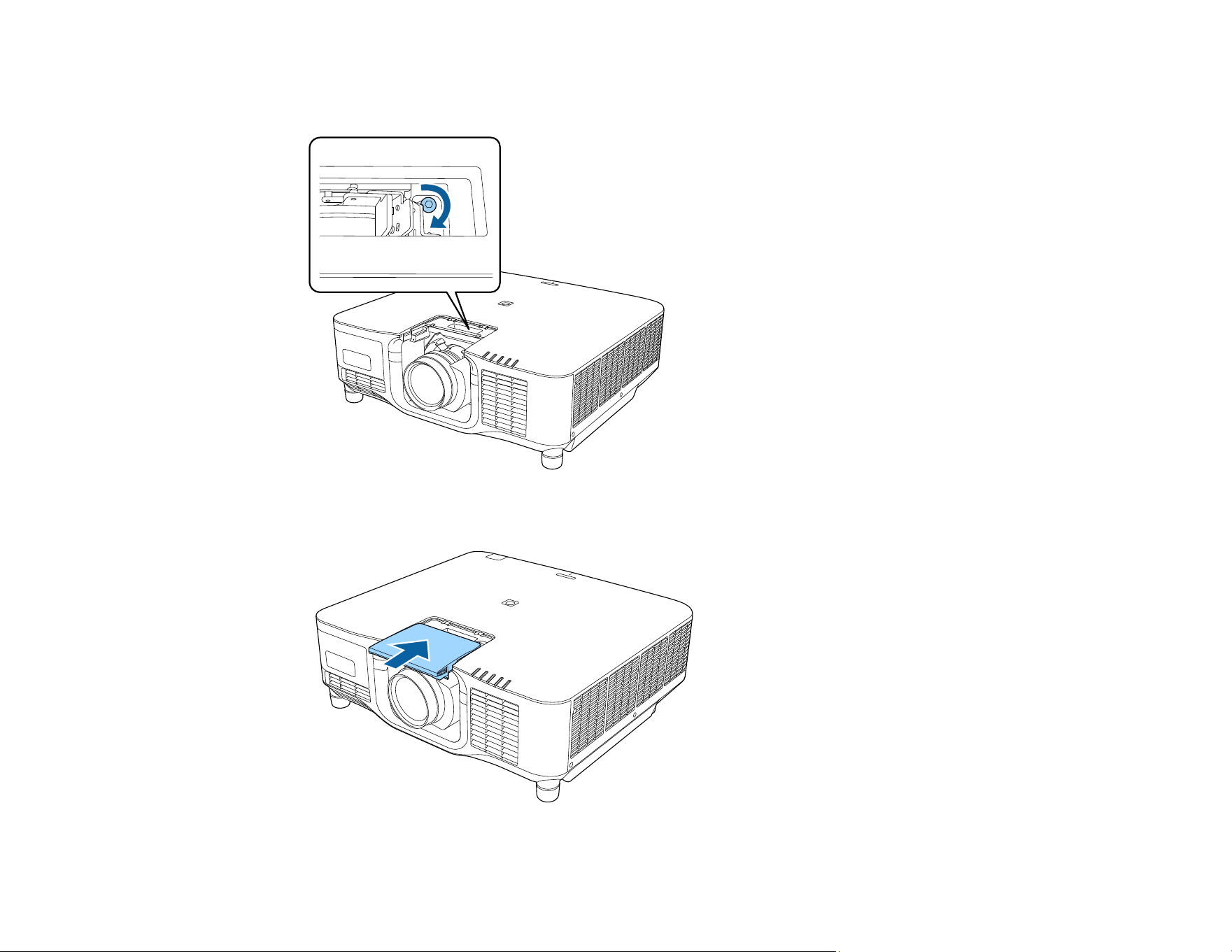
55
6. If you want to secure the lens more firmly, tighten the screw next to the lock lever with a 2.5 mm
hexagonal wrench.
7. Replace the lens replacement cover.
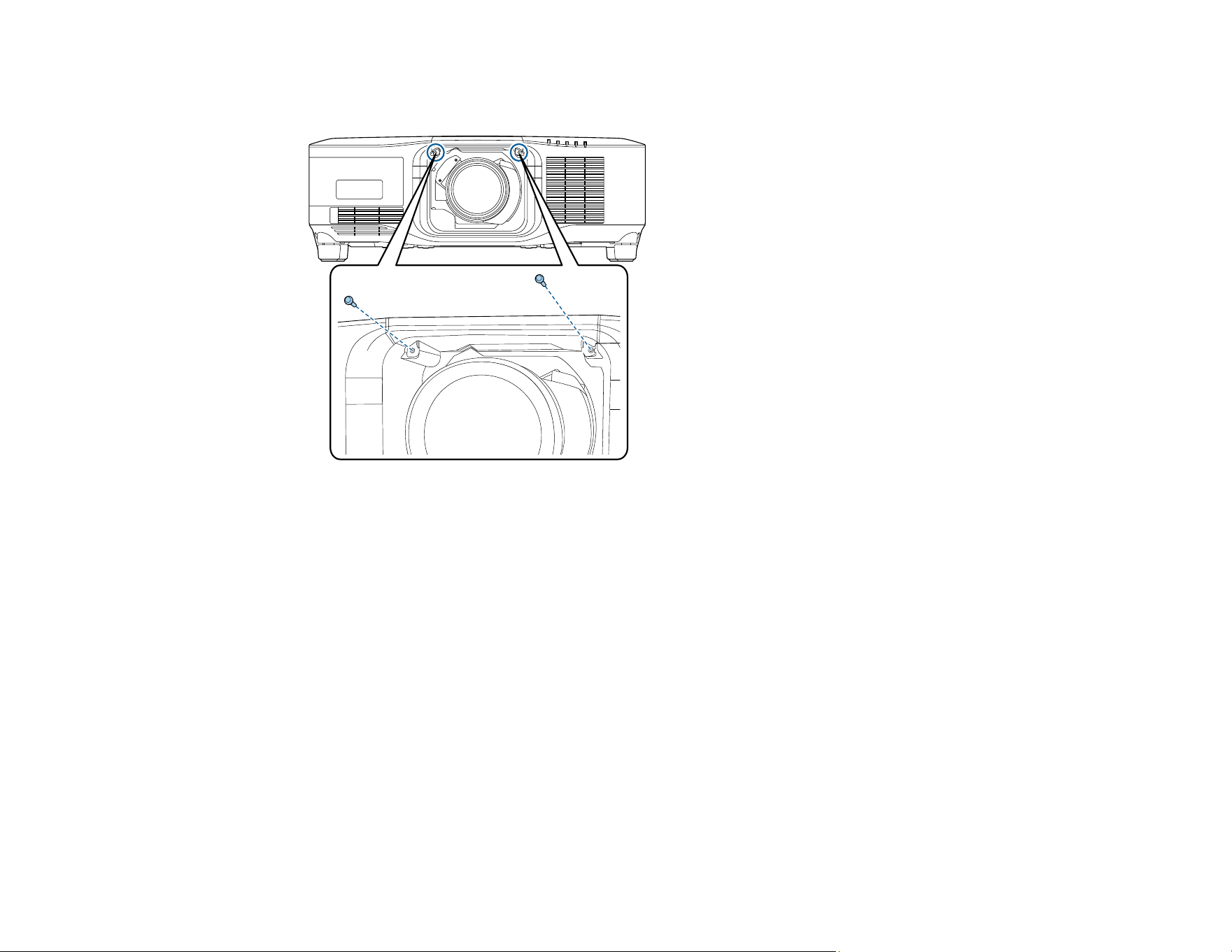
56
Note: If you are projecting downwards, we recommend securing the lens replacement cover with M3
x 12 mm screws (not included).
8. Turn on the projector to perform lens calibration. When you see a message prompting you to begin
lens calibration, select Yes.
Note: Lens calibration helps the projector to correctly acquire the lens position and adjustment
range, and can take up to 100 seconds to complete. When calibration is finished, the lens returns to
the same position it was in before calibration. The ELPLX02S and ELPLX02WS lenses return to the
standard position.
Note: If no message appears after attaching the lens, perform lens calibration by holding down the
Default button on the remote control for approximately 3 seconds, or you can go to Extended >
Operation > Lens Calibration in the projector menu.
If you do not calibrate the lens, the following functions may not operate correctly:
• Focus
• Distortion
• Zoom
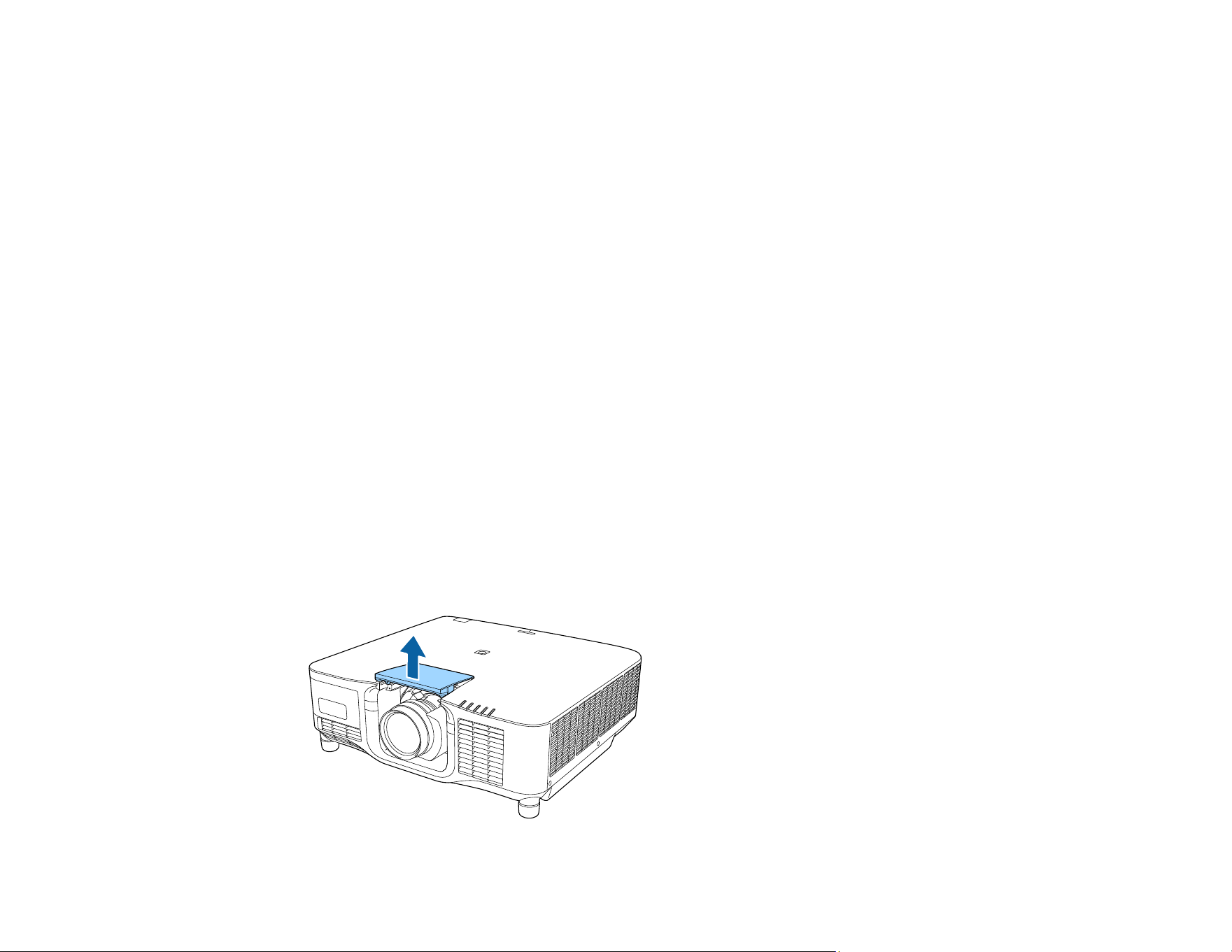
57
• Lens Shift
• Memory (Lens Position)
Note: If the icon indicating that lens calibration has failed is displayed, remove the lens and then reinstall
it. If the message continues to be displayed, stop using the projector, remove the power plug from the
electrical outlet, and contact Epson for help.
Parent topic: Attaching and Removing a Lens
Related references
Lens Calibration
Optional Equipment and Replacement Parts
Removing a Lens
You can remove a lens to replace it with a different lens. The projector uses a laser as the light source.
As a safety measure, the light source turns off when the lens is removed. Attach the lens, and then press
the On button to turn it back on.
Warning: Wait at least 30 minutes to remove or replace the lens after turning off the projector. Touching
the lens unit before it cools down may cause burns.
1. Press and hold the Lens Shift (remote control) or Lens (control panel) button for approximately 3
seconds to move the lens to the center position.
2. Turn off the projector and unplug the power cord.
3. Pull the lens replacement cover off of the projector.
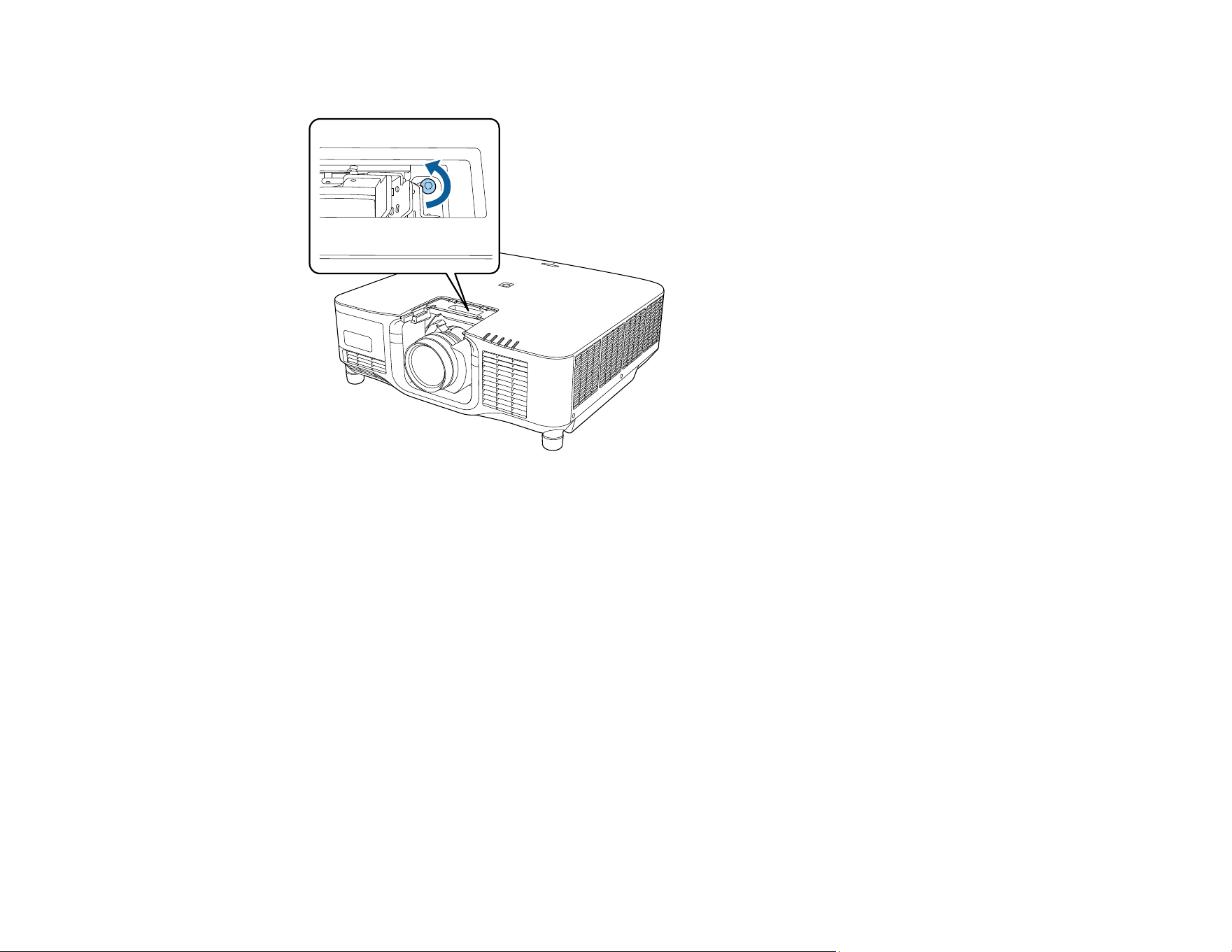
58
4. If necessary, loosen the screw next to the lock lever.
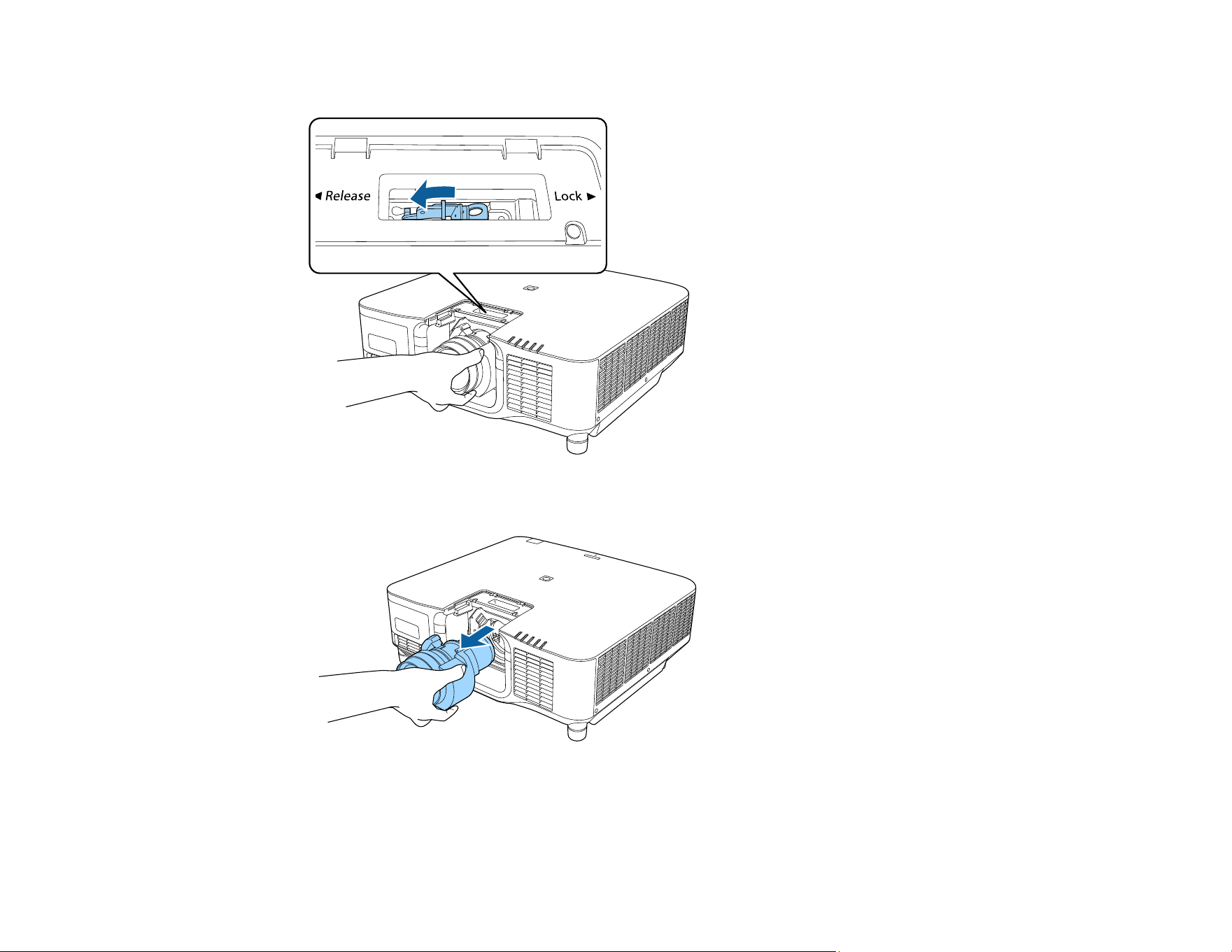
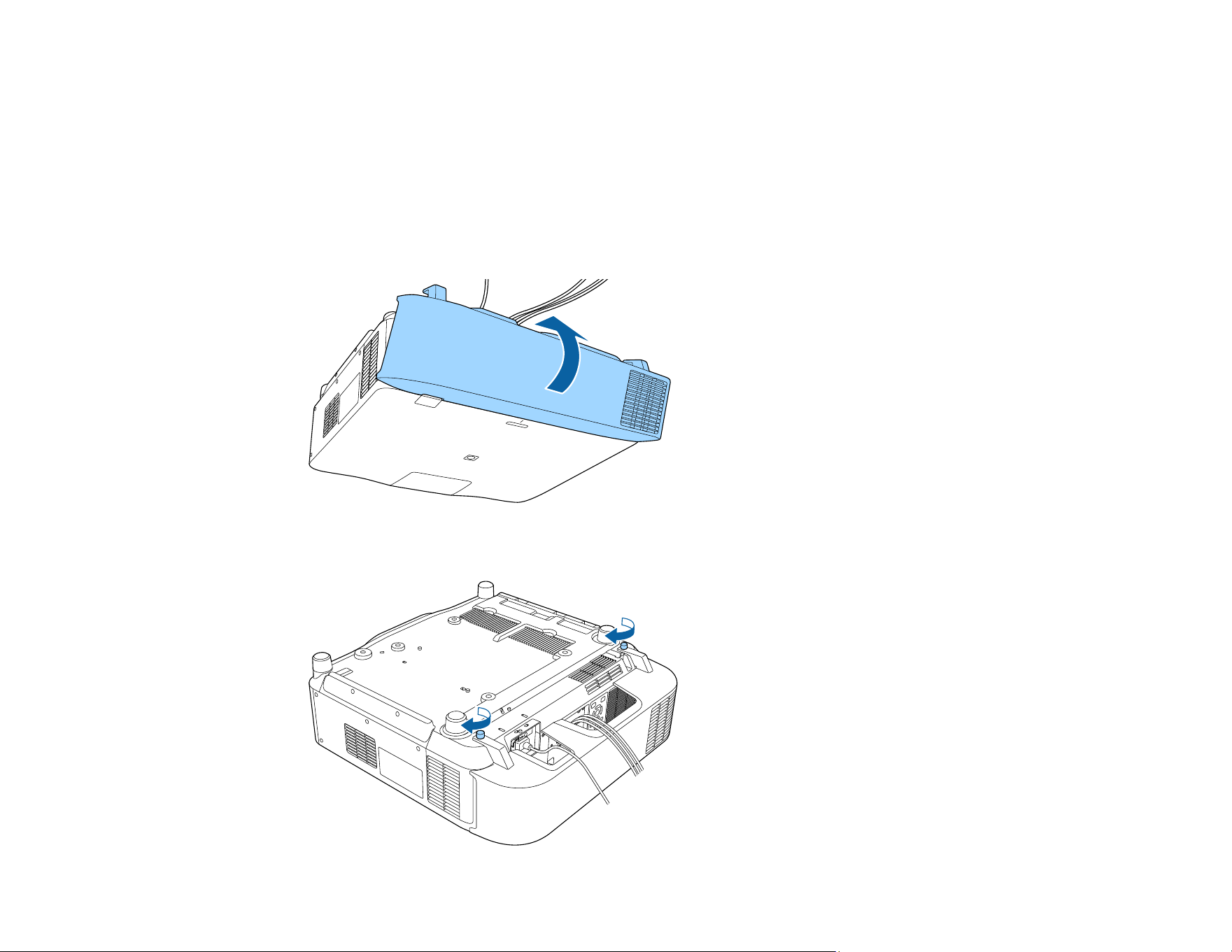
60
Attaching and Removing the Cable Cover
You can attach the cable cover that came with your projector to hide the attached cables from view.
1. Bundle the cables together using a band or other fastener (not provided).
Caution: Do not bundle the power cord to the other cables. Otherwise, a fire may occur.
2. Place the cable cover on the projector as shown, guiding the cables through the notch on the base of
the cable cover.
3. Tighten both cable cover screws.
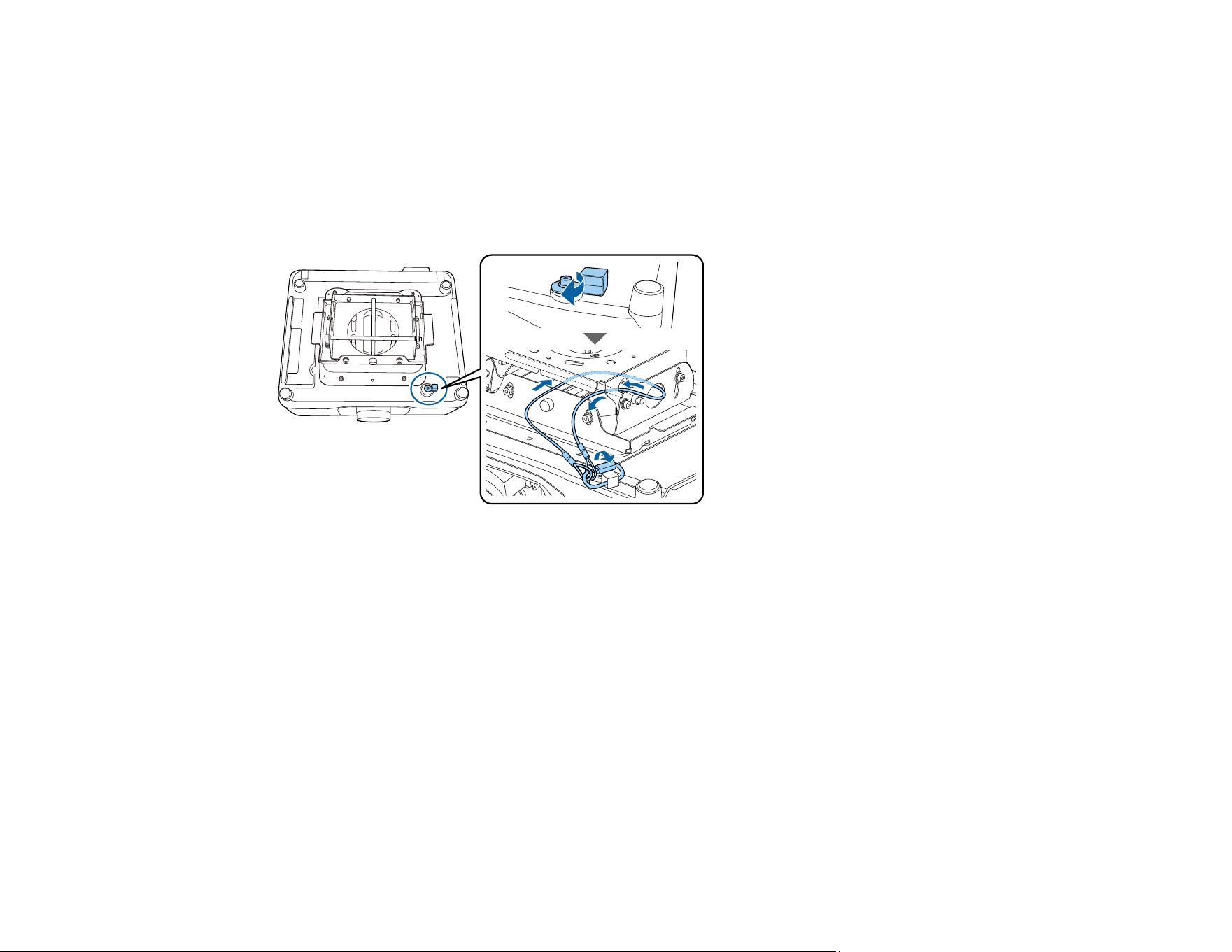
61
Parent topic: Setting Up the Projector
Installing the Safety Wire
When you use the optional ceiling mount, you can install the safety wire to prevent the projector from
falling from the mount.
Secure the ring of the safety wire using the M6 × 15 mm bolt included with the safety wire set, and loop
the safety wire through the ceiling mount to secure it as shown.
Parent topic: Setting Up the Projector
Installing Batteries in the Remote Control
The remote control uses the two batteries that came with the projector.
Caution: Use only the type of batteries specified in this manual. Do not install batteries of different types,
or mix new and old batteries.
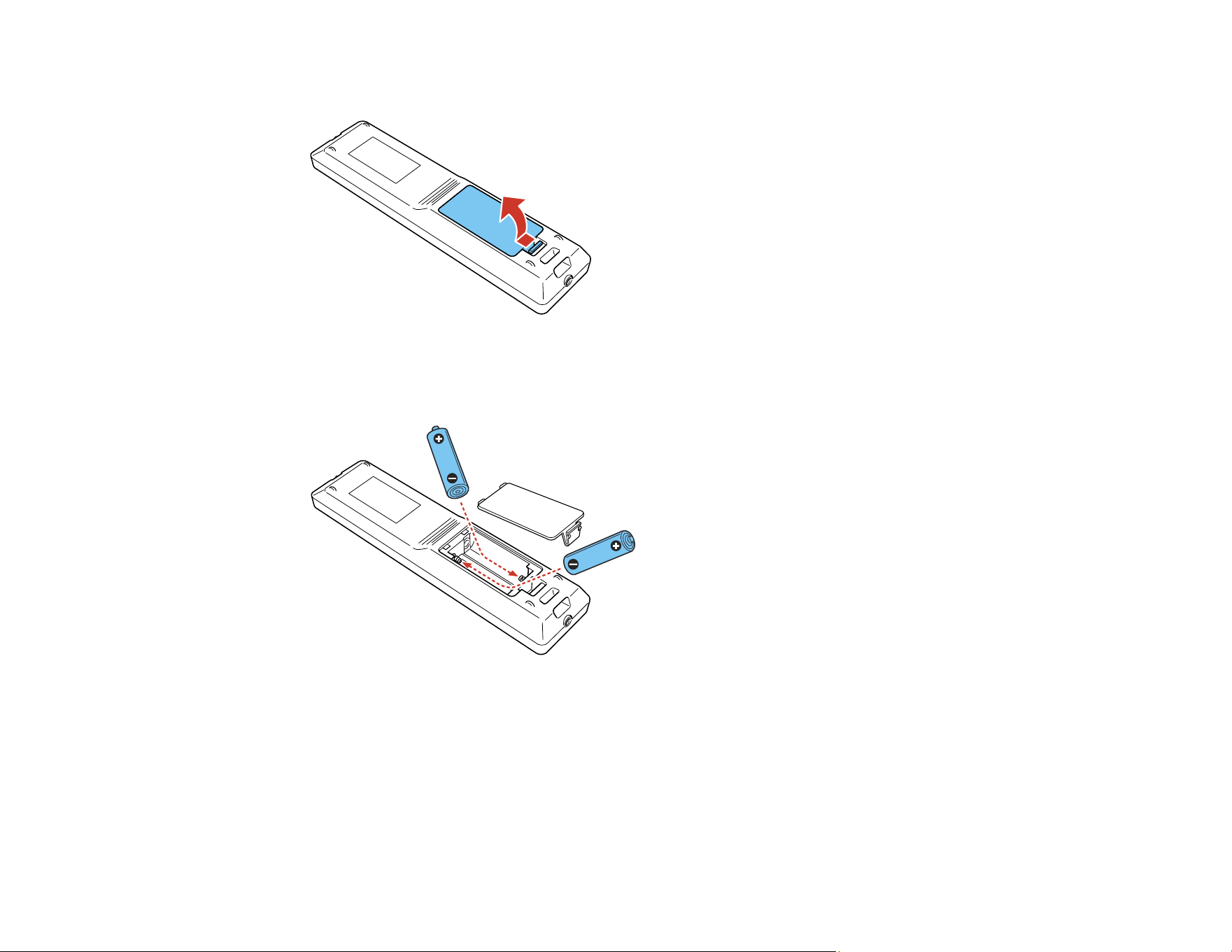
62
1. Remove the battery cover.
2. Remove the old batteries, if necessary.
3. Insert the batteries with the + and – ends facing as shown.
Warning: Make sure the batteries are inserted in the correct positions. If the batteries are not
inserted correctly, they could explode or leak, causing a fire, injury, or damage to the product.
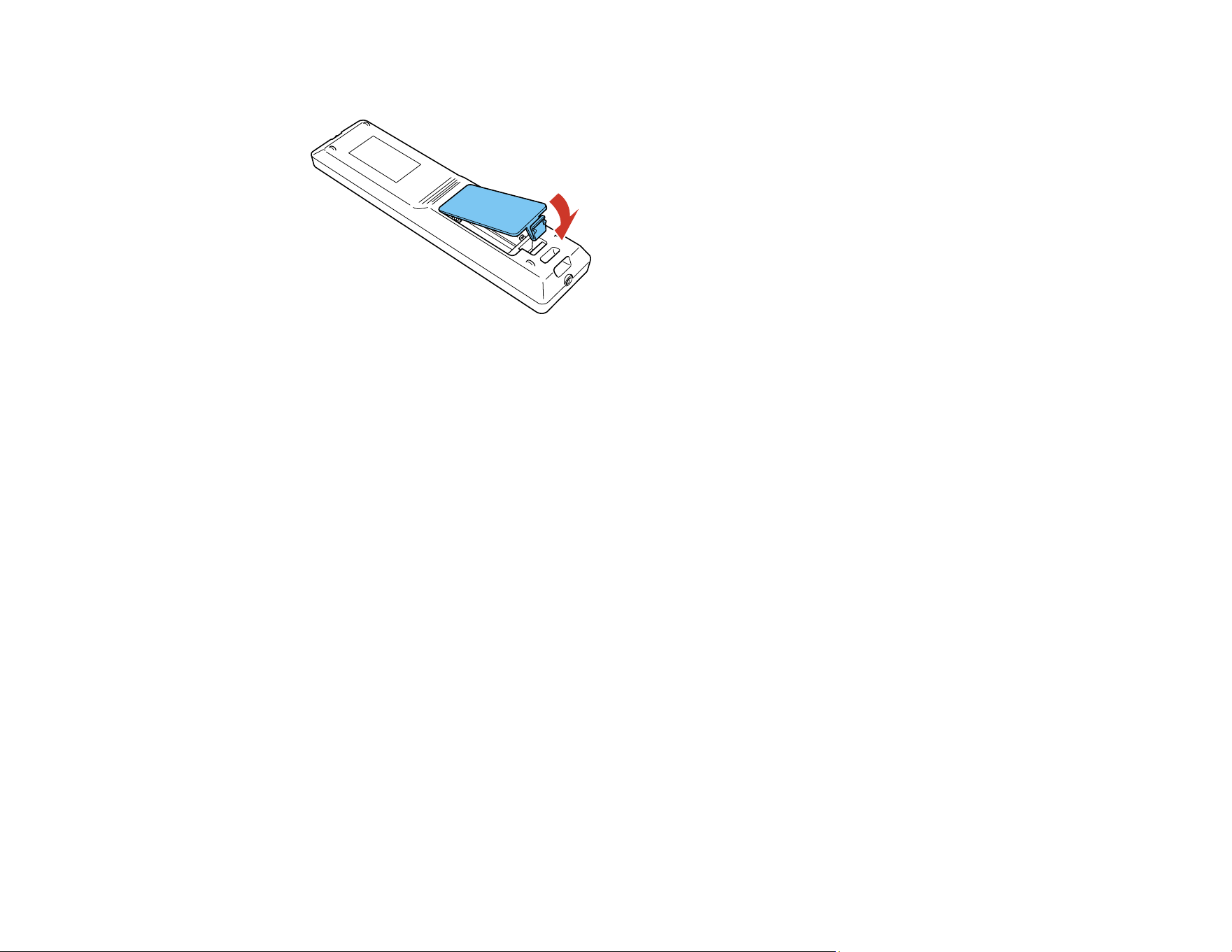
63
4. Replace the battery cover and press it down until it clicks into place.
Warning: Dispose of used batteries according to local regulations. Do not expose batteries to heat
or flame. Keep batteries out of the reach of children; they are choking hazards and are very
dangerous if swallowed.
Parent topic: Setting Up the Projector

64
Using the Projector on a Network
Follow the instructions in these sections to set up your projector for use on a network.
Note: Epson iProjection is not recommended for use with streaming video.
Wired Network Projection
Wireless Network Projection
Setting Up Projector Network E-Mail Alerts
Selecting Other Network Settings
Monitoring and Controlling the Projector
Wired Network Projection
You can project through a wired network. To do this, connect the projector to your network with an
Ethernet cable, and then set up your projector and computer for network projection.
You can use Epson iProjection to project static images and presentations over a wired network.
Note: Epson iProjection is not recommended for use with streaming video.
After connecting and setting up the projector, install the projector software. You may need to install it
from a software CD, if included, or download the software and manuals as necessary.
Connecting to a Wired Network
Selecting Wired Network Settings
Parent topic: Using the Projector on a Network
Related references
Additional Projector Software and Manuals
Connecting to a Wired Network
To connect the projector to a wired local area network (LAN), use a 100Base-TX or 10Base-T network
cable. To ensure proper data transmission, use a Category 5e shielded cable or higher.
1. Connect one end of the network cable to your network hub, switch, or router.
2. Connect the other end of the cable to the projector's LAN port.
Parent topic: Wired Network Projection
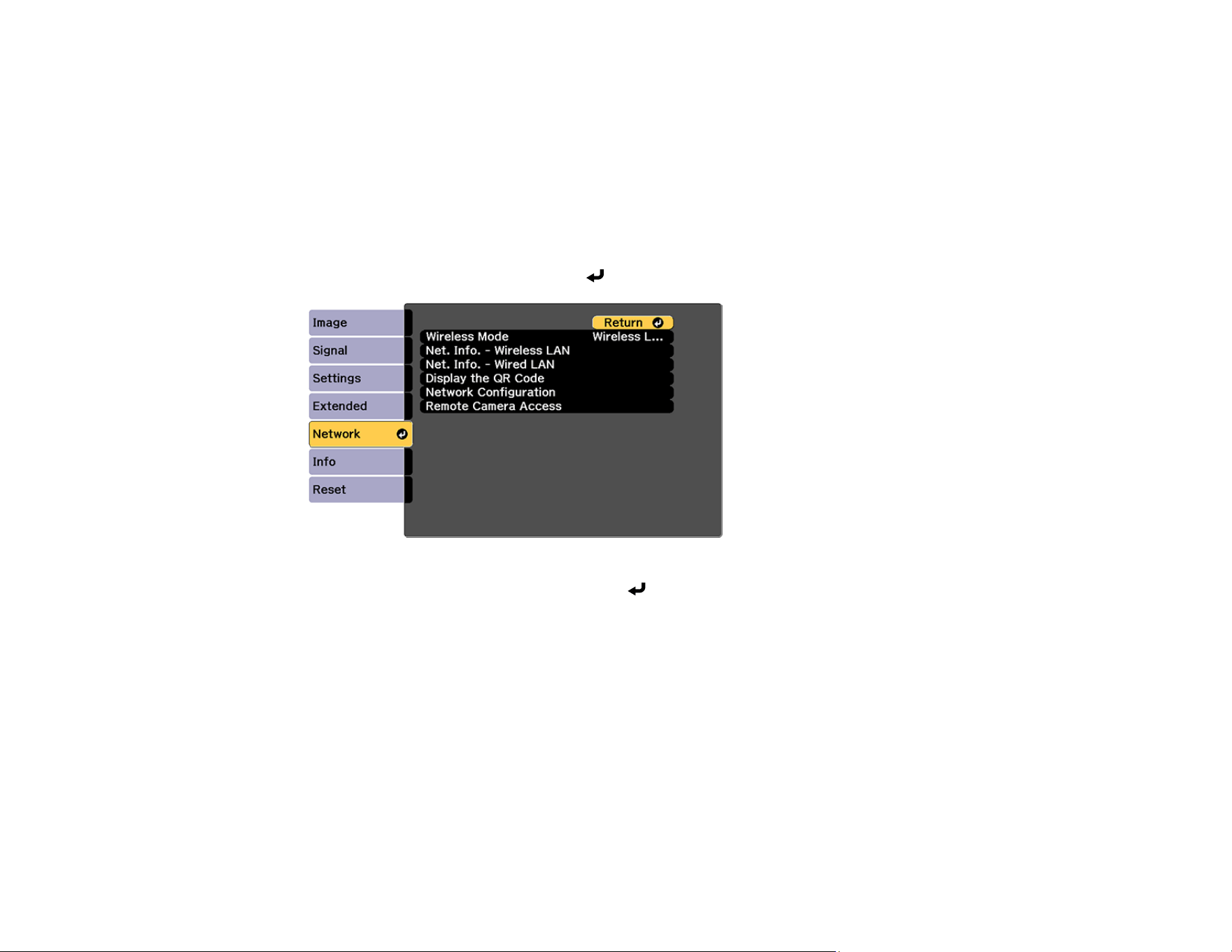
65
Selecting Wired Network Settings
Before you can project from computers, tablets, or smartphones over your network, you must select the
network settings for the projector using its menu system.
Note: Make sure you already connected the projector to your wired network using the LAN port.
1. Turn on the projector.
2. Press the Menu button.
3. Select the Network menu and press Enter.
4. Select Network Configuration and press Enter.
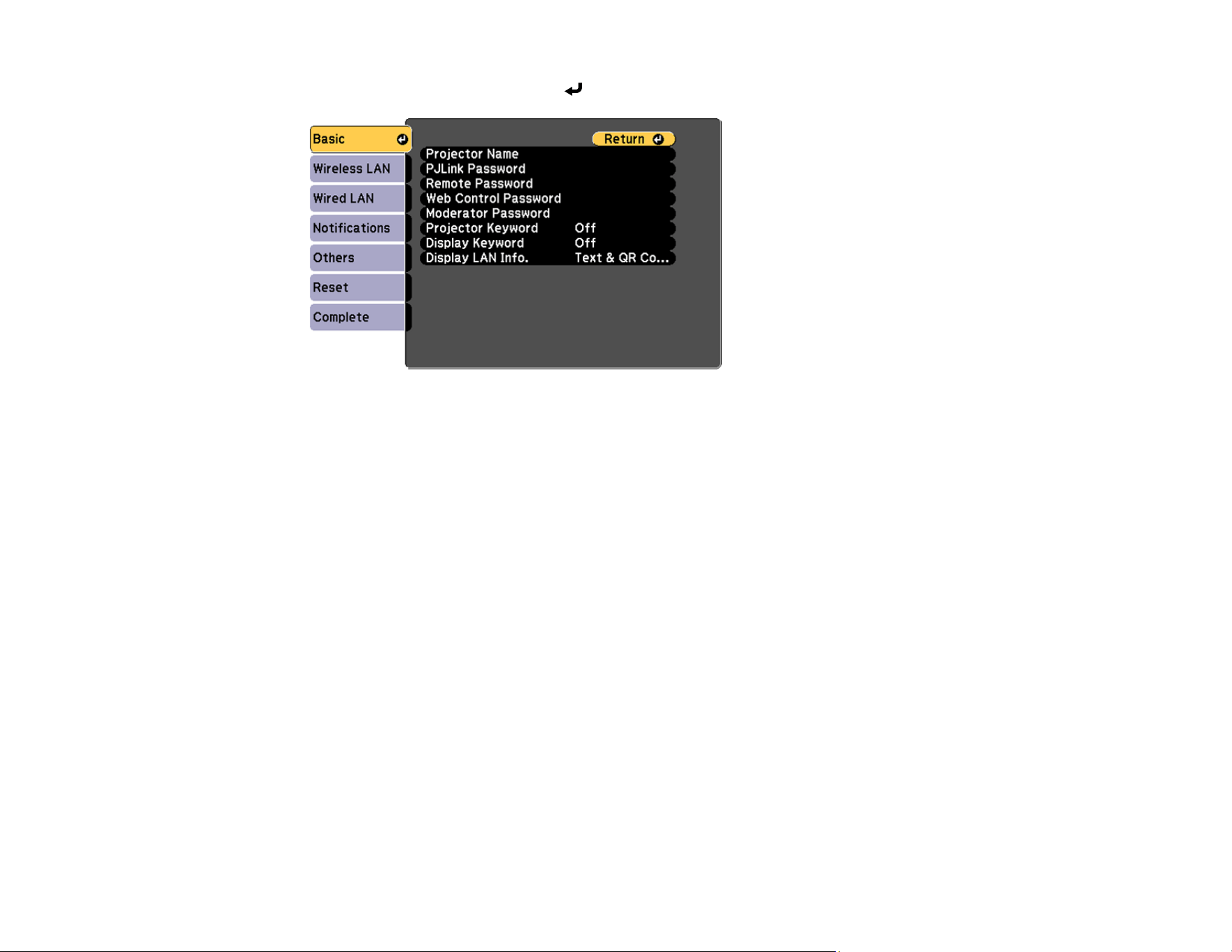
66
5. Select the Basic menu and press Enter.
6. Select the following basic options as necessary:
• Projector Name lets you enter a name up to 16 alphanumeric characters long to identify the
projector over the network.
• PJLink Password lets you enter a password up to 32 alphanumeric characters long for using the
PJLink protocol for projector control.
• Remote Password lets you enter a password up to 32 alphanumeric characters long for
accessing the Remote screen in Epson Web Control. (Default user name is EPSONREMOTE; no
default password is set.)
• Web Control Password lets you enter a password up to 32 alphanumeric characters long for
accessing Epson Web Control. (Default user name is EPSONWEB; no default password is set.)
• Projector Keyword lets you turn on a security password to prevent access to the projector by
anyone not in the room with it. The projector displays a random keyword that you must enter from
a computer using the Epson iProjection (Windows/Mac) software or an iOS or Android device, or
on a Chromebook, using the Epson iProjection app.
• Display Keyword lets you display a keyword on the projected image when accessing the
projector from a computer using the Epson iProjection (Windows/Mac) software or an iOS or
Android device, or on a Chromebook, using the Epson iProjection app.
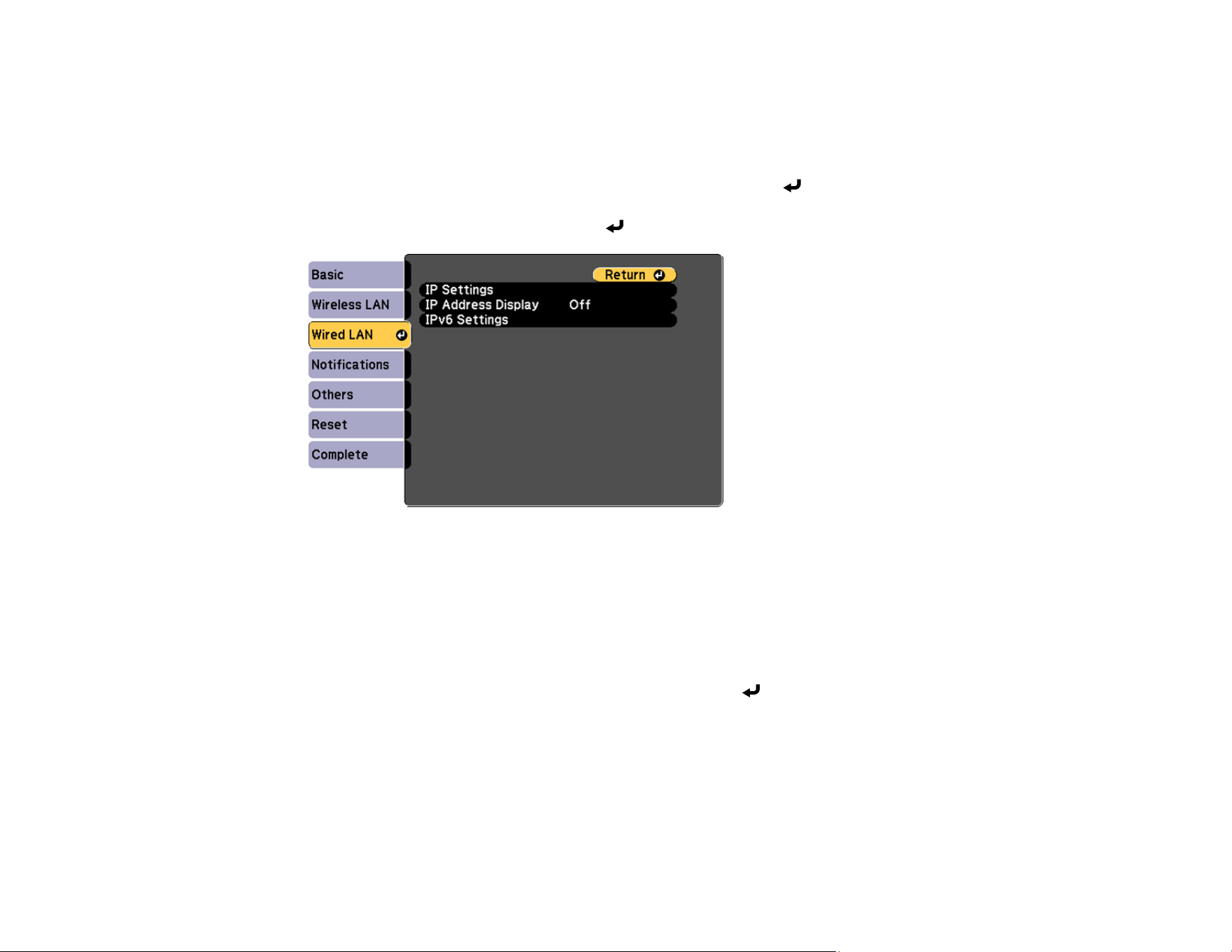
67
• Display LAN Info lets you select how the projector displays network information. You can select
an option to display a QR code that lets you quickly connect your iOS or Android devices using the
Epson iProjection app.
Note: Use the displayed keyboard to enter the name, passwords, and keyword. Press the arrow
buttons on the remote control to highlight characters and press Enter to select them.
7. Select the Wired LAN menu and press Enter.
8. Select your IP Settings as necessary:
• If your network assigns addresses automatically, turn on the DHCP setting.
• If you must set addresses manually, turn off DHCP and enter the projector's IP Address, Subnet
Mask, and Gateway Address as needed.
Note: To highlight the numbers you want from the displayed keyboard, press the arrow buttons on
the remote control. To select a highlighted number, press Enter.
9. To prevent display of the IP address on the standby screen, turn off IP Address Display.
10. To connect the projector to the network using IPv6, select On as the IPv6 Settings option. Then
select the Auto Configuration and Use Temporary Address settings as necessary.

68
11. When you finish selecting settings, select Complete and follow the on-screen instructions to save
your settings and exit the menus.
Parent topic: Wired Network Projection
Related references
Projector Name
PJLink Password
Remote Password
Web Control Password
Monitor Password
Moderator Password
Display Keyword
Projector Keyword
Display LAN Info.
Wireless Network Projection
You can project over a wireless network. To do this, you must set up your projector and computer for
wireless projection.
Note: The Epson 802.11b/g/n/a wireless LAN module is not included with your projector and is optional.
There are two ways to connect to your projector wirelessly:
• Creating a Quick Wireless Connection USB Key (Windows only) using the Epson iProjection software
• Configuring the connection manually using the projector's Network menus
After connecting and setting up the projector, install the projector software as necessary. You may need
to install it from a software CD, if included, or download the software and manuals as necessary.
You can use Epson iProjection to project static images and presentations over a wireless network.
Note: Epson iProjection is not recommended for use with streaming video.
Installing the Wireless LAN Module
Using a QR Code to Connect a Mobile Device
Using Quick Wireless Connection (Windows)
Selecting Wireless Network Settings Manually
Selecting Wireless Network Settings in Windows
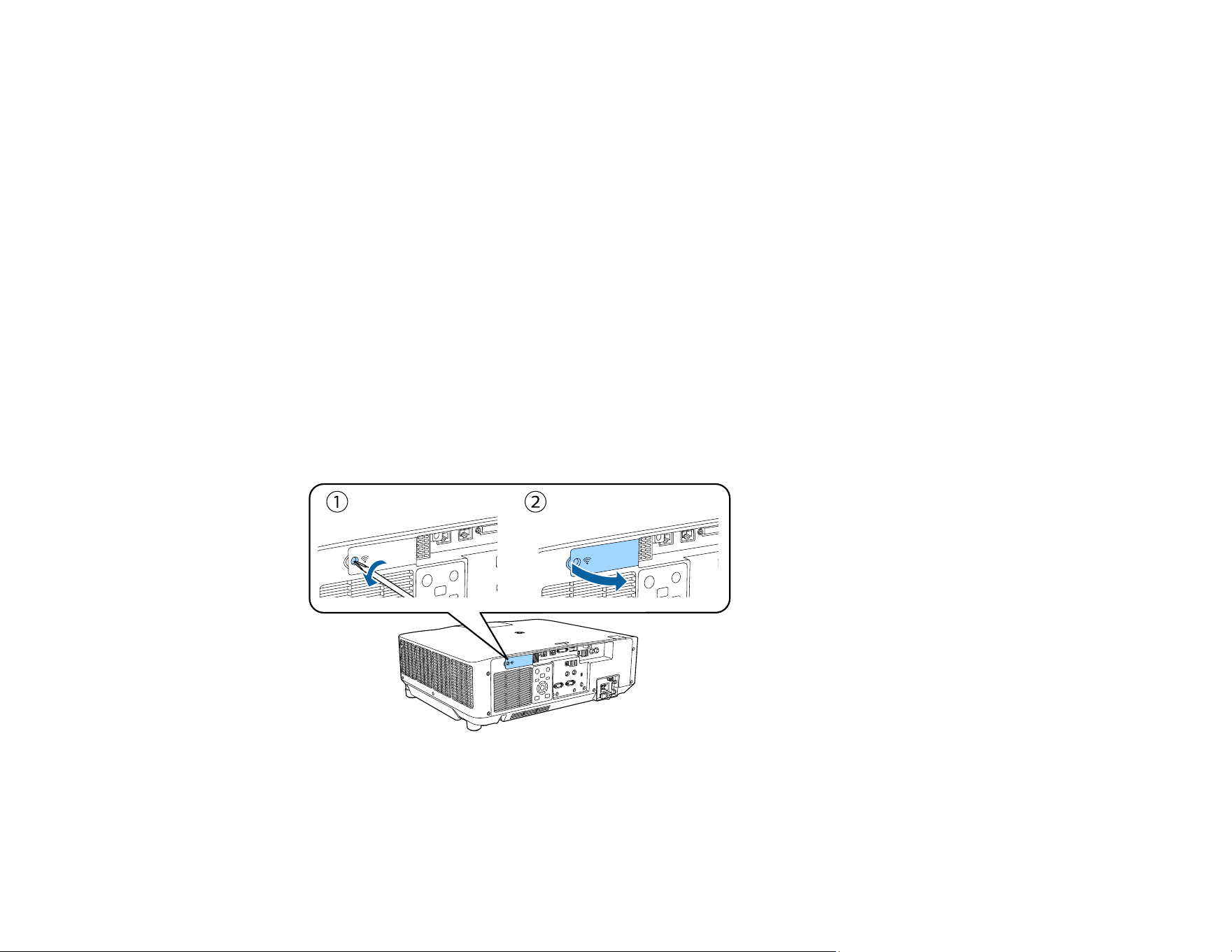
69
Selecting Wireless Network Settings on Mac
Setting Up Wireless Network Security
Parent topic: Using the Projector on a Network
Related references
Additional Projector Software and Manuals
Optional Equipment and Replacement Parts
Installing the Wireless LAN Module
To use the projector over a wireless network, install the optional Epson 802.11b/g/n/a wireless LAN
module. Do not install any other type of wireless LAN module.
Caution: Never remove the module while its indicator light is on or flashing, or while you are projecting
wirelessly. You may damage the module or lose data.
1. Turn off the projector and remove the power cord.
2. Remove the screw securing the wireless LAN module port cover.
3. Remove the wireless LAN module port cover.
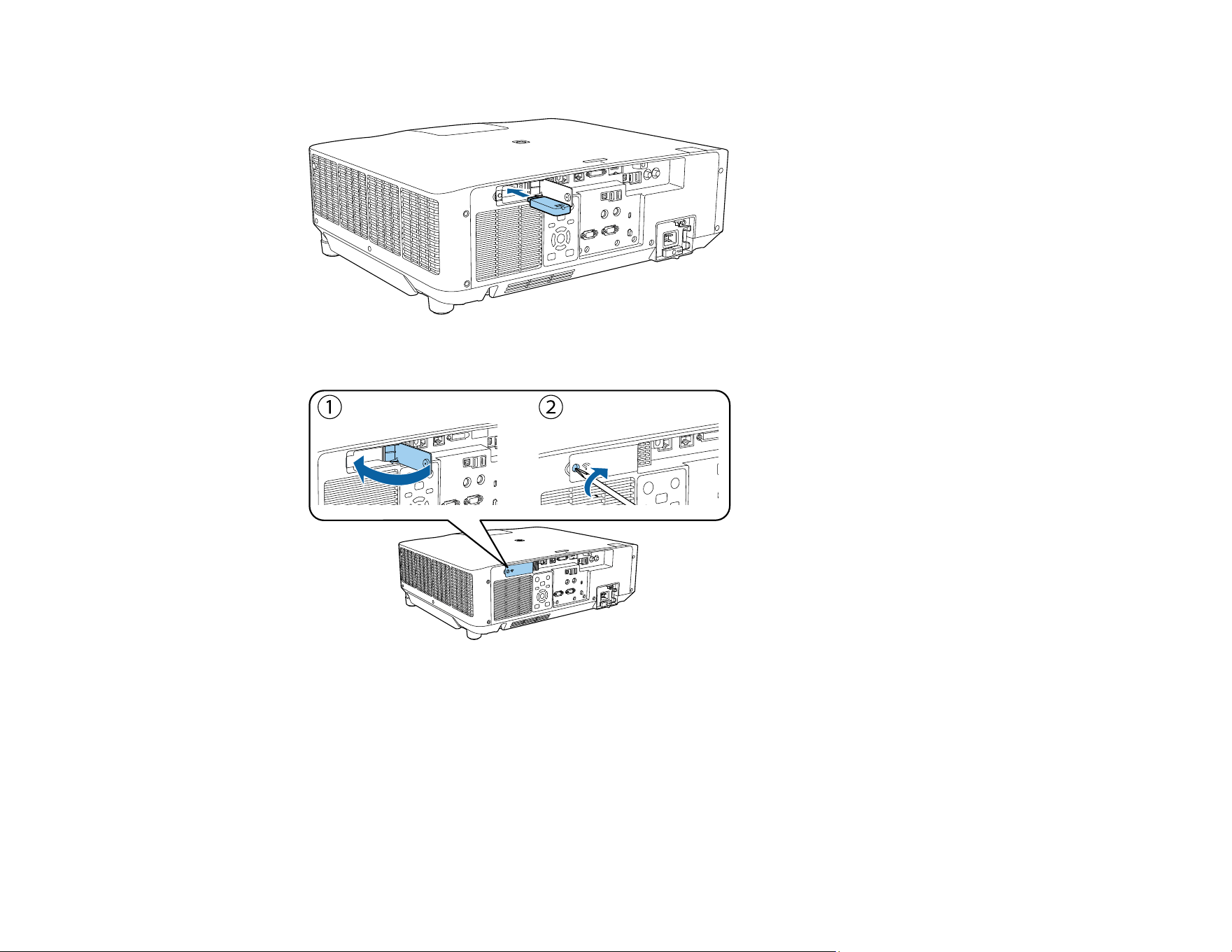
70
4. Insert the wireless LAN module into the port.
5. Replace the wireless LAN module port cover.
6. Secure the wireless LAN module port cover using the screw you removed.
Parent topic: Wireless Network Projection
Related references
Optional Equipment and Replacement Parts
Using a QR Code to Connect a Mobile Device
After you select the wireless network settings for your projector, you can display a QR code on the
screen and use it to connect a mobile device using the Epson iProjection app.
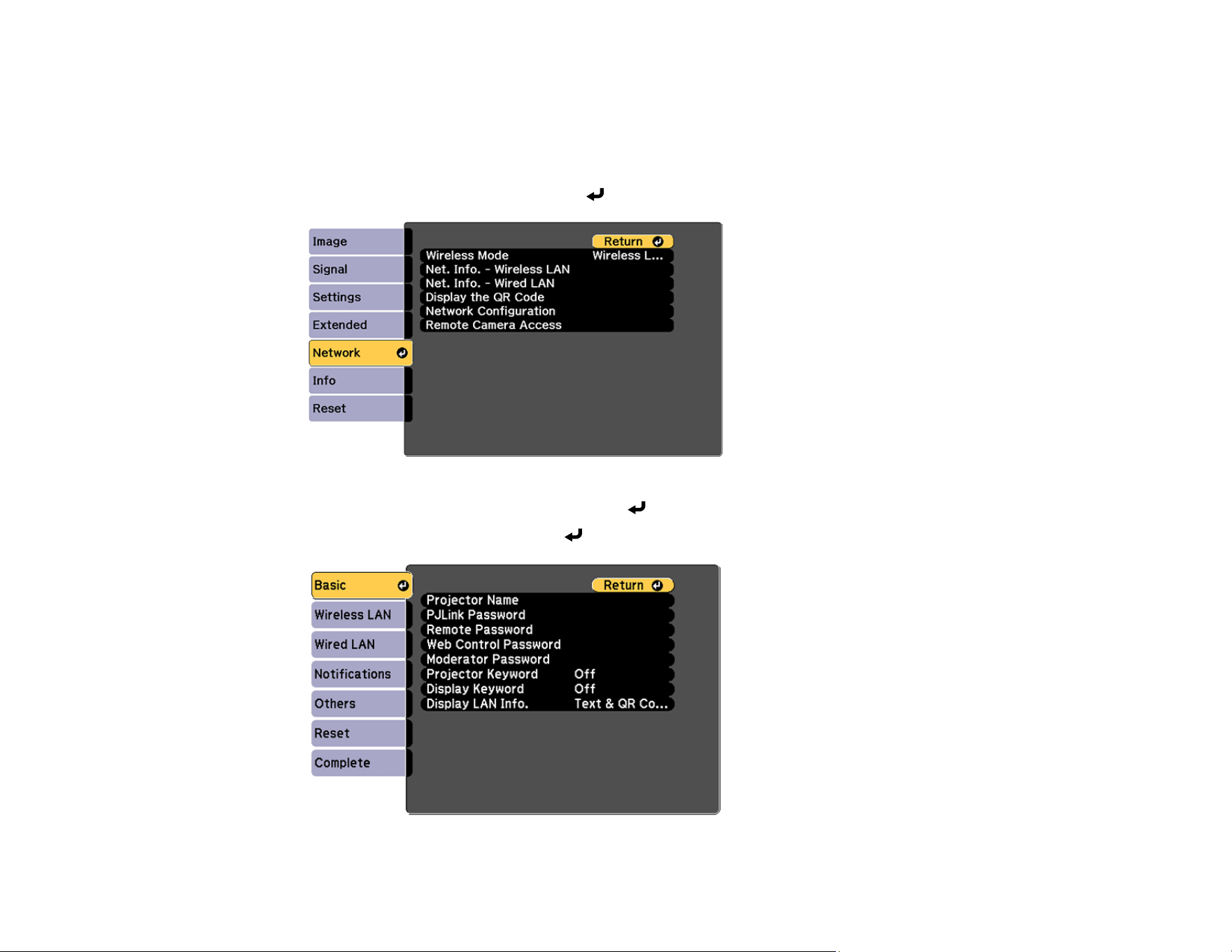
71
Note: Make sure you have installed the latest version of Epson iProjection on your device. Visit
epson.com/iprojection (U.S.), epson.ca/iprojection (Canada), or latin.epson.com/iprojection (Latin
America) for more information.
1. Press the Menu button.
2. Select the Network menu and press Enter.
3. Select Network Configuration and press Enter.
4. Select the Basic menu and press Enter.

72
5. Set the Display LAN Info setting to Text & QR Code.
6. Select Complete and follow the on-screen instructions to save your settings and exit the menus.
7. Do one of the following:
• Press the LAN button on the remote control.
• Select Display the QR Code in the projector's Network menu.
• Press the Home button on the remote control and select Display the QR Code on the Home
screen.
Your projector displays the QR code on the projection surface.
Note: If you do not see the QR code after pressing the LAN button, press Enter to display it.
8. Start Epson iProjection on your mobile device.
9. Use the QR code reader feature to read the QR code and connect your device to the projector. Visit
epson.com/iprojection (U.S.), epson.ca/iprojection (Canada), or latin.epson.com/iprojection (Latin
America) for instructions.
Parent topic: Wireless Network Projection
Related references
Display the QR Code
Display LAN Info.
Using Quick Wireless Connection (Windows)
You can create a Quick Wireless Connection USB Key to quickly connect the projector to a Windows
computer wirelessly. Then you can project your presentation and remove the key when you are done.
Note: A USB flash drive is not included with your projector.
1. Create a Quick Wireless Connection USB Key with a USB flash drive and the Epson iProjection
(Windows/Mac) software.
Note: See the online Epson iProjection Operation Guide (Windows/Mac) for instructions.
2. Turn on the projector.
3. Press the LAN button on the remote control.
You see the LAN standby screen.

73
4. Verify that an SSID and IP address are displayed.
5. Remove the wireless LAN module from the projector.
6. Insert the USB key into the same port used for the wireless LAN module.
You see a projected message that the network information update is complete.
7. Remove the USB key.
8. Reinsert the wireless LAN module into the projector.
9. Insert the USB key into a USB port on your computer.
Note: In Windows Vista, if you see the AutoPlay window, select Run MPPLaunch.exe, then select
Allow on the next screen.
10. Follow the on-screen instructions to install the Epson iProjection (Windows/Mac) software.
Note: If you see a Windows Firewall message, click Yes to disable the firewall. You need
administrator authority to install the software. If it is not installed automatically, double-click
MPPLaunch.exe in the USB key.
After a few minutes, your computer image is displayed by the projector. If it does not appear, press
the LAN or Source Search button on your remote control or restart your computer.
11. Run your presentation as necessary.
12. When you finish projecting wirelessly, select the Safely Remove Hardware option in the Windows
taskbar, then remove the USB key from your computer.
Note: You can share the USB key with other computers without disconnecting your computer. You
may need to restart your computer to reactivate your wireless LAN connection.
Parent topic: Wireless Network Projection
Selecting Wireless Network Settings Manually
Before you can project from your wireless network, you must select the network settings for the projector
using its menu system.
1. Turn on the projector.
2. Press the Menu button.
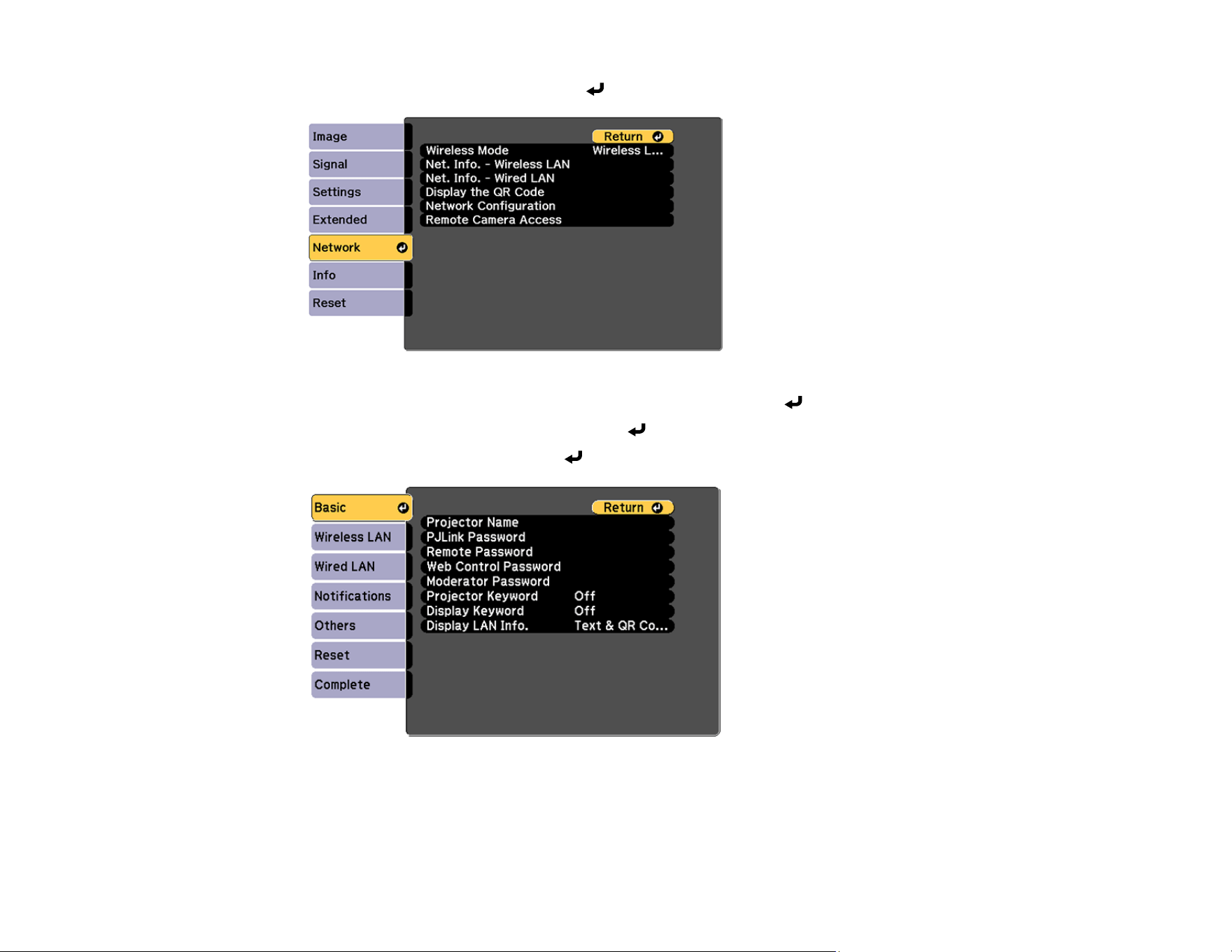
74
3. Select the Network menu and press Enter.
4. Set the Wireless Mode setting to Wireless LAN On and press Enter.
5. Select Network Configuration and press Enter.
6. Select the Basic menu and press Enter.
7. Select the following basic options as necessary:
• Projector Name lets you enter a name up to 16 alphanumeric characters long to identify the
projector over the network.

75
• PJLink Password lets you enter a password up to 32 alphanumeric characters long for using the
PJLink protocol for projector control.
• Remote Password lets you enter a password up to 32 alphanumeric characters long for
accessing the projector using Basic Control. (Default user name is EPSONREMOTE; no default
password is set.)
• Web Control Password lets you enter a password up to 32 alphanumeric characters long for
accessing the projector over the web. (Default user name is EPSONWEB; no default password is
set.)
• Moderator Password lets you enter a password up to 4 numbers long for accessing the projector
as a moderator with the Epson iProjection (Windows/Mac) software or the Epson iProjection app.
• Projector Keyword lets you turn on a security password to prevent access to the projector by
anyone not in the room with it. The projector displays a random keyword that you must enter from
a computer using the Epson iProjection (Windows/Mac) software or an iOS or Android device, or
on a Chromebook, using the Epson iProjection app.
• Display Keyword lets you display a keyword on the projected image when accessing the
projector from a computer using the Epson iProjection (Windows/Mac) software or an iOS or
Android device, or on a Chromebook, using the Epson iProjection app.
• Display LAN Info lets you select how the projector displays network information. You can select
an option to display a QR code that lets you quickly connect your iOS or Android devices with the
Epson iProjection app.
Note: Use the displayed keyboard to enter the name, passwords and keyword. Press the arrow
buttons on the remote control to highlight characters and press Enter to select them.
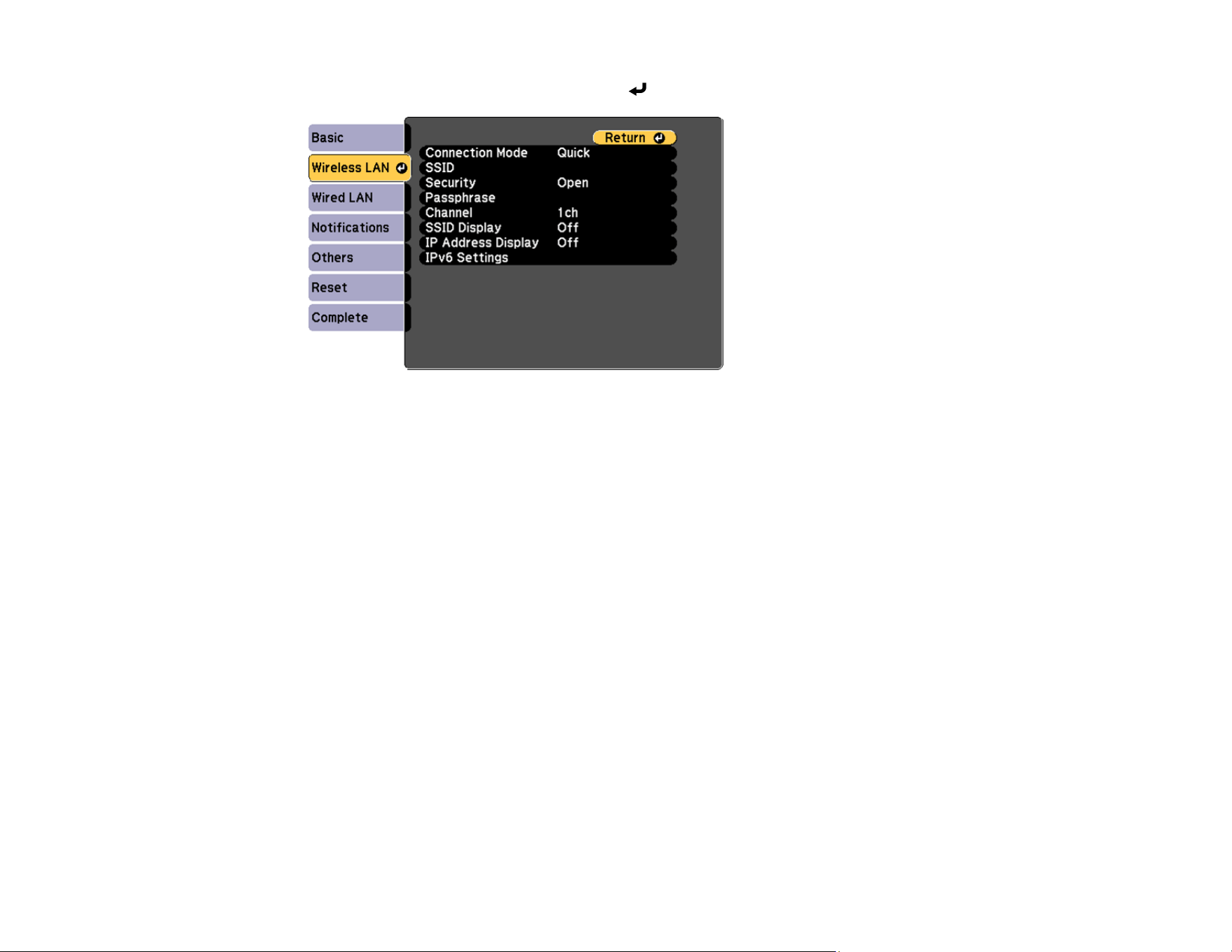
76
8. Select the Wireless LAN menu and press Enter.
9. Select the settings on the Wireless LAN menu as necessary for your network.
10. When you finish selecting settings, select Complete and follow the on-screen instructions to save
your settings and exit the menus.
After you complete the wireless settings for your projector, you need to select the wireless network on
your computer, Chromebook, or iOS or Android device.
Wireless LAN Menu Settings
Parent topic: Wireless Network Projection
Related references
Projector Name
PJLink Password
Remote Password
Web Control Password
Monitor Password
Moderator Password
Display Keyword
Projector Keyword
Display LAN Info.
Connection Mode
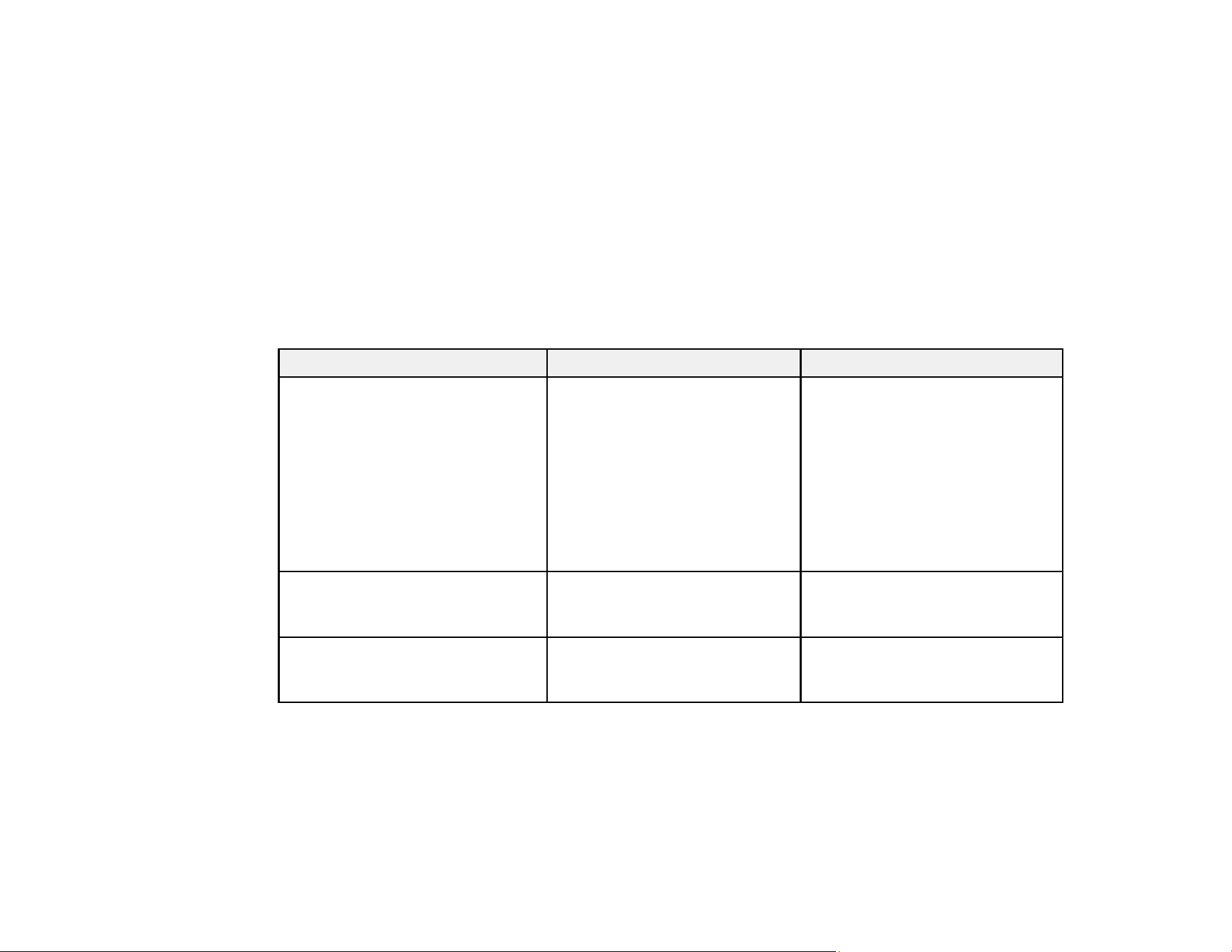
77
Search Access Point
SSID
Security
Passphrase
EAP Method
Channel
IP Settings
SSID Display
IP Address Display
IPv6 Settings
Wireless LAN Menu Settings
Setting Options Description
Connection Mode Quick
Advanced
Selects the type of wireless
connection:
Quick: lets you connect to
multiple smartphones, tablets, or
computers directly
Advanced: lets you connect to
multiple smartphones, tablets, or
computers via a wireless network
access point
Search Access Point To Search View Search for available wireless
network access points in
Advanced connection mode
SSID Up 32 alphanumeric characters Sets the SSID (network name) of
the wireless LAN system the
projector is connecting to

78
Setting Options Description
Security Open
WPA2-PSK
WPA3-PSK
WPA2/WPA3-PSK
WPA3-EAP
WPA2/WPA3-EAP
Selects the type of wireless
security used in the wireless
network (some options are only
available when the Connection
Mode setting is set to
Advanced)
Passphrase Between 8 to 63 alphanumeric
characters
Enter a paraphrase for the
wireless network
EAP Method EAP Type
User name
Password
Client Certificate
Verify Server Cert.
CA certificate
RADIUS Serv.Name
Sets the EAP settings for WPA3-
EAP and WPA2/WPA3-EAP
security
Channel 1ch
6ch
11ch
In Quick connection mode,
selects the frequency band
(channel) used by the wireless
LAN
IP Settings DHCP
IP Address
Subnet Mask
Gateway Address
DNS Server 1
DNS Server 2
Turns on DHCP if your network
assigns addresses automatically;
set to Off to manually enter the
network's IP Address, Subnet
Mask, and Gateway Address
(some options are only available
when the Connection Mode
setting is set to Advanced)
SSID Display On
Off
Selects whether to display the
SSID on the network standby
screen
79
Setting Options Description
IP Address Display On
Off
Selects whether to display the IP
address on the network standby
screen
IPv6 Settings IPv6
Auto Configuration
Use Temporary Address
Selects the IPv6 settings when
you connect the projector to the
network using IPv6
The Epson Web Control and
PJLink functions support IPv6.
Parent topic: Selecting Wireless Network Settings Manually
Selecting Wireless Network Settings in Windows
Before connecting to the projector, select the correct wireless network on your computer.
1. To access your wireless utility software, access the Desktop and double-click the network icon on
the Windows taskbar.
2. Do one of the following:
• If your projector is set up on an existing network (Advanced mode), select the network name
(SSID).
• If your projector is configured for Quick mode, select the projector's SSID.
3. Click Connect.
Parent topic: Wireless Network Projection
Selecting Wireless Network Settings on Mac
Before connecting to the projector, select the correct wireless network on your Mac.
1. Click the AirPort or Wi-Fi icon on the menu bar at the top of the screen.
2. Make sure AirPort or Wi-Fi is turned on, then do one of the following:
• If your projector is set up on an existing network (Advanced mode), select the network name
(SSID).
• If your projector is configured for Quick mode, select the projector's SSID.
Parent topic: Wireless Network Projection
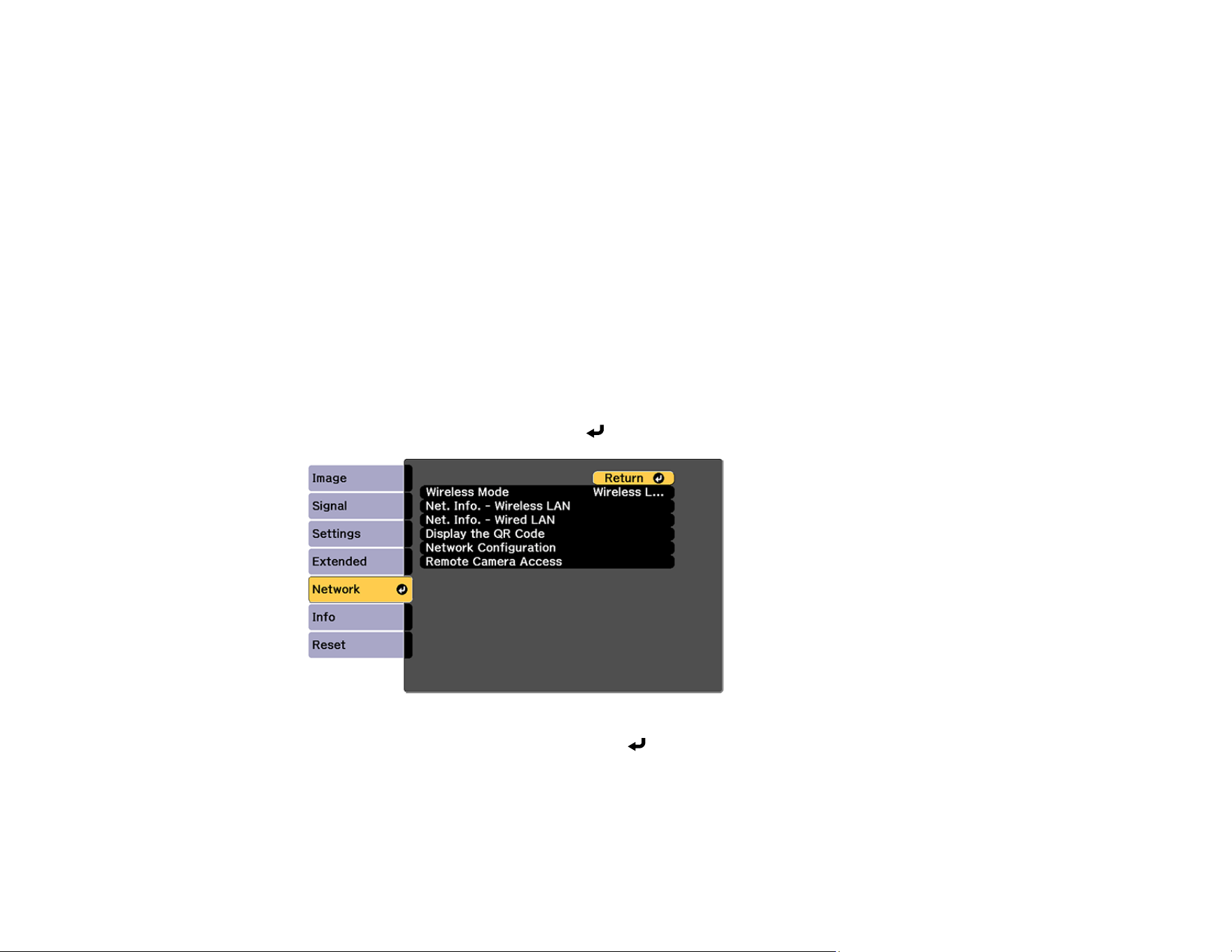
80
Setting Up Wireless Network Security
You can set up security for your projector to use on a wireless network. Set up one of the following
security options to match the settings used on your network:
• WPA2-PSK (Quick connection mode)
• WPA3-PSK (Advanced connection mode)
• WPA3-EAP (Advanced connection mode)
• WPA2/WPA3-PSK (Advanced connection mode)
• WPA2/WPA3-EAP (Advanced connection mode)
Note: Contact your network administrator for guidance on entering the correct information.
1. If you want to set up WPA3-EAP or WPA2/WPA3-EAP security, make sure your digital certificate file
is compatible with projector registration and placed directly on the USB storage device.
2. Press the Menu button.
3. Select the Network menu and press Enter.
4. Select Network Configuration and press Enter.
5. Select the Wireless LAN menu and press Enter.
6. Set the Security setting to match your network settings.

81
7. Do one of the following depending on the network security setting you selected:
• WPA2-PSK, WPA3-PSK, or WPA2/WPA3-PSK: Select Complete and follow the on-screen
instructions to save your settings and exit the menus. Skip the remaining steps.
• WPA3-EAP or WPA2/WPA3-EAP: Select EAP Method and press Enter.
8. Select your authentication protocol as the EAP Type setting.
9. To import your certification, select the certificate type (either Client Certificate or CA certificate)
and press Enter.
Note: You can also register a digital certificate from your web browser. Make sure to register just
once or the certificate may not install correctly.
10. Select Register and press Enter.
11. Follow the on-screen instructions to connect a USB storage device to the projector's USB-A port.
12. Press Enter to display the certificate list.
13. Select the certificate to import from the displayed list.
You see a message to enter the certificate password.
14. Enter a password and press Enter.
You see a completion message after the certificate is imported.
15. Set the following EAP settings as necessary:
• User name lets you enter a user name up to 64 alphanumeric characters long. To enter more than
32 characters, use your web browser.
• Password lets you enter a password up to 64 alphanumeric characters long when using the
PEAP, EAP-FAST, or LEAP protocols. To enter more than 32 characters, use your web browser.
• Verify Server Cert. lets you select whether or not to verify the server certificate when a CA
certificate has been set.
• RADIUS Serv.Name lets you enter the server name to be verified.
16. When you finish selecting settings, select Complete and follow the on-screen instructions to save
your settings and exit the menus.
Parent topic: Wireless Network Projection
Related references
Security
EAP Method
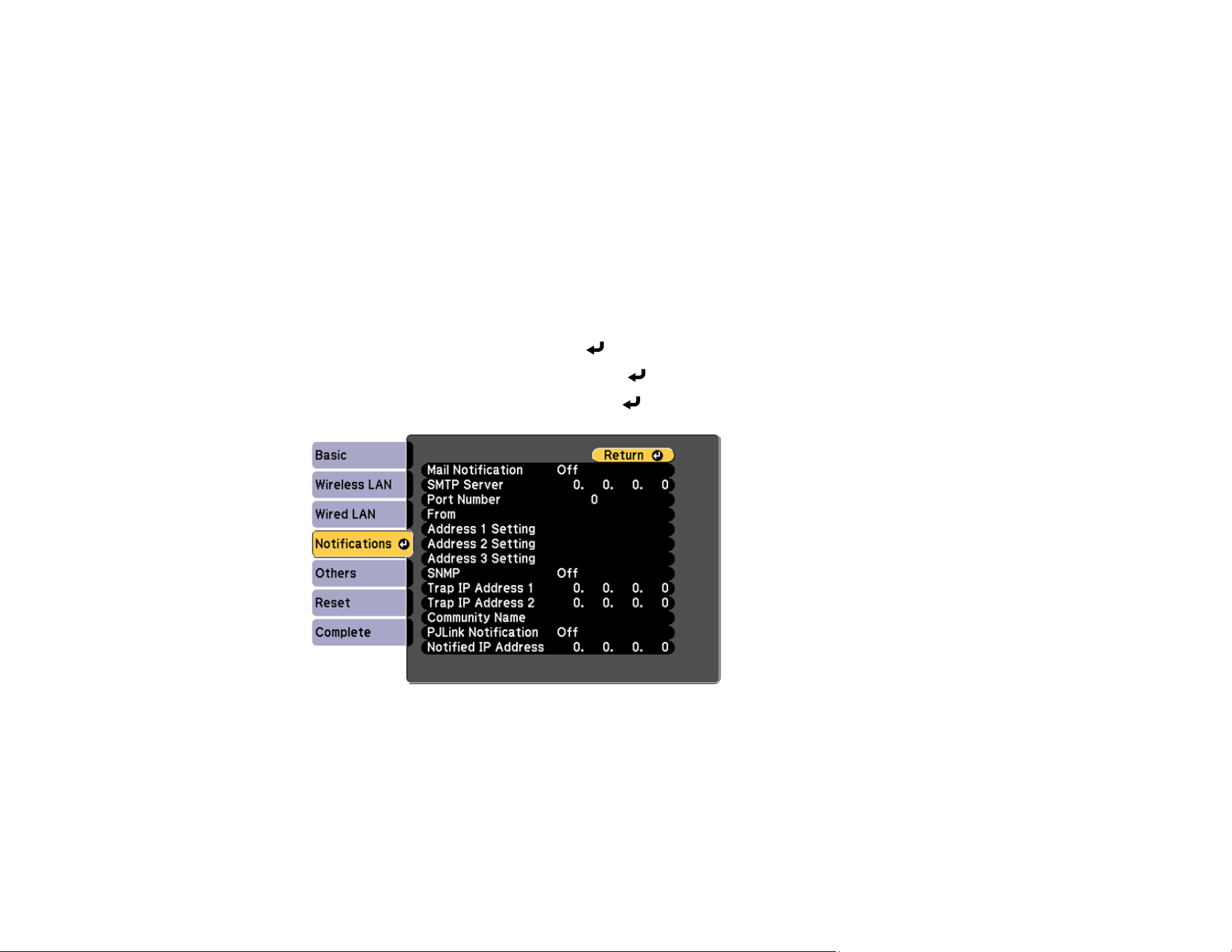
82
Related tasks
Registering Digital Certificates from a USB Device
Setting Up Projector Network E-Mail Alerts
You can set up the projector to send you an e-mail alert over the network if there is a problem with the
projector.
Note: If the Standby Mode setting is set to Communication On in the Extended menu, you can receive
e-mail alerts even if the projector is in standby mode (the power is off). The projector must be connected
to a wired LAN or a wireless LAN with the Connection Mode setting set to Advanced.
1. Press the Menu button.
2. Select the Network menu and press Enter.
3. Select Network Configuration and press Enter.
4. Select the Notifications menu and press Enter.
5. Turn on Mail Notification.
6. Enter the IP address for the SMTP Server setting.
Note: Do not use these addresses: 127.x.x.x or 224.0.0.0 through 255.255.255.255 (where x is a
number from 0 to 255).

83
7. Select a number for the SMTP server Port Number setting, from 1 to 65535 (default is 25).
8. Enter the sender's email address as the From setting.
9. Choose an Address Setting field, enter the e-mail address, and select or deselect the alerts you
want to receive there. Your e-mail address can be up to 32 alphanumeric characters long. Repeat
for up to three addresses.
Note: You can enter more than 32 characters for the email address if you use Web Config.
10. If you are using the PJLink protocol for projector control, turn on the PJLink Notification setting and
enter the IP address where you want to receive PJLink notifications as the Notified IP Address
setting.
11. When you finish selecting settings, select Complete and follow the on-screen instructions to save
your settings and exit the menus.
Note: If a critical problem causes a projector to shut down, you may not receive an e-mail alert.
Network Projector E-mail Alert Messages
Parent topic: Using the Projector on a Network
Related references
Mail Notification
SMTP Server
Port Number
From
Address 1/Address 2/Address 3 Setting
SNMP
Trap IP Address 1/Trap IP Address 2
Community Name
PJLink Notification
Notified IP Address
Standby Mode

84
Network Projector E-mail Alert Messages
When a problem occurs with a networked projector, and you selected to receive e-mail alerts, you
receive an e-mail containing the following information:
• Epson Projector on the subject line
• The name of the projector experiencing a problem
• The IP address of the affected projector
• Detailed information about the problem
Note: If a critical problem causes a projector to shut down, you may not receive an e-mail alert.
Parent topic: Setting Up Projector Network E-Mail Alerts
Selecting Other Network Settings
You can select optional network settings on the Others menu.
1. Press the Menu button.
2. Select the Network menu and press Enter.
3. Select Network Configuration and press Enter.
4. Select the Others menu and press Enter.
5. If you want to select the authentication method for command communication, select Command
Communication. Select Protected to perform Digest Authentication using the Web Control
Password setting. Select Compatible to perform plain text authentication using the Monitor
Password.
6. If you want to use the Secure HTTP protocol to encrypt communication when using Web Control,
turn on the Secure HTTP setting and import the web server certificate using the Web Server Cert.
setting.
7. If you want to operate the projector using Web API, turn on the Web API setting. The username for
API authentication is EPSONWEB; use the password that is set for the Web Control Password.
8. Select the Priority Gateway setting for your network.
9. If your network environment uses an AMX controller, turn on the AMX Device Discovery setting to
allow the projector to be detected.
10. If your network environment uses a Crestron Connected controller, turn on the Crestron Connected
setting to allow the projector to be detected.

85
Note: Enabling Crestron Connected disables the Message Broadcasting feature in the Epson
Projector Management software (Windows only).
11. If your network environment uses Crestron Xio Cloud, turn on the Crestron Xio Cloud setting.
12. If you want to control the projector using Art-Net (an Ethernet communication protocol based on
TCP/IP), turn on the Art-Net setting.
13. If you want to control the projector using sACN, turn on the sACN setting and make the necessary
settings.
14. If you want this projector to receive broadcast messages over the network, turn on the Message
Broadcasting setting. Administrators can broadcast messages over the network using the Epson
Projector Management software (Windows only).
15. When you finish selecting settings, select Complete and follow the on-screen instructions to save
your settings and exit the menus.
Parent topic: Using the Projector on a Network
Related references
Command Communication
Secure HTTP
Web Server Certificate
Web API Settings
Priority Gateway
Basic Control
PJLink
AMX Device Discovery
Crestron Connected
Crestron Xio Cloud
Art-Net
sACN
Message Broadcasting
Monitoring and Controlling the Projector
Follow the instructions in these sections to monitor and control the projector over a network.
Epson Projector Management and Epson Projector Management Connected
Epson Web Control

86
SNMP
ESC/VP21 Commands
ESC/VP.net Commands
PJLink
Art-Net
sACN
Controlling a Networked Projector Using a Web Browser
Controlling a Networked Projector in Content Playback Mode
Using Crestron Connected
Secure HTTP
Parent topic: Using the Projector on a Network
Epson Projector Management and Epson Projector Management Connected
Epson Projector Management Connected and Epson Projector Management software (Windows only)
lets you monitor and control your projector over a network.
With Epson Projector Management Connected, projector information is managed on a cloud server, so it
can be remotely monitored and controlled from any device. Epson Projector Management is a Windows-
only software that allows you to monitor and control projectors within the same network from your
computer. Choose one of the software programs mentioned above depending on your usage
environment and purpose.
For additional information, visit the Epson support website.
Parent topic: Monitoring and Controlling the Projector
Epson Web Control
Once you have connected your projector to your network, you can select projector settings and control
projection using a compatible Web browser. This lets you access the projector remotely. See the link
below for more information.
In Content Playback mode, you can also edit playlists.
Note: You can use the following Web browsers.
• Microsoft Edge (Windows)
• Safari (Mac, iOS)
• Chrome (Android)

87
While using the Web browser, do not connect using a proxy server. You cannot select all of the projector
menu settings or control all projector functions using a Web browser.
If you set Standby Mode to Communication On, you can use a Web browser to select settings and
control projection even if the projector is in standby mode.
• Extended > Standby Mode
Parent topic: Monitoring and Controlling the Projector
Related tasks
Controlling a Networked Projector Using a Web Browser
Controlling a Networked Projector in Content Playback Mode
SNMP
Network administrators can install SNMP (Simple Network Management Protocol) software on network
computers so they can monitor projectors. If your network uses this software, you can set up the
projector for SNMP monitoring.
• Network > Network Configuration > Notifications > SNMP
Note: This projector supports SNMP agent version 1 (SNMPv1).
Parent topic: Monitoring and Controlling the Projector
ESC/VP21 Commands
You can control the projector from an external device using ESC/VP21.
When the power ON command is transmitted to the projector, the power turns on and enters warm-up
mode. When the projector's power has turned on, a colon ":" (3Ah) is returned.
When a command is input, the projector executes the command and returns a":", and then accepts the
next command.
If the command being processed terminates abnormally, an error message is output and a ":" is
returned.
You can also execute some of the ESC/VP21 commands by Web API.
For additional information, visit the Epson website and search for your product's support page.
Parent topic: Monitoring and Controlling the Projector

88
ESC/VP.net Commands
You can monitor the projector using ESC/VP.net commands. When the Command Communication
setting is set to Protected, you can connect to the projector using version 2.0 and the Web Control
Password. When the Command Communication setting is set to Compatible, you can connect to the
projector using version 2.0 or 1.0. Use the Monitor Password to access version 1.0.
• Network > Network Configuration > Others > Command Communication
You must set the Web Control Password or Monitor Password before using the ESC/VP.net Commands.
For additional information, visit the Epson website and search for your product's support page.
Parent topic: Monitoring and Controlling the Projector
PJLink
PJLink was established by the JBMIA (Japan Business Machine and Information System Industries
Association) as a standard protocol for controlling network compatible projectors as part of their efforts to
standardize projector control protocols. The projector complies with the PJLink Class2 standard
established by the JBMIA. The port number used for the PJLink search function is 4352 (UDP). You
need to configure the network settings before you can use PJLink.
• Network > Network Configuration > Basic > PJLink Password
• Network > Network Configuration > Notifications > PJLink Notification
• Network > Network Configuration > Others > PJLink
It complies with all commands except for the following commands defined by PJLink Class2 and
confirmed by the PJLink standard adaptability verification.
Non-compatible commands:
• Image muting set - AVMT 11
• Audio muting set - AVMT 21
For additional information, visit the Epson website and search for your product's support page.
Parent topic: Monitoring and Controlling the Projector
Art-Net
Art-Net is an Ethernet communication protocol based on the TCP/IP protocol. You can control the
projector by using a DMX controller or an application system.
For additional information, visit the Epson website and search for your product's support page.
Parent topic: Monitoring and Controlling the Projector

89
sACN
sACN is an Ethernet communication protocol based on the TCP/IP protocol. You can control the
projector by using a DMX controller or an application system. sACN communicates using the multicast
method.
For additional information, visit the Epson website and search for your product's support page.
Parent topic: Monitoring and Controlling the Projector
Controlling a Networked Projector Using a Web Browser
Once you have connected your projector to your network, you can select projector settings and control
projection using a compatible web browser. This lets you access the projector remotely.
Note: If you set Standby Mode to Communication On, you can use a web browser to select settings
and control projection even if the projector is in standby mode.
1. Make sure the projector is turned on.
2. Start your web browser on a computer or device connected to the network.
3. Type the projector's IP address into the browser's address box and press the computer's Enter key.
Note: You may need to log in to access some of the options on the Web Control screen. If you see a
log in window, enter your user name and password.
• For the Basic Control option, the default user name is EPSONREMOTE. No password is set by
default.
• For all other options, the default user name is EPSONWEB. No password is set by default.
• You can change the password in the projector's Network menu:
• Network > Network Configuration > Basic > Remote Password
• Network > Network Configuration > Basic > Web Control Password
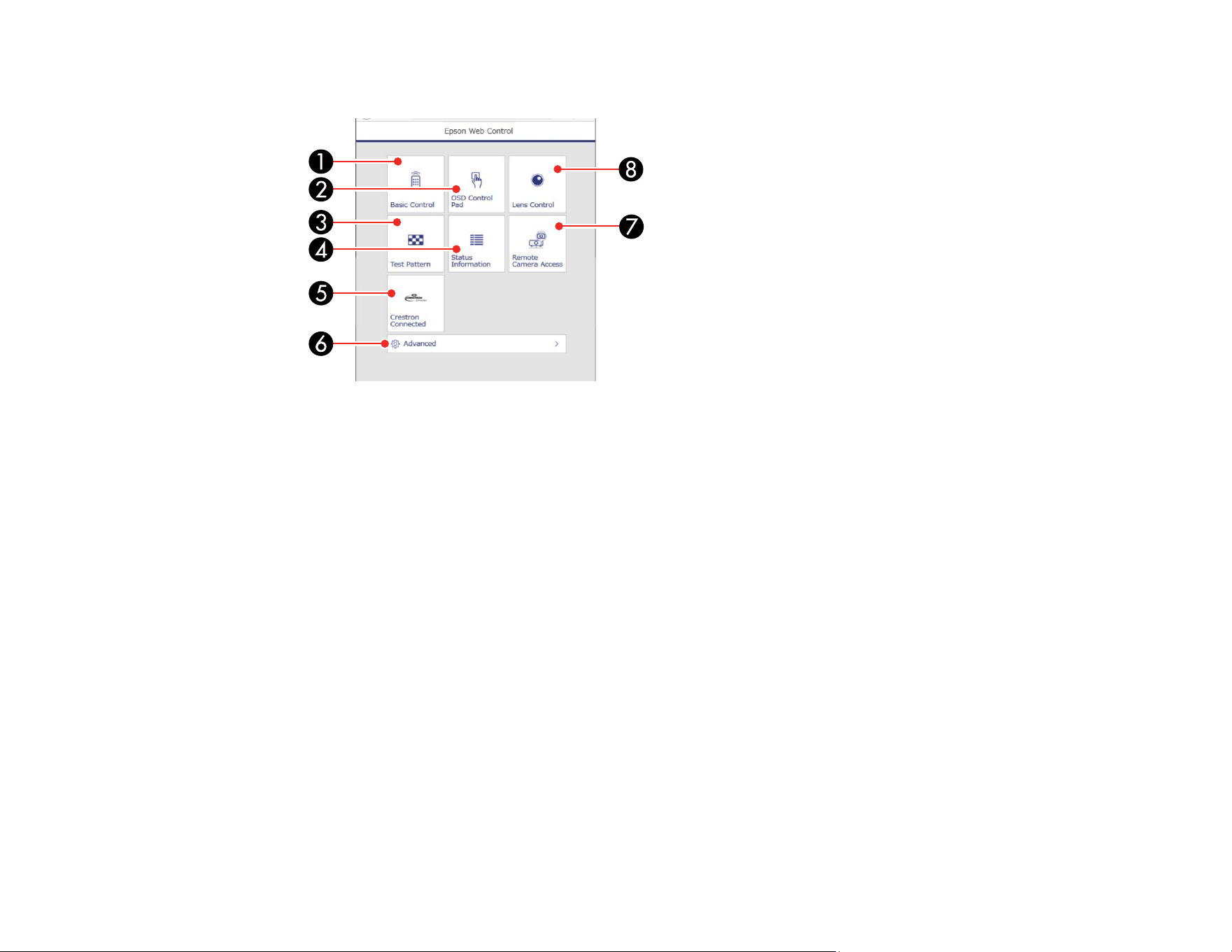
90
You see the Epson Web Control screen.
1 Select Basic Control to control the projector remotely.
2 Select OSD Control Pad to change the projector's menu settings.
3 Select Test Pattern to display a test pattern.
4 Select Status Information to view the projector's status.
5 Select Crestron Connected to open the menu.
6 Select Advanced to open the advanced menu screen.
7 Select Remote Camera Access to display the image taken by the optional camera.
8 Select Lens Control to adjust the lens (focus, zoom, and lens shift).
4. Select the option corresponding to the projector function you want to control.
Web Control Options
Viewing an Image Capture of the Displayed Image from a Remote Location
Parent topic: Monitoring and Controlling the Projector
Related references
Standby Mode
Remote Password
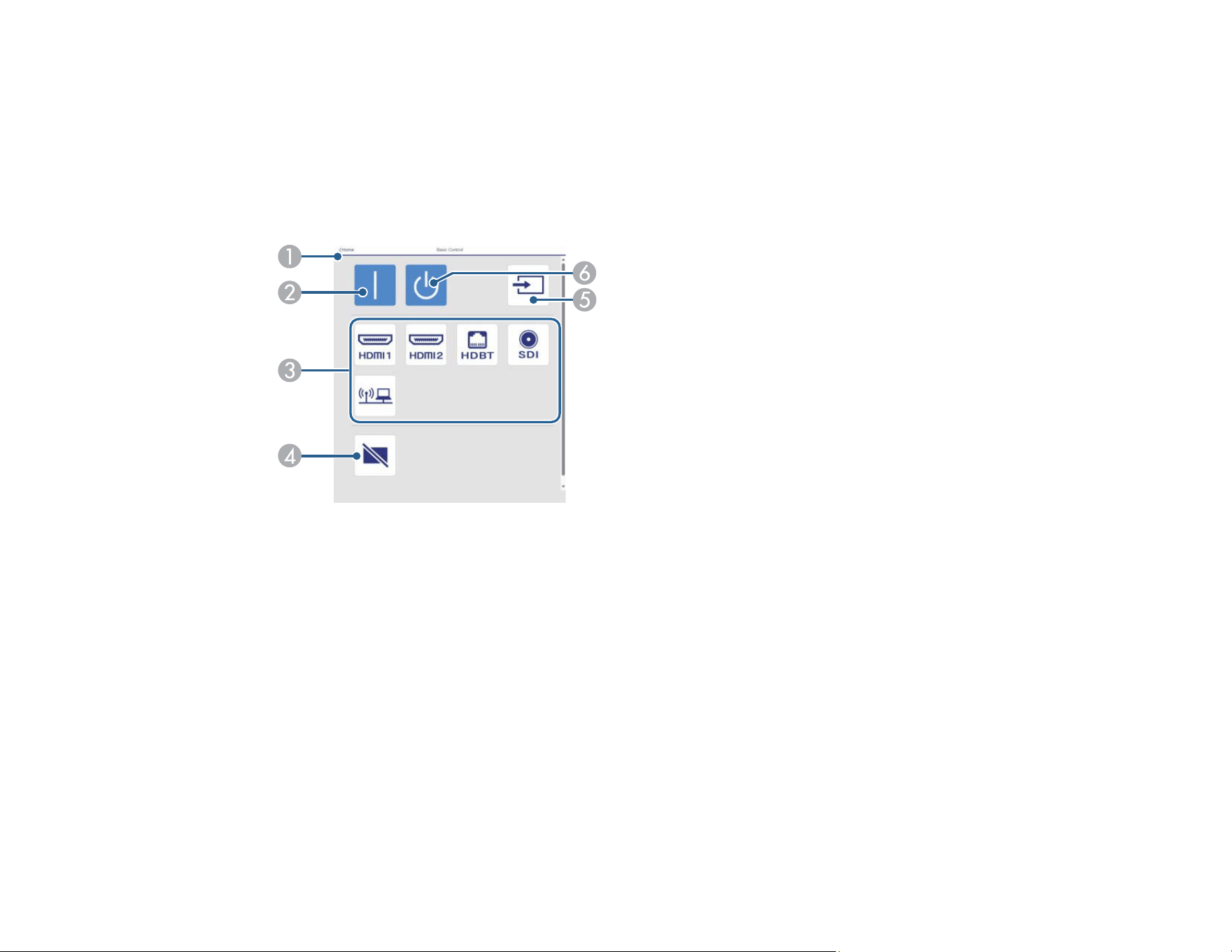
91
Web Control Password
Web Control Options
Basic Control
Note: If the Remote Password is set to On, you need to enter your user name and password. (The
default username is EPSONREMOTE. No password is set by default.)
1 Returns to the Home screen
2 Turns on the projector
3 Input source selection controls
4 Turns the image on or off temporarily
5 Searches for sources
6 Turns off the projector
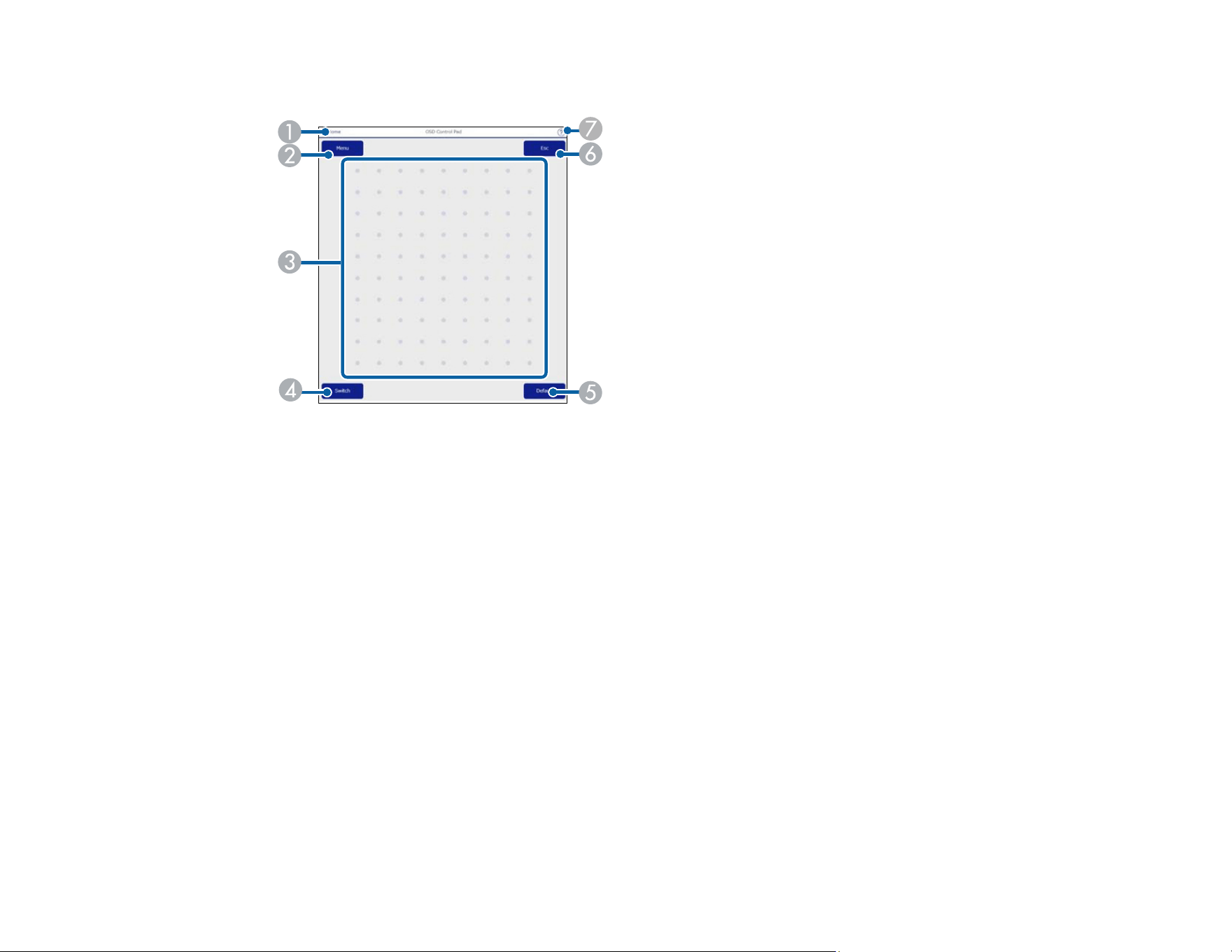
92
OSD Control Pad
1 Returns to the Epson Web Control screen
2 Displays the projector's setting menus
3 Use your finger or mouse to navigate the menus
4 Switches the operation method to button mode
5 Resets the selected setting to its default value
6 Returns to the previous menu
7 Displays help topics
Note: You cannot change some settings using Epson Web Control.
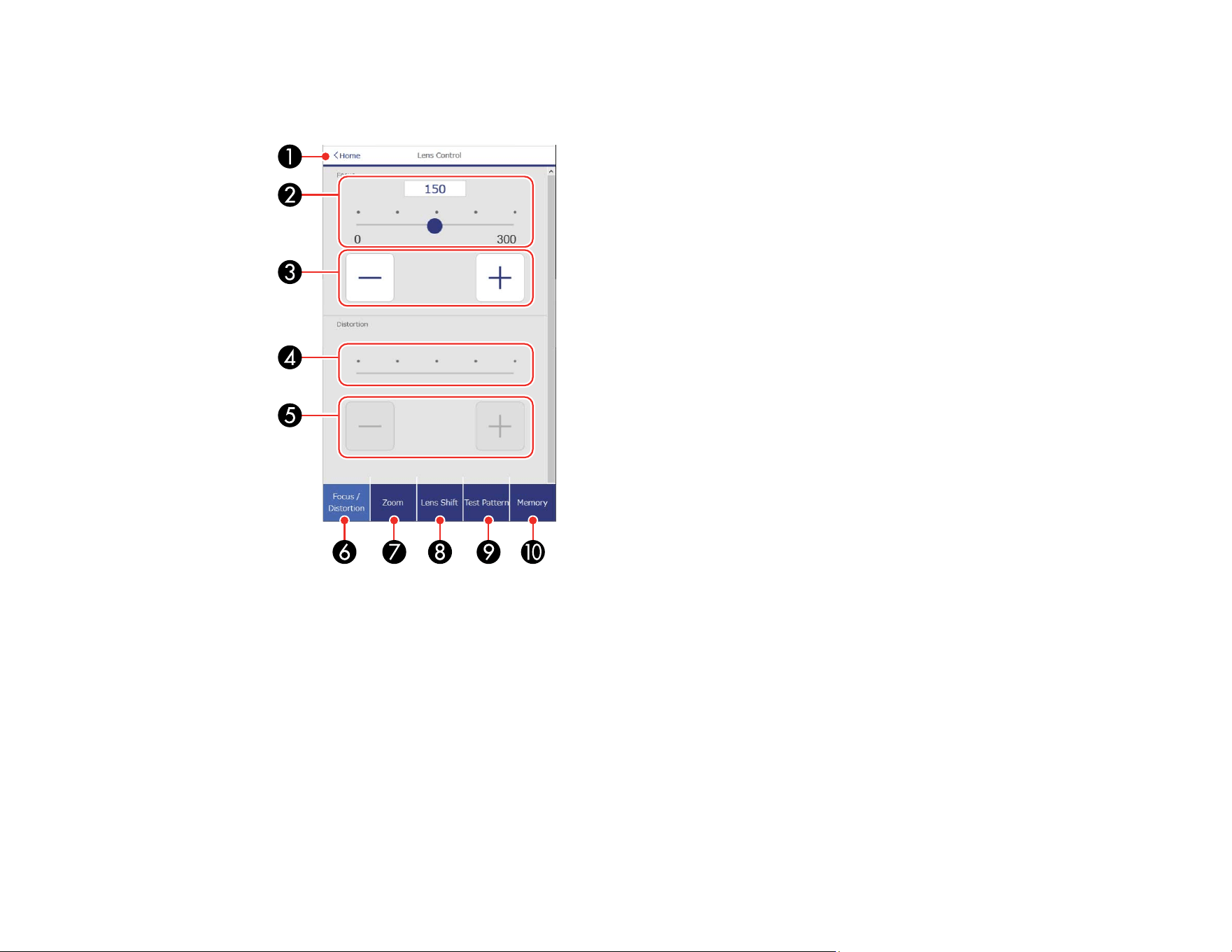
93
Lens Control
Focus/Distortion screen
1 Returns to the Home screen
2 Focus adjustment slider
3 Focus adjustment buttons
4 Distortion adjustment slider
5 Distortion adjustment buttons
6 Displays the Focus/Distortion screen
7 Displays the Zoom screen
8 Displays the Lens Shift screen
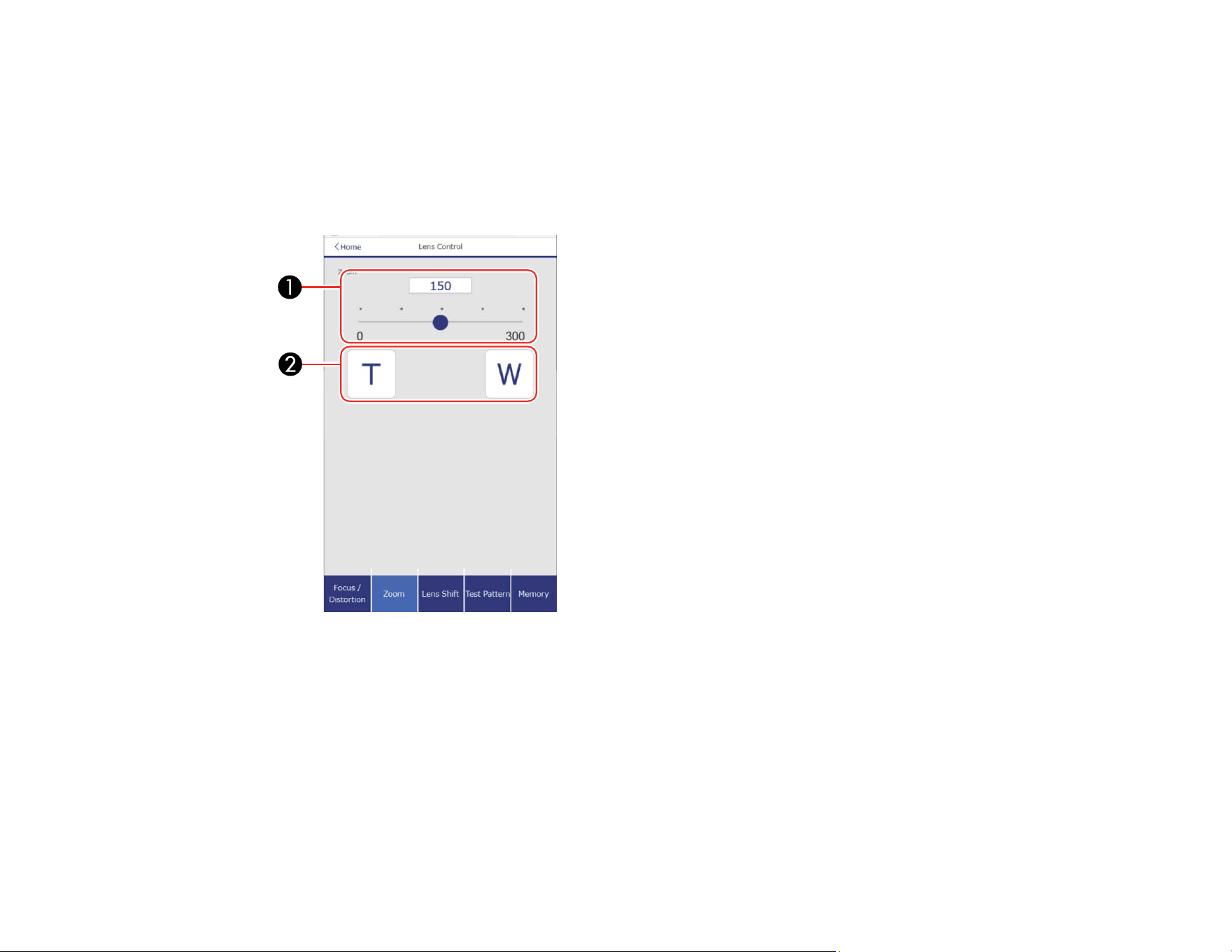
94
9 Displays the Test Pattern screen
10 Displays the Memory screen
Zoom screen
Note: Depending on the installed lens, the Zoom feature may not be available.
1 Zoom adjustment slider
2 Zoom adjustment buttons
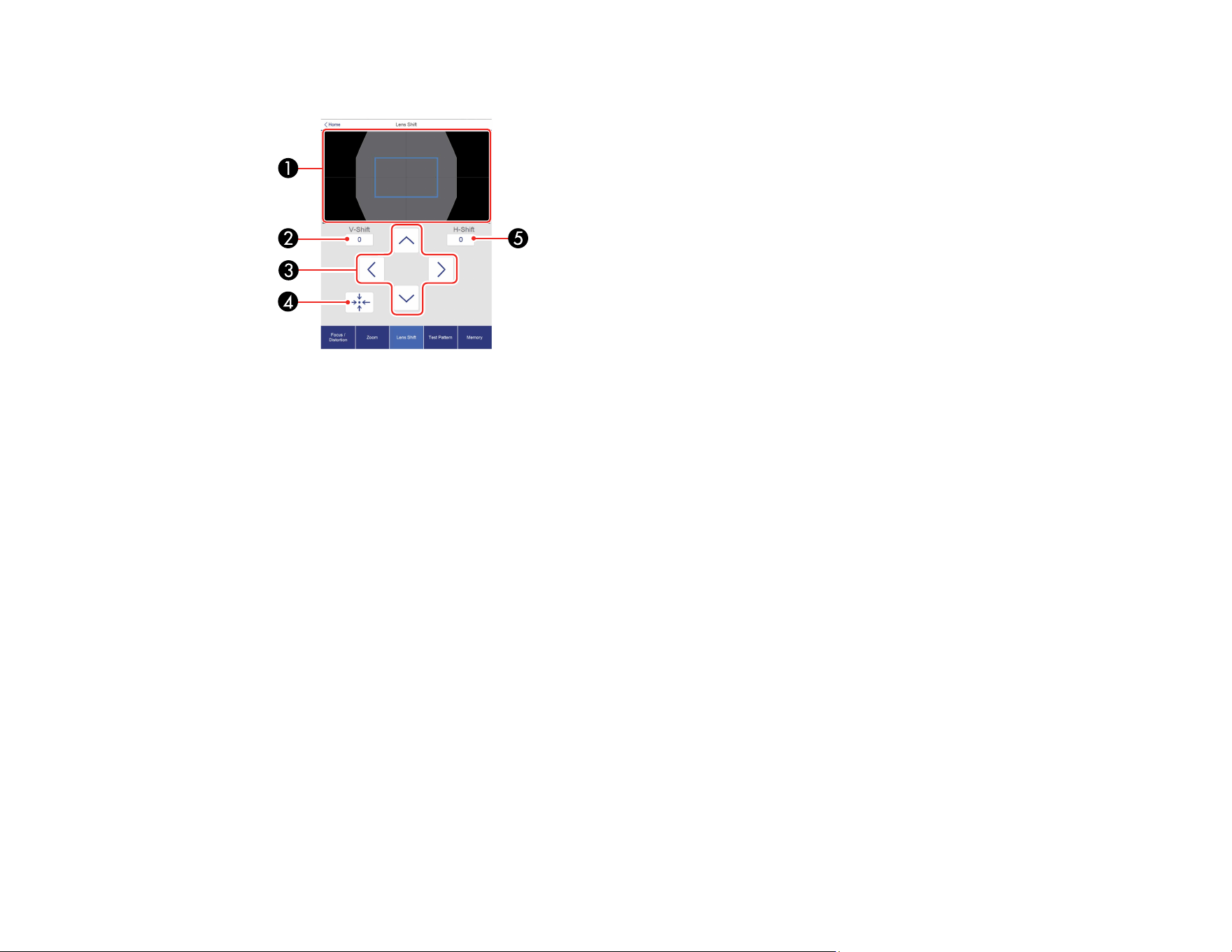
95
Lens Shift screen
1 The blue square displays the current image position and the red square displays the new image
position
2 Displays the vertical image position; select to change the value
3 Moves the image position up, down, left, or right
4 Moves the lens to the home position
5 Displays the horizontal image position; select to change the value
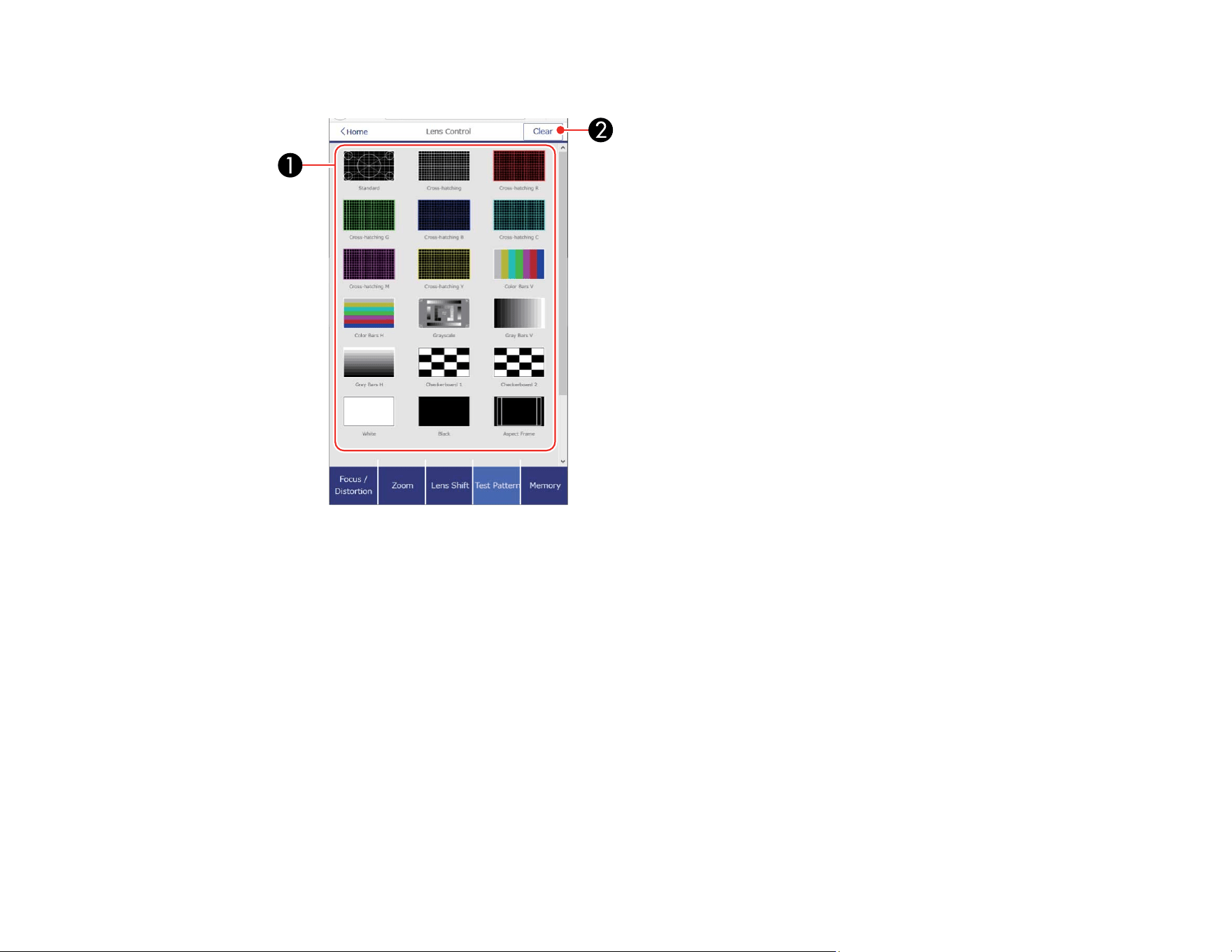
96
Test Pattern screen
1 Displays available test patterns; select to project a test pattern
2 Turns off test pattern display
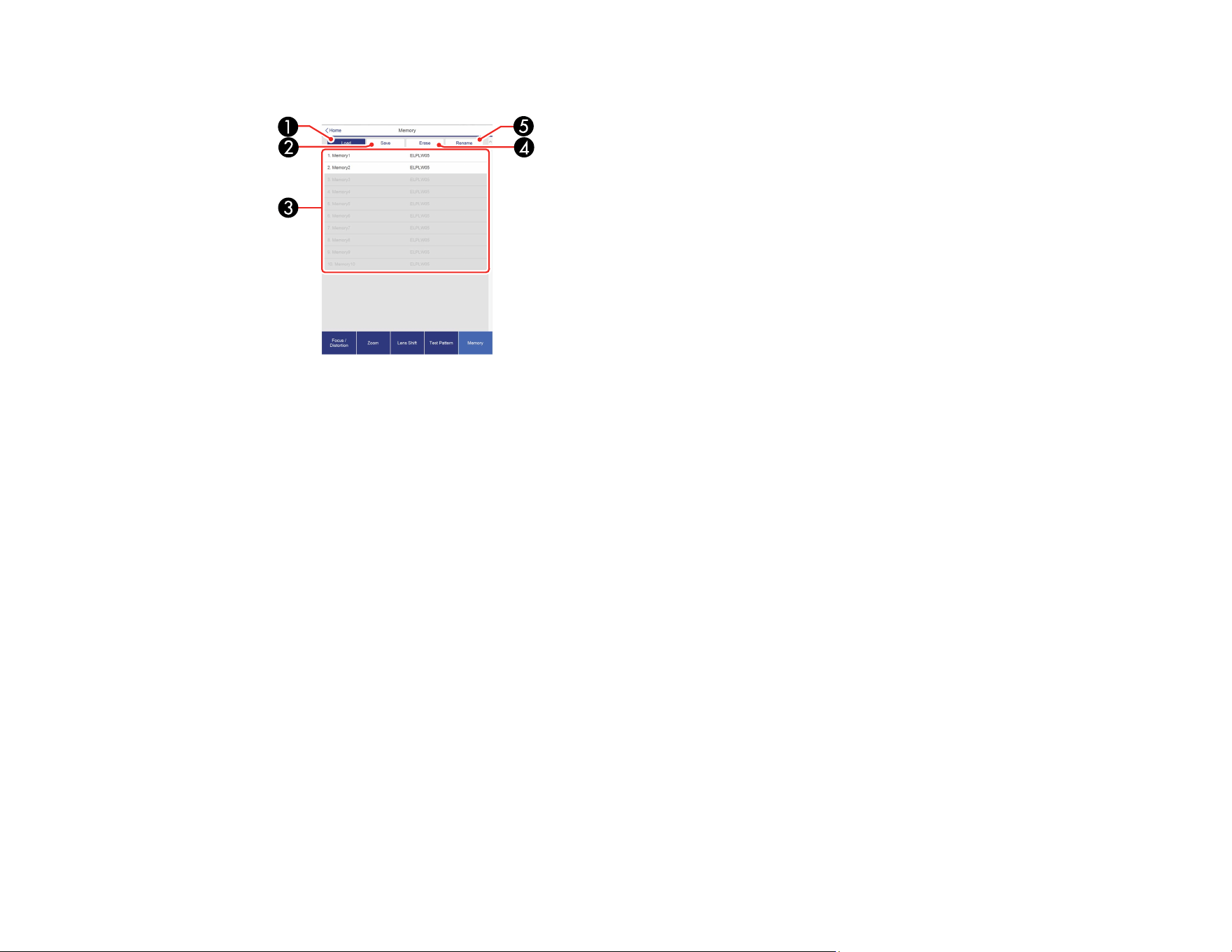
97
Memory screen
1 Overwrites your current settings with saved settings
2 Saves your current settings to memory
3 Displays a list of saved memories
4 Erases a saved memory
5 Renames a saved memory
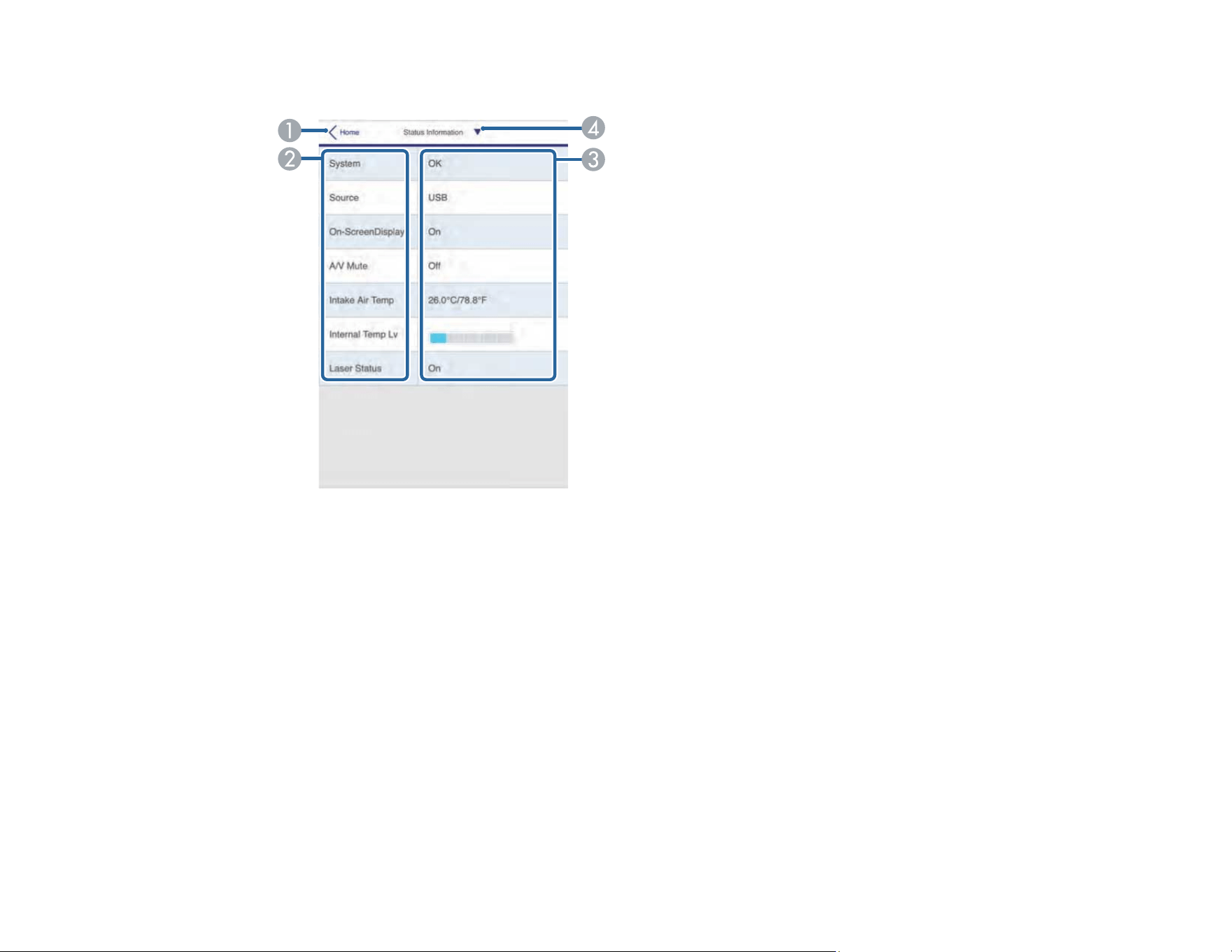
98
Status Information screen
1 Returns to the Home screen
2 Displays a list of monitored settings
3 Displays the setting status
4 Select to view different status information
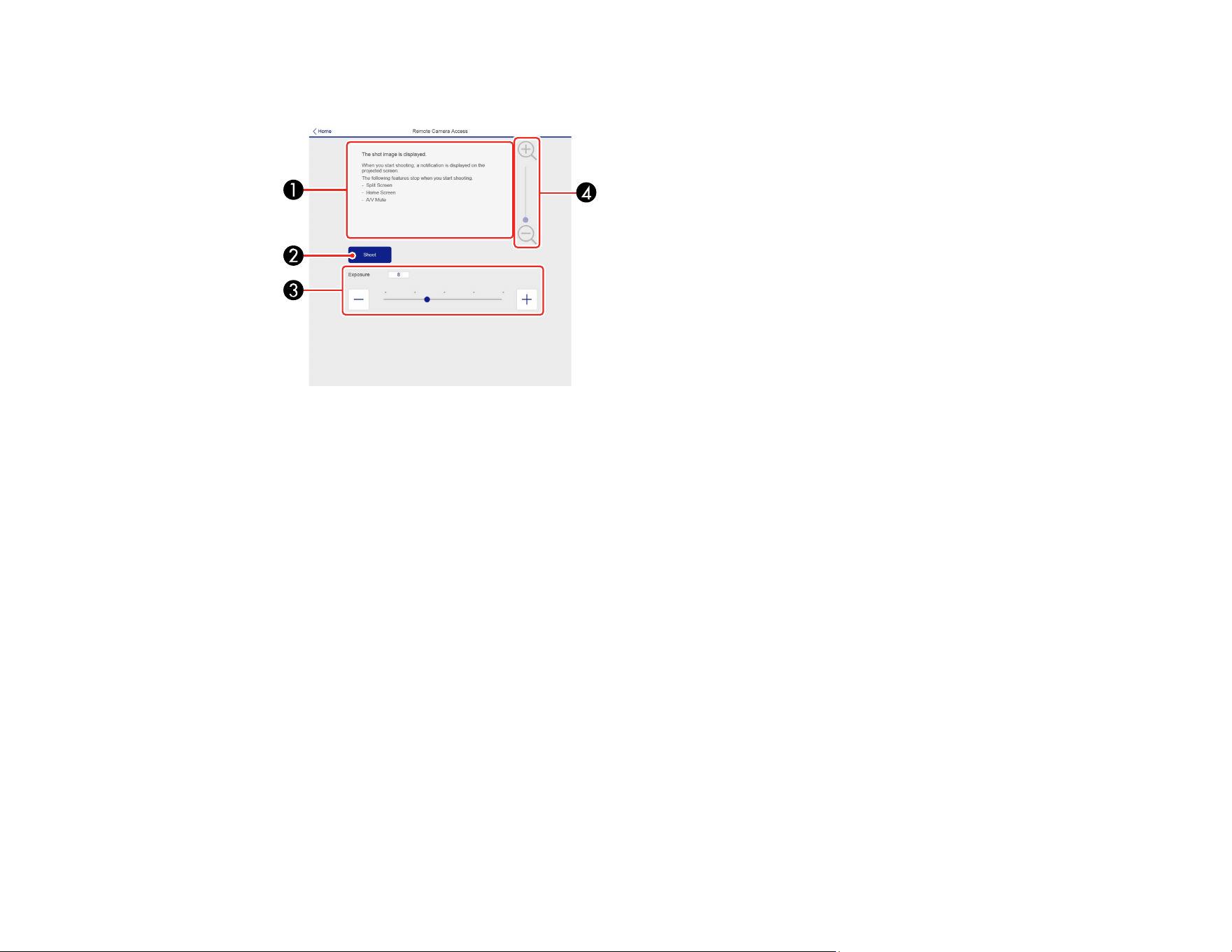
99
Remote Camera Access screen
Note: Only available in Normal mode.
1 Displays the image you captured using the Shoot button
2 Takes a picture of the projected image using the optional external camera on the front of the
projector
3 Adjusts the image exposure
4 Zooms in or out on the image you captured
Parent topic: Controlling a Networked Projector Using a Web Browser
Viewing an Image Capture of the Displayed Image from a Remote Location
You can take an image capture of the projected image and view it from a remote location using the
projector's optional camera.
Note the following when using this feature:
• This feature is not supported when performing the following functions: Tiling, Tiling Assist, stacking
assist tool, Screen Matching, Color Calibration, Lens Calibration, Message Broadcasting in the Epson
Projector Management software.
• Using this feature cancels the following functions: Shutter or A/V Mute, on-screen display (when the
message is hidden) .
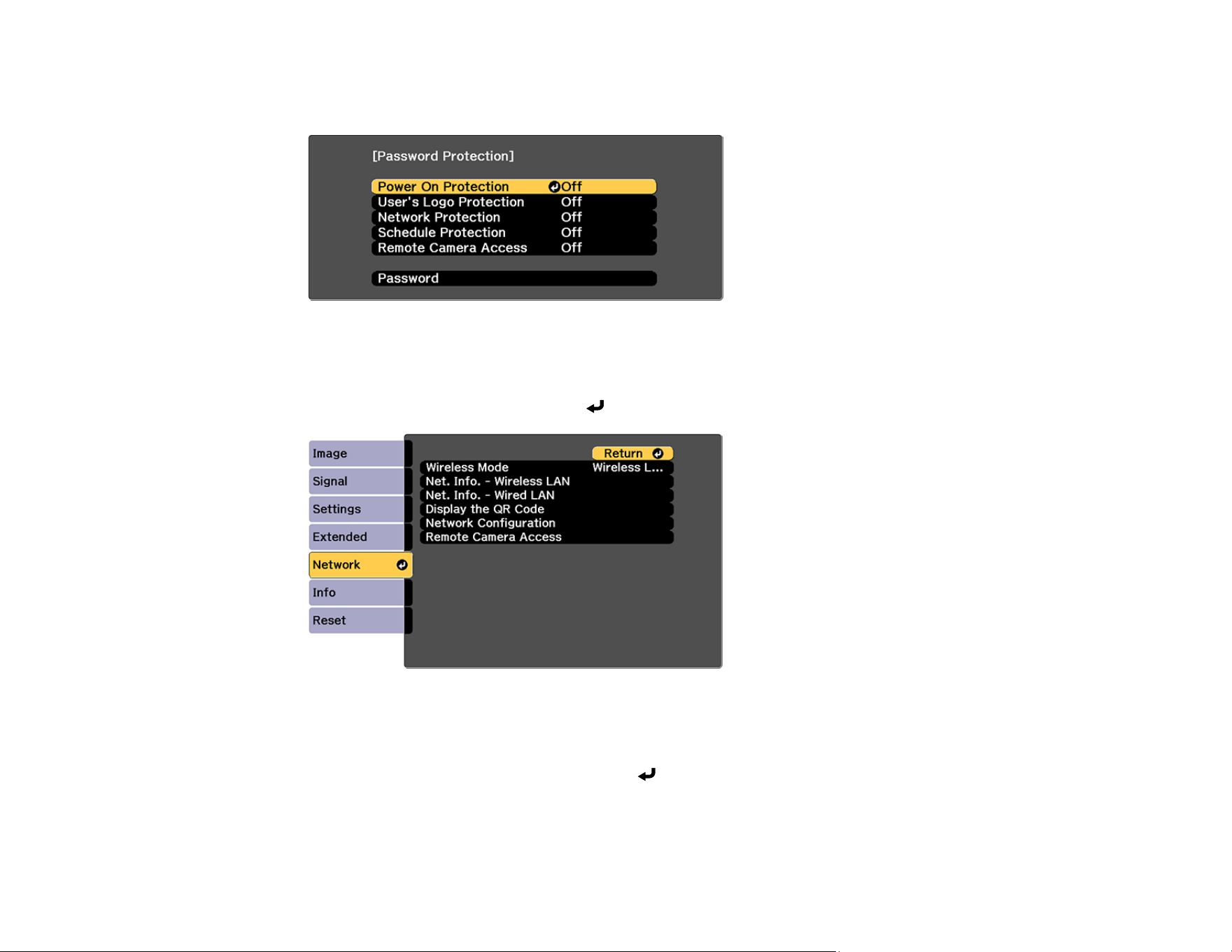
100
1. Hold down the Freeze button on the remote control for about five seconds or until you see this
menu.
2. Make sure the Remote Camera Access setting is set to Off, then exit the menu.
3. Press the Menu button.
4. Select the Network menu and press Enter.
5. Select Network Configuration and select the Others menu.
6. Make sure the Secure HTTP setting is enabled and return to the Network menu.
7. Select Remote Camera Access and press Enter.
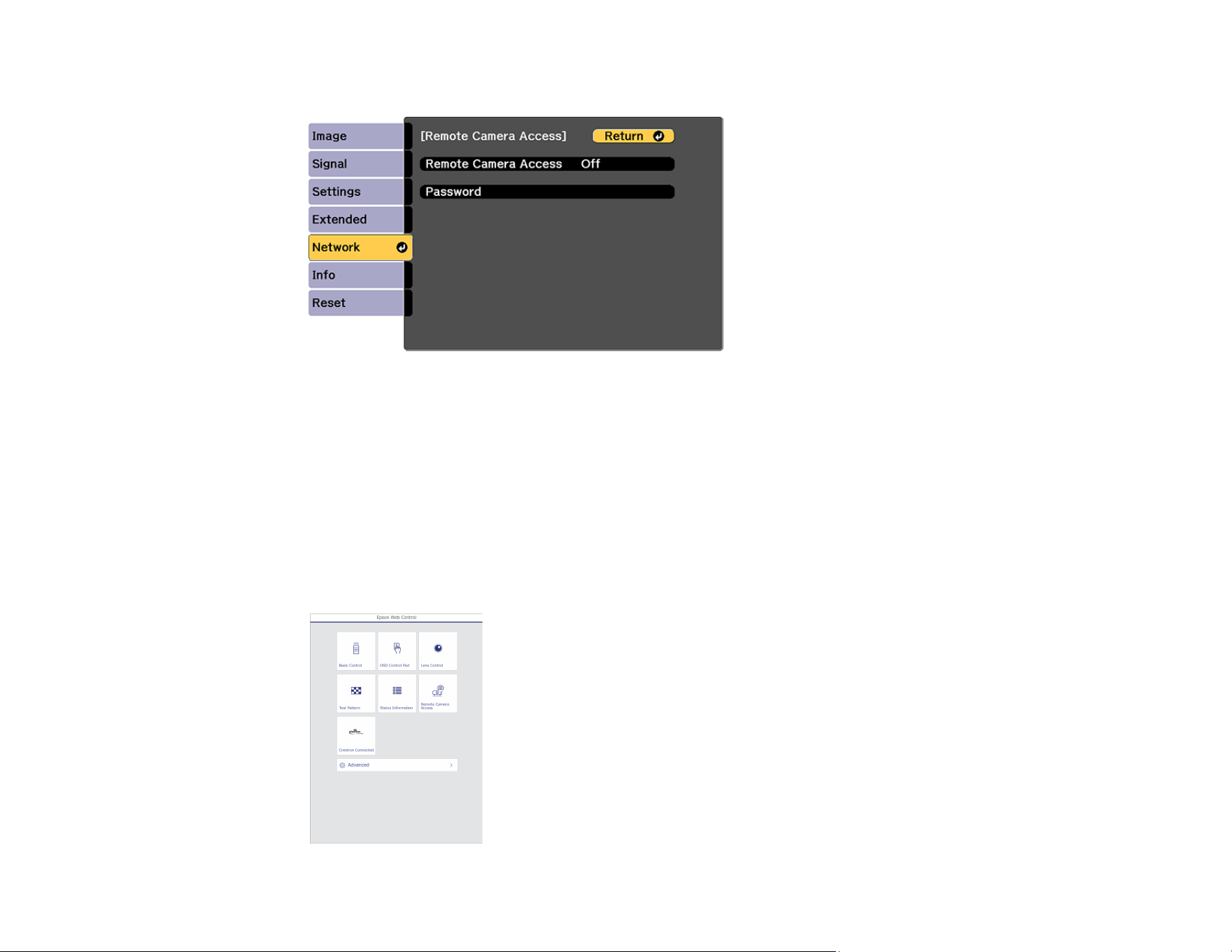
101
You see a screen like this:
8. Select the Password setting and enter a password up to 32 alphanumeric characters long.
Note: Do not use these characters in the password: * (asterisk), : (colon), or a space character.
9. Select On as the Remote Camera Access setting.
10. Open a web browser on a computer or mobile device connected to the projector over a network
connection.
11. Enter the projector's IP address in your browser's address box to connect to Epson Web Control.
You see a screen like this:
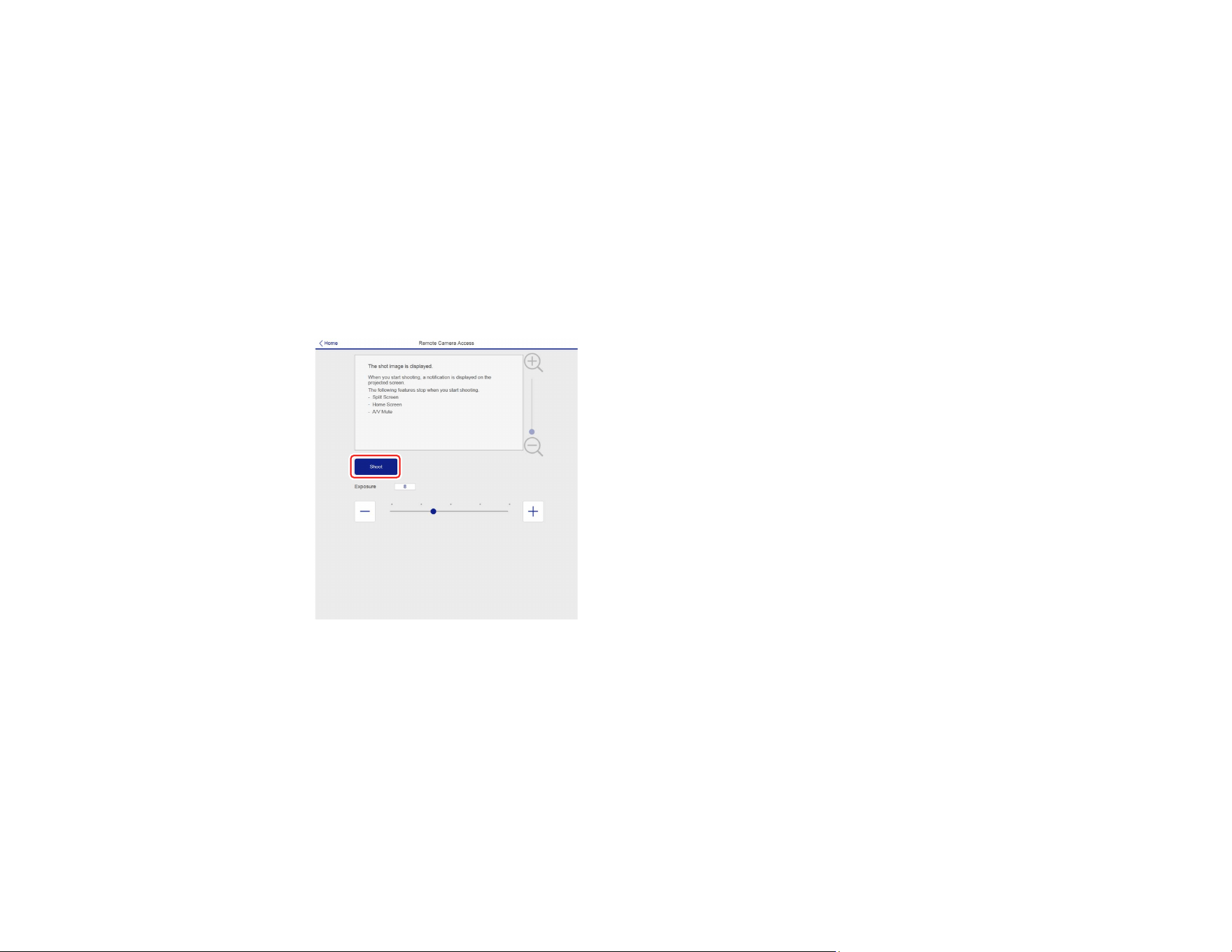
102
Note: You can view the projector's IP address by selecting Net. Info. - Wireless LAN or Net. Info. -
Wired LAN on the Network menu.
12. Select Remote Camera Access.
Note: You may need to log in to access some of the options on the Epson Web Control screen. If
you see a login window, enter your user name and password. (The default user name is
EPSONWEB and the default password is not set.)
13. Click Shoot to take a capture of the projected image. You cannot capture warning or caution
messages. Adjust the exposure if necessary. After making adjustments, shoot the projected image
again and check it.
Note: If you see a password screen, enter the password you selected for remote camera access.
You cannot perform any projector operations during shooting other than turning off the projector.
Parent topic: Controlling a Networked Projector Using a Web Browser
Related references
Remote Camera Access
Shutter Settings
Secure HTTP
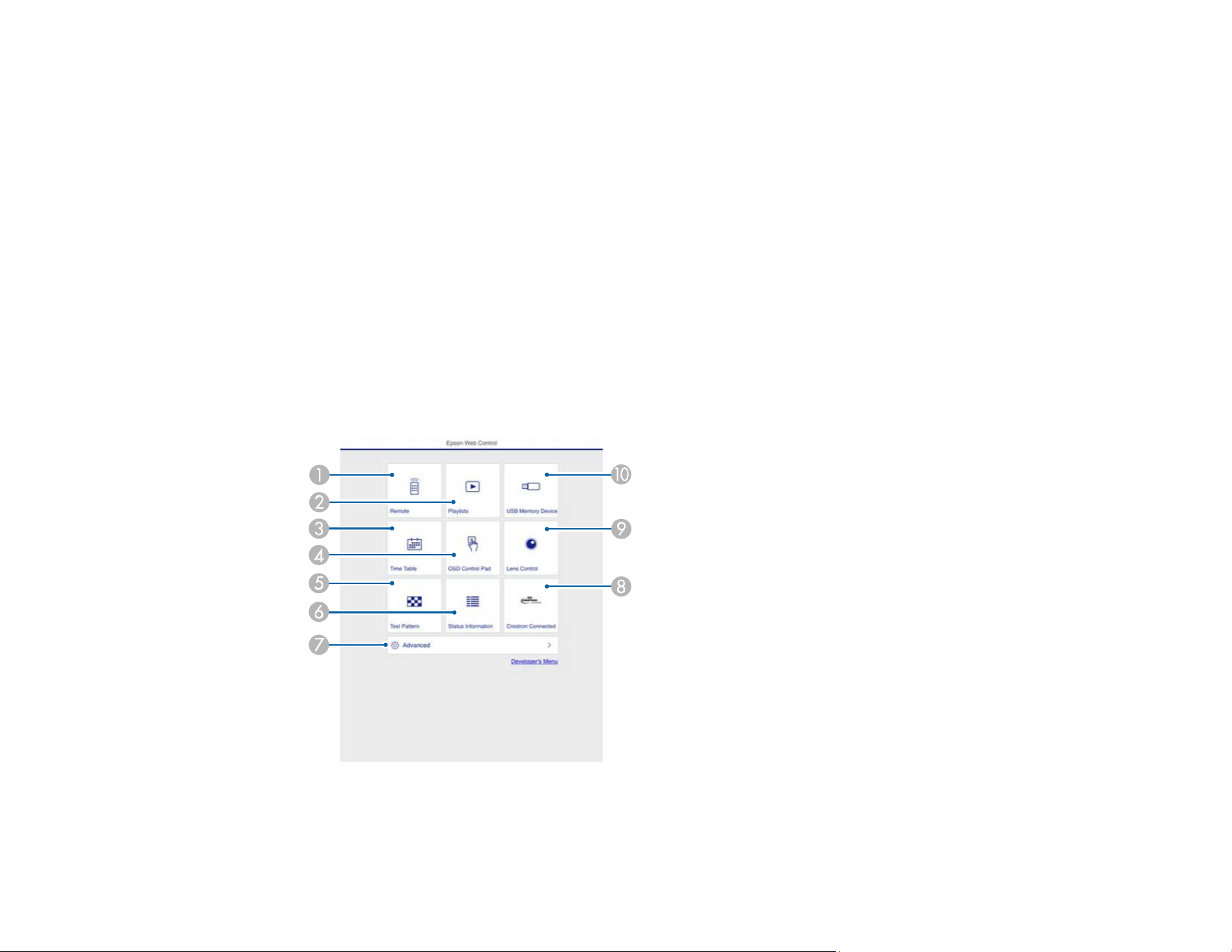
103
Controlling a Networked Projector in Content Playback Mode
When Content Playback mode is turned on in the Settings menu, you can select projector settings,
control projection, and edit playlists using a web browser.
Note: You can also control the projector using a web browser through the Epson iProjection app.
Note: Do not remove any USB device connected to the projector or unplug the power cord when the
Playlists or USB Memory Device screen is displayed; data saved on the USB device may be damaged.
1. Make sure the projector is operating in Content Playback mode.
2. Make sure the projector is turned on and your computer or device is connected to the same network
as the projector.
3. Start your web browser on the computer or device.
4. Type the projector's IP address into the browser's address box and press the computer's Enter key.
You see the Epson Web Control screen.
1 Controls the projector remotely

104
2 Edits playlists for Content Playback mode
3 Opens the Time Table screen
4 Operates the projector's menus with your finger or a mouse
5 Displays a test pattern
6 Displays the projector's status
7 Opens detailed projector settings
8 Opens the Crestron Connected window (available when Crestron Connected is turned on)
9 Operates the projector's lens
10 Registers or deletes playlist data on the USB device
5. Select the option corresponding to the projector function you want to control.
Note: You may need to log in to access some of the options on the Web Control screen. If you see a
login window, enter your user name and password. (The default user name is EPSONWEB and the
default password is not set.)
Web Control Options in Content Playback Mode
Parent topic: Monitoring and Controlling the Projector
Related references
Content Playback
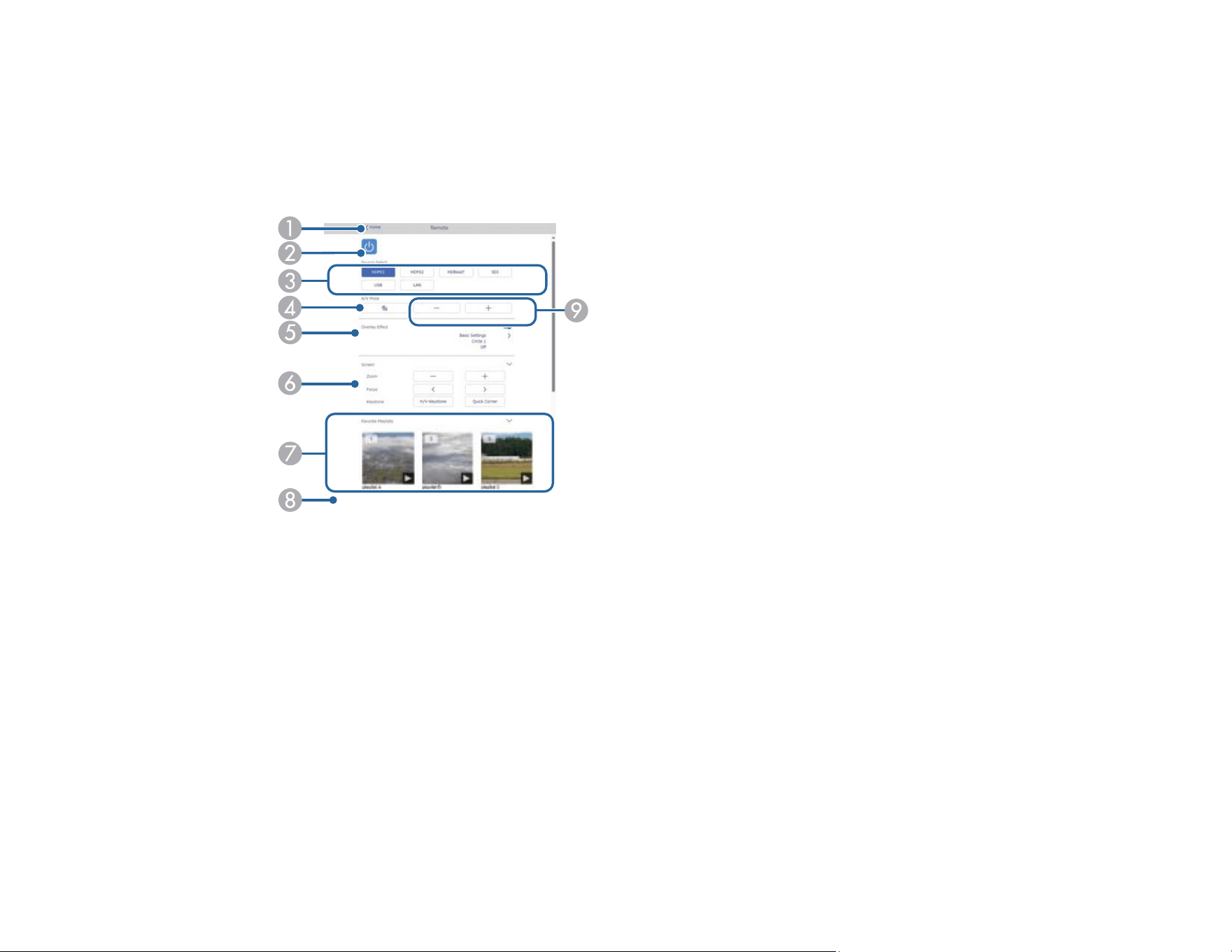
105
Web Control Options in Content Playback Mode
Remote
Note: If the Remote Password is set to On, you need to enter your user name and password. (The
default username is EPSONREMOTE. No password is set by default.)
1 Returns to the Epson Web Control screen
2 Turns the projector on or off
3 Selects the input source
4 Turn the video and audio on or off temporarily.
5 Turns Overlay Effect on or off to add color and shape effects to a playlist.
Overlay Effect option is displayed when the current source is anything other than USB.
When turning on, the Effects screen is displayed. You can add predefined color and shape effect
filters to a playlist. You can also create a customized effect.
6 Selects the screen settings
7 Selects your favorite playlists
8 Displays playlist information such as length, overlay effects, and repeat playback
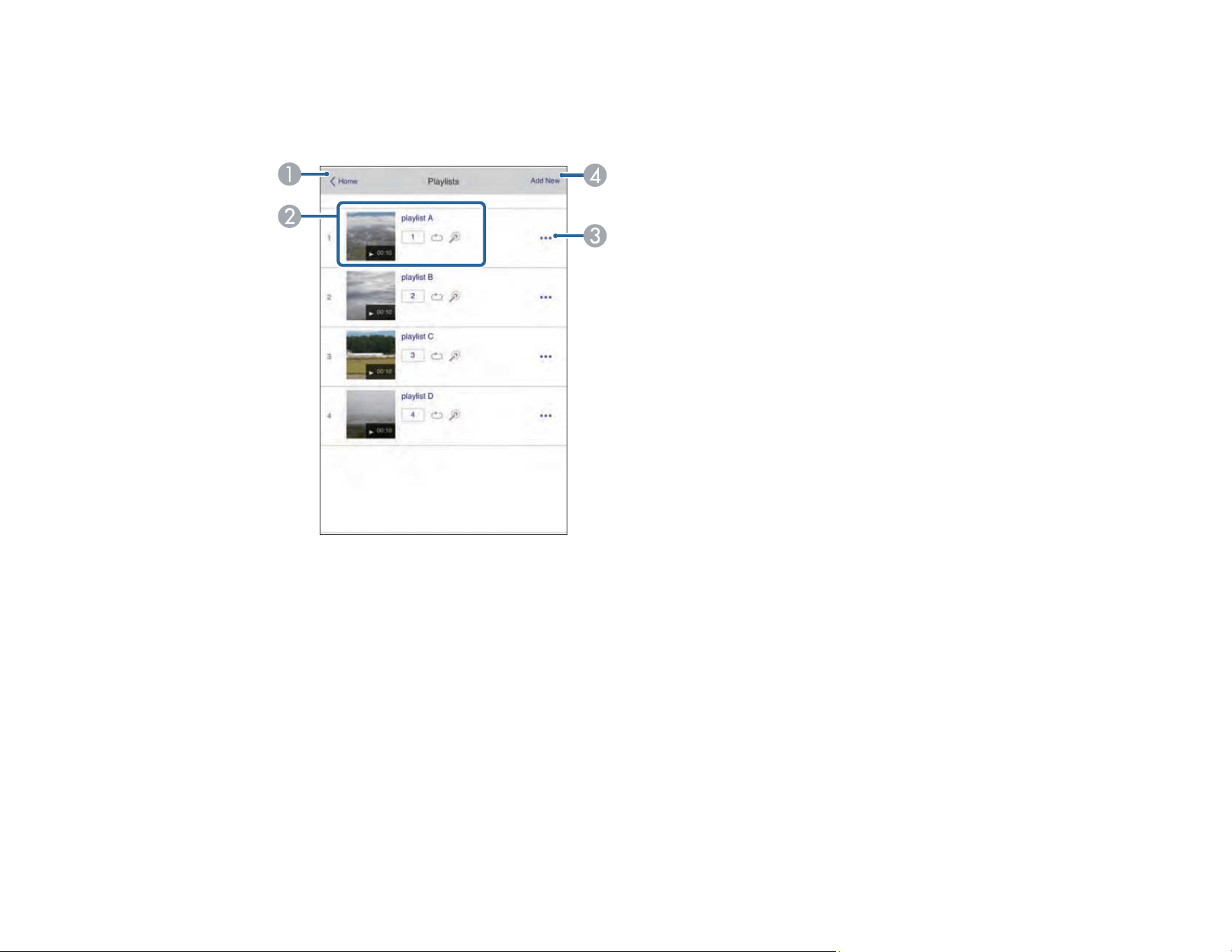
106
9 Adjusts the speaker volume
Playlists
1 Returns to the Epson Web Control screen
2 Controls playback of the playlist
3 Edits, copies, or deletes the playlist
4 Creates a new playlist
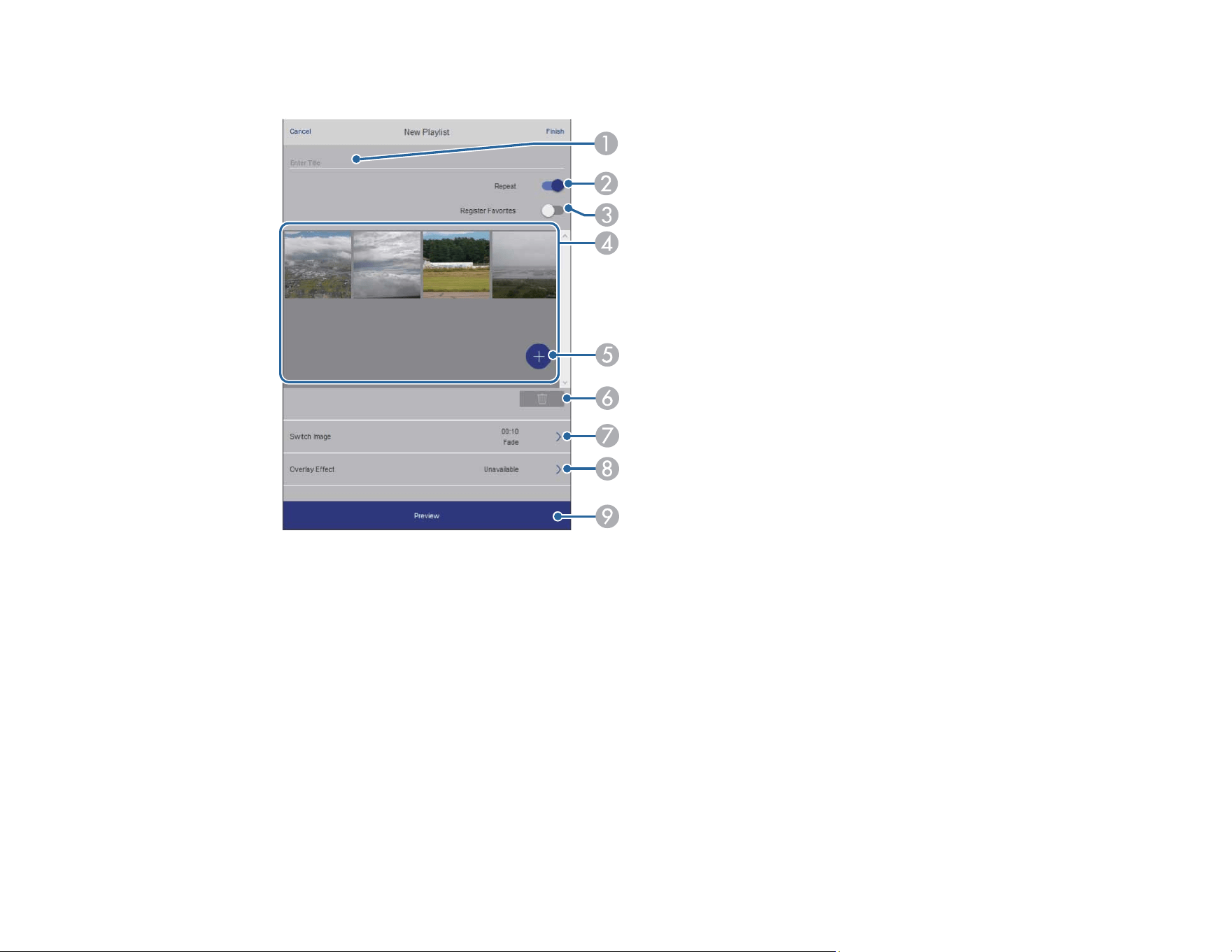
107
Create or Edit Playlist
1 Edits the playlist name
2 Enables repeat playback
3 Adds the playlist to your favorites list
4 Displays the images or movies in the order that they will be played
5 Adds items to the playlist
6 Deletes items from the playlist
7 Opens the Switch Image screen (specifies the time before the projector switches to the next item
in the playlist)
8 Opens the Effects screen
9 Previews the playlist
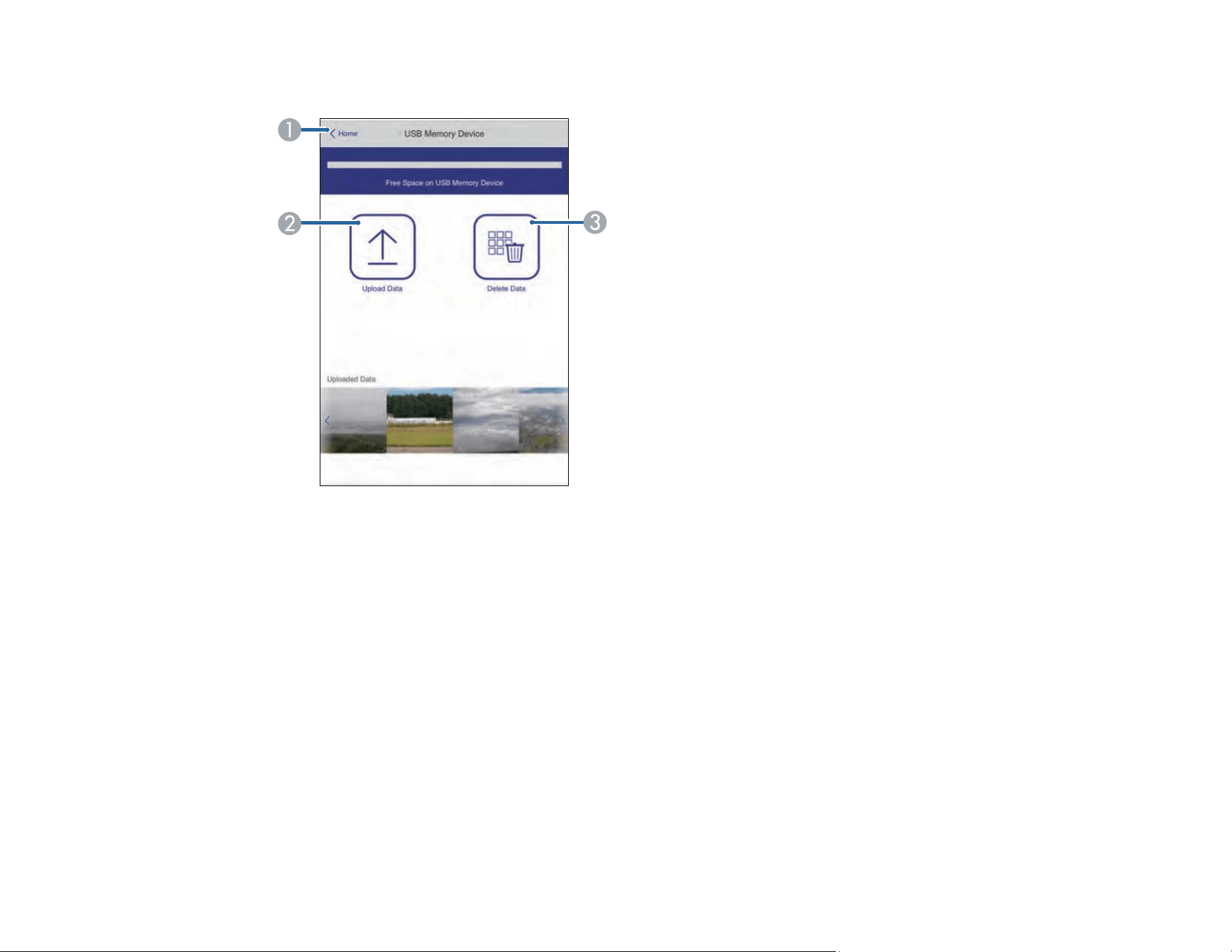
108
USB Memory Device
1 Returns to the Epson Web Control screen
2 Uploads images or videos to add to playlists on a USB device
3 Deletes images or videos on the USB device
Note: You can upload .avi, .jpeg (.jpg), .png, .bmp, or .gif files using Epson Web Control. If you want to
add .mp4 or .mov files to the playlist, use the Epson Projector Content Manager software or the Epson
Creative Projection app.
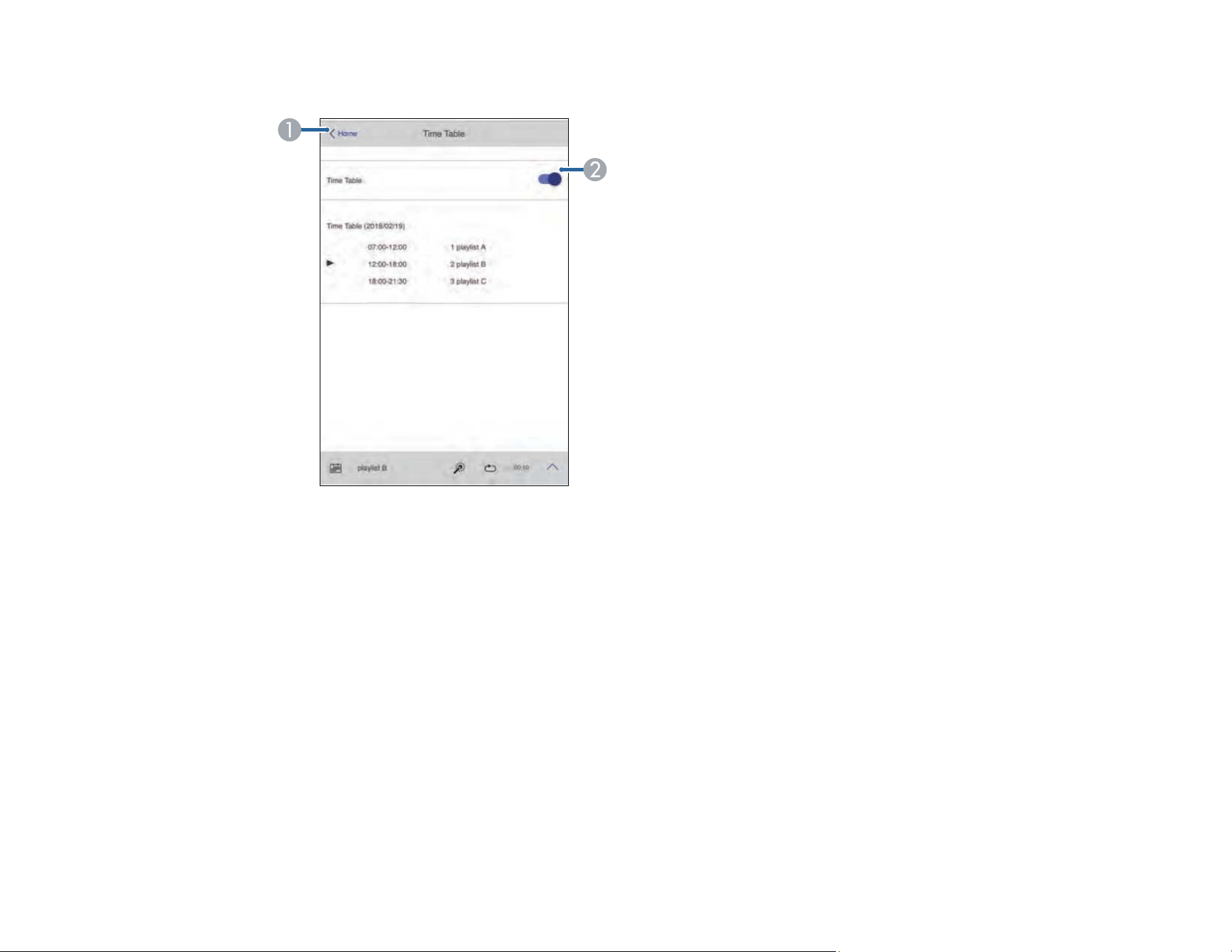
109
Time Table
1 Returns to the Epson Web Control screen
2 Turns the time table on or off (see the online Epson Projector Content Manager Operation Guide
for more information)
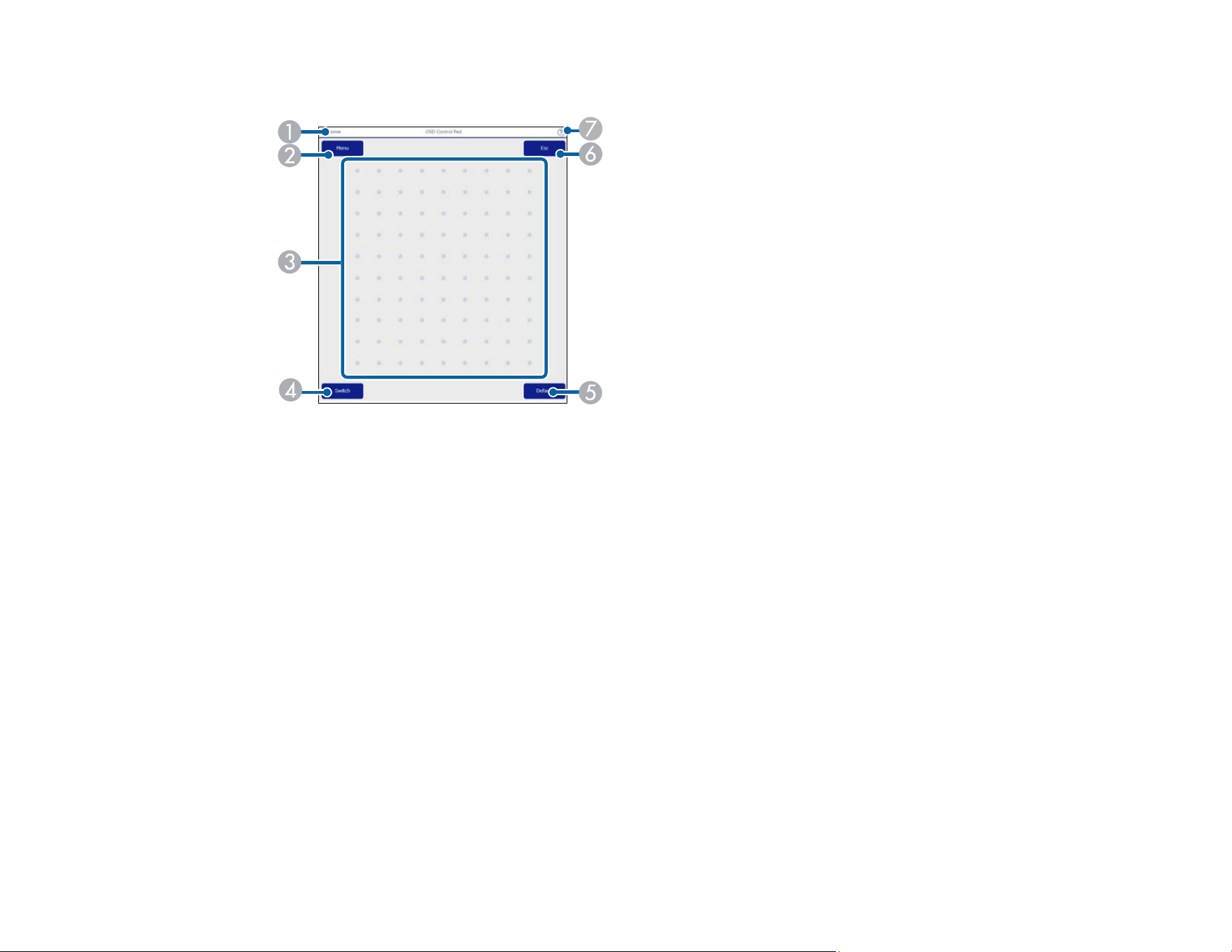
110
OSD Control Pad
1 Returns to the Epson Web Control screen
2 Displays the projector's setting menus
3 Use your finger or mouse to navigate the menus
4 Switches the operation method to button operation.
5 Resets the selected setting to its default value.
6 Returns to the previous menu
7 Displays help topics
Note: You cannot change some settings using Epson Web Control.
Parent topic: Controlling a Networked Projector in Content Playback Mode
Using Crestron Connected
If you are using the Crestron Connected network monitoring and control system, you can set up your
projector for use on the system. Crestron Connected lets you control and monitor your projector using a
web browser.

111
You can access the Crestron Connected operation window from Epson Web Control. You need to
enable Crestron Connected in the projector's Network menu before you can use Crestron Connected.
• Network > Network Configuration > Others > Crestron Connected
To monitor devices in the system, you can use Crestron RoomView Express or Crestron Fusion
provided by Crestron. You can communicate with the help desk and send emergency messages.
Note: You cannot use the Message Broadcasting feature in the Epson Projector Management software
when you use Crestron Connected. If you set Standby Mode to Communication On in the Operation
menu, you can control the projector even if the projector is in standby mode (when the power is off).
For additional information on Crestron Connected, contact Crestron.
Setting Up Crestron Connected
Controlling a Networked Projector Using Crestron Connected
Parent topic: Monitoring and Controlling the Projector
Related references
Crestron Connected
Standby Mode
Setting Up Crestron Connected
To set up your projector for monitoring and control using a Crestron Connected system, make sure your
computer and projector are connected to the network.
Note: If you want to use the Crestron Connected system when the projector is turned off, you need to
adjust the Standby Mode settings in the Extended menu.
1. Press the Menu button.
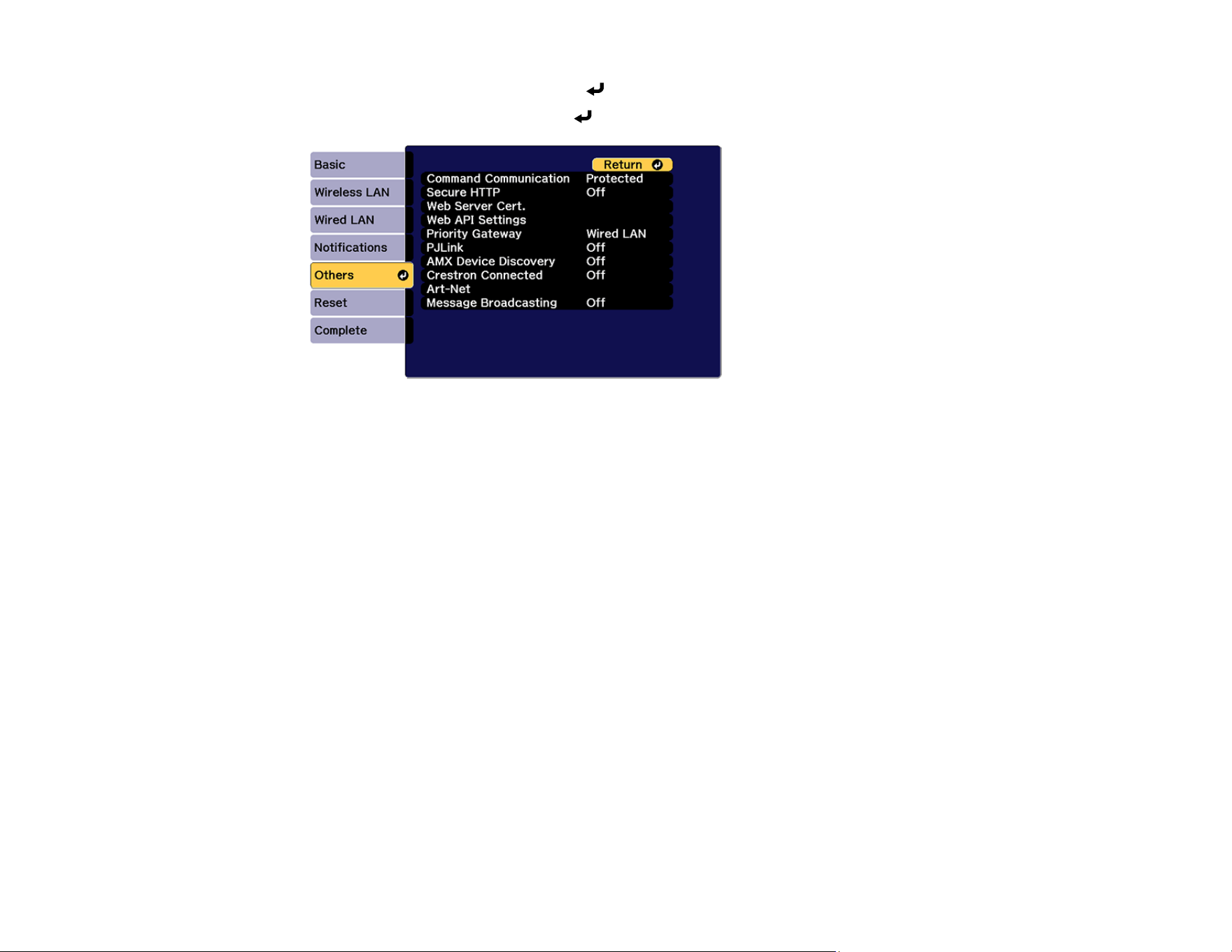
112
2. Select the Network menu and press Enter.
3. Select the Others menu and press Enter.
4. Set the Crestron Connected setting to On to allow the projector to be detected.
Note: Enabling Crestron Connected disables the Message Broadcasting feature in the Epson
Projector Management software. To enable the Crestron XiO Cloud service, set Crestron XiO
Cloud to On.
5. When you are finished selecting settings, select Complete and follow the on-screen instructions to
save your settings and exit the menus.
6. Turn off the projector, then turn it on again to enable the setting.
7. Start your Web browser on a computer or device connected to the network.
8. Go to the Epson Web Control screen by entering the projector's IP address into the browser's
address box.
9. Select the Crestron Connected settings. See the Crestron Web site for details.
Parent topic: Using Crestron Connected
Related references
Crestron Connected
Standby Mode
Crestron Xio Cloud

113
Controlling a Networked Projector Using Crestron Connected
Once you have set up your projector to use Crestron Connected, you can control and monitor your
projector using a compatible web browser.
1. Start your web browser on a computer connected to the network.
2. Type the projector's IP address into the browser's address box and press the computer's Enter key.
You see the Epson Web Control screen:
3. Select Crestron Connected to view the configuration page. Please see your network administrator
for setting up the configuration page.
Note: If you see a login window, enter your user name and password. (The default user name is
EPSONWEB. There is no default password.)
Parent topic: Using Crestron Connected
Related references
Crestron Connected
Secure HTTP
You can use the HTTPS protocol to increase security between the projector and a web browser
communicating with it. To do this, you create a server certificate, install it on the projector, and turn on
the Secure HTTP setting in the projector menus to verify the reliability of the web browser (Network >
Network Configuration > Others > Secure HTTP).

114
Even if you do not install a server certificate, the projector automatically creates a self-signed certificate
and allows communication. However, because the self-signed certificate cannot verify reliability from a
web browser, you see a warning about the server's reliability when you access the projector from a web
browser. This warning does not prevent communication.
Importing a Web Server Certificate Using the Projector Menus
Registering Digital Certificates from a USB Device
Registering Digital Certificates from a Web Browser
Digital Certificate Types
Parent topic: Monitoring and Controlling the Projector
Related references
Secure HTTP
Importing a Web Server Certificate Using the Projector Menus
You can create your web server certificate and import it using the projector menus and a USB flash
drive.
Note: You can also register digital certificates from your web browser. Make sure to only register once,
or the certificate may not install correctly.
1. Make sure your digital certificate file is compatible with projector registration and saved in the root
directory of the USB flash drive.
2. Press the Menu button on the remote control.
3. Select the Network menu and press Enter.
4. Select the Network Configuration setting and press Enter.
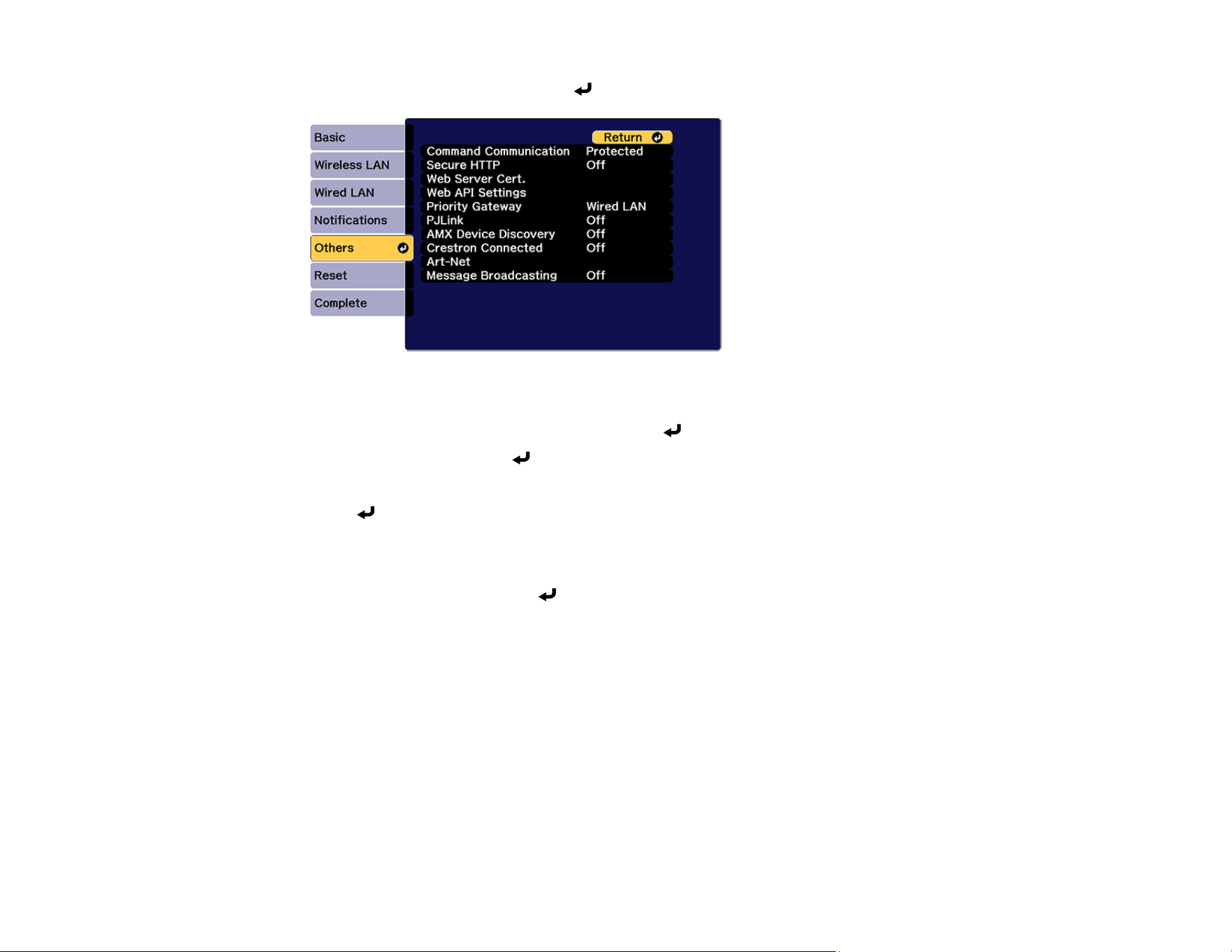
115
5. Select the Others menu and press Enter.
6. Select On as the Secure HTTP setting.
7. Select the Web Server Cert. setting and press Enter.
8. Select Register and press Enter.
9. Insert a USB flash drive into the projector's USB-A port.
10. Press Enter to display the certificate list.
11. Select the certificate you want to import from the displayed list.
A message is displayed prompting you to enter the password for the certificate.
12. Enter the password and press Enter.
The certificate is imported and a completion message appears.
Parent topic: Secure HTTP
Related references
Secure HTTP
Registering Digital Certificates from a USB Device
You can register the digital certificates for files on a USB device connected to the projector.
1. Make sure your digital certificate file is compatible with projector registration.
2. Connect the USB device to the projector.
3. Press the USB button on the projector remote control.
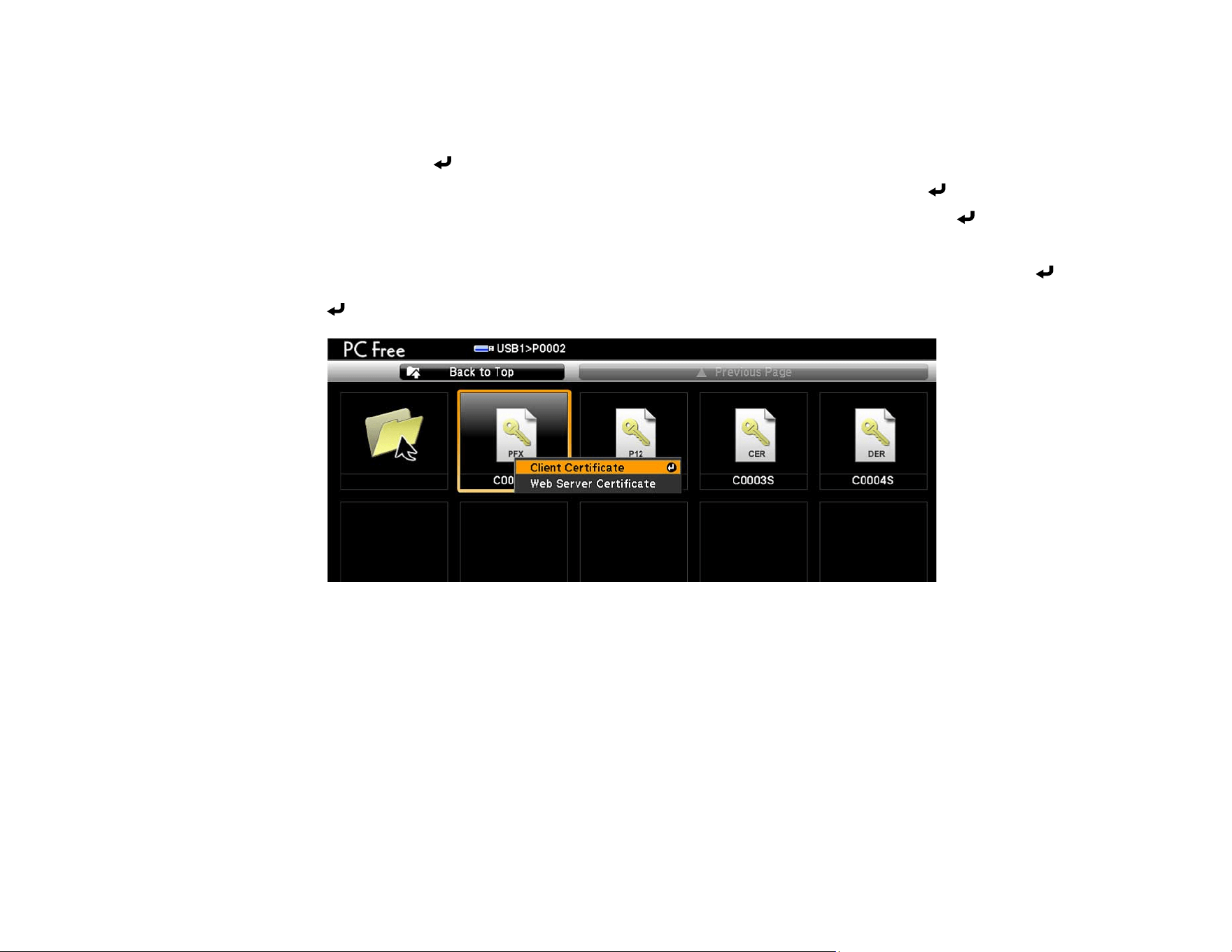
116
The PC Free screen appears.
4. Do the following as necessary to locate your files:
• To display files inside a subfolder on your device, press the arrow buttons to highlight the folder
and press the Enter button.
• To move back up a folder level on your device, highlight Back to Top and press Enter.
• To view additional files in a folder, highlight Next page or Previous page and press Enter.
5. Press the arrow buttons to select one of the following certificate files:
• To register a Client Certificate or a Web Server Certificate, select the certificate file icon, press
Enter, select Client Certificate or Web Server Certificate from the displayed menu, and press
Enter again.
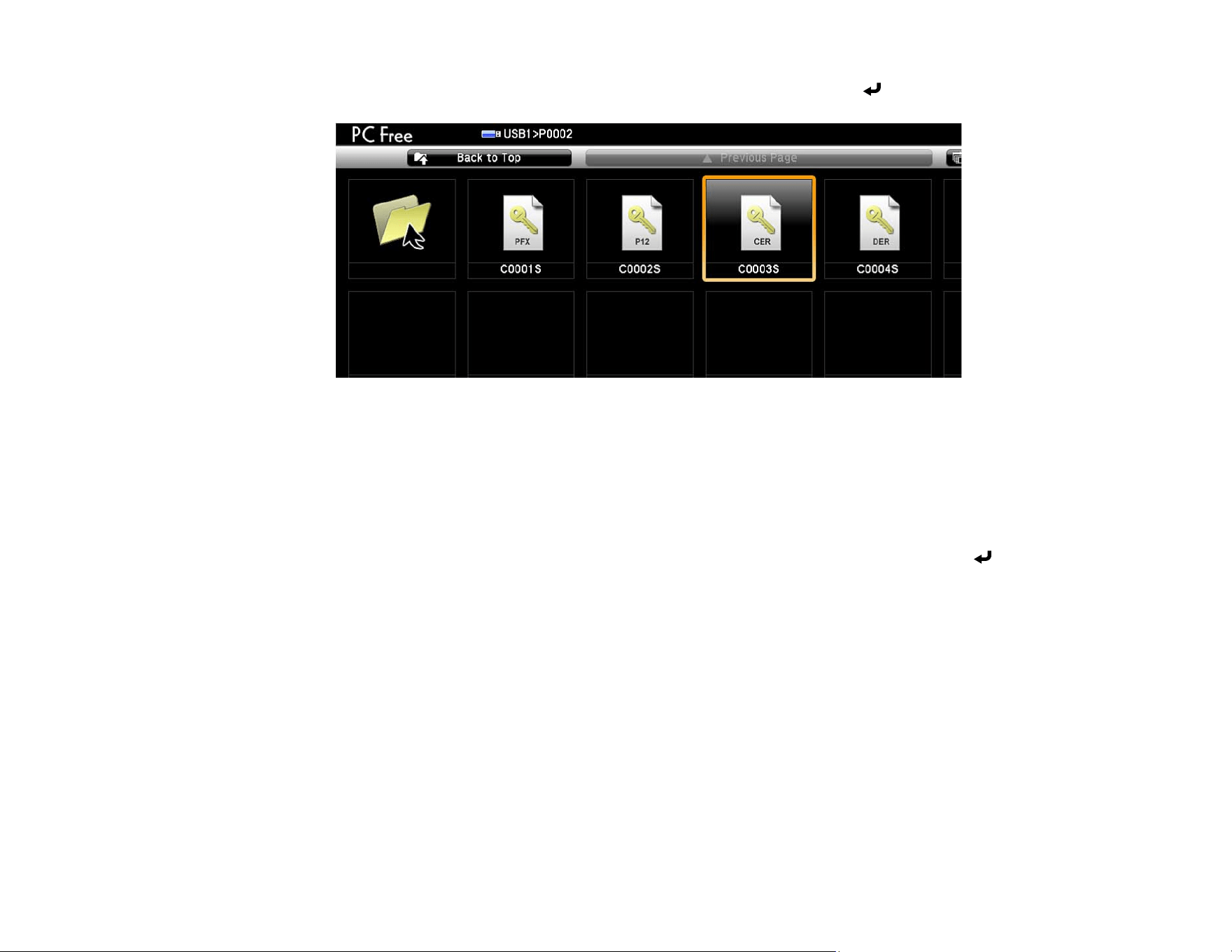
117
• To register a CA Certificate, select the CA certificate file icon and press Enter.
The password screen is displayed (for Client or Web Server Certificates) or the certificate contents is
displayed (for CA Certificates).
6. If you see the password screen, enter the certificate password using the keyboard that appears.
The certificate content is displayed.
7. Check the content of the certificate to make sure it is correct.
8. When you finish checking the certificate, press the arrow buttons to select OK and press Enter.
You see a registration completion message.
Parent topic: Secure HTTP
Registering Digital Certificates from a Web Browser
You can register the digital certificates on the projector for wireless LAN authentication.
1. Make sure your digital certificate file is compatible with projector registration.
2. Make sure the projector is turned on.
3. Start your web browser on a computer or mobile device connected to the network.
4. Type the projector's IP address into the browser's address box and press the computer's Enter key.
You see the Web Control screen and a prompt to enter a user ID and password.
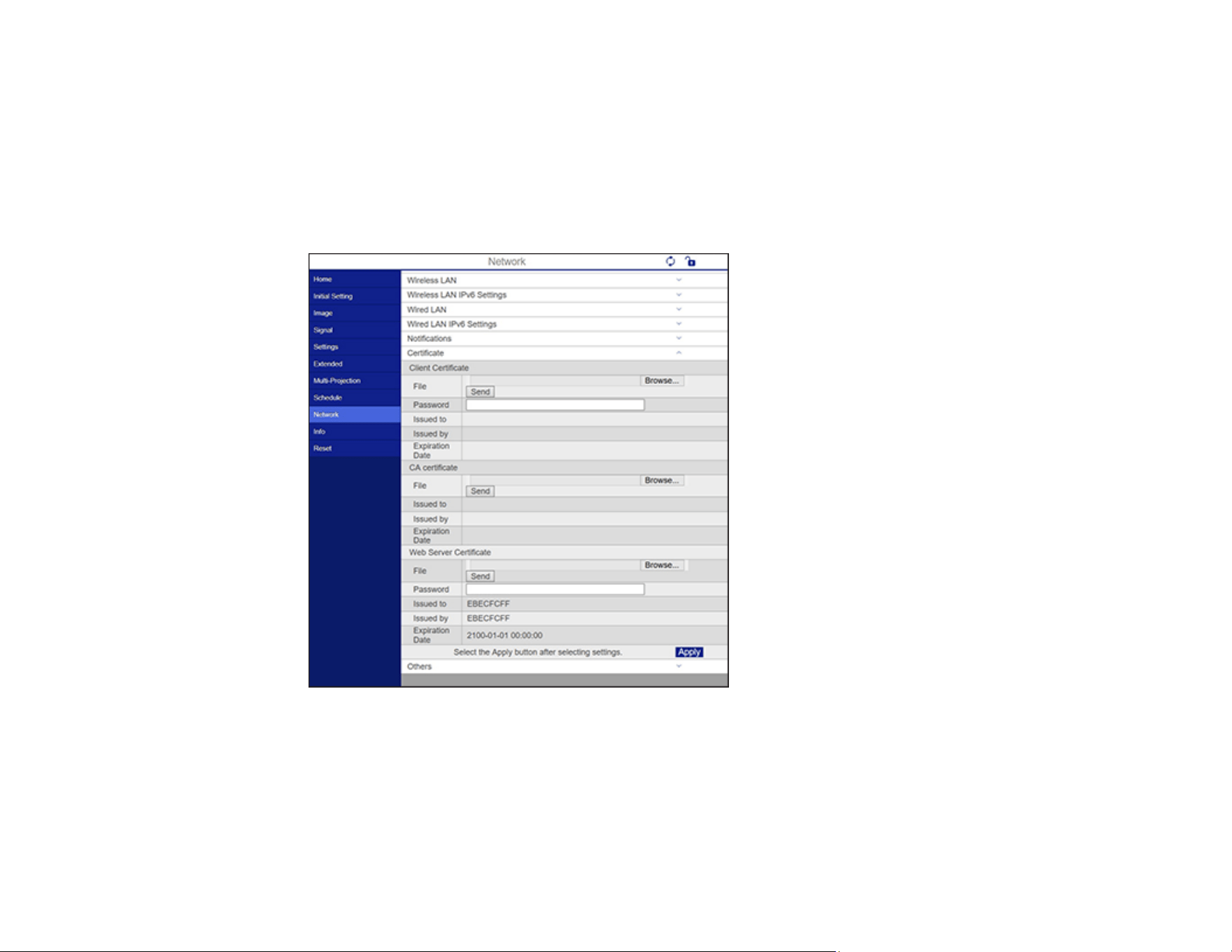
118
5. Enter the following information in uppercase or lowercase letters, exactly as shown:
• For the user ID, enter EPSONWEB. (You cannot change the user ID.)
• For the password, enter the password you set. There is no default password.
6. Select Advanced.
7. Under Network, select Certificate.
You see a screen like this:
8. Click the Browse button, select the certificate file, and click Open.
9. Enter a password in the Password box, and click Send.
10. When you finish registering the certificate, click Apply to finalize your changes and complete the
registration.
Parent topic: Secure HTTP
119
Digital Certificate Types
You can register these types of digital certificates.
Client Certificate (PEAP-TLS/EAP-TLS)
Specification Description
Format PKCS#12
Extension PFX, P12
Encryption RSA
Hashes MD5/SHA-1/SHA-256/SHA-384/SHA-512
Key length 512/1024/2048/4096 bit
Password Up to 64 alphanumeric characters; required
CA Certificate (PEAP/PEAP-TLS/EAP-TLS/EAP-FAST)
Specification Description
Format X509v3
Extension DER/CER/PEM
Encryption RSA
Hashes MD5/SHA-1/SHA-256/SHA-384/SHA-512
Key length 512/1024/2048/4096 bit
Encoding BASE64/Binary
Web Server Certificate (Secure HTTP)
Specification Description
Format PKCS#12
Extension PFX, P12
Encryption RSA
Hashes MD5/SHA-1/SHA-256/SHA-384/SHA-512
Key length 512/1024/2048/4096 bit

121
Using Basic Projector Features
Follow the instructions in these sections to use your projector's basic features.
Turning On the Projector
Turning Off the Projector
Selecting the Language for the Projector Menus
Setting the Date and Time
Resizing the Image with the Zoom Button
Focusing the Image Using the Focus Buttons
Setting the Screen Type
Adjusting the Image Position Using Lens Shift
Adjusting the Image Position Using Screen Position
Displaying a Test Pattern
Adjusting the Image Height
Image Shape
Selecting an Image Source
Remote Control Operation
Projection Modes
Image Aspect Ratio
Color Mode
Adjusting the Brightness
Adjusting Luminance Controls
Controlling the Volume with the Volume Buttons
Projecting in Content Playback Mode
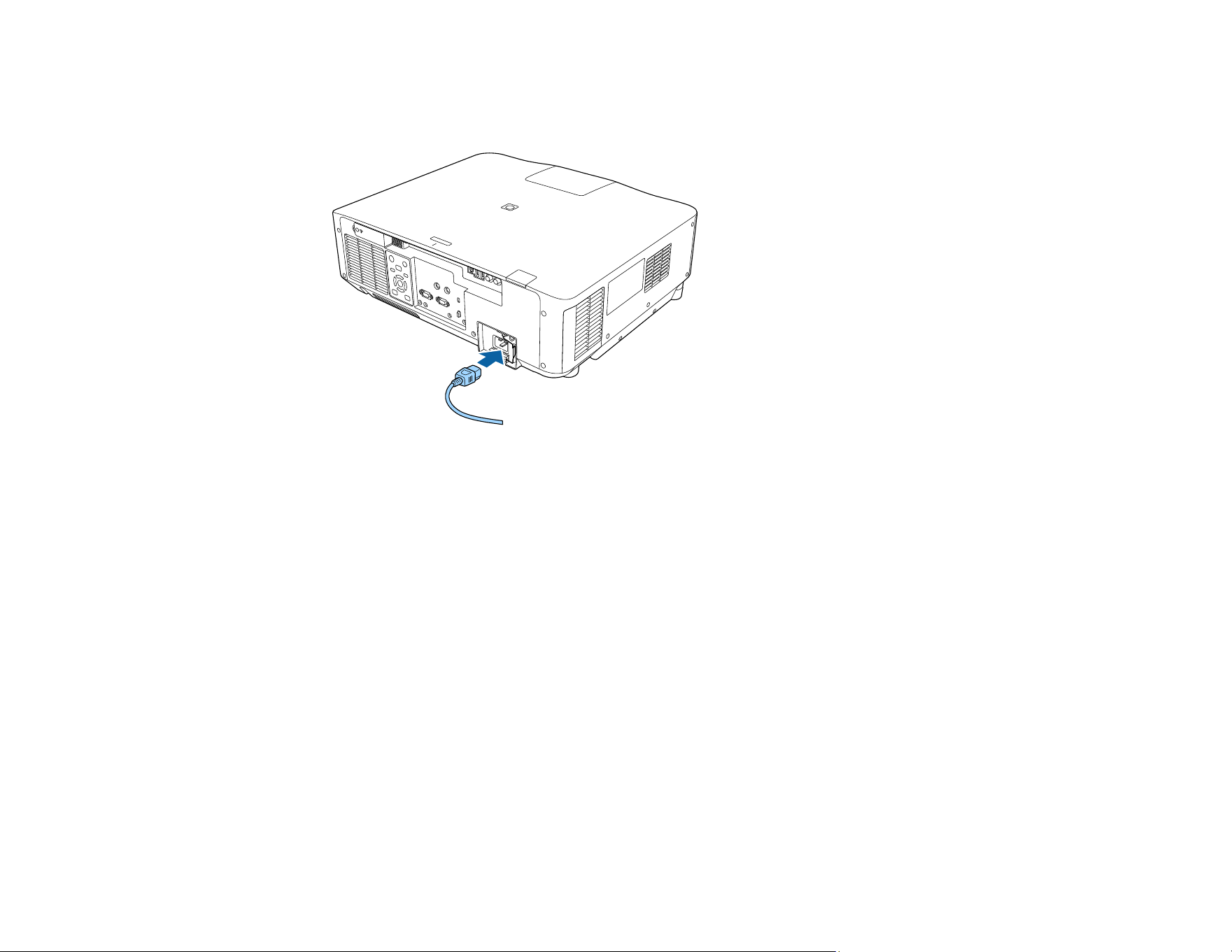
122
Turning On the Projector
1. Connect the power cord to the projector's power inlet.
Note: For the EB-PQ2216B, EB-PQ2216W, and EB-PQ2220B models, a 220 V power cord is
required for full operation and performance, however, you can use a 120 V power cord to temporarily
operate the projector in order to assist with projector setup. When projecting using a 120 V power
cord, the maximum brightness of the projected image is limited. Use the 220 V power cord when
adjusting the projected image or the lens. You cannot use the Light Source Mode, Estimated
Remains, Refresh Mode, or Light Source Calibration features with the 120 V power cord. When
using a 120 V power cord, it should have a 3-prong plug, a 14 AWG rating and a C19 connector.
2. Plug the power cord into an electrical outlet.
The projector's On/Standby light turns blue. This indicates that the projector is receiving power.
Note: With Direct Power On turned on, the projector turns on as soon as you plug it in. If you enable
the Auto Power On setting in the projector's Operation menu, the projector turns on when it detects
a signal or cable connection from the selected port.
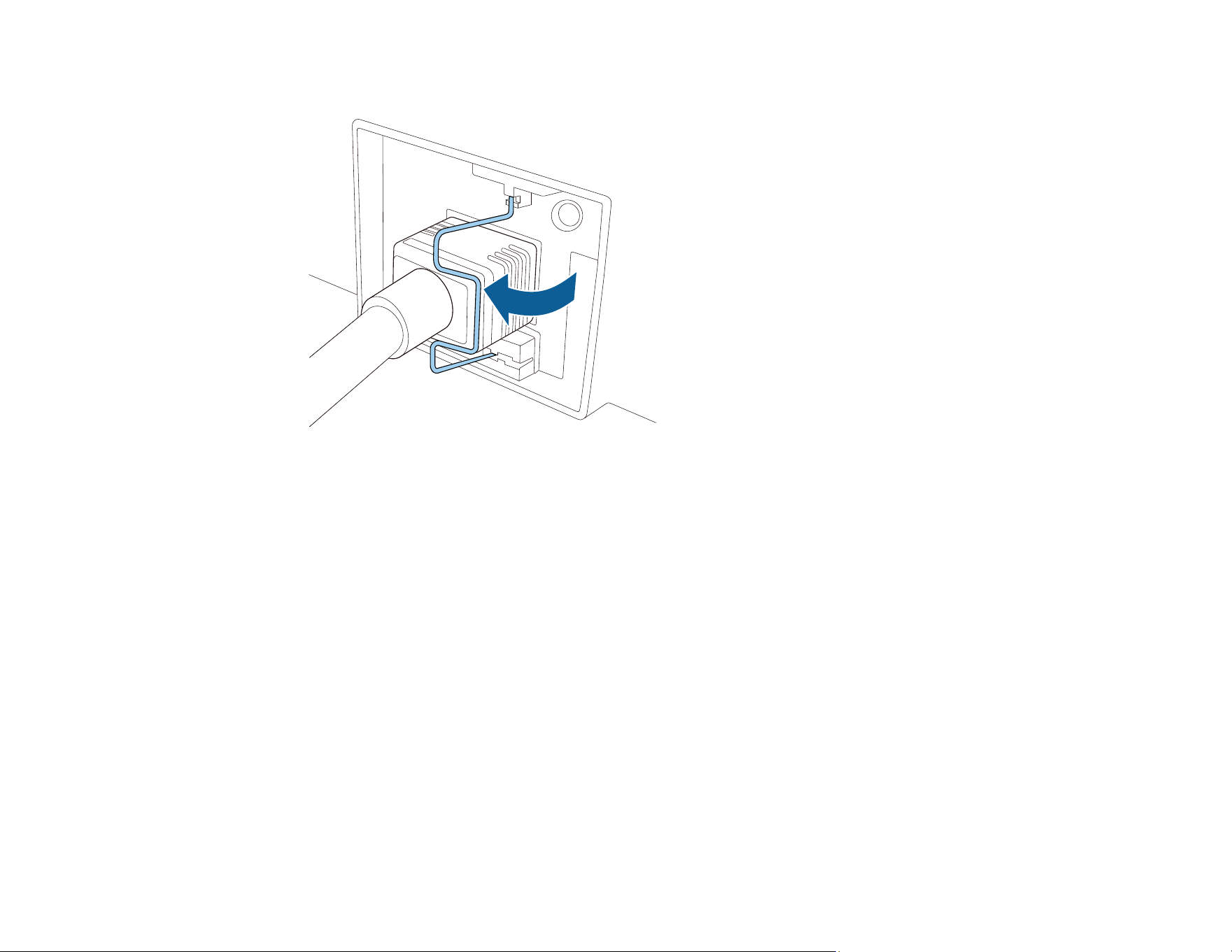
123
3. If necessary, lock the power cord to prevent it from falling out.
4. Press the On button on the projector or remote control to turn on the projector.
The projector beeps and the Status light flashes blue as the projector warms up. After about 30
seconds, the Status light stops flashing and turns blue.
Note: When Quick Startup is enabled in the projector's Extended menu, the projector becomes
ready for use in several seconds the next time you press the On button.
Warning: Never look into the projector lens when the laser is on. This can damage your eyes and is
especially dangerous for children and pets. If you are using the remote control to turn the projector
on, make sure no one is looking into the lens or in front of the projector before turning it on.
Caution: Make sure no objects are blocking the light from the projector lens. Objects blocking the
lens for an extended time can melt and light that is reflected back into the lens can cause the
projector to malfunction.
If you do not see a projected image right away, try the following:
• Turn on the connected computer or video device.
• Insert a DVD or other video media and press the play button, if necessary.
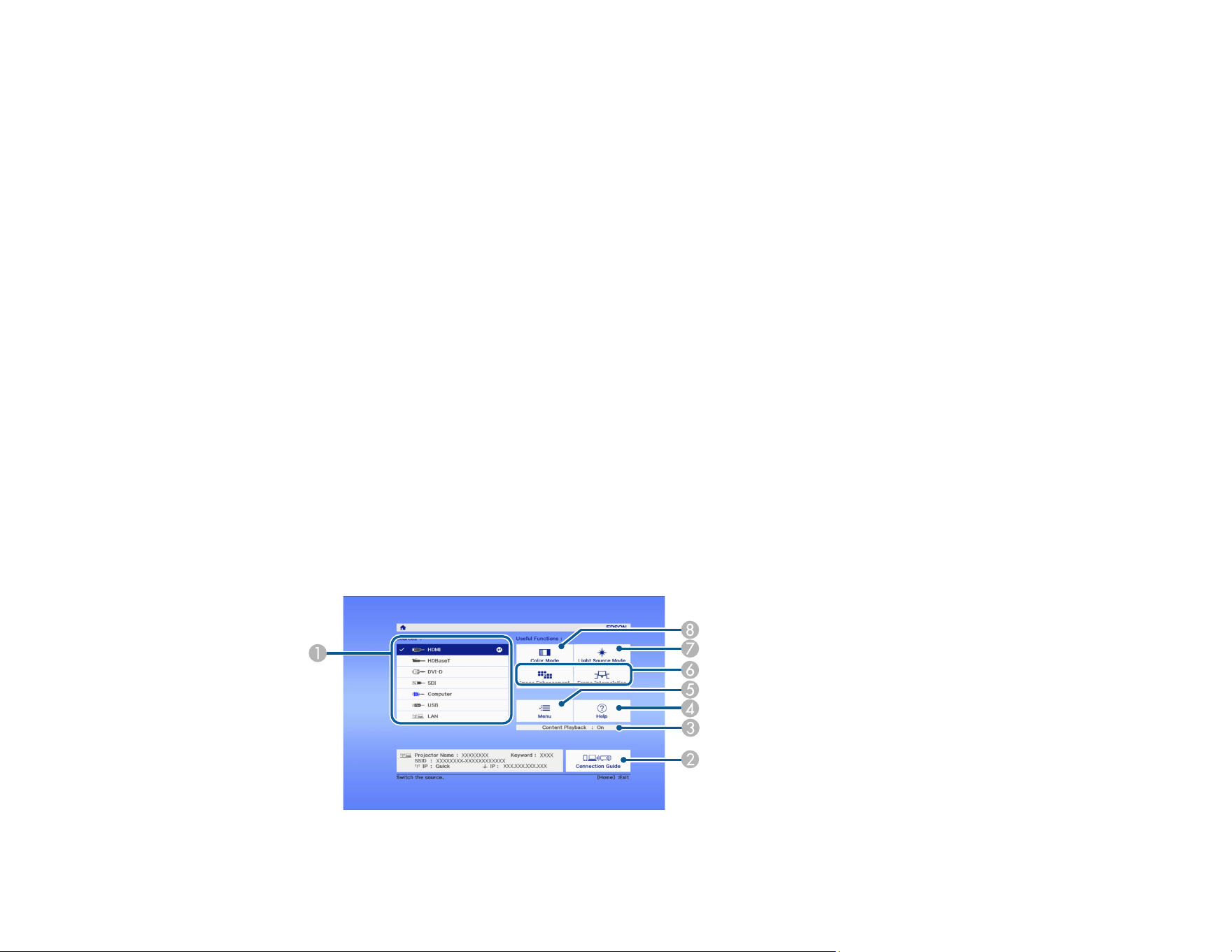
124
• Press the Source Search button on the projector or the Search button on the remote control to detect
the video source.
• Change the screen output from the computer when using a laptop.
• Press the button for the video source on the remote control.
• If the Home screen is displayed, select the source you want to project.
Using the Home Screen
Parent topic: Using Basic Projector Features
Related references
Direct Power On
Auto Power On
Quick Startup
Using the Home Screen
You can select input sources and other frequently used options from the Home screen.
1. To display the Home screen, do one of the following:
• Press the Home button on the remote control.
• Turn on the projector with the Home Screen Auto Disp setting enabled.
• Turn on the projector when no signal is received from the selected input source.
2. Press the arrow buttons on the remote control or control panel to navigate the screen, and press
Enter to select an option.

125
1 Select the video source you want to project
2 Display the Connection Guide
3 Indicates the Content Playback mode
4 Display the Help screen
5 Display the projector's menus
6 Select customizable menu options
7 Select to change the Light Source Mode
8 Select to change the Color Mode
Note: Your Home screen may look different from the illustration shown here. You can select the
customizable menu options using the Custom Function 1 and Custom Function 2 settings in the
Extended menu.
3. Press the Home button to hide the Home screen.
Parent topic: Turning On the Projector
Related references
Home Screen
Turning Off the Projector
Before turning off the projector, shut down any computer connected to it so you can see the computer
display during shutdown.
Note: When using the Shutter function, the laser is still on. To turn off the laser, turn off the projector.
1. Press the Standby button on the projector or remote control.
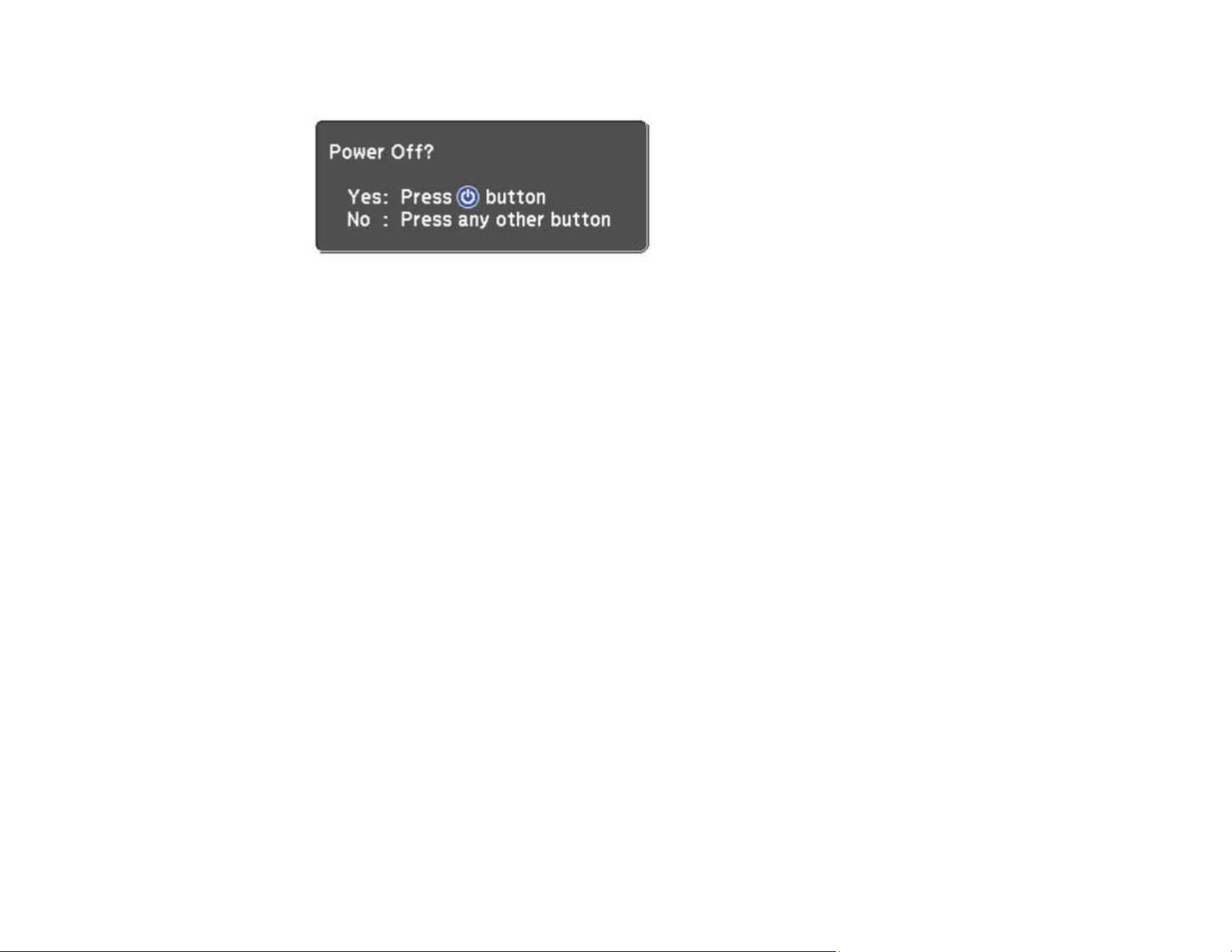
126
The projector displays a shutdown confirmation screen.
Note: If Standby Confirmation is disabled and you press the Standby button on the remote
control, the confirmation screen is not shown and the projector shuts off.
2. Press the Standby button on the projector or remote control again. (To leave it on, press any other
button.)
The projector beeps twice, the laser turns off, and the Status light turns off.
Note: With Epson's Instant Off technology, there is no cool-down period so you can pack up the
projector for transport right away (if necessary).
Note: If the Light Source Calibration setting is set to Run Periodically in the projector's
Management menu, light source calibration starts automatically if you turn off the projector and the
following conditions are present:
• 100 hours have passed since the last light source calibration.
• You have used the projector continuously for at least 20 minutes.
3. To transport or store the projector, make sure the Status light is off, then unplug the power cord.
Note: If you use the projector continuously for more than 24 hours, or regularly turn it off by shutting off
the power outlet, schedule periodic Light Source Calibration events in the Extended menu schedule
settings.
Parent topic: Using Basic Projector Features
Related references
Standby Confirmation
Light Source Calibration
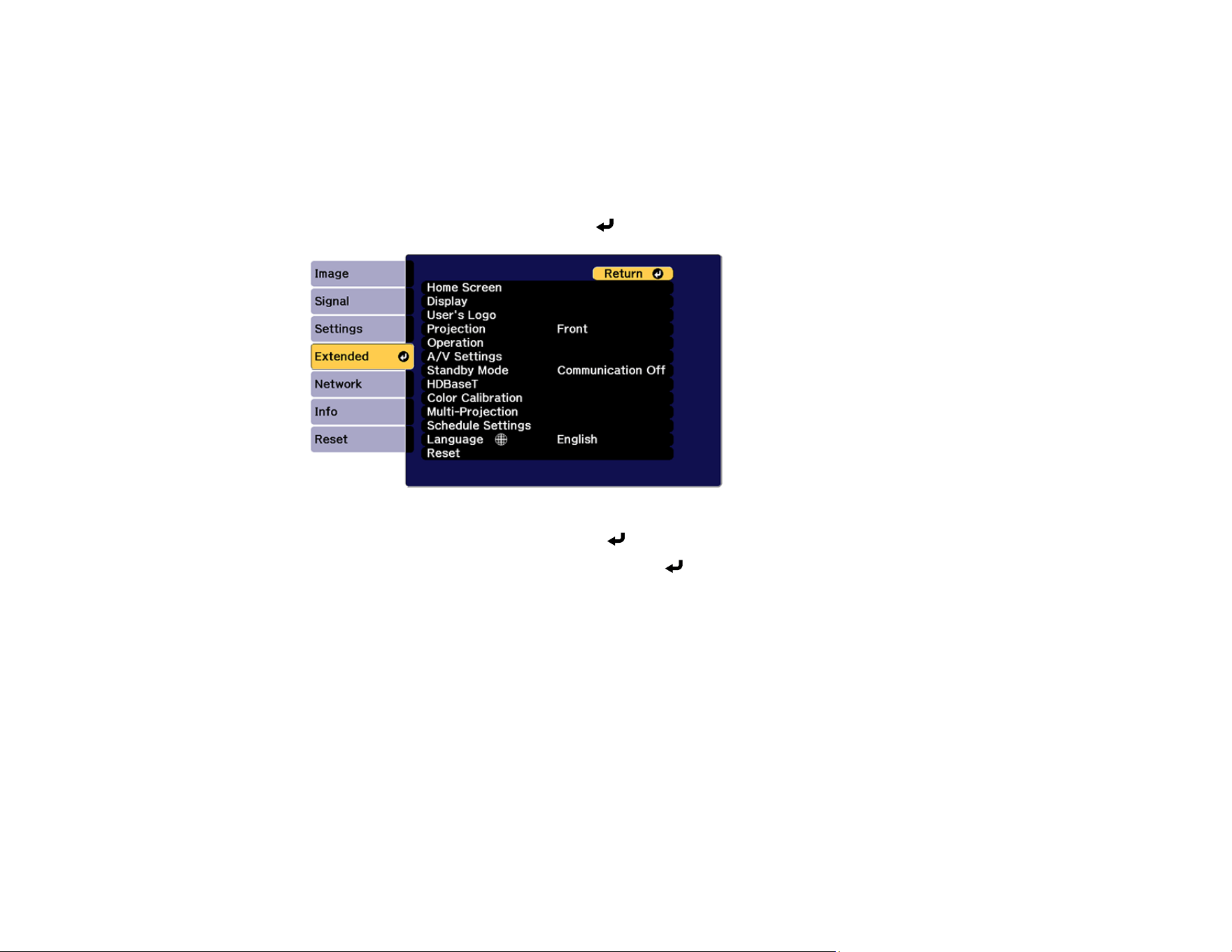
127
Selecting the Language for the Projector Menus
If you want to view the projector's menus and messages in another language, you can change the
Language setting.
1. Turn on the projector.
2. Press the Menu button.
3. Select the Extended menu and press Enter.
4. Select the Language setting and press Enter.
5. Select the language you want to use and press Enter.
6. Press Menu or Esc to exit the menus.
Parent topic: Using Basic Projector Features
Related references
Language
Setting the Date and Time
You can set the date and time for the projector.
Note: If the Schedule Protection setting in the Password Protection screen is enabled, you cannot
change the date and time settings.
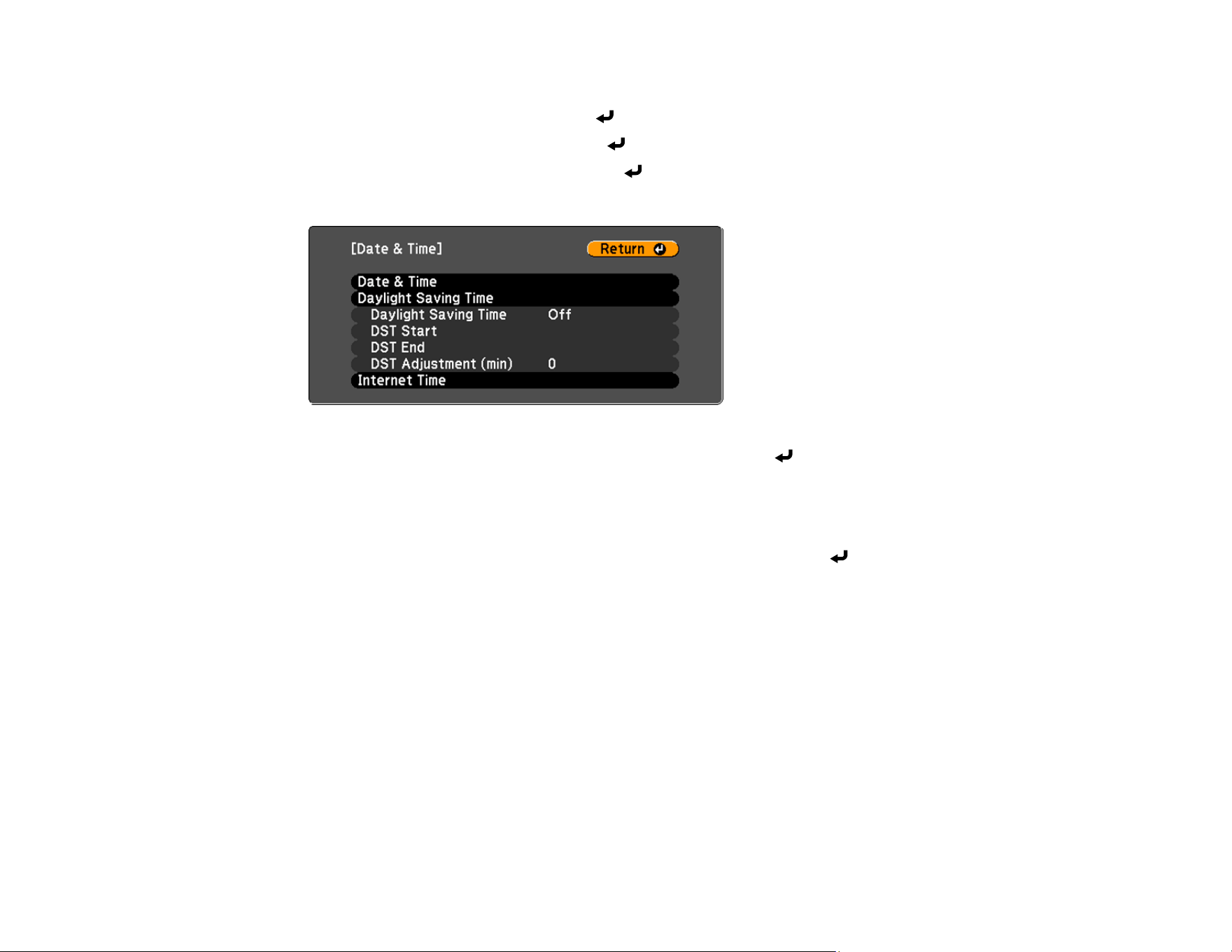
128
1. Press the Menu button.
2. Select the Extended menu and press Enter.
3. Select the Operation setting and press Enter.
4. Select the Date & Time setting and press Enter.
You see a screen like this:
5. Select your date and time settings. Then select Set and press Enter to confirm your changes.
6. To update the time automatically from an internet time server, select the Internet Time setting and
press Enter.
7. Select the Internet Time setting and set it to On.
8. Enter the IP address of the internet time server. Select Set and press Enter to confirm your
changes.
9. When you are finished, press the Menu button to exit.
Parent topic: Using Basic Projector Features
Related references
Date & Time
Resizing the Image with the Zoom Button
You can adjust the size of the image using the zoom buttons. Zoom is not available for the ELPLX02 and
ELPX02WS lenses.
Note: Wait 20 minutes after turning on the projector before setting the focus, zoom, and lens shift for
maximum accuracy.

129
1. Turn on the projector and display an image.
2. Press the Lens button on the control panel repeatedly until the zoom adjustment screen appears, or
press the Zoom button on the remote control.
3. Press and hold the arrow buttons on the projector's control panel or remote control to resize the
image.
4. Press the Esc button when finished.
Parent topic: Using Basic Projector Features
Focusing the Image Using the Focus Buttons
You can adjust the sharpness of the projected image using the focus buttons.
Note: Wait 20 minutes after turning on the projector before setting the focus, zoom, and lens shift for
maximum accuracy. If you installed any of the following lenses, see the link below on focusing with a
short throw lens instead: ELPLX02S, ELPLX02WS, ELPLU03S, or ELPLU04.
1. Turn on the projector and display an image.
2. Press the Lens button on the control panel repeatedly until the focus adjustment screen appears, or
press the Focus button on the remote control.
3. Press and hold the arrow buttons on the projector's control panel or remote control to adjust the
focus.
4. Press the Esc button when finished.
Focusing the Image When Using an Optional Short Throw Lens
Parent topic: Using Basic Projector Features
Focusing the Image When Using an Optional Short Throw Lens
If you installed an optional short throw lens (ELPLX02S, ELPLX02WS, ELPLU03S, or ELPLU04), you
may need to first focus on the center of your screen and then correct any distortion in the surrounding
area.
1. Turn on the projector and display an image.
2. Press the Focus button on the remote control or press the Lens button on the control panel
repeatedly until the focus adjustment screen appears.
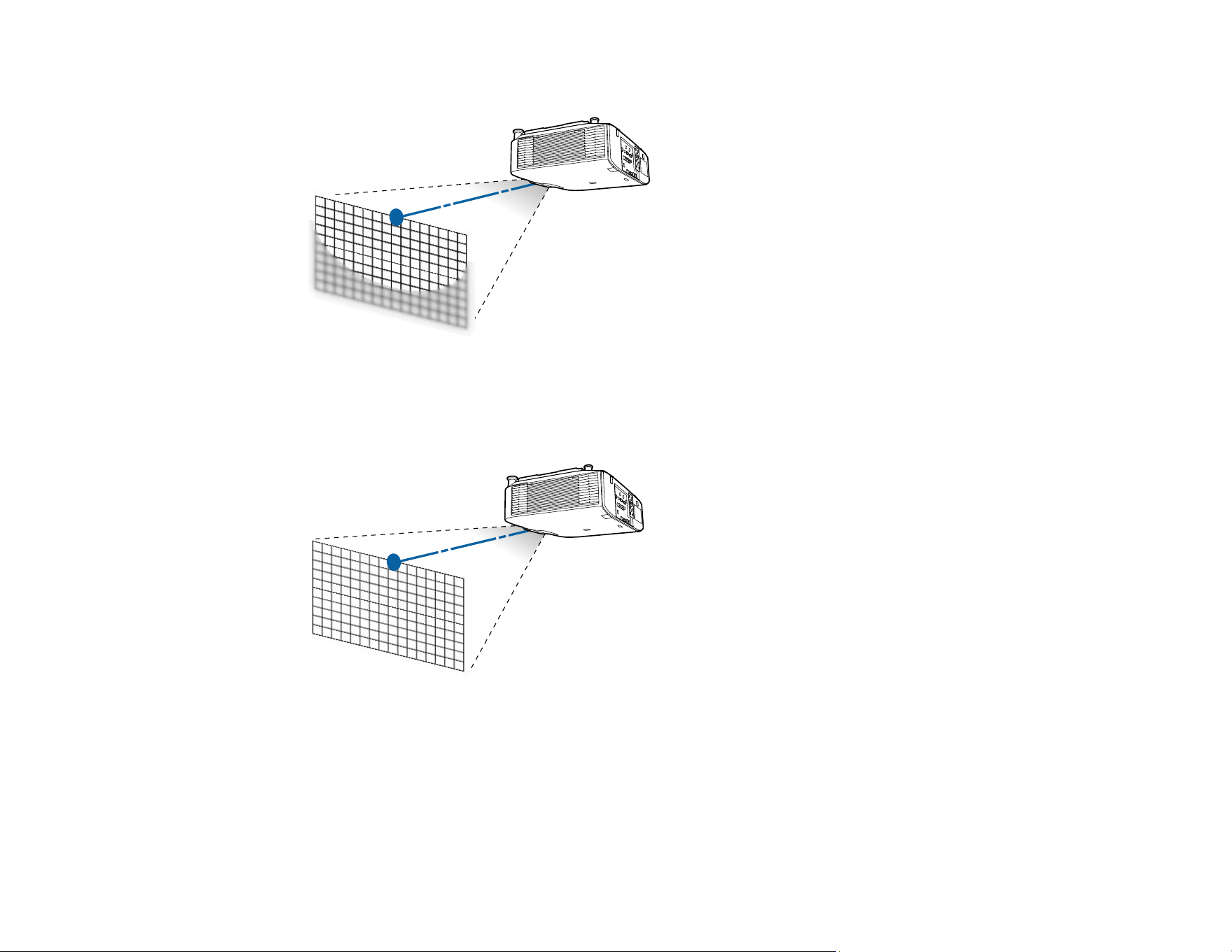
130
3. Press the left or right arrow buttons until the center of the image is focused.
4. Press the Focus button on the remote control or press the Lens button on the control panel
repeatedly until the distortion adjustment screen appears.
5. Press the left or right arrow buttons until the edges of the image are also focused.
Parent topic: Focusing the Image Using the Focus Buttons
Setting the Screen Type
You can use the Screen Type setting to match the aspect ratio of the displayed image to the screen you
are using.
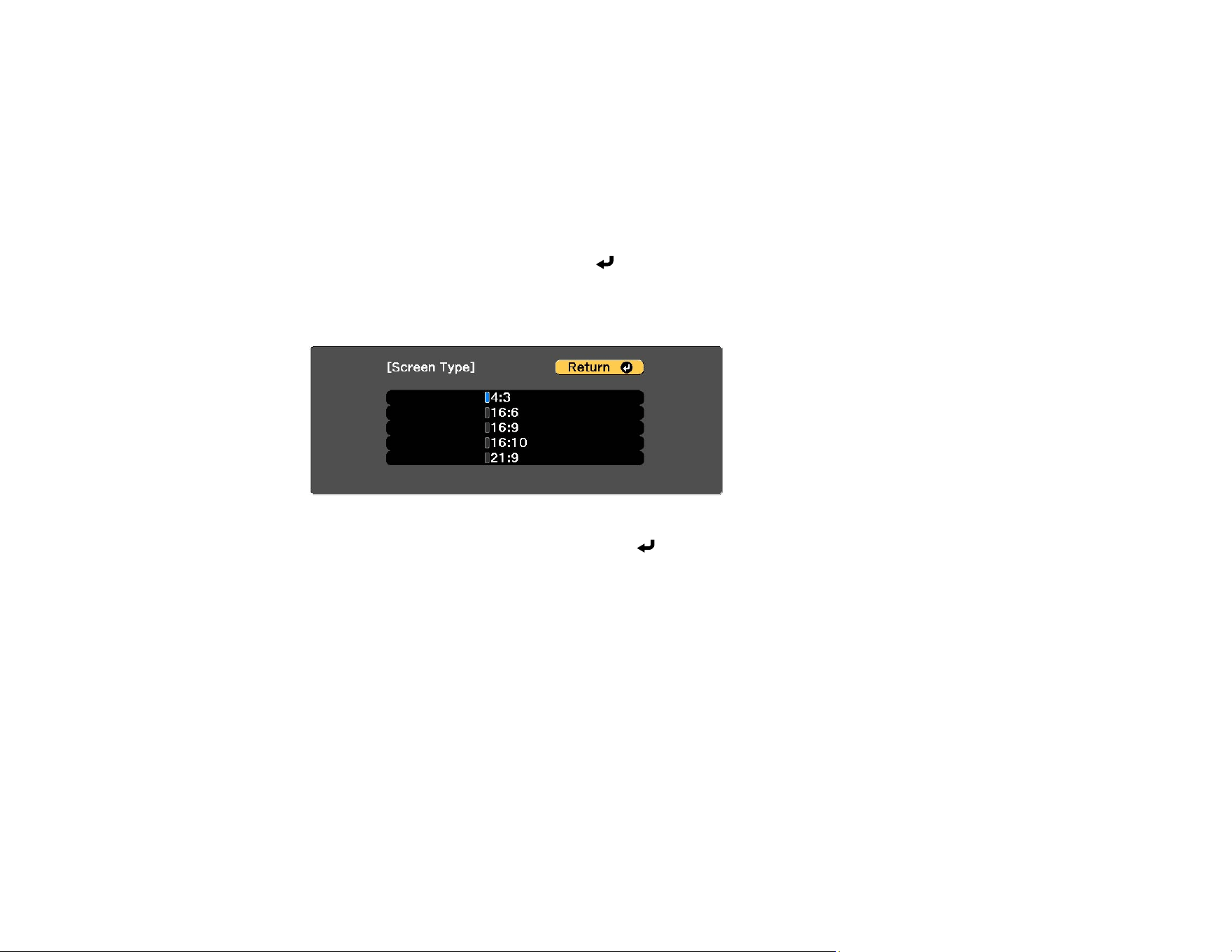
131
Note: If you change the Screen Type setting, the EDID settings are automatically adjusted. You cannot
change the Screen Type setting when the Content Playback setting is enabled.
Note: The Screen Type setting is not supported by the Message Broadcasting feature in the Epson
Projector Management software.
1. Turn on the projector and display an image.
2. Press the Menu button.
3. Select the Extended menu and press Enter.
4. Select Display > Screen > Screen Type.
You see a screen like this:
5. Select your screen's aspect ratio and press Enter.
6. Press the Menu button to exit.
7. Adjust the aspect ratio for the projected image, if necessary.
Parent topic: Using Basic Projector Features
Related references
Screen
Adjusting the Image Position Using Lens Shift
If you cannot install the projector directly in front of the screen, you can adjust the position of the
projected image using the lens shift feature.
1. Turn on the projector and display an image.
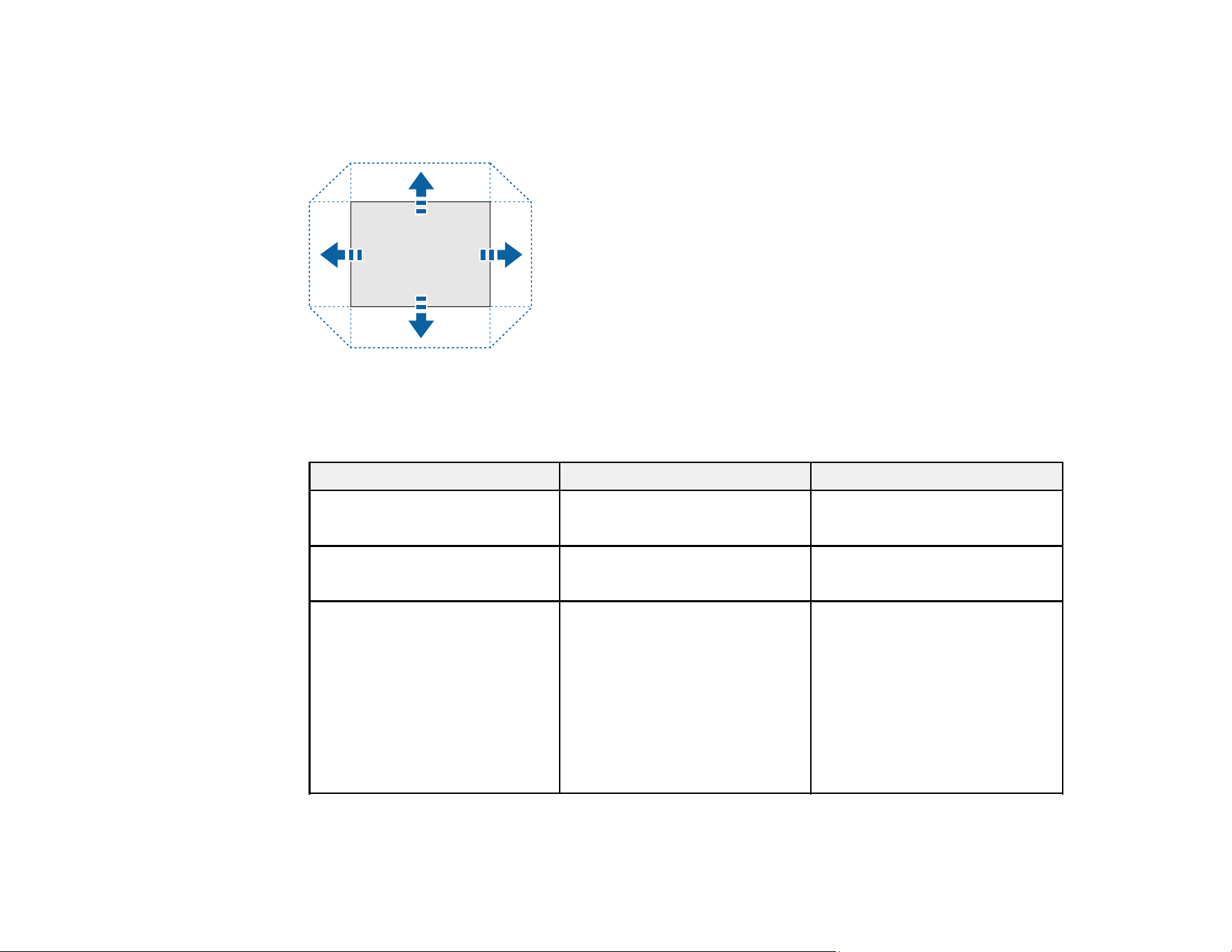
132
2. Press the Lens Shift button on the remote control or the Lens button on the control panel.
3. Press the arrow buttons on the remote control or the control panel to adjust the position of the
projected image as necessary.
The distance the image can be shifted varies depending on the installed lens. The limits are
described in the following table. You can shift the image up to the listed percentage of the image
height or width.
Lens Vertical Horizontal
ELPLX02S
ELPLX02WS
+45%~70% ±15%
ELPLU03S
ELPLW05
±24% ±10%
ELPLU04
ELPLW06
ELPLW08
ELPLM10
ELPLM11
ELPLM15
ELPLL08
±60% ±18%
4. When you are finished, press the Esc button on the control panel or remote control.
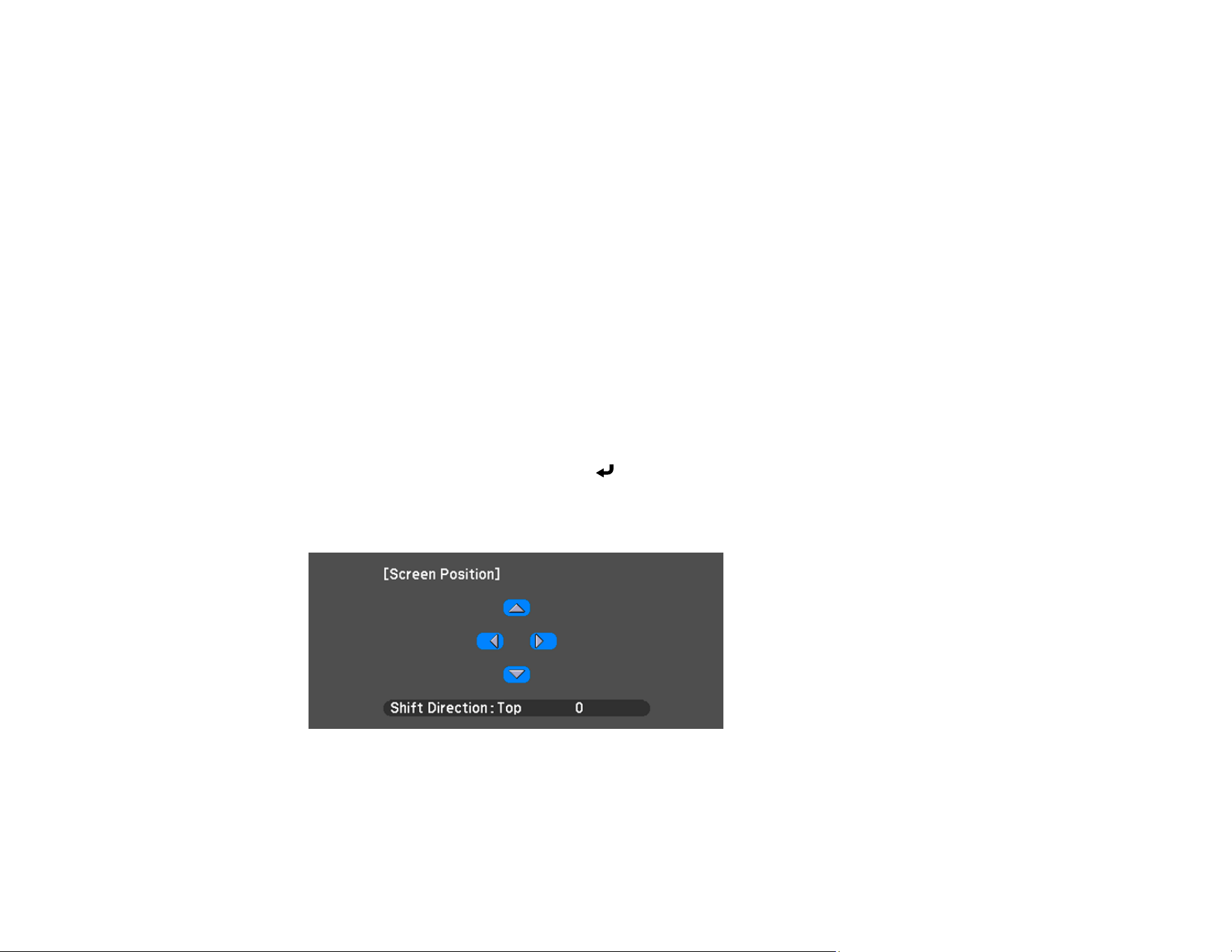
133
Note: When adjusting the image height, position the image lower than where you want it to be and then
move it up. This will help prevent the image from moving down after adjustment. The image is clearest
when the lens is in the home position. To move the lens to the home position, press and hold the Lens
Shift button on the remote control or the Lens button on the control panel for at least three seconds.
Parent topic: Using Basic Projector Features
Adjusting the Image Position Using Screen Position
You can adjust the image position if there are margins between the edge of the image and the projected
screen frame.
Note: You cannot adjust the screen position if the Screen Type setting is set to 16:10.
Note: You cannot adjust the screen position if the screen type is set to the same aspect ratio as the
projector resolution.
1. Turn on the projector and display an image.
2. Press the Menu button.
3. Select the Extended menu and press Enter.
4. Select Display > Screen > Screen Position.
5. Use the arrow buttons on the remote control or projector to adjust the position of the image.
6. When you are finished, press the Menu button.
Parent topic: Using Basic Projector Features

134
Related references
Screen
Displaying a Test Pattern
You can display a test pattern to adjust the projected image without connecting a computer or video
device.
Note: The test pattern's shape is determined by the Screen Type setting. Be sure to set the correct
screen type before adjusting with the test pattern.
1. Turn on the projector.
2. Press the Test Pattern button on the remote control or the down arrow button on the control panel.
Note: You can also display a test pattern from the Settings menu using the remote control.
3. Press the left or right arrow button on the remote control, or press Enter on the control panel to
cycle through the available test patterns.
4. Adjust the image as necessary.
Note: Some settings may not be available while displaying a test pattern. To adjust these settings,
project an image from a connected device.
5. Press the Esc button to clear the test pattern.
Parent topic: Using Basic Projector Features
Related references
Test Pattern
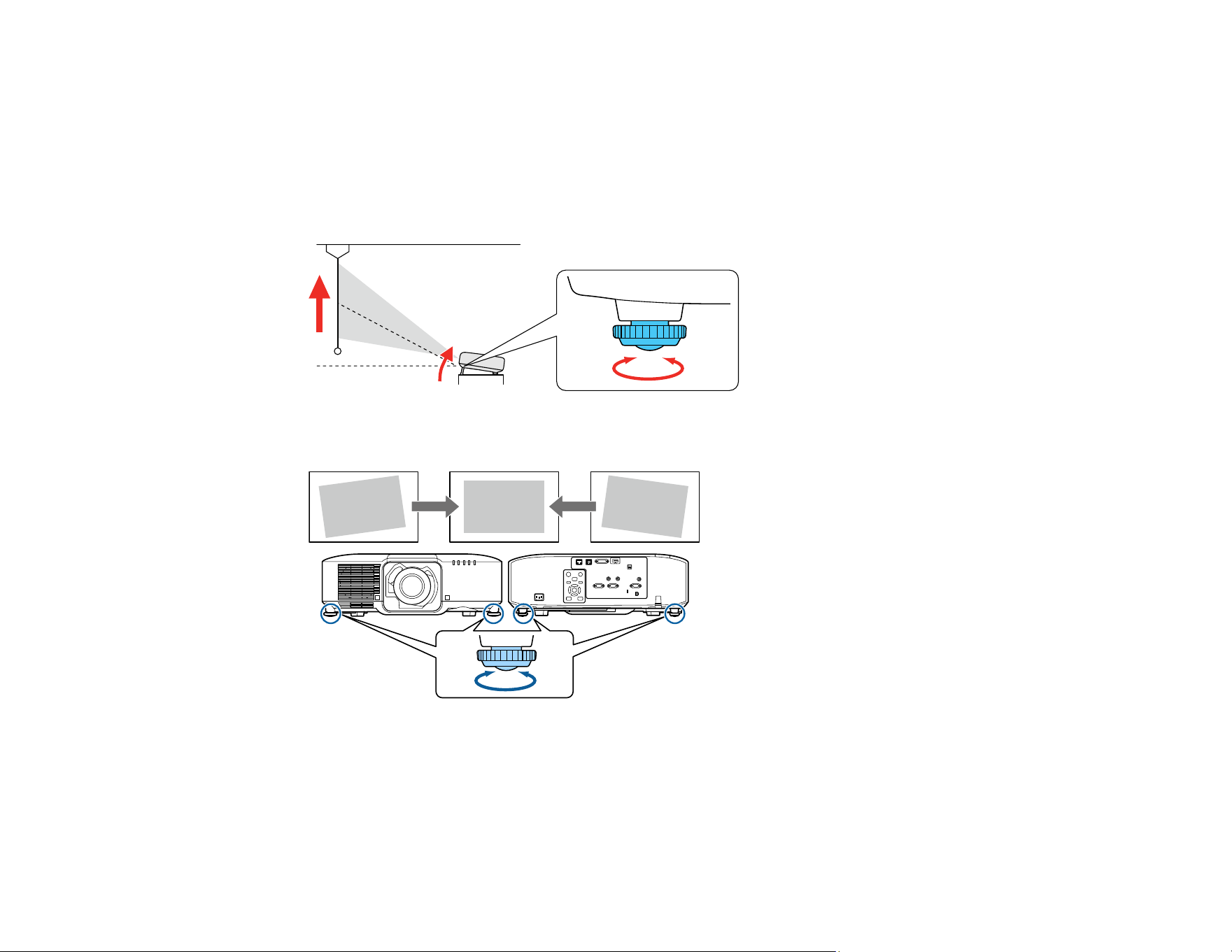
135
Adjusting the Image Height
If you are projecting from a table or other flat surface, and the image is too high or low, you can adjust
the image height using the projector's adjustable feet. You can adjust the tilt within a range of ±5°. The
feet are detachable, and can be extended approximately 1.4 inches (35 mm).
1. Turn on the projector and display an image.
2. To adjust the image height, rotate the front feet to extend or retract them.
3. If the image is tilted, rotate the front and rear feet to adjust their height.
If the projected image is unevenly rectangular, you need to adjust the image shape.
Parent topic: Using Basic Projector Features
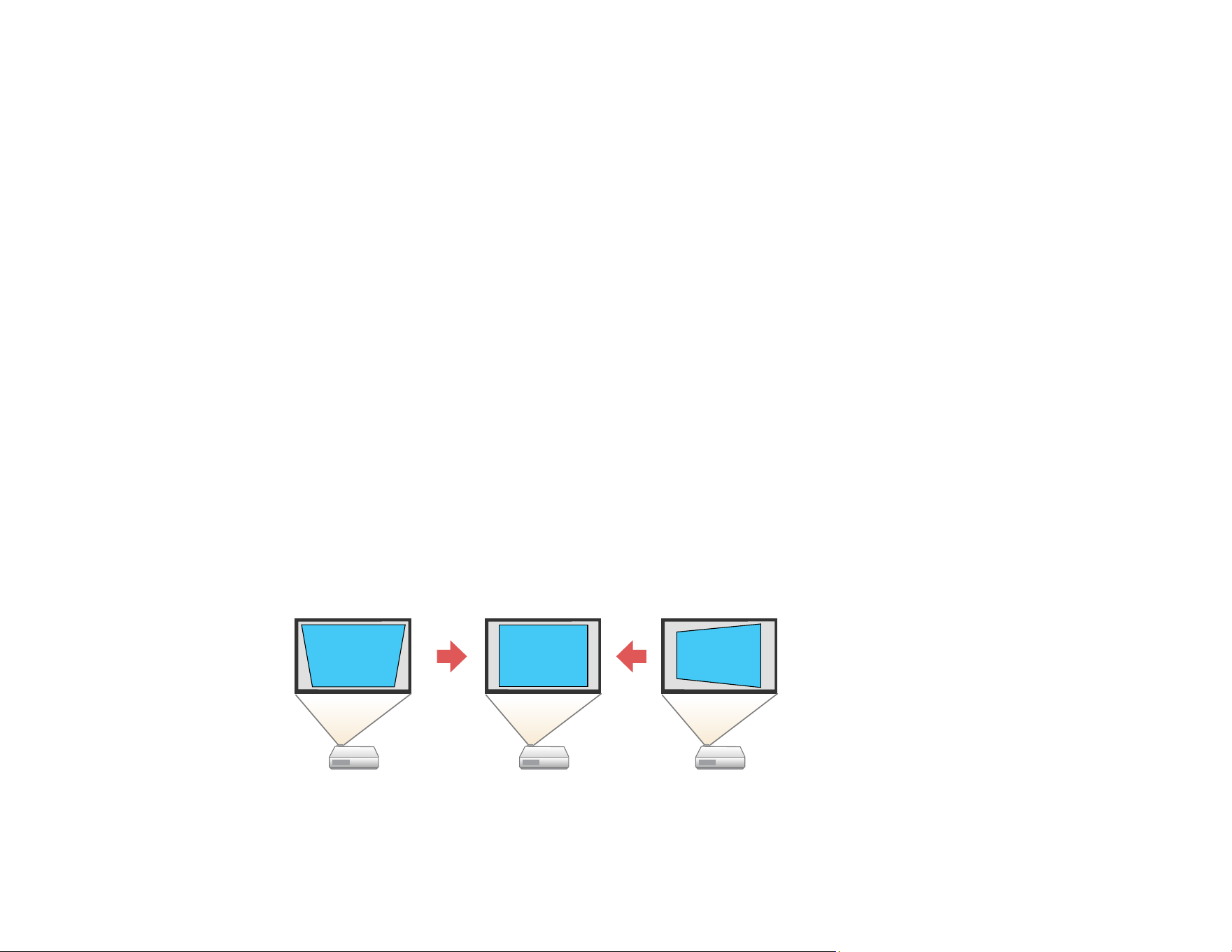
136
Image Shape
You can project an evenly rectangular image by placing the projector directly in front of the center of the
screen and keeping it level. If you place the projector at an angle to the screen, or tilted up or down, or off
to the side, you may need to correct the image shape for the best display quality.
Note: After correction, your image is slightly smaller. For the best quality images, try to adjust the
projector's position to achieve the correct image size and shape. After you have corrected the position of
the projector, you can use the adjustments in this section to correct the image shape. You cannot
combine the H/V-Keystone setting with other correction methods.
Correcting Image Shape with H/V-Keystone
Correcting Image Shape with Quick Corner
Correcting Image Shape with Curved Surface
Correcting Image Shape with Corner Wall
Correcting Image Shape with Point Correction
Parent topic: Using Basic Projector Features
Related references
Geometry Correction
Test Pattern
Correcting Image Shape with H/V-Keystone
You can use the projector's H/V-Keystone setting to correct the shape of an image that is unevenly
rectangular on the sides.
Note: You cannot combine H/V-Keystone correction with other image shape correction methods.
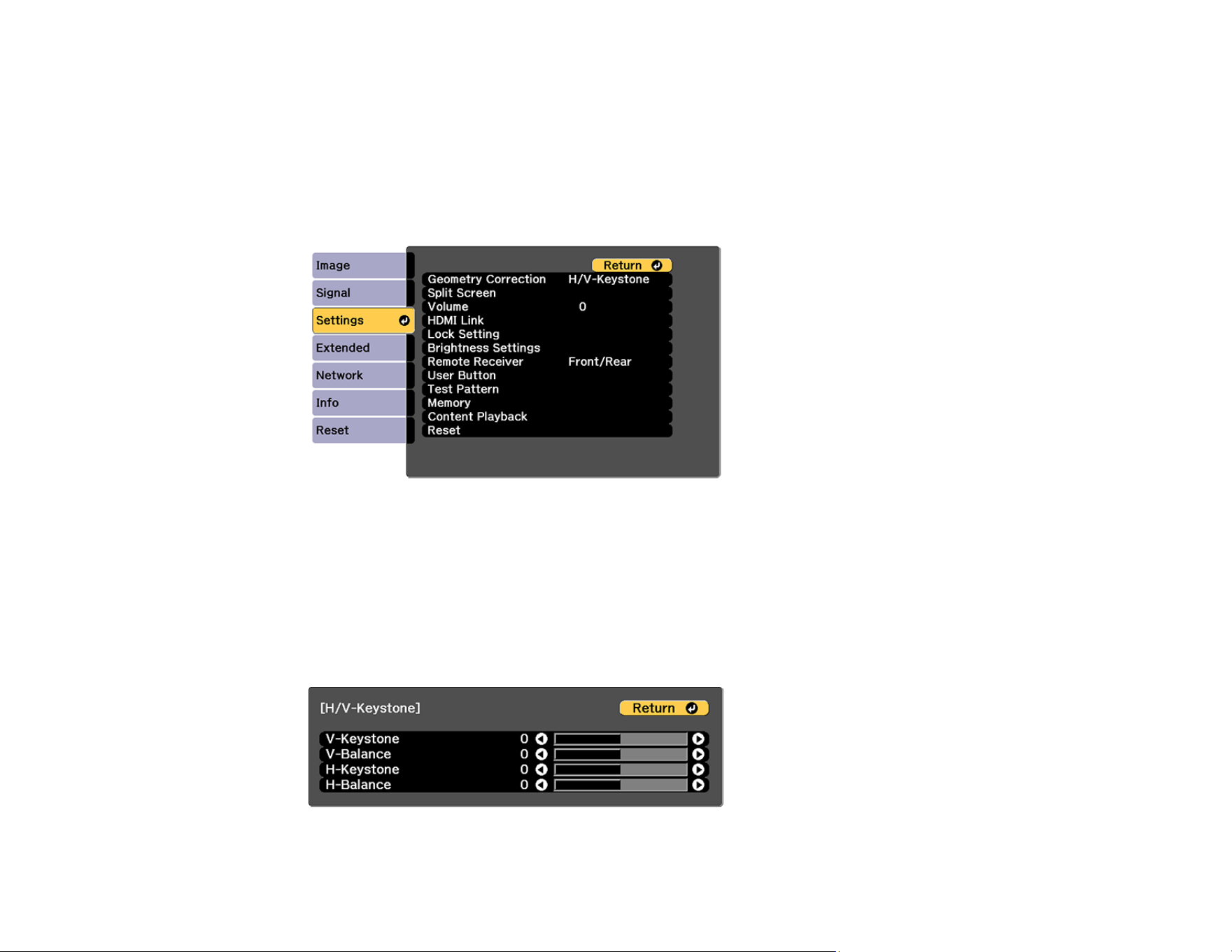
137
1. Turn on the projector and display an image.
Note: You can also display a pattern to aid in adjusting the projected image using the Test Pattern
button on the remote control.
2. Press the Menu button.
3. Select the Settings menu and press Enter.
4. Select the Geometry Correction setting and press Enter.
Note: You can also access the geometric adjustment screen by pressing the Geometry button on
the remote control or the up arrow button on the control panel.
5. Select the H/V-Keystone setting and press Enter. Then press Enter again.
You see the H/V-Keystone adjustment screen:
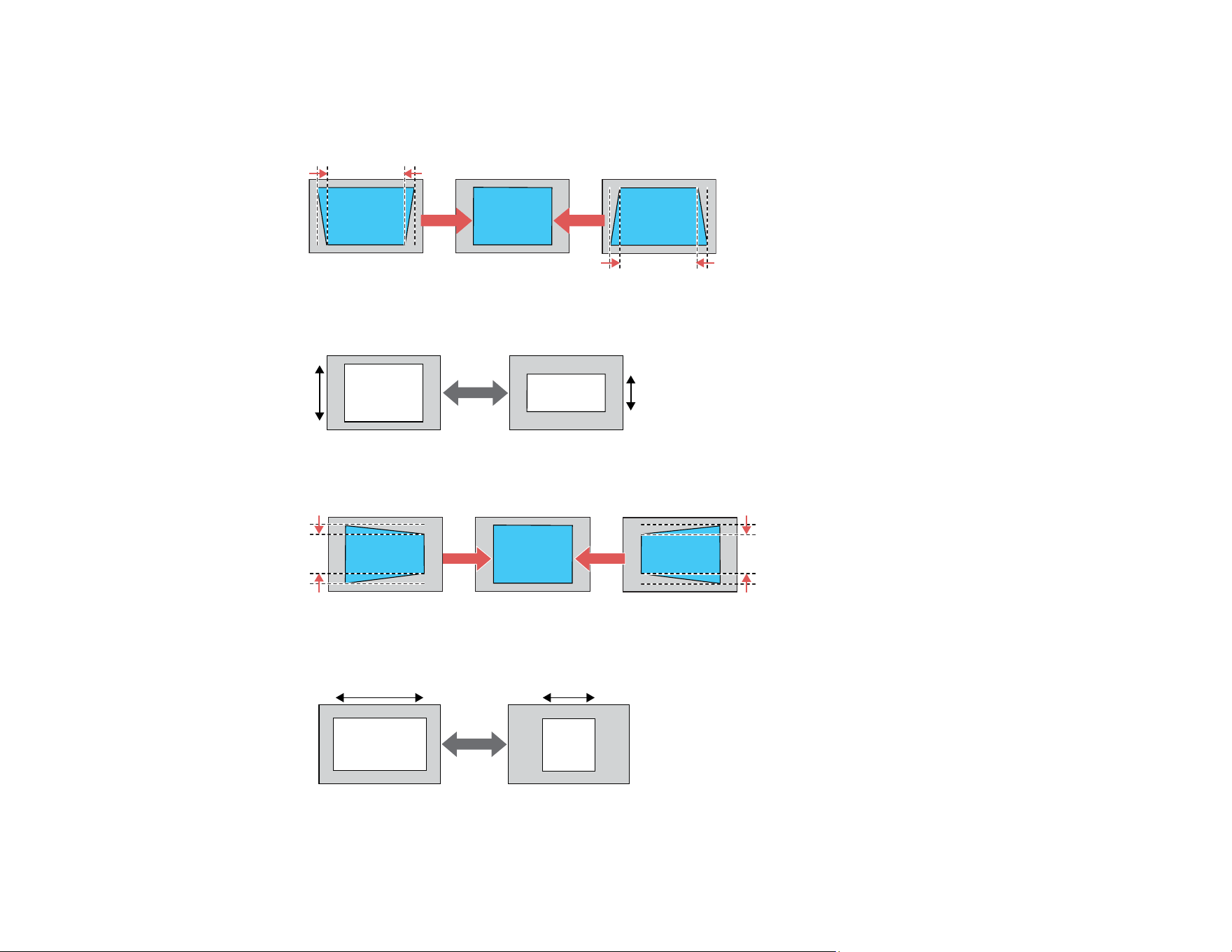
138
6. Use the arrow buttons on the projector or the remote control to select between vertical and
horizontal keystone or balance correction and to adjust the image shape as necessary.
V-Keystone
V-Balance
H-Keystone
H-Balance
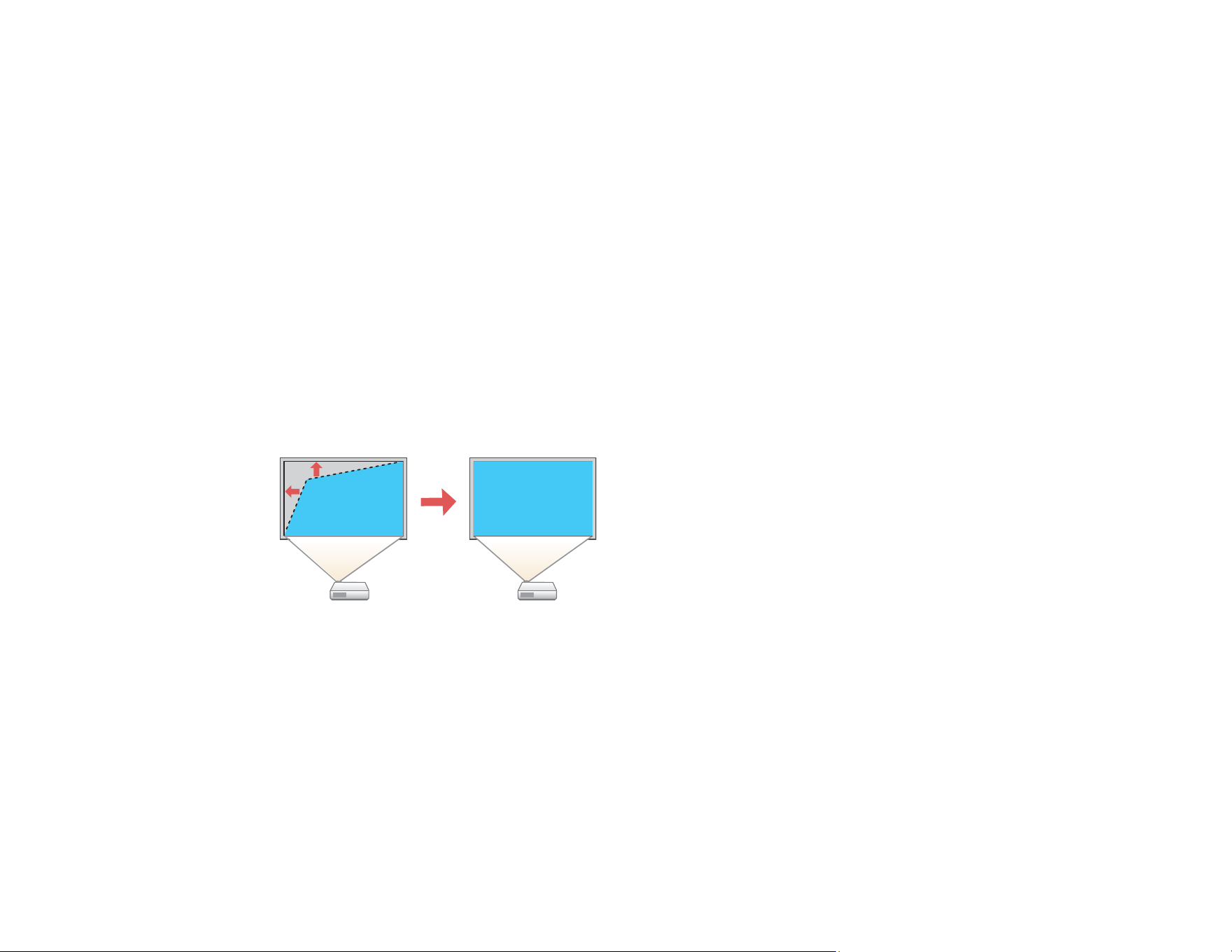
139
Note: To save the current image shape, select Save Memory. You can save up to three image
shapes in the projector's memory.
7. When you are finished, press Esc.
After correction, your image is slightly smaller.
Parent topic: Image Shape
Related references
Geometry Correction
Test Pattern
Correcting Image Shape with Quick Corner
You can use the projector's Quick Corner setting to correct the shape and size of an image that is
unevenly rectangular on all sides.
Note: To provide the best possible image quality, adjust the projector's position to correct the image
shape. If this isn't possible, use the Quick Corner setting to correct the image shape.
1. Turn on the projector and display an image.
Note: You can display a pattern to aid in adjusting the projected image using the Settings menu.
Note: You can also display the pattern by pressing the Test Pattern button on the remote control.
Note: You can also display the pattern by pressing the down arrow button on the control panel.
2. Press the Menu button.
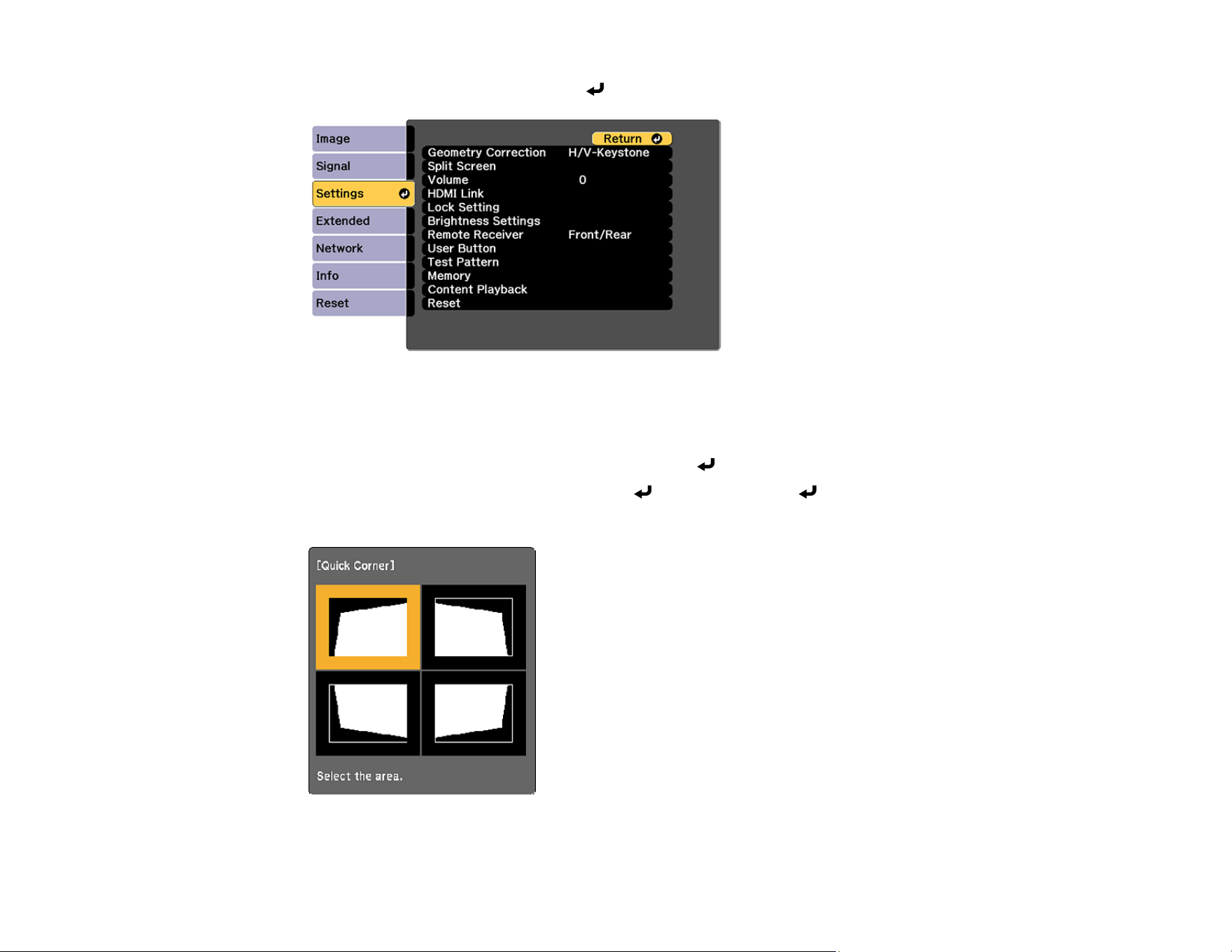
140
3. Select the Settings menu and press Enter.
Note: You can also press the Geometry button on the remote control to display the Geometry
Correction screen.
4. Select the Geometry Correction setting and press Enter.
5. Select the Quick Corner setting and press Enter. Then press Enter again.
You see the Quick Corner adjustment screen:
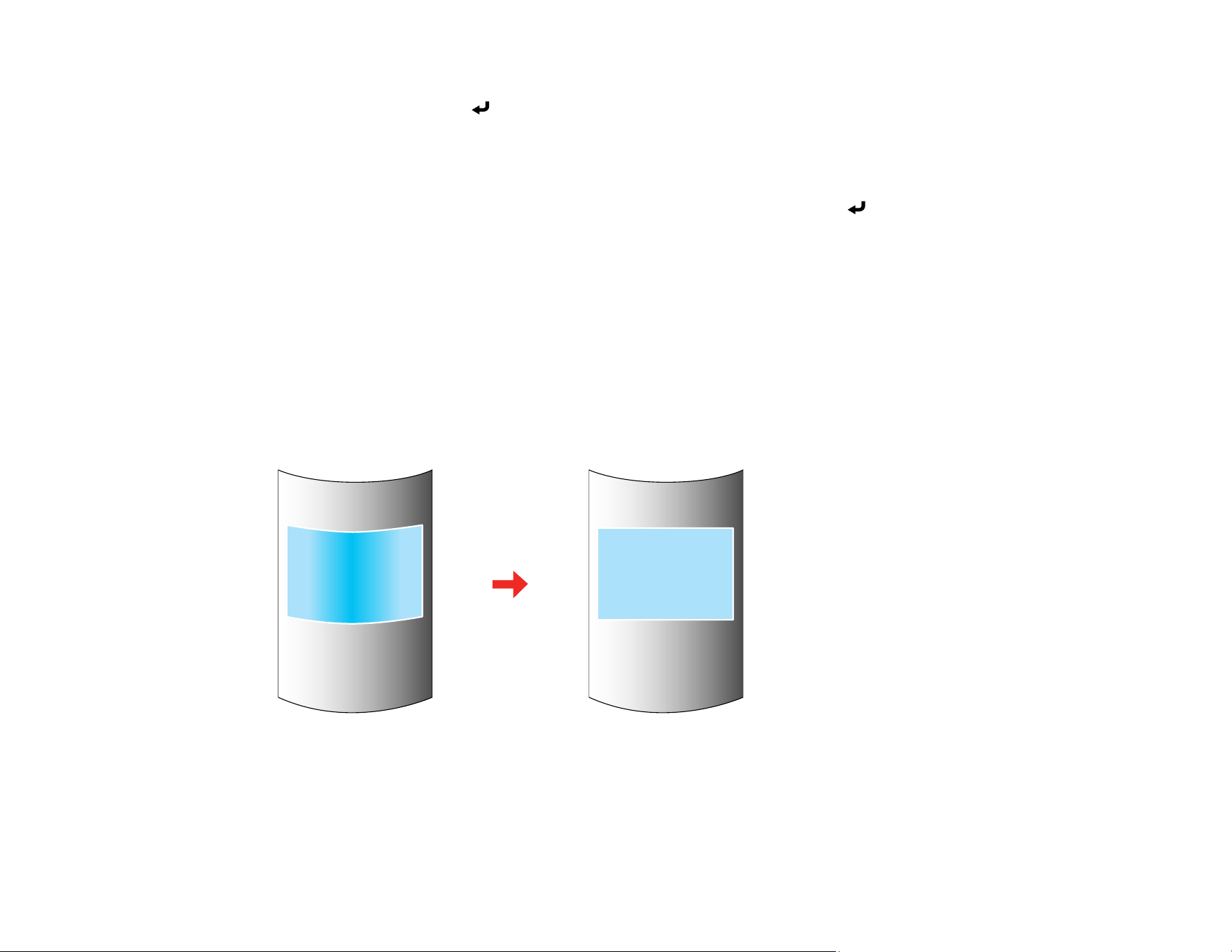
141
6. Use the arrow buttons on the projector or remote control to select the corner of the image you want
to adjust. Then press Enter.
Note: To reset your adjustments, press and hold the Esc button for at least 2 seconds to display a
reset screen. Then select Yes.
7. Press the arrow buttons to adjust the image shape as necessary. Press Enter to return to the
area selection screen.
8. When you are finished, press Esc.
Parent topic: Image Shape
Related references
Geometry Correction
Test Pattern
Correcting Image Shape with Curved Surface
You can use the projector's Curved Surface setting to adjust the shape of an image projected on a
curved surface.
Note: For the best results, project from the front of the screen onto a surface with a uniform arc radius
and with the lens in the home position.
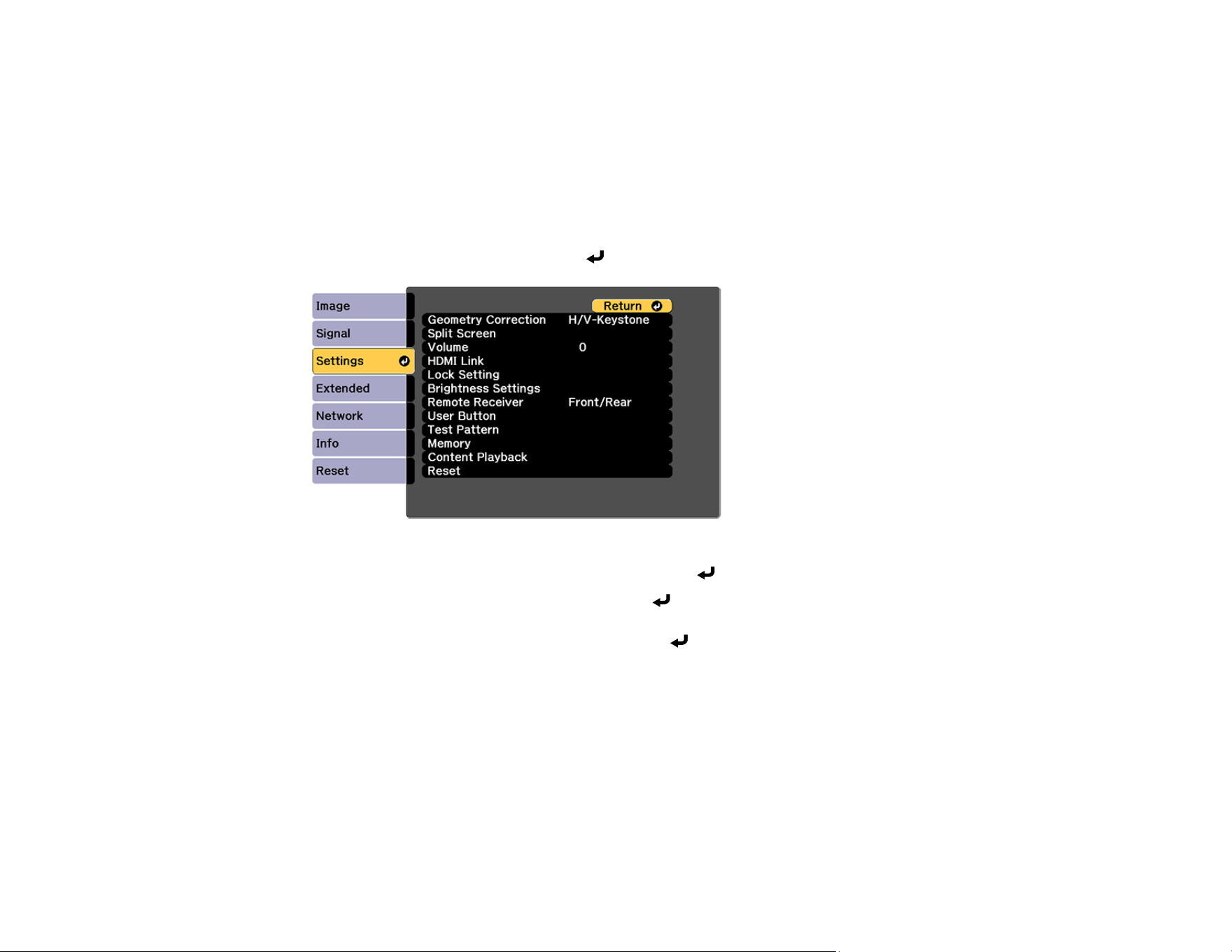
142
1. Turn on the projector and display an image.
Note: You can display a pattern to aid in adjusting the projected image using the Settings menu.
Note: You can also display a pattern to aid in adjusting the projected image using the Test Pattern
button on the remote control.
2. Press the Menu button.
3. Select the Settings menu and press Enter.
4. Select the Geometry Correction setting and press Enter.
5. Select the Curved Surface setting and press Enter.
Note: If you see a confirmation message, press Enter.
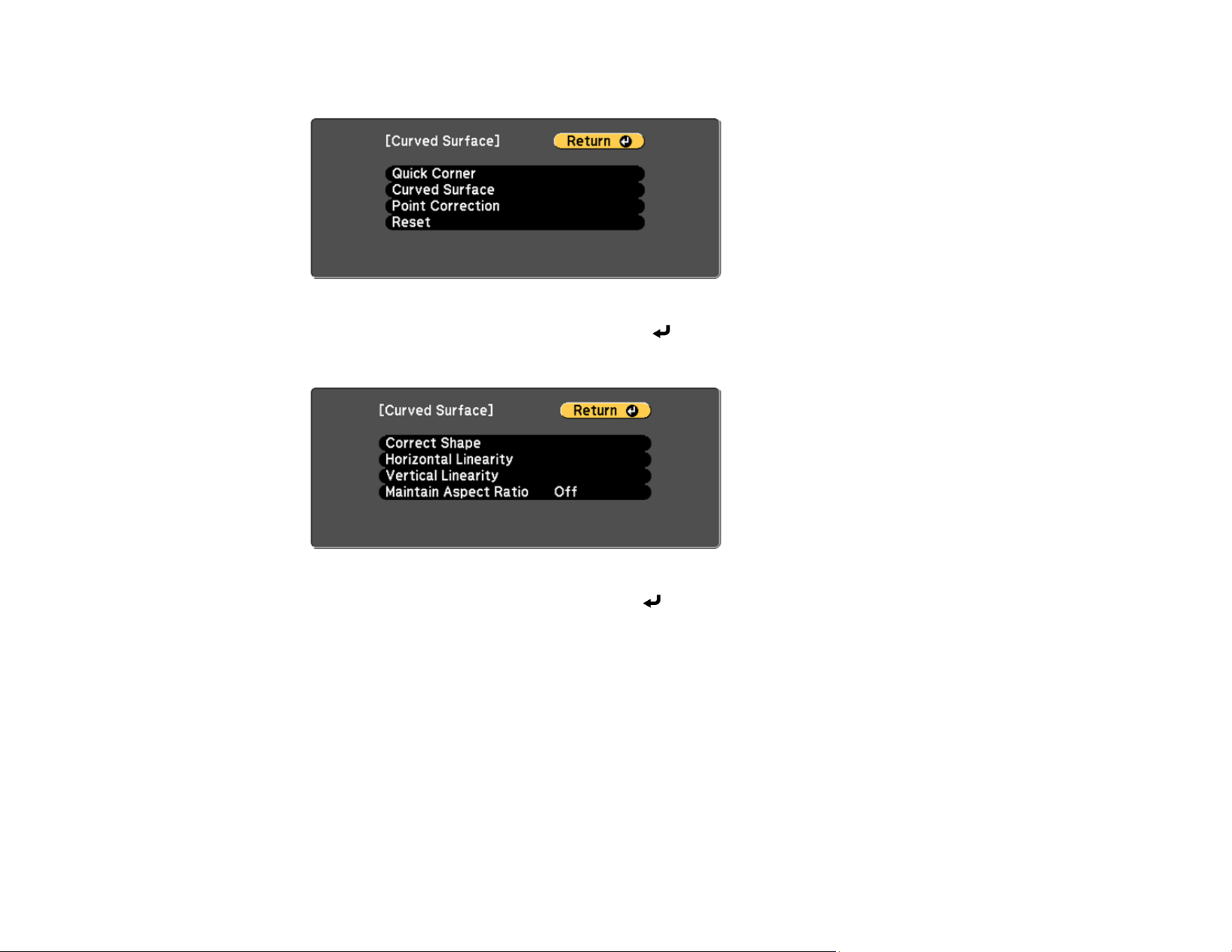
143
You see this screen:
6. Select the Curved Surface setting and press Enter.
You see this screen:
7. Select the Correct Shape setting and press Enter.
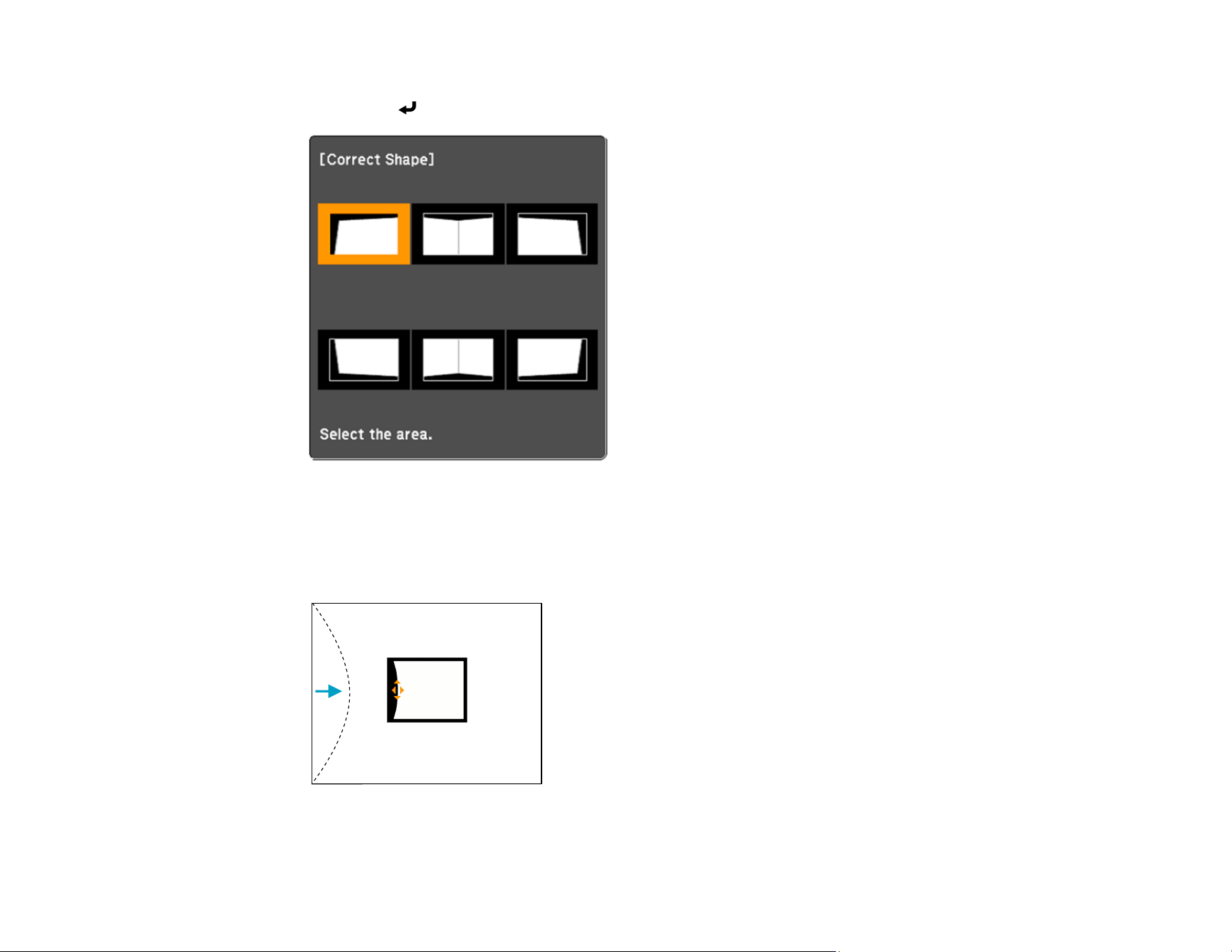
144
8. Use the arrow buttons on the projector or the remote control to select the area you want to adjust.
Then press Enter.
Note: To reset your adjustments, press and hold the Esc button for at least 2 seconds to display a
reset screen. Then select Yes.
9. Use the arrow buttons on the projector to adjust the image shape.
Note: If the adjustment triangle turns gray, you cannot adjust the shape any further in that direction.
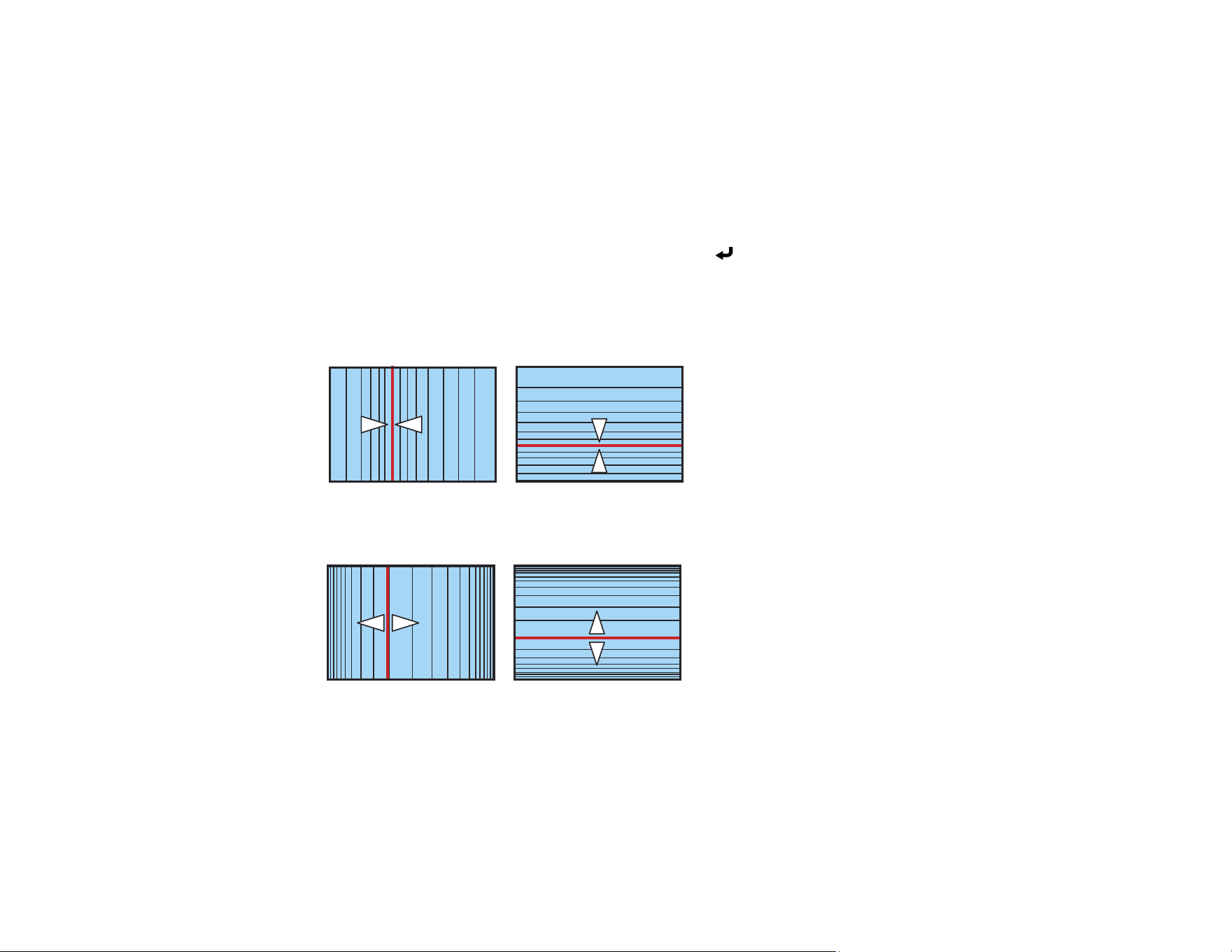
145
10. Press the Esc button to return to the Curved Surface menu screen.
11. Repeat the previous three steps as necessary to adjust other image areas.
If the image expands or contracts, continue with the next step to adjust the linearity.
12. Select one of the following from the Curved Surface menu screen:
• Horizontal Linearity: Adjusts horizontal expansion or contraction.
• Vertical Linearity: Adjusts vertical expansion or contraction.
13. Select a displayed line to use as a baseline and press Enter.
The selected baseline flashes orange and white.
14. Adjust the linearity by doing one of the following:
• Press the left arrow button to contract the distance between the lines closest to the baseline.
• Press the right arrow button to expand the distance between the lines closest to the baseline.
15. When you are finished, press the Menu button.
Note: If necessary, you can adjust the image tilt using the Quick Corner setting, then fine-tune your
adjustments using the Point Correction setting.
Parent topic: Image Shape
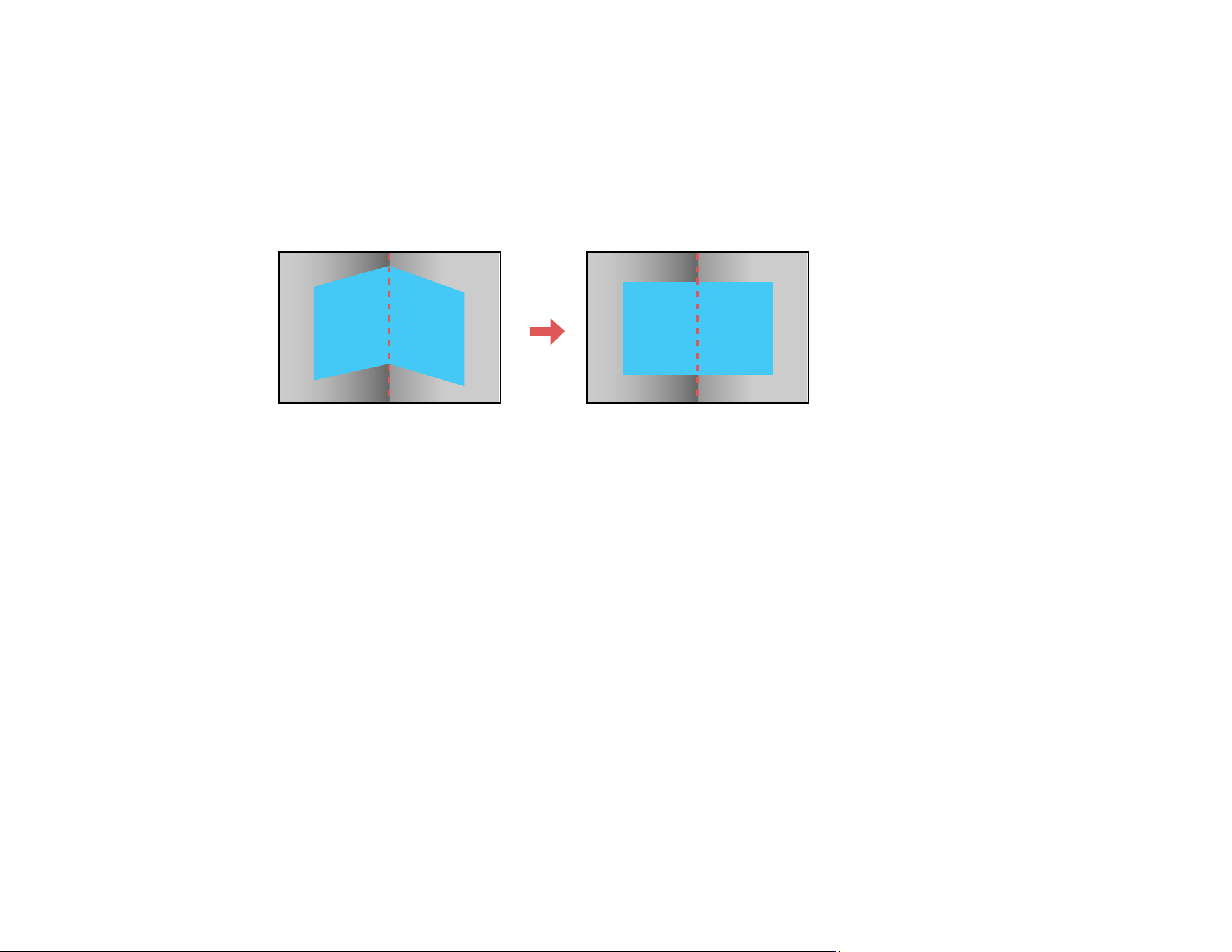
146
Related references
Geometry Correction
Test Pattern
Correcting Image Shape with Corner Wall
You can use the projector's Corner Wall setting to adjust the shape of an image projected on a surface
with right angles, such as a rectangular pillar or the corner of a room.
1. Turn on the projector and display an image.
Note: You can display a pattern to aid in adjusting the projected image using the Settings menu.
Note: You can also display a pattern to aid in adjusting the projected image using the Test Pattern
button on the remote control.
2. Press the Menu button.
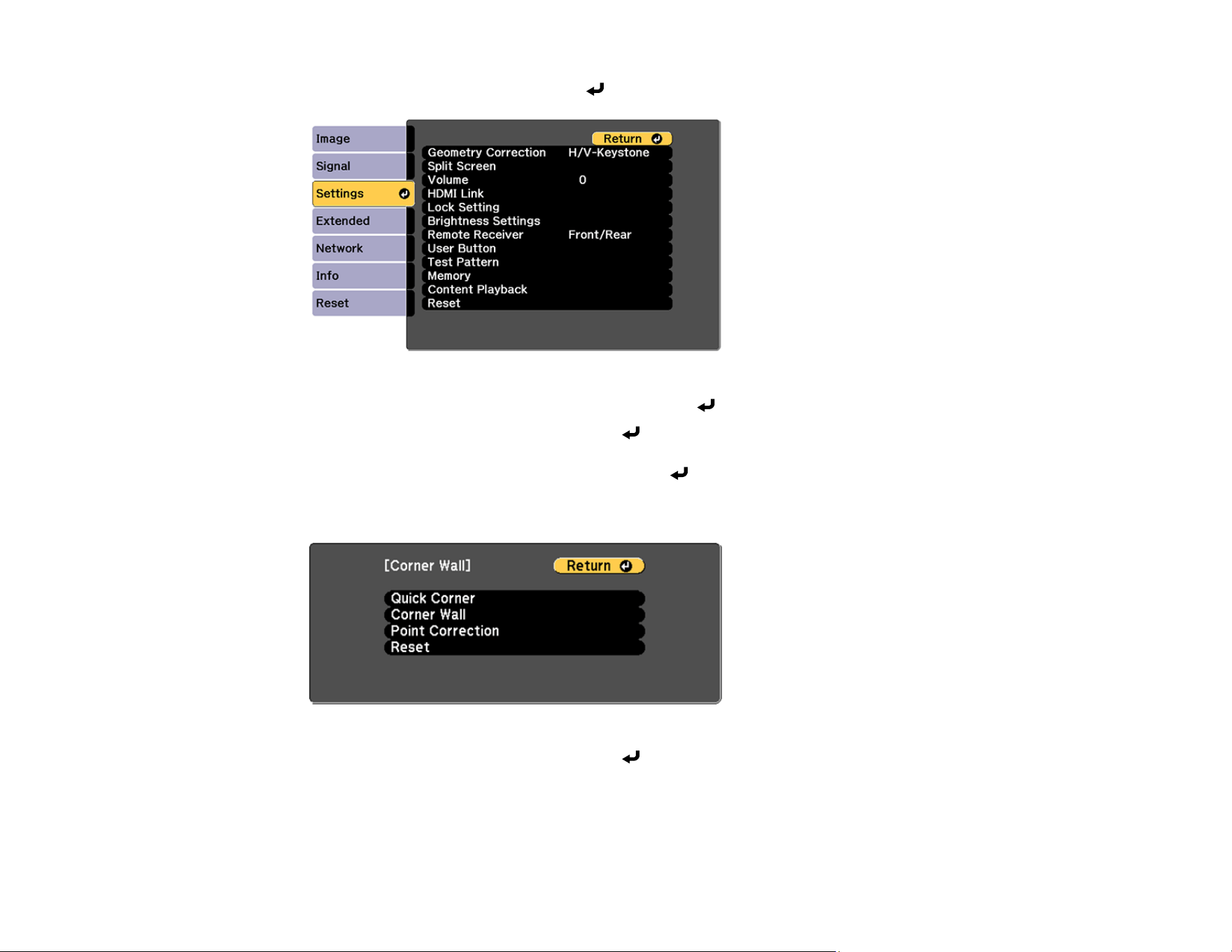
147
3. Select the Settings menu and press Enter.
4. Select the Geometry Correction setting and press Enter.
5. Select the Corner Wall setting and press Enter.
Note: If you see a confirmation message, press Enter.
You see this screen:
6. Select the Corner Wall setting and press Enter.
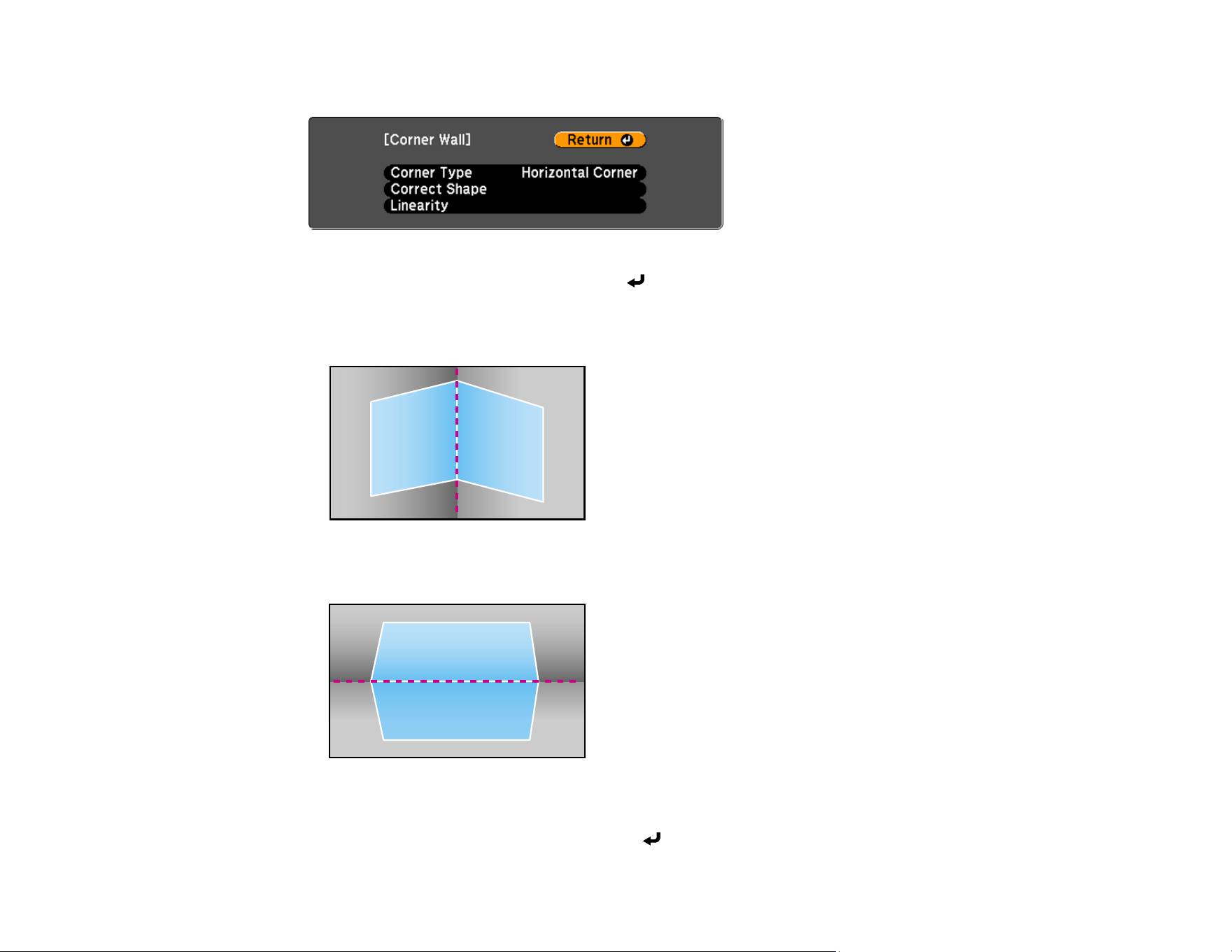
148
You see this screen:
7. Select the Corner Type setting and press Enter.
8. Select one of the following:
• Horizontal Corner when the surfaces line up horizontally
• Vertical Corner when the surfaces line up vertically
9. Press the Esc button to return to the Corner Wall menu screen.
10. Select the Correct Shape setting and press Enter.
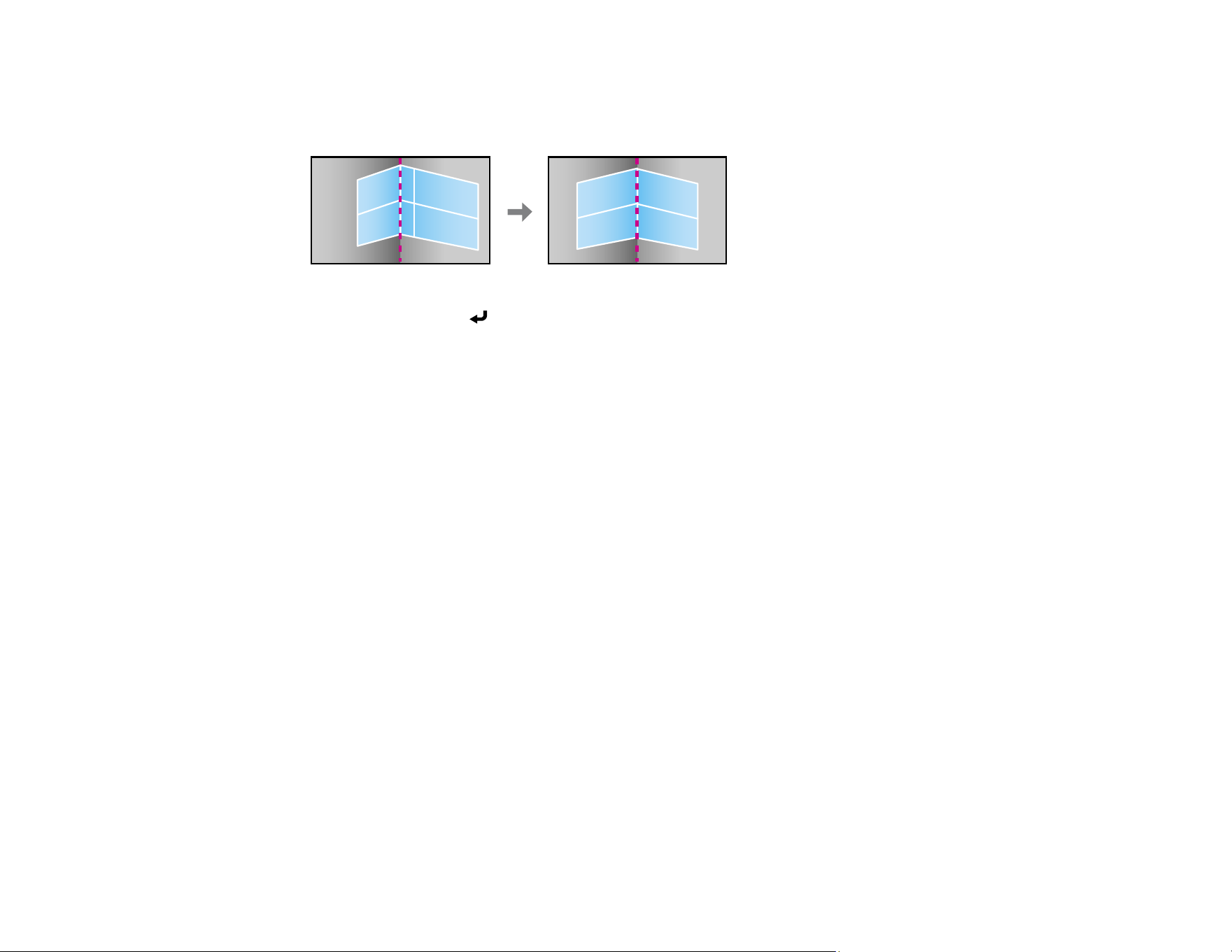
149
11. Adjust the projector's position and use lens shift to center the image over the point where the two
surfaces meet. (The rest of these steps show Horizontal Corner as the selected Corner Type but the
steps are the same for Vertical Corner.)
Note: You can press Enter to show or hide the image and grid to check the results.
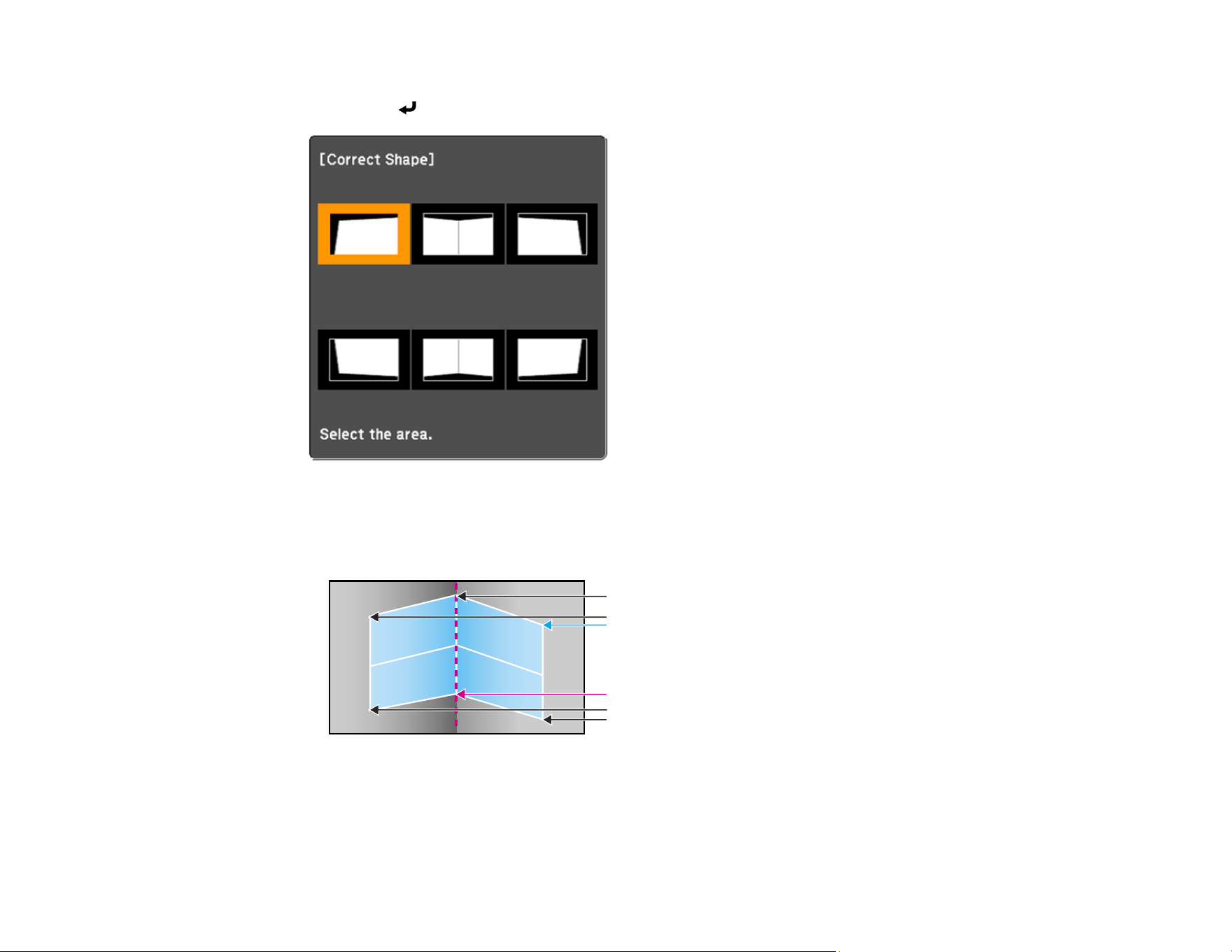
150
12. Press the arrow buttons on the projector or the remote control to select the area you want to adjust.
Then press Enter.
• For horizontal corners, adjust the top area using the lowest point (indicated by the blue arrow) as
your reference. Adjust the lower area using the highest point (indicated by the pink arrow) as your
reference.
• For vertical corners, adjust the left and right areas using the points nearest the center of the image
as your reference points.
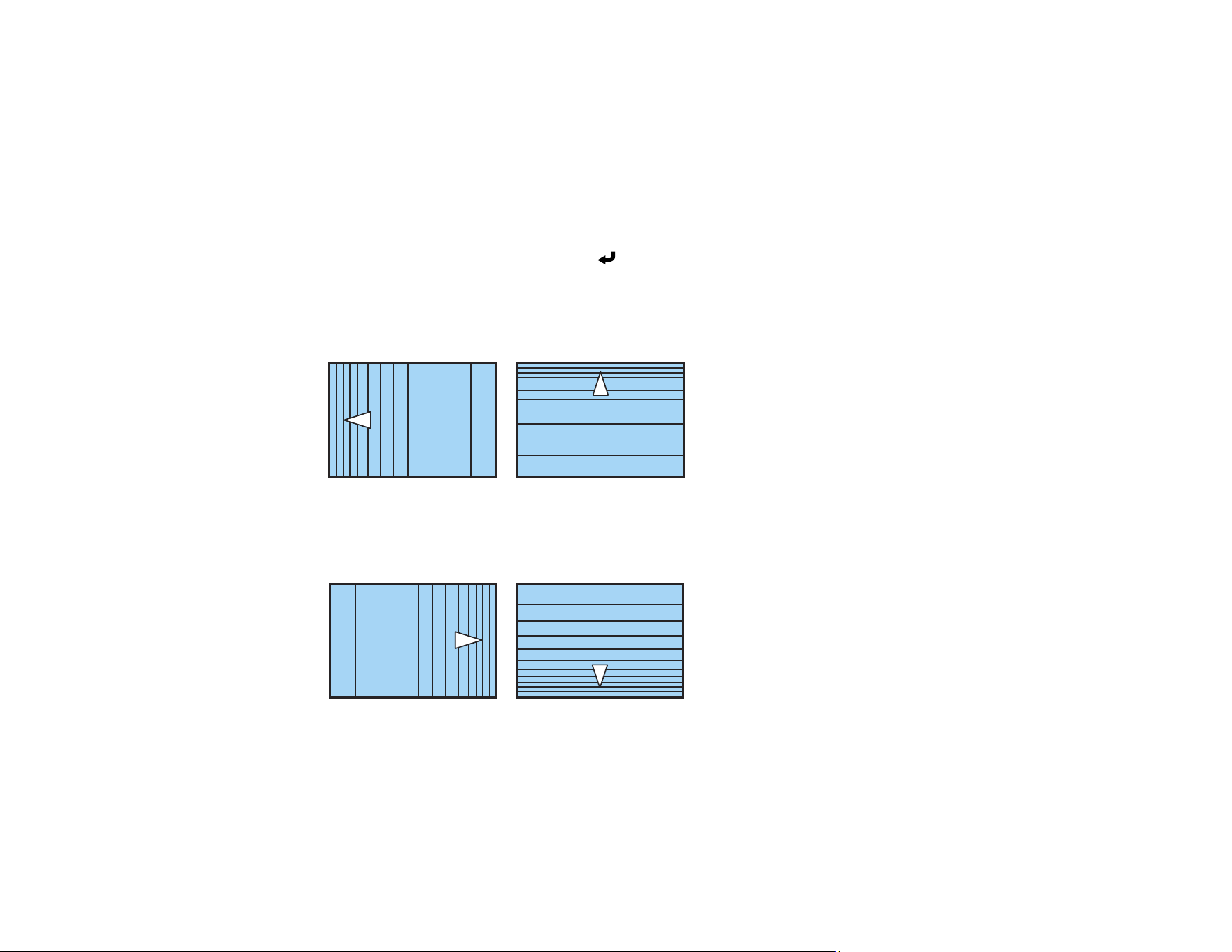
151
Note: To reset your adjustments, press and hold the Esc button for at least 2 seconds to display a
reset screen. Then select Yes.
13. Press and hold the arrow buttons on the projector or remote control to adjust the image shape.
14. Repeat the previous two steps as necessary to adjust other image areas.
If the image expands or contracts, continue with the next step to adjust the linearity.
15. Press the Esc button to return to the Corner Wall screen.
16. Select the Linearity setting and press Enter.
17. Adjust the linearity by doing the following as necessary:
• Press and hold the left arrow button to contract the distance between the lines closest to the left or
top of the image.
• Press and hold the right arrow button to contract the distance between the lines closest to the right
or bottom of the image.
18. When you are finished, press the Menu button.
Note: If necessary, you can adjust the image tilt using the Quick Corner setting, then fine-tune your
adjustments using the Point Correction setting.
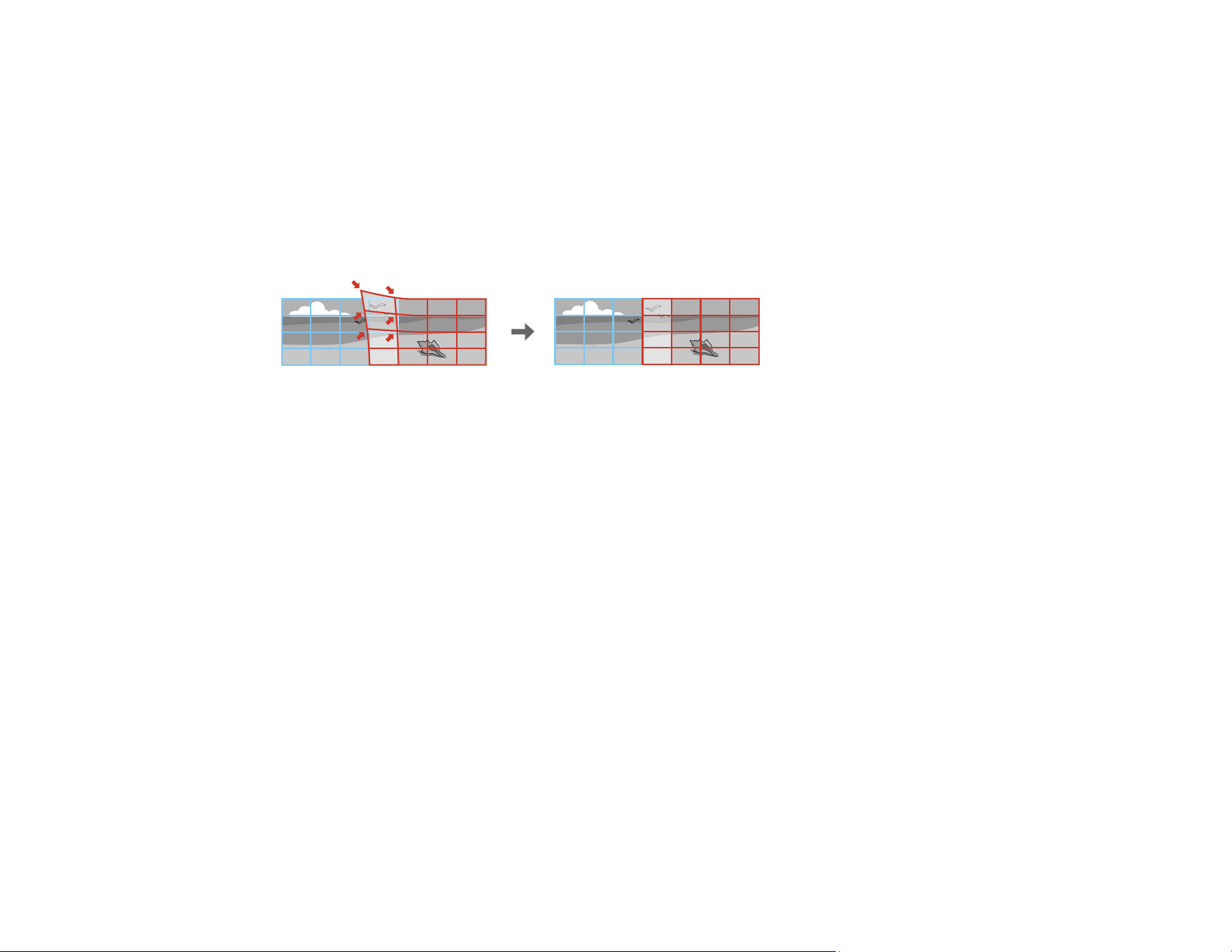
152
Parent topic: Image Shape
Related references
Geometry Correction
Test Pattern
Correcting Image Shape with Point Correction
You can use the projector's Point Correction feature to fine-tune the image shape using points on a grid.
This is useful for adjusting overlapping areas in multiple projected images that do not line up correctly.
Note: You can move the points on the grid between 0.5 to 600 pixels in any direction.
1. Turn on the projector and display an image.
Note: You can display a pattern to aid in adjusting the projected image using the Settings menu.
Note: You can also display a pattern to aid in adjusting the projected image using the Test Pattern
button on the remote control.
2. Press the Menu button.
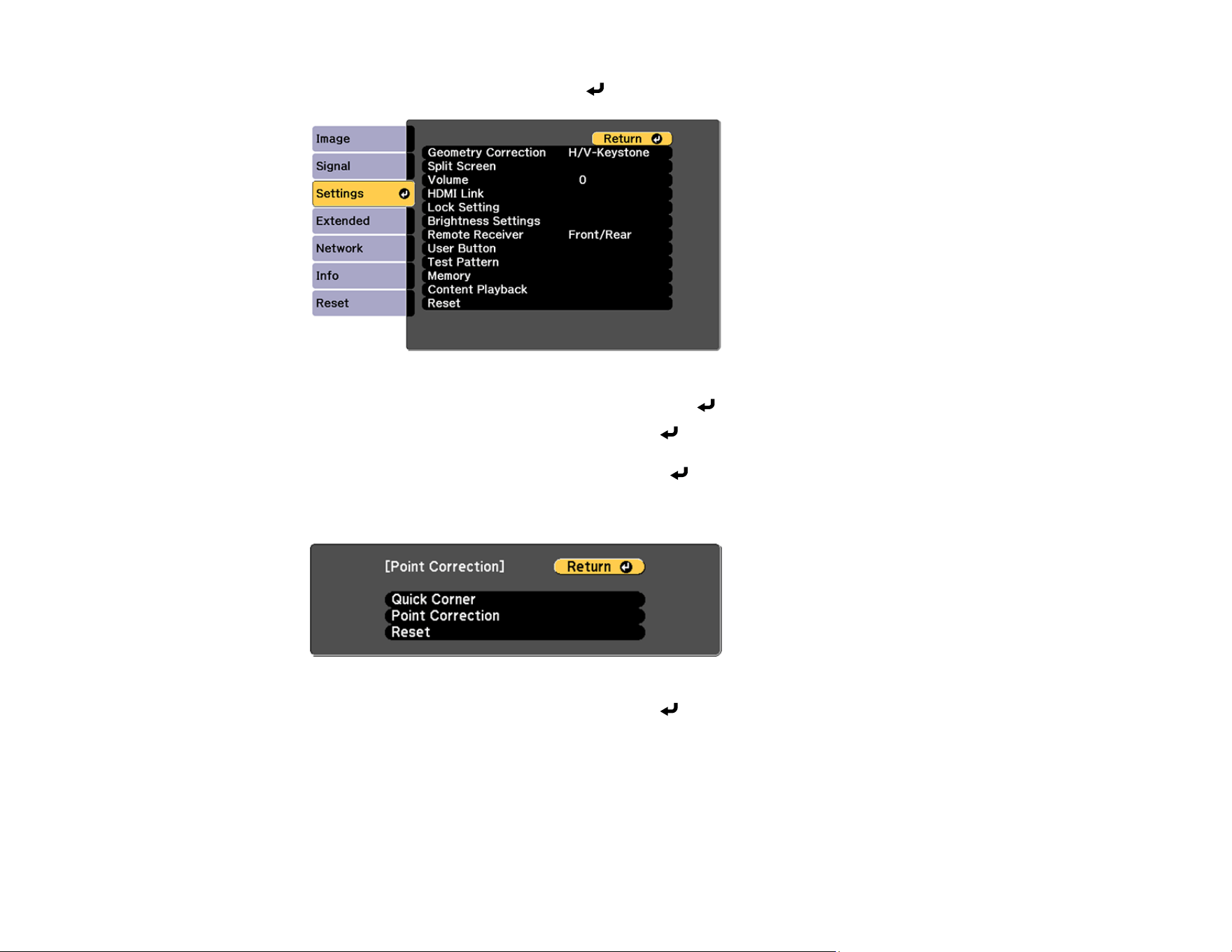
153
3. Select the Settings menu and press Enter.
4. Select the Geometry Correction setting and press Enter.
5. Select the Point Correction setting and press Enter.
Note: If you see a confirmation message, press Enter.
You see this screen:
6. Select the Point Correction setting and press Enter.
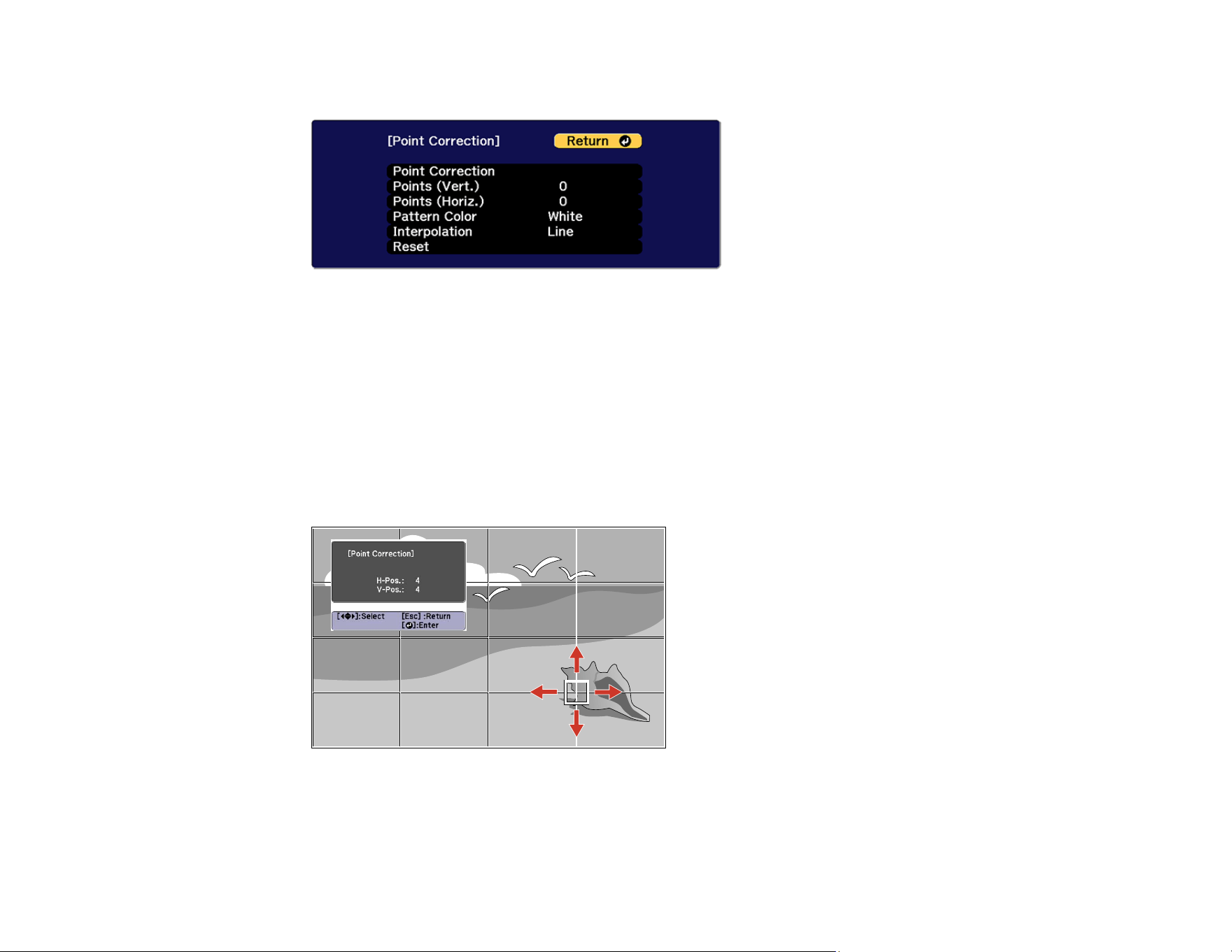
154
You see this screen:
7. Select the Point Correction setting and press Enter.
8. Select the number of grid lines to display and press Enter.
Note: If you need to change the color of the grid lines, select the Pattern Color setting and select a
suitable color.
9. Press the arrow buttons on the projector or remote control to move to the point on the grid that you
want to adjust. Then press Enter.
The box changes from a single line to a double-lined square.
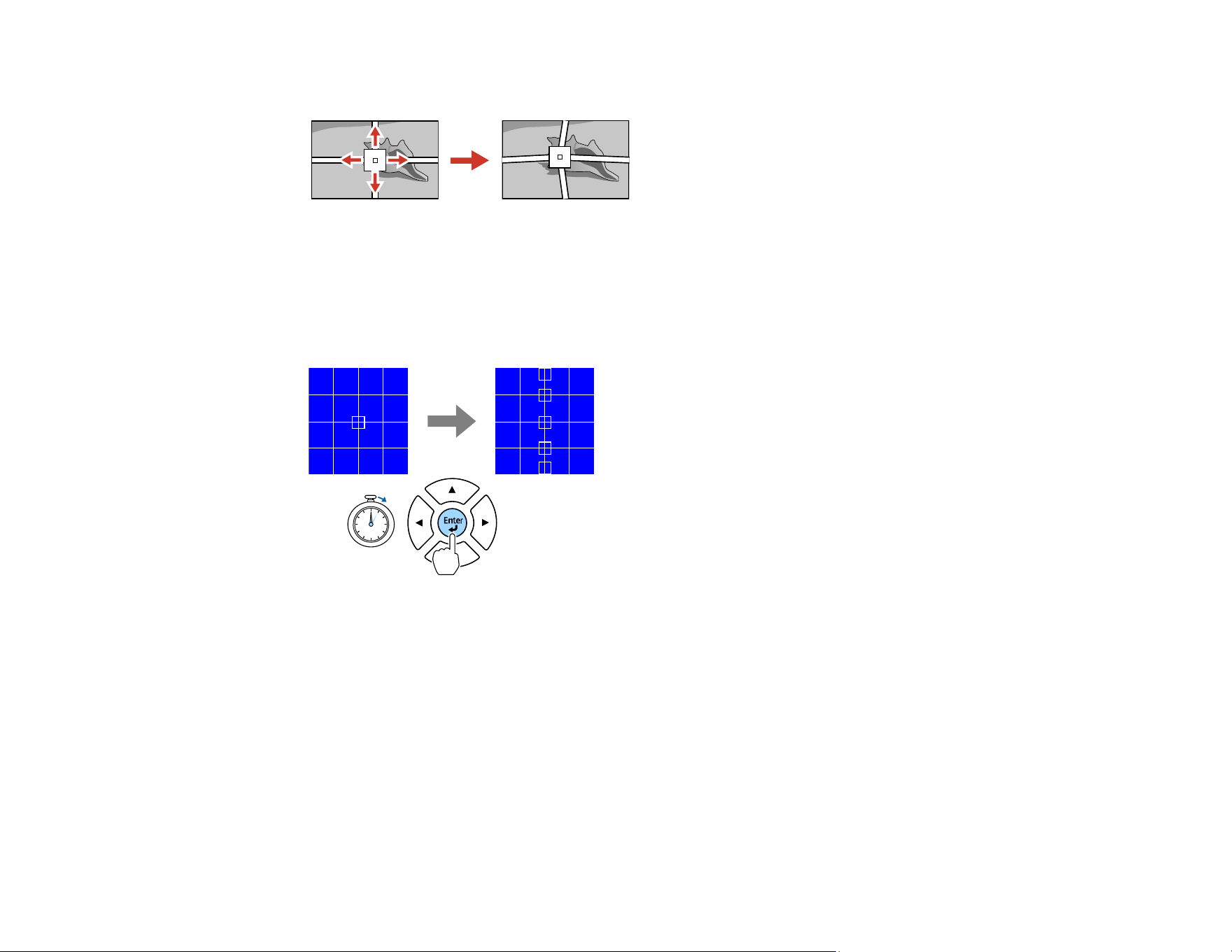
155
10. Press the arrow buttons to correct the image shape in all necessary directions.
Note: You can press Enter to show or hide the image and grid to check the results.
11. Press Esc to return to the previous screen and select another point to correct, if necessary.
12. Hold down the Enter button to switch to the mode that corrects all points in a specified vertical
column or horizontal row at once.
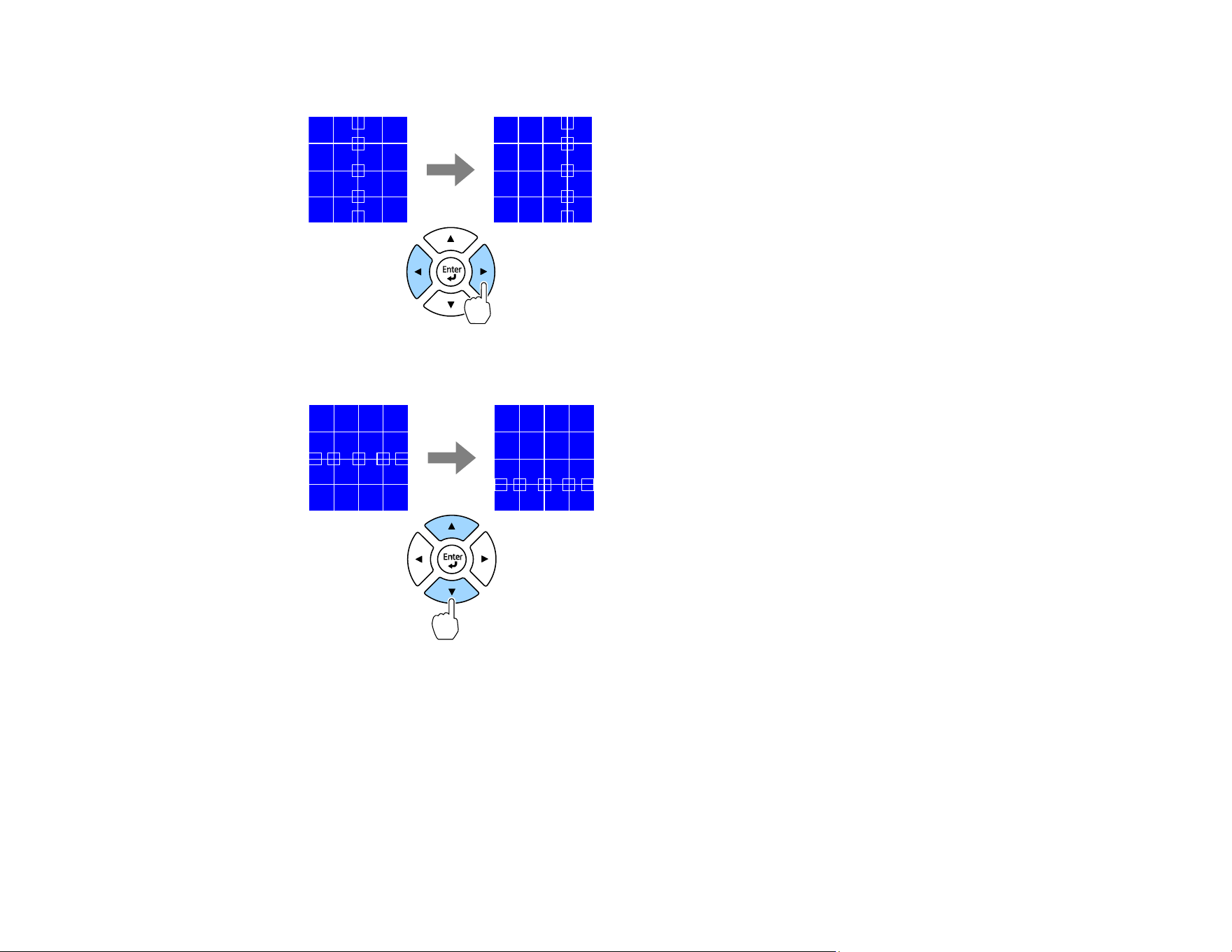
156
13. Use the left and right arrow buttons to select the column you want to adjust, then press Enter.
14. Use the up and down arrow buttons to select the row you want to adjust, then press Enter.
15. When you are finished, press the Menu button.
Parent topic: Image Shape
Related references
Geometry Correction
Test Pattern
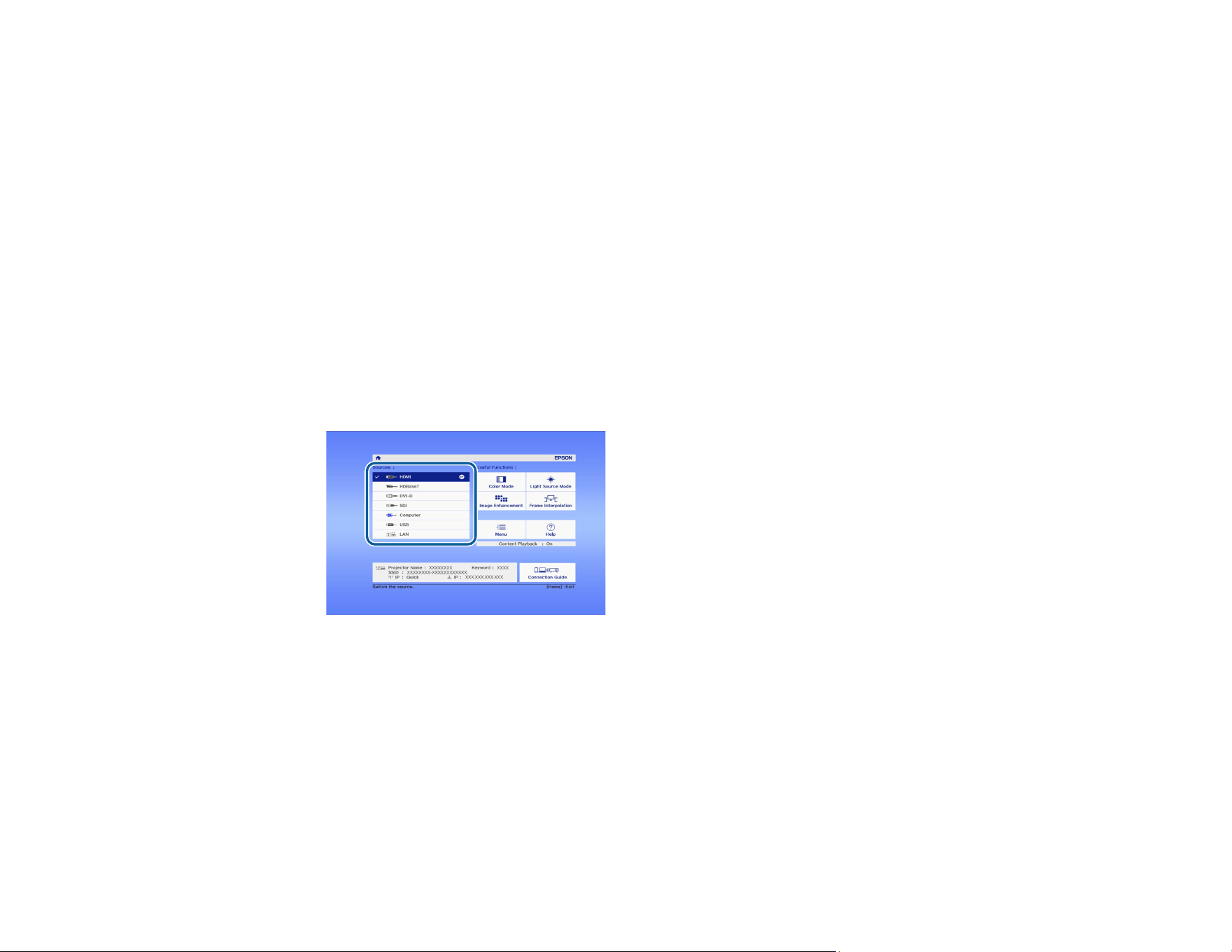
157
Selecting an Image Source
If you connected multiple image sources to the projector, such as a computer and DVD player, you may
want to switch from one image source to the other.
Note: If you turned on the Auto Source Search setting in the Extended menu, the projector
automatically switches to another detected image source if the signal to the current image source is lost.
1. Make sure the connected image source you want to use is turned on.
2. For video image sources, insert a DVD or other video media and press its play button, if necessary.
3. Do one of the following:
• Press the Source Search button on the projector or the Search button on the remote control until
you see the image from the source you want.
• Press the button for the source you want on the remote control.
• Press the Home button on the remote control and select your image source.
Parent topic: Using Basic Projector Features
Related references
Auto Source Search
Remote Control Operation
The remote control lets you control the projector from almost anywhere in the room, up to 98.4 feet
(30 m) away. You can point it at the front or rear of the projector.
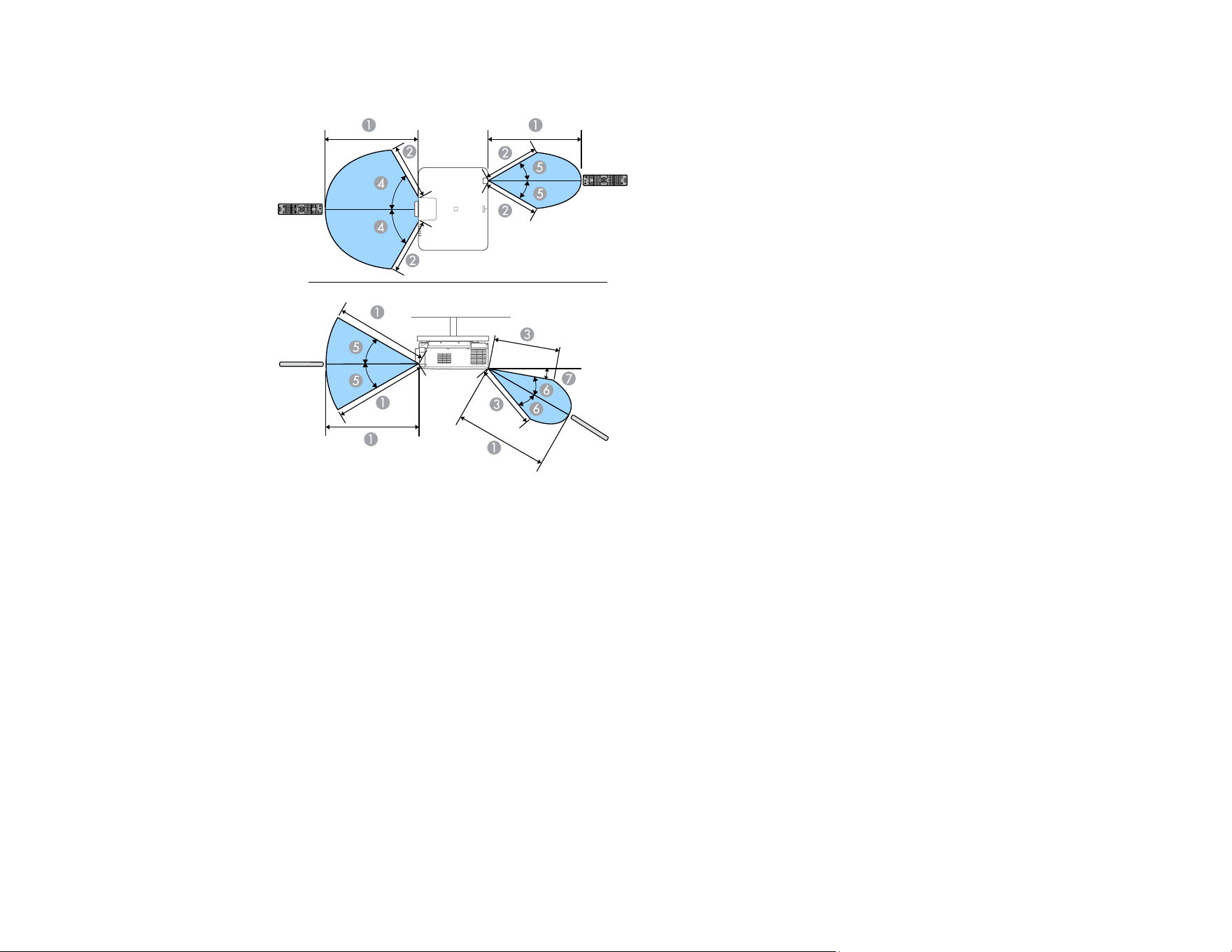
158
Make sure that you aim the remote control at the projector's receivers within the angles listed here.
1 98.4 feet (30 m)
2 49 feet (15 m)
3 65.6 feet (20 m)
4 60°
5 30°
6 20°
7 5°
Note: Avoid using the remote control in conditions with bright fluorescent lights or in direct sunlight, or
the projector may not respond to commands. If you will not use the remote control for a long time,
remove the batteries.
Note: When you use multiple projectors in the same room or when there are obstacles around the
remote receiver, connect the remote control to the projector using a commercially available 3.5 mm

159
stereo mini-jack audio cable. When the remote control is connected, the remote receiver on the projector
is disabled.
Parent topic: Using Basic Projector Features
Projection Modes
Depending on how you positioned the projector, you may need to change the projection mode so your
images project correctly.
• Front (default setting) lets you project from a table in front of the screen.
• Front/Ceiling flips the image over top-to-bottom to project upside-down from a ceiling or wall mount.
• Rear flips the image horizontally to project from behind a translucent screen.
• Rear/Ceiling flips the image over top-to-bottom and horizontally to project from the ceiling and behind
a translucent screen.
Note: You can change the projection mode using the remote control or by changing the Projection
setting in the Extended menu.
Changing the Projection Mode Using the Remote Control
Changing the Projection Mode Using the Menus
Parent topic: Using Basic Projector Features
Related references
Projection
Changing the Projection Mode Using the Remote Control
You can change the projection mode to flip the image over top-to-bottom.
1. Turn on the projector and display an image.
2. Hold down the Shutter button on the remote control for 5 to 10 seconds.
The image disappears briefly and reappears flipped top-to-bottom.
3. To change projection back to the original mode, hold down the Shutter button for 5 to 10 seconds
again.
Parent topic: Projection Modes
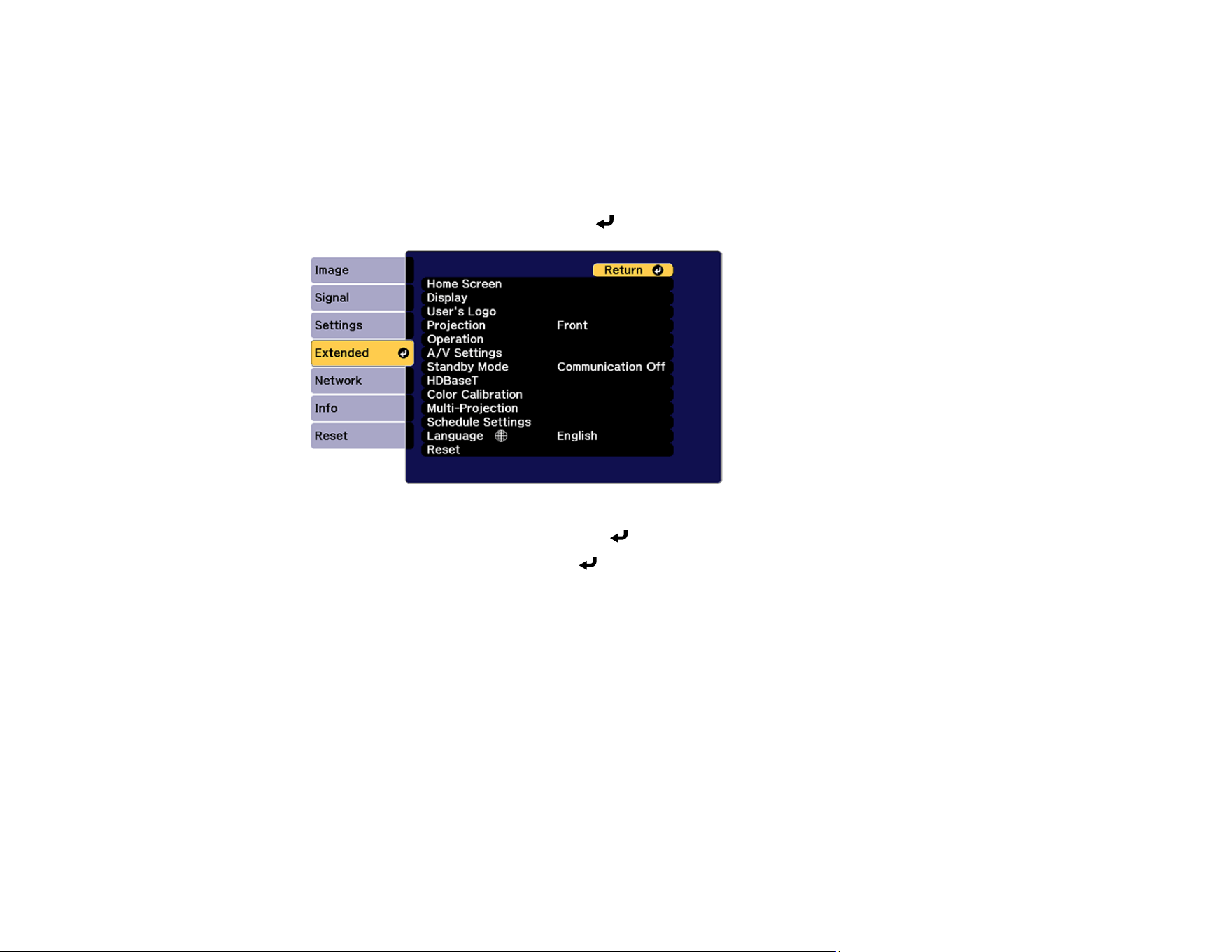
160
Changing the Projection Mode Using the Menus
You can change the projection mode to flip the image over top-to-bottom and/or left-to-right using the
projector menus.
1. Turn on the projector and display an image.
2. Press the Menu button.
3. Select the Extended menu and press Enter.
4. Select the Projection setting and press Enter.
5. Select a projection mode and press Enter.
6. Press Menu or Esc to exit the menus.
Parent topic: Projection Modes
Related references
Projection
Image Aspect Ratio
The projector can display images in different width-to-height ratios called aspect ratios. Normally, the
input signal from your video source determines the image's aspect ratio. However, for certain images
you can change the aspect ratio to fit your screen. If you cannot change the aspect ratio using the
projector menus, check the settings on your video source.
If you always want to use a particular aspect ratio for a certain video input source, you can select it using
the projector's menus.

161
Changing the Image Aspect Ratio
Parent topic: Using Basic Projector Features
Changing the Image Aspect Ratio
You can change the aspect ratio of the displayed image to resize it.
1. Turn on the projector and switch to the image source you want to use.
2. Press the Menu button.
3. Select the Signal menu and press Enter.
4. Select Aspect and press Enter.
5. Select the aspect ratio you want to use for your input signal and press Enter.
6. Press Menu or Esc to exit the menus.
Parent topic: Image Aspect Ratio
Related references
Aspect
Color Mode
The projector offers different Color Modes to provide optimum brightness, contrast, and color for a
variety of viewing environments and image types. You can select a mode designed to match your image
and environment, or experiment with the available modes.
If you always want to use a particular color mode for a certain video input source, you can select it using
the projector menus.
Changing the Color Mode
Parent topic: Using Basic Projector Features
Changing the Color Mode
You can change the projector's Color Mode using the remote control to optimize the image for your
viewing environment.
1. Turn on the projector and switch to the image source you want to use.
2. If you are projecting from a DVD player or other video source, insert a disc or other video media and
press the play button, if necessary.
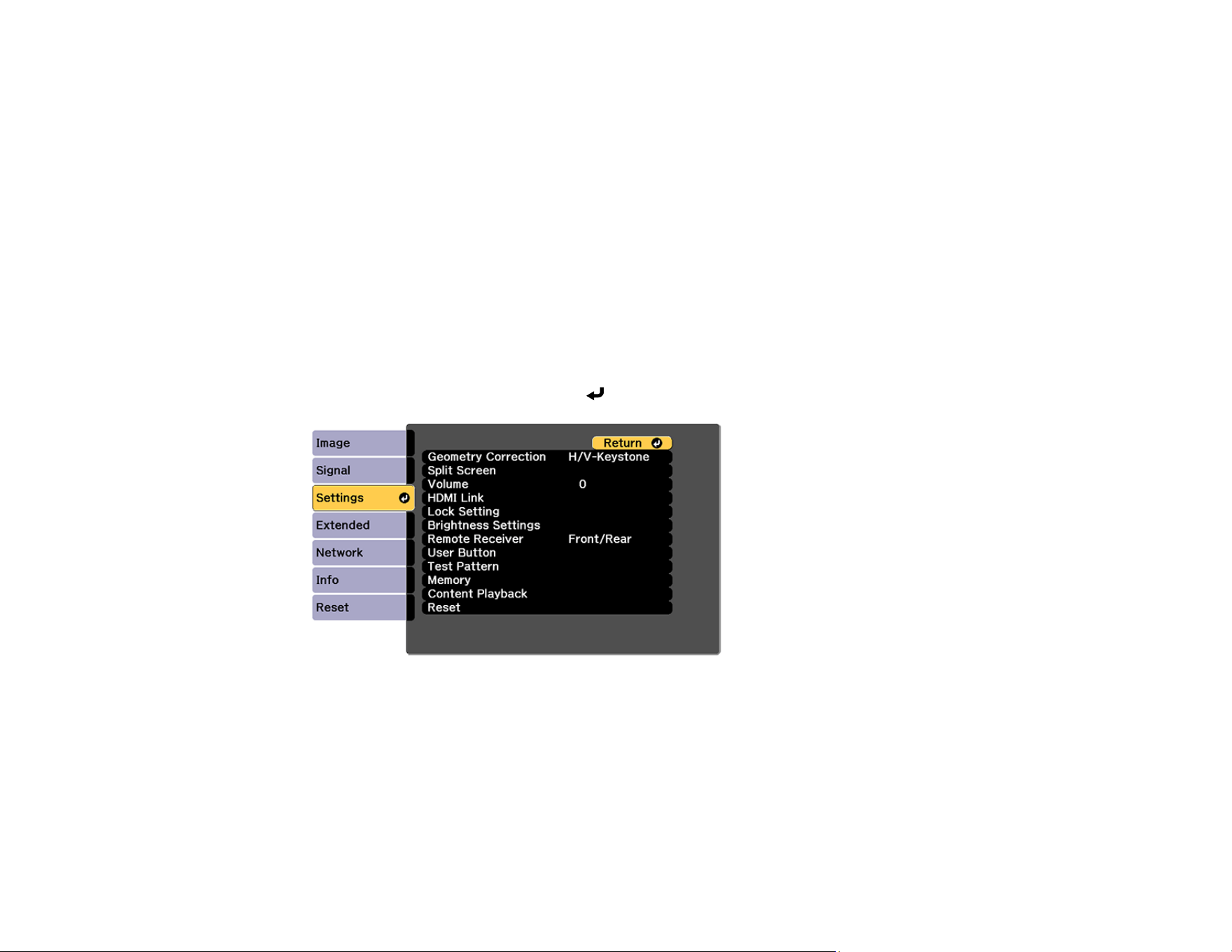
162
3. Press the Color Mode button on the remote control to change the Color Mode.
The image appearance changes and the name of the Color Mode appears briefly on the screen.
4. To cycle through all the available Color Modes for your input signal, press the Color Mode button
repeatedly.
Parent topic: Color Mode
Related references
Color Mode
Adjusting the Brightness
You can adjust the brightness of your projector's light source.
1. Turn on the projector and switch to the image source you want to use.
2. Press the Menu button.
3. Select the Settings menu and press Enter.
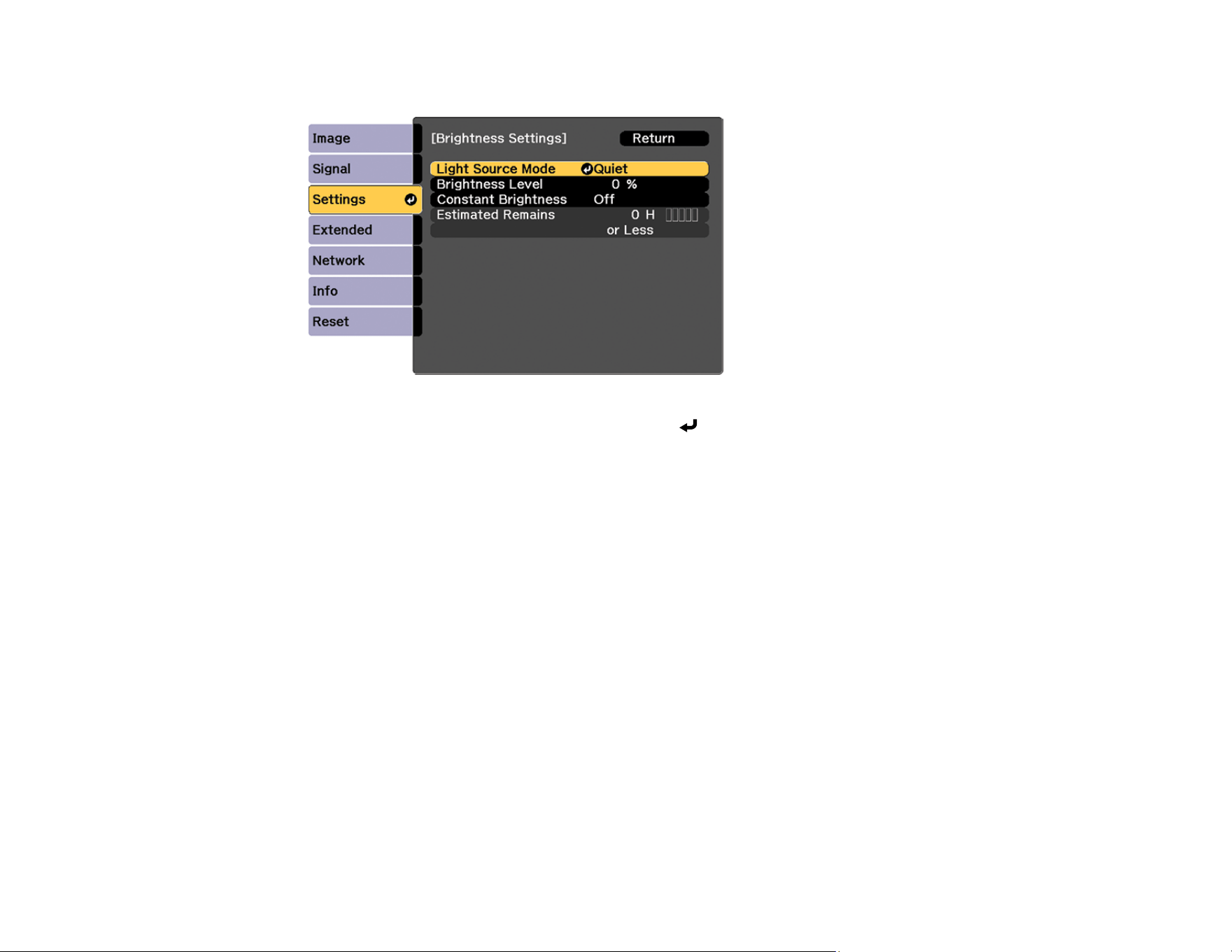
163
4. Select the Brightness Settings setting and press Enter.
5. Select the Light Source Mode setting and press Enter.
6. Select one of the following options:
• Normal: Sets brightness to the maximum level (ideal for conference rooms, auditoriums, and
lecture halls)
• Quiet: Sets brightness to 70% and reduces fan noise (ideal for libraries, theaters, museums, and
art galleries)
• Extended: Sets brightness to 70% and extends the life expectancy of the light source (ideal for
darker environments with ambient light, such as museums and art galleries, where a reduced
maintenance cycle is desired)
• Custom: Allows you to select a custom brightness level between 8% to 100%
7. If you selected Custom, select Brightness Level from the Brightness Settings screen and use the
left and right arrow buttons to select the brightness.
8. If you selected Custom and want to maintain consistent brightness, turn on the Constant
Brightness setting.
Note: If you turn on Constant Brightness, you cannot change the Light Source Mode and
Brightness Level settings. If you turn off Constant Brightness, the Brightness Level setting
changes according to the status of the light source.
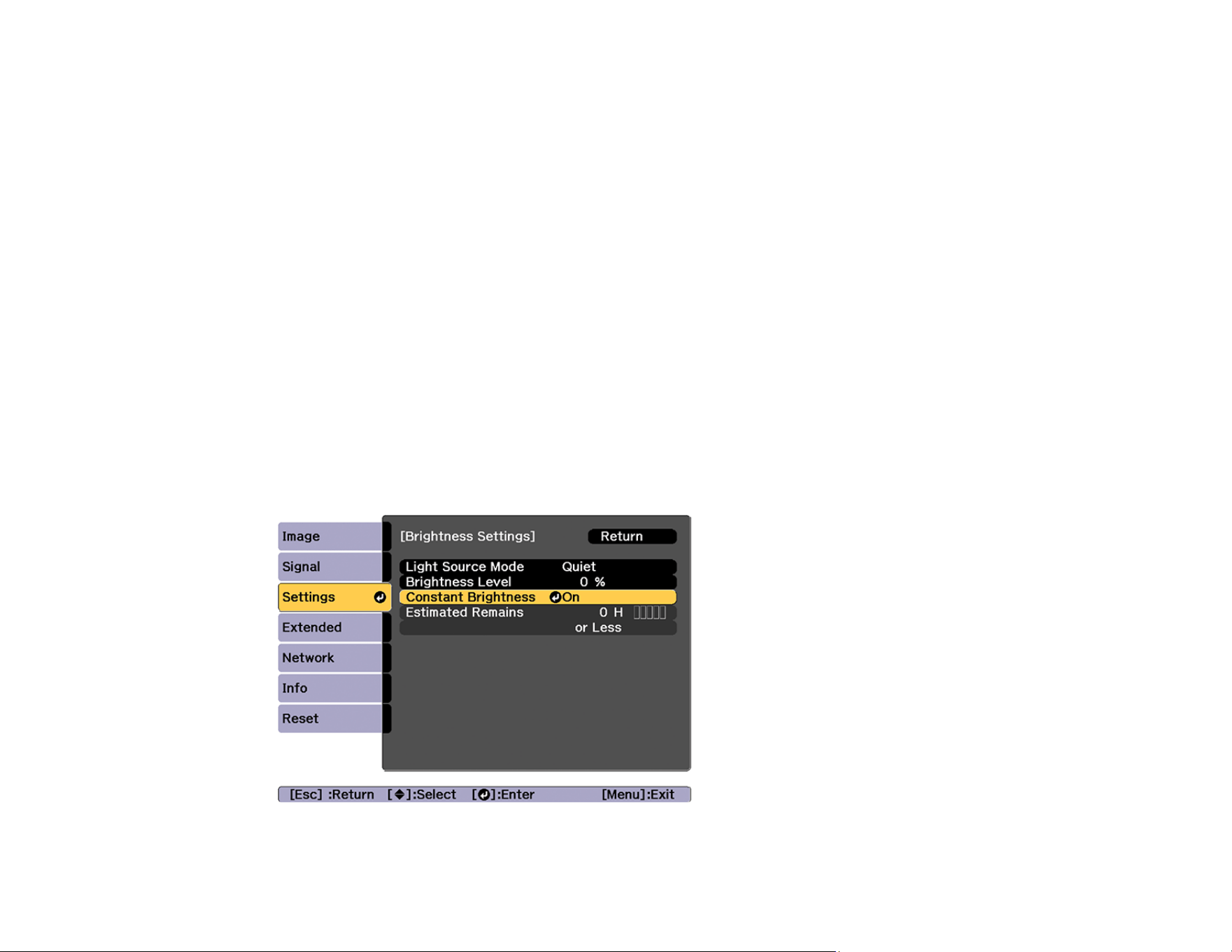
164
9. Press Menu or Esc to exit the menus.
Note: If you use the projector continuously for more than 24 hours, or regularly turn it off by shutting off
the power outlet, schedule periodic Light Source Calibration events from the Extended menu.
Otherwise, the Constant Brightness setting may not work properly.
Constant Brightness Usage Hours
Parent topic: Using Basic Projector Features
Related references
Brightness
Light Source Mode
Brightness Level
Constant Brightness
Estimated Remains
Light Source Calibration
Constant Brightness Usage Hours
If you turn on the Constant Brightness setting, the number of hours the projector can maintain constant
brightness is displayed as the Estimated Remains setting.
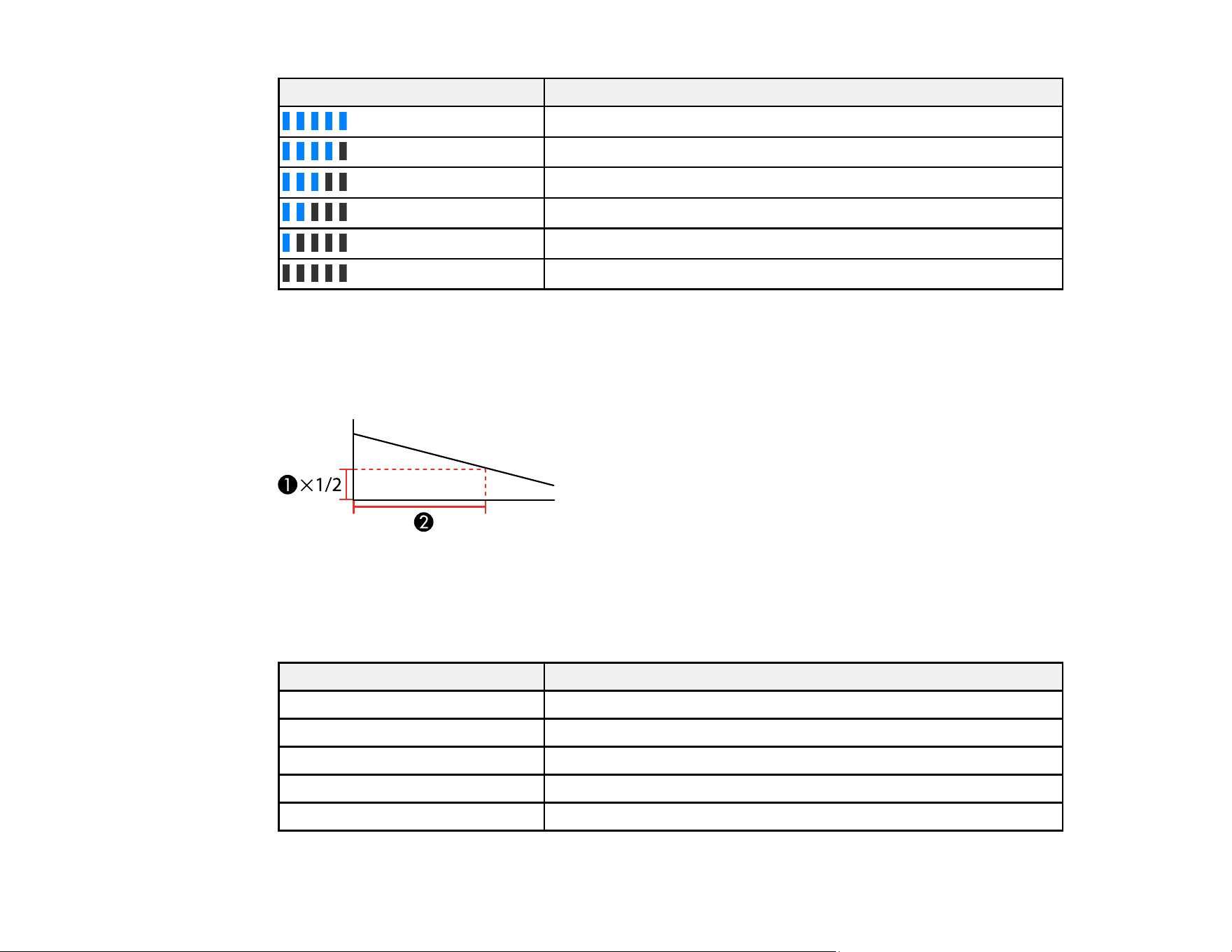
165
Display level Estimated remaining hours
10000 or more hours
8000 to 9999 hours
6000 to 7999 hours
4000 to 5999 hours
2000 to 3999 hours
0 to 1999 hours
Light source life span
The estimated life span of the light source varies depending on the Brightness Level setting and
whether the Constant Brightness setting is on or off.
Constant Brightness off
1 Brightness level
2 Time before the brightness of the light source is reduced by half (approximate)
Brightness Level setting Hours
100% 20000 hours
90% 21000 hours
80% 24000 hours
70% 30000 hours
60% 37000 hours
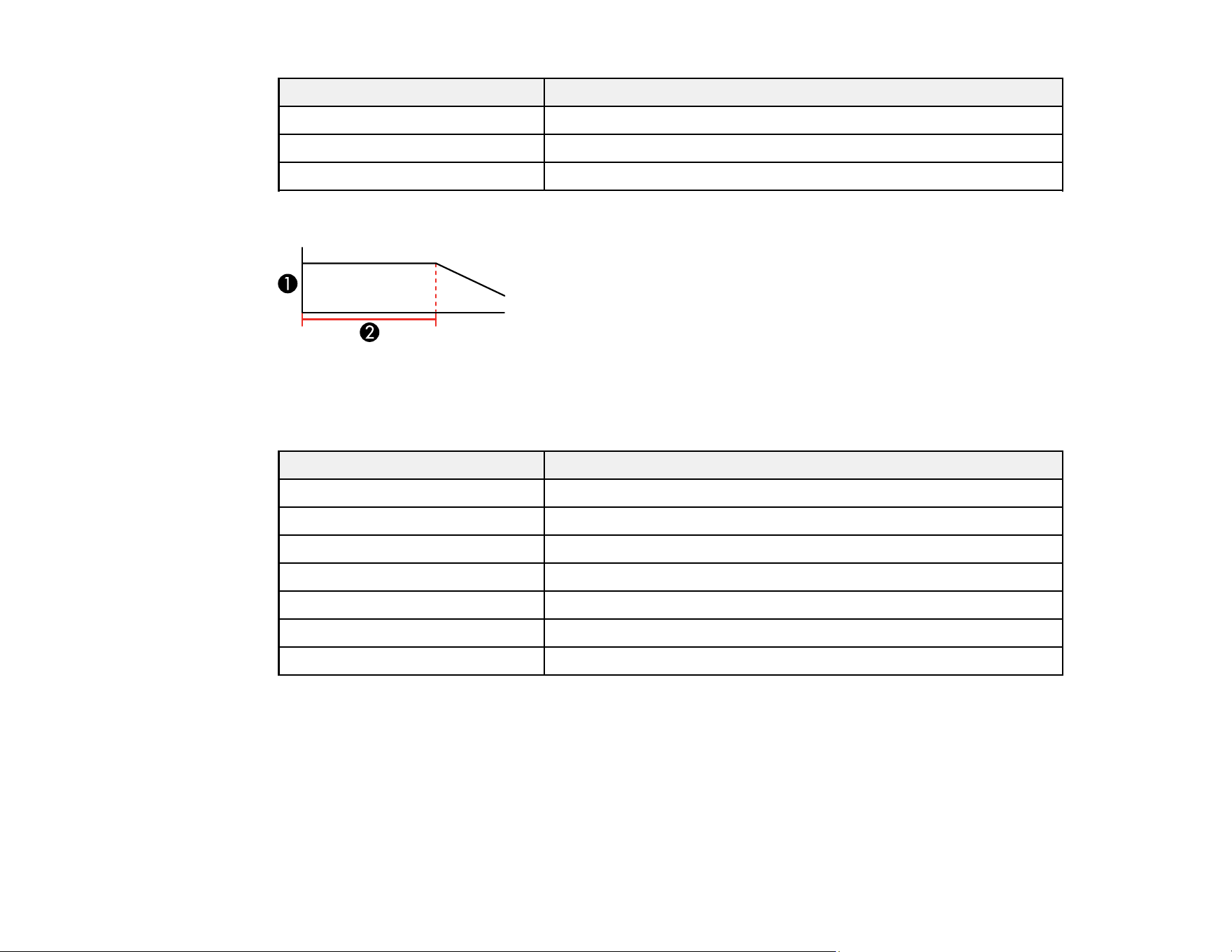
166
Brightness Level setting Hours
50% 47000 hours
40% 61000 hours
30% 71000 hours
Constant Brightness on
1 Brightness level
2 Time the projector can maintain constant brightness (approximate)
Brightness Level setting Hours
85% 6000 hours
80% 10000 hours
70% 19000 hours
60% 29000 hours
50% 41000 hours
40% 56000 hours
30% 78000 hours
Note: The light source usage hours vary depending upon environmental conditions and usage. The
hours listed here are an approximate and are not guaranteed. You may need to replace parts in the
projector sooner than the estimated light source operation time. If Constant Brightness is turned on,
and you have exceeded the usage hours listed here, you may not be able to select a high Brightness
Level setting.
Parent topic: Adjusting the Brightness
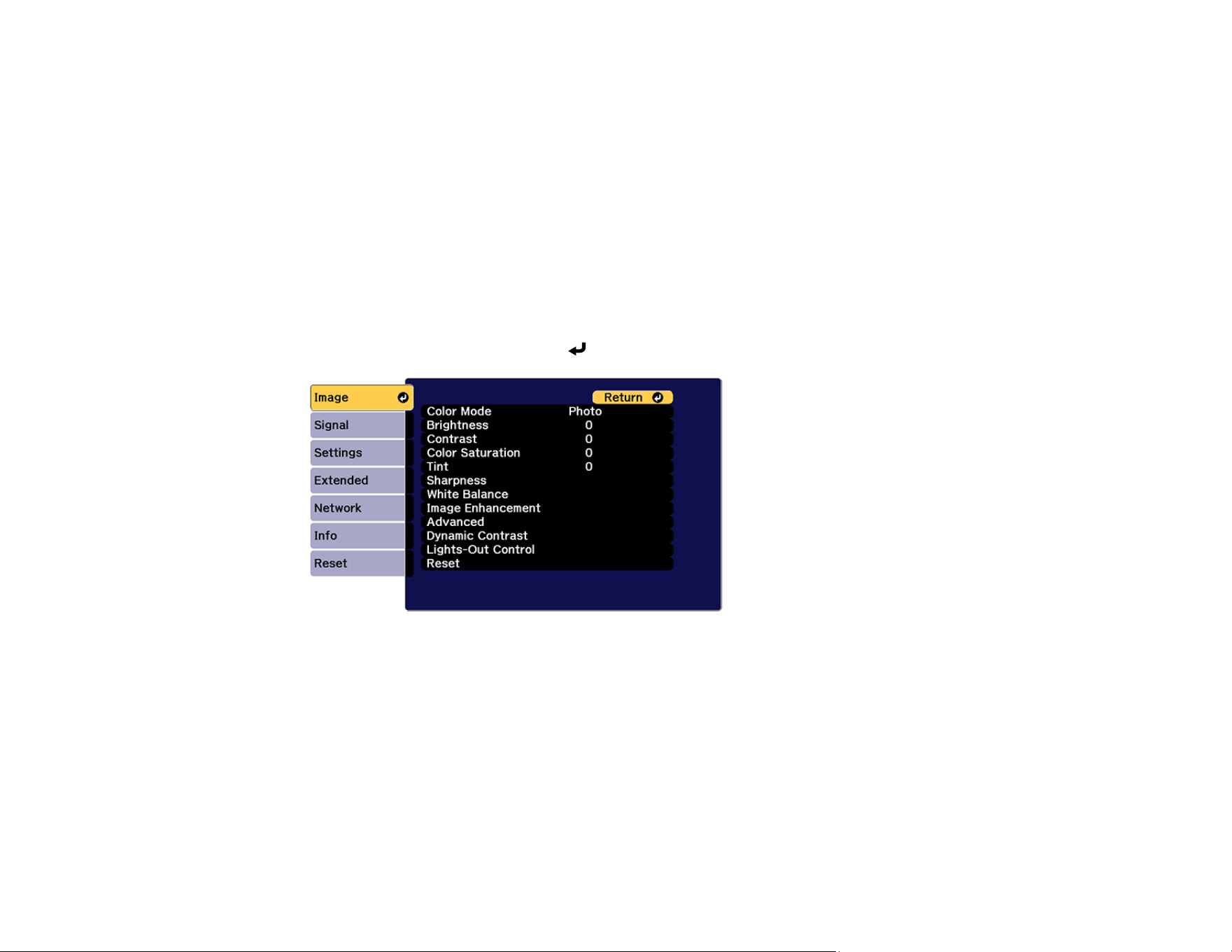
167
Related references
Brightness Level
Constant Brightness
Estimated Remains
Adjusting Luminance Controls
You can automatically optimize the image luminance to improve the image contrast based on the
brightness of the content you project. You can also set the light source to turn off automatically after a
certain time period while projecting at a specific brightness level.
1. Turn on the projector and switch to the image source you want to use.
2. Press the Menu button.
3. Select the Image menu and press Enter.
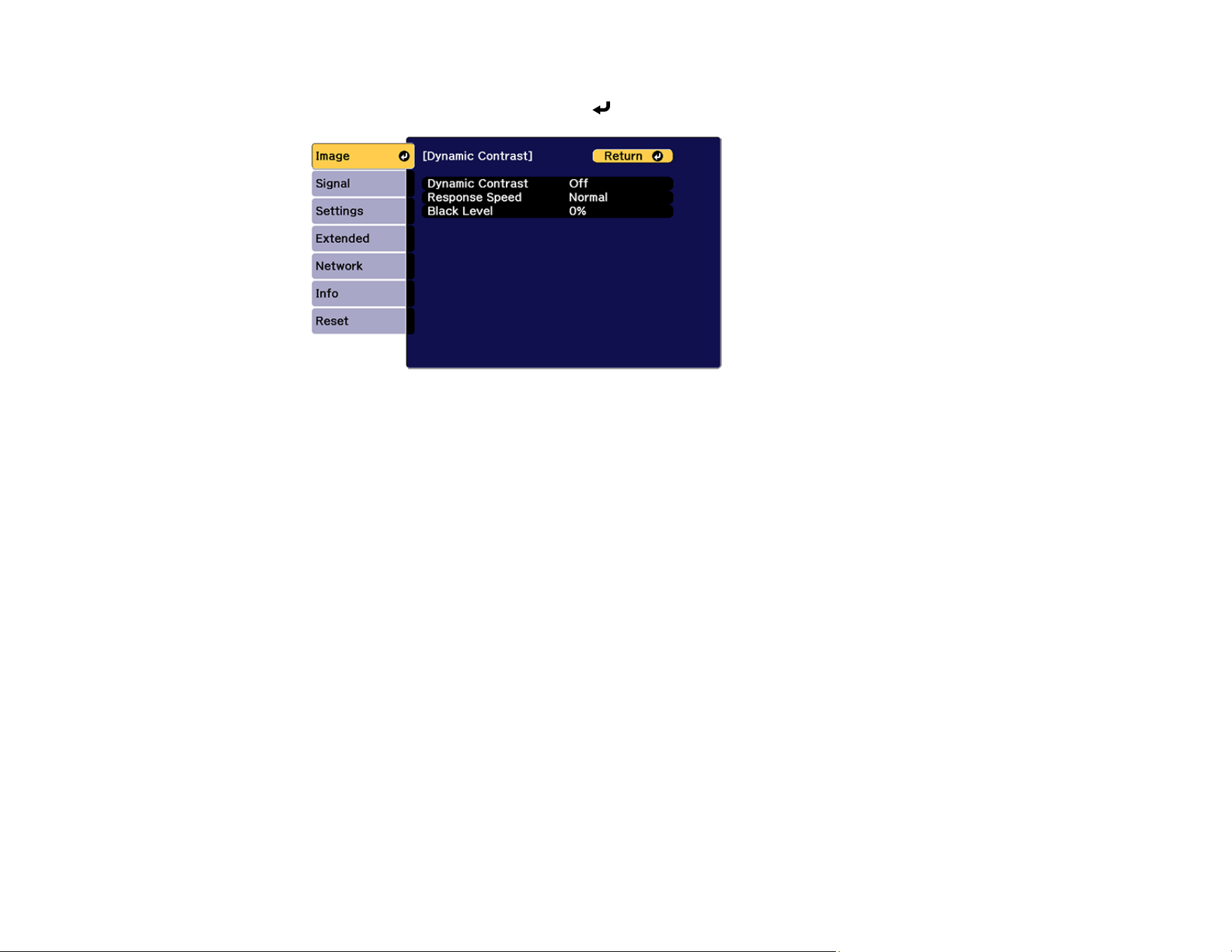
168
4. To automatically adjust the amount of light based on the brightness of the image, select the
Dynamic Contrast setting and press Enter. Choose from the following options:
• Dynamic Contrast: Select On to automatically adjust the amount of light according to the
brightness of the image.
• Response Speed: Select Normal to adjust brightness at the standard speed or High Speed to
adjust brightness as soon as the scene changes.
• Black Level: Select the black level you want to project when the brightness level of the image
signal is zero. (If you select 0%, the light source turns off.)
5. Press the Esc button to return to the Image menu.
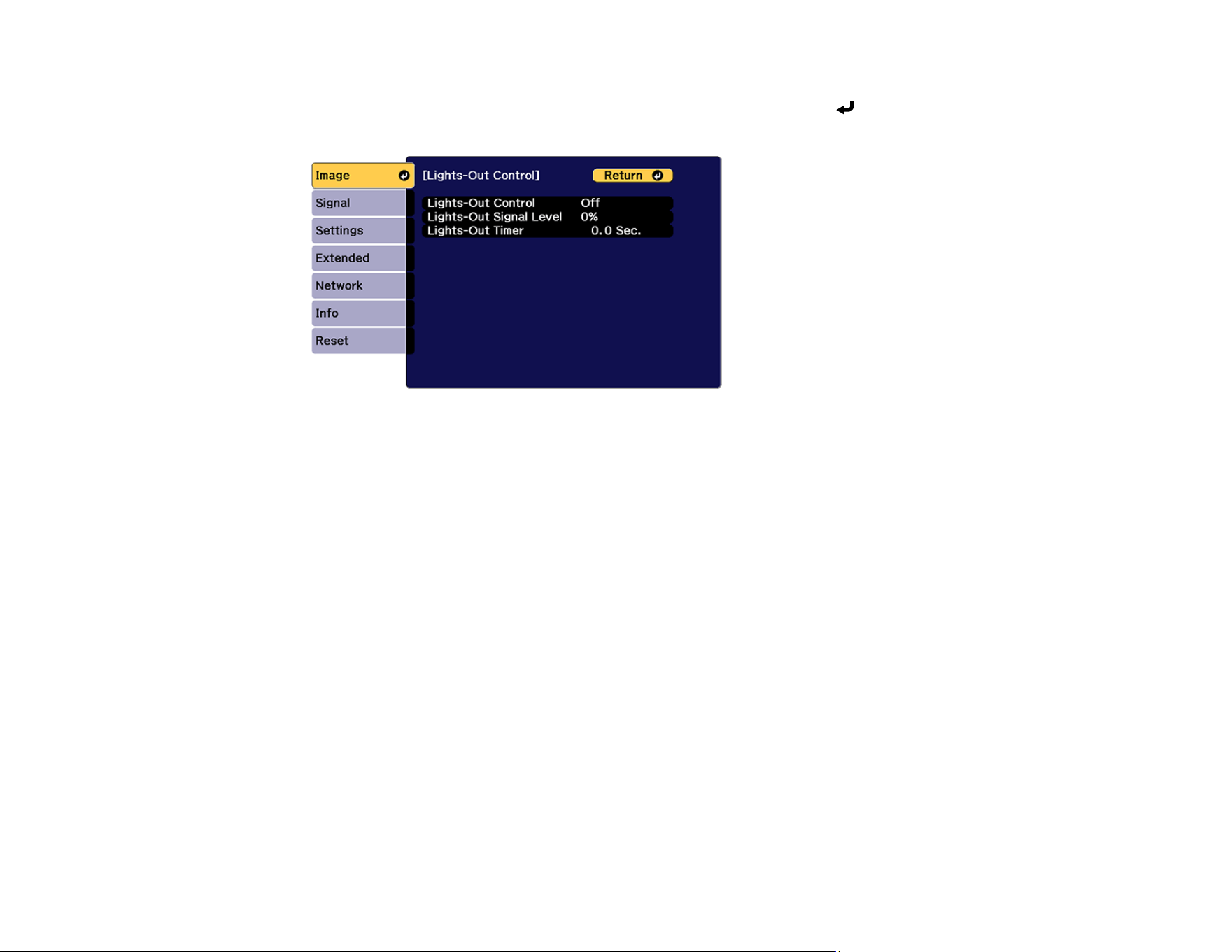
169
6. To automatically turn off the light source after a certain time has elapsed while projecting at the
specified video level, select the Lights-Out Control setting and press Enter. Choose from the
following options:
• Lights-Out Control: Select On to automatically turn off the light after a certain time has elapsed
while projecting at the specified video level.
• Lights-Out Signal Level: Select the brightness level for the current video signal. If the brightness
level exceeds this level, the light source turns off automatically and then turns back on
immediately.
• Lights-Out Timer: Select the amount of time before the light source automatically turns off.
7. Press Menu to exit the menus.
Parent topic: Using Basic Projector Features
Related references
Dynamic Contrast
Controlling the Volume with the Volume Buttons
The volume buttons control any external speakers you connected to the projector.
You must adjust the volume separately for each connected input source.
Warning: Do not start playback at a high volume. Sudden loud noises may cause hearing loss. Always
lower the volume before turning off the projector. Gradually increase the volume after turning the
projector on.
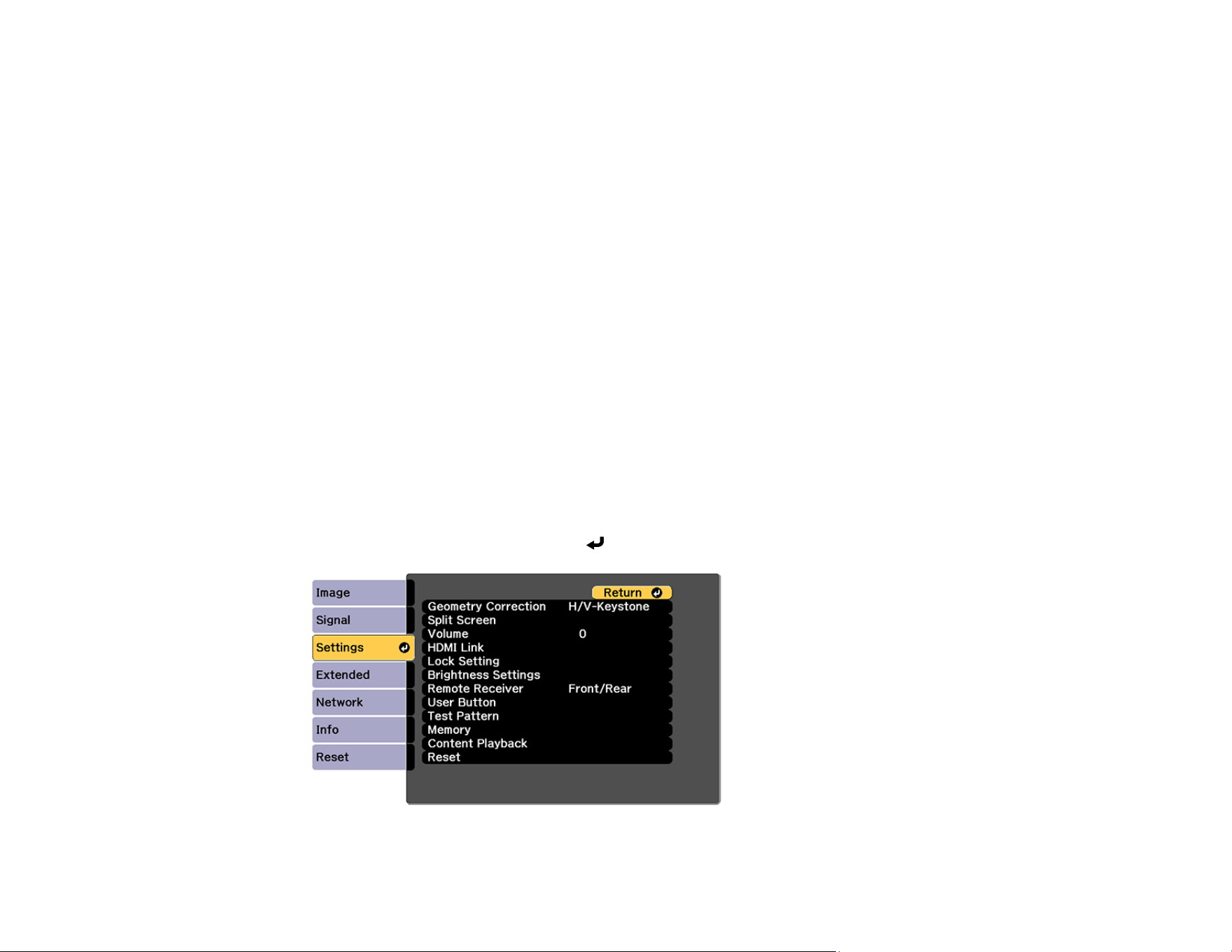
170
1. Turn on the projector and start a presentation that includes audio.
2. To lower or raise the volume, press the volume buttons on the projector's remote control.
Parent topic: Using Basic Projector Features
Projecting in Content Playback Mode
You can project images or other content from an external storage device using Content Playback mode.
You can also add color or effects to the projected image.
Projecting a Playlist in Content Playback Mode
Adding Effects to the Projected Image
Parent topic: Using Basic Projector Features
Projecting a Playlist in Content Playback Mode
You can project playlists that contain images and movies in Content Playback mode.
1. Create a playlist and export it to a USB device using the Epson Projector Content Manager software.
Note: See the online Epson Projector Content Manager Operation Guide for more information.
2. Turn on the projector.
3. Press the Menu button.
4. Select the Settings menu and press Enter.

171
5. Select the Content Playback setting and press Enter.
6. Select the On setting and press Enter.
You see a confirmation prompt.
7. Turn off the projector.
8. Turn on the projector again to enable Content Playback mode.
9. Press the Home button to make sure Content Playback mode is enabled.
10. Insert the USB device containing the playlist to the projector's USB-A port.
11. Press the user button assigned to USB on the remote control to project the playlist.
Note: To assign the USB option to a user button on the remote control, press the Menu button and
go to Settings > User Button.
Note: To select a specific playlist from the USB device, press the Menu button and go to Settings >
Content Playback > USB Viewer. Use the arrow buttons on the remote control to select the playlist
you want to project.
If there is more than one playlist on the USB device, the first or scheduled playlist is projected.
Parent topic: Projecting in Content Playback Mode
Related references
User Button
Content Playback
Adding Effects to the Projected Image
You can add color and effects to the projected image in Content Playback mode.
Note: When you use the effects feature, select Refresh Mode > Start on the Reset menu periodically.
1. Press the Menu button.
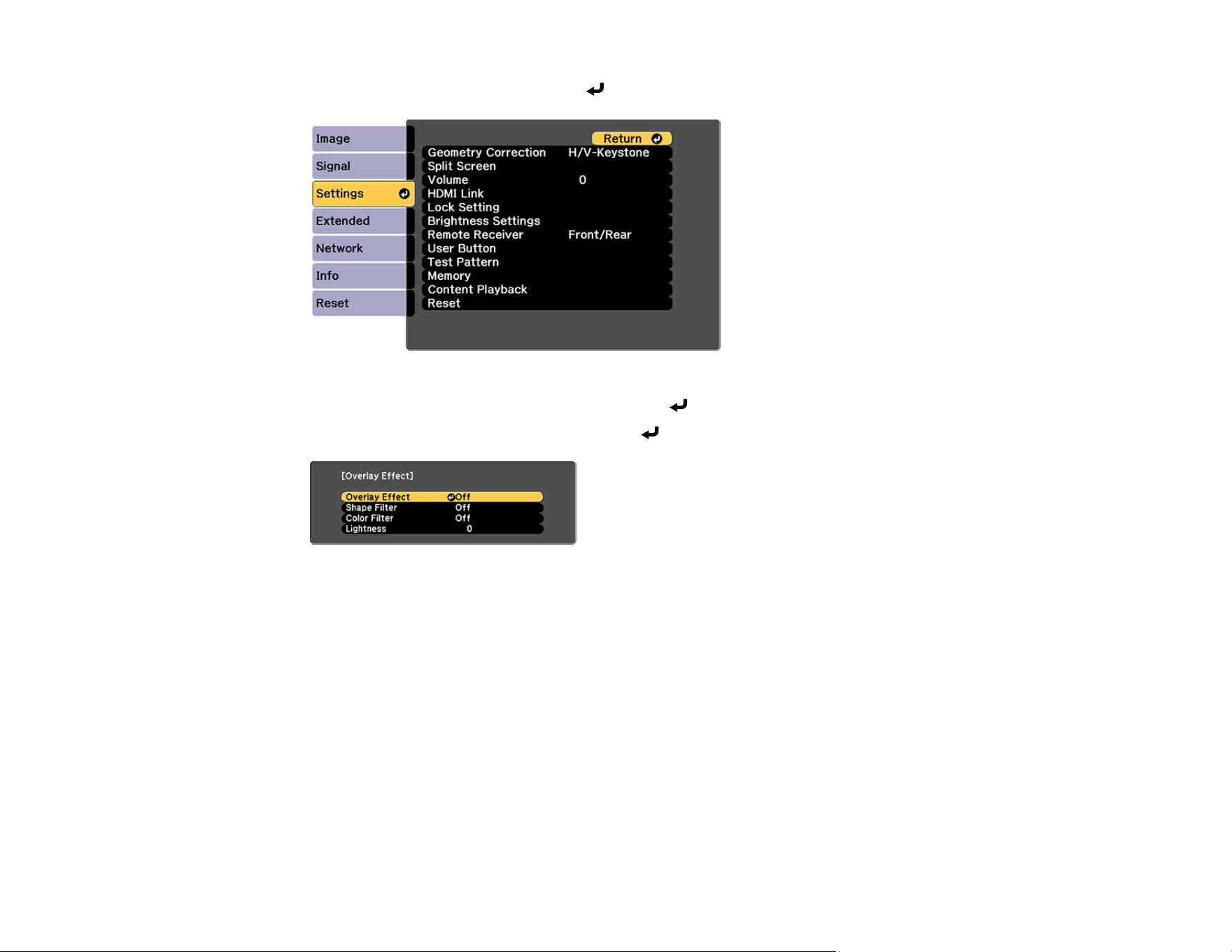
172
2. Select the Settings menu and press Enter.
3. Select the Content Playback setting and press Enter.
4. Select the Overlay Effect setting and press Enter.
5. Select the Overlay Effect setting again and select On.
6. Select the Shape Filter setting and adjust the options as necessary.
• Shape: select a circle, rectangle, or other shape effect
• Filter Effect: select an option to mask the inside or outside of the shape
• Size: set the shape size
• Position: set the shape position
7. Select the Color Filter setting and adjust the options as necessary.
• Color Filter: select the color
• Custom: adjust red, green, or blue individually

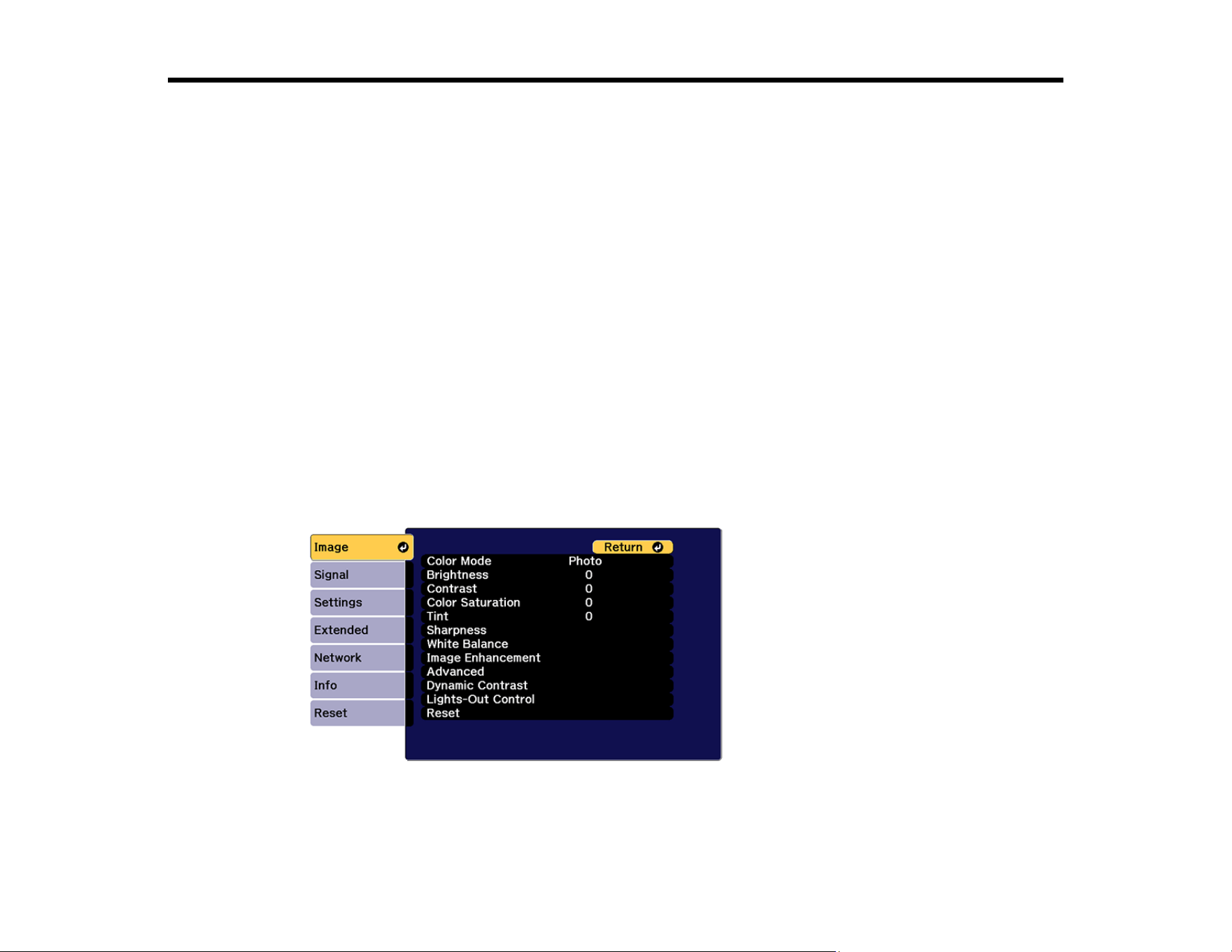
174
Adjusting the Menu Settings
Follow the instructions in these sections to access the projector menu system and change projector
settings.
Using the Projector's Menus
Image Menu
Signal Menu
Settings Menu
Extended Menu
Network Menu
Info Menu
Reset Menu
Using the Projector's Menus
You can use the projector's menus to adjust the settings that control how your projector works. The
projector displays the menus on the screen.
1. Press the Menu button on the control panel or remote control.
You see the menu screen.

175
2. Press the up or down arrow button to move through the menus listed on the left. The settings for
each menu are displayed on the right.
Note: The available settings depend on the current input source, resolution, or other menu settings.
3. To change settings in the displayed menu, press Enter.
4. Press the up or down arrow button to move through the settings.
5. Change the settings using the buttons listed on the bottom of the menu screens.
6. To return all the menu settings to their default values, select the Reset menu.
7. When you finish changing settings on a menu, press Esc.
8. Press Menu or Esc to exit the menus.
Parent topic: Adjusting the Menu Settings
Image Menu
Settings on the Image menu let you adjust the quality of your image. The available settings depend on
the currently selected color mode and input source. The settings are saved separately for each selected
color mode.
Color Mode
Brightness
Contrast
Color Saturation
Tint
Sharpness
White Balance
Image Preset Mode
Frame Interpolation
Super-resolution
Scene Adaptive Gamma
Gamma
RGBCMY
Dynamic Contrast
Lights-Out Control
Reset (Image Menu)

176
Parent topic: Adjusting the Menu Settings
Color Mode
• Image > Color Mode
• Extended > Multi-Projection > Screen Matching > Color Mode
You can adjust the vividness of image colors for various image types and environments. The brightness
of the image varies depending on the selected mode.
Dynamic
This is the brightest mode; ideal for use in a bright room.
Presentation
The images are vivid and brought to life. Ideal for showing presentations or watching a TV program in
a bright room.
Natural
Reproduces colors faithfully. Ideal for projecting still images such as photos.
Cinema
Gives images a natural tone. Ideal for watching films in a dark room.
BT.709
Produces images that conform to the ITU-R BT.709.
BT.2020
Produces images that conform to the ITU-R BT.2020.
Multi-Projection
Minimizes the color tone difference between each projected image. Ideal for projecting from multiple
projectors.
Note: You can also change the projector's Color Mode using the Color Mode button on the remote
control.
Parent topic: Image Menu
Related tasks
Changing the Color Mode
Brightness
• Image > Brightness
You can lighten or darken the overall image.

177
Note: This setting does not affect light source brightness. To change the light source brightness, select
Light Source Mode in the Settings menu.
• Settings > Brightness Settings > Light Source Mode
Parent topic: Image Menu
Related references
Light Source Mode
Related tasks
Adjusting the Brightness
Contrast
• Image > Contrast
You can adjust the difference between light and dark areas of the image.
Parent topic: Image Menu
Color Saturation
• Image > Color Saturation
You can adjust the intensity of the image colors.
Parent topic: Image Menu
Tint
• Image > Tint
You can adjust the balance of green to magenta tones in the image.
Parent topic: Image Menu
Sharpness
• Image > Sharpness
You can adjust the vividness of image colors for various image types and environments. The brightness
of the image varies depending on the selected mode.
Standard
You can adjust the image sharpness so that it is sufficiently balanced.

178
Thin Line Enhancement
Higher values enhance the details such as hair or fabric patterns.
Thick Line Enhancement
Higher values enhance the outline, background, and the other main parts of the objects in the image
to show them clearly.
Parent topic: Image Menu
White Balance
• Image > White Balance
You can adjust the overall tint of the image.
Color Temp.
You can adjust the overall tint of the image within a range from 3200K to10000K. Higher values tint
the image blue and lower values tint the image red.
When Color Mode is set to Dynamic, the set Color Temp. may differ from the actual Color Temp. of
the light from the projector. Use this menu as a guide.
G-M Correction
Higher values tint the image green and lower values tint the image red.
Offset R/Offset G/Offset B/Gain R /Gain G/ Gain B
You can adjust the individual R (red), G (green), and B (blue) components of the offset and gain.
Parent topic: Image Menu
Image Preset Mode
• Image > Image Enhancement > Image Preset Mode
You can set the Image Enhancement options as a batch using preset values.
The following settings are saved in the preset options:
• Frame Interpolation
• Super-resolution
Note:
• To minimize delays, select Off.
• If you select Off, you cannot set the other items in the Image Enhancement setting.

179
• After selecting Preset 1 to Preset 5, you can fine tune each setting individually. The settings value in
the preset option are overwritten.
Parent topic: Image Menu
Related references
Frame Interpolation
Super-resolution
Related tasks
Creating Image Presets
Frame Interpolation
• Image > Image Enhancement > Frame Interpolation
You can play fast moving images smoothly by producing intermediate frames between the original
frames.
If your resulting images contain noise, set to Off.
Note: You cannot select this setting in the following cases:
• Scale is set to Auto or Manual.
• Edge Blending is set to Blending/Black Level or Black Level.
• Image Preset Mode is set to Off.
Parent topic: Image Menu
Related references
Image Preset Mode
Scale
Edge Blending
Super-resolution
• Image > Image Enhancement > Super-resolution
You can reduce blurring when projecting low resolution images.
Fine Line Adjust
Higher values enhance details such as hair or fabric patterns.

180
Soft Focus Detail
Higher values enhance the outline, background, and the other main parts of the objects in the image
to show them clearly.
Note: You cannot select this setting when the Image Preset Mode setting is set to Off.
Parent topic: Image Menu
Related references
Image Preset Mode
Scene Adaptive Gamma
• Image > Advanced > Scene Adaptive Gamma
You can adjust the coloring according to the scene and obtain a more vivid image.
Higher values enhance the contrast more.
Parent topic: Image Menu
Gamma
• Image > Advanced > Gamma
You can adjust the coloring by selecting one of the gamma correction values, or referring to a gamma
graph. If you want to make finer adjustments, select Customized.
When you select a smaller value, you can reduce the overall brightness of the image to make the image
sharper. When you select a larger value, the dark areas of images become brighter, but the color
saturation for lighter areas may become weaker.
Note:
• Project a still picture to adjust the Gamma setting. You cannot adjust the Gamma setting correctly
when projecting movies.
• Medical images may not be reproduced correctly depending on your settings and screen
specifications.
Parent topic: Image Menu
RGBCMY
• Image > Advanced > RGBCMY

181
You can adjust the Hue, Saturation, and Brightness of each color R (red), G(green), B (blue), C (cyan),
M (magenta), Y (yellow) individually.
Parent topic: Image Menu
Dynamic Contrast
• Image > Dynamic Contrast
You can adjust the projected luminance based on the image brightness.
Dynamic Contrast
Set to On to automatically adjust the amount of light.
Response Speed
Select High Speed to adjust the amount of light as soon as the scene changes.
Black Level
Set the black level when the brightness level of the image signal is zero. When you select 0%, the
light source turns off.
Parent topic: Image Menu
Related tasks
Adjusting Luminance Controls
Lights-Out Control
• Image > Lights-Out Control
You can set the light source to turn off automatically.
Lights-Out Control
Set to On to automatically turn off the light source when the signal level falls below the reference level
for a set period of time..
Lights-Out Signal Level
Set the brightness level for the video signal being controlled. After turning off automatically, it turns on
immediately when exceeding the specified image level.
Lights-Out Timer
Set the amount of time before automatically turning off the light source.
Parent topic: Image Menu
Reset (Image Menu)
• Image > Reset

182
You can reset all adjustment values on the Image menu to their default settings.
Parent topic: Image Menu
Signal Menu
Normally, the projector automatically detects and optimizes the input signal settings. If you need to
customize the settings, you can use the Signal menu. The available settings depend on the currently
selected input source. The settings are saved separately for each selected input source.
Aspect
Blanking
Color Space
Dynamic Range
Video Range
EDID
Scale
Switch Backup Source
Reset (Signal Menu)
Parent topic: Adjusting the Menu Settings
Aspect
• Signal > Aspect
The projector can display images in different width-to-height ratios called aspect ratios. Normally, the
input signal from your video source determines the image's aspect ratio. However, for certain images
you can change the aspect ratio to fit your screen.
Depending on your settings, you may not be able to choose all options.
Auto
Automatically sets the aspect ratio according to the input signal and the Resolution setting.
Full
Displays images using the full projection area and maintains the aspect ratio of the image.
4:3
Converts the aspect ratio of the image to 4:3.
16:9
Converts the aspect ratio of the image to 16:9.

183
H-Zoom/V-Zoom
Displays images using the full width (H-Zoom) or full height (V-Zoom) of the projection area and
maintains the aspect ratio of the image. Areas that exceed the edges of the projected screen are not
projected.
Native
Displays images as is (aspect ratio and resolution are maintained). Areas that exceed the edges of
the projected screen are not projected.
Note:
• Available only when the current source is set to one of the following:
• HDMI
• HDBaseT
• SDI
• Available only when the Scale setting is set to Off or the Scale Mode setting is set to Full Display.
• Signal > Scale > Scale Mode
• Set the Screen Type setting in the projector's Extended menu before changing the aspect ratio.
• Extended > Display > Screen > Screen Type
• The available aspect ratio setting varies depending on the selected Screen Type setting and the input
signal from your image source.
• Note that using the aspect ratio function of the projector to reduce, enlarge, or split the projected
image for commercial purposes or for public viewing may infringe upon the rights of the copyright
holder of that image based on copyright law.
• If there are margins between the edge of the image and the projected screen frame, you can adjust
the position of the image using the Screen Position setting in the projector's Extended menu.
• Extended > Display > Screen > Screen Position
Parent topic: Signal Menu
Related references
Scale
Screen
Related tasks
Changing the Image Aspect Ratio

184
Blanking
• Signal > Blanking
You can hide images in the specified area.
Use the arrow buttons on the control panel or remote control to adjust the area. You can hide up to half
of the projected image in each direction (except for one pixel).
Note: Setting is only displayed when the Content Playback setting is set to Off in the projector's
Settings menu.
Parent topic: Signal Menu
Color Space
• Signal > Color Space
You can switch the color space that can handle the color information of the input image.
Select Auto to apply a suitable color space for the AVI InfoFrame of the image.
Note: Setting is only displayed in the following cases.
• The current source is HDMI, HDBaseT, or SDI.
• Color Mode is set to other than BT.709 or BT.2020.
Parent topic: Signal Menu
Related references
Color Mode
Dynamic Range
• Signal > Dynamic Range
You can set the video range to match the setting of input source.
Select Auto to automatically identify the dynamic range of the input signal.
The result for your selected setting is displayed as Signal Status.
HDR10 Setting
You can adjust the PQ curve of the dynamic range in the HDR PQ (Perceptual Quantizer) method.

185
HLG Setting
You can adjust the HLG curve of the dynamic range in the HDR HLG (Hybrid Log Gamma) method.
Note:
• Setting is only displayed in the following cases:
• The current source is HDMI, HDBaseT, or SDI.
• Color Mode is set to other than BT.709 or BT.2020
• HDR10 Setting is only available when Signal Status is set to HDR10, or Dynamic Range is set to
HDR10.
• HLG Setting is only available when Signal Status is set to HLG, or Dynamic Range is set to HLG.
Parent topic: Signal Menu
Related references
Color Space
Status Information
Video Range
• Signal > Advanced > Video Range
You can set the video range to match the setting of input source from the HDMI or HDBaseT port.
You can adjust the vividness of image colors for various image types and environments. The brightness
of the image varies depending on the selected mode.
Limited (16-235)
For the color tone range 16 to 235
Full (0-255)
For the color tone range 0 to 255
Parent topic: Signal Menu
EDID
• Signal > Advanced > EDID
Even if you setup multiple displays with different resolutions, you can set the same EDID as the standard
display and switch the EDID of the current source to unify the EDID across the displays.

186
You can adjust the vividness of image colors for various image types and environments. The brightness
of the image varies depending on the selected mode.
EDID Mode
You can set the EDID options as a batch using preset values.
The following settings are saved in the preset options.
• Resolution
• Refresh Rate
• Color Depth
You can change the preset settings, if necessary.
Note: Setting is only displayed when the current source is HDMI or HDBaseT.
Select Reset to reset all adjustment values for EDID to their default values.
Parent topic: Signal Menu
Scale
• Signal > Scale
• Extended > Multi-Projection > Group Tiling > Scale
You can enlarge or reduce the image in the vertical and horizontal directions. When using multiple
projectors to project one image, you can adjust the scale of the image displayed by each projector.
Scale
When set to Auto, the clip position is set automatically depending on the Edge Blending and Tiling
settings. After selecting Auto, you can fine tune manually. Select Manual to adjust the clip range and
position manually.
Scale Mode
Select how to change the magnification.
• Zoom Display to maintain the image position and aspect ratio.
• Full Display to adjust the image according to the image position and aspect ratio
Scale Horizontal/Scale Vertically
You can adjust the magnification horizontally and vertically in 0.01x increments, and enlarge or
reduce the image. (Minimum magnification of 0.5 to maximum magnification of 10.)
Clip Adjustment
Use the arrow buttons to adjust the coordinates and size of each image as you view the screen.

187
Clip Range
You can view the clipped area you selected.
Parent topic: Signal Menu
Related tasks
Scaling an Image
Switch Backup Source
• Signal > HDMI1 Backup Source Setting
If a problem occurs in which the video signal is interrupted while projecting images from the HDMI1 input
source, you can set a backup source to automatically switch the input source.
Backup Source
Select one of the following backup sources:
• HDMI2
• HDBaseT
• SDI
Status
Displays whether or not it is currently possible to switch to the selected backup source..
Note:
• Input the same signal to the HDMI1 In port and the backup source in advance, and then check the
Status to see whether or not you can switch the input source.
• If the input source is switched to the backup source, the current input source information is not
reflected in Status Information in the projector's Info menu until the input source is switched next
time
• The backup source must have the same signals as the HDMI1 In source for the following items.
• Resolution
• Frequency
• Color Depth
• Color Space
• After switching to the backup source, the Image menu settings for the HDMI1 In source are applied to
the image of the backup source.

188
Parent topic: Signal Menu
Related references
Status Information
Reset (Signal Menu)
• Signal > Reset
You can reset all adjustment values on the Signal menu to their default settings, except for the EDID
setting.
Parent topic: Signal Menu
Settings Menu
Options on the Settings menu let you customize various projector features.
Geometry Correction
Volume
HDMI Link
Control Panel Lock
Lens Lock
Light Source Mode
Brightness Level
Constant Brightness
Estimated Remains
Energy Saving Mode
Remote Receiver
User Button
Test Pattern
Memory
Content Playback
NFC Settings
Reset (Settings Menu)
Parent topic: Adjusting the Menu Settings

189
Geometry Correction
• Settings > Geometry Correction
• Extended > Multi-Projection > Geometry Correction
• Extended > Multi-Projection > Simple Stacking > Point Correction
You can adjust image shape to rectangular. After correction, your image is slightly smaller.
Note: If you change the Screen Type setting, the Geometry Correction settings are initialized.
Off
Temporarily cancels geometry correction. Even when set to Off, the correction values are saved.
H/V Keystone
Manually corrects distortion in the horizontal and vertical directions independently. If the image aspect
is incorrect, adjust the image balance by using V-Balance and H-Balance.
You cannot combine with other correction methods.
Quick Corner
Corrects each of the four corners of the projected image independently.
Curved Surface
Corrects the corners and sides of an image projected on a curved surface with the same radius.
Note:
• Move the lens position to the home position.
• If a large amount of adjustment is performed, the focus may not be uniform even after making
adjustments.
• If you set the Maintain Aspect Ratio setting to On after correcting the corrections may not be
applied. Reset the corrections to their default values or reduce the amount of correction, and try it
again.
• If you change the standard line during correcting, the present settings are reset.
Corner Wall
Corrects the corners and sides of an image projected on a curved surface with right angles.
• Move the lens position to the home position
• If a large amount of adjustment is performed, the focus may not be uniform even after making
adjustments.
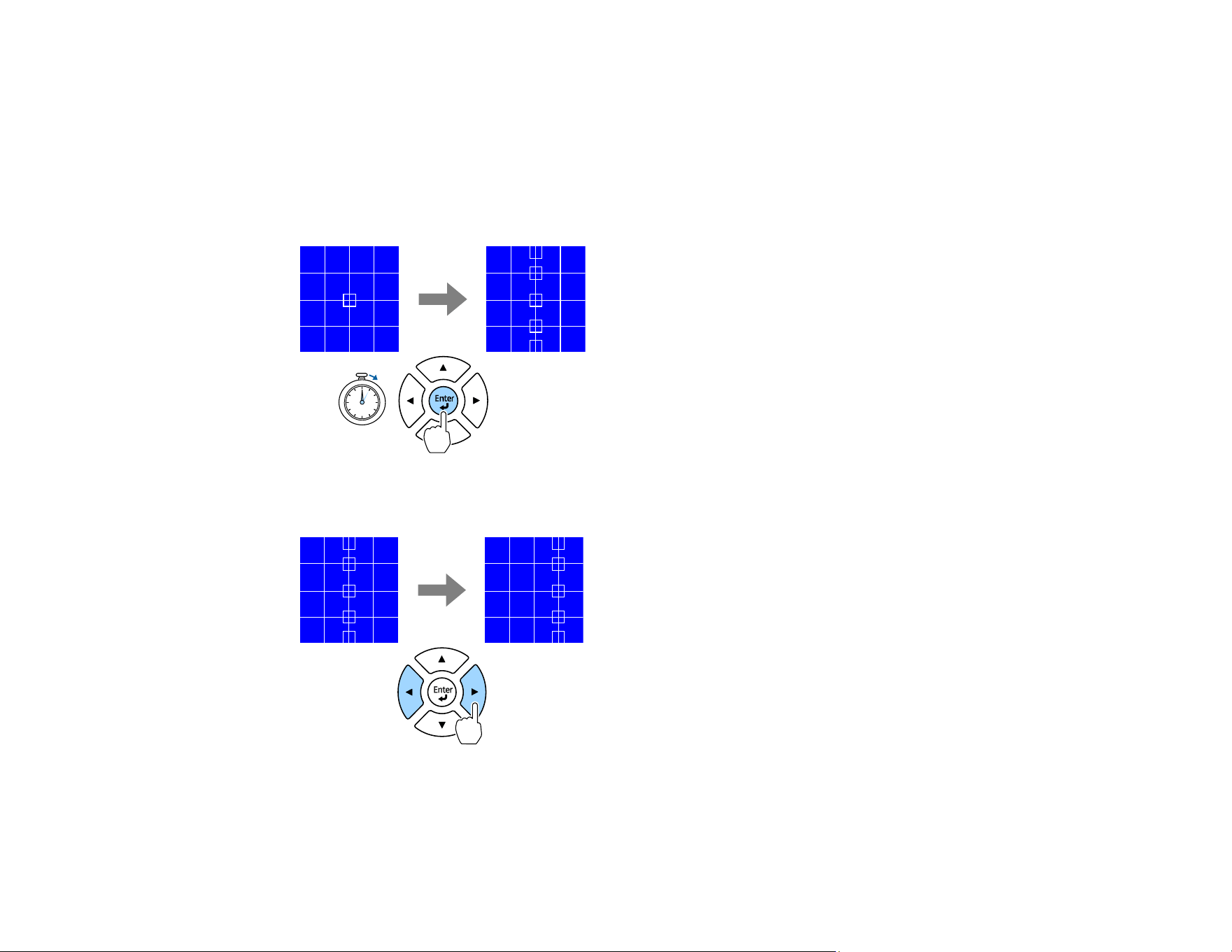
190
• We recommend you adjust the image shape based on the point nearest to the center of the screen.
Point Correction
Divides the projected image into a grid and corrects the distortion in 0.5 pixel increments by moving
the selected point of intersection in any direction. You can move the points on the grid between 0.5 to
600 pixels in any direction, including outside the projection range.
Hold down the Enter button to switch to the mode that corrects all points in a specified vertical column
or horizontal row at once.
Use the left and right arrow buttons to select the column you want to adjust, and then press Enter.
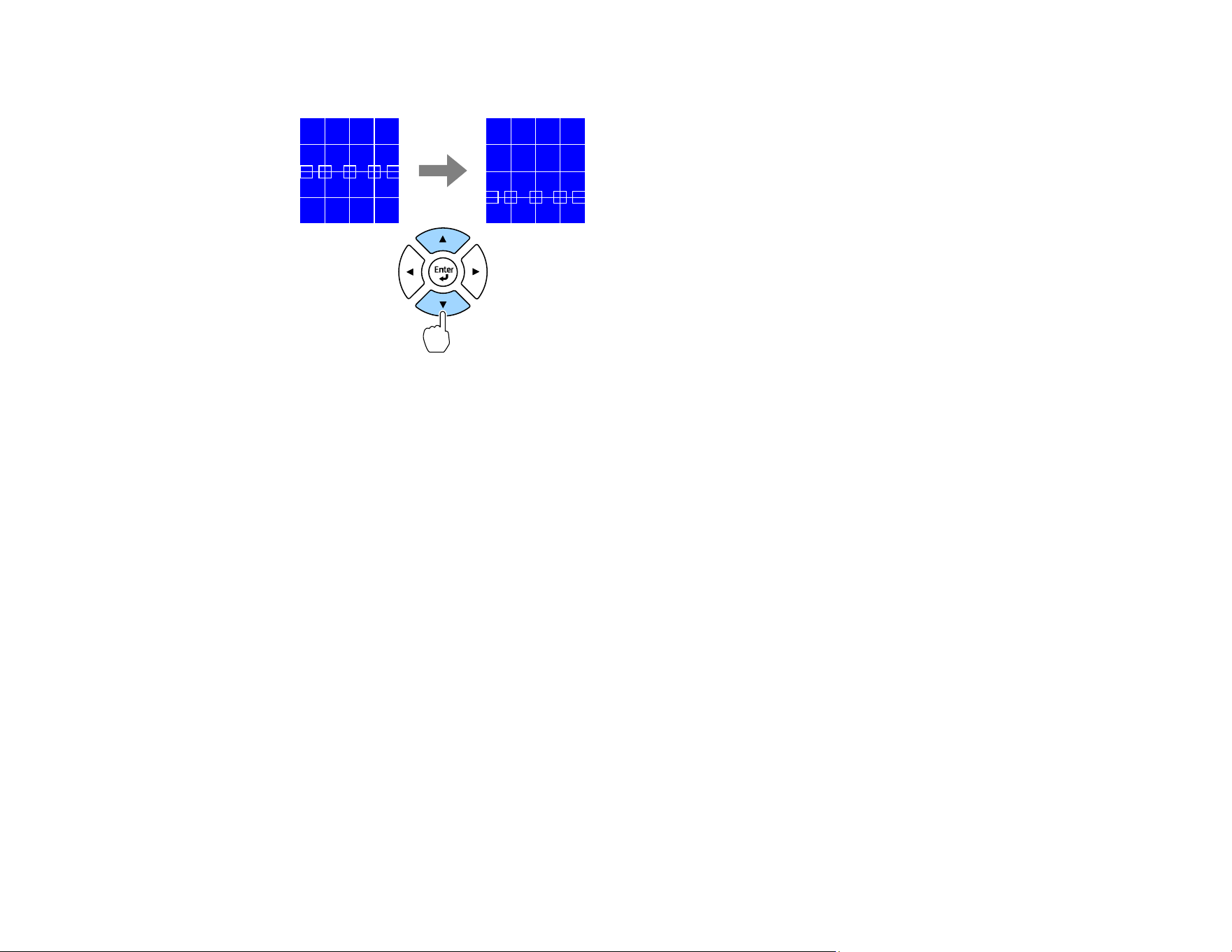
191
Use the up and down arrow buttons to select the row you want to adjust, and then press Enter.
Memory
You can save the shape of an image you have adjusted and load it when needed.
Note:
• You can also open the Geometry Correction screen using the Geometry button on the control
panel or remote control.
• You can also open the Memory screen using the Memory button on the remote control.
Parent topic: Settings Menu
Related concepts
Image Shape
Related references
Screen
Related tasks
Correcting Image Shape with Corner Wall
Correcting Image Shape with Curved Surface
Correcting Image Shape with Quick Corner
Correcting Image Shape with H/V-Keystone
Correcting Image Shape with Point Correction

192
Volume
• Settings > Volume
You can adjust the volume of the speaker connected to the projector's Audio Out port.
Caution: Do not start a presentation at a high volume setting. Sudden loud noises may cause hearing
loss.
Always lower the volume before powering off, so that you can power on and then gradually increase the
volume.
Parent topic: Settings Menu
HDMI Link
• Settings > HDMI Link
You can adjust the HDMI Link options that allow the projector remote to control HDMI-connected
devices.
Device Connections
Lists the devices connected to the HDMI ports.
HDMI Link
Set to On to enable the HDMI Link features.
Audio Out Device
To output audio from the speaker connected to the projector's Audio Out port, select Projector.
When an audio/video system is connected to the projector and you want to output audio from it, select
AV System. When an audio/video system is not connected to the projector, audio is output from the
speaker connected to the Audio Out port even if Audio Out Device is set to AV System.
Power On Link
You can control what happens when you turn on the projector or connected device
• Bidirectional: automatically turns on the connected device when you turn on the projector, and
vice versa.
• Device -> PJ: automatically turns on the projector when you turn on the connected device.
• PJ -> Device: automatically turns on the connected device when you turn on the projector.
Power Off Link
You can control whether connected devices are turned off when you turnoff the projector.

193
HDMI Out Setting
Set when connecting multiple projectors of the same model in a daisy chain.
• Power On/Off Link: Set to On to synchronize the power on/off operation of all projectors.
• Terminal End: Set to On only for the projector at the end of the daisy chain.
Note: Set the HDMI Link setting to On first to adjust the options
Parent topic: Settings Menu
Control Panel Lock
• Settings > Lock Setting > Control Panel Lock
You can control projector button locking to secure the projector's control panel.
Full Lock
Locks all buttons.
Partial Lock
Locks all buttons except the On and Standby buttons
Note: You can control projector button locking using the control panel lock button on the control panel.
To unlock the buttons, hold down the Enter button on the control panel for approximately 7 seconds. A
message is displayed and the lock is released.
Parent topic: Settings Menu
Lens Lock
• Settings > Lock Setting > Lens Lock
You can disable the Lens Shift, Zoom, Focus, Distortion, and Calibration button operations on the
remote control.
Parent topic: Settings Menu
Related tasks
Locking the Remote Control Buttons
Light Source Mode
• Settings > Brightness Settings > Light Source Mode

194
• Extended > Multi-Projection > Screen Matching > Brightness Settings > Light Source Mode
You can select the brightness for the light source.
Normal
Maximum brightness. This makes the light source operation time approximately 20,000 hours.
Quiet
70% brightness with reduced fan noise. This makes the light source operation time approximately
20,000 hours.
Extended
70% brightness and extends the life expectancy of the light source. This makes the light source
operation time approximately 30,000 hours.
Custom
You can select a custom brightness level.
Note: Setting is only displayed when Constant Brightness is set to Off.
Parent topic: Settings Menu
Related references
Constant Brightness
Related tasks
Adjusting the Brightness
Brightness Level
• Settings > Brightness Settings > Brightness Level
• Extended > Multi-Projection > Screen Matching > Brightness Settings >Brightness Level
You can select the Custom brightness level you want.
Note: This setting is only displayed when Light Source Mode is set to Custom.
Parent topic: Settings Menu
Related tasks
Adjusting the Brightness
Constant Brightness
• Settings > Brightness Settings > Constant Brightness

195
• Extended > Multi-Projection > Screen Matching > Brightness Settings >Constant Brightness
You can maintain the brightness of the light source set in the Brightness Level setting.
Note:
This setting is only displayed when Light Source Mode is set to Custom.
When set to On, you cannot change the settings for Light Source Mode and Brightness Level. When
set to Off, the Brightness Level setting changes according to the status of the light source.
When you use this function, we recommend setting Energy Saving Mode to Off.
• Settings > Brightness Settings > Energy Saving Mode
Parent topic: Settings Menu
Related references
Constant Brightness Usage Hours
Related tasks
Adjusting the Brightness
Estimated Remains
• Settings > Brightness Settings > Estimated Remains
• Extended > Multi-Projection > Screen Matching > Brightness Settings > Estimated Remains
You can check how long the projector can maintain constant brightness.
Note: This setting is only displayed when Constant Brightness is set to On.
Parent topic: Settings Menu
Related references
Constant Brightness Usage Hours
Related tasks
Adjusting the Brightness
Energy Saving Mode
• Settings > Brightness Settings > Energy Saving Mode

196
When set to On, you can reduce the power consumption by automatically adjusting the light source
brightness. The light source brightness is gradually adjusted over a period of 60 minutes and it does not
ruin the image appearance. When you use the Multi-Projection or Constant Brightness features, set
to Off to correct differences in the brightness between projectors.
Note: This function is disabled in the following cases:
• When Edge Blending is set to Blending/Black Level or Black Level.
• When Color Mode is set to Multi-Projection.
• When Light Source Mode is set to Custom.
Parent topic: Settings Menu
Related references
Light Source Mode
Color Mode
Edge Blending
Remote Receiver
• Settings > Remote Receiver
When the remote control does not operate stably due to noise from other devices, you can limit reception
of remote control signals to the selected receiver; Off turns off all receivers.
Note: You can turn on all remote receivers by holding down the Menu button on the remote control for
approximately 15 seconds.
Parent topic: Settings Menu
User Button
• Settings > User Button
You can assign the following menu options to the User buttons on the remote control for one-touch
access.
• Light Source Mode
• Display the QR Code
• Image Enhancement
• Frame Interpolation

197
• Link Menu
• Content Playback
• USB
Note: The USB option is only displayed when Content Playback is set to On.
Parent topic: Settings Menu
Related references
Content Playback
Related tasks
Projecting a Playlist in Content Playback Mode
Test Pattern
• Settings > Test Pattern
You can display a test pattern to assist in focusing and zooming the image and correcting image shape.
Note:
• Press the Page button to change the test pattern while displaying a test pattern.
• Press the Esc button to cancel pattern display.
• The test pattern's shape is determined by the Screen Type setting. Be sure to set the correct screen
type before adjusting with the test pattern.
• Extended > Display > Screen > Screen Type
• To set menu items that cannot be set while the test pattern is being displayed or to fine-tune the
projected image, project an image from the connected device.
• You can also display a test pattern using the button on the control panel or remote control.
• If you capture the projected image as a test pattern during Freeze, you can use the captured image as
one of the test patterns.
Parent topic: Settings Menu
Related concepts
Image Shape

198
Related references
Screen
Related tasks
Displaying a Test Pattern
Correcting Image Shape with Corner Wall
Correcting Image Shape with Curved Surface
Correcting Image Shape with Quick Corner
Correcting Image Shape with H/V-Keystone
Correcting Image Shape with Point Correction
Memory
• Settings > Memory
You can save customized settings and then select the saved settings whenever you want to use them.
Memory
You can save the following settings. You can register up to 10 memories with different names.
• Image menu settings
• Scale in the Signal menu
• Light Source Mode and Brightness Level in the Settings menu
• Edge Blending, Color Matching, and Black Level in the Extended menu
Lens Position
You can save the position of the lens adjusted using lens shift, zoom, focus, and distortion. You can
register up to 10 memories with different names.
Geometry Correction
You can save the adjustment value of the geometry correction. You can register up to 3 memories
with different names.
You can use the following options for each memory type:
Load Memory
You can load the saved memory. The settings applied to the current image are replaced with the
settings in the memory.
Save Memory
You can save your current settings to memory.
Erase Memory
You can erase the selected memory settings.

199
Rename Memory
You can rename a saved memory.
Reset Memory Settings
You can delete all saved memories.
Note:
• A memory name that has already been used is indicated by a blue mark
• Saving over a previously saved memory overwrites the settings with your current settings.
• The lens position when a memory is loaded may not completely match the lens position when the
memory was saved. If there is a large discrepancy between the lens position, calibrate the lens.
• You can also open the Memory screen using the Memory button on the remote control.
Parent topic: Settings Menu
Related references
Light Source Mode
Brightness Level
Edge Blending
Color Matching
Related tasks
Saving Settings to Memory and Using Saved Settings
Content Playback
• Settings > Content Playback
You can easily project your digital signage content: playlists that contain images and movies saved on
an external storage device.
Content Playback
Set to On to play back a playlist.
Overlay Effect
You can add color and shape effects to the projected image.
USB Viewer
You can select and play back a playlist saved on the USB flash drive.

200
Note: You cannot select the Overlay Effect setting in the following cases.
• When Edge Blending is set to Blending/Black Level or Black Level in the projector's Extended
menu.
• When the current source is USB and there is no playlist being played.
• When the current source is USB and a writing error has occurred.
You can use the following methods to create playlists:
• Using Epson Projector Content Manager on your computer. You can download and install Epson
Projector Content Manager from the Epson support site
• Using Epson Web Control with a Web browser.
• Using Epson Creative Projection on iOS devices.
You can download Epson Creative Projection from the App Store. Any fees incurred when
communicating with the App Store are the responsibility of the customer.
When you assign the USB function to the User button on the remote control using the User Button
setting in the projector's Settings menu, you can start the playlist by pressing the User button. When
there is a timetable assigned, the playlist will play back according to the schedule in the timetable.
You can also hold down the Num and numeric buttons to project your favorite playlist. You can set a
remote control shortcut key using the software you used to create the playlists.
Parent topic: Settings Menu
Related references
Edge Blending
Related tasks
Controlling a Networked Projector in Content Playback Mode
Projecting a Playlist in Content Playback Mode
Adding Effects to the Projected Image
NFC Settings
• Settings > NFC Settings
You can prevent scanning to the projector's settings.
NFC Write Protection
Prevents anyone from scanning the projector's settings.

201
NFC Write Password
Sets a password for scanning the projector's settings up to 32 alphanumeric characters long.
Note: If you do not set an NFC Write Password, NFC Write Protection is enabled automatically when
you turn on the projector. If you want to scan the projector's information using the NFC tag on the
projector, set the NFC Write Password setting to Off.
Parent topic: Settings Menu
Reset (Settings Menu)
• Settings > Reset
You can reset all adjustment values on the Settings menu to their default settings, except for the
following:
• Audio Out Device
• Power On Link
• Power Off Link
• HDMI Out Setting
• User Button
• NFC Settings
Parent topic: Settings Menu
Extended Menu
Settings on the Extended menu let you customize various projector setup features.
Home Screen
Menu Position
Message Position
Messages
Display Background
Startup Screen
Standby Confirmation
Screen
Panel Alignment
Color Uniformity

202
OSD Rotation
User's Logo
Projection
Direct Power On
Sleep Mode
Sleep Mode Timer
High Altitude Mode
Auto Source Search
Auto Power On
Startup Source
Quick Startup
USB Power
Shutter Settings
Beep
Indicators
Log Save Destination
Batch Setup Range
AC Voltage Monitoring
Date & Time
Lens Calibration
A/V Settings
Standby Mode
HDBaseT
Color Calibration
Projector ID
Batch Setup
Projector Grouping
Tiling
Edge Blending
Black Level
Reset (Multi-Projection Menu)
Screen Matching
Color Matching

203
Simple Stacking
Simple Blending
Schedule Settings
Language
Reset (Extended Menu)
Parent topic: Adjusting the Menu Settings
Home Screen
• Extended > Home Screen
You can adjust settings on the Home screen.
Home Screen Auto Display
Set to On to display the Home screen automatically when there is no input signal when turning on the
projector.
Custom Function 1/Custom Function 2
Select menu options to be assigned to the Home screen.
Parent topic: Extended Menu
Related tasks
Using the Home Screen
Menu Position
• Extended > Display > Menu Position
You can select the position of the projector menu displayed on the screen.
Parent topic: Extended Menu
Message Position
• Extended > Display > Message Position
You can select the position of the projector messages displayed on the screen.
Parent topic: Extended Menu
Messages
• Extended > Display > Messages
You can control whether messages are displayed on the screen.

204
Parent topic: Extended Menu
Display Background
• Extended > Display > Display Background
You can select the screen color or logo to display when no signal is received.
Note: This setting is only displayed when Content Playback is set to Off.
Parent topic: Extended Menu
Related references
Content Playback
Startup Screen
• Extended > Display > Startup Screen
You can control whether a special screen appears when the projector starts up.
Note: This function is disabled when you turn on the projector in Quick Startup mode.
Parent topic: Extended Menu
Standby Confirmation
• Extended > Display > Standby Confirmation
You can display a confirmation message after pressing the Standby button on the remote control. When
set to Off, you can turn off the projector simply by pressing the Standby button once.
Parent topic: Extended Menu
Related tasks
Turning Off the Projector
Screen
• Extended > Display > Screen
You can set the aspect ratio and position of the projected image according to the type of screen being
used.

205
Screen Type
Set the aspect ratio of the screen to fit the image into the projection area.
Screen Position
You can shift the image position horizontally and vertically if there are margins between the edge of
the image and the projected screen frame due to the Screen Type setting.
Note:
• Adjust the aspect ratio for the projected image, if necessary.
• When the Screen Type setting changes, the EDID settings are automatically adjusted.
• Settings are only displayed when Content Playback is set to Off.
• This setting is unavailable when projecting images from a computer over a network.
• The Screen Type setting is not supported by the Message Broadcasting feature in the Epson
Projector Management software.
• You cannot adjust the screen position if you set the Screen Type setting to the same aspect ratio as
the projector resolution.
• The Screen Position setting is unavailable when Screen Type is set to 16:9.
• The Screen Position setting is initialized if you perform Geometry Assist in the Epson Projector
Professional Tool, Simple Blending, or Simple Stacking.
Parent topic: Extended Menu
Related references
Content Playback
Message Broadcasting
Simple Stacking
Simple Blending
Related tasks
Setting the Screen Type
Adjusting the Image Position Using Screen Position
Panel Alignment
• Extended > Display > Panel Alignment

206
You can use the panel alignment feature to manually adjust the color convergence (the alignment of the
red and blue colors) in the projected image. You can adjust the pixels horizontally and vertically in
increments of 0.125 pixels within a range of ±3 pixels.
Panel Alignment
Set to On to correct color misalignment in the projected image.
Select Color
Select the color you want to adjust.
Pattern Color
Select the grid color displayed during adjustments.
• R/G/B to display the grid color in white.
• R/G to display the grid color in yellow.
• G/B to display the grid color in cyan.
The available color varies depending on the Select Color setting.
Start Adjustments
Starts the panel alignment process.
The image may become distorted while adjusting. The image is restored once adjustments are
complete.
• Shift the whole panel to adjust the whole panel roughly.
• Adjust the four corners to adjust the four corners of the panel precisely. If you need to make
additional adjustments, select Select intersection and adjust to adjust more precisely.
Reset
You can reset all adjustment values on the Panel Alignment menu to their default settings.
Note:
• Image quality may decline after performing alignment.
• Images for pixels that extend beyond the edge of the projected screen are not displayed.
Parent topic: Extended Menu
Related tasks
Adjusting the Color Convergence (Panel Alignment)
Color Uniformity
• Extended > Display > Color Uniformity

207
• Extended > Multi-Projection > Screen Matching > Color Uniformity
You can use the color uniformity feature to manually adjust the color tone balance in the projected
image.
Color Uniformity
Set to On to adjust the color tone balance for the whole screen.
Adjustment Level
Select the adjustment level you want to adjust.
There are eight adjustment levels, from white to gray to black. Adjust each level individually.
Set to All to adjust the tint for each color from level 2 to 8 in a batch. (Once the values of red, blue, or
green are at maximum or minimum at any level, you cannot perform further adjustments.)
Start Adjustment
Starts adjustments for the selected adjustment level.
The image may become distorted while adjusting. The image is restored once adjustments are
complete.
Adjust the outer areas first, and then adjust the entire screen.
Reset
You can reset all adjustment values on the Color Uniformity menu to their default settings.
Note: The color tone may not be uniform even after adjusting the color uniformity.
Parent topic: Extended Menu
Related tasks
Adjusting the Color Tone (Color Uniformity)
OSD Rotation
• Extended > Display > OSD Rotation
You can rotate the menu display 90°.
Parent topic: Extended Menu
Related references
Projector Setup and Installation Options

208
User's Logo
• Extended > User's Logo
You can save an image on the projector and display it whenever the projector turns on. You can also
display the image when the projector is not receiving an input signal. This image is called the User's
Logo screen.
You can select a photo, graphic, or company logo as the user's logo, which is useful in identifying the
projector's owner to help deter theft. You can prevent changes to the user's logo by setting up password
protection. Display the image you want to project as the user's logo and then select this setting.
Note:
• If the User's Logo Protection setting in the Password Protection setting menu is set to On, set to
Off before saving the user's logo.
• When you copy the menu settings from one projector to another using the batch setup feature, the
user's logo is also copied. Do not register the information that you do not want to share between
multiple projectors as a user's logo.
• You cannot save content that is protected by HDCP.
• When Content Playback is set to On, you can display the user's logo only when the projector starts
up.
• Adjustments for image shape and display range are temporarily canceled when you select User's
Logo.
• This setting is unavailable when Test Pattern is set to Captured Image.
Parent topic: Extended Menu
Related references
Test Pattern
Related tasks
Selecting Password Security Types
Saving a User's Logo Image to Display
Projection
• Extended > Projection
You can set the way the projector faces the screen so the image is oriented correctly.

209
Note: You can change the projection mode to flip the image over top-to-bottom by holding down the
Shutter button on the remote control for approximately five seconds.
Parent topic: Extended Menu
Related concepts
Projection Modes
Related references
Projector Setup and Installation Options
Related tasks
Changing the Projection Mode Using the Menus
Direct Power On
• Extended > Operation > Direct Power On
Set to On to turn on the projector by plugging it in without pressing the power button.
Note: The projector also turns on automatically in cases such as recovery from a power outage.
Parent topic: Extended Menu
Related tasks
Turning On the Projector
Sleep Mode
• Extended > Operation > Sleep Mode
Set to On to automatically turns off the projector after an period of inactivity.
Parent topic: Extended Menu
Sleep Mode Timer
• Extended > Operation > Sleep Mode Timer
You can set the time before the projector automatically turns off from 1 to 30 minutes.
Note: This function is enabled only when Sleep Mode is set to On.
Parent topic: Extended Menu

210
High Altitude Mode
• Extended > Operation > High Altitude Mode
When operating the projector at an altitude where the air is thin, the normal rotation speed of the fans is
not enough to cool the projector. Set to On to increase the rotation speed of the fans at altitudes above
4921 ft (1500 m).
Note: When set to On, the projector's operating temperature will rise.
Parent topic: Extended Menu
Auto Source Search
• Extended > Operation > Auto Source Search
Set to On to detect the input signal automatically and project images when there is no input signal.
Note:
• This setting is only displayed when Content Playback is set to Off.
• This function is disabled when you turn on the projector in the Quick Startup mode.
Parent topic: Extended Menu
Related tasks
Selecting an Image Source
Auto Power On
• Extended > Operation > Auto Power On
Select to automatically turn on the projector when it detects an HDMI video signal.
HDMI1
This setting is available only when a signal is being input from the HDMI1 In port. This is useful for
video meetings using Microsoft Teams Rooms. The projector turns on automatically when it receives
an HDMI video signal from a device that supports Microsoft Teams Rooms and you can start the
meeting immediately.
Note:
When set to HDMI1, the power consumption increases while the projector is turned off. Make the setting
based on your usage environment.

211
Parent topic: Extended Menu
Related tasks
Turning On the Projector
Startup Source
• Extended > Operation > Startup Source
You can select the image source you want to project when the projector is turned on in Content
Playback mode.
Parent topic: Extended Menu
Quick Startup
• Extended > Operation > Quick Startup
You can set the time period for Quick Startup mode. The projector enters this mode when you turn it off.
You can start projecting in approximately seven seconds by pressing the power button.
Note:
• When set to anything other than Off, the power consumption increases while the projector is turned
off. Make the setting based on your usage environment.
• Set A/V Output to While Projecting first.
• Available only when Auto Power On is set to Off.
Parent topic: Extended Menu
Related tasks
Turning On the Projector
USB Power
• Extended > Operation > USB Power
Set to Always On to continue supplying power to the streaming media player when the projector is not
projecting images. This lets the streaming media player start earlier, or perform its firmware updates
automatically over a network if necessary.
Note:
• Set A/V Output to While Projecting first.

212
• This setting is available only when Auto Power On is set to Off.
Parent topic: Extended Menu
Shutter Settings
• Extended > Operation > Shutter Settings
You can adjust the shutter settings.
Fade-in
Set the number of seconds for a fade-in transition effect when displaying an image.
Fade-out
Set the number of seconds for a fade-out transition effect when hiding an image.
Shutter Timer
Turns off the projector automatically if the shutter is enabled and there has been more than two hours
of inactivity.
Shutter Release
Select Shutter if you want to use only the Shutter button to turn off the shutter or if you want to send
a command to turn off the shutter. Select Any Button to use any button to turn it off.
Startup
Sets the shutter status when the projector is turned on.
Standby
Sets the shutter status when the projector is turned off. Select Last Used if you want to maintain the
current shutter status when the projector is turned off.
Parent topic: Extended Menu
Related tasks
Viewing an Image Capture of the Displayed Image from a Remote Location
Shutting Off the Picture and Sound Temporarily (Shutter)
Beep
• Extended > Operation > Advanced > Beep
You can control the beep that sounds when you turn the projector on or off.
Parent topic: Extended Menu

213
Indicators
• Extended > Operation > Advanced > Indicators
Set to Off to turn off the indicator lights on the projector except when an error occurs.
Parent topic: Extended Menu
Log Save Destination
• Extended > Operation > Advanced > Log Save Destination
You can set where you want to save the operation logs for the projector. Select USB and Internal
Memory to save logs as text files (.log) to a USB flash drive inserted into the projector's USB-A port.
Note: This setting is only displayed when Content Playback is set to Off.
Parent topic: Extended Menu
Batch Setup Range
• Extended > Operation > Advanced > Batch Setup Range
You can select which menu settings you want to copy to another projector.
All
Select this to copy all of the projector menu settings using the batch setup feature.
Limited
Select this if you do not want to copy the Password Protection, EDID, and Network menu settings.
Parent topic: Extended Menu
AC Voltage Monitoring
• Extended > Operation > Advanced > AC Voltage Monitoring
Set to On to monitor the projector's voltage status and obtain a log when a warning, disconnection, or
power blockage occurs. If you regularly turn off the projector by turning off the power outlet (direct
shutdown), set to Off.
Note: You can view the log in the projector's Info menu
• Info > Voltage Warning Info
Parent topic: Extended Menu

214
Date & Time
• Extended > Operation > Date & Time
You can adjust the projector's system time and date settings.
Daylight Savings Time
Adjust the daylight saving time settings for your region.
Internet Time
Turn on this setting to update the date and time automatically through an Internet time server.
Note: When you set Schedule Protection to On in the Password Protection screen, you cannot
change the time and date settings. Set Schedule Protection to Off first.
Parent topic: Extended Menu
Related tasks
Setting the Date and Time
Lens Calibration
• Extended > Operation > Lens Calibration
You can view information about the lens currently in use.
Calibration takes up to approximately 100 seconds. When calibration is finished, the lens returns to the
same position it was in before calibration.
The following lenses return to the standard position.
• ELPLX02S/02
• ELPLX02WS/02W
Parent topic: Extended Menu
Related tasks
Attaching a Lens
A/V Settings
• Extended > A/V Settings
You can select to output audio to an external device when the projector is in standby mode (when the
power is off).
Select Always On to output audio to external devices when the projector does not project any images.

215
Note: Available only when Quick Startup is set to Off, and Auto Power On is set to Off. When set to
Always On, you can move the lens position to the home position even if the projector is in standby
mode.
Parent topic: Extended Menu
Standby Mode
• Extended > Standby Mode
Set to Communication On to monitor and control the projector over a network.
Note:
• Set A/V Output to While Projecting first.
• Available only when Auto Power On is set to Off.
• Available only when USB Power is set to On While Projecting.
• Even if Communication On is set for a wired LAN connection, if the connection between the projector
and the network device is not established for more than 15 minutes, the projector will enter a power
status in which network communication is not possible. The following shows the statuses when the
connection between the projector and the network device is not established:
• A LAN cable is not connected
• The power is off for network devices such as hubs.
Parent topic: Extended Menu
Related concepts
Using Crestron Connected
Related tasks
Controlling a Networked Projector Using a Web Browser
Setting Up Crestron Connected
HDBaseT
• Extended > HDBaseT
You can select the communication settings for connections to an HDBaseT transmitter or switcher.

216
Control Communications
You can enable or disable communication from the Ethernet and serial ports on the HDBaseT
transmitter or switcher; set to On to disable the projector's LAN, RS-232C, and Remote ports. To use
control communication even if the projector is in standby mode, select Always On as the A/V Output
setting in the projector's Extended menu.
• Extended > A/V Settings > A/V Output
Extron XTP
Set to On when you connect an Extron XTP transmitter or switcher to the HDBaseT ports. Visit the
Extron web site for more details on the XTP system.
Note:
• Control Communications is only displayed when Extron XTP is set to Off.
• When Extron XTP is set to On, the cooling fans may run even in standby status. This is not a
malfunction.
• When A/V Settings is set to Always On, and Control Communications is set to On, communication
from the HDBaseT port is enabled even if the projector is in standby mode.
Parent topic: Extended Menu
Color Calibration
• Extended > Color Calibration
The color calibration process adjusts the color balance and brightness that has deteriorated over time
based on images taken by the optional external camera, and restores the default image quality.
Color Calibration
Set to On to enable the color calibration process.
Start Auto Adjustment
Starts auto adjustment.
Undo
You can undo auto adjustment.
Redo
Select after selecting Undo to restore the image to the status after auto adjustment.
Color Uniformity
You can adjust the color tone balance for the whole image.

217
Reset
You can reset all adjustment values on the Color Calibration menu to their default settings.
Note: This function is not available when you use the following optional lenses: ELPLX02, ELPLX02W,
ELPLL08.
Parent topic: Extended Menu
Projector ID
• Extended > Multi-Projection > Projector ID
You can set the projector to a particular ID number which allows you to use a remote control to
individually control projectors. This is useful when you want to control multiple projectors using one
remote control.
Note:
• You need to set the remote control's ID to match the projector's ID to operate only a particular
projector. To set the remote control's ID, set the remote control ID switch to On. Press the ID button on
the remote control and press the numeric button that matches the projector's ID within five seconds.
(Enter a one digit or two-digit number.)
• If you do not know the projector's ID, press the ID button during projection to temporarily display the
projector's ID and the remote control's ID on the screen. (This is only available when you use the
remote control that comes with this projector.)
• You can set up to 30 IDs.
Parent topic: Extended Menu
Related tasks
Setting the Projector ID
Batch Setup
• Extended > Multi-Projection > Batch Setup
You can perform necessary settings as a batch by using this menu before you start projecting the same
image from multiple projectors to create one large image.
Initializes the following settings for Multi-Projection:
• Color Uniformity

218
• Screen Matching
• Color Matching
• Image
• Black Level
• Brightness Level
Changes the following settings for Multi-Projection:
• Multi-Projection for Color Mode
• Off for Dynamic Contrast
• Custom for Light Source Mode
• Off for Sleep Mode
Parent topic: Extended Menu
Projector Grouping
• Extended > Multi-Projection > Group Tiling > Projector Grouping
You can create a group of projectors that you can control simultaneously.
Parent topic: Extended Menu
Related tasks
Configuring Tiling Automatically
Tiling
• Extended > Multi-Projection > Group Tiling > Tiling
You can project the same image from up to 15 projectors to create one large image using the Tiling
feature.
Tiling
When the optional external camera is installed, set to Auto to configure tiling automatically. If you do
not install the optional external camera or tiling the images automatically was unsuccessful, select
Manual, and then select the Layout and Location Setup settings individually.
Layout
Select the number of rows and columns you are setting up.

219
Location Setup
Select the position of each projected image as follows:
• Row Order to layout the screens from top to bottom, starting with 1 at the top, in sequential order.
• Column Order to layout the screens from left to right, starting with A on the left, in alphabetical
order
Location Info
You can view the name, IP address, and ID of the projector you set.
Note:
• Make sure nothing is blocking the optional external camera while performing automatic tiling.
• Do not change any of the projector names or IP addresses, or the images will not be adjusted
automatically.
• The auto tiling function is not available when you use the following optional lenses: ELPLX02S,
ELPLX02WS, and ELPLL08.
Parent topic: Extended Menu
Related tasks
Configuring Tiling Automatically
Configuring Tiling Manually
Edge Blending
• Extended > Multi-Projection > Edge Blending
You can blend the border between multiple images to create a seamless screen.
Edge Blending
Set to Blending/Black Level or Black Level to enable the Edge Blending feature.
Select Black Level when you do not need to use the projector's Geometry Correction feature, such
as when adjusting the blending area using another device such as a media server. When Black Level
is set, Line Guide,Pattern Guide, and Guide Color are not available.
When not projecting images from multiple projectors, select Off.
When Edge Blending is set to Black Level or Off, Blend Start Position/Blend Range/Blend Curve
from Top Edge/Bottom Edge/Left Edge/RightEdge are not available.

220
Top Edge/Bottom Edge/Left Edge/Right Edge
Select the edge you want to blend on each projector.
• Blending to turn on the Edge Blending feature for the selected edge. Gradation is applied to the
blending range.
• Blend Start Position to adjust the point where edge blending begins in 1-pixel increments. The
blending start position is displayed with a red line.
• Blend Range to select the width of the blended area in 1-pixel increments. You can select up to
70% of the projector's resolution.
• Blend Curve to select a gradient for the shaded area on the projected image.
Line Guide
Set to On to display a guide on the blended area.
Pattern Guide
Set to On to display a grid to match the blended area.
Guide Color
Select a combination of guide colors.
Note:
• Blend Start Position, Blend Range, Blend Curve, Line Guide, Pattern Guide, and Guide Color
are only available when Edge Blending is set to Blending/Black Level.
• Set the Color Mode setting to Multi-Projection in the projector's Image menu for all of the projectors.
• When you adjust the blending area using another device such as a media server, select Black Level.
Parent topic: Extended Menu
Related tasks
Blending the Image Edges
Black Level
• Extended > Multi-Projection > Black Level
• Extended > Multi-Projection > Screen Matching > Black Level
You can adjust the brightness and tone differences in overlapping images.

221
Color Adjustment
You can adjust the brightness and tone of the areas. The adjustment areas are displayed based on
the Edge Blending setting. When multiple screens are overlapping, adjust overlapping areas starting
with the brightest areas first. Adjust the non-overlapping area (darkest part) last.
Area Correction
If the tone for some areas does not match, you can adjust it individually.
Reset
You can reset all adjustment values on the Black Level menu to their default settings.
Note:
• The Black Level feature is only available when the following conditions are met in the Edge Blending
settings.
• When Edge Blending is set to anything except for Off.
• When at least one of Top Edge, Bottom Edge, Left Edge, and Right Edge are set to On.
• You cannot adjust the Black Level setting when a test pattern is displayed.
• If the Geometry Correction value is very large, you may not be able to adjust the Black Level
correctly.
• The brightness and tone may differ in areas where the images overlap as well as in other areas even
after performing Black Level adjustment. If you change one of Top Edge, Bottom Edge, Left Edge,
and Right Edge, the Black Level setting returns to its default value.
Parent topic: Extended Menu
Related tasks
Adjusting the Black Level
Reset (Multi-Projection Menu)
• Extended > Multi-Projection > Reset
You can reset all adjustment values on the Multi-Projection menu to their default settings.
Parent topic: Extended Menu
Screen Matching
• Extended > Multi-Projection > Screen Matching

222
You can adjust the tint, brightness, black level, and blend curve of multiple projectors so that they match
better. If your projectors are on a network, the brightness and tint for multiple projectors are corrected
automatically based on the darkest projector. If your projectors are not on a network or automatic
adjustment was unsuccessful, you can adjust the tint and brightness of multiple projectors manually.
Note:
• The auto adjustment feature is only available under the following conditions.
• When you set the position of each image using Location Setup in the Tiling menu\
• When Color Calibration is set to On
• You can undo or redo the screen matching procedure only when Light Source Mode is set to
Custom.
• The required time for screen matching varies depending on the projector layout. It takes up to
approximately 18 minutes.
• This function is not available when you use the following optional lenses: ELPLX02S, ELPLX02WS, or
ELPLL08.
Parent topic: Extended Menu
Related tasks
Matching the Screens Manually
Related topics
Matching Tint and Brightness (Screen Matching)
Color Matching
• Extended > Multi-Projection > Screen Matching > Color Matching
You can adjust the tint and brightness for the color tone from white to black. During color matching, half
of the overlapped area is displayed in black so that you can check the edge of the image easily.
Adjustment Level
Select the adjustment level you want to adjust.
There are eight adjustment levels, from white to gray to black. Adjust each level individually.
Set to All to adjust the tint for each color from level 2 to 8 in a batch. (Once the values of red, blue, or
green are at maximum or minimum at any level,you cannot perform further adjustments.)
Red/Green/Blue
You can adjust the tone for each color.

223
Brightness
You can adjust the image brightness.
Parent topic: Extended Menu
Related tasks
Matching the Screens Manually
Simple Stacking
• Extended > Multi-Projection > Simple Stacking
You can easily create a bright projected image by overlapping the images of two projectors connected by
wired LAN.
Point Correction
Adjust the image shape of the primary projector. Select Quick Corner to correct it roughly, and then
select Point Correction to correct it in detail.
Start Auto Adjustment
You can automatically adjust the projected image using the external camera.
The projector on which you perform this feature becomes the primary projector, and the images from
other projectors are overlapped based on the primary projector's image.
Note:
• Connect two projectors directly using a LAN cable.
• Make sure you do the following before adjusting:
• Set the DHCP setting to On in the projector's Network menu for two projectors.
Network > Network Configuration > Wired LAN > IP Settings
• Adjust the image position, shape, and focus on the primary projector. If you adjust the image shape
of the primary projector,use the Point Correction menu in the Simple Stacking setting.
• The required time for simple stacking varies depending on the projector layout. It takes up to
approximately four minutes.
• After completing the simple stacking process, Display Background is automatically set to Black.
Extended > Display > Display Background
• This function is not available when you use the following optional lenses: ELPLX02S, ELPLX02WS, or
ELPLL08.
Parent topic: Extended Menu
224
Related tasks
Setting Up Simple Stacking
Simple Blending
• Extended > Multi-Projection > Simple Blending
Makes simple blending settings.
Location Setup
Sets the projector placement
Whole Screen Aspect
Selects the aspect ratio for composited screens. Selectable items vary depending on the screen type
settings
Whole Screen Aspect Supported Screen Types
21:9 (EDID 3440×1440)
21:9 (EDID 2560×1080)
16:6 (EDID 2880×1080)
16:6 (EDID 1920×720)
3:1 (EDID 3240×1080)
16:9, 16:10, 4:3
32:10 (EDID 3456×1080) 16:9, 16:10, 4:3, 21:9
32:9 (EDID 3200×900) 16:9, 16:10, 4:3, 21:9, 16:6
Start Auto Adjustment
Automatically adjusts projected images using an external camera.
Screen Matching
Corrects the hue, brightness, black levels, and blending curves for multiple projectors.
Parent topic: Extended Menu
Related tasks
Setting Up Simple Blending
Schedule Settings
• Extended > Schedule Settings
• Extended > Multi-Projection > Screen Matching > Schedule Settings

225
You can schedule various projector tasks.
Schedule/Extended Schedule
Select Add New to schedule events. To save your events, select Setup complete and then select
Yes.
• Event Settings to select the event details you want to perform. Select No Change for items that
you do not want to change when the event occurs.
• Date / Time Settings to select the date and time at which you want the event to occur. You can
schedule events up to four weeks later.
Schedule Reset
You can delete all scheduled events. To delete events completely, you need to select Setup
complete and select Yes.
Setup complete
Saves your changes in the Schedule Settings menu.
Warning: Do not place flammable objects in front of the lens. If you schedule the projector to turn on
automatically, flammable objects in front of the lens could catch on fire.
Note:
• You can schedule up to 30 events in the Schedule menu.
• In the Extended Schedule menu, you can schedule only one event for Color Calibration or Screen
Matching
• Light Source Calibration events do not start if the projector is used continuously for more than 24
hours, or regularly turned off by turning off the power outlet. Set the following events:
• Turning on the projector 20 minutes before performing light source calibration.
• Performing light source calibration periodically.
Parent topic: Extended Menu
Language
• Extended > Language
You can select the language for projector menu and message displays.
Parent topic: Extended Menu

226
Related tasks
Selecting the Language for the Projector Menus
Reset (Extended Menu)
• Extended > Reset
You can reset all adjustment values on the Extended menu to their default settings, except for the
following:
• Screen
• Projection
• High Altitude Mode
• Auto Source Search
• USB Power
• Shutter Release
• A/V Settings
• Standby Mode
• HDBaseT
• Projector ID
• Language
• Point Correction (in the Simple Stacking menu)
• Screen Matching (Simple Blending menu)
Note: When you set User's Logo Protection to On in the Password Protection screen, you cannot
change the following settings related to user's logo display. Set User's Logo Protection to Off first.
• Display Background
• Startup Screen
Parent topic: Extended Menu
Network Menu
Settings on the Network menu let you view network information and set up the projector for controlling
over a network.

227
When you set Network Protection to On from the Password Protection screen,you cannot change the
network settings. Hold down the Freeze button for more than five seconds to turn off the Network
Protection setting.
Note: If no password has been set, a screen prompting you to set a password is displayed. Follow the
on-screen instructions to set the password.
Wireless Mode
Net. Info. - Wireless LAN
Net. Info. - Wired LAN
Display the QR Code
Remote Camera Access
Projector Name
PJLink Password
Remote Password
Web Control Password
Monitor Password
Moderator Password
Projector Keyword
Display Keyword
Display LAN Info.
Connection Mode
Search Access Point
SSID
Security
Passphrase
EAP Method
Channel
IP Settings
SSID Display
IP Address Display
IPv6 Settings
Mail Notification
SMTP Server

228
Port Number
From
Address 1/Address 2/Address 3 Setting
SNMP
Trap IP Address 1/Trap IP Address 2
Community Name
PJLink Notification
Notified IP Address
Command Communication
Secure HTTP
Web Server Certificate
Web API Settings
Priority Gateway
Basic Control
PJLink
AMX Device Discovery
Crestron Connected
Crestron Xio Cloud
Art-Net
sACN
Message Broadcasting
Reset (Network Menu)
Parent topic: Adjusting the Menu Settings
Wireless Mode
• Network > Wireless Mode
You can configure your wireless LAN settings.
Set to Wireless LAN On to project images via a wireless LAN. If you do not want to connect via wireless
LAN, set to Off to prevent unauthorized access by others.
Note: To connect the projector to the computer using a wireless network system, install the optional
wireless LAN module.
Parent topic: Network Menu

229
Net. Info. - Wireless LAN
• Network > Net. Info. - Wireless LAN
You can view wireless network status and details.
Parent topic: Network Menu
Net. Info. - Wired LAN
• Network > Net. Info. - Wired LAN
You can view wired network status and details.
Parent topic: Network Menu
Display the QR Code
• Network > Display the QR Code
You can view a QR code for connecting with iOS or Android devices using the Epson iProjection app.
Parent topic: Network Menu
Related tasks
Using a QR Code to Connect a Mobile Device
Remote Camera Access
• Network > Remote Camera Access
You can display the image taken by the optional external camera using Epson Web Control.
Remote Camera Access
Set to On to enable the Remote Camera Access function.
You need to set a password to use the remote camera access function.
Password
This is useful for accessing the projector over the Web. (No password is set by default.)
Enter a password up to 32 alphanumeric characters long. (Do not use the following characters: * :
spaces.)
Parent topic: Network Menu
Related tasks
Viewing an Image Capture of the Displayed Image from a Remote Location

230
Projector Name
• Network > Network Configuration > Basic > Projector Name
This is useful to identify the projector over the network.
Enter a name up to 16 alphanumeric characters long. (Do not use the following characters: " * + , / : ; <
=> ? [ \ ] ` | spaces.)
Parent topic: Network Menu
Related tasks
Selecting Wireless Network Settings Manually
PJLink Password
• Network > Network Configuration > Basic > PJLink Password
This is useful for projector control using the PJLink protocol.
Enter a password up to 32 alphanumeric characters long. (Do not use spaces and any symbols other
than @.)
Parent topic: Network Menu
Related tasks
Selecting Wireless Network Settings Manually
Remote Password
• Network > Network Configuration > Basic > Remote Password
This is useful for accessing the projector using the Web Remote.
• User name: EPSONREMOTE
• Password: No password is set by default.
Enter a password up to 32 alphanumeric characters long. (Do not use * : spaces.)
Note:
• Setting is only displayed when Content Playback is set to Off.
• Available when Basic Control is set to On.
Parent topic: Network Menu

231
Related tasks
Selecting Wireless Network Settings Manually
Controlling a Networked Projector Using a Web Browser
Web Control Password
• Network > Network Configuration > Basic > Web Control Password
This is useful for accessing the projector over the Web.
• User name: EPSONWEB
• Password: No password is set by default.
Enter a password up to 32 alphanumeric characters long. (Do not use * : spaces.)
Parent topic: Network Menu
Related tasks
Selecting Wireless Network Settings Manually
Controlling a Networked Projector Using a Web Browser
Monitor Password
• Network > Network Configuration > Basic > Monitor Password
This is useful for monitoring projectors with a switcher and a system controller or using Epson Projector
Management ver.5.30 or earlier. (No password is set by default.)
Enter up to 16 alphanumeric characters (do not use spaces and any symbols other than @).
Parent topic: Network Menu
Related tasks
Selecting Wireless Network Settings Manually
Moderator Password
• Network > Network Configuration > Basic > Moderator Password
This is useful for accessing the projector over the Web using Epson iProjection.
• User name: EPSONWEB
• Password: No password is set by default.
Enter a password up to 32 alphanumeric characters long. (Do not use * : spaces.)
Parent topic: Network Menu

232
Related tasks
Selecting Wireless Network Settings Manually
Projector Keyword
• Network > Network Configuration > Basic > Projector Keyword
You can turn on a security password to prevent access to the projector by anyone not in the room with it.
You must enter a displayed, randomized keyword from a computer using Epson iProjection to access
the projector and share the current screen.
Parent topic: Network Menu
Related tasks
Selecting Wireless Network Settings Manually
Display Keyword
• Network > Network Configuration > Basic > Display Keyword
You can select whether to display a projector keyword on the projected image when accessing the
projector using Epson iProjection.
Note: Available when Projector Keyword is set to On.
Parent topic: Network Menu
Related tasks
Selecting Wireless Network Settings Manually
Display LAN Info.
• Network > Network Configuration > Basic > Display LAN Info.
You can select the display format for the projector's network information. By simply reading the QR code
with Epson iProjection, you can connect the mobile device to the projector through a network. The
default value is Text &QR Code.
Parent topic: Network Menu
Related tasks
Selecting Wireless Network Settings Manually
Using a QR Code to Connect a Mobile Device

233
Connection Mode
• Network > Network Configuration > Wireless LAN > Connection Mode
Quick
You can connect to multiple smartphones, tablets, or computers directly using wireless
communication.
When you select this connection mode, the projector acts as an easy access point. (We recommend
limiting the number of devices to six or less to maintain the projection performance.)
Advanced
You can connect to multiple smartphones, tablets, or computers over a wireless network access
point. The connection is established in infrastructure mode.
Parent topic: Network Menu
Related tasks
Selecting Wireless Network Settings Manually
Search Access Point
• Network > Network Configuration > Wireless LAN > Search Access
You can search for available wireless network access points in Advanced connection mode. Depending
on the access point settings, they may not be displayed in the list.
Note:
• A blue mark appears for access points that have already been set
• A lock icon appears for access points for which security has been set. If you select an access point for
which security has been set, the Security menu is displayed. Select the type of security according to
the security settings for the access point.
Parent topic: Network Menu
Related tasks
Selecting Wireless Network Settings Manually
SSID
• Network > Network Configuration > Wireless LAN > SSID
You can set the SSID (network name) of the wireless LAN system the projector is connecting to.
Parent topic: Network Menu

234
Related tasks
Selecting Wireless Network Settings Manually
Security
• Network > Network Configuration > Wireless LAN > Security
You can set up security for your projector to use on a wireless network.
Open
Security is not set.
WPA2-PSK
Communication is performed using WPA2 security. Uses AES method for encryption. When
establishing a connection from a computer to the projector, enter the value set in the passphrase.
WPA3-PSK
Connects in WPA3 personal mode. Communication is performed using WPA3 security. Uses AES
method for encryption. When establishing a connection from a computer to the projector, enter the
value set in the passphrase.
WPA2/WPA3-PSK
Gives images a natural tone. Ideal for watching films in a dark room.
WPA3-EAP
Produces images that conform to the ITU-R BT.709.
WPA2/WPA3-EAP
Produces images with clear shadows. Ideal for projecting X-ray photographs and other medical
images. The projector is not a medical device and cannot be used for medical diagnosis.
Note:
• WPA2-PSK is available only for Quick connection mode.
• WPA3-PSK, WPA2/WPA3-PSK, WPA3-EAP, and WPA2/WPA3-EAP are available only for Advanced
connection mode.
• WPA is an encryption standard that improves the security for wireless networks. The projector
supports TKIP and AES encryption methods. WPA also includes user authentication functions. WPA
authentication provides two methods: using an authentication server,or authenticating between a
computer and an access point without using a server. This projector supports the latter method,
without a server.

235
• When setting security, follow the instructions from the administrator of the network system you want to
connect to.
Parent topic: Network Menu
Related tasks
Selecting Wireless Network Settings Manually
Setting Up Wireless Network Security
Passphrase
• Network > Network Configuration > Wireless LAN > Passphrase
For WPA2-PSK, WPA3-PSK, and WPA2/WPA3-PSK security, enter the pre-shared passphrase used on
the network. You can enter various passphrases from 8 to 63 alphanumeric characters long.
When the passphrase is entered and the Enter button is pressed, the value is set and displayed as an
asterisk (*).
We recommend changing the passphrase periodically for security.
Note:
• You can enter up to 32 characters in the projector's menu. To enter more than 32 characters, use your
Web browser.
• If you try to set Connection Mode to Quick when no passphrase has been set, a screen prompting
you to set a passphrase is displayed.
Parent topic: Network Menu
Related tasks
Selecting Wireless Network Settings Manually
EAP Method
• Network > Network Configuration > Wireless LAN > EAP Method
You can set the EAP settings for WPA3-EAP and WPA2/WPA3-EAP security.
EAP Type
Select the protocol for authentication.
• PEAP: Authentication protocol widely used in Windows Server.
• EAP-TLS: Authentication protocol widely used to use a client certificate.

236
User name
Enter a user name for the network up to 64 alphanumeric characters long. To include a domain name,
add it before the backslash and the user name (domain\username).
When importing a client certificate, the name on the certificate is automatically set.
Password
Enter a password for authentication up to 64 alphanumeric characters long. After you enter the
password and select Finish, the password is displayed as an asterisk (*).
Client Certificate
Import the client certificate.
Verify Server Certificate
You can verify the server certificate when a CA certificate has been set.
CA Certificate
Imports the CA certificate.
RADIUS Server Name
Enter the server name to verify up to 32 alphanumeric characters long.
Note:
• You can enter up to 32 alphanumeric characters long in the projector menu.
• To enter more than 32 characters, use your Web browser.
• Password is only displayed when EAP Type is set to PEAP.
• Client Certificate is only displayed when EAP Type is set to EAP-TLS.
Parent topic: Network Menu
Related tasks
Selecting Wireless Network Settings Manually
Setting Up Wireless Network Security
Channel
• Network > Network Configuration > Wireless LAN > Channel
Set the frequency band (channel) to use in Quick connection mode. If interference from other signals
occurs, use a different channel.
Parent topic: Network Menu

237
Related tasks
Selecting Wireless Network Settings Manually
IP Settings
• Network > Network Configuration > Wireless LAN > IP Settings
• Network > Network Configuration > Wired LAN > IP Settings
Set DHCP to On if your network assigns addresses automatically.
Set to Off to manually enter the network's IP Address, Subnet Mask, and Gateway Address using 0 to
255 for each address field.
Do not use these addresses:
• for the IP Address: 0.0.0.0, 127.x.x.x, 192.0.2.x, or 224.0.0.0 through255.255.255.255
• for the Subnet Mask: 255.255.255.255 or 0.0.0.0 through 254.255.255.255
• for the Gateway Address: 0.0.0.0, 127.x.x.x, or 224.0.0.0 through 255.255.255.255
(where x is a number from 0 to 255)
Parent topic: Network Menu
Related tasks
Selecting Wireless Network Settings Manually
SSID Display
• Network > Network Configuration > Wireless LAN > SSID Display
You can select whether to display the SSID on the network standby screen and home screen.
Parent topic: Network Menu
Related tasks
Selecting Wireless Network Settings Manually
IP Address Display
• Network > Network Configuration > Wireless LAN > IP Address Display
• Network > Network Configuration > Wired LAN > IP Address Display
You can select whether to display the IP address on the network standby screen and Home screen.
Parent topic: Network Menu

238
Related tasks
Selecting Wireless Network Settings Manually
IPv6 Settings
• Network > Network Configuration > Wireless LAN > IPv6 Settings
• Network > Network Configuration > Wired LAN > IPv6 Settings
You can select IPv6 settings when you connect the projector to the network using IPv6.
IPv6
Set to On to connect the projector to the network using IPv6.
One local link address is always set while using IPv6. This is composed of the interface ID created
from fe80:: and the projector's MAC address.
IPv6 is supported to monitor and control the projector over a network using Epson Web Control and
PJLink.
Auto Configuration
Set to On to assign addresses automatically according to the Router Advertisement.
The address is composed as shown below.
• Stateless Address (0 to 6): Created automatically by combining the prefix acquired from the RA
(Router Advertisement) and the interface ID created from the projector's MAC address.
• Stateful Address (0 to 1): Created automatically from the DHCP server using DHCPv6
Use Temporary Address
Set to On if you want to use a temporary IPv6 address.
Note: You can set the IPv6 address manually in the Advanced menu in Epson Web Control.
Parent topic: Network Menu
Related tasks
Selecting Wireless Network Settings Manually
Mail Notification
• Network > Network Configuration > Notifications > Mail Notification
Set to On to send an email to the preset addresses when a problem or warning occurs with a projector.
Parent topic: Network Menu

239
SMTP Server
• Network > Network Configuration > Notifications > SMTP Server
Enter the IP address for the projector's SMTP server using 0 to 255 for each address field.
Do not use these addresses: 127.x.x.x, 192.0.2.x or 224.0.0.0 through 255.255.255.255 (where x is a
number from 0 to 255).
Parent topic: Network Menu
Port Number
• Network > Network Configuration > Notifications > Port Number
Enter a number for the SMTP server Port Number from 1 to 65535 (default is 25).
Parent topic: Network Menu
From
• Network > Network Configuration > Notifications > From
Enter the e-mail address of the sender up to 64 alphanumeric characters long. (Do not use " ( ) , : ; < >
[ \] spaces.)
Note: You can enter up to 32 alphanumeric characters long in the projector menu. To enter more than
32 characters, use your Web browser.
Parent topic: Network Menu
Address 1/Address 2/Address 3 Setting
• Network > Network Configuration > Notifications > Address 1 Setting
• Network > Network Configuration > Notifications > Address 2 Setting
• Network > Network Configuration > Notifications > Address 3 Setting
Enter the e-mail address to receive notifications up to 64 alphanumeric characters long. (Do not use "
( ) , : ; < > [ \] spaces.) Select the alerts you want to receive.
Note: You can enter up to 32 alphanumeric characters long in the projector menu. To enter more than
32 characters, use your Web browser.
Parent topic: Network Menu

240
SNMP
• Network > Network Configuration > Notifications > SNMP
Set to On to monitor the projector using SNMP. To monitor the projector, you need to install the SNMP
manager program on your computer. SNMP should be managed by a network administrator.
You must set the Community Name when using the SNMP function for the first time.
Parent topic: Network Menu
Trap IP Address 1/Trap IP Address 2
• Network > Network Configuration > Notifications > Trap IP Address 1
• Network > Network Configuration > Notifications > Trap IP Address 2
Enter up to two IP addresses to receive SNMP notifications, using 0 to 255 for each address field.
Do not use these addresses: 127.x.x.x or 224.0.0.0 through 255.255.255.255(where x is a number from
0 to 255).
Parent topic: Network Menu
Community Name
• Network > Network Configuration > Notifications > Community Name
Enter the SNMP community name up to 32 alphanumeric characters long. (Do not use spaces and any
symbols other than @.)
Parent topic: Network Menu
PJLink Notification
• Network > Network Configuration > Notifications > PJLink Notification
Enter the e-mail address of the sender up to 64 alphanumeric characters long.(Do not use " ( ) , : ; < > [ \]
spaces.)
Note: Set to On to enable the PJLink notification function when the PJLink setting is enabled.
Parent topic: Network Menu
Notified IP Address
• Network > Network Configuration > Notifications > Notified IP Address

241
Enter the IP address to receive the projector's operating status when the PJLink notification function is
enabled. Enter the addresses using 0 to 255 for each address field.
Do not use these addresses: 127.x.x.x or 224.0.0.0 through 255.255.255.255 (where x is a number from
0 to 255).
Parent topic: Network Menu
Command Communication
• Network > Network Configuration > Others > Command Communication
You can select the authentication method for command communication.
Protected
Select when performing a digest authentication using Web Control Password. You need to install
the latest version of the Epson Projector Management software.
Compatible
Select when performing plain text authentication using the Monitor Password (up to 16 alphanumeric
characters long).
Note: Select Compatible when monitoring projectors with a switcher and a system controller or using
Epson Projector Management ver.5.30 or earlier.
Parent topic: Network Menu
Related tasks
Selecting Other Network Settings
Secure HTTP
• Network > Network Configuration > Others > Secure HTTP
To strengthen security, communication between the projector and computer in Web control is encrypted.
When setting security with Web control, it is recommended to set this to On.
Parent topic: Network Menu
Related tasks
Selecting Other Network Settings
Viewing an Image Capture of the Displayed Image from a Remote Location
Web Server Certificate
• Network > Network Configuration > Others > Web Server Certificate

242
Imports the Web server certificate for secure HTTP.
Parent topic: Network Menu
Related tasks
Selecting Other Network Settings
Web API Settings
• Network > Network Configuration > Others > Web API Settings
You can select the Web API settings when using Web API communications.
Web API
Set to On to enable the Web API function. You must set a Web Control Password when using Web
API communications for the first time.
Authentication
You can set the security for your projector to use during Web API communications.
• Open: Security is not set.
• Digest: Communication is performed using API authentication (Digest authentication).
Note: See the Web API Specifications for Projectors for details.
Parent topic: Network Menu
Related tasks
Selecting Other Network Settings
Priority Gateway
• Network > Network Configuration > Others > Priority Gateway
You can set the priority gateway.
Parent topic: Network Menu
Related tasks
Selecting Other Network Settings
Basic Control
• Network > Network Configuration > Others > Basic Control

243
Set to On to control the projector remotely by using Basic Control. You must set a Remote Password
the first time you turn on this setting.
Note: Setting is only displayed when Content Playback is set to Off.
Parent topic: Network Menu
Related tasks
Selecting Other Network Settings
PJLink
• Network > Network Configuration > Others > PJLink
Set to On to monitor the projector using PJLink.
You must set the PJLink Password when using the PJLink function for the first time.
Parent topic: Network Menu
Related tasks
Selecting Other Network Settings
AMX Device Discovery
• Network > Network Configuration > Others > AMX Device Discovery
Set to On when you want to allow the projector to be detected by AMX Device Discovery.
Parent topic: Network Menu
Related tasks
Selecting Other Network Settings
Crestron Connected
• Network > Network Configuration > Others > Crestron Connected
Crestron Connected
Set to On only when monitoring or controlling the projector over the network using Crestron
Connected.
If no password has been set, a screen prompting you to set a password is displayed before you can
set Crestron Connected to On.
Password
This is useful for accessing the projector over the Web. (No password is setby default.)

244
Enter a password up to 32 alphanumeric characters long. (Do not use * : spaces.)
Restart the projector to enable your changes.
Note: Enabling Crestron Connected disables the Epson Message Broadcasting feature in the Epson
Projector Management software.
Parent topic: Network Menu
Related concepts
Using Crestron Connected
Related tasks
Selecting Other Network Settings
Setting Up Crestron Connected
Controlling a Networked Projector Using Crestron Connected
Crestron Xio Cloud
• Network > Network Configuration > Others > Crestron Xio Cloud
Set to On to monitor or control your projector and other devices over the network using the Crestron Xio
Cloud service.
Parent topic: Network Menu
Related tasks
Selecting Other Network Settings
Art-Net
• Network > Network Configuration > Others > Art-Net
Set to On when you want to control the projector using Art-Net.
Net
Enter a number for the projector's Net using 0 to 127 (default is 0).
Sub-Net
Enter a number for the projector's Sub-Net using 0 to 15 (default is 0).
Universe
Enter a number for the projector's Universe using 0 to 15 (default is 0).
Start Channel
Enter the start channel that handles Art-Net using 1 to 495 (default is 1).

245
Channel Information
You can view the channel information.
Parent topic: Network Menu
Related tasks
Selecting Other Network Settings
sACN
• Network > Network Configuration > Others > sACN
Set to On when you want to control the projector using sACN.
Universe
Enter a number for the projector's Universe using 1 to 63999 (default is 1).
Start Channel
Enter the start channel that handles sACN using 1 to 495 (default is 1).
Channel Information
You can view the channel information.
Parent topic: Network Menu
Related tasks
Selecting Other Network Settings
Message Broadcasting
• Network > Network Configuration > Others > Message Broadcasting
Set to On to receive the message delivered by Epson Projector Management. See the online Epson
Projector Management Operation Guide for details.
Note: Setting is only displayed when Crestron Connected is set to Off.
Parent topic: Network Menu
Related tasks
Selecting Other Network Settings
Reset (Network Menu)
• Network > Network Configuration > Reset

246
You can reset all adjustment values on the Network menu to their default settings, except for the
Wireless Mode setting.
Attention: All of the passwords that have been set for the Network menu are also reset and you will
need to set them again. To prevent the passwords from being reset by unauthorized users, set Network
Protection to On in the Password Protection menu.
Parent topic: Network Menu
Info Menu
You can display information about the projector and version by viewing the Info menu. However, you
cannot change any settings in the menu.
Projector Info
Light Source Info
Version
Status Information
Voltage Warning Info
Temp Warning Info
Power On/Off History
Firmware Update
Export Batch Settings
Import Batch Settings
Parent topic: Adjusting the Menu Settings
Projector Info
• Info > Projector Info
You can view the projector's information.
Operation Hours
Displays the number of hours the projector has been used since it was turned on. The cumulative use
time is displayed as "0H" for the first 10 hours. When exceeding 10 hours, it is displayed as "10H" and
"11H" in 1 hour units.
Source
Displays the name of the port to which the current input source is connected.
247
Input Signal
Displays the input signal setting of the current input source.
Resolution
Displays the resolution of the current input source.
Refresh Rate
Displays the refresh rate of the current input source.
Sync Info
Displays information about video signals that may be needed by a service technician.
Color Format
Displays the color format of the current input source.
Status
Displays information about projector problems that may be needed by a service technician.
Serial Number
Displays the projector's serial number.
Lens Type
Displays the model number of the installed lens.
Event ID
Displays the Event ID number corresponding to a network problem; follow the link below to see the list
of Event ID codes.
HDBaseT Signal Level
Displays the signal level of the HDBaseT transmitter; if the information is displayed in yellow, the
signal level is weak.
Event ID Code List
Parent topic: Info Menu
Event ID Code List
If the Event ID option on the Info menu displays a code number, check this list of Event ID codes for the
solution to the projector problem associated with the code.
Event ID code Cause and solution
0432 The network software did not start. Turn the projector off and then on again.
0435
0433 Cannot display the transferred images. Restart the network software.
248
Event ID code Cause and solution
0434 Unstable network communication. Check the network communication status, wait a
few moments, and try connecting to the network again.
0481
0482
0485
0483 The network software quit unexpectedly. Check the network communication status,
then turn the projector off and then on again.
04FE
0479 A projector system error has occurred. Turn the projector off and then on again.
04FF
0891 Cannot find an access point with the same SSID. Set your computer, access point,
and projector to the same SSID.
0892 The WPA/WPA2/WPA3 authentication type does not match. Make sure the wireless
network security settings are correct.
0893 The TKIP/AES encryption type does not match. Make sure the wireless network
security settings are correct.
0894 Communication with unauthorized access point was disconnected. Contact your
network administrator.
0898 Failed to acquire DHCP address. Make sure the DHCP server is operating correctly.
If you are not using DHCP, turn off the DHCP setting in the Network menus.
0899 Other communication errors.
089A The EAP authentication type does not match the network. Check the wireless LAN
security settings and make sure that the security certificate is installed correctly.
089B EAP server authentication failed. Check the wireless LAN security settings and
make sure that the security certificate is installed correctly.
089C EAP client authentication failed. Check the wireless LAN security settings and make
sure that the security certificate is installed correctly.
089D Key exchange failed. Check the wireless LAN security settings and make sure that
the security certificate is installed correctly.
Parent topic: Projector Info

249
Light Source Info
• Info > Light Source Info
You can view the projector's light source information.
Light Source Hours
Displays the number of operating hours for each of the projector's Light Source Mode settings.
Estimated Remains
If the Constant Brightness setting is enabled, displays the remaining number of hours the projector
can maintain constant brightness.
Parent topic: Info Menu
Version
• Info > Version
You can view the projector's firmware information.
Note: To learn about the specific changes in new firmware, see the release notes and the online
Projector Manual Update Information guide on your product's support page.
Parent topic: Info Menu
Status Information
• Info > Status Information
You can view the projector's basic status information.
Status Information
The projector's operating status.
Source
Input signal information.
Signal Information
Input digital signal information.
Output Signal
The signal status of the current output source.
Network Wired
Wired LAN settings.

250
Network Wireless
Wireless LAN settings.
Maintenance
Operating time for the projector and light source.
Version
The projector's firmware version
Parent topic: Info Menu
Voltage Warning Info
• Info > Voltage Warning Info
You can view various voltage warnings.
When you select Detail when a Warning or Error is displayed, you can check detailed logs for before and
after the error was detected.
Parent topic: Info Menu
Temp Warning Info
• Info > Temp Warning Info
You can view various high temperature warnings.
When you select Detail when a Warning or Error is displayed, you can check detailed logs for before and
after the error was detected.
Parent topic: Info Menu
Power On/Off History
• Info > Power On/Off History
You can view the power on/off logs.
Parent topic: Info Menu
Firmware Update
• Info > Firmware Update
Performs a firmware update of the projector.
Follow the on-screen instructions to use one of the following methods to update the firmware.
• Connecting an empty USB flash drive directly to the projector's USB-A port

251
• Connecting a USB cable to the computer's USB port and to the projector's Service port
Note: To learn about the specific changes in new firmware, see the release notes and the online
Projector Manual Update Information guide on your product's support page.
Parent topic: Info Menu
Export Batch Settings
• Info > Export Batch Settings
You can export the projector's menu settings to a USB flash drive or a computer, allowing you to copy
them to other projectors of the same model.
Parent topic: Info Menu
Import Batch Settings
• Info > Import Batch Settings
You can import the menu settings saved to a USB flash drive or a computer.
Parent topic: Info Menu
Reset Menu
Settings on the Reset menu let you reset certain projector settings to their default values.
Reset All Memories
Refresh Mode
Light Source Calibration
Reset All Config
Reset All (Factory Default)
Parent topic: Adjusting the Menu Settings
Reset All Memories
• Reset > Reset All Memories
You can delete all memories saved in Memory, Lens Position, and Geometry Correction.
Parent topic: Reset Menu

252
Refresh Mode
• Reset > Refresh Mode
The refresh mode process clears any projected afterimage and turns off the projector after a specified
period of time.
Timer
Set a time period during which the projector displays the refresh image.
Messages
Set to On to display a message informing you that the projector is in refresh mode.
Start
Starts the refresh mode process to clear any projected afterimage and turn off the projector after a
specified period of time. Press any button on the remote control to cancel this process.
Parent topic: Reset Menu
Light Source Calibration
• Reset > Light Source Calibration
Run Now
Starts light source calibration to optimize the color balance of the currently projected image. You may
not be able to start calibration if the projector's environmental temperature is out of range. (Wait 20
minutes after turning on the projector before starting calibration for the best results.)
Light Source Calibration does not start in the following cases.
• If the projector is not used continuously for more than 20 minutes
• If the surrounding temperature gets too high, and the brightness has been automatically dimmed.
• If you use the following functions and the brightness of the light source declines to a specific level
or lower.
• Dynamic Contrast
• Lights-Out Control
• Shutter
• If Brightness Settings is set to 30% or less.
Run Periodically
Set to On to perform light source calibration periodically every 100 hours of usage.

253
When set to Off to maintain the projected image that has been adjusted using Multi-Projection,
perform calibration using Run Now or set a Light Source Calibration event to perform it periodically
on the Schedule Settings screen.
Schedule Settings
Displays the Schedule Settings screen. Set a Light Source Calibration event to run periodically.
Last Run
Displays the date and time of the last light source calibration.
Parent topic: Reset Menu
Related tasks
Turning Off the Projector
Adjusting the Brightness
Running Light Source Calibration
Reset All Config
• Reset > Reset All Config
You can reset most of the projector settings to their default values.
You cannot reset the following settings:
• Memory
• Startup Screen *
• Panel Alignment
• Color Uniformity
• User's Logo *
• Date & Time
• Color Matching
• Schedule Settings
• Language
• Network menu items other than Wireless Mode
• NFC Settings
* These settings are reset when you set User's Logo Protection to Off.
Parent topic: Reset Menu

254
Reset All (Factory Default)
• Reset > Reset All (Factory Default)
You can reset the setting values to the values you set or to their factory default values
Reset All (User Default)
You can apply the values you set in the User Default Setting menu.
Reset All (Factory Default)
You can reset all of the projector settings to their default factory values.
If no password has been set, a screen prompting you to set a password is displayed before you can
perform Reset All (Factory Default).
You cannot reset the following settings:
• Light Source Info
• Operation Hours
• Password Protection
• Schedule Settings*
• Date & Time
* This setting is reset when you set Schedule Protection to Off.
Attention: All of the passwords that have been set for the Network menu are also reset and you need
to set them again. To prevent the passwords from being reset by unauthorized users, set Network
Protection to On in the Password Protection menu.
User Default Setting
You can define the default value used when performing the Reset All (User Default) functions.
You can set the values for the following settings:
• Color Mode
• Light Source Mode
• Brightness Level
• Energy Saving Mode
• Constant Brightness
• Messages
• Standby Confirmation

255
• Shutter Timer
• Shutter Release
• Release A/V Mute
• Beep
• A/V Settings
• Standby Mode
• Sleep Mode
• Language
• Wireless Mode
• DHCP (in the Wired LAN menu)
• Command Communication
Password Setting
You can set a password when resetting values to the user default setting values or to their factory
default values. No password is set by default. You must set a password.
Parent topic: Reset Menu

256
Adjusting Projector Features
Follow the instructions in these sections to use your projector's feature adjustments.
Shutting Off the Picture and Sound Temporarily (Shutter)
Stopping Video Action Temporarily
Projector Security Features
Using Advanced Image Adjustment Features
Using Multiple Projectors
Saving Settings to Memory and Using Saved Settings
Saving a Scheduled Event
Copying Menu Settings Between Projectors
Shutting Off the Picture and Sound Temporarily (Shutter)
You can temporarily turn off the projected picture and sound if you want to redirect your audience's
attention during a presentation. Any sound or video action continues to run, however, so you cannot
resume projection at the point that you stopped it.
If you want to display an image such as a company logo or picture when the presentation is stopped, you
can set up this feature using the projector's menus.
Note: If the picture and sound are off for more than 2 hours, the power automatically turns off. You can
disable the Shutter Timer setting in the Extended menu to turn off this feature.
1. Press the Shutter button on the remote control to temporarily stop projection and mute any sound.
2. To turn the picture and sound back on, press the Shutter button again.
Note: You can add a fade out or fade in effect when turning the video on or off.
• Extended > Operation > Shutter Settings
Parent topic: Adjusting Projector Features
Related references
Shutter Settings

257
Stopping Video Action Temporarily
You can temporarily stop the action in a video or computer presentation and keep the current image on
the screen. Any sound or video action continues to run, however, so you cannot resume projection at the
point that you stopped it.
1. Press the Freeze button on the remote control to stop the video action.
2. To restart the video action in progress, press Freeze again.
Note: When you press the Freeze button on the remote control, a screen is displayed asking if you want
to capture the image currently being projected and use it as a test pattern.
If you press the Enter button and capture the projected image as a test pattern during Freeze, you can
use the captured image as one of the test patterns. While projecting the captured image, you can
perform adjustments such as lens shift, focus, distortion, and geometry correction.
The captured test pattern is available until you turn off the projector.
Parent topic: Adjusting Projector Features
Related references
Test Pattern
Projector Security Features
You can secure your projector to deter theft or prevent unintended use by setting up the following
security features:
• Password security to prevent the projector from being turned on, and prevent changes to the startup
screen and other settings.
• Button lock security to block operation of the projector using the buttons on the control panel or remote
control.
• Security cabling to physically cable the projector in place.
Password Security Types
Locking the Projector's Lens Settings and Buttons
Locking the Remote Control Buttons
Parent topic: Adjusting Projector Features

258
Password Security Types
You can set up these types of password security using one shared password:
• Power On Protection password ensures that the projector can only be used after entering a
password, preventing unauthorized usage.
• User's Logo Protection password prevents anyone from changing the custom screen the projector
can display when it turns on. The presence of the custom screen discourages theft by identifying the
projector’s owner.
• Network Protection password prevents anyone from changing the network settings in the projector
menus.
• Schedule Protection password prevents anyone from changing the projector's time or schedule
settings.
• Remote Camera Access password prevents anyone from changing the projector's Remote Camera
Access settings in the Network menu.
Note: Additional security measures are available for the Remote Camera Access feature. Contact
Epson for details.
Setting a Password
Selecting Password Security Types
Entering a Password to Use the Projector
Saving a User's Logo Image to Display
Parent topic: Projector Security Features
Setting a Password
To use password security, you must set a password.
Note: No password is set by default. You must set a password.
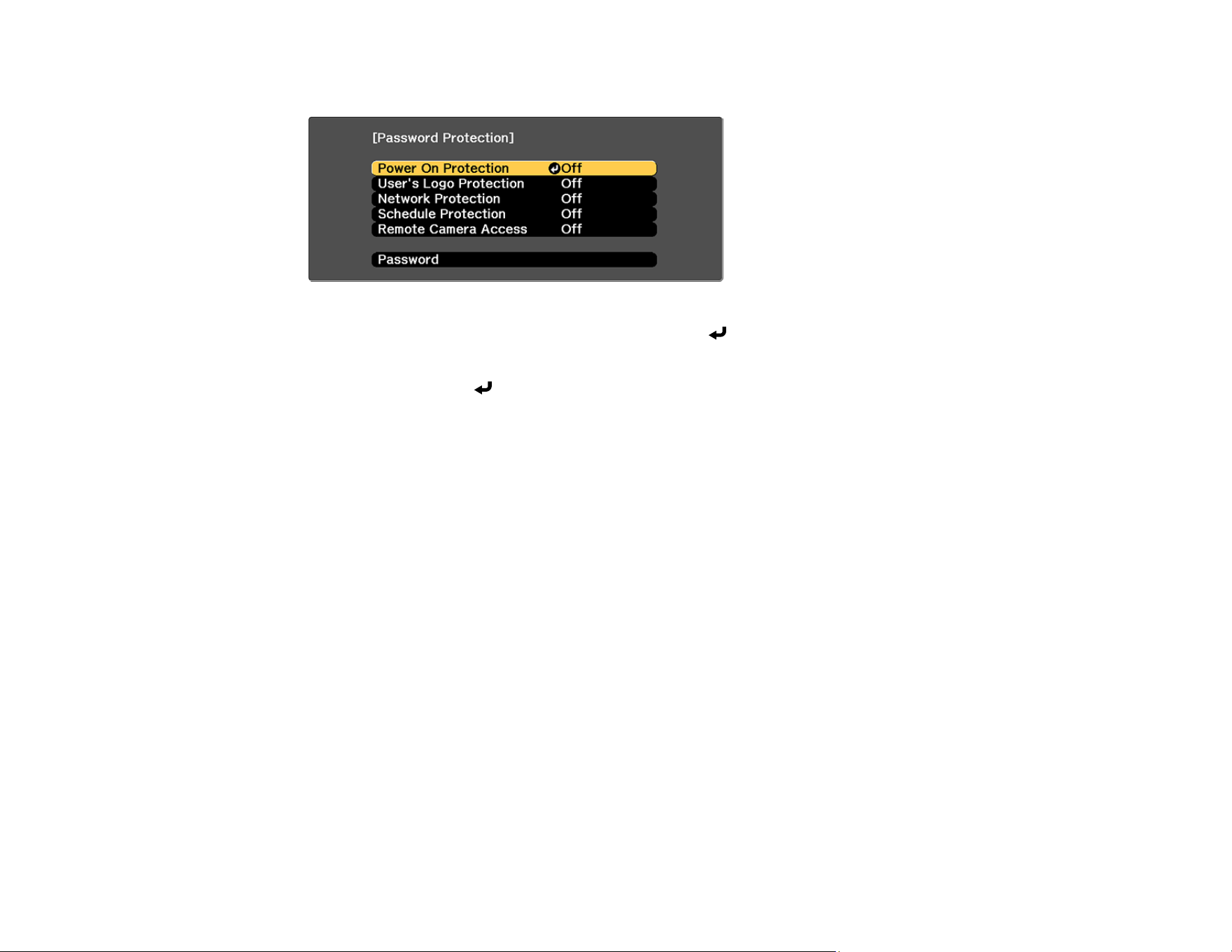
259
1. Hold down the Freeze button on the remote control for about 5 seconds or until you see this menu.
2. Press the down arrow to select Password and press Enter.
You see the prompt "Change the password?".
3. Select Yes and press Enter.
4. Press and hold down the Num button on the remote control and use the numeric buttons to set a
four-digit password.
The password displays as **** as you enter it. Then you see the confirmation prompt.
5. Enter the password again.
You see the message "Password accepted."
6. Press Esc to return to the menu.
7. Make a note of the password and keep it in a safe place in case you forget it.
Parent topic: Password Security Types
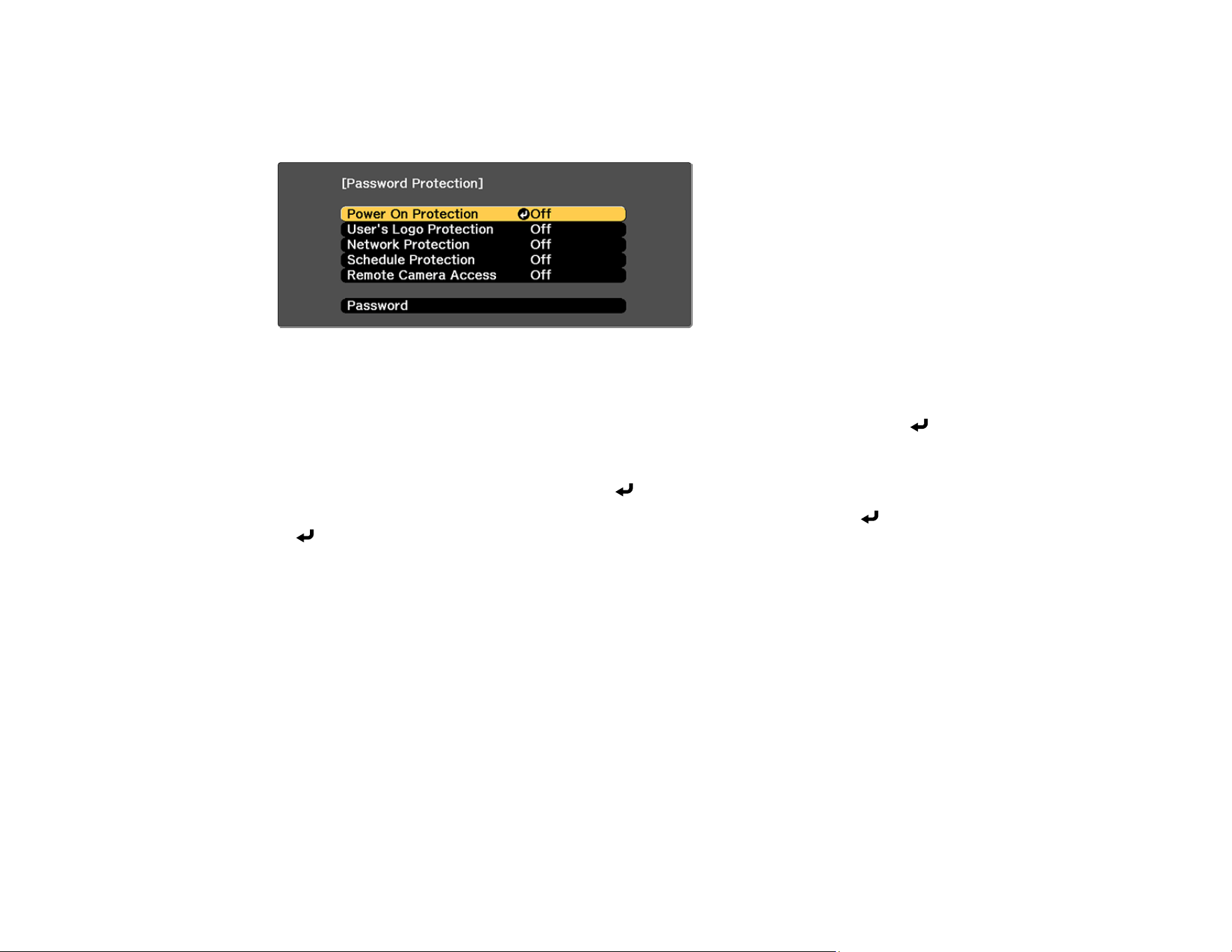
260
Selecting Password Security Types
After setting a password, you see this menu, allowing you to select the password security types you want
to use.
If you do not see this menu, hold down the Freeze button on the remote control for about 5 seconds or
until the menu appears.
• To prevent unauthorized use of the projector, select Power On Protection, press Enter, select On,
press Enter again, and press Esc.
• To prevent changes to the User's Logo screen or related display settings, select User's Logo
Protection, press Enter, select On, press Enter again, and press Esc.
• To prevent changes to network settings, select Network Protection, press Enter, select On, press
Enter again, and press Esc.
• To prevent changes to the projector's Remote Camera Access settings in the Network menu, select
Remote Camera Access, press Enter, select On, press Enter again, and press Esc.
Note: Be sure to keep the remote control in a safe place; if you lose it, you will not be able to enter the
password required to use the projector.
Parent topic: Password Security Types
Entering a Password to Use the Projector
If a password is set up and a Power On Protection password is enabled, you see a prompt to enter a
password whenever you turn on the projector.
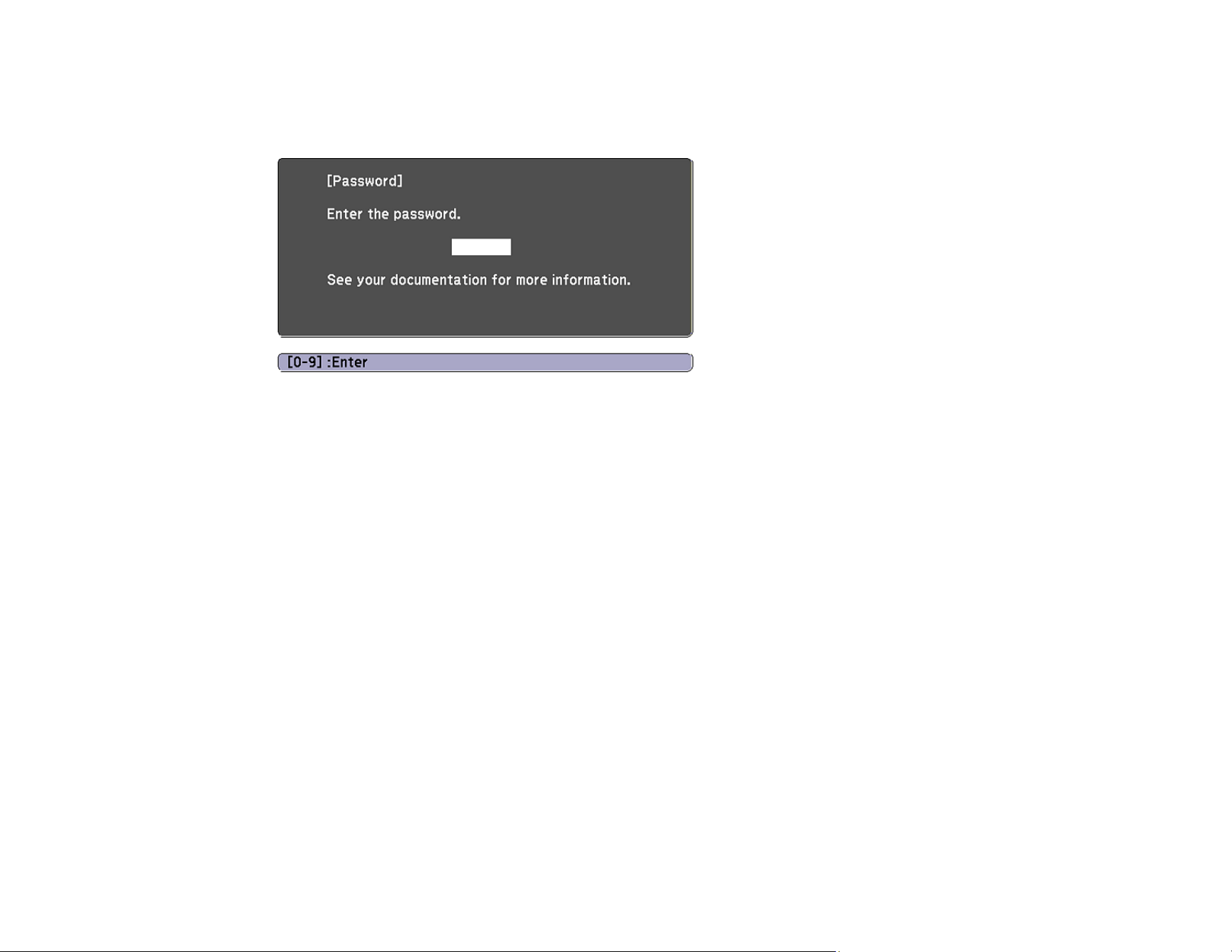
261
Note: For the first time you use the projector, you must set a password. No password is set by default.
You can set a four-digit password. Hold down the Num button on the remote control and use the numeric
buttons to set a password.
You must enter the correct password to use the projector.
1. Press and hold down the Num button on the remote control while you enter the password using the
numeric buttons.
The password screen closes.
2. If the password is incorrect, the following may happen:
• You see a "wrong password" message and a prompt to try again. Enter the correct password to
proceed.
• If you have forgotten the password, make note of the Request Code: xxxxx number that appears
on the screen and contact Epson Support.
• If you enter an incorrect password three times in succession, you see a message telling you that
the projector is locked. After the message is displayed for 5 minutes, the projector enters standby
mode. Unplug the projector, plug in the power cord, and turn on the projector. You see a prompt to
enter the password.
• If you continue to enter an incorrect password many times in succession, the projector displays a
request code and a message to contact Epson Support. Do not attempt to enter the password
again. When you contact Epson Support, provide the displayed request code and proof of
ownership for assistance in unlocking the projector.
Parent topic: Password Security Types
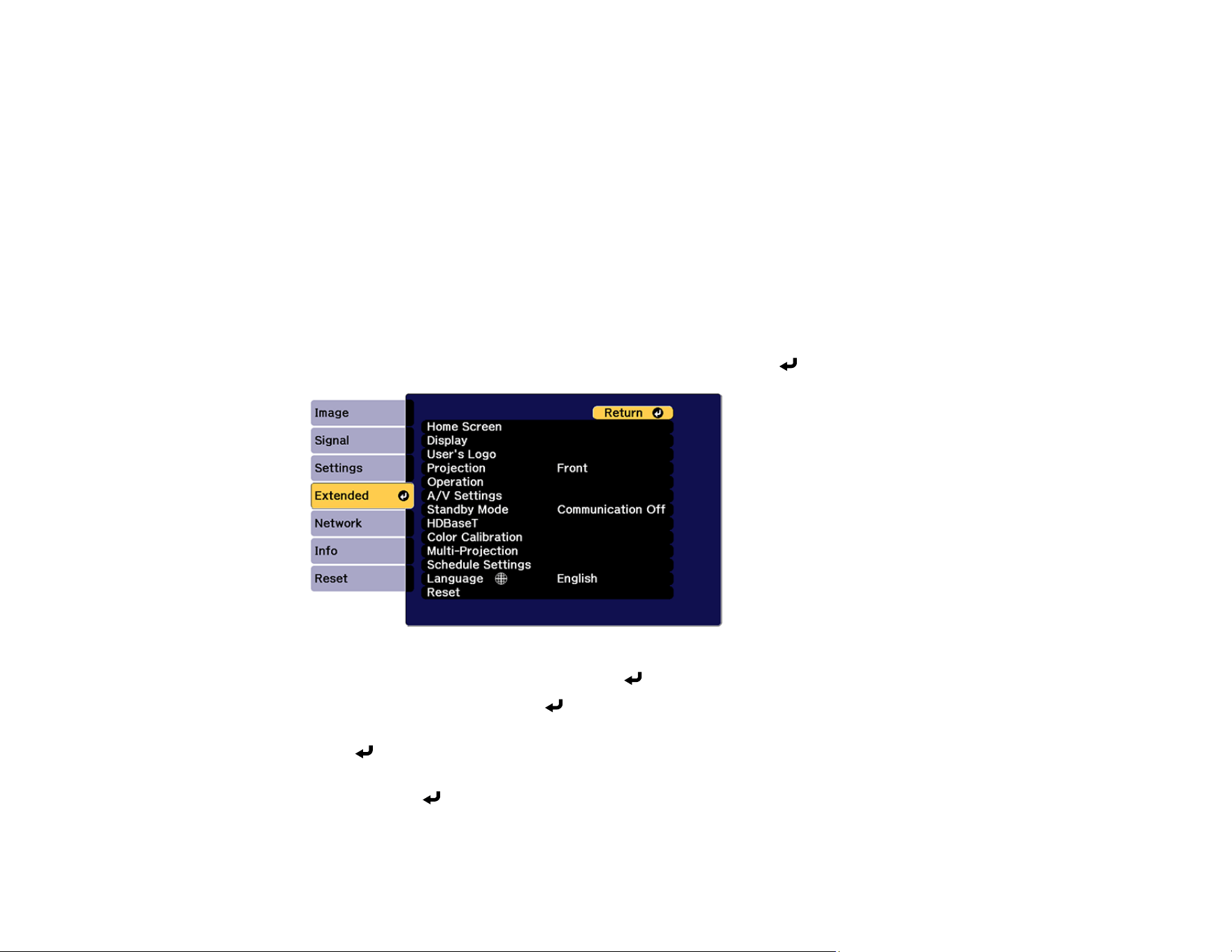
262
Saving a User's Logo Image to Display
You can transfer an image to the projector and then display it whenever the projector turns on. You can
also display the image when the projector is not receiving an input signal or when you temporarily stop
projection. This transferred image is called the User's Logo screen.
The image you select as the User's Logo can be a photo, graphic, or company logo, which is useful in
identifying the projector's owner to help deter theft. You can prevent changes to the User's Logo by
setting up password protection for it.
Note: When you copy the menu settings from one projector to another using the batch setup feature, the
user logo is also copied. Do not include any information in the user logo that you do not want to share
between multiple projectors.
1. Display the image you want to project as the User's Logo.
2. Press the Menu button, select the Extended menu, and press Enter.
3. Select the User's Logo setting and press Enter.
4. Select Start Setting and press Enter.
5. A prompt appears asking if you want to use the displayed image as the user's logo. Select Yes and
press Enter.
6. A prompt appears again, asking if you want to use the displayed image as the user's logo. Select
Yes and press Enter.
You see a completion message.

263
7. Press Esc to return to the Extended menu.
8. Select Display and press Enter.
9. Select when you want to display the User's Logo screen:
• To display it whenever there is no input signal, select Display Background and set it to Logo.
• To display it whenever you turn the projector on, select Startup Screen and set it to On.
• To display it whenever you press the Shutter button, select Shutter and set it to Logo.
To prevent anyone from changing the User's Logo settings without first entering a password, set a
password and enable User's Logo security.
Note:
• If the User's Logo Protection setting in the Password Protection setting menu is set to On, set to Off
before saving the user's logo
• When you copy the menu settings from one projector to another using the batch setup feature, user's
logo is also copied. Do not register the information that you do not want to share between multiple
projectors as a user's logo.
• You cannot save content that is protected by HDCP.
• When Content Playback is set to On, you can display the user's logo only when the projector starts
up.
• Adjustments for image shape and display range are temporarily canceled when you select User's
Logo.
• This setting is unavailable when Test Pattern is set to Captured Image.
Parent topic: Password Security Types
Related references
User's Logo
Locking the Projector's Lens Settings and Buttons
You can lock the buttons on the projector's control panel to prevent anyone from using the projector. You
can also lock the zoom, focus, and lens shift settings to prevent them from being adjusted.
Note: You can use the remote control to control the projector when the control panel buttons are locked.
1. Press the Menu button.
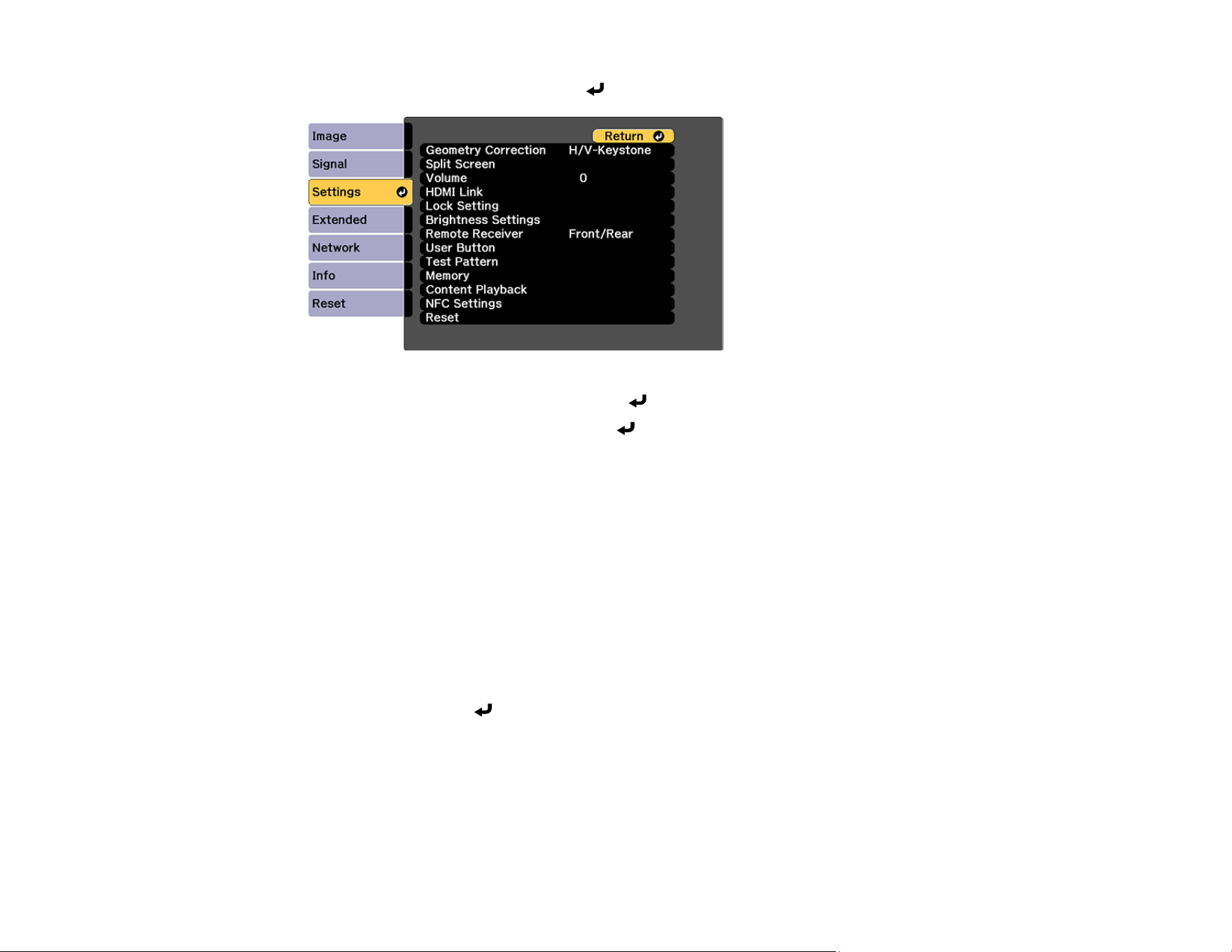
264
2. Select the Settings menu and press Enter.
3. Select the Lock Setting setting and press Enter.
4. Select one of these lock types and press Enter:
• To lock all buttons, select Control Panel Lock > Full Lock.
• To lock all buttons except the power button, select Control Panel Lock > Partial Lock.
Note: A message is displayed on the screen if any control panel buttons are pressed while this
setting is enabled.
• To lock the zoom, focus, and lens shift settings, select Lens Lock.
Note: You can also press the lock button on the control panel to display the Control Panel Lock
screen.
You see a confirmation prompt.
5. Select Yes and press Enter.
Unlocking the Projector's Buttons
Parent topic: Projector Security Features
Related references
Control Panel Lock

265
Unlocking the Projector's Buttons
If the projector's buttons have been locked, hold the Enter button on the projector's control panel for 7
seconds to unlock them. You can also set the Control Panel Lock setting to Off in the Settings menu.
Note: If the remote control buttons have been locked, hold the Home button on the remote control for 5
seconds to unlock them.
Parent topic: Locking the Projector's Lens Settings and Buttons
Related references
Control Panel Lock
Locking the Remote Control Buttons
You can lock some of the buttons on the remote control.
To lock the remote control buttons related to lens operation, turn on the Lens Lock setting in the
Settings menu.
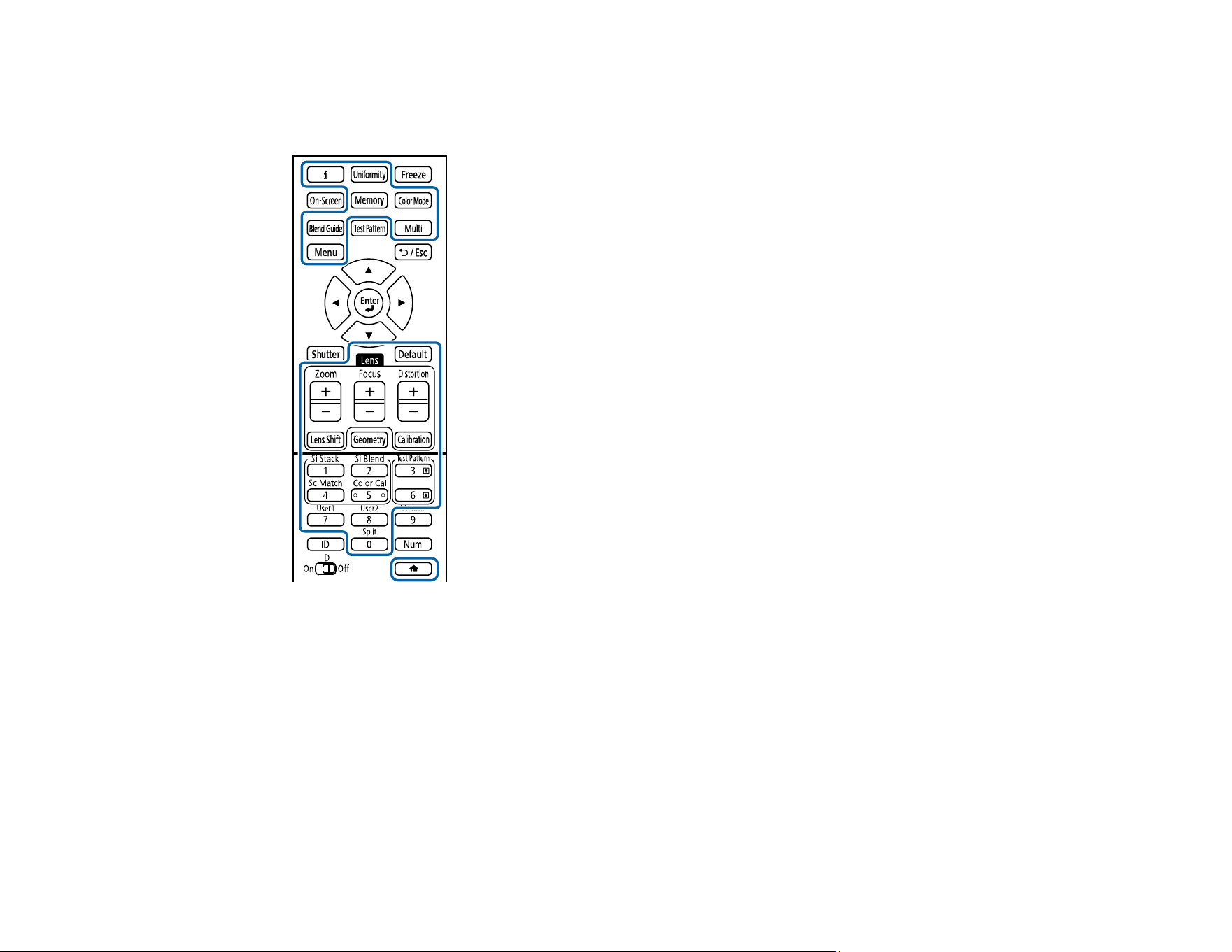
266
To lock the remote control buttons shown here, press and hold the Home button on the remote control
for approximately 5 seconds. (To unlock the buttons, press and hold the Home button again for
approximately 5 seconds.)
Note: If you lock the remote control buttons, you can still reset the Remote Receiver setting in the
Settings menu to the default settings.
Parent topic: Projector Security Features
Related references
Lens Lock
Remote Receiver
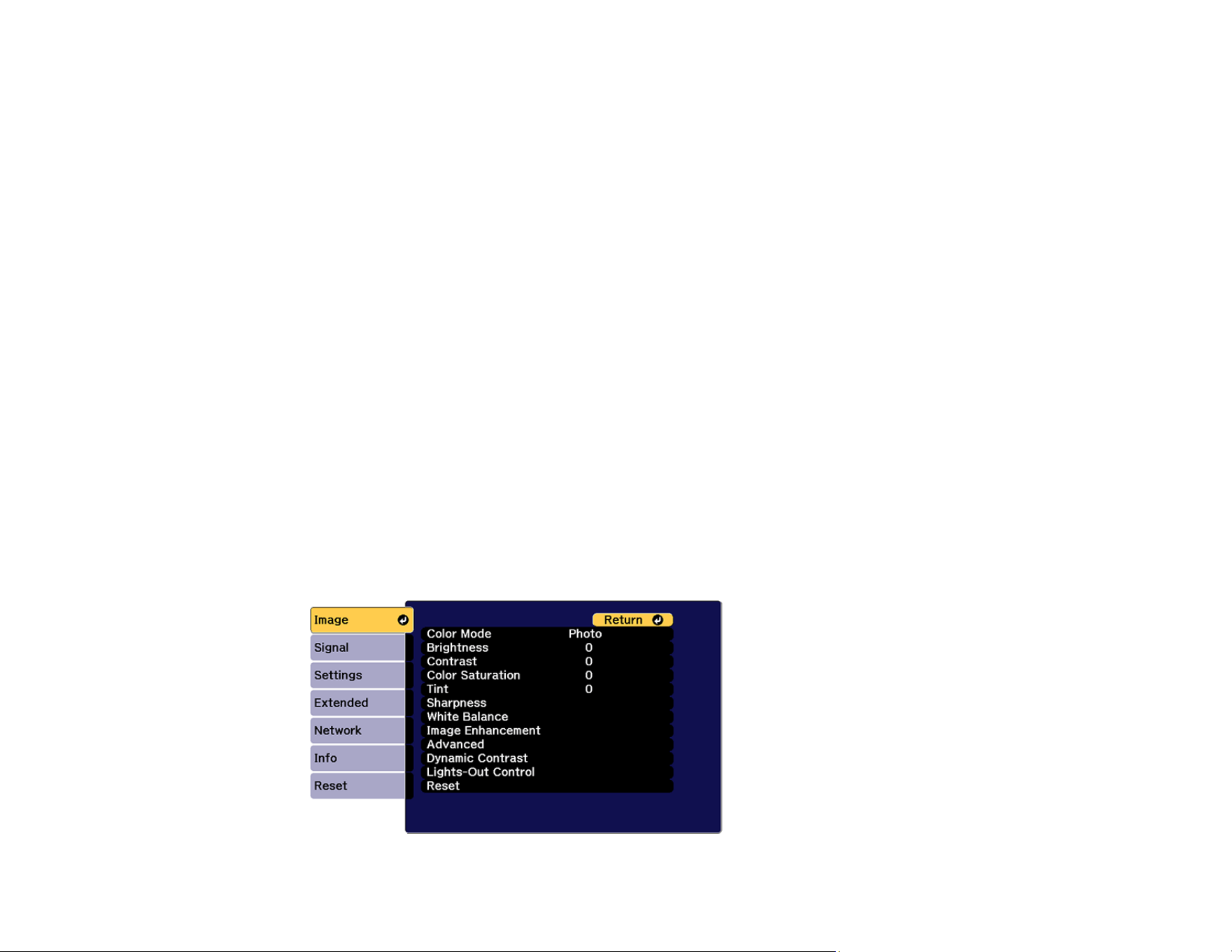
267
Using Advanced Image Adjustment Features
Follow the instructions in these sections to use your projector's advanced image adjustments.
Note: Not all adjustments may be available depending on the projection mode and input signal.
Creating Image Presets
Using Frame Interpolation
Adjusting Scaled Resolution Images (Super-resolution)
Adjusting the Color Convergence (Panel Alignment)
Adjusting the Color Tone (Color Uniformity)
Running Light Source Calibration
Parent topic: Adjusting Projector Features
Creating Image Presets
You can quickly optimize your projected image by selecting image adjustment settings and saving them
as a preset you can reuse later.
You can save the following settings in a preset:
• Frame Interpolation
• Super-resolution
1. Press the Menu button.
You see a screen like this:
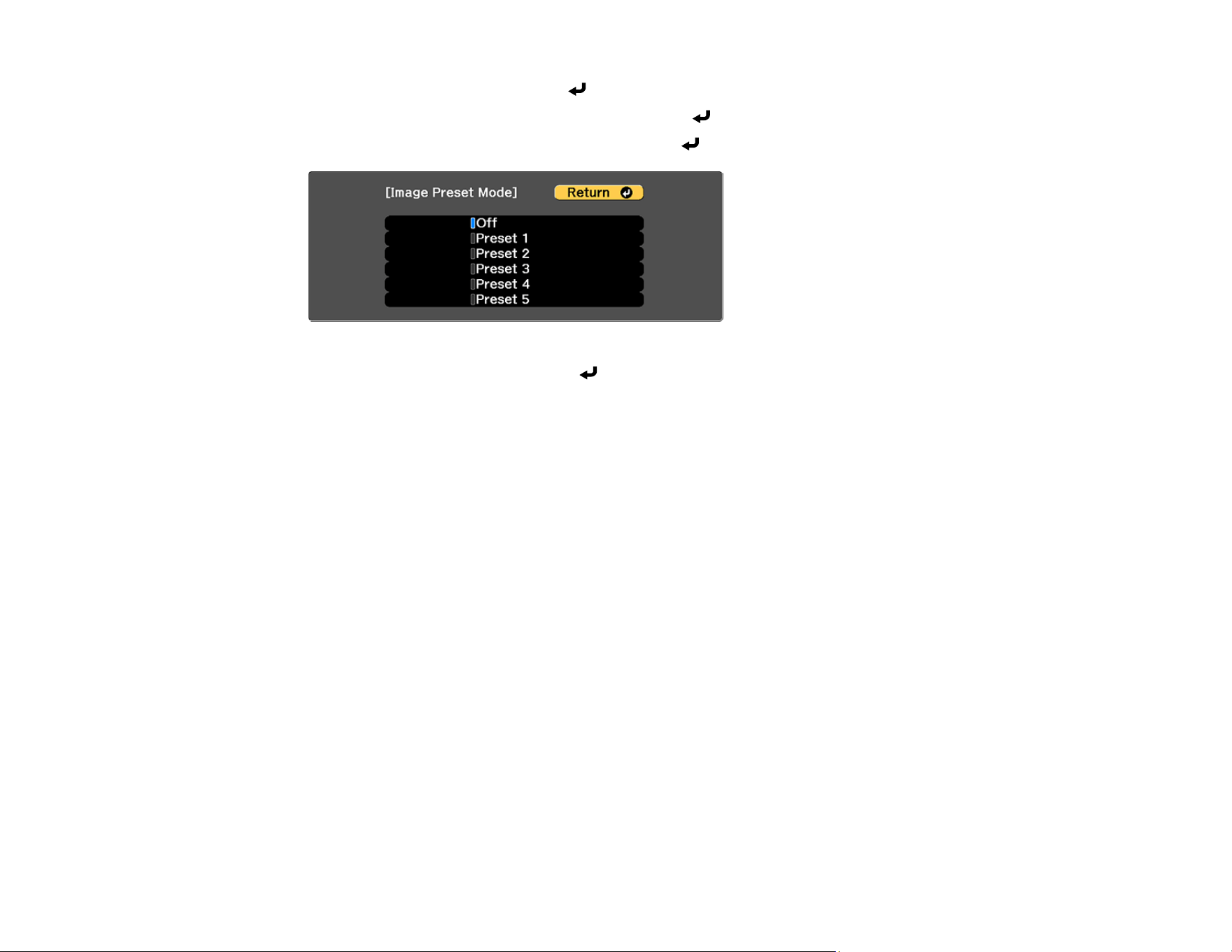
268
2. Select the Image menu and press Enter.
3. Select the Image Enhancement setting and press Enter.
4. Select the Image Preset Mode setting and press Enter.
5. Select one of the presets and press Enter.
Note: If you select a previously used preset, your new adjustments overwrite the old ones.
6. Press Esc to return to the Image Enhancement menu.
7. Fine-tune the following settings:
• Frame Interpolation
• Super-resolution
8. Press Menu or Esc to exit the menus.
The currently selected Image Preset Mode will be updated with the current settings.
Parent topic: Using Advanced Image Adjustment Features
Related references
Image Preset Mode
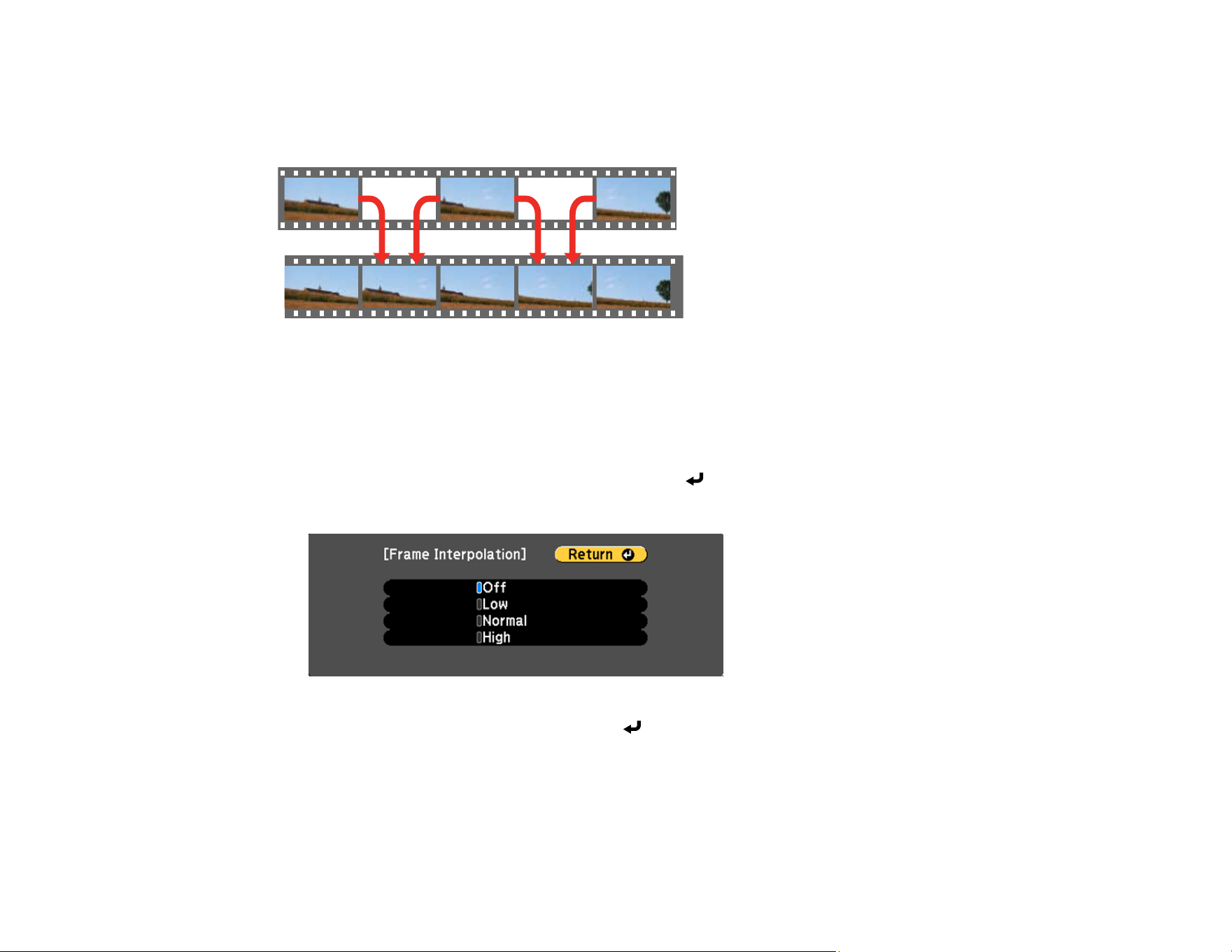
269
Using Frame Interpolation
You can use the projector's Frame Interpolation feature to smooth fast-moving video by comparing
consecutive image frames and inserting an intermediate image frame between them.
You cannot use this feature in any of the following conditions:
• You turned on the Edge Blending or Scale settings
• You turned off the Image Preset Mode setting
1. Press the Menu button.
2. Select the Frame Interpolation setting and press Enter.
You see a screen like this:
3. Select the level of interpolation and press Enter.
4. When you are finished, press the Menu button.
Note: If your resulting images contain noise, turn off the Frame Interpolation setting.
Parent topic: Using Advanced Image Adjustment Features
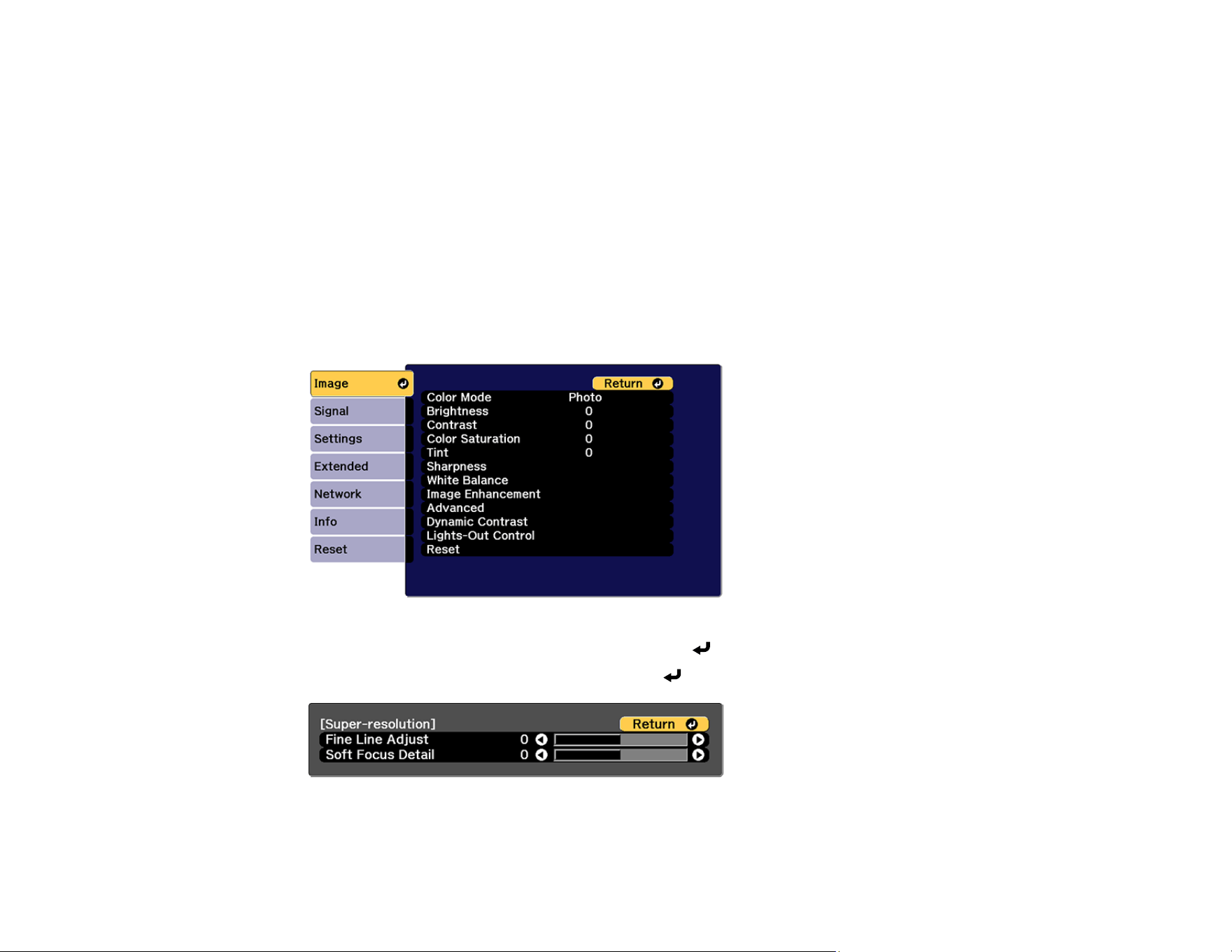
270
Related references
Frame Interpolation
Adjusting Scaled Resolution Images (Super-resolution)
You can sharpen blurry, low-resolution images that had their resolution scaled up for projection using the
Super-resolution setting.
Note: The Image Preset Mode setting must be enabled to select this setting.
1. Turn on the projector and switch to the image source you want to use.
2. Press the Menu button.
You see a screen like this:
3. Select the Image Enhancement setting and press Enter.
4. Select the Super-resolution setting and press Enter.
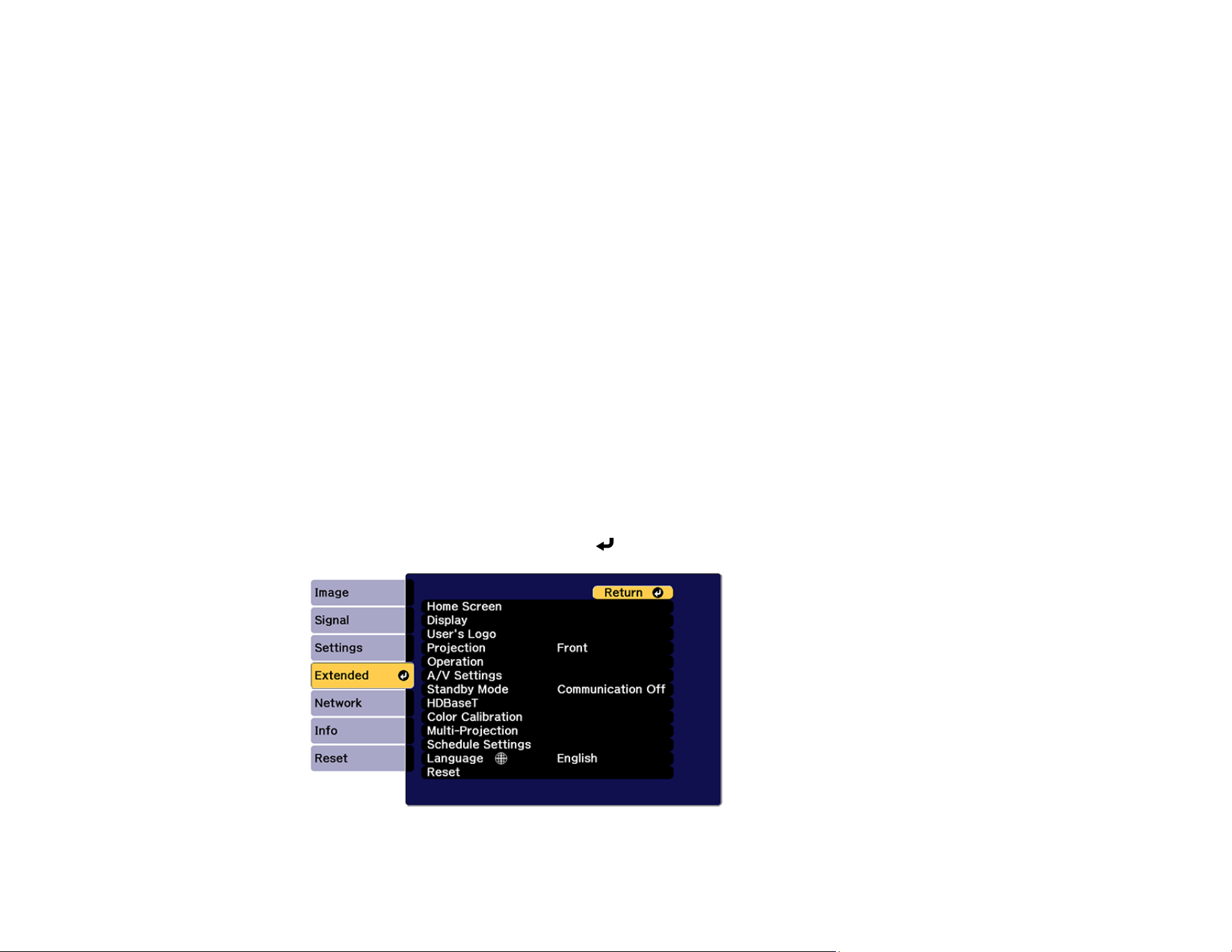
271
5. Adjust each of the following options as necessary:
• Fine Line Adjust to enhance fine details such as hair and fabric patterns
• Soft Focus Detail to enhance the outline, background, and main parts of an image
Note: Higher values increase the intensity of the effect.
6. Press Menu or Esc to exit the menus.
Parent topic: Using Advanced Image Adjustment Features
Related references
Super-resolution
Adjusting the Color Convergence (Panel Alignment)
You can use the Panel Alignment feature to manually adjust the color convergence (the alignment of the
red and blue colors) in the projected image.
Note: You can adjust only the red or blue color convergence. Green is the standard color panel and
cannot be adjusted.
1. Turn on the projector.
2. Press the Menu button.
3. Select the Extended menu and press Enter.
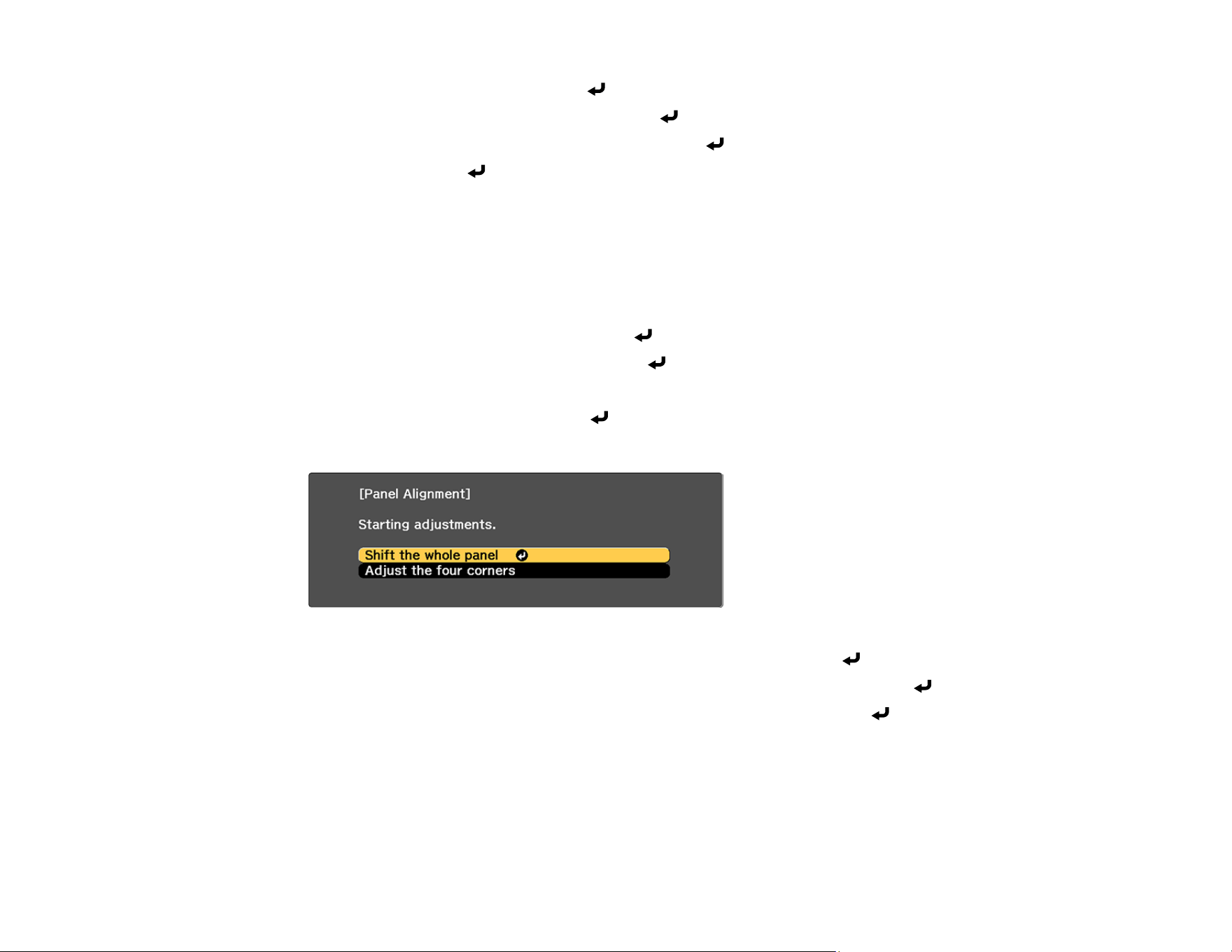
272
4. Select the Display setting and press Enter.
5. Select the Panel Alignment setting and press Enter.
6. Select the Panel Alignment setting again and press Enter.
7. Select On and press Enter.
8. Press Esc to return to the previous screen.
9. Select the Select Color setting and choose one of the following:
• R to adjust the red color convergence.
• B to adjust the blue color convergence.
10. Press Esc to return to the previous screen.
11. Select the Pattern Color setting and press Enter.
12. Select the pattern you want to use and press Enter.
13. Press Esc to return to the previous screen.
14. Select Start Adjustments and press Enter.
You see this screen:
15. First, select Shift the whole panel to adjust the entire panel and press Enter.
16. Use the arrow buttons on the remote control to adjust the whole panel and press Enter.
17. Next, select Adjust the four corners to make finer adjustments and press Enter.
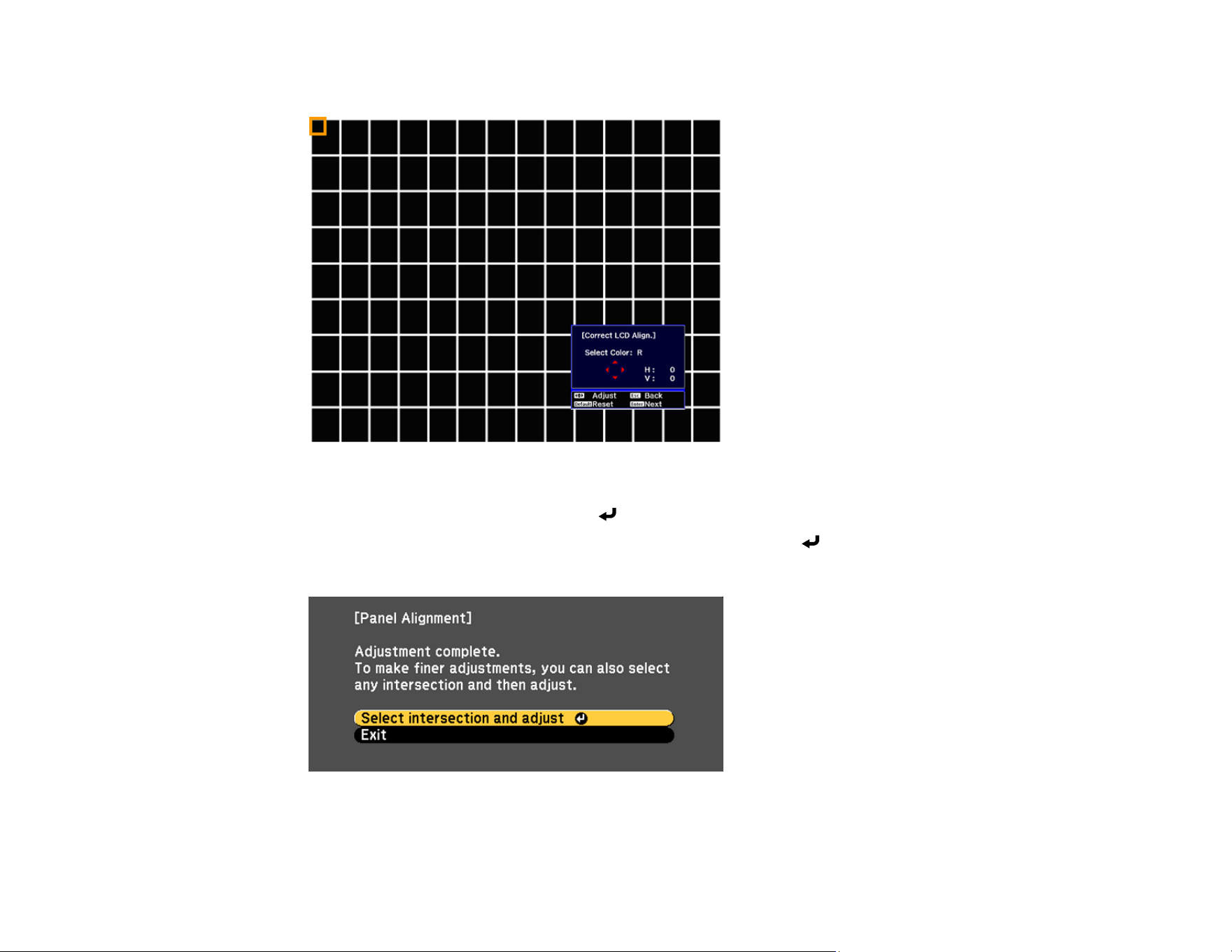
273
You see a screen like this:
18. Use the arrow buttons on the remote control to adjust the color alignment of the color you selected
for the Select Color setting and press Enter.
19. When you are finished adjusting each corner of the screen, press Enter.
You see this screen:
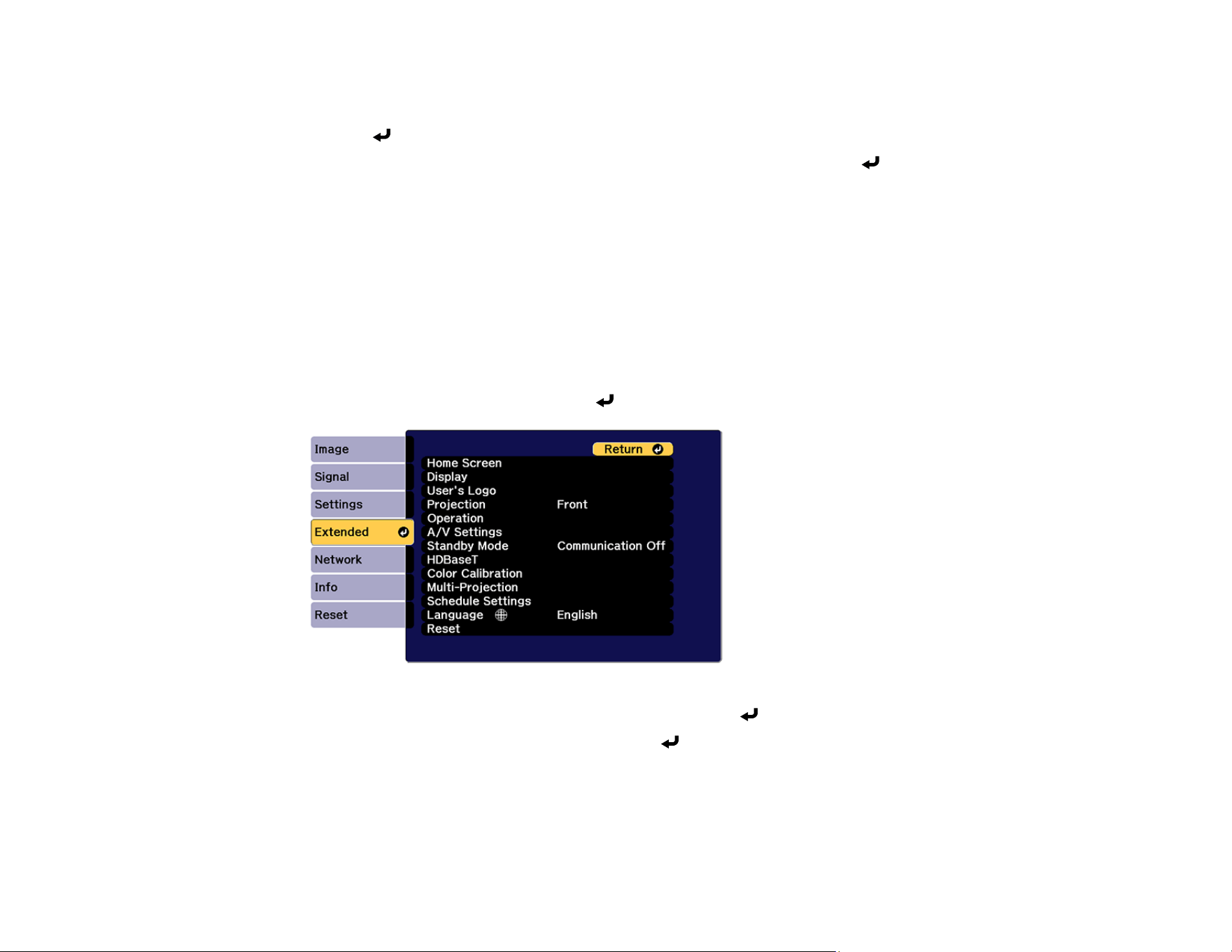
274
20. Do one of the following:
• If your projector needs additional panel alignment, select Select intersection and adjust and
press Enter to continue making adjustments.
• If your projector's panel alignment is now correct, select Exit and press Enter to return to the
Panel Alignment menu.
Parent topic: Using Advanced Image Adjustment Features
Related references
Panel Alignment
Adjusting the Color Tone (Color Uniformity)
You can use the Color Uniformity feature to manually adjust the color tone balance in the projected
image.
1. Press the Menu button.
2. Select the Extended menu and press Enter.
3. Select the Display or Multi-Projection setting and press Enter.
4. Select the Color Uniformity setting and press Enter.
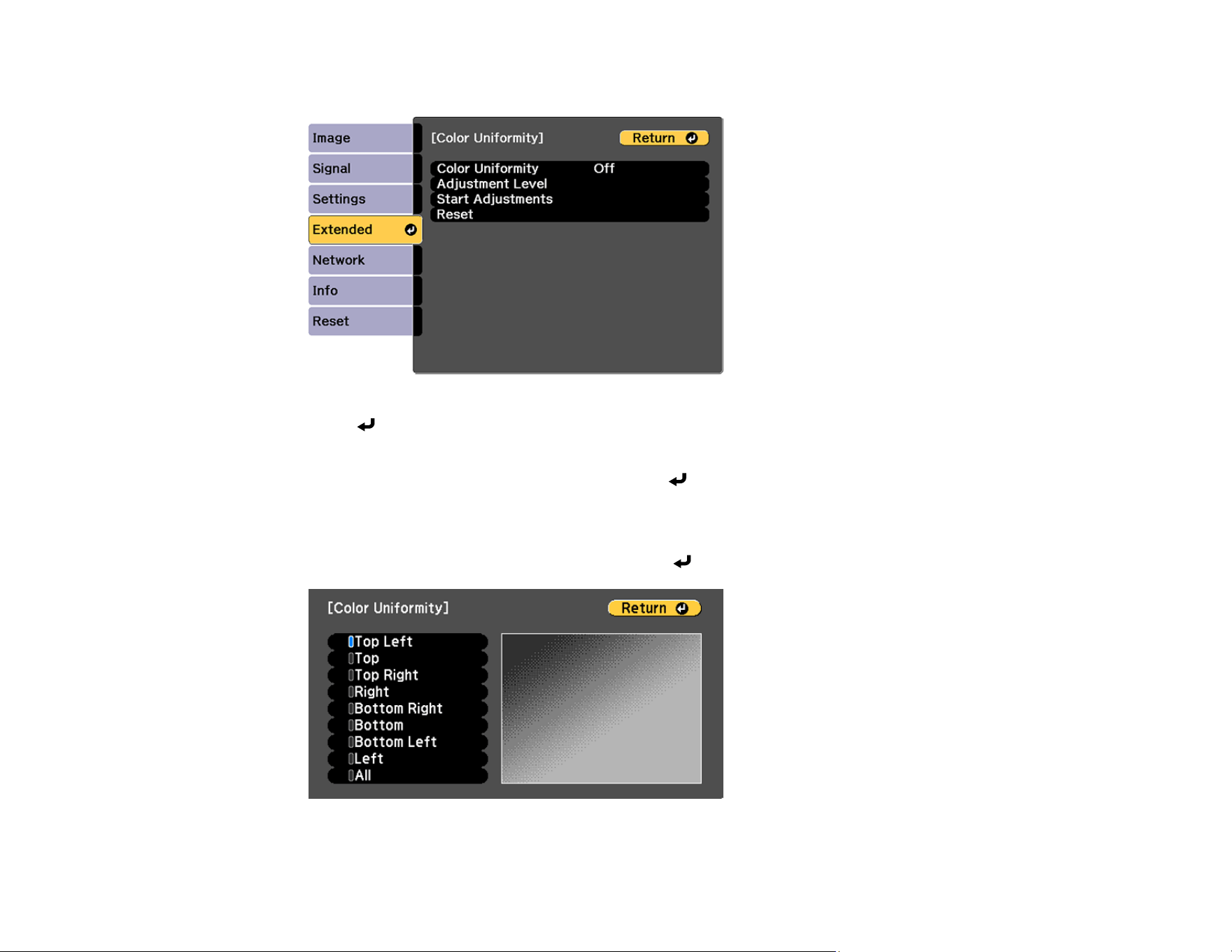
275
You see this screen:
5. Press Enter and select On.
6. Press Esc.
7. Select the Adjustment Level setting and press Enter.
There are eight adjustment levels from white through gray, and you can adjust them individually.
8. Press the right and left arrow buttons to adjust the level, and press Esc.
9. Select the Start Adjustments setting and press Enter.

276
10. Select the area of the screen that you want to adjust and press Enter.
Note: Adjust the outer areas first, then adjust the entire screen.
11. Select the color (Red, Green, or Blue) you want to adjust, and use the left arrow button to weaken
the color tone and the right arrow button to strengthen the color tone.
12. Press Esc.
13. Repeat steps 10 and 11 for each area you want to adjust.
14. When you are finished, press the Menu button.
Note: The color tone may not be uniform even after adjusting the color uniformity
Parent topic: Using Advanced Image Adjustment Features
Related references
Color Uniformity
Running Light Source Calibration
Light source calibration automatically adjusts any difference between the white balance and the
brightness level of the light source. You should perform light source calibration every 100 hours of
projector usage. You can also schedule automatic calibration or run the light source calibration manually
using the menus.
Automatic light source calibration may not start in the following conditions:
• Within 20 minutes of turning on the projector.
• When using direct power shutdown.
• When you have used the projector continuously for over 24 hours.
• When the brightness is automatically dimmed due to use of the Dynamic Contrast, , Shutter, or
Lights-Out Control features.
Note: To perform a light source calibration, the projector must have been on for at least 20 minutes and
the projector brightness must not be automatically dimmed due to high temperatures.
1. Press the Menu button.
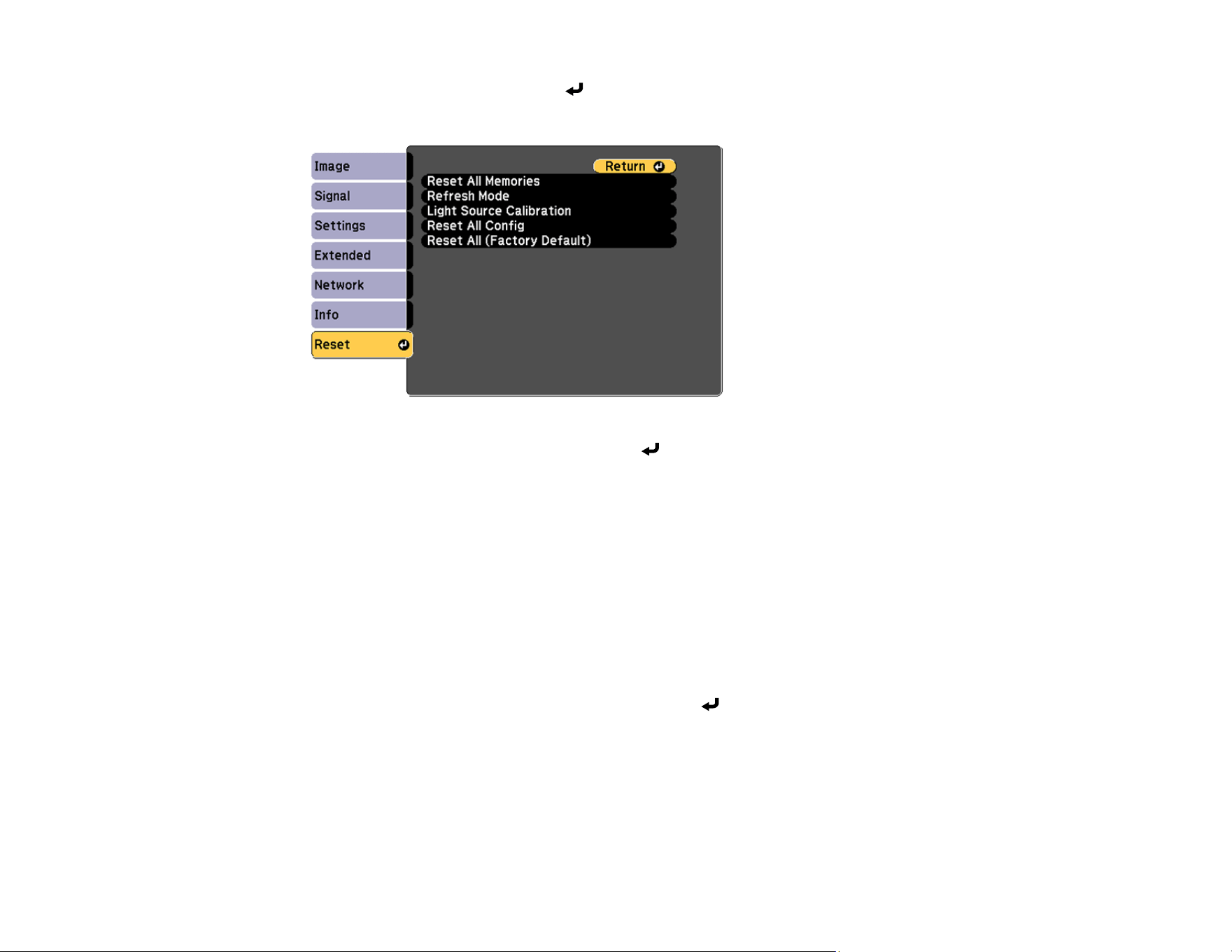
277
2. Select the Reset menu and press Enter.
You see a screen like this:
3. Select Light Source Calibration and press Enter.
4. Select any of the following:
• To run the light source calibration now, select Run Now.
• To automatically run the light source calibration every 100 hours of projector usage, select Run
Periodically.
• To schedule automatic calibration, select Schedule Settings.
• To see the last time the projector performed a calibration, select Last Run.
Note: If you use the projector continuously for more than 24 hours or use direct shutdown regularly,
select Schedule Settings to schedule calibration of the light source periodically.
5. When you are finished, select Return and press the Enter button to return to the Reset menu.
Parent topic: Using Advanced Image Adjustment Features
Related references
Light Source Calibration
Schedule Settings

278
Using Multiple Projectors
You can combine the projected images from two or more projectors to create one large image or overlap
the images from multiple projectors to create a single bright image. Follow the instructions in these
sections to set up and project from multiple projectors.
Multiple Projector Adjustment Overview
Projector Identification System for Multiple Projector Control
Image Composition
Tiling Images into One Image
Blending the Image Edges
Adjusting the Black Level
Matching Tint and Brightness (Screen Matching)
Scaling an Image
Simple Blending for One Large Image
Simple Stacking for One Bright Image
Parent topic: Adjusting Projector Features
Multiple Projector Adjustment Overview
If you are combining images from multiple projectors on a network, you can assign one projector as the
"master" and automatically adjust all the images to match the "master" image. If the projectors are not
connected to a network, you can match each projector's images manually.
Note: Make sure all networked projectors are connected using LAN cables and have been assigned an
IP address. Also disable the Sleep Mode setting on each projector so they do not turn off during
adjustment.
1. Turn on all the projectors.
2. Reset all projectors to their default values.
• Enable the Reset All Config setting.
• Reset the settings on the Color Uniformity menu to their default settings.
• Reset the settings on the Panel Alignment menu to their default settings.
• Set the Adjustment Level setting to All in the Color Matching menu, and select 0 for Red,
Green, and Blue.
• Set the Sleep Mode setting to Off.

279
Note: You can make the necessary settings using the Batch Setup feature and then copying the
settings to multiple projectors.
3. Select one projector to be the basis for adjustment. Display test patterns from all projectors and
select the one with the least color unevenness as the master projector.
Note: We recommend using the Grayscale, Gray Bars V, Gray Bars H, and White test patterns.
4. Set an ID for each projector and the remote control.
Set the remote control to the master projector ID in order to limit the remote control to that projector.
5. For each projector, do the following:
• Run light source calibration on each projector.
• If you have installed the optional camera, perform color calibration on each projector.
• If you do not have the optional camera, or color calibration failed, perform color uniformity on each
projector.
• Set the Color Mode setting to Multi-Projection.
• Set the Energy Saving Mode setting to Off.
• Set the Dynamic Contrast setting to Off.
• Set the Light Source Mode setting to Custom
Note: We recommend that you turn off the Run Periodically setting in Light Source Calibration.
The automatic calibration may change your color adjustments.
6. Install all projectors in an appropriate location.
Caution: Do not stack projectors directly on top of each other.
Note: Install the master projector in the central position, if possible, to reduce color unevenness in
the center of the projected area.
7. Adjust each projector's physical position and angle to the screen.

280
8. Adjust the position of the image for each projector using lens shift.
Note: When adjusting the image height with vertical lens shift, adjust it by moving the image from the
bottom to the top. If you adjust it from the top to the bottom, the image position may move down
slightly after adjusting.
9. Adjust the zoom and focus for each projector.
Note: During adjustment, note the following:
• Wait at least 20 minutes before adjusting the images.
• Displaying the test pattern makes it easier to adjust the projection position and the shape. We
recommend using the Grayscale, Gray Bars V, Gray Bars H, and White test patterns.
• We recommend not using Geometry Correction because image quality may decline and if the
correction value is too large, image calibration may be difficult.
10. Connect all projectors to the network hub with LAN cables.
11. Adjust the arrangement of the images to create one large image from up to 15 projectors (tiling).
12. Adjust the brightness and tint of the images using the Screen Matching setting.
13. Adjust small differences in the images using the Point Correction setting.
14. Select sections of the images using the Scale setting.
15. Adjust the edges of the images using the Edge Blending and Black Level settings.
16. You can create one bright image by overlaying images from multiple projectors. Use the Simple
Stacking setting in the projector menu to overlay the images from two projectors, or you can use the
Epson Projector Professional Tool to overlay up to six projectors.
Parent topic: Using Multiple Projectors
Related references
Color Uniformity
Panel Alignment
Reset All Config
Color Matching
Test Pattern
Dynamic Contrast
Color Mode
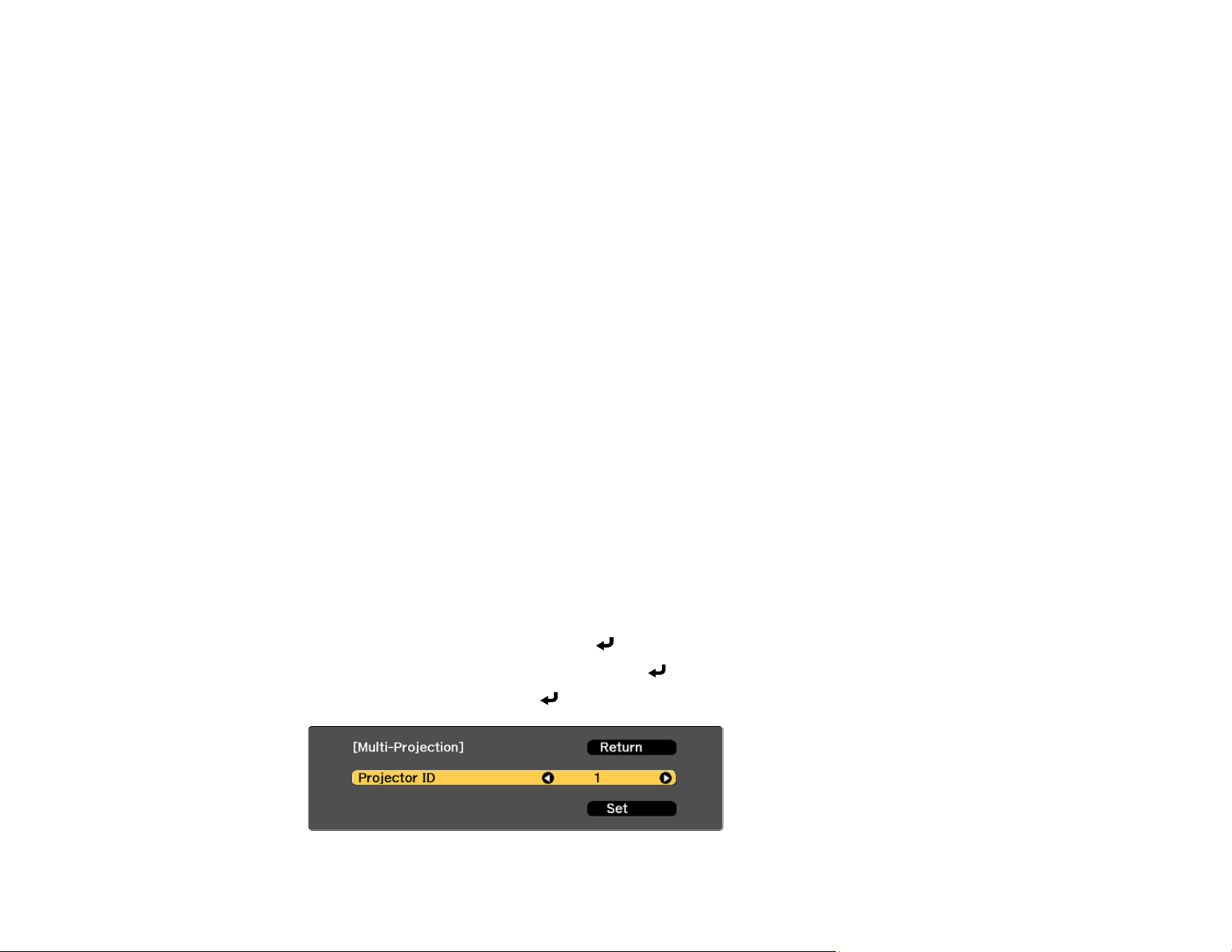
281
Energy Saving Mode
Light Source Mode
Light Source Calibration
Edge Blending
Black Level
Simple Stacking
Related tasks
Adjusting the Image Position Using Lens Shift
Correcting Image Shape with Point Correction
Stacking Using the Epson Projector Professional Tool Software
Related topics
Simple Stacking for One Bright Image
Projector Identification System for Multiple Projector Control
You can operate multiple projectors using one remote control for more elaborate presentations. To do
this, you assign an identification number to each projector and to the remote control. Then you can
operate all the projectors at once or individually.
Setting the Projector ID
Setting the Remote Control ID
Parent topic: Using Multiple Projectors
Setting the Projector ID
If you want to control multiple projectors from a remote control, give each projector a unique ID.
1. Press the Menu button.
2. Select the Extended menu and press Enter.
3. Select the Multi-Projection menu and press Enter.
4. Select Projector ID and press Enter.

282
5. Press the left or right arrow buttons on the remote control to select the identification number you
want to use for the projector. Then select Set and press Enter.
Repeat these steps for all the other projectors you want to operate from one remote control.
Note: If you don't know the projector's ID, press the ID button to temporarily display the projector's ID on
the screen.
Parent topic: Projector Identification System for Multiple Projector Control
Related references
Projector ID
Setting the Remote Control ID
The remote control's ID is set to 0 by default so it can operate any compatible projector. If you want to set
the remote control to operate only a particular projector, you need to set the remote control's ID to match
the projector's ID.
1. Turn on the projector you want the remote control to operate with exclusively.
2. Set the remote control ID switch to On.
3. Press and release the ID button. Within 5 seconds, use the numeric buttons to enter a number for
the projector (for example, 1 for projector ID 1).
Note: If you don't know the projector's ID, press the ID button to temporarily display the projector's
ID on the screen. If the batteries are left out of the remote control for an extended period, the remote
control ID returns to its default setting.
Parent topic: Projector Identification System for Multiple Projector Control
Image Composition
You can create a bright composite image and a large image from multiple projectors.
Choose an adjustment method for composing images based on your environment:
• If you have installed the optional external camera and the Epson Projector Professional Tool software
is available, you can automatically adjust the image by using the Camera Assist function of the Epson
Projector Professional Tool software.
• If you have not installed the optional external camera or the Epson Projector Professional Tool
software is not available, you can manually adjust the image using the projector's menu.

283
Note: You can download the Epson Projector Professional Tool software and its manual from the Epson
support site.
When compositing projected images using the camera assist feature in the Epson Projector Professional
Tool software, the following functions support curved surfaces.
• Screen Matching (convex surfaces are not supported)
• Color Calibration
• Blending
• Stacking
• Stacking & Blending
Blending Using the Epson Projector Professional Tool Software
Stacking Using the Epson Projector Professional Tool Software
Stacking and Blending Using the Epson Projector Professional Tool Software
Parent topic: Using Multiple Projectors
Blending Using the Epson Projector Professional Tool Software
You can create one large image from up to 15 projectors using the optional external camera and the
Epson Projector Professional Tool software. See the online Epson Projector Professional Tool Operation
Guide for details.
Note: When the screen luminance is 40 lux or less, we recommend using projection sizes within the
following ranges for each projector.
• Up to 9.9 Klm: 50 to 200 inches
• 10 Klm to 14.9 Klm: 60 to 300 inches
• 15 Klm to 19.9 Klm: 70 to 350 inches
• 20 Klm to 24.9 Klm: 80 to 400 inches
• 25 Klm to 29.9 Klm: 90 to 450 inches
• 30 Klm: 100 to 500 inches
1. Start the Epson Projector Professional Tool software.
2. Create a group of projectors on the Layout/Monitoring tab.
3. Specify each projector's position using Blending and Stacking Settings on the Edit Group screen.

284
4. Start the Geometry Assist - Blending Function wizard.
When the wizard has finished, perform the following operations as necessary:
• Screen Matching to correct the tint and brightness of each projected image.
• Point Correction to adjust the gaps in the positions of the projected image.
• Scale to crop and/or scale portions of the image.
Note: The required time for screen matching varies depending on the layout and number of projectors. It
takes up to approximately 18 minutes.
Parent topic: Image Composition
Stacking Using the Epson Projector Professional Tool Software
You can create one bright image by overlaying images from up to 6 projectors using the optional external
camera and the Epson Projector Professional Tool software. See the online Epson Projector
Professional Tool Operation Guide for details.
Note: When the screen luminance is 40 lux or less, we recommend using projection sizes within the
following ranges for each projector.
• Up to 9.9 Klm: 50 to 200 inches
• 10 Klm to 14.9 Klm: 60 to 300 inches
• 15 Klm to 19.9 Klm: 70 to 350 inches
• 20 Klm to 24.9 Klm: 80 to 400 inches
• 25 Klm to 29.9 Klm: 90 to 450 inches
• 30 Klm: 100 to 500 inches
1. Start the Epson Projector Professional Tool software.
2. Create a group of projectors on the Layout/Monitoring tab.
3. Specify each projector's position using Blending and Stacking Settings on the Edit Group screen.
4. Start the Geometry Correction Assist - Stacking Function wizard.
When the wizard has finished, if there are any gaps in the pixels of the projected images, adjust the
Point Correction setting manually.
Note: The required time to automatically configure stacking varies depending on the layout and number
of projectors. It can take up to approximately 9 minutes.

285
Parent topic: Image Composition
Stacking and Blending Using the Epson Projector Professional Tool Software
You can use the Geometry Assist - Stacking & Blending Function wizard to easily and quickly create a
single large, bright, projected image by joining and overlapping the images of multiple projectors. See
the online Epson Projector Professional Tool Operation Guidefor details.
Note: When the screen luminance is 40 lux or less, we recommend using projection sizes within the
following ranges for each projector.
• Up to 9.9 Klm: 50 to 200 inches
• 10 Klm to 14.9 Klm: 60 to 300 inches
• 15 Klm to 19.9 Klm: 70 to 350 inches
• 20 Klm to 24.9 Klm: 80 to 400 inches
• 25 Klm to 29.9 Klm: 90 to 450 inches
• 30 Klm: 100 to 500 inches
1. Start the Epson Projector Professional Tool software.
2. Create a group of projectors that support Stacking & Blending on theLayout/Monitoring tab
3. Select Blending and Stacking Settings on the Create Group screen.
4. Specify each projector's position using Blending and Stacking Settings.
5. Start the Geometry Assist - Stacking & Blending Function wizard.
When the wizard has finished, perform the following operations as necessary:
• Screen Matching to correct the tint and brightness of each projected image.
• Point Correction to adjust the gaps in the positions of the projected image.
Note: We recommend displaying the following test patterns: Gray Bars V, Gray Bars H, and White
Parent topic: Image Composition
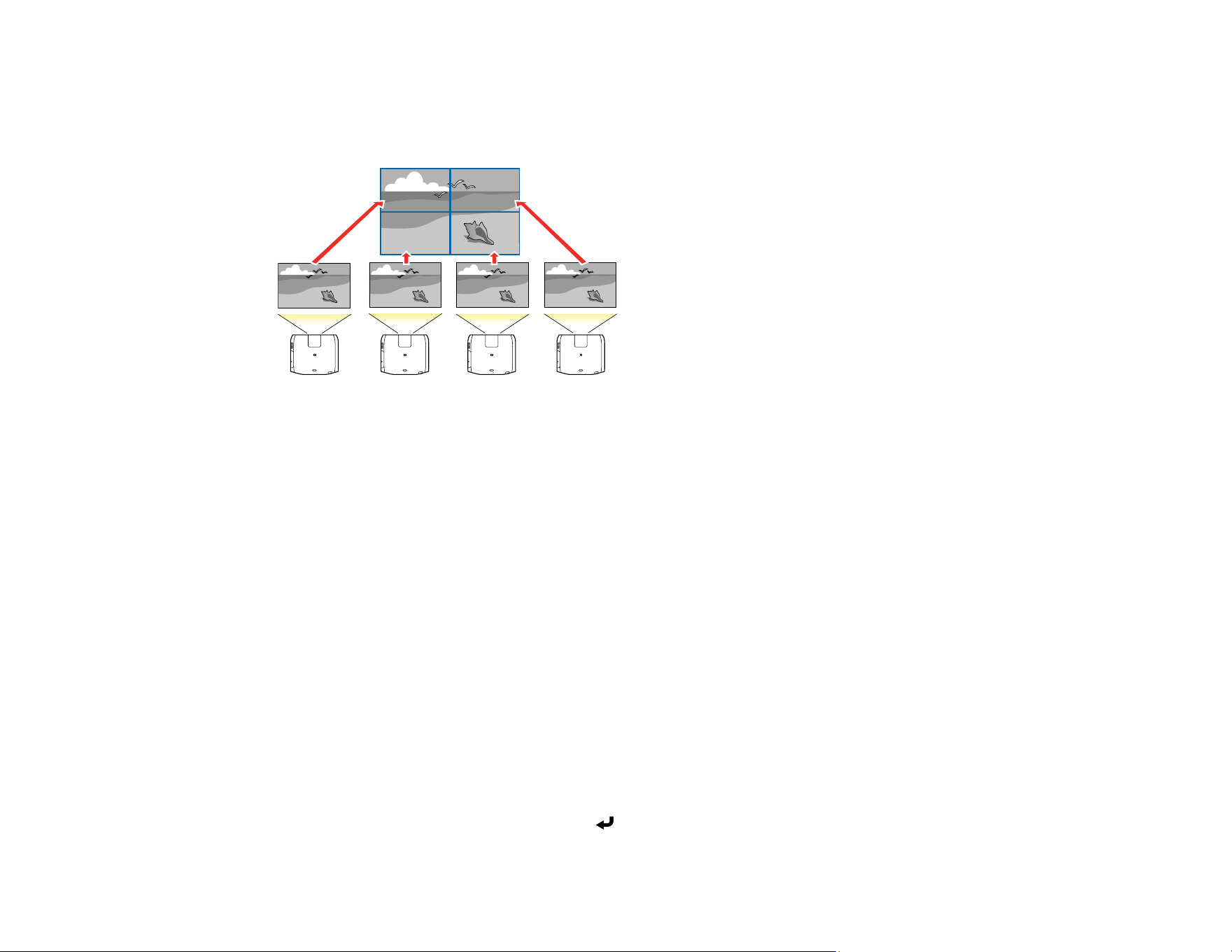
286
Tiling Images into One Image
You can project the same image from up to 15 projectors to create one large image using the Tiling
feature.
Note: Before tiling, make sure the displayed images from your projectors are rectangular, correctly
sized, and focused.
Note: You can also set up tiling using the Epson Projector Professional Tool. You can download the
software from the Epson support website at epson.com/support (U.S.), epson.ca/support (Canada), or
latin.epson.com/support (Latin America).
Configuring Tiling Automatically
Configuring Tiling Manually
Parent topic: Using Multiple Projectors
Configuring Tiling Automatically
If your projectors are on a network and you have identified a primary projector, you can configure tiling
automatically.
1. Turn on the projector.
Note: Make sure nothing is blocking the built-in camera on the front of the projector.
2. Press the Menu button.
3. Select the Extended menu and press Enter.
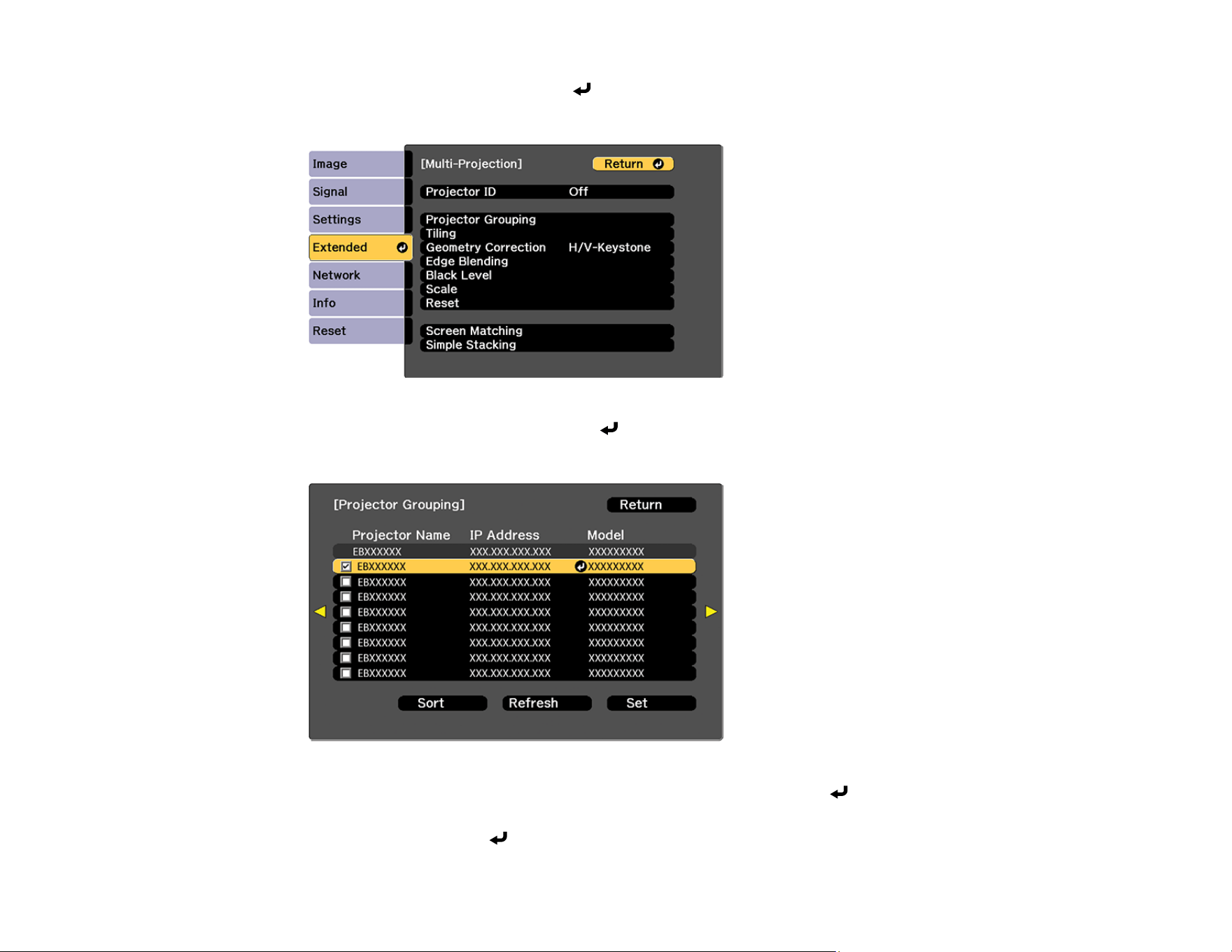
287
4. Select Multi-Projection and press Enter.
You see this screen:
5. Select Projector Grouping and press Enter.
You see a screen like this:
6. Press the up or down arrow buttons to highlight a projector and press Enter to place a checkmark
next to each projector you want to use for tiling. Then select Set and press Enter.
7. Select Tiling and press Enter.
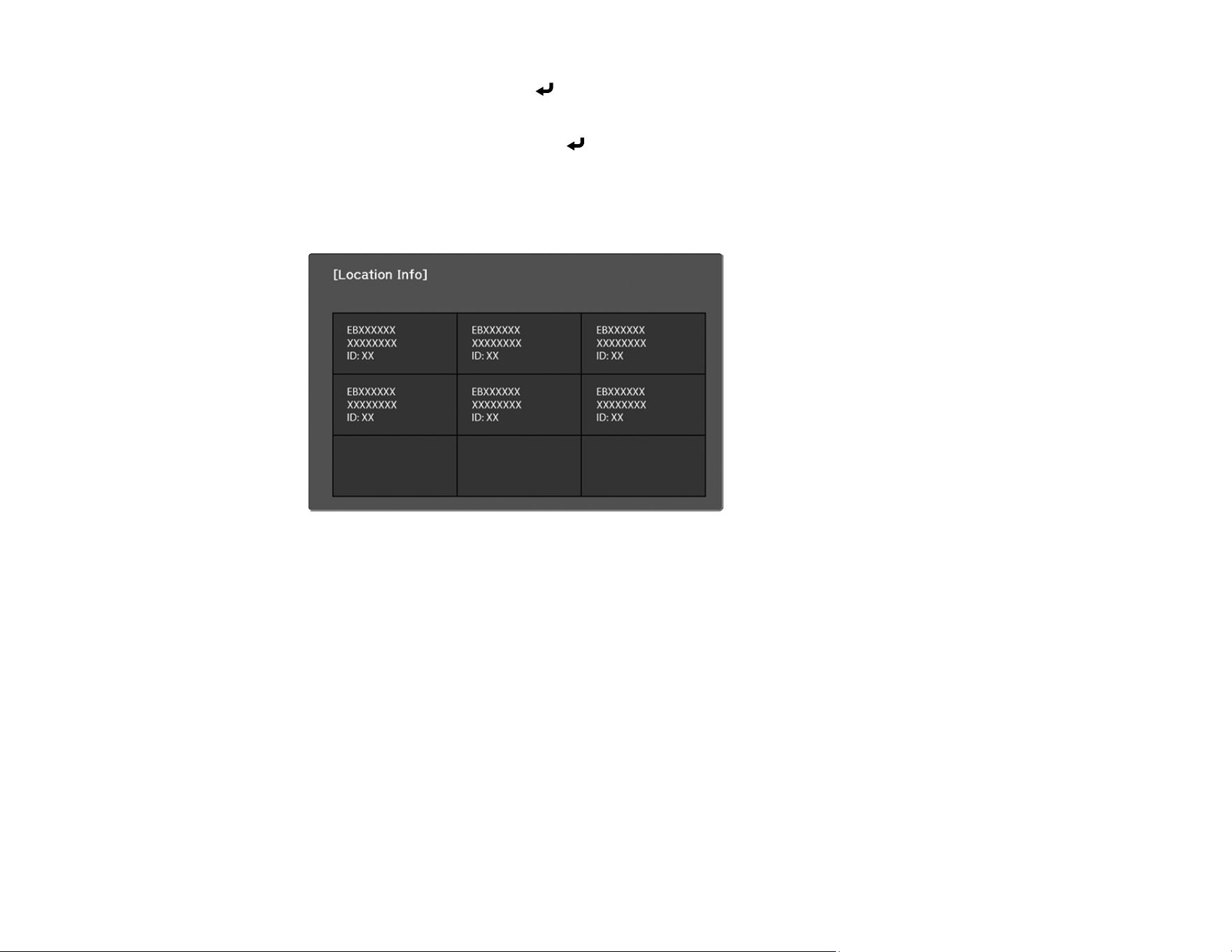
288
8. Select Tiling again and press Enter.
9. Select Auto and press Esc.
10. Select Location Setup and press Enter.
The projected images are positioned automatically.
11. When you see the message to assign projector IDs, select Yes.
When setup is complete, you see a screen like this:
Note: If any of the images are not positioned correctly, set up tiling manually instead.
12. Select the input signal to display an image.
After performing the steps here, adjust the images for any gaps and differences in color.
Note: Do not change any of the projector names or IP addresses, or the images will not be adjusted
automatically.
Parent topic: Tiling Images into One Image
Related references
Projector Grouping
Tiling
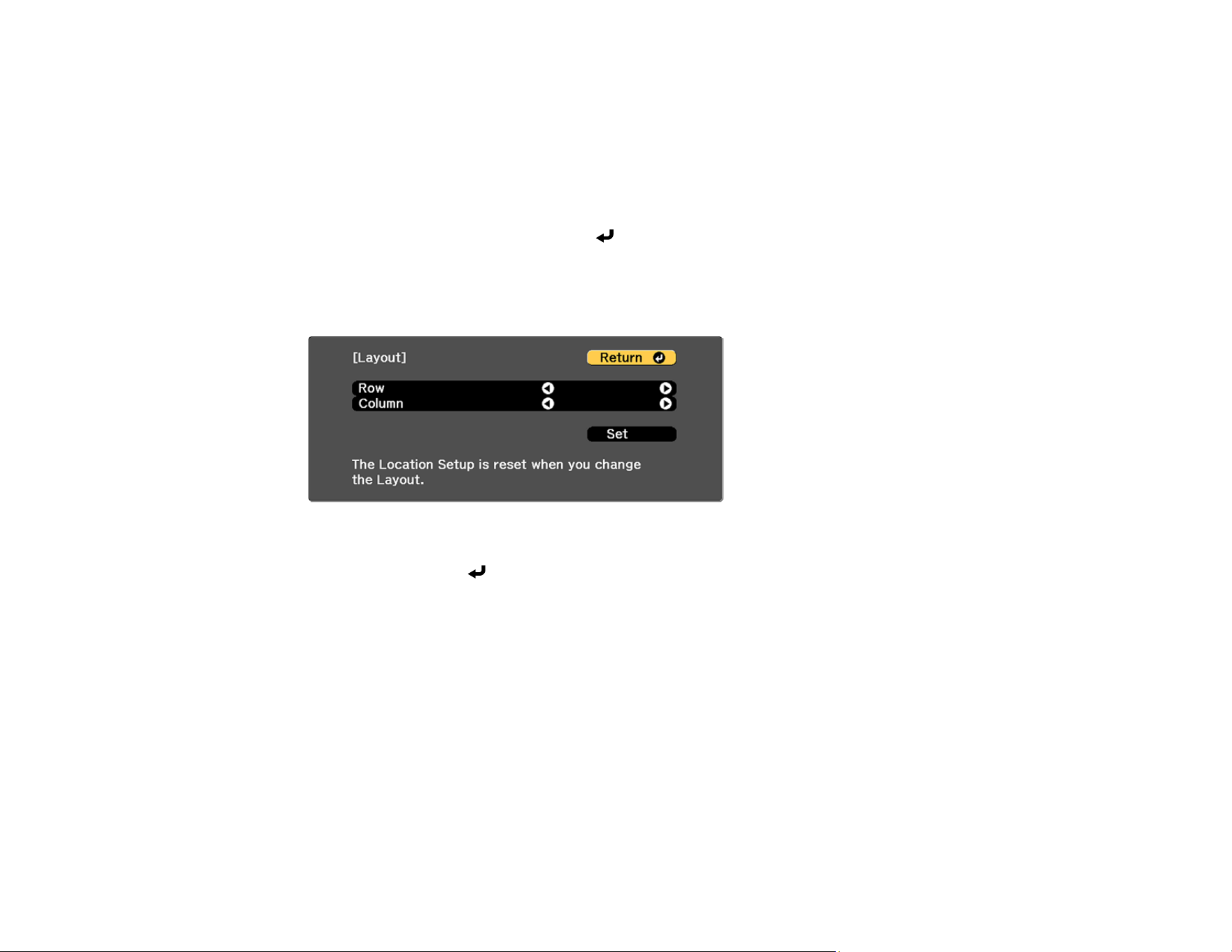
289
Configuring Tiling Manually
You can project the same image from multiple projectors to create one large image. If your projectors are
not on a network or you were unsuccessful tiling the images automatically, you can configure tiling
manually.
1. Turn on the projector.
2. Press the Menu button.
3. Select the Extended menu and press Enter.
4. If you are combining images from multiple projectors on a network, select the Projector Grouping
setting on the primary projector and create a group of projectors that you can control simultaneously.
5. Select Multi-Projection > Tiling > Layout.
6. Select the number of rows and columns you are setting up as the Row and Column settings. Then
select Set and press Enter.
7. Repeat the previous steps with each projector you are setting up before continuing with the next
step.
8. Select Location Setup and press Enter.
9. Select the position of each projected image as follows:
• Row Order to layout the screens from top to bottom in sequential order, starting with 1 at the top
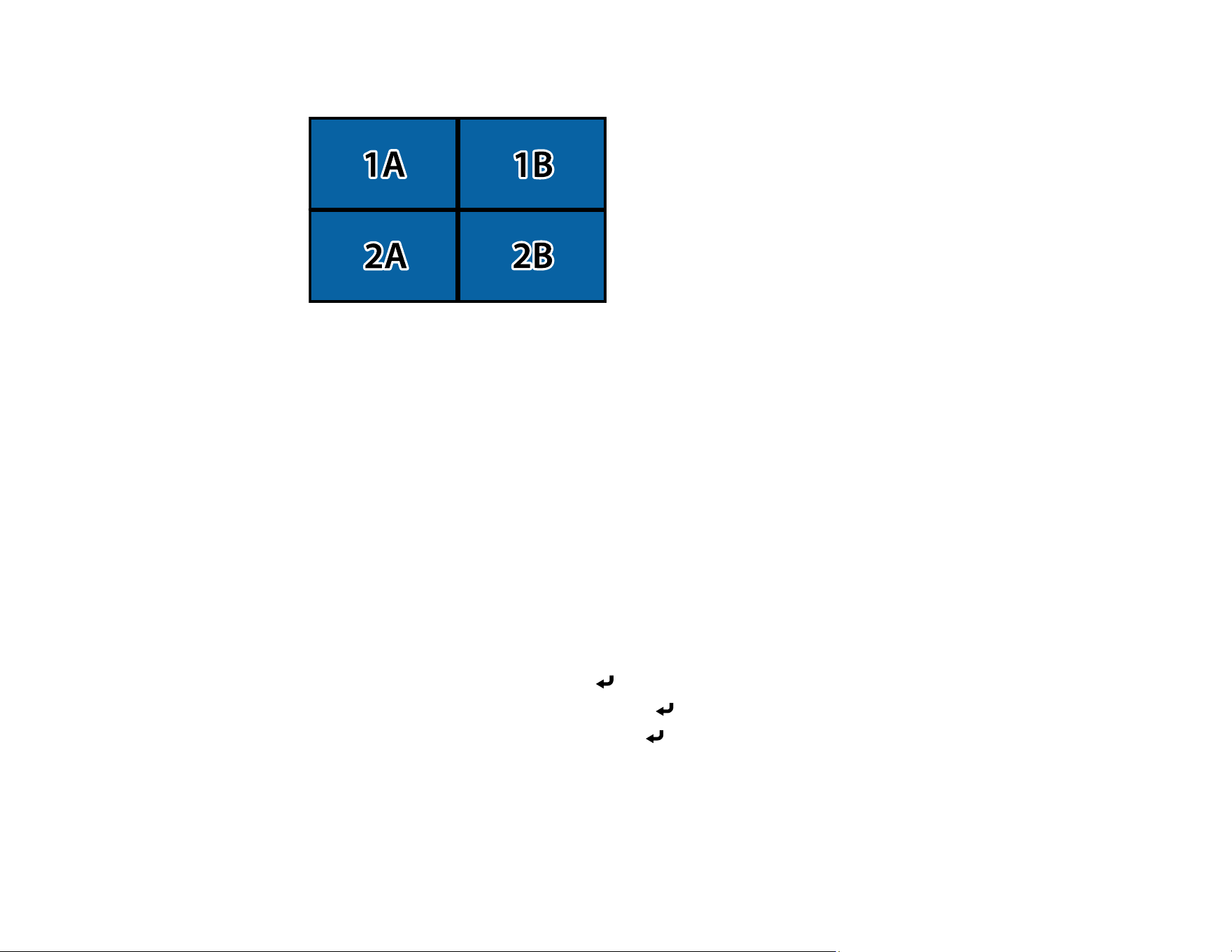
290
• Column Order to layout the screens from left to right, starting with A on the left
10. Repeat the previous step with each projector you are setting up before continuing with the next step.
11. Select the input signal to display an image.
After performing the steps here, adjust the images for any gaps and differences in color.
Parent topic: Tiling Images into One Image
Related references
Tiling
Blending the Image Edges
You can use the projector's Edge Blending feature to create a seamless image from multiple projectors.
Note: Before performing Edge Blending, set the Color Mode setting to Multi-Projection to make more
precise adjustments.
1. Press the Menu button.
2. Select the Extended menu and press Enter.
3. Select the Multi-Projection setting and press Enter.
4. Select the Edge Blending setting and press Enter.
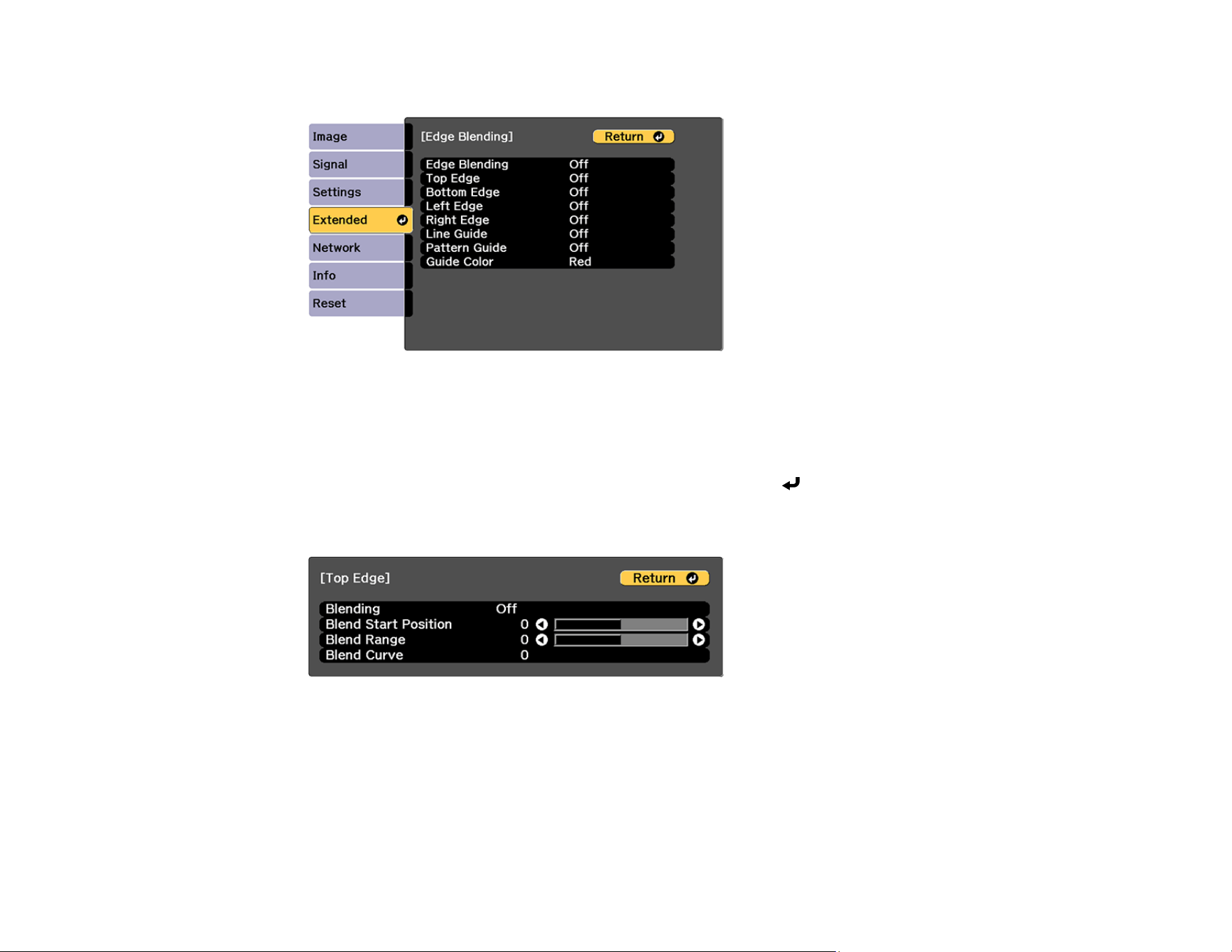
291
You see this screen:
5. Turn on the Edge Blending, Line Guide, and Pattern Guide settings.
Note: If the projected guide is unclear, try changing the Guide Color setting.
6. Select the edge you want to blend on each projector and press Enter. For the projector on the
left, select the Right Edge and for the projector on the right, select Left Edge.
You see a screen like this:
7. Select the Blending setting and select On.
8. Press Esc to return to the previous screen.
9. Select the Blend Start Position setting and adjust the point where edge blending begins.
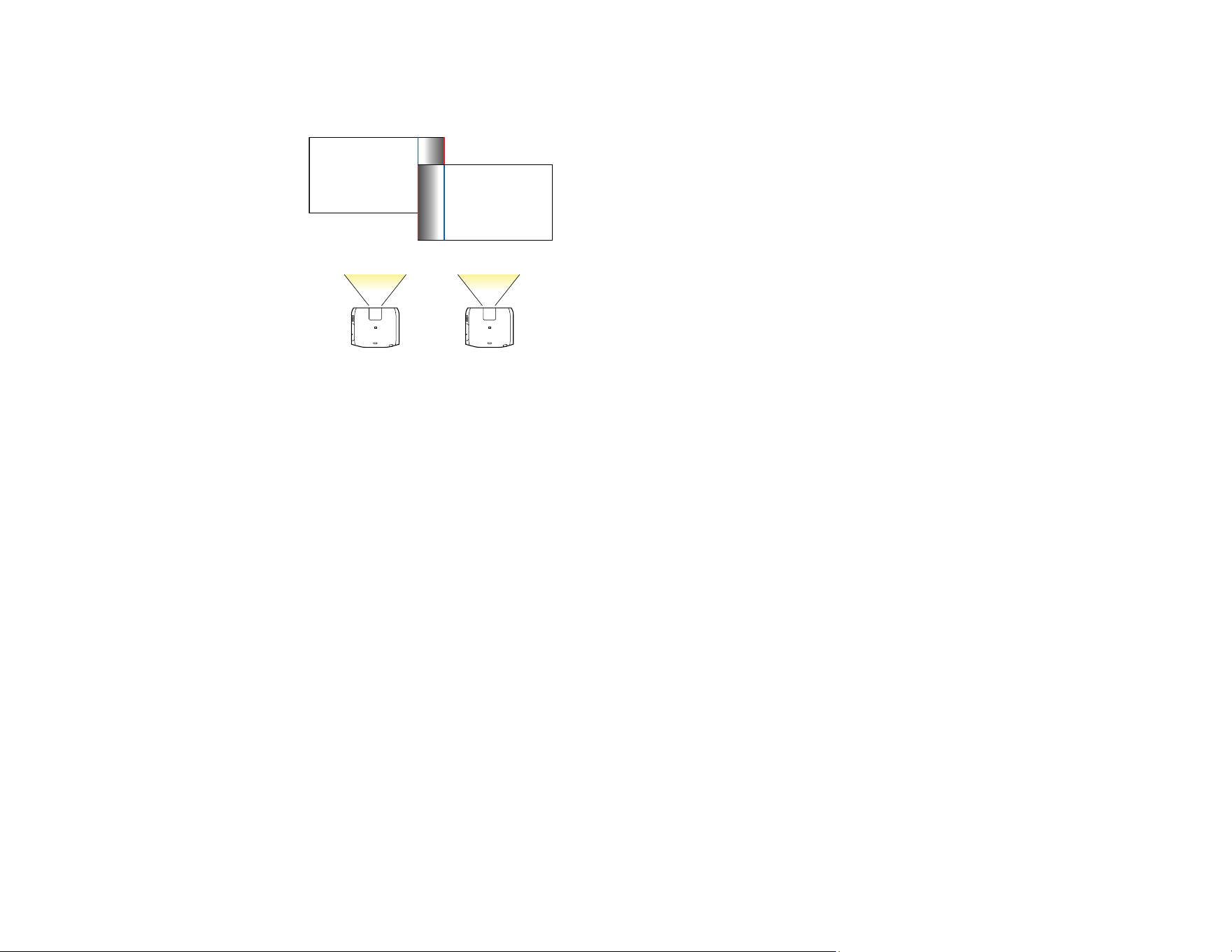
292
10. Select the Blend Range setting and use the arrow buttons to select the width of the blended area so
that the displayed guides are at the edges of the overlapping area between the two images.
11. Press Esc to go back to the previous screen.
12. Select the Blend Curve setting and select a gradient for the shaded area on the projectors.
13. When the edges are blended, turn off the Line Guide and Pattern Guide settings on each projector
to check the final settings.
14. When you are finished, press the Menu button.
If the blended area does not overlap exactly, correct the shape of the blended area using Point
Correction.
Parent topic: Using Multiple Projectors
Related references
Edge Blending
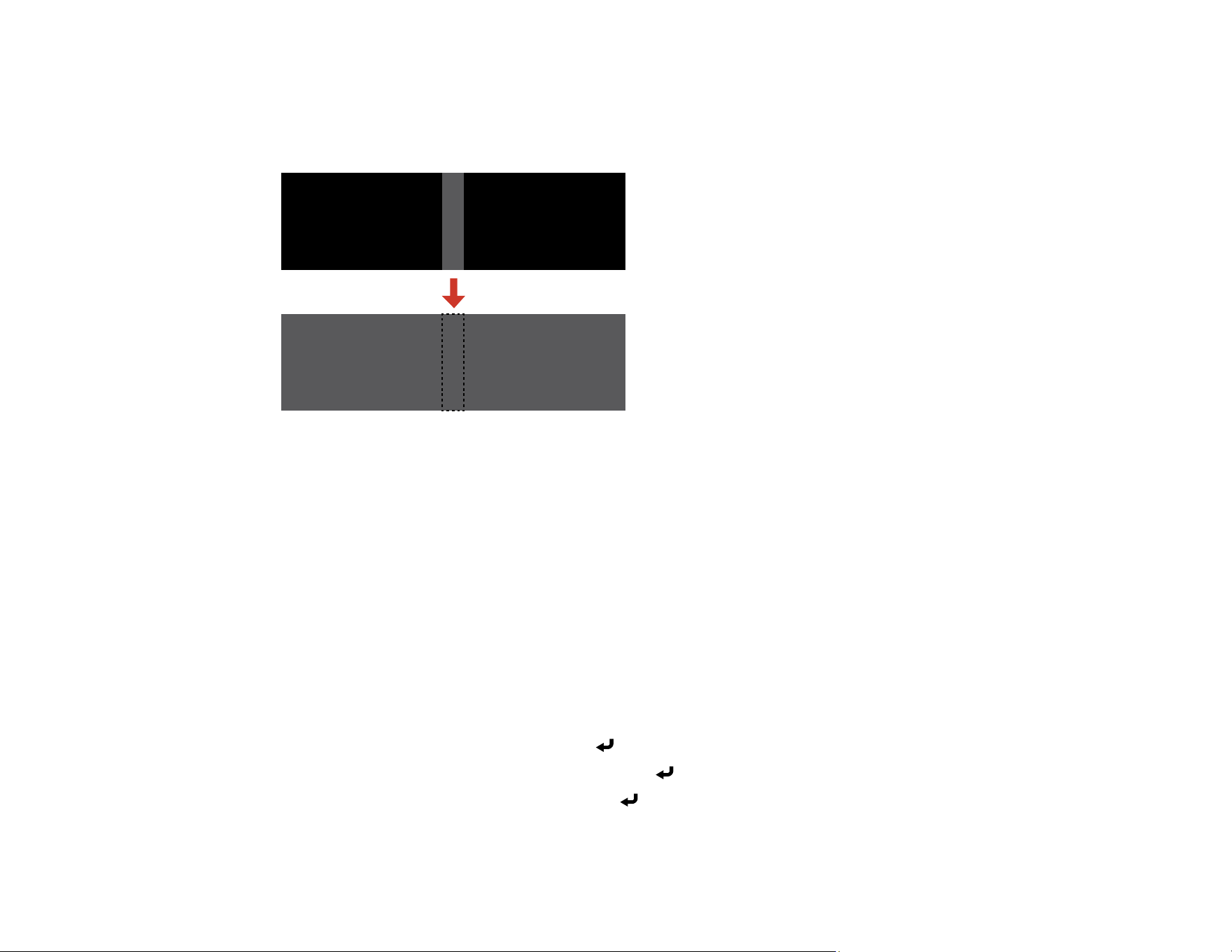
293
Adjusting the Black Level
When two images overlap, the overlapping area can appear differently from the areas that do not
overlap. You can use the projector's Black Level setting to make the difference less noticeable.
Note: You may not be able to adjust the black levels correctly if the Geometry Correction settings are
set too high. The brightness and tone of the overlapping areas may differ from the rest of the image even
after adjusting the black level.
The Black Level feature is only available when the following conditions are met in the Edge Blending
settings.
• When Edge Blending is set to anything except for Off
• When at least one of Top Edge, Bottom Edge, Left Edge, and Right Edge are set to On
• You cannot adjust the Black Level setting when a test pattern is displayed
• If you change one of Top Edge, Bottom Edge, Left Edge, and Right Edge, the Black Level setting
returns to its default value.
1. Press the Menu button.
2. Select the Extended menu and press Enter.
3. Select the Multi-Projection setting and press Enter.
4. Select the Black Level setting and press Enter.
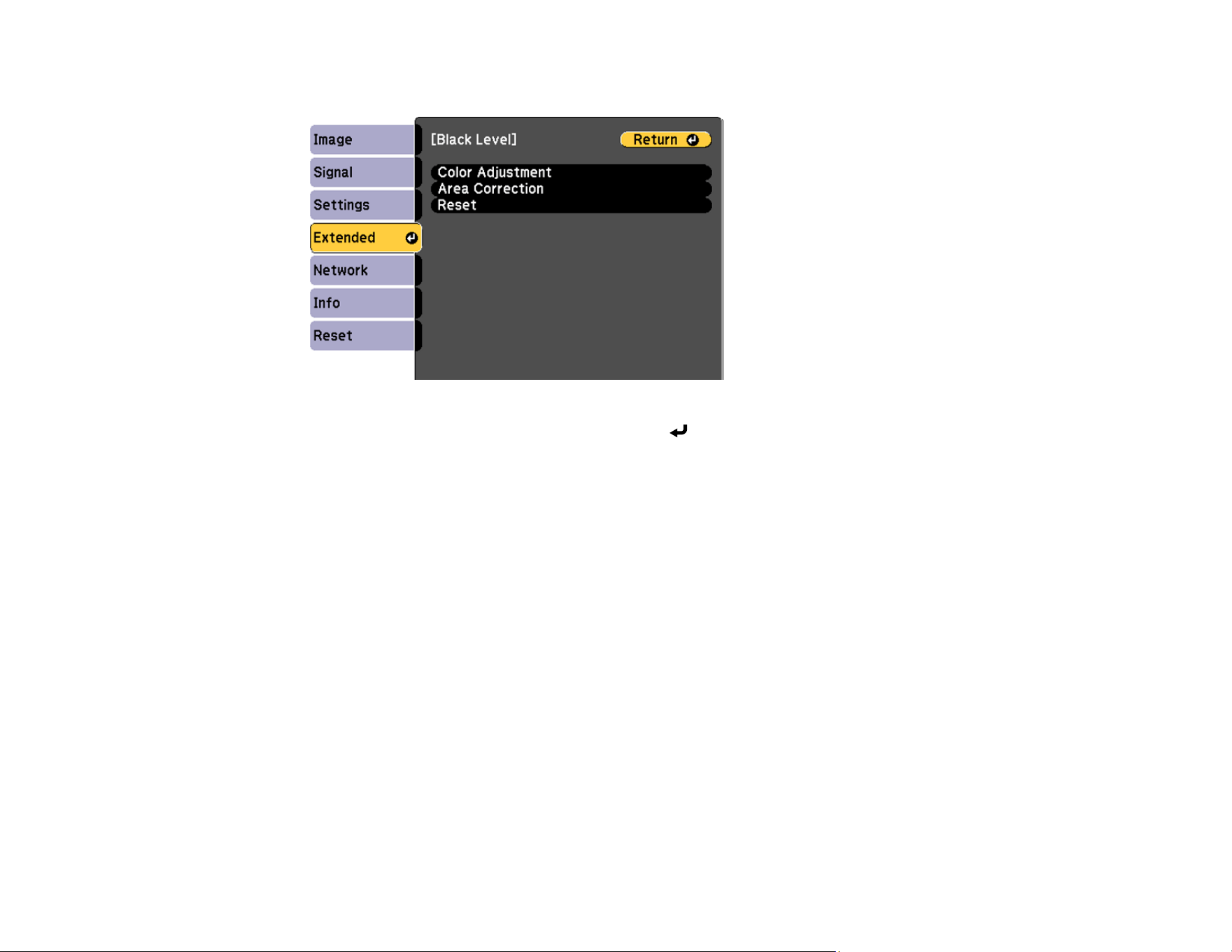
294
You see this screen:
5. Select the Color Adjustment setting and press Enter.
You see a screen based on the Top Edge, Bottom Edge, Right Edge, and Left Edge settings you
selected for the Edge Blending setting.
Note: The Color Adjustment setting is automatically adjusted when selecting Start Auto
Adjustment in the Screen Matching screen.
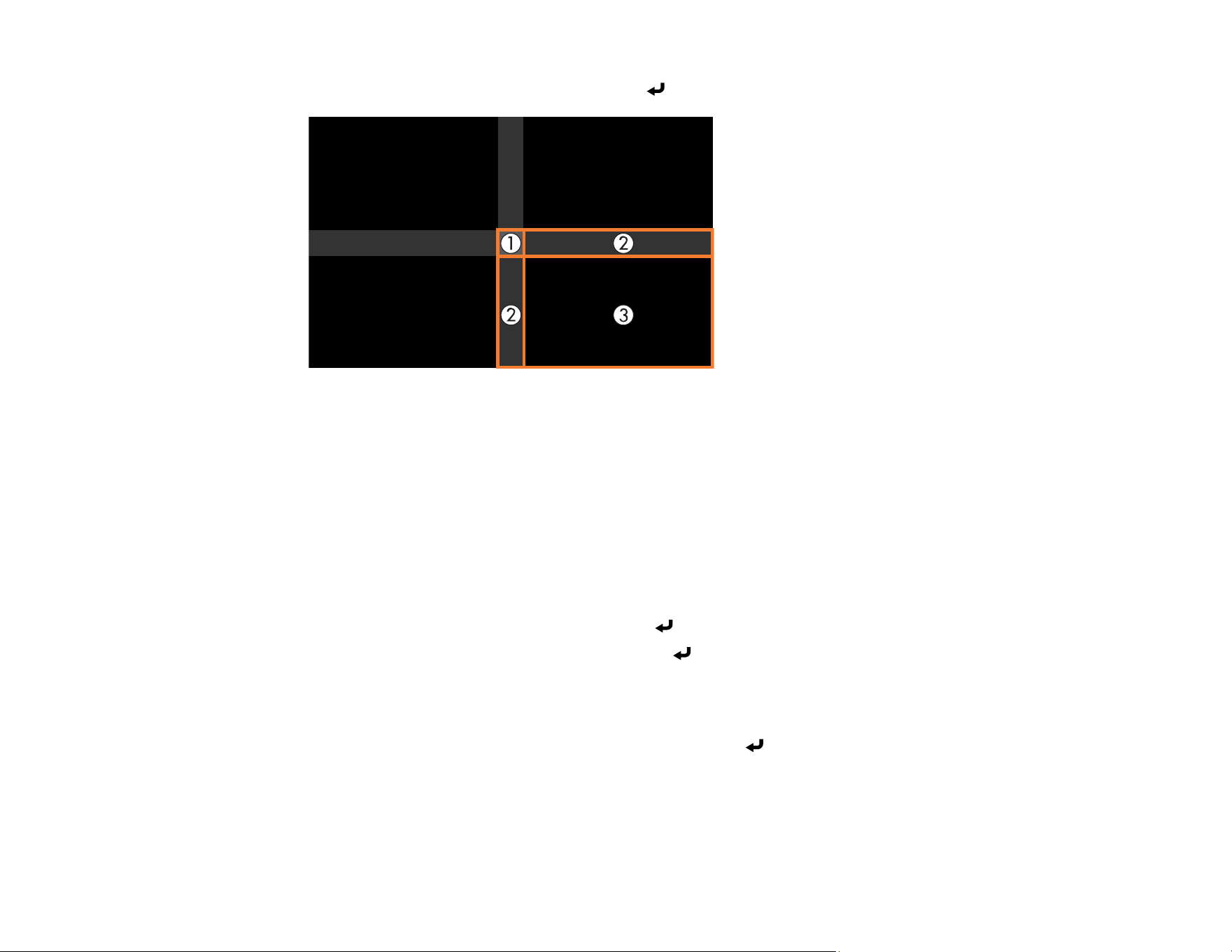
295
6. Select the area you want to adjust and press Enter.
Note: The area you selected is displayed in orange. Adjust overlapping areas starting with the
brightest areas first. For example, adjust area 2 to match area 1, then adjust area 3 to match area 2.
7. Adjust the brightness and tone of the areas that do not overlap to match the areas that overlap using
the displayed adjustment sliders.
8. Repeat the previous two steps as needed until all areas match.
9. If the tone of some areas do not match, you can adjust them using the Area Correction setting.
Continue with the next step. Otherwise, press the Menu button to exit.
10. Press the Esc button to return to the Black Level screen.
11. Select the Area Correction setting and press Enter.
12. Select the Start Adjustments setting and press Enter.
You see a screen with boundary lines indicating areas that are overlapping. The boundary lines are
based on the Top Edge, Bottom Edge, Right Edge, and Left Edge settings you selected for the
Edge Blending setting.
13. Use the arrow buttons to select a boundary line and press Enter.
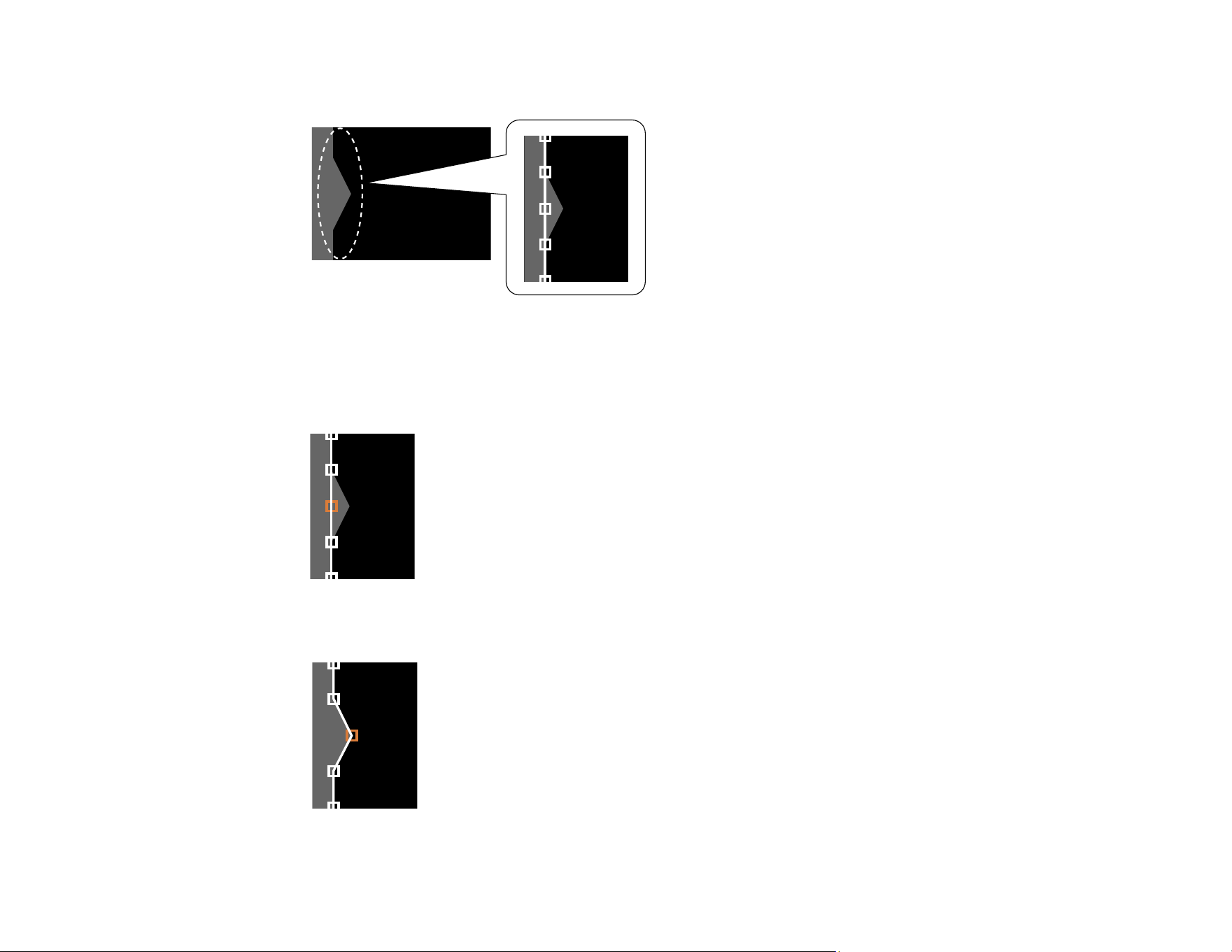
296
You see a screen like this displaying the points you can use to set the adjustment range:
14. Use the arrow buttons to adjust the boundary line position and press Enter.
15. Use the arrow buttons to select an adjustment point and press Enter.
The selected point turns orange.
16. Use the arrow buttons to move the point.

297
17. To move another point, press the Esc button and repeat the previous two steps.
18. To move another boundary line, press the Esc button repeatedly until you can select a boundary
line.
19. When you are finished, press the Menu button.
Note: Changing the Top Edge, Bottom Edge, Right Edge, or Left Edge settings resets the Black
Level setting to its default value.
Parent topic: Using Multiple Projectors
Related references
Black Level
Matching Tint and Brightness (Screen Matching)
You can adjust the tint and brightness of multiple projectors so they match better. You can also schedule
automatic adjustments to the tint and brightness.
If your projectors are on a network, the brightness and tint for multiple projectors are corrected
automatically based on the darkest projector. The time required for automatic adjustment depends on
projector layout, and can take up to 18 minutes.
The auto adjustment feature is only available under the following conditions:
• When you set the position of each image using the Location Setup setting in the Tiling menu
• When the Color Calibration setting is enabled
• The optional lenses ELPLL08, ELPLX02S, or ELPLX02WS are not installed
You can only undo or redo the screen matching procedure if the Light Source Mode setting is set to
Custom.
Note: Wait 20 minutes after turning on the projector before using the Screen Matching feature and
darken the room for maximum accuracy. Brightness decreases over time, so you may need to perform
Screen Matching again to correct large differences in brightness.
Screen Matching Conditions
Matching the Screens Manually
Parent topic: Using Multiple Projectors
Related references
Screen Matching

298
Tiling
Color Calibration
Screen Matching Conditions
You can use the screen matching feature under the following conditions:
• All of the projectors are the same model and the optional camera is installed on each projector.
• You are projecting on a matte white diffusion screen that is flat and even.
• The projectors are installed parallel to the screen.
• Nothing is blocking the optional camera and the projected image.
• More than 20 minutes have passed after turning on the projectors.
• The projectors to be adjusted are grouped.
• The projected images do not overlap or have gaps between them, and they create a rectangular
image after tiling.
• The projection size is within the following range according to the brightness of the light source (when
the screen luminance is 40 lux or less):
• Up to 9.9 Klm: 50 to 200 inches (127 to 508 cm)
• 10 Klm: 60 to 300 inches (152 to 762 cm)
• 15 Klm to 19.9 Klm: 70 to 350 inches (178 to 889 cm)
• 20 Klm to 24.9 Klm: 80 to 400 inches (203 to 1016 cm)
• 25 Klm to 29.9 Klm: 90 to 450 inches (229 to 1143 cm)
• 30 Klm or more: 100 to 500 inches (254 to 1270 cm)
• All of the projectors are connected to the same network and project images with the same resolution.
• The Blend Range setting for edge blending is set between 15 to 45%.
• The Projection setting for all projectors is set to Front or Front/Ceiling.
Parent topic: Matching Tint and Brightness (Screen Matching)
Related references
Edge Blending
Matching the Screens Manually
You can manually correct the brightness and tint for multiple projectors.
1. Press the Menu button.
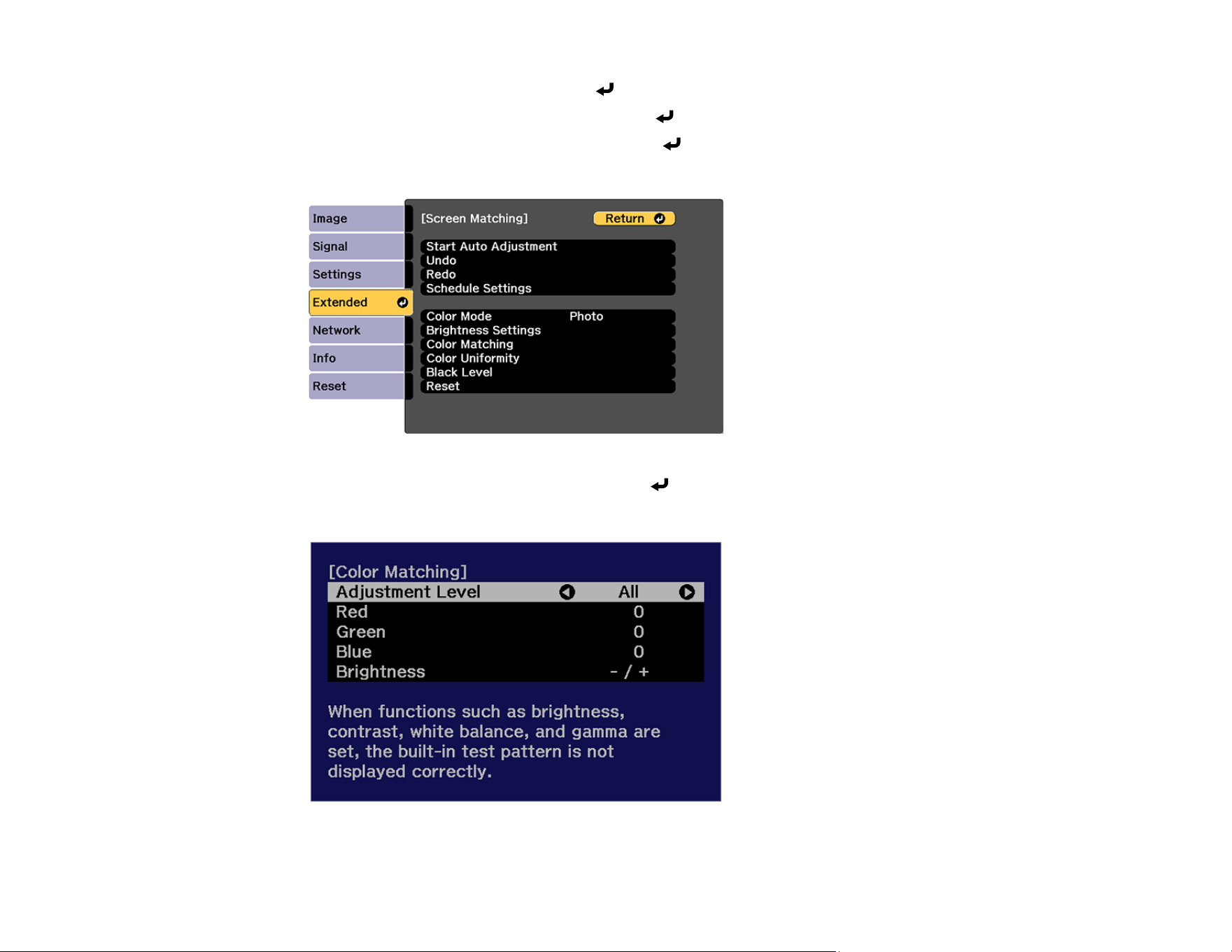
299
2. Select the Extended menu and press Enter.
3. Select the Multi-Projection setting and press Enter.
4. Select the Screen Matching setting and press Enter.
You see a screen like this:
5. Select the Color Matching setting and press Enter.
You see this screen:
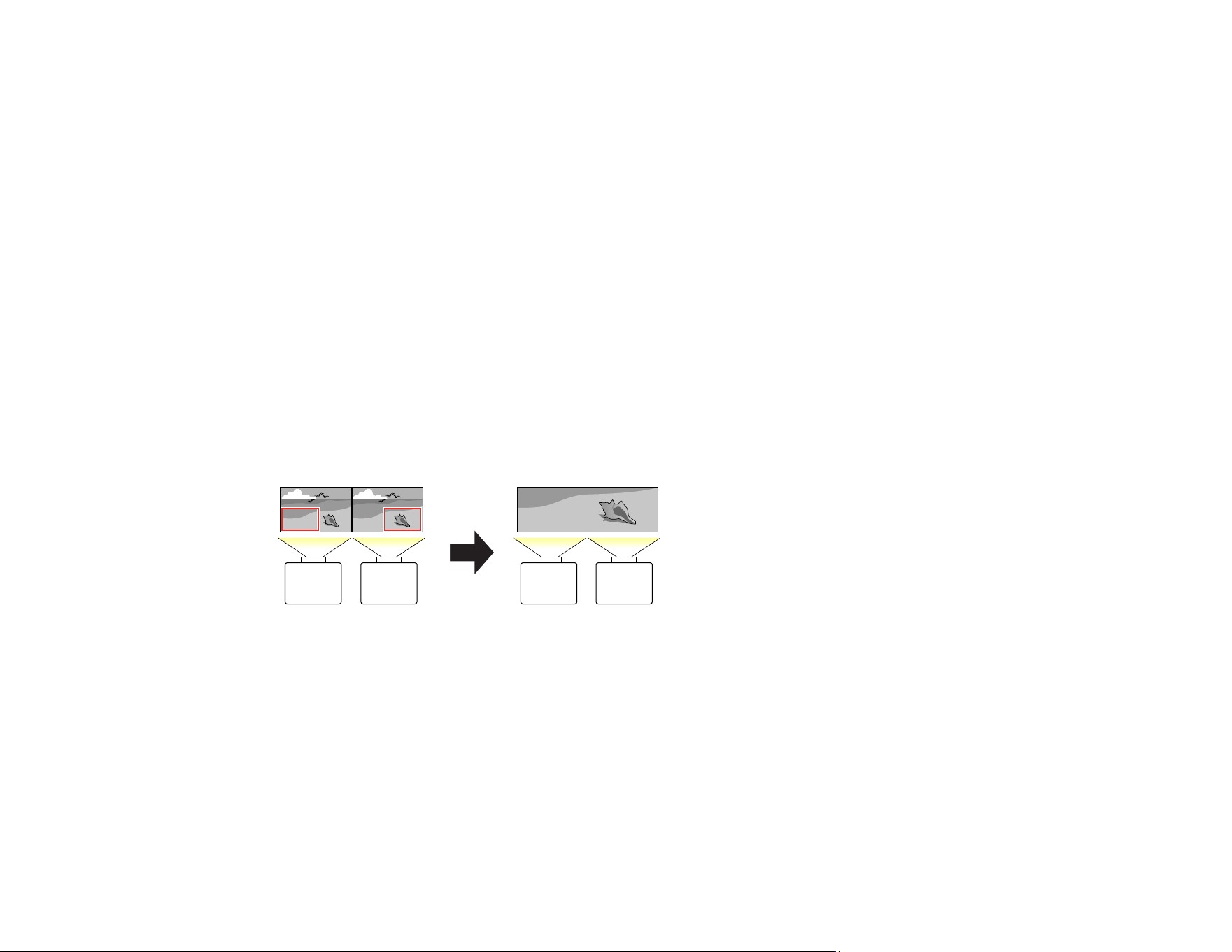
300
6. Press the left or right arrow buttons to select a value for the Adjustment Level setting.
Note: There are eight adjustment levels ranging from white to black and you can adjust each level
individually.
7. Press the left or right arrow buttons to adjust the color tone for the Red, Green, and Blue settings.
8. Press the left or right arrow buttons to adjust the Brightness setting.
9. Repeat the previous three steps as necessary to adjust each adjustment level.
10. Press the Esc button to return to the previous screen.
Parent topic: Matching Tint and Brightness (Screen Matching)
Related references
Screen Matching
Color Matching
Scaling an Image
You can project the same image from multiple projectors and use the Scale feature to crop and combine
them into one large image.
1. Press the Menu button.
2. Select the Scale setting and press Enter.
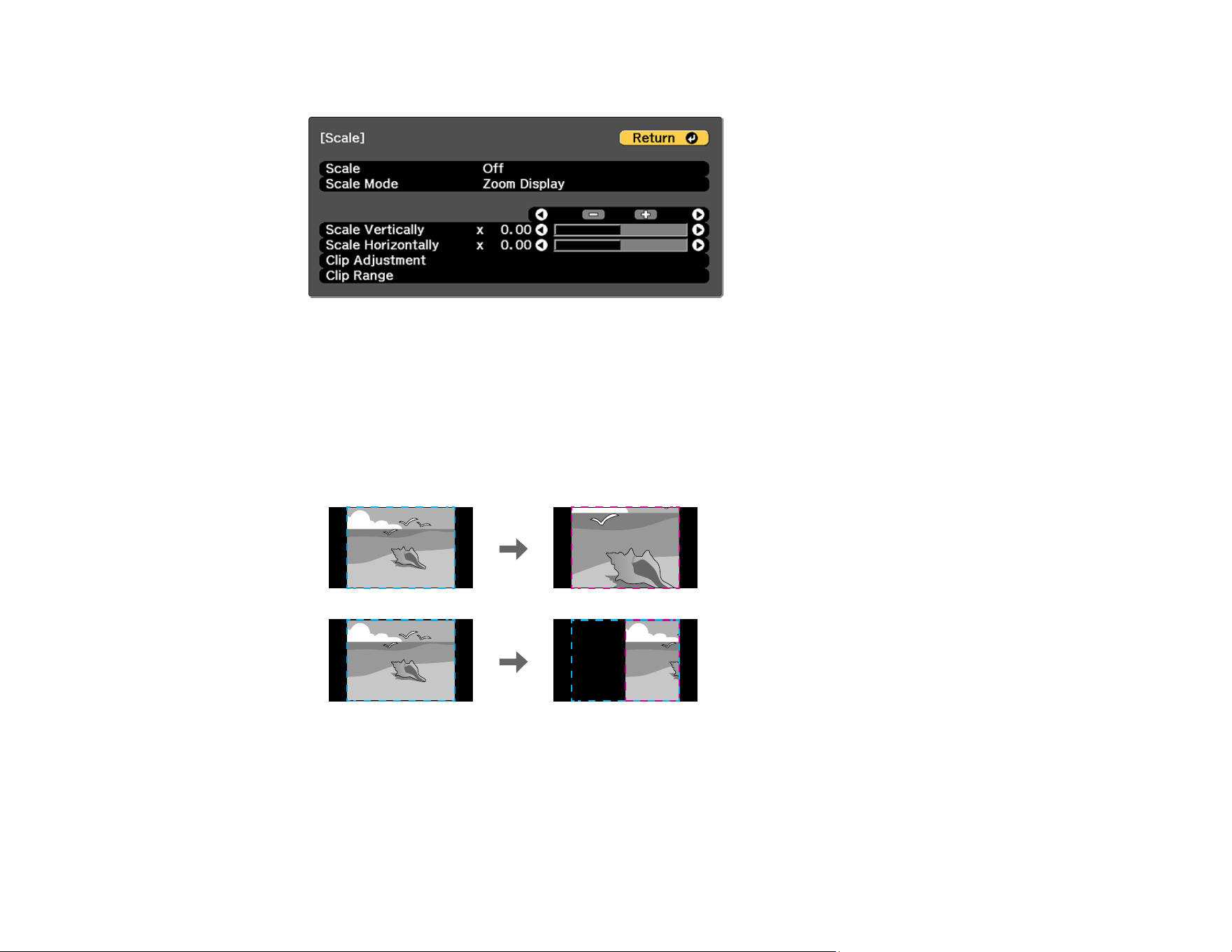
301
You see this screen:
3. Select one of the following as the Scale setting:
• Auto to automatically adjust the clipped areas according to the Edge Blending and Tiling
settings you selected
• Manual to adjust the clipped areas manually
4. Select the Scale Mode setting and select one of these options:
• Zoom Display to maintain the image aspect ratio as you scale the image
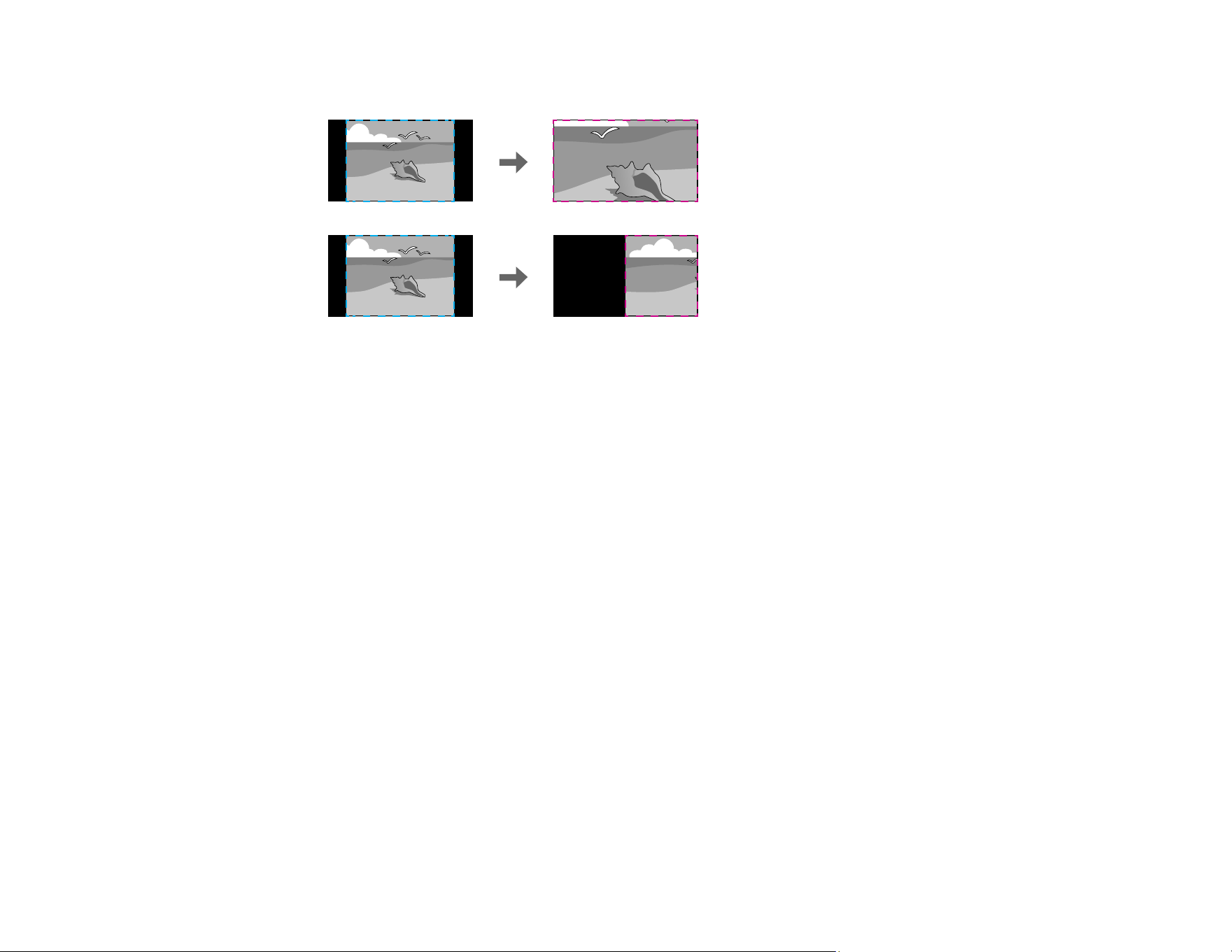
302
• Full Display to adjust the image to the projector's screen size as you scale the image
5. If you selected Auto as the Scale setting, you can skip the remaining steps. If you selected Manual,
adjust each of the following options as necessary:
• Select – or + to scale the image horizontally and vertically at the same time
• Select Scale Vertically to scale the image vertically only
• Select Scale Horizontally to scale the image horizontally only
6. Select the Clip Adjustment setting and use the arrow buttons to adjust the coordinates and size of
each image as you view the screen.
7. Select the Clip Range setting to preview the area you just selected.
8. Press the Menu button to exit.
Parent topic: Using Multiple Projectors
Related references
Scale
Simple Blending for One Large Image
You can create a large projected image by tiling and blending the edges of the images from up to 15
projectors.
Note: You can also set up blending using the Epson Projector Professional Tool. You can download the
software from the Epson support website at epson.com/support (U.S.), epson.ca/support (Canada), or
latin.epson.com/support (Latin America).

303
Simple Blending Conditions
Setting Up Simple Blending
Parent topic: Using Multiple Projectors
Simple Blending Conditions
You can use the simple blending feature under the following conditions:
• All of the projectors are the same model and a built-in or optional camera is installed on each
projector.
• Wait for 2 minutes after turning on all of the projectors before starting the simple stacking process.
• You are projecting on a matte white diffusion screen that is flat and even.
• All of the projectors are installed parallel to the screen.
• Nothing is blocking the optional camera and the projected image.
• The projection size is within the following range according to the brightness of the light source (when
the screen luminance is 40 lux or less):
• Up to 9.9 Klm: 50 to 200 inches (127 to 508 cm)
• 10 Klm: 60 to 300 inches (152 to 762 cm)
• 15 Klm to 19.9 Klm: 70 to 350 inches (178 to 889 cm)
• 20 Klm to 24.9 Klm: 80 to 400 inches (203 to 1016 cm)
• 25 Klm to 29.9 Klm: 90 to 450 inches (229 to 1143 cm)
• 30 Klm or more: 100 to 500 inches (254 to 1270 cm)
• All of the projectors are projecting images at the same resolution.
• The luminance ratio on the screen surface when projecting on an all-white screen and when projecting
on an all-black screen is 8:1 or more.
• The Projection setting for all projectors is set to Front or Front/Ceiling.
Parent topic: Simple Blending for One Large Image
Setting Up Simple Blending
You can create a horizontally wide screen image projected from two projectors using the optional
external camera. This function is only available when the optional external camera is installed.
1. Connect two projectors using a LAN cable.
2. Turn on the projectors.

304
3. Make sure the DHCP setting is turned on in the Network menu on both projectors.
Note: Wait for one minute after assigning an IP address automatically.
4. Select Extended > Multi-Projection > Simple Blending, and press Enter. Then press Enter again
if necessary.
5. Select the Location Setup setting and specify the primary projector from A1 or B1.
6. Select the image aspect in the Whole Screen Aspect setting for the merged wide image.
Note: You can set the following aspects using the Whole Screen Aspect menu. Selectable items
vary depending on the screen type setting.
• 21:9 (EDID 3440x1440)
• 21:9 (EDID 2560x1080)
• 16:6 (EDID 2880x1080)
• 16:6 (EDID 1920x720)
• 3:1 (EDID 3240x1080)
• 32:10 (EDID 3456x1080)
• 32:9 (EDID 3200x900)
7. Perform Start Auto Adjustment.
Follow the on-screen instructions to adjust the projection position. If the projection position cannot be
adjusted fully using the Lens Shift button on the remote control or the Lens button on the control
panel, move the projectors so that the green pattern and the magenta pattern overlap and turn white.
8. After auto adjustment is complete, perform Correct Shape following the instructions on the screen.
9. Perform Screen Matching to adjust the brightness and tint of the images.
Parent topic: Simple Blending for One Large Image
Related references
Simple Blending
Simple Stacking for One Bright Image
You can create a bright projected image by overlapping the images of up to six projectors. You can stack
two projectors using the projector menus, or up to six projectors using the Epson Projector Professional
Tool.

305
Note: You can also set up stacking using the Epson Projector Professional Tool (version 1.31 or later).
You can download the software from the Epson support website at epson.com/support (U.S.),
epson.ca/support (Canada), or latin.epson.com/support (Latin America).
Simple Stacking Conditions
Setting Up Simple Stacking
Parent topic: Using Multiple Projectors
Simple Stacking Conditions
You can use the simple stacking feature under the following conditions:
• All of the projectors are the same model and a built-in or optional camera is installed on each
projector.
• Wait for 2 minutes after turning on all of the projectors before starting the simple stacking process.
• You are projecting on a matte white diffusion screen that is flat and even.
• All of the projectors are installed parallel to the screen.
Caution: Do not stack projectors directly on top of each other.
• Nothing is blocking the optional camera and the projected image.
• The projection size is within the following range according to the brightness of the light source (when
the screen luminance is 40 lux or less):
• Up to 9.9 Klm: 50 to 200 inches (127 to 508 cm)
• 10 Klm: 60 to 300 inches (152 to 762 cm)
• 15 Klm to 19.9 Klm: 70 to 350 inches (178 to 889 cm)
• 20 Klm to 24.9 Klm: 80 to 400 inches (203 to 1016 cm)
• 25 Klm to 29.9 Klm: 90 to 450 inches (229 to 1143 cm)
• 30 Klm or more: 100 to 500 inches (254 to 1270 cm)
• All of the projectors are projecting images at the same resolution.
• The luminance ratio on the screen surface when projecting on an all-white screen and when projecting
on an all-black screen is 8:1 or more.
• The Projection setting for all projectors is set to Front or Front/Ceiling.
Parent topic: Simple Stacking for One Bright Image
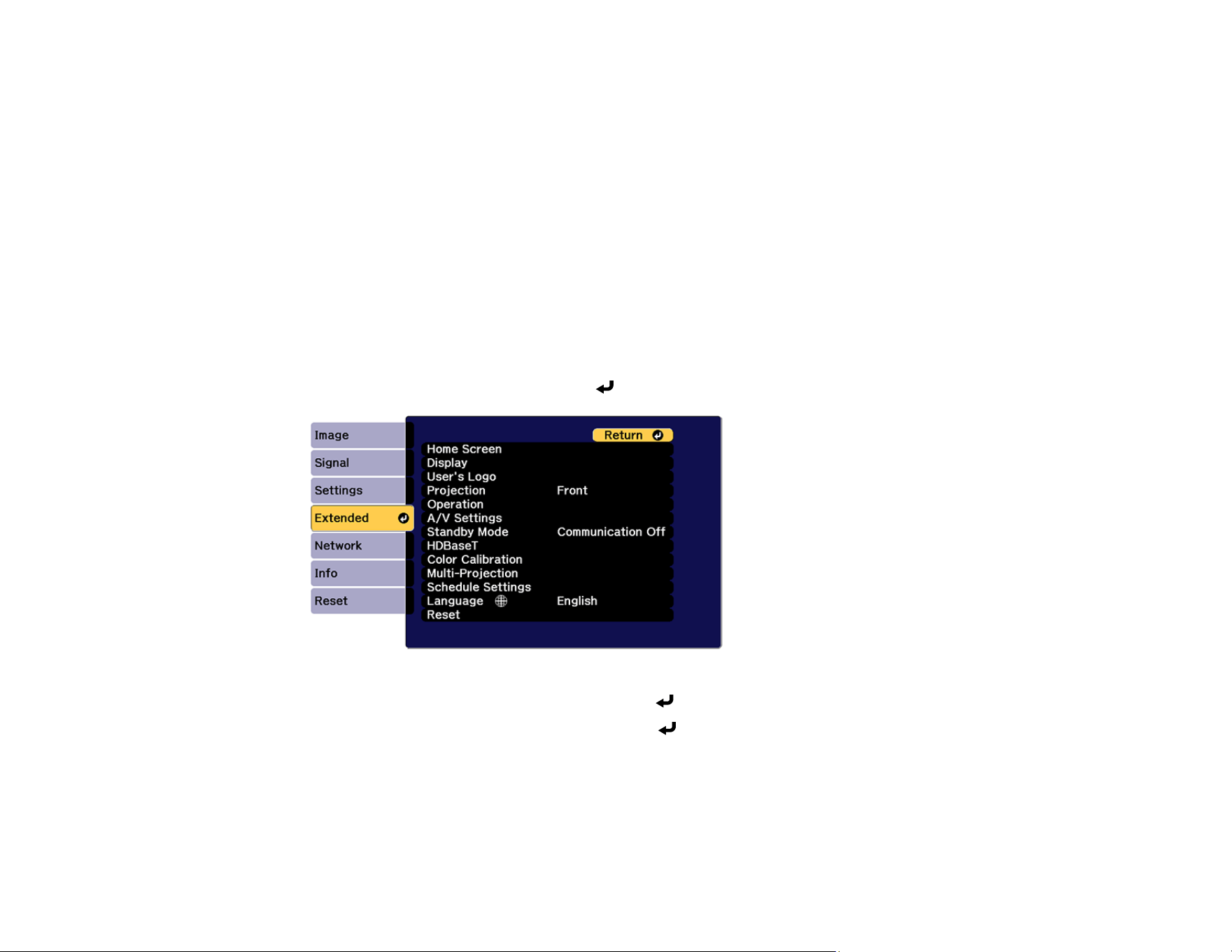
306
Related references
Projection
Setting Up Simple Stacking
You can create a bright projected image by overlapping the images of two projectors using the projector
menus. You can overlap the images of up to six projectors when using the Epson Projector Professional
Tool software and a built-in or optional camera.
1. Connect two projectors using a LAN cable.
2. Turn on the projectors.
3. Make sure the DHCP setting is turned on in the Network Configuration menu on all projectors.
4. Adjust the image position, shape, and focus on one of the projectors (this projector becomes the
"master" projector).
5. Press the Menu button.
6. Select the Extended menu and press Enter.
7. Select the Multi-Projection setting and press Enter.
8. Select the Simple Stacking setting and press Enter.
9. Do one of the following:
• Select Point Correction to divide the projected image into a grid and correct the distortion in
increments. You can move the points on the grid between 0.5 to 600 pixels in any direction,
including outside of the projection range.

307
• Select Start Auto Adjustment to automatically adjust the projected image using the camera
assist functions.
Note: This setting is only available if a built-in or optional camera is installed.
If there are any gaps in the pixels of the projected images, adjust the Point Correction setting
manually.
10. If your projector does not have a built-in camera or you have not installed an optional camera, adjust
the Focus, Zoom, Lens Shift, and Geometry Correction settings manually.
11. Press the Menu button to exit.
Parent topic: Simple Stacking for One Bright Image
Related references
IP Settings
Simple Stacking
Geometry Correction
Related tasks
Resizing the Image with the Zoom Button
Focusing the Image Using the Focus Buttons
Correcting Image Shape with Point Correction
Saving Settings to Memory and Using Saved Settings
You can save customized settings and then select the saved settings whenever you want to use them.
1. Turn on the projector and display an image.
2. Press the Menu button.
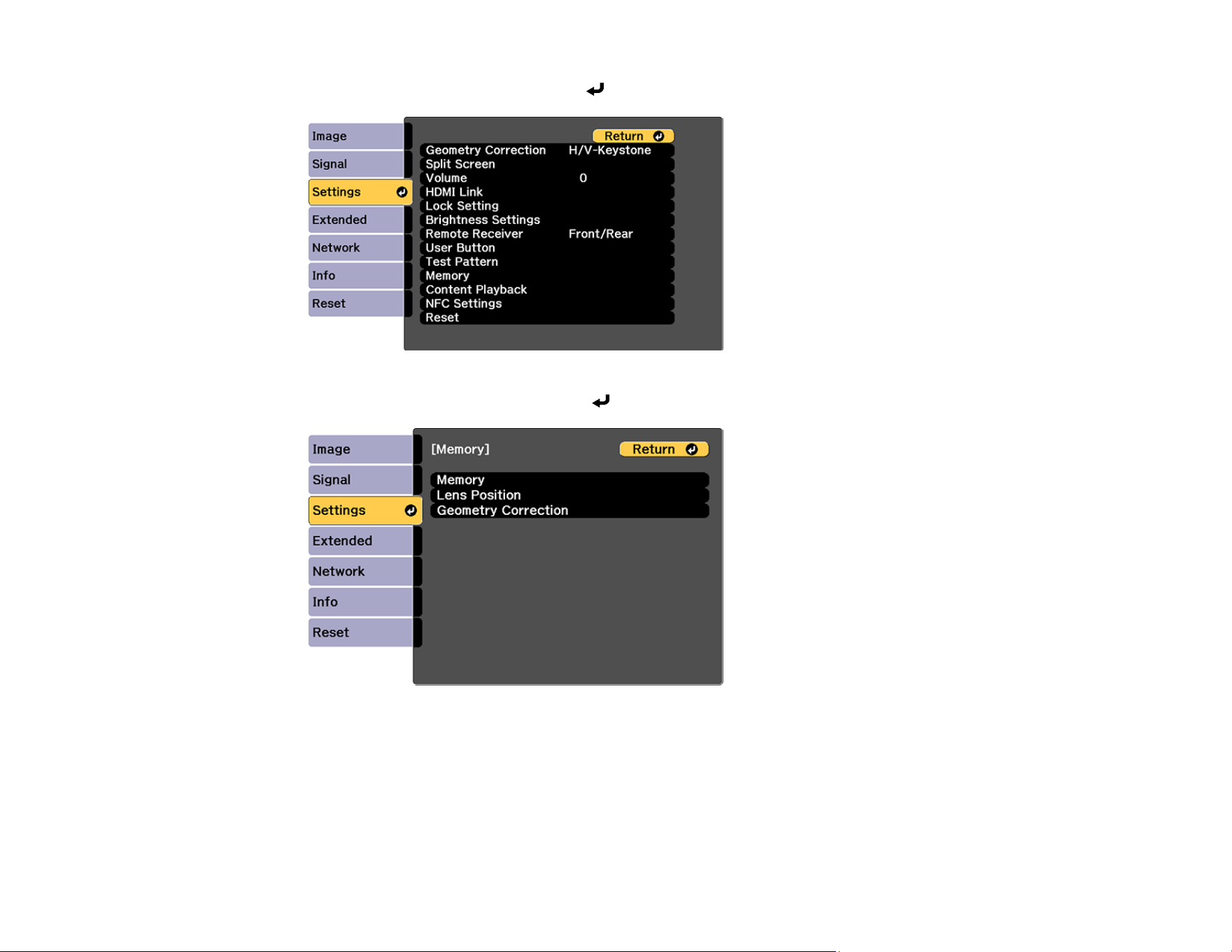
308
3. Select the Settings menu and press Enter.
4. Select the Memory setting and press Enter.
Note: You can also access this screen by pressing the Memory button on the remote control.
5. Select one of the following options:
• Memory: Saves or loads various settings; you can save up to 10 different memories
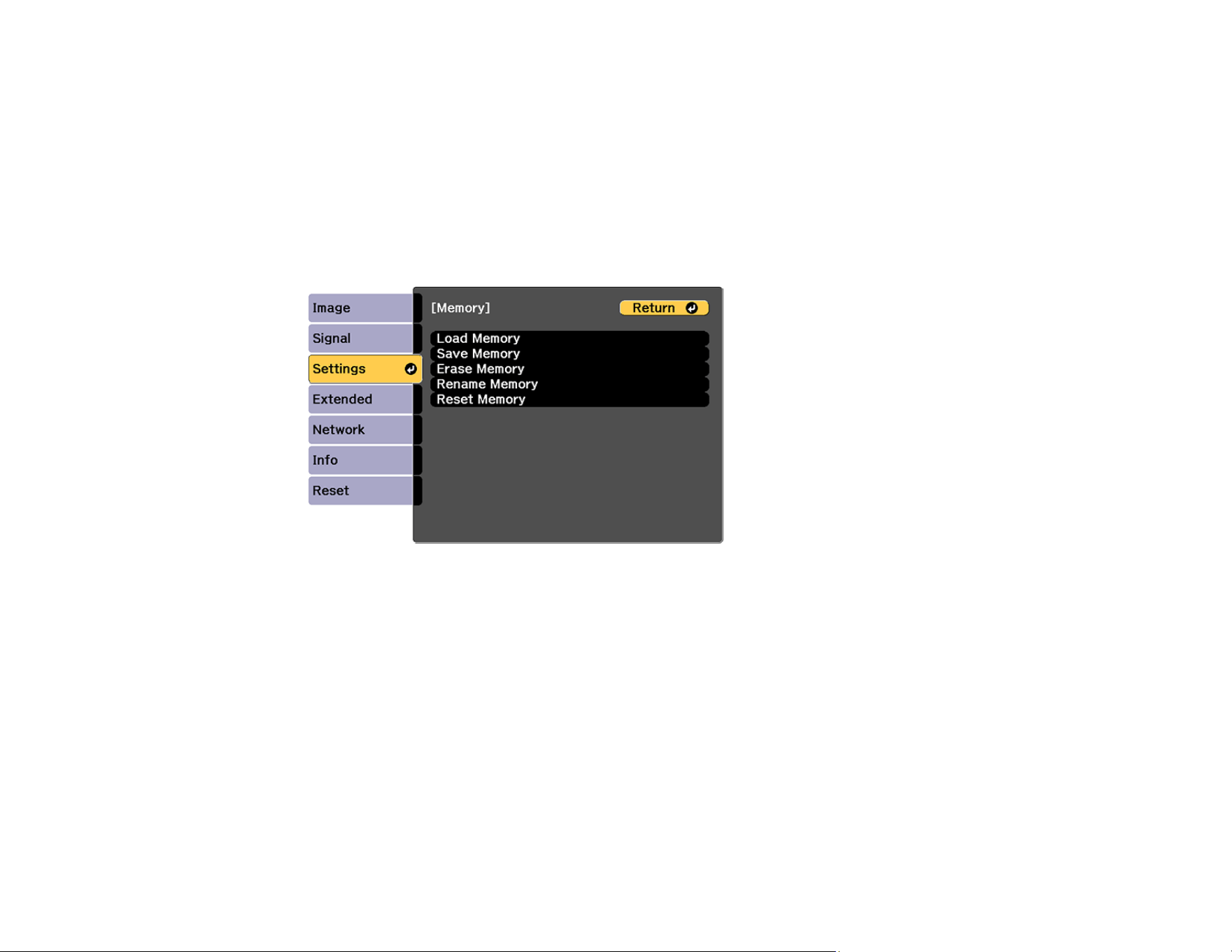
309
Note: The following settings are saved: all settings from the Image menu, the Scale setting from
the Signal menu, the Brightness Settings from the Settings menu, and the Edge Blending,
Black Level, and Color Matching settings from the Extended menu.
• Lens Position: Saves or loads settings related to the lens, such as the lens shift, focus, zoom,
and distortion adjustment settings; you can save up to 10 different memories
• Geometry Correction: Saves or loads any adjustments made in the Geometry Correction
setting in the Settings menu; you can save up to 3 different memories
You see this screen:
6. Select one of the following options:
• Load Memory: Overwrites your current settings with saved settings
• Save Memory: Saves your current settings to memory
Note: A memory name that has already been used is indicated by a blue mark. Saving over a
previously saved memory overwrites the settings with your current settings.
• Erase Memory: Erases the selected memory settings
• Rename Memory: Renames a saved memory
• Reset Memory: Resets the name and settings of a saved memory
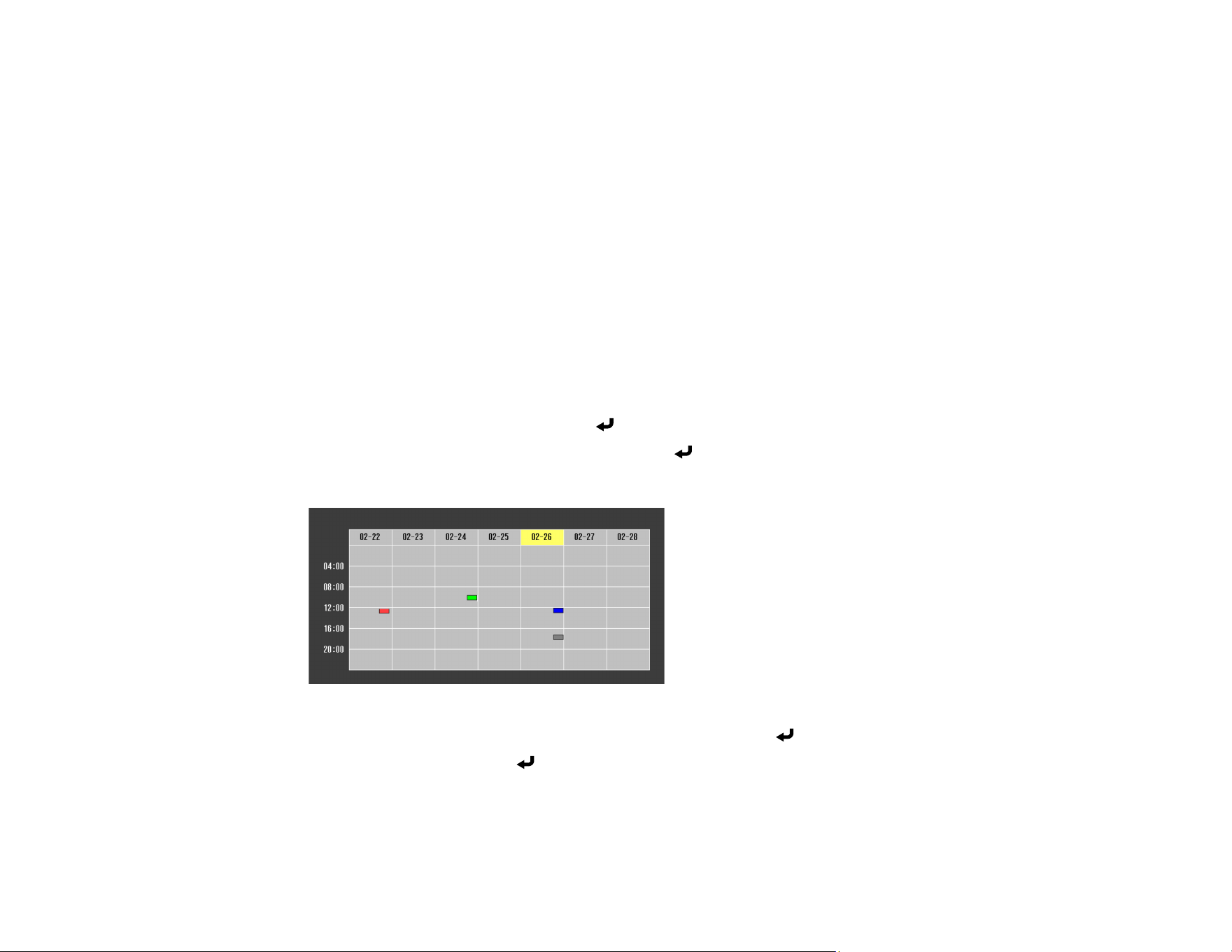
310
Note: To reset all saved memories of all types, select Reset All Memories in the Reset menu.
7. Press Menu or Esc to exit.
Parent topic: Adjusting Projector Features
Related references
Memory
Saving a Scheduled Event
You can select projector commands you want to perform and schedule them as an event.
Note: Light Source Calibration events do not start if the projector is not used continuously for at least 20
minutes, or if the projector is regularly turned off by shutting off the power outlet. Set Light Source
Calibration events to occur only after 100 hours of usage.
1. Press the Menu button.
2. Select the Extended menu and press Enter.
3. Select the Schedule Settings setting and press Enter.
You see a screen like this:
4. Select the Schedule or Extended Schedule menu and press Enter.
5. Select Add New and press Enter.
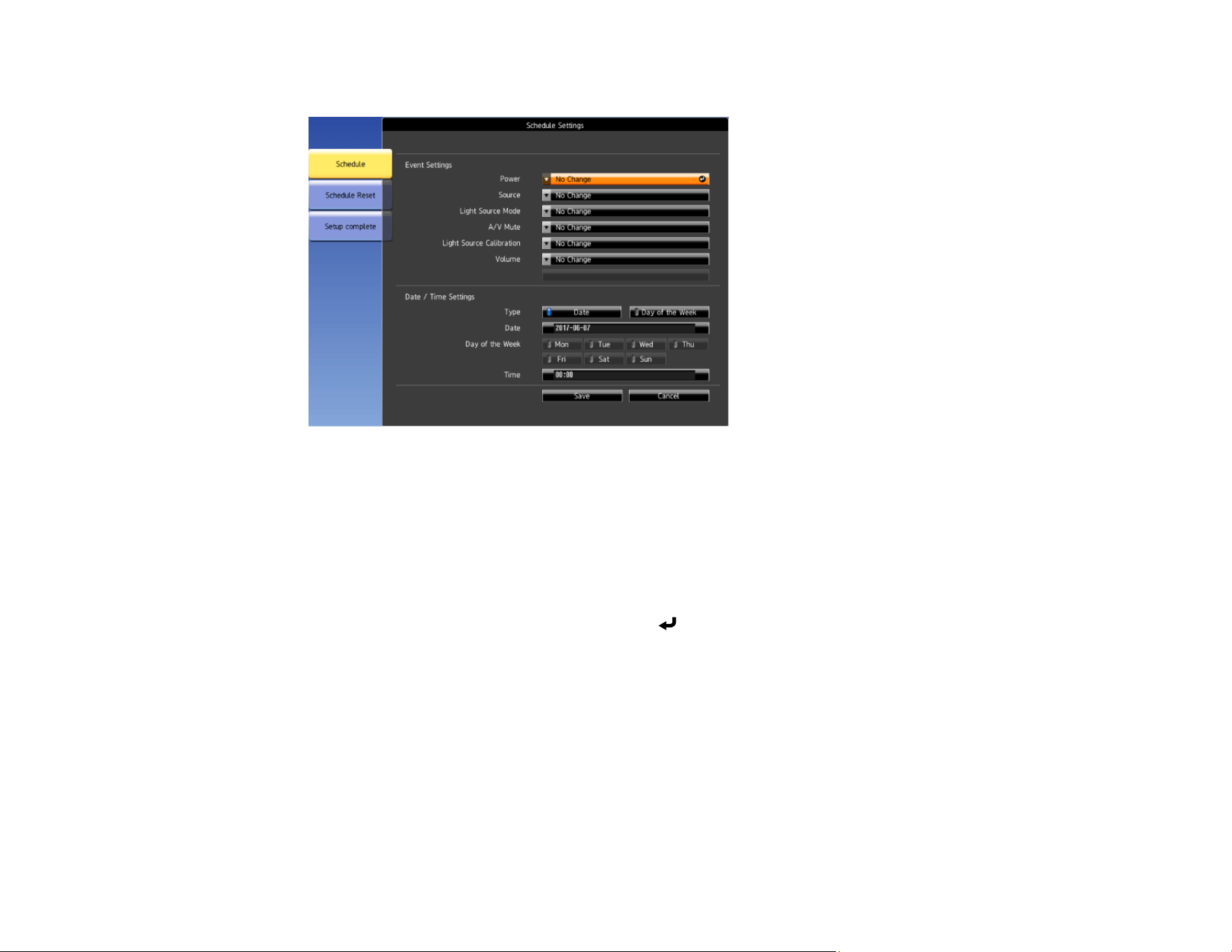
311
You see a screen like this:
6. In the Event Settings section, select the events you want to have occur. (Select No Change for
events that you do not want to occur.)
Note: In the Extended Schedule menu, you can schedule only one event for Color Calibration or
Screen Matching.
7. In the Date/Time Settings section, set the date and time for the scheduled events to occur.
8. When you are finished, select Save and press Enter.
9. To schedule more events, repeat the previous steps as necessary. You can schedule up to 30
events.
10. Select Setup complete and select Yes to save your changes.
Viewing Scheduled Events
Editing a Scheduled Event
Parent topic: Adjusting Projector Features
Related references
Schedule Settings
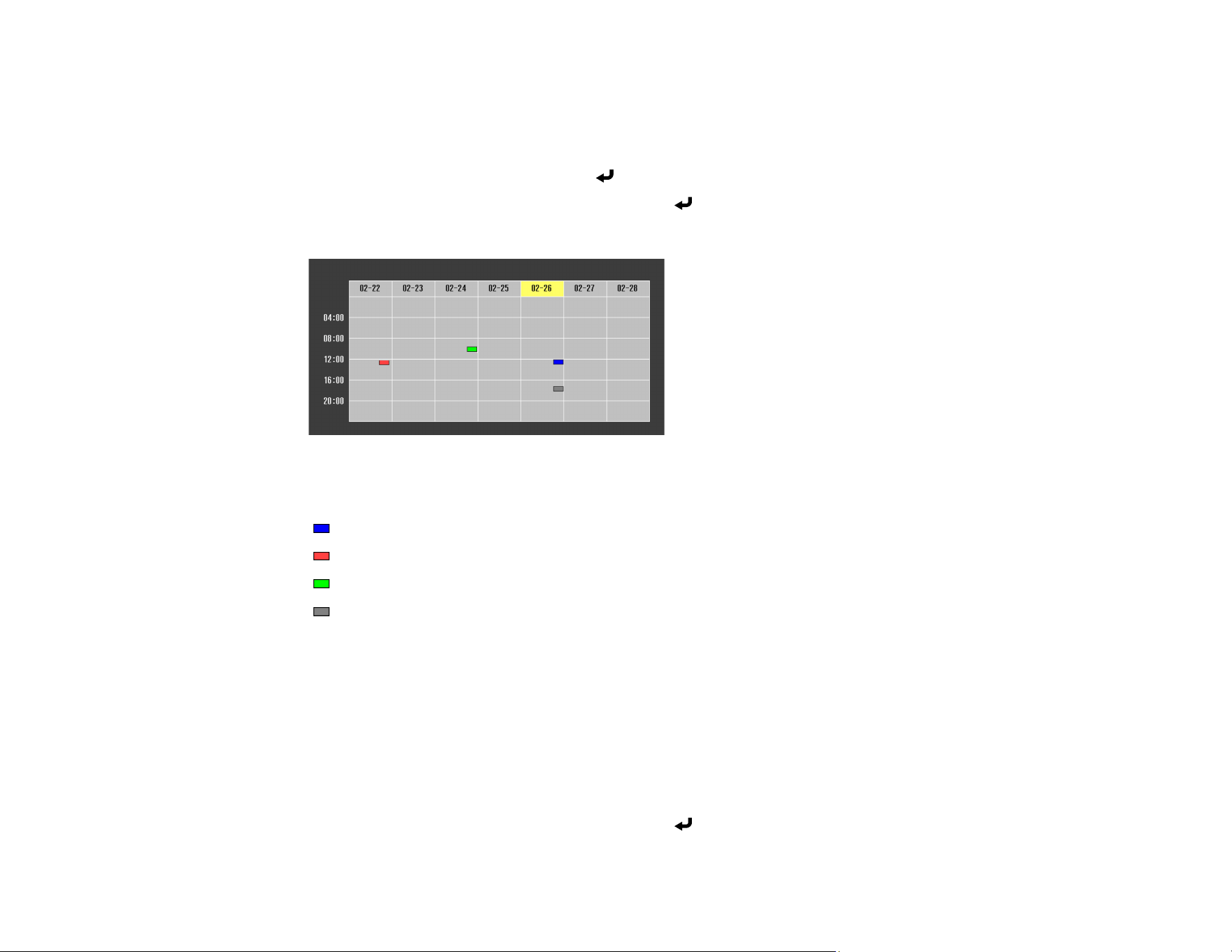
312
Viewing Scheduled Events
You can view any currently scheduled events.
1. Press the Menu button.
2. Select the Extended menu and press Enter.
3. Select the Schedule Settings setting and press Enter.
You see a screen like this:
The colored boxes in the calendar indicate the following about the scheduled events:
One-time event
Recurring event
Communication is on/off
Event is invalid
Parent topic: Saving a Scheduled Event
Related references
Schedule Settings
Editing a Scheduled Event
You can edit any currently scheduled event.
1. Press the Menu button.
2. Select the Schedule Settings setting and press Enter.
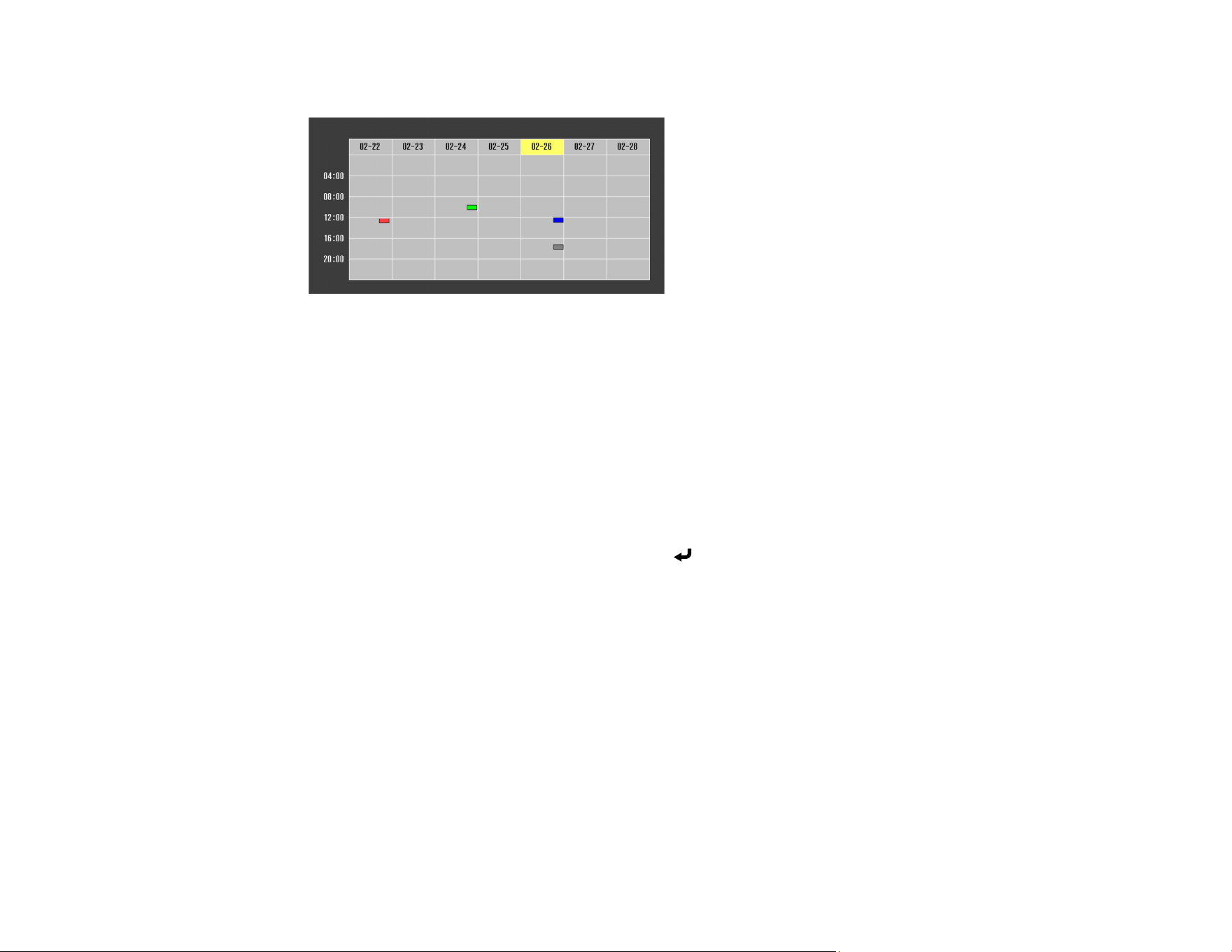
313
You see a screen like this:
3. Press the left or right arrow buttons to highlight the date on the calendar containing the scheduled
event you want to edit.
4. Press the up or down arrow buttons to highlight the event you want to edit, and press Esc.
5. Select one of the following:
• On/Disabled to enable or disable the selected event.
• Edit to edit the settings for the selected event.
• Clear to delete the selected event.
• Add New to add a new scheduled event.
6. When you are finished, select Return and press Enter.
7. Select Setup complete and select Yes to save your changes.
Note: To delete all scheduled events, select Schedule Reset and select Yes.
Parent topic: Saving a Scheduled Event
Related references
Schedule Settings
Copying Menu Settings Between Projectors
After you select menu settings for your projector, you can transfer them to another projector of the same
model.

314
Note: Copy the projector's settings before you adjust the projected image using the projector's Geometry
Correction settings. Any saved User's Logo setting on the projector will transfer to the other projector.
Caution: If the copy process fails due to a power failure, communication error, or for any other reason,
Epson will not be responsible for any repair costs incurred.
Note: In addition to the methods covered in this section, you can also copy and transfer settings to
multiple projectors over a network using the Epson Projector Management software. See the online
Epson Projector Management Operation Guide for instructions. You can download the latest software
and documentation from the Epson website.
Saving Settings to a USB Flash Drive
Transferring Settings from a USB Flash Drive
Saving Settings to a Computer
Transferring Settings from a Computer
Parent topic: Adjusting Projector Features
Saving Settings to a USB Flash Drive
You can save the projector settings you want to transfer to a USB flash drive.
Note: Use an empty flash drive. If the drive contains other files, the transfer may not complete correctly.
The flash drive must use the FAT format and cannot have any security features.
1. Turn off the projector and unplug the power cord from the projector's power inlet.
2. Insert the flash drive into the USB-A port.
Note: Connect the flash drive directly to the projector. Do not use a hub or your settings may not be
saved correctly.
3. Press and hold the Esc button on the control panel or remote control as you connect the power cord
to the projector's power inlet.
4. When the On/Standby, Status, Laser, and Temp lights turn on, release the Esc button.
The lights flash to indicate that settings are transferring to the flash drive. When the lights stop
flashing, the projector turns off.

315
Caution: Do not unplug the power cord or remove the flash drive while the light is flashing.This
could damage the projector.
5. Remove the flash drive.
Note: The file name for the batch setup file is PJCONFDATA.bin. If you need to change the file
name, add text after PJCONFDATA using only alphanumeric characters. If you change the
PJCONFDATA section of the file name, the projector may not be able to recognize the file correctly.
Parent topic: Copying Menu Settings Between Projectors
Transferring Settings from a USB Flash Drive
After saving projector settings to a USB flash drive, you can transfer them to another projector of the
same model.
Note: Make sure the USB flash drive contains only a single settings transfer from another projector of
the same model. The settings are contained in a file called pjconfdata.bin. If the drive contains other
files, the transfer may not complete correctly.
Do not adjust image settings on a projector until after you transfer settings to it. Otherwise, you may have
to repeat your adjustments.
1. Disconnect the power cord from the projector and check that all of the projector's indicators have
turned off.
2. Insert the flash drive into the USB-A port.
Note: Connect the flash drive directly to the projector. Do not use a hub or your settings may not be
saved correctly.
3. Press and hold the Menu button on the control panel or remote control as you connect the power
cord to the projector's power inlet.
4. When the On/Standby, Status, Laser, and Temp lights turn on, release the Menu button.
The lights flash to indicate that settings are transferring to the projector. When the lights stop
flashing, the projector turns off.
Caution: Do not unplug the power cord or remove the flash drive while the light is flashing. This
could damage the projector.

316
5. Remove the flash drive.
Parent topic: Copying Menu Settings Between Projectors
Saving Settings to a Computer
You can save the projector settings you want to transfer to a computer.
Your computer must be running one of the following operating systems:
• Windows 10 or later
• macOS 10.13.x or later
1. Turn off the projector and unplug the power cord from the projector's power inlet.
2. Connect a USB cable to your projector's Service port.
3. Connect the other end to any available USB port on your computer.
4. Press and hold the Esc button on the control panel or remote control as you connect the power cord
to the projector's power inlet.
5. When the On/Standby, Status, Laser, and Temp lights turn on, release the Esc button.
The projector shows up as a removable disk on your computer.
6. Open the removable disk and copy the pjconfdata.bin file to your computer.
7. Once the file has been copied, do one of the following:
• Windows: Open the My Computer, Computer, Windows Explorer, or File Explorer utility.
Right-click the name of your projector (listed as a removable disk) and select Eject.
• Mac: Drag the removable disk icon for your projector from the desktop into the trash.
The projector turns off when you disconnect the USB cable.
Note: If the projector does not turn off and the lights continue flashing, see the link below for a
solution.
Parent topic: Copying Menu Settings Between Projectors
Related references
Projector Light Status
Transferring Settings from a Computer
After saving projector settings to a computer, you can transfer them to another projector of the same
model.

317
Your computer must be running one of the following operating systems:
• Windows 10
• Windows 11
• macOS 10.13.x or later
Do not adjust image settings on a projector until after you transfer settings to it. Otherwise, you may have
to repeat your adjustments.
1. Disconnect the power cord from the projector, and check that all of the projector's indicators have
turned off.
2. Connect a USB cable to your projector's Service port.
3. Connect the other end to any available USB port on your computer.
4. Press and hold the Menu button on the control panel or remote control as you connect the power
cord to the projector's power inlet.
5. The projector shows up as a removable disk on your computer.
6. Copy the pjconfdata.bin file from your computer to the removable disk.
Note: Do not copy any other files to the removable disk.
7. Once the file has been copied, do one of the following:
• Windows: Open the My Computer, Computer, Windows Explorer, or File Explorer utility.
Right-click the name of your projector (listed as a removable disk) and select Eject.
• Mac: Drag the removable disk icon for your projector from the desktop into the trash.
Caution: Do not unplug the power cord while the lights are flashing. This could damage the
projector.
Parent topic: Copying Menu Settings Between Projectors

318
Maintaining and Transporting the Projector
Follow the instructions in these sections to maintain your projector and transport it from place to place.
Projector Maintenance
Transporting the Projector
Projector Maintenance
Your projector needs little maintenance to keep working at its best.
You may need to clean the lens periodically, and clean the air vents to prevent the projector from
overheating due to blocked ventilation.
The only parts you should replace are the lens unit and remote control batteries. If any other part needs
replacing, contact Epson or an authorized Epson servicer.
This projector uses a sealed laser light source which does not need servicing and cannot be replaced.
Warning: Before cleaning any part of the projector, turn it off and unplug the power cord. Never open
any cover on the projector, except as specifically explained in this manual. Dangerous electrical voltages
in the projector can injure you severely.
Warning: Do not try to service this product yourself, except as specifically explained in this manual.
Refer all other servicing to qualified servicers.
Cleaning the Lens
Cleaning the Projector Case
Cleaning the Air Vents
Replacing the Remote Control Batteries
Parent topic: Maintaining and Transporting the Projector
Cleaning the Lens
Clean the projector's lens periodically, or whenever you notice dust or smudges on the surface. Make
sure you turn off the projector and unplug the power cord before cleaning the lens.
• To remove dust or smudges, gently wipe the lens with clean and dry lens-cleaning paper.

319
• To remove stubborn smudges, moisten a soft, lint-free cloth with lens cleaner and gently wipe the
lens. Do not spray any liquid directly on the lens.
Warning: Do not use a lens cleaner that contains flammable gas. The high heat generated by the
projector may cause a fire.
Caution: Do not wipe the lens immediately after turning off the projector; otherwise, the lens could be
damaged. Do not use glass cleaner or harsh materials to clean the lens and do not subject the lens to
any impacts; otherwise, you may damage the lens. Do not use canned air to clean the lens; the gases
may leave a residue. Avoid touching the lens with your bare hands to prevent fingerprints on or
damage to the lens surface. Do not use cleaning products that contain ammonia; the protective
coating on the lens could be damaged.
Parent topic: Projector Maintenance
Cleaning the Projector Case
Before cleaning the projector case, turn off the projector and unplug the power cord.
• To remove dust or dirt, use a soft, dry, lint-free cloth.
• To remove stubborn dirt, use a soft cloth moistened with water and mild soap. Do not spray liquid
directly on the projector.
Caution: Do not use wax, alcohol, benzine, paint thinner, or other chemicals to clean the projector
case. These can damage the case. Do not use canned air, or the gases may leave a flammable
residue.
Parent topic: Projector Maintenance
Cleaning the Air Vents
Clean the projector's air vents if they get dusty, or if you see a message telling you to clean them,.
1. Turn off the projector and unplug the power cord.
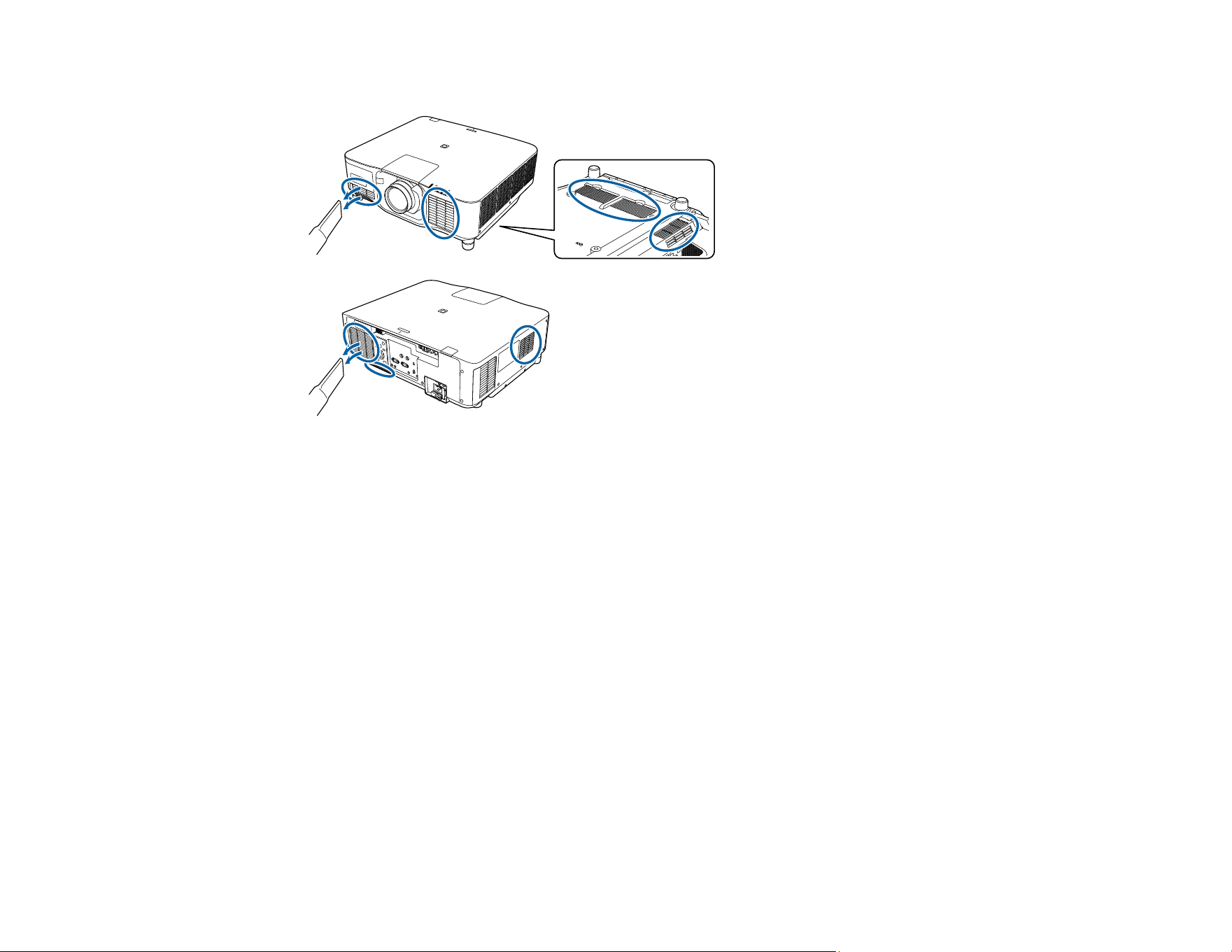
320
2. Carefully remove the dust using a vacuum cleaner or a brush.
Caution: Do not use canned air. The gases may leave a flammable residue or push dust and debris
into the projector's optics or other sensitive areas.
Parent topic: Projector Maintenance
Replacing the Remote Control Batteries
The remote control uses two AA manganese or alkaline batteries. Replace the batteries as soon as they
run out.
Caution: Use only the type of batteries specified in this manual. Do not install batteries of different types
or mix new and old batteries.
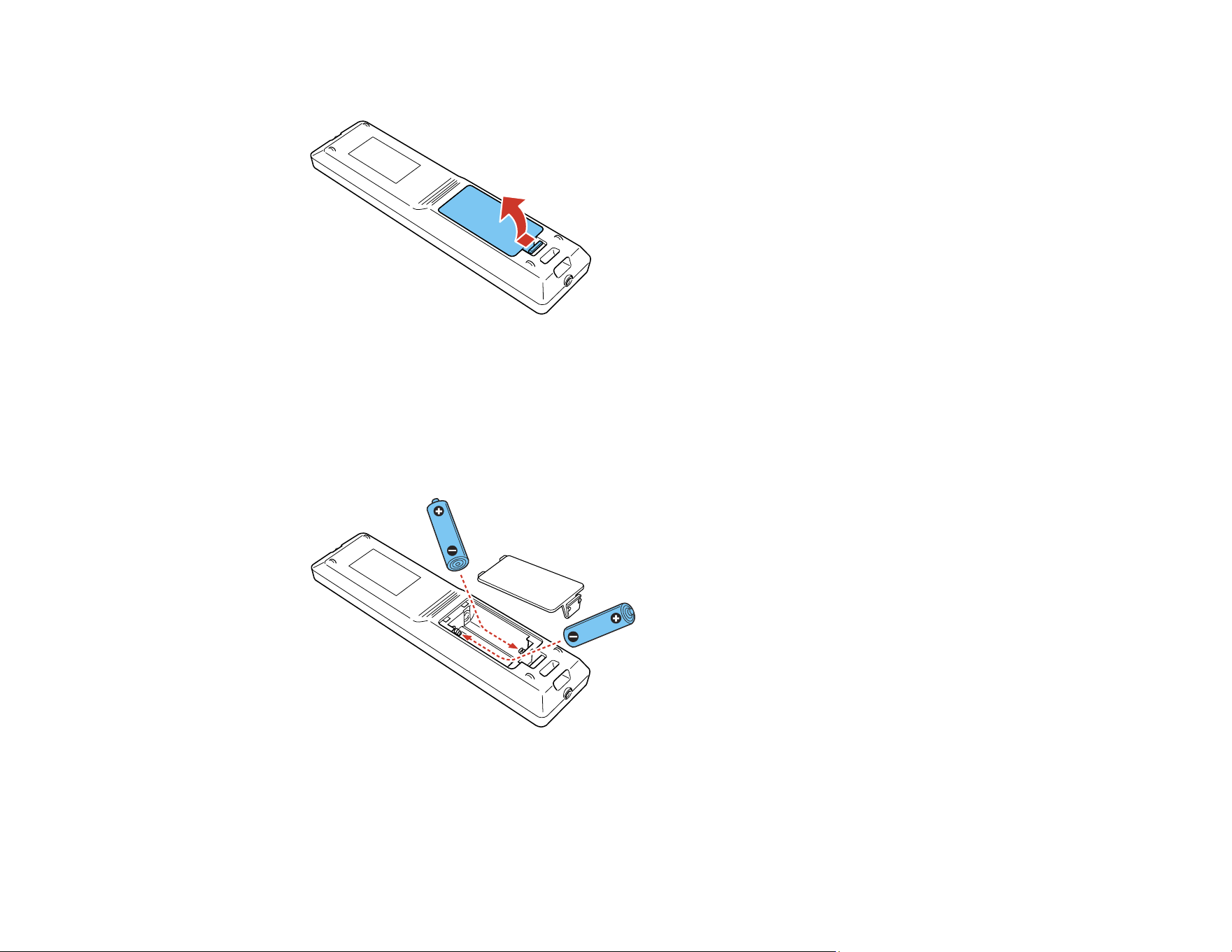
321
1. Remove the battery cover as shown.
2. Remove the old batteries.
Warning: If the battery fluid has leaked, wipe it away with a soft cloth and avoid getting the fluid on
your hands. If it gets on your hands, wash them immediately to avoid injury.
3. Insert the batteries with the + and – ends facing as shown.
Warning: Make sure the batteries are inserted in the correct positions. If the batteries are not
inserted correctly, they could explode or leak, causing a fire, injury, or damage to the product.
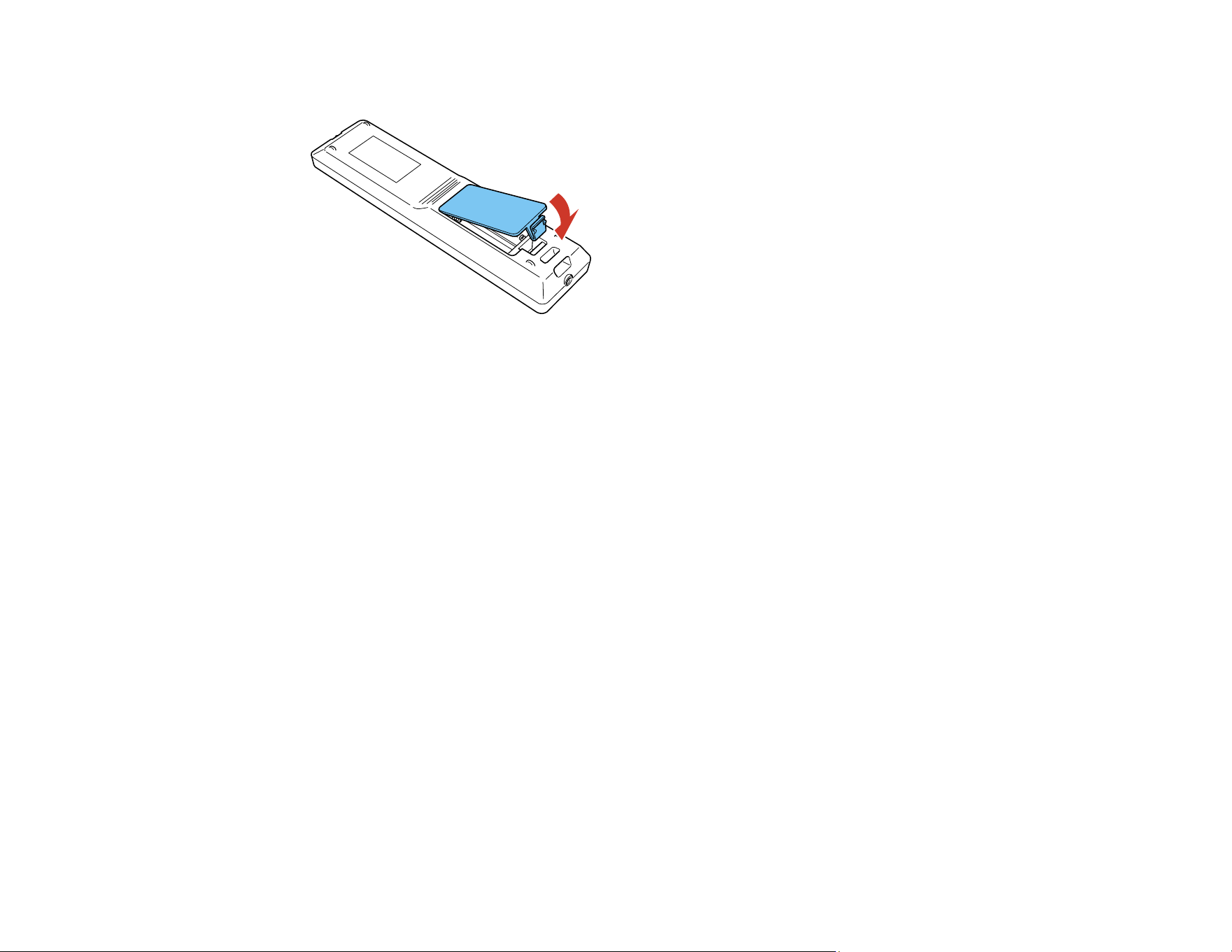
322
4. Replace the battery cover and press it down until it clicks into place.
Warning: Dispose of used batteries according to local regulations. Do not expose batteries to heat
or flame. Keep batteries out of the reach of children; they are choking hazards and are very
dangerous if swallowed.
Parent topic: Projector Maintenance
Transporting the Projector
The projector contains precision parts, some of which are glass. Follow the guidelines here to transport,
ship, or store the projector safely.
Caution: Use two or more people to unpack or lift the projector. When moving the projector, do not hold
the lens replacement cover or lens unit. They may become disconnected and the projector may fall,
which could cause an injury.
1. Remove any equipment connected to the projector.
2. Remove the lens if it is installed. Place it in its original packing materials, if possible, or use
equivalent materials with cushioning around the product.
3. Attach the protective lens cover that was included with the projector.
4. Do one of the following:
• When transporting the projector a long distance or as checked luggage, pack it in a firm box with
cushioning around it and mark the box "Fragile."

323
• When shipping the projector for repairs, place it in its original packing materials, if possible, or use
equivalent materials with cushioning around the projector. Mark the box "Fragile."
Note: Epson shall not be liable for any damages incurred during transportation.
Parent topic: Maintaining and Transporting the Projector

324
Solving Problems
Check the solutions in these sections if you have any problems using the projector.
Projection Problem Tips
Projector Light Status
Using the Projector Help Displays
Solving Image or Sound Problems
Solving Projector or Remote Control Operation Problems
Solutions When a Battery Message Appears
Solving Network Problems
Solutions to Problems Using Content Playback
Where to Get Help (U.S. and Canada)
Where to Get Help (Latin America)
Projection Problem Tips
If the projector is not working properly, try turning it off and unplugging it. Then plug it back in and turn it
on.
If this does not solve the problem, check the following:
• The lights on the projector may indicate what the problem is.
• The projector's Help system can display information about common problems, if the projector is
operating.
• The solutions in this manual can help you solve many problems.
If none of these solutions help, you can contact Epson for technical support.
Parent topic: Solving Problems
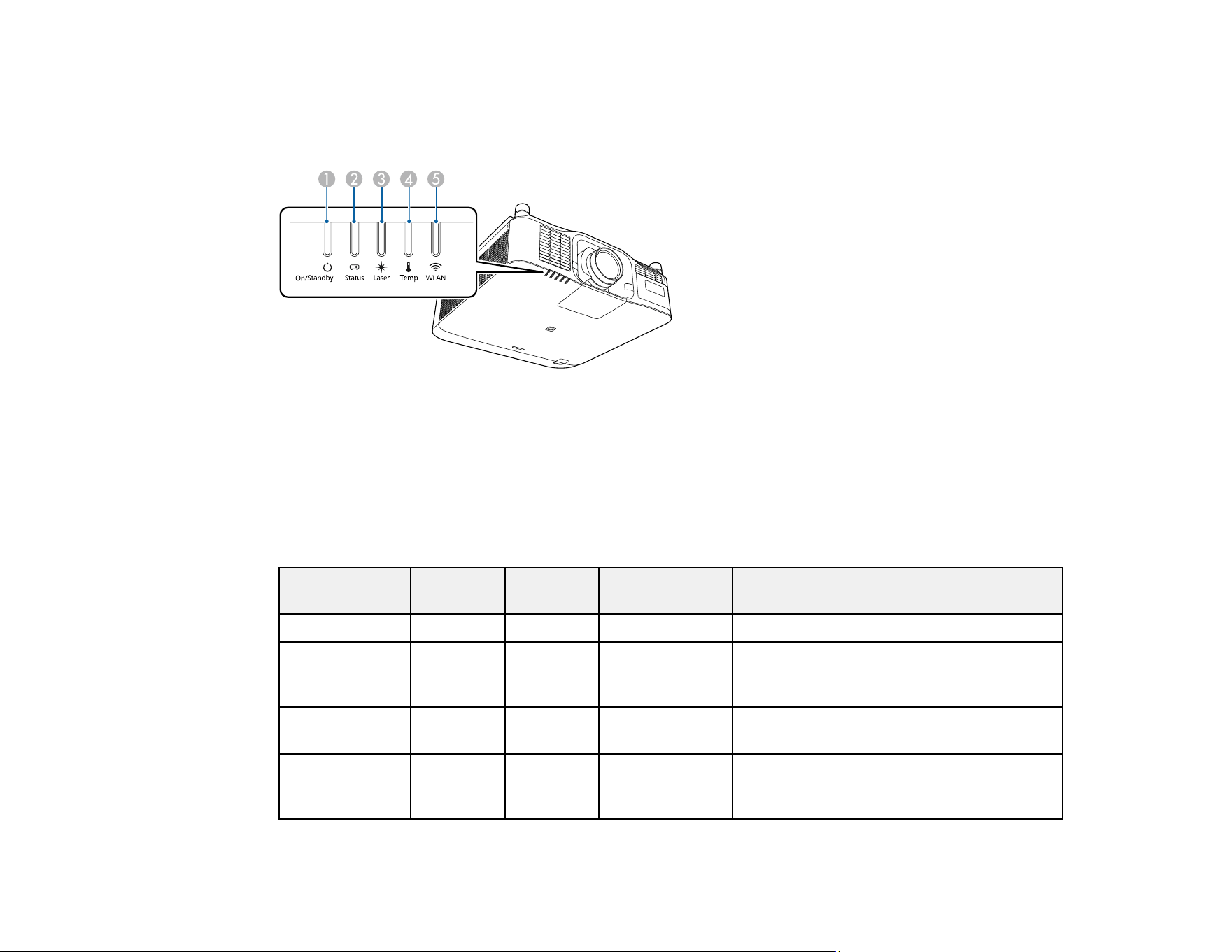
325
Projector Light Status
The lights on the projector indicate the projector status and let you know when a problem occurs. Check
the status and color of the lights and look for a solution in the table here.
1 On/Standby (power) light
2 Status light
3 Laser light
4 Temp (temperature) light
5 WLAN light
On/Standby
(power) light
Status
light
Laser
light
Temp light Status and solution
Blue Blue Varies Off Normal operation
Blue Flashing
blue
Varies Off Warming up; wait for an image to appear
(30 seconds); all buttons are disabled
during warmup
Blue Flashing
blue
Off Off Cooling down; all buttons are disabled
Blue Off Off Off Standby or network monitoring and control
mode (when Standby Mode is set to
Communication On)
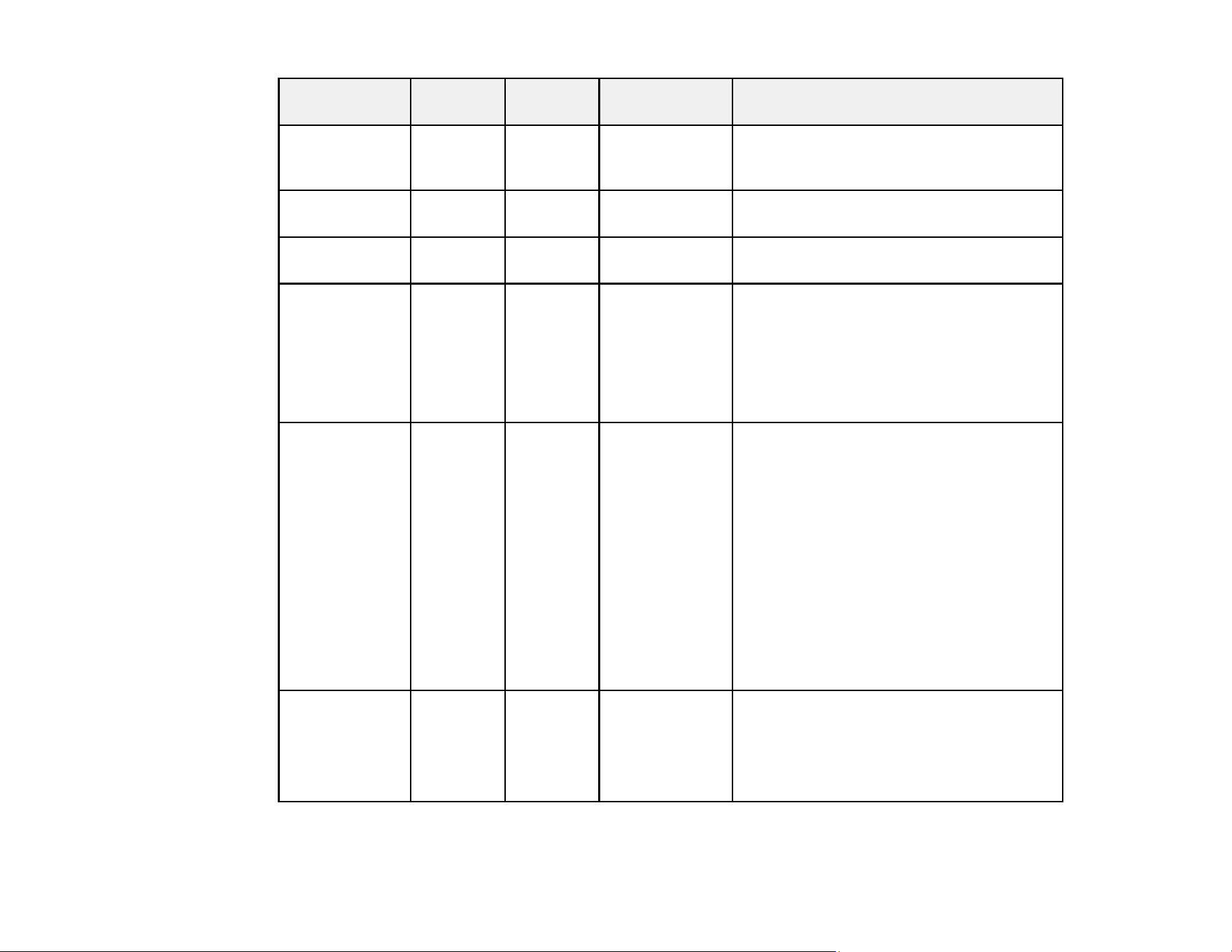
326
On/Standby
(power) light
Status
light
Laser
light
Temp light Status and solution
Flashing blue Off Off Off Preparing for network monitoring, quick
startup, or USB Power mode; all buttons
are disabled
Blue Blue Flashing
blue
Off Shutter is closed
Varies Flashing
blue
Flashing
orange
Varies Refresh Mode is on
Flashing blue Varies Varies Flashing orange Projector is too hot
• Make sure that the vents are not
clogged with dust or obstructed by
nearby objects
• Make sure the environmental
temperature is not too hot
Off Flashing
blue
Off Orange Projector has overheated and turned off;
leave the projector off for at least 5
minutes
• Make sure that the vents are not
clogged with dust or obstructed by
nearby objects
• Make sure the environmental
temperature is not too hot
• If operating the projector at high
altitude, turn on High Altitude Mode
• If the problem persists, unplug the
projector and contact Epson for help
Flashing blue Varies Flashing
orange
Varies Laser error; turn off the projector, unplug
it, and contact Epson for help
An unsupported lens is attached; remove
the unsupported lens and attach a lens
that is supported

327
On/Standby
(power) light
Status
light
Laser
light
Temp light Status and solution
Off Flashing
blue
Orange Orange Lens Shift or Supply Voltage error; turn off
the projector, unplug it from the electrical
outlet, and contact Epson for help
No lens is installed; attach or re-install
lens; if the problem persists, unplug it from
the electrical outlet, and contact Epson for
help.
Flashing blue Varies Flashing
orange
Flashing orange Shutter warning; turn off the projector,
unplug it, and contact Epson for help
Off Flashing
blue
Orange Off Laser or retardation plate error; turn off the
projector, unplug it, and contact Epson for
help
Upper case open error; turn off the
projector, unplug it, and contact Epson for
help
Off Flashing
blue
Off Flashing orange Cooling system error; turn the projector
off, unplug it, and contact Epson for help
A fan or sensor has a problem; turn the
projector off, unplug it, and contact Epson
for help
Off Flashing
blue
Flashing
orange
Off Internal error; turn off the projector, unplug
it from the electrical outlet, and contact
Epson for help
Off Flashing
blue
Orange Orange Lens problem or no lens is installed; Lens
Shift error; Supply Voltage error;
Communication error with AC Micro
controller
• Remove and reattach the installed lens
• Attach a supported lens
• If the problem persists, unplug the
projector and contact Epson for help
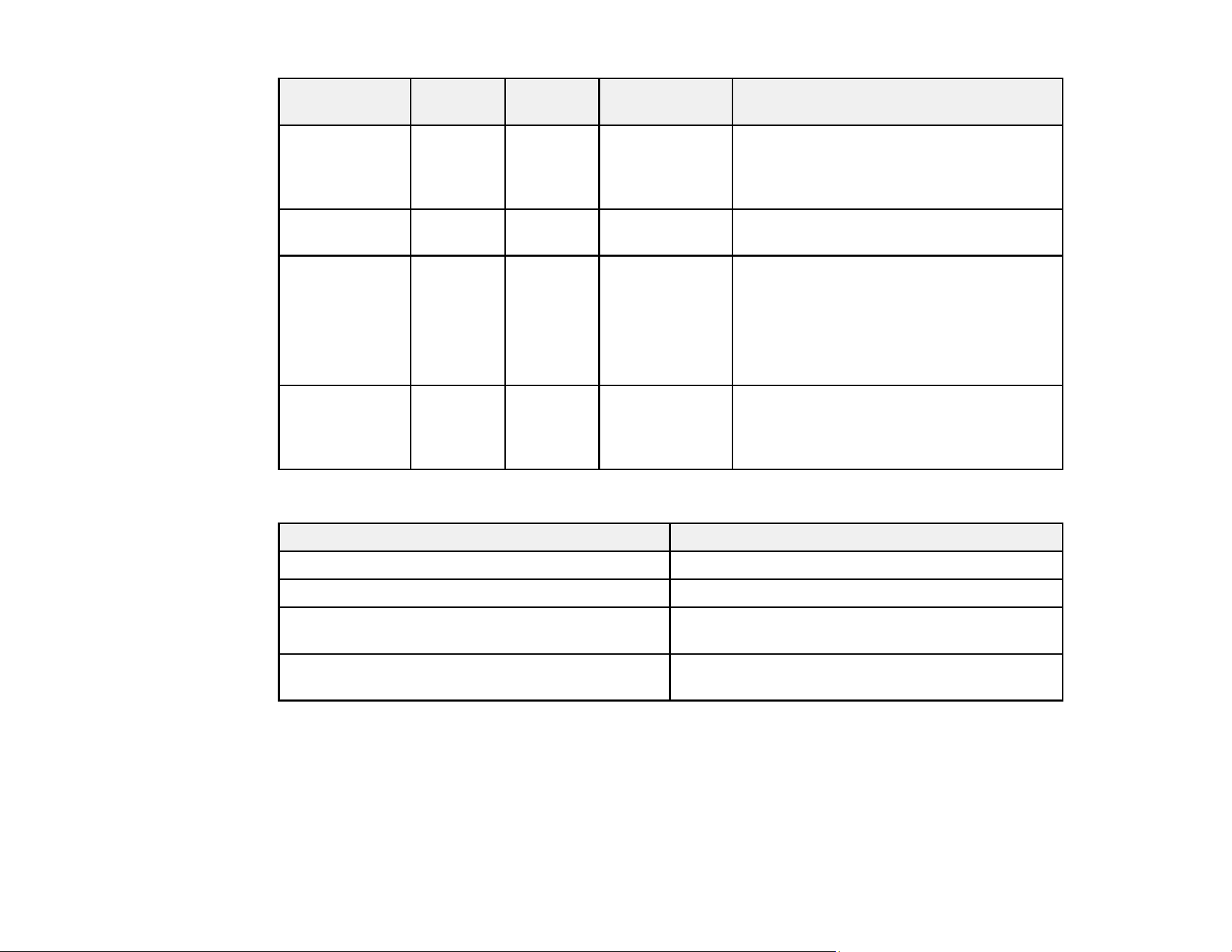
328
On/Standby
(power) light
Status
light
Laser
light
Temp light Status and solution
Varies Varies Flashing
orange
Varies The projector is unable to maintain
constant brightness and the Constant
Brightness setting in the Settings menu is
disabled
Off Flashing
blue
Flashing
orange
Flashing orange Shutter error; turn off the projector, unplug
it, and contact Epson for help
— — Flashing
orange
quickly
Flashing orange
quickly
The batch setup file may be corrupt, or the
USB flash drive may not be connected
correctly.
Disconnect the USB flash drive, unplug
and then plug in the projector's power
cord, and then try again.
Flashing blue
quickly
Flashing
blue
quickly
Flashing
orange
quickly
Flashing orange
quickly
Writing the settings may have failed and
an error may have occurred in the
projector's firmware; turn off the projector,
unplug it, and contact Epson for help
Wireless LAN Status
Wireless LAN status Status and solution
Lit blue Wireless LAN is available.
Flashing blue quickly Connecting to a device.
Flashing blue slowly An error has occurred. Turn off the projector and
then on again.
Off
Wireless LAN is not available. Make sure the
wireless LAN settings are correct.
Note: If the lights display a pattern not listed in the table above, turn the projector off, unplug it, and
contact Epson for help.
Parent topic: Solving Problems

329
Using the Projector Help Displays
You can display information to help you solve common problems using the projector's Help system.
1. Turn on the projector.
2. Press the Home button on the remote control.
3. Press the arrow buttons to select Help.
4. Press Enter.
You see the Help menu.
5. Press the up and down arrow buttons to highlight the problem you want to solve.
6. Press Enter to view the solutions.
7. When you are finished, do one of the following:
• To select another problem to solve, press Esc.
• To exit the help system, press Home.
Parent topic: Solving Problems
Solving Image or Sound Problems
Check the solutions in these sections if you have any problems with projected images or sound.
Solutions When No Image Appears
Solutions When "No Signal" Message Appears
Solutions When "Not Supported" Message Appears
Solutions When Only a Partial Image Appears
Solutions When the Image is Not Rectangular
Solutions When the Image Contains Noise or Static
Solutions When the Image is Fuzzy or Blurry
Solutions When the Image Brightness or Colors are Incorrect
Solutions When an Afterimage Remains On the Projected Image
Solutions When Automatic Adjustments are not Applied Correctly
Solutions to Simple Stacking Problems
Solutions to Sound Problems
Parent topic: Solving Problems

330
Solutions When No Image Appears
If no image appears, try the following solutions:
• Check the status lights to confirm the projector is operating normally.
• Press the Shutter button on the remote control to see if the image was temporarily turned off.
• Make sure all necessary cables are securely connected and the power is on for the projector and
connected video sources.
• Press the projector's power button to wake it from standby or sleep mode. Also see if your connected
computer is in sleep mode or displaying a blank screen saver.
• Adjust the Brightness setting or select the Normal Power Consumption setting.
• Adjust the brightness of your projector's light source.
• For images projected with Windows Media Center, reduce the screen size from full screen mode.
• For images projected from applications using Windows DirectX, turn off DirectX functions.
• If you are projecting from a laptop computer, make sure it is set up to display on an external monitor.
Parent topic: Solving Image or Sound Problems
Solutions When "No Signal" Message Appears
If the "No Signal" message appears, try the following solutions:
• Press the Source Search or Search button and wait a few seconds for an image to appear.
• Turn on the connected computer or video source, and press its play button to begin your presentation,
if necessary.
• Check the connection from the projector to your video sources.
• If you are projecting from a laptop computer, make sure it is set up to display on an external monitor.
• If necessary, turn the projector and the connected computer or video source off and then on again.
• If you are projecting from an HDMI source, replace the HDMI cable with a shorter one.
• Try a different video cable.
Displaying From a PC Laptop
Displaying From a Mac Laptop
Parent topic: Solving Image or Sound Problems

331
Displaying From a PC Laptop
If you see the "No Signal" message when you display from a PC laptop, you need to set up the laptop to
display on an external monitor.
1. On Windows 7 or later, hold down the Windows key and press P at the same time, then click
Duplicate.
2. If the same image is not displayed by the laptop and projector, check the Windows Display utility to
make sure the external monitor port is enabled and extended desktop mode is disabled. (See your
computer or Windows manual for instructions.)
3. If necessary, check your video card settings and set the multiple display option to Clone, Mirror, or
Duplicate.
Parent topic: Solutions When "No Signal" Message Appears
Displaying From a Mac Laptop
If you see the "No Signal" message when you display from a Mac laptop, you need to set up the laptop
for mirrored display. (See your laptop manual for details.)
1. Open the System Preferences utility and select Displays, Display, or Color LCD.
2. Click the Arrange or Arrangement tab.
3. Select the Mirror Displays checkbox.
Parent topic: Solutions When "No Signal" Message Appears
Solutions When "Not Supported" Message Appears
If the "Not Supported" message appears, try the following solutions:
• Make sure the correct input signal is selected on the Signal menu.
• Make sure the computer's display resolution does not exceed the projector's resolution and frequency
limit. If necessary, select a different display resolution for your computer. (See your computer manual
for details.)
Parent topic: Solving Image or Sound Problems
Solutions When Only a Partial Image Appears
If only a partial computer image appears, try the following solutions:
• Make sure you selected the correct Screen Type setting in the projector's Extended menu for the
screen you are using. If there are margins between the edge of the image and the projected screen
frame, use the Screen Position setting to adjust the position of the image.

332
• Make sure the Scale setting in the Signal menu is turned off.
• Make sure the Resolution setting in the Signal menu is set correctly for the input signal.
• Try adjusting the image position using the Position setting in the Signal menu.
• Check the Blanking setting in the Signal menu.
• Check your computer display settings to disable dual display and set the resolution within the
projector's limits. (See your computer manual for details.)
• Check the resolution assigned to your presentation files to see if they are created for a different
resolution than the one you are projecting. (See your software help for details.)
• If you are projecting in Content Playback mode, make sure you are using the correct Overlay Effect
setting in the Settings menu.
Parent topic: Solving Image or Sound Problems
Solutions When the Image is Not Rectangular
If the projected image is not evenly rectangular, try the following solutions:
• Place the projector directly in front of the center of the screen, facing it squarely, if possible.
• Adjust the image shape using the H/V-Keystone menu setting.
• Adjust the Quick Corner setting to correct the image shape.
• Adjust the Curved Surface setting to adjust the corners and sides of an image projected on a curved
surface.
• Adjust the Corner Wall setting to correct the image shape projected on a curved surface with right
angles.
• Adjust the Point Correction setting to correct slight distortion that affects a portion of the screen.
Parent topic: Solving Image or Sound Problems
Solutions When the Image Contains Noise or Static
If the projected image seems to contain electronic interference (noise) or static, try the following
solutions:
• Check the cables connecting your computer or video source to the projector. They should be:
• Separated from the power cord to prevent interference
• Securely connected at both ends
• Not connected to an extension cable

333
• Check the settings on the projector's Signal menu to make sure they match the video source.
• Select a computer video resolution and refresh rate that are compatible with the projector.
• If you adjusted the image shape using the projector controls, try decreasing the Sharpness setting in
the Picture menu to improve image quality.
• Make sure the correct Video Range or EDID settings are selected in the Signal menu.
• If you connected an extension power cable, try projecting without it to see if it caused interference in
the signal.
• When interlaced signals are input, line doubler processing is not performed,so the projected image
may flicker. We recommend that interlaced signals be progressively converted using an external
device before being input.
Parent topic: Solving Image or Sound Problems
Solutions When the Image is Fuzzy or Blurry
If the projected image is fuzzy or blurry, try the following solutions:
• Adjust the image focus. Make sure the projector has been on for at least 20 minutes before adjusting
the focus.
• Clean the projector lens.
Note: To avoid condensation on the lens after bringing the projector in from a cold environment, let the
projector warm up to room temperature before using it.
• Position the projector close enough to the screen.
• Position the projector so the keystone adjustment angle is not so wide that it distorts the image.
• Adjust the Sharpness setting in the Image menu to improve image quality.
• If you are projecting from a computer, try using a lower resolution or try to match the projector's native
resolution.
Parent topic: Solving Image or Sound Problems
Solutions When the Image Brightness or Colors are Incorrect
If the projected image is too dark or light, or the colors are incorrect, try the following solutions:
• Press the Color Mode button on the remote control to try different color modes for the image and
environment.
• Check your video source settings.

334
• Adjust the available settings on the Image menu for the current input source, such as Brightness,
Contrast, Tint, and/or Color Saturation.
• Make sure you selected the correct RGBCMY setting in the Image menu.
• Make sure you selected the correct Signal Format or EDID setting in the Signal I/O menu, if available
for your video source.
• Make sure all the cables are securely connected to the projector and your video device. If you
connected long cables, try connecting shorter cables.
• Make sure the Brightness Settings options in the Settings menu are set correctly.
• Position the projector close enough to the screen.
• When using multiple projectors, make sure Light Source Calibration in the Reset menu is set
correctly in all of the projectors. If light source calibration is performed only in some of the projectors,
the white balance and the brightness level of the projected image may differ between the projectors.
Parent topic: Solving Image or Sound Problems
Solutions When an Afterimage Remains On the Projected Image
If you see an afterimage in the projected image, select Refresh Mode > Start in the Reset menu.
Parent topic: Solving Image or Sound Problems
Solutions When Automatic Adjustments are not Applied Correctly
If you have problems with automatic adjustments not being applied correctly, try the following solutions:
• Be sure to wait at least 20 minutes after turning on the projector or turning off the Shutter setting
before performing automatic adjustments. This gives the projector's temperature a chance to stabilize.
• Check that the camera area is clean.
• Make sure the cable of the optional camera is securely connected to the projector.
• If you think the optional camera is defective, contact Epson for help.
• Depending on the lens you installed, automatic adjustments may not be available. Automatic
adjustment is not available for the following lenses: ELPLL08.
• If you are projecting from an analog input source, the changing color and brightness of the image may
cause automatic adjustments to not be applied correctly.
• Make sure that a powerful spotlight or source of strong natural light is not shining into the projection
environment and interfering with automatic adjustments.

335
• Check that your image correction and image blending settings are within reasonable ranges. If the
projection angle is very large, try turning off the Geometry Correction setting or reduce the projection
angle. If you are using the Edge Blending setting, make sure the blending width is between 15 to
43%.
• If you see an error message during automatic adjustments, make a note of the error codes and
contact Epson for support.
During Screen Matching:
• 0101: Measurement value error
• 0102: Measurement failure
• 0103: Switch camera failure
• 0104/0105: Model mismatch
• 0108: Camera error
During Color Matching:
• 0201: Measurement value error
• 0202: Measurement failure
• 0203: Switch camera failure
• 0208: Camera error
Parent topic: Solving Image or Sound Problems
Solutions to Simple Stacking Problems
If you have problems with the simple stacking feature, try the following solutions:
• Make sure all of the projectors are the same model and they are all set to the same resolution and
projection mode.
• Make sure the projectors are placed squarely facing the screen and connected using a LAN cable.
• Make sure the optional camera is installed correctly and the cable is securely connected to the
projector.
• Make sure nothing is blocking the optional camera and the projected image.
• If you think the optional camera is defective, contact Epson for help.
• Depending on the lens you installed, simple stacking may not be available. Simple stacking is not
available for the following lenses: ELPLL08.

336
• Make sure that a powerful spotlight or source of strong natural light is not shining into the projection
environment and interfering with simple stacking.
• Resize the projection size.
• If you see an error message during simple stacking, make a note of the error codes and contact Epson
for support.
Parent topic: Solving Image or Sound Problems
Solutions to Sound Problems
If there is no sound when you expect it or the volume is too low or high, try the following solutions:
• You must connect external speakers to the projector to hear sound.
• Adjust the projector's volume settings.
• Press the Shutter button on the control panel or remote control to resume video and audio if they
were temporarily stopped.
• Check your computer or video source to make sure the volume is turned up and the audio output is set
for the correct source.
• Check the cable connection between the projector and your video source.
• Check the audio cable connections between the projector and your video source.
• If you do not hear sound from an HDMI source, set Sound Output Format to PCM in the Sound
menu.
• Make sure any connected audio cables are labeled "No Resistance."
• If you are using a Mac and you do not hear sound from an HDMI source, make sure your Mac
supports audio through the HDMI port. If not, you need to connect an audio cable.
• If you want to use a connected audio source when the projector is off, set the Standby Mode option to
Communication On and make sure the A/V Settings options are set correctly.
• If you want to use a connected audio source when the projector is off, set the Quick Startup option to
Off and make sure the A/V Settings options are set correctly.
• If the volume for the computer is set to the minimum while the projector's volume is set to maximum,
the sound level may be mixed. Turn up the computer's volume and decrease the projector's volume
(when using Epson iProjection [Windows/Mac]).
Parent topic: Solving Image or Sound Problems

337
Solving Projector or Remote Control Operation Problems
Check the solutions in these sections if you have problems operating the projector or remote control.
Solutions to Projector Power or Shut-Off Problems
Solutions to Remote Control Problems
Solutions to Password Problems
Parent topic: Solving Problems
Solutions to Projector Power or Shut-Off Problems
If the projector does not come on when you press the power button or it shuts off unexpectedly, try the
following solutions:
• Make sure the power cord is securely connected to the projector and to a working electrical outlet.
• The projector's buttons may be locked for security. Unlock the buttons or use the remote control to
turn on the projector.
• If the projector's laser shuts off unexpectedly, it may have entered standby mode after a period of
inactivity. Press the power button to wake the projector and adjust the Sleep Mode setting to change
the sleep interval.
• If the projector shuts off unexpectedly, it may have entered standby mode after a period of inactivity.
Press the power button on the projector or remote control to wake the projector. After waking the
projector, the Sleep Timer setting is automatically set to Off.
• If the projector's light source turns off unexpectedly, the shutter timer may be enabled. Select Off as
the Shutter Timer setting.
• If the power button on the remote control does not turn on the projector, check its batteries and make
sure the Remote Receiver setting is turned on in the projector's menu, if available.
• The power cord may be defective. Try another power cord. If that doesn't work, disconnect the cord
and contact Epson.
• The cooling fans may run in standby status depending on the projector settings. Also, when the
projector wakes from standby status, the fans may cause an unexpected noise. This is not a
malfunction.
Parent topic: Solving Projector or Remote Control Operation Problems

338
Solutions to Remote Control Problems
If the projector does not respond to remote control commands, try the following solutions:
• Check that the remote control batteries are installed correctly and have power. If necessary, replace
the batteries.
• Make sure you are operating the remote control within the reception angle and range of the projector.
• Make sure the projector is not warming up or shutting down.
• Check to see if a button on the remote control is stuck down, causing it to enter sleep mode. Release
the button to wake the remote control up.
• If you enabled the remote control button lock, press and hold the Home button for about 5 seconds to
turn it off.
• Strong fluorescent lighting, direct sunlight, or infrared device signals may be interfering with the
projector's remote receivers. Dim the lights or move the projector away from the sun or interfering
equipment.
• Make sure the optional remote control cable set is not attached to the projector's Remote port. If you
leave the cable connected to the port, the remote control cannot control the projector.
• If you assigned an ID number to the remote control to operate multiple projectors, you may need to
check or change the ID setting.
• To set the remote control so it will operate any projector, set the remote ID switch to Off.
• Make sure the Control Communications or Extron XTP setting in the Extended menu is set to Off if
you are using the optional remote control cable set.
• If you lose the remote control, you can purchase another from an Epson parts distributor.
Parent topic: Solving Projector or Remote Control Operation Problems
Solutions to Password Problems
If you cannot enter or remember a password, try the following solutions:
• You may have turned on password protection without first setting a password. Try entering 0000 using
the remote control. If you lose the remote control, you cannot enter a password. Order a new one from
Epson.
• If you lose the remote control, you cannot enter a password. Order a new one from an Epson parts
distributor.
• If you have entered an incorrect password too many times and see a message displaying a request
code, write down the code and contact Epson. Do not attempt to enter the password again. Provide
the request code and proof of ownership for assistance in unlocking the projector.

339
Note: If you perform Reset All or Reset Network Settings in the projector's menu, all of the
passwords that have been set for the Network menu are also reset and you need to set them again.
To prevent the passwords from being reset by unauthorized users, set Network to On in the Menu
Protection menu.
Parent topic: Solving Projector or Remote Control Operation Problems
Solutions When a Battery Message Appears
If you see a message telling you that the battery that saves your clock settings is running low, contact
Epson for help.
Parent topic: Solving Problems
Solving Network Problems
Check the solutions in these sections if you have problems using the projector on a network.
Solutions When Wireless Authentication Fails
Solutions When You Cannot Access the Projector Through the Web
Solutions When the Image Contains Static During Network Projection
Solutions When Network Alert E-Mails are Not Received
Parent topic: Solving Problems
Solutions When Wireless Authentication Fails
If you cannot authenticate a wireless connection, try the following solutions:
• Check the Security settings and passphrase in the Network menu.
• If the access point security is WPA3-EAP, change the access point setting to WPA2/WPA3-EAP.
Parent topic: Solving Network Problems
Solutions When You Cannot Access the Projector Through the Web
If you are unable to access the projector through a web browser, make sure you are using the correct ID
and password, which are case sensitive.
• For the user ID, enter EPSONWEB. (You cannot change the user ID.)
• For the password, enter the password set in the projector's Network menu. There is no default
password.
• Make sure you have access to the network the projector is on.

340
• If your Web browser is set up to connect via a proxy server, the Epson Web Control screen cannot
be displayed. Make settings for a connection without using a proxy server.
• If you set Standby Mode to Communication On in the projector's Extended menu, make sure the
network device is turned on. After turning on the network device, turn on the projector.
• Connect to a wired LAN, or to a wireless LAN with the Connection Mode setting set to Advanced.
Note: The user ID and password are case sensitive.
Parent topic: Solving Network Problems
Solutions When the Image Contains Static During Network Projection
If the projected image contains static during network projection, try the following solutions:
• Check for any obstacles between the access point, the computer, the mobile device, and the projector.
If necessary, change their positions to improve communication. Also make sure that they are not too
far apart; move them closer together and try to connect again.
• If the connection is slow or your projected image contains noise, check for interference from other
equipment, such as a Bluetooth device or microwave. Move the interfering device farther away or
expand your wireless bandwidth.
• If the connection speed declines, reduce the number of connected devices.
Parent topic: Solving Network Problems
Solutions When Network Alert E-Mails are Not Received
If you do not receive an e-mail alerting you to problems with a projector over the network, try the
following solutions:
• Make sure the projector is turned on and connected to the network correctly. (If an error shut down the
projector, it cannot send an e-mail.)
• Make sure you set up the projector e-mail alert settings correctly on the projector's Network
Notifications menu or in the network software.
Parent topic: Solving Network Problems

341
Solutions to Problems Using Content Playback
If you cannot play back a playlist correctly, try the following solutions:
• Check the following on all projectors:
• All projectors are the same model. If any of the projectors are a different model or have a different
resolution, synchronized playback may not be performed properly.
• Make sure the name, date, and time settings are correct.
• Make sure all projectors are connected to the same network.
• Make sure the Content Playback setting is turned on in the Settings menu.
• Make sure your USB device contains a playlist.
• Make sure your USB device is connected directly to the projector and not through a USB hub or card
reader.
• If the USB device is partitioned, you may not be able to play back playlists. Delete all of the partitions
before saving the playlists on your USB device.
• Do not share a playlist between projectors that are different in resolution. Color and shape effects
added by using the Overlay Effect setting may not be reproduced correctly.
Parent topic: Solving Problems
Where to Get Help (U.S. and Canada)
If you need to contact Epson for technical support services, use the following support options.
Internet Support
Visit Epson's support website at epson.com/support (U.S.) or epson.ca/support (Canada) and select
your product for solutions to common problems with your projector. You can download utilities and
documentation, get FAQs and troubleshooting advice, or e-mail Epson with your questions.
Speak to a Support Representative
To use the Epson PrivateLine Support service, call (800) 637-7661. This service is available for the
duration of your warranty period. You may also speak with a projector support specialist by dialing
(562) 276-4394 (U.S.) or (905) 709-3839 (Canada).
Support hours are Monday through Friday, 7 a.m. to 4 p.m., Pacific Time.
Days and hours of support are subject to change without notice. Toll or long distance charges may
apply.

342
Before you call, have the following information ready:
• Product name
• Product serial number (located on the bottom or rear of the projector, or in the menu system)
• Proof of purchase (such as a store receipt) and date of purchase
• Computer or video configuration
• Description of the problem
Purchase Supplies and Accessories
You can purchase screens, other optional accessories, and replacement parts from an Epson authorized
reseller. To find the nearest reseller, call 800-GO-EPSON (800-463-7766) in the U.S. or 800-807-7766 in
Canada. Or you can purchase online at epsonstore.com (U.S. sales) or epsonstore.ca (Canadian sales).
You can purchase a replacement remote control from an Epson parts distributor here (U.S. sales) or
here (Canadian sales).
Parent topic: Solving Problems
Where to Get Help (Latin America)
If you need to contact Epson for technical support services, use the following support options.
Internet Support
Visit Epson's support website at latin.epson.com/support and select your product for solutions to
common problems with your projector. You can download utilities and documentation, get FAQs and
troubleshooting advice, or e-mail Epson with your questions.
Speak to a Support Representative
Before you call for support, please have the following information ready:
• Product name
• Product serial number (located on the bottom or rear of the projector, or in the projector's menu
system)
• Proof of purchase (such as a store receipt) and date of purchase
• Computer or video configuration
• Description of the problem
Then call:
343
Country Telephone
Argentina 0800-288-37766
Bolivia* 800-100-116
Brazil 0800-007-5000
Chile (56 2) 2484-3400
Colombia Bogota: 601 602-4751
Other cities: 01-8000-915235
Costa Rica 800-377-6627
Dominican Republic* 1-888-760-0068
Ecuador* 1-800-000-044
El Salvador* 800-6570
Guatemala* 1-800-835-0358
Mexico Mexico City: (52 55) 1323-2052
Other cities: 800-087-1080
Nicaragua* 00-1-800-226-0368
Panama* 00-800-052-1376
Paraguay 009-800-521-0019
Peru Lima: (51 1) 418-0210
Other cities: 0800-10126
Uruguay 00040-5210067
*Contact your local phone company to call this toll-free number from a mobile phone.
Note: Toll or long distance charges may apply. If your country does not appear on the list, contact the
sales office in the nearest country.
Purchase Supplies and Accessories
You can purchase optional accessories and replacement parts from an Epson authorized reseller. To
find the nearest reseller, go to latin.epson.com. Or you can contact your nearest sales office as
described in "Where to Get Help."


345
Technical Specifications
These sections list the technical specifications of your projector.
General Projector Specifications
Projector Light Source Specifications
Remote Control Specifications
Projector Dimension Specifications
Projector Electrical Specifications
Projector Environmental Specifications
Projector Safety and Approvals Specifications
General Projector Specifications
Note: Specifications are based on having the standard zoom lens (ELPLM15) installed. The lens is not
included with the projector.
Type of display Poly-silicon TFT active matrix
Number of Pixels 1920 (W) × 1080 (H) dots × 3 (Full HD)
Resolution 8,294,400 dots 1920 (W) × 1080 (H) dots × 4
Lens Optional lens supported. Standard lens: ELPLM15.
F = 1.8 - 2.3
Focal length: 36.0 - 57.3 mm
Color reproduction Full color, up to 1.07 billion colors (depends on the interface)
Brightness EB-PQ2213B:
Normal Light Source Mode:
White light output 13000 lumens (ISO 21118 standard)
Color light output 13000 lumens
Quiet or Extended Light Source Mode:
White light output 9100 lumens (ISO 21118 standard)

346
EB-PQ2216W/EB-PQ2216B:
Normal Light Source Mode:
White light output 16000 lumens (ISO 21118 standard)
Color light output 16000 lumens
Quiet or Extended Light Source Mode:
White light output 11200 lumens (ISO 21118 standard)
EB-PQ2220B:
Normal Light Source Mode:
White light output 20000 lumens (ISO 21118 standard)
Color light output 20000 lumens
Quiet or Extended Light Source Mode:
White light output 14000 lumens (ISO 21118 standard)
Contrast ratio 5,000,000:1 exceeded (Dynamic Contrast Normal/High Speed)
Image size
(in native aspect ratio)
60 inches (1.5 m) to 1000 inches (25.4 m)
Projection distance
(in native aspect ratio)
Zoom (Wide): 78.7 inches (1.99 m) to 1355.5 inches (34.43 m)
Zoom (Tele): 128.3 inches (3.26 m) to 2190.1 inches (55.63 m)
Projection methods Front, rear, ceiling-mounted
Optical aspect ratio
(width-to-height)
16:9
Focus adjustment Powered
Zoom adjustment Optical
Zoom ratio
(Tele-to-Wide)
1 to 1.6

347
Noise level EB-PQ2213B:
Light Source Mode Normal: 37 dB
Light Source Mode Quiet: 34 dB (36 dB when using ELPLX02 lens)
EB-PQ2216B/EB-PQ2216W:
Light Source Mode Normal: 44 dB
Light Source Mode Quiet: 36 dB
EB-PQ2220B:
Light Source Mode Normal: 48 dB
Light Source Mode Quiet: 39 dB
Lens shift ± 58° vertical
± 16° horizontal
Keystone Correction ± 45° vertical
± 30° horizontal
USB Type B port compatibility USB 2.0 compliant for firmware update or copying menu settings
USB Type A port compatibility 2 USB 2.0 compliant ports for firmware update, Content Playback,
optional document camera, streaming media player power supply
(5V/2A), or copying menu settings
1 USB 2.0 compliant port for wireless LAN, firmware update, Content
Playback, 5V/0.9A power supply, or copying menu settings
Parent topic: Technical Specifications
Projector Light Source Specifications
Note: Specifications are based on having the standard zoom lens (ELPLM15) installed. The lens is not
included with the projector.
Type Laser Diode

348
Light source output power EB-PQ2213B:
Up to 339.5 W
EB-PQ2216W/EB-PQ2216B:
Up to 436.5 W
EB-PQ2220B:
Up to 582 W
Wavelength 449 to 461 nm
Light source life Normal or Quiet Light Source Mode:
Up to about 20000 hours
Extended Light Source Mode:
Up to about 30000 hours
Note: Turn off this product when not in use to prolong the life of the projector. Laser life will vary
depending upon mode selected, environmental conditions, and usage. Brightness decreases over time.
Parent topic: Technical Specifications
Remote Control Specifications
Reception range 98.4 feet (30 m)
Batteries Two alkaline or manganese AA
Parent topic: Technical Specifications
Projector Dimension Specifications
Dimensions do not include raised section.
Height (excluding feet) 7.3 inches (185 mm)
Width 23.1 inches (586 mm)
Depth 19.4 inches (492 mm)

349
Weight (without lens) EB-PQ2213B:
Approximately 64.3 lbs (29.2 kg)
EB-PQ2216W/EB-PQ2216B/EB-PQ2220B:
Approximately 65.3 bs (29.6kg)
Parent topic: Technical Specifications
Projector Electrical Specifications
Note: Specifications are based on having the standard zoom lens (ELPLM15) installed. The lens is not
included with the projector.
Note: For the EB-PQ2216B, EB-PQ2216W, and EB-PQ2220B models, a 220 V power cord is required
for full operation and performance, however, you can use a 120 V power cord to temporarily operate the
projector in order to assist with projector setup. When projecting using a 120 V power cord, the
maximum brightness of the projected image is limited. Use the 220 V power cord when adjusting the
projected image or the lens. You cannot use the Light Source Mode, Estimated Remains, Refresh
Mode, or Light Source Calibration features with the 120 V power cord. When using a 120 V power
cord, it should have a 3-prong plug, a 14 AWG rating and a C19 connector.
Rated frequency 50/60 Hz

350
Power supply EB-PQ2213B:
100 - 240 V AC ±10%
9.6 to 4.3 A
EB-PQ2216W/EB-PQ2216B:
100 - 120 V AC ±10%
12.0 A
200 - 240 V AC ±10%
5.7 A
EB-PQ2220B:
100 - 120 V AC ±10%
12.0 A
200 - 240 V AC ±10%
7.3 A
Power consumption
(100 to 120 V)
EB-PQ2213B:
Normal/Custom Light Source Mode: 951 W
Quiet/Extended Light Source Mode: 680 W
Standby: 0.4 W (Communication Off), 2.0 W (Communication On)
EB-PQ2216W/EB-PQ2216B:
Normal/Custom Light Source Mode: 1193 W
Quiet/Extended Light Source Mode: 800 W
Standby: 0.4 W (Communication Off), 2.0 W (Communication On)
EB-PQ2220B:
Normal Light Source Mode: 1193 W
Quiet/Extended Light Source Mode: 1002 W
Standby: 0.4 W (Communication Off), 2.0 W (Communication On)

351
Power consumption
(220 to 240 V)
EB-PQ2213B:
Normal/Custom Light Source Mode: 925 W
Quiet/Extended Light Source Mode: 666 W
Standby: 0.5 W (Communication Off), 2.0 W (Communication On)
EB-PQ2216W/EB-PQ2216B:
Normal/Custom Light Source Mode: 1114 W
Quiet/Extended Light Source Mode: 784 W
Standby: 0.5 W (Communication Off), 2.0 W (Communication On)
EB-PQ2220B:
Normal Light Source Mode: 1431 W
Quiet/Extended Light Source Mode: 975 W
Standby: 0.5 W (Communication Off), 2.0 W (Communication On)
Parent topic: Technical Specifications
Projector Environmental Specifications
Note: Specifications are based on having the standard zoom lens (ELPLM15) installed. The lens is not
included with the projector. Turn High Altitude Mode on when operating the projector above 4921 feet
(1500 m).
Temperature Operating:
When using a single projector:
Up to 7500 feet (2286 m): 32 to 122 °F (0 to 50 °C)
7500 to 10000 feet (2286 to 3048 m): 32 to 113 °F (0 to 45 °C)
When using multiple projectors:
Up to 7500 feet (2286 m): 32 to 113 °F (0 to 45 °C)
7500 to 10000 feet (2286 to 3048 m): 32 to 104 °F (0 to 40 °C)
Storage:
14 to 140 °F (–10 to 60 °C)

352
Humidity (relative, non-
condensing)
Operating: 20 to 80%
Storage: 10 to 90%
Operating altitude Up to 10000 feet (3048 m)
Above 4921 ft (1500 m), use High Altitude Mode
Parent topic: Technical Specifications
Projector Safety and Approvals Specifications
EB-PQ2213B
United States FCC Part 15B Class B
UL62368-1 3rd edition (cTUVus Mark)
Canada ICES-003 Class B
CSA C22.2 No.62368-1-19 (cTUVus Mark)
EB-PQ2216W/EB-PQ2216B/EB-PQ2220B
United States FCC Part 15B Class A
UL62368-1 3rd edition (cTUVus Mark)
Canada ICES-003 Class A
CSA C22.2 No.62368-1-19 (cTUVus Mark)
Parent topic: Technical Specifications

353
Notices
Check these sections for important notices about your projector.
Recycling (U.S. and Canada)
Important Safety Information
Important Safety Instructions
List of Safety Symbols (corresponding to IEC60950-1 A2)
FCC Compliance Statement
Manufacturer and Importer Address
Binding Arbitration and Class Waiver
Trademarks
Copyright Notice
Recycling (U.S. and Canada)
Epson offers a recycling program for end of life products. Please go to this site for information on how to
return your products for proper disposal.
Parent topic: Notices
Important Safety Information
Warning: Never look into the projector lens when the light source is on. This can damage your eyes and
is especially dangerous for children. During projection, do not block the light from the projector with a
book or other objects. If the light from the projector is blocked, the area on which the light shines
becomes hot which could cause it to melt, burn, or start a fire. Also, the lens may get hot due to the
reflected light which could cause the projector to malfunction. Before cleaning any part of the projector,
turn it off and unplug the power cord. Never open any cover on the projector, except as specifically
explained in this manual. Dangerous electrical voltages in the projector can injure you severely.
Warning: The projector and its accessories come packaged in plastic bags. Keep plastic bags away
from small children to avoid any risk of suffocation.
Parent topic: Notices
Related references
Laser Safety Information (EB-PQ2213B/EB-PQ2216B/EB-PQ2216W)

354
Laser Safety Information (EB-PQ2220B)
Important Safety Instructions
Follow these safety instructions to avoid damage to the product and serious or fatal bodily injury:
Setup and operation
• Do not install the projector in locations exposed to high humidity and dust, such as on a kitchen
counter, in the kitchen, or near a humidifier, or in locations exposed to oil smoke or steam. Doing so
could cause fire or electric shock. The projector's case could also deteriorate and be damaged
causing the projector to fall from the mount.
Examples of environments that could cause the projector to fall due to case deterioration:
• Locations subject to excessive smoke or airborne oil particles, such as factories or kitchens
• Locations containing volatile solvents or chemicals, such as factories or laboratories
• Locations where the projector could be subjected to detergents or chemicals, such as factories or
kitchens
• Locations in which aroma oils are often used, such as relaxation rooms
• Near devices that produce excessive smoke, airborne oil particles, or foam at events
• Attention: Install the current breaker for 13 A to 20 A to the wiring in the building that supplies
electricity to the projector. Do not connect other devices to the wiring where the current breaker is
installed, and use the wiring only for the projector (EB-PQ2220B).
• Do not install the projector in a location that does not allow air to circulate, such as on a shelf or in a
box.
• If an error occurs in the projector, turn off the power and unplug the projector immediately. Continuing
to use the projector could result in an electric shock, fire, or visual impairment. Contact Epson support.
• Use of controls or adjustments or performance of procedures other than those specified herein may
result in hazardous radiation exposure.
• The projector and its accessories come packaged in plastic bags. Keep plastic bags away from small
children to avoid any risk of suffocation.
• Do not look into the lens when the projector is on. The bright light can damage your eyes. Avoid
standing in front of the projector so the bright light does not shine into your eyes.
• Possibly hazardous optical radiation emitted from this product. Do not direct or reflect the laser light
toward people or reflective objects. Do not look at the operating light source or expose your skin to it.
Eye and/or skin injury may result if these instructions are not followed.

355
• Do not look into the lens using optical devices, such as a magnifying glass or telescope. This could
cause visual impairment.
• Do not apply optical devices, such as a magnifying glass or reflector, to the projected image. Using the
projector in this way may result in physical harm, fire, or an accident.
• When turning on the projector at a distance using the remote control, make sure no one is looking into
the lens.
• Do not place the projector where the cord can be walked on. This may result in fraying or damage to
the plug.
• Do not operate the projector in a closed-in cabinet unless proper ventilation is provided.
• Do not block the slots and openings in the projector case. They provide ventilation and prevent the
projector from overheating. Do not operate the projector on a sofa, rug, or other soft surface, or set it
on top of loose papers. Do not cover the projector with a blanket, curtain, or tablecloth. If you are
setting up the projector near a wall, leave at least 7.9 inches (20 cm) of space between the wall and
the projector.
• Do not allow small children to operate the projector. Children must be accompanied by an adult.
• Before using the projector, make sure there is nothing in the area that could reflect the projected
image.
• If the projector is mounted on a ceiling or wall, it should be installed by qualified technicians using
mounting hardware designed for use with this projector.
• When installing or adjusting a ceiling or wall mount, do not use adhesives to prevent the screws from
loosening and do not use oils or lubricants. This may cause the projector case to crack and the
projector to fall from its ceiling mount. This could cause serious injury to anyone under the mount and
could damage the projector.
• Do not use the projector near water, sources of heat, high-voltage electrical wires, or sources of
magnetic fields.
• Use the type of power source indicated on the projector. Use of a different power source may result in
fire or electric shock. If you are not sure of the power available, consult your dealer or power company.
• Place the projector near a wall outlet where the plug can be easily unplugged.
• Take the following precautions when handling the plug: Do not hold the plug with wet hands. Do not
insert the plug into a dusty outlet. Insert the plug firmly into the outlet. Do not pull the power cord when
disconnecting the plug; always be sure to hold the plug when disconnecting it. Do not overload wall
outlets, extension cords, or power strips. Failure to comply with these precautions could result in fire or
electric shock.

356
• Never allow objects of any kind to enter any openings in the projector. Do not leave objects, especially
flammable objects, near the projector. Never spill liquid of any kind into the projector.
• Never open any covers on the projector except as specifically explained in this manual. Never attempt
to disassemble or modify the projector. Refer all repairs to qualified service personnel.
• Unplug the projector from the wall outlet and refer servicing to qualified service personnel under the
following conditions: if it does not operate normally when you follow the operating instructions, or
exhibits a distinct change in performance; if smoke, strange odors, or strange noises come from the
projector; if the power cord or plug is damaged or frayed; if liquid or foreign objects get inside the
projector, or if it has been exposed to rain or water; if it has been dropped or the housing has been
damaged.
• Do not touch the plug during an electrical storm. Otherwise, you may receive an electric shock.
• Do not use the projector where it may be exposed to rain, water, or excessive humidity.
• Do not use the projector where flammable or explosive gases may be present.
• Do not use or store the projector or remote control in a hot location, such as near a heater, in direct
sunlight, or in a closed vehicle.
• Do not place the source of an open flame, such as a lit candle, on or near the projector.
• Do not block the lens during projection using a book or any other object. This could damage the
projector or cause a fire.
• Do not modify the power cord. Do not place heavy objects on top of the power cord or bend, twist, or
pull it excessively. Keep the power cord away from hot electrical appliances.
• Always attach the lens cover to the lens when not using the projector to prevent the lens from
becoming dirty or damaged.
• If you use the projector in a country other than where you purchased it, use the correct power cord for
that country.
• Do not stand on the projector or place heavy objects on it.
• Do not use the projector outside of the required temperature range below:
32 to 122 °F (0 to 50 °C) at an altitude of 7500 feet (2286 m) or less, and 32 to 113 °F (0 to 45 °C) at
an altitude of 7500 to 10000 feet (2287 to 3048 m) with a non-condensing humidity of 20 to 80%.
Doing so may cause an unstable display and could lead to projector damage. Do not use or store the
projector where it may be exposed to sudden changes in temperature.
Light source brightness automatically dims if the surrounding temperature gets above 104 °F (40 °C)
below 7500 feet (2286 m), or above 95 °F (35 °C) above 7500 feet (2286 m). This may vary depending
on the surrounding environment.

357
• Do not place anything that can become warped or damaged by heat near the exhaust vents. Do not
bring your hands or face close to the vents while projection is in progress. Do not bring your face close
to the projector while it is in use.
• Do not place the projector on an unstable cart, stand, or table.
Maintenance, storage, and transportation
• Unplug the projector from the wall outlet and allow to cool before cleaning. Use a dry cloth (or, for
stubborn dirt or stains, a moist cloth that has been wrung dry) for cleaning. Do not use liquid or aerosol
cleaners, any sprays containing flammable gas, or solvents such as alcohol, paint thinner, or benzine.
• Do not open the projector's case. The projector contains a high-powered laser.
• Do not attempt to disassemble or modify the projector. The projector contains a high-power laser
component. Serious injury could result.
• Do not store the projector outdoors for an extended length of time.
• Do not use or store the projector where it may be exposed to smoke, steam, corrosive gases,
excessive dust, vibration, or shock.
• Unplug the projector when it will not be used for extended periods.
• Do not store the projector outside of the required temperature range of 14 to 140 °F (–10 to 60 °C) with
non-condensing humidity of 20 to 80% or in direct sunlight for long periods of time. Doing so may
cause damage to the case.
• Before you move the projector, make sure its power is turned off, the plug is disconnected from the
outlet, and all cables are disconnected.
• When disposing of the projector, do not disassemble it. Dispose of the projector in accordance with
your local or national laws and regulations.
Laser Safety Information (EB-PQ2213B/EB-PQ2216B/EB-PQ2216W)
Laser Safety Information (EB-PQ2220B)
Laser Safety Labels (EB-PQ2213B/EB-PQ2216B/EB-PQ2216W)
Laser Safety Labels (EB-PQ2220B)
Laser Rating Labels (EB-PQ2213B/EB-PQ2116B/EB-PQ2216W)
Hazard Distance according to IEC62471-5
Restriction of Use
Parent topic: Notices

358
Laser Safety Information (EB-PQ2213B/EB-PQ2216B/EB-PQ2216W)
Complies with FDA performance standards for laser products except for conformance as a Risk Group 2
LIP as defined in IEC 62471-5: Ed. 1.0. For more information see Laser Notice No. 57, dated May 8,
2019.
This projector is a Class 1/RG2 laser product that complies with the IEC60825-1:2014 and EN60825-
1:2014 + A11:2021 international standard for laser products and the IEC62471-5:2015 international
standard for laser illuminated projectors. This projector also complies with US requirements for LIPs
(Laser Illuminated Projectors) via the terms of US FDA CDRH Classification and Requirements for Laser
Illuminated Projectors (LIPs) (Laser Notice No. 57) dated May 8, 2019.
This projector can only be installed or used by qualified personnel with an approved laser light show
variance. Installers must have a valid variance for production of Class 3B and Class 4 laser light shows
and/or for incorporation of the RG3 LIPs into their shows. Dealers, distributors, and end-users are also
required to obtain a valid laser light show variance. If you are renting out this projector in the US, it shall
only be delivered to parties that demonstrate they have a valid variance in effect at the time of delivery
that permits the production of laser light shows incorporating either Class 3B/4, or RG3 LIP projectors.
This projector contains a high-powered laser component and the following precautions should be taken
when operating the projector to avoid injury or damage:
• This is a class A product. In a domestic environment this product may cause radio interference in
which case the user may be required to take adequate measures.
• Do not open the projector's case. The projector contains a high-powered laser.
• Possibly hazardous optical radiation emitted from this product. Do not look at operating light source.
Eye injury may result.
• Do not expose the light from the projector to optical devices, such as a magnifying glass or reflectors.
Continuing to use the projector in this condition could cause viewers to feel unwell. It could also cause
a fire or accident.
• As with any bright source, do not stare into the beam, RG2 IEC/EN 62471-5:2015.
• The EB-PQ2213B may become RG3 when interchangeable lenses ELPLM10, ELPLM11, or ELPLL08
are installed, and the EB-PQ2216B and EB-PQ2216W may become RG3 when interchangeable
lenses ELPLM10, ELPLM11, ELPLM15, or ELPLL08 are installed. Refer to the lens list and hazard
distance before operation. Such combinations of projector and lens are intended for professional use
only, and are not intended for consumer use. When installing this projector, always commission a
professional installer and ensure the safety of the surrounding area.
• Operators shall control access to the beam within the hazard distance or install the product at a height
that will prevent eye exposure within the hazard distance.
• No direct exposure to the beam shall be permitted.

359
Caution: Do not disassemble the projector when disposing of it. Dispose according to your local or
national laws and regulations.
Note: See the link below for additional safety laser cautions and other general safety instructions.
Parent topic: Important Safety Instructions
Related references
Laser Safety Labels (EB-PQ2213B/EB-PQ2216B/EB-PQ2216W)
Laser Safety Information (EB-PQ2220B)
This projector is a Class 1/RG3 laser product that complies with the IEC60825-1:2014 and EN60825-
1:2014 + A11:2021 international standard for laser products and the IEC62471-5:2015 international
standard for laser illuminated projectors. This projector also complies with US requirements for LIPs
(Laser Illuminated Projectors) via the terms of US FDA CDRH Classification and Requirements for Laser
Illuminated Projectors (LIPs) (Laser Notice No. 57) dated May 8, 2019.
This projector can only be installed or used by qualified personnel with an approved laser light show
variance. Installers must have a valid variance for production of Class 3B and Class 4 laser light shows
and/or for incorporation of the RG3 LIPs into their shows. Dealers, distributors, and end-users are also
required to obtain a valid laser light show variance. If you are renting out this projector in the US, it shall
only be delivered to parties that demonstrate they have a valid variance in effect at the time of delivery
that permits the production of laser light shows incorporating either Class 3B/4, or RG3 LIP projectors.
Notes regarding user of Class 1/RG3 Projectors in the US and Variances:
• To obtain a variance, purchaser will sign a variance application which indicates legal agreement to
follow the terms of operation as defined in the variance application and in the ‘terms’ of the final
variance permit from the US FDA CDRH.
• Prior to variance application, purchaser will be provided the following:
• Laser Safety Awareness Training
• LIP projector Operator Training
• Information regarding safe and legal installation, set up, and use.
This projector contains a high-powered laser component and the following precautions should be taken
when operating the projector to avoid injury or damage:
• No direct exposure to the beam shall be permitted within the safety exclusion zone that is determined
by the light beam’s Hazard Distance (HD). See hazard distance section for information.
• Never open any covers on the projector except as specifically explained in this manual. Never attempt
to disassemble or modify the projector.

360
• Never attempt to override safety interlocks.
• All repairs of this projector must be done by licensed service personnel.
• Only trained users with a valid laser light show variance are allowed access to the area where the
projector is installed. The area should be secured and access to it controlled by the owner of the
location.
• The projector generates high amounts of heat. Do not place flammable or combustible objects around
the projector, especially in front of the lens.
Note: See the link below for additional safety laser cautions and other general safety instructions.
Parent topic: Important Safety Instructions
Related references
Laser Safety Labels (EB-PQ2220B)
Laser Safety Labels (EB-PQ2213B/EB-PQ2216B/EB-PQ2216W)
Labels are attached to the projector to indicate the level of risk when operating or servicing the projector.
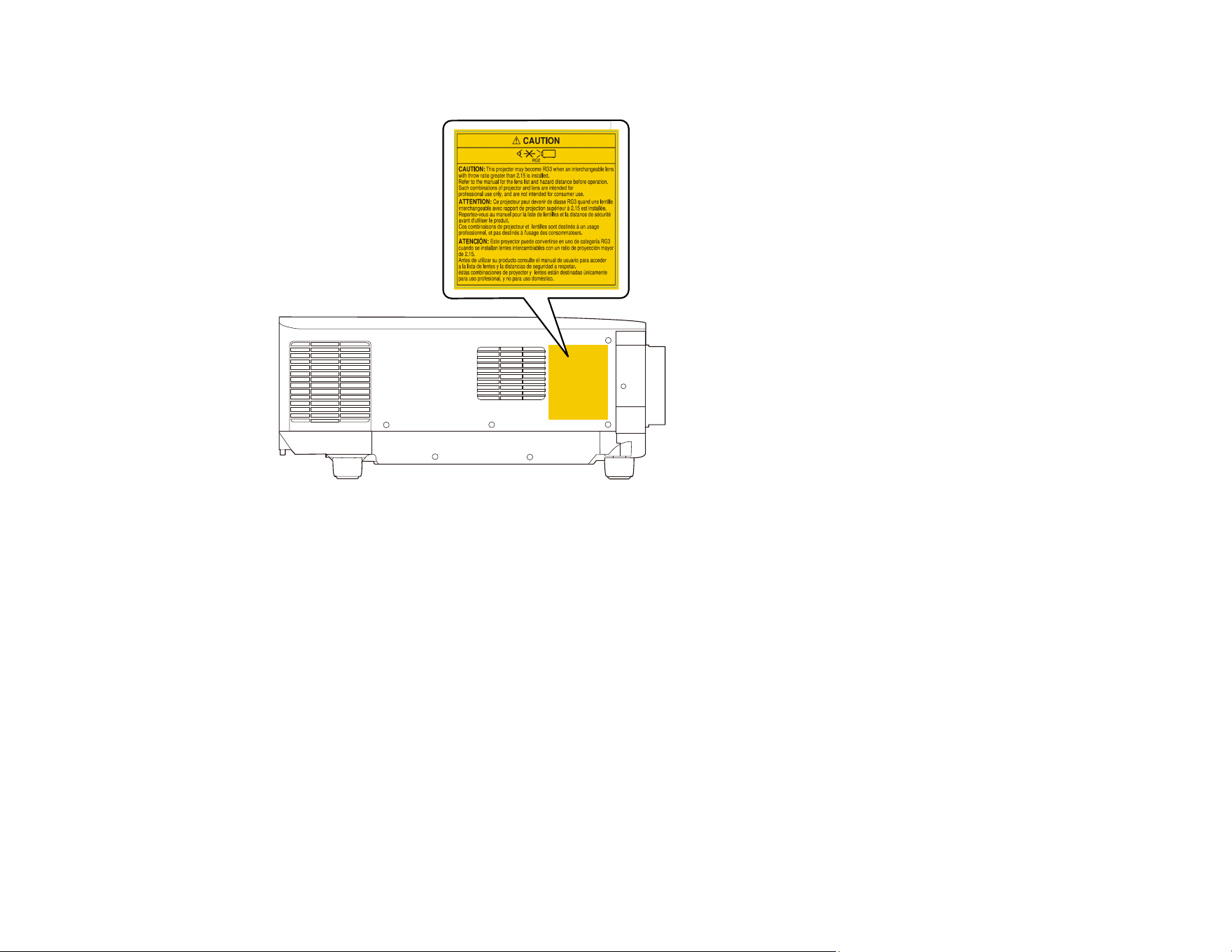
361
Side
WARNING: MOUNT ABOVE THE HEADS OF CHILDREN.
CAUTION: The EB-PQ2213B may become RG3 when interchangeable lenses ELPLM10, ELPLM11, or
ELPLL08 are installed. The EB-PQ2216B and EB-PQ2216W may become RG3 when interchangeable
lenses ELPLM10, ELPLM11, ELPLM15, or ELPLL08 are installed. Refer to the manual for the lens list
and hazard distance before operation. Such combinations of projector and lens are intended for
professional use only, and are not intended for consumer use. When installing this projector, always
commission a professional installer and ensure the safety of the surrounding area.
362
Lens Throw ratio EB-PQ2213B EB-PQ2216B/
EB-PQ2216W
ELPLX02/ELPLX02S/
ELPLX02W/ELPLX02WS
0.34 RG2 RG2
ELPLU03/ELPLU03S 0.46 - 0.56
ELPLU04 0.62 - 0.75
ELPLW05 0.74 - 1.04
ELPLW08 0.83 - 1.17
ELPLW06 1.15 - 1.57
ELPLM08 1.02 - 1.64
ELPLM09 1.52 - 2.47
ELPLM15 1.52 - 2.47 RG2 / RG3
ELPLM10 2.34 - 3.59 RG3 RG3
ELPLM11 3.42 - 5.23
ELPLL08 5.09 - 7.16
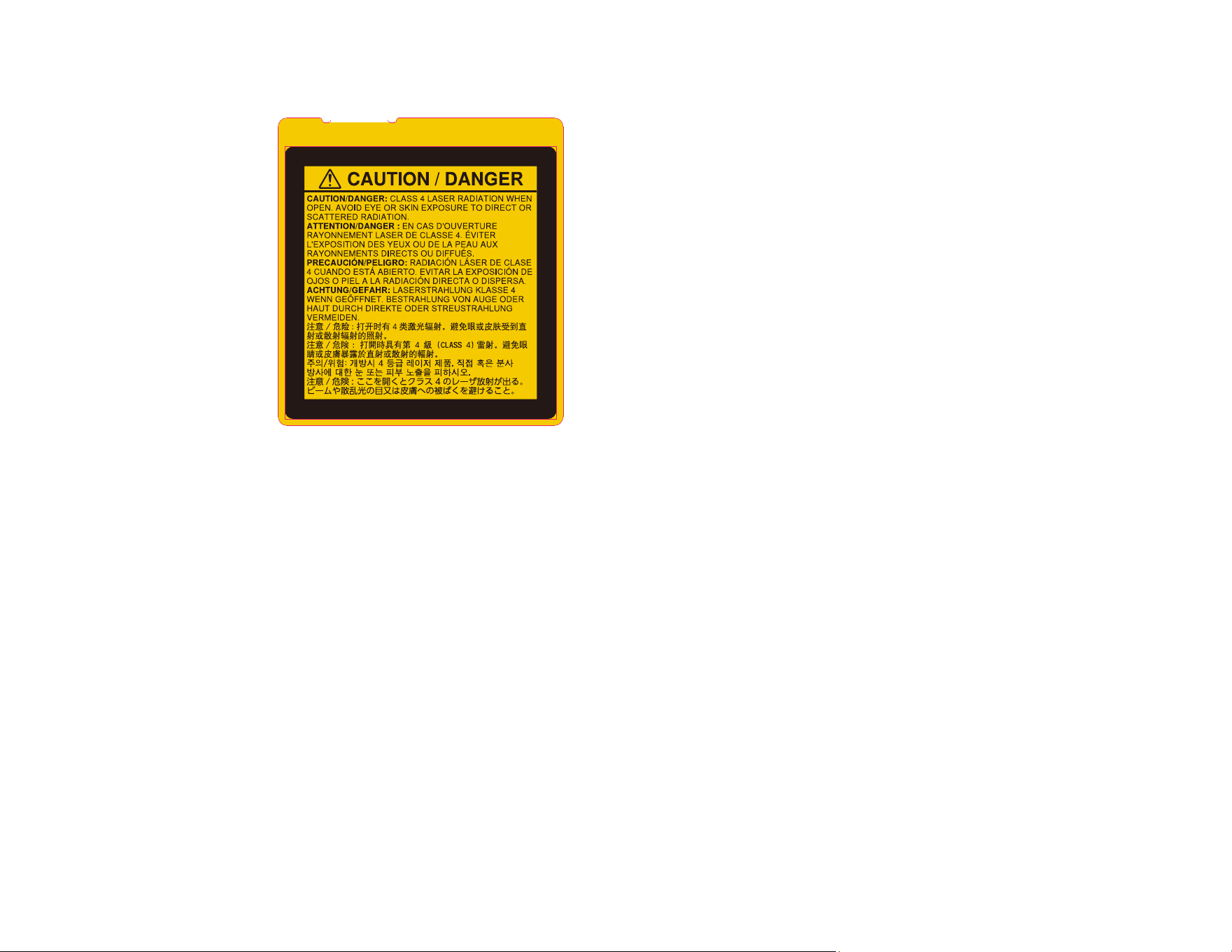
363
Protective housing label (located inside of projector)
CAUTION/DANGER:CLASS 4 LASER RADIATION WHEN OPEN. AVOID EYE OR SKIN EXPOSURE
TO DIRECT OR SCATTERED RADIATION.
WARNING: Never open any covers on the projector except as specifically explained in the projector
manual. Dangerous electrical voltages inside the projector can severely injure you.
• The use of a ceiling mount is recommended with this product to place it above the eyes of children.
• When turning on the projector at a distance using the remote control, make sure no one is looking into
the lens.
• Do not allow small children to operate the projector. Children must be accompanied by an adult.
• Do not look into the lens during projection. Also, do not look into the lens using optical devices, such
as a magnifying glass or telescope. This could cause visual impairment.
Parent topic: Important Safety Instructions
Laser Safety Labels (EB-PQ2220B)
Labels are attached to the projector to indicate the level of risk when operating or servicing the projector.
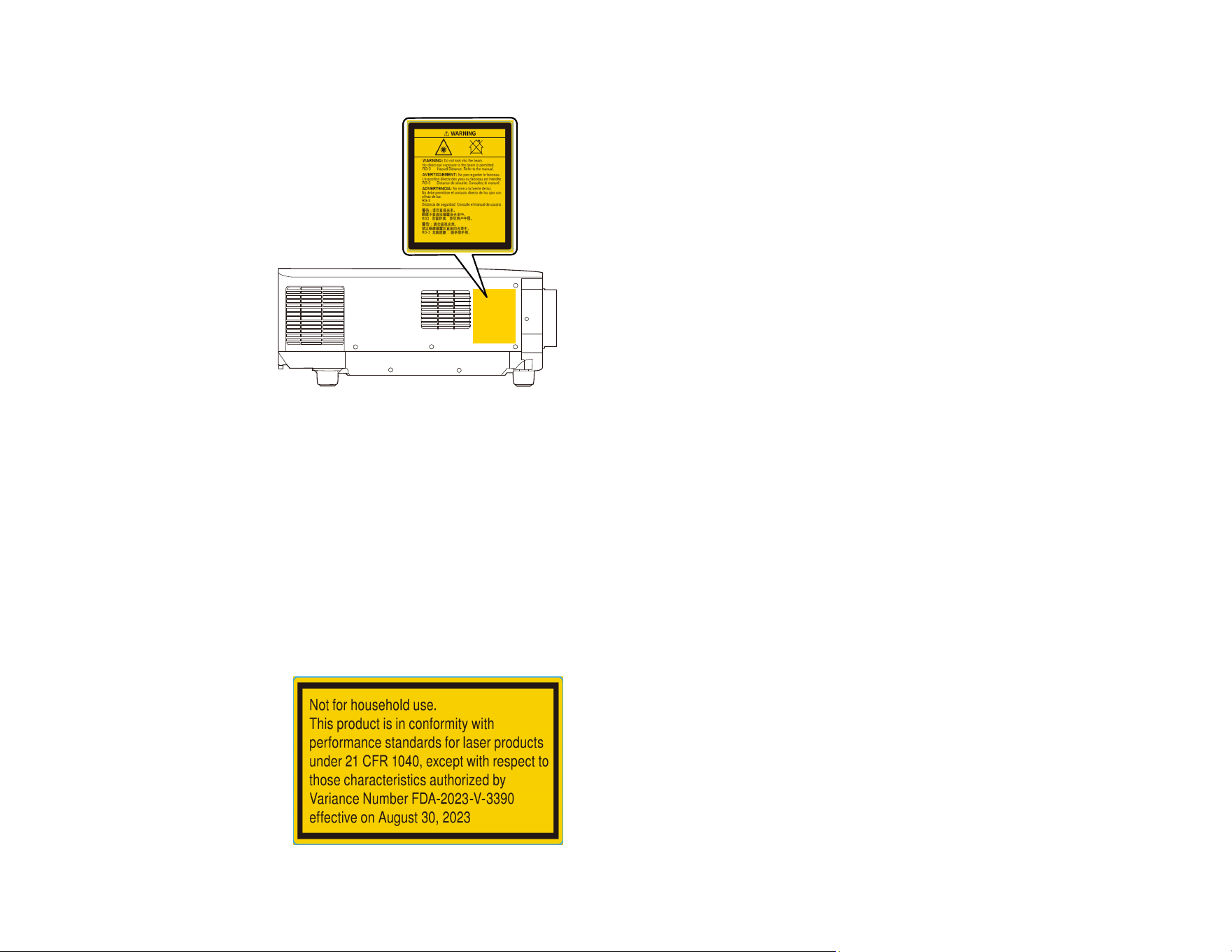
364
Side
WARNING: Do not look into the beam. No direct eye exposure to the beam is permitted. RG3 Hazard
Distance: Refer to the manual.
• No direct exposure to the beam shall be permitted. RG3 IEC 62471-5:2015
• Operators shall control access to the beam within the hazard distance or install the product at a height
that will prevent eye exposure within the hazard distance.
• When turning on the projector at a distance using the remote control, make sure no one is looking into
the lens.
• Do not allow small children to operate the projector. Children must be accompanied by an adult.
• Do not look into the lens during projection. Also, do not look into the lens using optical devices, such
as a magnifying glass or telescope. This could cause visual impairment.

365
Not for household use.
This product is in conformity with performance standards for laser products under 21 CFR 1040, except
with respect to those characteristics authorized by Variance Number FDA-2023-V-3390 effective on
August 30, 2023.
Protective housing label (located inside of projector)
CAUTION/DANGER: CLASS 4 LASER RADIATION WHEN OPEN. AVOID EYE OR SKIN EXPOSURE
TO DIRECT OR SCATTERED RADIATION.
WARNING: Never open any covers on the projector except as specifically explained in the projector
manual. Dangerous electrical voltages inside the projector can severely injure you.
Parent topic: Important Safety Instructions
Laser Rating Labels (EB-PQ2213B/EB-PQ2116B/EB-PQ2216W)
The rating label contains the certification and identification information for the projector.
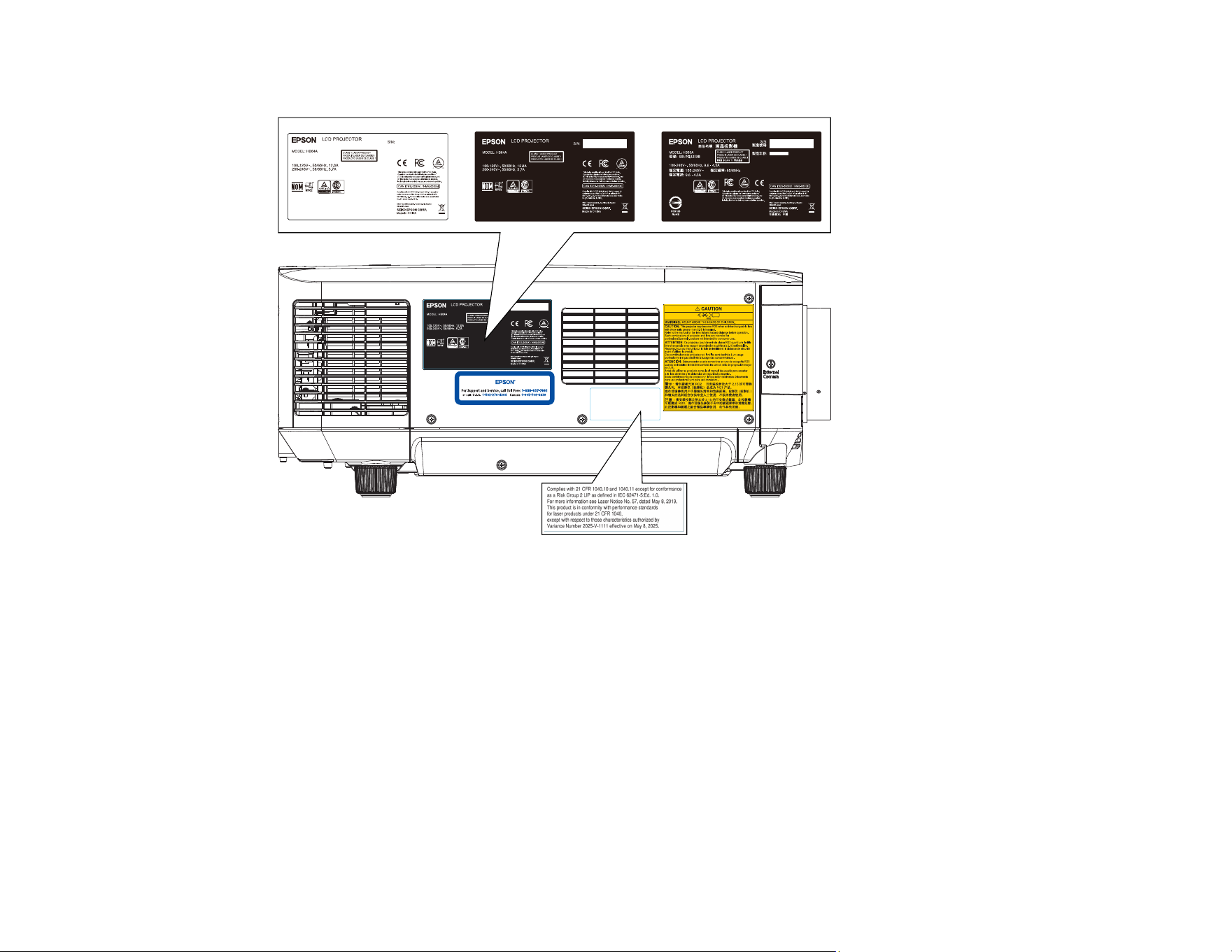
366
Side
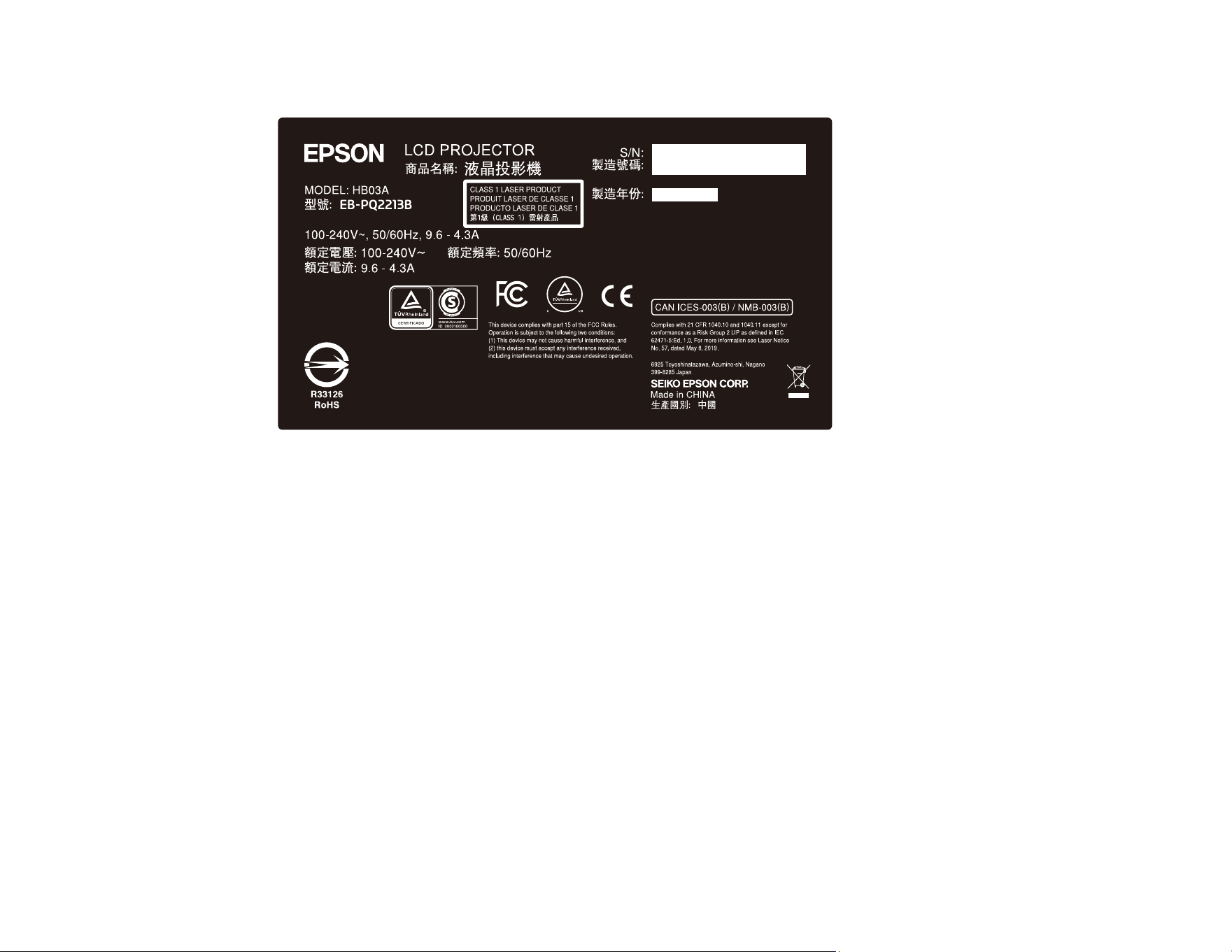
367
EB-PQ2213B
Model: HB03A
Class 1 Laser Product
This device complies with part 15 of the FCC rules. Operation is subject to the following two conditions:
1) This device may not cause harmful interference, and 2) this device must accept any interference
received, including interference that may cause undesired operation.
CAN ICES (B) / NMB (B)
Complies with 21 CFR 1040.10 and 1040.11 except for conformance as a Risk Group 2 LIP as defined in
IEC 62471-5;Ed. 1.0. For more information see Laser Notice No. 57, dated May 8, 2019.
However, the following statement applies only when ELPLM10, ELPLM11, or ELPLL08 lenses are
attached.
This product is in conformity with performance standards for laser products under 21 CFR 1040, except
with respect to those characteristics authorized by Variance Number 2025-V-1111 effective on May 8,
2025.
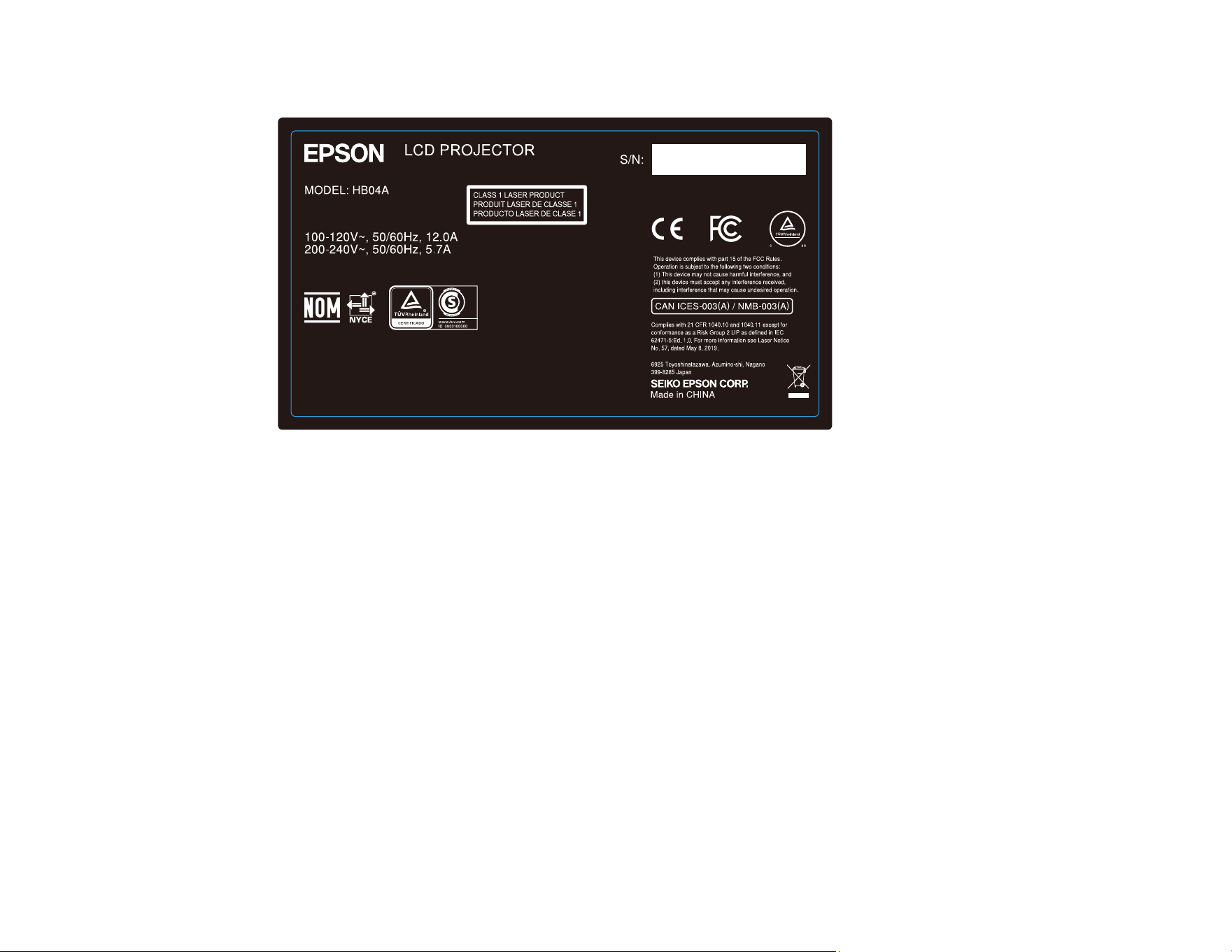
368
EB-PQ2216B
Model: HB04A
Class 1 Laser Product
This device complies with part 15 of the FCC rules. Operation is subject to the following two conditions:
1) This device may not cause harmful interference, and 2) this device must accept any interference
received, including interference that may cause undesired operation.
CAN ICES (A) / NMB (A)
Complies with 21 CFR 1040.10 and 1040.11 except for conformance as a Risk Group 2 LIP as defined in
IEC 62471-5;Ed. 1.0. For more information see Laser Notice No. 57, dated May 8, 2019.
However, the following statement applies only when ELPLM10, ELPLM11, ELPLM15, or ELPLL08
lenses are attached.
This product is in conformity with performance standards for laser products under 21 CFR 1040, except
with respect to those characteristics authorized by Variance Number 2025-V-1111 effective on May 8,
2025.
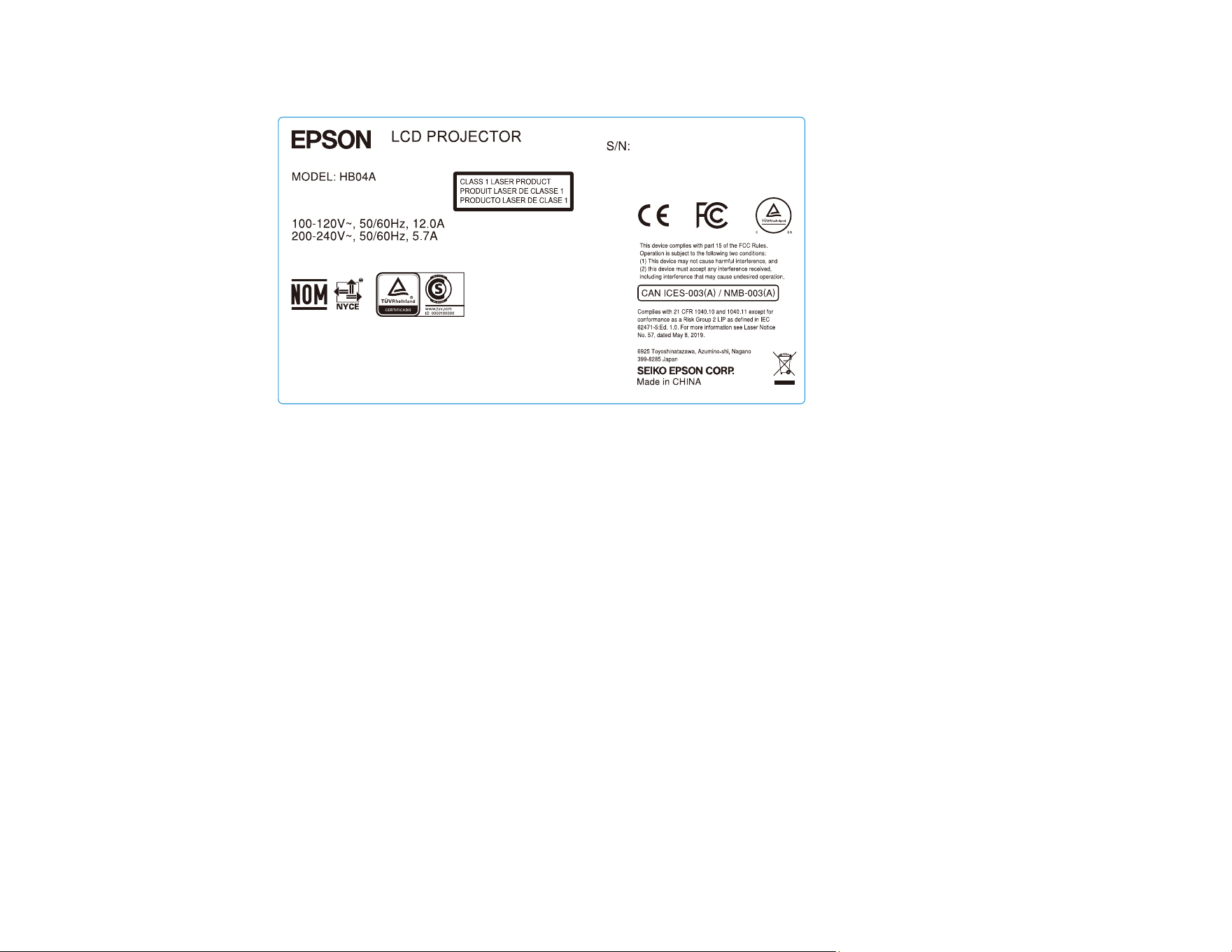
369
EB-PQ2216W
Model: HB04A
Class 1 Laser Product
This device complies with part 15 of the FCC rules. Operation is subject to the following two conditions:
1) This device may not cause harmful interference, and 2) this device must accept any interference
received, including interference that may cause undesired operation.
CAN ICES (A) / NMB (A)
Complies with 21 CFR 1040.10 and 1040.11 except for conformance as a Risk Group 2 LIP as defined in
IEC 62471-5;Ed. 1.0. For more information see Laser Notice No. 57, dated May 8, 2019.
However, the following statement applies only when ELPLM10, ELPLM11, ELPLM15, or ELPLL08
lenses are attached.
This product is in conformity with performance standards for laser products under 21 CFR 1040, except
with respect to those characteristics authorized by Variance Number 2025-V-1111 effective on May 8,
2025.
Parent topic: Important Safety Instructions

370
Hazard Distance according to IEC62471-5
When using projectors and interchangeable lenses that change to Risk Group 3, no direct exposure to
the beam is permitted. Operators must control access to the beam within the hazard distance or install
the product at a height that will prevent eye exposure within the hazard distance. Looking into the lens at
the hazard distances closer than those indicated here can cause damage to eyesight.
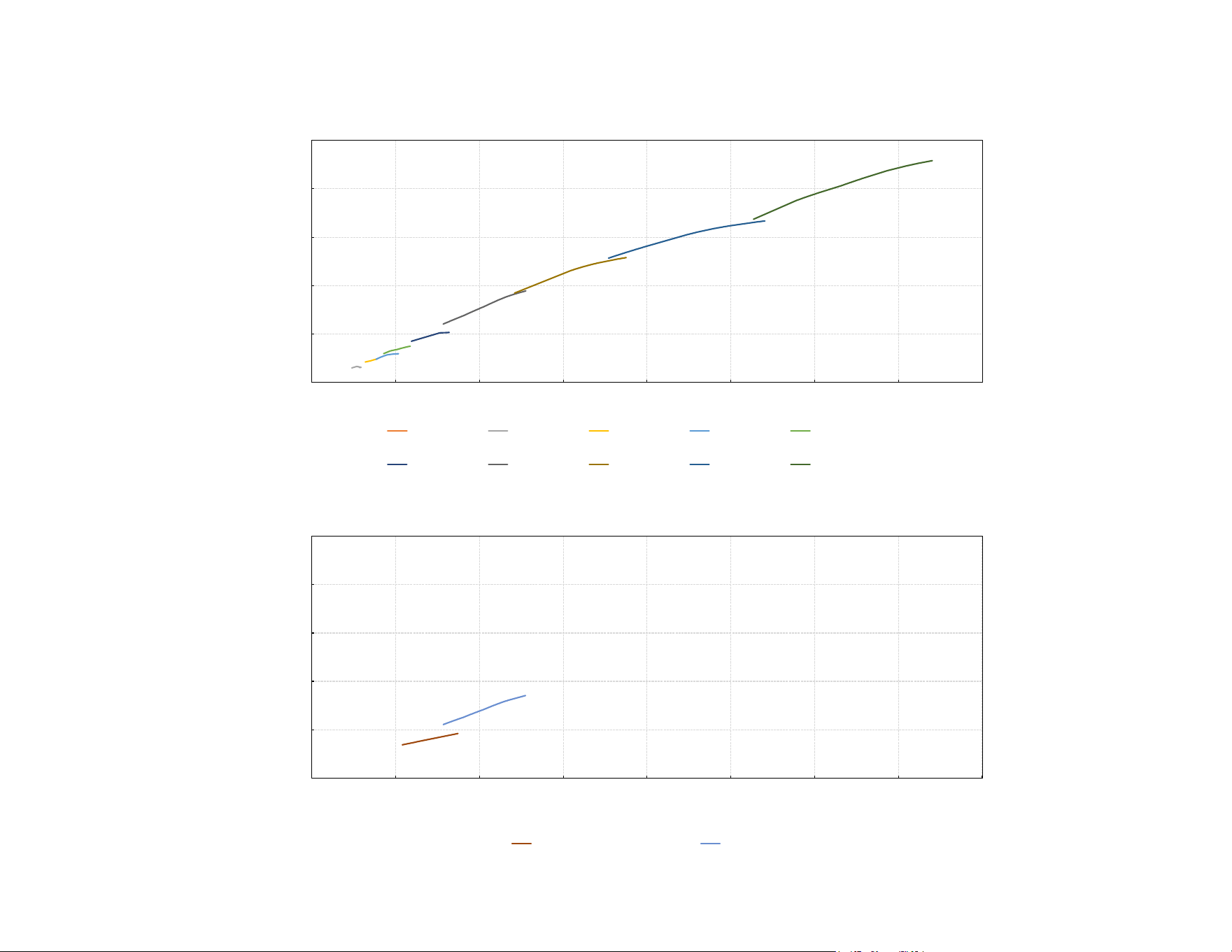
371
EB-PQ2213B
0
0.5
1
2
1.5
2.5
1
0
3 5
2
6
7
8
Hazard Distance (HD)[m]
ELPLX02/S/W/WS
Hazard Distance according t o IEC62471-5
4
Throw Ratio (TR)
ELPLU03/S
ELPLU04
ELPLW05
ELPLW08
ELPLW06
ELPLM15
ELPLM10
ELPLM11
ELPLL08
0
1
0.5
2
1.5
2.5
0
1
2
3
5
6
7
8
Hazard Distance (HD)[m]
Hazard Distance according t o IEC62471-5
4
Throw Ratio (TR)
ELPLM08
ELPLM09
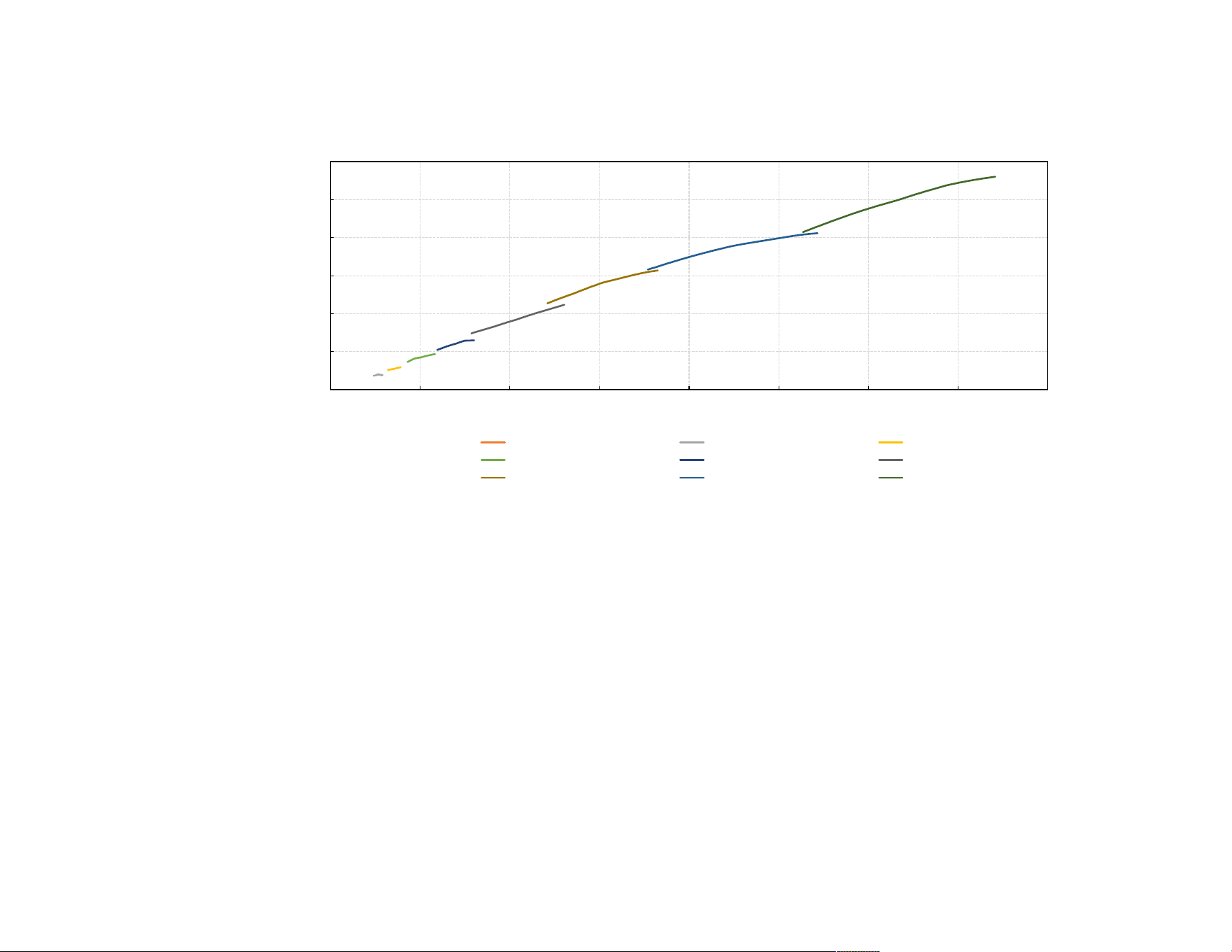
372
EB-PQ2216W/EB-PQ2216B
0
0.5
1
1.
5
2
2
.
5
3
0
1
2
3 5 6 7
8
Hazard Distance (HD)[m]
Hazard Distance according to IEC62471-5
ELPLU03S
4
Throw Ratio (TR)
ELPLU04
ELPLW06 ELPLM15
ELPLX02/S/W/W
S
ELPLW0
8
ELPLM10
ELPLM11
ELPLL08
373
0
1
0
.
5
2
1
.
5
3
2
.
5
0
1
2
3
5
6 7
8
Haza
rd Dis
t
ance
(HD
)
[
m
]
Hazard Distance according to IEC62471-5
ELPLU03
ELPLW05
4
Throw Ratio (TR)
ELPLM08 ELPLM09
374
EB-PQ2220B
0
0.5
1
1.5
2
2.5
3
3.5
4
0
1
2
3
5
6
7
8
Hazard Distance (HD)[m]
Hazard Distance according to IEC62471-5
ELPLU03S
4
Throw Ratio (TR)
ELPLU04
ELPLW06
ELPLM15
ELPLX02/S/W/WS
ELPLW08
ELPLM10
ELPLM11
ELPLL08
375
0
0.5
1
2
1.5
2.5
3
4
3.5
0
1 2 3 5
6
7 8
Hazard Distance (HD)[m]
Hazard Distance according t o IEC62471-5
ELPLU03 ELPLW05
4
Throw Ratio (TR)
ELPLM08 ELPLM09
The installer and users of this projector must understand the risk and apply protective measures based
upon the hazard distance as indicated in this user guide. Installation method, separation height, barriers,
detection systems or other applicable control measures shall prevent hazardous eye access to the
radiation within the hazard distance. See IEC Standard 62471-5: 2015 for additional guidance.
To protect untrained end users (such as cinema visitors or spectators), the installation shall comply with
the following installation requirements: Operators shall control access to the beam within the hazard
distance or install the product at the height that will prevent spectators' eyes from being in the hazard
distance.
A Laser Illuminated Projector (LIP) shall be installed at a height vertically above the floor such that the
bottom plane of the hazard zone shall be no lower than 9.8 feet (3.0 meters) above the floor. Horizontal
clearance to the hazard zone shall be 8.2 feet (2.5 meters). Any human access horizontally to the hazard
zone, if applicable, shall be restricted by barriers. If human access is possible in an unsupervised
environment, the horizontal or vertical clearances shall be increased to prevent exposure to the RG3
hazard zone.
Install one or more readily accessible controls to immediately terminate LIP projection light. The power
input at the projector side is considered as a reliable disconnect device. When required to switch off the
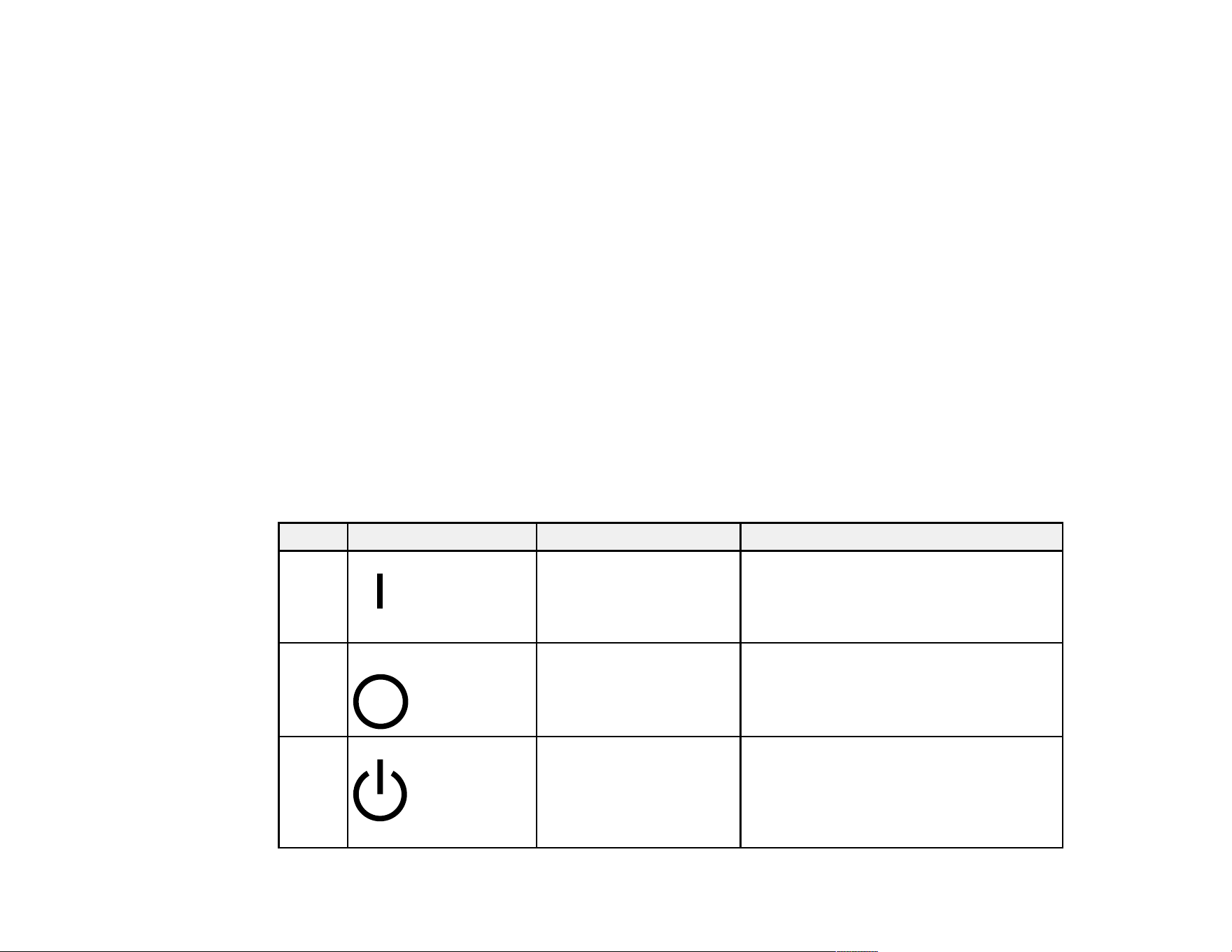
376
projector, disconnect the power cord at the projector side. In case the power input at the projector side is
not accessible (such as in a truss mount), the socket outlet supplying the projector shall be installed
nearby the projector and be easily accessible, or a readily accessible general disconnect device shall be
incorporated in the fixed wiring. Additionally, the projection light can be turned off by pressing the
Shutter button on the projector's control panel or remote control.
Parent topic: Important Safety Instructions
Restriction of Use
When this product is used for applications requiring high reliability/safety such as transportation devices
related to aviation, rail, marine, automotive; disaster prevention devices; various safety devices; or
functional/precision devices, you should use this product only after giving consideration to including fail-
safes and redundancies into your design to maintain safety and total system reliability.
Because this product was not intended for use in applications requiring extremely high reliability/safety
such as aerospace equipment, main communication equipment, nuclear power control equipment, or
medical equipment related to direct medical care, please make your own judgment on this product's
suitability after a full evaluation.
Parent topic: Important Safety Instructions
List of Safety Symbols (corresponding to IEC60950-1 A2)
The following table lists the meaning of the safety symbols labeled on the equipment.
No. Symbol Approved Standards Description
1 IEC60417
No.5007
"ON" (power)
To indicate connection to the mains.
2 IEC60417
No.5008
"OFF" (power)
To indicate disconnection from the
mains.
3 IEC60417
No.5009
Stand-by
To identify the switch or switch position
by means of which part of the equipment
is switched on in order to bring it into the
stand-by condition.
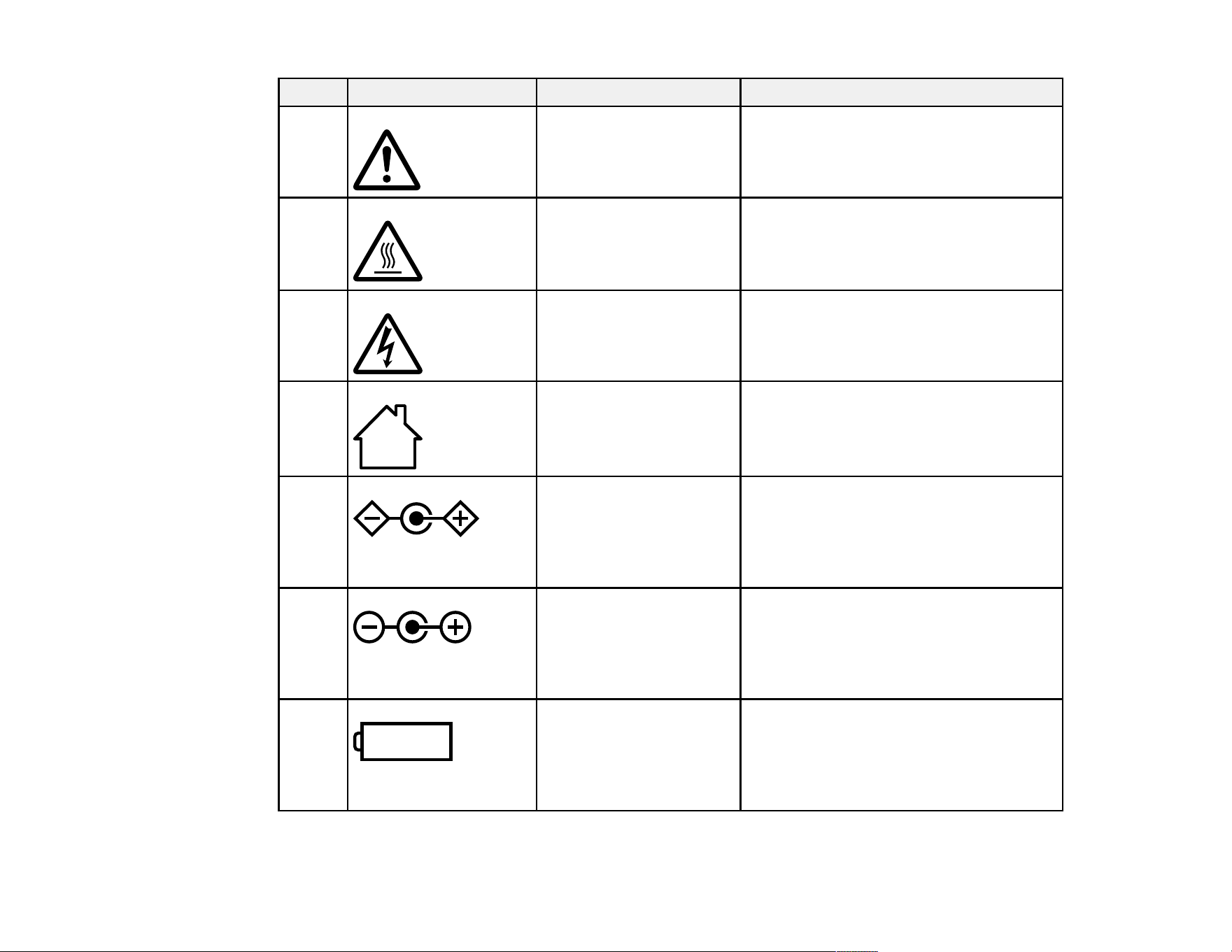
377
No. Symbol Approved Standards Description
4 ISO7000
No.0434B,
IEC3864-B3.1
Caution
To identify general caution when using
the product.
5 IEC60417
No.5041
Caution, hot surface
To indicate that the marked item can be
hot and should not be touched without
taking care.
6 IEC60417
No.6042
ISO3864-B3.6
Caution, risk of electric shock
To identify equipment that has risk of
electric shock.
7 IEC60417
No.5957
For indoor use only
To identify electrical equipment designed
primarily for indoor use.
8 IEC60417
No.5926
Polarity of DC power connector
To identify the positive and negative
connections (the polarity) on a piece of
equipment to which a DC power supply
may be connected.
9 — Polarity of DC power connector
To identify the positive and negative
connections (the polarity) on a piece of
equipment to which a DC. power supply
may be connected.
10 IEC60417
No.5001B
Battery, general
On battery powered equipment. To
identify a device for instance a cover for
the battery compartment, or the
connector terminals.
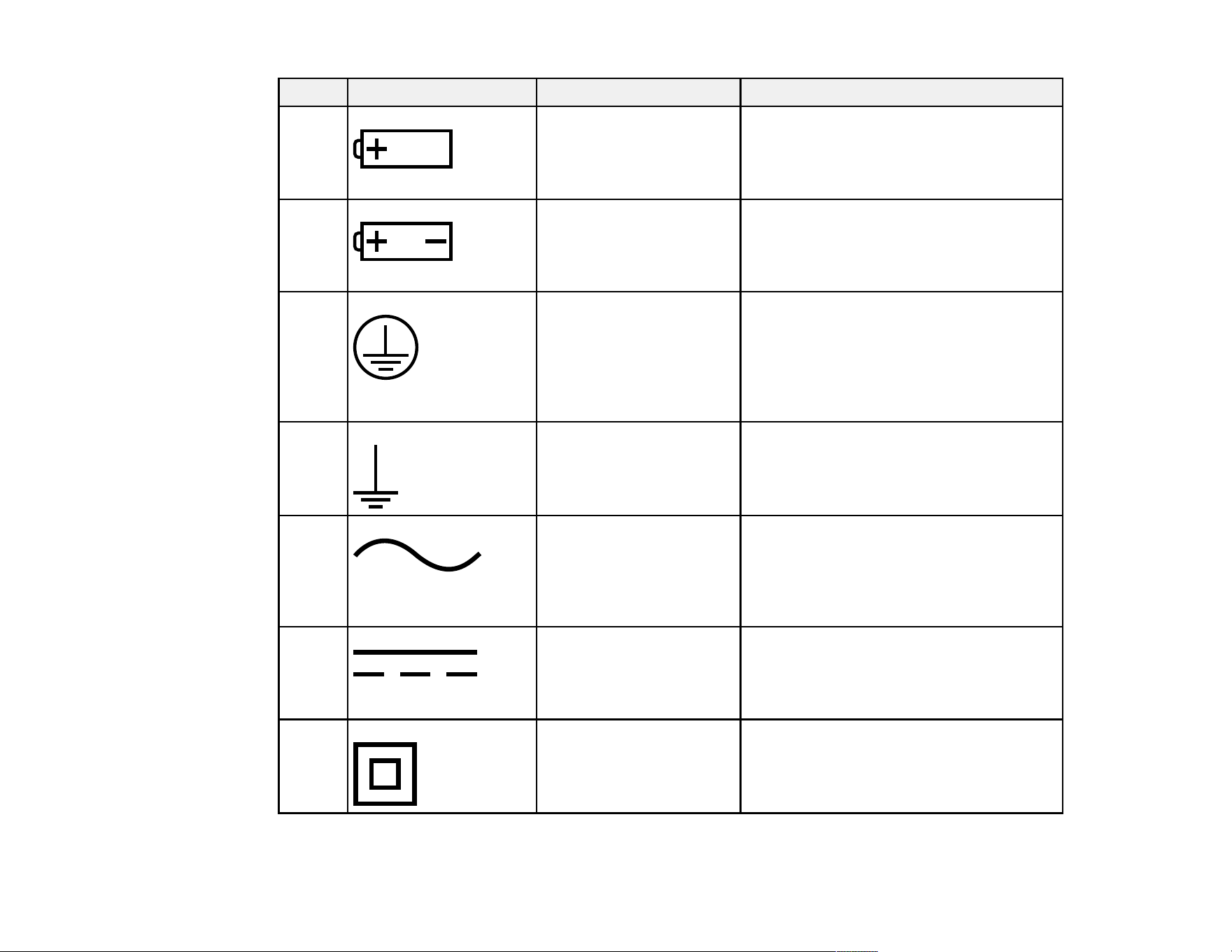
378
No. Symbol Approved Standards Description
11 IEC60417
No.5002
Positioning of cell
To identify the battery holder itself and to
identify the positioning of the cell(s)
inside the battery holder.
12 — Positioning of cell
To identify the battery holder itself and to
identify the positioning of the cell(s)
inside the battery holder.
13 IEC60417
No.5019
Protective earth
To identify any terminal which is intended
for connection to an external conductor
for protection against electric shock in
case of a fault, or the terminal of a
protective earth electrode.
14 IEC60417
No.5017
Earth
To identify an earth (ground) terminal in
cases where neither the symbol No.13 is
explicitly required.
15 IEC60417
No.5032
Alternating current
To indicate on the rating plate that the
equipment is suitable for alternating
current only; to identify relevant
terminals.
16 IEC60417
No.5031
Direct current
To indicate on the rating plate that the
equipment is suitable for direct current
only; to identify relevant terminals.
17 IEC60417
No.5172
Class II equipment
To identify equipment meeting the safety
requirements specified for Class II
equipment according to IEC 61140.
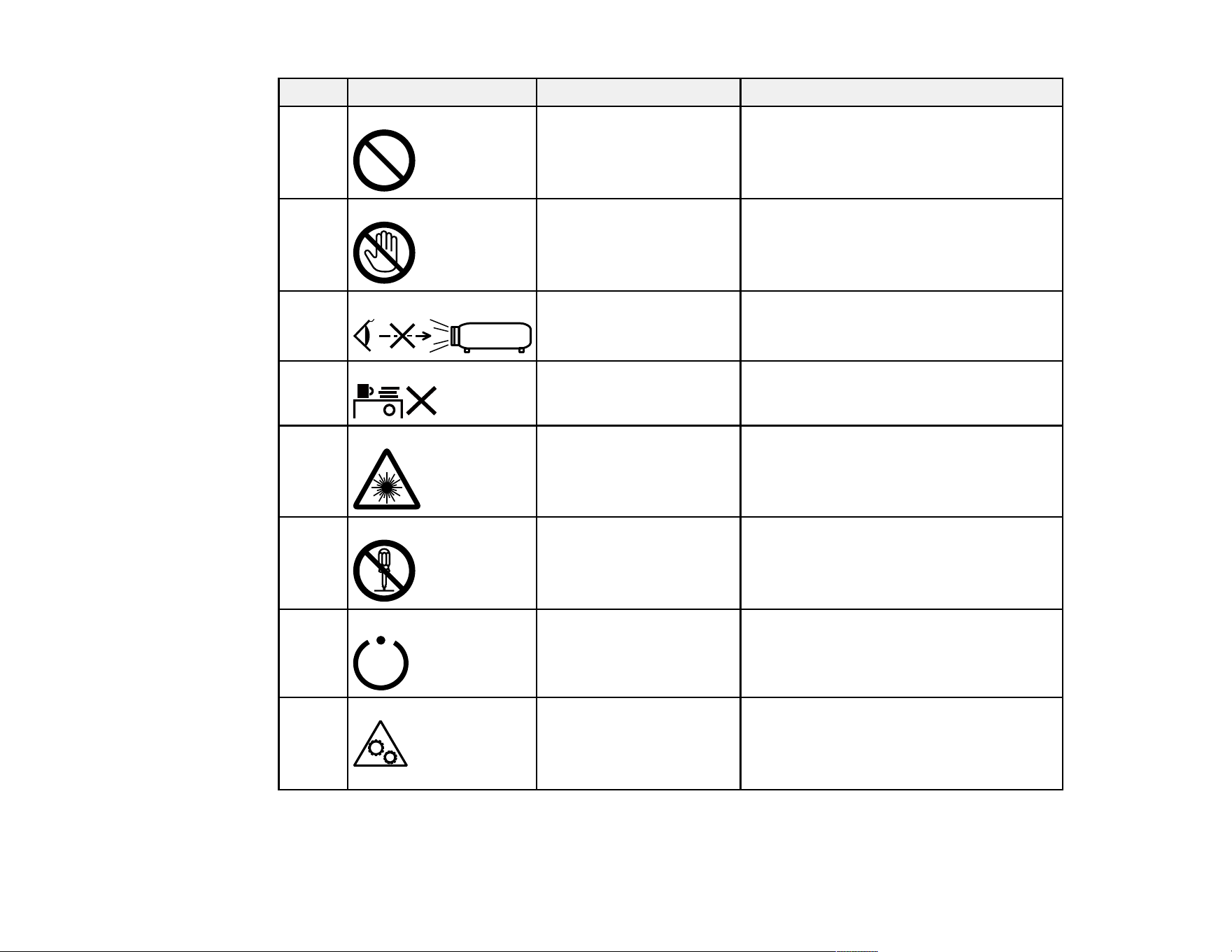
379
No. Symbol Approved Standards Description
18 ISO 3864 General prohibition
To identify actions or operations that are
prohibited.
19 ISO 3864 Contact prohibition
To indicate injury that could occur due to
touching a specific part of the equipment.
20 — Never look into the optical lens while the
projector is on.
21 — To indicate that the marked item is not
placed on projector.
22 ISO 3864
IEC60825-1
Caution, laser radiation
To indicate the equipment has a laser
radiation part.
23 ISO 3864 Disassembly prohibition
To indicate a risk of injury, such as
electric shock, if the equipment is
disassembled.
24 IEC60417
No. 5266
Standby, partial standby
To indicate that part of the equipment is
in the ready status.
25 ISO 3864
IEC60417
No. 5057
Caution, movable parts
To indicate that you must keep away
from movable parts according to
protection standards.
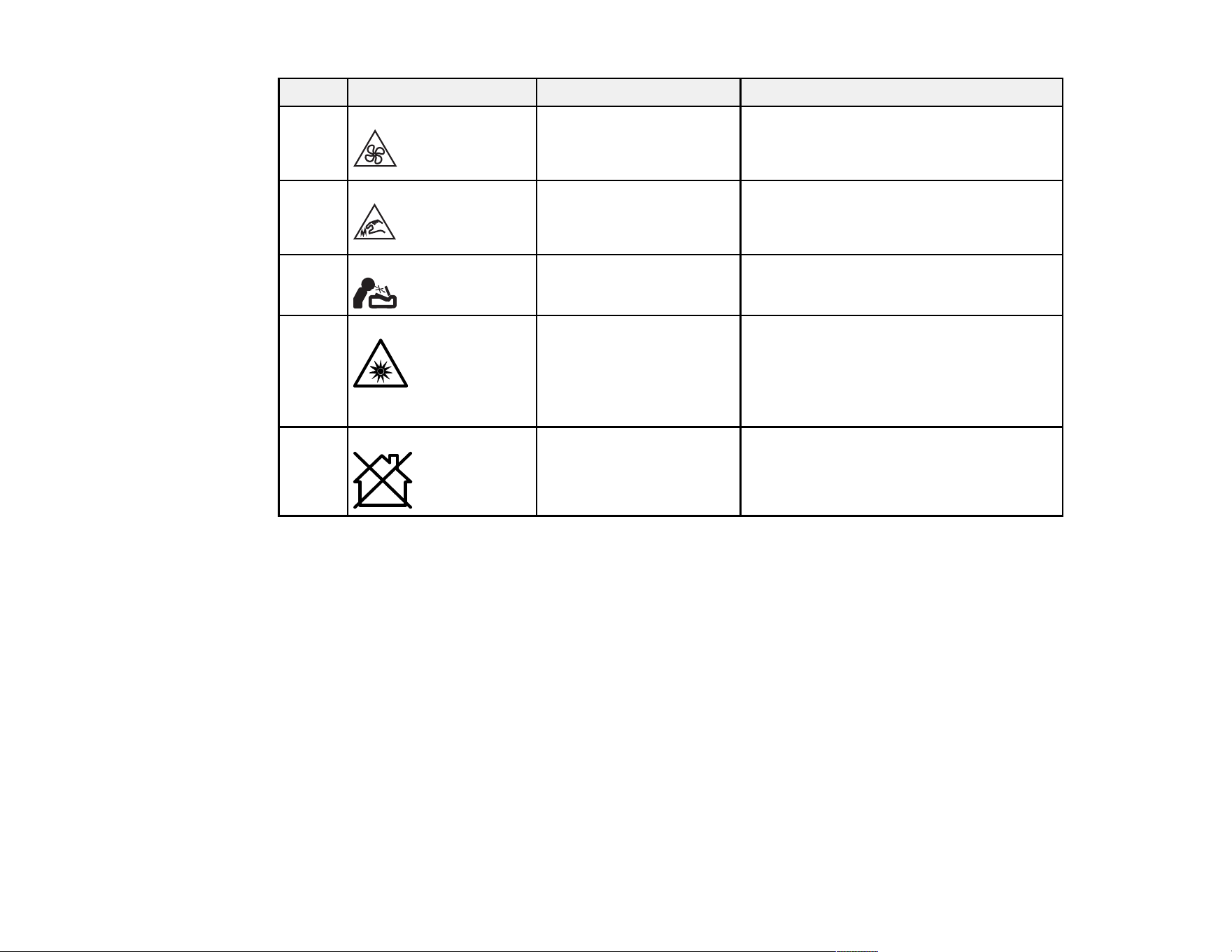
380
No. Symbol Approved Standards Description
26 IEC 60417
No. 6056
Caution (moving fan blades)
As a safety precaution, stay away from
the moving fan blades.
27 IEC 60417
No. 6043
Caution (sharp corners)
To indicate sharp corners that should not
be touched.
28 — To indicate that looking into the lens
while projecting is prohibited.
29 ISO7010
No. W027
ISO3864
Warning, optical radiation (such as UV,
visible light, IR)
Taking care to avoid injury to eyes and
skin when in the vicinity of optical
radiation.
30 IEC60417
No. 5109
Not to be used in residential areas
To identify electrical equipment which is
not suitable for a residential area.
Parent topic: Notices
FCC Compliance Statement
EB-PQ2213B
For United States Users
This device complies with part 15 of the FCC Rules. Operation is subject to the following two conditions:
(1) This device may not cause harmful interference, and (2) this device must accept any interference
received, including interference that may cause undesired operation.
This equipment has been tested and found to comply with the limits for a Class B digital device, pursuant
to Part 15 of the FCC Rules. These limits are designed to provide reasonable protection against harmful
interference in a residential installation. This equipment generates, uses, and can radiate radio
frequency energy and, if not installed and used in accordance with the instructions, may cause harmful
interference to radio communications. However, there is no guarantee that interference will not occur in

381
a particular installation. If this equipment does cause interference to radio and television reception, which
can be determined by turning the equipment off and on, the user is encouraged to try to correct the
interference by one or more of the following measures:
• Reorient or relocate the receiving antenna.
• Increase the separation between the equipment and receiver.
• Connect the equipment into an outlet on a circuit different from that to which the receiver is connected.
• Consult the dealer or an experienced radio/TV technician for help.
WARNING
The connection of a non-shielded equipment interface cable to this equipment will invalidate the FCC
Certification or Declaration of this device and may cause interference levels which exceed the limits
established by the FCC for this equipment. It is the responsibility of the user to obtain and use a shielded
equipment interface cable with this device. If this equipment has more than one interface connector, do
not leave cables connected to unused interfaces. Changes or modifications not expressly approved by
the manufacturer could void the user’s authority to operate the equipment.
For Canadian Users
CAN ICES (B) / NMB (B)
EB-PQ2216W/EB-PQ2216B/EB-PQ2220B
For United States Users
This device complies with Part 15 of the FCC Rules. Operation is subject to the following two conditions:
(1) This device may not cause harmful interference, and (2) this device must accept any interference
received, including interference that may cause undesired operation.
This equipment has been tested and found to comply with the limits for a Class A digital device, pursuant
to Part 15 of the FCC Rules. These limits are designed to provide reasonable protection against harmful
interference when the equipment is operated in a commercial environment. This equipment generates,
uses, and can radiate radio frequency energy and, if not installed and used in accordance with the
instruction manual, may cause harmful interference to radio communications. Operation of this
equipment in a residential area is likely to cause harmful interference in which case the user will be
required to correct the interference at his own expense.
WARNING
The connection of a non-shielded equipment interface cable to this equipment will invalidate the FCC
Certification or Declaration of this device and may cause interference levels which exceed the limits
established by the FCC for this equipment. It is the responsibility of the user to obtain and use a shielded

382
equipment interface cable with this device. If this equipment has more than one interface connector, do
not leave cables connected to unused interfaces. Changes or modifications not expressly approved by
the manufacturer could void the user’s authority to operate the equipment.
For Canadian Users
CAN ICES (A) / NMB (A)
Parent topic: Notices
Manufacturer and Importer Address
Manufacturer
Name: Seiko Epson Corporation
Address: 3-5, Owa 3-chome, Suwa-shi, Nagano-ken 392-8502 Japan
Telephone: 81-266-52-3131
Importer
Name: Epson America, Inc.
Address: 3131 Katella Avenue, Los Alamitos 90720 U.S.A.
Telephone: (562) 981-3840
Parent topic: Notices
Binding Arbitration and Class Waiver
1. DISPUTES, BINDING INDIVIDUAL ARBITRATION, AND WAIVER OF CLASS ACTIONS AND
CLASS ARBITRATIONS
1.1 Disputes. The terms of this Section 1 shall apply to all Disputes between you and Epson. The term
"Dispute" is meant to have the broadest meaning permissible under law and includes any dispute, claim,
controversy or action between you and Epson arising out of or relating to this Agreement, Epson
branded products (hardware and including any related software), or other transaction involving you and
Epson, whether in contract, warranty, misrepresentation, fraud, tort, intentional tort, statute, regulation,
ordinance, or any other legal or equitable basis. "DISPUTE" DOES NOT INCLUDE IP CLAIMS, or more
specifically, a claim or cause of action for (a) trademark infringement or dilution, (b) patent infringement,
(c) copyright infringement or misuse, or (d) trade secret misappropriation (an "IP Claim"). You and Epson
also agree, notwithstanding Section 1.6, that a court, not an arbitrator, may decide if a claim or cause of
action is for an IP Claim.

383
1.2 Binding Arbitration. You and Epson agree that all Disputes shall be resolved by binding arbitration
according to this Agreement. ARBITRATION MEANS THAT YOU WAIVE YOUR RIGHT TO A JUDGE
OR JURY IN A COURT PROCEEDING AND YOUR GROUNDS FOR APPEAL ARE LIMITED.
Pursuant to this Agreement, binding arbitration shall be administered by JAMS, a nationally recognized
arbitration authority, pursuant to its code of procedures then in effect for consumer related disputes, but
excluding any rules that permit joinder or class actions in arbitration (for more detail on procedure, see
Section 1.6 below). You and Epson understand and agree that (a) the Federal Arbitration Act (9 U.S.C.
§1, et seq.) governs the interpretation and enforcement of this Section 1, (b) this Agreement
memorializes a transaction in interstate commerce, and (c) this Section 1 shall survive termination of this
Agreement.
1.3 Pre-Arbitration Steps and Notice. Before submitting a claim for arbitration, you and Epson agree to
try, for sixty (60) days, to resolve any Dispute informally. If Epson and you do not reach an agreement to
resolve the Dispute within the sixty (60) days), you or Epson may commence an arbitration. Notice to
Epson must be addressed to: Epson America, Inc., ATTN: Legal Department, 3131 Katella Ave., Los
Alamitos, CA 90720 (the "Epson Address"). The Dispute Notice to you will be sent to the most recent
address Epson has in its records for you. For this reason, it is important to notify us if your address
changes by emailing us at [email protected] or writing us at the Epson Address above. Notice of
the Dispute shall include the sender's name, address and contact information, the facts giving rise to the
Dispute, and the relief requested (the "Dispute Notice"). Following receipt of the Dispute Notice, Epson
and you agree to act in good faith to resolve the Dispute before commencing arbitration.
1.4 Small Claims Court. Notwithstanding the foregoing, you may bring an individual action in the small
claims court of your state or municipality if the action is within that court's jurisdiction and is pending only
in that court.
1.5 WAIVER OF CLASS ACTIONS AND CLASS ARBITRATIONS. YOU AND EPSON AGREE THAT
EACH PARTY MAY BRING DISPUTES AGAINST THE OTHER PARTY ONLY IN AN INDIVIDUAL
CAPACITY, AND NOT AS A PLAINTIFF OR CLASS MEMBER IN ANY CLASS OR
REPRESENTATIVE PROCEEDING, INCLUDING WITHOUT LIMITATION FEDERAL OR STATE
CLASS ACTIONS, OR CLASS ARBITRATIONS. CLASS ACTION LAWSUITS, CLASS-WIDE
ARBITRATIONS, PRIVATE ATTORNEY-GENERAL ACTIONS, AND ANY OTHER PROCEEDING
WHERE SOMEONE ACTS IN A REPRESENTATIVE CAPACITY ARE NOT ALLOWED.
ACCORDINGLY, UNDER THE ARBITRATION PROCEDURES OUTLINED IN THIS SECTION, AN
ARBITRATOR SHALL NOT COMBINE OR CONSOLIDATE MORE THAN ONE PARTY'S CLAIMS
WITHOUT THE WRITTEN CONSENT OF ALL AFFECTED PARTIES TO AN ARBITRATION
PROCEEDING.
1.6 Arbitration Procedure. If you or Epson commences arbitration, the arbitration shall be governed by
the rules of JAMS that are in effect when the arbitration is filed, excluding any rules that permit arbitration
on a class or representative basis (the "JAMS Rules"), available at http://www.jamsadr.com or by calling
1-800-352-5267 (U.S. or Canada), or https://www.jamsadr.com/about/ or by calling +1-949-224-1810
(Latin America), and under the rules set forth in this Agreement. All Disputes shall be resolved by a

384
single neutral arbitrator, and both parties shall have a reasonable opportunity to participate in the
selection of the arbitrator. The arbitrator is bound by the terms of this Agreement. The arbitrator, and not
any federal, state or local court or agency, shall have exclusive authority to resolve all disputes arising
out of or relating to the interpretation, applicability, enforceability or formation of this Agreement,
including any claim that all or any part of this Agreement is void or voidable. Notwithstanding this broad
delegation of authority to the arbitrator, a court may determine the limited question of whether a claim or
cause of action is for an IP Claim, which is excluded from the definition of "Disputes" in Section 1.1
above. The arbitrator shall be empowered to grant whatever relief would be available in a court under
law or in equity. The arbitrator may award you the same damages as a court could, and may award
declaratory or injunctive relief only in favor of the individual party seeking relief and only to the extent
necessary to provide relief warranted by that party's individual claim. In some instances, the costs of
arbitration can exceed the costs of litigation and the right to discovery may be more limited in arbitration
than in court. The arbitrator's award is binding and may be entered as a judgment in any court of
competent jurisdiction.
You may choose to engage in arbitration hearings by telephone. Arbitration hearings not conducted by
telephone shall take place in a location reasonably accessible from your primary residence, or in Orange
County, California, at your option.
a) Initiation of Arbitration Proceeding. If either you or Epson decides to arbitrate a Dispute, both parties
agree to the following procedure:
(i) Write a Demand for Arbitration. The demand must include a description of the Dispute and the amount
of damages sought to be recovered. You can find a copy of a Demand for Arbitration at
http://www.jamsadr.com ("Demand for Arbitration").
(ii) Send three copies of the Demand for Arbitration, plus the appropriate filing fee, to: JAMS, 500 North
State College Blvd., Suite 600 Orange, CA 92868, U.S.A.
(iii) Send one copy of the Demand for Arbitration to the other party (same address as the Dispute
Notice), or as otherwise agreed by the parties.
b) Hearing Format. During the arbitration, the amount of any settlement offer made shall not be disclosed
to the arbitrator until after the arbitrator determines the amount, if any, to which you or Epson is entitled.
The discovery or exchange of non-privileged information relevant to the Dispute may be allowed during
the arbitration.
c) Arbitration Fees. Epson shall pay, or (if applicable) reimburse you for, all JAMS filings and arbitrator
fees for any arbitration commenced (by you or Epson) pursuant to provisions of this Agreement.
d) Award in Your Favor. For Disputes in which you or Epson seeks $75,000 or less in damages exclusive
of attorney's fees and costs, if the arbitrator's decision results in an award to you in an amount greater
than Epson's last written offer, if any, to settle the Dispute, Epson will: (i) pay you $1,000 or the amount
of the award, whichever is greater; (ii) pay you twice the amount of your reasonable attorney's fees, if
any; and (iii) reimburse you for any expenses (including expert witness fees and costs) that your attorney

385
reasonably accrues for investigating, preparing, and pursuing the Dispute in arbitration. Except as
agreed upon by you and Epson in writing, the arbitrator shall determine the amount of fees, costs, and
expenses to be paid by Epson pursuant to this Section 1.6d).
e) Attorney's Fees. Epson will not seek its attorney's fees and expenses for any arbitration commenced
involving a Dispute under this Agreement. Your right to attorney's fees and expenses under Section
1.6d) above does not limit your rights to attorney's fees and expenses under applicable law;
notwithstanding the foregoing, the arbitrator may not award duplicative awards of attorney's fees and
expenses.
1.7 Opt-out. You may elect to opt-out (exclude yourself) from the final, binding, individual
arbitration procedure and waiver of class and representative proceedings specified in this
Agreement by sending a written letter to the Epson Address within thirty (30) days of your assent
to this Agreement (including without limitation the purchase, download, installation of the
Software or other applicable use of Epson Hardware, products and services) that specifies (i)
your name, (ii) your mailing address, and (iii) your request to be excluded from the final, binding
individual arbitration procedure and waiver of class and representative proceedings specified in
this Section 1. In the event that you opt-out consistent with the procedure set forth above, all
other terms shall continue to apply, including the requirement to provide notice prior to litigation.
1.8 Amendments to Section 1. Notwithstanding any provision in this Agreement to the contrary, you
and Epson agree that if Epson makes any future amendments to the dispute resolution procedure and
class action waiver provisions (other than a change to Epson's address) in this Agreement, Epson will
obtain your affirmative assent to the applicable amendment. If you do not affirmatively assent to the
applicable amendment, you are agreeing that you will arbitrate any Dispute between the parties in
accordance with the language of this Section 1 (or resolve disputes as provided for in Section 1.7, if you
timely elected to opt-out when you first assented to this Agreement).
1.9 Severability. If any provision in this Section 1 is found to be unenforceable, that provision shall be
severed with the remainder of this Agreement remaining in full force and effect. The foregoing shall not
apply to the prohibition against class or representative actions as provided in Section 1.5. This
means that if Section 1.5 is found to be unenforceable, the entire Section 1 (but only Section 1)
shall be null and void.
Parent topic: Notices
Trademarks
EPSON
®
, Instant Off
®
, and Quick Corner
®
are registered trademarks, Epson iProjection is a trademark,
and the EPSON logo is a registered logomark of Seiko Epson Corporation.
PrivateLine
®
is a registered trademark and SizeWise
TM
and PixAlign
TM
are trademarks of Epson America,
Inc.
Mac, macOS, and OS X are trademarks of Apple Inc., registered in the U.S. and other countries.

386
Google
®
is a registered trademark and Android
TM
and Chromebook
TM
are trademarks of Google LLC.
Windows is a trademark of the Microsoft group of companies.
HDBaseT
TM
is a trademark of the HDBaseT Alliance.
General Notice: Other product names used herein are for identification purposes only and may be
trademarks of their respective owners. Epson disclaims any and all rights in those marks.
Parent topic: Notices
Copyright Notice
All rights reserved. No part of this publication may be reproduced, stored in a retrieval system, or
transmitted in any form or by any means, electronic, mechanical, photocopying, recording, or otherwise,
without the prior written permission of Seiko Epson Corporation. The information contained herein is
designed only for use with this Epson product. Epson is not responsible for any use of this information as
applied to other products.
Neither Seiko Epson Corporation nor its affiliates shall be liable to the purchaser of this product or third
parties for damages, losses, costs, or expenses incurred by purchaser or third parties as a result of:
accident, misuse, or abuse of this product or unauthorized modifications, repairs, or alterations to this
product, or (excluding the U.S.) failure to strictly comply with Seiko Epson Corporation's operating and
maintenance instructions.
Seiko Epson Corporation shall not be liable for any damages or problems arising from the use of any
options or any consumable products other than those designated as Original Epson Products or Epson
Approved Products by Seiko Epson Corporation.
This information is subject to change without notice.
A Note Concerning Responsible Use of Copyrighted Materials
Copyright Attribution
Parent topic: Notices
A Note Concerning Responsible Use of Copyrighted Materials
Epson encourages each user to be responsible and respectful of the copyright laws when using any
Epson product. While some countries' laws permit limited copying or reuse of copyrighted material in
certain circumstances, those circumstances may not be as broad as some people assume. Contact your
legal advisor for any questions regarding copyright law.
Parent topic: Copyright Notice