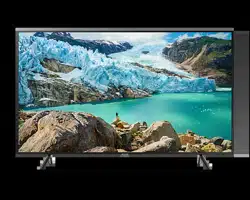
Thank you for purchasing this Samsung product.
To receive more complete service, please register your product at www.samsung.com
Model Serial No.
USER MANUAL
SERIES 7
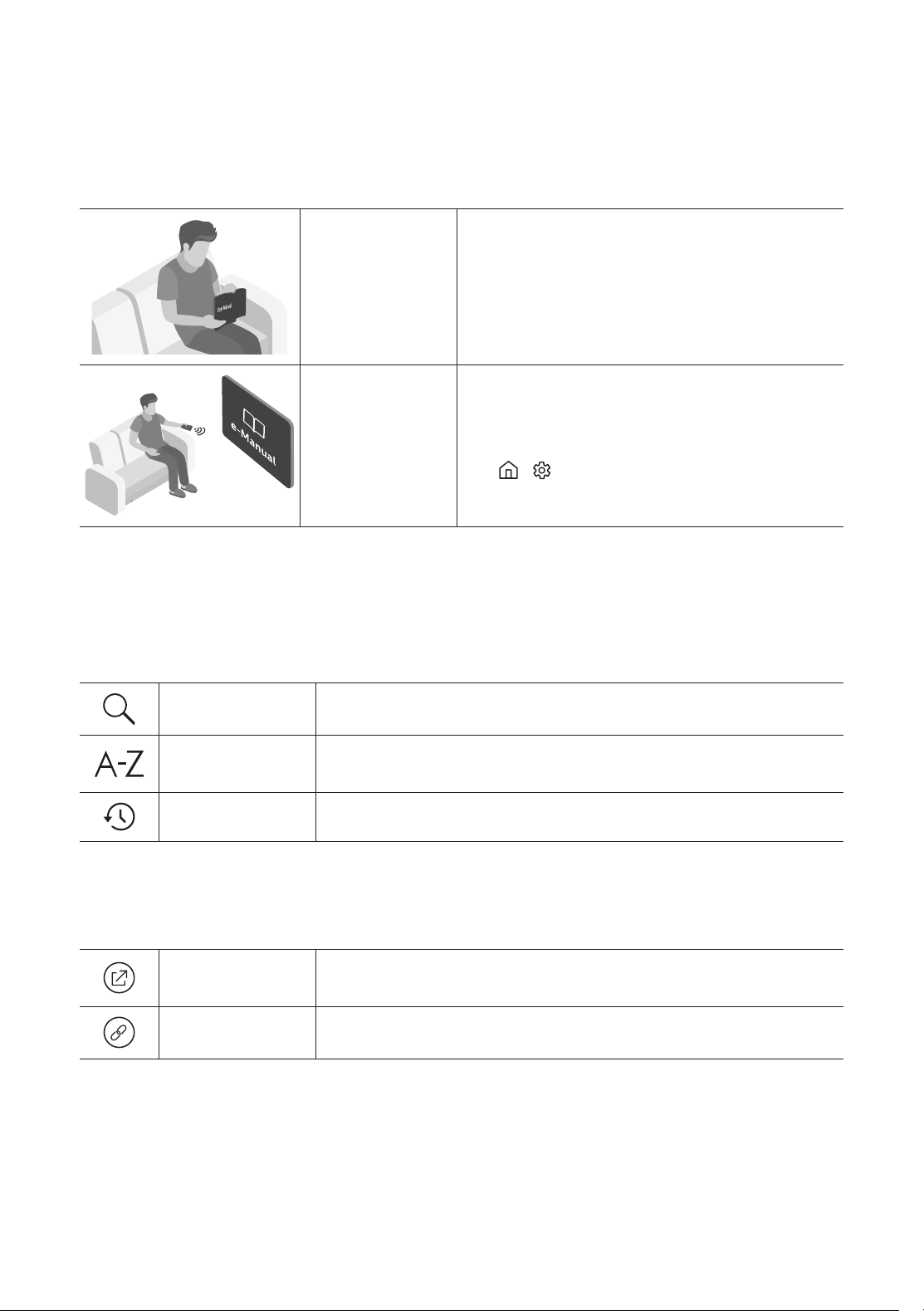
Before Reading This User Manual
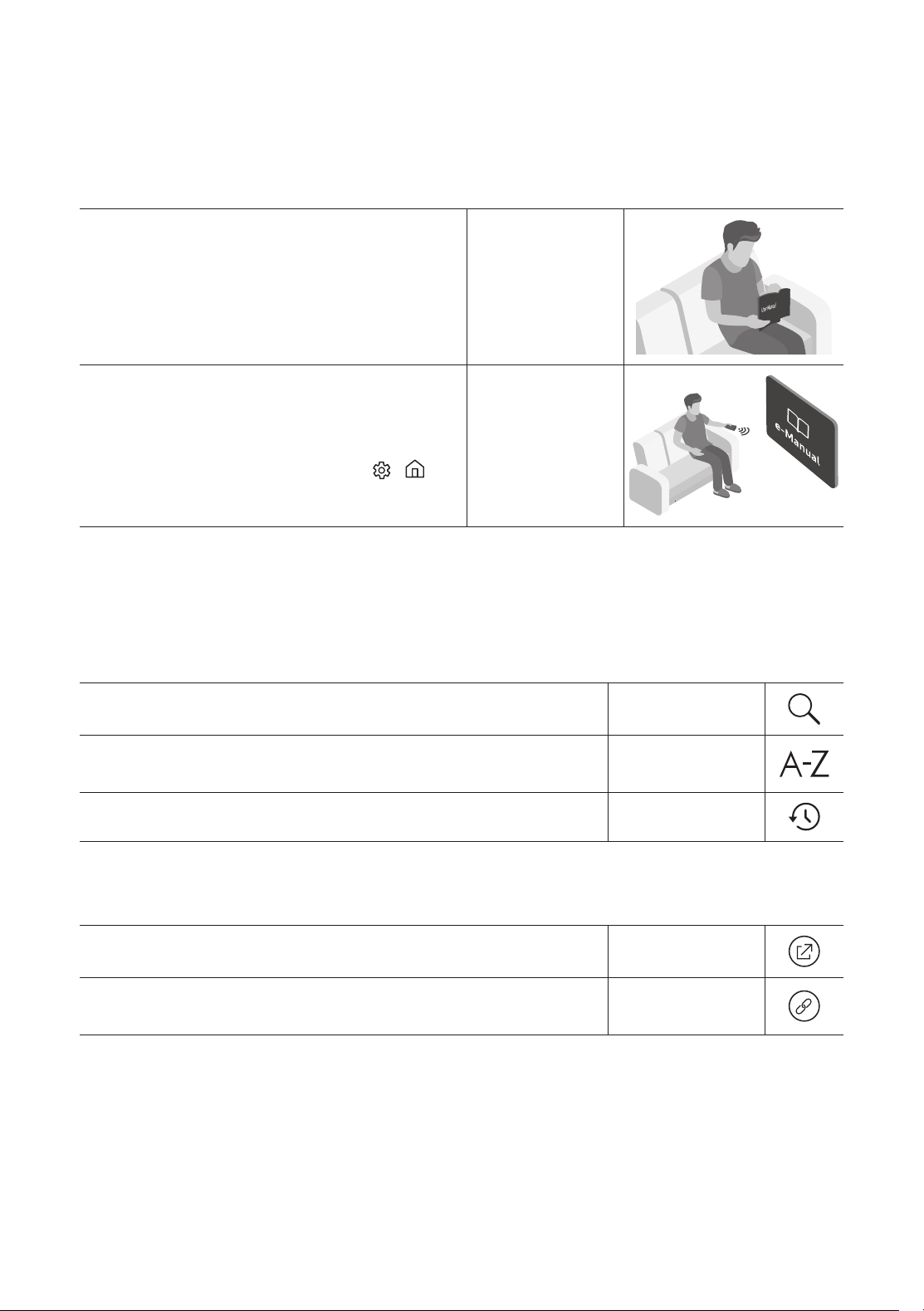
This TV comes with this user manual and an embedded e-Manual.
Before reading this user manual, review the following:
User Manual
Read this provided user manual to see information
about product safety, installation, accessories,
initial configuration, and product specifications.
e-Manual
For more information about this TV, read the
e-Manual embedded in the product.
• To open the e-Manual,
> Settings > Support > Open e-Manual
On the website (www.samsung.com), you can download the user manual and see its contents on your PC or
mobile device.
Learning the e-Manual's assistance functions
• Some menu screens cannot be accessed from the e-Manual.
Search
Select an item from the search results to load the corresponding page.
Index
Select a keyword to navigate to the relevant page.
– The menus may not appear depending on the geographical area.
Recent pages
Select a topic from the list of recently viewed topics.
Learning the functions of the buttons that appear on e-Manual topic
pages
Try Now
Allows you to access the corresponding menu item and try out the feature
right away.
Link
Access an underlined topic referred to on an e-Manual page immediately.
English
English - 2
Warning! Important Safety Instructions
Please read the Safety Instructions before using your TV.
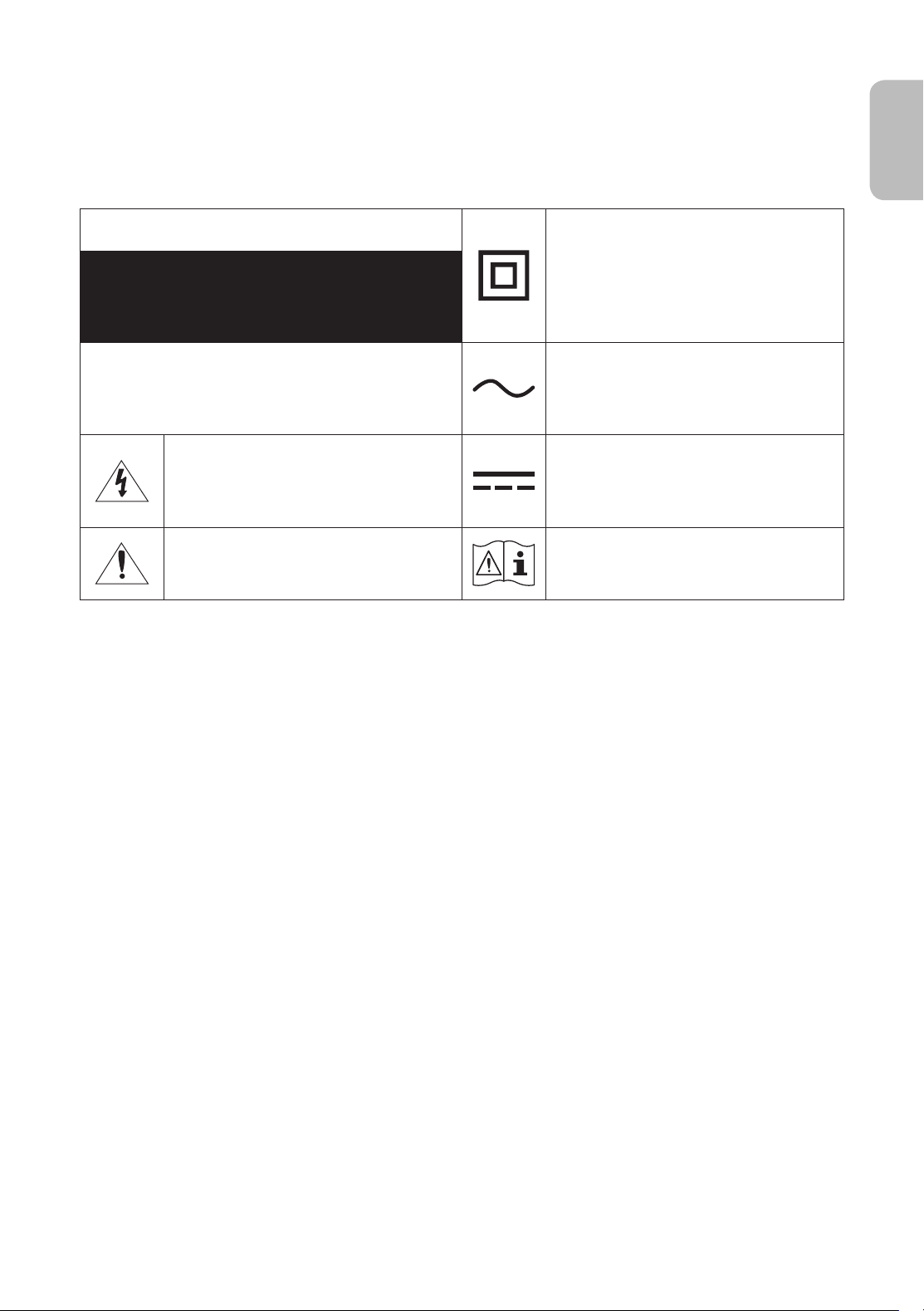
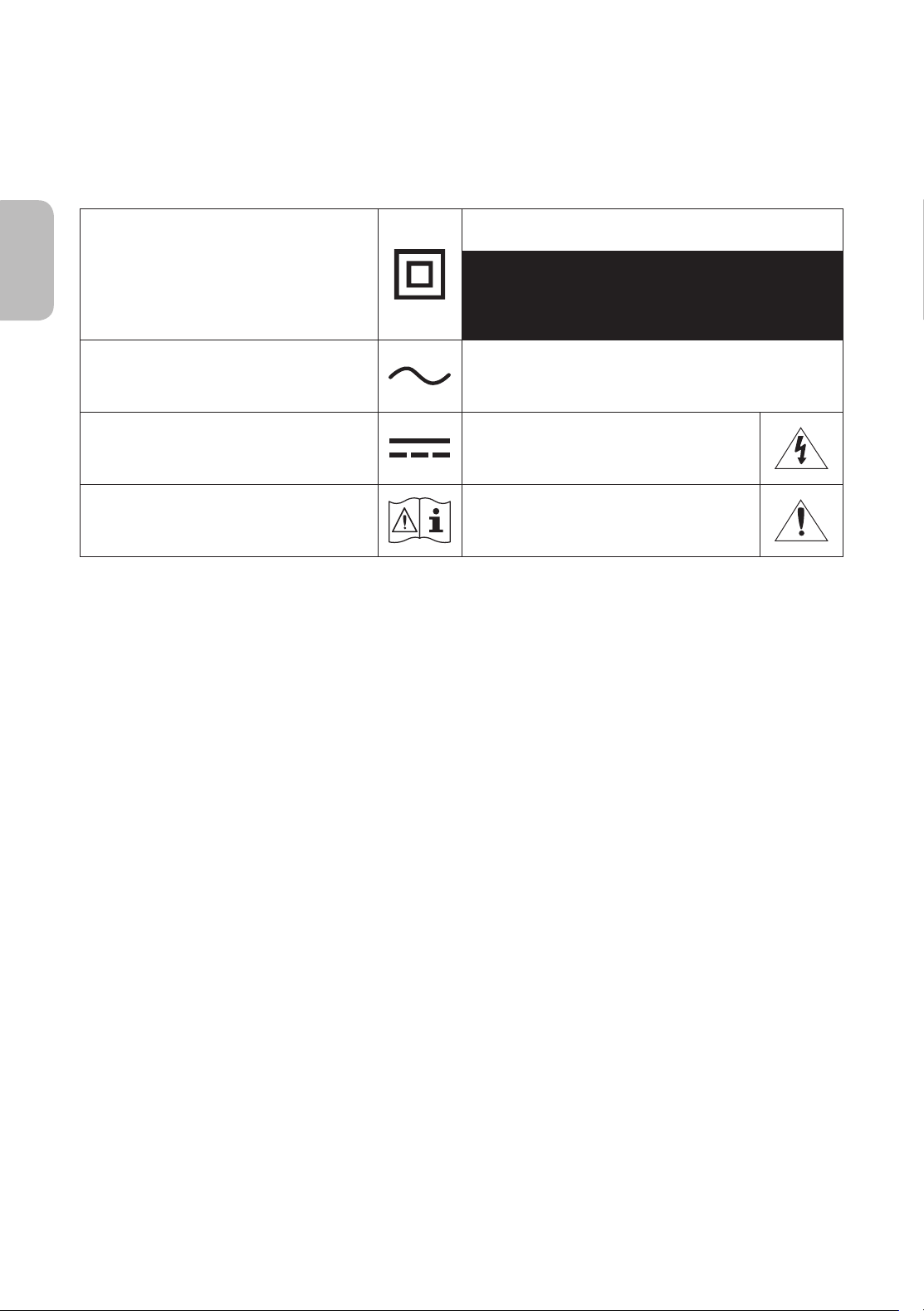
Refer to the table below for an explanation of symbols which may be on your Samsung product.
CAUTION
Class II product: This symbol indicates that a
safety connection to electrical earth (ground)
is not required. If this symbol is not present
on a product with a mains lead, the product
MUST have a reliable connection to protective
earth (ground).
RISK OF ELECTRIC SHOCK. DO NOT OPEN.
CAUTION: TO REDUCE THE RISK OF ELECTRIC SHOCK, DO
NOT REMOVE COVER (OR BACK). THERE ARE NO USER
SERVICEABLE PARTS INSIDE. REFER ALL SERVICING TO
QUALIFIED PERSONNEL.
AC voltage: Rated voltage marked with this
symbol is AC voltage.
This symbol indicates that high voltage is
present inside. It is dangerous to make any
kind of contact with any internal part of this
product.
DC voltage: Rated voltage marked with this
symbol is DC voltage.
This symbol indicates that this product has
included important literature concerning
operation and maintenance.
Caution. Consult instructions for use: This
symbol instructs the user to consult the user
manual for further safety related information.
• The slots and openings in the cabinet and in the back or bottom are provided for necessary ventilation. To
ensure reliable operation of this apparatus and to protect it from overheating, these slots and openings
must never be blocked or covered.
– Do not place this apparatus in a confined space, such as a bookcase or built-in cabinet, unless proper
ventilation is provided.
– Do not place this apparatus near or over a radiator or heat register, or where it is exposed to direct
sunlight.
– Do not place vessels (vases etc.) containing water on this apparatus, as this can result in a fire or
electric shock.
• Do not expose this apparatus to rain or place it near water (near a bathtub, washbowl, kitchen sink, or
laundry tub, in a wet basement, or near a swimming pool, etc.). If this apparatus accidentally gets wet,
unplug it and contact an authorised dealer immediately.
• This apparatus uses batteries. In your community, there might be environmental regulations that require
you to dispose of these batteries properly. Please contact your local authorities for disposal or recycling
information.
• Do not overload wall outlets, extension cords, or adaptors beyond their capacity, since this can result in fire
or electric shock.
• Power-supply cords should be placed so that they are not likely to be walked on or pinched by items placed
upon or against them. Pay particular attention to cords at the plug end, at wall outlets, and at the point
where they exit from the appliance.
• To protect this apparatus from a lightning storm, or when left unattended and unused for long periods of
time, unplug it from the wall outlet and disconnect the antenna or cable system. This will prevent damage
to the set due to lightning and power line surges.
English - 3
English

• Before connecting the AC power cord to the DC adaptor outlet, make sure that the voltage designation of
the DC adaptor corresponds to the local electrical supply.
• Never insert anything metallic into the open parts of this apparatus. This may cause a danger of electric
shock.
• To avoid electric shock, never touch the inside of this apparatus. Only a qualified technician should open
this apparatus.
• Be sure to plug in the power cord until it is firmly seated. When unplugging the power cord from a wall
outlet, always pull on the power cord's plug. Never unplug it by pulling on the power cord. Do not touch the
power cord with wet hands.
• If this apparatus does not operate normally - in particular, if there are any unusual sounds or smells coming
from it - unplug it immediately and contact an authorised dealer or service centre.
• Be sure to pull the power plug out of the outlet if the TV is to remain unused or if you are going to leave the
house for an extended period of time (especially when children, elderly, or disabled people will be left alone
in the house).
– Accumulated dust can cause an electric shock, an electric leakage, or a fire by causing the power cord
to generate sparks and heat or by causing the insulation to deteriorate.
• Be sure to contact an authorised Samsung service centre for information if you intend to install your TV in
a location with heavy dust, high or low temperatures, high humidity, chemical substances, or where it will
operate 24 hours a day such as in an airport, a train station, etc. Failure to do so may lead to serious damage
to your TV.
• Use only a properly grounded plug and wall outlet.
– An improper ground may cause electric shock or equipment damage. (Class l Equipment only.)
• To turn off this apparatus completely, disconnect it from the wall outlet. To ensure you can unplug this
apparatus quickly if necessary, make sure that the wall outlet and power plug are readily accessible.
• Store the accessories (batteries, etc.) in a location safely out of the reach of children.
• Do not drop or strike the product. If the product is damaged, disconnect the power cord and contact a
Samsung service centre.
• To clean this apparatus, unplug the power cord from the wall outlet and wipe the product with a soft, dry
cloth. Do not use any chemicals such as wax, benzene, alcohol, thinners, insecticide, aerial fresheners,
lubricants, or detergents. These chemicals can damage the appearance of the TV or erase the printing on
the product.
• Do not expose this apparatus to dripping or splashing.
• Do not dispose of batteries in a fire.
• Do not short-circuit, disassemble, or overheat the batteries.
• There is danger of an explosion if you replace the batteries used in the remote with the wrong type of
battery. Replace only with the same or equivalent type.
* Figures and illustrations in this User Manual are provided for reference only and may differ from the actual
product appearance. Product design and specifications may change without notice.
English - 4

Before Reading This User Manual ---------------------------------------------------------------------------- 2
Warning! Important Safety Instructions
---------------------------------------------------------------------------- 3
01 What's in the Box?
02 TV Installation
Mounting the TV on a wall ---------------------------------------------------------------------------- 7
Providing proper ventilation for your TV
---------------------------------------------------------------------------- 8
Attaching the TV to the Stand
---------------------------------------------------------------------------- 9
Safety Precaution: Securing the TV to the wall to
prevent falling
---------------------------------------------------------------------------- 9
03 The Remote Control
About the Buttons on the Remote Control ---------------------------------------------------------------------------- 10
Installing batteries into the remote control
(Battery size: AAA)
---------------------------------------------------------------------------- 11
04 Running the Initial Setup
Using the TV Controller ---------------------------------------------------------------------------- 12
05 Connecting to a Network
Network Connection - Wireless ---------------------------------------------------------------------------- 13
Network Connection - Wired
---------------------------------------------------------------------------- 13
06 Troubleshooting and Maintenance
Troubleshooting ---------------------------------------------------------------------------- 14
What is Remote Support?
---------------------------------------------------------------------------- 16
Eco Sensor and screen brightness
---------------------------------------------------------------------------- 16
Caring for the TV
---------------------------------------------------------------------------- 17
07 Specifications and Other Information
Specifications ---------------------------------------------------------------------------- 18
Environmental Considerations
---------------------------------------------------------------------------- 19
Decreasing power consumption
---------------------------------------------------------------------------- 19
Licences
---------------------------------------------------------------------------- 20
English - 5
English
Contents
01 What's in the Box?
Make sure the following items are included with your TV. If any items are missing, contact your dealer.
• Remote Control & Batteries (AAA x 2) (Not available
in some locations)
• User Manual
• Warranty Card / Regulatory Guide (Not available in
some locations)
• TV Power Cable
x 4
Wall Mount Adapter
• The items’ colours and shapes may vary depending on the models.
• Cables not included can be purchased separately.
• Check for any accessories hidden behind or in the packing materials when opening the box.
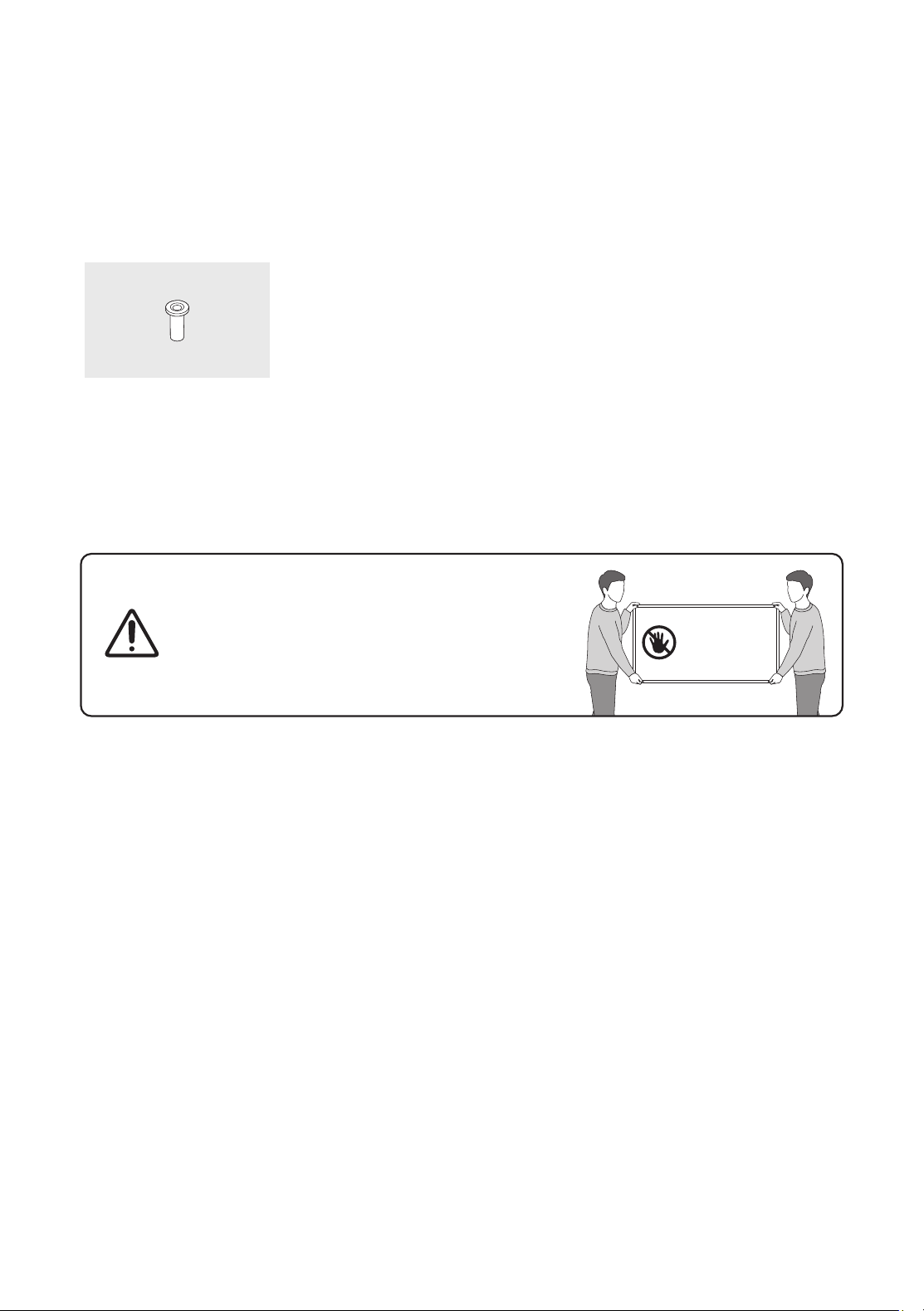
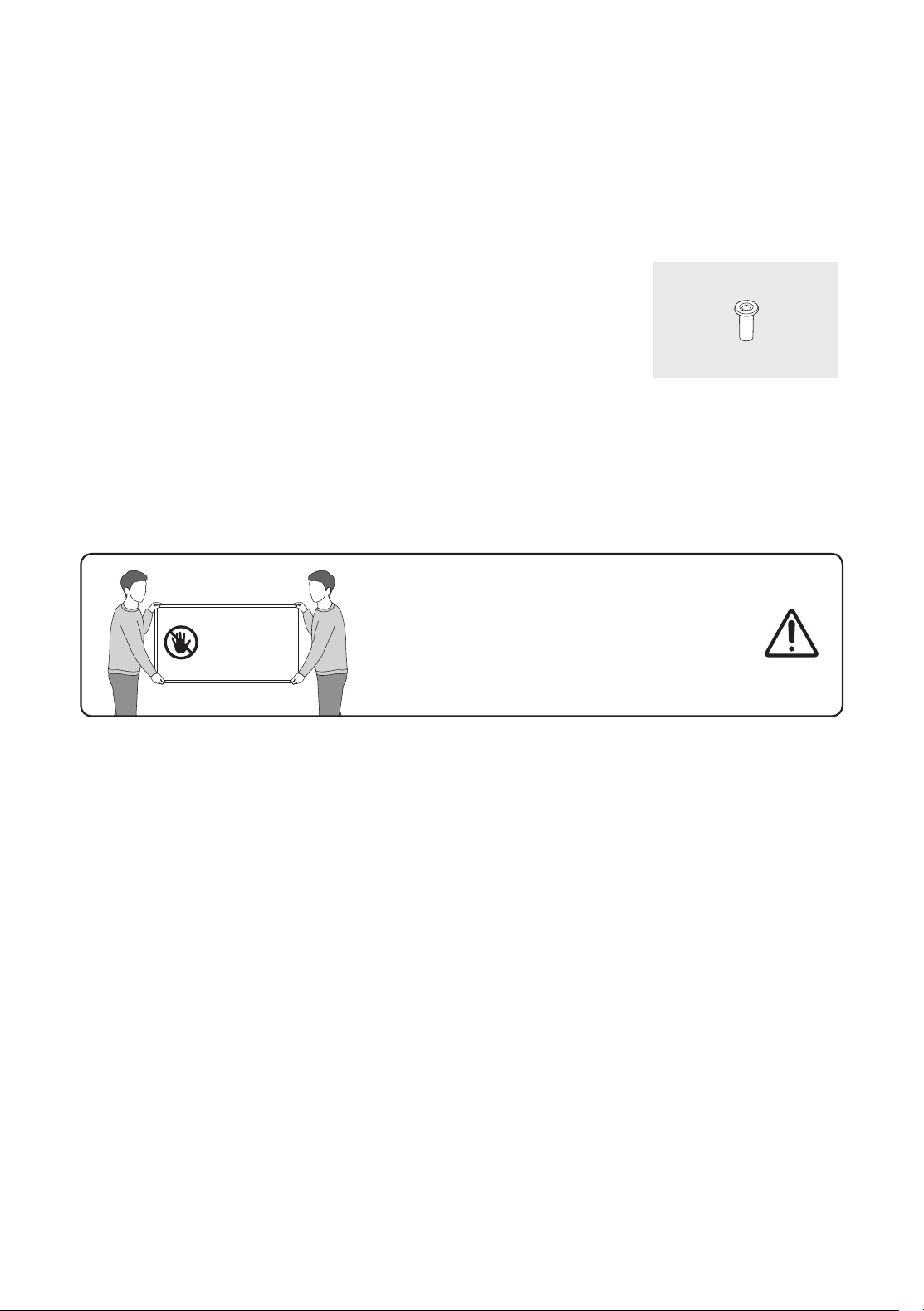
Warning: Screens can be damaged from direct pressure
when handled incorrectly. We recommend lifting the
TV at the edges, as shown.
Do Not Touch
This Screen!
English - 6
02 TV Installation
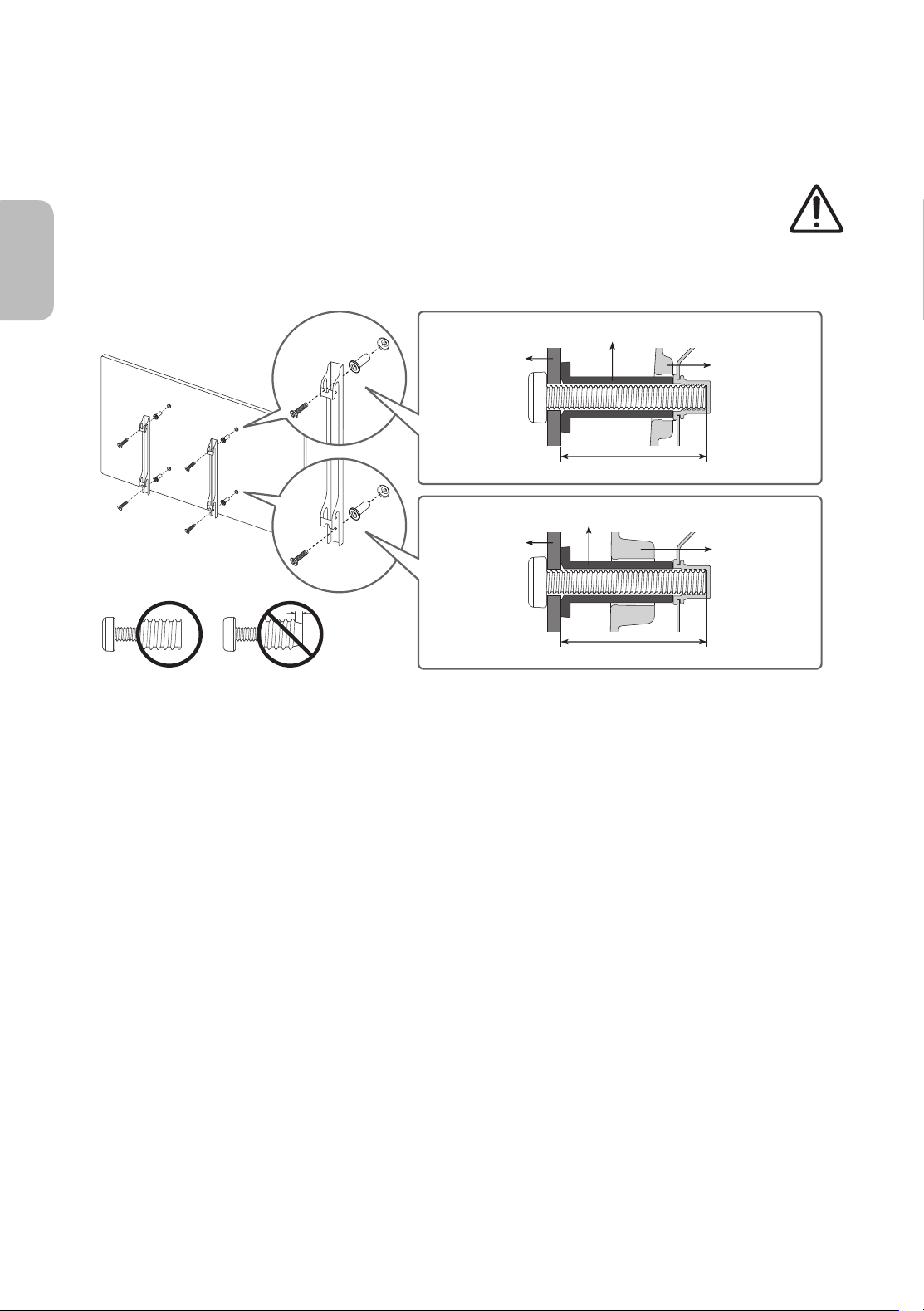
Mounting the TV on a wall
If you mount this TV on a wall, follow the instructions exactly as set out by the manufacturer. Unless
it is correctly mounted, the TV may slide or fall and cause serious injury to a child or adult and
serious damage to the TV.
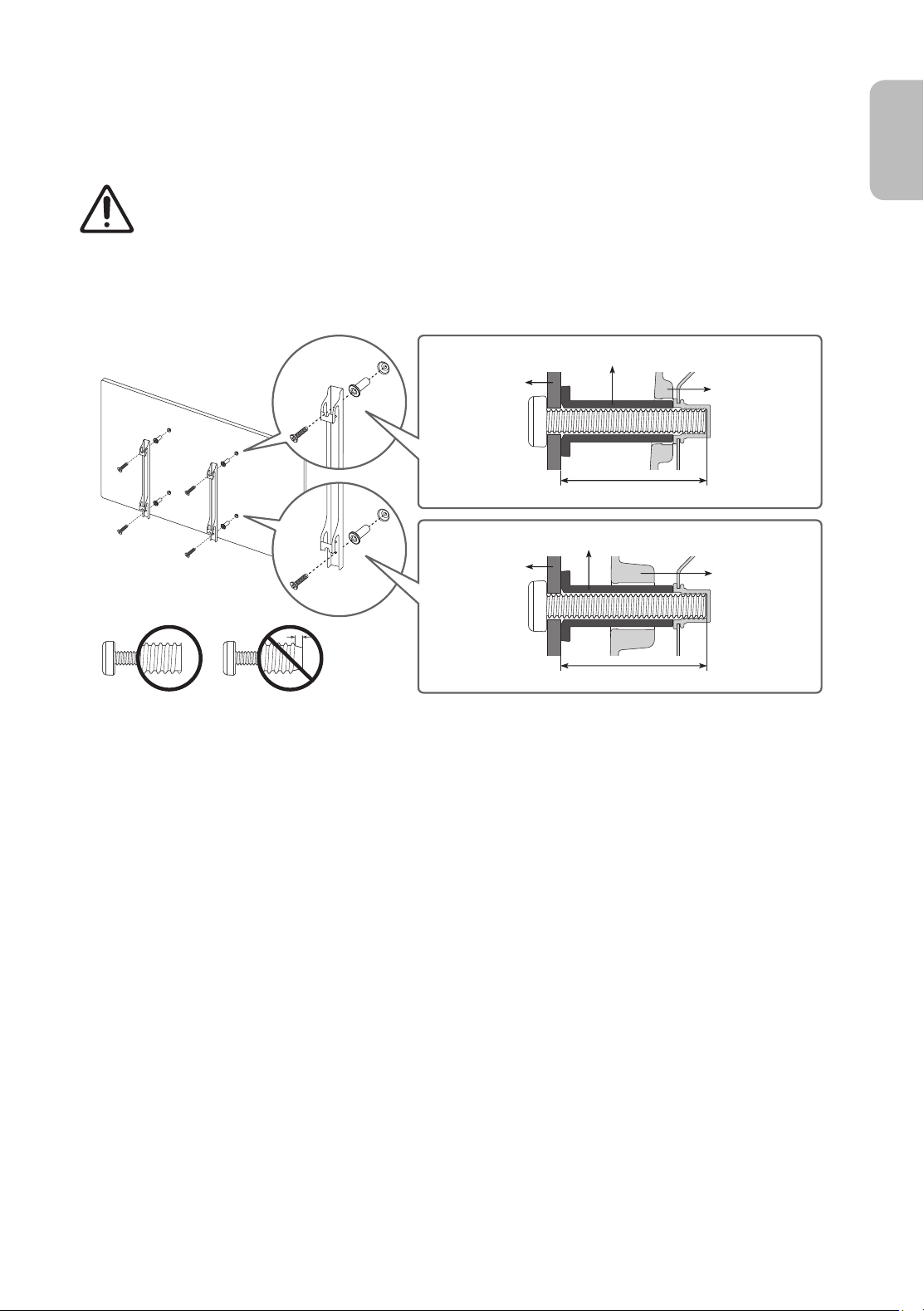
For models providing wall mount adapters, install them as shown in the figure below before installing the wall
mount kit.
• Refer to the installation manual included with the Samsung wall mount kit.
TV
TV
Wall mount
bracket
Wall mount
bracket
C
C
Wall mount Adapter
Wall mount Adapter
• Samsung Electronics is not responsible for any damage to the product or injury to yourself or others if you
choose to install the wall mount on your own.
• You can install your wall mount on a solid wall perpendicular to the floor. Before attaching the wall mount
to surfaces other than plaster board, contact your nearest dealer for additional information. If you install
the TV on a ceiling or slanted wall, it may fall and result in severe personal injury.
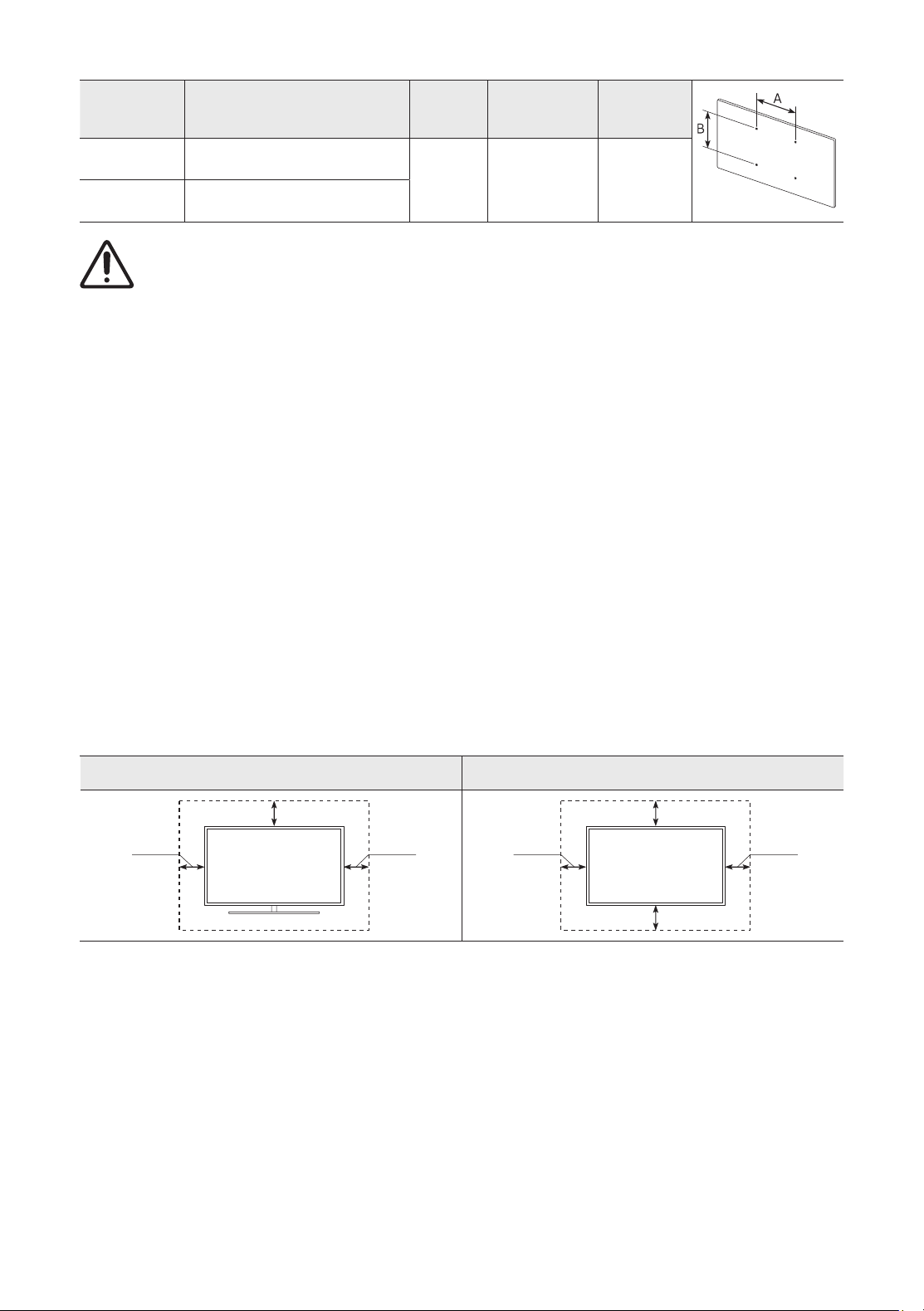
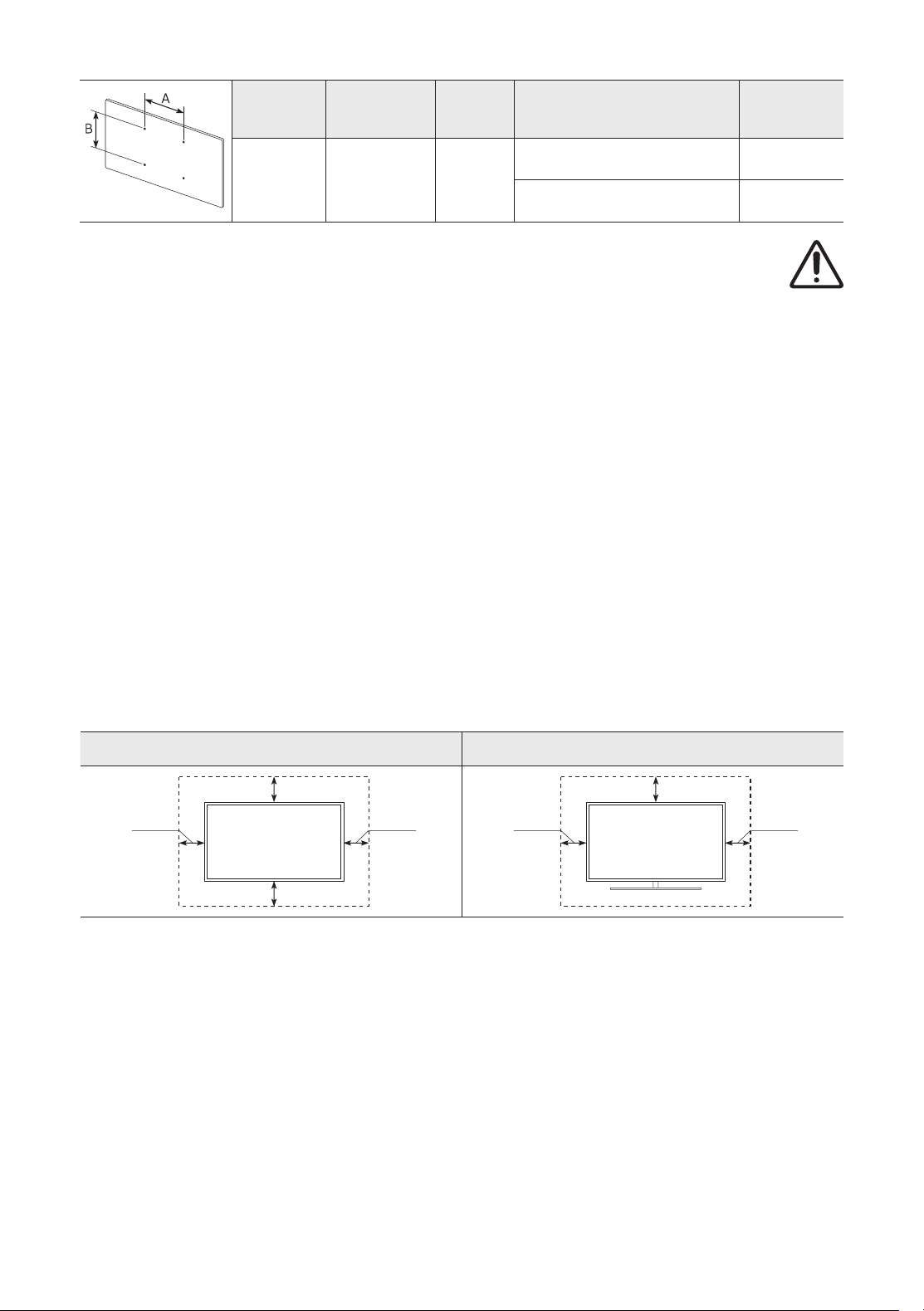
• Standard dimensions for wall mount kits are shown in the table on the next page.
• If you are installing a third-party wall mount, note that the length of the screws you can use to attach the
TV to the wall mount is shown in column C in the table on the next page.
• When installing a wall mount kit, we recommend you fasten all four VESA screws.
• If you want to install a wall mount kit that attaches to the wall using two top screws only, be sure to use a
Samsung wall mount kit that supports this type of installation. (You may not be able to purchase this type
of wall mount kit, depending on the geographical region.)
English - 7
English
TV size in
inches
VESA screw hole specs (A * B)
in millimetres
C (mm)
Standard
Screw
Quantity
43-55 200 x 200
43-45 M8 4
58-75 400 x 400
Do not install your wall mount kit while your TV is turned on. This may result in personal injury from
electric shock.
• Do not use screws that are longer than the standard dimension or do not comply with the VESA standard
screw specifications. Screws that are too long may cause damage to the inside of the TV set.
• For wall mounts that do not comply with the VESA standard screw specifications, the length of the screws
may differ depending on the wall mount specifications.
• Do not fasten the screws too firmly. This may damage the product or cause the product to fall, leading to
personal injury. Samsung is not liable for these kinds of accidents.
• Samsung is not liable for product damage or personal injury when a non-VESA or non-specified wall mount
is used or when the consumer fails to follow the product installation instructions.
• Do not mount the TV at more than a 15 degree tilt.
• Always have two people mount the TV onto a wall.
Providing proper ventilation for your TV
When you install your TV, maintain a distance of at least 10 cm between the TV and other objects (walls, cabinet
sides, etc.) to ensure proper ventilation. Failing to maintain proper ventilation may result in a fire or a problem
with the product caused by an increase in its internal temperature.
• When you install your TV with a stand or a wall mount, we strongly recommend you use parts provided by
Samsung Electronics only. Using parts provided by another manufacturer may cause difficulties with the
product or result in injury caused by the product falling.
Installation with a stand Installation with a wall mount
10 cm10 cm
10 cm
10 cm
10 cm
10 cm10 cm
English - 8
Attaching the TV to the Stand
Make sure you have all the accessories shown, and that you assemble the stand following the provided
assembly instructions.
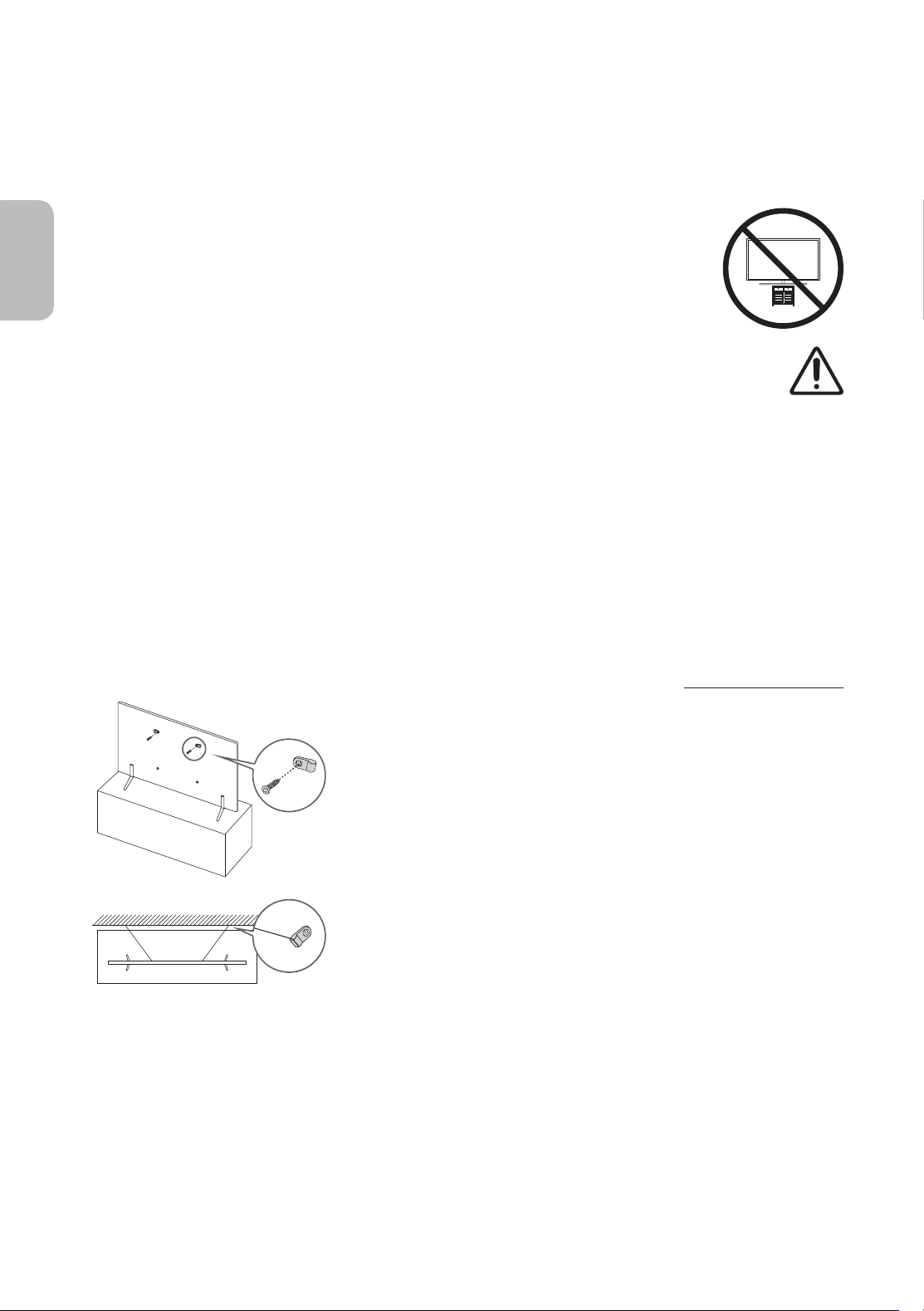
Safety Precaution: Securing the TV to the wall to prevent falling
Caution: Pulling, pushing, or climbing on the TV may cause the TV to fall. In particular,
ensure your children do not hang on or destabilise the TV. This action may cause the TV
to tip over, causing serious injuries or death. Follow all safety precautions provided in the
Safety Flyer included with your TV. For added stability and safety, you can purchase and
install the anti-fall device as described below.
WARNING: Never place a television set in an unstable location. The television set may fall, causing
serious personal injury or death. Many injuries, particularly to children, can be avoided by taking
simple precautions such as
• Using cabinets or stands recommended by the manufacturer of the television set.
• Only using furniture that can safely support the television set.
• Ensuring the television set is not overhanging the edge of the supporting furniture.
• Not placing the television set on tall furniture (for example, cupboards or bookcases) without
anchoring both the furniture and the television set to a suitable support.
• Not placing the television set on cloth or other materials that may be located between the
television set and supporting furniture.
• Educating children about the dangers of climbing on furniture to reach the television set or its
controls.
If you are retaining and relocating the television set that you are replacing with this new set, you
should apply the same precautions to the old set.
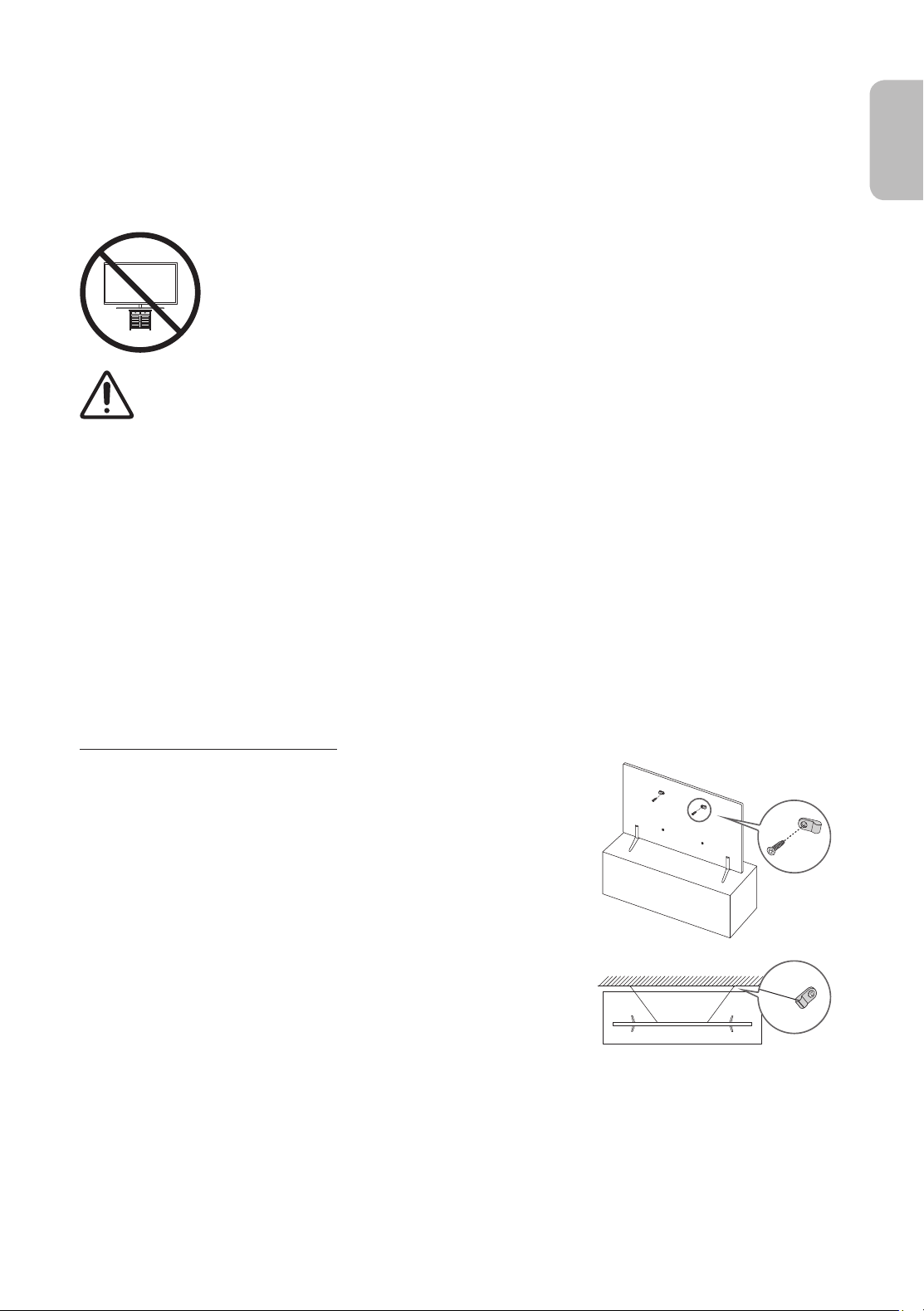
Preventing the TV from falling
1. Using the appropriate screws, firmly fasten a set of brackets to the
wall. Confirm that the screws are firmly attached to the wall.
– You may need additional material such as wall anchors
depending on the type of wall.
2. Using the appropriately sized screws, firmly fasten a set of brackets
to the TV.
– For the screw specifications, refer to the standard screw part in
the table under "Mounting the TV on a wall".
3. Connect the brackets fixed to the TV and the brackets fixed to the
wall with a durable, heavy-duty string, and then tie the string tightly.
– Install the TV near the wall so that it does not fall backwards.
– Connect the string so that the brackets fixed to the wall are at
the same height as or lower than the brackets fixed to the TV.
• The product colour and shape
may vary depending on the
model.
English - 9
English
03 The Remote Control
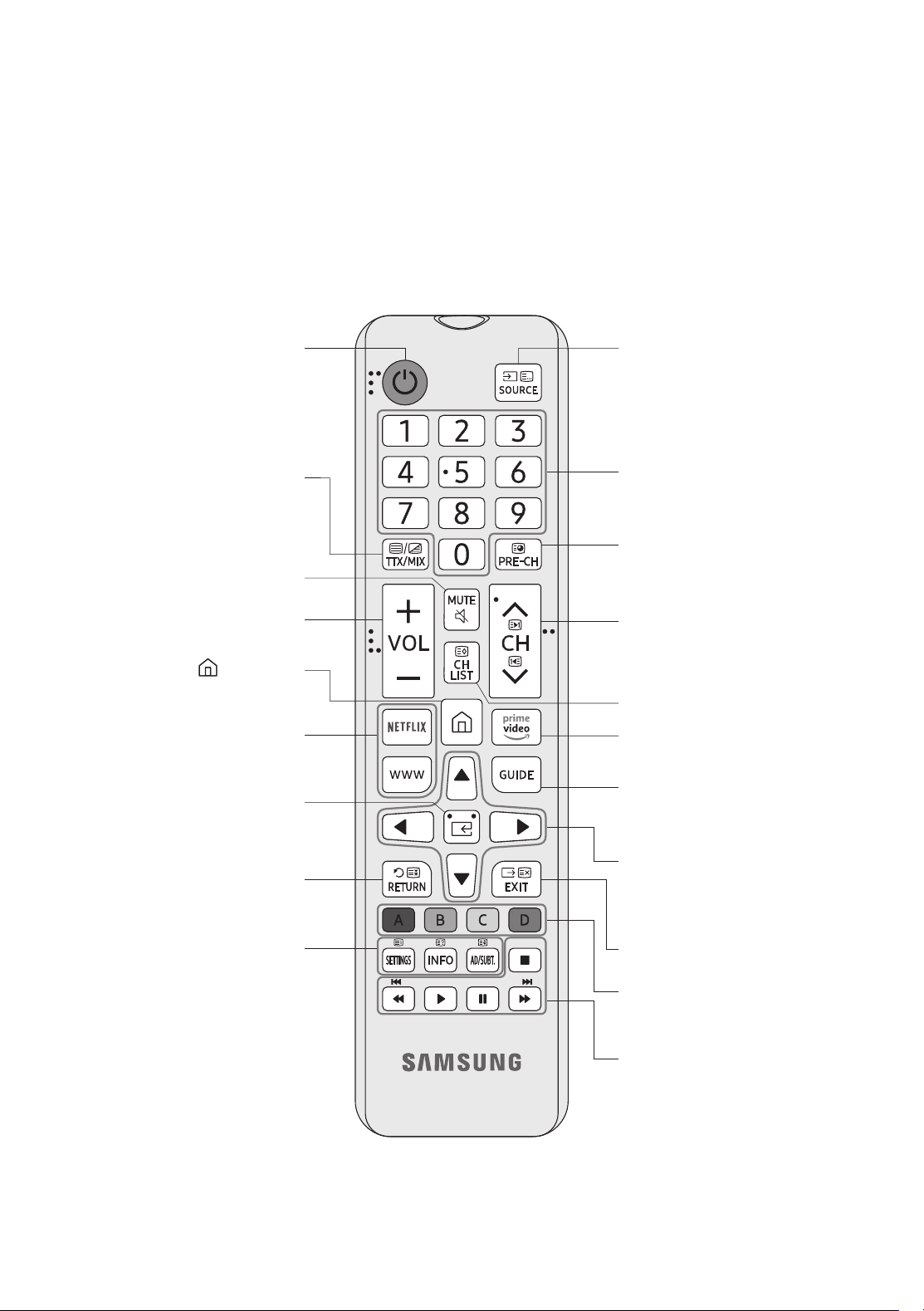
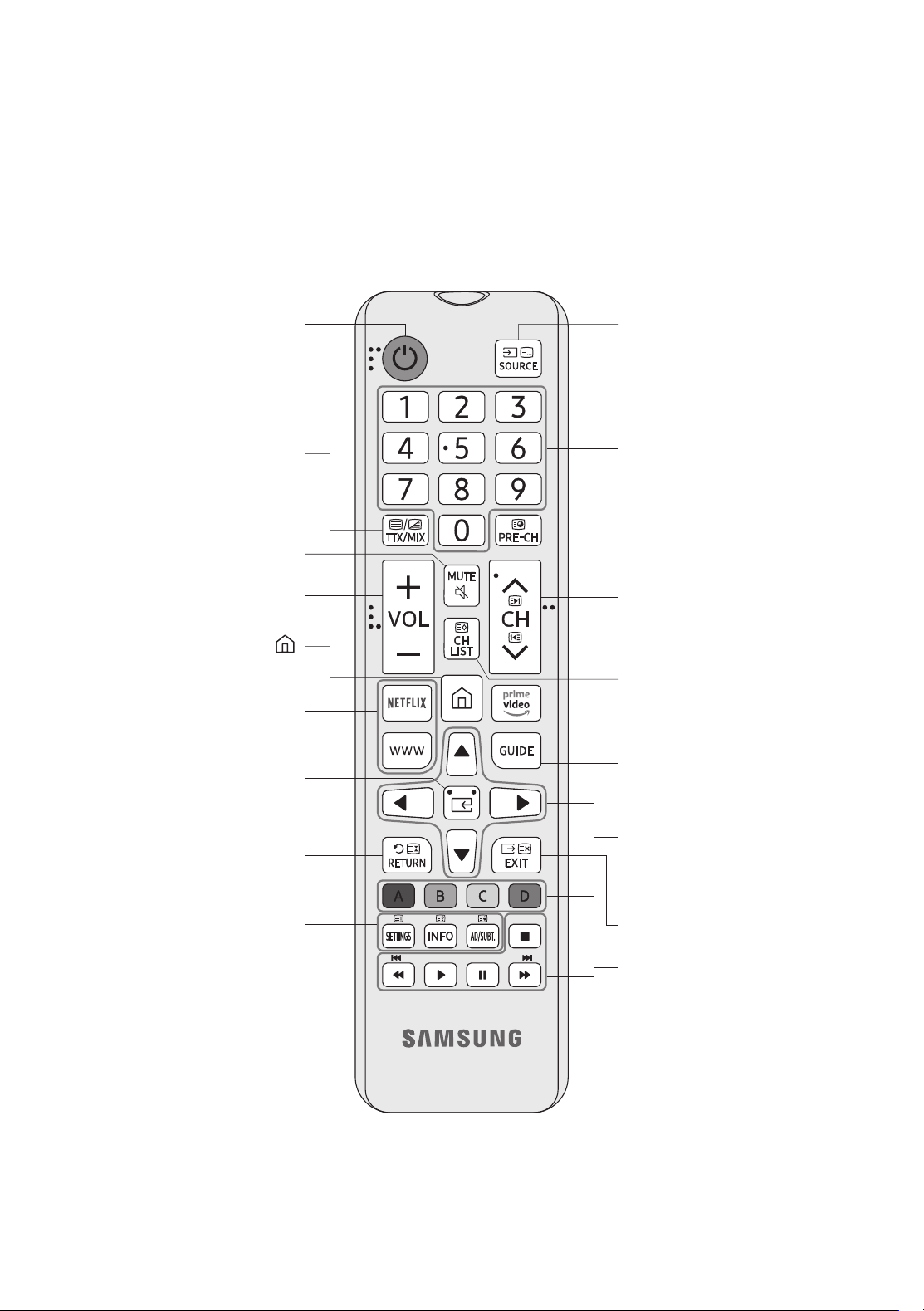
About the Buttons on the Remote Control
• This remote control has Braille points on the Power, Channel, Volume, and Select buttons and can be used
by visually impaired persons.
• The images, buttons, and functions of the remote control may differ depending on the model.
• If you use the remote control that comes with your TV to control another TV, some functions may not
operate normally.
Displays and selects available
video sources.
Turns the sound on/off.
Launches the Channel List.
Changes the current channel.
Exits the menu.
Use these buttons according to the
directions on the TV screen.
Use these buttons with specific
features. Use these buttons
according to the directions on the
TV screen.
Launch the app indicated by the
button.
Displays the Guide screen.
(This function may not be available
in specific geographical areas.)
Moves the cursor, selects the on-
screen menu items, and changes
the values seen on the TV's menu.
P (Power)
Turns the TV on and off.
Adjusts the volume.
Alternately selects Teletext mode,
Full TTX / Double TTX / Mix / Live
TV.
Returns to the previous channel.
Gives direct access to channels.
Launch the app indicated by the
button.
Returns to the previous menu or
channel.
SETTINGS
Displays the main on-screen menu.
INFO
Displays information about the
current programme or content.
AD/SUBT.
Displays the Accessibility
Shortcuts.
E (Select)
Selects or runs a focused item.
(Smart Hub)
Launches Home Screen.
English - 10
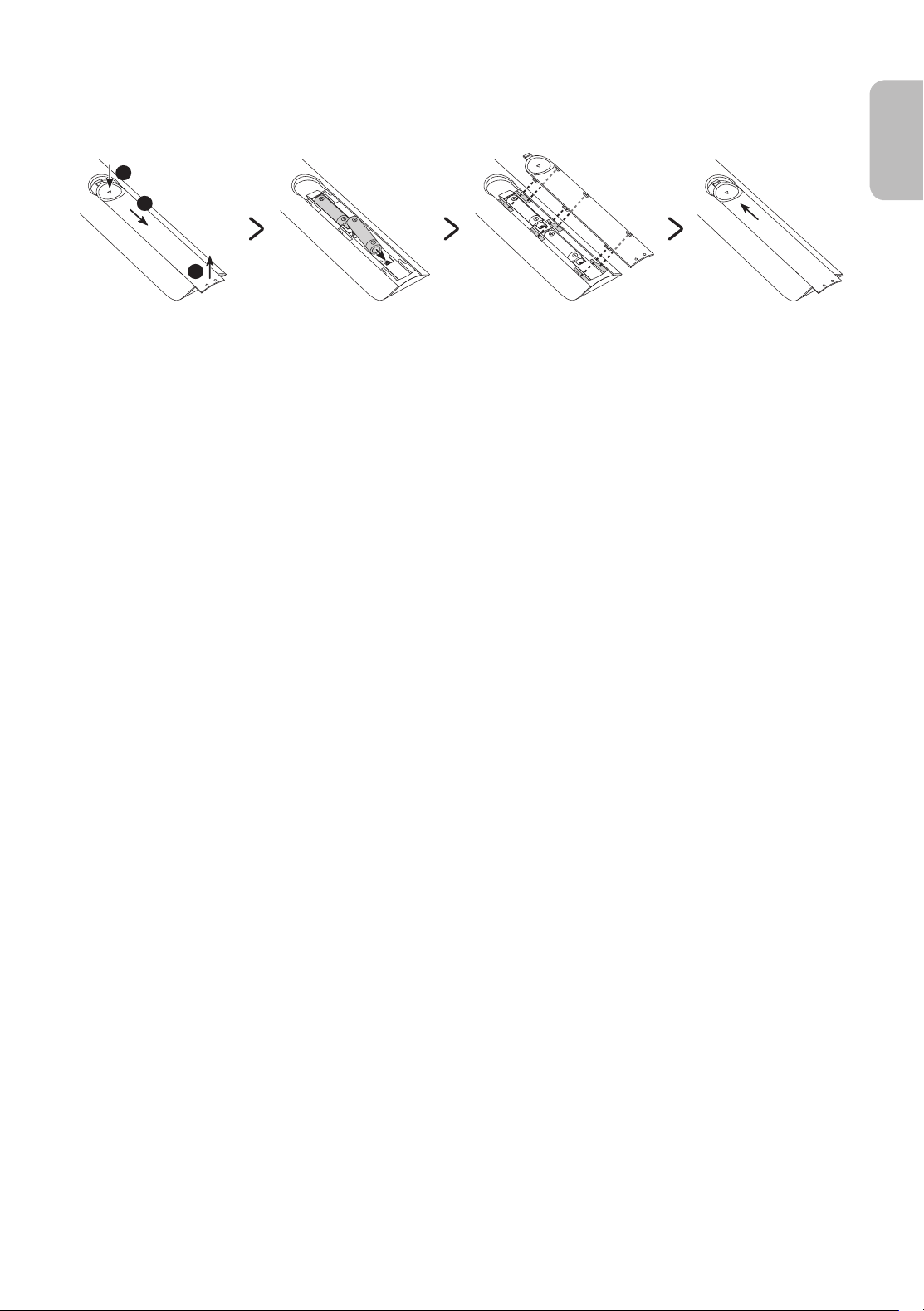
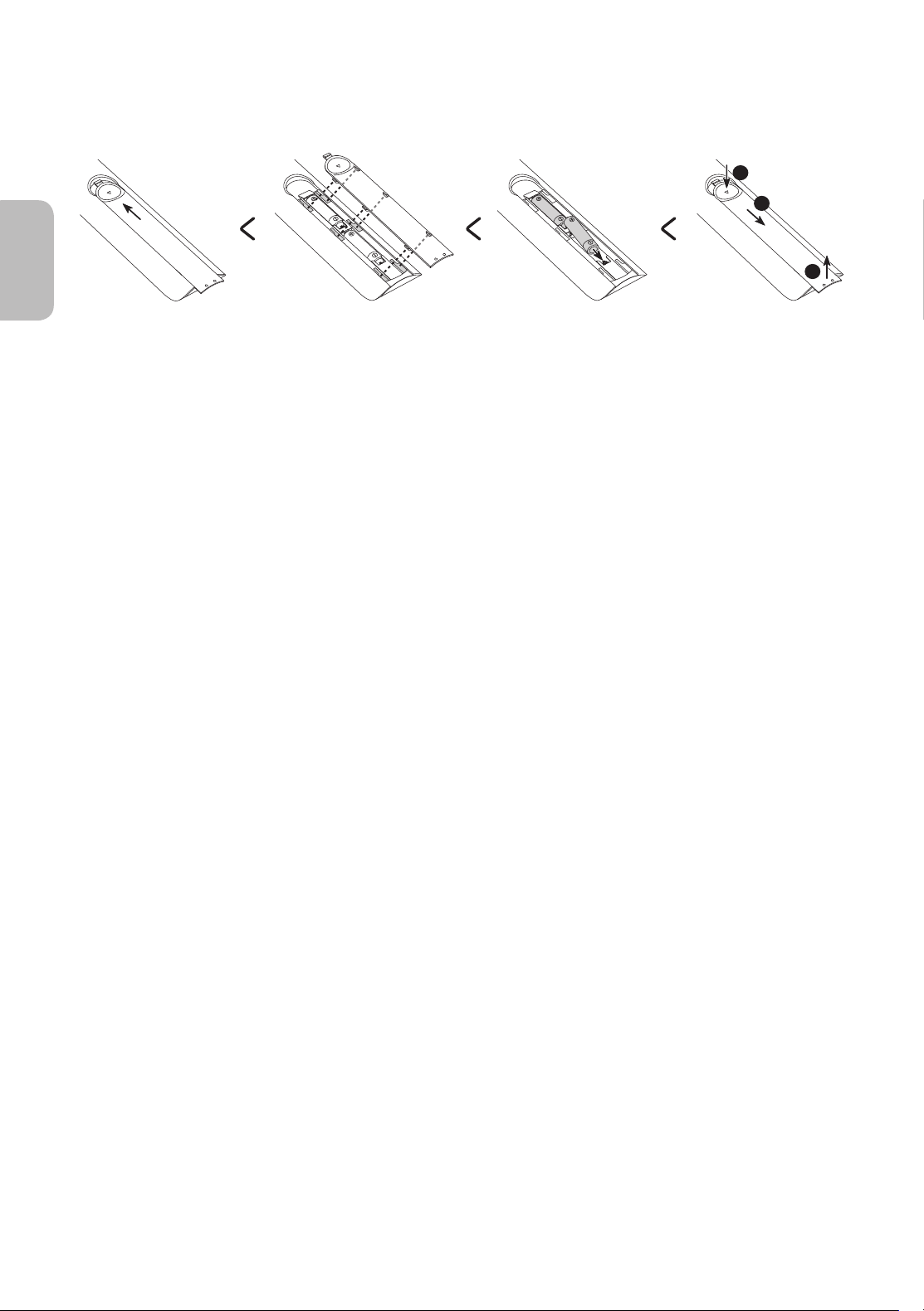
Installing batteries into the remote control (Battery size: AAA)
Match the polarities of the batteries to the symbols on the battery compartment.
2
3
1
• The colour and shape of the remote may vary depending on the model.
• Use the remote control within 7 m of the TV.
• Bright lights may affect the performance of the remote control. Avoid using the remote control near special
fluorescent lights or neon signs.
• Alkaline batteries are recommended for longer battery life.
1. Gently pull on the battery cover's notch and then remove the cover completely once it comes loose.
2. Insert 2 AAA alkaline batteries, making sure to align the positive and negative polarities correctly.
3. Place the battery cover on the remote control and insert the cover into the remote control.
4. Slide the battery cover in the order shown above so that the cover is completely attached to the remote
control.
English - 11
English
04 Running the Initial Setup
When you turn on your TV for the first time, it immediately starts the Initial Setup. The Initial Setup allows you
to configure the basic settings for the TV to operate, such as broadcast reception, channel search, and network
connection, at one time.
• Before starting the Initial Setup, be sure to connect external devices first.
• To use the TV's smart features, the TV must be connected to the Internet.
• To perform Initial Setup using the SmartThings app, you must connect your mobile device via Wi-Fi.
• If the pop-up for setup does not appear automatically on the SmartThings app on your mobile device,
continue setup manually after adding the TV using Add Device on the dashboard of the SmartThings app.
• The SmartThings app is available for mobile devices running Android 6.0 or higher or iOS 10 or higher.
• Noise may occur temporarily when the TV communicates with mobile devices.
You can also start the Initial Setup using the TV's menu (
> Settings > General > Reset).
Follow the instructions displayed on the Initial Setup screen and configure the TV's basic settings to suit your
viewing environment.
Using the TV Controller
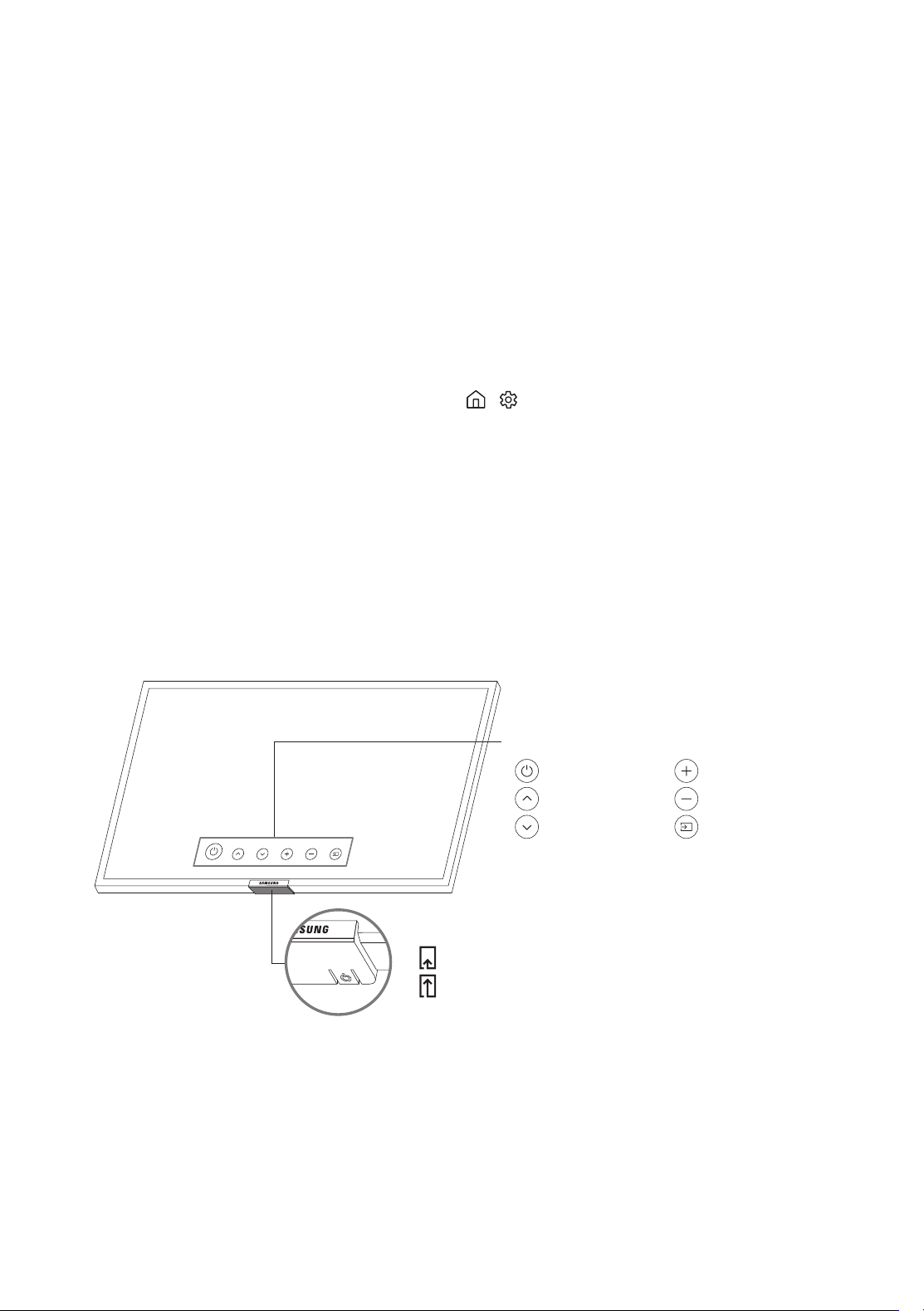
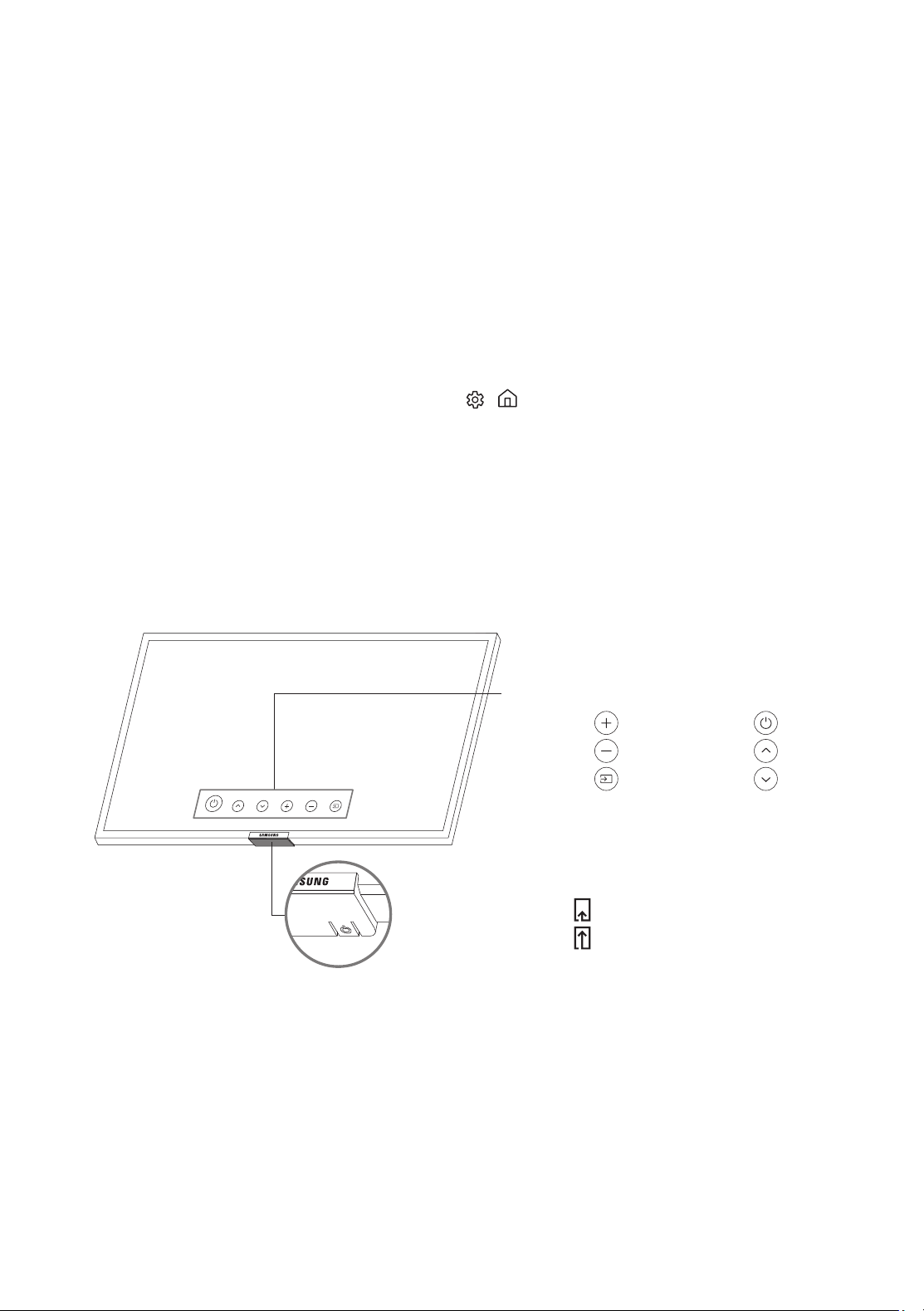
You can turn on the TV with the TV Controller button at the bottom of the TV, and then use the Control menu.
The Control menu appears when the TV Controller button is pressed while the TV is On. For more information
about its usage, refer to the figure below.
• The screen may dim if the protective film on the SAMSUNG logo or the bottom of the TV is not detached.
Please remove the protective film.
Control menu
:
Power off
:
Volume Up
:
Channel Up
:
Volume Down
:
Channel Down
:
Source
TV Controller button / Remote control sensor
Press: Move
Press & Hold: Select
The TV Controller button is located on the bottom of the TV.
English - 12
05 Connecting to a Network
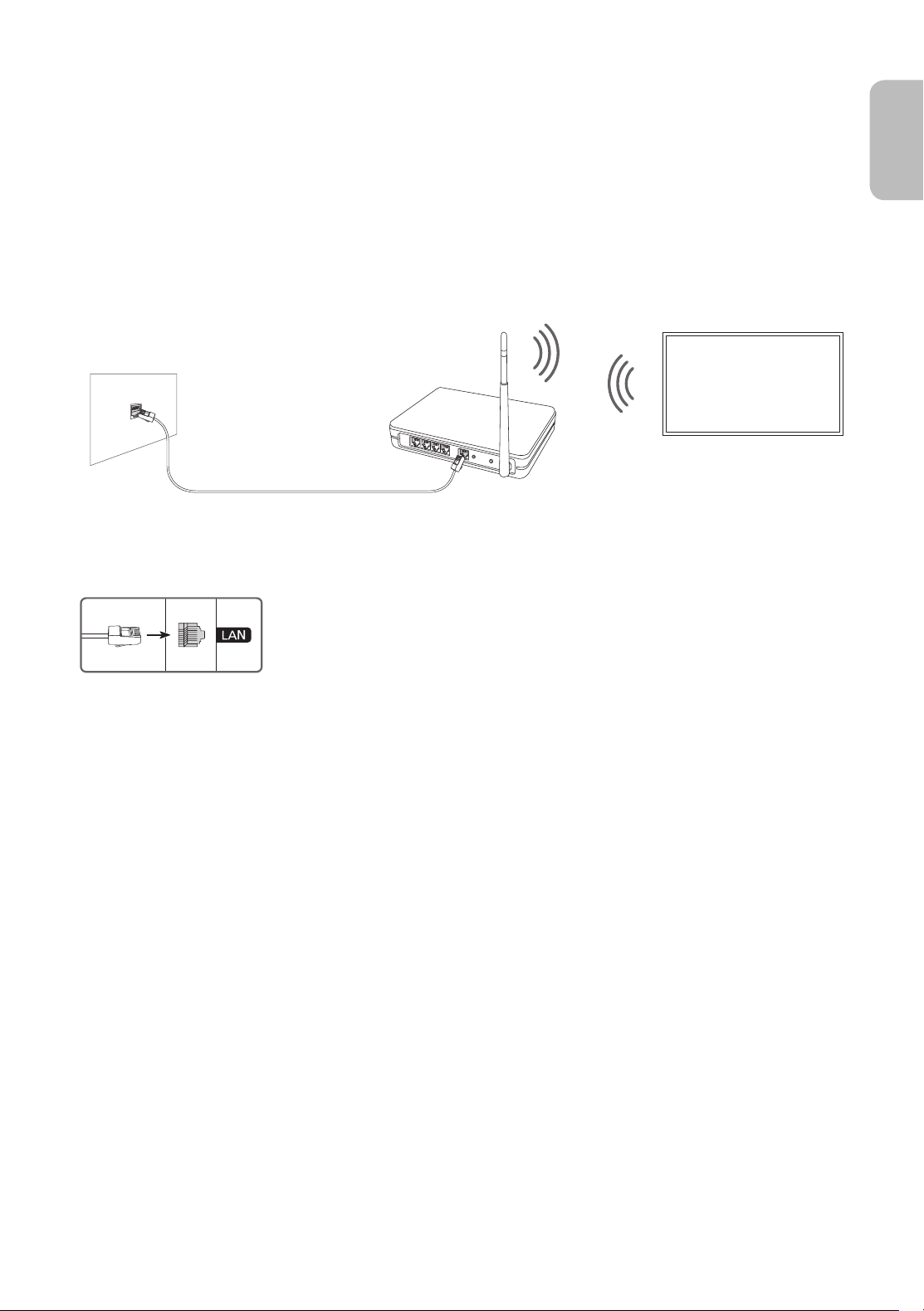
Connecting the TV to a network gives you access to online services, such as Smart Hub, as well as software
updates.
Network Connection - Wireless
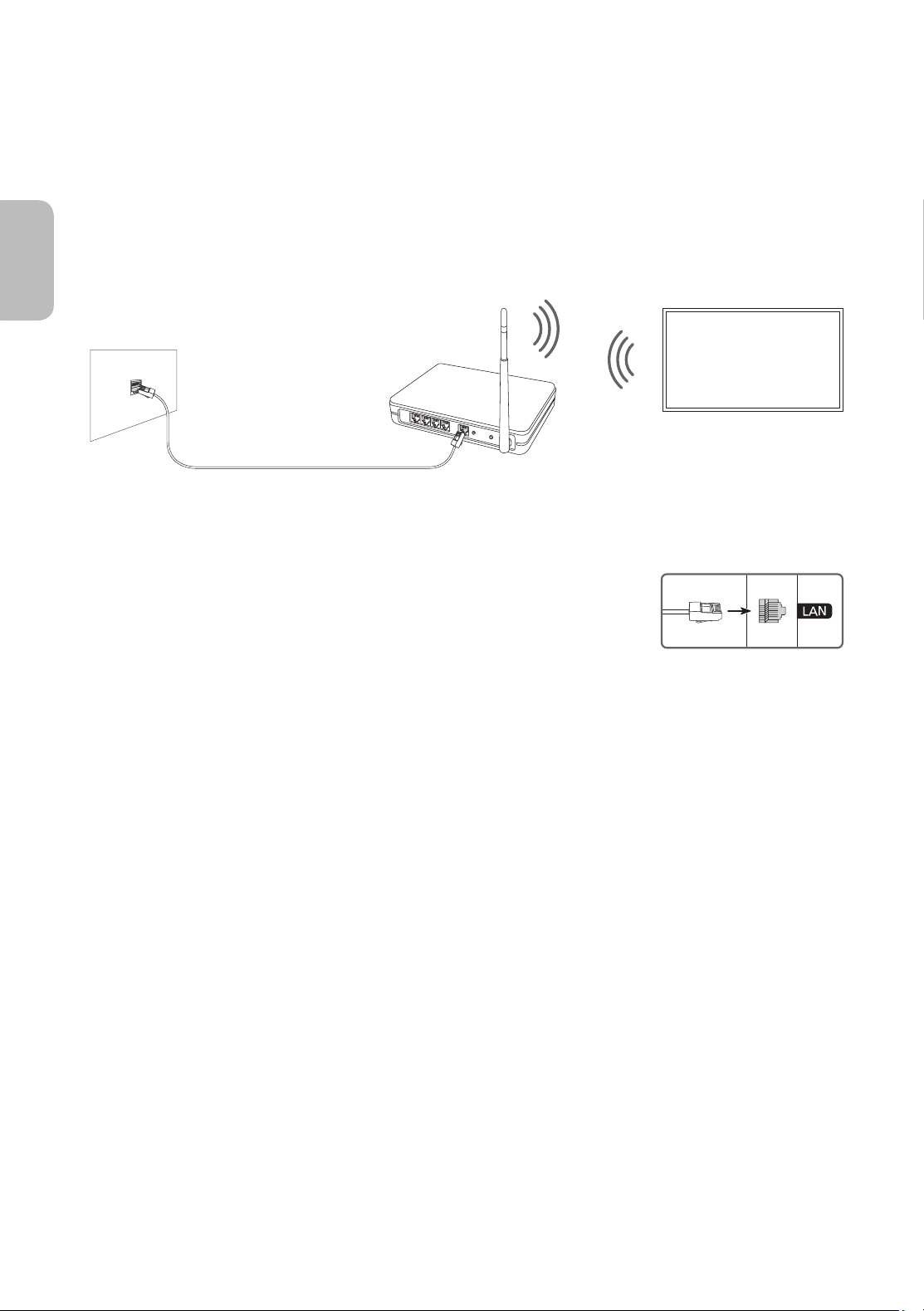
Connect the TV to the Internet using a standard access point or modem.
Wireless IP access point or
modem with a DHCP Server
LAN Cable (Not Supplied)
The LAN Port on the Wall
Network Connection - Wired
Connect your TV to the network using a LAN cable.
• The TV will not be able to connect to the Internet if your network speed is
below 10 Mbps.
• Use Cat7 (*STP Type) cable for the connection.
* Shielded Twisted Pair
English - 13
English
06 Troubleshooting and Maintenance
Troubleshooting
If the TV seems to have a problem, first review this list of possible problems and solutions. Alternatively, review
the Troubleshooting Section in the e-Manual. If none of these troubleshooting tips apply, please visit “www.
samsung.com” and click on Support, or contact the call centre listed on the back cover of this manual.
• This TFT LED panel is made up of sub pixels which require sophisticated technology to produce. There may
be, however, a few bright or dark pixels on the screen. These pixels will have no impact on the performance
of the product.
• To keep your TV in optimum condition, upgrade to the latest software. Use the Update Now or Auto update
functions on the TV's menu (
> Settings > Support > Software Update > Update Now or Auto update).
The TV won’t turn on.
• Make sure that the AC power cord is securely plugged in to the TV and the wall outlet.
• Make sure that the wall outlet is working and the power indicator at the bottom of the TV is lit and glowing
a solid red.
• Try pressing the TV Controller button at the bottom of the TV to make sure that the problem is not with the
remote control. If the TV turns on, refer to “The remote control does not work”.
There is no picture/video/sound, or a distorted picture/video/sound from an external
device, or “Weak or No Signal” is displayed on the TV, or you cannot find a channel.
• Make sure the connection to the device is correct and that all cables are fully inserted.
• Remove and reconnect all cables connected to the TV and the external devices. Try new cables if possible.
• Confirm that the correct input source has been selected ( > Source).
• Perform a TV self diagnosis to determine if the problem is caused by the TV or the device ( > Settings >
Support > Self Diagnosis > Start Picture Test or Start Sound Test).
• If the test results are normal, reboot the connected devices by unplugging each device's power cord and
then plugging it in again. If the issue persists, refer to the connection guide in the user manual of the
connected device.
• If you are not using a cable box or satellite box, and your TV is receiving TV signals from an antenna or
a cable wall connector, run Auto Tuning to search for channels (
> Settings > Broadcasting > (Auto
Tuning Settings) > Auto Tuning).
– The Auto Tuning Settings may not appear depending on the model or geographical area.
– If you are using a cable box or satellite box, please refer to the cable box or satellite box manual.
English - 14
The remote control does not work.
• Check if the power indicator at the bottom of the TV blinks when you press the remote's Power button. If it
does not, replace the remote control's batteries.
• Make sure that the batteries are installed with their poles (+/–) in the correct direction.
• Try pointing the remote directly at the TV from 1.5-1.8 m away.
The cable box or satellite box remote control doesn’t turn the TV on or off or adjust the
volume.
• Programme the cable box or satellite box remote control to operate the TV. Refer to the cable box or
satellite box user manual for the SAMSUNG TV code.
The TV settings are lost after 5 minutes.
• The TV is in the Retail Mode. Change the Usage Mode in the General Menu to Home Mode ( > Settings
> General > System Manager > Usage Mode > Home Mode).
Intermittent Wi-Fi
• Make sure the TV has a network connection ( > Settings > General > Network > Network Status).
• Make sure the Wi-Fi password is entered correctly.
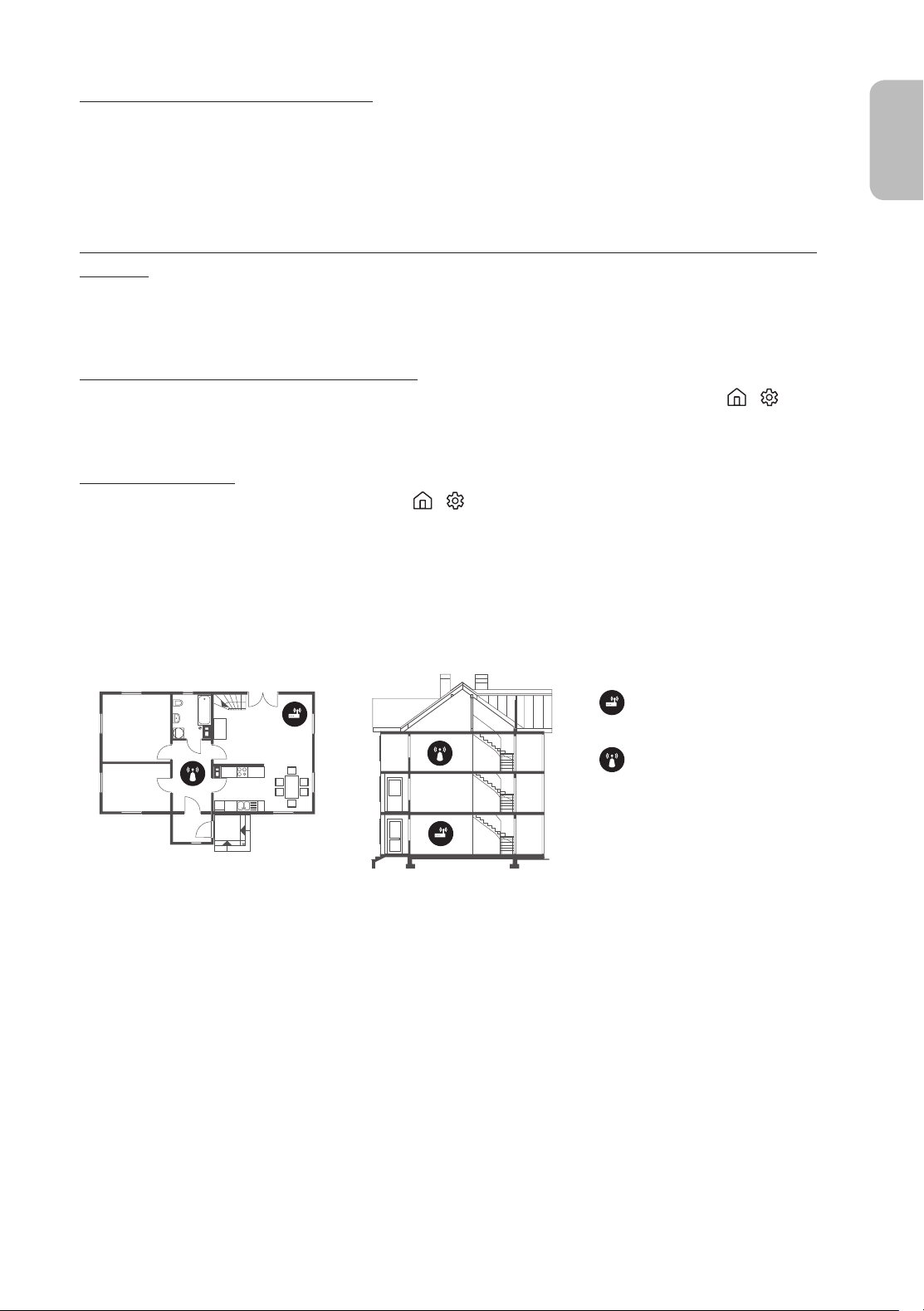
• Check the distance between the TV and the modem or access point. The distance should not exceed 15.2 m.
• Reduce interference by not using or turning off wireless devices. Also, verify that there are no obstacles
between the TV and the modem or access point. (The Wi-Fi strength can be decreased by appliances,
cordless phones, stone walls/fireplaces, etc.)
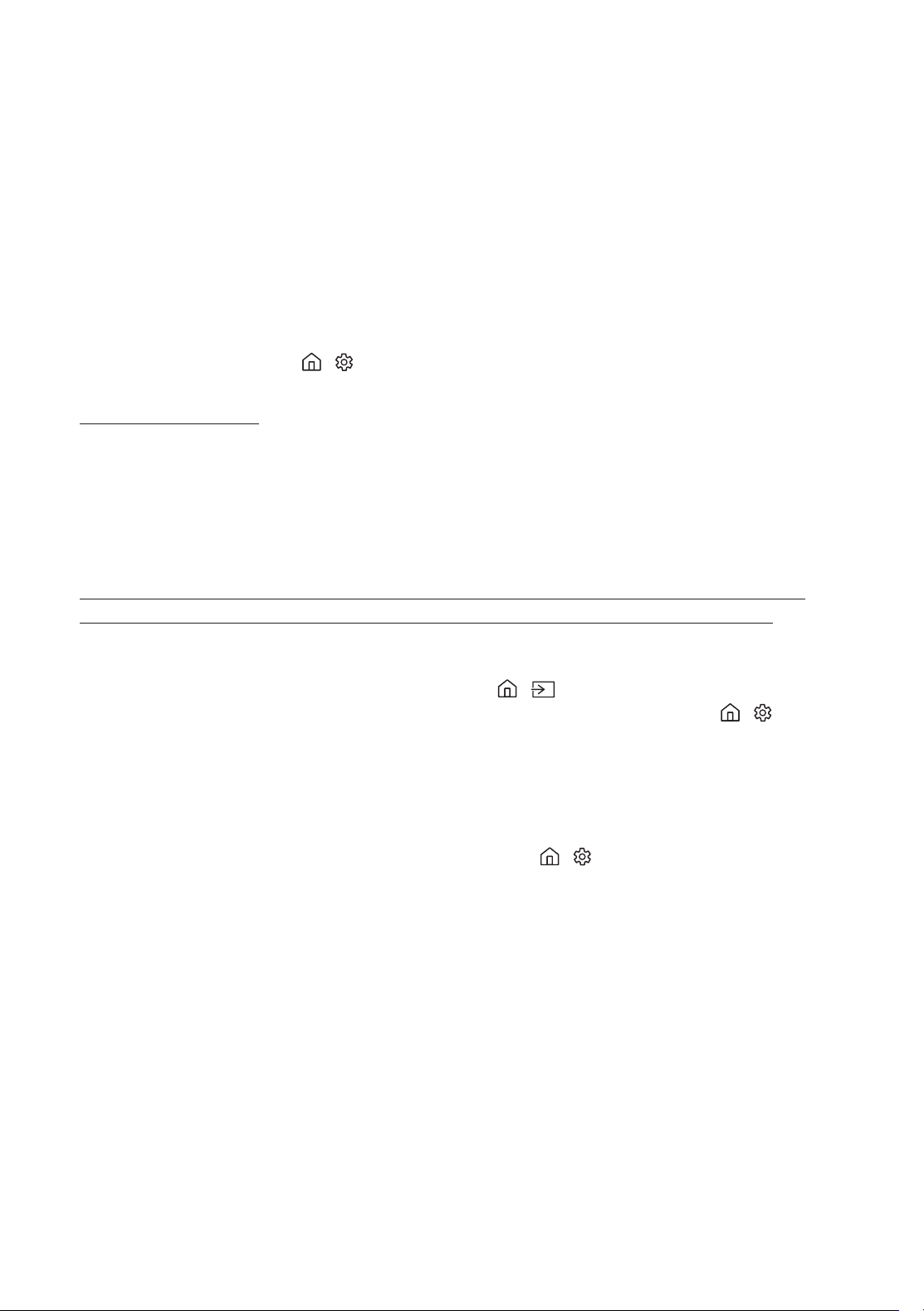
Single story Multi story
Wireless access point
Wireless repeater
• Contact your Internet Service Provider (ISP) and ask them to reset your network circuit to re-register the
MAC addresses of your new modem or access point and the TV.
English - 15
English
Video Apps problems (Youtube etc)
• Change the DNS to 8.8.8.8. Select > Settings > General > Network > Network Status > IP Settings >
DNS setting > Enter manually > DNS Server > enter 8.8.8.8 > OK.
• Reset by selecting > Settings > Support > Self Diagnosis > Reset Smart Hub.
What is Remote Support?
Samsung Remote Support service offers you one-on-one support with a Samsung Technician who can
remotely:
• Diagnose your TV
• Adjust the TV settings for you
• Perform a factory reset on your TV
• Install recommended firmware updates
How does Remote Support work?
You can easily get Samsung Remote Support service for your TV:
1. Call the Samsung Contact Centre and ask for remote support.
2. Open the menu on your TV and go to the Support section. ( > Settings > Support)
3. Select Remote Management, then read and agree to the service agreements. When the PIN screen
appears, provide the PIN number to the technician.
4. The technician will then access your TV.
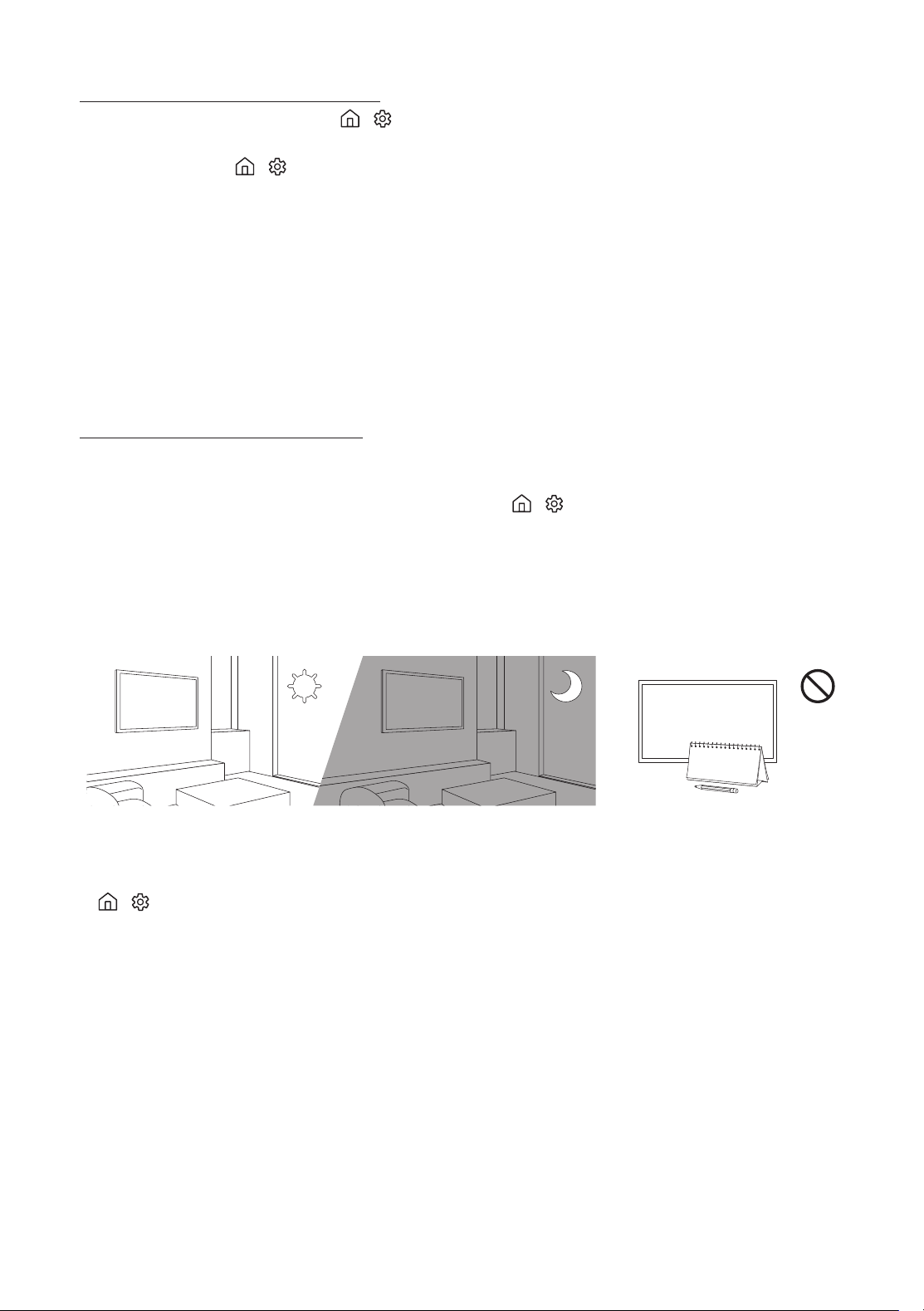
Eco Sensor and screen brightness
Eco Sensor adjusts the brightness of the TV automatically. This feature measures the light in your room and
optimises the brightness of the TV automatically to reduce power consumption. If you want to turn this off, go
to
> Settings > General > Eco Solution > Ambient Light Detection.
• If the screen is too dark while you are watching TV in a dark environment, it may be due to the Ambient
Light Detection function.
• The eco sensor is located at the bottom of the TV. Do not block the sensor with any object. This can decrease
picture brightness.
English - 16
Caring for the TV
• If a sticker was attached to the TV screen, some debris can
remain after you remove the sticker. Please clean the debris off
before watching TV.
• The exterior and screen of the TV can get scratched during
cleaning. Be sure to wipe the exterior and screen carefully using
a soft cloth to prevent scratches.
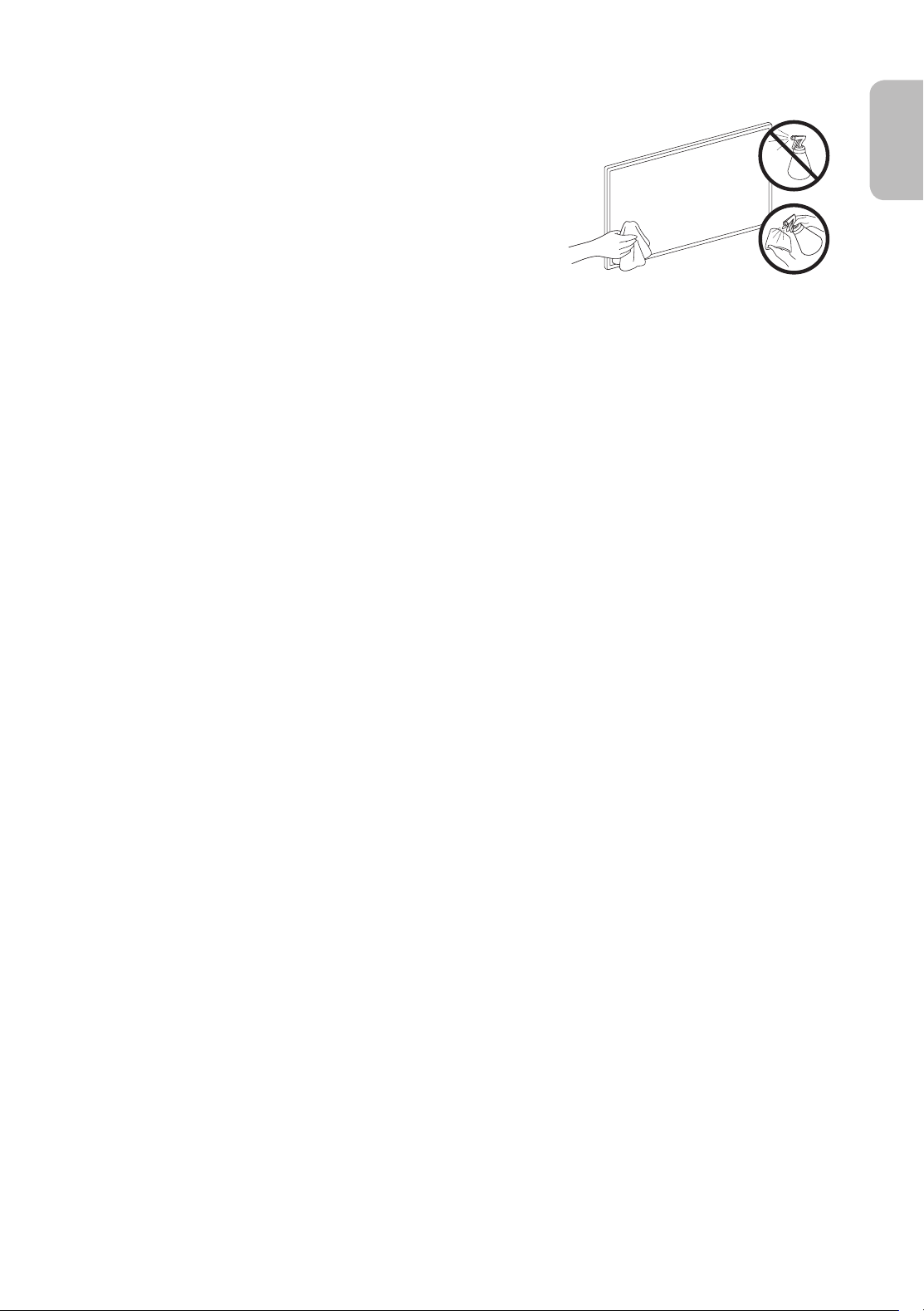
• Do not spray water or any liquid directly onto the TV. Any liquid
that goes into the product may cause a failure, fire, or electric
shock.
• To clean the screen, turn off the TV, then gently wipe away
smudges and fingerprints on the panel with a micro-fiber
cloth. Clean the body or panel of the TV with a micro-fiber cloth
dampened with a small amount of water. After that, remove the
moisture with a dry cloth. While cleaning, do not apply strong
force to the surface of the panel because it can damage the
panel. Never use flammable liquids (benzene, thinner, etc.) or a
cleaning agent. For stubborn smudges, spray a small amount of
screen cleaner on a micro-fiber cloth, and then use the cloth to
wipe away the smudges.
English - 17
English
07 Specifications and Other Information
Specifications
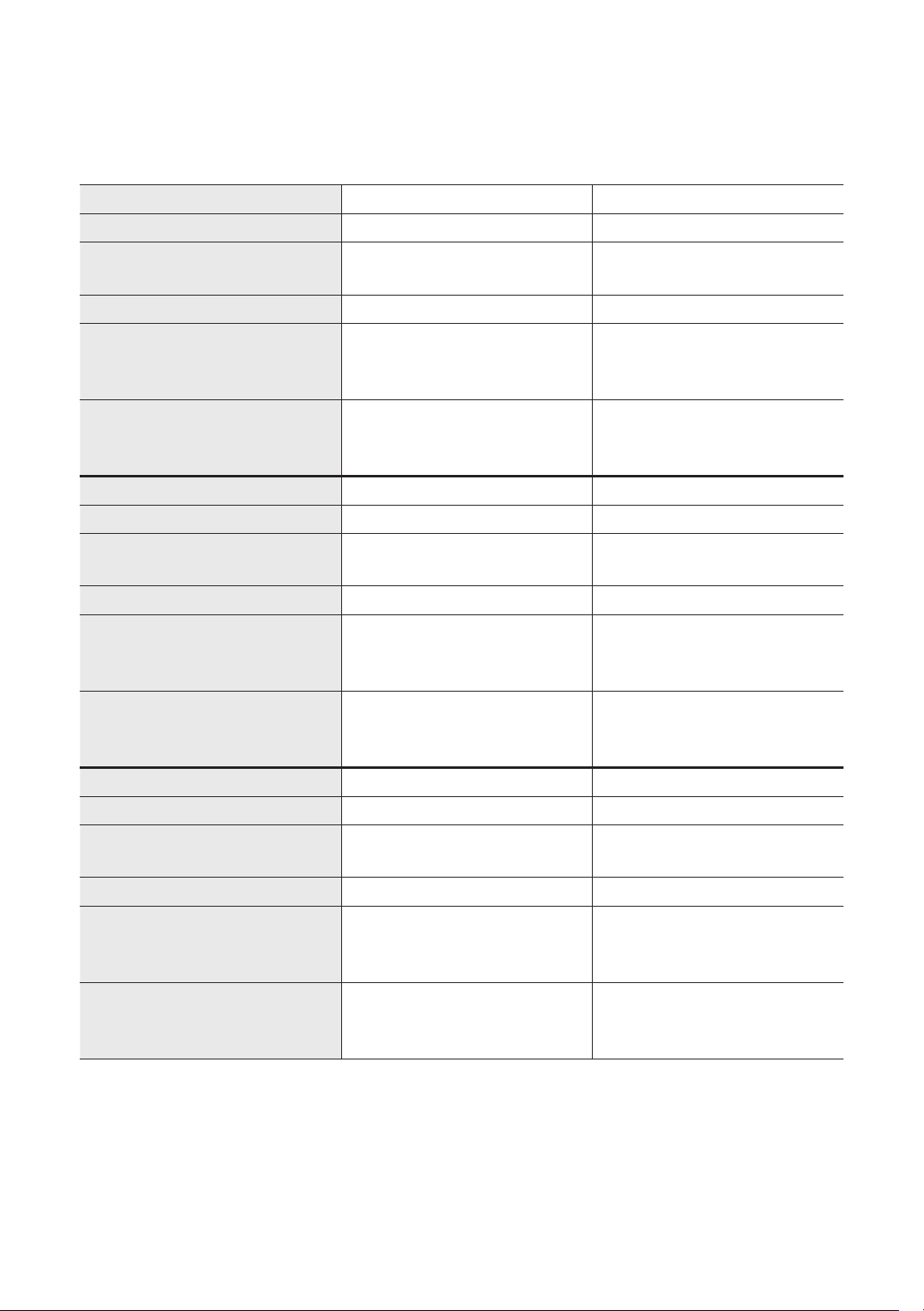
Model Name UA43RU7100 UA49RU7100
Display Resolution 3840 x 2160 3840 x 2160
Screen Size
Measured Diagonally
108 cm 123 cm
Sound (Output) 20 W 20 W
Dimensions (W x H x D)
Body
With stand
97.02 x 56.32 x 5.82 cm
97.02 x 63.63 x 21.03 cm
110.28 x 63.78 x 5.91 cm
110.28 x 71.64 x 26.13 cm
Weight
Without Stand
With Stand
9.6 kg
9.8 kg
13.2 kg
13.5 kg
Model Name UA55RU7100 UA58RU7100
Display Resolution 3840 x 2160 3840 x 2160
Screen Size
Measured Diagonally
138 cm 146 cm
Sound (Output) 20 W 20 W
Dimensions (W x H x D)
Body
With stand
123.86 x 71.42 x 5.87 cm
123.86 x 79.28 x 26.13 cm
130.14 x 75.68 x 5.93 cm
130.14 x 83.52 x 26.13 cm
Weight
Without Stand
With Stand
17.3 kg
17.7 kg
20.2 kg
20.5 kg
Model Name UA65RU7100 UA75RU7100
Display Resolution 3840 x 2160 3840 x 2160
Screen Size
Measured Diagonally
163 cm 189 cm
Sound (Output) 20 W 20 W
Dimensions (W x H x D)
Body
With stand
145.75 x 83.73 x 5.91 cm
145.75 x 91.73 x 31.28 cm
168.46 x 96.64 x 6.01 cm
168.46 x 105.65 x 35.61 cm
Weight
Without Stand
With Stand
25.0 kg
25.5 kg
37.0 kg
37.5 kg
English - 18
Environmental Considerations
Operating Temperature
Operating Humidity
Storage Temperature
Storage Humidity
50°F to 104°F (10°C to 40°C)
10% to 80%, non-condensing
-4°F to 113°F (-20°C to 45°C)
5% to 95%, non-condensing
• The design and specifications are subject to change without prior notice.
• For information about the power supply, and more information about power consumption, refer to the
label-rating attached to the product.
• You can see the label-rating attached to the back of the TV. (For some models, you can see the label-rating
inside the cover terminal.)
Decreasing power consumption
When you shut the TV off, it enters Standby mode. In Standby mode, it continues to draw a small amount of
power. To decrease power consumption, unplug the power cord when you don't intend to use the TV for a long
time.
English - 19
English
Licences
The terms HDMI and HDMI High-Definition Multimedia Interface, and the HDMI Logo are trademarks or
registered trademarks of HDMI Licensing LLC in the United States and other countries.
Recommendation - Jordan Only
Hereby, Samsung Electronics, declares that this TV is in compliance with the essential requirements and
other relevant provisions of Directive 1999/5/EC.
The official Declaration of Conformity may be found at http://www.samsung.com, go to Support > Search
Product Support and enter the model name.
This equipment may only be used indoors.
This equipment may be operated in Jordan.
WARNING - TO PREVENT THE SPREAD OF FIRE, KEEP CANDLES OR OTHER ITEMS WITH OPEN
FLAMES AWAY FROM THIS PRODUCT AT ALL TIMES.
English - 20

This page is intentionally
left blank.
Contact SAMSUNG WORLD WIDE
If you have any questions or comments relating to Samsung products, please contact the SAMSUNG customer care centre.
Country
Customer Care Centre
Web Site
SINGAPORE 1800 7267864 | 1800-SAMSUNG www.samsung.com/sg/support
AUSTRALIA 1300 362 603 www.samsung.com/au/support
NEW ZEALAND 0800 726 786 www.samsung.com/nz/support
VIETNAM 1800 588 889 www.samsung.com/vn/support
THAILAND
0-2689-3232
1800-29-3232 (Toll free)
www.samsung.com/th/support
MYANMAR +95-1-2399-888 www.samsung.com/mm/support
CAMBODIA
+855-23-993232
1800-20-3232 (Toll free)
www.samsung.com/th/support
LAOS +856-214-17333
MALAYSIA
1800-88-9999
+603-7713 7420 (Overseas contact)
www.samsung.com/my/support
INDONESIA
021-5699-7777
0800-112-8888 (All Product, Toll Free)
www.samsung.com/id/support
PHILIPPINES
1-800-10-726-7864 [ PLDT Toll Free ]
1-800-8-726-7864 [ Globe Landline and Mobile ]
02- 422-2111 [ Standard Landline ]
www.samsung.com/ph/support
JAPAN 0120-363-905 www.galaxymobile.jp/jp/support
INDIA 1800 40 SAMSUNG (1800 40 7267864) (Toll-Free) www.samsung.com/in/support
NEPAL
16600172667 (Toll Free for NTC Only)
9801572667
www.samsung.com/in/support
BANGLADESH
09612300300
08000300300 (Toll free)
www.samsung.com/in/support
SRI LANKA
+9411SAMSUNG (+94117267864)
+94117540540
+94115900000
www.samsung.com/in/support
EGYPT
08000-7267864
16580
www.samsung.com/eg/support
ALGERIA 3004 www.samsung.com/n_africa/support
IRAN 021-8255 [CE] www.samsung.com/iran/support
ISRAEL *6963 www.samsung.com/il/support
SAUDI ARABIA (+966) 8002474357 (800 24/7 HELP)
www.samsung.com/sa_en/support (English)
www.samsung.com/sa/support (Arabic)
PAKISTAN 0800-Samsung (72678) www.samsung.com/pk/support
TUNISIA 80 100 012 www.samsung.com/n_africa/support
U.A.E 800-SAMSUNG (800 - 726 7864)
www.samsung.com/ae/support (English)
www.samsung.com/ae_ar/support (Arabic)
OMAN 800-SAM CS (800-72627)
KUWAIT 183-CALL (183-2255)
BAHRAIN 8000-GSAM (8000-4726)
QATAR 800-CALL (800-2255)
TURKEY 444 77 11 www.samsung.com/tr/support
JORDAN
0800-22273
06 5777444
www.samsung.com/levant/support
SYRIA 962 5777444
LEBANON 1299
IRAQ 80010080
© 2019 Samsung Electronics Co., Ltd. All rights reserved.
Country
Customer Care Centre
Web Site
NIGERIA 0800-726-7864
www.samsung.com/africa_en/support
GHANA 0800-100-077
COTE D’ IVOIRE 8000-00-77
www.samsung.com/africa_fr/supportSENEGAL 800-00-0077
CAMEROON 67095-0077
KENYA 0800 545 545
www.samsung.com/support
UGANDA 0800 300 300
TANZANIA 0800 780 089
RWANDA 9999
BURUNDI 200
DRC 499999
SUDAN 1969
SOUTH AFRICA 0860 SAMSUNG (726 7864)
www.samsung.com/support
NAMIBIA 08197267864
ZAMBIA 3434
MOZAMBIQUE 847267864
ALGERIA 3004 www.samsung.com/n_africa/support
TUNISIA 80 100 012 www.samsung.com/n_africa/support
MAURITIUS 800 2550
www.samsung.com/support
REUNION 0262 50 88 80
ANGOLA 917 267 864
ZIMBABWE 0808 0204
MOROCCO 080 100 22 55 www.samsung.com/n_africa/support
بيو عقوم
ءمعلا ةمدخ زكرم
دلبلا
www.samsung.com/africa_en/support
0800-726-7864 NIGERIA
0800-100-077 GHANA
www.samsung.com/africa_fr/support
8000-00-77 COTE D’ IVOIRE
800-00-0077 SENEGAL
67095-0077 CAMEROON
www.samsung.com/support
0800 545 545 KENYA
0800 300 300 UGANDA
0800 780 089 TANZANIA
9999 RWANDA
200 BURUNDI
499999 DRC
1969 SUDAN
www.samsung.com/support
0860 SAMSUNG )726 7864( SOUTH AFRICA
08197267864 NAMIBIA
3434 ZAMBIA
847267864 MOZAMBIQUE
www.samsung.com/n_africa/support 3004 ALGERIA
www.samsung.com/n_africa/support 80 100 012 TUNISIA
www.samsung.com/support
800 2550 MAURITIUS
0262 50 88 80 REUNION
917 267 864 ANGOLA
0808 0204 ZIMBABWE
www.samsung.com/n_africa/support 080 100 22 55 MOROCCO
.ةظوفحم قوقحلا عيمج .Samsung Electronics Co., Ltd ةكرشل 2019 ماع © رشنلا قوقح
ملاعلا ءاحنا عيمج يف جنوسماسب لصتا
نئابزلا ةمدخل جنوسماس زكرمب لاصتا ىجري , جنوسماس تاجتنم صوصخب ةلئسأ وا تاحارتقا يا كيدل اذا
بيو عقوم
ءمعلا ةمدخ زكرم
دلبلا
www.samsung.com/sg/support 1800 7267864 | 1800-SAMSUNG SINGAPORE
www.samsung.com/au/support 1300 362 603 AUSTRALIA
www.samsung.com/nz/support 0800 726 786 NEW ZEALAND
www.samsung.com/vn/support 1800 588 889 VIETNAM
www.samsung.com/th/support
0-2689-3232
1800-29-3232 )Toll free(
THAILAND
www.samsung.com/mm/support +95-1-2399-888 MYANMAR
www.samsung.com/th/support
+855-23-993232
1800-20-3232 )Toll free(
CAMBODIA
+856-214-17333 LAOS
www.samsung.com/my/support
1800-88-9999
+603-7713 7420 )Overseas contact(
MALAYSIA
www.samsung.com/id/support
021-5699-7777
0800-112-8888 )All Product, Toll Free(
INDONESIA
www.samsung.com/ph/support
1-800-10-726-7864 [ PLDT Toll Free ]
1-800-8-726-7864 [ Globe Landline and Mobile ]
02- 422-2111 [ Standard Landline ]
PHILIPPINES
www.galaxymobile.jp/jp/support 0120-363-905 JAPAN
www.samsung.com/in/support
1800 40 SAMSUNG )1800 40 7267864( )Toll-Free( INDIA
www.samsung.com/in/support
16600172667 )Toll Free for NTC Only(
9801572667
NEPAL
www.samsung.com/in/support
09612300300
08000300300 )Toll free(
BANGLADESH
www.samsung.com/in/support
+9411SAMSUNG )+94117267864(
+94117540540
+94115900000
SRI LANKA
www.samsung.com/eg/support
08000-7267864
16580
EGYPT
www.samsung.com/n_africa/support 3004 ALGERIA
www.samsung.com/iran/support 021-8255 [CE] IRAN
www.samsung.com/il/support *6963 ISRAEL
www.samsung.com/sa_en/support )English(
www.samsung.com/sa/support )Arabic(
)+966( 8002474357 )800 24/7 HELP( SAUDI ARABIA
www.samsung.com/pk/support
0800-Samsung )72678( PAKISTAN
www.samsung.com/n_africa/support 80 100 012 TUNISIA
www.samsung.com/ae/support )English(
www.samsung.com/ae_ar/support )Arabic(
800-SAMSUNG )800 - 726 7864( U.A.E
800-SAM CS )800-72627( OMAN
183-CALL )183-2255( KUWAIT
8000-GSAM )8000-4726( BAHRAIN
800-CALL )800-2255( QATAR
www.samsung.com/tr/support 444 77 11 TURKEY
www.samsung.com/levant/support
0800-22273
06 5777444
JORDAN
962 5777444 SYRIA
1299 LEBANON
80010080 IRAQ

نع ةغراف ةحفصلا هذه كرت مت
.دصق

نع ةغراف ةحفصلا هذه كرت مت
.دصق

نع ةغراف ةحفصلا هذه كرت مت
.دصق
صيخارتلا
The terms HDMI and HDMI High-Definition Multimedia Interface, and the HDMI Logo are trademarks or
registered trademarks of HDMI Licensing LLC in the United States and other countries.
طقف ندرا - تايصوت
تاذ ىرخا ماكحاو ةيساسا تابلطتملا عم قفاوتم نويزفلتلا اذه نأ Samsung Electronics ةكرش نلعت ،ةقيثولا هذه بجومب
.EC/1999/5 تاهيجوتب ةلصلا
معد نع ثحبا > معدلا إ لقتنا ،http://www.samsung.com ينورتكلا عقوملا ع يمسرلا ةقباطملا نعإ ع عطا نكمي
.زارطلا مسا لخدأ مث جتنملا
.لزنملا لخاد إ زاهجلا اذه مادختسا زوجي
.ندرا يف زاهجلا اذه ليغشت زوجي
.جتنملا اذه نع بهلل ردصم يأ وأ عومشلا داعبإب ا
ً
مود مق ،قي
رح عدنا بنجتل - ريذحت
20 - ةيبرعلا
ةيئيبلا تارابتعا
ليغشتلا ةرارح ةجرد
ليغشتلا دنع ةبوطرلا ةبسن
نيزختلا ةرارح ةجرد
نيزختلا دنع ةبوطرلا ةبسن
)تياهنرهف ةجرد 104 إ 50 نم( ةيوئم ةجرد 40 إ 10 نم
فثاكت نود ،80% إ 10% نم
)تياهنرهف ةجرد 113 إ -4 نم( ةيوئم ةجرد 45 إ -20 نم
فثاكت نود ،95% إ 5% نم
•
.قبسم راعشإ نود رييغتلل ةضرع تافصاوملاو تاميمصتلا
•
قفر
ُ
ملا ةقاطلا كهتسا فينصت قصلم عجار ةقاطلا كهتسا لوح تامولعملا نم ديزملو ةقاطلا ردصم لوح تامولعم ع لوصحلل
.جتنملاب
•
فينصت قصلم ع روثعلا كنكمي ،زرطلا ضعبل( .نويزفلتلا نم يفلخلا ءزجلاب ا
ً
قفرم ةقاطلا كهتسا فينصت قصلم ةيؤر كنكمي
).تباكلا ءاطغ لخاد ةقاطلا كهتسا
ةقاطلا كهتسا ليلقت
.ةقاطلا نم ا
ً
طيسب ا
ً
ردق نويزفلتلا كلهتسي ،"دادعتسا" عضو يف ."دادعتسا" عضو يف نوكي هنإف ،نويزفلتلا ليغشت فاقيإب موقت امدنع
.ةليوط ةرتفل نويزفلتلل كمادختسا مدع ةلاح يف يئابرهكلا رايتلا كلس لصفا ،ةقاطلا كهتسا ليلقتل
19 - ةيبرعلا
ةيبرعلا
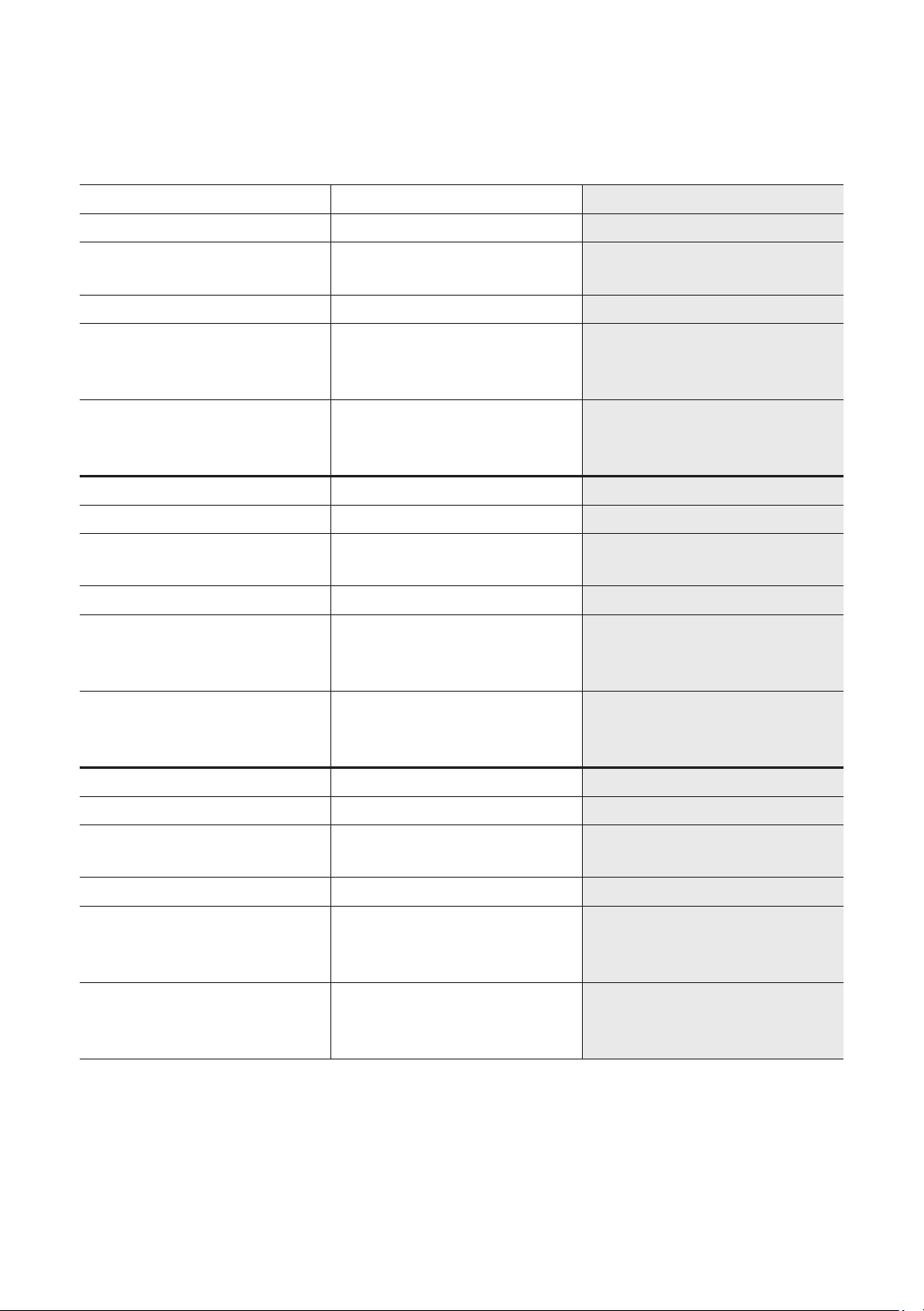
07 ىرخأ تامولعمو تافصاوملا
تافصاوملا
زارطلا مساUA43RU7100UA49RU7100
ضرعلا ةقد 3840 x 2160 3840 x 2160
ةشاشلا مجح
ا
ً
يرطق ةساقم
مس 108مس 123
توصلا )جرخم(طاو 20طاو 20
)قمعلا × عافترا × ضرعلا( داعبا
مسجلا
لماحلا عم
مس 5.82 x 56.32 x 97.02
مس 21.03
x 63.63 x 97.02
مس 5.91
x 63.78 x 110.28
مس 26.13
x 71.64 x 110.28
نزولا
لماح نودب
لماحلا عم
مجك 9.6
مجك 9.8
مجك 13.2
مجك 13.5
زارطلا مساUA55RU7100UA58RU7100
ضرعلا ةقد 3840 x 2160 3840 x 2160
ةشاشلا مجح
ا
ً
يرطق ةساقم
مس 138مس 146
توصلا )جرخم(طاو 20طاو 20
)قمعلا × عافترا × ضرعلا( داعبا
مسجلا
لماحلا عم
مس 5.87 x 71.42 x 123.86
مس 26.13
x 79.28 x 123.86
مس 5.93
x 75.68 x 130.14
مس 26.13
x 83.52 x 130.14
نزولا
لماح نودب
لماحلا عم
مجك 17.3
مجك 17.7
مجك 20.2
مجك 20.5
زارطلا مساUA65RU7100UA75RU7100
ضرعلا ةقد 3840 x 2160 3840 x 2160
ةشاشلا مجح
ا
ً
يرطق ةساقم
مس 163مس 189
توصلا )جرخم(طاو 20طاو 20
)قمعلا × عافترا × ضرعلا( داعبا
مسجلا
لماحلا عم
مس 5.91 x 83.73 x 145.75
مس 31.28
x 91.73 x 145.75
مس 6.01
x 96.64 x 168.46
مس 35.61
x 105.65 x 168.46
نزولا
لماح نودب
لماحلا عم
مجك 25.0
مجك 25.5
مجك 37.0
مجك 37.5
18 - ةيبرعلا
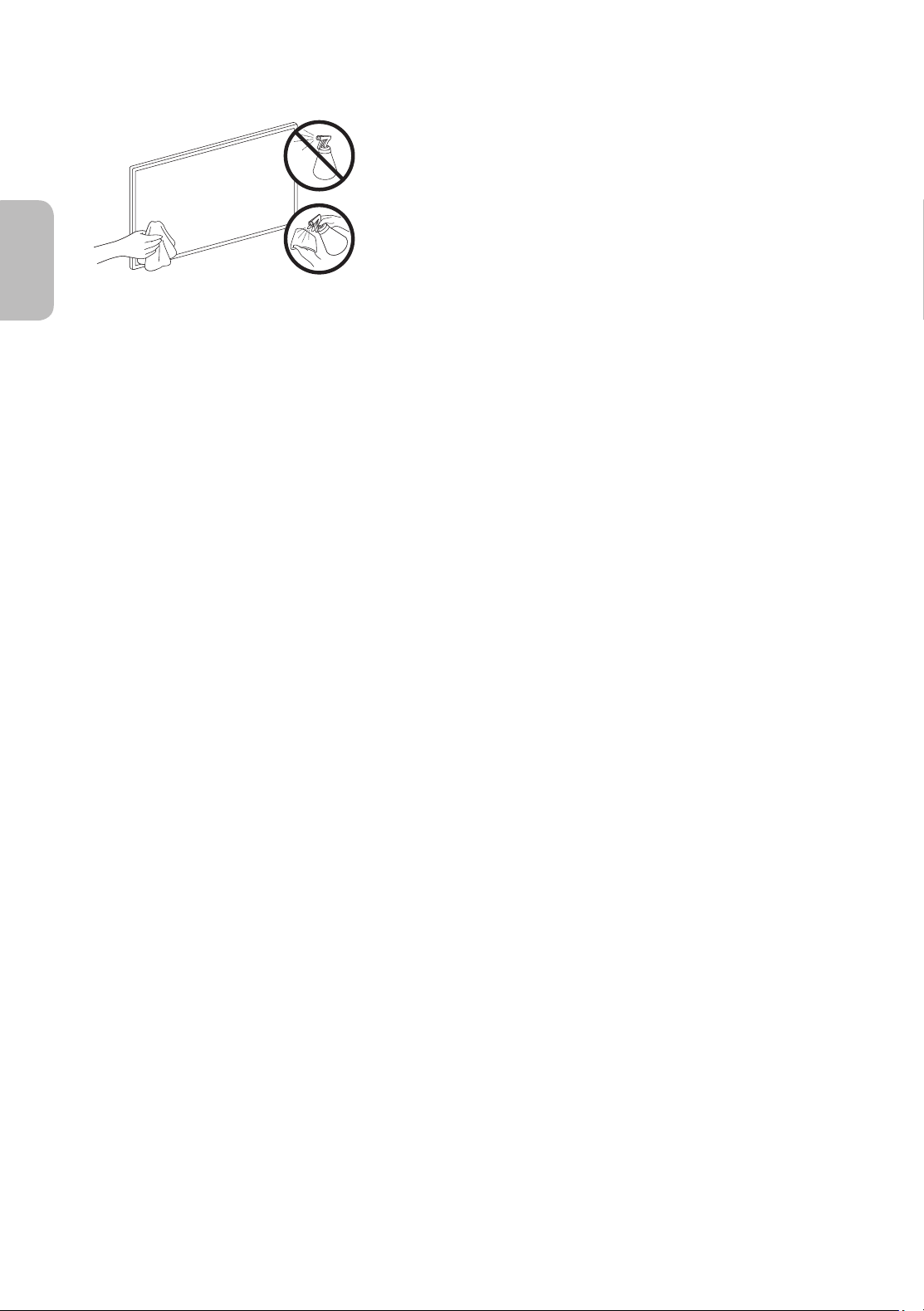
نويزفلتلاب ةيانعلا
• ؛هتلازإ دعب هيلع راثا ضعب لظت دق ،نويزفلتلا ةشاش ع قصلم عضو ةلاح يف
.نويزفلتلا ةدهاشم لبق راثا هذه فيظنت ىجر
ُ
ي اذل
•
حطسلا حسم نم دكأت اذل ؛اهفيظنت ءانثأ نويزفلتلا ةشاشل شودخ ثدحت دق
.شودخ يأ ثودح عنمل ةمعان شامق ةعطق مادختساب ةيانعب ةشاشلاو يجراخلا
•
ةلئاس ةدام يأ لوخد ببستي دقف ؛
ً
ةرشابم نويزفلتلا ع لئاس يأ وأ هايم شرت
.ةيبرهك ةمدص ثودح وأ قيرح بوشن وأ ليغشتلا يف لشف إ جتنملا لخاد
•
تامصب وأ عقب يأ قفرب حسما مث ،نويزفلتلا ليغشت فاقيإب مق ،ةشاشلا فيظنتل
ا
ً
ضيأ مقو .ةقيقدلا فايلا نم شامق ةعطق مادختساب ةحوللا ع ةدوج
وم عباصأ
ةقيقدلا فايلا نم شامق ةعطق مادختساب هتحول وأ نويزفلتلا لكيه فيظنتب
.ةفاج شامق ةعطقب ةبوطرلا ةلازإب مق ،كلذ دعب .ءاملا نم ةريغص ةيمكب ةللبم
فلتي نأ نكمي كلذ نإ ثيح ةحوللا حطس ع ةوقب طغضت ،فيظنتلا ءانثأ
)ءطلا ففخم وأ نيزنبلا ،لثم( ا
ً
قلطم لاعتشل ةلباق لئاوس مدختست .ةح
وللا
ةشاشلا ف
ظنم نم ةريغص ةيمك ش
ر ،ةديدشلا عقبلل ةبسنلاب .رخآ فظنم يأ وأ
.عقبلا حسمل شامقلا ةعطق مدختساو ةقيقد فايلأ نم شامق ةعطق ع
17 - ةيبرعلا
ةيبرعلا
)كلذ ريغو Youtube( ويديفلا عطاقم تاقيبطت لكاشم
• > ا
ً
يودي لاخدا > DNS دادعإ > IP تادادعإ > ةكبشلا ةلاح > ةكبشلا > ماع > تادادعا > ددح .8.8.8.8 إ DNS رييغتب مق
.قفاوم
> 8.8.8.8 لخدأ > DNS دوزم
•
.Smart Hub نييعت ةداعإ > يتاذلا صيخشتلا > معدلا > تادادعا > ديدحتب طبضلا ةداعإب مق
؟دع
ُ
ب نع معدلاب دوصقملا ام
:نم دع
ُ
ب نع نكمتي Samsung ـل عبات ينف لخ نم دحاول دحاو معد Samsung نم دع
ُ
ب نع معدلا ةمدخ رفوت
•
نويزفلتلا ةلاح صيخشت
•
نويزفلتلا تادادعإ طبض
•
عنصملا تادادعإ ع نويزفلتلا طبض ةداعإ
•
اهب ىصوملا ةتباثلا جماربلا تاثيدحت تيبثت
؟دع
ُ
ب نع معدلا ةمدخ لمعت فيك
:كيدل نويزفلتلل )Samsung نم دع
ُ
ب نع معدلا( "Samsung Remote Support" ةمدخ ع لوصحلا ةطاسبب كنكم
ُ
ي
1
..دع
ُ
ب نع مدقملا معدلا نع رسفتساو ،Samsung تاصتا زكرمب لصتا
2
.)معدلا > تادادعا > ( .معدلا مسقلا إ لقتناو ،نويزفلتلا يف ةدوجوملا ةمئاقلا حتفا
3
..PIN مقرب ينفلا د
ّ
وز ،PIN ةشاش روهظ دنع .اهيلع قفاوو ةمدخلا تايقافتا أرقا مث ،دعب نع ةرادا ةمدخ ددح
4
..نويزفلتلا إ لوصولا نم ذئدنع ينفلا نّكمتيس
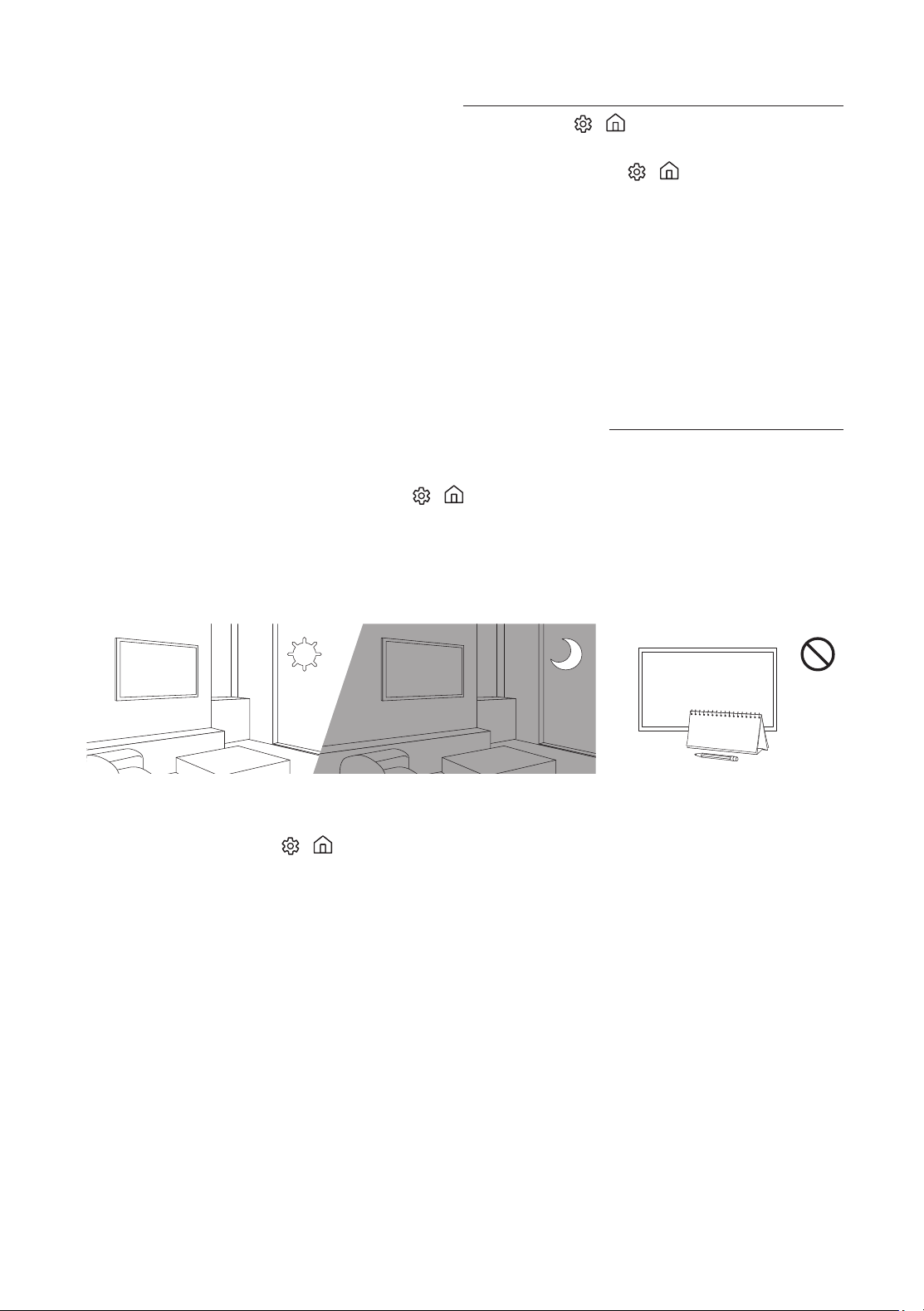
ةشاشلا عوطسو Eco رعشتسم
عوطس ةجرد نيسحت ع لمعت امك ،ةفرغلا لخاد ءوضلا ةيمك ةزيملا هذه سيقت .ا
ً
يئاقلت نويزفلتلا عوطس ةجرد Eco رعشتسم طبضي
> Eco لح > ماع > تادادعا > إ لقتناف ،ةفيظولا هذه ليغشت فاقيإ ديرت تنك اذإ .ةقاطلا كهتسا ليلقتل ا
ً
يئاقلت نويزفلتلا
.طيحملا ءوضلا فاشتكا
•
.طيحملا ءوضلا فاشتكا ةفيظو ببسب كلذ نوكي دقف ،ملظم ناكم يف نويزفلتلا ةدهاشم ءانثأ ةياغلل ةملظم ةشاشلا تناك اذإ
•
ةجرد ليلقت يف كلذ ببستي دق ثيح ؛داوم يأ مادختساب رعشتسملا بجحت .نويزفلتلا نم يلفسلا ءزجلا يف Eco رعشتسم دجوي
.ةروصلا عوطس
16 - ةيبرعلا
.لمعي دع
ُ
ب نع يكذلا مكحتلا زاهج
• اذإو . مأ دع
ُ
ب نع مكحتلا زاهجب ليغشتلا رز ع طغضلا دنع ضموي نويزفلتلل يلفسلا ءزجلاب دوجوملا ةقاطلا رشؤم ناك اذإ امم ققحت
.دع
ُ
ب نع مكحتلا زاهج تايراطب لادبتساب مقف ،ضموي ناك
•
.حيحصلا هاجتا يف )–/+( نابطقلا نوكي ثيحب تايراطبلا بيكرت نم دكأت
•
.نويزفلتلا نم رتم 1.5-1.8 ةفاسم نمض ةرشابم دع
ُ
ب نع مكحتلا زاهج هيجوت لواح
وأ نويزفلتلا ليغشتب يعانص رمق لبقتسم وأ يكلس ثب لابقتسا زاهجب صاخلا دع
ُ
ب نع مكحتلا زاهج موقي
.توصلا ىوتسم طبض وأ هليغشت فاقيإ
• مدختسملا ليلد عجار .نويزفلتلا ليغشتل يعانص رمق لبقتسم وأ يكلس ثب لابقتسا زاهجب صاخلا دع
ُ
ب نع مكحتلا زاهج ةجمربب مق
.SAMSUNG نويزفلت زمر ةفرعمل يعانصلا رمقلا لبقتسم وأ يكلسلا ثبلا لابقتسا زاهجب صاخلا
.قئاقد 5 دعب نويزفلتلا تادادعإ نادقف متي
• > تادادعا > ( لزنملا عضو عضو إ ماع ةمئاقلا يف مادختسا عضو عضو رييغتب مق .ةئزجتلا رجتم عضو عضولا يف نويزفلتلا
.)لزنملا عضو > مادختسا عضو > ماظنلا ريدم > ماع
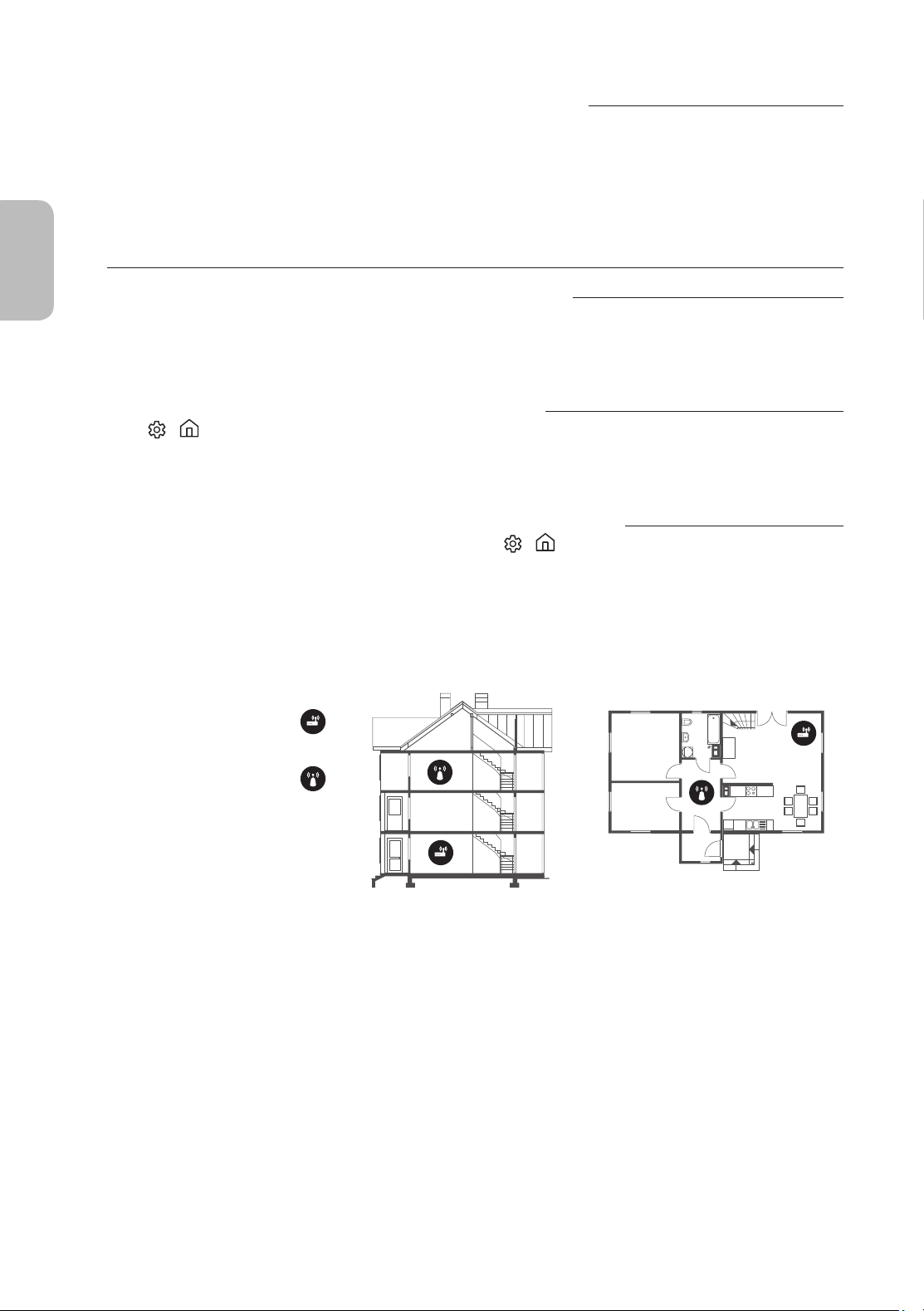
Wi-Fi لاصتا يف رركتم عاطقنا
• .)ةكبشلا ةلاح > ةكبشلا > ماع > تادادعا > ( ةكبشلاب لاصتا نمضتي نويزفلتلا نأ نم دكأت
• .ةحيحص ةروصب Wi-Fi رورم ةملك لاخدإ نم دكأت
•
.م 15.2 نع ةفاسملا ديزت أ بجي .لاصتا ةطقن وأ مدوملاو نويزفلتلا نيب ةفاسملا نم ققحت
•
مدوملاو نويزفلتلا نيب قئاوع دوجو مدع نم ا
ً
ضيأ دكأت .اهليغشت فاقيإ وأ ةيكلسلا ةزهجا مادختسا مدع لخ نم لخادتلا ليلقتب مق
).كلذ إ امو دقاوملا/ةيرجحلا ناردجلاو ةيكلسلا فتاوهلاو ةيلزنملا ةزهجا ببسب Wi-Fi ةوق ضفخنت نأ نكمي( .لاصتا ةطقن وأ
دحاو قباطقباوطلا ددعتم
يكلسلا لاصتا ةطقن
يكلسلا ةكبش ةيوقت زاهج
• لوصولا ةطقن وأ مدوملل MAC نيوانع ليجست ةداع ةكبشلا ةرئاد طبض ةداعإ هنم بلطاو )ISP( كيدل تنرتنا ةمدخ دوزمب لصتا
.نويزفلتلاو ةديدجلا
15 - ةيبرعلا
ةيبرعلا
06 اهحصإو ءاطخا فاشكتساو ةنايصلا
اهحصإو ءاطخا فاشكتسا
فاشكتسا ءزج ةعجارم ،كلذ نم
ً
دب كنكمي امك .اهلولحو هذه ةلمتحملا لكاشملا ةمئاق
ً
وأ عجار ،نويزفلتلاب ةلكشم دوجو ةلاح يف
،اهحصإو تكشملا فاشكتسا تاحيملت نمض ةدوجوم اههجاوت يتلا ةلكشملا نكت مل اذإو .ينورتكلا ليلدلا يف اهحصإو تكشملا
.ليلدلا اذهل يفلخلا فغلا ع نودملا ةمدخلا زكرمب لاصتا وأ "معدلا" قوف رقنلا مث ،"www.samsung.com" عقوم ةرايز ىجر
ُ
يف
•
وأ ةحتافلا لسكبلا طاقن ضعب رهظت دق ،كلذ عمو .اهجاتن ةمدقتم ةينقت بلطتت ةيعرف لسكب طاقن نم TFT LED ةشاش ةحول نوكتت
.جتنملا ءادأ ع هذه لسكبلا طاقن رثؤت ،نكلو .ةشاشلا ع ةنكادلا
•
ثيدحتلا وأ نا ثيدحتلا نيتفيظولا مدختسا .جماربلا نم تارادصإ ثدحأ إ ثيدحتب مق ،ةيلاثملا هتلاح يف نويزفلتلا ع ظافحلل
.)يئاقلتلا ثيدحتلا وأ نا ثيدحتلا > جمانربلا ثيدحت > معدلا > تادادعا
> ( نويزفلتلا ةمئاقب يئاقلتلا
.لمعي نويزفلتلا
• .ماكحإب نويزفلتلابو طئاحلا ذخأمب ءابرهكلا ليصوت لبك ليصوت نم دكأت
•
.تباثلا رمحا نوللاب ءيضي نويزفلتلل يلفسلا ءزجلاب دوجوملا ةقاطلا رشؤم نأو ،لمعي طئاحلا ذخأم نأ نم دكأت
•
ناك اذإو .دع
ُ
ب نع مكحتلا زاهجب تسيل ةلكشملا نأ دكأتلل نويزفلتلا لفسأب دوجوملا نويزفلتلا يف مكحتلا ةدحو رزلا ع طغضلا لواح
."لمعي دع
ُ
ب نع مكحتلا زاهج" ةلكشملا عجارف ،ليغشتلا ديق نوي
زفلتلا
وأ ةفيعض ةراشا" وأ يجراخلا زاهجلا نم رداص شوشم توص/ويديف/ةروص دجوت وأ ،توص/ويديف/ةروص دجوت
.ةانقلا ع روثعلا كنكمي وأ ،نويزفلتلا زاهج ع ةضورعم "ةدوجوم ريغ
• .لماكلاب اهلاخدإ مت تبكلا عيمج نأو حيحص لكشب مت زاهجلاب ليصوتلا نأ دكأت
•
.كلذ نكمأ اذإ ةديدج تبكب ليصوتلا لواحو .اهليصوت دعأ مث ،ةيجراخلا ةزهجاو نويزفلتلاب ةلوصوملا تبكلا عيمج لصفا
•
.)ردصم > ( هديدحت مت دق حيحصلا لاخدا ردصم نأ نم دكأت
• صيخشتلا > معدلا > تادادعا > ( زاهجلا وأ نويزفلتلا اهببس ةلكشملا تناك اذإ ام ديدحتل نويزفلتلل يتاذ صيخشت ءارجإب مق
.)توصلا رابتخا ءدب وأ ةروصلا رابتخا ءدب > يتاذلا
•
ةداعإ مث ،زاهج لكب صاخلا يئابرهكلا رايتلا كلس لصف قيرط نع ةلصتملا ةزهجا ليغشت دعأف ،ةيعيبط رابتخا ةجيتن تناك اذإ
.لصتملا زاهجلاب صاخلا مدختسملا ليلد يف دوجوملا ليصوتلاب صاخلا ليلدلا إ عجراف ،ةلكشملا ترمتسا اذإ .ىرخأ ةرم هليصوت
•
يرادج لصوم نم نويزفلتلا تاراشإ لابقتساب نويزفلتلا مايقو يعانص رمق لبقتسم وأ يكلس ثب لابقتسا زاهج مادختسا مدع ةلاح يف
طبضلا > )يئاقلتلا طبضلا تادادعإ( > ثبلا > تادادعا
> ( تاونقلا نع ثحبلل يئاقلتلا طبضلا ليغشتب مق ،يئاوه وأ يكلس
.)يئاقلتلا
–
.ةيفارغجلا ةقطنملا وأ زارطلا بسح كلذو ،يئاقلتلا طبضلا تادادعإ رهظت دق
–
وأ يكلس ثب لابقتسا زاهج مادختسا ليلد إ عوجرلا ىجر
ُ
يف ،يعانص رمق لبقتسم وأ يكلس ثب لابقتسا زاهج كيدل ناك اذإ
.يعانص رمق لبقتسم
14 - ةيبرعلا
05 ةكبشب لاصتا
.جماربلا تاثيدحت إ ةفاضاب ،Smart Hub ةمدخ لثم ،تنرتنا ربع تامدخ إ لوصولا نم نّكمتتس ،ةكبشب نويزفلتلا لاصتا دنع
ا
ً
يكلس - ةكبشلا لاصتا
.ةيسايق لاصتا ةطقن وأ مدوم ا
ً
مدختسم تنرتناب نويزفلتلا ليصوتب مق
ةيكلس IP لاصتا ةطقن وأ مدوم
DHCP مداخب
)قفرم ريغ( LAN لبك
طئاحلاب LAN ةكبش ذفنم
ا
ً
يكلس - ةكبشلا لاصتا
.LAN لبك مادختساب ةكبشلاب نويزفلتلا ل
ّ
صو
•
.ث/تياباجيم 10 نم لقأ كيدل ةكبشلا ةعرس تناك اذإ تنرتناب لاصتا نم نويزفلتلا نكمتي نل
•
.ليصوتلل ) *STP عون نم( Cat 7 لبك مدختسا
* Shielded Twisted Pair
13 - ةيبرعلا
ةيبرعلا
04 يلوا دادعا ليغشت
ةيساسا تادادعا نيوكت يلوا دادعا كل حيتي .روفلا ع "يئدبملا دادعا" ءارجإب أدبي هنإف ،وا ةرملل نويزفلتلا ليغشتب كمايق دنع
.دحاو
ٍ
تقو يف ةكبشلاب لاصتاو تاونقلا نع ثحبلاو ثبلا لابقتسا لثم ،نويزفلتلا ليغشتل
•
.
ً
وأ ةيجراخلا ةزهجا ليصوت نم دكأت ،يلوا دادعا ءدب لبق
• .تنرتناب نويزفلتلا ليصوت بجي ،نويزفلتلل ةيكذلا تازيملا مادختس
•
.Wi-Fi ةكبش لخ نم لومحملا كزاهج ليصوت بجي ،SmartThings قيبطت مادختساب يلوأ دادعإ ءارج
•
نويزفلتلا ةفاضإ دعب ا
ً
يودي دادعا عبات ،لومحملا كزاهجب SmartThings قيبطتلا يف ا
ً
يئاقلت دادعل ةقثبنملا ةمئاقلا رهظت مل اذإ
.SmartThings قيبطتلا تامولعم ةحولب دوجوملا زاهج ةفاضإ رايخ مادختساب
•
وأ Android ليغشتلا ماظنل ثدحا تارادصا وأ 6.0 رادصاب لمعت يتلا ةلومحملا ةزهجا ع SmartThings قيبطتلا رفوتي
.iOS ليغشتلا ماظنل ثدحا تارادصا وأ 10 رادصا
•
.لومحملا ةزهجأب نويزفلتلا ليصوت دنع ا
ً
تقؤم شيوشت ثدحي دق
.)طبض ةداعإ > ماع > تادادعا
> ( نويزفلتلا ةمئاق مادختساب يلوا دادعا ءدب كلذك كنكمي
.كيدل ضرعلا ةئيب عم بسانتتل ةيساسا نويزفلتلا تادادعإ ن
وكو ،يلوا دادعا ةشاش ع ةضورعملا تاداشرا عبتا
نويزفلتلا يف مكحتلا ةدحو مادختسا
ةمئاق رهظت .مكحتلا ةمئاق مادختسا مث نويزفلتلا لفسأ دوجوملا نويزفلتلا يف مكحتلا ةدحو رزلا مادختساب نويزفلتلا ليغشت كنكمي
.هاندأ لكشلا عجار ،همادختسا لوح تامولعملا نم ديزمل .ليغشتلا ديق نويزفلتلاو نويزفلتلا يف مكحتلا ةدحو رزلا ع طغضلا دنع مكحتلا
•
ءاشغلا عزن ىجري اذل .نويزفلتلا لفسأ نم وأ SAMSUNG راعش ع نم يقاولا ءاشغلا ةلازإ مدع ةلاح يف ةشاشلا ميتعت متي دق
.يقاولا
مكحتلا ةمئاق
:
ليغشتلا فاقيإ
:
توصلا عفر
:
ع ةانق
:
توصلا ضفخ
:
لفس ةانق
:
ردصم
دع
ُ
ب نع مكحتلا رعشتسم / نويزفلتلا يف مكحتلا ةدحو رزلا
لقن -: ةدحاو ةرم طغضلا
ديدحت -: رارمتسا عم طغضلا
.نويزفلتلا لفسأ يف نويزفلتلا يف مكحتلا ةدحو رزلا دجوي
12 - ةيبرعلا
)AAA :ةيراطبلا مجح( دع
ُ
ب نع مكحتلا زاهج يف تايراطبلا بيكرت
.تايراطبلل صصخملا ناكملا يف ةدوجوملا زومرلل ا
ً
قفو تايراطبلا باطقأ عض
2
3
1
• .زارطلل ا
ً
قفو دع
ُ
ب نع مكحتلا زاهج لكشو نول فلتخي دق
•
.نويزفلتلا نم راتمأ 7 غلبت ةفاسم نم دع
ُ
ب نع مكحتلا زاهج مدختسا
•
وأ ةصاخ تنسرولف ةءاضإ نم برقلاب دع
ُ
ب نع مكحتلا زاهج مادختسا بنجت .دع
ُ
ب نع مكحتلا زاهج ءادأ ع عطاسلا ءوضلا رثؤي دق
.نوين تاتف
•
.ةيراطبلا رمع ةلاط ةيولق تايراطب مادختساب ىصوي
1
..تباث ريغ حبصي نأ درجمب ا
ً
مامت ءاطغلا لزأ مث ،قفرب تايراطبلا ةريجح ءاطغ بحسا
2
..حيحص
ٍ
لكشب ةبلاسلاو ةبجوملا نيتيراطبلا تاياهن عضو نم دكأتو ،AAA مجحب نيتيولق نيتيراطب لخدأ
3
..دع
ُ
ب نع مكحتلا زاهج يف ءاطغلا لخدأ مث ،دع
ُ
ب نع مكحتلا زاهج يف ةيراطبلا ءاطغ عض
4
..مكحتلا زاهجب ماكحإب ا
ً
قصلم ءاطغلا نوكي ثيحب هعأ حضوملا بيترتلاب ةيراطبلا ءاطغ بحسا
11 - ةيبرعلا
ةيبرعلا
03 دع
ُ
ب نع مكحتلا زاهج
دع
ُ
ب نع مكحتلا زاهج يف ةدوجوملا رارزا نع ةذبن
• صاخشا ةطساوب همادختسا نكميو ديدحتو توصلاو ةانقلاو ءافطإ / ليغشت رارزأ "ليارب" طاقن اذه دع
ُ
ب نع مكحتلا زاهج نمضتي
.راصبا يف لكاشم نم نوناعي نيذلا
•
.زارطلل ا
ً
قفو دع
ُ
ب نع مكحتلا زاهجل فئاظولاو رارزاو روصلا فلتخت دق
•
.ةيعيبط ةروصب فئاظولا ضعب لمعت دقف ،رخآ نويزفلت زاهجب مكحتلل نويزفلتلا عم رفوتملا دعب نع مكحتلا زاهج تمدختسا اذإ
.اهديدحتو ةحاتملا ويديفلا رداصم ضرعل
.توصلا ليغشت فاقي/ليغشتل
.تاونقلا ةمئاق ليغشتل
.ةيلاحلا ةانقلا رييغتل
.ةمئاقلا نم جورخلل
تاهاجتل ا
ً
قفو رارزا كلت مدختسا
.نويزفلتلا ةشاش ع ةضورعملا
.ةددحملا تازيملاب رارزا هذه مدختسا
تاهاجتل ا
ً
قفو رارزا كلت مدختسا
.نويزفلتلا ةشاش ع ةضورعملا
مادختساب هيلإ راشملا قيبطتلا ليغشت أدبا
.رزلا
.ليلد ةشاش ضرع
قطانم يف ةفيظولا هذه رفوتت دق(
).ةددحم ةيفارغج
يتلا ةمئاقلا رصانع ددحيو رشؤملا كيرحت
متت يتلا ميقلا ريغيو ةشاشلا ع رهظت
.ضرعلا زاهج ةمئاق ع اهتدهاشم
)ءافطإ / ليغشت( P
.هليغشت فاقيإو نويزفلتلا ليغشت
.توصلا ىوتسم طبضل
Full ،تامولعم صوصن عضولا لدابتلاب ددح
نويزفلت / TTX / Double TTX / Mix
.رشابم
.ةقباسلا ةانقلا إ ةدوعلل
.تاونقلا إ رشابملا لوصولا ةيناكمإ حنمل
مادختساب هيلإ راشملا قيبطتلا ليغشت أدبا
.رزلا
.ةقباسلا ةمئاقلا وأ ةانقلا إ ةدوعلل
SETTINGS
ع رهظت يتلا ةيسيئرلا ةمئاقلا ضرع
.ةشاشلا
INFO
وأ يلاحلا جمانربلا لوح تامولعم ضرعل
.ىوتحملا
AD/SUBT.
.لوصولا تاراصتخا ضرعل
)ديدحت( E
.هليغشت وأ هيلع زيكرتلا مت رصنع ديدحتل
)Smart Hub(
.ءدبلا ةشاش ليغشتل
10 - ةيبرعلا
لماحلا ع نويزفلتلا بيكرت
.كلذل ةحضوملا تاداشرا عابتاب لماحلا بيكرت نم كلذكو ،ةحضوملا تاقحلملا لك رفوت نم دكأت
هطوقس عنمل طئاحلاب نويزفلتلا تيبثت ماكحإ :ةمسلا تاطايتحا
كلافطأ قلعتي أ ع صاخ لكشب صرحاو .هطوقس إ هقوف دوعصلا وأ هعفد وأ نويزفلتلا دش يدؤي دق :هيبنت
دق وأ ةريطخ تاباصإ ثودح يف ببستي دق امم ؛مهقوف هطوقس إ هب مهثبع يدؤي دقف ؛هنوكرحي وأ نويزفلتلاب
نم ديزم ريفوتلو .نويزفلتلا عم ةقفرملا "ةمسلا ةرشن" يف ةحضوملا ةمسلا تاطايتحا لك عب
ّ
تا .ةافولا إ يدؤي
.هاندأ حضوم وه امك هبيكرتو طوقسلل عناملا زاهجلا ءارش كنكمي ،نويزفلتلل ناماو تابثلا
وأ ةريطخ تاباصإ ثودح يف ببستي دق امم ،نويزفلتلا طقسي دق .تباث ريغ ناكم يف ا
ً
قلطم نويزفلتلا زاهج عضت :ريذحت
:لثم ةطيسب تاطايتحا ذاختاب لافطا اهل ضرعتي دق يتلا تاباصا اميس ،تاباصا نم ديدعلا بنجت نكمي .ةافولا إ يدؤي
•
.نويزفلتلا زاهجل ةع
نصملا ةكرشلا لب
ِ
ق نم اهب ىصوملا تاماعدلا وأ تانازخلا مادختسا
•
.نامأب نويزفلتلا زاهج تيبثت هلخ نم نكمي يذلا طقف ثاثا مادختسا
•
.اهيلع ت
ّ
بثملا ثاثا ةعطق ةفاح ع نويزفلتلا زاهج حجرأت مدع نم دكأتلا
•
نم لك تيبثت نود )بتكلا تانازخ وأ بيلاودلا ،لاثملا ليبس ع( ةيلاعلا ثاثا عطق ع نويزفلتلا زاهج عضو مدع
.ةبسانم ةماعدب نويزفلتلاو ثاثا ةعطق
•
ت
ّ
بثملا ثاثا ةعطقو نويزفلتلا زاهج نيب ةعوضوم نوكت دق ىرخأ داوم يأ وأ سبملا ع نويزفلتلا زاهج عضو مدع
.اهيلع
•
.هيف مكحتلا تاودأ وأ نويزفلتلا زاهج إ لوصولل ثاثا ع قلستلا رطاخم صوصخب لافطا داشرإ
عم ةعبتملا اهتاذ تاطايتحا عابتا كيلع بجي ،ديدج زاهجب هلادبتسا يونت يذلا نويزفلتلا زاهج لقنو ظفحب موقت تنك اذإ
.ميدقلا زاهجلا
نويزفلتلا طوقس ب
نجت
1 . طبر نم دكأت .طئاحلاب تاماعدلا ةعومجم تيبثت ماكح ةمئملا يغاربلا مادختسا
.طئاحلاب ا
ً
ديج ريماسملا
–
.طئاحلا عون بسح طئاحلا ع تيبثتلا فيطاطخ لثم ةيفاضإ تاودأ إ جاتحت دق
2
..نويزفلتلا تاماعد ةعومجم تيبثت ماكح مئم مجح تاذ يغارب مادختسا
–
ناونعب لودجلا يف يسايقلا يغاربلا ءزج إ عجرا ،يغاربلا تافصاوم ةفرعمل
."طئاحلاب نويزفلتلا تيبثت"
3
. تيبثت كلس ا
ً
مدختسم طئاحلاب ةت
ّ
بثملا تاماعدلاو نويزفلتلاب ةت
ّ
بثملا تاماعدلا ل
ّ
صو
.ماكحإب كلسلا طبرا مث ،نيتمو يوق
–
.ةيفلخلا ةيحانلا نم طقسي ىتح طئاحلا نم برقلاب نويزفلتلا بيكرتب مق
–
هسفن عافترا ع طئاحلاب ةت
ّ
بثملا تاماعدلا نوكت ثيحب كلسلا ليصوتب كق
.اهنم لقأ عافترا ع وأ نويزفلتلاب ةت
ّ
بثملا تاماعدلل
• بسح هلكشو جتنملا نول فلتخي دق
.زارطلا
9 - ةيبرعلا
ةيبرعلا
نويزفلتلا مجح
ةصوبلاب
VESA يغارب ةحتف تافصاوم
رتميللملاب )A * B
(
)مم( C
ظووقلا رامسم
يسايقلا
ةيمكلا
43-55 200 x 200
43-45يلم 84
58-75
400 x 400
.ةيئابرهك ةمدص ةجيتن ةيدسج تاباصإ ثودح إ كلذ يدؤي دقف .نويزفلتلا ليغشت ءانثأ طئاحلاب تيبثتلا مقط بيكرت مدع
• ةمظنم اهعضت يتلا ةيسايقلا ظووقلا ريماسم تافصاوم عم قفاوتت يتلا وأ ةيسايقلا داعبا نم لوطأ ظووق ريماسم مدختست
.لخادلا نم نويزفلتلا زاهج فلت يف مزلا نم لوطا ظووقلا ريماسم ببستت دق .VESA
•
ريماسم لوط فلتخي دق ،VESA ةمظنمل ةيسايقلا ظووقلا ريماسم تافصاوم عم قفاوتت يتلا طئاحلاب تيبثتلا ففر ةبسنلاب
.طئاحلاب تيبثتلا فر تافصاوم ع
ً
ءانب ظووقلا
•
Samsung ةكرش نإ .ةيدسج ةباصإ ثودح إ يدؤي امم ،هطوقس وأ جتنملا فلت يف كلذ ببستي دقف ؛مزلا نم رثكأ ريماسملا طبرت
.عونلا اذه لثم نم ثداوحلا نع ةلوئسم ريغ
•
تافصاومل قباطم ريغ طئاحلاب تيبثت فر مادختسا دنع ةيدسج تاباصإ وأ جتنملا فلت هاجت ةيلوؤسم ةيأ Samsung ةكرش لمحتت
.جتنملا بيكرت تاداشرإ عاب
ّ
تاب ليمعلا مازتلا مدع دنع وأ ،ددحم ريغ وأ VES
A
•
.ةجرد 15 نم رثكأ ليم ةجرد دنع نويزفلتلا تيبثتب مقت
•
.طئاحلاب نويزفلتلا تيبثتب ناصخش موقي نأ بجي
نويزفلتلل ةديج ةيوهت ريفوت
)كلذ إ امو ،ةنازخلا بناوجو ،طئاوح( هب ةطيحملا ءايشاو زاهجلا نيب لقا ع مس 10 ةفاسم كرت ةاعارم نم دب ،نويزفلتلا بيكرت دنع
.ةيلخادلا هترارح ةجرد عافترا ةجيتن جتنملاب تايفلت وأ قيرح عدنا ةيوهتلا ءوس نع مجني دقف .هل ةديج ةيوهت ريفوتل
•
نم ةرفوتملا عطقلا مادختساب ةدشب كحصنن اننإف ،طئاحلاب تيبثتلا لخ نم وأ لماح مادختساب ءاوس كب صاخلا نويزفلتلا بيكرت دنع
يف تابوعص ةهجاوم إ ىرخأ ةع
نصم ةكرش يأ نم ة
رفوتملا عطقلا مادختسا يدؤي دقو .طقف Samsung Electronics ةكرش لب
ِ
ق
.هطوقسل ةجيتن تاباصإ ثودح وأ جتنملا مادختسا
لماح مادختساب بيكرتلاطئاحلاب تيبثتلا فر مادختساب بيكرتلا
مس 10مس 10
مس 10
مس 10
مس 10
مس 10مس 10
8 - ةيبرعلا
02 نويزفلتلا بيكرت
طئاحلاب نويزفلتلا تيبثت
تيبثت متي مل اذإ .قيقد لكشب ةع
نصملا ةكرشلا لب
ِ
ق نم ةددحملا تاداشرا عب
ّ
تا ،طئاحلا ع نويزفلتلا اذه بيكرت ةلاح يف
نويزفلتلا ضرعتو نيغلابلا وأ لافطل ةريطخ تاباصإ ثادحإو هطوقس وأ هقزنا إ كلذ يدؤي دقف ،ةحيحص ةقيرطب نويزفلتلا
.ةميسج رارض
.طئاحلا ع تيبثتلا مقط بيكرت لبق هاندأ تاموسرلا يف حضوم وه امك اهبيكرتب مق ،طئاحلاب تيبثتلا عطق نمضتت يتلا زر
ُ
طلل ةبسنلاب
•
.Samsung نم طئاحلا ع تيبثتلا مقط عم قفرملا بيكرتلا ليلد عجار
نويزفلتلا
نويزفلتلا
تيبثتلا ةماعد
طئاحلاب
تيبثتلا ةماعد
طئاحلاب
C
C
طئاحلاب تيبثتلا لوحم
طئاحلاب تيبثتلا لوحم
• بيكرت تررق اذإ نيرخل وأ كل ةيدسج ةباصإ وأ جتنملل ثدحي فلت يأ هاجت ةيلوؤسم يأ Samsung Electronics ةكرش لمحتت
.كسفنب طئاحلاب تيبثتلا مقط
•
فخب ىرخأ حطسأ ع طئاحلاب تيبثتلا مقط بيكرت لبق .ضرا ع دماعتم بلص طئاح ع طئاحلاب تيبثتلا مقط بيكرت كنكمي
دق ،لئام طئاحب وأ فقسب نويزفلتلا تيبثت ةلاح يفو .تامولعملا نم ديزم ع لوصحلل كيدل ع
ّ
زوم برقأب لصتا ،ةيسبجلا حاولا
.ة
ريطخ ةيدسج تاباصإ ثادحإ عم طوقسلل ضرعتي
•
.ةيلاتلا ةحفصلا يف لودجلا يف طئاحلاب تيبثتلا مقط ةيسايقلا داعبا رهظت
•
طئاحلاب تيبثتلا فرب نويزفلتلا طبرل اهمادختسا كنكمي يتلا يغاربلا لوط عجار ،ثلاث فرطل طئاحلاب تيبثتلا مقط بيكرتب موقت تنك اذإ
.ةيلاتلا ةحفصلا يف لودجلاب "ج" دومعلا يف
•
.ةعبرا VESA يغارب عيمج تيبثتب يصون ،طئاحلاب تيبثتلا مقط بيكرت دنع
•
نم طئاحلاب تيبثت مقط مادختساف ،طقف نييولع نييغرب مادختساب رادجلا ع هتيبثت متي يذلا طئاحلاب تيبثت مقط بيكرت ديرت تنك اذإ
).ةيفارغجلا ةقطنملا بسح طئاحلاب تيبثتلا مقط نم عونلا اذه ءارش نم نكمتت دق( .بيكرتلا نم عونلا اذه معدي يذلا Samsung
7 - ةيبرعلا
ةيبرعلا
01 ةوبعلا تايوتحم
.هعم لماعتت يذلا ع
ّ
زوملاب لصتا ،اهنم يأ دوجو مدع ةلاح يفو .نويزفلتلا عم ةيلاتلا رصانعلا دوجو نم دكأتلا ىجري
•
يف ةرفوتم ريغ( )AAA x 2( تايراطب & دع
ُ
ب نع مكحتلا زاهج
)عقاوملا ضعب
•
مدختسملا ليلد
•
ضعب يف نارفوتي ( ةيميظنتلا حئاوللا ليلد / نامضلا ةقاطب
)عقاوملا
•
نويزفلتلل ةقاطلا لبك
x 4
طئاحلاب تيبثتلا لوحم
•
.ز
ُ
رطلل ا
ً
قفو اهلاكشأو رصانعلا ناولأ فلتخت دق
•
.لصفنم لكشب ةقفرملا ريغ تبكلا ءارش نكمي
•
.قودنصلا حتف دنع فيلغتلا داوم يف وأ ةيفخم تاقحلم يأ نم ققحت
اهعم لماعتلا دنع رشابملا طغضلا نم تاشاشلا فلتت دق :ريذحت
وه امك فاوحلا نم نويزفلتلا عفرب يصون .ةحيحص ريغ ةقيرطب
.حضوم
هذه سملت
!ةشاشلا
6 - ةيبرعلا

2 ---------------------------------------------------------------------- مدختسملا ليلد ةءارق لبق
3
---------------------------------------------------------------------- ةمسلا ع ظافحلل ةماه تاداشرإ !ريذحت
ةوبعلا تايوتحم 01
نويزفلتلا بيكرت
02
7 ---------------------------------------------------------------------- طئاحلاب نويزفلتلا تيبثت
8
---------------------------------------------------------------------- نويزفلتلل ةديج ةيوهت ريفوت
9
---------------------------------------------------------------------- لماحلا ع نويزفلتلا بيكرت
9
---------------------------------------------------------------------- هطوقس عنمل طئاحلاب نويزفلتلا تيبثت ماكحإ :ةمسلا تاطايتحا
دع
ُ
ب نع مكحتلا زاهج 03
10 ---------------------------------------------------------------------- دع
ُ
ب نع مكحتلا زاهج يف ةدوجوملا رارزا نع ةذبن
11
---------------------------------------------------------------------- )AAA :ةيراطبلا مجح( دع
ُ
ب نع مكحتلا زاهج يف تايراطبلا بيكرت
يلوا دادعا ليغشت 04
12 ---------------------------------------------------------------------- نويزفلتلا يف مكحتلا ةدحو مادختسا
ةكبشب لاصتا 05
13 ---------------------------------------------------------------------- ا
ً
يكلس - ةكبشلا لاصتا
13
---------------------------------------------------------------------- ا
ً
يكلس - ةكبشلا لاصتا
اهحصإو ءاطخا فاشكتساو ةنايصلا 06
14 ---------------------------------------------------------------------- اهحصإو ءاطخا فاشكتسا
16
---------------------------------------------------------------------- ؟دع
ُ
ب نع معدلاب دوصقملا ام
16
---------------------------------------------------------------------- ةشاشلا عوطسو Eco رعشتسم
17
---------------------------------------------------------------------- نويزفلتلاب ةيانعلا
ىرخأ تامولعمو تافصاوملا 07
18 ---------------------------------------------------------------------- تافصاوملا
19
---------------------------------------------------------------------- ةيئيبلا تارابتعا
19
---------------------------------------------------------------------- ةقاطلا كهتسا ليلقت
20
---------------------------------------------------------------------- صيخارتلا
5 - ةيبرعلا
ةيبرعلا
تايوتحملا

• عم رمتسملا رايتلا لوحم ةيطلوف راعش قفاوت نم دكأت ،رمتسملا رايتلا لوحم ذخأمب ددرتملا رايتلا يذ يئابرهكلا رايتلا كلس ليصوت لبق
.يلحملا يئابرهكلا د
ّ
روملا
•
.ةيئابرهك ةمدص ثودح رطخ إ كلذ يدؤي دقف ؛زاهجلا اذهب ةدوجوملا ةحوتفملا ءازجا يف يندعم ءيش يأ عضو رظحي
•
.زاهجلا اذه حتفب هدحو دمتعملا ينفلل حمس
ُ
ي ثيح ؛ا
ً
دبأ زاهجلا اذهل ةيلخادلا ءازجا سملت ،ةيئابرهك ةمدص ثودح بنجتل
•
ا
ً
مئاد بحسا ،طئاحلا ذخأم نم يئابرهكلا رايتلا كلس جارخإ دنع .مكحم
ٍ
لكشب هلاخدإو يئابرهكلا رايتلا كلس سباق ليصوت نم دكأت
.ةلتبم
ٍ
ديأب يئابرهكلا رايتلا كلس سملت .يئاب
رهكلا رايتلا كلس بحس لخ نم هجارخإب ا
ً
دبأ مقت و ،يئابرهكلا رايتلا كلس سباق
•
ع
ّ
زوملاب لصتاو روفلا ع هلصفاف -هنم ةيداع ريغ حئاور وأ تاوصأ رودص ةلاح يف
ً
ةصاخو- ميلس
ٍ
لكشب زاهجلا اذه لمعي مل اذإ
.ةمدخلا زكرم وأ دمتعملا
•
كرت دنع ةصاخ( ةليوط ةرتفل لزنملا كرت وأ مادختسا نود نويزفلتلا كرت ةلاح يف ذخأملا نم يئابرهكلا رايتلا سباق جارخإ نم دكأت
.)مهدحو لزنملا يف ةصاخلا تاجايتحا يوذ وأ نسلا رابك وأ لافطأ عم زاهجلا
–
ةرارشلل يئابرهكلا رايتلا كلس ديلوت ببسب قيرح بوشن وأ يئابرهك برست وأ ةيئابرهك ةمدص ثودح يف ةمكارتملا ةبرتا ببستت دق
.ةلزاعلا ةداملا فلت ببسب وأ ةرارحلاو
•
وأ ةعفترم ةرارح ةجرد يذ وأ ةبرتا فيثك ناكم يف نويزفلتلا بيكرت دنع تامولعم ع لوصحلل دمتع
ُ
م Samsung ةمدخ زكرمب لصتا
ةعاس 24 رادم ع اهيف هليغشت متي يتلا نكاما يف زاهجلا بيكرت دنع وأ ةيئايميك داوم هب دجوي وأ ةيلاعلا ةبوطرلاب مستي وأ ةضفخنم
.ةديدش تايفلتل نويزفلتلا ضرعت إ كلذب مازتلا مدع يدؤي دق هنأب ا
ً
ملع ،اه
ريغو راطقلا تاطحمو تا
راطملا يف ،لثم ،مويلا يف
•
.ديج
ٍ
لكشب ا
ً
يضرأ امهليصوت مت سبقمو سباق ىوس مدختست
–
).طقف وا ةئفلا ةزهجأ( .زاهجلا يف فلت وأ ةيئابرهك ةمدص ثودح إ ميلسلا ريغ يضرا ليصوتلا يدؤي دق
•
،رما مزل اذإ ةعرسب ةقاطلا ردصم نم زاهجلا اذه لصف كنكمي هنأ نامضل .طئاحلا ذخأم نع هلصفا ،ا
ً
مامت زاهجلا اذه ليغشت فاقي
.يئابرهكلا رايتلا سباقو طئاحلا ذخأم إ ةلوهسب لوصولا كنكمي هنأ نم دكأت
•
.لافطا لوانتم نع ا
ً
ديعب نمآ ناكم يف )اهريغو تايراطبلا( تاقحلملاب ظفتحا
•
.Samsung ةمدخ زكرمب لصتا مث ،يئابرهكلا رايتلا كلس لصفا ،فلتلل زاهجلا ضرعت ةلاح يفو .قرطلل هضرعت وأ جتنملا طوقس بنجت
•
هنأب ا
ً
ملع .ةفاجو ةمعان شامق ةعطق مادختساب جتنملا حسماو ،طئاحلا ذخأم نع يئابرهكلا رايتلا كلس لصفا ،زاهجلا اذه فيظنتل
وأ تام
حشملا وأ وجلا ف
طلم وأ تارشحلا ديبم وأ ناهدلا ففخم وأ لوحكلا وأ ني
زنبلا وأ عمشلا لثم ،ةيئايميك داوم يأ مادختسا رظحي
.هيلع ةدوجوملا ةعابطلا ةلازإ وأ نويزفلتلا رهظم فلت إ ةيئايميكلا داوملا هذه يدؤت دق ثيح ؛تافظنملا
•
.اهب هشرت و لئاوسلا تارطقل زاهجلا اذه ض
ّ
رعت
•
.اهقرح لخ نم تايراطبلا نم صلختلا رظحي
•
.ةدئازلا ةنوخسلل اهضيرعت وأ اهكيكفت وأ تايراطبلا ةرئاد ريصقت مدع يغبني
•
.تايراطبلا نم حيحص ريغ عونب دع
ُ
ب نع مكحتلا زاهجب ةدوجوملا تايراطبلا لادبتسا ةلاح يف راجفنا ثودح رطخ كانه نوكي دق
.طقف لثامم عون نم وأ عونلا سفن نم تايراطبب اهلدبتساف
رهظملا نع تاموسرلا هذه فلتخت دقو ،طقف حيضوتلا ضرغب اذه "مدختسملا ليلد" يف ةدراولا ةيحيضوتلا ةلثماو لاكشا ريفوت مت *
.راطخإ نود هتافصاومو جتنملا ميمصت رييغت متي دق .جتنملل يقيقحلا
4 - ةيبرعلا
ةمسلا ع ظافحلل ةماه تاداشرإ !ريذحت
.نويزفلتلا مادختسا لبق ةمسلا تاداشرإ ةءارق ىجر
ُ
ي
.كيدل Samsung زاهج يف دجوت دق يتلا زومرلا حيضوتل هاندأ لودجلا إ عجرا
هيبنت
بلطتي هنأ إ زمرلا اذه ريشي :ةيناثلا ةجردلا نم جتنم
اذه نكي مل اذإو .)ضيرأتلا( ضراب ءابرهكلل ا
ً
نمآ اصتا
ف ،يسيئرلا رايتلا كلسب ةزهجا دحأ يف ا
ً
دوج
وم زم
رلا
يضرا فرطلاب قوثوم ليصوت ع ىوتحي جتنملا نأ دب
.)ضيرأتلا( يقاولا
.هحتفت .ةيئابرهك ةمدصل ضرعتلا رطخ
وأ( ءاطغلا ةلازإب مقت ،ةيئابرهك ةمدصل ضرعتلا رطخ نم دحلل :هيبنت
.مدختسملا لب
ِ
ق نم ةنايصلل ةلباق ةيلخاد ءازجأ دج
وت ف .)يفلخلا ءزجلا
.ةنايصلا لامعأ عيمجب مايقلا نيلهؤملا دارفا نم بلطاف
وه زمرلا اذهب موسوملا ننقملا دهجلا :ددرتملا رايتلا دهج
.ددرتملا رايتلا دهج
رطخلا نمف .لخادلاب
ٍ
لاع دهج دوجو إ زمرلا اذه ريشي
نم لكش يأب جتنملا اذهب يلخاد ءزج يأ سمت نأ
.لاكشا
وه زمرلا اذهب موسوملا ننقملا دهجلا :رمتسملا رايتلا دهج
.رمتسملا رايتلا دهج
ةمهم تاداشرإ نيمضت مت دق هنأ إ زمرلا اذه ريشي
.جتنملا اذه عم ةنايصلاو ليغشتلاب قلعتت
إ زمرلا اذه ريشي :مادختسا تاميلعت عجار .هيبنت
ةقلعتملا تامولعملا نم ديزمل مدختسملا ليلد ةءارق
.ةمسلاب
• نامضلو .ةمزلا ةيوهتلا ريفوت لجأ نم ةدوجوم يلفسلا وأ يفلخلا ءزجلا يفو يجراخلا راطا يف تاوجفلاو لاخدا تاحتف نإف
.اهتيطغت وأ تاحتفلاو ذفانملا كلت دس رظحي ،ةدئازلا ةنوخسلا نم هتيامحلو زاهجلا اذهب هيلع دمتع
ُ
ي ءادأ ع لوصحلا
–
.نكاما هذهب ةديج ةيوهت رفوت ةلاح يف إ ،طئاحلا لخاد ةنازخ وأ ةبتكم لثم ،ةقيض ةحاسم لخاد زاهجلا اذه عضت
–
.ةرشابملا سمشلا ةعش ض
رعم ناكم يف وأ هنم برقلاب وأ ةرارحلل م
ِ
واقم وأ عشم زاهج قوف زاهجلا اذه عضت
–
ثودح وأ قيرح بوشن رطخل ضرعتلا إ كلذ يدؤي دقف ؛زاهجلا اذه قوف )اهريغ وأ ةيرهز( ءاملا ع يوتحت يناوأ يأ عضت
.ةيئابرهك ةمدص
•
وأ ليسغ ضوح وأ مامحتسا ضوح نم برقلاب( هايم ردصم يأ نم برقلاب وأ راطما هايمل هيف ضرعتي ناكم يف زاهجلا اذه عضت
رايتلا نع هلصفا ،للبلل زاهجلا اذه ضرعت ةلاح يفو .)كلذ هباش ام وأ ةحابس مامح نم برقلاب وأ ةللبم ةدعاق ع وأ خبطم ضوح
.دمتعم عزومب روفلا ع لصتاو يئابرهكلا
•
ةقيرطب تايراطبلا هذه نم صلختلا كنم بلطتت كعمتجم يف ةيئيبلا حئاوللا ضعب دجوت دقو .تايراطبلا ةطساوب زاهجلا اذه لمعي
.اهريودت ةداعإ وأ تايراطبلا هذه نم صلختلا ةيفيكب ةصاخلا تامولعملا ع ع
ّ
طل ةيلحملا تاطلسلاب لاصتا ىجر
ُ
ي ،اذل .ةنمآ
•
.ةيبرهك ةمدص ثدحت وأ قيرح علدني دق إو ،اهتعس قوف توحملا وأ ديدمتلا كسأ وأ طئاحلا ذخآم ل
محت
•
قوعي لكشب وأ اهقوف ءايشأ عضوب اهيلع طغضلا وأ اهقوف ريسلا نم نمأم يف اهلعجي راسم يف ةقاطلا ردصم كسأ عضو يغبني
.ةزهجا نم كسا جورخ عضاومو طئاحلا ذخآمو سباقلا فرط دنع كسل ةصاخ ةيانع هيجوت يغبني امك .اهليصوت
•
،طئاحلا ذخأم نع هلصفا ،ةليوط تارتفل مادختسا نود هكرت وأ هنع بايغلا ةلاح يف هتيامحل وأ قربلاو فصاوعلا نم زاهجلا اذه ةيامحل
.ةقاطلا طوطخ يف ئجافملا قفدتلا وأ قربلا ةجيتن فلتلا نم زاهجلا ةيامح يف كلذ دعاسيس ثيح .لبكلا ماظن وأ يئاوهلا لصفا مث
3 - ةيبرعلا
ةيبرعلا
مدختسملا ليلد ةءارق لبق
.ا
ً
نمضم ينورتكلإ ليلدو اذه مدختسملا ليلدب ا
ً
دوزم نويزفلتلا اذه يتأي
:يلي ام عجار ،اذه مدختسملا ليلد ةءارق لبق
مدختسملا ليلد
ةمس لوح تامولعم ع لوصحلل قفر
ُ
ملا مدختس
ُ
ملا ليلد أرقا
تافصاومو ةيلوا تادادعاو تاقحلملاو بيكرتلاو جتنملا
.جتنملا
e-Manual
ينورتكلا ليلدلا أرقا ،نويزفلتلا اذه لوح تامولعملا نم ديزمل
.جتنملا عم نمضملا
• ،e-Manual حتفل
e-Manual حتف > معدلا > تادادعا
>
كزاهج ع وأ رتويبمكلا زاهج ع هاوتحم ع عطاو )www.samsung.com( بيولا عقوم نم مدختسملا ليلد ليزنت كنكمي
.لومحملا
ينورتكلا ليلدلاب ةدعاسملا فئاظو ع فرعتلا
• .ينورتكلا ليلدلا نم ةمئاقلا تاشاش ضعب إ لوصولا نكمي
ثحب
.هل ةلباقملا ةحفصلا ليمحتل ثحبلا جئاتن نم ا
ً
رصنع ددح
سرهف
.ةلصلا تاذ ةحفصلا إ لاقتنل ةيساسأ ةملك ديدحت انه نم كنكمي
–
.ةيفارغجلا ةقطنملا بسح ةمئاقلا رهظت دق
ا
ً
رخؤم ةضورعم
.ا
ً
رخؤم اهضرع مت يتلا تاعوضوملا ةمئاق نم عوضوم ديدحت انه نم كنكمي
ينورتكلا ليلدلا عوضوم تاحفص ع رهظت يتلا رارزا فئاظو ع ف
رعتلا
نا لواح
.
ً
ةرشابم ةزيملا ةبرجتو ةقباطملا ةمئاقلا رصنع إ لوصولاب كل حامسلل
طابترا
e-Manual ةحفصلا يف طخ هتحتو هيلإ ةراشا تمت عوضوم إ انه نم لوصولا كنكم
ُ
ي
.روفلا ع
ةيبرعلا
2 - ةيبرعلا

.Samsung نم جتنملا اذه كئارشل ا
ً
ركش
www.samsung.com عقوملا ع كجتنم ليجست ىجر
ُ
ي ،
ً
ماكت رثكأ ةمدخ ع لوصحلل
يلسلستلا مقرلا زارطلا
مدختسملا ليلد
7 ةلسلسلا
-00