H7112 英语说明书
版本:1.0
料号:
成型尺寸:145×210(mm)
材质:80G书页纸
工艺:单色印刷
装订方式:骑马订
页数:16
Smart Air Circulator Fan 2 (9 Inch)
Model: H7112
User Manual

Safety Instructions
Introduction
Part Names
Controls
Indicator Status
Functions
Downloading Govee Home App
Pairing with Govee Home App
Cleaning
Maintenance
For Smart Air Circulator Fan 2
For App & Connectivity
Govee Home App
Getting Started
Care & Maintenance
Troubleshooting
02
03
02
05
06
07
10
After-Sales Service
Specifications
Appendix
12
Included in the Box
Contents
English

Safety Instructions
General Safety
READ AND SAVE THESE INSTRUCTIONS
Only use the fan as described in this manual.
To reduce the risk of fire or electric shock, do not use this fan with any solid-state
speed control device.
Do not operate this fan if it has been damaged.
This appliance is not intended for use by persons (including children) with reduced
physical, sensory or mental capabilities, or lack of experience and knowledge, unless
they have been supervised or instructed related to the use of the appliance by a
person responsible for their safety.
Close supervision is necessary when any appliance is used by or near children.
Children shall not play with the appliance. Cleaning and maintenance shall not be
performed by children without supervision.
Do not use this device for anything other than its intended use.
This product is intended for household use ONLY and not for commercial, industrial or
outdoor use.
Before you connect the appliance, ensure the voltage rating on the rating label
corresponds to your mains voltage.
Any other use not recommended in the user manual may cause fire, electrical shock,
or personal injury.
Do not insert fingers or foreign objects in any opening of the fan and do not obstruct
the air vents.
Do not place this fan near any fabric such as curtains and tablecloths as they might be
sucked into the fan and damage the motor and/or cause a fire.
Do not place any part of this fan (the whole machine, power cord, plug, packaging,
etc) near high-temperature heat resources such as hearths, fireplaces, and stoves.
Do not use this fan on windows, uneven or unstable surfaces, or near water.
Do not immerse the fan in water and never allow water to drip into the motor housing.
Unplug this fan from power if it is being moved, repaired, cleaned, used during a
thunderstorm, left unattended for a long time or not in use.
Do not use gasoline, paint thinner or other chemicals to clean the fan.
CAUTION: This product employs overload protection (fuse). A blown fuse indicates an
overload or short-circuit situation. If the fuse blows, unplug the fan from the outlet.
Replace the fuse as per the user servicing instructions (follow product marking for
proper fuse rating) and check the fan. If the replacement fuse blows, a short-circuit may
be present and the fan should be discarded or returned to an authorized service facility
for examination and/or repair.
CAUTION: For General Ventilating Use Only. Do Not Use To Exhaust Hazardous Or
Explosive Materials And Vapors.
●
●
●
●
●
●
●
●
●
●
●
●
●
●
●
●
●
01

Included in the Box
Power Cord & Plug
This fan has a polarized plug (one blade is wider than the other). To reduce the risk of
electric shock, this plug is intended to fit in a polarized outlet only one way. If the plug
does not fit fully in the outlet, reverse the plug. If it still does not fit, contact a qualified
electrician. Do not attempt to defeat this safety feature.
Never use the cord as a handle or otherwise yank, strain, or stretch the power cord.
Place the fan near the plug so that it can be unplugged immediately from the power if
an emergency occurs.
Do not operate this fan with a damaged cord or plug.
Do not run cord under carpeting. Do not cover cord with throw rugs, runners, or
similar coverings. Do not route cord under furniture or appliances. Arrange cord away
from the trac area and where it will not be tripped over.
If the power cord or the plug is damaged, please contact customer service for repair
or similar professionals to avoid danger.
●
●
●
●
●
●
Risk of Electric Shock & Leakage
Ensure that all parts of the whole machine have been installed before use, including
the front guard, fan blades, and the rear guard.
Do not insert any foreign objects in the air inlet or outlet when the fan is powered on,
as this may damage the fan itself and cause electric shock or fire.
If any part of the fan is damaged in operation, contact customer service or profession-
als for repair or replacement. Do not risk repairing or replacing by yourself.
To reduce the risk of fire or electric shock, do not use this fan with any solid-state
speed control device.
To reduce the risk of electric shock, do not expose to water or rain.
To reduce the risk of personal injury and electric shock, it should not be played with or
placed where small children can reach it.
To reduce the risk of fire, electric shock or injury to persons, do not use replacement
parts that have not been recommended by the manufacturer (e.g. Parts made at home
using a 3D printer).
●
●
●
●
●
●
●
02
Item
Air Circulator Fan
User Manual
Quick Start Guide
Quantity
1
1
1
Introduction
GoveeLife Smart Air Circulator Fan 2 circulates both warm and cool air from your
tabletop or the floor to the whole room, which helps regulate room and body tempera-
ture to meet all your cooling needs with variable speed control. This sleek and space-sav-
ing fan can fit in your bedroom, kitchen, oce, or any medium or small room, keeping
your home simple but stylish.
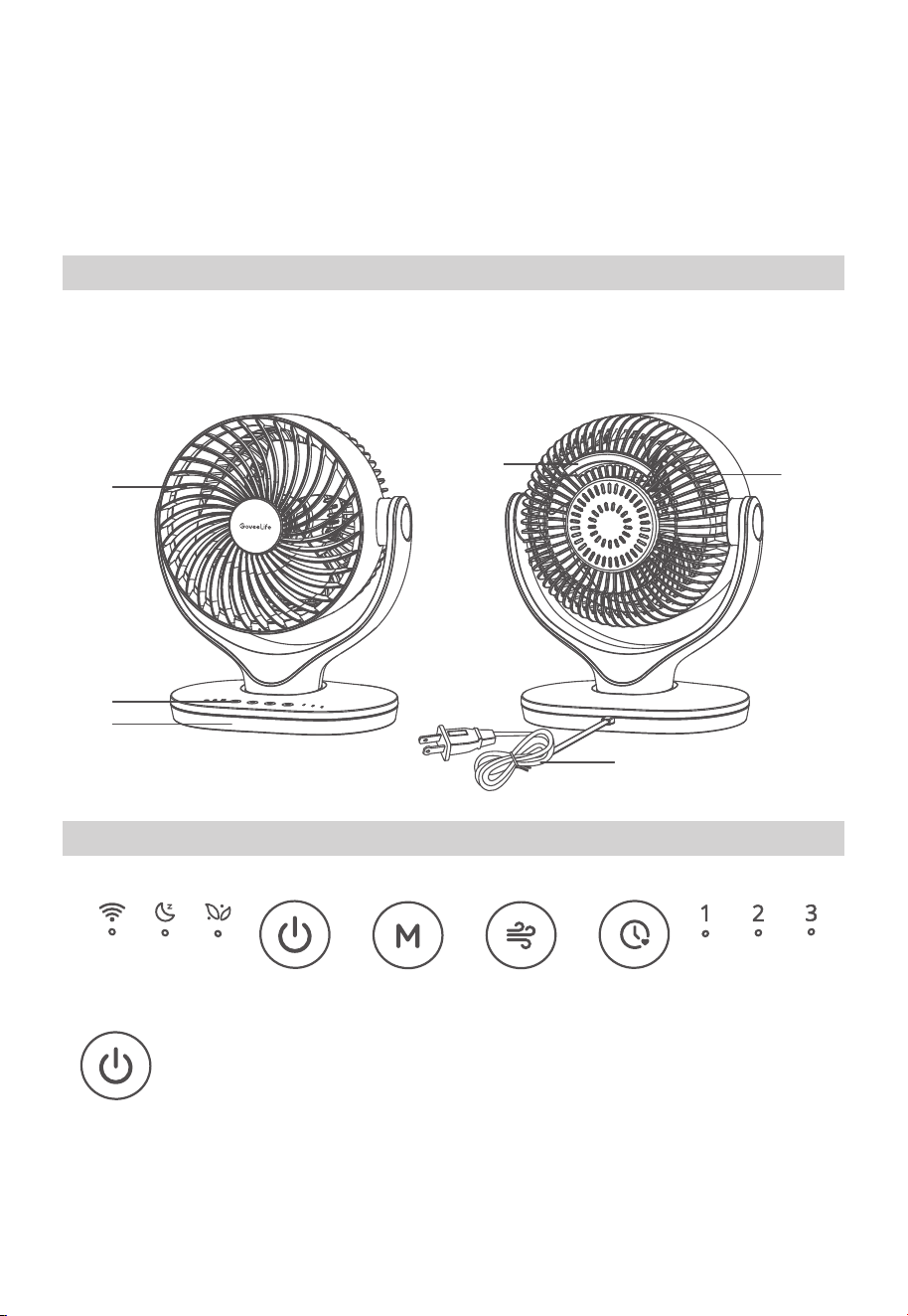
a. Air Outlet
b. Control Panel
c. Base
d. Built-in Handle
e. Air Inlet
f. Power Cord
a
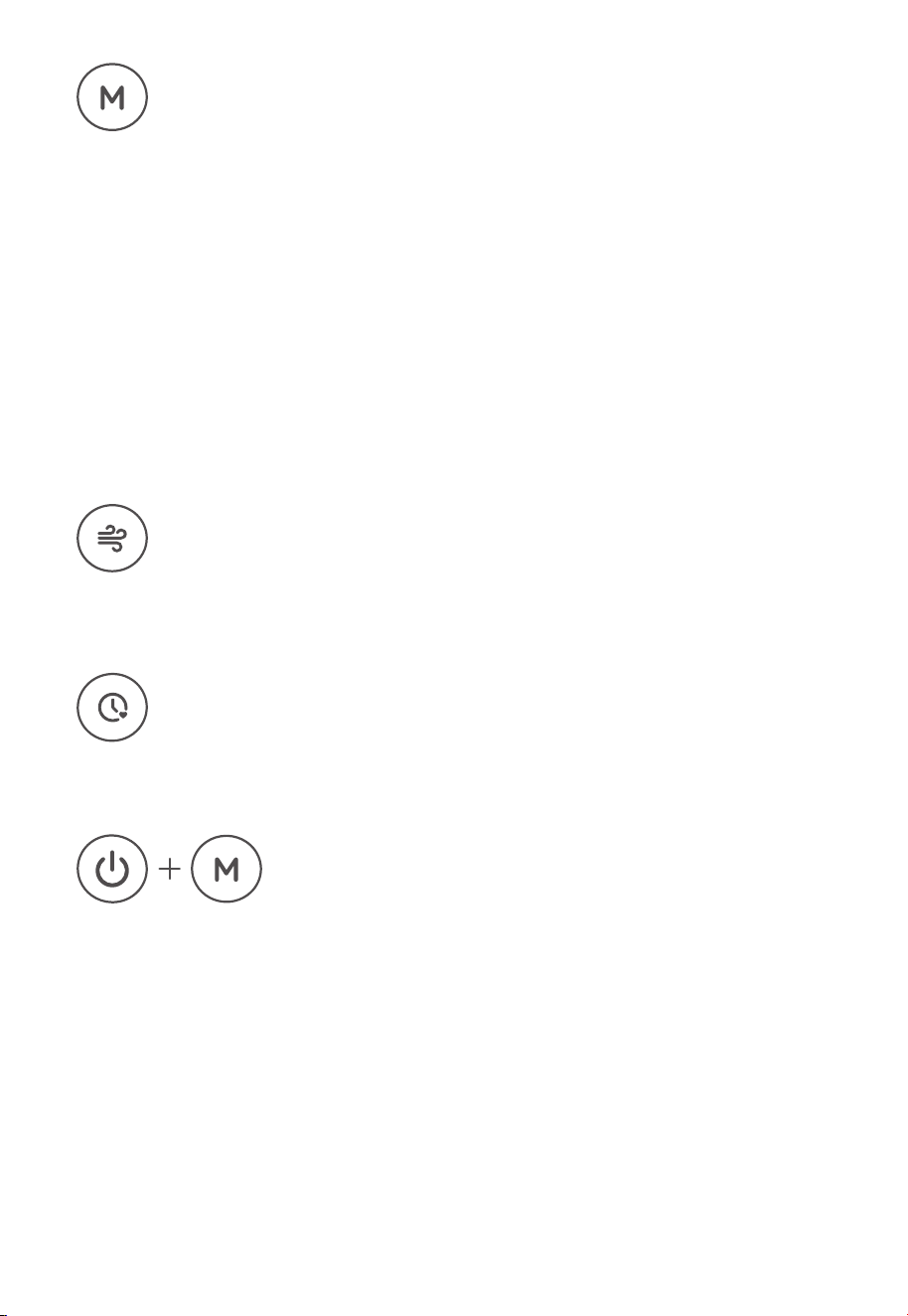
Power Button
Short press to turn the smart circulator fan on/o. Press and hold for 3 seconds to
activate Wi-Fi and other network functions, entering pairing mode.
Part Names
Controls
03
d
e
f
b
c
04
Auto Mode can only be enabled by binding a Govee/GoveeLife Thermo-Hygrometer
through the app.
Govee/GoveeLife Thermo-Hygrometers are sold separately.
More Auto Mode settings can be accessed in the app.
●
●
●
Mode Button
Touch to cycle through Normal Mode, Nature Mode, Sleep Mode, and Auto Mode.
Normal Mode: Always operates at the current speed.
Nature Mode: Simulates a gentle breeze, making you feel like you're in nature.
Sleep Mode: Decreases the speed progressively until it reaches the lowest speed,
continuously running to lull you to sleep.
Auto Mode (with Thermo-Hygrometer connected): The fan will automatically turn on/o
and adjust the air speed according to your settings and the ambient temperature.
Speed Button
Touch to cycle through High Speed 3, Medium Speed 2, and Low Speed 1.
Timer Button
Repeatedly tap in 5s to set the timer between 0-6 hours. Press for 2s to turn o.
Recovery Button
If the fan cannot function well, press and hold these two buttons simultaneously for 5
seconds until all indicators flash once to restore the fan to factory settings. Then the fan
will disconnect to Wi-Fi and Bluetooth and automatically reboot.
Note: After restoring the fan to factory settings, go to the "Device" page on the app to
delete this fan first, otherwise, it cannot be added to the app again.
Note:
05
Getting Started
Memory Function
The fan will save its previous settings when powered o and resume settings when it is
turned back on.
1.
2.
3.
Place your fan on a dry, level surface.
Plug the power cord into a polarized 120V AC wall outlet.
Touch the buttons on the control panel to adjust the speed and the mode, and set
a timer.
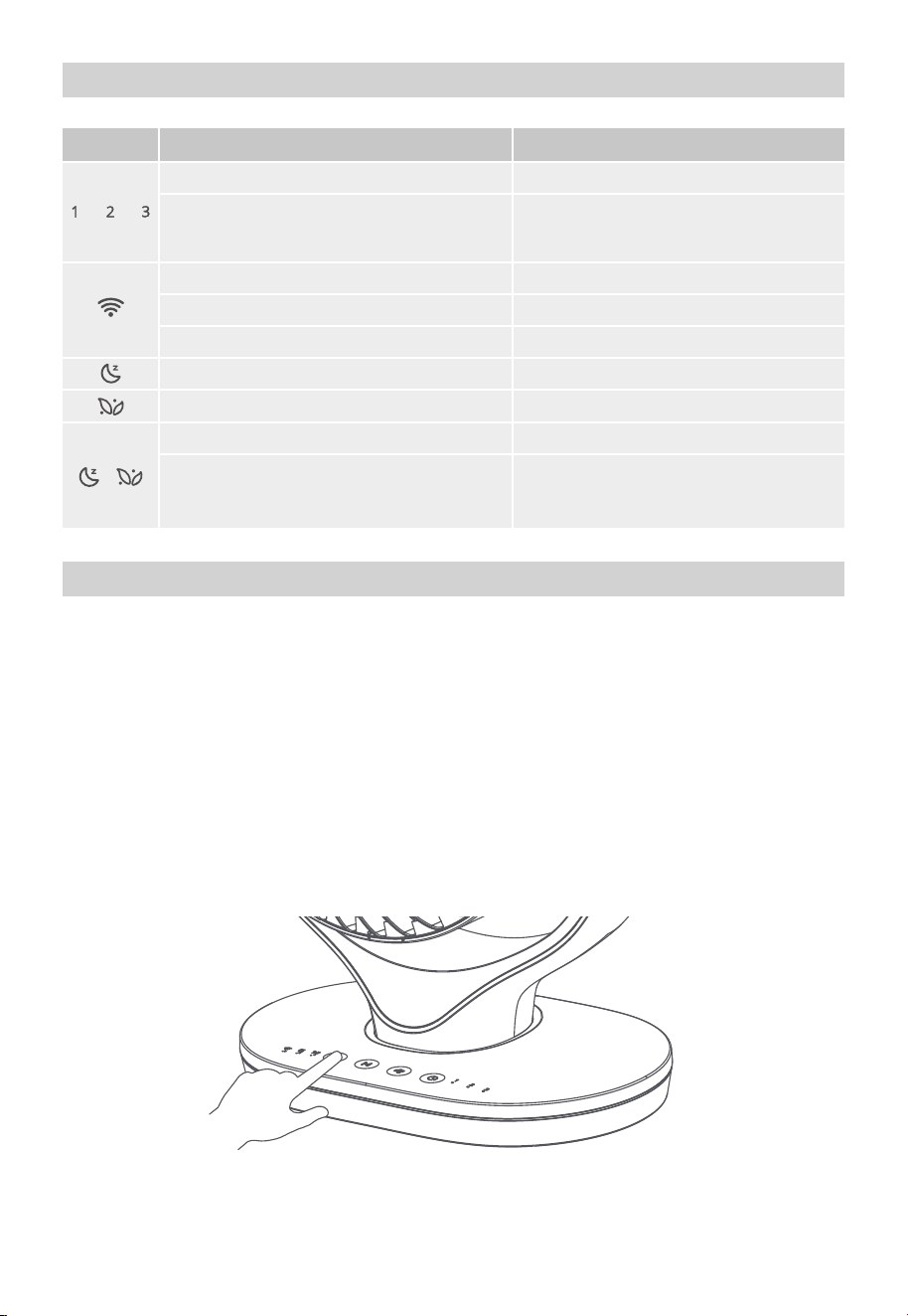
Indicator Status
Function
Low / Medium / High Speed
Timer
(Note: set the timer in 5s)
Ready for Wi-Fi Connection
Wi-Fi is Connecting
Wi-Fiis Connected
Sleep Mode
Nature Mode
Normal Mode
Auto Mode
(With Thermo-Hygrometer connected)
Solid White
Solid White in 5s
(up to 6 hours with all indicators on)
Slowly Flashes White
Quickly Flashes White
Solid White
Solid White
Solid White
Indicators O
Solid White
Light StatusWorking StatusIndicator
Govee Home App
06
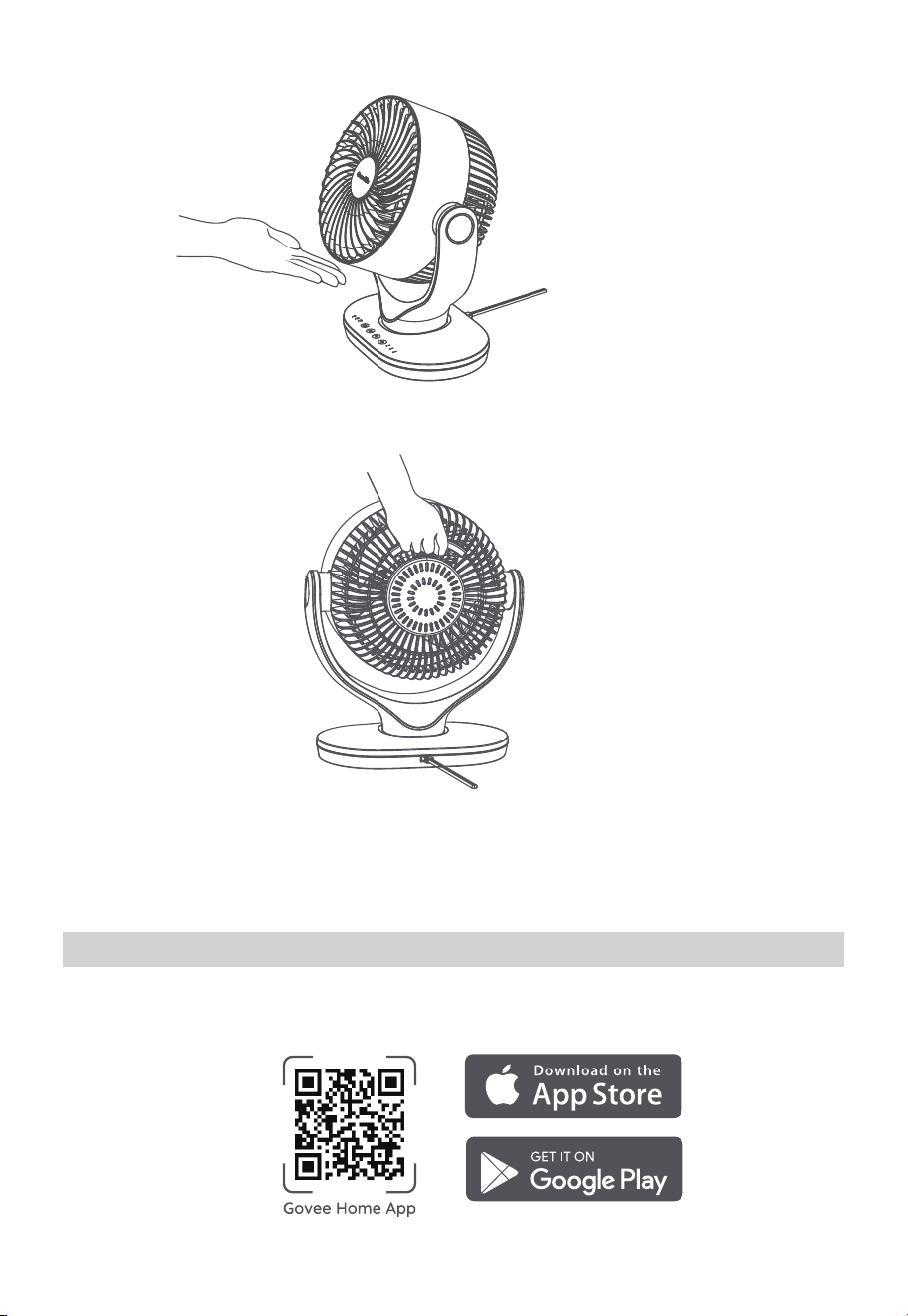
4. Pivot the fan head until the air blows in your desired direction.
5. To move the fan, turn the fan o first and pick it up by the built-in handle on its outer
rim.
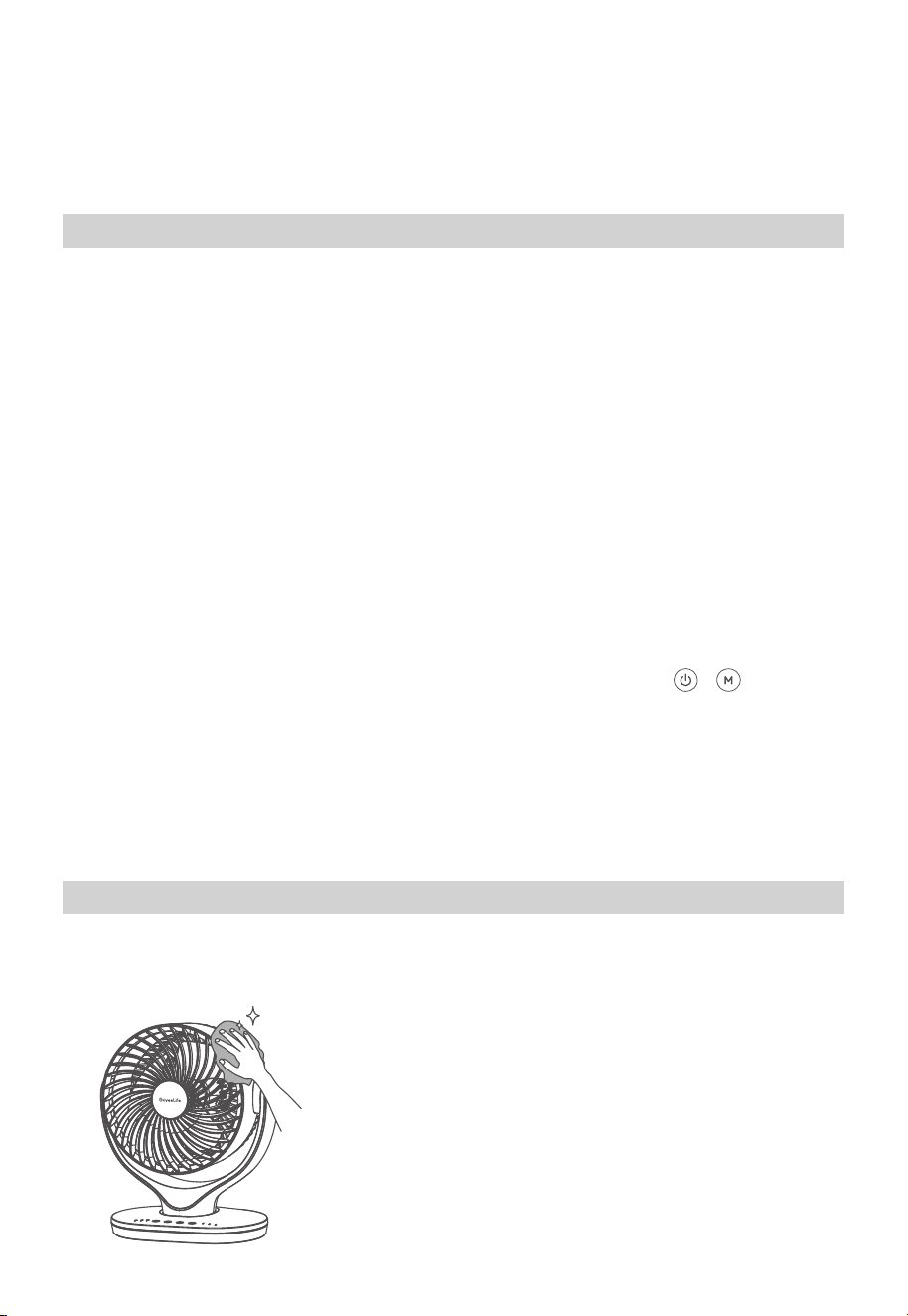
You can access more features using Govee Home App.
To download Govee Home App, scan the QR code or search for “Govee” in the Apple
App Store® (iOS) or Google Play Store (Android).
Downloading Govee Home App
07
Choose “Allow” to the permissions requested when opening Govee Home App for the
first time. These permissions allow the app’s features to function normally and are not
used to record personal, private information.
Due to ongoing updates, Govee Home Appmay be slightly dierent than shown in this
manual. In case of any dierences, always follow the in-app instructions.
●
●
Note:
For IOS users, if you chose Location->Never, it might result in notifications/alert
exceptions. It is recommended to follow Settings ->Govee Home ->Location ->Always
On to obtain the best experience.
Govee Home WILL NOT collect, use, or share your location in any way.
●
●
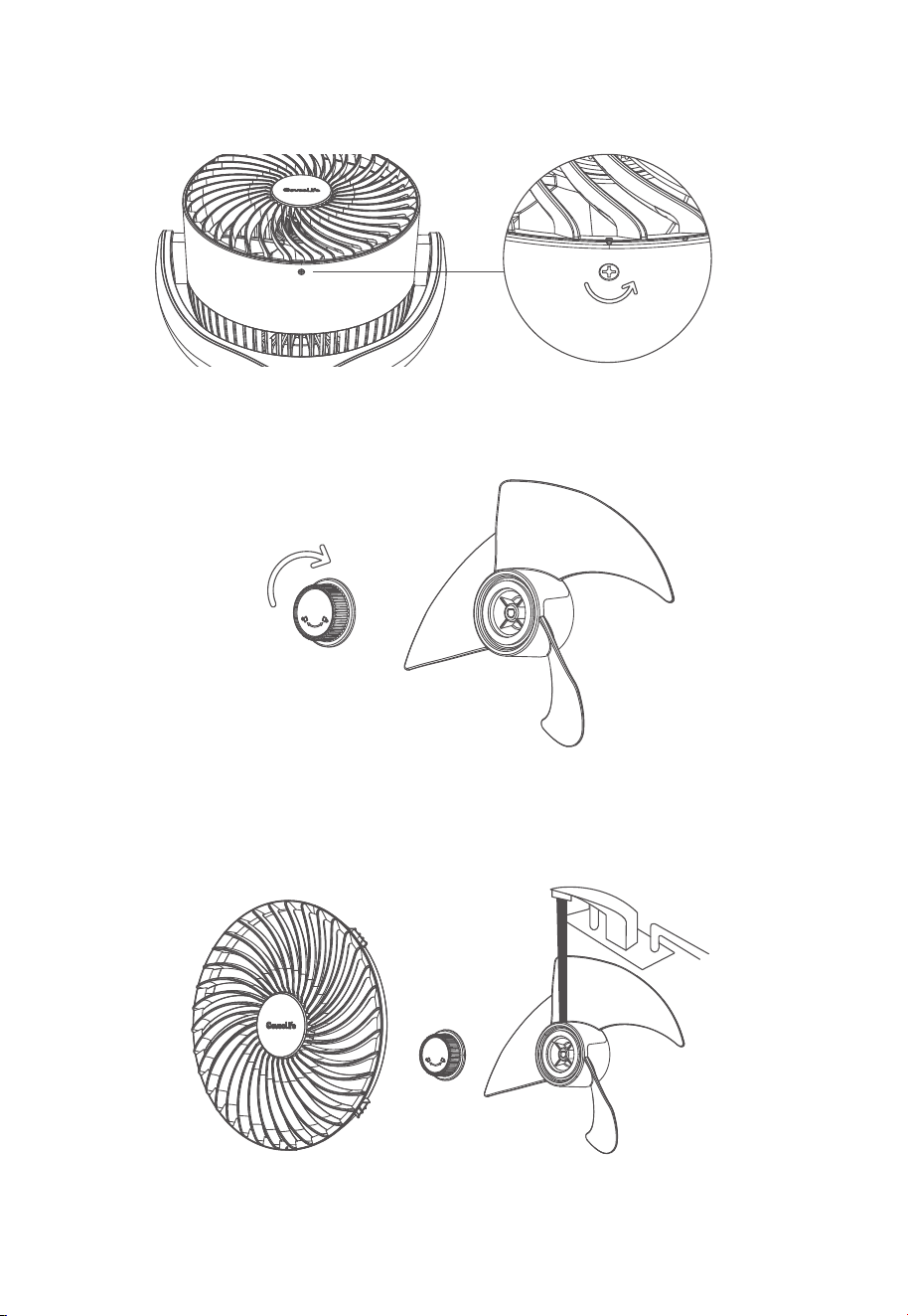
Gently wipe o the dust with a soft, dry cloth.
●
Note:
Method to turn o Bluetooth and Wi-Fi connection: Press and hold + Button for
5s to restore the device to factory settings, then go to the "Device" page on the app to
delete this air circulator fan first, otherwise it cannot be added to the app again.
You can use Govee Home App to connect your air circulator fan to Amazon Alexa or
Google Assistant. Follow the in-app instructions to connect to each voice assistant.
Govee Home App is being continually updated and its features do expand.
●
●
●
Note:
1.
2.
3.
Turn on your smartphone's Bluetooth. Connect to your Wi-Fi router's 2.4GHz network.
5GHz is not supported.
Ensure that the Wi-Fi indicator on your device is flashing. If the Wi-Fi indicator is o,
press and hold the On/O Button for 3 seconds to activate. Complete the pairing
within 20 minutes; otherwise, the network functions will be disabled, and the Wi-Fi
indicator will go out.
Android users turn on Location Services; IOS users choose Location ->Always On in
the pop-up window while adding devices.
4.
5.
Open Govee Home App, tap the"+" icon in the top right corner and search for "H7112."
Tap the device icon and follow the in-app instructions to complete the Bluetooth and
Wi-Fi connection.
To achieve the best performance, clean the fan at least once during the operating season
or before storing it when it will not be used for a long period of time.
Outer Surface
Care & Maintenance
Pairing with Govee Home App
Cleaning
08
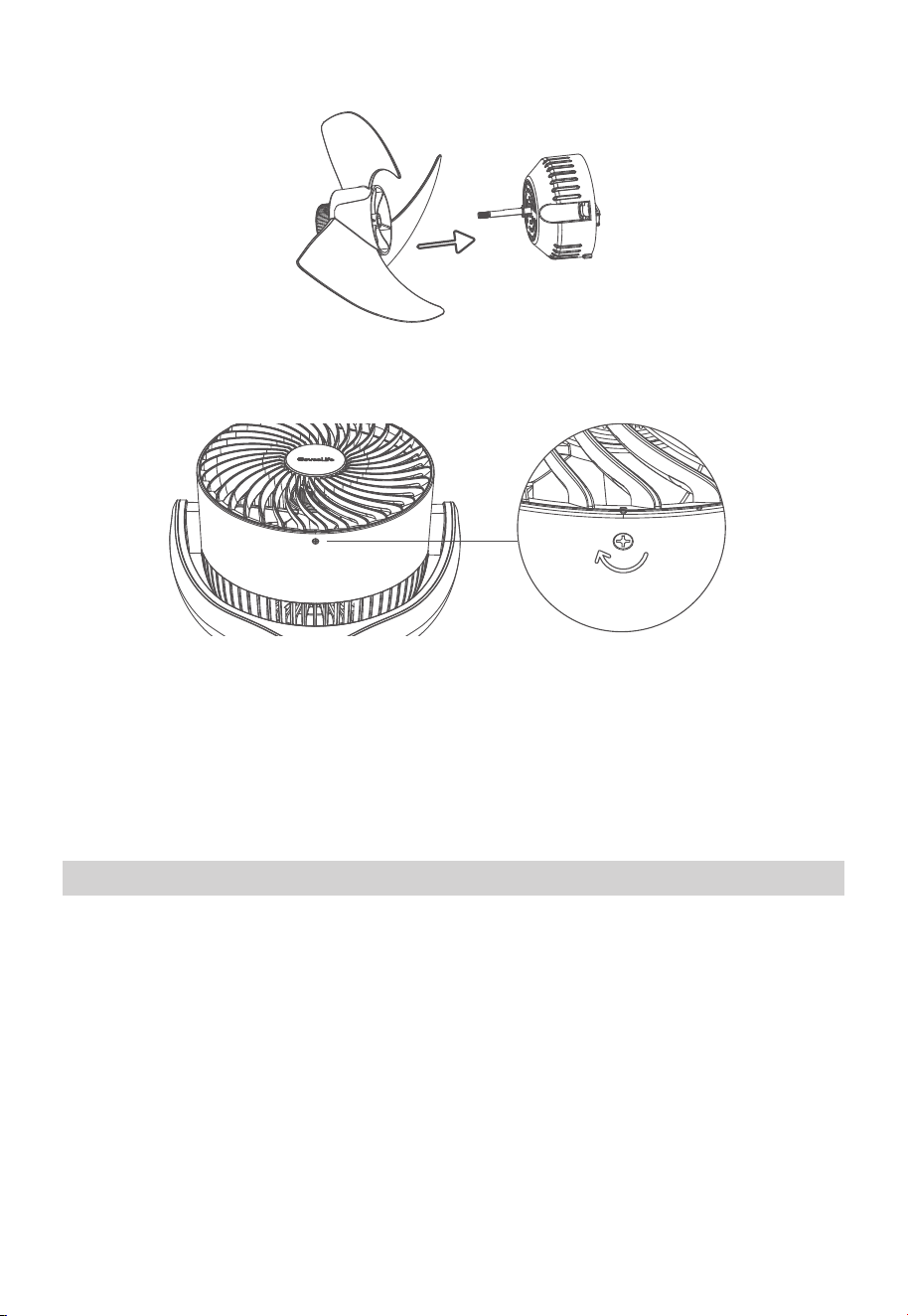
1. Remove the screw on the front grille and rotate counterclockwise to take it o.
2. Remove the blade cap by rotating it as shown and take the blade assembly out of the
shaft.
3. Rinse the cap, blades, and grille under running water or with a clean, damp cloth.
Front Grille and Blades
09
1.
2.
3.
4.
5.
6.
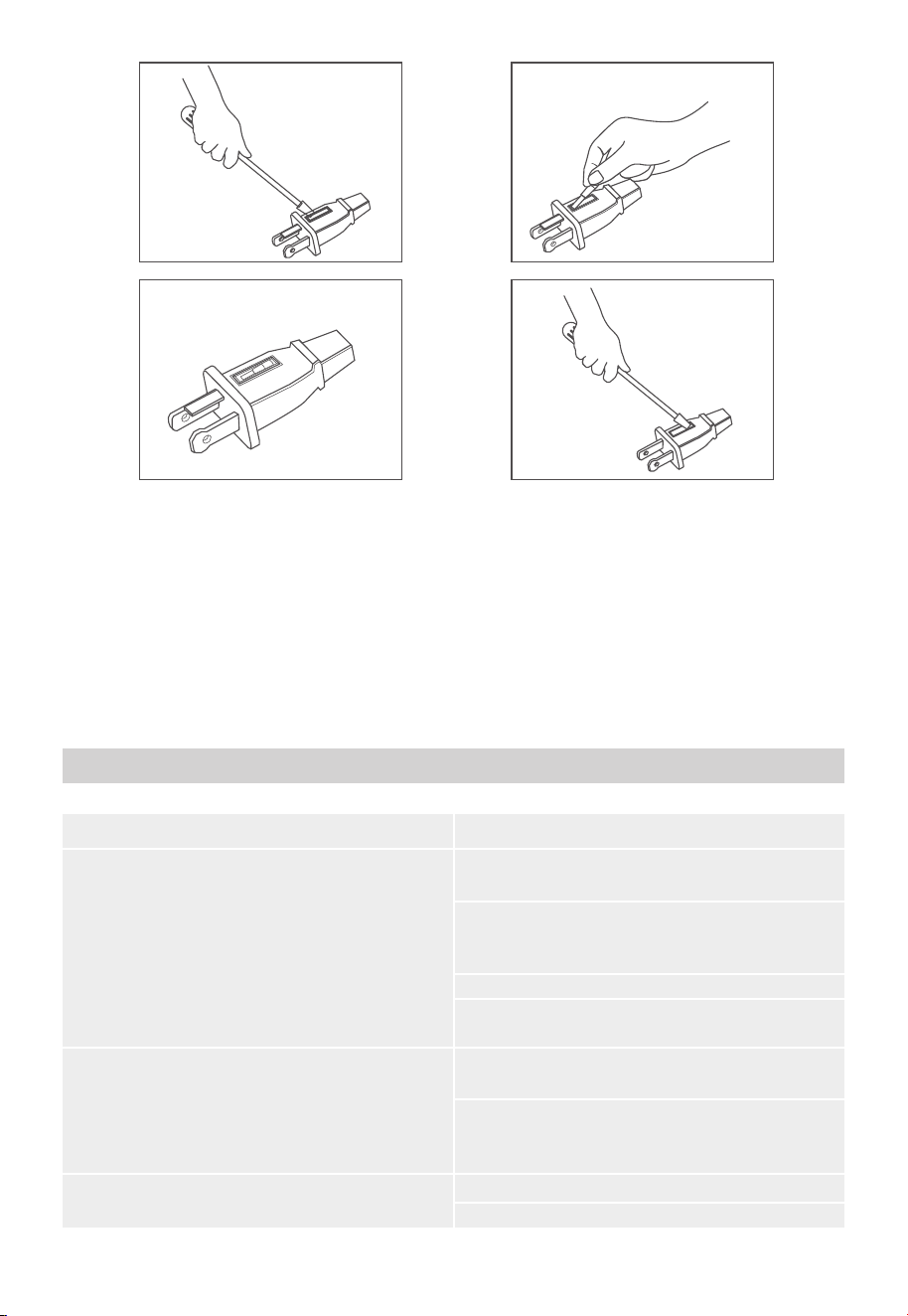
Grasp the plug and remove it from the socket or other outlet device. Do not unplug by
pulling the cord.
Slide to open the fuse cover on top of the plug towards the blades.
Remove the fuse carefully by using a small screwdriver to pry it out of the compart-
ment by its metal ends.
Replace only with 2.5A, 125V fuse to avoid the risk of fire.
Close the fuse cover. Slide to close the fuse access cover on top of the attachment
plug.
Risk of fire. Do not replace the attachment plug. It contains a safety device (fuse) that
should not be removed. Discard the product if the attachment plug is damaged.
Always unplug the fan before any cleaning or maintenance to avoid the risk of fire,
electric shock, or injuries to persons.
Do not immerse in water or get water inside the motor housing.
Do not use any chemical agents when cleaning the fan.
Store in a cool, dry place and cover it to protect it from dust.
●
●
●
●
4. Dry up all parts and insert the blade assembly back into the shaft by aligning the
centers.
5. Align the point on the front grille with the right point on the casing as shown, then
rotate the grille clockwise and install the screw back in place.
Fuse replacement (Exclusive to US)
Note: The product requires a 2.5A, 125V fuse.
CAUTION:
Maintenance
10
Troubleshooting
The motor is permanently lubricated and requires no oiling.
Any other servicing not mentioned in this manual should be performed by a profes-
sional repair center.
Problem
The fan cannot be turned on or respond
to any button touch.
The fan is not plugged in. Plug it into an
outlet.
Check to see if the power cord is
damaged. If so, stop using the fan and
contact Customer Support.
Plug the fan into a dierent outlet.
The fan may be malfunctioning. Contact
Customer Support.
Airflow is weak or slow. The fan is running at Low Speed. Adjust
to a higher speed.
The air inlet is blocked. Remove the
obstruction and pivot the fan head to
adjust the airflow.
The fan makes strange noises when it is
running.
Move the fan to a level surface.
Contact Customer Support.
Possible Solution
The troubleshooting section below is for solving frequently asked questions. If your
problem persists, please contact Customer Support.
●
●
For Smart Air Circulator Fan 2
Step 1 Step 2
Step 3 Step 4

11
The fan may be connected to another smartphone. Disconnect it from the other
smartphone first.
Ensure that the Wi-Fi indicator on the fan is slowly flashing.
●
●
Make sure your smartphone is powered on and is not connected to other Bluetooth
devices.
Ensure that the Wi-Fi indicator on the air circulator fan is slowly flashing, If the Wi-Fi
indicator is o, press and hold for 3 seconds and complete the pairing within 20
minutes.
Enable the smartphone's Location Services.
Try connecting with another smartphone.
Make sure your app is updated to the latest version.
Make sure you connect to your Wi-Fi router's 2.4GHz network and that the network is
working correctly.
Make sure the Wi-Fi password you entered is correct.
Shorten the distance between the fan, Wi-Fi router, and the smartphone.
Make sure your fan and the Wi-Fi router are located away from appliances that
produce electromagnetic radiation (e.g. microwave ovens, refrigerators, etc.)
If you are using a VPN, try turning it o and then connecting the fan.
Disable portal authentication for your Wi-Fi network. If portal authentication is
enabled, this fan will not be able to access your Wi-Fi network and the setup will fail.
Portal authentication means that you need to sign in to your Wi-Fi network through a
web page before you can use the Internet.
●
●
●
●
●
●
●
●
●
●
●
1. Cannot connect to Govee Home App.
2. Cannot find the device on the Bluetooth Device Nearby page of the app.
Make sure the fan is plugged in and powered on, then refresh "Device" in Govee Home
App by swiping down on the screen.
Make sure your router is connected to the internet and your phone's network connec-
tion is working.
If the Wi-Fi password has been changed, the fan will automatically go oine. Try
connecting it to the network again.
Delete the oine fan from Govee Home App, then add and reconfigure the fan again
in the app.
●
●
●
●
3. The fan is oine.
For App & Connectivity
12
Appendix
Model Name
Power Voltage
Rated Power
Net Weight
Dimensions
H7112
120V ~ 60Hz
48W
2kg / 4.4lb
287*335*160mm / 11.3*13.2*6.3in
After-Sales Service
Specifications
Warranty: 12-Month Limited Warranty
Support: Lifetime Technical Support
Email: support@govee.com
Ocial Website: www.govee.com
@Govee.smarthome@Goveeocial
@govee.ocial
@govee_ocial
@Govee

Responsible party (this contact information is only for FCC matters) :
Name: GOVEE MOMENTS(US) TRADING LIMITED
Address: 2501 Chatham Rd Suite R Springfield IL 62704
Email: certification@govee.com
Contact information: www.govee.com/support
Compliance Information
This device complies with Part 15 of the FCC Rules. Operation is subject to the following
two conditions: (1) this device may not cause harmful interference, and (2) this device
must accept any interference received, including interference that may cause undesired
operation.
NOTE: This equipment has been tested and found to comply with the limits for a Class B
digital device, pursuant to Part 15 of the FCC Rules. These limits are designed to provide
reasonable protection against harmful interference in a residential installation. This
equipment generates, uses and can radiate radio frequency energy, and if not installed
and used in accordance with the instructions, may cause harmful interference to radio
communications. However, there is no guarantee that interference will not occur in a
particular installation. If this equipment does cause harmful interference to radio or
television reception, which can be determined by turning the equipment o and on, the
user is encouraged to try to correct the interference by one or more of the following
measures:
—Reorient or relocate the receiving antenna.
—Increase the separation between the equipment and receiver.
—Connect the equipment into an outlet on a circuit dierent from that to which the
receiver is connected.
—Consult the dealer or an experienced radio/TV technician for help.
Changes or modifications not expressly approved by the party responsible for compli-
ance could void the user’s authority to operate this equipment.
FCC Statement
FCC Caution
This equipment complies with the FCC RF radiation exposure limits set forth for an
uncontrolled environment. This equipment should be installed and operated with a
minimum distance of 20cm between the radiator and any part of your body.
The trademark GoveeLife has been authorised to Shenzhen Qianyan Technology LTD.
Copyright ©2021 Shenzhen Qianyan Technology LTD. All Rights Reserved.
The Bluetooth® word mark and logos are registered trademarks owned by Bluetooth SIG,
Inc. and any use of such marks by Shenzhen Qianyan Technology LTD is under license.
RF Exposure Statement
FOR INDOOR USE ONLY

www.govee.com
For FAQs and more information,
please visit: