2
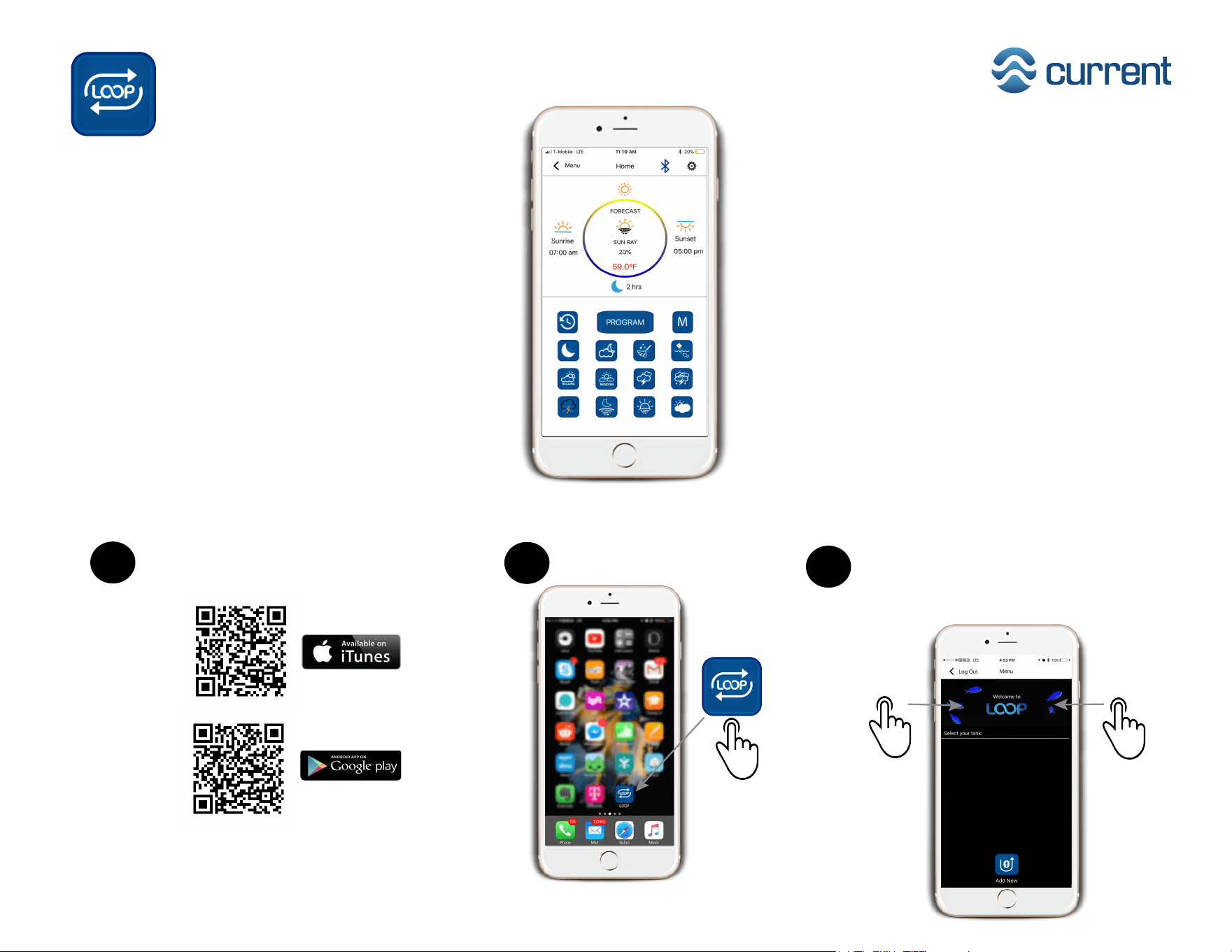
Open the LOOP app
Press and hold the fish at the top
of the menu screen for 5 seconds
and explore LOOP!
LOOP App
Quick Start Guide
Download the LOOP app to your
mobile device. Current USA LOOP app.
1
3
Operating system requirements:
iOS9 or later
Android 4.1 or later
Try the LOOP App with no connection in 3 steps!
Experience your aquarium in an entirely new
way with the LOOP app and controller. Together,
they wirelessly connect and control your lights,
pumps and accessories all in one place.
Compatible with:
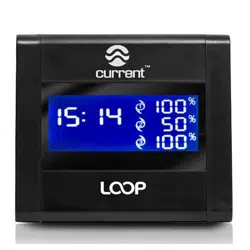
LOOP Marine Controller
Orbit Marine 2.0 LED Lights
Orbit Marine IC LED Lights
Orbit Marine IC PRO LED Lights
eFlux Wave Pumps
eFlux DC Flow Pumps
eFlux DC Accessory Pumps
Features:
- Always easy-to-connect via Bluetooth®
- Intuitive app is simple to use and easy to program
- 24 Hr. lighting with Dawn/Dusk, Daylight, Moonlight
- 10 weather modes with- lighting & sound effects
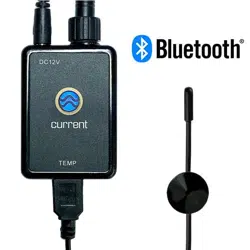
- Includes water temperature
- Control up to 3 wave pumps
- On-demand feed mode
- Cleaning & night modes
- Controls up to 2 DC flow pumps
- Active moonlight modes with calming audio
- Program daily weather patterns with audio
- Connect up to 6 Loop controllers to one app
Pairing LOOP APP & Controller
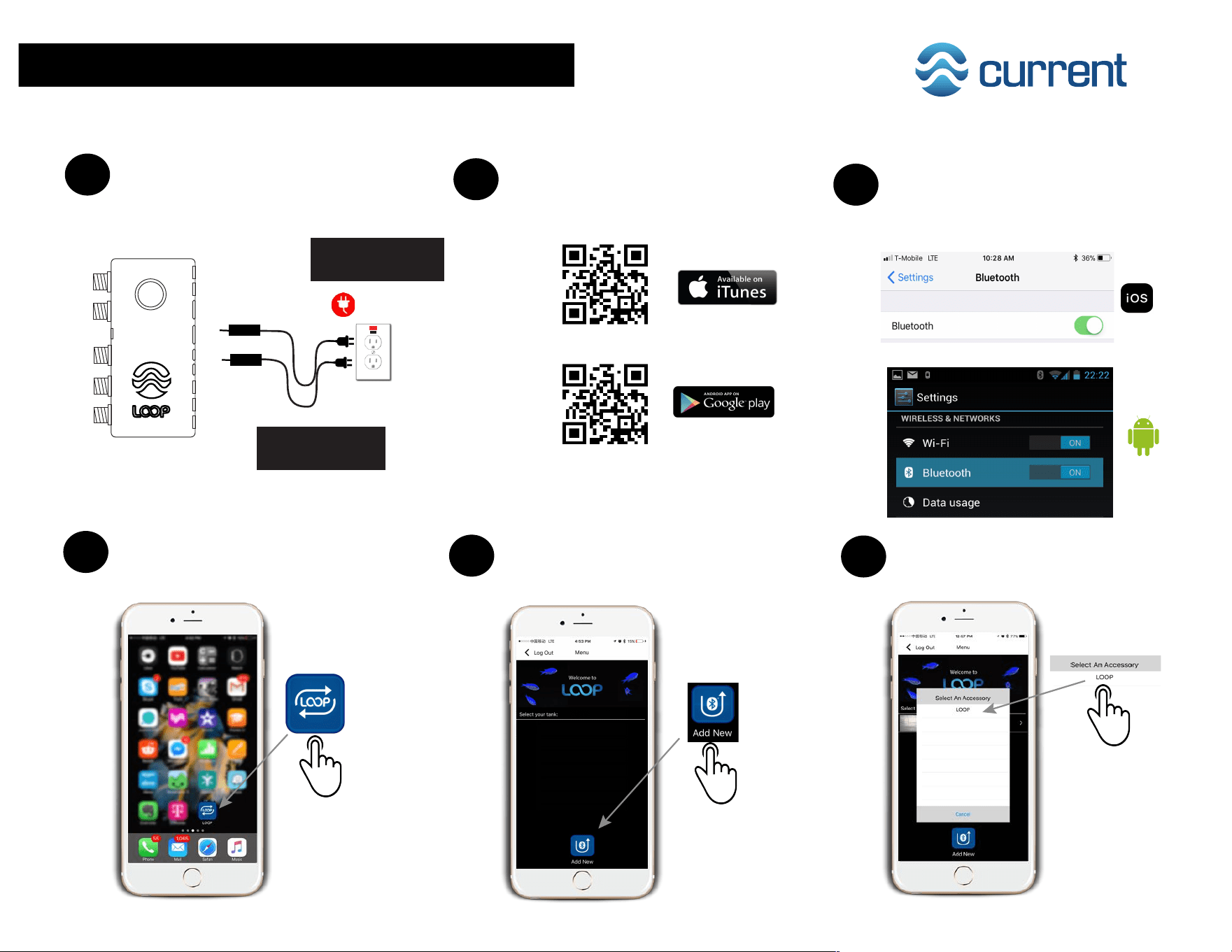
1 Pairing LOOP APP & Controller
1
Mount LOOP controller and connect
components, plug in power supplies
into a GFCI outlet with drip loop.
2
Download the App to your mobile
device. Current USA LOOP Marine.
3
On your device/phone, go to Settings
-> Bluetooth and ensure Bluetooth
is turned ON.
4
To open app, tap LOOP on
you mobile device.
5
On the Menu Screen, tap ADD NEW
located at the bottom center.
6
Tap LOOP to connect.
AC Power
GFCI Outlet
Ensure use of drip
loop for all cables
Use only with GFCI
Protected AC Outlet
To LOOP Controller
FPO
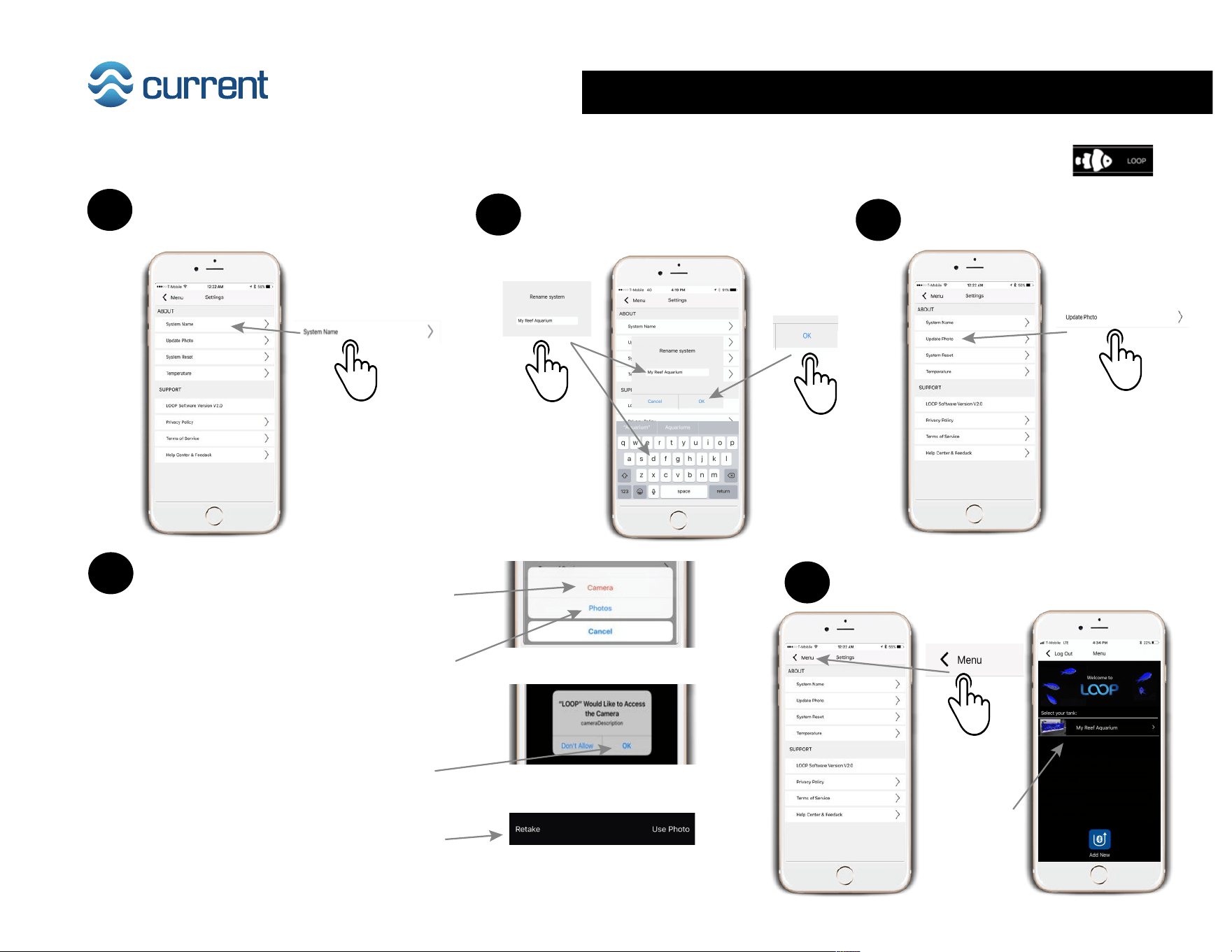
Renaming System & Updating System Photo 2
1
Tap System Name.
2
Use your devices keypad to
rename your system. When finished
finished tap OK.
3
Tap Update Photo.
4
To use your devices camera to take
a photo of your system, tap Camera
and take a photo of your system.
Alternatively, you can use an existing
photo by tapping Photos and
selecting an existing photo of your
system from your devices library.
Select OK to access your devices
camera and take a photo.
Tap Use Photo or Retake to create
an image of your system.
5
Renaming & updating photo is complete.
Tap < Menu to go to HOME screen.
Once your device is connected to the LOOP controller, the Settings screen will immediately be displayed to set up your system.
It is recommended to rename and add a photo to your new system. Note: Default name & photo of any new system is:
Updated System
Name & Photo
will display upon
next App login.
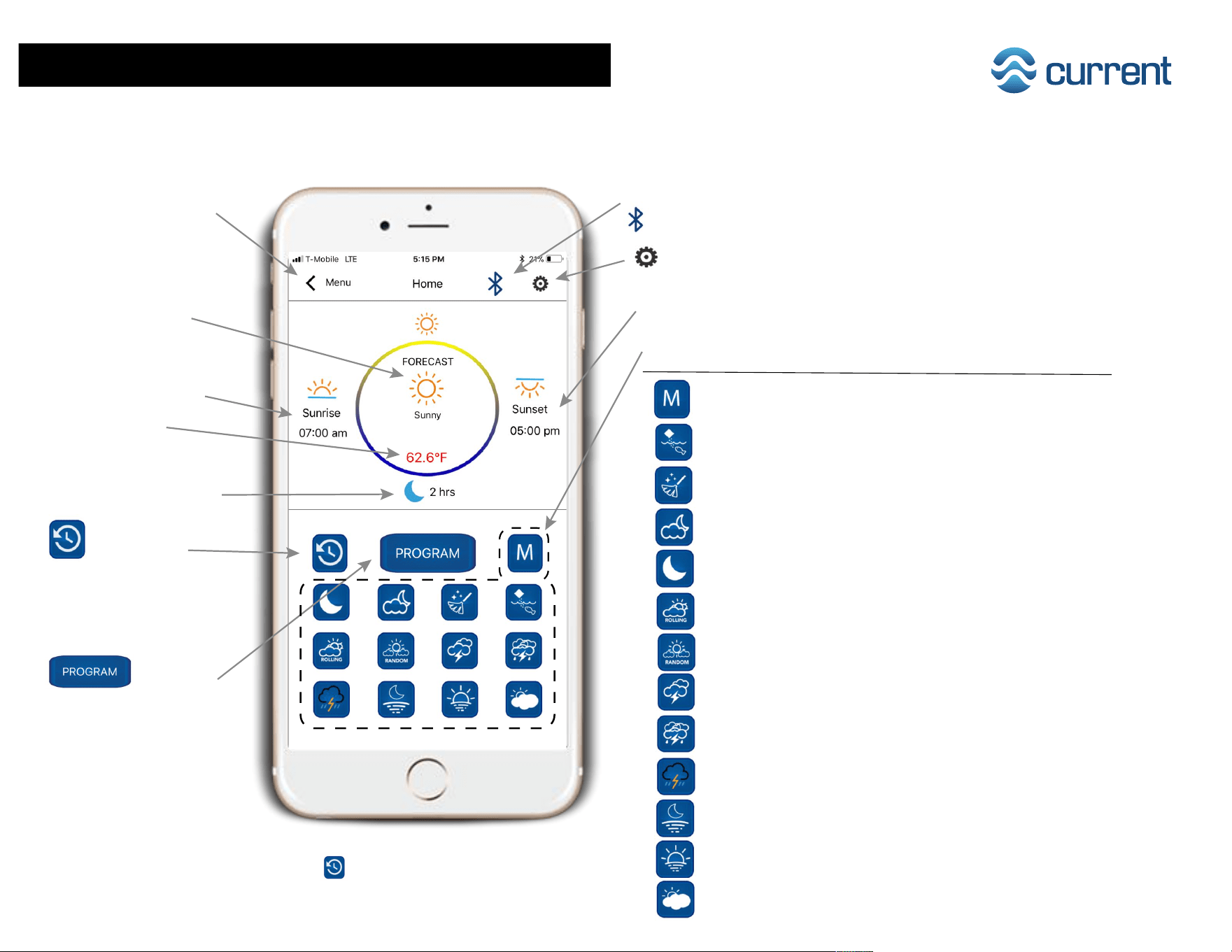
The Home screen provides an overview of your aquarium system, including daily light cycle, weather, water temperature,
wireless connection status, on-demand effects and access to programming features.
3 Home Screen & On-Demand Effects
< Menu
Tap to return to system
selection screen and log out
Displays current
Weather Forecast
Wireless connection status
Sunrise ON Time
Moonlight Duration
RESUME
Tap to exit any on-demand
mode and return system to
timer mode.
Tap to enter System Settings
Sunset (Begin OFF) Time
Temperature
Green - within range
Red - outside range
Program
Tap to access lighting
& pump programming
ON-DEMAND Modes
Key On-Demand Mode Audio Duration**
Custom Color No 24/7
Feed Mode No 10 min.
Clean Mode No 10 min.
Fading Moonlight Yes - Binaural 30 min.
Moonlight No 30 min.
Rolling Clouds Yes - Nature 30 min.
Random Clouds Yes - Binaural 30 min.
Lightning Storm Yes - Nature 30 min.
Full Storm Yes - Nature 30 min.
Approaching Storm Yes - Nature 30 min.
Moon Rays Yes - Binaural 30 min.
Sun Rays Yes - Binaural 30 min.
Partly Cloudy Yes - Binaural 30 min.
** Tap Resume to exit any mode
and return system to 24hr. Timer Mode
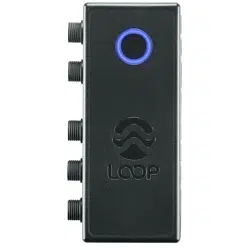
Blue indicates active Bluetooth connection
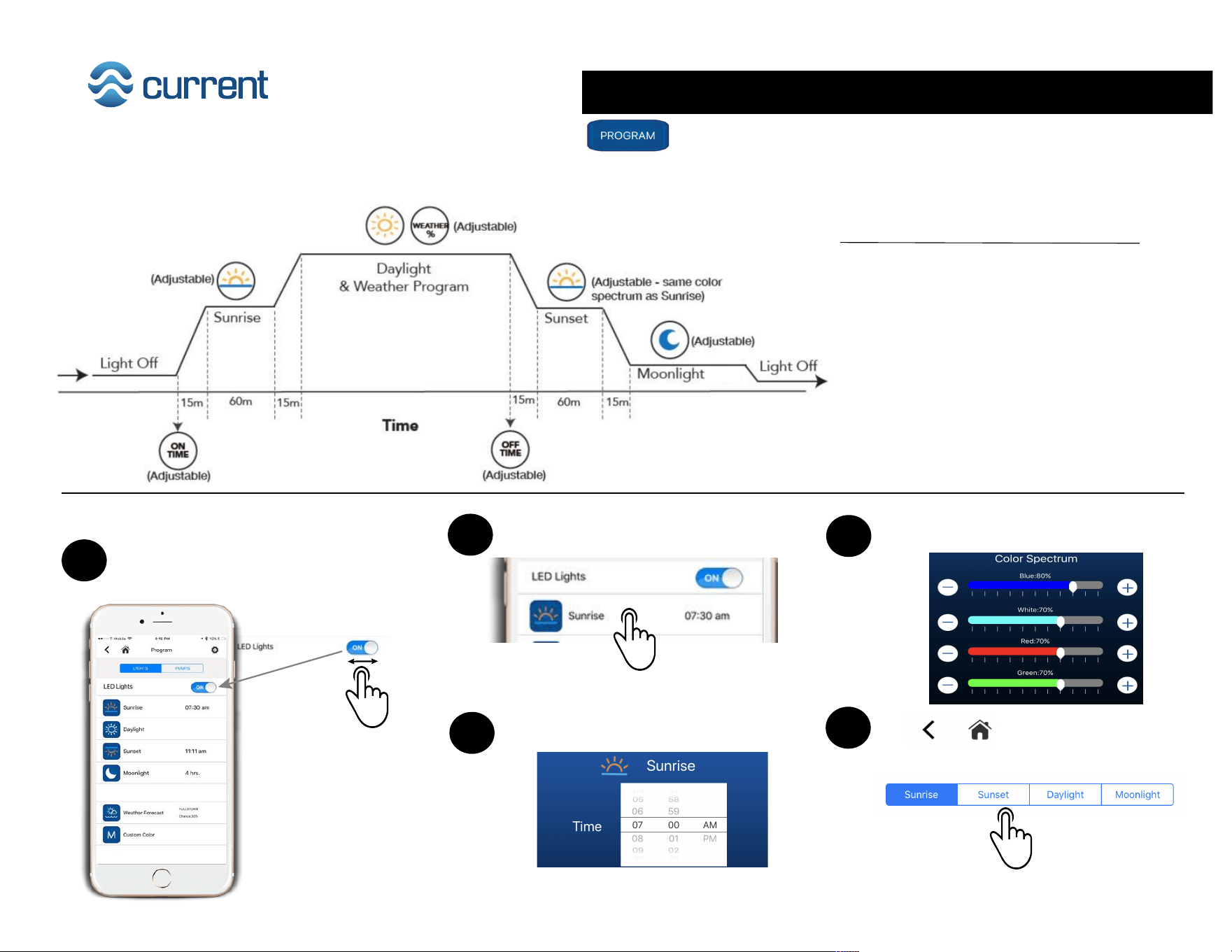
Programming LED Lights 4
1
Use toggle to manually turn lights
On / Off.
2
Tap Sunrise.
3
Use scroll to select Sunrise ON time.
To access lighting and pump programming, tap PROGRAM . To program LED lights, tap LIGHTS at top of page.
The LOOP Marine controller features a pre-programmed 24-hour lighting cycle to mimic nature.
Default Light Settings (Pre-programmed)
Sunrise ON Time: 7:00 am
Sunrise Color Spectrum: B 50%, W 25%, R 45%, G 10%
Daylight Color Spectrum: B 90%, W 75%, R 85%, G 30%
Sunset OFF Time: 5:00 pm
Sunset Color Spectrum: B 75%, W 25%, R 65%, G 0%
Moonlight Duration: 2 Hours
Moonlight Color Spectrum: B 10%, W 0%, R 5%, G 0%
Weather Forecast: OFF
Custom Color Spectrum: B 50%, W 50%, R 50%, G 50%
4
Use sliders to adjust color spectrum.
5
Tap to go back, or
select another program at bottom.
To program Sunrise:
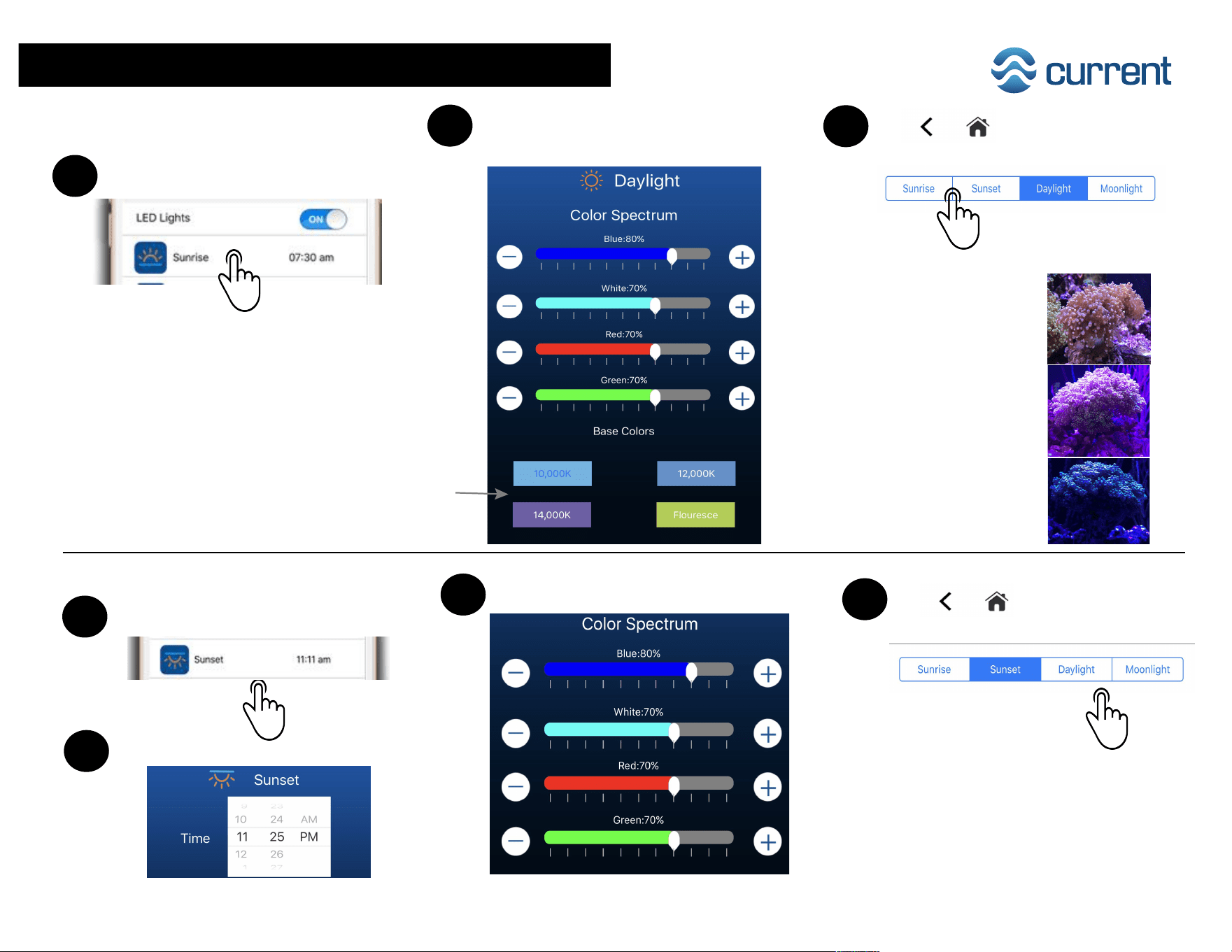
5 Programming LED Lights
6
Tap Daylight.
7
Use sliders to adjust color spectrum,
or select a base color at bottom.
8
Tap to go back, or
select another program at bottom.
Tap Sunset.
10
Use scroll to select Sunset OFF time.
11
Use sliders to adjust color spectrum.
12
Tap to go back, or
select another program at bottom.
9
To program Sunset:
To program Daylight:
Color Spectrum Tips:
Daylight
For healthy coral growth and
color, keep Blue high (90%+),
White a bit lower (75%+)
Sunrise/Sunset
To enhance colors in fish & coral,
turn White low (<20%), Blue at
50-75%) and Red higher (65%+)
Moonlight
Turn White, Red, Green off (0%)
and keep Blue low (10%) or relax
to an active mode with audio!
Base colors automatically adjust each
color level to match spectrum, allowing
you to “fine tune” the color using sliders
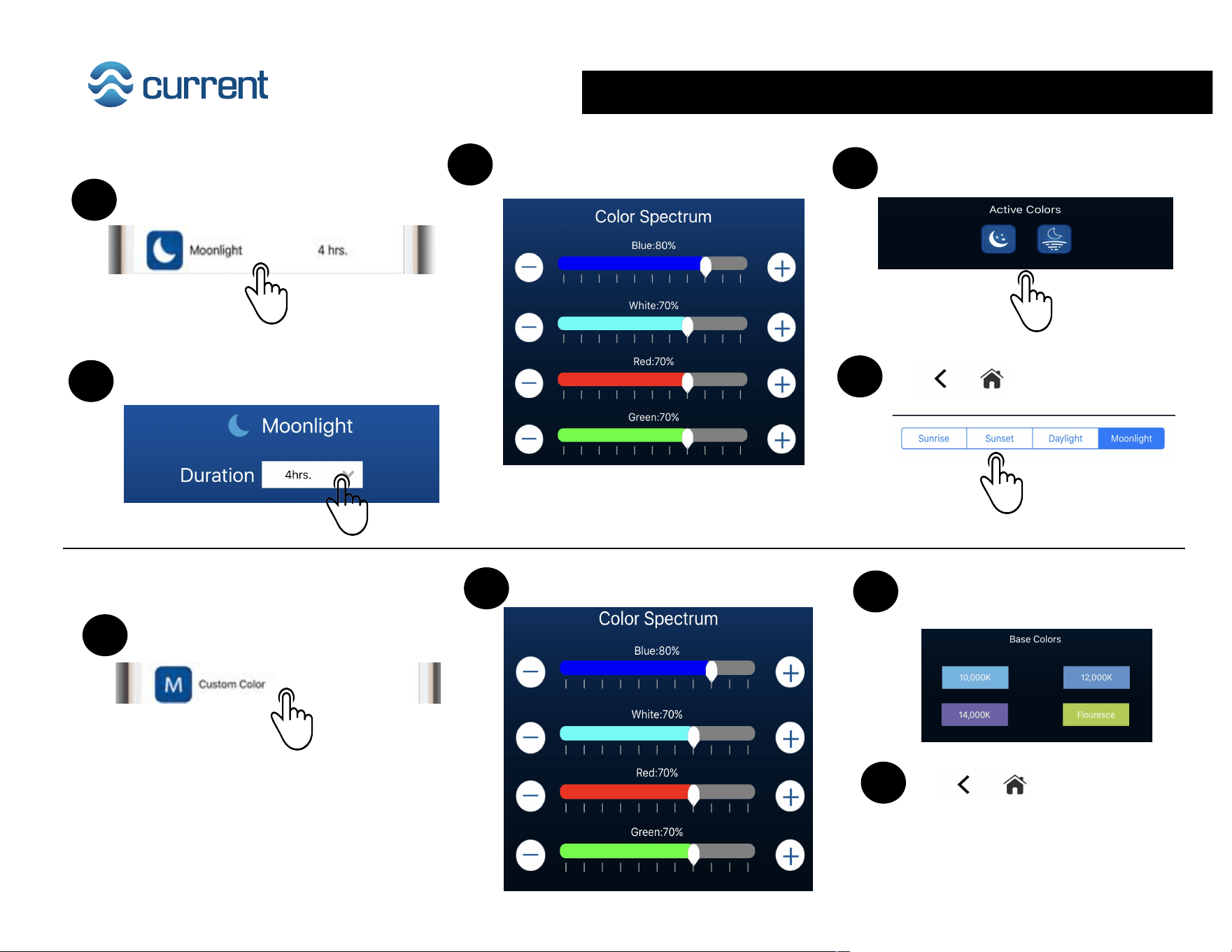
Programming LED Lights 6
13
Tap Moonlight
15
Use sliders to adjust color spectrum.
17
Tap to go back, or
select another program at bottom.
Tap Custom Color.
3
Tap to go back to
light programming screen.
1
14
Use scroll to select Moonlight duration.
2
Use sliders to adjust color spectrum.
16
You can also choose an active
moonlight program featuring audio.
To program Moonlight:
To program Custom Color:
3
You can also choose an optional
base color, then adjust spectrum.
7 Programming LED Lights
1
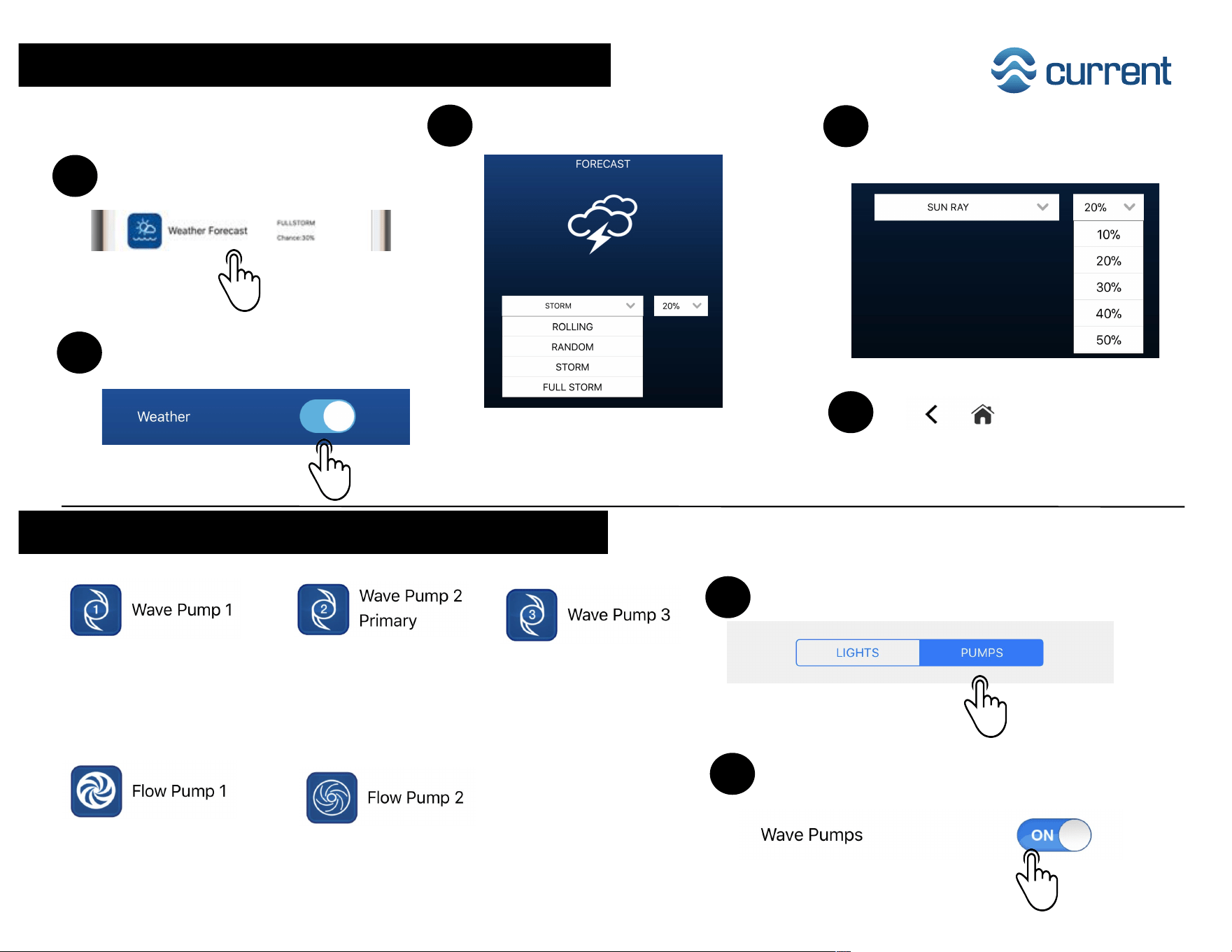
Tap Weather Forecast.
3
Use scroll to select weather mode.
4
Use right scroll to select % mode
to run during Daylight mode.
To program Weather:
2
Use toggle to manually turn weather
On / Off.
Tap to go back, or
select another program at bottom.
5
Programming Wave & Flow Pumps
1
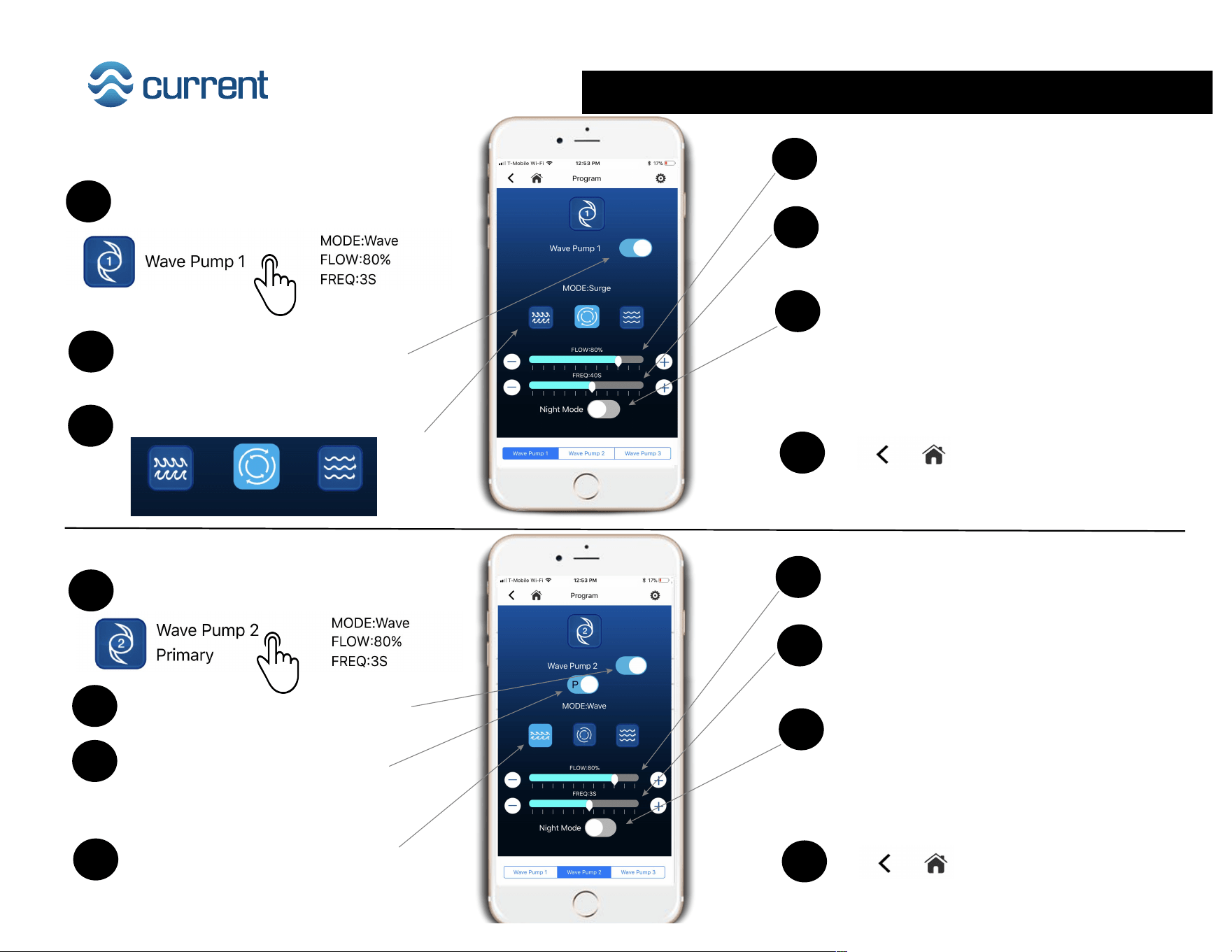
Tap Pumps at top of programming screen.
2
Use toggle to manually turn all Wave
Pump On / Off.
To program Pumps:
Pump Default Settings:
Mode: ON - Stream
Flow: 100%
Frequency: -
Night Mode: OFF
Mode: Stream
Flow: 100%
Night Mode: OFF
Mode: Stream
Flow: 100%
Night Mode: OFF
Mode: ON - Stream
P/S: Primary
Flow: 100%
Frequency: -
Night Mode: OFF
Mode: ON - Stream
Flow: 100%
Night Mode: OFF
Programming Wave Pumps 8
3
Tap Mode keys to select flow mode.
7
Tap to go back, or
select another pump at bottom.
2
Use toggle to turn pump On / Off.
4
Use slider to adjust Flow Rate.
To program Wave Pump 1:
Tap Wave Pump 1.
1
Wave
Surge
Stream
5
Use slider to adjust Frequency (Wave
and Surge Mode only)
6
Use toggle to turn Night Mode On / Off.
Note: Night mode is synced to Moonlight
period and reduces flow 30%. After
moonlight period ends, pump ramps back
to normal flow settings.
4
Tap Mode keys to select flow mode.
8
Tap to go back, or
select another pump at bottom.
2
Use toggle to turn pump On / Off.
5
Use slider to adjust Flow Rate.
To program Wave Pump 2:
Tap Wave Pump 2.
1
6
Use slider to adjust Frequency (Wave
and Surge Mode only)
7
Use toggle to turn Night Mode On / Off.
Note: Night mode is synced to Moonlight
period and reduces flow 30%. After
moonlight period ends, pump ramps back
to normal flow settings.
3
Use toggle to select Primary or
Secondary Mode (Secondary Mode
syncs with Wave Pump 1 and runs in
tandem in the opposite flow).
9 Programming Wave Pumps & Flow Pumps
5
Tap to go back, or
select another pump at bottom.
2
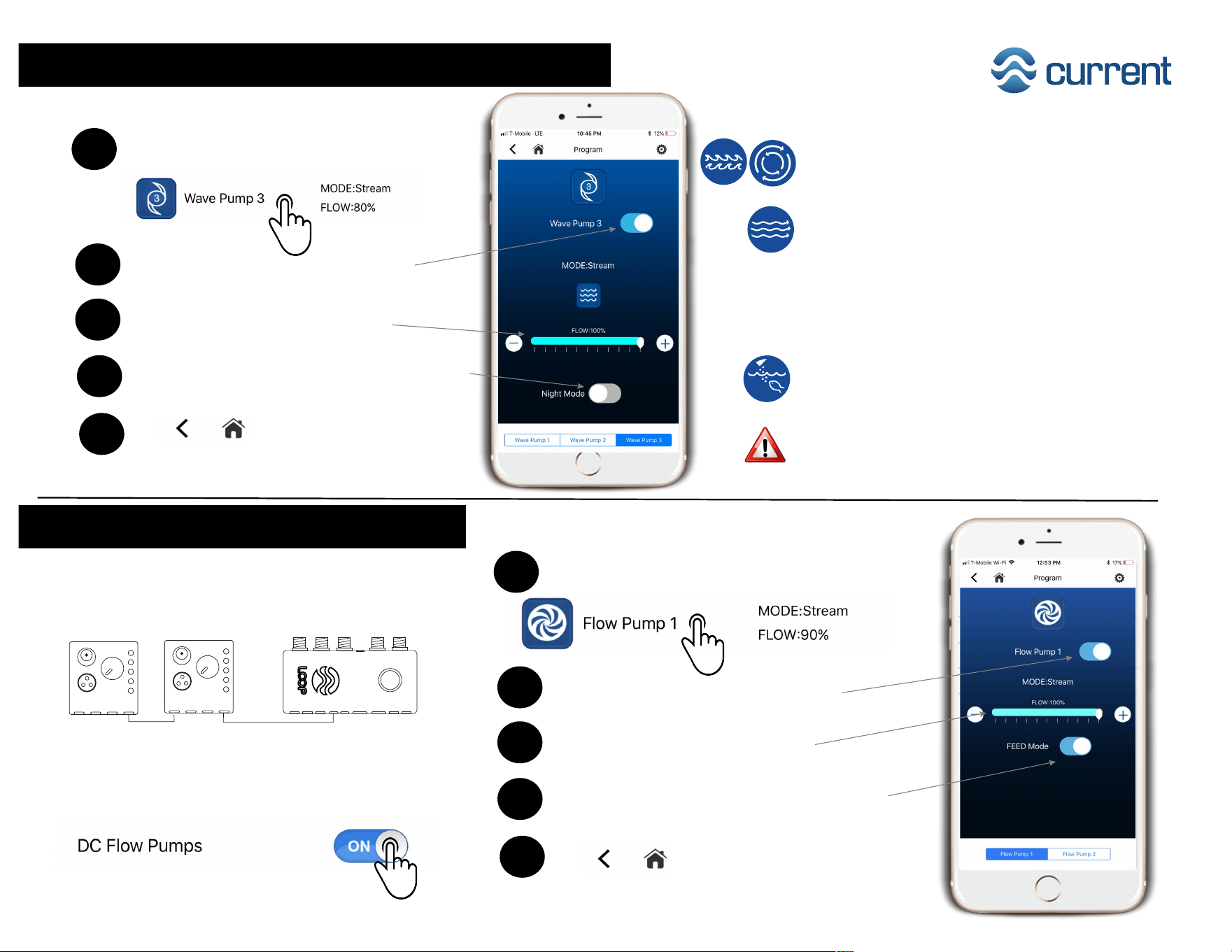
Use toggle to turn pump On / Off.
Use slider to adjust Flow Rate.
To program Wave Pump 3:
Tap Wave Pump 3.
1
4
Use toggle to turn Night Mode On / Off.
3
5
Tap to go back, or
select another pump at bottom.
2
Use toggle to turn pump On / Off.
Use slider to adjust Flow Rate.
To program Flow Pump 1 or 2:
Tap Flow Pump 1 or Flow Pump 2.
1
4
Use toggle to turn Night Mode On / Off.
3
Use toggle to turn all flow pumps On / Off.
Flow Pumps
LOOP Controller
DC Pump
#2
DC Pump
#1
Note: Follow LOOP controller instructions to
ensure DC Flow pumps are properly connected
and manifold connection Hubs are compatible.
Wave / Pulse Mode
This mode simulates a thriving reef environment. Wave
pumps change speed frequently, simulating waves
or surging water currents. Great for mixed reef aquariums.
Stream Mode
This is the default flow mode, pumps create a steady stream
of water flow.
Night Mode
Turning on Night Mode will reduce water flow in wave
pumps by 30% during the moonlight setting. (Note:
Not recommended when regular flow setting is <50%).
Wave & Flow Pump Tips:
Feed Mode
Temporarily shuts wave pumps off and reduces flow pump
flow for 10 minutes, allowing fish and corals to feed. Pumps
ramp then ramp up to normal speed.
(Note: if using a sump protein skimmer which is water level
dependent, we recommend turning this mode OFF to
ensure your skimmer does not overflow.)
Temperature & Settings Reset 10
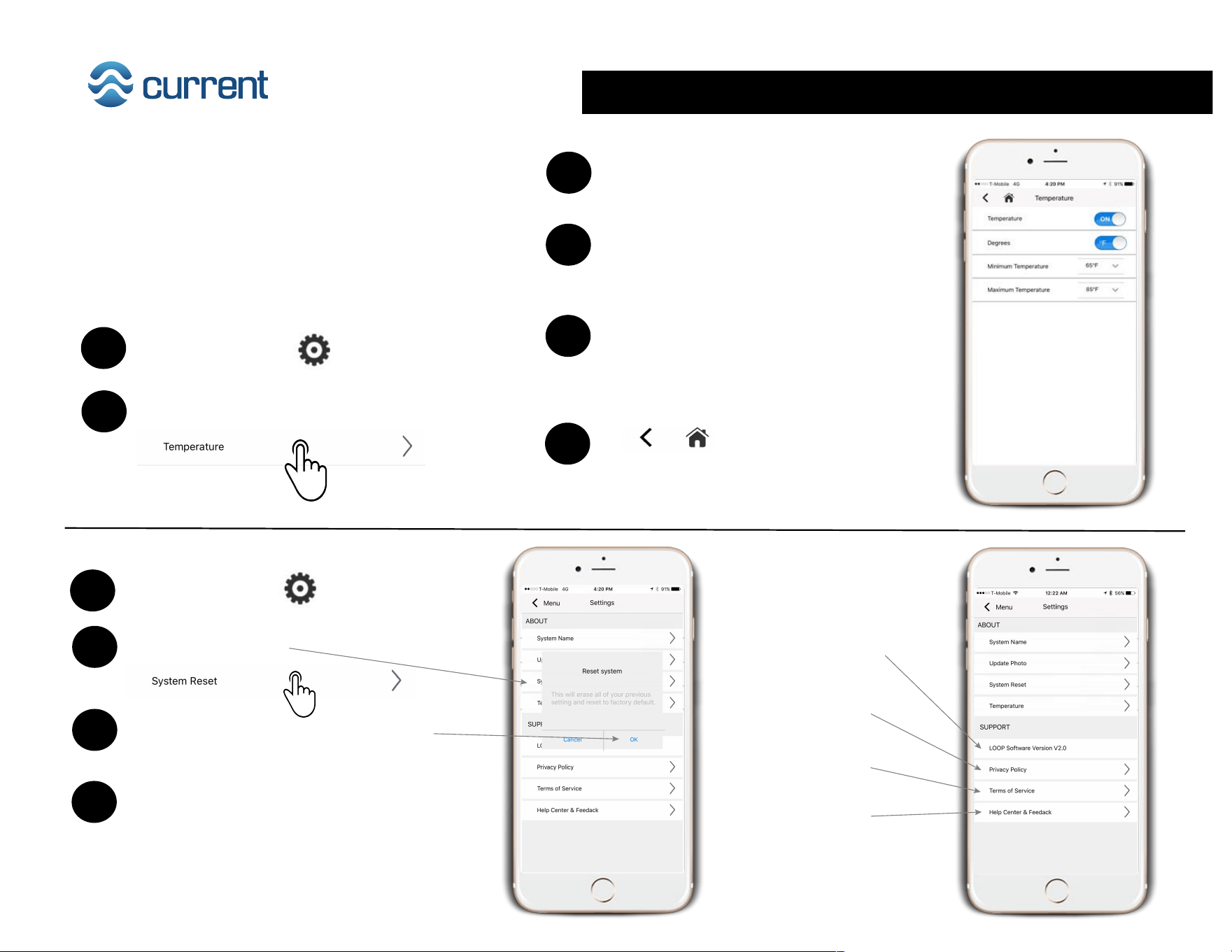
Temperature is currently set up as a visual
indication only. When temperature is within
your safe settings, it will be displayed in
Green on the Home screen. When out of
range, it will be displayed in Red.
Wave
4
Go to lighting and pump programs,
factory resets will take effect.
2
Tap Settings Reset
To reset app settings to factory default:
Tap Settings icon.
1
3
Tap OK to erase all previous settings
and return to app factory defaults.
4
Tap Minimum Temperature (down arrow)
and select the lowest temperature your
aquarium water should safely reach.
2
Tap Temperature.
Tap Settings icon.
1
3
Use toggle to select degrees F or C.
6
5
Tap Maximum Temperature (down arrow)
and select the highest temperature your
aquarium water should safely reach.
Tap to go back, or
select another pump at bottom.
To setup Temperature:
Additional Info:
Indicates what version App
your device is running
Link to Current USA
Privacy Policy
Link to Current USA
Terms of Service
Help Center Link