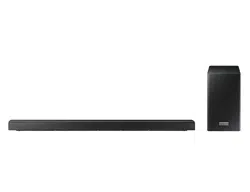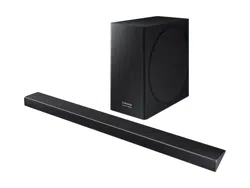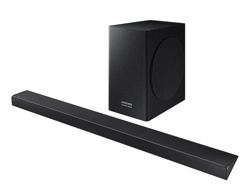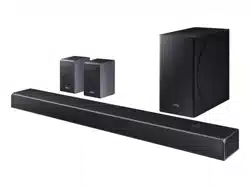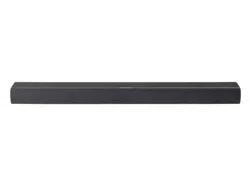

OWNER’S
MANUAL
ENCHANT 900

2
IMPORTANT SAFETY
INSTRUCTIONS
Verify Line Voltage Before Use
The ENCHANT soundbar has been designed for use with
100-240 volt, 50/60 Hz AC current. Connection to a line voltage
other than that for which your product is intended can create
a safety and re hazard and may damage the unit. If you have
any questions about the voltage requirements for your specic
model or about the line voltage in your area, contact your
selling dealer before plugging the unit in to a wall outlet.
Do Not Use Extension Cables
To avoid safety hazards, use only the power cable supplied
with your unit. We do not recommend that extension cables be
used with this product. As with all electrical devices, do not run
power cables under rugs or carpets, or place heavy objects on
them. Damaged power cables should be replaced immediately
by an authorized service center with a cable that meets factory
specications.
Handle the AC Power Cable Gently
When disconnecting the power cable from an AC outlet, always
pull the plug; never pull the cable.
If you do not intend to use your soundbar for any considerable
length of time, disconnect the plug from the AC outlet.
Do Not Open the Cabinet
There are no user-serviceable components inside this product.
Opening the cabinet may present a shock hazard, and any
modication to the product will void your warranty. If water
accidentally falls inside the unit, disconnect it from the AC
power source immediately, and consult an authorized service
center.

3
TABLE OF CONTENTS
IMPORTANT SAFETY INSTRUCTIONS .............................................. 2
1 INTRODUCTION ....................................................................................5
2 WHAT’S IN THE BOX ............................................................................7
3 PRODUCT OVERVIEW ........................................................................ 8
3.1 Front panel & Top panel ....................................................................................8
3.2 Back panel ............................................................................................................ 10
3.3 Remote control ......................................................................................................11
4 PLACE .......................................................................................................13
4.1 Desktop placement ........................................................................................... 13
4.2 Wall-mounting .......................................................................................................14
5 CONNECT ...............................................................................................16
5.1 Connect with your TV and digital devices .............................................. 16
5.2 Connect to your Bluetooth device.............................................................20
5.3 Connect to your home network .................................................................. 22
6 SETUP ......................................................................................................25
6.1 Connect power .................................................................................................. 25
6.2 3D surround sound...........................................................................................26
7 PLAY .......................................................................................................... 31
7.1 Switch on ............................................................................................................... 31
7.2 Play from the TV source ................................................................................32
7.3 Play from the HDMI IN source...................................................................... 34
7.4 Play from the Bluetooth source ...................................................................35
7.5 Play over your home network ......................................................................36

44
TABLE OF CONTENTS
8 SOUND SETTINGS .............................................................................42
8.1 Audio sync mode .............................................................................................. 42
8.2 Smart mode ......................................................................................................... 42
9 GROUPING (OPTIONAL) ..................................................................43
10 RESTORE FACTORY SETTINGS....................................................44
11 SOFTWARE UPDATE .........................................................................45
12 PRODUCT SPECIFICATIONS .........................................................46
13 TROUBLESHOOTING ........................................................................48
14 TRADEMARKS ......................................................................................52
15 OPEN SOURCE LICENSE NOTICE ...............................................53

5
1
INTRODUCTION
This manual includes information of the Harman Kardon
ENCHANT 900 (soundbar). We encourage you to take a few
minutes to read this manual, which describes the product and
includes step-by-step instructions to help you set up and get
started. Read and understand all the safety instructions before
using your product.
This product may have an important software update
available. Please follow the instructions to connect the
product to Wi-Fi to ensure that your product has the most
recent software updates.
Design and specications are subject to change without notice.
Some features require subscriptions or services not available in
all countries.
If you have any questions about this product, its installation or
its operation, please contact your Harman Kardon retailer or
customer service, or visit us at www.harmankardon.com.
66
INTRODUCTION
Harman Kardon One app
With the Harman Kardon One app, you can
• easily connect the soundbar to your Wi-Fi network;
• access software updates when they are available;
• connect *music streaming services;
• launch audio calibration;
• personalize audio settings;
• access additional features.
Harman Kardon One
For more information, see “5.3 Connect to your home network”
and “7.5 Play over your home network”.
NOTES:
• *Subscription may be needed and not provided by the Harman
Kardon One app.
• App screens may vary due to software updates. Always follow the
app instructions.
7
2
WHAT’S IN THE BOX
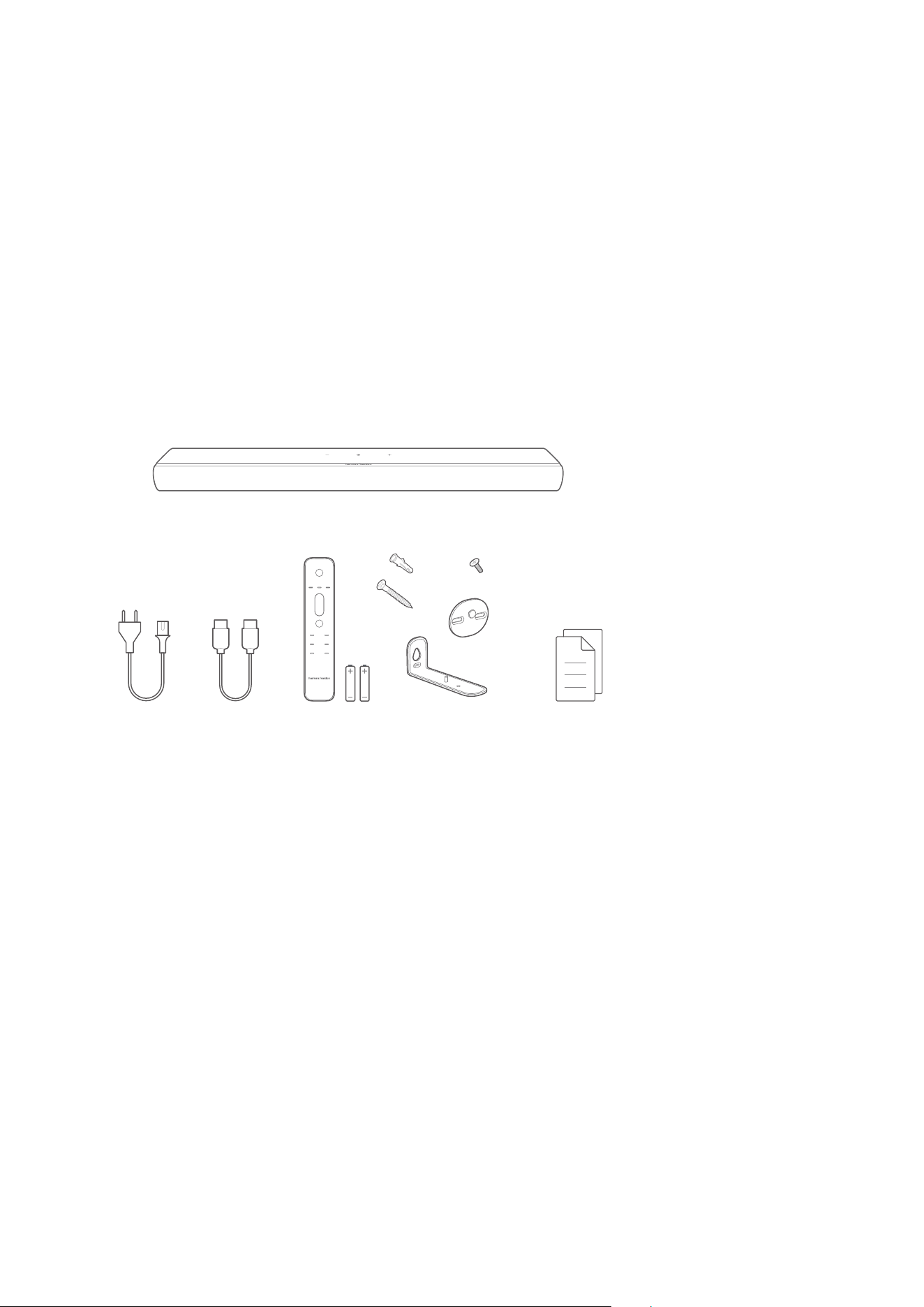
Unpack the box carefully and ensure that the following parts
are included. If any part is damaged or missing, do not use it
and contact your retailer or customer service representative.
1
2 3 4 5 6
x 2
x 2
x 4
x 4
x 2
*
1. Soundbar
2. Power cable*
3. HDMI cable (1.2 m / 3.9 ft)
4. Remote control (with 2 AAA batteries)
5. Wall-mounting kit
6. Product information & wall-mounting template
*Power cable quantity and plug type vary by regions.
8
3
PRODUCT
OVERVIEW
3.1
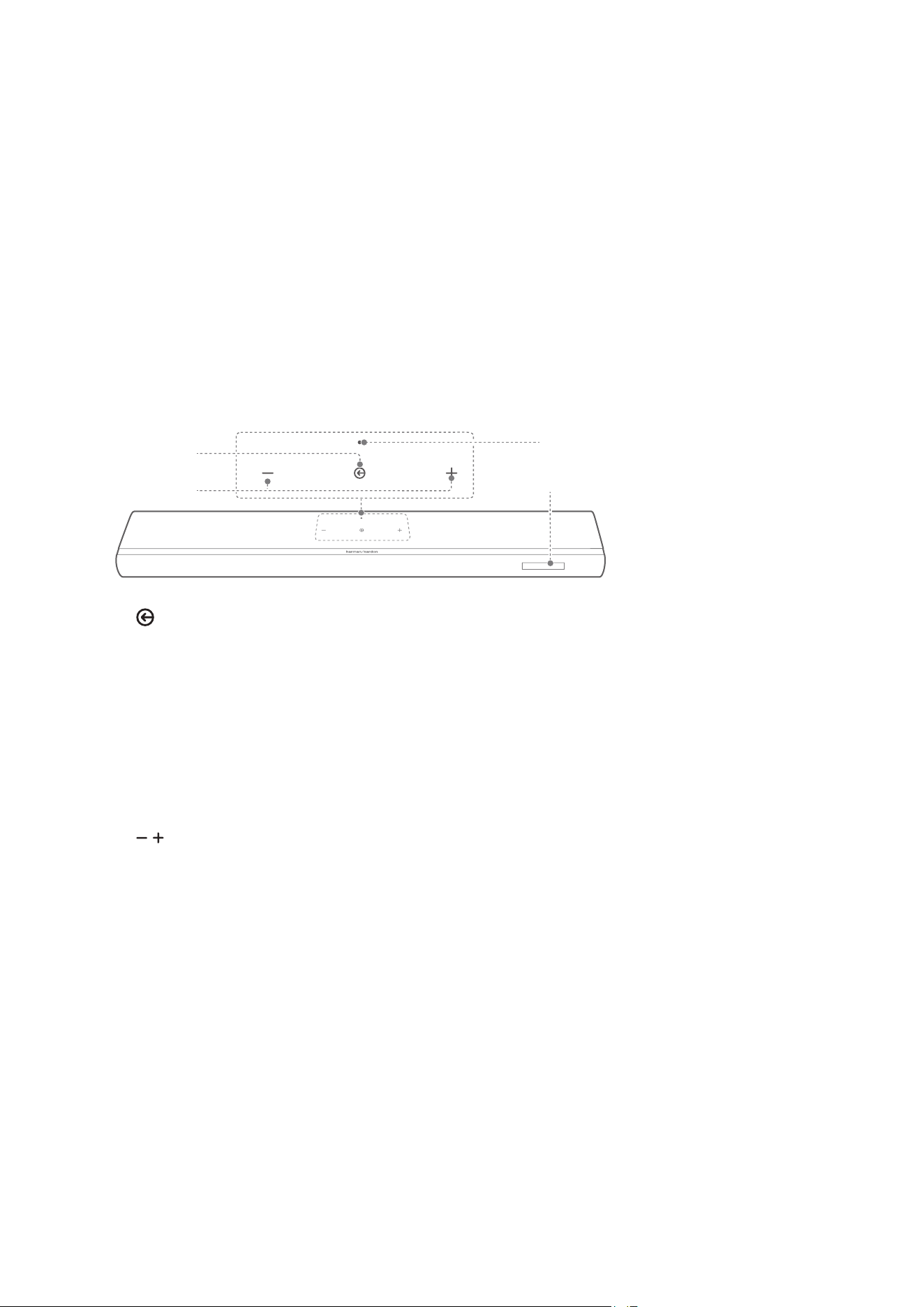
Front panel & Top panel
4
1
2
3
1. (Source)
• Switch on.
• Select a sound source: TV (default, for audio input from
TV connection where the HDMI OUT (TV eARC/ARC)
connector is prioritized over the OPTICAL connector),
Bluetooth or HDMI IN.
• Hold for more than 3 seconds to enter Bluetooth pairing
mode.
2. / (Volume)
• Press to decrease or increase the volume.
• Press together to mute or unmute.
• Hold to decrease or increase the volume continuously.
• Hold together for more than 10 seconds to enter Wi-Fi
setup mode.
3. Status display

99
PRODUCT OVERVIEW
4. Status indicator
System:
Regular pulsing (white) System startup
Fast pulsing (white)
Software updating in
progress
Solid (amber) Restoring factory settings
Network connection:
Slow pulsing (white)
Entering Wi-Fi setup mode,
or network disconnected
Solid (green)
Soundbar discovered by the
Harman Kardon One app
Solid (white) Network connected
Solid (yellow) Weak Wi-Fi connection
1010
PRODUCT OVERVIEW
3.2
Back panel
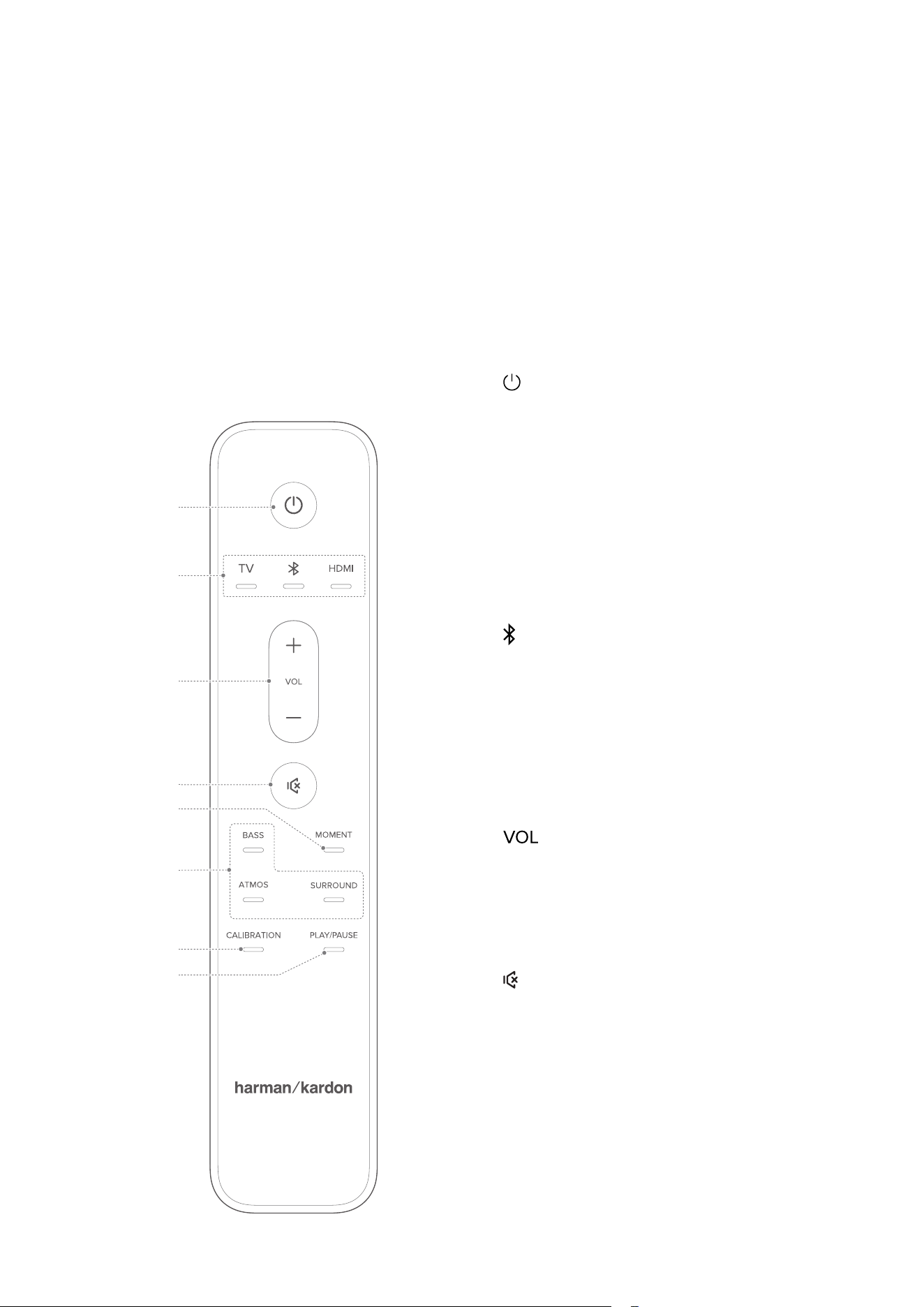
54321
1.
• Connect to power (with the supplied power cord).
2. HDMI IN
• Connect to the HDMI output on your digital device.
3. TV connectors
HDMI OUT (TV eARC/ARC)
• Connect to the HDMI eARC/ARC input on your TV.
OPTICAL
• Connect to an optical audio output on your TV or a
digital device.
4. USB
• USB connector for software update (for service only).
• Connect to USB storage device for MP3 le playback
(for US version only).
5. ETHERNET
• Connect to your home network through an Ethernet
cable.
1111
PRODUCT OVERVIEW
3.3
Remote control
2
3
1
4
8
7
6
5
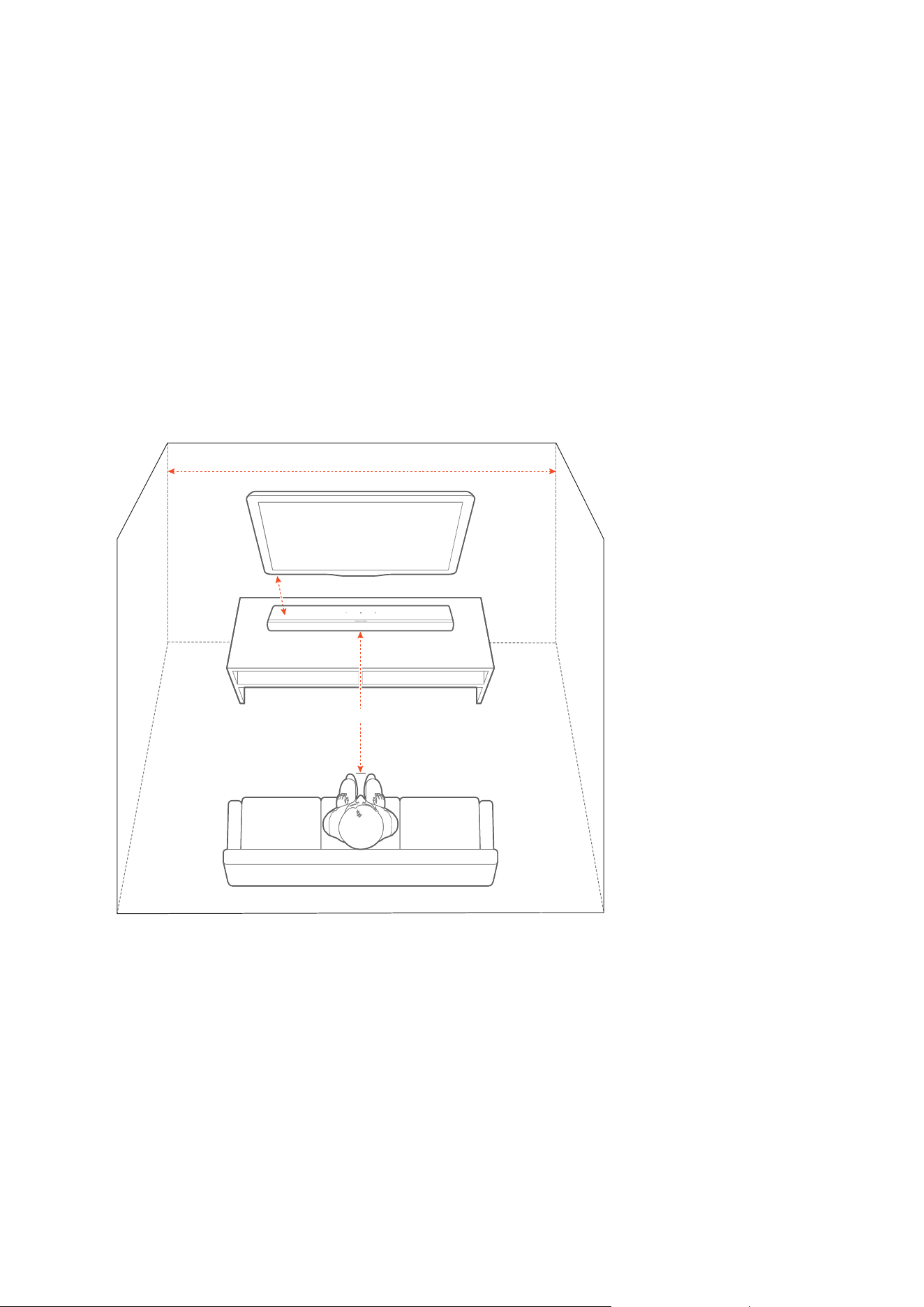
1. (Power)
• Switch on or to standby.
2. Source selectors
TV
• Select the TV source (default, for
audio input from TV connection
where the HDMI OUT (TV eARC/
ARC) connector is prioritized over
the OPTICAL connector).
(Bluetooth)
• Press to select the Bluetooth
source.
• Hold for more than 3 seconds to
pair with a new device.
HDMI
• Select the HDMI IN source.
3. + / -
• Press to increase or decrease the
volume.
• Hold to increase or decrease the
volume continuously.
4.
• Mute or unmute.
5. MOMENT
• Press to directly access your music
playlist and soundbar settings
that you have personalized in the
Harman Kardon One app.

1212
PRODUCT OVERVIEW
6. Sound eect buttons
BASS
• Adjust the bass level of the soundbar or subwoofer (if
connected).
ATMOS
• Select the level of Dolby Atmos® eect: middle (default),
high or low.
• Soundbar only: Enable or disable Smart mode.
• With optional Enchant speakers: Adjust the level of the
rear surround speakers.
7. CALIBRATION
• Press to start sound calibration.
8. PLAY/PAUSE
(Playback controls during Wi-Fi / Bluetooth music streaming)
• Single press: Pause or resume playback
• Double press: Next track
• Triple press: Previous track
NOTE:
• Not all Wi-Fi music services support PL AY/PAUSE controls.
13
4
PLACE
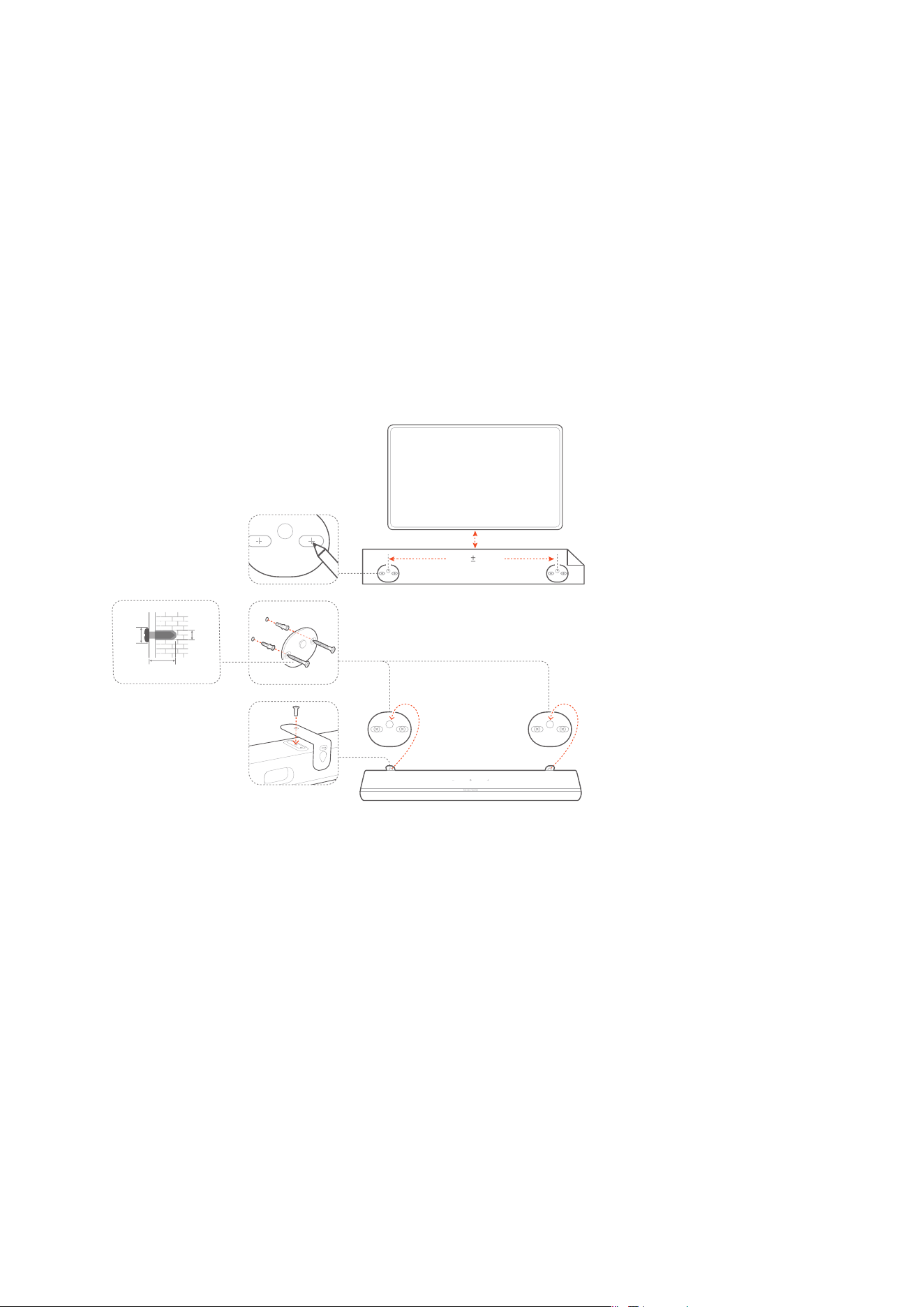
4.1
Desktop placement
Place the soundbar on a at and stable surface.
> 4 m / 13 ft
> 2 m / 6.6 ft
> 50 mm / 2”
NOTES:
• The power cable shall be properly connected to power.
• Do not place any objects on the top of the soundbar.
1414
PLACE
4.2
Wall-mounting
626 1 mm
4 4
1
3
2
≤8mm/0.31"
4mm/0.16"
≥40mm/1.57"
��50�mm�/��"�
1) Preparation:
a) With a minimum distance of 50 mm / 2" from your TV,
stick the supplied wall-mounting template to a wall by
using adhesive tapes.
b) Use your ballpen tip to mark the location of the screw
holder. Remove the template.
c) On the marked location, drill a 4 mm / 0.16" hole.
2) Install the support for wall-mounting bracket.
3) Use the screw to secure the wall-mounting bracket onto the
bottom of the soundbar.
4) Mount the soundbar.

1515
PLACE
NOTES:
• Make sure that the wall can support the weight of the soundbar.
• Install on a vertical wall only.
• Avoid a location under high temperature or humidity.
• Before wall-mounting, make sure that the cables between the
soundbar and any external devices are properly connected.
• Make sure that the soundbar is unplugged from the wall outlet
before wall-mounting. Failure to do so may result in electric shock.
16
5
CONNECT
5.1
Connect with your TV and digital
devices
To play audio through the soundbar, connect the soundbar to
your TV using the supplied HDMI cable or an optical cable (sold
separately).
An HDMI connection supports digital audio and video with a single
connection. HDMI connectivity is the best option for your soundbar.
NOTES:
• *The HDMI cable (for digital device connection) and the optical
cable are sold separately.
• Full compatibility with all HDMI-CEC devices is not guaranteed.
• When both HDMI eARC/ARC and optical cables are connected to
the soundbar for audio input from TV connection, the HDMI eARC/
ARC connection is prioritized.
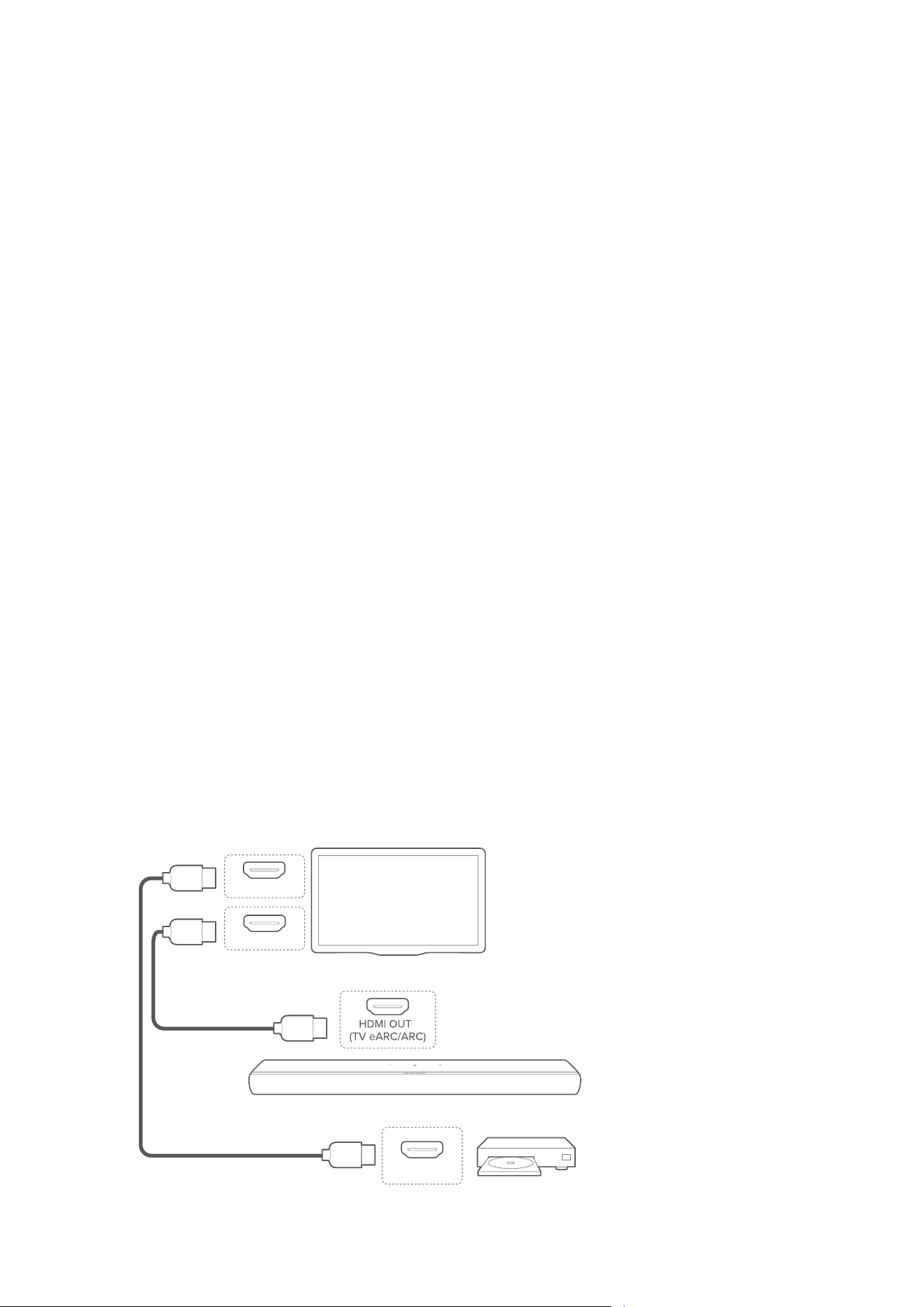
5.1.1
HDMI eARC
(Recommended connection for the best Dolby Atmos
experience)
HDMI OUT
*
HDMI (eARC)
HDMI IN

1717
CONNECT
1) Connect the soundbar with the HDMI (eARC) connector on
your TV by using the supplied HDMI cable.
• On your TV, check that HDMI-CEC and HDMI eARC
have been enabled. Refer to the owner’s manual of your
TV for more information.
2) Use an HDMI cable (V2.0 or later) to connect your TV with
your digital device, such as a streaming device, set-top box,
DVD / Blu-ray player or game console.
• On your digital device, check that HDMI-CEC has been
enabled. Refer to the owner’s manual of your digital
device for more information.
• On your TV and digital device, select “Bitstream” or
“Raw data” in the audio output settings for the best
Dolby Atmos experience.
NOTE:
• To play audio from the digital device connected to your TV, switch
on the soundbar (See “7.1 Switch on”) and select the TV source
(See “7.2 Play from the TV source”).
1818
CONNECT
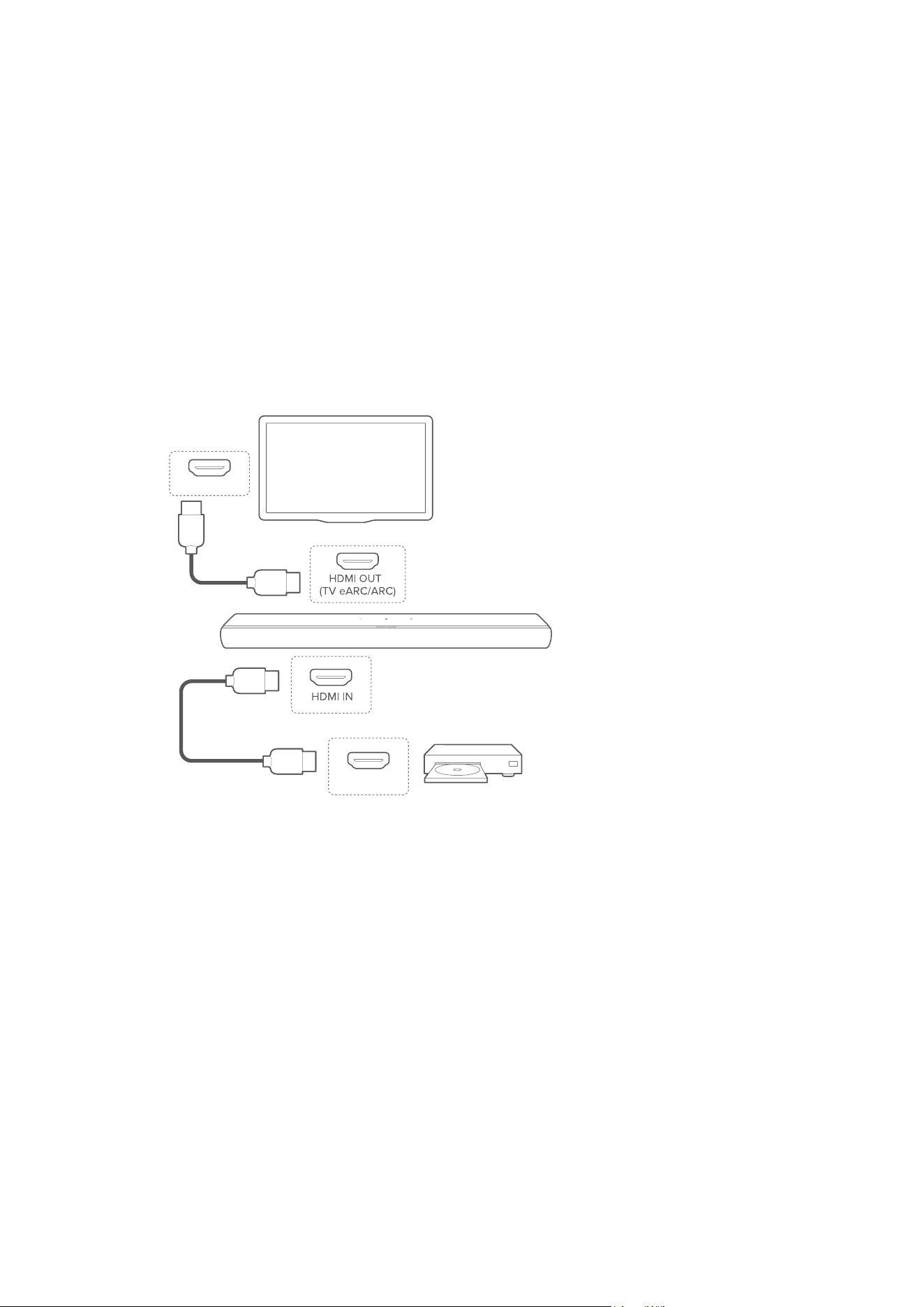
5.1. 2
HDMI ARC
HDMI (ARC)
HDMI OUT
*
1) Connect the soundbar with the HDMI IN (ARC) connector
on your TV by using the supplied HDMI cable.
• On your TV, check that HDMI-CEC and HDMI ARC have
been enabled. Refer to the owner’s manual of your TV
for more information.
2) Use an HDMI cable (V2.0 or later) to connect the soundbar
with your digital device, such as a set-top box, DVD/Blu-ray
player or game console.
• On your digital device, check that HDMI-CEC has been
enabled. Refer to the owner’s manual of your digital
device for more information.
• On your digital device, select “Bitstream” or “Raw data”
in the audio output settings for the best Dolby Atmos
experience.
1919
CONNECT
NOTES:
• To play audio from the digital device connected to the soundbar,
switch on the soundbar (See “7.1 Switch on”) and select the
HDMI IN source (See “7.3 Play from the HDMI IN source”).
• If your TV does not support HDMI eARC, make sure that you
connect your digital device through the HDMI IN connector on
the soundbar instead of your TV. Otherwise, the Dolby Atmos
information cannot pass through the HDMI (eARC/ARC) connectors
to the soundbar.
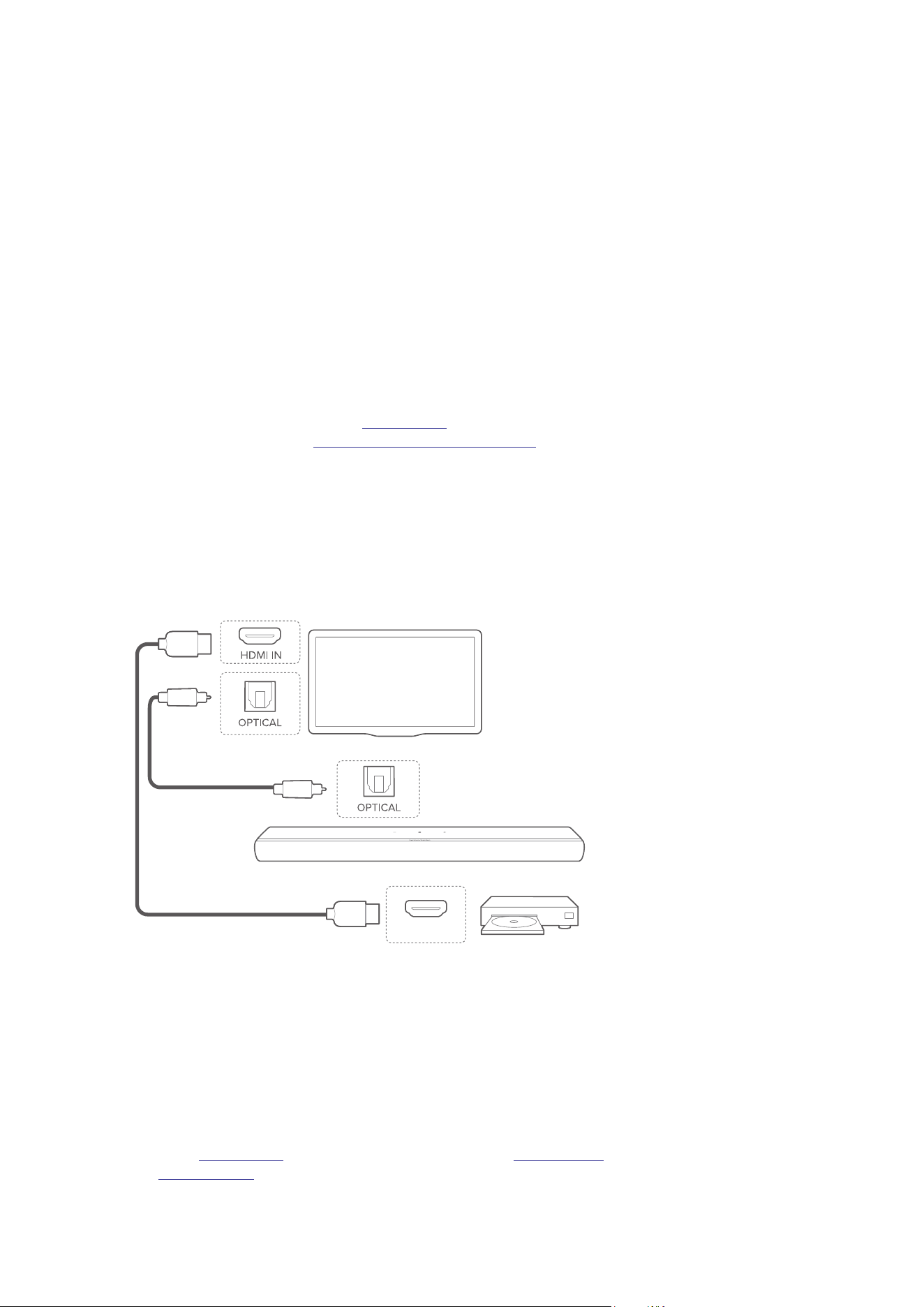
5.1.3
OPTICAL
HDMI OUT
*
1) Connect the soundbar with your TV by using an optical
cable.
2) Use an HDMI cable (V2.0 or later) to connect your TV with
your digital device, such as a streaming device, set-top box,
DVD / Blu-ray player or game console.
NOTE:
• To play audio through the optical cable, switch on the soundbar
(See “7.1 Switch on”) and select the TV source (See “7. 2 Play from
the TV source”).
2020
CONNECT
5.2
Connect to your Bluetooth device
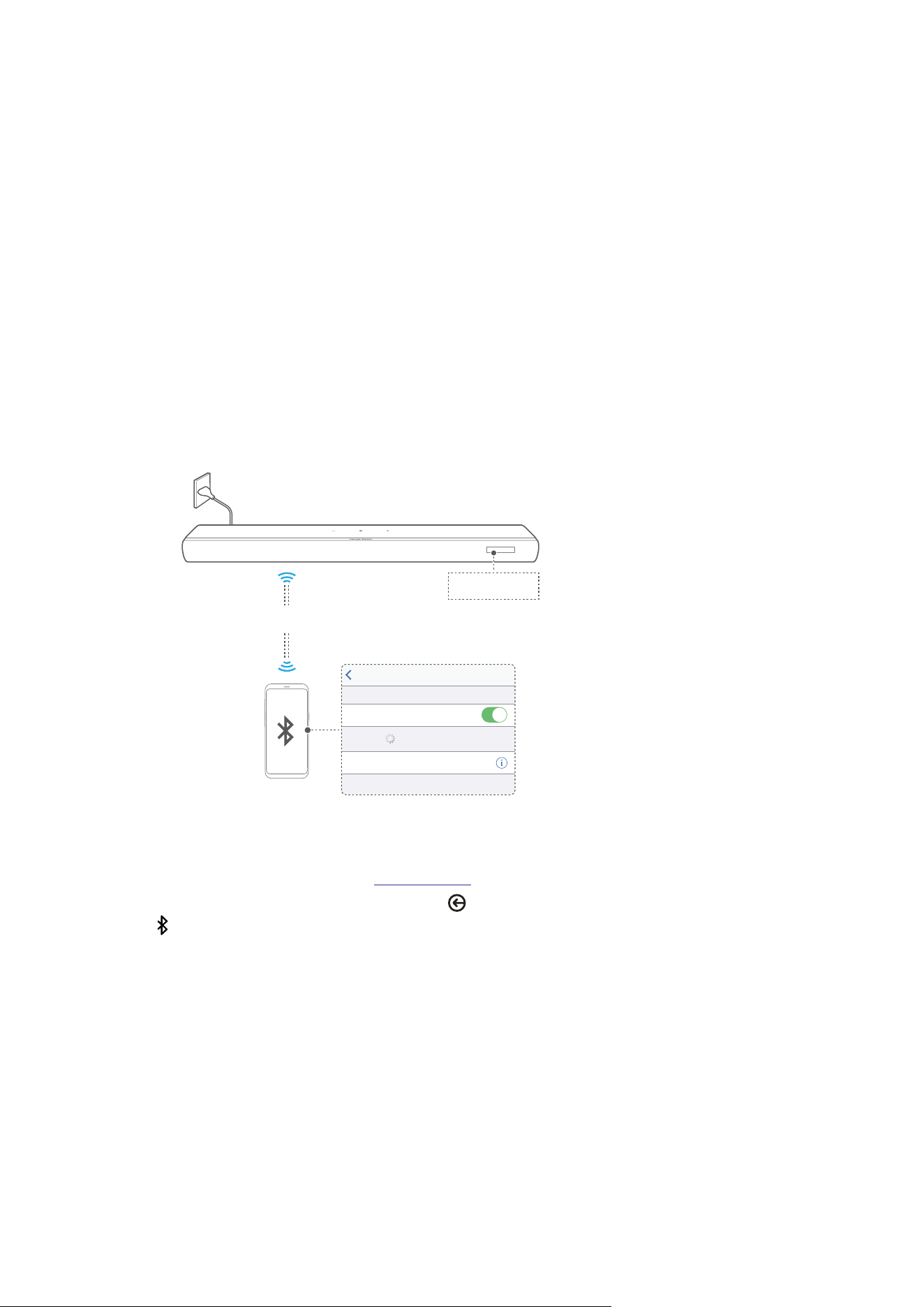
Through Bluetooth, connect the soundbar with your Bluetooth
device, such as a smartphone, tablet or laptop.
< 10 m / 33 ft
Settings Bluetooth
Bluetooth
DEVICES
Enchant 900
Now Discoverable
Connected
BT PAIRING
5.2.1
Connect a Bluetooth device
1) Switch on the soundbar (See “7.1 Switch on”).
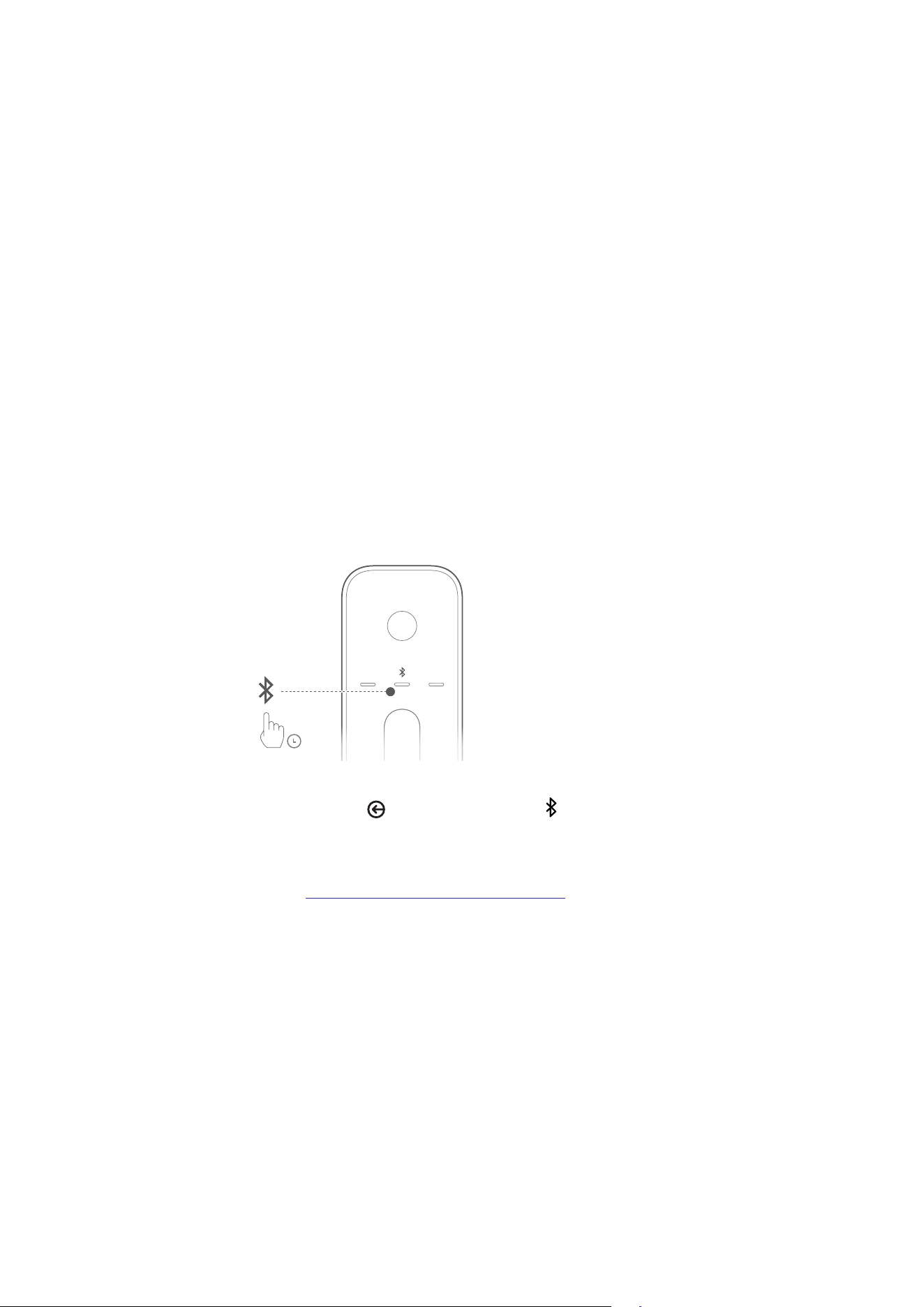
2) To enter Bluetooth pairing mode, press on the soundbar
or on the remote control.
Æ “BT PAIRING”: Ready for Bluetooth pairing.
3) On your Bluetooth device, enable Bluetooth and search for
“Enchant 900” within 3 minutes.
Æ Successful connection: Your device name or
“BT CONNECTED” is displayed. A conrmation tone is
heard.
2121
CONNECT
5.2.2
To reconnect the last paired device
Your Bluetooth device is retained as a paired device when
the soundbar goes to standby mode. Next time you switch to
the Bluetooth source, the soundbar reconnects the last paired
device automatically.
5.2.3
To connect to another Bluetooth device
3S
1) In the Bluetooth source, hold on the soundbar or on
the remote control until “BT PAIRING” is displayed.
Æ The soundbar enters the Bluetooth pairing mode.
2) Follow Step 3 under “5.2.1 Connect a Bluetooth device”.
NOTES:
• The soundbar can connect two Bluetooth devices simultaneously.
You can pair with a second Bluetooth device without
disconnecting the rst one.
• The Bluetooth connection will be lost if the distance between the
soundbar and Bluetooth device exceeds 10 m / 33 ft.
• Electronic devices may cause radio interference. Devices that
generate electromagnetic waves must be kept away from the
soundbar, such as microwaves and wireless LAN devices.
2222
CONNECT
5.3
Connect to your home network
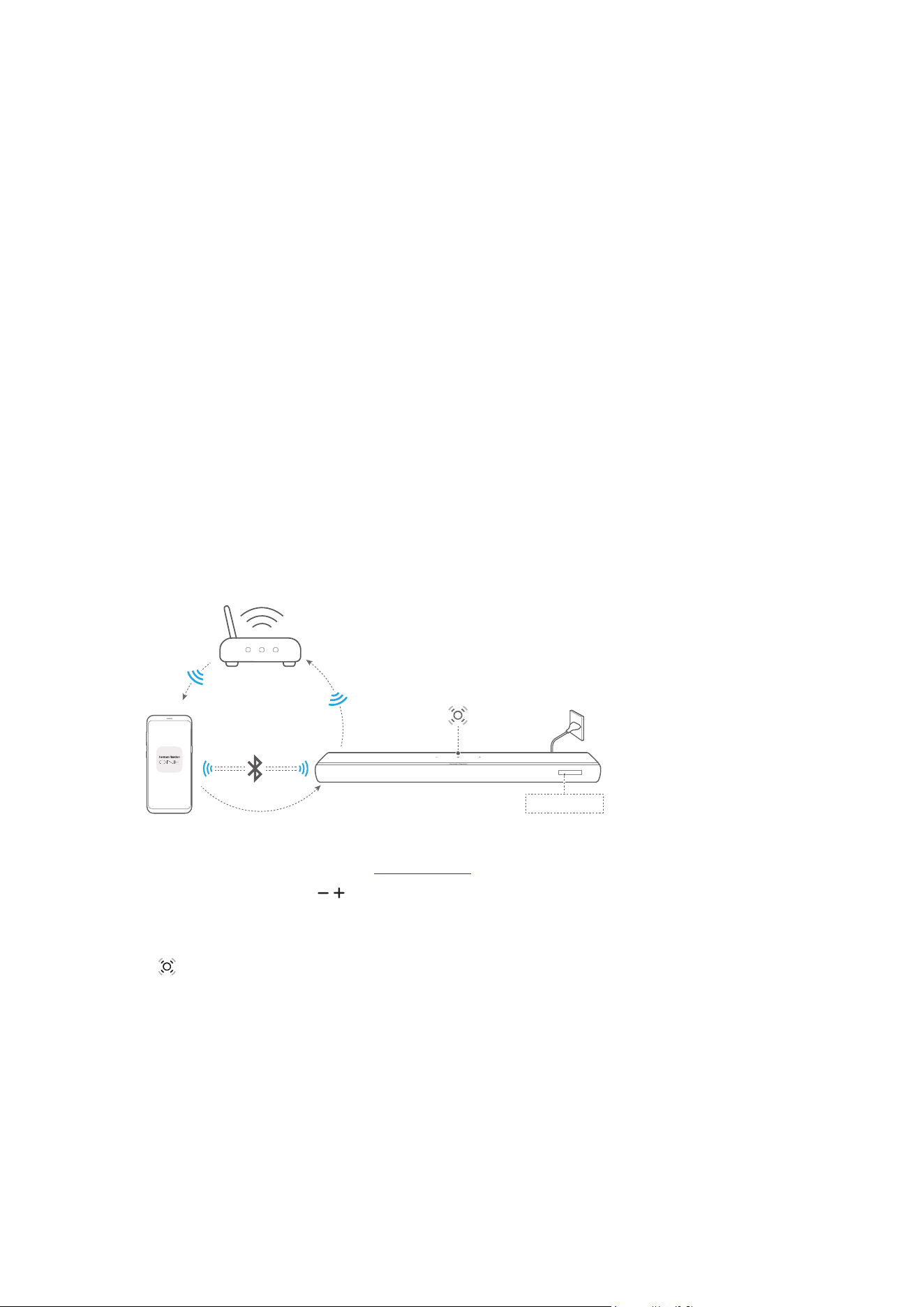
Using Wi-Fi or an Ethernet cable, connect the soundbar to
your network. With the Harman Kardon One app and the
supported streaming services (Google Cast™, AirPlay, and
Spotify Connect), the soundbar allows you to stream audio from
smartphones or tablets.
5.3.1
Wi-Fi connection with your home network
SETUP WIFI
< 10 m / 33 ft
Harman Kardon One
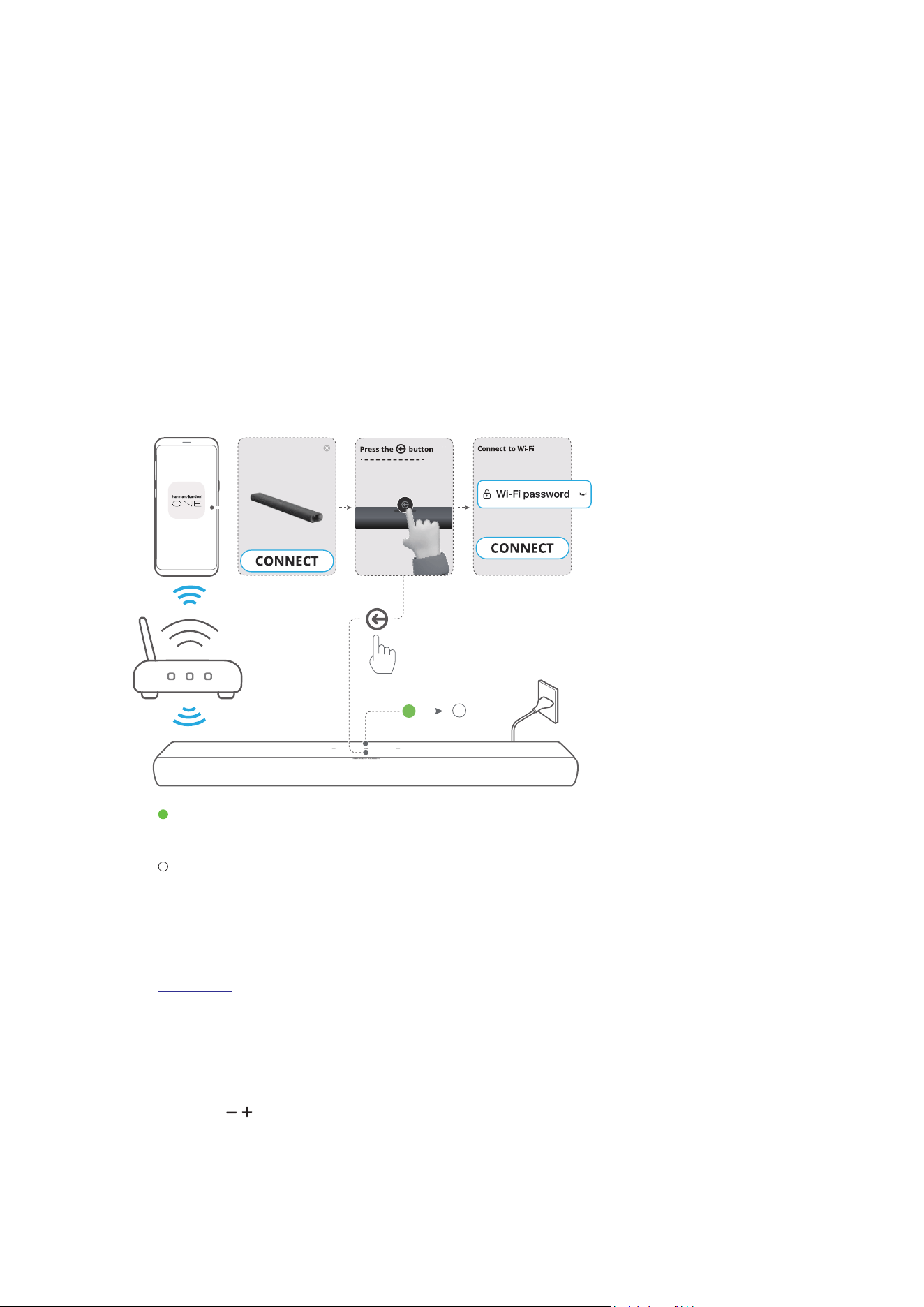
1) Switch on the soundbar (See “7.1 Switch on”).
2) On the soundbar, hold / together for more than
10 seconds to enter the Wi-Fi setup mode.
Æ The screen shows “HELLO” and then “SETUP WIFI”.
• (Slow pulsing white): The soundbar enters Wi-Fi setup
mode.
3) Connect your Android™ or iOS device to your home Wi-Fi
network. Download the Harman Kardon One app.
2323
CONNECT
4) Launch the Harman Kardon One app. Follow the app
instructions to complete Wi-Fi setup.
Enchant 900
• (Solid green): The soundbar is discovered by the
Harman Kardon One app.
• (Solid white): The soundbar is connected to your
home network.
• You can stream music from the Harman Kardon One
app or the streaming services you have enabled in the
Harman Kardon One app (See “7.5 Play over your home
network”).
NOTES:
• Make sure that your soundbar is connected to the same Wi-Fi
network as your Android or iOS device.
• If your soundbar is not discovered by the Harman Kardon One
app, hold / together for more than 10 seconds to re-enter the
Wi-Fi setup mode.
2424
CONNECT
5.3.2
Wired connection with your home network
through an Ethernet cable (Optional)
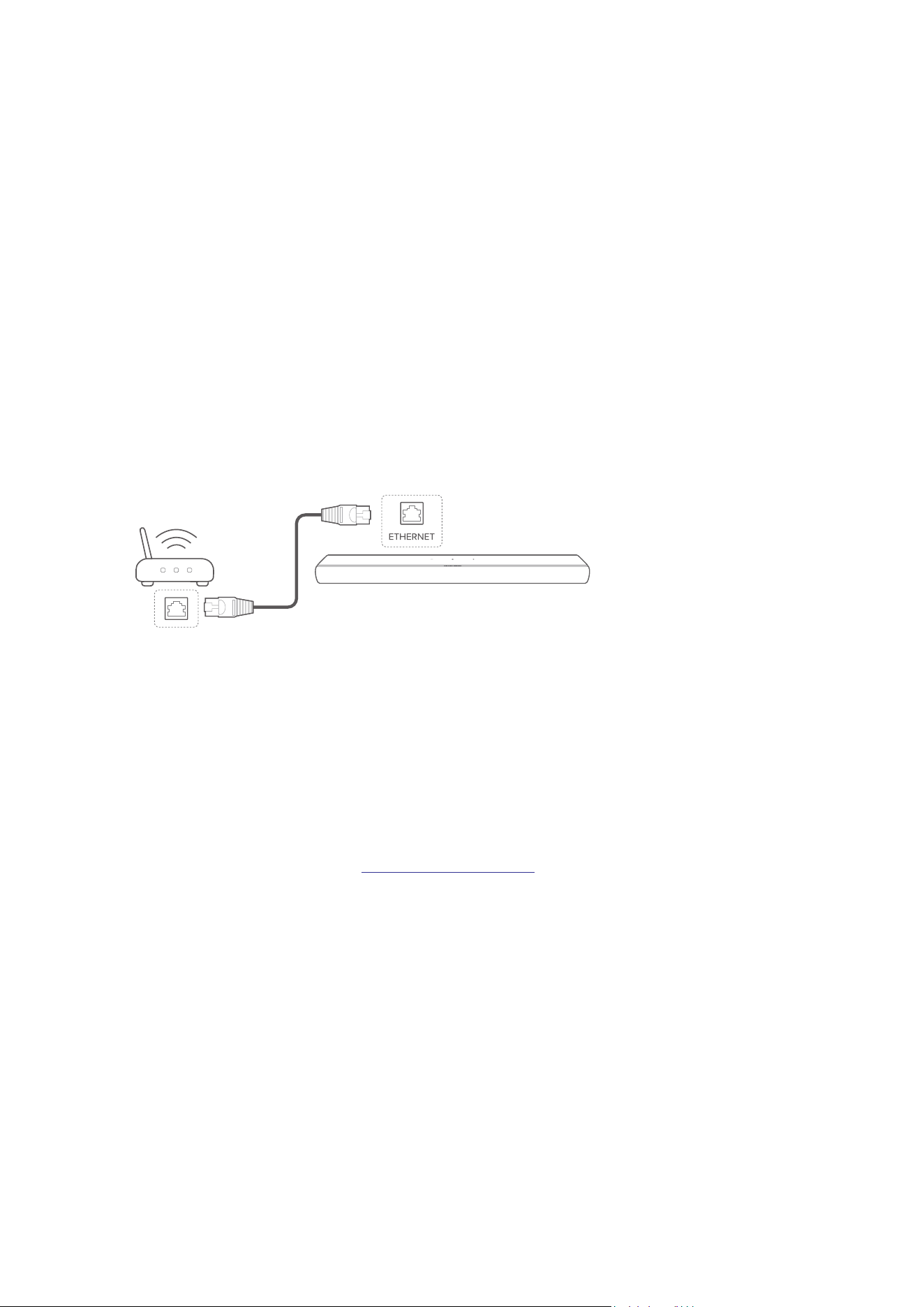
1) Use an Ethernet cable (not supplied) to connect the
soundbar to your home network.
2) On your Android or iOS device, download and launch the
Harman Kardon One app for music streaming.
NOTES:
• On your Android or iOS device, you can rename the soundbar in
the Harman Kardon One app.
• On your iOS device, add the soundbar to the Apple Home app
and manage it together with other AirPlay-compatible speakers.
• On your iOS device, if the soundbar has been added to your
home Wi-Fi network, you can start AirPlay streaming from an
AirPlay-compatible app (See “7.5.2 Play through AirPlay”).
• Availability of online music streaming services varies by country.
• Some features require subscriptions or services not available in all
countries.
25
6
SETUP
6.1
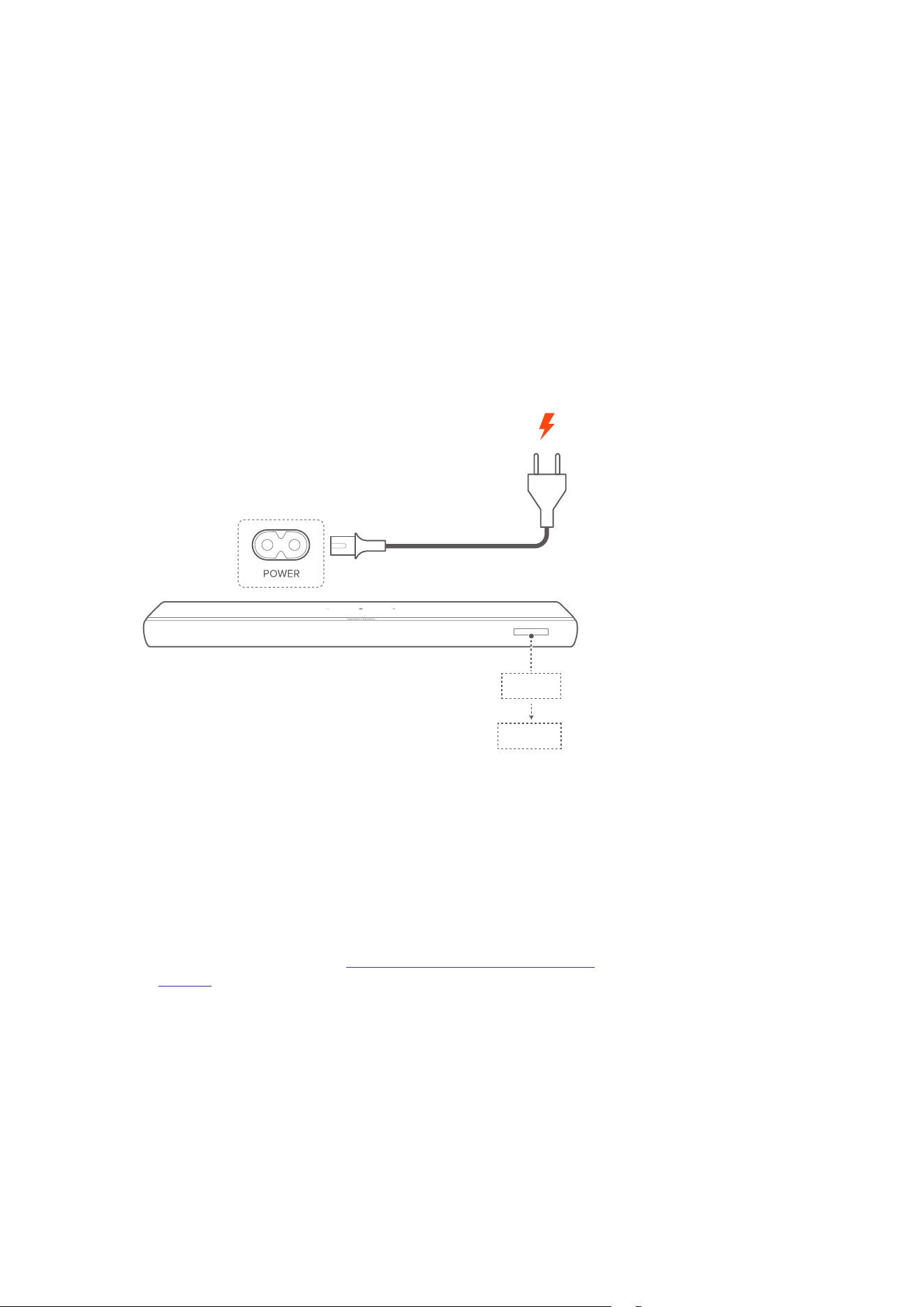
Connect power
1
2
HELLO
LOAD
• Connect the soundbar to power by using the supplied
power cord.
Æ The screen on the soundbar shows “LOAD” and then
“HELLO”.
NOTES:
• Use the supplied power cord only.
• Before connecting to power, make sure that you have completed
all other connections (See “5.1 Connect with your TV and digital
devices”).
2626
SETUP
6.2
3D surround sound
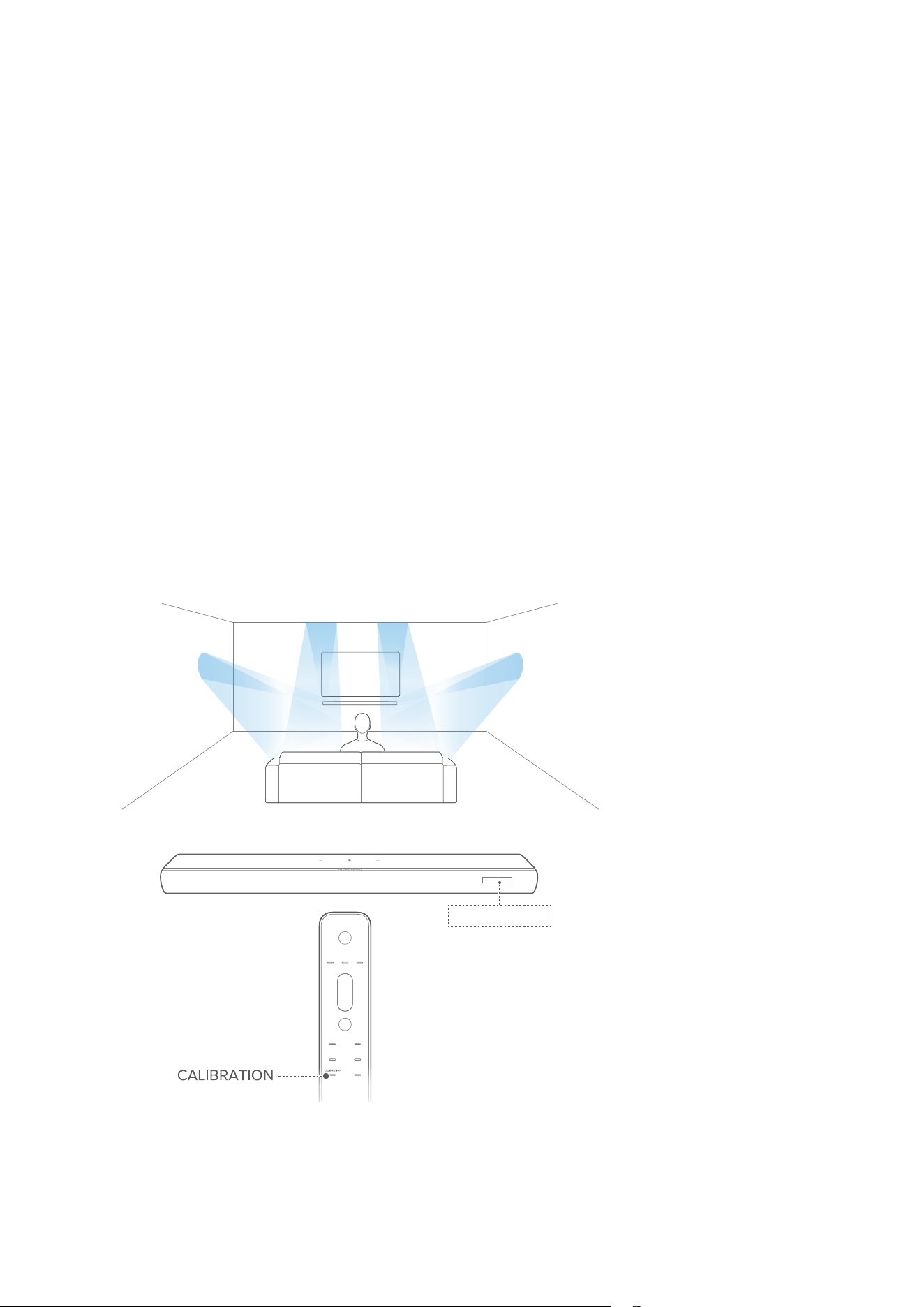
6.2.1
Sound calibration
Optimize your 3D surround sound experience for your unique
listening environment.
1) On the remote control, press CALIBRATION to start
calibration.
Æ “CALIBRATION” is displayed on the soundbar.
CALIBRATION
2727
SETUP
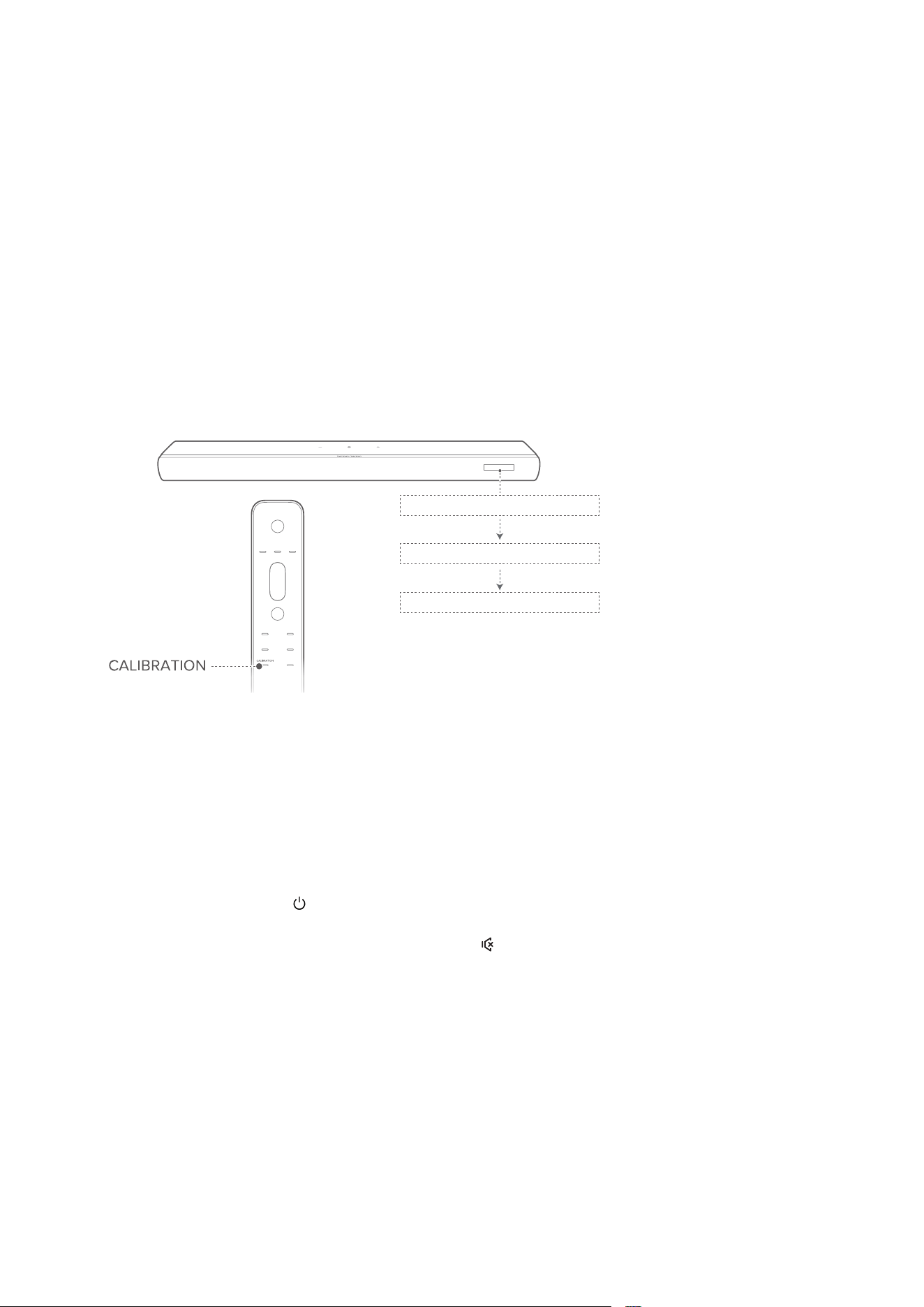
2) When “PRESS AGAIN TO CONFIRM” is displayed, press
CALIBRATION again.
CALIBRATING
PRESS AGAIN TO CONFIRM
DONE
Æ Countdown starts from 5 to 1.
Æ Calibration tone is heard. Audio calibration starts.
“CALIBRATING”: Calibration in progress
“DONE”: Calibration completed successfully
NOTES:
• During sound calibration, all buttons on the remote control are
disabled except for .
• During sound calibration, environmental sound will be recorded.
Hold CALIBRATION for 10 seconds, then press to play the
recorded audio (for US version only).
2828
SETUP
6.2.2
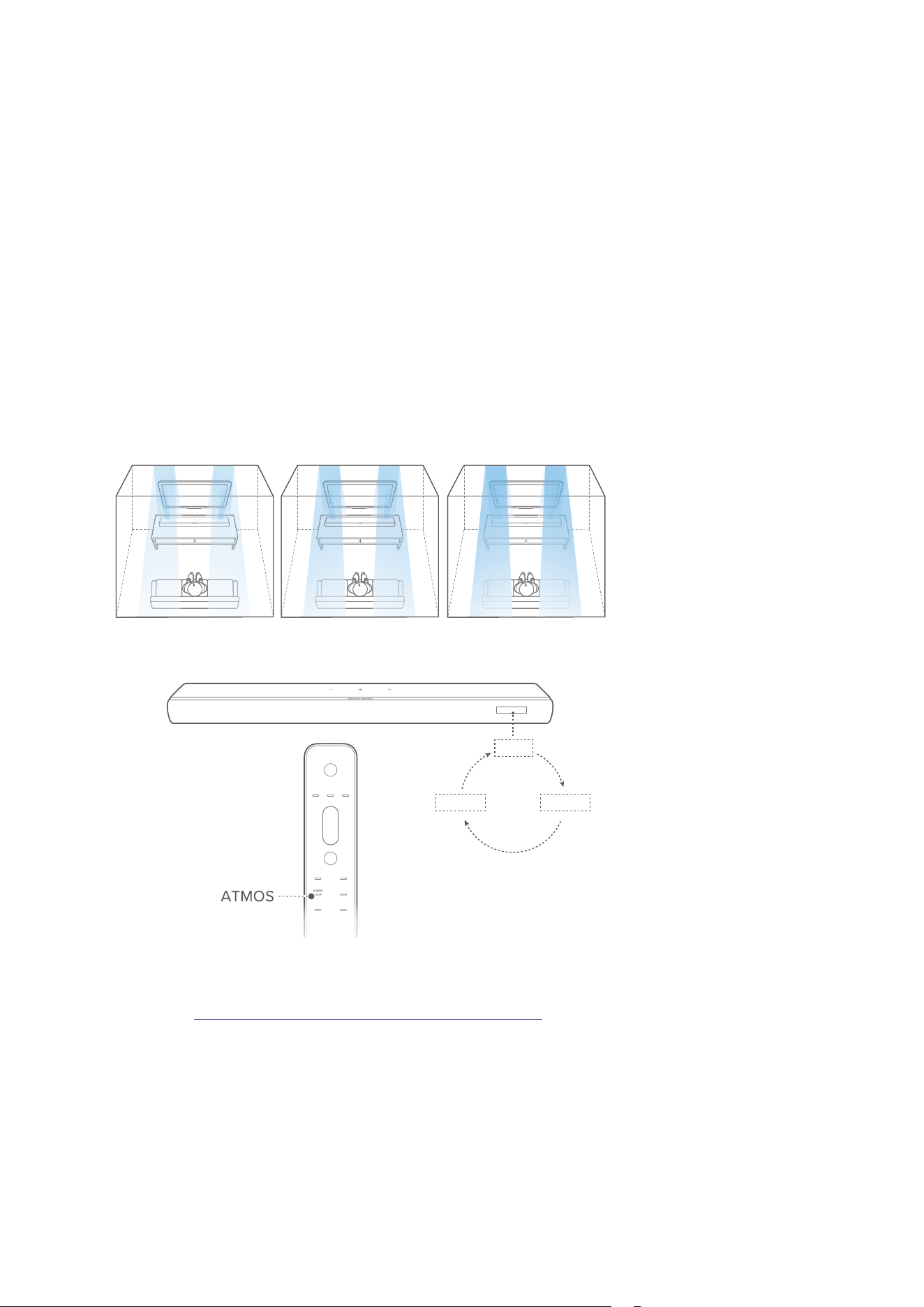
Dolby Atmos
With Dolby Atmos, overhead audio distribution is provided for
powerful 3D sound immersion.
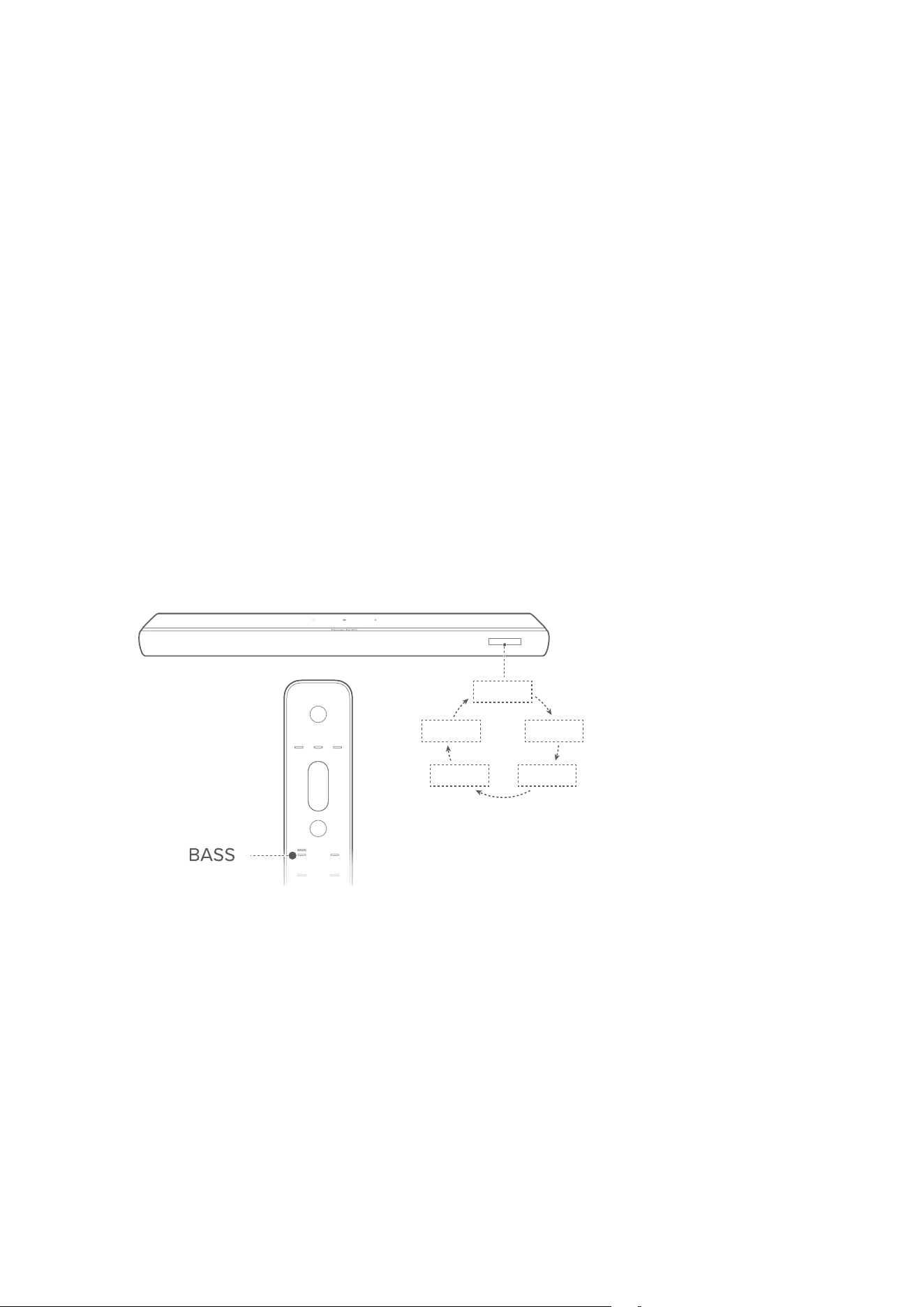
LOW MID HIGH
MID
HIGHLOW
1) To play the surround sound of Dolby Atmos, connect and
play your Blu-ray player or streaming device as described
under “5.1 Connect with your TV and digital devices”.
2) To select suitable strength for Dolby Atmos, press ATMOS
on the remote control to toggle between “MID”, “HIGH”, or
“LOW” (Default: “MID”).
2929
SETUP
NOTES:
• The Dolby Atmos sound eects apply only to Dolby audio content.
• With the Dolby Atmos design, the Dolby surround upmixer of
the soundbar can expand the legacy channel-based audio of
Dolby Digital format, including 5.1 and 7.1 content, and provide an
immersive 3D Atmos experience.
6.2.3
Bass adjustment
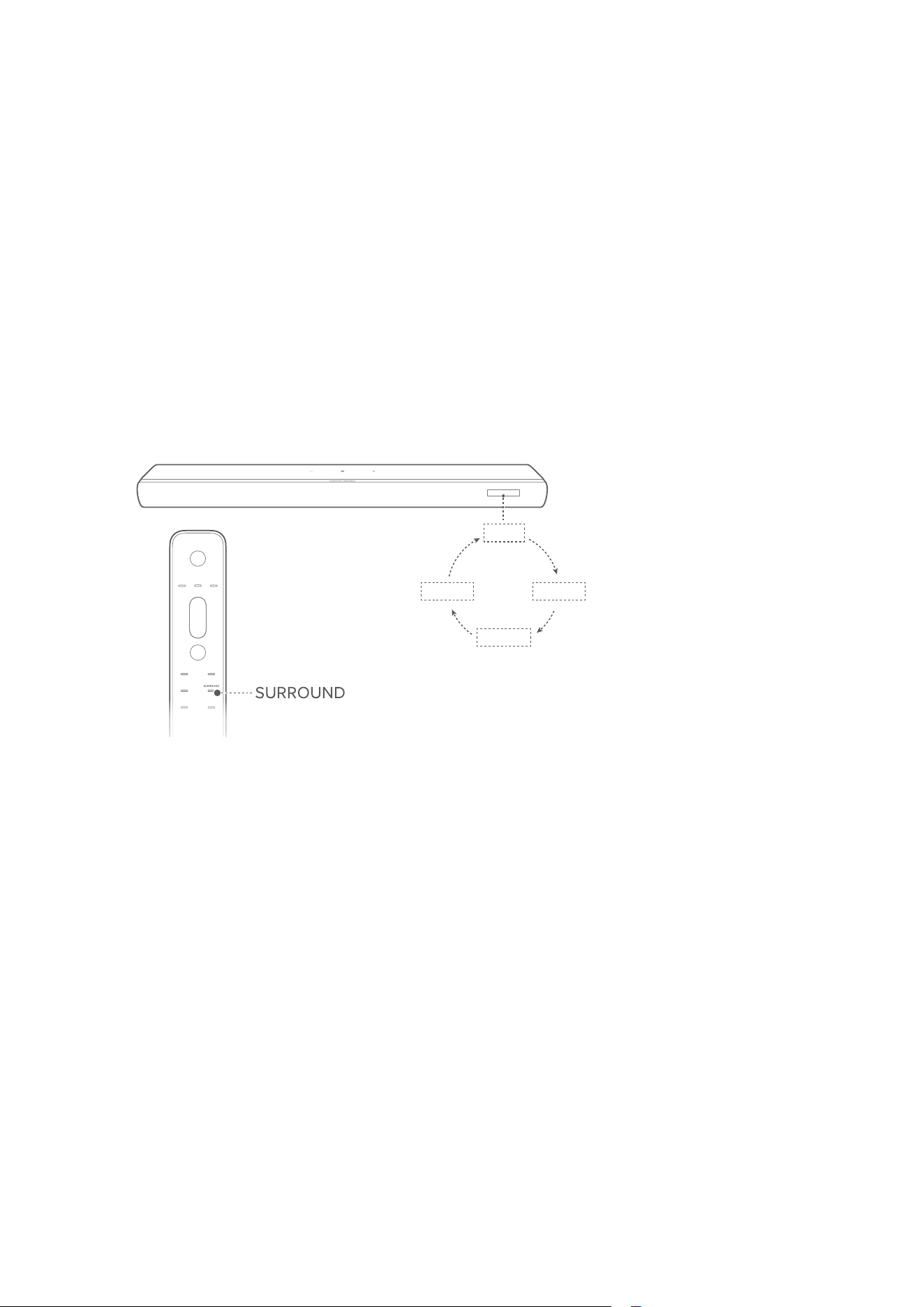
You can adjust the bass level of the soundbar or subwoofer (if
connected).
LVL 0
LVL 1
LVL 2
LVL-1
LVL-2
• On the remote control, press BASS to toggle between
bass levels: “LVL - 2”, “LVL - 1”, “LVL 0”, “LVL 1 ”, or “LVL 2”
(Default: “LVL 0”).
3030
SETUP
6.2.4
Rear adjustment
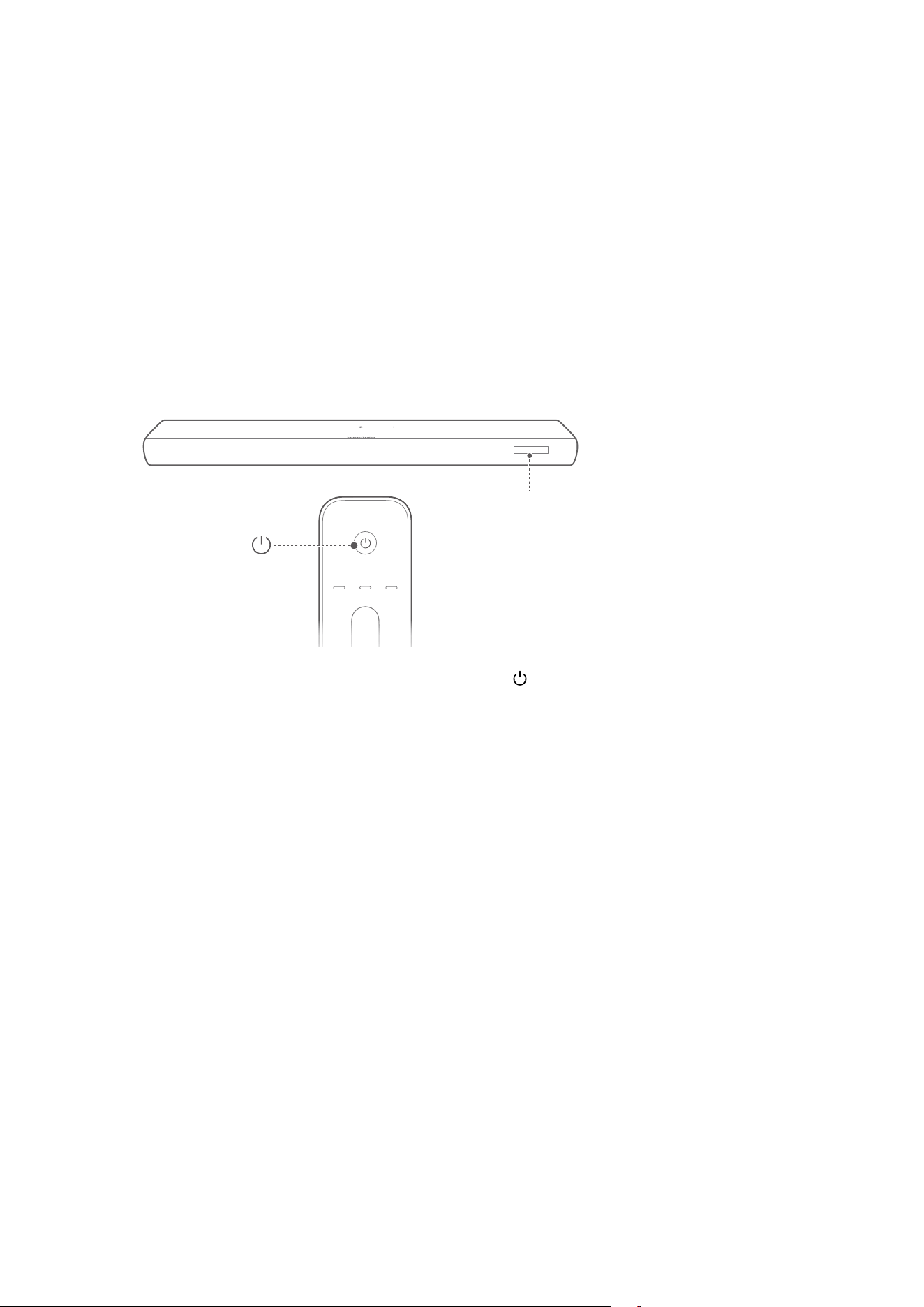
If rear speakers (sold separately) are connected, you can
select the surround sound level.
MID
MUTE
HIGHLOW
• On the remote control, press SURROUND to toggle
between surround sound levels.
Æ “MID” / “HIGH” / “MUTE” / “LOW” is displayed
(Default: “MID”).
31
7
PL AY
7.1
Switch on
HELLO
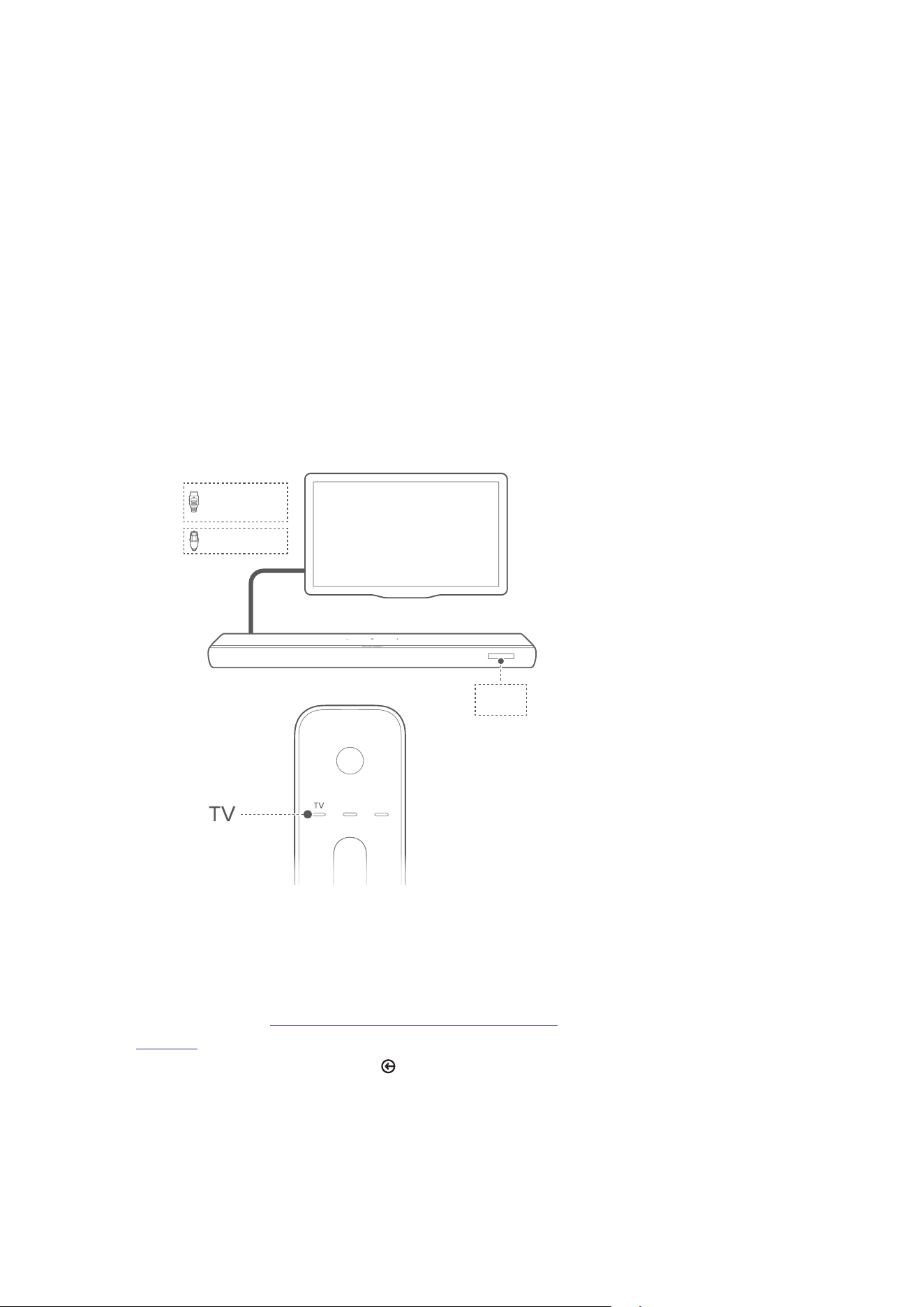
To switch on, press any button on the soundbar, or on the
remote control.
Æ “HELLO” is displayed.
7.1.1
Auto standby
If the soundbar is inactive for more than 10 minutes, it will switch
to standby mode automatically.
Æ “STDBY” is displayed.
Æ Next time you switch on the soundbar, it returns to the last
selected source.
7.1. 2
Auto wakeup
In standby mode, the soundbar will wake up automatically
when
• the soundbar is connected to your TV through the HDMI
eARC/ARC connection and your TV is switched on;
• the soundbar is connected to your TV and digital device
such as a set-top box, DVD/Blu-ray player or game console
through HDMI cables, and your digital device is switched on;
• the soundbar is connected to your home network and
audio is streamed to the soundbar through the music
streaming services.
3232
PLAY
7. 2
Play from the TV source
With the soundbar connected, you can enjoy TV audio from the
soundbar.
OPTICAL
HDMI eARC/
HDMI ARC
TV
1) Make sure that your TV is set to support external soundbars
and the built-in TV soundbars are muted. Refer to the
owner’s manual of your TV for more information.
2) Make sure that the soundbar has been properly connected
to your TV (See “5.1 Connect with your TV and digital
devices”).
3) To select the TV source, press on the soundbar or TV on
the remote control.
Æ “TV”: The TV source is selected.
• In the factory settings, the TV source is selected by
default.

3333
PLAY
NOTE:
• If the soundbar is connected to your TV using both an HDMI cable
and an optical cable, the HDMI cable source will be selected for
the TV connection.
7.2.1
TV remote control setup
To use your TV remote control for both your TV and the
soundbar, check that your TV supports HDMI-CEC. If your
TV does not support HDMI-CEC, follow the steps under “TV
remote control IR learning”.
HDMI-CEC
If your TV supports HDMI-CEC, enable the functions as
instructed in your TV user manual. You can control the
“volume +/-, mute/unmute, and power on/standby” functions on
the soundbar with your TV remote control.
TV remote control IR learning
Through IR learning, you can program the soundbar to accept
IR commands from your TV remote control, and then use your
TV remote control for simple commands.
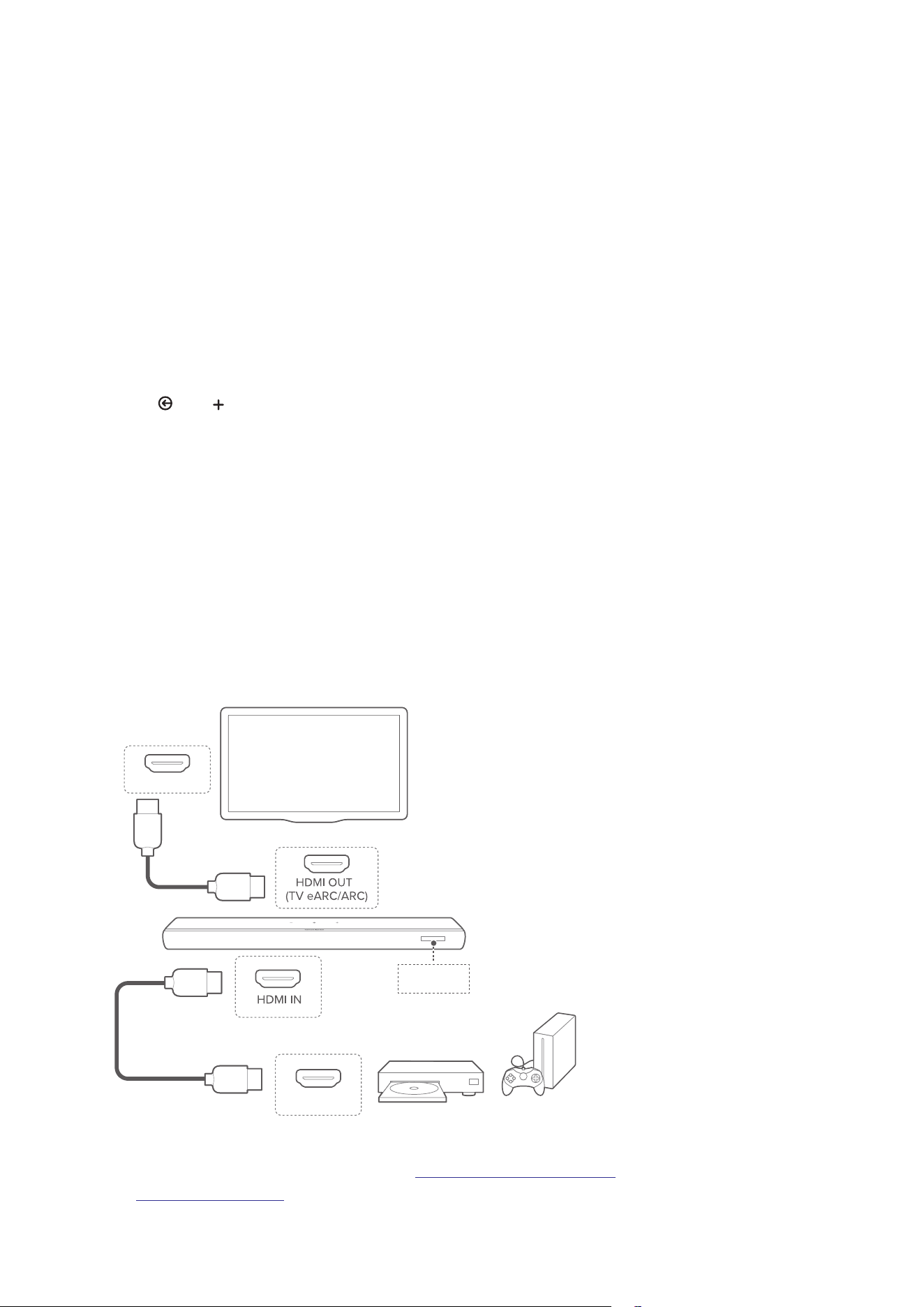
1) On the soundbar, hold and until “LEARNING” is
displayed.
Æ The soundbar enters the TV remote control learning
mode.
2) Point your TV remote control at the soundbar. Follow the
screen instructions to operate the buttons on your TV
remote control:
• When any one of “POWER”, “VOL+”, “VOL-”, or “MUTE”
is displayed on the soundbar, press the desired button
on your TV remote control.
Æ “DONE”: These commands are learned by the
soundbar.
Æ The soundbar returns to the last selected source.
3434
PLAY
• To exit the TV remote control learning mode, hold
and on the soundbar until “EXIT LEARNING” is
displayed.
Æ The learnt functions are discarded.
NOTE:
• The soundbar will automatically exit the TV remote control
learning mode if no action is taken for 30 seconds. The learnt
functions are discarded.
7. 3
Play from the HDMI IN source
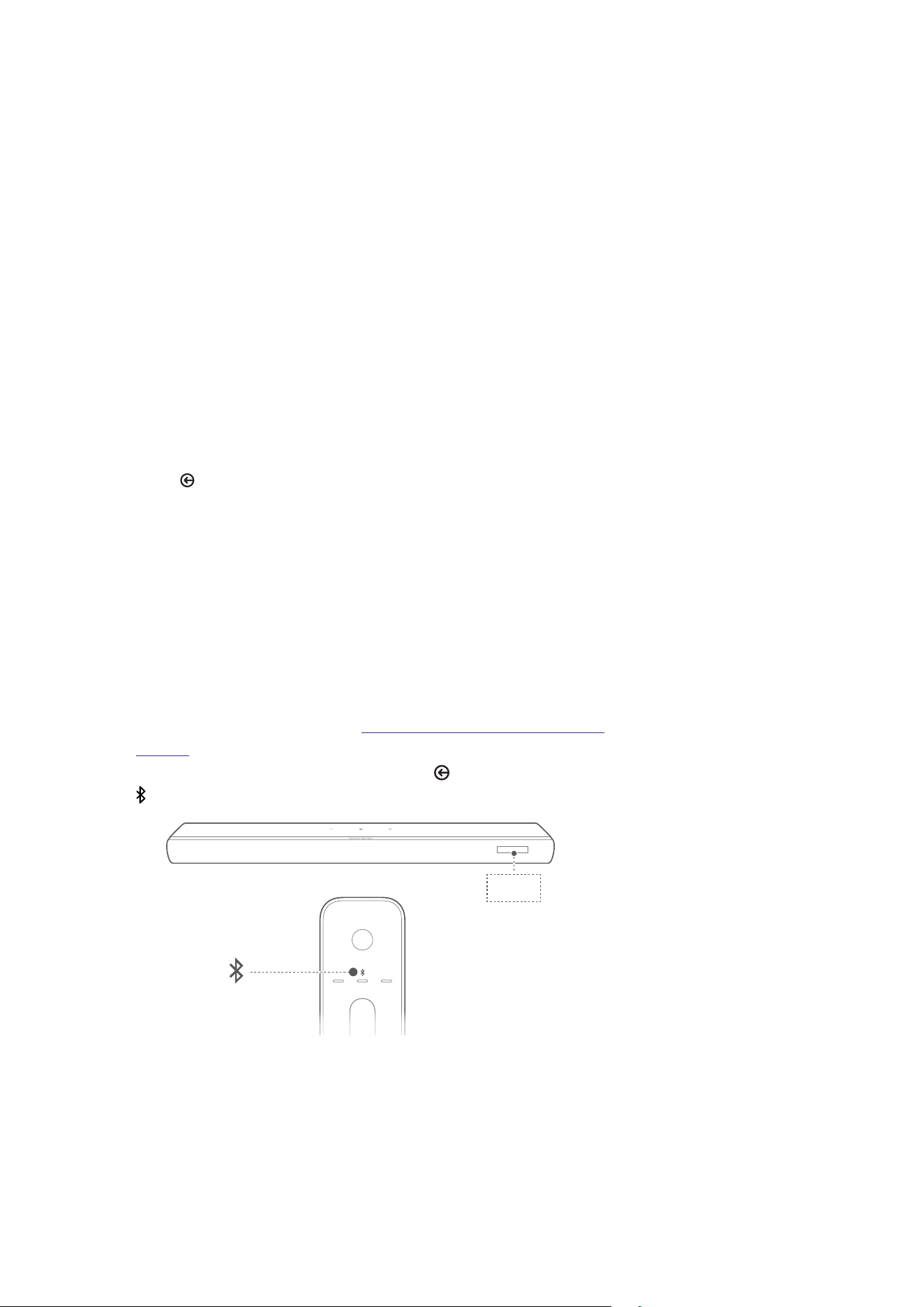
With the soundbar connected as shown, your digital device can
play video on your TV and audio from the soundbar.
HDMI (ARC)
HDMI OUT
.
.
.
*
HDMI IN
1) Make sure that the soundbar has been properly connected
to your TV and digital device (See “5.1 Connect with your TV
and digital devices”).
3535
PLAY
2) Switch on your digital device.
Æ Your TV and the soundbar wake up from standby mode
and switch to the input source automatically.
• To select the HDMI IN source on the soundbar, press
on the soundbar or HDMI on the remote control.
NOTE:
• Full compatibility with all HDMI-CEC devices is not guaranteed.
7. 4
Play from the Bluetooth source
Through Bluetooth, stream audio play on your Bluetooth device
to the soundbar.
1) Check that the soundbar has been properly connected to
your Bluetooth device (See “5.2 Connect to your Bluetooth
device”).
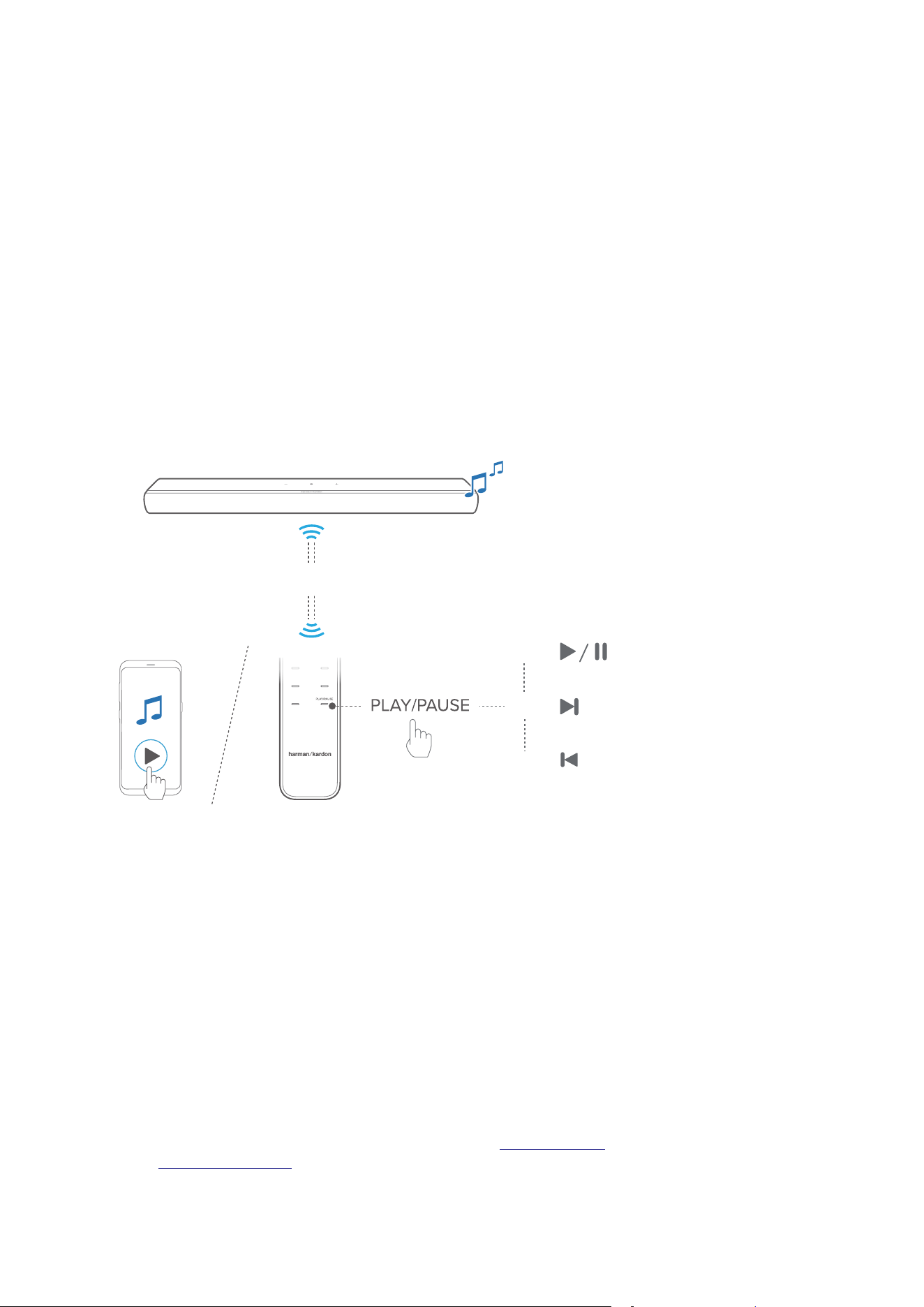
2) To select the Bluetooth source, press on the soundbar or
on the remote control.
BT
3636
PLAY
3) Start audio play on your Bluetooth device.
• Alternatively, press PLAY/PAUSE on the remote control
to control playback.
.
< 10 m / 33 ft
× 1
×2
×3
4) Adjust the volume on the soundbar, remote control or your
Bluetooth device.
7. 5
Play over your home network
NOTES:
• The soundbar can support audio streaming, but not video
streaming.
• During Wi-Fi music streaming, music playback will pause on the
currently connected device when you start music playback on a
second connected device.
• When the soundbar switches between your home Wi-Fi and wired
network during AirPlay, music playback will pause and resume in a
few minutes, depending on broadband bandwidth conditions. For
the connection to your home wired network, see “5.3 Connect to
your home network”.
3737
PLAY
Before you start, make sure that:
• your Android or iOS device is connected to the same Wi-Fi
network as your soundbar (See “5.3 Connect to your home
network”).
7. 5 .1
Play with Google Cast
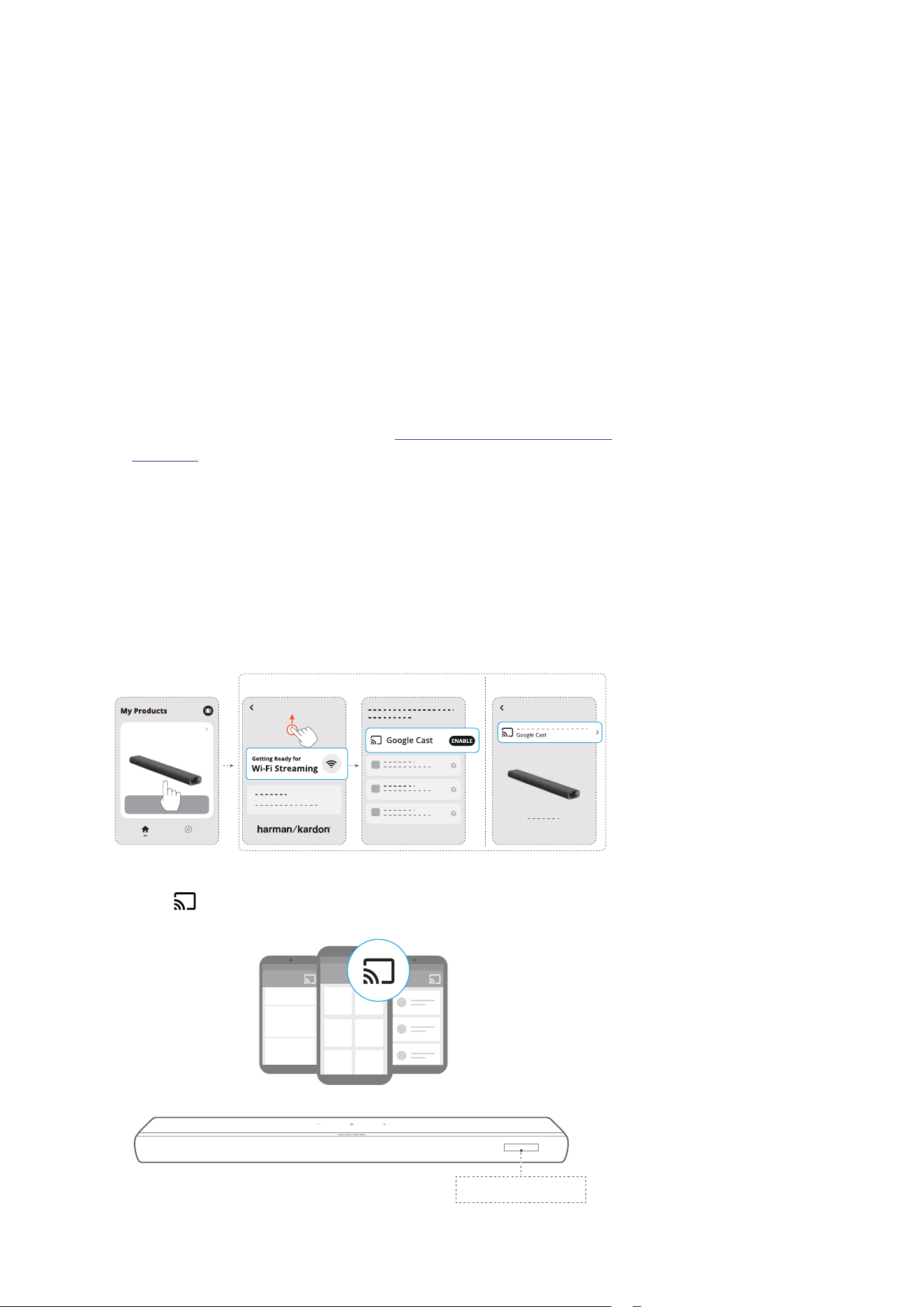
With Google Cast, stream audio on your Android or iOS device
to the soundbar.
On your Android or iOS device,
1) Launch the Harman Kardon One app, and check that you
have enabled Google Cast.
Enchant 900
Enchant 900
iOS Android
Enchant 900
2) On a Google Cast-enabled app, play music, tap the cast
icon and select the connected soundbar.
GOOGLE CAST
3838
PLAY
7. 5 . 2
Play through AirPlay
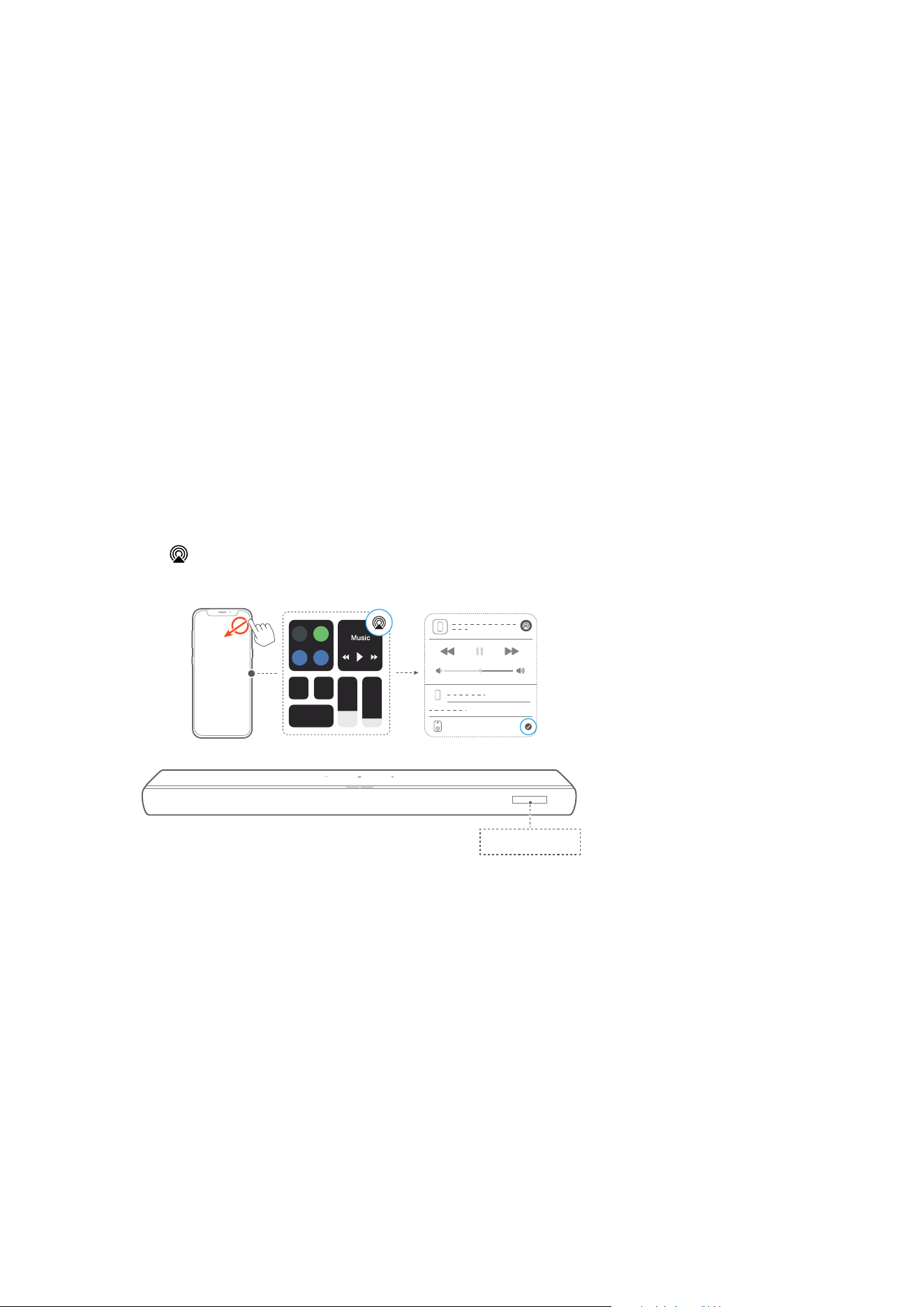
Through AirPlay, stream audio on your iOS device to the
soundbar.
On your iOS device:
1) Swipe down from the upper right corner to enter the Control
Center.
2) Tap to select the connected soundbar and then start
audio streaming from an app.
AIRPLAY
Enchant 900
3939
PLAY
7.5.3
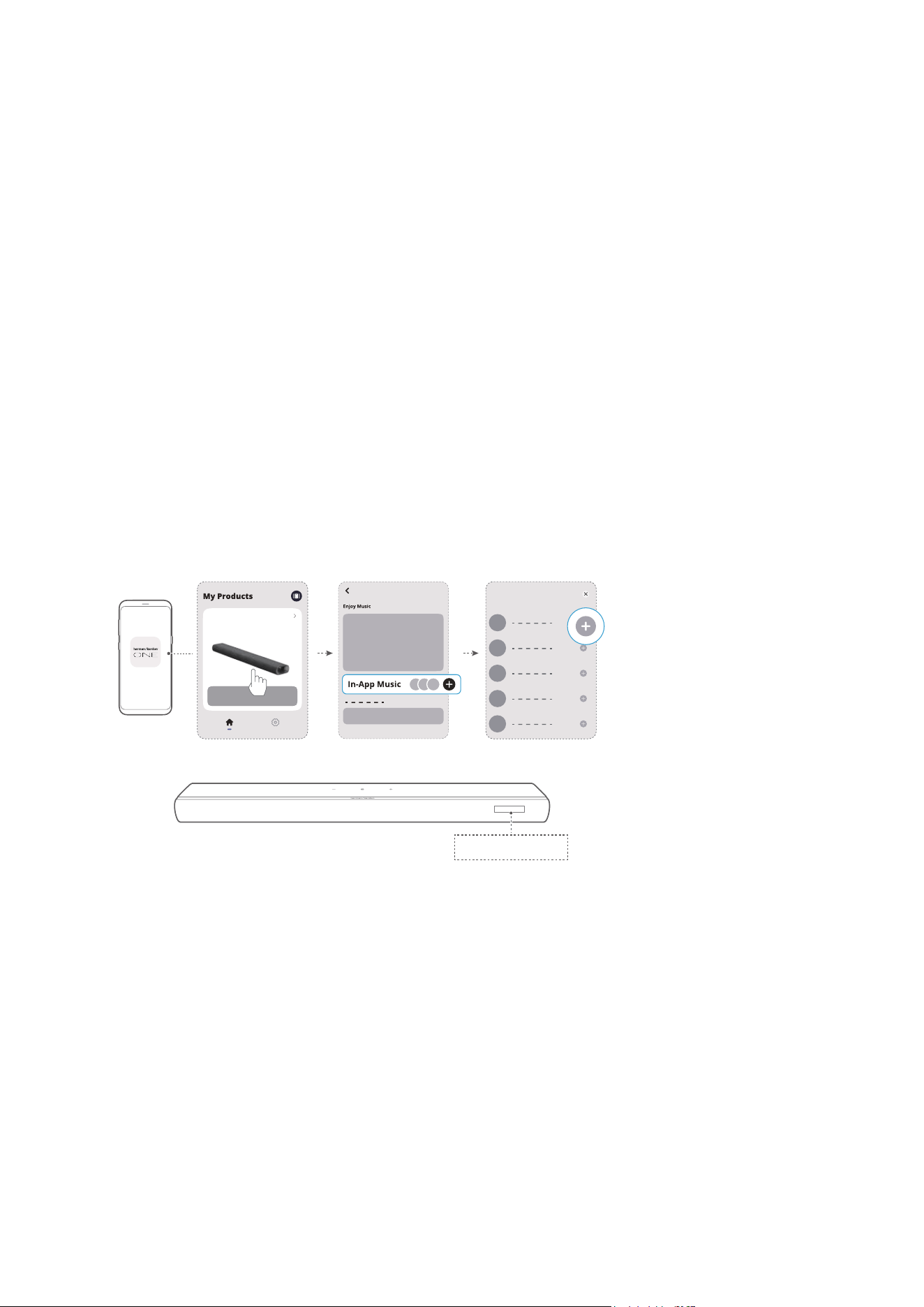
Play through the Harman Kardon One app
Through the Harman Kardon One app, stream audio from
enabled music services to the soundbar.
On your Android or iOS device:
• Launch the Harman Kardon One app, browse the available
*music streaming services to select music, and then start
music streaming to the connected soundbar.
MUSIC SERVICE
Enchant 900
Enchant 900
Supported Music Services
NOTE:
• *Subscription may be needed and not provided by the Harman
Kardon One app.
4040
PLAY
7. 5 . 4
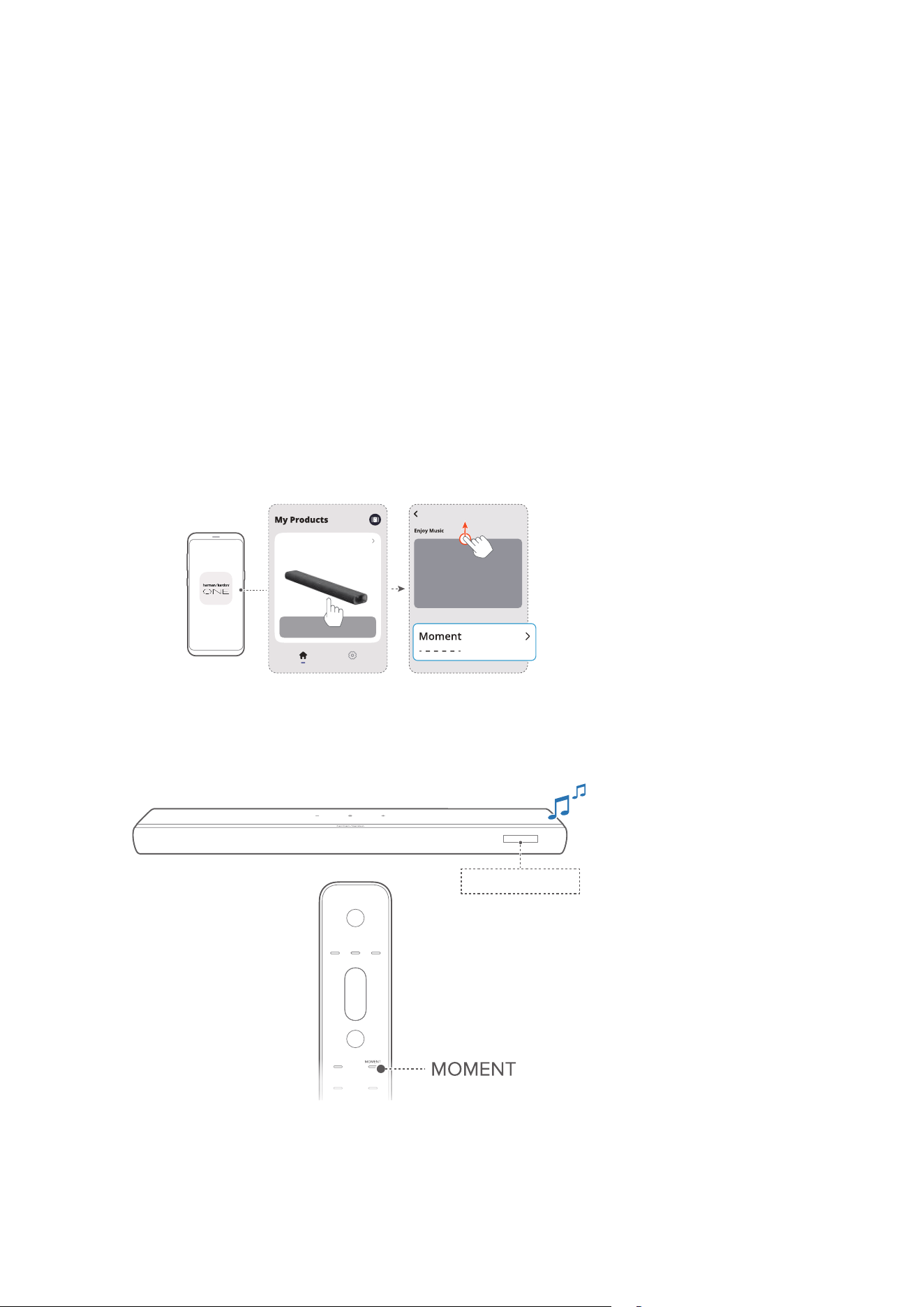
Access your presets with the MOMENT
button
1) On the Harman Kardon One app,
• Personalize the MOMENT feature.
Enchant 900
Enchant 900
2) On the soundbar,
• Press MOMENT on the remote control to access the
personalized playlist and soundbar settings.
MOMENT
4141
PLAY
7.5.5
Multi-room playback
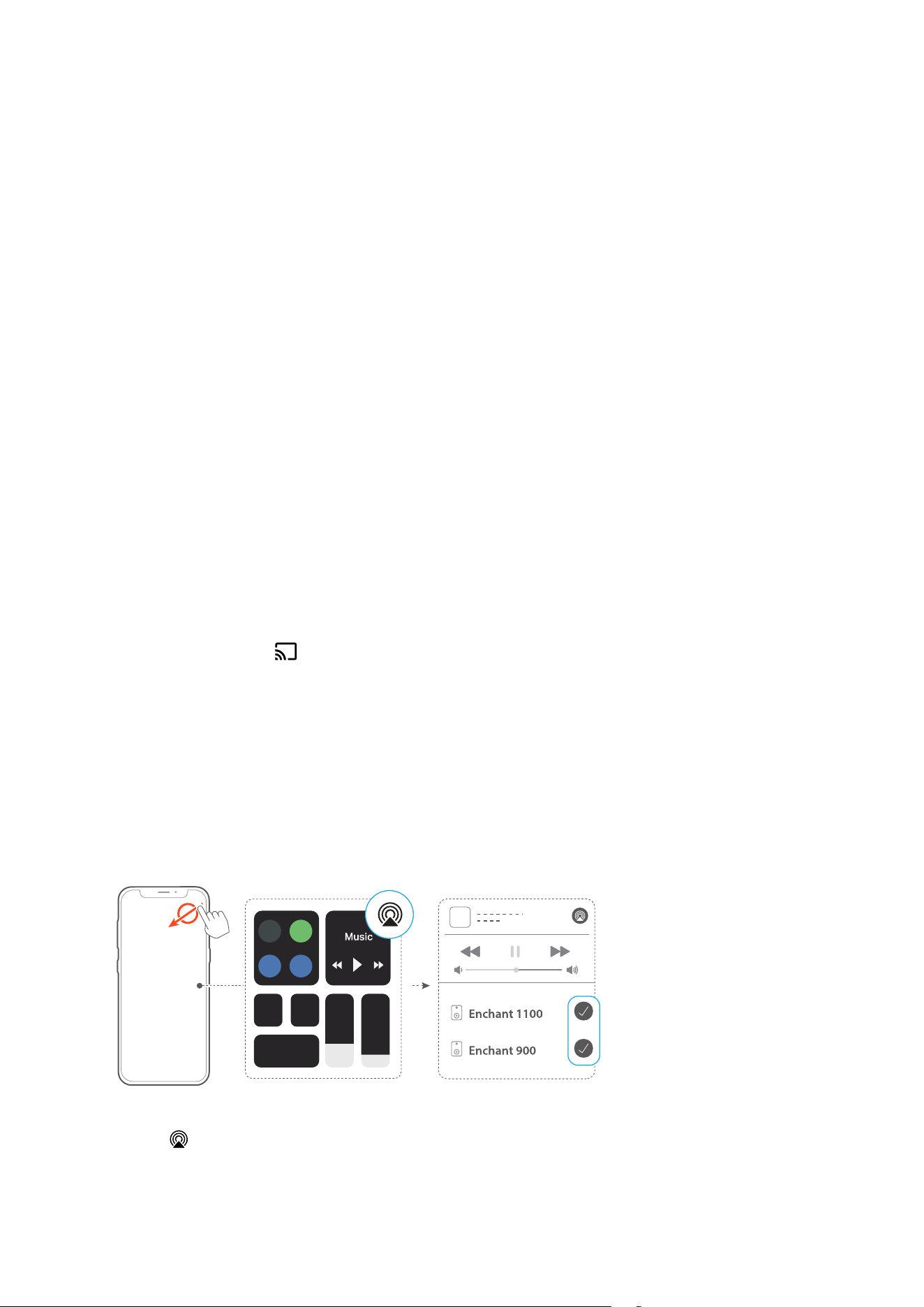
With the multi-room playback, you can stream music on your
Android or iOS device to multiple Google Cast / AirPlay-
enabled speakers.
Google Cast
1) Through the Google Home app, connect multiple Google
Cast-enabled speakers to the same network, assign them to
multiple rooms, and create groups as needed.
2) Run a Google Cast-enabled app on your smartphone or
tablet.
3) Play music. Press and select the grouped speakers.
NOTES:
• To create a multi-room speaker group in the Google Home app,
make sure that you have connected all the speakers to the same
home network and have used the same Google login account.
Refer to the Google Home app for more details.
• Depending on the bandwidth of your local network, you can
stream music to up to 6 Google Cast-enabled soundbars.
AirPlay
1) On an iOS device, enter the Control Center.
2) Tap to select multiple connected speakers as needed.
3) Start music streaming from an app.

42
8
SOUND SETTINGS
8.1
Audio sync mode
With the audio sync function, you can synchronize audio and
video to make sure that no delay is heard from your video
content.
1) On the remote control, hold TV for more than 3 seconds
and then press .
Æ “SYNC” is displayed.
2) Within 5 seconds, press or on the remote control to
adjust the audio delay and match with video.
Æ The audio sync timing is displayed.
NOTE:
• You can also adjust the audio delay through the Harman Kardon
One app.
8.2
Smart mode
With Smart mode enabled by default, you can enjoy TV
programs with rich sound eects. For TV programs such as
news and weather forecasts, you can reduce the sound eects
by disabling Smart mode and switching to Standard mode.
Smart mode: EQ settings and surround sound are applied
for rich sound eects.
Standard mode: The preset EQ settings are applied for
standard sound eects.
• When no rear speakers are connected to the soundbar,
press SURROUND on the remote control to enable or
disable the Smart mode.
Æ “OFF SMART MODE”: The soundbar switches to the
Standard mode. Next time you switch on the soundbar,
the Smart mode is enabled again automatically.
Æ “ON SMART MODE”: The Smart mode is enabled.
43
9
GROUPING (Optional)
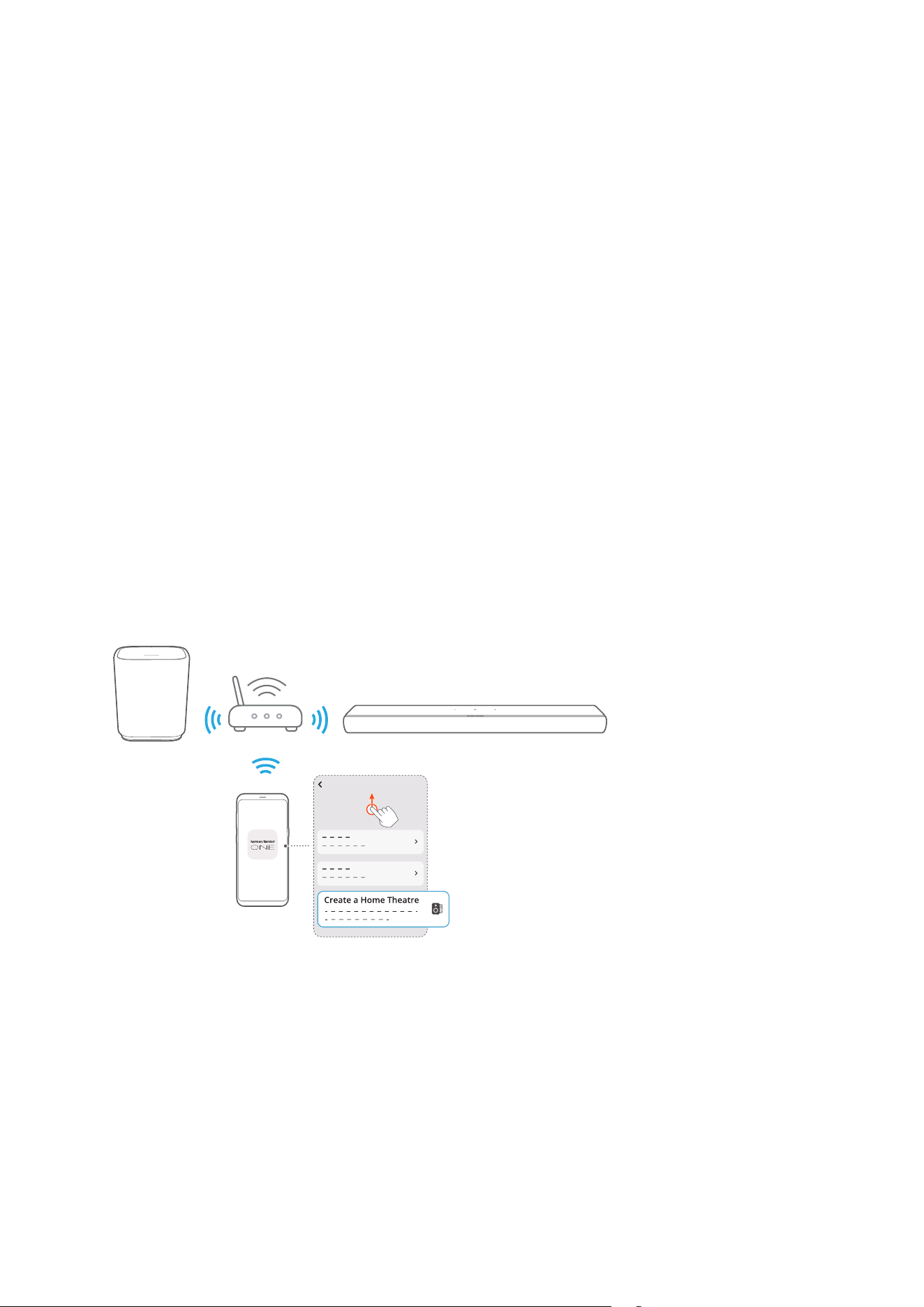
Through the Harman Kardon One app, you can wirelessly pair
your Enchant 900 with:
• Enchant Sub (subwoofer, sold separately): to enhance the
bass performance;
• A pair of Enchant Speaker (satellite speakers, sold
separately): to enhance the 3D surround sound experience;
• Enchant Sub and a pair of Enchant Speaker: to set up a
5.1.4 channel surround sound system.
When compatible Enchant devices are connected to the same
network, follow the app instructions to group them.
Enchant 900
NOTE:
• In the Harman Kardon One app, you can rename or unpair the
group.

44
10
RESTORE FACTORY
SETTINGS
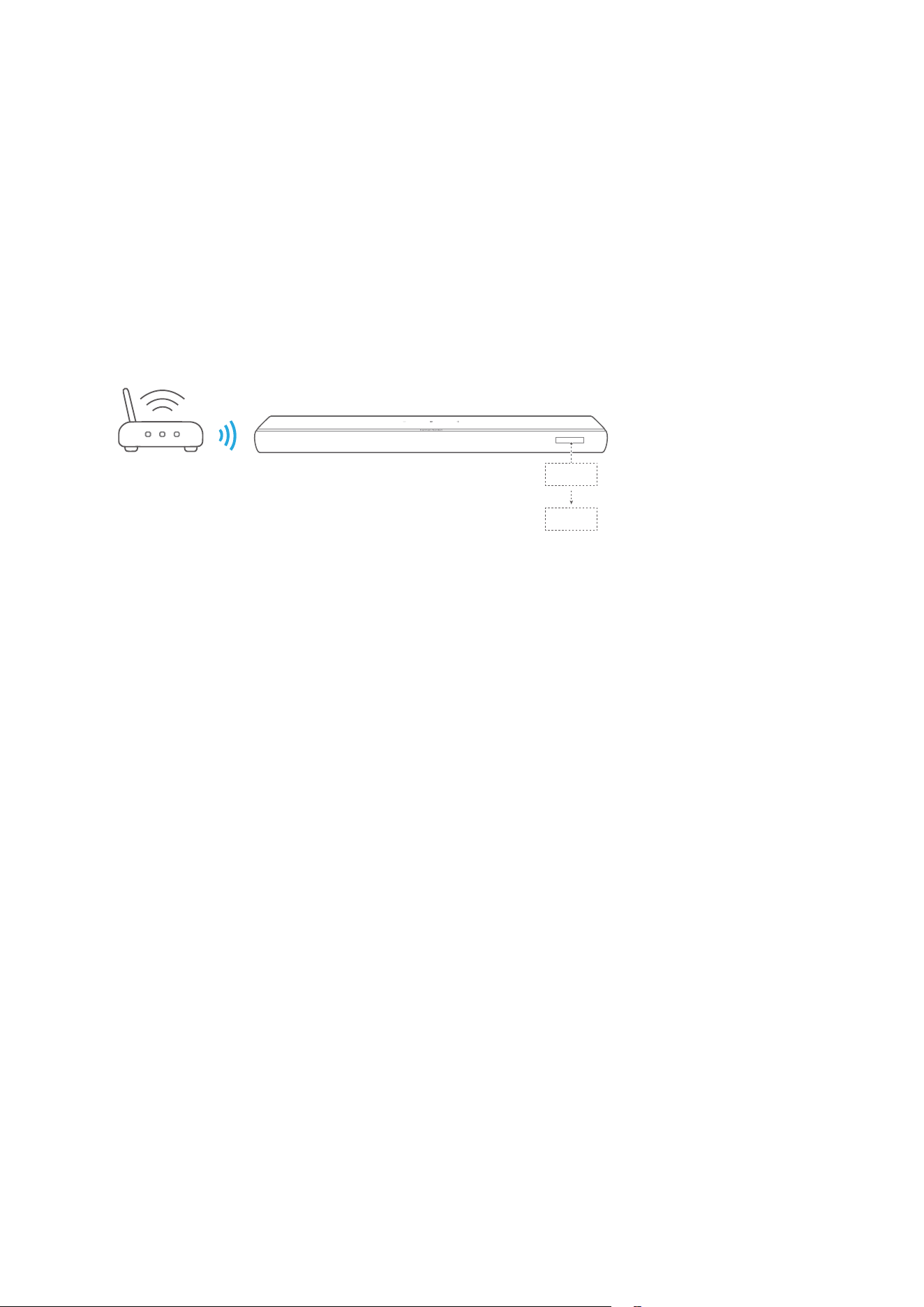
By restoring the factory default settings, you can remove all
your personalized settings from the soundbar.
On the soundbar, hold , and together for more than
5 seconds.
Æ “RESET” is displayed.
Æ The soundbar restarts.
45
11
SOFTWARE UPDATE
WAIT
DONE
Connect the soundbar to your home network. Online updates
will be performed automatically when software updates are
available.
Æ “WAIT”: Software updating in progress
Æ “DONE”: Software updating completed

46
12
PRODUCT
SPECIFICATIONS
General Specification
• Model: ENCHANT 900
• Power supply: 100 – 240 V AC, ~ 50/60 Hz
• Total speaker power output (RMS@THD 1%): 195 W
• Soundbar output power (RMS@THD 1%): 6 x 25 W woofer
and full-range + 3 x 15 W tweeter
• Soundbar transducer: 4x (55 x 75) mm racetrack drivers,
3x 1" (25 mm) tweeters, 2x 2.5" (63 mm) up-ring full-range
drivers
• Networked standby power: < 2.0 W
• Operating temperature: 0 °C – 45 °C
HDMI Specification
• HDMI video input: 1
• HDMI video output (with Enhanced Audio Return Channel,
eARC): 1
• HDMI HDCP version: 2.3
• HDR pass through: HDR10, Dolby Vision
Audio Specification
• Frequency response: 60Hz - 20kHz (-6dB)
• Audio inputs: 1 Optical, Bluetooth and USB (USB playback
is available in US version. For other versions, USB is for
Service only.)
USB specification (Audio playback is for US version only)
• USB port: Type A
• USB rating: 5V DC, 0.5A
• Supporting le format: MP3
• MP3 codec: MPEG 1 Layer 2/3, MPEG 2 Layer 3,
MPEG 2.5 Layer 3
• MP3 sampling rate: 16 - 48 kHz
• MP3 bitrate: 80 - 320 kpbs

4747
PRODUCT SPECIFICATIONS
Wireless specification
• Bluetooth version: 5.3
• Bluetooth prole: A2DP 1.3.2, AVRCP 1.5
• Bluetooth transmitter frequency range:
2400 MHz - 2483.5 MHz
• Bluetooth transmitter power: <15 dBm (EIRP)
• Wi-Fi network: IEEE 802.11 a/b/g/n/ac/ax (2.4GHz/5GHz)
• 2.4G Wi-Fi transmitter frequency range: 2412 - 2472 MHz
(2.4 GHz ISM Band, USA 11 Channels, Europe and others
13 Channels)
• 2.4G Wi-Fi transmitter power: < 20 dBm (EIRP)
• 5G Wi-Fi transmitter frequency range: 5.15 - 5.35GHz,
5.470 - 5.725GHz, 5.725 - 5.825GHz
• 5G Wi-Fi transmitter power: 5.15 - 5.25GHz <23dBm (EIRP),
5.25 - 5.35GHz & 5.470 - 5.725GHz <20dBm (EIRP),
5.725 - 5.825GHz <14dBm (EIRP)
Note: Band 5.6 - 5.64 GHz will be disabled when shipped to
Australia / New Zealand.
Dimensions
• Dimensions (W x H x D):
870 x 65 x 130 mm / 34.2" x 2.6" x 5.1"
• Weight: 3.5 kg / 7.7 lbs
• Packaging dimensions (W x H x D):
978 x 166 x 189 mm / 38.5" x 6.5" x 7.4"
• Packaging weight: 6.01 kg / 13.25 lbs

48
13
TROUBLESHOOTING
Never try to repair the product yourself. If you have problems
using this product, check the following points before you
request services.
System
The unit will not turn on.
• Check if the power cord is plugged into power and the
soundbar.
The soundbar has no response to button presses.
• Restore the soundbar to factory settings (See “10 RESTORE
FACTORY SETTINGS”).
Sound
No sound from soundbar
• Make sure that the soundbar is not muted.
• Select the correct audio input source on the remote
control.
• Connect the soundbar to your TV or other devices
properly.
• Restore the soundbar to its factory settings by holding ,
and on the soundbar for more than 5 seconds.
Distorted sound or echo
• If you play audio from your TV through the soundbar, make
sure that your TV is muted or the built-in TV soundbar is
disabled.
Audio and video are not synchronized.
• Enable the audio sync function to synchronize audio and
video (See “8.1 Audio sync mode”).

4949
TROUBLESHOOTING
No height sound eects of Dolby Atmos
• If your TV supports HDMI ARC only, make sure that you
have connected your digital device to the soundbar
through the HDMI IN connector on the soundbar (See
“5.1 Connect with your TV and digital devices”)
• Enjoy the sound eects of Dolby Atmos when you play
movies from the TV / HDMI source. For audio streaming
over Bluetooth or casting apps (enabled by Google Cast or
AirPlay), Dolby Atmos is not supported.
Bluetooth
A device cannot be connected with the soundbar.
• Check if you have enabled Bluetooth on the device.
• If the soundbar has been paired with another Bluetooth
device, reset Bluetooth (See “5.2.3 To connect to another
Bluetooth device”).
• If your Bluetooth device has ever been paired with the
soundbar, reset Bluetooth on the soundbar, unpair the
soundbar on the Bluetooth device, and then pair the
Bluetooth device with the soundbar again (See “5.2.3 To
connect to another Bluetooth device”).
Poor audio quality from a connected Bluetooth device
• The Bluetooth reception is poor. Move the source device
closer to the soundbar, or remove any obstacle between
the source device and the soundbar.
The connected Bluetooth device connects and disconnects
constantly.
• The Bluetooth reception is poor. Move the source device
closer to the soundbar, or remove any obstacle between
the source device and the soundbar.

5050
TROUBLESHOOTING
Wi-Fi
Failed to connect to Wi-Fi.
• Make sure that Wi-Fi is turned on.
• Make sure that you have selected the right network and
entered the correct password.
• Make sure that your router or modem is turned on and
within the range.
• In your router settings, make sure that you have set the
security type to WPA2 or auto.
• Make sure that your soundbar is connected to the same
wireless LAN as your smartphone or tablet.
• If you have diculties in setting up Wi-Fi, hold and on
the soundbar until “SETUP WIFI” is displayed.
Playback
AirPlay cannot find the soundbar as an AirPlay soundbar for
music streaming.
• On your Apple device, update the software to the latest
version: iOS 13.4 and later, macOS 10.15.4 and later, or tvOS
14.3.
• Make sure that your Apple device has been connected to
the same network as the soundbar.
• For a PC running iTunes for Windows, you can stream music
from your PC to the soundbar through Bluetooth.
Music playback does not work smoothly when the sound
source switches from Bluetooth to Google Cast or AirPlay.
• The quality of audio casting and playback are dependent
on the trac and coverage of the network that connects
the soundbar and your casting devices, such as phones,
tablets and PCs.

5151
TROUBLESHOOTING
Music playback does not resume when the sound source
switches from Bluetooth to TV / HDMI IN, and then back to
Bluetooth.
• The music playback in the Bluetooth device stops when
the sound source switches from Bluetooth to TV / HDMI IN.
When you switch back to the Bluetooth source, start music
playback in the Bluetooth device again.
Remote control
The remote control does not work.
• Check if the batteries are drained. If so, replace them with
new ones.
• Reduce the distance and angle between the remote
control and the main unit.
Failed to complete the TV remote control learning.
• Check if you are using an infra-red TV remote control.
The IR learning is not supported by a Bluetooth TV remote
control.

52
14
TRADEMARKS
The Bluetooth® word mark and logos are
registered trademarks owned by Bluetooth SIG,
Inc. and any use of such marks by HARMAN
International Industries, Incorporated is under
license. Other trademarks and trade names are
those of their respective owners.
The terms HDMI, HDMI High-Denition
Multimedia Interface, HDMI trade dress and
the HDMI Logos are trademarks or registered
trademarks of HDMI Licensing Administrator,
Inc.
Wi-Fi CERTIFIED 6™ and the Wi-Fi CERTIFIED 6™
Logo are trademarks of Wi-Fi Alliance®.
Dolby, Dolby Vision, Dolby Atmos, and the
double-D symbol are registered trademarks
of Dolby Laboratories Licensing Corporation.
Manufactured under license from Dolby
Laboratories. Condential unpublished works.
Copyright © 2012–2021 Dolby Laboratories. All
rights reserved.
Google, Android, Google Home, Google Cast
and other marks are trademarks of Google LLC.
Google Assistant is not available in certain
languages and countries. Availability and
performance of certain features, services,
and applications are device and network
dependent and may not be available in all
areas.
Use of the Works with Apple badge means
that an accessory has been designed to work
specically with the technology identied in the
badge and has been certied by the developer
to meet Apple performance standards.
Apple, and AirPlay are trademarks of Apple Inc.,
registered in the U.S. and other countries and
regions.
To use AirPlay with Harman Kardon Enchant
900, the latest version of iOS, iPadOS, or
macOS is recommended.
Use your phone, tablet or computer as a remote
control for Spotify. Go to spotify.com/connect to
learn how.
The Spotify Software is subject to third party
licenses found here: https://www.spotify.com/
connect/third-party-licenses.

53
15
OPEN SOURCE
LICENSE NOTICE
This product contains open source software licensed under
GPL. For your convenience, the source code and relevant build
instruction are also available at
https://harman-webpages.s3.amazonaws.com/Harman_One_
OS_C_package_license_list.htm
Please feel free to contact us at:
Harman Deutschland GmbH
ATT: Open Source, Gregor Krapf-Gunther, Parkring 3
85748 Garching bei Munchen, Germany
or_OpenSourceSupport@Harman.com_if you have additional
question regarding the open source software in the product.

54
HA_HK Enchant 900_OM_Global_EN_V5