

2
Table of Contents
Basics
3 Read me first
4 About the Galaxy Buds Live
5 Device layout and functions
6 Attaching a wing tip to the earbud
7 Battery
14 Battery indicator lights identification
Using the earbuds
16 Connecting the earbuds to a mobile
device
22 Wearing the earbuds
23 Using the earbud by touch
26 Using the active noise cancelling
feature
26 Using Bixby
27 Listening to music
29 Using the equaliser
29 Using call features
Galaxy Wearable App
31 Introduction
32 Connecting and disconnecting the
earbuds
33 Viewing Galaxy Buds Live status and
customising settings
Appendix
37 Troubleshooting
40 Managing the Galaxy Buds Live
41 Restarting the earbuds
41 Coupling the earbuds
42 Removing the battery

3
Basics
Read me first
Please read this manual before using this device to ensure safe and proper use.
•
Descriptions are based on the device’s default settings.
•
Some content may differ from your device depending on the region, model
specifications, or device’s software. Images may differ in appearance from the actual
product. Content is subject to change without prior notice.
•
Before using other mobile devices, make sure they are compatible with the device. Visit
www.samsung.com to see the specifications of compatible mobile devices.
•
Be careful to not get the device wet while using it. The device could malfunction if it
is damaged by water. Do not wear the device during activities, such as showering or
swimming. Doing so can damage the device.
•
Modifying the device’s operating system or installing softwares from unofficial sources
may result in device malfunctions and data corruption or loss. These actions are violations
of your Samsung licence agreement and will void your warranty.
•
Some functions may not work as described in this manual depending on the maker and
model of the mobile device you connect to the device.
•
This product includes certain free/open source software. To see the instructions for
viewing the open source licence, go to the Samsung website (opensource.samsung.com).
Instructional icons
Warning: situations that could cause injury to yourself or others
Caution: situations that could cause damage to your device or other equipment
Notice: notes, usage tips, or additional information
Basics
4
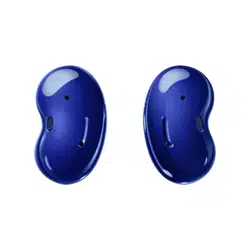
About the Galaxy Buds Live
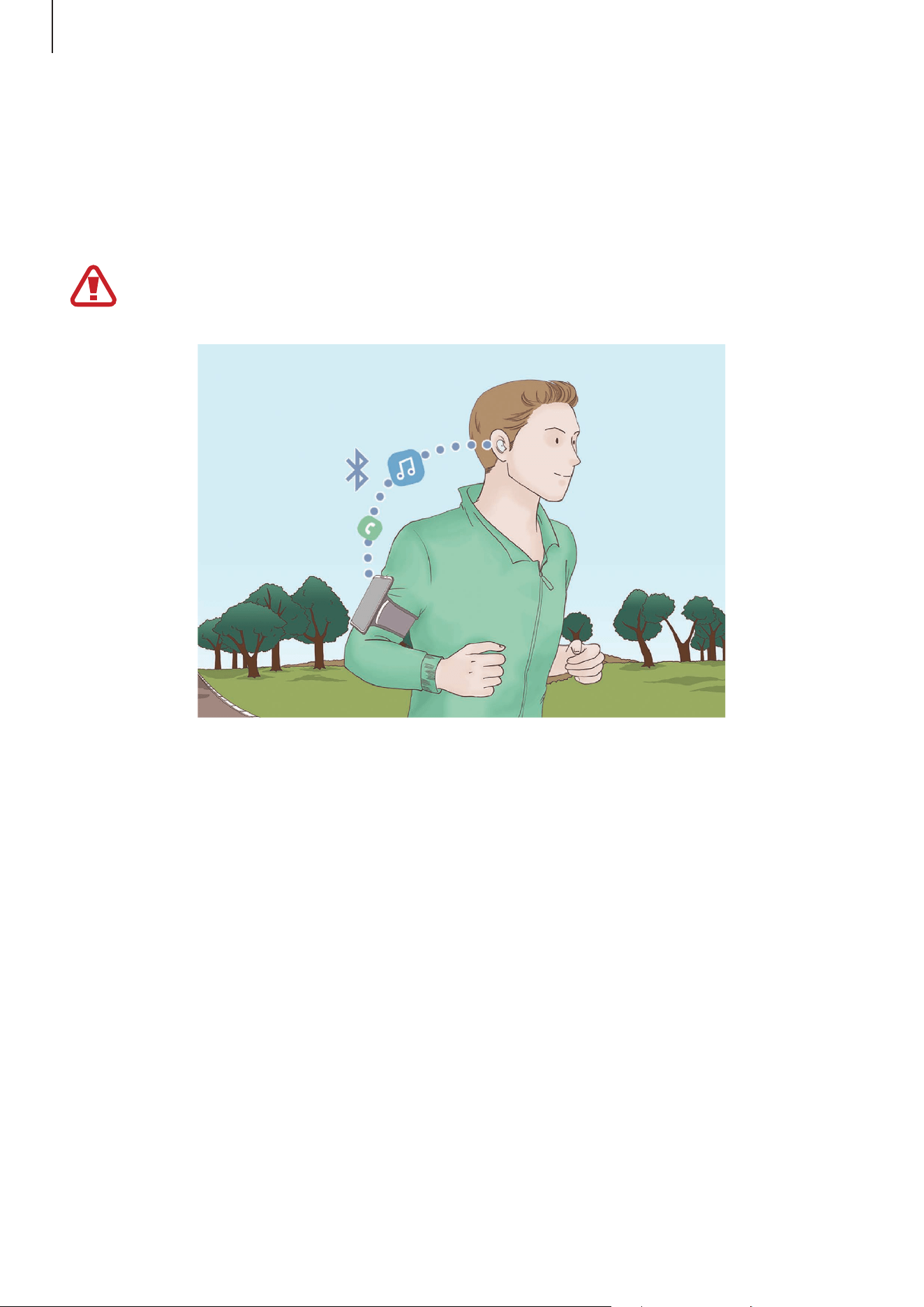
Galaxy Buds Live are wireless earbuds which allow you to listen to music or answer incoming
calls after connecting them to your device even while doing other activities, such as working
out.
Do not wear the earbuds in high-traffic areas, such as roads or crosswalks. Doing so
may result in accidents due to slowed reaction times.
Basics
5
Device layout and functions
Package contents
Refer to the quick start guide for package contents.
•
The items supplied with the Galaxy Buds Live, available accessories, and their
images may vary depending on the region.
•
The supplied items are designed only for the Galaxy Buds Live and may not be
compatible with other devices.
•
Appearances and specifications are subject to change without prior notice.
•
You can purchase additional accessories from the Samsung website. Make sure
they are compatible with the models before purchase.
•
Use only Samsung-approved accessories. Using unapproved accessories may cause
the performance problems and malfunctions that are not covered by the warranty.
•
Availability of all accessories is subject to change depending entirely on
manufacturing companies. For more information about available accessories, refer
to the Samsung website.
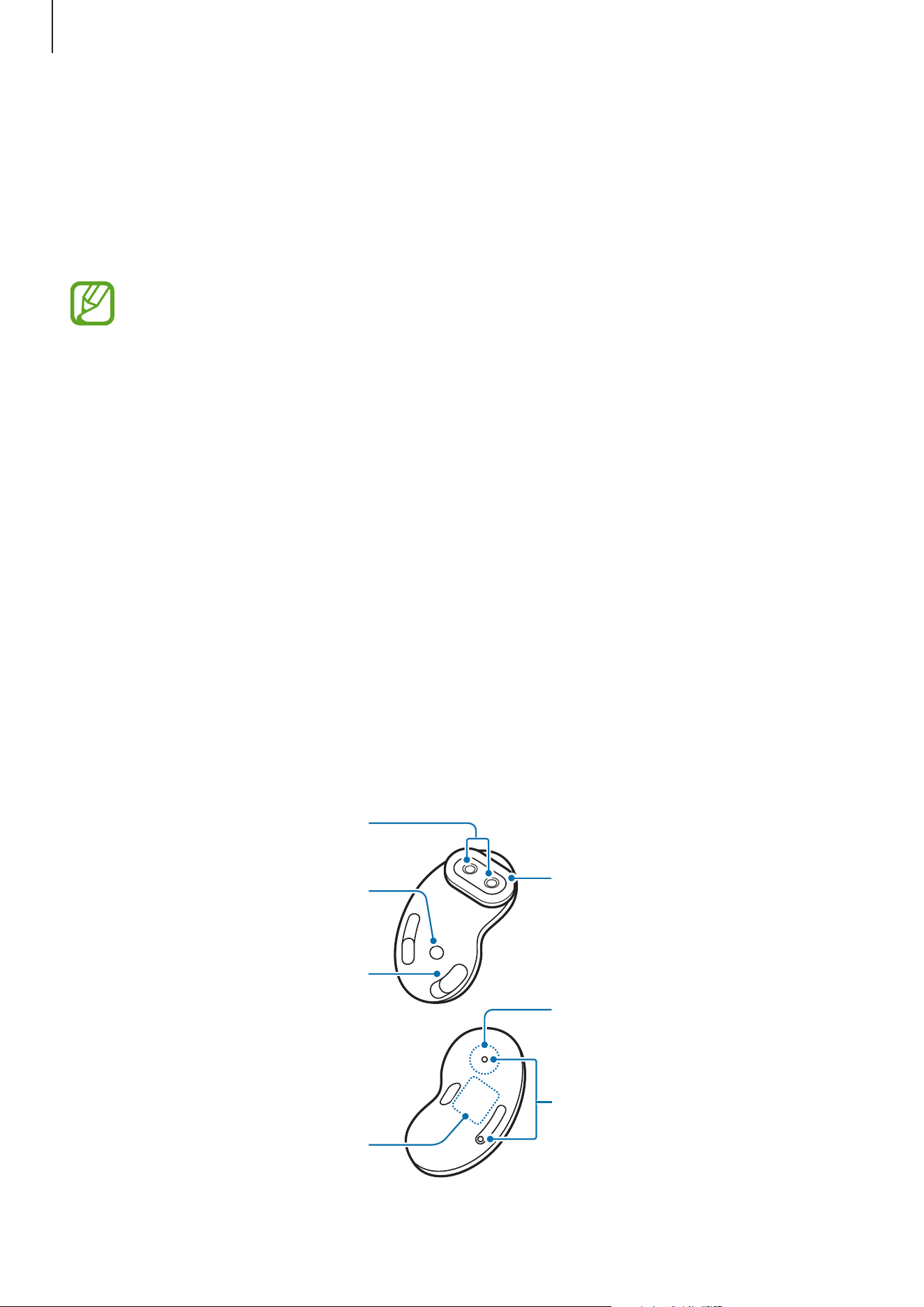
Device layout
Earbud
Touch-sensitive sensor
Charging contacts
Speaker
Antenna area
Microphones
Touch area
Wing tip
Basics
6
If you use the earbuds when they are broken, there may be a risk of injury. Use the
earbuds only after they have been repaired at a Samsung Service Centre.
If foreign materials are placed on the touch-sensitive sensor, they may cause the
sensor to malfunction. Before wearing the earbuds, clean the sensor first.
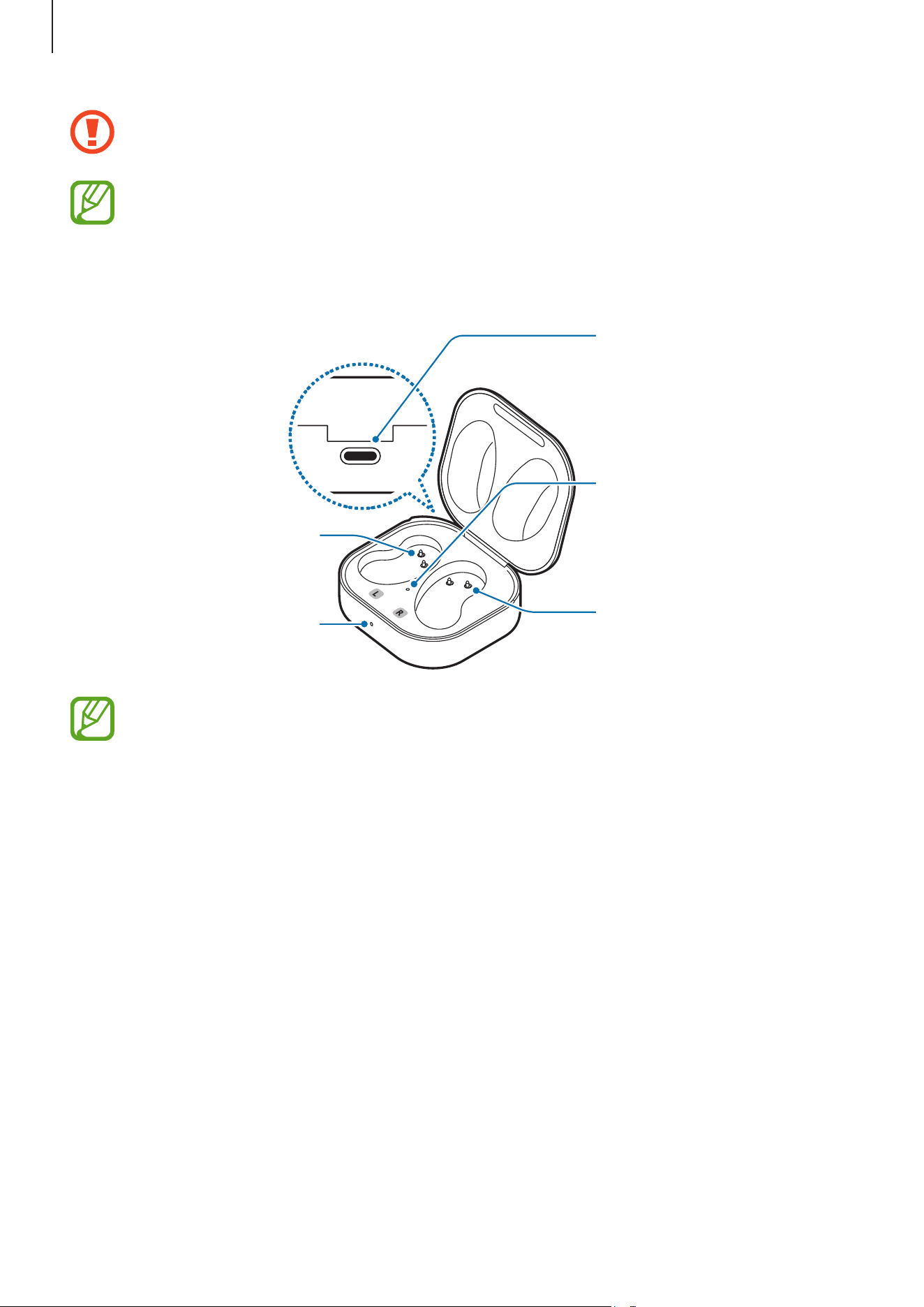
Charging case
Charging contacts
(right)
Earbud battery
indicator light
Charging case battery
indicator light
Charging contacts
(left)
Charger port (USB
Type-C)
If there is sweat or liquid on the charging contacts, corrosion may occur on the Galaxy
Buds Live. When there is sweat or liquid on the charging contacts or earbuds, clean
them before inserting the earbuds in the charging case.
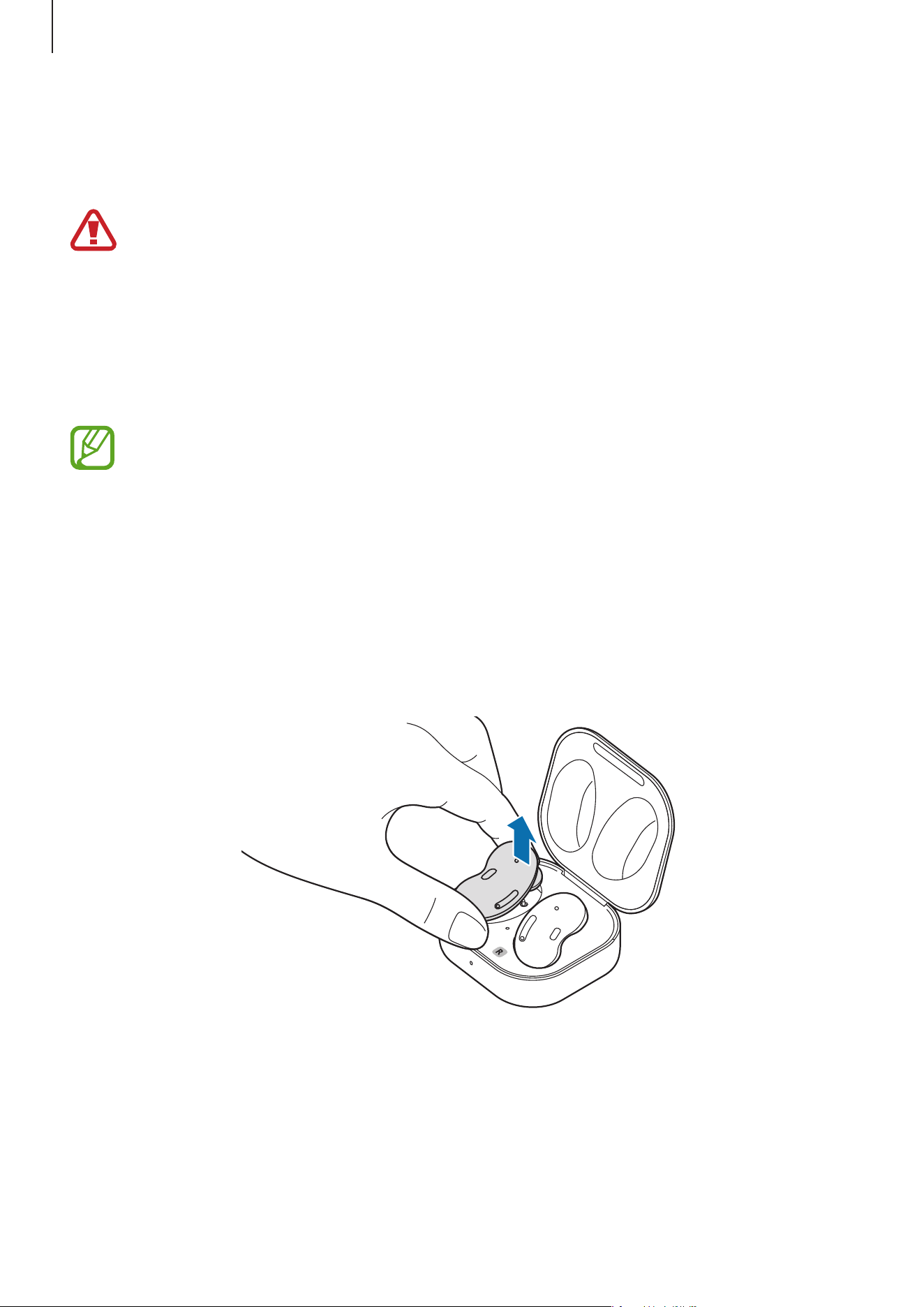
Attaching a wing tip to the earbud
1
Select the wing tip that fits your ear.
2
Select the wing tip for the left or right ear by checking for the L or R mark on the wing
tips.

Basics
7
3
Find the L or R mark on the bottom of wing tip’s back side, and ensure that it is facing the
earbud. Hook the wing tip into the fixation hook.
•
Do not put the earbuds in your ears without wing tips. Doing so may hurt your
ears.
•
Do not pull the wing tip excessively when you attach or detach it. The wing tip may
tear.
Do not put the wing tips on the earbuds in the wrong direction. The earbuds will not
fit in your ears properly.
4
Cover the rest of earbud with the wing tip.
5
Follow the same procedure for the opposite earbud.
Battery
Charging the battery
Fully charge the battery before using the earbuds for the first time or when they have been
unused for extended periods. The earbuds will power on while charging. When you charge
the battery for the first time or when the battery is completely discharged, it needs at least
10 minutes to start to work.
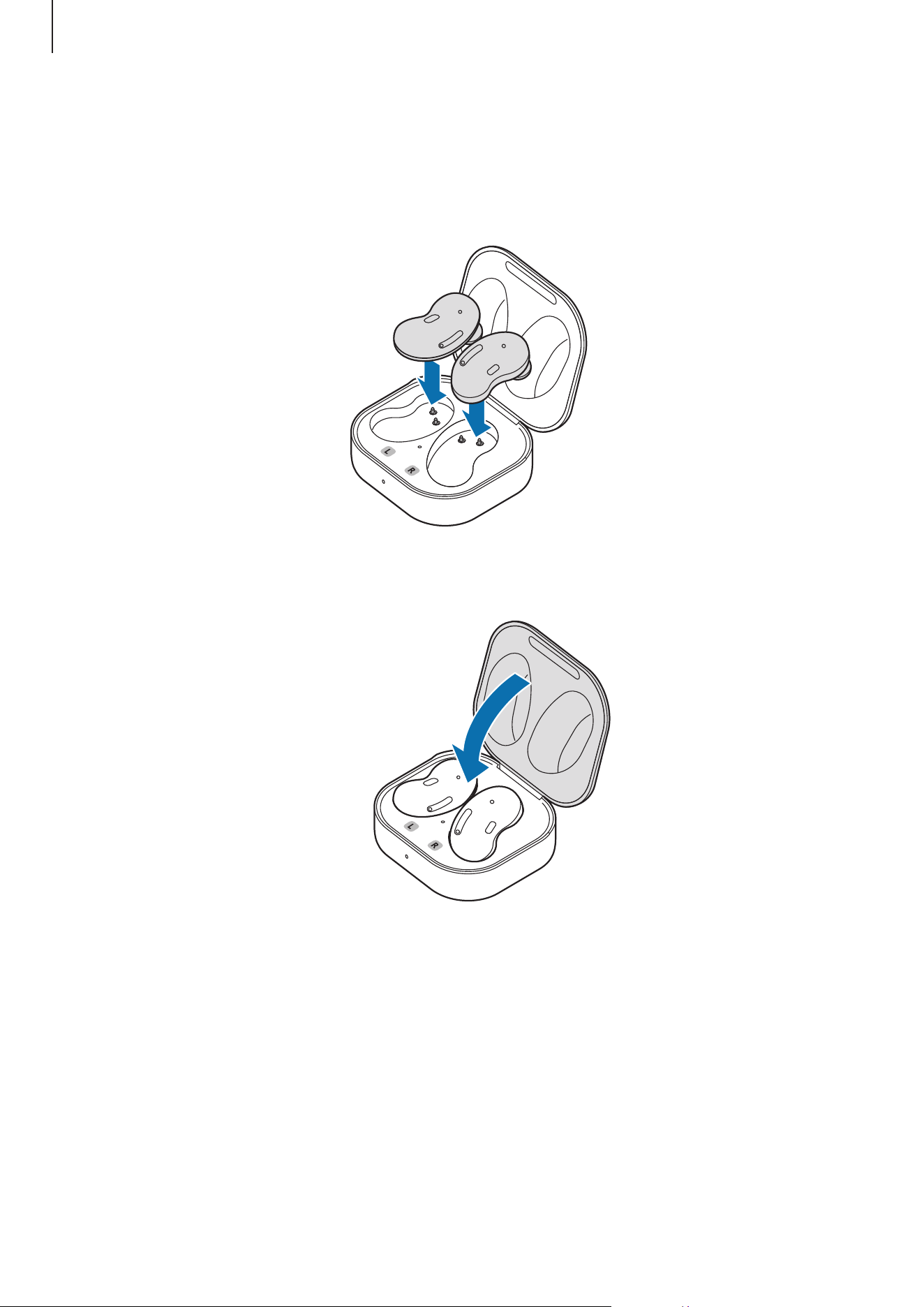
Check the direction of each earbud, insert them into the corresponding slots, and then
connect the charger.
Basics
8
The charging case, which has a built-in battery, is charged along with the earbuds that are in
the charging case when connected to the charger.
Use only Samsung-approved battery, charger, and cable specifically designed for your
device. Incompatible battery, charger, and cable can cause serious injuries or damage
to your device.
•
Connecting the charger improperly may cause serious damage to the charging
case. Any damage caused by misuse is not covered by the warranty.
•
Use only USB Type-C cable supplied with the device. The charging case may be
damaged if you use Micro USB cable.
•
Chargers are sold separately.
•
To save energy, unplug the charger when not in use. The charger does not have a
power switch, so you must unplug the charger from the electric socket when not in
use to avoid wasting power.
•
You cannot use your earbuds’ wireless features while charging the earbuds’
batteries.
•
Keep the charging case closed while you store or charge the earbuds, or when you
charge the charging case.
•
If you touch the charging contacts while charging the charging case, it may affect
charging.
•
If there is sweat or liquid on the charging contacts, corrosion may occur on the
Galaxy Buds Live. When there is sweat or liquid on the charging contacts or
earbuds, clean them before inserting the earbuds in the charging case.
•
When you insert your earbuds in the charging case, the charging will start
automatically, and it will stop automatically if earbuds are fully charged.
•
It will likely not have a huge impact on the life of your Galaxy Buds Live even if you
do not remove your earbuds from the charging case after the earbuds are fully
charged.
•
If you will not be using your Galaxy Buds Live for a long time, store them after they
are charged.
•
Do not put the wing tips on the earbuds in the wrong direction. The earbuds will
not be charged if they are not properly inserted into the charging case.
Basics
9
1
Open the charging case.
2
Check the direction of each earbud and correctly insert them into their corresponding
slots in the charging case.
R
L
3
Close the charging case.
Basics
10
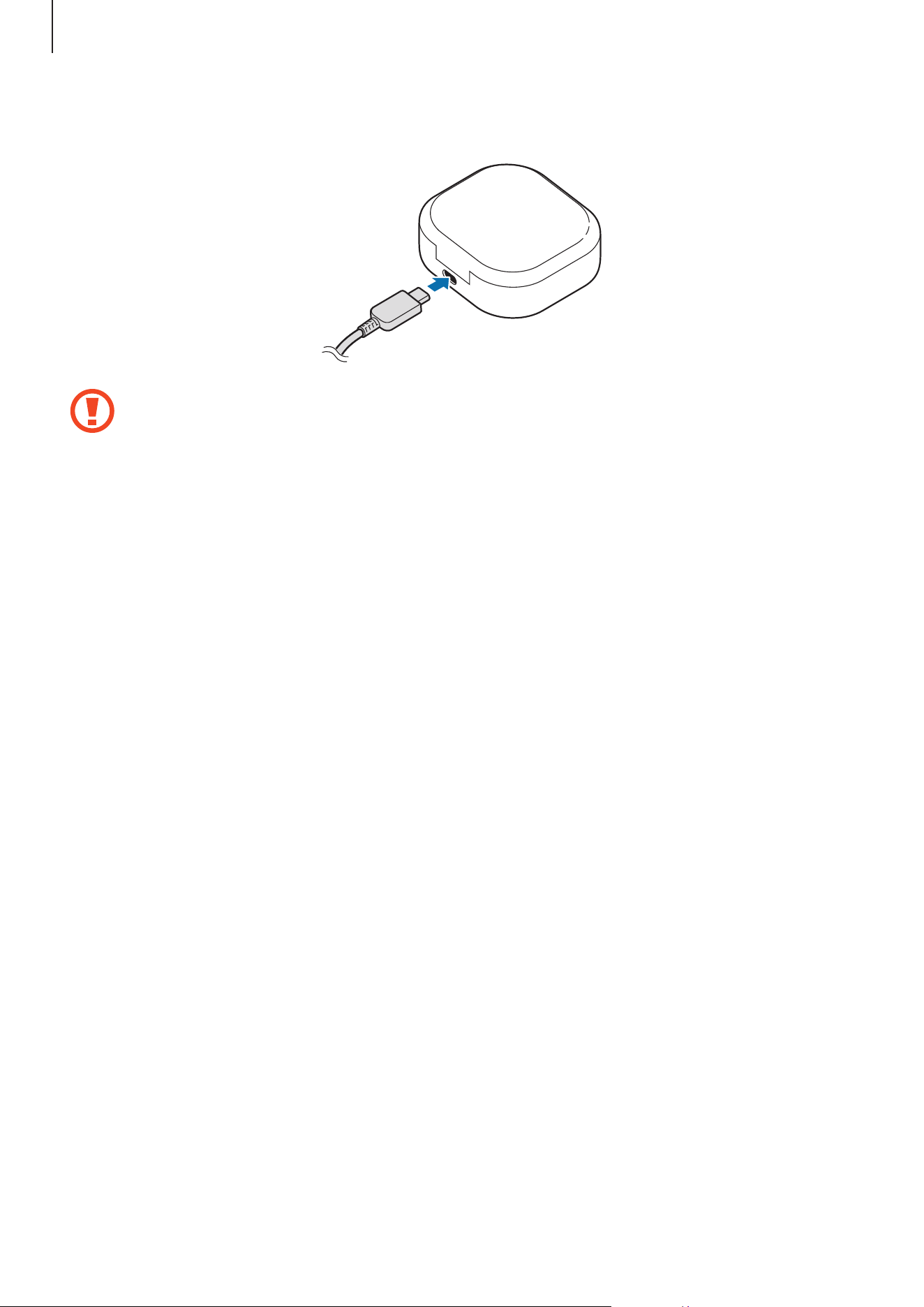
4
Connect the USB cable to the charger and then plug the USB cable into the charger port.
Connecting the USB cable improperly may cause serious damage to the charging
case. Any damage caused by misuse is not covered by the warranty.
5
Plug the charger into an electric socket.
The batteries of the earbuds and the charging case are charged simultaneously.
6
After fully charging, disconnect the charging case from the charger. First unplug the USB
cable from the charging case and then unplug the charger from the electric socket.
Reducing the battery consumption
When you are not using the earbuds, store them in the charged charging case. The
touch-sensitive sensor will continue to work while wearing the earbuds and reduce the usage
time.
Battery charging tips and precautions
•
If there is sweat or liquid on the charging contacts, corrosion may occur on the Galaxy
Buds Live. When there is sweat or liquid on the charging contacts or earbuds, clean them
before inserting the earbuds in the charging case.
•
Using a power source other than the charger, such as a computer, may result in a slower
charging speed due to a lower electric current.
•
While charging, the Galaxy Buds Live and the charger may heat up. This is normal and
should not affect the Galaxy Buds Live’s lifespan or performance. If the battery gets
hotter than usual, the charger may stop charging. If this occurs during wireless charging,
disconnect the Galaxy Buds Live from the charger to let them cool down, then charge the
Galaxy Buds Live again later.
Basics
11
•
If you charge the Galaxy Buds Live while the charger port is wet, the Galaxy Buds Live
may be damaged. Thoroughly dry the charger port before charging the Galaxy Buds Live.
•
If the Galaxy Buds Live are not charging properly, take the Galaxy Buds Live and the
charger to a Samsung Service Centre.
•
Avoid bending the USB cable. Doing so may damage or reduce the lifespan of the USB
cable. Never use a damaged USB cable.
Wireless charging
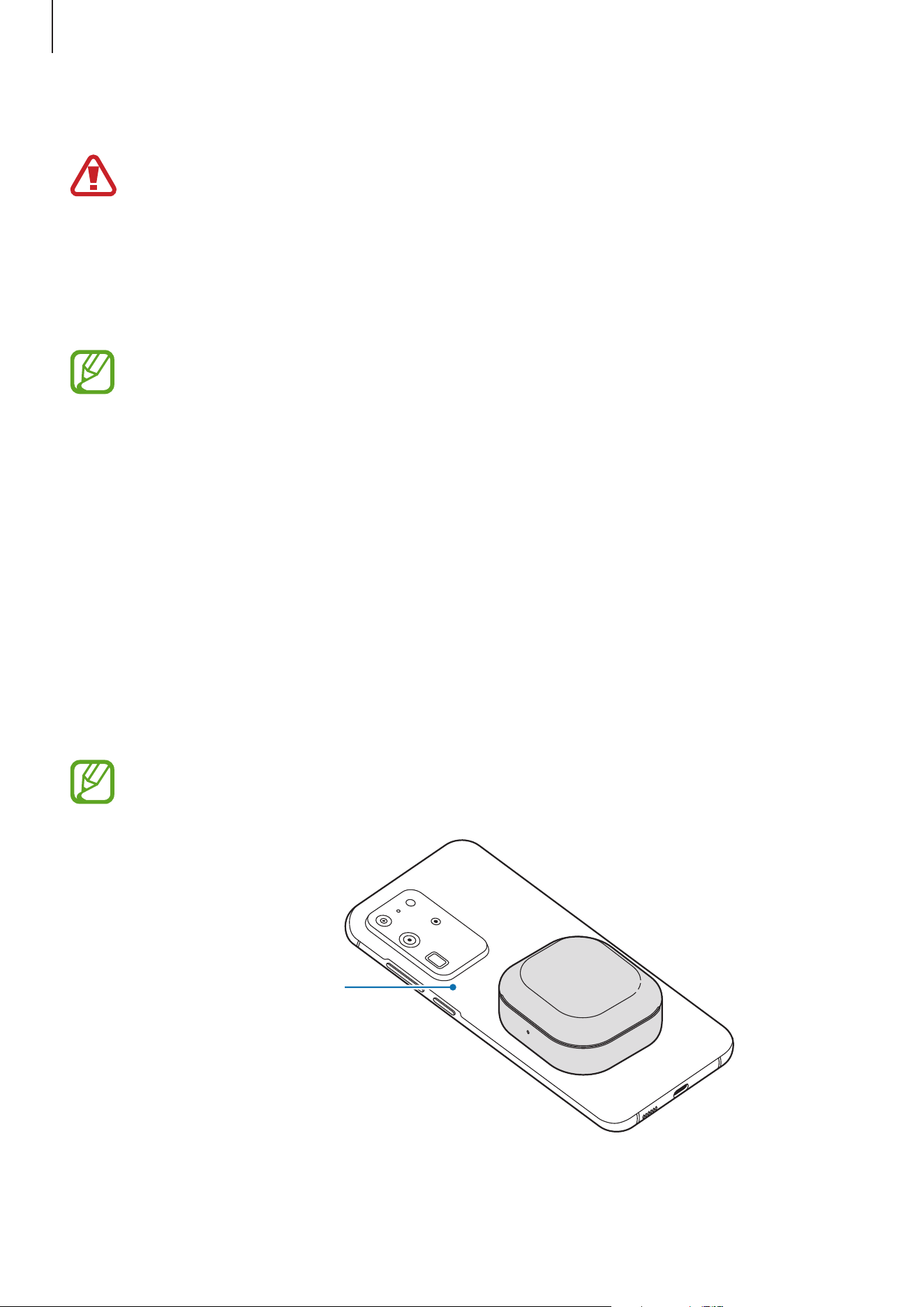
The charging case has a built-in wireless charging coil. You can charge the battery by using a
wireless charger or another device that functions as a wireless charger.
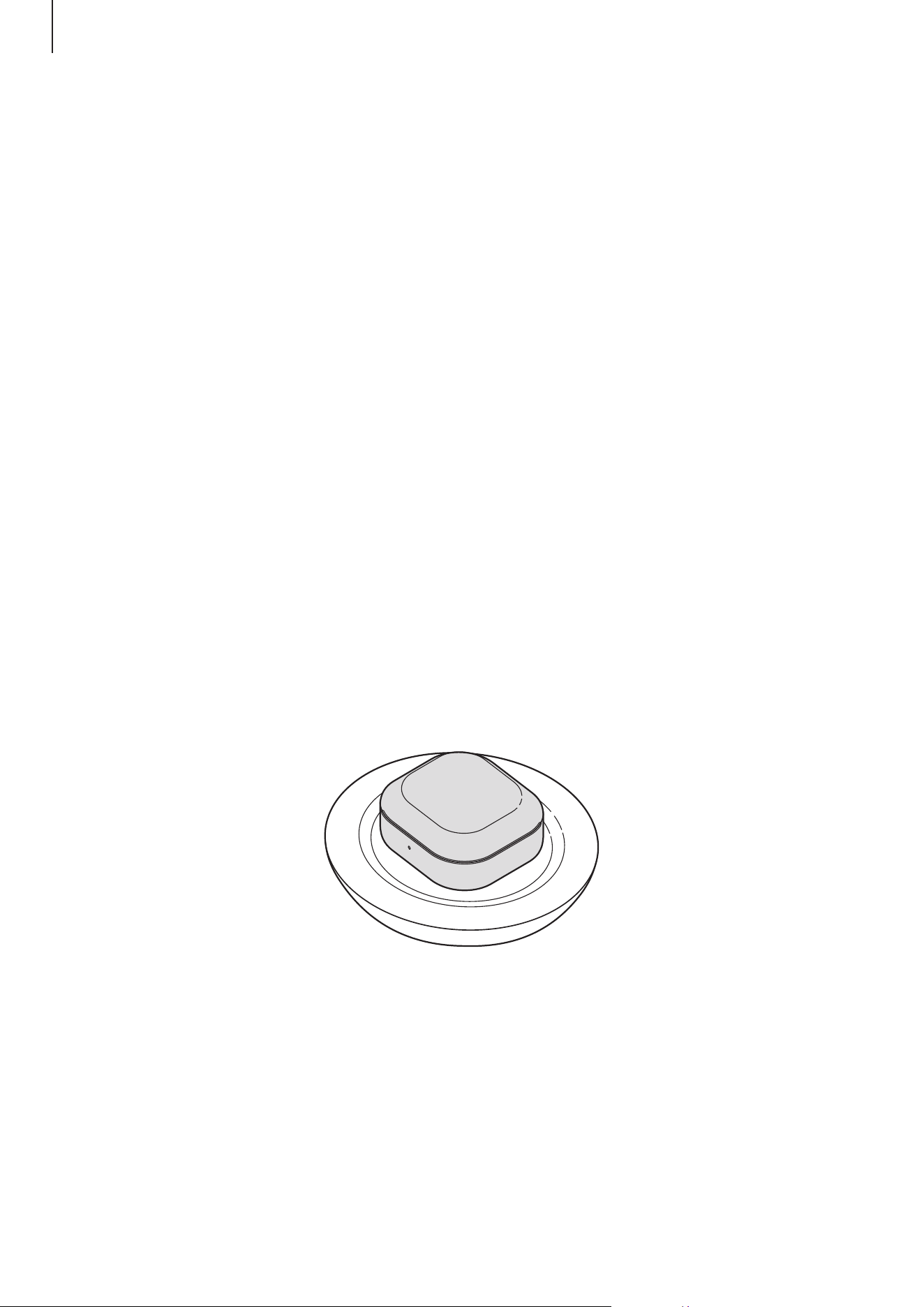
Charging the battery with a wireless charger
1
Open the charging case.
2
Check the direction of each earbud and correctly insert them into their corresponding
slots in the charging case.
3
Close the charging case.
4
Place the centre of the charging case’s back on the centre of the wireless charger.
Basics
12
5
After fully charging, disconnect the charging case from the wireless charger.
Precautions for wireless charging
Do not place the charging case on the wireless charger when conductive materials,
such as metal objects and magnets, are placed between the charging case and the
wireless charger.
The Galaxy Buds Live may not charge properly or may overheat, or the charging case
may be damaged.
Use Samsung-approved wireless chargers. If you use other wireless chargers, the
battery may not charge properly.
Charging the battery using Wireless PowerShare
1
Open the charging case.
2
Check the direction of each earbud and correctly insert them into their corresponding
slots in the charging case.
3
Close the charging case.
4
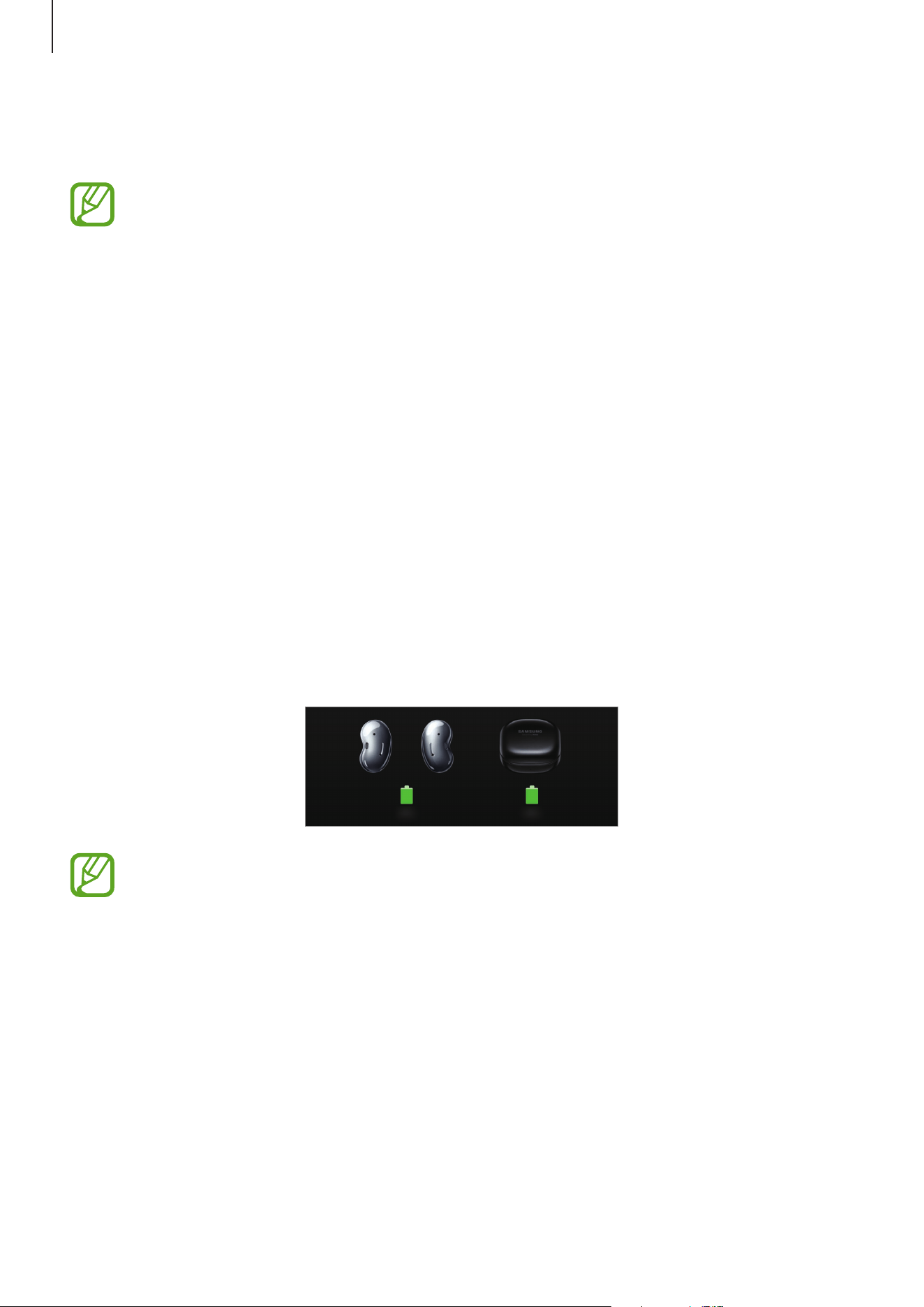
Place the centre of the charging case’s back on the device that functions as a wireless
charger.
The location of the wireless charging coil may vary by device. Adjust the device and
the charging case to make a strong connection.
The device that
functions as a wireless
charger
Basics
13
5
After fully charging, disconnect the charging case from the device that functions as a
wireless charger.
•
To charge properly, do not move or use either the device that functions as a
wireless charger or the charging case while charging.
•
The power charged to the Galaxy Buds Live may be less than the amount shared to
them by the device that functions as a wireless charger.
•
If you charge the Galaxy Buds Live while charging the device that functions as a
wireless charger, the charging speed may decrease or the Galaxy Buds Live may
not charge properly, depending on the charger type.
•
The charging speed or efficiency may vary depending on the device’s condition or
the surrounding environment.
•
If the remaining battery power of the device that functions as a wireless charger
drops below a certain level, power sharing will stop.
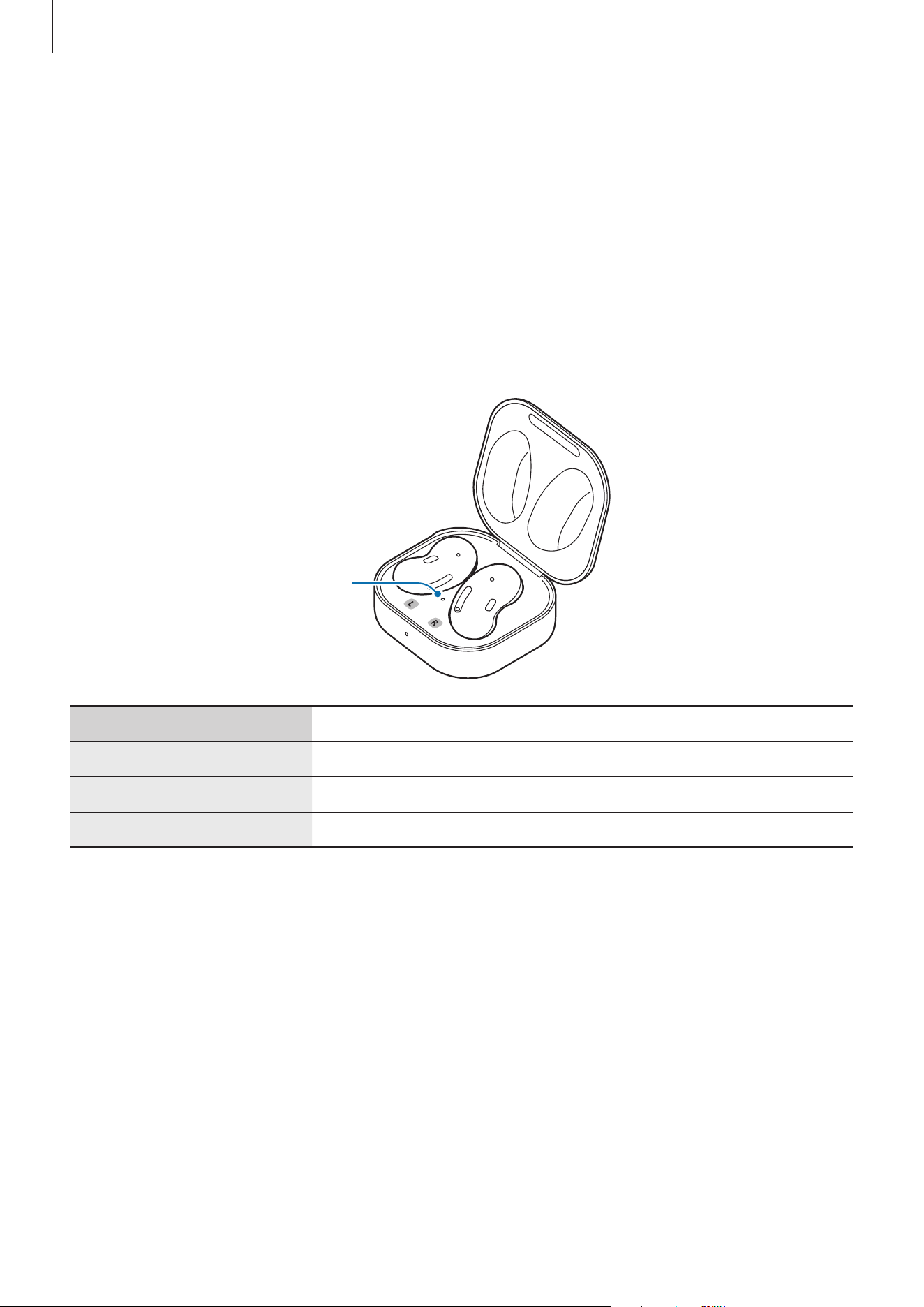
Checking the battery level
Connect the earbuds to your mobile device, launch the
Galaxy Wearable
app on your
mobile device, and view the battery status of each earbud and the charging case. Refer to
Connecting the earbuds to a mobile device for more information.
When the remaining battery level is low, a notification will appear on the mobile
device’s notification panel.
Basics
14
Battery indicator lights identification
The battery indicator lights inform you of your earbuds and the charging case’s charging
status.
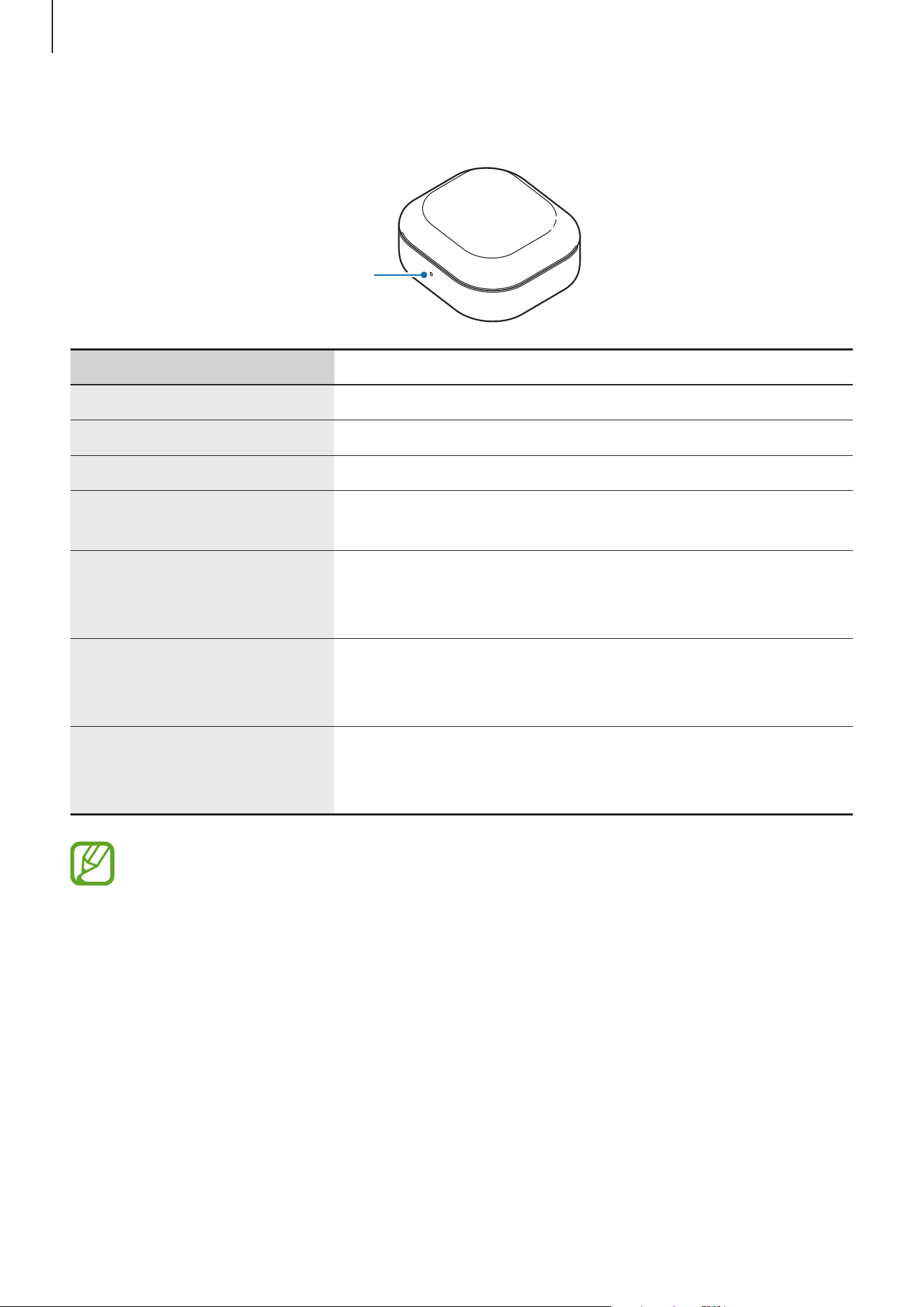
The earbud battery indicator light is located inside of the charging case and shows the
charging status of the earbuds. The charging case battery indicator light on the front of the
charging case indicates the charging status of the case itself.
Earbud battery indicator light
Earbud battery indicator
light
Colour Status
Continuously red
•
Charging
Continuously green
•
Fully charged
Flashes red
•
Charging blocked due to abnormal temperatures
Basics
15
Charging case battery indicator light
Charging case battery
indicator light
Colour Status
Continuously red
•
Charging
Continuously green
•
Fully charged
Flashes red (rapid pace)
•
Charging blocked due to abnormal temperatures
Flashes red (flashes after
closing the charging case)
•
Battery power is low (lower than 10 %)
Red (stays on for five seconds
after closing the charging
case)
•
Battery power is low (between 10 % and 29 %)
Yellow (stays on for five
seconds after closing the
charging case)
•
Battery power is moderate (between 30 % and 59 %)
Green (stays on for five
seconds after closing the
charging case)
•
Battery power is high (more than 60 %)
•
The charging case battery indicator light flashes red when the external power is cut
off during charging.
•
If the battery indicator lights do not work as described, disconnect the charger
from the charging case and reconnect it.
•
The charging case battery indicator light will turn on only after inserting the
earbuds into the charging case and closing it.

16
Using the earbuds
Connecting the earbuds to a mobile device
Connecting the earbuds to a Samsung mobile device for the
first time
1
Check the direction of each earbud and correctly insert them into their corresponding
slots in the charging case.
If the earbud battery indicator light does not flash, connect the charging case to the
charger and charge them for more than 10 minutes.
2
Close the charging case.
3
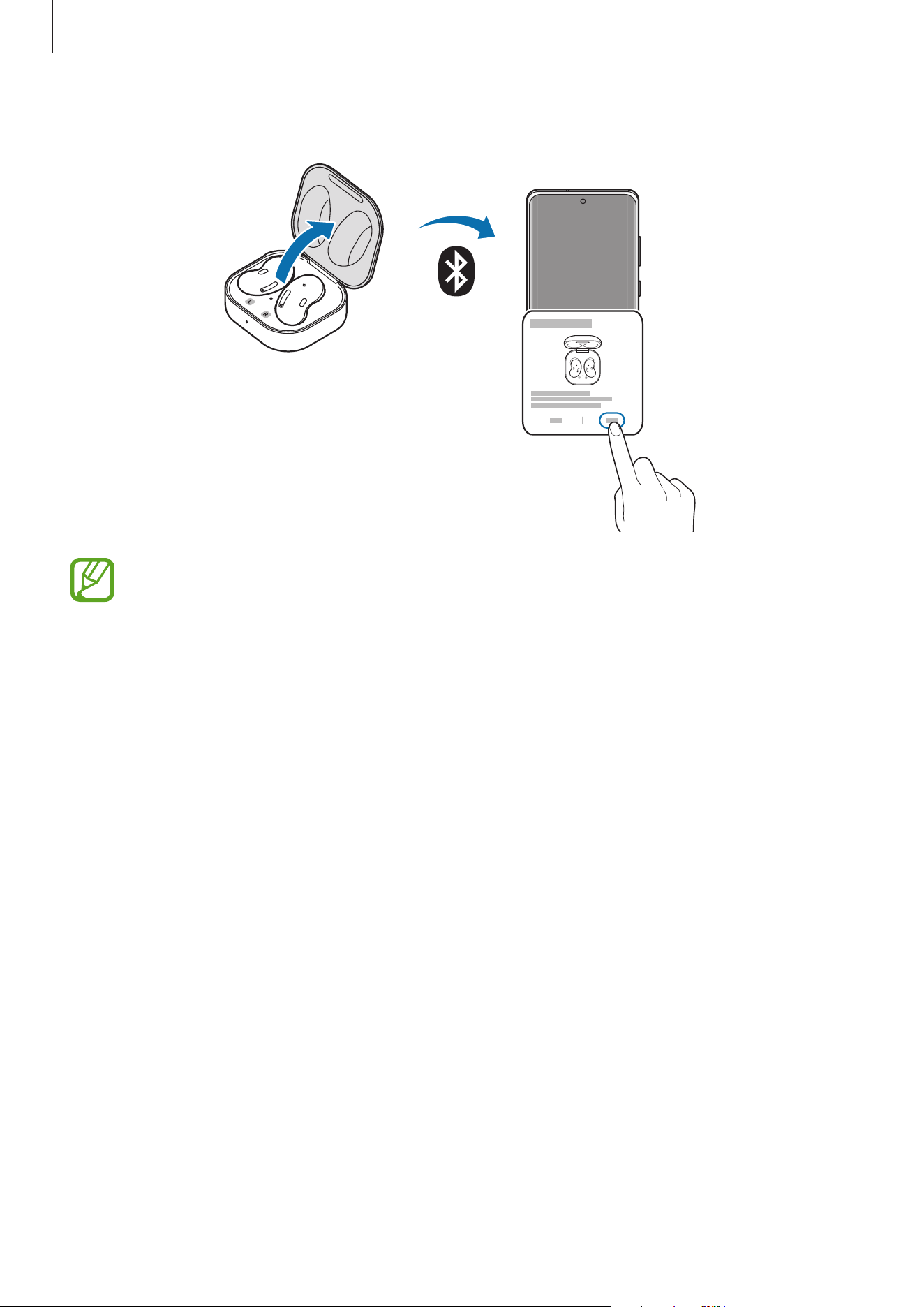
Open the charging case.
The earbuds will enter Bluetooth pairing mode automatically and a pop-up window will
appear on your mobile device.
If the pop-up window does not appear or if you want to connect to a non-Samsung
mobile device that also uses the Android OS, refer to Connecting to a non-Samsung
mobile device that also uses the Android OS (or, the connection pop-up window does
not appear).
When the charging case battery indicator light flashes in red, take out the earbuds
from the charging case and insert them into the case again.
Using the earbuds
17
4
On your mobile device, tap
Connect
on the pop-up window.
•
The connection pop-up window will appear only on Samsung mobile devices
running Android 7.1.1 or later that have the SmartThings app installed. If the
pop-up window does not appear, update the SmartThings app to the latest
version.
•
The appearance of the pop-up window may vary depending on your connected
mobile device.
5
Follow the on-screen instructions to complete the connection.
Once the earbuds are connected to your mobile device, they will automatically attempt
to connect to your mobile device whenever you open the charging case while the
earbuds are inside it.
Using the earbuds
18
•
If the earbuds do not connect to a mobile device within three minutes, Bluetooth
pairing mode will be deactivated. Close the charging case again and open it. The
earbuds will enter Bluetooth pairing mode.
•
If you want to connect to another mobile device after a connection has been
established, refer to Connecting with other devices after disconnecting from the
previous mobile device.
•
When connecting earbuds with a mobile device that has been signed in to a
Samsung account, the earbuds pairing information will be synced on the other
mobile devices that use the same Samsung account and you do not need to pair
them at the beginning again. To connect the other devices that use the same
Samsung account with the earbuds, on the mobile devices that you want to
connect, tap
Settings
→
Connections
→
Bluetooth
, and then select the earbuds
synced through the Samsung account.
•
If only a single earbud is connected to your mobile device, you will hear the sound
in mono. It will automatically switch to stereo mode when both earbuds are
connected to your mobile device.
•
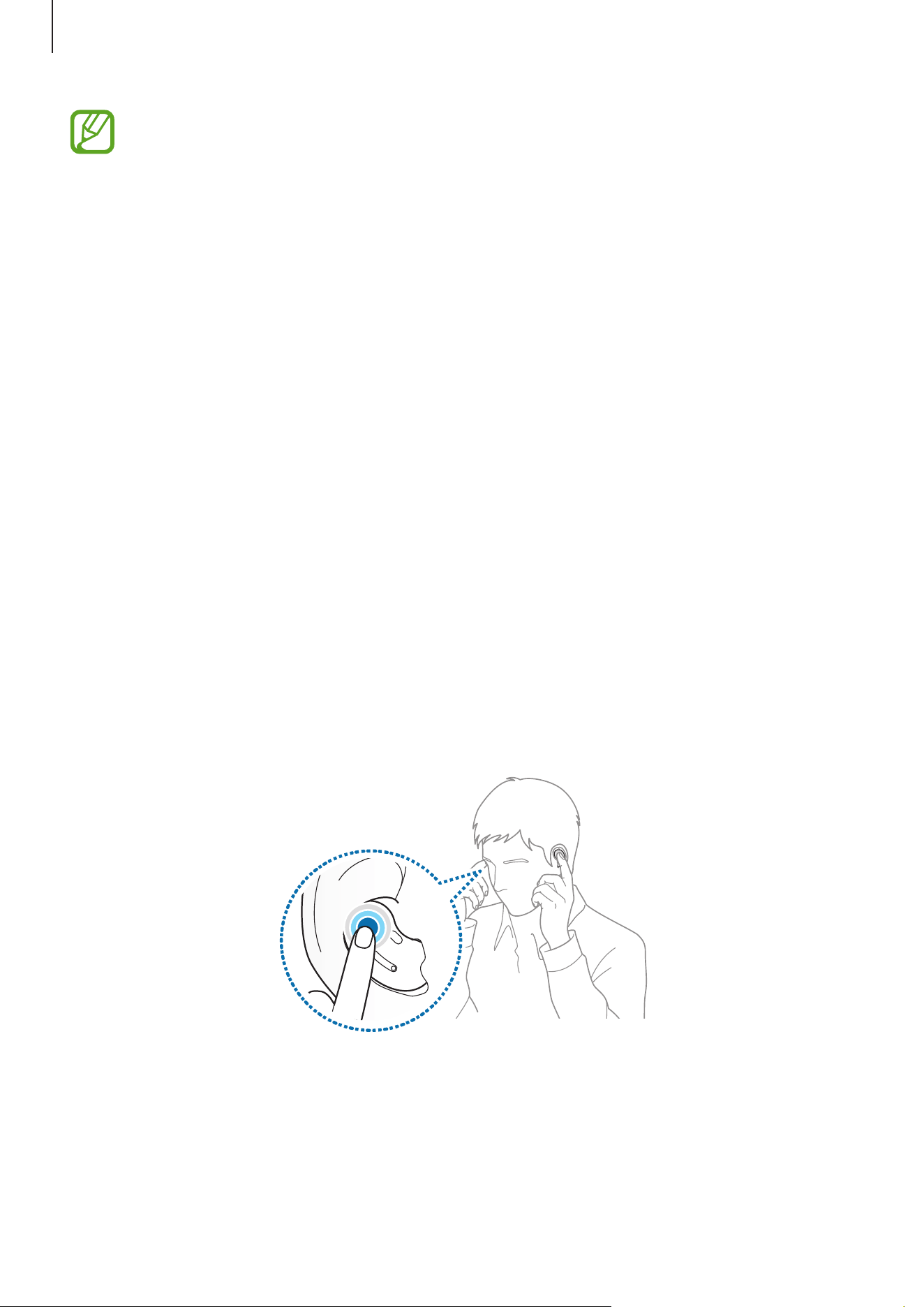
If the earbuds do not connect to a mobile device, the connection pop-up window
does not appear, or your mobile device cannot find the earbuds, touch and hold
both earbuds while wearing them to enter Bluetooth pairing mode manually.
When Bluetooth pairing mode is entered, you will hear a sound. However, you
cannot use this method when you are playing music after setting the volume
adjustment as a preset touch-and-hold feature.

Using the earbuds
19
Connecting to a non-Samsung mobile device that also uses
the Android OS (or, the connection pop-up window does not
appear)
1
On your mobile device, launch
Galaxy Store
or
Play Store
and download the Galaxy
Wearable app.
•
You can download the Galaxy Wearable app only on mobile devices running
Android operating system 5.0 (API 21), or later, and with 1.5 GB of RAM or more.
•
You can change the language of the Galaxy Wearable app on your connected
mobile device. On your mobile device, launch
Settings
→
General management
→
Language and input
→
Language
. English may appear by default if the
selected language on the Settings screen is not supported on the Galaxy Wearable
app.
•
When connecting to an iOS mobile device, launch the
App Store
app and install
the Samsung Galaxy Buds app to connect your earbuds to your device. You can
only download the Samsung Galaxy Buds app on mobile devices supporting
iPhone 7 or later and the iOS10 version or higher. Some features may not be
available.
2
Check the direction of each earbud and correctly insert them into their corresponding
slots in the charging case.
If the earbud battery indicator light does not flash, connect the charging case to the
charger and charge them for more than 10 minutes.
3
Close the charging case.
4
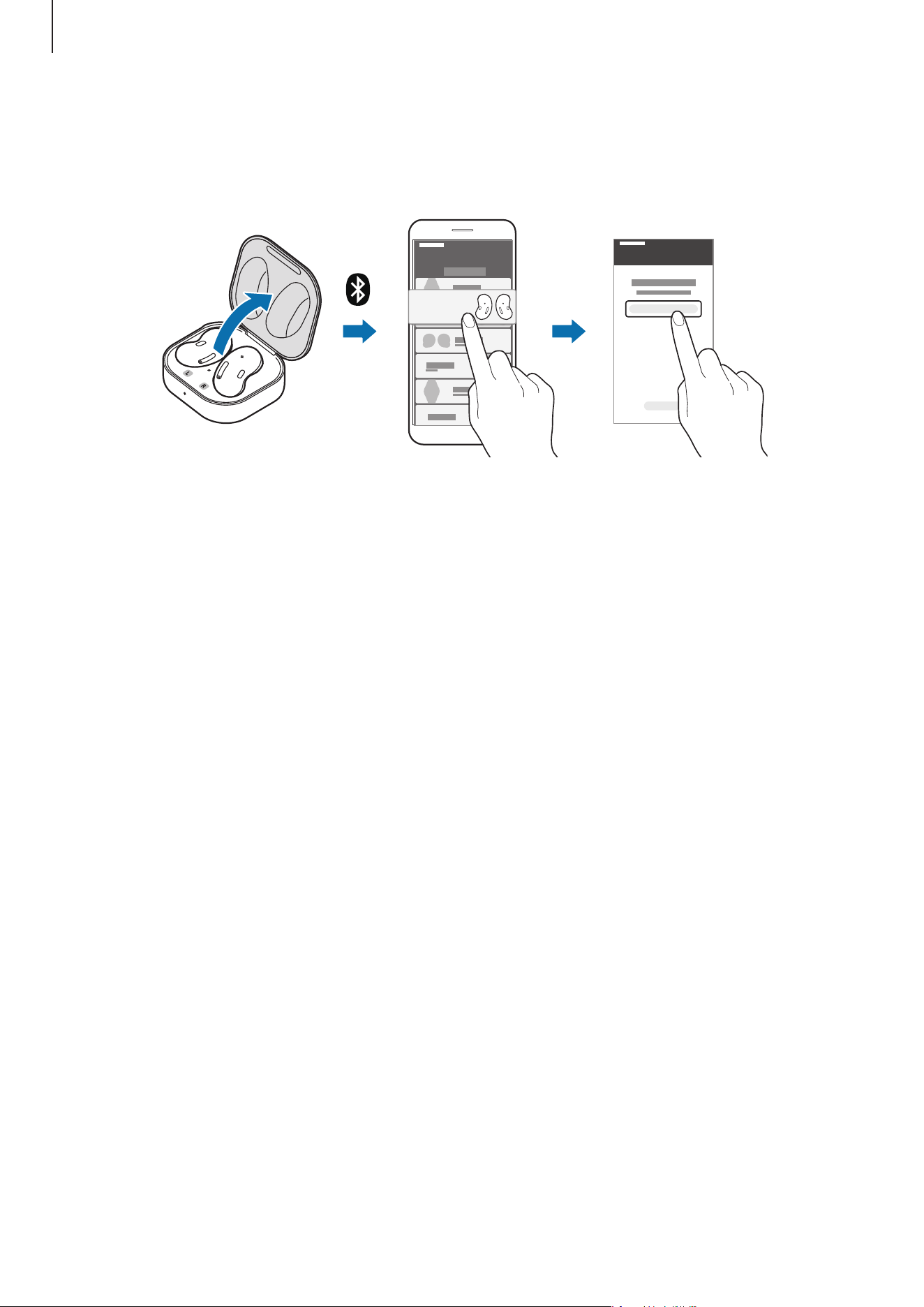
Open the charging case.
The earbuds will enter Bluetooth pairing mode automatically.
Using the earbuds
20
5
On your mobile device, activate the Bluetooth feature to connect the earbuds to
your mobile device, launch the
Galaxy Wearable
app, and then follow the on-screen
instructions to complete the connection.
Galaxy Buds Live (XXXX)
Galaxy Buds Live
Tips and precautions when connecting to the mobile device
•
If the earbuds do not connect to a mobile device within three minutes, Bluetooth pairing
mode will be deactivated. Close the charging case again and open it. The earbuds will
enter Bluetooth pairing mode.
•
If you want to connect to another mobile device after a connection has been established,
refer to Connecting with other devices after disconnecting from the previous mobile
device.
•
If the earbuds do not connect to a mobile device, the connection pop-up window does
not appear, or your mobile device cannot find the earbuds, touch and hold both earbuds
while wearing them to enter Bluetooth pairing mode manually. When Bluetooth pairing
mode is entered, you will hear a sound. However, you cannot use this method when
you are playing music after setting the volume adjustment as a preset touch-and-hold
feature.
•
Connection methods may vary depending on your device and software version.
•
You can download the Galaxy Wearable app only on mobile devices running Android
operating system 5.0 (API 21), or later, and with 1.5 GB of RAM or more.

Using the earbuds
21
Tips and precautions for using Bluetooth
Bluetooth is a wireless technology standard that uses a 2.4 GHz frequency to connect to
various devices over short distances. It can connect and exchange data with other Bluetooth
enabled devices, such as mobile devices, without connecting via cables.
Notices for using Bluetooth
•
To avoid problems when connecting your earbuds to another device, place the
devices close to each other.
•
Ensure that your earbuds and the other Bluetooth device are within the Bluetooth
connection range (10 m). The distance may vary depending on the environment
the devices are used in.
•
Ensure that there are no obstacles between the earbuds and a connected device,
including human bodies, walls, corners, or fences.
•
Do not touch the Bluetooth antenna of a connected device.
•
Bluetooth uses the same frequency as some industrial, scientific, medical, and low
power products and interference may occur when making connections near these
types of products.
•
Some devices, especially those that are not tested or approved by the Bluetooth
SIG, may be incompatible with the earbuds.
•
Do not use the Bluetooth feature for illegal purposes (for example, pirating copies
of files or illegally tapping communications for commercial purposes).
Using the earbuds
22
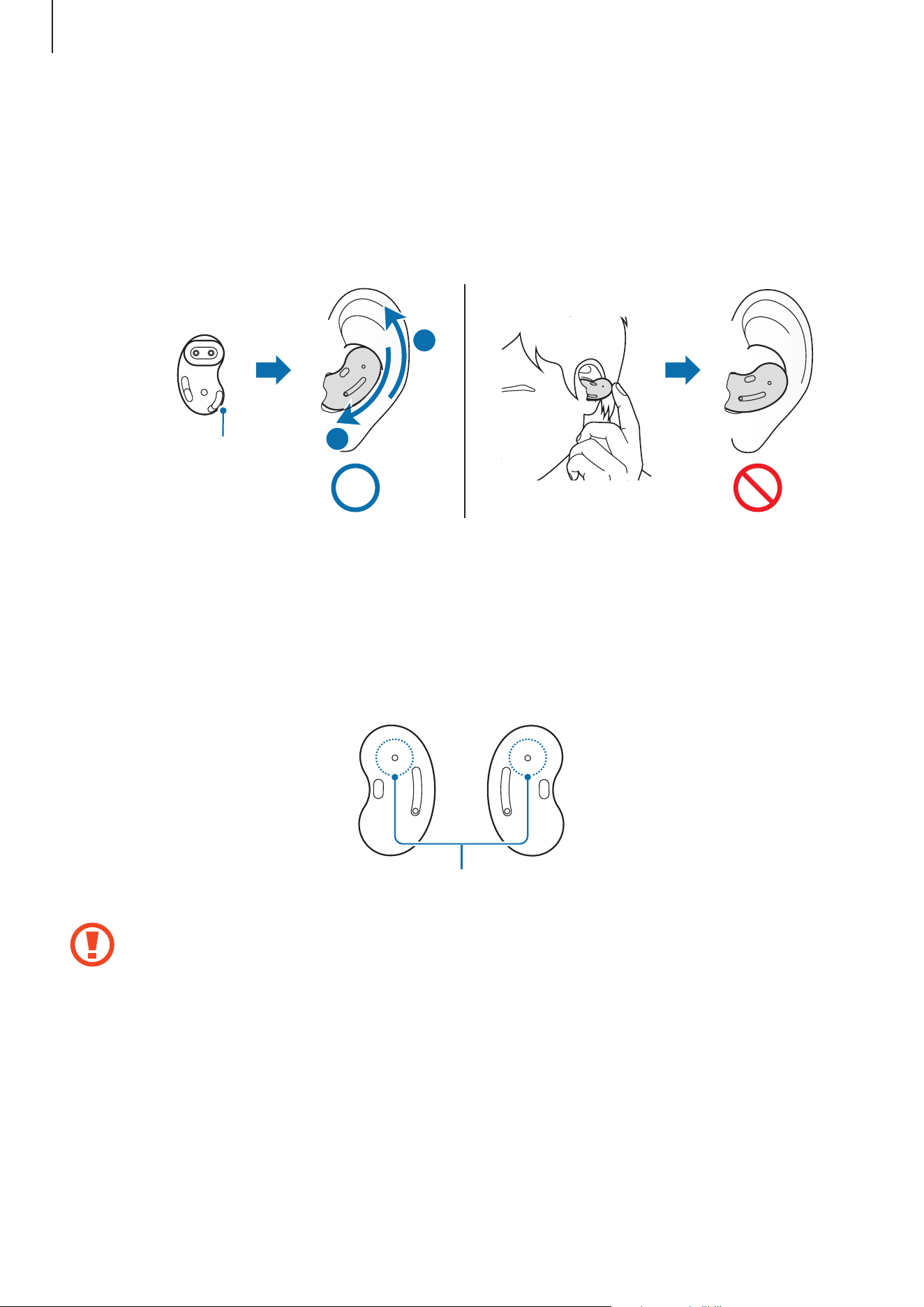
Wearing the earbuds
Adjust the earbuds to fit your ears.
•
Your device contains magnets, which may affect medical devices, such as
pacemakers or implantable cardioverter defibrillators. If you are using any of these
medical devices, keep your device a safe distance from them and consult with your
physician before you use the device.
•
Keep a safe distance between your device and objects that are affected by
magnets. Objects such as credit cards, passbooks, access cards, boarding passes, or
parking passes may be damaged or disabled by the magnets in the device.
•
If the touch-sensitive sensor does not make contact with your ear, the earbud may
not work. Use the wing tips that fit your ears if you do not hear a sound informing
you that the earbud is detected.
•
If the earbuds are not positioned correctly in your ears, they may not work. If this is
the case, use a pair of wing tips that fit your ears and wear the earbuds properly.
•
Follow all posted warnings and directions from authorised personnel in areas
where the use of wireless devices is restricted, such as aeroplanes and hospitals.
1
Hold the upper and lower sides of each earbud and remove them from the charging case.
2
Check the direction of each earbud and point their lower halves (speaker) in the direction
of the lower part of your ear.
Using the earbuds
23
3
Place the lower and upper halves into the corresponding parts of your ears, and then
adjust the earbuds so they fit.
The touch-sensitive sensor will automatically detect that you are wearing the earbuds
when you put them on. Then, the earbud will emit a sound informing you that the
earbud is detected.
Speaker
L
1
2
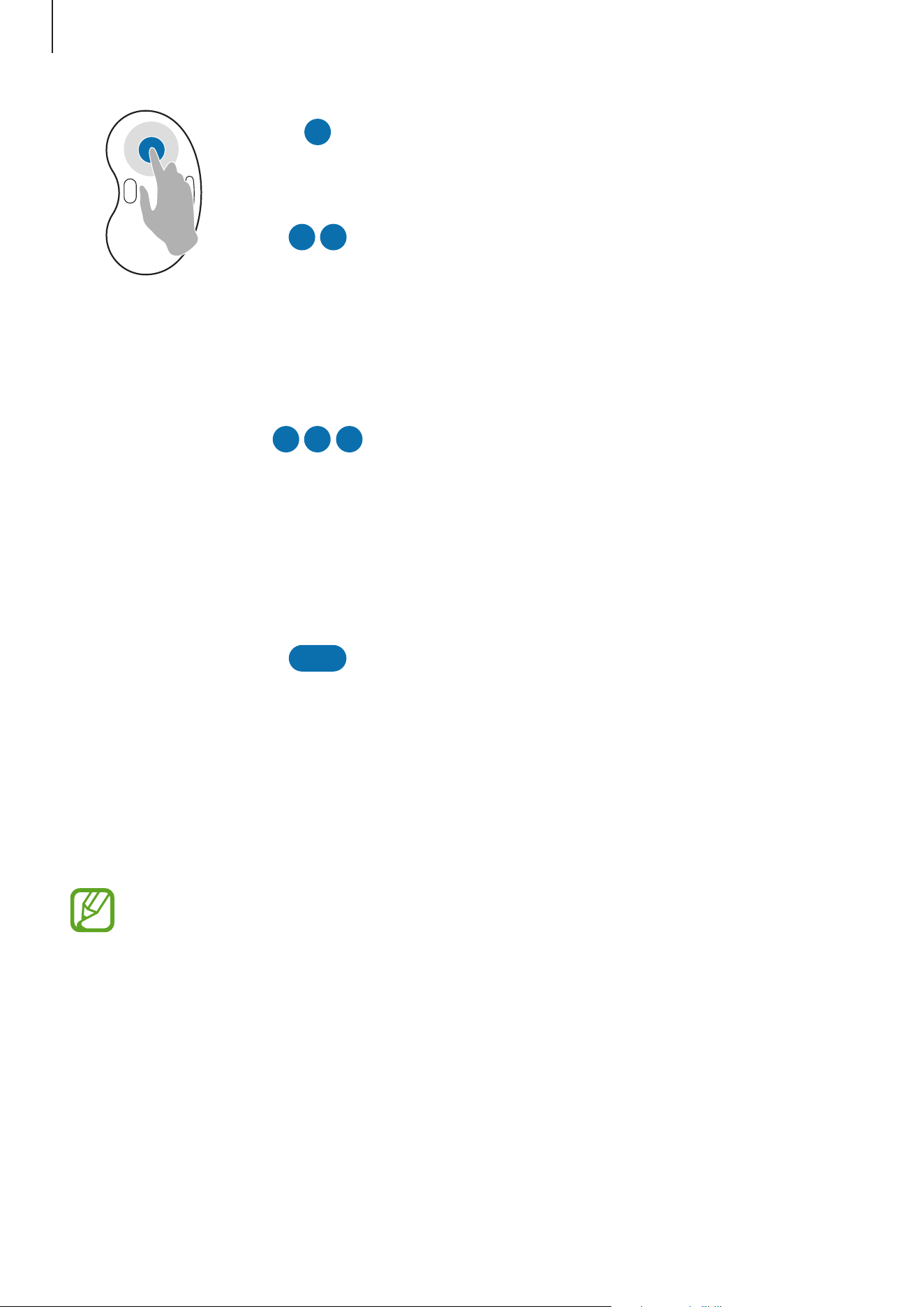
Using the earbud by touch
Touch the earbud to play or stop music or answer or reject calls. You can also set the earbuds
to perform other actions by touch.
Touch area
•
To avoid hurting your ears, do not apply excessive pressure to the earbuds with
your fingertips.
•
To avoid damaging the touch areas, do not touch the earbuds with anything sharp.
Using the earbuds
24
Single touch
•
Play or pause track.
•
Stop using the Text-to-Speech feature.
Double touch
•
Play next track.
•
Answer or end a call.
•
Place the current call on hold and answer the
second call.
•
Switch between the current call and the held call.
Triple touch
•
Play previous track.
–
If you touch the earbud three times three
seconds after a track begins playing, it will start
the track from beginning. Touch the earbud
three times within three seconds of when a
track begins playing to play the previous track.
Touch and hold
•
Activate a preset feature.
–
It is set by default to launch active noise
cancelling. Refer to Setting a preset touch-and-
hold feature for more information about
changing preset menus.
•
Decline a call.
If the earbuds do not connect to a mobile device, the connection pop-up window
does not appear, or your mobile device cannot find the earbuds, touch and hold
both earbuds while wearing them to enter Bluetooth pairing mode manually. When
Bluetooth pairing mode is entered, you will hear a sound. However, you cannot use
this method when you are playing music after setting the volume adjustment as a
preset touch-and-hold feature.

Using the earbuds
25
Locking the earbuds’ touch feature
You can prevent unintended actions by locking the earbuds’ touch feature.
1
Launch the
Galaxy Wearable
app on the mobile device.
2
Tap
Touch controls
.
3
Tap the
Block touches
switch to activate it.
Setting a preset touch-and-hold feature
You can select a preset touch-and-hold feature of each earbud to activate features quickly
and conveniently.
1
Launch the
Galaxy Wearable
app on the mobile device.
2
Tap
Touch controls
.
3
Tap
Left
or
Right
under
Touch and hold
.
4
Select a feature that you want to use as a preset touch-and-hold feature.
•
Active noise cancelling
: Activate or deactivate the active noise cancelling feature
which blocks out the external sounds around you. Refer to Using the active noise
cancelling feature for more information.
•
Voice command
(
Bixby
): Start a conversation with an intelligent voice assistant
service. When using Bixby, refer to Using Bixby for more information.
•
Volume down
/
Volume up
: Adjust the volume.
•
If you select the volume adjustment feature as one side’s preset touch-and-hold
feature, the other side’s preset touch-and-hold feature is also automatically set to
the volume adjustment feature.
•
When the volume adjustment feature has been already selected and you try
to change the one side’s preset touch-and-hold feature, the other side’s preset
touch-and-hold feature is automatically set to launch the active noise cancelling
feature.

Using the earbuds
26
Using the active noise cancelling feature
Activate the active noise cancelling feature to block out the external sounds around you. Use
it when you want to avoid distractions, such as when listening to music.
To launch the feature with the earbuds, make sure that the preset touch-and-hold feature is
set to active noise cancelling and then touch and hold the earbud.
If the microphone and its area (the outer microphone while wearing the earbuds) are
covered completely, feedback may occur when launching the active noise cancelling
feature.
Using Bixby
Introduction
Bixby is a user interface that helps you use your device more conveniently.
You can talk to Bixby. Bixby will launch a function you request or show the information you
want on the connected mobile device.
•
This feature is available only when a mobile device that supports Bixby is
connected.
•
Only some languages are available depending on Bixby set on your mobile device.
Certain features may not be available depending on your region.
•
When you select the volume adjustment feature as one side’s preset touch-and-
hold feature, the other side’s preset touch-and-hold feature is also automatically set
to the volume adjustment feature, and you cannot launch Bixby. Refer to Setting a
preset touch-and-hold feature for more information about changing preset menus.
Using Bixby
1
Make sure you set a preset touch-and-hold feature for launching Bixby and touch and
hold the earbud. Alternatively, say “Hi, Bixby”.
Bixby will be launched on your connected mobile device.

Using the earbuds
27
2
Say what you want to Bixby.
Bixby will launch the function you request or show the information you want on the
connected mobile device when it recognises what you say through the Galaxy Buds Live.
To repeat what you said before or to say something new, touch and hold the earbud.
Waking up Bixby using your voice
You can start a conversation with Bixby by saying “Hi, Bixby” while wearing the earbuds.
1
Launch the
Galaxy Wearable
app on the mobile device and tap
Advanced
.
2
Tap the
Bixby voice wake-up
switch to activate it.
When you activate this feature on your Galaxy Buds Live, the Bixby voice wake-up
feature on your connected mobile device will also be activated automatically.
Tips for better voice recognition
•
Speak clearly.
•
Speak in quiet places.
•
Do not use offensive or slang words.
•
Avoid speaking in dialectal accents.
The Galaxy Buds Live may not recognise what you say or may perform unwanted commands
depending on your surroundings or how you speak.
Listening to music
Listen to music saved in your mobile device by connecting the earbuds to the mobile device.
You can stream music played from the connected mobile device.
On your mobile device, launch a music player app and play music.
You can listen to music through your earbuds.
Playing or pausing the track
Touch the earbud to play and pause the track.

Using the earbuds
28
Playing the next track
Double touch the earbud to play the next track during playback.
Playing the previous track
Touch the earbud three times to play the previous track during playback.
If you touch the earbud three times three seconds after a track begins playing, it will
start the track from beginning. Touch the earbud three times within three seconds of
when a track begins playing to play the previous track.
Adjusting the volume
You can adjust the volume by touching and holding the earbud after setting it as a preset
touch-and-hold feature.
1
Launch the
Galaxy Wearable
app on the mobile device and tap
Touch controls
.
2
Tap
Left
or
Right
under
Touch and hold
and select
Volume down
or
Volume up
.
If you select the volume adjustment feature as one side’s preset touch-and-hold
feature, the other side’s preset touch-and-hold feature is also automatically set to the
volume adjustment feature.
3
Touch and hold the right earbud and release your finger when you reach the desired
volume to increase the volume.
Touch and hold the left earbud and release your finger when you reach the desired
volume to decrease the volume.
•
Adjust the volume via your connected mobile device if a sound is low in your
earbuds while at full volume.
•
If you connect the earbuds to your mobile device while listening to music, the
volume may change.
Using the earbuds
29
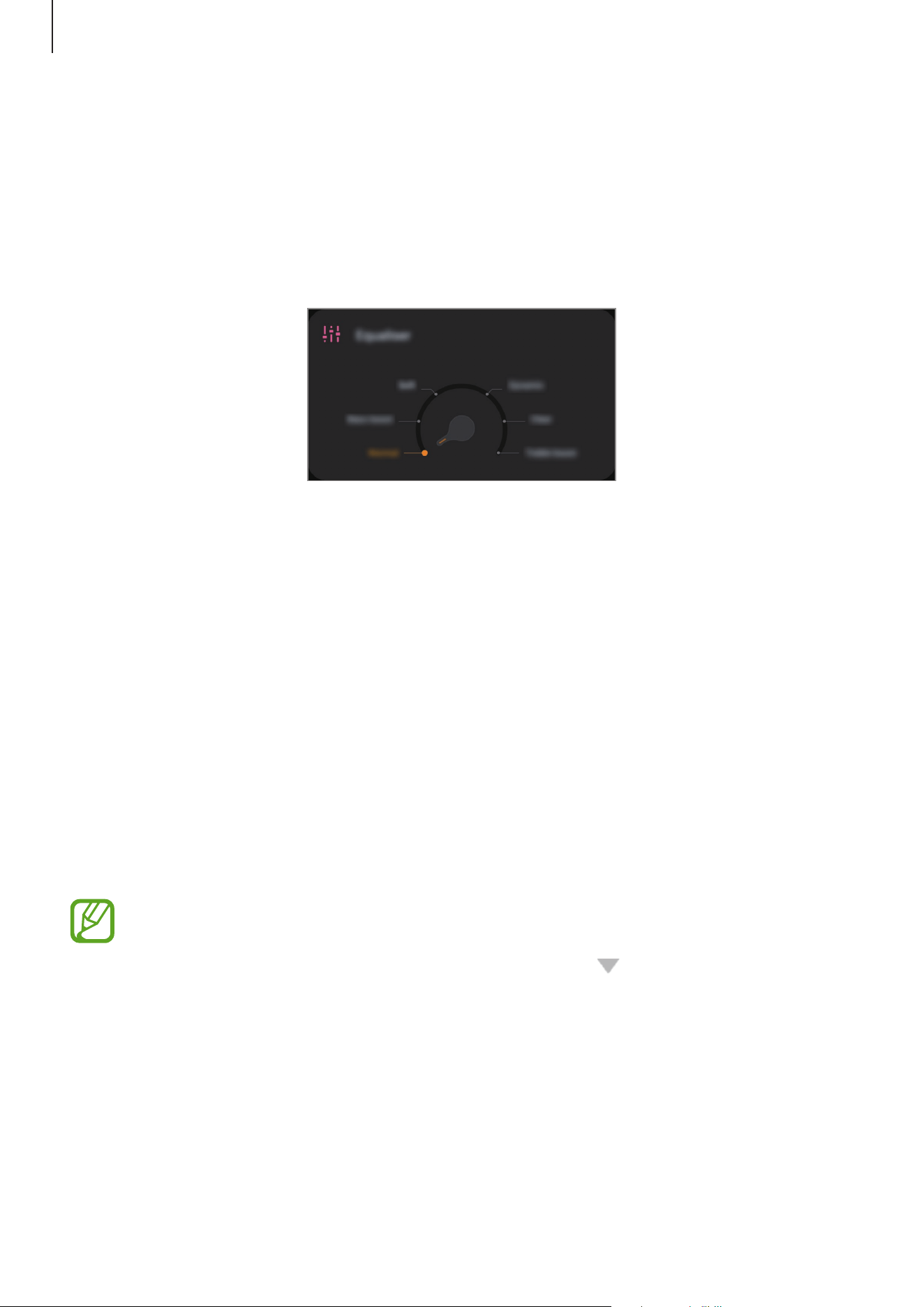
Using the equaliser
You can select from six different equaliser presets and enjoy the same music with a different
and unique sound.
Launch the
Galaxy Wearable
app on the mobile device and select a preset you want on the
Equaliser
card.
Using call features
When the earbuds are connected to a mobile device, you can answer and control calls from
the connected mobile device.
Answering or declining a call
When a call comes in while you are wearing the earbuds, they will emit a sound and a voice
notification will inform you of the incoming call’s phone number or the name saved in your
contacts.
To answer the call, double touch the earbud.
To decline the call, touch and hold the earbud.
If you are not notified of the incoming call’s phone number or the name saved in your
contacts via voice notification, launch the
Galaxy Wearable
app on the mobile device
and tap
Read notifications aloud
→
See all
. Then, tap , select
All
, and then tap
the
Incoming call
switch to activate the feature.

Using the earbuds
30
Answering a second call
When a second call comes in during a call, the earbuds will emit a sound.
To stay on the current call and reject an incoming second call, touch and hold the earbud.
To place the current call on hold and answer the second call, double touch the earbud.
To switch between the current call and the held call, double touch the earbud during a call.
Ending a call
Double touch the earbud to end the current call.
31
Galaxy Wearable App
Introduction
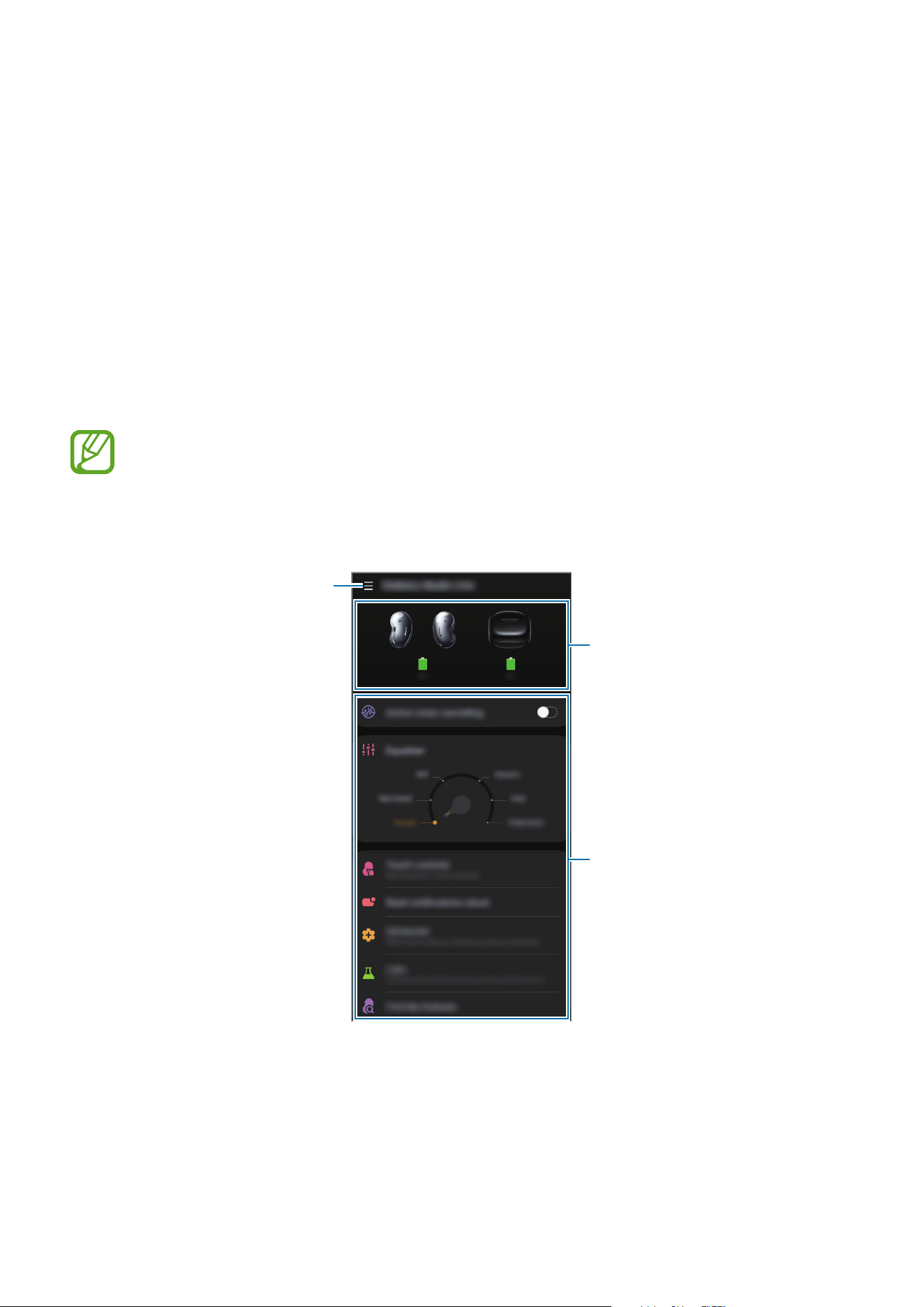
To connect the earbuds to a mobile device, you must install the Galaxy Wearable app on your
mobile device. Using the Galaxy Wearable app, you can view the Galaxy Buds Live status and
customise their settings.
Launch the
Galaxy Wearable
app on your connected mobile device.
•
If it is the first time connecting the earbuds and a mobile device, refer to
Connecting the earbuds to a mobile device for more information.
•
Some features may not be available depending on the type of connected mobile
device.
Access additional options.
Galaxy Buds Live's battery status
Customise your Galaxy Buds Live
settings

Galaxy Wearable App
32
Connecting and disconnecting the earbuds
Disconnecting mobile devices from the earbuds
Insert the earbuds into the charging case and close it. The Bluetooth connection will end.
To manually disconnect the earbuds from your mobile device, launch the
Galaxy Wearable
app on the mobile device and tap
→
Disconnect
. Or, on your mobile device, tap
Settings
→
Connections
→
Bluetooth
and unpair the earbuds and your mobile device.
Reconnecting devices with the earbuds that temporarily disconnected
To reconnect the earbuds that temporarily disconnected from a device, insert them into the
charging case and close it. Then, open the charging case again. Alternatively, tap
Connect
on
the top right of the
Galaxy Wearable
app on your mobile device.
Connecting with new earbuds
You can temporarily disconnect the earbuds from your mobile device and connect additional
ones.
Launch the
Galaxy Wearable
app on the mobile device and tap
→
Add new device
.
Connecting with other devices after disconnecting from the previous
mobile device
On your mobile device, tap
Settings
→
Connections
→
Bluetooth
and tap the switch to
deactivate the Bluetooth feature or unpair the earbuds and your mobile device under
Paired
devices
.
The connection between the earbuds and previous mobile device will end.
Close the charging case again and open it to enter the Bluetooth pairing mode. Launch
the
Galaxy Wearable
app on your mobile device and follow the on-screen instructions to
complete the connection.

Galaxy Wearable App
33
Switch the devices connected with earbuds
When the earbuds are connected with two or more mobile devices, you can switch the
mobile devices easily without disconnecting from the previous mobile device.
On the mobile device that you want to switch to, tap
Settings
→
Connections
→
Bluetooth
,
and then select earbuds under
Paired devices
.
Viewing Galaxy Buds Live status and
customising settings
View the status of the Galaxy Buds Live that are connected to your mobile device and change
its settings.
Launch the
Galaxy Wearable
app on the mobile device.
Active noise cancelling
Set the earbuds to block out the external sounds around you while you are listening to music.
Equaliser
Select an equaliser preset you want to use.
Touch controls
Change the touch-related settings of the earbuds and learn the touch commands.
Launch the
Galaxy Wearable
app on the mobile device and tap
Touch controls
.
•
Block touches
: Lock the earbuds’ touch feature. To lock the earbuds’ touch feature, tap
the switch to activate it. Refer to Locking the earbuds’ touch feature for more information.
•
Touch and hold
: Select a feature to be used as a preset touch-and-hold feature. Refer to
Setting a preset touch-and-hold feature for more information.
•
Trouble tapping? Learn how
: Learn where you have to touch your earbuds and how to
touch them correctly by following the on-screen instructions.

Galaxy Wearable App
34
Read notifications aloud
You will receive notifications from the mobile device’s apps via the earbuds.
Launch the
Galaxy Wearable
app on the mobile device and tap
Read notifications aloud
.
•
Read aloud while using phone
: Set the earbuds to receive notifications of the mobile
device even when you are using the mobile device.
•
App notifications to read aloud
: Select the apps you want to receive notifications from
and change the notification settings for each app.
Advanced
Activate advanced features of the Galaxy Buds Live.
Launch the
Galaxy Wearable
app on the mobile device and tap
Advanced
.
•
Bixby voice wake-up
: Wake Bixby by voice to start a conversation with an intelligent
voice assistant service.
•
Seamless earbud connection
: You can quickly change the mobile device to connect
your earbuds with. Activate the feature to quickly switch the connection from the current
mobile device to a nearby mobile device logged in via the same Samsung account or a
device that has previously connected with your earbuds.
Be careful to not connect your earbuds to another person’s mobile device.
Labs
Use new and experimental Galaxy Buds Live features.
Launch the
Galaxy Wearable
app on the mobile device and tap
Labs
.
•
Gaming mode
: Minimise audio delay to remove the time lag from the video and sound
output, and listen to vivid sound when launching a game.
This feature is available only when connecting with a Samsung mobile device
that uses the Android OS.
•
Relieve pressure with ambient sound
: Set to reduce feelings of pressure or stress while
wearing your earbuds when the active noise cancelling feature is deactivated.

Galaxy Wearable App
35
Find My Earbuds
If you misplace your earbuds, use the Galaxy Wearable app on your mobile device to find it.
1
Launch the
Galaxy Wearable
app on the mobile device and tap
Find My Earbuds
.
2
Tap
Start
.
Your earbuds will start beeping.
3
Tap
Stop
to stop the beeping sound for both earbuds.
Tap
under each earbud to stop the beeping sound for each earbud separately.
Do not use this feature when wearing the earbuds as it may result in hearing damage
due to the loud noise.
General
You can reset all your earbuds settings.
Launch the
Galaxy Wearable
app on the mobile device and tap
General
→
Reset
.
Earbuds software update
Update your earbuds’ software via the firmware over-the-air (FOTA) service.
Launch the
Galaxy Wearable
app on the mobile device and tap
Earbuds software update
.
•
Download and install
: Check for and install updates manually.
•
Last update
: View the information for the latest software update.
Tips and user manual
View how to use the Galaxy Buds Live.
Launch the
Galaxy Wearable
app on your mobile device and tap
Tips and user manual
to view the quick tips for using the Galaxy Buds Live. Tap
User manual
to view the full user
manual.

Galaxy Wearable App
36
About earbuds
View the information of the Galaxy Buds Live.
Launch the
Galaxy Wearable
app on your mobile device and tap
About earbuds
.
To change your Galaxy Buds Live’s name, tap
Edit
.
•
Legal information
: View the legal information for the Galaxy Buds Live.
•
Software information
: View the earbuds’ software information.
•
Battery information
: Check the earbuds and charging case’s battery information.

37
Appendix
Troubleshooting
Before contacting a Samsung Service Centre, please attempt the following solutions. Some
situations may not apply to your Galaxy Buds Live.
Your earbuds do not work
•
The battery may be completely discharged. Charge the battery completely before using
the earbuds.
•
If an earbud’s touch-sensitive sensor does not make contact with your ear, the earbud
may not work. If you do not hear a sound informing you that the earbuds are detected,
remove the earbuds from your ears and put them in again.
•
If the earbuds’ touch feature becomes unresponsive or the earbuds do not work properly,
insert the earbuds into their corresponding slots in the charging case, close the charging
case, and then remove them after seven seconds or more.
Bluetooth device cannot locate your earbuds
•
Close the charging case again and open it to enter the Bluetooth pairing mode.
•
Ensure that your earbuds and the other Bluetooth device are within the Bluetooth
connection range (10 m). The distance may vary depending on the environment the
devices are used in.
If the tips above do not solve the problem, contact a Samsung Service Centre.

Appendix
38
A Bluetooth connection is not established or your earbuds and the
mobile device are disconnected
•
Ensure there are no obstacles, such as walls or electrical equipment, between the devices.
•
Ensure that the latest version of the Galaxy Wearable app is installed on the mobile
device. If necessary, update the Galaxy Wearable app to the latest version.
•
Ensure that your earbuds and the other Bluetooth device are within the Bluetooth
connection range (10 m). The distance may vary depending on the environment the
devices are used in.
•
Restart the mobile device and relaunch the Galaxy Wearable app.
•
If only a single earbud is connected to your mobile device, restart the earbuds to connect
them both. To restart the earbuds, refer to Restarting the earbuds for more information.
The battery does not charge properly (For Samsung-approved
chargers)
•
Ensure that the charging contacts of the earbuds and the charging contacts of the
charging case are in contact with each other.
•
Ensure that the charger is connected properly to the charging case.
•
If the charging contacts are dirty, the battery may not charge properly. Wipe both
gold-coloured contacts with a dry cloth and try charging the battery again.
If the tips above do not solve the problem, contact a Samsung Service Centre.
The charging time and the battery life is different between the
earbuds
•
The charging time may differ between the two earbuds even if they started charging at
the same time.
•
The charging time and the remaining battery may differ between the two earbuds due to
different inner components.
The battery depletes faster than when first purchased
•
When you expose the Galaxy Buds Live or the battery to very cold or very hot
temperatures, the useful charge may be reduced.
•
The battery is consumable and the useful charge will get shorter over time.

Appendix
39
You cannot hear others speaking
Adjust the volume on the connected mobile device.
Sound echoes during a call
Adjust the volume with the connected mobile device or move to another area.
Audio quality is poor
•
Wireless network services may be disabled due to issues with the service provider’s
network. Ensure to keep the earbuds away from electromagnetic waves.
•
Ensure that your earbuds and the other Bluetooth device are within the maximum
Bluetooth range (10 m). The distance may vary depending on the environment the
devices are used in.
•
You may experience drops in volume or noise depending on the connected device’s
volume. To avoid this, appropriately adjust the connected device’s sound.
Your earbuds sound comes slower than the screen when playing
videos and games
The earbuds may have a time lag between the video and sound output when playing videos
or games when connected to a mobile device.
Your Galaxy Buds Live are hot to the touch
When you use the Galaxy Buds Live for an extended period of time, it may feel hot to the
touch. This is normal and should not affect your Galaxy Buds Live’s lifespan or performance.
If the Galaxy Buds Live overheat or feel hot for a prolonged period, do not use them for a
while. If the Galaxy Buds Live continue to overheat, contact a Samsung Service Centre.
A small gap appears around the outside of the Galaxy Buds Live
•
This gap is a necessary manufacturing feature and some minor rocking or vibration of
parts may occur.
•
Over time, friction between parts may cause this gap to expand slightly.
Appendix
40
Managing the Galaxy Buds Live
Basic maintenance
•
Use a soft, dry cloth to clean the earbuds after use.
•
Keep the earbuds dry. Prevent liquid from contacting or entering the earbuds.
•
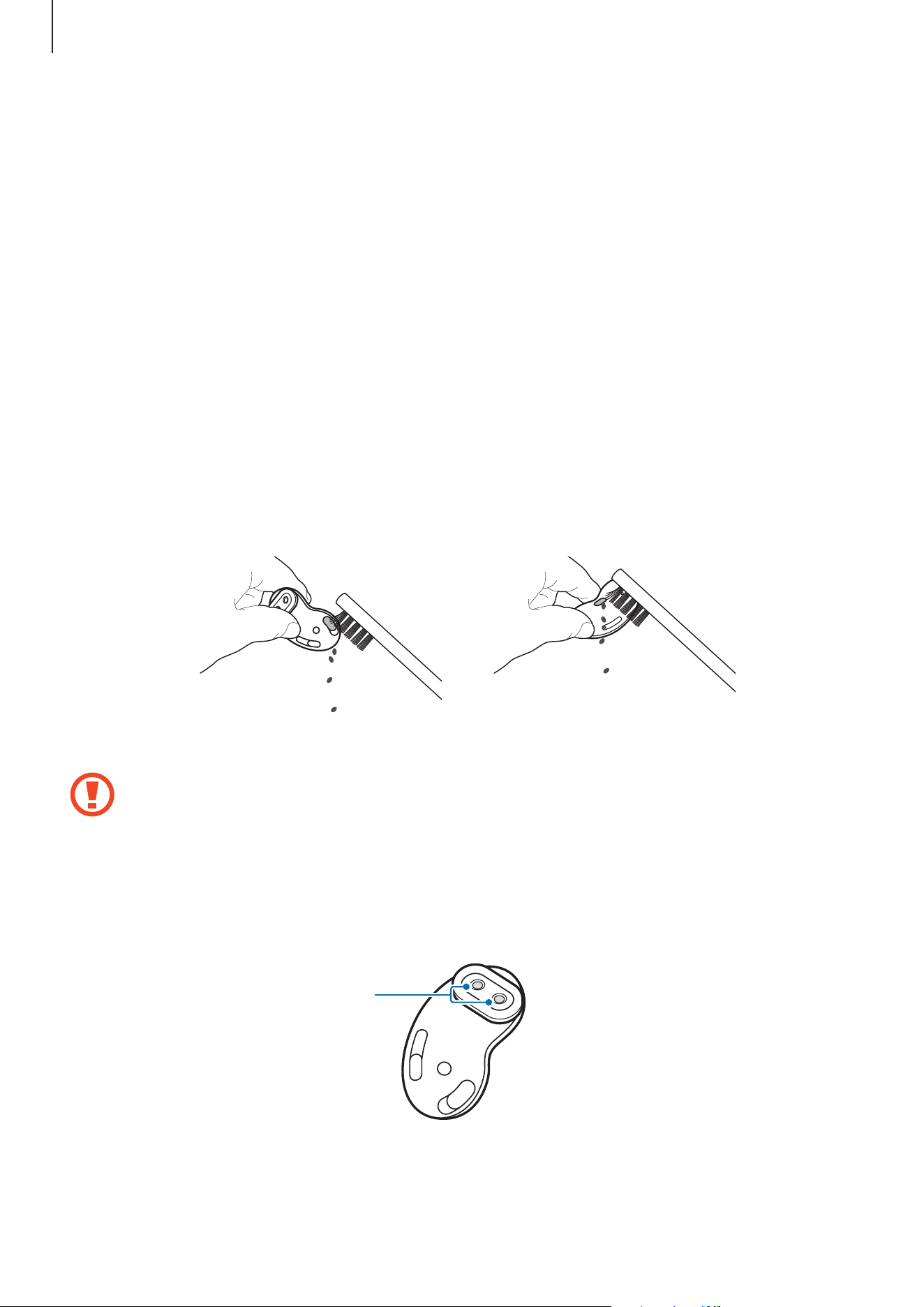
Clean the earbuds regularly to prevent earwax or debris from building up in the speaker
and the air duct.
Cleaning the speaker and the air duct
If the volume is lower than it should be with the current setting, clean the speaker and the air
duct.
Remove any earwax or debris with a clean, dry, and soft brush, cotton swabs, or other tools.
Speaker Air duct
Do not use anything sharp or excessive force while removing earwax or debris. The
speaker and the air duct may be damaged.
Cleaning the charging contacts
If the battery does not charge properly, wipe both gold-coloured contacts with a dry cloth.
Charging contacts

Appendix
41
Cleaning the earbuds and charging case
When the charging case and earbuds are exposed to foreign materials, such as dust, sand,
or metal shavings, the Galaxy Buds Live may not charge properly or may be damaged. If the
earbuds or the charging case were exposed to foreign materials, wipe them with a soft and
dry cloth before inserting them into the charging case.
Restarting the earbuds
If the earbuds’ touch feature becomes unresponsive or the earbuds do not work properly,
restart the earbuds.
To restart the earbuds, insert the earbuds into their corresponding slots in the charging case
and remove them after seven seconds or more.
If the charging case has low battery, connect the charging case to the charger first.
Coupling the earbuds
When you lose one of the earbuds, you do not have to purchase a new set of earbuds
because you can make a new set of earbuds with a newly purchased earbud and the other
earbud that you already have.
1
Check the direction of each earbud, the newly purchased earbud and previously used
earbud, and correctly insert them into their corresponding slots in the charging case.
2
Touch and hold both earbuds for seven seconds or more.
The earbud battery indicator light will flash green and turn off. Then, the earbuds are
coupled.
The earbud battery indicator light will keep flashing red when the earbuds are not
coupled properly. Remove the earbuds from the charging case and insert them again.
Then, touch and hold both earbuds for seven seconds or more.
3
Connect the earbuds to a mobile device. For more information, refer to Connecting the
earbuds to a mobile device.

Appendix
42
Removing the battery
•
To remove the battery, contact an authorised service centre. To obtain battery
removal instructions, please visit www.samsung.com/global/ecodesign_energy.
•
For your safety, you must not attempt to remove the battery. If the battery is not
properly removed, it may lead to damage to the battery and device, cause personal
injury, and/or result in the device being unsafe.
•
Samsung does not accept liability for any damage or loss (whether in contract or tort,
including negligence) which may arise from failure to precisely follow these warnings and
instructions, other than death or personal injury caused by Samsung’s negligence.

Copyright
Copyright © 2020 Samsung Electronics Co., Ltd.
This manual is protected under international copyright laws.
No part of this manual may be reproduced, distributed, translated, or transmitted in any form
or by any means, electronic or mechanical, including photocopying, recording, or storing in
any information storage and retrieval system.
Trademarks
•
SAMSUNG and the SAMSUNG logo are registered trademarks of Samsung Electronics Co.,
Ltd.
•
Bluetooth
®
is a registered trademark of Bluetooth SIG, Inc. worldwide.
•
All other trademarks and copyrights are the property of their respective owners.
Model: SM-R180
Rated voltage/current: 5 V / 120 mA (earbuds), 5 V / 500 mA (charging case), 3.7 V (internal
battery)
Made in Vietnam by Samsung
PO BOX 12987, DUBLIN, IE