Free Warrany Extended
UDS C Docking Station 4 HDMI
Quick Start Guide
Step 1:
Before connect the dock, please install the DisplayLink driver by
visting: https://www.synaptics.com/products/displaylink-graphics
You also can scan the right QR code and send it to laptop.
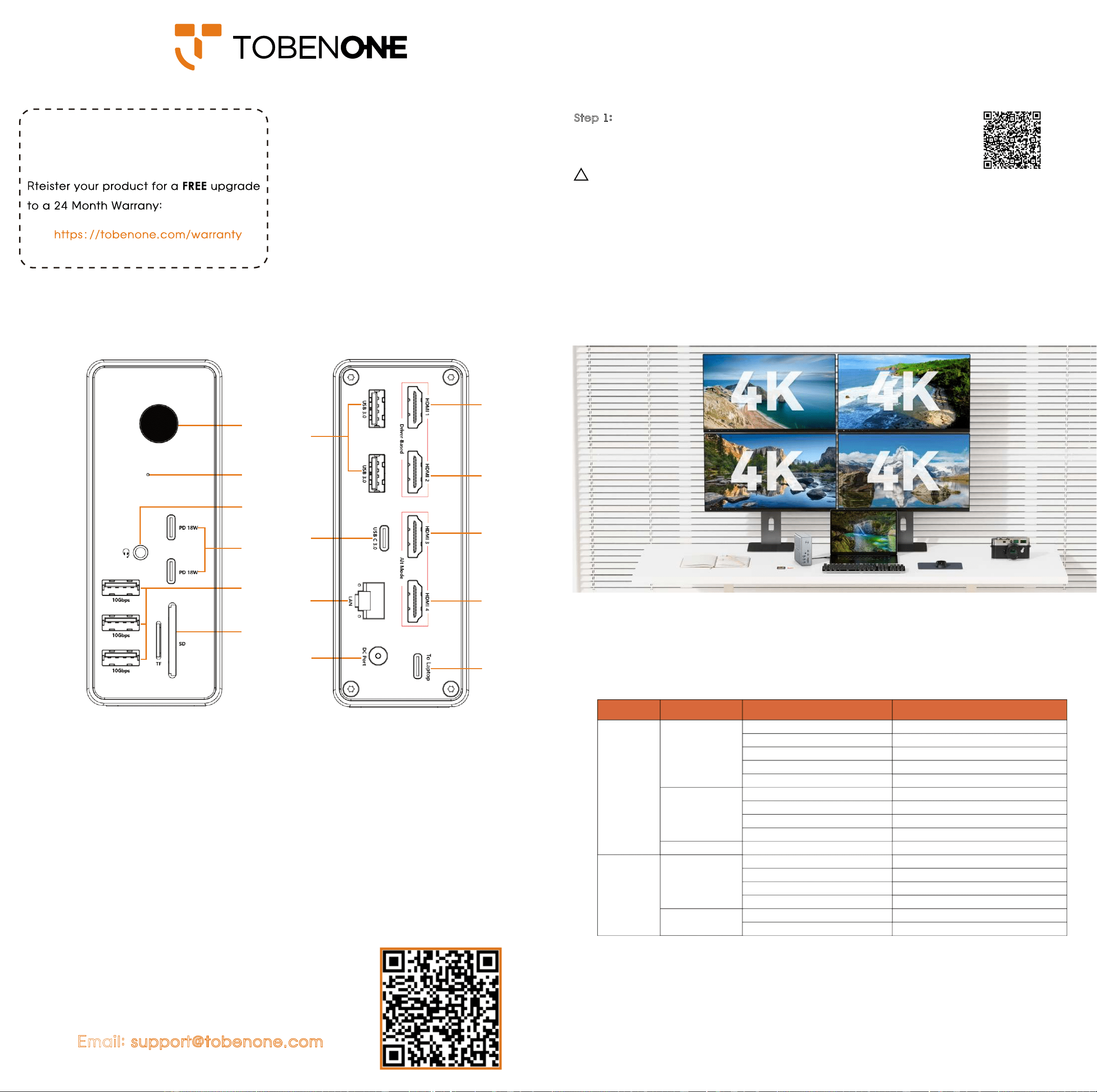
Ports and connectors
The only question we can’t fix is the one we don’t know
Email: [email protected]
Any questions, we are here to help!
THANK YOU!
Thank you for purchasing TobenONE DisplayLink
Docking Station UDS033C! Our dock provides the
ability to connect up to quad monitors for Windows
laptop/triple monitors for macOS,
8
USB peripherals,
SD/TF, Gigabit Ethernet, and 3.5mm audio device to
your laptop via one single USB C cable.
Step 5:
Attach USB-C devices to the USB-C ports(④,⑧). And attach USB devices(USB driver,
keyboard, mouse, printer, etc.) to the USB ports(⑤,⑦)
Step 6:
Connect the speaker, headphones, or microphone to the audio port(③). And connect
the ethernet cable to the ethernet port(⑬).
Step 7:
Turn on the power button(①)
USB-C DP Alt Mode (DP1.4)
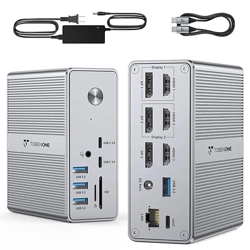
① Power Button: Control the dock power on/off
② Green Power LED
③ Audio In&Out
④ USB C 3.0*2: 5Gbps, 18W PD
⑤ USB A 3.2*3: 10Gbps
⑥ SD/TF 3.0: UHS-I, 2TB, 105MB/s
⑦ USB 3.0*2: 5Gbps
⑧ USB C 3.0: 5Gbps
⑨ HDMI 1: 4K/60Hz, driver-based
⑩ HDMI 2: 4K/60Hz, driver-based
⑪ HDMI 3: 4K/60Hz, plug-and-play
⑫ HDMI 4: 8K/30Hz, plug-and-play
⑬ Gigabit Ethernet: 1000/100/10Mbps
⑭ Power In: 20
V/6A, 120W
⑮ To Laptop: 100W max charging
②
④
⑤
⑪
⑥
③
⑦
⑧
⑨
⑩
⑫
⑬
⑭
⑮
①
System
Windows
(DP1.4/MST)
!
For macOS, the app will require a screen recording permission to capture pixels and send them
to your external monitors. Due to the limitations of screen recording, it will stop sharing the screen
and you cannot watch any HDCP(High-bandwidth Digital Content Protection) content from
Netflix/Prime/iTunes/Hulu/etc. If you watch Non-HDCP content, the dock will allow you to watch
Netflix/Prime/iTunes/Hulu/etc
Step 2:
Connect the 120W power adapter to the dock's DC port(
⑭
)
Step 3:
Use the USB C cable coming with the dock to connect the dock and laptop via HOST
port(
⑮
)
Step 4:
Connect display 1 via HDMI 1(⑨), connect display 2 via HDMI 2(⑩), connect display 3/4
via HDMI 3 and HDMI 4 port(⑪,⑫)
Quad Displays Configuration
Status
Port
Resolution
Dual monitor
Triple monitor
Quad monitor
(DP1.4/MST)
MacOS
Dual monitor
Triple monitor
HDMI 1
| HDMI 2
HDMI 1
| HDMI 3
HDMI 1
| HDMI 4
HDMI 2
| HDMI 3
HDMI 3
| HDMI 4
4K/60Hz | 4K/60Hz
4K/60Hz | 4K/60Hz
4K/60Hz | 8K/30Hz
4K/60Hz | 4K/60Hz
4K/60Hz | 4K/60Hz
HDMI 1 | HDMI 2 | HDMI 3
HDMI 1 | HDMI 2 | HDMI 4
HDMI 1 | HDMI 3 | HDMI 4
HDMI 2 | HDMI 3 | HDMI 4
4K/60Hz | 4K/60Hz | 4K/60Hz
4K/60Hz | 4K/60Hz | 8K/30Hz
4K/60Hz | 4K/60Hz | 4K/60Hz
4K/60Hz | 4K/60Hz | 4K/60Hz
HDMI 1 | HDMI2 | HDMI3 | HDMI 4
4K/60Hz | 4K/60Hz | 4K/60Hz | 4K/60Hz
HDMI 1 | HDMI 2
HDMI 1 | HDMI 3
HDMI 1 | HDMI 4
HDMI 2 | HDMI 3
HDMI 1 | HDMI 2 | HDMI 3
HDMI 1 | HDMI 2 | HDMI 4
4K/60Hz | 4K/60Hz
4K/60Hz | 4K/60Hz
4K/60Hz | 4K/60Hz
4K/60Hz | 4K/60Hz
4K/60Hz | 4K/60Hz | 4K/60Hz
4K/60Hz | 4K/60Hz | 4K/60Hz
m r u o y e t a d y p u t u s D i s p M a y L i l k d r i v e r a f t e r o u u e d a t e t s y s p n o t p a e h t l p
Please note that:
⚠1:
Full-function Windows laptop can extend up to 4 displays, must confirm laptop's USB C port support
display. If laptop's USB C port don't support display, HDMI 3 and HDMI 4 cannot work
⚠
2:
MacBook only can extend up to 3 displays, HDMI 3 and HDMI 4 cannot work simultaneously
⚠
3:
All video ports support landscape mode. The driver-based video ports(HDMI 1 and HDMI 2) are not
able to
change the monitor orientation from landscape to portrait. That means you only can use the
plug-and-play video ports(HDMI 3 and HDMI 4) to change the monitor orientation from landscape to
portrait
⚠
4:
Must update your DisplayLink driver after you update the laptop system
⚠
5:
For macOS, the app will require a screen recording permission to capture pixels and send them to
your
external
monitors, but it doesn't store or record any screen content.