
VALUED CUSTOMER
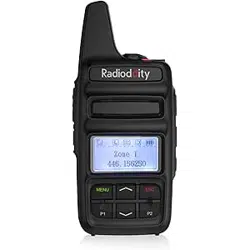
Radioddity' s first proprietary radio is designed to meet the most demanding of
conditions, and dole out unmatched power while at the same time, being one
of the safest, most comfortable radios on the market. Featuring 10W High
Power output, IP-67 Waterproofing, a 2800mAh Li-Po battery, true dual time
slot and a user-friendly heat dissipating design, we introduce you Radioddity
GD-55 Plus.
This manual is intended to help you find out how to operate the GD-55 Plus
more easily and to inform you the detailed specification and features. If you
have any problems, please feel free to email support@radioddity.com.
Customer means everything to us. Your concerns are our concerns.
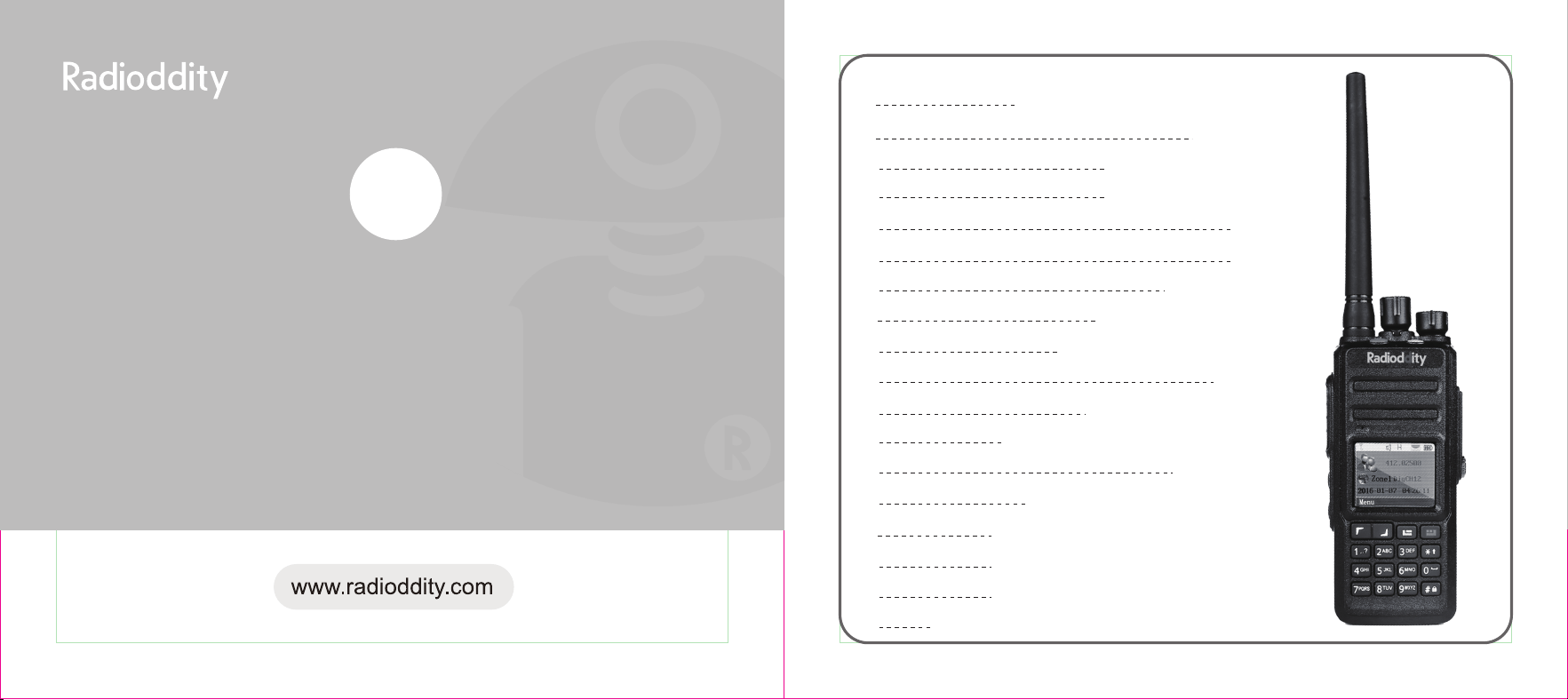
Frequency band:UHF:400.000-470.000MHz
Dual time slot
1024 channels Conversely alarm
GPS function(Optional) IP67 waterproofed function
PC Programmed function Software online updating
VOX Chinese and English voice selection
CTCSS/DCS Busy channel lock
Battery save function TOT
High&Low Power selection Talk around function
Scanning function Lone work
Digital Encryption
Analog Wide/Narrow bandwidth selection
End-tone elimination
Emergency alert
High-low power
Key side setting
Record
Main
Radioddity GD-55 Plus
Two-way Radios
1

Cotent
01
02
03
07
10
10
11
11
11
12
12
12
12
13
13
14
14
14
15
15
16
18
18
18
19
19
20
20
20
21
21
21
22
22
23
23
23
24
24
25
25
26
Using tips
Unpacking and checking equipments
Installing and uninstalling of supplied accessories
Getting Familiar
Safety and Overview
Product safety and RF radiation for handheld two way radio
Overview
Switch On
Adjust Volume
Launch and Receive Calls
Zone Selection
Selection Of Channels , User ID Or Group ID
Receive And Reply Group Call
Receive And Reply The Single Call
Receive all calls
Launch a radio call
Using Channel Knob To Make A Call
Launch A Group Call
Single Call
All Call
Use Single key To Launch A Group Call Or Single Call
Emergency Function
Receive the Emergency Call
Reply the Emergency Call
Emergency Alarm
Logout Emergency Mode
Menu Operation
Character Input
English Typing
Chinese Typing
Numeral typing
Menu Application
Radio Check
Send Radio check
Monitor
Start Monitor
Contacts Setting
Group Call with Contacts
Private Call with Contact
Call Log
Missed Call
Message Function

26
27
28
28
29
29
30
30
31
31
32
32
32
33
34
34
34
35
35
35
36
36
36
37
37
39
39
39
40
41
41
42
42
43
43
43
44
44
45
45
46
46
47
47
Edit and Send Message
Send Quick message
Send Quick Text with A Key
Forward Message
Editing message
Manage the Sent message
Check the sent message
Send the sent message
Receive Message
Check the Message
Manage Received Message
Check and Read the Inbox Message
Reply the Inbox Message
Deleting the Inbox Message
Deleting all Messages in the Inbox
Encryption
Basic encryption
DTMF
Secrecy
Radio Kill
Radio activate
Scan List
Scanning instructions and methods
Start and stop scanning
Scanning reply
Settings
Radio attributes
Radio configurati on
Transmitting frequency
Receiving frequency
Channel name
Setting Squelch level
Transmitting limit time
Color code
Repeater time slot
Power-on display Selct
Radio setting
Language selection
Lock Key setting
Turn on or off LED
Conversely Ann Setting
Set The Power Level
Zone Setting
Date & Time Setting
47
48
48
49
49
50
50
50
51
51
51
52
54
Date
Time
Date format
Tone Setting
Profiles
Keypad tone set
Power Tone set
Message Tones
GPS Setting
GPS information
RX GPS
information
Specifications
Use Tips & Unboxing and
Equipment Check
2
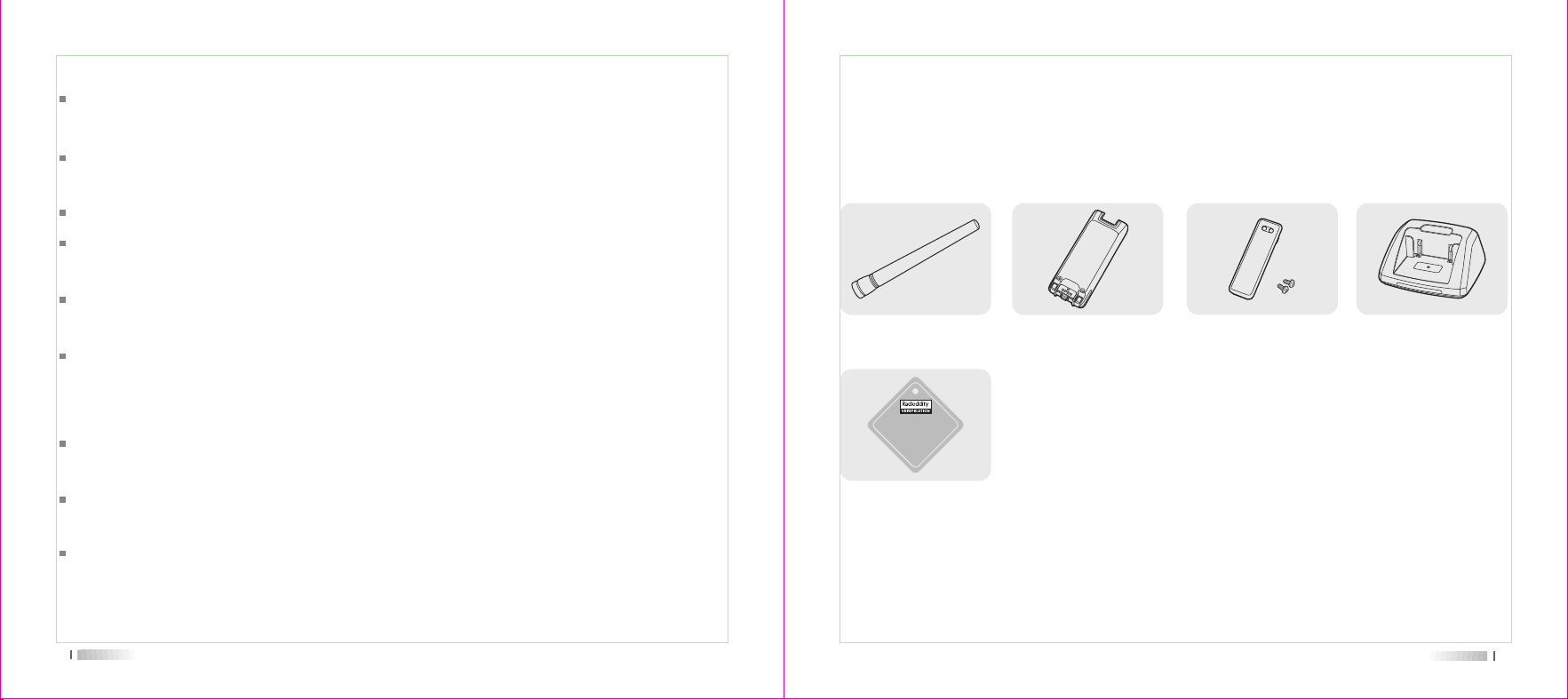
Supplied accessories
Carefully unpacking the radio. We recommend you check the items listed in the following
table before discarding the package. If any item is missing or has been damaged during
shipment, please contact us immediately.
Unpacking and checking
Note: The antenna frequency range please refers to the annular label at the bottom of
antenna.
Charger Belt clip
Li-ion battery packAntenna
Verification
Please read the following brief instructions, non-compliance with these rules may cause
danger or violate the law.
Obey the local government regulation before using this radio, improper use may violate
the law and be published.
Turn off the radio before entering flammable or explosive areas
Do not use radio whose antenna is damaged, touching of damaged antenna will cause
heat injury
Do not attempt to disassemble this radio; the maintenance work should be done by
technical expert only.
To avoid troubles caused by electromagnetic interference of electromagnetic
compatibility, please turn off the radio in places where have the banner "Do not use
wireless equipment", such as hospital and other healthcare places.
In the car with an airbag, do not put the radio under the direct sunshine or in hot areas.
When you transmit with the radio, do keep away from its antenna for 5cm at least.
If the radio appears smelly or smoke, please shut off its power immediately and contact
with your local dealer
Do not transmit too long, for the radio may heat and hurt the user.
Using tips
01
02
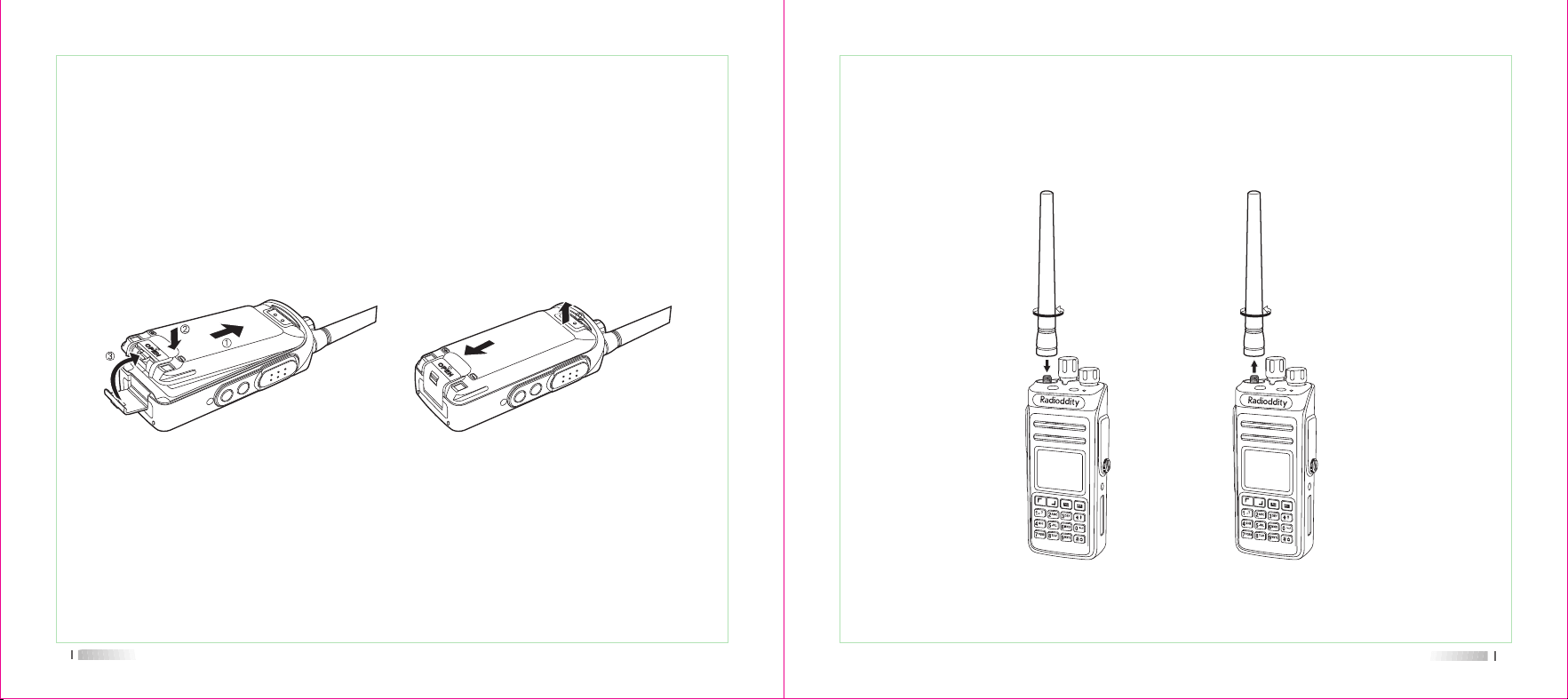
1. Align the two grooves of battery and the guide rail on the back of aluminum shell, ensuring
full contact and in parallel, then push the battery up to the radio base along the rail on the
back of aluminum shell, until the battery latch locks up.
2. To move the battery, please make sure the radio is closed, push the battery latch down,
and then push the battery out from the radio.
Installing and uninstalling of supplied accessories
Installing/Removing the battery
03
Installing and removing the antenna
1. Align the threaded end of antenna and the treaded hole at the top of radio, rotate the antenna
clockwise until it is tight.
2. To remove the antenna, rotate it counter-clockwise until the antenna spirals out.
04
05
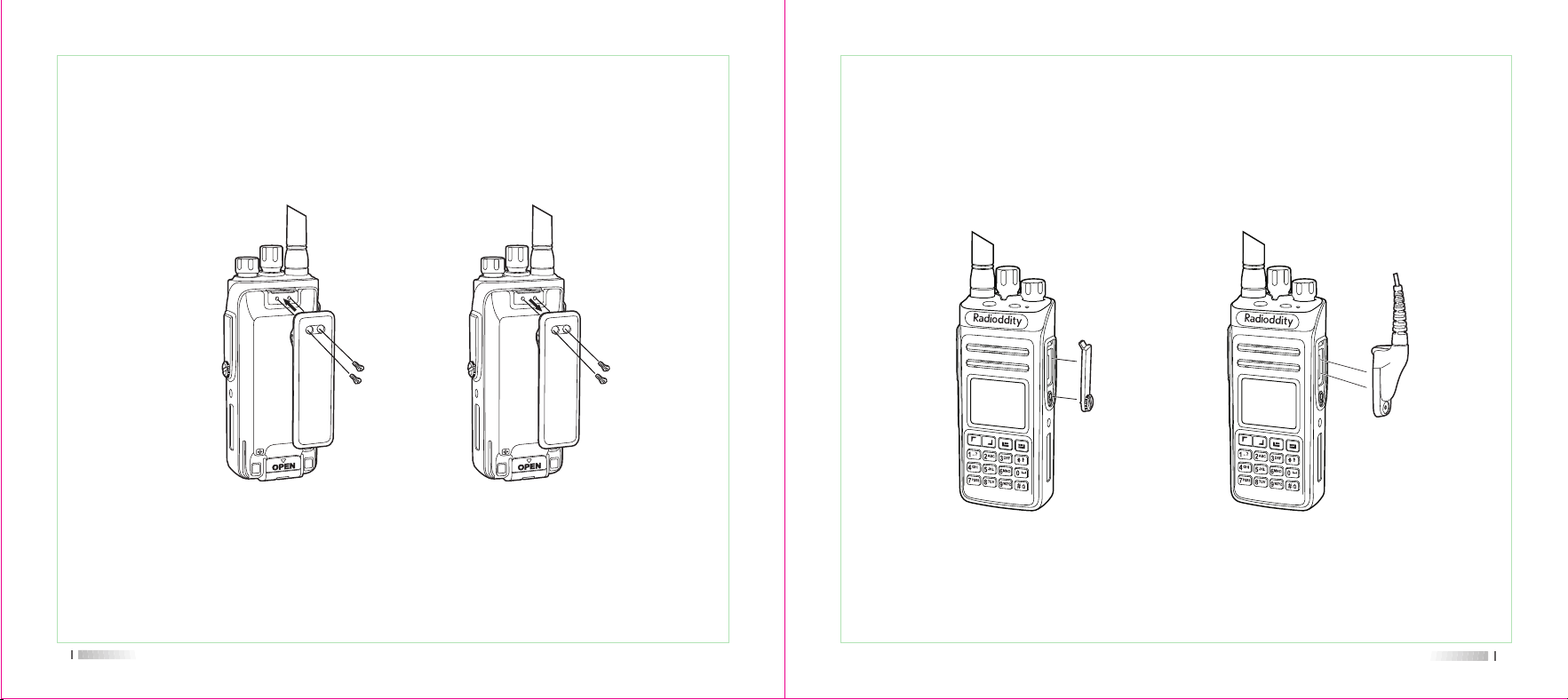
Installing and removing the belt clip
1. Align the two holes of belt clip and the two holes of the radio, fix them with the supplied
M2.5 X 5 screw.
2. Loosen the screw set to remove the belt clip
Installing external headset
Reveal (do not remove) the mic/speaker jack cover, insert the headset into the mic/speaker jack.
06
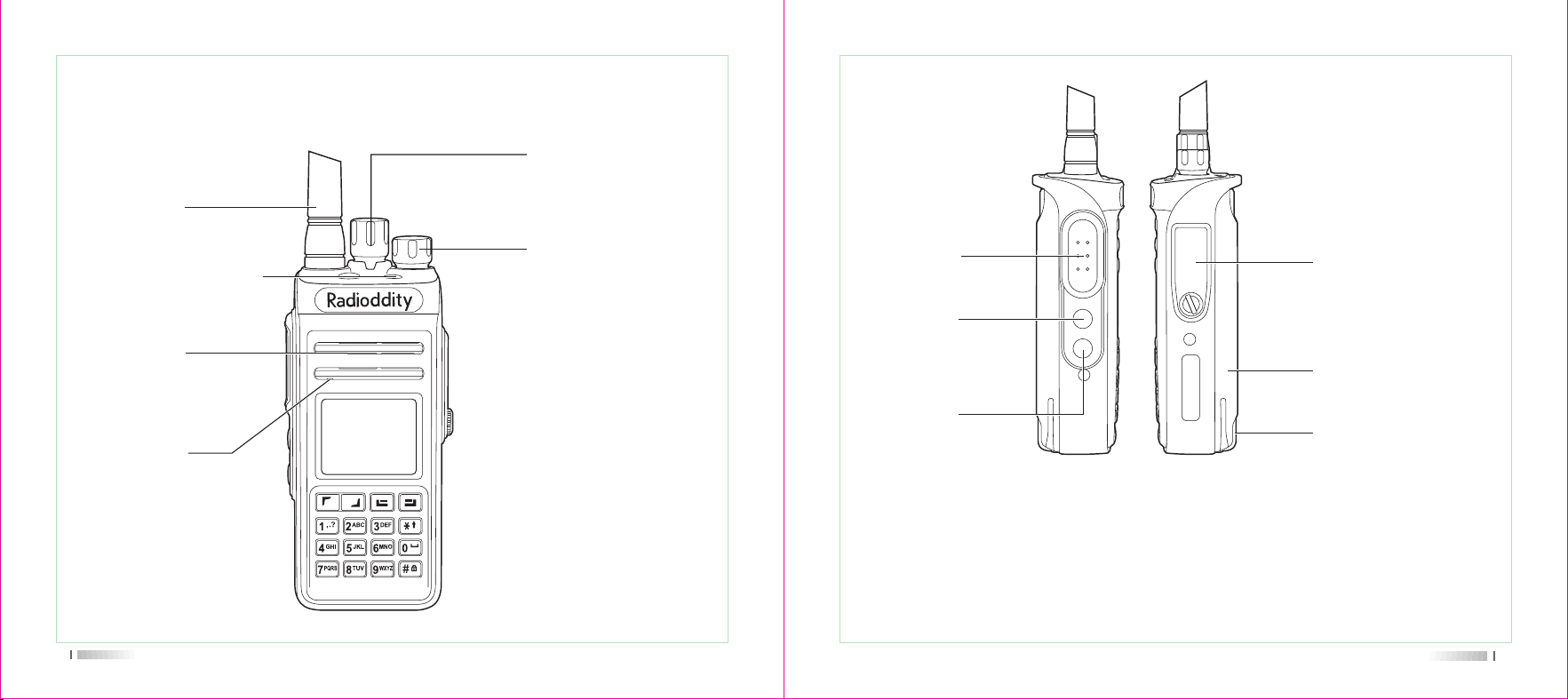
07
Getting
LED indicator
Power/volume
Speake
Microphon
Channel-selecting knob
the indicator light turns
red when transmit, turns
green when receive.
Antenn
sound
sound
Select the working channel,
total 16 channels.
To power on/off and adjust the
volume. Rotate it clockwise, a
"click" sound is heard and a
"Du" tone prompts the radio
power on, continue to rotate
it to adjust the volume. Rotate
it counter-clockwise until a
"click" sound is heard, it
powers off.
08
Notice: Either Long -press or Short-press of Side-key 1/Side-key 2/Side-key 3 can be
set by program software for the following functions:
1. None-function 2. Radio activate 3. Radio check 4. Radio remote kill
5. High/low power selective 6. Monitor 7. All warning tone on/off 8. Zone selective
9. Scan on/off 10. VOX 11. PTT 12. PTT13. PTT 14. PTT 15. PTT 16. Error rate
17. Talk around 18. 1750 zone
PTT switch
Mic/Speaker jack/
Programming
•••••
Li-ion battery
Used to connect headset or
external programmable via
PC programming software.
for charging the
Side key 1
Programmable
Side key 2
Programmable
10
Safety and Overview
Product safety and RF radiation for handheld two way radio.
Before using this two way radio ,please read the operational instructions carefully in the
manual of product safety and RF radiation for safe usage of two way radio.
This two way radio can only satisfy the vocational applications for FCC RF
energy exposure requirements. Before using this two way radio, Please read
the operational instructions carefully in the manual of product safety and RF
radiation for safe usage of two way radio for compliance with RF Energy
Exposure limits in applicable national and international standards.
Safety and Overview
Launch and Receive Calls
3
12
11
Switch On
Clockwise to turn on the radio volume knob there will be a "KADA" sound , message
sound and the screen will show you "Welcome", while the LED indi cator lightsup
and becomes Green col or if the batt eryis full charged.
Notice: if all LED indicators are forbidden the screen will not light up when switch on the
walkie talkie, but with a message sound .
Notice: if the volume function is forbidden ,there will no any sound when power on . Now,
need to power off the walkie talkie and anticlockwise to rotate the knob until a "KADA"
sound .
Adjust Volume
Clockwise the volume knob to higher the volume or anticlockwise to lower And there shows
a volume line on the screen .
Overvie
Zone Selection
Zones is a channel group .Each radio can set 64 zones and each zone with max 16
channels.
The menu function
1.Press[ ]key to enter the menuFind out "Setting" in the menu "Settings ",Then you can
see "Zone ".
2. Press[ or ] key to zoneafter that with [ ]key to confirm
3.Screen shows current zone.
4. Press[ or ] key to choseafter then press[ ] key to confirm
5.Screen shows the chosen zone, Then back to the screen for the chosen zone.
Launch and Receive
Selection Of Channels , User ID Or Group ID
Select the needed zone (if there are more than one zone ),using the channel knob to select
the channel ,user name or ID ,Or group name or ID.
Receive And Reply Group Call
The radio must be under a group , then can receive the group call.
When receive the group call
1.LED indicator is green color.
2.On the top of the screen will show RSSI mark, Under it, The first line will show " group
call" ,"private call" or "all call", The name of the caller will be shows in the middle ,The

13
conversation time will be showed on the last line ( this happens only under Digital mode ).
3.Hold or keep the radio in a vertical position and place it between your lip within 2.5~5.0cm.
4.Press[PTT]key to answer the callLED indicator light change to red color.
5.Release[PTT]key to receive next call .
6.If there is no any transmitter within the time limited , the call failed .
Receive And Reply The Single Call
Single call means one individual radio call to another individual radio. Only with two types:
The first type is the self testing part before rise a call , The second type is ready for
immediate call .
When Receive The Single Call
1.LED indicator is green color
2.On the top of the screen will show RSSI markfollows shows single call user's name or
ID in the middleThe conversation time will be showed on the last line (Only for Digital mode ).
3. Hold or keep the radio in a vertical position and place it between your lip with 2.5~5cm.
If on the "free channel message sound" functionlet go [PTT] key ,You can hear a message
sound ,That means this channel is free for you to answer .
4. Press[PTT]key to answer the call, LED indicator light change to red color.
5. Release [PTT]key to receive the call.
Receive all calls
All call means a walkie talkie call up all other users in a channel to public an important
notices.
14
When receiving all calls
1.LED indicator becomes green.
2.On the top of the screen will show RSSI markfollows shows all calls, User's name or ID
in the middle, The conversation time will be showed on the last line (Only for Digital mode ).
3. End of the all calls, radio will back to the screen before receive all callsIf under the"free
channel message sound" functionIf you release the PTT key ,you will hear a short
message sound ,That means this channel is free to use ,but can't reply the all calls .
Notice: when receive the all calls ,if you turn over to another channelthe radio will stop to
receive this all callsDuring the all callsYou can't use any re-programmed key until the call
finished .
Launch a radio call
You can choose a channel , user ID or group call with following methods:
Channel Knob
Pre-programmed key
Contact lists
Using Channel Knob To Make A Call
Launch A Group Call
The radio should be under the group then can have the group call
1. Turn over channel knob , use an activated group name or ID to choose channel.
2. Hold or keep the radio in a vertical position and place it between your lip with 2.5~5cm.
3. Press[PTT]key to callLED indicator changes to red .Screen shows group name or ID .

15
16
4. Let go [PTT] key to receive ,when target radio is replying ,LED indicator becomes green.
Screen shows group name or ID and Tx radio's name or ID.
5.when the walkie talkie back to home screen ,you can also make a group call using contact
lists.
Single Call
1. Turn over channel knob , use the activated name or user ID to choose channel .
2. Hold or keep the radio in a vertical position and place it between your lip with 2.5~5cm.
3. Press[PTT]key to callLED indicator changes to red . On the top of the middle screen will
show RSSI markfollows shows single call, User name or ID in the middle(Only for Digital
mode ).
4. Release [PTT] key to receive , when target radio is replying , LED indicator becomes
green.
You can make a single call using contact lists for quick access to contacts and use
keyboard to search the target walkie talkie to make a call.
All Call
Walkie talkie must be programmed with this function , so that you can send information to e
very user who are under the channel .
1. Turn over channel knob , use the name or ID to choose channel.
2. Hold or keep the radio in a vertical position and place it between your lip with 2.5~5cm.
3. Press [PTT] key to release a call , LED indicator becomes to red color .Screen shows
Group name or ID with all call mark .
User under the channel can not reply the all call .
Use Single key To Launch A Group Call Or Single Call
Single key call function is convenient for you to set a name or ID for group call or single
call with long-press or short-press the program key.
You can set a name or ID for a single key , Two way radios can have many
programmed single call key .
1. Press pre-programmed call key, Can make a group all or single call to a predefine
name or ID .
2. Hold or keep the radio in a vertical position and place it between your lip with 2.5~5cm.
3. Press [PTT] key to call , LED indicator becomes to red color .Screen shows group/user
name or ID .
4. Let go[PTT] key to receive, when target walkie talkie is replying ,LED indicator changes
to green .
18
Emergency Function
Emergency alarm only use to transfer emergency situations, you can release a emergency
call at anytime and anywhere. Even the walkie talkie is busy in transferring or receiving.
Radio supports 3 types of emergency call:
Emergency call
Call follow emergency alarm
A voice follow emergency alert
Receive the Emergency Call
1. When receiving emergency call, number of received calls and alarms received,
exchange the sender name or ID
2. With a message sound and LED indicator becomes red.
3. If the radio have activated, then will confirm the emergency alarm automatically.
When the radio receive the emergency alarm, screen shows the emergency alarm warning
mark, until send with a confirm message then can logout. While, you will not receive any
calls and notices from other radios during this situation.
Notice: short-press[ ]key, then with the pre-programmed off key, delete all received
emergency call and logout the emergency mode.
Reply the Emergency Call
When receiving the emergency call
1. Press[PTT] key to stop emergency call alarm
2. Hold the radio place it between your lip with 2.5-3cm.
Use Tips & Unboxing and
Equipment Check
4
19
20
3. Press[PTT] key to have a call. LED indicator becomes red. Walkie talkie under the
emergency call mode.
4. Let go[PTT] key to receive, when reply the emergency, LED indicator becomes green.
The screen shows group mark or ID and call ID.
Emergency Alarm
This function called speech signal and allows to send emergency alarm and will trigger
on another radio.
1. Press pre-programmed power on key.
2. Screen shows sending emergency call, exchange ID with other walkie talkie.
LED indicator changes to red and emergency call mark will down on the home screen.
3. When receive the emergency call, the radio issues the emergency call and LED indicator
changes to red. LED shows emergency call and call ID.
Character Input
Users can use the 3X4 alphanumeric keypad to access the radio's function. When you're
using the keypad to input a user alias or text messages, walkie-talkie input contains three
modes: 1.English letter mode 2.Chinese input mode 3.Digital input mode.
When using the keypad input ID, you can only select the digital mode.
Menu
English Typing:
Users have to press a button several times for getting some characters. The following
table shows how many times needed to press a button to get the required character.
Logout Emergency Mode
The walkie talkie will logout emergency mode when any of the following situations happen:
1. Confirm with the received emergency call, or
2. Meet with the max emergency call, or
3. Press the pre-programmed call, or
4. Press [PTT]key.
Notice: Emergency mode will be logout when power off the walkie talkie. Radio will not
under emergency mode when the radio is power on next time.
Bution
1
2
3
4
5
6
7
8
9
0
*
#
4 5 6 7 8 9 10 11 12 13
? ! @ &
'
% - : * #
2 A B C
3 D E F
4 G H I
5 J K L
6 M N O
s 7 P Q R S
8 T U V
z 9 W X Y Z
0 Space
*
Press # to switch
1
1
a
d
g
j
m
p
t
w
2
.
b
e
h
k
n
q
u
x
3
,
c
f
i
l
o
r
v
y
Chinese Typing:
Number 1 is a button of punctuation/s selection input, number 2-9 are correspond Pinyin
input, when user input something, the screen shows the Pinyin input interface, the first line
of interface shows the contents inputted by user, the second line of interface shows Chinese
character what user input. When the content of Pinyin input interface shows in the first line,
users can press [ or ]key to select Pinyin, press[ ]key to delete the Pinyin what
they inputted previously one by one, after all Pinyin characters of inputted are deleted, the
interface of Pinyin will disappears.
Press[ ] key to choose corresponding Chinese characters and display them in the
editing area. At this time the Chinese character input finished, Pinyin inout interface
disappears. Pressing "0" key shows space, press "#" to switch input modes.
Numeral typing
When in the numbers input mode, press the number keys to display the corresponding
number, press " # "key to switch input modes.
Note: When users enter a user alias, ID, or text messages, if editing area without any
content, then the [ ] key is used for returning to the higher level menu, or else if there is
any content on the editor area, pressing [ ]key will delete one character before the
cursor at one time, until the editing area has no content, then press the [ ]key to return
to the higher level menu.
Radio Check
If there are any activation, this feature allows you to determine whether there is other two
way radio active inside the system, and does not disturb the walkie talkie users, none-
voice or visual appears on the target two way radio.
Note: This function only apply to private call.
Menu Application
1. Press [ ] to enter Menu, then press left or right [ or ]to access the menu function
21 22
Send Radio check
1. Press [ ]key to enter menu
2. Press [ or ]key to select Contacts, then press [ ]key to select.
3. Press [ or ] to the required user alias or ID, then press [ ] to select or press
[ or ]key to manual dialing, and then press [ ]key to select. If there are before calling
ID, show ID and along with the flashing cursor, using the keyboard editing ID, press [ ].
4. Press [ or ] to radio detection, and then press [ ] to select
5. When screen displays radio detection: < use alias or ID>, it is indicating the ongoing
radio detection.
6. Waiting for confirmation
7. If the target radio is active in the system, then it makes a prompt sound, screen will
shows success, or if is inactive, then it makes a prompt sound, screen will shows "fail"
8. Two way radio returns to user alias or ID screen. If you press [ ] when waiting for
confirmation, made a prompt, two way radio will end all retry and exit the two way radio
detection mode.
2. Press [ ], select a function or go into a sub menu
3. Press [ ] to return the higher level menu
23
24
Contacts
Monitor
Using monitoring function to open the target two way radio microphone ( only the user
alias or ID ). You can use the function to monitor any sound around target two way radio.
You must allow your two way radio to use this function by programming it.
This function only apply to private call
Contacts is "address book" for handheld two way radio. Each entry correspond to an alias
or ID used to start the call. In addition, each item, according to the different content setting,
relate to there types of call: group call, single call, all call. Your radio support digital
address booking.
Private Call with
Start Monitor
Using the Menu:
1. Press [ ] to enter the menu
2. Press [ or ]key to select Contacts, then press [ ]key to select.
3. Press [ or ] to the required user alias or ID, then press [ ]key to select
4. Press [ or ] to select Remote Monitor then press [ ] to select
5. Two way radio makes a prompt sound.
6. Waiting for confirmation
7. Screen displays Monitor successed,
Or screen displays Monitor failed
8. If successed: two way radio began to receive voice signals from the radio which are
being monitored voice and screen displays two way radio are monitoring, until the end of
the duration of the preprogrammed, two way radio made a prompt sound, and the LED
light puts out, screen display that monitoring ends.
If failed: two way radio repeats until reach the preprogrammed attempts.
Group Call with Contacts
Note: the difference between private call icon, group call icon and all call icon
1. Press [ ]key to enter Menu
2. Press [ or ] to contacts, then press [ ] to choose, entries arrange in alphabetical
order.
3. Press [ or ] to required calling groupís alias or ID.
4. Hold the radio and let it in a vertical position and keep mouth 1 to 2 inches (2.5 to 5.0cm)
with radio.
5. Press [PTT] key to start calling, the LED light turns red. The screen displays the calling
group's alias or ID.
6. Releasing [PTT]key to receive, when any user response within the group, the LED light
turns green. You will see on screen group call icon of user 's ID
7. If you enable the "Channel Free Prompt" function, when the target radio release the
[PTT]key, you will hear a short beep, said this channel is idle, waiting for your answer.
Press the call key (PTT) to answer. If in a preprogrammed group called hang time without
voice activity, the call is ended.
25
Missed Call
Whenever you miss call, two way radio will display a not answered call, you can view in the
Edit and Send Message
Using the Menu
1. Press [ ] key to enter the menu mode.
2. Press the [ or ] key to message, and then press [ ] key to choose.
3. Press [ or ] key to text message, and then press [ ] key to choose.
4. A flashing cursor appears, using the keyboard to input messages, press [ ] key to
move to the left one, press[ ]button to the right one, when editing area have content,
Call Log
You radio can record all the recent dialed, received, and missed calls.
Checking New Call's Number
1. Press [ ]key to enter the Menu.
2. Press [ or ]key to the Call Log, and then press [ ]key to choose.
3. Press [ or ]key to dialed calls, and then press [ ]key to choose.
4. The top of the list on the screen shows the recent entries.
Note: the difference between private call icon, group call icon and all call icon
1. Press [ ]key to enter Menu
2. Press [ or ] to contacts, then press [ ] to choose, entries arrange in alphabetical
order.
3. Press [ or ] to required calling alias or ID.
4. Holding the radio and let it in a vertical position and keep mouth 1 to 2 inches (2.5 TO
5.0cm) with radio
5. Press [PTT]key to start calling, the LED light turns red.
6. Releasing [PTT]key to receive, when the target radio response, the LED light turns green.
You will see on the screen target radio call icon of ID
Note: If you release [PTT]key when you are setting up the call, and it will exit and return to
the previous screen without any remind.
Message Function
Your radio can receive data, such as from another radio sent text messages, message of
a maximum length is 144 characters.
26
Call Log.
Deleting Calling Log's Record
1. Press [ ]key to enter the Menu,
2. Press [ or ]key to the Call Log, and then press [ ]key to choose.
3. Press [ or ]key to the Dialed Numbs, and then press [ ]key to choose.
4. Press [ or ]key to required alias or ID, and then press [ ]key to choose.
5. Press [ or ]key to delete the entries, then press [ ]key to select if you need
delete this entry.
6. Select "ok", then press [ ]key to delete the entries, screen appears entry deleted; or
select "back", press [ ]key to return previous screen.
When you select a call list but there is no entry in, the screen will display the list is empty.
move to the left, press [ ]key to move to the right, when editing area have content, press
[ ]key to delete any useless character otherwise when editing area without content to
return to the higher level menu.
6. After writing the text message, press [ ]key to choose to send or save.
1. Press [ ]key to enter the Menu
2. Press [ or ] key to message, and then press key to choose.
3. Press [ or ] key to Quick Text, and then press[ ]key to choose.
4. Press [ or ] key to required quick text, press [ ]key to choose.
5. A flashing cursor appears, using the keyboard to input messages, press [ ]key to
Send Quick message
Two way radio support maximum 16 programming of prefabricated text messages by the agent:
When a predefined text message, you can edit every message before you send each message.
Using the Menu:
press the [ ] key to delete any useless character, otherwise when editing area without
content to return to the higher level menu.
5. After writing the text, press [ ] to choose to send or save.
6. When on the process of editing, user can choose by pressing the [ ] key to empty
option to empty all the content of the editor, quickly return to the higher level menu.
7. Choose the [ or ] key to required alias name or ID, and then press [ ] key to
select .
Or press [ or ] key to manual dialing, and then press [ button, enter your user ID and
press [ ] key.
8. The screen shows message: < user/group name or ID > call, sending message are
being confirmed.
9. If the messages sent successfully, the screen will displays text message has been sent.
Forward Message
Choose to forward message to another User/group name or ID.
1. Press the [ or ] key to forward, and then press [ ] key choose.
2. Press the [ or ] key to the alias name or ID, and then press [ ]key to choose.
Or press [ or ] key to manual dialing, and then press [ ] key to choose, enter your
user ID and press [ ] key.
3. The screen display a text message: < user/group name or ID > call, to confirm text
messages were being sent
4. If the messages sent successfully, the screen will displays text message has been sent.
Send Quick Text with A Key
1. Press preprogrammed, single bond calls to a predefined alias or ID sends a
prefabricated text messages.
2. The screen displays a text messages: <user/group name or ID> call, to confirm text
messages were being sent.
3. If the messages sent successfully, the screen will displays text message has been sent.
Or if you cannot send text messages, screen displays text message sent failure. If
message sent failure, intercom chance to return to the retransmission selection screen.
27 28
Send the sent message
When the view sent messages, you can choose the following options:
Resend
Forward,
Edit
Delete
1. Check the message, press [ ] key again
2. Press the [ or ]key to resend, then press [ ] key to choose.
3. The screen displays: < user/group name or ID > call, confirm that it is preparing to send
the same message to the same target radio
4. If the messages sent successfully, the screen will displays text message has been sent.
Select contacts, send the required message to user/group name or ID.
Select edit, editing the required message before send,
Check the sent message
Using the menu function:
1. Press [ ] button to enter the menu mode.
2. Press [ or ] the key to message, and then press [ ] key to choose
3. Press [ or ] to Outbox, and then press [ ] key to choose
4. Press [ or ] the key to the required message, and then press [ ] key choose. If
the message from the email program, a subj ect lines will appear, in the top right corner
of the screen icon indicates state of SMS.
29 30
Editing message
Choosing edit to edit message before you edit.
Note: if you have a subject line (receive text messages from email program ), you can't
edit the subject line.
1.Press key to edit, then press [ or ] key to choose
2. A flashing cursor appears, using the keyboard to input messages, press [ ] key to
move to the left one, press[ ]button to the right one, when editing area have content ,
press the [ ] key to delete any useless character, otherwise when editing area without
content to return to the higher level menu.
3. After writing the text, press [ ] choose to send or save
4. After choose send, press [ or ] to required alias or ID, and then press [ ]key to
choose.
5.Screen displays message: < user/group name or ID > call, to confirm text messages
were being sent
6. If the messages sent successfully, the screen will displays text message has been sent.
Manage the Sent SMS
Once a message is sent to another radio, it will be saved in the "Outbox". Send after
sending a text message has always been to "Outbox" at the top of the list. The "Outbox"
folder can store up to 20 recently send text messages. After the folder is full, the next
send text messages will automatically replace the earlier messages in this folder.
Note: at any time pressing the [ ] key can return to the previous screen.
31
32
Select delete, deleting required message.
Using Menu:
1. Press [ ]key to enter the menu
2. Press [ or ] the key to message, and then [ ]key to choose,
3. Press [ or ] the key to delete message, and then [ ]key to choose
4. Press [ or ] the key to outbox, and then press [ ]key to choose.
5. The screen will displays "are you sure", press [ ]key to delete all message of outbox.
Reply the Inbox Message
Use the menu function:
1. Press [ ] key to enter the menu mode.
2. Press the [ or ] key to message, and then press [ ] key to choose
Manage Received Message
Use your inbox to manage messages. inbox can store up to 20 text messages at Most.
Two way radio supports the following text options:
Reply,
Forward,
delete
Store the message in the inbox in the order of received time .
Note: At any time according to the [ ] key can return to the previous screen.
Receive Message
When your radio are receiving message, the left of the screen shows the sender alias or
ID icons and messages.
When receiving messages, you can choose the following options,
Reading
Backing
Check the Message
1. Press [ or ] the key to Read, And then press [ ] key to choose
2. The selected text messages on the inbox opened, if the message is from the email
program, it will appear a subj ect line.
3. Click [ ] key to return to your inbox.
Or press [ ] to reply, forward or delete messages.
Press [ or ] key to enter later view or delete selection screen:
Choose read later and return the screen before receive the message.
Choose delete, delete receive text messages.
Check and Read the Inbox Message
1. Press the [ ] button to enter the menu mode.
2. Press the [ or ] key to Message, and then press [ ] key to choose
3. Press [ or ] to the inbox, and then press [ ] key to choose.
4. Press the [ or ] key to check the message. If the messages are from the email
program, it will appear a subj ect line.
5. Press the [ ] key to choose the current text, then press [ ] key again to reply, delete,
or forward this message.
Unread messages: , .Already read message:
34
Deleting the Inbox Message
Use the menu function:
1. Press the [ ] key to enter the menu mode.
2. Press the [ or ] key to message, and then press [ ] key to choose
3. Press [ or ] to the inbox, and then press [ ] key to choose
4. Press the [ or ] key to the required message, and then press [ ] key to choose.
If the messages are from the email program, it will appear a subj ect line.
3. Press [ or ] to the inbox, and then press [ ] key to choose
4. Press the [ or ] key to the required message, and then press [ ] key to choose.
If the messages are from the email program, it will appear a subj ect line.
5. Press again [ ]key to enter submenu.
6. Press to reply, and then press [ ] key to choose.
7. Press to write messages, and then press [ ] key to choose, a flashing cursor, using a
keyboard editing text messages.
Or press [ or ] key to prefabricated text messages, and then press [ ] key to choose.
Choose the required message after press [ ] a flashing cursor, if needed, with the
keyboard editing your message.
8 After writing the text, press [ ].
9. The screen displays message : < user/ call group name or ID >, to confirm text
messages were being sent
10. If the messages sent successfully, the screen display text message has been sent.
5. Press again [ ] key to enter submenu.
6. Press the [ or ] key to delete, and then press [ ] key to choose.
7. Delete messages, the screen will display "are you sure" , then press [ ] key to choose ok.
8. Screen appears short message has been deleted.
9. The screen back to inbox.
Encryption
If you enable this feature, which is beneficial to prevent other users on the channel by using
the method of software encryption for unauthorized eavesdropping. The launch of signaling
and user identification part unencrypted. Your radio must be enabled on the channel encryption
function, can send encrypted, even if the receiving transmission is not must request to do so.
Basic encryption
Two way radio can only be assigned more than one type of encryption. If users Call for
encryption or decryption of data transmission, must make to be preprogrammed walkie-
33
Deleting all Messages in the Inbox
Use the menu function,
1. Press [ ] key to enter the Menu
2. Press [ or ] key to message, and then press [ ]key to choose.
3. Press [ or ]key to the delete message, and then press[ ]key to choose.
4. Press [ or ]key to inbox, and then press [ ]key to choose.
5. The screen will appears "are you sure", press [ ]key to delete all messages, press
[ ] to back.
35
36
DTMF
Dual Tone Multi-Frequency (DTMF) function allows operating radio when there is
interference in the radio system.
To initiate a DTMF call Setting the Coding sequence table from programming software,
support 16 groups most.
You can set the code sending before PTT transmitter and after PTT transmitter, the
duration time and the interval time of DTMF code sending,
You can disable DTMF tone by turning off all radio tone and prompts.
Secrecy
You can activate or kill any radio in the system. For example, you might want to disable a
stolen radio, to prevent thieves use it, and enable it when you get it back.
Note: radio kill or activation is limited to activate the radios with these functions.
Scan List
Create a scan list and assign to a single channel/talk group, your radio can support up to
16 scan lists, each up to 16 members. Each scan list support mixed analog and digital
channels. You can edit the scan list to add / delete channels or set the priority channel.
Radio activate
This function only applies to private call.
1.Via programming software to edit radio kill function to side key.
2.Via programming software to make the radio can use radio kill function.
3.Via programming cable to choose the private call ID.
talkies and launch radio has the same "encryption keys" (suitable for basic encryption).
If your radio to receive different encryption keys or key values and key encryption call ID,
you will hear the sound of the transport chaos encryption (basic).
Press the preliminary programming encryption keys on or off.
Radio Kill
This function only applies to private call.
1.Via programming software to edit radio kill function to side key.
2.Via programming software to make the radio can use radio kill function.
3.Via programming cable to choose the private call ID
4.If successful, emit a beep and the screen displays radio kill successfully. Or if it fails,
emit a beep and the screen displays radio fail to kill.
During radio kill operation, do not press the [ ] key, because you will not get a
confirmation message.
Scanning instructions and methods
When scanning, your radio can view if there is a voice activity in current channel through
circulating pre-programmed scan list. LED lights flashing for a red light.
When scanning in dual mode, if you're in a digital channel and your radio locking an
analog channel, radio will switch automatically from digital mode to analog mode
throughout the duration of the call. And vice versa.
There are two scanning methods
Manual Scan: According to a pre-programmed scan on / off key to start the scan, when
you start scanning, radio will detect all channels/contact groups on pre-programmed scan list.
37
Scanning reply
Radio detect active channel/contact group when scanning, at this time radio will stay in the
channel/ contact group, which is called "Scan hang time" pre-programmed time.
Procedure:
1. Hold the radio in a vertical position and keep 1 to 2 inches (2.5 to 5.0 cm) distance from
the mouth.
2. Within the hang time by pressing [PTT]key, LED indicator light is red.
3. Release [PTT] key to respond.
4. If you do not respond within the hang time, radio will continue down the scan.
Start and stop scanning
Press Pre-programmed scan on / off key or enter the scan menu function
When the scan is activated, LED indicator flashes red and displays scan icon ; or when
scanning is disabled, LED light goes out and does not display the scan icon.
Auto Scan: When you select an already activated auto scan channels / contact groups,
radio scans from the activated auto scan channel.
Settings
Technical Parameters
5
39
Transmitting frequency
1. Press [ ] key to ent er the menu mode.
2. Press [ or ] key to Set ti ngs, and then press [ ] key to sel ect .
3. Press [ or ] key to radi o conf i gurat ion, and then press [ ] key to sel ect .
4. Press [ or ] key to transmi t ti ng frequency, and then press [ ] key to sel ect .
5. The screen displ ays transmi t ting frequency of the current channel , and then press
[ ] key to sel ect .
6. Press the number keys to ent er the correspondi ng number, press [ ] key to delete the
last number, press [ ] to ret urn to the previ ous menu.
7. Af ter fini sh the change, press [ ] key, the screen displays transmitting frequency has
been saved.
Not e: Editing frequency wi ll be li mi ted wi thi n the frequency range set ted by
programming software, if less than the wri te frequency range set ted by software, the final
change result will be the minimum frequency of frequency range setted on software,
otherwise it is maximum
40
Settings
Set ti ngs incl udes the fol lowi ng cont ent s:
Attributes
Configuration
Set ti ngs
GPS information
Receive GPS information
Radio configurati on
Including the following contents:
Transmitting frequency
Receiving frequency
Channel Name
Radio attributes
Attributes includes the following contents:
Serial Number
Version Number
Serial Number
Shows the radio's ID
Version Number
Shows the firmware's version NO .
squelch grade/level
Transmit limit time
Color code
Time slot
Power-on display Selct
42
Setting Squelch level
You can adjust radio's squelch level, thus filtering low signal intensity useless call or
channels which background noise higher than normal value.
Setting: Normal is the default, strict filtering (useless) call or background noise. However,
a call from a remote location may also be filtered out.
Using the menu function:
1. Press [ ] key to enter the menu mode.
2. Press [ or ] key to Settings, and then press [ ] key to select.
3. Press [ or ] key to radio settings, and then press [ ] key to select.
4. Press [ or ] key to squelch level, and then press [ ] key to select.
5. Press [ or ] key to choose the level from 0 to 9, and then press [ ] key to select.
6. The screen returns to the previous menu.
Receiving frequency
1. Press [ ] key to ent er the menu mode.
2. Press [ or ] key to Set ti ngs, and then press [ ] key to select .
3. Press [ or ] key to radi o conf i gurat ion, and then press [ ] key to select.
4. Press [ or ] key to receiving frequency, and then press [ ] key to select.
5. The screen displ ays transmi t ting frequency of the current channel , and then press
[ ] key to sel ect .
6. Press the number keys to ent er the correspondi ng number, press [ ] key to delete
the last number, press [ ] to ret urn to the previous menu.
7. Af ter fini sh the change, press [ ] key, the screen displ ays transmi t ti ng frequency
has been saved.
Note: Editing frequency will belimited within the frequency range set ted by programming
software, ifless than the write frequency range setted by sof tware, the final change result
will be the mini mum frequency of frequency range set ted on software, otherwi seitis
maximum.
hod fortex tediting.
6. Af ter the change is compl et ed, press [ ] key, the screen displ ays channel name has
been saved.
Transmitting limit time
1. Press [ ] key to enter the menu mode.
2. Press [ or ] key to Settings, and then press [ ] key to select.
3. Press [ or ] key to radio configuration, and then press [ ] key to select.
4. Use the keypad to enter the correct radio configuration password (programmed by
software), and then press [ ] key to select.
Channel name
1. Press [ ] key to ent er the menu mode.
2. Press [ or ] key to Settings, and then press [ ] key to select .
3. Press [ or ] key to radio confi guration, and then press [ ] key to select .
4. Press [ or ] key to the channel name and press [ ] key to select .
5. The screen displays the current channel name, press the [ ] key to switch the input
method to enter the rel evant letters, numbers or characters, the same as the inputmet
41
44
Repeater time slot
Repeater slot only can be set on digital channels.
This radio have only one slot
Radio setting
Language
Lock Key
Led
Converse LyAnn
Power
Zone
Data &Time
Tone
GPS
5. Press [ or ] key to transmitting limit time, and then press [ ] key to select.
6. The screen displays infinite,30S ... and other options (increasing 30S each time), press
[ or ] key to the corresponding option, then press [ ] key to select; if you choose
infinite, the screen displays transmit time close, if you select others, the screen display
corresponding time selected.
Color code
Color code only can be set on digital channels.
1. Press [ ] key to enter the menu mode.
2. Press [ or ] key to Settings, and then press [ ] key to select.
3. Press [ or ] key to radio configuration, and then press [ ] key to select.
4. Press [ or ] key to color code, then press [ ] key to select.
5. Press [ or ] key to select color code values, and then press [ ] key to select.
Screen shows X(the selected color code value) is selected.
Power-on display Selct
You can select display when power-on ,None, Picture , Word and All.
1. Press [ ] key to enter the menu mode.
2. Press [ or ] key to Settings, and then press [ ] key to select.
3. Press [ or ] key to radio configuration, and then press [ ] key to select.
4. Press [ or ] key to Dis Selct, then press [ ] key to select.
5.Select the display mode you want.
6.Then press [ ] key to select. Screen shows "Dis set".
Language selection
This radio support the following languages:
Chinese
English
1. Press [ ] key to enter the menu mode.
2. Press [ or ] key to Settings, and then press [ ] key to select.
3. Press [ or ] key to radio setting, and then press [ ] key to select.
4. Press [ or ] key to the language selection, then press [ ] key.
43
46
Lock Key setting
You can lock the keypad to prevent accidental key input, Ways include manual and
automatic keypad lock, which includesNone, 5S, 10S, 15S three options.
1. Press [ or ] key to enter the menu mode.
2. Press [ or ] key to Settings, and then press [ ] key to select.
3. Press [ or ] key to radio setting, and then press [ ] key to select.
4. Press [ or ] key to keypad lock, then press [ ] key to select.
5. Press [ or ] key to None, 5S, 10S, 15S, the screen shows to select the corresponding
time, then keypad will be locked and return to the main screen if user have not any keypad
operation after corresponding period of time.
6. To unlock the keypad, press [ ] key, then press [ ] key.
7. Screen shows unlock keyboard, and then return to the main screen.
5. Press [ or ] key to the corresponding language option, then press [ ] key.
6. Screen displays to select corresponding language, and then jump back to the main
interface.
Turn on or off LED
You can turn on or off the screen backlight according to the need. Turn on or off LED as
the pre-programmed setting:
1. Press [ ] key to enter the menu mode.
2. Press [ or ] key to Settings, and then press [ ] key to select.
3. Press [ or ] key to radio setting, and then press [ ] key to select.
4. Press [ or ] key to LED, and press [ ] key to select.
5. The screen displays on,5sec,15sec,30sec four choices, Select "on " , the screen will
remain lit and won't turn off,.If select the other choices ,The screen backlight will be off if
user have not any keypad operation after corresponding period of time.
Conversely Ann Setting
It will trigger the switch When radio fall on the ground horizontal ,not in vertical state.
According to your need to set the switch, Whether to raise the alarm the channel pre-set.
1. Press [ ] key to enter the menu mode.
2. Press [ or ] key to Settings, and then press [ ] key to select.
3. Press [ or ] key to radio sett ing, and then press [ ] key to select.
4. Press [ or ] key to Conversely Ann, and press [ ] key to select.
5. Press [ or ] key to turn on or turn off , and press [ ] key to select.
Set The Power Level
You can set each channel power level to high or low.
Setting High-power radio implement communications with radios relatively far distance.
Low-power radio implement communications with radios relatively close distance.
Press pre-programmed high / low power selection key, you can switch high / low transmit
power.
Using the menu function:
1. Press the [ ] key to enter the menu mode.
2. Press [ or ] key to Settings, and then press [ ] key to select.
3. Press [ or ] key to radio setting, and then press the [ ] key to select.
45
47
48
Date & Time Setting
Time Setting divided into:
Date
Time
Date format
Zone Setting
Change to different zone according to need.
1. Press the [ ] key to enter the menu mode.
2. Press [ or ] key to Settings, and then press [ ] key to select.
3. Press [ or ] key to radio setting, and then press the [ ] key to select.
4. Press [ or ] key to Zone, and then press [ ] key to select.
5. Follow the on-screen instructions to change the current settings.
6. Press [ ] key to select the new zone.
7. Return to the previous menu screen.
4. Press [ or ] key to power, and then press [ ] key to select.
5. Follow the on-screen instructions to change the current settings.
6. Press [ ] key to select the new power level.
7. Return to the previous menu screen. Press [ ] to return to the main screen, the
screen displays the power level icon H or L.
Date
1. Press the [ ] key to enter the menu mode.
2. Press [ or ] key to Settings, and then press [ ] key to select.
3. Press [ or ] key to radio setting, and then press the [ ] key to select.
4. Press [ or ] key to Date &Time, and then press [ ] key.
5. Press [ or ] key to Date, and then press [ ] key to display the current date .
6.Press [ ] key to ent er dat e set ti ng int erface.
7. Press [ or ] key to move left and right to select the desi red number, the selected
number will reverse video display ,then enter the correspondi ngnumbers
to change the date via the numeric keypad.
8. Press [ ] key to save, the screen displays the datehas been saved.
Date format
Time
1. Press the [ ] key to enter the menu mode.
2. Press [ or ] key to Settings, and then press [ ] key to select.
3. Press [ or ] key to radio setting, and then press the [ ] key to select.
4. Press [ or ] key to Date &Time, and then press [ ] key.
5. Press [ or ] key to Time, and then press [ ] key to display the current time .
6. Press [ ] key to ent er time setting interface.
7. Press [ or ] key to move lef t and ri ght to sel ect the desi red number, the selected
number will reverse video display ,then enter the corresponding numbers to change the
date via the numeric keypad.
8. Press [ ] key to save, the screen displ ays the time has been saved.
50
Profiles
1. Press the [ ] key to enter the menu mode.
2. Press [ or ] key to Settings, and then press [ ] key to select.
3. Press [ or ] key to radio setting, and then press the [ ] key to select.
4. Press [ or ] key to Tone, and then press [ ] key.
5. Press [ or ] key to profiles, and then press [ ] key.
6. Press [ or ] key to select General or Silent according to your need.
7. Press [ ] key to save.
49
Power Tone set
1. Press the [ ] key to enter the menu mode.
2. Press [ or ] key to Settings, and then press [ ] key to select.
3. Press [ or ] key to radio setting, and then press the [ ] key to select.
4. Press [ or ] key to Tone, and then press [ ] key.
5. Press [ or ] key to power tone set, and then press [ ] key.
6. Press [ or ] key to select CouloToneon or CouloToneoff according to your need.
7. Press [ ] key to save.
Message Tones
1. Press the [ ] key to enter the menu mode.
2. Press [ or ] key to Settings, and then press [ ] key to select.
3. Press [ or ] key to radio setting, and then press the [ ] key to select.
4. Press [ or ] key to Tone, and then press [ ] key.
1. Press the [ ] key to enter the menu mode.
2. Press [ or ] key to Settings, and then press [ ] key to select.
3. Press [ or ] key to radio setting, and then press the [ ] key to select.
4. Press [ or ] key to Date &Time, and then press [ ] key.
5. Press [ or ] key to date format,and then press [ ] key to display the current time .
6. Press [ or ] key to sel ect the date format you want .
7. Press [ ] key to save, the screen displ ays the time has been saved.
Tone Setting
Tone divided into
Profiles
keypad tone set
power tone set
Msg tones
Keypad tone set
1. Press the [ ] key to enter the menu mode.
2. Press [ or ] key to Settings, and then press [ ] key to select.
3. Press [ or ] key to radio setting, and then press the [ ] key to select.
4. Press [ or ] key to Tone, and then press [ ] key.
5. Press [ or ] key to keypad tone set, and then press [ ] key.
6. Press [ or ] key to select KeyRingon or KeyRingoff according to your need.
7. Press [ ] key to save.
51 52
5. Press [ or ] key to Message Tones selection, and then press [ ] key.
6. Press [ or ] key to select Ring1 to Ring5 according to your need.
7. Press [ ] key to save.
GPS information
GPS function of the machine starts when switch on the GPS ,After Locked by the GPS ,
Latitude and longitude information shows here.
1. Press the [ ] key to enter the menu mode.
2. Press [ or ] key to Settings, and then press [ ] key to select.
3. Press [ or ] key to GPS information, and then press the [ ] key to enter in.
GPS Setting
1. Press the [ ] key to enter the menu mode.
2. Press [ or ] key to Settings, and then press [ ] key to select.
3. Press [ or ] key to radio setting, and then press the [ ] key to select.
4. Press [ or ] key to GPS , and then press [ ] key.
5. Press [ or ] key to select GPS on or off .
6. Press [ ] key to save.
RX GPS information
Here you can see the GPS positioning information send from the other radios .
1. Press the [ ] key to enter the menu mode.
2. Press [ or ] key to Settings, and then press [ ] key to select.
3. Press [ or ] key to Rx GPS information, and then press the [ ] key to enter in.
Specification
Genera
Frequency Range VHF:136-174MHz UHF: 400-470MHz
Channel capacity 1024 Channels
Channel spacing 12.5KHZ
Working voltage 7.8V
Battery type LI-ON
Working temperature -40•+85•
Antenna Impedance 50•
Audio output power •1000Mw@16
Dimension 144*59*40mm
Receive
Analog sensibility 0.35uV/-116dBm(20dB SINAD)
0.22 uV/-120dBm(Type)
Digital sensibility 0.3 uV/-117.4dBm(BER 5%)
0.7 uV/-110dBm(BER 1%)
Common channel Rej ection •-12dB
Adj acent channel selectivity TIA603C: 65dB ETSI: 60dB
Spurious response TIA603C: 75dB ETSI: 70dB
53
Rated audio power •1W
Rated audio distortion 3%(Type)
Audio response =1dB~-3dB
Transmitter
Output power High:10W
Low: 4 W
Frequency stability +/-1.0ppm
Adj acent channel Power •-60dB
Free time slot power TDMA: •-57dBm
FM modulation mode 12.5KHZ:11K0F3E
Modulation Deviation 2.5KHZ:@12.5KHZ
Nonactive slot power -57dBm
Digital protocol ETSI TS 102 361-1-2-3
Vocoder type AMBE+2TM
Modulation BER(Bit error rate) •5%
4FSK digital mode 12.5KHz(data only):7K60FXD
12.5KHz(data+voice):7K60FXE
Note:
1. This warranty card is only
applicable to two-way radio
of the above-listed model
and serial number.
2. The warranty card is an
important document for the
end-user to enjoy warranty
service, please keep it well.
3. The warranty card shall be
filled and chopped by the
dealer, or it is invalid.
Gender:Customer's name:
Add and postal code:
Customer's Tel:
Model:
Serial number:
Purchasing date:
Invoice No.:
Dealer:
Add and postal code of the dealer:
Contact Tel:
Handling people:
Stamp:
Warranty card
Thank you for buying Radioddity two-way radios,
we will do our best to provide you with a stable,
clear and efficient wireless communication
services. In order for you to enjoy a better
quality warranty service, please focus on the
following information:
This warranty card to be kept by the user, no replenishment if
lost
The products warranty period begins from the purchasing date,
if product failure under normal use within warranty period
occurs, according to the contents of this warranty, (the radio
is guaranteed for 12 months, accessories 6 months), please
carry the warranty card originals and purchase invoice to
Radioddity designated authorized warranty repair station for
warranty
The following situations occur during warranty period will be
implemented in paid service:
(1) Failure to produce the warranty card
(2) The card has altered traces or inconsistent with the product
(3) Defect or damage caused by abnormal or non-normal use
(4) Defect or damage caused by misuse, accident, water or
negligence
(5) Defect or damage caused by improper testing, operation,
maintenance, installation, disassembly or adjustment
(6) Defect or damage caused by unauthorized repair or
disassembly
(7) Defect or damage caused by force majeure
(8) Wear and tear under normal use
When you are in need of repair, please send the radio, warranty
card and purchase invoice together by post or take directly
to Radioddity designated authorized service stations, shipping
costs should be borne by the user.
Maintenance record
Carry-in date
Completion
date
Fault
description
Maintenance
staff numbers
Maintenance
personnel No.
Signature