

Table of Contents
About your device..........................................................................................................................................4
Get started....................................................................................................................................................5
Install your device..........................................................................................................................................6
Before installation...................................................................................................................................6
Configure your device.....................................................................................................................................7
Initial Axis recorder setup ........................................................................................................................7
Configure AXIS Camera Station Pro...........................................................................................................7
Start the video management system...................................................................................................7
Add devices......................................................................................................................................8
Configure recording method ..............................................................................................................8
View live video .................................................................................................................................8
View recordings................................................................................................................................8
Add bookmarks.................................................................................................................................8
Export recordings .............................................................................................................................8
Play and verify recordings in AXIS File Player .......................................................................................9
Network configuration ......................................................................................................................9
Server port configuration ..................................................................................................................9
Security considerations .....................................................................................................................9
License a system online..........................................................................................................................10
License a system that's offline ................................................................................................................10
Manage Windows® user accounts..................................................................................................................11
Create a user account............................................................................................................................11
Create an administrator account.............................................................................................................11
Create a local user group .......................................................................................................................11
Delete a user account ............................................................................................................................11
Change a user account's password ..........................................................................................................11
Create a password reset disk for a user account........................................................................................12
Manage AXIS Camera Station Pro user accounts .............................................................................................13
Configure user permissions.....................................................................................................................13
Add users or groups...............................................................................................................................13
User or group privileges .........................................................................................................................14
Manage your device .....................................................................................................................................17
Update Windows®.................................................................................................................................17
Configure Windows® update settings ......................................................................................................17
Add a hard drive....................................................................................................................................17
Install a cold-swap hard drive ..........................................................................................................18
Create RAID volume...............................................................................................................................18
Initiate RAID volume in Microsoft Windows®.....................................................................................19
Configure iDRAC ...................................................................................................................................19
Product overview .........................................................................................................................................21
Front and rear sides...............................................................................................................................21
Specifications .......................................................................................................................................21
Troubleshooting...........................................................................................................................................23
Check the current BIOS version...............................................................................................................23
Upgrade BIOS .......................................................................................................................................23
Run diagnostics ....................................................................................................................................23
Perform a system recovery .....................................................................................................................23
Export a SupportAssist collection............................................................................................................24
Troubleshoot the power supply unit.........................................................................................................24
Troubleshoot memory errors ...................................................................................................................24
Troubleshoot AXIS Camera Station Pro ....................................................................................................24
Need more help?..........................................................................................................................................25
Useful links...........................................................................................................................................25
AXIS Camera Station S1224 Rack Recording Server
2


4
About your device
AXIS Camera Station S12 Recorder series consist of out-of-the-box ready rack servers and workstations
validated for reliable high-definition surveillance up to 4K. For quick and easy installation, the recorder series is
preconfigured and preloaded with AXIS Camera Station Pro video management software including licenses plus
all necessary system software. The system configuration can easily be imported from AXIS Site Designer, and
AXIS Camera Station Pro lets you take full advantage of Axis wide range of video surveillance devices. With
enterprise-grade hard disks, operating system stored on solid-state drive, the recorder series provides high-
performance and reliability for your system.
AXIS Camera Station S1224 Rack Recording Server

5
Get started
The standard workflow to configure an AXIS Camera Station Pro recording server is:
1.
2. Initial Windows® setup: After installing your device, you are guided through a few steps to set up the
region, language, keyboard layout, an administrator account and its password.
3. Initial Axis recorder setup: After the initial Windows® setup, AXIS Recorder Toolbox is opened and you
are guided through a few steps to set up basic and necessary settings, for example, computer name,
date and time, and network. See .
4. Configure Windows®. We recommend to:
– Update Windows® to the latest version. See .
– Create a standard user account. See .
5. Update AXIS Camera Station Pro to the latest version.
– If your system is online: open the AXIS Recorder Toolbox app and click Update AXIS Camera
Station.
– If your system is offline: go to axis.com and download the latest version.
6. Start the AXIS Camera Station Pro client.
7. Connect to AXIS Camera Station Pro server
8.
AXIS Camera Station S1224 Rack Recording Server

6
Install your device
Before installation
• Prepare additional accessories used for installation: monitor, mouse, keyboard and network cable.
• Note that the power cable to the wall is not included in the box.
• Understand the usage of different user accounts.
The following table lists the user accounts that can be used for installation, configuration and operation of your
Axis system.
User account Description Note
MyAxis Used to download the latest software,
access the license system, Axis Secure
Remote Access, and System Health
Monitoring.
Registered from my.axis.com.
Windows®
Windows® administrator Administrator privileges in Windows®. We
recommend you do not use it as AXIS
Camera Station Pro administrator.
Created during initial Windows®
setup.
Windows® user with AXIS
Camera Station Pro
administrator privileges
A Windows® user granted with
administrator privileges in AXIS Camera
Station Pro to be used by system
integrator or system administrator for
configuration or troubleshooting.
Created in Windows® settings.
Windows® user with AXIS
Camera Station Pro
operator or viewer
privileges
A Windows® user granted with operator
or viewer privileges in AXIS Camera
Station Pro.
Created in Windows® settings.
Hardware management
iDRAC Used to access the iDRAC (Integrated Dell
Remote Access Controller) tool.
Username: root
Password: Printed on the back of
the information tag.
Device
Device administrator Used by the administrator to access the
camera from the video management
system or device webpage.
Created from the device webpage
or when you add the device to AXIS
Camera Station Pro.
AXIS Camera Station S1224 Rack Recording Server

7
Configure your device
Initial Axis recorder setup
After you have configured Windows®, AXIS Recorder Toolbox is opened automatically and you are guided
through the first-time configuration setup assistant. In this setup assistant, you can configure several basic and
necessary settings before you manage your device in AXIS Recorder Toolbox.
1. Select Light or Dark theme and click Next (if it’s available for your product).
2. Change the computer name if you want and click Next.
3. Under Date and time, configure the following settings and click Next.
– Select a time zone.
– To set up an NTP server, select NTP server and enter the NTP server address.
– To set manually, select Manual and select a date and time.
4. Under Network settings, configure the following settings and click Next.
– Use automatic IP settings (DHCP) and Use automatic DNS settings are turned on by default.
– If your device is connected to a network with a DHCP server, the assigned IP address, subnet
mask, gateway, and preferred DNS are automatically displayed.
– If your device is not connected to a network or there is no DHCP server available, enter the IP
address, subnet mask, gateway, and preferred DNS manually depending on the network
requirements.
5. Click Finish. If you have changed the computer name, AXIS Recorder Toolbox will prompt you to restart
the device.
Configure AXIS Camera Station Pro
This tutorial will walk you through the basic steps to make your system up and running.
Before you start:
• Configure your network depending on your installation. See .
• Configure your server ports if needed. See .
• Consider security issues. See .
After necessary configurations, you can start to work with AXIS Camera Station Pro:
1.
2.
3.
4.
5.
6.
7.
8.
Start the video management system
Double-click the AXIS Camera Station Pro client icon to start the client. When you start the client for the first
time, it attempts to log in to the AXIS Camera Station Pro server installed on the same computer as the client.
You can connect to multiple AXIS Camera Station Pro servers in different ways.
AXIS Camera Station S1224 Rack Recording Server

8
Add devices
The Add devices page opens the first time you start AXIS Camera Station Pro. AXIS Camera Station Pro searches
the network for connected devices and shows a list of devices found.
1. Select the cameras you want to add from the list. If you can’t find your camera, click Manual search.
2. Click Add.
3. Select Quick configuration or Site Designer configuration. Click Next.
4. Use the default settings and ensure the recording method is None. Click Install.
Configure recording method
1. Go to Configuration > Recording and events > Recording method.
2. Select a camera.
3. Turn on Motion detection, or Continuous, or both.
4. Click Apply.
View live video
1. Open a Live view tab.
2. Select a camera to view its live video.
View recordings
1. Open a Recordings tab.
2. Select the camera you want to view recordings from.
Add bookmarks
1. Go to the recording.
2. In the timeline of the camera, zoom in and out and move the timeline to put the marker at your desired
position.
3. Click
.
4. Enter the bookmark name and description. Use keywords in the description to make the bookmark easy
to find and recognize.
5. Select Prevent recording deletion to lock the recording.
Note
It’s not possible to delete a locked recording. To unlock the recording, clear the option or delete the
bookmark.
6. Click OK to save the bookmark.
Export recordings
1. Open a Recordings tab.
2. Select the camera you want to export recordings from.
3. Click
to display the selection markers.
4. Drag the markers to include the recordings that you want to export.
5. Click
to open the Export tab.
AXIS Camera Station S1224 Rack Recording Server

9
6. Click Export....
Play and verify recordings in AXIS File Player
1. Go to the folder with the exported recordings.
2. Double-click AXIS File Player.
3. Click
to show the recording’s notes.
4. To verify the digital signature:
4.1. Go to Tools > Verify digital signature.
4.2. Select Validate with password and enter your password.
4.3. Click Verify. The verification result page appears.
Note
Digital signature is different from Signed video. Signed video allows you to trace video back to the camera it
came from, making it possible to verify that the recording wasn't tampered with. See Signed video and the
camera’s user manual for more information.
Network configuration
Configure proxy or firewall settings before using AXIS Camera Station Pro if the AXIS Camera Station Pro client,
AXIS Camera Station Pro server, and the connected network devices are on different networks.
Client proxy settings
If a proxy server is between the client and the server, you must configure the proxy settings in Windows on the
client computer. Contact Axis support for more information.
Server proxy settings
If the proxy server is between the network device and the server, you must configure the proxy settings in
Windows on the server. Contact Axis support for more information.
NAT and Firewall
When a NAT, firewall, or similar separates the client and the server, configure the NAT or firewall to ensure that
the HTTP port, TCP port, and streaming port specified in AXIS Camera Station Service Control can pass through
the firewall or NAT. Contact the network administrator for instructions on configuring the NAT or firewall.
Server port configuration
AXIS Camera Station Pro server uses ports 55752 (HTTP), 55754 (TCP), 55756 (mobile communication), and
55757 (mobile streaming) for communication between the server and the client. You can change the ports in
AXIS Camera Station Service Control if required.
Security considerations
To prevent unauthorized access to cameras and recordings, keep the following in mind:
• Use strong passwords for all network devices (cameras, video encoders, and auxiliary devices).
• Install AXIS Camera Station S1224 Rack Recording Server server, cameras, video encoders, and auxiliary
devices on a secure network separate from the office network. You can install the AXIS Camera Station
S1224 Rack Recording Server client on a computer on another network, for example, a network with
internet access.
• Make sure all users have strong passwords. Windows® Active Directory provides a high level of security.
AXIS Camera Station S1224 Rack Recording Server

10
License a system online
To use automatic licensing, you must register your system and connect it to an organization.
1. Go to Configuration > Licenses > Management.
2. Make sure Automatic licensing is on.
3. Click Register....
4. Sign in using your My Axis account and follow the onscreen instructions.
5. Click Go to AXIS License Manager to manage your licenses there. Read the My Systems user manual on
help.axis.com for more information.
License a system that's offline
To license your system manually:
1. Go to Configuration > Licenses > Management.
2. Turn off Automatic licensing.
3. Click Export system file... and save the file to your computer.
Note
You must have an internet connection to access AXIS License Manager. If your client computer doesn’t have
internet, copy the system file to a computer that does.
4. Open AXIS License Manager.
5. In AXIS License Manager:
5.1. Select the correct organization, or create one if you haven’t already. Read the My Systems user
manual on help.axis.com for more information.
5.2. Go to System setup.
5.3. Click Upload system file.
5.4. Click Upload system file and select your system file.
5.5. Click Upload system file.
5.6. Click Download license file.
6. Go back to the AXIS Camera Station S1224 Rack Recording Server client.
7. Click Import license file... and select your license file.
8. Click Go to AXIS License Manager to manage your licenses there.
AXIS Camera Station S1224 Rack Recording Server

11
Manage Windows® user accounts
Create a user account
To help keep your personal data and information more secure, we recommend that you add a password for each
local account.
Important
Once you create a password for a local account, don't forget it. There’s no way to recover a lost password for
local accounts.
1. Go to Settings > Accounts > Other users > Add other user and click Add account.
2. Click I don’t have this person’s sign-in information.
3. Click Add a user without a Microsoft account.
4. Enter a user name, password and password hint.
5. Click Next and follow the instructions.
Create an administrator account
1. Go to Settings > Accounts > Other people.
2. Go to the account you want to change and click Change account type.
3. Go to Account type and select Administrator.
4. Click OK.
5. Restart your device and sign in with the new administrator account.
Create a local user group
1. Go to Computer Management.
2. Go to Local Users and Groups > Group.
3. Right-click Group and select New Group.
4. Enter a group name and a description.
5. Add group members:
5.1. Click Add.
5.2. Click Advanced.
5.3. Find the user account(s) you want to add to the group and click OK.
5.4. Click OK again.
6. Click Create.
Delete a user account
Important
When you delete an account you remove the user account from the login screen. You also remove all files,
settings and program data stored on the user account.
1. Go to Settings > Accounts > Other people.
2. Go to the account you want to remove and click Remove.
Change a user account's password
1. Log in with an administrator account.
2. Go to User Accounts > User Accounts > Manage another account in sequence.
AXIS Camera Station S1224 Rack Recording Server

12
You’ll see a list with all user accounts on the device.
3. Select the user account whose password you would like to change.
4. Click Change the password.
5. Enter the new password and click Change password.
Create a password reset disk for a user account
We recommend to create a password reset disk on a USB flash drive. With this, you can reset the password.
Without a password reset disk, you can’t reset the password.
Note
If you’re using Windows® 10, or later, you can add security questions to your local account in case you forget
your password, so you don't need to create a password reset disk. To do this, got to Start and click Settings >
Sign-in options > Update your security questions.
1. Sign in to your device with a local user account. You can’t create a password reset disk for a connected
account.
2. Plug an empty USB flash drive into your device.
3. From the Windows® search field, go to Create a password reset disk.
4. In the Forgotten Password setup assistant, click Next.
5. Select your USB flash drive and click Next.
6. Type your current password and click Next.
7. Follow the onscreen instructions.
8. Remove the USB flash drive and keep it in a safe placet. You don't have to create a new disk when you
change your password even if you change it several times.
AXIS Camera Station S1224 Rack Recording Server
13
Manage AXIS Camera Station Pro user accounts
Configure user permissions
Go to Configuration > Security > User permissions to view the users and groups that exists in AXIS Camera
Station S1224 Rack Recording Server.
Note
Administrators of the computer that runs AXIS Camera Station S1224 Rack Recording Server server are
automatically given administrator privileges to AXIS Camera Station S1224 Rack Recording Server. You can’t
change or remove the Administrators group's privileges.
Before you can add a user or group, register the user or group on the local computer or make sure they have an
Windows® Active Directory user account. To add users or groups, see .
When a user is part of a group, the user gets the highest role permission assigned to the individual or the group.
The user also gets the access granted as an individual and receives the rights as part of a group. For example, a
user has access to camera X as an individual. The user is also a member of a group that has access to cameras Y
and Z. The user therefore has access to cameras X, Y, and Z.
Indicates the entry is a single user.
Indicates the entry is a group.
Name Username as it appears in the local computer or Active Directory.
Domain The domain that the user or group belongs to.
Role The access role given to the user or group.
Possible values: Administrator, Operator, and Viewer.
Details Detailed user information as it appears in the local computer or Active
Directory.
Server The server that the user or group belongs to.
Add users or groups
Microsoft Windows® and Active Directory users and groups can access AXIS Camera Station S1224 Rack
Recording Server. To add a user to AXIS Camera Station S1224 Rack Recording Server, you must add users or a
group to Windows®.
To add a user in Windows® vary depending on which version of Windows® you use. Follow the instructions
on Microsoft's site. If you use an Active Directory domain network, consult your network administrator
Add users or groups
1. Go to Configuration > Security > User permissions.
2. Click Add.
You can see the available users and groups in the list.
3. Under Scope, select where to search for users and groups.
4. Under Show, select to show users or groups.
The search result doesn’t display if there are too many users or groups. Use the filter function.
5. Select the users or groups and click Add.
AXIS Camera Station S1224 Rack Recording Server

14
Scope
Server Select to search for users or groups on the local
computer.
Domain Select to search for Active Directory users or groups.
Selected server When connected to multiple AXIS Camera Station
S1224 Rack Recording Server servers, select a server
from the Selected server drop-down menu.
Configure a user or group
1. Select a user or group in the list.
2. Under Role, select Administrator, Operator, or Viewer.
3. If you selected Operator or Viewer, you can configure the user or group privileges. See .
4. Click Save.
Remove a user or group
1. Select the user or group.
2. Click Remove.
3. In the pop-up dialog, click OK to remove the user or group.
User or group privileges
There are three roles you can give to a user or group. For how to define the role for a user or group, see .
Administrator - Full access to the entire system, including access to live and recorded video of all cameras, all I/
O ports, and views. This role is required to configure anything in the system.
Operator - Select cameras, views, and I/O ports to get access to live and recorded. An operator has full access to
all functionality of AXIS Camera Station S1224 Rack Recording Server except system configuration.
Viewer - Access to live video of selected cameras, I/O ports, and views. A viewer doesn’t have access to recorded
video or system configuration.
Cameras
The following access privileges are available for users or groups with the Operator or Viewer role.
Access Allow access to the camera and all camera features.
Video Allow access to live video from the camera.
Audio listen Allow access to listen from the camera.
Audio speak Allow access to speak to the camera.
Manual Recording Allow to start and stop recordings manually.
Mechanical PTZ Allow access to mechanical PTZ controls. Only
available for cameras with mechanical PTZ.
PTZ priority Set the PTZ priority. A lower number means a higher
priority. No assigned priority is set to 0. An
administrator has the highest priority. When a role
with higher priority operates a PTZ camera, others
can’t operate the same camera for 10 seconds by
default. Only available for cameras with mechanical
PTZ and have Mechanical PTZ selected.
AXIS Camera Station S1224 Rack Recording Server

15
Views
The following access privileges are available for users or groups with the Operator or Viewer role. You can select
multiple views and set the access privileges.
Access Allow access to the views in AXIS Camera Station
S1224 Rack Recording Server.
Edit Allow to edit the views in AXIS Camera Station S1224
Rack Recording Server.
I/O
The following access privileges are available for users or groups with the Operator or Viewer role.
Access Allow full access to the I/O port.
Read Allow to view the state of the I/O port. The user can’t
change the port state.
Write Allow to change the state of the I/O port.
System
You can’t configure greyed out access privileges in the list. Privileges with check mark means the user or group
have this privilege by default.
The following access privileges are available for users or groups with the Operator role. Take snapshots is also
available for the Viewer role.
Take snapshots Allow to take snapshots in the live view and
recordings modes.
Export recordings Allow to export recordings.
Generate incident report Allow to generate incident reports.
Prevent access to recordings older than Prevent access to recordings older than the specified
number of minutes. When using search, the user
doesn’t find recordings older than the specified time.
Access alarms, tasks, and logs Get alarm notifications and allow access to the
Alarms and tasks bar and Logs tab.
Access data search Allow searching for data to track what happened at
the time of an event.
Access control
The following access privileges are available for users or groups with the Operator role. Access Management is
also available for the Viewer role.
Access control configuration Allow configuration of doors and zones, identification
profiles, card formats and PIN, encrypted
communication, and multi-server.
Access management Allow access management and access to the active
directory settings.
System health monitoring
AXIS Camera Station S1224 Rack Recording Server

16
The following access privileges are available for users or groups with the Operator role. Access to system health
monitoring is also available for the Viewer role.
Configuration of system health monitoring Allow configuration of the system health monitoring
system.
Access to system health monitoring Allow access to the system health monitoring system.
AXIS Camera Station S1224 Rack Recording Server

17
Manage your device
Update Windows®
Windows® periodically checks for updates. When an update is available, your device automatically downloads
the update but you've to install it manually.
Note
Recording will be interrupted during a scheduled system restart.
To manually check for updates:
1. Go to Settings > Windows Update.
2. Click Check for updates.
Configure Windows® update settings
It is possible to change how and when Windows
®
do its updates to suit your needs.
Note
All ongoing recordings stop during a scheduled system restart.
1. Open the Run app.
– Go to Windows System > Run, or
2. Type gpedit.msc and click OK. The Local Group Policy Editor opens.
3. Go to Computer Configuration > Administrative Templates > Windows Components > Windows
Update.
4. Configure the settings as required, see example.
Example:
To automatically download and install updates without any user interaction and have the device restart, if
necessary, at out of office hours, use the following configuration:
1. Open Always automatically restart at the scheduled time and select:
1.1. Enabled
1.2. The restart timer will give users this much time to save their work (minutes): 15.
1.3. Click OK.
2. Open Configure Automatic Updates and select:
2.1. Enabled
2.2. Configure Automatic updates: Auto download and schedule the install
2.3. Schedule Install day: Every Sunday
2.4. Schedule Install time: 00:00
2.5. Click OK.
3. Open Allow Automatic Updates immediate installation and select:
3.1. Enabled
3.2. Click OK.
Add a hard drive
The demand for storage can differ. Retention time of stored data or for storing high-resolution recordings often
leads to the same: the need to install more storage. This section explains how to expand your AXIS S12 series
with more hard drives and how to configure RAID.
AXIS Camera Station S1224 Rack Recording Server

18
Note
Use the following instructions when you add additional storage to certain AXIS S12 series. These instructions
are as is, and Axis Communications AB takes no responsibility for loss of data or misconfiguration during
these steps. The standard precautions should be taken to backup data that is business critical. The following
procedure of expanding storage will not be supported by Axis Technical Support.
Note
To avoid electrostatic discharge, it’s recommended that you always use a static mat and static strap while
working on components in the interior of the system.
Warranty
Detailed information about warranty is available at: www.axis.com/support/warranty.
Install a cold-swap hard drive
Remove the bezel
1. Locate the bezel key.
2. Unlock the bezel by using the key.
3. Slide the release latch up and pull the left end of the bezel.
4. Unhook the right end and remove the bezel.
Install the hard drive
CAUTION
• Use only hard drives that have been tested and approved for use with AXIS S12 series.
• When you install a hard drive, make sure that the hard drive carrier is pushed all the way in. You will
hear a click when the drive carrier is locked.
• Before you install a hard drive, make sure the power cord is disconnected.
1. Shut down the system and make sure the power is off.
2. Disconnect the power cord.
3. Use a screwdriver to rotate the lock counterclockwise to the unlock position.
4. Press and hold the two release button simultaneously and slide the cover backwards.
5. Lift to remove the system cover.
6. Press the release button on the back of the hard drive carrier and pull out the hard drive carrier.
7. Install a hard drive in the hard drive carrier.
8. Push the hard drive carrier into the hard drive slot until the carrier locks in place and you hear a click.
9. Connect the power and data cable connector to the drive.
10. Install the system cover.
11. Use a screwdriver to rotate the lock clockwise to the lock position.
12. Start the system.
Create RAID volume
Note
Make sure RAID mode is set in the BIOS.
CAUTION
There are more parameters available for modification. However, Axis Communications AB doesn’t take
responsibility for any misconfigurations that may happen when you modify those parameters. Always
exercise caution when you modify parameters.
AXIS Camera Station S1224 Rack Recording Server

19
1. During Power-on-self-test (POST), press F2 to enter the setup menu.
2. Click Device Settings > Dell EMC PERC S150 Configuration Utility > Configuration Options.
3. In Controller Management, choose Convert RAID Capable Disk.
4. Select the drives you want to RAID in the interface and click Apply Changes.
– Set Interface Type to SATA and RAID Type to Windows RAID.
– Click Yes when the warning stating “All data will be deleted on the converted disk(s)” is
displayed.
5. Go to the root menu in Configuration Options.
6. Click Virtual Disk Management > Create Virtual Disk.
– Select the desired RAID level and which drives to include.
– Select Physical Disks: Keep the default settings.
– Select Virtual Disk size: Set the capacity for the virtual drive.
– Select Cache Policy: Keep the default settings.
Initiate RAID volume in Microsoft Windows®
To configure a new volume:
1. Right-click the Start menu and select Disk Management.
2. In the pop-up “Initialize Disk”, select GPT and click OK.
3. Right-click the unallocated disk and select New Simple Volume.
– Follow the instructions in the setup assistant.
When the setup assistant is finished, Disk Management shows the new volume. Close Disk Management for the
system to use the new volume.
Configure iDRAC
The Integrated Dell Remote Access Controller 9 (iDRAC9) with Lifecycle Controller is designed to make system
administrators more productive and improve the overall availability of Dell systems. iDRAC alerts administrators
to system issues, help them perform remote system management and reduces the need for physical access to
the system. You must configure the initial network settings based on your network infrastructure to enable the
communication to and from iDRAC.
1. Press F10 during Power-on Self-test (POST).
Note
The Lifecycle Controller Initial Setup Wizard will be displayed only for the first time. Use the Initial Setup
Wizard to select the language and keyboard, configure network settings, iDRAC network settings, credential
configuration, and view the summary of the settings. To make configuration changes later, select Settings
from the Lifecycle Controller home page.
2. Configure the language and keyboard, and click Next.
3. Check the product overview and click Next.
4. Configure Lifecycle Controller network settings:
4.1. From the NIC Card drop-down list, select the NIC port to configure.
4.2. From the IPV4 Network Settings > IP Address Source drop-down list, select one of the
following options:
– DHCP: indicates that the NIC must be configured by using an IP address from a DHCP
server. DHCP is the default option and the DHCP IP address is displayed on the Network
Settings page.
AXIS Camera Station S1224 Rack Recording Server

20
– Static IP : indicates that the NIC must be configured by using a static IP. Type the IP
address properties including IP Address, Subnet Mask, Default Gateway, and DNS
Address. If you do not have this information, contact your network administrator.
– No Configuration: indicates that the NIC must not be configured.
4.1. If VLAN is used, click Enabled and type the VLAN ID and Priority under Lifecycle Controller
VLAN Settings to configure the VLAN settings of a NIC.
4.2. Click Next. If Lifecycle Controller settings are not correctly configured, an error message is
displayed.
5. Configure iDRAC network and credentials:
5.1. Go to IPV4 Configuration > IP Address Source and select one of the following options:
– Static: indicates that the network must be configured by using a static IP. Type the IP
address properties including IP Address, Subnet Mask, Default Gateway, DNS Address
Source and DNS Address. If you do not have this information, contact your network
administrator.
– DHCP: indicates that the NIC must be configured by using an IP address from a DHCP
server. DHCP is the default option and the DHCP IP address is displayed on the Network
Settings page.
5.1. Under Credentials, enter Account Username and Password to access iDRAC network.
5.2. Click Next.
6. Verify the summary of the Lifecycle Controller and iDRAC network configuration and click Finish.
AXIS Camera Station S1224 Rack Recording Server
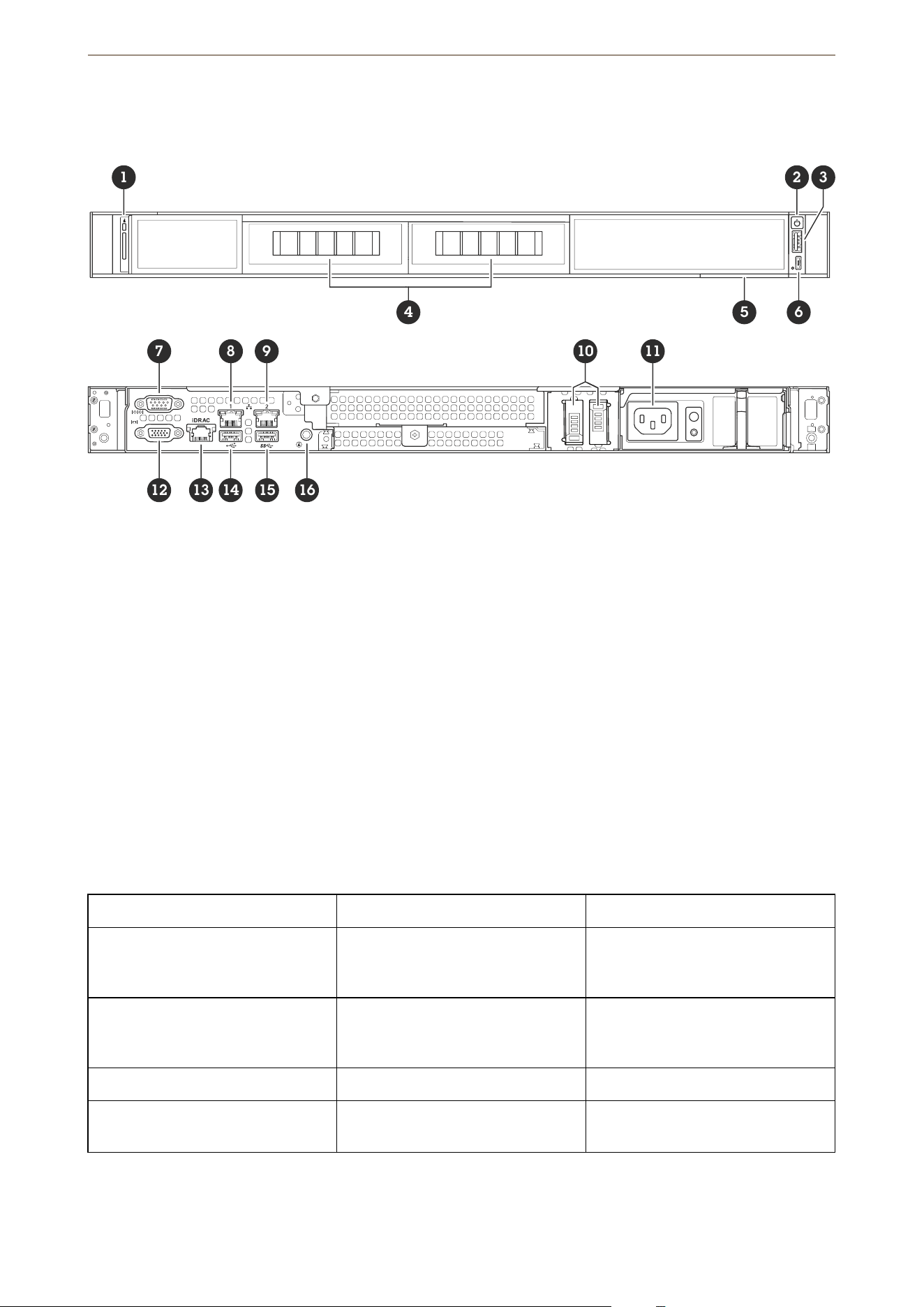
21
Product overview
Front and rear sides
1
54 6
2 3
7 8 9 10
12 13 14 15 16
11
1 System identification button and indicator
2 Power button/power LED
3 USB 2.0 port
4 Hard drive tray
5 Information tag
6 iDRAC direct port
7 Serial port
8 1 GbE Ethernet port 1
9 1 GbE Ethernet port 2
10 Solid state drive tray
11 Power supply unit
12 VGA port
13 iDRAC dedicated Ethernet port
14 USB 2.0 port
15 USB 3.2 Gen 1 port
16 System identification button and indicator
Specifications
System health and ID indicators
LED Description Action
Solid blue The system is powered on, is
healthy, and system ID mode is not
active.
Press the system health and
system ID button to switch to
system ID mode.
Blinking blue The system ID mode is active. Press the system health and
system ID button to switch to
system health mode.
Solid amber The system is in fail-safe mode.
Blinking amber The system is experiencing a fault. Check the system event log for the
specific error message.
iDRAC direct LED indicators
AXIS Camera Station S1224 Rack Recording Server

22
LED Description
Solid green for two seconds The laptop or tablet is connected.
Blinking green (on for two seconds and off for two
seconds)
The laptop or tablet connected is recognized.
Off The laptop or tablet is unplugged.
NIC indicators
LED Description
Link and activity indicators are off The NIC is not connected to the network.
Link indicator is green and activity indicator is
blinking green
The NIC is connected to a valid network at its
maximum port speed and data is being sent or
received.
Link indicator is amber and activity indicator is
blinking green
The NIC is connected to a valid network at less than
its maximum port speed and data is being sent or
received.
Link indicator is green and activity indicator is off The NIC is connected to a valid network at its
maximum port speed and data is not being sent or
received.
Link indicator is amber and activity indicator is off The NIC is connected to a valid network at less that
its maximum port speed and data is not being sent or
received.
Power supply unit (PSU) indicators
LED Description
Green A valid power source is connected to the PSU and the
PSU is operational.
Not powered on • Power is not connected to the PSU.
• There is a problem with the PSU.
AXIS Camera Station S1224 Rack Recording Server

23
Troubleshooting
Check the current BIOS version
To check the current BIOS:
1. Power on the device.
2. Wait until you see the Axis splash screen. You’ll see the version number above the splash screen.
Upgrade BIOS
You should upgrade the BIOS only when you are instructed by Axis technical support.
If you don’t have access to Windows®: update package instructions for EFI
1. Go to the support pages on dell.com and enter your service tag. Go to Drivers & Downloads and
download the .efi file.
2. Copy the file to a USB device.
3. Plug in the USB device and press F11 during POST to enter BIOS Boot Manager.
4. Go to System Utilities menu > BIOS Update File Explorer.
5. Select the USB device and navigate through the directory contents to find the executable (.efi).
6. Launch the executable and follow the instructions provided by the flash utility.
If you have access to Windows®: update package instructions for Windows® Dup
1. Browse to the location where you downloaded the file and double-click the new file.
2. Read over the release information in the dialog window.
3. Download and install any prerequisites identified in the dialog window before proceeding.
4. Install any necessary Embedded Systems Management firmware prior to this BIOS update.
5. Click Install.
6. Follow the onscreen instructions.
Run diagnostics
Running diagnostics help you to identify the cause for a system issue. The diagnostics test your system hardware
without requiring additional equipment or risking data loss.
1. While the system is booting, press F10 to enter Lifecycle Controller.
2. Go to Hardware Diagnostics and click Run Hardware Diagnostics.
3. Note the error code and contact Axis technical support.
Perform a system recovery
If the device has had a complete system failure, you must use a recovery image to recreate the Windows®
system. To download the AXIS Recovery Kit, contact Axis technical support and supply the serial number of your
device.
1. Download the AXIS Recovery Kit and AXIS ISO to USB Tool.
2. Insert a USB drive into your computer.
– Use a USB drive with a minimum of 16 GB to 32 GB.
– The USB drive will be formatted, and all existing data will be erased.
3. Run the AXIS ISO to USB Tool and follow the onscreen instructions.
Writing data to the USB drive takes approximately 10 to 15 min. Don’t remove the USB drive until the
process is complete.
AXIS Camera Station S1224 Rack Recording Server

24
4. After the ISO to USB tool is complete, take the USB drive and plug it into your device.
5. Start your device.
6. When you see the AXIS splash screen, press F11.
7. Click One-shot UEFI Boot Menu.
8. Navigate to your USB drive and press ENTER. The system boots into the AXIS Recovery Kit.
9. Click Reinstall Operating System.
The recovery takes roughly 10 to 15 min to complete. You find detailed instructions in the download for
the recovery kit.
Export a SupportAssist collection
You can export the SupportAssist collection to a USB drive or a network share (CIFS/NFS). The collection
includes the following data:
• Hardware
• RAID controller logs
To export the SupportAssist collection:
1. During Power-on-self-test (POST), press F10 to start Lifecycle Controller.
2. Go to Hardware Diagnostics > Export SupportAssist collection.
3. Read the terms and conditions and click Next.
You must accept the terms and conditions to allow technical support to use the SupportAssist collection
data.
4. Select the data options which you want to include in the SupportAssist collection and click Next.
5. Enter the required export settings information and click Next.
– To export to a USB drive: select the USB drive option and then select the name of the USB Drive
and enter the file path details to where the collection is to export.
– To export to NFS: select the NFS option and enter the required information.
– To export to CIFS: select the CIFS option and enter the required information.
Click Test Network Connection to verify if the Lifecycle Controller can connect to the IP address
that is provided. By default, it pings the Gateway IP, DNS Server IP, host IP and Proxy IP.
6. Verify your selection and click Finish.
Lifecycle Controller retrieves the selected collection data and exports to the specified location. This can
take a few minutes.
Troubleshoot the power supply unit
1. Make sure that there are no loose connections, for example loose power cables.
2. Check the status of the power indicator on the power supply unit. See .
3. If the problem persists, contact Axis technical support.
Troubleshoot memory errors
1. Upgrade the BIOS to the latest version.
2. If the errors persist, contact Axis technical support.
Troubleshoot AXIS Camera Station Pro
For information about how to troubleshoot AXIS Camera Station Pro, go to the AXIS Camera Station Pro user
manual.
AXIS Camera Station S1224 Rack Recording Server


.
T10215432
2025-04 (M1.12)
© 2025 Axis Communications AB