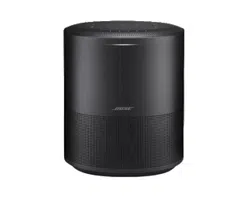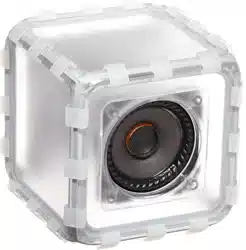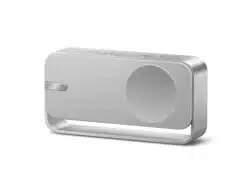
SOUNDLINK HOME BLUETOOTH® SPEAKER

IMPORTANT SAFETY INSTRUCTIONS
2
|
ENG
Please read and keep all safety and use instructions.
Important Safety Instructions
Do not use this apparatus near water.
Clean only with a dry cloth.
Only use aachments/accessories specified by the manufacturer.
Refer all servicing to qualified personnel. Servicing is required when the apparatus has been damaged in any
way, such as power-supply cord or plug is damaged, liquid has been spilled or objects have fallen into the
apparatus, the apparatus has been exposed to rain or moisture, does not operate normally, or has
been dropped.
WARNINGS/CAUTIONS
This product contains magnetic material. Consult your physician on whether this might aect your
implantable medical device.
• Keep the product away from fire and heat sources. Do NOT place naked flame sources, such as lighted
candles, on or near the product.
• Do NOT make unauthorized alterations to this product.
• Use this product only with an agency- approved LPS power supply that meets local regulatory requirements
(e.g., UL, CSA, VDE, CCC).
• The baery provided with this product may present a risk of fire, explosion or chemical burn if mishandled,
incorrectly replaced or replaced with an incorrect type.
• Do not expose products containing baeries to excessive heat (e.g. from storage in direct sunlight, fire or
the like).
• Due to ventilation requirements, Bose does not recommend placing the product in a confined space such as
in a wall cavity or in an enclosed cabinet.
• Do not place or install near any heat sources, such as fireplaces, radiators, heat registers, stoves or other
apparatus (including amplifiers) that produce heat.
REGULATORY AND LEGAL INFORMATION
3
|
ENG
NOTE: This equipment has been tested and found to comply with the limits for a Class B digital device,
pursuant to Part 15 of the FCC Rules. These limits are designed to provide reasonable protection against
harmful interference in a residential installation. This equipment generates, uses, and can radiate radio
frequency energy and, if not installed and used in accordance with the instructions, may cause harmful
interference to radio communications. However, there is no guarantee that interference will not occur in a
particular installation. If this equipment does cause harmful interference to radio or television reception,
which can be determined by turning the equipment o and on, the user is encouraged to try to correct the
interference by one or more of the following measures:
• Reorient or relocate the receiving product or antenna.
• Increase the separation between the equipment and receiver.
• Connect the equipment into an outlet on a circuit dierent from that to which the receiver is connected.
• Consult the dealer or an experienced radio/TV technician for help.
Changes or modifications not expressly approved by Bose Corporation could void the user’s authority to
operate this equipment.
This device complies with part 15 of the FCC Rules and with ISED Canada license-exempt RSS standard(s).
Operation is subject to the following two conditions: (1) This device may not cause harmful interference,
and (2) this device must accept any interference received, including interference that may cause
undesired operation.
This equipment should be installed and operated with a minimum distance of 20 cm between radiator and
your body.
CAN ICES-3(B)/NMB-3(B)
Names and Contents of Toxic or Hazardous Substances or Elements
Toxic or Hazardous Substances and Elements
Part
Name
Lead
(Pb)
Mercury
(Hg)
Cadmi-
um
(Cd)
Hexava-
lent
(Cr(VI))
Polybromi-
nated
Biphenyl
(PBB)
Polybromi-
nated
diphenyle-
ther
(PBDE)
Dybutyl
phthalate
(DBP)
Diisobutyl
phthalate
(DIBP)
Butyl
benzyl
phthalate
(BBP)
Bis(2-eth-
ylhexyl)
phthalate
(DEHP)
PCBs X O O O O O O O O O
Metal
Parts
X O O O O O O O O O
Plastic
Parts
O O O O O O O O O O
Speakers X O O O O O O O O O
Cables X O O O O O O O O O
This table is prepared in accordance with the provisions of SJ/T 11364.
O: Indicates that this toxic or hazardous substance contained in all of the homogeneous materials for this part is
below the limit requirement of GB/T 26572.
X: Indicates that this toxic or hazardous substance contained in at least one of the homogeneous
materials used for this part is above the limit requirement of GB/T 26572.
Date of Manufacture: The eighth digit in the serial number indicates the year of manufacture; “4” is 2014
or 2024.
Importers: Bose Electronics (Shanghai) Company Limited, Level 6, Tower D, No. 2337 Gudai Rd. Minhang
District, Shanghai 201100
Model: 443696. The CMIIT ID is located on the boom of the speaker.
The Bose Terms of Use apply to this product: worldwide.bose.com/termsofuseworldwide.bose.com/termsofuse

REGULATORY AND LEGAL INFORMATION
4
|
ENG
The Bluetooth® word mark and logos are registered trademarks owned by Bluetooth SIG, Inc. and any use of
such marks by Bose Corporation is under license.
USB Type-C® and USB-C® are registered trademarks of USB Implementers Forum.
Bose, the B logo, and SoundLink are trademarks of Bose Corporation. | Bose Corporation Headquarters:
1-877-230-5639 | ©2024 Bose Corporation. No part of this work may be reproduced, modified, distributed, or
otherwise used without prior wrien permission.
Please complete and retain for your records
The serial number and model number are located on the boom of the speaker.
Serial number: ___________________________________________________________________________
Model number: 443696
Please keep your receipt. Now is a good time to register your Bose product. You can easily do this by going to
worldwide.Bose.com/ProductRegistrationworldwide.Bose.com/ProductRegistration

5
|
ENG
LICENSE DISCLOSURES
The following license disclosures apply to certain third-party software packages used as components in
the product.
Package: µGUI - Generic GUI module
Copyright © 2015 Achim Döbler
This is a free software that is open for education, research and commercial developments under license policy
of following terms. The µGUI module is a free software and there is NO WARRANTY. No restriction on use.
URL: hp://www.embeddedlightning.com/hp://www.embeddedlightning.com/
Package: Zephyr OS
Copyright © Zephyr Project
The above is/are subject to the license terms reprinted below:
Apache License
Version 2.0, January 2004
hp://www.apache.org/licenses/hp://www.apache.org/licenses/
TERMS AND CONDITIONS FOR USE, REPRODUCTION, AND DISTRIBUTION
1. Definitions.
“License” shall mean the terms and conditions for use, reproduction, and distribution as defined by
Sections 1 through 9 of this document.
“Licensor” shall mean the copyright owner or entity authorized by the copyright owner that is granting
the License.
“Legal Entity” shall mean the union of the acting entity and all other entities that control, are controlled
by, or are under common control with that entity. For the purposes of this definition, “control” means (i)
the power, direct or indirect, to cause the direction or management of such entity, whether by contract
or otherwise, or (ii) ownership of fifty percent (50%) or more of the outstanding shares, or (iii) beneficial
ownership of such entity.
“You” (or “Your”) shall mean an individual or Legal Entity exercising permissions granted by this License.
“Source” form shall mean the preferred form for making modifications, including but not limited to
software source code, documentation source, and configuration files.
“Object” form shall mean any form resulting from mechanical transformation or translation of a Source
form, including but not limited to compiled object code, generated documentation, and conversions to
other media types.
“Work” shall mean the work of authorship, whether in Source or Object form, made available under the
License, as indicated by a copyright notice that is included in or aached to the work (an example is
provided in the Appendix below).
“Derivative Works” shall mean any work, whether in Source or Object form, that is based on (or derived
from) the Work and for which the editorial revisions, annotations, elaborations, or other modifications
represent, as a whole, an original work of authorship. For the purposes of this License, Derivative Works
shall not include works that remain separable from, or merely link (or bind by name) to the interfaces of,
the Work and Derivative Works thereof.
“Contribution” shall mean any work of authorship, including the original version of the Work and any
modifications or additions to that Work or Derivative Works thereof, that is intentionally submied to
Licensor for inclusion in the Work by the copyright owner or by an individual or Legal Entity authorized to
submit on behalf of the copyright owner. For the purposes of this definition, “submied” means any form
of electronic, verbal, or wrien communication sent to the Licensor or its representatives, including but
not limited to communication on electronic mailing lists, source code control systems, and issue tracking
systems that are managed by, or on behalf of, the Licensor for the purpose of discussing and improving
the Work, but excluding communication that is conspicuously marked or otherwise designated in writing
by the copyright owner as “Not a Contribution.”

6
|
ENG
“Contributor” shall mean Licensor and any individual or Legal Entity on behalf of whom a Contribution has
been received by Licensor and subsequently incorporated within the Work.
2. Grant of Copyright License. Subject to the terms and conditions of this License, each Contributor hereby
grants to You a perpetual, worldwide, non-exclusive, no-charge, royalty-free, irrevocable copyright license
to reproduce, prepare Derivative Works of, publicly display, publicly perform, sublicense, and distribute the
Work and such Derivative Works in Source or Object form.
3. Grant of Patent License. Subject to the terms and conditions of this License, each Contributor hereby
grants to You a perpetual, worldwide, non-exclusive, no-charge, royalty-free, irrevocable (except as stated
in this section) patent license to make, have made, use, oer to sell, sell, import, and otherwise transfer
the Work, where such license applies only to those patent claims licensable by such Contributor that
are necessarily infringed by their Contribution(s) alone or by combination of their Contribution(s) with
the Work to which such Contribution(s) was submied. If You institute patent litigation against any
entity (including a cross-claim or counterclaim in a lawsuit) alleging that the Work or a Contribution
incorporated within the Work constitutes direct or contributory patent infringement, then any patent
licenses granted to You under this License for that Work shall terminate as of the date such litigation
is filed.
4. Redistribution. You may reproduce and distribute copies of the Work or Derivative Works thereof in
any medium, with or without modifications, and in Source or Object form, provided that You meet the
following conditions:
a. You must give any other recipients of the Work or Derivative Works a copy of this License; and
b. You must cause any modified files to carry prominent notices stating that You changed the files; and
c. You must retain, in the Source form of any Derivative Works that You distribute, all copyright, patent,
trademark, and aribution notices from the Source form of the Work, excluding those notices that do
not pertain to any part of the Derivative Works; and
d. If the Work includes a “NOTICE” text file as part of its distribution, then any Derivative Works that You
distribute must include a readable copy of the aribution notices contained within such NOTICE file,
excluding those notices that do not pertain to any part of the Derivative Works, in at least one of the
following places: within a NOTICE text file distributed as part of the Derivative Works; within the Source
form or documentation, if provided along with the Derivative Works; or, within a display generated by
the Derivative Works, if and wherever such third-party notices normally appear. The contents of the
NOTICE file are for informational purposes only and do not modify the License. You may add Your own
aribution notices within Derivative Works that You distribute, alongside or as an addendum to the
NOTICE text from the Work, provided that such additional aribution notices cannot be construed
as modifying the License. You may add Your own copyright statement to Your modifications and may
provide additional or dierent license terms and conditions for use, reproduction, or distribution of
Your modifications, or for any such Derivative Works as a whole, provided Your use, reproduction, and
distribution of the Work otherwise complies with the conditions stated in this License.
5. Submission of Contributions. Unless You explicitly state otherwise, any Contribution intentionally
submied for inclusion in the Work by You to the Licensor shall be under the terms and conditions of
this License, without any additional terms or conditions. Notwithstanding the above, nothing herein shall
supersede or modify the terms of any separate license agreement you may have executed with Licensor
regarding such Contributions.
6. Trademarks. This License does not grant permission to use the trade names, trademarks, service marks,
or product names of the Licensor, except as required for reasonable and customary use in describing the
origin of the Work and reproducing the content of the NOTICE file.
7. Disclaimer of Warranty. Unless required by applicable law or agreed to in writing, Licensor provides the
Work (and each Contributor provides its Contributions) on an “AS IS” BASIS, WITHOUT WARRANTIES
OR CONDITIONS OF ANY KIND, either express or implied, including, without limitation, any warranties
or conditions of TITLE, NON-INFRINGEMENT, MERCHANTABILITY, or FITNESS FOR A PARTICULAR
PURPOSE. You are solely responsible for determining the appropriateness of using or redistributing the
Work and assume any risks associated with Your exercise of permissions under this License.
8. Limitation of Liability. In no event and under no legal theory, whether in tort (including negligence),
contract, or otherwise, unless required by applicable law (such as deliberate and grossly negligent acts)
LICENSE DISCLOSURES

7
|
ENG
LICENSE DISCLOSURES
or agreed to in writing, shall any Contributor be liable to You for damages, including any direct, indirect,
special, incidental, or consequential damages of any character arising as a result of this License or out
of the use or inability to use the Work (including but not limited to damages for loss of goodwill, work
stoppage, computer failure or malfunction, or any and all other commercial damages or losses), even if
such Contributor has been advised of the possibility of such damages.
9. Accepting Warranty or Additional Liability. While redistributing the Work or Derivative Works thereof, You
may choose to oer, and charge a fee for, acceptance of support, warranty, indemnity, or other liability
obligations and/or rights consistent with this License. However, in accepting such obligations, You may act
only on Your own behalf and on Your sole responsibility, not on behalf of any other Contributor, and only if
You agree to indemnify, defend, and hold each Contributor harmless for any liability incurred by, or claims
asserted against, such Contributor by reason of your accepting any such warranty or additional liability.
Unless required by applicable law or agreed to in writing, software distributed under the License is distributed
on an “AS IS” BASIS, WITHOUT WARRANTIES OR CONDITIONS OF ANY KIND, either express or implied. See the
License for the specific language governing permissions and limitations under the License.

8
|
ENG
CONTENTS
WHAT’S IN THE BOX
Contents ........................................................................................................................................................ 11
GETTING STARTED
Initial setup .................................................................................................................................................... 12
BLUETOOTH CONNECTIONS
Connect to a device..................................................................................................................................... 14
Reconnect to a device ................................................................................................................................ 15
Reconnect to the most recently-connected devices ................................................................. 15
Reconnect to a dierent device ...................................................................................................... 15
Connect an additional device.................................................................................................................... 15
Switch between two connected devices ................................................................................................ 15
Disconnect a device .................................................................................................................................... 16
Clear the speaker device list ...................................................................................................................... 16
SPEAKER PLACEMENT
Recommendations....................................................................................................................................... 17
SPEAKER CONTROLS
Power on/o .................................................................................................................................................. 18
Auto-o timer...................................................................................................................................... 19
Media playback and volume ...................................................................................................................... 20
Phone calls .................................................................................................................................................... 21
Access voice control .................................................................................................................................... 22

CONTENTS
9
|
ENG
BATTERY
Charge the speaker ...................................................................................................................................... 23
Charging time ...................................................................................................................................... 24
Hear the baery level ......................................................................................................................... 24
Baery protection mode ................................................................................................................... 24
STATUS
Power light ..................................................................................................................................................... 25
Bluetooth light .............................................................................................................................................. 26
VOICE PROMPTS
Pre-installed languages .............................................................................................................................. 27
Change the language .................................................................................................................................. 27
Disable voice prompts ................................................................................................................................. 27
WIRED CONNECTIONS
Connect to a USB audio source ................................................................................................................ 28
Switch between a USB audio source and a Bluetooth device .................................................. 28
CONNECT BOSE PRODUCTS
Connect two speakers in Stereo mode ................................................................................................... 29
Connect the speakers ....................................................................................................................... 29
Identify the left and right speakers ................................................................................................ 30
Reconnect the speakers ................................................................................................................... 31
Disconnect the speakers .................................................................................................................. 31
Clear the speaker connection .......................................................................................................... 31

CONTENTS
10
|
ENG
CARE AND MAINTENANCE
Clean the speaker ........................................................................................................................................ 32
Store the speaker ......................................................................................................................................... 32
Replacement parts and accessories ........................................................................................................ 32
Limited warranty .......................................................................................................................................... 32
TROUBLESHOOTING
Try these solutions first ............................................................................................................................... 33
Other solutions ............................................................................................................................................. 33
Reset the speaker ........................................................................................................................................ 36
Restore the speaker ..................................................................................................................................... 37
11
|
ENG
WHAT’S IN THE BOX
CONTENTS
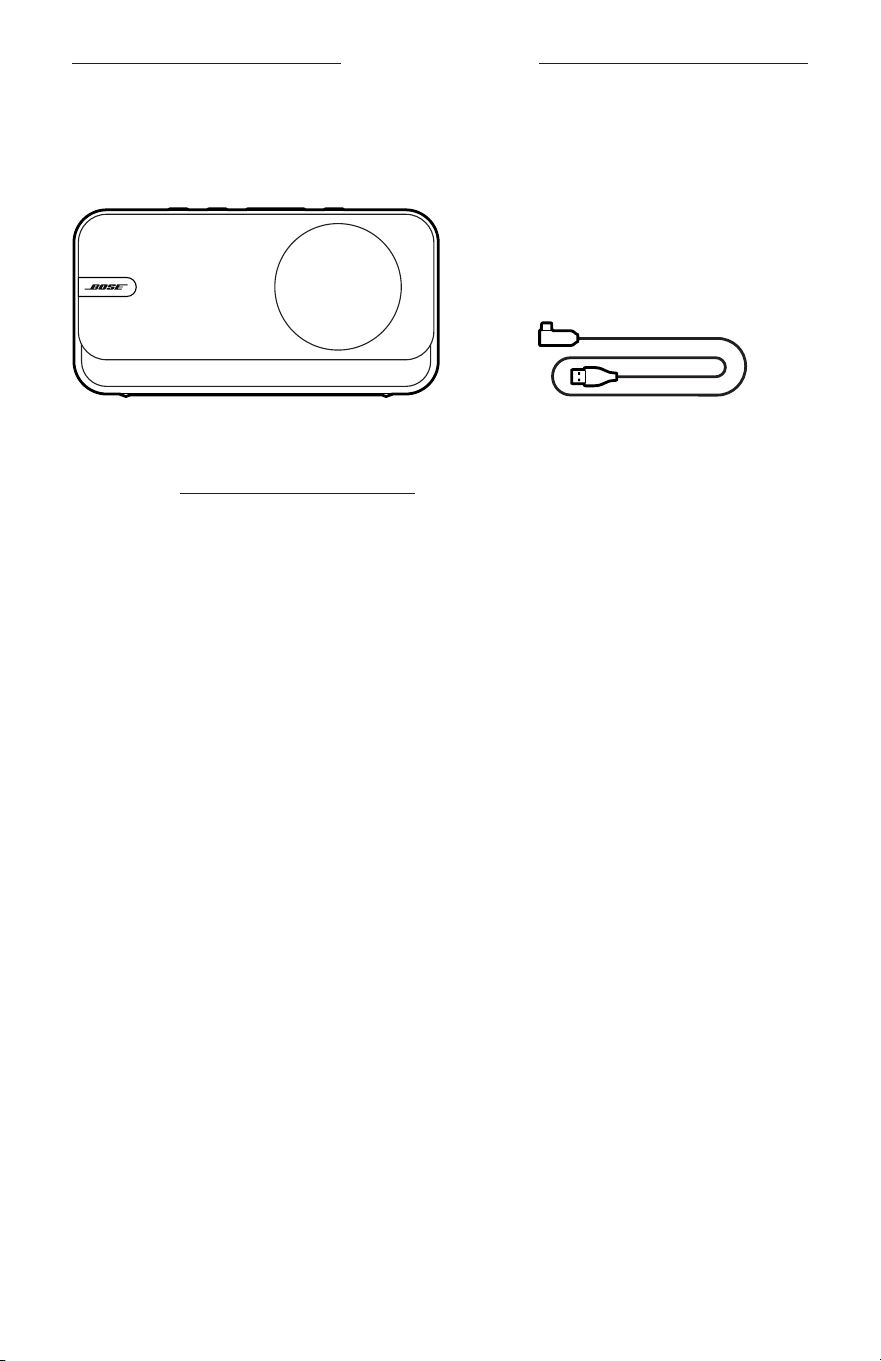
Confirm that the following parts are included:
Bose SoundLink Home Bluetooth Speaker
USB Type-C® to USB Type-A cable
NOTE: If any part of your product appears to be missing or damaged, don’t use it.
Visit support.Bose.com/sl-homesupport.Bose.com/sl-home for troubleshooting articles, videos, and
product repair or replacement.
12
|
ENG
GETTING STARTED
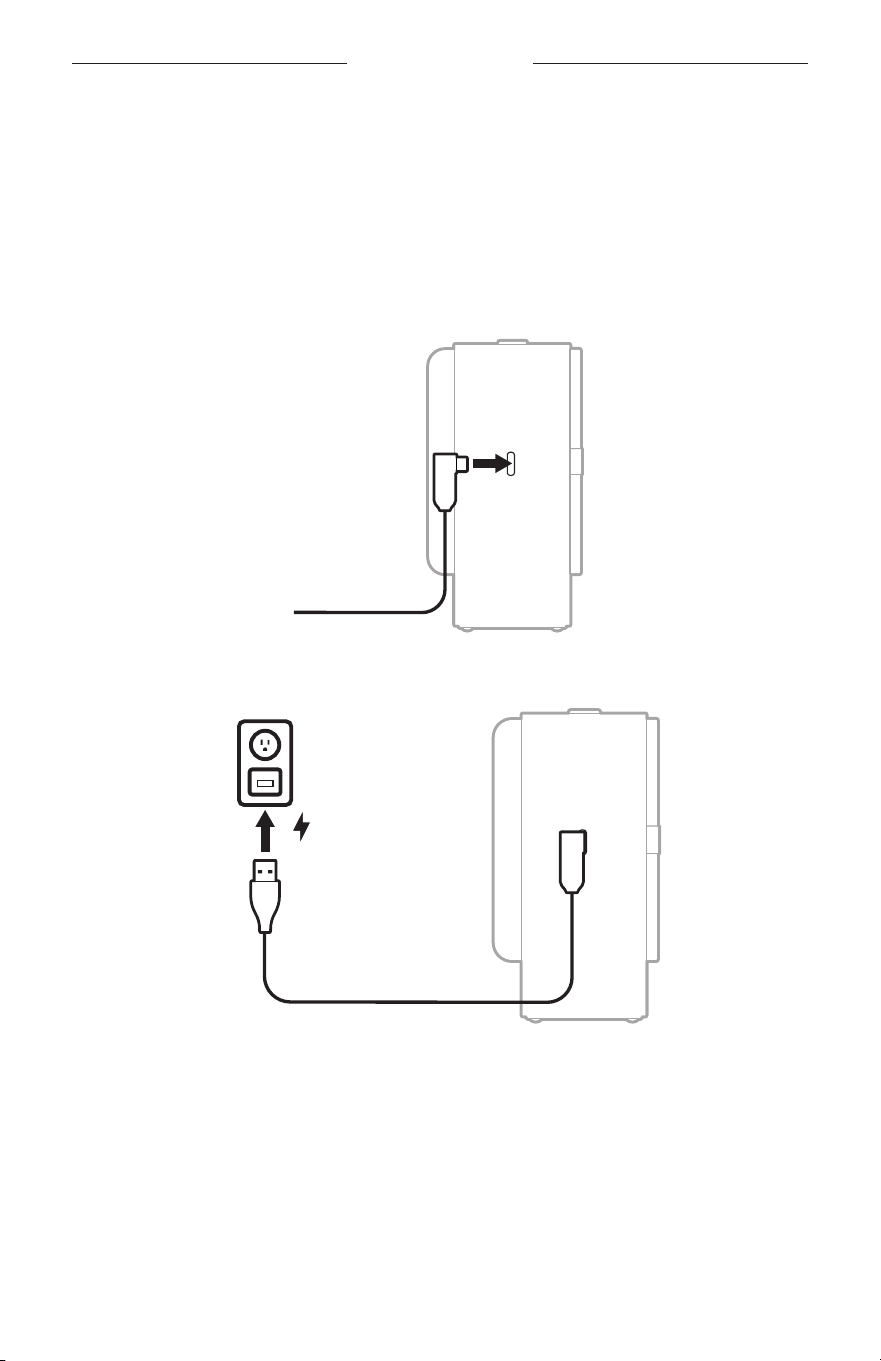
The speaker ships with a partial charge. Before using the speaker for the first time,
connect it to a power supply. The speaker doesn’t need to be fully charged, but it does
require the initial connection to activate the baery.
INITIAL SETUP
1. Connect the USB-C® end of the cable to the USB-C port on the left side of
the speaker.
2. Connect the USB-A end of the cable to a USB-A power supply.
GETTING STARTED
13
|
ENG
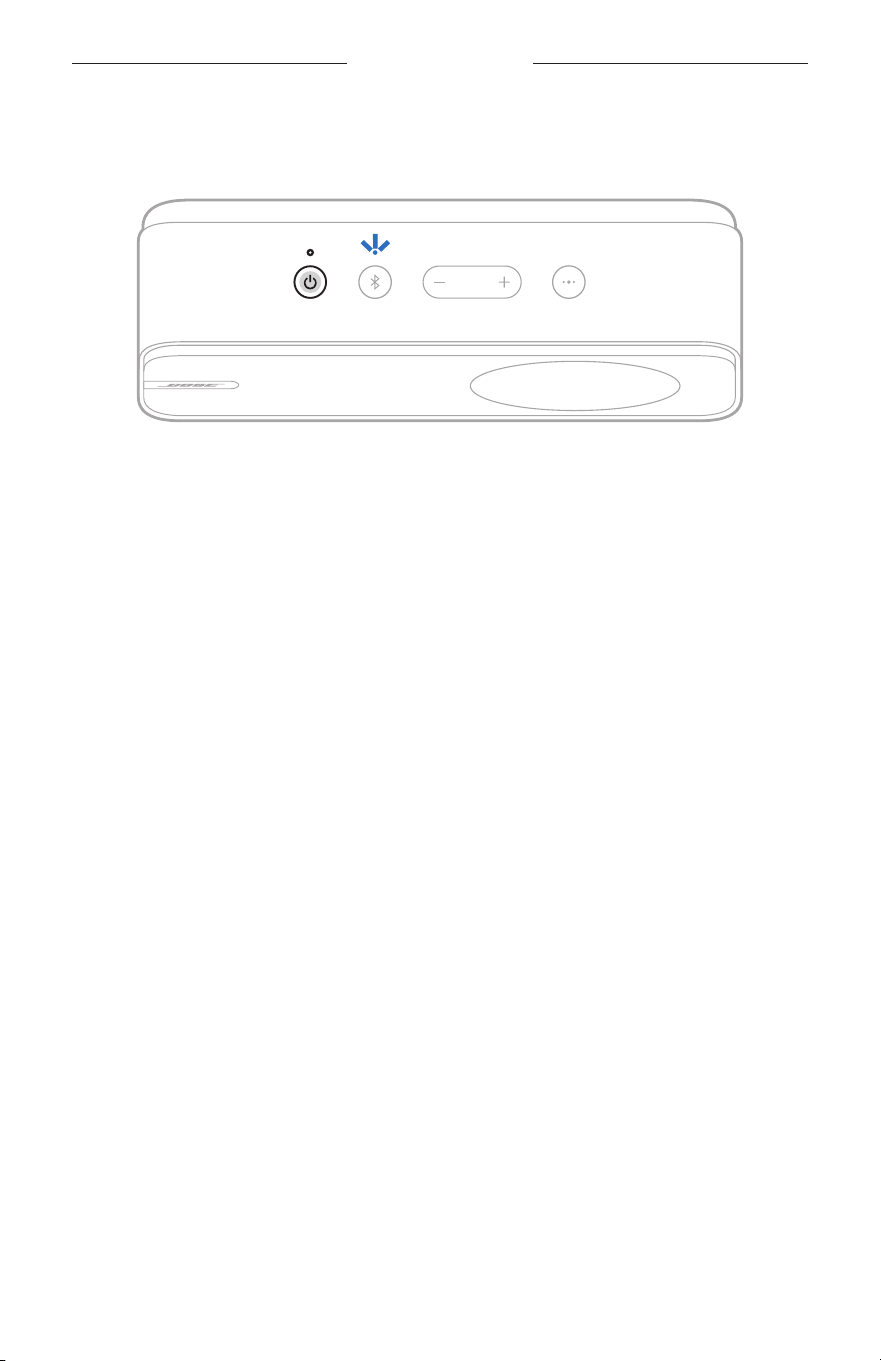
3. Press the Power buon I.
The Power light glows solid white, and the Bluetooth light blinks blue.
A voice prompt announces the baery level, and then you hear “Ready to connect.”
4. Connect to your device (see page 14).
14
|
ENG
Y
BLUETOOTH CONNECTIONS
You can store up to eight devices in the speaker device list, and the speaker can be
actively connected to up to two devices at a time. You can play audio from only one
device at a time.
CONNECT TO A DEVICE
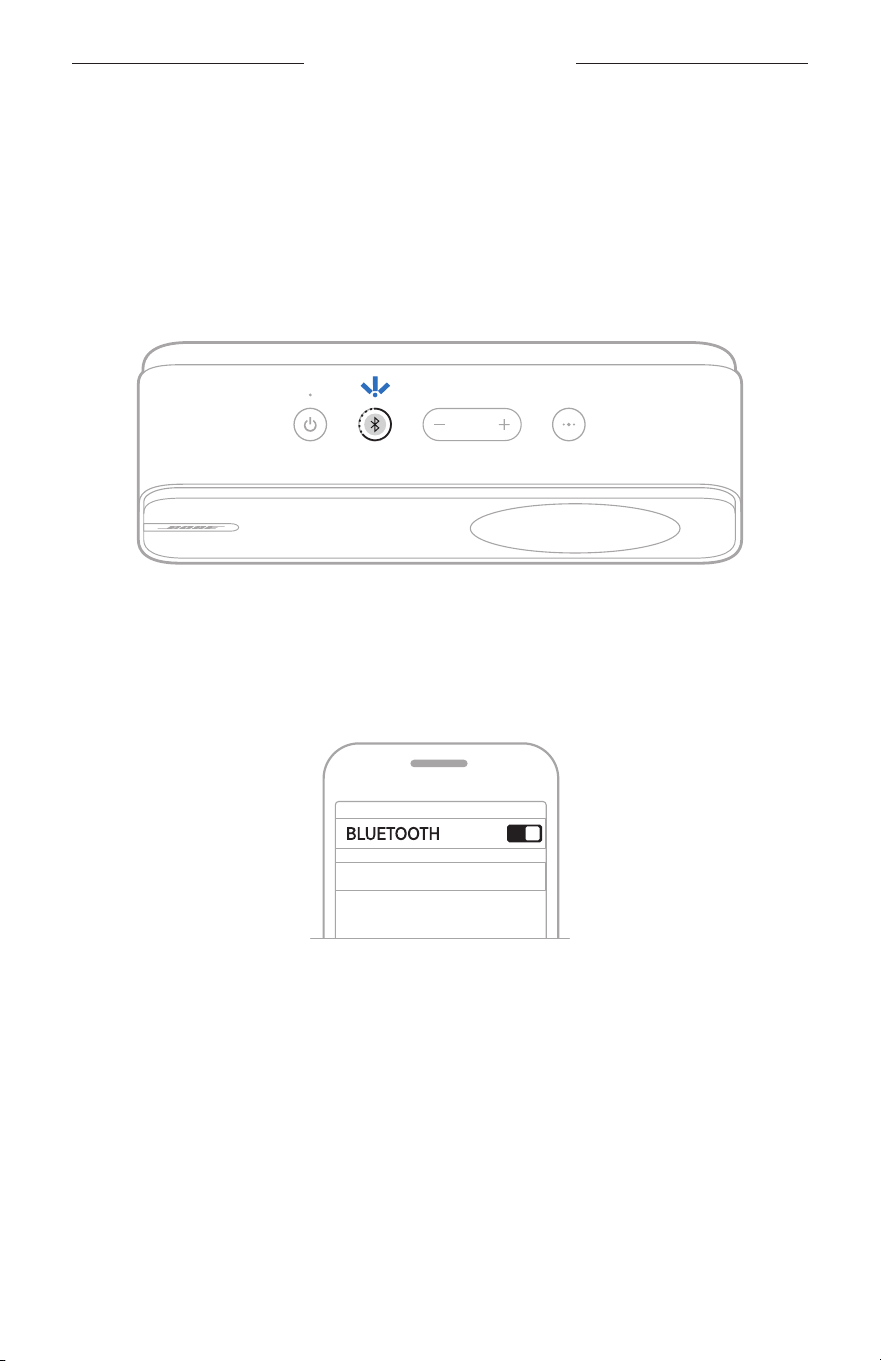
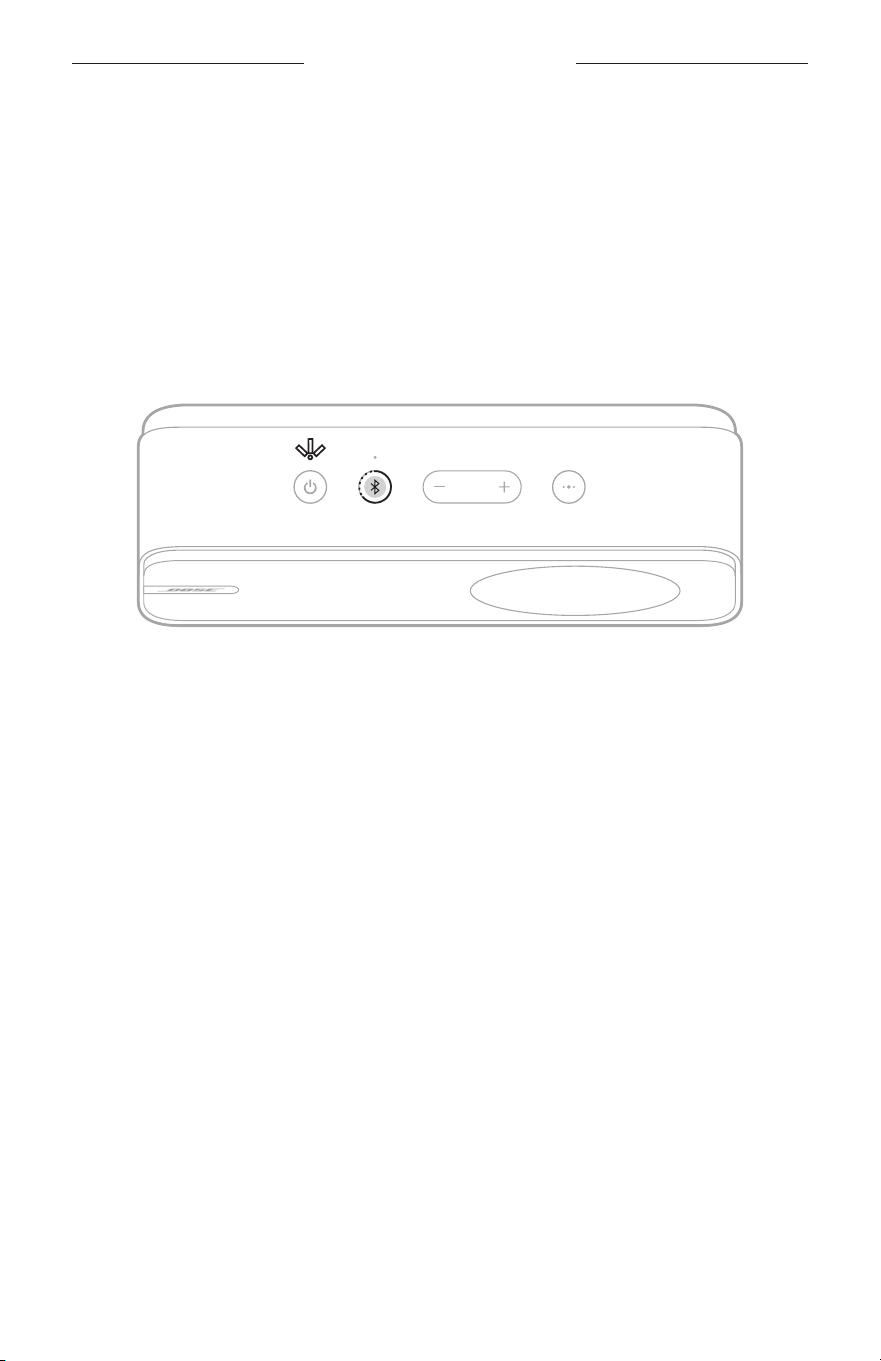
1. Press and hold the Bluetooth buon l until you hear “Ready to connect” and the
Bluetooth light blinks blue.
NOTE: If a device is already connected, you hear “Ready to connect
another device.”
2. On your device, access Bluetooth seings.
3. Select the speaker from the list of available products.
Bose SoundLink Home
The speaker appears in the list of connected products. The Bluetooth light glows
solid blue (see page 26).

GETTING STARTED
15
|
ENG
BLUETOOTH CONNECTIONS
RECONNECT TO A DEVICE
Reconnect to the most recently-connected devices
When powered on, the speaker connects to the two most
recently-connected devices.
NOTES:
• The devices must be within range (30 ft or 9 m) and powered on.
• Make sure the Bluetooth feature is enabled on your devices.
• If the speaker is connected to a USB audio source when powered on, it doesn’t
reconnect to any Bluetooth devices. To reconnect to a device, use the device
Bluetooth seings.
Reconnect to a different device
To reconnect to a dierent previously-connected device, use the device
Bluetooth seings.
NOTES:
• The device must be within range (30 ft or 9 m) and powered on.
• If two devices are already connected to the speaker, you must disconnect one of
them before reconnecting a third previously-connected device.
CONNECT AN ADDITIONAL DEVICE
The speaker can be actively connected to two devices at a time
(multi-point connection).
To connect an additional device, see page 14.
NOTES:
• You can only play audio from one device at a time.
• If two devices are already connected to the speaker, the newly-connected device
replaces the older of the two connections.
SWITCH BETWEEN TWO CONNECTED DEVICES
1. Pause audio on your first device.
2. Play audio on your second device.
16
|
ENG
BLUETOOTH CONNECTIONS
DISCONNECT A DEVICE
Use the device’s Bluetooth seings.
NOTE: Disabling the Bluetooth feature on your device disconnects the speaker and
all other Bluetooth-connected products.
CLEAR THE SPEAKER DEVICE LIST
1. Press and hold the Bluetooth buon l for 10 seconds until you hear “Bluetooth
device list cleared” and the Power light blinks white twice.
The Bluetooth light blinks blue.
2. Delete the speaker from your device’s Bluetooth seings.
All devices are cleared, and the speaker is ready to connect (see page 14).

17
|
ENG
SPEAKER PLACEMENT
RECOMMENDATIONS
• Place the speaker so that the rubber base is on a stable and level surface.
• Do NOT place the speaker on top of audio/video equipment (receivers, TVs, etc.), or
any other object that may generate heat. Heat generated by these items may result
in poor speaker performance.
• For best sound quality, keep the speaker at least 0.25 in (6.4 mm) away from walls
or nearby surfaces.
• To avoid wireless interference, keep other wireless equipment at least 1 – 3 ft
(0.3 – 0.9 m) away from the speaker.
• Place your device within 30 ft (9 m) of the speaker, and make sure there is a
clear line of sight between it and the speaker. Moving your device farther away
or not having a clear line of sight may impact sound quality, and your device may
disconnect from the speaker.
CAUTION: Stand the speaker on its base. Standing the speaker on any other side
may cause damage to the speaker and aect sound quality.
18
|
ENG
SPEAKER CONTROLS
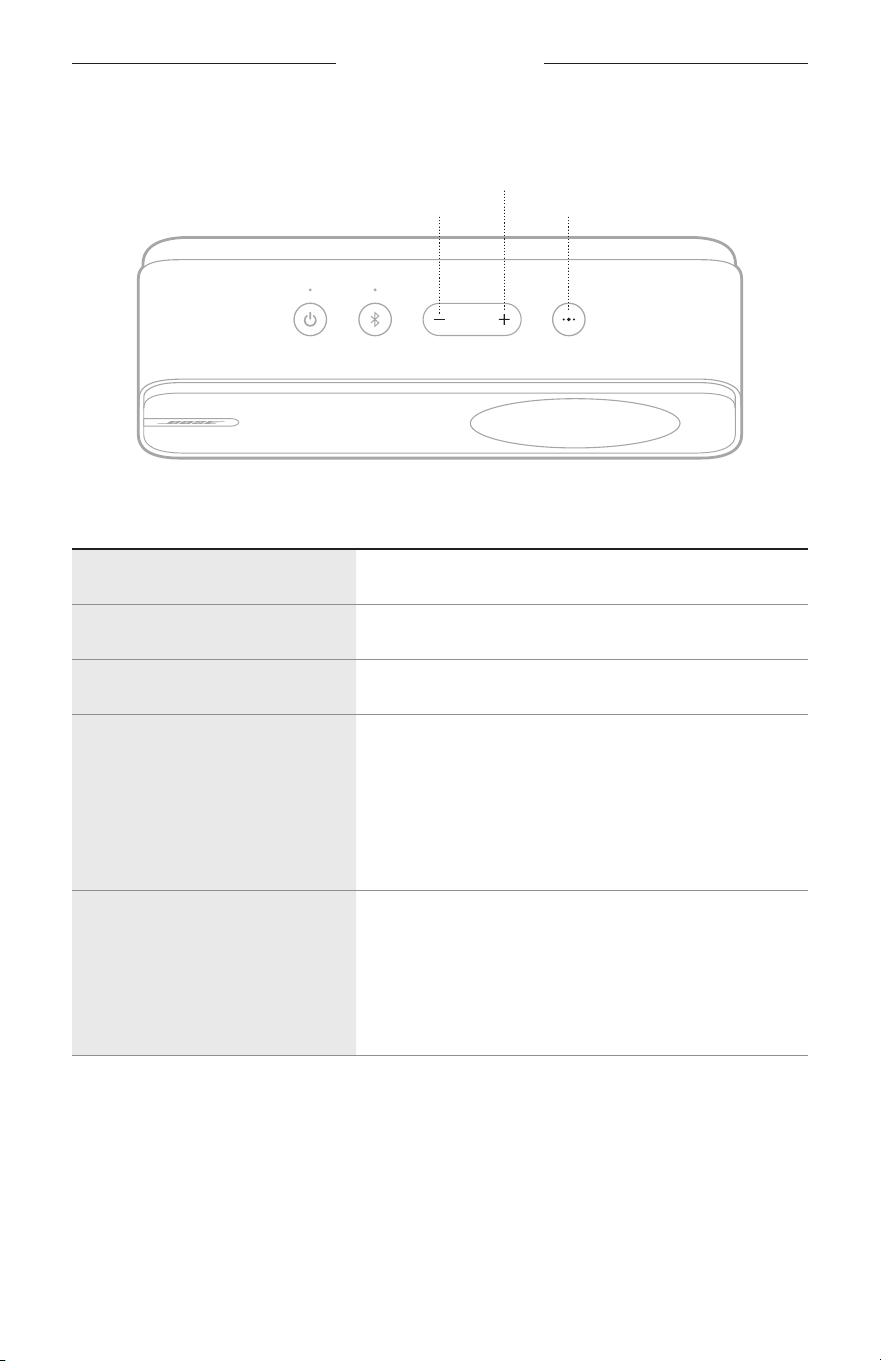
Controls are located on the top of the speaker.
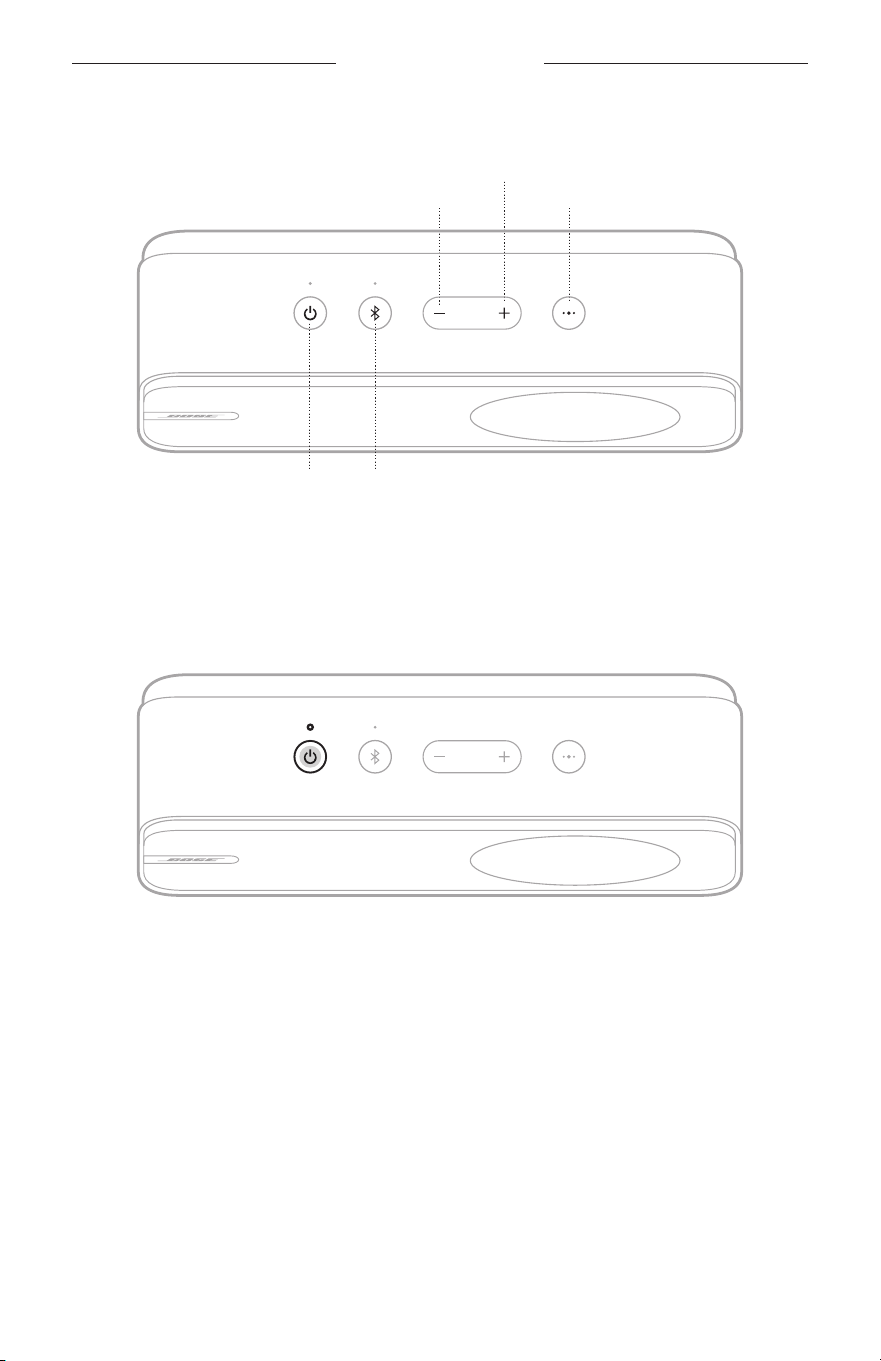
Volume down buon
Volume up buon
Multi-function buon
Power buon Bluetooth buon
POWER ON/OFF
Press the Power buon I.
When powered on, a voice prompt announces the baery level. The Power light glows
according to the current baery level (see page 25).

SPEAKER CONTROLS
19
|
ENG
Auto-off timer
The auto-o timer conserves the baery when the speaker is operating on baery
power. The speaker switches o when audio has stopped and buons have not been
pressed for 20 minutes.
To wake the speaker, press the Power buon I.
Disable the auto-o timer
Press the Multi-function buon V and the Volume up buon H simultaneously. You
hear “Auto-o disabled.”
Repeat to re-enable the auto-o timer.
SPEAKER CONTROLS
20
|
ENG
MEDIA PLAYBACK AND VOLUME
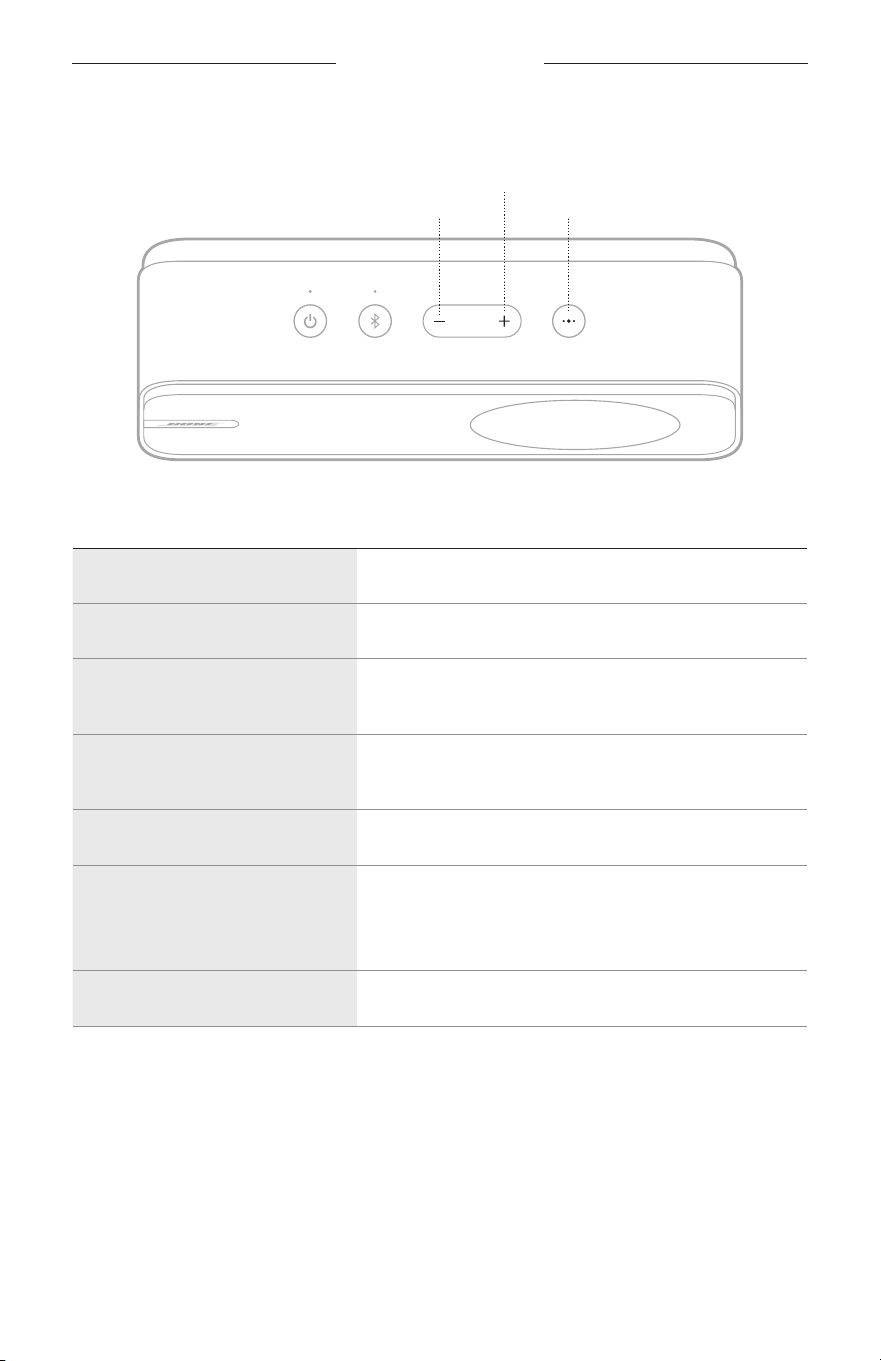
Volume down buon
Volume up buon
Multi-function buon
FUNCTION WHAT TO DO
Play/Pause Press V.
Skip forward Double-press V.
Skip backward Triple-press V.
Volume up
Press H.
NOTES:
• To quickly increase the volume, press and hold H.
• When the maximum volume is reached, the Power
light blinks white 2 times and you hear a tone.
Volume down
Press z.
NOTES:
• To quickly decrease the volume, press and hold z.
• When the minimum volume is reached, the Power
light blinks white 2 times and you hear a tone.
TIP: You can also increase or decrease the volume using the volume controls on
your device.
SPEAKER CONTROLS
21
|
ENG
PHONE CALLS
Volume down buon
Volume up buon
Multi-function buon
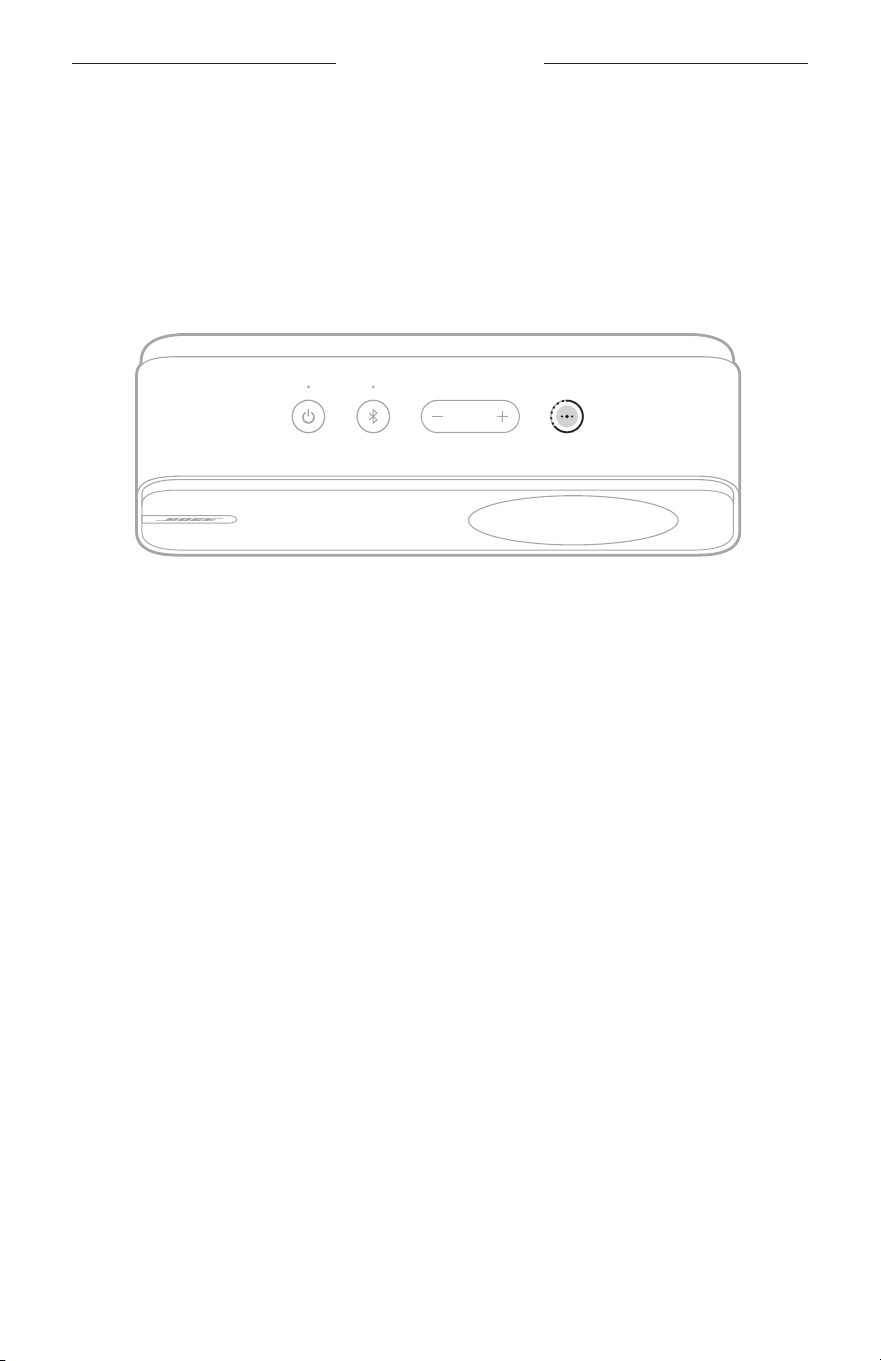
FUNCTION WHAT TO DO
Answer/End a call Press V.
Decline an incoming call Press and hold V.
Answer a second incoming call
and put the current call on hold
While on a call, press V.
Decline a second incoming call
and stay on the current call
While on a call, press and hold V.
Switch between two calls With two active calls, press V twice quickly.
Access voice control to make
a call
While not on a call, press and hold V.
Your device may not support voice control. Refer to your
device owner’s guide for more information.
Mute/Unmute a call While on a call, press V and z simultaneously.
SPEAKER CONTROLS
22
|
ENG
ACCESS VOICE CONTROL
The speaker microphone acts as an extension of the microphone in your device.
Using the Multi-function buon V on the speaker, you can access the voice control
capabilities on your device to make calls or access your voice assistant to play music,
tell you the weather, give you the score of a game, and more.
Press and hold V to access voice control on your device. You hear a tone that
indicates voice control is active.
.
23
|
ENG
BATTERY
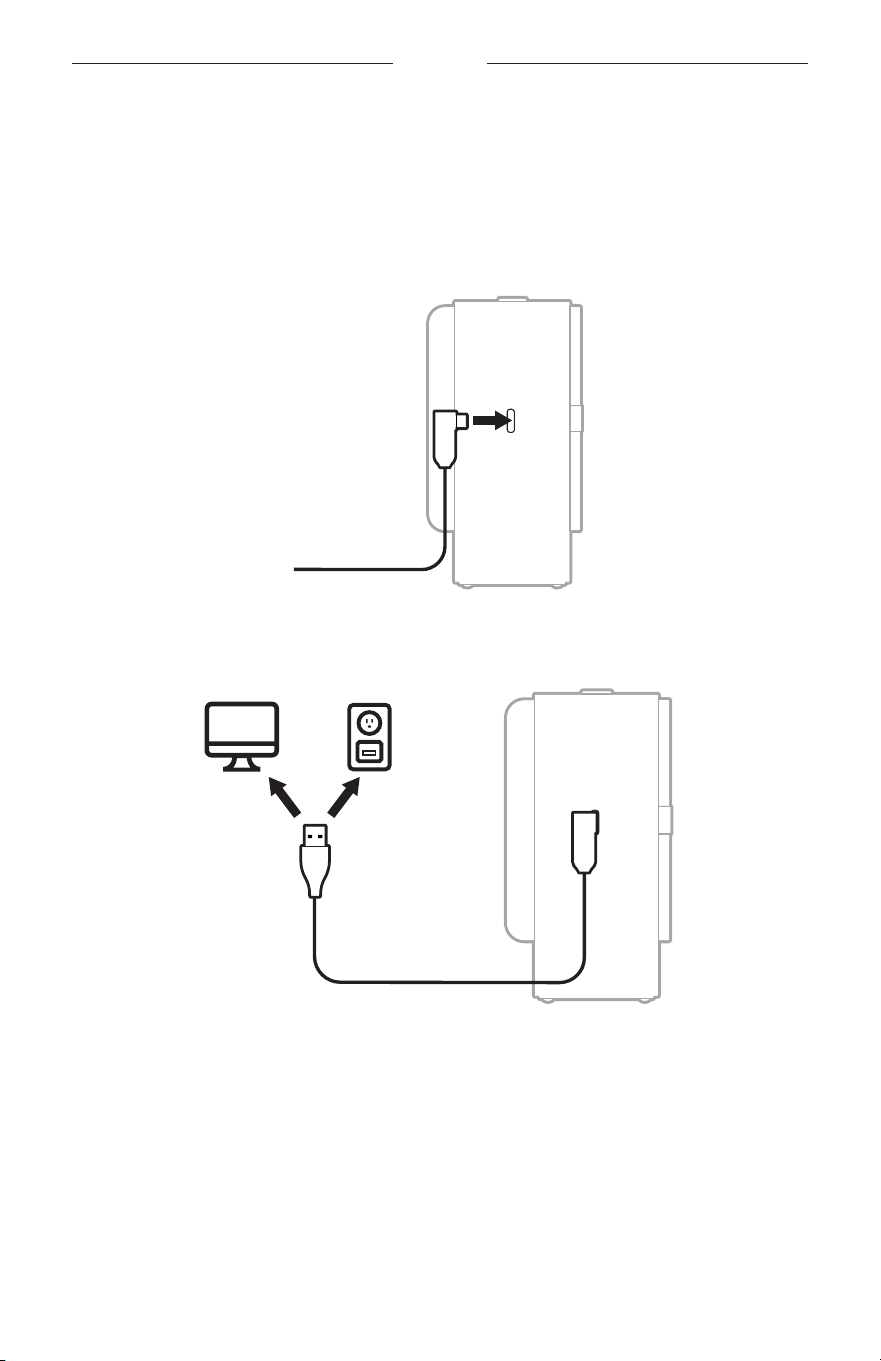
CHARGE THE SPEAKER
NOTE: Only use the provided USB cable. Bose recommends using a 5V p, 1.5A
capable power source.
1. Connect the USB-C end of the cable to the USB-C port on the left side of
the speaker.
2. Connect the USB-A end of the cable to a power source such as a computer or
wall charger.
If the speaker is powered o, the Power light glows amber and you hear a tone.
When the baery is fully charged, the Power light turns o.
If the speaker is powered on, the Power light slowly blinks white and you hear a
tone. When the baery is fully charged, the Power light glows solid white.

BATTERY
24
|
ENG
Charging time
Allow up to 4 hours to fully charge the baery.
1
A full charge powers the speaker up to 9 hours.
2
At maximum volume, the baery lasts
up to 2.5 hours.
3
Charging time and baery performance vary with the USB power supply capability,
music content, and speaker volume.
Hear the battery level
Each time you power on the speaker, a voice prompt announces the baery level.
When the speaker is in use, a voice prompt announces if the baery needs to
be charged.
While using the speaker, press and hold the Power buon I until you hear a voice
prompt announce the baery level.
Battery protection mode
When the speaker baery is depleted (0%), or the speaker is unplugged and unused
for more than three days with a remaining charge of less than 10%, it enters baery
protection mode. To reactivate the speaker, connect it to a power supply and press
the Power buon I.
When not in use, store the speaker in a cool place.
CAUTION: Do NOT store the speaker for extended periods when fully charged or with
a remaining charge of less than 10 percent.
All tests conducted by Tonly Technology Co., Ltd. with production-representative Bose SoundLink Home Bluetooth Speaker,
between 68° F – 77° F (20° C – 25° C).
1 With 5V/1.5A (7.5W) power supply, from 0% to 100% while unit is powered o. Charging times will vary when not using the
recommended 7.5W supply.
2 Using Bluetooth A2DP audio at 50% volume, using a mix of Top 50 Global tracks as of February 2024. Baery performance
varies with individual user conditions such as audio content, loudness, and environmental temperature.
3 Using Bluetooth A2DP audio at 100% volume, using a mix of Top 50 Global tracks as of February 2024. Baery performance
varies with individual user conditions such as audio content, loudness, and environmental temperature.
25
|
ENG
STATUS
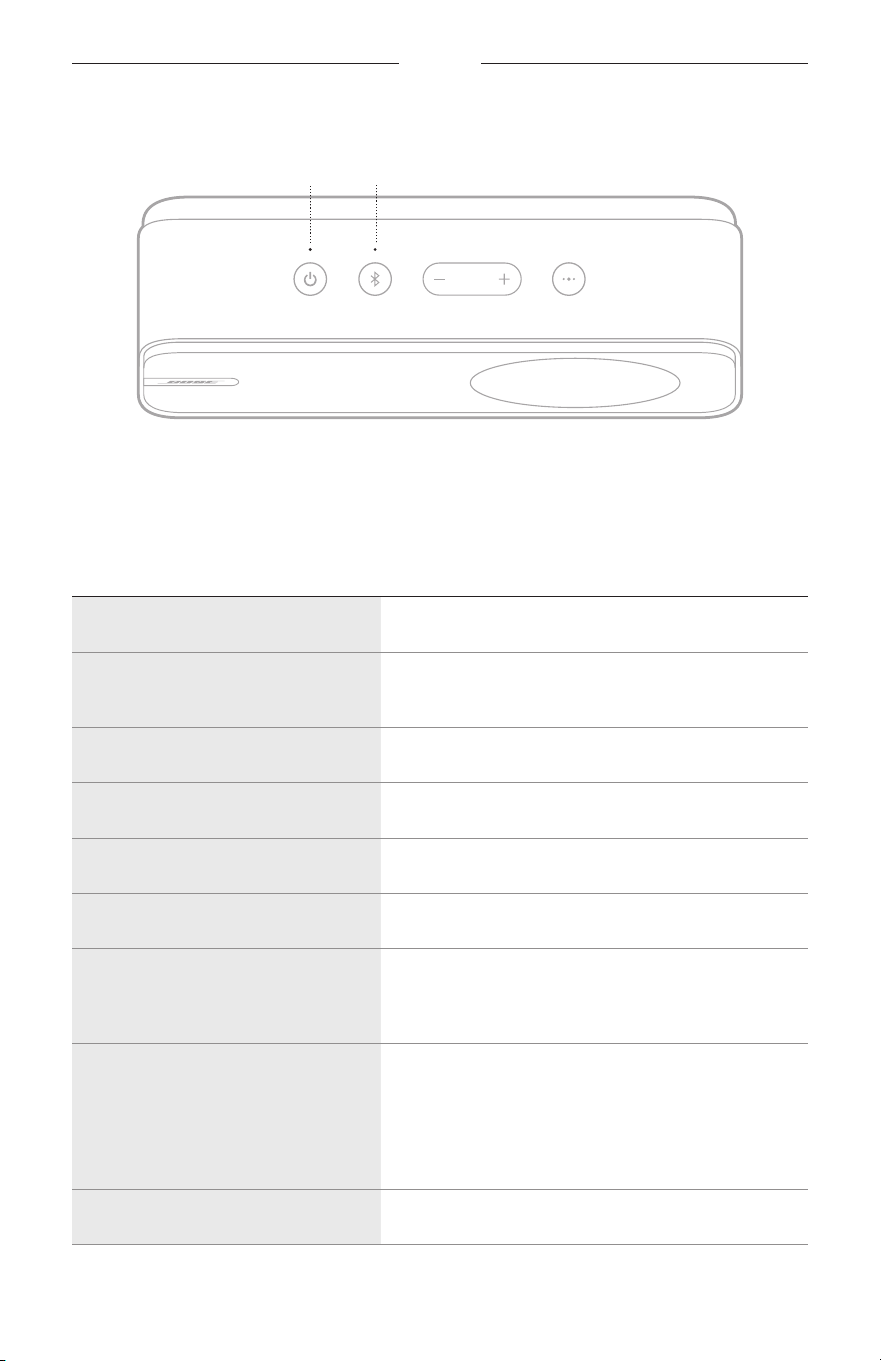
The Power and Bluetooth lights are located on the top of the speaker.
Power light Bluetooth light
POWER LIGHT
Shows the baery, charging, speaker device list, and error status.
LIGHT ACTIVITY SYSTEM STATE
Solid white Baery level 20 – 100%.
Solid white while connected
to power
Fully charged.
Solid amber Powered o and charging.
Blinks white Baery level 1 – 19%.
Slowly blinks white Powered on and charging.
Blinks white 2 times Device list cleared.
Quickly blinks amber (3 seconds)
when the Power button I
is pressed
Baery level too low to power on.
Quickly blinks amber while
connected to power
Baery error - disconnect the USB cable from the
speaker.
If the speaker has been exposed to high or low
temperatures, let it return to room temperature and
then try charging again.
Quickly blinks white 3 times Restore complete.

STATUS
26
|
ENG
BLUETOOTH LIGHT
Shows the Bluetooth connection status.
LIGHT ACTIVITY SYSTEM STATE
Blinks blue Ready to connect
Quickly blinks blue Connecting
Solid blue Connected

27
|
ENG
VOICE PROMPTS
Voice prompts guide you through the Bluetooth connection process, announce the
baery level, and announce changes to speaker seings.
PRE-INSTALLED LANGUAGES
The following languages are pre-installed on the speaker:
• English
• French
• Mandarin
• Japanese
CHANGE THE LANGUAGE
When you power on the speaker for the first time, the voice prompts are in English.
1. Press and hold the Multi-function buon V and the Volume up buon H
simultaneously until you hear the voice prompt for the first language option.
2. Press H or the Volume down buon z to move through the list of languages.
3. When you hear your language, press and hold V until you hear a tone.
DISABLE VOICE PROMPTS
Press and hold V and z simultaneously until you hear “Voice prompts o.”
NOTE: Repeat to re-enable voice prompts.
28
|
ENG
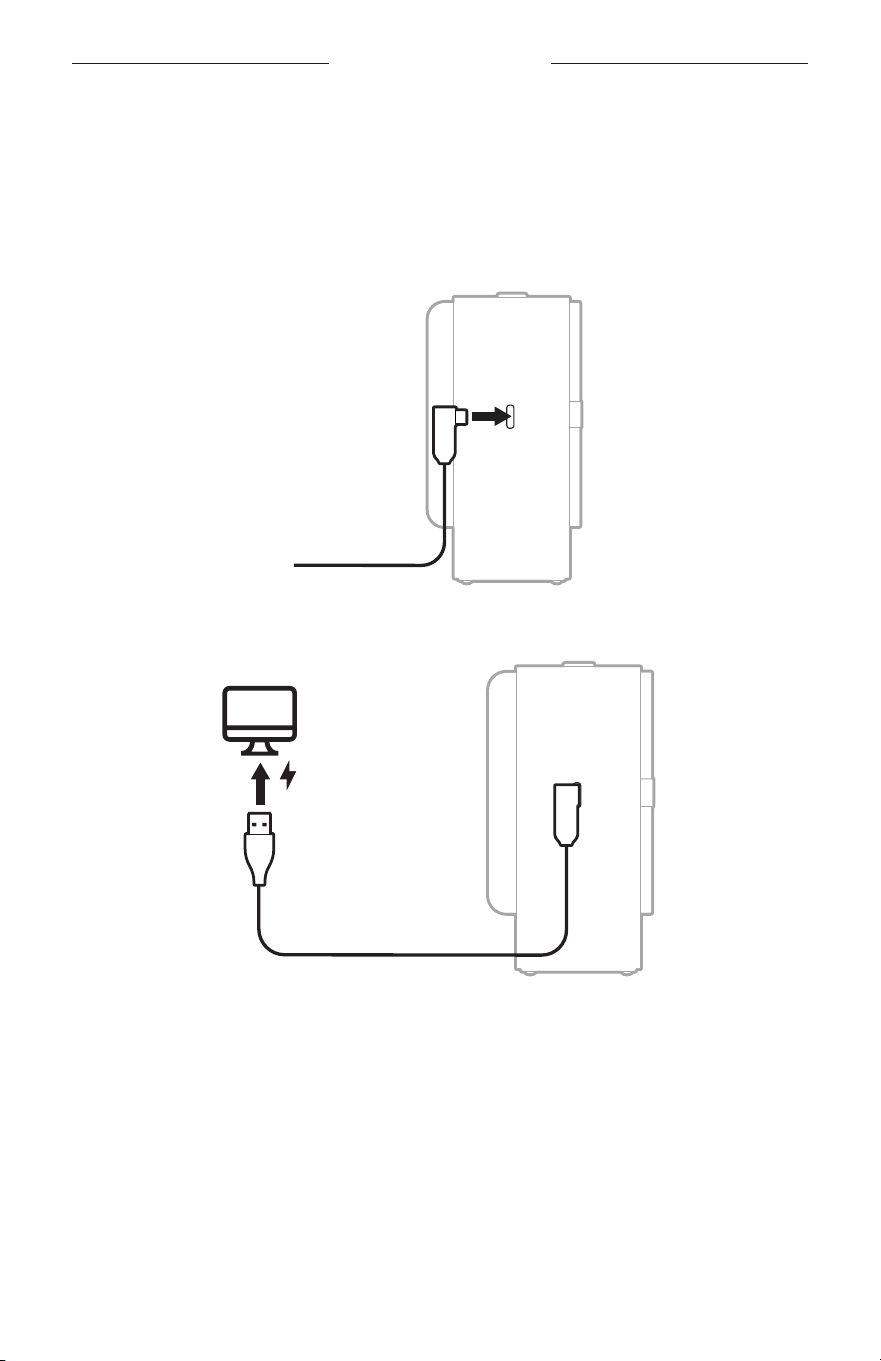
CONNECT TO A USB AUDIO SOURCE
You can connect the speaker to a computer or other USB audio source to play audio
through the USB cable.
1. Connect the USB-C end of the cable to the USB-C port on the left side of
the speaker.
2. Connect the USB-A end of the cable to a computer or other USB audio source.
If the speaker is powered on, you hear “USB audio.”
NOTE: You may need to select the speaker as the audio output device in your USB
audio source’s seings.
Switch between a USB audio source and a Bluetooth device
1. Pause audio on your first device.
2. Play audio on your second device.
WIRED CONNECTIONS
29
|
ENG
CONNECT BOSE PRODUCTS
CONNECT TWO SPEAKERS IN STEREO MODE
For a more immersive music experience, you can connect two Bose SoundLink Home
Bluetooth Speakers speakers together and play the same song from both speakers
in stereo.
You can play stereo audio from either a Bluetooth device or USB audio source
connected to the primary speaker.
NOTES:
• During Stereo mode, the primary speaker can be connected to only one device at a
time. If two devices are connected when Stereo mode is enabled, the older of the
two connections is disconnected.
• When Stereo mode is enabled, any devices connected to the secondary speaker
are disconnected.
• If you receive a call on your connected device during Stereo mode, the call audio
plays only from the primary speaker.
• During Stereo mode, powering o either speaker causes the other to power o
as well.
Connect the speakers
1. Make sure both speakers are powered on (see page 18).
2. Make sure one speaker is connected to your device or USB audio source. This will
be the primary speaker.
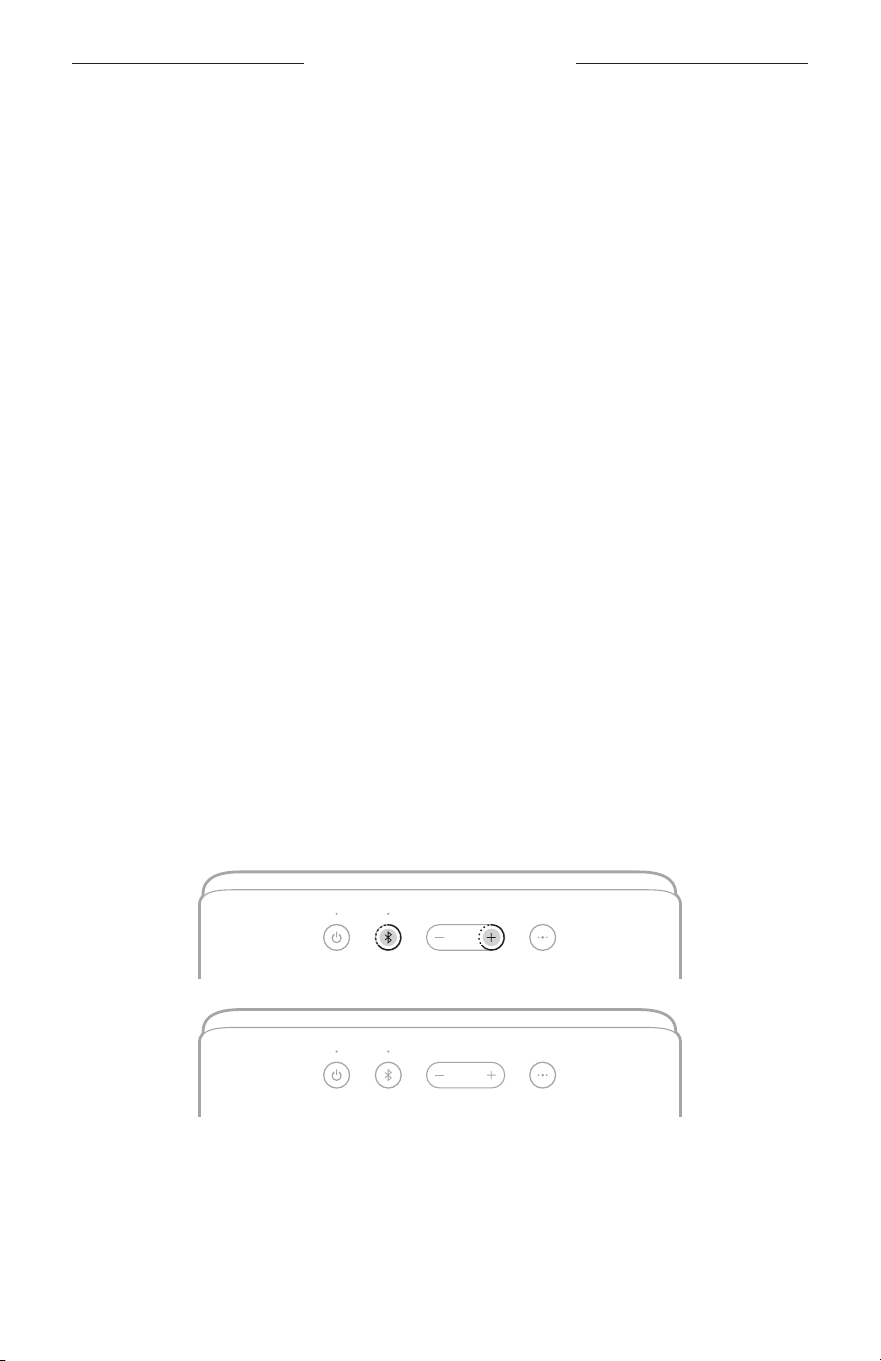
3. On the speaker connected to your device or USB audio source, press and hold the
Bluetooth buon l and the Volume up buon H simultaneously until you hear
“Press the Bluetooth and volume down buons simultaneously on a second
Bose device.”
CONNECT BOSE PRODUCTS
30
|
ENG
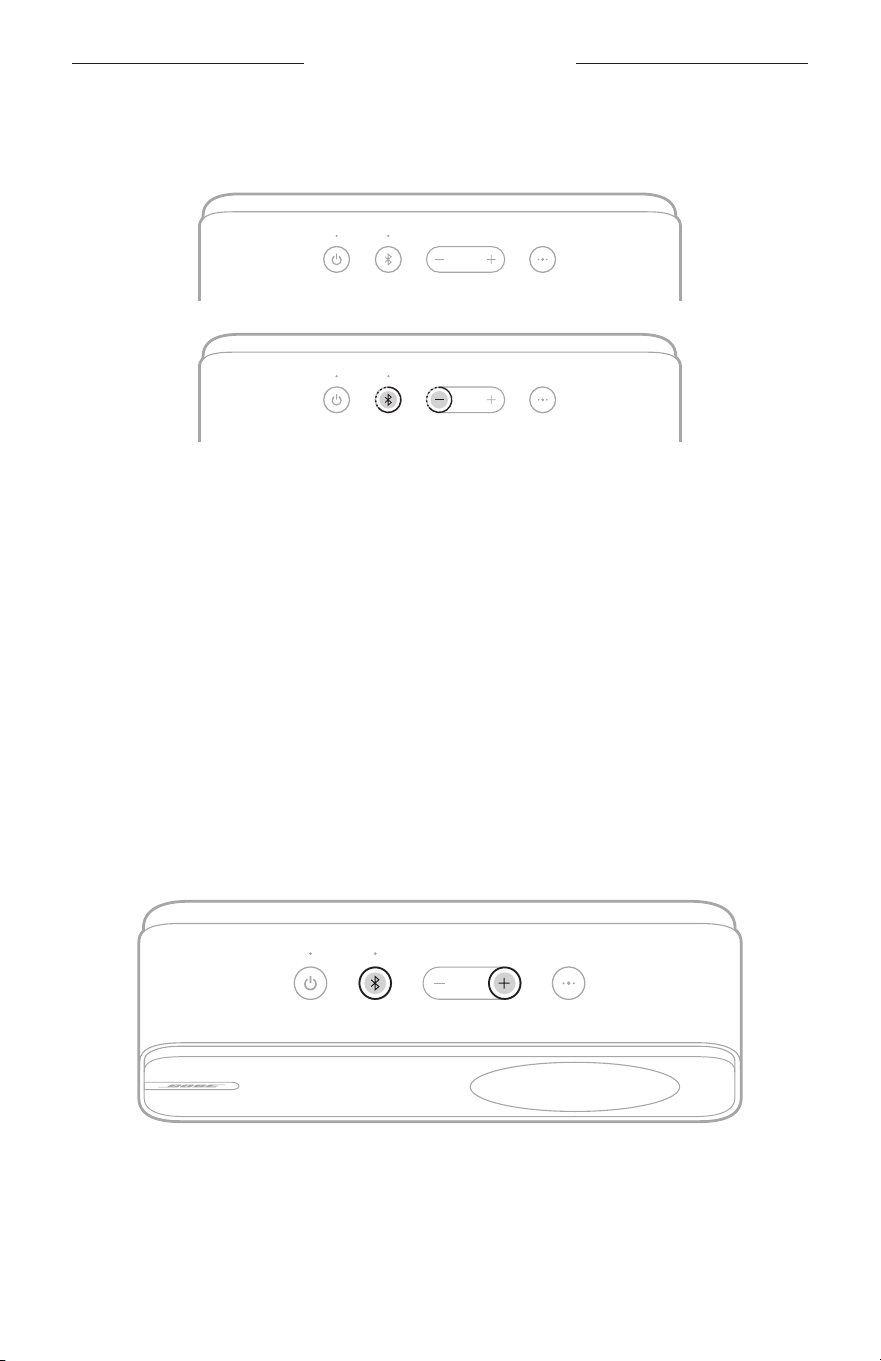
4. On the other speaker, press and hold the Bluetooth buon l and the Volume
down buon z simultaneously until you hear a tone.
You hear “Stereo mode,” followed by “Left” on the primary speaker and “Right” on
the secondary speaker.
5. For the best experience, position the speakers:
• In the same room or outdoor area
• Within 10 ft (3 m) of each other, free from obstructions
• Facing toward you
• So that your distance to each speaker is equal
NOTE: Performance may vary based on device, distance, and environmental factors.
Identify the left and right speakers
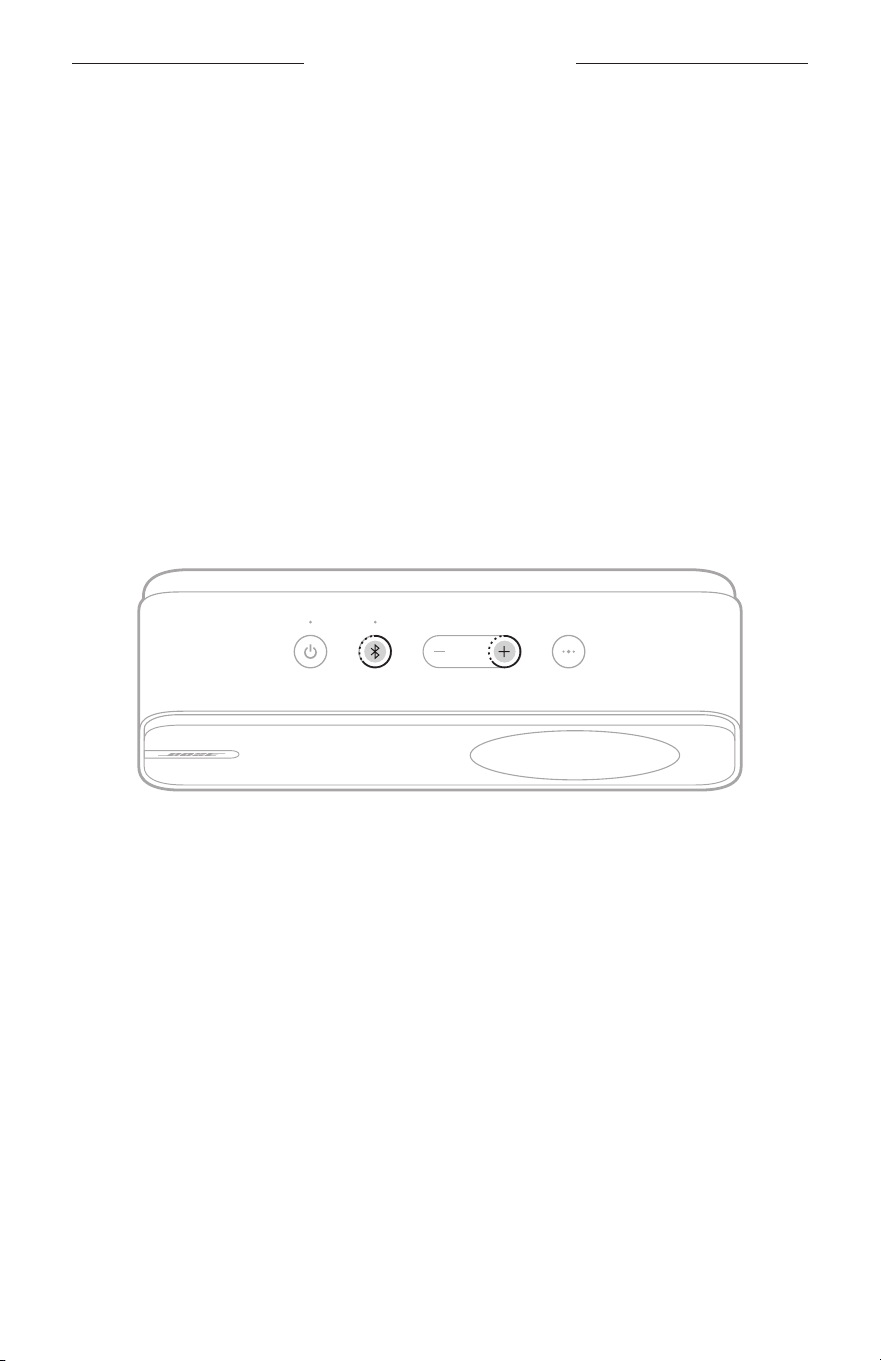
To check whether a speaker is the primary speaker (left) or the secondary speaker
(right), press the Bluetooth buon l and the Volume up buon H simultaneously on
the speaker.
You hear “Stereo mode,” followed by either “Left” or “Right.”
CONNECT BOSE PRODUCTS
31
|
ENG
Reconnect the speakers
When either speaker is powered on, it reconnects to the most recently-
connected speaker.
NOTE: The other speaker must be within range (30 ft or 9 m) and powered on.
Disconnect the speakers
Power o one of the speakers to disconnect them (see page 18).
Clear the speaker connection
Clearing the speaker connection causes the speakers to no longer reconnect to each
other when powered on.
1. Make sure both speakers are powered on (see page 18).
2. On one of the speakers, press and hold the Bluetooth buon l and the Volume up
buon H simultaneously until you hear “Bose speakers unlinked.”
The speakers are disconnected and the speaker connection is cleared.
TIP: You can also clear the speaker connection by clearing the speaker device list on
either speaker (see page 16).

32
|
ENG
CARE AND MAINTENANCE
CLEAN THE SPEAKER
Wipe the surface of the speaker with a soft, dry cloth.
CAUTIONS:
• Do NOT use any sprays near the speaker.
• Do NOT use any solvents, chemicals, or cleaning solutions containing alcohol,
ammonia, or abrasives.
• Do NOT allow liquids to spill into any openings.
STORE THE SPEAKER
When not in use, store the speaker in a cool place.
CAUTION: Do NOT store the speaker for extended periods when fully charged or with
a remaining charge of less than 10 percent (see page 25).
REPLACEMENT PARTS AND ACCESSORIES
Replacement parts and accessories can be ordered through Bose customer service.
Visit: support.Bose.com/sl-homesupport.Bose.com/sl-home
LIMITED WARRANTY
The speaker is covered by a limited warranty. Visit our website at
worldwide.Bose.com/Warranty for details of the limited warranty.
To register your product, visit worldwide.Bose.com/ProductRegistration for
instructions. Failure to register will not aect your limited warranty rights.

33
|
ENG
TROUBLESHOOTING
TRY THESE SOLUTIONS FIRST
If you experience problems with the speaker:
• Power the speaker o and then on again (see page 18).
• Charge the speaker (see page 23).
• Check the status lights (see page 25).
• Increase the volume on the speaker, your device, and your music app.
• Move your device closer to the speaker (30 ft or 9 m) and away from any
interference or obstructions.
• Make sure your device supports Bluetooth connections (see page 14).
• Connect another device (see page 14).
• Reset the speaker (see page 36).
If you couldn’t resolve your issue, see the table below to identify symptoms and
solutions to common problems. You can also access troubleshooting articles, videos,
and other resources at: support.Bose.com/sl-homesupport.Bose.com/sl-home
If you’re unable to resolve your issue, contact Bose customer service.
Visit: worldwide.Bose.com/contactworldwide.Bose.com/contact
OTHER SOLUTIONS
SYMPTOM SOLUTION
No power (battery)
Baery may be in protection mode or discharged. Connect the
speaker to a power source (see page 23).
Speaker doesn’t
connect with device
If two devices are already actively connected to the speaker, you
must disconnect one of them before connecting a third device.
If the speaker is connected to a USB audio source when powered
on, it doesn’t reconnect to the most recently-connected
Bluetooth devices. To reconnect to a device, use the device
Bluetooth seings.
Clear the speaker device list (see page 16). Delete the speaker
from the Bluetooth list on your device, including any duplicate
listings labeled LE (Low Energy). Connect again (see page 14).
Visit: support.Bose.com/sl-homesupport.Bose.com/sl-home to see how-to videos.
Speaker doesn’t
respond to
multi-press functions
Vary the speed of presses.

TROUBLESHOOTING
34
|
ENG
SYMPTOM SOLUTION
No sound from device
connected by
Bluetooth connection
Use a dierent music source.
If two devices are connected, pause audio on the first device and
play audio on the other device.
No sound from device
connected by
USB cable
Make sure the speaker is selected as the audio output device in
your USB audio source’s seings.
Use a dierent music source.
Disconnect the speaker from your USB audio source. Make sure
your source can play audio from its internal speakers or another
audio output device.
Disconnect any Bluetooth devices currently connected to the
speaker, then try playing audio from your USB audio source again.
If the USB cable is connected to a USB hub or adapter, try
connecting it to your USB audio source directly.
Connect a dierent USB audio source.
If you’re connecting a phone as a USB audio source, make sure
that it has a USB-C port and supports USB digital audio. For
more information, refer to your phone owner’s guide.
Disconnect the speaker from your USB audio source. In your
source’s seings, uninstall the speaker as an audio device.
Reconnect the speaker to your source, then try playing
audio again.
Poor sound quality from
device connected by
Bluetooth connection
Use a dierent music source.
If two devices are connected, disconnect the second device.
Disable any audio enhancement features on the device or
music app.
Poor sound quality from
device connected by
USB cable
Play audio from a dierent application or music service.
Close and re-open the application or music service.
Play audio from content stored directly on your device.
Connect a dierent USB audio source.

TROUBLESHOOTING
35
|
ENG
SYMPTOM SOLUTION
Delayed audio
Play audio from a dierent application or music service.
Close and re-open the application or music service.
Speaker doesn’t charge
Make sure both ends of the USB-C to USB-A cable are secure
(see page 23).
Make sure you’re using the Bose-provided USB-C to USB-A cable
providing a minimum of 5V p, 1.5A.
Try another charging source and charging cable.
If the speaker has been exposed to high or low temperatures, let
it return to room temperature and then try charging again.
Reset the speaker (see page 36).
TROUBLESHOOTING
36
|
ENG
RESET THE SPEAKER
If the speaker is unresponsive, you can reset it.
Reseing the speaker resets the product controls and reboots the speaker. It doesn’t
clear any device seings.
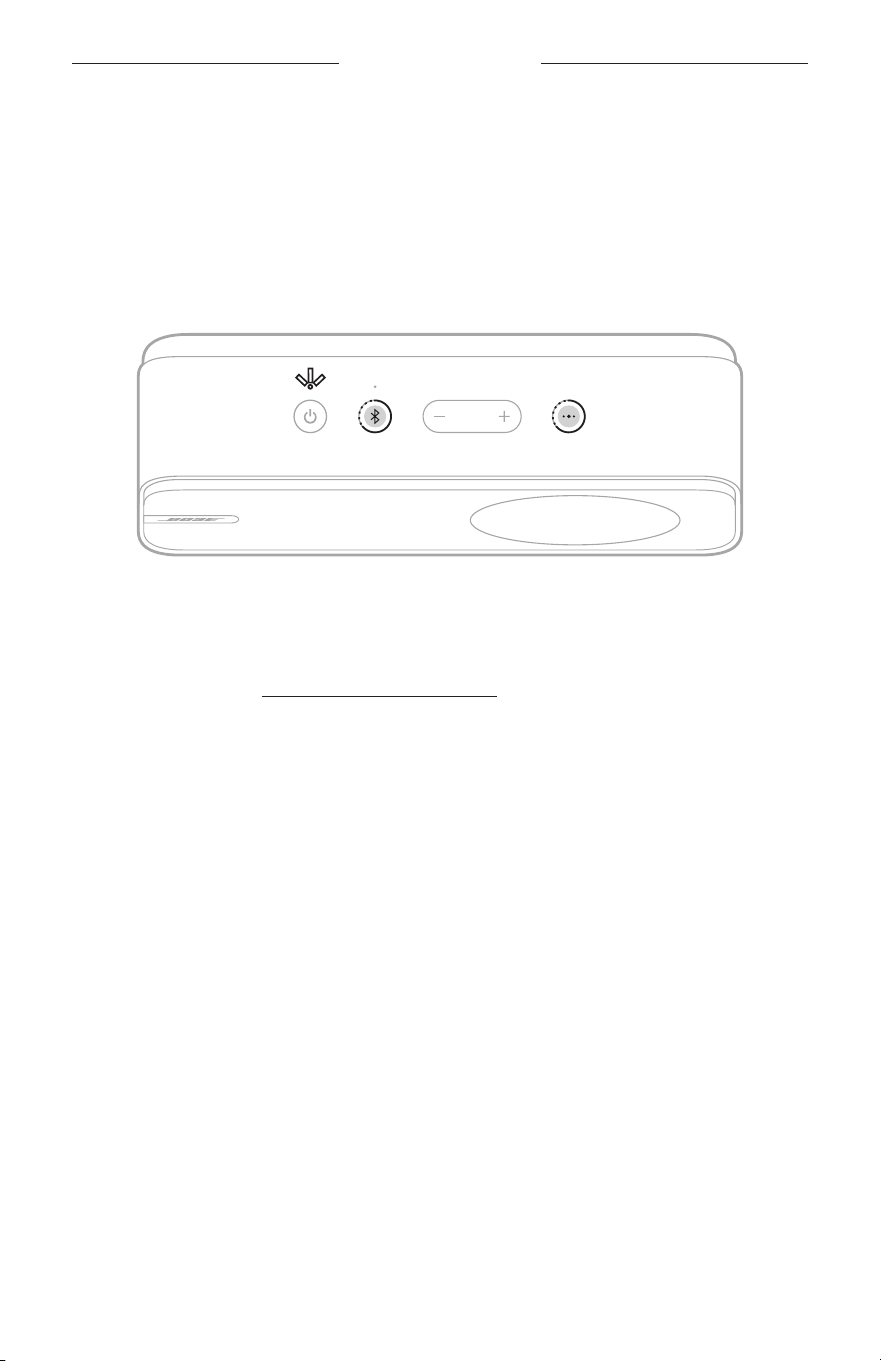
NOTE: Make sure the USB cable isn’t connected to the speaker.
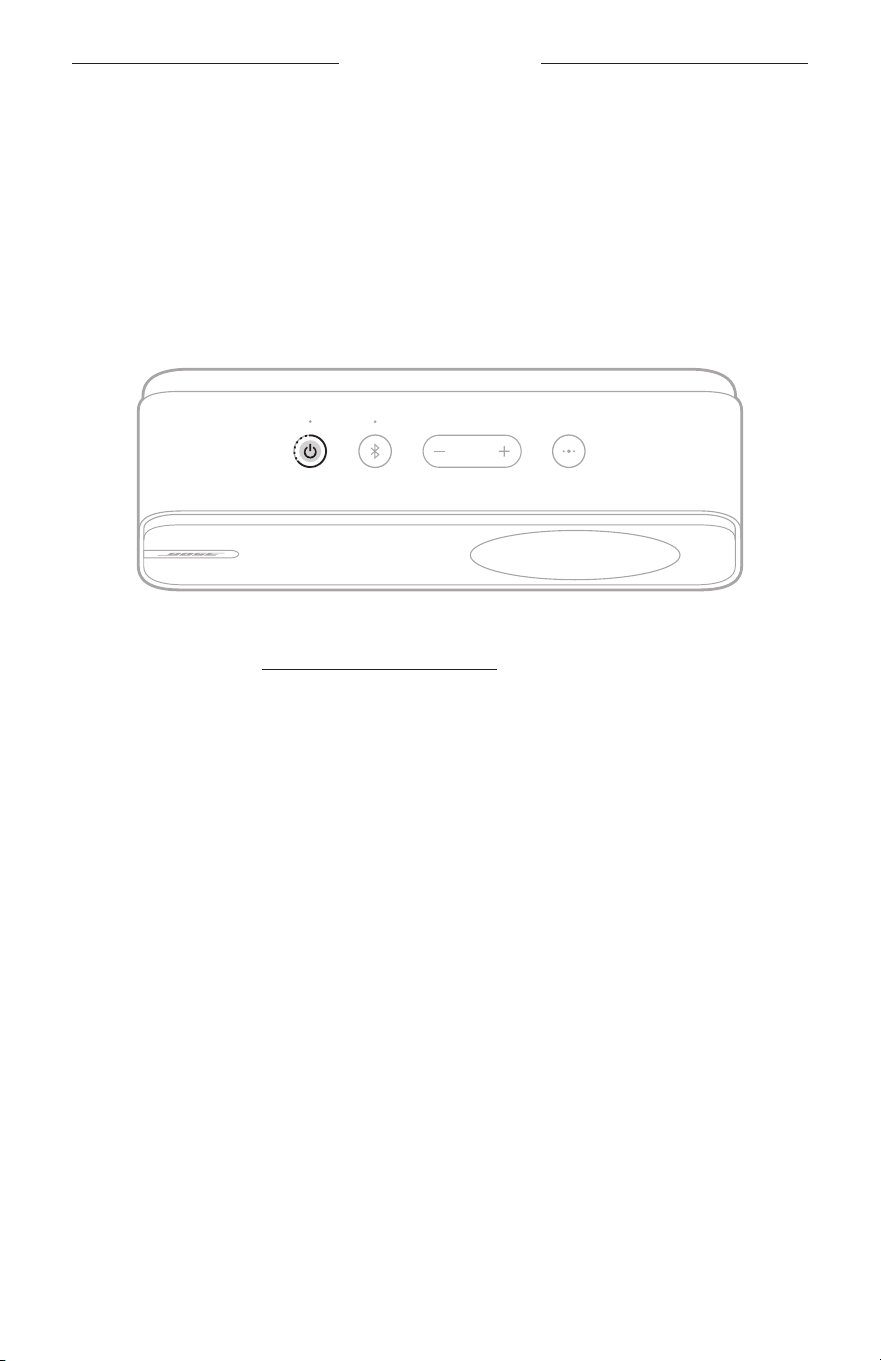
To reset the speaker, press and hold the Power buon I for 8 seconds until you see
the Power light turn o then glow according to the baery level (see page 25).
NOTE: If you’re unable to resolve your issue, additional troubleshooting and support
is available at: support.Bose.com/sl-homesupport.Bose.com/sl-home
TROUBLESHOOTING
37
|
ENG
RESTORE THE SPEAKER
Factory reset clears connected devices and language seings from the speaker and
returns it to the original factory seings.
1. Power on the speaker (see page 18).
2. Press and hold the Bluetooth buon l and Multi-function buon V for 10
seconds until the Power light quickly blinks white 3 times.
The Power light glows solid white, and the Bluetooth light blinks blue. A voice prompt
announces the baery level, and then you hear “Ready to connect.”
NOTE: If you’re unable to resolve your issue, additional troubleshooting and support
is available at: support.Bose.com/sl-homesupport.Bose.com/sl-home

©2024 Bose Corporation, 100 The Mountain Road, Framingham, MA 01701-9168 USA
AM893045-0010 Rev. 01