Sensibo Air / Air PRO
Installation Manual

Installation Process Overview
Sign in
Download the Sensibo app from
app store/google play.
You are good to go!
Add device
Follow installation
instructions on the App
Placing
Place the device within
line of sight to the AC
Connect to Wifi and
sync remote
Sensibo Air /
Air PRO
1
2
3
4
5
Welcome to Sensibo!
Congrats! You just received your device/s.
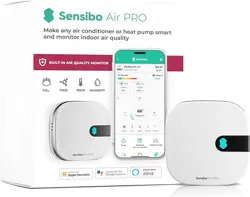
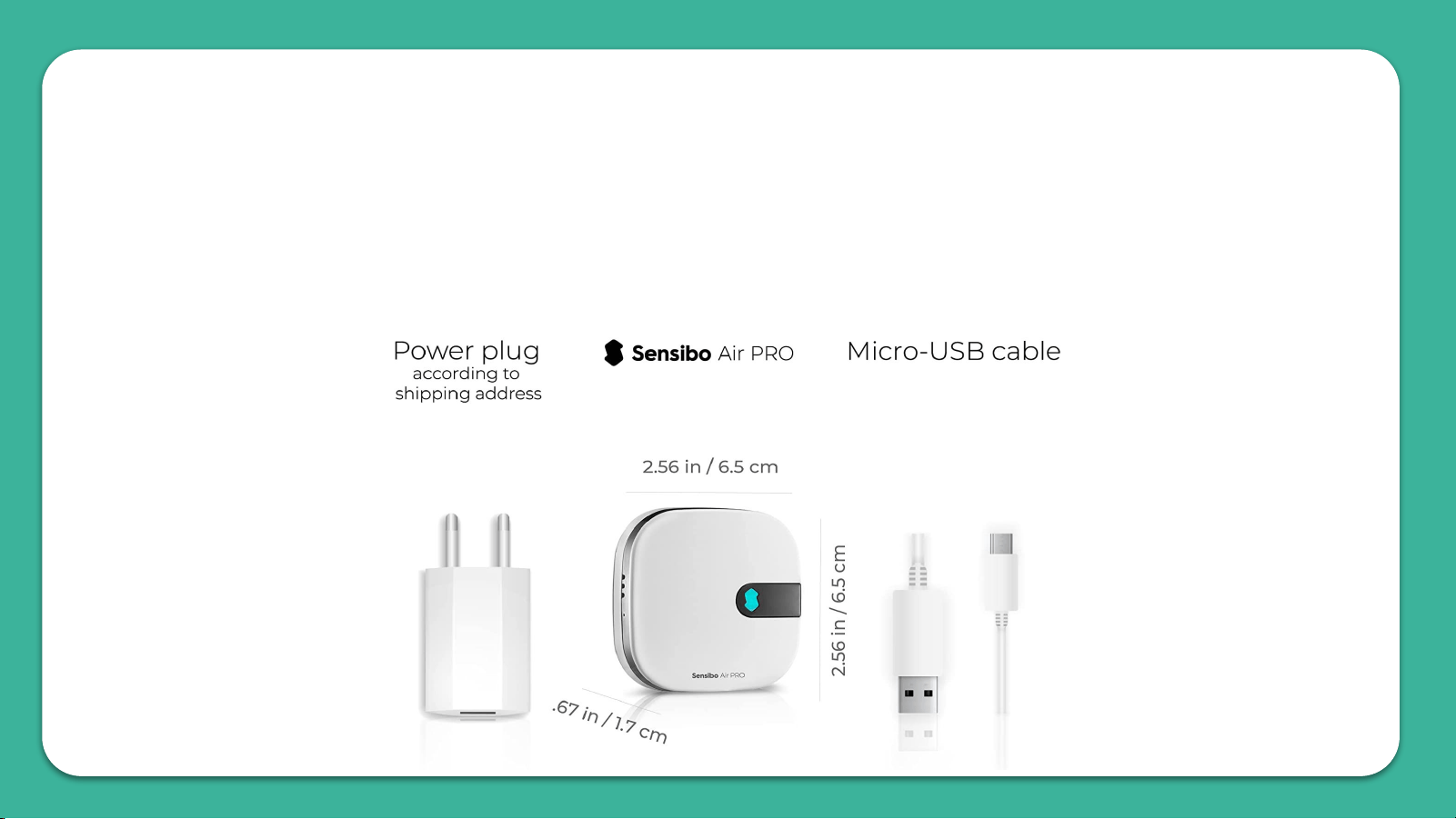
Let’s unbox them - In the box in front of you, there should be the
device, a micro USB cable and a power adapter, as shown:

First, you will need to download the Sensibo app, if you haven't
done so already.
● Sensibo supports Android & iOS.
Once downloaded, follow the in-app instructions to create your
Sensibo account.
Downloading the app
01
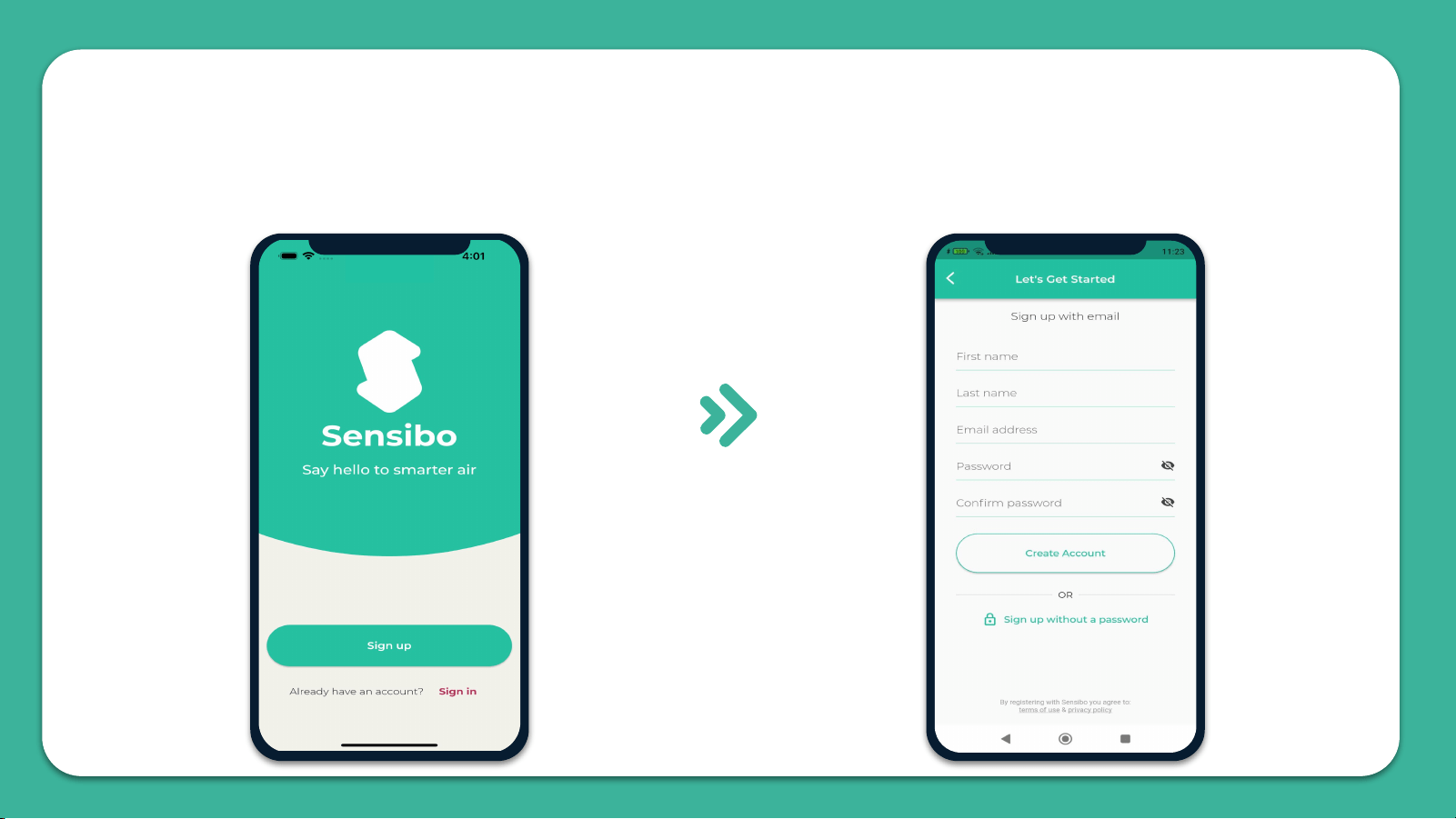
Open the app and
Press on ‘Sign up’
Fill in all the fields
02
Sign Up
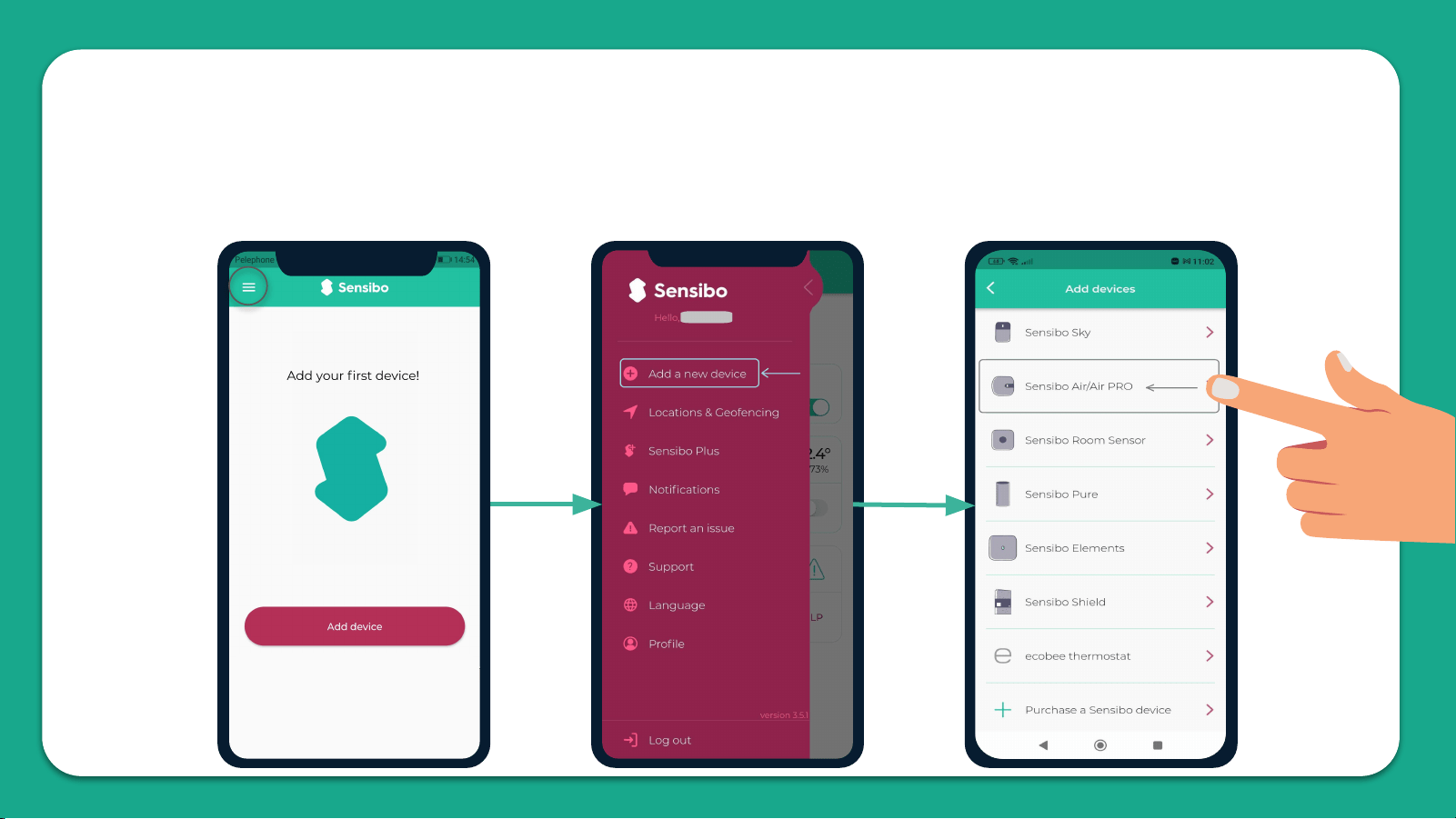
Add your Sky device by selecting the three horizontal bars on the
top left-hand corner of the app and select "Sensibo Air / Air PRO"
03
Adding the device
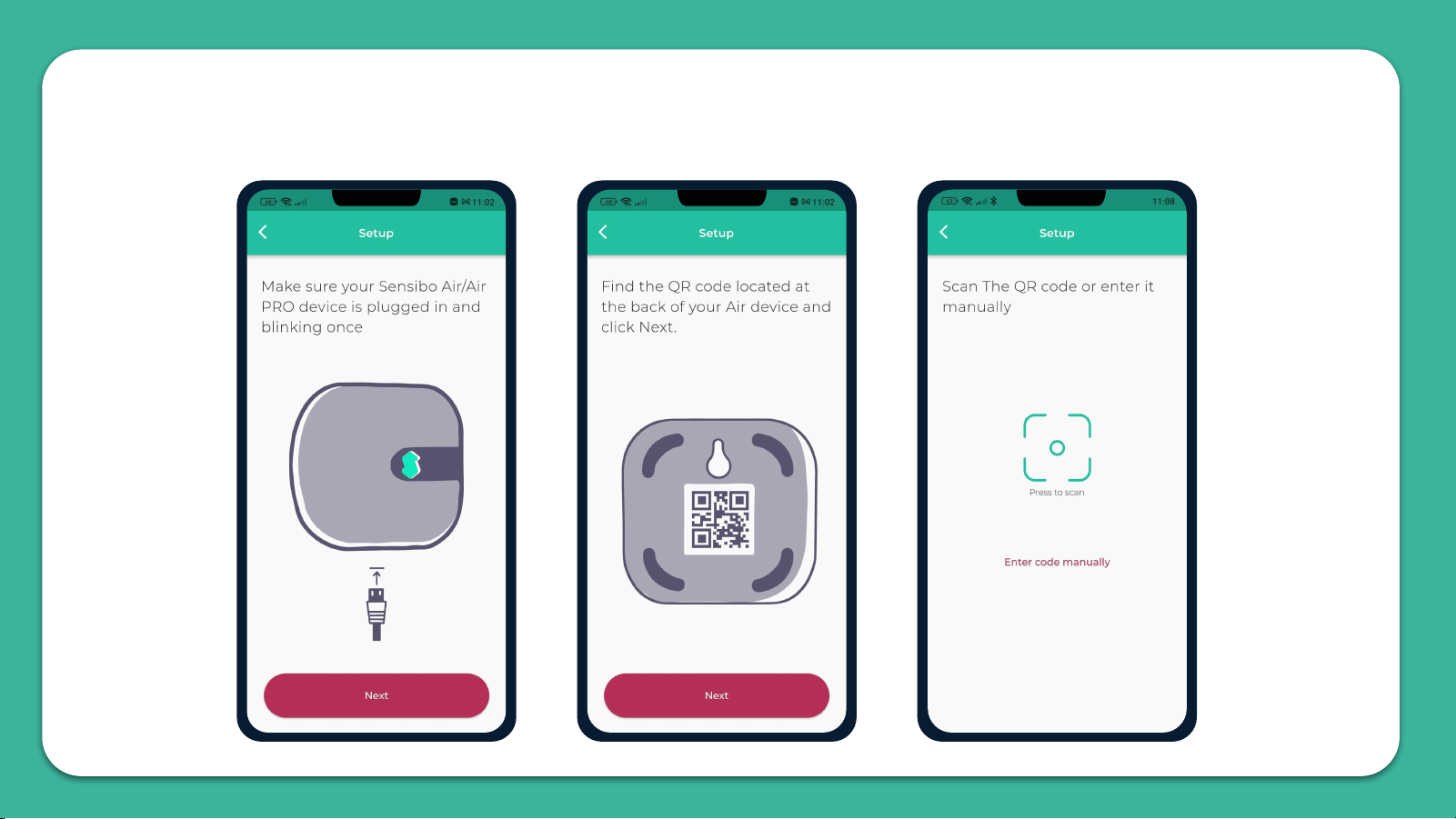
Scanning the device
04
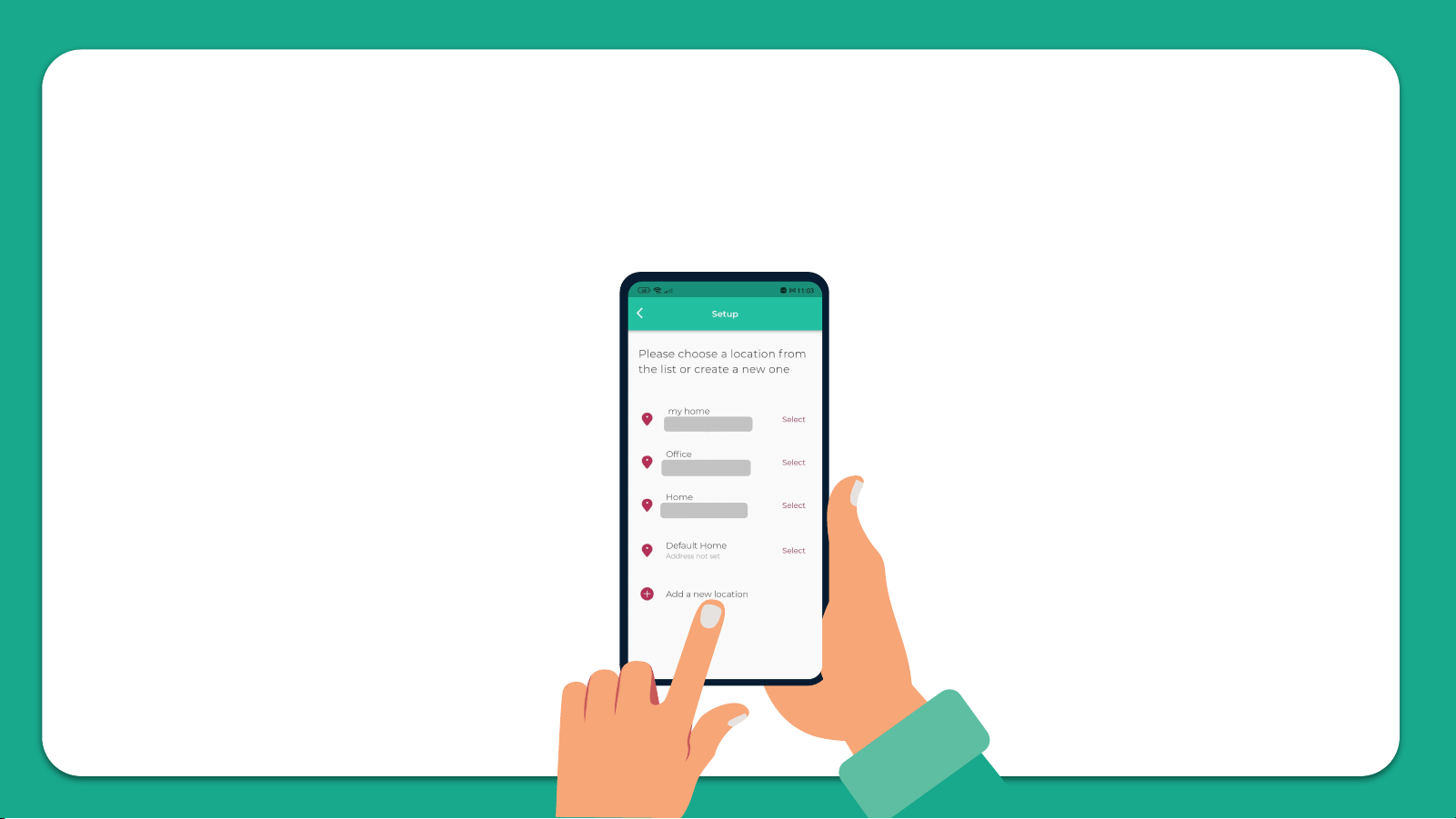
Adding a location
05
Add a new location or choose existing one.
Your first installation
will require you to add
a location.
Future device
installations will allow
you to usid this
location or adding a
new one.
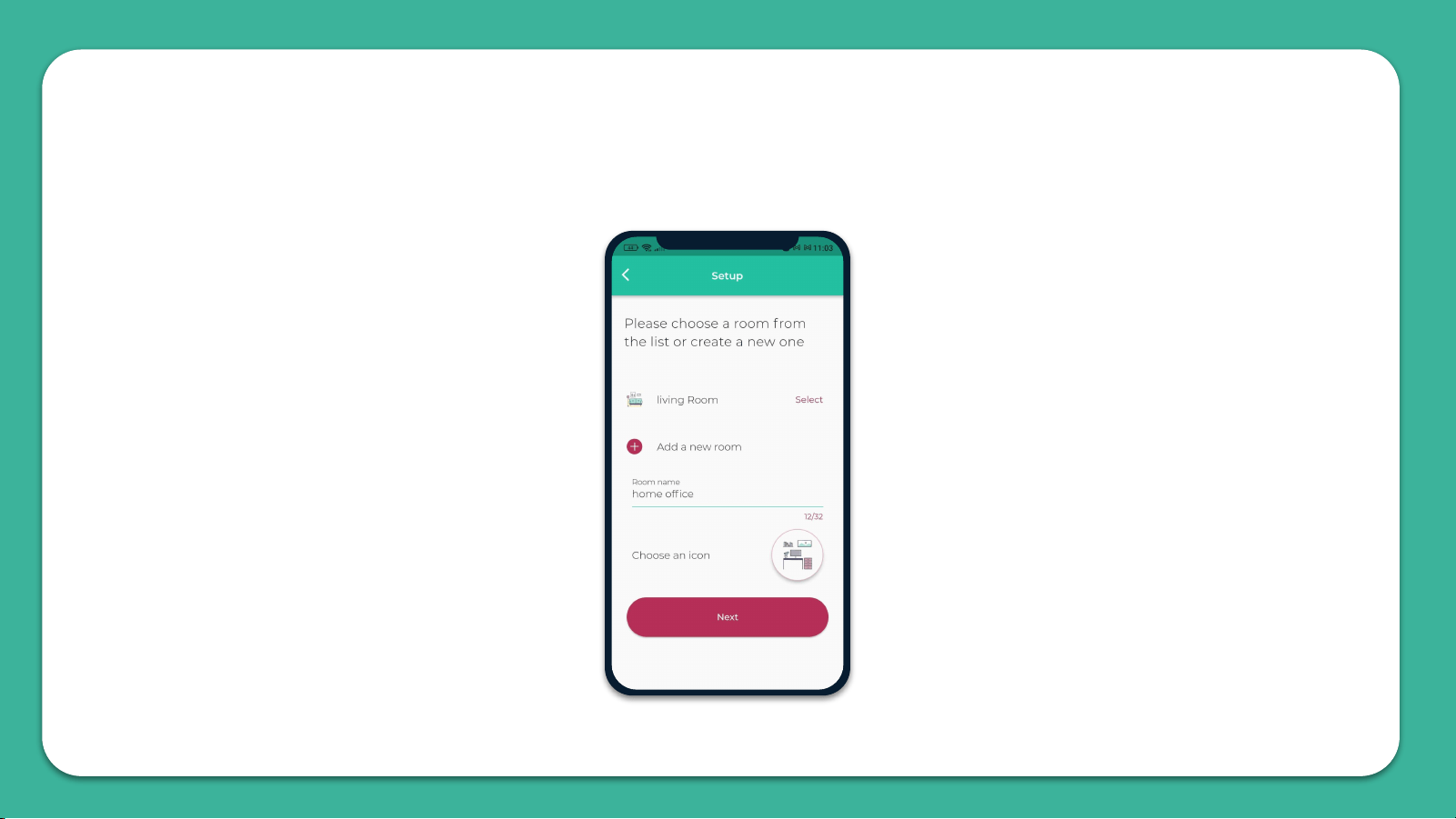
Choosing a room
06
For each room, please designate a new room.
You can set up the room’s name and choose an icon.
If you select an existing room, you will have 2 devices with the same name.
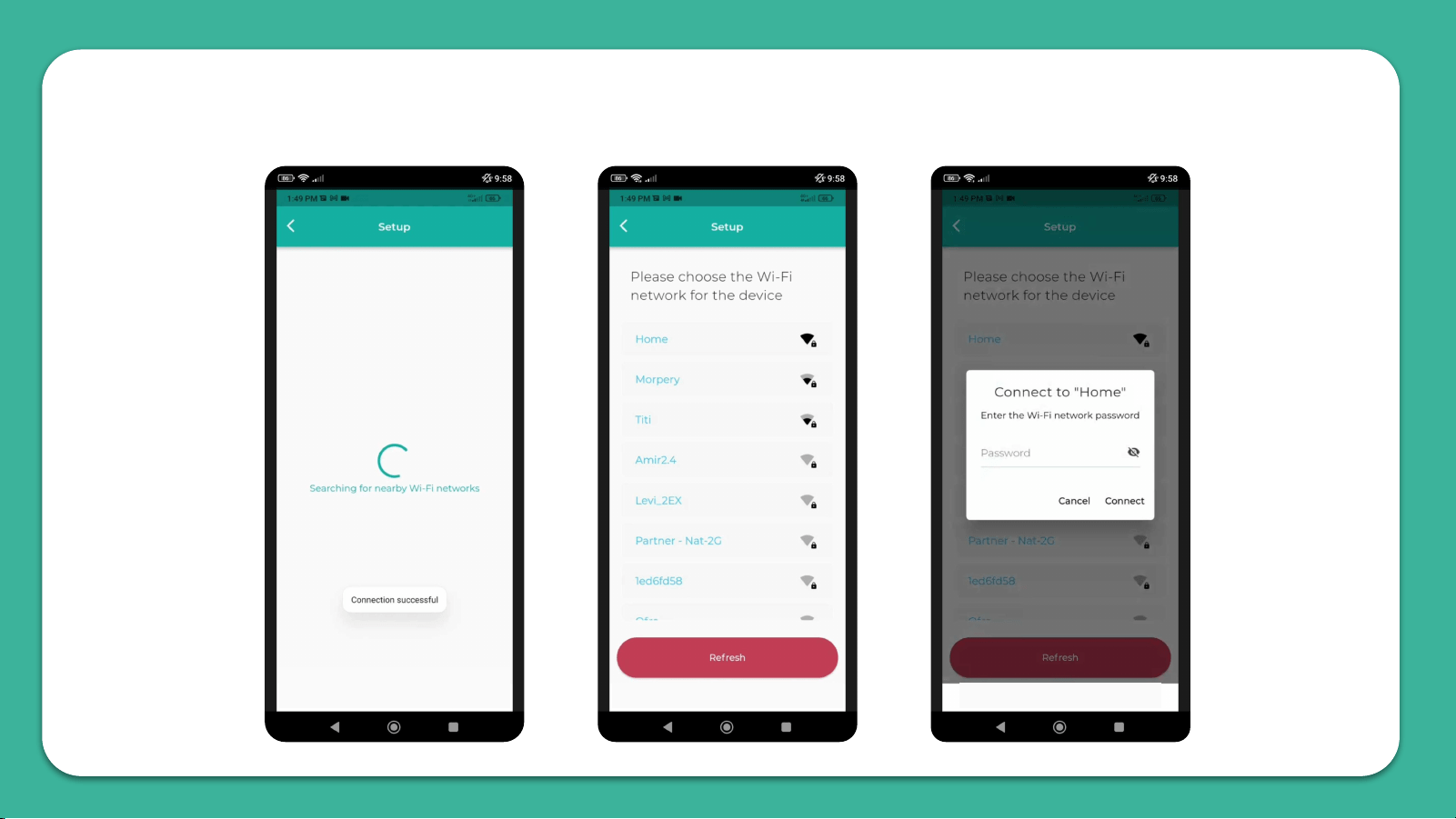
Connecting your device to WiFi
07
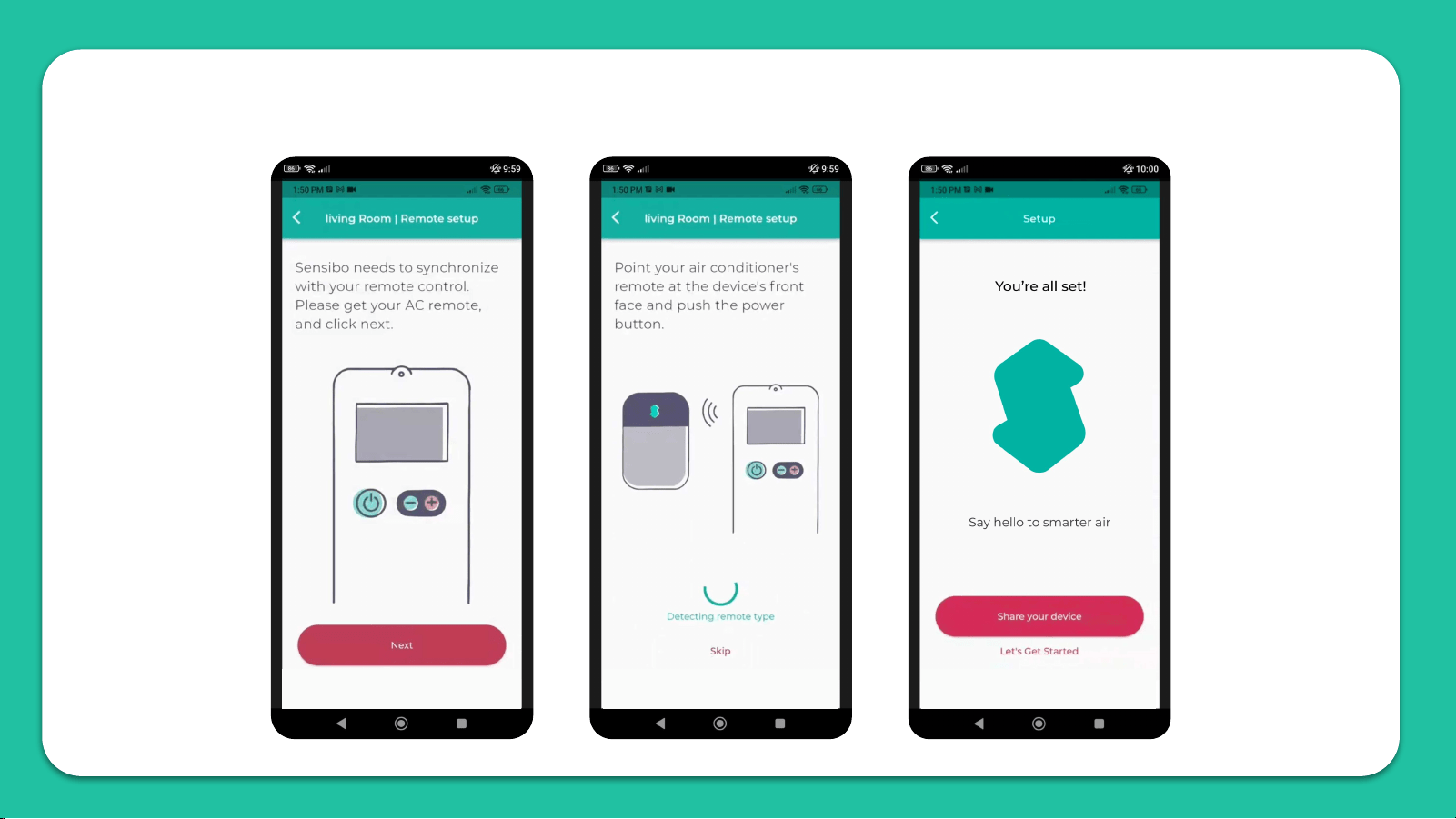
Syncing Your AC Remote
08

WiFi Manual Connection
09
Please try the following steps in order to manually connect the device to your Wi-Fi network:
1. Connect the Sensibo Sky to power outlet.
2. While the Sensibo device is connected to power, reset it by inserting a paperclip into the little hole
on the side of the device.
The device should blink once every few seconds.
*If it does not, please reset the device by pressing the reset button again (repeatedly if necessary)
until it blinks once every few seconds.
3. On your computer/phone open your Wi-Fi setting and connect to the SENSIBO-I-XXXXX network.
The network does not have internet access so continue without internet access for the duration of
the setup.
4. Open a browser window and enter the address http://192.168.4.1
5. Click 'Configure Wi-Fi'
6. Enter your Network name and password
*Please note that it is case-sensitive.
7. Click “Save”
8. The device should start blinking. Once it stops you are connected..
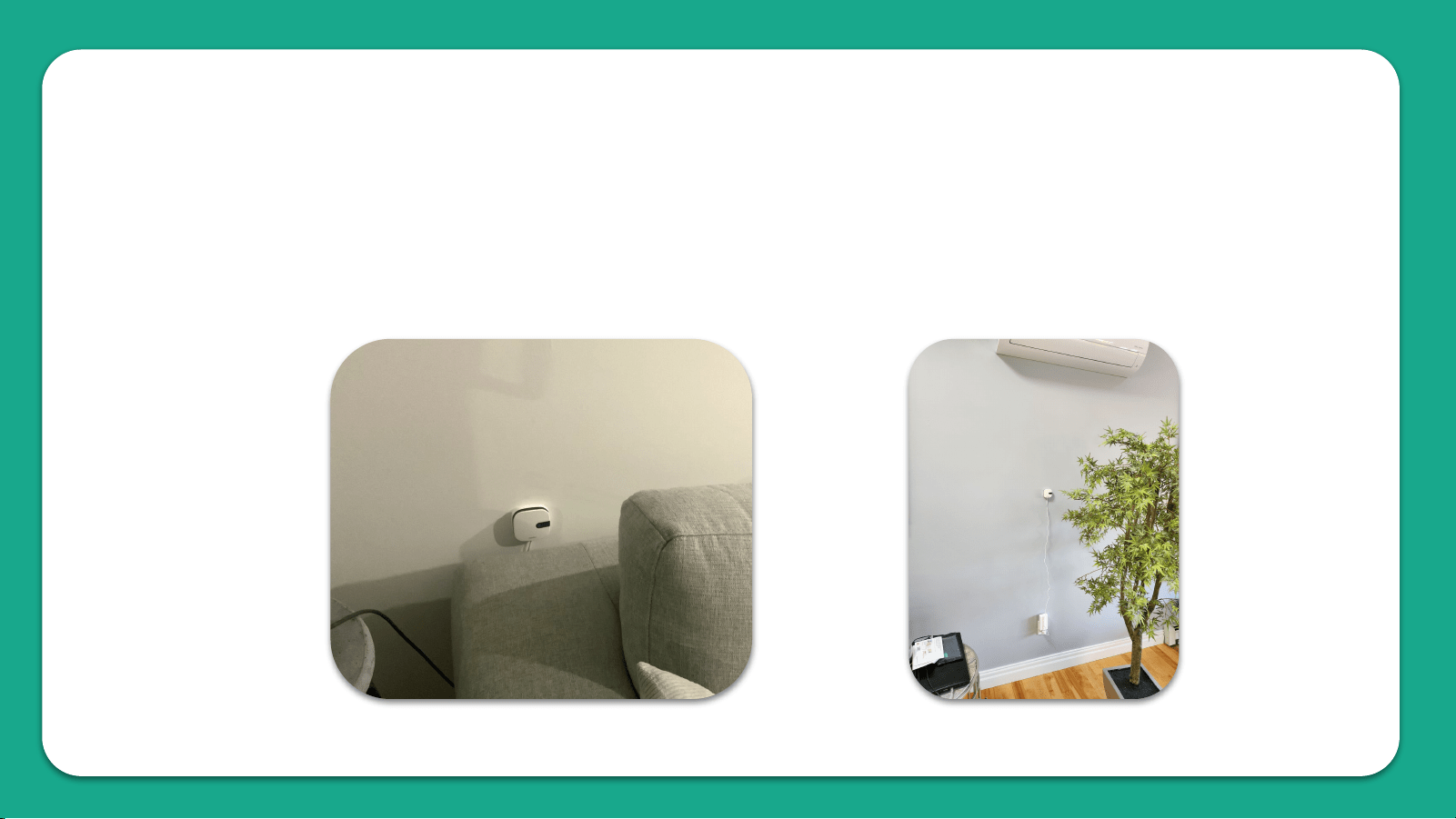
Installation Examples
10
We recommend placing the Sensibo up to five meters away
from the air conditioner. Placing the device as close as
possible to the AC, will ensure the strongest connection.
11
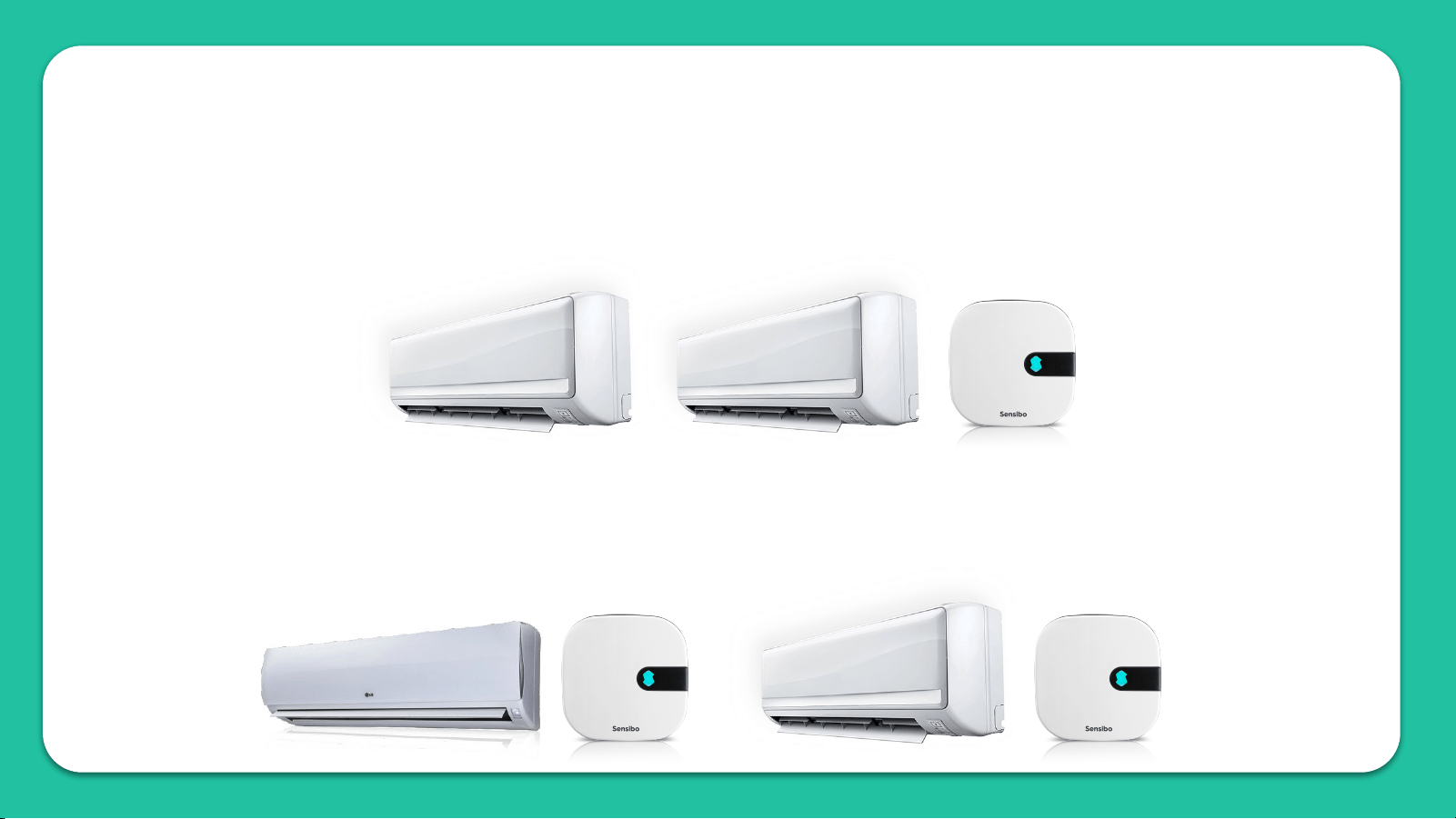
What if I have 2 AC Units in One Room?
If you have 2 air conditioners of the same make & model,
and if they have the same remote - one sensibo device can
operate them simultaneously.
If the air conditioners are different, you will need 2
separate sensibo devices. Each device will operate the AC
that it is located within its line of sight.
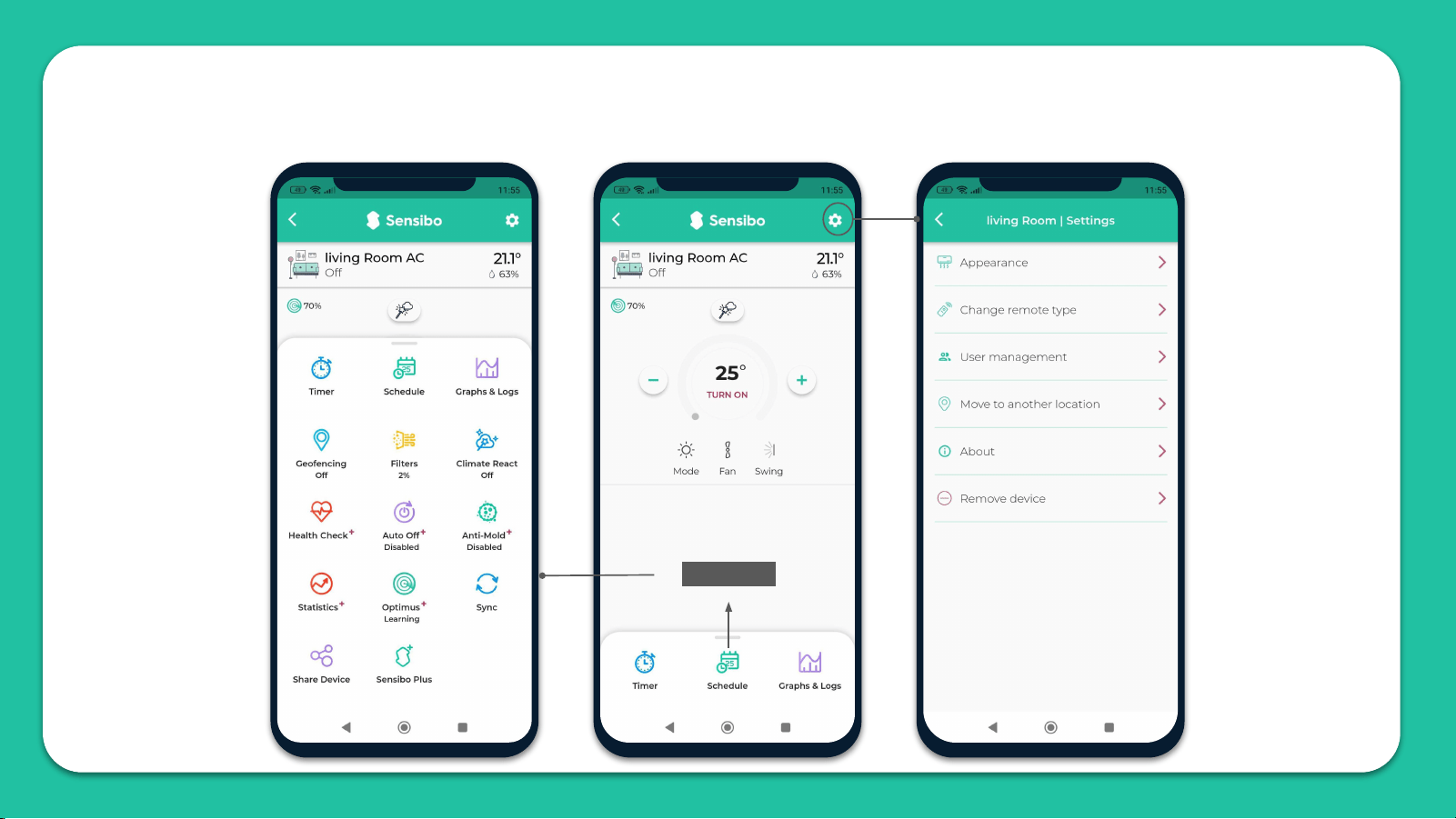
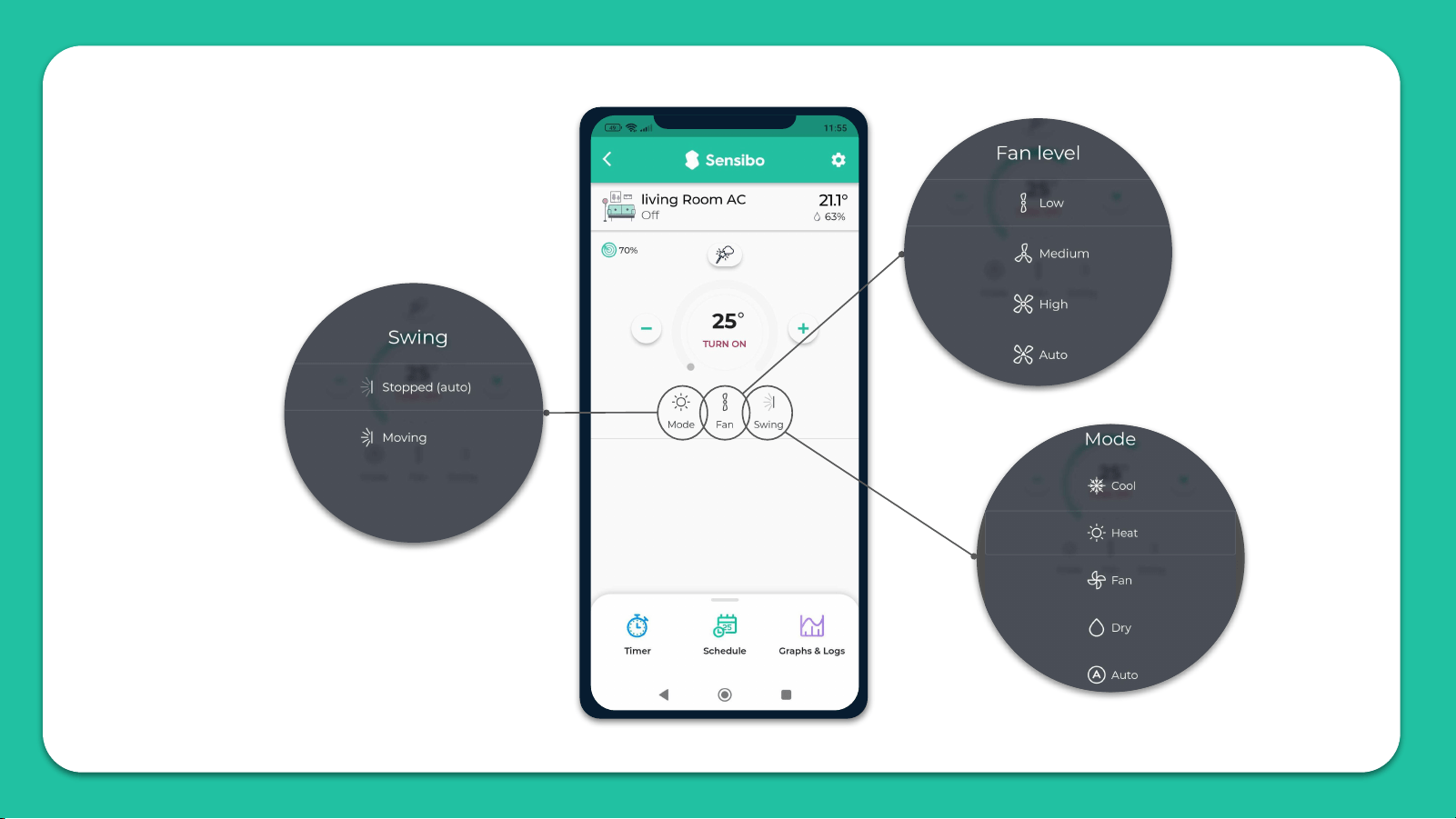
App Introduction
12
Swipe up
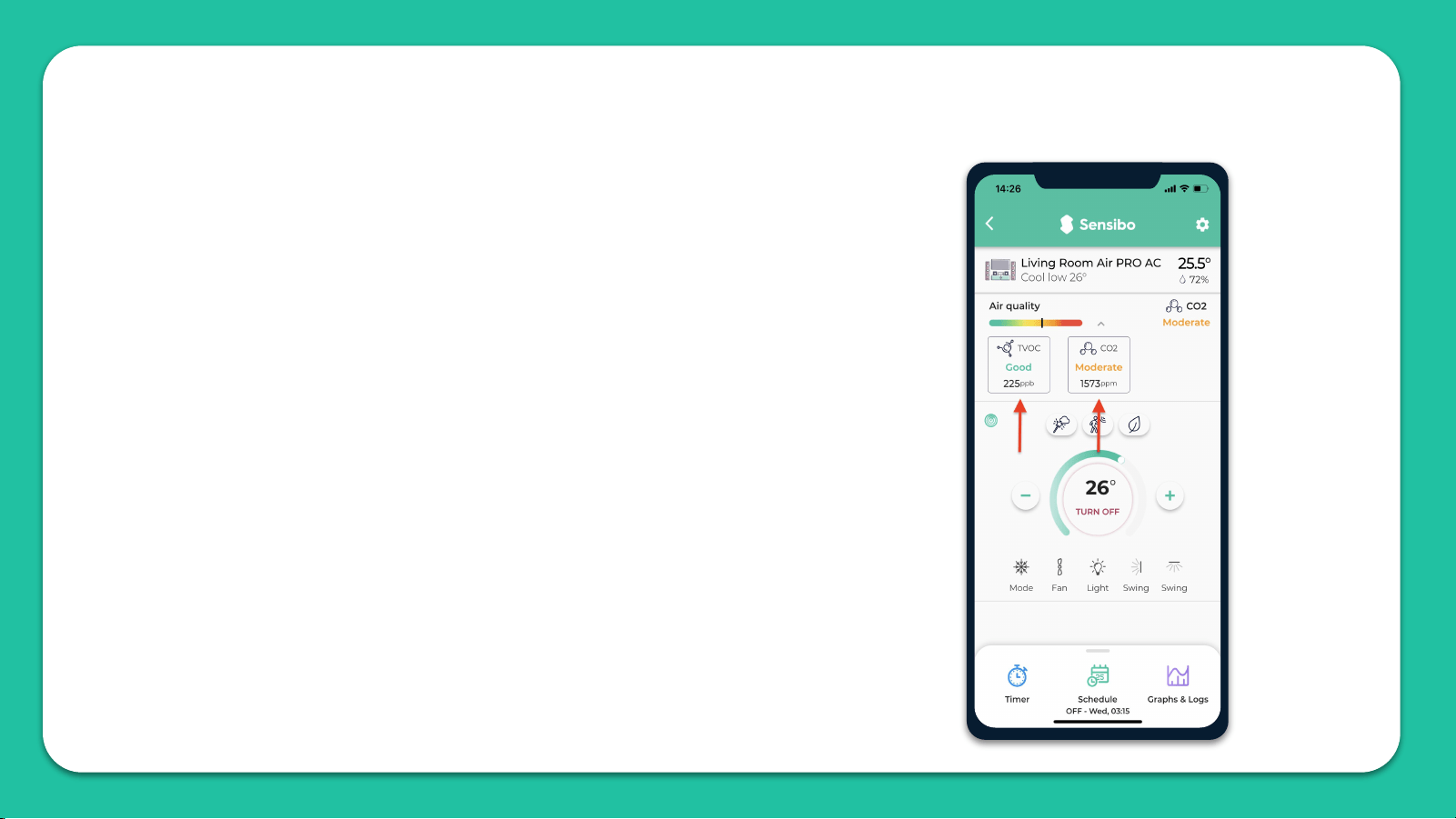
Air PRO added value
13
The Air PRO's air quality sensor is capable of detecting levels of
TVOC (Total Volatile Organic Compounds) & CO₂ (Carbon
Dioxide) in your air.
TVOC means Total Volatile Organic Compounds. Volatile organic
compounds are organic chemicals that become a gas at room
temperature. Many VOCs come from electronic devices, cleaners
and disinfectants, pesticides, air fresheners, paints and solvents,
glue, new furniture and carpets, construction materials, and
plywood. VOCs can irritate the eyes, nose, and throat, and can
cause difficulty breathing.
Monitoring CO₂ is a good way to monitor busy rooms and
encourage you to open a window to increase air circulation.
Exposure to CO₂ can cause tiredness, headaches, dizziness, and
difficulty breathing.