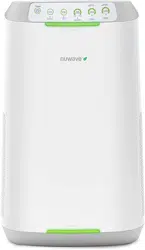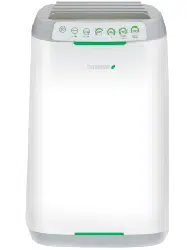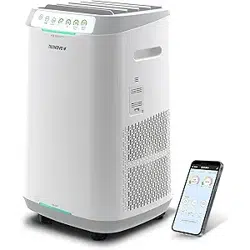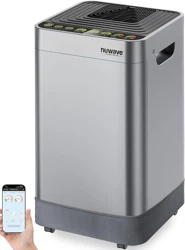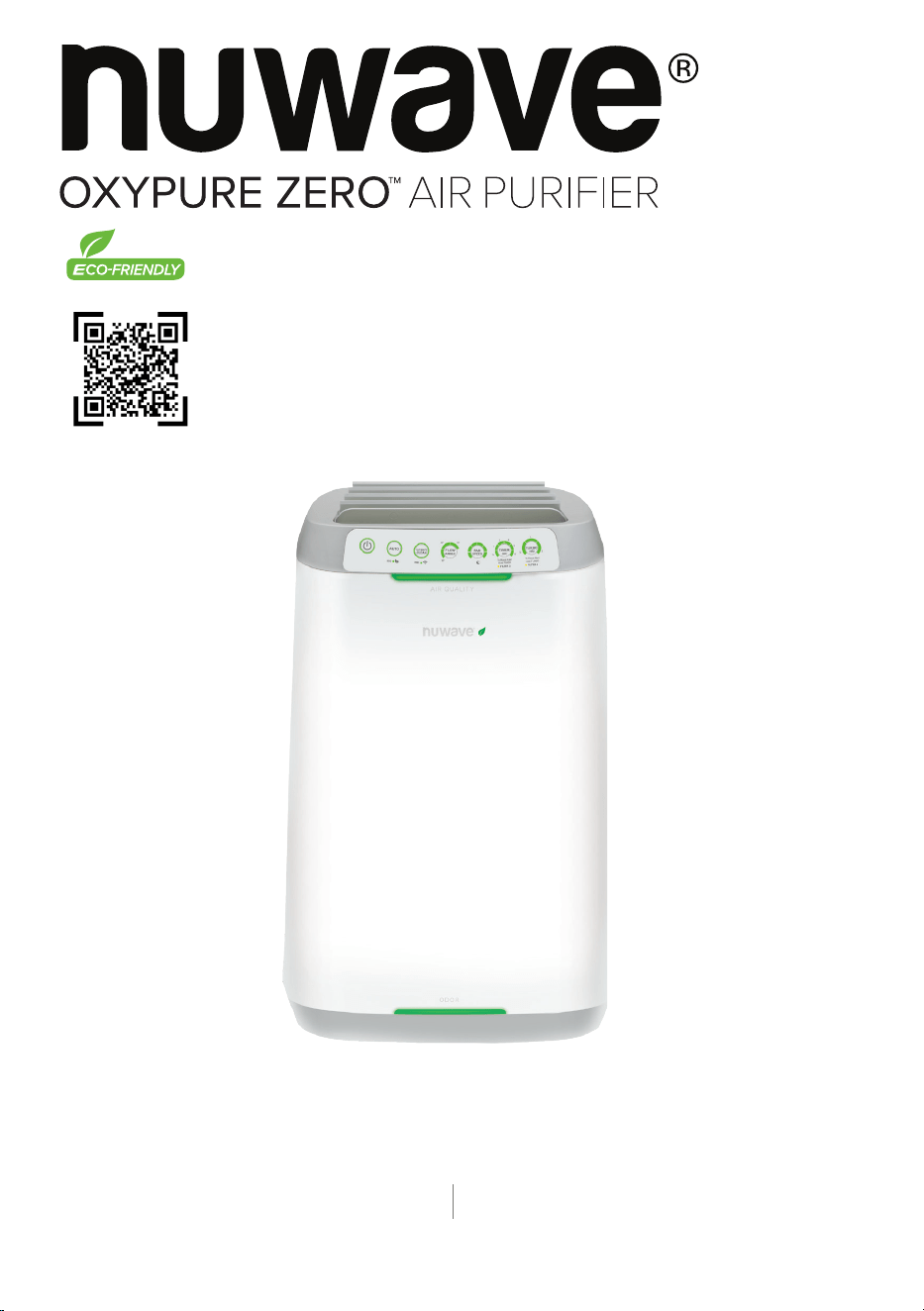
Owner’s Manual
Model: 47262
E1000
Master Your OxyPure Zero
Scan the code to watch
how-to videos and more!
Amazon Purchases: support@nuwavenow.com All Other Purchases: help@nuwavenow.com
Questions or Concerns?
1-888-502-7805 1-877-689-2838
Mon-Fri 7:30am-4:30pm CST
2 | Nuwave® OxyPure Smart Air Purier
Register Today!
Use your smartphone or device to scan the QR code located on the back
of your unit to register your product, or visit nuwavenow.com/register.
Connect with Us!
#nuwavenow
Visit nuwavenow.com to see other great products and accessories.
THANK YOU!
Congratulations on your Nuwave® purchase. We know there are many options available
and sincerely appreciate the trust you have placed in us.
For the last 30 years, we have committed to introducing products that promote healthy
living at affordable prices. By combining the highest quality designs with cutting edge
technology, we have always strived to blend feature, function, and innovation into every
product we make. We hope you will agree.
We would love to hear from you. Please feel free to reach out with any feedback or
comments that could improve your experience. We would also enjoy hearing about your
successes. Scan the QR code below to email us.
For Amazon Purchases
support@nuwavenow.com
For All Other Purchases
support@nuwavenow.com
nuwavenow.com | 3
Important Safeguards ........................................................................................................4-5
Parts & Accessories..............................................................................................................6
Before First Use....................................................................................................................7
Assembly Guide ...................................................................................................................7
Table Top Use .......................................................................................................................7
Nuwave Connect App ........................................................................................................... 8
Wi-Fi Connectivity .................................................................................................................9
Operating the Nuwave® OxyPure ................................................................................10–12
Cleaning & Maintenance ...............................................................................................12-14
Troubleshooting Guide ..................................................................................................15-16
Limited Warranty ..........................................................................................................17–19
TABLE OF CONTENTS
U.S Environmental
Protection Agency
Meets California ozone
emissions limit.
CARB certified
This equipment has been tested and found to comply with the limits for a Class B digital
device, pursuant to part 15 of the FCC Rules. These limits are designed to provide
reasonable protection against harmful interference in a residential installation. This
equipment generates, uses and can radiate radio frequency energy and, if not installed
and used in accordance with the instructions, may cause harmful interference to radio
communications. However, there is no guarantee that interference will not occur in a
particular installation. If this equipment does cause harmful interference to radio or televi-
sion reception, which can be determined by turning the equipment off and on, the user is
encouraged to try to correct the interference by one or more of the following measures:
• Reorient or relocate the receiving antenna.
• Increase the separation between the equipment and receiver.
• Connect the equipment into an outlet on a circuit different from that to which the
receiver is connected.
• Consult the dealer or an experienced radio/TV technician for help.

4 | Nuwave® OxyPure Smart Air Purier
1. ONLY use the unit for its intended
purpose.
2. To protect against the risk of electrical
shock, DO NOT immerse the cord,
plug, or any part of the unit in water or
any other liquid.
3. Close supervision is necessary when
the unit is used by or near children.
The unit is not intended for use by
children, persons with reduced physi-
cal, sensory, or mental capabilities, or
those who lack expertise or knowledge
of this device.
4. DO NOT operate the unit with a dam-
aged cord, plug, after any malfunction,
or if the unit has been dropped or dam-
aged in any way. Contact Customer
Service for more information.
5. Discard the protective plastic covering
the power plug before use.
6. DO NOT run the cord under carpeting,
throw rugs, runners or other coverings.
7. DO NOT route the cord under furniture
or appliances. Arrange the cord away
from high-trafc areas where it will not
pose a tripping hazard.
8. DO NOT plug the unit into an outlet or
power strip that is being used by other
appliances.
9. Remove any dust or water from the
plug, if needed.
10. ALWAYS set up the unit on a at, sta-
ble surface.
IMPORTANT SAFEGUARDS
HOUSEHOLD USE ONLY • READ ALL INSTRUCTIONS BEFORE USE
11. DO NOT set up the unit where it could
be pushed, kicked, or tripped over.
12. Leave at least 2-3 feet of space be-
tween the unit’s vents and any walls.
13. DO NOT install the unit near a heat-
ing device, ammable or combustible
gases or vapors, or in areas exposed
to moisture or water.
14. DO NOT operate the unit on its side.
15. DO NOT place objects on top of the
unit.
16. DO NOT sit or stand on, or lean
against, the unit.
17. Alteration or modication of any part of
the unit, or the use of attachments not
recommended by the manufacturer,
may cause re, injury, or damage to
property.
18. As with most electrical units, electrical
parts are live even when the unit is off.
Be sure the unit is unplugged when
assembling.
19. DO NOT use the unit in a factory or in-
dustrial setting where machine oil may
be present in the air.
20. Turn the power OFF on the unit before
unplugging it.
21. Unplug the unit from outlet when the
unit is not in use or will be left unat-
tended for an extended period of time;
before putting on or taking off parts;
when removing or replacing the lters,
and before cleaning.
ALWAYS KEEP THIS MANUAL HANDY FOR FUTURE REFERENCE.
READ ALL INSTRUCTIONS and WARNINGS: The failure to follow any of the important safe-
guards, warnings, or instructions for safe use is a misuse of the unit that can void your warranty and
create the risk of serious injury. When using the unit, basic safety precautions should always be fol-
lowed.
nuwavenow.com | 5
FILTER CHANGING PRECAUTIONS
1. Once all lters have been removed, the
body of the unit can be washed with
warm, soapy water. Dry thoroughly be-
fore replacing the lters.
2. ALWAYS use rubber gloves when han-
dling the lters.
3. When removing dirty lters, ALWAYS do
so outside or in a well ventilated area.
4. ALWAYS replace your lters with
Nuwave lters made for your model of
air purier.
22. DO NOT operate the unit if an abnor-
mal sound or motion is detected.
23. If a hard or foreign object comes into
contact with the fan, do not operate.
Turn off and unplug the unit.
24. Inspect the unit for any loose or miss-
ing parts before and after each use. If
parts are loose, damaged, or missing,
contact Customer Service by emailing:
For Amazon Purchases:
support@nuwavenow.com
For All Other Purchases:
help@nuwavenow.com
25. DO NOT pull, lift, drag, pick up, or carry
the unit by its cord.
26. DO NOT block the air inlet or outlet
vents.
27. DO NOT operate the unit without lters
or the Filter Access Panel in place.
28. DO NOT place anything with a strong
odor or chemical on or close to the
odor sensor.
WARNING
RISK OF ELECTRIC SHOCK: To reduce the
risk of electric shock, this equipment has a
polarized plug (one blade is wider than the
other). This plug will fit in a polarized outlet
only one way. If the plug does not fit fully in the
outlet, reverse the plug. If it still does not fit,
contact qualified personnel to install the proper
outlet. Do not alter the plug in any way.
These servicing instructions are for use by
qualified personnel only. To reduce the risk of
electric shock, do not perform any servicing other
than that contained in the operating instructions
unless you are qualified to do so.
IMPORTANT SAFEGUARDS
HOUSEHOLD USE ONLY • READ ALL INSTRUCTIONS BEFORE USE
ELECTRICAL INFORMATION
These servicing instructions are for use
by qualied personnel only. To reduce the
risk of electric shock, do not perform any
servicing other than that contained in the
operating instructions unless you are quali-
ed to do so.
Power-Supply Cords
A short, detachable power-supply cord is
provided to reduce the risk of becoming
entangled in, or tripping over, a longer cord.
Longer detachable power-supply cords or
extension cords are available and may be
used if care is exercised in their use. If a
longer, detachable power-supply cord or
extension cord is used:
1. The marked electrical rating of the ex-
tension cord should be at least as great
as the electrical rating of the appliance.
2. The longer cord should be arranged so
that it will not drape over any countertop
or tabletop where it could be pulled on or
tripped over unintentionally.
3. The unit should be operated on a sepa-
rate electrical outlet from other operating
appliances due to wattage limitations.
6 | Nuwave® OxyPure Smart Air Purier
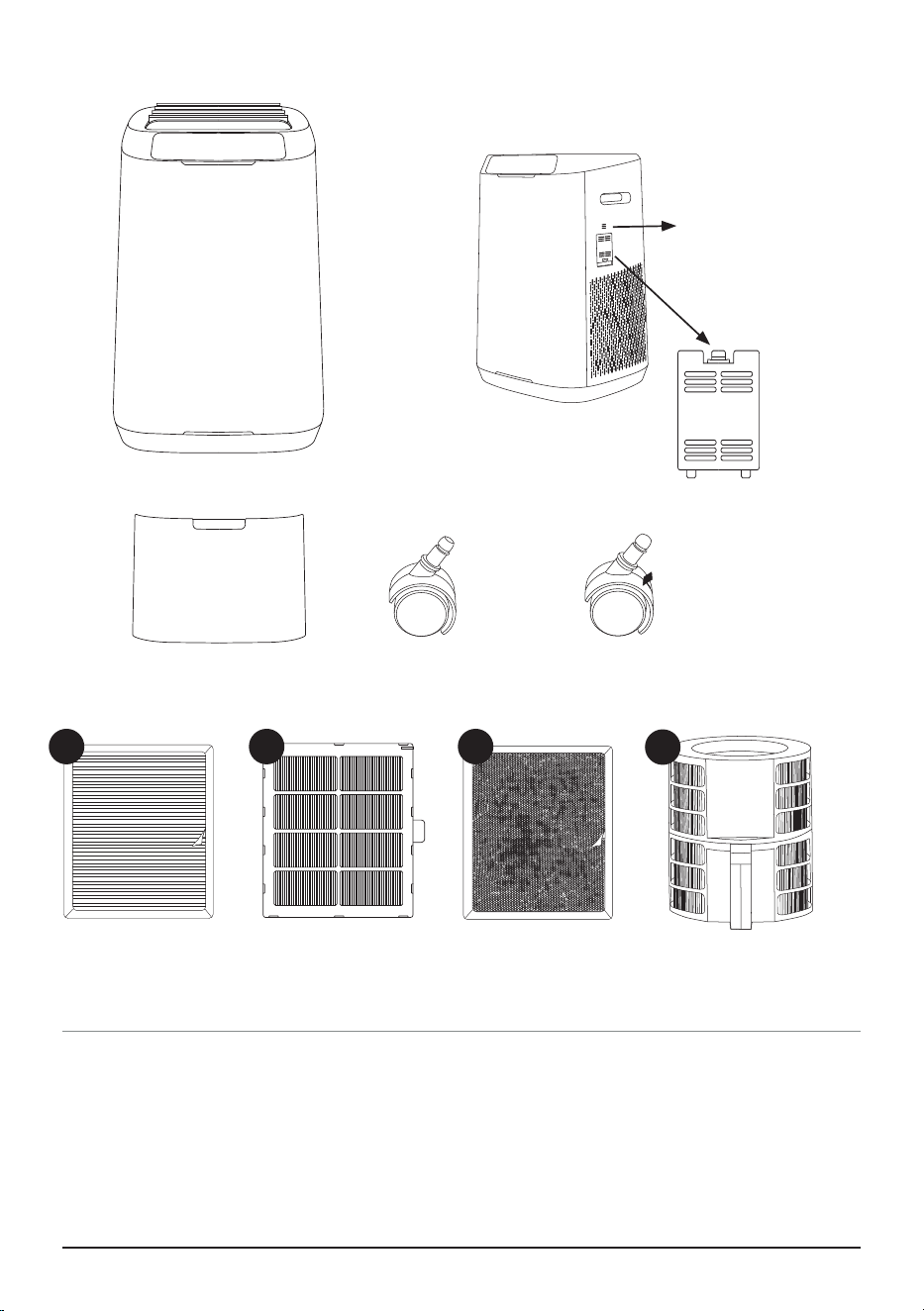
Odor Sensor
Filter Access Panel
Part #: OTP3
Ozone Emission
Removal Filter (2)
Part #: OTA2
Bio-Guard
®
Filter (2)
Part #: OTA3
Bio-Guard
®
360
Filter
Part #: OOA1
Stainless Steel
Prefilter (2)
Part #: OTA4
Wheels (2)
Part #: OTP1
Wheels with Brake (2)
Part #: OTP4
Side
1
4
2 3
PARTS & ACCESSORIES
Keeping your unit up and running with new lters is a breeze.
1. Locate the part number on the above images, then
2. Contact Nuwave Customer Service by emailing:
For Amazon Purchases: support@nuwavenow.com
For All Other Purchases: help@nuwavenow.com
, or order online at www.nuwavenow.com.
ORDERING PARTS
Dust Sensor Cover
Part #: OTP2
Power Base
Part #: OTA5
nuwavenow.com | 7
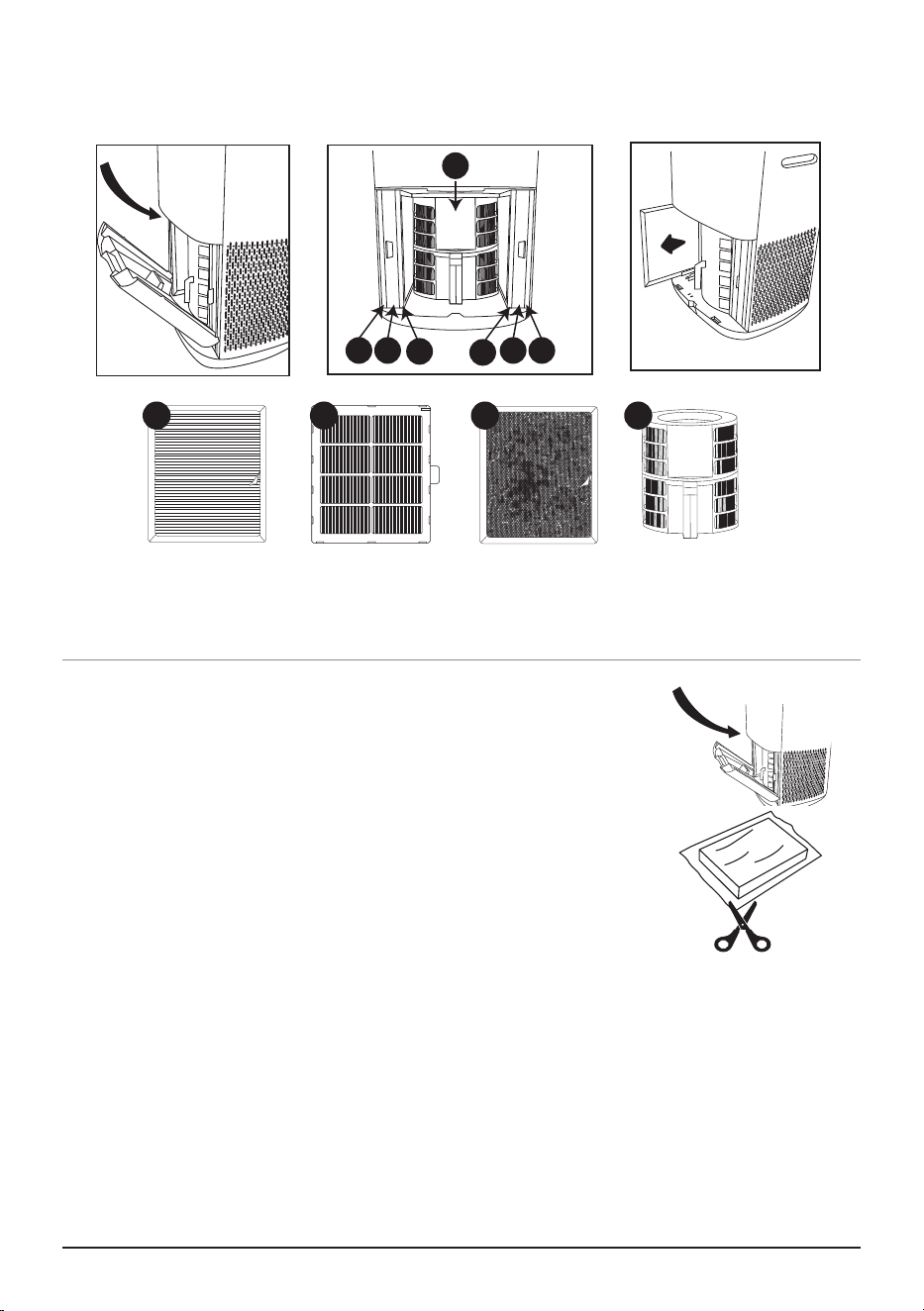
BEFORE USE:
1. Make sure the unit is unplugged. Open the panel on the back to
expose the filters.
2. Pull the filters from their slots.
3. Remove the plastic wrapping from the filters. The Bio- Guard Filter
is not wrapped.
4. Fully reinsert the filters into the Oxypure and close the panel. The
Power button will flash if not fully inserted.
5. Remove the sticker from the control panel.
AIR FILTER ASSEMBLY
The OxyPure comes with seven different preassembled filters inside the unit (see
diagram above. Access to Filters). Each filter is labeled with a number and an “L” or an
“R” for Left and Right.w Match these with the slot numbers when installing the filters.
When the filters require cleaning, please refer to Cleaning & Maintenance. To install the
Bio-Guard
®
360 filter, slide it into place in the center.
TABLETOP USE
To use the unit as a tabletop unit, remove the wheels to ensure that it is stable and does
not roll off the table.
Bio-Guard
®
360 Filter
1 2
4
3
3
2 1
Ozone
Emission
Removal
Filter (2)
Bio-Guard
®
Filter (2)
Stainless Steel
Prefilter (2)
1 2 3 4
ASSEMBLY
Open
Removing & Inserting Filters
Access to Filters
8 | Nuwave® OxyPure Smart Air Purier
THE NUWAVE
®
CONNECT APP
MONITOR AND CONTROL THE unit REMOTELY
Download the Nuwave Connect App
This is an optional feature that is not re-
quired to operate your unit.
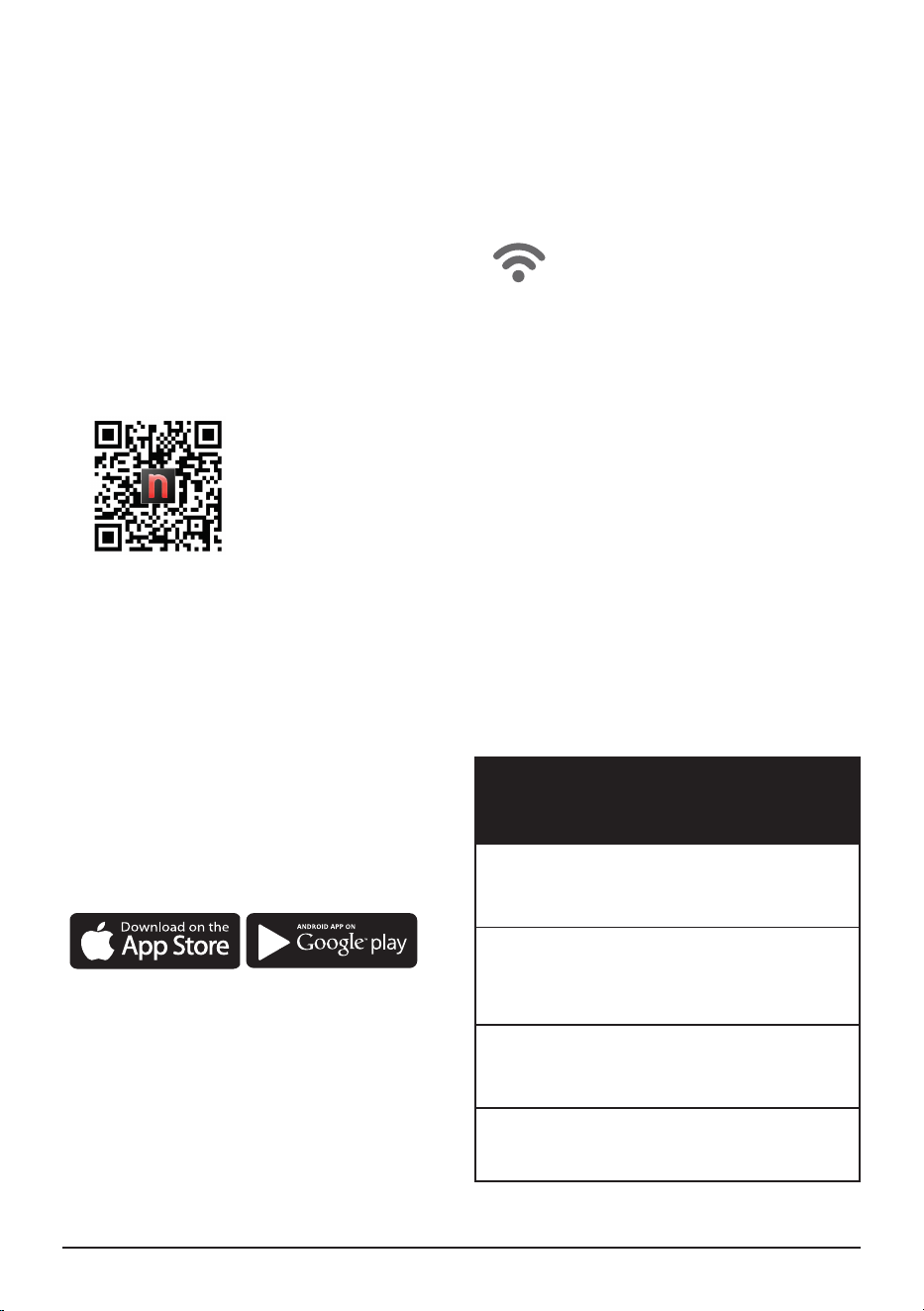
Using the QR reader in your Camera
App:
1. Scan the QR code below.
2. It will take you to the App’s download
page on either the Google Play Store or
the Apple AppStore, then just follow the
download and installation instructions.
Downloading a QR reader App:
If your phone doesn’t have that capability
built-in, simply download a 3rd-Party QR
Scanning App before scanning the Nuwave
QR Codes and you are ready to go.
1. Open your device’ mobile app store
(Apple App Store or the Google Play
Store).
2. Search for “QR code readers.”
3. Simply download the QR code reader to
your phone, open it, scan the code and
you are ready to go.
The OxyPure Smart Air Purier is equipped to operate using WI-FI. This allows you to conve-
niently operate your new air purier from nearly any location, whether at home or while you
are out and about, as long as you have a reliable Internet connection.
WiFi LED Status Light
Pairing Mode & Standby Mode
Solid Light.
The unit is paired with the wi
network and ready to be used.
Rapid Blinking Light.
The unit is in Pairing Mode.
The unit will stay in Pairing Mode for up to
10 minutes or until your device is paired.
Slowly Blinking Light.
The unit is in AP Pairing Mode.
No Light. The unit’s WiFi is off.
Wi-Fi
Auto Scan Mode
1. Once you download the Nuwave®
Connect app, ensure your phone is
connected to your home Wi-Fi network
on the 2.4GHz or 5GHz frequency and
that your phone’s Bluetooth is on.
2. Turn on the unit and activate Wi-Fi
Pairing Mode by pressing and holding
AUTO until the light next to the Wi-Fi
symbol begins to blink rapidly.
3. In the Nuwave® Connect app, tap the +
symbol, then tap Auto Scan and select
your device.
4. Enter your Wi-Fi network’s password
and tap Conrm. If the connection is
successful, the app will display “Added
Successfully” on the screen.

nuwavenow.com | 9
THE NUWAVE
®
CONNECT APP
MONITOR AND CONTROL THE unit REMOTELY
If you’re unable to pair your unit using Auto Scan, you can alternatively try one of
the following pairing methods.
If the unit did not connect to your network,
the Wi-Fi light will turn off. Repeat the
steps for pairing. Make sure to select the
proper Wi-Fi network and type the correct
password.
Note: If your home network doesn’t
broadcast in a 5GHz or a dual band
broadcast frequency, contact your ISP to
inquire about setting up a 5GHz network.
AP Mode
1. If you can’t connect your unit using Auto
Scan, follow the instructions in the app to
reset the connection process.
2. Press and hold ULTIMATE CLEAN until
the Wi-Fi light begins blinking slowly to
enable AP Mode.
3. Tap the + symbol, then select the unit
unit you want to add to the network.
4. Conrm that the Wi-Fi light on your unit
is blinking slowly and tap AP Mode on
your phone screen.
5. Connect your phone to the available
hotspot following the instructions on the
screen.
6. Once connected, return to the Nuwave
Connect app and the unit will begin
connecting automatically.
7. Once your unit is successfully
connected, tap Done.
EZ Mode
1. Tap the + symbol, then select the unit
unit you want to add to the network.
2. Enter and conrm your Wi-Fi network
password.
3. Tap AP Mode in the top right of
your screen, then select EZ Mode to
switch pairing modes.
4. Conrm that the Wi-Fi light on your
unit is blinking rapidly.
5. Once the unit is connected, tap
Done.
10 | Nuwave® OxyPure Smart Air Purier
OPERATING THE NUWAVE
®
OXYPURE
CONTROL PANEL • POWER • MODES & FUNCTIONS
Operating the unit
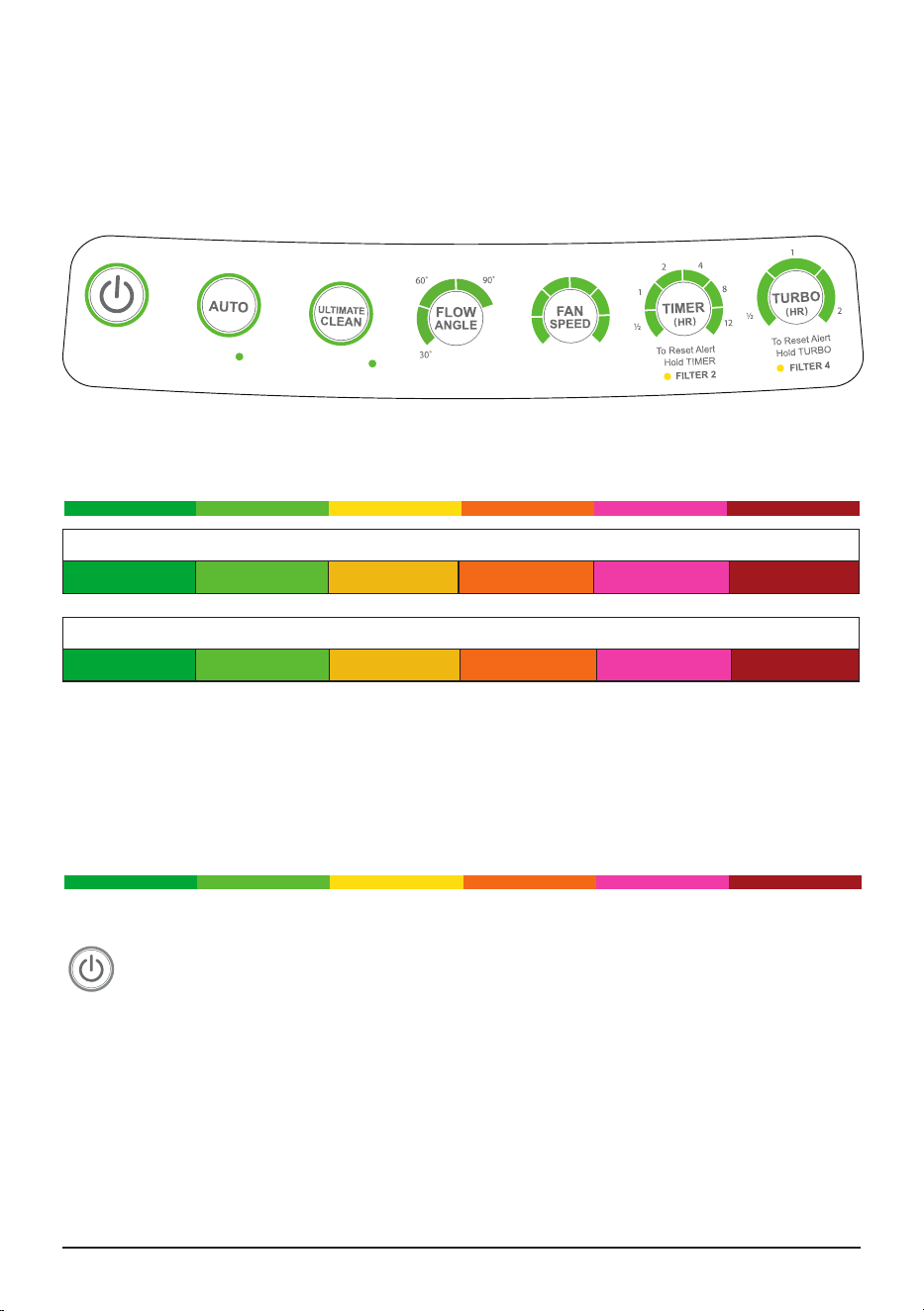
The unit’s control panel allows you to turn the unit on and off, choose an operating mode or
function (see below), and monitor your lter health.
AIR/ODOR QUALITY - DETECTS PARTICLES AS SMALL AS 2.5/1000MM
Low PM Level High PM Level
Particulate Matter (PM) with a diameter of 2.5 microns or less
0~5 5~10 10~20 20~30 30~50 Over 50
Fan Speeds
1 2 3 4 5 6
AIR AND ODOR LEDS
The unit will display the Air/Odor quality based on the particulate matter in the air from low
to high as represented below. If the PM level in the air exceeds the upper limit of the range,
a warning is triggered with a beeping sound and a ashing LED. To turn off this warning,
press AUTO and Fan Speed at the same time. Press the same buttons to turn the warning
feature back on.
Low PM Level High PM Level
POWER BUTTON
1. Press POWER to turn the OxyPure on
or off.
2. POWER will be lit green when on.
3. POWER will be lit red when off.
Note: When powered on, the OxyPure will
execute any previously selected functions
or modes.
AIR QUALITY INDICATORS
The Air/Odor Quality indicators will auto-
matically measure and display the current
air quality in the room. These indicators will
be lit to show the air quality (see the above
graph). The RESET ALERT 2 and 4 will
illuminate, indicating the lters need to be
cleaned.
W
I
F
I
E
C
O
M
O
D
E
M
U
T
E
S
L
E
E
P
M
O
D
E

nuwavenow.com | 11
OPERATING THE NUWAVE
®
OXYPURE
MODES & FUNCTIONS
AUTO MODE
When the AUTO function is used, the
OxyPure will adjust the fan speed
automatically dependent on the air quality.
• AUTO will light up green when selected.
• There is no time limit unless TIME is
chosen.
• AUTO cannot be used with FAN or
ULTIMATE CLEAN modes.
Auto + Turbo
1. Press AUTO.
2. Press TURBO to the amount of desired.
ULTIMATE CLEAN MODE
When in ULTIMATE CLEAN mode, the
OxyPure will automatically adjust to the
highest fan speed dependent when poor
air quality is detected.
• ULTIMATE CLEAN will be lit green when
selected.
Ultimate Clean + Turbo
1. Press ULTIMATE CLEAN.
2. Press TURBO to the time desired.
Ultimate Clean + Timer
1. Press ULTIMATE CLEAN.
2. Press TIMER to the time desired.
• Will work with ECO, TIMER, and TURBO.
• Will not work with AUTO o Fan.
ECO Mode
Allows you to save energy by turning off the
unit’s fan and lights until poor air quality is
detected. While in Eco Mode, the fan will
automatically run when the PM level is high
and will remain off when the PM level is
low.
1. Press and hold AUTO, and ECO will
light up, all other lights will turn off.
2. Once ECO is activated can add desired
functions.
3. To turn off ECO Mode, press and hold
AUTO for 2 seconds and the unit will
turn off, and the Power button will light
up red.
• Will work with ULTIMATE CLEAN, FAN.,
TIMER, TURBO.
TURBO MODE
The Turbo function cleans your air using
the highest fan speed at the time selected.
Works with AUTO and ULTIMATE CLEAN.
1. Press TURBO to the amount of working
time and add function as desired
2. To exit TURBO, press TURBO until no
bars are lit.
Note: If no other button is pressed after
TURBO, then the unit will go to the
Fan Speed set prior.
Turbo + Timer
To operate longer than 2 hours.
1. Press TURBO to 2 hours.
2. Press TIMER and set the additional
time desired.
SLEEP MODE
When in Sleep Mode the LED lights will be
off but the fan will still be active. Adjust the
fan speed to your preference prior to going
into SLEEP MODE.
1. Enter all functions.
2. Press and hold FAN SPEED for 2
seconds to activate SLEEP Mode. All
lights will turn off.
3. To turn off SLEEP Mode, press any
button.
Note: AUTO, ULTIMATE CLEAN, FAN,
TIMER, and TURBO will work while the
OxyPure is in SLEEP Mode.
12 | Nuwave® OxyPure Smart Air Purier
OPERATING THE NUWAVE
®
OXYPURE
CLEANING & MAINTENANCE
FILTER CLEANING TIPS AND TRICKS
GENERAL TIPS
1. Always Wear a Mask and Rubber
Gloves
This will prevent accidental inhalation of
any contaminants when cleaning your
lters.
2. Move the unit, Not the Filters Move
the unit as close as possible to the
location where you will clean the
filters. This will minimize the chance of
the filter being shaken.
3. Handle the Filters Carefully
As you remove the lters from the unit,
be careful not to shake, drop, bump,
or otherwise agitate them as doing
so can cause the release of trapped
contaminants.
4. Dry the Filters Completely
Never install a wet or damp lter into
your unit as doing so will interfere with
the function of the unit.
Note:
When drying lters a fan can be used,
be sure it is away from a heat source.
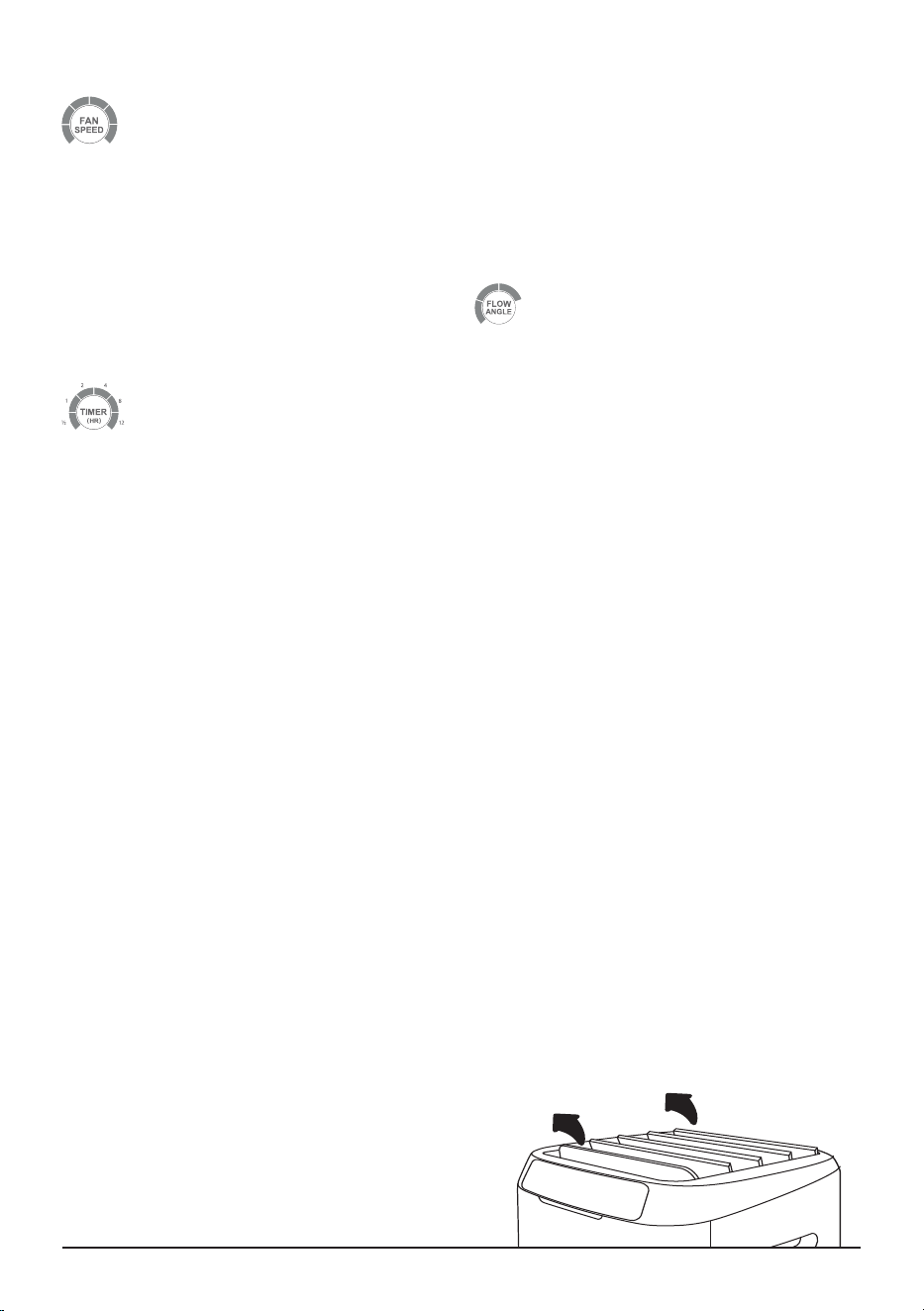
5. Clean the Louvers
Raise the louvers to a 90 degree angle
and then unplug the unit. That will keep
them vertical while you wipe them down
on each side with a warm, damp cloth.
Plug the unit back in and allow them to
come down again.
6. Dislodge Foreign Object
With the louvers upright, can turn the
upside down.
1. Gently shake to dislodge.
• If the object doesn’t dislodge contact
Customer Service.
Be sure when reinstalling filters they are dried thoroughly dried. This can take 12-24 hours.
Louvers
FAN SPEED
You can adjust from 6 different speeds.
1. Press FAN to desired speed.
• The fan cannot be turned off.
• On the lowest fan speed, 1 bar will be lit.
Fan Speed + Timer
1. Press FAN to choose the desired
speed.
2. Press TIMER to the time desired.
TIMER
Use the Timer function to choose the
duration of operation.
1. Press TIMER. The bar next to ½ hour
will be lit. There are 6 preset times to
choose from the bar will be lit green for
the selected time: ½ hour, 1, 2, 4, 8, or
12 hours.
2. To turn off the TIMER, press TIMER one
time when the 12 is lit, no bars will be lit.
AIR FLOW ANGLE
Pressing AIR FLOW ANGLE will allow you
to adjust how the air leaves the unit, going
from 30° to 60° to 90° and back.
MUTE
To mute the beep sounds. Press and hold
AIR FLOW ANGLE for 2 seconds, a beep
will be heard. Repeat to unmute.
nuwavenow.com | 13
CLEANING AND MAINTENANCE
FILTER CLEANING TIPS AND TRICKS
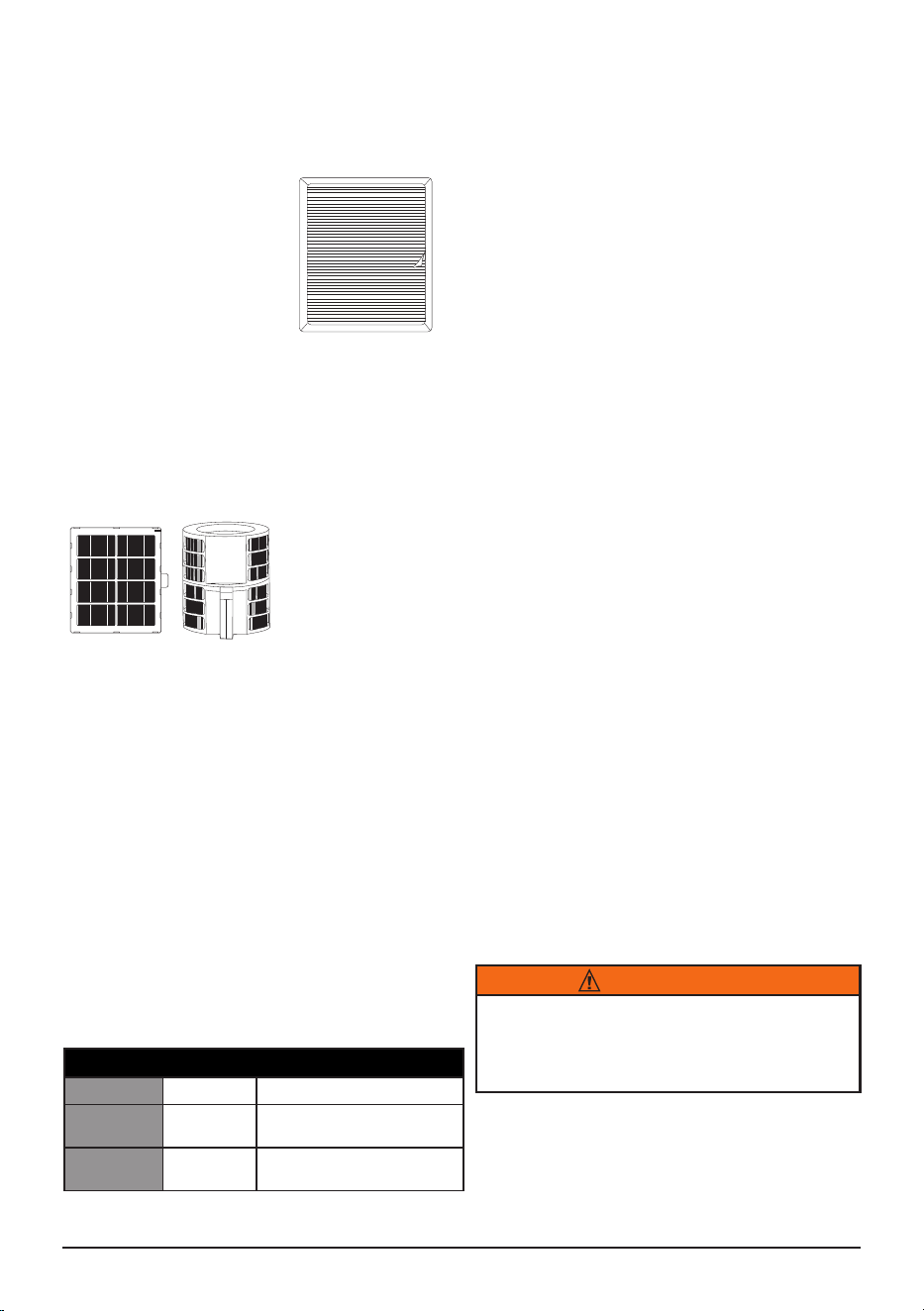
THE STAINLESS-STEEL PREFILTER
(Filter 1)
The Prelters need
to be cleaned at least
once every two months,
depending on use.
When Cleaning:
• Use a vacuum with a
brush attachment to
remove any dust or lint.
• Clean the lter with warm soapy water.
• Rinse the lter and allow to dry
thoroughly. This can take up to 24 hrs.
THE BIO-GUARD AND BIO-GUARD 360
FILTERS (FILTERS 2 & 4)
1. Remove the lters and immerse
them in water.
2. Spray the lters with a mild detergent
and let them sit for 2 – 3 minutes.
3. Submerge the lters in warm water,
shake, and remove. If you cannot fully
submerge the Bio-Guard
®
360 Filter,
then place it under low-pressure running
water.
4. Repeat this process until the lters are
clean.
5. Rinse the lters with warm water (see 3
above).
6. Dry the lters completely, out of direct
sunlight, DO NOT use a heat source.
Clean Filter Schedule
3 Months Yellow Routine cleaning.
6 Months Orange Should be cleaned for continued
efficiency.
12 Months Red Clean for optimal performance
especially if the first 2 were missed.
Note: The Bio-Guard™ Filter may discolor
and retain odor after prolonged exposure
to thick smoke and strong odors. This
prolonged exposure will require more
frequent cleanings to ensure maximum
ltration efciency.
When Cleaning:
• Immerse the lters in water immediately
to eliminate the chance of any
contaminants being released into the air.
• Wash and rinse as directed, but only
long enough to clean the lter.
• After rinsing, shake the water out the
lter to help dry the lter’s internal
electrical components.
• Dry thoroughly, away from direct
sunlight, in a room with a strong breeze
or a fan to blow air through the lter.
• Remember: The Bio-Guard Filter carries
an 8,000V charge when it is operating,
It MUST be completely dry, this can
take up to 24 hours before it can be
reinstalled into the unit.
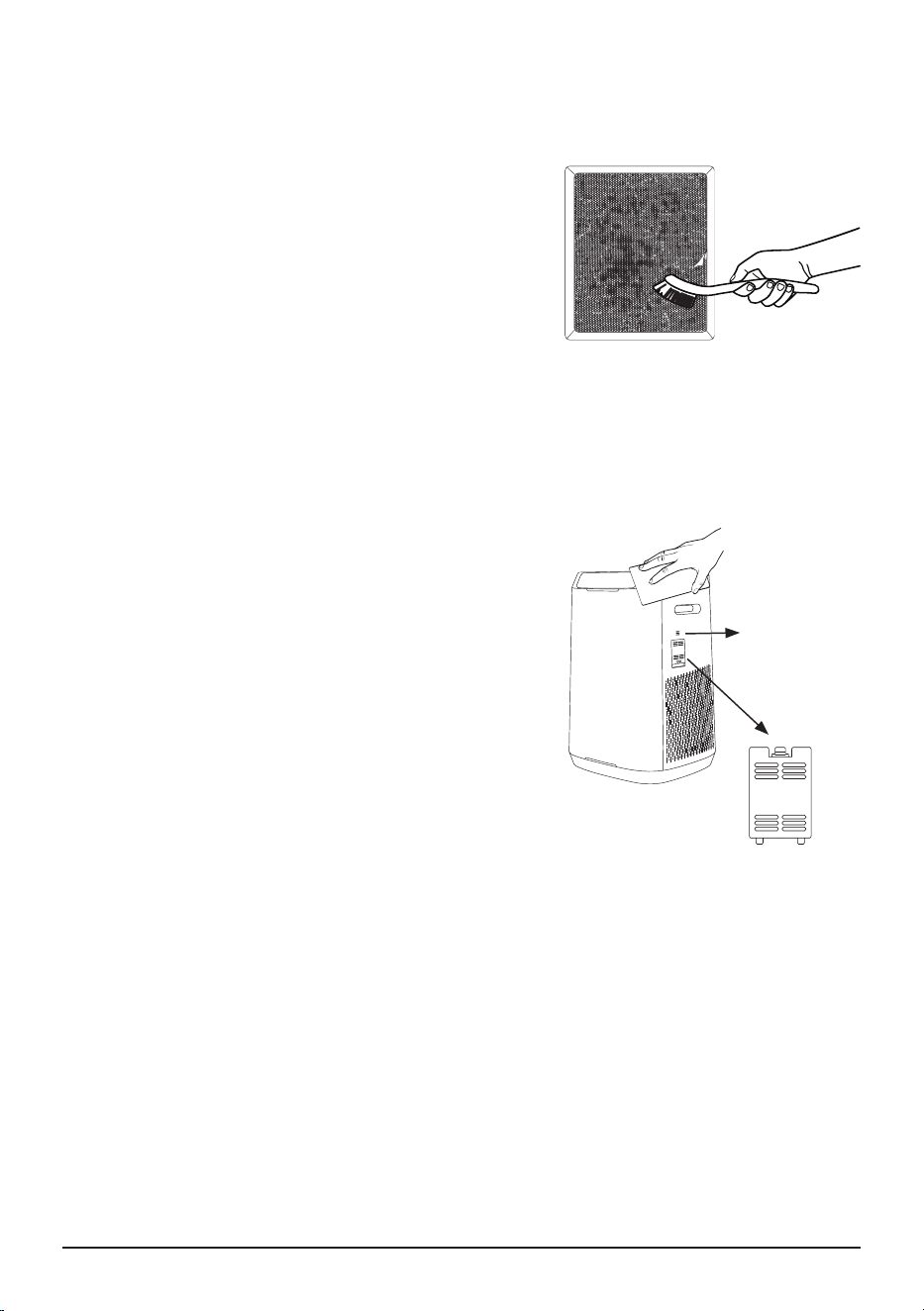
THE OZONE EMISSIONS REMOVAL
FILTER (FILTER 3)
1. Remove the lters. If possible, take them
outside to clean.
2. Gently, but thoroughly, clean the lters
using a brush-tipped vacuum.
3. Repeat the process on the other side.
DO NOT GET WET.
WARNING
DO NOT Immerse, wash or wipe with water,
this will result in permanent damage to the
Ozone Filter. It must be replaced!
14 | Nuwave® OxyPure Smart Air Purier
When Cleaning the Ozone Emissions Removal Filter:
• DO NOT get the Ozone Emissions Removal Filter
damp or wet.
• Take this lter outside if at all possible.
• Clean with a brush-equipped vacuum.
• Marks on the lter media are normal and
expected. They have no effect on the lter’s
functionality.
CLEANING & MAINTENANCE
CLEANING THE DUST SENSOR
The Dust Sensor is located on the side of the unit.
1. Open the Dust Sensor Cover.
2. Using a dry cotton swab or small, soft brush,
gently remove any dirt or dust from the Dust
Sensor center opening.
3. For more buildup on the Dust Sensor, wipe it
with a slightly wet cotton swab.
4. Remove any moisture with a dry cotton swab.
• The Dust Sensor requires regular cleaning
(approximately every 3 months) for the unit to
operate efciently.
• If your unit is set up in an area with high dust
accumulation, more frequent cleaning of the
Dust Sensor is needed.
• ONLY use the cotton swab on the Dust Sensor.
CLEANING THE ODOR SENSOR
The Odor Sensor is behind the three slots above the Dust Sensor Cover and may ONLY
be cleaned using a brush-tipped vacuum.
Odor Sensor
Dust Sensor Cover

nuwavenow.com | 15
The unit does not turn on.
1. The plug is not in the wall outlet. Plug it into the wall outlet.
2. POWER on the touch pad panel is not on. Press POWER.
3. The Filter Access Panel in the back is off or loose. Make sure the Filter Access Panel
is on securely. The Power button will blink red.
4. If you are unable to close the Filter Access Panel for any reason, the unit will not
operate and you will need to contact Nuwave Customer Service. Exercise caution to
ensure the tabs are not damaged when securing the Filter Access Panel.
TIMER does not work when pressed.
The unit is not reading the function selected. Press FAN SPEED or AUTO, then press
TIMER.
The fan is not blowing.
1. An appropriate outlet is not being used. Make sure the outlet has appropriate voltage
for use.
2. The Filter Access Panel in back is not properly in place. Make sure the Filter Access
Panel is on securely.
Speed of the airow is not changing when FAN SPEED is pressed.
The unit may be in AUTO mode. Set the unit to another operating mode on the touch
pad then press FAN SPEED.
Airow from the Top Vent is weak.
The air lter(s) are dirty. Clean the air lters.
The unit
®
is producing smoke or odor.
The air lter(s) are dirty. Clean the air lters. If the problem continues, contact Customer
Service.
CLEAN FILTER Indicators have not reset after the lter(s) have been
cleaned.
1. The Odor Sensor is not reading the clean lter. Turn the unit off then on again. Press
and hold down TIMER for 2 seconds until a beep is heard.
2. Turn the unit off, unplug and adjust the lter(s). Plug in and turn the unit on again.
3. The Filter Access Panel in back is not securely in place. Make sure Filter Access
Panel is on securely.
4. The Dust Sensor is dirty. Clean the Dust Sensor.
TROUBLESHOOTING GUIDE

16 | Nuwave® OxyPure Smart Air Purier
TROUBLESHOOTING GUIDE
ULTIMATE CLEAN does not come on when pressed.
The unit is not reading the function selected. Turn the unit on and off by pressing
POWER twice.
Power is blinking red.
When the Filter Access Panel is removed, the power icon will be back-lit solid red.
Pressing POWER will make it blink. However, as a safety measure, the unit will not
operate when the Filter Access Panel is removed. Ensure that Filter Access Panel is
installed securely.
The Odor Sensor is not resetting itself and the indicator light
is not clearing.
Contact Customer Service by emailing:
For Amazon Purchases: support@nuwavenow.com
For All Other Purchases: help@nuwavenow.com.

nuwavenow.com | 17
LIMITED WARRANTY
THE MANUFACTURER WARRANTS
Nuwave, LLC warrants that Nuwave® OxyPure Zero Smart Air Purier will be free from
manufacturer defects for 1 year from the date of purchase, under normal household use,
and when operated in accordance with the Manufacturer’s written instructions. The Limited
Warranty covers the Original Purchaser only. The Manufacturer will provide the necessary
parts and labor to repair the product at the Nuwave LLC Service Department. After the
expiration of the warranty, the cost of the parts and labor will be the responsibility of the
owner.
THE WARRANTY DOES NOT COVER
The Limited Warranty is voided if repairs are made by an unauthorized dealer, or the serial
number data plate is removed or defaced. Normal deterioration of finish due to use or
exposure is not covered by this Warranty. This Limited Warranty does not cover failure,
damages, or inadequate performance due to accident, acts of God (such as lightning),
fluctuations in electric power, alterations, abuse, misuse, misapplications, corrosive-type
atmospheres, improper installation, failure to operate and maintain the unit in accordance
with the Manufacturer’s written instructions, failure to regularly clean and maintain the
reusable filters in accordance with the Manufacturer’s written instructions, abnormal use,
commercial or rental uses, or resold units. Nuwave LLC reserves the right to void the
Limited Warranty, where allowable by law, for products purchased from an unauthorized
dealer.
TO OBTAIN SERVICE
The owner shall have the obligation and responsibility to pay for all services and parts not
covered by the warranty; prepay the freight to and from Service Department for any part
or system returned under this warranty; and carefully package the product using adequate
padding material to prevent damage in transit. The original container is ideal for this purpose.
Include in the package the owner’s name, address, daytime telephone number, a detailed
description of the problem, and your Return Goods Authorization (RGA) number by emailing:
For Amazon Purchases: support@nuwavenow.com
For All Other Purchases: help@nuwavenow.com
to obtain the RGA number. Provide the serial number and proof of date of purchase (a
copy of the receipt) when making claims under this warranty.
MANUFACTURER’S OBLIGATION
The Manufacturer’s obligation under this Limited Warranty is limited, to the extent allow-
able by law, to repairing or replacing any part covered by this Limited Warranty which upon
examination is found to be defective under normal use. The Limited Warranty is applicable
only within the continental United States and only to the original purchaser of the manu-
facturer’s authorized channels of distribution. THE LIMITED WARRANTY MAY NOT BE
ALTERED, VARIED OR EXTENDED EXCEPT BY A WRITTEN INSTRUMENT EXECUT-
ED BY THE MANUFACTURER. THE REMEDY OF REPAIR OR REPLACEMENT AS
PROVIDED
UNDER THIS LIMITED WARRANTY IS EXCLUSIVE. IN NO EVENT SHALL THE MANU-
FACTURER BE LIABLE FOR ANY CONSEQUENTIAL OR INCIDENTAL DAMAGES TO
ANY PERSON, WHETHER OR NOT OCCASIONED BY NEGLIGENCE OF THE

18 | Nuwave® OxyPure Smart Air Purier
LIMITED WARRANTY
MANUFACTURER, INCLUDING WITHOUT LIMITATION, DAMAGES FOR LOSS OF
USE, COSTS OF SUBSTITUTION, PROPERTY DAMAGE, OR OTHER MONEY LOSS.
Some states do not allow the exclusion or limitation of incidental or consequential damag-
es, so the above limitation exclusions may not apply. This Limited Warranty gives specic
legal rights, and there may also be other rights which vary from state to state. EXCEPT
AS OTHERWISE EXPRESSLY PROVIDED ABOVE, THE MANUFACTURER MAKES
NO WARRANTIES EXPRESSED OR IMPLIED ARISING BY LAW OR OTHERWISE,
INCLUDING WITHOUT LIMITATION, THE IMPLIED WARRANTIES OF MERCHANT-
ABILITY AND FITNESS FOR A PARTICULAR PURPOSE TO ANY OTHER PERSON.
READ YOUR OWNER’S MANUAL. IF YOU STILL HAVE ANY QUESTIONS ABOUT
OPERATION OR WARRANTY OF THE PRODUCT, PLEASE CONTACT NUWAVE LLC.
DISPUTE RESOLUTION PROCEDURE
For disputes relating to use of the website or use or purchase of a Nuwave product or
service (collectively “Disputes”), you agree to rst contact Nuwave LLC, by emailing
legal@nuwavenow.com. If we cannot resolve your dispute informally, any and all disputes
shall be submitted to nal and binding arbitration. You may start the arbitration process by
submitting in writing a demand to the American Arbitration Association (“AAA”) and send-
ing a copy to Nuwave. Nuwave will pay all ling costs. A single arbitrator of the AAA will
conduct the arbitration in a location convenient to you or by phone. The arbitrator’s award
will be binding and may be entered as a judgment in a court of competent jurisdiction.
The arbitration will be conducted in accordance with the provisions of AAA’s Commercial
Arbitration Rules and Mediation Procedures in effect at the time of submission of your
demand for arbitration. See https://www.adr.org/sites/default/les/CommercialRules_Web.
pdf. Except as may be required by law as determined by an arbitrator, no party or arbi-
trator may disclose the existence, content, or results of any arbitration hereunder without
prior written consent of both parties.
A. WAIVER OF RIGHT TO SUE. By agreeing to arbitration, you understand that, to the
maximum extent permitted by law, you are agreeing to waive your right to le suit in any
court, to a court hearing, a judge trial, or a jury trial.
B. CLASS ACTION WAIVER. To the maximum extent permitted by law, you expressly
agree to refrain from bringing or joining any claims in any representative or class-wide
capacity, including but not limited to, bringing or joining any claims in any class action or
class-wide arbitration.
C. OPT OUT PROCEDURE. To request to opt out of arbitration you must contact Nuwave
LLC by emailing:
For Amazon Purchases: support@nuwavenow.com
For All Other Purchases: help@nuwavenow.com.
You will have 30 days from the date of product delivery to opt out of arbitration with re-
spect to any dispute arising out of or relating to use or purchase of any Nuwave product.
If more than 30 days have passed, you are not eligible to opt out of arbitration and will
have waived your right to sue or participate in a class action with respect to the dispute
arising out of your purchase or use of a Nuwave product. For any dispute arising out of
your use of Nuwave’s website, you have 30 days from the date you provided information
to the website to opt out of arbitration. If more than 30 days have passed, you are not
eligible to opt out of arbitration and you will have waived your right to sue and participate

nuwavenow.com | 19
LIMITED WARRANTY
READ YOUR OWNER’S MANUAL
If you still have any questions about operation or warranty of this product, please contact
Nuwave LLC at:
For Amazon Purchases: support@nuwavenow.com
For All Other Purchases: help@nuwavenow.com.
in a class action with respect to the dispute arising out of your use of Nuwave’s website.
D. SOME MATTERS ARE NOT SUBJECT TO ARBITRATION. Notwithstanding the fore-
going, the following shall not be subject to arbitration and may be adjudicated only in the
state and federal courts of Illinois: (i) any dispute, controversy, or claim relating to or con-
testing the validity of our intellectual property rights and proprietary rights, including without
limitation, patents, trademarks, service marks, copyrights, or trade secrets; (ii) an action
by a party for temporary, preliminary, or permanent injunctive relief, whether prohibitive or
mandatory, or other provisional relief; or (iii) interactions with governmental and regulatory
authorities. You expressly agree to refrain from bringing or joining any claims in any repre-
sentative or class-wide capacity, including but not limited to, bringing or joining any claims
in any class action or any class-wide arbitration.
Para la versión en español de este manual,
visita www.nuwavenow.com.
Item: BM47262
V1-YK
11-08-24
EPA Establishment Number: 101594-CHN-1
FOR HOUSEHOLD USE ONLY
120VAC / 0.8A / 60 Watts
Model:
47262
For patent information please go to:
www.nuwavenow.com/legal/patent
Designed & Developed in USA
Nuwave LLC
560 Bunker Ct.
Vernon Hills, IL 60061, U.S.A.
Made in China
©2024 • All Rights Reserved.
Master Your OxyPure Zero
Scan the code to watch
how-to videos and more!
www.nuwavenow.com
Amazon Purchases: support@nuwavenow.com All Other Purchases: help@nuwavenow.com
Questions or Concerns?
1-888-502-7805 1-877-689-2838
Mon-Fri 7:30am-4:30pm CST
E1000