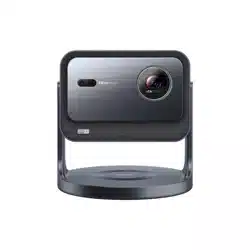
1326245 ES-A2445Z2-1

Quick Setup Guide
Before using the Smart Mini Projector, please read this guide
carefully and keep it for future reference.
English

1
HISENSE LIMITED PTY WARRANTY AND DISCLAIMER
ACCEPTANCE OF TERMS: Smart Mini Projectors
By using this Smart Mini Projector, you agree to the terms and conditions outlined in the
Warranty and, where applicable, the Disclaimer. If you do not agree to the terms and
conditions you have the option to return the Smart Mini Projector to the relevant retailer
within 7 days of the original purchased date and obtain a refund, provided the Smart Mini
Projector has not been used or damaged.
HISENSE DISCLAIMER
THIRD PARTY CONTENT AND SERVICES: Smart Mini Projectors
What does this Disclaimer apply to?
1.This Disclaimer applies in relation to any Smart Mini Projector (together with any remote
and other accessories supplied with it) (
Smart Mini Projector
) supplied by Hisense
Australia Pty Ltd (
Hisense
) or an Authorised Retailer, and if you can access any third party
software application, content and/or services (
Third Party Content and Services
) through
the Smart Mini Projector.
2.This Disclaimer does not limit your rights under the Australian Consumer Laws (for
Australian customers) or the Consumer Guarantees Act 1993 (for New Zealand customers).
The basis on which Third Party Content and Services are provided
3.Third Party Content and Services are
accessed and used at your own risk
, regardless
of who installed the Third Party Content and Services on the Smart Mini Projector. To the
maximum extent permitted by law, Hisense makes no warranty, guarantee, representation
or undertaking in relation to any Third Party Content and Services.
4.You must comply with any terms and conditions relating to the Third Party Content and
Services.
5.Hisense can
restrict your access
or use of certain Third Party Content and Services.
6.
Hisense is not liable or responsible for your use of the Third Party Content and
Services
, including for any:
a. charges relating to your use of the Third Party Content and Services;
b. claims, liabilities, loss and damage arising out of (or in connection with) any of the Third
Party Content and Services;
c. breach of the law or the rights of any other person or entity arising from the use of any
Third Party Content and Services;
d. customer service or support in relation to any Third Party Content and Services.
7.
You acknowledge and agree that
:
a. the performance of the Third Party Content and Services will depend on variables
beyond the control of Hisense;
b. certain Third Party Content and Services may require internet access, express consent
regarding the collection and use or personal information, other accessories which are sold
separately and/or other requirements;
c. the Third Party Content and Services (including their intellectual property rights) will
remain the property of the relevant provider of the Third Party Content and Services (
Third
Party Provider
).
8.
Your other obligations
: You must:
a. ensure that your use of the Third Party Content and Services complies with all applicable
laws, and the intellectual property and other rights of the Third Party Provider;
b. not modify, duplicate, publish, upload, distribute, translate, adapt, market or use any part
of the Third Party Content and Services, without the prior written consent of the relevant
Third Party Provider unless expressly permitted by this Disclaimer, the Warranty or any
other applicable terms and conditions;
c. adhere to any additional terms where a Third Party Content or Service requires internet
access;
d. pay any additional charges relating to the use of a Third Party Content and Service.

2
▌Important Notice
Compatibility with 3rd party products, software and services are not
guaranteed. We cannot be held liable for any damage or loss suffered whilst
operating, using or connecting to incompatible devices or apps.
The recording and playback of content on this or any other device may require
permission from the owner of the copyright or other such rights in that content.
It is your responsibility to ensure that your use of this or any other device
complies with applicable copyright legislation in your country. Please refer
to that legislation for more information on the relevant laws and regulations
involved or contact the owner of the rights of the content you wish to record or
playback.
All rights reserved.
The intended use and ambient conditions for this
device
This device is intended for the rendering of video and audio signals, on a
table-top, in a home or ofce environment. It must not be used in rooms with a
high level of humidity or dust concentration. The warranty is only valid if used
as intended by the manufacturer.
- Do not expose this device to rain, moisture, dripping or splashing water,
and do not place objects lled with liquids, such as vases, cups, etc. on or
over the device.
- Do not touch the device with wet hands.
- Do not expose to direct air-conditioning and keep candles or other naked
ames away from the device at all times.
If the device is moved from a cold environment to a hot environment, leave it
switched off for at least an hour to avoid condensation. If used outside, make
sure it is protected from moisture.
If you notice anything unusual, immediately remove the power plug.
In case of fire, use preferably a CO
2
gas or powder fire extinguisher. If such
extinguishers are not accessible, try to isolate the electrical supply before using a
water re extinguisher.
DC voltage: This symbol indicates that the rated voltage marked
with the symbol is DC voltage.

3
This is the class A equipment. Operation of this equipment in a residential
environment could cause radio interference.
A Smart Mini Projector may fall, causing serious personal injury or death. Many
injuries, particularly to children, can be avoided by taking simple precautions such
as:
- ALWAYS use cabinets or stands or mounting methods recommended by the
manufacturer of the Smart Mini Projector.
- ALWAYS use furniture that can safely support the Smart Mini Projector.
- ALWAYS ensure the Smart Mini Projector is not overhanging the edge of the
supporting furniture.
- ALWAYS educate children about the dangers of climbing on furniture to
reach the Smart Mini Projector or its controls.
- ALWAYS route cords and cables connected to your Smart Mini Projector so
they cannot be tripped over, pulled or grabbed.
- NEVER place a Smart Mini Projector in an unstable location.
- NEVER place the Smart Mini Projector on tall furniture (for example,
cupboards or bookcases) without anchoring both the furniture and Smart Mini
Projector to a suitable support.
- NEVER place the Smart Mini Projector on cloth or other materials that may
be located between the Smart Mini Projector and supporting furniture.
- NEVER place items that might tempt children to climb, such as toys and
remote controls, on the top of the Smart Mini Projector or furniture on which
the Smart Mini Projector is placed.
If your existing Smart Mini Projector is being retained and relocated, the same
considerations as above should be applied.
Power Supply
Incorrect voltages can damage the device. Only connect this device to a
power supply with the correct voltage and frequency noted on the type plate,
using the supplied power cable.
The power plug must be easily accessible so that the device can be
disconnected at all time. The device is live, even if in standby mode, as long
as the device is connected to a power outlet.
It is recommended that this device is placed on a dedicated circuit.
- Do not overload the power outlets by connect too many appliances to the
same outlet. Overloaded wall outlets, extension cords, etc. are dangerous
and can result in electric shock and re.
After power off, don't turn it on again in 5 seconds. Frequent switching power
supply in a short period of time can cause abnormal device.

4
Power plug and power cable
- Do not touch the power plug with wet hands.
- Do not place heavy objects on the power cable. Route the cable so
that it is not kinked or laid over sharp edges, walked on or exposed to
chemicals. A power cable with damaged insulation can cause electric
shock and re.
- Pull the power plug, NOT on the cable when disconnecting. The cable
can become damaged and cause a short circuit if pulled on.
- Do not place the power cable near a high temperature object.
- Do not move the device with the power cable plugged into a socket.
- Do not use a damaged or loose power cable, or a damaged socket outlet.
- Do not use any power cords other than the one supplied with this device.
Air ventilation and high temperatures
Install your device only where there is proper ventilation, and ensure that
there is at least 20 cm free space on the sides and 20 cm free space on the
back for air circulation. Excessive heat and obstruction of ventilation could
lead to re or early failure of some electric components.
- Do not block any ventilation openings with newspapers, tablecloths,
curtains, etc.
- Do not dry clothing etc. on top of the device.
- Take care not to touch the ventilation openings since they may become
hot.
- Do not insert foreign objects into the device through the vents.
Warning about off-gassing
New furniture, carpet, paint, building materials and electronics can release
chemicals into the air through evaporation. After you set your device up and
turn it on for the rst time, you may notice a slight smell within a couple of
hours. This is because some components of device are heating up for the rst
time. The materials that we use fully meet the environmental requirements
and regulations. Your device is working just ne and the fumes from the off-
gassing will diminish eventually.
Supervision
- Do not let children play unsupervised close to the device. It could tip over,
be pushed off or pulled down from the stand surface and injure someone.
- Do not allow a switched-on device to run unattended.

5
Thunder Storms
Pull out the power plug from the device during a thunderstorm. Overvoltage
caused by lightning strikes can damage the device via the wall socket.
Long periods of absence
As long as the power plug is connected to a live socket outlet, the device
will consume power even in standby mode. The power plug should be
disconnected during long periods of absence.
Cleaning and care
CAUTION:
Unplug the power cord prior to cleaning the device.
Clean the device, the screen, and the remote control with a soft, moist, clean
and colour-natural cloth only. Do not use any chemicals.
- Do not subject the surfaces to insect repellent, solvent, thinner or other
volatile substances. This may degrade the surface quality.
- Do not spray water or other liquids directly on the device. Liquid inside
the device could lead to product failure.
- Also wipe the power plug with a dry cloth at regular intervals.
Service/Repair
Never remove the cover/back of the device; there are no user serviceable
parts inside. Refer all service to qualied service personnel.
Packaging
Keep the anti-moisture materials and plastic bags out of reach of children.
Plastic bags can cause suffocation and the anti-moisture material is harmful
if swallowed. If swallowed by mistake, force the patient to vomit and visit the
nearest hospital.
Modication
Do not attempt to modify this product in any way. Unauthorized modication
could void the warranty of this device, cause electric shock and re.
Volume
Loud music and noises can lead to irreparable damage to your ears. Avoid
extreme volume, especially over long periods and when using headphones.
If you hear a drumming noise in your ears, turn down the volume or
temporarily stop using headphones.

6
Remote Control batteries
- Incorrect installation may cause battery leakage, corrosion and explosion.
- Replace only with the same or equivalent type.
- Do not mix old and new batteries.
- Do not mix different battery types.
- Do not use rechargeable batteries.
- Do not burn or break up batteries.
- Be sure to dispose of batteries correctly.
- Do not expose batteries to excessive heat such as sunshine, re or the
like.
Disposal
Refer to the recycling section of this guide.
Laser
Do not look directly at the lens when this device is on because the laser
light may damage your eyes!
- This product comes with a laser module. Do not tear or modify this device
in any manner; otherwise, it may result in personal injury.
RG2 IEC 62471-5: 2015
CLASS 1 LASER PRODUCT IEC 60825-1: 2014
As with any bright light source, DO NOT STARE INTO THE BEAM
λ = 465±7nm/525±6nm/643±8nm
Wavelength 465±7nm/525±6nm/643±8nm
CAUTION:
Use of controls or adjustments or performance of procedures other than those
specied herein may result in hazardous radiation exposure.
- If this device requires a repair, please wear laser eye protection with an
optical density OD that is 4 or higher and has a wave length of 458-651 nm.
- Do not place any water-containing vessel on this device, such as cosmetics
or liquid medicine.
- If any object or water enters this device, please unplug this device and
contact the service staff of Hisense.
- Do not place any exposed re source (e.g. burning candle) on this device.
Keep away from high temperature and heat.
7
- Do not expose the battery to direct sunlight or candle light.
- Keep air vents on both sides clear from any objects to prevent the device
from overheating inside.
- To avoid a short circuit, product damage, do not use any sharp object or
metal to touch the ports or other openings on the Smart Mini Projector.
- If this device has been in a warm environment, allow any built-up
condensation to evaporate rst BEFORE you switch the device on.
- Do not allow a child to stand on or climb up this device.
- Do not place any object above or in front of the lens because the laser light
could cause the object to become ammable.
- Clean the lens periodically with a clean cloth and make sure the Smart Mini
Projector is turned off before you start.
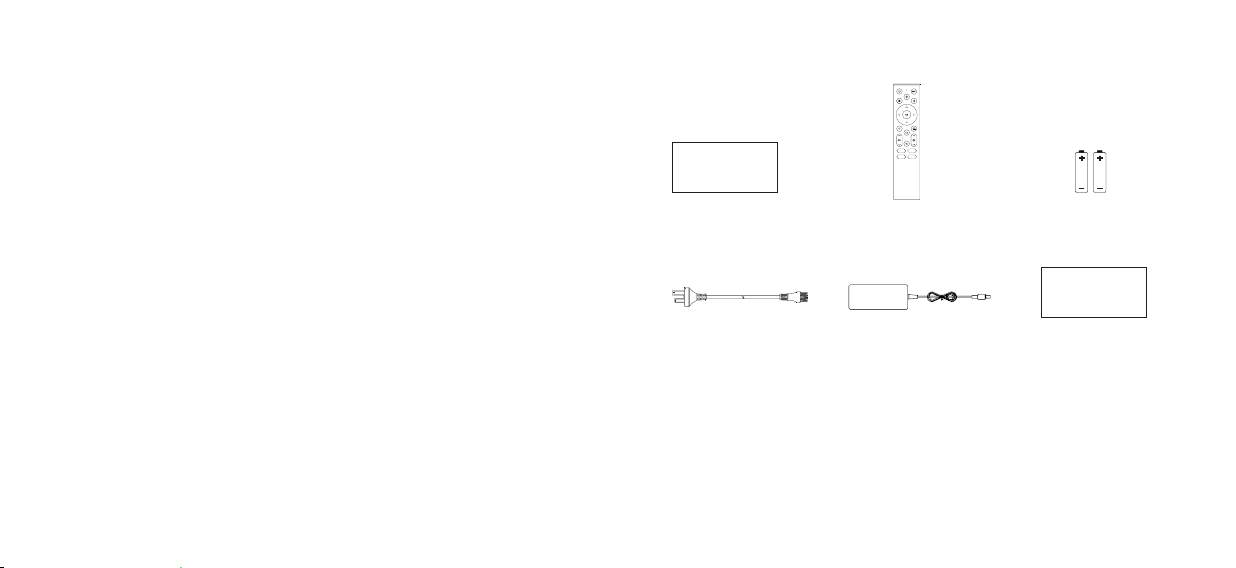
Accessories List
1 Remote Control
2 AAA Batteries
1 Power Cord 1 Power Adapter
Quick Setup Guide
Warranty Card
NOTE:
• The accessories list above may vary depending on specic model, country
or region. Please refer to the actual accessory bag.
• Figures and illustrations are provided for reference only and may differ from
actual product appearance.
• Screen is not included.
8
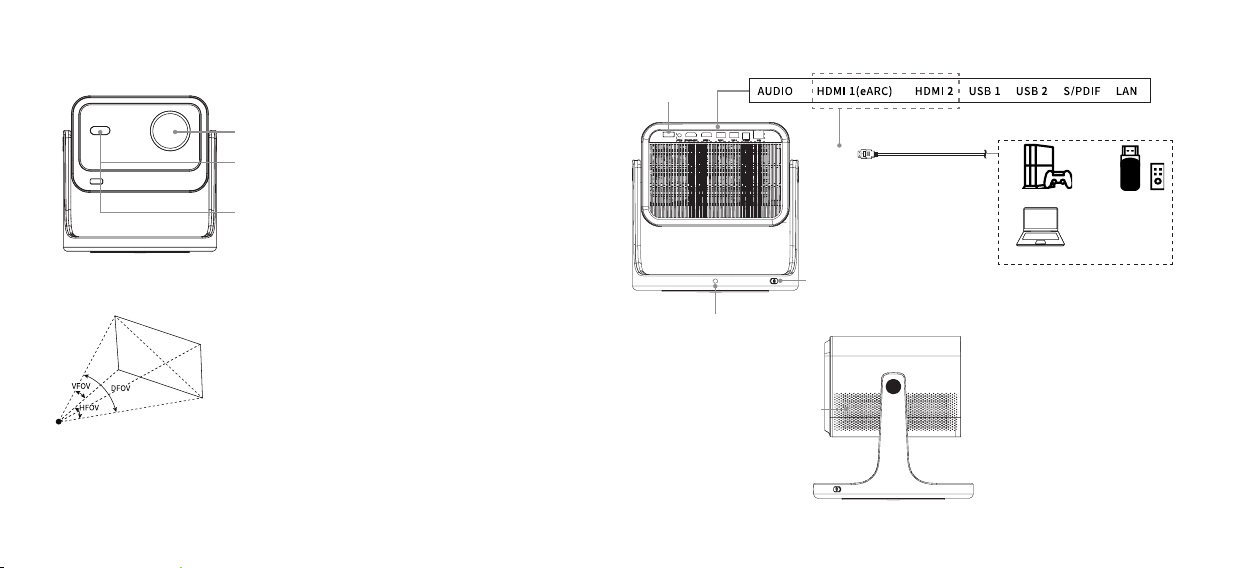
Smart Mini Projector Diagram
Detection range :
1. CMOS image sensor module: DFOV:89.8°±3.0°,
HFOV:76.9°±3.0°, VFOV:61.6°±3.0°
2. ToF sensor: 400mm-4000mm, HFOV:45°, VFOV:45°
NOTE:
• The rated detection range of sensors may vary with different
testing environments and conditions under different test
product.
• Risks are inevitable in the usage of the projector even with
eye protection function on. Children must be accompanied by
adults when using it.
• Product image is only for reference, actual product may vary in
appearance.
Vent
HDMI
TV Stick
External devices
Games Console
Laptop
TV
DC IN
RC receiver
Power Indicator / Power button (Press once to enter the
shutdown menu, short press to select, long press to conrm)
ToF sensor
(used for the auto focus function and eye
protection function)
CMOS image sensor module
(used for the auto focus
and auto keystone correction function)
Lens
9
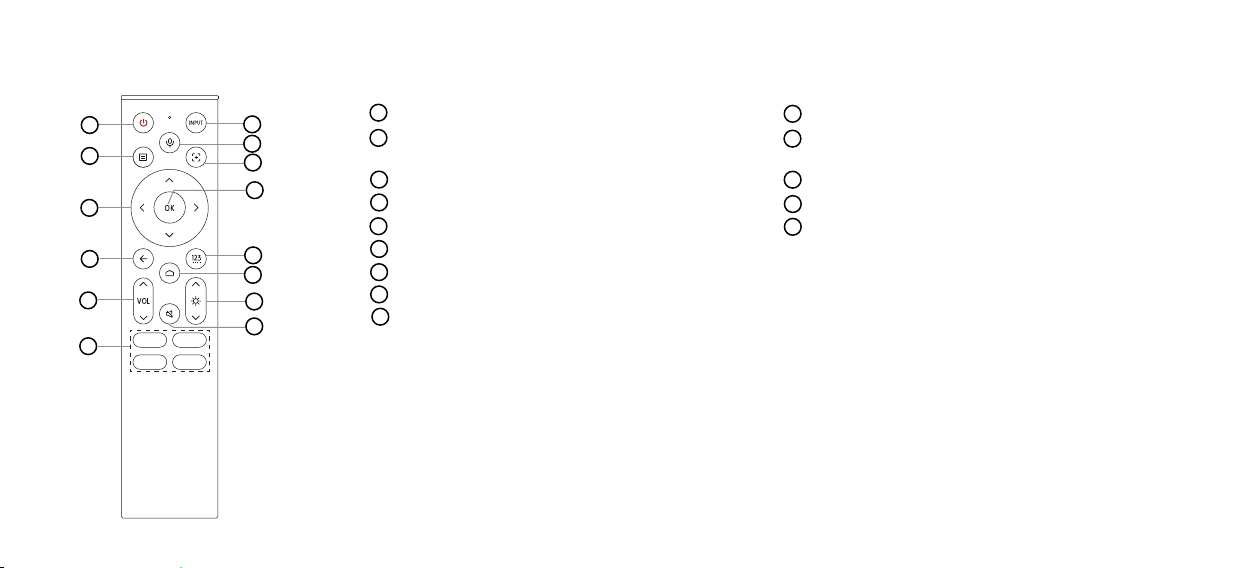
Use Your Remote
Power on/Standby Confirmation button
Press to enter Menu
Press and hold to pair the Bluetooth remote
Input numbers and special function buttons
D-pad (up/down/left/right navigation buttons) Display the Home screen
Return to the previous place in the menu or app Adjust brightness
Volume (up/down) Press to Mute or restore sound
Quick access buttons to apps
Change input source
Activate the microphone
Press to enable auto focus
1
2
3
4
5
6
7
8
10
11
12
13
14
3
2
1
4
5
6
7
12
11
10
9
8
13
14
NOTE:
• Backlight function:
The backlight turns on after pressing the remote button, and goes off if no operation for 5
seconds.
• Insert two AAA size batteries. Make sure to match the (+) and (-) ends of the batteries with the (+) and (-) ends
indicated in the battery compartment.
• The remote control can work at a distance of up to 8 metres in front of the device.
• The remote control is a wireless device, so its signals may be interfered and blocked.
9
10
Basic Operation
1
Turning the device on or off
1. Plug the power cord into a wall outlet.
2. Press the button on the remote to turn on the device. When you turn
it on for the rst time, follow the instructions displayed on the screen and
congure the device's basic settings.
NOTE:
• When the device is started up, you can press the button on the remote
to turn it into standby mode; When the device is in standby mode, you can
press the button on the remote to turn on the device.
• Pull the power cord out of a wall outlet when you do not use the device for
a long time.
• Please wait at least 10 seconds to turn on the device again when it is shut
down.
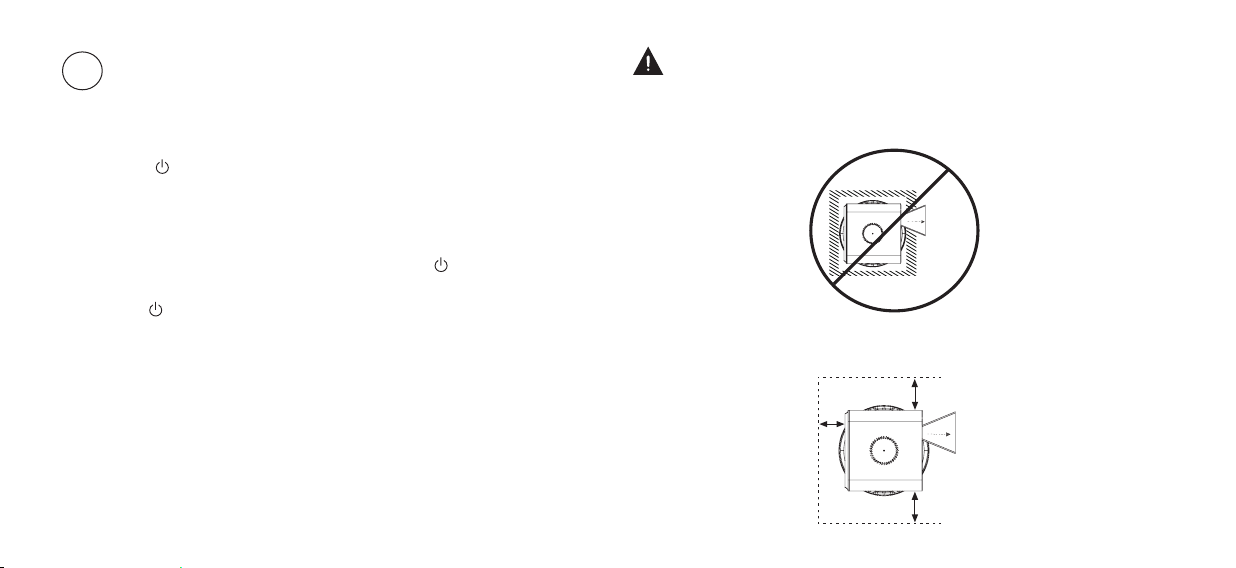
WARNING: Poor ventilation will cause the device to overheat or become
damaged.
• Do not block the ventilation openings or place any object on the device.
• Do not place the device in any narrow, enclosed or poorly ventilated space.
• To ensure proper ventilation of the device, the minimum space must be
maintained as shown in the diagram below.
20cm
20cm
20cm
Laser beam
Laser beam
11
Auto Focus
2
When the auto focus function is enabled, the device can automatically adjust
the focus to make your projector picture clear.
• Enable auto focus function by pressing button on the remote.
• You can enable manual focus function by pressing and holding button,
and manually adjust the focus by pressing the D-pad on the remote.
More Settings
4
Press button on your remote, select
Settings
to enter the Settings Menu to
set up your device.
NOTE:
• For detailed instructions, please refer to the E-Manual (
Settings
>
Support
>
E-Manual
).
• Parts of the software function changes with the system upgrade.
Auto Keystone Correction
3
Press button on your remote, select
Settings
>
Projector
>
Auto
Keystone Correction
.
The device can perform auto keystone correction on the projected screen and
automatically changes the screen shape into a rectangle.
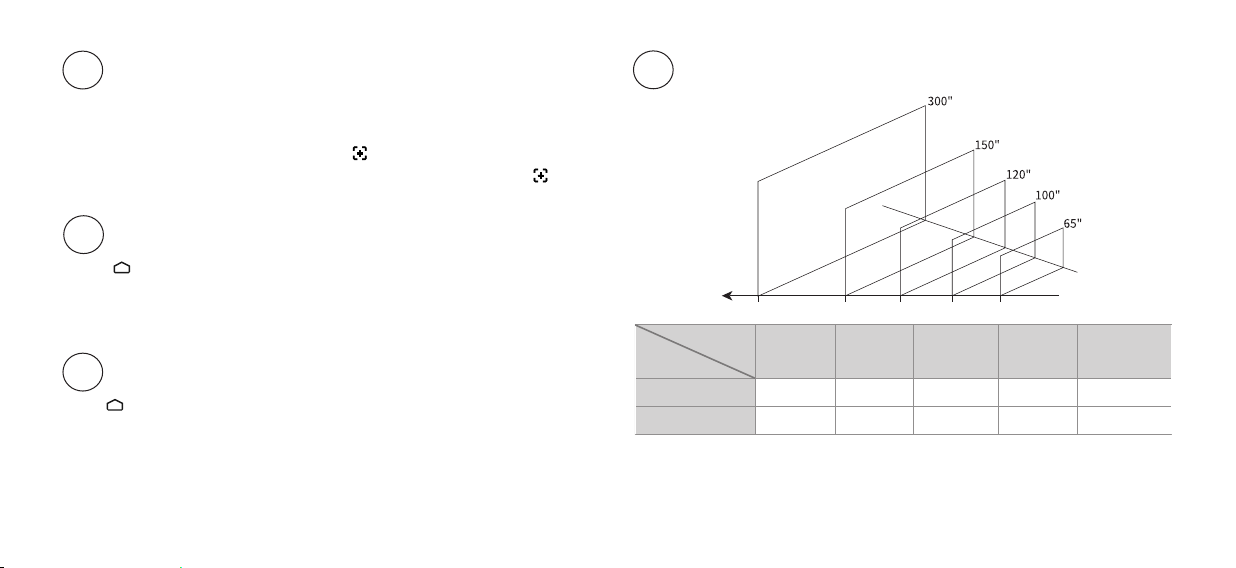
300'' 150" 120" 100" 65"
mm
7970 3985 3188 2657 1727
inch
314 157 126 105 68
Image
Size
Projection
Distance
Image Size and Projection Distance
5
7970 3985 3188 2657
Projection
Distance (mm)
1727
NOTE:
• When the image size is greater than 150 inches, Auto Keystone Upon Motion may be
unavailable, Manual Focus and Manual Keystone Correction are required.

12
Troubleshooting
If you are having trouble with your device, rst try turning it off and on again. If
this does not x the problem, check the tips in the following.
1. It takes a few seconds before the picture is displayed after the device
is switched on. Is this normal?
• Yes, this is normal. The projector is in the process of initialisation and
searching for information on previous settings.
2. No sound or picture
• Check if the power cord is plugged into a working mains socket.
• Press the Power button on the remote control to activate the device from
'Standby' mode.
• Check the volume settings or 'Mute' mode is set to On.
3. Some irregular shadow appear on the edge of the picture after manual
keystone correction
• Hisense projectors use digital correction, so the true resolution lls on the
actual display area and leaves some surrounding area unused after
manual
keystone correction is completed.
Maintenance
• Avoid touching the device when it is running or immediately after it is turned
off, as it may be hot.
• Do not clean the device with oil-based products as they can deteriorate
the exterior or damage the paint. Extended contact with rubber or ethylene
products can cause stains on the device.
• If the exterior of the Smart Mini Projector becomes dirty, turn off the device
and wipe it with a damp, soft cloth.
• Lens Care:
◦ Avoid touching the lens with your hands.
◦ Do not use ordinary cleaning cloths to wipe the lens.
◦ Use a dust blower to remove dust from the lens.
◦ For grease, dirt, and ngerprints, have a professional clean the lens using
optical cleaning cloths, lens wiping paper, or professional cleaning solutions to
avoid damaging the optical coating and affecting image quality.
• Always use the Power button on the remote control to turn off the device.
Do not cut off the power directly while the device is operating.

13
4. When projector is moved, auto keystone correction function does not
work properly
• Make sure that the auto keystone upon motion function is turned on in
projector settings.
• Make sure that no obstacle is in front of the projection lens or camera
module.
5. Remote control does not work properly
• Check if the battery power is normal.
• Take out the batteries, press any key for 1~2 seconds, and insert them
back.
• In special cases, press and hold [ ] button to pair.
If you still have other questions, please visit the following website and find
local CUSTOMER CENTER Service Hot-line for help.
https://global.hisense.com/support/customer-center/
ProductSpecications
Model Name C2
Dimension (L × D × H)
9.7 × 9.7 × 9.9 inches
(246 × 246 × 252 mm)
Weight 11.7 lbs (5.3 kg)
Active Screen Size (Diagonal) 65 ~ 300 inches
Screen resolution 3840 × 2160
Audio power 2 × 10 W
Power consumption 180 W
Power supply 100-240V~ 60/50Hz Max 2.5A
Power input 36V 5A
Environmental conditions
Temperature: 41°F - 95°F (5°C - 35°C)
Humidity: 20% - 80% RH
Atmospheric pressure: 86 kPa - 106 kPa
14
HDMI Input
RGB / 60 Hz (640×480, 800×600, 1024×768)
YUV / 60 Hz (480i, 480p, 720p, 1080i, 1080p)
YUV / 50Hz (576i, 720p, 1080i, 1080p)
3840×2160 / 24Hz, 3840×2160 / 25Hz,
3840×2160 / 30Hz
3840×2160 / 50Hz, 3840×2160 / 60Hz
Network Standby Power
Consumption
≤ 2.0 W
Power Consumption in
Standby Mode
≤ 0.5 W
Disclaimer:
All products, product specications, and data are subject to change without
notice to improve reliability, function, design or otherwise.
Recycling / Licenses
The terms HDMI, HDMI High-Denition Multimedia Interface, HDMI
Trade dress and the HDMI Logos are trademarks or registered
trademarks of HDMI Licensing Administrator, Inc.
FOR DTS PATENTS, SEE HTTP://XPERI.COM/DTS-PATENTS/. MANUFAC-
TURED UNDER LICENSE FROM DTS, INC. AND ITS AFFILIATES. DTS, DTS:X,
THE DTS:X LOGO, VIRTUAL:X, AND THE DTS VIRTUAL:X LOGO ARE REGIS-
TERED TRADEMARKS OR TRADEMARKS OF DTS, INC. AND ITS AFFILIATES
IN THE UNITED STATES AND/OR OTHER COUNTRIES. © DTS, INC. AND ITS
AFFILIATES. ALL RIGHTS RESERVED.
Dolby, Dolby Vision, Dolby Audio, and the double-D symbol are trademarks of Dolby
Laboratories Licensing Corporation. Manufactured under license from Dolby Laboratories.
Confidential unpublished works. Copyright © 1992–2024 Dolby Laboratories. All rights
reserved.
This symbol on the product or on its packaging indicates that this product
must not be disposed of with your household waste. Instead, it is your
responsibility to dispose of your waste equipment by handing it over to
a designated collection point for the recycling of waste electrical and
electronic equipment. The separate collection and recycling of your waste
equipment at the time of disposal will help to conserve natural resources
and ensure that it is recycled in a manner that protects human health and
the environment. For more information about where you can drop off your
waste equipment for recycling, please contact your local city ofce, your
household waste disposal service or the shop where you purchased the
product.
15
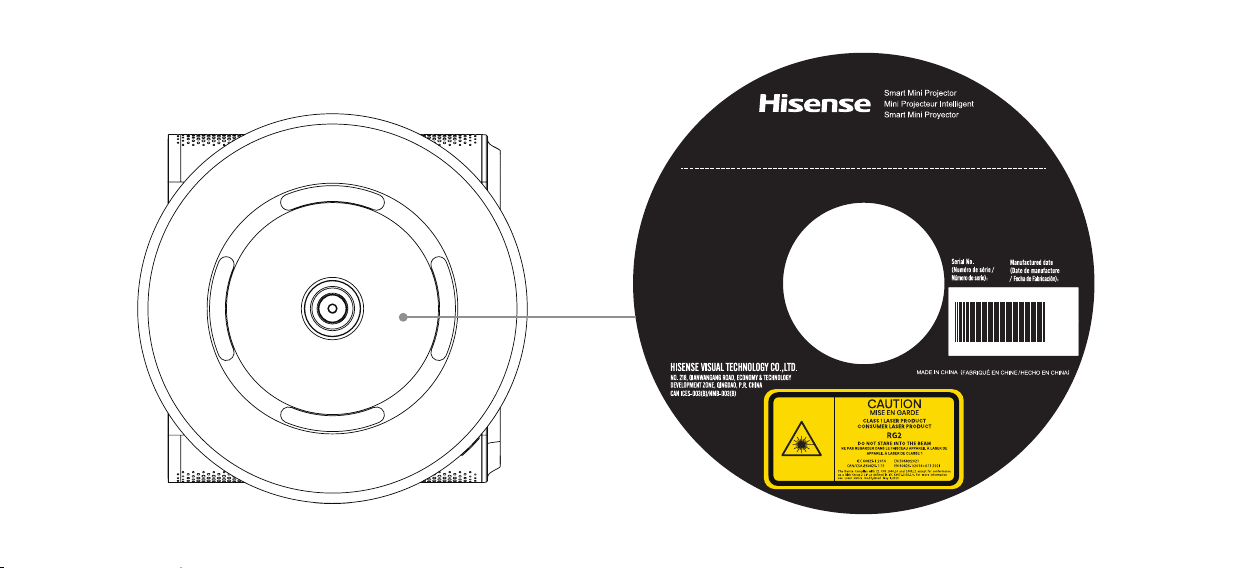
Bottom View
S/N: XXXXXXXXX
mm dd, yyyy