Bluetooth
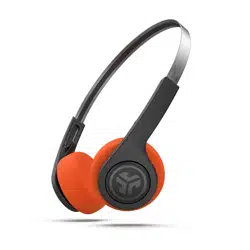
JLab Rewind 2
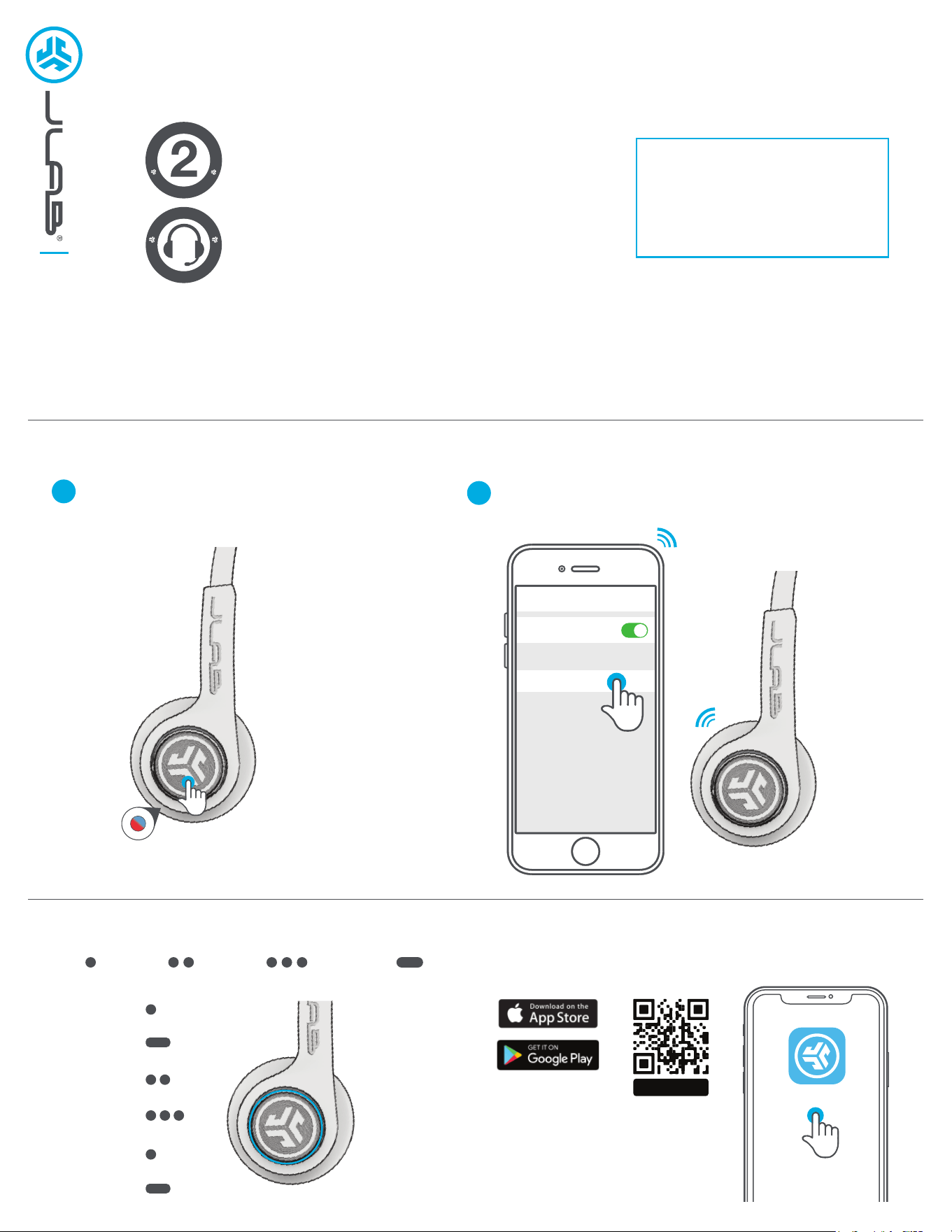
Settings
Select JLab Rewind 2 in your
device settings to connect.
2
Press hold button for 8 seconds. Release.
Light will flash blue/red under ear cushion.
1
PAIR UP
GO AHEAD, PRESS THE BUTTON
REWIND 2 WIRELESS
HEADPHONES
We love that you are rocking JLab!
We take pride in our products and fully stand behind them.
YOUR WARRANTY
All warranty claims are subject to JLab authorization
and at our sole discretion. Retain your proof of
purchase to ensure warranty coverage.
CONTACT US
Reach out to us at [email protected]
or visit jlab.com/contact
REGISTER TODAY
jlab.com/register
Product updates | How-to tips
FAQs & more
L
I
M
I
T
E
D
T
W
O
Y
E
A
R
W
A
R
R
A
N
T
Y
S
U
P
P
O
R
T
T
E
A
M
#
T
E
A
M
J
L
A
B
PLAY/PAUSE
POWER
3 sec
SIRI/
OK GOOGLE
ANSWER/
HANG UP
TRACK
FORWARD
1 sec
CHANGE EQ
1x Press 2x Press 3x Press Press Hold
DOWNLOAD THE MOBILE APP
Customize Rewind 2 features and update the latest software.
JLab
SCAN ME
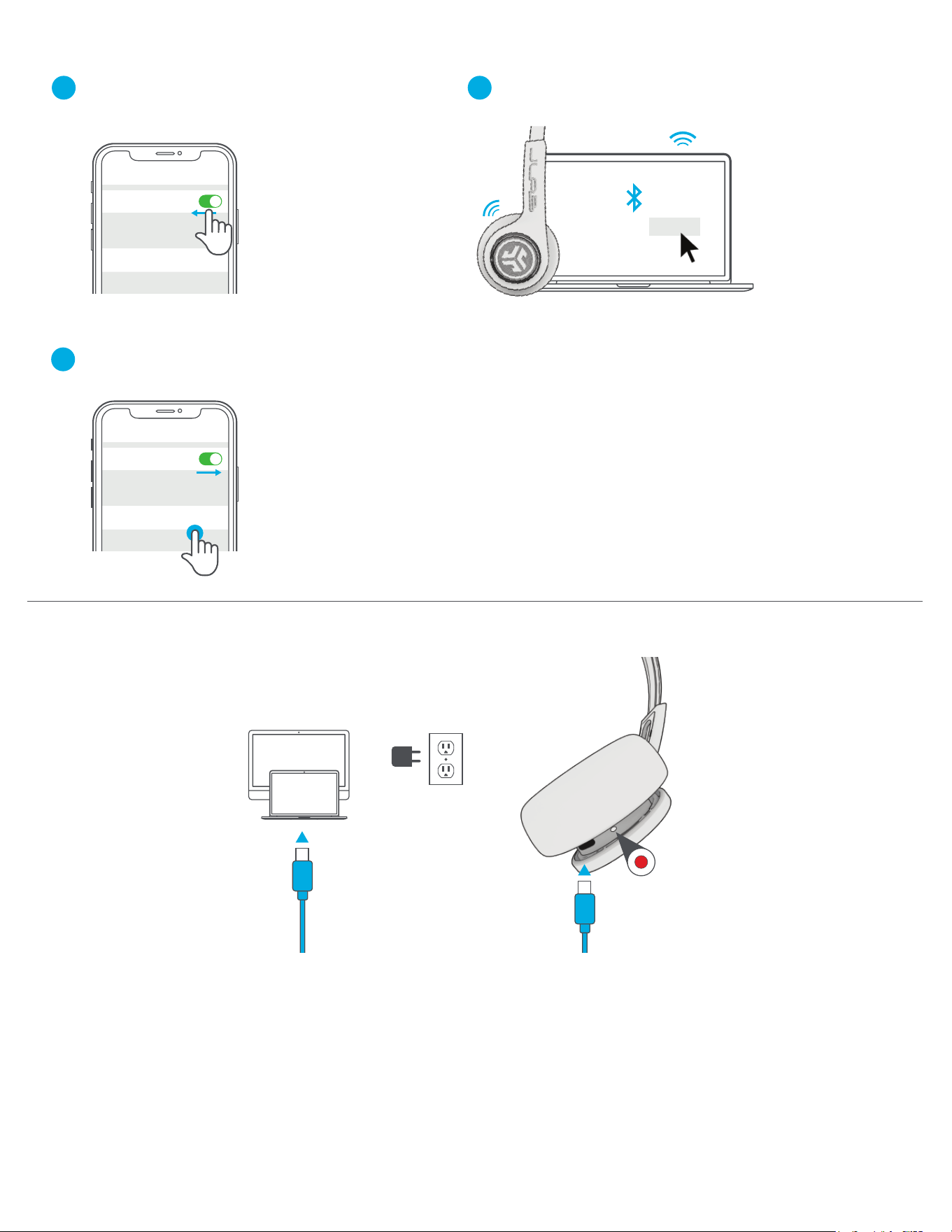
BLUETOOTH MULTIPOINT (Connect 2 devices simultaneously)
Once FIRST device is connected,
turn off Bluetooth in device settings.
Rewind 2 will auto enter Bluetooth Pairing.
1
Enter your SECOND device Bluetooth
settings and connect to Rewind 2.
2
Enter your FIRST device settings. Turn
on Bluetooth and reconnect to Rewind 2.
3
GET CHARGED
OR
CHARGING
Bluetooth
Settings
JLab Rewind 2
Bluetooth
Settings
JLab Rewind 2
JLab Rewind 2 Connect
Connect the USB-C cable to a computer
or USB 5V output device.
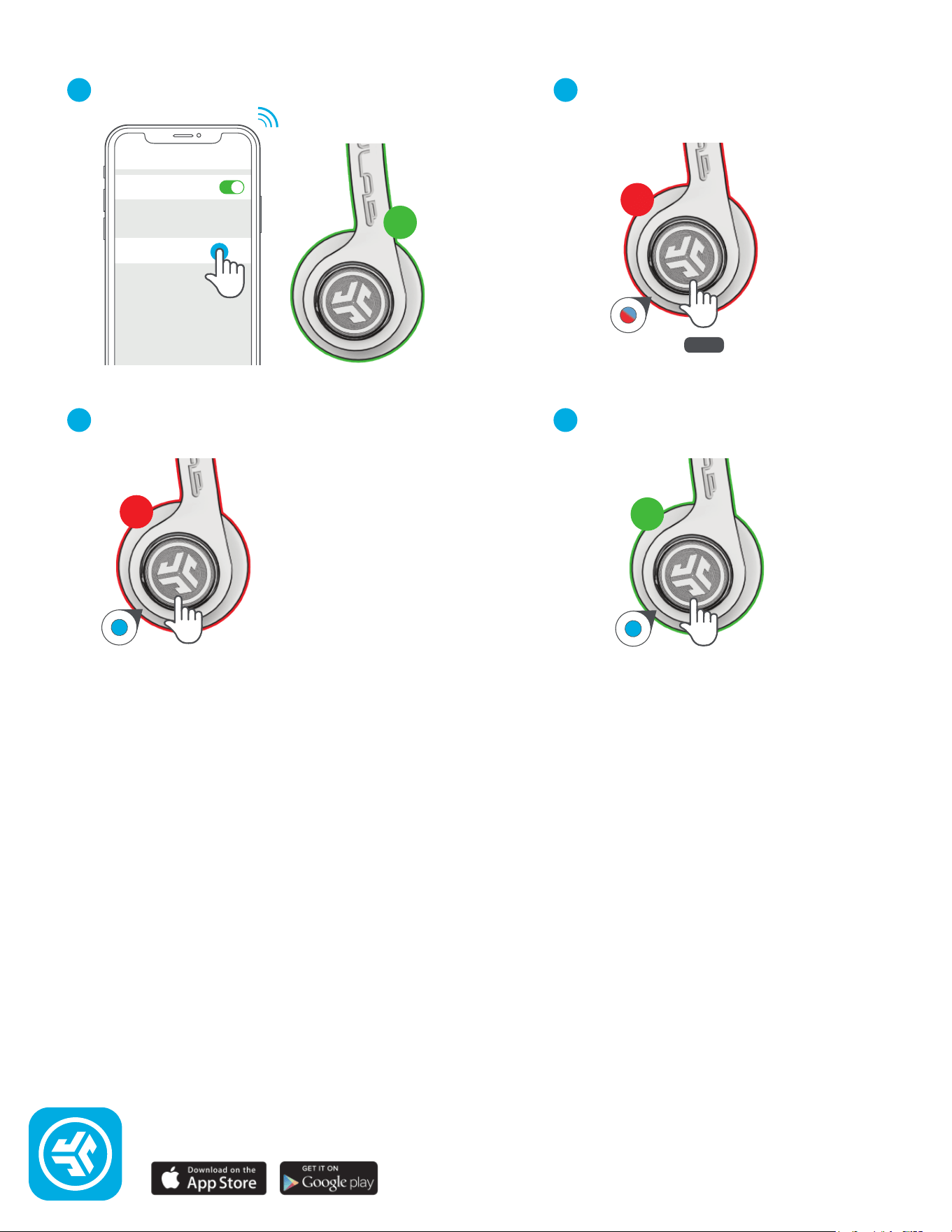
Connect FIRST headphone
to device.
1
SECOND headphone should be powered
off. Press hold until flashing blue/red
2
Then 5x Press and blinks blue.
3
FIRST headphone 5x Press to share.
4
SHARE MODE (Share between two Rewind 2 headphones)
1
ST
2
ND
8 sec
2
ND
5x Press
(Blinks blue)
1
ST
5x Press
(Solid blue connected)
JLab Rewind 2
Bluetooth
Settings
JLAB.COM
Shop products | Product alerts | Burn-in your headphones
JLab Store + Burn-in Tool