QUICK OPERATION GUIDE
Automatic Pet Feeder
Model: FT30
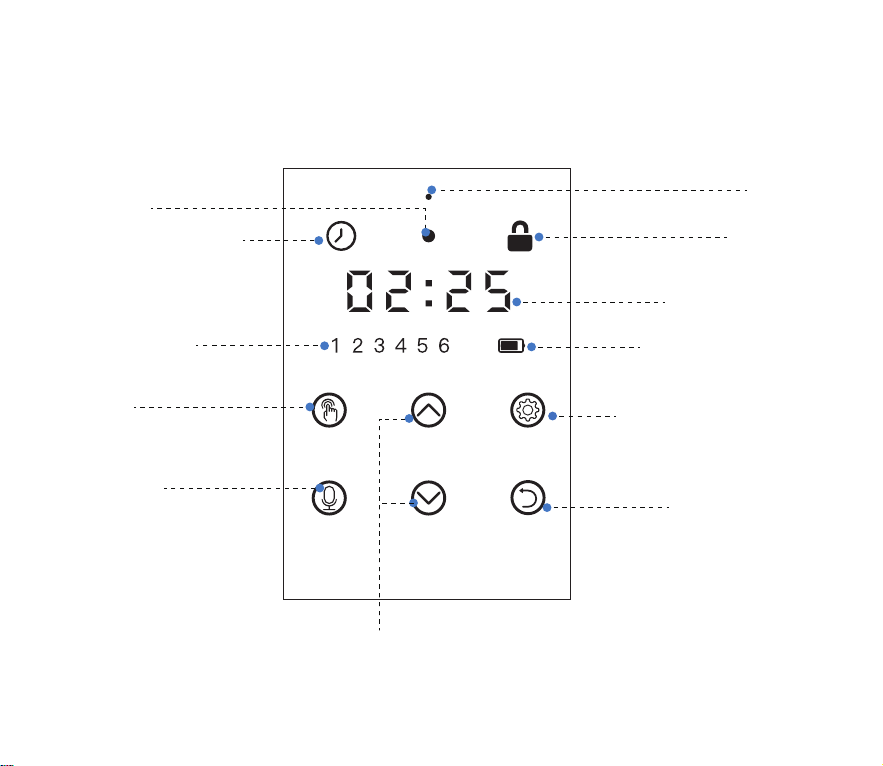
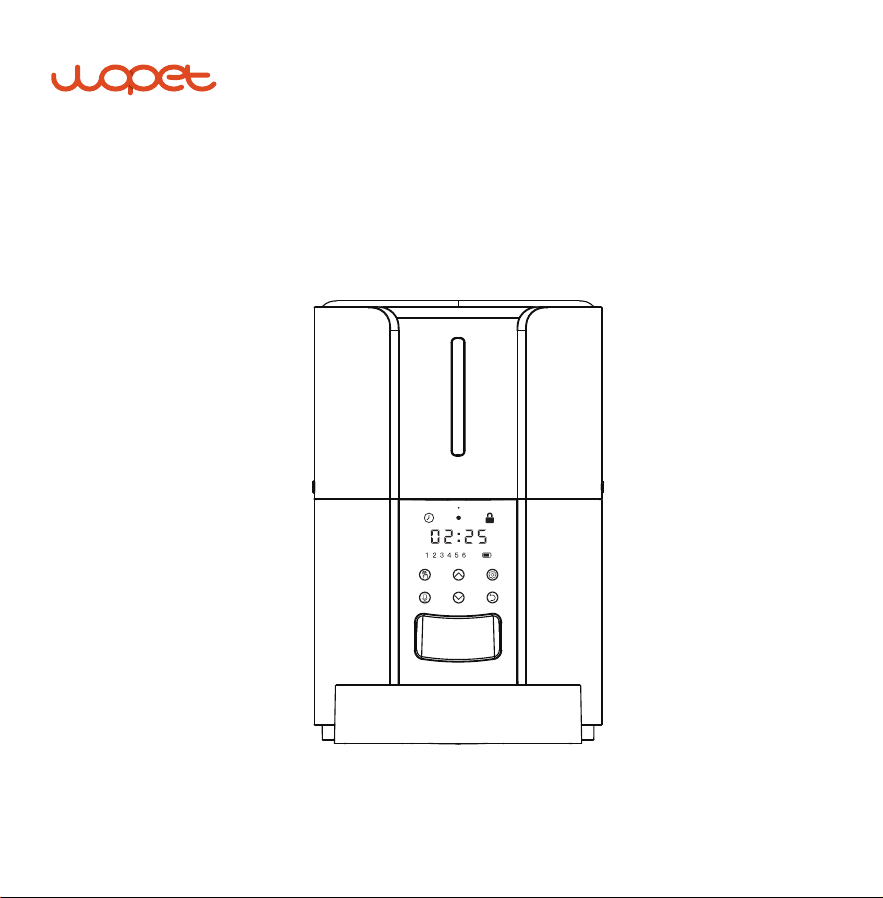
DISPLAY OVERVIEW:
Buzzer
Time Setting Icon
Indicator
Number
Increase/
Decrease
Meal Number
Manual
Recording
Child lock
Timing/Portions
Battery Level Icon
Setting/Save/Unlock
Return/Cancel
1
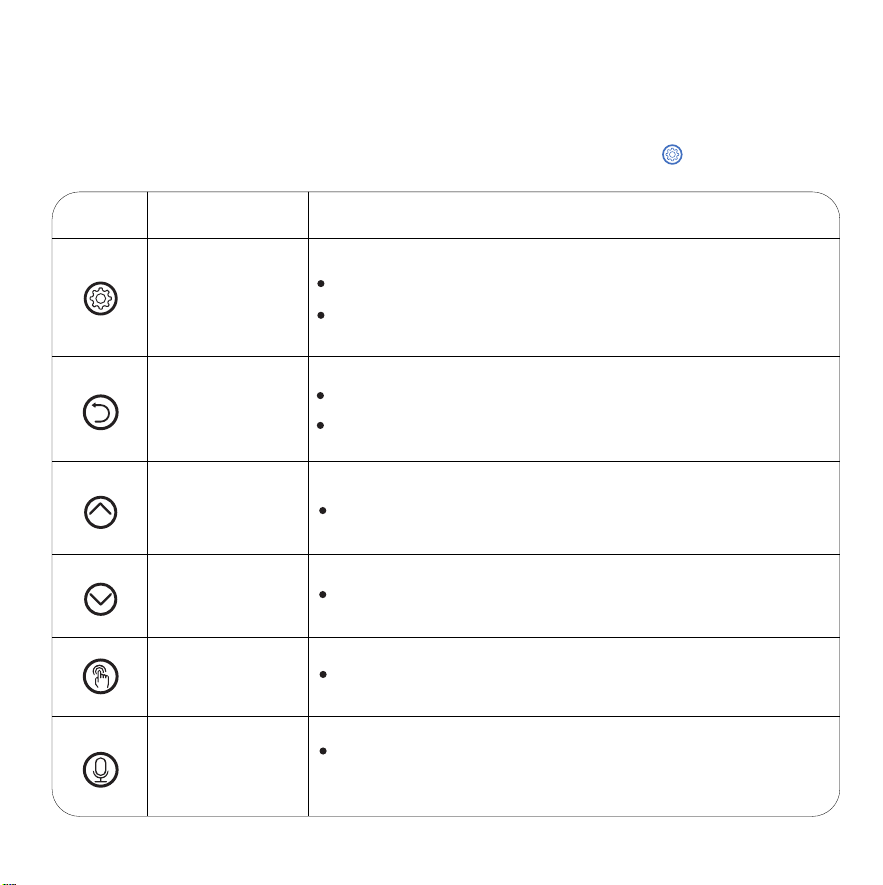
BUTTONS OVERVIEW:
NOTE:
Child lock mode automatically after 20s without operation.Hold for 3s to unlock
Button Description
Set /Save/
Unlock button
Return /
Cancel button
Number
Increase button
Number
Decrease button
Manual button
Recording button
[ Locked Status ] Press and hold for 3s to unlock
Operable Mode Function
[ Setting Status ] Press to confirm and enter next step
Cancel last step
Press to return to interface
Press to increase the value
Press to decrease the value
Press to enter manual feeding mode
Hold and start recording after a beep is heard [max 10s]
Recoding saved after a double beep is heard
2
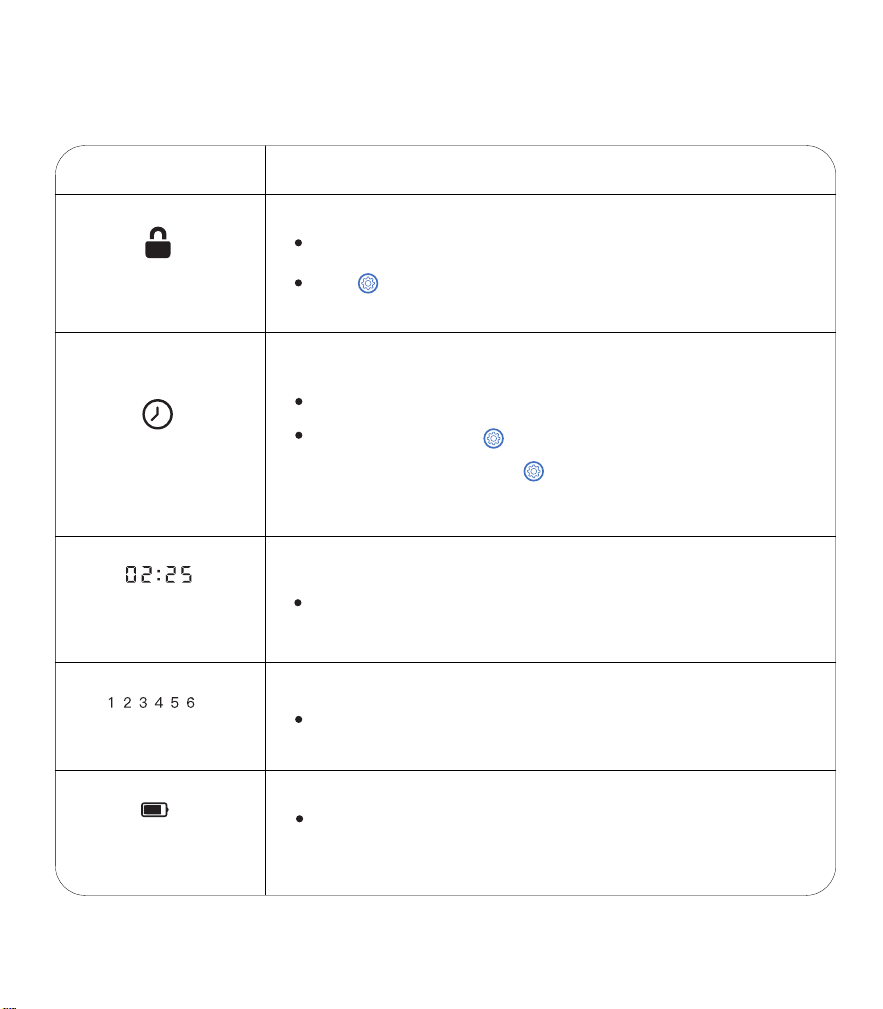
SCREEN PANEL INTRODUCTION:
3
ICON
Function of ICON
Child lock
Hold button for 3 seconds to unlock
Locked automatically after 20 seconds without operating
Clock indicator
Battery Level
Meal
Note: when flashing, press button to set up/modify the
current time.
Unlocked by holding button for 3s
Flash Indicates:
Powered by adapter or battery
[ Unlock status ] local time
Timing
【24-hours format】
Number of meals
Light up when powered only by batteries.
Turn red when low battery
Press the to set
every single digit then press
button to save
2) Press button to set current time, the
Clock Icon flashes which indicates it enters
setting mode
3) Use the button to set the current
time, then press to save
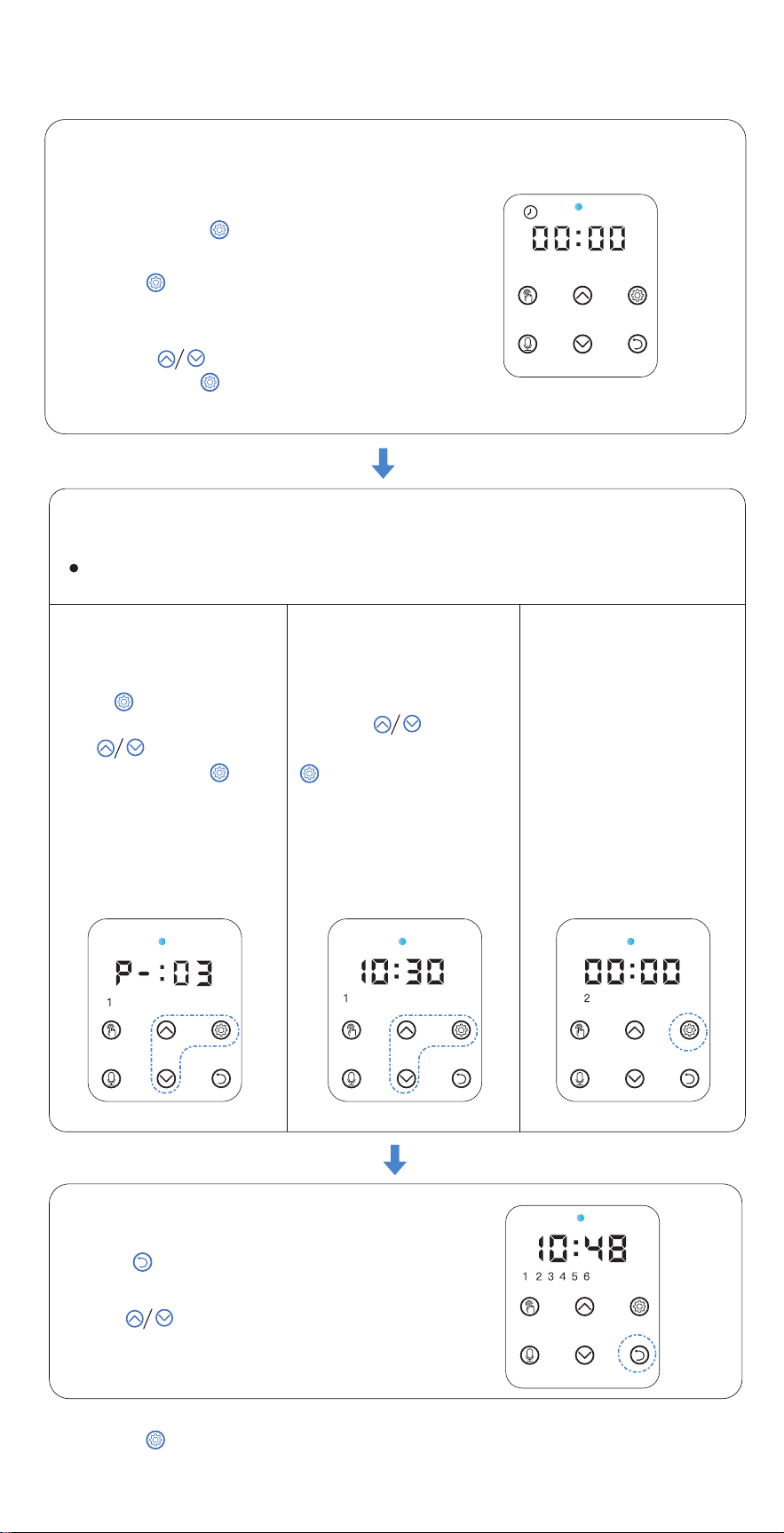
PROGRAM SETTING:
STEP 1
—Current Time Setting
STEP 2
—Meals, Time & Portions Setting
STEP 2.1 STEP 2.2
Pay attention to the 24-hour format
1) Press and hold button for 3s to unlock
other buttons and screen (fig.01)
NOTES: Enter meals setting automatically after finish the clock setting
Press button to start
setting the first meal,press
the button to set
portion, then press button
to save
Notes: Icon 1 flashes
STEP 3
— Ready
Press button back to interface showing
current time and meals number.
Press button to check the meal plan then
press icon for 3s to change if needed
TIP: Press setting button to save after every step setup and jump to next step
STEP 2.3
Move to the second meal
setting after the first finished
Repeat the step 2.1& 2.2
to set the meals, portions
and time of other meals if
needed.
The feeder supports up to
6 scheduled meals per
day
4
fig.(01)
Move to Time setting after
meal setting finished
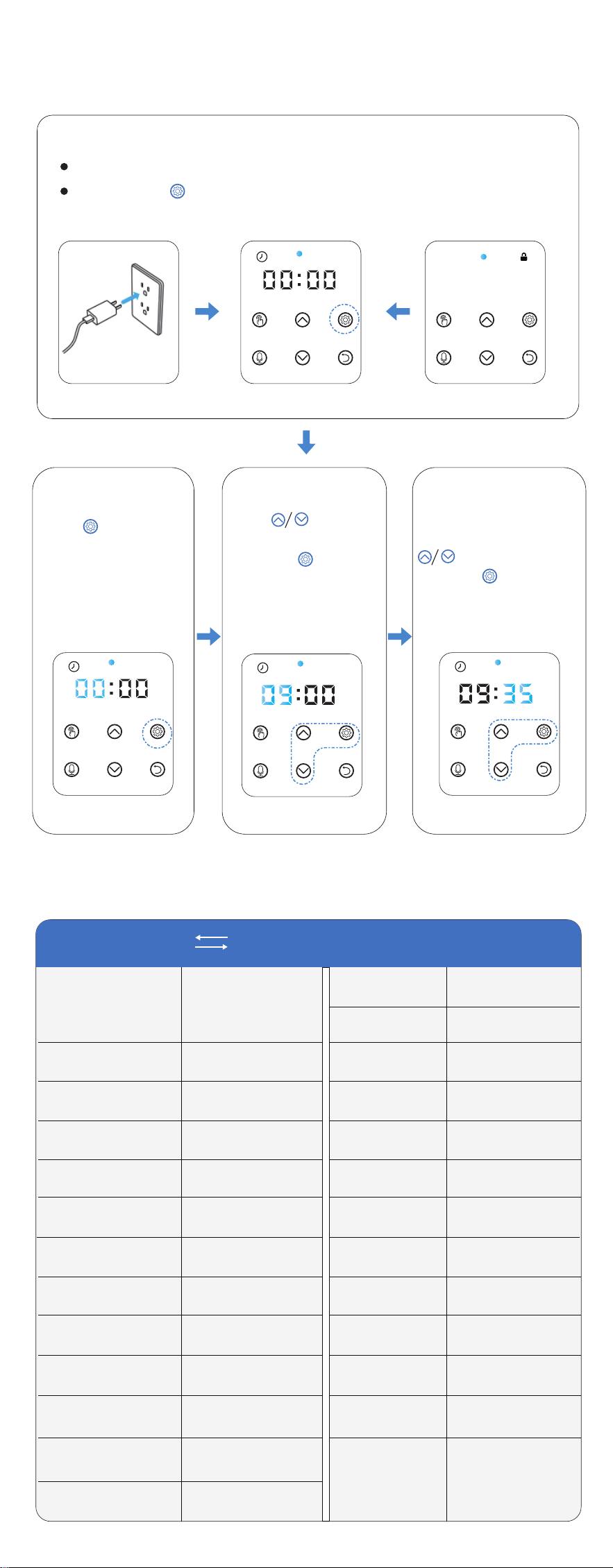
Press button to
set the digit - hour time,
then press button to
save.
Repeat this step for the
second digit - hour time
setting.
NOTE: Please do not press setting button if needn't change time
Finish hour setting then the
minute digits flash, press
button to set minute
and press button to save
HOW TO SET THE CURRENT TIME UP?
STEP 1
—Ready to Setup
Powered at first time as fig.(01)(02)
TIP: Please note the conversion between 24-hour format and 12-hour format
STEP 2
Press button to enter
clock setting status
Press and hold for 3s to unlock when fig.(03)
Screen lighting up and clock icon flashing when ready for time setting
STEP 3
STEP 4
Example: 9:00AM = 9:00; 10:00PM = 22:00 More as below:
12-hour clock 24 hours clock comparison chart
00:00
(Midnight)
(Midnight)
(noon)
(End of the day)
00:00
(Beginning of the day)
01:00AM
02:00AM
03:00AM
04:00AM
05:00AM
06:00AM
07:00AM
08:00AM
09:00AM
10:00AM
11:00AM
12:00AM
01:00
01:00PM
02:00PM
03:00PM
04:00PM
05:00PM
06:00PM
07:00PM
08:00PM
09:00PM
10:00PM
11:00PM
12:00PM
13:00
02:00
14:00
03:00
15:00
04:00
16:00
05:00
17:00
06:00
18:00
07:00
19:00
08:00
20:00
09:00
21:00
10:00
22:00
11:00
23:00
12:00
24:00
5
fig.(01) fig.(02) fig.(03)
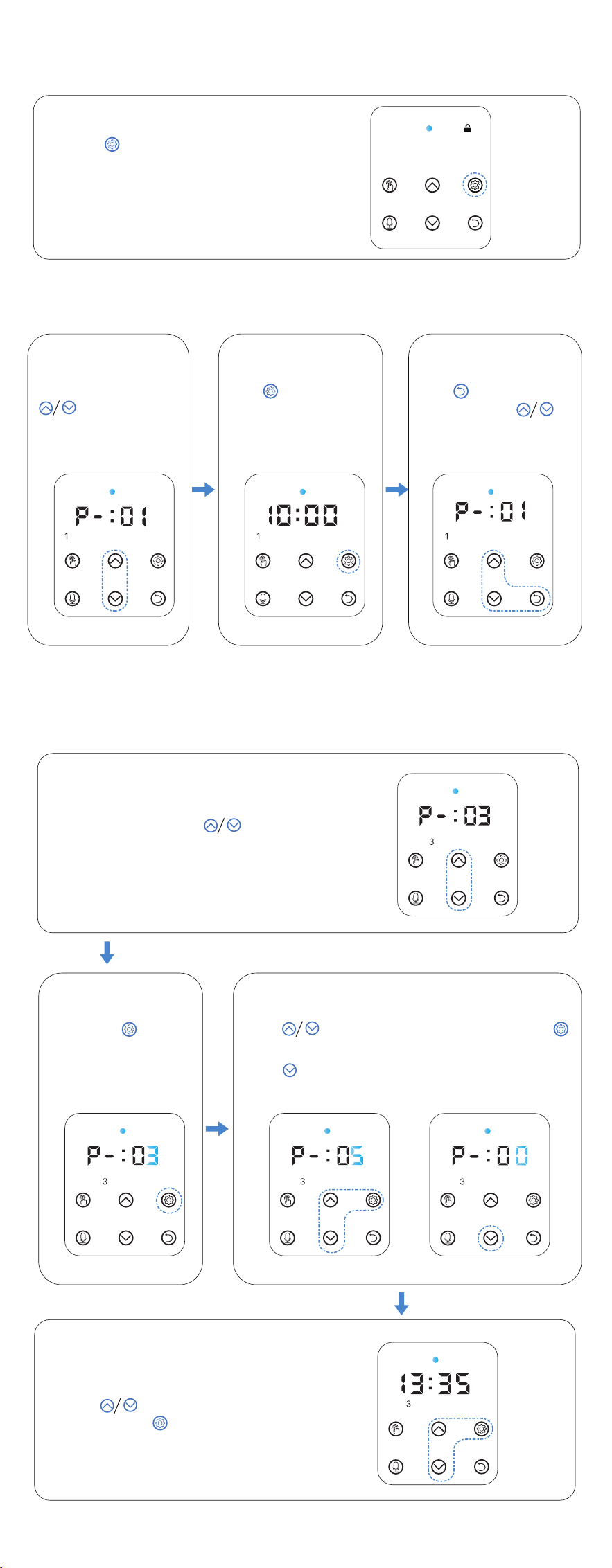
HOW TO UNLOCK FROM CHILD LOCK STATUS?
Press for 3 seconds to light
up the screen and unlock the
other buttons
HOW TO CHECK FEEDING PLAN?
HOW TO UPDATE SPECIFIED MEAL FEEDING?
(3rd meal as example)
STEP 1 STEP 2
[Unlock status] press
button to check
the meals feeding plan
STEP 3
Press button to set the portion to 5 and press
button to save as fig.(01)
Press button to set portion to 0 to cancel the meal
if needed as fig.(02)
Press button to update the feeding
time and press button to save.
STEP 4
STEP 2
[ Unlock Status ] press
button to number 3 (3 portions)
STEP 3
6
STEP 1
Press to check feeding
time
Press button then
continue to press
button to check next meal.
Long press button for
3 seconds until portion
and number 3 flash
fig.(01) fig.(02)
7
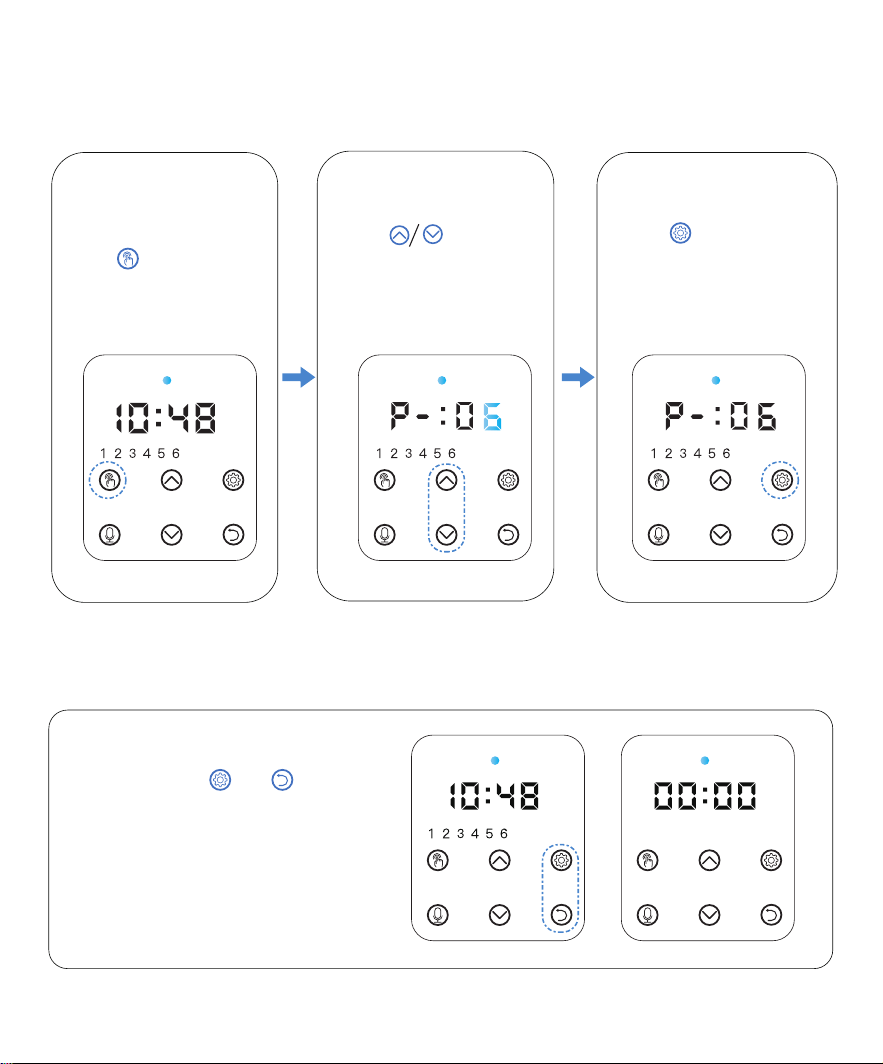
Press button to
set the feeding portions
Press button to start
feeding
HOW TO SET MANUAL FEEDING?
STEP 1 STEP 2
[ Unlock Status ]
press button to enter
manual feeding status
STEP 3
HOW TO RESET THE FEEDER?
[ Unlock Status ]
press and hold and button
at the same time for 3s until a
beep is heard.