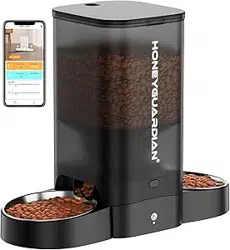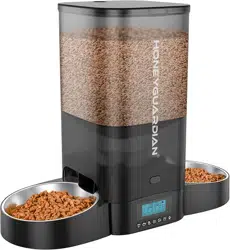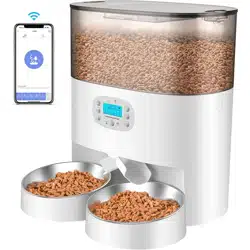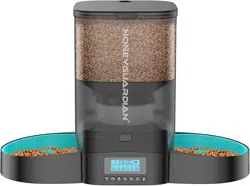
S40
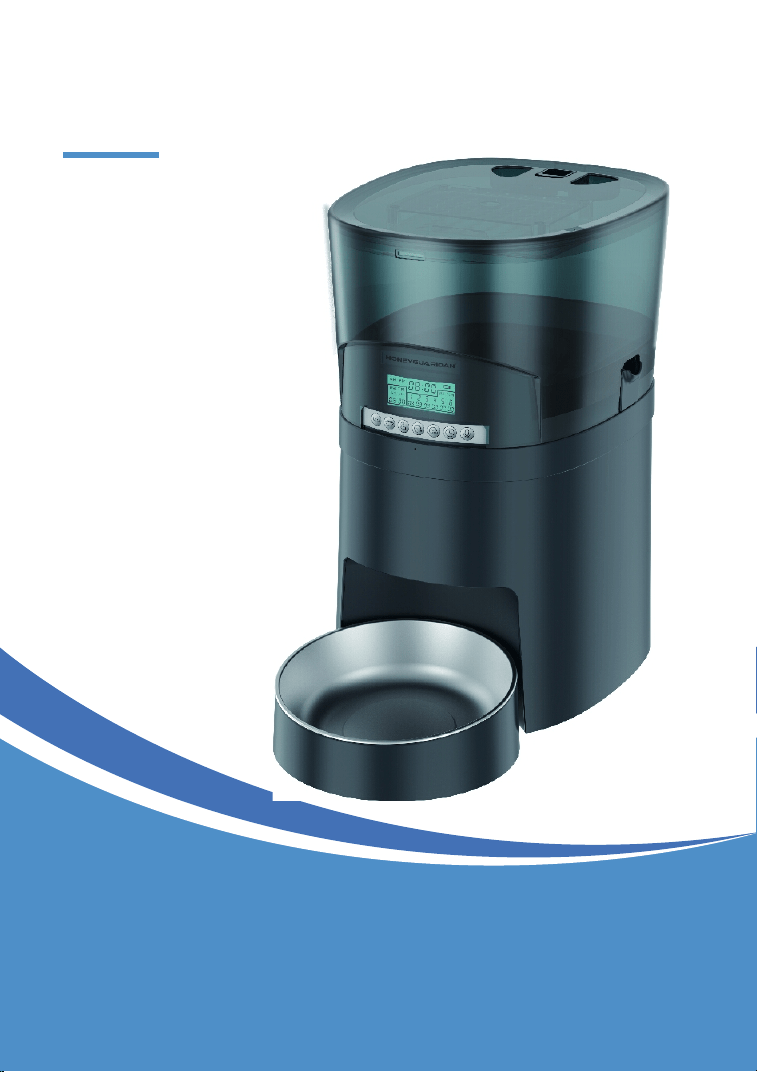
Smart Pet Feeder
User Manual

For the convenience of using, please read
the user manual carefully and follow the
instructions.
We appreciate your choice of the automatic
pet feeder. We insist on providing premium
pet products, helping pet owners feed pets in
a scientific and reasonable way and providing
pets a healthy lifestyle. We are working for
establishing a harmonious relationship
between you and your pets.
Dear customer,
WARRANTY
1 Year Warranty
Lifetime Support: For guidance on product use
and warranty extension, please contact
after-sales email:
If you have any questions related to orders,
please contact the seller via the shopping plat-
form.
Product Diagram
Packing List
Notice
1. The feeder is for indoor household use only.
2. The host of the equipment is not washable. The food hopper, the
bowl holder and stainless steel bowl can be removed for washing.
3. Please place the feeder horizontally and close the lid to keep
the food from spilling out when pets knocked over.
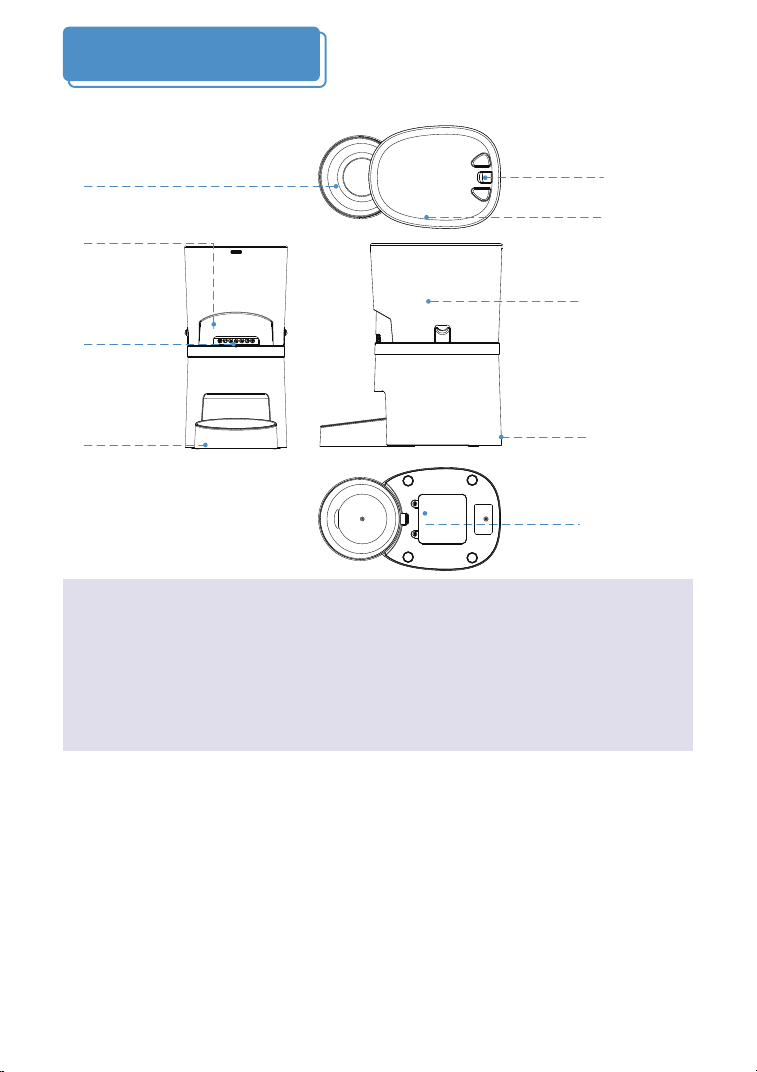
Battery
cover
Bowl holder
Hopper release
button
Power
interface
Feeder lid
Control panel
WIFI indicator light
Stainless steel bowl
Hopper
01
Single Bowl Version:
1 x Pet Feeder, 1 x Stainless Steel Bowl, 1 x Bowl Holder, 1 x Power
Adapter, 1 x Desiccant Bag, 1 x User Manual
Dual Bowls Version:
1 x Pet Feeder, 2 x Stainless Steel Bowls, 2 x Bowl Holders, 1 x Power
Adapter, 1 x Desiccant Bag, 1 x 2-way Splitter, 1 x User Manual
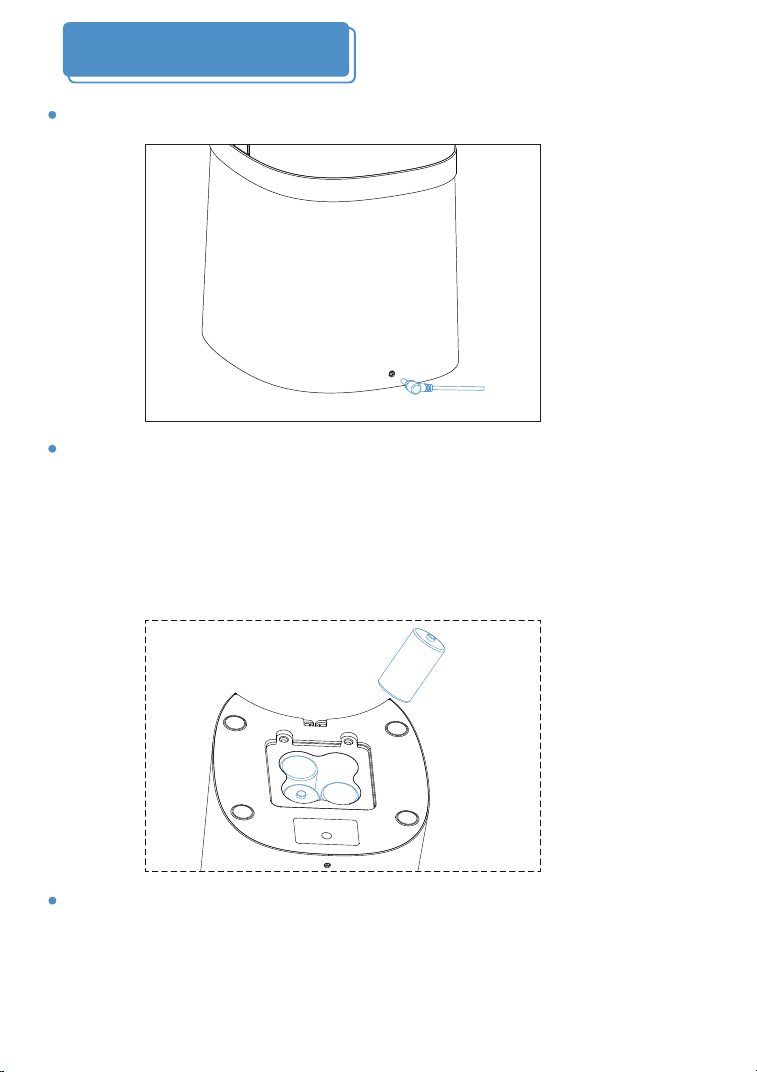
Dual Power Supply
① Plug the power cord into the feeder.
② Install 4 D-size alkaline batteries as back up battery.
(Batteries are not included)
*If powered by battery only. The device can work for 3 months.
*We recommend using both the power adapter and batteries at
the same time in case of a power outage. When the external
power is cut off, the device will change to battery powered.
Note: The WiFi function only work on plug-in power. For
energy saving, the WiFi is unconnectable and all operations on
the app will be unavailable if powered by batteries only.
02
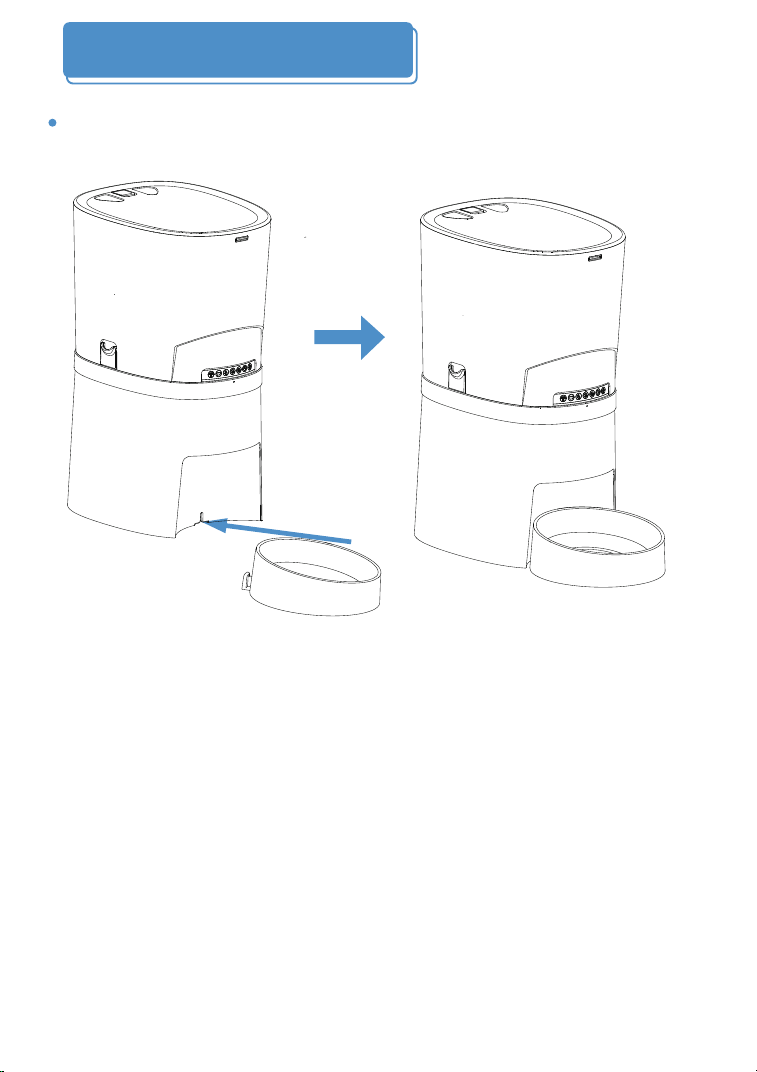
Single Bowl Installation
Please assemble the base of the food bowl with the host .
03
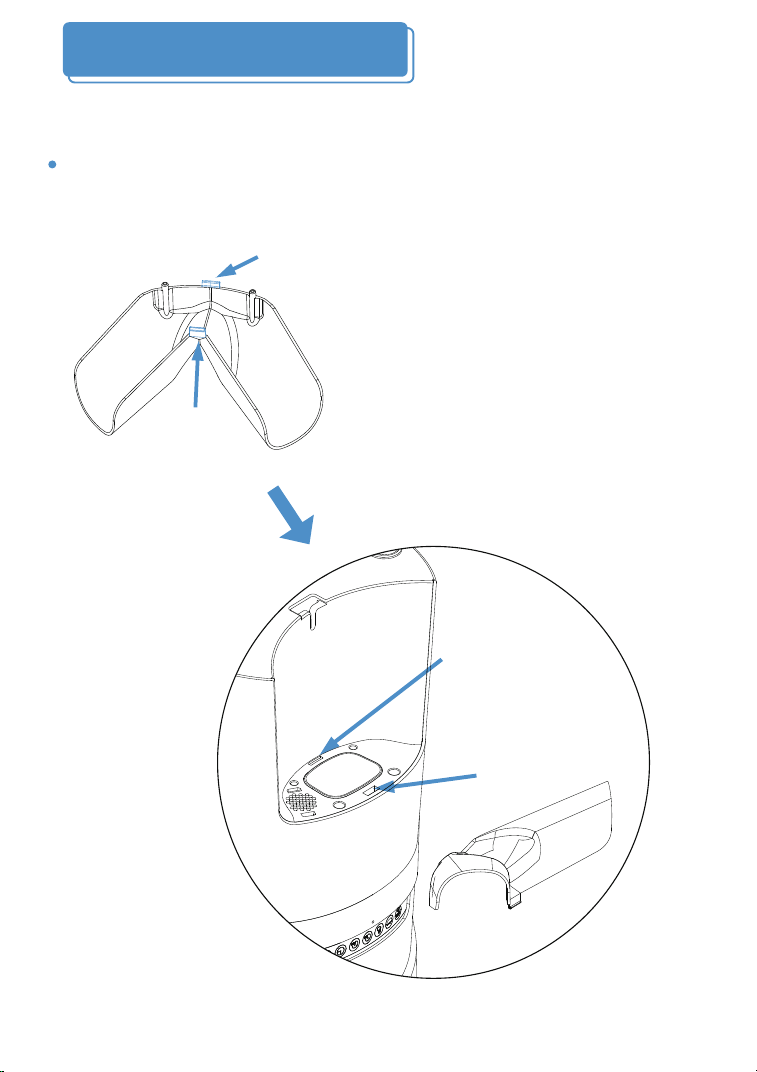
Dual Bowls Installation
Step 1: Please install the two way splitter into the host.
(If you purchased the dual bowls version.)
Buckle A
Buckle B
Buckle
hole A
Buckle
hole B
04
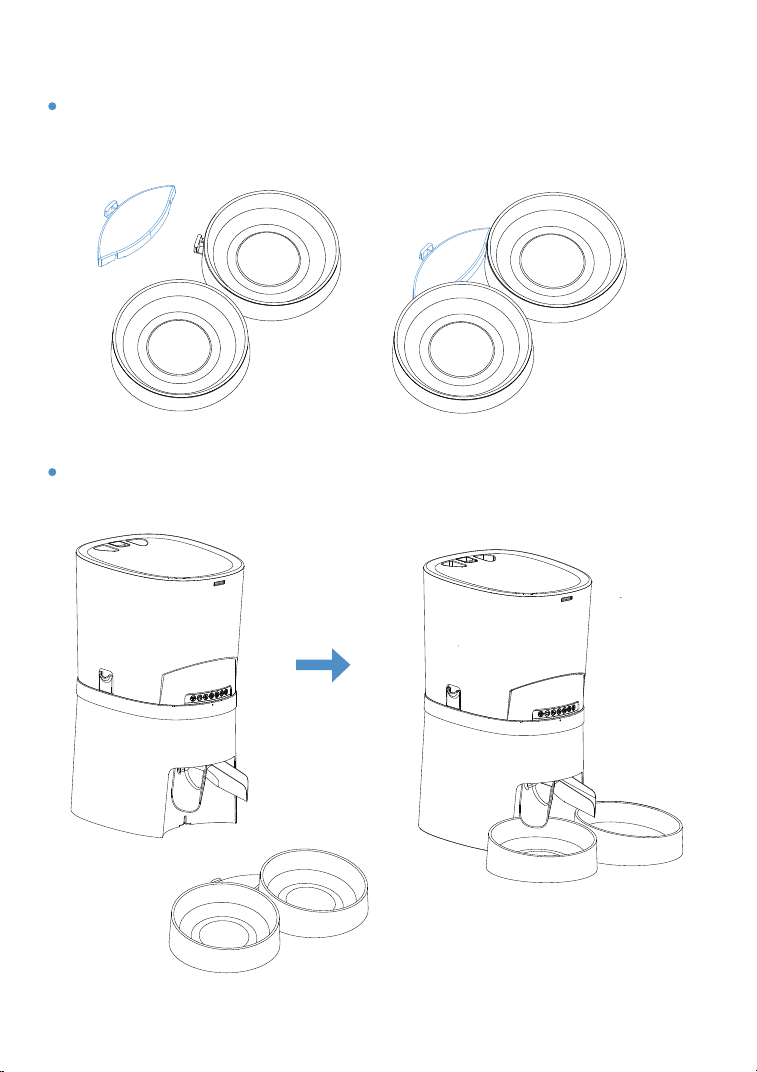
Step 2: Please assemble the two bowl bases with the
connector plate.
Step 3: Put the host in place.
05
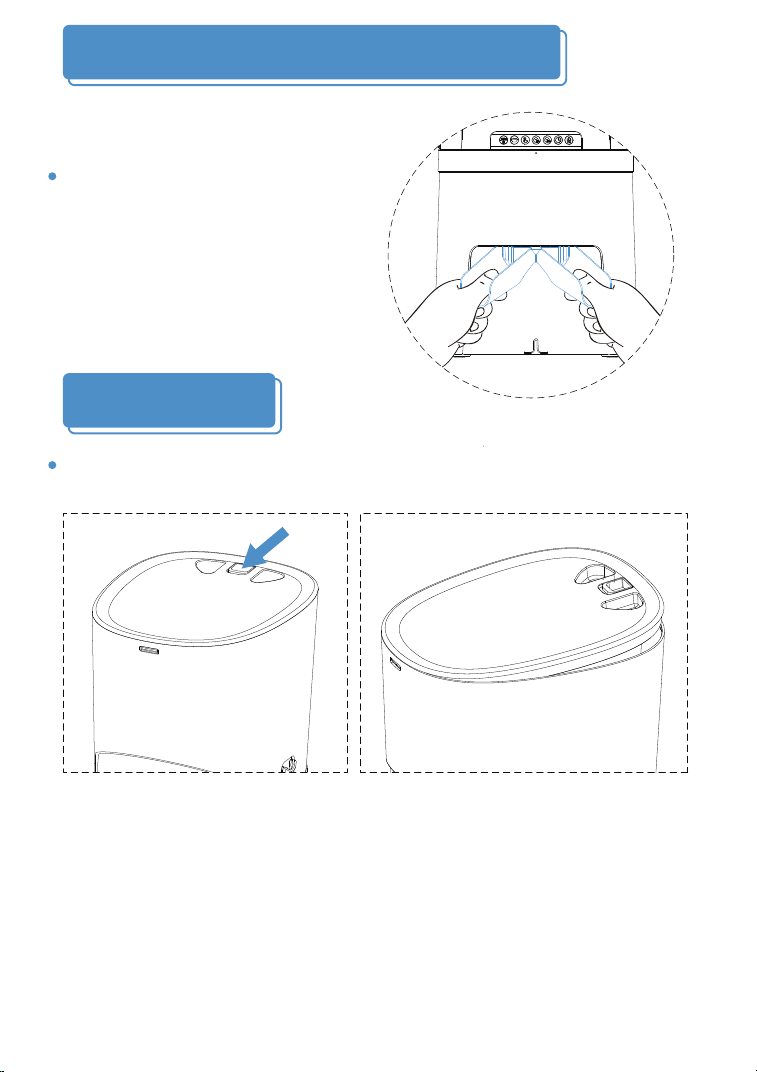
How to Remove the 2-way Splitter
Add Pet Food
Please hold the two sides with
both hands and press down
with thumbs can remove the
2-way splitter.
Press the lid open button to open the lid, pour the pet food
into the food container.
06
1. Dispense each portion size is about 5-6g(16ml) food
kibble;
The dual bowls version dispense one portion to each bowl is
about 2.5g.
2. Recommended food size: 0.2-1.2cm(0.07-0.47inch)
diameter. Please use food smaller than 1.2cm, otherwise the
feeder may get stuck.
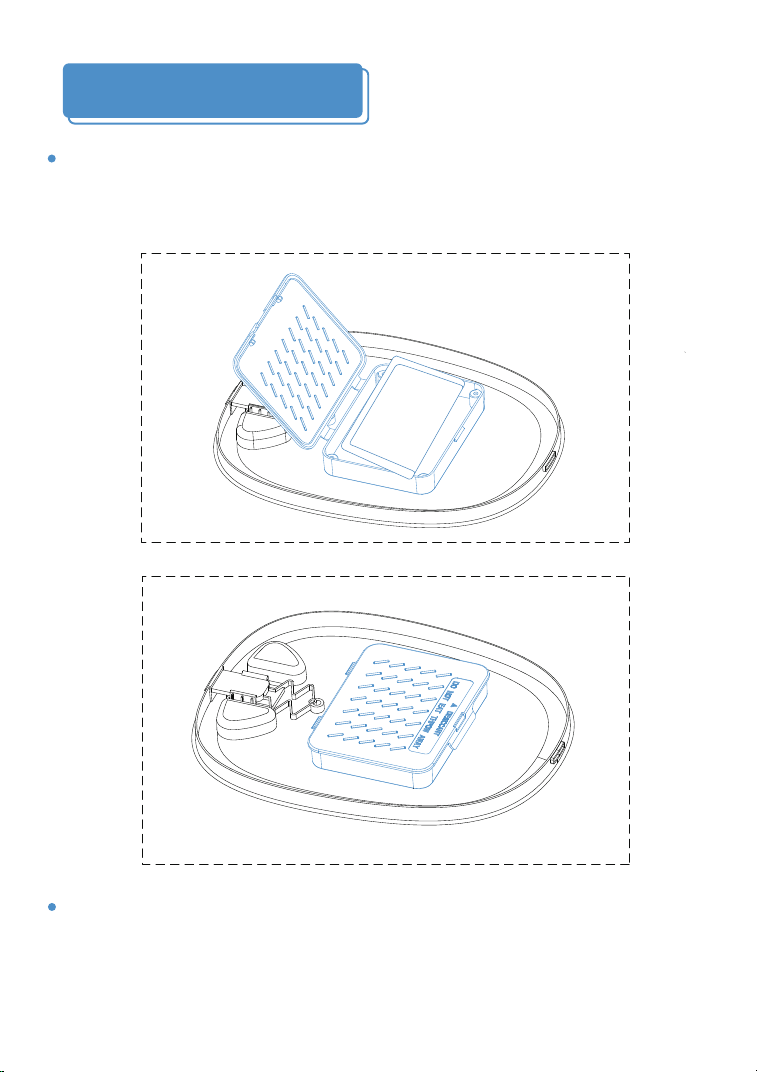
Install Desiccant Bag
Please put the desiccant bag to the desiccant box to keep
pet food dry and fresh.
07
Note:
To prevent the mold growth, it is recommended to replace the
desiccant bag every 15 days.
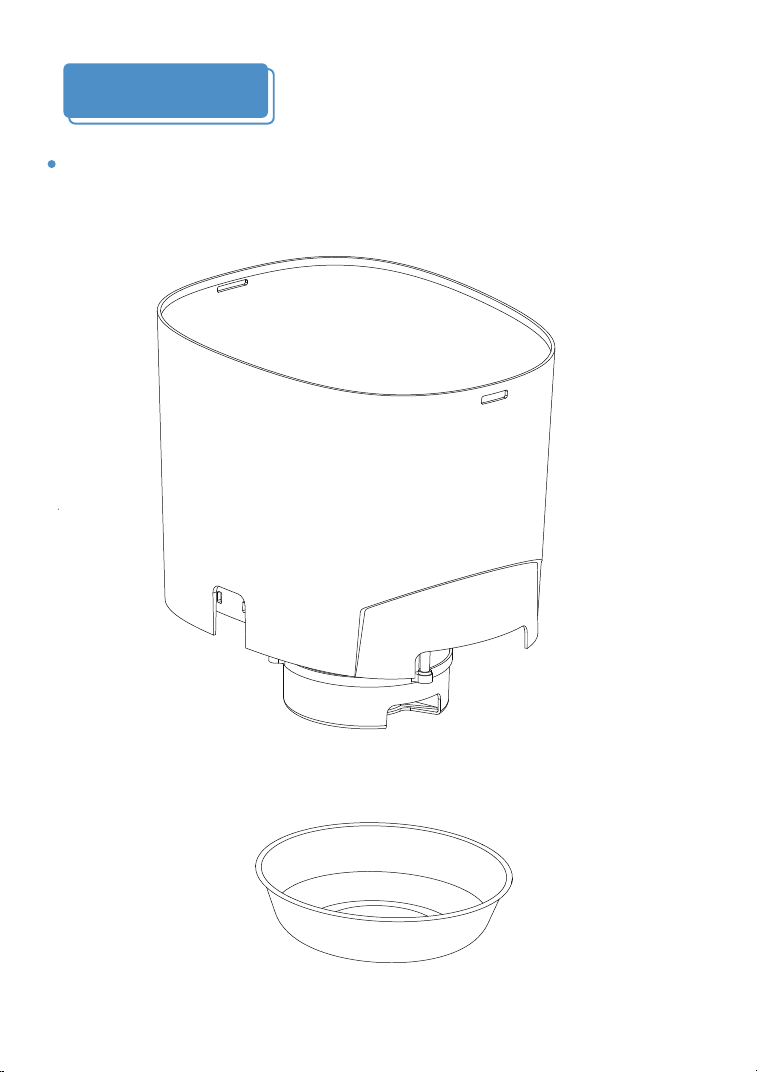
Maintenance
For your pet's health, please clean the food container, stainless
steel bowl and bowl holder regularly. The feeder host is not
washable, please wipe it with a dry cloth.
08
Software installation and setup
09
Smart Life
Please check and turn on your phone bluetooth and WIFI
before connecting
1.Confirm that the machine is powered by the adapter power.
(For saving battery power,The WiFi function can only be used
when the adapter powered)
2.Confirm that the WiFi network is 2.4Ghz.
(The feeder only works under 2.4Ghz network, does not
support 5Ghz)
Step 1. Install Smart Life APP
Scan the QR code to download or search“Smart Life”in the
app store to download and install the APP.
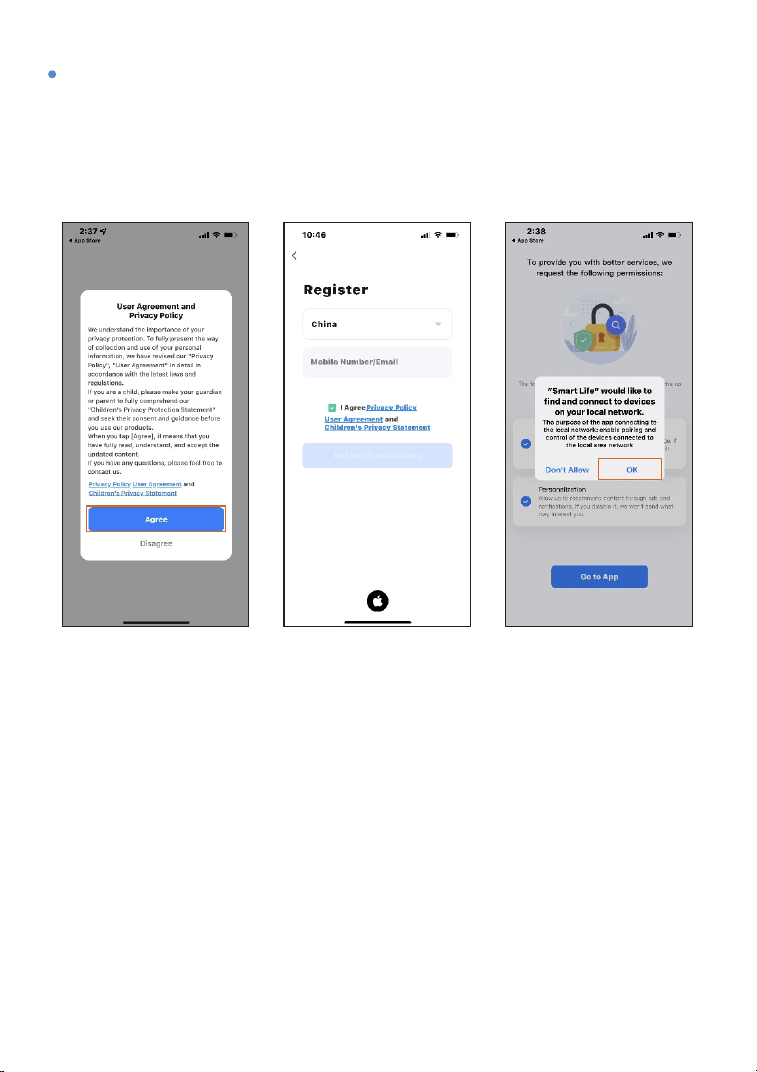
Step 2. Create your account and agree to connect to the
Internet
Open the Smart Life app, agree to the privacy policy, select
correct country, use email or mobile number to register a user
account and log in, agree to grant local area network.
10
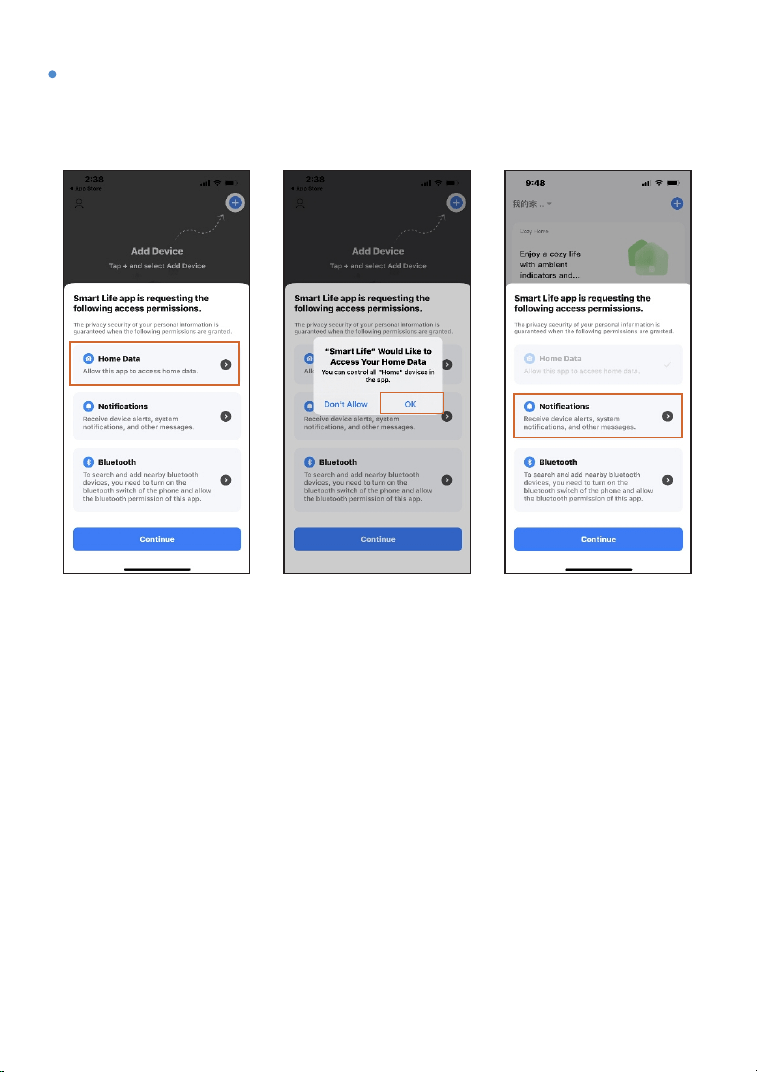
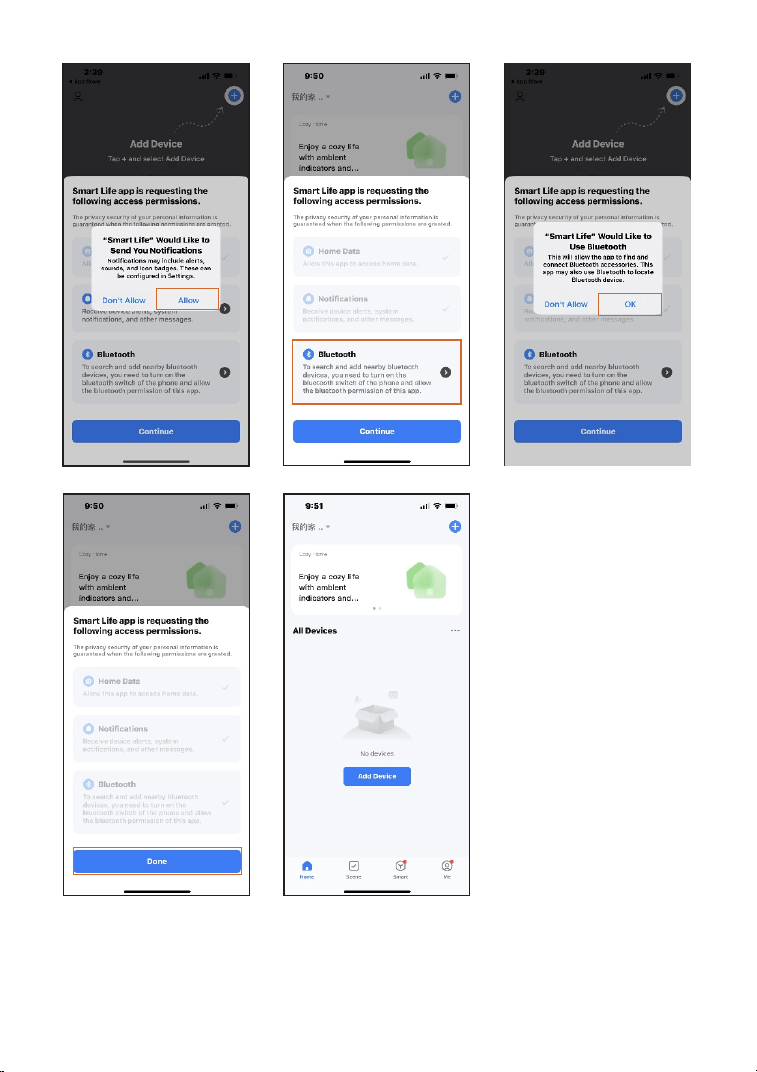
Step 3. Agree to Home Data, Notifications, Bluetooth
permissions
11
12
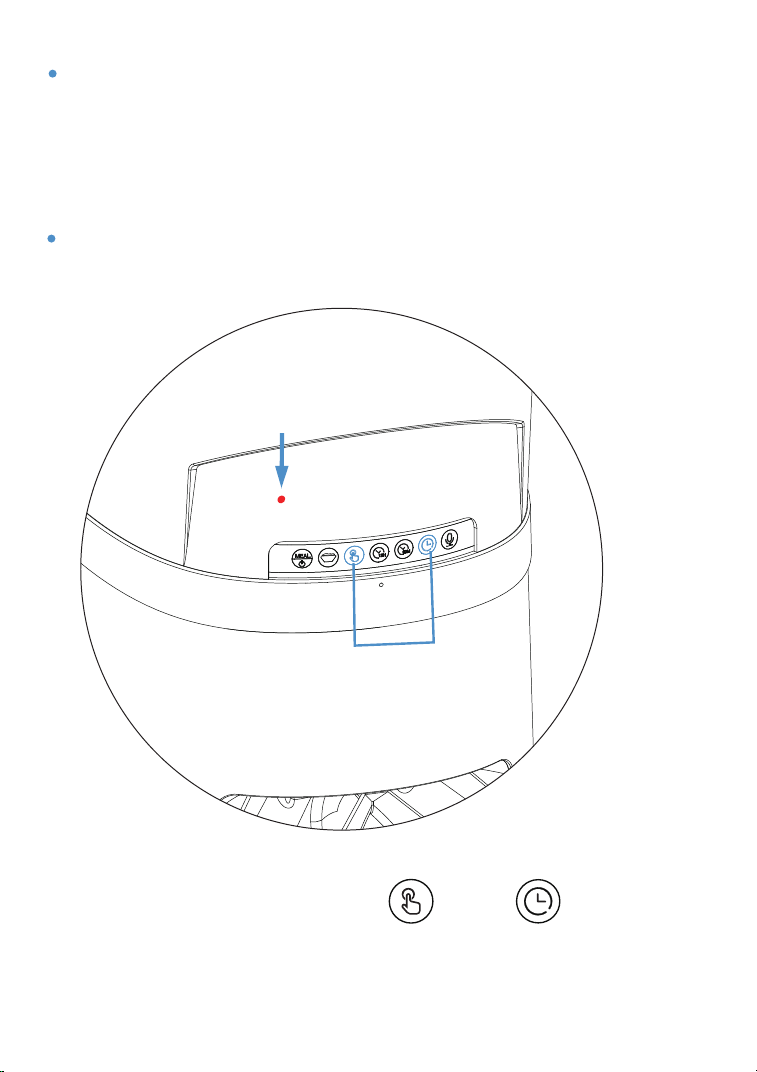
Note: The WIFI indicator is off when the power adapter is
not connected.
Step 4. Please check whether the WIFI indicator of the feeder
flashes quickly (once per second), if the WIFI indicator light is
off, please press the two buttons shown below at the same
time for resetting, then you will hear the "beep" sound, The
Wi-Fi indicator light will flash quickly for waiting for pairing.
RESET button
WIFI indicator light
Note: You can press both the“ ”and“ ”for
3 seconds for factory reset as well.
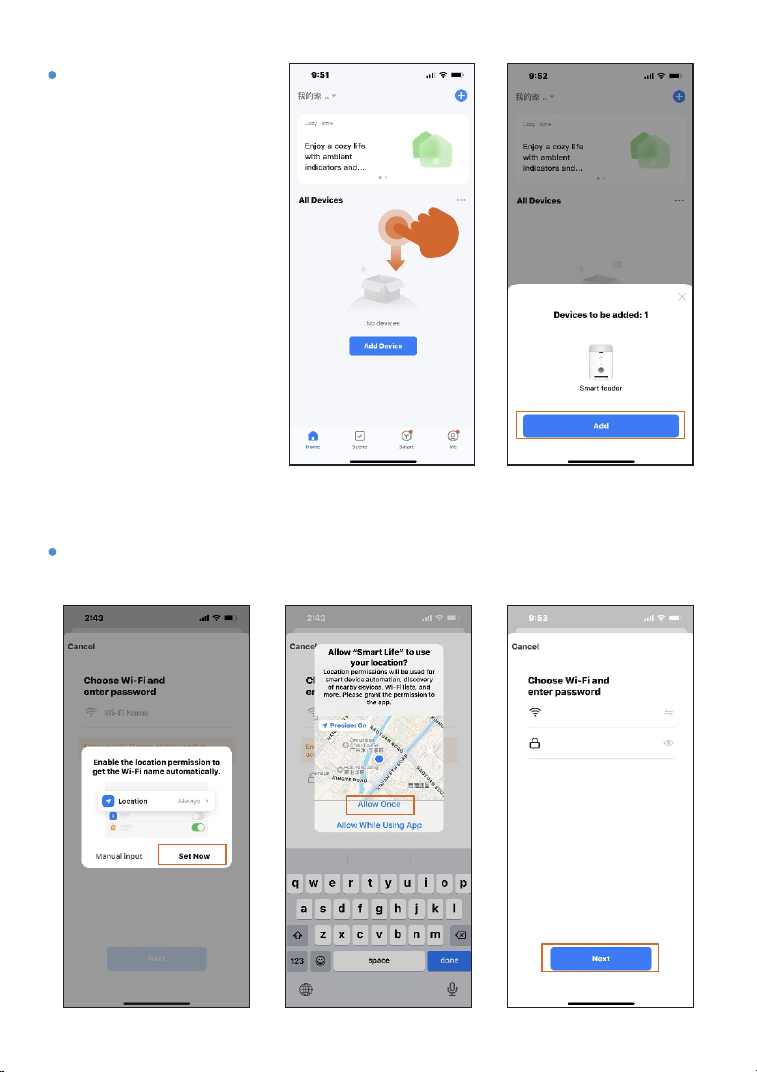
13
*******
TP-LINK_3256
Step 5. Pull to
refresh mobile
phone interface as
the picture:
Pull to refresh the
phone interface to
auto search for the
devices, the
available devices
will pop up, click
add devices
Step 6. Allow these APP permission, select your 2.4GHz WiFi
network and enter the WiFi password.
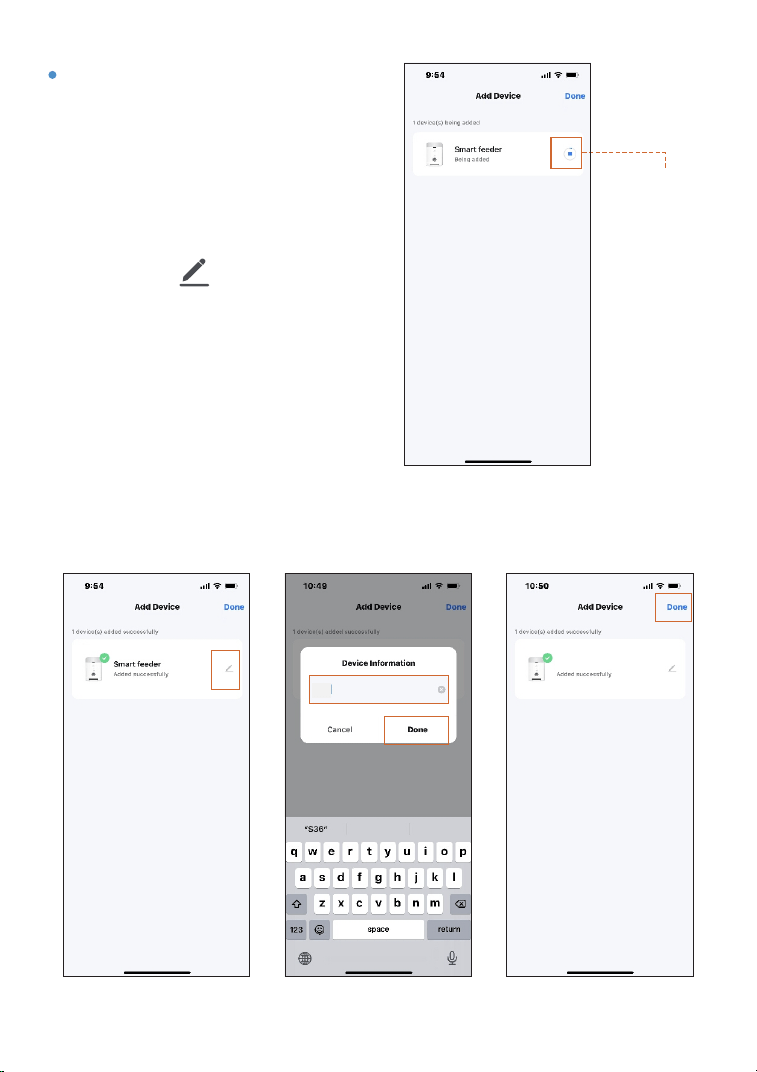
Step 7. Please be patient for
waiting when the APP enters
to "add device” page, when
the device's WIFI indicator
stops flickering and stays on,
the APP interface jumps to
the device name modification
page, click , the APP
interface pops up the device
name modification viewwin-
dow, enter a new name and
click “Finish”, The APP
returns to the “Add
Device” page, click
“Finish”
Installation
progress
14
S40
S40
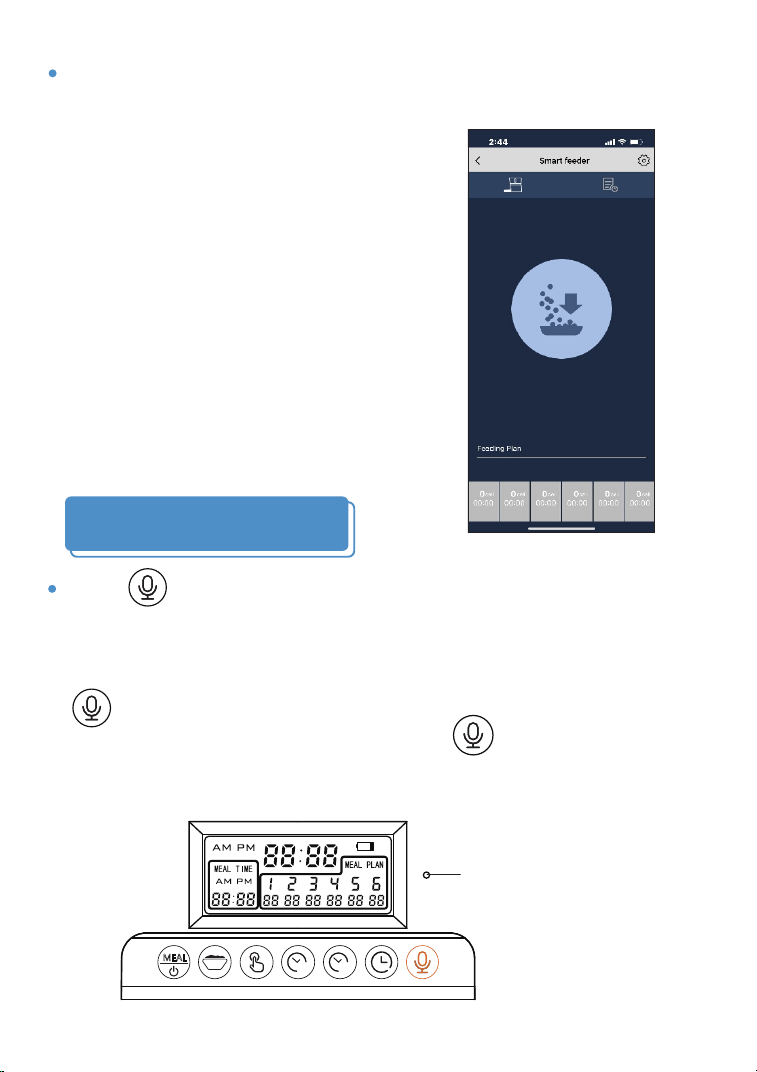
Recording Setting
Step 8.The APP jumps to the feeder control page, and the
feeder is successfully connected to the Internet.
Press“ ”and hold for three seconds then you can record
for Max 10 seconds after the recording indicator lighting up.
Release the button during recording as the recording is
completed.After finishing the recording, you can press
“ ”to play your recording. If you need to delete or close
the recording function, you can press“ ”double times
until the recording indicator light blinking 3 times, then the
recording message is removed.
MEAL
Recording
indicator light
12H
60M
15
Feeding
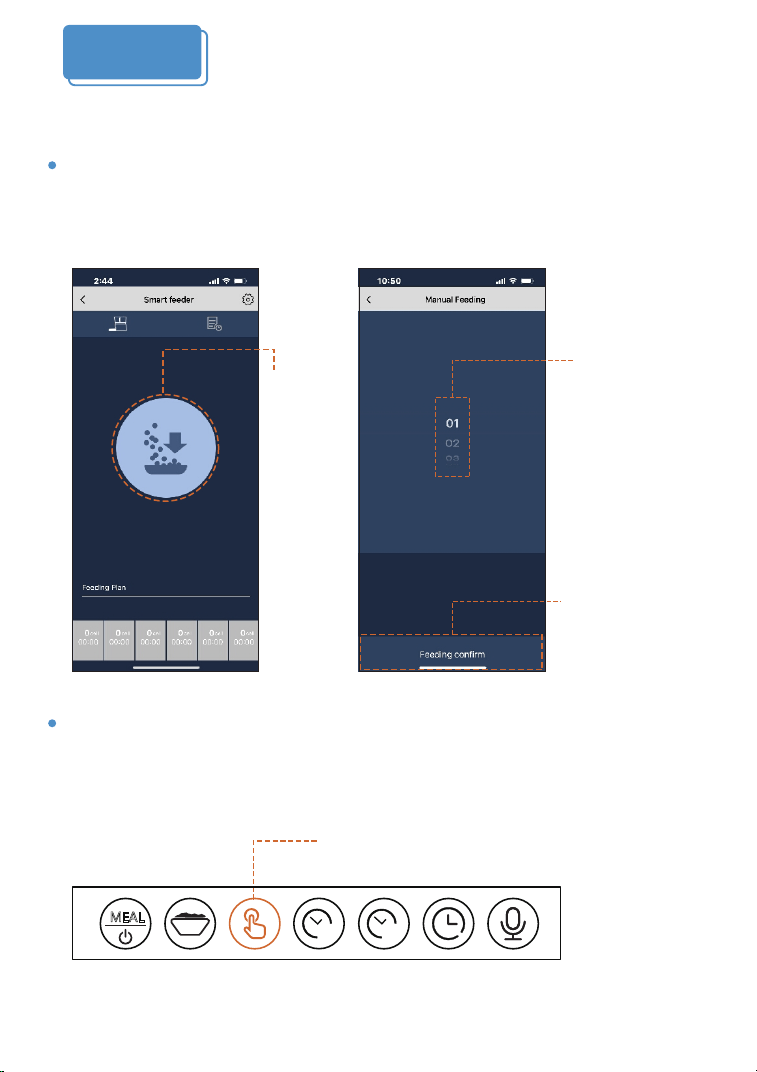
Manual Feeding
1. Enter the feeder control page, click Manual feeding, select
the portions of food and click "OK" the feeder will dispense
immediately.
2. You can also press and hold the Manually feeding button on
the feeder for 3 seconds, after a "beep",The feeder will
dispense 1 portion.
Manually feeding button
Manual
feeding
button
MEAL
12H
60M
16
Select
food
portions
Feeding
confrim
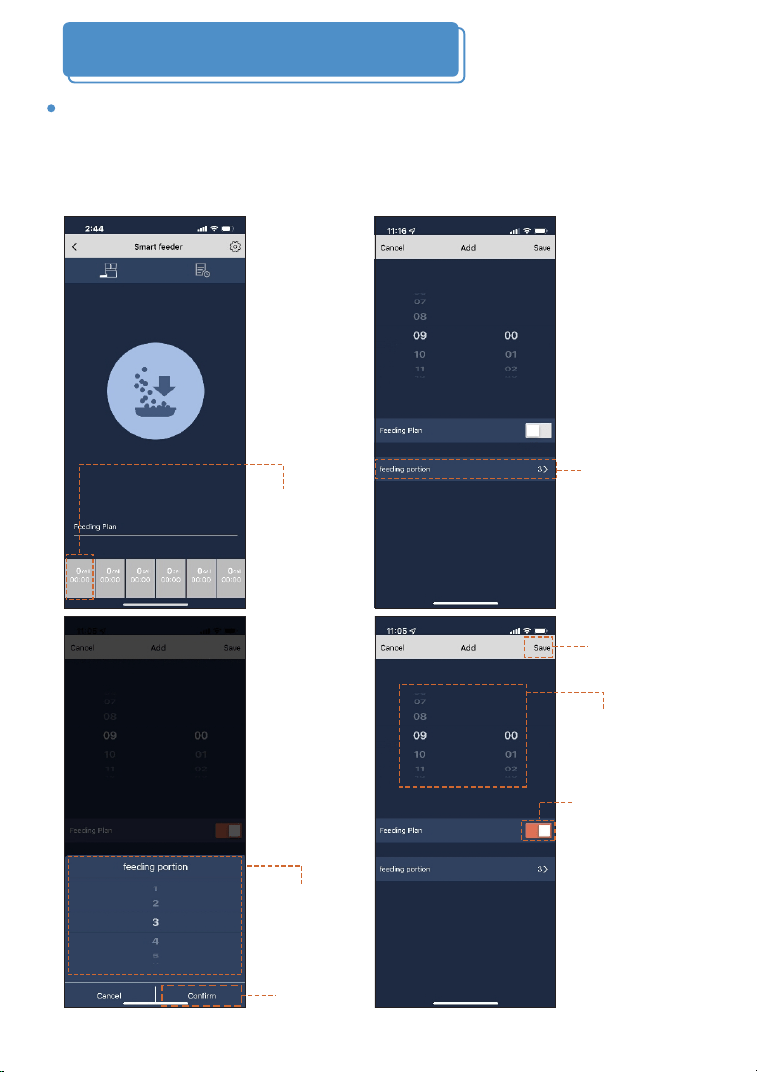
Make a feeding meal plan
1. The feeder supports a daily 6-meal feeding plan, click the
feeding meals plan button to select the feedings portions
volume and meal time, open the feeding meals plan and
click Save.
Clik the
feeding meal
plan
Select the
feeding
portions
Select the
feeding
Portions you
need
Save after
set finished
Confirm
17
Select meal
time
Open the
feeding meals
plan button
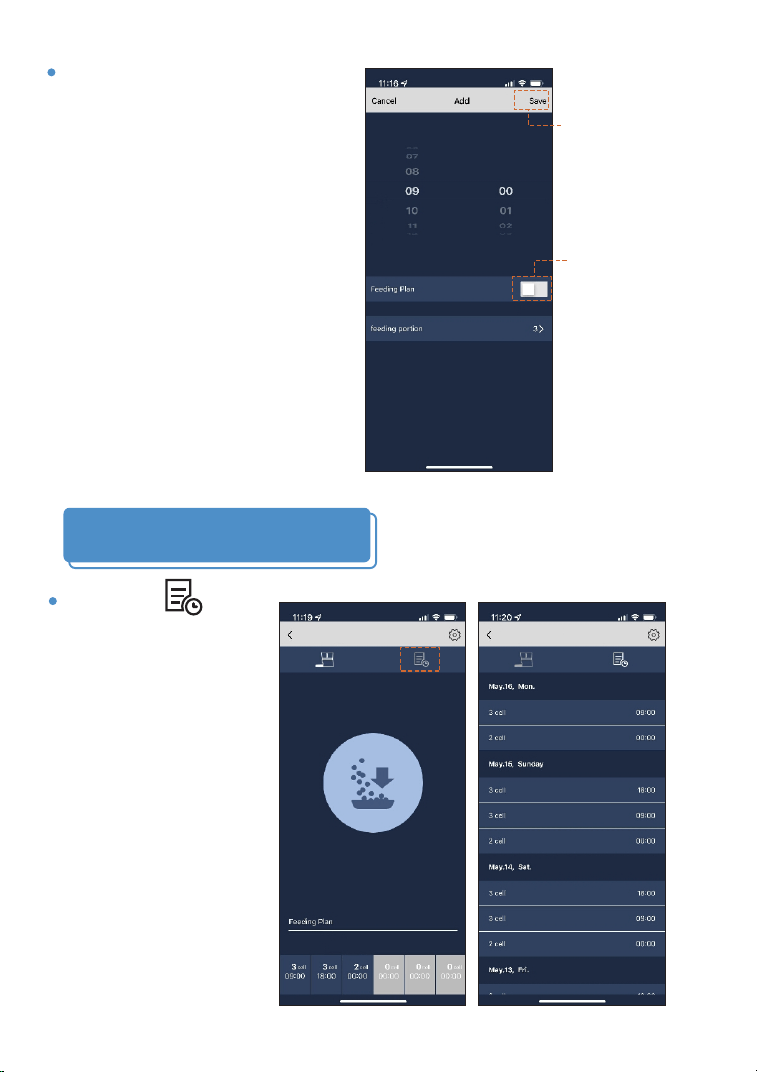
View feeding records
1. Click " ”,
pull down to
open the page,
It will be display
feeding records.
2. If you need to disable
a feeding meal plan,
click the feeding meal,
close
the feeding meals
plan button
, and then
click Save.
18
1:Close the
feeding meals
plan button
2:Clik Save
S40 S40
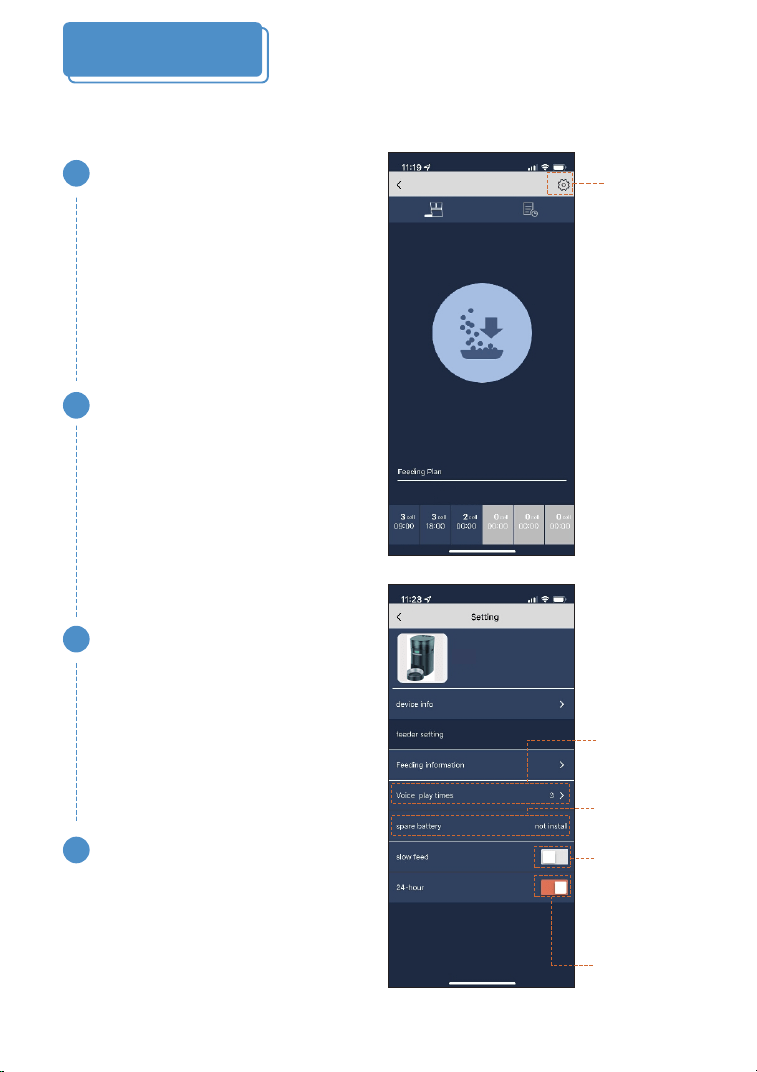
S40
Click the Setting button to jump to the Settings page.
Voice plays times
The number of times
(0 times - 6 times) plays a
recording before feeding
Basic setting
1
Backup battery status
Display battery status
2
Slow feed
Turn on/off the slow feed
function of the feeder
3
24-Hour
Turn 24 hour clock on/off
4
Turn on/off
the slow
feed
function of
the feeder
Turn 24
hour clock
on/off
Voice play
times
options
Backup
battery
status
19
S40
Setting
button
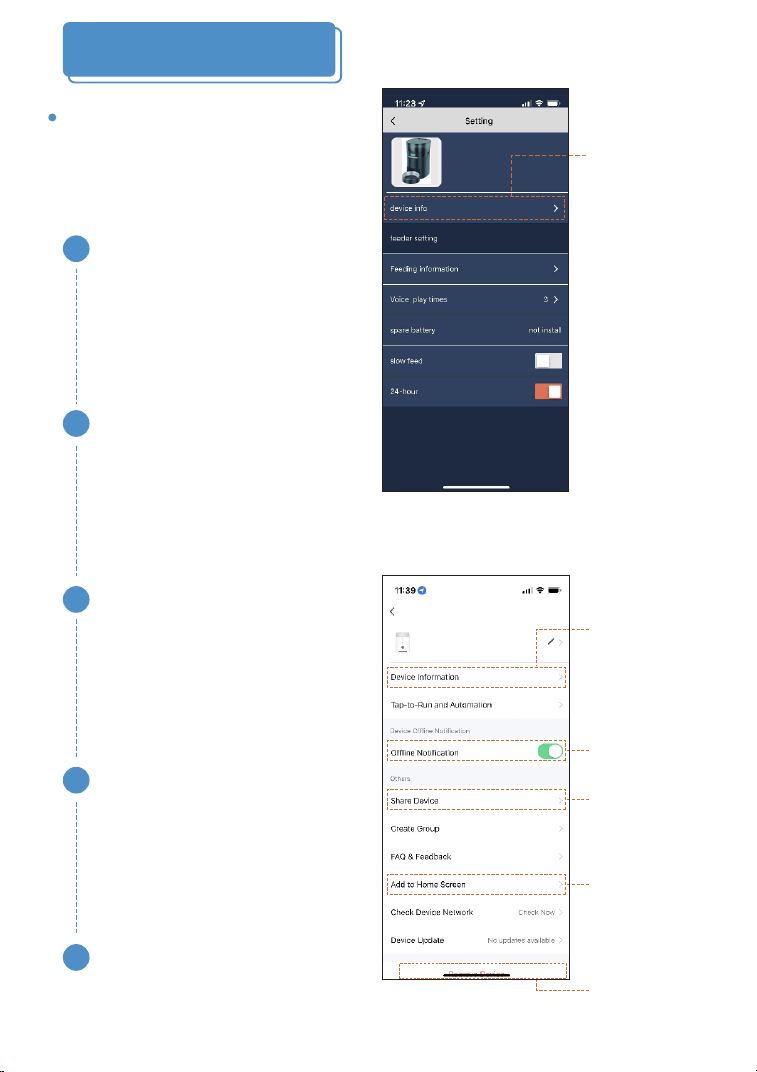
S40
Click device Info to enter the
advanced settings page.
Advanced setting
Device Information
Display device ID, IP,
MAC, device time zone,
signal strength
1
Offline Notification
Turn on this function , the APP
will notify you when the device
Offline.
2
Share device
This function can be used to
Device sharing with your family
3
Add to home screen
Add the feeder to the home
screen for ready access to the
feeder control page
4
Remove device
You can reconfigure the feeder
5
Click device
Info to
enter the
advanced
settings
page.
Device
Information
Offline
Notification
Share
device
Add to home
screen
Remove
device
S40
20

FQA
Q: Why the LCD screen does not light up when plugged in?
A: 1) Poor connect of the power adapter.
2) There is a problem with the power adapter, please try it
with batteries.
Q: Why the food won’t come out?
A: 1) Please check the kibble size should range from
2-12mm/0.07-0.47 inch diameter. Try the manual feeding
button.
2) Clean the feeder. Disassemble the food tank and clean the
chute, and also clean the food outlet.
Q: Does the pet feeder work must with the power adapter
and battery at the same time?
A: No need.It can be worked both. In order to prevent power
outage, We recommend using the power adapter and
batteries at the same time(Batteries are NOT included).
Q: Is there an indicator light when the battery is low?
A: Yes. When the batteries are low, the battery level sign on
the LCD screen will turn on. After new batteries are installed,
the sign will be turned off.
21

Q: Why I can’t hear any voice recordings when feeding?
A: Please press the Recording button to play. If no sound is
heard, you may need to record again.
Q: Can the voice recording be turned off with no affect meal
schedule?
A: Yes, you can press the Recording Button twice until the
recording indicator blinking 3 times, then the recording mes-
sage is removed.
Q: Does the unit reset after 6 feeding, or does it just stop
feeding?
A: Once you set the feeding schedule, it repeats everyday until
there is no food in the food tank.
Q: For two way distributor system, Why the food dispense not
evenly in each bowl?
A: The first few portions may vary and it doesn’t mean a faulty
equipment. After several feedings it should be almost even.
Q:Why does the phone can’t connect to the pet feeder when
only use batteries?
A:
For saving battery life,The WiFi function can only be used
when the adapter powered.
22