
Technical Support and E-Warranty Certificate www.vevor.com/support
SOFTWARE INSTALLATION
MANUAL
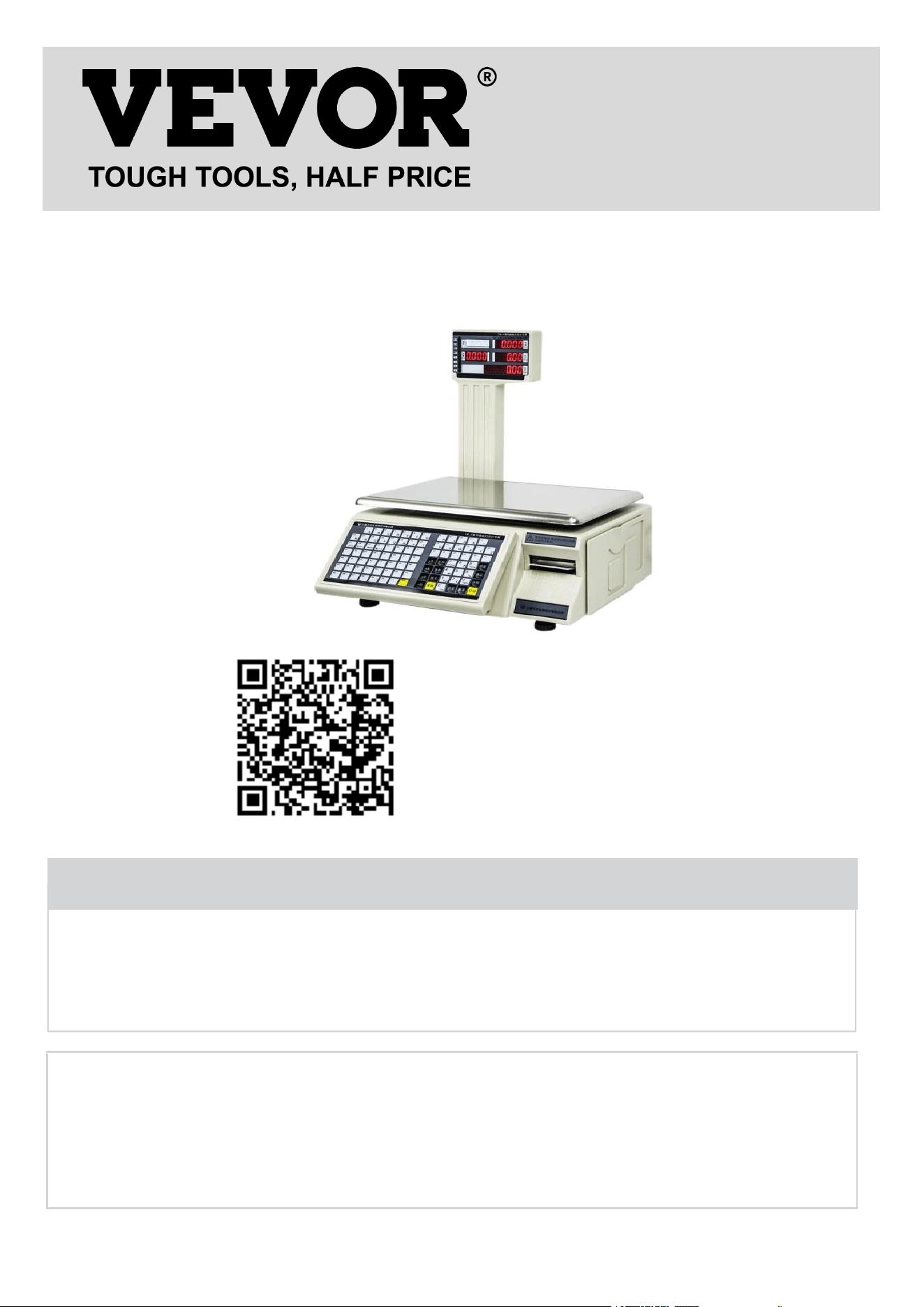
MODEL:TM-30F
We continue to be committed to provide you tools with competitive price.
"Save Half", "Half Price" or any other similar expressions used by us only represents an
estimate of savings you might benefit from buying certain tools with us compared to the
major top brands and dose not necessarily mean to cover all categories of tools offered
by us. You are kindly reminded to verify carefully when you are placing an order with us if
you are actually saving half in comparison with the top major brands.

- 1 -
MODEL:TM-30F
Have product questions? Need technical support? Please feel free to contact us:
Technical Support and E-Warranty Certificate
www.vevor.com/support
NEED HELP? CONTACT US!
This is the original instruction, please read all manual instructions carefully before
operating. VEVOR reserves a clear interpretation of our user manual. The
appearance of the product shall be subject to the product you received. Please
forgive us that we won't inform you again if there are any technology or software
updates on our product.
ELECTRONIC PRICE
COMPUTING SCALE
Scan the QR code to download the software

- 2 -
catalogue
1. Software install____________________________________________________________________3
2. Operation Manual
_________________________________________________________________
5
2.1
communication________________________________________________________________ 5
2.1.1 mode________________________________________________________________________ 5
2.1.2 Ethernet_____________________________________________________________________ 6
2.1.3 serial________________________________________________________________________ 6
2.1.4 IP Seaching and Setting_______________________________________________________6
2.2 Base setting
___________________________________________________________________
8
2.2.1
Merchandise________________________________________________________________ 8
a.
Query_______________________________________________________________________ 8
b.
Filter
________________________________________________________________________
9
c.
Delete
_______________________________________________________________________
9
d.
Download__________________________________________________________________ 10
e.
Callback___________________________________________________________________ 10
f.
Export_____________________________________________________________________ 11
g.
Import_____________________________________________________________________ 12
2.2.2
Label
______________________________________________________________________
13
a.
New
_______________________________________________________________________
13
b.
Hotkey_____________________________________________________________________ 14
c.
Advertisement______________________________________________________________14
d.
Text_______________________________________________________________________ 15
e.
Clock______________________________________________________________________ 16
f.
Other
______________________________________________________________________
16
g.
Initial
______________________________________________________________________
17
3.
Report___________________________________________________________________________ 17
3.1
Record query_________________________________________________________________
17
3.2 Daily report__________________________________________________________________ 18
3.3 Monthly report
_______________________________________________________________
18
3.4
Stall
report
___________________________________________________________________ 18
- 3 -
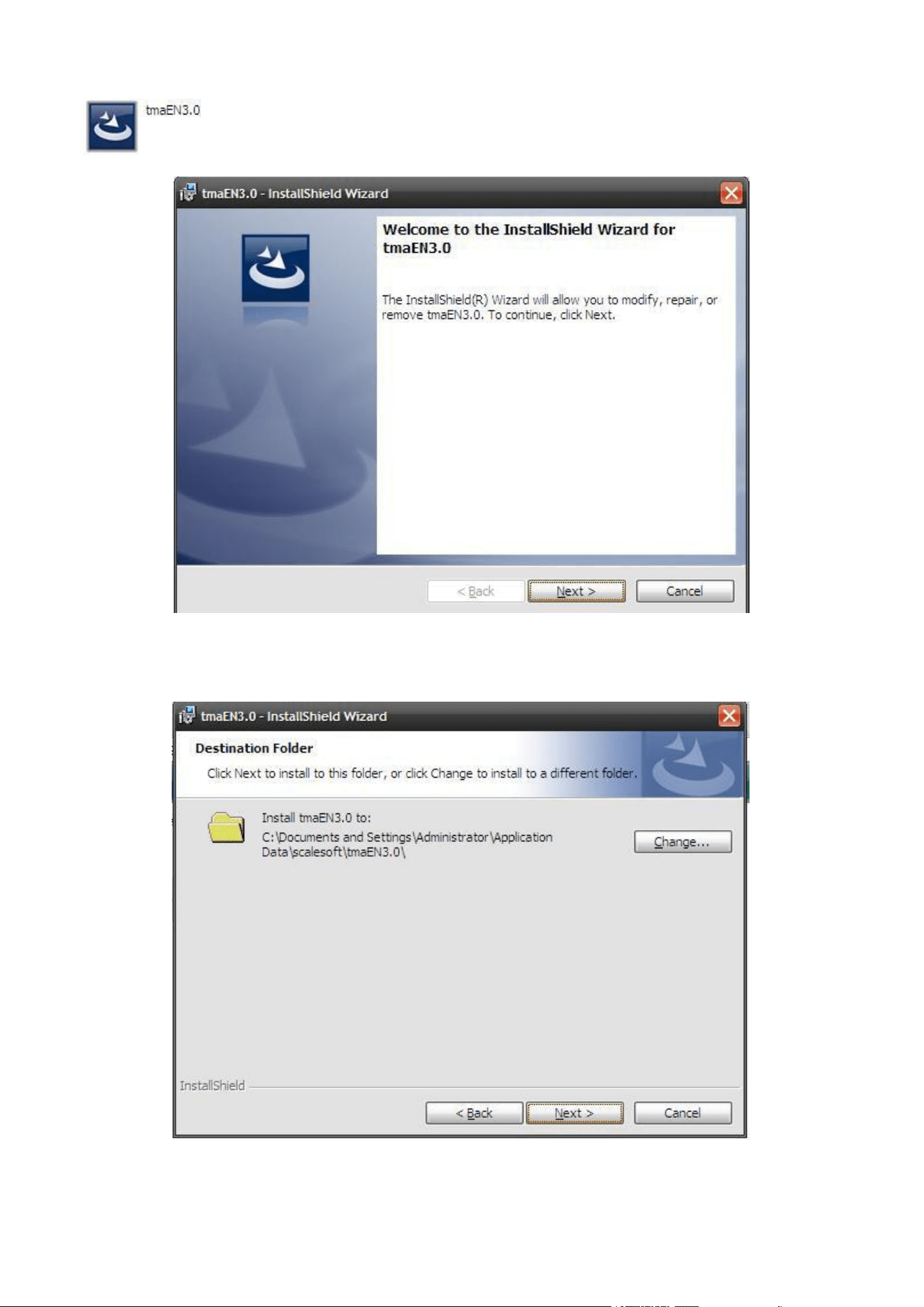
1.Software install
Click , and install the software.
Picture1.1
Click “next”to next step.
Picture1.2
Click “change” change setting path. It’s better build a new folder,then click “next”
- 4 -
Picture1.3
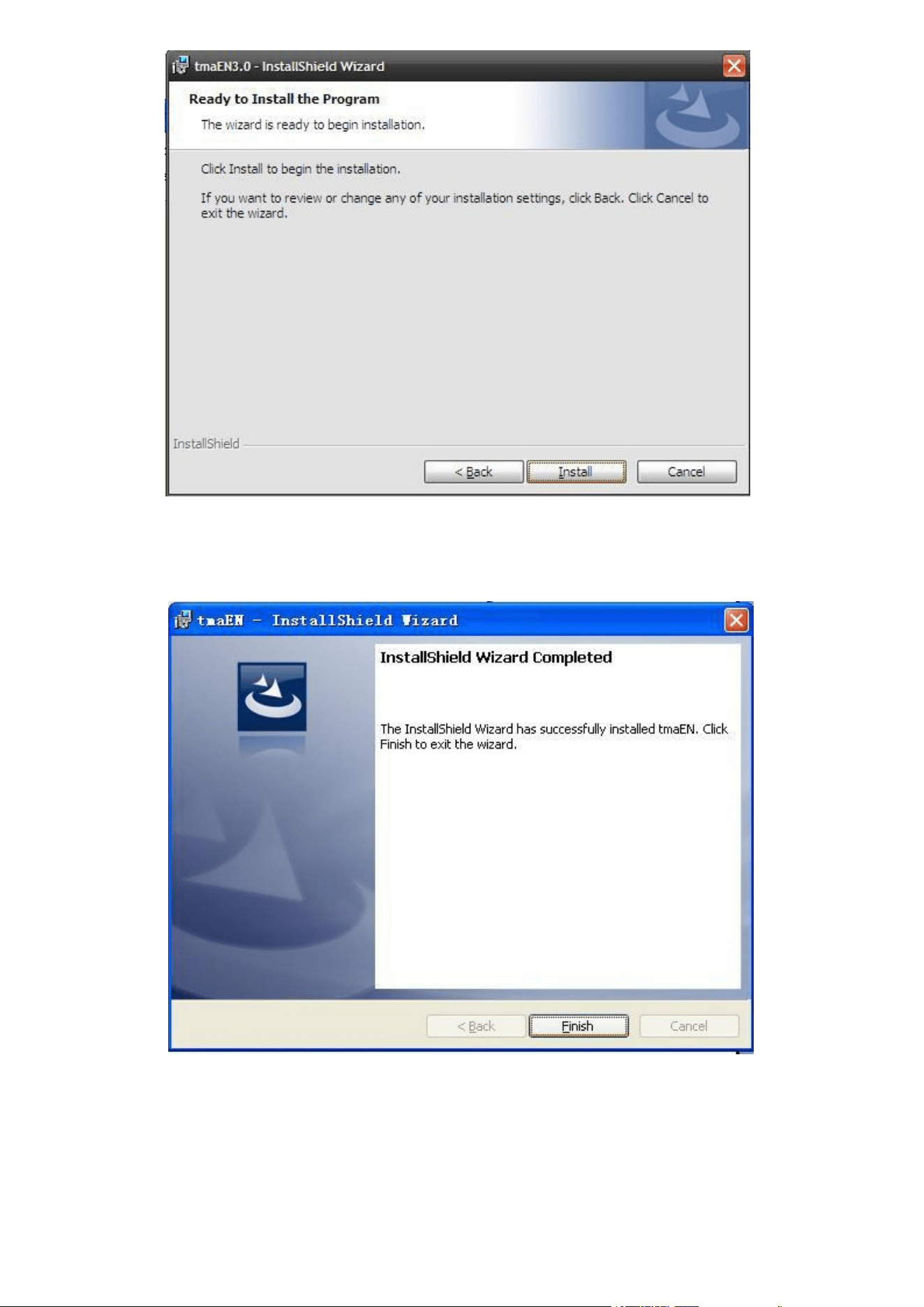
Click “install” to next step
Picture1.4
Setting is over and will have a shortcut picture on the desktop.
- 5 -
2.Operation Manual
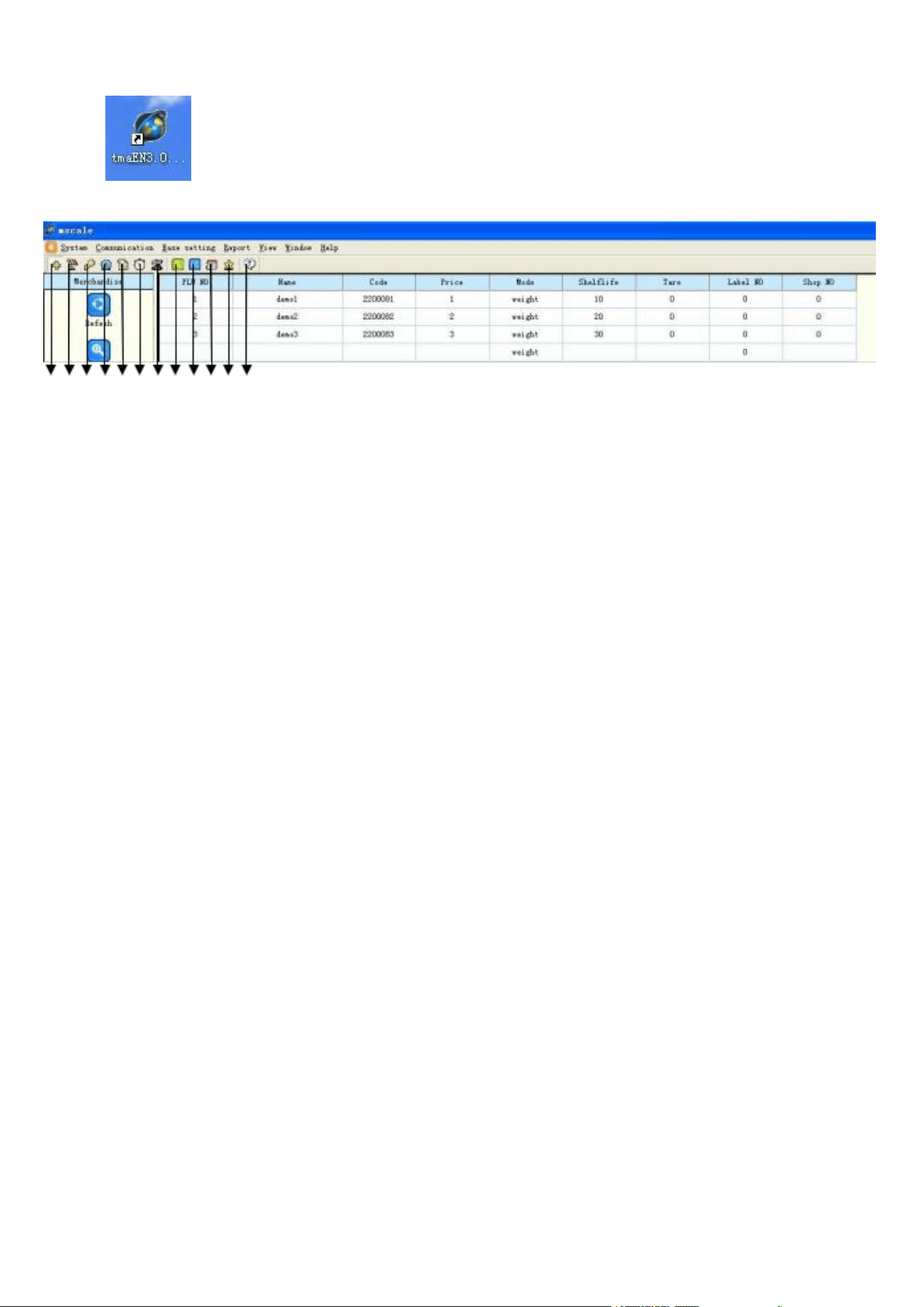
Open on the desktop, there is a main interface (picture 2.1)
1 2 3 4 5 6 7 8 9 10 11 12
Picture 2.1 main interface
Picture 2.1 the arrows means:
1.
merchandise setting
2.
label setting
3.
hotkey setting
4.
advertisement information setting
5.
text information setting
6.
clock setting
7.
other parameter setting
8.
record query
9.
daily report
10.
monthly report
11.
stall query
12.
about mscale
2.1communication
2.1.1mode
- 6 -
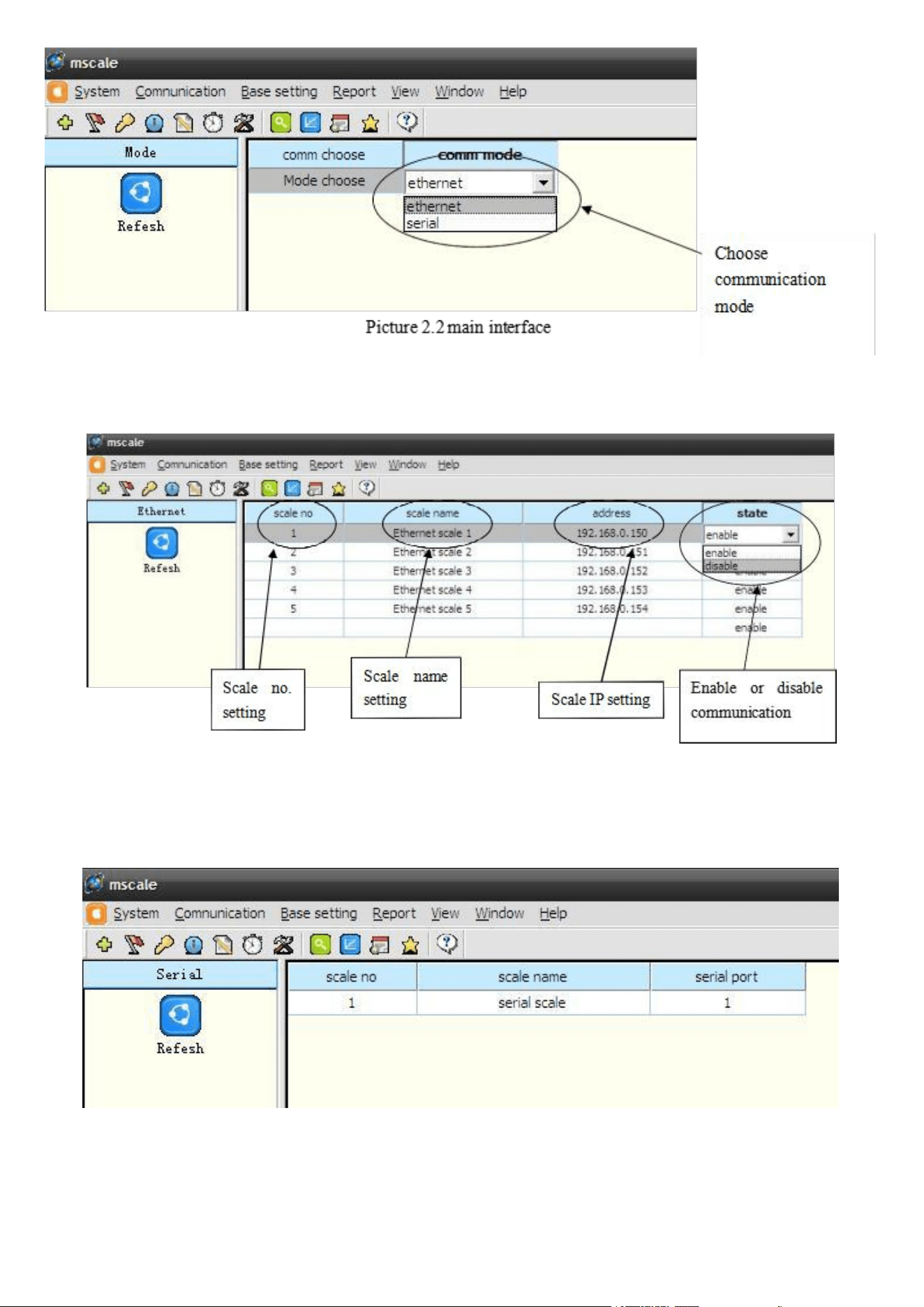
Choose communication mode, and then choose communication mode “ethernet” or“serial”
2.1.2 Ethernet
Picture 2.3 Ethernet setting
Choose communication Ethernet, and then set scale no. ,scale name,scale IP address and state
setting.
2.1.3 serial
Picture 2.4 serial setting
Choose communication Serial,then set scale no.,scale name and serial port. Like picture 2.4
2.1.4IP Seaching and Setting
- 7 -
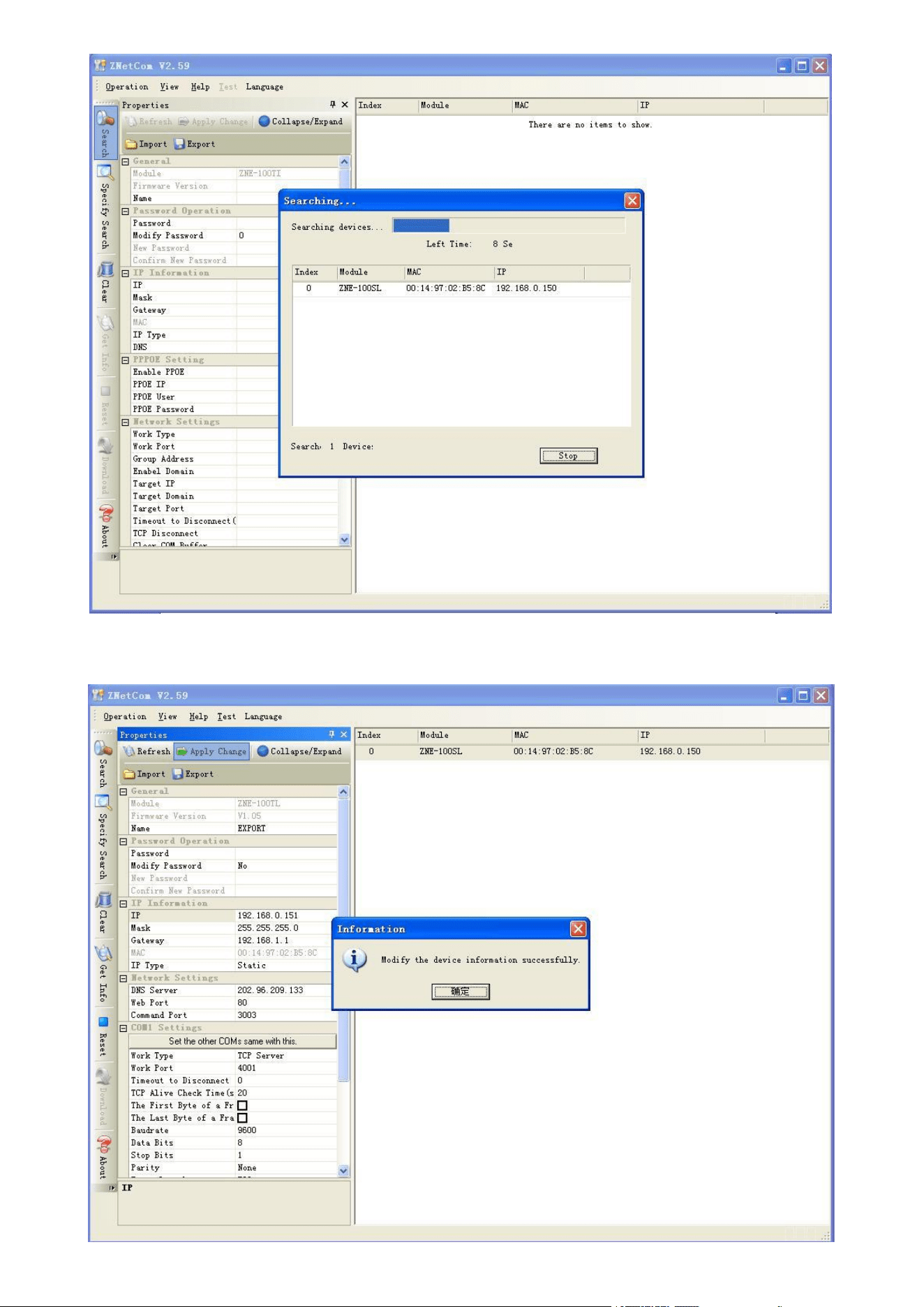
Picture 2.5 IP seaching and setting
Choose communication Znet, search scale IP address like picture 2.5
- 8 -
Picture 2.6 IP seach and setting
2.2Base setting
2.2.1Merchandise
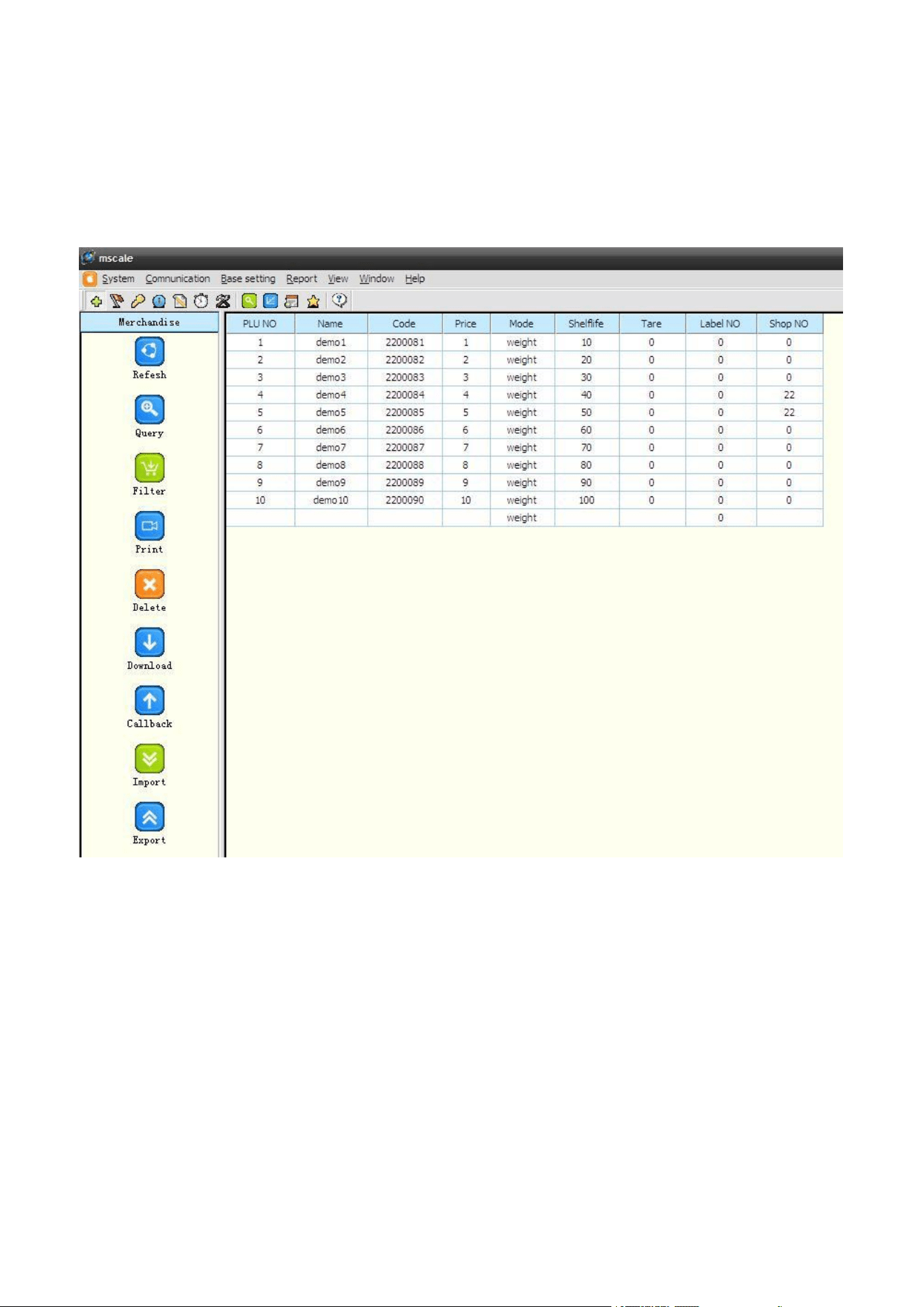
Merchandise setting include query,filter download,callback,import,export etc. Choose base setting
merchandise open the window like picture 2.7--> fill in merchandise information.(Blank can be empty,
but Plu Number can not be).
Picture 2.7 merchandise setting
a.Query
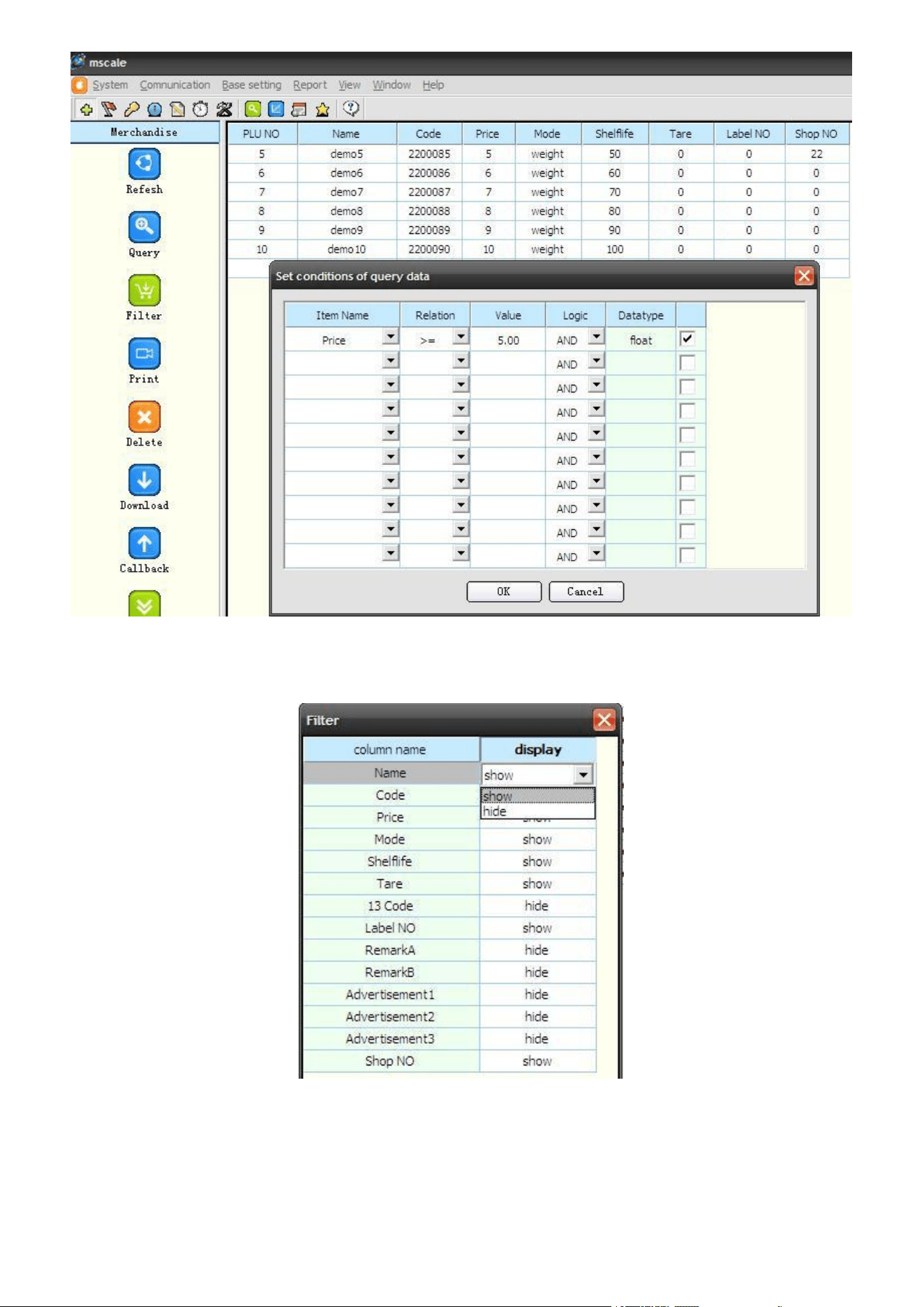
Choose base setting merchandise, click query like picture 2.8, item name choose item,
For example, item name choose price,rlation choose >=,value choose 5.00, means when the
price>=5, can show merchandise information,lide picture2.8
- 9 -
Picture 2.8 query setting
b.Filter
Filter means show or hide every merchandise information column, like picture 2.9
Picture2.9 filter setting
c.Delete
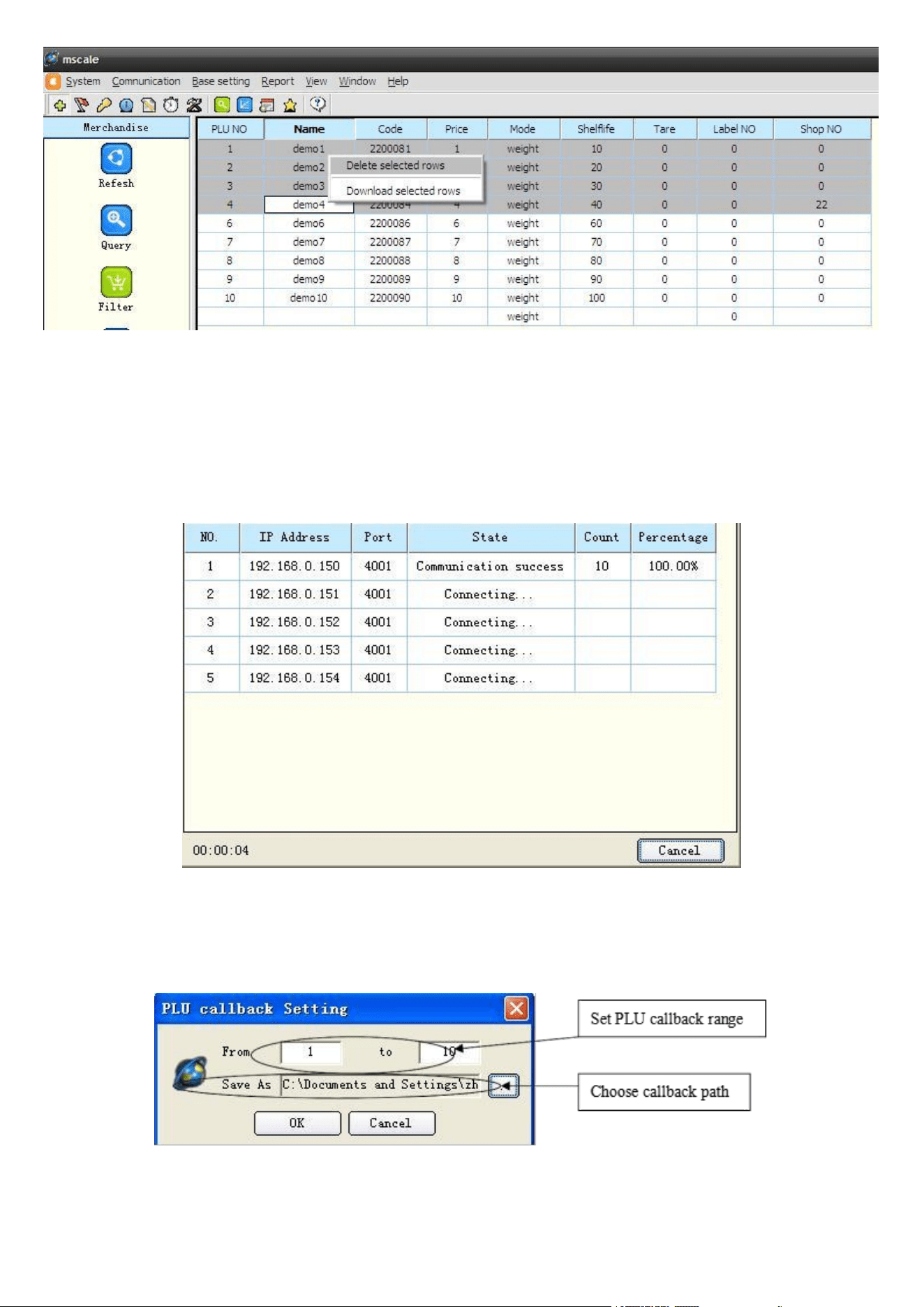
delete means delete one or some selected merchandise information,like picture 2.10
- 10 -
Picture2.10 delete merchandise information setting
d.Download
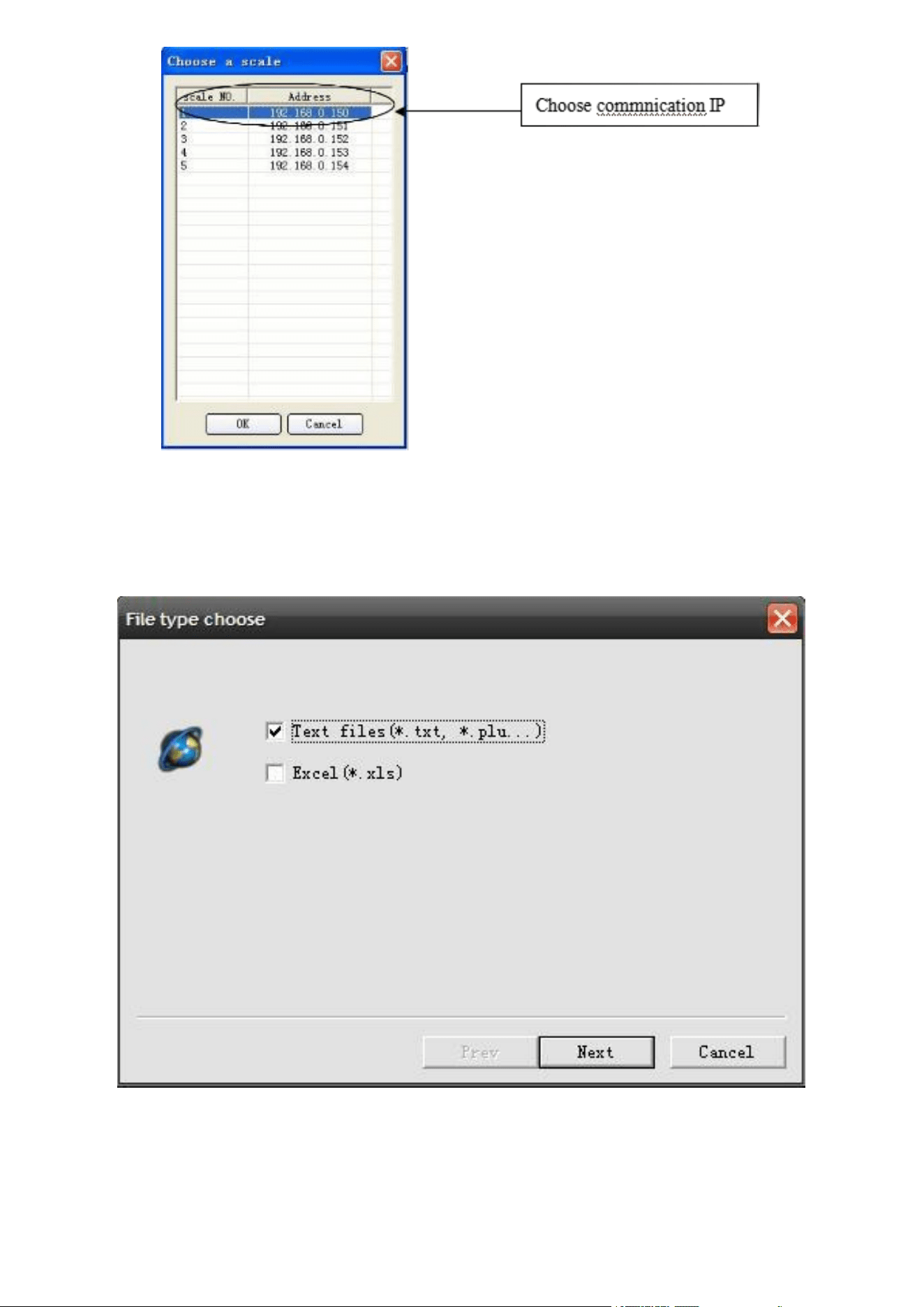
Before download , first choose communication, like picture 2.2 . If it is Ethernet scale, first set the
scale IP address, like picture 2.3.
Choose base setting merchandise download, then select scale IP address, like picture2.11, also
can select some merchandise information ,then download, like picture2.10
Picture2.11
download
e.Callback
Choose base setting merchandise callback,like picture2.12
picture2.12
- 11 -
picture2.12
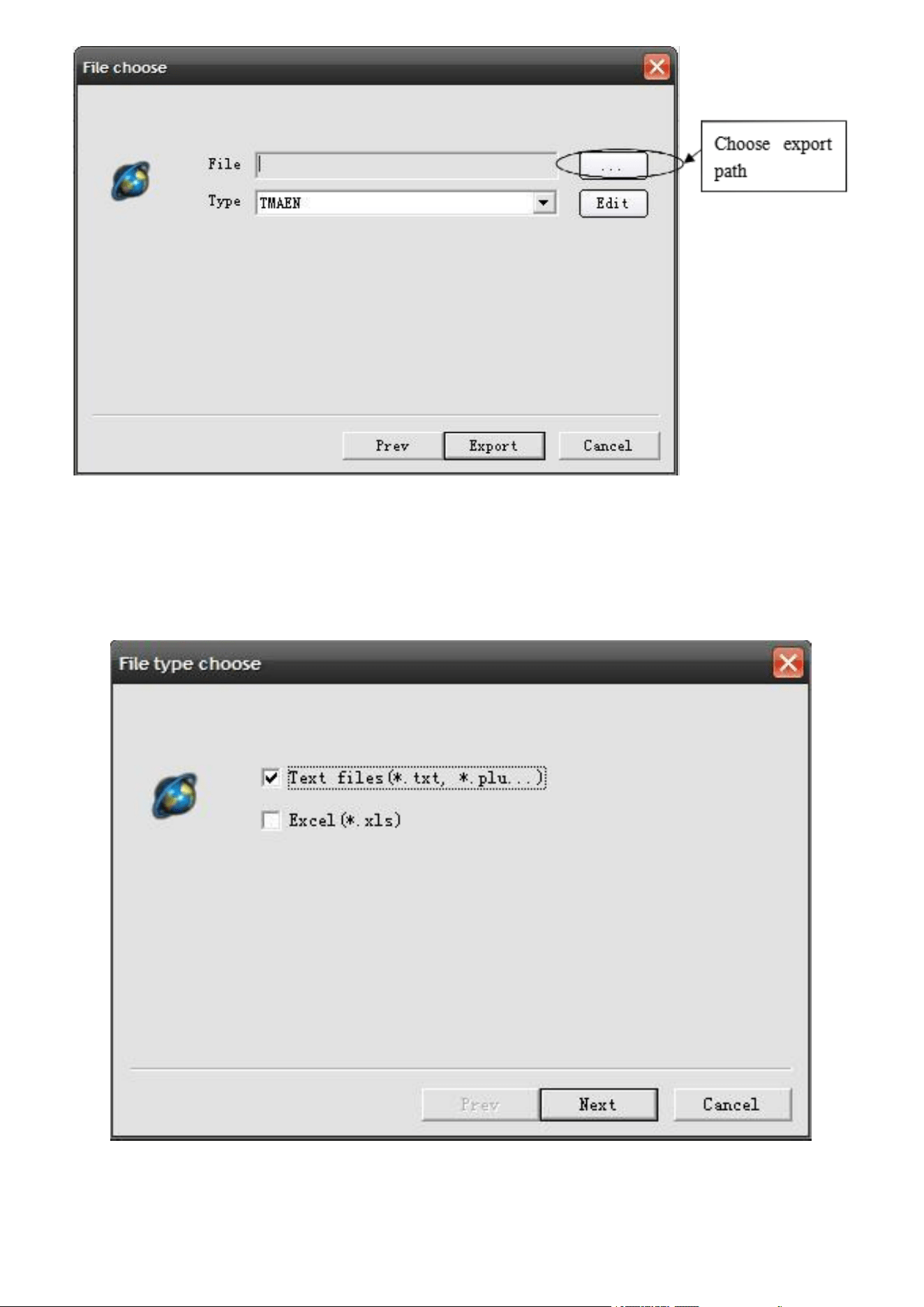
f.Export
Choose base setting merchandise export,like picture2.13,choose file type “text files” or “excel”.
picture2.13 PLU export
- 12 -
picture2.14
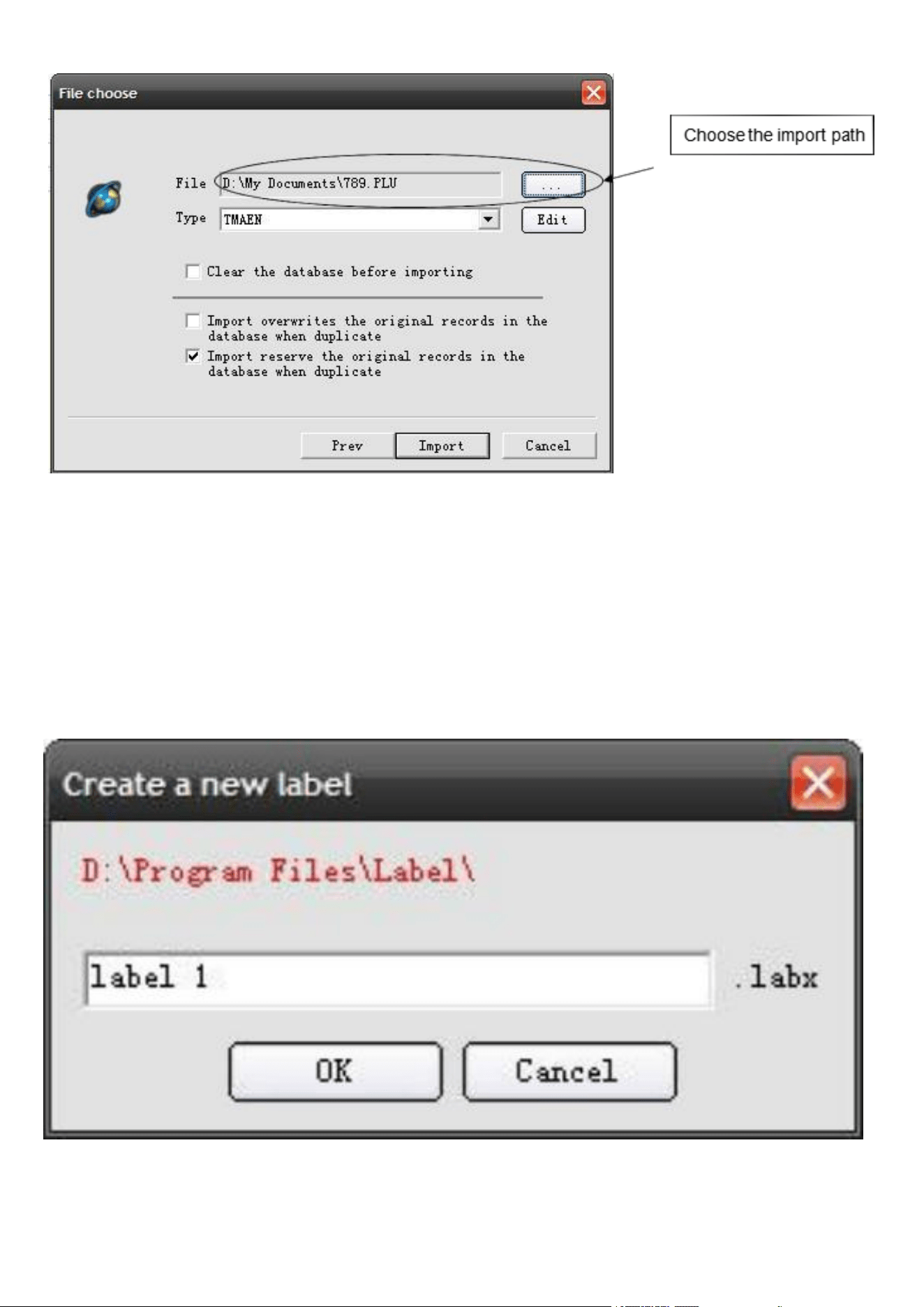
g.Import
Choose base setting merchandise import,like picture2.15,choose file type “text files” or “excel”.
Then click “next”,like picture 2.15, then choose import type and path, click “import”.
picture2.15
- 13 -
If choose “clear the database before importing”,it will clear all original PLU information.
picture2.16
2.2.2Label
label setting main include download and callback
a.New
Label setting simulates each tag item
’
s position in the actual label. Each tag item has coordinates, you
can drag it to change its position in the actual label.
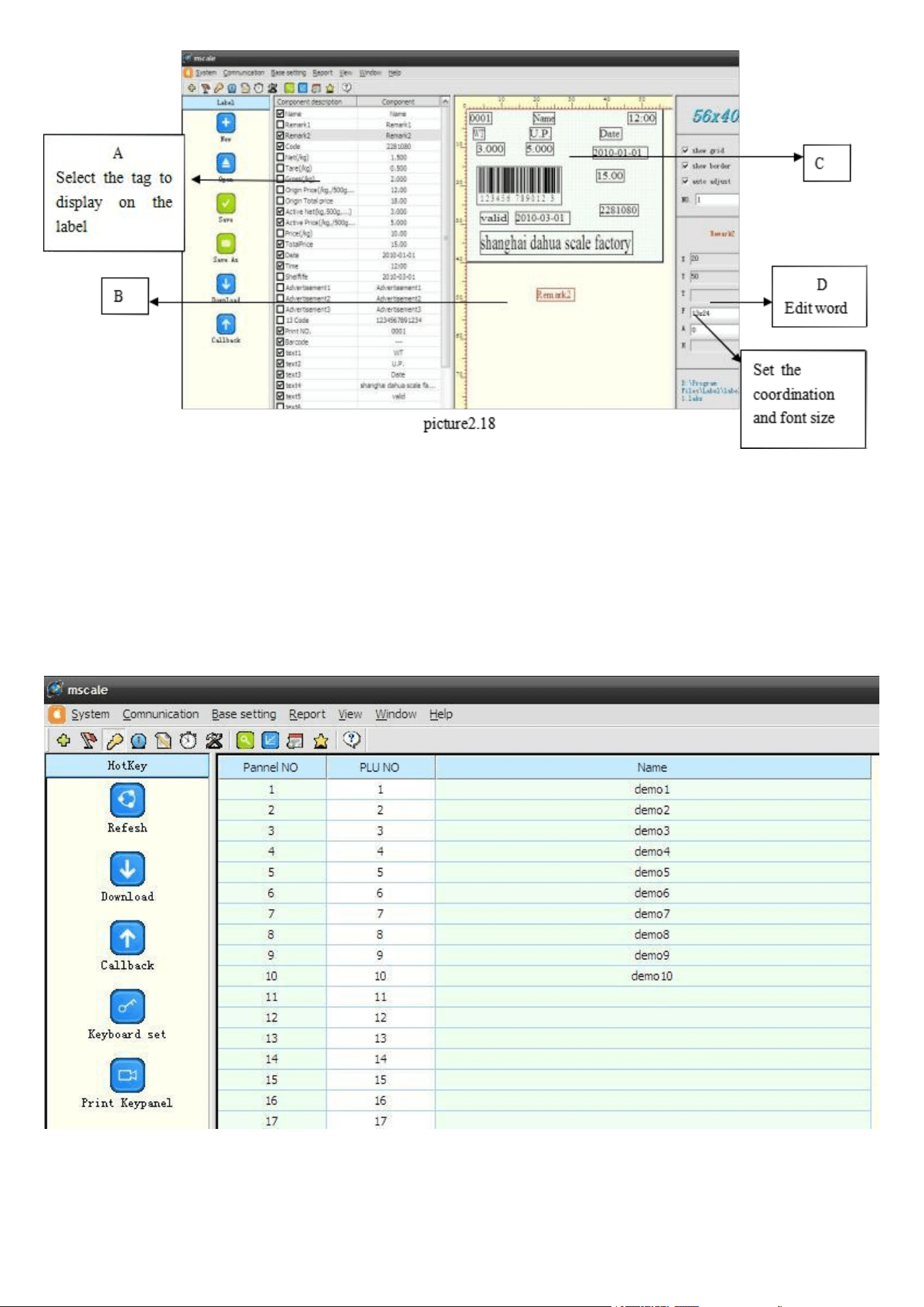
Choose base setting label new, new build a new label,like picture 2.17
picture2.17
- 14 -
Like picture 2.18, new do a label, choose left frame A area , it will have a item on the B area,then drag it
to C area,if it is text and can edit it on the right D area.
Set is over , can save it or download it .
NOTE: set the weight , should set active net.
b.Hotkey
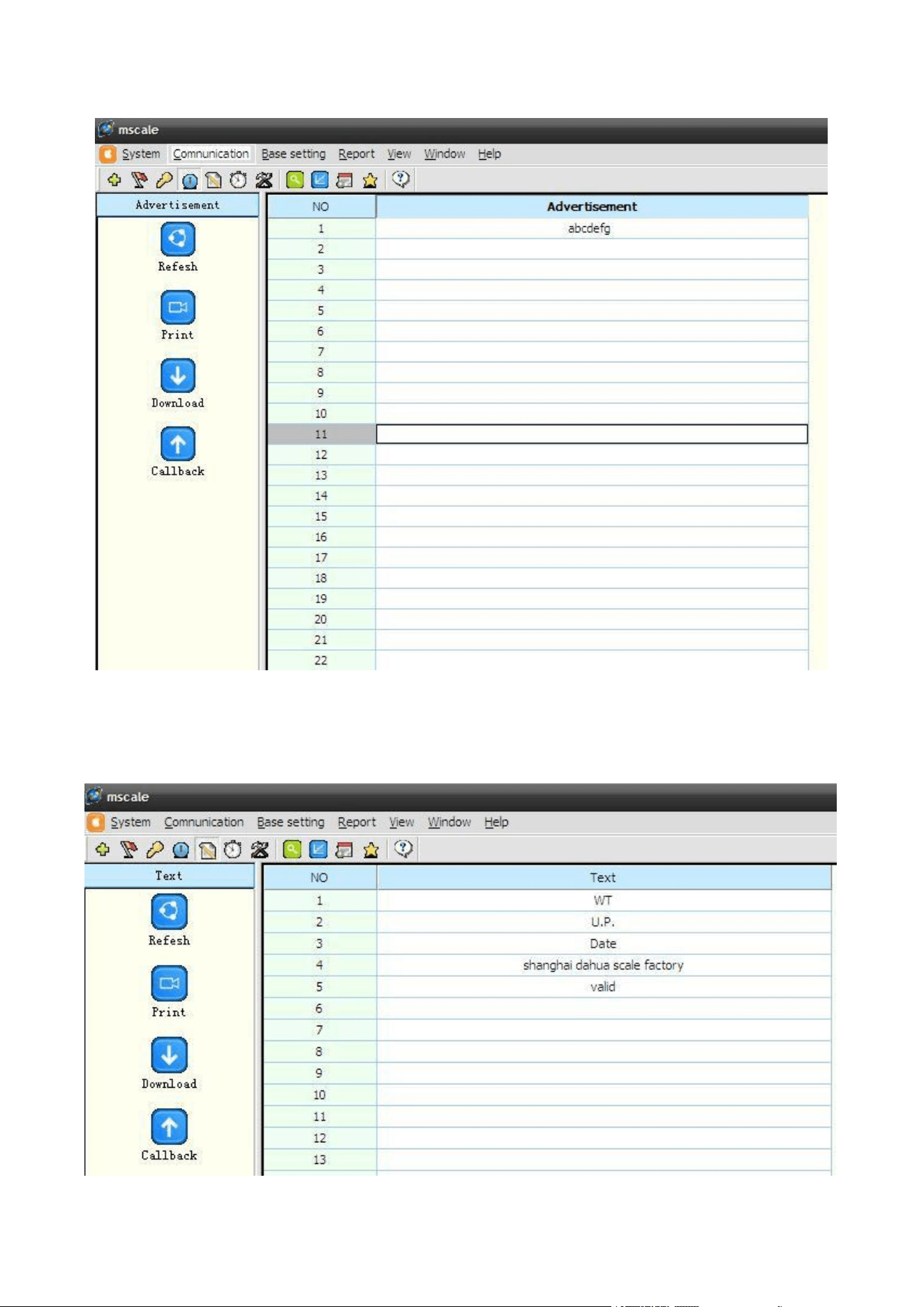
hotkey main include download, callback,keyboard set Choose base setting hotkey, like picture 2.19
set pannel NO. and PLU NO. and merchandise name ,download and callback is the same merchandise
Picture 2.19
c.Advertisement
Choose base setting advertisement, like picture 2.20, on the“advertisement” column edit the
- 15 -
advertisement and download or callback
Same as Label Setting, If want modify current scale, callback the current settings then start modify. Click
Download button to return back (save) to the scale
Picture 2.20
d.Text
Choose base setting text, like picture 2.21, on the “text” column edit the text and download or callback
Picture 2.21
- 16 -
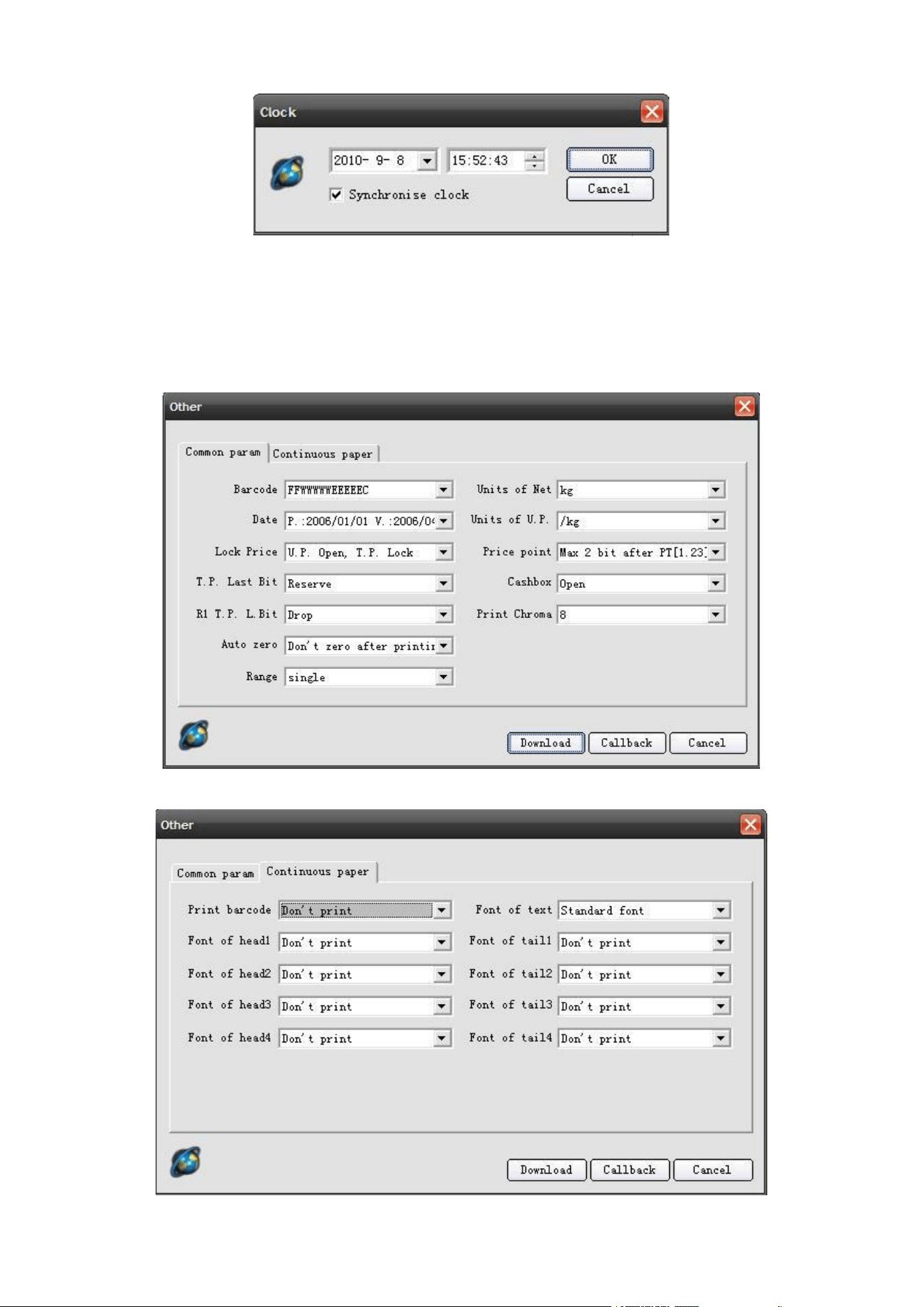
e.Clock
Choose base setting clock, like picture 2.22 Set scale Time to be same as computer
Picture 2.22
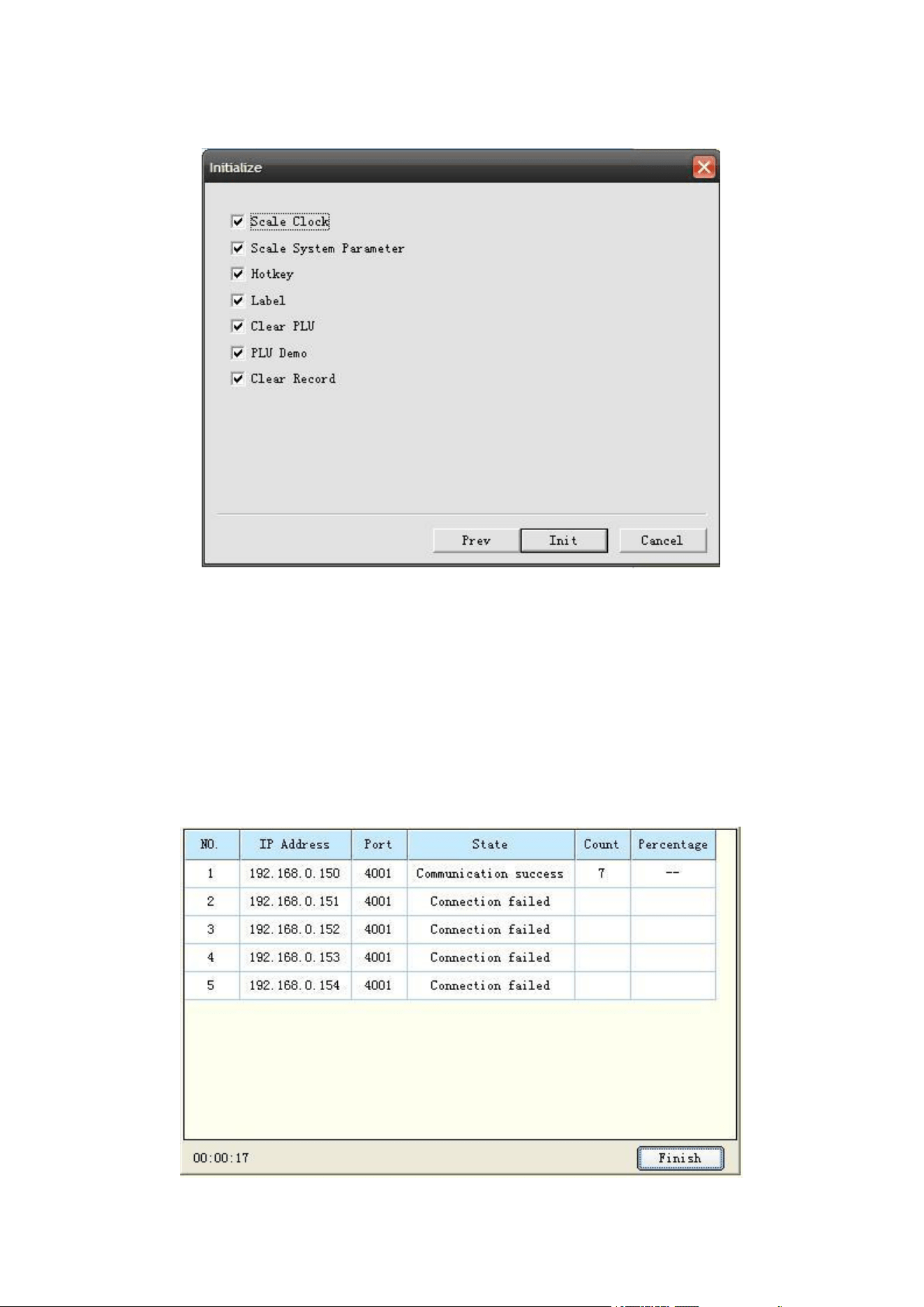
f.Other
Choose base setting other, like picture 2.23
Other main include common parameter and contimuous paper setting.
Same as Label Setting, If want modify current scale, callback the current settings then start modify. Click
Download button to return back(save) to the scale.
Picture 2.23
Picture 2.24
- 17 -
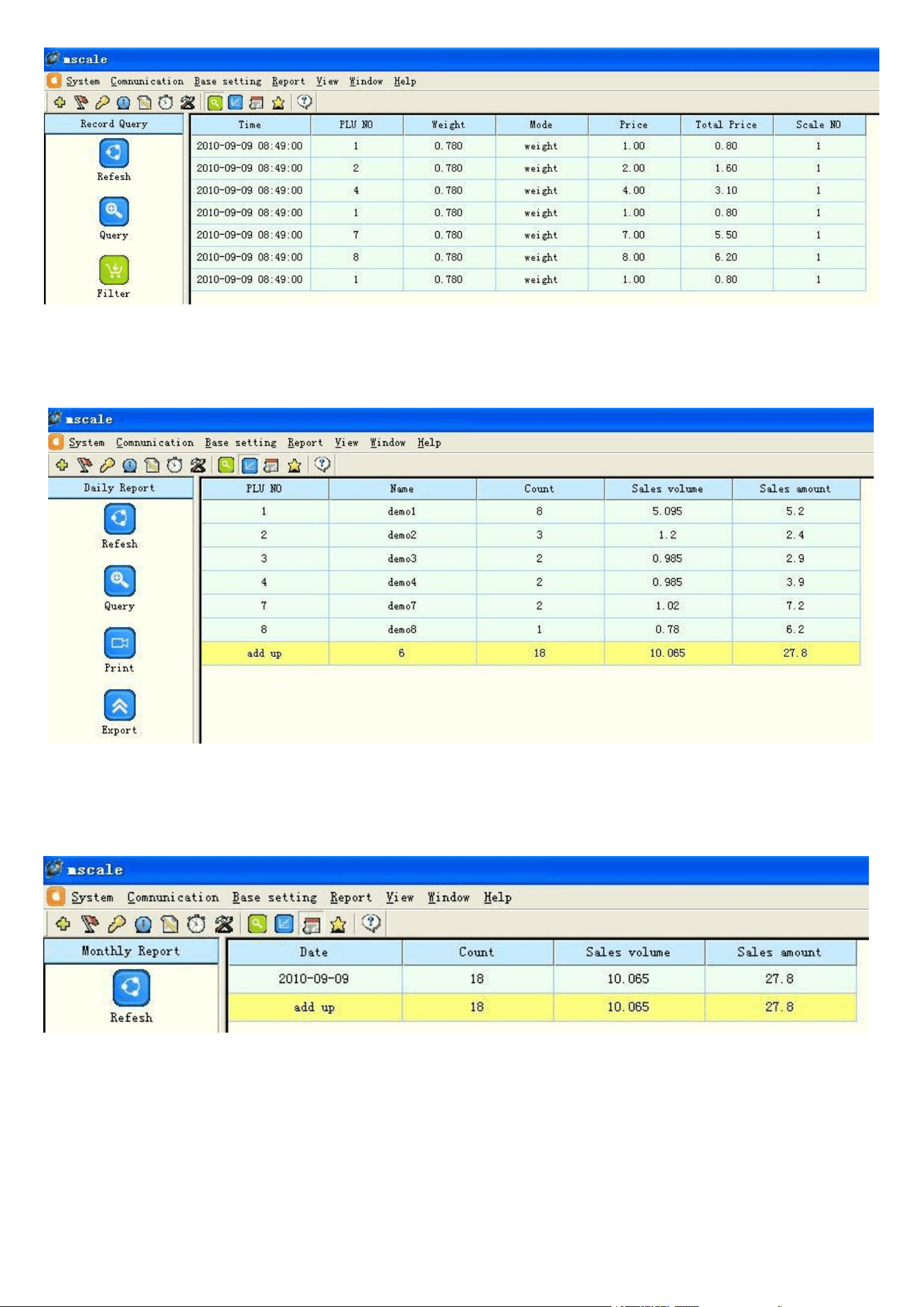
g.Initial
Initialization (picture 2.25), main function: Clear sales data; Clear PLU database in the scale; Initialize
system parameter. This function is usually used in the factory. If must use it, suggest callback the PLU
and sales data, to avoid lose the data in the scale.
Picture 2.25
3.Report
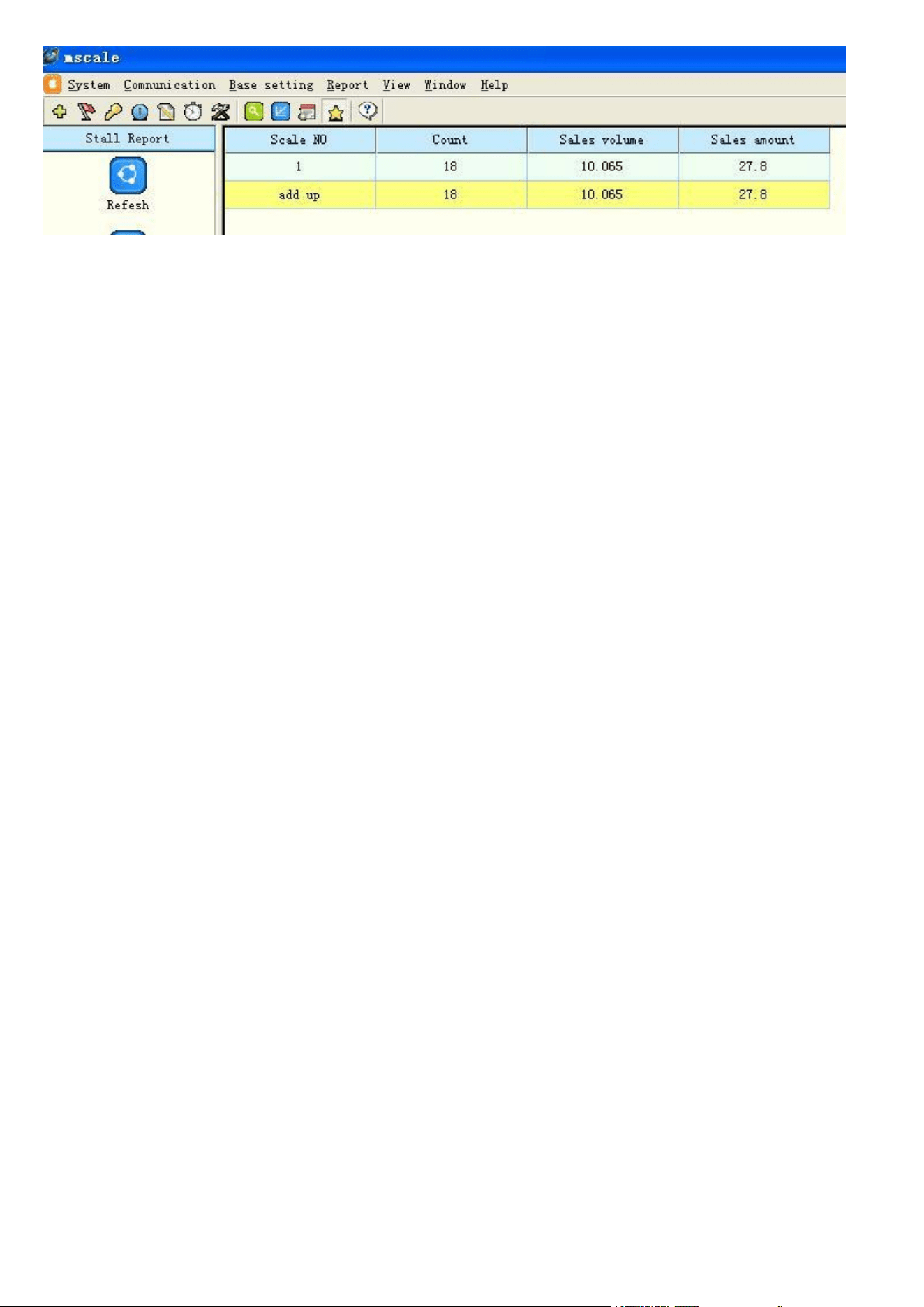
Report main include record query, daily report,monthly report.
3.1Record query
Choose report record query callback,like picture3.1,click finish, like picture 3.2 detail sales report.
Picture3.1 record callback
Picture 3.1
- 18 -
Picture3.2 sale record
3.2Daily report
Choose report daily report callback,like picture3.3
Picture 3.3 daily report
3.3Monthly report
Choose report monthly report callback,like picture3.4
Picture3.4 monthly report
3.4Stall report
Choose report stall report callback,like picture3.5
- 19 -
Picture 3.5 stall report
- 20 -