Color Codes
The lamp lets you know what it is doing by showing you any of the following
colors:
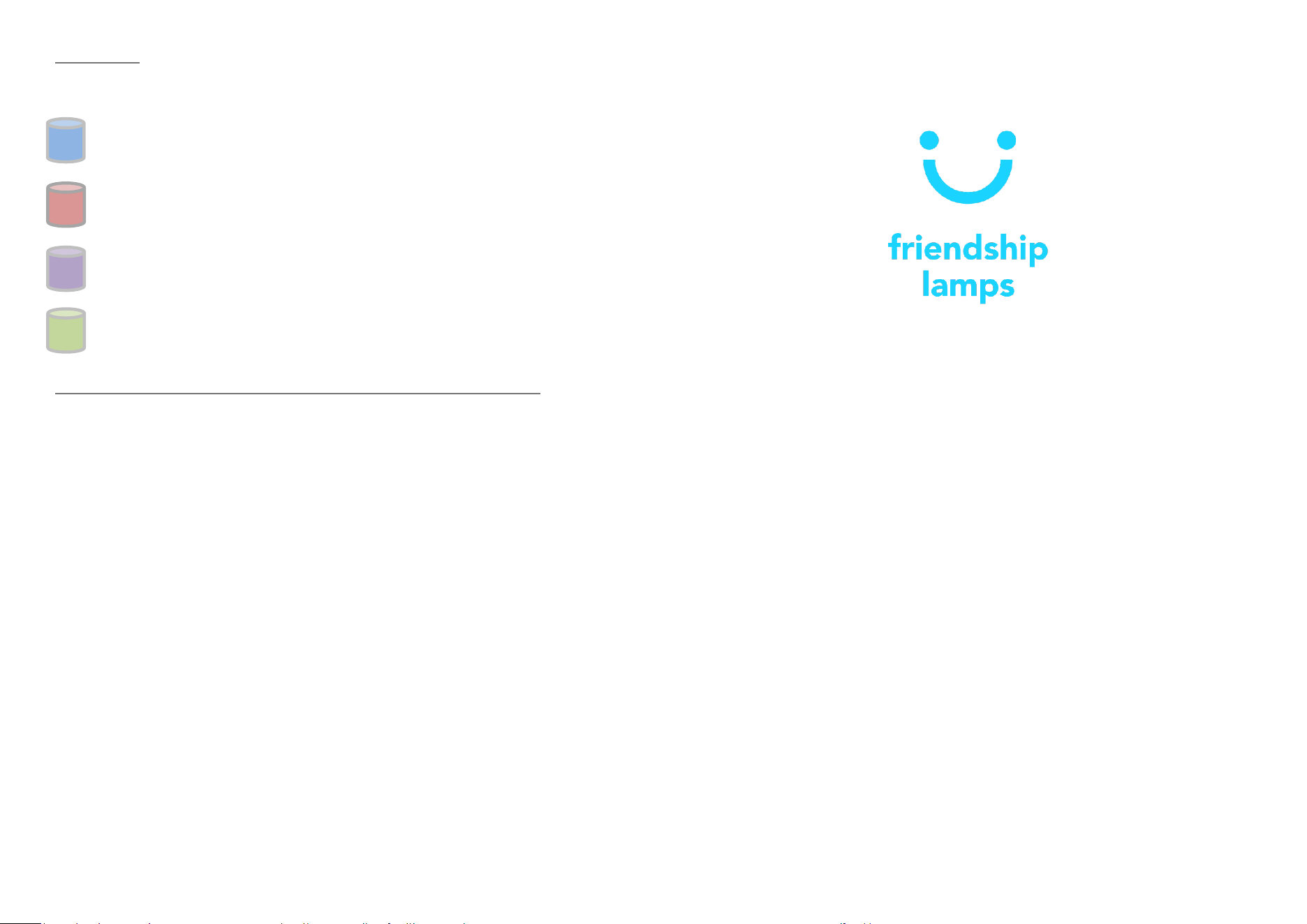
Dim blue – I am turning on and connecting
Dim red – I am unable to connect to Wi-Fi and I would like to be set up
Dim purple – I am downloading and installing an update, just wait until I
am swirling green and ready to go!
Swirling green – I am connected and ready to go!
Connecting to a Public Wi-Fi Network (e.g. college, shared Wi-Fi etc.)
For some public Wi-Fi networks, it may take a little bit of extra work to connect
your Friendship Lamp due to additional security. The lamp may need to be
registered with the Wi-Fi administrators. You can do this by supplying the
administrators with the lamp's Mac ID. They will then add the lamp to an
'allowed list' so the lamp can connect.
Please contact your Wi-Fi administrators and they can advise you further. Your
Mac ID is printed on the bottom of your lamp.
If you have any questions or need any additional help, please do not hesitate
to contact us at:
sales@friendlamps.com
We will be more than happy to help you with any questions you may have!
Manual
Thank you for buying your own Friendship Lamp!
This manual includes instructions and help to get you up and running as soon
as possible.
For online instructions and an easy to follow set-up video, please see the
following web page:
https://www.friendlamps.com/setup-guide/
Set-up instructions
Get ready!
Please make sure you have your GroupID handy. You
can generate one here: friendlamps.com/groupid
The same GroupID must be used for all the lamps on
your network. Please do not set up the lamps
without a GroupID.
Turn it on!
Connect the lamp to a USB charger or laptop with
the provided USB cable. The lamp will turn blue, and
then after a few seconds it will turn red.
Find the Friendship Lamp Wi-Fi
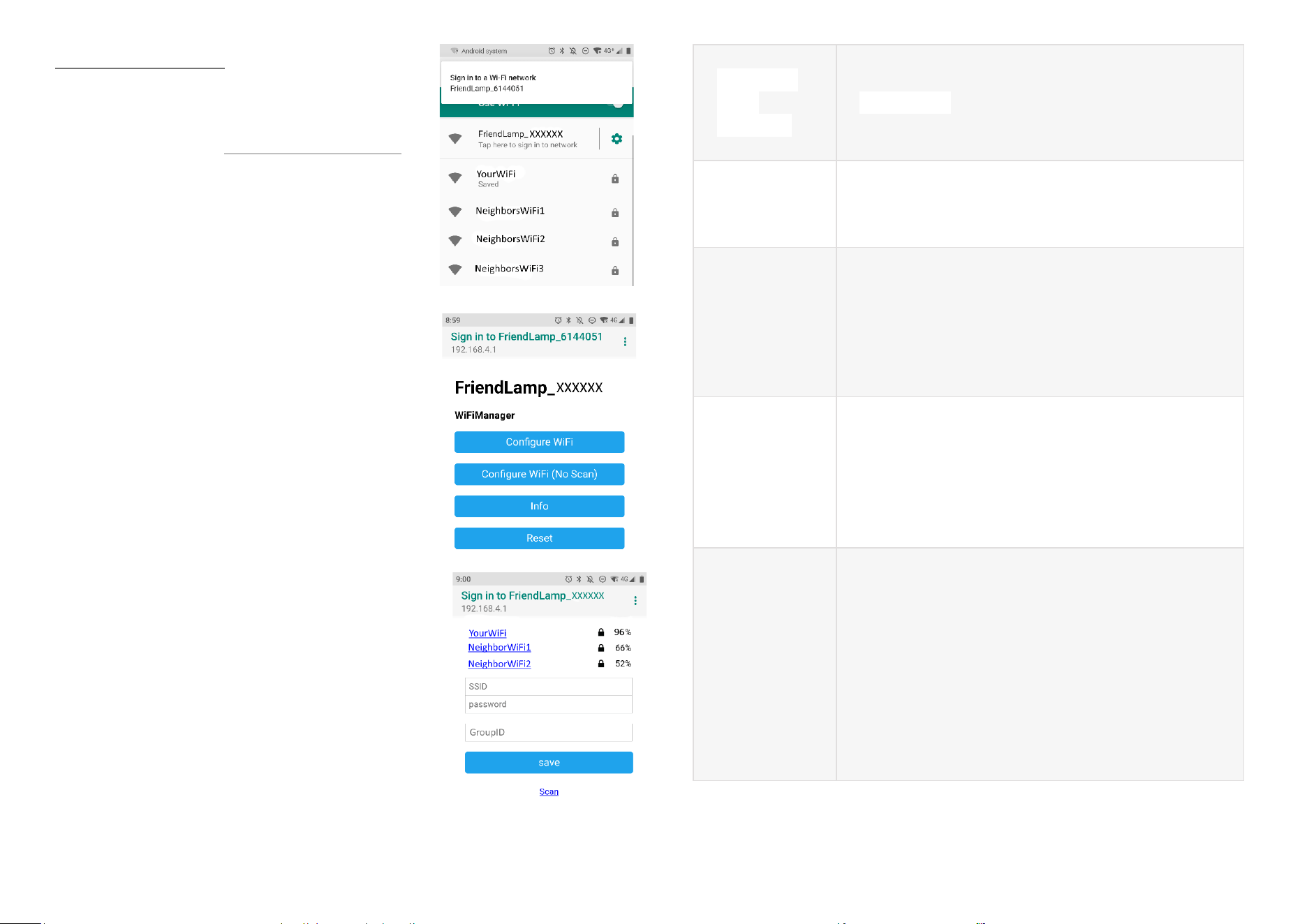
When lamp is red, connect to the new Wi-Fi network
named “FriendLamp_xxxxx” with a computer or
mobile phone. You will temporarily be disconnected
from your home Wi-Fi.
Select “Configure Wi-Fi”
Once connected to the Wi-Fi, there will be a popup
asking you to sign into the Wi-Fi. Press the popup and
it will take you to the sign in page.
If there is no popup, please open a web browser on
the connected device and enter the following into the
address field “192.168.4.1”, this will take you to the
same page.
Connect the lamp to your home Wi-Fi
If your network does not appear, please press the scan
link at the bottom of the page.
Select your Wi-Fi network and enter your Wi-Fi
password and your GroupID.
Friendship
Lamp
Functions
Explanation
Contact
other lamps
With a single touch you can contact all the other
lamps on your GroupID. It will pulse for about 30
seconds then slowly dim over time.
Change
color
When you hold your finger on the touch button,
the lamp will turn on, then off, then start cycling
through the available colors. Just hold down until
you see the color you want and then let go. The
lamp will swirl the new color then turn off. Tap
again to send the color.
Turn lamp
off
If for any reason you would like to stop the lamp
shining, you can simply hold down the button for
three seconds, releasing when the lamp is off. If
your friend touches their Friendship Lamp your
lamp will turn on again, so you do not have to
worry about missing a message.
Change
GroupID
or
Wi-Fi
settings
Although you will most likely not need to do this,
you can re-enter the Wi-Fi configuration mode
by holding down on the button for about 30
seconds. You will notice the lamp cycles through all
the colors several times, but eventually it will settle
on dim red. At this point you can connect to the
Friendship Lamp’s Wi-Fi and change the Wi-Fi
settings or the GroupID. This may be useful if you
want to make sure the lamps are on the same
network if they are not working properly.
