
Quick Start Guide
Setting Up the App
1.
Download the SwiftFinder app from the Apple
App Store or the Google Play Store
2. Make sure your Bluetooth on the phone is on
3. Open the SwiftFinder app
4. Follow the prompts to allow SwiftFinder access
to Bluetooth and
Location Service so you can
see your things on a map
Attaching Your Smart Tags to Things
It can be anything that you want to track, like keys, bags, purses, etc.
Linking Your Smart Tags to the App
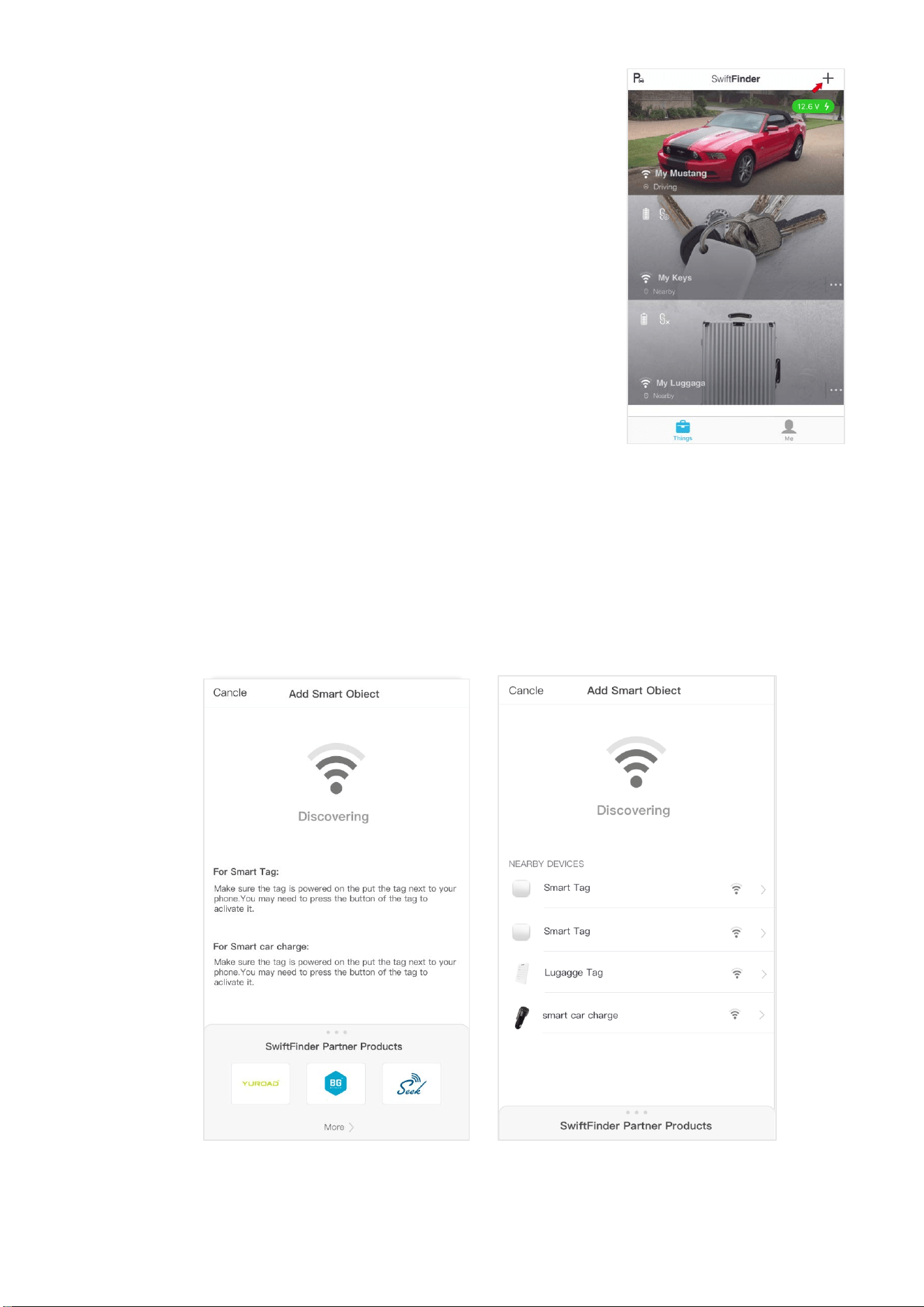
1. Press the button on the tag to wake it up
2. Tap the + button on the Things tab of the app
3. Wait for the app to discover and connect the smart tag

4. Tap the save button on upper right corner
of the app
5. Optionally you can take a picture of the
thing that the smart tag is attached to
and name it
6. Be happy because now you can always find
your stuff!
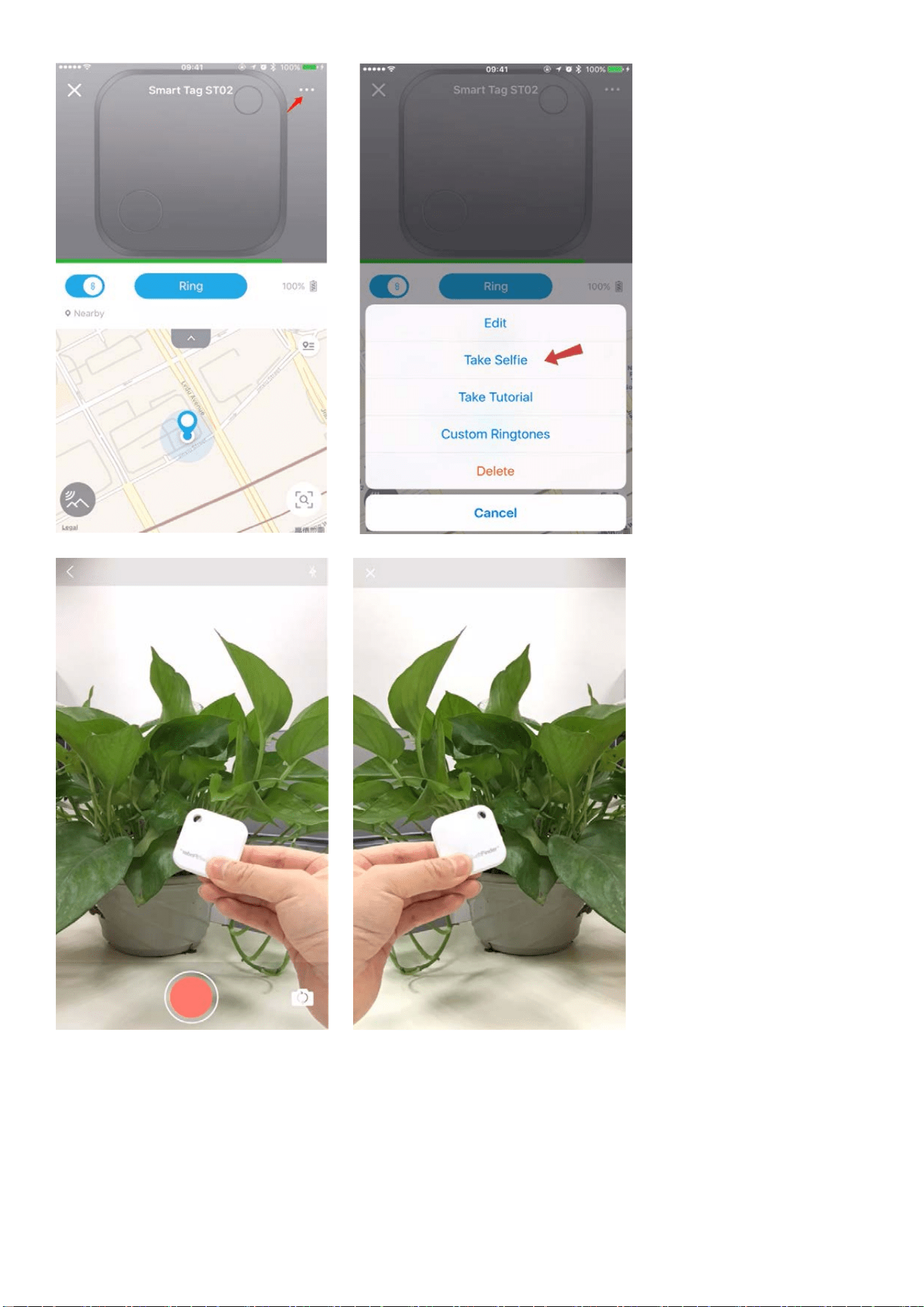
Selfie Remote
Use SwiftFinder Smart Tag as a remote control and take the perfect photo
Custom Ringtones
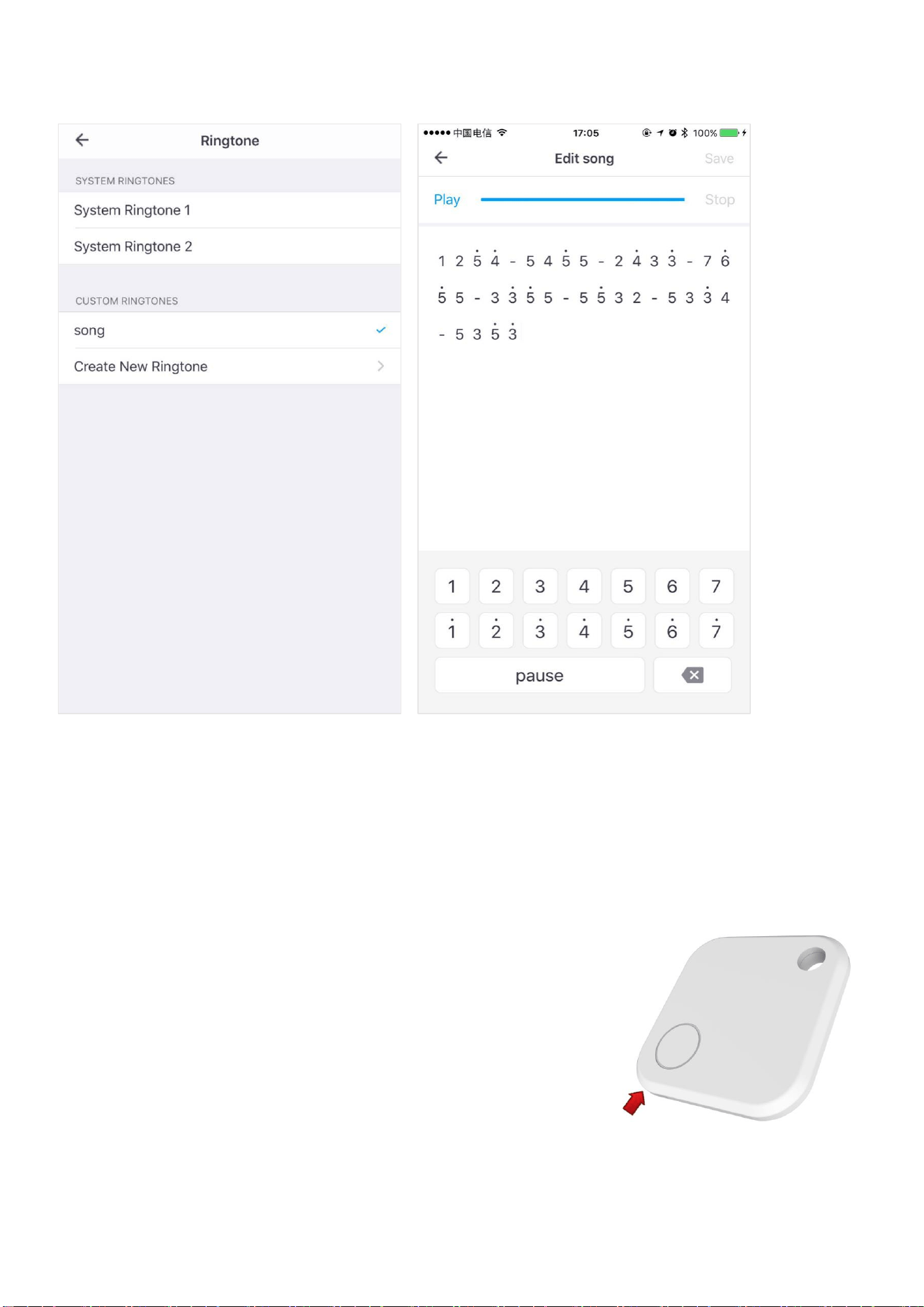
Create your own ringtones to meet your taste
Replacing Battery
The pre-inserted CR2032 button cell battery is user replaceable. In case
your smart tag runs out of power, please follow the following instructions to
replace the battery.
1. Open the case from the corner as shown in
the image illustrated
2. Remove old battery and insert new battery
with + sign facing up
3. Close the case

Support
For technical support, advanced features, and usage tips, please send
email to: cs@swiftfinder.net
This device complies with part 15 of the FCC Rules. Operation is
subject to the following two conditions: (1) this device may not cause
harmful interference, and (2) this device must accept any interference
received, including interference that may cause undesired operation.
Any changes or modifications not expressly approved by the party
responsible for compliance could void the user's authority to operate the
equipment.
NOTE: This equipment has been tested and found to comply with the
limits for a Class B digital device, pursuant to Part 15 of the FCC Rules.
These limits are designed to provide reasonable protection against
harmful interference in a residential installation. This equipment
generates, uses and can radiate radio frequency energy and, if not
installed and used in accordance with the instructions, may cause harmful
interference to radio communications. However, there is no guarantee
that interference will not occur in a particular installation.
If this equipment does cause harmful interference to radio or television
reception, which can be determined by turning the equipment off and on,
the user is encouraged to try to correct the interference by one or more of
the following measures:

-- Reorient or relocate the receiving antenna.
-- Increase the separation between the equipment and receiver.
-- Connect the equipment into an outlet on a circuit different
from that to which the receiver is connected.
-- Consult the dealer or an experienced radio/TV technician for help.
The device has been evaluated to meet general RF exposure requirem
ent. The device can be used in portable exposure condition without
restriction.
FCC ID: 2AMMQ-ST02