Free Warrany Extended
THANK YOU!
Quad Displays Configuration
USB-C DP Alt Mode (DP1.4)
UDS C Docking Station 4 HDMI
Quick Start Guide
Step 1: Before connect the dock, please install the DisplayLink driver by
visting: https://www.synaptics.com/products/displaylink-graphics
You also can scan the right QR code and send it to laptop.
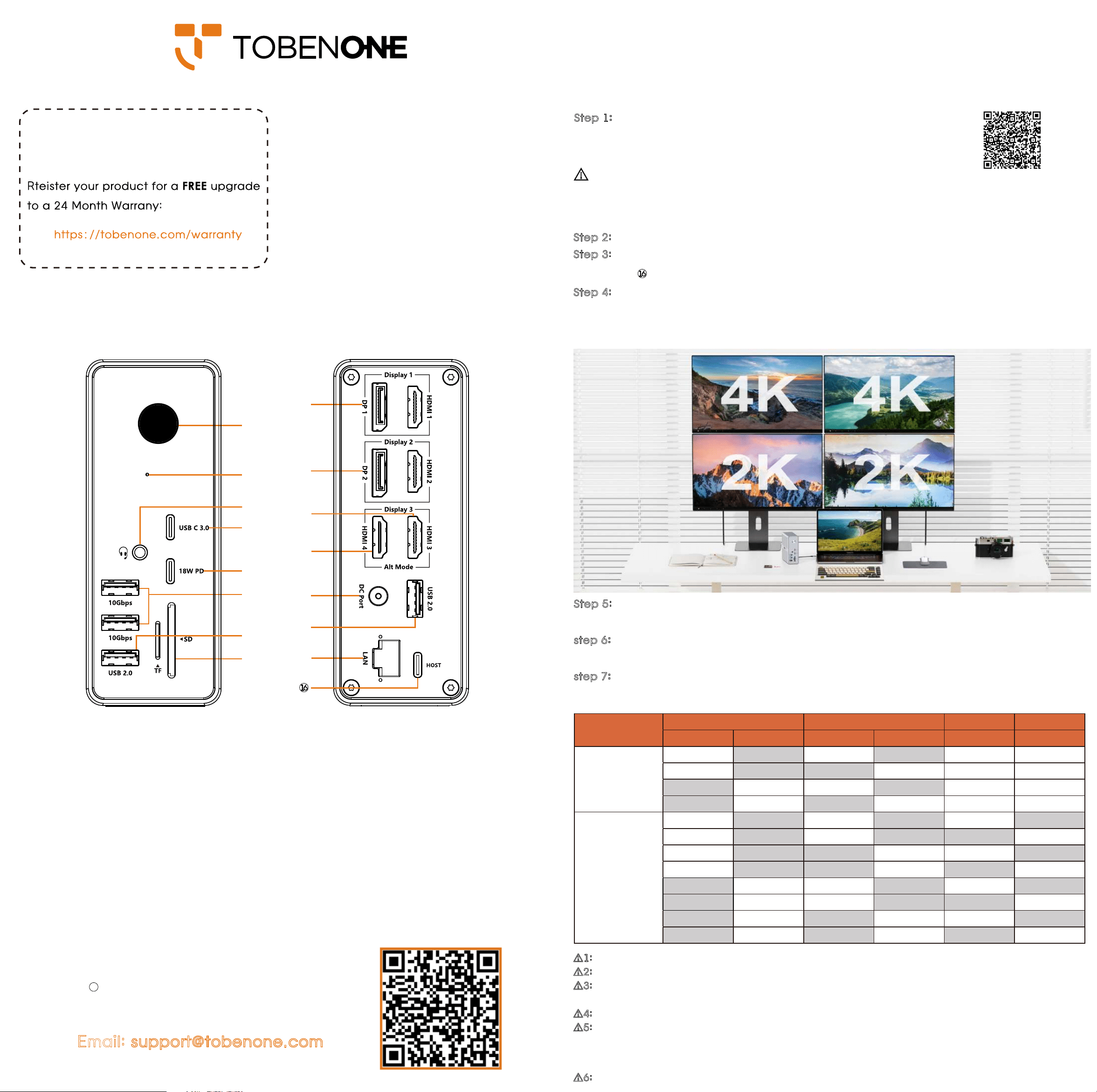
Ports and connectors
The only question we can’t fix is the one we don’t know
Email: [email protected]
Any questions, we are here to help!
Thank you for purchasing TobenONE DisplayLink
Docking Station UDS033B! Our dock provides the
ability to connect up to quad monitors for Windows
laptop/triple monitors for macOS, 6 USB peripherals,
SD/TF, Gigabit Ethernet, and 3.5mm audio devices
to your laptop via one single USB C cable.
For macOS, after installing the DisplayLink driver, need to open Security&Privacy--Screen Recording--Allow
DisplayLink manager to join. This dock uses screen recording to display the screen. Since the screen is record-
ing, cannot watch any HDCP content from Netflix/Prime/iTunes/Hulu/etc. If you watch Non-HDCP content, the
dock will allow you to watch Youtube/Netflix/Prime/iTunes/Hulu/etc
Step 2: Connect the 120W power adapter to the dock's DC port (⑬)
Step 3:
Use the USB C cable coming with the dock to connect the dock and laptop via
HOST port ( )
Step 4:
Connect display 1 via HDM 1 or DP 1 port(⑨),connect display 2 via HDMI 2 or DP 2
port (⑩), connect display 3/4 via HDMI 3 and HDMI 4 port(⑪,⑫)
Step 5:
Attach USB-C devices to the USB-C ports(④,⑤).And attach USB devices(USB driver,
keyboard, mouse, printer, etc.) to the USB ports(⑥,⑦,⑭)
step 6:
Connect the speaker, headphones, or microphone to the audio port(③). And con-
nect the ethernet cable to the ethernet port(⑮).
step 7:
Turn on the power button(①)
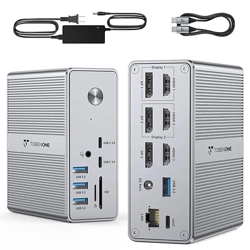
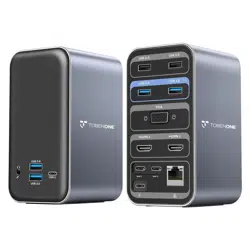
① Power Button: Control dock power on/off
② Green Power LED
③ 3.5mm Audio: Support mic&audio-out
④ USB C 3.0: Speed up to 5Gbps
⑤ USB C 3.0: Speed up to 5Gbps, also support 18W PD output
⑥ USB A 3.2*2: Speed up to 10Gbps
⑦ USB A 2.0: For wirless devices
⑧ SD/MicroSD 3.0 Slot: Support SD&TF work simultaneously
⑨ Display 1: HDMI 1 or DP 1, resolution up to 2K@60Hz(driver-based)
⑩ Display 2: HDMI 2 or DP 2, resolution up to 2K@60Hz(driver-based)
⑪ HDMI 3: resolution up to 4K@60Hz(Plug-and-Play)
⑫ HDMI 4: resolution up to 4K@60Hz(Plug-and-Play)
⑬ DC Port: Connect the included power adapter, support 100W output
⑭ USB A 2.0: For wirless devices
⑮ LAN Port: Speed up to 1000Mbps
HOST Port: Connect to the laptop
②
④
⑤
⑪
⑥
③
⑦
⑧
⑨
⑩
⑫
⑬
⑭
⑮
16
①
!
⚠1: HDMI 1 and DP 1 cannot be used at the same time
⚠2: HDMI 2 and DP 2 cannot be used at the same time
⚠3: Full-function Windows laptop can extend up to 4 displays, must confirm laptop's USB C port
support display. If laptop's USB C port don't support display, HDMI 3 and HDMI 4 cannot work
⚠4: MacBook only can extend up to 3 displays, HDMI 3 and HDMI 4 cannot work simultaneously
⚠5: All video ports support landscape mode. The driver-based video ports are not able to
change the monitor orientation from landscape to portrait. That's means you only can use the
plug-and-play video ports(HDMI 3 and HDMI 4) to change the monitor orientation from landscape
to portrait
⚠6: Must update your DisplayLink driver after you update the laptop system
Item
Display 1 Display 2 Display 3 Display 4
HDMI 1 DP 1 HDMI 2 DP 2 HDMI 3 HDMI 4
Quad Display for
Windows
2K/60Hz 2K/60Hz 4K/60Hz 4K/60Hz
2K/60Hz 2K/60Hz 4K/60Hz 4K/60Hz
2K/60Hz 2K/60Hz 4K/60Hz 4K/60Hz
2K/60Hz 2K/60Hz 4K/60Hz 4K/60Hz
Triple Display for
MacBook
2K/60Hz 2K/60Hz 4K/60Hz
2K/60Hz 2K/60Hz 4K/60Hz
2K/60Hz 2K/60Hz 4K/60Hz
2K/60Hz 2K/60Hz 4K/60Hz
2K/60Hz 2K/60Hz 4K/60Hz
2K/60Hz 2K/60Hz 4K/60Hz
2K/60Hz 2K/60Hz 4K/60Hz
2K/60Hz 2K/60Hz 4K/60Hz