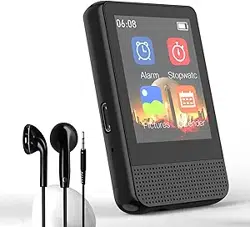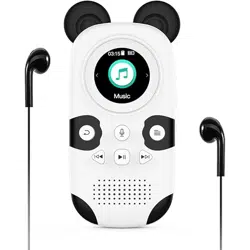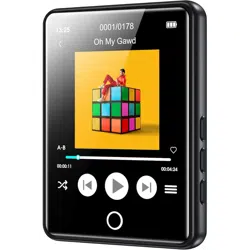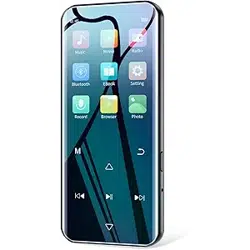

X20 Digital MP3 Player
USER MANUAL
Ver 1.0

1
Warning
★ Please avoid children playing it alone,prevent this device from falling,friction or crashing
against hard objects during use,otherwise surface scratch,data loss or other hardware
damages will be caused.
★ It is not recommended to use the earphones continuously at high volume.Please adjust the
volume to a suitable volume and control the use time to avoid hearing loss.Because if the
volume is too high when using headphone,it may cause permanent hearing loss.
★ Please do not try to disassemble or modify this machine, it may cause electric shock or
hinder product warranty.
★ Do not use chemical reagents or cleaning agents to clean the machine, as this will damage
the surface of the machine and corrode the spray paint.
★ It is recommended not to use earphones when driving or riding a bicycle. Please ensure
driving safety.
★ When this machine is used as a mobile hard disk, please store the exported files according
to the correct file management operation method. The company is not responsible for any
file loss caused by any operation.
★ It is recommended to back up the personal data stored in this machine in time.
★ It is forbidden for this product to use overload power, bend forcefully or squeeze the
power cord with heavy objects, so as to avoid heat generation and fire.
★ Do not expose the device to humid environment or rain. If the equipment enters water or

2
gets damp, it may cause the equipment to malfunction or even become impossible to
repair.
★ Do not plug or unplug the power supply with wet hands to prevent electric shock.
Specifications
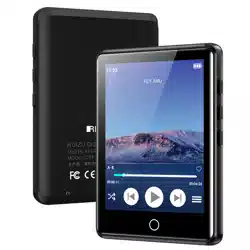
Touch screen: 4-inch touch screen, 16:9, 16 million colors.
Video format: HD Play, 1080P high-definition decoding.
Music format: Multi-format audio support, synchronized lyrics display, multiple sound
effects modes highlight perfect sound quality。
Picture browsing: support for pictures in multiple formats and slide show.
E-books: support breakpoint resume, bookmarks, TTS automatic audio reading.
FM radio: Support FM radio, listen to the latest news, information, and new songs on the
charts for the first time.
There are also small functions such as Calendar, Calculator, English-Chinese dictionary,
Recording, Stopwatch, etc.
3
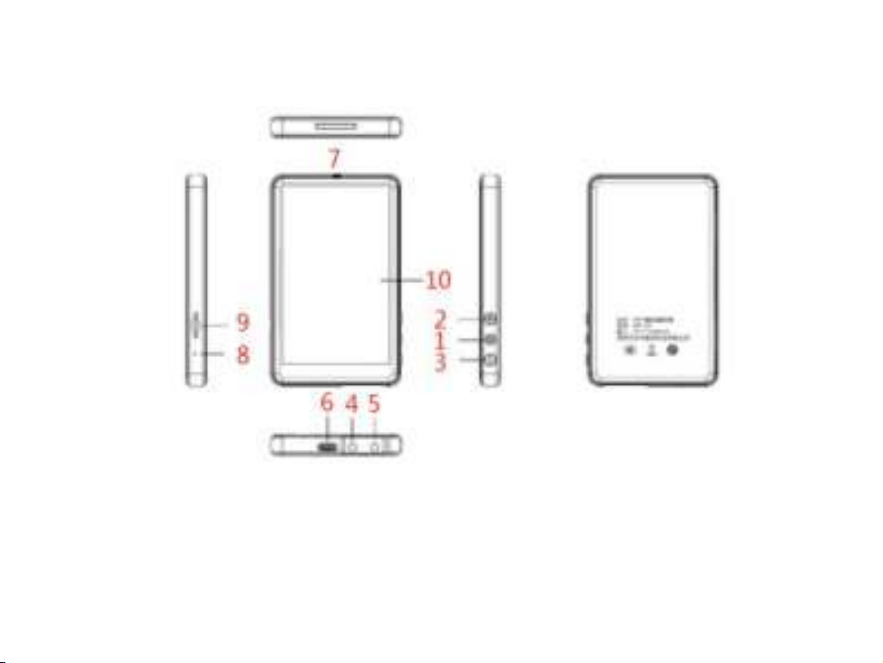
Appearance and key description
1.Power Button; 2.Volume + 3.Volume - 4. Headphone Jack 5. Headphone Jack
6.USB Port 7. Speaker 8.Microphone Hole/Reset Button 9.TF Slot 10. Screen

4
Basic Operation
First Quick Start
1. Power on
:
In the shutdown state,Press power button and hold it for 3 seconds,then device
turns on
2. Power off:In the boot state,Press power button and hold it for 3 seconds,then device turns
off
3. Home Menu
:
a.Information Area:Enter the specific function menu, the top bar of the interface is the
status bar, displaying information: time, battery power display.
b.Function icons: In the main interface, there are twelve icons. You can directly click on
the icons to enter various functions or set the machine.
4. Volume adjustment: Button: Press
button to increase volume, long press to increase
to the maximum. Press button to reduce volume, long press to reduce to the minimum.
5. Return function: click "
" in the upper right corner to return to the previous menu.
Second Charging Operation and Battery Management

5
1. This device supports USB charging. Just connect your computer via USB cable
2
.
When the battery symbol stops flashing it means charging completed.
[Note]
①
The new battery needs to go through several charging and discharging processes to
achieve the best performance.
②
If you do not use the machine for a long time, please charge and discharge it at least once
within a month to prevent damage to the battery due to excessive consumption.
③
Battery damage caused by excessive consumption of polymer batteries is not covered by
the warranty. If you use a charger that is not dedicated to this machine to charge the machine
and cause problems with the machine, it is not covered by the warranty.
Third Use Expansion Cards
This machine is equipped with a TF card expansion card slot, which can put videos, pictures,
e-books, etc. into the memory card. When using, you need to insert the card correctly
according to the position of the card slot, and push the card in until you hear a click. When
removing the memory card, push the memory card into the slot and then release it. The
memory card will be ejected automatically, and then remove the memory card.
[Note]

6
① Please insert the card into the card slot of the machine correctly.
② Please keep the device been power off when inserting or removing the memory card.
③When operating the memory card (such as reading, copying, etc.), do not pull out the
memory card, otherwise data errors may occur.
④Avoid using and storing memory cards in high temperature and high humidity
environments.
⑤Keep the memory card away from liquid and corrosive materials.
Fourth Attached Accessories
MP3 Player…………………………………1
USB cable …………………………………1
User Manual………………-………………1
7
Function
1. Music
In the main interface, click the "MUSIC" icon to enter, a list of music files appears, click
the target file to enter the playback interface.
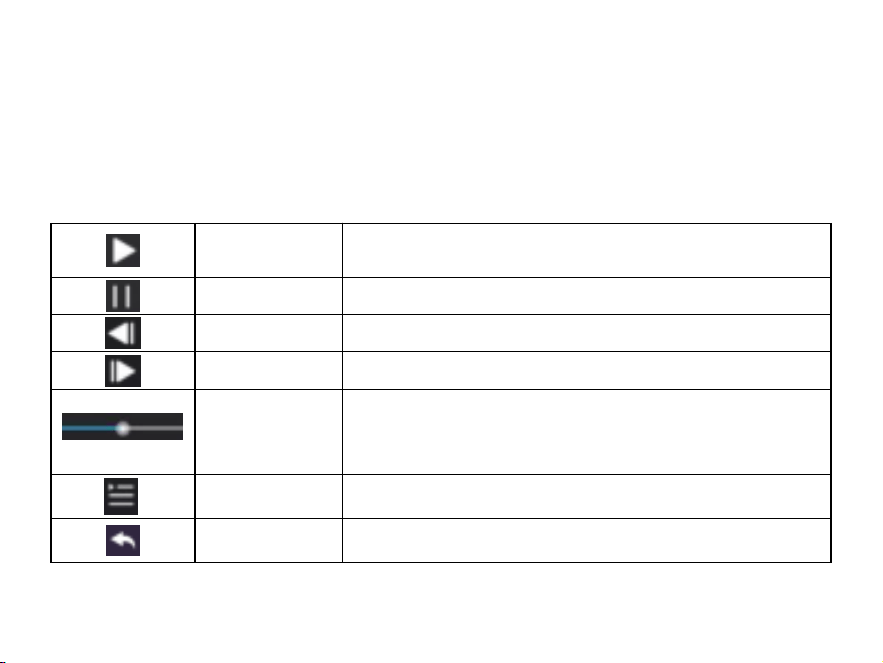
Function Icon Explanation:
Play
Indicates that the track starts to play when clicked
Pause
Indicates that the track is playing, click to start pause
Last Song
Click for go to the last song,long press for fast rewind
Next Song
Click for go to the next song,long press for fast forward
点
Progress Bar
Display the playback progress, click and drag the node in
the playback state to achieve fast forward and rewind
functions.
Sub menu
Click the pop-up toolbar to make various settings.
Return
Click to return to the previous interface
8
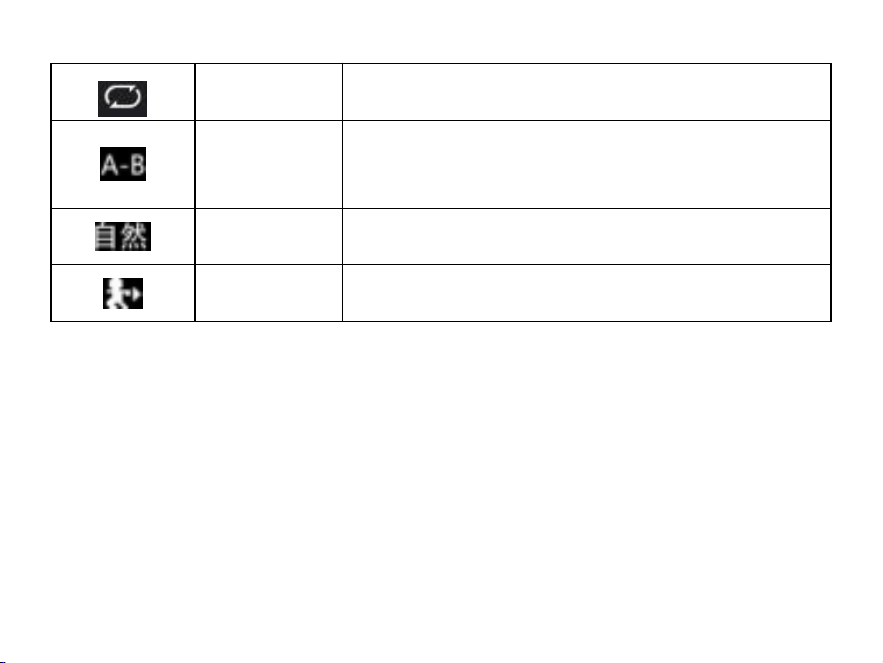
Play Mode
There are Single Play, Single Loop, All Loop, Sequential
Play, Random Play to choose
A-B Repeat
Click to select the starting point A, then click to confirm
the end point B, and finally click to play to repeat the
content
Sound mode
Natural Pop Classical Soft Jazz Rock Bass User EQ
Variable speed
playback
Slow 4 levels,Fast 4 levels.click to switch
Lyric synchronization: The format of the lyrics supported by this machine is LRC. The lyrics
file can be edited by Winamp and LRC software, or downloaded directly on the website,
which is simple and fast. If the lyrics have been downloaded for this song, the lyrics will be
displayed under the album cover in the music playback interface.
2. Video
In the main interface, click the "VIDEO" icon to enter, and click the target file to play .
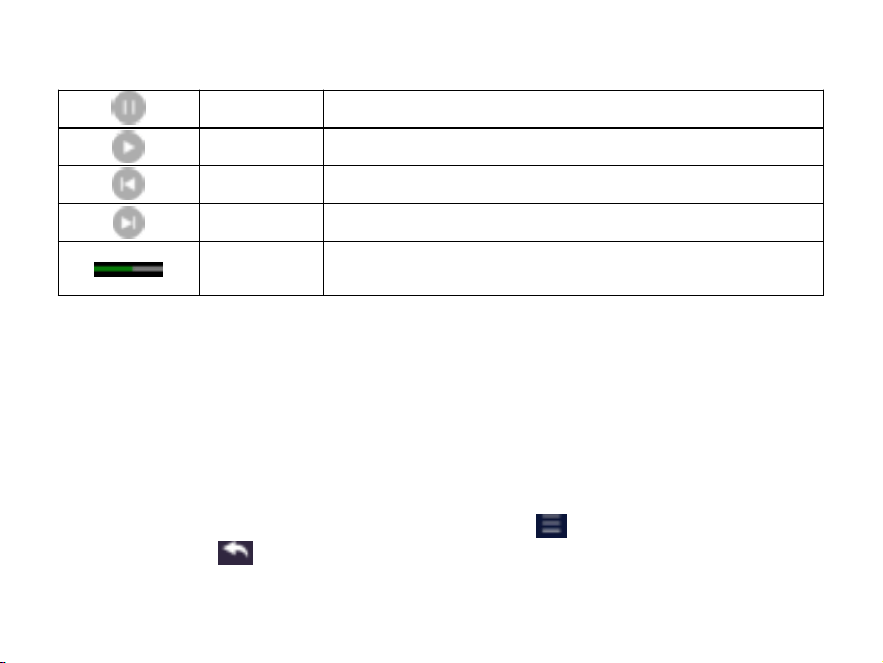
The definition of each icon is as follows:
9
Pause
The video is playing,Click to pause
Play
Indicates that the video is played when clicked
Last Video
Click for go to the last video,long press for fast rewind
Next Video
Click for go to the next song,long press for fast forward
Progress
Bar
Show playback progress,drag nodes in the playback state
to enter any position.
3. Photos
In the main interface, click the "PHOTO" icon to enter, a list of music files appears, click
the target file to open it.
Click to display the photo, and a toolbar will appear below, including the browse
playback status, file name, and total number of photo. Swipe up and down to display the top
and bottom images to turn pages.
Slide up, down, left and right to turn the page. Click "
" menu icon to enter the picture
Settings, and click" "on the upper right corner to return to the superior menu.
In-machine picture can be customized as desktop background picture
10
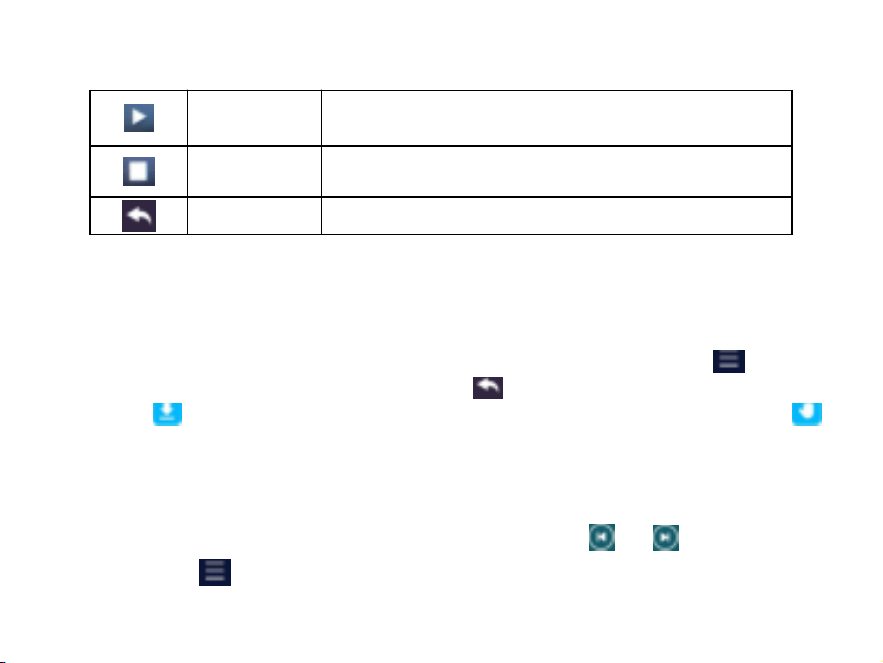
The definition of each icon is as follows:
Pause
browsing
This icon means to stop picture browsing
Auto
browsing
This icon means to start picture browsing
Return
Click to return to the previous interface
4. E-book
In the main interface, click the "e-Book" icon to enter, and click the target file to open
the file. Slide the screen up and down or click Volume +, - to turn the page up and down, click
the function page to appear on the screen for setting, and click the menu icon "
" to enter
the function Settings. Click the upper right corner " " to return to the superior menu.
The " " icon in the function bar below is for automatic page turning, and the"
"icon is for manual page turning.
5. FM Radio
In the main interface, click the "Radio" icon to enter.Click“
”“ ”for Manual FM
selection, Click
“
”
Menu icon,you can select Automatic Searching, Delete Channel, Station
11
List, FM sensitivity Setting, Station Frequency Band, Mute Function.
6. Recording
In the main interface, click the "Recording" icon to enter.
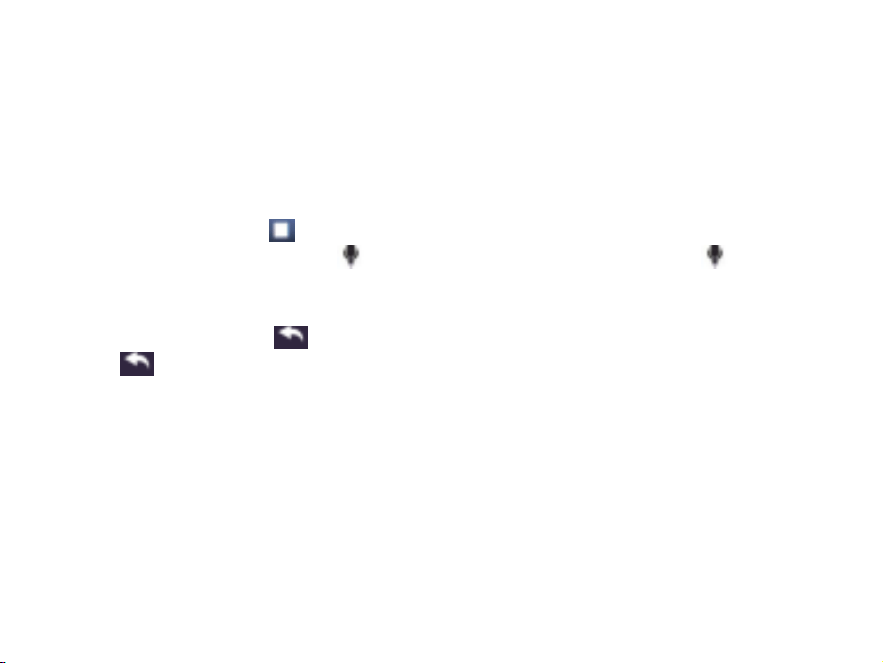
1. Start recording: Click "
" to record.
2. Pause/resume recording: click " " button to pause the recording, and click" "again to
continue recording.
3. Save the recording: click "√" to save the recording, and click X to cancel the recording.
4. When recording, click " " to return and confirm whether to save the recording, and then
click" " return to the main interface of recording .
【 Tip 】 The recording format is WAV and MP3.
7. Calendar
In the main interface, click the "Calendar" icon to enter. Click the corresponding number
of year, month and day will turn blue. Click the left and right direction icon to select the
months before and after. Click year, month and day, and then click the left and right ICONS to
query the calendar. Click + to add a memo. The modification date needs to be done within the
Settings.

12
8. English-Chinese Dictionary
In the main interface, click the " DICTIONARY" icon to enter. Directly input the English
words,then press the Enter key to confirm, and the corresponding Chinese translation will be
displayed; Click the small speaker icon at the top of the screen to read the pronunciation.
9. Browser.
In the main interface, click the "File" icon to enter, you can view the files in the machine
or TF card, click the target file to open the corresponding file, click the text, music, video,
pictures and other materials in the target file, you will enter the corresponding functional
interface of e-books, music, video, pictures and so on. Click the " " menu icon to enter the
file management Settings. The selected files can be "Move, copy, delete".
10. Calculator
In the main interface, select "Calculator" to enter. Built-in calculator function,
convenient and practical. You can directly click the screen to calculate.

13
11. Bluetooth
In the main interface, click the "Bluetooth" icon to enter. Click the right switch to turn
on Bluetooth mode;
Connect the speaker and headset: turn on the switch and click "Search Device" to enter the
search state. At this time, the white Bluetooth icon on the top menu flashes, and the available
devices searched will be displayed in the form of a list. Click the required device name to
make pairing, and the Bluetooth icon will light up after successful connection.
12. Settings
In the main interface, select "Settings" to enter.
a. Display Settings
:
Backlight brightness, when the value is 8, the brightness is maximum.
The backlight time is set according to the individual.
b. Power Saving:power saving time and sleep time.
c. Date and time: the device's date (year, month, day and time) can be adjusted.

14
d. Language support: multiple languages.
e. Advanced:1) Detailed information, showing the machine version, memory space, TF card
memory.
2) Format the built-in memory, you can format the storage memory of the
machine (please use with caution).
3) Card format, format TF card (please use with caution).
4) Restore factory settings, you can choose whether to restore the default
settings (please use with caution).
Communication Operation
1. Connect to the computer
⑴ Connect the player with your computer via USB cable, the player showed USB
15
connected.
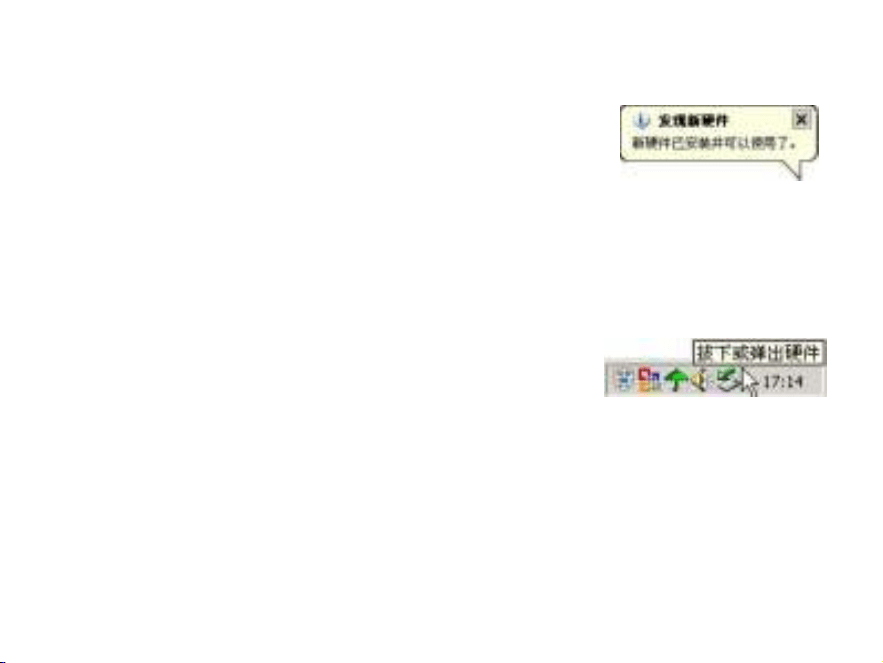
⑵ If it is the first time to use this machine, Windows will
display "Found New Hardware"
⑶
The icon of the new disk will appear in "My Computer"
。
2. Disconnect the computer
Please make sure that the communication operation with the computer has stopped
before unplugging the machine from the USB port of the computer,. The USB device must be
uninstalled normally, otherwise it may damage or lose data.
⑴
Double-click "Unplug or Eject Hardware" in the lower
right corner of the computer, as shown in the right picture:
⑵ Click "Stop" in the pop-up window.
⑶
Then click "OK" in the pop-up window to unplug the USB cable
。

16
Q&A:
Q: Why is the storage capacity displayed on the operating system inconsistent with the
nominal value?
A
:
As we all know, binary is used in computers, so that the calculation of capacity in the
operating system is based on every 1024 as a unitary, every 1024 bytes is 1KB, every 1024KB
is 1MB, and every 1024MB is 1GB; and the chip Storage vendors use the decimal system for
calculating capacity, that is, every 1000 is a single system, every 1000 bytes is 1KB, every
1000KB is 1MB, and every 1000MB is 1GB. The difference between the two systems causes
the flash disk and mobile hard disk capacity to be slightly different from the nominal capacity.
Take an example: the calculation method of chip storage manufacturer's capacity:
2G=2000MB=2000000KB.
Converted to the counting method in the operating system:
2000000KB/1024=1953.125MB,1953.125MB/1024=1.91G
In addition, the player's internal font and system files will use a small part of the memory,

17
so the memory capacity displayed in the operating system will be less than the nominal value,
which is in line with the relevant standards.
Q: What should I do if the product is abnormal?
A: (1) After restarting, whether it returns to normal.
(2) Charge the battery with the charger to activate the battery, and try to restart the
battery under the premise of ensuring a certain amount of power.
(3) It is recommended that you ask professionals to upgrade the system.
In order to prevent abnormal phenomena, on the one hand, please be careful not to
operate too fast, it is recommended to operate one by one; on the other hand, if the
battery power is low, please charge it in time.
Q: Why sometimes the standby time is too short?
A:The use time of polymer batteries will vary with the temperature environment and usage
conditions. If the ambient temperature is too high or too low, the battery life will be
affected. It is recommended to use this machine at room temperature! From the
perspective of usage, it is also affected by factors such as increasing the volume, turning
on sound field effects, and frequent operations, and the actual usage time will also vary

18
to a certain extent.
Q: How to solve the garbled folder?
A:It means that the file allocation table (FAT) of this machine has been damaged, which may
be caused by the machine shutting down when connected to the computer. You can
format the machine or ask professionals to upgrade.
Q: Why does it shut down suddenly sometimes?
A: (1) The shutdown time may be set in the "Scheduled shutdown" in the "Settings" option
of the main interface.
(2) Please check whether the battery is low and need to be charged at this time.
Q: When the machine’s memory is larger than 4G, why does it prompt that the disk capacity
is full when copying a single file larger than 4GB?
A: Because the format of the disk is FAT32, it will prompt that the disk capacity is full
when copying a single file larger than 4GB. So when copying files larger than 4GB, it
requires formatting the disk to EXFAT .
19
Q: Why is the battery can not be fully charged when watching the video while charging, or
the video cannot be played when charging?
A
:
The direct reason is that the power of the charger used by the user is too small, the output
current can not meet the current required for normal playback or can only meet the
requirements of video playback and cannot be charged at the same time. It is not a
quality problem of the product itself. It is recommended that MP4 users use at least a DC
5V-1000mA charger, and MP3 users use a DC 5V-500mA charger.
Specifications and Parameters
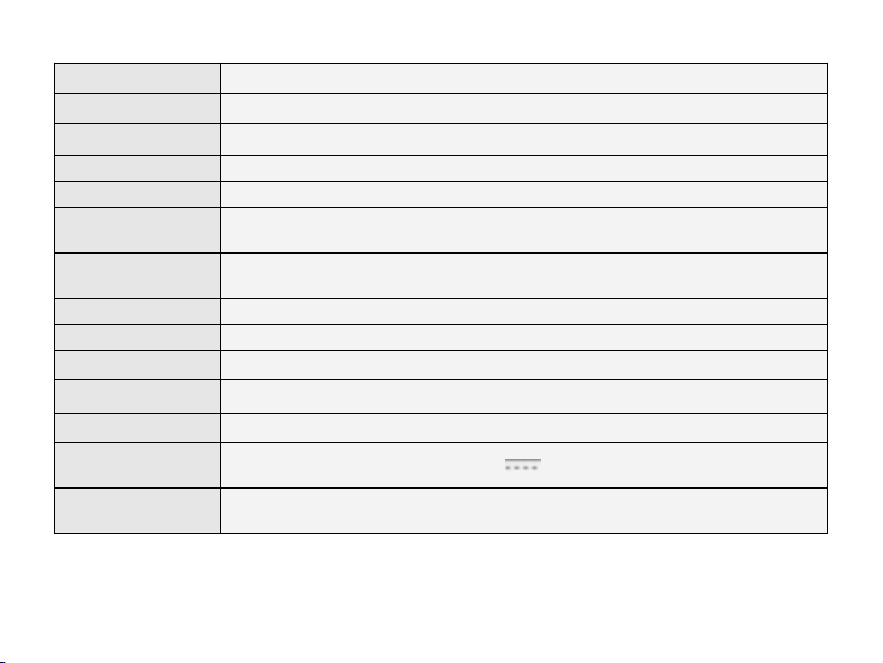
Size
106*64.0*10mm
Screen
4.0 inches screen
Storage
16G
20
Music Formats
MP3
、
OGG
、
FLAC
、
AAC
、
WAV
、
WMA
、
APE
Video Formats
RM、AVI、RMVB、FLV、MP4、DAT、MKV、MPG、MOV、TS
Photo Formats
JPG、BMP、GIF、PNG
Lyrics Formats
LRC
E-book Format
TXT
Recording
Format
WAV、MP3
Signal to noise
radio
≥85dB
Interface Type
USB2.0 high speed
External Card
TF Card
Menu Language
Simplified Chinese, Traditional Chinese, English, etc.
Adaptive System
windows 2000 and above
Battery
Built-in polymer battery
Charger
Specifications
5.0VDC 1000mA
Adaptive
Temperature
0 to 45 ℃