Operating and Installation
Instructions
Oven
To prevent accidents and machine damage, read these instructions
before installation or use.
en-US, CA M.-Nr. 11 900 010

Contents
2
IMPORTANT SAFETY INSTRUCTIONS ............................................................ 6
Overview............................................................................................................. 16
Control panel ..................................................................................................... 17
On/Off button ...................................................................................................... 18
Proximity sensor (MotionReact) .......................................................................... 18
Sensor buttons.................................................................................................... 19
Touch display ...................................................................................................... 20
Symbols............................................................................................................... 21
Using the appliance........................................................................................... 22
Selecting a menu option ..................................................................................... 22
Scrolling............................................................................................................... 22
Exiting a menu..................................................................................................... 22
Changing a value or setting................................................................................. 22
Changing a setting in a list ............................................................................. 22
Entering numbers with the roller .................................................................... 22
Entering numbers using the numerical keypad.............................................. 22
Changing the setting with a segment bar ...................................................... 22
Entering letters .................................................................................................... 23
Displaying the context menu............................................................................... 23
Moving entries..................................................................................................... 23
Displaying the pull-down menu........................................................................... 23
Displaying Help ................................................................................................... 23
Activating MobileStart ......................................................................................... 23
Features.............................................................................................................. 24
Data plate ............................................................................................................ 24
Scope of delivery................................................................................................. 24
Standard and optional accessories..................................................................... 24
Safety features .................................................................................................... 29
PerfectClean treated surfaces............................................................................. 29
Self-Clean-ready accessories ............................................................................. 29
Before first use .................................................................................................. 30
Miele@home ........................................................................................................ 30
Basic settings...................................................................................................... 31
Heating up the oven for the first time and rinsing the steam injection system ... 32

Contents
3
Settings .............................................................................................................. 34
Settings overview ................................................................................................ 34
Opening the “Settings” menu.............................................................................. 37
Language ......................................................................................................... 37
Time..................................................................................................................... 37
Date ..................................................................................................................... 38
Lighting................................................................................................................ 38
Start screen ......................................................................................................... 38
Display................................................................................................................. 39
Volume................................................................................................................. 39
Units .................................................................................................................... 40
Booster................................................................................................................ 40
Rapid cooling ...................................................................................................... 40
Keep warm .......................................................................................................... 41
Recommended temps......................................................................................... 41
Self Clean ............................................................................................................ 41
Cooling fan run-on .............................................................................................. 42
MotionReact (MotionReact) ................................................................................ 42
Safety .................................................................................................................. 43
Furniture front recognition ................................................................................... 43
Miele@home ........................................................................................................ 44
Remote Control ................................................................................................... 44
Activating MobileStart .................................................................................... 44
SuperVision ......................................................................................................... 45
Remote Update ................................................................................................... 46
Electrical version ................................................................................................. 46
Calibrate temperature.......................................................................................... 47
Software version.................................................................................................. 47
Legal information................................................................................................. 47
Showroom Program ............................................................................................ 47
Factory default..................................................................................................... 47
Alarm + Timer .................................................................................................... 48
Using the Alarmfunction..................................................................................... 48
Using the Timerfunction ..................................................................................... 49
Main and submenus .......................................................................................... 50
Energy-saving tips............................................................................................. 52

Contents
4
Operation............................................................................................................ 54
Changing values and settings for a cooking program......................................... 54
Changing the temperature and core temperature .......................................... 54
Setting additional durations ........................................................................... 55
Changing set durations .................................................................................. 55
Deleting the set cooking durations................................................................. 55
Canceling a cooking program ............................................................................. 56
Preheating the oven ............................................................................................ 56
Booster........................................................................................................... 57
Preheat ........................................................................................................... 57
Rapid cooling ...................................................................................................... 58
Keep warm .......................................................................................................... 59
Crisp function ...................................................................................................... 60
Changing the operating mode............................................................................. 60
Moisture Plus ..................................................................................................... 61
Starting a cooking program with Moisture Plus .................................................. 62
Evaporate residual moisture................................................................................ 65
Automatic Programs ......................................................................................... 67
Categories ........................................................................................................... 67
Using automatic programs .................................................................................. 67
Usage notes ........................................................................................................ 67
Search ................................................................................................................. 68
Special Modes ................................................................................................... 69
Defrost................................................................................................................. 70
Dehydrate ............................................................................................................ 71
Warm-up Cookware ............................................................................................ 72
Proof.................................................................................................................... 72
Keep warm .......................................................................................................... 72
Slow Roasting ..................................................................................................... 73
Sabbath Program ................................................................................................ 76
Canning ............................................................................................................... 77
Frozen food/ready meals ..................................................................................... 79
MyMiele .............................................................................................................. 80
Favorites............................................................................................................. 81
Baking................................................................................................................. 84
Tips for baking..................................................................................................... 84
Notes on the operating modes............................................................................ 85

Contents
5
Roasting ............................................................................................................. 86
Tips for roasting .................................................................................................. 86
Notes on the operating modes............................................................................ 87
Food Probe.......................................................................................................... 88
Broiling ............................................................................................................... 91
Tips for broiling.................................................................................................... 91
Notes on the operating modes............................................................................ 92
Cleaning and care of the oven ......................................................................... 93
Unsuitable cleaning agents ................................................................................. 93
Removing normal soiling..................................................................................... 94
Removing stubborn soiling.................................................................................. 95
Cleaning the oven compartment with Self Clean................................................ 95
Descale................................................................................................................ 99
Removing the door.............................................................................................. 103
Installing the door................................................................................................ 104
Removing the side runners with FlexiClip telescopic runners............................. 105
Lowering the browning/broiling element ............................................................. 106
Frequently Asked Questions ............................................................................ 107
Customer Service.............................................................................................. 112
Contact in the event of a fault ............................................................................. 112
Appliance warranty and product registration ...................................................... 112
Caring for the environment .............................................................................. 113
Installation.......................................................................................................... 114
Installation dimensions........................................................................................ 114
Installation in a tall or base cabinet................................................................ 114
Side view ........................................................................................................ 115
Connections and ventilation........................................................................... 116
Installing and removing the oven ........................................................................ 117
Taking the oven out of the housing unit ......................................................... 118
Electrical connection ........................................................................................... 119
Declaration of conformity................................................................................. 121
Copyrights and licenses ................................................................................... 122

IMPORTANT SAFETY INSTRUCTIONS
When using the appliance, follow basic safety precautions, including the
following:
Read all instructions before installation and use of the oven to prevent
accidents and machine damage.
This appliance complies with current safety requirements.
Improper use of the appliance can lead to personal injury and
material damage.
Read all instructions before installing or using the oven for the first
time. Only use the appliance for its intended purpose.
Keep these operating instructions in a safe place and pass them
on to any future user.
Appropriate use
This oven is intended for domestic use and use in other similar
environments.
The oven is not intended for outdoor use.
The oven is intended for cooking food – and, in particular, for
baking, roasting, broiling, reheating, defrosting, and drying food – in
domestic settings only.
All other types of use are not permitted.
Risk of Fire! Do not use this oven to store or dry flammable materials.
This oven can only be used by people with reduced physical,
sensory, or mental capabilities or lack of experience and knowledge
if they are supervised while using it.
They may only use it unsupervised if they have been shown how to
do so in a safe manner. They must be able to understand and
recognize the possible dangers caused by incorrect operation.
The oven compartment is equipped with special bulbs to cope
with particular conditions (e.g., temperature, moisture, chemical
resistance, abrasion resistance, and vibration). These special bulbs
must only be used for the purpose for which they are intended. They
are not suitable for room lighting.
6

IMPORTANT SAFETY INSTRUCTIONS
Safety with children
Children should be supervised in the vicinity of the oven. Never
allow children to play with the oven.
Burn Hazard - Do not allow children to use the oven. Failure to do
so can result in severe burns or serious injury.
Risk of suffocation from packaging material. While playing,
children may become entangled in packaging material (such as
plastic wrapping) or pull it over their head, presenting the risk of
suffocation.
Keep packaging material away from children.
Risk of injury caused by hot surfaces. Children’s skin is far more
sensitive to high temperatures than that of adults. External parts of
the oven such as the door glass, control panel, and the vent become
quite hot.
Do not let children touch the oven when it is in operation.
Risk of injury caused by hot surfaces. Children’s skin is far more
sensitive to high temperatures than that of adults. The oven gets
much hotter during the Self Clean program than during normal use.
Do not let children touch the oven during the Self Clean program.
Risk of injury from the open door. The oven door can support a
maximum weight of 33lbs (15kg). Children could injure themselves
on an open door.
Do not let children sit on the door, lean against it, or swing on it.
Technical safety
This appliance must be installed and connected in compliance
with the installation instructions.
Unauthorized installation, maintenance, and repairs can cause
considerable danger for the user. Installation, maintenance, and
repairs should only be carried out by a Miele authorized technician.
Maintenance by the user: Never repair or replace any part of the
appliance unless the instructions specifically recommend doing so.
Service work should only be performed by a qualified technician.
7

IMPORTANT SAFETY INSTRUCTIONS
Damage to the oven can compromise your safety. Check the oven
for visible signs of damage. Do not use a damaged oven.
Temporary or permanent operation on an autonomous power
supply system or a power supply system that is not synchronized
with the grid power supply (e.g., island networks, back-up systems)
is possible. A prerequisite for operation is that the power supply
system complies with the specifications of EN50160 or an
equivalent standard.
The function and operation of the protective measures provided in
the domestic electrical installation and in this Miele product must
also be maintained in isolated operation or in operation that is not
synchronized with the grid power supply, or these measures must be
replaced by equivalent measures in the installation. As described, for
example, in the current version of VDE-AR-E 2510-2.
The electrical safety of this appliance can only be guaranteed
when correctly grounded. It is essential that this basic safety
requirement is fulfilled. If in doubt, the electrical installation should
be checked by a qualified electrician.
Proper installation: Make sure that your appliance has been installed
correctly and that it has been grounded by a qualified technician.
The connection data (voltage and frequency) on the data plate of
the oven must match the domestic electrical supply in order to avoid
the risk of damage to the oven. Compare this before connecting the
appliance to the domestic electrical supply. If in any doubt, consult a
qualified electrician.
Power bars and extension cords do not guarantee the required
safety of the appliance. Do not use these to connect the oven to the
power supply.
For safety reasons, only use the oven when it has been fully
installed.
This appliance must not be used in a non-stationary location (e.g.,
on a ship).
8

IMPORTANT SAFETY INSTRUCTIONS
Risk of injury due to electric shock. Any contact with live
connections or tampering with the electrical or mechanical
components of the oven will endanger your safety and may lead to
appliance malfunctions.
Do not open the oven housing under any circumstances.
While the appliance is under warranty, repairs should only be
undertaken by a service technician authorized by Miele Customer
Service. Otherwise the warranty will be invalidated.
Miele can only guarantee the safety of the appliance when original
Miele parts are used. Faulty components must only be replaced with
genuine Miele parts.
If the oven is delivered without a power cord, a special cord must
be installed by a Miele authorized technician (see “Installation –
Electrical connection”).
If the power cord is damaged, it must be replaced with a special
power cord by a Miele authorized technician (see “Installation –
Electrical connection”).
During installation, maintenance, and repair work, e.g., if the oven
interior lighting is faulty, the oven must be completely disconnected
from the power supply (see “Frequently asked questions”). To ensure
this:
- The circuit breakers have been switched off, or
- the fuses of the electrical installation have been completely
removed, or
- the plug (if present) is removed from the outlet. To do this, pull the
plug not the cord.
The oven requires a sufficient supply of cool air for efficient
operation. Make sure that the supply of cool air is not hindered in
any way (e.g., by installing heat insulation strips in the cabinet niche).
In addition, the required supply of cool air must not be excessively
heated by other heat sources.
9

IMPORTANT SAFETY INSTRUCTIONS
If the oven is built in behind a cabinet door front, do not close the
cabinet door while the oven is in use. Heat and moisture can build
up behind the cabinet door when closed. This can result in damage
to the oven, cabinet niche, and floor. Leave the cabinet door front
open until the oven has cooled down completely.
Correct use
Caution: Heating elements may be hot even though they are not
glowing. Interior surfaces of an oven become hot enough to cause
burns. External parts of the oven such as the door glass, vents, and
the control panel can become hot. During and after use, do not
touch, or let clothing or other flammable materials come into contact
with heating elements or interior surfaces of the oven until they have
had sufficient time to cool.
Do not let food sit in the oven for an extended period of time
before or after cooking. Doing so can result in food poisoning or
sickness.
Loose fitting or hanging garments present a fire hazard. Wear
proper apparel while operating the appliance.
Use only dry, heat-resistant potholders. Moist or damp potholders
used on hot surfaces may result in steam burns. Do not let
potholders come in contact with oil or grease. Do not substitute dish
towels or other bulky items for potholders. Do not let potholders
touch hot heating elements.
Open the door carefully to allow hot air or steam to escape before
placing or removing food.
To prevent burns, always place oven racks at their desired height
while the oven is cool. If the rack must be moved while the oven is
hot, do not let pot holders touch hot heating elements.
To prevent burns, allow the heating elements to cool before
cleaning by hand.
Smother the fire or flames, or use a dry chemical extinguishing
agent or foam fire extinguisher.
10

IMPORTANT SAFETY INSTRUCTIONS
Never store flammable liquids and materials in, above or under an
oven, or near cooking surfaces.
WARNING
NEVER use this appliance as a space heater to heat or warm the
room. Doing so may result in carbon monoxide poisoning and
overheating of the oven.
WARNING
NEVER use this appliance as storage space. Doing so may result
in carbon monoxide poisoning and overheating of the oven.
WARNING
NEVER cover any slots, holes or openings in the oven bottom or
cover an entire rack with materials such as aluminum foil. Doing so
blocks air flow through the oven and may cause carbon monoxide
poisoning. Aluminum foil linings may also trap heat, causing a fire
hazard.
Do not obstruct the flow of combustion and ventilation air.
This oven must only be used for cooking food. Corrosive
chemicals and vapors as well as fumes, vapors or heat given off by
glues, plastics or flammable liquids and materials could be
hazardous. Do not use it as a dryer, kiln, dehumidifier, etc.
Do not let metal objects (aluminum foil, pans) come in contact
with the heating element.
Make certain that the power cords of small appliances do not
come in contact with or get caught in the oven door.
When baking frozen pizzas or pies, place them on the wire rack
lined with parchment paper. Do not use the baking tray or the
roasting pan for frozen foods with a large surface area. The tray or
pan could become warped and difficult to remove from the oven
when hot. Frozen foods like french fries, chicken nuggets, etc. can
be baked on the baking tray.
11

IMPORTANT SAFETY INSTRUCTIONS
Risk of injury caused by hot surfaces. The oven gets hot during
operation. You could burn yourself on the heating elements, oven
compartment, accessories, or food.
When the oven is hot, use pot holders to insert, remove, or turn food,
as well as when adjusting the oven shelves, etc.
Due to the high temperatures radiated, objects left near the oven
could catch fire. Do not use the oven to heat up the room.
Oils and fats are a fire hazard if allowed to overheat. Never leave
the oven unattended when cooking with oil or fats. Never attempt to
put out oil or fat fires with water. Turn the oven off and extinguish the
flames by leaving the door closed.
Broiling food for excessively long cooking durations can cause it
to dry out with the risk of catching fire. Do not exceed the
recommended cooking durations.
Some foods dry out very quickly and can be ignited by high
broiling temperatures. Do not use broiling modes for crisping rolls or
bread, or to dry flowers or herbs. Instead use the Convection Bake/
Convection Roast or Surround modes.
If using alcohol in your recipes, please be aware that high
temperatures can cause the alcohol to evaporate. The vapor can
catch fire on hot heating elements.
When using residual heat to keep food warm, corrosion from high
air humidity and condensation can occur in the oven. This can cause
damage to the control panel, countertop, and cabinet carcase. Keep
the oven on and select the lowest temperature available for the
selected operating mode. The cooling fan will then continue to run
automatically.
Food which is stored in the oven compartment or left in it to be
kept warm can dry out and the moisture released can lead to
corrosion damage in the oven. Always cover food that is left in the
oven to keep warm.
12

IMPORTANT SAFETY INSTRUCTIONS
A buildup of heat can cause the enamel on the floor of the oven to
crack or flake off.
Never line the floor of the oven with aluminum foil or oven liners.
If you wish to place dishware on the floor of the oven during the
cooking process, or place dishware on the floor of the oven to heat it
up, you can do so, but only with the Convection Bake/Convection
Roastoperating mode, without the Boosterfunction.
The oven floor can become damaged by items being pushed
around on it. When placing pots, pans, or dishware on the oven floor,
do not push them around.
Risk of injury caused by steam. Pouring a cold liquid onto a hot
surface creates steam, which can cause severe scalding. The
sudden temperature change can also cause damage to hot surfaces.
Never pour cold liquids directly onto hot enameled surfaces.
Risk of injury caused by steam. During cooking processes with
moisture injection and during the residual moisture evaporation
process, steam is produced, which can lead to severe scalding.
Never open the door when bursts of steam are being injected or
while the residual water is being evaporated.
It is important that the temperature in the food being cooked is
evenly distributed and sufficiently high. You can ensure this by
stirring or turning the food.
Plastic containers which are not heat-resistant melt and may
ignite at high temperatures and can damage the oven.
Use only plastic containers that are suitable for use in an oven.
Follow the manufacturer’s instructions.
Canning food and heating it up in closed containers results in an
increase in pressure which can cause them to explode. Do not use
cans for canning or reheating food.
Risk of injury from the open door. You could bang into the open
door or trip over it. Do not leave the door open unnecessarily.
13

IMPORTANT SAFETY INSTRUCTIONS
The door can support a maximum load of 33lbs (15kg). Do not
lean or sit on an open door, or place heavy items on it. Make sure
that nothing gets trapped between the door and the oven
compartment. This could damage the oven.
The following applies to stainless steel surfaces:
Adhesives will damage the coated stainless steel surface and
cause it to lose its dirt-repellent protective coating. Do not use sticky
notes, adhesive tape, or other types of adhesive on the stainless
steel surface.
Magnets can cause scratches. Do not use the stainless steel
surface as a magnetic notice board.
Cleaning and care
Only clean parts listed in these operating and installation
instructions.
There is a delicate fiberglass seal around front of the oven
compartment provide a seal for the glass on the inside of the oven
door. This can be damaged by rubbing or scouring. If possible,
refrain from cleaning this.
Do not use oven cleaners. Do not use standard oven cleaners in
the oven compartment or on the front of the oven. Never line the
oven with oven liners.
Risk of injury due to electric shock. The steam from a steam
cleaning appliance could reach live electrical components and cause
a short circuit. Never use a steam cleaner for cleaning.
Scratches on the door glass can cause the glass to break. Do not
use abrasive cleaners, hard sponges, brushes, or sharp metal tools
to clean the door glass.
The side runners can be removed (see “Cleaning and care of the
oven – Removing the side runners with FlexiClip telescopic
runners”). Reinstall the side runners correctly.
14

IMPORTANT SAFETY INSTRUCTIONS
Coarse soiling in the oven compartment can cause thick smoke to
develop. Remove coarse soiling from the oven compartment before
running the Self Clean program.
In warm, moist environments, there is a higher probability of pest
infestations. Ensure the oven and the area surrounding it are always
kept clean.
Damage caused by pests is not covered by the warranty.
Accessories
Only use original Miele accessories. Using parts or accessories
from other manufacturers will invalidate the warranty, and Miele
cannot accept liability.
The Miele Gourmet Casserole Dish HUB5000/HUB5001 (if
available) must not be inserted on shelf level1. This will damage the
floor of the oven. The lack of clearance will create a buildup of heat,
which can cause the enamel to crack or flake off. Never place a
Miele Casserole Dish on the upper support of shelf level1 either as it
will not be secured by the non-tip safety notches. As a general rule,
use shelf level2.
Only use the Miele probe supplied with the appliance. If it is faulty,
it must be replaced with a new original Miele probe.
The plastic on the probe can melt at very high temperatures. Do
not use the probe when using the broiling operating modes. Do not
store the probe in the oven compartment when it is not being used.
Accessories that are not suitable for the Self Clean program will
be damaged by the high temperatures. Remove all accessories that
are not suitable for the Self Clean program from the oven
compartment before starting the Self Clean process. This also
applies to optional accessories that are not suitable for the Self
Clean program (see “Cleaning and care of the oven”).
KEEP THE OPERATING AND INSTALLATION INSTRUCTIONS IN A SAFE
PLACE AND REVIEW THEM PERIODICALLY.
15
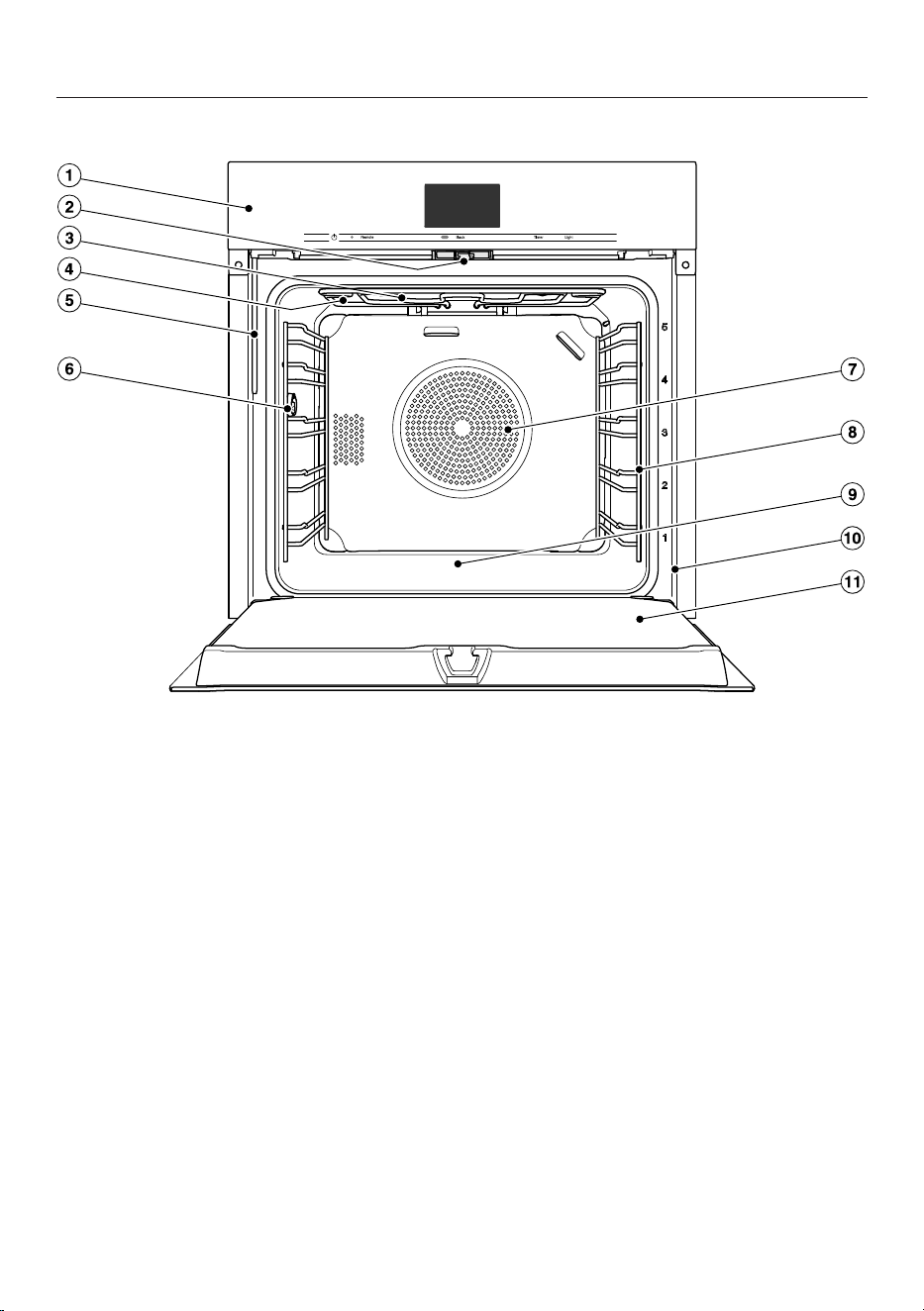
Overview
Oven
a
Controls
b
Door lock
c
Browning/Broiling element
d
Steam inlet openings
e
Water intake pipe for the steam injection system
f
Connection socket for the probe
g
Convection fan with heating element
h
Side runners with 5shelf levels
i
Oven floor with bottom heat element underneath it
j
Front frame with data plate
k
Door
16
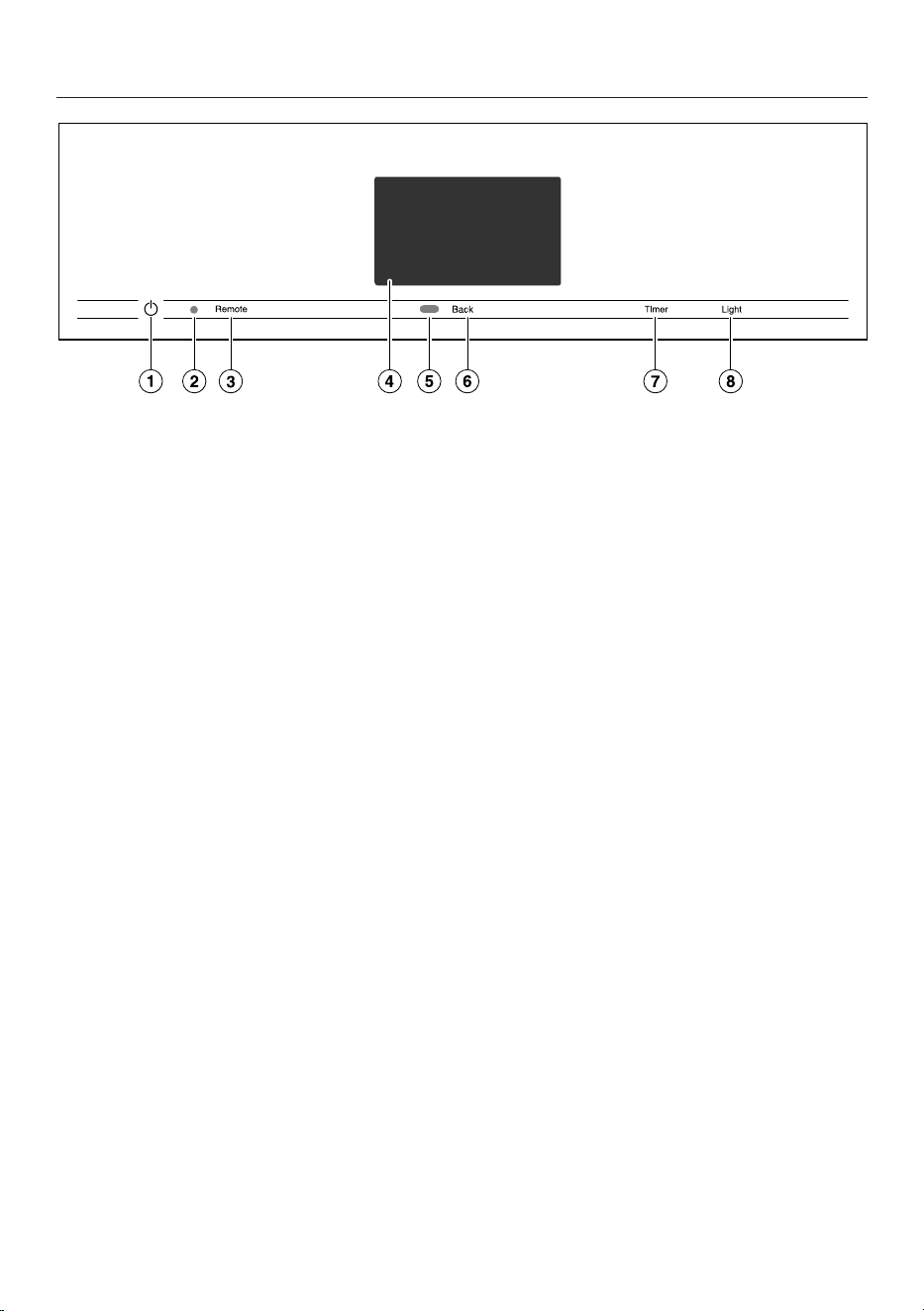
Control panel
17
a
Recessed On/Off button
For turning the oven on and off
b
Optical interface
(for Miele Service only)
c
Remotesensor button
For controlling the oven via your
mobile device
d
Touch display
For displaying information and for
operation
e
Proximity sensor (MotionReact)
For turning on the oven interior
lighting and the display when
approached, and to dismiss the
audible signal when movement is
detected
f
Backsensor button
To go back a step
g
Timersensor button
To activate or deactivate timers or
alarms
h
Lightsensor button
For switching the oven interior
lighting on and off

Control panel
18
On/Off button
The On/Off button is recessed and
reacts to touch.
Use this button to turn the oven on and
off.
Proximity sensor
(MotionReact)
The proximity sensor is located under
the touch display next to the
Backsensor button. The proximity
sensor detects when you approach the
touch display, e.g., with your hand or
body.
If you have activated the corresponding
settings, you can turn on the oven
interior lighting, turn on the oven, or
acknowledge the audible signals (see
“Settings – MotionReact
(MotionReact)”).

Control panel
Sensor buttons
The sensor buttons react to touch. Every tap of a sensor button is confirmed with
an audible keypad tone. You can turn this keypad tone off by selecting theVolume|
Keypad tone| Offsetting.
If you want the sensor buttons to respond even when the oven is turned off,
select the Display| QuickTouch| Onsetting.
Sensor button Function
Remote If you want to control the oven from your mobile device, you
must have the Miele@home system, turn on the Remote Control
setting, and tap this sensor button. The sensor button then lights
up and the MobileStart function is available.
As long as this sensor button is illuminated, you can control the
oven via your mobile device (see “Settings – Miele@home”).
Back Depending on which menu you are in, this will take you back a
level or back to the main menu.
Timer If a menu appears on the display or if a cooking process is in
progress, you can use this sensor button to set a timer (e.g.,
when boiling eggs) or an alarm (a specific time) at any point (see
“Alarm + timer”).
Light Select this sensor button to turn the oven interior lighting on and
off.
Depending on the setting selected, the oven interior lighting
turns off after 15seconds or remains constantly turned on or off.
19

Control panel
Touch display
The sensitive surface of the touch display can be scratched by pointed or sharp
objects, e.g., pens.
Only touch the display with your fingers.
Make sure that water cannot get behind the touch display.
The touch display is split into multiple areas.
12:00
Operating
Modes
Automatic
Programs
Special
Modes
The menu path appears on the left of the header. The individual menu options are
separated by a vertical line. … indicates that there are more menu options
available if the menu path can no longer be displayed because there is not enough
space on the display.
If you tap a menu name in the header, the display will switch to that menu. To
switch to the start screen, tap.
The time of day is shown on the right of the header. You can set the time of day by
tapping the display.
Additional symbols may also appear, e.g., SuperVision.
At the top of the header, there is an orange line where you can drag down the pull-
down menu. This allows you to turn settings on or off during a cooking program.
The current menu and menu options are shown in the center of the display. You
can scroll to the right or left by swiping your finger across the display to the right
or left. Tap a menu option to select it (see “Using the appliance”).
The operation fields that appear in the footer vary according to the menu that is
selected; e.g.,Timer, Save or OK.
20

Control panel
Symbols
The following symbols may appear on the display:
Symbol Meaning
This symbol indicates that there is additional information and
advice about using the appliance. Select OK to confirm the
information.
… This indicates that there are more menu options available, which
are not visible because there is not enough space on the display.
Alarm
Timer
Some settings, e.g., display brightness and signal tone volume,
are selected using a segment bar.
The system lock or sensor lock is on (see “Settings – Safety”).
The controls are locked.
Core temperature when using the probe
Remote control (only appears if you are in the Miele@home
system and have selected the Remote Control| Onsetting)
SuperVision (only appears if you are in the Miele@home system
and have selected the SuperVision| SuperVision display| Onsetting)
21

Using the appliance
22
You operate the oven via the touch
display by tapping the menu option you
want.
Each time you tap a possible option,
the relevant characters (word and/or
symbol) will light up orange.
Fields for confirming an operating step
are highlighted in green (e.g., OK).
Selecting a menu option
Tap the field or value you want on the
display.
Scrolling
You can scroll left or right.
Swipe across the screen. To do this,
place your finger on the touch display
and swipe it in the desired direction.
The bar at the bottom shows you where
you are in the current menu.
Exiting a menu
Tap the Backsensor button or tap the
… symbol in the menu path.
Tap the symbol to switch to the
start screen.
Entries made before this which have not
been confirmed with OK will not be
saved.
Changing a value or setting
Changing a setting in a list
The current setting is highlighted in
orange.
Tap the desired setting.
The setting is now saved. This will take
you back to the previous menu.
Entering numbers with the roller
Swipe the roller up or down until the
desired value is displayed in the center.
Confirm with OK.
The changed number is now saved.
Entering numbers using the
numerical keypad
Tap on the value that is in the middle
of the numerical keypad.
The numerical keypad appears.
Tap the required numbers.
As soon as you enter a valid value, OK
will turn green.
Use the arrow to delete the last entered
number.
Confirm with OK.
The changed number is now saved.
Changing the setting with a segment
bar
Some settings are represented by a
bar made up of segments.
If all of the segments are illuminated,
the maximum value is selected.
If none of the segments are illuminated
or if only one is, the minimum value is
selected or the setting is turned off
altogether (e.g., audible signals).
Tap the corresponding segment on
the segment bar to change the
setting.
Select On or Off to turn the setting on
or off.
Confirm your selection withOK.
The setting is now saved. This will take
you back to the previous menu.

Using the appliance
23
Entering letters
Letters are entered using a display
keyboard. It is best to select short
names.
Tap the letters or characters you
want.
Tip: You can add a line break for longer
program names using the symbol.
TapSave.
The name is now saved.
Displaying the context menu
In some menus you can display a
context menu, e.g., to rename Favorites
or to move entries underMyMiele.
For example, tap a Favorite and keep
your finger on it until the context
menu opens.
To close the context menu, tap an
area of the display located outside of
the menu window.
Moving entries
You can change the order of Favorites
or entries under MyMiele.
For example, tap a Favorite and keep
your finger on it until the context
menu opens.
Select Move.
Keep your finger on the highlighted
field and drag it to the location you
want.
Displaying the pull-down menu
During a cooking program, you can turn
settings such asBooster orPreheat and
the WiFi function on or off.
Use the orange line under the header
to drag the pull-down menu down.
Select the setting you want to
change.
Active settings are highlighted in
orange. Depending on the selected
color scheme, inactive settings are
highlighted either in black or white
(see “Settings – Display”).
To close the pull-down menu, drag it
back up to the top or tap an area of
the display located outside of the
menu window.
Displaying Help
Context-sensitive help is available for
certain functions. In this case, Help
appears in the bottom line.
TapHelp to display information in text
and pictures.
TapClose to return to the previous
menu.
Activating MobileStart
Select the Remotesensor button to
activate MobileStart.
The Remotesensor button lights up.
You can operate your oven remotely
with the Miele app.
Directly operating on the oven takes
priority over operating it via the remote
control function on the app.
You can use MobileStart as long as
the Remotesensor button is lit up.

Features
24
A list of the models described in these
operating and installation instructions
can be found on the back page.
Data plate
The data plate located on the front
frame of the oven is visible when the
door is open.
The data plate states the model
number, the serial number, and
connection data (voltage, frequency,
and maximum rated load).
Have this information available if you
need to contact Miele so that any
issues can be rectified as quickly as
possible.
Scope of delivery
- Operating and installation
instructions for using the oven
- Precision probe
- Screws for securing the oven to the
cabinet niche
- Descaling tablets and a plastic tube
with suction cup for descaling the
steam injection system
- Various accessories
Standard and optional
accessories
Features will vary depending on
model.
The side runners, universal tray, and
wire rack (or “rack” for short) are
supplied as standard with the oven.
Depending on the model, your oven
may also come supplied with some of
the accessories listed here.
All accessories and cleaning and care
products in these instructions are
designed to be used with Miele Ovens.
These can be ordered from the Miele
web store, Miele Customer Service, or
from your Miele dealer.
When ordering, please have your model
number ready along with the desired
accessories.
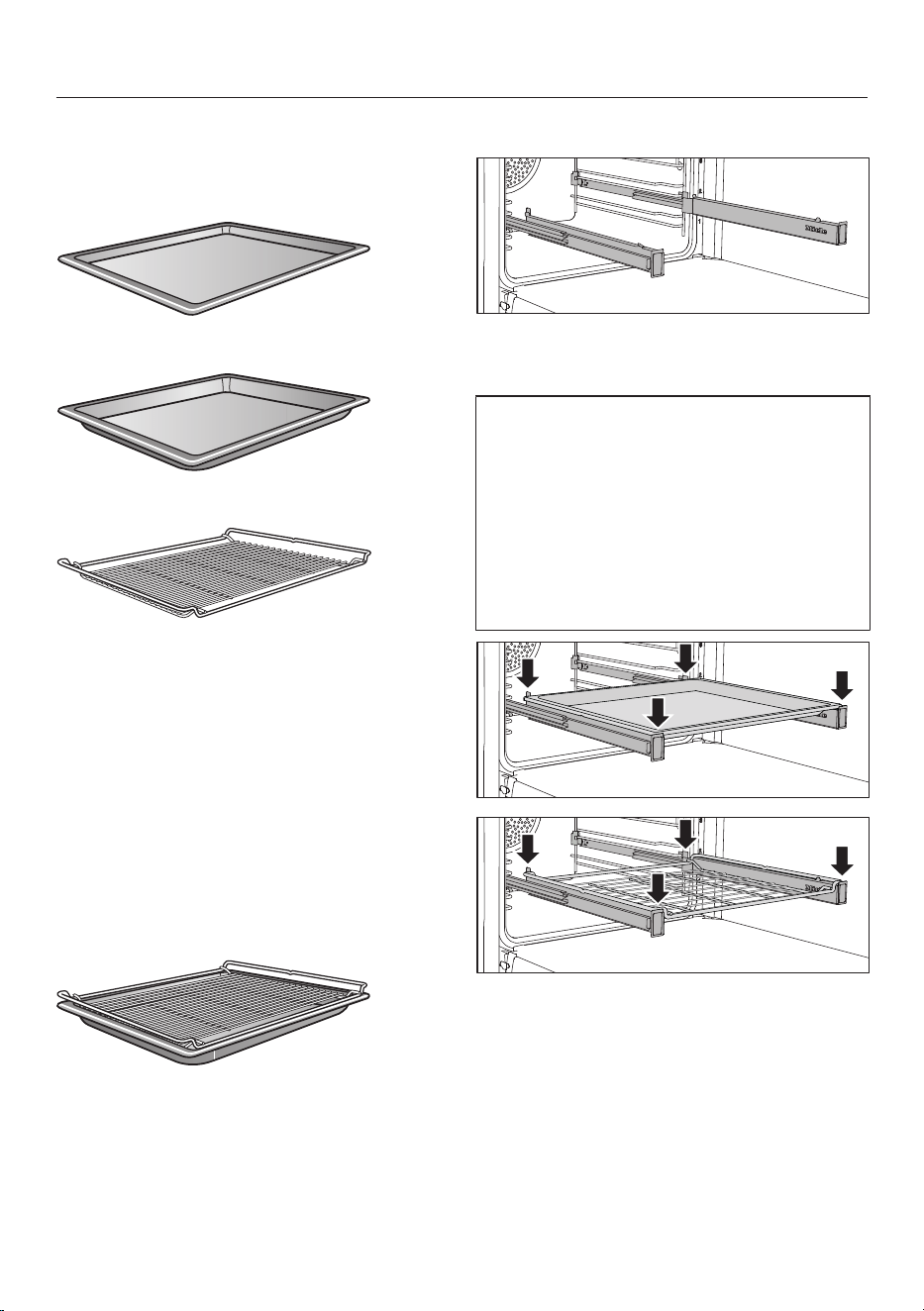
Side runners
Side runners for accessories are
installed on either side of the oven
compartment for shelf levels.
The shelf level numbers are indicated
on the front of the oven frame.
Each level consists of 2rails, one above
the other.
The accessories (e.g., the wire rack) are
pushed into the oven between the two
rails.
The FlexiClip telescopic runners (if
present) are installed on the lower rail.
You can remove the side runners (see
“Cleaning and care of the oven –
Removing the side runners with
FlexiClip telescopic runners”).
Features
25
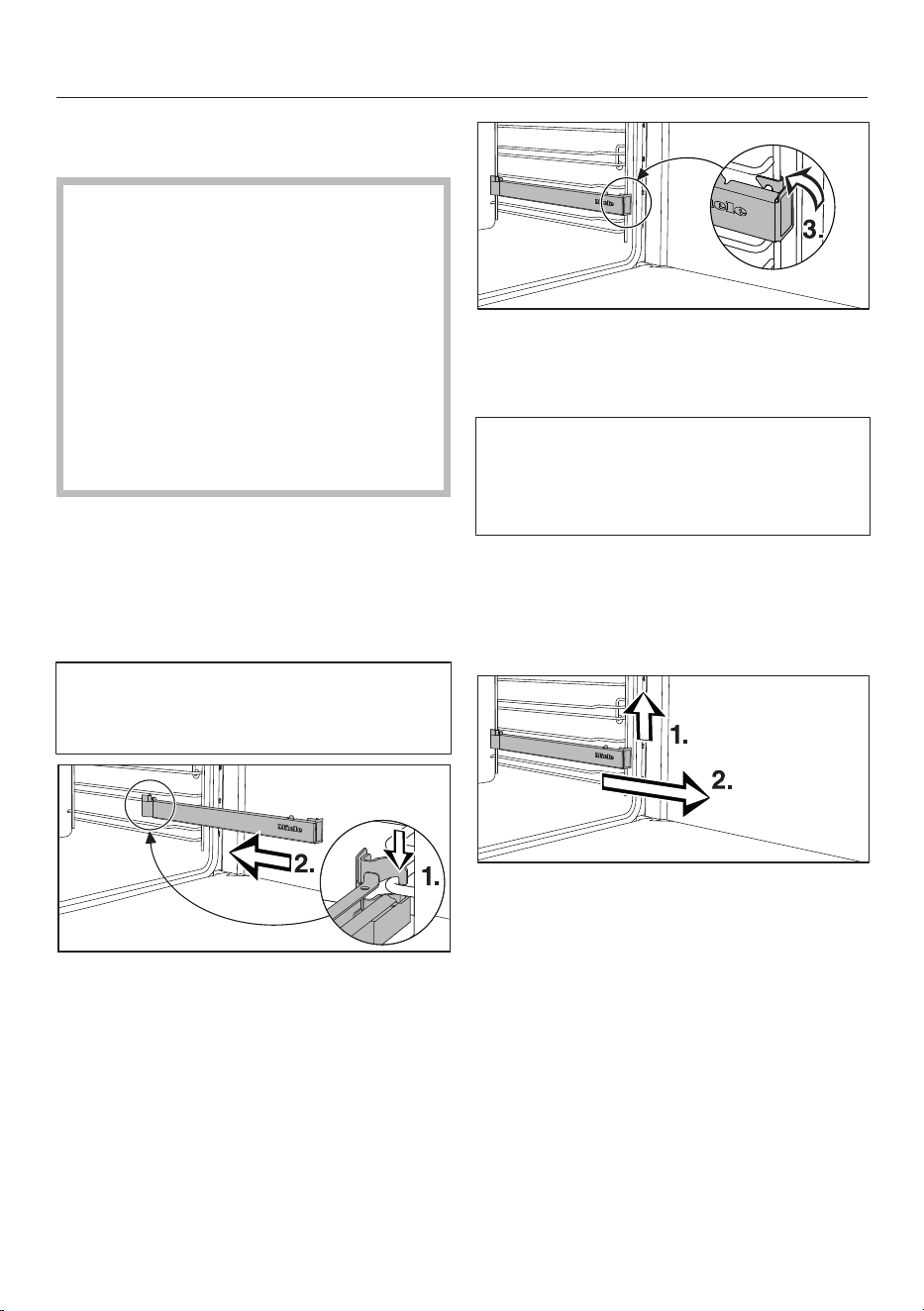
Baking tray, universal tray, and wire
rack with non-tip safety notches
Baking tray HBB71:
Universal tray HUBB71:
Wire rack HBBR72:
These accessories are inserted into the
oven between the two rails of a side
runner.
Always position the wire rack with the
loading surface in the lower position.
These accessories have non-tip safety
notches installed in the middle of their
short sides. These prevent the trays
from being pulled out completely from
the side runners when you only wish to
pull accessories out partially.
If you are using the universal tray with
the wire rack on top, insert the tray
between the rails of the side runners
and the rack will automatically slide in
above them.
FlexiClip telescopic runners HFC72
You can use the FlexiClip telescopic
runners on shelf levels1–4.
Push the FlexiClip telescopic runners
all the way into the oven before
placing accessories on them.
The accessories will then
automatically sit securely in between
the stoppers at either end of each
runner and be prevented from sliding
off.
The FlexiClip telescopic runners can
support a maximum load of 33lb
(15kg).
Features
26
Installing and removing the FlexiClip
telescopic runners
Risk of injury caused by hot
surfaces.
The oven gets hot during operation.
You could burn yourself on the
heating elements, oven
compartment, or accessories.
Allow the heating elements, oven
compartment, and the accessories to
cool down before installing or
removing the FlexiClip telescopic
runners.
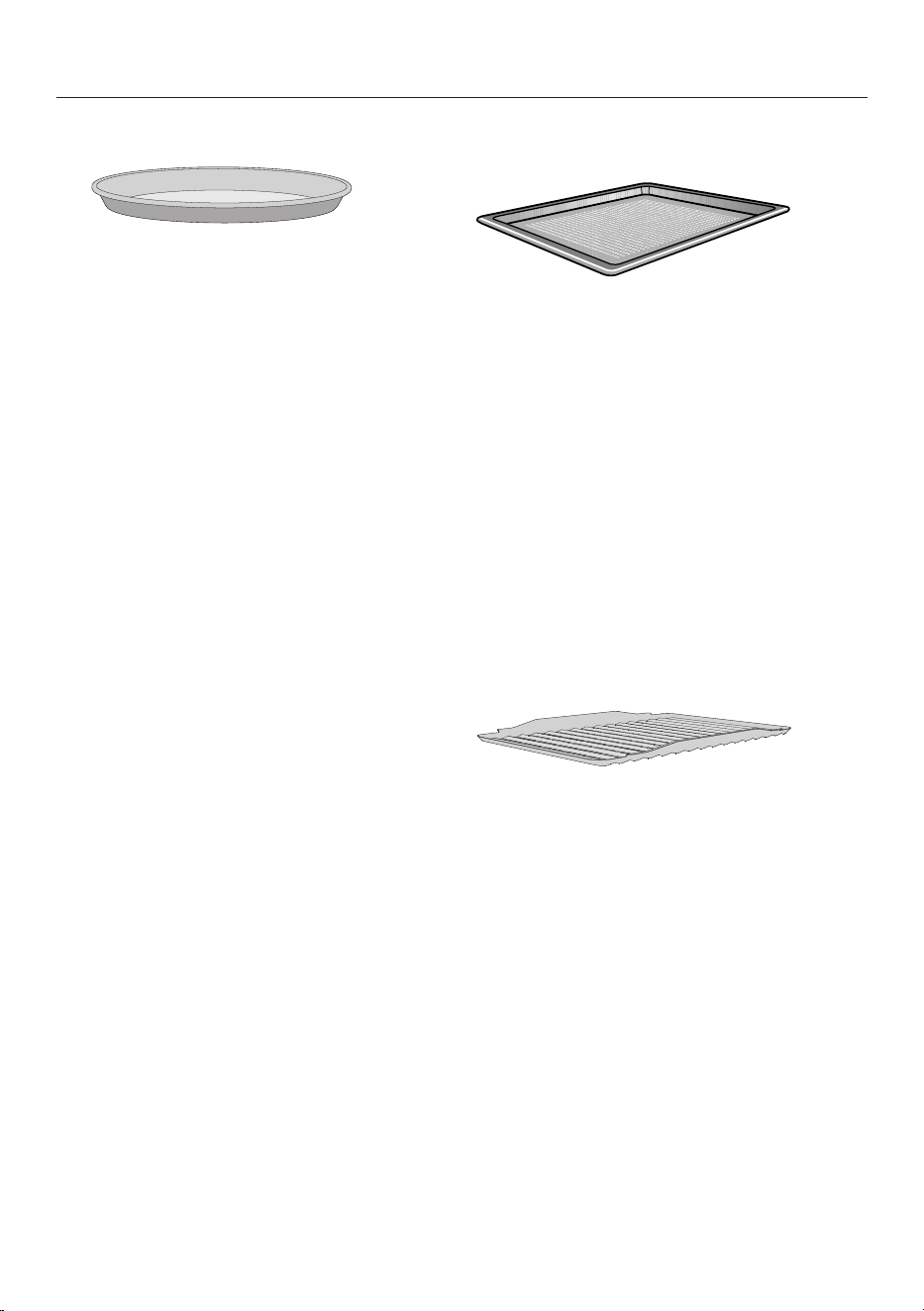
The FlexiClip telescopic runners are
installed in between the two rails that
make up a shelf level.
The FlexiClip telescopic runner with the
Miele logo is installed on the right.
When installing or removing the
FlexiClip telescopic runners, do not
extend them.
Hook the FlexiClip telescopic runner
onto the lower rail of a shelf level at
the front (1.) and push it along the rail
into the oven compartment (2.).
Then secure the FlexiClip telescopic
runner to the lower rail of the shelf
level (3.).
If the FlexiClip telescopic runners are
difficult to pull out after installing, you
may need to pull firmly on them once
to release them.
To remove a FlexiClip telescopic runner,
proceed as follows:
Push the FlexiClip telescopic runner
in all the way.
Remove the FlexiClip telescopic
runner by raising it at the front (1.)
and then pulling it forwards along the
rail of the shelf level and out (2.).
Features
27
Round baking pans
The solid round baking pan HBF27-1
is suitable for cooking pizzas, flat
cakes, sweet and savory tarts, baked
desserts, flat bread, and can also be
used for frozen cakes.
The perforated round baking pan
HBFP27-1 has been specially
developed for baked goods made from
fresh yeast dough, and for baking bread
and rolls. The tiny perforations assist in
browning the underside of baked
goods.
They can also be used for dehydrating
or drying food.
The enameled surface of both baking
pans has been treated with
PerfectClean.
Insert the wire rack and place the
round baking pan on the rack.
Perforated Gourmet Baking Tray
HBBL71
The perforated Gourmet Baking Tray
has been specially developed for
preparing baked goods made from
fresh yeast doughs.
The tiny perforations assist in browning
the underside of baked goods.
The Gourmet Baking Tray can also be
used for dehydrating or drying food.
The enameled surface has been treated
with PerfectClean.
The round perforated baking tray
HBFP27-1 can be used for these
purposes.
Broiling and roasting insertHGBB71
The broiling and roasting insert fits in
the universal tray.
The tray will collect meat juices and
stop them from burning so that they
can be used for making gravy and
sauces.
The enameled surface has been treated
with PerfectClean.
Features
28
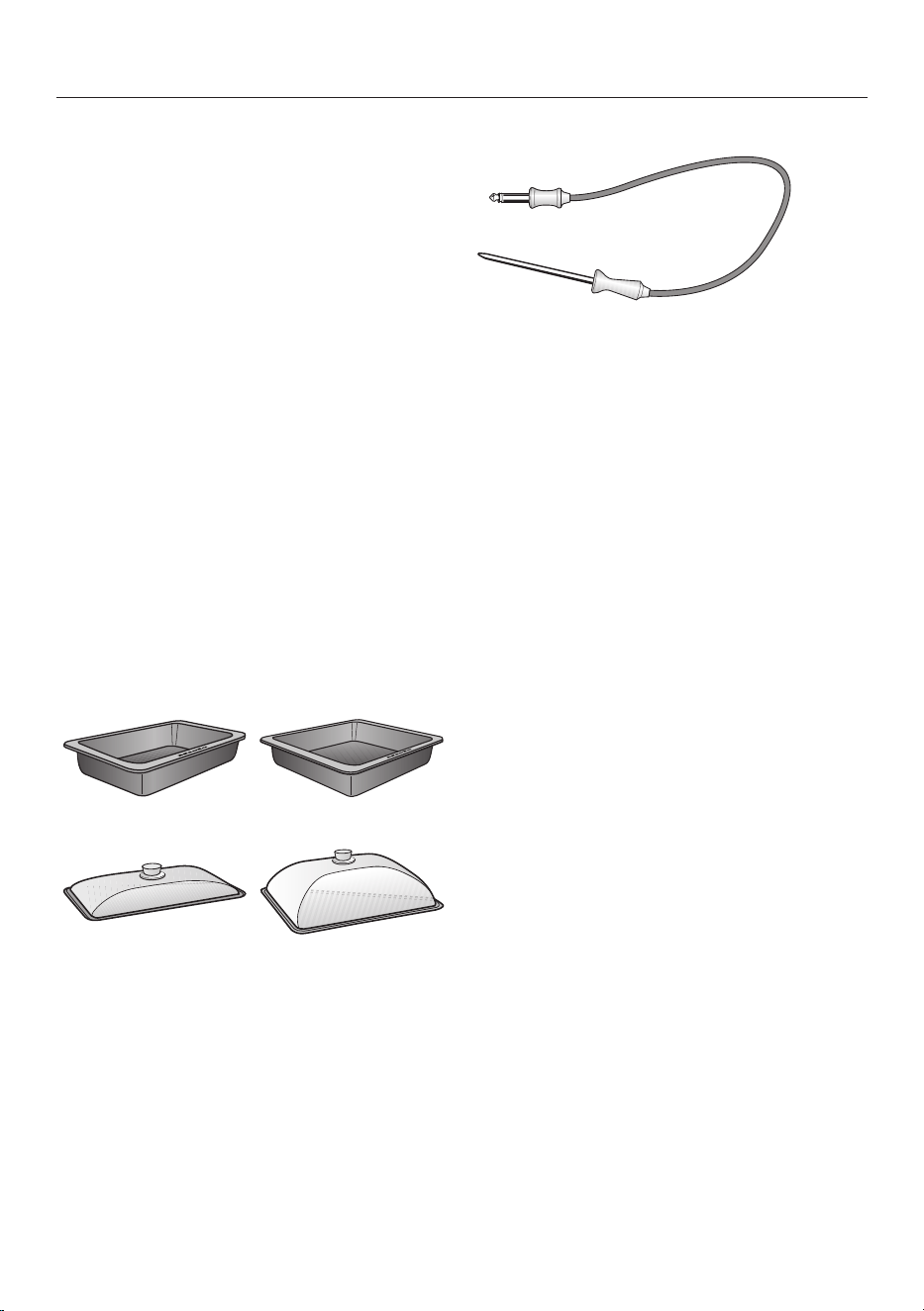
Gourmet Casserole Dishes HUB
Casserole dish lids HBD
Unlike other roasting dishes, the Miele
Gourmet Casserole Dishes can be
placed in the oven directly on the side
runners. They have non-tip safety
notches like the wire rack to prevent
them from being pulled out too far.
The surface of the casserole dishes has
a non-stick coating.
Gourmet Casserole Dishes are available
in different depths. The width and the
height are the same.
Suitable lids are available separately.
Please quote the model number when
ordering.
Depth:
81/2"(22cm)
Depth:
133/4"(35cm)
HUB5000-M
HUB5001-M*
HUB5001-XL*
HBD60-22 HBD60-35
* Suitable for induction cooktops
Precision Probe
Using the probe enables you to
accurately monitor the temperature
during the cooking process (see
“Roasting – Precision Probe”).
When using the probe, do not insert
the FlexiClip telescopic runners on
shelf level4, otherwise the socket will
be blocked.
Accessories for cleaning and care
- Descaling tablets, plastic tube with
suction cup for descaling the oven

Features
29
Safety features
- System lock
(see “Settings – Safety”)
- Sensor lock
(see “Settings – Safety”)
- Cooling fan
(see “Settings – Cooling fan run-on”)
- Safety shut-off
This safety shut-off is activated
automatically if the oven has been
operating for an unusually long
period of time. The period of time will
depend on the particular operating
mode being used.
- Ventilated door
The oven door is made of glass
panes that have a heat-reflective
coating on part of their surface.
When the oven is operating, air is
passed through the door to keep the
outer pane cool.
You can remove the door for cleaning
purposes (see “Cleaning and care of
the oven”).
- Door locking for Self Clean
At the beginning of a Self Clean
program, the door will lock for safety
reasons. The door will only unlock
when the temperature in the oven
compartment has dropped to below
535°F (280°C).
PerfectClean treated surfaces
PerfectClean surfaces have very good
non-stick properties making them
exceptionally easy to clean.
Food can be easily removed from these
surfaces. Soiling from baking and
roasting can also be easily removed
from these surfaces.
However, do not use ceramic knives
as these will scratch the
PerfectClean surface.
Read the instructions in “Cleaning and
care of the oven” to retain the benefits
of the non-stick properties and easy
cleaning.
PerfectClean treated surfaces:
- Universal tray
- Baking tray
- Broiling and roasting insert
- Perforated Gourmet Baking Tray
- Round perforated baking pan
- Round baking pan
Self-Clean-ready accessories
See “Cleaning and care of the oven” for
more information.
The following accessories can be left in
the oven compartment during the Self
Clean program:
- Side runners
- FlexiClip telescopic runners HFC72
- Wire rack
Before first use
30
Miele@home
Your oven is equipped with an
integrated WiFi module.
To use this feature, you will need:
- A WiFi network
- The Miele app
- A Miele user account. You can create
a user account via the Miele app.
The Miele app will guide you as you
connect your oven to your home WiFi
network.
Once your oven is connected to your
WiFi network, you can use the app to
carry out various activities, such as:
- Call up information on the operating
status of your oven
- Retrieve information on cooking
processes that are in progress
- Stop cooking programs that are in
progress
Connecting your oven to your WiFi
network will increase energy
consumption, even when the oven is
turned off.
Make sure that the signal of your
WiFi network is sufficiently strong in
the place where your oven is
installed.
Availability of the WiFi connection
The WiFi connection shares a frequency
range with other appliances (including
microwave ovens and remote control
toys). This can cause sporadic or even
complete connection failures.
Therefore, the availability of featured
functions cannot be guaranteed.
Miele@home availability
The ability to use the Miele app
depends on the availability of the
Miele@home service in your country.
The Miele@home service is not
available in every country.
For information about availability,
please visit www.miele.com.
Miele App
The Miele App is available to download
free of charge from the Apple App
Store
®
or from the Google Play Store™.

Before first use
31
Basic settings
You must make the following settings
before starting up for the first time. You
can change these settings again at a
later time (see “Settings”).
Risk of injury caused by hot
surfaces.
The oven gets hot during operation.
For safety reasons, only use the oven
when it has been fully installed.
The oven will turn on automatically
when it is connected to the electrical
supply.
Setting the language
Select the desired language.
If you have accidentally selected a
language that you don’t understand,
proceed as described in “Settings –
Language”.
Setting the location
Select the required location.
Setting up Miele@home
Set up “Miele@home”? will appear on the
display.
To set up Miele@home immediately,
select Continue.
To set it up at a later date, select Skip.
See “Settings – Miele@home” for
information on setting up at a later
date.
To set up Miele@home immediately,
select the connection method you
want to use.
You will then be guided by the display
and the Miele app.
Setting the date
Set the day, then the month, and
finally the year.
Confirm with OK.
Setting the time
Set the time of day in hours and
minutes.
Confirm with OK.
Setting the voltage
The set voltage variant must
match the voltage of the domestic
electrical supply in order to avoid the
risk of damage to the oven.
Confirm the voltage before setting. If
in any doubt, consult a qualified
electrician.
Select the voltage variant.
Confirm with OK.
Completing the commissioning
process
Follow any further instructions on the
display.
The appliance is now ready for use.
Before first use
32
Heating up the oven for the
first time and rinsing the steam
injection system
New ovens may have a slight odor
during their first use. Heating up the
oven for at least an hour with nothing in
it will eliminate the odor. It is a good
idea to rinse out the steam injection
system at the same time.
Ensure that the kitchen is well
ventilated while the appliance is being
heated up for the first time.
Close doors to other rooms to prevent
the odor spreading throughout the
house.
Remove any adhesive labels or
protective films from the ovens and
accessories.
Before heating the oven up, wipe the
interior with a damp cloth to remove
any dust or bits of packaging that
may have accumulated in the oven
compartment during storage and
unpacking.
Insert the FlexiClip telescopic runners
into the side runners and insert all
trays and the wire rack.
Turn the oven on using the On/Off
button.
The main menu will appear.
Select Operating Modes.
Select Moisture Plus.
Select Moist. Plus + Conv Bake.
350°F (160°C) will appear as a
recommended value.
The oven heating, lighting, and cooling
fan will turn on.
Set the highest possible temperature.
Select Continue.
Select Automatic.
Select Continue.
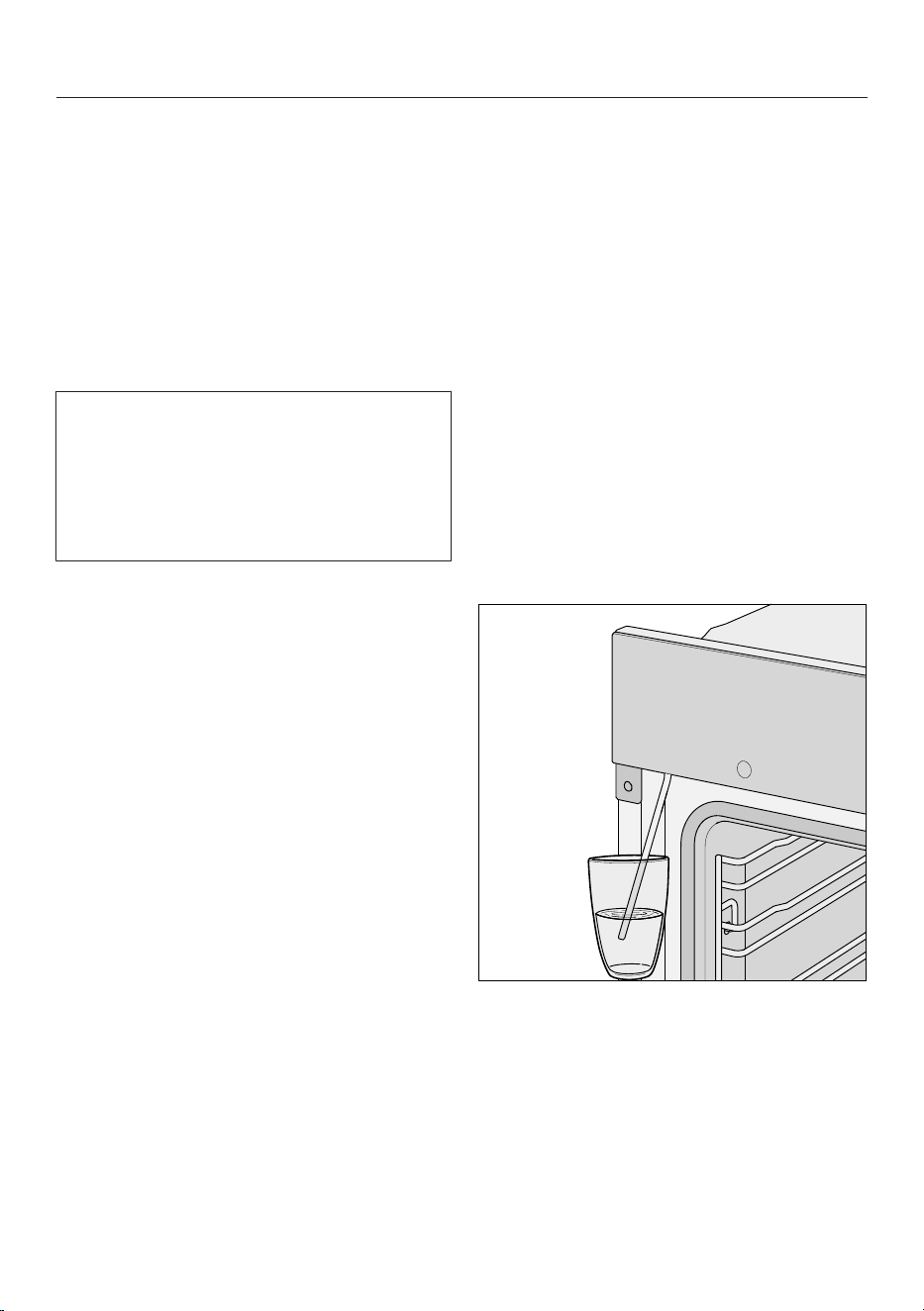
A prompt to draw in water will then
appear.
Fill a suitable container with the
required amount of fresh tap water.
Open the door.
Pull the water intake pipe forward
(located below the control panel on
the left).
Place the end of the water intake pipe
in the water container with the tap
water.
Confirm with OK.
The water intake process will begin.

Before first use
33
The amount of water actually drawn up
into the oven may be less than the
amount specified as required, leaving a
small amount in the container.
Remove the water container after the
water intake process and close the
door.
You will hear the pump again briefly.
Residual water in the water intake pipe
is being drawn into the oven.
The oven heating, lighting, and cooling
fan will turn on.
After a short time, a burst of steam will
be released automatically.
Risk of injury caused by steam.
The steam escaping is very hot.
Do not open the door when the burst
of steam is being released.
Heat up the oven for at least an hour.
After at least an hour, turn the oven
off with the On/Off button.
Cleaning the oven compartment after
heating it up for the first time
Risk of injury caused by hot
surfaces.
The oven gets hot during operation.
You could burn yourself on the
heating elements, oven
compartment, or accessories.
Allow the heating elements, oven
compartment, and accessories to
cool before manual cleaning.
Take all accessories out of the oven
compartment and clean it by hand
(see “Cleaning and care of the oven”).
Clean the oven compartment with
warm water and liquid dish soap,
applied with a soft sponge or
microfiber cloth.
Dry all surfaces with a soft cloth.
Leave the oven door open until the
oven compartment is completely dry.

Settings
Settings overview
Menu option Available settings
Language ...| deutsch| english| ...
Location
Time Display
On*| Off| Night dimming
Clock type
Analog*| Digital
Clock format
24 h| 12 h (am/pm)*
Set
Date
Lighting On
“On” for 15 seconds*
Off
Start screen Main menu*
Operating Modes
Automatic Programs
Special Modes
Favorites
MyMiele
Display Brightness
Color scheme
Bright| Dark*
QuickTouch
On| Off*
Volume Buzzer tones
Melodies
Single tone
Keypad tone
Welcome Melody
On*| Off
Units Temperature
°C| °F*
* Factory default
34

Settings
Menu option Available settings
Booster On*
Off
Rapid cooling On*
Off
Keep warm On
Off*
Recommended temps.
Self Clean With reminder
Without reminder*
Cooling fan run-on Time controlled
Temperature controlled*
MotionReact Switch the light on
during cook. program*| always on| Off
Switch the appliance on
On| Off*
Acknowledge buzzer
On*| Off
Safety System Lock
On| Off*
Sensor lock
On| Off*
Furniture front recognition On
Off*
Miele@home Activate
Deactivate
Connection status
Set up again
Reset
Set-up
Remote Control On*
Off
SuperVision SuperVision display
On| Off*
Display in Standby
On*| Only if there is a fault
Appliance list
Display this appliance| Buzzer tones
* Factory default
35

Settings
Menu option Available settings
Remote Update On*
Off
Electrical version 208V / 60Hz
220V / 60Hz
240V / 60Hz
Calibrate temperature
Software version
Legal information Open source licenses
Showroom Program Demo Mode
On| Off*
Factory default Appliance settings
Favorites
MyMiele
Recommended temps.
* Factory default
36

Settings
37
Opening the “Settings” menu
In theSettingsmenu, you can
personalize your oven by adapting the
factory default settings to suit your
requirements.
From the main menu:
Select Settings.
Select the setting you want.
You can check settings or change them.
You cannot change settings while a
cooking program is in progress.
Language
You can set your language and location.
After selecting and confirming your
choice, the language you have selected
will appear on the display.
Tip: If you have accidentally selected a
language that you don’t understand,
select in the main menu. Follow the
symbol to get back to the Language
submenu.
Time
Display
Select how you want the time of day to
show on the display when the oven is
turned off:
- On
The time is always visible on the
display.
If you also select the Display|
QuickTouch| Onsetting, all sensor
buttons will react to touch straight
away and the proximity sensor will
automatically detect when you
approach the display.
If you also select the Display|
QuickTouch| Offsetting, the oven has
to be turned on before it can be
used.
- Off
The display appears dark to save
energy. The oven has to be turned on
before you can use it.
- Night dimming
To save energy, the time only shows
on the display between 5:00a.m. and
11:00p.m. The display remains dark
at all other times.
Clock type
The time of day can be displayed as
Analog (with a clock face) or Digital
(h:min) format.
With the digital display, the date is also
shown.

Settings
38
Clock format
The time of day can be displayed in the
24 or 12-hour format (24 hor12 h (am/
pm)).
Set
Set the hours and the minutes.
Tip: If no cooking program is in
progress, tap the time in the header to
change it.
If there is a power failure, the current
time of day will reappear once the
power has been restored. The time of
day is saved for approx. 150hours.
If the oven has been connected to a
WiFi network and signed into the
Miele app, the time will be
synchronized based on the location
setting in the Miele app.
Date
Set the date.
When the oven is turned off, the date
will only appear on the display if the
Time| Clock type| Digitalsetting has
been selected.
Lighting
- On
The oven interior lighting is turned on
during the entire cooking process.
- “On” for 15 seconds
The oven interior lighting turns off
15seconds after a cooking process
has begun. Press the Lightsensor
button to turn the oven interior
lighting on again for 15seconds.
- Off
The oven interior lighting is turned
off. Press the Lightsensor button to
turn the oven interior lighting on for
15seconds.
Start screen
The oven is set at the factory for the
main menu to appear when the oven is
turned on. You can change this default
setting so that, for instance, the
operating modes or MyMiele settings
appear on the start screen (see
“MyMiele”).
This new start screen will then appear
when the oven is next turned on.
Select the Backsensor button or
follow the path in the header to get to
the main menu.

Settings
39
Display
Brightness
The display brightness is represented
by a segment bar.
-
Maximum brightness
-
Minimum brightness
Color scheme
Choose between a light or dark color
scheme for the display.
- Bright
The display has a light background
with dark characters.
- Dark
The display has a dark background
with light characters.
QuickTouch
Select how the sensor buttons and the
proximity sensor should respond when
the oven is turned off:
- On
If you have also selected the Time|
Display| On or Night dimmingsetting,
the sensor buttons and the proximity
sensor will also respond when the
oven is turned off.
- Off
Regardless of the Time|
Displaysetting, the sensor buttons
and the proximity sensor only
respond when the oven is turned on,
as well as for a certain amount of
time after turning it off.
Volume
Buzzer tones
If audible signals are turned on, an
audible signal will sound when the set
temperature is reached and at the end
of a set time.
Melodies
At the end of a process, a melody will
sound several times at intervals.
The volume of the melody is
represented by a segment bar.
-
Maximum volume
-
Melody is turned off
Single tone
At the end of a process, a continuous
tone will sound for a period of time.
The pitch of this continuous tone is
represented by a segment bar.
-
Maximum pitch
-
Minimum pitch
Keypad tone
The volume of the tone that sounds
each time you tap a sensor button is
represented by a segment bar.
-
Maximum volume
-
Keypad tone is turned off

Settings
40
Welcome Melody
The melody that sounds when you tap
the On/Off button can be turned on
or off.
Units
Temperature
You can set the temperature in Celsius
(°C) or Fahrenheit (°F).
Booster
The Boosterfunction is used to quickly
preheat the oven.
- On
The Boosterfunction is automatically
turned on during the preheating
phase of a cooking program. The
browning/broiling element, ring
heating element, and fan all preheat
the oven compartment to the
required temperature at the same
time.
- Off
The Boosterfunction is turned off
during the preheating phase of a
cooking program. Only the heating
elements for the selected operating
mode are used to preheat the oven
compartment.
You can also use the pull-down menu
to turn the Boosterfunction on or off
for a cooking program.
Rapid cooling
Using the Rapid coolingfunction, you can
quickly cool down food and the oven
compartment once the cooking
program is finished.
This function is useful if, for example,
you immediately want to start a
automatic program for which the oven
compartment needs to be cold.
Using the Keep warmfunction, you can
keep food warm after cooking without
inadvertently cooking it further.
- On
The Rapid coolingfunction is turned
on. Once the cooking program has
finished, the door opens a little
automatically. The cooling fan cools
the food and the oven compartment
quickly.
- Off
The Rapid coolingfunction is turned
off. The door remains closed at the
end of the cooking program. The
cooling fan cools the food and the
oven compartment.
You can also use the pull-down menu
to turn the Rapid coolingfunction on or
off for a cooking program.
If your oven is installed behind a
closed cabinet door front, follow the
instructions in “Settings – Furniture
front recognition”.

Settings
41
Keep warm
Using the Keep warmfunction, you can
keep food warm after cooking without
inadvertently cooking it further. The
food is kept warm at a preset
temperature for up to 2hours (Settings|
Recommended temps.| Keep warm).
It is only possible to use the Keep
warmfunction in combination with the
Rapid coolingfunction.
- On
The Keep warmfunction is turned on.
Once the cooking program has
finished, the door opens a little
automatically. The cooling fan cools
the food and the oven compartment
quickly to the preset temperature.
Once this temperature is reached, the
door closes again automatically in
order to keep the food warm.
- Off
The Keep warmfunction is turned off.
The door remains closed at the end
of the cooking program. The cooling
fan cools the food and the oven
compartment.
You can also use the pull-down menu
to turn the Keep warmfunction on or
off for a cooking program.
If your oven is installed behind a
closed cabinet door front, follow the
instructions in “Settings – Furniture
front recognition”.
Recommended temps.
If you often cook with temperatures that
differ from the default, the
recommended temperatures can be
changed.
After you select this option, a list of
oven modes will appear on the display.
Select the operating mode you want
to use.
The recommended temperature will
appear together with the range within
which it can be changed.
Change the recommended
temperature.
Confirm with OK.
You can also change the
recommended temperature for the
Keep warmfunction.
Self Clean
You can set whether the
recommendation for carrying out the
Self Clean function will appear (With
reminder) or will not appear (Without
reminder).

Settings
42
Cooling fan run-on
The cooling fan will continue to run for a
while after the oven has been turned off
to prevent any humidity building up in
the oven, on the control panel, or in the
cabinet carcase.
- Temperature controlled
The cooling fan turns off when the
temperature in the oven drops below
approx. 160°F (70°C).
- Time controlled
The cooling fan turns off after a
period of about 25minutes.
Condensation can damage the
cabinet carcase and the countertop.
This could lead to corrosion of the
appliance.
When keeping food warm in the
oven, increases to the Time
controlledsetting can lead to
condensation in the control panel
and moisture on the countertop and
cabinet doors.
Do not adjust the Time
controlledsetting and try not to leave
food in the warm oven.
MotionReact (MotionReact)
The proximity sensor detects when you
approach the touch display, e.g., with
your hand or body.
If you want the proximity sensor to
respond even when the oven is turned
off, select the Display| QuickTouch|
Onsetting.
Switch the light on
-
during cook. program
As soon as you approach the touch
display during a cooking process, the
oven interior lighting turns on. The
oven interior lighting automatically
turns off again after 15seconds.
- always on
As soon as you approach the touch
display, the oven interior lighting
turns on. The oven interior lighting
automatically turns off again after
15seconds.
-
Off
The proximity sensor does not
respond when you approach the
touch display. Press the Lightsensor
button to turn the oven interior lighting
on for 15seconds.
Switch the appliance on
- On
If the time is displayed, the oven
willturn on and the main menu will
appear as you approach the touch
display.
- Off
The proximity sensor does not
respond when you approach the
touch display. Turn the oven on using
the On/Off button.
Acknowledge buzzer
- On
As soon as you approach the touch
display, the audible signals turn off.
- Off
The proximity sensor does not
respond when you approach the
touch display. Turn the audible
signals off manually.

Settings
43
Safety
System Lock
The system lock prevents the oven from
being turned on inadvertently.
You can still set an alarm and a timer,
as well as use the MobileStart function
when the system lock is active.
The system lock will remain activated
even after a power failure.
- On
The system lock is now active. If you
want to use the oven, touch for at
least 6seconds.
- Off
The system lock is now deactivated.
You can use the oven as normal.
Sensor lock
The sensor lock prevents the cooking
program from being turned off by
mistake or settings from being
changed. Once activated, the sensor
lock prevents the sensor buttons and
fields on the display from working for a
few seconds after a program has been
started, with the exception of the On/
Off button.
- On
The sensor lock is active. TouchOK
for at least 6seconds to deactivate
the sensor lock for a short period of
time.
- Off
The sensor lock is not active. All
sensor buttons react to touch as
normal.
Furniture front recognition
- On
Furniture front recognition is
activated. Using the proximity sensor,
the oven automatically detects
whether the cabinet door is closed.
If the cabinet door is closed, the
oven turns off automatically after a
certain period.
- Off
Furniture front recognition is
deactivated. The oven does not
detect whether the cabinet door is
closed.
If the oven is installed behind a
cabinet door, the oven, cabinet
niche, and the floor can be damaged
by the build-up of heat and moisture
behind the closed cabinet door.
Always leave the cabinet door open
when you are using the oven.
Leave the cabinet door open until the
oven has cooled down completely.
Tip: Turn off furniture front recognition if
you want to use the Sabbath Program.

Settings
44
Miele@home
The oven is a Miele@home-compatible
appliance with SuperVision functionality.
Your oven is equipped with a WiFi
communication module and is suitable
for wireless communication.
There are a number of ways of
connecting your oven to your WiFi
network. We recommend connecting
your oven to your WiFi network using
the Miele app or via WPS.
- Activate
This setting is only visible if
Miele@home is deactivated. The WiFi
function is reactivated.
- Deactivate
This setting is only visible if
Miele@home is activated.
Miele@home remains set up; the WiFi
function is turned off.
- Connection status
This setting is only visible if
Miele@home is activated. The display
shows information such as the WiFi
reception quality, network name, and
IP address.
- Set up again
This setting is only visible if a WiFi
network has already been set up.
Reset the network settings and set
up a new network connection straight
away.
- Reset
This setting is only visible if a WiFi
network has already been set up. The
WiFi function is deactivated and the
WiFi connection will be reset to the
factory default. You must set up a
new WiFi connection to be able to
use Miele@home.
Reset the network settings if you are
disposing of or selling your oven, or if
you are putting a used oven into
operation. This is the only way to
ensure that all personal data has
been removed and the previous
owner will no longer be able to
access the oven.
- Set-up
This setting is only visible if no WiFi
connection has been set up yet. You
must set up a new WiFi connection to
be able to use Miele@home.
Remote Control
If you have installed the Miele app on
your mobile device, have access to the
Miele@home system, and have
activated the remote control function
(On), you can use the MobileStart
function to retrieve information on oven
cooking programs that are in progress
or to end a program in progress.
Activating MobileStart
Select the Remotesensor button to
activate MobileStart.
The Remotesensor button lights up.
You can operate your oven remotely
with the Miele app.
Directly operating on the oven takes
priority over operating it via the remote
control function on the app.
You can use MobileStart as long as
the Remotesensor button is lit up.

Settings
45
SuperVision
The oven is a Miele@home-compatible
appliance with SuperVisionfunctionality
for monitoring other domestic
appliances in the Miele@home system.
The SuperVisionfunction cannot be
activated until the Miele@home system
has been set up.
SuperVision display
- On
The SuperVisionfunction is turned on.
The symbol will appear in the top
right-hand corner of the display.
- Off
The SuperVisionfunction is turned off.
Display in Standby
The SuperVisionfunction is also
available when the oven is in standby.
However, the time-of-day display must
be turned on (Settings| Time| Display|
On).
- On
Active domestic appliances that are
signed on to the Miele@home system
are always displayed.
- Only if there is a fault
Only faults on active domestic
appliances are displayed.
Appliance list
All domestic appliances signed on to
the Miele@home System are displayed.
Once you have selected an appliance,
you can access further settings:
- Display this appliance
– On
The SuperVisionfunction for this
appliance is turned on.
– Off
The SuperVisionfunction for this
appliance is turned off. The
appliance is still signed on to the
Miele@home system. Faults are
displayed, even if the
SuperVisionfunction for the
appliance has been turned off.
- Buzzer tones
You can select whether the audible
signals are turned on (On) or turned
off (Off) for this appliance.

Settings
46
Remote Update
The Remote Updatemenu option is
only displayed and can only be
selected if the requirements for using
Miele@home have been met (see
“Before using for the first time –
Miele@home”).
The RemoteUpdate function is used for
updating the software in your oven. If
an update is available for your oven, it
will automatically download it. Updates
will not be installed automatically. They
must be initiated manually.
If you do not install an update, you can
continue to use your oven as usual.
However, Miele recommends installing
updates.
Activating/deactivating
The RemoteUpdate function is
activated as standard. Available
updates will be downloaded
automatically but will only be installed if
you initiate installation manually.
Deactivate RemoteUpdate if you do not
want any updates to be downloaded
automatically.
Running a RemoteUpdate
Information about the content and
scope of an update is provided in the
Miele app.
A message will appear on your oven
display if a software update is available.
You can install the update immediately
or postpone this until later. When the
oven is turned on again, you will be
reminded about the update.
Deactivate RemoteUpdate if you do not
want to install the update.
The update may take several minutes.
Please note the following information
about the RemoteUpdate function:
- You will only receive a message when
an update is available.
- Once an update has been installed, it
cannot be undone.
- Do not turn the oven off during the
update. Otherwise, the update will be
aborted and will not be installed.
- Some software updates can only be
carried out by Miele Customer
Service.
Electrical version
You can set the voltage variant. The
setting must correspond to the voltage
of your domestic electrical supply.

Settings
47
Calibrate temperature
You can change the temperature in
increments in all operating modes and
automatic programs so that it is higher
or lower in the oven compartment than
displayed.
The temperature calibration is
represented by a bar with seven
segments.
If all of the segments are filled, the oven
compartment temperature is much
higher than displayed. If one segment is
filled, the oven compartment
temperature is much lower than
displayed.
Software version
The software version menu option is for
use by Miele Technical Service. You do
not need this information for domestic
use.
Confirm with OK.
Legal information
You can find an overview of the
integrated open-source components
under Open source licenses.
Confirm with OK.
Showroom Program
This function enables the oven to be
demonstrated in showrooms without
heating up. Do not activate this setting
for domestic use.
Demo Mode
If you have Demo mode activated,
Demo mode is active. The appliance will
not heat up will appear when you turn
on the oven.
- On
Touch OK for at least 4seconds to
activate Demo mode.
- Off
Touch OK for at least 4seconds to
deactivate Demo mode. You can use
the oven as normal.
Factory default
- Appliance settings
Any settings that have been altered
will be reset to the factory default
settings.
- Favorites
All Favorites will be deleted.
- MyMiele
All MyMiele entries will be deleted.
- Recommended temps.
Any recommended temperatures that
have been changed will be reset to
the factory default settings.

Alarm + Timer
48
Using the Timersensor button, you can
set a timer (e.g., for boiling eggs) or an
alarm for a specific time.
Using the Alarmfunction
The alarm can be used to specify a
particular time for an audible signal to
sound.
Setting the alarm
If the Display| QuickTouch| Offsetting is
selected, you will need to turn the
oven on before setting the alarm. The
alarm time will then appear on the
display when the oven is turned off.
Select the Timersensor button.
Select Alarm.
Set the time for the alarm.
TapClose to confirm.
When the oven is turned off, the alarm
time and will appear instead of the
time of day.
If you are cooking at the same time or if
you are in a different menu, the alarm
time and will appear in the top right-
hand corner of the display.
At the specified time for the alarm,
will flash on the display next to the
time and an audible signal will sound.
Select the Timersensor button or the
set alarm time on the display.
The audible signal will stop and the
symbols on the display will go out.
Changing an alarm
Select the alarm on the display or
select the Timersensor button and
the alarm you want.
The set alarm time will appear on the
display.
Set the new time for the alarm.
TapClose to confirm.
The adjusted alarm time is now saved
and will appear on the display.
Deleting an alarm
Select the alarm on the display or
select the Timersensor button and
the alarm you want.
The set alarm time will appear on the
display.
Select Delete.
TapClose to confirm.
The alarm is deleted.

Alarm + Timer
49
Using the Timerfunction
The timer can be used to time other
activities in the kitchen, e.g.,boiling
eggs.
The timer can also be used at the same
time as a cooking program for which
the start and finish times have been set
(e.g., as a reminder to stir the food or
add seasoning, etc.).
The maximum timer duration that can
be set is 59minutes and 59seconds.
Tip: When using an operating mode
with moisture injection, use the timer to
remind you to inject steam manually at
the required time.
Setting the timer
If you have selected the Display|
QuickTouch| Off setting, you will need
to turn the oven on before setting the
timer. The timer can then be seen
counting down on the display when
the oven is turned off.
Example: you want to boil some eggs
and set a timer of 6minutes and
20seconds.
Select the Timersensor button.
Select Timer.
Set the required timer duration.
TapClose to confirm.
When the oven is turned off, the timer
duration counts down on the display
and appears instead of the time of
day.
If you are cooking at the same time or if
you are in a different menu, the timer
duration and will appear in the top
right-hand corner of the display.
At the end of the timer duration, will
flash, the time will start counting up,
and an audible signal will sound.
Select the Timersensor button or the
required timer on the display.
The audible signal will stop and the
symbols on the display will go out.
Changing the timer
Select the timer on the display or
select the Timersensor button and
then the timer duration you want.
The set timer duration will appear.
Set a new timer duration.
TapClose to confirm.
The changed timer duration is now
saved and will count down in minutes.
Timer durations of less than 10minutes
will count down in seconds.
Deleting the timer
Select the timer on the display or
select the Timersensor button and
then the timer duration you want.
The set timer duration will appear.
Select Delete.
TapClose to confirm.
The timer is deleted.

Main and submenus
As different countries have different preferences when it comes to preparing food,
the temperatures in °F and °C may not match. The temperatures are defined as
they are specified in the table.
Menu Recommended
temp.
Range
Operating Modes
Convection Bake
Convection Roast
350°F (160°C)
375°F (170°C)
85–475°F
(30–250°C)
85–475°F
(30–250°C)
Surround 400°F (180°C) 85–525°F
(30–280°C)
Moisture Plus
Moisture Plus + Auto Roast 350°F (160°C) 275–475°F
(130–230°C)
Moist. Plus + Conv Bake/
Moisture + Conv Roast
350°F (160°C) 275–475°F
(130–250°C)
Moisture Plus + Intensive 350°F (170°C) 275–475°F
(130–250°C)
Moisture Plus + Surround 350°F (180°C) 275–525°F
(130–280°C)
Intensive 400°F (170°C) 125–475°F
(50–250°C)
Auto Roast 375°F (160°C) 200–450°F
(100–230°C)
Bake 375°F (190°C) 200–525°F
(100–280°C)
Browning 350°F (190°C) 200–475°F
(100–250°C)
Maxi Broil 500°F (240°C) 400–575°F
(200–300°C)
Broil 500°F (240°C) 400–575°F
(200–300°C)
Convection Broil 400°F (200°C) 200–500°F
(100–260°C)
50
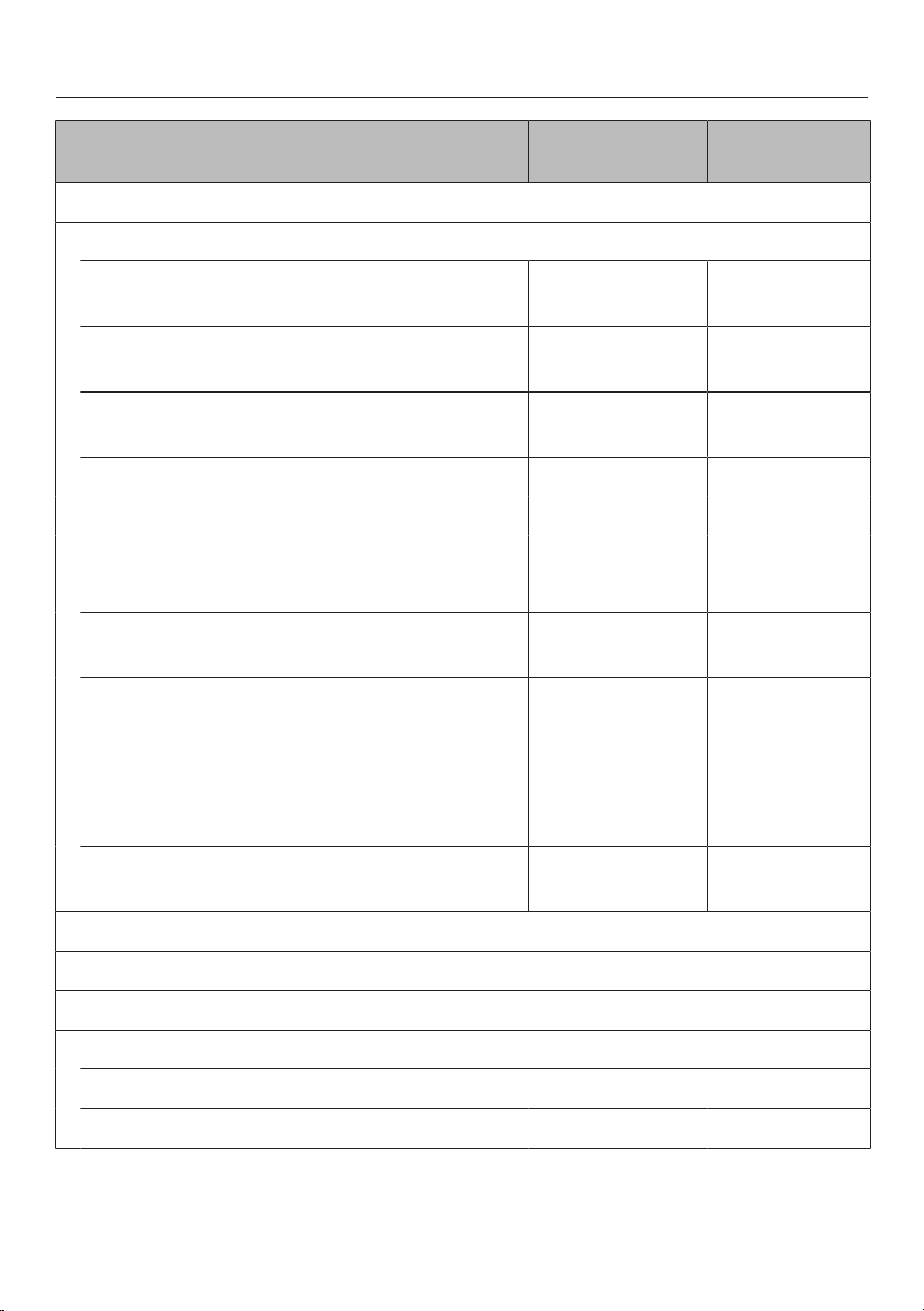
Main and submenus
Menu Recommended
temp.
Range
Automatic Programs
Special Modes
Defrost 100°F (25°C) 75–125°F
(25–50°C)
Dehydrate 150°F (60°C) 85–175°F
(30–70°C)
Warm-up Cookware 175°F (80°C) 125–225°F
(50–100°C)
Proof
Proof for 15 minutes – –
Proof for 30 minutes – –
Proof for 45 minutes – –
Slow Roasting 225°F (100°C) 175–250°F
(80–120°C)
Sabbath Program
Surround 355°F (180°C) 85–525°F
(30–280°C)
Bake 375°F (190°C) 85–525°F
(30–280°C)
Keep warm 175°F (75°C) 125–200°F
(60–90°C)
MyMiele
Favorites
Settings
Maintenance
Descale
Self Clean
51

Energy-saving tips
52
Cooking programs
- If possible, use the automatic
programs for cooking food.
- Remove all accessories from the
oven that are not required for a
cooking process.
- If a temperature range is given, it is
best to select the lower temperature
and check the food after the shortest
cooking time given.
- Preheat the oven only if instructed to
do so in the recipe.
- Try not to open the door when
cooking.
- It is best to use dark bakeware and
cooking containers with a matte
finish made of non-reflective
materials (enameled steel, heat-
resistant glass, non-stick coated cast
aluminum). Shiny materials such as
stainless steel or aluminum reflect the
heat and therefore can give a more
uneven result. Do not cover the oven
floor or the wire rack with heat-
reflecting aluminum foil.
- Monitor cooking durations to avoid
wasting energy when cooking.
Set the cooking duration, or use a
probe if you have one.
- Most food can be cooked using
Convection Bake/Convection Roast.
Because the blower distributes the
heat in the oven compartment
straight away, it allows you to use a
lower temperature than you would
with Surround. It also enables you
to cook on multiple shelf levels at the
same time.
- Convection Broil is the best
operating mode for broiled dishes.
Lower temperatures can be used
than with other broil modes that use
the maximum temperature setting.
- Whenever possible you should cook
several dishes at the same time.
Place them next to each other in the
oven or on different shelf levels.
- Dishes which you are unable to
prepare at the same time should, if
possible, be cooked one after the
other in order to make use of existing
heat in the oven.

Energy-saving tips
53
Residual heat utilization
- The temperature in cooking programs
using temperatures above 285°F
(140°C) which take longer than
30minutes to cook can be turned
down to the lowest possible
temperature about 5minutes before
the end of cooking. The residual heat
in the oven is sufficient for cooking
the food until it is done. However, do
not turn the oven off (see
“IMPORTANT SAFETY
INSTRUCTIONS”).
- If you have set a cooking duration for
a cooking program, the oven heating
elements will turn off automatically
shortly before the end of cooking.
The residual heat in the oven is
sufficient to complete the cooking
process.
- It is best to start the Self Clean
program immediately after a cooking
program. The residual heat in the
oven will help reduce the amount of
energy required.
Settings
- Select the Display| QuickTouch|
Offsetting for the control elements in
order to reduce energy consumption.
- Select the Lighting| Off or “On” for 15
secondssetting for the oven interior
lighting. You can turn the oven
interior lighting on again at any time
by tapping the Lightsensor button.
Energy-saving mode
The oven will turn itself off automatically
to save energy if a program is not being
run and no controls have been
operated. The time of day will appear
on the display or the display will remain
dark (see “Settings”).

Operation
54
Turn the oven on.
The main menu will appear.
Place the food in the oven.
Select Operating Modes.
Select the operating mode you want
to use.
The operating mode and recommended
temperature will appear.
Adjust the recommended
temperature, if necessary.
Otherwise, the recommended
temperature will be accepted within a
few seconds. You can change the
temperature later by selecting the
temperature indicator.
Confirm with OK.
The required and the actual temperature
will appear and the preheating phase
will begin.
You will see the temperature rising on
the display. An audible signal will sound
when the set temperature is reached for
the first time.
After the cooking program, select
Finish.
Take the food out of the oven.
Turn the oven off.
Changing values and settings
for a cooking program
Depending on the operating mode, as
soon as a cooking program is in
progress, you can change the values or
settings for this program.
Depending on the operating mode, you
can change the following settings:
- Temperature
- Duration
- Ready at
- Start at
- Booster
- Preheat
- Rapid cooling
- Keep warm
- Crisp function
Changing the temperature and core
temperature
Via Settings| Recommended temps., you
can permanently adjust the
recommended temperature to suit
your cooking preferences.
The core temperature only
appears if you are using the probe
(see “Roasting – Probe”).
Tap the temperature display.
Change the temperature and the
core temperature as required.
Confirm with OK.
The cooking program will resume with
the new target temperatures.

Operation
55
Setting additional durations
Cooking results can be adversely
affected if there is a long delay
between the food being placed in the
oven and the start of cooking. Fresh
food can change color and even
spoil.
When baking, the cake mixture or
dough can dry out, and the raising
agents can lose their effectiveness.
Select as short a time as possible
until the start of the cooking process.
You have placed the food in the oven,
selected an operating mode and the
required settings such as the
temperature.
By entering Duration, Ready at or Start at,
you can automatically turn the cooking
program off or on and off.
- Duration
Enter the required cooking duration
for the food. The oven heating will
turn off automatically once the
cooking duration has elapsed. The
maximum cooking duration that can
be set depends on the operating
mode that you have selected.
- Ready at
Specify when you want the cooking
program to finish. The oven will turn
off automatically at the time you have
set.
- Start at
This function will only appear in the
menu if you have set aDuration or
Ready attime. WithStart at, you have
to specify when you want the
cooking program to start. The oven
will turn on automatically at the time
you have set.
Select orTimer.
Set the required times.
Confirm with OK.
Changing set durations
Select, the duration, or Timer.
Select the time you want and change
it.
Confirm with OK.
These settings will be deleted in the
event of a power failure.
Deleting the set cooking durations
Select, the duration, or Timer.
Select the time you want.
Select Delete.
Confirm with OK.
If you delete Duration, the set durations
for Ready at and Start at are also
deleted.
If you delete Ready atorStart at, the
cooking program will start using the
cooking duration set.

Operation
56
Canceling a cooking program
If you cancel a cooking program, the
oven heating and lighting will turn off.
Any cooking durations set will be
deleted.
When the Rapid coolingfunction is
turned on, the door automatically
opens a little when the cooking
program is finished, and the cooling
fan quickly cools the food and the
oven compartment.
Select Close to return to the main
menu.
Canceling a cooking program without
a set cooking duration
Select Finish.
The main menu will appear.
Canceling a cooking program with a
set cooking duration
Select Cancel.
Cancel cooking? will appear.
Select Yes.
The main menu will appear.
Preheating the oven
The Boosterfunction is used to quickly
preheat the oven compartment in some
operating modes.
The Preheatfunction can be used with
any operating mode and has to be
turned on separately for each cooking
program.
If you have set a cooking duration, it will
only start to count down when the
target temperature is reached and you
have placed the food in the oven.
The appliance only needs to be
preheated in a few cases.
You can place most dishes in the
cold oven compartment to make use
of the heat produced during the
preheating phase.
Preheat the oven when cooking the
following food with the following
operating modes:
- Dark bread dough, as well as Roast
Beef and fillets with the Convection
Bake/Convection Roast, Moisture
Plus, and Surround operating
modes
- Cakes and pastries with a short
cooking duration (approx. 30minutes
or less) as well as delicate items (e.g.,
sponge) with the Surround
operating mode (without the
Boosterfunction)

Operation
57
Booster
The Boosterfunction is used to quickly
preheat the oven.
This function is turned on as the factory
default setting for the following
operating modes (Settings| Booster| On):
- Convection Bake
- Convection Roast
- Surround
- Auto Roast
- Moisture Plus
If you set a temperature above 210°F
(100°C) and the Boosterfunction is
turned on, a rapid preheating phase
heats the oven compartment to the set
temperature. The browning/broiling
element and the ring heating element
come on together with the hot air
blower.
Delicate items (e.g., sponge cake or
cookies) will brown too quickly on
the top if the Boosterfunction is
used.
Turn off the Boosterfunction for these
items.
Turning Booster on or off for a
cooking program
If you have selected the Booster|
Onsetting, you can turn the function off
separately for a cooking program.
On the other hand, you can also turn on
the function separately for a cooking
program if you have selected the
Booster| Offsetting.
Example: You have selected an
operating mode and the required
settings such as the temperature.
You want to turn off the Boosterfunction
for this cooking program.
Drag down the pull-down menu.
Booster is highlighted in orange.
Select Booster.
Depending on the color scheme,
Booster is highlighted in either black or
white.
Close the pull-down menu.
The Boosterfunction is turned off during
the preheating phase. Only the heating
elements for the selected operating
mode are used to preheat the oven
compartment.
Preheat
The appliance only needs to be
preheated in a few cases.
You can place most dishes in the cold
oven compartment to make use of the
heat produced during the preheating
phase.

Operation
58
If you have set a cooking duration, it
will only start to count down when the
target temperature is reached and you
have placed the food in the oven.
Start the cooking program
immediately without delaying the start
time.
Turning Preheat on
The Preheatfunction can be used with
any operating mode and has to be
turned on separately for each cooking
program.
Example: You have selected an
operating mode and the required
settings such as the temperature.
You want to turn on the Preheatfunction
for this cooking program.
Drag down the pull-down menu.
Depending on the color scheme,
Preheat is highlighted in either black or
white.
Select Preheat.
Preheat is highlighted in orange.
Close the pull-down menu.
The following message will be
displayed with a time: Place food in oven
at . The oven compartment is heated to
the set temperature.
As soon as you are prompted to do
so, place the food in the oven.
Confirm with OK.
Rapid cooling
Using the Rapid coolingfunction, you can
quickly cool down food and the oven
compartment once the cooking
program is finished.
Turning Rapid cooling on or off for a
cooking program
If you have selected the Rapid cooling|
Onsetting, you can turn the function off
separately for a cooking program.
On the other hand, you can also turn on
the function separately for a cooking
program if you have selected the Rapid
cooling| Offsetting.
Example: You have selected an
operating mode and the required
settings such as the temperature.
You want to turn off the Rapid
coolingfunction for this cooking
program.
Drag down the pull-down menu.
Rapid cooling is highlighted in orange.
Select Rapid cooling.
Depending on the color scheme, Rapid
cooling is highlighted in either black or
white.
If the Keep warmfunction is also turned
on, When “Rapid cooling” is deactivated
“Keep warm” is also turned off. will appear.
If necessary, confirm the message
with OK.
Close the pull-down menu.
The Rapid cooling and Keep
warmfunctions are turned off. The door
remains closed at the end of the
cooking program. The cooling fan cools
the food and the oven compartment.

Operation
59
Keep warm
Using the Keep warmfunction, you can
keep food warm after cooking without
inadvertently cooking it further.
The food is kept warm at a preset
temperature (see “Settings –
Recommended temps.”).
If you are using the probe, the oven
compartment temperature for keeping
food warm will be approx. 70°F (20°C)
greater than the core temperature.
It is only possible to use the Keep
warmfunction in combination with the
Rapid coolingfunction.
If you have selected the Keep warm|
Onsetting, you can turn the function off
separately for a cooking program.
On the other hand, you can also turn on
the function separately for a cooking
program if you have selected the Keep
warm| Offsetting.
Turning Keep warm on for a cooking
program
Example: You have selected an
operating mode and the required
settings such as the temperature.
You want to turn on the Keep
warmfunction for this cooking program.
Drag down the pull-down menu.
Depending on the color scheme, Keep
warm is highlighted in either black or
white.
Select Keep warm.
When the Rapid coolingfunction is also
turned off, “Keep warm” requires “Rapid
cooling”. This function will be activated. will
appear.
If necessary, confirm the message
with OK.
Keep warm and Rapid cooling are
highlighted in orange.
Close the pull-down menu.
The Keep warm and
Rapid coolingfunctions are turned on.
Once the cooking program has finished,
the door opens a little automatically.
The cooling fan cools the food and the
oven compartment quickly to the preset
temperature.
Once this temperature is reached, the
door closes again automatically in order
to keep the food warm.
Turning Keep warm off for a cooking
program
Example: You have selected an
operating mode and the required
settings such as the temperature.
You want to turn off the Keep
warmfunction for this cooking program.
Drag down the pull-down menu.
Keep warm is highlighted in orange.
Select Keep warm.
Depending on the color scheme, Keep
warm is highlighted in either black or
white.
The setting for the Rapid coolingfunction
does not change.
Close the pull-down menu.
The Keep warmfunction is turned off. The
door remains closed at the end of the
cooking program. The cooling fan cools
the food and the oven compartment.

Operation
60
Crisp function
It is a good idea to use the Crisp
functionfunction (moisture reduction)
when cooking food which has a moist
topping, e.g., quiche, pizza, tray bakes
with fresh fruit toppings, or muffins.
Poultry in particular gets a nice crisp
skin with this function.
Turning Crisp function on
The Crisp function function can be used
with any operating mode and has to be
turned on separately for each cooking
program.
You have selected an operating mode
and the required settings such as the
temperature.
You want to turn on the Crisp function
function for this cooking program.
Drag down the pull-down menu.
Depending on the color scheme, Crisp
function is highlighted in either black or
white.
Select Crisp function.
Crisp function is highlighted in orange.
Close the pull-down menu.
The Crisp function function is turned on.
Changing the operating mode
You can change to another operating
mode during a cooking program.
Tap the symbol for the selected
operating mode.
If you have set a cooking duration,
confirm the Cancel?message with
Yes.
Select the new operating mode.
The new operating mode will appear on
the display with its corresponding
recommended values.
Set the values for the cooking
program and confirm with OK.

Moisture Plus
61
Your oven is equipped with a steam
injection system for cooking with
moisture. When baking, roasting, and
cooking with the Moisture
Plusfunction, optimized steam
supply and air flow guarantee even
cooking and browning results.
You can also use moisture injection with
various types of heating:
- Moisture Plus + Auto Roast
- Moist. Plus + Conv Bake
- Moisture Plus + Intensive
- Moisture Plus + Surround
After selecting the operating mode you
want, set the temperature and the
number and type of bursts of steam
(Automatic, Manual, or with timer).
Fresh tap water is taken into the steam
system via the tube underneath the
control panel on the left.
Liquids, other than water, can cause
damage to the oven.
Only use tap water when cooking
with moisture injection.
The water is injected as bursts of steam
into the oven compartment during the
cooking program. The steam openings
are located in the rear left corner of the
ceiling of the oven.
Suitable food
One burst of steam takes about 5–
8minutes. The number of bursts of
steam and when they are injected will
depend on the type of food being
cooked:
- Yeast doughs will rise better if steam
is injected at the beginning of the
program.
- Bread and bread rolls rise better if
steam is released at the start.
Another burst of steam at the end of
the program will give the bread and
rolls a glistening crust.
- When roasting meat with a high fat
content, injecting steam at the
beginning of roasting will help render
the fat.
Moisture injection is not suitable for
mixtures which already contain a lot of
moisture, such as meringues. These
need to dry out during the baking
process.

Moisture Plus
62
Starting a cooking program
with Moisture Plus
It is normal for condensation to form
on the inside of the door during steam
injection. This will dissipate during the
course of the cooking program.
Prepare the food and place it in the
oven.
Select Operating Modes.
Select Moisture Plus.
Select the operating mode you want
with moisture injection.
The cooking programs proceed in the
same way for all heating types.
The recommended temperature will
appear.
Setting the temperature
Adjust the recommended
temperature, if necessary.
Select Continue.
If necessary, turn on the
Preheatfunction via the pull-down
menu.
The selection display for releasing the
bursts of steam will then appear.
Selecting the bursts of steam
Select Automatic, Manual, or with timer.
- Automatic
1 burst of steam will be injected into
the oven automatically after the
preheating phase.
- Manual
You can release 1, 2, or 3 bursts of
steam manually using the touch
display.
- with timer
You can set the times for the bursts
of steam to be released. The oven
will inject 1, 2, or 3 bursts of steam at
the set times.
If you are cooking food such as bread
or bread rolls in a preheated oven, it is
best to release the bursts of steam
manually and turn on the
Preheatfunction. The first burst of
steam should be released as soon as
you have placed the food in the oven.
If you select more than one burst of
steam, the second burst of steam
cannot be released before the
temperature in the oven compartment
has reached at least 265°F (130°C).
If you want to use the Preheatfunction,
take the preheating phase into
account for the manual and time-
controlled bursts of steam (see
“Operation – Preheat”).
Select the number of bursts of steam
(for Manual and with timer only).
Set the times for the bursts of steam
as required.
Select Continue.
A prompt to draw in water will then
appear.
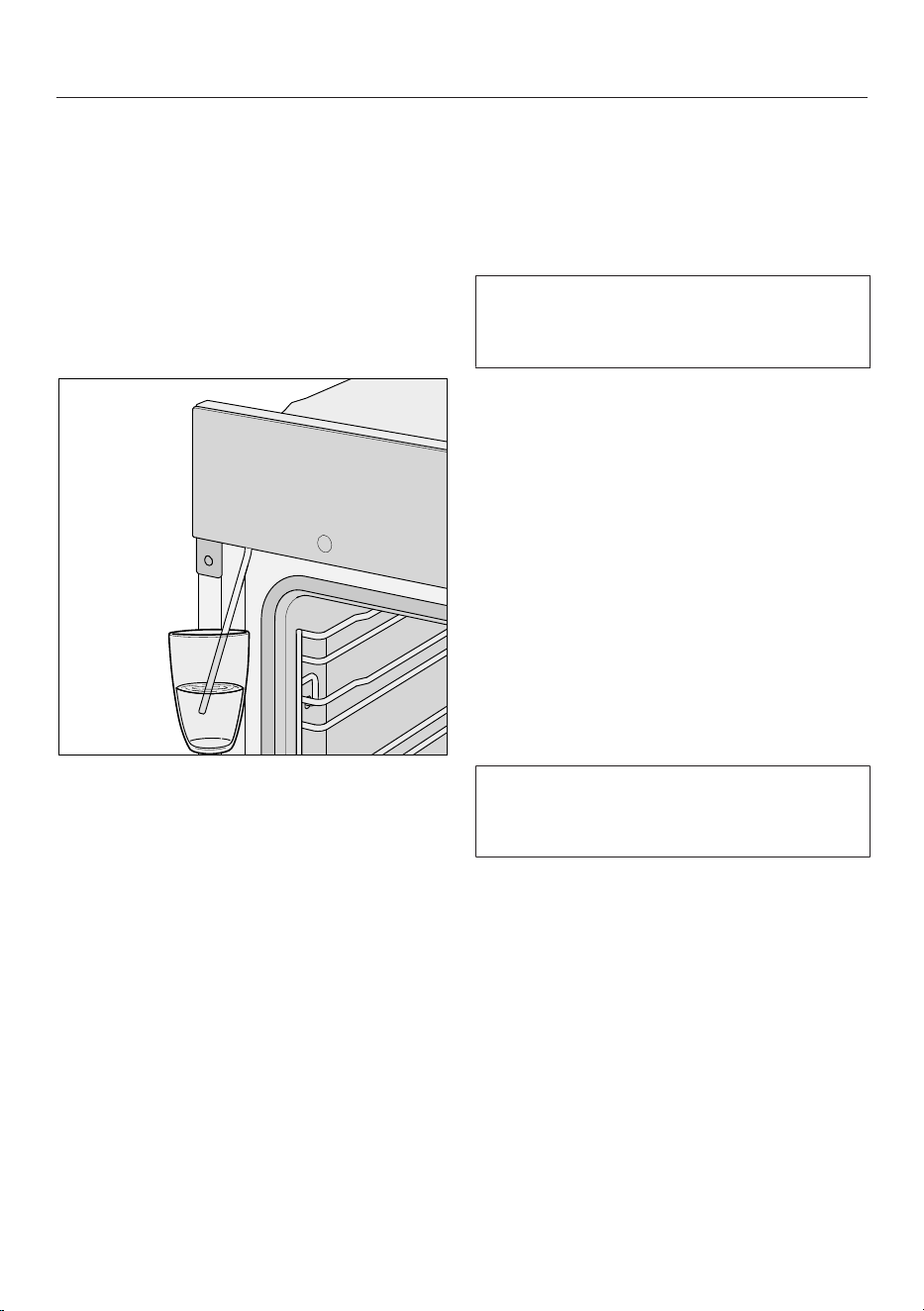
Moisture Plus
63
Preparing and starting the water
intake process
Fill a suitable container with the
required amount of fresh tap water.
Open the door.
Pull the water intake pipe forward
(located below the control panel on
the left).
Place the end of the water intake pipe
in the water container with the tap
water.
Confirm with OK.
The water intake process will begin.
The amount of water actually drawn up
into the oven may be less than the
amount specified as required, leaving a
small amount in the container.
You can interrupt and restart the
intake process at any time by
selecting Stop or Start.
Remove the water container after the
water intake process and close the
door.
You will hear the pump again briefly.
Residual water in the water intake pipe
is being drawn into the oven.
The oven heating and cooling fan will
turn on. The required and the actual
temperature will appear.
You will see the temperature rising on
the display. An audible signal will sound
when the set temperature is reached for
the first time.
If you have selected with timer, you can
check the time before steam is
released by selecting Info.

Moisture Plus
64
Injecting bursts of steam
Risk of injury caused by steam.
Steam can cause severe scalding.
In addition, steam condensing on the
control panel will cause the sensor
buttons and the touch display to
react more slowly.
Do not open the door while bursts of
steam are being released.
Automatic
Once the preheating phase is complete,
the burst of steam is injected
automatically.
The water will evaporate in the oven
compartment and Burst of steam will
appear on the display.
After the steam has been released,
Burst of steam will disappear.
Continue cooking until the end of the
cooking duration.
Manual
You can release the bursts of steam as
soon as Burst of steam appears and Start
is shown in green.
Please wait until the preheating phase
is completed to allow the steam to be
distributed evenly by the warm air in
the oven.
Tip: Use the Timerfunction as a
reminder.
Select Start.
The burst of steam will be released.
Start is deactivated.
Proceed as described to release
further bursts of steam once Start is
shown in green.
After the final burst of steam, Start is
deactivated.
Continue cooking until the end of the
cooking duration.
with timer
The oven will release the bursts of
steam automatically at the specified
times.
Burst of steam appears when the burst of
steam is being released.
After the final burst of steam, Burst of
steam will disappear.
Continue cooking until the end of the
cooking duration.

Moisture Plus
65
Evaporate residual moisture
When cooking with moisture injection,
the water will be equally distributed
between the number of steam bursts
and completely used up, as long as the
program is not interrupted.
However, if a program using moisture
injection is interrupted before all the
bursts of steam have been injected or
there is a power failure, the water for
these unused bursts of steam will
remain in the system.
The next time Moisture Plus or a
MasterChef automatic program with
moisture injection is used, Evaporate
residual moisture will appear on the
display with the options.
It is best to start the residual moisture
evaporation right away so that only
fresh water is steamed onto the food
during the next cooking program.
Risk of injury caused by steam.
Steam can cause severe scalding.
Do not open the door while bursts of
steam are being released.
Depending on the amount of water, this
can take up to approximately
30minutes.
The oven compartment is heated up
and the remaining water is evaporated,
causing condensation to form in the
oven compartment and on the door.
This condensation needs to be wiped
off the door and the oven
compartment once the oven has
cooled down.

Moisture Plus
66
Starting the residual water moisture
process immediately
Risk of injury caused by steam.
Steam can cause severe scalding.
Do not open the door while bursts of
steam are being released.
Select an operating mode or a
MasterChef automatic program that
uses moisture injection.
The prompt Evaporate residual moisture?
will then appear.
Select Yes.
Evaporate residual moisture and a time will
then appear on the display.
The residual moisture evaporation
process will start. You can follow the
time counting down on the display.
The time shown on the display will
depend on the amount of residual water
left in the steam injection system.
During the evaporation process, the
duration may be adjusted by the system
according to the amount of water
currently present.
At the end of the residual moisture
evaporation process, Ready will appear
on the display.
Select Close.
A cooking program using an operating
mode or a MasterChef automatic
program with moisture injection can
now be run.
During residual moisture evaporation,
moisture will condense on the door
and inside the oven compartment.
This moisture needs to be wiped off
after the oven compartment has
cooled down.
Skipping the residual moisture
evaporation process
Skipping the residual water moisture
process can cause water to overflow
into the oven compartment.
Do not cancel the evaporation
process.
Select an operating mode or a
MasterChef automatic program that
uses moisture injection.
Evaporate residual moisture? will appear.
Select Skip.
A cooking program using an operating
mode or a MasterChef automatic
program with moisture injection can
now be run.
You will be prompted to carry out the
residual moisture evaporation process
the next time you select an operating
mode or a MasterChef automatic
program that uses moisture injection,
and when you turn the oven off.

Automatic Programs
67
With the wide range of automatic
programs, you can achieve excellent
results with ease.
Categories
The automatic programs are sorted
into categories to provide a better
overview. Simply select the appropriate
automatic program for the type of food
you are cooking and follow the
instructions on the display.
Using automatic programs
Select Automatic Programs.
A list will appear.
Select the food category you want.
The automatic programs available for
the category selected will then appear.
Select the automatic program that
you want to use.
Follow the instructions on the display.
Some automatic programs will prompt
you to use the probe. Read the
information under “Roasting – Probe”.
Core temperatures cannot be changed
for automatic programs.
Tip: Use Info to display information
such as how to place or turn the food
depending on the cooking program.
Usage notes
- After cooking, allow the oven
compartment to cool down to room
temperature again before starting a
automatic program.
- Some automatic programs require a
preheating phase before food can be
placed in the oven. A prompt will
appear on the display indicating
when this needs to be done.
- Some automatic programs require
liquid to be added during the cooking
process. You will be prompted by a
message on the display when this
needs to be done (e.g., for adding
liquid).
- The duration quoted for automatic
programs is an estimate. It may
increase or decrease depending on
the program. The duration, in
particular with meat, will vary
depending on the initial temperature
of the food.
- When you use the probe, the cooking
duration will depend on when the
core temperature is reached.
- If by the end of a automatic program
the food is not cooked enough for
your taste, select Cont. cooking or
Continue baking. Conventional heating
will then be used for 3minutes to
continue cooking or baking the food.

Automatic Programs
68
Search
(Depending on language)
Under Automatic Programs, you can
search by the name of the categories
and the automatic programs.
This search is a full-text search and can
also be used to search for parts of
words.
From the main menu:
Select Automatic Programs.
The category list will appear on the
display.
Select Search.
Use the keyboard to type in the
search text, e.g., “Bread”.
The number of hits will be shown in the
footer.
If no match is found or if there are
more than 40 matches, the hits field
will be deactivated and you will need
to change the search text.
SelectXX hits.
The categories and automatic programs
found will then appear.
Select the automatic program you
want, or the category and then the
automatic program you want.
The automatic program will start.
Follow the instructions on the display.

Special Modes
69
This section provides information on the
following applications:
- Defrost
- Dehydrate
- Warm-up Cookware
- Proof
- Slow Roasting
- Sabbath Program
- Keep warm
- Canning
- Frozen food/ready meals
Special Modes
70
Defrost
Gentle defrosting of frozen goods
means that the vitamins and minerals
are generally retained.
Select Special Modes.
Select Defrost.
If necessary, adjust the
recommended temperature and set
the duration.
Air is circulated throughout the oven
compartment to gently defrost the food.
Always observe USDA/CFIA food
safety guidelines.
Risk of infection from bacteria.
Bacteria such as salmonella can
cause life-threatening food
poisoning.
It is particularly important to observe
food hygiene rules when defrosting
fish and meat, and in particular when
defrosting poultry.
Do not use the liquid produced
during defrosting.
Process the food as required as soon
as it has been defrosted.
Tips
- Remove the packaging and place the
frozen food on the universal tray or in
a suitable bowl or dish.
- Use the universal tray with the wire
rack placed on top of it for defrosting
poultry. This way the food will not be
lying in the defrosted liquid.
- Fish does not need to be fully
defrosted before cooking. Defrost
until the food has started to thaw.
The surface will then be sufficiently
thawed to take herbs and seasoning.
Defrosting durations
The duration needed for defrosting
depends on the type and weight of the
frozen food:
Frozen food
[oz/g]
[min]
Chicken 28/800 90–120
Meat
17.5/500 60–90
35/1000 90–120
Sausage 17.5/500 30–50
Fish 35/1000 60–90
Strawberries 10.5/300 30–40
Pound cake
17.5/500 20–30
Bread 17.5/500 30–50
Weight/defrosting duration
Special Modes
71
Dehydrate
Dehydrating or drying is a traditional
method of preserving fruit, certain
vegetables, and herbs.
It is important to check that fruit and
vegetables are fresh, ripe and
unbruised before they are dehydrated.
Prepare the food for drying by cutting
it up, and peeling and coring it if
necessary.
Depending on how big it is, distribute
the food for drying as evenly as
possible over the rack or universal
tray in a single layer.
Tip: You can also use the perforated
Gourmet Baking Tray, if you have one.
Dry on a maximum of 2levels at the
same time.
Place the food for drying on shelf
levels1+3.
If using the rack and universal tray,
place the universal tray below the
rack.
Select Special Modes.
Select Dehydrate.
Alter the recommended temperature
if necessary and then set the time.
Follow the instructions on the display.
Turn the food being dried on the
universal tray at regular intervals.
The drying times are longer for whole
or halved food.
Food for
drying
°F [°C] [h]
Fruit
140-160
(60–70)
2–8
Vegetables
130-150
(55–65)
4–12
Mushrooms
115-125
(45–50)
5–10
Herbs*
85-95 (30–
35)
4–8
special mode/operating mode,
temperature, drying time,
special modeDehydrate,
operating modeSurround
* When drying herbs, always use the universal
tray on shelf level2 and use the
Surround operating mode, as the fan is
switched on in the Dehydrate special mode.
Reduce the temperature if
condensation begins to form in the
oven.
Removing the dried food
Risk of injury caused by hot
surfaces.
The oven gets hot during operation.
You could burn yourself on the
heating elements, oven
compartment, or accessories.
Use pot holders when removing the
food from the oven.
Allow the fruit or vegetables to cool
down after dehydrating.
Dried fruit must be completely dry, but
also soft and elastic. Juice should not
escape when cut.
Store dried food in sealed glass jars
or cans.

Special Modes
72
Warm-up Cookware
By preheating the dishware, the food
does not cool down as quickly.
Use heat-resistant dishware.
Place the wire rack on shelf level2
and place the dishware to be heated
on it. Depending on the size of the
dishware, you can also place the rack
on the oven floor and take the side
runners out to make more room.
Select Special Modes.
Select Warm-up Cookware.
Alter the recommended temperature
if necessary and then set the time.
Follow the instructions on the display.
Risk of injury caused by hot
surfaces.
The oven gets hot during operation.
You could burn yourself on the
heating elements, oven
compartment, or accessories.
Condensation may accumulate on
the bottom of the dishware.
Use oven mitts when removing
dishware.
Proof
This mode is designed specifically for
proofing dough.
Select Special Modes.
Select Proof.
Select the proving time.
Follow the instructions on the display.
Keep warm
You can keep food warm in the oven for
several hours.
In order to maintain the quality of
food, select the shortest possible
time.
Select Special Modes.
Select Keep warm.
Place the food to be kept warm in the
oven and confirm with OK.
Alter the recommended temperature
if necessary and then set the time.
Follow the instructions on the display.

Special Modes
73
Slow Roasting
The Slow Roastingmethod is ideal for
cooking beef, pork, veal, or lamb when
you want a tender result.
Always observe USDA/CFIA food
safety guidelines.
First briefly sear the meat on all sides at
a high temperature on the cooktop in
order to seal it.
Then place the meat in the preheated
oven where the low temperature and
long cooking duration will cook it to
perfection and ensure it is very tender.
The meat will relax. The juices inside
will start to circulate evenly throughout
the meat to reach the outer layers.
This gives very tender and succulent
results.
Only use lean meat which has been
correctly seasoned and trimmed.
Bones should be removed before
cooking.
For searing, use a suitable cooking oil
or fat that can withstand high
temperatures (e.g., clarified butter,
vegetable oil).
Do not cover meat during the cooking
process.
Cooking takes approx. 2–4hours
depending on the weight and size of
the meat and how well you want it
cooked.
As soon as the cooking program has
finished, you can carve the meat
straight from the oven. It does not
need to rest.
You can leave the meat in the oven to
keep warm until you serve it. This will
not affect results in any way.
Serve on preheated plates with very
hot sauce or gravy to prevent it
cooling down too quickly. The meat is
at an ideal temperature to eat straight
away.
Tip: Using the pull-down menu, turn on
the Keep warmfunction to keep the food
warm without inadvertently cooking it
further.

Special Modes
74
Using the Slow RoastingSpecial
Mode
Observe the information under
“Roasting – Precision Probe”.
Select Special Modes.
Select Slow Roasting.
Follow the instructions on the display.
Place the necessary accessories in
the oven compartment for the
preheating phase.
Set the temperature and the core
temperature.
While the oven is preheating, sear the
meat on all sides on the cooktop.
Danger of burning due to hot
surfaces.
The oven gets hot during operation.
You could burn yourself on the
heating elements, oven
compartment, or accessories.
When the oven is hot, use pot
holders to insert, remove, or turn
food, as well as when adjusting the
oven shelves, etc.
Once Insert the probe and place in the
oven appears on the display, place
the seared meat on the wire rack and
insert the probe so that the metal tip
is fully in the center of the meat.
Close the door.
At the end of the program, Readywill
appear on the display and an audible
signal will sound.
Using the Surroundoperating mode
Use the universal tray with the wire
rack placed on top of it.
Turn off the Boosterfunction for the
preheating phase.
Place the wire rack with the universal
tray on shelf level 2.
Select Operating Modes.
Select the Surroundoperating
mode and a temperature of 250°F
(120°C).
Turn off the Boosterfunction via the
pull-down menu.
Preheat the oven together with the
universal tray and wire rack for
approx. 15minutes.
While the oven is preheating, sear the
meat on all sides on the cooktop.
Danger of burning due to hot
surfaces.
The oven gets hot during operation.
You could burn yourself on the
heating elements, oven
compartment, or accessories.
When the oven is hot, use pot
holders to insert, remove, or turn
food, as well as when adjusting the
oven shelves, etc.
Place the seared meat on the wire
rack.
Reduce the temperature to 210°F
(100°C).
Continue cooking until the end of the
cooking duration.

Special Modes
Cooking durations/core temperatures
Always observe USDA/CFIA food safety guidelines.
Meat Cooking
duration
Core temperature
Beef tenderloin, approx. 2.2lbs
(1kg)
- rare
- medium
- well done
60–80min
75–85min
110–130min
113–119°F (45–48°C)
129–135°F (54–57°C)
145–151°F (63–66°C)
Prime rib, approx. 2.2lbs (1kg)
- rare
- medium
- well done
70–80min
105–115min
130–140min
113–119°F (45–48°C)
129–135°F (54–57°C)
145–151°F (63–66°C)
Pork tenderloin, approx. 0.75lbs
(350g)
70–90min 145–156°F (63–69°C)
Gammon joint*, approx. 2.2lbs
(1kg)
140–160min 145–151°F (63–66°C)
Veal tenderloin, approx. 2.2lbs
(1kg)
- pink
- medium
- well done
45–55min
75–85min
90–100min
113–119°F (45–48°C)
129–135°F (54–57°C)
145–151°F (63–66°C)
Saddle of veal*, approx. 2.2lbs
(1kg)
- pink
- medium
- well done
75–85min
100–130min
130–140min
113–119°F (45–48°C)
129–135°F (54–57°C)
145–151°F (63–66°C)
Saddle of lamb* 40–60min 129–151°F (54–66°C)
*
Boneless
75

Special Modes
76
Sabbath Program
The Sabbath Program and Yom-Tov
Special Modes help to support religious
observance.
The oven heats up to the temperature
you have set and maintains this
temperature for a maximum of 24hours
(Sabbath Program) or 76hours (Yom-Tov).
Turn off Cabinet door front
recognition.
Select Special Modes.
Select Sabbath Program.
Select the Special Mode you want.
Select the operating mode you want
to use.
You will not be able to start the
Special Mode if you have set a timer
or alarm.
Set the temperature.
Select Start.
The name of the Special Mode and the
set temperature will appear on the
display.
The oven heating will turn on around
30seconds after you have closed the
door.
The oven interior lighting will remain on
during the entire cooking period.
Sabbath Program or Yom-Tov and the set
temperature will appear permanently on
the display.
The time of day will not appear. The
proximity sensor will not respond, and
neither will any of the sensor buttons
(except for the On/Off button).
The message Do not open the door will
appear.
After around 1hour, this information will
turn off from time to time. You can open
the door when this message is not
shown.
Place the food in the oven.
The Sabbath Program Special Mode ends
after 24hours. The display will not
change.
In both Special Modes, the oven turns
off automatically after 76hours.
If you want to end the Special Mode
prematurely, turn off the oven using
the On/Off button.
Once a Special Mode has started, it
cannot be changed or saved under
Favorites.

Special Modes
77
Canning
Risk of infection from bacteria.
The spores of the botulinum
bacterium are not sufficiently killed
by canning legumes and meat only
once. Toxins may form which can
lead to serious poisoning. These
spores are only destroyed by
canning the food again.
After they have cooled down, always
reheat legumes and meat a second
time within 2days.
Risk of injury from increased
pressure in sealed cans.
Canning food and heating it up in
closed containers results in an
increase in pressure which can
cause them to explode.
Do not use cans for canning or
reheating food.
Always observe USDA/CFIA food
safety guidelines.
Preparing fruit and vegetables
The instructions are for 6 jars with a
capacity of 1liter each.
Only use special jars for canning
(preserving jars or jars with a screw
cap). Only use undamaged jars and
rubber rings.
Rinse the jars with hot water before
canning and fill them up to a
maximum of 3/4" (2cm) below the
rim.
Slide the universal tray onto shelf
level2. Place the jars on the tray.
Select the Convection
Bakeoperating mode and a
temperature of 325-350°F
(160–170°C).
Wait until bubbles rise evenly in the
jars.
Then reduce the temperature to
prevent the contents from boiling over.

Special Modes
78
Canning fruit and vegetables
Set the specified post-canning
warming temperature as soon as
bubbles are visible in the jars, then
leave the jars in the warm oven for
the time specified.
Canning vegetables
As soon as bubbles are visible in the
jars, set the specified preserving
temperature and cook the vegetables
for the time specified.
After canning, set the specified post-
canning warming temperature, then
leave the jars in the warm oven for
the time specified.
/ /
Fruit –/–
85°F
(30°C)/
25–35min
Pickling
cucumbers
–/–
85°F
(30°C)/
25–30min
Beets
250°F
(120°C)/
30–40min
85°F
(30°C)/
25–30min
Beans (green
or yellow)
250°F
(120°C)/
90–120min
85°F
(30°C)/
25–30min
/Canning temperature and time once
bubbles are visible in the jars
/Post-canning warming temperature
and time
Removing the jars after canning
Risk of injury caused by hot
surfaces.
The jars will be very hot after
canning.
Use oven mitts when removing the
jars from the oven.
Take the jars out of the oven.
Cover the jars with a towel and leave
to set for approx. 24hours in a draft-
free area.
After they have cooled down, always
reheat beans and meat a second time
within 2days.
Remove the fasteners from the jars
and make sure all jars are closed
properly when storing them.
Either boil open jars again or store
them in a cool place and consume the
preserved fruit or vegetables
immediately.
Check the jars during storage. If jars
have opened during storage or if the
screw cap is bulging and does not
make a popping noise when opened,
dispose of the contents.

Special Modes
79
Frozen food/ready meals
Tips for cakes, pizza, and baguettes
- Bake cakes, pizza, and baguettes on
parchment paper on the wire rack.
- Use the lowest temperature
recommended by the manufacturer.
Tips for French fries, croquettes, and
similar items
- Cook frozen food items on parchment
paper placed on a baking tray or the
universal tray.
- Use the lowest temperature
recommended by the manufacturer.
- Turn several times during cooking.
Preparing frozen food/ready meals
Handling and cooking food correctly
is essential for maintaining good
health.
Cakes, pizzas, and French fries
should be cooked until golden, not
dark brown.
Select the operating mode and
temperatures recommended on the
food’s packaging.
Preheat the oven.
Place the food in the preheated oven
on the shelf level recommended on
the packaging.
Check the food at the end of the
shortest time recommended on the
packaging.

MyMiele
80
Under MyMiele, you can save
frequently used applications.
It is particularly useful with the
automatic programs as you do not need
to work through every screen in order to
start a program.
Tip: You can also set menu options that
you have entered in MyMiele to appear
on the start screen (see “Settings –
Start screen”).
Adding entries
You can add up to 20entries.
Select MyMiele.
Select Add entry.
You can select options from the
following categories:
- Operating Modes
- Automatic Programs
- Special Modes
- Favorites
- Maintenance
Confirm with OK.
The selected subitem and its respective
symbol will appear in the list.
Proceed as described for further
entries. Only options that have not
yet been selected are available for
selection.
Deleting entries
Select MyMiele.
Touch the entry you want to delete
and keep your finger on it until the
context menu appears.
Select Delete.
The entry will then be removed from the
list.
Moving entries
Select MyMiele.
Touch the entry you want to move
and keep your finger on it until the
context menu appears.
Select Move.
An orange border will appear around
the entry.
Move the entry.
The entry will now appear in the
position you want it in.

Favorites
81
You can create and save up to 20 of
your own programs.
- You can combine up to 10cooking
stages to accurately program your
favorite or most frequently used
recipes. In each cooking stage, you
can select settings such as the
operating mode, temperature, and
cooking duration or core
temperature.
- You can specify the shelf level(s) for
the food.
- You can enter a program name for
your recipe.
When you next select the program, it
will start automatically.
There are different ways of creating a
Favorite:
- When a automatic program finishes
running, save it as a separate
program.
- After running a program with a set
duration, save it.
Then name the program.
Creating a Favorite
Select Favorites.
Select Create program.
You can now specify the settings for the
first cooking stage.
Follow the instructions on the display:
Select and confirm the settings.
If you select the Preheatfunction, use
Add to add another cooking stage
where you set a cooking duration.
Only then can you save or start the
program.
All settings for the first cooking stage
have now been set.
More cooking stages can be added, for
example, if you would like to add
another operating mode to follow the
first.
If additional cooking stages are
required, selectAdd and proceed as
for the first cooking stage.
When you have finished setting the
cooking stages, select Set shelf level.
Select the level(s) you want.
Confirm with OK.
If you want to check the settings or to
change them at a later stage, tap the
cooking stage in question.
Select Save.
Enter the program name using the
keyboard.
You can add a line break for longer
program names using the symbol.
Once you have entered the program
name, select Save.
A message will appear on the display
confirming that the name has been
saved.
Confirm with OK.
You can start the saved program
immediately, delay the start, or change
the cooking stages.

Favorites
82
Starting a Favorite
Place the food in the oven.
Select Favorites.
Select the program you want to use.
Depending on the program settings, the
following menu options will appear on
the display:
- Start now
The program will start immediately.
The oven heating will turn on
immediately.
- Ready at
You can set the time at which the
cooking program should end. The
oven will turn off automatically at the
time you have set.
- Start at
You can set the time at which the
cooking program should start. The
oven will turn on automatically at the
time you have set.
- Display cook. stages
A summary of your settings will
appear on the display.
- Display actions
The required actions, e.g., placing the
food in the oven, will appear on the
display.
Select the menu option you want.
Confirm the message regarding
which shelf level to use with OK.
The selected program will begin
automatically right away or at the time
set.
Use Info to display information such
as how to place or turn the food
depending on the cooking program.
During the cooking program, you can
use the pull-down menu to turn the
Rapid cooling and Keep warmfunctions
on or off.
At the end of the program, select
Close.
Changing cooking stages
Cooking stages in an automatic
program that have been saved under a
different name cannot be changed.
Select Favorites.
Touch the program you want to
change and keep your finger on it
until the context menu appears.
Select Change.
Select the cooking stage that you
want to change or Add to add another
cooking stage.
Select and confirm the settings.
If you want to start the modified
program without changing it,
selectStart.
SelectSave when you have changed
all the settings.
A message will appear on the display
confirming that the name has been
saved.
Confirm with OK.
The saved program has been changed
and you can start it immediately or
delay the start.

Favorites
83
Renaming Favorites
Select Favorites.
Touch the program you want to
change and keep your finger on it
until the context menu appears.
Select Rename.
Change the program name using the
keyboard.
You can add a line break for longer
program names using the symbol.
Once you have changed the program
name, selectSave.
A message will appear on the display
confirming that the name has been
saved.
Confirm with OK.
The program has now been renamed.
Deleting a Favorite
Select Favorites.
Touch the program you want to delete
and keep your finger on it until the
context menu appears.
Select Delete.
Confirm the query with Yes.
The program is deleted.
Go to Settings| Factory default| Favorites
to delete all Favorites at the same
time.
Moving Favorites
Select Favorites.
Touch the program you want to move
and keep your finger on it until the
context menu appears.
Select Move.
An orange border will appear around
the entry.
Move the program.
The program will now appear in the
position you want it in.

Baking
84
Handling and cooking food correctly
is essential for maintaining good
health.
Cakes, pizzas, and French fries
should be cooked until golden, not
dark brown.
Always observe USDA/CFIA food
safety guidelines.
Tips for baking
- Set a cooking duration. If used for
baking, do not delay the start for too
long. Otherwise the cake mixture or
dough will dry out, and the raising
agents will lose their effectiveness.
- Generally speaking, you can use wire
racks, baking trays, universal trays,
and any type of bakeware made of
heat-resistant material.
- Avoid using bright, thin-walled pans
made from a shiny material as they
give an uneven or poor browning
result. In certain unfavorable
conditions, the food will not cook
properly.
- Place cakes in rectangular bakeware
on the wire rack with the longer side
across the width of the oven for
optimum heat distribution and even
results.
- Always place bakeware on the wire
rack.
- When baking cakes with fruit
toppings or deep cakes, place the
pan on the universal tray to catch any
spillages.
Using parchment paper
Miele accessories, e.g., the universal
tray, are treated with PerfectClean (see
“Features”). Surfaces treated with
PerfectClean generally do not need to
be greased or covered with parchment
paper.
Use parchment paper when baking
lye mixtures (e.g., pretzels) because
the sodium hydroxide can damage
the PerfectClean treated surface.
Use parchment paper when baking
sponge cake, meringue, macaroons,
or similar items. These are more likely
to stick due to their high egg white
content.
Use parchment paper when cooking
frozen food on the wire rack.
Selecting the temperature
Select the suggested temperature in
general.
Choosing a baking temperature higher
than those recommended may reduce
the cooking time, but will lead to
uneven browning and unsatisfactory
cooking results.
Selecting the cooking duration
Check whether the food is cooked
shortly before the end of the specified
cooking duration. Stick a wooden
skewer into the food.
If it comes out clean without any batter/
dough on it, the food is done.

Baking
85
Notes on the operating modes
You can find an overview of all the
operating modes with their
recommended values in “Main and
submenus”.
Using Automatic Programs
Follow the instructions on the display.
Using Convection Bake
Because the blower distributes the heat
around the oven compartment straight
away, you can use a lower temperature
than you would with the
Surroundoperating mode.
Use this operating mode if you are
baking on multiple shelf levels at the
same time.
1shelf: Place the food on shelf
level2.
2shelves: Place the food on shelf
levels1+3 or 2+4.
3shelves: Place the food on shelf
levels1+3+5.
Tips
- If you are cooking on multiple shelf
levels at the same time, slide the
universal tray in on the lowest level.
- For moist cookies and cakes, bake on
a maximum of 2shelf levels at once.
Using Moisture Plus
Use this operating mode with your
preferred type of heating for cooking
with moisture injection.
Place the food on shelf level2.
Using Intensive
Use this operating mode for baking
cakes with moist toppings.
Do not use this operating mode for
baking thin biscuits.
Place cakes on shelf level1 or 2.
Using Surround
Dark metal, enamel, or aluminum
bakeware with a matte finish, as well as
heat-resistant glass, ceramic, and
coated bakeware can be used.
Use this operating mode for cooking
traditional recipes. If using an older
recipe or cookbook, set the oven
temperature 25°F (10°C) lower than that
recommended. This will not change the
cooking duration.
Place the food on shelf level1 or 2.

Roasting
86
Always observe USDA/CFIA food
safety guidelines.
Tips for roasting
- You can use all dishware made from
temperature-resistant materials, e.g.,
roasting dishes, roasting pans with
lid, ovenproof glass dishes, roasting
bags, dishes made from earthenware
or cast iron, the universal tray, wire
rack, and/or anti-splash insert (if
available) on top of the universal tray.
- Preheating the oven is only required
when preparing roast beef and fillets.
Preheating is generally not necessary.
- Use a closed cooking container for
roasting meat, such as a roasting
dish. The meat will stay succulent.
The oven compartment will also stay
cleaner than when roasting on the
wire rack. It ensures that enough
stock remains for making gravy.
- If you are using a roasting bag,
follow the instructions on the
packaging.
- If you are using the wire rack or an
open cooking container for roasting,
you can add a little fat or oil to very
lean meat or place a few strips of
bacon on the top.
- Season the meat and place in the
cooking container. Dot with butter or
brush with oil or cooking fat. For large
lean cuts of meat (4–6lb/2–3kg) and
fatty poultry, add about 1/2cup
(1/8liter) of water to the dish.
- Do not add too much liquid during
cooking as this will hinder the
browning process. Browning only
occurs towards the end of the
cooking duration. Remove the lid
about halfway through the cooking
duration if you want a more intensive
browning result.
- At the end of the program, take the
food out of the oven, cover it, and
leave to stand for about 10minutes.
This helps retain the juices when the
meat is sliced.
- For a crisp finish, baste poultry
10minutes before the end of the
cooking duration with slightly salted
water.
Selecting the temperature
As a general rule, select the
temperature given in the
corresponding recipe.
For large pieces of meat, do not
choose a temperature that is too
high. The roasting process will take
longer, but the meat will cook through
evenly and the skin or crackling will
not be too thick.
When cooking with Convection
Roast, Moisture Plus or Auto
Roast, select a temperature which
is approx. 50°F (20°C) lower than with
Surround.
When roasting on the wire rack, set a
temperature approx. 25°F (10°C)
lower than for roasting in a covered
cooking container.

Roasting
87
Selecting the cooking duration
Check whether the food is cooked
shortly before the end of the specified
cooking duration.
Tips
- For frozen meat, increase the cooking
duration by approx. 10minutes per lb
(20minutes per kg).
- Frozen meat weighing less than
approx. 3.3 lb (1.5kg) does not need
to be defrosted before roasting.
Notes on the operating modes
You can find an overview of all the
operating modes with their
recommended values in “Main and
submenus”.
Use the Bakeoperating mode
towards the end of the cooking
duration to brown the base of the
food.
Do not use the Intensiveoperating
mode for roasting as the juices will
become too dark.
Using Automatic Programs
Follow the instructions on the display.
UsingConvection Roast orAuto
Roast
These operating modes are suitable for
roasting meat, fish, and poultry that
needs to be well browned, as well as
sirloin and fillet.
The Convection Roastoperating
mode allows you to use a lower
temperature than you would with the
Surroundoperating mode, because
the heat is immediately distributed
throughout the oven compartment.
With the Auto Roastoperating
mode, the oven compartment heats
initially the highest temperature in this
operating mode for searing. As soon as
this temperature has been reached, the
oven automatically drops the
temperature back down to the
preselected cooking temperature
(continued roasting temperature).
Place the food on shelf level2.
Using Moisture Plus
Use this operating mode with your
preferred type of heating for cooking
with moisture injection.
Place the food on shelf level2.
Using Surround
Use this operating mode for cooking
traditional recipes. If using an older
recipe or cookbook, set the oven
temperature 50°F (10°C) lower than
that recommended. This will not change
the cooking duration.
Place the food on shelf level2.

Roasting
88
Food Probe
The probe allows you to monitor the
roasting process simply and reliably.
How it works
The metal tip of the roast probe must
be fully inserted into the center of the
food all the way to the handle. There is
a temperature sensor in the metal tip
which measures the core temperature
of the food during the cooking process.
The rise in the core temperature reflects
the extent to which the food is cooked.
You can program the core temperature
to be lower or higher, depending on
whether you want your meat to be rare,
medium, or well done.
The maximum core temperature setting
is 210°F(99°C).
The cooking time will be similar when
cooking with or without the wireless
food probe.
When to use the probe
Some automatic programs and Special
Modes will prompt you to use the
probe.
You can also use the probe with
Favorites and with the following
operating modes:
- Auto Roast
- Convection Roast
- Intensive
- Surround
- Moisture Plus + Auto Roast
- Moist. Plus + Conv Bake/
Moisture + Conv Roast
- Moisture Plus + Intensive
- Moisture Plus + Surround
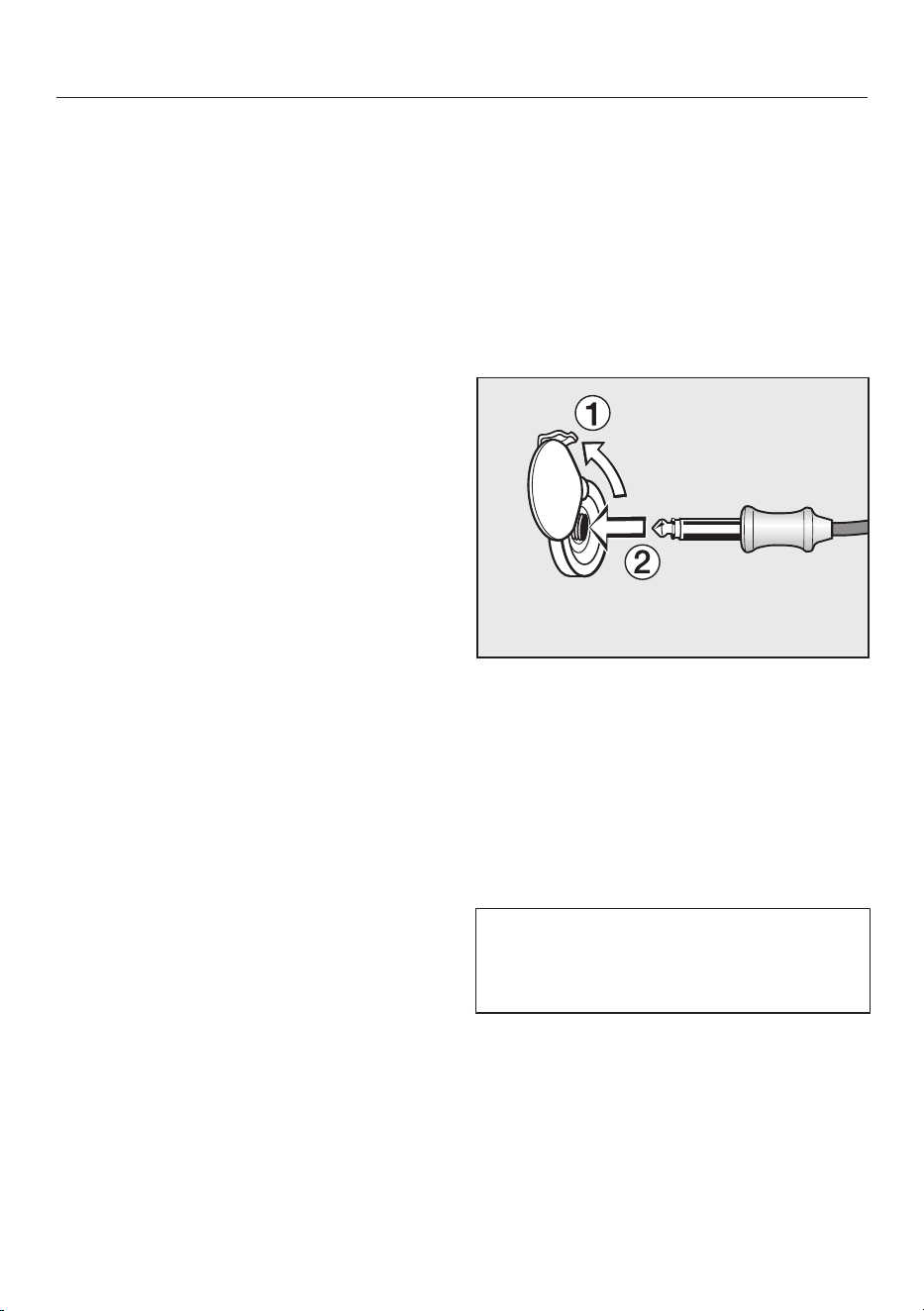
Roasting
89
Important usage notes
- You can place the meat in a pot or on
the wire rack.
- The metal tip of the probe must be
fully inserted into the center of the
food so that the temperature sensor
reaches more or less to the core.
- When cooking poultry, insert the
metal part into the thickest part of the
breast. You can find the thickest part
of the breast by pressing the area
with your thumb and index finger.
- The metal tip must not touch any
bone or be inserted in areas with a lot
of fat. Fatty tissue and bones can
cause the probe to turn off early.
- When using aluminum foil or roasting
bags, insert the probe through the
foil/bag into the center of the food.
You can also place meat inside the
bag or foil with the probe already
inserted. Be sure to follow the
instructions provided by the
manufacturer of the roasting bag or
aluminum foil.
Using the probe
Fully insert the metal tip of the probe
into the center of the meat all the way
to the handle.
If you are cooking several pieces of
meat at the same time, insert the probe
into the largest piece of meat.
Place the food in the oven.
Insert the plug of the probe into the
socket until you feel it engage.
Close the door.
Select an operating mode or
automatic program.
Set the temperature and the core
temperature if necessary.
Core temperatures cannot be changed
for automatic programs.
Follow the instructions on the display.
The cooking program finishes as soon
as the core temperature is reached.

Roasting
90
Risk of injury caused by hot
surfaces.
The probe can get hot. You could
burn yourself on it.
Use pot holders when removing the
probe from its socket.
Delaying the start of a cooking
program with probe
You can also delay the start of the
cooking program to a later time.
Select Start at.
You can estimate approximately when
the food will be ready as the duration of
the cooking program is about the same
as if you were cooking food without
using the probe.
You cannot set Duration and Ready at
because the total cooking duration is
determined by when the set core
temperature is reached.
Time-left display
If the temperature set for a cooking
process is above 285°F (140°C), the
estimated duration remaining (time left)
will appear on the display.
The time left is calculated from the
cooking temperature selected, the set
core temperature, and the progress of
the core temperature as it rises.
The time left first shown is an estimate.
As the cooking process continues, the
time left is revised continuously, and a
more accurate figure is shown.
The time left will be deleted if the
cooking temperature or core
temperature is changed or if a different
operating mode is selected. If the door
is opened for a longer time, the time left
will be recalculated.
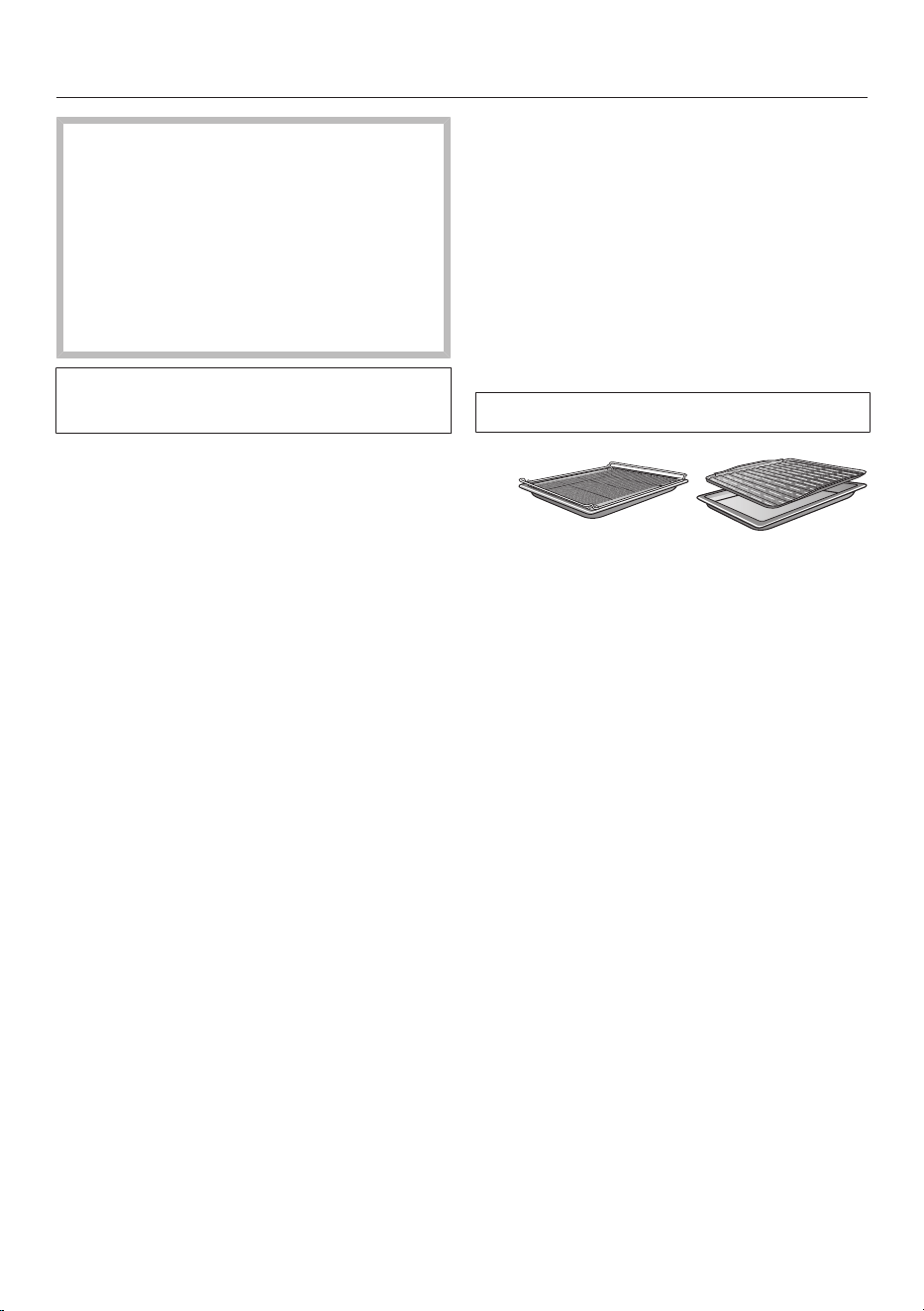
Broiling
91
Risk of injury caused by hot
surfaces.
If you broil with the door open, the
hot air will escape from the oven
before it has been cooled by the
cooling fan. The control elements will
get hot.
Broil with the oven door closed.
Always observe USDA/CFIA food
safety guidelines.
Tips for broiling
- Preheating is necessary when
broiling. Preheat the browning/
broiling element for approx. 5minutes
with the door closed.
- Trim the meat if necessary. Do not
season the meat with salt before
broiling, as this will draw out the
juices.
- Add a little oil to lean meat if
necessary. Do not use other types of
fat as they can easily burn and cause
smoke.
- Clean fish in the normal way. To
enhance the flavor, season with a
little salt. You can also drizzle the fish
with lemon juice.
- Use the universal tray with the wire
rack or the broiling and roasting insert
(if present) placed on top. The tray
under the insert will collect the meat
juices and stop them from burning so
that they can be used for making
gravy and sauces. Brush the wire
rack or the broiling and roasting insert
with oil and then place the food on
top.
Do not use the baking tray.
Selecting the temperature
As a general rule, select the
temperature given in the
corresponding recipe.
For large pieces of meat, do not
choose a temperature that is too
high. The roasting process will take
longer, but the meat will cook through
evenly and the skin or crackling will
not be too thick.
Choosing a shelf level
Select the shelf level depending on
the thickness of the food to be
cooked.
Place flat food on shelf level3 or 4.
Place thicker food on shelf level1 or
2.

Broiling
92
Selecting the cooking duration
Broil thinner cuts of meat/slices of
fish for approx. 6–8minutes per side.
It is best to broil food of a similar
thickness at the same time so that
the cooking durations do not vary too
much.
Check whether the food is cooked
shortly before the end of the specified
cooking duration.
Tip: If the surface of a thicker cut of
meat is browned but the center is still
raw, move the food to a lower level or
reduce the temperature and continue
broiling. This will stop the surface from
becoming too dark.
Notes on the operating modes
You can find an overview of all the
operating modes with their
recommended values in “Main and
submenus”.
The plastic on the probe can melt at
very high temperatures.
Do not use the probe when using the
broiling operating modes.
Do not store the probe in the oven
compartment when it is not being
used.
Using Maxi Broil
Use this operating mode to broil flat thin
cuts in large quantities and for browning
large baked dishes.
The entire browning/broiling element
will become red hot to produce the
necessary heat.
Using Broil
Use this operating mode to broil flat thin
cuts in smaller quantities and for
browning small baked dishes.
Only the center of the browning/broiling
element glows red to generate the
required heat.
Using Convection Broil
This operating mode is suitable for
broiling thicker food, such as chicken.
We generally recommend a temperature
setting of 425°F (220°C) for thinner
types of food and 350-400°F (180–
200°C) for thicker cuts.

Cleaning and care of the oven
93
Risk of injury caused by hot
surfaces.
The oven gets hot during operation.
You could burn yourself on the
heating elements, oven
compartment, or accessories.
Allow the heating elements, oven
compartment, and accessories to
cool before manual cleaning.
Risk of injury due to electric
shock.
The steam from a steam cleaning
appliance could reach live electrical
components and cause a short
circuit.
Never use a steam cleaner for
cleaning.
All surfaces could be discolored or
damaged if unsuitable cleaning
agents are used. The oven front is
particularly susceptible to damage
from oven cleaners or descaling
agents.
All surfaces are susceptible to
scratching. Scratches on glass can
lead to breakage in some
circumstances.
Remove all cleaning agent residues
immediately.
Unsuitable cleaning agents
To avoid damaging the surfaces of your
appliance, do not use:
- Cleaning agents containing soda,
ammonia, acids, or chlorides
- Cleaning agents containing descaling
agents on the front
- Abrasive cleaning agents
(e.g.,powder cleaners and cream
cleaners)
- Solvent-based cleaning agents
- Stainless steel cleaning agents
- Dishwasher cleaner
- Glass cleaners
- Cleaning agents for ceramic
cooktops
- Hard, abrasive brushes or sponges
(e.g.,pot scourers, brushes, or
sponges which have been previously
used with abrasive cleaning agents)
- Eraser sponges
- Sharp metal scrapers
- Steel wool
- Spot cleaning with mechanical
cleaning agents
- Oven cleaners
- Stainless-steel spiral pads

Cleaning and care of the oven
94
If soiling is allowed to sit for any
length of time, it may become
impossible to remove. If items are
used frequently without being
cleaned, it may become very difficult
to clean them.
It is therefore best to remove any
soiling immediately.
The accessories are not
dishwasher-safe.
Tip: Soiling caused by spilled fruit
juices and cake mixtures is best
removed while the oven is still warm.
Use caution and make sure the oven is
not too hot.
To make it easier to clean the oven:
Remove the door.
Remove the side runners together
with the FlexiClip telescopic runners
(if present).
Lower the browning/broiling element.
Removing normal soiling
There is a fiberglass seal around the
oven compartment which seals the
inside of the glass oven door and
can be damaged by rubbing and
scouring.
Avoid cleaning the fiberglass seal.
The fiberglass seal is essential for
sealing the door properly.
Remove normal soiling immediately
with warm water, liquid dish soap,
and a clean sponge or a clean, damp
microfiber cloth.
Remove all cleaning agent residues
thoroughly with clean water.
This is particularly important for any
parts with a PerfectClean finish, as
cleaning agent residues will impair
the non-stick function.
After cleaning, wipe the surfaces dry
using a soft cloth.
Cleaning the probe
Do not put the probe into water or
clean it in the dishwasher as this will
damage it.
Clean the probe with a damp cloth
only.

Cleaning and care of the oven
95
Removing stubborn soiling
Do not line the oven (e.g., with
aluminum foil) and do not use
standard oven cleaners unless they
are suitable for use in a self-cleaning
oven.
Spilt fruit and roasting juices may
cause lasting discoloration or matte
patches on surfaces. This
discoloration will not affect the
properties of the surface finish.
Do not attempt to remove these
marks. Clean them following the
instructions given here.
Baked-on deposits can be removed
with a glass scraper or with a
stainless-steel spiral pad, hot water,
and liquid dish soap.
You do not need to treat the oven
compartment with an oven cleaner as
the oven comes with Self Clean.
If necessary, you can use the
scouring pad on the back of a non-
scratching dish sponge to remove the
soiling after the holding time.
Remove all cleaning agent residues
thoroughly with clean water.
Dry all surfaces with a soft cloth.
Cleaning the oven
compartment with Self Clean
Instead of cleaning the oven
compartment by hand, you can run the
Self Cleanfunction.
During the Self Clean function, the oven
compartment reaches temperatures in
excess of 750°F (400°C). Any grime that
has accumulated will be broken down
and burnt to ash as a result of the high
temperatures.
There are 3Self Clean settings
available, each with a different duration:
- Level1 for light soiling
- Level2 for heavier soiling
- Level3 for very heavy soiling
The oven door is automatically locked
when the Self Clean process starts. It
cannot be opened until after the
program has finished.
The timer can be used to delay the start
time of the Self Clean program.
At the end of the Self Clean program,
any residues such as ash from the
cleaning process, which are formed
depending on the oven compartment’s
degree of soiling, can be easily wiped
away.

Cleaning and care of the oven
96
Preparing for Self Clean
Accessories that are not suitable for
the Self Clean program will be
damaged by the high temperatures.
Remove all accessories that are not
suitable for the Self Clean program
from the oven compartment before
starting the Self Clean process. This
also applies for optional accessories
that are not suitable for the Self
Clean program.
The following accessories are suitable
for the Self Clean program and can be
left in the oven compartment during the
process:
– Side runners
– FlexiClip telescopic runners HFC72
– Wire rack HBBR72
Remove all accessories that are not
suitable for the Self Clean program
from the oven.
Slide the wire rack into the top shelf
level.
Coarse soiling in the oven
compartment can cause thick smoke
to develop.
Burnt-on residues can cause lasting
discoloration or dull spots on
enameled surfaces.
Before starting the Self Clean
program, remove coarse soiling from
the oven compartment and scrape
any burnt-on residues off enameled
surfaces with a glass scraper.
Starting Self Clean
Risk of injury caused by hot
surfaces.
The oven gets much hotter during
the Self Clean program than during
normal use.
Do not let children touch the oven
during the Self Clean program.
Select Maintenance.
Select Self Clean.
Select the level required according to
the amount of soiling.
Confirm with OK.
Follow the instructions on the display.
Confirm with OK.
You can start the Self Clean program
straight away or schedule it to begin at
a later time.
Starting Self Clean straight away
To start the Self Clean program
straight away, select Start now.
Confirm with OK.
The Self Clean program will start.
The door will lock automatically. The
oven heating and the cooling fan will
then turn on automatically.
The oven interior lighting will not come
on during the Self Clean program.
The time left for the Self Clean program
will start counting down on the display.
You cannot alter the duration.

Cleaning and care of the oven
97
You can use the timer while the Self
Clean program is running. When the set
time has elapsed, the audible signal will
sound and will flash. The time will
then continue to increase on the
display. When you tap the Timersensor
button, the audible signal will stop and
the symbols on the display will go out.
Starting Self Clean at a later time
To start the Self Clean program later,
select Start at.
Confirm with OK.
Set the time at which you want the
Self Clean program to start.
Confirm with OK.
The door will lock automatically. Start at
and the start time set will appear on the
display.
You can reset the start time via Timer at
any point up to the starting time.
Once the start time has been reached,
the oven heating and cooling fan
functions will be automatically
activated. The remaining time will
appear on the display.
Finishing Self Clean
When the remaining time has elapsed, a
message will appear on the display to
tell you that the door is unlocking.
Ready will appear on the display and an
audible signal will sound as soon as the
door has been unlocked.
Confirm the message shown with OK.
Select Close.
Turn the oven off.
The audible signal will stop and the
symbols on the display will go out.
Risk of injury caused by hot
surfaces.
At the end of the Self Clean program,
the oven will still be very hot. You
could burn yourself on the heating
elements, oven compartment, or
accessories.
Allow the heating elements, oven
compartment, and accessories to
cool down before removing any Self
Clean residues or oiling the side
runners.
Clean the oven compartment and
accessories suitable for the Self
Clean program to remove any Self
Clean residues (e.g., ash) that can
build up depending on the degree of
soiling in the oven compartment.
Add a few drops of heat-resistant
cooking oil to some kitchen paper
and use this to lubricate the side
runners.

Cleaning and care of the oven
98
Most soiling can be easily removed
using a clean, soft sponge and a mild
solution of warm water and liquid dish
soap.
Depending on how dirty the oven was
prior to cleaning, there may be a
visible layer of soiling across the inner
glass pane on the door. You can
remove this using the scouring side of
a dish sponge, a glass scraper, or with
a stainless-steel spiral pad and liquid
dish soap.
There is a fiberglass seal around the
oven compartment which seals the
inside of the glass oven door and
can be damaged by rubbing and
scouring.
Avoid cleaning the fiberglass seal.
The fiberglass seal is essential for
sealing the door properly.
Spilled fruit juices may cause lasting
discoloration of enameled surfaces.
This discoloration is permanent but
will not affect the properties of the
enamel.
Do not attempt to remove these
marks.
Extending and retracting the FlexiClip
telescopic runners
After cleaning, discoloration or light
patches may remain on the FlexiClip
telescopic runners. This will not affect
the function of the runners in any way.
Extend and retract the FlexiClip
telescopic runners several times after
running the Self Clean program.
Self Clean interrupted
If the Self Clean program is cancelled,
the oven door will remain locked until
the temperature inside the oven drops
to below 535°F (280°C).
The following events will cause the Self
Clean program to stop:
- Turning the oven off.
If you turn the oven off, Self clean
program cancelled will appear on the
display.
- A power failure.
Once the power returns after a power
failure, Self clean program cancelled will
appear on the display.
The door will unlock once the
temperature in the oven has dropped
below 535°F (280°C), and the oven is
turned off.

Cleaning and care of the oven
99
Descale
The steam system should be descaled
regularly (frequency will depend on the
on-site water hardness).
The descaling process can be run at
any time.
However, to ensure that the oven
functions correctly, you will be
automatically prompted to run the
descaling process for the steam
injection system after a certain number
of programs.
The oven will count down on the display
the last 10 programs that can be run
before it needs to be descaled. You will
then not be able to run any operating
modes or MasterChef automatic
programs using moisture injection.
These operating modes can only be
used again after you have carried out
the descaling process. All other
operating modes and MasterChef
automatic programs without moisture
injection can still be used.
Descaling process sequence
Once the descaling process has been
started, it must be completed through
to the end. It cannot be canceled.
The descaling process takes approx.
90minutes and consists of several steps:
1. Preparing for the descaling process
2. Drawing in the descaling agent
3. Activation phase
4. Rinse 1
5. Rinse 2
6. Rinse 3
7. Residual moisture evaporation
Preparing for the descaling process
You will need a container of approx.
4cups (1liter) capacity.
A plastic tube (with suction cup) is
supplied with your oven so that you
do not have to hold the container with
the descaling agent underneath the
water intake pipe.
We recommend using the descaling
tablets supplied. They have been
specially developed for Miele for
optimum cleaning results.
Tip: Miele descaling tablets are
available to order from the Miele web
shop, from the Miele Customer Service,
or from your Miele dealer.
Other descaling agents, which contain
other acids besides citric acid and/or
other undesirable substances, such as
chlorides, could cause damage.
Moreover, the descaling result
required could not be guaranteed if
the descaling agent was not of the
appropriate concentration.
Fill the container with approx. 2 1/2
cups (600ml) of cold tap water and
completely dissolve one descaling
tablet in it.
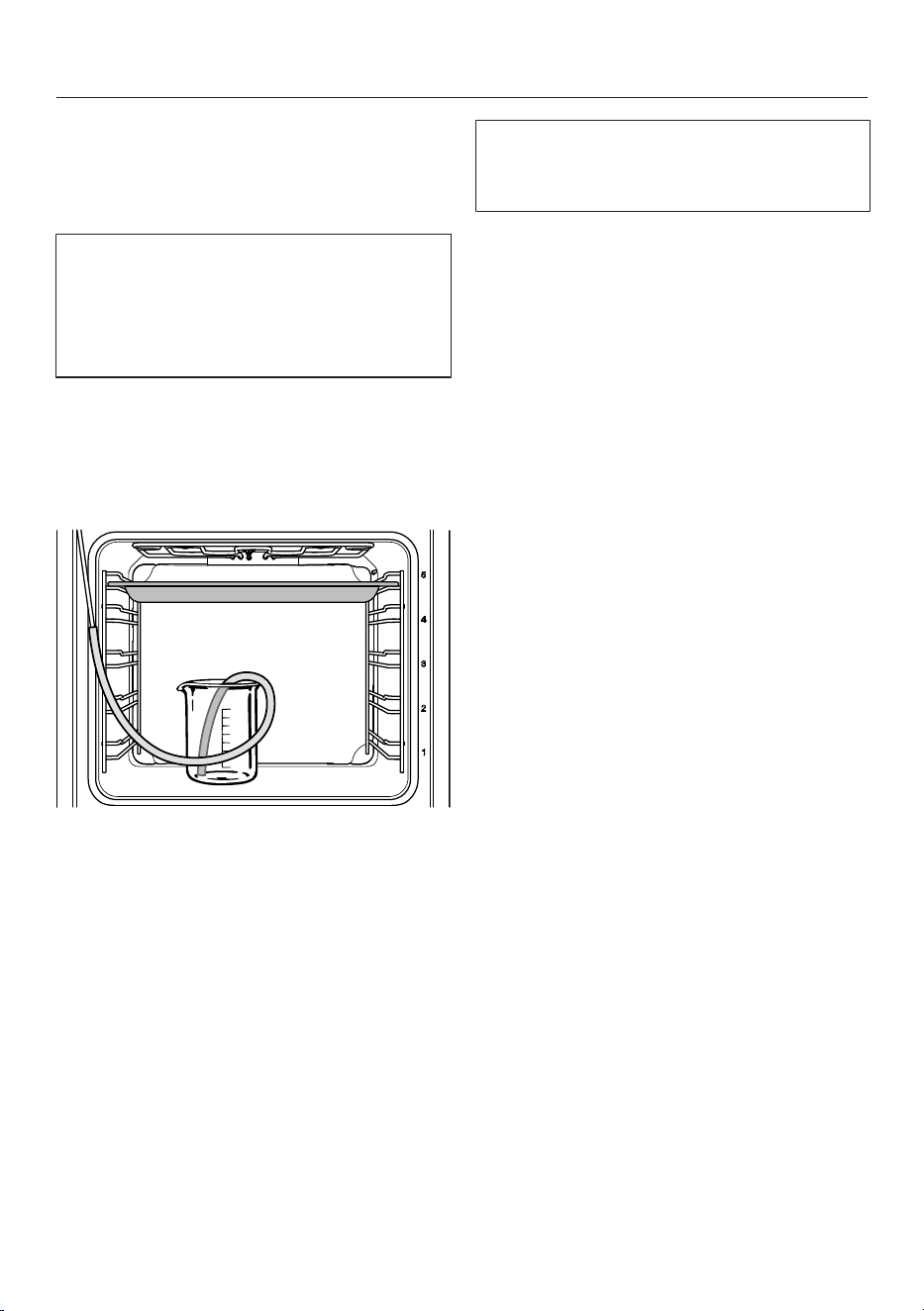
Cleaning and care of the oven
100
Running the descaling process
Select Maintenance.
Select Descale.
If you have already disable the
operating modes and MasterChef
automatic programs with moisture
injection, you can start the descaling
process immediately by tapping OK.
Push the universal tray into the top
shelf level as far as it will go to collect
the descaling agent after it has been
used. Confirm the message shown
with OK.
Place the container with the
descaling agent on the floor of the
oven.
Attach one end of the plastic tube to
the water intake pipe. Place the other
end of the plastic tube in the bottom
of the descaling agent container and
secure the plastic tube to the
container with the suction cup.
Confirm with OK.
The water intake process will begin. You
will hear the noise of the pump.
You can interrupt and restart the
intake process at any time by
selecting Stop or Start.
The amount of descaling agent
specified can be more than the amount
which is actually taken in. Some of the
agent may therefore be left in the
container at the end of the descaling
process.
A message will appear on the display
when the intake process is finished.
Confirm with OK.
The activation phase will begin. You
can follow the time counting down on
the display.
Leave the container with the tube
connected to the water intake pipe in
the oven compartment. Top the
container up with approx. 11/4cups
(300ml) of water, as the system will
need to draw in some more liquid
during the activation phase.
The system will take in more liquid at
approximately 5-minute intervals. You
will hear the noise of the pump.
The oven interior lighting and cooling
fan will remain turned on for the entire
duration of the process.
An audible signal will sound at the end
of the activation phase.

Cleaning and care of the oven
101
Rinsing the steam injection system
after the activation phase
At the end of the activation phase, the
steam injection system will need to be
rinsed out to remove all traces of
descaling agent.
To do this, approx. 4 cups (1liter) of
fresh tap water is pumped through the
steam injection system three times and
is collected in the universal tray.
Take the universal tray with the
collected descaling agent out of the
oven and empty it. Place the tray
back in the oven again on the top
shelf level.
Remove the plastic tube from the
container.
Remove the container, rinse it out
thoroughly, and fill it with approx. 4
cups (1liter) of fresh tap water.
Place the container back in the oven,
insert the plastic tube, secure it to the
container, and close the door.
Confirm with OK.
The intake process for the first rinse
will start.
Water will be flushed through the steam
injection system and will then collect in
the universal tray.
Messages will appear on the display to
prepare for the second rinse.
Take the universal tray out of the oven
and empty it. Place the tray back in
the oven again on the top shelf level.
Remove the plastic tube from the
container. Fill it with approx. 4cups
(1liter) of fresh tap water.
Place the container back in the oven,
insert the plastic tube, and secure it
to the container.
Confirm with OK.
Do the same for the third rinse.
Leave the universal tray (with the
water which has collected in it from
the third rinse) on the top oven shelf
while the evaporation process takes
place.

Cleaning and care of the oven
102
Residual moisture evaporation
After the third rinse, the residual
moisture evaporation process will
begin.
Remove the container and tube from
the oven.
Close the door.
Confirm with OK.
Risk of injury caused by steam.
Steam can cause severe scalding.
Do not open the door while the
residual water is being evaporated.
The oven heating will turn on and the
duration of the evaporation process will
count down on the display.
During the evaporation process, the
duration may be adjusted by the system
according to how much water is
currently present.
Finishing the descaling process
At the end of residual moisture
evaporation process, an information
window will appear with tips on
cleaning after the descaling process.
Confirm with OK.
An audible signal will sound and Ready
will appear.
Select Close.
Turn the oven off with the On/Off
button.
Risk of injury caused by hot
surfaces.
The oven gets hot during operation.
You could burn yourself on the
heating elements, oven
compartment, or accessories.
Allow the heating elements, oven
compartment, and accessories to
cool before manual cleaning.
Remove the universal tray with the
collected fluid and empty it.
When the oven compartment has
cooled down, clean away any
condensation and descaling agent
residues.
Leave the oven door open until the
oven compartment is completely dry.
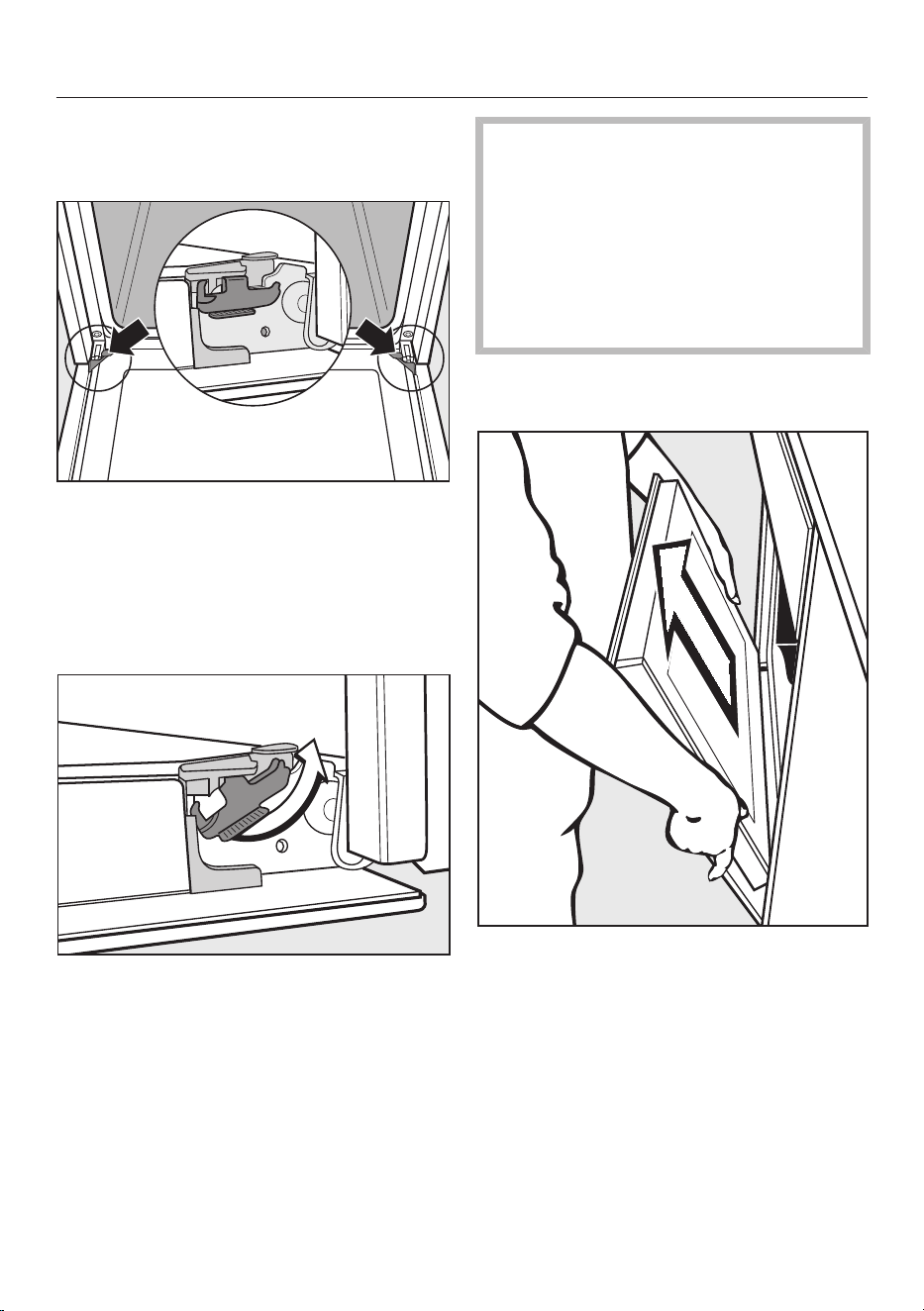
Cleaning and care of the oven
103
Removing the door
The door weighs approx. 24 lbs (11kg).
The oven door is connected to the
hinges by retainers.
Before removing the door from the
retainers, the locking clamps on both
hinges have to be released.
Open the door fully.
Release the locking clamps by
turning them as far as they will go.
You could damage the oven if you
remove the door incorrectly.
Do not pull the door horizontally off
its retainers, as they will spring back
against the oven.
Do not pull the door off the retainers
by the handle, as the handle could
break off.
Raise the door up till it rests partially
open.
Hold the door on either side and pull
it upwards off the hinge retainers.
Make sure that the door is straight.
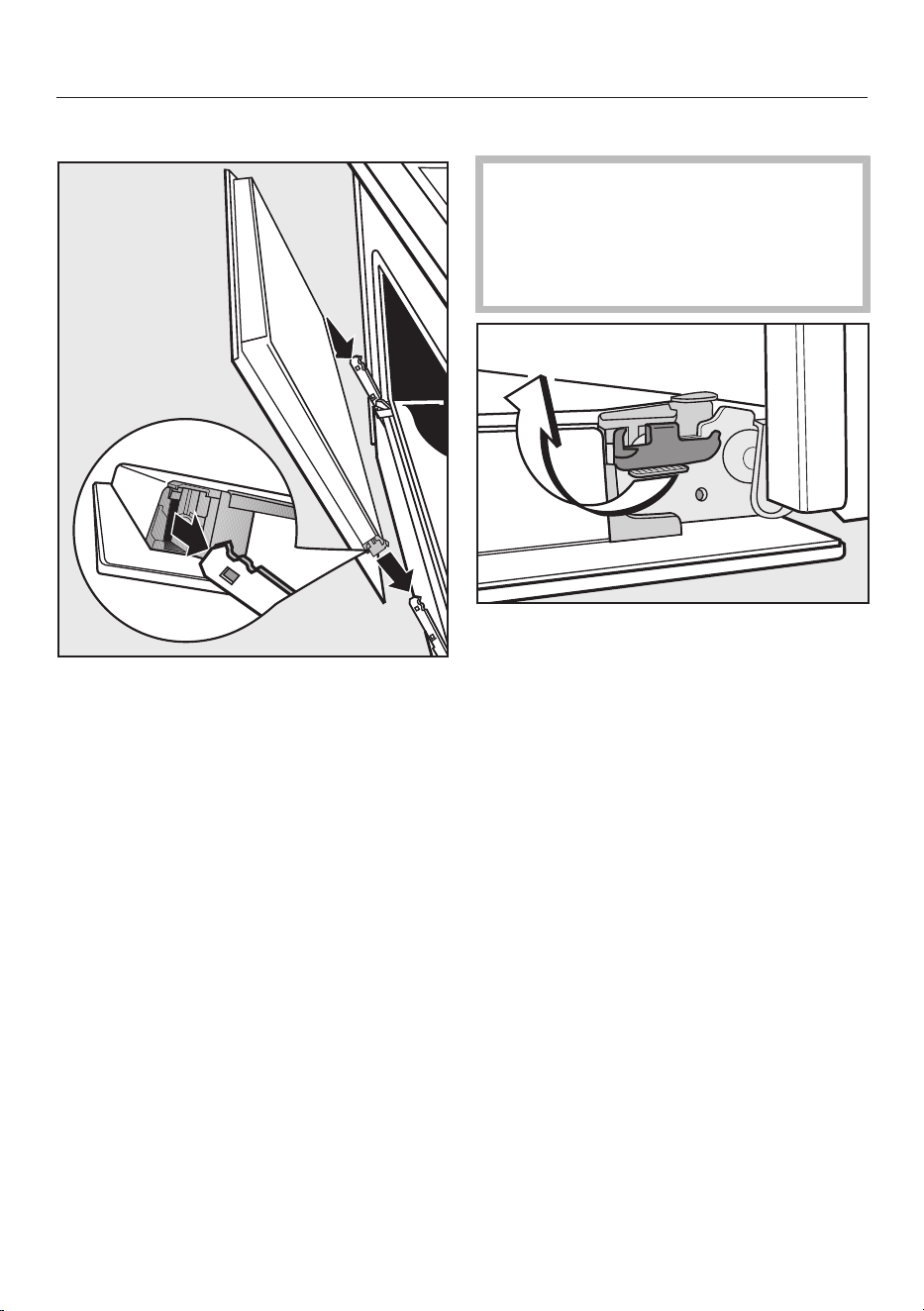
Cleaning and care of the oven
104
Installing the door
Hold the door securely on both sides
and carefully install it back into the
hinge retainers.
Make sure that you do not tilt the
door.
Open the door fully.
If the locking clamps are not locked,
the door could become loose,
resulting in damage.
Ensure that the locking clamps are
locked after reinstalling the door.
To relock the locking clamps, turn
them back up to the horizontal
position as far as they will go.
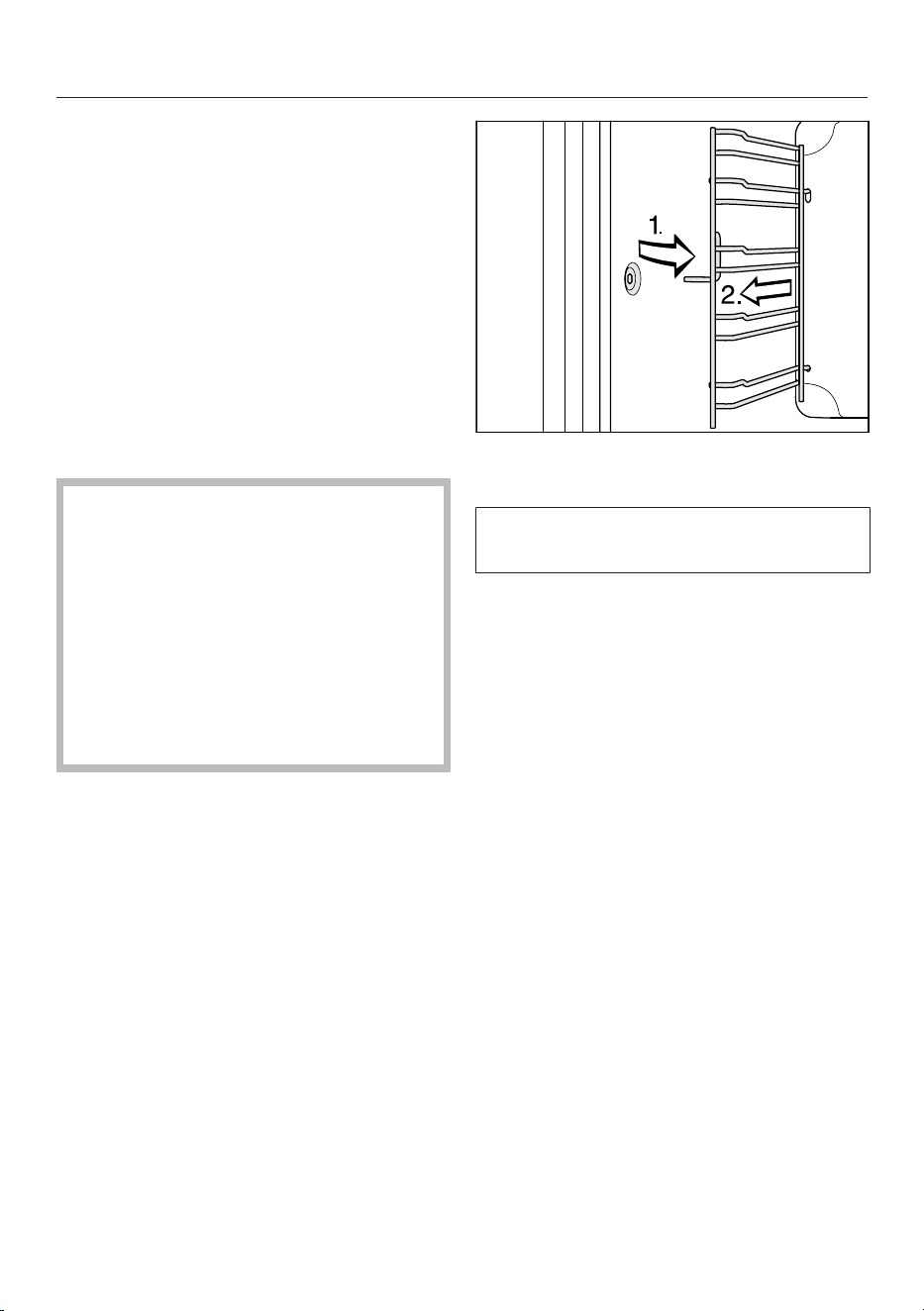
Cleaning and care of the oven
105
Removing the side runners
with FlexiClip telescopic
runners
You can remove the side runners
together with the FlexiClip telescopic
runners (if present).
If you wish to remove the FlexiClip
telescopic runners separately
beforehand, please follow the
instructions in “Features – Installing and
removing the FlexiClip telescopic
runners”.
Risk of injury caused by hot
surfaces.
The oven gets hot during operation.
You could burn yourself on the
heating elements, oven
compartment, or accessories.
Allow the heating elements, oven
compartment, and accessories to
cool before removing the side
runners.
Pull the side runners out of the holder
(1.) and remove them (2.).
Reinstall by following these
instructions in reverse order.
Insert the components carefully.
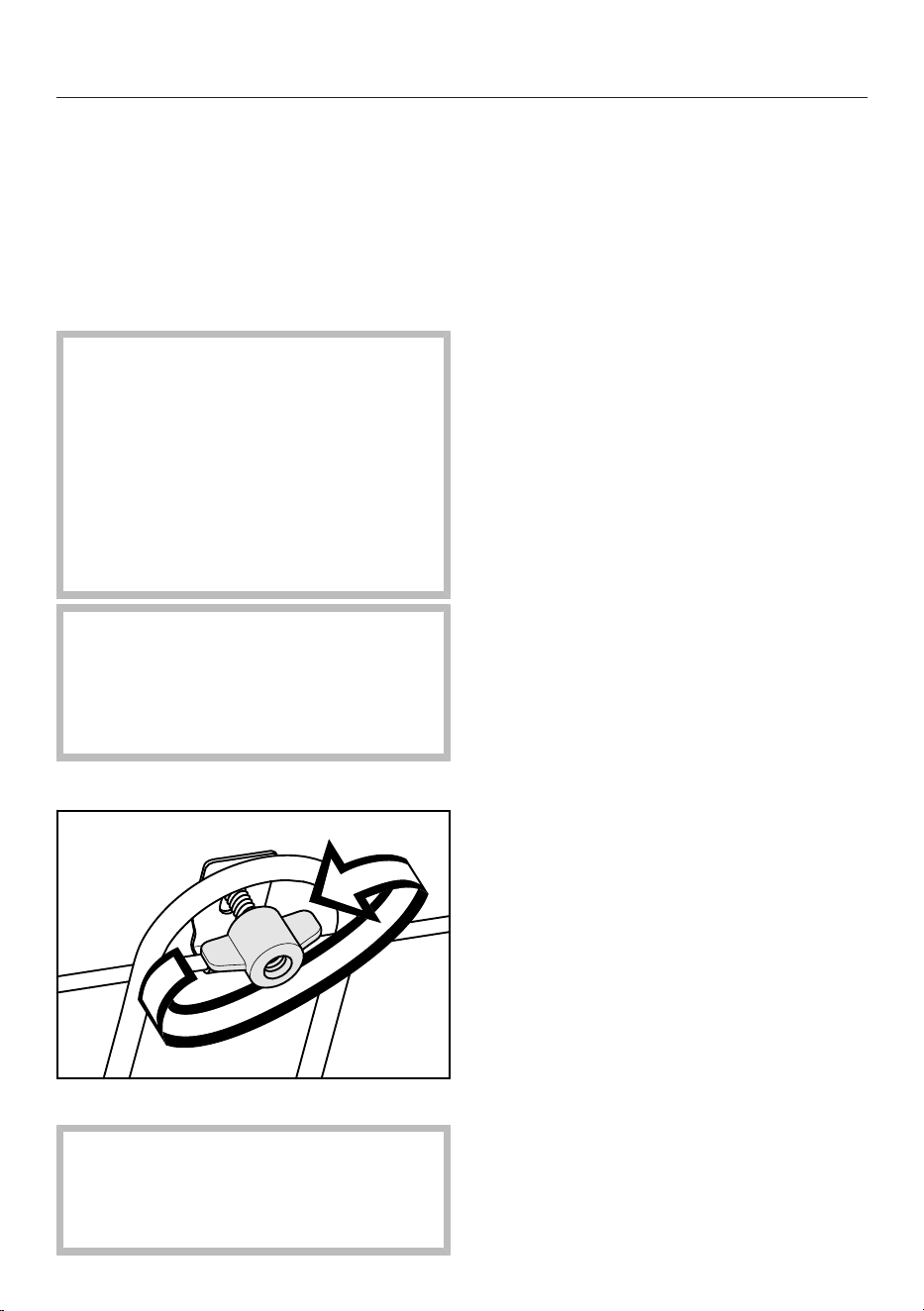
Cleaning and care of the oven
106
Lowering the browning/broiling
element
If the ceiling of the oven is badly soiled,
the browning/broiling element can be
lowered to make cleaning easier. Clean
the ceiling of the oven regularly with a
damp cloth or a dish sponge.
Risk of injury caused by hot
surfaces.
The oven gets hot during operation.
You could burn yourself on the
heating elements, oven
compartment, or accessories.
Allow the heating elements, oven
compartment, and accessories to
cool before manual cleaning.
You may damage the enamel on the
oven floor if you drop fastening nuts
on it.
Place a cloth or similar item over the
oven floor to protect it.
Remove the side runners.
Unscrew the wing nut.
Take care not to damage the
browning/broiling element.
Do not use force when lowering the
browning/broiling element.
Carefully lower the browning/broiling
element.
You can now access the ceiling of the
oven.
Clean the ceiling of the oven with hot
water and liquid dish soap, applied
with a clean sponge cloth or a clean,
damp microfiber cloth.
After cleaning, raise the browning/
broiling element gently back up
again.
Replace the wing nut and tighten it
securely.
Reinsert the side runners.

Frequently Asked Questions
With the help of the following guide minor faults in the performance of the
machine, some of which may result from incorrect operation, can be remedied
without contacting the Service Department.
This guide may help you to find the reason for the fault, and how to correct it.
Problem Possible cause and solution
The display is dark. You have selected the Time| Display| Offsetting.
When the appliance is turned off, the time-of-day
display is turned off.
As soon as the oven is turned on, the main menu
will appear. If you want the time of day to be
displayed constantly, select theTime| Display|
Onsetting.
There is no power to the appliance.
Check if the breaker has tripped. If it has, contact
a qualified electrician or Miele Customer Service.
The audible signal does
not sound.
The audible signals are deactivated or set at too low
a volume.
Turn on the audible signals or increase the volume
with Settings| Volume| Buzzer tones.
The oven does not heat
up.
Demo mode is activated.
You can select menu options on the display and
sensor buttons, but the oven heating does not work.
Deactivate Demo mode by selecting Settings|
Showroom Program| Demo Mode| Off.
System Lock appears
on the display when the
oven is turned on.
The system lock is activated.
You can deactivate the system lock for a cooking
program by touching the symbol for at least
6seconds.
If you want to permanently deactivate the system
lock, select theSafety| System Lock | Offsetting.
107

Frequently Asked Questions
Problem Possible cause and solution
The sensor buttons or
the proximity sensor do
not respond.
You have selected the Display| QuickTouch|
Offsetting. When this is activated, the sensor buttons
and proximity sensor do not respond when the oven
is turned off.
As soon as the oven is turned on, the sensor
buttons and the proximity sensor will respond. If
you want the sensor buttons and the proximity
sensor to respond even when the oven is turned
off, select the Display| QuickTouch| Onsetting.
The settings for the proximity sensor are turned off.
Change the settings for the proximity sensor by
selecting Settings| MotionReact.
The proximity sensor is defective.
Contact Miele Customer Service.
The oven is not connected to the domestic electrical
supply.
Make sure that the plug is correctly inserted in the
socket and that the socket switch has been
switched to on.
Check if the breaker has tripped. If it has, contact
a qualified electrician or Miele Customer Service.
If the display does not respond, there is a fault with
the controls.
Touch and hold the On/Off button until the
display turns off and the oven restarts.
Power failure -program can-
celled appears on the
display.
There has been a brief power failure. This has caused
the current cooking process to stop.
Turn the oven off and then back on again.
Restart the cooking process.
12:00 appears on the
display.
There was a power failure for more than 150hours.
Reset the date and time.
Maximum operating duration
reached appears on the
display.
The oven has been operating for an unusually long
time. This has triggered the safety shut-off.
Confirm with OK.
The oven is now ready to use again.
108

Frequently Asked Questions
Problem Possible cause and solution
FaultF32 appears on
the display.
The door lock for the Self Clean program has not
locked.
Turn the oven off and then back on again. Start the
Self Clean program again.
If the message appears again, contact Miele
Customer Service.
FaultF33 appears on
the display.
The door lock for the Self Clean program has not
opened.
Turn the oven off and then back on again.
If the door lock still does not deactivate itself,
contact Miele Customer Service.
Faultand a fault code
not listed here appear
on the display.
A fault has occurred that you cannot resolve.
Contact Miele Customer Service.
Function currently not avail-
able appears on the dis-
play after you have se-
lected the Descale
function.
The steam injection system is faulty.
Contact Miele Customer Service.
Fault with moisture control -
Automatic Programs will op-
erate without moisture ap-
pears on the display af-
ter you have selected a
automatic program.
The steam injection system is faulty.
Contact Miele Customer Service.
Automatic programs can be run without using
moisture injection.
Programs using mois-
ture injection will not
take in water.
Demo mode is activated. You can select menu
options on the display and sensor buttons, but the
steam injection system pump will not work.
Deactivate Demo mode by selecting Settings|
Showroom Program| Demo Mode| Off.
The pump for the steam injection system is faulty.
Contact Miele Customer Service.
You can hear a noise af-
ter a cooking program.
The cooling fan remains turned on after a cooking
program (see “Settings – Cooling fan run-on”).
109

Frequently Asked Questions
Problem Possible cause and solution
The oven has turned it-
self off.
To save power, the oven turns off automatically if a
button is not pressed after a certain amount of time
or after a cooking program has ended.
Turn the oven back on.
The cake/cookies are
not baked properly.
A different temperature than that given in the recipe
was used.
Select the temperature required for the recipe.
The ingredient quantities are different from those
given in the recipe.
Check if you have amended the recipe. The
addition of more liquid or more eggs will make a
wetter mixture which will take longer to cook.
The browning is un-
even.
You selected the wrong temperature or shelf level.
There will always be a slight unevenness. If
browning is very uneven, check whether you
selected the correct temperature and shelf level.
The material or color of the bakeware is not suitable
for the operating mode selected.
When using the Surroundoperating mode,
light-colored, shiny baking pans will not produce
as desirable results. Dark, matte baking pans are
best for baking.
There is still soiling in
the oven compartment
after a Self Clean pro-
gram.
The Self Clean program burns off soiling in the oven
and leaves it as ash.
Remove the ash with warm water, liquid dish soap,
and a clean sponge or a clean, damp microfiber
cloth.
If there is still coarse soiling left in the oven after
the Self Clean program, you should start the
program again, selecting a longer duration if
necessary.
The accessories make
noises when they are
pushed into or pulled
out of the oven.
The Self-Clean-resistant surface of the side runners
creates friction when accessories are pushed into or
pulled out of the oven.
To reduce the friction, add a few drops of heat-
resistant cooking oil to some kitchen paper and
use this to lubricate the side runners. Repeat this
after every Self Clean program.
110
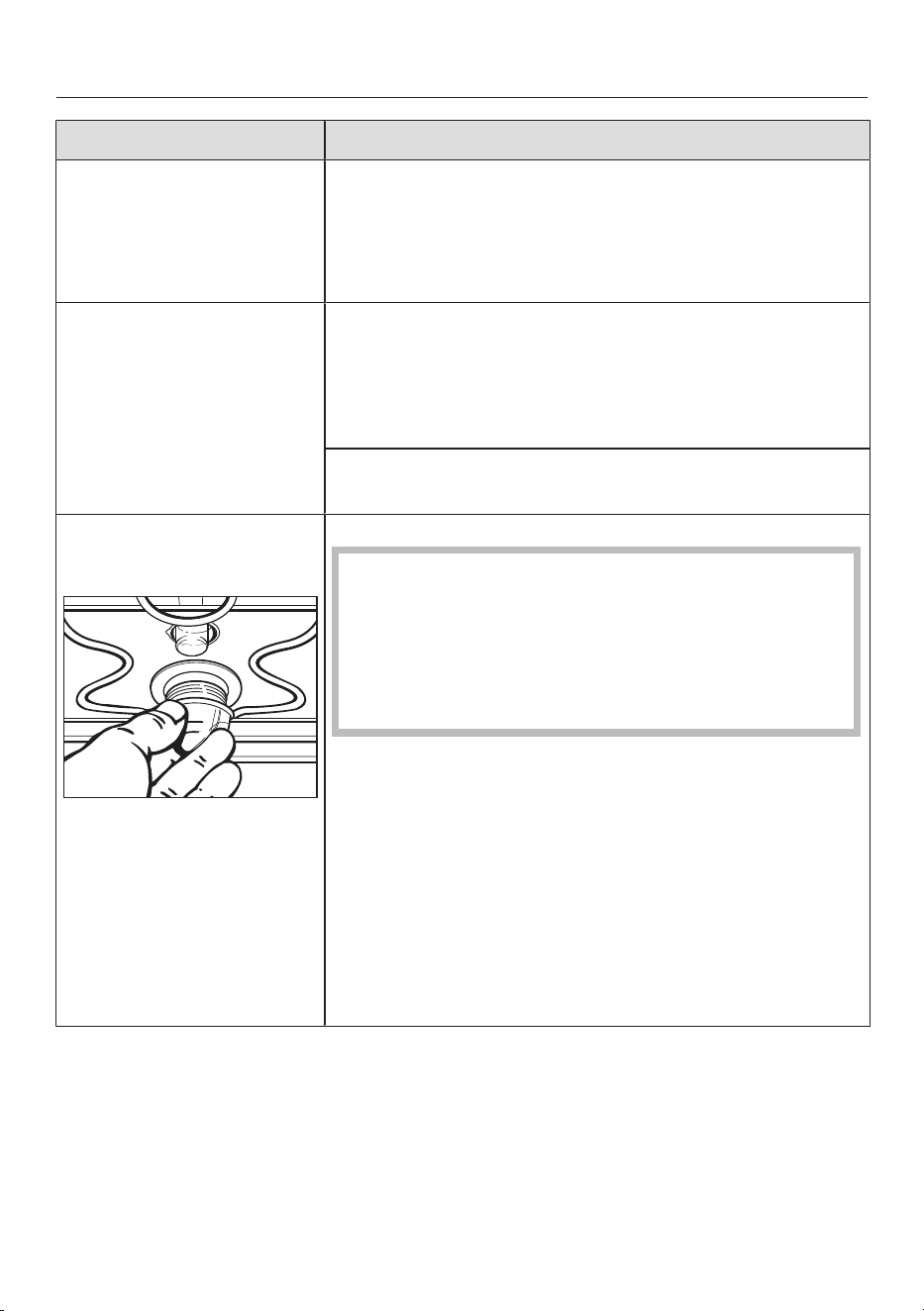
Frequently Asked Questions
Problem Possible cause and solution
The oven interior light-
ing turns off after a
short time.
You have selected the Lighting| “On” for 15
secondssetting.
If you want the oven interior lighting to remain on
during the entire cooking program, select the
Lighting| Onsetting.
The oven interior light-
ing is off or does not
turn on.
You have selected the Lighting| Offsetting.
Press the Lightsensor button to turn the oven
interior lighting on for 15seconds.
If required, select the Lighting| On or “On” for 15
secondssetting.
The oven interior lighting is faulty.
Contact Miele Customer Service.
The oven interior light-
ing does not turn on.
The halogen lamp is faulty.
Risk of injury caused by hot surfaces.
The oven gets hot during operation. You could
burn yourself on the heating elements, oven
compartment, or accessories.
Allow the heating elements, oven compartment,
and accessories to cool before manual cleaning.
Disconnect the oven from the electrical supply.
Unplug the appliance or switch off the breaker.
Turn the bulb cover a quarter turn
counterclockwise to release it and then pull it
together with its seal downward to take it out.
Replace the halogen bulb (Osram66725AM/A,
230V, 25W, G9).
Reinstall the bulb cover together with its seal and
turn it clockwise to secure.
Reconnect the oven to the electrical supply.
111

Customer Service
112
Contact in the event of a fault
In the event of a fault which you cannot
remedy yourself, please contact your
Miele dealer or Miele Customer Service.
You can book a Miele Service Call
online at www.miele.com/service.
Contact information for Miele
Customer Service can be found at the
end of this document.
Please quote the model identifier and
serial number of your appliance (SN)
when contacting Miele Customer
Service. Both pieces of information can
be found on the data plate.
This information is given on the data
plate, which is visible on the front frame
of the oven when the door is fully open.
Appliance warranty and
product registration
You can register your product and/or
view the manufacturer´s warranty terms
and conditions for Miele appliances and
vacuum cleaners at
www.mieleusa.com.

Caring for the environment
113
Disposal of the packing
material
The cardboard box and packing
materials protect the appliance during
shipping. They have been designed to
be biodegradable and recyclable.
Ensure that any plastic wrappings,
bags, etc. are disposed of safely and
kept out of the reach of children.
Danger of suffocation!
Disposal of your old appliance
Electrical and electronic appliances
contain valuable materials. They also
contain certain substances, compounds
and components which were essential
for the proper functioning and safe use
of the equipment. Handling these
materials improperly by disposing of
them in your household waste can be
harmful to your health and the
environment. Therefore, please do not
dispose of your old appliance with
regular household waste and follow
local regulations on proper disposal.
Consult with local authorities, dealers or
Miele in order to dispose of and recycle
electrical and electronic appliances.
Miele assumes no responsibility for
deleting any personal data left on the
appliance being disposed. Please
ensure that your old appliance is kept
away from children until removal.
Observe safety requirements for
appliances that may tip over or pose an
entrapment hazard.
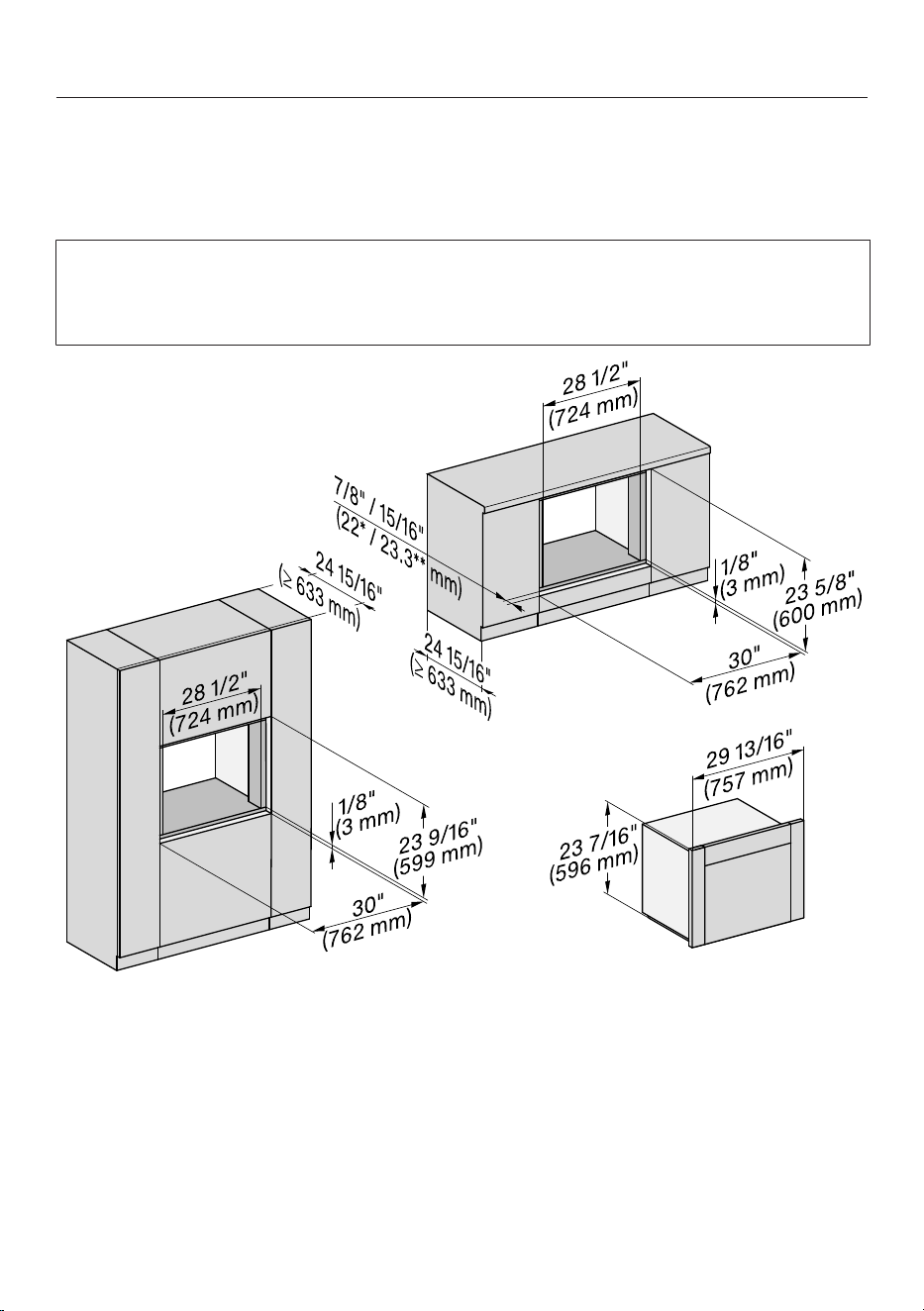
Installation
*INSTALLATION*
Installation dimensions
The example shows installation in a 30" niche with trim kit EBA7xxx.
Installation in a tall or base cabinet
Miele Ovens can be installed flush or proud. Discuss your requirements with your
architect, kitchen designer, and installer.
More installation drawings are available on the Miele website.
* Oven with glass front
** Oven with metal front
114
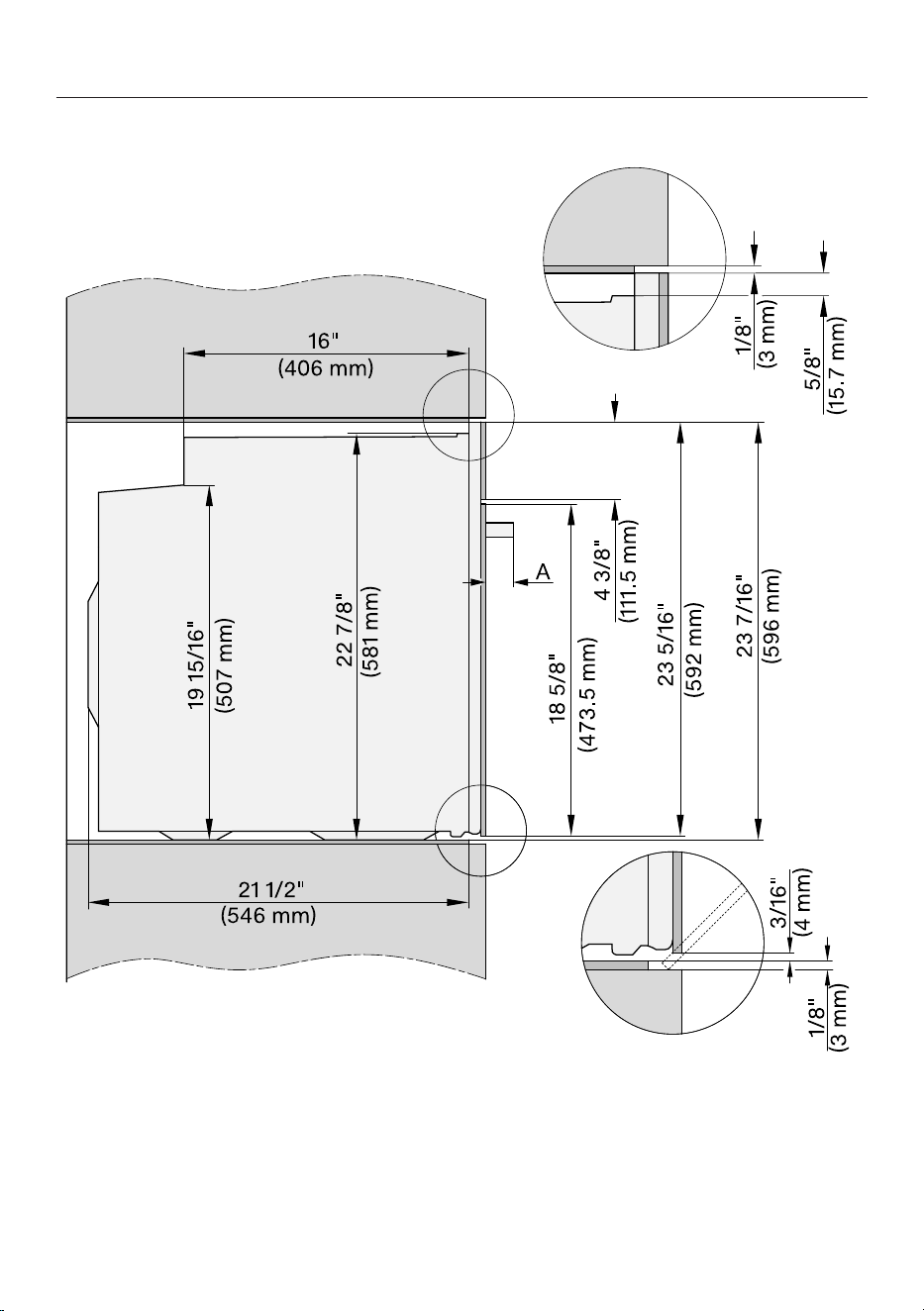
Installation
*INSTALLATION*
Side view
A H 76xx: 17/8" (47mm)
115
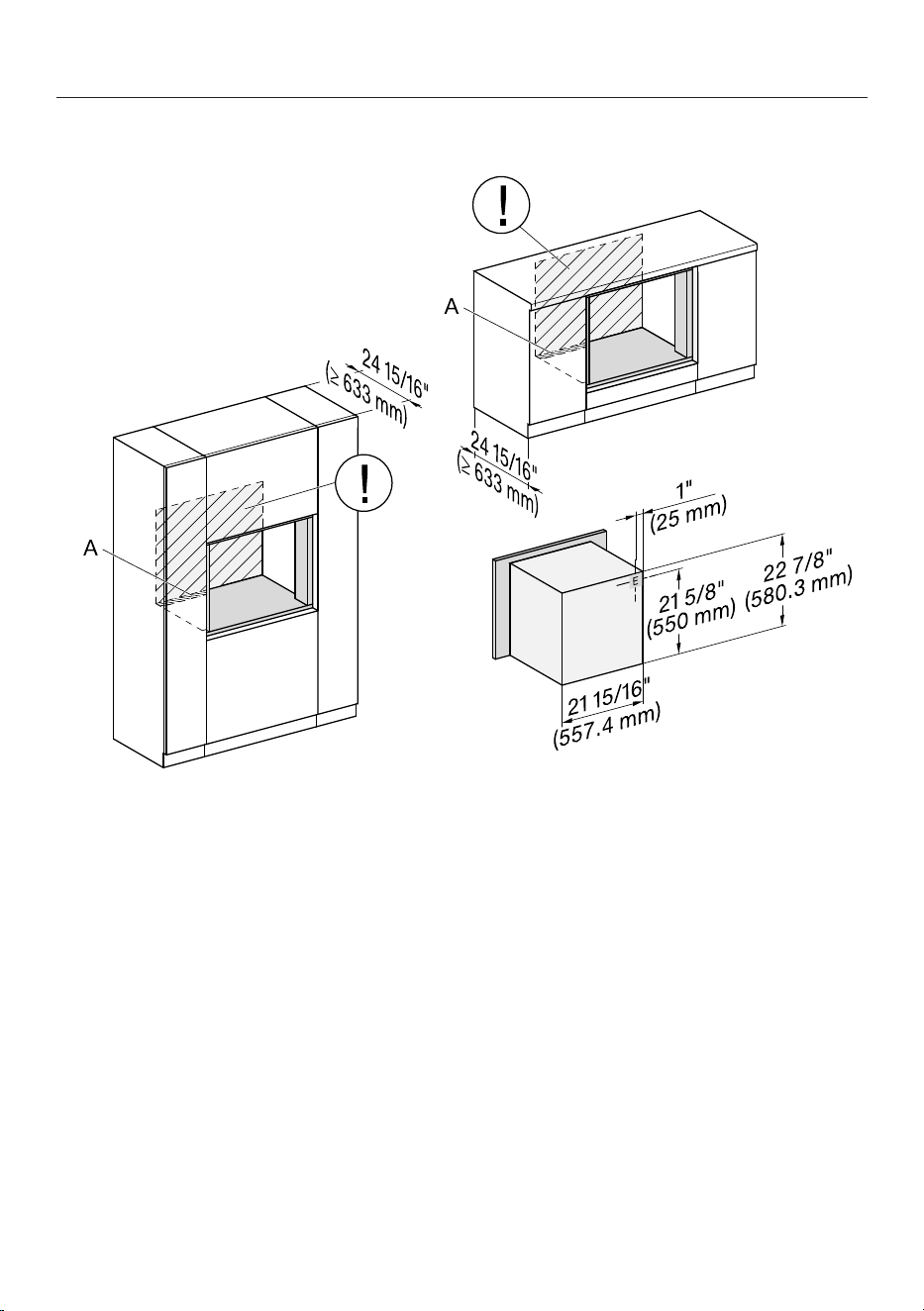
Installation
*INSTALLATION*
Connections and ventilation
A Cutout 4"x283/8" (100mmx720mm) in the base of the kitchen cabinet for
power cord and ventilation
The outlet for the electrical connection should be accessible, e.g., in an
adjacent kitchen cabinet. If the electrical connection is behind the oven, the
kitchen cabinet needs to be deeper than specified.
E Electrical connection
116
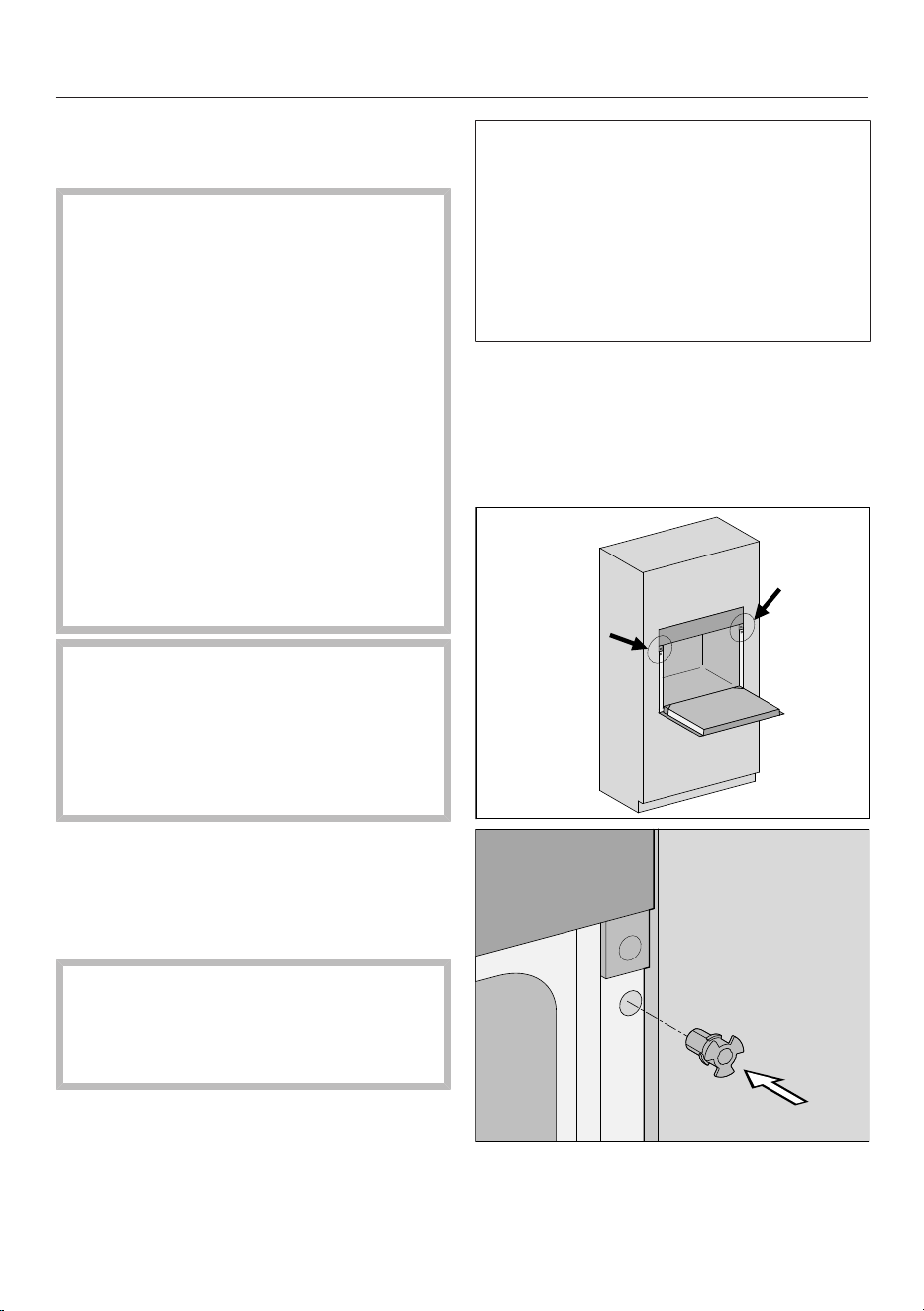
Installation
*INSTALLATION*
117
Installing and removing the
oven
For safety reasons, only use the oven
when it has been fully installed.
The oven requires a sufficient supply
of cool air for efficient operation. The
required supply of cool air must not
be excessively heated by other heat
sources (e.g., wood burning stoves).
The following must be observed
when installing the appliance:
Make sure that the shelf that the
oven sits on does not touch the wall.
Do not install heat insulation strips
on the side walls of the cabinet
carcase.
Do not open the door when the oven
is on the floor. This could damage
the door.
Do not open the door until the oven
has been installed inside the housing
unit.
Securing the oven in the cabinet
niche
Connect the oven to the power
supply.
Do not carry the oven by the door
handle. This could damage the door.
Use the handles on each side of the
housing to carry the appliance.
It is a good idea to remove the door
(see “Cleaning and care of the oven –
Removing the door”) and the
accessories before installing the
appliance. The oven is then easier to
push into the cabinet carcase and you
do not run the risk of lifting it by the
door handle.
Push the oven into the cabinet niche
and align it in the center of the
cabinet niche.
Open the door if you have not
removed it.
Insert the mounting aid into the hole
in the front frame.
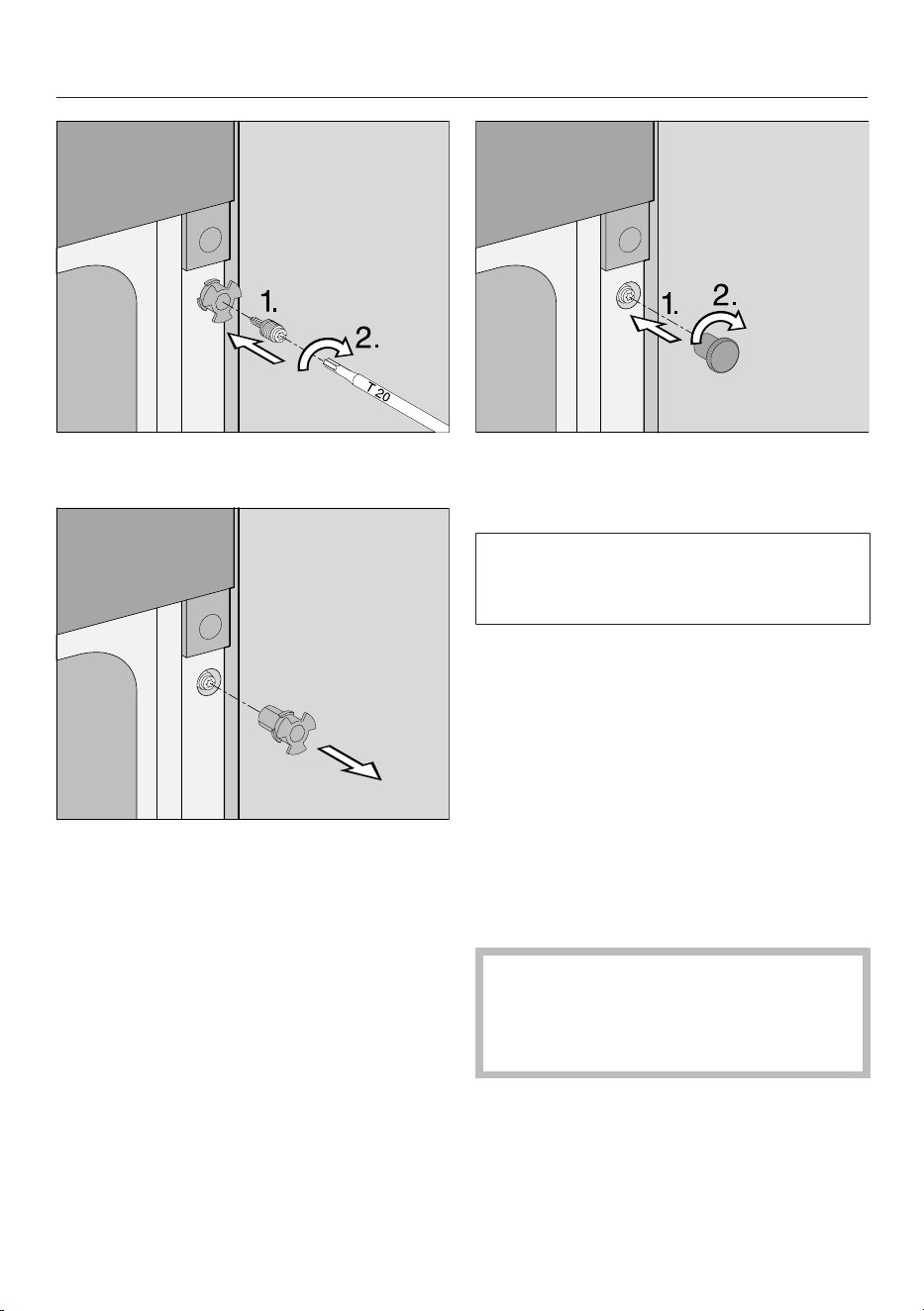
Installation
*INSTALLATION*
118
Insert the bolt into the mounting aid
and tighten it in the cabinet niche.
Remove the mounting aid.
Screw the knurled nut onto the bolt
by hand to fix the oven in the cabinet
niche.
Reinstall the door, if necessary (see
“Cleaning and care of the oven –
Installing the door”).
Taking the oven out of the housing
unit
Open the door.
Unscrew the knurled nuts and bolts
from the front frame (see “Securing
the oven in the housing unit”).
Keep these parts in case the oven
needs to be installed again in the
future.
Pull the oven out of the housing unit.
Do not carry the oven by the door
handle. This could damage the door.
Use the recessed grips on each side
of the housing to carry the appliance.
Take the oven out of the housing unit.
Disconnect the oven from the power
supply.

Installation
*INSTALLATION*
119
Electrical connection
Risk of injury due to electric
shock.
During installation, maintenance, and
repair work, the oven must be
completely disconnected from the
power supply:
Disconnect the oven from the power
supply by tripping the breakers, or
unplugging the power cord from the
outlet. To do this, pull the plug not
the cord.
Risk of injury.
Installation, repairs, and other work
by unqualified persons could be
dangerous. Miele cannot be held
liable for unauthorized work.
Installation, maintenance, and repairs
must only be carried out by a Miele
authorized technician.
The connection data (voltage and
frequency) on the data plate of the
oven must match the power supply
in order to avoid the risk of damage
to the oven.
Compare this before connecting the
appliance to the power supply. If in
any doubt, consult a qualified
electrician.
For safety reasons, the oven may
only be used when it has been fully
installed.
The power cord plug must be
inserted into a suitable outlet that
has been installed and grounded in
compliance with all applicable local
codes.
WARNING: THIS APPLIANCE MUST
BE GROUNDED
Installer: Please pass these
instructions on to the customer.

Installation
*INSTALLATION*
120
Electrical connection
The oven is equipped with a power cord
approx. 6ft (1.8m) long with a 4-pin
NEMA 14-30P plug for connection to a
power supply with:
- 2NAC 208V, 30A, 60Hz
or
- 2NAC 240V, 30A, 60Hz
Temporary or permanent operation on
an autonomous power supply system or
a power supply system that is not
synchronized with the grid power
supply (e.g., island networks, back-up
systems) is possible. A prerequisite for
operation is that the power supply
system complies with the specifications
of EN50160 or an equivalent standard.
The function and operation of the
protective measures provided in the
domestic electrical installation and in
this Miele product must also be
maintained in isolated operation or in
operation that is not synchronized with
the grid power supply, or these
measures must be replaced by
equivalent measures in the installation.
As described, for example, in the
current version of VDE-AR-E 2510-2.
You can set the voltage variant (see
“Settings – Electrical version”).
KEEP THE OPERATING AND
INSTALLATION INSTRUCTIONS IN A
SAFE PLACE.

Declaration of conformity
121
Radio Module
This device contains the following WiFi
module:
FCC ID 2AC7Z-EK057
IC ID 21098-EK057
Frequency band 2.412 GHz –
2.462GHz
Maximum
transmitting
power
< 0.2W
Compliance Statement
This device complies with Part 15 of the
FCC Rules and contains licence-
exempt transmitter(s)/receiver(s) that
comply with Innovation, Science and
Economic Development Canada’s
licence-exempt RSS Standard(s).
Operation is subject to the following
two conditions:
(1) this device may not cause harmful
interference, and
(2) this device must accept any
interference received, including
interference that may cause undesired
operation.
The construction of the device assures
that the FCC/IC exposure limits are
verifiably met using the integrated radio
module.
Warning!
Any changes or modifications to this
unit not expressly approved by the
party responsible for compliance
could void the user’s authority to
operate the equipment.

Copyrights and licenses
For the purpose of operating and controlling the communication module, Miele
uses proprietary or third-party software that is not covered by open source
licensing terms. This software/these software components are protected by
copyright. The copyrights held by Miele and third parties must be respected.
In addition, the integrated communication module contains software components
which are distributed under open source licensing terms. You can access these
open source components along with the associated copyright notices, copies of
the valid licensing terms, and any additional information locally via IP using a web
browser (http[s]://<ip address>/Licenses). The liability and warranty arrangements
for the open source licenses displayed in this location only apply in relation to the
respective rights holders.
122

9 Independence Way
Princeton, NJ 08540
www.mieleusa.com
U.S.A.
Miele, Inc.
National Headquarters
Please have the model and serial number
of your appliance available when
contacting Customer Service.
Canada
Importer
Miele Limited
Headquarters and Miele Centre
Customer Support
Phone: 888-99-MIELE (64353)
161 Four Valley Drive
Vaughan, ON L4K 4V8
www.miele.ca
Customer Care Centre
Phone:
800-565-6435
905-532-2272
International Headquarters
Miele & Cie. KG
Carl-Miele-Straße 29
33332 Gütersloh
Germany

M.-Nr. 11 900 010 / 01en-US, CA
H 7660 BP