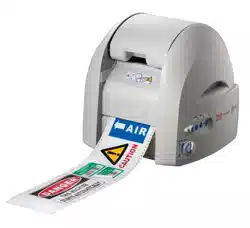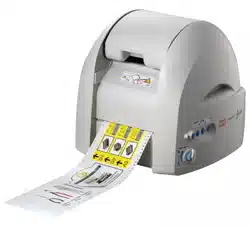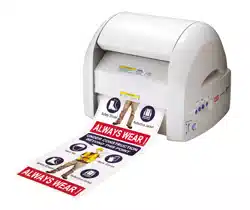
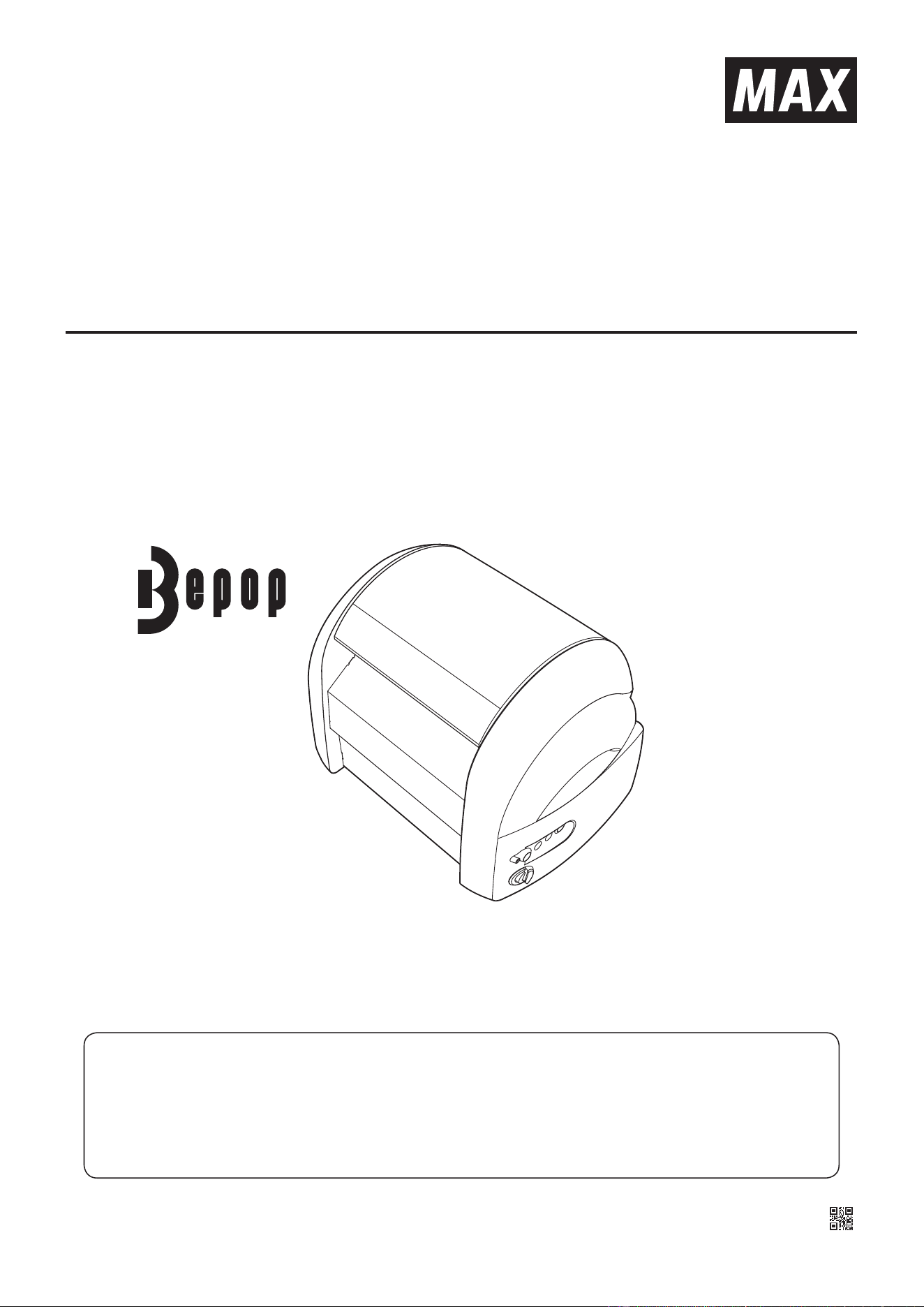
CPM-200
OPERATION MANUAL
●Readthismanualbeforeoperation.
●Keepthismanualinasafeplace.
●Itisprohibitedtoreproducepartorallofthemanualwithoutourpermission.
●Theinformationinthemanualissubjecttochangewithoutpriornotice.
IL22610(00/02)


2
CONTENTS
Contents
BeSuretoReadThese
Introduction …………………………………………………………………………………………………………… 3
Conventions Used in This Manual
………………………………………………………………………………… 3
Precautions for Use
………………………………………………………………………………………………… 4
Disclaimers
…………………………………………………………………………………………………………… 4
ProductSpecications
……………………………………………………………………………………………… 5
BeforeUse
Package Contents …………………………………………………………………………………………………… 6
Component Names
…………………………………………………………………………………………………… 6
Main Key Functions
………………………………………………………………………………………………… 6
MachinePreparation
Loading the Tape ……………………………………………………………………………………………………… 7
Inserting the Rellable Ribbon Cartridge
………………………………………………………………………… 8
Replacing the Ribbon Rell
………………………………………………………………………………………… 9
Installing (Replacing) the Cutting Tool (Blade)
……………………………………………………………………11
Adjusting the Cutting Pressure
…………………………………………………………………………………… 12
Connecting the Cable and Turning On the Power
……………………………………………………………… 13
BepopPCEXSoftwareInstallation
Please read before installing. …………………………………………………………………………………… 14
BepopPC EX Printer Driver Installation
………………………………………………………………………… 15
CPM-200 IP Address Settings
…………………………………………………………………………………… 20
Firstlet’sgiveitatry!
Make a sign layout. ………………………………………………………………………………………………… 22
Check the remaining sheet length.
……………………………………………………………………………… 25
Adjusting the print tempurature
…………………………………………………………………………………… 26
Making a cutting layout, and cutting a sign
……………………………………………………………………… 27
How to apply cut letter designs
…………………………………………………………………………………… 28
Uninstallmethod
How to uninstall “BepopPC EX”. ………………………………………………………………………………… 31
Printer Uninstall
…………………………………………………………………………………………………… 32
HowtouseBepop-net
…………………………………………………………………………………………… 32
TroubleShooting
…………………………………………………………………………………………………… 33
3
Be Sure to Read These
BeSuretoReadThese
Introduction
Thank you for purchasing the CPM-200.
The CPM-200 is a 200 mm width signs and labels creating machine that enables anyone to easily create
displays, such as signboards and guide displays, and colorful, high quality labels. To maximize service life of
the product, please use the CPM-200 in accordance with operation manual.
ConventionsUsedinThisManual
■Indications
The manual and machine use various indications to ensure that you can use the machine safely and correctly.
The following describes the indications:
WARNING
NEGLIGENCEOFTHISCOULDLEADTOADEATHORSERIOUS
INJUR
Y
OF
A
WORKER.
CAUTION
NEGLIGENCEOFTHISCOULDLEADTOANINJURYOFA
WORKER,
DAMAGE
YOUR
MACHINE,ORCAUSECREATEDDATA
T
OBELOST.
■Symbols
Denotes“whatyou
shouldbeawareof.”
A specic caution is given in
or close to this symbol.
Denotes“whatyou
mustnotdo.”
A specic prohibition is given in
or close to this symbol.
Denotes“whatyoumust
do.”
A specic instruction is given
in this symbol.
4
Be Sure to Read These
PrecautionsforUse
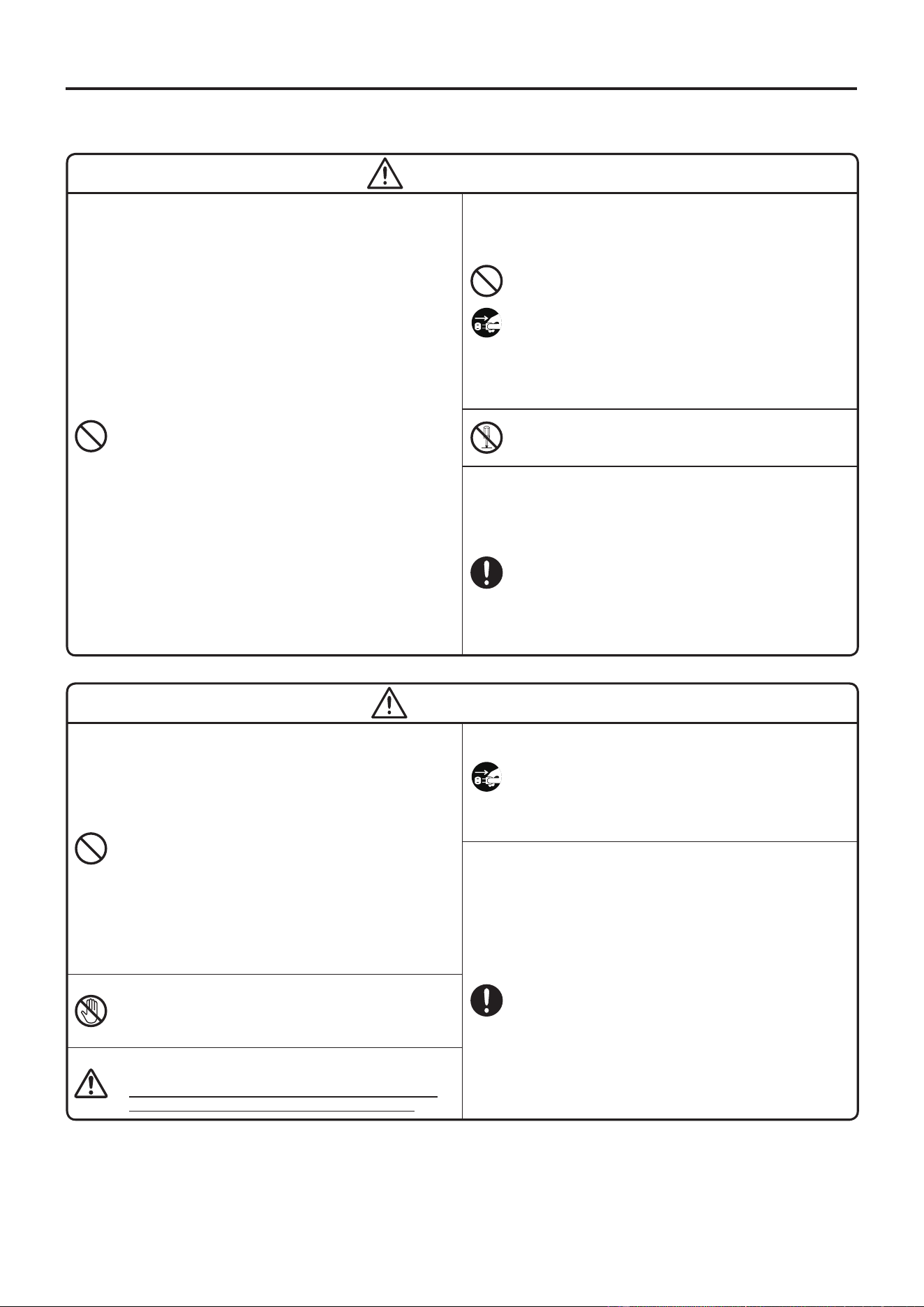
WARNING
●
Donotinsertanyforeignobjectintothemachine,
suchasanger,pen,wire,etc.
It could malfunction or result in a re, electric shock, or injury.
●
Neverputahandoranobjectintoacuttersection.
It can both cause machine damage and personal injury.
●
Usethesuppliedpowercord.
Not using it could result in a re or electric shock.
●
Obtainpowerdirectlyfromanelectricaloutlet.Do
notputmultipleloadsontheelectricaloutlet.
It could cause a re.
●
Donotmodifythepowercord.
Doing so could cause a re or electric shock.
●
Neverplaceaheavyobjectonapowercord.
It may damage the cord, resulting in a re or electric
shock.
●
Donotuseabundledpowercord.
The emitted heat may cause a re or malfunction.
Be sure to unbundle the power cord before use.
●
Donotconnectordisconnectapowerplugwitha
wethand.
You could receive an electric shock.
●
Donotoperatethemachinewithwethandsorwetclothes.
You could receive an electric shock.
●
Donotplaceapaperclothonthemachinewhenitis
connectedtoanoutlet.
Doing so could cause a re or malfunction.
●
Whendisconnectingthepowerplug,holditdirectly;
neverpullonthepowercord.
Pulling on the cord can damage it, resulting in a re or
electric shock.
●
Ensurethatnowaterorchemicalsaresplashed
overthemachines.
If water, etc., gets inside for some reason, disconnect the
power plug immediately from the electrical outlet, and
contact your dealer for repair. If the machine
is used in
such a state, it could malfunction or result in a re or
electric shock.
●
Donotusethemachineifithasasymptomofaproblem.
Such as smoke, abnormal sound, or foul odour.
Using the machine in such a state could result in a re
or electricshock.
Insuchacase,immediatelydisconnectthepower
plugfromtheelectricaloutlet,andcontactyour
dealerforrepair.
●
Neverdisassembleorremodelthemachine.
It could result in a re, electric shock, or trouble.
●
Runthemachineonlyontheindicatedsupply
voltage.
Use of any other voltage could result in a re or trouble.
● Besuretogroundthemachine.
Otherwise, if a short circuit occurs, a re or electric
shock may result.
● Cleanthepowerplugperiodically.
Dust accumulated over a long period could cause a re
or trouble.
●
Keepthecuttingtool(blade)outofthereachof
children.
If swallowed, seek immediate medical attention.
CAUTION
●
Installthemachineonaatsurface.Donotinstallin
anunstablelocation,suchasonawobblyplatform
oraninclinedsurface.
The machine could fall over or fall from the platform and
cause injury or malfunction.
●
Donotusethemachineunderdirectsunlight,ina
hot,humidlocation,orwhenthereiscondensation.
It may cause unstable operation or a malfunction.
●
Donotshareanelectricaloutletwithanydevice
(airconditioner,refrigerator,microwave,ofce
automationequipment,etc.)thatrequiresalarge
capacity.
It could lower the supply voltage and cause the machine
to malfunction.
●
DonotdirectlytouchtheUSBconnectorwithyour
hands.
Static electricity may cause trouble.
●
Whennotusingthemachineforalongtime,besure
todisconnectthepowerplugfromtheelectrical
outletforsafety.
●
Whenmovingthemachine,besuretodisconnect
thepowerplugfromtheelectricaloutlet.
Moving the machine with the power plug connected to
the electrical outlet may damage the plug or cord and
cause a re or electric shock.
●
Whenprintingorcuttingdoesnotfunctionproperly
duetojammingofanadhesivetape,ribbonrell,or
foreignobjectinsidethemachine,besuretoturnoff
thepowerbeforeeliminatingjamming.
Otherwise, you could be injured by abrupt activation of
the machine.
●
Whenopeningorclosingadoorcover,becareful
nottogetahand,etc.,caught.
●
Whenmovingthemachine,besuretoclosethedoor
coverandholdthebottomofthebodytocarryit.
Neglecting this could cause an injury or trouble.
●
Whenreplacingthecuttingtool(blade),besureto
turnoffthepower.
Otherwise, you could be injured by abrupt activation of
the machine.
●
Notethattheedgeofthecuttingtool(blade)isvery
sharp.
Do not touch it. You may be injured.
●
Nevertouchtheprinthead.
Immediately after printing, it is very hot and could burn
you. Also, if the printing head is thumbed, it may cause
trouble.
●
Datasavedinapersonalcomputercannotbesaved
permanently.
We cannot be responsible for damage due to loss of
data attributable to trouble or repair, or lost prot.
Disclaimers
MAX will not be held responsible for any damages that occur as a result of not following the instructions in this
manual, damages and lost prots resulting from not being able to use the machine (malfunction), or any relevant
secondary damages.
5
Product Specications
ProductSpecications
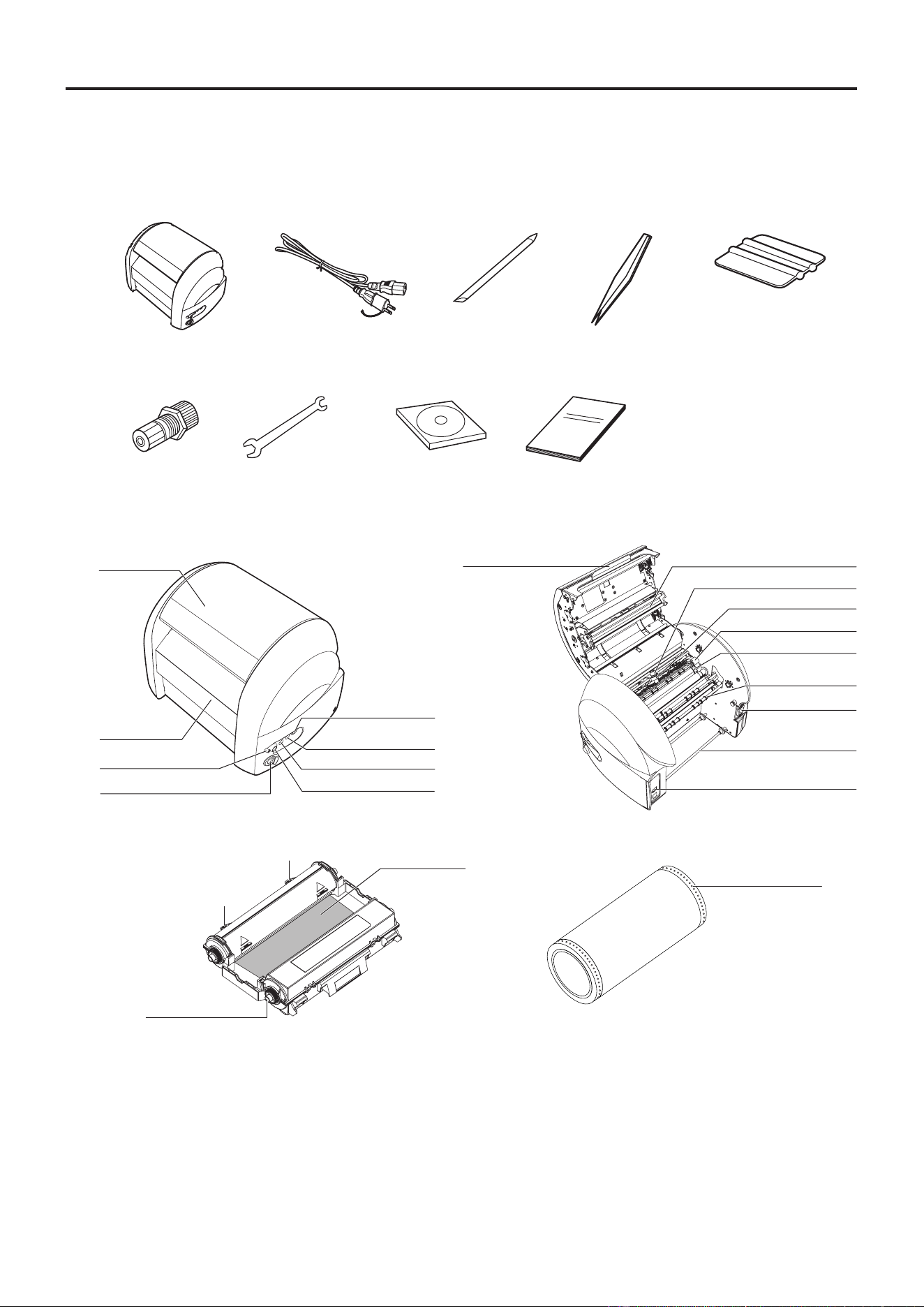
Product CPM-200G
Printer section
Printing method Thermal transfer
Printing density 300dpi
Printing speed 1.0”/sec. (25mm/sec.)
Cutter section
Resolution 0.001”/step (0.025mm/step)
Cutting speed 4.7”/sec. max (120mm/sec. max) (axial direction)
Maximum output range 8” × 78.7” (200 × 2,000mm)
Interface
USB2.0
LAN 100baseTX
Working environment
Temperature 50 - 80°F(10 - 27°C) (77°F(25°C) recommended for
process color)
Humidity: 35 - 70 % (No dew condensation allowed)
Power input AC 100 - 240 V 50/60 Hz
Rated current 2A
Outer dimensions
13.8” × 12.4” × 12.4” (425mm × 315mm × 315mm)
(W) × (D) × (H)
Mass (Main body only) 34.2lbs (15.5 kg)
* Design, specications, and the like are subject to change without notice.
FCCCAUTION
This device complies with part 15 of the FCC Rules. Operation is subject to the following two conditions: (1) This
device may not cause harmful interference, and (2) this device must accept any interference received, including
interference that may cause undesired operation.
This device complies with Industry Canada’s licence-exempt RSSs. Operation is subject to the following two
conditions:
(1) This device may not cause interference; and
(2) This device must accept any interference, including interference that may cause undesired operation of the
device.
Le présent appareil est conforme aux CNR d’Industrie Canada applicables aux appareils radio exempts de licence.
L’exploitation est autorisée aux deux conditions suivantes :
(1) l’appareil ne doit pas produire de brouillage;
(2) l’utilisateur de l’appareil doit accepter tout brouillage radioélectrique subi, même si le brouillage est susceptible
d’en compromettre le fonctionnement.
6
Before Use
BeforeUse
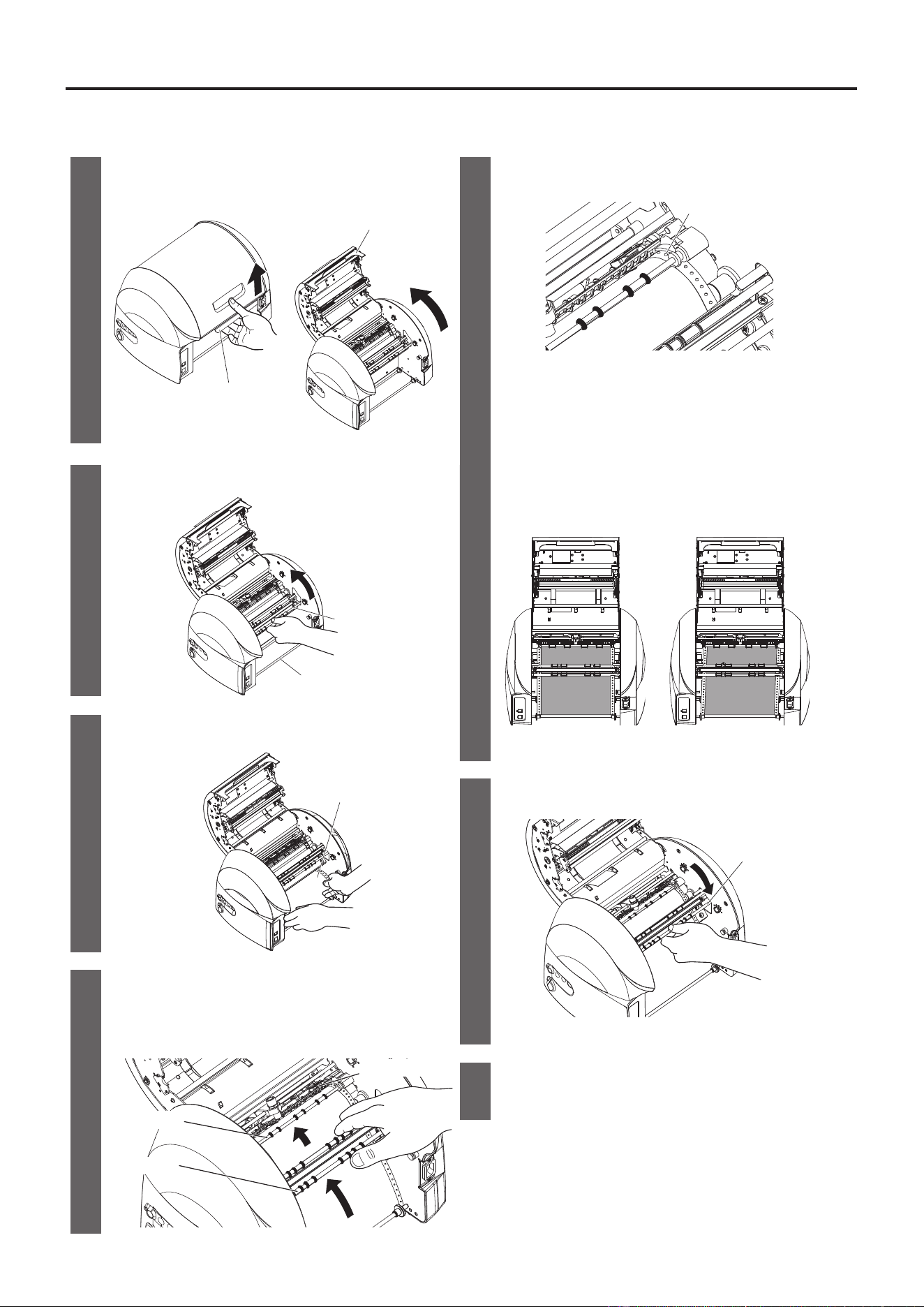
PackageContents
Open the package and conrm that all of the following items are included.
(1) CPM-200 (2) Power Cord (3)
Cutting Tool (Blade)
(1 pc.)
(4)
Weeding Tool (5) Squeegee
(6)
Blade Holder
(Attached upon
shipment)
(7)
Blade Holder
Replacing Spanner
(8)
PC Software
(CD-ROM)
(9)
Operation Manual
(this manual)
ComponentNames
[FrontofMainBody] [BackofMainBody]
Door Cover
Tape Outlet
LED Lamp
Cutting Pressure Control Dial
Scissors Button
Tape Reverse Button
Tape Feed Button
Power Button
USB Connector
Front bar
Opening/Closing Lever
Print Head
Blade Holder
Cutting Head
Tape Retainer
Sprocket Pins
Power Connector
Tape Holder
[Consumables]
MainKeyFunctions
Powerbutton
: Used to turn on/off the power.
LEDlamp
: Illuminated in green when the power is turned on.
It is illuminated or blinks in red when informing you of an error.
(For details on errors, see the status monitor information displayed on the PC screen.)
Tapefeedbutton
: Tape is fed while the button is held down.
Tapereversebutton
: Tape is reverse-fed while the button is held down.
Scissorsbutton
: Used to fully cut the tape.
Tape Roll
Ribbon Rell
Rellable Ribbon
Cartridge
Hinges
Ribbon Gears (4 pcs.)
Hinges
Sprocket Holes
7
Machine Preparation
MachinePreparation
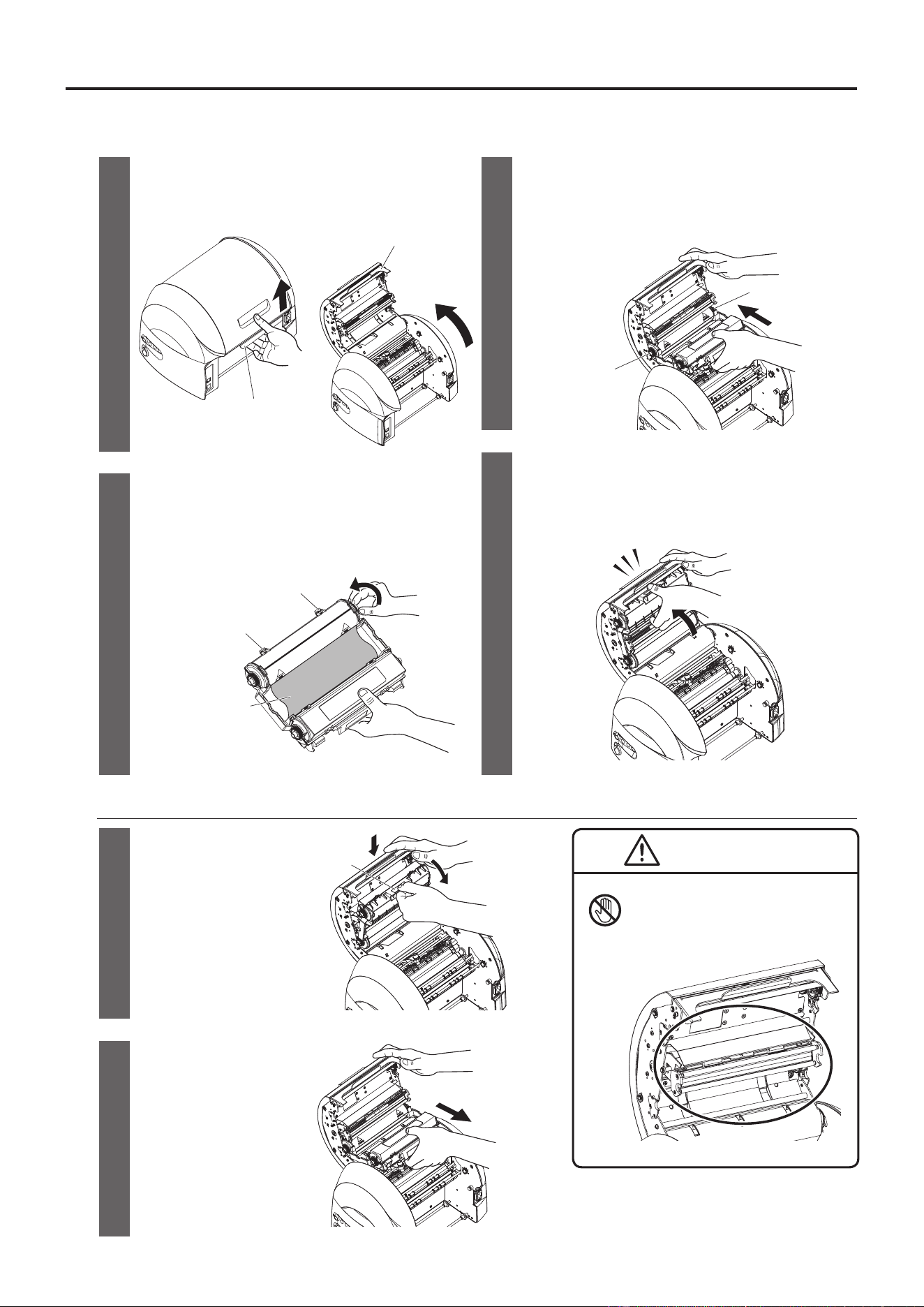
LoadingtheTape
1
Pull up the opening/closing lever to open the door
cover.
5
Align the holes in the tape with the right and
left sprocket pins.
Opening/Closing Lever
Door Cover
Sprocket Pins
Ensure that the sprocket pins are inserted in the
sprocket holes in the tape and that the tape is
loaded straight on the roller.
If the sprocket pins are not inserted into the holes
or the tape is not straight, the tape will not be fed
properly.
2
Pull up the front lever.
Load the tape straight.
Front bar
Vinyl Holder
Yes No
3
Place the tape on the tape holder.
Vinyl
6
Lower the front lever to retain the tape.
Front bar
4
Pull the tape forward and feed it under the bar
at the front. Then, feed the tape further into the
rollers in the back.
Roller in the Back
Vinyl Retainer
Front bar
7
Close the door cover until it “clicks” to lock.
8
Machine Preparation
InsertingtheRellableRibbonCartridge
1
Pull up the opening/closing lever to open the door
cover.
3
Fit the Hinges of the rellable ribbon cartridge into
the slots in the back of the door cover. Ensure
that the ribbon gear color matches the colour
printed on the CPM-200.
Opening/Closing Lever
Door Cover
Orange
Green
4
Turn the rellable ribbon cartridge upward, using
the Hinges as leverage. Push it in rmly until
the rellable ribbon cartridge locks with a “click”
sound.
2
Check for slack in the ribbon rell.
If there is slack in the ribbon rell, hold the
rellable ribbon cartridge as shown in the gure,
turn the ribbon gear in the arrow-indicated
direction, and take up the slack.
Click
Ribbon Refill
Hinges
Hinges
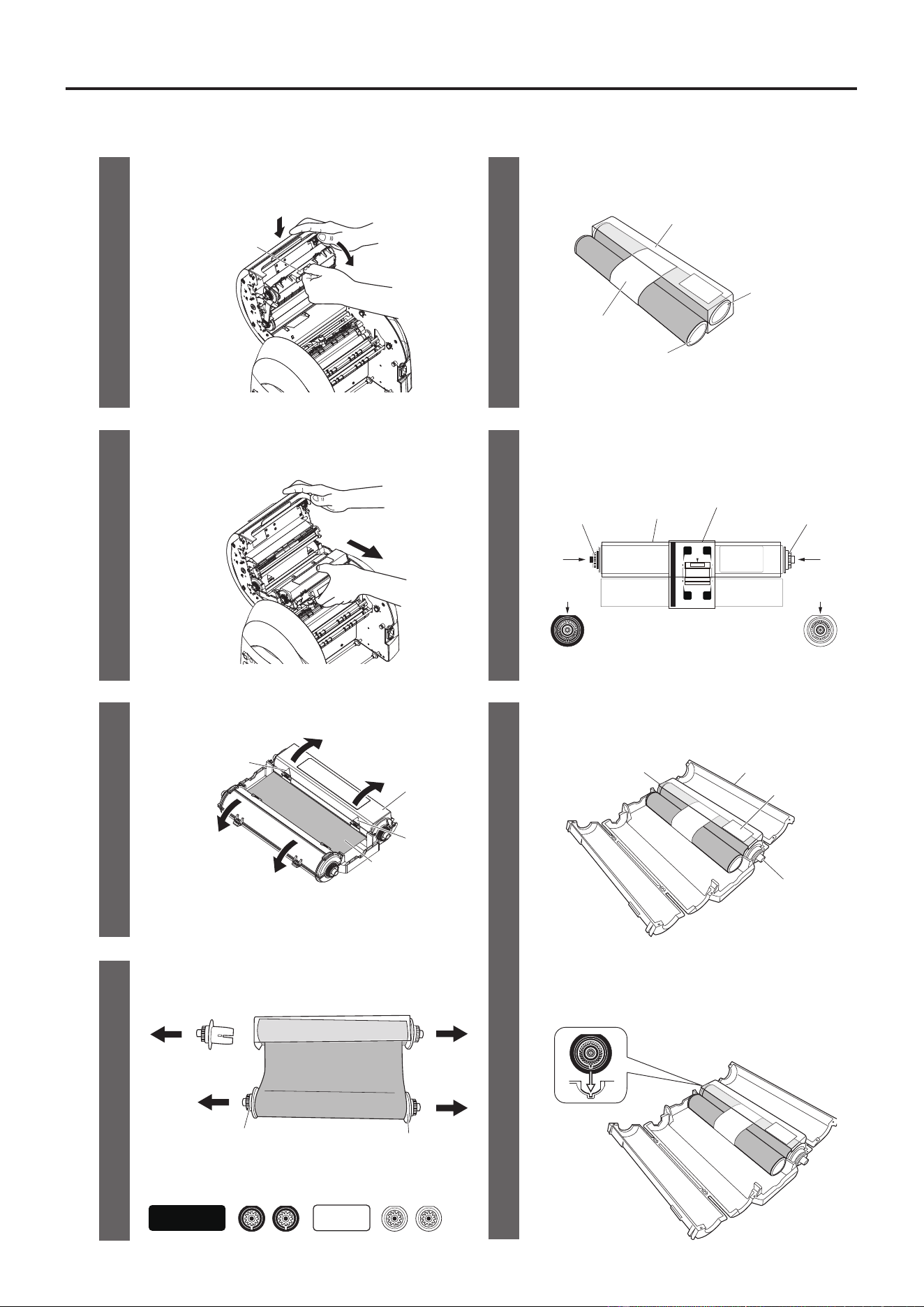
RemovingtheRellableRibbonCartridgefromtheCPM-200
1
Open the door
cover. Hold the
rellable ribbon
cartridge catch
and pull it forward.
Catch
CAUTION
Donottouchtheprinthead.
Getting burned or a malfunction may
result.
2
Turn the cartridge
downward and
then pull it out.
9
Machine Preparation
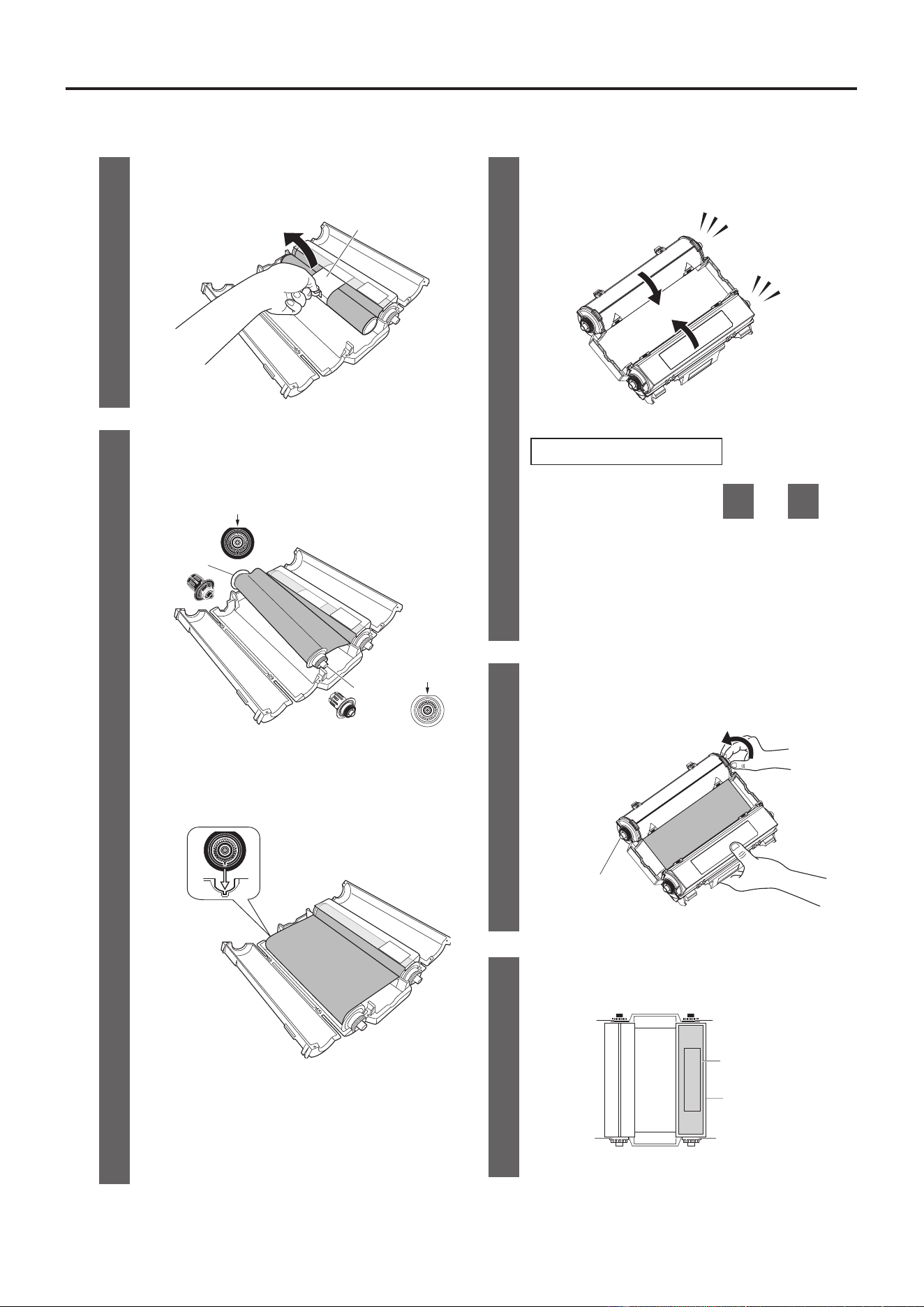
ReplacingtheRibbonRell
1
Open the door cover. Hold the rellable ribbon
cartridge catch and pull it forward.
5
Prepare the new ribbon rell.
Catch
Transparent Frame
Retaining Tape
Take Up Core
Take Up Core
2
Turn the cartridge downward and then pull it out.
6
Insert two gears (one orange, one green) into
the take up core on the transparent frame side.
Ensure the at edges are face up.
※交換手順の詳細は箱に印字の説明を参照ください。
リボンギヤ取付位置とリボン取付方向
赤
緑
赤
緑
透明枠
Transparent Frame
Retaining Tape
Green
Orange
Flat
edge up
Flat
edge up
3
Open the cartridge cover and remove the old
ribbon rell.
7
Place the transparent frame side of the ribbon
rell into the cartridge on the at cover side.
If the cover is difcult to open, pull up the location
indicated as
①
and then
②
.
Green
Orange
Label
Flat Cover
4
Remove the four gears (two orange, two green)
from the ribbon rell take up core.
Firmly insert the protruding part of the orange
gear into the recessed part of the cartridge.
Orange
Green
The shape of the orange gears are different from
that of the green gears.
Orange Green
Ribbon Refill
Flat Cover
①
②
10
Machine Preparation
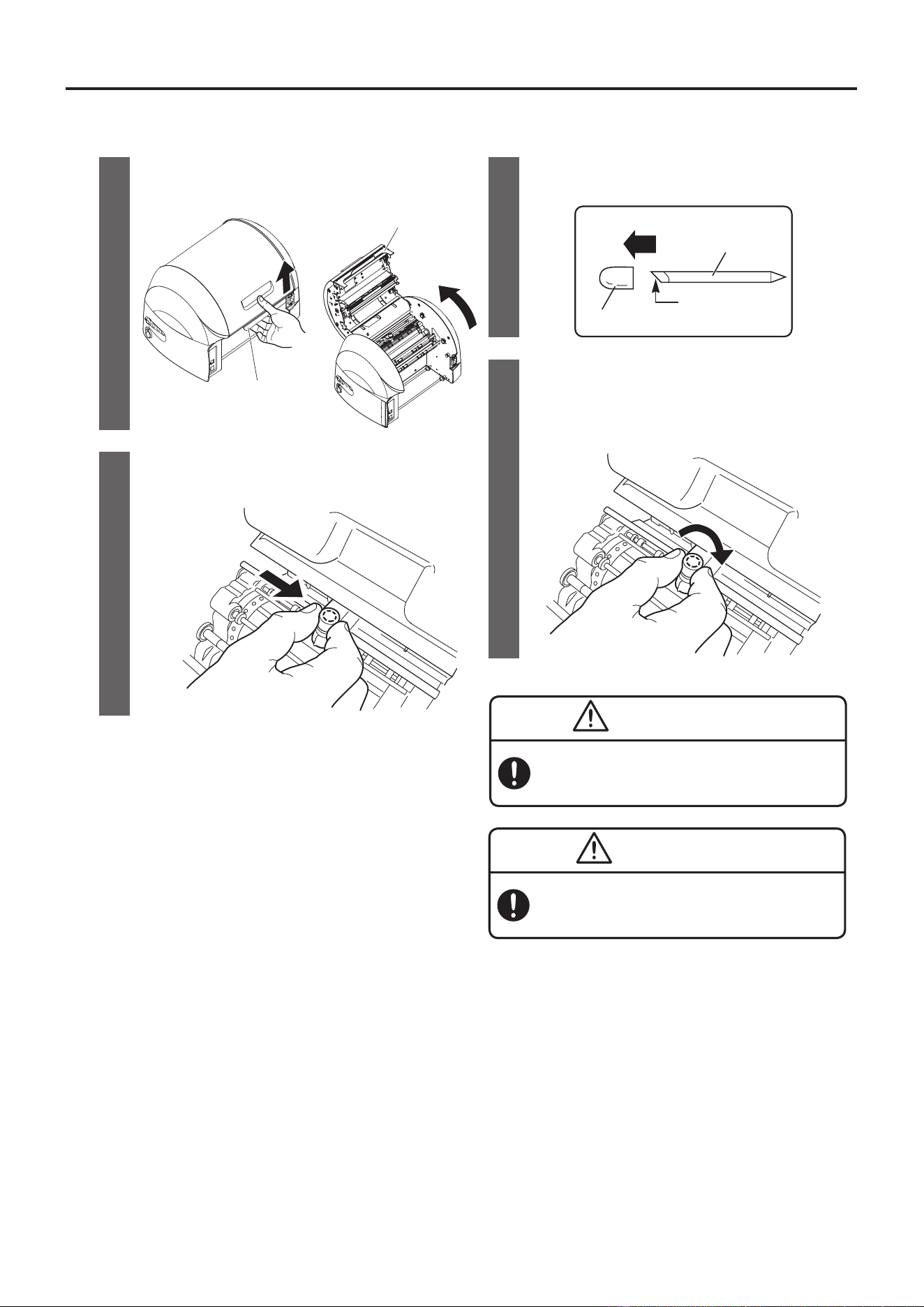
8
Remove the retaining tape.
10
Firmly close the cartridge cover until a “click”
sound is heard.
Retaining Tape
Click
Click
9
Insert the remaining gears (one orange, one green)
into the other take up core. Ensure the at edges
are face up.
If the cover does not close
Orange
Green
Flat edge up
Flat edge up
Check the following in steps
7
and
9
.
◦
Is the transparent frame inserted in the
correct orientation?
◦
Is the protruding part of the orange gear
rmly inserted into the recessed part of the
cartridge?
11
Turn the ribbon gear in the direction of the arrow
until the ribbon rell colour is fully exposed.
Place the ribbon rell in the cartridge.
Firmly insert the protruding part of the orange gear
into the recessed part of the cartridge.
Ribbon Gear
12
Check that the ribbon gear is inserted in the
correct orientation.
Orange
Orange
Green Green
Transparent Frame
Flat Cover
11
Machine Preparation
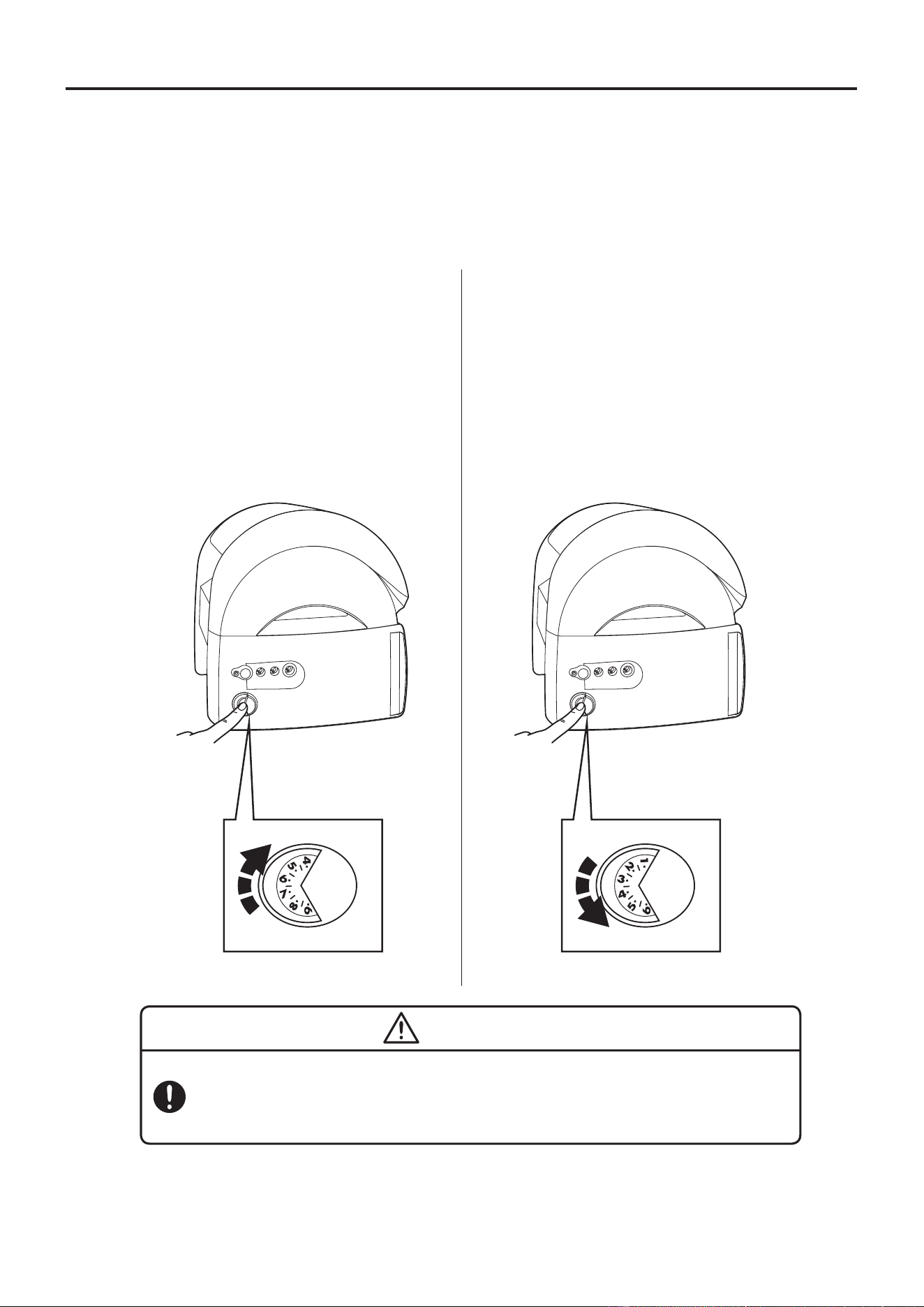
Installing(Replacing)theCuttingTool(Blade)
1
Check that the power is turned off, and pull up the
opening/closing lever to open the door cover.
3
Prepare a new cutting tool (blade) and remove
its protective cap.
Opening/Closing Lever
Door Cover
Blade
Edge of the Blade
Protective Cap
4
Insert/drop the blade into the blade holder
and tighten the blade holder cap.
DONOT
push the blade into the holder otherwise it
will not cut correctly.
2
Move the cutting head to the center manually.
Loosen and remove the cap of the blade holder.
WARNING
Keepthecuttingtool(blade)outofthereach
ofchildren. If swallowed, seek immediate medical
attention.
CAUTION
Whenattaching orremovingthecuttingtool(blade),
besure toturnoffthepower.Otherwise, you could be
injured by abrupt activation of the machine.
Donottouchtheedgeoftheblade.Youmaybeinjured.
12
Machine Preparation
AdjustingtheCuttingPressure
Cutting depth is adjusted by changing the blade pressure (cutting pressure).
The blade may cut too much or fail to cut depending on the type of material, temperature, and so on.
Therefore, we recommend advance testing and adjustment of the cutting pressure.
Anappropriatecuttingpressureleavesaslighttraceonthereleaseliner.
■ If the tape is not properly cut and cannot be
peeled off, the cutting pressure is set too low.
Increase the dial value, in steps of half
a graduation, so that the tape will be cut
properly.
High
■ If the release paper has also been cut (as
far as the back of the release paper), the
cutting pressure is too high.
Decrease the dial value, in steps of half
a graduation until the release paper is no
longer cut.
Low
CAUTION
Adjustthecuttingpressurebeforeuse.
Continuing to use the machine with excessive cutting pressure can reduce the service life of the
cutting tool (blade).
It would also cut the release paper and could cause the machine to malfunction.
13
Machine Preparation
ConnectingtheCableandTurningOnthePower
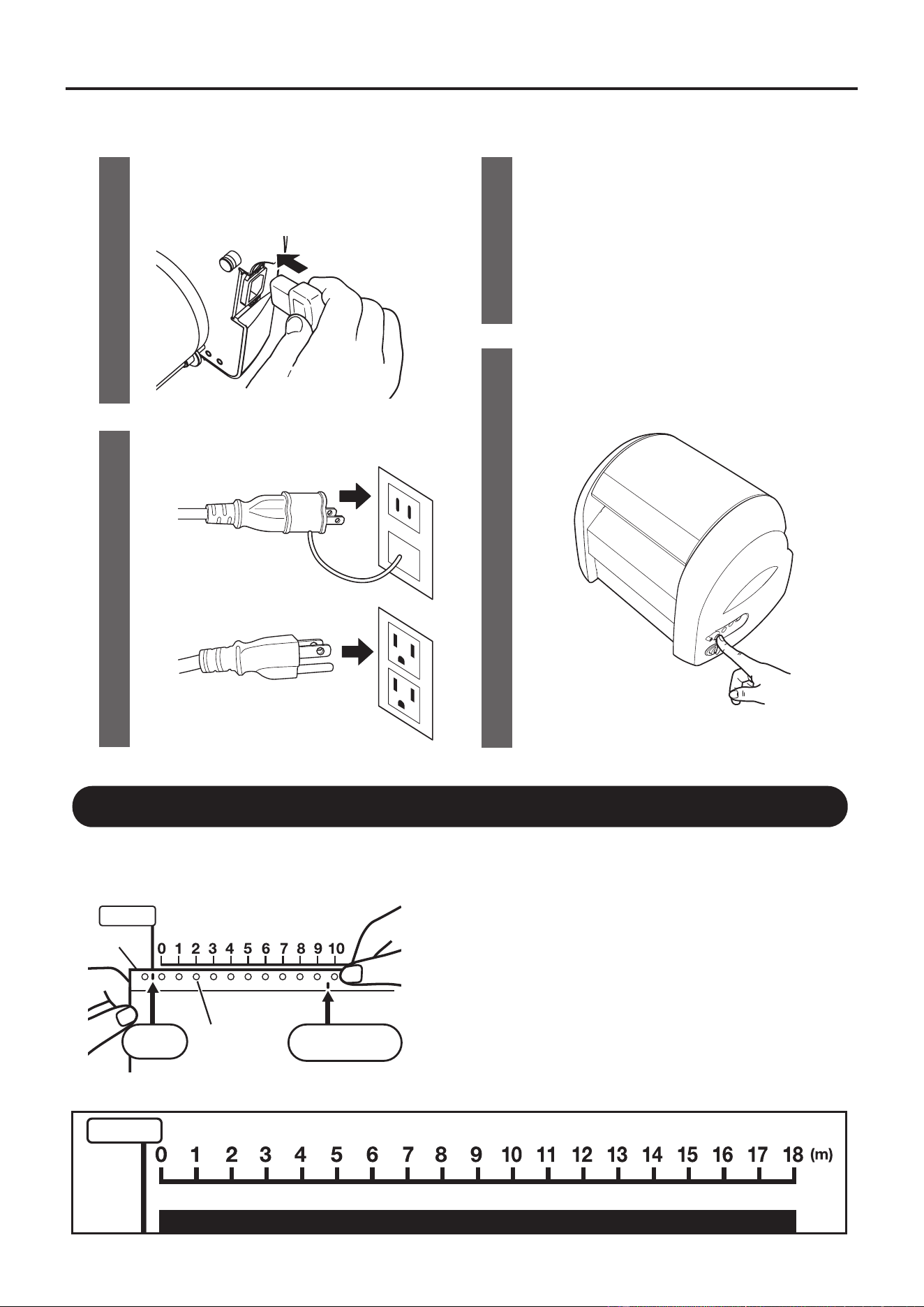
1
Connect the power cord to the power connector.
(Load the tape, rellable ribbon cartridge, and
blade in advance.)
3
4
Connect the CPM-200 to the PC with the
connection cable.
Press the power button to turn the power on.
A green lamp will illuminate.
2
Insert the power plug into an electrical outlet.
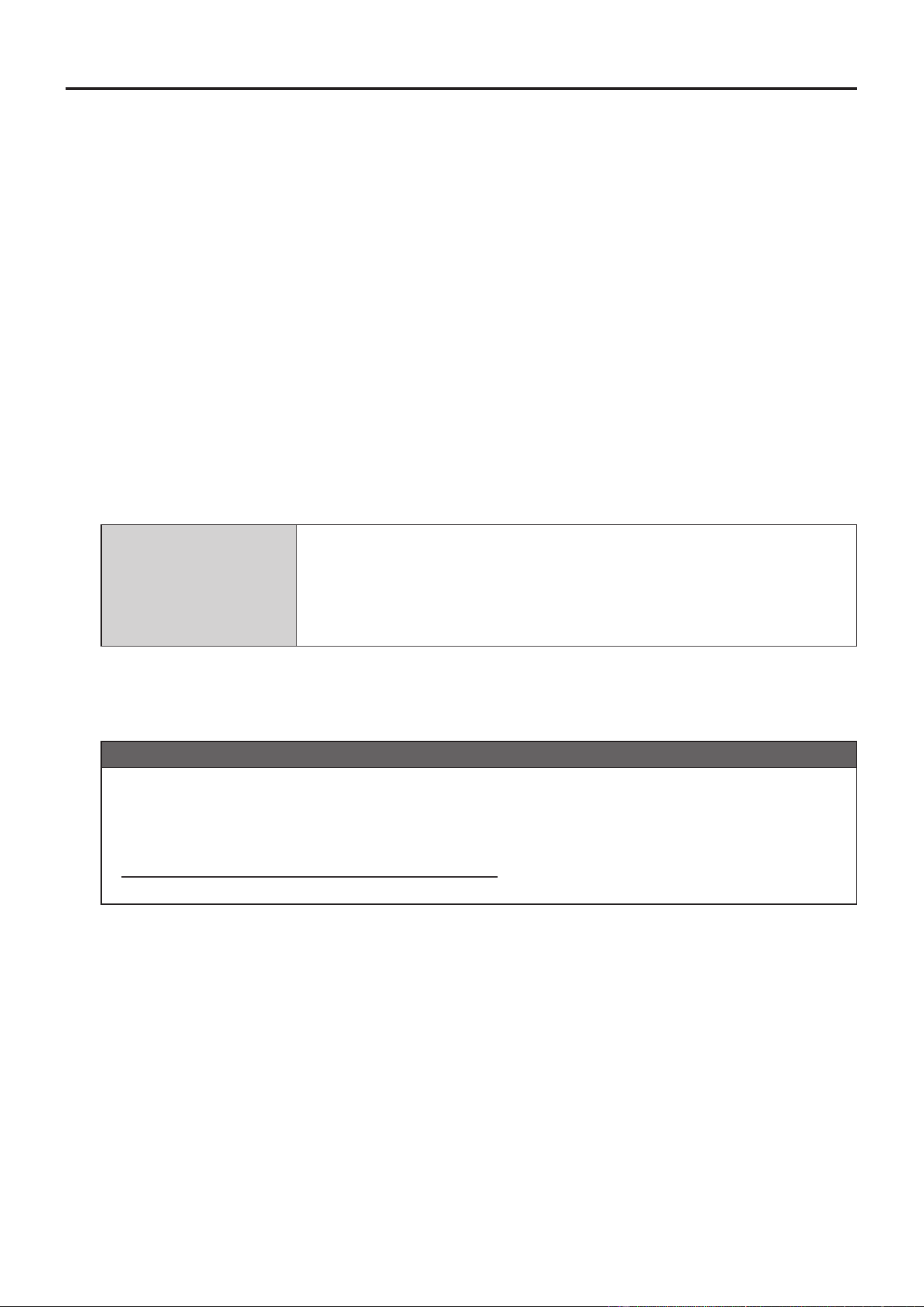
Know the remaining tape length by checking the holes!
You can check the remaining length by comparing the length between the origin hole
and the remaining length hole on the edge of the tape.
[
Alternative method
]
Check the remaining tape without the ruler by using the sprocket
holes. Starting with “zero” at the closest sprocket hole to the right of
the origin point, count the holes until you reach the remaining length
hole. The number of sprocket wholes × 1meter is the approximate
remaining tape length.
①
Align the origin point on the rulerwith the origin hole on the tape
roll. (The ruler is printed on the individual box of the tape roll.)
②
Check the position of the remaining length hole on the same ruler
(in meters). In the example, as the remaining length hole is
positioned between “9” and “10” , the remaining length is more
than 9 meters and less than 10meters.
Tape
Origin
Sprocket
Hole
Origin
Hole
Remaining
Length Hole
Ruler for checking the remaining tape length
Origin
14
BepopPC EX Software Installation
BepopPCEXSoftwareInstallation
Pleasereadbeforeinstalling.
1. Max Company Limited in Japan owns the copyright to this software.
2. It is prohibited to use or reproduce part or all of this software and manual without the prior consent of Max.
3. This software and manual are only allowed to be used under the end user licensing agreement for this
product.
4. The information described in the software specications and manual is subject to change without prior
notice.
5. The names of organizations and individuals mentioned in the samples created with this manual are
ctitious and have nothing to do with the existing organizations and individuals.
MicrosoftandWindowsaretheregisteredtrademarksofU.S.MicrosoftCorporationintheU.S.A.andother
countries.
Othercompanynamesandproductnamesthatmaybementionedhereinaretheregisteredtrademarksoftheir
respectivecompany.
ComputersCompatiblewithBepopPCEX
Please use a computer which satises the following specications. The following suggested specications do
not constitute a guarantee.
Suggested
Specications
● Operating System: Windows 10/8.1/8/7
● RAM that is compatible with Microsoft operating systems.
● More than 100MB of usable space on hard disc.
● DOS/V computer.
PrecautionsforInstallation
Please observe the following warnings and restrictions related to the software or printer driver installation.
WARINGSANDRESTRICTIONS
●Wheninstallingthesoftware,itisnecessarytolog-intothecomputerunderan“Administrators”account.
●Restartaftercompletinginstallation.Inthecasethatmultipleusersaresigned-in,carryouttheinstallationafter
theotherusershaveloggedoff.
●InthecasethatyouareinstallingtoaLAN/WANconnection,pleasecontactyoursystemadministrator.
●AlwaysusetheincludedCDtoinstall/uninstallthesoftware.
15
BepopPC EX Software Installation
BepopPCEXPrinterDriverInstallation
1
Close all active applications and software before
beginning installation.
2
Place the attached CD-ROM into the driver. Click
“continue” in the “User account settings” window.
* USB Installation
To install the printer driver please observe the
following procedure, not observing the procedure
may result in driver installation failure.
1) Connect the printer to the computer USB port.
2) Turn on the printer (check that the LED light
above the power button is green).
3) Begin the driver installation program.
3
The BepopPC EX setup menu will appear. Click on
“Setup of the BebopPC EX”.
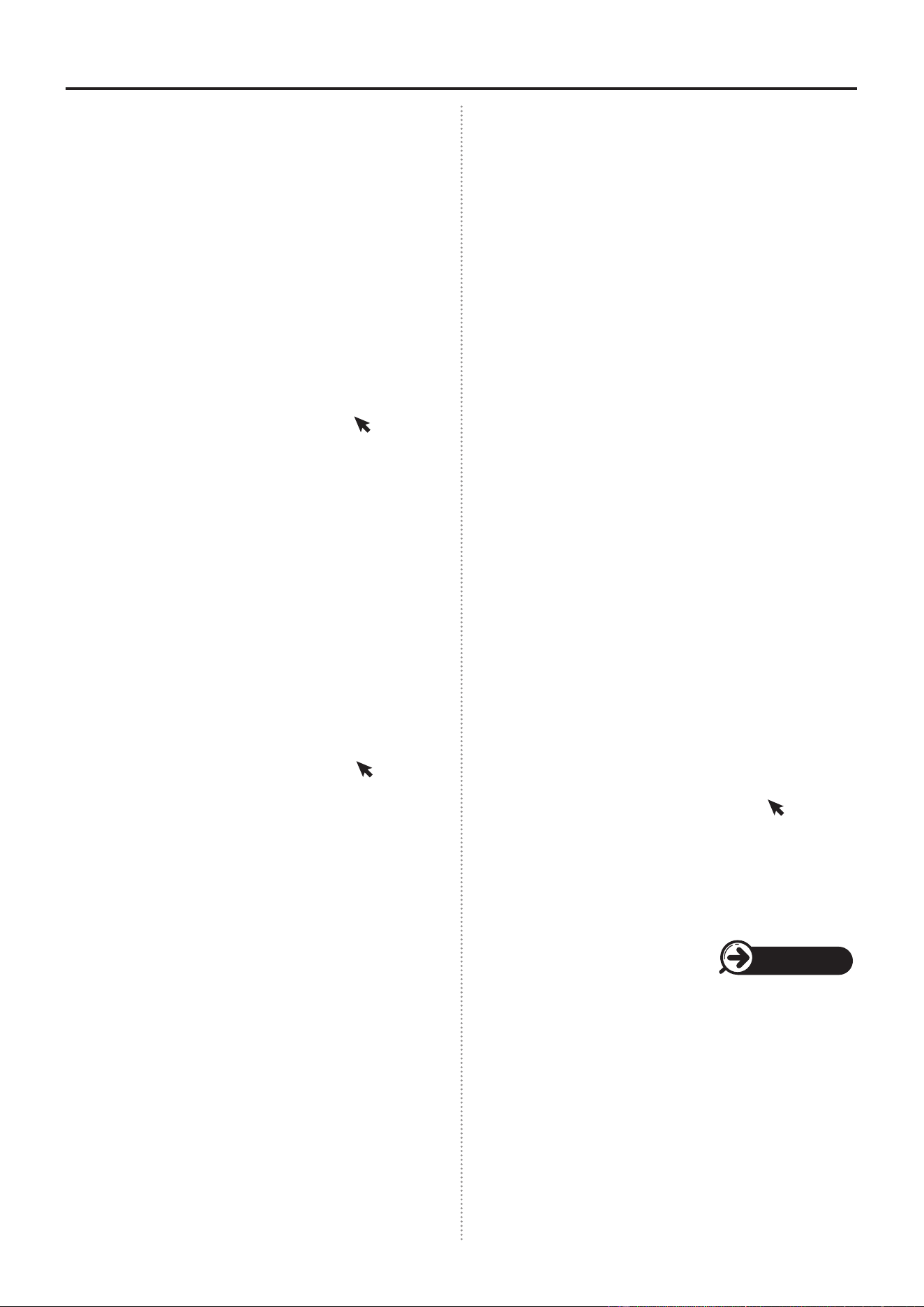
4
Click on “Next”.
5
Read the License Agreement. After understanding
and agreeing to the Terms and Conditions, please
click “Next”.
6
Select “Complete” and click next.
* “Complete” will install all les.
* “Compact” will install all les except original fonts.
7
Click the “Next” icon.
(Choose the appropriate destination folder if
necessary.)
16
BepopPC EX Software Installation
8
Check that the program folder is “BepopPC EX”,
and then select “Next”.
9
Click the “Install” button.
10
The installation process will begin.
11
Check the box next to, “Installs the printer driver
right away” and click “Finish”.
12
Select CPM-200 from the “List of models”, and click
“Next”.
13
Follow the appropriate procedure for “USB
Cable Driver Installation” or “LAN Cable Driver
Installation”.
Page 18/19
17
BepopPC EX Software Installation
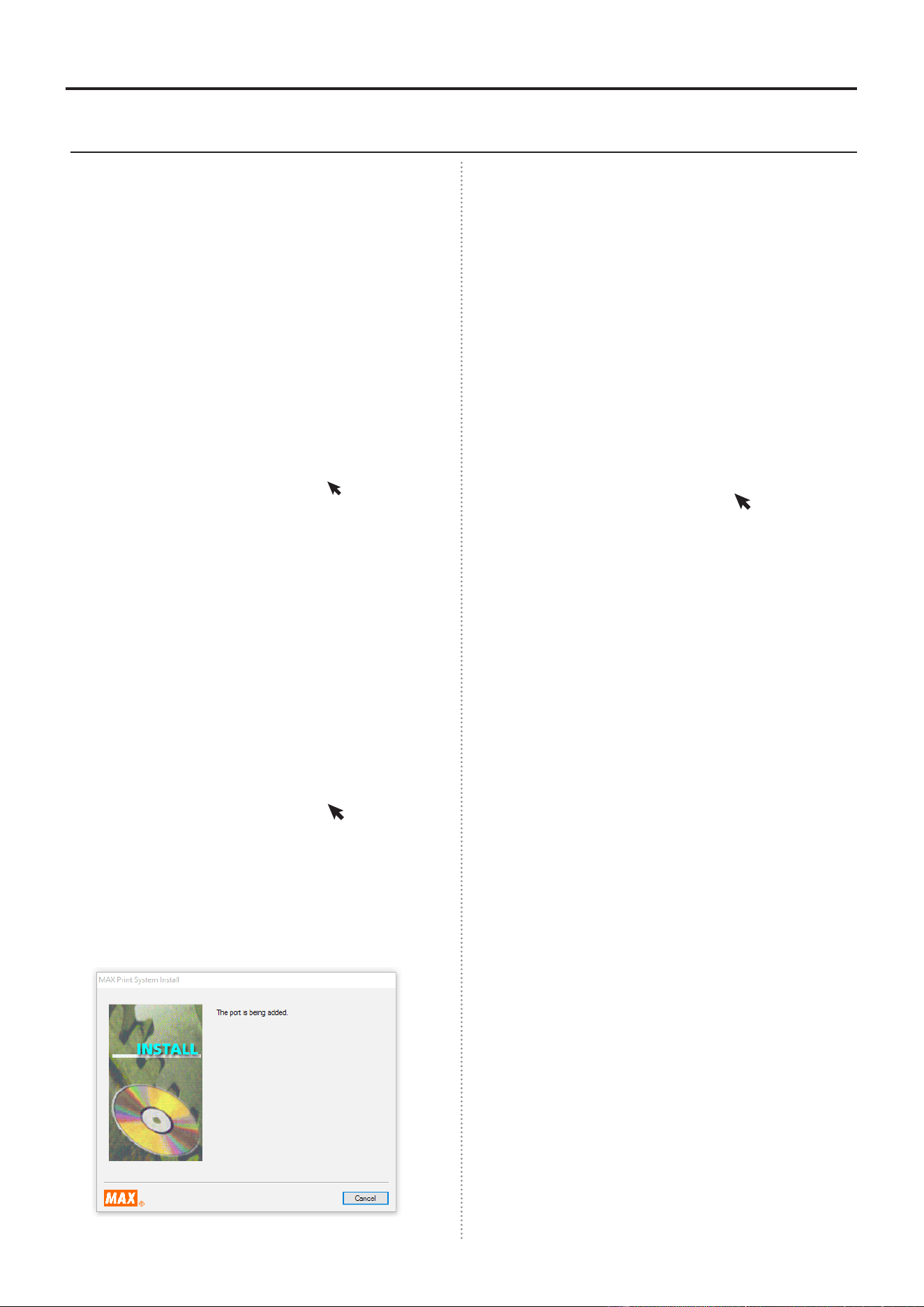
[Messagesdisplayedduringinstallationprocedure]
* The following messages will be displayed during the installation process. This product has passed our company’s strict
quality control standards, and despite the messages this software can be used without problems.
Whenthemessageisdisplayed,pleaseclick“Install”,“Installthisdriversoftwareanyway”,or“ContinueAnyway”.
* The following messages have been shortened for explanation purposes.
* The content and order of the messages may change depending on the computer and operating environment.
■MessagedisplayedinWindows/10/8.1/8 ■MessagedisplayedinWindows7
* Taking a long time to make a selection, or taking a long time connect the printer to the USB port and turning on the power
may result in a failed installation. In this case please uninstall and re-install the software.
18
BepopPC EX Software Installation
[USBCableDriverInstallation]
1
Select “USB Cable” and click on the “Next>” button.
* Printer must be used with a USB connection after this
installation.
2
Click on “Install”.
3
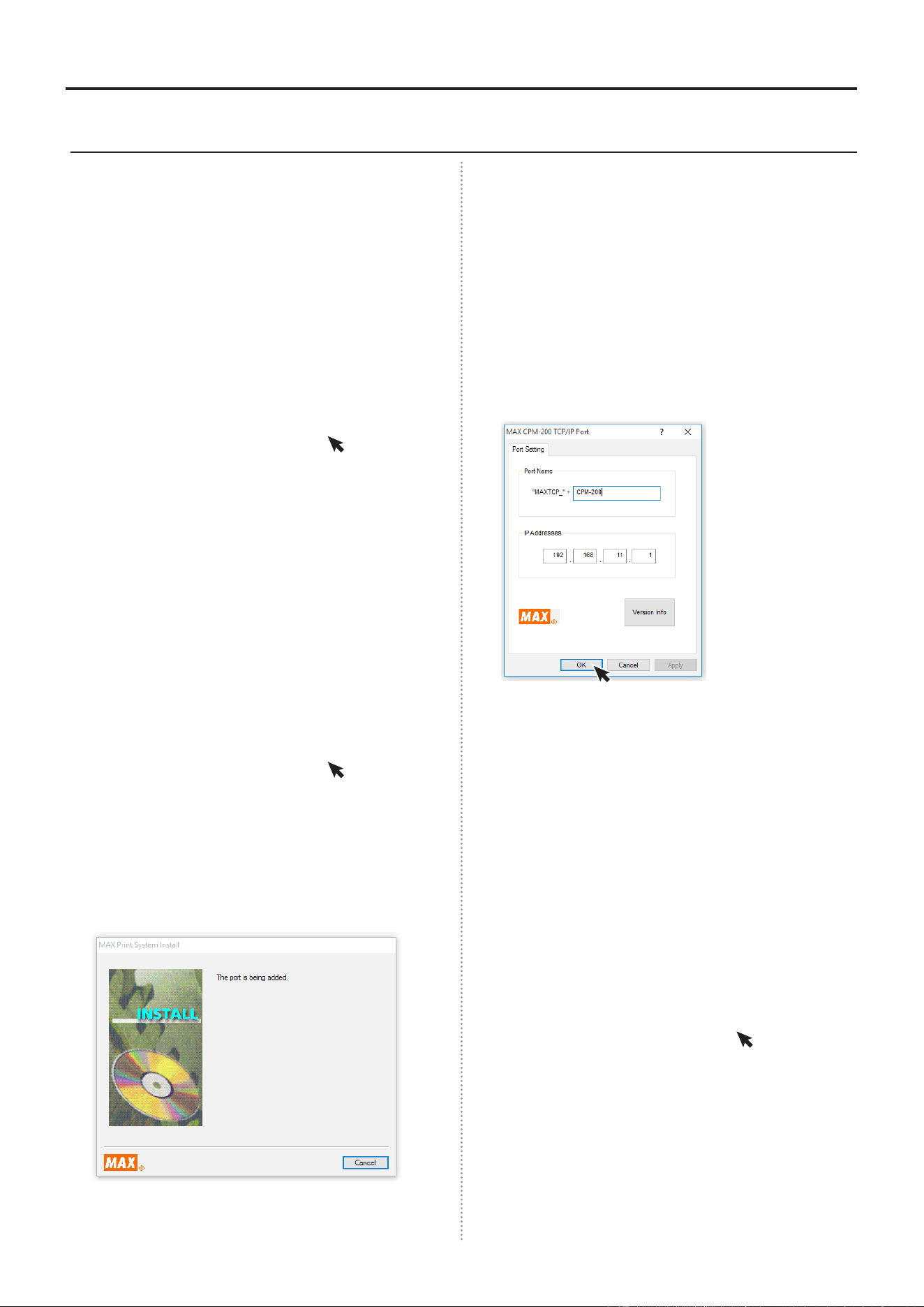
The “Port Monitor Install” or “Driver” install will start
automatically.
* (No Reply) may be displayed on occasion. Please wait
for install to proceed.
4
Select “Yes, restarts immediately” and click “Finish”.
* If other programs were not closed before the installation,
select “No” and restart the computer after closing other
programs.
5
After restarting the computer, the program will be
ready for use.
* BepopPC EX or the printer may not operate correctly
without restarting the computer. Please restart the
computer before operation.
19
BepopPC EX Software Installation
[LANCableDriverInstallation]
1
Select “LAN cable” and click “Next”.
2
Click the “Install” button.
3
The “Port Monitor Install” or “Driver” install will start
automatically.
* (No Reply) may be displayed on occasion. Please wait
for install to proceed.
4
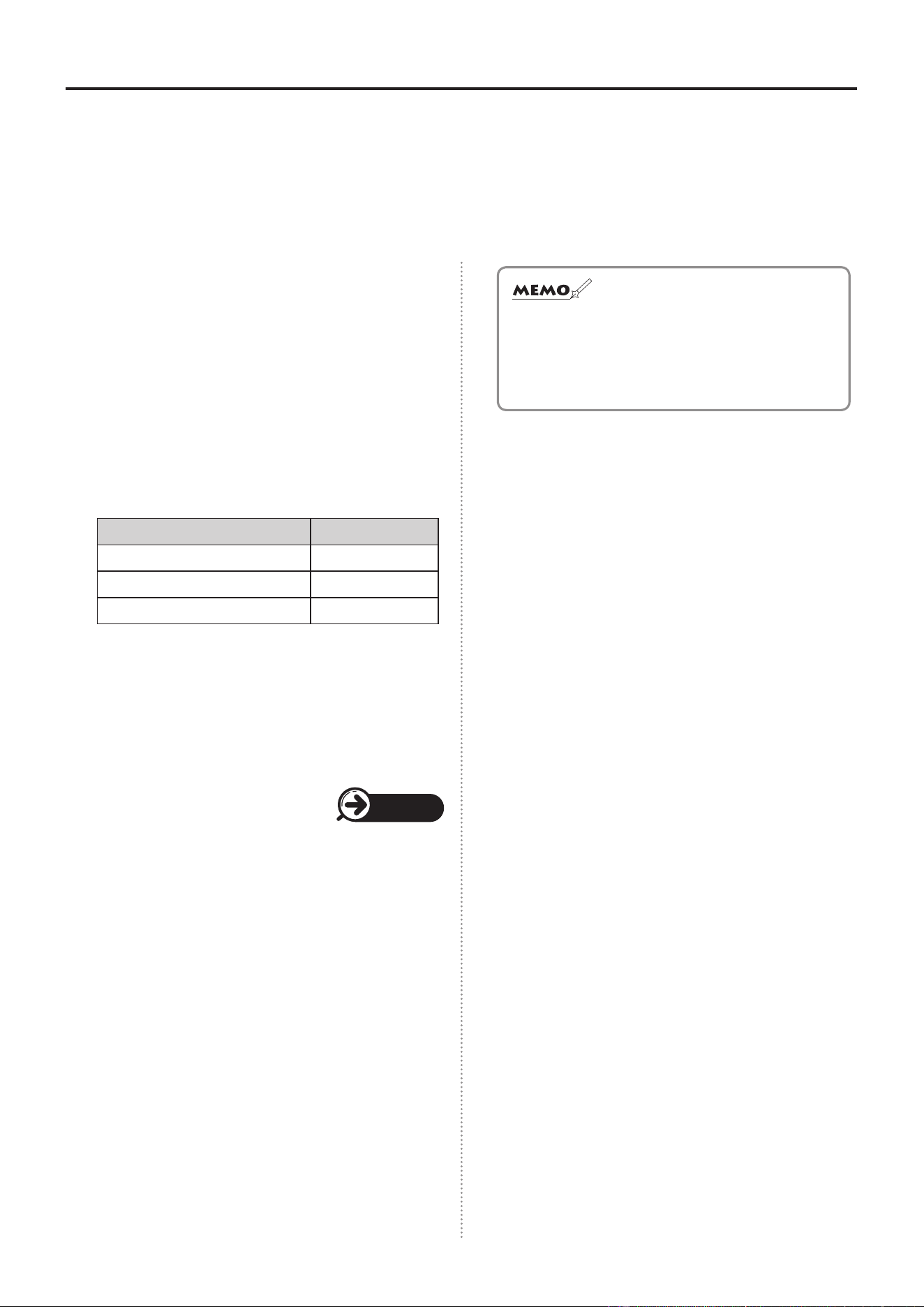
Set the Port Name and IP Address on the computer.
After inputting the Port Name and IP Address on
the computer, click “OK”.
* Ask your network administrator about the correct IP
Address.
* The IP Address should include the first 9 digits of the
computer you are using(3 digits for first three boxes).
The last three digits should be a number that will
not conflict with other devices connected to the LAN
network.
* When using multiple CPM machines, the Port Name and
IP Address must be unique to the machine.
5
Select “Yes, restarts immediately” and click “Finish”.
* If other programs were not closed before the installation,
select “No” and restart the computer after closing other
programs.
6
Restart the computer.
* BepopPC EX or the printer may not operate correctly
without restarting the computer. Please restart the
computer before operation.
7
Next it is necessary to set the IP address on the
printer. Follow the instructions for “CPM-200 IP
Address Settings”.
20
BepopPC EX Software Installation
CPM-200IPAddressSettings
It is possible to connect the CPM-200 to a wireless Local Area Network(LAN).
IP Address Settings for the printer must be changed when using a LAN connection.
CautionsforconnectingtoaLocalAreaNetwork
Consult with your network administrator before
performing a LAN installation on your computer.
■Messageforsystemadministrator
It is possible to connect the CPM-200 to your LAN.
Please follow the instructions below.
● The default IP Address for this printer is detailed
below.
Details DefaultSetting
IP Address 192.168.11.1
Sub Network Mask 255.255.255.0
Default Gateway 192.168.0.1
* The following IP Addresses cannot be used:
①
0.0.0.0 (All 0)
②
255.255.255.255 (All 255)
③
127.xxx.xxx.xxx (Loopback address types)
④
xxx.xxx.xxx.255 (Subnet Broadcasts)
● To change the settings on the Printer please refer
to “
SettingthePrinterIPAddress
”.
Page 21
● To install and use the driver, it is necessary to log
in as an administrator.
● Restart computer after installing the driver.
In the event that multiple users are logged in, it will
be necessary for them to log-off before starting the
installation.
● DHCPretrievalandSNMPmanagementarenot
supported.
● Asingleprintercannotbesimultaneously
installedasbothaUSBportprinterandaLAN
printer.
21
BepopPC EX Software Installation
SettingthePrinterIPAddress
* To set the Printer IP Address the printer must be connected to the computer via a USB port.
1
Insert install CD-ROM into the computer.
2
The BepopPC EX menu will be displayed. Click on
the “IP Address Settings” button.
3
The printer IP Address settings tool will appear.
Connect the printer to the USB port and turn on the
power. Choose the printer type from the drop-down
menu.
* By clicking on the “Retrieve” icon, the current MAC
Address and IP Address for the connected printer will be
displayed.
* The starting value will appear in the IP Address Settings
window.
4
Enter the IP Address and click “Register”.
By clicking the “Finish” button the settings
procedure is complete. Input the newly registered
address when installing the printer driver.
* By selecting the “Details” icon, it is possible to change
the Subnet Mask and Default Gateway.
Congratulations, the IP Address setting procedure
is complete.
22
BepopPC EX Software Installation
Firstlet’sgiveitatry!
Makeasignlayout.
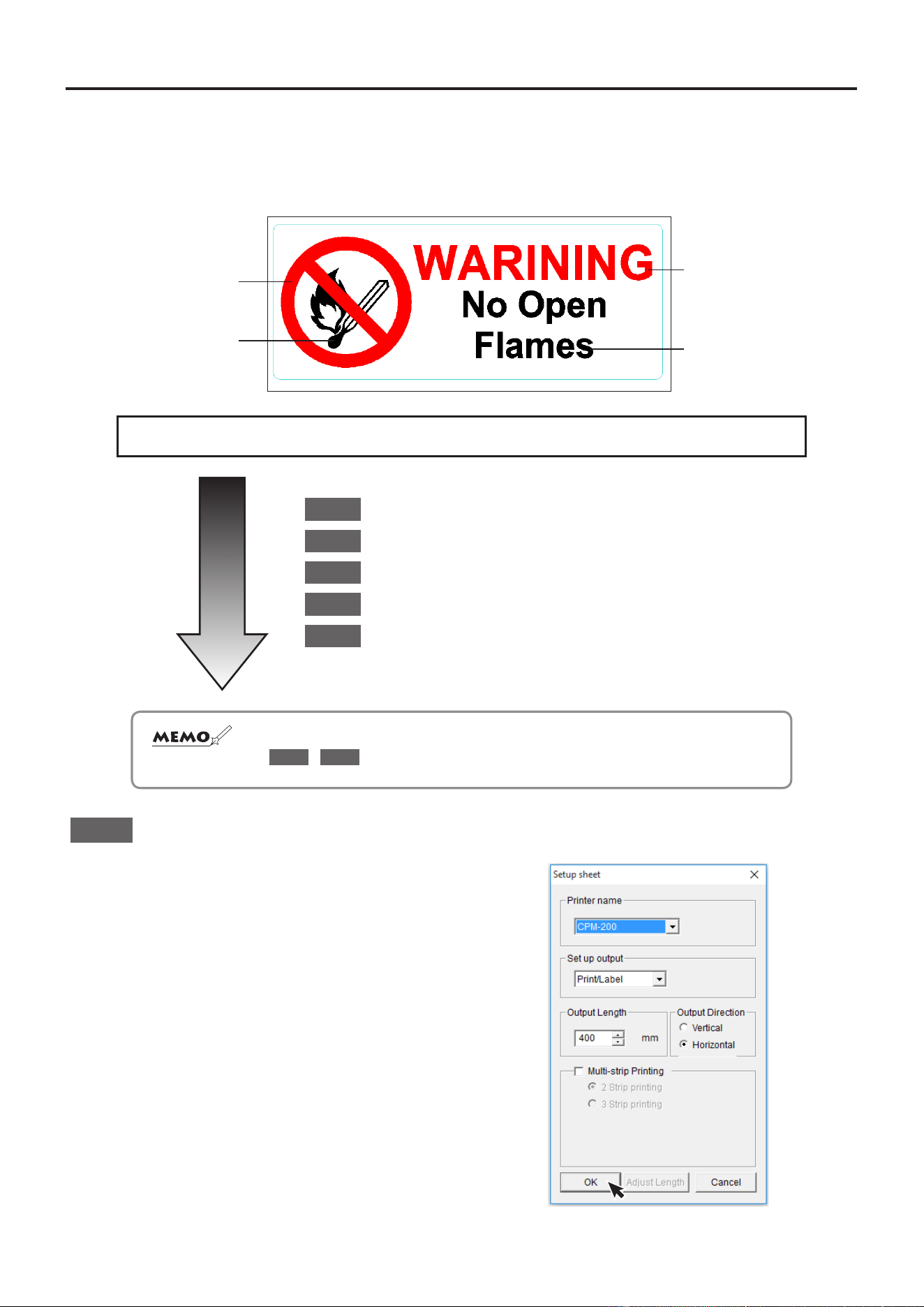
This will explain how to make a sign using CPM-200.
Let’s try to make the multi-color sign below:
red
black
red
black
GeneralFlow
1
StartyourBepopPCEXsoftware
2
Insertacolorsymbol
3
Inputtextdata
4
Inputacuttingline
5
Print(andcut!)
☆ Whentryingtomakeasigntoanexactmeasurement,reversetheorderofsteps
2
-
4
!
1
StarttheBepopPCEXsoftware
Please open the BepopPC EX Software
In the event that you are using multiple Bepop systems,
the “Tape Settings” menu will appear.
Choose the following settings:
Printer name
扌
CPM-200
Set up output
扌
Print/label
Click Okay
23
BepopPC EX Software Installation
2
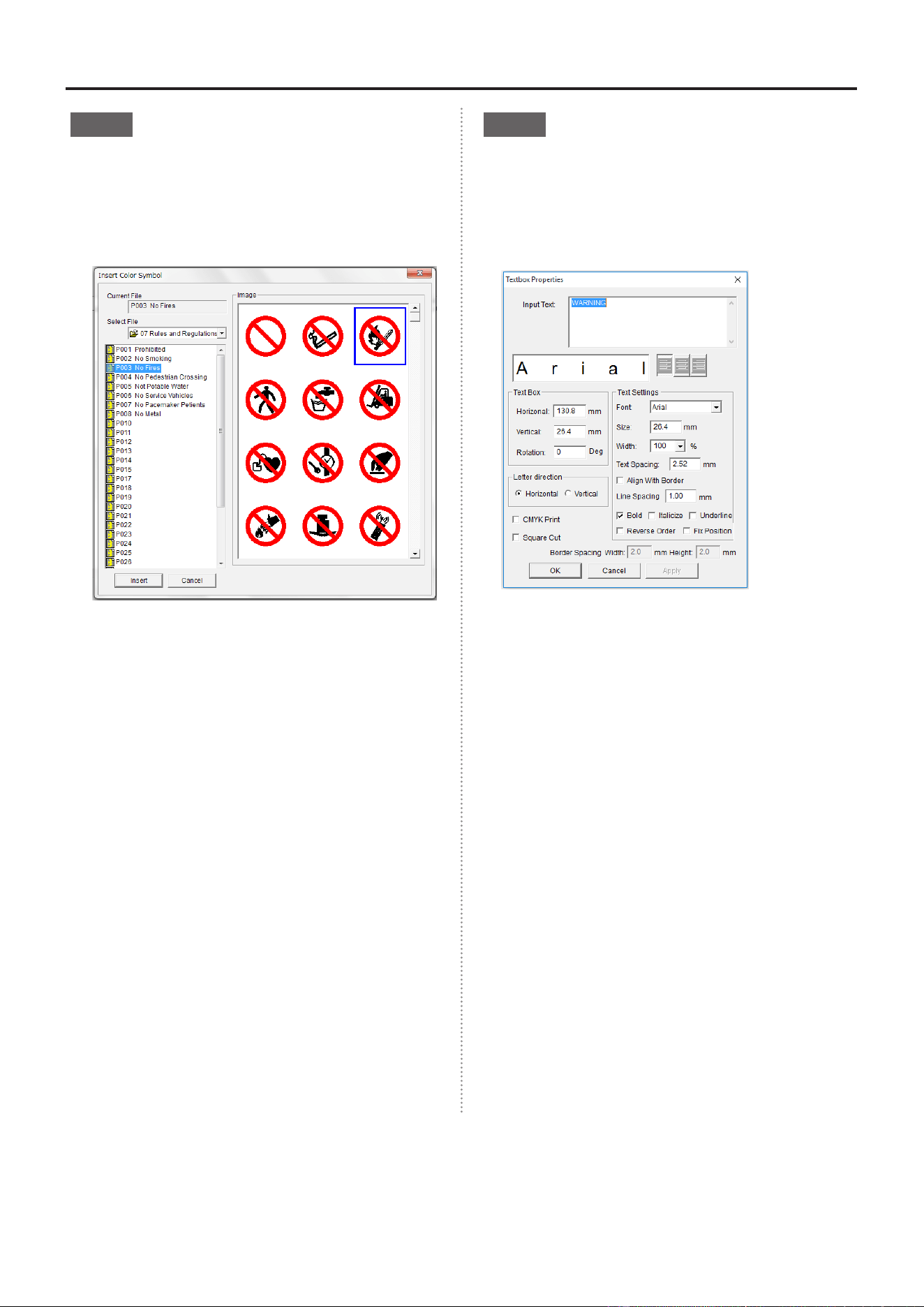
InsertSymbols
1
Click on the mark to open the “Insert Color
Symbol” dialog box.
2
Under the group 07 Rules and Regulations, select
the “P003 No Fires” symbol
.
3
Paste the symbol to the tape layout by clicking on
“Insert”.
4
Click and drag the border boxes (■) to adjust the size.
3
InsertLetters
1
Click on the icon to open a text box. Click and
drag to create the text box border.
2
The text box properties box will open automatically.
3
Write “WARNING” in the text box, check the “Bold”
box, and click OK.
4
Select Red from the color pallet.
5
Repeat steps
1
-
3
but instead write “No Open
Flames” and select black letters.
6
Andjust the size and layout of your data.
24
BepopPC EX Software Installation
4
InsertaCut-line
1
In the cut-bar, choose the rounded rectangle shape.
2
Drag the cut-shape to t your sign size.
5
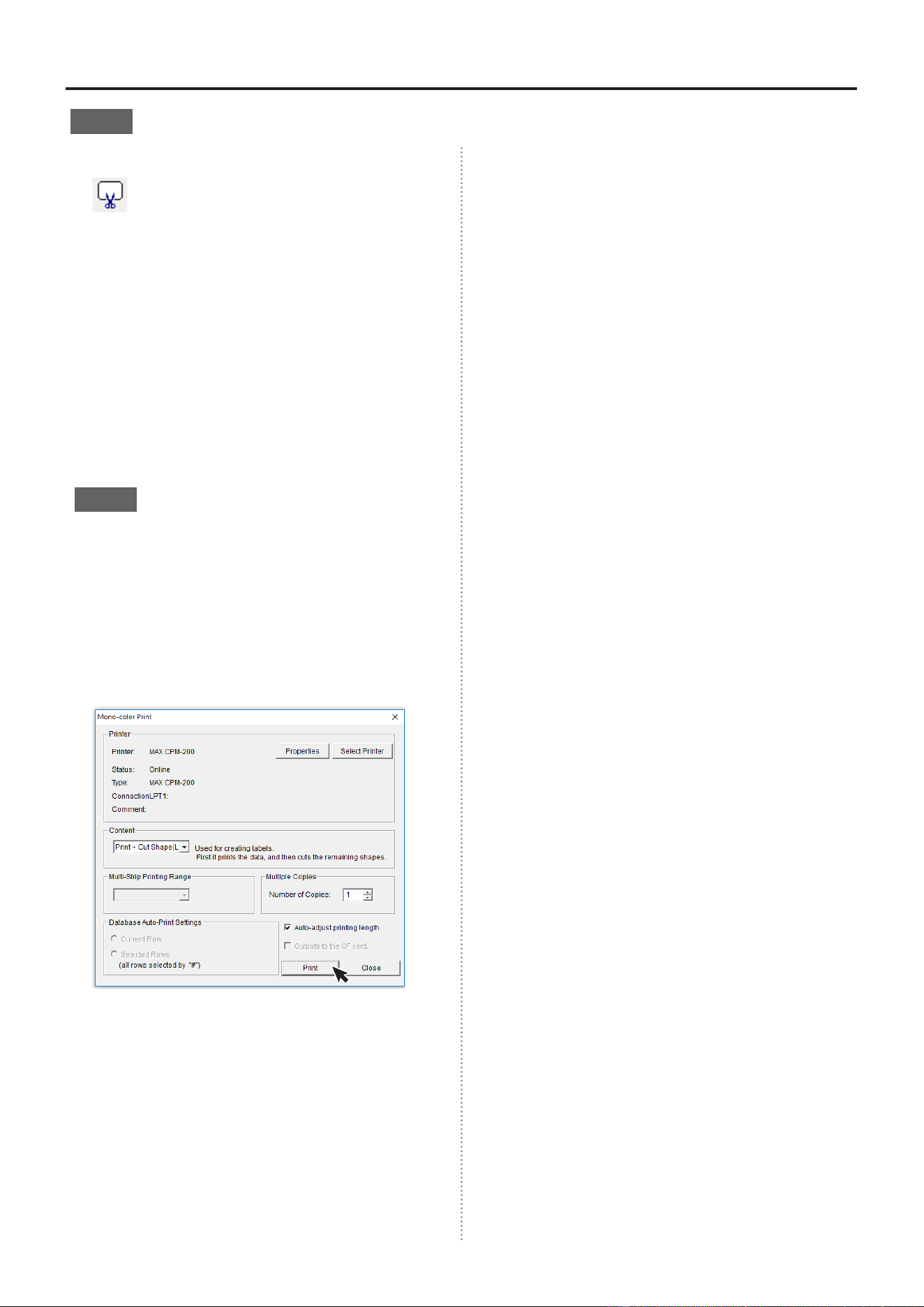
Print
1
Insert the ink ribbon and tape roll into the machine.
2
Click on the color print icon .
* To print in mono-color, clicko the mono-color print icon.
3
Click on the “Print” button.
4
The CPM-200 status monitor automatically opens.
Select the black ribbon, and click print.
5
After the print stops, the machine will rewind
the tape. Open the cover and exchange the
Black Ribbon with a Red Ribbon. (Once the
machine begins rewinding, it is possible to
exchange the ribbon)
6
Close the cover, select “Red Ribbon”, and click
the print button. Next the machine will print in Red,
cut the sign shape, and then nally cut the tape.
Congradulations, your sign is complete!
* In the case that a color not used in the print data
is loaded in the machine, the message below will
be displayed. Change to a color that is used in the
layout data, and select "Print" to start printing.
25
BepopPC EX Software Installation
Checktheremainingsheetlength.
It is possible to check the remaining sheet length
in your CPM-200 by using the status Monitor. It is
convenient to use it to check the remaining sheet
length before printing.
1
In the Notication Area of your computer (click
upward chevron, bottom-right end) there will be a
status Monitor icon
.
2
Click on the “Test remaining length” button.
3
The remaining tape length will appear.
●Dependingontheamountofremainingtape,the
statusMonitorlengthandactuallengthmebeoff
by6~12inches.Alsotapethathasbeenremoved
fromtherollwillnotbemeasuredcorrectly.
AbouttheStatusMonitor
During the printing process, it is possible to check the
current condition of your printer and consumables. The
Status Monitor displays the printing progress, remaining
ink ribbon status, and ink color.
* The remaining ink ribbon length is approximate
information only and it may be different from the actual
length.
In the event of a printing error, the error code will be
displayed.
Open the “Troubleshooting” tab and follow the instructions.
26
BepopPC EX Software Installation
Adjustingtheprinttempurature
It is possible to change the printing tempurature. In the event that the printed areas become speckled, wrinkled,
or small letters are having trouble printing, change the printing tempurature in the print properties.
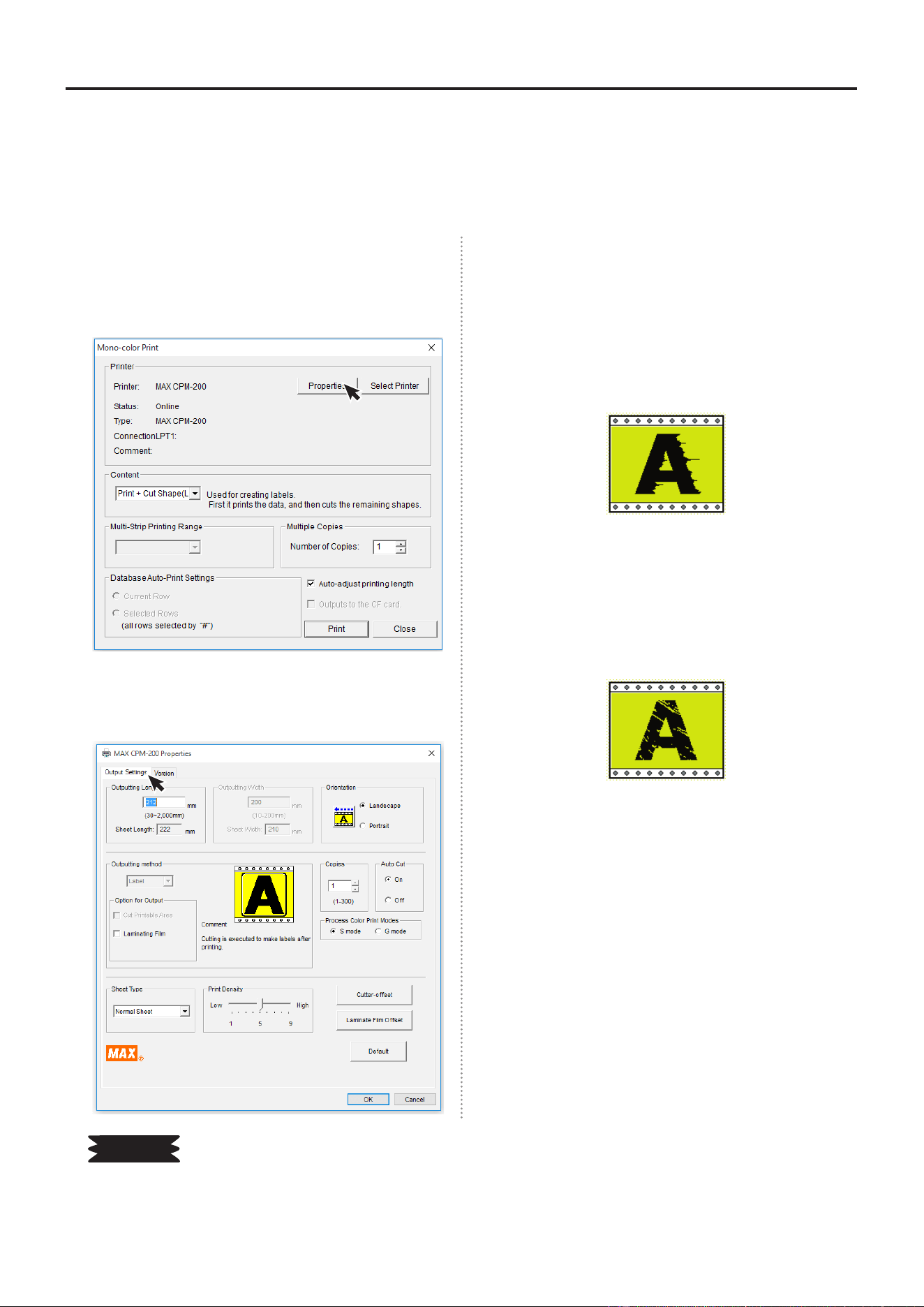
1
In the BepopPC EX menu bar, select File → Print.
2
Click on the “Properties” button.
3
Open the Properties menu will automatically open
to the “Output Settings” tab.
4
Adjust the Print Temperature bar 1 increment at a
time, and click the okay button.
When printing in a hot enviornment, it is necessary
to “lower” the printing temperature. When the
environment is too hot, the printed sign may have
wrinkles and look like:
When printing in a low temperature enviornment,
it is necessary to “raise” the printing temperature.
When the environment is too cold, the printed sign
may have speckles and look like:
5
While printing, adjust the machine to nd the best
tempurature settings.
Please
☆
Whenprintinginacoldenvironmentthetransfercapabilitiesoftheinkaroundtheletteredgesisreduced,andthe
printingqualitymaybereduced.Itisrecommendedthatthemachineisopperatedatroomtemperature,andmorethan
15°C(60°F).
27
BepopPC EX Software Installation
Makingacuttinglayout,andcuttingasign
The CPM-200 can also freely cut signs.
This section will cover the operations and procudure using BepopPC EX software.
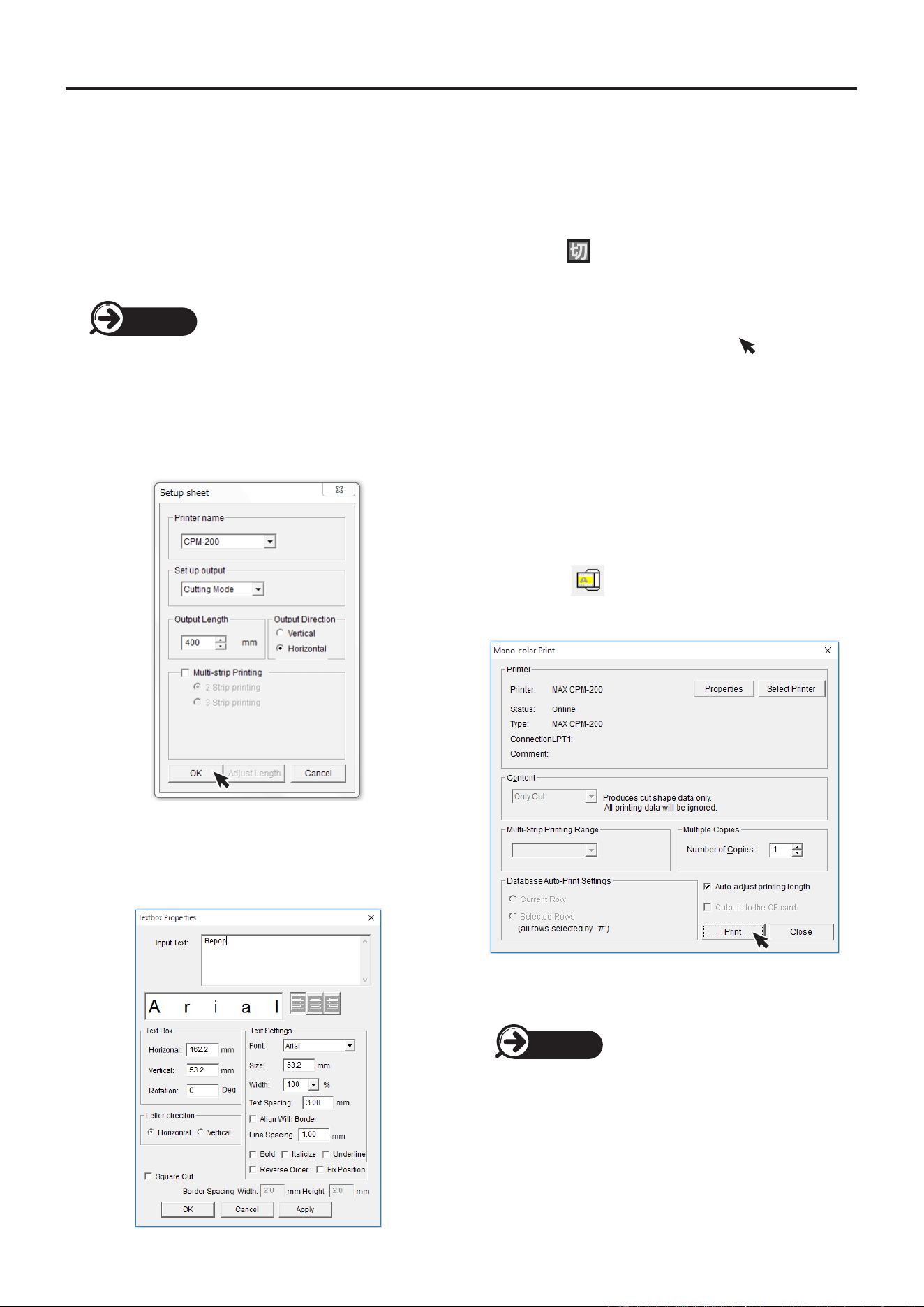
1
Plug in your CPM-200 and open the BepopPC EX
software.
Viewpage13“Connectingthe
Cable
andTurningOnthePower”
2
Input letters.
①
File → Tape Settings. Open the Tape Settings menu,
under “set up output” select “cutting mode” and click
“OK”.
②
Creat a text box by selecting , then clicking and
draging a frame. When the Text Box Properties menu
opens, imput text.
③
Select the icon to draw a cut-shape around the
letters, this will improve the weeding process.
④
Select the icon, click “Print”. The machine will
start cutting the letters.
3
Apply Cut Lettering.
Viewpage28“Howtoapplycut
lettering”
Page 13
Page 28
28
BepopPC EX Software Installation
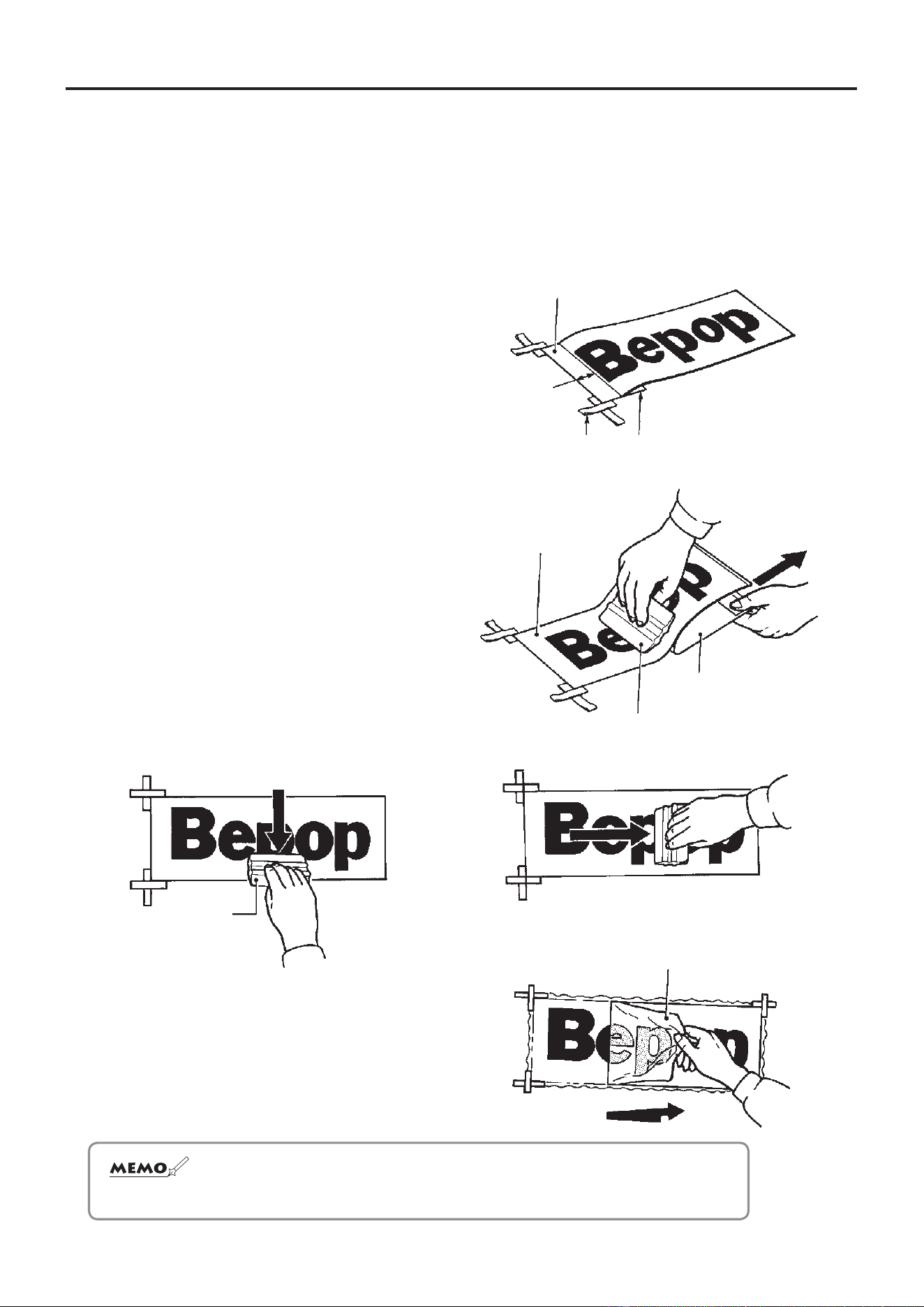
Howtoapplycutletterdesigns
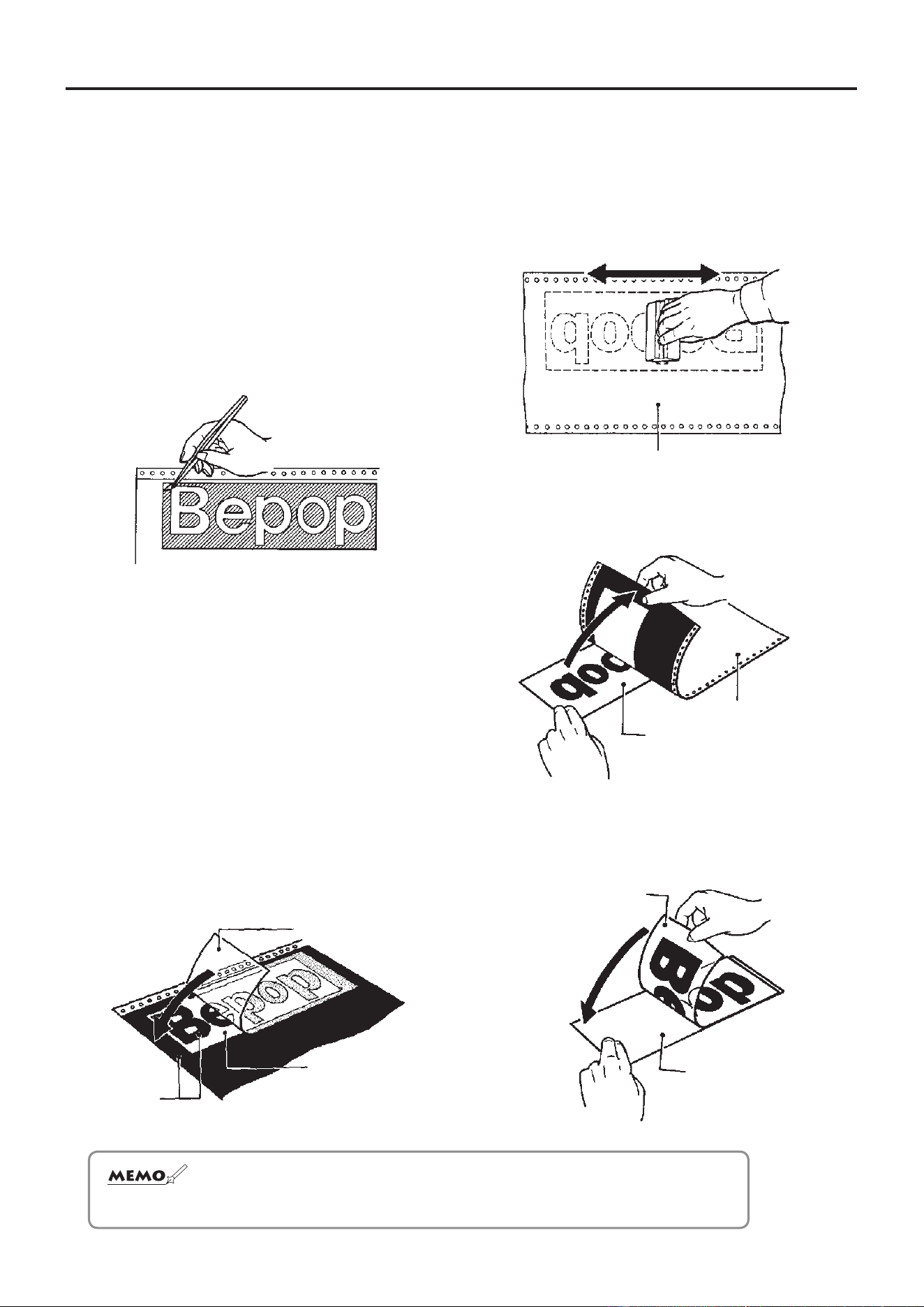
Preperation(weeding)
When your CPM-200 has nished cutting letters, use
the following instructions to prepare your letters for
transfer.
1
Remove the unneeded parts of the tape after the
CPM-200 has nished cutting, and the sheet has
dropped out of the machine.
Weed the parts with the slanted lines in the picture below.
* Use the tweezers included with the printer to remove
the unneeded pieces.
DesignTransfer
In order to tranfer your design, use the Application
Sheet(SL-L100AP).
1
Cut the application sheet to the appropriate
size(slightly larger than your design). Remove the
application sheet from its backing and apply over
your design. Be careful not make wrinkles when
applying the application sheet, as it may distort your
design.
Application sheet
Tape Roll
Paper backing
☆ Forsmallletters,removetapeinsidethelettersbeforeremovingtheoutside.
☆ Thepaperbackingfortheapplicationsheetisuseddurrinttheapplication
process,
DONOTTHROWIT
A
WAY.
2
Press the application sheet rmly against the surface
of the design. If the design is difcult to transfer,
press the back of the sheet as well.
Paper backing (back)
3
With the application sheet face down, pull away
the release liner. The design will transfer to the
application sheet.
Application sheet
Tape Roll
4
Return the completed design to the paper backing of
the application sheet, and prepare to apply it to the
application surface(see page 34).
Application sheet
Paper backing
29
BepopPC EX Software Installation
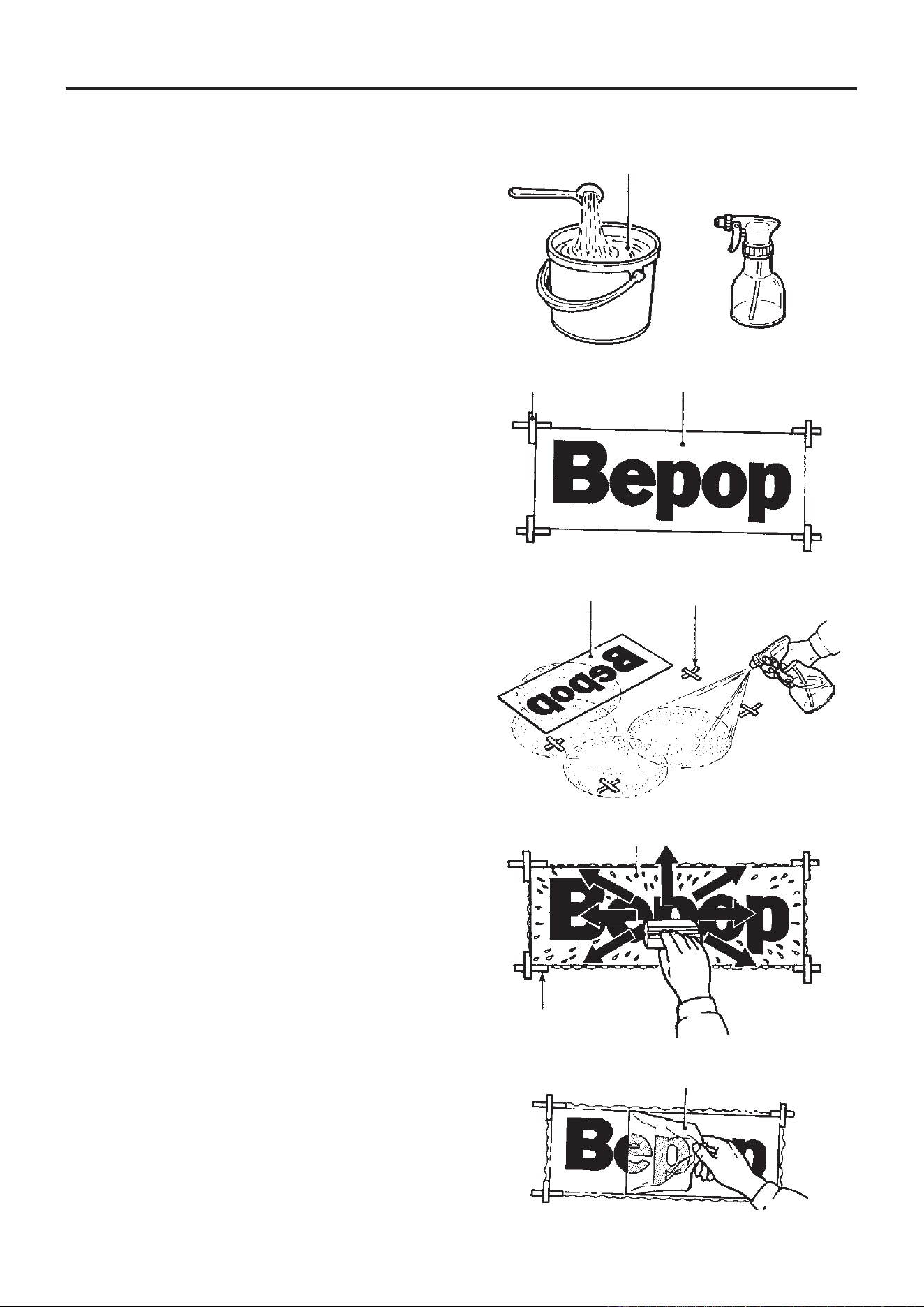
Applyingcut-letterstoasurface
Please be careful of the following three things: allignment, air bubbles, and material stretching (stretched materials
do not regain shape). Depending on the size of the letters, dry application or wet application should be used
appropriately. (Big letters use wet application)
DryAplicationMethod(Lessthan50cm/6in)
1
While the design is attached to the paper backing,
align it with the application surface and apply tape to
mark the surface alignment.
2
Fold back about 2cm (1/2 in) of the tip of the paper
backing.
3
Secure the removed application sheet with tape.
4
Slowly remove the paper backing while applying
pressure to the design.
5
Use a skeegie to apply pressure, moving up and
down and from right to left.
Skeegie
6
Pull the application sheet away from about a 180
degree angle.
☆ Intheeventthattheapplieddesignhasairbubbles,useapintopopthebubbles
and
applypressuretothesheet.
Paper backing
Tape
2cm
Skeegie
Paper backing
Application sheet
Application sheet
Application sheet
30
BepopPC EX Software Installation
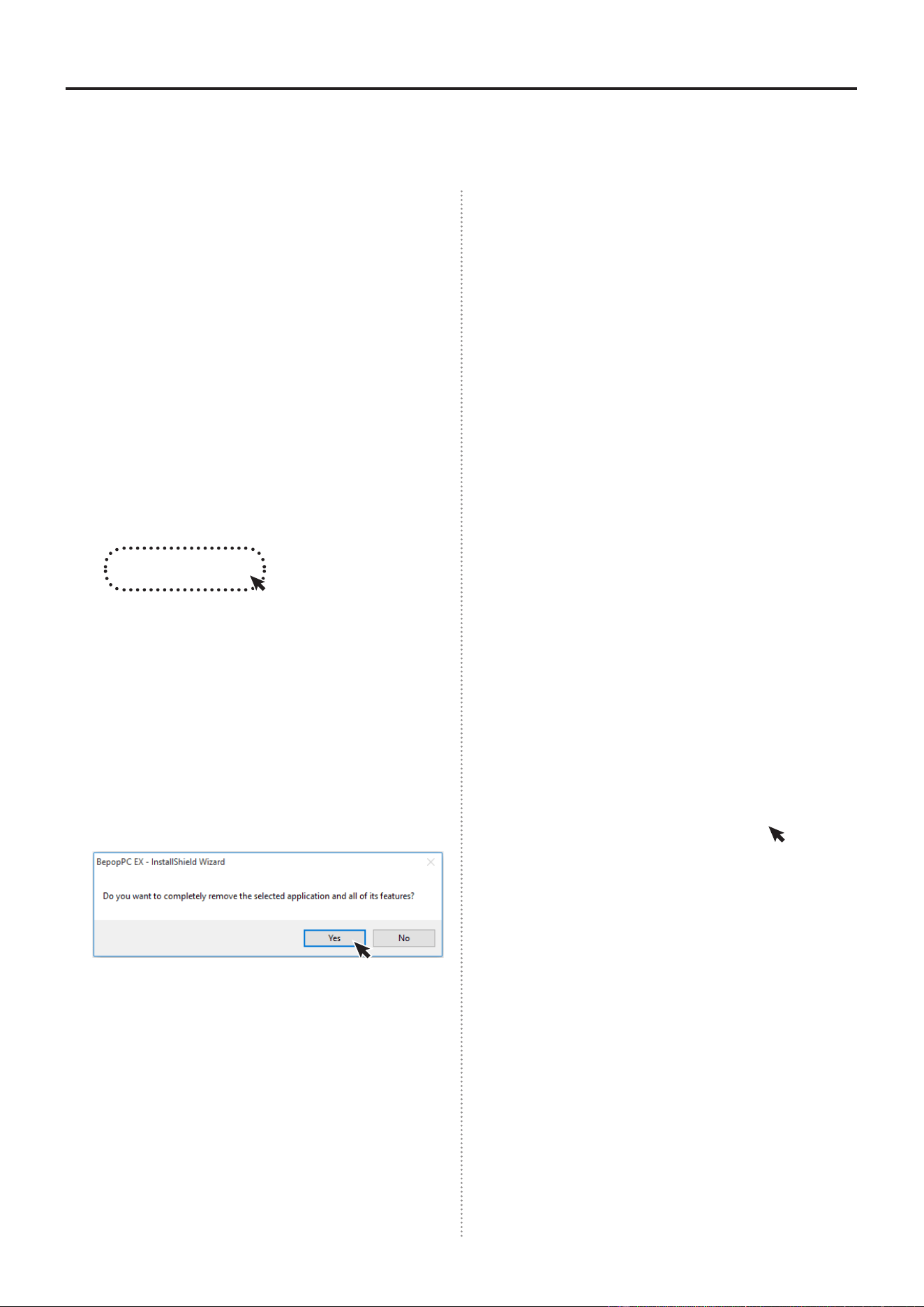
WetApplicationMethod(Morethan50cm/6in)
1
Mix 1-2 tablespoons of a mild houshold soap into 4
liters of water.
2
Fill a spray bottle with the soap solution.
3
With the paper backing still applied, align the design
and mark the alignment with tape.
4
Heavilly spray the application surface and
design(after removing backing) with the soap
solution.
5
Check the alignment of the application sheet with the
tape markings.
6
Using a skeegie, apply pressure from the inside out.
Press rmly to remove the soap solution and air
bubbles.
7
Pull the application sheet away from about a 180
degree angle.
Soap solution
Spray bottle
Tape
Application sheet
Application sheet
Tape
Application sheet
Tape
Application sheet
31
BepopPC EX Software Installation
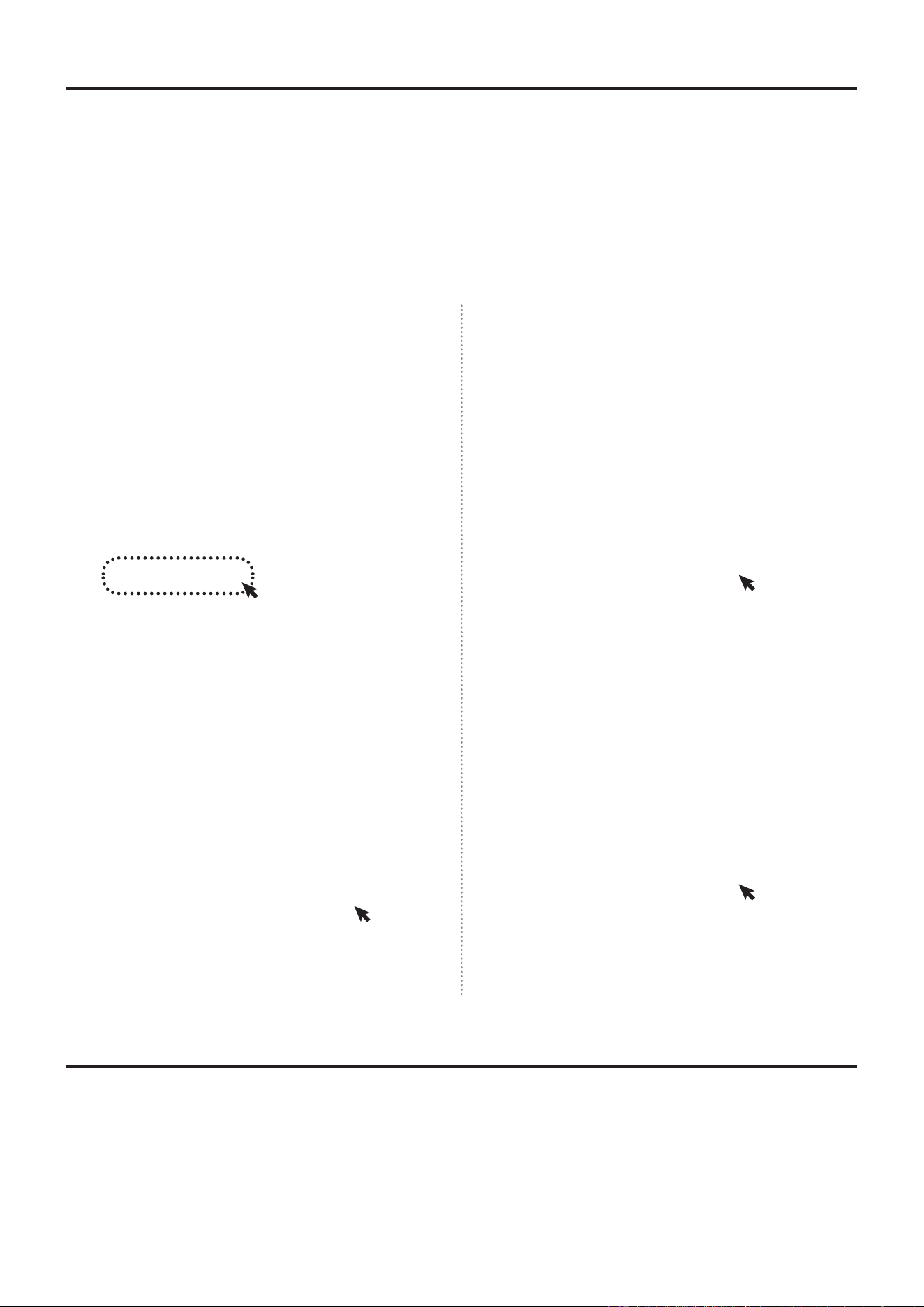
Uninstallmethod
Howtouninstall“BepopPCEX”
To uninstall the BepopPC EX, please complete the following procedure.
1
Close any open programs and virus scan software.
2
Insert the included CD-ROM into the CD drive.
Click continue on the user account window.
3
The BepopPC EX setup menu will automatically
open. Click on the “Setup of the BepopPC EX”
button.
4
Click “Yes”.
(
Computers using Windows 7/Vista will display the following
message.)
5
The uninstall process will begin.
6
When nished click on the “Finish” button.
* Max custom fonts will also be deleted when software is
uninstalled.
32
BepopPC EX Software Installation
PrinterUninstall
Please follow the procedure below when uninstalling the printer driver.
[Precautions]
● Printing even one time after opening the computer can cause the uninstall to fail. Please restart your computer
before ininstalling the printer driver.
● Uninstalling using a different procedure may leave some system information on your computer. This could
cause the next install attempt to fail.
1
Insert the attached CD-ROM into the computer.
2
The BepopPC EX Set-Up menu will apear. Click on
the “Setup of only the printer driver”.
3
Click on “Uninstallation of the Driver”.
4
Select CPM-200 and click “Uninstall”.
5
Select “Yes, restarts immediately”, and click “Finish”.
6
Restart the computer. The uninstall is complete.
* Be sure to restart the computer after the uninstall is
complete.
HowtouseBepopMembership
You can enjoy the following free services on the member site home page
http://www.max-ltd.co.jp/int/bepopregi/
● Software upgrades ● Symbol downloads
● Application introductions ● And much more!
* These services are free after you register your machine.
* Access the registration form by visiting the home page and clicking on user registration.
* The content of the membership site is subject to change without notice.
33
BepopPC EX Software Installation
TroubleShooting
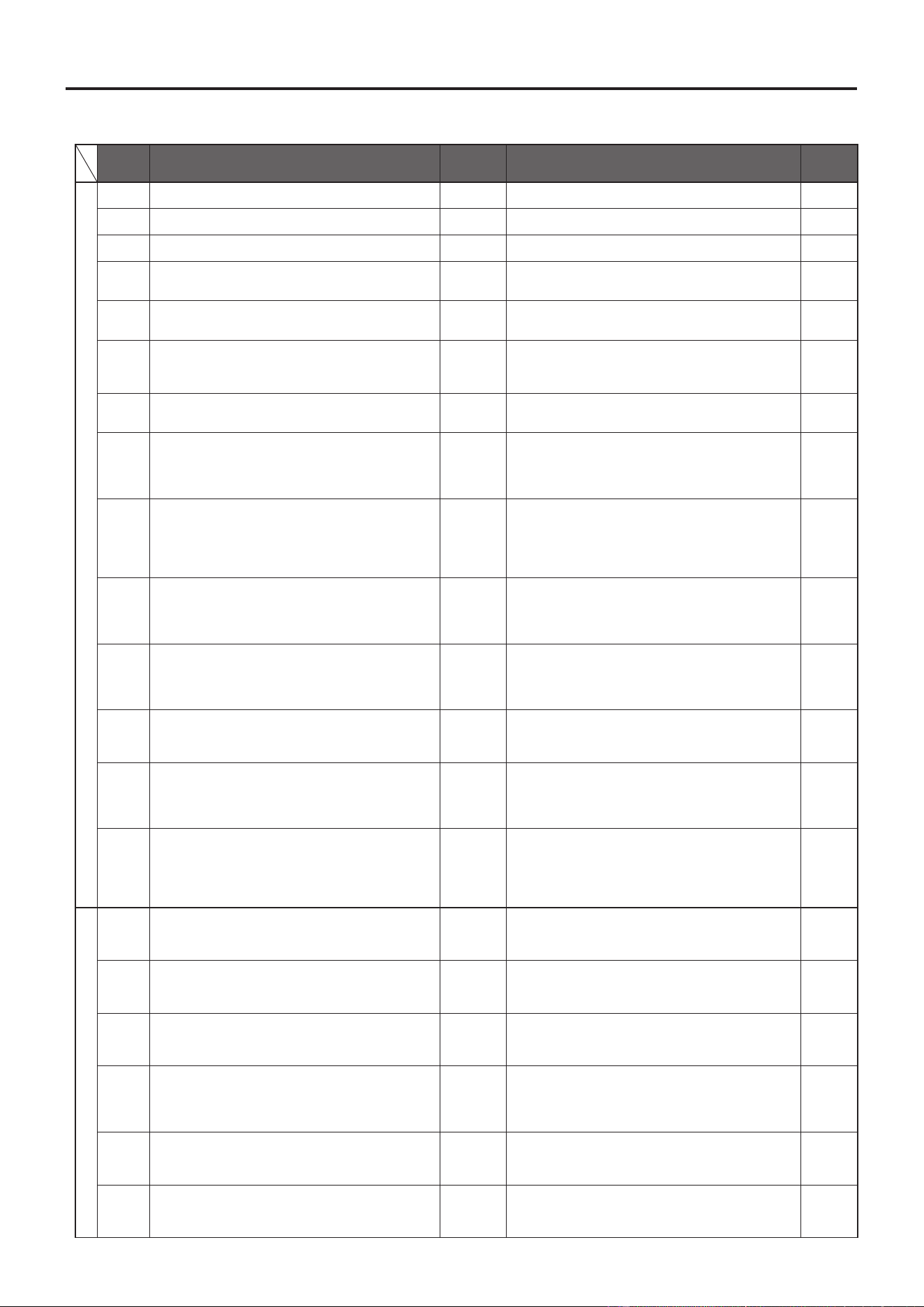
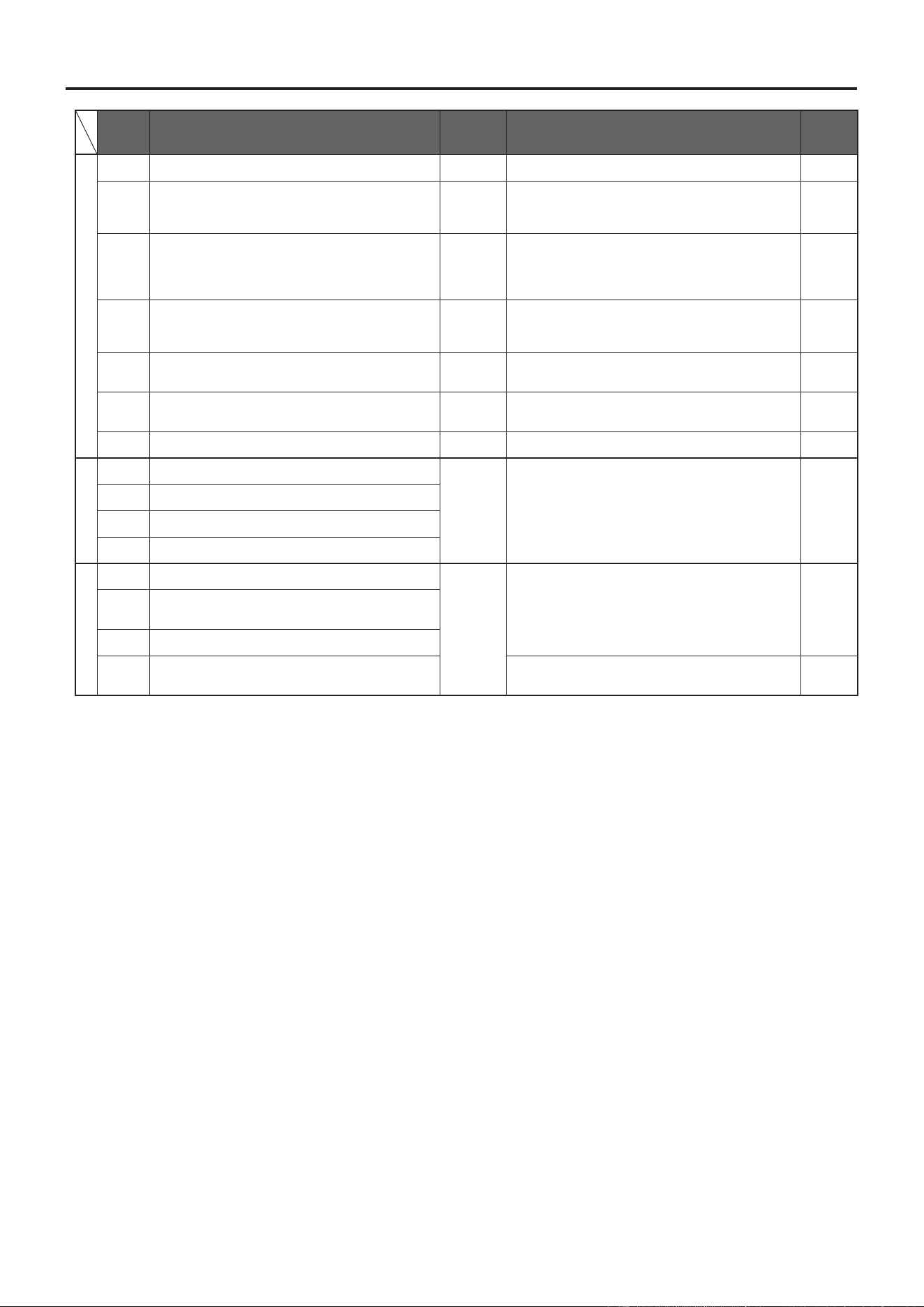
Errormessagelistforerrorsdisplayedonthestatusmonitorduringprinting.
Error
Code
Error Message
Printer LED
Status
Solution
Reference
Errors related to sensors
200
The door cover is open. Red Close the door cover of the main body.
Pg. 6
201
There is no tape. Red Set new tape roll in the main body.
Pg. 7
202
A tape feed error is going on. Red Please insert a Max Brand tape that is ends with a N.
Pg. 7
203
The remaining tape length is not enough to detect
the remaining length.
Red
Insert a tape role with enough length to print the
data.
Pg. 7
311
The color of the loaded ink ribbon does not tally
with the output color. Load[Rplc].
Green
Please set the color ribbon that is specied by the
Status Monitor.
Pg. 8
314
Unable to get the necessary ink ribbon information.
Check whether the ink ribbon is loaded properly or
the dedicated ink ribbon is loaded.
Red
Open the door cover, and check that the ink ribbon
is properly inserted.
Pg. 8
315
No remaining ribbon. Replace it with another ink
ribbon with the sufcient remaining length.
Red Insert an ink ribbon with enough remaining length.
Pg. 8
310
The ink ribbon is running out. (2 m or less)
The ribbon may run out while printing.
To continue, select a desired printing color from the
following list and click““Continue Print””.
Green Please prepare a ribbon with enough length to print.
Pg. 8
301
The ribbon has not been loaded or a non-special
ribbon has been loaded. Check the ribbon.
For the special ribbon, ““SL-RXXXT”” is indicated
on the ribbon cassette. If ““T”” is not indicated, click
on ““Continue Print"" to print.
Green Correctly insert the specialized ink ribbon.
Pg. 8
303
There is no print data corresponding to the set
ribbon color. Replace the ribbon. To continue as it
is, select a desired printing color from the following
list and click on ““Continue Print””.
Green Please use the ink ribbon that is used in your layout.
Pg. 8
304
There is no print data corresponding to the set
ribbon color. Replace the ribbon.
The remaining ribbon length is running out. (2 m or
shorter). The ribbon may run out while printing.
Green
Use a ribbon that is used in your layout, and has
enough remaining length to print.
Pg. 8
316
Unable to get the necessary ink ribbon information,
which may result in unsuccessful print.
To continue, click ““Continue print””.
Green
Insert the specialized ink ribbon correctly continue
with printing.
Pg. 8
317
The characteristics of the loaded ink ribbon is not
compatible with the output color, which may result
in unsuccessful output of the desired color.
To continue, click ““Continue Print””.
Green
Process color ribbons are being used in a pure
color layout, or regular ribbons are being used for
a process color layout. Please insert ribbons that
appropriate for the chosen layout.
Pg. 8
318
The characteristics of the loaded ink ribbon is not
compatible with the output color, which may result
in unsuccessful output of the desired color.
Besides, the ink ribbon is running out. (2 m or less)
The ribbon may run out while printing.
Green
Insert a ribbon that has enough length and is
appropriate for the layout settings.
Pg. 8
Errors that occur during printing
400
The door cover is open. Red
Close the door cover of the main body. \nIf the data
was being printed, click on the “Cancel Print" button
and redo printing.
Pg. 6
401
There is no tape. Red
Set new tape in the main body. \nIf the data was
being printed, click on the ““Cancel Print”” button
and redo printing.
Pg. 7
402
There is no ribbon. Red
Set new ribbon in the main body. \nIf the data was
being printed, click on the ““Cancel Print”” button
and redo printing.
Pg. 8
403
Cannot detect the leading end of the tape. Red
View help by pressing the [Remedy] button, take a
correct measurement of the tape. \nIf the data was
being printed, click on the ““Cancel Print"" button
and redo printing.
Pg. 7
404
A tape feed error is going on. Red
After canceling the print using the status monitor, restart
the printer, insert Max Brand tape rolls. The correct
sheet should have a N on the end of the product name.
Pg. 7
405
The remaining tape length is not enough for printing. Red
After canceling the print using the status monitor,
restart the printer, insert a tape roll with enough
length to nish the layout, and please reprint.
Pg.7
34
BepopPC EX Software Installation
Error
Code
Error Message
Printer LED
Status
Solution
Reference
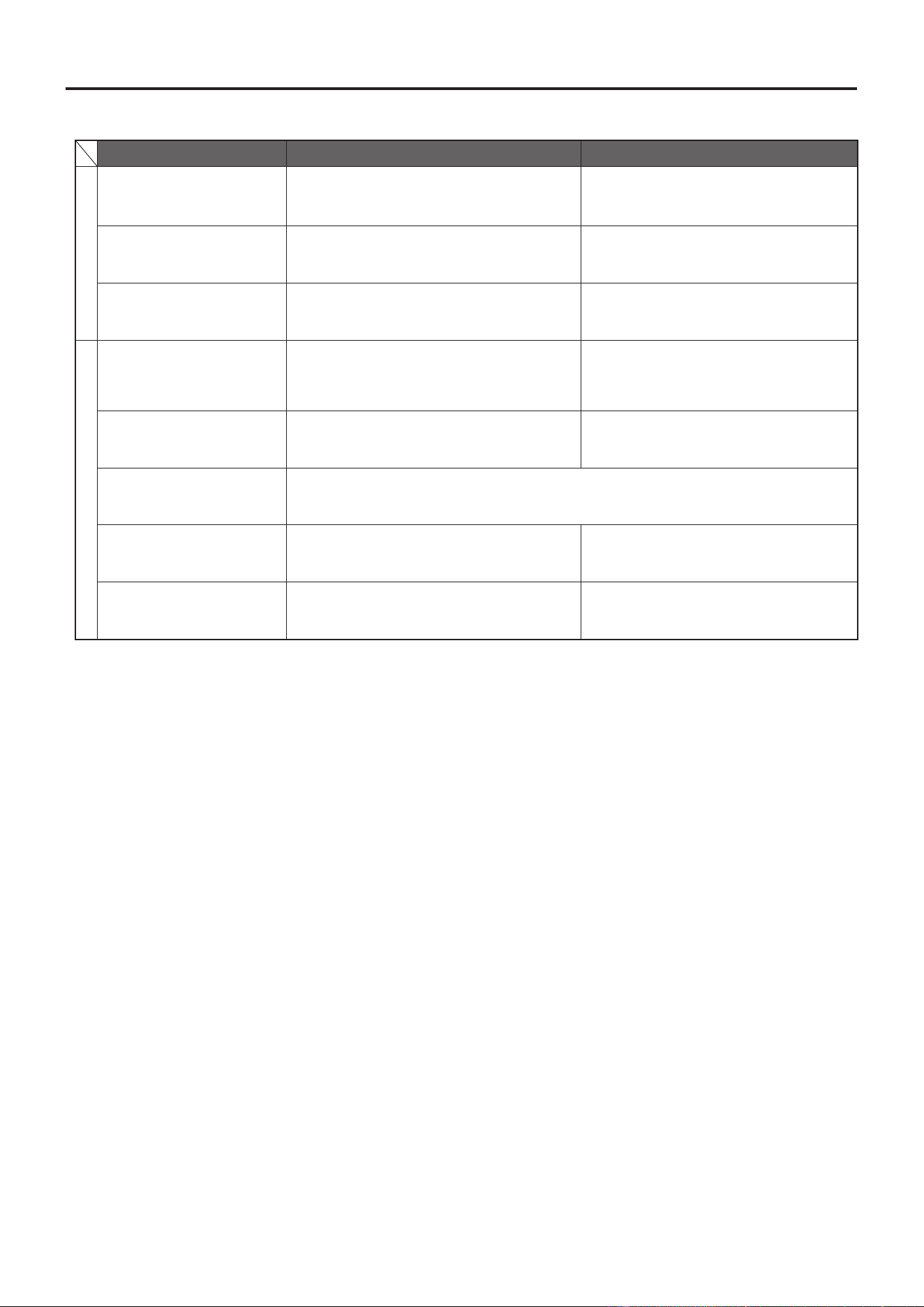
Errors related to environment
500
The printer is now in operation. Green Please print after the printer is nished.
ー
501
The temperature of the printer head is higher than
the specied value.
Red
After canceling the print using the status monitor,
decrease the temperature of the thermal head,
restart the machine, and please try to reprint.
ー
502
The temperature of the printer head is lower than the
specied value.
Red
After canceling the print using the status monitor,
increase the temperature of the thermal head (after
the indoor temperature has warmed up), restart the
machine, and please reprint the layout.
ー
503
The main body has received faulty data from the
PC.
Red
After cancelling the print using the status monitor,
check that the printer model type is correct, restart
the printer, and reprint the layout.
ー
504
The data volume received from the PC by the main
body has exceeded the maximum capacity.
Red
Check the layout and decrease the number of
objects.
ー
505
There is no valid print data within the printable area. Green
Make object that t inside the printable area, or set
the process color to something besides white.
Pg. 22
510
CommandSizeError Green
Check the layout and decrease the number of objects.
ー
Repairs Required
600
The printer head is faulty.
Red
+
Green
After canceling the print on the status monitor,
restart the printer. If the problem does not go away,
machine repairs are necessary. Please consult your
dealer or a service station representative.
Pg. 6
601
Failed to detect the cutter origin.
602
Failed to operate the scissors successfully.
603
Failed to operate the head unit successfully.
Communication
900
A communication error is going on.
None
Check that the USB/LAN/power cords are securely
attached. Also check the IP address, and that time
out settings have not changed.
Pg. 13
Pg. 20
Pg. 21
901
A communication error is going on.
902
A communication error is going on.
903
A communication error is going on. Re-install the printer driver, and restart your PC.
Pg. 15
35
BepopPC EX Software Installation
Othererrors/troubleshooting
Problem Necessary Check Solution
BepopPC EX Problems
Cannot save a new draft
Files made by computer administrators can only
be resaved by administrators. If you are not an
administrator, you can only resave les that you
have made.
Log in as an administrator, or save the le with a
different name.
The printer can only print on
occasion
Go to printer properties → details → Spool print
documents
Cannot print in color
Are two people trying to color print at the same time?
(Is the ribbon exchange message being displayed on
someone else’s computer?)
When printing in color, limit the active users to
one person.
Connection and Printer Driver Problems
Cannot Print
In the case that the status monitor is not displayed.
View the page 42. In the event that an error code
was displayed, view the
errorcodelist
(Page 38
~
40).
View page 42 or pages 38
~
40 depending on the
problem.
When attempting to install,
"GRPSSUP.DLL cannot be used"
and the installation fails.
Check that the PC and OS that you are using is
supported by Bepop PC EX.
Only Windows 10/8.1/8/7 are supported.
"Printer driver install failed" and
driver cannot be installed
View Page 41
"Printerdriverinstallfailed"anddrivercannotbeinstalled
.
Cannot install or uninstall
Check that there is currently no printer job being
used.
View page 41
"Cannotinstalloruninstall
(Whenthereisnoprinterjob)"
The printer does not register the
LAN Connection
Is the LAN IP address set? It is necessary to set the
LAN address on the printer.
View page 25
"CPM-200IPAddresssettings"

36
BepopPC EX Software Installation
Printerdriverinstallationproblems
■Whenattemptingtoinstall,“GRPSSUP.DLL
cannotbeused”isdisplayed.
Only Windows 10/8.1/8/7 are supported.
■
“Printdriverinstallfailed”isdisplayed,and
drivercannotbeinstalled.
1
Restart the computer.
2
Follow directions “Installation of the Printer Driver”
on page 32, and uninstall the printer driver.
3
Restart the computer.
4
In the event that virus scan software is in use, stop
the program.
5
Refer to “BepopPC EX Printer driver install” on
page 15.
■
Cannotuninstallorinstalltheprinterdriver.
(Thereisaremainingprintingjob)
1
Start → Printers and devices → Max CPM-200
(double click on the icon).
2
If there is a document printing, select “printer” →
“Errase all documents”.
3
Retry the uninstall.
■
Cannotuninstallorinstalltheprinterdriver.
(Thereisnotaremainingprintingjob)
1
Follow the directions on page 15 for “BepopPC EX
and printer driver install”, continue untill prompted
to choose a printer type.
2
While holding the “Shift” and “L” key, click “Next”.
3
Select “Parallel Cable” and click “Next”.
4
Click “Install”.
5
Select “Yes, Restarts automatically”, and click
“Finish”. The computer will automatically restart.
6
Go to page 32 and select “Printer Driver Uninstall”
to uninstall the printer driver.
7
Restart the computer.
8
In the event that anti-virus software is running, stop the
software.
9
Follow the instructions on Page 15 “Bepop PC EX
printer driver install”.
37
BepopPC EX Software Installation
TheprinterdoesnotprintandstatusMonitorisnotdisplayed
Thedriverinstallnishednormally,butwhentrying
toprinterthestatusMonitor(thewindowthatshows
theremainingink,sheets,ect…)isnotdisplayed.
Alsothetaskbar(bottomofcomputerscreen)
showsthenormalprinterbutnottheCPM-200icon.
CPM-200 icon:
Cause
The status Monitor is frozen, or during the driver
installation the status Monitor install failed. The
reason for the failure is the anti-virus software
interfering with the status Monitor. The actual copy
of les from the CD is complete.
Solution
1
Checkforproblems
Open the serveice window: Start → (Control Pannel)
→ Performance and Maintanance → Administrative
Tools → Service.
* (Control Pannel) may or may not be displayed depending
on the software version.
Check that following is recorded under Name:
MAXCPM-200OptionUIManager
WhenthereisnonameitmaycausetheStatus
Monitortofail.
* If there is the correct printer name, check to see if the
status is set to start. If it is stopped, right click on the status
and select start.
2
Check to make sure that you are logged in as an
administrator.
3
Check to make sure that virus software(virus buster,
ect…) is not running. If it is running, close it.(Pausing
it is not enough. You must close it entirely.)
4
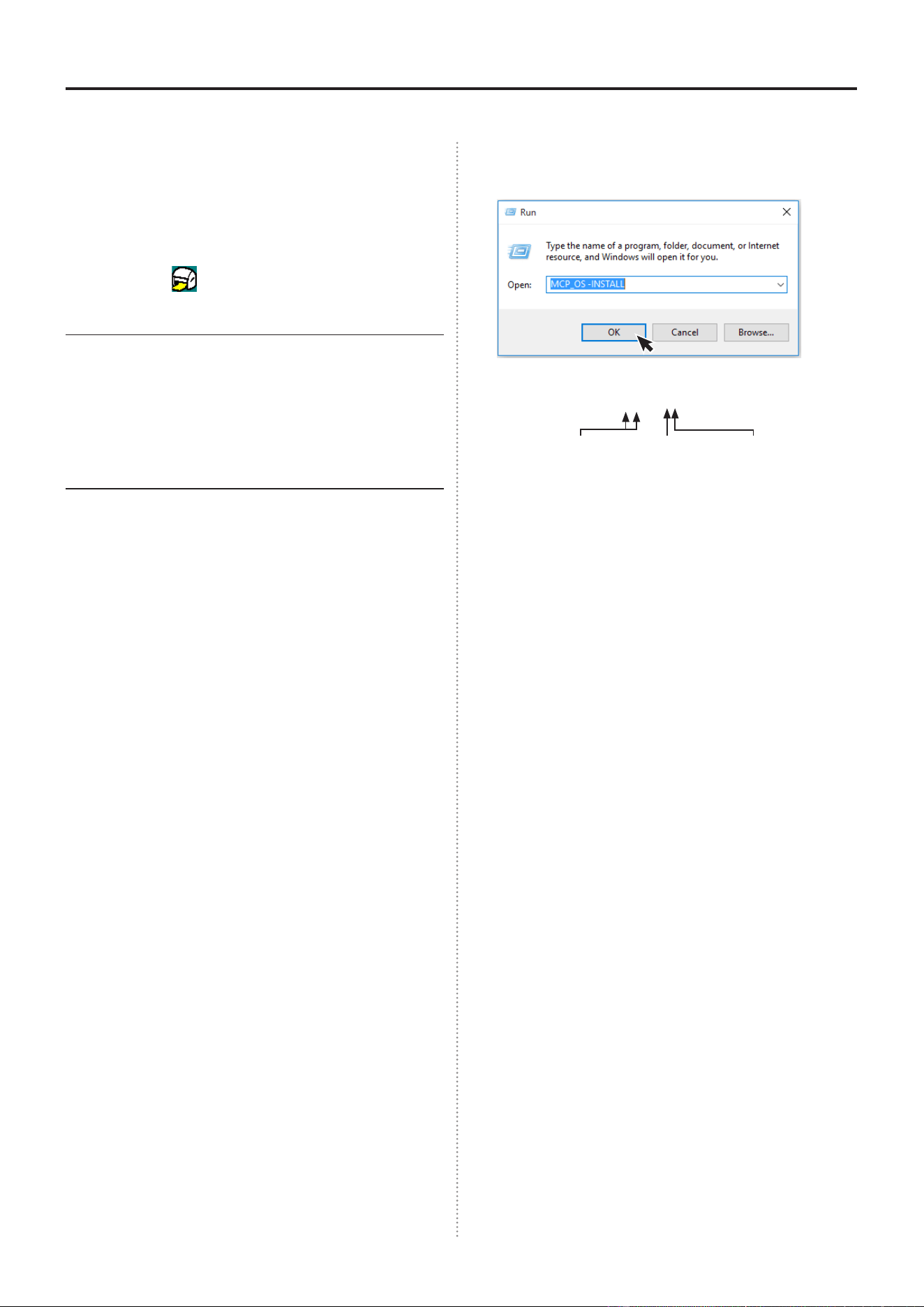
Install the status Monitor manually. Start → Select
le name.
Input the following name:
Click “OK”. The Status Monitor will begin installing.
* If an error message(File not found) is shown, it is possible
that the above name has been misspelled.
5
Howtocheck
While looking at the same service window from step
1
, check that
MAXCPM-200OptionUIManager
exists.
Status:StartStartuptype:Automatic
If the above settings are correct, the Status Monitor
has been installed.(In the event that you manual
installed the Monitor, renew the service window
before checking.)
In the event that it is not shown, after restarting,
retry steps
2
and
3
and uninstall the printer driver.
Restart after loading the printer driver, check
2
and
3
again, then do a normal driver install. If the
regual install fails again, retry the manual install in
step
4
.
6
After nishing the installation, restart your computer.
MCP__OS–INSTALL
Under bar Half-space Hyphin


17.01 Vol.3