1
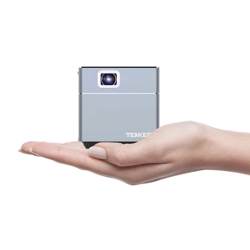
Mobile Projector
/ QUICK START GUIDE
2
Power Up
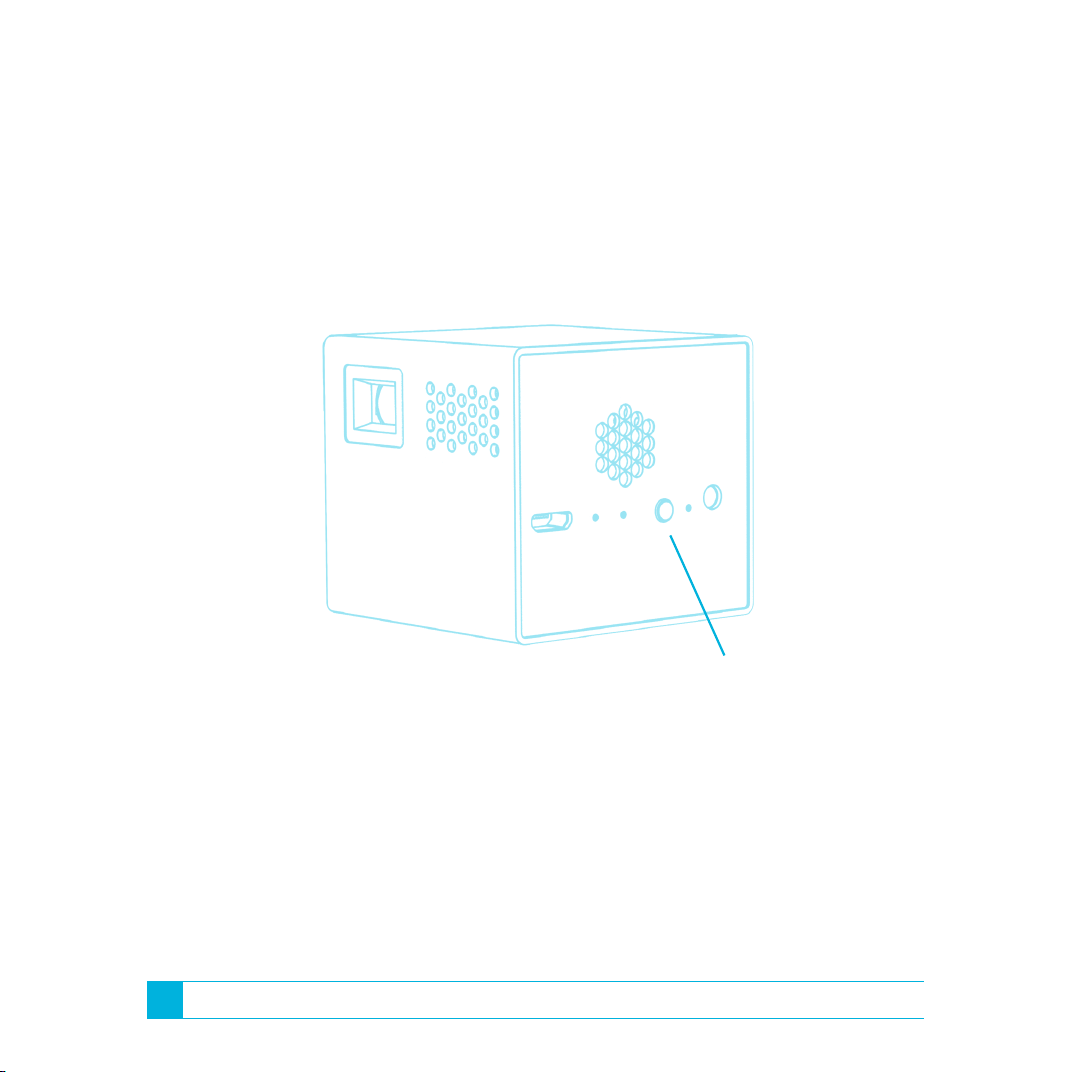
STEP 1 - POWER UP
Press and hold the power buttons for 5 seconds to turn on the device.
(It may take a few seconds for the Cube to start projecting an image.)
Power Button
3
Input
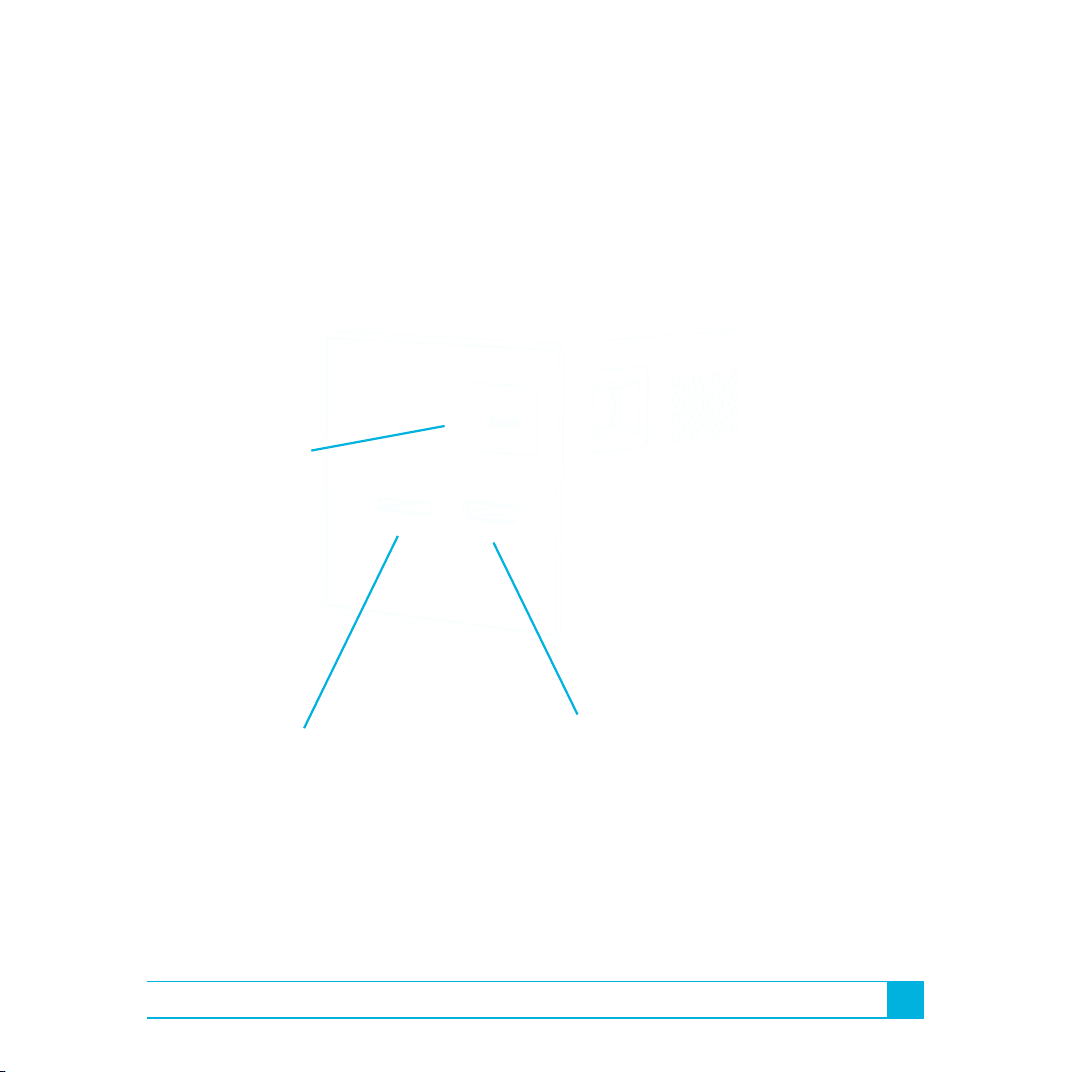
STEP 2 - INPUT
Focus Wheel
SD Card
Insert a micro SD card
to view photos and videos.
HDMI Port
Connect an HDMI cable to your
smartphone, tablet, or computer
to display all your favorite media.
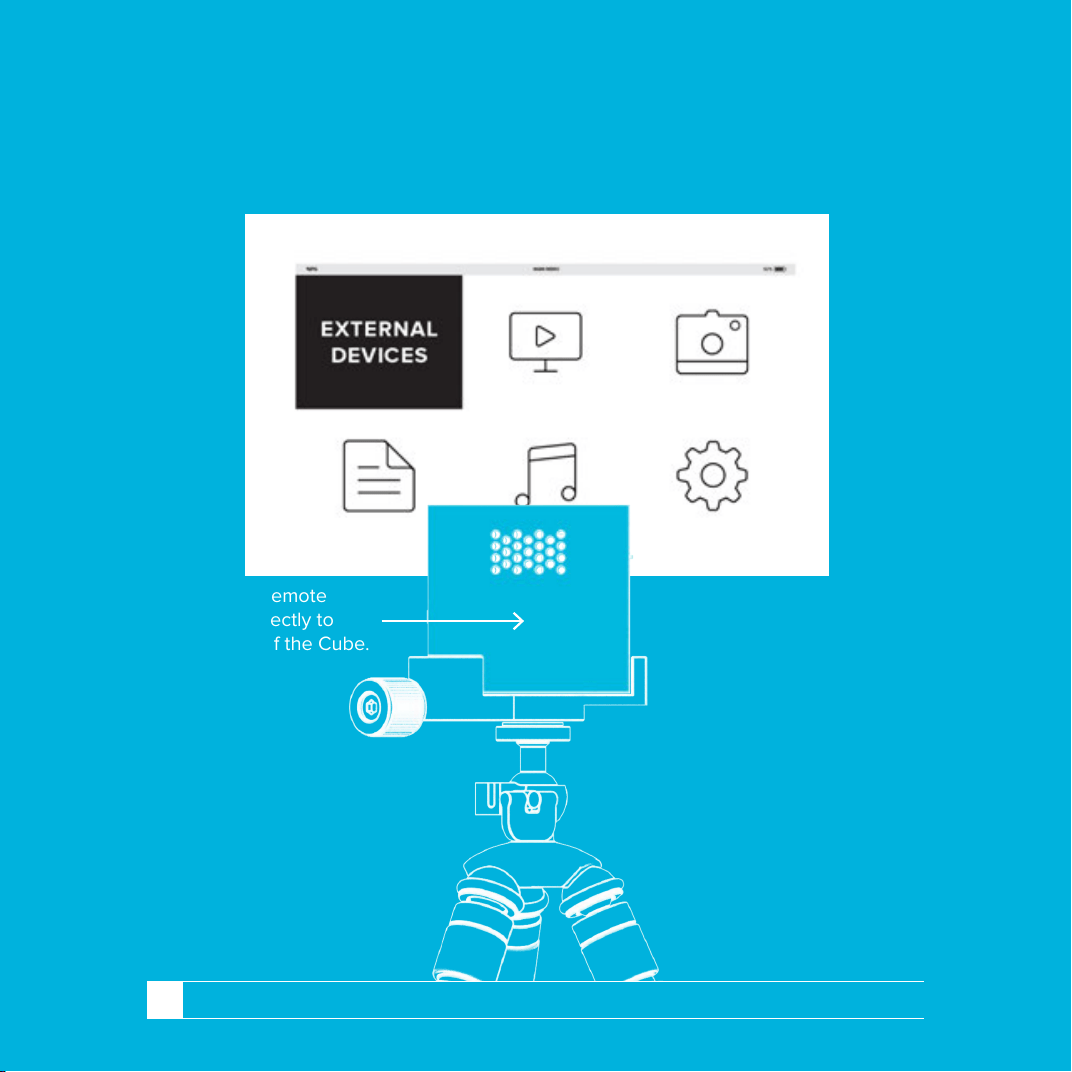
STEP 3 - OUTPUT
Point the remote
control directly to
the back of the Cube.
To Use SD Card:
Select Movie, Photo,
Text, or Music.
To Use HDMI Port:
Select External Devices
if content doesn’t
automatically play.
4
Output

ADDITIONAL CONNECTIONS
MAC & PC WITH HDMI PORT
HDMI CABLE (INCLUDED)
SAMSUNG GALAXY SERIES
MICRO USB 11 PINS TO MINI HDMI (INCLUDED)
OTHER ANDROID DEVICES
MICRO USB 5 PINS TO MINI HDMI (INCLUDED)
MAC & PC WITHOUT HDMI PORT
HDMI CABLE (INCLUDED) + PROPRIETARY HDMI ADAPTER (NOT INCLUDED)
iOS DEVICES
HDMI CABLE (INCLUDED) + PROPRIETARY APPLE HDMI ADAPTER (NOT INCLUDED)
The Cube is compatible with all HDMI compliant devices.
Some devices may require an additional proprietary adapter.
Included in box: HDMI cable, Micro USB cable, MHL cable to 5 pin,
MHL cable to 11 pin, and charger.
For the complete manual please visit RIF6.com/manual
5
Additional Connections
RIF6 CUBE PROJECTOR | 1
MOBILE PROJECTOR
PRODUCT MANUAL

RIF6 CUBE PROJECTOR | 2
Important Notices And Precautions
Please read this manual carefully to ensure safe
and proper use of this product.
• Negligent use or misuse of the Cube may
result in serious damage, personal injury, or even fire.
• Use only the provided cables. If the cables appear to be
damaged, please do not use, and contact [email protected].
• Do not handle with wet hands, and keep away
from moist environments and water.
• Do not use the Cube in an excessively warm or
humid environments. (Operating humidity: 0 – 80%)
• Do not place heavy objects on the unit.
• After six months of usage, the lifespan of the battery may shorten.
• The Cube will not perform well in direct
sunlight, and may even become overheated.
• Never block the air ventilation port and avoid heavily
dusty environments; the Cube may overheat and malfunction.
• Be aware that a strong impact may damage the lens.
• Do not attempt to disassemble, remodel, or repair the device.
It may damage the unit which will void the warranty.
Contact [email protected] if any problem occurs.

RIF6 CUBE PROJECTOR | 3
Supported Input
Input Interface
Video Format
Picture Format
Micro SD / MHL / HDMI
RM / RMVB / AVI / MKV / WMV /
VOB / FLV / ASF / DAT / MP4 /
3GP / 1080P / H.264 / MOV /
MPG / MPEG /
For best picture quality, encode
the video as 1080 30p H.264
with Stereo MP3 or AAC
audio in an MP4 file
JPEG / BMP / GIF / TIF / PNG
Maximum recommended size
3000 x 3000 pixels

RIF6 CUBE PROJECTOR | 4
Package Content
Cube projector, tripod,
remote control, and charger
Also Included: Micro USB Cable,
HDMI Cable (Apple & PC),
MHL Cable to 5 pin (Android),
MHL Cable to 11 pin (Samsung)
RIF6 CUBE PROJECTOR | 5
Product Diagram
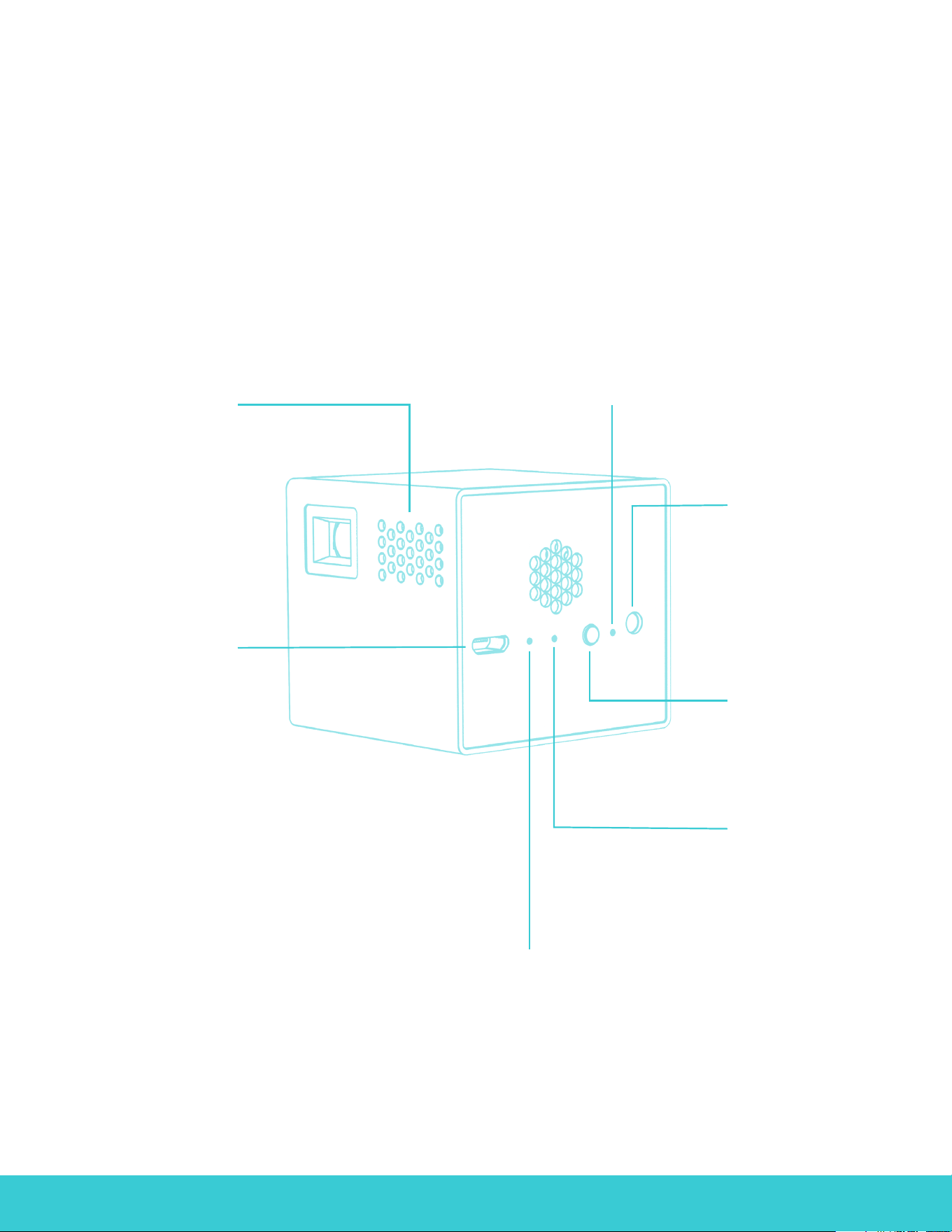
Power Light Indicator
This light activates to
indicate the power has
been turned on.
Air Ventilation Port
This is where heat
escapes the Cube;
do not block this.
Charing Input
Input your charging
cord here.
Audio Connection
Connect audio
devices here,
like speakers or
headphones.
Power Button
Press and hold this
button to turn on
the Cube.
Charging Light
Indicator
This light activates
to indicate the
Cube is charging.
Reset Button
Use this button to
reset the Cube as a
basic troubleshoot.
RIF6 CUBE PROJECTOR | 6
Product Diagram
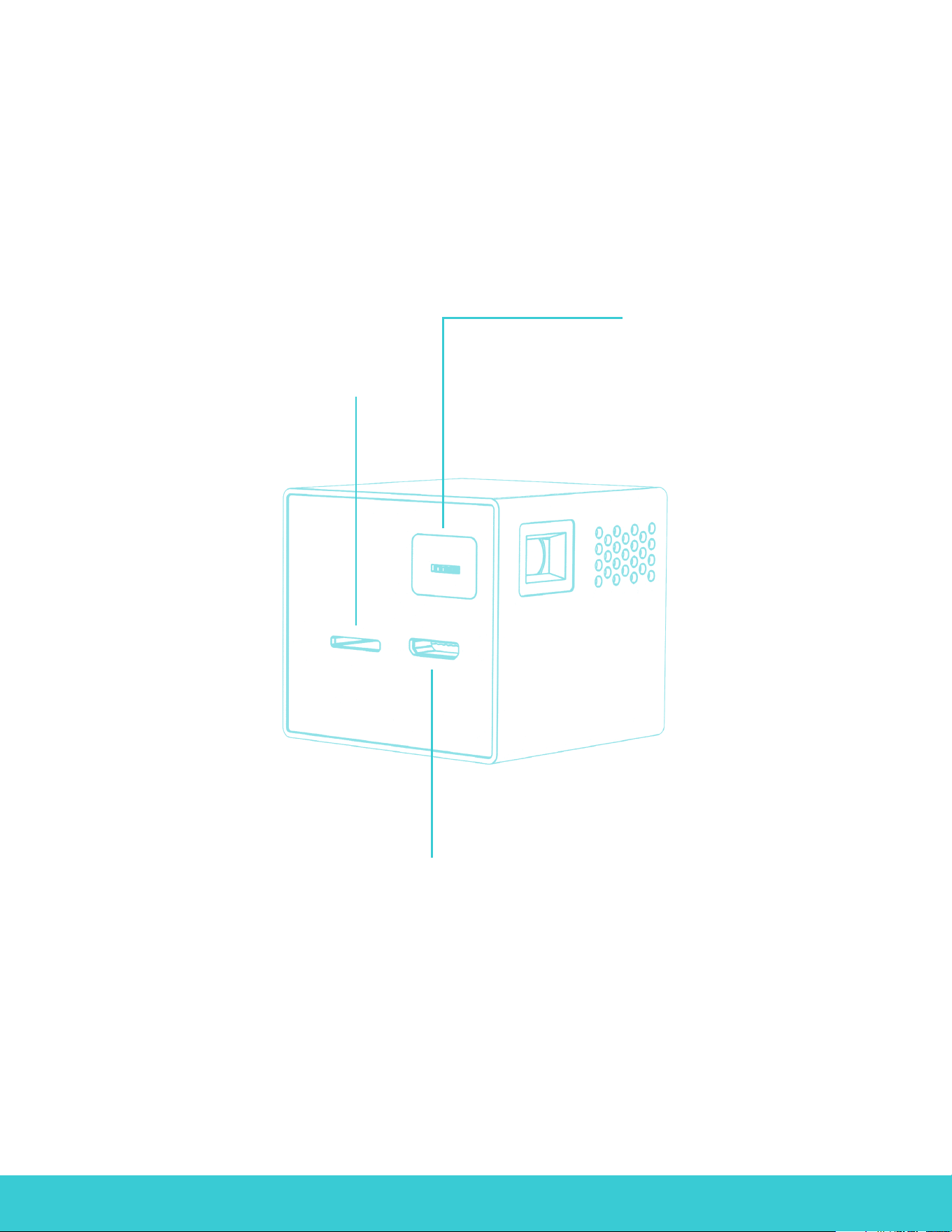
Focus
Use this knob to
focus the image.
Micro SD Card Slot
Pop your Micro SD card
in this slot. Just be sure
it’s not over 32GB!
Mini HDMI / MHL Video input
Connect tone of the provided video
cables here, and attach the other
side to your streaming device.
RIF6 CUBE PROJECTOR | 7
Product Diagram
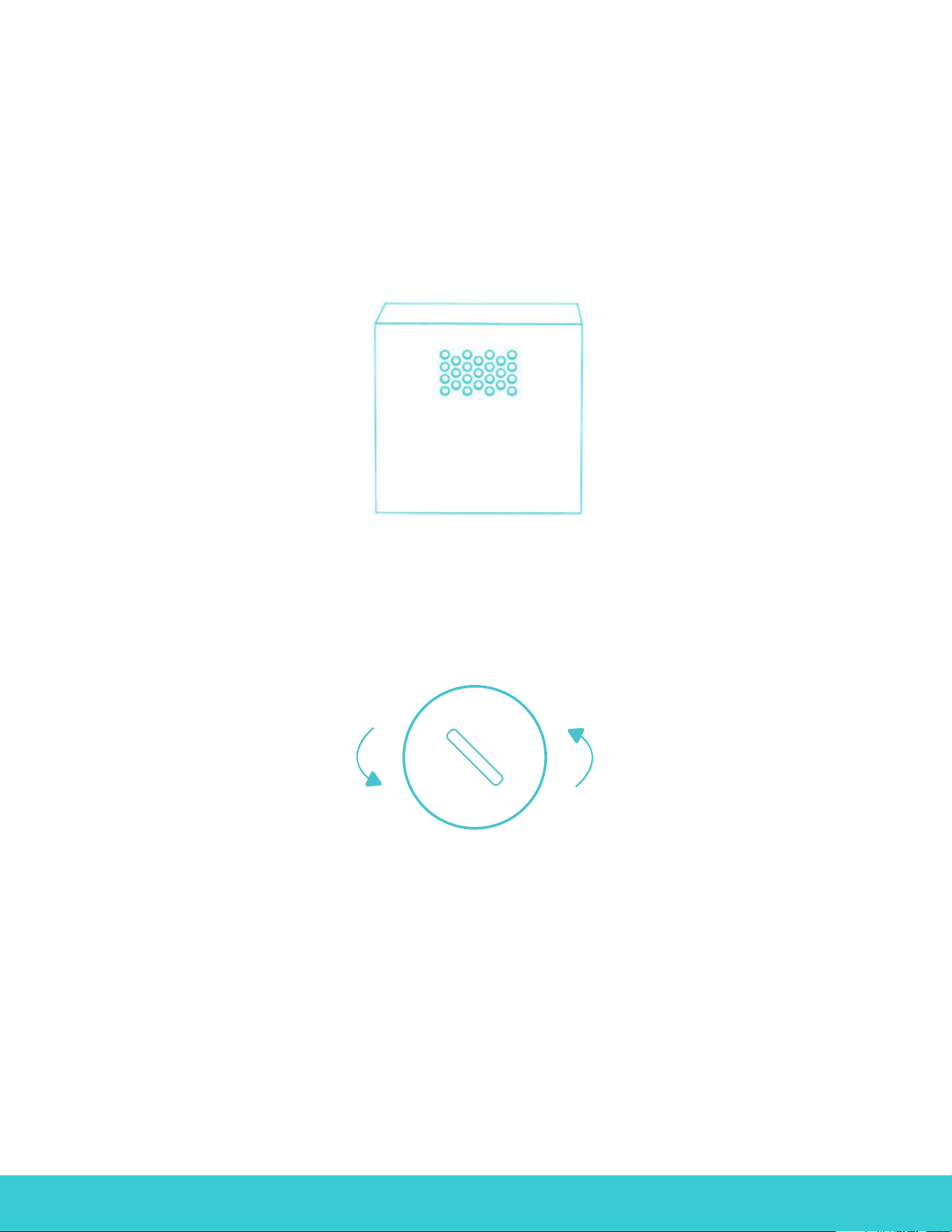
Remote Receiver
Point your remote to this area on the back of the Cube.
Rotate To Open Battery
Be careful not to lose the controller as there are no
buttons on the device itself except for the power switch.
Note the remote operates with a CR2025/CR2032
button cell battery. To replace the battery, rotate the latch.
RIF6 CUBE PROJECTOR | 8
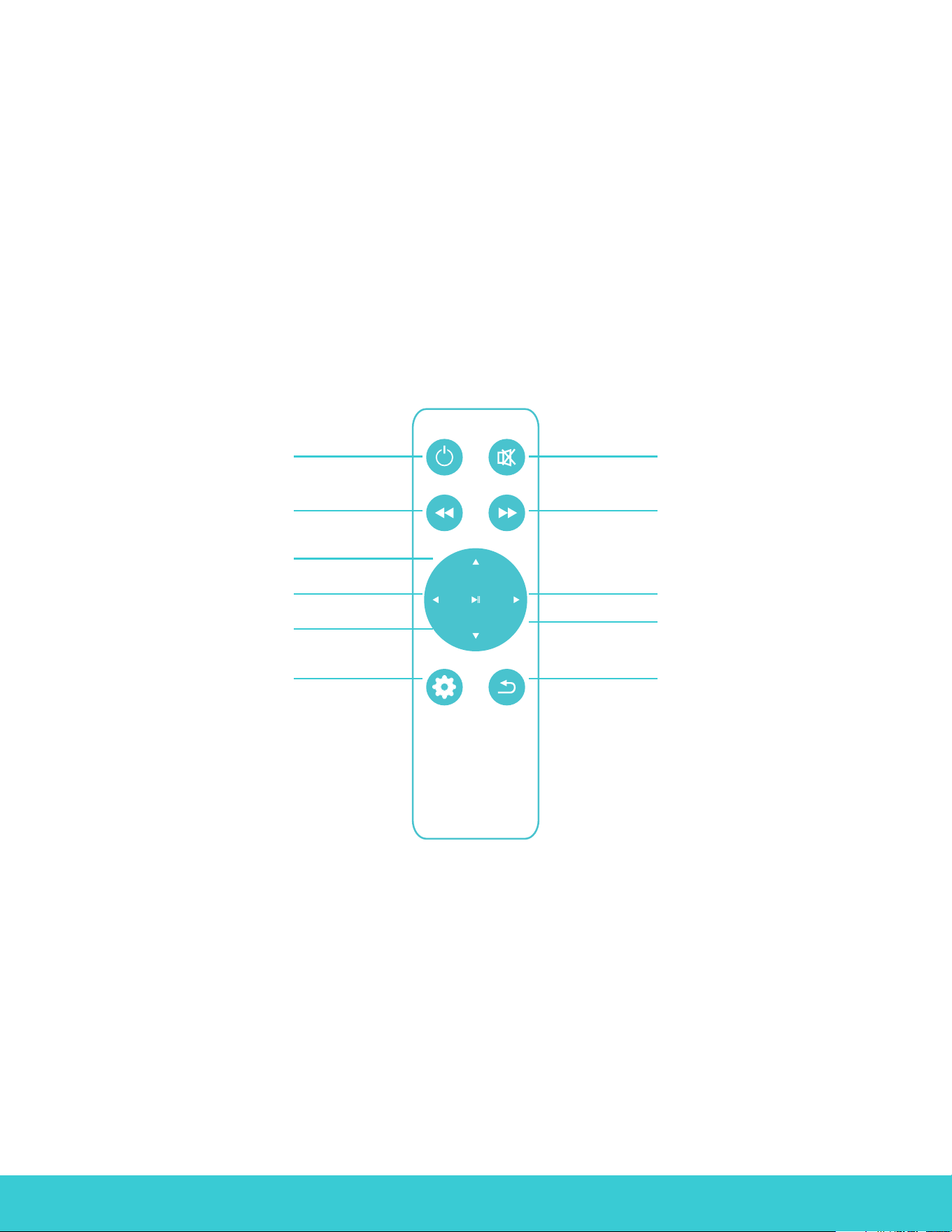
Remote Diagram
MutePower
Fast ForwardFast Rewind
Next/RightPrevious/Left
Play/Pause/Ok
Down/Volume Down
Up/Volume Up
BackSettings/Menu
RIF6 CUBE PROJECTOR | 9
Projection Size
While you can project on a surface from a few inches away, the most
common size to distance ratio are: 36 inches at 3 feet, 65 inches at 6
feet, and 120 inches at 12 feet (our max recommended distance).
RIF6 CUBE PROJECTOR | 10
Input View
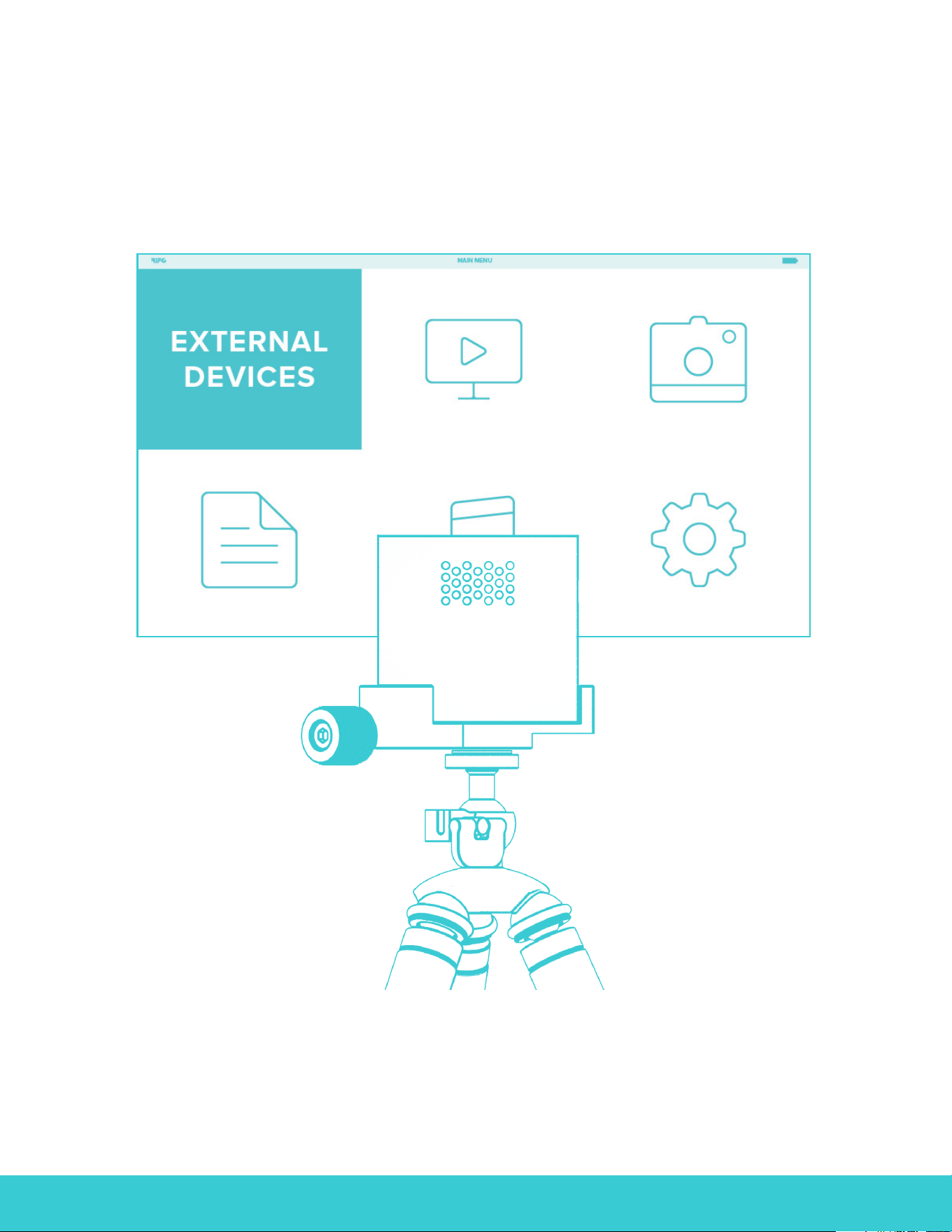
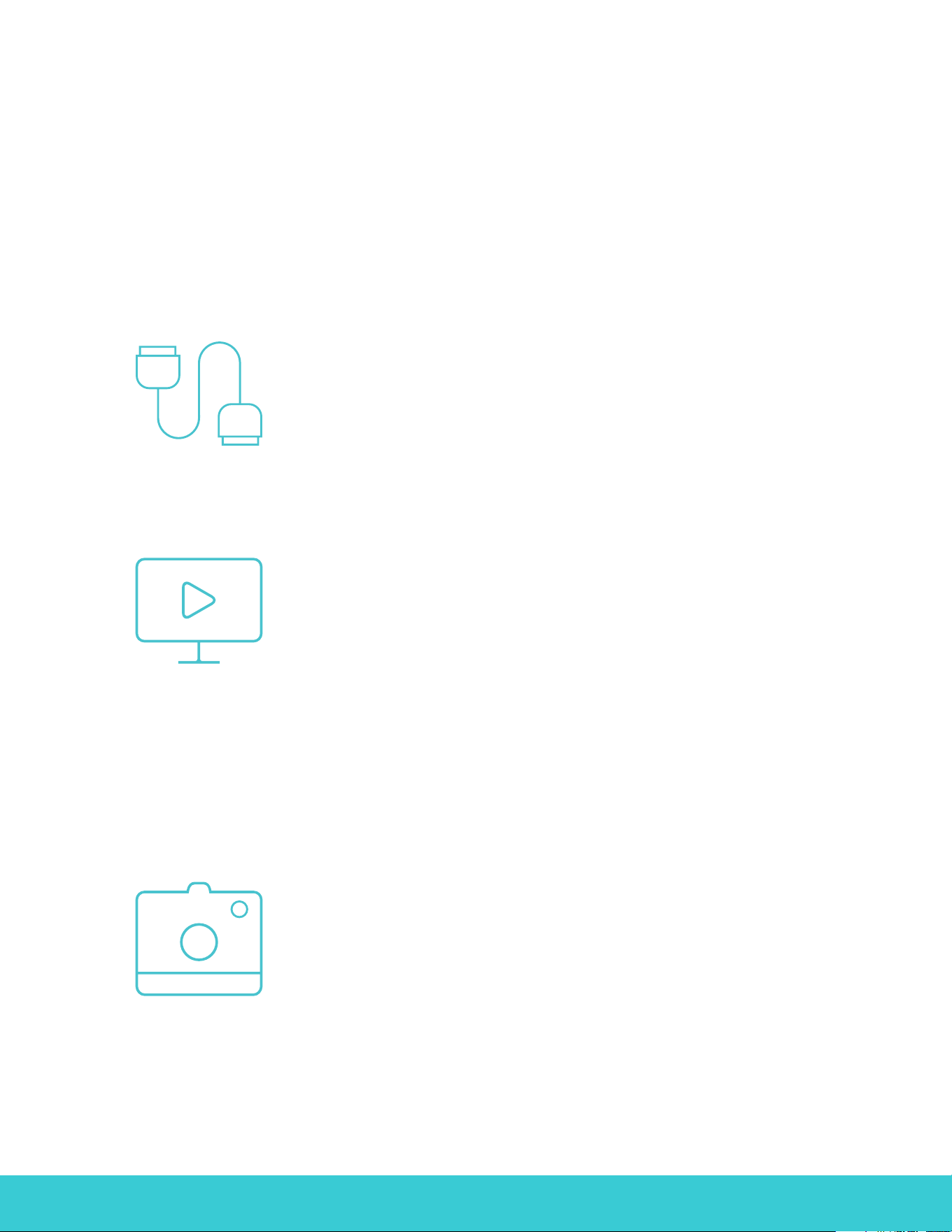
External Devices
Phones, tablets, laptops; if it has HDMI/MHL
compatibility, we’ve got it covered. Just select
“External Devices” after connecting your device.
Movie
To watch a movie saved on an SD card,
click the “Movie” folder and use the arrow buttons
to navigate and the “Play/Pause” button to select a file.
To fast forward or rewind, press the “Settings” button
to pull up the control bar, and use the arrow buttons to
navigate. If you press the “Left” or “Right” button while
the movie is playing without pulling up the control bar,
the next video in your SD card cue will begin to play.
Photo
To display photos from an SD card, select the “Photo”
folder. Navigate through your gallery using the arrow
buttons, and select the image you’d like to display by
clicking the “Play/Pause” button. You can move through
photos as a slideshow by pressing the arrow buttons.
RIF6 CUBE PROJECTOR | 11
Input View
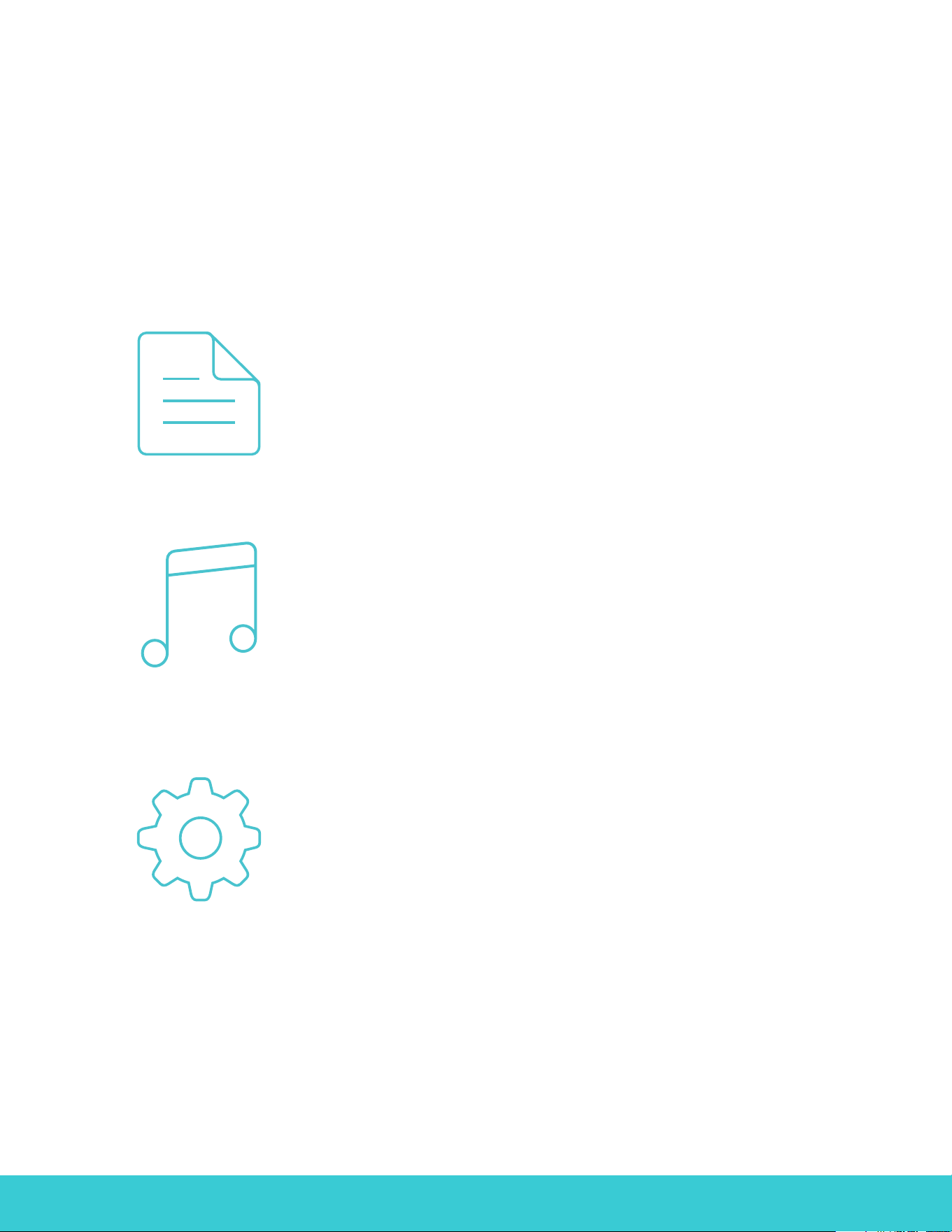
Text
Plain text files (.txt) are viewable on the Cube.
Use the arrows to navigate between pages;
“Up” and “Down” transition pages in a document,
while “Left” and “Right” switch between files.
Music
To listen to music from an SD card, select
the “Music” folder and use the arrow keys to
navigate and the “Play/Pause” button to select
and play a file. Use the arrow keys to navigate
between files while music is playing.
Settings
The firmware of the Cube can be upgraded
when an update becomes available. You
would need a Micro SD card no larger than
32GB, formatted with FAT32. The next step
would be to copy the ‘MERGE.bin’ file into the
root folder of the card, power on the Cube,
enter setup mode, press ‘system updating’,
and wait for the system to update.

RIF6 CUBE PROJECTOR | 12
Q: Can the Cube charge and project simultaneously?
No; the Cube will not charge unless it is powered o and plugged in.
However, it will project indefinitely when plugged into power.
Q: Is my device compatible?
If your device is HDMI or MHL compatible, it should work.
To check, you can look on your device’s website or on the
MHL website: http://www.mhlconsortium.org/devices.aspx.
If you’re still not sure, reach out to [email protected].
Q: Is there a warranty?
Yes; you are covered by a one year warranty with proof of purchase.
A return is generally required.
Frequently Asked Questions

RIF6 CUBE PROJECTOR | 13
Q: What do I do if my remote stops working?
Reach out to [email protected]
Q: What is the best SD card to use?
We advise a 32GB Sandisk Micro SD card.
Frequently Asked Questions
RIF6 CUBE PROJECTOR | 14
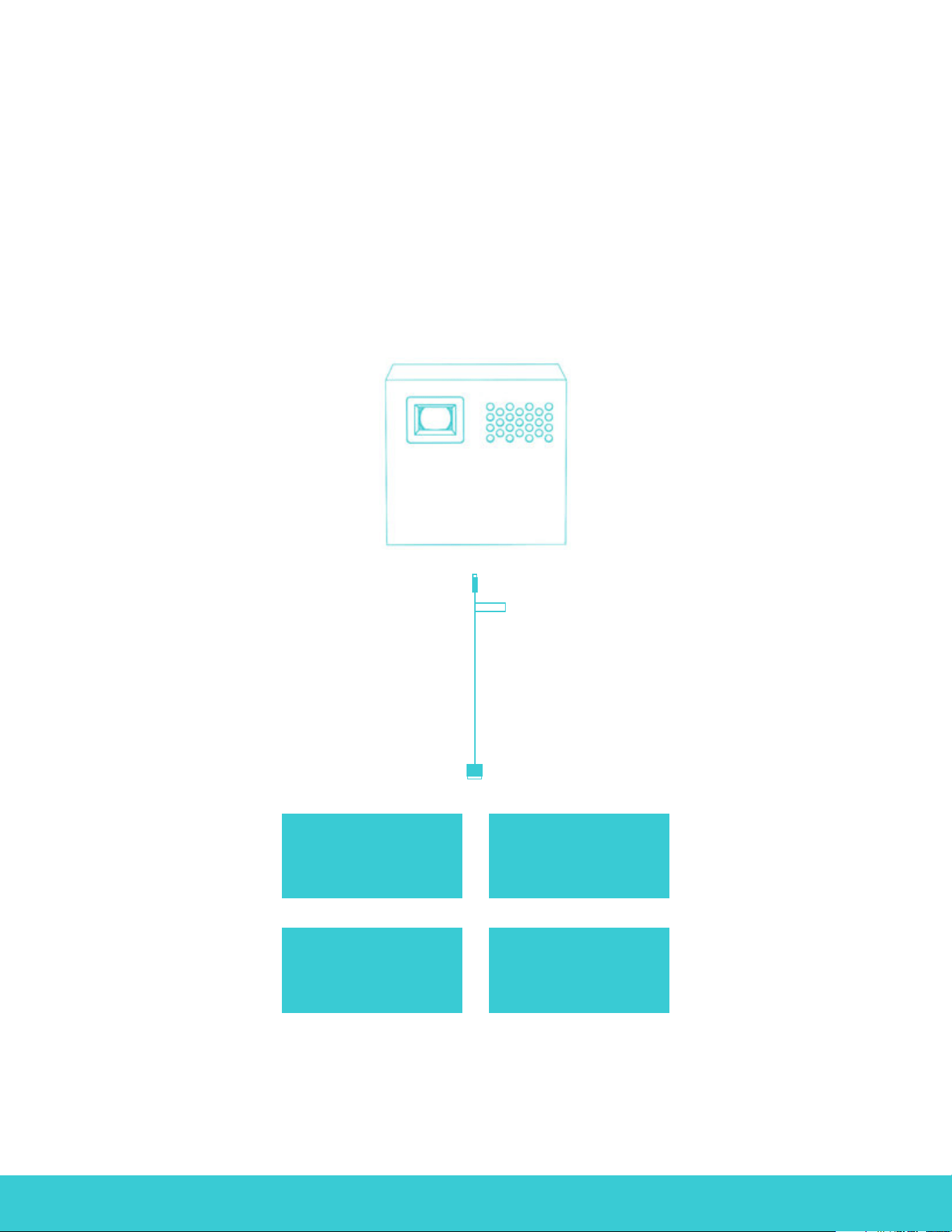
Device Connection
HDMI Compatible Devices
COMPUTERS
DVD PLAYERS
CONSOLES
XBOX
HDMI
RIF6 CUBE PROJECTOR | 15
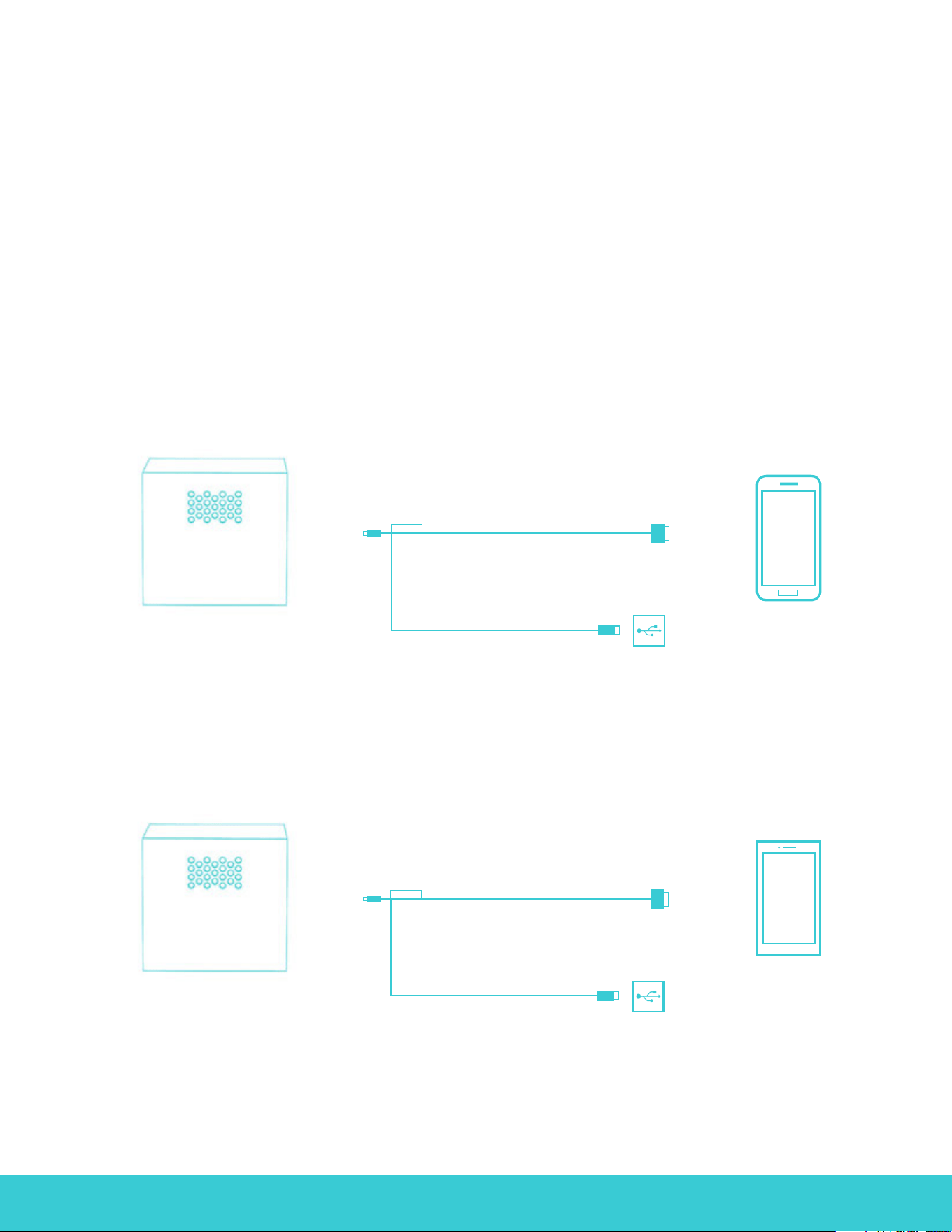
Device Connection
Android Devices
Samsung Devices
Other Android
Devices
Most Android devices require an additional power supply to output HDMI.
Please make sure you connect the USB port to a USB power source.
USB Power Source
USB Power Source
mini
HDMI
mini
HDMI
MHL
11 PINS
MHL
5 PINS
11 PINS
5 PINS
RIF6 CUBE PROJECTOR | 16
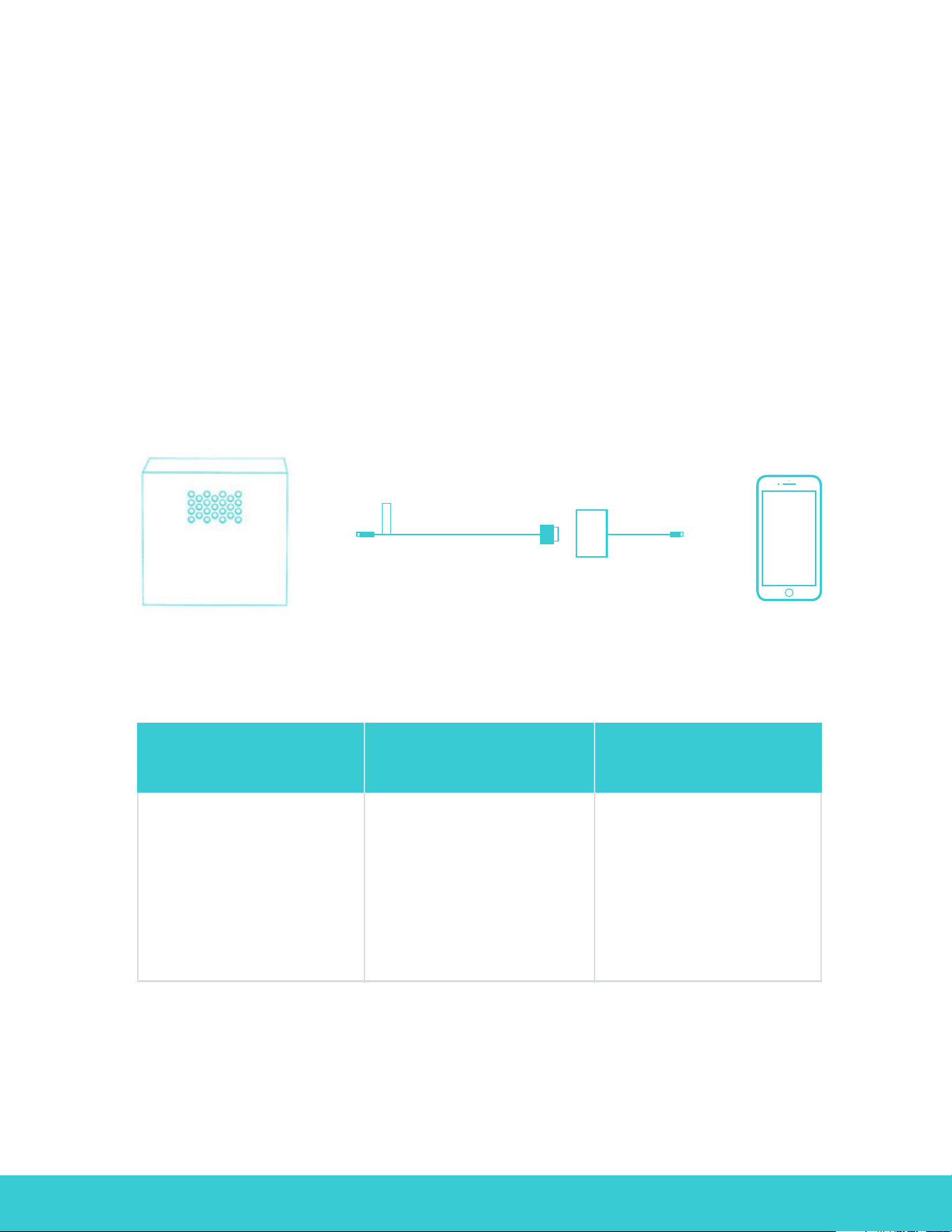
Device Connection
Apple Devices
Apple Devices
Apple Adapter
mini
HDMI
HDMI
Apple devices will need the proprietary Apple adapter.
View chart below to figure out which adapter you’ll need for you device.
Apple lighting cord
to HDMI Adapter
Apple 30-Pin
Dock Connector
Apple Computers
iPhone 5, 5c, 6, 6+, &
all iPads released after
the original iPad mini.
MD826AM
iPhone 4S and earlier
iPad retina and earlier.
MD098AM
Apple computers
without HDMI port but
with mini DP port or
thunderbolt.
B00NH13K8
HDMI
RIF6 CUBE PROJECTOR | 17
Device Connection
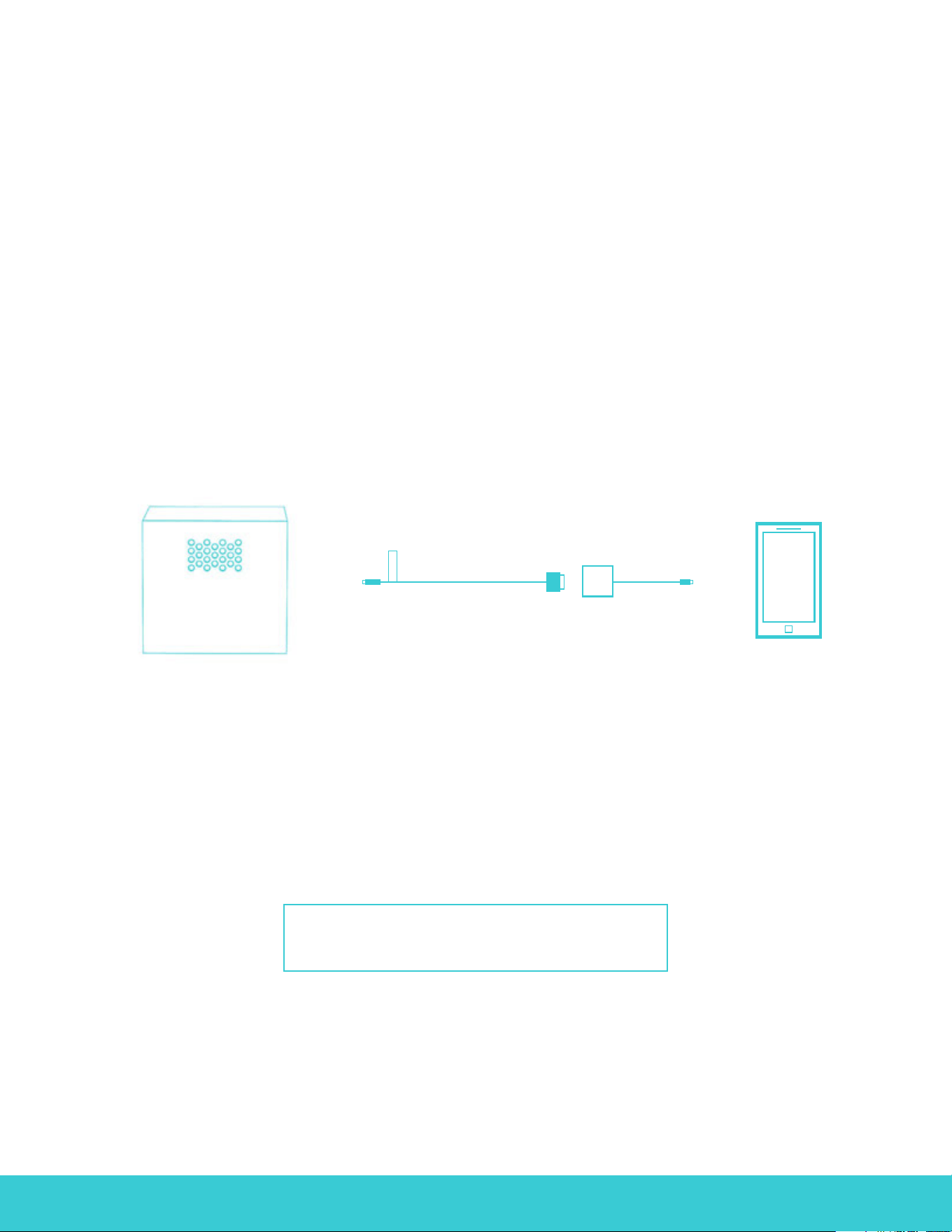
Other Devices
Still having trouble?
Other Devices
The Cube is only guaranteed to work with HDMI or MHL compliant devices.
Some devices, while not MHL or HDMI compliant, might still work with the Cube
using a device specific adapter. Please contact your device manufacturer to see
if they provide an adapter that would make their product HDMI or MHL compliant.
mini
HDMI
HDMI
Device Specific
Adapter
HDMI

RIF6 CUBE PROJECTOR | 18