
USER GUIDE
MAXTPMS 2.0
Version MA2-01
Reference: UM-MDMAX-MA2-01

REVISION OF THE
MAXTPMS 2.0 GUIDE
Due to continuing improvements, the information contained in this user manual, the features and design of this
device are subject to be changed without prior notice.
Edition/
Revision
Reference
Date
(week/year)
Chapters updated
First edition
UM-MDMAX-MA2-01
02/2020
Software release MA2-01

MATCO TOOLS MAXTPMS 2.0 - User Guide
UM-MDMAX-MA2-01 User manual MATCO TOOLS MAXTPMS 2.0 Page 1/47
TABLE OF CONTENTS
REVISION OF THE
MAXTPMS 2.0 GUIDE ................................................................................................. 3
TABLE OF CONTENTS ................................................................................................................................ 1
MAXTPMS 2.0 INTRODUCTION .................................................................................................................. 2
1. SPECIFICATIONS ............................................................................................................................... 2
2. IMPORTANT SAFETY INSTRUCTIONS ............................................................................................ 3
3. CAUTION ............................................................................................................................................. 4
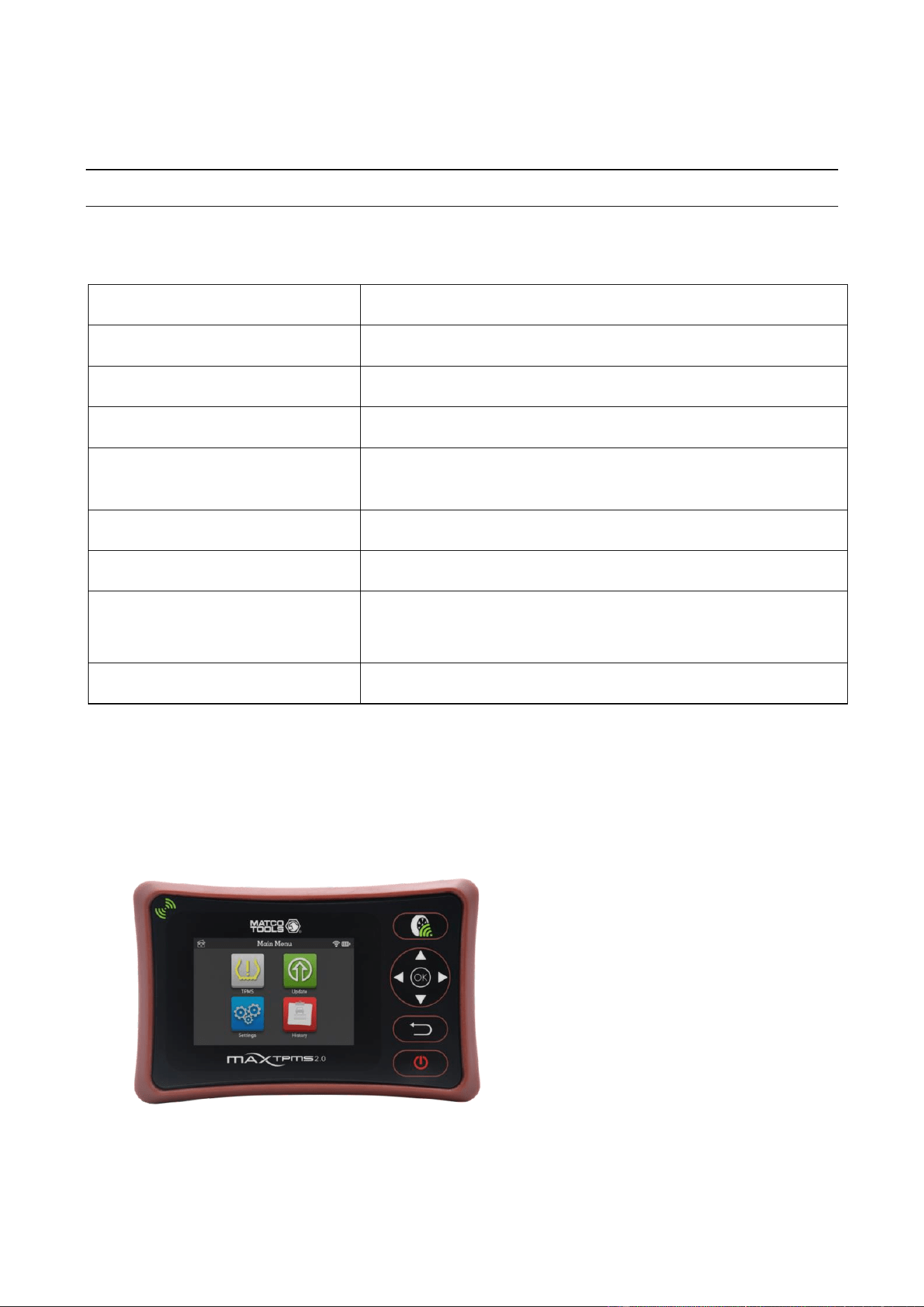
4. MAX TPMS 2.0 OVERVIEW ................................................................................................................ 5
.................................................................................................................................................................. 5
5. CONNECTORS .................................................................................................................................... 5
6. FUNCTION KEYS ................................................................................................................................ 6
7. POWER ON ......................................................................................................................................... 6
8. OPERATING INSTRUCTIONS ............................................................................................................ 7
MAXTPMS 2.0 USAGE ................................................................................................................................. 8
1. CHECK TPM ........................................................................................................................................ 8
2. RESET TPMS .................................................................................................................................... 11
3. PROGRAM TPMS SENSORS ........................................................................................................... 14
4. KEYFOB TEST .................................................................................................................................. 23
5. TIRE TREAD CHECK ........................................................................................................................ 24
6. PLACARD VALUES ADJUSTMENT ................................................................................................ 25
HISTORY ..................................................................................................................................................... 27
1. SEARCH ............................................................................................................................................ 27
2. EXPORT ............................................................................................................................................. 28
3. DELETE ............................................................................................................................................. 28
WIFI UPDATE ............................................................................................................................................. 29
SETTINGS ................................................................................................................................................... 31
1. LANGUAGE ....................................................................................................................................... 32
2. UNITS ................................................................................................................................................. 32
3. BACKGROUND ................................................................................................................................. 33
4. SOUND............................................................................................................................................... 34
5. AUTO OFF ......................................................................................................................................... 34
6. REGION ............................................................................................................................................. 35
7. WIFI .................................................................................................................................................... 36
8. ABOUT ............................................................................................................................................... 38
MISCELLANEOUS ..................................................................................................................................... 40
1. CHARGE ............................................................................................................................................ 40
2. TROUBLESHOOTING ....................................................................................................................... 41
3. TOOL UPDATE .................................................................................................................................. 41
4. LIMITED HARDWARE WARRANTY ................................................................................................ 43
5. SAFETY BATTERY AND CHARGE INFORMATION ....................................................................... 44
MATCO TOOLS MAXTPMS 2.0 - User Guide
UM-MDMAX-MA2-01 User manual MATCO TOOLS MAXTPMS 2.0 Page 2/47
6. FCC STATEMENTS........................................................................................................................... 45
7. RECYCLING ...................................................................................................................................... 46
INDEX .......................................................................................................................................................... 47
MAXTPMS 2.0 INTRODUCTION
1. SPECIFICATIONS
Battery Type:
Rechargeable Lithium-Ion.
Battery Life:
Approximately 300 activations per full charge.
Dimensions (Max. L,W,D):
6.45" x 4.17" x 1.30" (164 mm x 106 mm x 33 mm).
Case Material:
High Impact ABS.
Response Frequency:
Main frequencies: 315 MHz and 433.92 MHz (supporting
most specific frequencies).
Low Battery Indication:
LCD bar graph display.
Weight:
Approx. 395 grams (0,87 lbs.)
Temperature:
Operating: -4°F to 131°F (-20°C to +55°C).
Storage: -40°F to 140°F (-40°C to +60°C).
Operating Altitude:
Up to 6560 ft (2000 m).
Product content:
➢ MAXTPMS 2.0 Instrument.
➢ USB cable.
➢ Power supply.
➢ Carrying case.
➢ Quick start guide.
Optional accessories:
➢ OBDII Module.
➢ Tire Tread Depth Gauge

MATCO TOOLS MAXTPMS 2.0 - User Guide
UM-MDMAX-MA2-01 User manual MATCO TOOLS MAXTPMS 2.0 Page 3/47
2. IMPORTANT SAFETY INSTRUCTIONS
Do not discard. Retain for future reference.
This device complies with:
- Part 15 of the FCC Rules
- CE / CEM standards
- ROHS standards
Operation is subject to the following two conditions:
(1) This device will not cause harmful interference, and
(2) This device will accept any interference received, including interference that may cause
undesired or improper operation.
WARNING: This product emits electromagnetic and electronically generated
waves that may interfere with the safe operation of pacemakers.
Individuals that have pacemakers should never use this product.
WARNING:
Do not use on live electrical circuits.
Please read instructions before use.
Wear safety goggles. (User and bystanders).
Risk of entanglement.
Read the Warranty, Safety and recycling information at the end of this user guide.

MATCO TOOLS MAXTPMS 2.0 - User Guide
UM-MDMAX-MA2-01 User manual MATCO TOOLS MAXTPMS 2.0 Page 4/47
3. CAUTION
PLEASE READ THESE INSTRUCTIONS BEFORE USE
Your Tire Pressure Monitoring (TPM) tool has been designed to be durable, safe, and
reliable when properly used.
All TPMS TOOLS are intended for use only by qualified and trained automotive technicians
or in a light industrial repair shop environment. Please read all instructions below before use.
Always follow these safety instructions. If you have any questions pertaining to the safe or
reliable use of this tool, please call your local dealer.
1. Read All Instructions
All warnings on the tool and in this manual should be adhered to. All operating instructions
should be followed.
2. Retain Instructions
The safety and operating instructions should be retained for future reference.
3. Heed Warnings
Users and bystanders must wear safety goggles and must read instructions before use. Do
not use on live electrical circuits, risk of entanglement.
4. Cleaning
Clean with a soft dry cloth, or if necessary, a soft damp cloth. Do not use any harsh chemical
solvents such as acetone, thinner, brake cleaner, alcohol, etc as this may damage the plastic
surface.
5. Water & Moisture
Do not use this tool where contact or immersion in water is a possibility. Never spill liquid of
any kind onto the tool.
6. Storage
Do not use or store the tool in an area where it is exposed to direct sunlight or excessive
moisture.
7. Usage
To reduce the risk of fire, do not operate the tool in the vicinity of open containers or
flammable liquids. Do not use if the potential for explosive gas or vapors exists. Keep the
tool away from heat generating sources. Do not operate the tool with the battery cover
removed.
MATCO TOOLS MAXTPMS 2.0 - User Guide
UM-MDMAX-MA2-01 User manual MATCO TOOLS MAXTPMS 2.0 Page 5/47
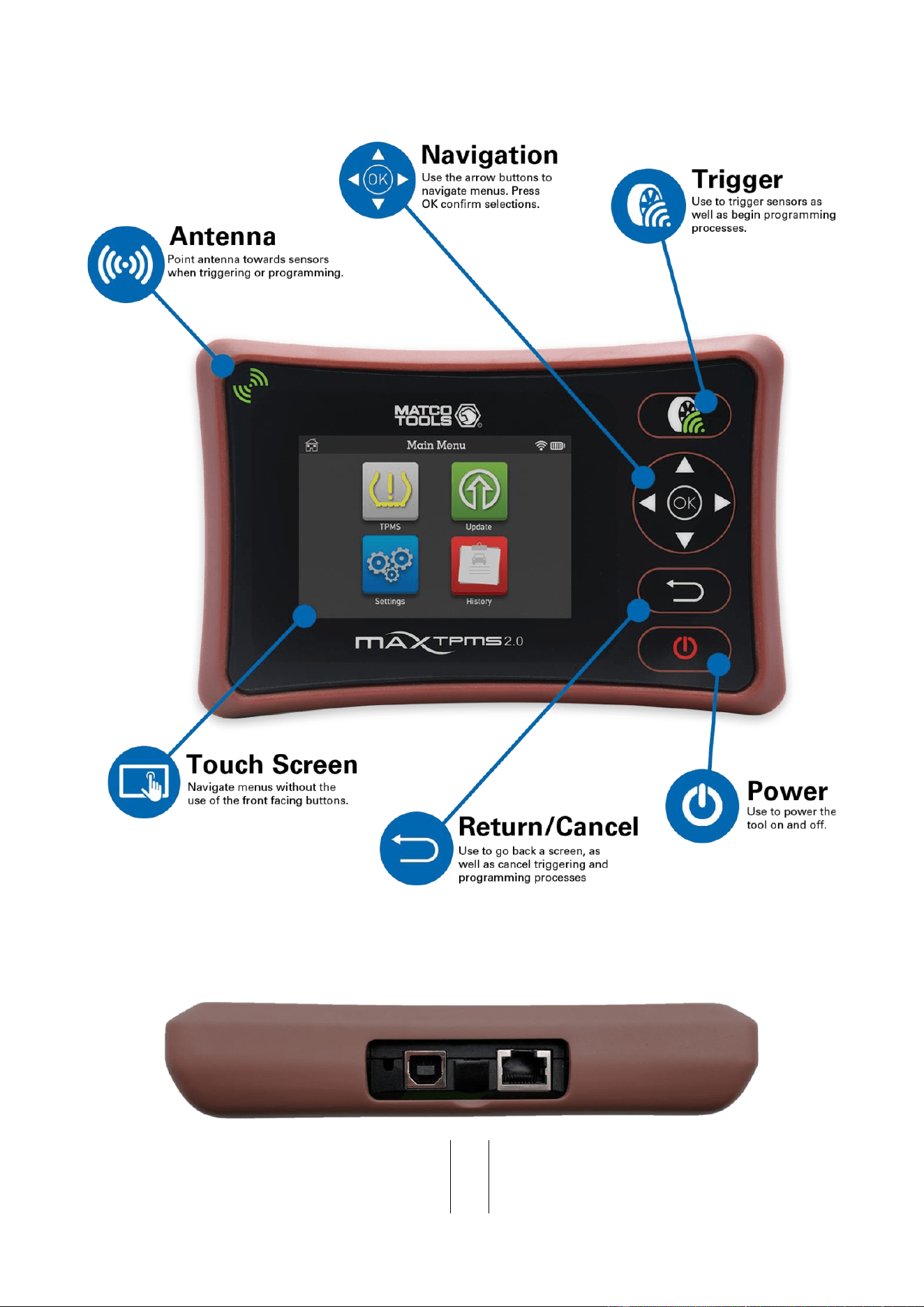
4. MAX TPMS 2.0 OVERVIEW
5. CONNECTORS
USB connector for battery
charge and software update
Extension connector for
optional OBD module and Tire
Tread Depth Gauge
MATCO TOOLS MAXTPMS 2.0 - User Guide
UM-MDMAX-MA2-01 User manual MATCO TOOLS MAXTPMS 2.0 Page 6/47
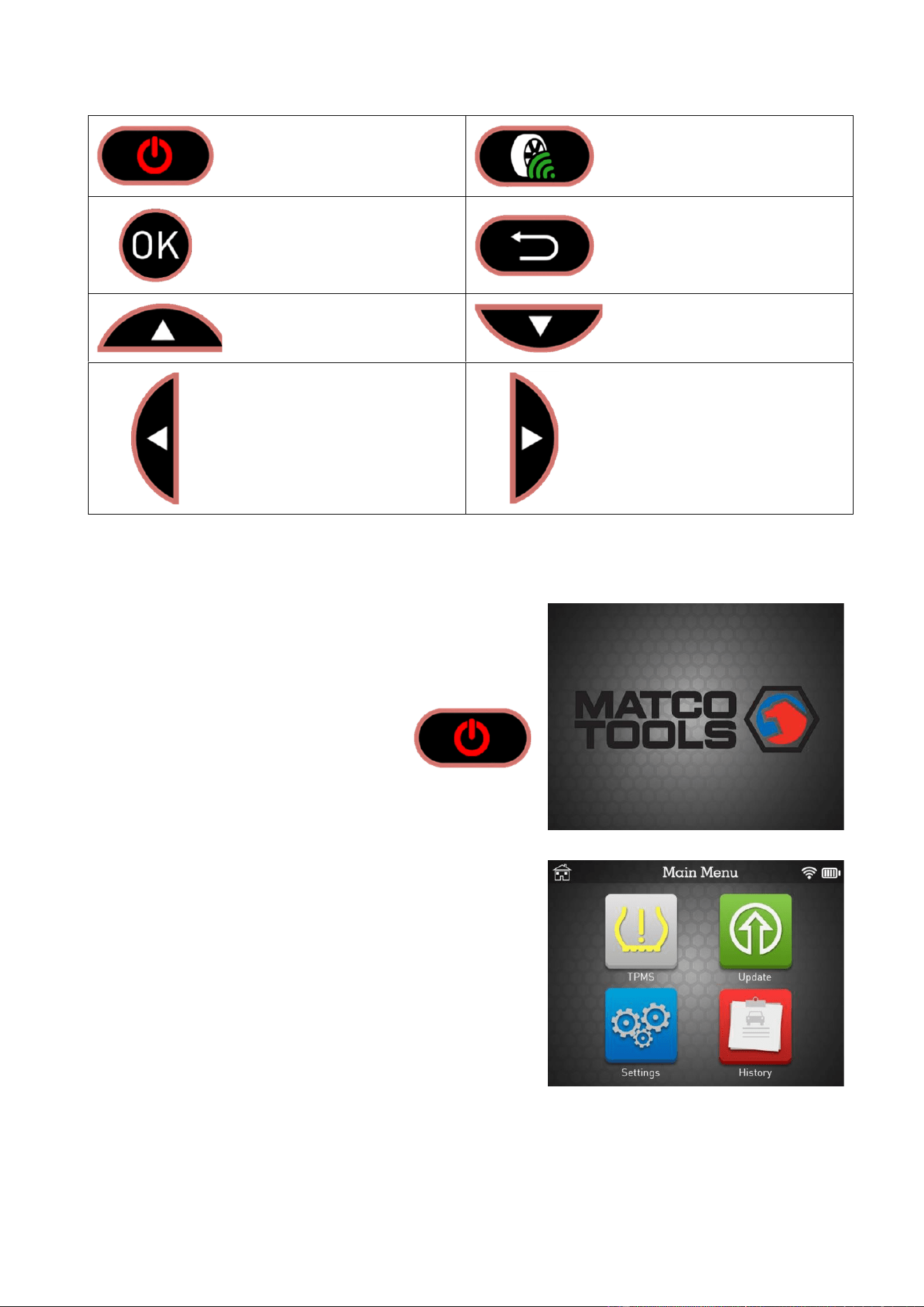
6. FUNCTION KEYS
Power ON/OFF switch
Test or trigger sensor.
Next, continue or confirm.
Cancel, previous step.
Navigate to select "up”.
Navigate to select “down”.
Navigate to select “left”.
Navigate to select “right”.
7. POWER ON
Press and hold Power ON/OFF switch to turn on the
TPMS device,
➢ Displays shows the logo as Fig. 1.
Fig. 1
➢ The MAIN MENU will then be displayed as
Fig. 2.
Fig. 2
MATCO TOOLS MAXTPMS 2.0 - User Guide
UM-MDMAX-MA2-01 User manual MATCO TOOLS MAXTPMS 2.0 Page 7/47
8. OPERATING INSTRUCTIONS
Service Procedure
Section 1.0: Read Sensor Test
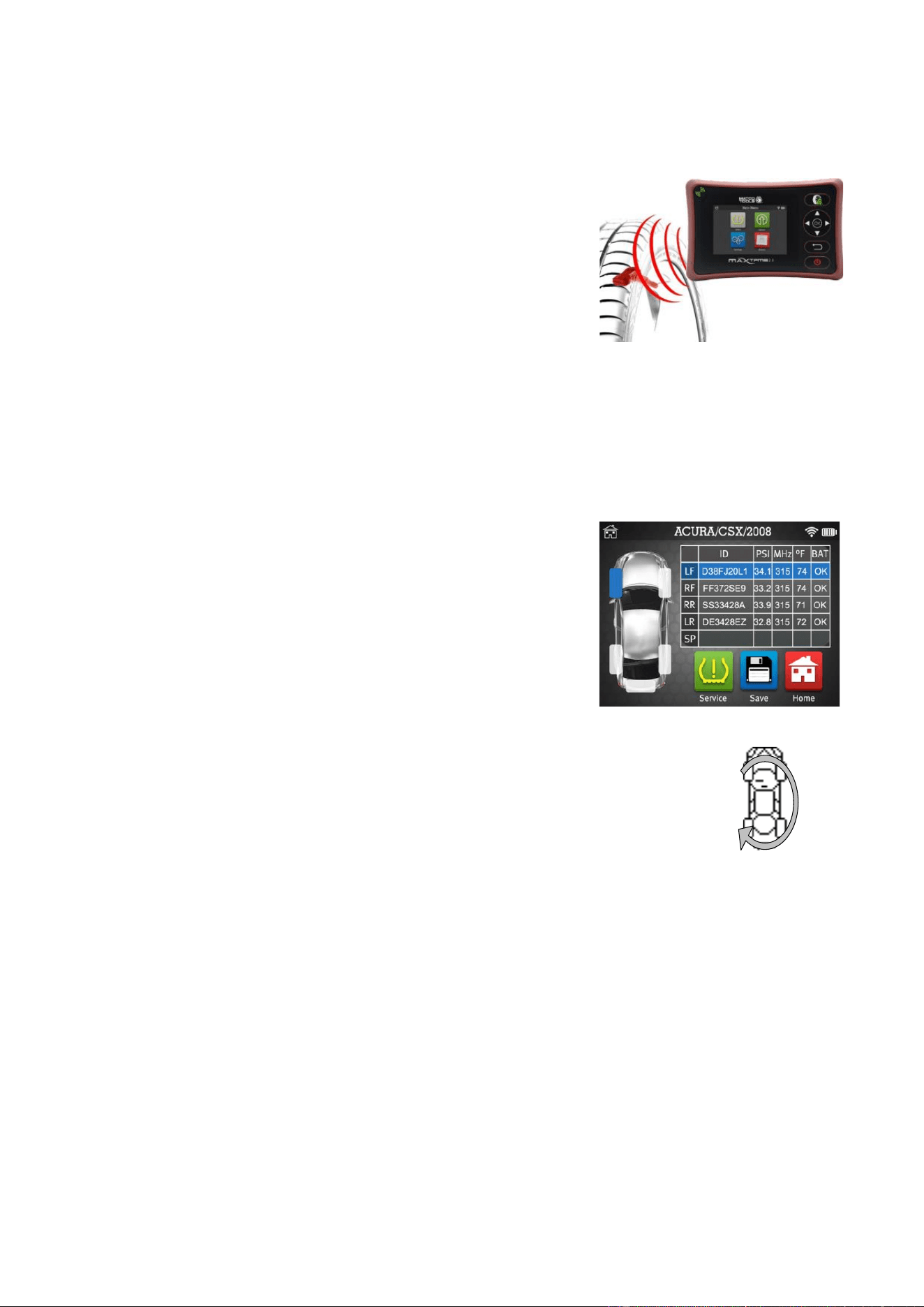
Before servicing the tires/wheels, using your TPMS TOOL,
trigger each of the vehicle's sensors to make sure they are
working properly.
This will eliminate the liability associated with replacing previously
damaged or defective sensors. This procedure will not change
the vehicle settings because the vehicle has yet to be put into
learn/retraining mode.
This procedure allows you to quickly identify damaged or defective sensors, because some vehicles
do not report a damaged or defective sensor condition on the instrument cluster for up to 20 minutes.
Note: If the sensors do not trigger, please refer to the Troubleshooting section of this Guide.
Perform tire/wheel service.
For vehicles that require retraining, please see to Section 2.0
Section 2.0: Learning TPM System
With the vehicle in learn mode, begin by triggering the driver's front
left (LF) wheel sensor. Many vehicles will provide an audible beep
confirming that the sensor ID has been learned by the vehicle on
board computer.
The communication between the sensor and the on board computer is also
confirmed on LCD display of the TOOL.
The same procedure should be followed on all wheel sensors, in a clockwise
rotation, until all the vehicle sensors have been retrained.
After triggering the driver's rear wheel sensor, some vehicles will beep twice,
indicating that the TPM system has been retrained.
1 Start FL
4 End RL
FR 2
RR 3
For vehicles that do not require retraining, we recommend you trigger each wheel sensor, one final time,
to make sure they are working correctly prior to releasing the vehicle to the customer.
MATCO TOOLS MAXTPMS 2.0 - User Guide
UM-MDMAX-MA2-01 User manual MATCO TOOLS MAXTPMS 2.0 Page 8/47
MAXTPMS 2.0 USAGE
IMPORTANT:
Vehicle specific information in this manual is used as an example and may not
represent specific instructions each make and model may require. When performing
various functions with the tool, it is important to refer to the on-screen prompts and/or
repair manual information.
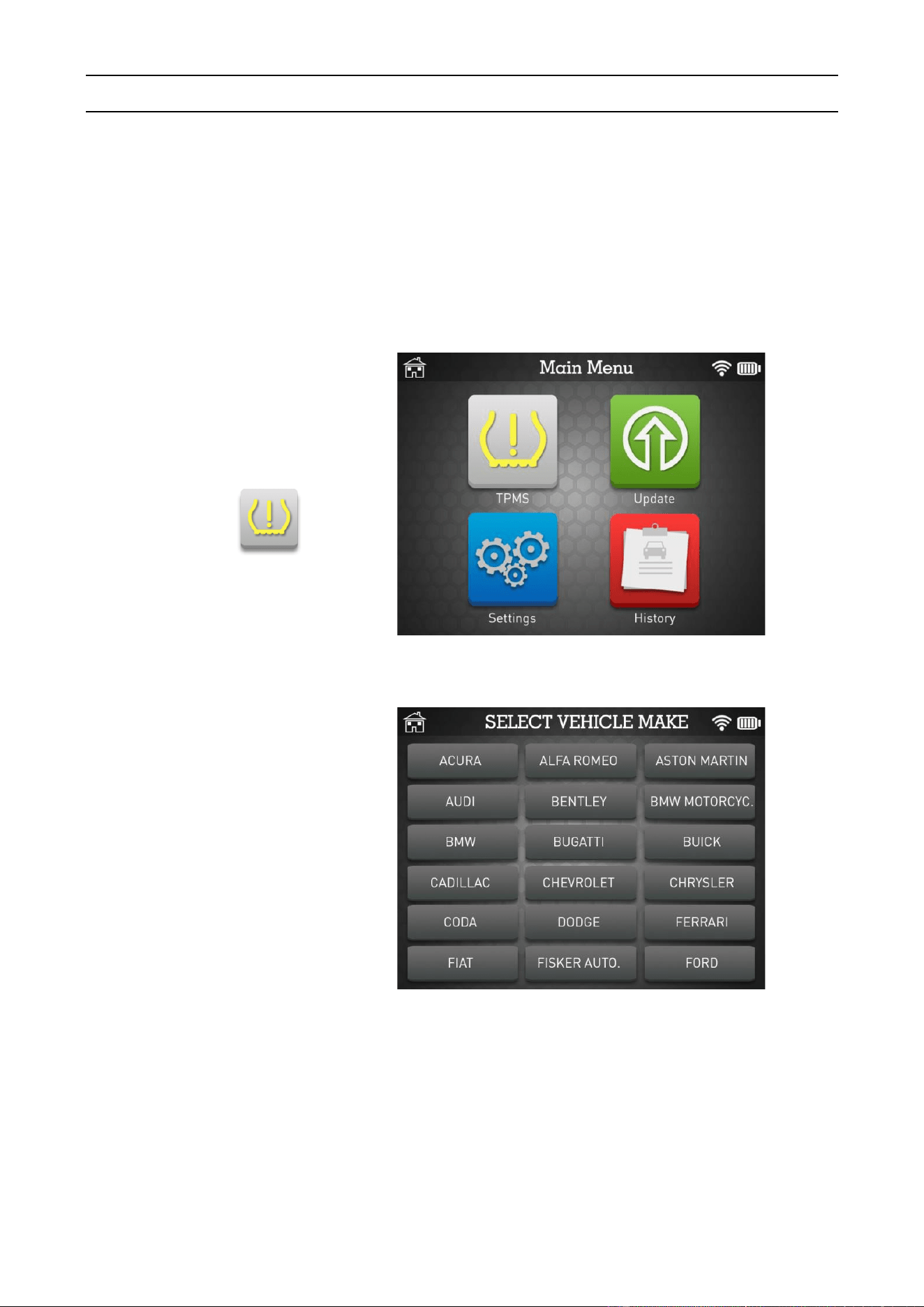
1. CHECK TPM
Click the TPMS icon.
1.1. SELECT CAR MANUFACTURER
Select the car
manufacturer or scroll to
show additional brands.
MATCO TOOLS MAXTPMS 2.0 - User Guide
UM-MDMAX-MA2-01 User manual MATCO TOOLS MAXTPMS 2.0 Page 9/47
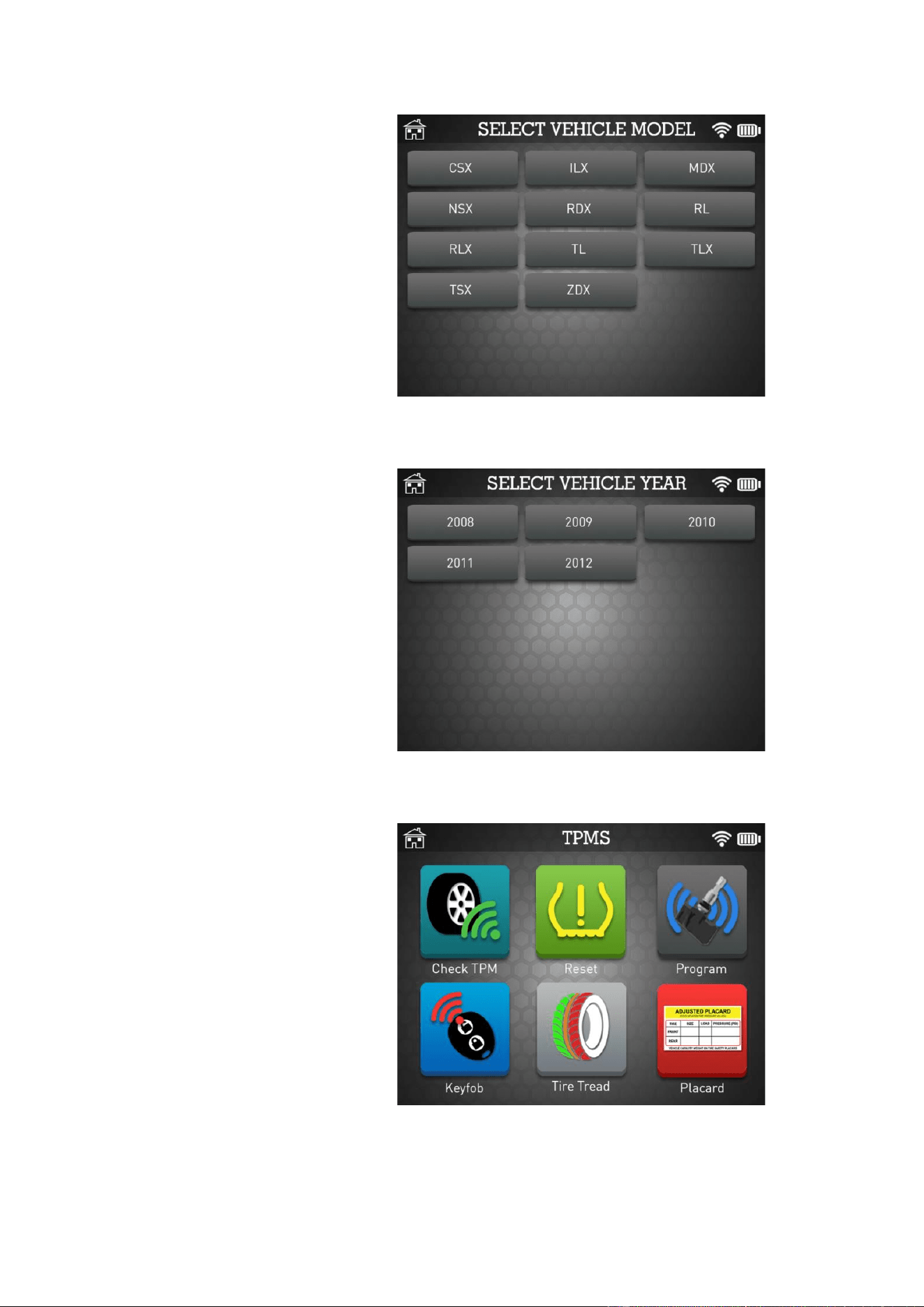
1.2. SELECT CAR MODEL
Select the car model or
scroll to show additional
models.
1.3. SELECT YEAR
Select the vehicle year.
1.4. SELECT JOB TYPE
This is the main screen for
all the TPMS
functionalities.
Click the icon related to
the action you want to
perform.
MATCO TOOLS MAXTPMS 2.0 - User Guide
UM-MDMAX-MA2-01 User manual MATCO TOOLS MAXTPMS 2.0 Page 10/47
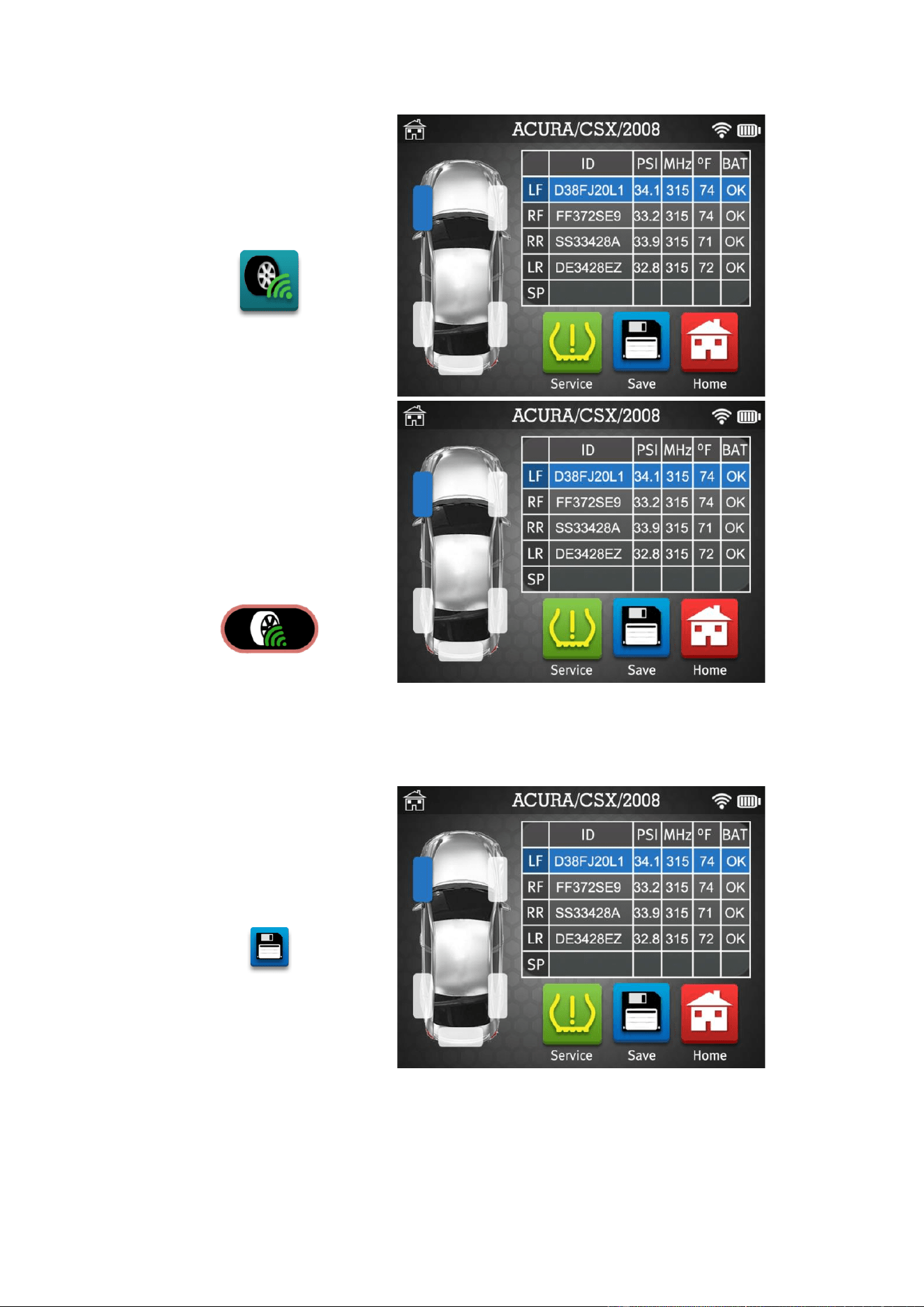
1.5. CHECK TPM
Click the Check TPM icon.
Click the first wheel you
want to check or click the
table to change the
selected tire.
Use the trigger button to
read the TPMS sensor.
1.6. SAVE VEHICLE DATA
Click the Save icon to
record the sensor data.
MATCO TOOLS MAXTPMS 2.0 - User Guide
UM-MDMAX-MA2-01 User manual MATCO TOOLS MAXTPMS 2.0 Page 11/47
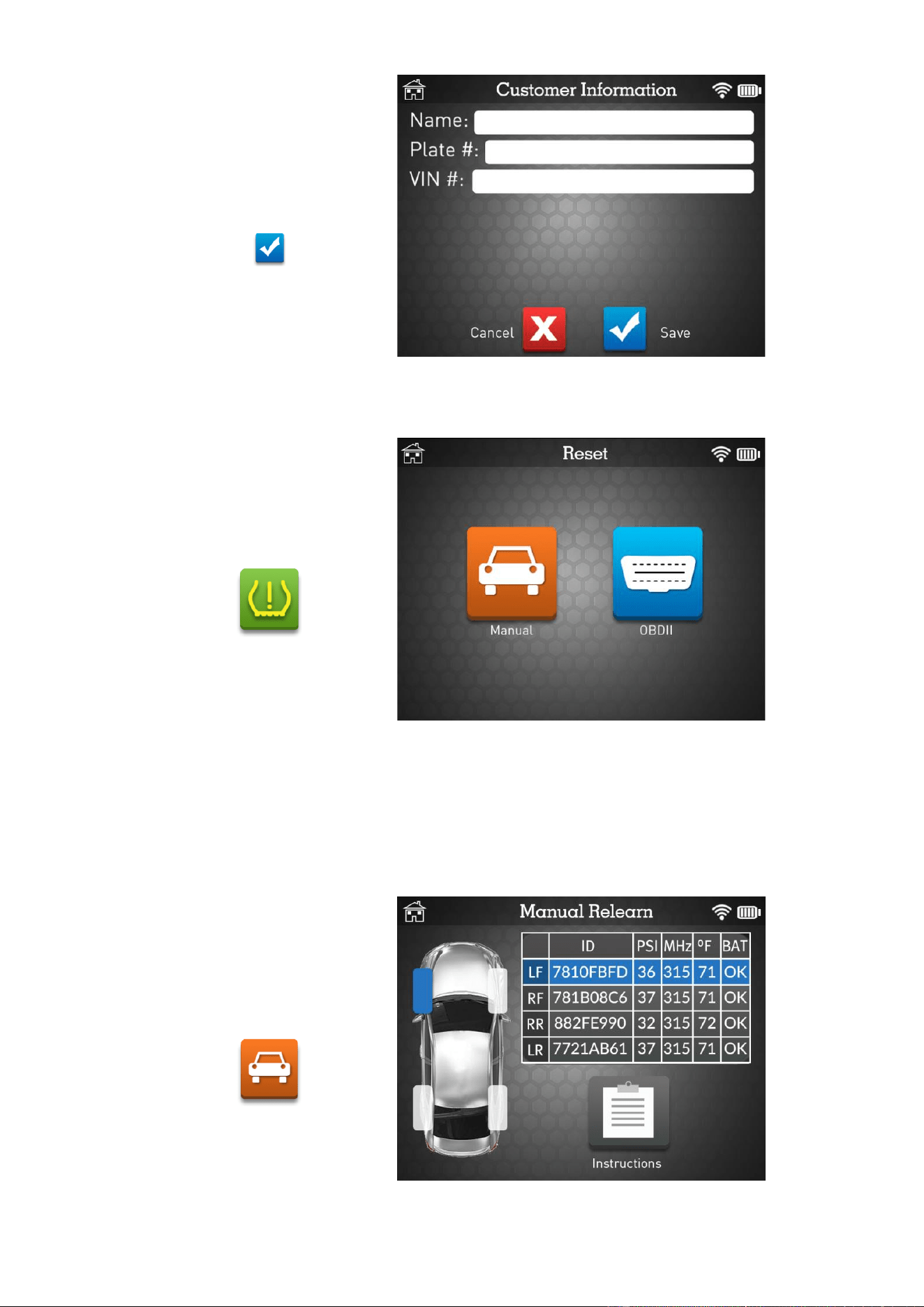
Fill out customer
information if needed and
then click Save button.
2. RESET TPMS
Click the Reset icon to
reset the TPMS system.
Depending of the type of car, you can either use Manual TPMS reset procedure or OBDII
reset procedure with the optional OBD dongle.
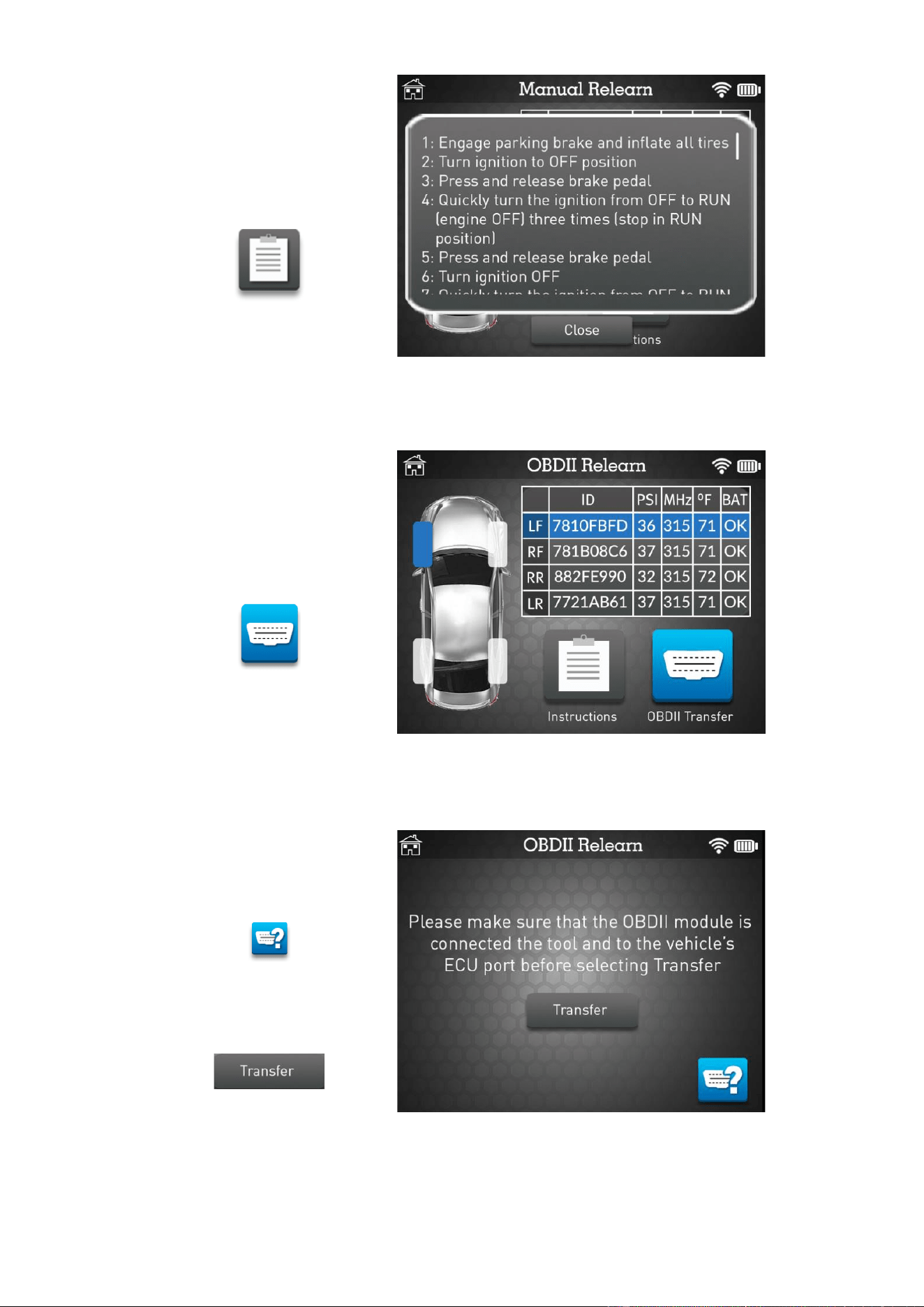
2.1. MANUAL RELEARN PROCEDURE
Click the Manual icon to
manualy reset the TPMS
system.
MATCO TOOLS MAXTPMS 2.0 - User Guide
UM-MDMAX-MA2-01 User manual MATCO TOOLS MAXTPMS 2.0 Page 12/47
Click the Instructions icon
and follow the onscreen
instructions.
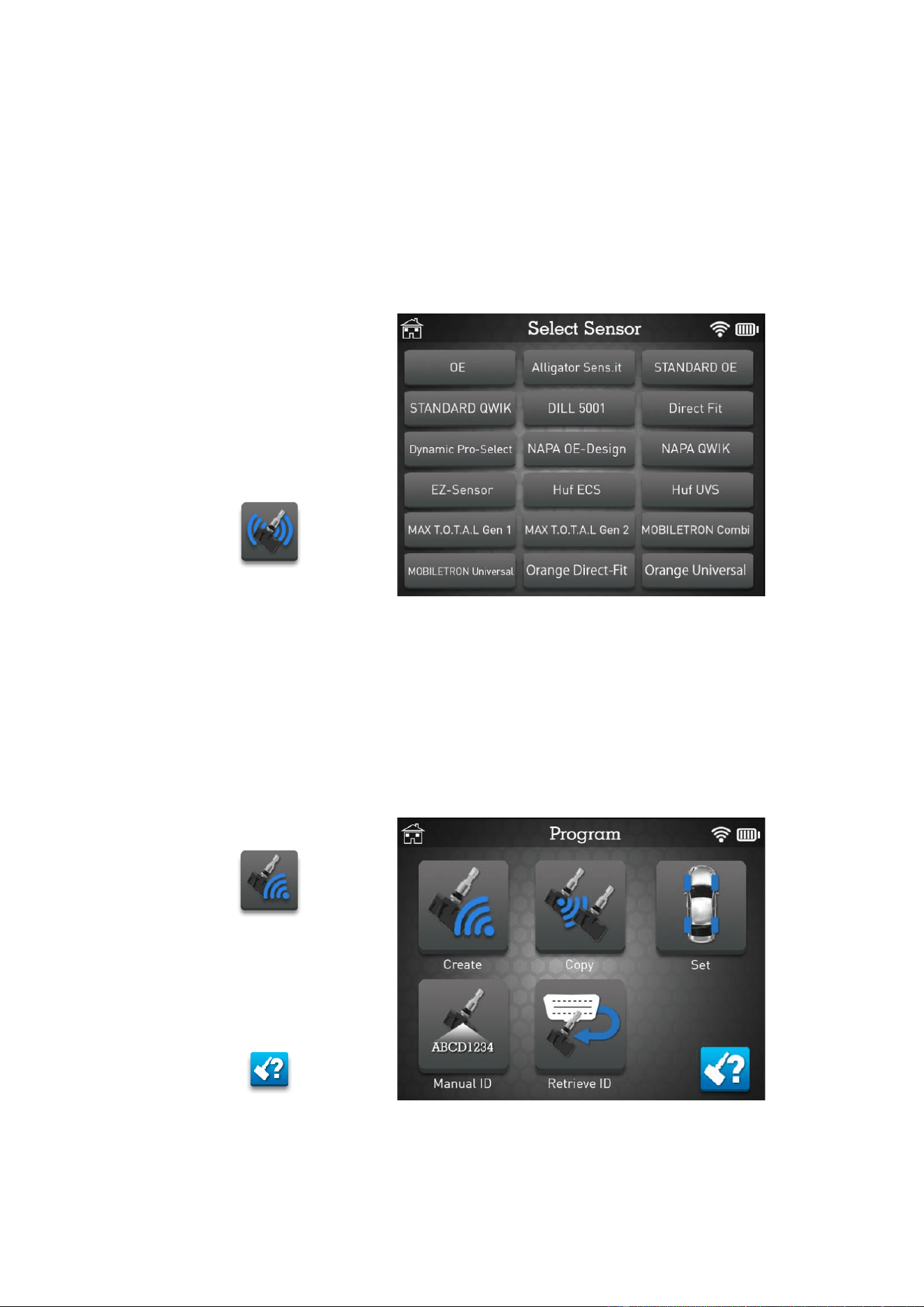
2.2. OBDII RELEARN PROCEDURE
Click the OBDII icon to
reset the TPMS system
using the optional OBD
dongle.
Ensure all the TPMS sensors has been read and click the OBDII Transfer icon to continue.
Click the OBDII icon to
display the location of the
OBD socket.
When ready, click the
Transfer button.

MATCO TOOLS MAXTPMS 2.0 - User Guide
UM-MDMAX-MA2-01 User manual MATCO TOOLS MAXTPMS 2.0 Page 13/47
Please wait while the data
is transferred to the
vehicle.
When Transfer Successful
is displayed, the TPMS
reset procedure is over.
MATCO TOOLS MAXTPMS 2.0 - User Guide
UM-MDMAX-MA2-01 User manual MATCO TOOLS MAXTPMS 2.0 Page 14/47
3. PROGRAM TPMS SENSORS
This section is to create or copy a sensor ID in order to program a spare blank sensor. If the
"old" sensor can be read, use the "COPY SENSOR" section to recover the existing ID. If it
cannot be read, use the "CREATE SENSOR" section to create a new ID.
In addition, you can use “COPY SET” section to know how to copy four sensors in a row.
“MANUAL ID” function can be used to manually enter the ID number printed onto the sensor.
“RETREIVE ID” offers the ability to read the recorded sensor ID’s directly from the vehicle
ECU and program spare blank sensors accordingly.
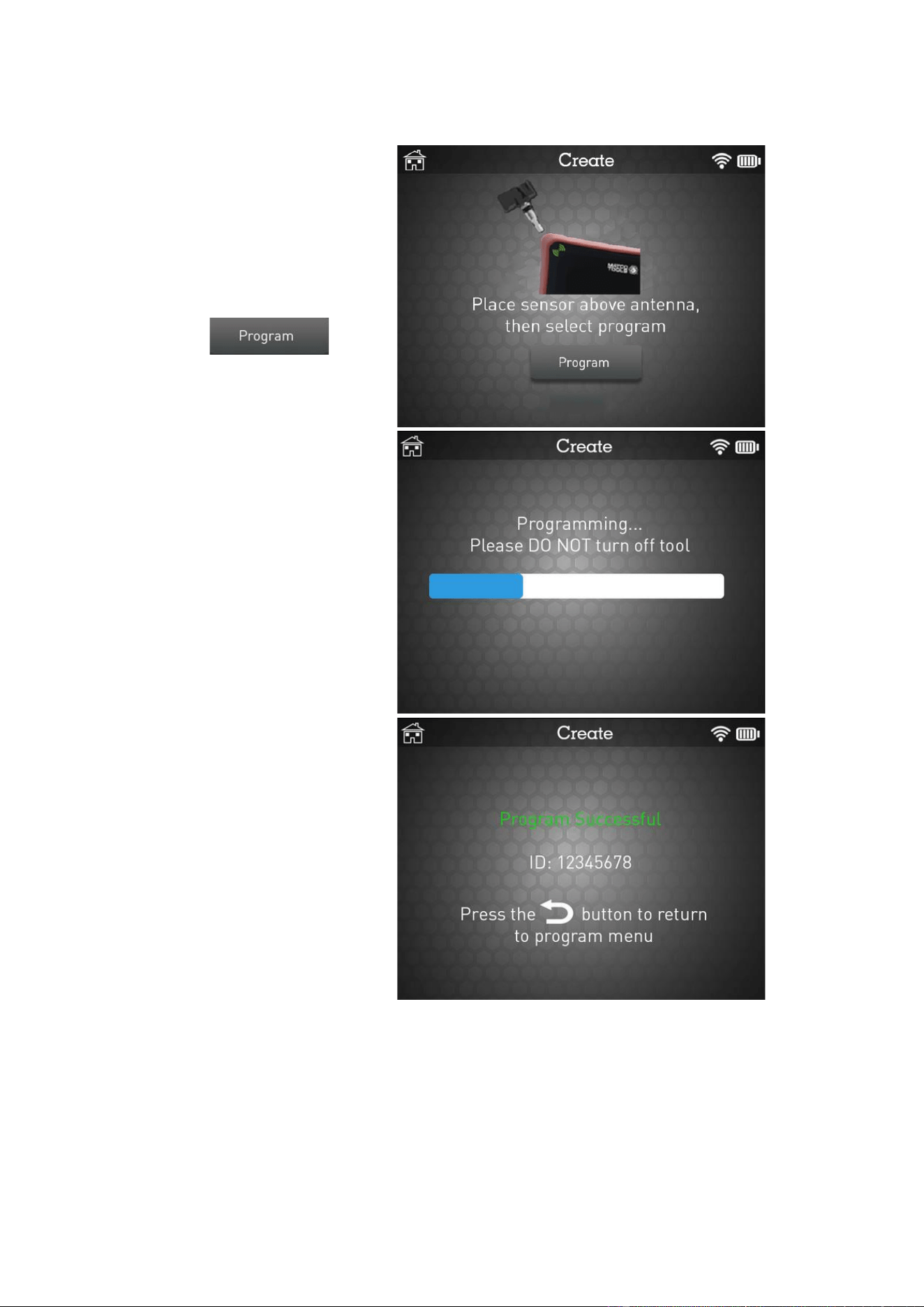
First, select Make, Model
and Year of the car.
Then click the Program
icon.
Select the programmable sensor you want to use. Scroll down to display additional sensor
brands and models.
➢ Choose OE if you want to display Original Equipment part number and remember
that OE sensors does not require programming. Simply replace sensor(s) and
perform relearn.
Click the Create icon.
Click the question mark
icon to display the
selected sensor part
number.
MATCO TOOLS MAXTPMS 2.0 - User Guide
UM-MDMAX-MA2-01 User manual MATCO TOOLS MAXTPMS 2.0 Page 15/47
3.1. "CREATE SENSOR" SECTION
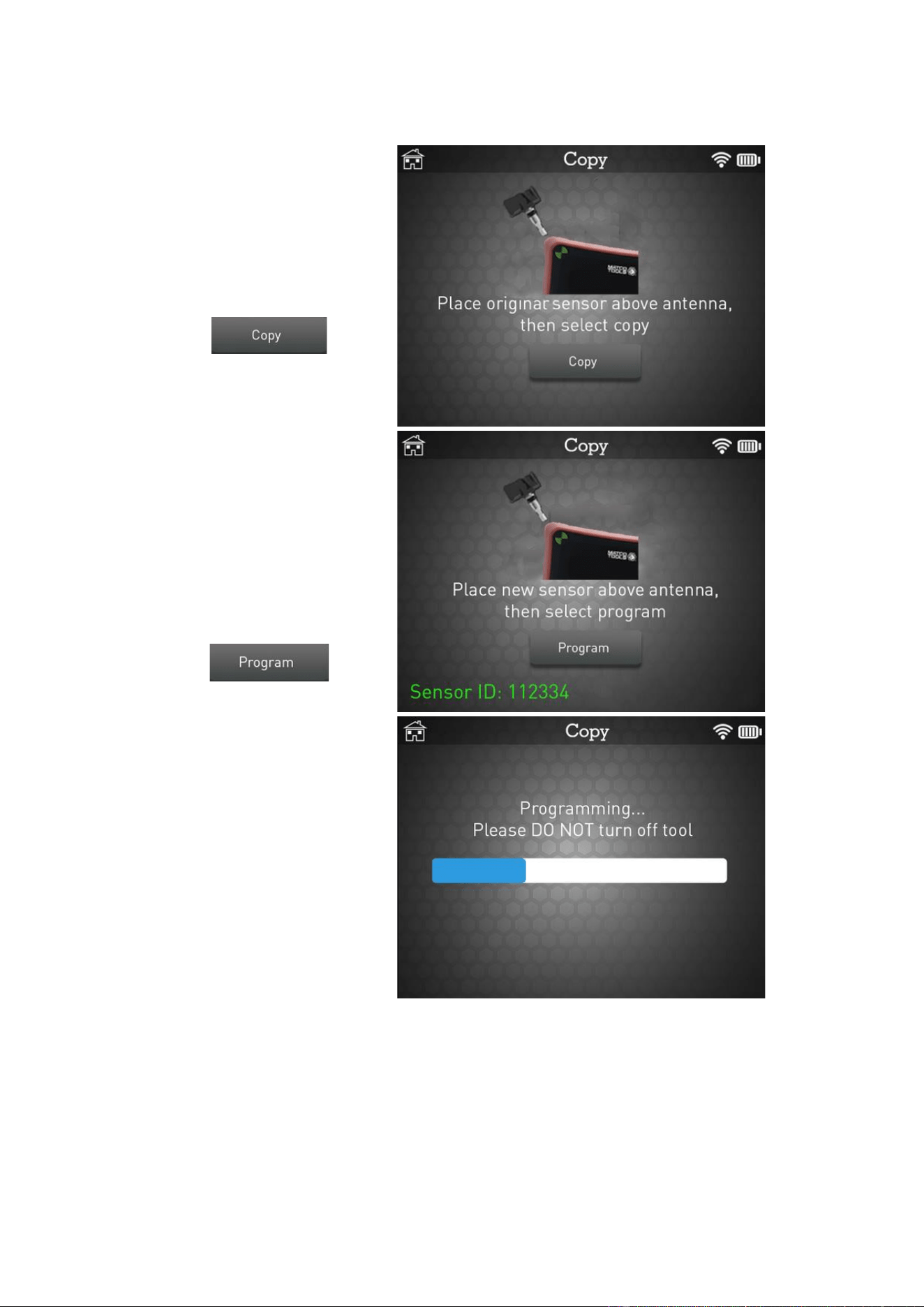
Place your blank sensor
above the antenna and
then click Program.
Please wait during the
programming process.
The data is successfully
uploaded to the sensor.
MATCO TOOLS MAXTPMS 2.0 - User Guide
UM-MDMAX-MA2-01 User manual MATCO TOOLS MAXTPMS 2.0 Page 16/47
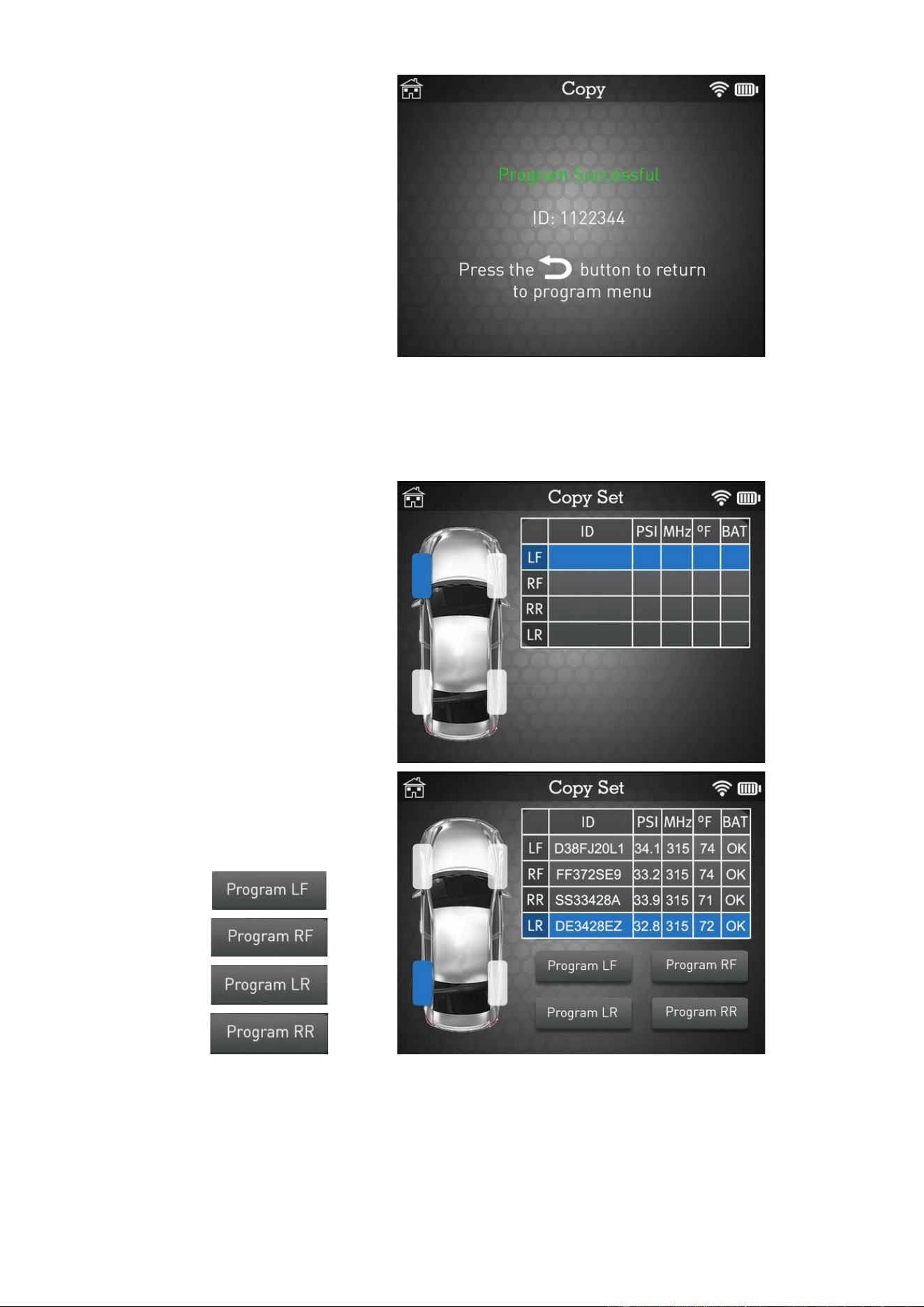
3.2. "COPY SENSOR" SECTION
Place original sensor
above the antenna and
then click Copy.
Please wait during the
copy process.
Then place your blank
sensor above the antenna
and press Program.
Please wait during the
programming process.
MATCO TOOLS MAXTPMS 2.0 - User Guide
UM-MDMAX-MA2-01 User manual MATCO TOOLS MAXTPMS 2.0 Page 17/47
The data is successfully
uploaded to the sensor.
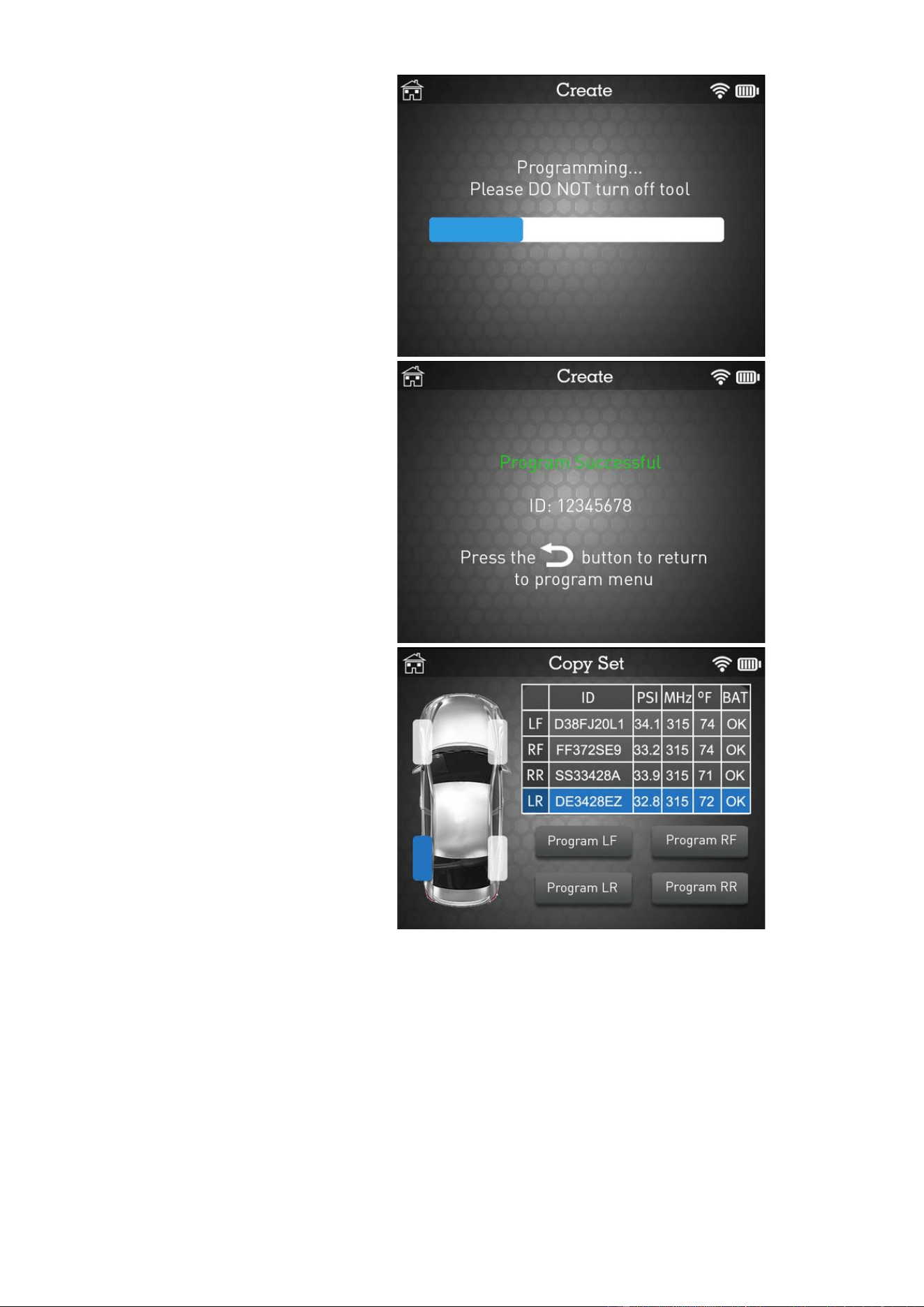
3.3. “COPY SET” SECTION
Start by reading all the
original sensors.
Then program blank
sensors one by one by
clicking Program.
MATCO TOOLS MAXTPMS 2.0 - User Guide
UM-MDMAX-MA2-01 User manual MATCO TOOLS MAXTPMS 2.0 Page 18/47
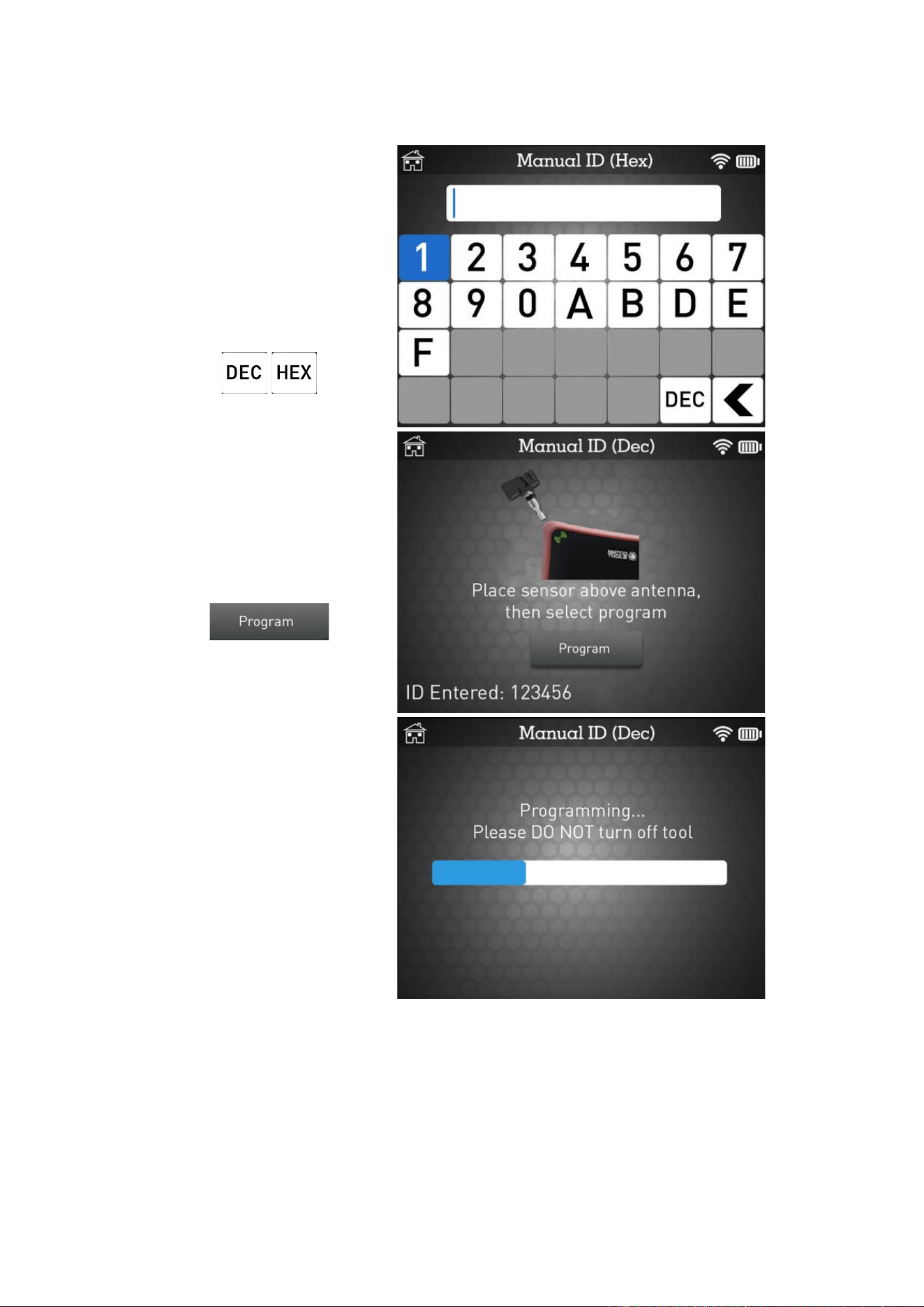
Please wait during the
programming process.
The data is successfully
uploaded to the sensor.
Repeat the process for all
wheels.
MATCO TOOLS MAXTPMS 2.0 - User Guide
UM-MDMAX-MA2-01 User manual MATCO TOOLS MAXTPMS 2.0 Page 19/47
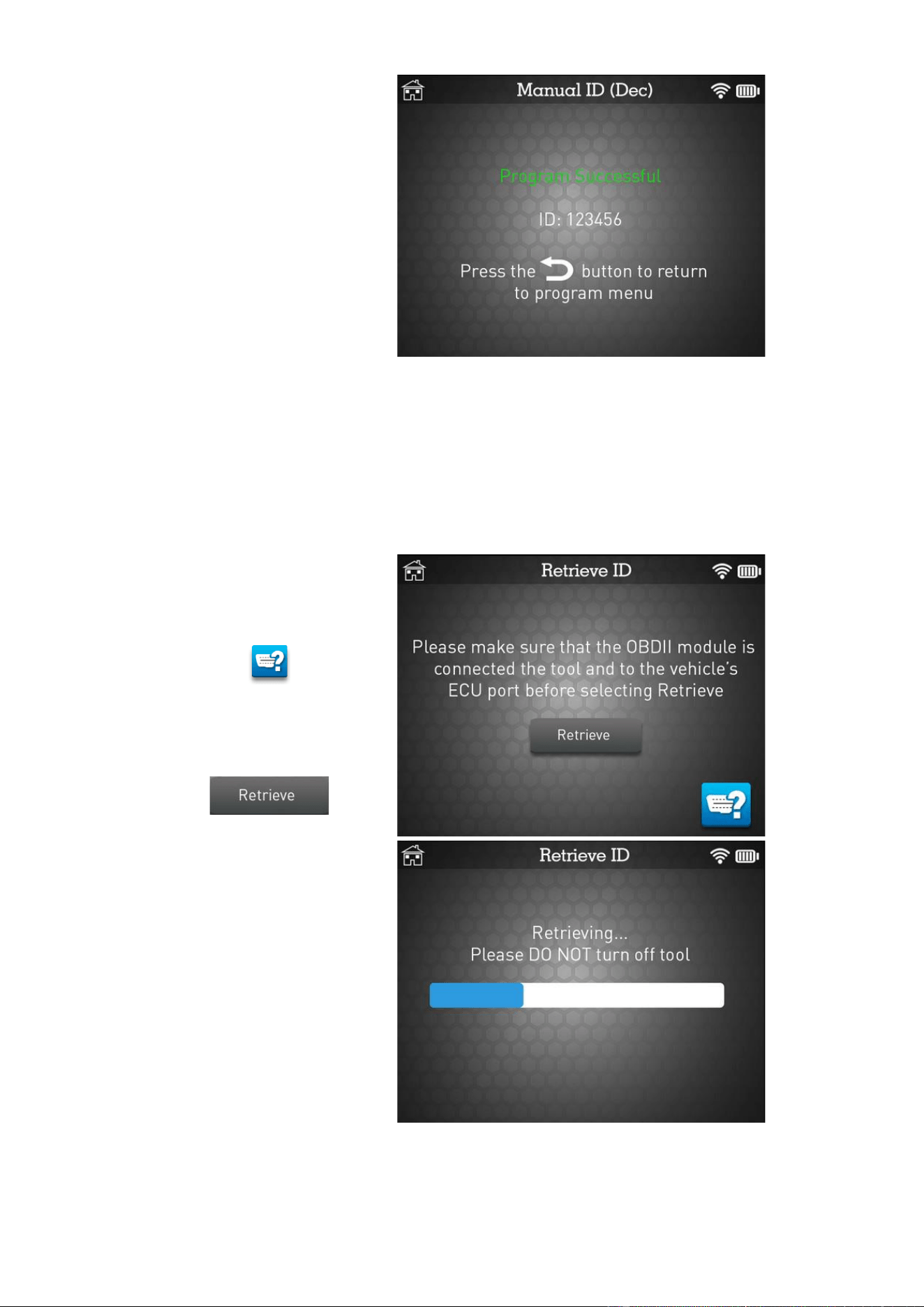
3.4. “MANUAL ID” SECTION
Enter the ID of the
defective sensor.
Use the DEC / HEX button
to switch between
hexadecimal and decimal
keyboard.
Place the blank sensor
above the antenna and
then click Program.
Please wait during the
programming process.
MATCO TOOLS MAXTPMS 2.0 - User Guide
UM-MDMAX-MA2-01 User manual MATCO TOOLS MAXTPMS 2.0 Page 20/47
The data is successfully
uploaded to the sensor.
3.5. “RETRIEVE ID” SECTION
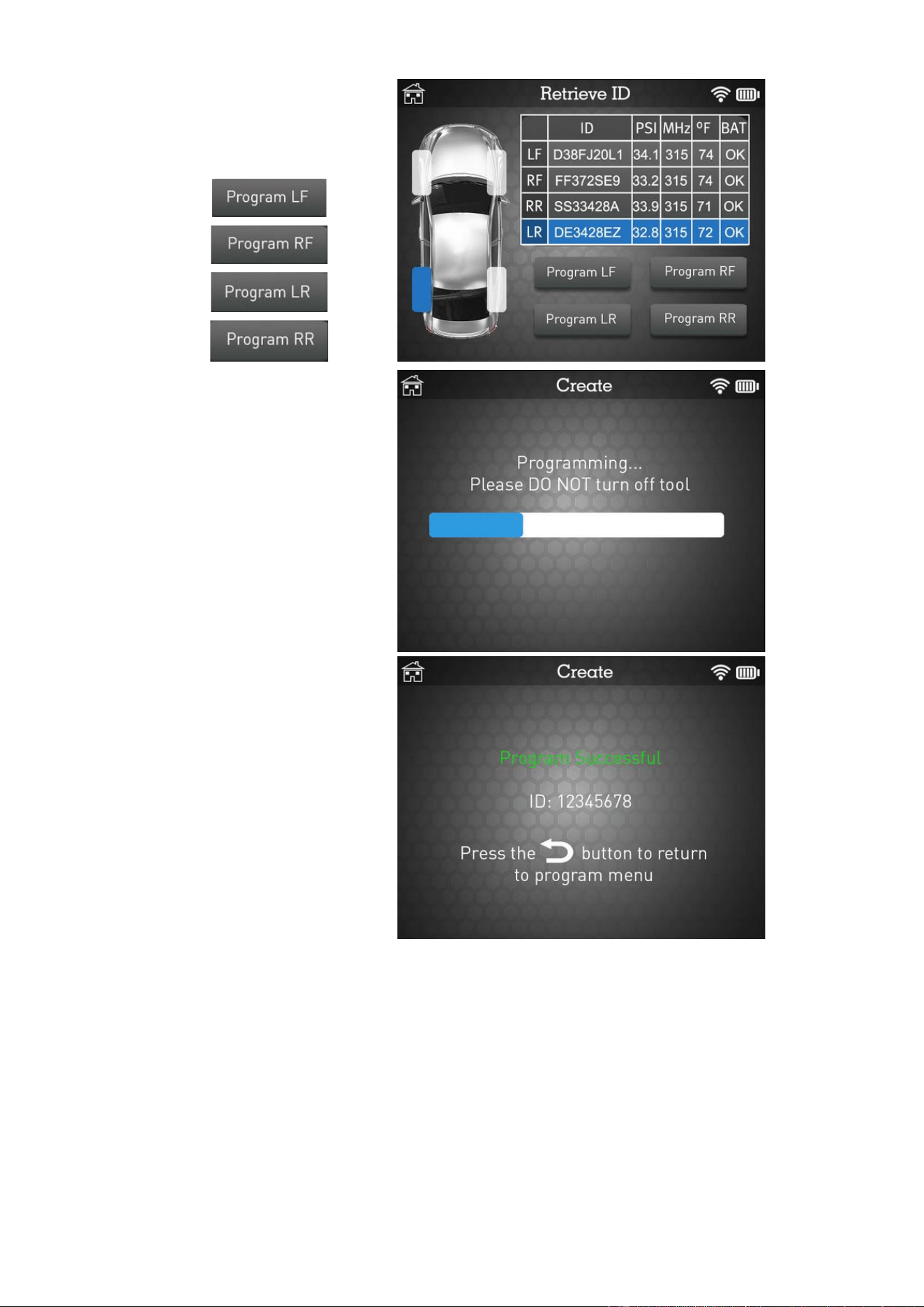
This function gives you the possibility to read the TPMS IDs recorded into the vehicle ECU.
You can then easily program blank sensors. You will need the optional OBDII module to
perform this function.
Click the OBDII icon to
display the location of the
OBD socket.
When ready, click Retrieve
button.
Please wait during the
retrieving process.
MATCO TOOLS MAXTPMS 2.0 - User Guide
UM-MDMAX-MA2-01 User manual MATCO TOOLS MAXTPMS 2.0 Page 21/47
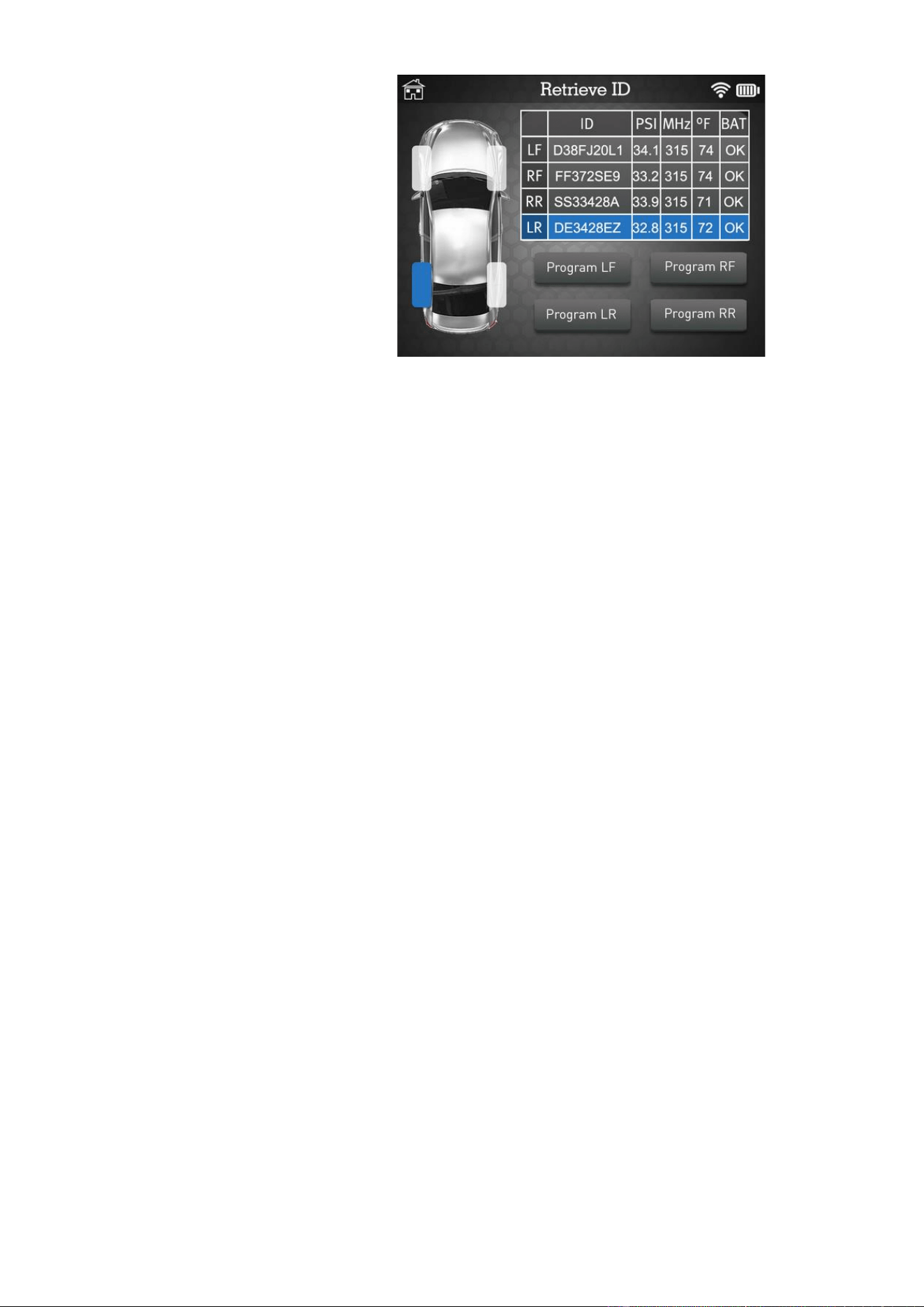
Then program blank
sensors one by one by
clicking Program.
Please wait during the
programming process.
The data is successfully
uploaded to the sensor.
MATCO TOOLS MAXTPMS 2.0 - User Guide
UM-MDMAX-MA2-01 User manual MATCO TOOLS MAXTPMS 2.0 Page 22/47
Repeat the process for all
wheels.
MATCO TOOLS MAXTPMS 2.0 - User Guide
UM-MDMAX-MA2-01 User manual MATCO TOOLS MAXTPMS 2.0 Page 23/47
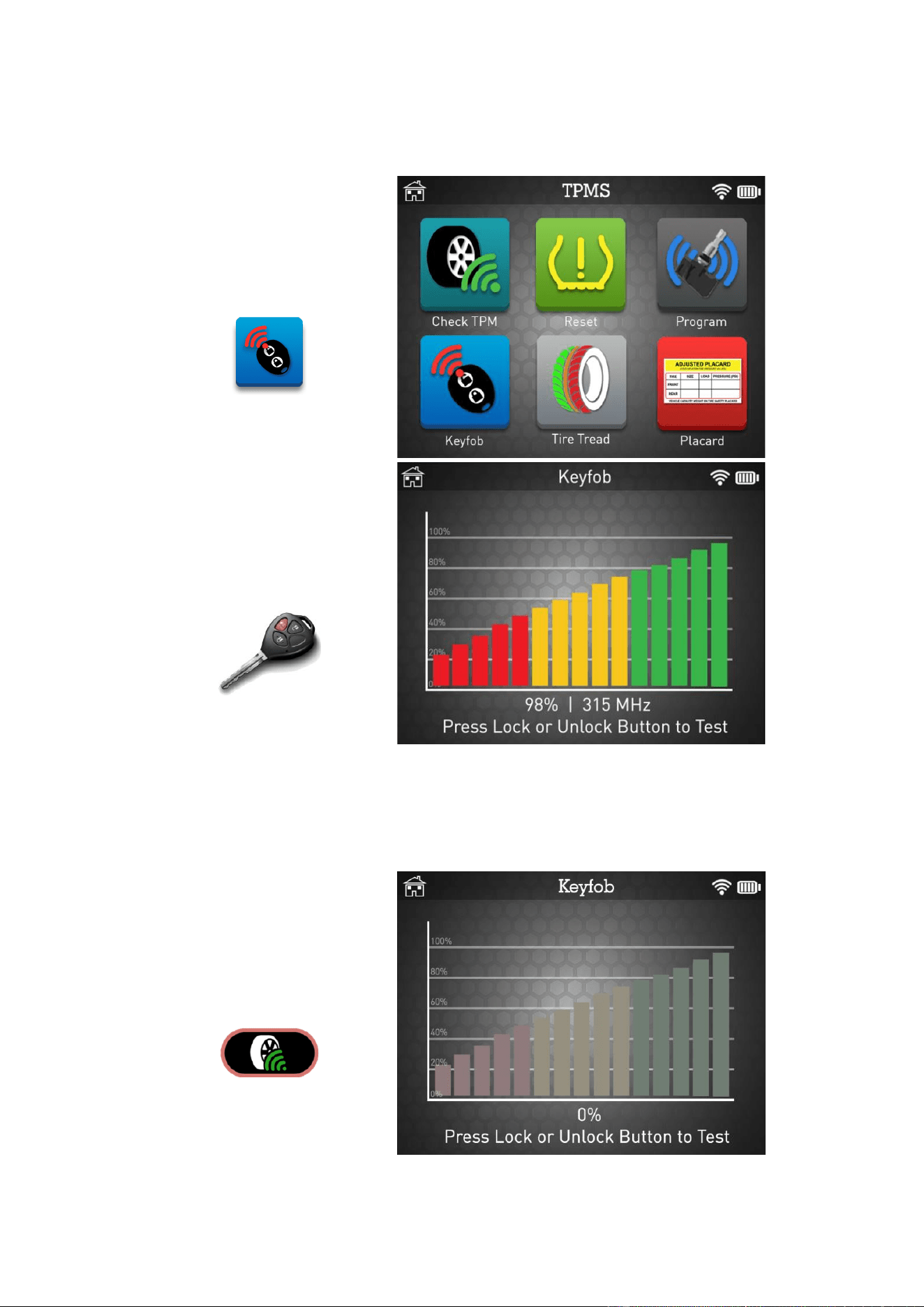
4. KEYFOB TEST
This section is to test the strength of the keyfob RF signal.
Click the Keyfob icon to
start keyfob test.
Hold keyfob in front of the
tool, then press keyfob
buttons to test the signal.
➢ Green bars show a keyfob working within its range to the device.
➢ Red bars show a low signal strength, indicates low battery.
Press Test button to start
a new test.
MATCO TOOLS MAXTPMS 2.0 - User Guide
UM-MDMAX-MA2-01 User manual MATCO TOOLS MAXTPMS 2.0 Page 24/47
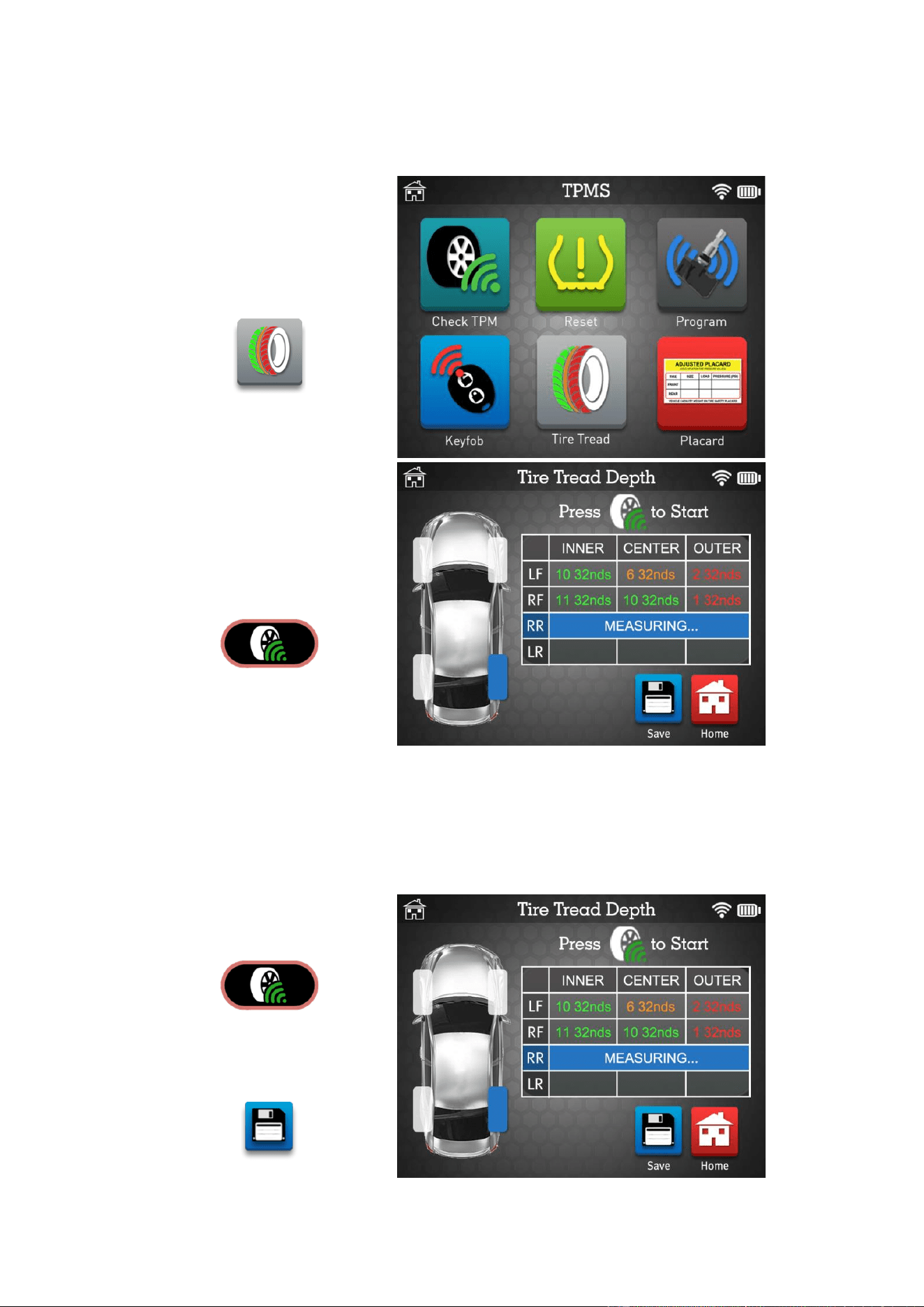
5. TIRE TREAD CHECK
This section is to measure the tire tread depth with the optional TTD gauge.
Click the Tire Tread icon to
start the test.
Press the trigger button to
measure the tread depth.
➢ If the measurement is below the minimum legal standard, the result is displayed in
red.
➢ If displayed in orange, the result is close to minimum legal standard.
Press the trigger button to
start a new measurement.
Press Save button to
record your TTD job.
MATCO TOOLS MAXTPMS 2.0 - User Guide
UM-MDMAX-MA2-01 User manual MATCO TOOLS MAXTPMS 2.0 Page 25/47
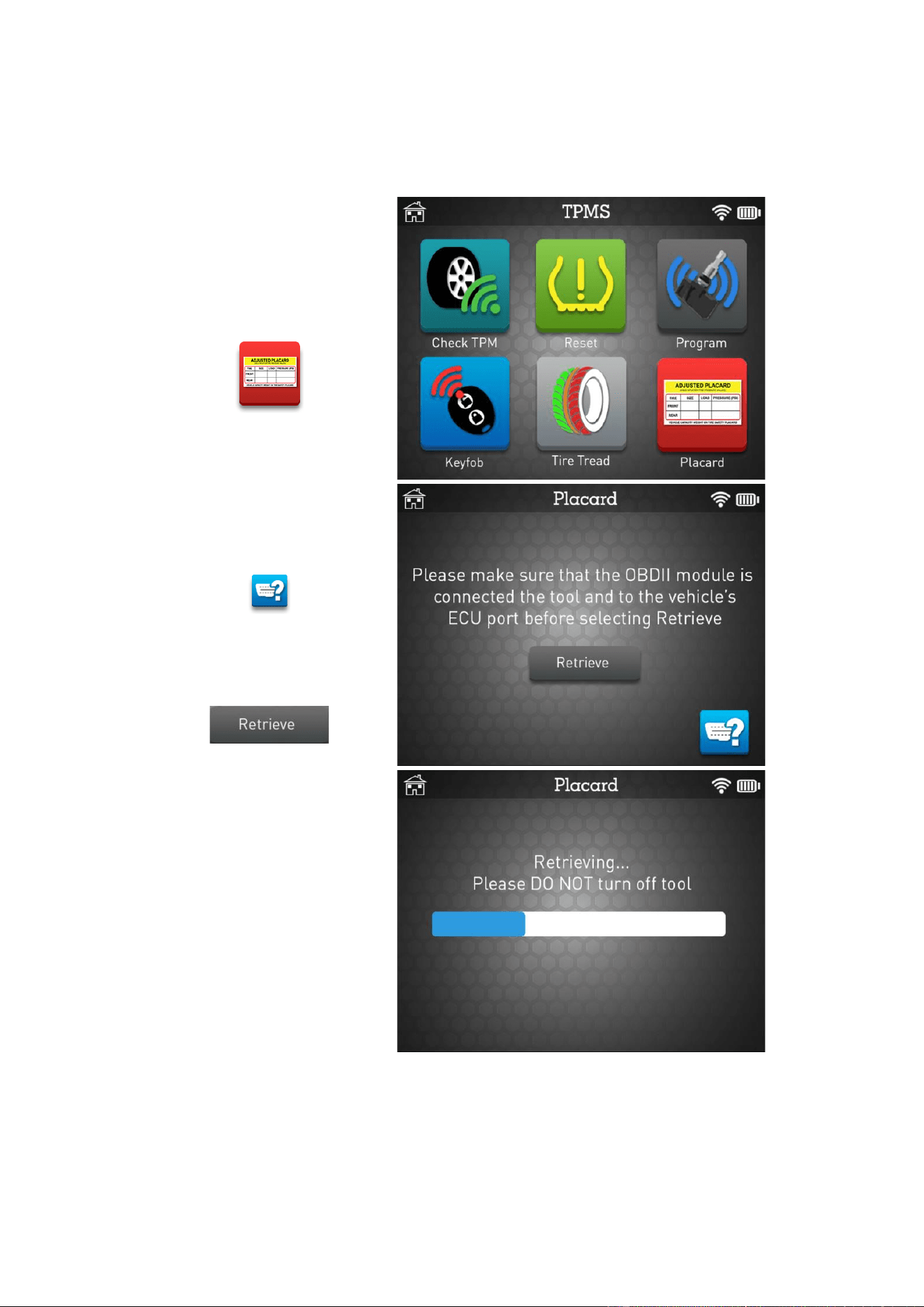
6. PLACARD VALUES ADJUSTMENT
This section is to adjust internal ECU placard values to accommodate different tire types
and sizes.
Click the Placard icon to
adjust the values.
Click the OBDII icon to
display the location of the
OBD socket.
When ready, click the
Retrieve button.
Please wait during the
retrieving process.
MATCO TOOLS MAXTPMS 2.0 - User Guide
UM-MDMAX-MA2-01 User manual MATCO TOOLS MAXTPMS 2.0 Page 26/47
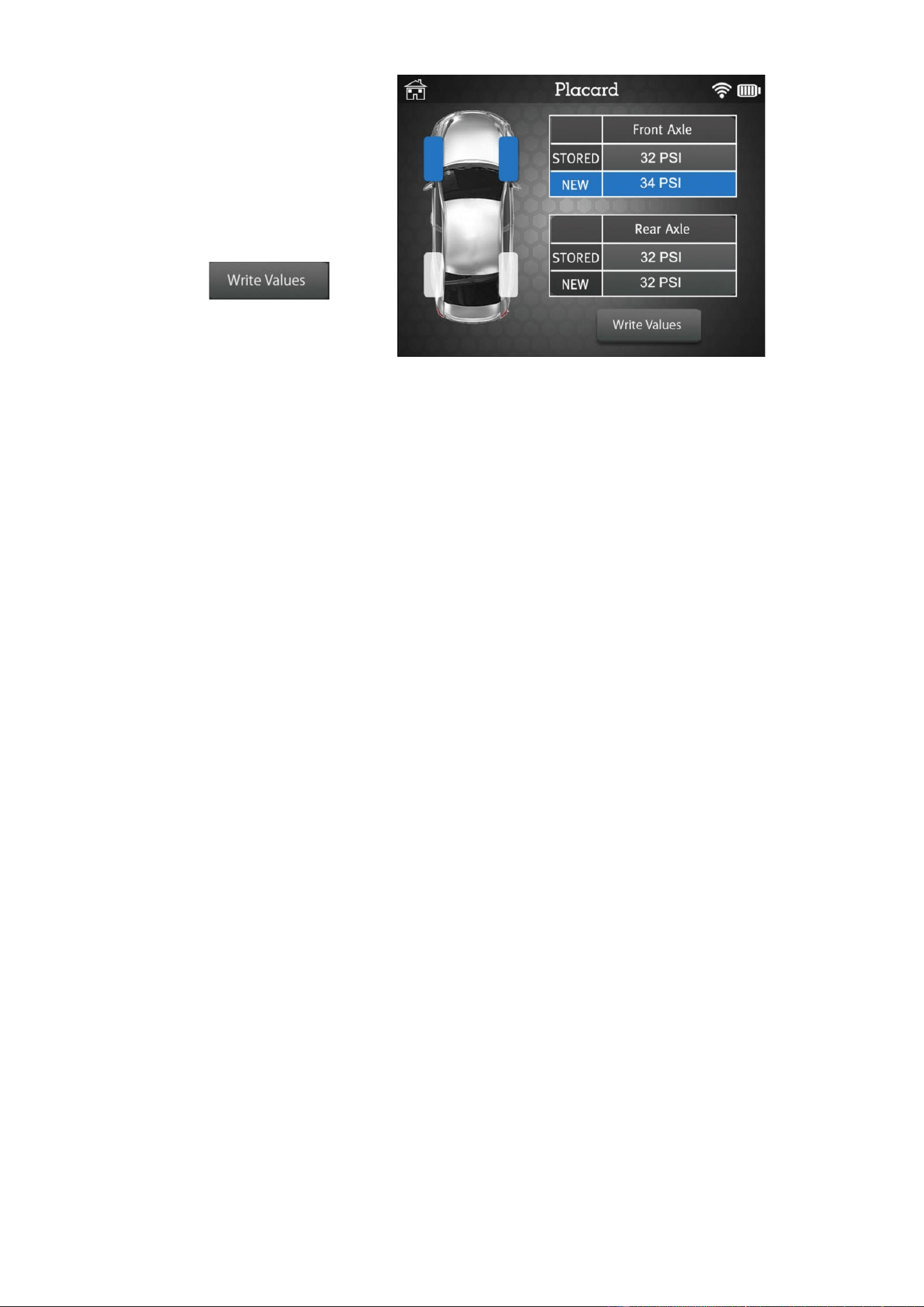
Enter the desired values
into the table.
When ready, click Write
values button.
MATCO TOOLS MAXTPMS 2.0 - User Guide
UM-MDMAX-MA2-01 User manual MATCO TOOLS MAXTPMS 2.0 Page 27/47
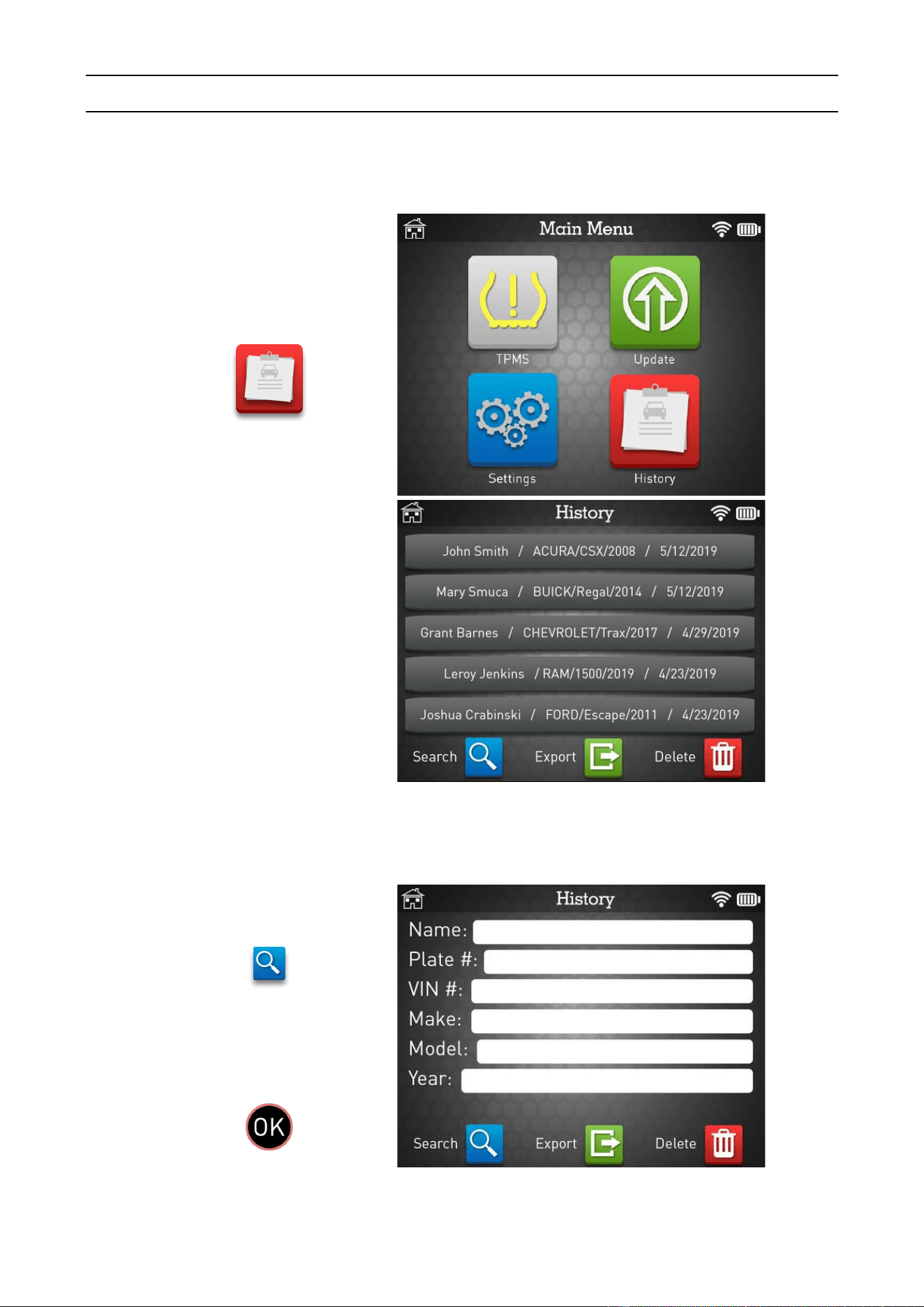
HISTORY
This section is to view the job history and access to the search and export functionalities.
Click the History icon.
Click a record into the list
to jump to the saved data.
TPMS sensors detailed
information and TTD jobs
are recorded into the
device memory.
1. SEARCH
Click the Search button to
search into the job list.
Edit the fields with your
information then press OK
to search.
MATCO TOOLS MAXTPMS 2.0 - User Guide
UM-MDMAX-MA2-01 User manual MATCO TOOLS MAXTPMS 2.0 Page 28/47
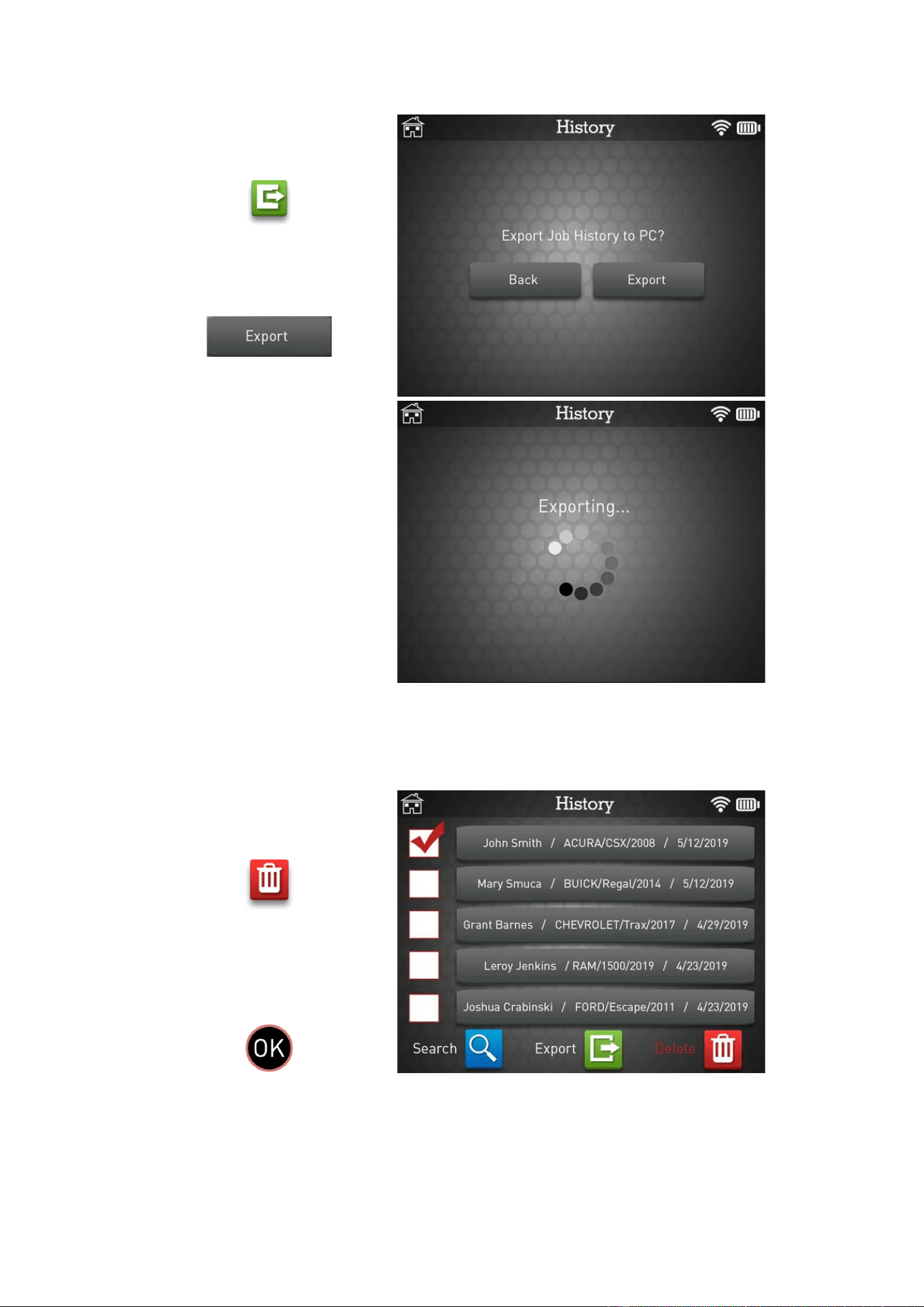
2. EXPORT
Click the Export button.
Click Export button to send
the job history to the PC.
Please wait during the
export process.
3. DELETE
Click the Delete button to
erase a record from the
job list.
Tick the records you want
to delete then press OK to
apply.
MATCO TOOLS MAXTPMS 2.0 - User Guide
UM-MDMAX-MA2-01 User manual MATCO TOOLS MAXTPMS 2.0 Page 29/47
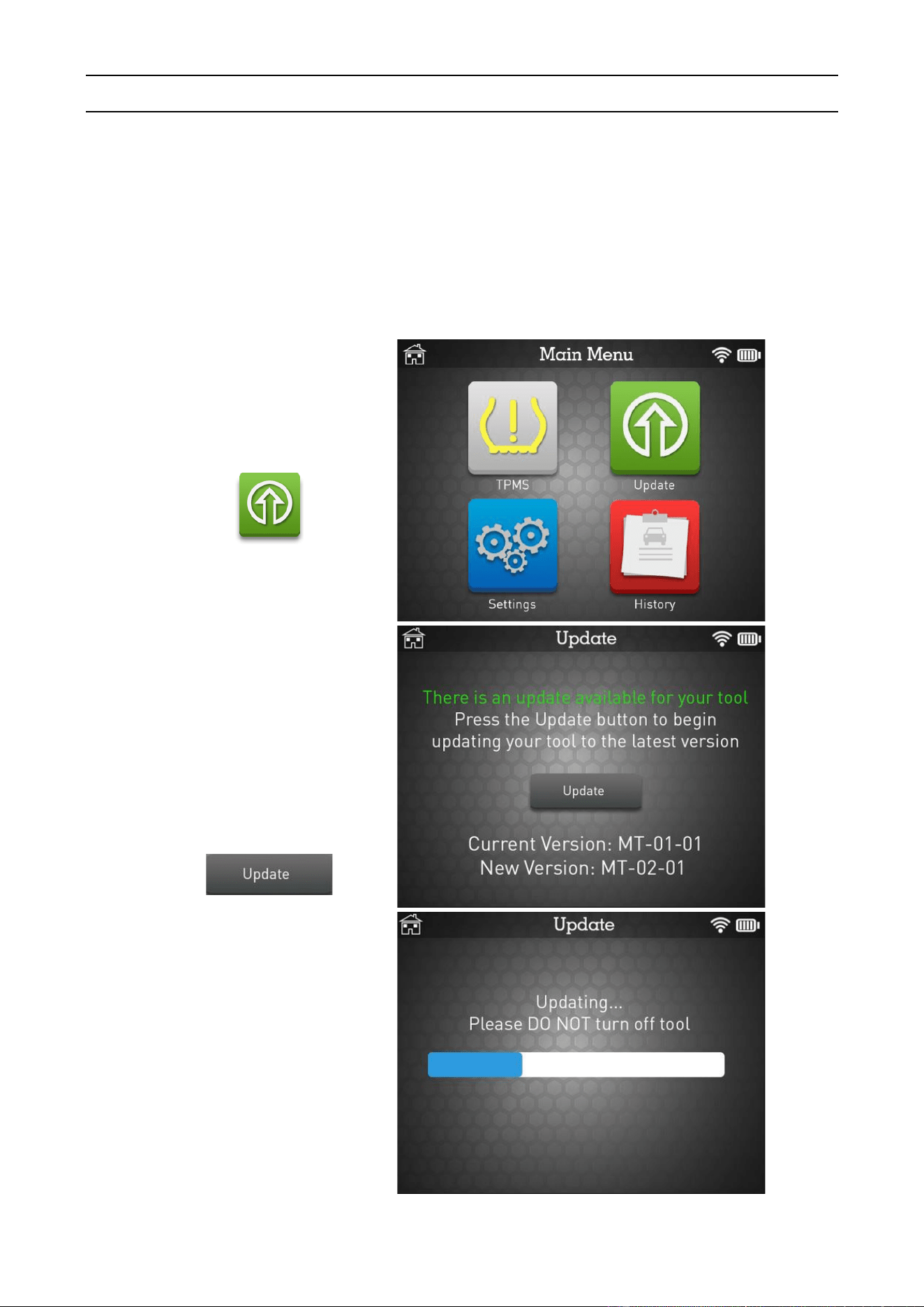
WIFI UPDATE
This section is to update the software of the TPMS tool to get new coverage and new
features.
➢ First ensure to correctly setup your TPMS device WiFi connection before attempting
to wirelessly update. Go to WiFi settings section in this guide to check how to
proceed.
Click the Update icon.
You will be notified if a
new software update if
available for your tool.
Ensure your battery is at a
minimum of 50% charge.
When you are ready, click
the Update button to
proceed.
Please wait during the
update process and do not
turn off your tool.

MATCO TOOLS MAXTPMS 2.0 - User Guide
UM-MDMAX-MA2-01 User manual MATCO TOOLS MAXTPMS 2.0 Page 30/47
You will be notified when
the update is done.
Click Restart to reset your
device and complete the
update process.
MATCO TOOLS MAXTPMS 2.0 - User Guide
UM-MDMAX-MA2-01 User manual MATCO TOOLS MAXTPMS 2.0 Page 31/47
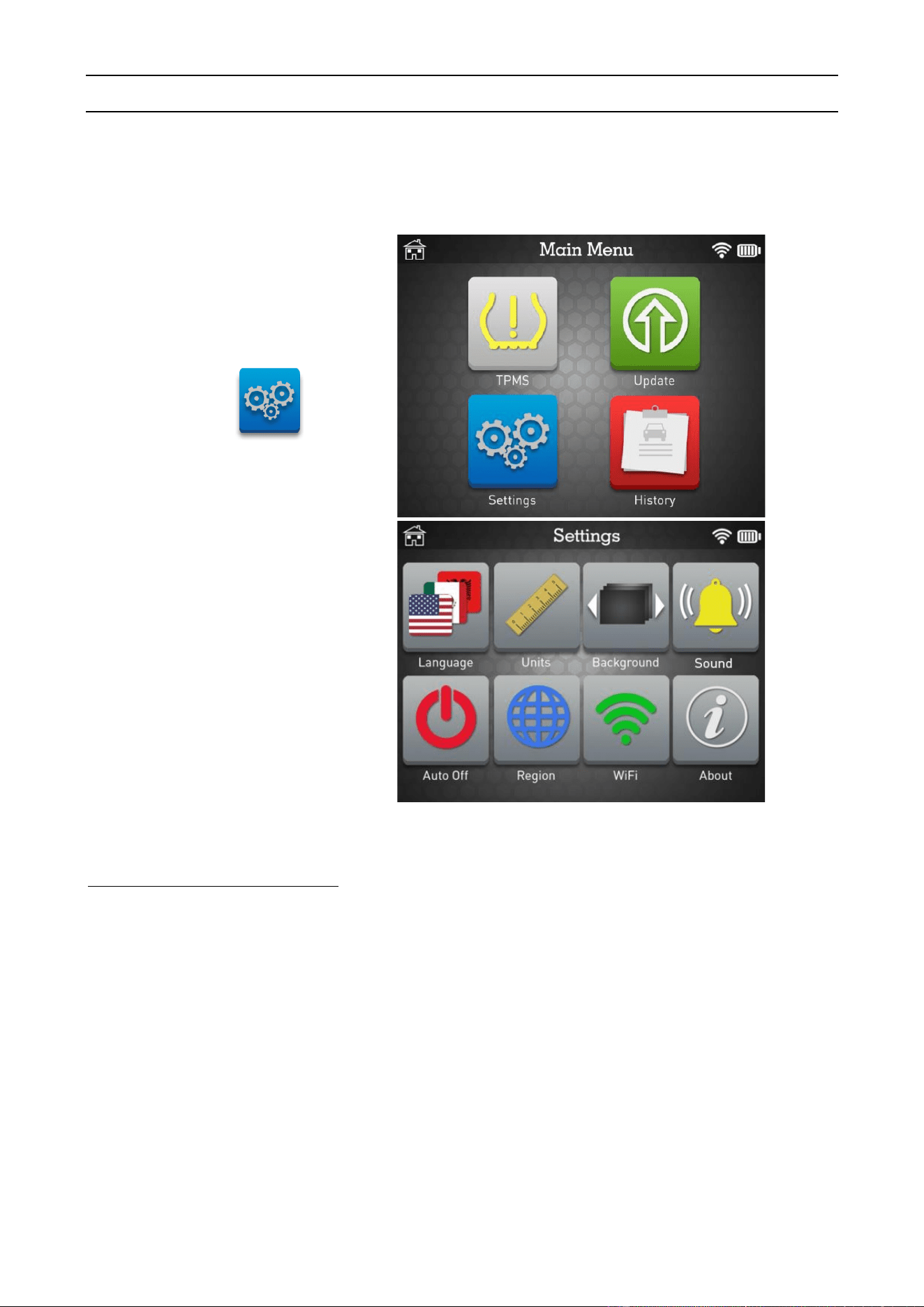
SETTINGS
This section is to change multiple different settings such as language, units, region, WiFi
connectivity and to check software version.
Click the Settings icon.
Select function or settings
you want to check or
modify.
Key functional descriptions:
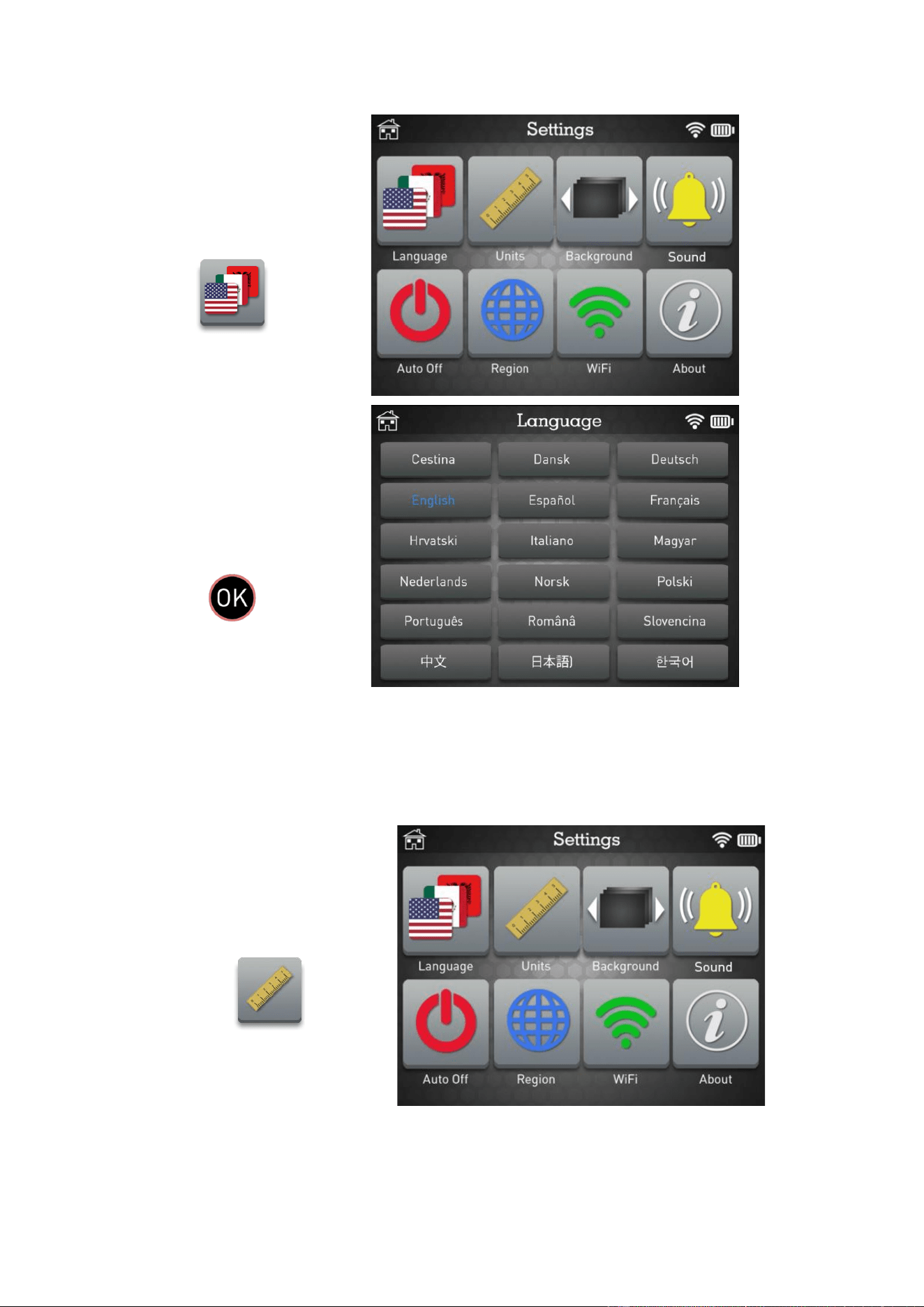
LANGUAGE: change the language of the tool interface.
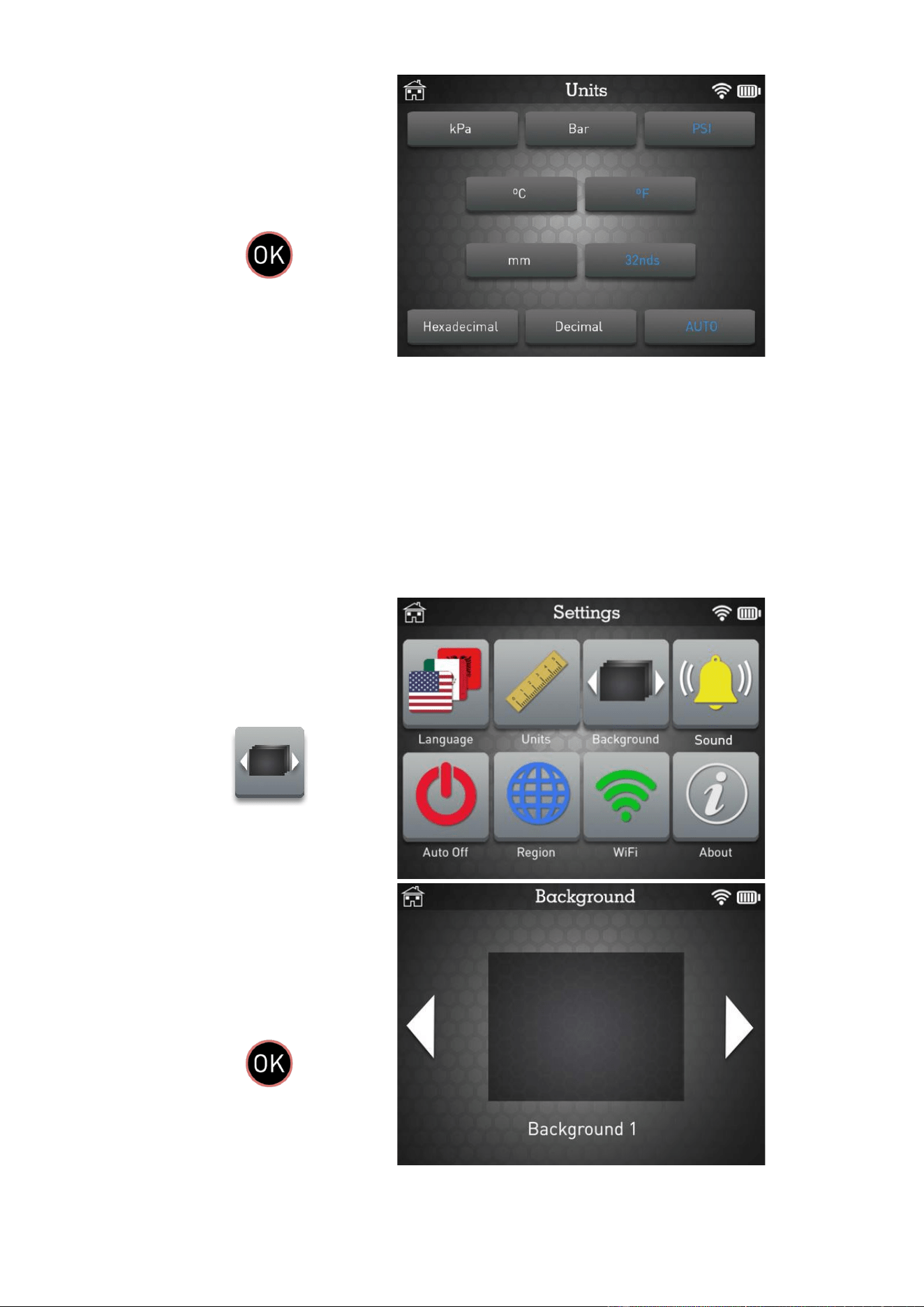
UNITS: change air pressure, temperature, tread depth and sensor ID display units.
BACKGROUND: change the background image.
SOUND: turn sound to ON or OFF.
AUTO OFF: time to turn off the device automatically after not being operated.
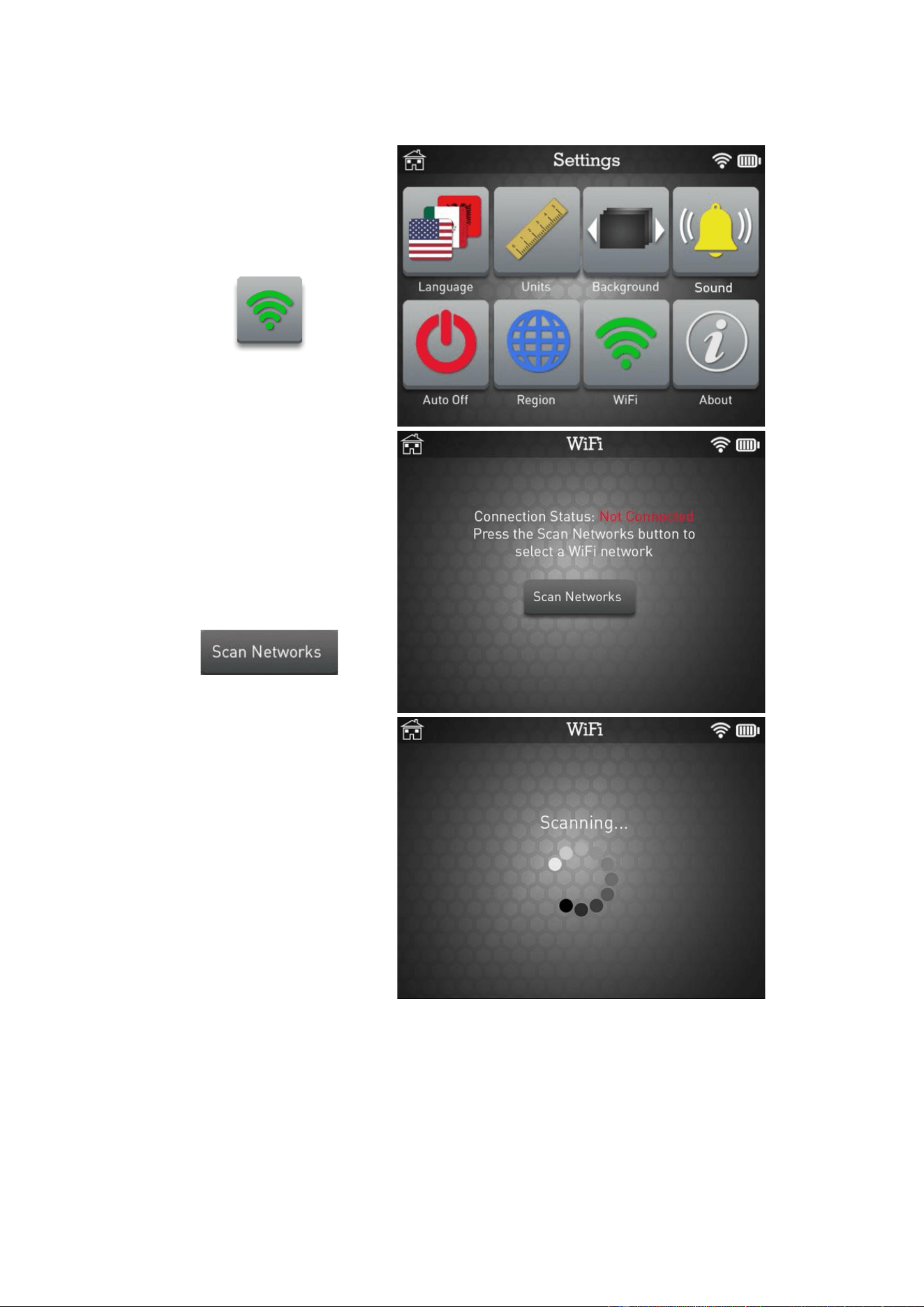
REGION: select the area of work, AMERICA, EUROPE, JAPAN, KOREA.
WIFI: configure WiFi settings to connect your TPMS tool to the Internet for wireless updates.
ABOUT: display the current software version and information about the device.
MATCO TOOLS MAXTPMS 2.0 - User Guide
UM-MDMAX-MA2-01 User manual MATCO TOOLS MAXTPMS 2.0 Page 32/47
1. LANGUAGE
Click the Language
icon.
Change the
language and press
OK to apply
➢ Please wait during the loading of the new selected language.
2. UNITS
Click the Units icon.
MATCO TOOLS MAXTPMS 2.0 - User Guide
UM-MDMAX-MA2-01 User manual MATCO TOOLS MAXTPMS 2.0 Page 33/47
Change the values and
press OK to apply
➢ For ID sensor display, the TPMS tool apply the following rule:
▪ HEXADECIMAL: force to display sensor ID in hexadecimal (0 to F).
▪ DECIMAL: force to display sensor ID in decimal (0 to 9).
▪ AUTO: display sensor ID as sent by the sensor.
3. BACKGROUND
Click the Background icon.
Change the value and
press OK to apply
MATCO TOOLS MAXTPMS 2.0 - User Guide
UM-MDMAX-MA2-01 User manual MATCO TOOLS MAXTPMS 2.0 Page 34/47
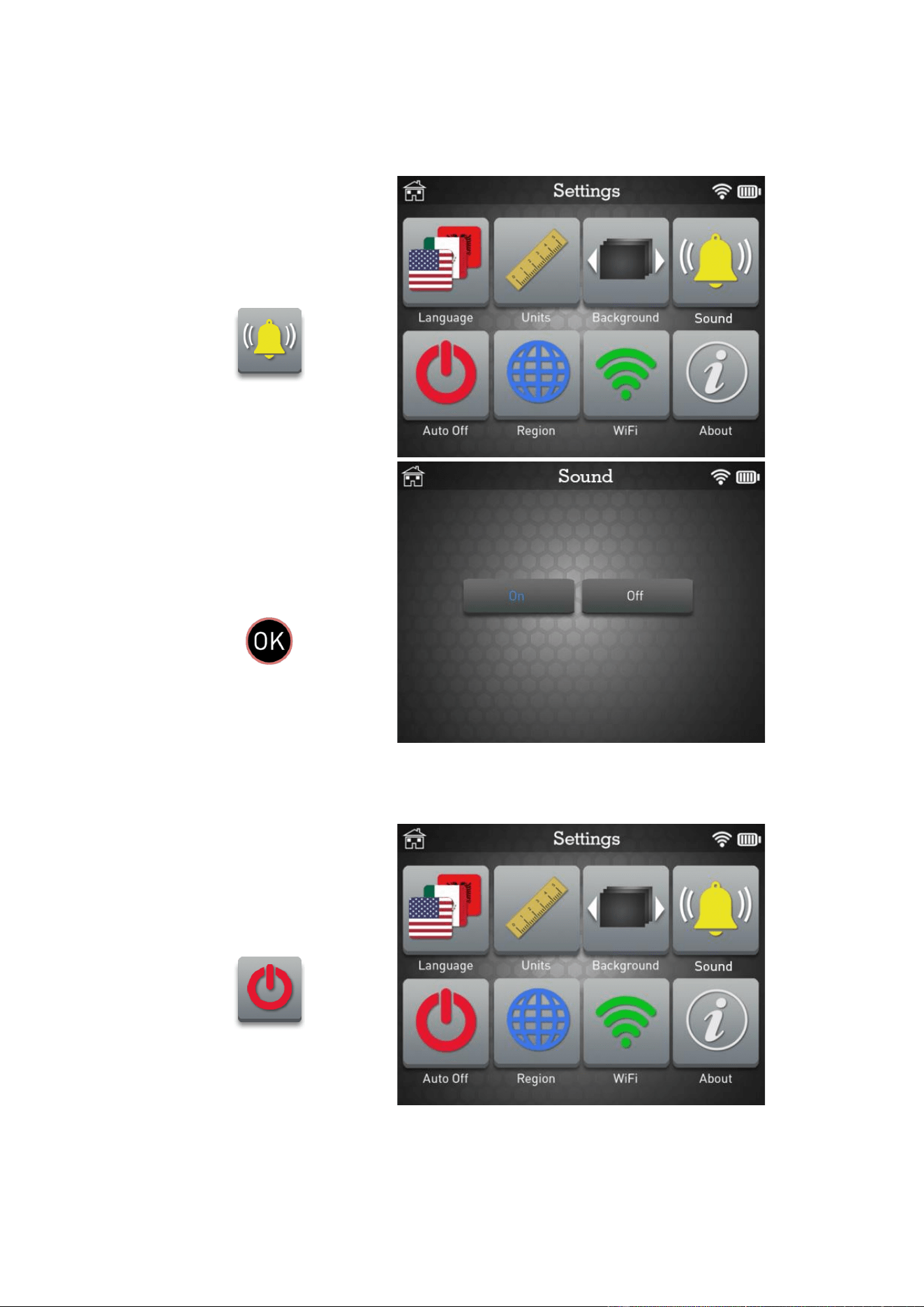
4. SOUND
When sound on is set to ON, a beep is triggered when the sensor is detected.
Click the Sound icon.
Change the value and
press OK to apply
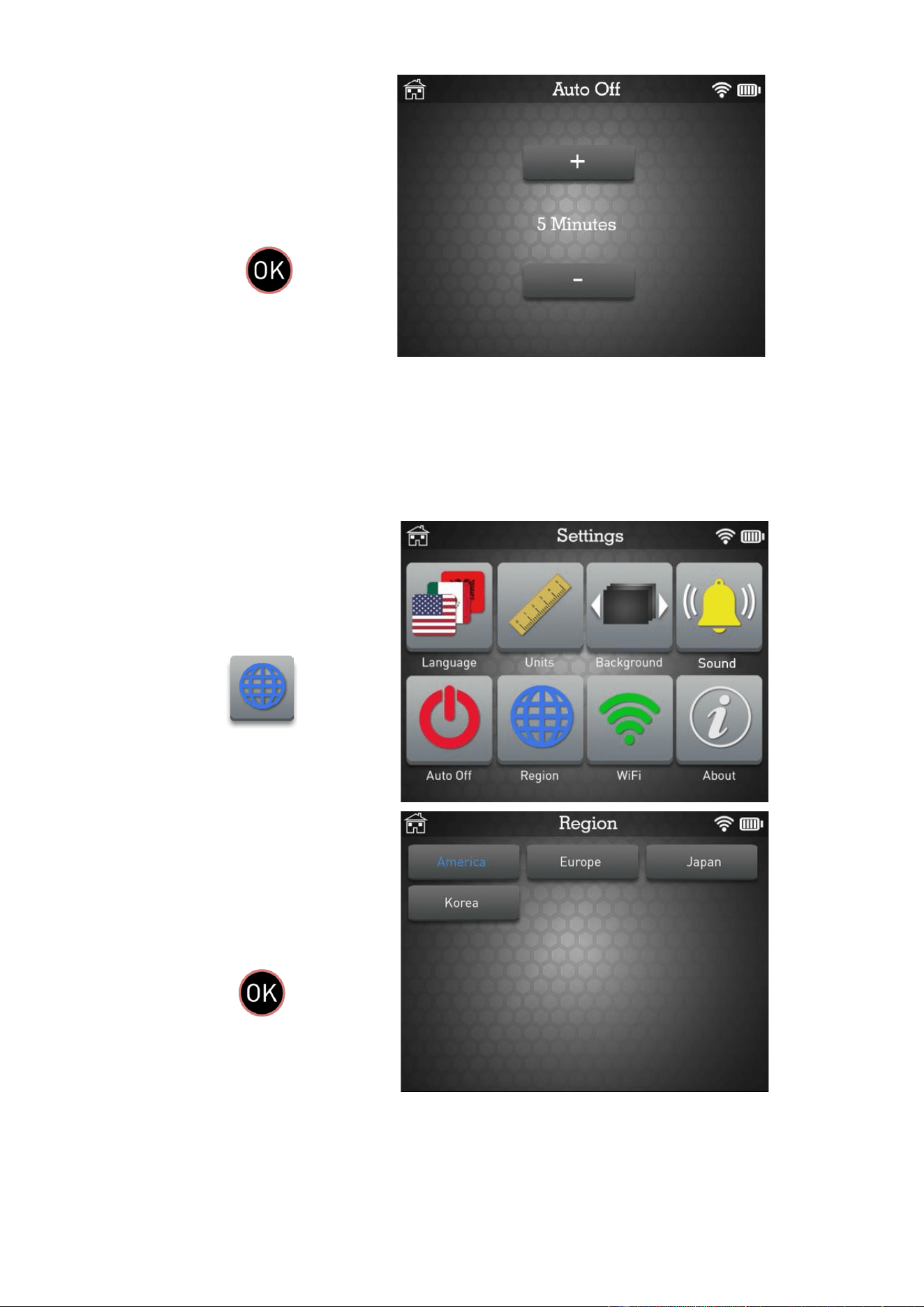
5. AUTO OFF
Click the Auto Off icon.
MATCO TOOLS MAXTPMS 2.0 - User Guide
UM-MDMAX-MA2-01 User manual MATCO TOOLS MAXTPMS 2.0 Page 35/47
Change the value and
press OK to apply
➢ Change by 60 min (maximum) to DISABLED (never).
6. REGION
Click the Region icon.
Change the value and
press OK to apply
➢ Please wait during the loading of the new database for the selected zone.
MATCO TOOLS MAXTPMS 2.0 - User Guide
UM-MDMAX-MA2-01 User manual MATCO TOOLS MAXTPMS 2.0 Page 36/47
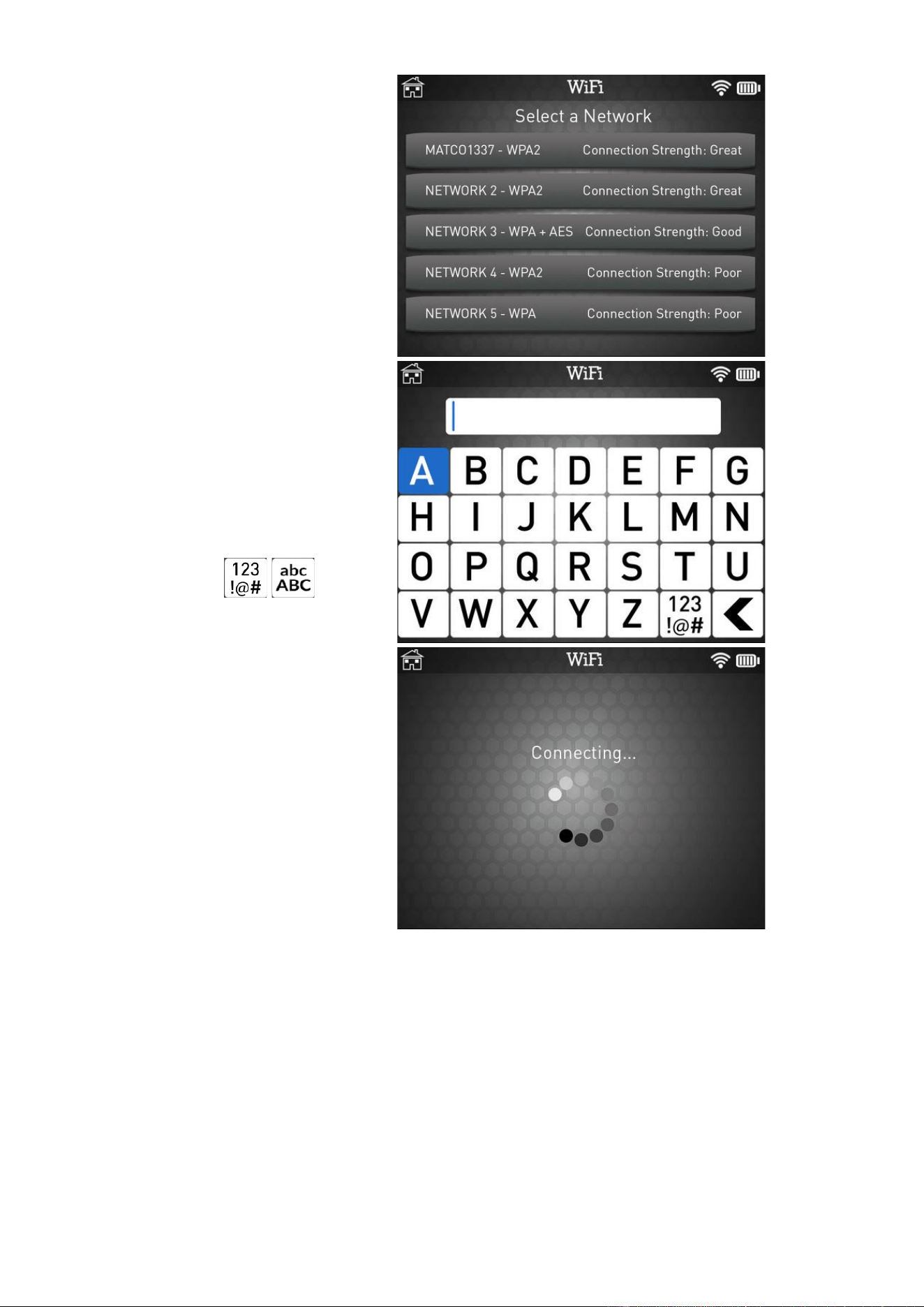
7. WIFI
Click the WiFi icon.
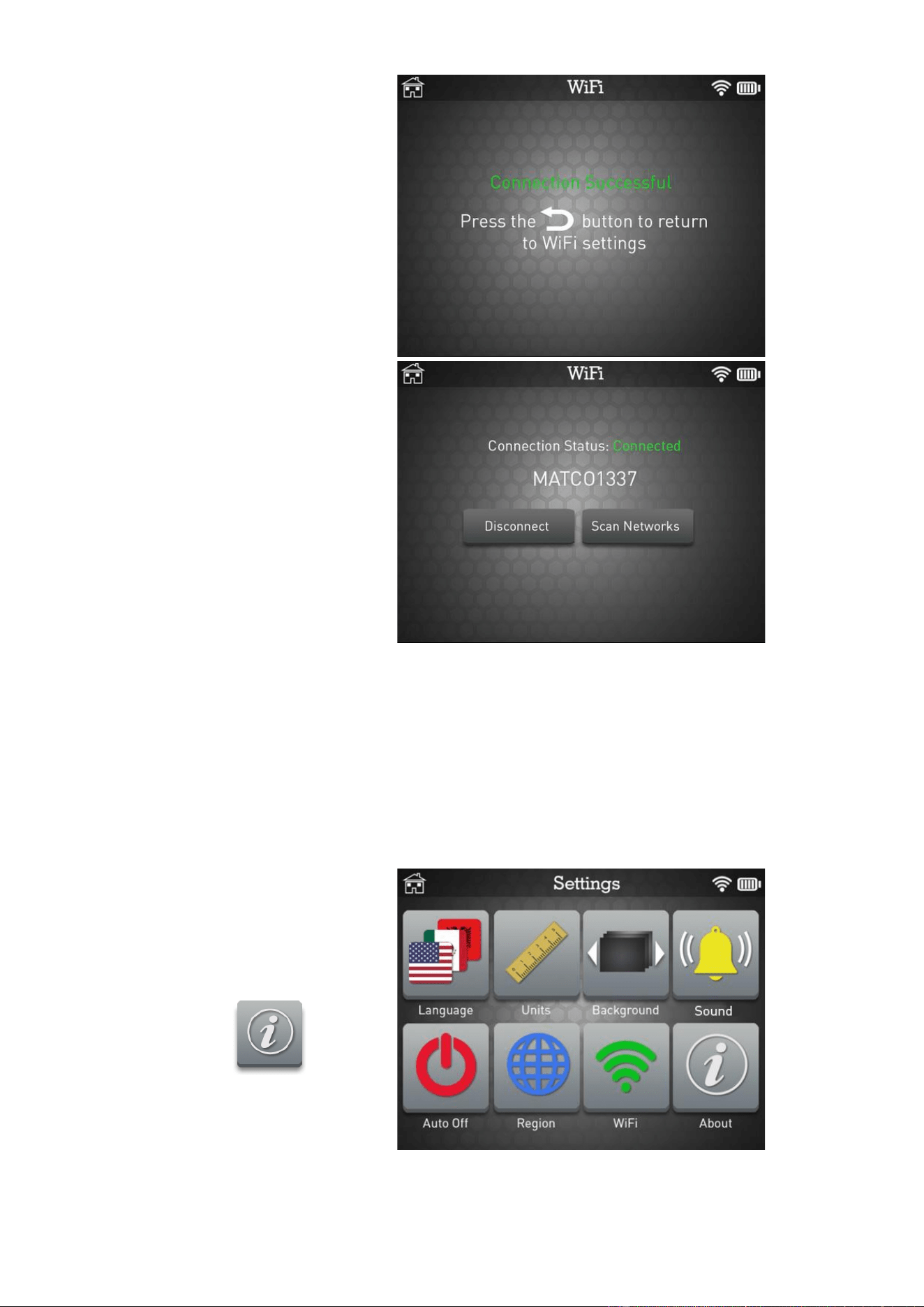
The device shows the
connection status.
Press Scan Networks to
search WiFi networks.
Please wait during the
WiFi scanning process.
MATCO TOOLS MAXTPMS 2.0 - User Guide
UM-MDMAX-MA2-01 User manual MATCO TOOLS MAXTPMS 2.0 Page 37/47
Select the WiFi network
you want to use for
wireless updates.
Enter the WiFi password
for the selected network.
Use the Numbers / Letters
button to switch between
keyboards.
Please wait during the
WiFi connection process.
MATCO TOOLS MAXTPMS 2.0 - User Guide
UM-MDMAX-MA2-01 User manual MATCO TOOLS MAXTPMS 2.0 Page 38/47
The device confirms the
connection.
By going back to the WiFi
settings menu you can
check the connection
status and change the
selected WiFi network if
needed.
8. ABOUT
This menu displays the current software version and information about the device.
Click the About icon.

MATCO TOOLS MAXTPMS 2.0 - User Guide
UM-MDMAX-MA2-01 User manual MATCO TOOLS MAXTPMS 2.0 Page 39/47
Press OK to exit.
MATCO TOOLS MAXTPMS 2.0 - User Guide
UM-MDMAX-MA2-01 User manual MATCO TOOLS MAXTPMS 2.0 Page 40/47
MISCELLANEOUS
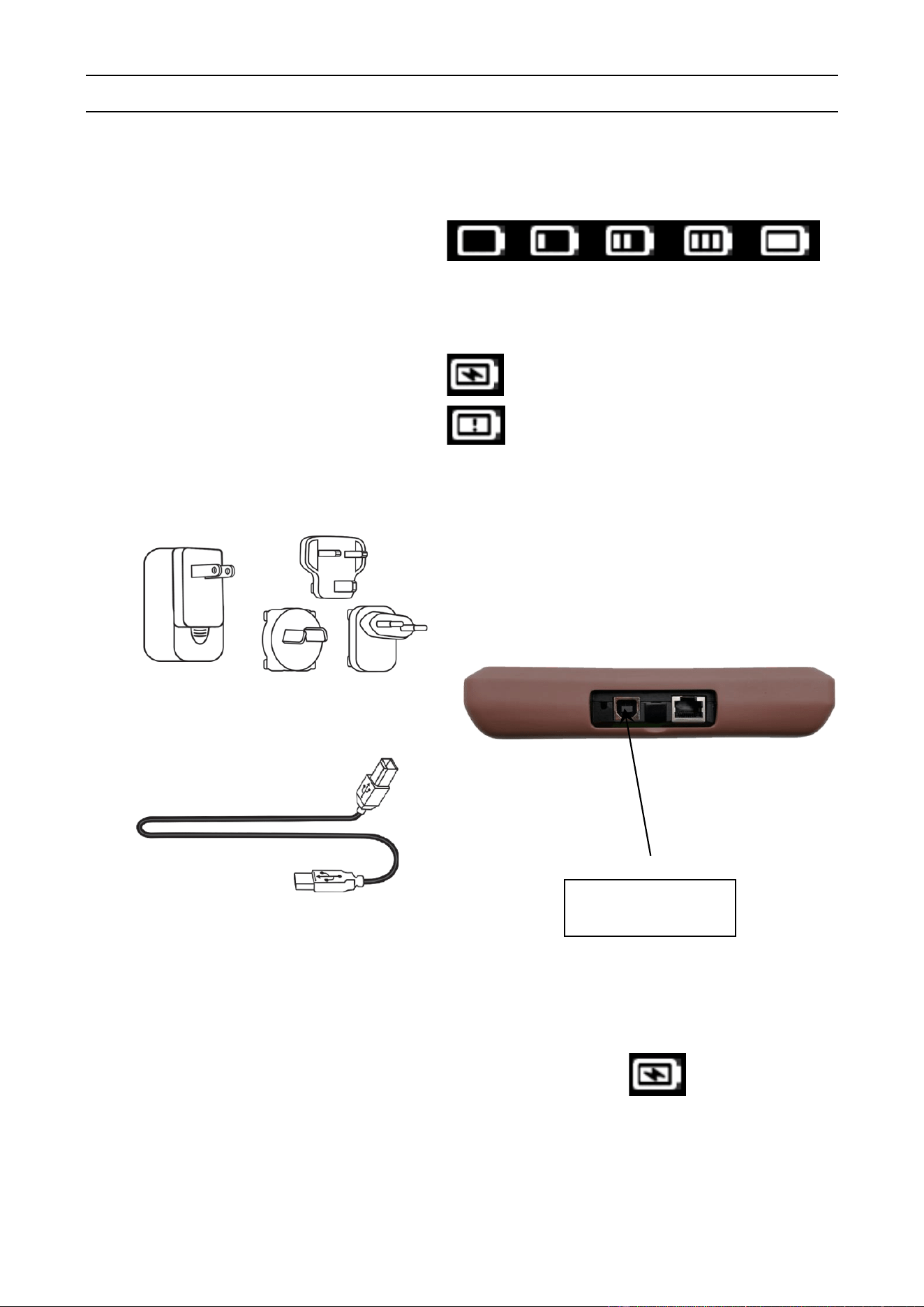
1. CHARGE
Low Battery Indication
Your TPMS TOOL incorporates a low
battery detection circuit. Battery life is an
average of 300 sensor tests per battery
charge (approximately 60 to 80 vehicles)
this may change depending on the
sensor model.
Battery indicator status:
0% 25% 50% 75% 100%
When 0% is flashing, the tool will turn off after 10
seconds.
The battery is charging.
There is an issue with the battery -
please contact after sales service.
DO NOT use the tool with low battery status because the transmission and emission may
not be reliable.
Universal power supply for charging
USB cable for charging and updating
When the battery is low, the “battery status” appears every 10 seconds. This display will
stop when the battery gains power.
Plug the USB cable between the tool and the charger adapter, and then plug the charger
adapter into an appropriate outlet. The battery icon will change to
Battery replacement
The tool must be returned to the factory for battery replacement.
Opening the tool or tampering with the seal placed on the tool, if broken, will void the
warranty
USB power
supply connector

MATCO TOOLS MAXTPMS 2.0 - User Guide
UM-MDMAX-MA2-01 User manual MATCO TOOLS MAXTPMS 2.0 Page 41/47
2. TROUBLESHOOTING
If the TPMS TOOL is unable to trigger one or more of the sensors, please use the following
troubleshooting procedure:
1) The vehicle does not have a sensor even though a metal valve stem is present. Be
aware of rubber style snap-in stems used on TPMS systems.
2) The sensor itself may be damaged or defective.
3) Wrong make, model, year selected.
4) Your TPMS TOOL may require a software upgrade.
5) Your TPMS TOOL is damaged or defective.
Please contact your tool supplier for further assistance.
3. TOOL UPDATE
Updating your TPMS TOOL
When a new protocol becomes available, it will become necessary to updatate your tool.
Please follow the steps below:
3.1. WIFI UPDATE
The best and seamless option to update your TPMS tool is to use the WiFi update function.
Please refer to the dedicated section into this guide to update your tool wirelessly.
3.2. INSTALL WEB VT PC SUITE
Another option to update your TPMS tool is to use the Web VT PC suite.
1) Visit www.maxtpms2.com/software and download the Web VT software.
2) Click on the Web VT icon to start the installer program.
3) A screen will appear that says “Welcome to the Install Shield Wizard for Web VT.”
Click “Next >”
4) A window will appear for choosing the destination location, click “Next >”
5) Follow the instructions until the window with the “Finish” button appears.
6) Click “Finish” when the Web VT installation is complete.
Note: To order annual software license update, please see your dealer for availability and
pricing.
IMPORTANT: Temporarily turn off all anti-virus and spam blocking software on your
computer. This is necessary to ensure a successful update.

MATCO TOOLS MAXTPMS 2.0 - User Guide
UM-MDMAX-MA2-01 User manual MATCO TOOLS MAXTPMS 2.0 Page 42/47
3.3. USB UPDATING WITH WEB VT
Before updating, ensure that the TPMS tool battery reach at least 50% charge.
1) Connect the USB cable from the TPMS TOOL to the PC, and turn the device on.
2) Start Web VT software.
3) A screen will appear indicating “Update Device”.
4) You can also export job data from here as well.
5) Press “Yes” to update to the latest software version. The update will take several
minutes to complete and the status bar will indicate the percentage of update completed.
Warning!
Turn off the screen saver function on your PC and do not disconnect the TPMS TOOL
from the PC or turn off your computer during the update process. Doing so could
result in serious damage to the tool.

MATCO TOOLS MAXTPMS 2.0 - User Guide
UM-MDMAX-MA2-01 User manual MATCO TOOLS MAXTPMS 2.0 Page 43/47
4. LIMITED HARDWARE WARRANTY
Matco Tools Limited Hardware
Warranty
Matco Tools warrants to the original purchaser
that your Matco Tools hardware product shall
be free from material and workmanship
defects for the length of time identified on your
product package and/or contained in your user
documentation, from the date of purchase.
Except where prohibited by applicable law,
this warranty is nontransferable and is limited
to the original purchaser. This warranty gives
you specific legal rights, and you may also
have other rights that vary under local laws.
Remedies
Matco Tools’ entire liability and your exclusive
remedy for any breach of warranty shall be, at
Matco Tools’ option, (1) to repair or replace the
hardware, or (2) to refund the price paid,
provided that the hardware is returned to the
point of purchase or such other place as
Matco Tools may direct with a copy of the sales
receipt or dated itemized receipt. Shipping and
handling charges may apply except where
prohibited by applicable law. Matco Tools may,
at its option, use new or refurbished or used
parts in good working condition to repair or
replace any hardware product. Any replacement
hardware product will be warrantied for the
remainder of the original warranty period or thirty
(30) days, whichever is longer or for any
additional period of time that may be applicable
in your jurisdiction.
This warranty does not cover problems or
damage resulting from (1) accident, abuse,
misapplication, or any unauthorized repair,
modification or disassembly; (2) improper
operation or maintenance, usage not in
accordance with product instructions or
connection to improper voltage supply; or (3)
use of consumables, such as replacement
batteries, not supplied by Matco Tools except
where such restriction is prohibited by applicable
law.
How to Obtain Warranty Support
Before submitting a warranty claim, we
recommend you visit the support section at
https://matco.carscan.com/Support/Warranty
for technical assistance. Valid warranty claims
are generally processed through the point of
purchase during the first thirty (30) days after
purchase; however, this period of time may vary
depending on where you purchased your
product – please check with Matco Tools or the
retailer where you purchased your product for
details. Warranty claims that cannot be
processed through the point of purchase and
any other product related questions should be
addressed directly to Matco Tools. The
addresses and customer service contact
information for Matco Tools can be
found in the documentation accompanying
your product and on the web at
https://matco.carscan.com/Support/Warranty
Limitation of Liability
MATCO TOOLS SHALL NOT BE LIABLE
FOR ANY SPECIAL, INDIRECT,
INCIDENTAL OR CONSEQUENTIAL
DAMAGES WHATSOEVER, INCLUDING
BUT NOT LIMITED TO LOSS OF PROFITS,
REVENUE OR DATA (WHETHER DIRECT
OR INDIRECT) OR COMMERCIAL LOSS
FOR BREACH OF ANY EXPRESS OR
IMPLIED WARRANTY ON YOUR PRODUCT
EVEN IF MATCO TOOLS HAS BEEN
ADVISED OF THE POSSIBILITY OF SUCH
DAMAGES. Some jurisdictions do not allow
the exclusion or limitation of special, indirect,
incidental or consequential damages, so the
above limitation or exclusion may not apply to
you.
Duration of Implied Warranties
EXCEPT TO THE EXTENT PROHIBITED BY
APPLICABLE LAW, ANY IMPLIED
WARRANTY OR CONDITION OF
MERCHANTABILITY OR FITNESS ON THIS
HARDWARE PRODUCT IS LIMITED IN
DURATION TO THE DURATION OF THE
APPLICABLE LIMITED WARRANTY PERIOD
FOR YOUR PRODUCT. Some jurisdictions
do not allow limitations on how long an implied
warranty lasts, so the above limitation may not
apply to you.
National Statutory Rights
Consumers have legal rights under applicable
national legislation governing the sale of
consumer goods. Such rights are not affected
by the warranties in this Limited Warranty.
No Other Warranties
No Matco Tools dealer, agent, or employee is
authorized to make any modification,
extension, or addition to this warranty.

MATCO TOOLS MAXTPMS 2.0 - User Guide
UM-MDMAX-MA2-01 User manual MATCO TOOLS MAXTPMS 2.0 Page 44/47
Warranty Periods
Please note that in the European Union, any
warranty period less than two years shall be
increased to two years.
5. SAFETY BATTERY AND CHARGE
INFORMATION
You must read and understand these
safety instructions and warnings before
using or charging your lithium-Ion
batteries.
Operating environment
Remember to follow any special current
regulations any area, and always switch off
your device when its use is prohibited or when
it may cause interference or danger.
Use the device only in its normal operating
positions.
Your device and its enhancements may
contain small parts. Keep them out of the
reach of small children.
About Charging
Only use the charger supplied with your
device. Using another type of charger will
result in malfunction and/or danger.
When the red LED turns off, the charge is
complete.
About the Charger
Do not use the charger in a high moisture
environment. Never touch the charger when
your hands or feet are wet.
Allow ventilation around the charger when
using it. Do not cover the charger with paper
or other objects that will reduce cooling. Do not
use the charger while it is inside a carrying
case.
Connect the charger to a proper power source.
The voltage requirements are found on the
product case and/or packaging.
Do not use the charger if the wires become
damaged. Do not attempt to service the unit.
There are no serviceable parts inside. Replace
the unit if it is damaged or exposed to excess
moisture.
This charger is not a toy and should not be
used by children or infirm persons without
proper training or supervision.
Do not use it as a power source.
Unplug it before attempting to service or clean
it.
About the Battery
CAUTION: This unit contains an internal
Lithium-Ion battery. The battery can burst or
explode, releasing hazardous chemicals. To
reduce the risk of fire or burns, do not
disassemble, crush, pierce or dispose of the
battery or the instrument in fire or water, do not
short circuit or short the contacts with a metal
object.
Use a specified charger approved by the
Matco Tools manufacturer and supplied with
the device.
The tool must be returned to the factory for
battery replacement.
Opening the tool or tampering with the seal
placed on the tool, if broken, will void the
warranty
Safety for Lithium-Ion battery use
NEVER leave the battery unattended during
the charging process. The device must
imperatively be placed on a non-flammable
surface during charging (ceramic platter or
metal box).
Charge the Lithium-Ion battery ONLY with the
charger provided.
NEVER use a Ni-MH (Nickel Metal Hydride)
type battery charger to charge a Lithium-Ion
battery.
If the battery begins to overheat more than
60°C (140°F), STOP CHARGING
IMMEDIATELY. The battery should NEVER
exceed 60°C (140°F) during the charging
process.
NEVER charge the battery immediately after
use and while still hot. Leave it cool down to
ambient temperature.
If you see any smoke or liquid coming from the
battery, stop the charge immediately.
Disconnect the charger and place the tool in
an isolated area for at least 15 minutes. DO
NOT USE THE BATTERY AGAIN. Return the
device to your retailer.
Keep a fire extinguisher for electrical fires
handy while charging the battery. In the
unlikely event that the Lithium-Ion battery
catches fire, DO NOT use water to extinguish
the fire. Take some sand or use a fire
extinguisher as described above.

MATCO TOOLS MAXTPMS 2.0 - User Guide
UM-MDMAX-MA2-01 User manual MATCO TOOLS MAXTPMS 2.0 Page 45/47
The Lithium-Ion battery elements must be
neutralized to be made unusable. The
neutralization process must be performed
under strict safety conditions. It is
recommended that you return the tool to us.
We will extract the battery and give it to a
specialized recycler.
Do not dispose of Lithium-Ion batteries
with your general waste.
The Lithium-Ion battery is not suitable for
children under 14 years. Keep all Lithium-Ion
batteries out of the reach of children
To prevent leakage or other hazards, do not
store batteries above 60°C (140°F). Never
leave the battery inside a car (for example)
where the temperature could be very high or in
a place where temperatures could exceed
60°C (140°F). Store the battery in a dry place
to avoid contact with liquid, whatever the type.
Only store the battery on a nonflammable
surface, heat resistant, non conductive and
away from all flammable materials or sources.
Always store the battery out of the reach of
children.
A Lithium-Ion battery should be stored with a
minimum charge of 30%. If you store it
completely discharged, it will quickly become
unusable.
Failure to follow these safety precautions may
cause serious personal injury and damage to
property. You may even cause a fire!
The Matco Tools Company disclaims any
responsibility for damage sustained in the
event of non compliance with these safety
instructions.
Using a Lithium-Ion battery has a high risk of
fire and can cause serious damage to property
and persons. The user agrees to accept the
risk and responsibility.
The Matco Tools Company is not able to
monitor the proper use of the battery with each
customer (charge, discharge, storage etc.). It
cannot be held responsible for any damage to
persons or property.
6. FCC STATEMENTS
Federal Communication Commission
Interference Statement
This equipment has been tested and found to
comply with the limits for a Class B digital
device, pursuant to Part 15 of the FCC Rules.
These limits are designed to provide
reasonable protection against harmful
interference in a residential installation. This
equipment generates, uses and can radiate
radio frequency energy and, if not installed
and used in accordance with the instructions,
may cause harmful interference to radio
communications. However, there is no
guarantee that interference will not occur in a
particular installation. If this equipment does
cause harmful interference to radio or
television reception, which can be determined
by turning the equipment off and on, the user
is encouraged to try to correct the interference
by one of the following measures:
- Reorient or relocate the receiving antenna.
- Increase the separation between the
equipment and receiver.
- Connect the equipment into an outlet on a
circuit different from that to which the receiver
is connected.
- Consult the dealer or an experienced
radio/TV technician for help.
FCC Caution: Any changes or modifications
not expressly approved by the party
responsible for compliance could void the
user's authority to operate this equipment.
This device complies with Part 15 of the FCC
Rules. Operation is subject to the following two
conditions: (1) This device may not cause
harmful interference, and (2) this device must
accept any interference received, including
interference that may cause undesired
operation.

MATCO TOOLS MAXTPMS 2.0 - User Guide
UM-MDMAX-MA2-01 User manual MATCO TOOLS MAXTPMS 2.0 Page 46/47
7. RECYCLING
Do not dispose of the rechargeable Lithium-Ion battery or the tool
and/or its accessories in the general waste.
These components must be collected and recycled.
The crossed-out wheeled waste bin means that the product must be taken to separate
collection at the end of the product's service life. This applies to your tool and also to
any enhancements marked with this symbol. Do not dispose of these products as
unsorted municipal waste. For further information, please contact Matco Tools.
MATCO TECH SUPPORT
US: 888-621-8767 (English)
Canada: 877-666-5325 (English/French)
Email address: help@supporttpms.com
For more information, guide and videos visit: www.maxtpms2.com

MATCO TOOLS MAXTPMS 2.0 - User Guide
UM-MDMAX-MA2-01 User manual MATCO TOOLS MAXTPMS 2.0 Page 47/47
INDEX
A
About .................................................................................. 38
Accessories .......................................................................... 2
Auto OFF............................................................................ 34
B
Background ........................................................................ 33
Battery ................................................................................ 43
C
Caution ........................................................................... 4, 43
Charge ............................................................................... 39
Charger .............................................................................. 43
Charging....................................................................... 39, 43
Check TPM ........................................................................ 10
Copy sensor ....................................................................... 16
Copy set ............................................................................. 17
Create sensor ............................................................... 14, 15
Customer information data ................................................. 11
D
Delete record ...................................................................... 28
E
Environment ....................................................................... 43
Export history ..................................................................... 28
Export job data ................................................................... 41
F
FFC Statements ................................................................. 44
Function keys ....................................................................... 6
H
History ................................................................................ 27
K
Keyfob test ......................................................................... 23
L
Language ........................................................................... 32
M
Main Menu ........................................................................... 8
Manual ID ........................................................................... 19
Manual relearn ................................................................... 11
O
OBD socket location ........................................................... 12
OBDII relearn ..................................................................... 12
OE part number .................................................................. 14
Operating instructions .......................................................... 7
Overview .............................................................................. 7
P
Placard values adjustment ................................................. 25
Power supply ...................................................................... 43
Product content .................................................................... 2
Program sensor .................................................................. 14
R
Read TPMS sensor ............................................................ 10
Recycling ............................................................................ 45
Region ................................................................................ 35
Reset TPMS ....................................................................... 11
Retrieve ID ......................................................................... 20
S
Safety instructions ................................................................ 3
Safety precautions .............................................................. 43
Save vehicle data ............................................................... 10
Search record ..................................................................... 27
Security .............................................................................. 43
Select car manufacturer ....................................................... 8
Select car model ................................................................... 9
Select job type ...................................................................... 9
Select vehicle year ............................................................... 9
Sensor ID display ............................................................... 33
Sensor part number ............................................................ 14
Settings .............................................................................. 31
Software installation ........................................................... 40
Software license ................................................................. 40
Software updating............................................................... 40
Sound ................................................................................. 34
Specifications ....................................................................... 2
T
Tire tread check .................................................................. 24
Tool update ........................................................................ 40
Troubleshooting .................................................................. 40
U
Units ................................................................................... 32
USB software update .......................................................... 41
Use Instructions .................................................................... 4
W
Warning ................................................................................ 3
Warranty ............................................................................. 42
Web VT PC suite ................................................................ 40
WiFi setup .......................................................................... 36
WiFi update ........................................................................ 29
Z
Zone ................................................................................... 35

This document is the exclusive property of Matco Tools.
It may not be communicated, reproduced or used without prior consent.