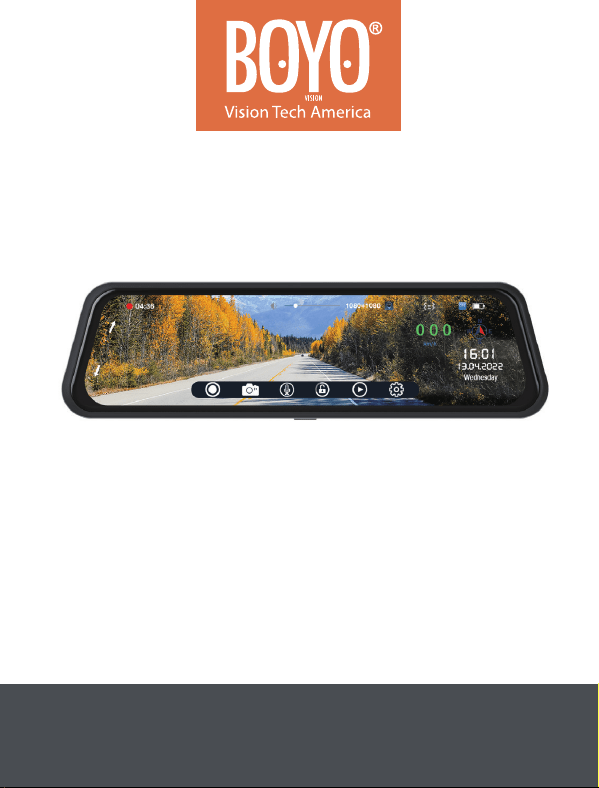
VTR93MHD
2 Channel Full HD Mirror Monitor
Rear View Camera • Dashcam
USER MANUAL


VTR93MHD Streaming Media Rear-View Mirror Monitor
Precautions
Ɣ Micro-SD card: CLASS 10, or above, required.
• Micro-SD card specification varies from one brand to another, and it
may not function as expected when used with VTR93MHD.
• If VTR93MHD shows an error message, format the micro-SD card
from the menu of VTR93MHD. If the error continues, please reset
VTR93MHD or replace the micro-SD card.
Ɣ The micro-SD card must be formatted before use.
• All files will be deleted when formatting the micro-SD card. Please
backup the important files before format.
• Loop recording records over the oldest recording file when the
memory is full. Depending on the memory card size, the recording
hours vary. Please backup important recording files accordingly asall
files will be overwritten, eventually.
• Please format the micro-SD card every month for recording stability.
Ɣ Do not force the memory card into the slot as it can damage the card or
VTR93MHD. When the micro-SD card is inserted properly and in the right
direction, a micro-SD card will drop into the card slot and only gentle
press is needed at the end to secure – with click sound – in the card slot.
Ɣ The battery lifespan will continuously decrease upon usage. Please
charge the battery every month to preserve the battery life.
Ɣ The straps must be installed properly and firmly to prevent shaking while
driving or falling off due to light impact.
Ɣ Install VTR93MHD in a dry environment: the monitor is not water
resistant nor waterproofed.
Ɣ Avoid the camera from facing the sun (direct sunlight) to record or take
pictures.
Ɣ .HHSWKHIURQWZLQGVKLHOGDQGFDPHUDOHQVHVFOHDQ&OHDQWKHPUHJXODUO\
2

VTR93MHD Streaming Media Rear-View Mirror Monitor
to obtain clear images.
Ɣ Please handle VTR93MHD with care. Avoid using VTR93MHD in
a high electromagnetic environment.
Ɣ Operating temperature of the VTR93MHD is -4°F to 140°F.
Continuous exposure to sunlight, especially when VTR93MHD is
mounted in a vehicle where the temperature exceeds above 158°
F, VTR93MHD may malfunction, screen change colors or image
distortion.
Ɣ 3OHDVHGRQRWSOXJDQGXQSOXJDUHDUYLHZFDPHUDZKLOH
9750+'LV21Incorrect operation can lead to a system crash
DQGWKHGDPDJHWRWKHFDPHUD. Please use a small hard pin to
press the RESET to restart VTR93MHD.
Disclaimer:
This device is NOT intended to be used for illegal purposes; surveillance
shall not be used in any form as evidence for claim purposes.
Some countries and states pro
hibit drivers from mounting anything on the
windshield or specific areas of the windshield or on an area that obstructs
the driver's view. It is the owner’s responsibility to mount the device in
compliance with local laws and the driver is responsible for safe driving;
observing all traffic rules and regulations to avoid accidents, personal
injury, or property damages. Do not operate this device while driving.
Proper installation and settings will provide high confidence in assuring
video recordings. However, in rare cases, if the recording fails: The
manufacturer, resellers, and installers are not liable or responsible for the
non-recorded events, missing files, and others; and the manufacturer,
resellers, and installers will not be liable for an
y damage incurred directly
or indirectly from recording errors, omissions, or discrepancies.
Please refer to the warranty information at the end of the manual.
3
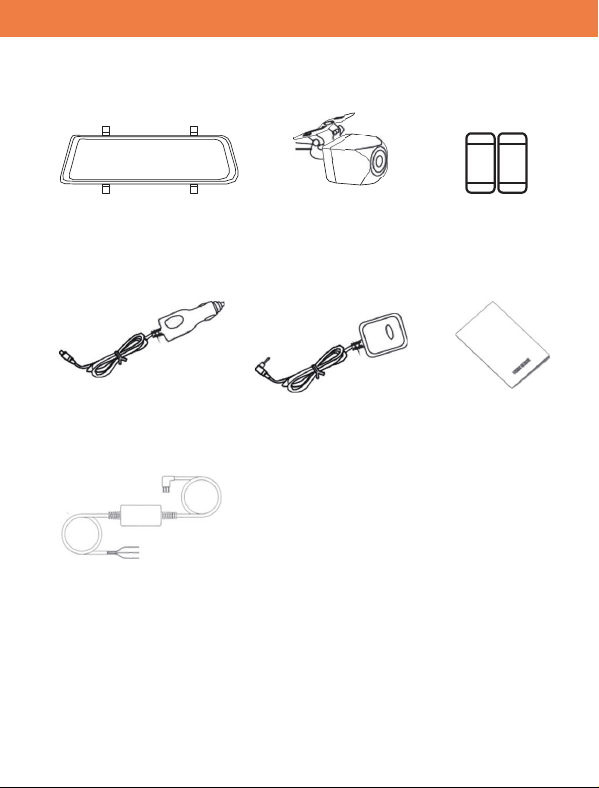
VTR93MHD Streaming Media Rear-View Mirror
VTR93MHD Streaming Media Rear-View Mirror Monitor
Package Content
Mirror Monitor Front Camera Rearview Camera Mounting Straps
Car Charger GPS Antenna User Manual
Hardwiring
4
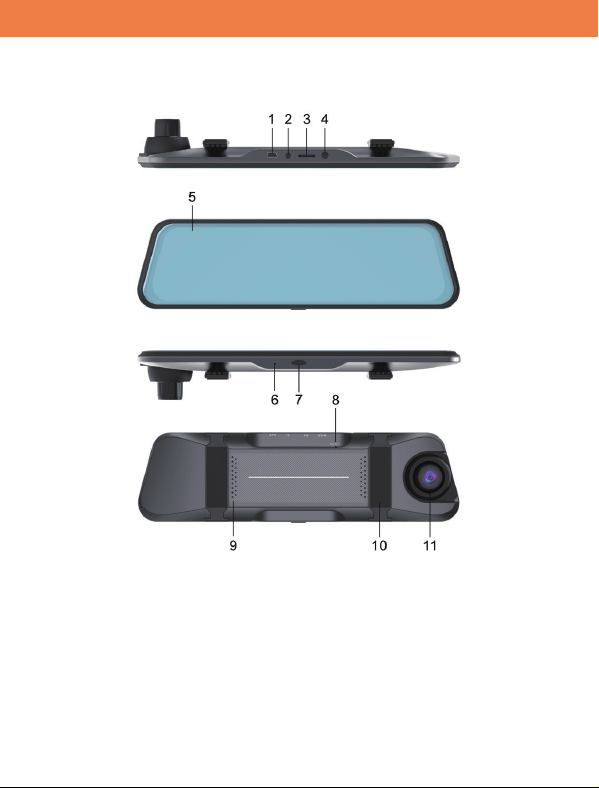
VTR93MHD Streaming Media Rear-View Mirror Monitor
5
Product Structure
1. USB Power Port 7. ON/OFF Power Button
2. Rear-view Camera Port 8. Reset
3. Micro-SD Card Slot 9. Speaker
4. GPS Antenna Port 10. Back Strap Mounting Hook
5. IPS Screen 11. Front Camera
6. MIC
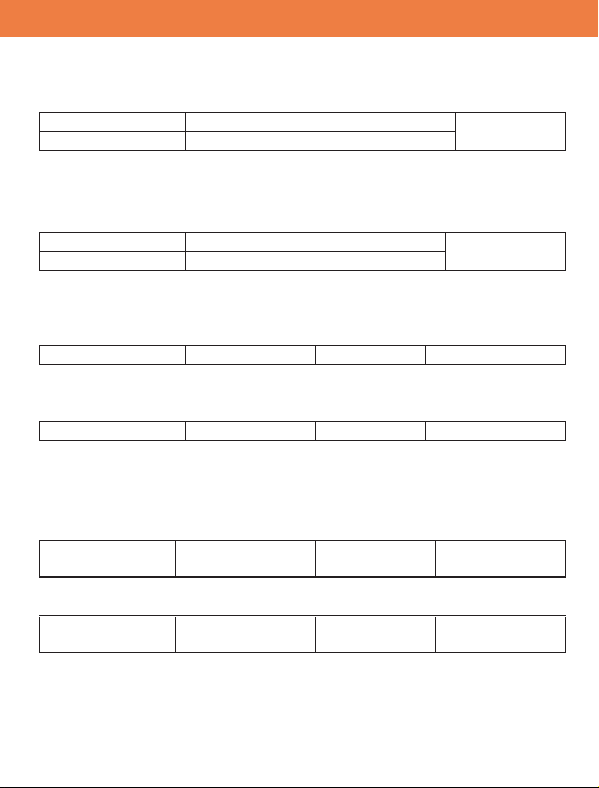
VTR93MHD Streaming Media Rear-View Mirror Monitor
6
Function
A. Power Function
Cigarette jac
k
nrut ot ni -gulp
power on
Hard-wired turn the key to accessories position
The power will be supplied to VTR93MHD. The BOYO logo will
appear first, and then the icons and the camera(s) will be displayed.
Recording will start automatically.
Cigarette jac
k
nrut ot gu l p - nu
power off
Hard-wired key turned to off position
The power will be cut from VTR93MHD. 10 second count down
starts. Recording stops and files are safely closed. The BOYO logo
will appear first, and then the screen goes black.
On/Off Button Power on state long press to turn power of
f
Recording stops and files are safely closed. The BOYO logo will
appear first, and then the screen goes black.
On/Off Button Power off state long press to turn power on
The long press will display the BOYO logo first, and then, the
camera(s) will be displayed.
In low battery, VTR93MHD displays ‘Low Battery’ and will
automatically save the last file and shut down.
On/Off Button Display on state short press
to turn display
of
f
The display power turned off and the screen goes black.
On/Off Button Display off state short press
To turn display
on
The display power turned on and the screen turns on – icons &
camera.
Note: In low battery, VTR93MHD displays ‘Low Battery’ and will
automatically save the last file and shut down.
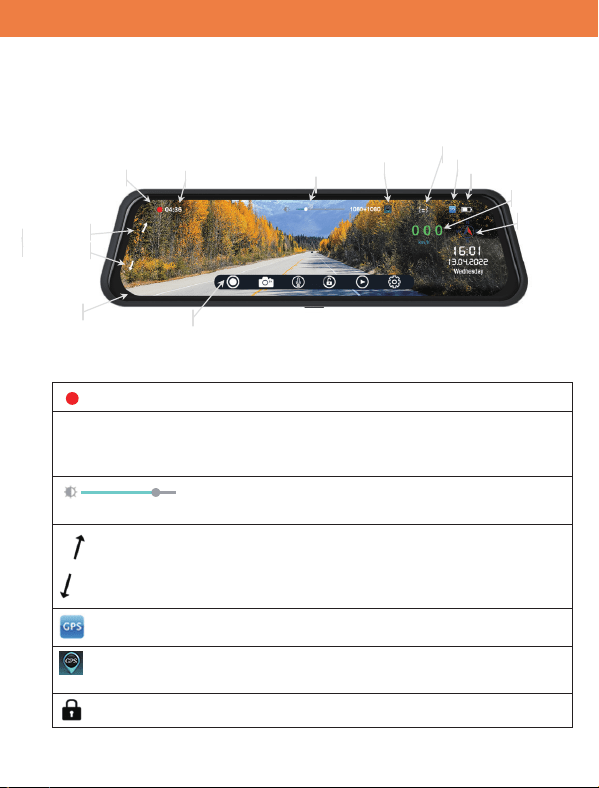
VTR93MHD Streaming Media Rear-View Mirror Monitor
7
B. Home Screen Icons
VTR93MHD will display the homepage after it is powered ON.
Homepage screen:
Homepage screen Icons:
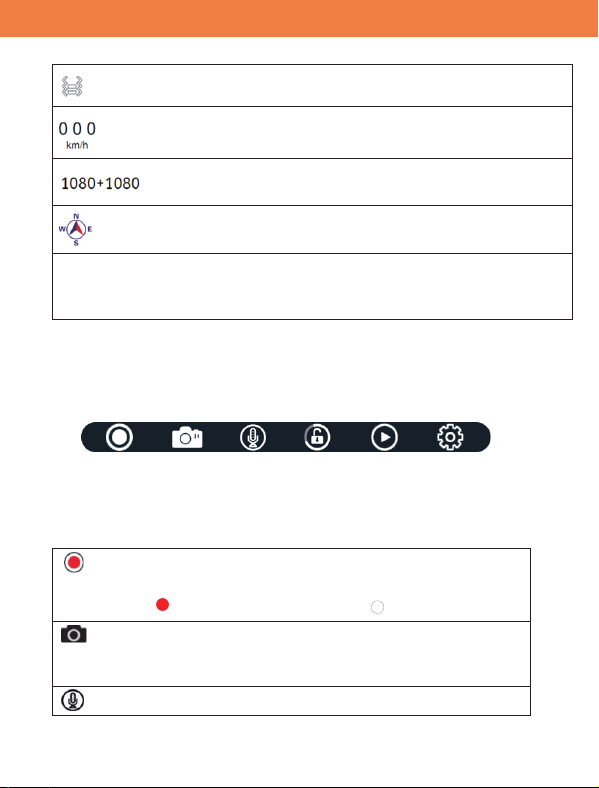
“Recording Indicator” – when recording, it will be flashing.
04:36 “Loop Recording Timer” – when recording, it will count (by a
second) to recording time limit. See the “Loop Recording”
menu.
“Brightness Control” – Drag the white button to
increase or decrease the screen brightness.
“Digital Camera Tilt” – Due to elongated shape of the display, the
display shows the limited vertical portion of camera. Press
up or down arrow to select vertical section of camera to be
displayed.
“GPS” – If show, the GPS antenna is detected.
“GPS” – If shown, GPS active and speed and compass direction
is computed based on GPS data.
“File Protection” – the recorded file is being protected.
04:36
Recording Indicator
Loop Recording Timer
Quick Menu Bar
Digital
Camera
Tilt
Up
Down
Brightness Control
Compass & Speed Sensor
Impact Sensor On/OīIndicator
GPS Antenna Connect Status
BaƩery Charge Status
Vehicle ID
Digital Speedometer
Compass
VTR93MHD Streaming Media Rear-View Mirror Monitor
8
“Impact Sensor” – If shown, the impact sensor is turned on
“Vehicle Speed” shows the current travelling speed.
“Video Resolution” Current video resolution settings for
the front and rear cameras.
“Compass” - The arrow will show the real-time driving direction of
the vehicle.
ABCDEFG
“Vehicle ID” – The vehicle identification number will be displa
yed
if it is turned on in the settings
Operation: Switching between Front and Rear Camera Display
Ɣ Swipe screen from left to right.
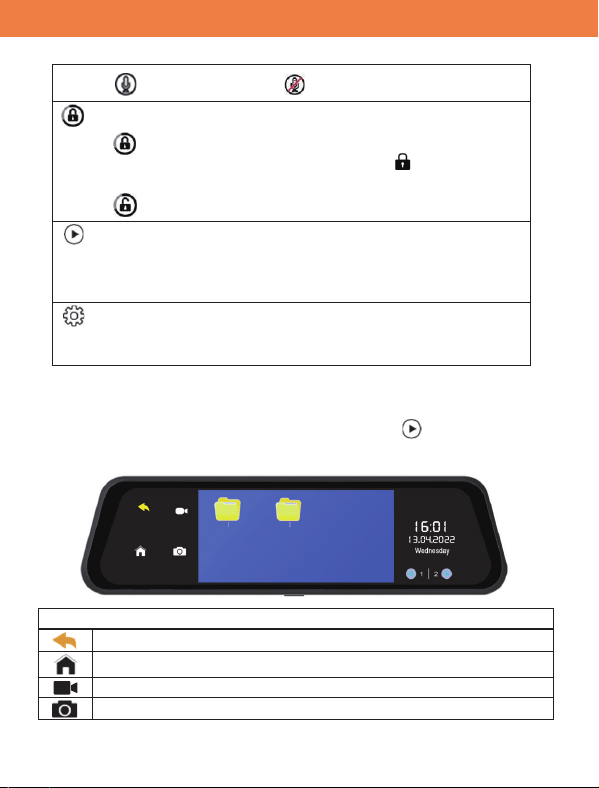
Quick Menu Bar:
It is a quick menu bar. If no operations within 10 seconds, this bar will
disappear, but touch anywhere on the screen, it will appear again.
Quick Menu Bar Buttons
RECORD / PAUSE button
:
Toggle between “recording” and “pause”.
RED: Recording WHITE: Paused
Camera Shutter button
:
A short press to take a single photo. A long press
will take a picture in a burst mode.
Microphone ON/OFF button:
VTR93MHD Streaming Media Rear-View Mirror Monitor
9
: Turn on : Turn off
Recording Lock/Unlock button
:
Save the current video file and lock it. The loop
recording will not overwrite the file. icon will
appear on the top right of screen.
Do not lock recorded files.
File Management button:
In standby mode, press this button to playback
recorded videos, view photos. Or delete videos or
photos.
System Setting button:
In standby mode, click the icon to enter system
(menu) settings.
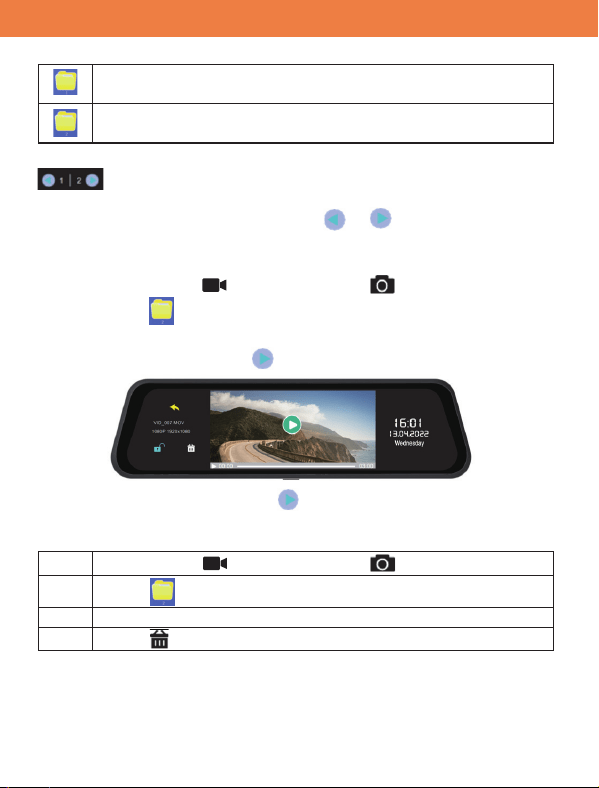
C. File Management: Recorded Video Playback
To playback recorded video or to view photos, press on the Quick
Menu Bar. Recording must be paused.
Select
“back” button – return to the previous step.
“home” button – go to to the main (home) screen.
“video” button - show the video folders
“picture” button – show the photo folders
VTR93MHD Streaming Media Rear-View Mirror Monitor
10
“front camera folder” button – ‘1’ indicates that the
folder contains the front camera videos or photos
“rear camera folder” button – ‘2’ indicates that the folder
contains the rear camera videos or photos
at the bottom right of the screen indicates the current page
number. The first number is the current page, and the second
number is the last page. Press or to change the page.
To view the videos or photos.
1
Select (touch) for videos or select for photos.
2
Select
to go into a camera folder.
3
If a picture is selected, it will be displayed immediately.
If a video is selected, button will appear. As shown.
Press to play.
To delete a photo or a video
1
Select (touch) for videos or select for photos.
2
Select
to go into a camera folder.
3
Select a photo or a video
4
Select to delete
VTR93MHD Streaming Media Rear-View Mirror Monitor
11
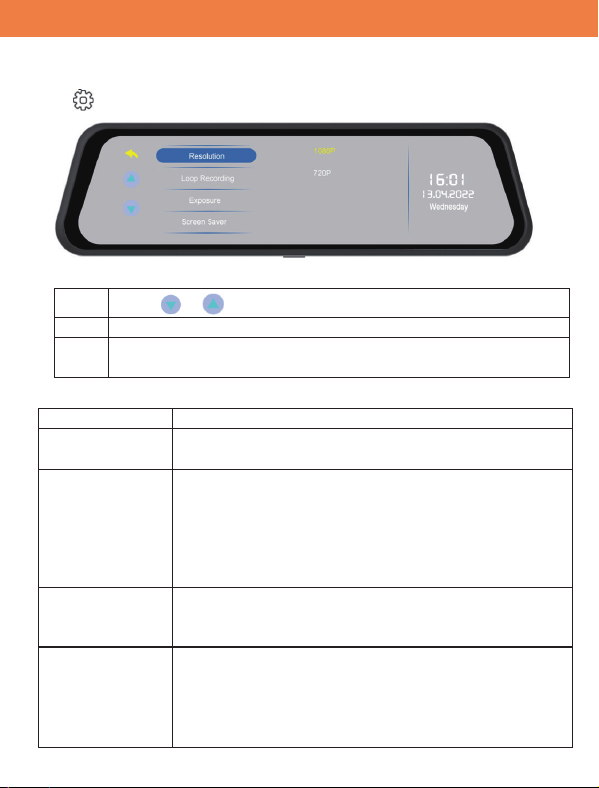
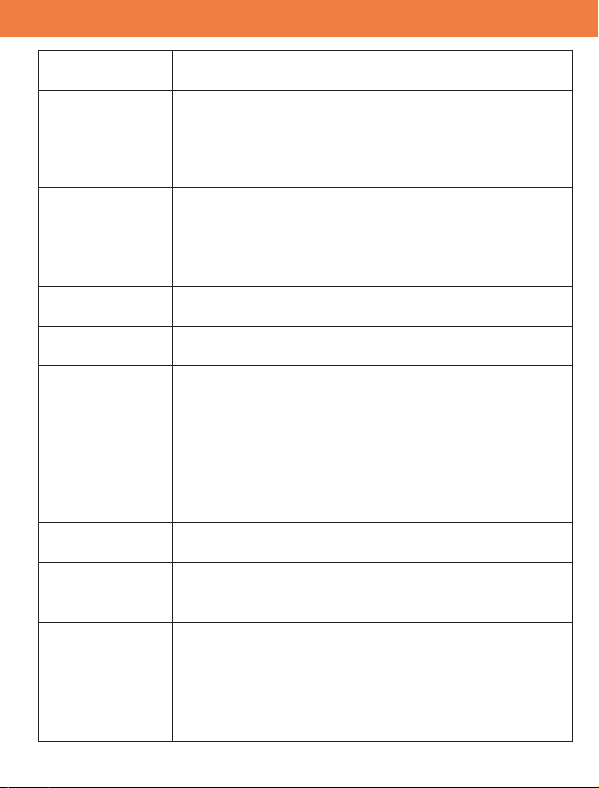
To change a setting
Menu and Options
Menu
Description
Resolution
Options: 1080P, 720P
Ɣ Rear camera (recording) resolution
Loop Recording
Options: Off, 1min, 3min, 5min
Ɣ Duration of recording file clips.
Ɣ If set, and when the card’s full, the oldest video
clips will be overwritten with new video clips.
Ɣ Loop recording is recommended to be ON
for quick search and view the videos.
Exposure
Options: -3, -2, -1, 0 +1, +2, +3
Ɣ Decrease or increase to sensitive to light will result
in brighter or darker images
Screen Saver
Option: Off, 1min, 3mins, 5mins
Ɣ Turn display off.
Ɣ When Screen Saver is ‘off’, the selected camera
will be displayed always.
Ɣ If the timer is set, the monitor will turn display off in
1
Click
or
key to switch the menu pages.
2
Select menu item – e.g. “Resolution”, “Loop Recording”, etc.
3
Select an option – e.g. “1080P” or “720P”
Selected option will be highlighted.
D. System Setting
Click to enter the system setting menu (shown as below).
VTR93MHD Streaming Media Rear-View Mirror Monitor
12
the specified time and the monitor will act as rear-
view mirror.
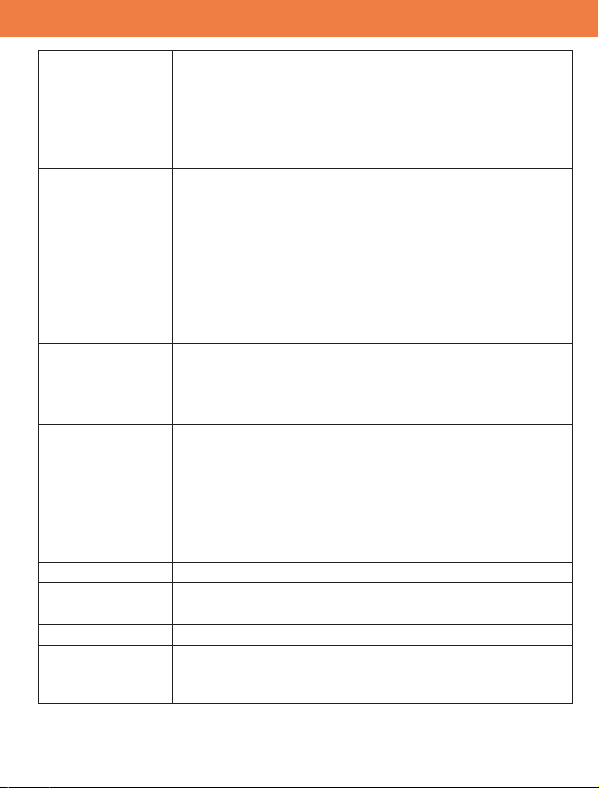
Impact Sensor
Sensitivity
Options: Off, Low, Medium, High
Ɣ
When the vehicle brakes suddenly or be hit, the
impact sensor will be activated. The current
recording file will be saved and locked to prevent
from being overwritten.
Bootup Display
Option: Front Camera, Rear Camera
Ɣ
When the monitor is powered on, the selected
camera will be displayed.
Ɣ
If the screen saver is turned off, the selected
camera will stay on until the power is turned off.
Date/Time
Select: Year, Month, Day, Hour, Minute
Select “confirm” to change date and time.
GPS
Information
Displays current longitude and latitude position.
The data will verify the accuracy of the GPS sensor.
Time-lapse
Recording
Options: Off, 1000ms, 200ms, 100ms
Ɣ
When set, the image is captured and recorded at
the selected interval (1000ms, 200ms or 100ms).
Ɣ
In case of using hardwired power supply, the time-
lapse recording should be turned on to continue
recording. Note that the hardwired power supply
has voltage cut-off, which protects the battery from
going dead.
Key Sound
Options: Off, On
Ɣ
Enable or disable screen touch sound.
Language
Options: English, Espanol, Fracais
Ɣ
The device support three languages: English,
Spanish and French.
Parking Monitor
Options: Off, On
Ɣ
When parking monitor is on and the key is off, the
device monitors vehicle vibrations. When
vibration is detected, the device will power on and
will record for 30 seconds. Then, it will shut down
to the standby mode.
VTR93MHD Streaming Media Rear-View Mirror Monitor
13
Ɣ
On sequence of vibrations, only the first video will
be locked.
Ɣ
This function can only work normally in the
condition of a fully charged battery or powered by
car charger.
Motion
Detection
Options: Off, On
Ɣ
When the motion detection is On, the front camera
starts to detect object movement. When the
movement is detected, the device will record
automatically for 30 seconds. Then, the recording
will stop, and it will go to the standby mode.
Ɣ
Factory default setting is Off. It needs to be turned
on from the setting menu if the motion detection is
needed.
Shutter Delay
Options: No Delay, 2s Delay, 5s Delay, 10s Delay
Ɣ
When selected, the photo shutter button is
pressed, it will count down (count will be displayed
on the screen) before taking a picture.
Burst
Options: Off, 3, 6, 9 pictures
Ɣ
When selected, long pressing of the photo shutter
button will initiate a sequence of pictures to be
taken (in a burst).
Note: Shutter delay and burst only work in the video
standby mode. Shutter delay overrides burst
mode.
Daylight Saving
Options: Off, On
Display Vehicle
ID
Options: Off, On
Ɣ
Show or not show Vehicle ID on the main screen.
Vehicle ID
Enter 7 alpha-numeric vehicle ID
Format
“Confirm” to erase and format the recording storage.
Note: This device support microSD Class 10 or
above, tested up to 64GB.
Note:
VTR93MHD Streaming Media Rear-View Mirror Monitor
14
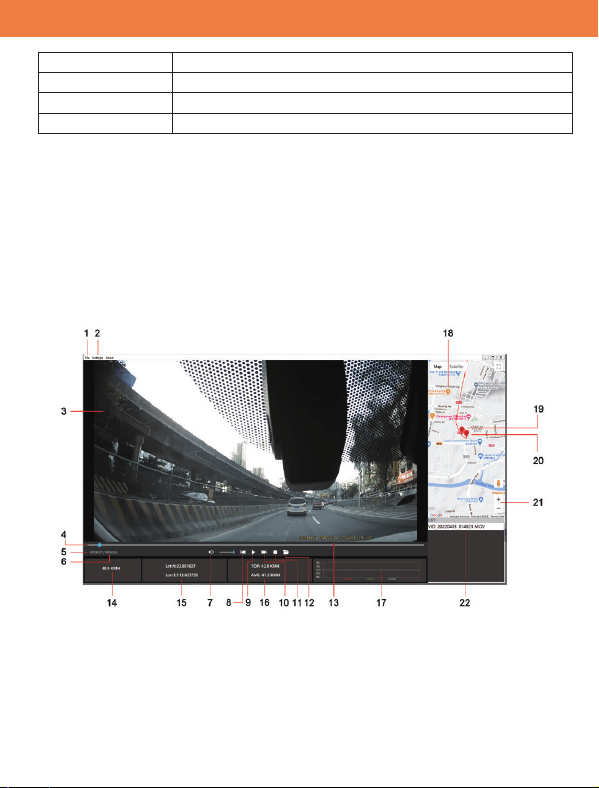
Default
“Confirm” to reset the system setting to factory
default.
Version
Firmware Version of the device
Time Zone
Select local time zone
Speed Unit
Options: MPH, KPH
E. GPS Player – Video Playback with Geo-Location
Display (PC Only)
** GPS Player is available at www.visiontechamerica.com.
Download and install the GPS Player.
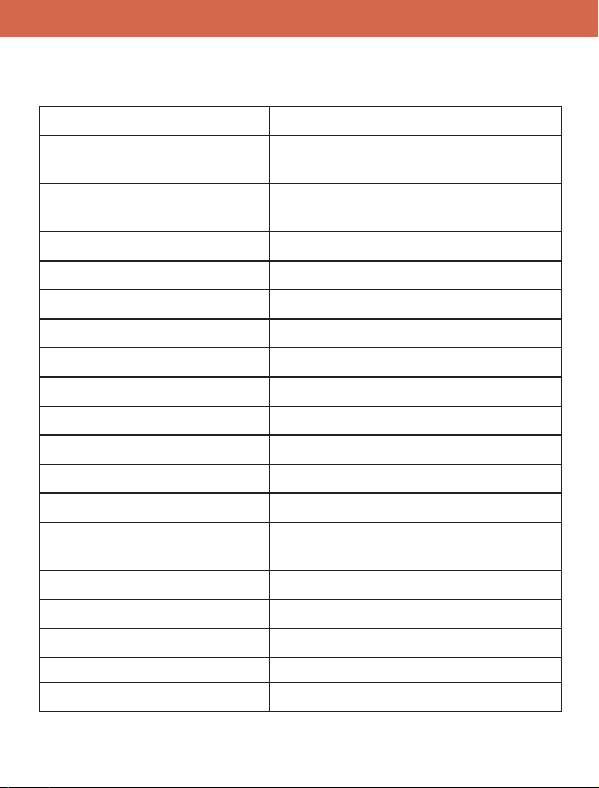
GPS Screen:
1. File: click to browse on the added drive and select the video file
that users prefer to play in the player.

VTR93MHD Streaming Media Rear-View Mirror Monitor
15
2. Settings: the language, speed unit and map can be set here.
3. Video View Window
4. Scroll Bar: show the current point of the video; click forward or
backward to check the point users want view.
5. Playing time
6. Playback time
7. Volume
8. Previous video
9. Play/Pause
10. Next video
11. Stop
12. Select Video to Play
13. Date & Time: show Date & Time of video was recorded
14. Driving Speed: this is where the driving speed will be displayed.
15. GPS Coordinates: these are the coordinates longitude and
latitude recorded by GPS Geo Tagging Device.
16. Top and AVG Driving Speed
17. Impact Sensor Indicator: This is where users can measure
camera movement that is caused and recorded by impact sensor,
i.e. when the vehicle hits pot-hol
e or bump users can see it here.
18. Map Location: Maps showing vehicle’s driving route recorded by
GPS Geo Tagging Device based on coordinates.
19. The destination of the vehicle’s driving route
20. The starting point of the vehicle’s driving route
21. Zoom in and out the map window
22. Past Viewed Files: These are previously viewed files. Click on to
view them again.

VTR93MHD Streaming Media Rear-View Mirror Monitor
16
F. USB Mode – Connecting device to a PC
** USB cable not included
When the VTR93MHD is connected to a PC via a USB cable, the following
selection will pop-up on the screen.
1. Memory Mode
The device is acting as a storage device, and you can access the
recorded videos and photos from the connected PC.
2. Camera Mode
The device is acting as a (UVC) camera for PC. Please check that the
computer supports a UVC camera before first use.
3. Recorder Mode
The device is acting as VTR93MHD, recording videos, and taking
pictures. PC is supplying power through the connected USB cable.
17
VTR93MHD Streaming Media Rear-View Mirror Monitor
Specifications
Specifications may change without prior notice.
Screen 9.66” full touch IPS screen
Video Resolution
1920*1080P (front)
1920*1080P (rear)
Cameras
170° diagonal viewing angle(front)
100° diagonal viewing angle(rear)
Frame Rate 30fps
Video Format MOV
Photo Format JPG
Gravity Sensor Support
GPS Tracking Support
Motion Detection Support
Parking Monitor Support
Loop Recording Support
Vehicle ID Display Support
Microphone/Speaker Support
Memory Card Capacity
Max. support 64GB
(Class 10 or above suggested)
Frequency 50HZ
Power 5V/3A
USB Type Mini USB
hcnerF/hsinapS/hsilgnE egaugnaL
Battery Built-in 500mA Li-on battery

WARRANTY INFORMATION
This one-year limited warranty is given to the end-user or the retail
purchaser (referred to this warranty as “Original Purchaser”) that it will be
free from defects in material and workmanship for a period of one year from
the date of the purchase of the new product (excluding accessory items
such as power cords, cradle, memory card, adaptor, and cables).
This limited warranty does not cover any physical damage to, or misuse of,
this product, damage caused by improper installation; improper use;
misuse; neglect; repair of cracked, scratched, broken or modified
cosmetics; or parts that have been altered or removed; damages done by
another device used with this product resulting from use of non-BOYO®-
brand parts. Thi
s warranty is VOID if you purchased this product as used,
floor model sample, or refurbished; if the product has been altered or
modified in any way (including but not limited to attempted repair without
authorization from BOYO®- Vision Tech America, Inc. and/or
alteration/removal of the serial number).
For warranty information, visit: https://www.visiontechamerica.com/get-
warranty

For technical support call
Email
Visit
888-941-3060
info@VisionTechAmerica.com
www.VisionTechAmerica.com
Vision Tech America, Inc.
1452 E. Valencia Dr.
Fullerton, CA 92831