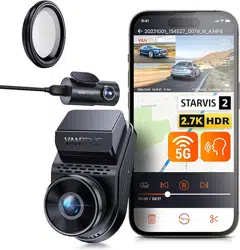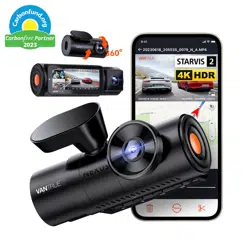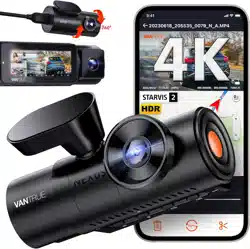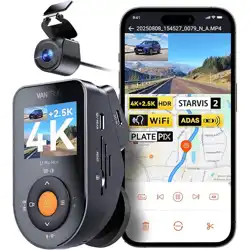
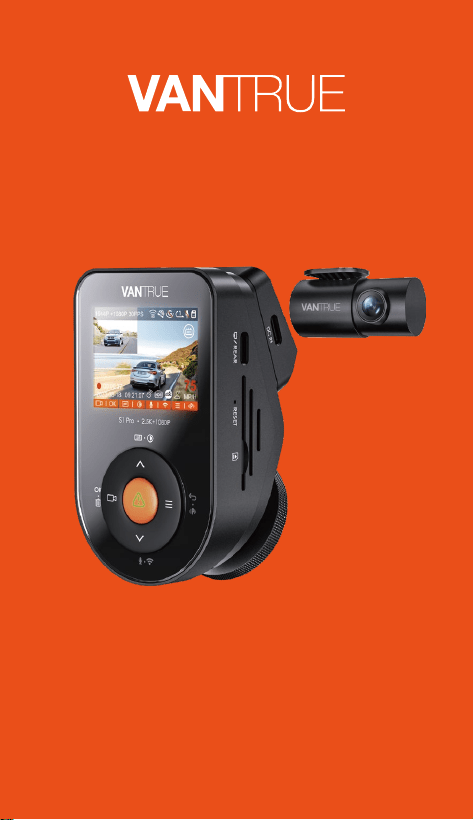
2 Channel Voice Controlled
Sma Dash Cam
Sonnet 1 PRO (S1 PRO)
User Manual

Hey, find us here:
www.vantrue.net/contact
facebook.com/vantrue.live
V2

CONTENTS
01
02
03
04
05
06
07
What’s in the box?
Camera Oveiew
Installation
Basic Operation
Specications
Warning
Warranty & Suppo
1
2
5
14
36
37
39

Warm Tips:
Please read the User Manual carefully before use;
The dash cam must be plugged in to operate;
Please do not debug the product or use your mobile
phone to watch driving videos during driving, and pay
attention to driving safety;
This product requires the inseion of an SD card for
use. Please use a functional SD card;
Do not disassemble or repair the dash cam casing by
yourself. If the product malfunctions, please contact
the ocial VANTRUE.
Do not install the dash cam in a location that may
obstruct the driving view;
Please use this product away from high temperature
and humid environments;
In order to improve the product experience, the
rmware of the product will be updated periodically. If
necessa, you can update the rmware to experience
it;
Do not install the dash cam directly in front of
passengers to prevent accidental detachment and
potential safety hazards;
Please note that it may not be possible to connect to
the app when using CarPlay or Android Auto;
Please use this product within the scope permitted by
law.
1.
2.
3.
4.
5.
6.
7.
8.
9.
10.
11.
- 1 -
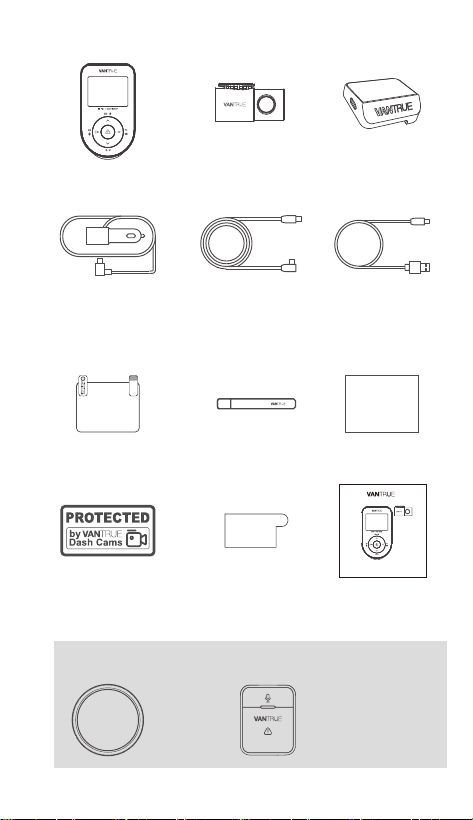
1. What’s in the box?
A. Vantrue S1 PRO
Dash Cam
B. Rear Camera C. GPS Mount
D. Car Charger with
Built-in Type-C
Cable (11.5ft)
E. Rear Camera
Cable (20ft)
F. Type-C USB
Data Cable(3ft,
for data
transfer only)
H. CrowbarG. Electrostatic
Stickers*2
J. Warning
Stickers*2
K. 3M Adhesive
Stickers*2
I. Dust-free Cloth
L. Quick User
Guide
3M
CPL Filter Wireless Remote
Control
Optional Accesso
2 Channel Voice Controlled Sma Dash Cam
SONNET 1 Pro (S1 Pro)
Quick User Guide
- 2 -
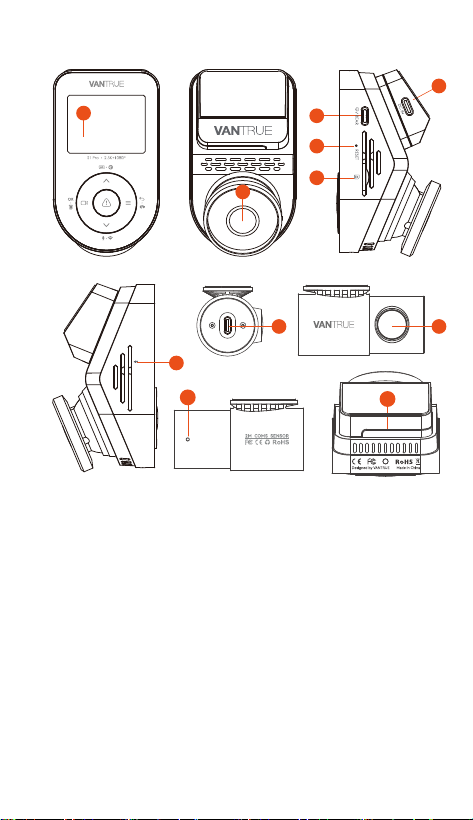
2. Camera Oveiew
1.
2.
3.
4.
5.
6.
7.
8.
9.
10.
11.
2 inch IPS Screen
Front-Facing Camera
Type-C USB Po for Rear Camera
Reset Button
MicroSD Card Slot
Type-C USB Po for Charging
Microphone
Type C USB Po for Rear Camera Cable
Rear Camera
Rear Camera Indicator Light
Serial Number
1
2
3
4
5
6
8 9
7
10
11
VTE22L1577
- 3 -- 3 -
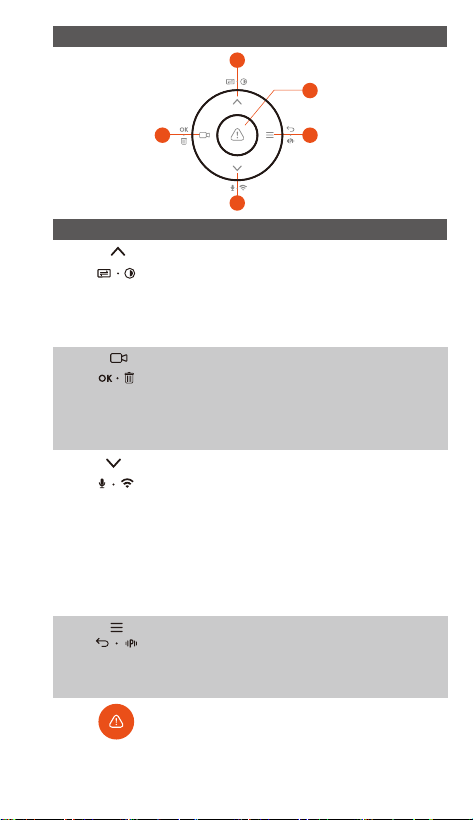
Button Instruction
1.
2.
3.
4.
5.
No. Buttons Instruction
1
2 4
5
3
In menu settings and le browsing, sho
press to display the previous option,
long press to scroll up to display options;
In playback mode, sho press to fast
forward;
During video recording, sho press to
sta/stop recording; In menu settings,
sho press to conrm the action; In
playback mode, sho press to
play/pause the le;
During video recording, long press to
turn on/o WiFi, and sho press to turn
on/o the microphone; In menu settings
and le browsing, sho press to display
the next option, and long press to scroll
down to display options; In playback
mode, sho press to pop up the delete
le menu;
In the recording mode, long press to turn
on/of parking mode; In menu settings
and le browsing, sho press to return
to the previous inteace;
In power-on status, long press to turn
o the dash cam; In power-of status,
sho press to turn on the dash cam;
During video recording, sho press to
capture a picture; In playback mode,
sho press to pop up the delete Menu.
LED Indicator
Steady green light In standby status
Blinking green light Camera is recording
- 4 -
In menu settings and le browsing, sho
press to display the previous option,
long press to scroll up to display options;
In playback mode, sho press to fast
forward;
During video recording, sho press to
sta/stop recording; In menu settings,
sho press to conrm the action; In
playback mode, sho press to
play/pause the le;
During video recording, long press to
turn on/o WiFi, and sho press to turn
on/o the microphone; In menu settings
and le browsing, sho press to display
the next option, and long press to scroll
down to display options; In playback
mode, sho press to pop up the delete
le menu;
In the recording mode, long press to turn
on/of parking mode; In menu settings
and le browsing, sho press to return
to the previous inteace;
In power-on status, long press to turn
o the dash cam; In power-of status,
sho press to turn on the dash cam;
During video recording, sho press to
capture a picture; In playback mode,
sho press to pop up the delete Menu.
LED Indicator
1440P +1080P 30FPS
10:39:07AM09-01-2023
00:00:37
MP/H
75
ACC
HDR
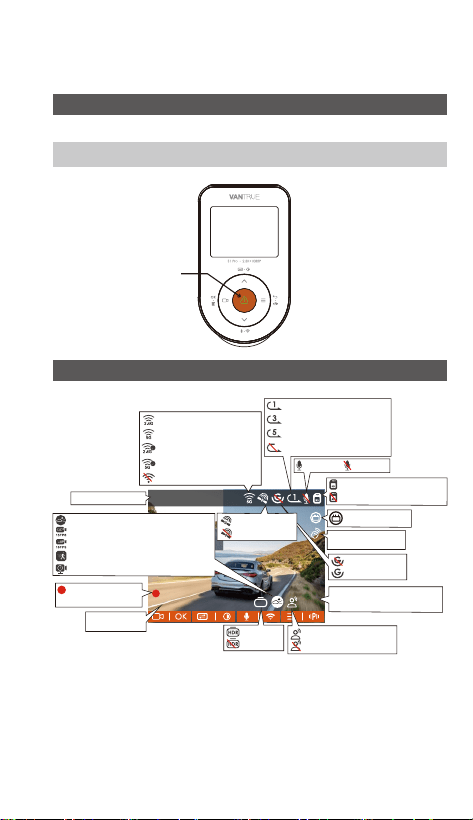
Screen Oveiew
G-Sensor OFF
G-Sensor ON
Loop recording for 1 min
Loop recording for 3mins
Loop recording for 5mins
Loop recording OFF
MIC O
Memo card inseed
ACC Connected
Recorded driving
speed (KMH or MPH)
MP/H
75
NO Memo card inseed
2.4G Wi-Fi ON
5G Wi-Fi ON
2.4G Wi-Fi is Connected
5G Wi-Fi is Connected
Wi-Fi OFF
GPS is located
GPS is OFF
MIC ON
ACC
Collision Detection ON
1080P Low Bitrates Recording ON
720P Low Bitrates Recording ON
Motion Detection ON
Low Framerate Parking Mode
HDR ON
HDR OFF
Remote control is
connected
Video Resolution
Recording Time
(Current Clip)
Current Time
and Day
Voice Assistant is ON
Voice Assistant is OFF
- 5 -
3. Installation
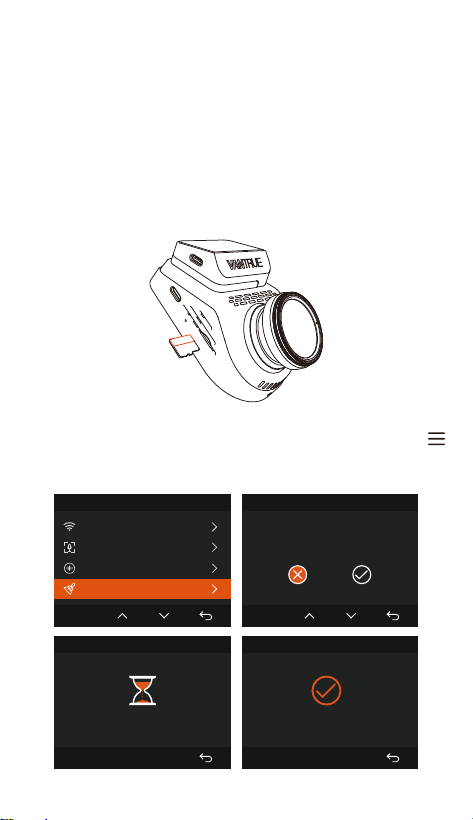
3.1 Installing a Memo Card (Recommend Vantrue U3
high-speed microSD card).
Please inse a memo card (memo card capacity:
32GB-512GB, card speed: U3/Class10/A2, recommend
Vantrue U3 microSD card) into the card slot according
to the direction indicated in the below picture, until a
"click" sound is heard in the card slot, indicating that the
memo card is inseed correctly.
After inseing the memo card, if the screen prompts
"Card error, please format", please directly press the
button to enter the menu, then go to 'system setup' and
choose 'format' to sta the formatting process.
System Setup
5/15
Wi-Fi
Voice Control
Voice Content
Format SD Card
OK
Format SD Card
All data will be deleted!
OK
Format SD Card
Formatting
Format SD Card
Format successful!
- 6 -
The dash cam has specic requirements on the card
speed of the memo card. For reliable operation,
please use memo card speed: U3/Class10/A2, we
recommend using a VANTRUE SD card(sold
separately).
The microSD card should be formatted once a month
to maximize the lifetime of the memo card.
Pleasedonottakethecardoutwhenthecamerais
recordingincasetheimpoantvideole missing.
Note:
3.2 Installation
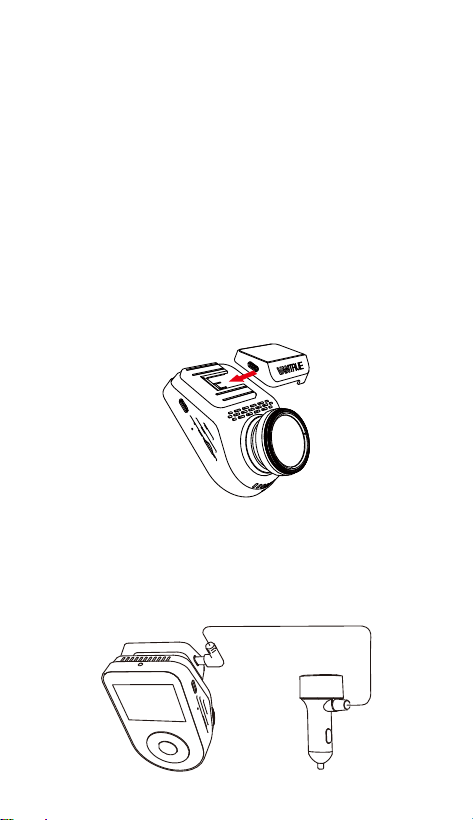
3.2.1 Installing the Mount
Align the mount with the dash cam mount inteace
then push in until the mount is installed.
3.2.2 Car Charger Installation
Connect one end of the car charger to the car cigarette
lighter and the other end to the Type C po on the
front camera mount. Sta the ignition, waiting for the
dash cam to sta.
•
•
•
- 7 -
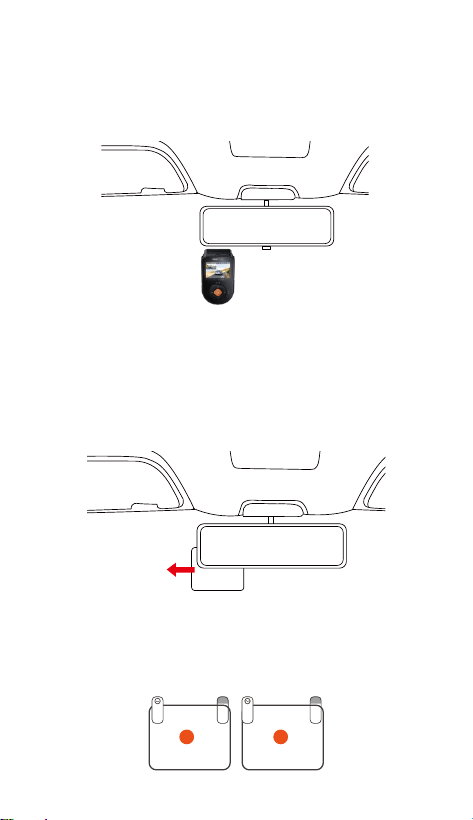
3.2.3 Power On Dash Cam, Select the Installation
Position
Before installation, please power on the dash cam and
check whether the shooting angle of the front and rear
lens is appropriate through the recording view.
3.2.4 Installing the Electrostatic Stickers
Thoroughly clean the windshield with water or alcohol,
then wipe it with a d cloth. Stick the electrostatic
sticker next to the rear-view mirror, which is the
recommended position to prevent blocking your view
while driving.
1 2
Please peel off this mask
AFTER application completed
Please peel off this
mask BEFORE application
Note: The electrostatic stickers come with two-sided
protective lm. Please remove the protective lm from
No. 1, paste the electrostatic sticker on the windshield,
and then remove the protective lm from No.2.
Electrostatic
sticken
- 8 -
When installing the rear lens, please avoid the
defogging line on the rear windshield, so as not to
aect the video eect.
Please clean the lens with the dust-free cloth provided
by VANTRUE.
Note:
•
•
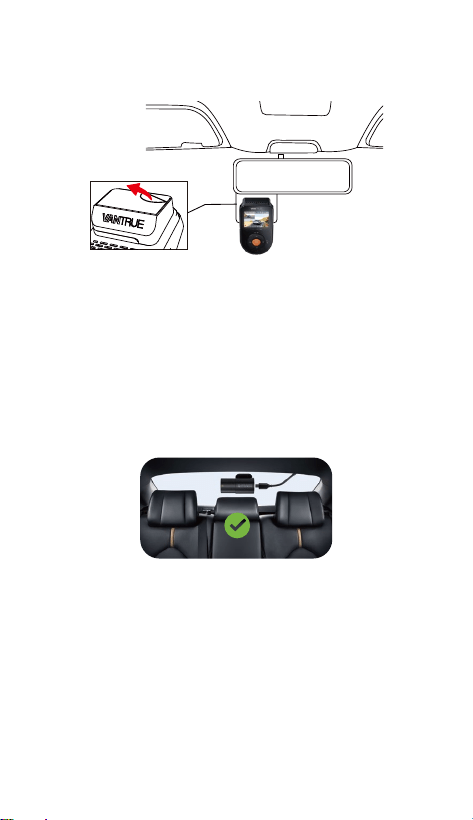
3.2.5 Installing the Front Camera
Remove the protective lm from the mount, then x
the mount and camera on the electrostatics stickers.
3.2.6 Rear Camera Installation
Please select the installation position on the rear
windshield. Remove the protection lm of the sticky
pad and rear camera lens. Fix the rear camera in the
selected position and adjust the angle, then use the
rear camera cable to connect the rear camera to the
main front camera. (The rear camera can rotate 360°,
if the installation is wrong, you can turn on the rotating
display on the recording setup to adjust.)
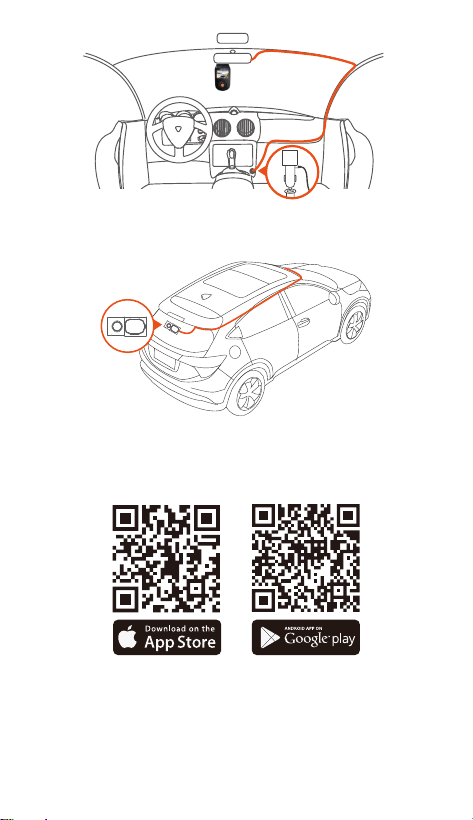
3.2.7 Wire Storage
Car Charger Cable: Use the crowbar to stu the car
charger cable under the rubber seal of the A-pillar and
windshield.
- 9 -
Rear Camera Cable: Carefully store the rear camera
cable in the direction shown in the picture.
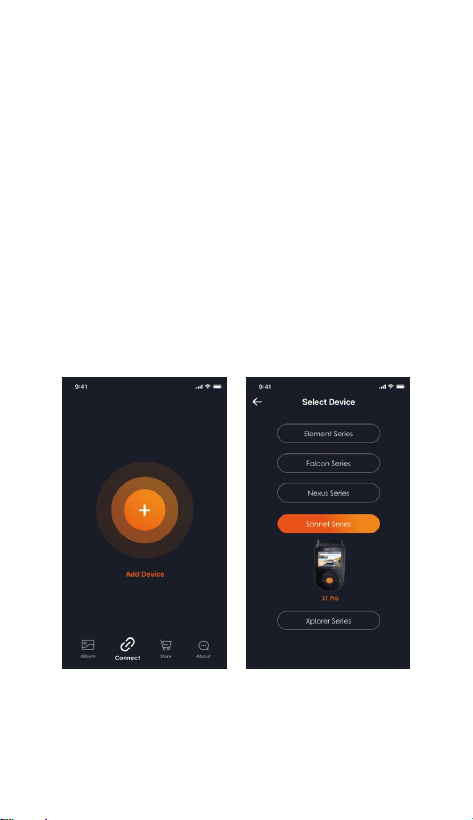
3.3 APP Download
Please scan the QR code for the relevant version below
to download the APP and install it.
Note: After this camera is successfully connected to
your mobile phone through WiFi, it can peorm real-
time video preview, change camera settings, download
les without internet connection, and play back videos
on the mobile phone. However, the GPS track playback
•
- 10 -
3.4 WiFi Connection
The WiFi will be turned on automatically when the S1
PRO dash cam is turned on. If the WiFi is turned o,
you can reopen the WiFi through shocut keys, voice
control, or menus.
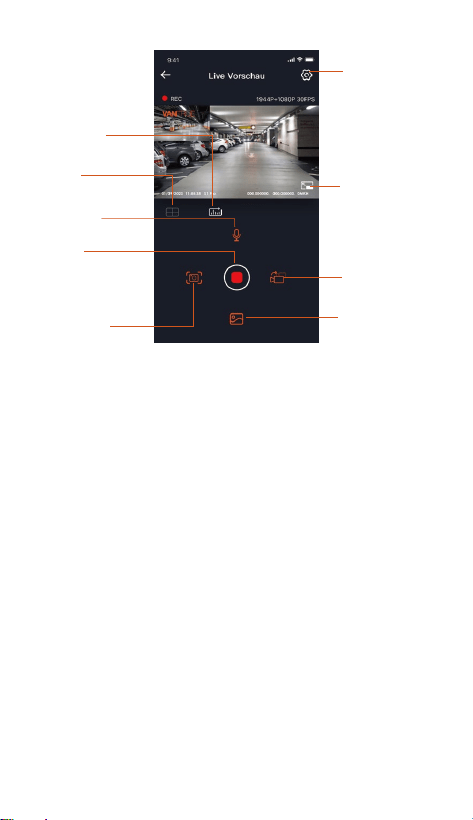
After turning on the WiFi function of the camera,
please click "+" to nd “S1 PRO” in the “Sonnet Series”
through Vantrue APP, choose the right dash cam to
connect, then the APP will automatically connect to the
camera, and display the current real-time recording
situation of the camera.
and video sharing functions will depend on the internet
or telecom value-added seices (requires you to turn
o/disconnect the camera WiFi) on the internet or
telecom value-added seices (requires you to turn o/
disconnect the camera WiFi).

- 11 -
Before connecting to WiFi, please make sure the WiFi
function of your smaphone is enabled.
The initial password for this device is only used for
initial login. In order to prevent potential security risks,
please be sure to change the initial password after the
initial login to prevent others from logging into your
device without authorization or other adverse
consequences.
If you forget the WiFi password, you can restore the
default setting of the device, and the Wi-Fi password
of the device will also be restored to the default
password(12345678).
Note:
•
•
•
- 12 -
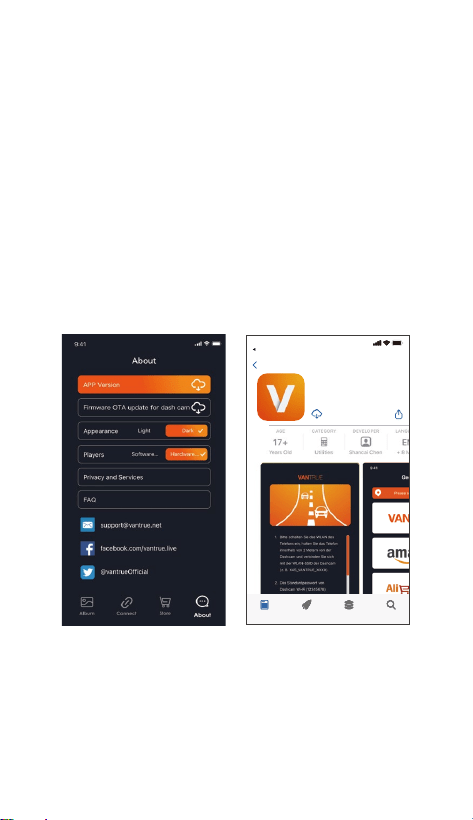
3.5 APP Operation
Video preview: In the real-time preview inteace,
you can switch to the full-screen preview mode by
clicking the full-screen icon or placing the phone
horizontally, click the window switch icon to switch
video windows, only multi-channel recording can
use this feature.
Video playback: The video and photo les recorded
on the SD card can be viewed in the APP, and the
video can be played back after clicking the le.
Video download: You can select the video or picture
you want to download in the SD card browsing
inteace or in the video playback area. After
downloading the video, if you play it in the local le
of the APP inteace, you can view the GPS track of
the video.
Video snapshot: You can capture the current screen
in the real-time preview inteace of the APP.
Mileage statistics: You can click to download
After the APP is successfully connected to the camera,
you can peorm the following operations:
Camera Setting
Lens correction
line
Mileage
Statistics
Full-screen Icon
Microphone
ON/OFF
Camera Display
Switch
Stop
Recording Icon
Album
Snapshot
mileage information as required, and the mileage
information will be saved in the APP as a picture or
PDF le.
Lens correction line: Correct the lens balance via
accurate crosshair so that the video screen will not
be skewed.
OTA upgrade: You can upgrade the S1 PRO dash
cam via APP, please refer to 4.2.12 for more details.
1.
2.
3.
4.
5.
- 13 -
Video preview: In the real-time preview inteace,
you can switch to the full-screen preview mode by
clicking the full-screen icon or placing the phone
horizontally, click the window switch icon to switch
video windows, only multi-channel recording can
use this feature.
Video playback: The video and photo les recorded
on the SD card can be viewed in the APP, and the
video can be played back after clicking the le.
Video download: You can select the video or picture
you want to download in the SD card browsing
inteace or in the video playback area. After
downloading the video, if you play it in the local le
of the APP inteace, you can view the GPS track of
the video.
Video snapshot: You can capture the current screen
in the real-time preview inteace of the APP.
Mileage statistics: You can click to download
mileage information as required, and the mileage
information will be saved in the APP as a picture or
PDF le.
Lens correction line: Correct the lens balance via
accurate crosshair so that the video screen will not
be skewed.
OTA upgrade: You can upgrade the S1 PRO dash
cam via APP, please refer to 4.2.12 for more details.
6.
7.
3.6 APP Upgrade
Open the "Vantrue" APP, connect to Wi-Fi, and enter
"Settings> About> Detect New Version". The App will
automatically detect whether its version is the latest
version. If there is a new version of the APP, follow the
prompts and upgrade the version.
Vantrue Ltd.
Zurück
Vantrue
Vantrue
9:41
Heute Spiele Apps Suche

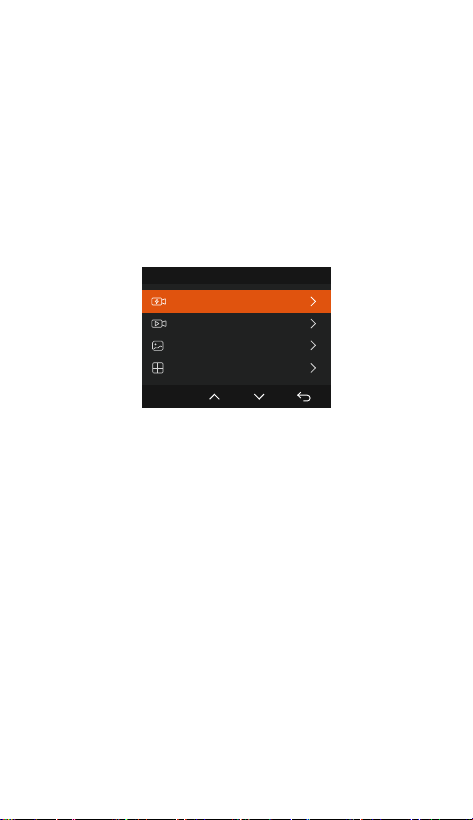
The S1 PRO dash cam has 3 function menus, which are:
record settings, system settings, and le browsing. You
can set your dash cam according to your requirements
with these function settings.
Press the button to pause the video rst, then press
the button to enter the menu settings.
Record Setup:
A. Resolution:
The S1 PRO camera has 2 recording modes:
Front + Rear Recording:
1944P +1080P 30FPS
1944P +720P 30FPS
1440P +1080P 30FPS
1440P +720P 30FPS
1440P 60FPS +1080P 30FPS
1440P 60FPS+720P 30FPS
1080P+1080P 30FPS
1080P+720P 30FPS
720P+720P 30FPS
Front Recording:
2592x1944P 30FPS
2560x1440P 30FPS
2560x1440P 60FPS
1920x1080P 30FPS
1280x720P 30FPS
B. Loop Recording: The default setting is 1 min. You
- 14 -
4. Basic Operation
4.1 Menu Settings
Record Setup
OK

- 15 -
can choose the options among 1/3/5 min and OFF.
C. G-Sensor: Select the level of G-sensor you need,
then you can set 3 directions (Front + Rear/Left + Right
/Up + Down). The G-sensor value in each direction can
be selected as 1/2/3(default) /4/5/O. The higher the
sensitivity level, the easier it is to trigger event
recording. The g-sensor is the most sensitive when set
to 5.
D. HDR Timer: The default is o. After turning it on,
you can select the automatic sta time and close time.
E. Audio Recording: The default is ON. Set recording to
on or o.
F. Exposure: The default value is +0.0. Adjust the
exposure of the lens.
G. REC Status Light: The default setting is ON. You can
choose to turn on/o the recording status light.
H. HDR: The default is ON. Set to on or o .
I. Rotate Display: Default is o. You can choose to ip
the rear screen up and down (180 degrees).
J. Mirror: The default is ON. If you turn it on, the rear
recording screen will be displayed in mirror mode.
K. Number Plate: Select the number or letter to be set.
After setting, your license plate number can be
displayed in the recorded video.
L. Stamp: Enable or disable the watermark stamp on
video and photos. The watermark stamp includes time
and date label, VANTRUE label, license plate number,
GPS location information, and speed label. All are
enabled by default.
M. Time Lapse: The default value is disabled. You can
choose to enable 1FPS/5FPS/10FPS/15FPS.
N. Parking Mode: You can choose the parking mode
you need, including Collision Detection/Motion
Detection/Low Bitrate Recording/Low Framerate
Mode/OFF, the default is OFF.
O. Low-light Night Vision in Parking Mode: Default is
ON. When turned on, it can optimize the recording

- 16 -
eect of videos in parking mode.
P. Parking Collision Detection: The power saving mode
is turned on by default. After turning on the collision
detection mode, you can choose power saving mode or
fast sta mode.
Q. Motion Detection Area: The motion detection range
of the front and rear areas can be adjusted respectively.
R. Mileage statistics: The default is on, and the GPS
mileage information will be stored in the memo card,
you can view it on the computer or expo the le
through the mileage statistics function in the APP.
S. GPS Settings: GPS is enabled by default. GPS
ON/OFF settings, speed unit settings, and GPS
information are all set here.
System Setup:
A. Language: Available languages are English/Français
/Español /Deutsch/ Italiano/简体中文/русский/日本語
/Polski/한국어.
B. Wi-Fi: You can set the WiFi function, switch WiFi
mode, and view WiFi information here. The default is
automatically turn o WiFi after 10 minutes without
connection. WiFi will stay on in the background if you
turn on the Auto ON option. The default WiFi mode is
5G. After turning it on, you can connect the WiFi and
operate the S1 PRO dash cam through the mobile
phone. WiFi Information Displays the WiFi name and
password.
C. Voice Control: The default sensitivity is Standard.
Voice commands can be recognized after the option is
turned on. You can choose options such as low
sensitivity/high sensitivity/standard/o.
D. Voice Content: Voice recognition commands. You
can use dierent commands to remote control the
camera to work.
E. Format Memo Card: Format all data on the
memo card.
F. Format Reminder Setup: you can select the reminder

- 17 -
H. Auto LCD O: Default is o. Set the time to
automatically turn o the LCD display after no
operation.
I.Screen brightness: The default is automatic mode; In
automatic mode, after 10 minutes of unmanned
operation of the recorder, the screen brightness
decreases by 50%; It can be set to three dierent levels
of brightness: high, medium, and low.
J. Device Sound: Set the volume of the device.
The default volume level is 2, the lowest is 0, and the
highest is 5.
K. Prompt Tone: According to dierent situations, the
dash cam is set with 5 kinds of prompt tones, which are
power-on/o sound, keys sound, le locked sound,
format sound, and abnormal stop recording reminder.
All prompt tones are turned on by default.
L. Frequency: Dierent countries have dierent
Automatic GPS update: GPS automatic update is
enabled by default. The date and time will be
automatically updated based on your time zone,
please select the correct time zone.
Manual date/time setting. You can choose to turn o
automatic GPS update, turn on manual date/time
setting, and manually correct the date and time.
Sumer/Winteime automatic switching. The default is
o. After this function is enabled, the system
automatically switches between summeime and
winteime.
This feature is available in Noh America only. Time
errors may occur in other regions.
The date format and time zone settings can also be
set under this menu.
•
•
*
options: 15 Days, 1 Month, and O. The default is o.
When the time is up, you can choose "OK" to format, or
choose "Next" to recalculate.
G. Date & Time: There are two ways to set the time and
date:
frequencies. In order to avoid aecting the video, you
can choose 50Hz or 60Hz frequency according to
dierent regions.
M. System Info: Check the current model, rmware
version, and the Vantrue ocial website.
N. Ceications: You can view the ceication
information of the S1 PRO camera.
O. Default Settings: Reset the device back to facto
settings.
Files:
Review the video and photo les recorded by the
camera.
- 18 -
H. Auto LCD O: Default is o. Set the time to
automatically turn o the LCD display after no
operation.
I.Screen brightness: The default is automatic mode; In
automatic mode, after 10 minutes of unmanned
operation of the recorder, the screen brightness
decreases by 50%; It can be set to three dierent levels
of brightness: high, medium, and low.
J. Device Sound: Set the volume of the device.
The default volume level is 2, the lowest is 0, and the
highest is 5.
K. Prompt Tone: According to dierent situations, the
dash cam is set with 5 kinds of prompt tones, which are
power-on/o sound, keys sound, le locked sound,
format sound, and abnormal stop recording reminder.
All prompt tones are turned on by default.
L. Frequency: Dierent countries have dierent
Files 1/4
Event Video
Photo
All Files
Normal Video
OK
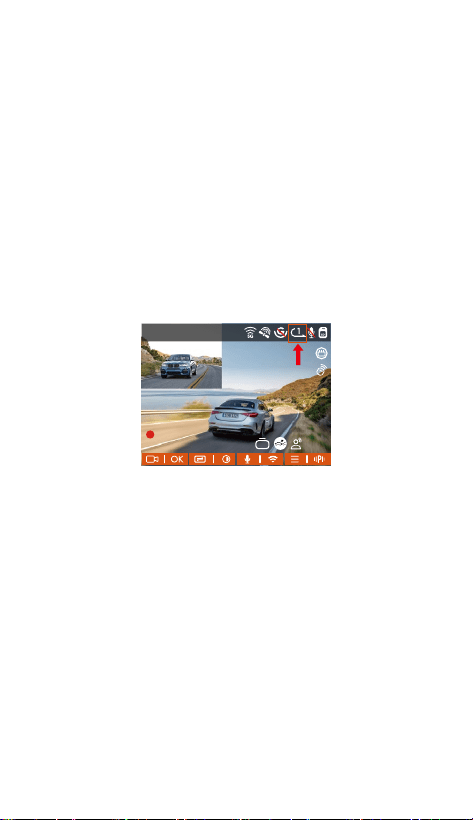
A. Event: Critical event videos detected by G-Sensor
activity or manually locked by the user.
The le name format is:
20300128_140633_0008_E_A.MP4
20300128_140633_0008_E_B.MP4
B. Normal: Standard videos recorded. This folder saves
loop recording video, parking mode video, time-lapse
video.
The le name format of Loop Recording video is:
20300128_140933_0008_N_A.MP4;
The le name format of Parking Mode video is:
20300128_140833_0007_P_A.MP4;
The le name format of Time-Lapse video is:
20300128_140733_0006_T_A.MP4;
C. Photo: Photos les. The le name format is:
20210128_140633_0001A.JPG
D. All: All the standard videos and critical event videos
were recorded.
frequencies. In order to avoid aecting the video, you
can choose 50Hz or 60Hz frequency according to
dierent regions.
M. System Info: Check the current model, rmware
version, and the Vantrue ocial website.
N. Ceications: You can view the ceication
information of the S1 PRO camera.
O. Default Settings: Reset the device back to facto
settings.
Files:
Review the video and photo les recorded by the
camera.
Note: The sux A represents the les recorded by the
front camera, the sux B represents the les recorded
by the rear camera.
- 19 -
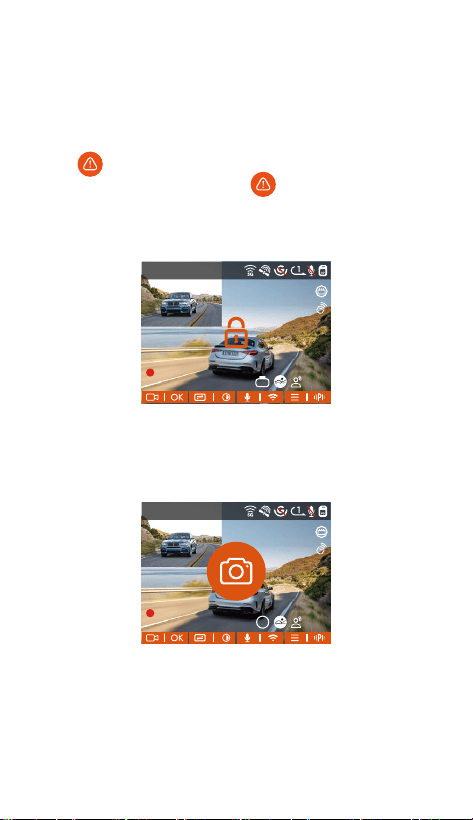
4.2.1 Loop Recording
After inseing the memo card and connecting the
power, the dash cam will automatically turn on and
enter loop recording. The duration of each recorded
video will be saved based on the loop recording time
you set, and saved in the normal video folder. When the
capacity of the normal video folder reaches 70% of the
total capacity, the new loop recording le will
automatically overwrite the original loop recording les.
4.2 Key Features
The normal operation of the loop recording function
is ve dependent on the speed of the memo card,
so please format the memo card regularly to avoid
problems such as excessive memo card les and
card aging that aect the normal loop recording.
Please check the loop recording video regularly to
avoid the necessa videos being overwritten by
loop.
When Loop Recording is turned o, the video lock
function will no longer work.
After the loop recording is turned o, the duration of
each video will be 20 mins, and the recording will
stop when the memo card capacity is full.
Note:
•
•
•
•
1440P +1080P 30FPS
10:39:07AM09-01-2023
00:00:37
MP/H
75
ACC
HDR
A. Event: Critical event videos detected by G-Sensor
activity or manually locked by the user.
The le name format is:
20300128_140633_0008_E_A.MP4
20300128_140633_0008_E_B.MP4
B. Normal: Standard videos recorded. This folder saves
loop recording video, parking mode video, time-lapse
video.
The le name format of Loop Recording video is:
20300128_140933_0008_N_A.MP4;
The le name format of Parking Mode video is:
20300128_140833_0007_P_A.MP4;
The le name format of Time-Lapse video is:
20300128_140733_0006_T_A.MP4;
C. Photo: Photos les. The le name format is:
20210128_140633_0001A.JPG
D. All: All the standard videos and critical event videos
were recorded.
Note: The sux A represents the les recorded by the
front camera, the sux B represents the les recorded
by the rear camera.
- 20 -
4.2.2 Event Recording
Event video is triggered by the G-sensor (Gravity
Sensor), which can be automatically triggered or
manually locked. During driving, in case of special
circumstances, the camera will automatically lock for
event recording or you can manually lock it by pressing
the button for event recording. During the lock
video period, you can press the button to capture
multiple times. After recording, the video will be
automatically saved in the event video folder, and the
photo will be saved in the photo folder.
Automatic locking event video is triggered when the car
is hit/shaken. The dash cam detects the vibration and
automatically locks the current video, which is saved in
the event video folder.
The sensitivity of the automatic locking video trigger
is determined by the sensitivity of the collision. The
higher the sensitivity setting, the greater the
probability of being triggered.
The total capacity of the event video le accounts for
30% of the total capacity of the current memo card.
•
•
1440P +1080P 30FPS
10:39:07AM09-01-2023
00:00:37
MP/H
75
ACC
HDR
10:39:07AM09-01-2023
00:00:37
MP/H
75
HDR
1440P +1080P 30FPS
ACC
1440P +1080P 30FPS
10:39:07AM09-01-2023
00:00:37
MP/H
75
ACC
HDR
- 21 -
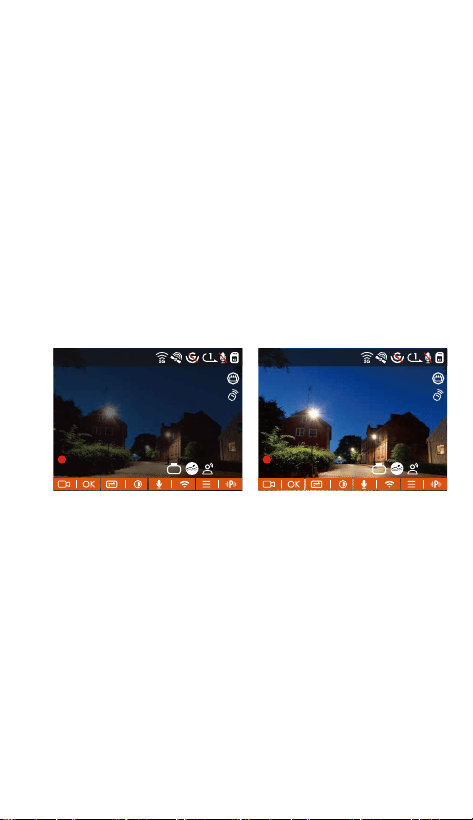
4.2.3 Low-light Night Vision in Parking Mode
In order to enhance the safety of parking at night, we
make full use of the lens peormance combined with
low-light night vision technology to improve the night
vision eect in parking mode. The default is ON. It will
be triggered only after entering the parking mode and
will not aect normal recording.
4.2.4 Parking Collision Detection
After turning on the parking Collision detection mode,
you can select the power saving mode or the quick
sta mode. In the power saving mode, after entering
Collision detection, the dash cam will be turned o, and
after the collision is triggered, it will be turned on for
recording; In the quick sta mode, after entering
Collision detection, the dashcam screen will be turned
o and the recording will be stopped, and the
recording will sta immediately after the collision is
triggered.
1440P +1080P 30FPS
10:39:07AM09-01-2023
00:00:37
MP/H
75
ACC
HDR
•
Low-light Night Vision O Low-light Night Vision On
When the event video le reaches the upper limit, the
new event video le will automatically overwrite the
old event video le. It is recommended to periodically
check and save your event video les to avoid loss.
Lock recording will not trigger in either of the
following situations: Loop recording is o or Time
lapse recording is on. You can only capture photos
with loop recording o/ time lapse on.
- 22 -
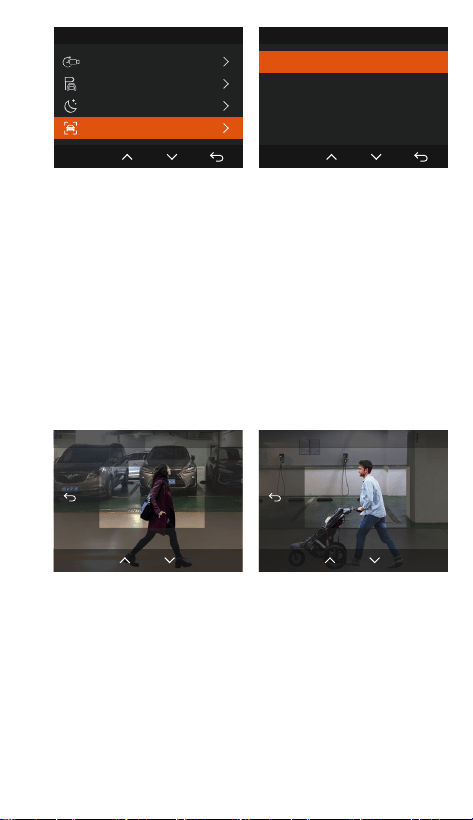
4.2.5 Motion Detection Area
The motion detection range of the front and rear areas
can be adjusted respectively, and the set range can be
adjusted up and down, left and right.
Front Area Detection
2XOK
Rear Area Detection
2XOK
This feature only works in motion detection parking
mode.
You can select 1X, 2X, 3X, 4X, or 5X range. The 5X
range is the global detection mode.
Note:
•
•
Collision Detection in Parking Mode
Power Saving Mode
Quick Start Mode
OK
Record Setup 16/20
Time Lapse
Parking Mode
Low Light Night Vision ...
Collision Detection in P...
OK
The power-saving mode/quick sta mode will only
take eect after the collision detection is turned on. If
the collision detection is turned o or other parking
monitoring modes are selected, this function will not
take eect.
Enable power saving mode by default.
Note:
•
•

- 23 -
You can wait for 5 minutes to sta automatically.
long press the button to begin manually.
Install the Vantrue ACC hardwire kit and the dash cam
will directly enter after the car is stopped the engine
(the ACC hardwire kit needs to buy separately).
•
•
•
4.2.6 Parking Mode
Parking Mode operates as a sent function under
dierent situations. You can switch to dierent parking
monitoring modes according to dierent parking
situations.
After the parking mode is turned on, there are three
ways to record:
Parking Mode
Collision Detection
Motion Detection
Low Bitrate Mode
Low Framerate Mode
OK
To ensure the camera works in park mode, please use
the hardwire kits or other stable and continuous
power supply to power the dash cam.
Please use Vantrue hardwire kit for ACC hardwire,
ACC hardwire kit from other brands may not work.
When the temperature in the car is as high as
60°C(140°F), it is recommended that you turn o the
camera to avoid the abnormal operation of the
camera caused by the high temperature.
Time-lapse video recording and parking mode
(including collision detection, motion detection, low
bitrate recording, and low framerate mode) can only
be enabled one at a time. When one is enabled, the
other will be automatically disabled.
All videos recorded in parking mode (Collision
Detection, Motion Detection, Low Bitrate Recording,
Note:
•
•
•
•
•
Low Framerate mode) will be saved in the normal
video folder. In order to prevent the video in parking
mode from being overwritten in a loop, please check
and save the required les in time to prevent loss.
- 24 -
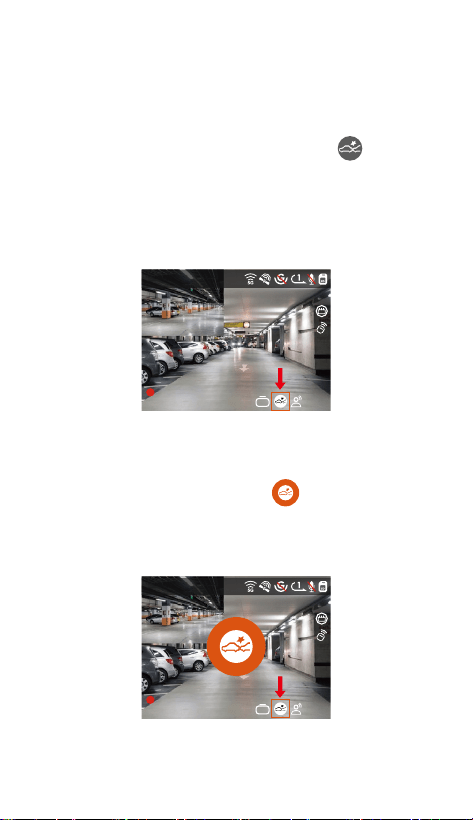
Collision Detection
When collision detection is enabled, the icon will be
displayed on the recording inteace, indicating that the
recorder is currently using collision detection mode.
Collision detection sensitivity can be adjusted from 1 to
5 levels. You can adjust according to your habits, as
well as the surroundings of the car.
When the Collision Detection is turned on, and no
movement is detected after 5 minutes of recording
(5-minute ent mechanism for sho), then Collision
Detection is activated with the icon in the center of
the screen, and the camera automatically turns o.
When the dash cam is turned o, it will sta to record
for 1 minute after being shaken, then turn o the dash
cam again.
Note:
If the dash cam continues to be hit during the collision
detection recording, it will exit the collision detection
To ensure the camera works in park mode, please use
the hardwire kits or other stable and continuous
power supply to power the dash cam.
Please use Vantrue hardwire kit for ACC hardwire,
ACC hardwire kit from other brands may not work.
When the temperature in the car is as high as
60°C(140°F), it is recommended that you turn o the
camera to avoid the abnormal operation of the
camera caused by the high temperature.
Time-lapse video recording and parking mode
(including collision detection, motion detection, low
bitrate recording, and low framerate mode) can only
be enabled one at a time. When one is enabled, the
other will be automatically disabled.
All videos recorded in parking mode (Collision
Detection, Motion Detection, Low Bitrate Recording,
Low Framerate mode) will be saved in the normal
video folder. In order to prevent the video in parking
mode from being overwritten in a loop, please check
and save the required les in time to prevent loss.
1440P +1080P 30FPS
10:39:07AM09-01-2023
00:00:37
MP/H
75
ACC
HDR
1440P +1080P 30FPS
10:39:07AM09-01-2023
00:00:37
MP/H
75
ACC
HDR
- 25 -
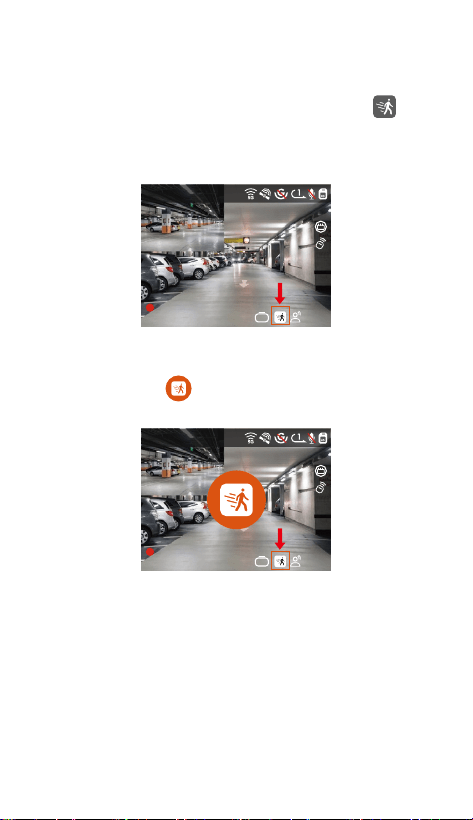
Video recording process: When the camera detects
object movement, it will automatically trigger video
recording for 30 seconds. After the motion detection
recording ends, the camera will load a 15s pre-record-
ed video into the 30s motion detection video and save
the 45s video to the normal folder.
Note:
Motion detection mode can only be engaged when the
camera is turned on. Once the camera is turned o, the
When the motion Detection is turned on, and no
movement is detected after 5 minutes of recording,
then an orange icon will appear in the center of the
screen, and the screen will turn o after 3 minutes.
1440P +1080P 30FPS
10:39:07AM09-01-2023
00:00:37
MP/H
75
ACC
HDR
1440P +1080P 30FPS
10:39:07AM09-01-2023
00:00:37
MP/H
75
ACC
HDR
mode and enter normal recording, restaing the
5-minute ent mechanism.
Motion Detection
When the motion detection is turned on, the icon
will be displayed on the recording inteace, indicating
that motion detection has been turned on. Please go to
“Motion Detection Area” to set the area range.
- 26 -
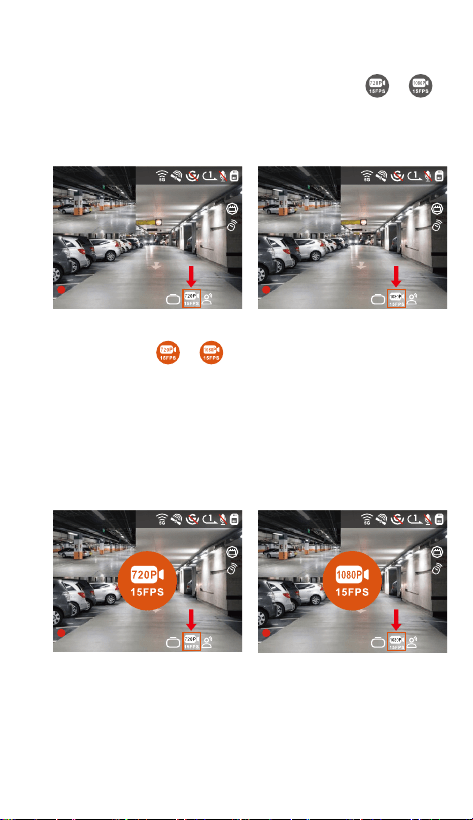
Note: Low Bitrate recording can only be engaged when
the camera is turned on. Once the camera is turned o,
the Low Bitrate recording will not work.
If no movement is detected after 5 minutes of recording,
there will be a or icon that appears in the center
of the screen. The resolution of all current video will be
automatically switched to 1080P 15FPS or 720P 15FPS
for recording, and the recording duration will be
determined according to the currently set loop
recording duration. When the camera vibrates or is
moved, it will automatically exit, wait 5 minutes, and
enter again.
720P+720P 15FPS
10:39:07AM09-01-2023
00:00:37
MP/H
75
ACC
HDR
1080P+1080P 15FPS
10:39:07AM09-01-2023
00:00:37
MP/H
75
ACC
HDR
720P+720P 15FPS
10:39:07AM09-01-2023
00:00:37
MP/H
75
ACC
HDR
1080P+1080P 15FPS
10:39:07AM09-01-2023
00:00:37
MP/H
75
ACC
HDR
motion detection mode will not work.
Low Bitrate Recording
When Low Bitrate recording is enabled, the or
icon will be displayed on the recording inteace,
depending on whether you choose 1080P 15FPS or
720P 15FPS.

- 27 -
[Normal Recording Time = Low Framerate Recording
Time (Sec) x Recording Frame Rate FPS/Low Framerate
Option] (Time should be conveed into seconds)
The time unit of the calculation formula is seconds, so
the nal normal recording time calculated is also in
seconds. If you need to conve it into other time units,
please check the units and conve them yourself.
The low framerate mode is the same as the time- lapse
recording mode, the former only works when parking,
and the latter continues to work after it is turned on.
In low framerate mode, the camera also needs a stable
power supply. Once the power is o or exhausted, the
camera will shut down.
Note:
•
•
•
1440P +1080P 30FPS
10:39:07AM09-01-2023
00:00:37
MP/H
75
ACC
HDR
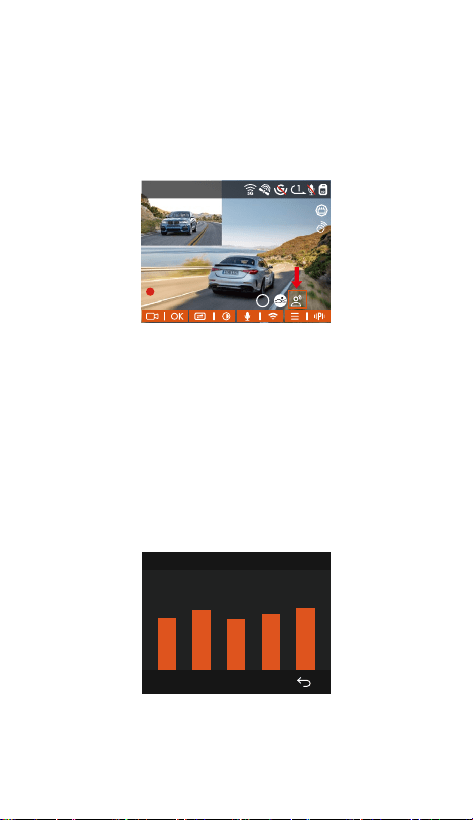
Low Framerate mode
When the low framerate mode is selected, the camera
will record according to your selection among
1FPS/5FPS/10FP/15FPS. For example, if you select
1FPS and the current video resolution frame rate is
30FPS, the camera will generate a 30FPS video per
second. Low framerate mode can greatly presee the
integrity of the video and save space on the memo
card.
- 28 -
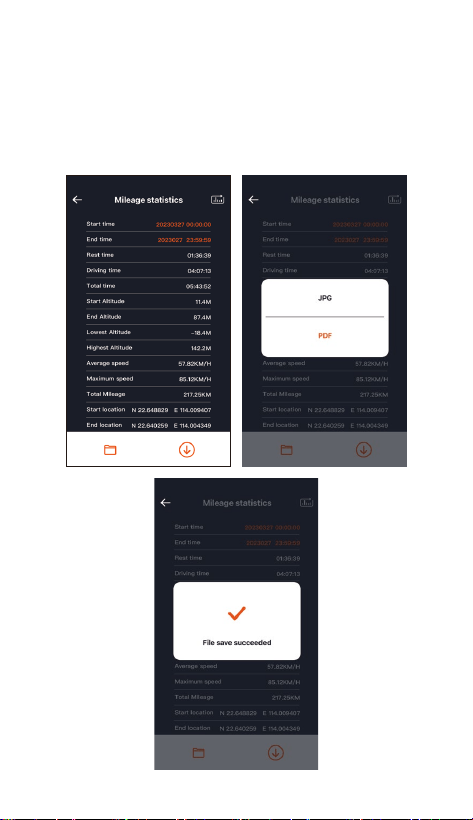
4.2.7 Mileage Statistics
The S1 PRO dash cam can record, analysis and statistics
your driving time, driving distance, altitude, driving
speed, and other information according to the GPS
information. You can click to download mileage
information in the APP, and the mileage information will
be saved in the APP as a picture or PDF le.
- 29 -
10:39:07AM09-01-2023
00:00:37
MP/H
75
HDR
1440P +1080P 30FPS
ACC
4.2.8 Voice Assistant
You can also control the camera with voice commands,
such as take photo, video sta, turn on/o WiFi, lock
the video, etc. Currently suppoed languages are
English, Japanese, Russian, and Chinese. For more
detailed voice commands, please check System Settings
> Voice Content.
The default setting is standard sensitivity. Voice
recognition has options such as low sensitivity/standard
/high sensitivity/o.
4.2.9 GPS Function
The GPS function is one of the impoant functions of
the dash cam. GPS is enabled by default, and the
camera receives GPS signals through the GPS mount. It
can automatically calibrate the time and date in your
area, recording the location where the video was taken
and the speed of the car at the time.
GPS Information
40
46
39
43
48

- 30 -
GPS automatic time correction needs to set the
correct time zone, you can refer to the representative
cities after each time zone.
Automatic switching between winter and summer
time, this function is only available in Noh America.
Note:
•
•
Time & Date
GPS Automatic Update
ST/WT Auto Switch
Date Format
Set Date/Time Manually
OK
4.2.10 GPS Automatic Update Time& Date
The GPS automatic correction time setting for the S1
PRO dash cam is turned on by default. You can select
GMT-08:00 by selecting your time zone, such as Los
Angeles. If you do not know the time zone of your
location, you can use WiFi to connect to the Vantrue
App and conrm that the automatic time adjustment
function in the APP is turned on.
The GPS connection will be completed within 1
minute after you turn on the device. If the GPS
connection is not successful within 1 minute, please
check whether the device has turned on the GPS
function, whether the GPS bracket is properly
connected, and whether your environment
(underground parking lot, densely populated
residential area, subway, tunnel, etc.) is aecting the
reception of GPS signal.
GPS information is recorded along with the video. To
view it, please download and install the Vantrue APP
and Vantrue GPS Player (available for download at
www.vantrue.net).
Note:
•
•
- 31 -
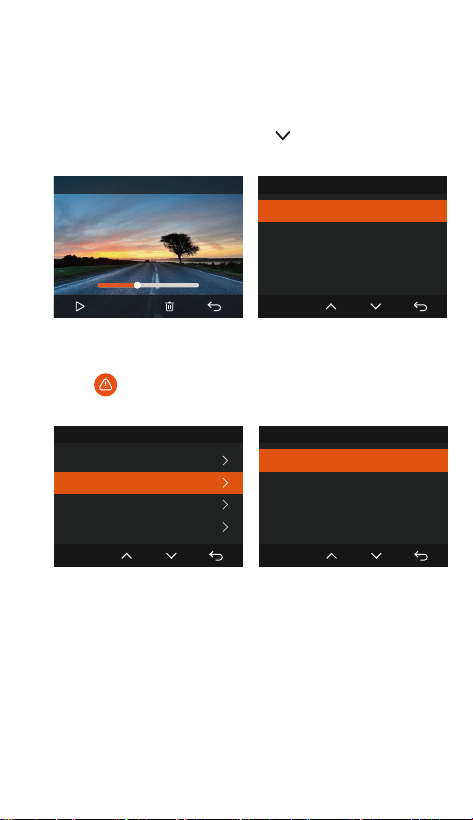
4.2.11 Viewing and Deleting Video/Photos
a.Viewing and Deleting les on the Camera
-Playback Files
After clicking "Files", enter any folder, and after opening
the video folder, you can press the button to select
the next le, and delete the le during playback.
-Deleting Files
Go to "Files", choose a video on the dash cam, and
press the button in the le browsing inteace to
pop up the delete Menu.
20220408_140633_0001_E_B.MP4
00:30
01:07
1X
Event Video
Delete This File?
Delete All Files?
OK
Event Video 2/5
20230102_140633_0001...
20230102_140633_0001...
20230102_140633_0001...
20230102_140633_0001...
OK
Event Video
Delete This File?
Delete All Files?
OK
- 32 -
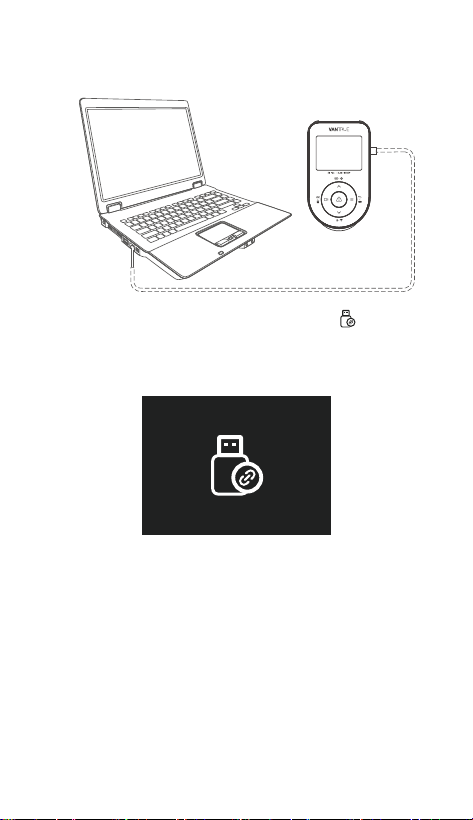
Connect the included TYPE-C USB data cable to the
camera and the computer.
b. Viewing and Deleting les on Computer
1.
After the connection is successful, the icon will
appear on the display of the camera to transfer data,
and then you can view and delete the video les in
the computer folder.
2.
Depending on the computer systems of dierent
users, after the camera is connected to the computer,
it will be displayed as a removable drive or a
removable folder.
To view the les on the computer, you can directly
access them, right-click to open the menu, and delete
them.
You can also use a USB card reader to read the
memo card information.
To ensure a stable power supply, please check
whether the computer inteace is a USB 3.0 inteace.
3.
4.
5.
6.
- 33 -
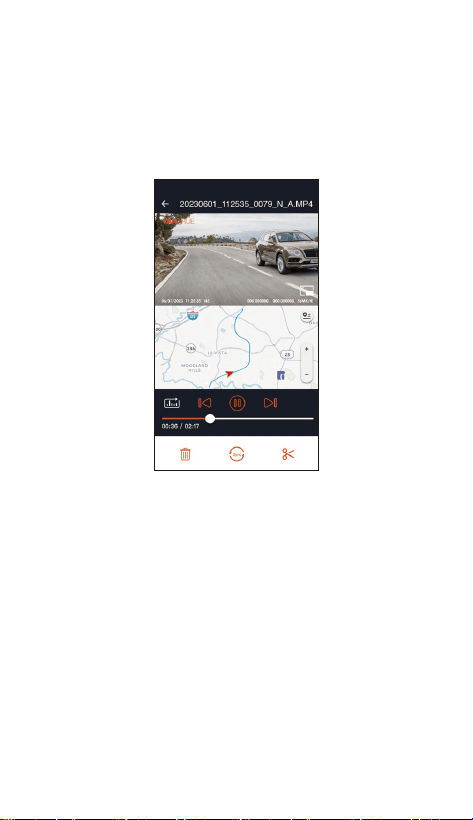
For video playback in the APP or downloads to SD
card, there will be no network trac consumption.
You can view GPS track information only after the
video le is downloaded and played back locally. At
the same time, you need to disconnect the WIFI of
the dash cam, otherwise, the map information will be
blank.
Note:
•
•
When connecting to a desktop computer, it is
recommended to use the USB po on the back of the
host computer.
Viewing and Deleting on the “Vantrue” APP.
After the camera is successfully connected to the
mobile phone through WiFi, it can play back, download
and delete les in the mobile APP.
c.
- 34 -
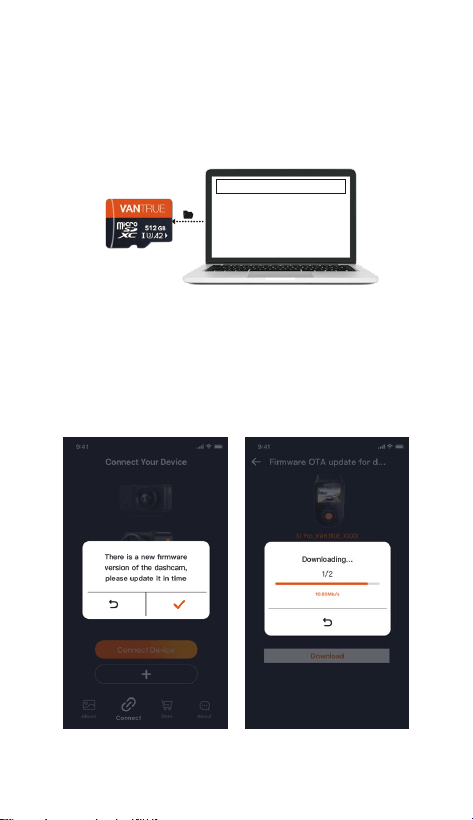
4.2.12 Upgrading Firmware
Option 1: Upgrade via PC
After downloading the latest S1 PRO rmware via
Vantrue Ocial Website, place the le into the root
directo of the memo card, inse it back into the
dash cam, power on to upgrade.
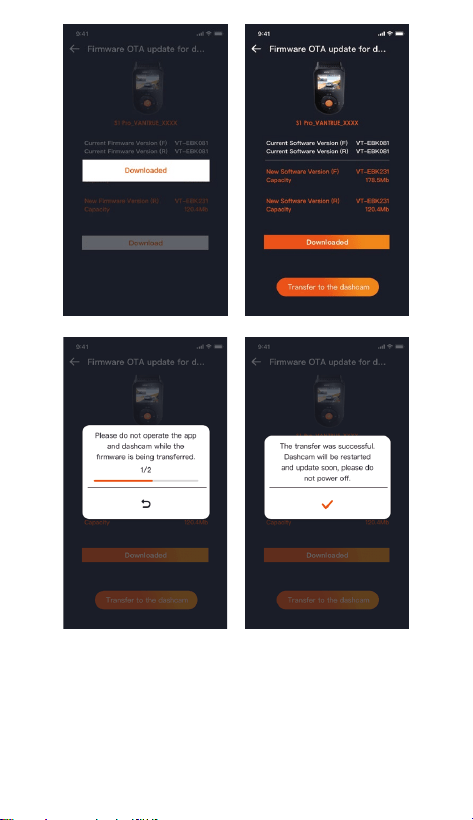
Option 2: OTA(OveheAir) Firmware Update
After opening the APP, you will receive the rmware
update push. Once conrming the upgrade, it will jump
to the OTA upgrade inteace, which can be upgraded
according to the APP guidance. Please note: OTA
requires network trac to download upgrade les.
Upgraded Files
- 35 -

- 36 -
5. Specications
The specications of this product may change without
prior notice due to product improvements.
Model S1 Pro
Novatek high-peormance processor
Sony Sensor
Built-in triaxial sensor
Built-in 2.4GHz&5GHz
2’’ IPS Screen
Chips
Image Sensor
G-sensor
WiFi
Screen
Camera Angle
Apeure
Languages
Video
Resolution
Front: 160° wide viewing angle;
Rear: 165° wide viewing angle;
Front: F/1. 8 wide apeure;
Rear: F/1. 8 wide apeure;
Engish/Français/Español/Deutsch/
Italiano/简体中文/русский/ 日本語/
Polski/한국어/язык
External: 32GB-512GB Micro SD Card,
U3, Class 10(not included in the
package)
Front+Rear:
1944P +1080P 30FPS
1944P +720P 30FPS
1440P +1080P 30FPS
1440P +720P 30FPS
1080P+1080P 30FPS
1080P+720P 30FPS
720P+720P 30FPS
Front:
2592x1944P 30FPS
2560x1440P 30FPS
1920x1080P 30FPS
1280x720P 30FPS
Image Format
Audio
MP4
JPEG
Built-in microphone and speaker
Video File
Format
Memo
Storage

- 37 -
Type C
Built-in super capacitor
DC 5V 2.4A
USB Po
Power Source
Supply voltage
current
Power
Working
Temperature
Storage
Temperature
-4°F to 158°F(-20°C to 70°C)
6. Warning
This product is an auxilia device for the purpose of
recording exterior images of vehicles, and some
functions may not be suppoed due to dierent
driving and vehicle environments.
Firmware upgrade will be carried out from time to
time to fuher improve the product, please pay
attention to the ocial notice of VANTRUE according
to the specic upgrade.
This product can record and save images of vehicle
accidents, but it does not guarantee that all accident
images can be recorded. The image may not be
recorded in a special folder because the crash sensor
cannot be activated for minor crashes.
Be sure to turn o the power when inseing or
removing the memo card.
For stable use of the product, please format the
memo card at least once a month.
Generally, memo cards have a life span, and
long-term use of memo cards may result in data
not being saved. In this case, it is recommended to
purchase a new memo card for use. If the data is
destroyed due to the long-term use of the memo
card, the company will not be held responsible.
Do not install or operate this product while the
vehicle is running.
•
•
•
•
•
•
•
6W
-4°F to 140°F(-20°C to 60°C)

- 38 -
Do not subject the product to strong shocks or
vibrations, which may damage the product and cause
malfunction or inoperability.
Do not use chemical solvents or cleaning agents to
clean the product.
The ambient temperature range for normal use of this
device is -20 degrees Celsius to 60 degrees Celsius.
Exceeding this ambient temperature range may cause
the product to malfunction.
Do not place the product in an open ame. Do not use
the product in high temperature and high humidity
areas, as this may cause electric shock, sho circuit,
and other hazards and damage the product.
It is forbidden to disassemble or modify the car
charger by yourself, or use a sho-circuit car charger,
otherwise it will cause personal inju, electricshock,
re and other dangers or damage the product.
Please do not disassemble or modify the product
without permission to avoid damaging the recorder,
generating heat and causing re.
Please use this product within the scope of the law.
•
•
•
•
•
•
•

- 39 -
7. Warranty & Suppo
Warranty
The VANTRUE® S1 PRO Dash Cam comes with a full 12
months warranty. If you register your product on our
ocial site (www.vantrue.net/register), you can extend
the warranty to 18 months.
Suppo
If you have any questions regarding your product,
please solve it in the following ways: 1. Open Vantrue
APP, nd the solutions in the frequently asked
questions; 2. Contact customer seice of your
purchased channel; 3. Drops us an email at
suppo@vantrue.net. Queries are typically answered
within 12-24 hours.
Your opinion matters
VANTRUE® is rmly committed to always improving our
products, seices, and user experience. If you have any
thoughts on how we can do even better, we welcome
your constructive feedback and suggestions.
If you need the full version of user manual, please
download on our ocial site, or connect with us today
at suppo@vantrue.net.
Thank You for choosing Vantrue