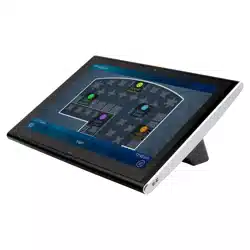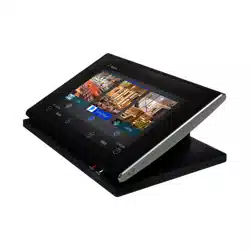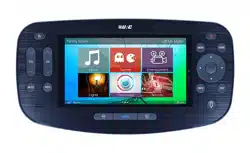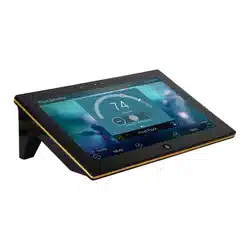
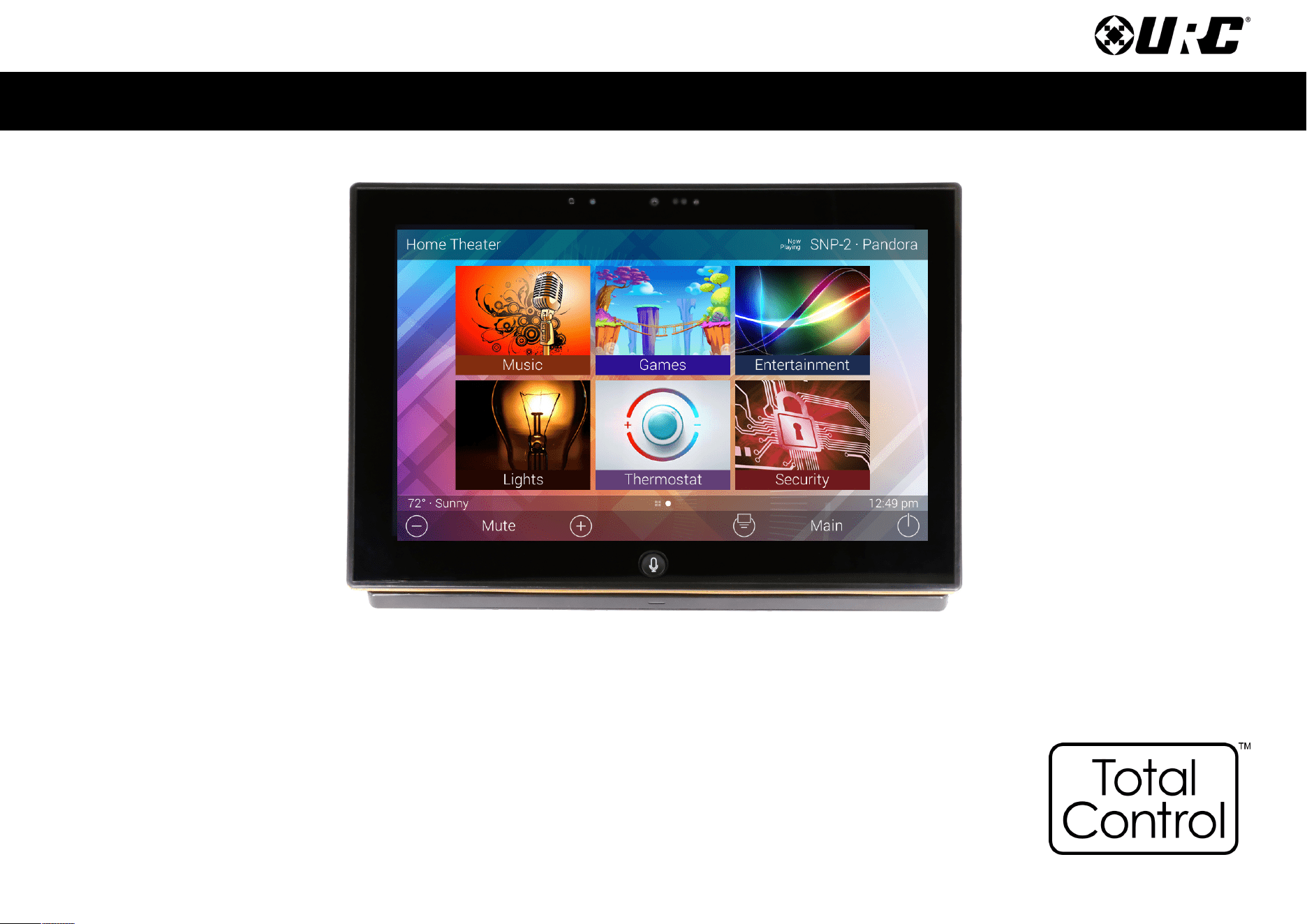
TDC-8300
Owner’s Manual
Total Control
TDC-8300
Owner’s Manual
Total Control
TDC-8300
Owner’s Manual
Rev 1.0
Table of Contents
Introducing the TDC-8300
Thank you for purchasing URC’s
Handheld Touch Screen. Its easy and intuitive use helps to simplify your
life while adding control of more things than you thought possible.
Online Support:
Total Control is sold direct only and must be installed/program by a
certified custom integrator.
End-User Support:
Visit the URC Home Page for product information, owner’s manuals, and
support contact information.
Contact Support:
Total Control is a URC product sold direct only. For questions or
assistance contact your Custom Installer/Programmer.
My Installer/Programmer
Features and Benets.................................................................................................... 1
Amazon Alexa/Audio-Video Interface .....................................................................1
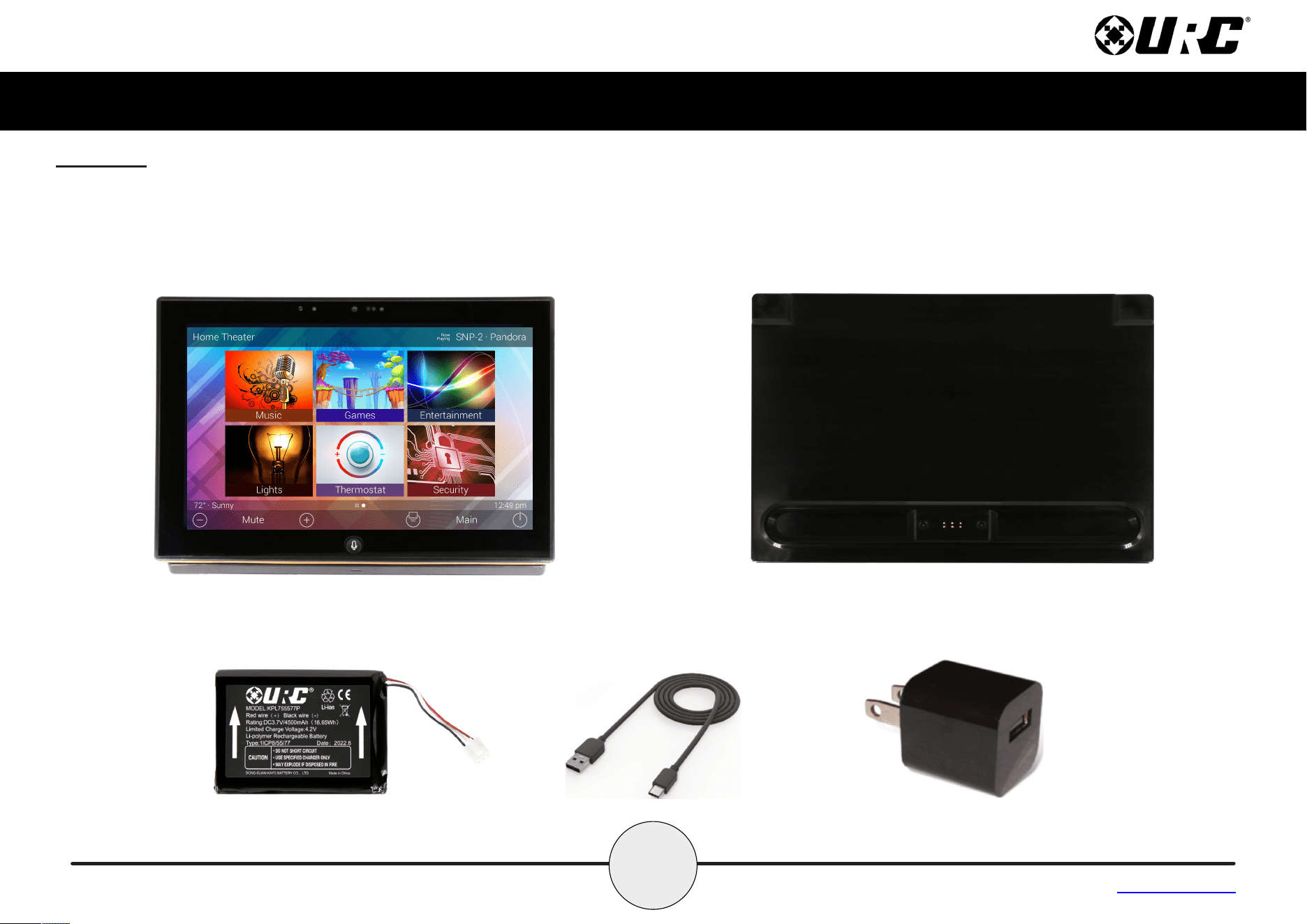
Parts List ......................................................................................................................... 2
The TDC-8300.................................................................................................................. 3
Alexa Features................................................................................................................ 4
Settings Menu................................................................................................................. 5
Sleep Settings...........................................................................................................6
General ......................................................................................................................7
Sound ........................................................................................................................8
Brightness.................................................................................................................8
Pickup Sensor………………………………………………………………..…………….9
Proximity Sensor......................................................................................................9
System Information................................................................................................10
Network ...................................................................................................................11
Power.......................................................................................................................15
Voice Assistant .......................................................................................................16
Alexa Voice Assistant........................................................................................17
Login..............................................................................................................17
Logout ...........................................................................................................21
Audio Settings ..............................................................................................23
Language.......................................................................................................25
Removing the TDC-8300 from an Amazon Account……………….……….26
Factory Default .......................................................................................................28
Intercom ..................................................................................................................29
Specications ............................................................................................................... 31
Limited Warranty Statement........................................................................................ 31
Technical Support
Toll Free: 800-904-0800
Main: 914-835-4484
To open a support ticket go to:
www.urcportal.com
Hours: 9:00am-6pm EST M-F
1
Total Control
TDC-8300
Owner’s Manual
Table of Contents
Features and Benefits
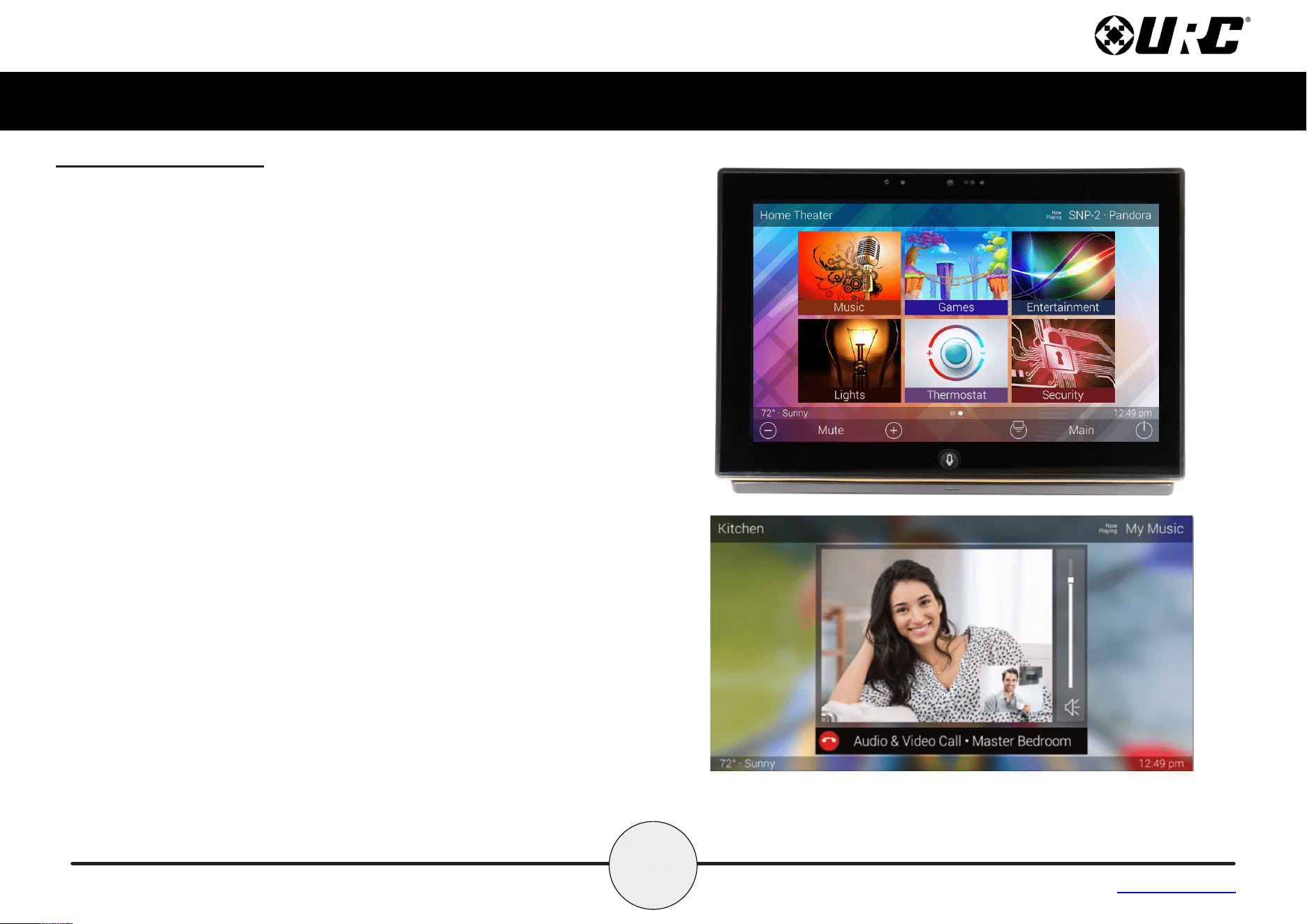
The TDC-8300 Handheld Touch Screen is one of URC’s most advanced
devices that is optimized for usage with Total Control.
Enjoy these key features:
Amazon Alexa
This keypad is capable of integrating with Amazon Alexa devices, bringing
voice control to home automation solutions.
Audio-Video Interface
Communicate with any other URC Intercom-Enabled device in the system with
this feature. The end-user can make Audio-Video, Audio, or Audio Broadcast
calls directly from the TDC-8300.
3
Total Control
TDC-8300
Owner’s Manual
Table of Contents
The TDC-8300
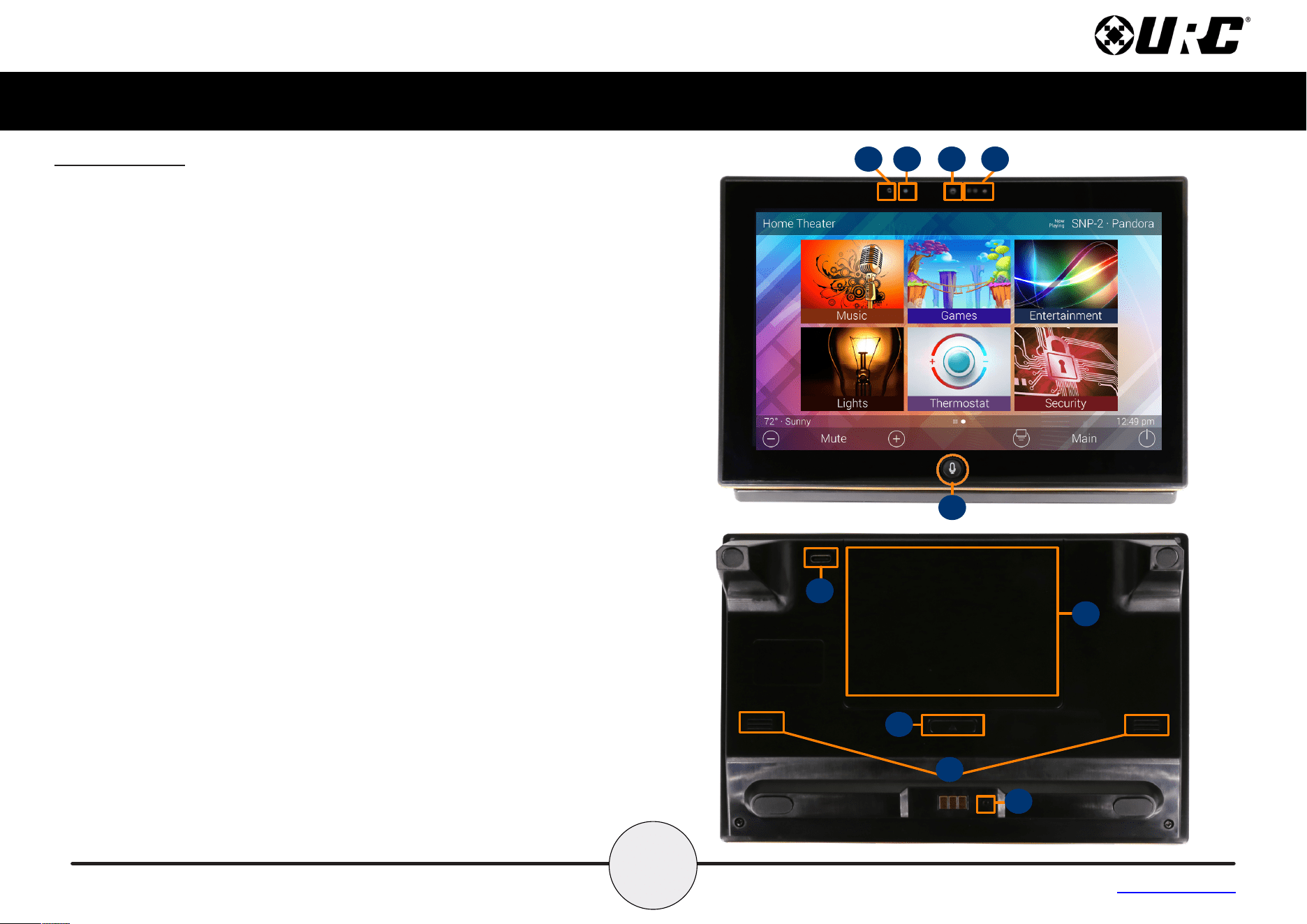
A. Microphone Array:Themicrophoneisbuiltintothetopofthe
TDC-8300, allowing for exceptional audio capture when using the
Alexa or intercom features.
B. Microphone & Camera Status LED:AnLEDthatwillshowifthe
Camera is being used or the Microphone is in use.
C. Camera:Asinglecameraisusedforallvideofunctions.
D. Proximity & Light Sensors: These dual sensors allow the handheld
touch screen controller to sense users within close proximity to it and
monitors the ambient light level of the room, so the LCD can
automatically adjust to the perfect brightness.
E. Microphone Button:Thisisusedforaccessingvoicecontrolor
Intercom/Door Station interaction.
F. Speakers: Audio is outputted for Voice Assistant responses, Intercom
and Door Station Audio, and button press feedback.
G. Reset Button: Along the bottom of the keypad, is the reset button. A
single press power cycles the keypad. Holding the button for twenty
(20) seconds Factory Defaults the keypad.
DO not use this unless instructed by URC or your custom installer
H. Battery Cover: Covers the battery compartment of the TDC-8300.
I. Battery Cover Release Button:Pressingthisbuttonwillreleasethe
battery cover.
J. USB-C Port: Port used for faster charging.
B
G
C D
A
E
H
I
J
F
4
Total Control
TDC-8300
Owner’s Manual
Table of Contents
Alexa Features
When integrated with Amazon’s Alexa Voice Assistant, an end-user is able to
take advantage of it’s various features and services within their Total Control
system.
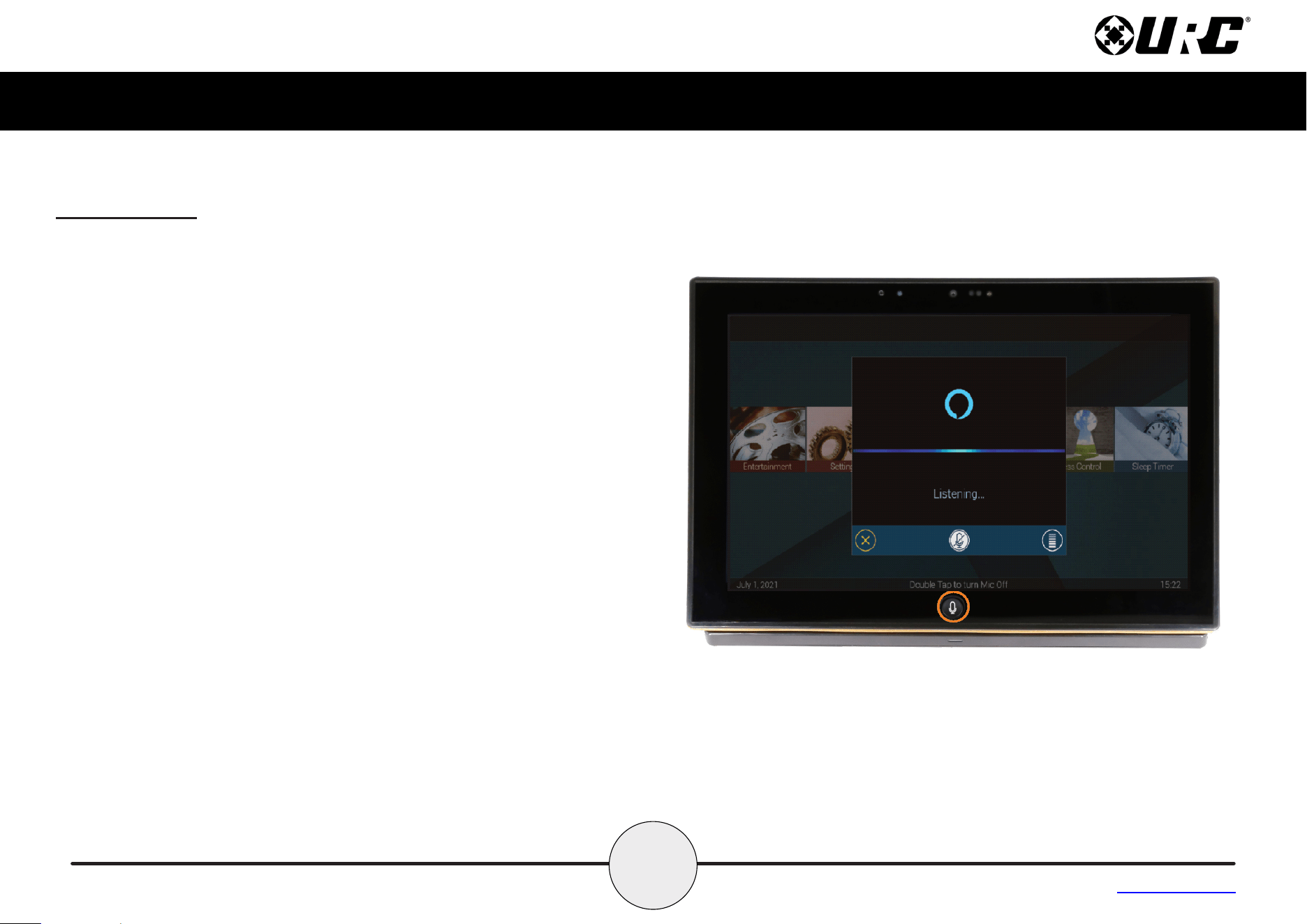
•MicrophoneButton:Pressandholdthemicrophonebuttonr on the
TDC-8300 to speak to Alexa. Double-tap the button to turn on or off
the microphone.
•MicrophoneButtonNotificationColors:Alexanotificationsare
reflected on the TDC-8300 through the Microphone Button. It is able
to glow in several different colors, indicating the microphone’s current
state, an active announcement or notifications from Amazon, such as
informing the user of package deliveries or new deals.
■Bluer:Themicrophoneisenabled.
■Cyanr:Announcements.
■Purpler:DoNotDisturbisenabled.
■Redr:Microphoneisoff.
■Yellowr:Messages/notifications.
5
Total Control
TDC-8300
Owner’s Manual
Table of Contents
Settings Menu
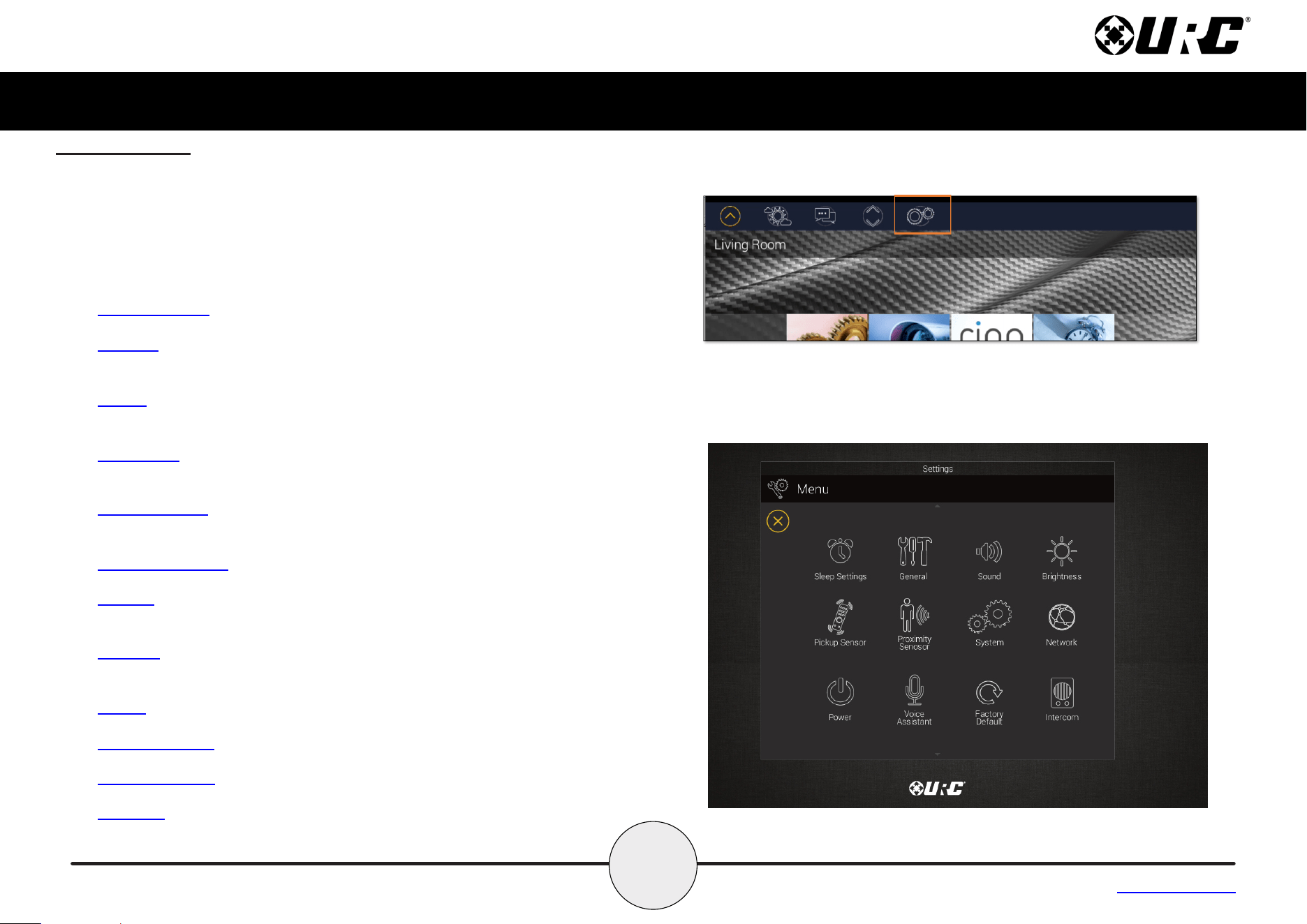
Access the Settings Menu by sliding the Title Bar down and selecting the
Settings button.
Most settings do NOT require interaction with the end-user. Changing settings
may cause issues with the Total Control system, only do so when instructed
to by URC Technical Support.
• Sleep Settings:ManagewhentheLCDscreenturnsOFF.
• General:ContainsallthegeneralsettingsfortheTDC-8300.Allowsthe
adjustment of Date, Time, and Temperature Scale settings.
• Sound:Adjustthevolumeoftheaudiofeedback,intercomalertlevel
and door station alert level when pressing buttons on the interface.
• Brightness:AllowstheadjustmentoftheLCDscreen’sbrightness,night
level, LCD level, button back-light, mic light and enable the light sensor.
• Pickup Sensor:Allowsthesensitivitylevelofthepickupsensortobe
adjusted.
• Proximity Sensor:Allowstheadjustmentoftheproximitylevel.
• System:ProvidesgeneralinformationabouttheTDC-8300suchas
memory used, current version, and version details.
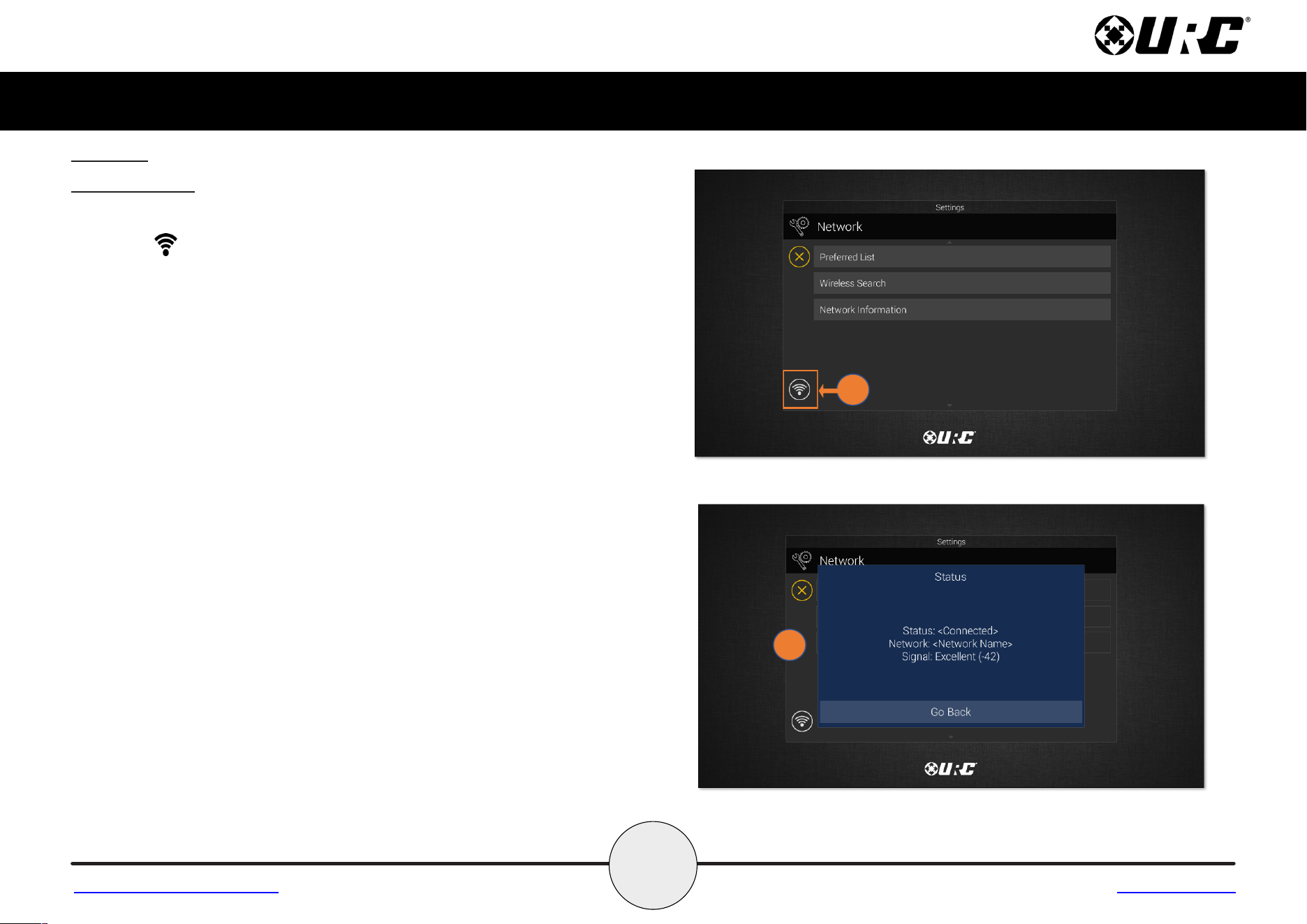
• Network:ConnectstheTDC-8300totheWi-Finetworkandgives
general info about the network connection.
• Power:Setwhentobenotifiedoflowbatterypower.
• Voice Assistant:SettingsforAmazonAlexa.
• Factory Default:AllowstheTDC-8300toberesettoitsfactorystate.
• Intercom:AllowstheconfigurationoftheAudio/VideoIntercom.
6
Total Control
TDC-8300
Owner’s Manual
Table of Contents
Sleep Settings
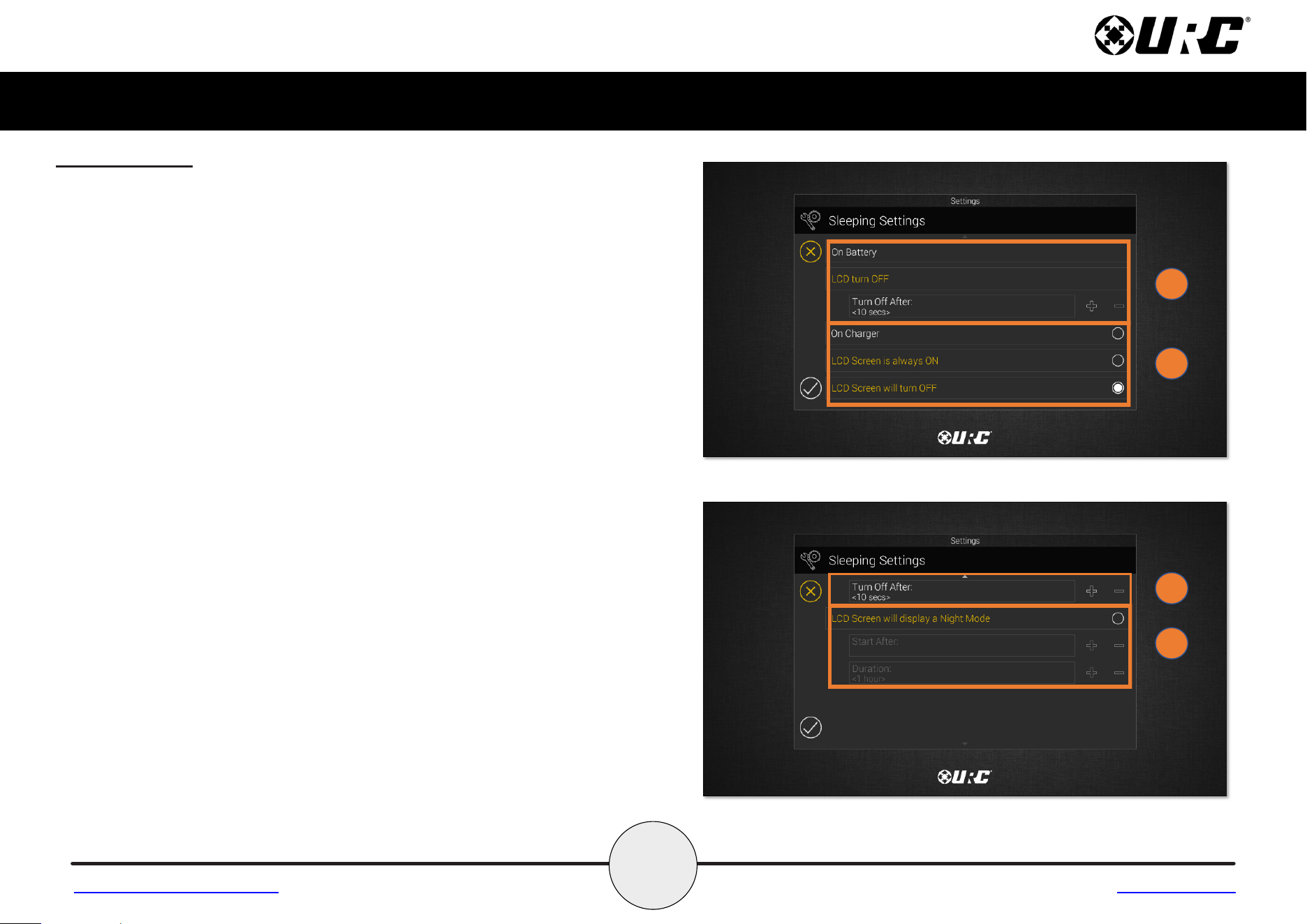
Control when the TDC-8300 LCD turns OFF with the following settings:
1. On Battery Settings: When the TDC-8300’s is not on the charger or not
plugged in:
•Usethe+and-signstodeterminewhentheLCDwillturnoff.Thetime
options are from 10 seconds to 3 minutes.
2. On Charger Settings: When the TDC-8300 is on the charger or plugged in:
•UsetheradiobuttontoselectiftheLCDScreenisalwaysON.
or
•UsetheradiobuttontoselectiftheLCDScreenwillturnOFFafterthe
select time. The time options range from 20 seconds to 3 hours.
3. Night Mode Settings: When the TDC-8300’s LCD screen will dim itself and
for how long.
•StartAfter:TheTDC-8300timesoutbasedonthevalueentered
here and goes into Night Mode.
•Duration:TheTDC-8300turnsoffNightModeafterthe
value entered here.
1
2
2
3
Return to Settings Menu Page
7
Total Control
TDC-8300
Owner’s Manual
Table of Contents
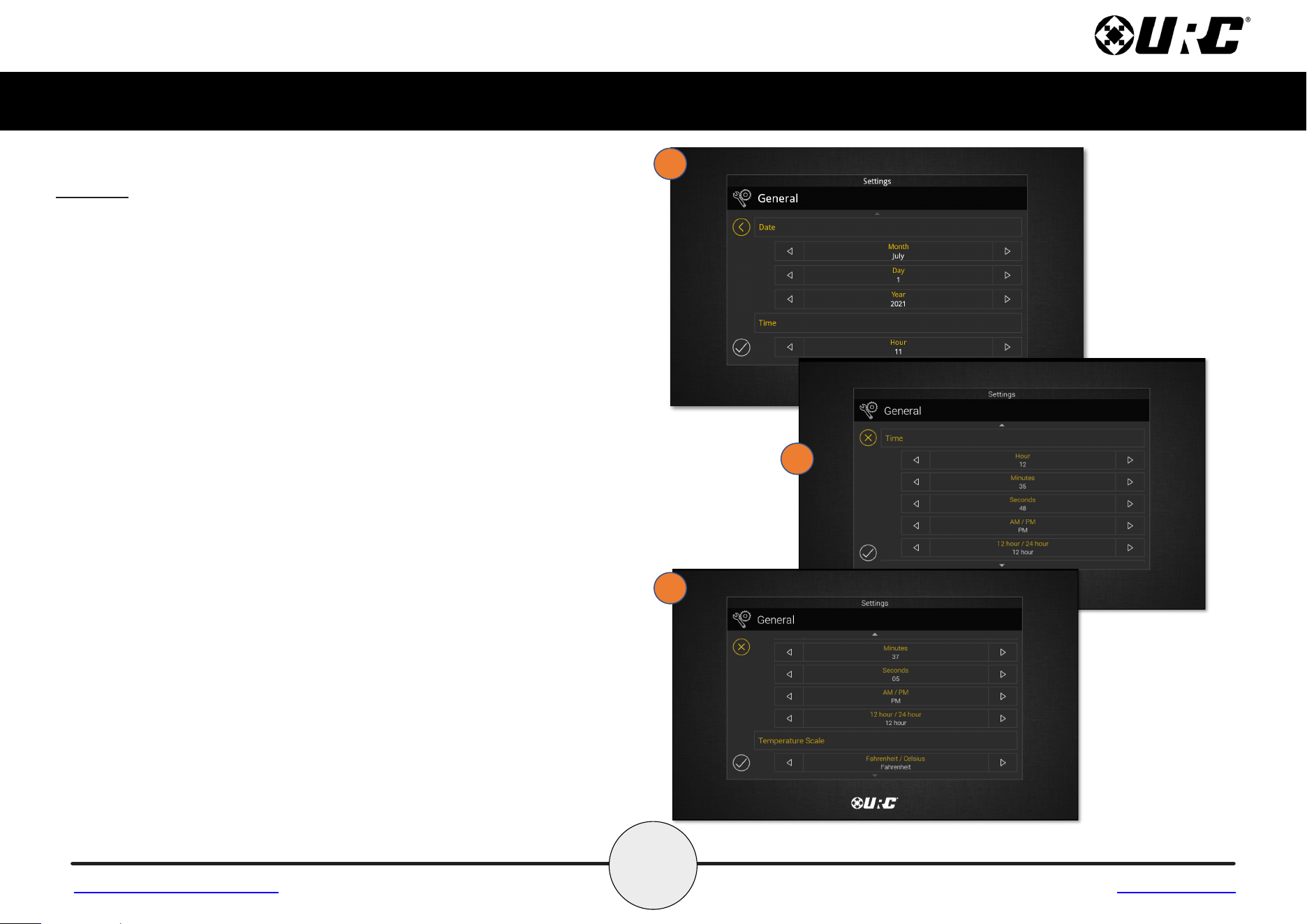
General
Using the left and right arrow keys, enter the values of each category:
1. Date: The following values can be changed:
•Month
•Day
•Year
2. Time: The following values can be changed:
•Hour
•Minutes
•Seconds
•AM/PM
•12Hour/24Hour
3. Temperature Scale: Set this to either Fahrenheit or Celsius.
1
2
3
Return to Settings Menu Page
8
Total Control
TDC-8300
Owner’s Manual
Table of Contents
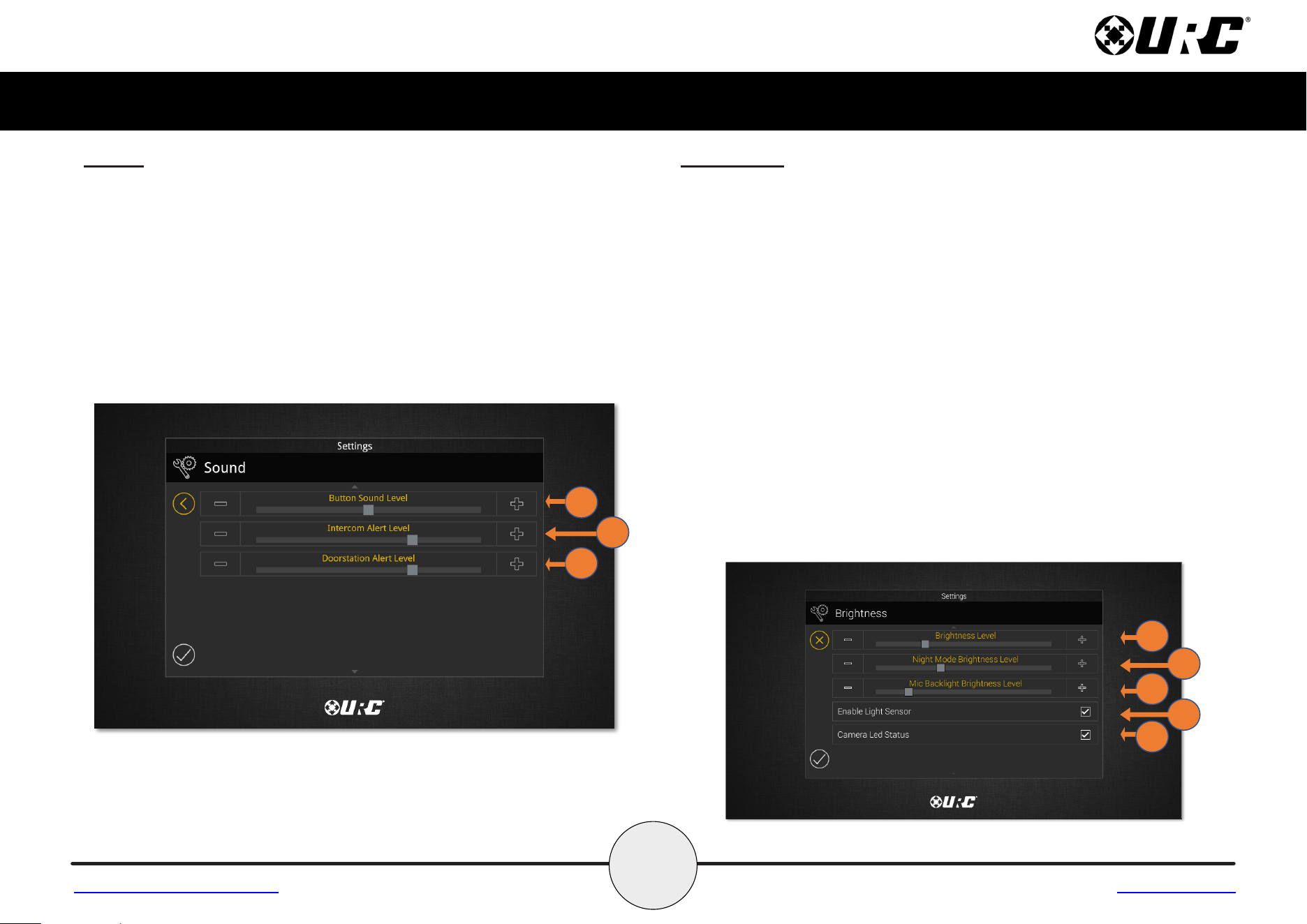
Sound
Use the plus and minus buttons to raise or lower the TDC-8300’s audio
levels. Dragging the slider to the left or right will also adjust it to a
specific audio level.
1. Button Sound: Audio level for button feedback when pressed.
2. Intercom Alert: Audio level for the incoming call notification.
3. Door Station Alert: Audio level for door station notifications.
Brightness
Use the plus and minus buttons to raise or lower the TDC-8300’s display
brightness. Dragging the slider to the left or right will also adjust it to a
specific brightness level.
1. Brightness Level: How bright the screen is when in use.
2. Night Mode Brightness Level: How bright the screen is when in
Night Mode.
3. Mic Backlight Brightness Level: How bright the mic button appears.
4. Enable Light Sensor: The TDC-8300 is equipped with an ambient
light sensor that can automatically adjust the display brightness.
Check the box to enable this feature.
5. Camera LED Status: Determines if the camera’s LED will remain on
or off when the camera is in use or not.
1
2
3
1
2
4
3
Return to Settings Menu Page
5
9
Total Control
TDC-8300
Owner’s Manual
Table of Contents
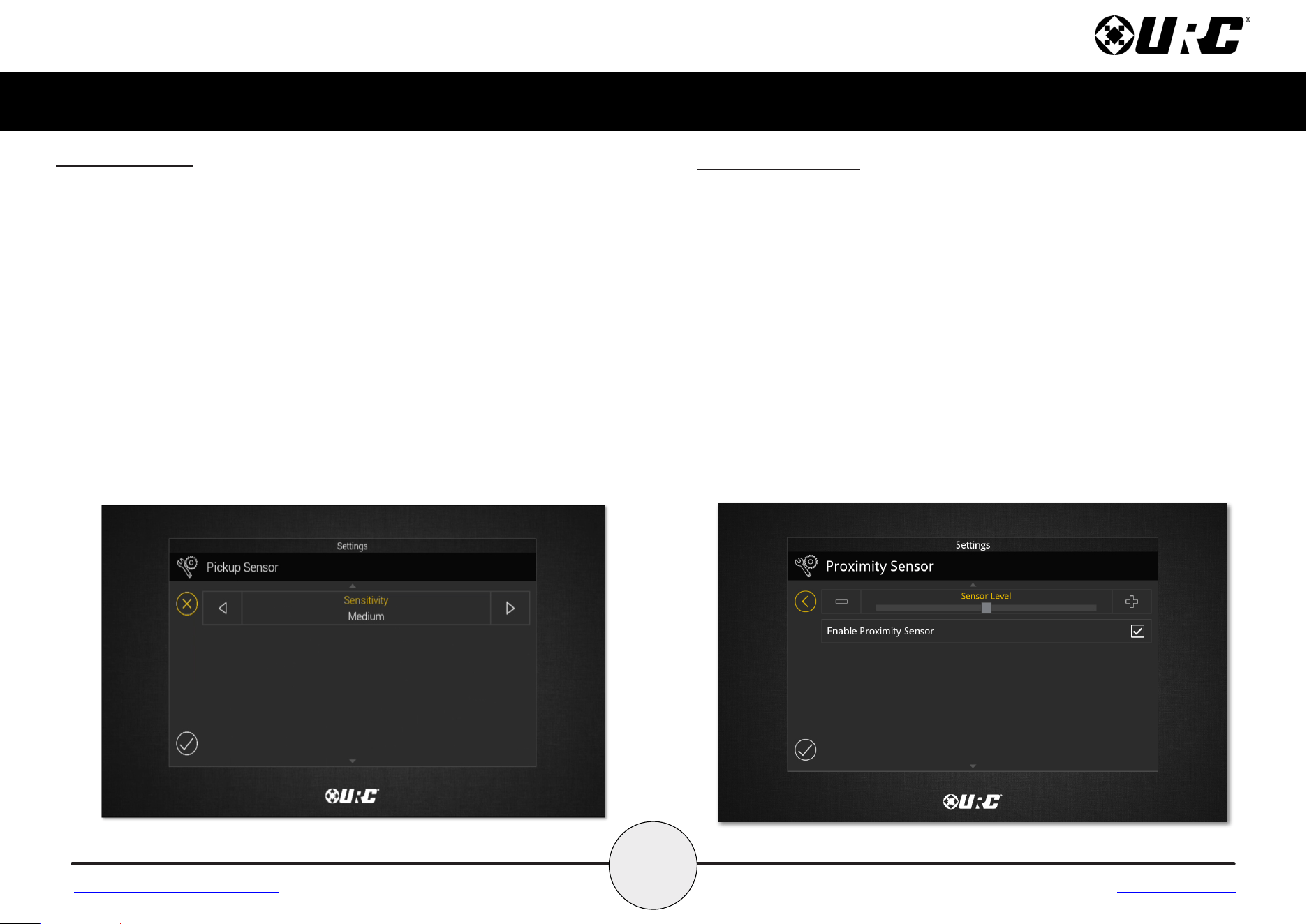
Pickup Sensor
Use the left and right arrow buttons to decrease or increase the
TDC-8300’s Pickup Sensor sensitivity, with Off being the lowest setting
and High being the highest setting. There are four levels of sensitivity to
choose from, Off, Low, Medium and High.
•ThePickupsensorfeaturewillawakentheTDC-8300basedonthe
tilt sensitivity setting when the device is picked up.
Proximity Sensor
Use the plus and minus buttons to raise or lower the TDC-8300’s
Proximity Sensor sensitivity. Dragging the slider to the left or right will
also adjust it to specific sensitivity level.Themaximumdistanceofthe
proximity sensor is about three (3) feet.
•EnableProximitySensor:Bydefaultthischeckboxisenabled.
Uncheck the box to disable the proximity sensor.
Return to Settings Menu Page
10
Total Control
TDC-8300
Owner’s Manual
Table of Contents
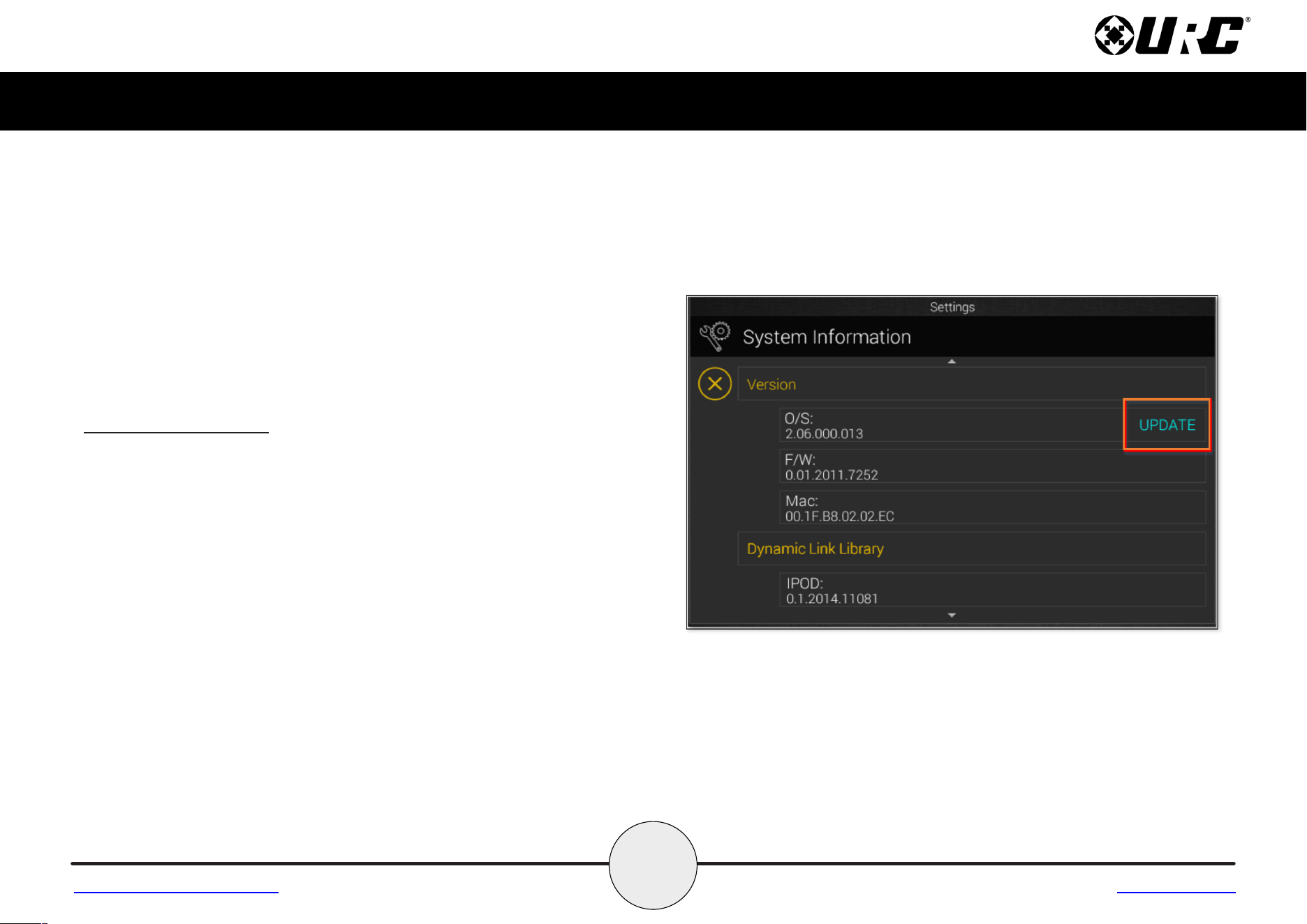
System Information
Although none of this information can be modified, the System Information
page displays important details about the TDC-8300. This information is
only needed by a custom installation professional or URC Technical
Support.
•PleaseconsultwithURC’sTechSupportbeforeusingtheUPDATE feature.
Return to Settings Menu Page
12
Total Control
TDC-8300
Owner’s Manual
Table of Contents
Network (cont’d)
Preferred List
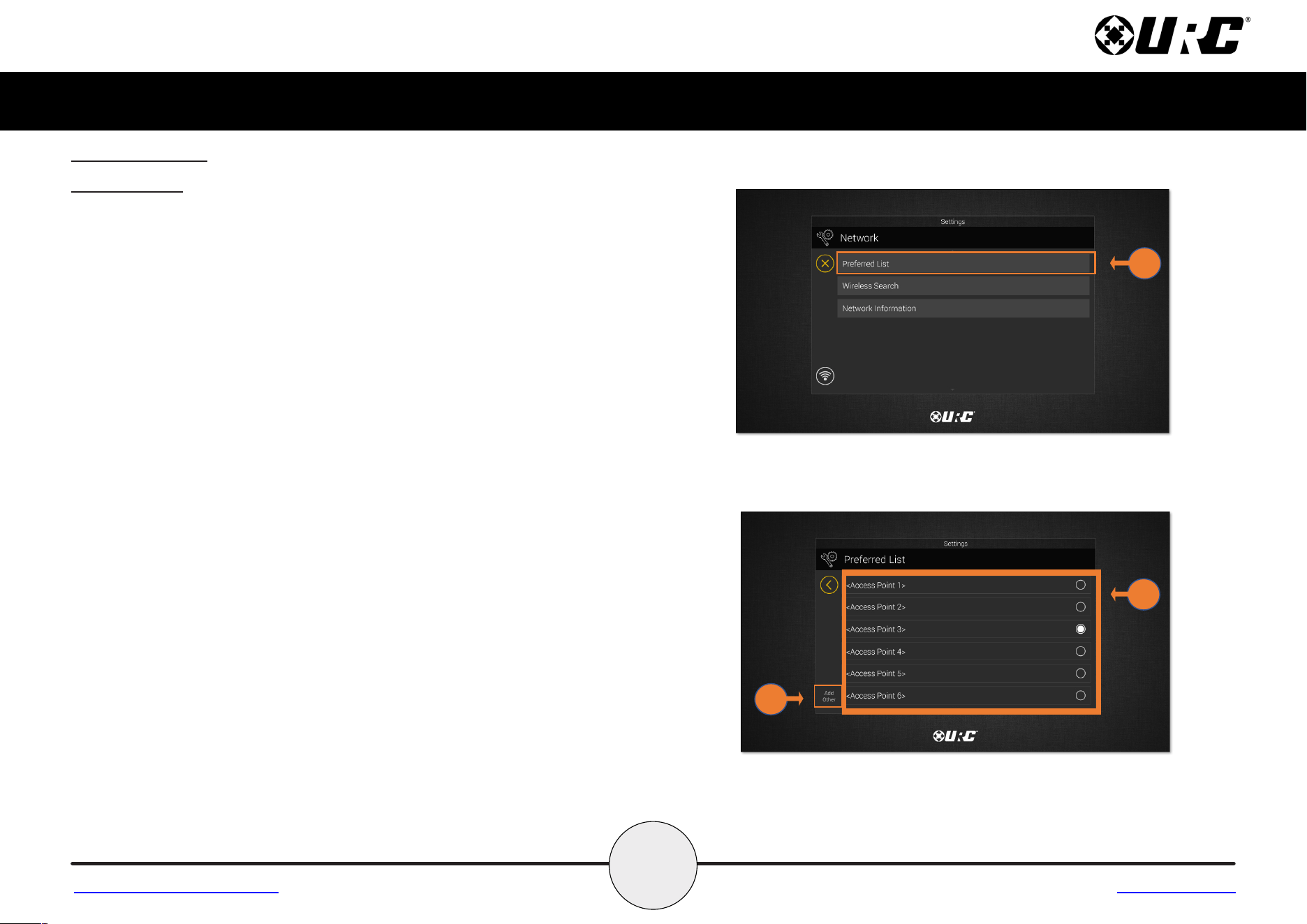
The Preferred List menu will display a list of SSID’s that have been added to
the TDC-8300 using the Wireless Search or the Add Other methods.
To view the Preferred List:
1. Select Preferred List.
2. Displays the List of SSID’s that have been added to the TDC-8300.Using
the radio buttons give you the option to choose which one you would like
to connect to.
3. Select Add Other to add additional SSID’s to the Preferred List.
2
Return to Settings Menu Page
1
3
13
Total Control
TDC-8300
Owner’s Manual
Table of Contents
Network (cont’d)
Wireless Search
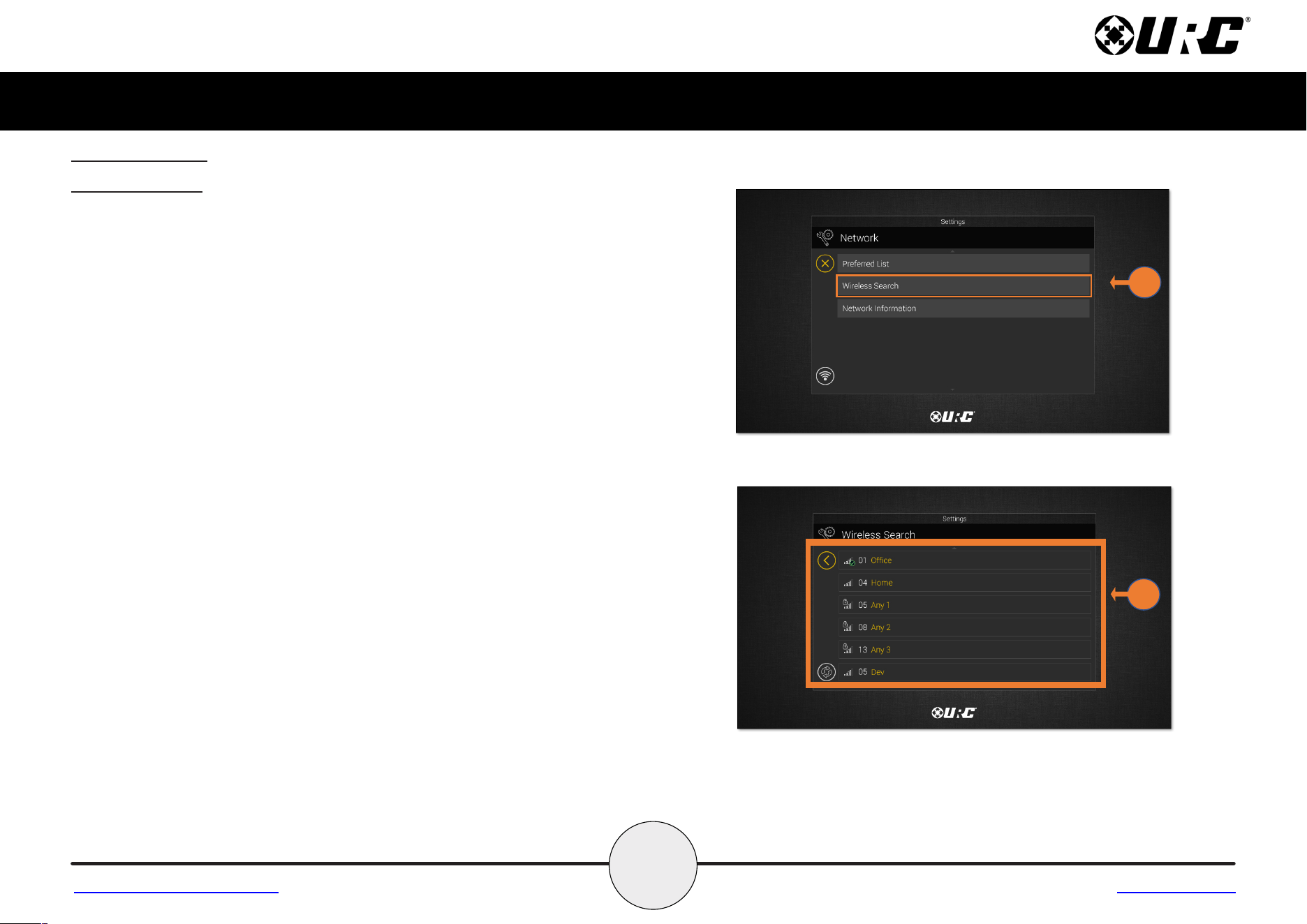
When viewing the Wireless Search list, the base station will scan the area for
available WiFi networks.
To view the Wireless Search list:
1. Select Wireless Search.
2. The Wireless Search list will consist of the available WiFi networks
showing the assigned network, networks that don’t require passwords and
networks that require a password.
2
Return to Settings Menu Page
1
14
Total Control
TDC-8300
Owner’s Manual
Table of Contents
Network (cont’d)
Network Information
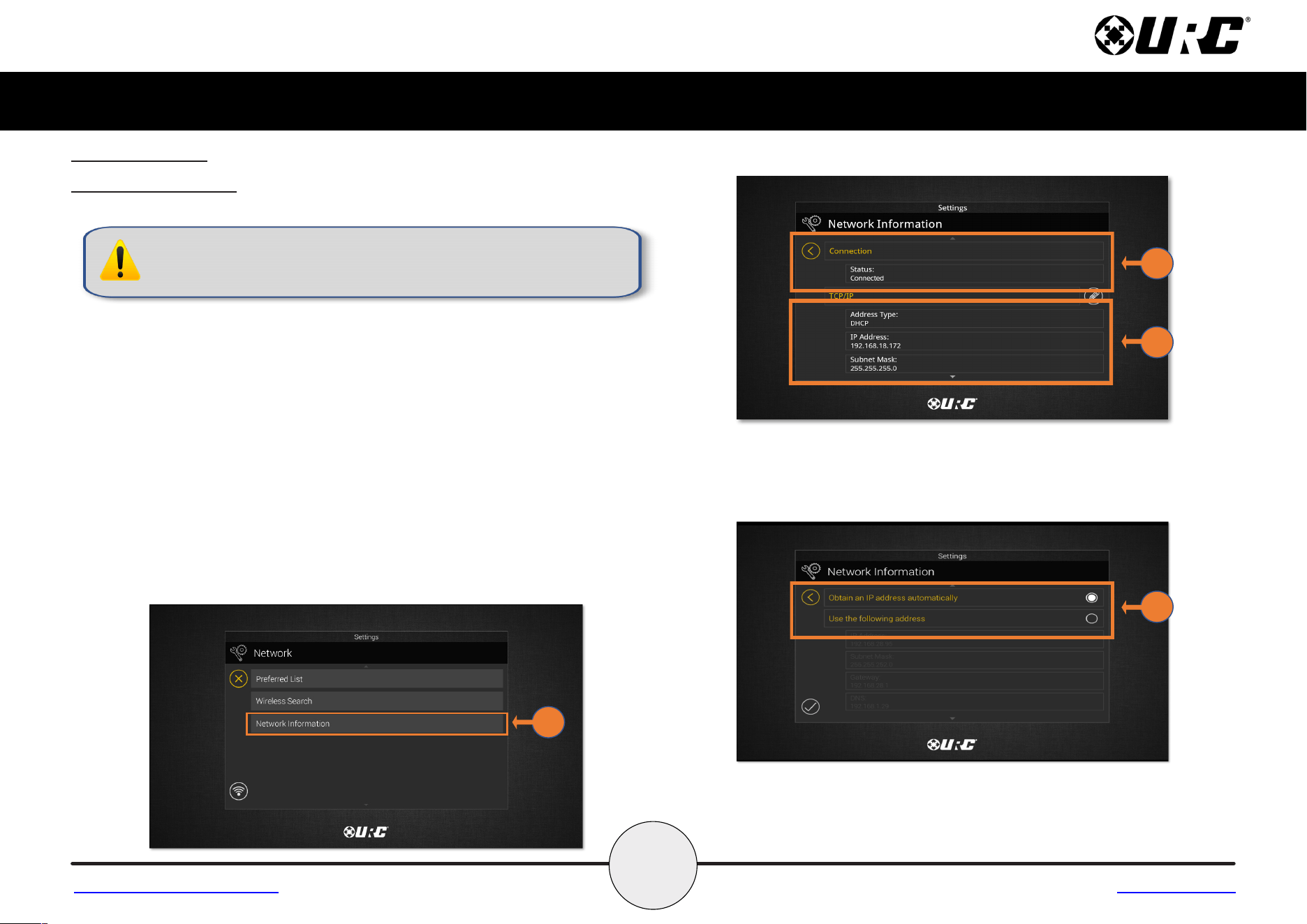
This option displays important information about the current network.
CAUTION, these settings should ONLY be changed by a professional.
Entering values without specific instruction could easily result in the
TDC-8300 failing to function correctly.
Here is the information that can be displayed here:
1. Select Network Information.
2. Connection: Displays the status of the network connection, Connected
or Not Connected.
3. TCP/IP: Displays information such as Address Type (DHCP or Static),
IP Address, Subnet Mask, Gateway, and DNS.
4. Select the Edit button to reveal additional options.
•ForDHCP,selectObtainanIPAddressAutomatically.
•ForStatic,selectUsetheFollowingAddress.Filloutthe
required network settings.
2
3
4
Return to Settings Menu Page
1
15
Total Control
TDC-8300
Owner’s Manual
Table of Contents
Power
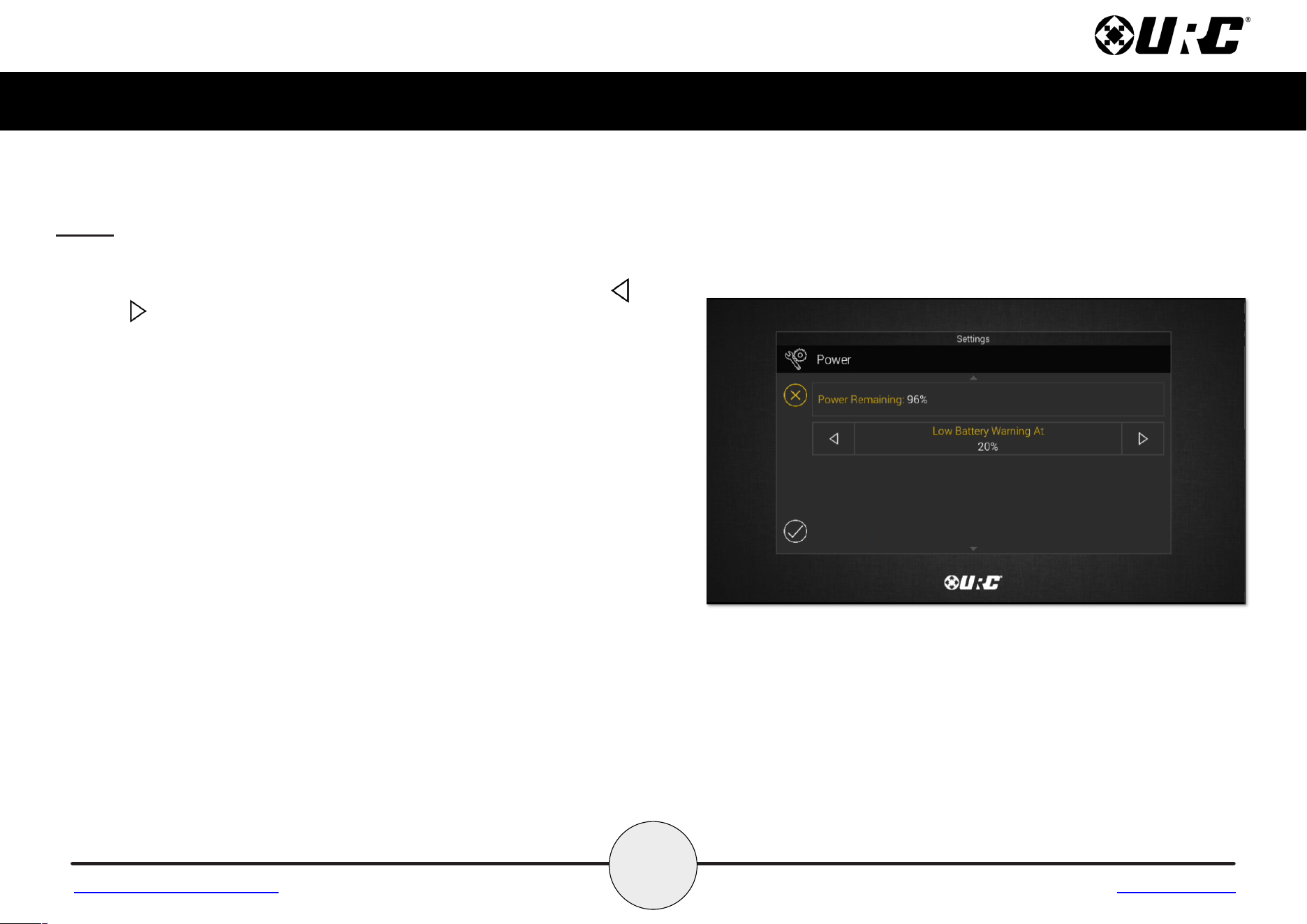
The TDC-8300 displays a Power Remaining value and Low Battery Warning to
inform the end-user that it requires charging. On this menu, use the left
and right arrows to set the battery charge level which triggers this warning.
The image to the right is set to receive a low battery warning when the device
has reached 20% battery charge. As explained, this value can be adjusted with a
range of 10%-50%.
Return to Settings Menu Page
16
Total Control
TDC-8300
Owner’s Manual
Table of Contents
Voice Assistant
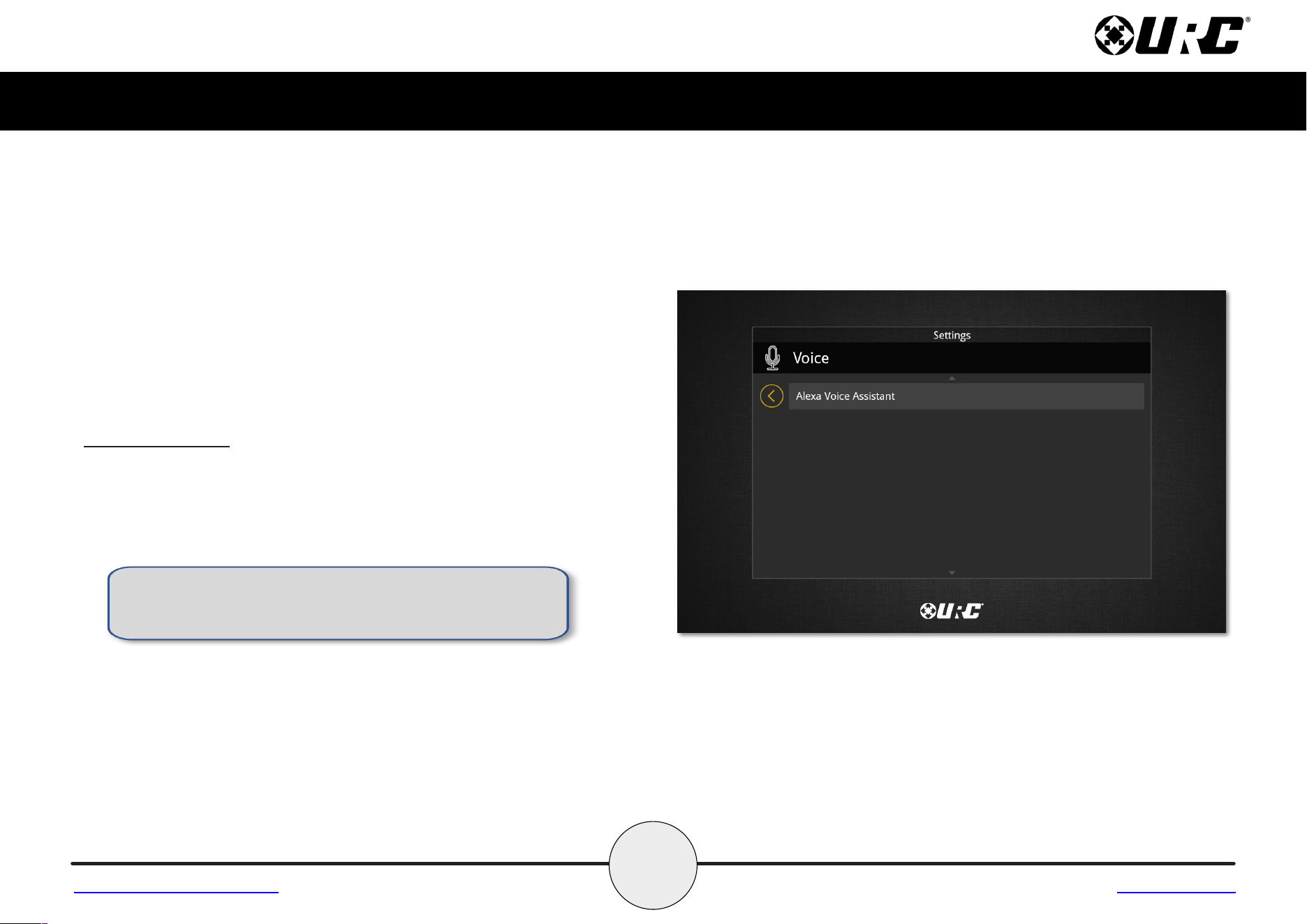
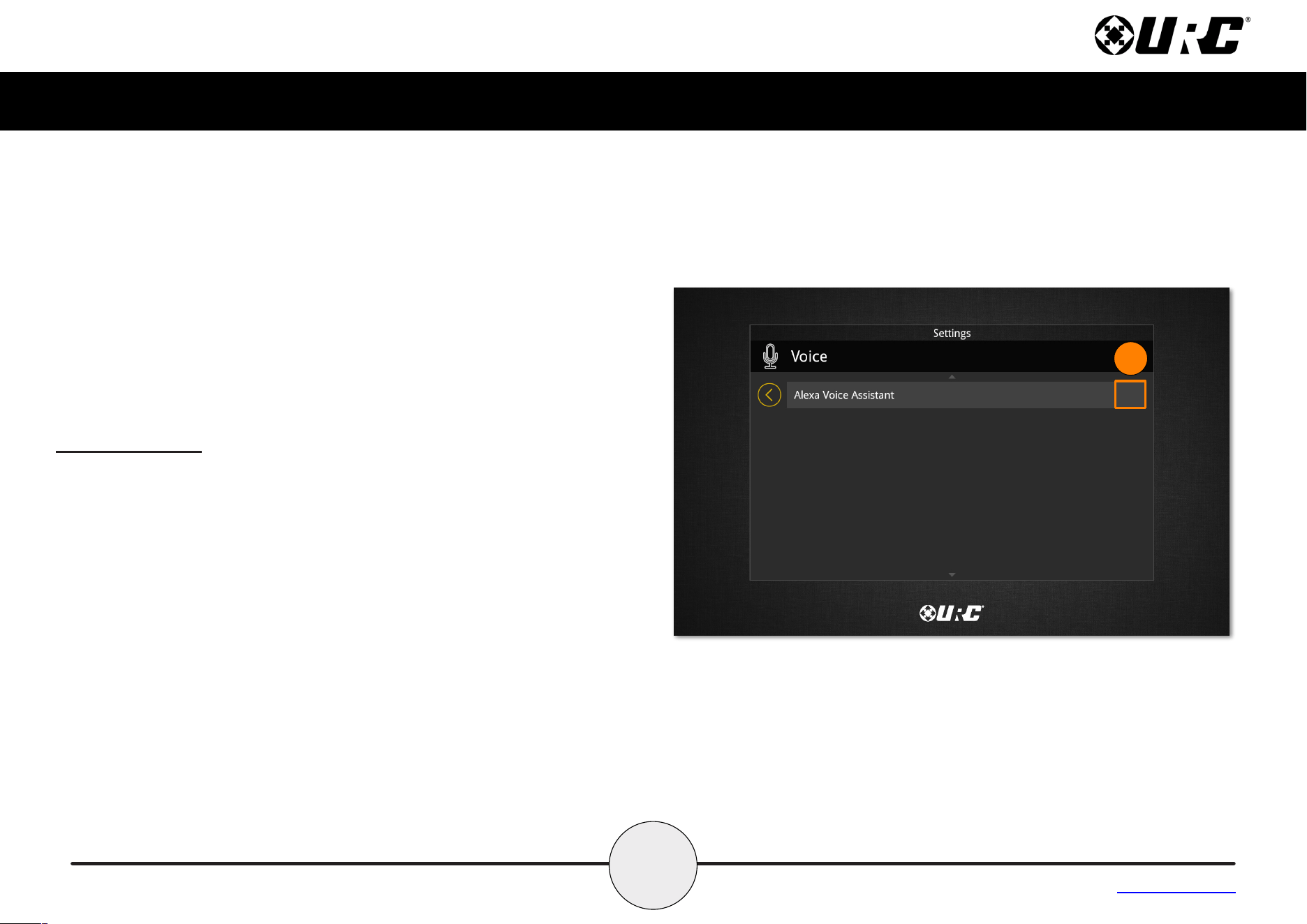
The Voice Assistant menu is where Alexa integration settings are located.
Select Alexa Voice Assistant to access the individual settings.
Return to Settings Menu Page
Currently this menu shows the Alexa Voice Assistant
and will include other Voice Assistant services when
they are supported in Total Control.
17
Total Control
TDC-8300
Owner’s Manual
Table of Contents
Alexa Voice Assistant
Please note that this feature may not be active if your install
professional did not configure it when programming your system.
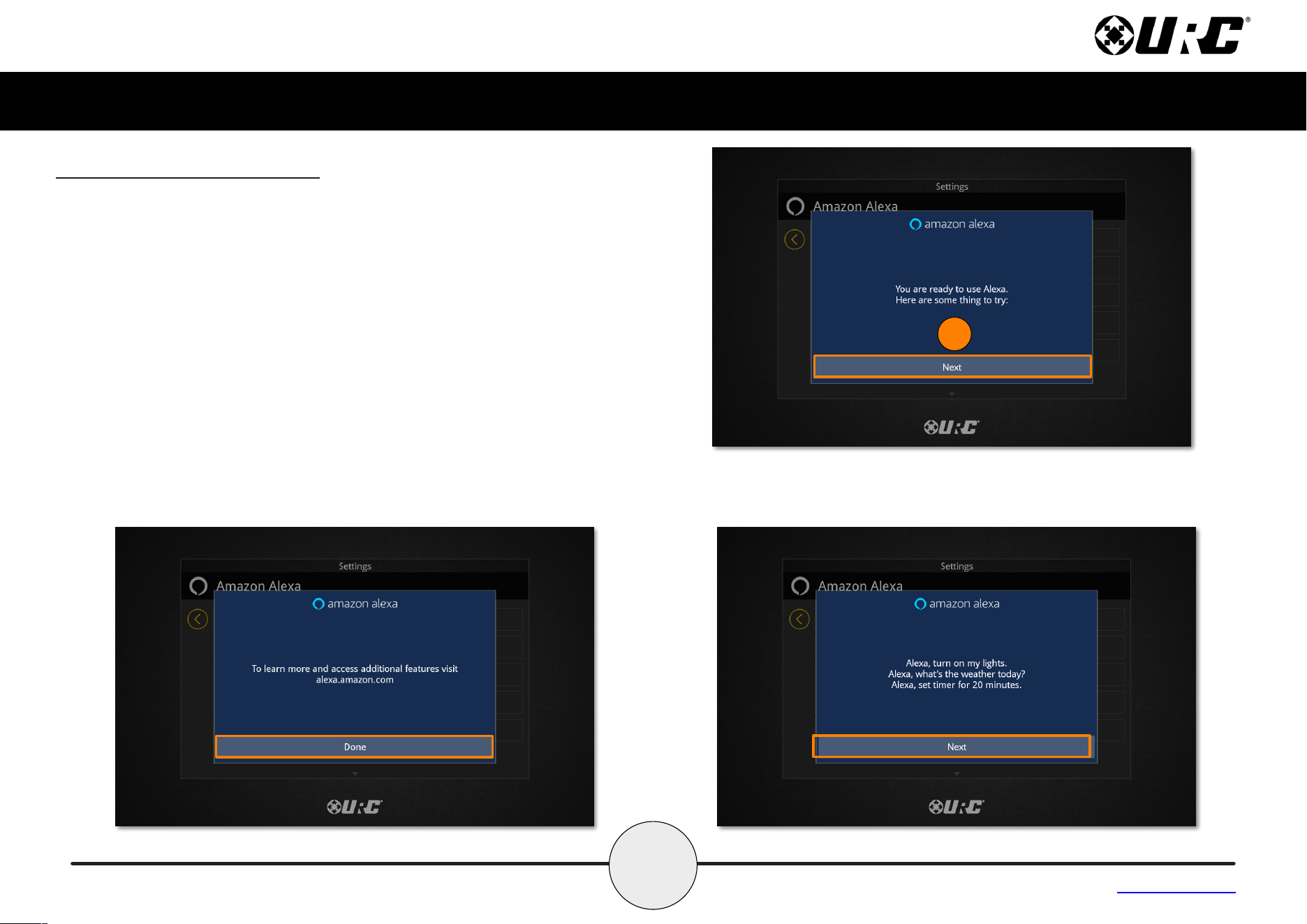
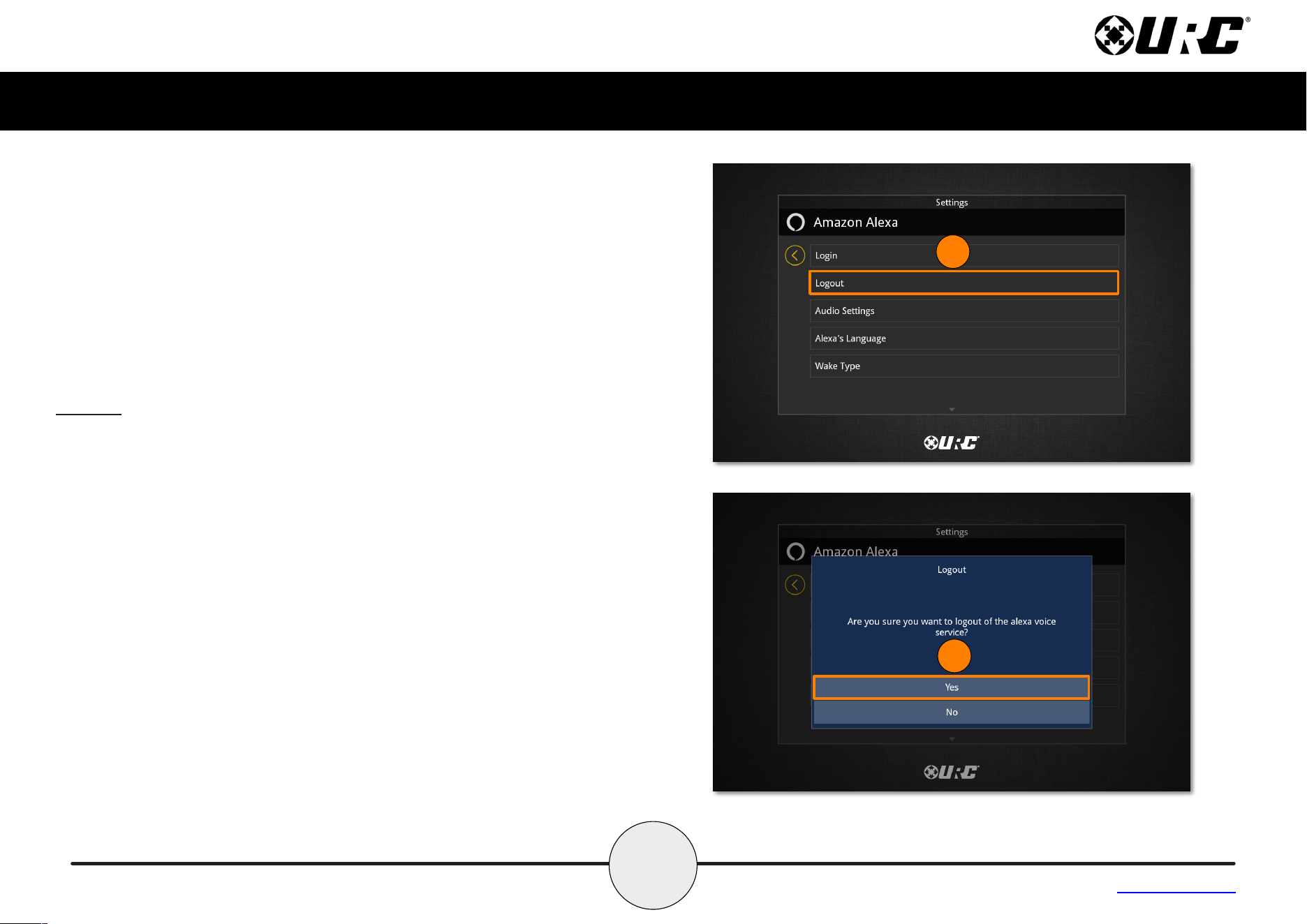
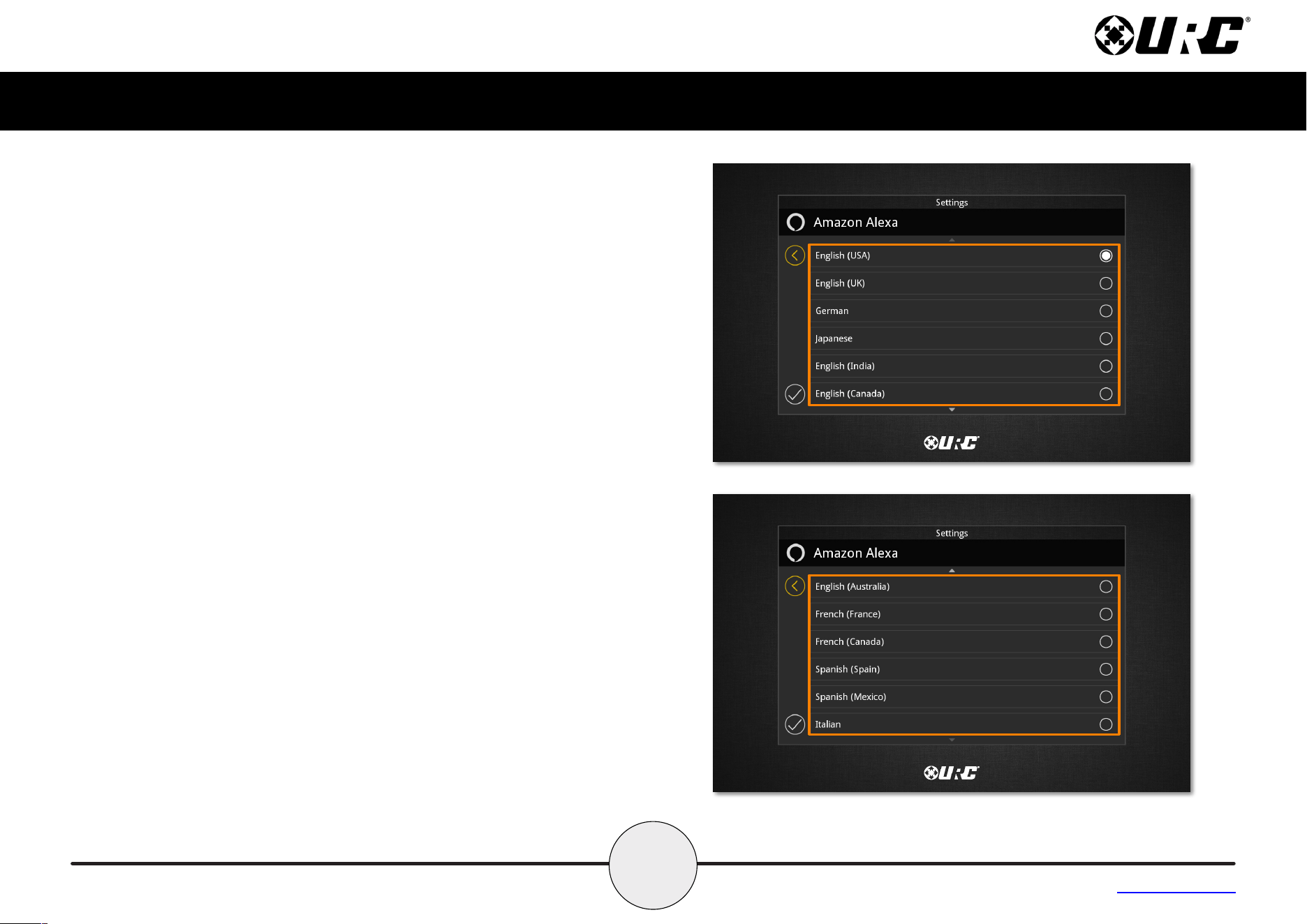
This menu allows Alexa to be enabled and disabled. Audio, language, and
wake options are also available to further tailor the user experience. Some
options are not available until Alexa has been enabled.
Login
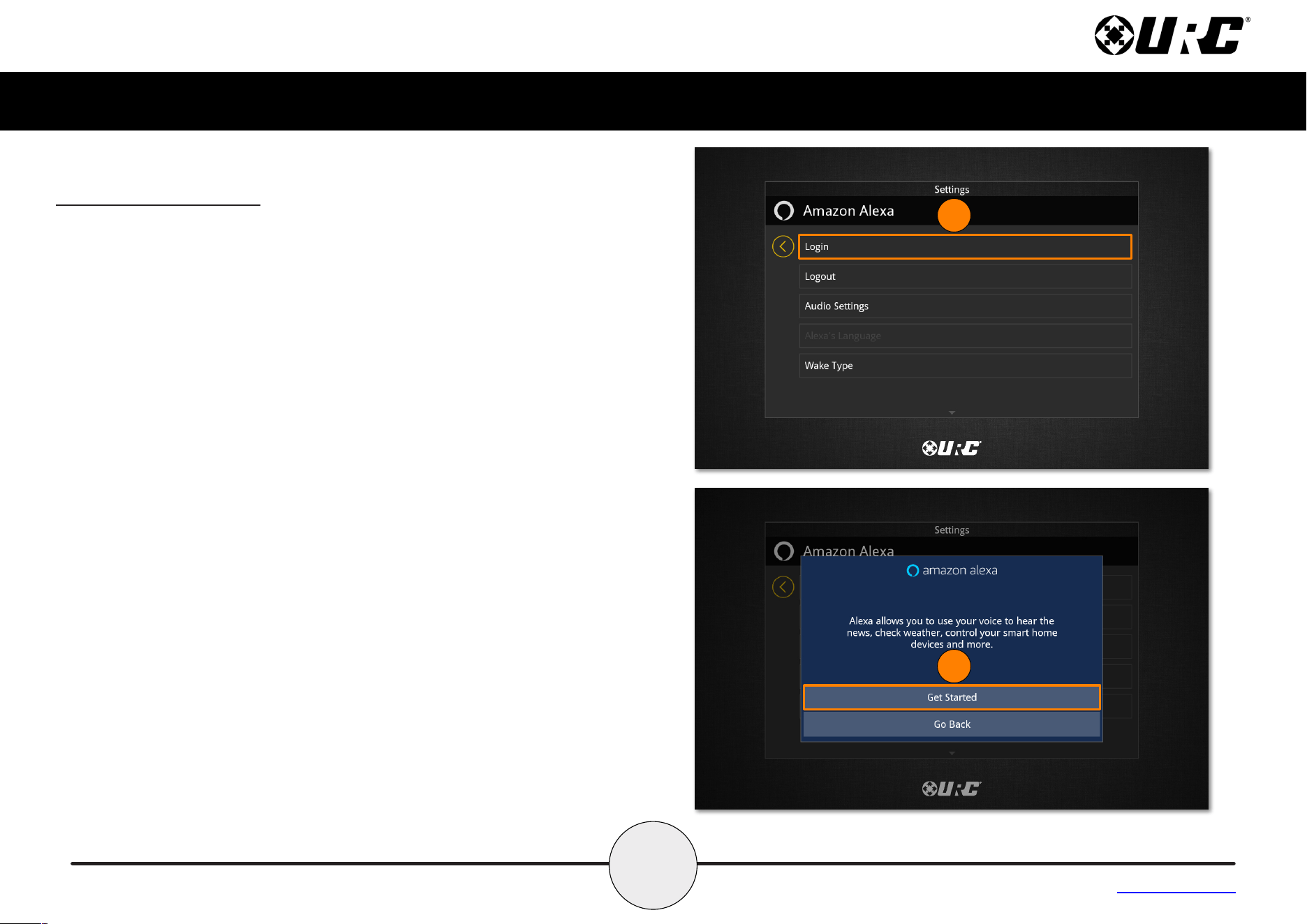
To use Alexa, the TDC-8300 must be added to an Amazon account. This
requires the use of a web browser to complete. Perform the following to
enable Alexa:
1. Select Login.
2. A new window appears, explaining the benefits of enabling the Alexa
Voice Assistant. Select Get Started.
1
2
18
Total Control
TDC-8300
Owner’s Manual
Table of Contents
3
4
Alexa Voice Assistant (cont’d)
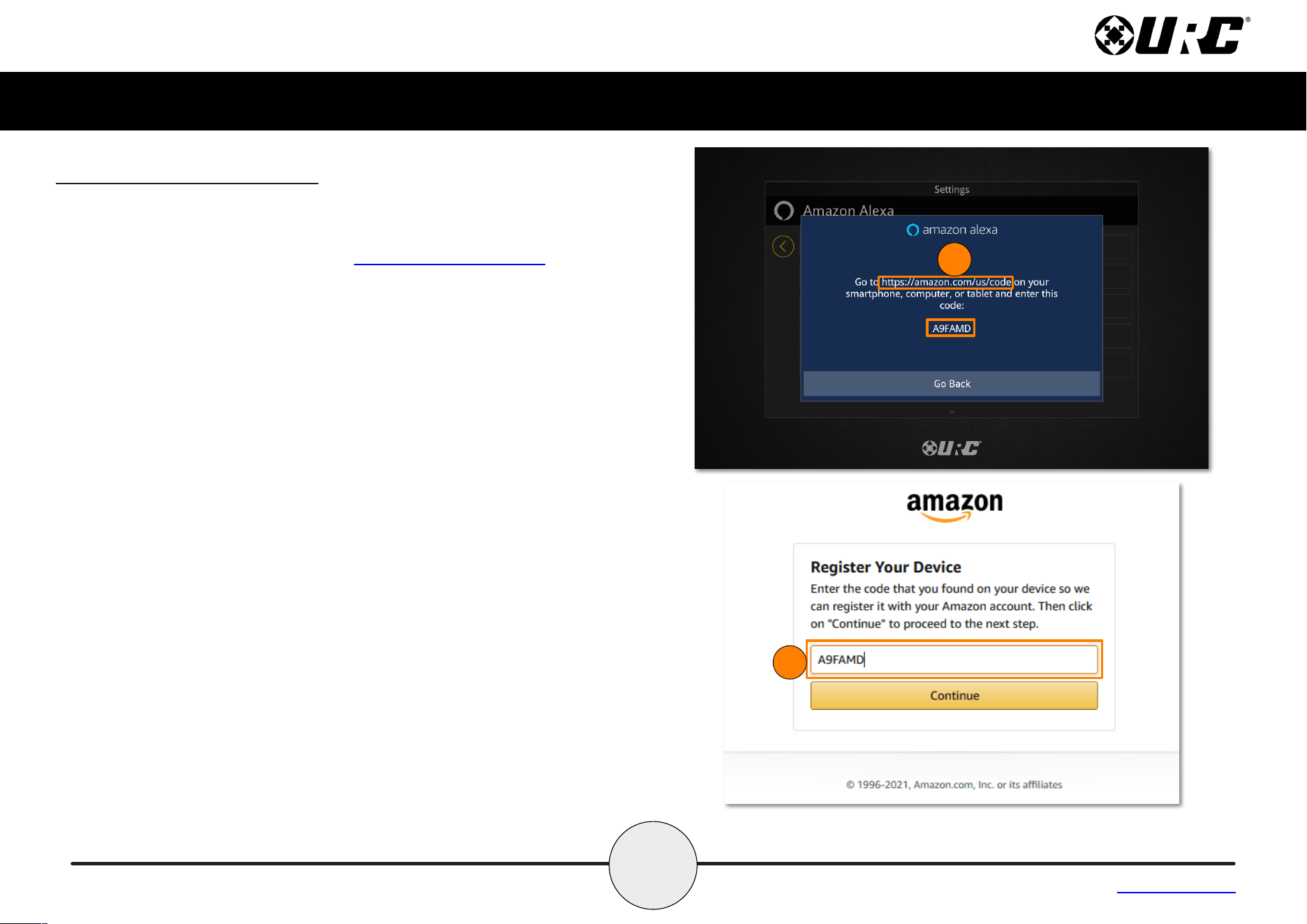
3. A new window appears and provides a device code.Thiscodewillneed
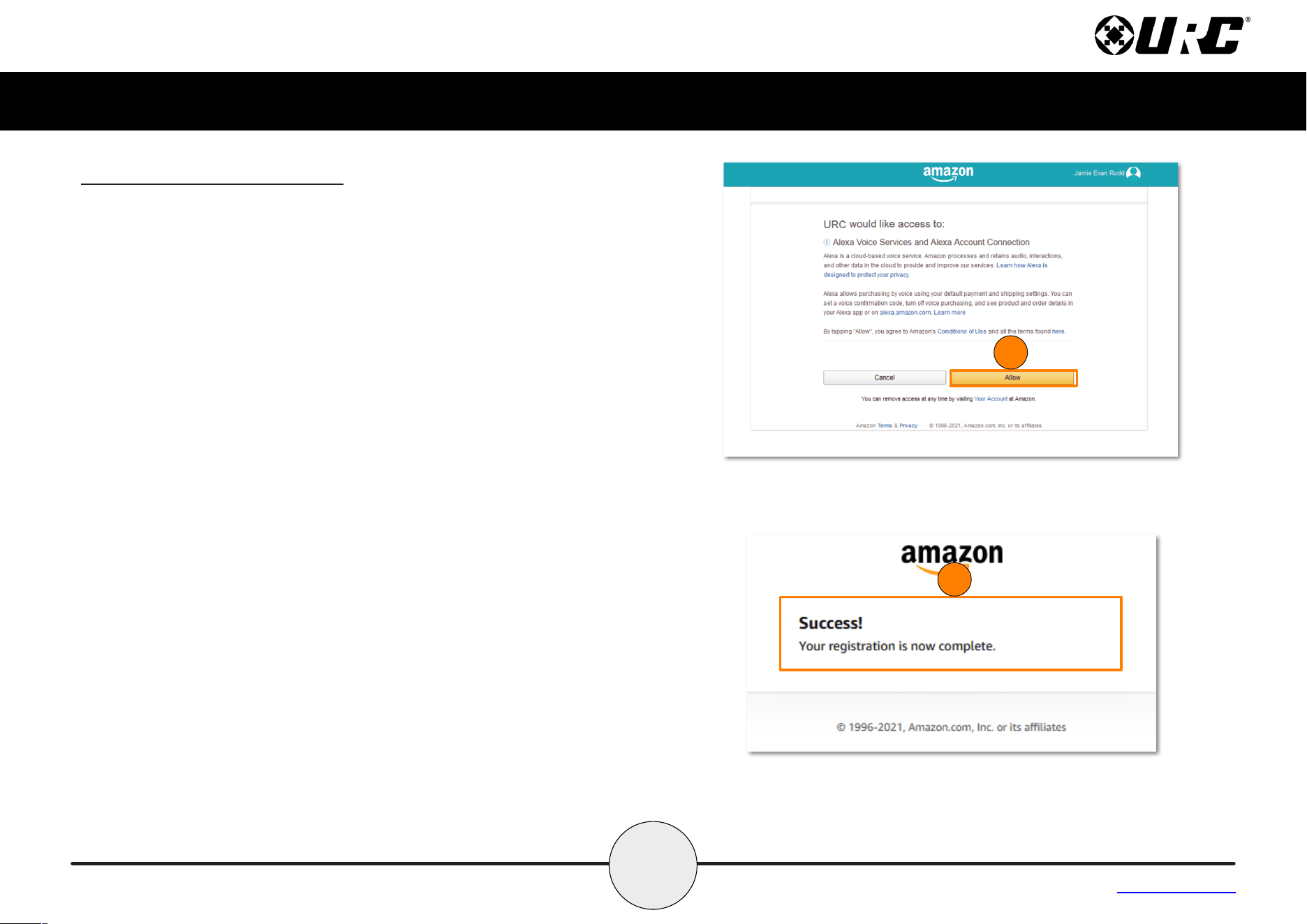
to be entered on Amazon’s website at https://amazon.com/us/code.
4. After logging into your Amazon account, enter the provided device code
to register the TDC-8300 to the account.
B
24
Total Control
TDC-8300
Owner’s Manual
Table of Contents
A
C
Audio Settings (cont’d)
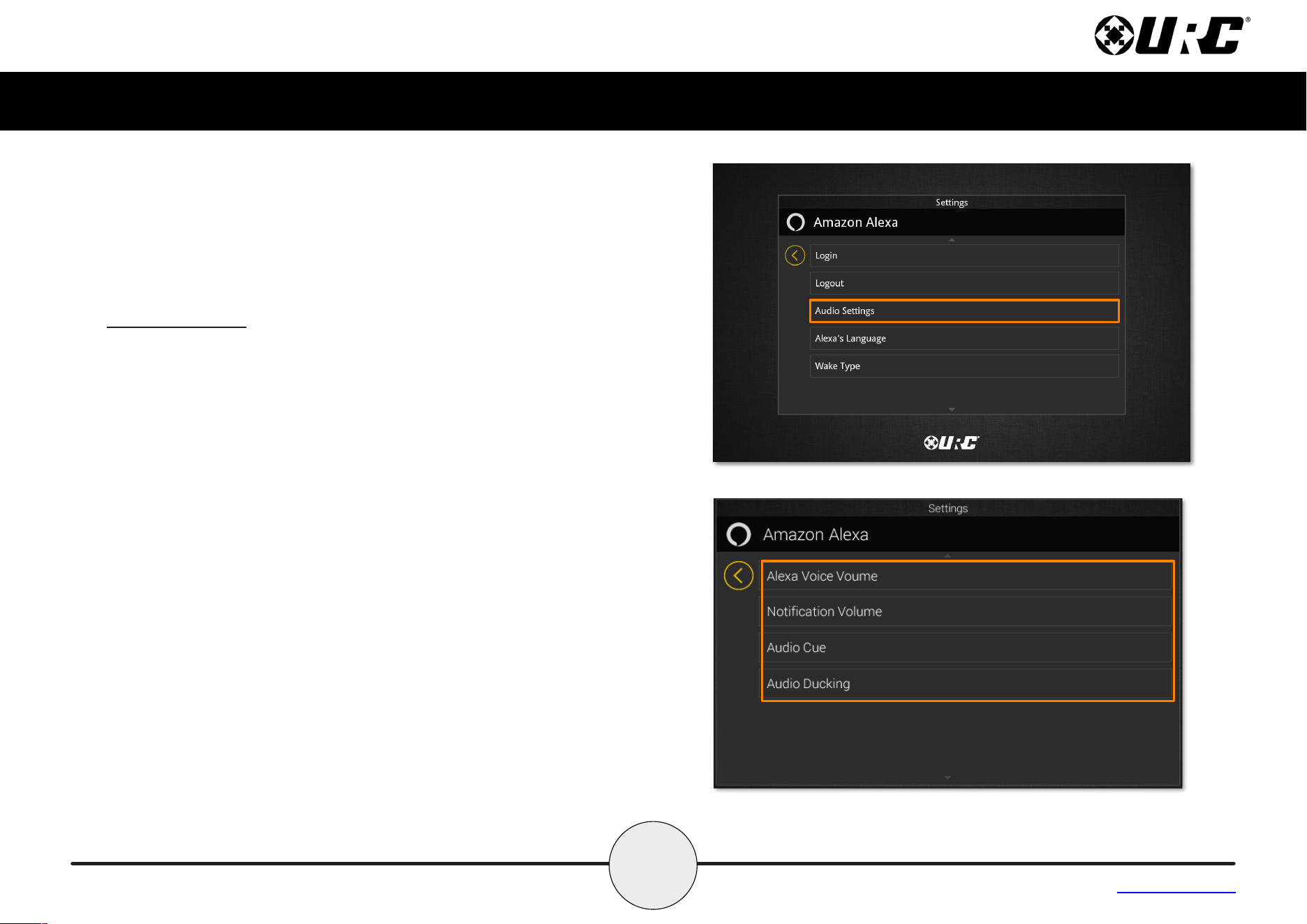
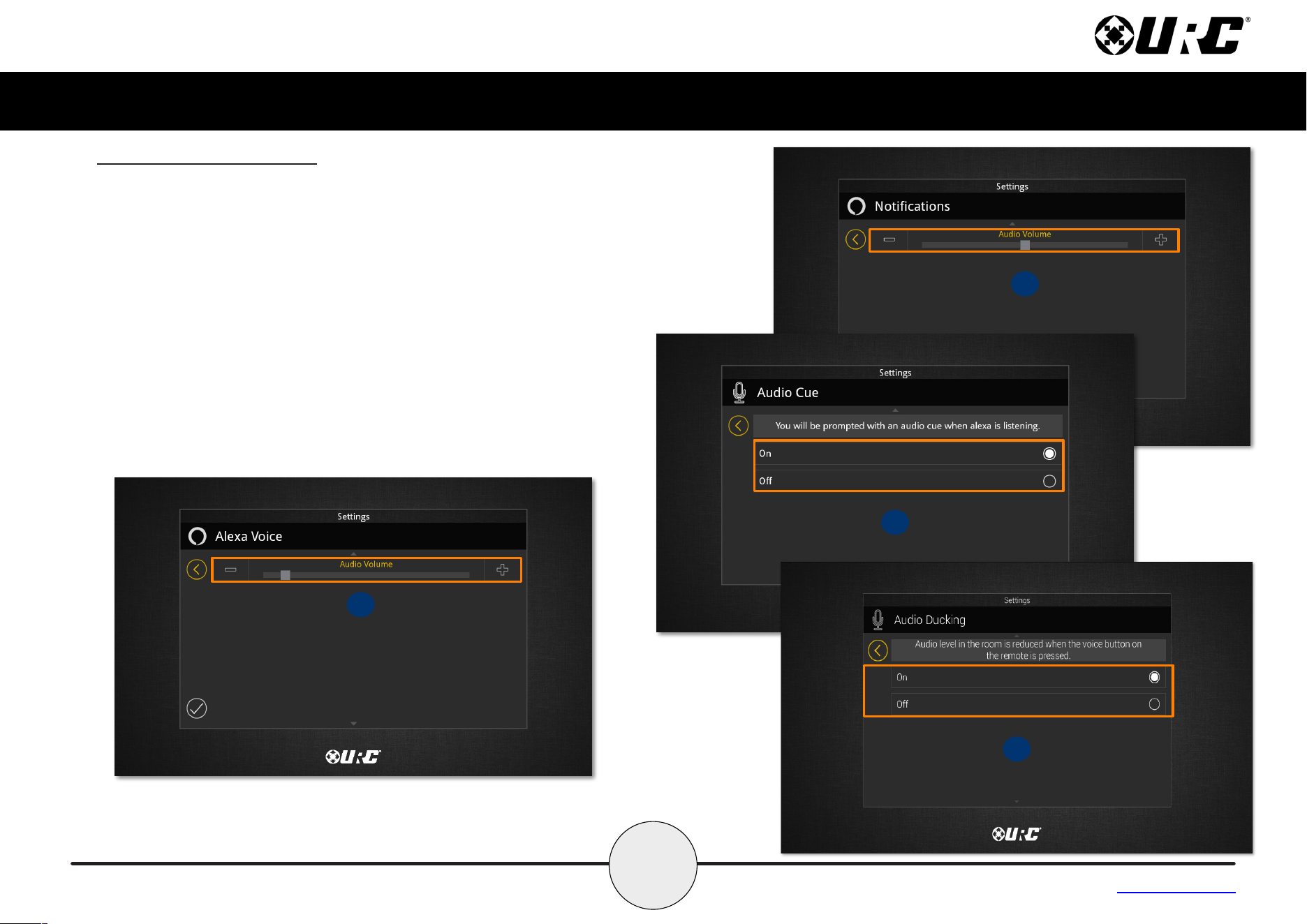
Select Audio Settings from the menu to configure voice and audio
levels for the Alexa Voice Assistant.
A. Alexa Voice Volume: How soft or loud Alexa will speak when replying.
B. Notication Volume: How soft or loud Notication audio will play.
C. Audio Cue: Enable or disable the audio cue when Alexa is listening.
D. Audio Ducking: This feature is only compatible for HDA 2.0 systems and
will lower the HDA volume by the percentage set when the user presses
the Mic button to speak to Alexa,
D
26
Total Control
TDC-8300
Owner’s Manual
Table of Contents
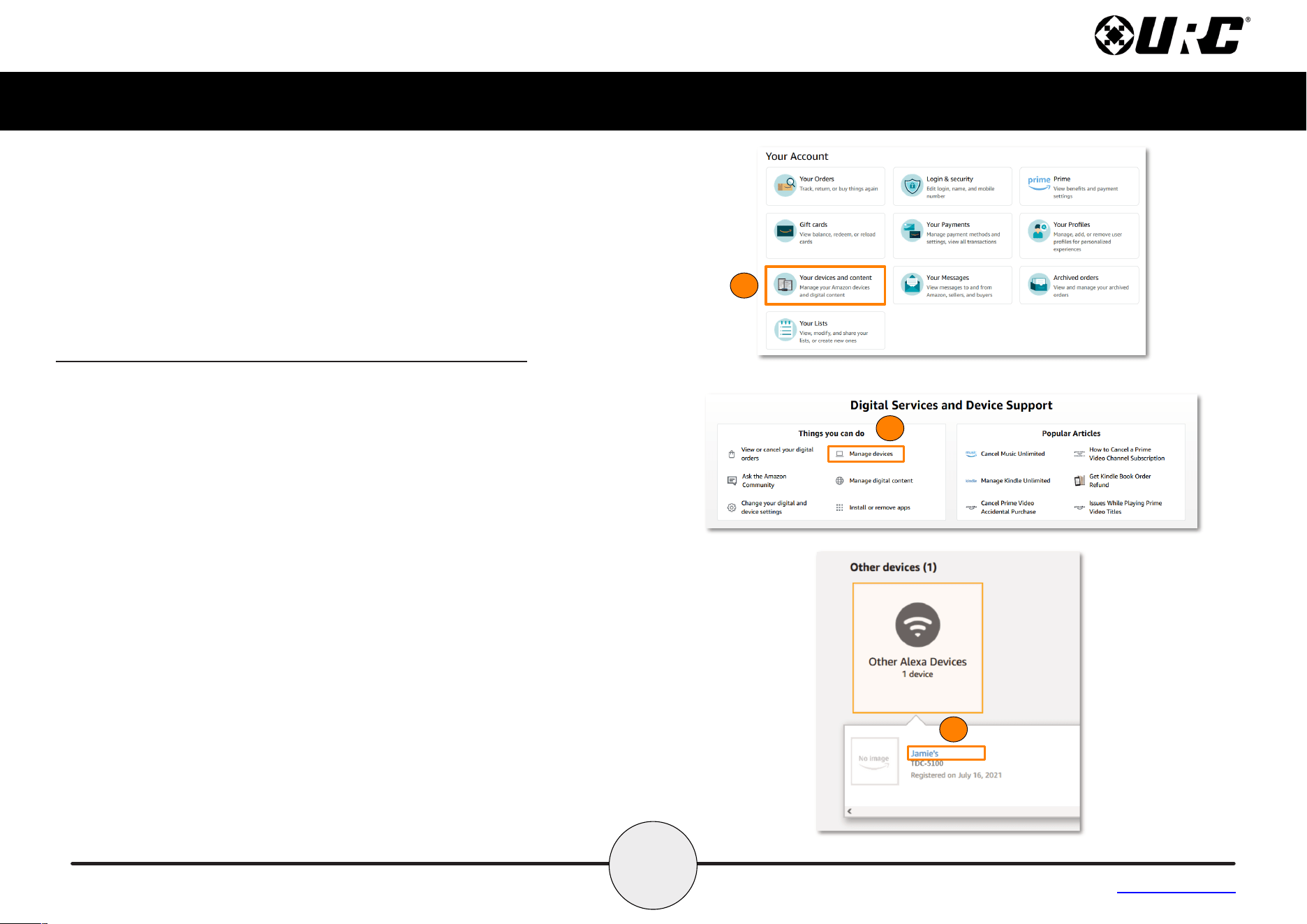
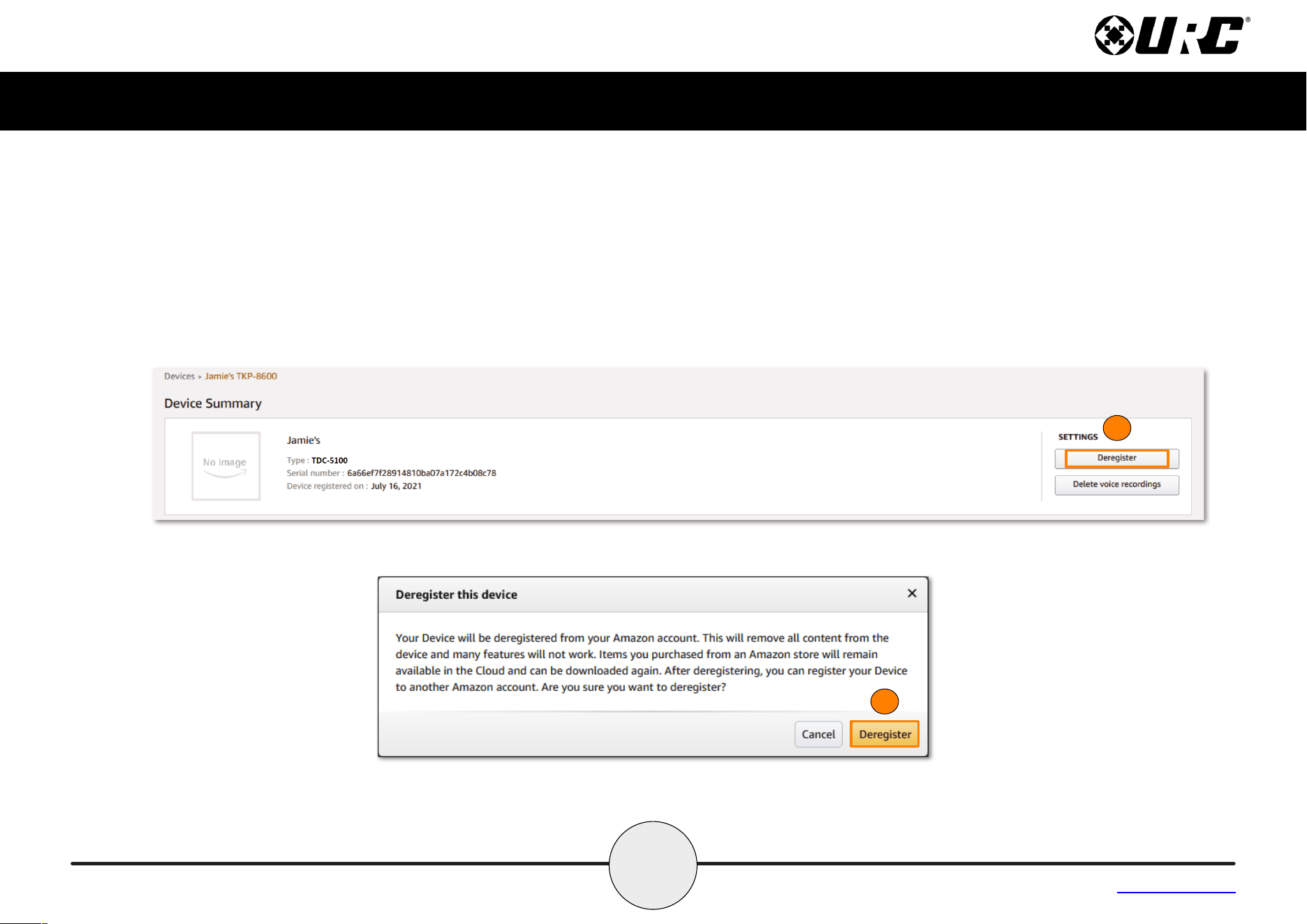
Removing the TDC-8300 from an Amazon Account
Perform the following from the Amazon website to remove a device from an
account:
1. From the Your Account page, select “Your devices and content”
from the menu.
2. The Digital Services and Device Support page will list several
options. Select Manage devices.
3. The next page lists out the devices connected to the account. Select
Other devices and then select the TDC-8300.
1
2
3
28
Total Control
TDC-8300
Owner’s Manual
Table of Contents
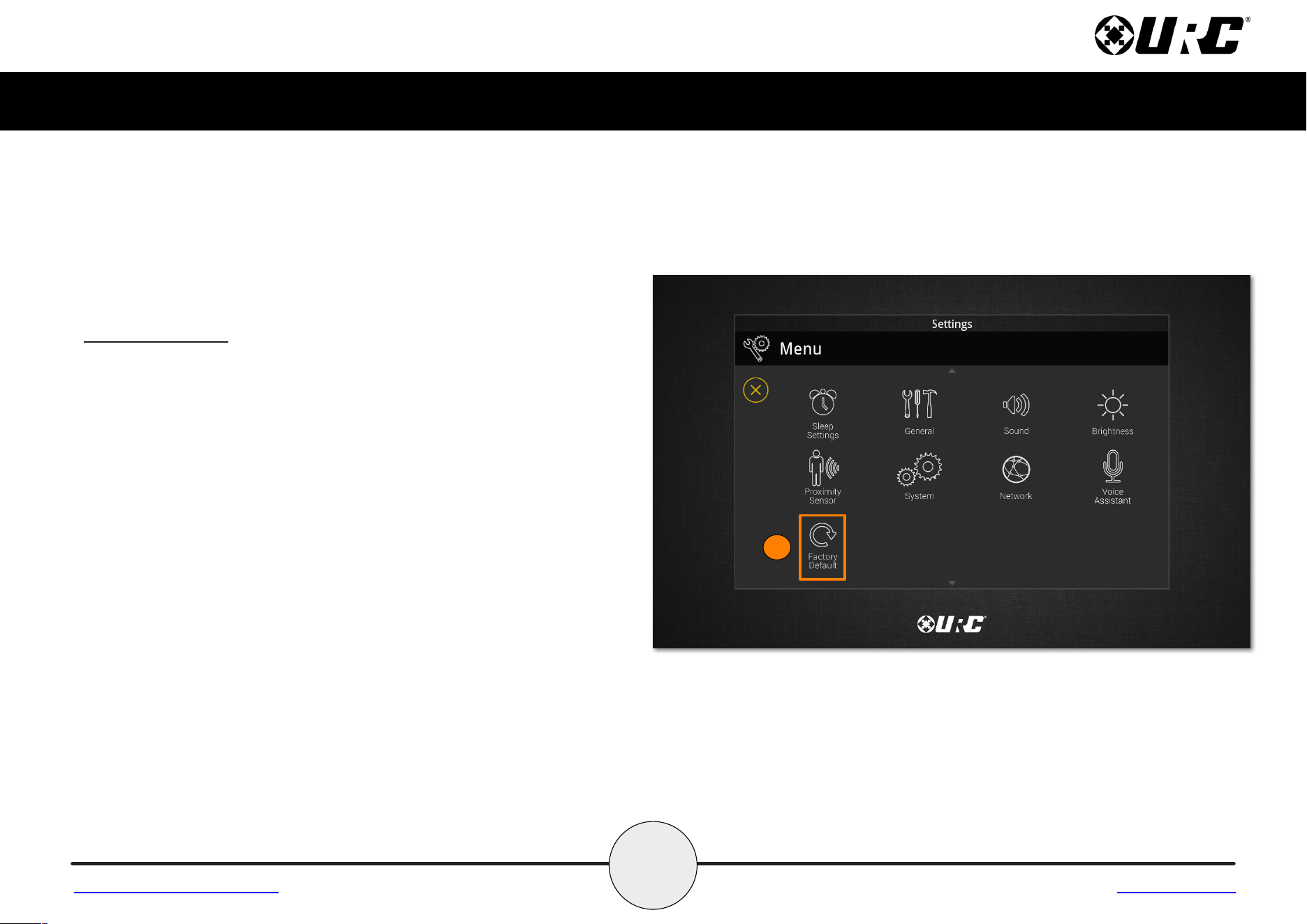
Factory Default
This should only be attempted by a custom install professional that is
familiar with Total Control or under instruction from URC Technical
Support. Selecting this option resets the TDC-8300 to its factory state and
does not function until the device is reprogrammed by a custom install
professional.
1. Press and hold the Factory Default button for over five (5)
seconds.
2. A confirmation window appears. Select Yes.
1
Return to Settings Menu Page
29
Total Control
TDC-8300
Owner’s Manual
Table of Contents
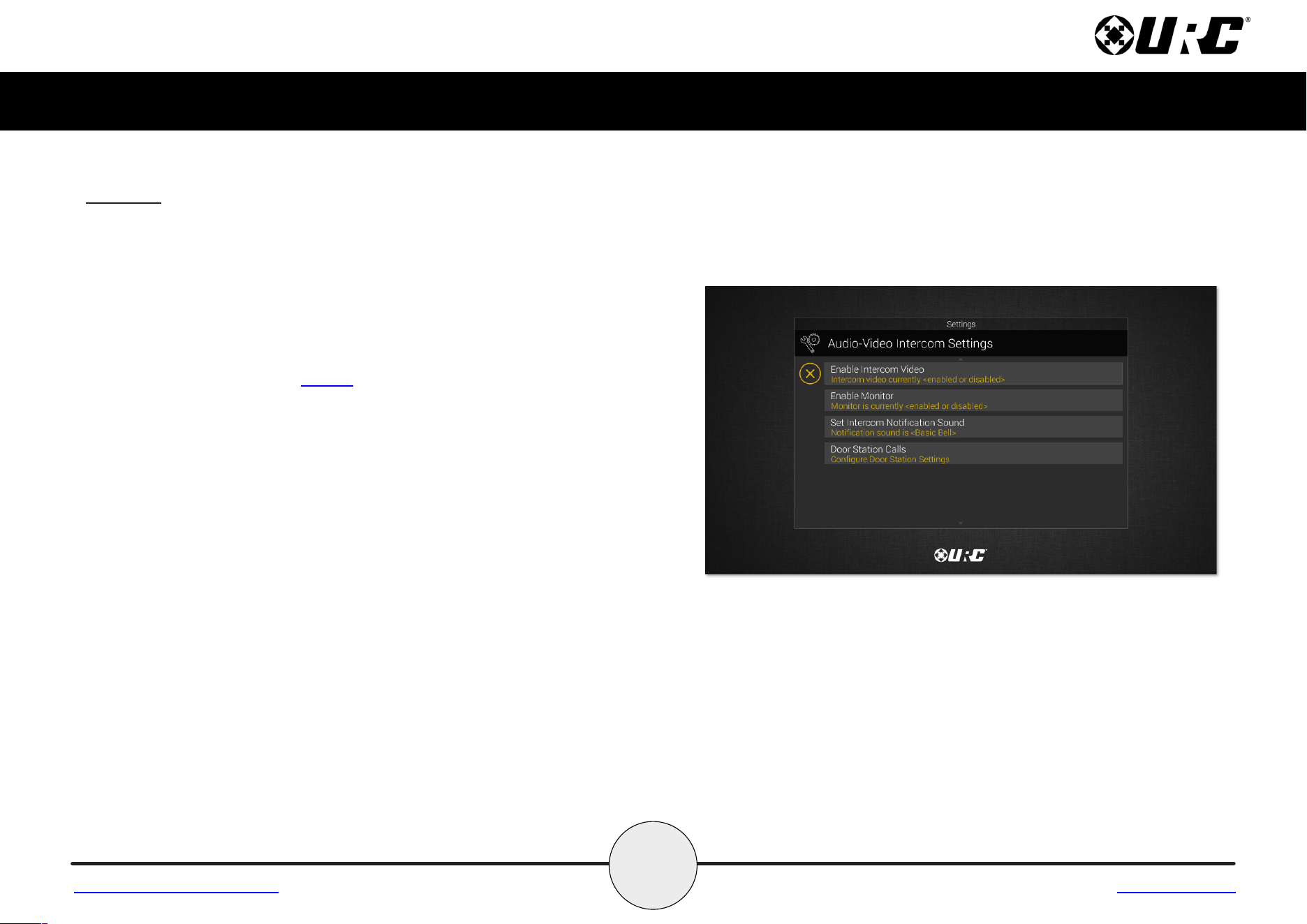
Intercom
The Audio-Video Intercom Settings menu is the location where the
Intercom features must be enabled. By default this feature is disabled, it
must be enabled in order for the TDC-8300 to communicate with other
Intercom-Enabled devices.
•EnableIntercom:Enablestheaudiointercomfunction.Once
enabled, the Intercom icon is displayed when dragging down the
Title Bar as seen on page 5.
•EnableIntercomVideo:Enables the video intercom function.
•EnableMonitor:Enables the video monitor function. This function
is only available when the Video Intercom function is enabled.
•SetIntercomNotificationSound:Allows the user to select a
different tone for intercom calls.
•DoorStationCalls:If the system is integrating with a compatible
3
rd
party Door Station, this feature must be enabled for the
TDC-8300 to receive door station calls and for this option to be
visible on this screen.
Return to Settings Menu Page
30
Total Control
TDC-8300
Owner’s Manual
Table of Contents
Intercom (cont’d)
Navigating the Intercom Menu
The TDC-8300 has the capability of communicating across the home network
to any URC Intercom-Enabled device.
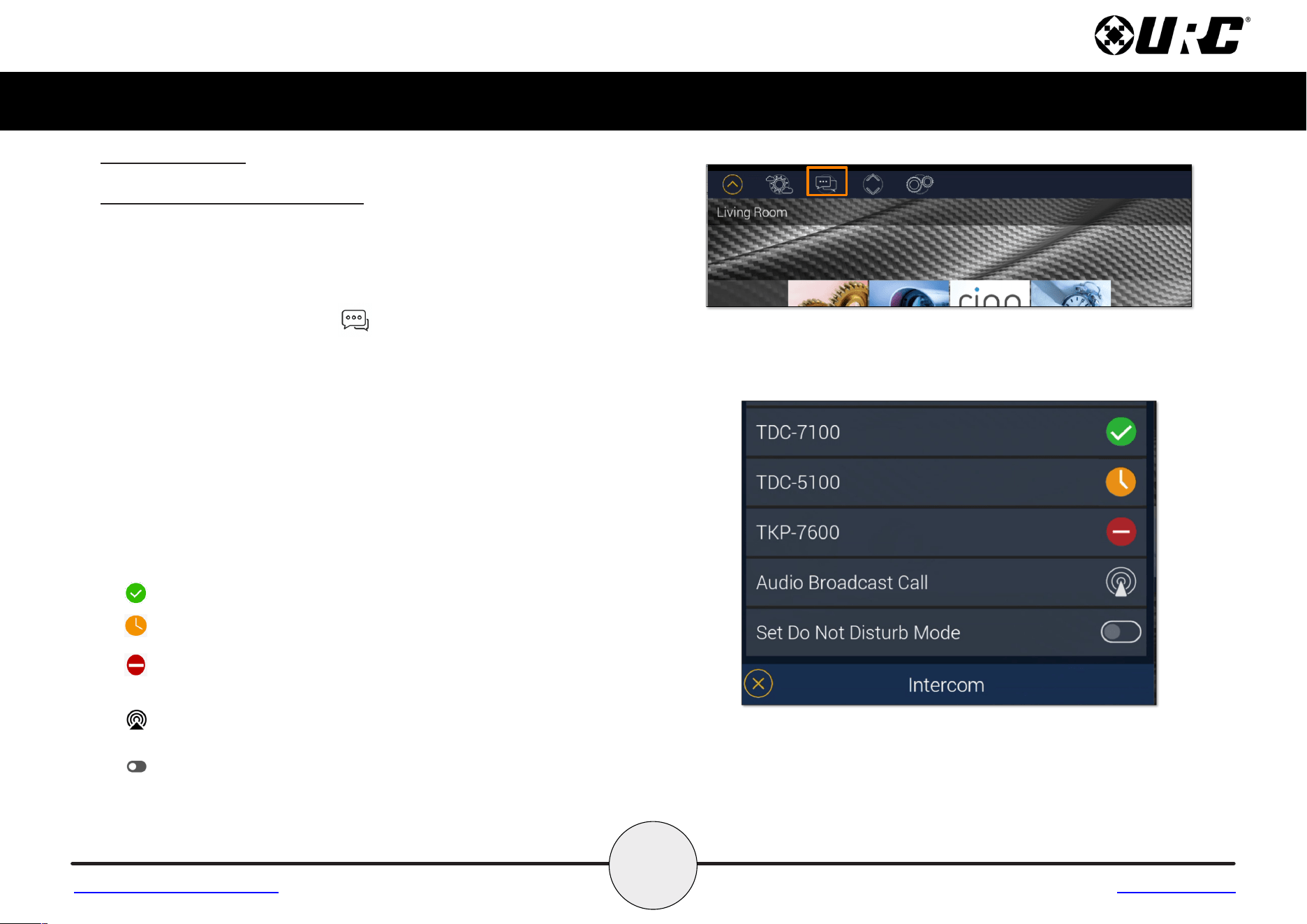
Accessing the Intercom button is performed by swiping down on the
Title Bar.
After selecting the Intercom button from the Title Bar Menu, the Intercom
Menu displays. This menu presents the end-user with useful information:
•DoorStationIntegration:Inthecasewherea3rdpartydoorstationhas
been integrated with the Total Control system, those device(s) are located
at the top of the Intercom Menu.
•SystemClients:TheIntercomMenulistseveryIntercom-Enabledclientin
the system. There are three (3) possible status modes for each client:
• Available: The client is ready to receive any type of call.
• Not Available/Busy: Signifies the client is unable to receive a
call.
•DoNotDisturb:Signifies the client is currently in Do Not Disturb
mode.
•Broadcast Call: Populates a list of all available Intercom-Enabled
devices.
•DoNotDisturbMode:Enabling the Do Not Disturb feature sets the
current TDC-8300 unavailable. This means that the keypad cannot
receive any calls from other interfaces.
Return to Settings Menu Page
31
Total Control
TDC-8300
Owner’s Manual
Table of Contents
Specifications
These are the technical specifications for the TDC-8300:
Microprocessor: ARM Cortex-A55 Core 1.8GHz
RAM: 8GB eMMC, DDR4 4GB
LCD: 8.0” TFT LCD (1200 x 1920), 16.7M colors
Touch Window: Capacitive Touch
Sound: Mono, 1.5 Watt
Sensors: Proximity, Ambient, and Pickup sensor
Camera: 1.3MP
Device Support: Supports up to 255 devices
Usage Pages: Supports up to 255 pages on each device
Macro Capability: Up to 255 steps
Wi-Fi: IEEE 802.11 b/g/n/ac [2.4Ghz and 5GHz]
Battery: Lithium -polymer, 3.7V, 4500mAh
Battery Charging Time: 5Hours
Power: 2.0A / 5.0V
Operating Temperature: 0~45°C (non-condensing)
Size: 8.0in x 5.57in x 2.84in
Weight (with battery loaded): 18.5oz
Limited Warranty Statement
https://www.urc-automation.com/legal/warranty-statement/
End User Agreement
The terms and conditions of the End User Agreement available at
https://www.urc-automation.com/legal/end-user-agreement/ shall apply.
Federal Communication Commission Interference Statement
This equipment has been tested and found to comply with the limits for a
Class B digital device, pursuant to part 15 of the FCC Rules. These limits are
designed to provide reasonable protection against harmful interference in a
residential installation.
This equipment generates, uses and can radiate radio frequency energy and,
if not installed and used in accordance with the instructions, may cause
harmful interference to radio communications. However, there is no guarantee
that interference will not occur in a particular installation. If this equipment
does cause harmful interference to radio or television reception, which can be
determined by turning the equipment off and on, the user is encouraged to try
to correct the interference by one more of the following measures:
•Reorientorrelocatethereceivingantenna.
•Increasetheseparationbetweentheequipmentandreceiver.
•Connecttheequipmentintoanoutletonacircuitdifferentfromthatto
which the receiver is connected.
•Consultthedealeroranexperiencedradio/TVtechnicianforhelp.
Radiation Exposure Statement
This equipment complies with FCC radiation exposure limits set forth for an
uncontrolled environment. The device has been evaluated to meet general RF
exposure requirements. The device can be used in portable exposure
condition without restrictions.

32
Total Control
TDC-8300
Owner’s Manual
Table of Contents
Importer & Manufacturer
•Importer:
Universal Remote Control, Inc.
500Mamroneck Ave
Harrison, NY 10528
•Manufacturer:
Summit Technology, Inc.
612, 130, Digital-ro, Geumcheon-gu, Seoul, Republic of Korea
Rechargeable Lithium Polymer Battery Precautions & Information
•Ifyouknowyouwillnotuseyourremotecontrolforanextendedperiodof
time, please remove the battery.
•Donotattempttodissemble,alter,orapplyheattothebattery.
•Usecaretoavoiddroppingthebatteryorsubjectingittosevereimpactthat
could damage it.
•Thebatteryshouldnotbeimmersedinwater.
•Riskofexplosionifthebatteryisreplacedbyincorrecttype.
•Disposeofusedbatteriesaccordingtotheinstructions.
•LithiumPolymerbatteriesarerecyclable.Forinformationonlocaldrop-offsite,
please visit www.rbrc.com or call toll free 1-800-822-8837
Warning!
The manufacturer is not responsible for any Radio or TV interference caused by
unauthorized modication to this equipment.
Changes or modications not expressly approved by the manufacturer could void the
user’s authority to operate the equipment.
Regulatory Information to the User
•CEconformityNoticedProductswith“CE”markingcomplyRadioEquipment
Directive 2014/53/EU issued by the commission of the European Community.
1. Radio Equipment Directive
-Radio
-Health
-EMC
-Safety
•DeclarationofConformity
“Hereby, Universal Remote Control, Inc. Declares that this TDC-8300 is in
compliance with the Radio Equipment Directive 2014/53/EU.”
Declaration of Conformity
https://www.urc-automation.com/legal/DoC/TDC-8300

Declaration of Conformity
Company Name
: S-Tech Won Inc.
Company Address
: Sanggadong-303, 423, Sanho-daero, GUMI-SI,
GYEONGSANGBUK-DO, REPUBLIC OF KOREA
Contact Information
: Phone: (+82)-54-465-5701
Product Name
: Touch Screen Controller
Model Name
: TDC-8300
This product herewith complies with the requirements of Radio equipment
Directive(2014/53/EU) issued by the Commission of the European Community
Compliance with these directives implies conformity to the following European Community
Radio equipment Directive
EN IEC 62368-1:2020+A11:2020
EN 62368-1:2014+A11:2017
ETSI EN 300 328 V2.2.2
ETSI EN 301 893 V2.1.1
ETSI EN 300 440 V2.2.1
EN 62479:2010
ETSI EN 301 489-1 V2.2.3
ETSI EN 301 489-17 V3.2.4
EN 55032:2015/A11:2020
EN 55035:2017/A11:2020
EN IEC 61000-3-2:2019/A1:2021
EN 61000-3-3:2013/A2:2021/AC:2022-01
Test Report No.:
Radio : GETEC-E2-24-038
Health : GETEC-E2-24-038
EMC : GETEC-E2-24-039
Safety : KR248DEP 001
List of test reports and/or certificate verified compliance with the standards above
Radio equipment Directive
Certificate No. :
Certificate Body :
Date of issue :
Jul. 04, 2024
Name and signature of authorized person :
Austin Kim / CEO
S-Tech Won Inc.
Page: 1 / 110
GETEC-QP-16-007 (Rev.01)
EMC CENTER
GUMI UNIVERSITY
EMC CENTER
T
T
E
E
S
S
T
T
R
R
E
E
P
P
O
O
R
R
T
T
Order Number
: GETEC-C1-24-229
Test report Number
: GETEC-E2-24-038
Type of Equipment
: Touch Screen Controller
Model Name
: TDC-8300
Trade Mark
: URC
Applicant
: S-Tech Won Inc.
Applicant Address
: Sanggadong-303, 423, Sanho-daero, GUMI-SI, GYEONGSANGBUK-DO, 39243,
REPUBLIC OF KOREA
Serial Number
: Prototype
Date of Incoming
: Apr. 15, 2024
Date of Issue
: Jul. 04, 2024
SUMMARY
This device has been verified to comply with the requirement of following regulation.
-. ETSI EN 300 328 V2.2.2
-. ETSI EN 301 893 V2.1.1
-. ETSI EN 300 440 V2.2.1
-. EN 62479 (2010)
-. AS/NZS 4268 (2017)
The results shown in this test report refer only to the sample(s) tested unless otherwise stated.
It is not a generally valid assessment of the features of the respective products of the mass-production.
The test results of the (*) marked tests are outside the scope of accredited by KOLAS.
The test results in this report are traceable to the national or intentional standard.
It is not allowed to copy this report even partly without the approval of Gumi University EMC center.
Tested by: Approved by:
Jong-Wook Park / Senior Engineer Hyun Kim / Technical Manager
GUMI UNIVERSITY EMC CENTER GUMI UNIVERSITY EMC CENTER
1 b1fd0402f4478dad4280c16060a240