TDC-7100
Owner’s Manual
Total Control
TDC-7100
Owner’s Manual
Total Control
TDC-7100
Owner’s Manual
Rev 1.0
Introducing the TDC-7100
Thank you for purchasing URC’s TDC-7100 In-Wall Network Keypad. Its easy and
intuitive use helps to simplify your life while adding control of more things than you
thought possible.
Online Support
Total Control is sold direct only and must installed/program by a certied
custom integrator.
End-User Support
Visit the URC Home Page for product information, owner’s manuals, and support
contact information.
Contact Support
Total Control is a URC product sold direct only. For questions or assistance contact
your Custom Installer/Programmer.
My Installer/Programmer
Technical Suppor t
Toll Free: 800-904-0800
Main: 914-835-4484
techsupport@urc-automation.com
H o u r s : 9 : 0 0 a m - 5 : 0 0 p m E S T M - F
Features and Benefits......................... 1
Updated User Experience........... 1
Audio-Video Interface ................. 1
Proximity Sensor .......................... 2
Inductive (Wireless) Charging... 2
Main Menu Navigation ...................... 4
Main Menu: View Modes ........... 5
Title Bar................................................. 6
Room’s Menu................................. 7
Room Linking................................. 8
Now Playing.................................. 9
Core Buttons....................................... 10
Shortcut Popup Menu....................... 11
Adding Shortcuts........................ 11
Removing Shortcuts................... 12
Status Bar .................................... 13
Intercom .............................................. 15
Navigating the Intercom Menu 17
Making Calls: Audio-Video ...... 18
Making Calls: Audio Calls ........ 20
Making Calls: Audio Broadcast22
Do Not Disturb Mode ................. 24
Scenes Menu ..................................... 25
Charging the TDC-7100 ..................... 26
Wi-Fi Setup......................................... 27
Settings Menu.................................... 28
Sleep Settings............................. 29
General......................................... 30
Sound............................................ 31
Brightness.................................... 31
Proximity Sensor ........................ 32
System Information .................... 33
Network ....................................... 34
Intercom ....................................... 35
Power ........................................... 36
Factory Default............................ 37
Specifications .................................... 38
Limited Warranty Statement............ 38
Table of Contents
1
Total Control
TDC-7100
Owner’s Manual
Features and Benefits
The TDC-7100 In-Wall Network Keypad is one of URC’s most advanced devices that is
optimized for usage with Total Control.
Enjoy these key features:
Updated User Experience
This device has the capability of using URC’s Total Control software suite. Using this
software provides this device with a modern “look and feel” giving the end-user an
improved user experience in terms of graphics, performance, and features.
Audio-Video Interface
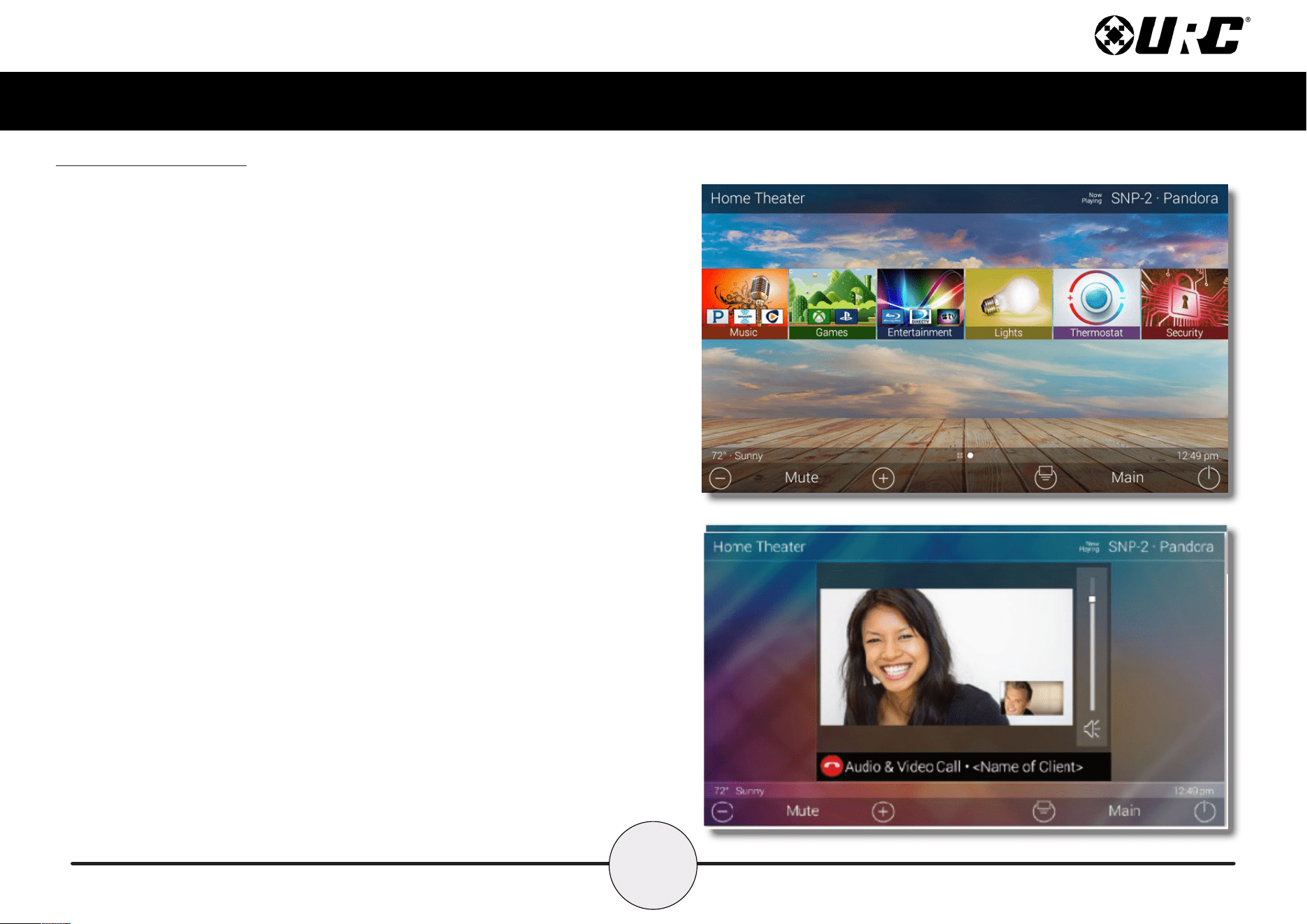
Communicate with any other URC Intercom-Enabled device in the system with this
feature. The end-user can make Audio-Video, Audio, or Audio Broadcast calls
directly from the TDC-7100.
2
Total Control
TDC-7100
Owner’s Manual
Proximity Sensor
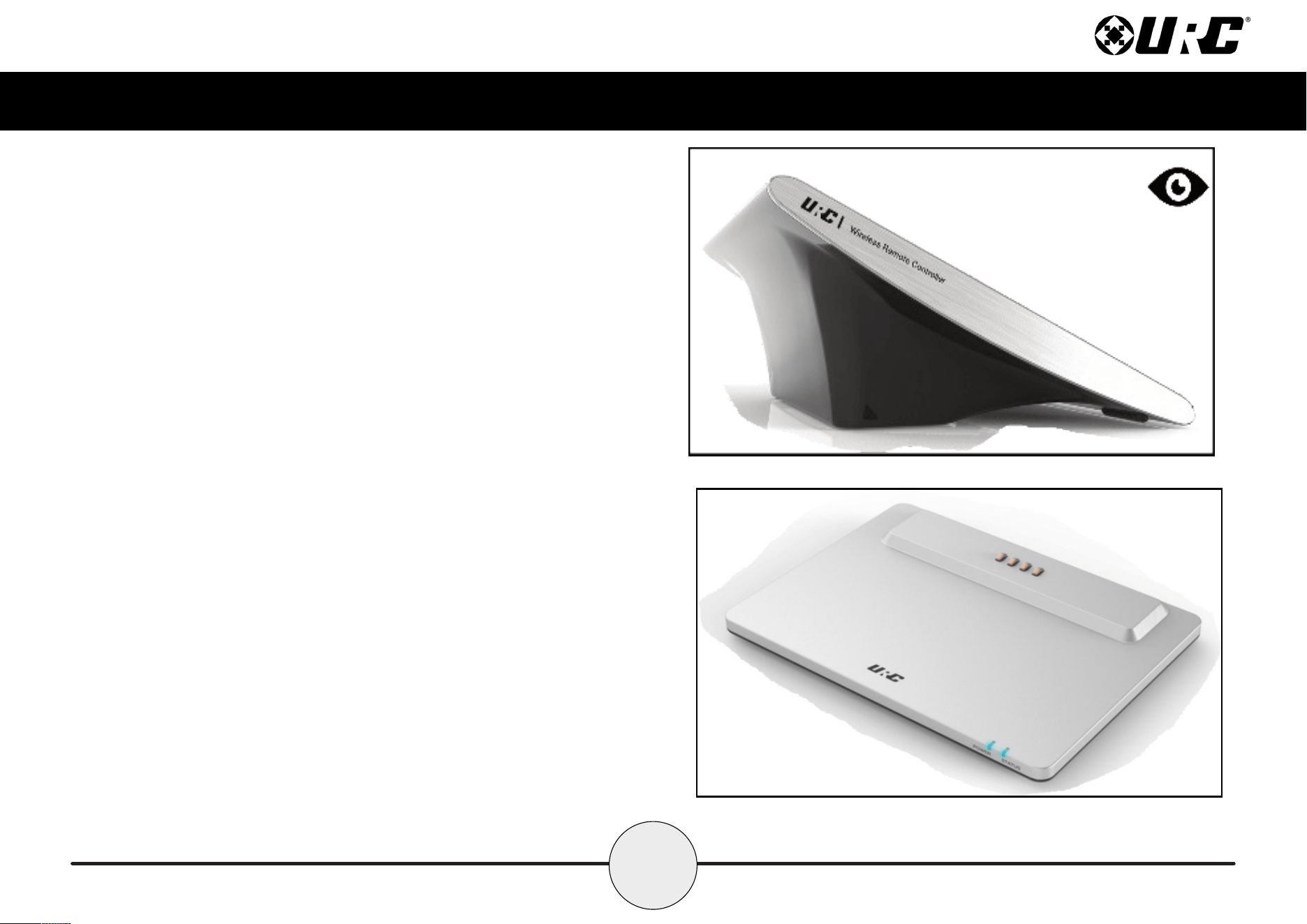
This feature allows the TDC-7100 to spring into action automatically. Utilizing its
proximity sensor, the keypad can detect distances from up to three (3) feet away.
This setting can be adjusted in the device’s Settings menu.
Inductive (Wireless) Charging
Wirelessly charge the TDC-7100 with its sleek, easy to place charging dock. This
charges the keypad in approximately ve (5) hours.
Ensure that the TDC-7100’s battery is fully charged prior to rst time usage.
3
Total Control
TDC-7100
Owner’s Manual
Part List
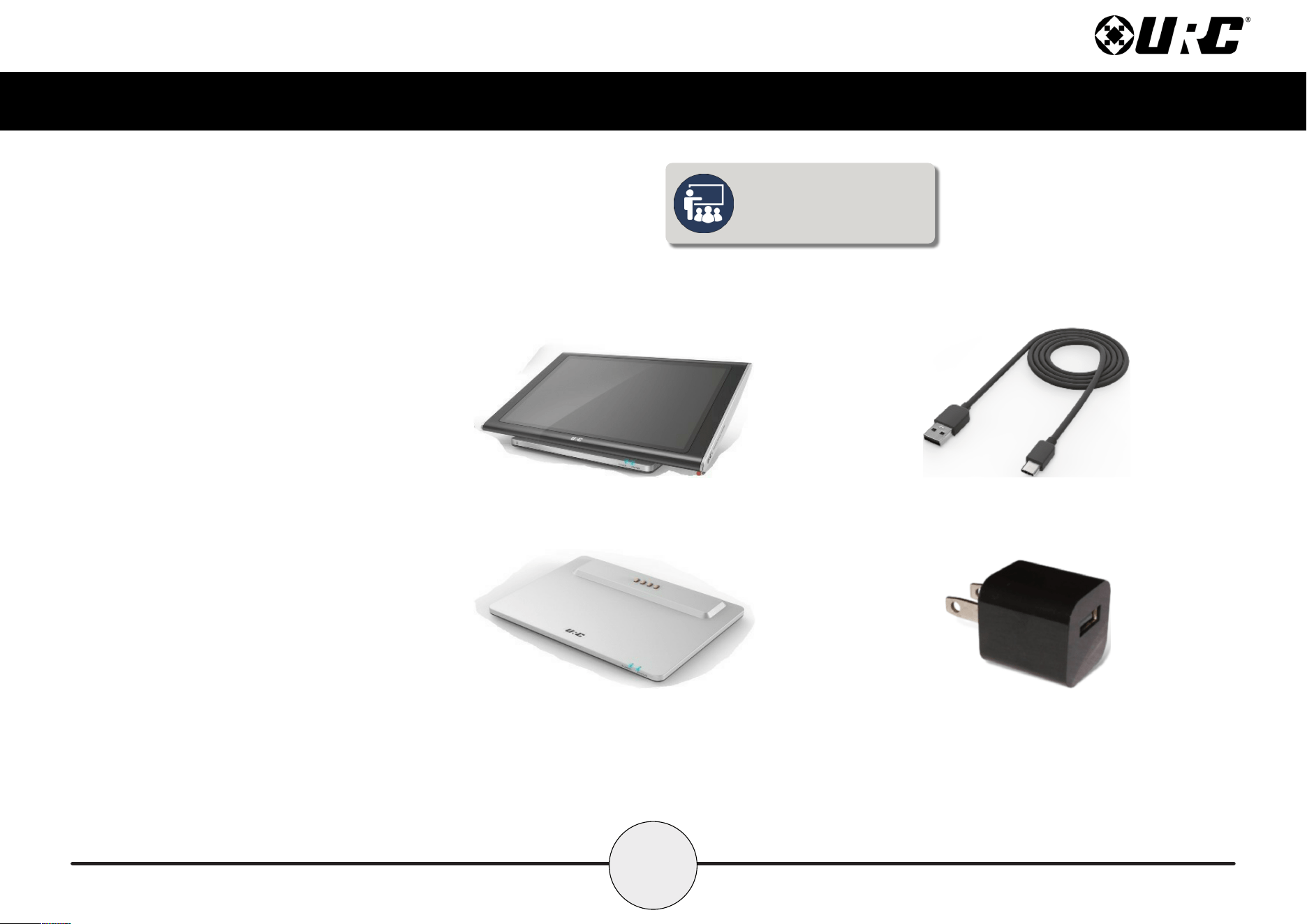
Included in the TDC-7100:
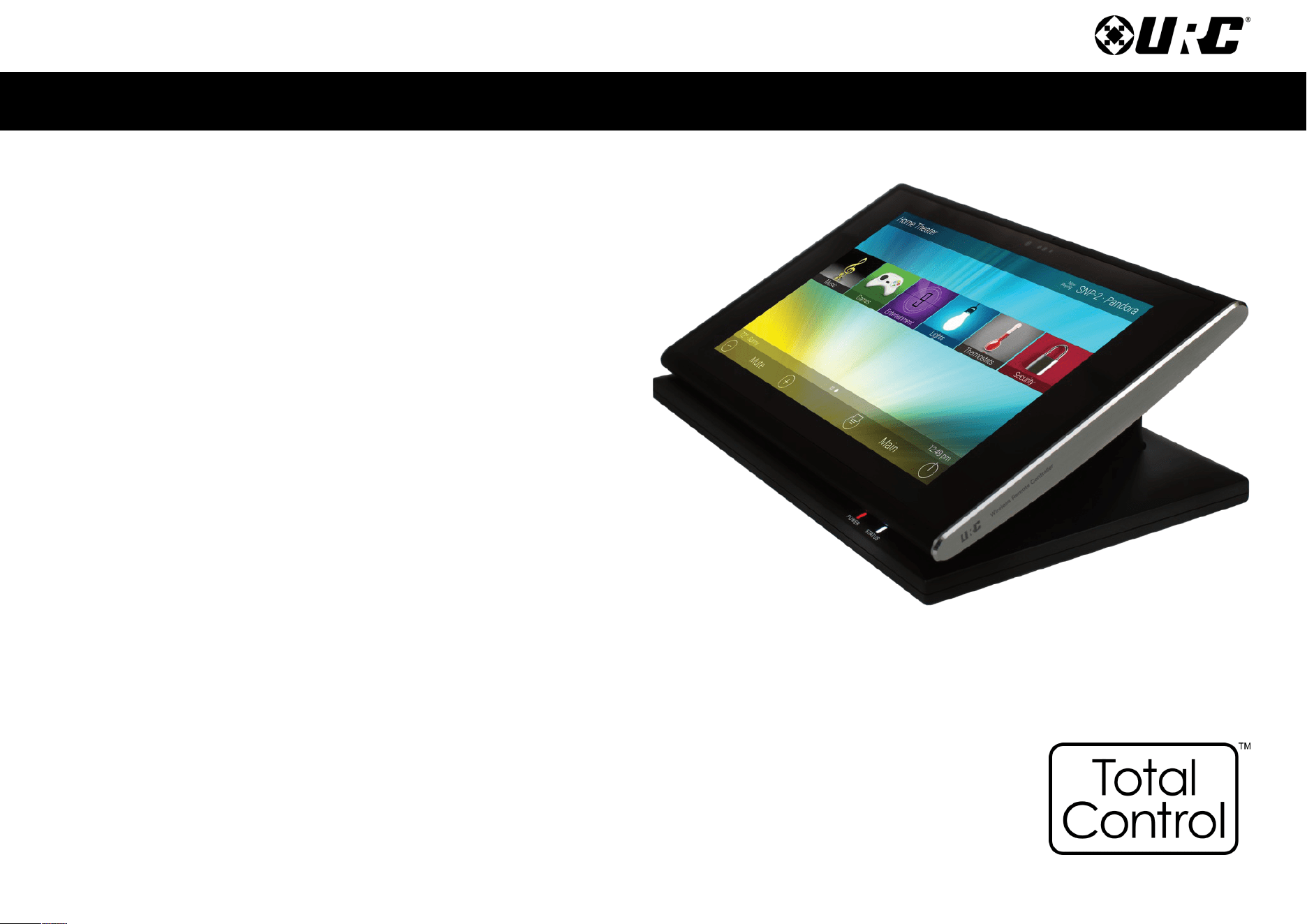
• 1x - TDC-7100 Tabletop Controller
• 1x - USB-C Charging Cable
• 1x - Inductive Charging Dock
• 1x - Power Adapter
Fully charge the TDC-7100’s
battery prior to rst time usage.
TDC-7100
USB-C Cable
Charging Dock Power Adapter

4
Total Control
TDC-7100
Owner’s Manual
Main Menu Navigation
Although specic screen design and certain options are dictated by the custom
integrator that programmed the Total Control system, the general layout
remains the same.
Actual navigation is performed via screen swipes:
• Left Swipe: Swipe left to reveal additional Main Menu pages.
The amount of pages available on the Main Menu is dictated by
the custom integrator.
• Right Swipe: Swipe right to reveal the Scenes Menu. The Scenes
Menu contains URC Scenes that are created by the custom integrator.
Return to the Main Menu by swiping left from the Scenes Menu.
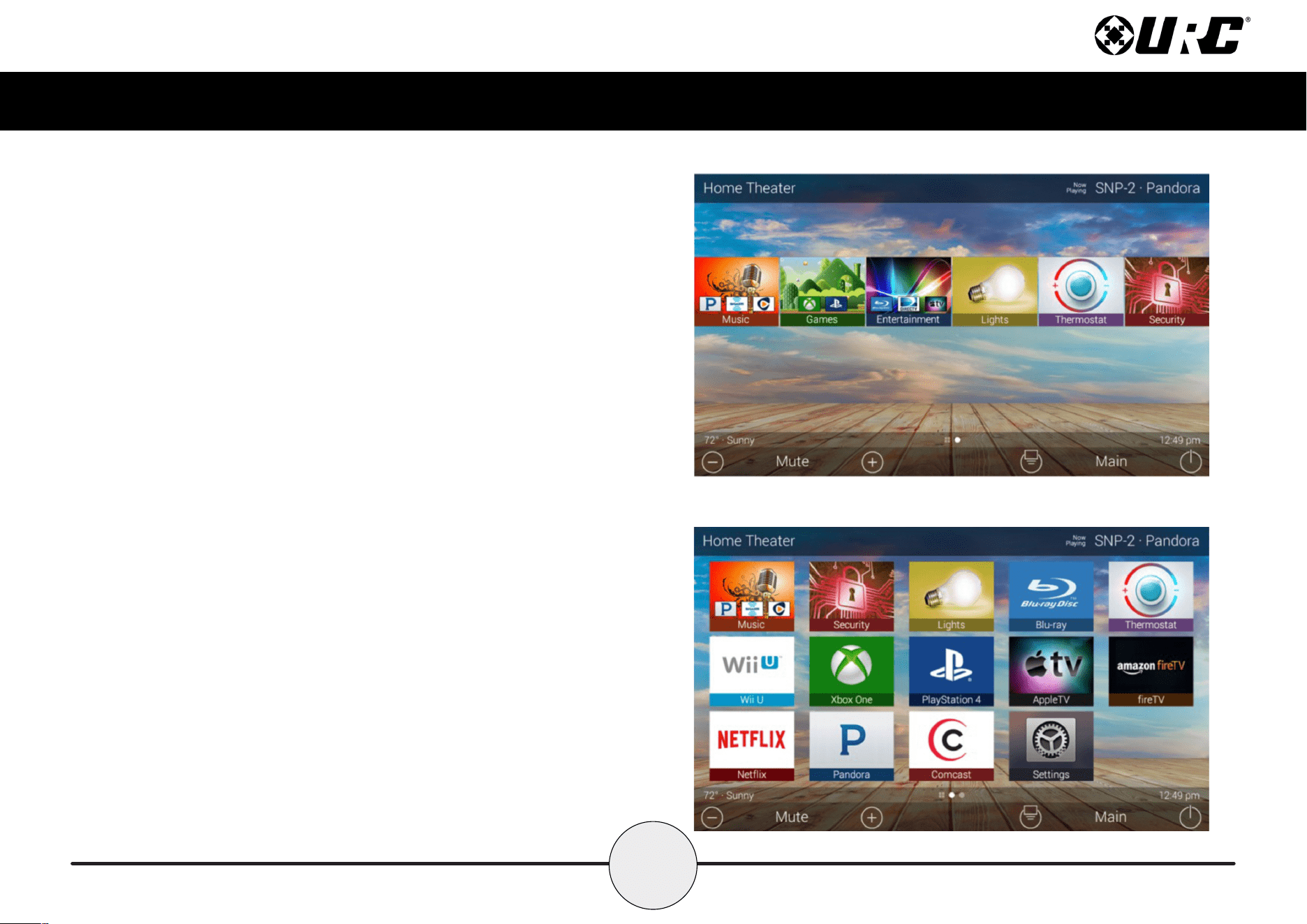
• Button Tapping: On the Main Menu selecting each of these areas
provide the end-user with control:
A. Category/Device Ribbon: Select a Category button to reveal the
associated sub-menu OR select a Device located here to access
that devices menu. This is dictated by the custom integrator.
B. Rooms Menu: Select the Room Name to access the Room’s
Menu. This menu allows the end-user to control another room and
more.
C. Volume Control: Tap the minus (Vol-) to lower the volume, plus
(Vol+) to increase the volume, and Mute to mute the volume.
D. Shortcuts: Select this button to reveal the Shortcuts Popup
menu. The end-user can add up to six (6) items on this menu.
E. Main: Select this to return to the Main Menu regardless of what page the
device is currently on. This can be changed to return to the Scenes Menu, speak
with the custom integrator to program the TDC-7100 this way.
F. Room Power Off: Select this button to turn off the current room.
G. Now Playing: Select the Now Playing button at the top to instantly jump into
that device/activity’s menu pages.
A
B
C
D E F
G
5
Total Control
TDC-7100
Owner’s Manual
Main Menu: View Modes
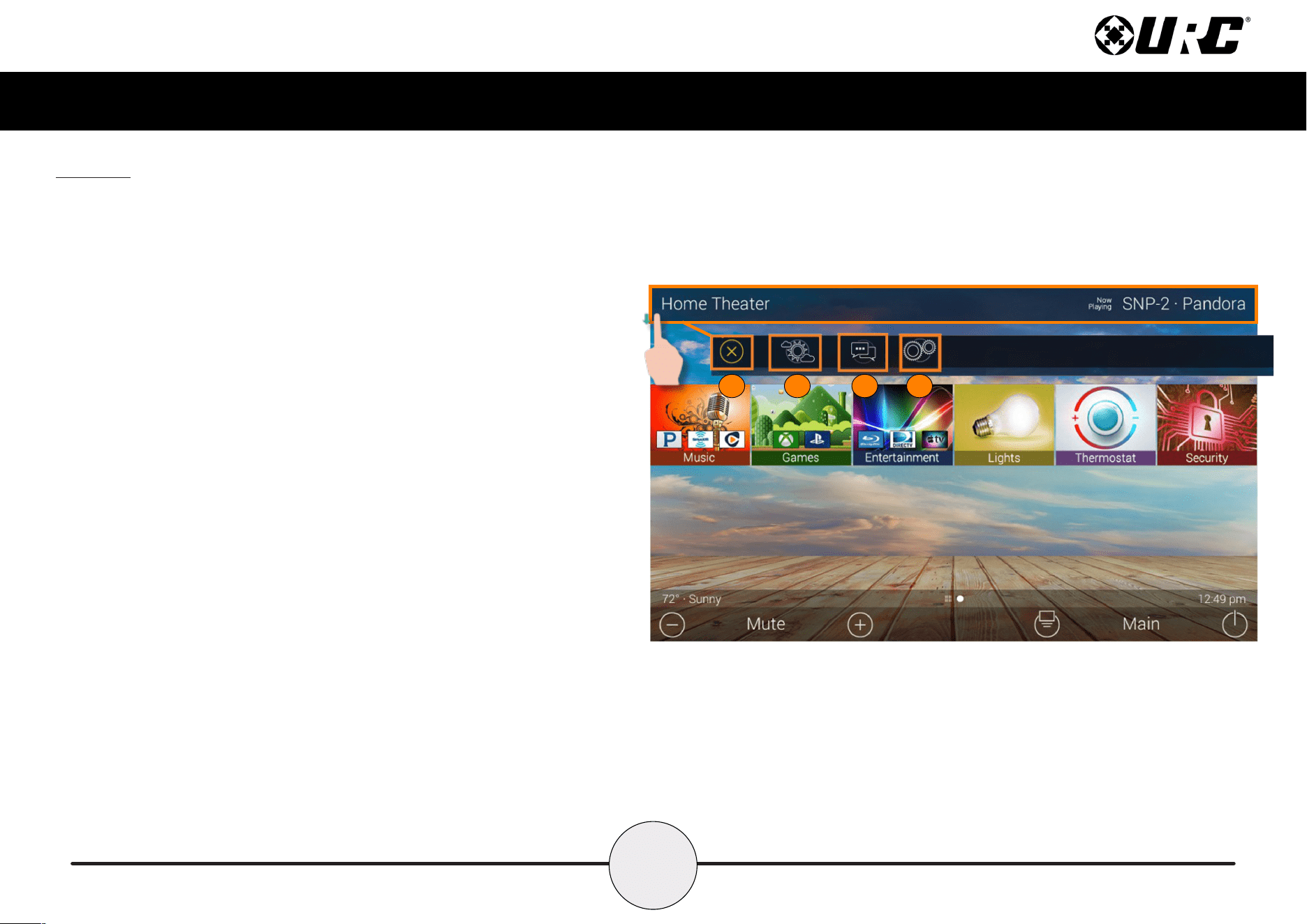
Total Control features two different view modes for the
TKP- 7600. Each view mode has its own unique properties
that compliment the user experience.
The view mode must be programmed from within the Accelerator
software, speak to a custom home integrator for more details.
1. Ribbon View: This is the default view mode and it
contains up to six (6) items per page.
2. Grid View: This view mode contains up to fteen (15)
item per page.
Ribbon View:
Grid View:
6
Total Control
TDC-7100
Owner’s Manual
Title Bar
The Title Bar is always present regardless of what menu and/or room the
TDC-7100 is currently using.
On the left of the Title Bar, the current room the TDC-7100 is controlling is
displayed. Selecting it reveals the Rooms Menu.
At the right of the Title Bar is the Now Playing area. This displays which
device/activity is currently active. Selecting it returns the interface to the
device/activity’s menu for control.
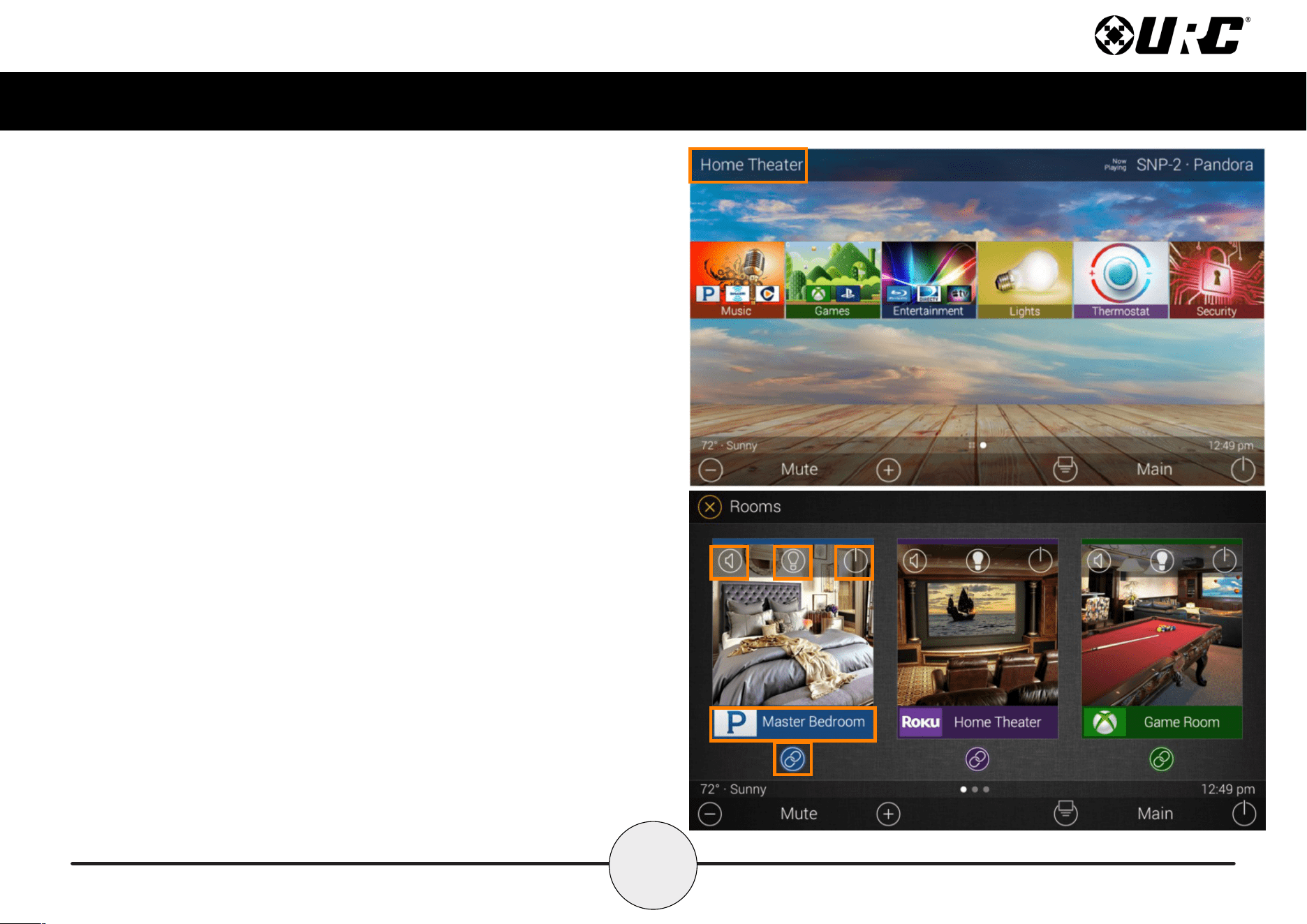
The Title Bar is located at the very top of the display. To access its menu,
swipe down as depicted on the image to the right. There are three (3)
selectable options here:
1. Close: Select this to hide the Title Bar Menu.
2. Weather Module: Select this to display the Time and Weather
Module, this feature requires the home location. This location is set
from within the Accelerator software.
3. Intercom: Select this button to display the Intercom Menu. This menu
displays all available Intercom-Enabled device (clients). Please see this
documents Audio-Video Intercom section for more details.
4. Settings: Select this button to access the TDC-7100’s Settings Menu.
The various parts of the Settings Menu are explained in detail in a later
section of this document.
Current Room
Now Playing
1 2
3 4
7
Total Control
TDC-7100
Owner’s Manual
Room’s Menu
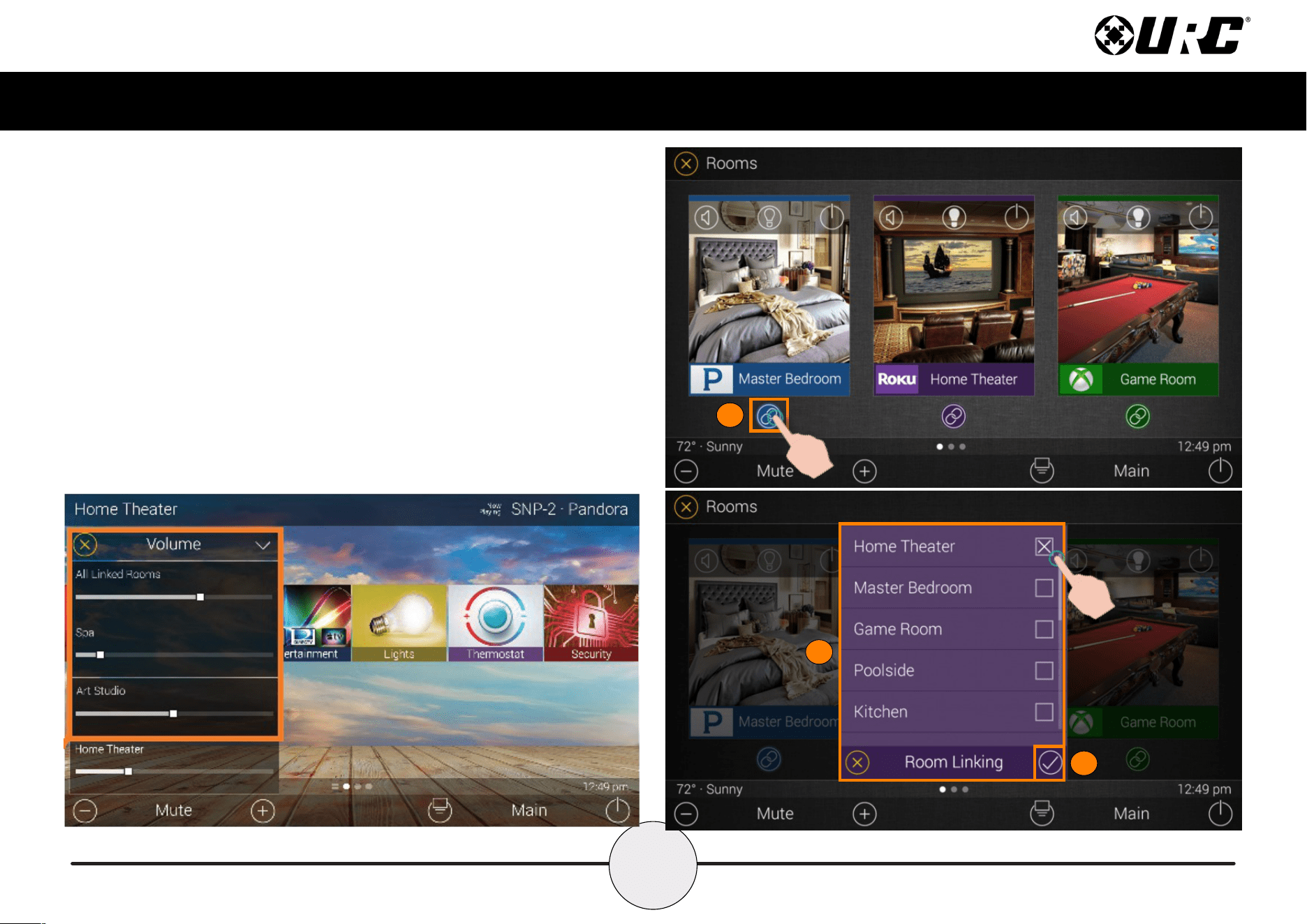
Tap on the Room Name located on the left in the Title Bar to display the
Room’s Menu.
The Room’s Menu contains every room programmed into the system.
Specic rooms may be hidden from certain interfaces, speak to the custom
home integrator for that option.
Each room is given a Room Name and customized image to represent that
room. Additionally, the Room’s Menu can be used for controlling volume,
turning off the lights, or completely powering off a specic room.
Here are the selectable buttons in the Room’s Menu:
1. Volume Control: Select this button to reveal the Vol +, Vol -, and
Mute icons. This button is available on any room with audio sources.
2. Lights Off Action Command: This button is programmed by the
custom integrator and can be set to turn off all the lights in a
particular room.
3. Room Off: Select this button to turn off all the devices in that
particular room. This button can only be used to turn off a room.
4. Now Playing: This section displays what device/activity is currently
active in that room. Selecting this jumps the TDC-7100 to that device/
activity’s menu for control.
5. Room Linking: This feature is only available on DMS Audio device.
It is used to link DMS Zones/Areas. This means having one menu that
controls volume for multiple zones simultaneously or individually.
8
Total Control
TDC-7100
Owner’s Manual
Room Linking
Remember, Room Linking can only be used by DMS Zones/Areas. The following
steps take place from within the Room’s Menu:
1. Select the Room Link button, this displays the Room Linking Menu.
2. Select which rooms in the system to link. Only rooms that are DMS
Zones/Areas appear on the Room Linking Menu.
3. Select the Check to conrm.
These rooms are now linked. It is possible to control volume on all of these
rooms from one menu (see below). Control the volume of each Linked Zone/
Area individually or simultaneously using the All Linked Rooms volume slider.
1
2
3
9
Total Control
TDC-7100
Owner’s Manual
Now Playing
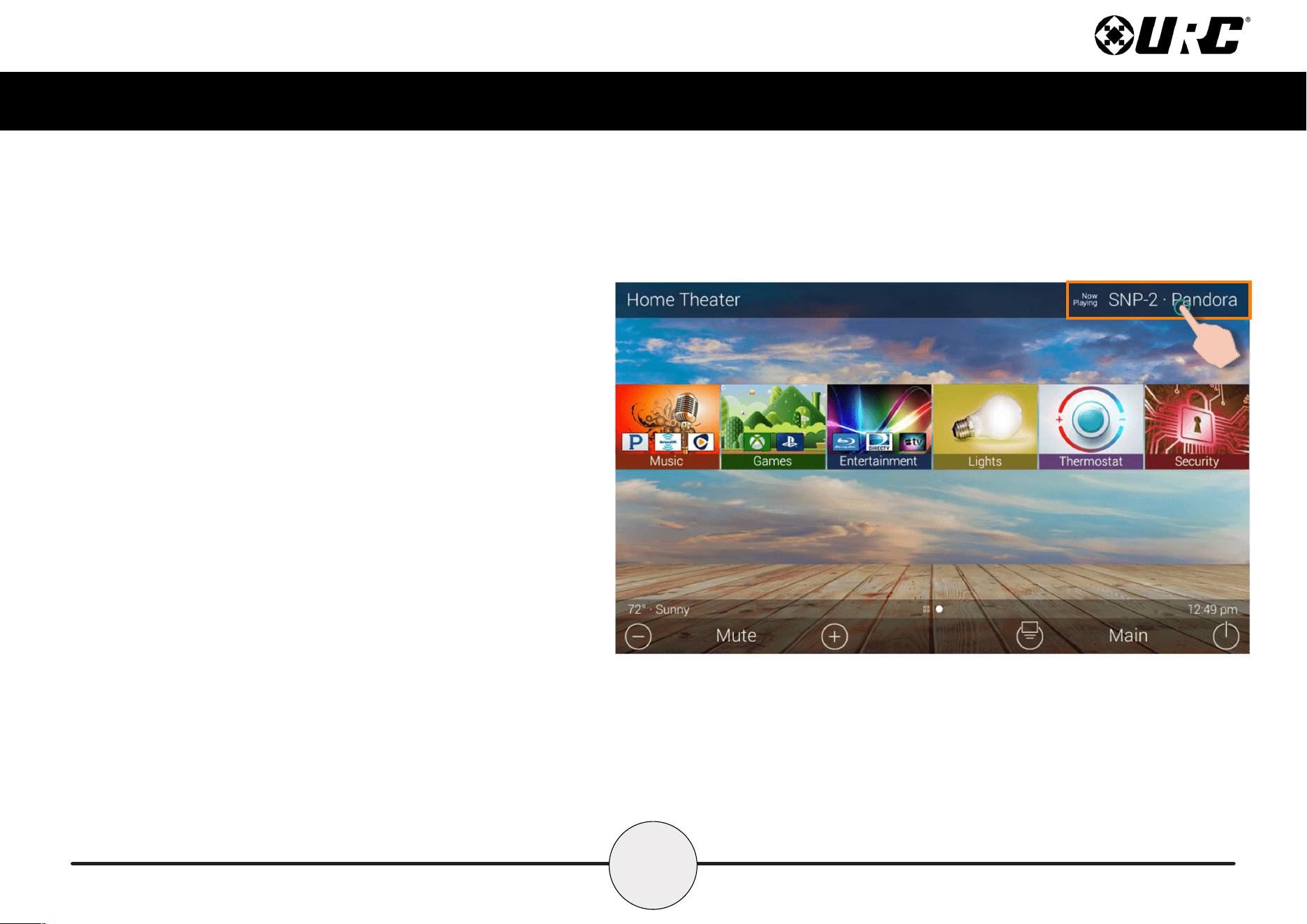
On the right hand side of the Title Bar is the Now Playing area. The Now
Playing area always dictates what activity is currently playing in the room.
In the example at the right, Now Playing reads “SNP-2 Pandora”. This
means that in the Home Theater the SNP-2 is using Pandora currently.
Tapping the Now Playing area jumps the TDC-7100 to the menu for the
device in that section. In the example this mean that, once tapped, the
interface jumps to the SNP-2 device menu for control.

10
Total Control
TDC-7100
Owner’s Manual
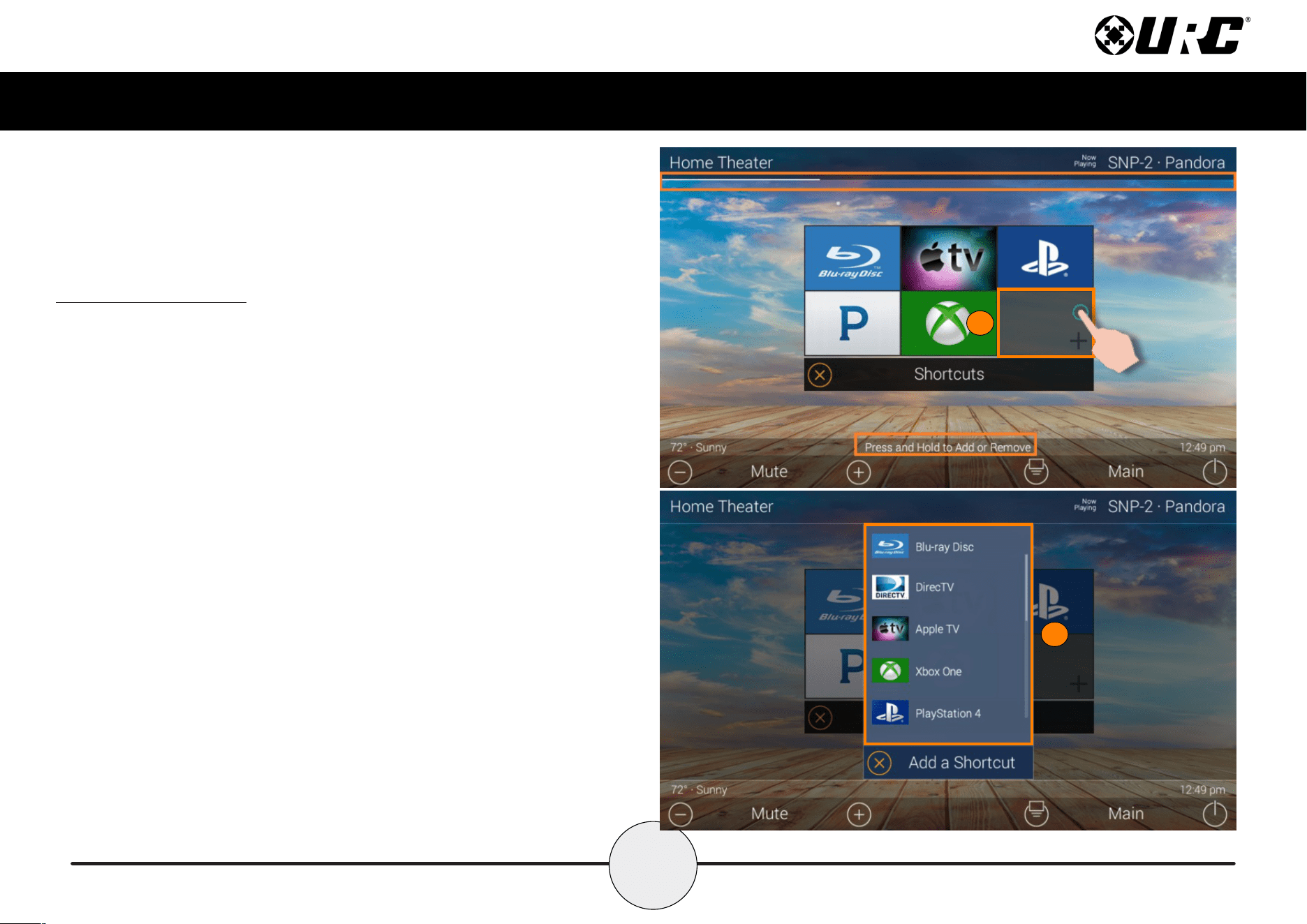
Core Buttons
These buttons are almost always on display. Each one of these buttons has a
specic function:
A. Volume: Used to control an active audio device.
B. Shortcut Popup: Use this to display the Shortcut Popup Menu. This
menu contains up to six (6) current room activities.
C. Main: Select this to return to the Main Menu regardless of what menu
the interface is currently in use.
D. Room Off: Use this button to turn off the current room.
Vol-
Mute Vol+
Shortcut Popup
Room Off
A D
CB
11
Total Control
TDC-7100
Owner’s Manual
Shortcut Popup Menu
The Shortcut Popup Menu holds the end-user’s favorite or most
frequently used devices/activities and places them in one easy to
access location.
Adding Shortcuts
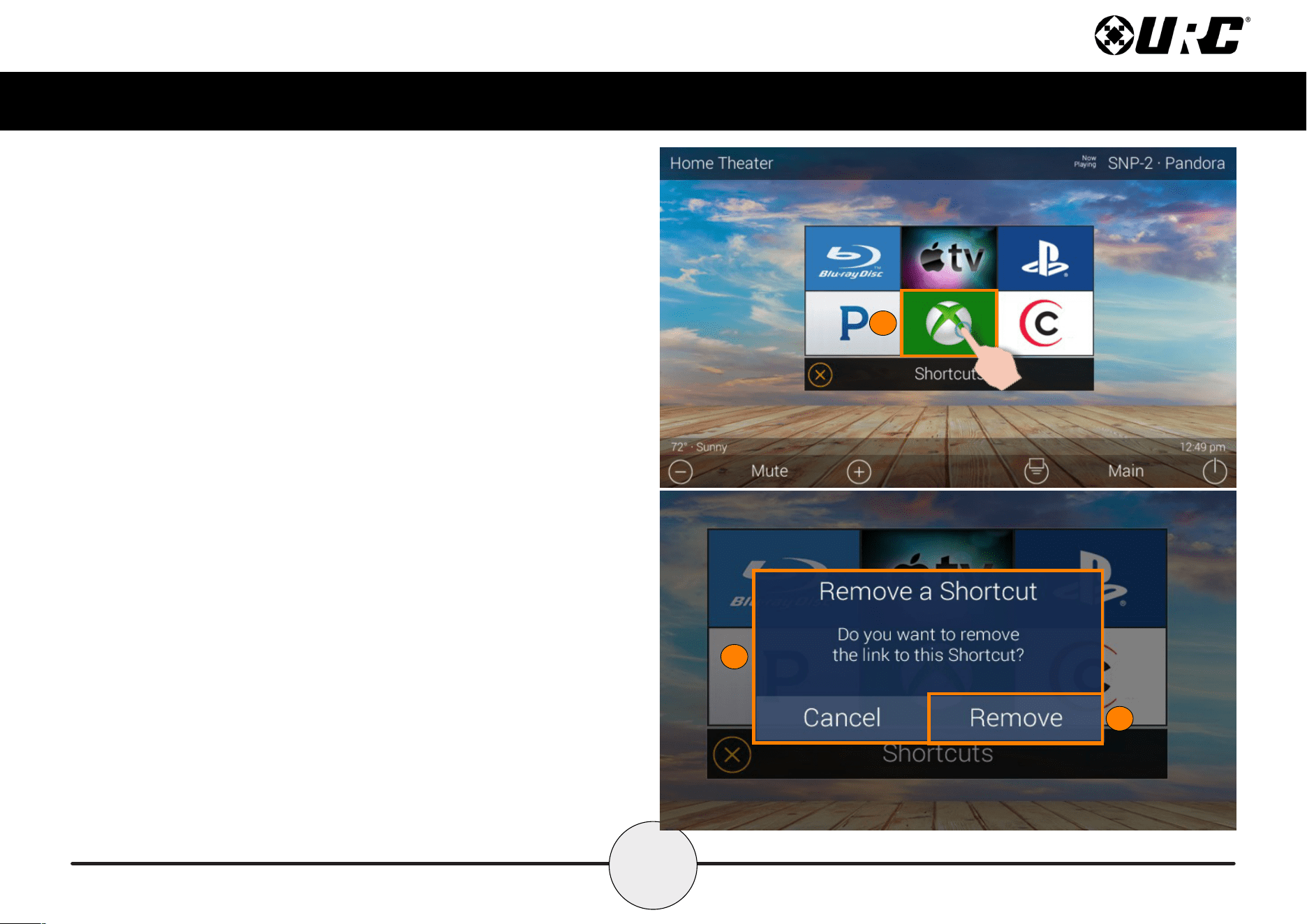
Follow these steps to add a Shortcut:
1. Locate an available button and hold it down until the
status bar on the top of the display lls. As stated on
the bottom of the interface “Press and Hold to Add or
Remove”. A list of device/activities for that room a
presented in the Add a Shortcut Menu.
2. Select a device/activity. This adds that item to the
Shortcut Popup Menu.
1
2
12
Total Control
TDC-7100
Owner’s Manual
Just tap on a Shortcut button to launch that device/activity. Remember, this menu
can only hold up to six (6) items and each item must already be a device/activity
programmed into that current room.
Removing Shortcuts
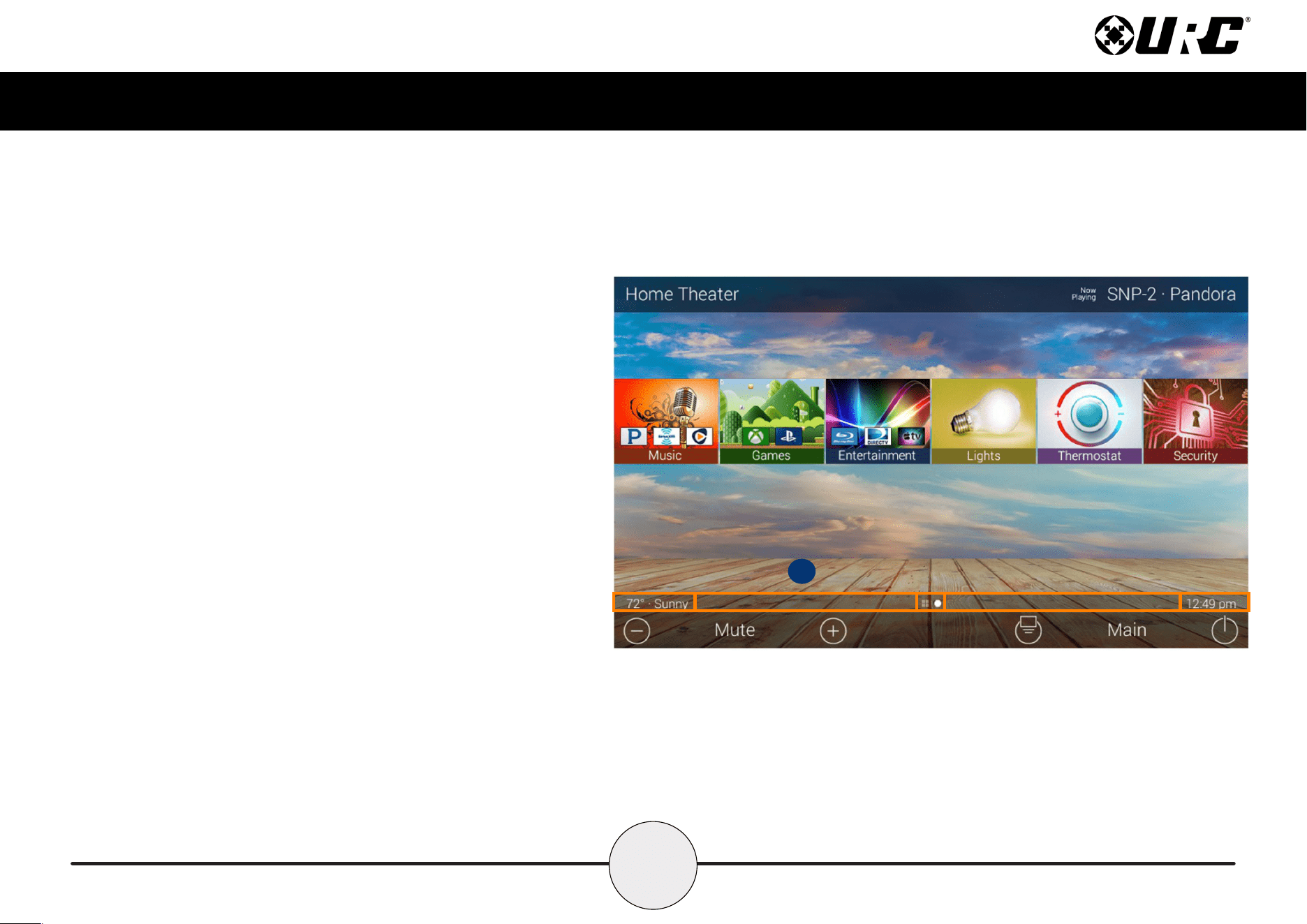
Follow these steps to remove a Shortcut:
1. From the Shortcut Popup Menu, press and hold the Shortcut that
needs to be deleted.
2. Hold the button until the Remove a Shortcut window displays.
3. Select Remove.
1
2
3
13
Total Control
TDC-7100
Owner’s Manual
Status Bar
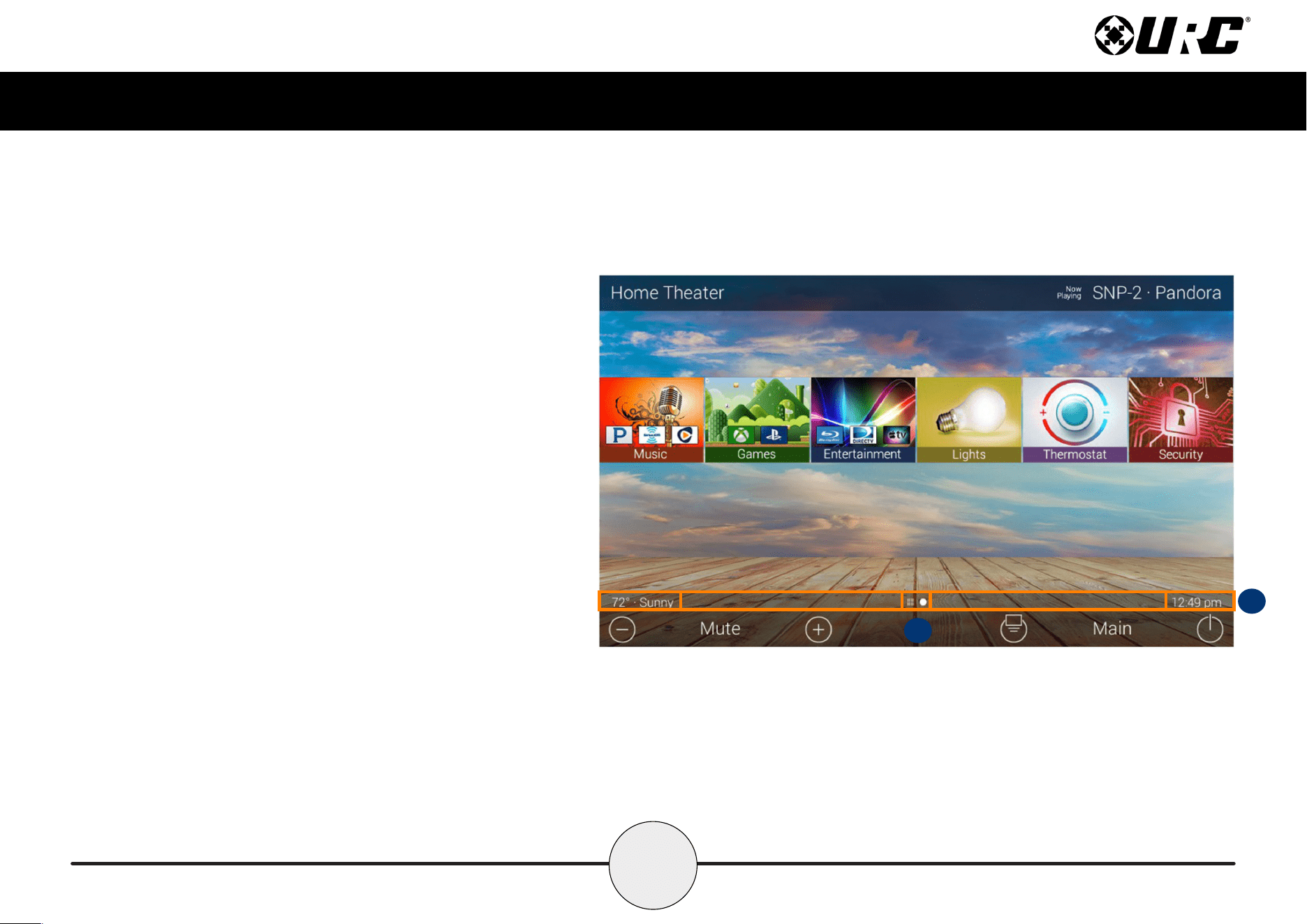
Located above the Core Buttons, this section of the interface is almost
always on display. The Status Bar is designed to inform the end-user of
various customization options:
A. Metadata Information: Located to the far left, options selected
from the programming software cycle through here. Those
selections are the following:
■ Room Linked Status: Whenever the chosen room/area is
“linked” to other rooms, it is acknowledged in this section.
■ Room Alarm Clock Status: If the current room has an Alarm
that is set to activate, the status bar displays an alarm clock
icon and the next scheduled time/day.
■ Vacation Mode Status: When Vacation Mode is activated,
the Status Bar displays “Vacation Mode On”. When inactive,
the Status Bar displays “Vacation Mode Off”.
■ Sunrise: Updated at midnight every day, displays the sunrise
time for the next day.
■ Sunset: Updated at midnight every day, displays the sunset
time for the next day.
■ RSS Weather Alert: Based on the location entered by the
system programmer, the words “Weather Alert” appear if an
automatic alert is received via internet.
■ DMS-AV Surround Mode Status: Displays the current sound
mode of the DMS-AV Surround Processor.
A
14
Total Control
TDC-7100
Owner’s Manual
B. Page Indicator: The icons here represent the current page
number the interface is on. However, the icon located to the
left is the Scenes Menu icon. All icons to the right of that
represent page numbers.
C. Time: This is always present on the right hand side of the
interface. It serves as a quick and convenient place for the
end-user to check the time of day.
B
C
15
Total Control
TDC-7100
Owner’s Manual
Intercom
The TDC-7100 has the capability of communicating across the home network to any
Intercom-Enabled client (interface).
There are three (3) different types of intercom calls that can be made:
1. Audio-Video: This type of call uses the camera and microphone of the
calling and receiving client to provide auditory and visual feedback.
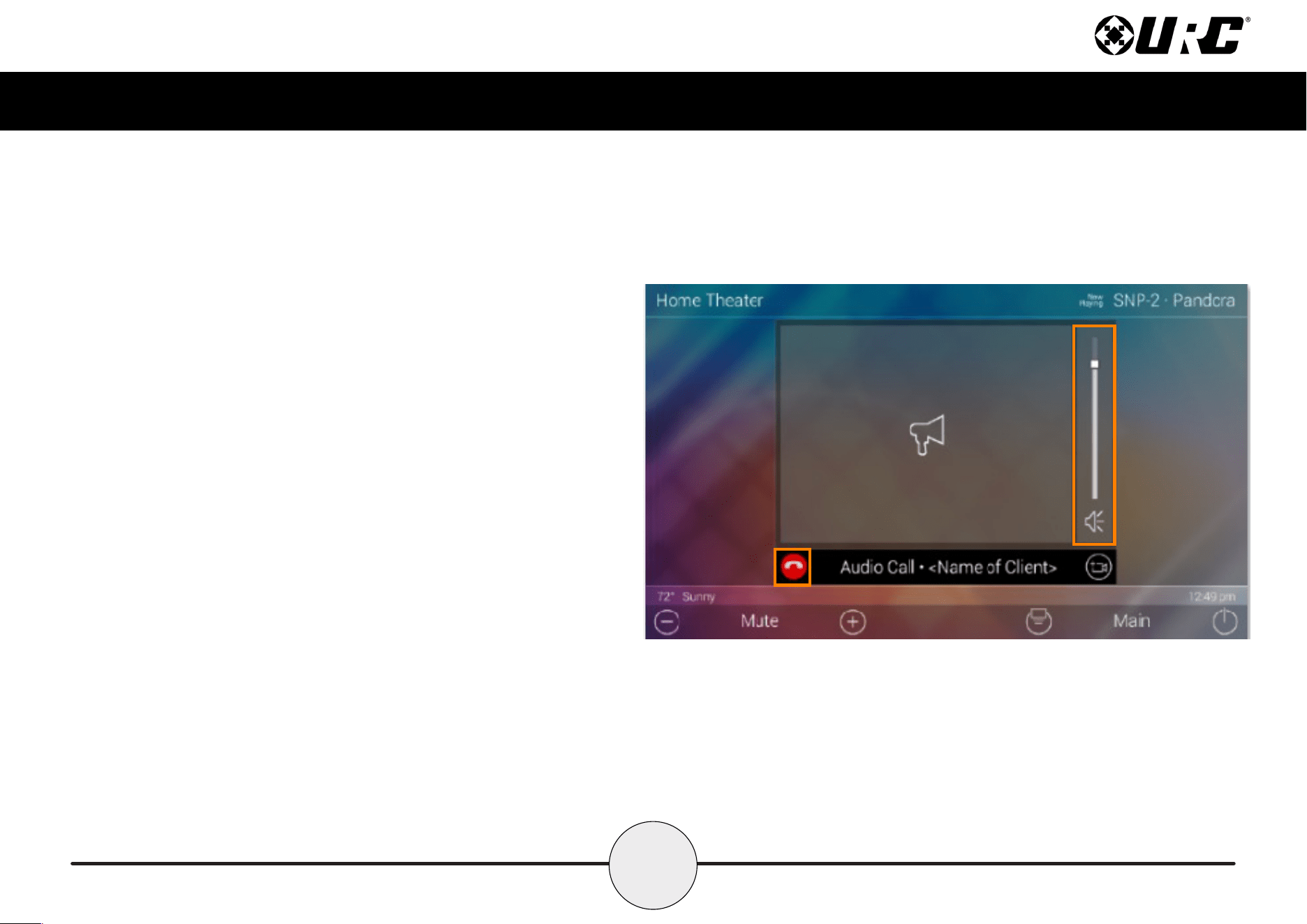
2. Audio Call: This type of call only uses the built in microphone of the calling
and receiving client to create an audio call over the home network.
1
2
16
Total Control
TDC-7100
Owner’s Manual
3. Audio Broadcast Call: This type of call is audio communication
between two or more clients. An ideal way to communicated across
multiple Intercom-Enabled interfaces in almost any home.
17
Total Control
TDC-7100
Owner’s Manual
Navigating the Intercom Menu
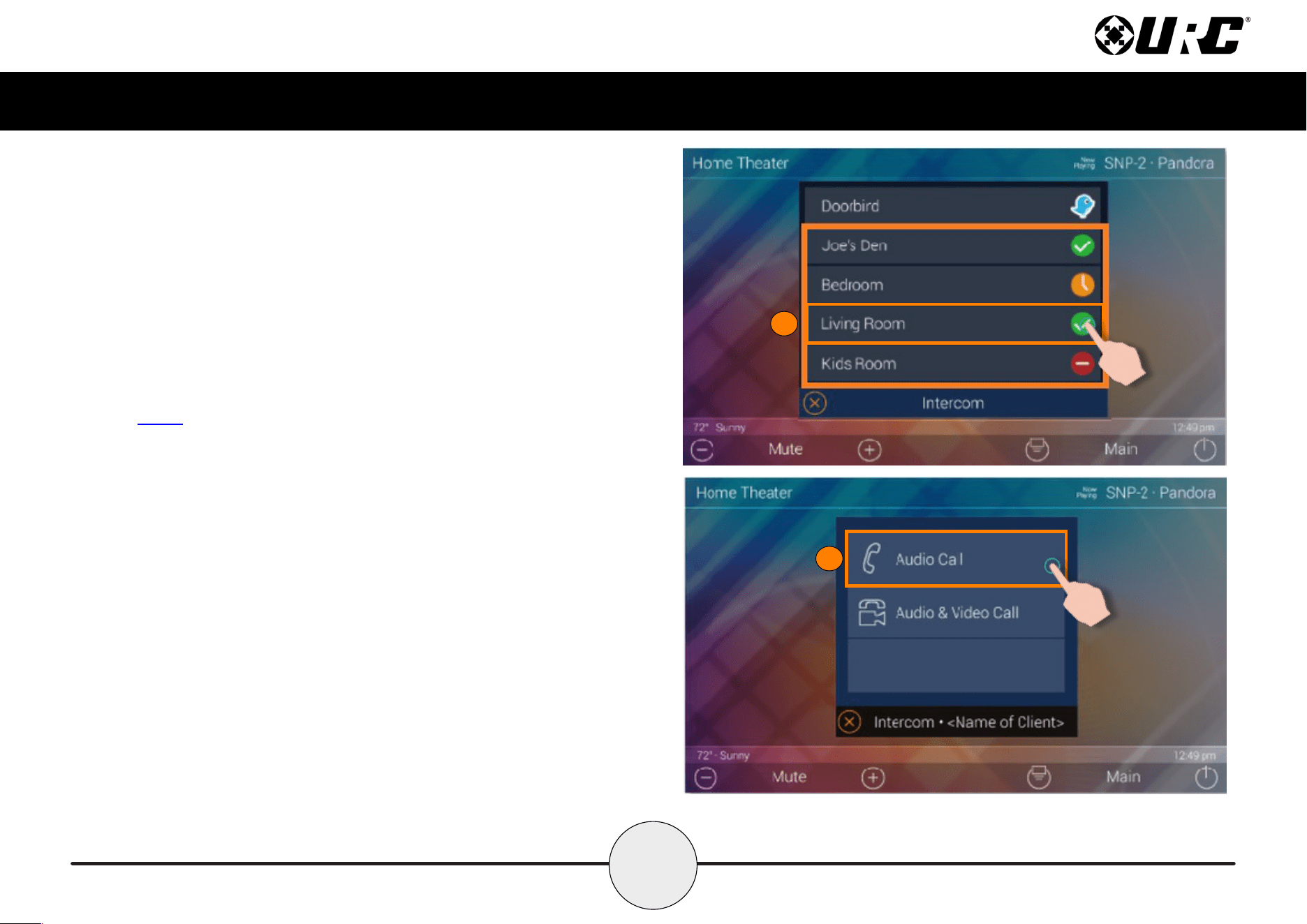
As mentioned on page 6 of this document, accessing the Intercom button is
performed by swiping down on the Title Bar.
After selecting the Intercom button from the Title Bar Menu, the Intercom Menu
displays. This menu presents the end-user with useful information:
• Door Station Integration: In the case where a 3rd party door station has
been integrated with the Total Control system, those device are located at
the top of the Intercom Menu.
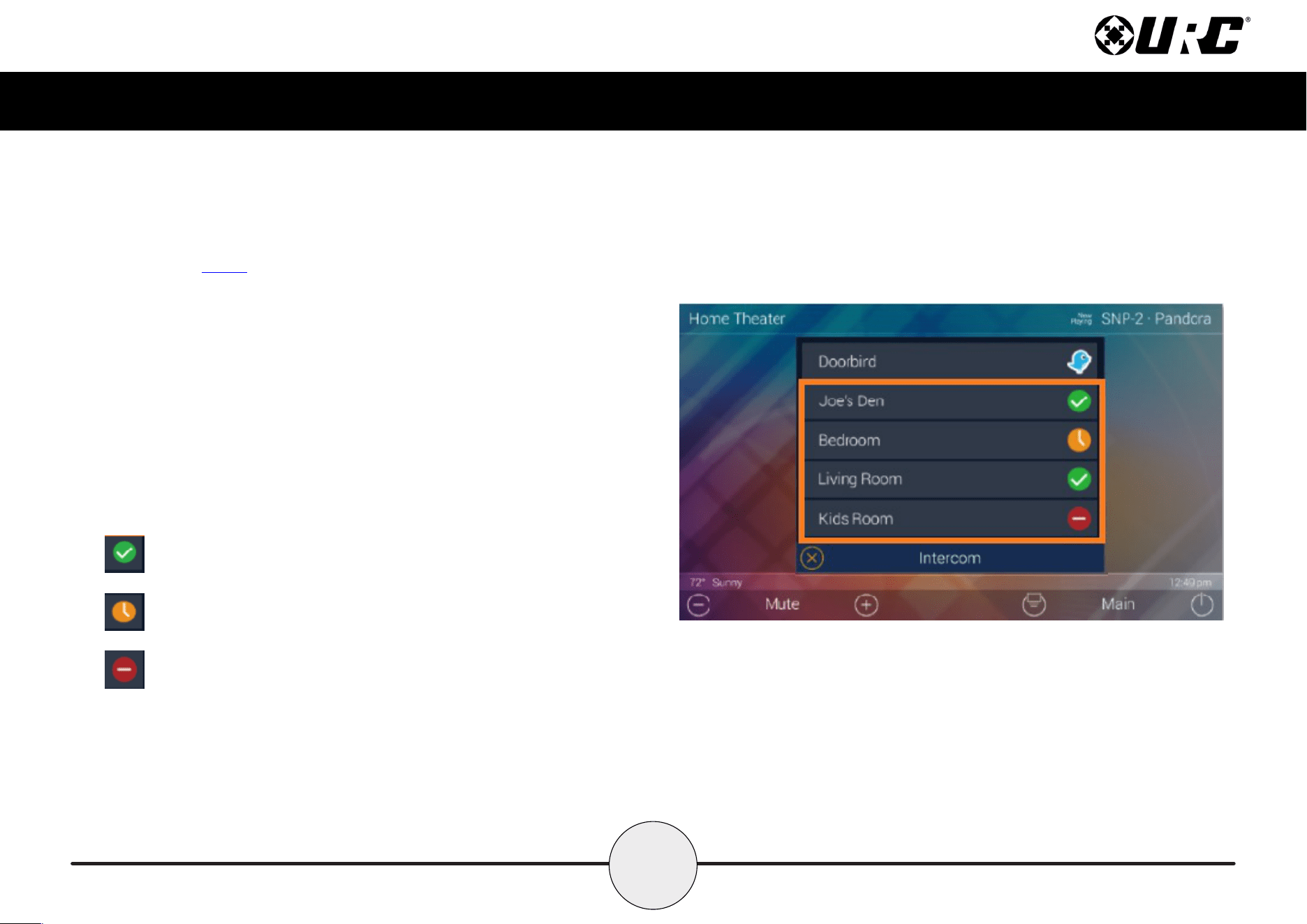
• System Clients: The Intercom Menu lists every Intercom-Enabled client in
the system. There are three (3) possible status modes for each client:
Available: The client is ready to receive any type of call.
Not Available/Busy: Signies the client is unable to receive a call.
Do Not Disturb: Signies the client is currently in Do Not Disturb mode.
18
Total Control
TDC-7100
Owner’s Manual
Making Calls: Audio-Video
Remember that the Intercom feature must be enabled from with in the Settings
Menu. The following steps take place from the Intercom Menu, to access this menu
refer to page 6:
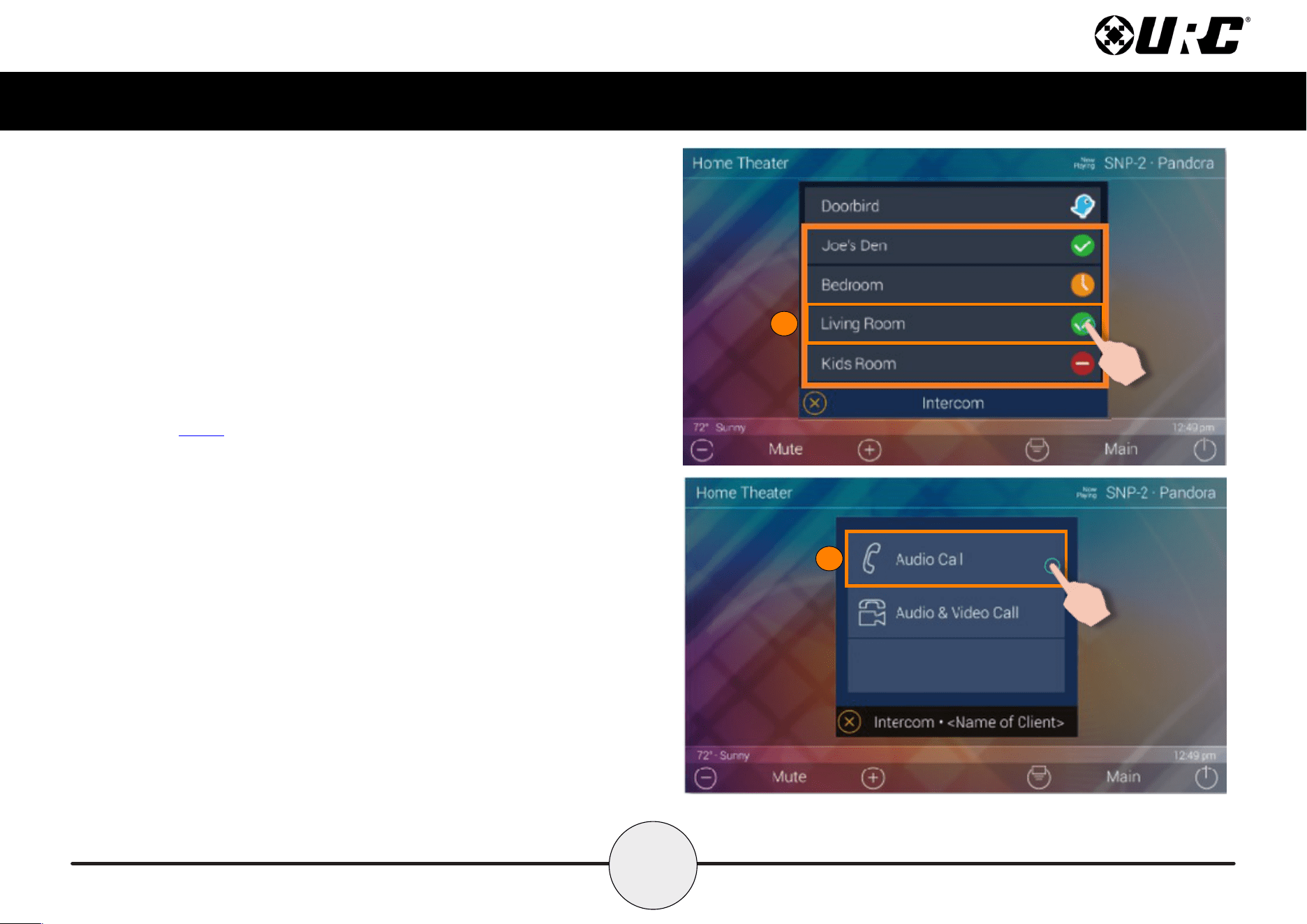
1. Select an available client from the Intercom Menu.
After selecting a client, the three (3) call options are displayed. This is
almost always displayed after selecting an available client.
2. Select Audio & Video Call.
1
22

19
Total Control
TDC-7100
Owner’s Manual
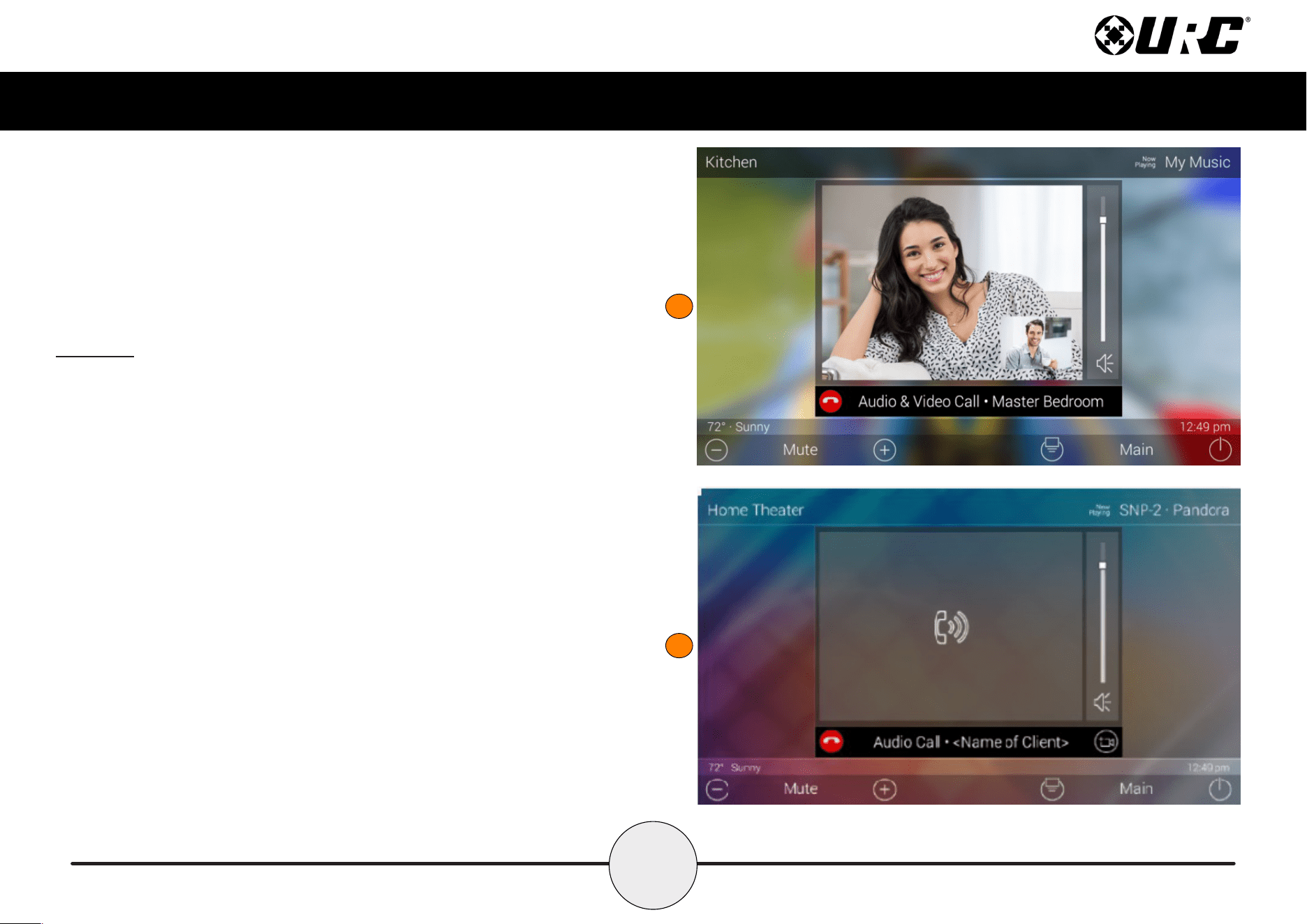
Once the call is accepted, the TDC-7100 provides auditory and visual two-way
feedback on the screen.
Use the Volume Slider at the right of the video feedback to raise or slower
the volume. Slide the indicator to the top for maximum volume or slide it down
to the bottom to mute the audio.
To end an Audio & Video call, select the End Call button (see image at right).
This immediately ends the call and returns the TDC-7100 to the Intercom Menu.
Volume Slider
End Call
20
Total Control
TDC-7100
Owner’s Manual
1
2
Making Calls: Audio Calls
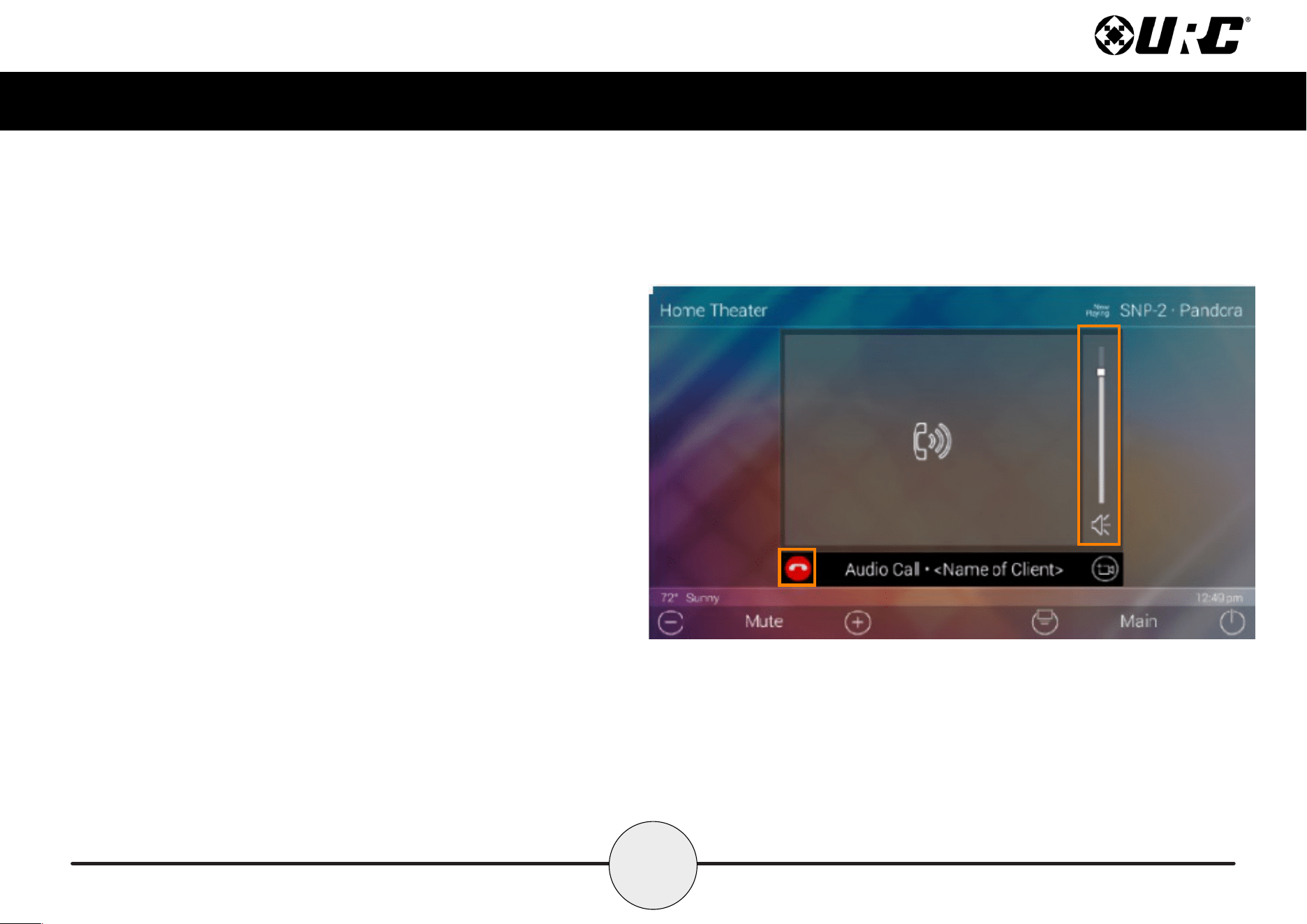
Remember that the Intercom feature must be enabled from with in the Settings
Menu. The following steps take place from the Intercom Menu, to access this
menu refer to page 6:
1. Select an available client from the Intercom Menu. After selecting a
client, the three (3) call options are displayed. This is almost always
displayed after selecting an available client.
2. Select Audio Call.
2
21
Total Control
TDC-7100
Owner’s Manual
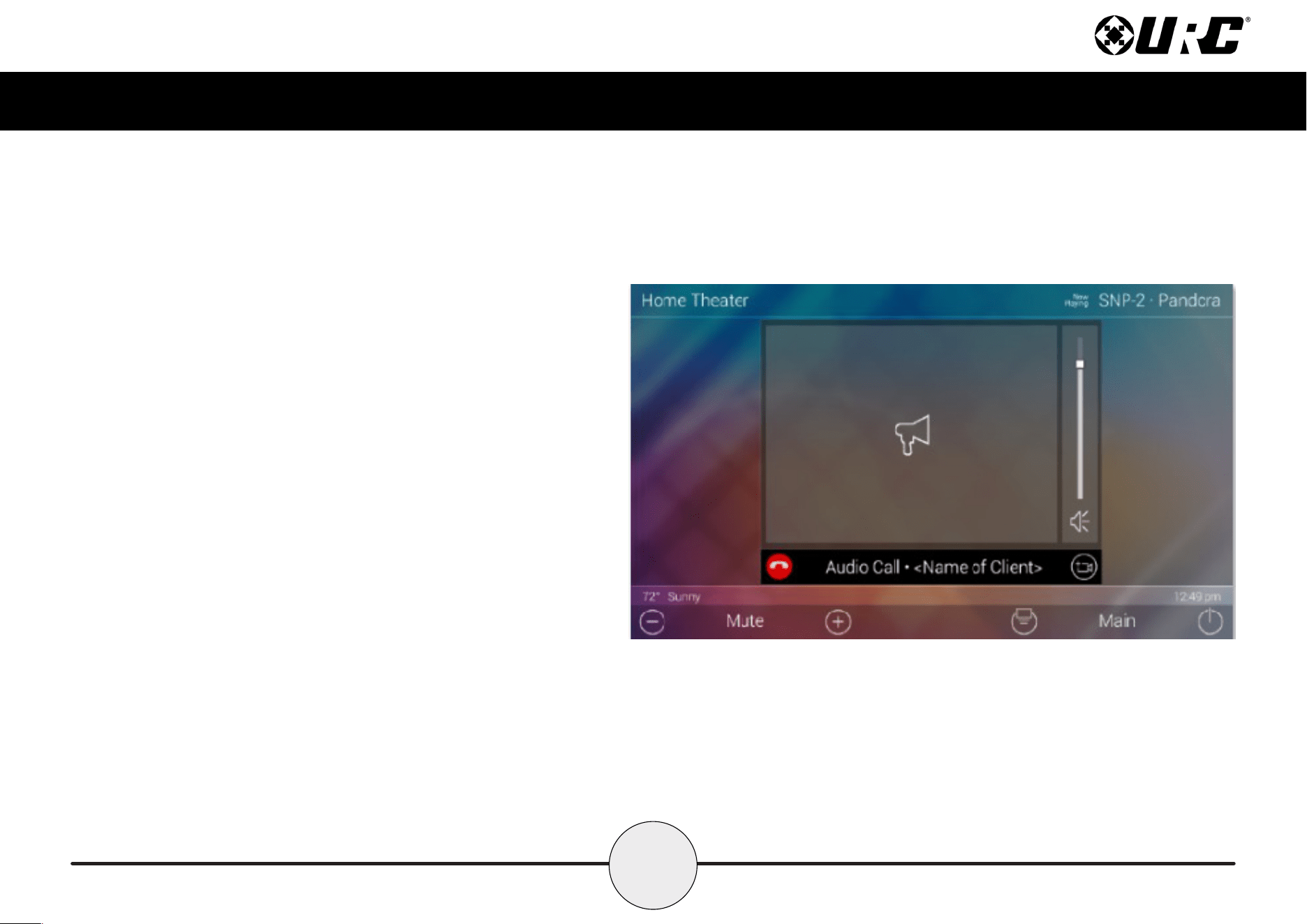
Once the call is accepted, the TDC-7100 provides two-way communication
between clients via audio only.
Use the Volume Slider at the right of the call icon area to raise or slower the
volume. Slide the indicator to the top for maximum volume or slide it down to
the bottom to mute the audio.
To end an Audio Call, select the End Call button (see image at right). This
immediately ends the call and returns the TDC-7100 to the Intercom Menu.
Volume Slider
End Call
22
Total Control
TDC-7100
Owner’s Manual
Making Calls: Audio Broadcast
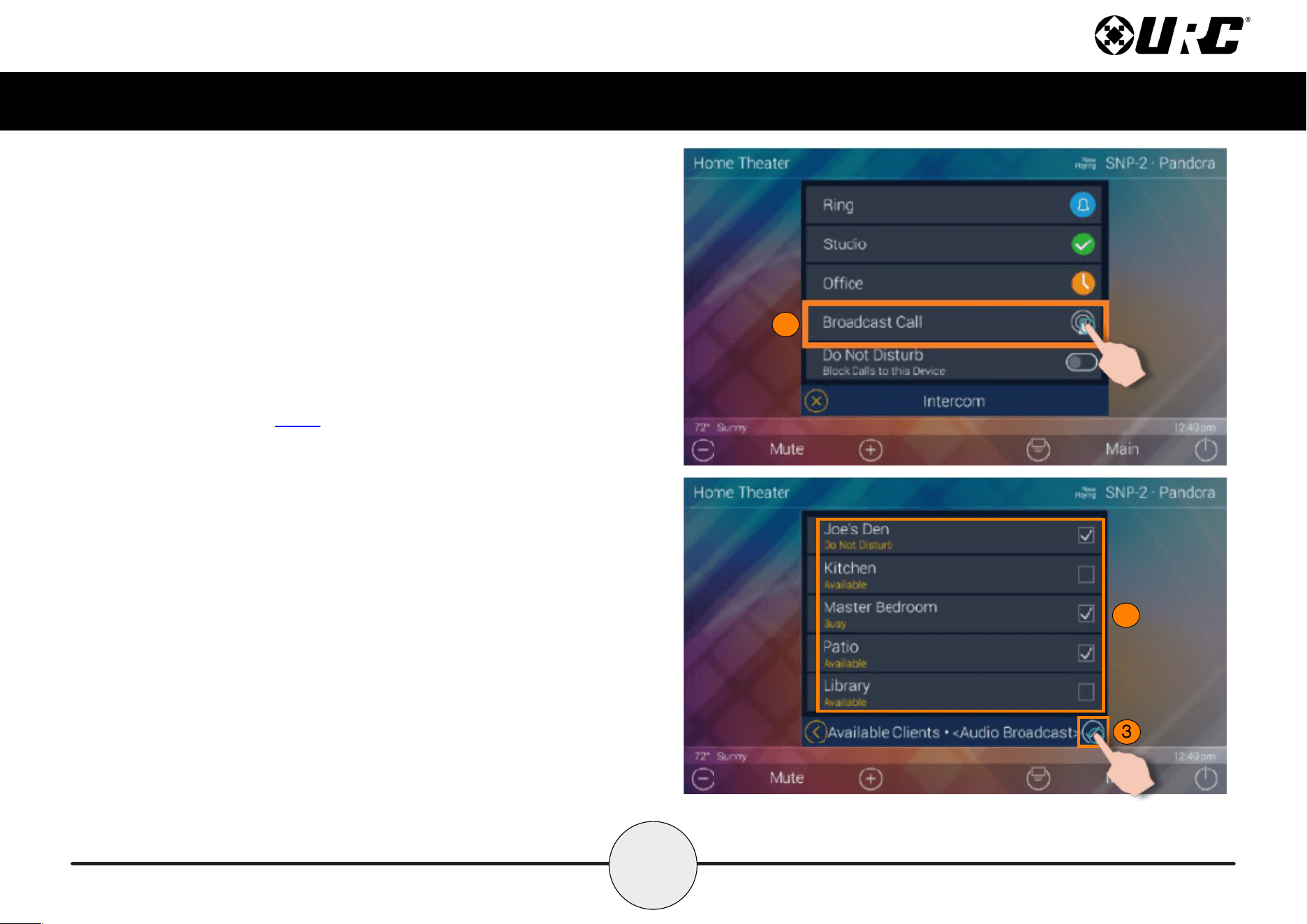
Remember that the Intercom feature must be enabled from with in the
Settings Menu. The following steps take place from the Intercom Menu,
to access this menu refer to page 6:
1. Select Broadcast Call. A list populates of all available Intercom-
Enabled devices.
2. Check the boxes of the clients to include in the Audio Broadcast.
3. Select the Confirmation button.
1
2
3
23
Total Control
TDC-7100
Owner’s Manual
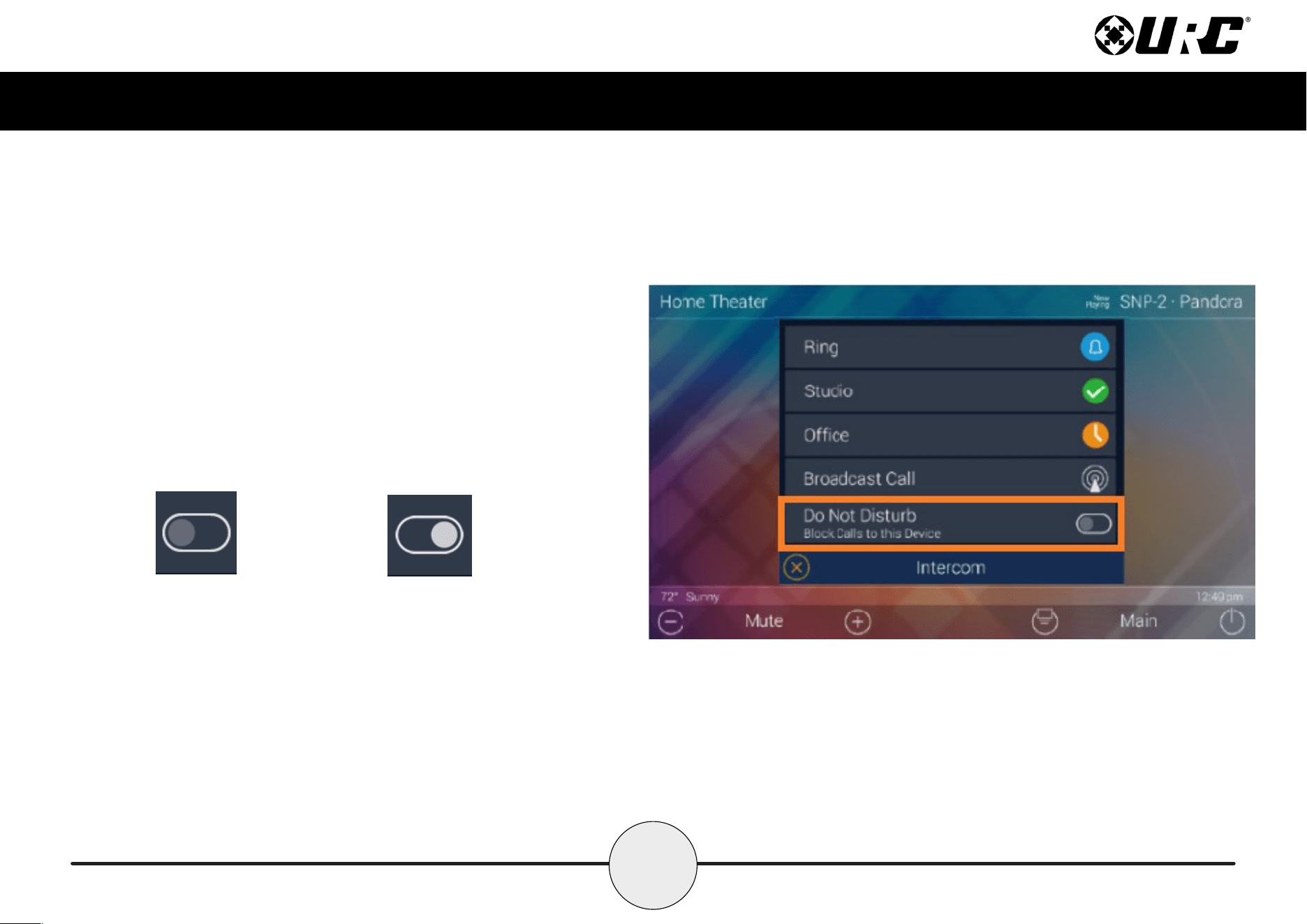
Once the call is established, all selected devices communicate via audio.
Use the Volume Slider at the right of the call icon area to raise or slower the
volume. Slide the indicator to the top for maximum volume or slide it down to
the bottom to mute the audio.
To end an Audio Call, select the End Call button (see image at right). This
immediately ends the call and returns the TDC-7100 to the Intercom Menu.
Volume Slider
End Call
24
Total Control
TDC-7100
Owner’s Manual
Do Not Disturb Mode
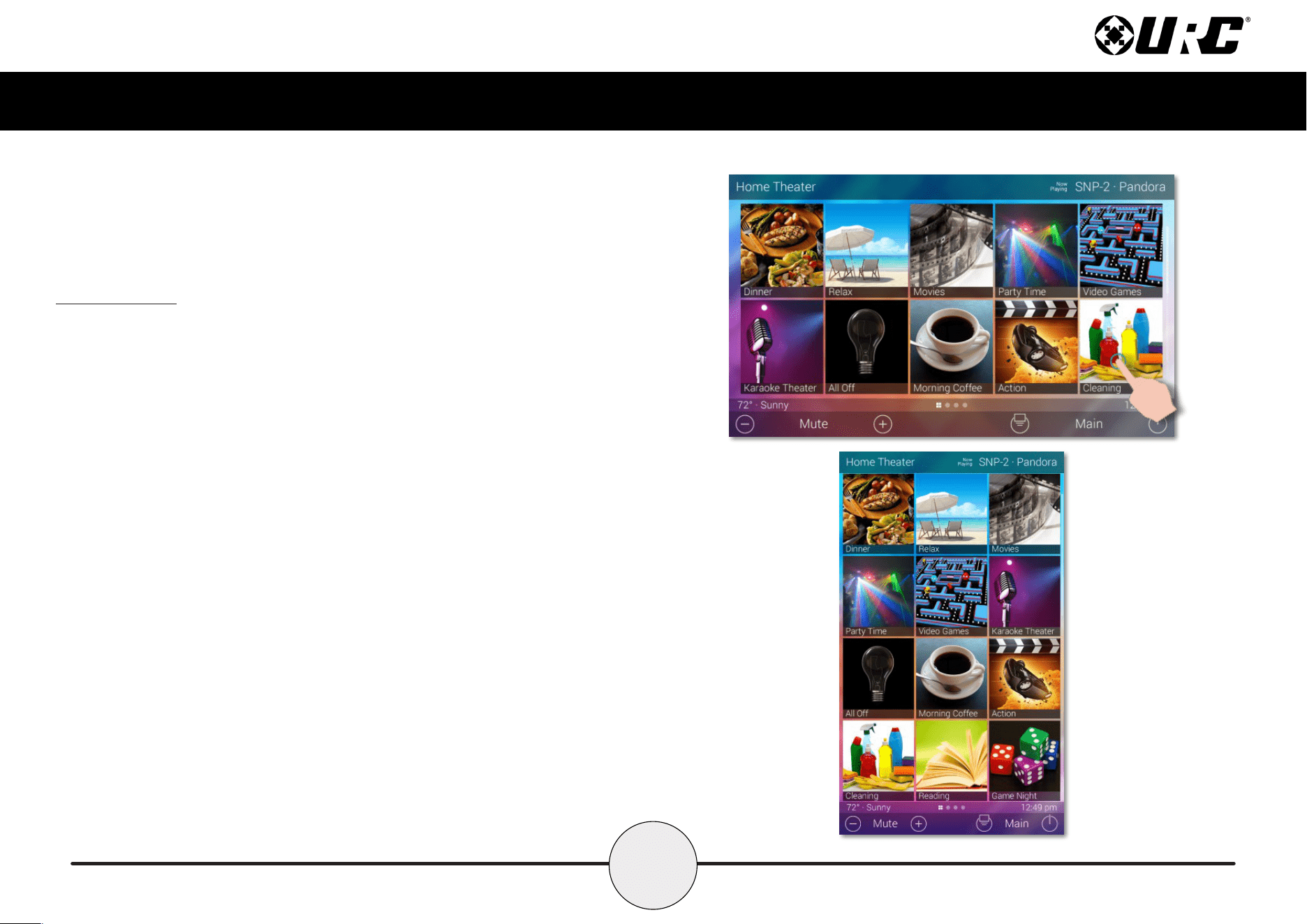
Enabling the Do Not Disturb feature sets the current TDC-7100
unavailable. This means that the keypad cannot receive any calls from
other interfaces.
To enable this feature, use the slider located at the right of the text Do
Not Disturb. These are the possible states:
Do Not Disturb: OFF
This button functions as a toggle. Select it once to enable and tap the
slider again to disable Do Not Disturb Mode.
Do Not Disturb: ON
25
Total Control
TDC-7100
Owner’s Manual
Scenes Menu
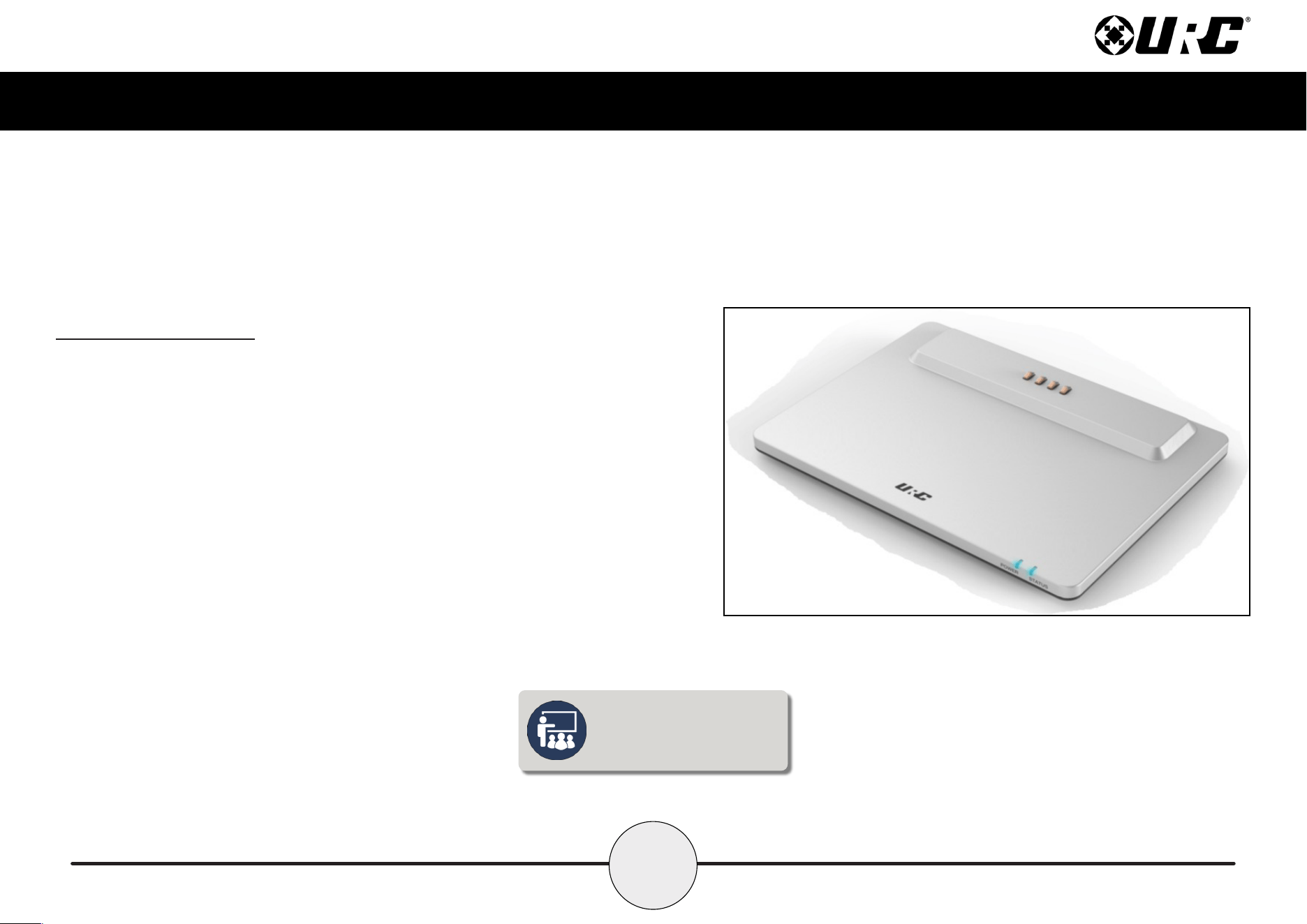
The Scenes Menu is dictated by the system programmer. Access this menu by swiping
to the right from the Main Menu.
The Scenes Menu can contain up to a hundred (100) Scenes (buttons) per room. Keep
in mind that the Scenes Menu is unique to each room.
Tap any button on the Scenes Menu to select a particular activity. Additionally the
Scenes Menu can be set as the landing page when the Main button is selected.
Scenes can trigger any individual device or multiple devices to perform a particular
activity. For example, selecting a Scene like Cleaning (see right), can turn off the
television and turn on a music source.
Since each Scene must be programmer through the Accelerator software, be sure to
speak with a custom home integrator for Scene idea and/or requests.
26
Total Control
TDC-7100
Owner’s Manual
Charging the TDC-7100
The TDC-7100 supports the “Wireless Charging” feature. Place the device on the
charging dock to begin charging the battery. This method eliminates the need of any
physical charging cables to the TDC-7100. A full charge can be achieved in
approximately ve (5) hours.
Assure that the TDC-7100’s battery is FULLY CHARGED prior to its rst-time usage.
Connecting the USB-C cable directly into the TDC-7100 for a faster charge.
There is a USB-C port located at the rear of the TDC-7100, it is possible to connect the
supplied USB cable to this port for faster charging.
The TDC-7100’s battery holds a charge for up to three (3) days.
Fully charge the TDC-7100’s
battery prior to rst time usage.
27
Total Control
TDC-7100
Owner’s Manual
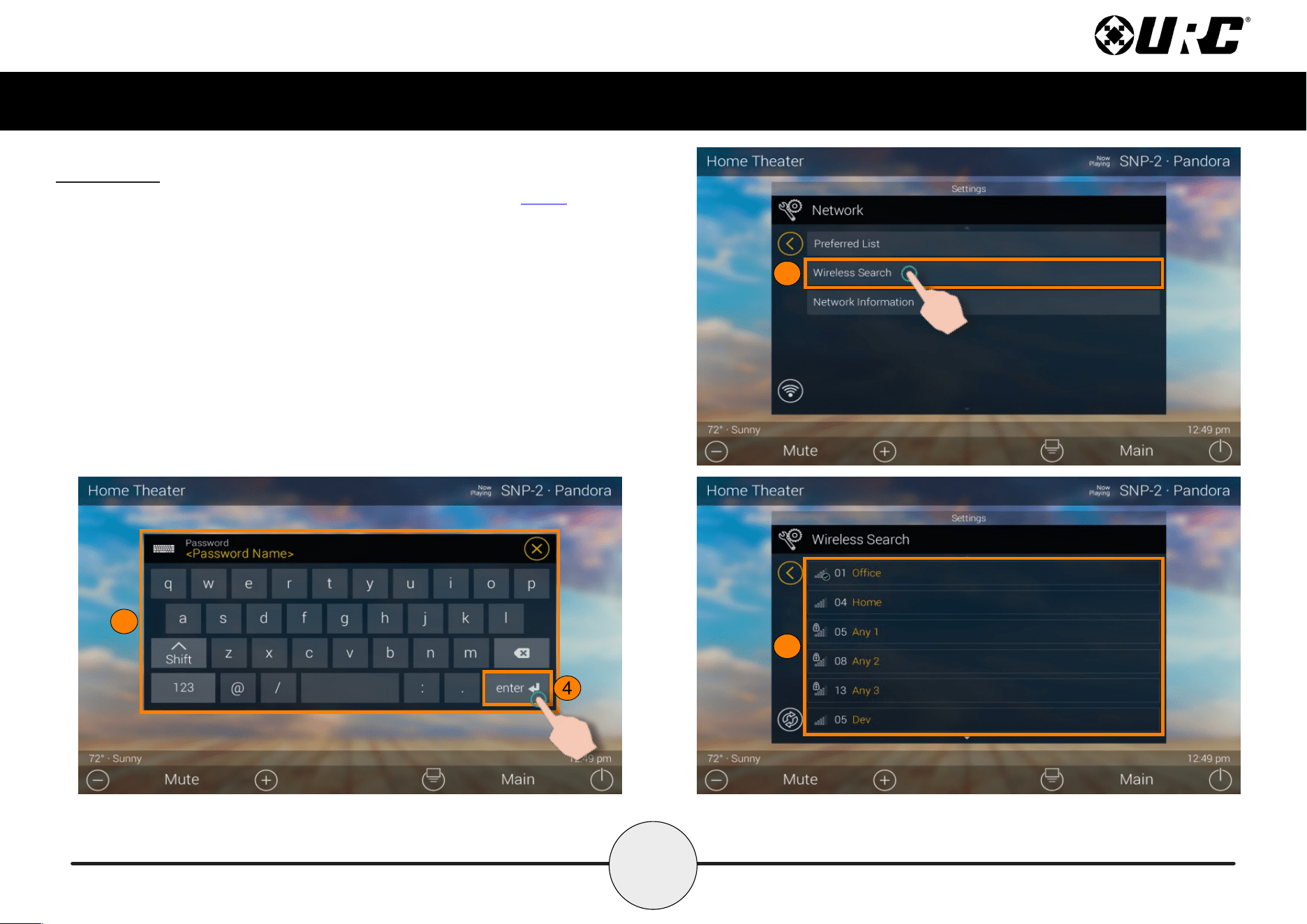
Wi-Fi Setup
Drag down the Title Bar to reveal the Settings Menu as explained on page 6. Once in
the Settings Menu, select the Network options. The image at the right is displayed:
1. Select Wireless Search. The TDC-7100 scans for all available networks and
presents them in the next screen.
2. Select a wireless network from the Wireless Search results list.
3. Depending on the network parameters, a password may be required.
4. Once the password has been typed, select Enter to conrm.
1
2
3
4
28
Total Control
TDC-7100
Owner’s Manual
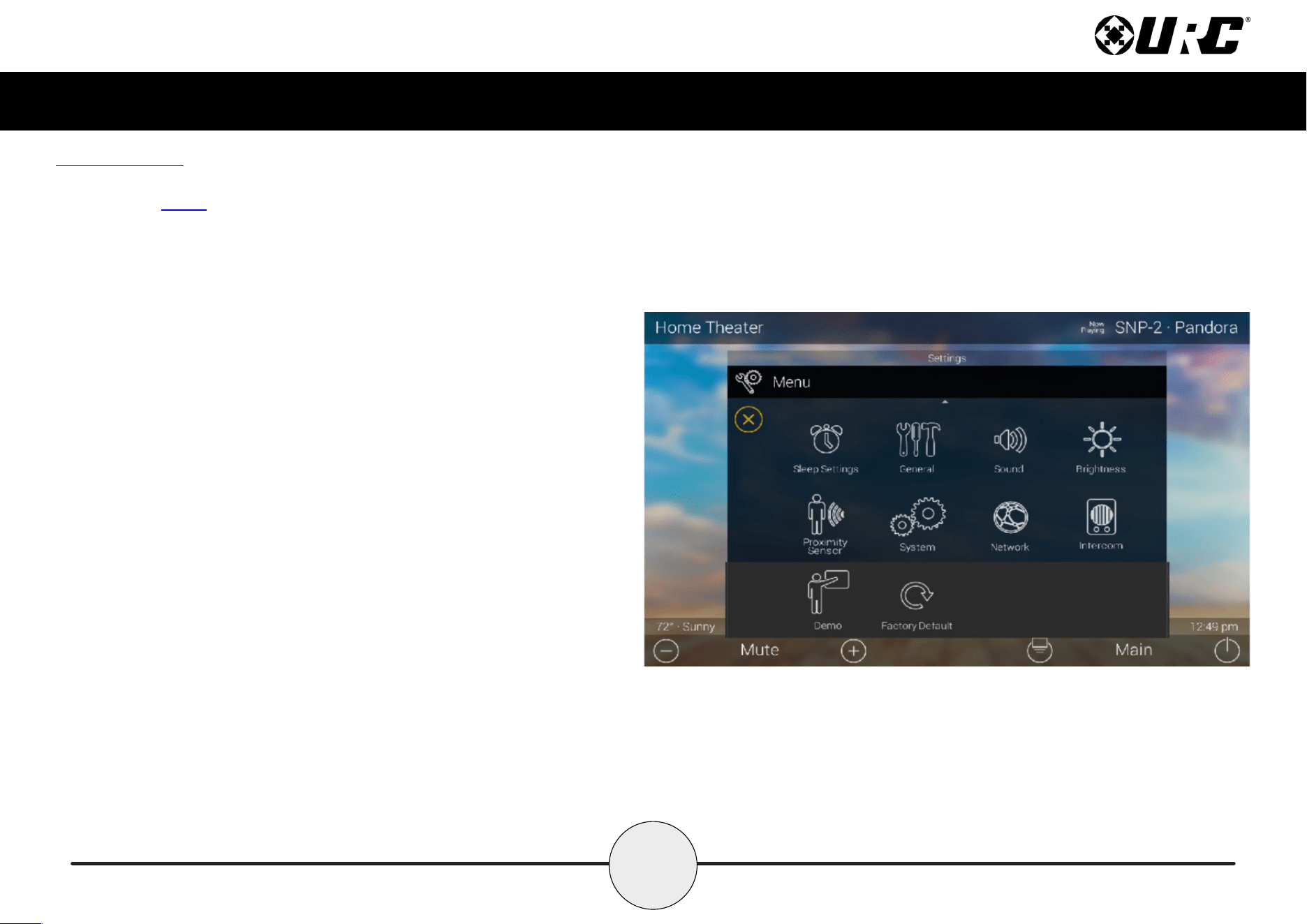
Settings Menu
Access the Settings Menu by sliding the Title Bar and selecting the Settings
button, refer to page 6 for more details.
Most settings do NOT require interaction with the end-user. Changing some
settings could cause issues with the Total Control system, only do so when
instructed by URC Technical Support.
These are the available options:
• Sleep Settings: Manage when the LCD screen turns OFF.
• General: Contains all the general settings for the TDC-7100. Allows from
the adjustment of Date, Time, and Temperature Scale.
• Sound: Adjust the volume of the audio feedback when pressing buttons
on the interface.
• Brightness: Allows for the adjustment of the LCD screen’s brightness.
• Proximity Sensor: Allows for the adjustment of the proximity level.
• System: Provides general information such as memory used, current
version, and version details.
• Network: Allows for the setting of a Dynamic or Static IP address for the
TDC-7100 and also gives general info about the network.
• Intercom: This is used to set up the Intercom of the TDC-7100.
• Demo: Used to create a simulation system that the TDC-7100 can use to
show off interface features.
• Factory Reset: Allows the TDC-7100 to be reset to its factory state.
29
Total Control
TDC-7100
Owner’s Manual
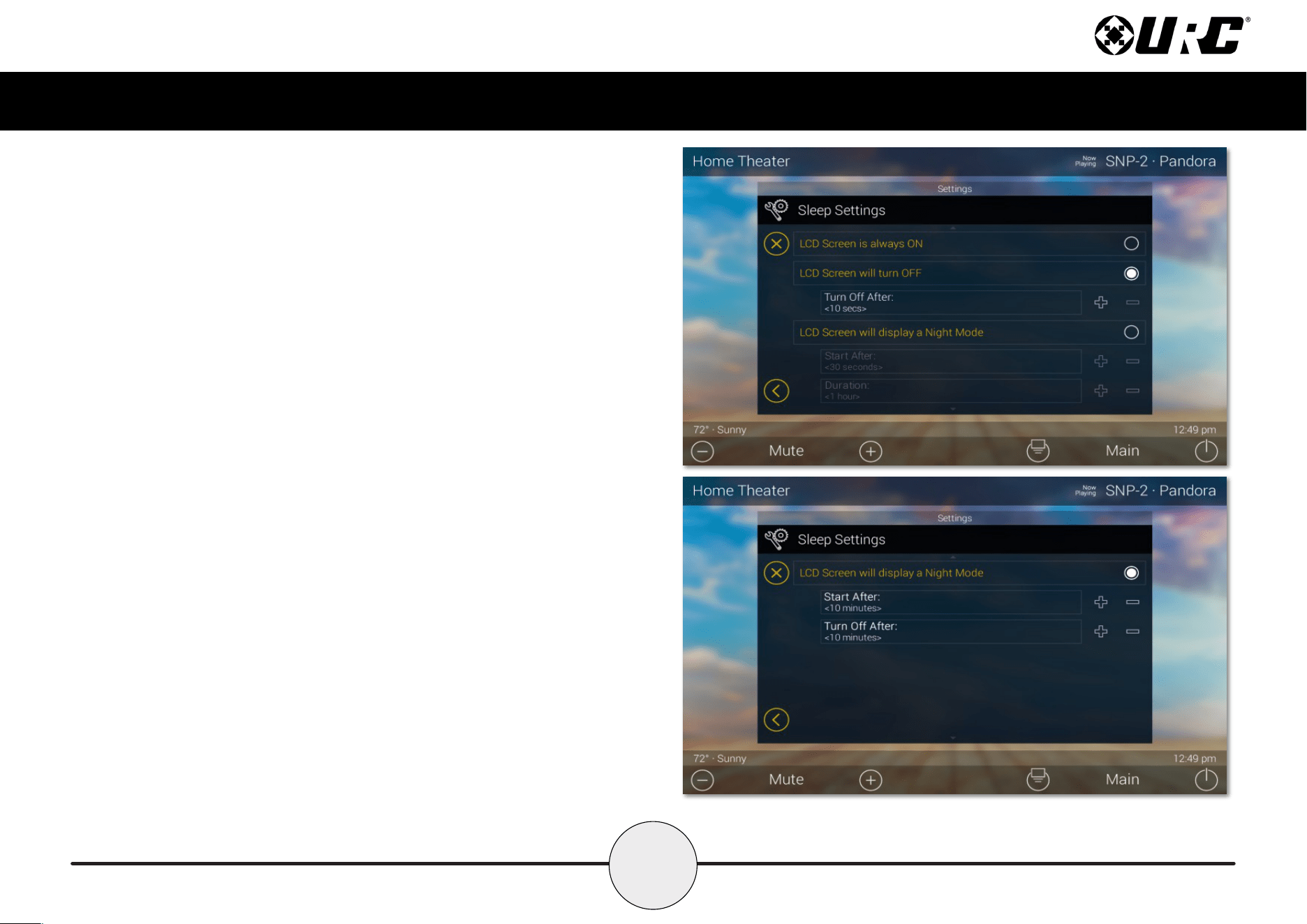
Sleep Settings
Below are the selectable choices available in this menu:
1. LCD Screen is Always On: When selected, the TDC-7100’s display
never turns off.
2. LCD Screen will Turn Off: When selected the Turn Off After section is
selectable. Choose from a 20 second, 30 second, or one (1) minute time out.
3. LCD Screen will Display a Night Mode: When selected the Start After
and Duration option become active.
• Start After: The TDC-7100 times out based on the value entered here
and goes into Night Mode.
• Turn Off After: The TDC-7100 turns off Night Mode after the value
entered here.
30
Total Control
TDC-7100
Owner’s Manual
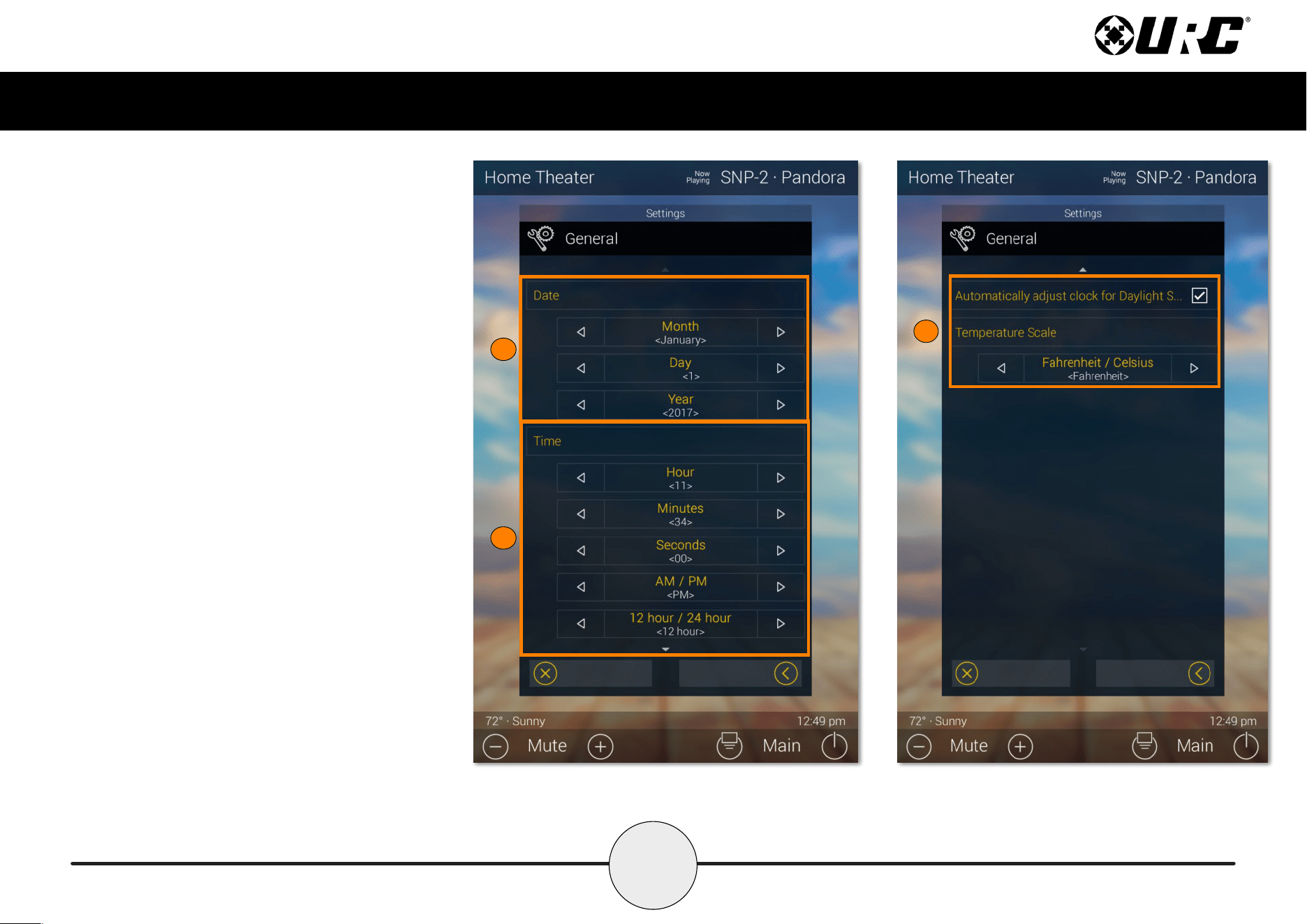
General
Using the left and right arrow keys, enter the values
of each category:
1. Date: The following can have its
value changed:
• Month
• Day
• Year
2. Time: The following can have its
value changed:
• Hour
• Minutes
• Seconds
• AM/PM
• 12 Hour/24 Hour
3. Automatically Adjust Clock for Daylight
Savings: Check this box to have the
TDC-7100 automatically adjust for
daylight savings.
4. Temperature Scale: Set this either to
Fahrenheit or Celsius.
1
2
3
31
Total Control
TDC-7100
Owner’s Manual
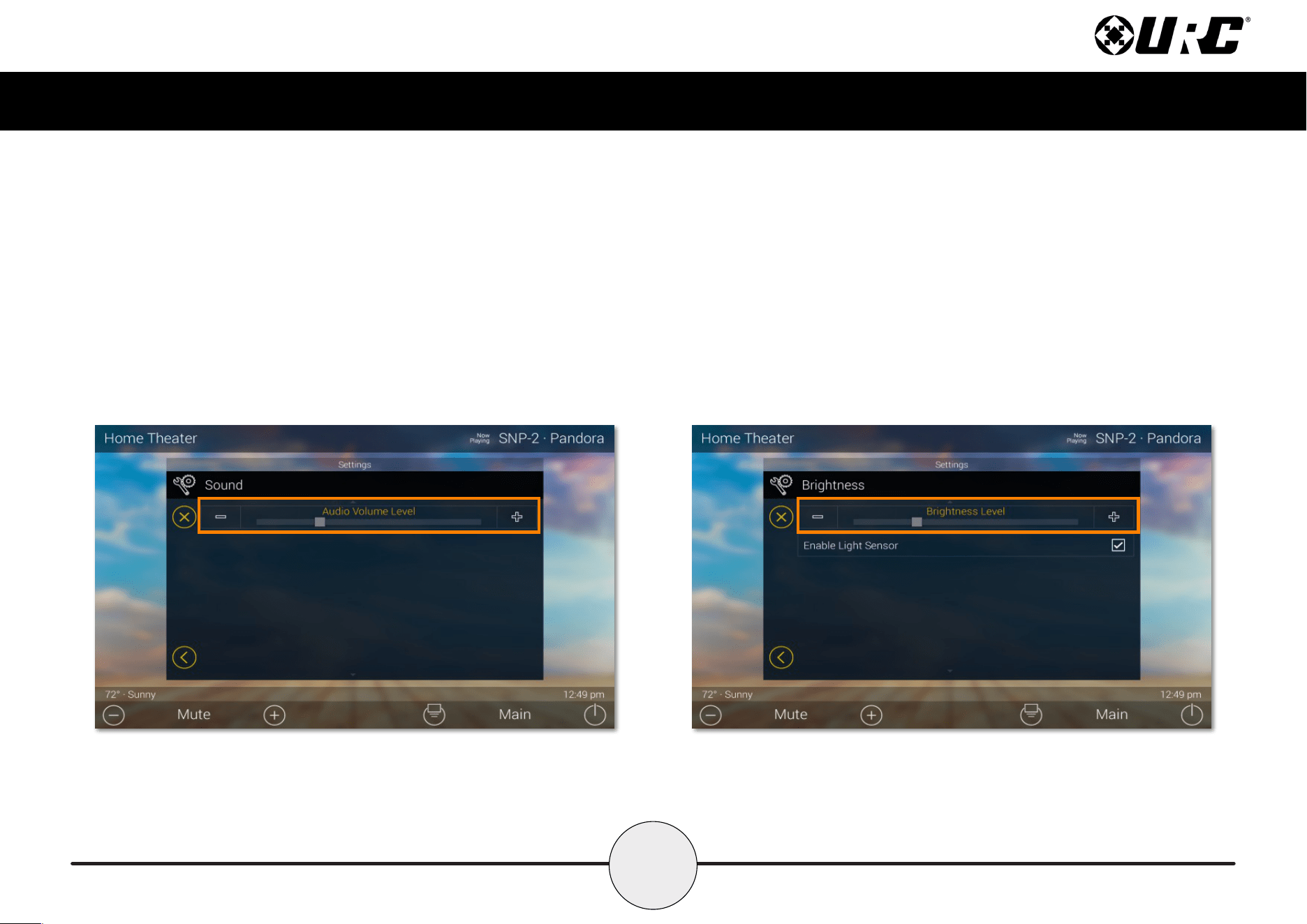
Sound
Press the minus (-) button to lower the TDC-7100’s audio output or press the plus
(+) button to increase the volume.
Additionally, dragging the slider to the right increase the audio output while
dragging it to the left decreases it.
Brightness
Press the minus (-) button to lower the TDC-7100’s display brightness or press the
plus (+) button to increase the brightness.
Additionally, dragging the slider to the right increase the display brightness while
dragging it to the left decreases it.
• Enable Light Sensor: The TDC-7100 is equipped with an ambient light
sensor that can automatically adjust the display brightness. Check the
box to enable this feature.
32
Total Control
TDC-7100
Owner’s Manual
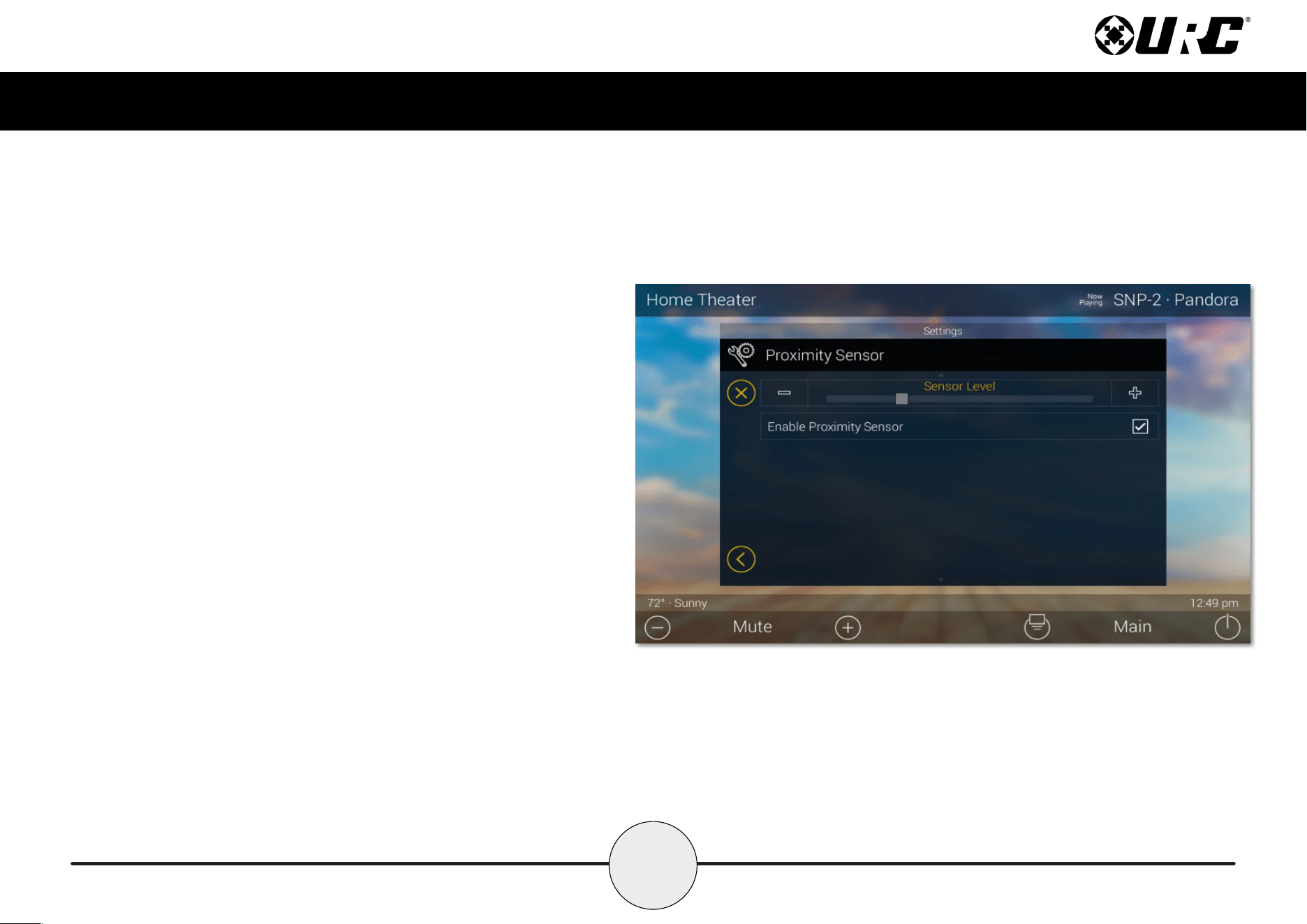
Proximity Sensor
Press the minus (-) button to lower the sensitivity on the TDC-7100’s
Proximity Sensor or press the plus (+) button to increase the sensitivity.
Additionally, dragging the slider to the right increases the sensitivity
while dragging it to the left decreases it. The maximum distance of the
proximity sensor is about three (3) feet.
• Enable Proximity Sensor: By default this check box is
enabled. Uncheck the box to disable the proximity sensor.
33
Total Control
TDC-7100
Owner’s Manual
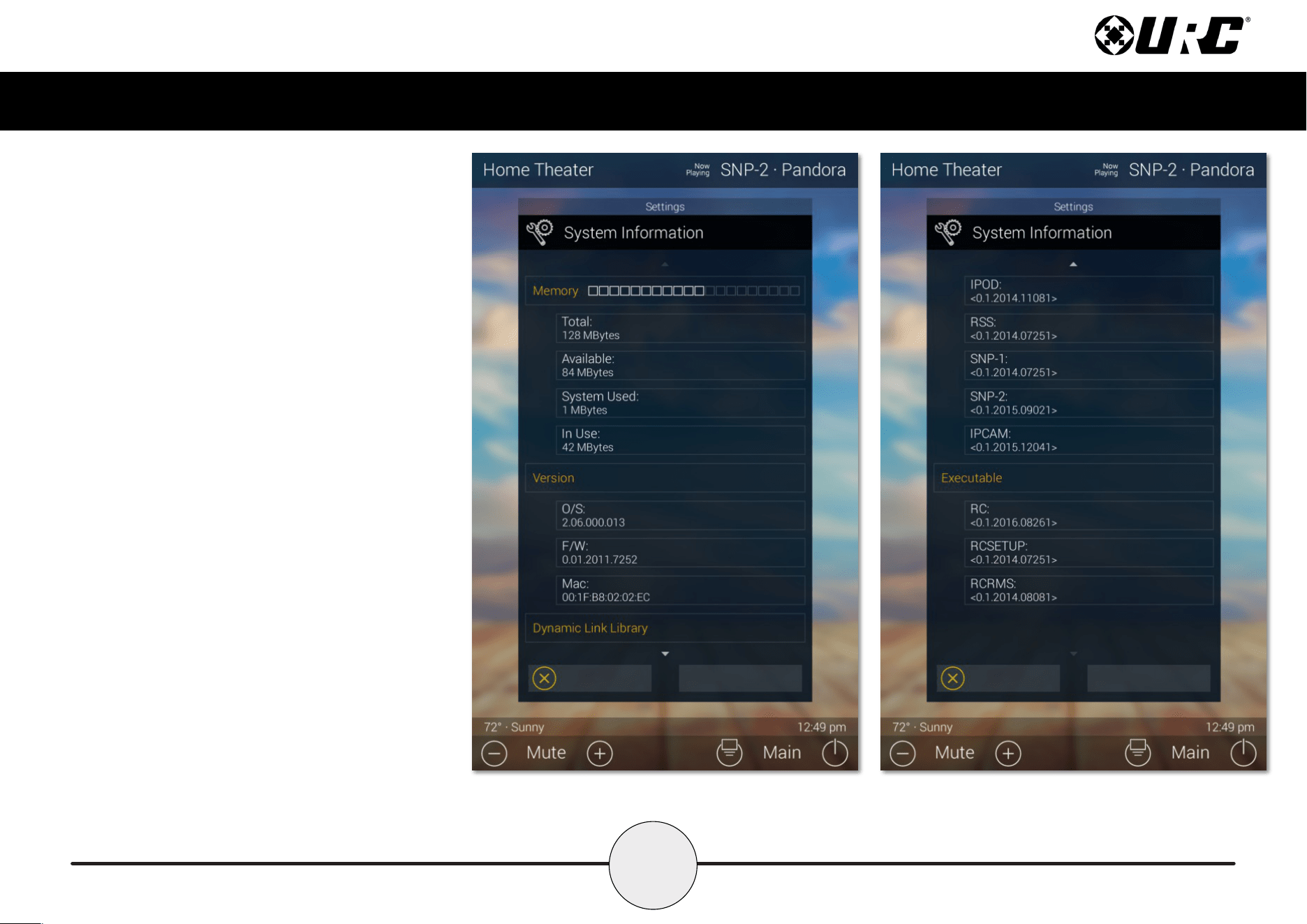
System Information
Although none of the information can be modied.
These System Pages display important information
about the TDC-7100.
These pages are only needed by a custom install
professional or by URC Technical Support.
34
Total Control
TDC-7100
Owner’s Manual
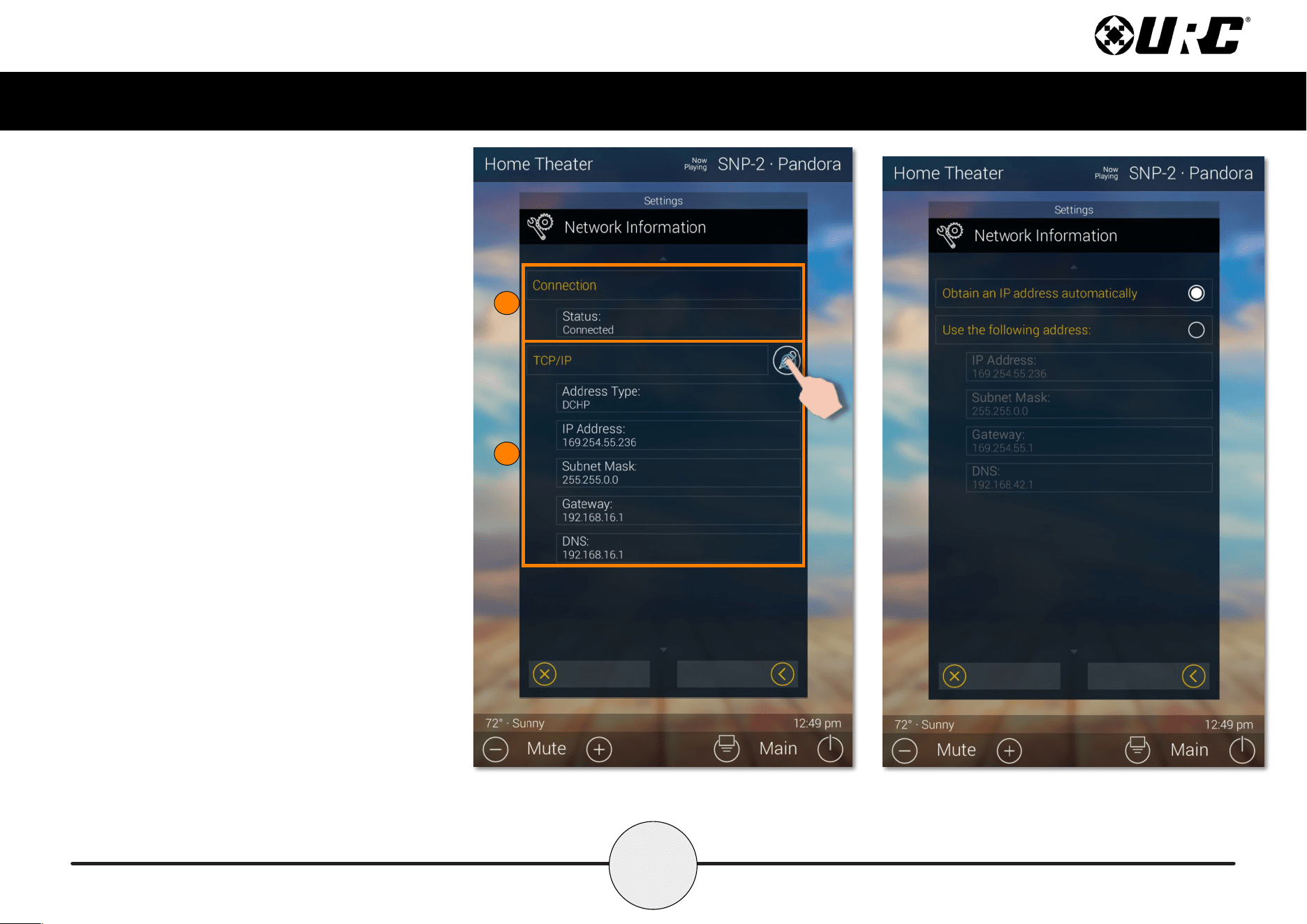
Network
This option displays important information about
the current network.
Caution, these settings should ONLY be changed
by a professional. Entering values without specic
instruction could easily result in the TDC-7100
failing to function correctly.
Here is the information that can be displayed here:
1. Connection: Displays the status of the
network connection, connected or not
connected.
2. TCP/IP: Displays information such as
Address Type (DHCP or Static), IP Address,
Subnet Mask, Gateway, and DNS.
Select the Edit button to reveal
additional options.
• For DHCP: Select Obtain an IP
Address Automatically.
• For Static: Select Use the
Following Address. Fill out the
required network settings.
1
2
35
Total Control
TDC-7100
Owner’s Manual
Intercom
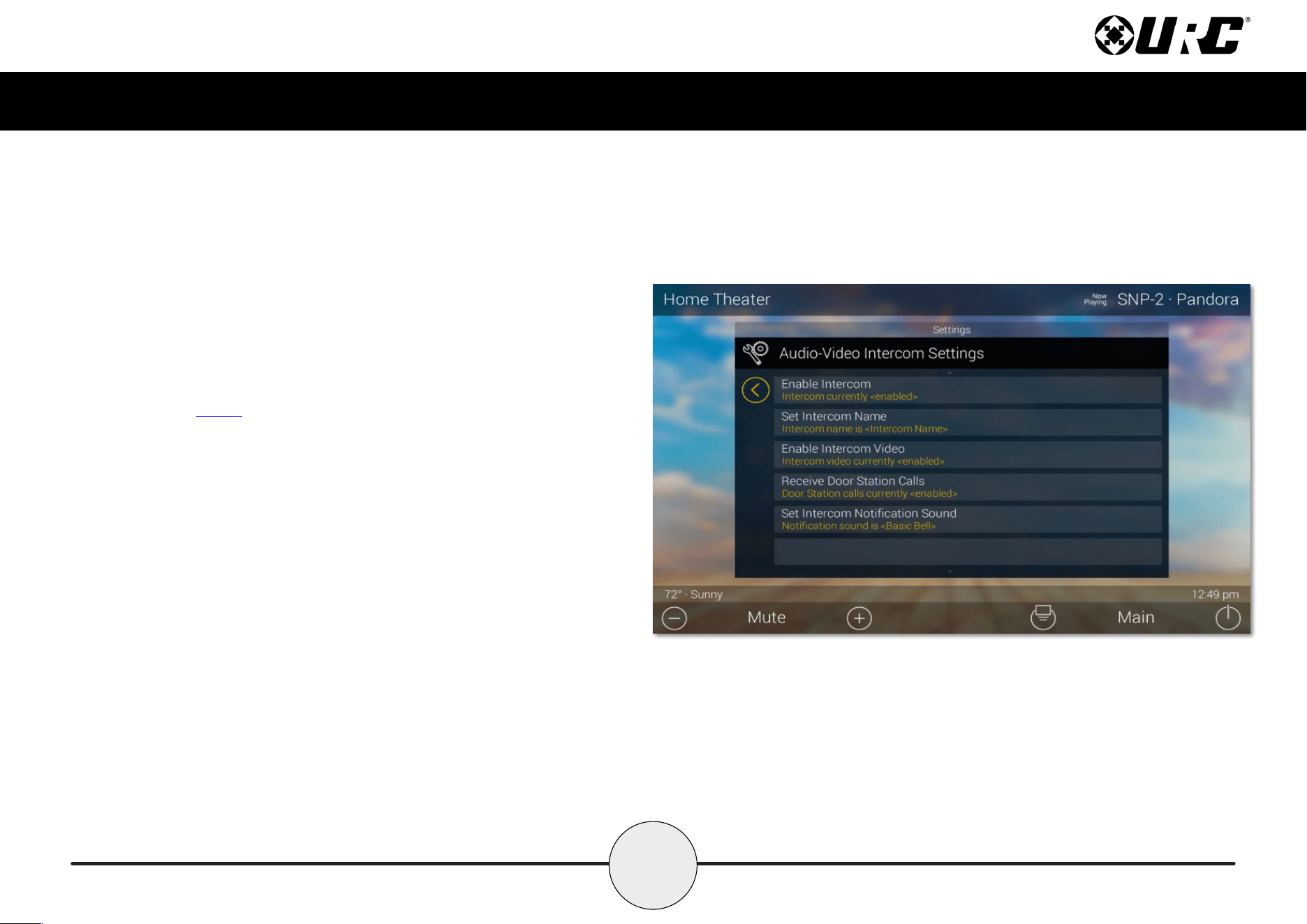
The Audio-Video Intercom Settings menu is the location where the Intercom
features must be enabled. By default this feature is disabled, it must be enabled
in order for the TDC-7100 to communicate with other Intercom-Enabled devices.
• Enable Intercom: Enables the audio intercom function. Once enabled,
the Intercom icon is displayed when dragging down the Title Bar as
seen on page 6.
• Set Intercom Name: The label entered here appears on the Intercom
menu of Intercom-Enabled devices in the system.
• Enable Intercom Video: Enables the video intercom function.
• Receive Door Station Calls: If the system is integrating with a 3
rd
party door station (DoorBird), this feature must be enabled for the
TDC-7100 to receive door station calls.
• Set Intercom Notification Sound: Allows the user to select a
different tone for intercom calls.
36
Total Control
TDC-7100
Owner’s Manual
Power
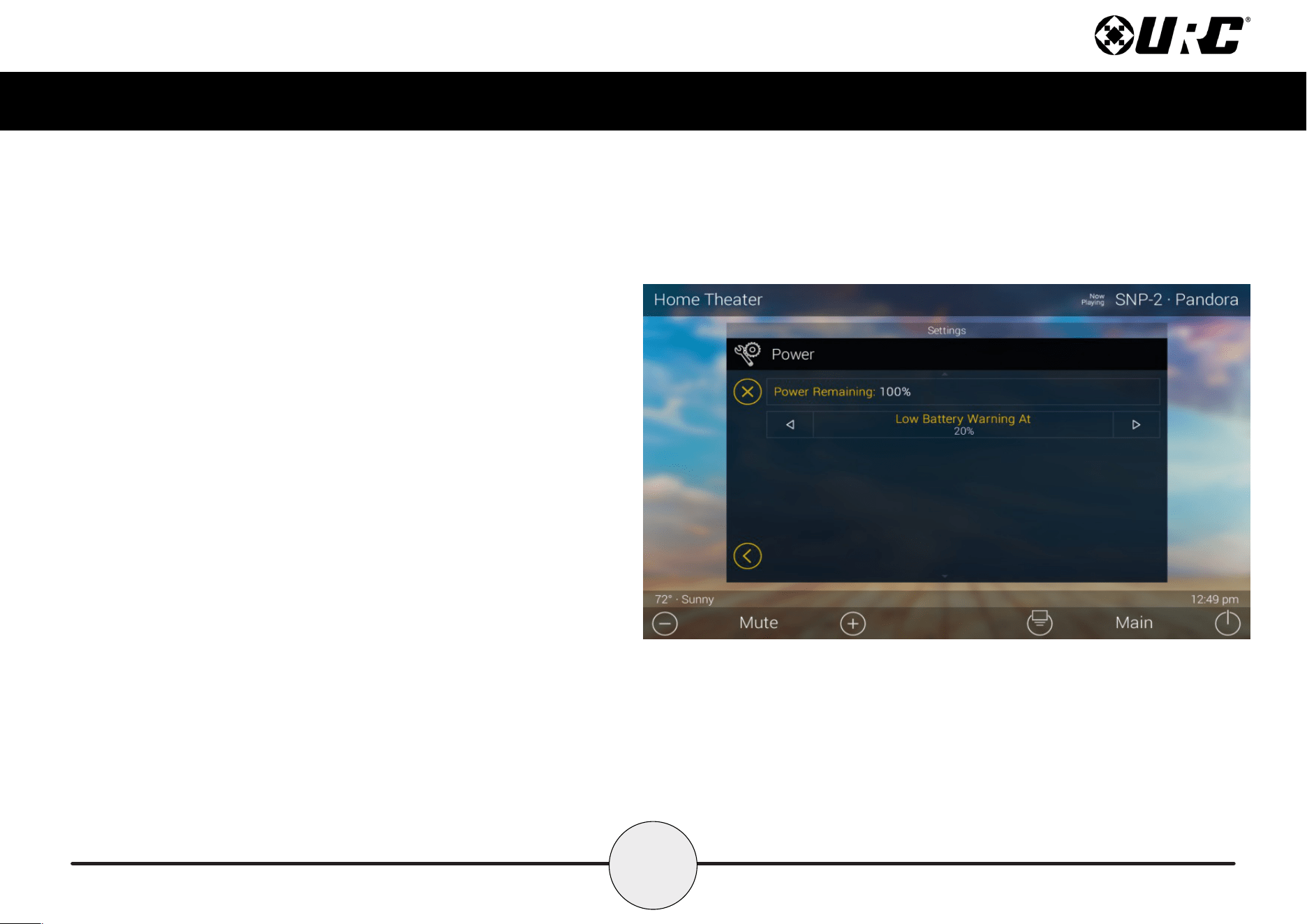
The TDC-7100 displays a low battery warning to inform the end-user that it
requires recharging. In this menu use the left arrow key to decrease the value
of the battery percentage and the right arrow key to increase it.
The image at the right is set to receive a low battery warning when the
device has reached twenty (20) percent battery charge. As explained, this
value can be adjusted.
37
Total Control
TDC-7100
Owner’s Manual
Factory Default
This should only be attempted by a custom install professional that is familiar
with Total Control or under instruction from URC Technical Support.
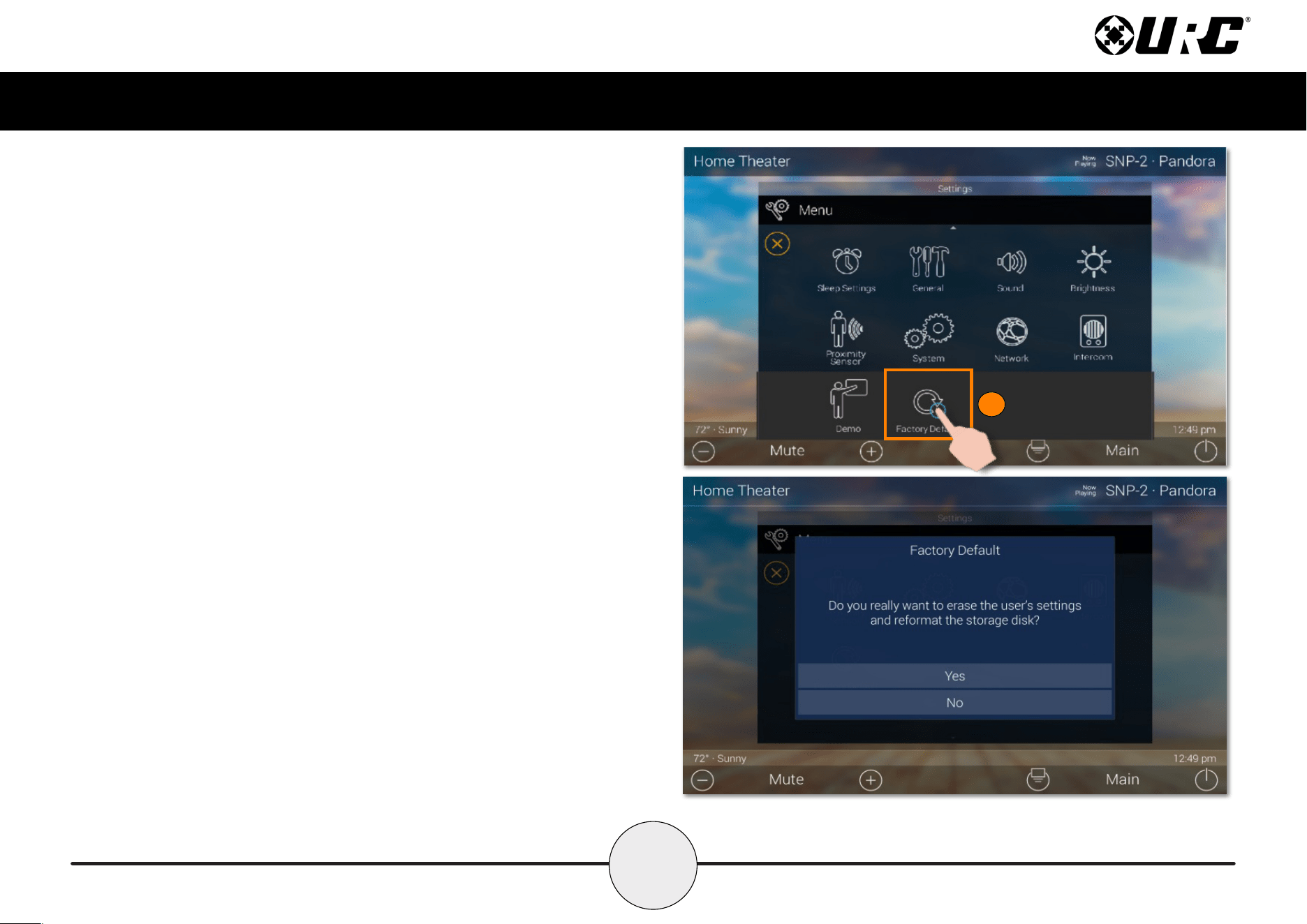
Selecting this option resets the TDC-7100 to its factory state and does not function
until the device is reprogrammed by a custom install professional.
1. Press and hold the Factory Reset button for over five (5) seconds.
2. Select Yes.
1
38
Total Control
TDC-7100
Owner’s Manual
Specifications
These are the technical specications for the TDC-7100:
Microprocessor: Cortex-A9 Dual 1Ghz
Memory: 4GB eMMC, 1GB RAM
Devices: Supports up to 255 devices
Pages: Supports up to 255 pages on each device
Macro Capability: Up to 255 steps
LCD: 7 Inch (1280 x 800)
Weight: 10.51 oz
Size: 7.91” x 5.04” x 1.03”
Power: Standard PoE Injector or PoE Switch (purchased separately)
Limited Warranty Statement
https://www.urc-automation.com/legal/warranty-statement/
End User Agreement
The terms and conditions of the End User Agreement available at
https://www.urc-automation.com/legal/end-user-agreement/ shall apply.
Federal Communication Commission Interference Statement
This equipment has been tested and found to comply with the limits for a Class B
digital device, pursuant to part 15 of the FCC Rules. These limits are designed to
provide reasonable protection against harmful interference in a residential installation.
This equipment generates, uses and can radiate radio frequency energy and, if not
installed and used in accordance with the instructions, may cause harmful interference
to radio communications. However, there is no guarantee that interference will not
occur in a particular installation. If this equipment does cause harmful interference to
radio or television reception, which can be determined by turning the equipment off
and on, the user is encouraged to try to correct the interference by one more of the
following measures:
• Reorient or relocate the receiving antenna.
• Increase the separation between the equipment and receiver.
• Connect the equipment into an outlet on a circuit different from that to which
the receiver is connected.
• Consult the dealer or an experienced radio/TV technician for help.
39
Total Control
TDC-7100
Owner’s Manual
Regulatory Information to the User
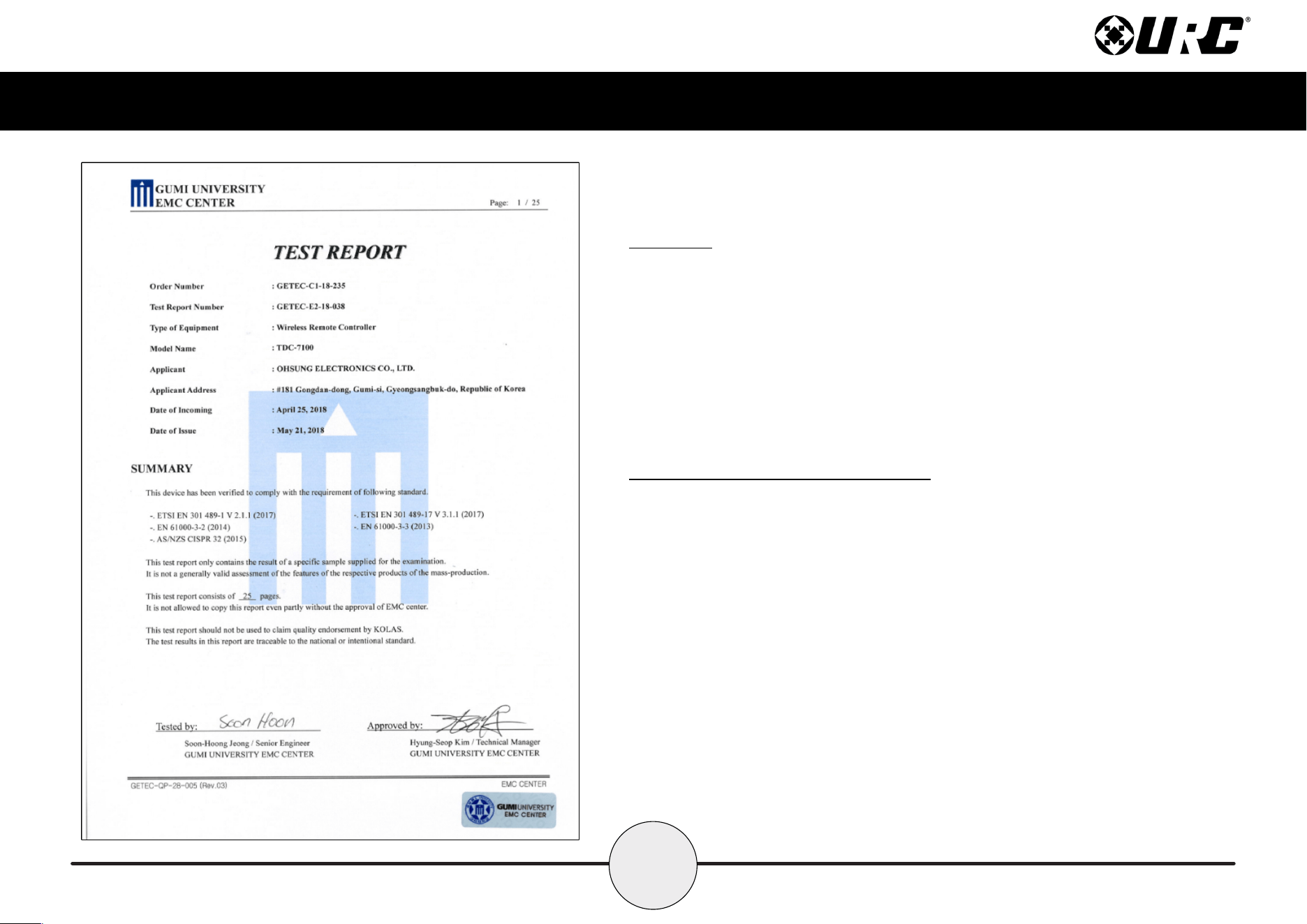
• CE conformity Notice Products with “CE” marking comply EMC Directive
2014/30/EU issued by the commission of the European Community.
1. EMC Directive
• Emission
• Immunity
• Power
• Declaration of Conformity
“Hereby, Universal Remote Control Inc. declares that this TDC-7100 is in compliance
with the Essential requirements.”
Warning!
The manufacturer is not responsible for any Radio or TV interference caused by
unauthorized modications to this equipment.
Changes or modications not expressly approved by the manufacturer could void the
user's authority to operate the equipment.