
1
IMPORTANT! Fill Out And Keep For Your Records.
Thank you for Choosing BOSS Audio Systems!
2
Contents
…… …………………………………....
Notes…………………………………………………………….4
5-7
About this Manual………………………………..……… 7
California Prop. 65…..……………………………………7
………………...
What comes in the box……………………………… …. 8
Product Basics……………………..……..………….. 9-16
Operat on instruct on ....…………..12
Prod
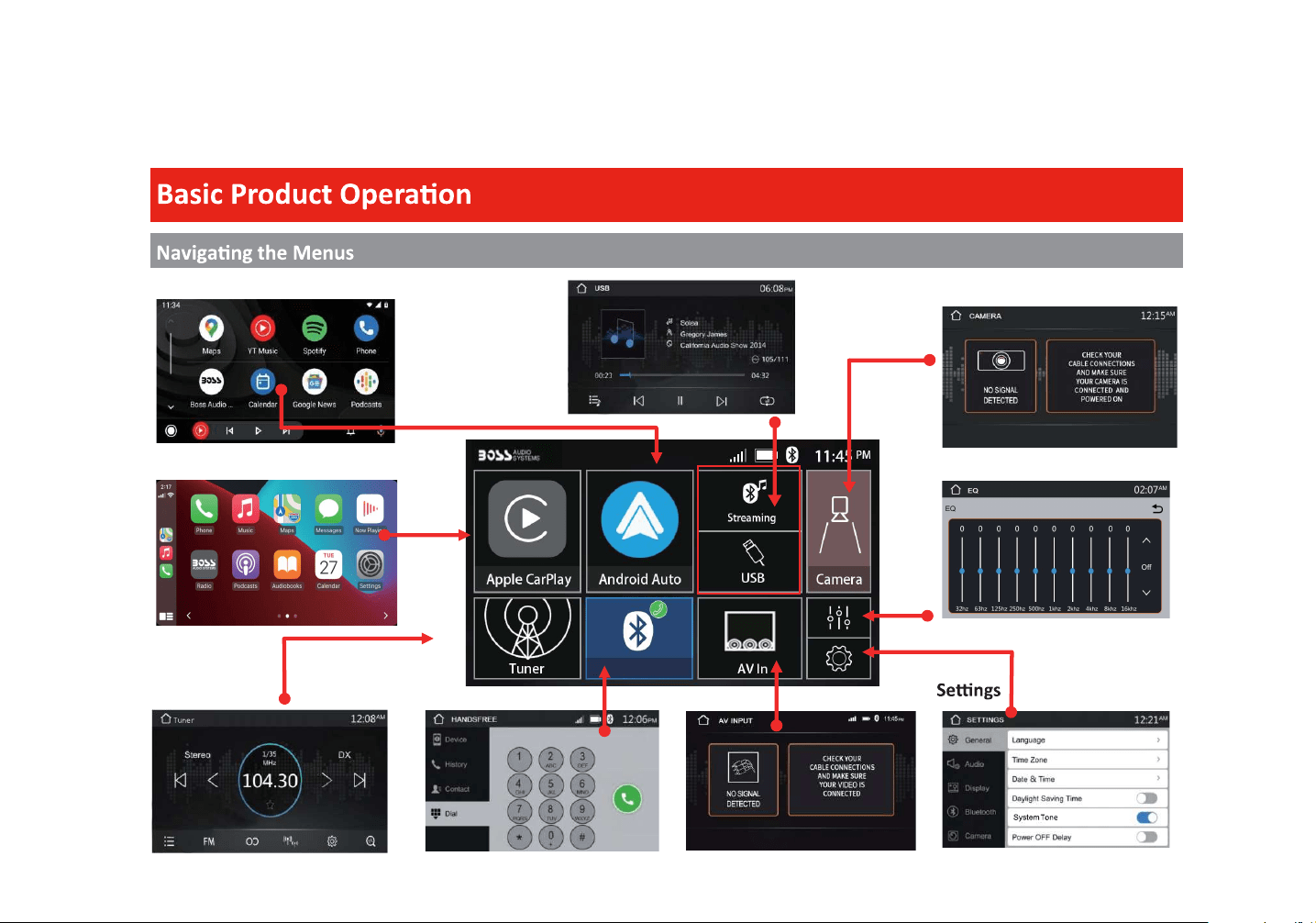
Naviga�ngtheMenus
uct Setup……………………………………..………15
……………………………….
Warnings……….…………………...……………………...17
Using CarPlay……………………...……………………...18
Gestures & Control……………………………………...17
CarPlay Display…………………………………………...18
Disable Apps………………………………………………. 18
Warnings……………..………………………………….…. 19
Using Android Auto……………………………….......
………… …………………………........
19
Phonebook………………………………………………… 20
Device Status……………………………………………... 20
Calling..…………………………………………………….… 21
History……………………………………………………….. 21
Private Mode……………………………………………... 21
Audio………………………………………………………….. 22
Track Control……………………………………………....22
Media Player Source Switching……………….…..22
…………………………………………....
Display Overview……………………………………….. 24
Controls……….…………………...…………………….….24
Tuning……………………...…………………………….…..24
Bands……………………………………………..…..….…..24
Presets…………………………………………………….….24
Favorites……………………………………………………..24
16
20
20
…………………………………………..
Warnings……….…………………...……………………...23
USB Playback……………………...……………………... 23
Ph
Naviga�ngMenu
otos………………………………………………………...23
23
UnitInstalla�on ....………….. 11....…………......……
....…………....
Using and Caring for the Touchscreen………..14
Display screen disassembly instruc ons……..13
.
.
.
.
.
.
.
Android Auto™
Bluetooth®
Contents
Media
Radio
Apple CarPlay
Basic Product Opera�on
……………………………........
2
8
17
19
20
23
24
……….…………………………….…....
EQ.………………………………………………………….….. 27
Balance/Fader……………………………………………..27
3
Contents
Internal Amp…………………………………………….… 27
Loudness…………………………………………………….. 27
Subwoofer……………………………………………….…. 27
Volume……………………………….....……………….…..
.
27
Source level……………………………...…………….…..27
………………………….
Gamma……………..……………………………………….. 28
Device Name
………………………………………….……29
Rear Camera input………………....…………….……29
Rear View delay…………………………………….…
…29
Region……………………………….………………………..29
…… …………………….
....
..
……………………….……
………………………………………...
Warnings….……………………………………………..…. 25
Reverse View…………………………………………….... 25
AV IN
GeneralSengs
Camera
Audio
…………………………………………....
Playback…….…………………………………………….…. 25
…………………….…....
Date & Time…..………………………………………..…. 26
Auto Adjust Daylight Saving…..………...…….…. 26
System Tone…..……………………………………...….. 26
System Language.………………………………….…….26
Time Zone……………………………………………........26
Power O Delay………………………………………….. 26
26
28
30-35
Power/SWC 30
Speaker…….………………………………………………....31
Audio Pre-amp/AV IN/ Radio………………...….....32
Camera/USB/MIC………………………………………...33
Parking Brake…………………………………………….....34
Hands-free Mic……………………...............………...35
Front Camera input……………………………….……29
28
28LEDAnima�on..
Parking Assist Guide…………........…………………29
Parking Assist Guide Adjust……….....……………29
25
26
27
25
DisplaySengs
Bluetooth®Sengs
Camera
RadioSengs
28
30
38
36
29
29
29
………… …………………………..............
………………………................
………………….........
Connecons
Troubleshoong
Specificaons
………………………....................
………… ………………...............………...
..
.
4
Important
ARNING
This symbol with “WARNING” is intended to
injury, death, damage to the product and/or
property.
AUTION
This symbol with “CAUTION” is intended to
alert the user to the presence of important
injury or damage to the product and/or
property.
The Bluetooth® word mark and logos are
registered trademarks owned by Bluetooth
SIG, Inc. and any use of such marks by
Other trademarks and trade names are those
Apple CarPlay is a trademark of Apple Inc.
Use of the Apple CarPlay logo means that a
vehicle user interface meets Apple
performance standards.
this vehicle or its compliance with safety and
regulatory standards. Please note that the use
of this product with iPhone or iPod may a ect
wireless performance.
AndroidAutoisatrademarkofGoogleLLC.
.
iPhone® is a trademark of Apple Inc., registered in the
U.S. and other countries.
BOSS Audio Systems is under license.
5
BE SURE TO OBSERVE THE FOLLOWING GUIDELINES: Do not turn up the volume so high that you can’t hear what’s around you.
Do not operate mobile video equipment while driving a motorized vehicle – always be your highest
priority.
, or ear discomfort.
o the power and consult your
dealer or the nearest authorized BOSS AUDIO SYSTEMS Service Center.
BOSS AUDIO SYSTEMS does not recommend to install the product yourself.
Always consult with a professional installer .
experience in electronic equipment and motorized vehicle accessories may be dangerous and could expose you to the risk of electric shock, injury or other
hazards
Refer any repairs to a quali ed BOSS AUDIO SYSTEMS Service Center.
6
Product Safety
was intended to be used with the
g this feature will void any
and all warranty. Please check with a professional installer to have your product installed properly.
Important Note
Due to ongoing enhancements, example images on screens may slightly di r from actual product.
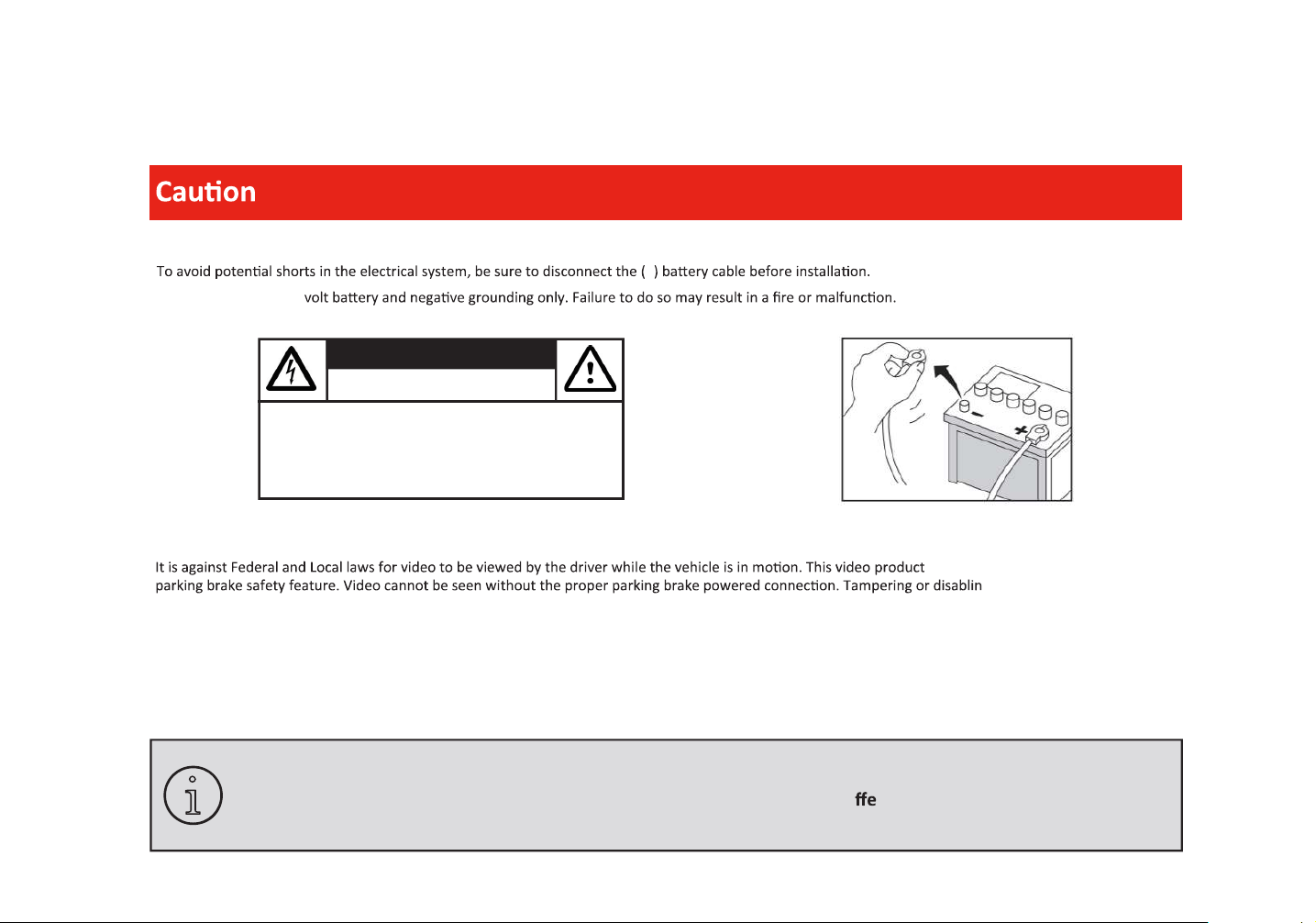
CAUTION
RISK OF ELECTRIC SHOCK
DO NOT OPEN
CAUTION: TO REDUCE THE RISK OF ELECTRICL SHOCK,
DO NOT REMOVE COVERS.
NO USER SERVICABLE PARTS INSIDE. REFER SERVICING
TO A QUALIFIED SERVICE PROFESSIONAL.
Before Installing
–
Use this unit with a 12-
i
7
Images and Video
Watching video while driving is against Federal, State, and Local laws.
ident.
Check surroundings for safety while camera images are displayed.
n of smartphone Apps accessible
d c
About this manual
-
-Keep the manual
-
-Clean with a dry cloth only
-Do not use or operate near water
-Do not defeat any safety features
.
ToenrelyunderstandhowtoproperlyuseyournewBOSSAudioSystemsproduct,itisrecommendedtoreadthisusermanual,andkeepitinasafeplace
for future reference.
8
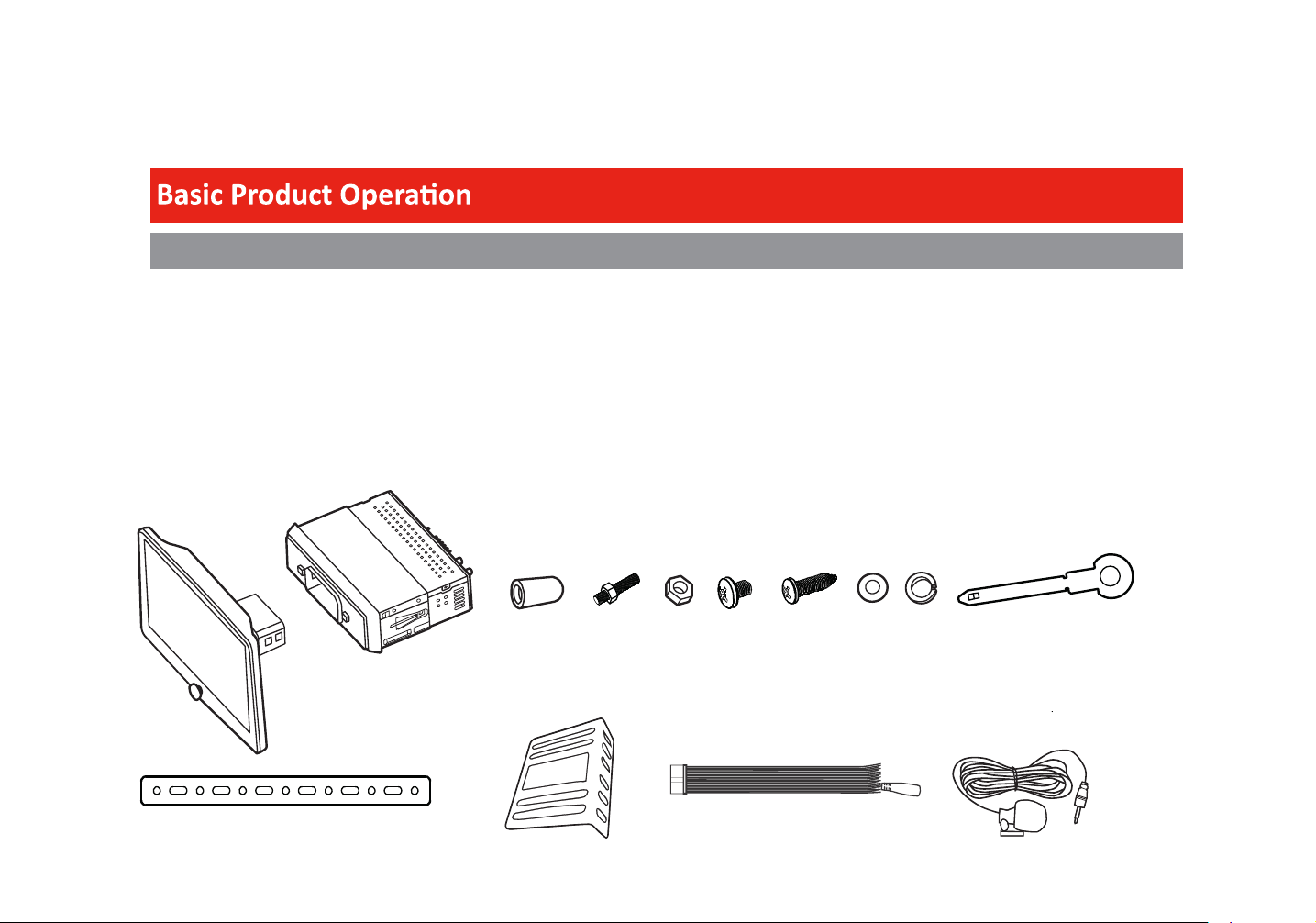
What comes in the box
Hardware
Qty 1 BVCP9700A-FL
Qty 1
Qty 1
Qty 1
Qty 8
Qty 1
Qty 1
Qty 2
Qty 1 Power/Harness
Qty 1 Hands-free Microphone
Rubber Grommet
Hex Bolt
Hex Nut
Screw M5x6
Tapping Screw 5X18 B/A
Spring Washer
Plain Washer
Key
Moun�ng Bracket
Qty 2
Qty 1
Brackets
Qty 2
Connecons
9
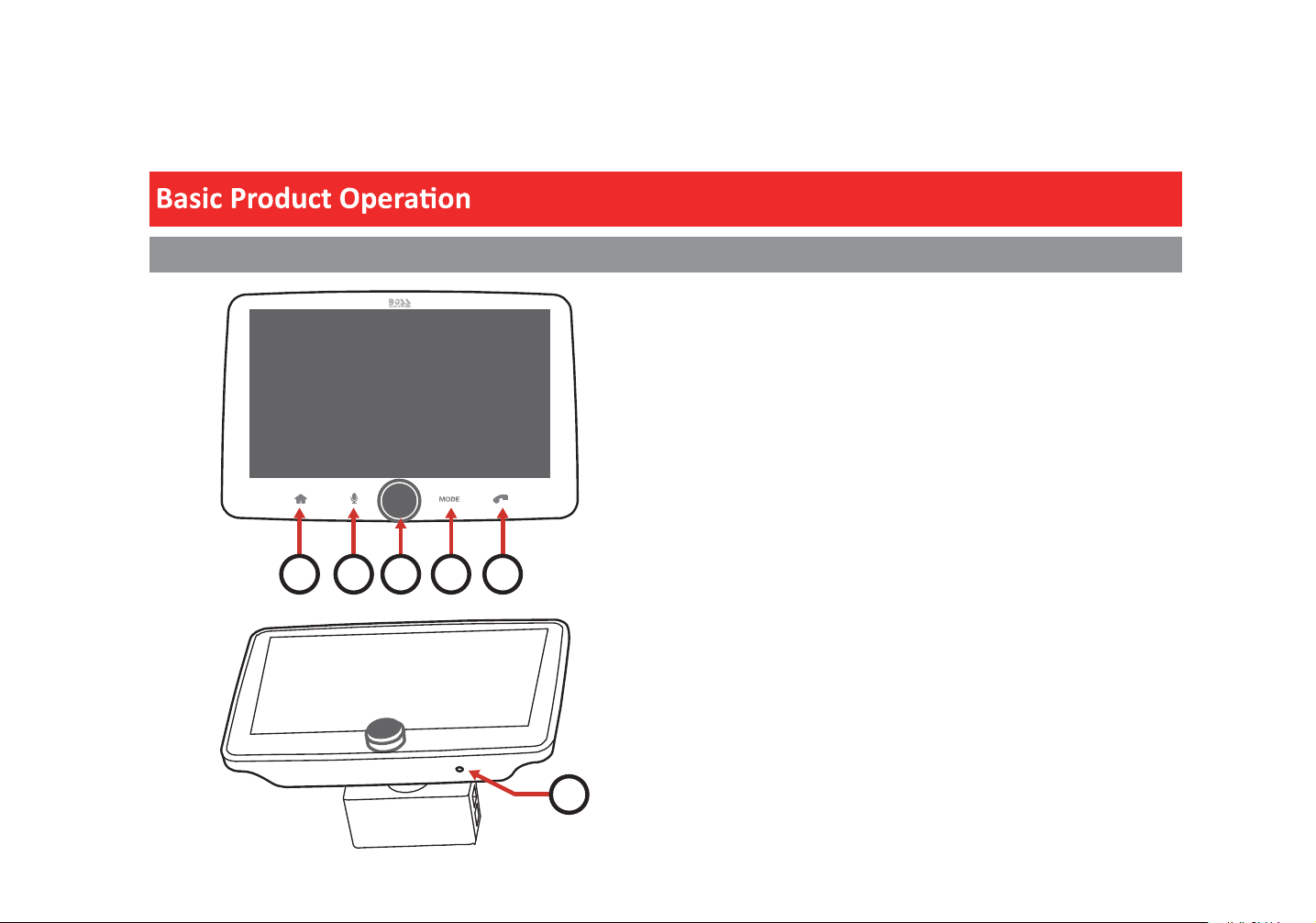
Front Detail
Touch to switch between the home menu and the last selected source.
1. Menu Button
Touchtoacviatethensaycommand.
2. Voice Assistant
1.Touchandholdtoturntheunitonoroff.
2.Touchbrieflytomuteorrestorevolume.
1. Answer or dial a phone call.
2. End or reject a phone call.
3. Rotate to increase or decrease volume.
3. Power/Volume Knob
Touch to select a system mode.
4. MODE Button
5. Phone Button
Press with a pin to restore the factory se
tti
ngs.Resettheunit
when it has no response.
6. Reset Pinhole
1 2 3 4 5
6
BVCP9700A-FL
10
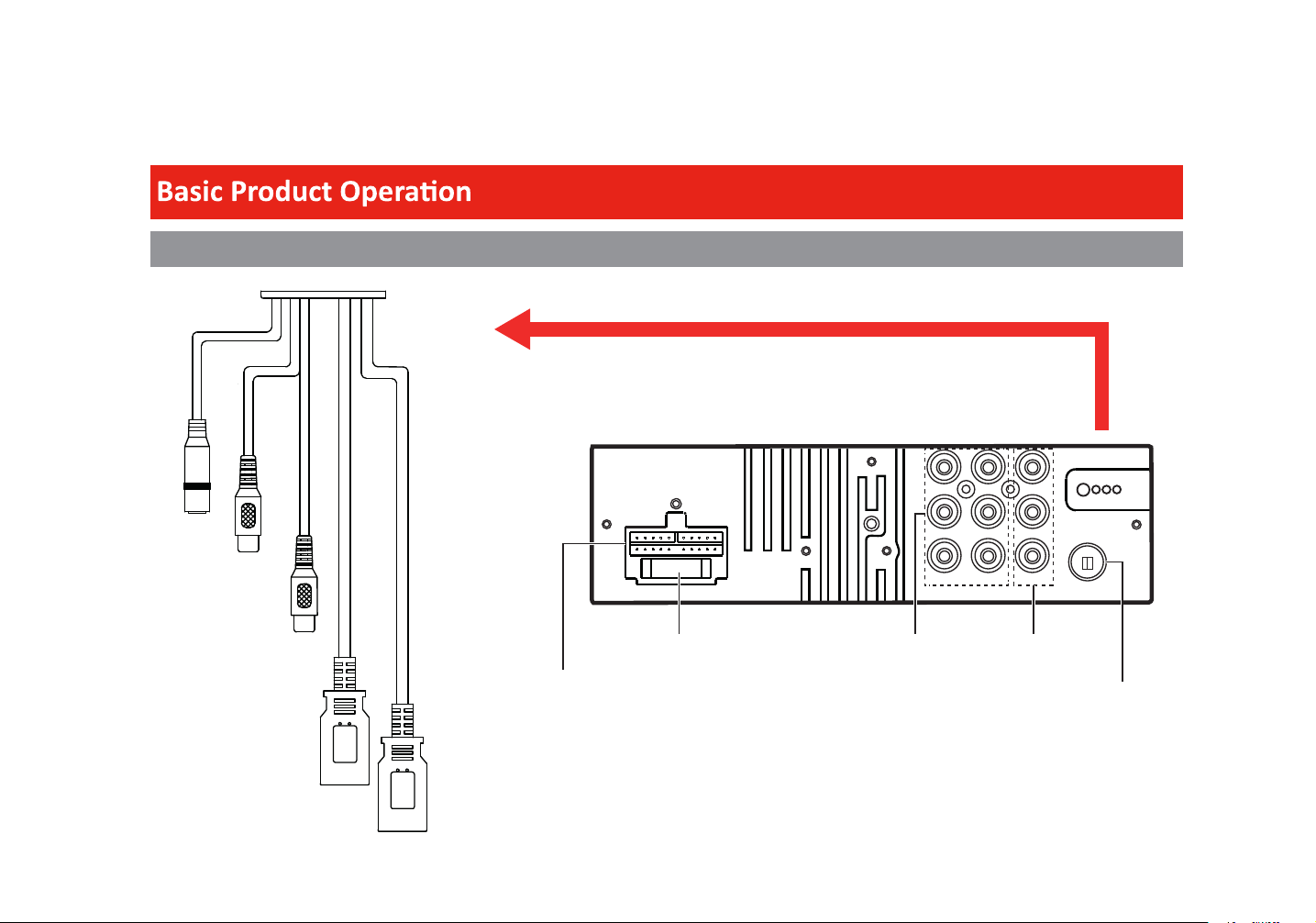
Rear Detail
USB1
USB2
Wire Harness Connector
Pre-Amp Audio
Outputs
Audio/Video Inputs
FM/AM Antenna Jack
Fuse (15A)
Apple CarPlay Android Auto
USBPlay/Charging
Rear Camera Input
Front Camera Input
Microphone Input
FL
RL
SUB1 SUB2
RADIO
FR
RR
L-IN
R-IN
V-IN
11
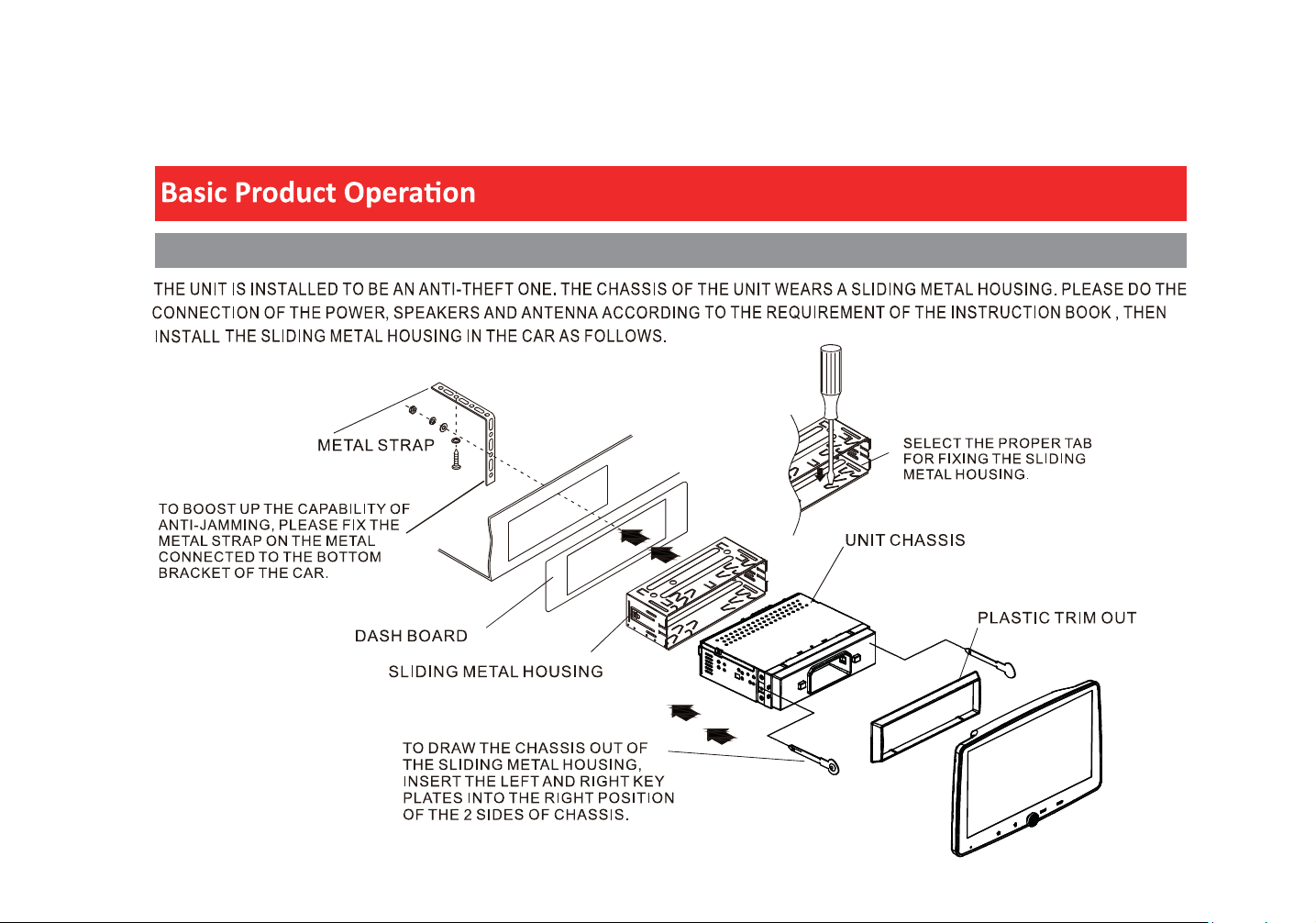
UnitInstalla�on
Opera�oninstruc�on
12
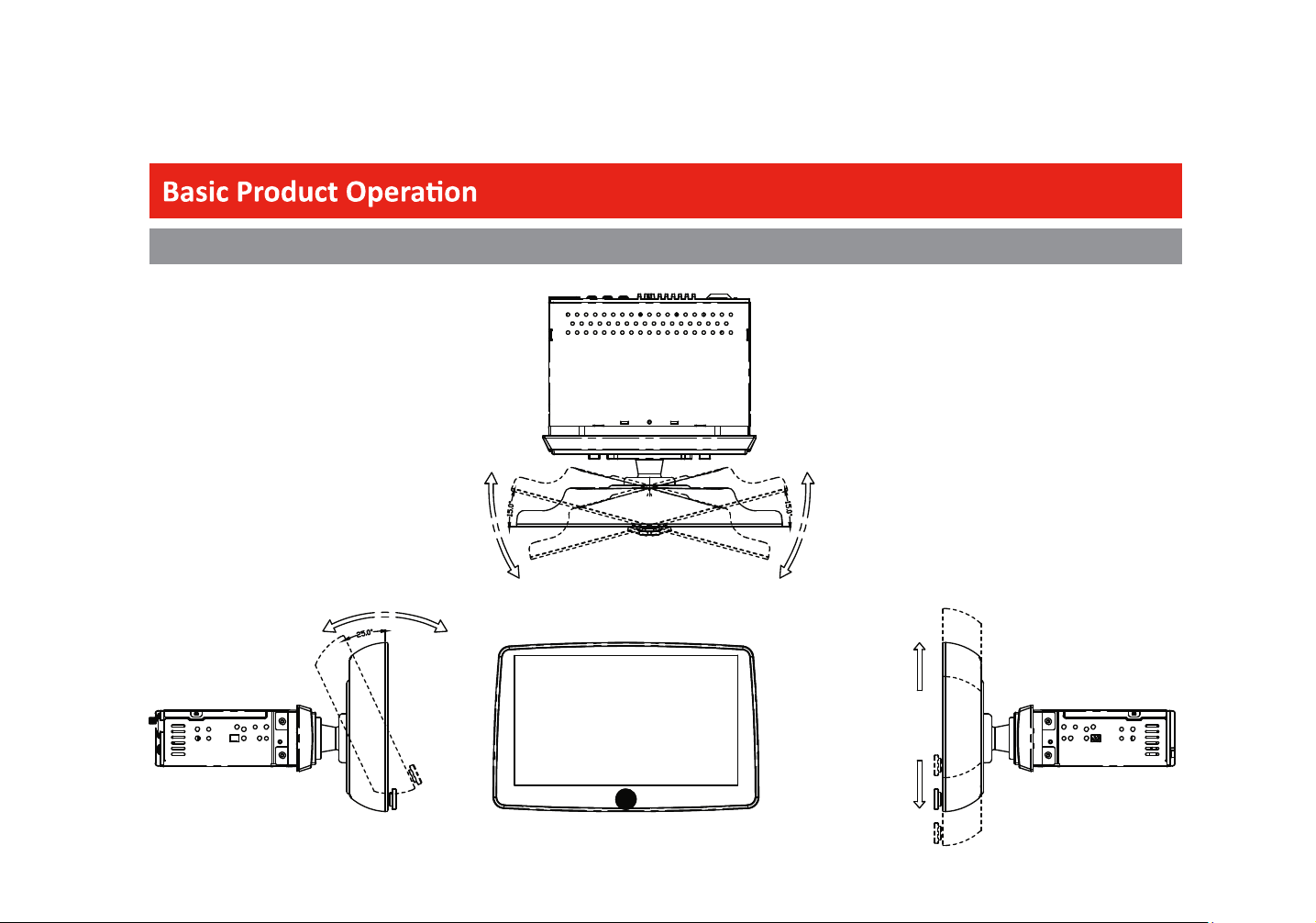
The display screen can be freely
adjusted25degreesbackorforth
The display screen can be freely
adjusted15degreesrightorle�
The up and down
posionofthedisplay
screen can be freely
adjusted
13
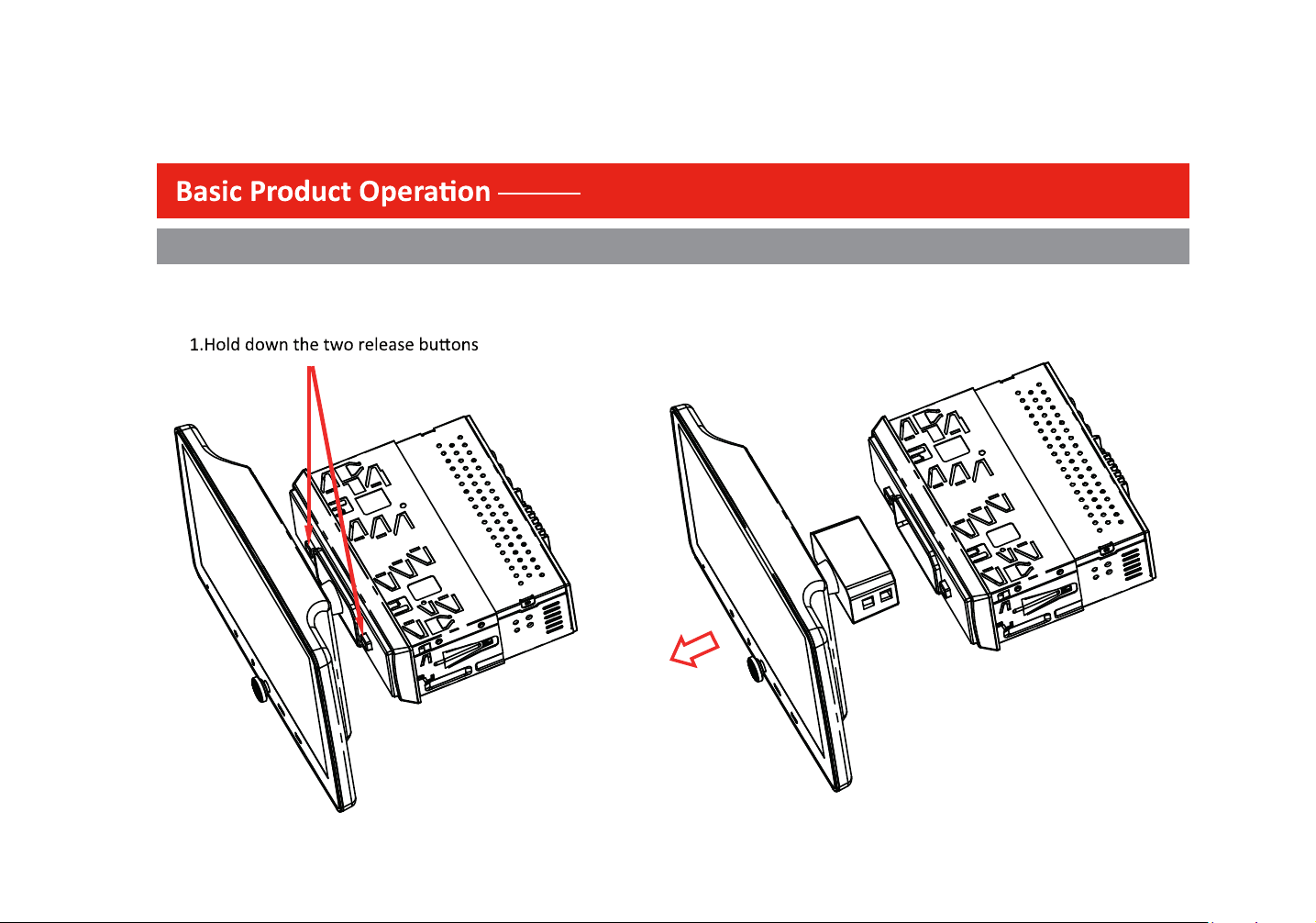
CAUTION!
Display screen removal
2.Gentlypullingthedisplaypanelforward
14
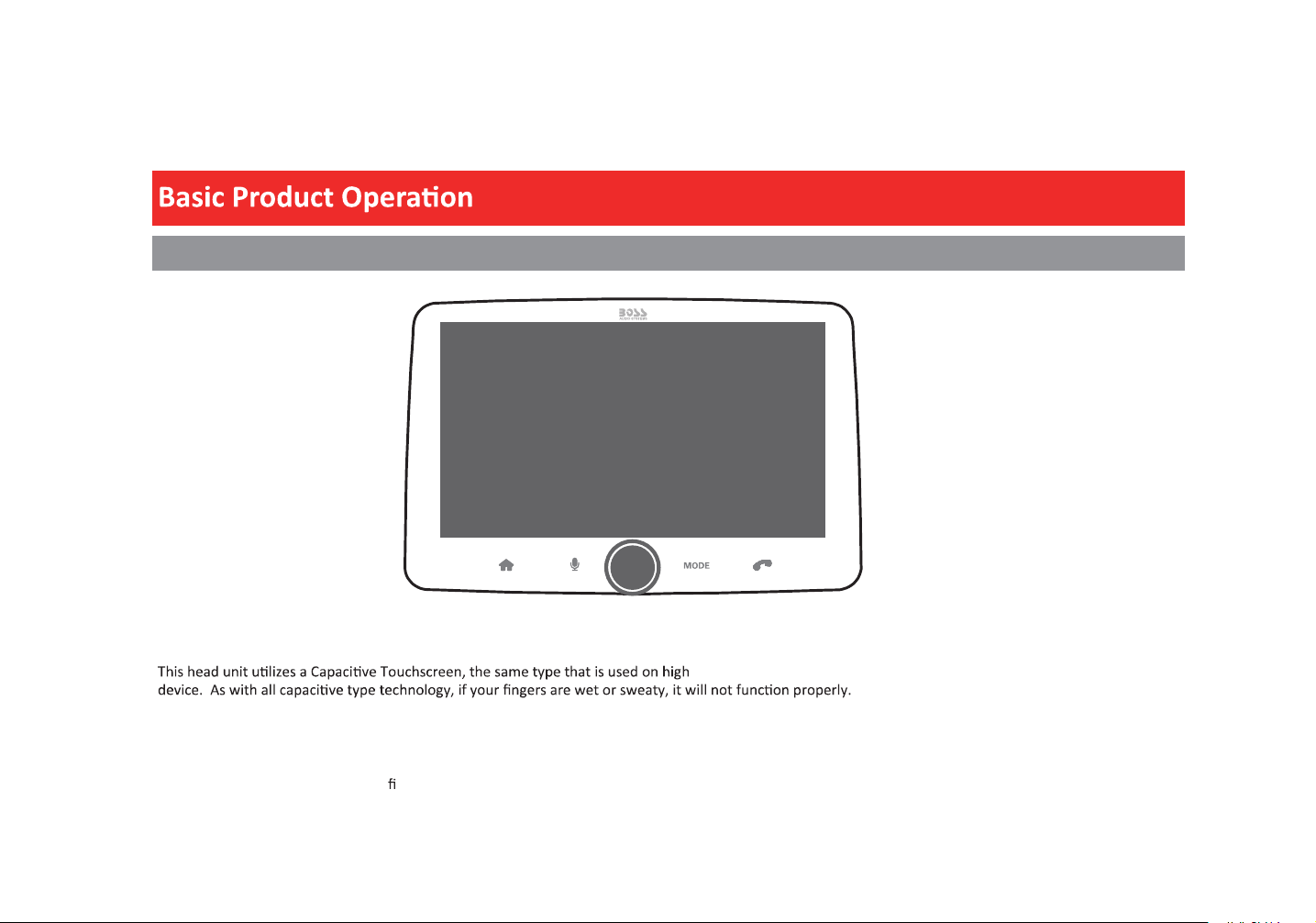
Using and Caring for the Touchscreen
Use:
-end mobile devices. It should be used for and cared for like that type of
Do not allow any sharp objects to come in contact with the screen glass.
Care and Cleaning:
To clean the screen, use a dry micro ber type cloth to clean. Do not use ammonia, window cleaner, or any other type of household chemicals to clean the
screen. Abrasives should not be used at all.
BVCP9700A-FL
15
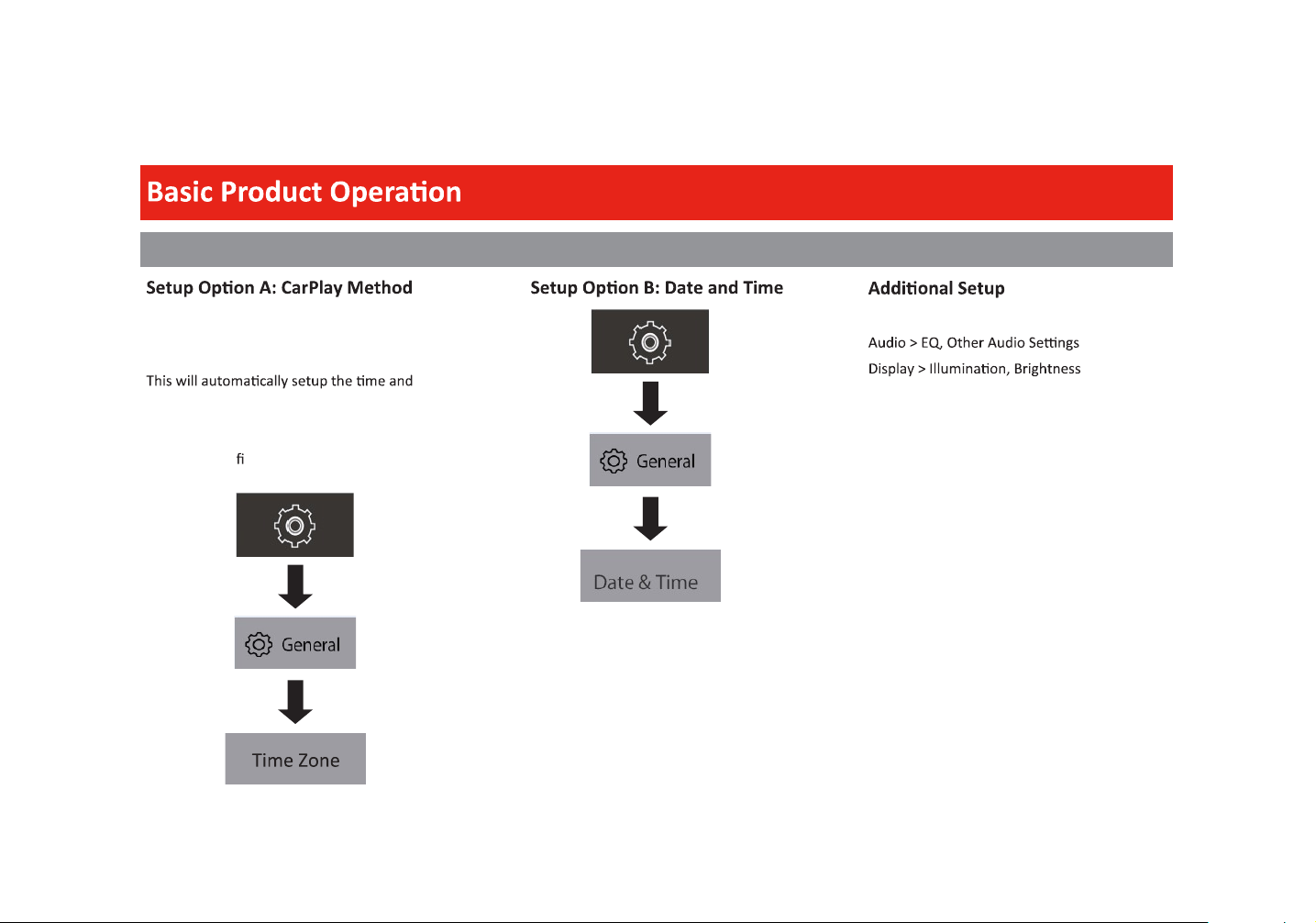
Product Setup (Date & Time)
General > Language
date.
User must set Time Zone manually.
Default is Paci c Time Zone.
Connect your Apple ® device using a
Lightning® cable. The CarPlay USB port must
be used.
16
CarPlay
Camera
Hands-free
EQ
AV IN
Home
Android Auto
Tuner
Media
Handsfree
17
Apple CarPlay
Using CarPlay
Note
Apple CarPlay usage is limited while driving.
determined by the App provider(s).
Controls will vary with each App that is
available for CarPlay.
For more details visit:
Familiarize yourself with your Local and State
laws regarding mobile devices.
prohibited and or illegal while driving in your
When in doubt, park the vehicle and engage
the parking brake rst before performing the
ARNING
1.
viaLightning® cable (not included).
2. The iPhone will load the CarPlay
3. On the display, the CarPlay will
illuminate green, touch it to enter the
CarPlay menu.
4. To return to the product Home menu,
Touch
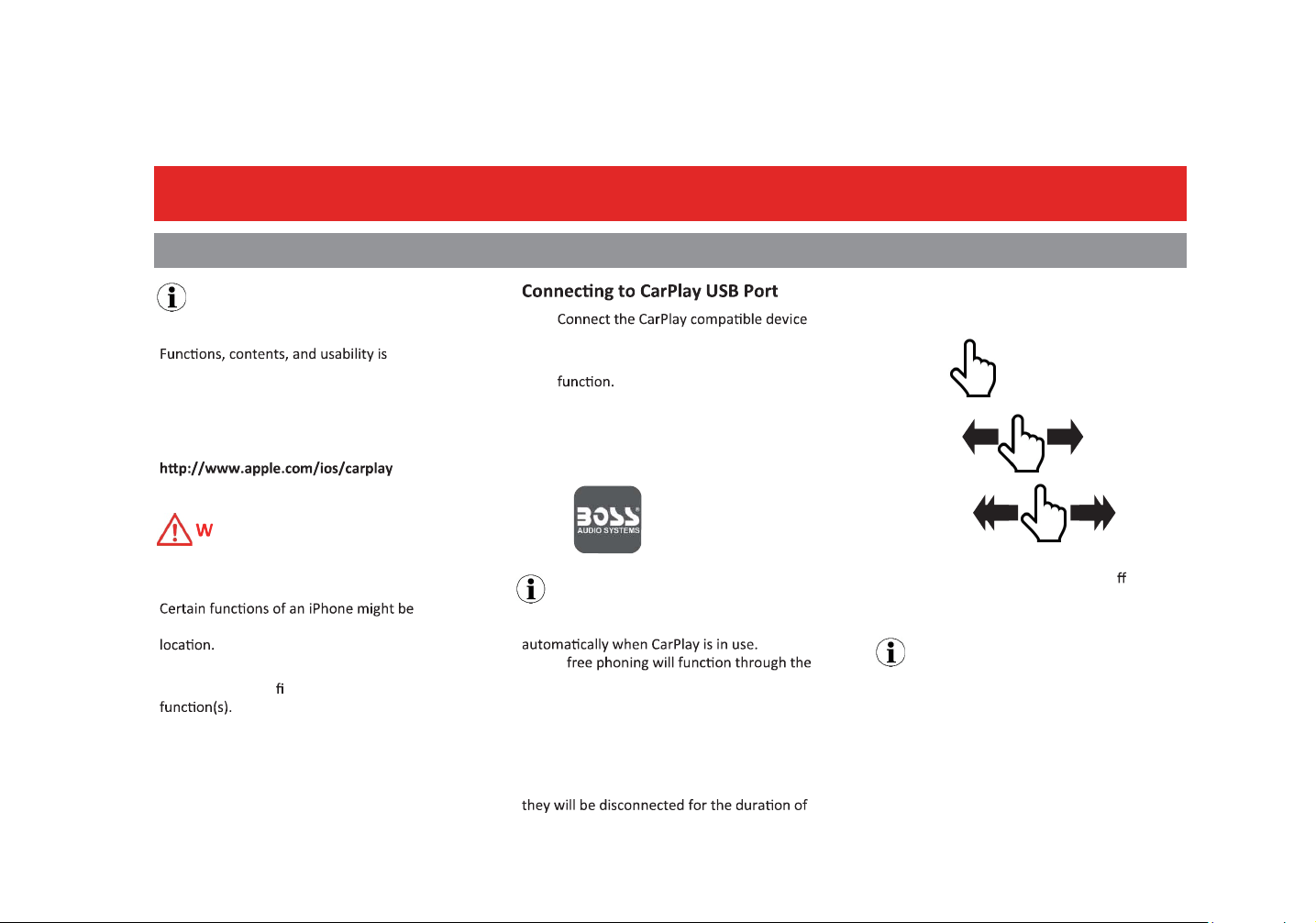
Gestures & Control
Basic controls, but not limited to:
Touch
Swipe
Dragging
Other gestures and controls might di er on
each App.
NOTE
The product’s Bluetooth will turn OFF
Hands-
CarPlay feature.
When using CarPlay, there is no need to pair
your iPhone, the USB cable connected
through the USB Port (1) will enable this
feature.
If other devices are connected via Bluetooth,
CarPlay use.
NOTE
Volume control is handled exclusively by the
product.
removed from CarPlay.
Only Apps with the icon can be added
in carplay.
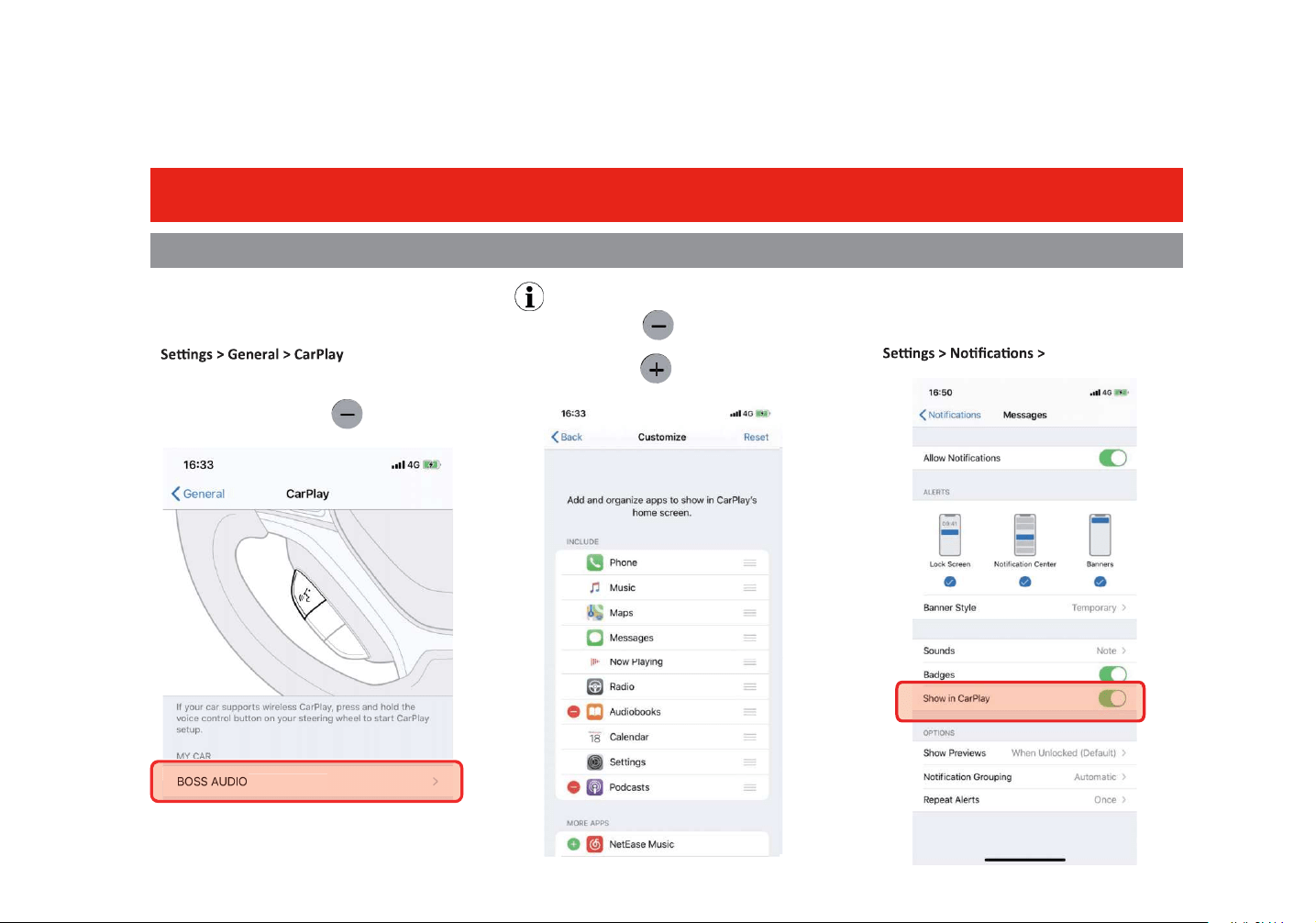
CarPlay Display Setup
1. Using your iPhone:
2. Touch and Hold each App icon to move.
To remove an App, Touch
NOTE
Only Apps with the icon can be
How to Disable Apps
1. Using your iPhone:
App to Disable
18
Apple CarPlay
Using CarPlay
BVCP9700A-FL
19
Android Auto
Using Android Auto
For your safety, the setup process MUST be
accomplished while the vehicle is Parked and
Parking Brake Engaged.
WARNING
Note
Android Auto usage is limited while driving.
determined by the App provider(s).
Controls will vary with each App that is
available for Android Auto.
For more details visit:
WARNING
Familiarize yourself with your Local and State
laws regarding mobile devices.
be prohibited and or illegal while driving in
When in doubt, park the vehicle and engage
the parking brake rst before performing the
Android Auto App
Minimum Requirements:
Android 5.0
NOTE
To complete the setup properly, the
ParkingBrakestatuswiremustbe
connected.
USB Port
1.
via the appropriate USB cable
(not included).
2. The Android device will load the Android
3.
when the setup is completed.
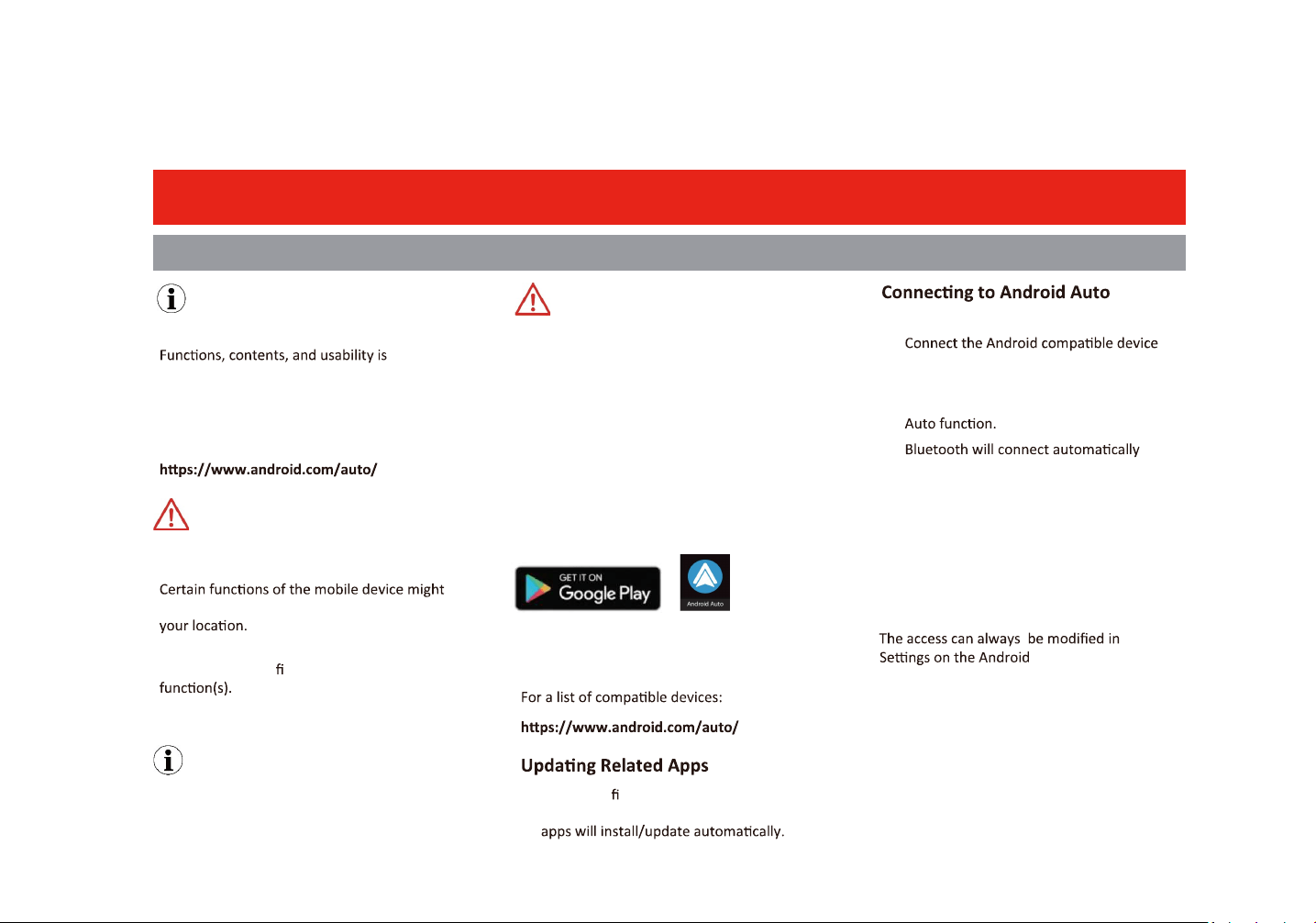
1. During the rst start up and setup of the
Android Auto app, the Maps, Music, Google
Android Auto Permissions
Permissions
Several features can be allowed or denied
access to customize your usability of the
product.
device.
1. For Android 9.0 or earlier, download and
installtheAndroidAutoappfromGoogle
Play. For smartphone with Android 10.0 or
later,pluginyourphoneandfollowthe
prompts on your phone to accept the
permissions that Android Auto requires.
20
Phonebook and History
To Download Phonebook:
1. Touch Contact > Download
To Download History
1. Touch History > Download
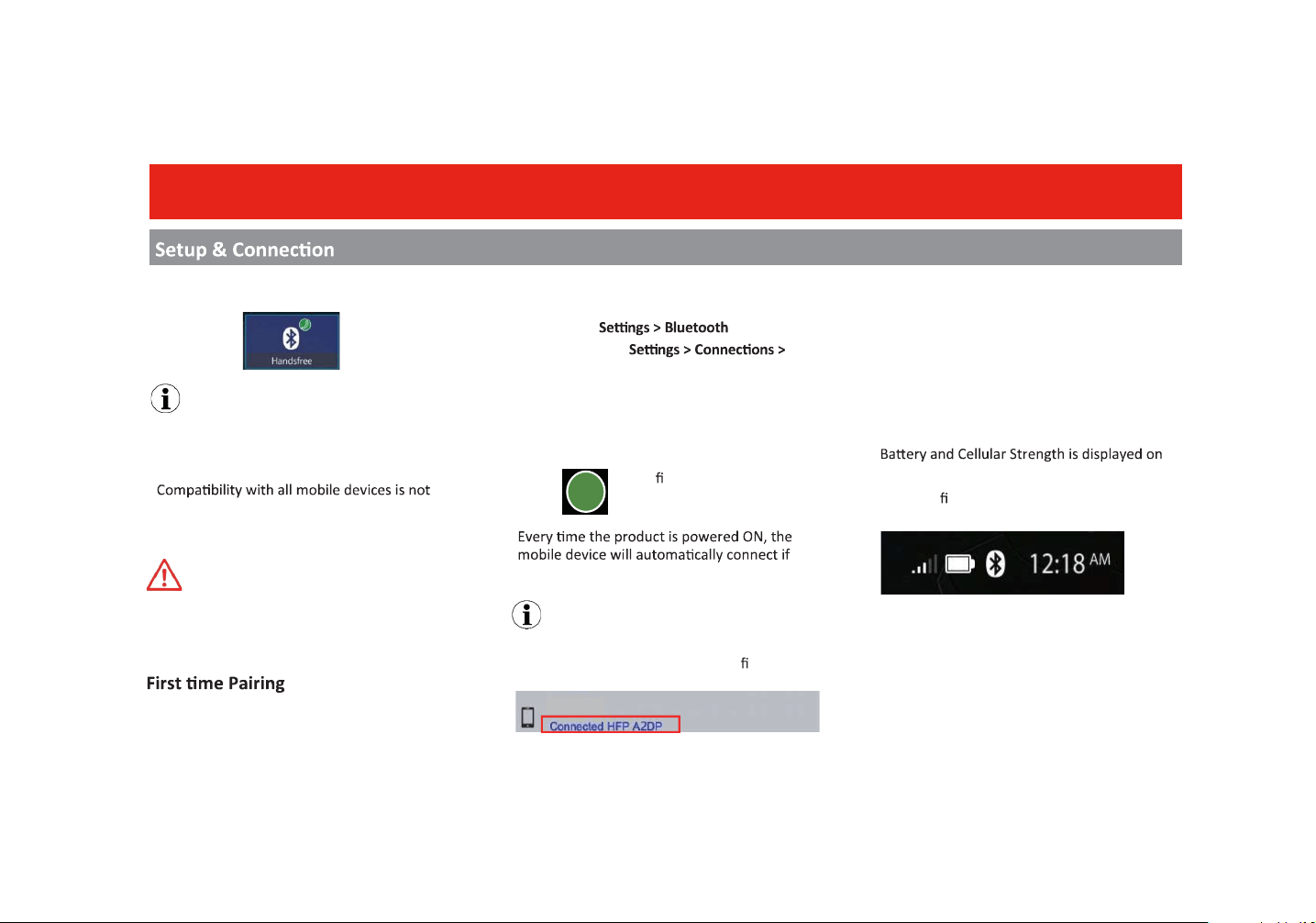
Bluetooth®
Using your phone,media or other Bluetooth device,
try to connect to this headunit.
Mobile Device:
Search for BOSS AUDIO BVCP9700A-FL
iOS Devices:
Android Devices:
Bluetooth
A passcode is generated and will display on
both the head unit and mobile device for
secure pairing.
Touch
to con rm
within range.
NOTE
Once paired and connected, the device list will
display the available Bluetooth pro les.
Hands-Free Menu
Touch
NOTE
CarPlayorAndroidAutomustnotbeacve.
Ifbeingused,disconnectthedevicetostart
Bluetooth.
guaranteed. Please read through the user
guide of the mobile device.
For your safety, the setup process should be
accomplished while the vehicle is parked and
parking brake engaged.
CAUTION
Device Status
the top right of the Home menu.
GATT Pro le support is required on the mobile
device.
YES
iphone
21
Bluetooth®
Hands-Free
BVCP9700A-FL
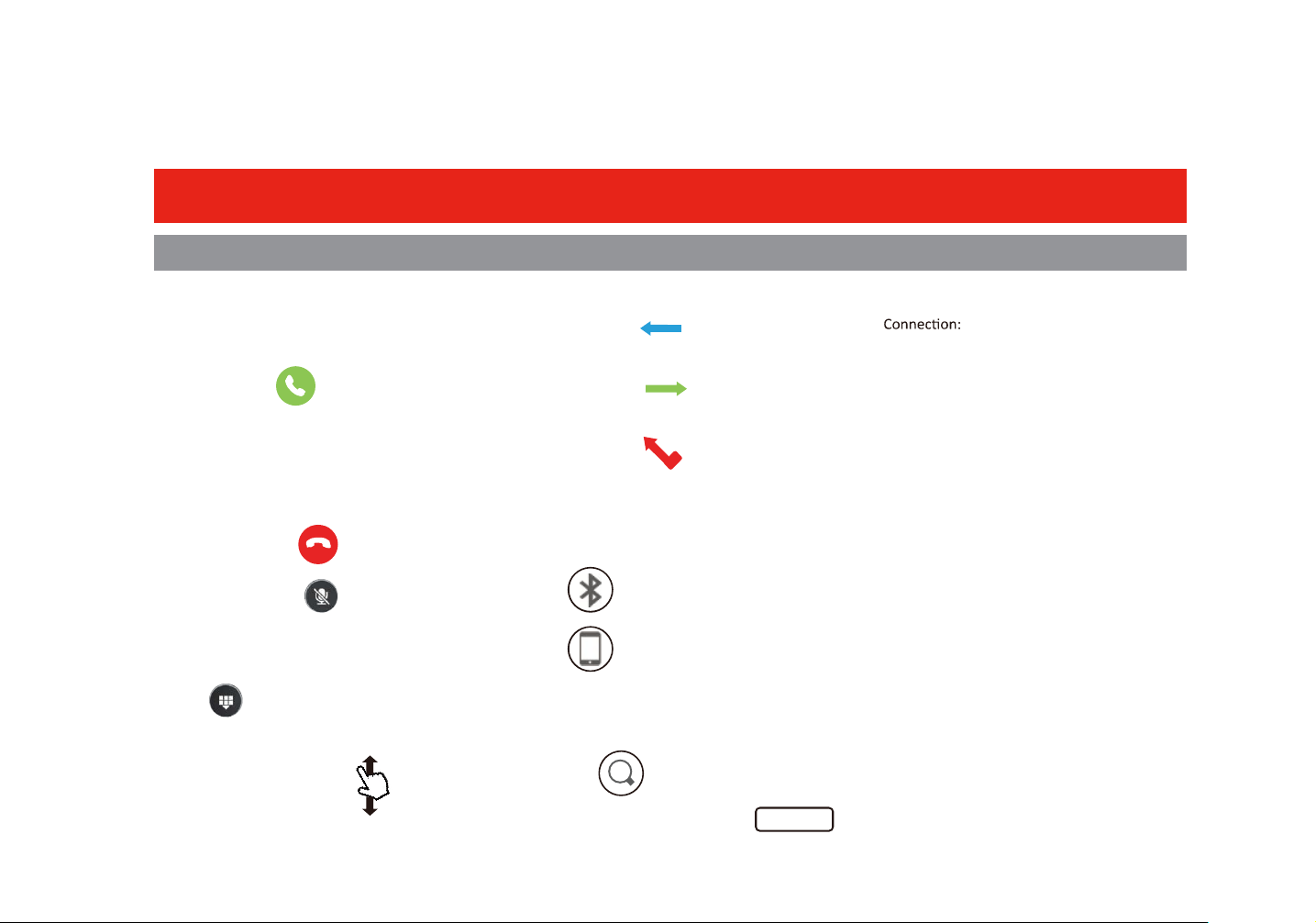
History
1. Outgoing Call
2. Incoming Call
3. Missed Call
Private Mode
When a call needs to be transferred to the
mobile device:
Touch
to switch the mobile device
Touch
to return to hands-free mode
Searching Contacts
Contacts must be downloaded to search.
1.
Touch
2. Enter the Contact Name, then
OK
Dial pad
To use the dial pad while on a call
Touch
Searching History
Swipe Up or Down to search
Auto Connect: ON
Auto Answer: OFF
Device Name:
Clear Records
BOSS AUDIO
Calling
Making & Receiving Calls
1.
ialing from the dial pad
Touch to make call
2.
Contacts
Touch the contact name
3.
History
Choose the name, then
To End a call Touch
To Mute a call Touch
ON
D
22
Bluetooth®
Audio
BVCP9700A-FL
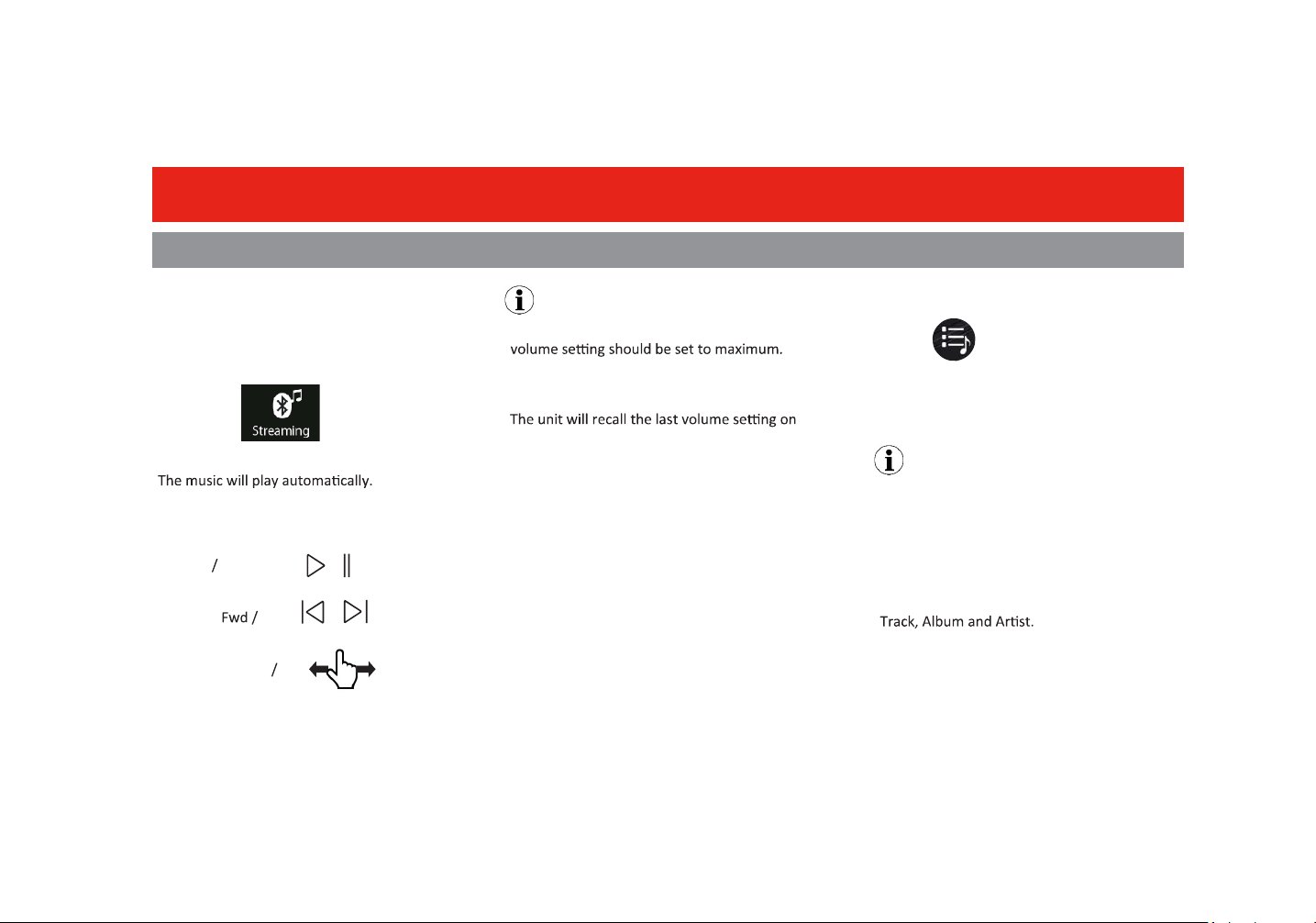
Audio Streaming
To play media through Bluetooth, the mobile
device must be Paired and Connected to the
1. Touch
Track Control
1. Play Pause
2. Track Rev
3. Swipe to Fwd Rev
Note
For best performance, your mobile device
All volume adjustments for the system should
be controlled from the product.
Switching Media
Touch
Available sources will display
(Bluetooth and USB)
Note
USB source will only be displayed if a USB
drive is inserted and has playable media.
Display
Track info will be displayed when available.
Album art is not supported via Bluetooth
playback.
Formats
Playback is supported from the mobile device
with any format it can play.
Audio will only be played by the product.
Video cannot be viewed on the unit.
yourmobiledeviceeverymeBluetooth
conneconismade.
23
Media
USB
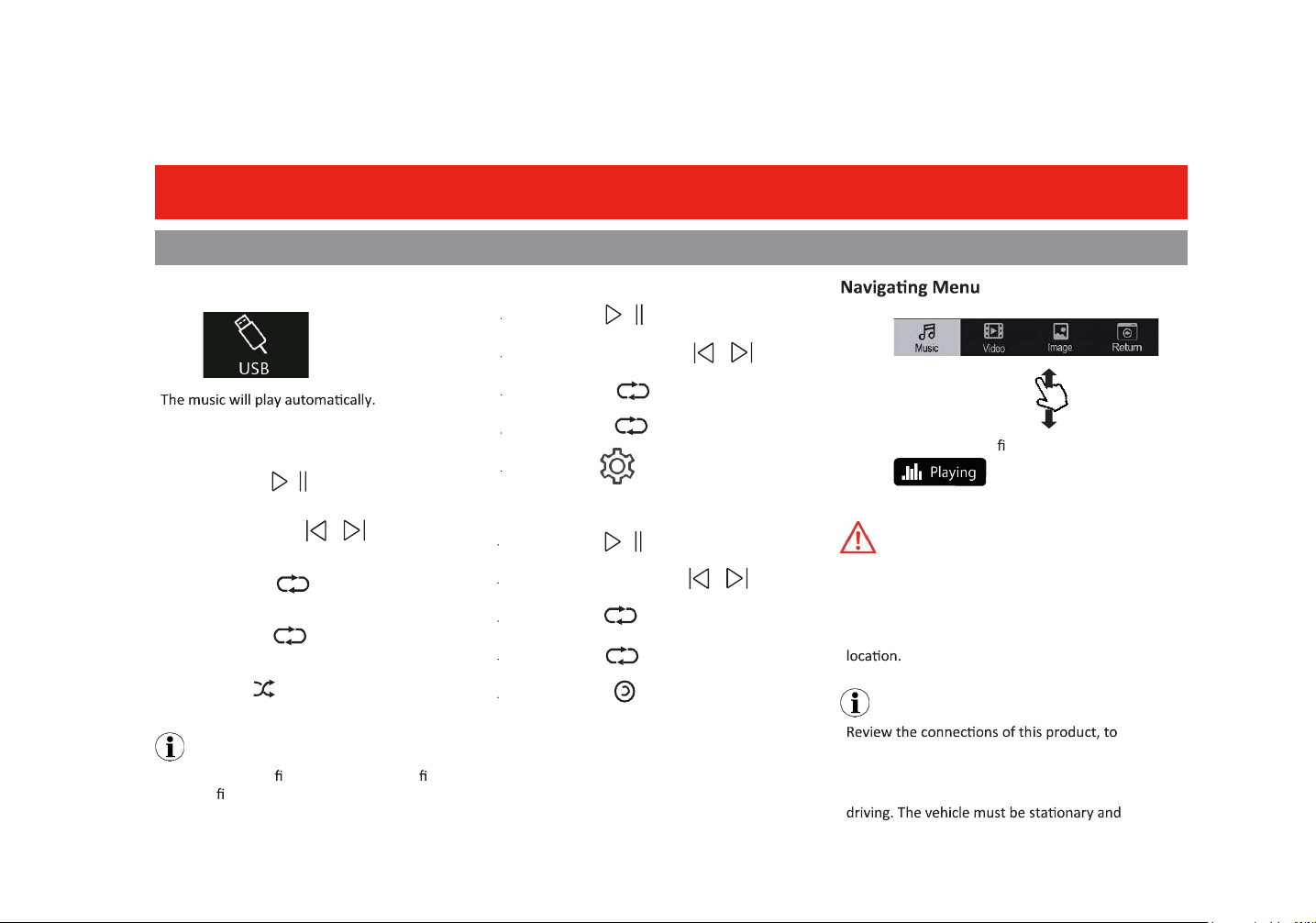
USB Playback
Touch
Audio Control
1. Play/Pause
2. Track Fwd / Rev
3. Repeat ALL
4. Repeat One
5. Random
Note
If there are other les in the USB, music les
will play rst.
Watching videos or photos while driving is
against Federal ,State, and Local laws.
Do not use features of this product if it cannot
be operated safely and legally in your
WARNING
Note
properly integrate the parking brake wire to
the vehicle.
Video and or photos cannot be viewed while
the parking brake applied to enable viewing.
1 Play/Pause
2 Track Forward/Backward
3 Repeat All
4 Repeat one
5 SETUP
Video Control
Touch
To browse contents, Swipe
To return to the current le playing,
Touch
1 Play/Pause
2 Track Forward/Backward
3 Repeat All
4 Repeat One
5 Rotate
Photo Control
all
all
all
1
1
1
24
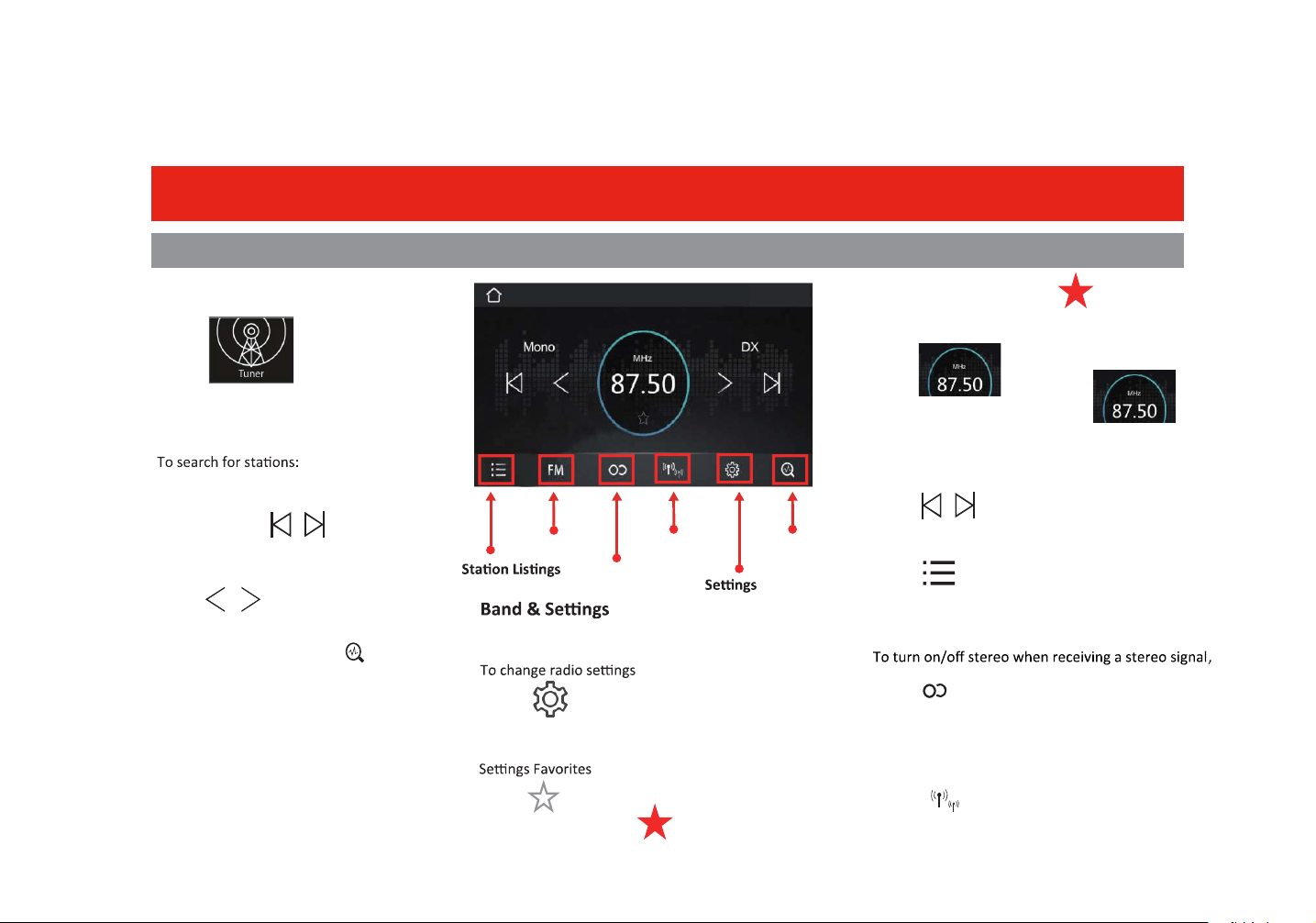
Radio
AM/ FM
Controls
Touch
Favorites and Presets
Touch
Favorite Set
To remove a favorite, Touch
Browsing Favorites
Touch
To return the Tuner screen Touch
Changing Presets
Touch
Tuning
Search
Touch and Hold
Auto Search & Store: Touch
Manual Seek
Touch
Bands
Stereo/Mono
LOC/DX
Auto Search
& Store
Touch
Touch
FM
to switch bands
Touch
Stereo/Mono
Touch
LOC/DX
ToselectLocalorDistantbroadcasngstaons,
Touch
10:30
AM
TolistallStoredStaons
25
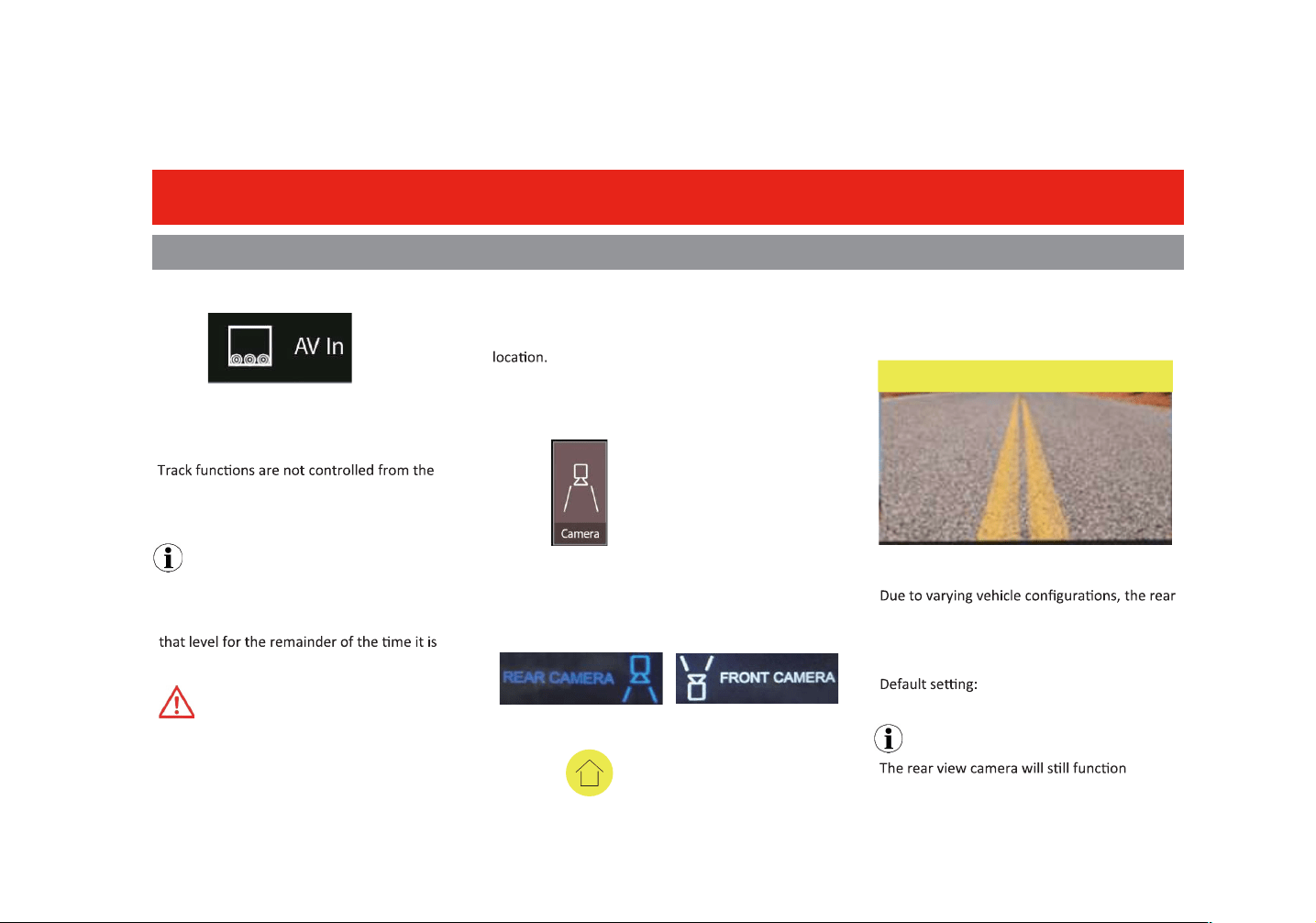
AV In/Camera
External Source
Playback
Touch
Media must be controlled from the external
device.
product.
Note
To adjust the volume level properly, the
carry-in device volume should be set between
50 % - 75%. The volume level should remain at
connected to the product.
CHECK SURROUNDINGS BEFORE PROCEEDING
Never rely solely on the rear view camera;
always check your surroundings before
proceeding.
Images may appear reversed
Do not use features of this product if it cannot
be operated safely and legally in your
WARNING
Rear View
The rear view camera can be displayed on
demand.
Touch
To return to the Home screen
Touch
Reverse View
When the vehicle is put into reverse gear, the
camera will display the image on the screen.
Rear View Delay
view trigger can be delayed to best suit the
vehicle.
0 Sec Delay
Note
normally, if the product is in standby mode.
If the user opens the SETTINGS interface and turn on
both FRONT CAMERA and REAR CAMERA func
ti
ons,
you can choose REAR CAMERA and FRONT CAMERA
casually.
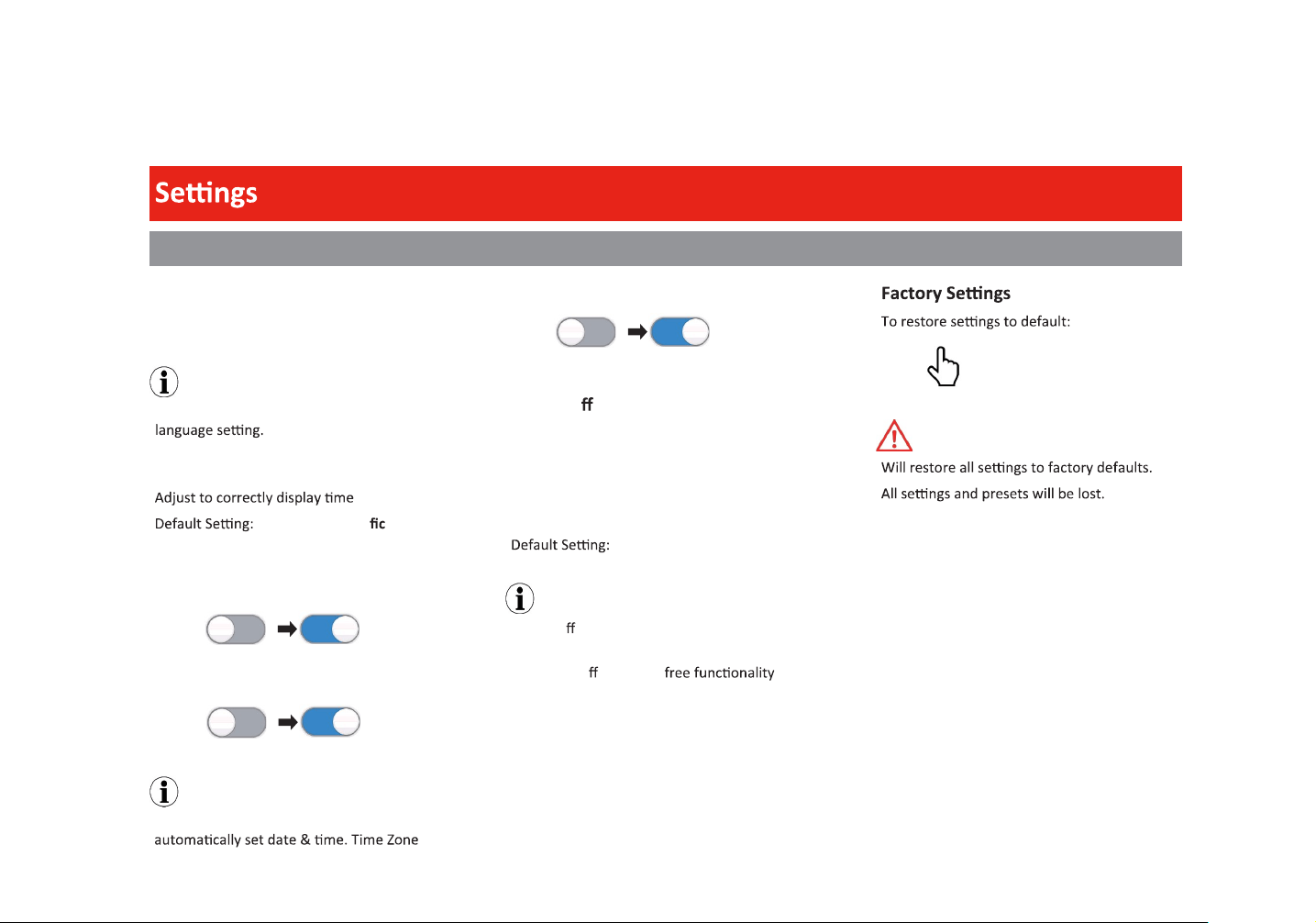
General
26
ON
OFF
ON
OFF
Power O Delay
ON
OFF
Touch
Some vehicles during crank to start will
interrupt the accessory power.
If the product re-boots during crank to start,
Turn ON delay
The delay can select 1, 2 or 3 sec.
OFF
Note
Power O Delay ON will also delay when the
vehicle is turned OFF.
This might a ect hands-
during a call.
If using an CarPlay, the iPhone will
needs to be adjusted manually.
System Language
to change
English (Default), Spanish
CarPlay is independent of the system
CAUTION
Touch
Date & Time
Time Zone
(GMT-08:00) Paci Time
(US&Canada)
24H Mode
Auto Adjust Daylight Saving
System Tone
Touch
Note
Note
27
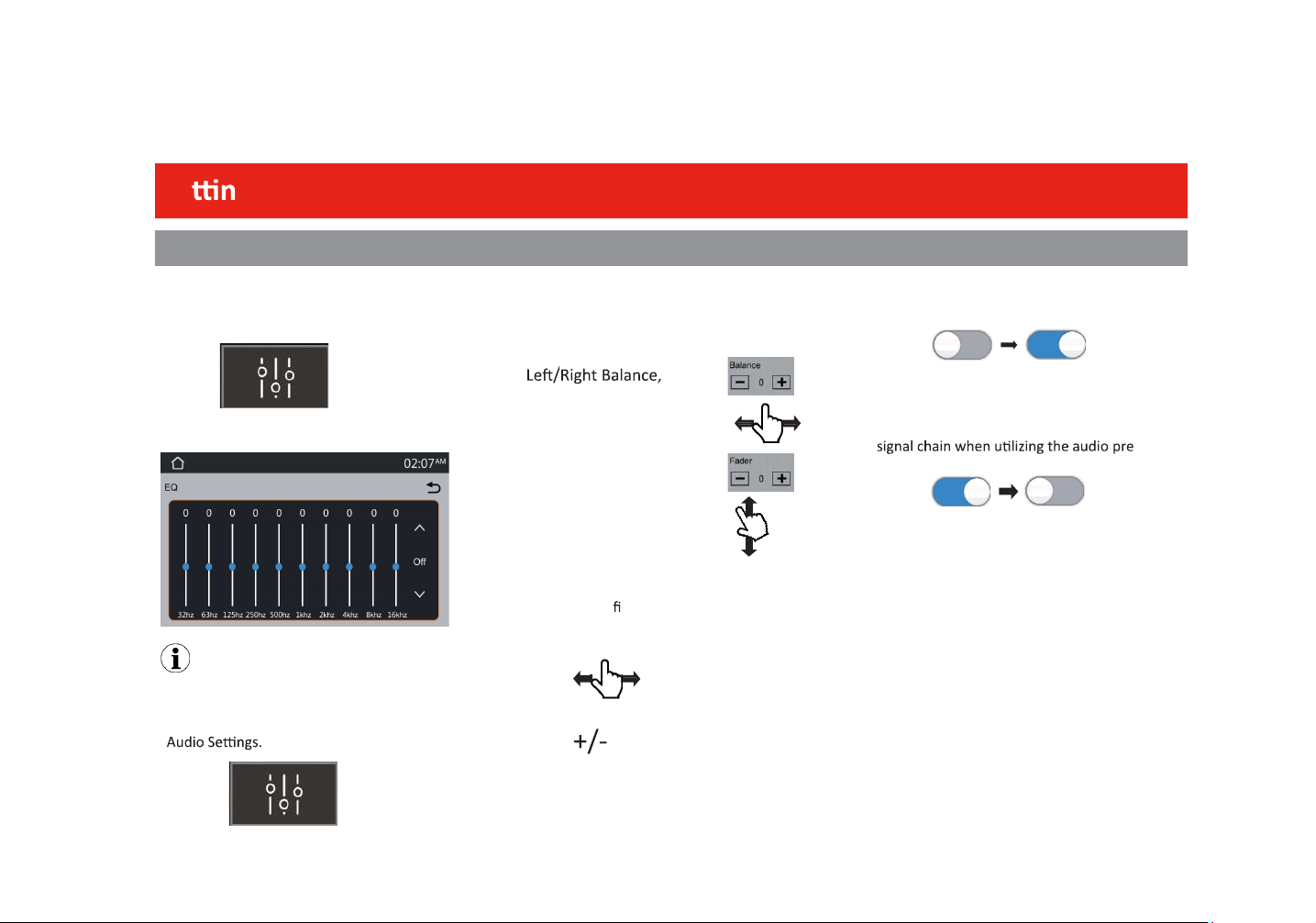
Se g
Audio
Note
The EQ can also be directly accessed while
changing the volume. The volume display will
show the EQ icon, you can touch to access the
Preset EQ
Jazz, HipHop, Pop,Rock, R&B
Balance/Fader
Touch
Swipe for quick adjustment
Front/Rear Fader, Touch
Swipe for quick adjustment
ON
OFF
Volume
ON
OFF
Internal Amp
To reduce the possibility of noise entering the
-amp
outputs, the internal amp can be turned OFF
Touch
Loudness
Enhances and gently boosts low and high freq.
SengsarefordefaultvolumesforMain(Radio
Media),Hands-free(BTRing,BTTalking),Apple
CarPlay / Android Auto (Navi, Voice).
Touch
Subwoofer
The level and lter can be adjusted for the Sub
pre-amp output.
Level, 1-14 dB
Swipe
Filter: 50Hz, 80 Hz, 120 Hz, 160 Hz
Touch
Subwoofer Frequency
EQ
To access the EQ menu
Touch
Source Level
The source mode (Radio, USB, BT Audio, AV Input,
AppleCarPlay,AndroidAuto)gaincontrol.
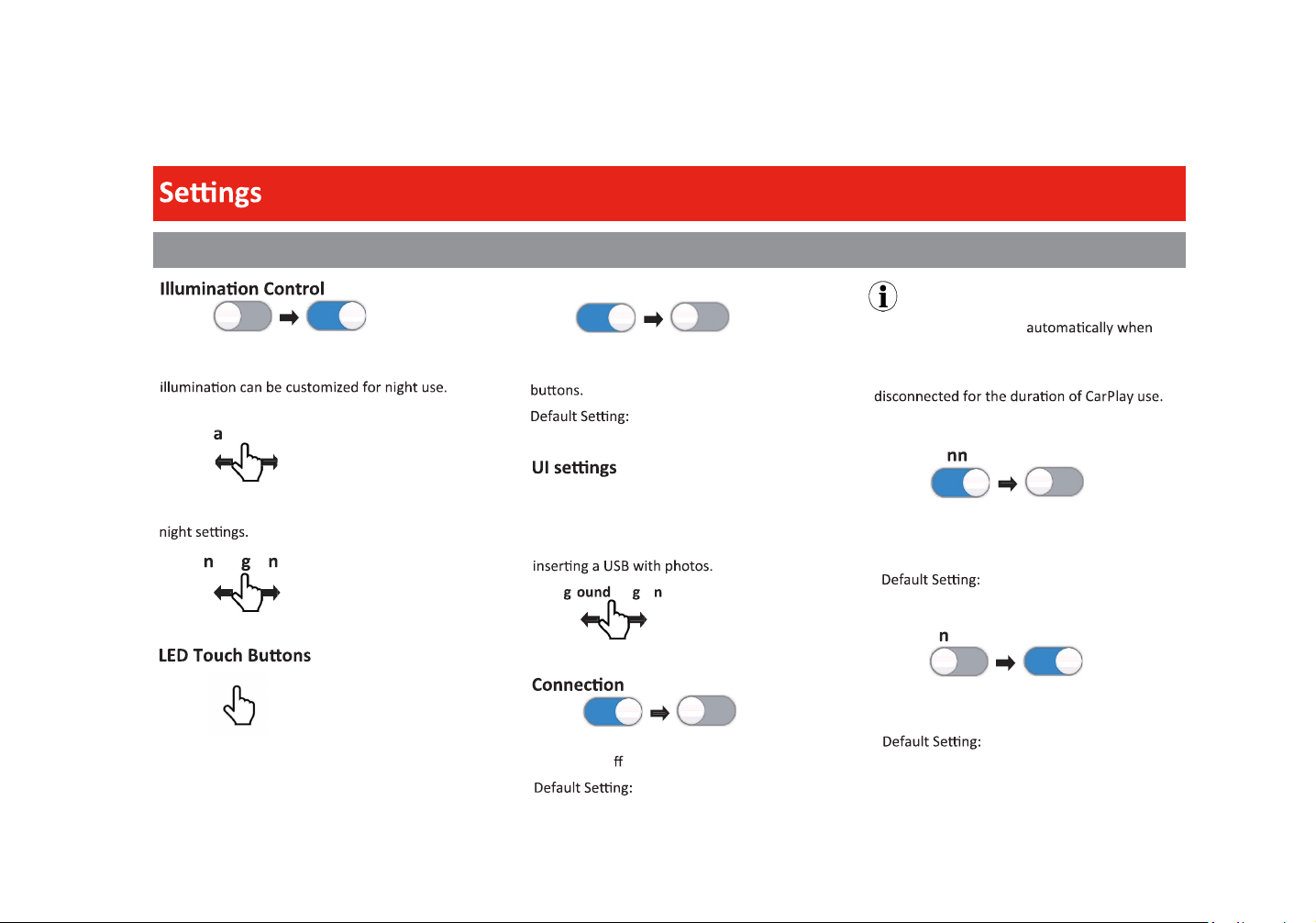
Wall paper
Touch to change
User can change the background picture by
Back r Bri ht ess
Swipe
28
Display
ON
OFF
Touch
When the vehicle lights are on, the products
Gamm
Swipe
Gamma can be adjusted for both day and
Scree Bri ht ess
Swipe
Bluetooth
ON
OFF
Touch
Power On/O Bluetooth
ON
Note
Bluetooth will turn OFF
CarPlay is in use. If other devices are
connected via Bluetooth, they will be
ON
OFF
ON
OFF
Auto Co ect
Touch
Auto connects to the device when the product
is powered ON
ON
Auto A swer
Touch
Auto answers when there is an incoming call.
OFF
Panel Light
Touch
ON
OFF
Touch
Will cycle through all colors on LEDtouch
ON
LEDAnima�on
Six preset colors can be chosen for Touch
Toselectapresetcolor,makesureLED
Animaonfeatureisturnedoff.
buons.
29
Bluetooth
Device Name
BOSS AUDIO BVCP9700A-FL
Radio
Region
Touch
USA 2
US Tuner Spacing: FM (200 KHz), AM (10 KHz)
European Spacing: FM (50 KHz), AM (9 KHz)
Camera
Rear Camera input
Turn on if you have a rear view camera, turn
Rear View Delay
0 Sec (Default), 0.1 Sec, 0.5 Sec, 1 Sec, 2 Sec
When switchingfrom Park to Drive, or vice
versa, the camera should not trigger on the
display.
on reverse gear selector.
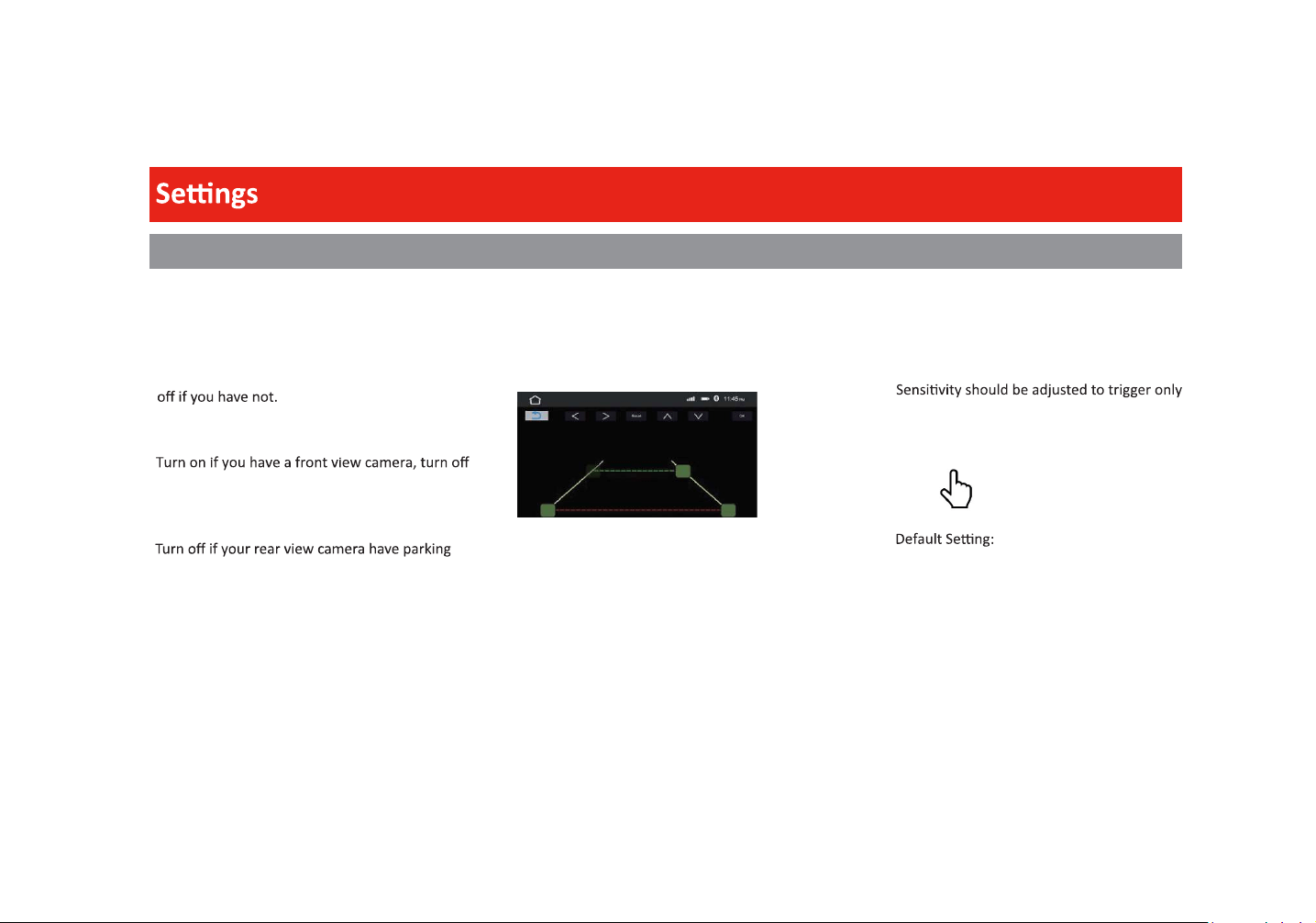
Parking Assist guide
assistguide,turnonifyou have not.
Front Camera Input
if you have not.
Parking Assist guide Adjust
Ifyourrearviewcameradoesnothaveparking
guidelines,turnontheparkingguidelinesbuilt
inthisunitandadjusttheguidelinesiffound
necessary.
Touchanddragasquareicontoreposionthe
relatedguideline.Repeatedlytouchanarrow
icontofinetuneposioningoftherelatedguide
line.TouchtheOKicontoconfirmtheadjustment.
Toresettothedefaultposoningoftheguide
lines, touch the Reset icon.
30
UTION
Power/SWC
It is recommended to have the product
professional.
UTION
-
prevent damage to the product, and/or
possible injury.
te
When replacing the fuse, always do so with
the same type and value (15 A).
Note
Unused input/output wires need be
insulated with tape, heat shrink, or crimp
connectors. Never use wire nuts.
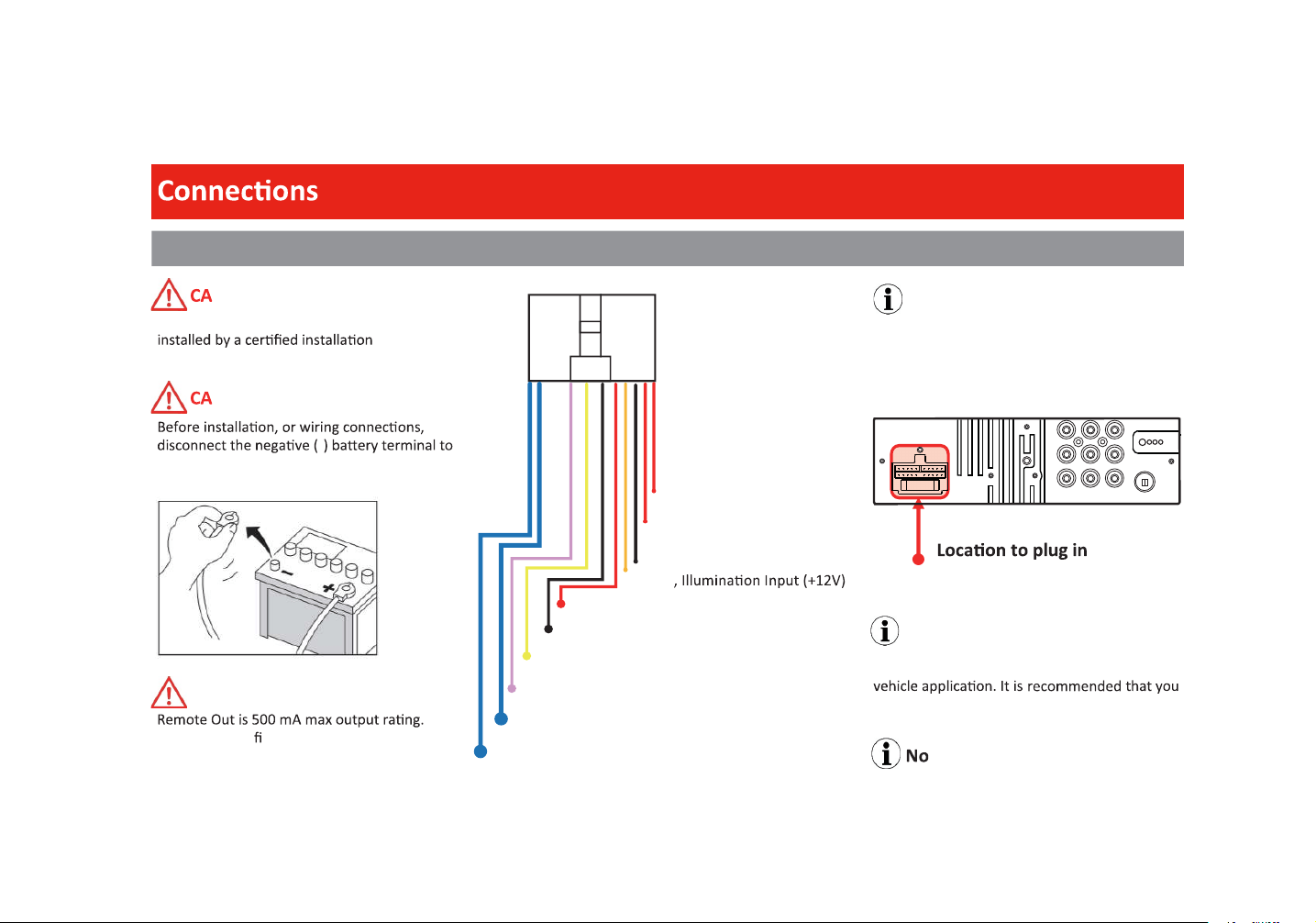
Red
SWC Input
, Accessory (+12V)
Yellow, Constant (+12V)
Blue/White
,
Rem. Output (+12v, 500 mA)
Orange
Blue, Antenna Output (+12V, 500 mA Max)
Violet/White,
Reverse Signal Input (+12V)
Black, Ground (-)
Note
A separate interface might be needed for your
consult with a professional installer.
CAUTION
If several ampli ers are to be used, it is
recommended to use a relay for the Remote
Out trigger.
Red/Violet,
(+12V, 500 mA)
Red/White, Rear Camera Power
Front Camera Power
(+12V, 500 mA)
FL
RL
SUB1 SUB2
RADIO
FR
RR
L-IN
R-IN
V-IN
31
S akers
Do not chassis ground any speaker wire leads.
UTION
Only use 4-8 Speakers
Do not use 1-3 Speakers
UTION
UTION
Do not bridge any of the channels, they are
only to be wired in stereo mode.
Note
Unused speaker wires need be insulated with
tape, heat shrink, or crimp connectors.
Never use wire nuts.
If the speaker outputs are not used, turn O
the internal amp to reduce the possibility of
noise entering the signal chain.
Note
Observe speaker polarity when making
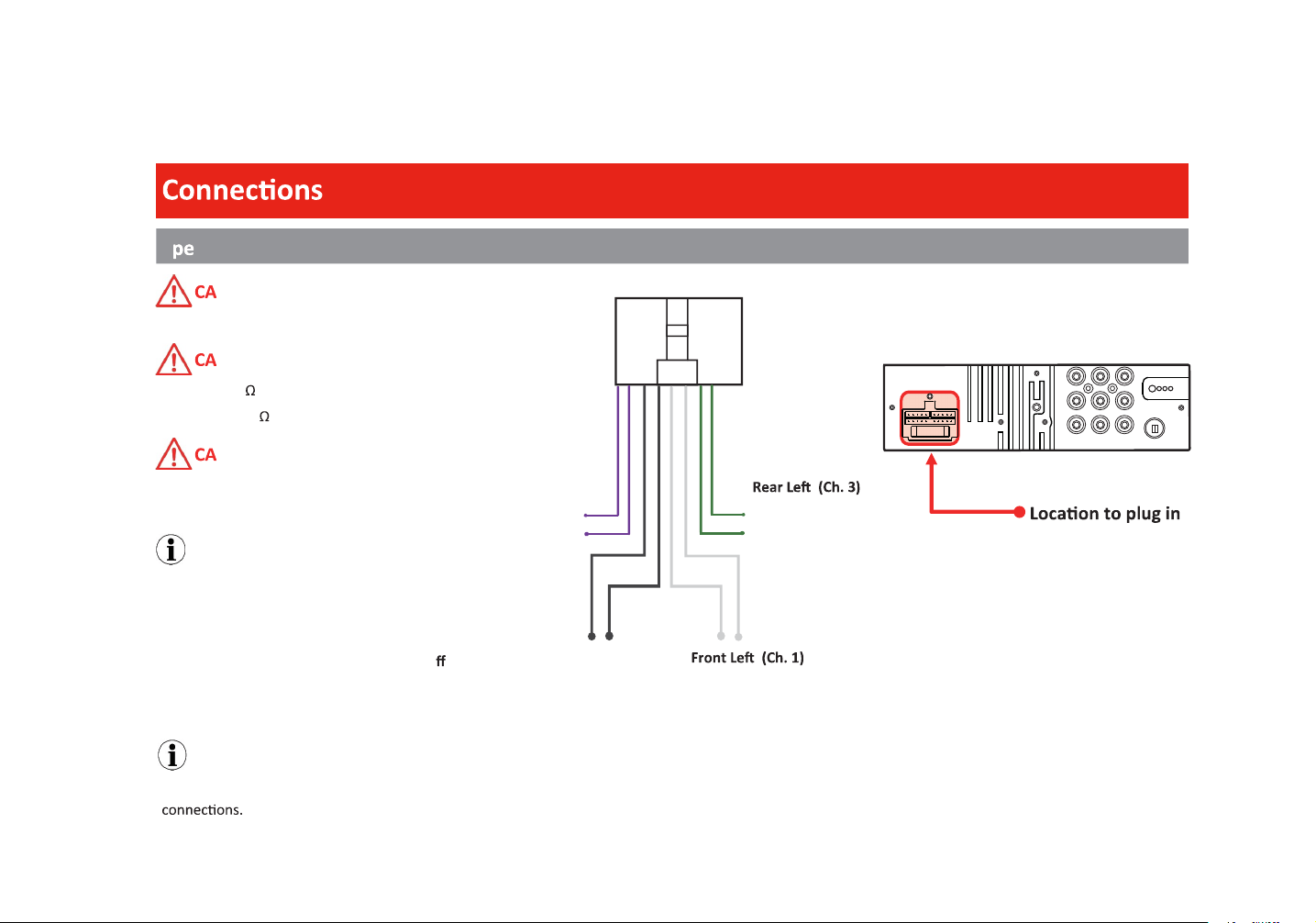
Front Right (Ch. 2)
Gray (+)
Gray/Black (-)
White (+)
White/Black (-)
Green (+)
Green/Black (-)
Rear Right (Ch. 4)
Purple (+)
P
urple/Black (-)
FL
RL
SUB1 SUB2
RADIO
FR
RR
L-IN
R-IN
V-IN
32
Audio Pre-amp/AV IN/ Radio
Note
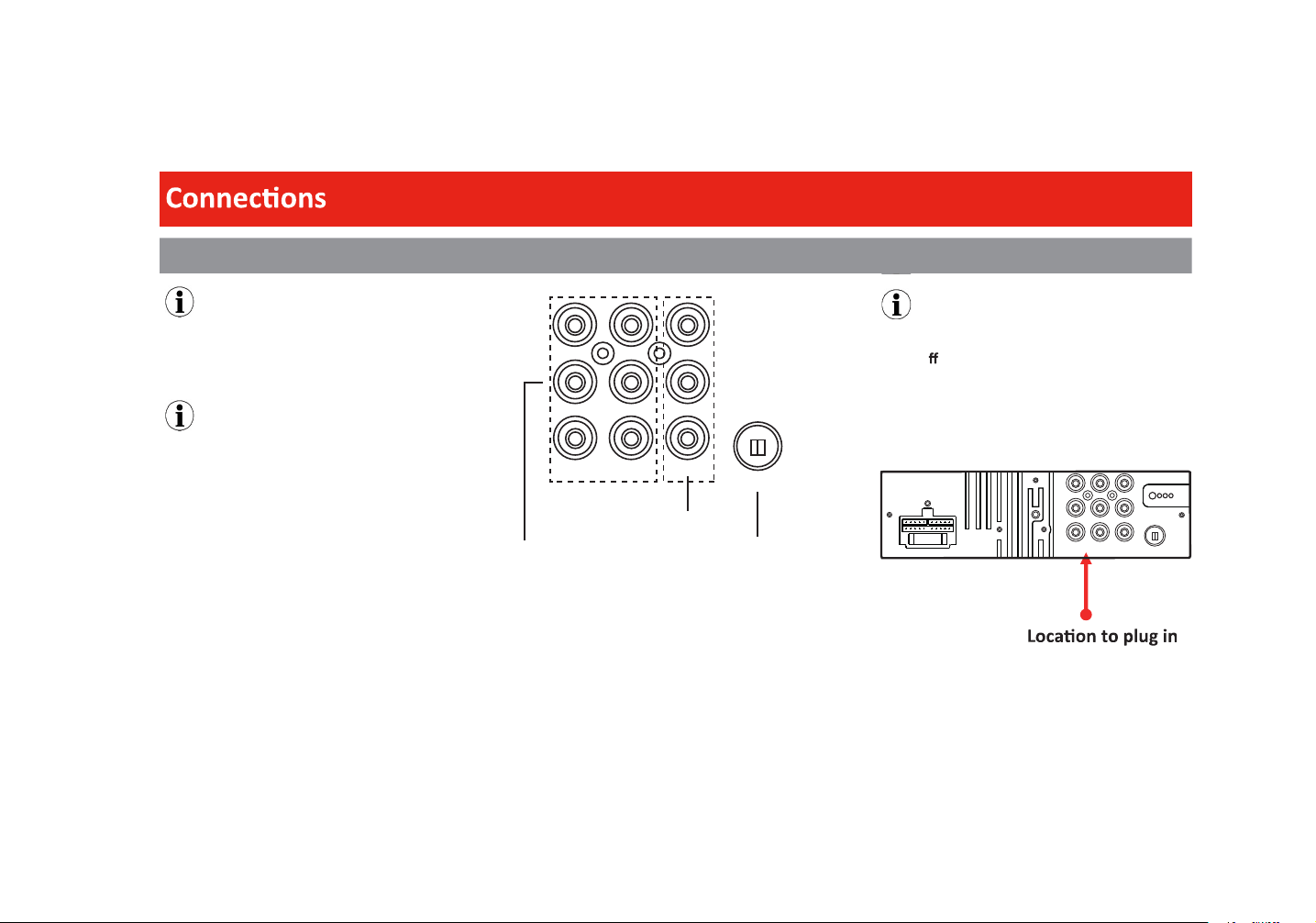
Subwoofer Pre-amp is a non-fading mono
output.
Note
Always run signal wires away from power
cables to reduce the possibility of noise.
Note
If pre-amp outputs are being used exclusively,
turn O the internal amp of the product, to
reduce the possibility of noise entering the
signal chain.
FL
RL
SUB1 SUB2
RADIO
FR
RR
L-IN
R-IN
V-IN
FL
RL
SUB1 SUB2
RADIO
FR
RR
L-IN
R-IN
V-IN
Pre-Amp Audio Outputs
(Front/rear speaker outputs
and two subwoofer outputs)
Audio/video Inputs
FM/AM Antenna Jack
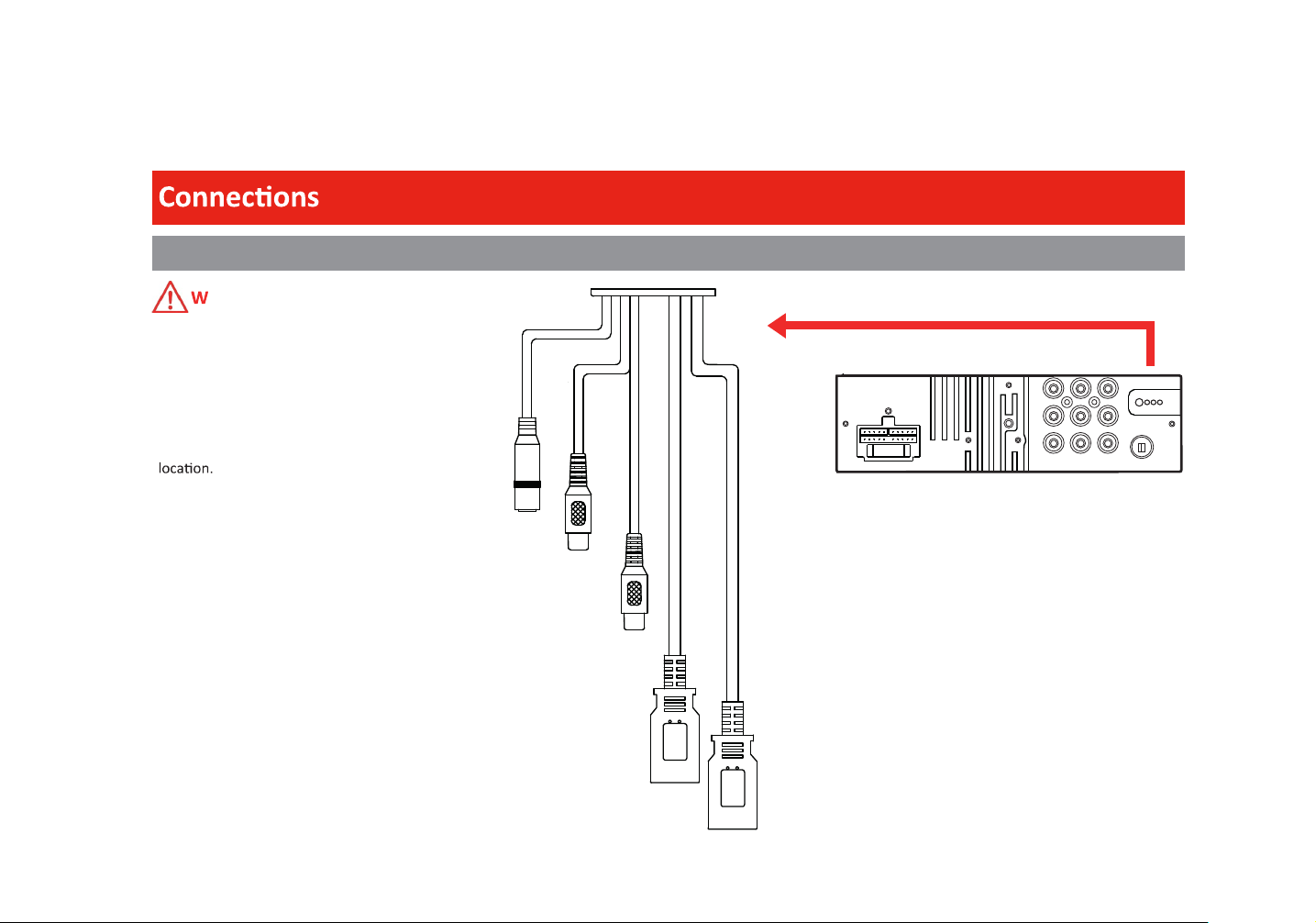
Camera/USB/MIC
Never rely solely on the rear view camera;
always check your surroundings before
proceeding.
Images may appear reversed
Do not use a feature of this product if it
cannot be operated safely and legally in your
ARNING
FL
RL
SUB1 SUB2
RADIO
FR
RR
L-IN
R-IN
V-IN
USB1
USB2
Apple CarPlay Android Auto
USBPlay/Charging
Rear Camera Input
Front Camera Input
Microphone Input
33
34
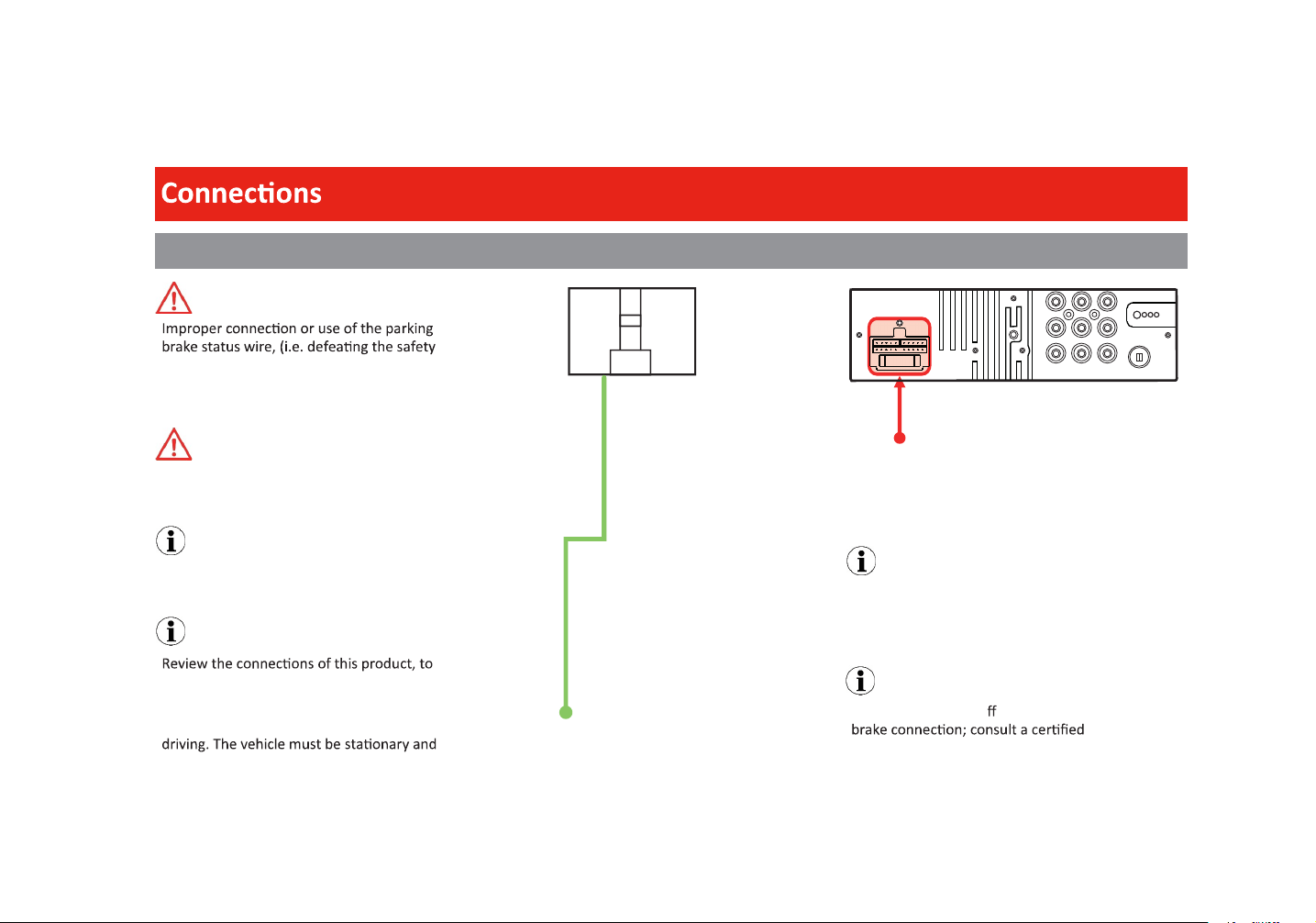
Parking Brake
Note
Every vehicle has a di erent type of parking
professional installer.
Note
Lt. Green, Parking Brake Input
Power/Speaker/SWC/
Harness
properly integrate the parking brake wire to
the vehicle.
Video and or photos cannot be viewed while
the parking brake applied to enable viewing.
WARNING
feature) violates Federal, State, and Local
laws. This may lead to injury, property
Watching videos or photos while driving is
against Federal , State, and Local laws.
WARNING
Note
For Android Auto setup, the parking brake
status wire MUST be connected.
Note
damage,and/ordeath.
FL
RL
SUB1 SUB2
RADIO
FR
RR
L-IN
R-IN
V-IN
The parking brake input needs to be connected to
theparkingbrakewire.
35
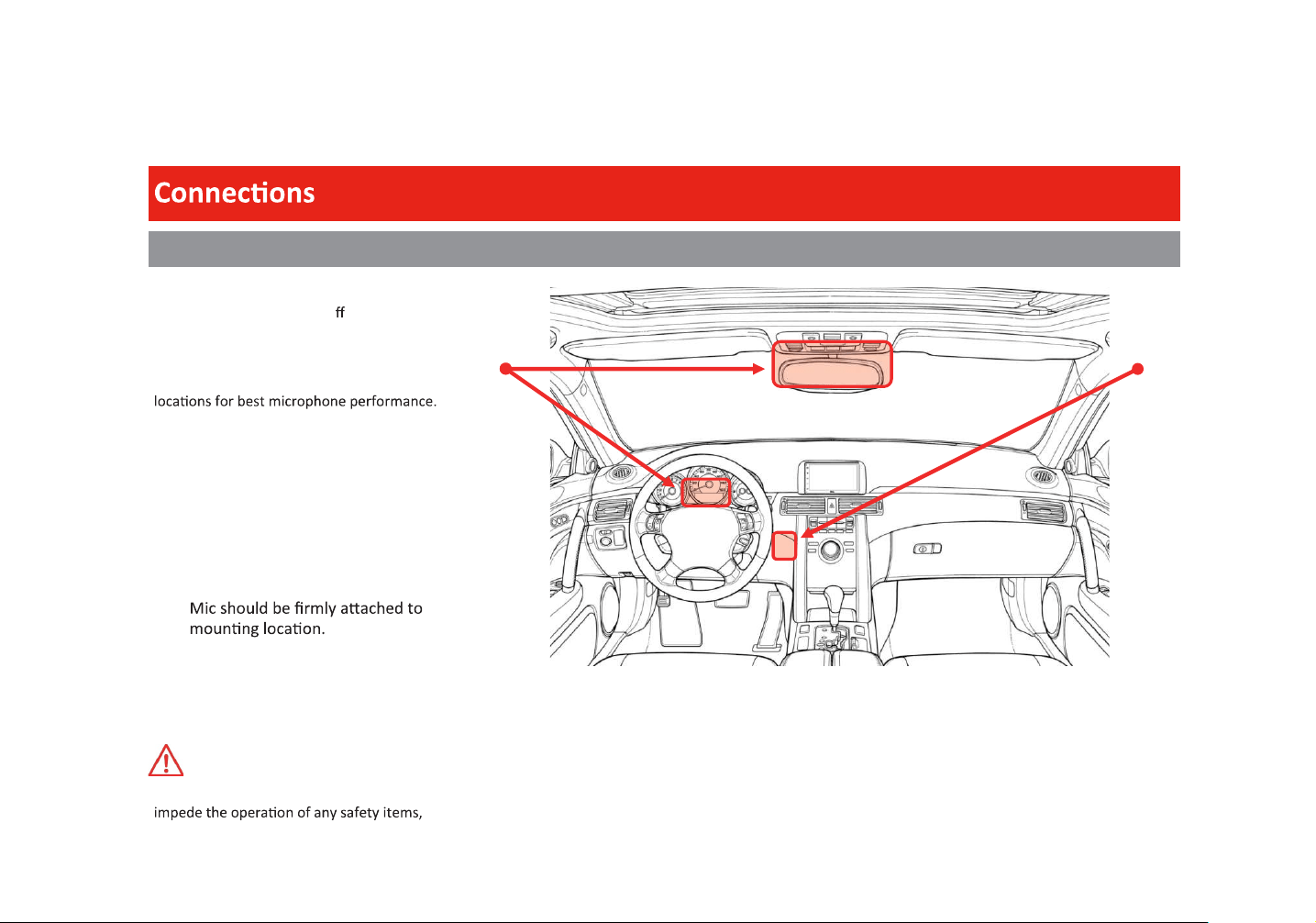
Hands-free Mic
Placement
Every vehicle will perform di erently due to
layout, interior materials, etc.
The Red shaded areas are the recommended
Items to look for before placement:
1. Do not place in front of air vents.
2. If the vehicle has tweeters placed
on sail panels, do NOT locate the
mic on steering column area.
3. Front of mic must not be blocked.
4.
5. Do not cover the grille openings
surrounding the mic.
6. To avoid excessive wind noise, do
not place near the sunroof opening
Run microphone wire where it will NOT
i.e. Airbags, Knee Airbags, etc.
WARNING
36
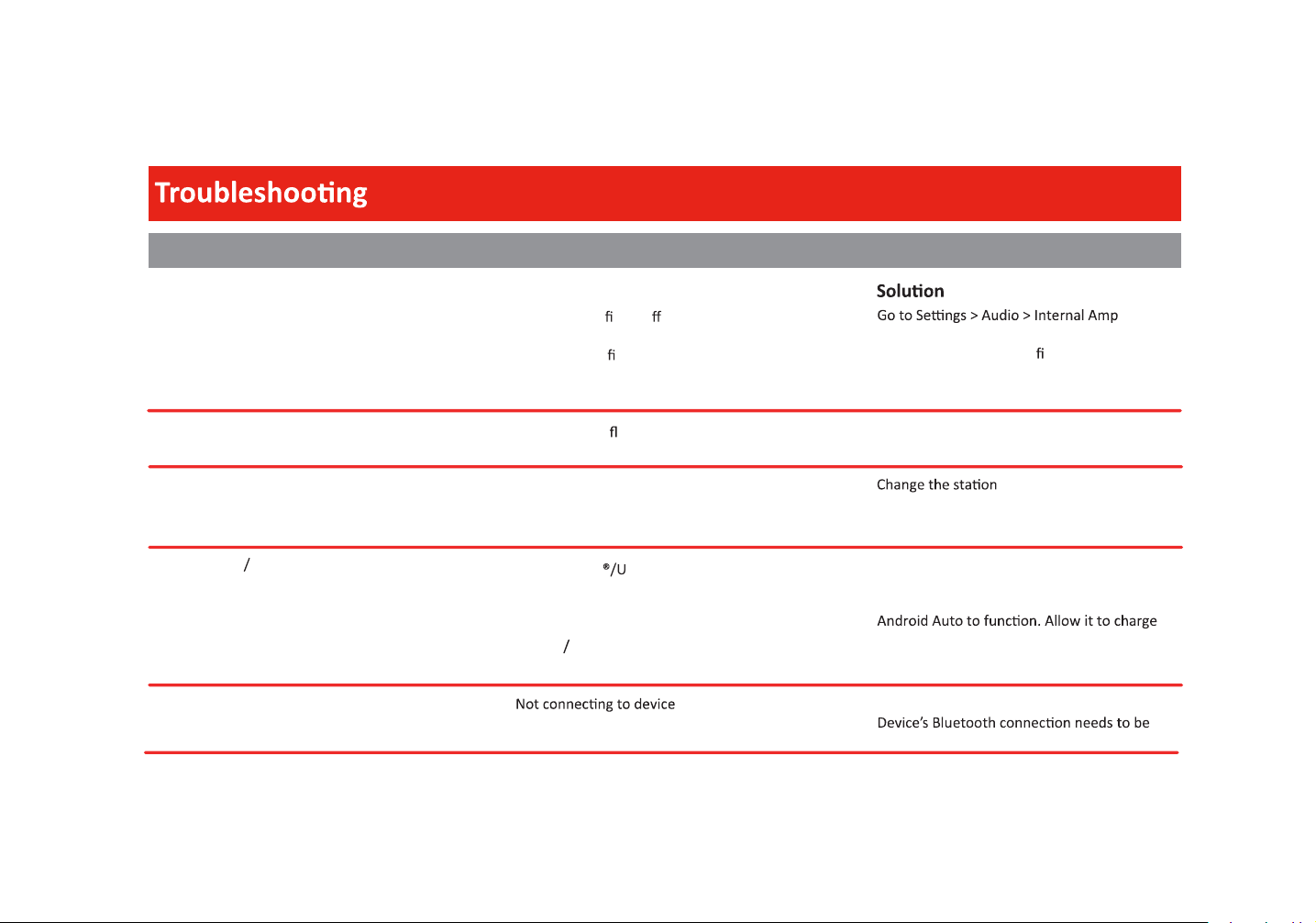
No Sound
Media Not Supported
Apple CarPlay
Bluetooth
Internal ampli er is o
Product is muted
External ampli ers
Audio source
Media on USB ash drive
Radio area
Antenna
Bad Lightning SB cable
Locked device
Not charged
CarPlay Android Auto frozen
Touch the volume.
Check the external ampli ers are on.
Check the remote output wire has voltage.
Change the audio source.
Change the media format on the USB device.
Change the USB device.
Antenna output wire is not connected.
Connect Antenna to product.
Replace the cable.
Device needs to be unlocked.
Device needs to be powered ON for CarPlay/
and power on.
Unplug the device, close all Apps and plug it in
again.
Make sure the device is within range.
turned ON
.
.
Issues
Cause
ON.
PoorRadioRecepon
Android Auto will not start
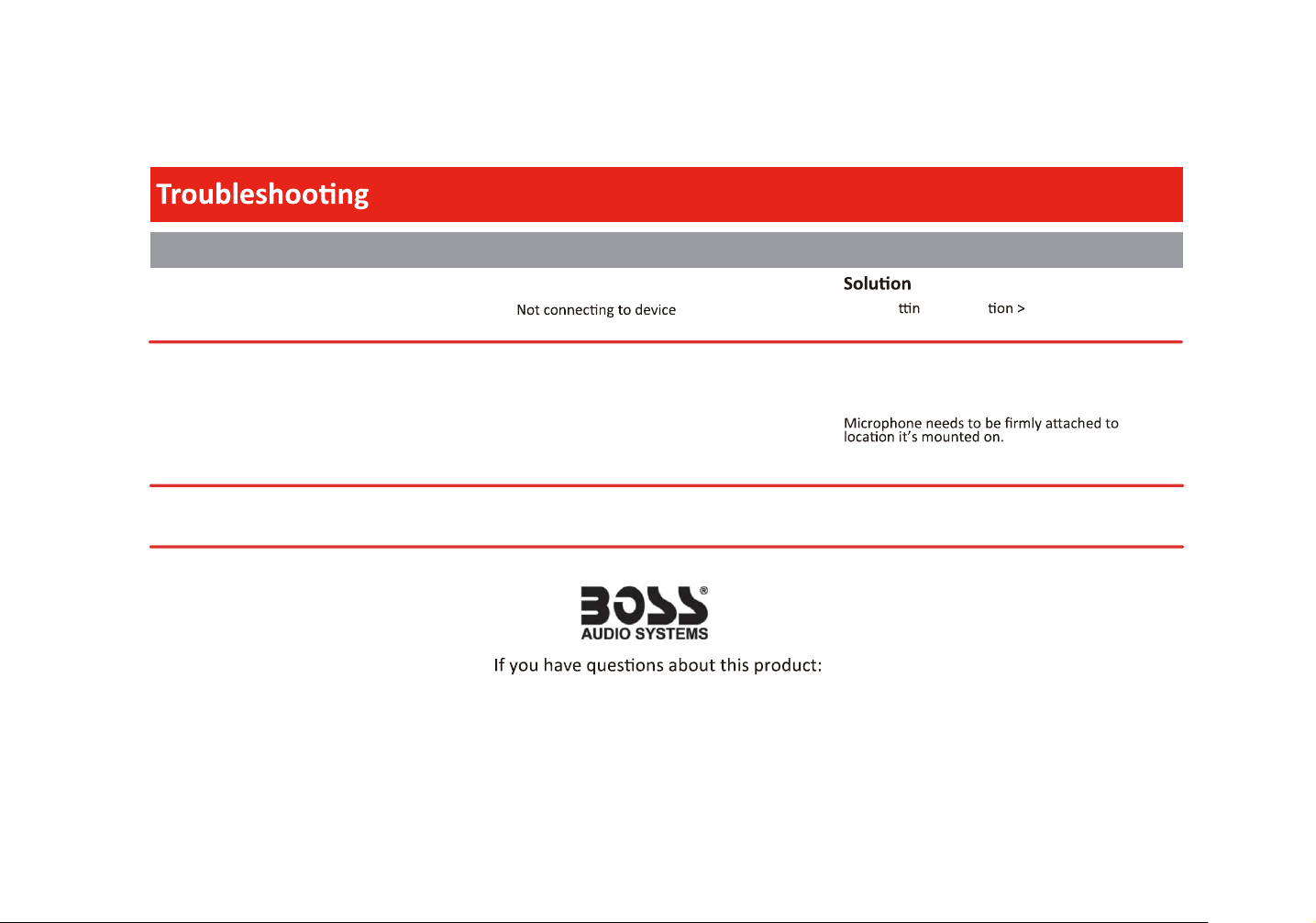
Issues
Cause
37
Bluetooth
Hands-free call quality
Unit is unresponsive
Mobile device
Microphone
Processor has frozen
ON
Pair and Connect the device like new.
Go to Se g >Connec Power
Check cellular strength on mobile device.
End call and redial number.
Microphone placement needs to be relocated.
Check to see if microphone is properly
plugged in.
Restore the factory se
tti
ngs.Useasmallpinto
press the reset pinhole on the bo
tt
om of the display.
Customer Service
805-751-4853
M-F 8:30a-5:00p (PST)
Tech Support: www.bossaudio.com/support/technical-support
© 2021 BOSS Audio Systems
38
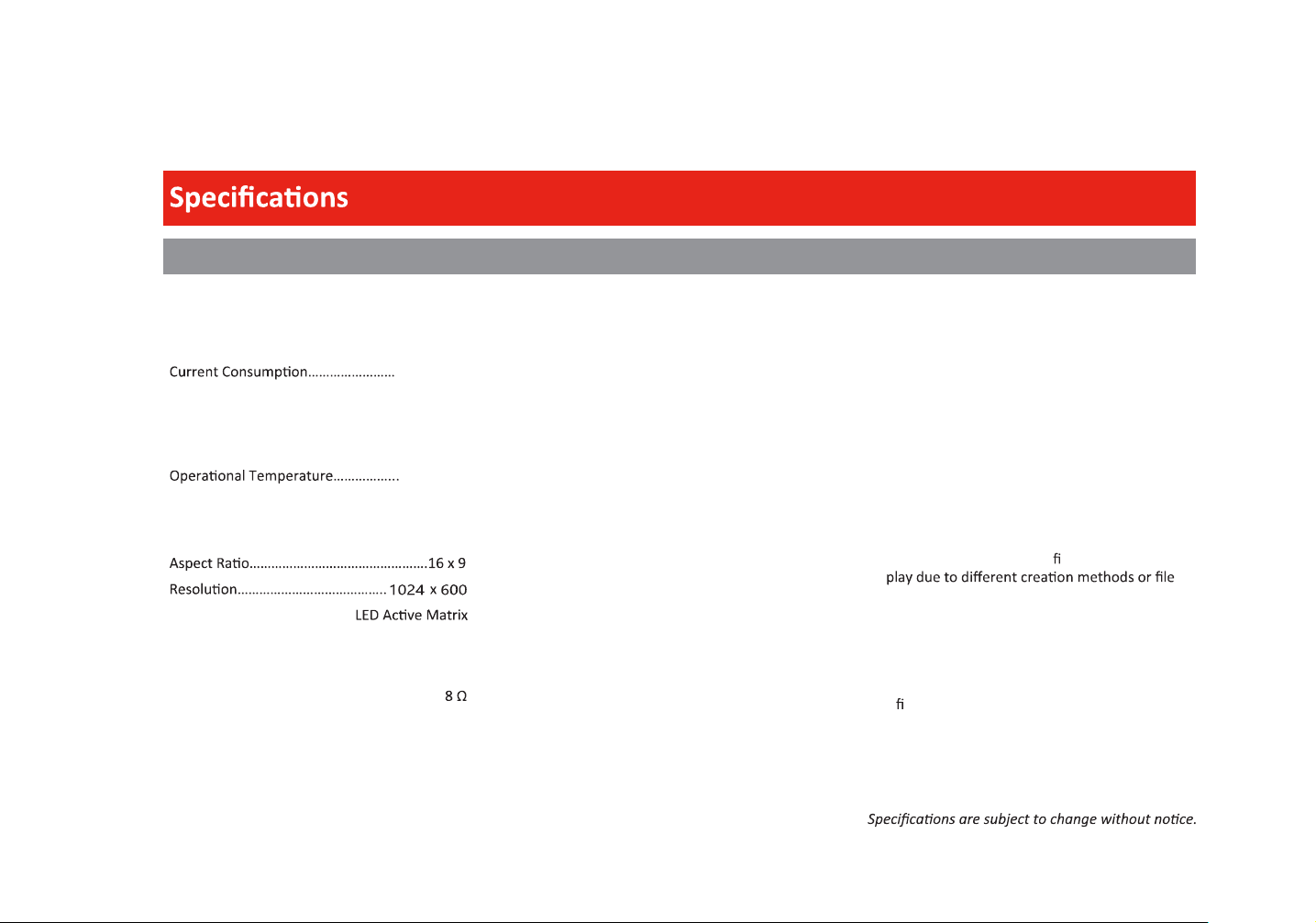
General
Power Input…………………………...8.5 V—18 V DC
Nominal………………………...14.4 V DC
Fuse Type………………………………....................15A
Dimensions (H x W x D)……….... 1.97” x 7” x 4.9”
Head Unit Weight……………………........... 3.91 lbs.
-4—140°F
Display
Screen Size…….……………………………………… 7 ”
Screen Type………………….TFT-
Audio
Max Power…….……………………………85 W x 4 Ch.
Acceptable Speaker Load……………………….4-
Preset EQ………………………………………………….....5
EQ Bands, Adjustable..………………………………..10
JAZZ, HIPHOP, POP, ROCK, R&B
32, 63, 125, 250Hz, 500Hz
1KHz, 2KHz, 4KHz, 8KHz, 16KHz
EQ Boost/Cut………………………………………..± 6 dB
Audio Cont’d
Pre-amp Output…………………………………..3 Pairs
Front………………………4V, Full-Range
Rear………………………..4V, Full-Range
Sub (Mono)……………………….4V, LPF
Sub LPF……..........50 Hz, 80 Hz, 120 Hz, 160 Hz
Sub Level…………………………………………..+1-14dB
Radio Tuner
Freq. Range..…………...87.5 MHz-108 MHz (FM)
Freq. Range..……………..522 kHz-1710 kHz (AM)
USA 1 Range (FM)..……………...100 kHz Spacing
USA 2 Range (FM)………......…..200 kHz Spacing
Europe Range (FM)..……………….50 kHz Spacing
Bluetooth®
Version…………………………………………v4.2+E.D.R.
Audio Codec….……………………………………...S.B.C.
Pro les…………………………………………………………..
HFP v1.6, A2DP v1.2, AVRCP v1.5, PBAP v1.1
Apple CarPlay
iPhone Support…………………iPhone 5 or Newer
iOS……………………………………….iOS 7.1 or Newer
Android Auto
Supported………………….(5.0) LollipoporNewer
USB
USB Spec………….…………...USB 2.0 (High-Speed)
File System……………………………………………FAT32
Video Playback…..................... AVI, MKV, WMV
Picture Playback........................JPG, PNG, BMP
* Not all listed compressed les guaranteed to
contents.
............15A
USB Port 1: Carplay & Android Auto
Current Output 1.5A
USBPort2:Media&1.5ACharging
Current Output 1.5A
……..........
................
Audio Playback……...... MP3,WMA,WAV,FLAC

39
User’s Notes
1021