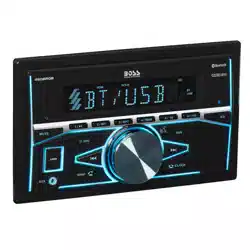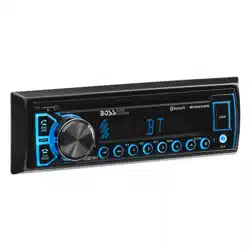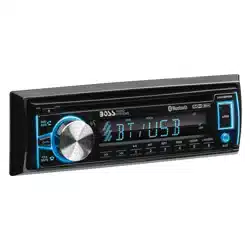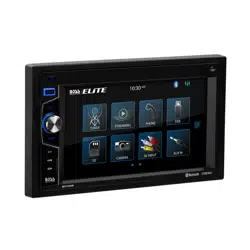


Congratulations on your purchase of a Boss Audio Systems ELITE
R
Specifications....................................................................................................1
Safety Notice.....................................................................................................2
Accessories.......................................................................................................3
Unit Installation..................................................................................................3
Remote Control Operation................................................................................
Wires Connection Description...........................................................................5
Panel Introduction.............................................................................................
Main Menu Operation Instruction......................................................................
Access Setup Interface.....................................................................................
General Settings........................................................................................
Camera Settings........................................................................................
Clock Settings............................................................................................
Audio Settings............................................................................................
Tuner Settings............................................................................................
IIIumination Settings...................................................................................
About Settings..........................................................................................
Tuner Operation..............................................................................................
USB/Micro SD Playback..................................................................................11
USB/Micro SD Video/Music/Picture Operation.........................................11
Video Operation...................................................................................
Music Operation...................................................................................
Photo Operation...................................................................................
Bluetooth Operation........................................................................................
A-LINK(Screen Mirroring) Operation...............................................................15
Bluetooth Operation Menu.......................................................................
Bluetooth Dialing......................................................................................
Bluetooth Call...........................................................................................13
Bluetooth Phone Book.............................................................................
Bluetooth Phone Call History...................................................................
Bluetooth Device......................................................................................
Bluetooth Music Steaming-A2DP.............................................................14
Bluetooth Pair device...............................................................................
Multimedia Receiver.
It has been designed, engineered and manufactured to bring you
the highest level of performance and quality, and will offer you
years of entertainment pleasure.
PTT(Push-To-Talk) Operation.........................................................................15
Steering Wheel Control Compatibility..............................................................16
Troubleshooting...............................................................................................17
4
6
7
8
7
8
8
8
9
9
10
10
11
12
12
13
13
13
14
14
14
14
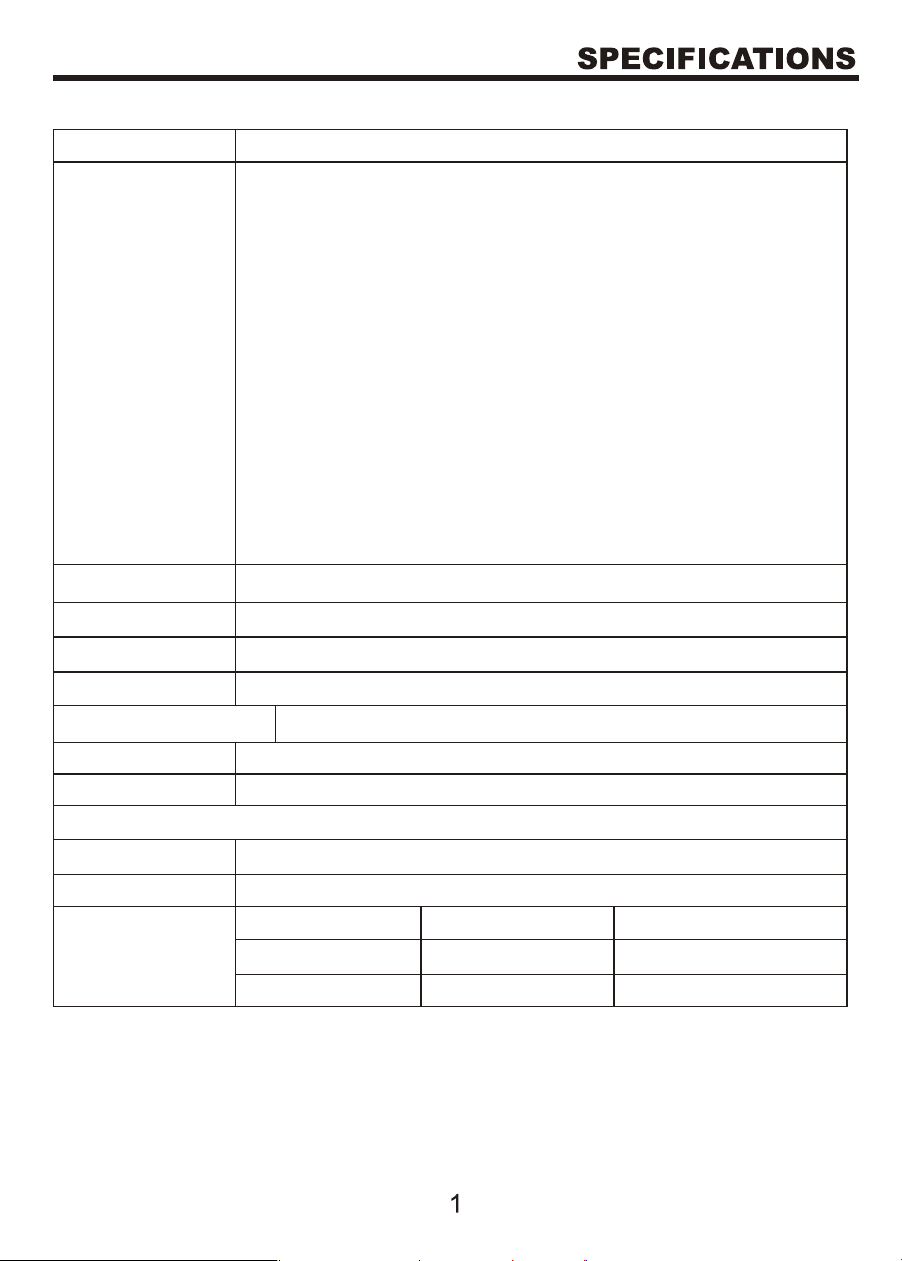
Model No.
General
features
BV735B
Fixed front panel 6.2 inch TFT screen
FM/AM Radio
RBDS
A-Link (Screen Mirroring)
USB Charging (1A)
Front USB and Micro SD support
Bluetooth audio stream and hands-free phone call
AUX input
AV input
Video output
Front/Rear view camera support
Front, rear and subwoofer pre-amp outputs
Max. 4 x 80W power output
Steering wheel control (SWC)
800 x 480 pixelTFT screen
USB/Micro SD
Working power
Max Output
Working Temperature
Size
Weight
Compatible Media
Audio file
MP3/WAV/FLAC
1.54 lbs / 0.7 kg
7.01” x 3.86” x 3.94” / 178 x 98 x 100 mm
-20℃~70℃/ -4 F~158 F
。 。
4 x 80W
12V
64G
Picture JPG/JPEG/BMP
Format
.MPEG1
.MPG
MPEG1
MPEG2
MP2
MP2
Video file
Video code
Audio code
Push-To-Talk (PTT)

Please read and understand the following safety information before operating this unit.
The unit is suitable for 12V power supply (requires grounding). Do not connect
it to 24V power supply in trucks or buses, or else it will be damaged.
Do not replace the fuse without the guidance of qualified personnel or the unit
may be damaged and/or catch fire.
Please follow the traffic laws and regulations and do not watch programs or
operate the unit when you are driving to avoid accidents (excluding passengers
watching through rear monitor).
To ensure safety and normal unit operation, please ask qualified personnel to
install the unit. Do not disassemble or repair the unit without authorization.
To avoid damage and accidents, please contact a local car audio distributor for
details.
Do not put the unit in a moist environment or water to avoid electric shock,
damage, and/or fire due to a short circuit.
The mechanical drive part of the monitor uses an automatic precision transmission
component. Do not pull, push or rotate the unit by force or impact the TFT screen
to avoid damaging the unit.
Do not insert the audio plug of the vehicle into the master unit directly. Please
convert with the dedicated end cable provided by our company.
When installing the unit, prevent metal objects from falling into the master unit
from the vents to avoid a short circuit and damaging the unit.
Safety Statement
For the safety of yourself and others, do not watch programs or operate the unit
when you are driving. It is prohibited by law.
The back up camera function should be used as an auxiliary view only. We are not
responsible for any accidents occurred during backing.
WARNING!
To ensure safety while driving and to comply with laws, drivers should not watch video
or operate the video device while driving.
UNIT INSTALLATION
Remote control..............................................................
Wire harness.................................................................
Mounting brackets........................................................
Bracket screws. .............................................................
Trim ring........................................................................
1
1
2
4
1
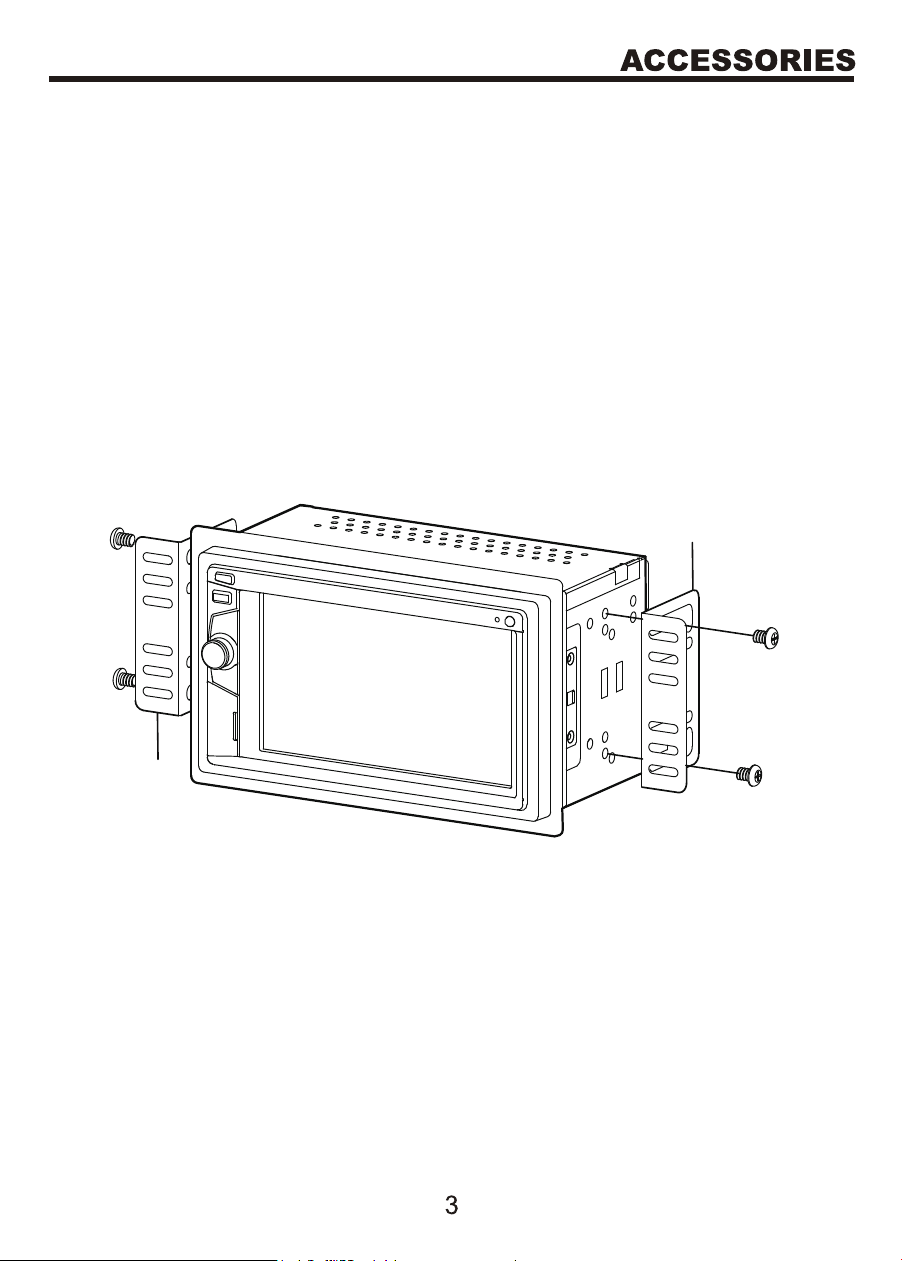
1. Put the 2 brackets to the left and right side of the unit.
2. Use the supplied screws to attach the brackets to the unit.
3. Once the screws are attached, the brackets can be adjusted forward
or backward depending on the installation requirements.
Screw
Bracket
Bracket
Screw
1
2
3
4
5
6
7
8
9
10
1
1
12
13
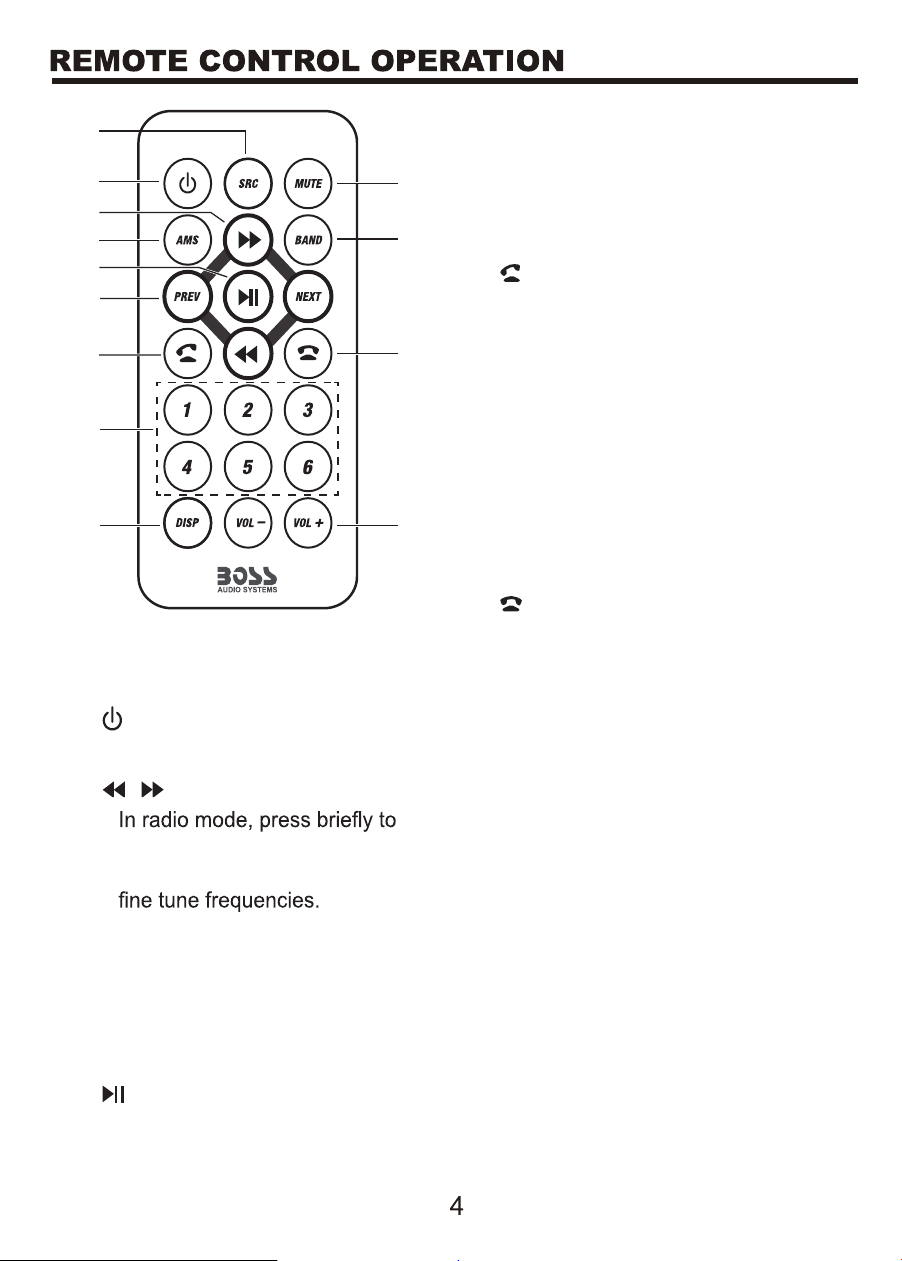
1 SRC
Select a source.
2
Switch the unit on or to standby.
3 /
•
tune to a station; press and hold
to enter manual seeking mode to
• During media playback, search
forward and backward.
4 AMS
Auto search and store radio
stations.
5
Start, pause or resume playback.
6 PREV / NEXT
• In radio mode, select a preset
radio station.
• During media playback, skip to the
previous or next track.
7
Dial/answer a Bluetooth phone call.
8 Numeric buttons
In radio mode, select a preset radio
station (1-6).
9 DISP
Display screen backlight setting.
10 VOL +/-
Adjust volume.
11
Eject or end a Bluetooth phone call.
12 BAND
Select a tuner band.
13 MUTE
Mute or restore volume.
Notes for battery
• Replace only with the same type
battery (CR2025). Observe correct
polarity while inserting the battery.
• Remove the battery from the remote
control if not used for a long time.
• The remote control contains a coin/
button type battery, which can be
swallowed. Keep the battery out of
reach of children at all times!
• Batteries contain chemical
substances, so they should be
disposed of properly.
WIRES CONNECTION DESCRIPTION
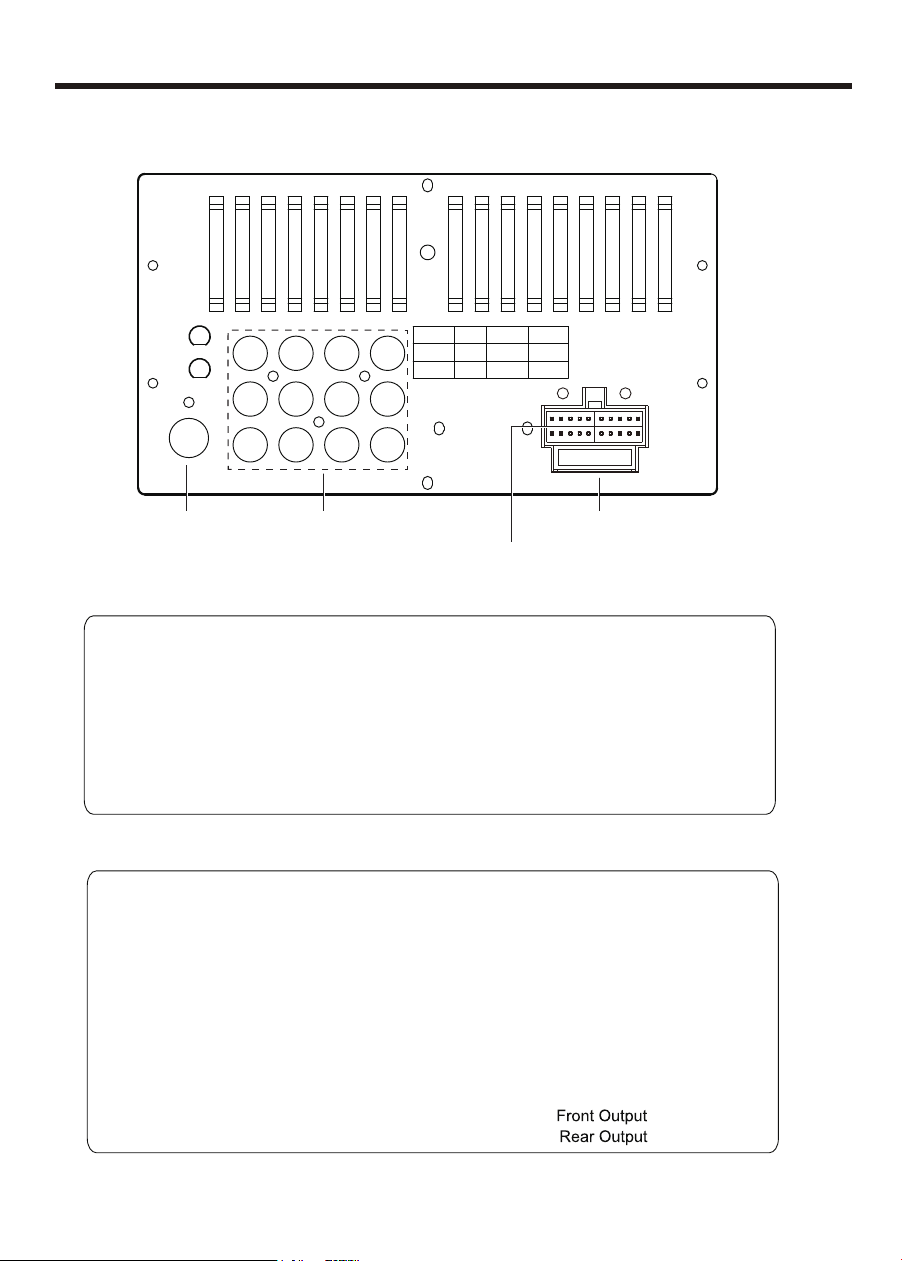
The Description of the Input/Output Interface
5
10A
R.CAM F.CAM
L-IN R L
R R
F L
F RR-IN
V-IN V-OUT
SUB1
SUB2
Fuse (10A)
Wire Harness Connector
AM/FM
Antenna Jack
AV Inputs and Outputs
Power
Yellow................................. Constant (+12v)
Audio/Video Inputs and Outputs
Wire Harness
R.CAM............. Rear Camera Input (Yellow)
SUB1.............. Subwoofer Output 1 (Green)
SUB2.............. Subwoofer Output 2 (Green)
V-IN...............................Video Input (Yellow)
L-IN.........................Left Audio Input (White)
R-IN.........................Right Audio Input (Red)
F.CAM............ Front Camera Input (Yellow)
R L...... Rear Left PRE-AMP Output (White)
R R...... Rear Right PRE-AMP Output (Red)
V-OUT.......................... Video Input (Yellow)
F L....... Front Left PRE-AMP Output (White)
F R...... Front Right PRE-AMP Output (Red)
Red................................... Accessory (+12v)
Black............................................ Ground (-)
Orange................... Illumination Input (+12v)
Violet/Wht................... Reverse Input (+12v)
Blue.................. Ant. Output (+12v, 500 mA)
Blue/Wht......... Rem. Output (+12v, 500 mA)
Lt.Green....................... Parking Brake Input
Control
3.5mm........................................ SWC Input
Speaker Outputs
White....................................... Left Front (+)
White/Blk.................................. Left Front (-)
Gray...................................... Right Front (+)
Gray/Blk................................. Right Front (-)
Green....................................... Left Rear (+)
Green/Blk.................................. Left Rear (-)
Purple.................................... Right Rear (+)
Purple/Blk............................... Right Rear (-)
Camera Power
Red/Blue.........
(+12v, 500 mA)
Red/White.........
(+12v, 500 mA)
6
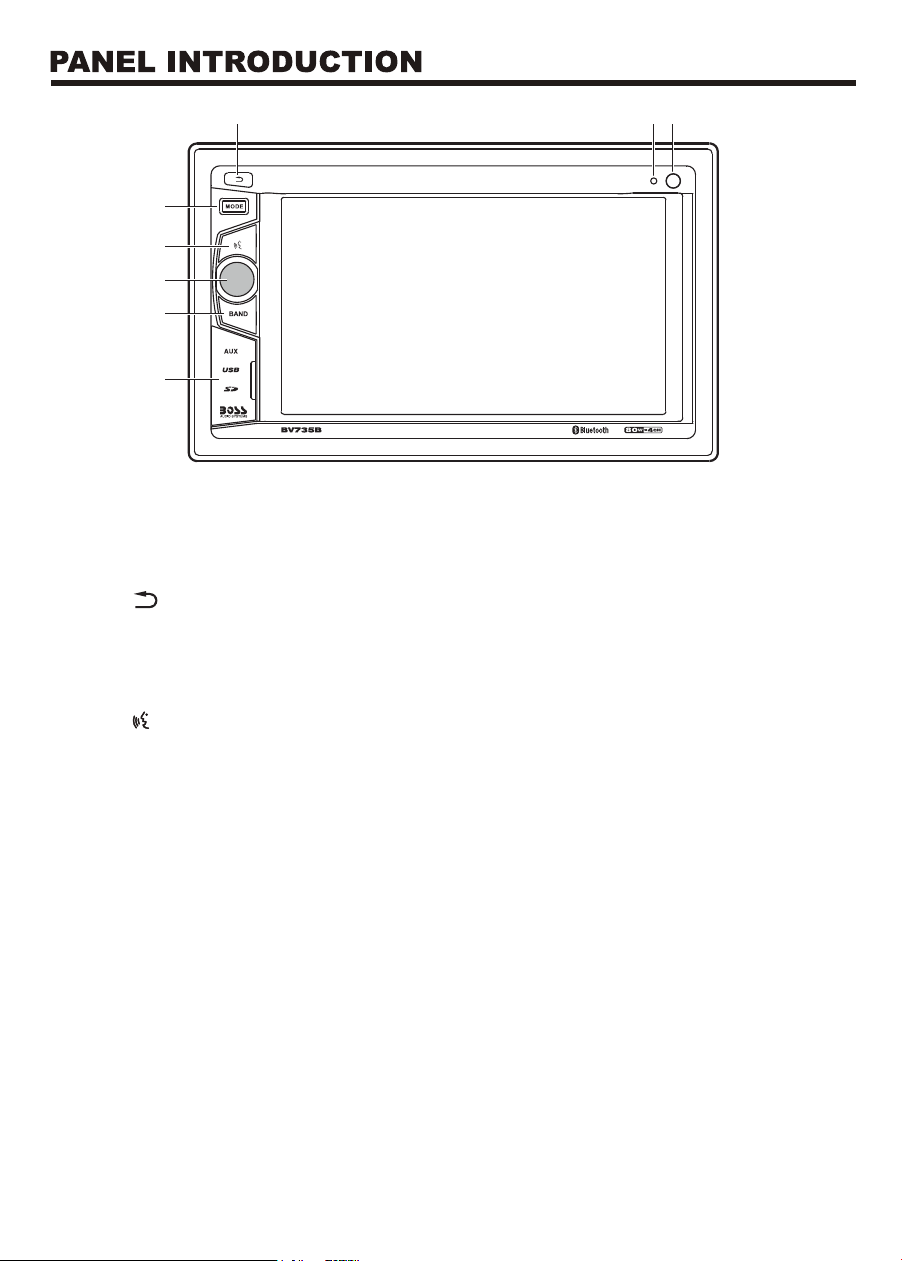
1
2
Select a system mode (source).
3
Return to the previous menu screen.
Pick up sound in Bluetooth operation.
Built-in microphone
Aim the remote control directly at the sensor.
Remote sensor
4 MODE
●
Press the reset button if the unit fails to operate properly.
Connect to an external audio device for audio input.
●
●
Connect to a USB flash drive for media play.
USB port
AUX jack (3.5mm)
Connect to a Micro SD card for media play.
SD card slot
8
●
Open to access the following button or connectors.
Reset/AUX/USB/SD cover
Reset button
- Press and hold to turn the unit on or off.
- Rotate to adjust volume.
- In power on mode, press briefly to mute or restore volume.
Function knob
7
Select a tuner band.
BAND
1
23
4
5
6
7
8
5
6
Press to access smartphone voice assistant capability via Bluetooth.
PTT (Push-To-Talk)
7
MAIN MENU OPERATION INSTRUCTION
GENERAL SETINGS-Menu 1
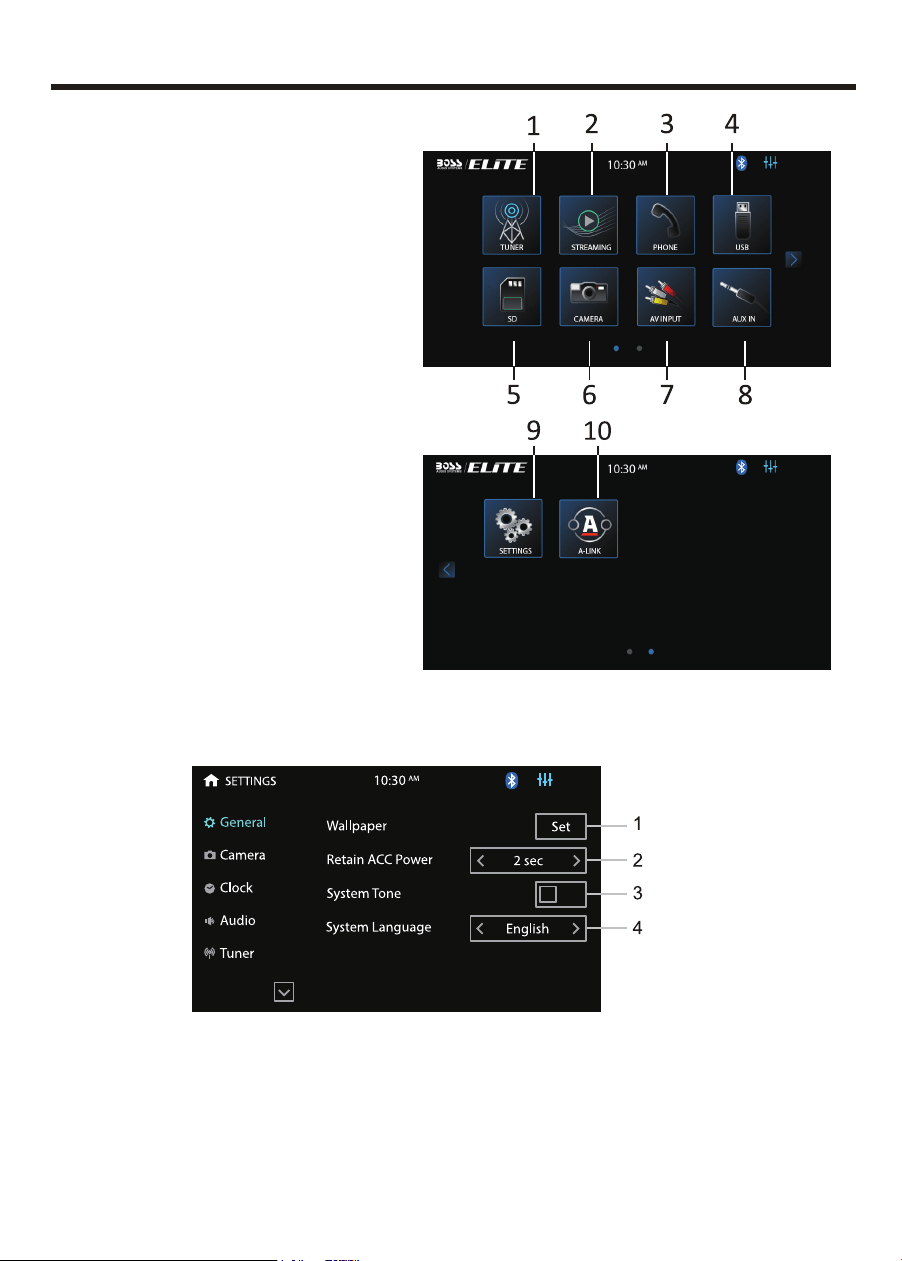
There are seven Setting Menus
1. Tuner Interface
2.
Streaming Interface
3. Phone Interface
4. USB Interface
5. Micro SD Interface
6. Front/Rear Camera Interface
7. AV INPUT Interface
8. AUX IN Interface
9. Setting Interface
10. A-LINK(Autolink) Interface
MAIN MENU 1
MAIN MENU 2
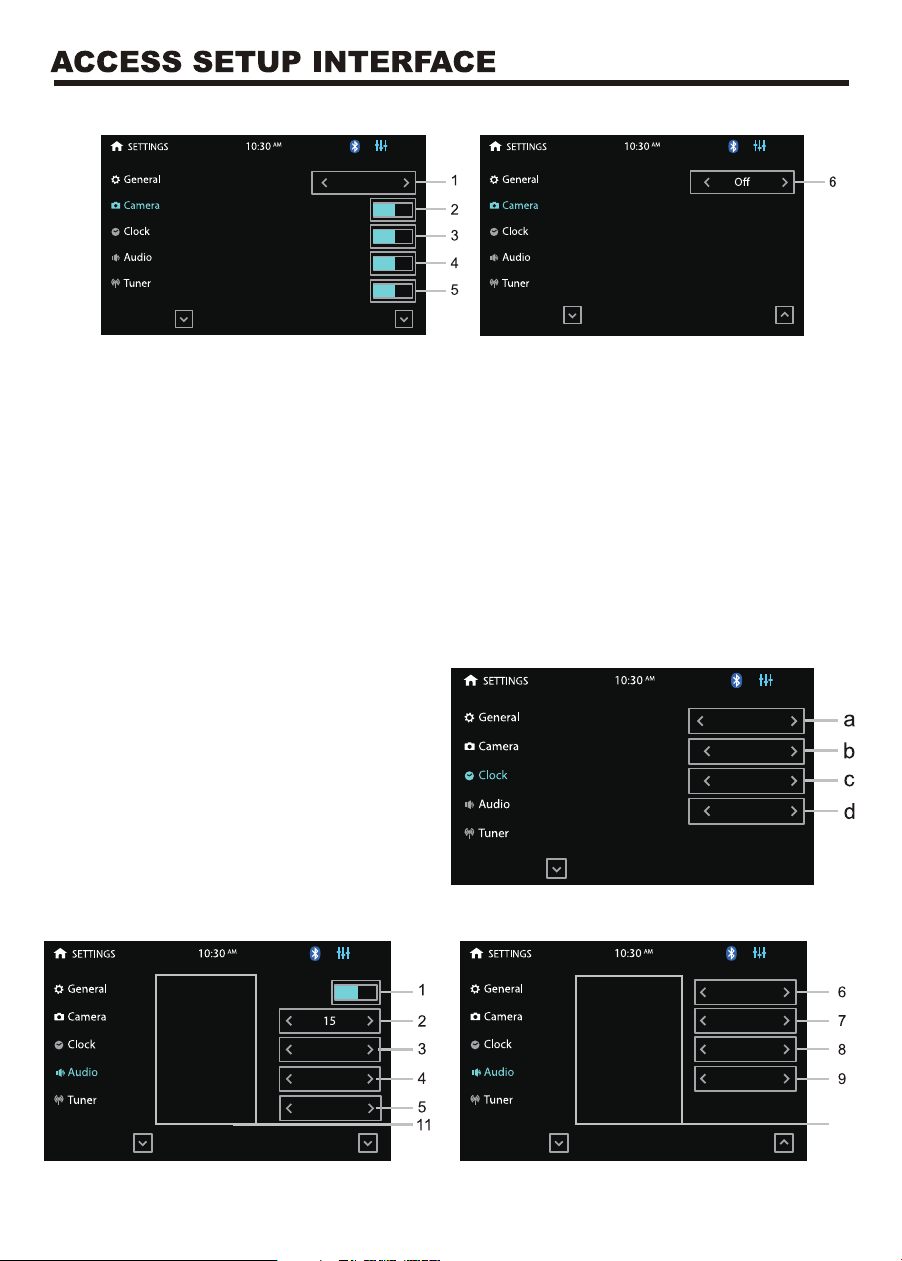
2. Retain ACC Power: select how many seconds to delay shut down of the unit
after the vehicle powers down.
3. When turned on, an audible beep tone confirms each function selection.
4. Touch to select Spanish or English.
1. Touch to set wall paper for the home menu background.
8
CLOCK SETTINGS-Menu 3
CAMERA SETTINGS-Menu 2
AUDIO SETTINGS-Menu 4
Rear Camera Delay
Camera Trigger
Rear
Rear Camera
Rear Cam Pwr
Front Camera
Front Cam Pwr
Mode
12 Hour
10
30
AM
Hour
Min
AM/PM
Internal AMP
0
0
0
Startup Volume
TUNER Level
USB Level
SD Level
Phone Level
0
0
0
0
STREAMING Level
AUX IN Level
AV INPUT Level
10
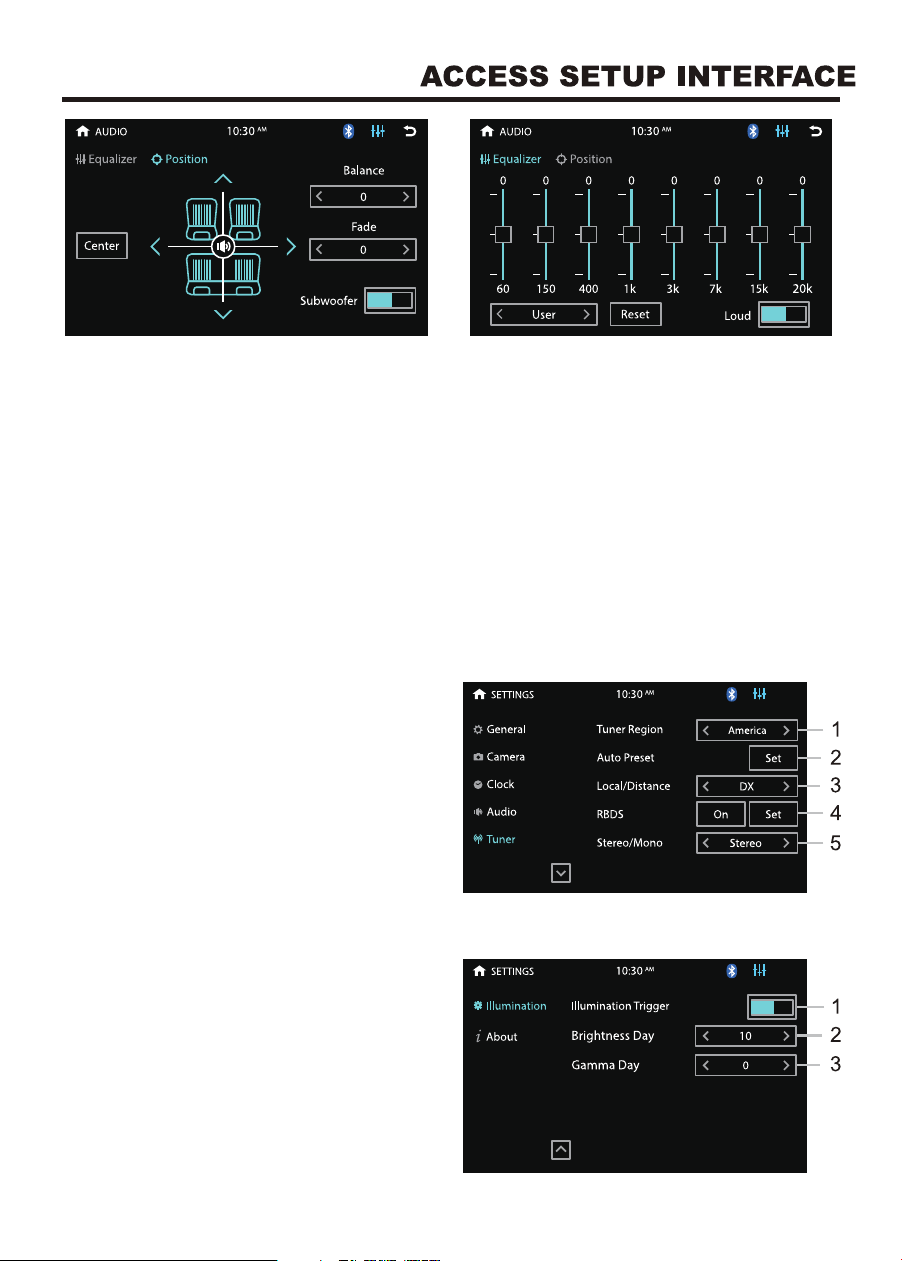
1. Camera Trigger: Touch to select Front/Rear/Off. Select to display the front or
rear camera view, or no camera view when reversing.
2. Rear Camera: Touch to enable or disable the rear camera input.
3. Rear Cam Pwr: Touch to enable or disable power output to the rear camera.
4. Front Camera: Touch to enable or disable the front camera input.
5. Front Cam Pwr: Touch to enable or disable power output to the front camera.
6. Rear Camera Delay / Front Camera Delay: Touch to delay trigger of the rear/front
camera view by a set time (1/2/3 seconds or off) when shifting the gear to the
reverse position. Due to varying vehicle configuration, the rear/front view trigger
can be delayed to suit the vehicle.
a. Touch to set clock mode: 12/24 hour.
b. Touch to set hour.
c. Touch to set minute.
d. Touch to set AM/PM at 12 hour mode.
9
TUNER SETTINGS –Menu 5
ILLUMINATION SETTINGS –Menu 6
2. Startup volume: default volume.
①
If the volume at the last shutdown is less than this volume, the volume at the
last shutdown will be used when rebooting;
②
if the volume at the last shutdown is greater than this volume, this default
volume will be used when rebooting
1. Touch to select whether to output sound from an external amplifier.
3-9. Touch to set a particular volume level for each source.
10. Slide up or down to enter the previous or next menu interface.
Position: Touch to access setup of balance, fader and subwoofer.
Equalizer: Touch to access setup of equalizer and loudness.
1. Select America or EU region you are
in to receive radio stations.
2. Perform radio search and store radio
stations in each radio band.
3. Select “Local” to receive strong signal
only. Select “Distance” to receive both
strong and weak signals
4. Turn on or off RBDS function. Select
“Set” to access RBDS setting options.
5. Select “Stereo” or “Mono” sound effect.
1. Touch to turn on the illumination
detection function.
2. Touch to set screen brightness.
3. Touch to set gamma brightness.
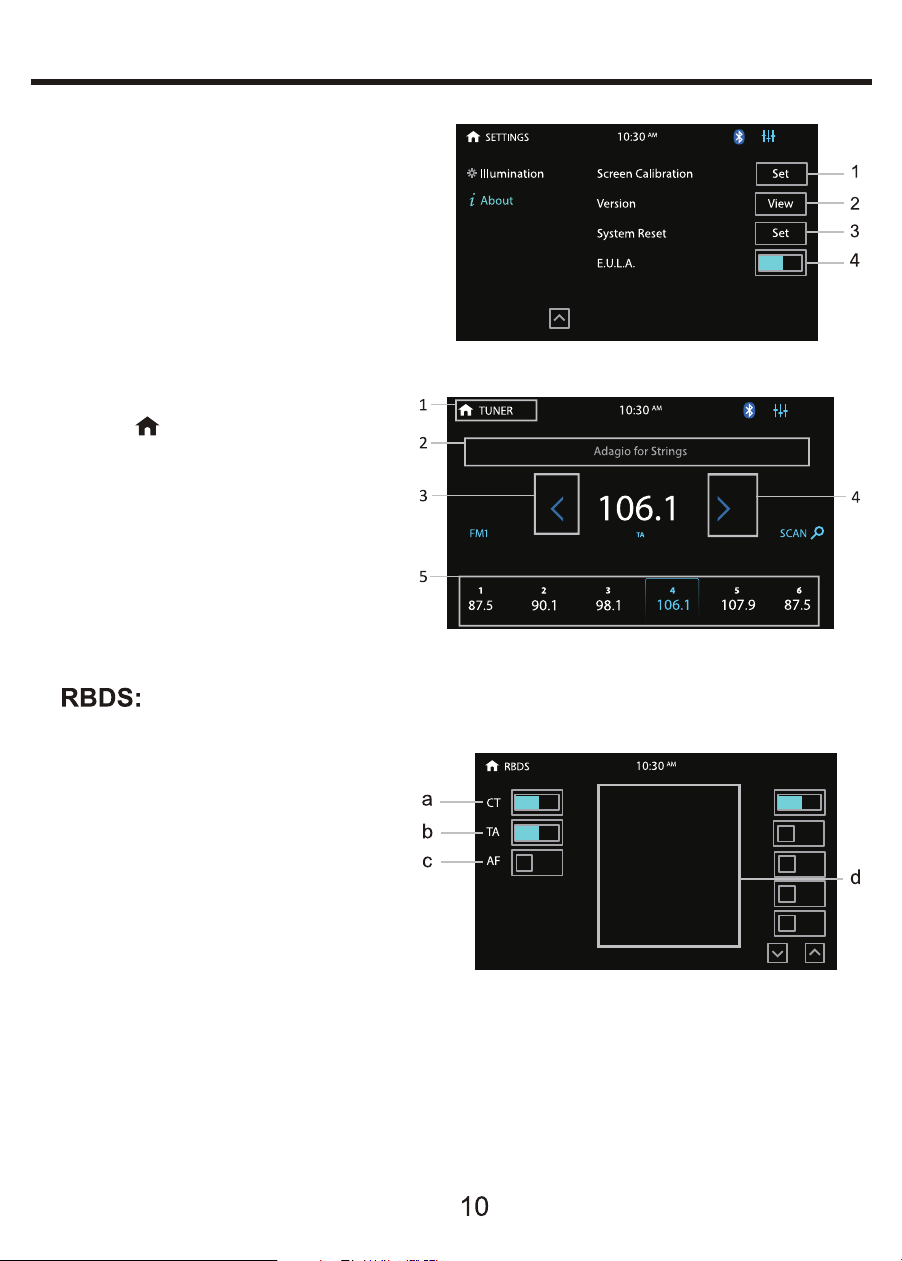
1. Touch to go back to the home
page.
2. Show PS,PTY and RT messages
from RBDS
3. Short press to seek backwards, long
press to enter manual mode.
4. Short press to seek forward, long
press to enter manual mode.
5. Short press to select the preset station,
long press to save current Freq.
Touch Setting >Tuner > RBDS > Set to enter the RBDS setup menu.
Choose what program type you'd like to listen to: news, sports, information, etc.
TUNER OPERATION
TUNER OPERATION
ABOUT SETTINGS –Menu 7
a. CT (Clock Time)
Turn on to automatically correct the
current time every time the RBDS is
enabled.
b. TA (Traffic Announcement)
ON: When turned on, the radio will
OFF: TA function is turned off.
automatically search for traffic stations.
The unit will automatically switch to radio
mode to broadcast traffic announcement,
even if the unit is in other mode. Once the traffic announcements are complete,
the unit will automatically switch back to the previous mode.
c. AF (Alternative Frequencies)
When the AF function is turned on, the radio will automatically fine tune to other
frequencies when the received station becomes weak. A warning message will be
displayed on the screen when receiving emergency announcements.
1. Touch to enter the touch calibration
interface.
2. Touch to view the version number
of the machine.
3. Touch to restore the machine to
factory settings.
4. Touch to select whether it is
necessary to display the End User
License Agreement when booting up.
01 Ne ws
02 Affairs
03 In fo
04 Sport
05 Educate
11
VIDEO OPERATION
USB
/D://
Demo.avi
Movie_720x480.rmvb
Touch the USB/SD icon in the main menu to enter the USB or Micro SD playback
interface.
USB/MICRO SD MUSIC/VIDEO/PICTURE OPERATION
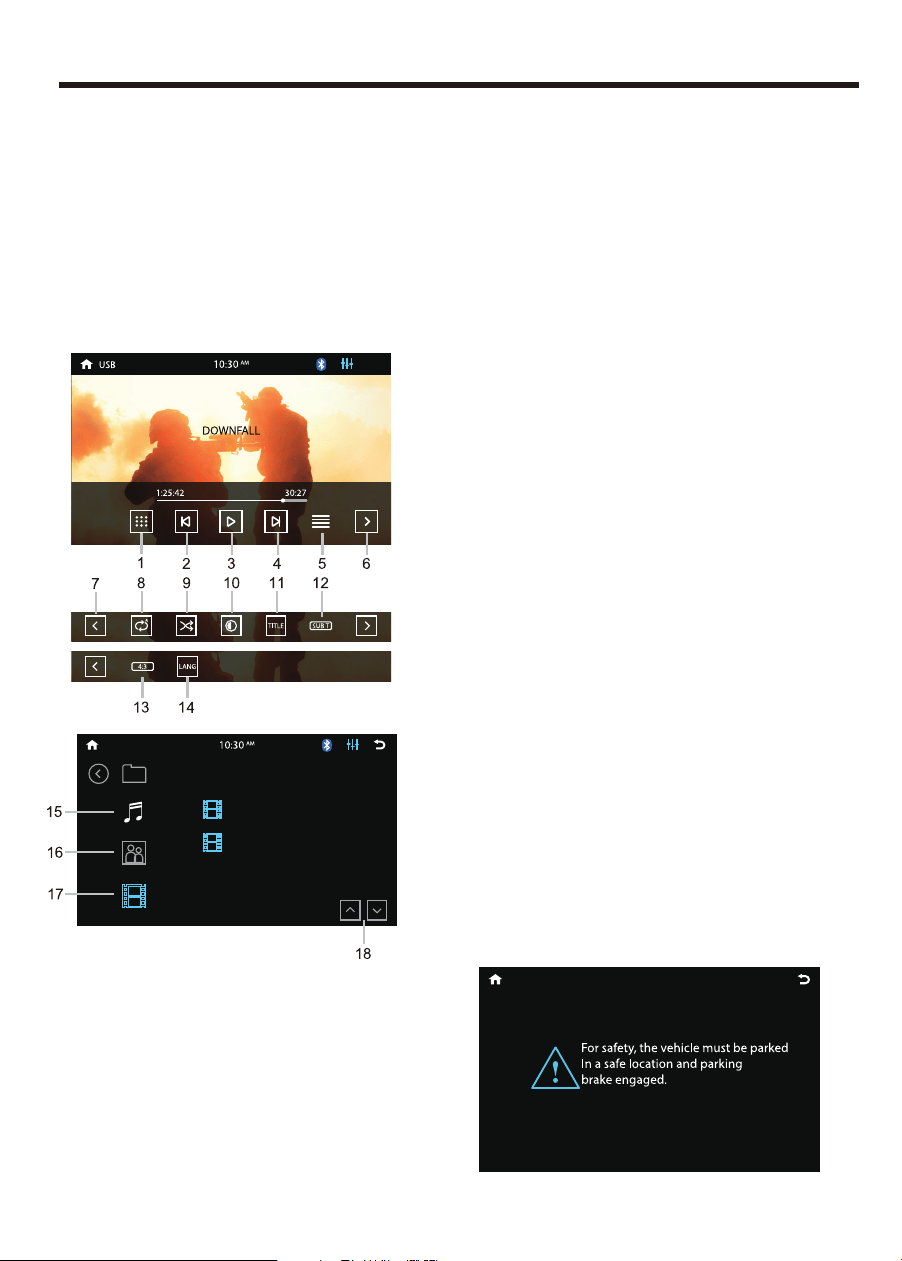
9. Touch to change random play mode.
10. Touch to enter video adjust page to adjust
Gamma and contrast of video.
11. Touch to enter video title list
12. N/A
13. Touch to switch aspect ratio of video
between 4:3 and 16:9
14. Touch to select audio language for video.
15. View the Music files
16. View the Photo files
17. View the Video files
18. Enter the previous or next page of list.
1. Keypad: Enter the number to select video.
2. Short press to move to the previous
video, long press to rewind quickly.
3. Touch to playback/pause.
4. Short press to move to the next video,
long press to fast forward quickly.
5. List: Touch to enter video file list.
6. Go to the next page of the menu bar.
7. Go to the previous page of the menu bar.
8. Touch to change the repeat mode in
the following sequence:
repeat track, repeat all, repeat cancel.
d. PTY (Programming Type)
NOTE: If RBDS is turned OFF, CT/TA/AF/PTY will not function.
Touch an on-screen button to select a program type. The unit will search for
the selected program and broadcast it.
NOTE: When properly installed, a video
cannot be displayed unless the
parking brake is applied.
If the parking brake wire is not
installed correctly, a warning
message will appear.
USB/MICRO SD PLAYBACK
12
MUSIC OPERATION
PHOTO OPERATION
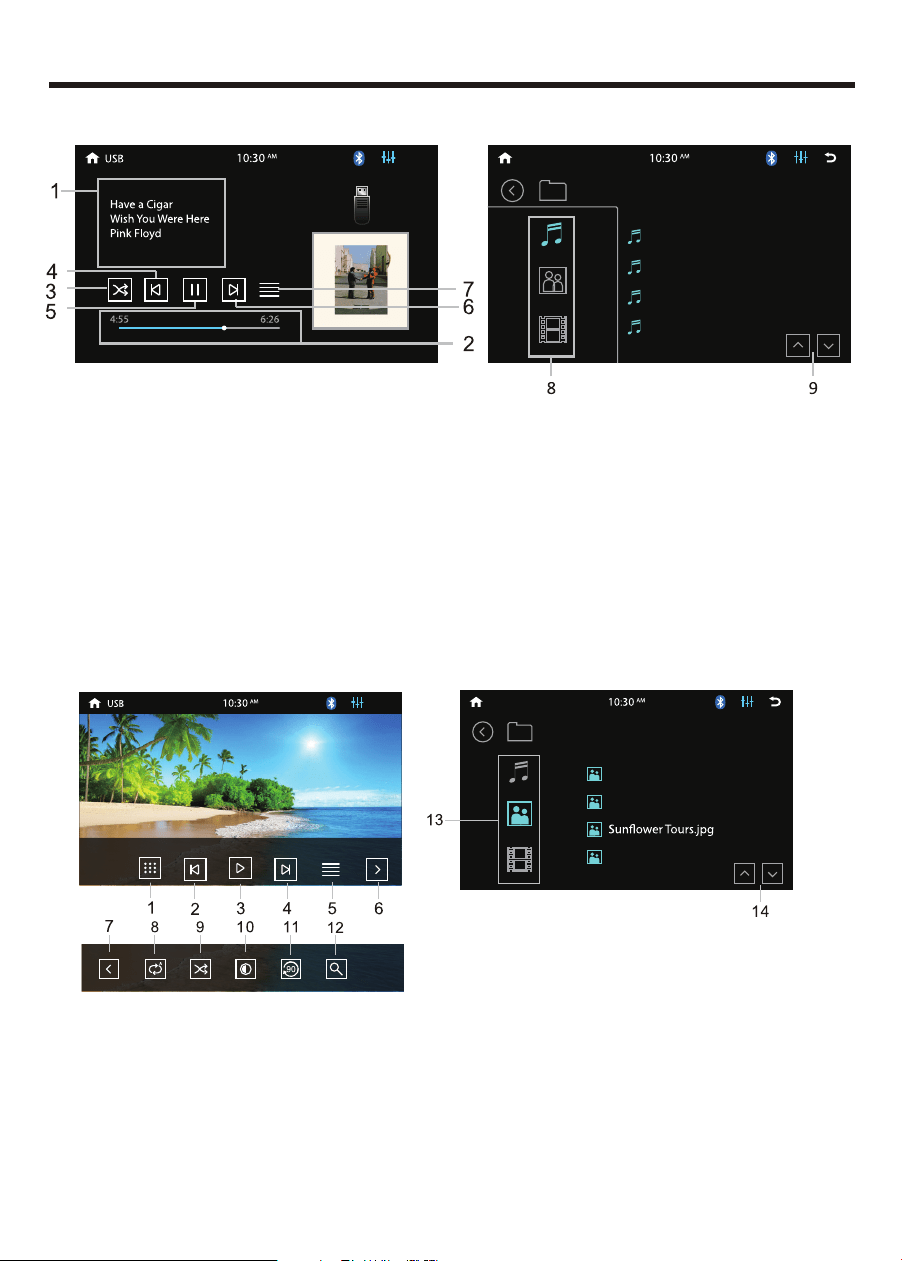
1. Show the music’s ID3 information
2. Time bar: show the elapsed time and total time of the current song, track number.
3. Change play mode: repeat all, repeat single, sequential play and shuffle play.
4. Skip to the previous song
5. Play/Pause
6. Skip to the next song
7. List: Touch to enter song file list.
8. View the Music/Photo/Video files
9. Go to the previous or next page of list.
1. Keypad: Enter the number to select photo
2. Skip to the previous photo
3. Play/Pause
4. Skip to the next photo
5. List: Touch to enter photo file list.
6. Go to the next page of the menu bar
7. Go to the previous page of the menu bar
8. Repeat single, repeat all, repeat cancel
9. Sequential play and shuffle play
10. Touch to enter video adjust page to
adjust Gamma and contrast of image.
11. Turn right 90 degree
12. Zoom In / Out
13. View the Music/Photo/Video files
14. Go to the previous or next page of list.
USB
/D://
Another Way.mp3
Avenue.mp3
Gill In the Mirror.mp3
All By Myself.mp3
USB
/D://
Blue Coast.jpg
Avenue.jpg
Rural Scenery.jpg
08/29
USB/MICRO SD PLAYBACK
13
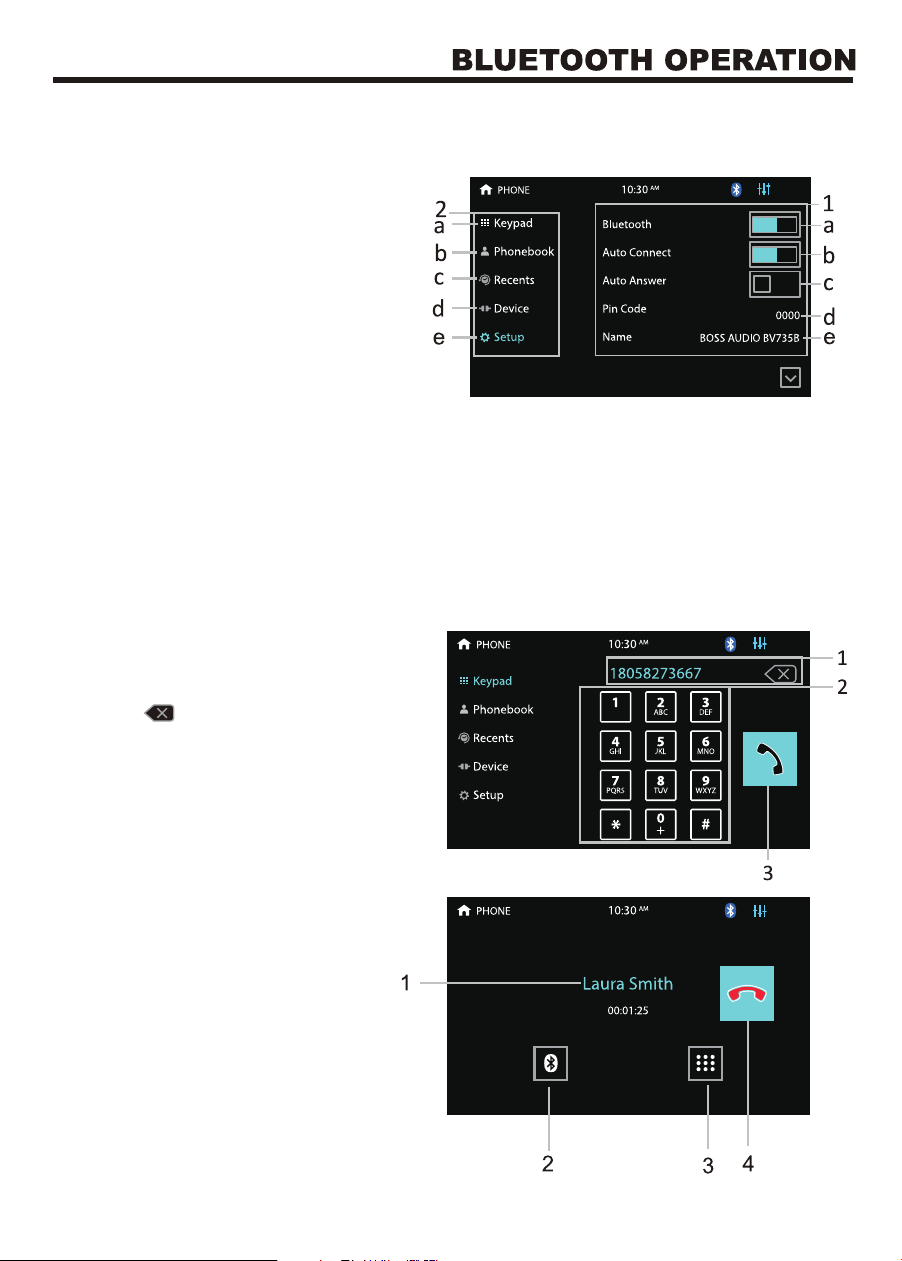
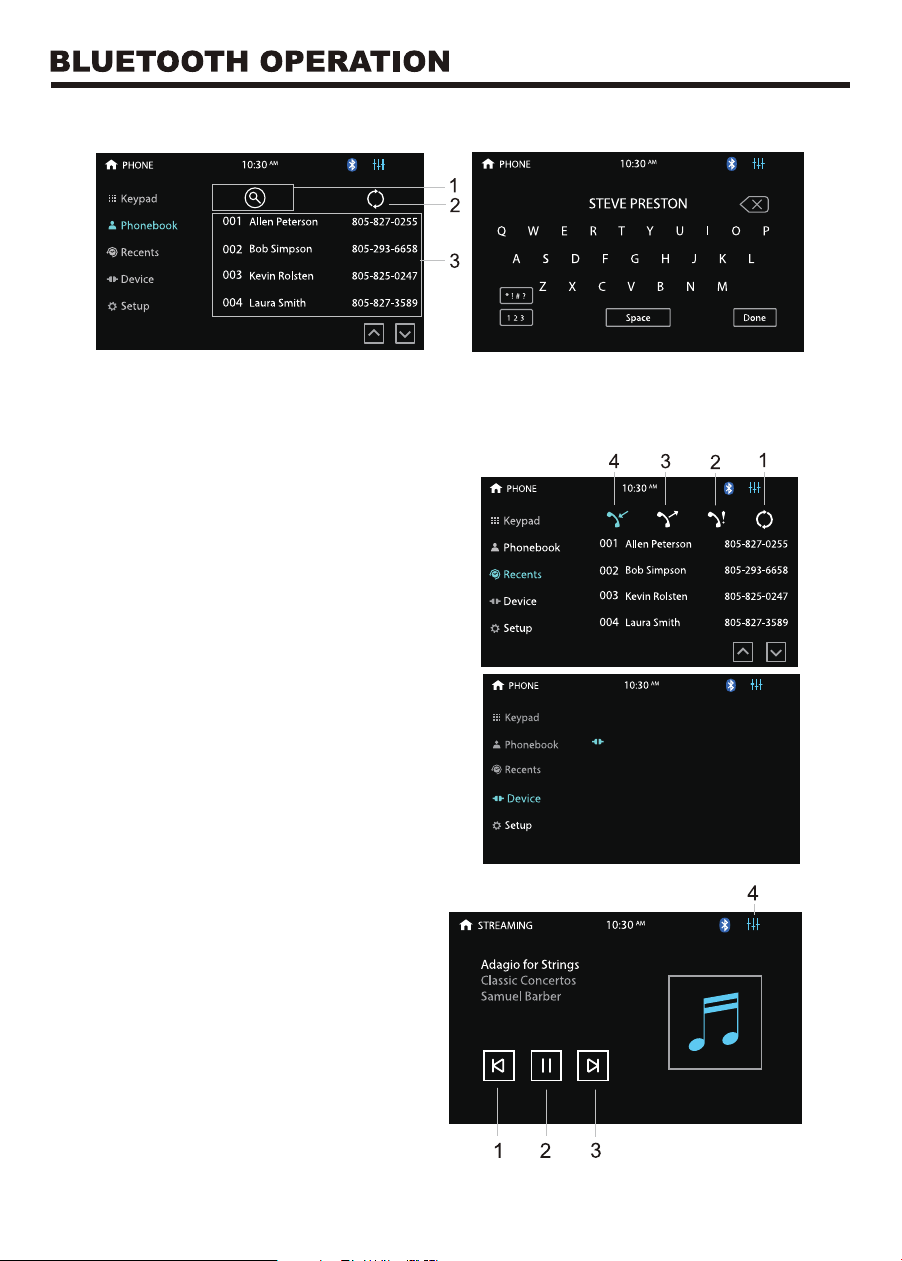
1.Shows the number dialed in.
Press to delete wrong numbers.
2.Key area.
3.Touch to call out.
Click the phone icon to enter the Bluetooth function interface.
a.Turn Bluetooth on and off.
Turn on and the display loops
between the gray Bluetooth icon,
the white Bluetooth icon. The icon
will turn blue when a phone is paired.
b.Connect automatically.
c.Answer automatically.
d.PIN code: The default password is
"0000".
e.Default Bluetooth name for this unit: BOSS AUDIO BV735B
BLUETOOTH OPERATION MENU
BLUETOOTH DIALING
BLUETOOTH CALL
1.Bluetooth setting menu:
a.Click to see the dialing keypad. Users can dial phone numbers and make calls.
b.Click to see the Bluetooth phonebook menu.
c.Click to see the Bluetooth call history.
d.Bluetooth pairing interface.
e.Bluetooth setting menu.
1.Show contact name.
2.Touch to select talk through
phone or through Bluetooth.
3.Keypad area.
4.Press to hang up the phone call.
2.Function area:
14
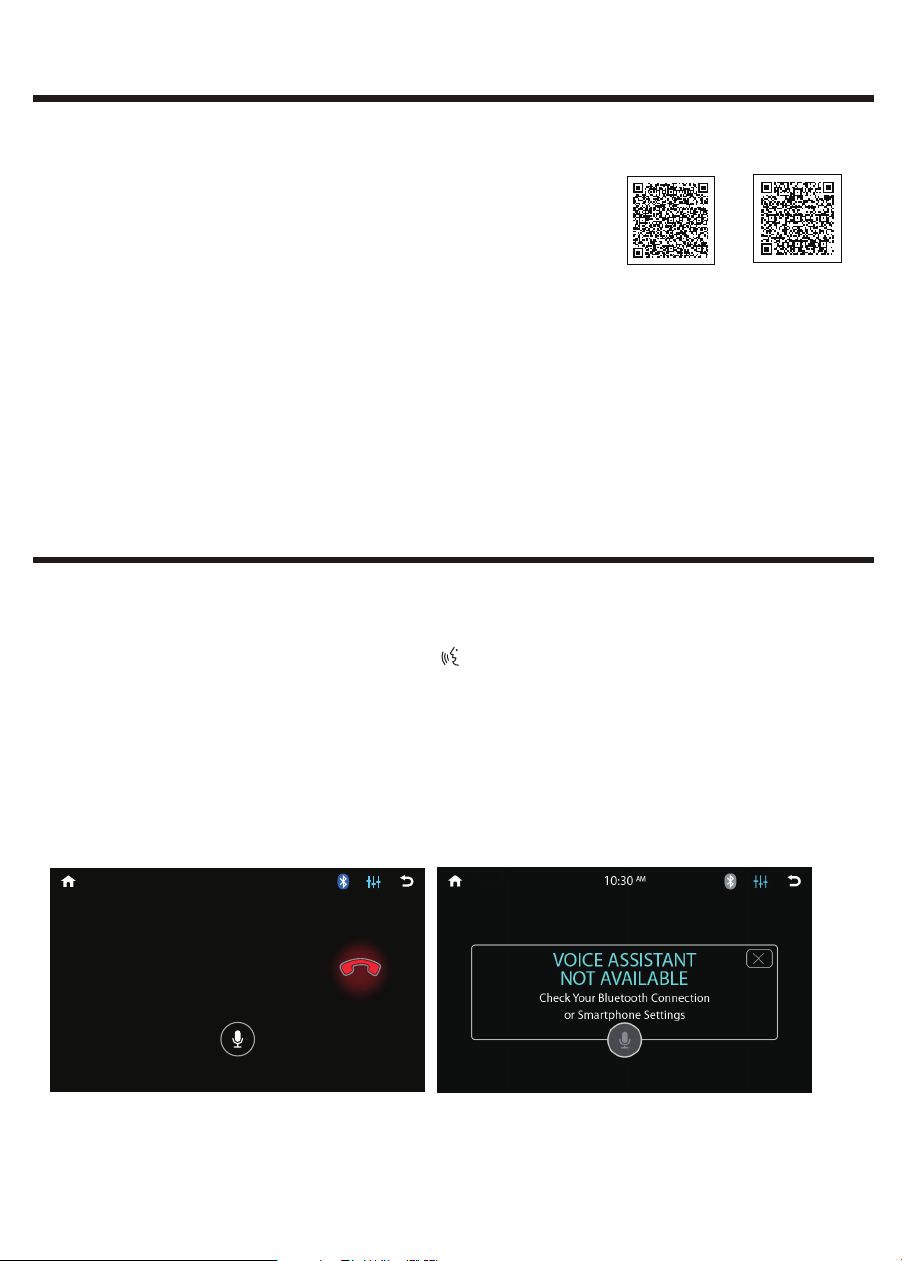
BLUETOOTH DEVICE
1.Click to view the device connected to
this unit.
2.Click the device name to disconnect the
device.
BLUETOOTH MUSIC-A2DP
1.Skip to the previous song.
2.Play/pause.
3.Skip to the next song.
4.Enter EQ setting menu.
BLUETOOTH PHONE BOOK
1. Touch to search for a name or phone number.
2. Click to sync phonebook.
3. Contact list.
BLUETOOTH PHONE CALL HISTORY
1.Click to sync phone call history.
2.Touch to show missed calls.
3.Touch to show the dialed phone
numbe
r.
4.Touch to show the received phone
numbe
r.
iPhone 8
15
A-LINK(SCREEN MIRRORING) OPERATION
A-LINK App allows you to mirror the screen of certain Android smartphones on the
screen of this unit.
Scan either of the QR codes to download the “A-LINK”
App in Amazone App Store or Google Play Store and
install it to your smartphone.
Simply connect your smartphone to the USB port on the
front panel using the original cable of your smartphone.
You will see the favorite smartphone apps directly on the
screen of this unit.
Note:
1. Supports 2 way control for Android device.
2. Supports Android 8.0+ or higher, not all apps are supported.
PTT(PUSH-TO-TALK) OPERATION
Amazon
App Store
Google
Play Store
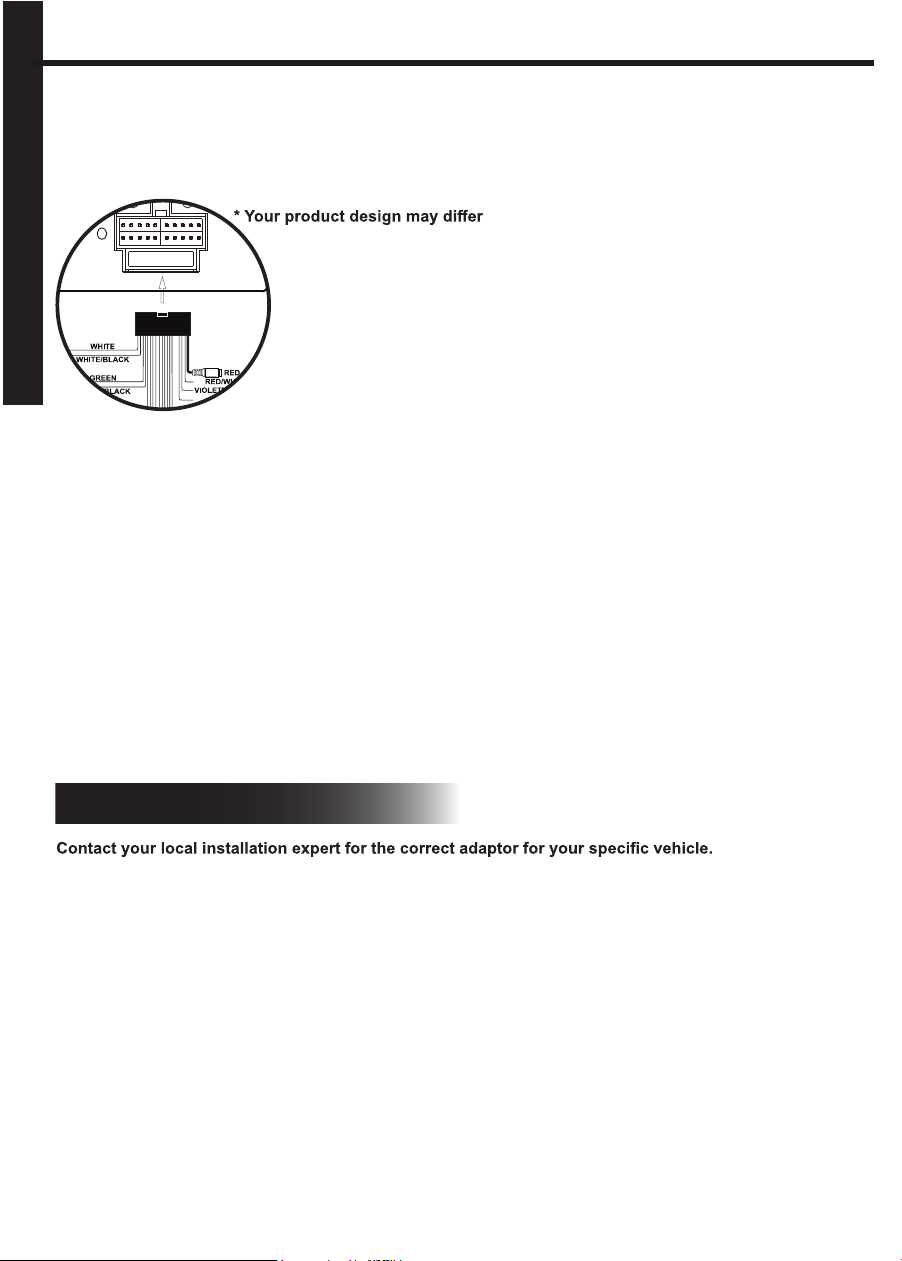
This Push-To-Talk feature allows direct access to Android and IOS smart-phones
voice assistant capability when you establish the Bluetooth connection between
your smartphone and this unit. Press the button on the front panel to use the
function when Bluetooth connection is made.
Note:
Before using the Push-To-Talk, you must enable the mobile data on your
smartphone.
To use the navigation feature, switch to the BT Audio source to hear voice
commands over the speakers of your vehicle.
Voice Assistant
AM
10:30
Steering Wheel Control Compatibility
1. For most SWC adaptors select program using "Pioneer/Sony/Other" mapping order as described
above.
2. When programming, if a function is not supported (or not desired), then the function MUST be
skipped as per the SWC module instructions.
3. The SWC function MUST be programmed in the correct order as per the function mapping order
instructions.
A third-party adapter must be used in order for this unit to be compatible with your OEM steering wheel
controls. We recommend PAC SWC Series.
This unit has a built-in 3.5mm SWC interface that is compatible with many popular 3rd party SWC control
modules, such as PAC, METRA, and others.
The following Radio / Audio function controls are available:
Source
Mute
Home
Seek + / Next Track
Seek - / Previous Track
Volume +
Volume -
Band
Phone Menu
BT Talk
BT End Call
Voice Assistant / PTT
Note: Not all OE steering wheel
functions may be supported
SPECIFICATIONS SUBJECT TO CHANGE WITHOUT NOTICE
v2.0
For SWC programming technical assistance call the number in your SWC instruction manual
SWC INSTALLATION / PROGRAMMING
STEERING WHEEL CONTROLS
RED or BLACK color
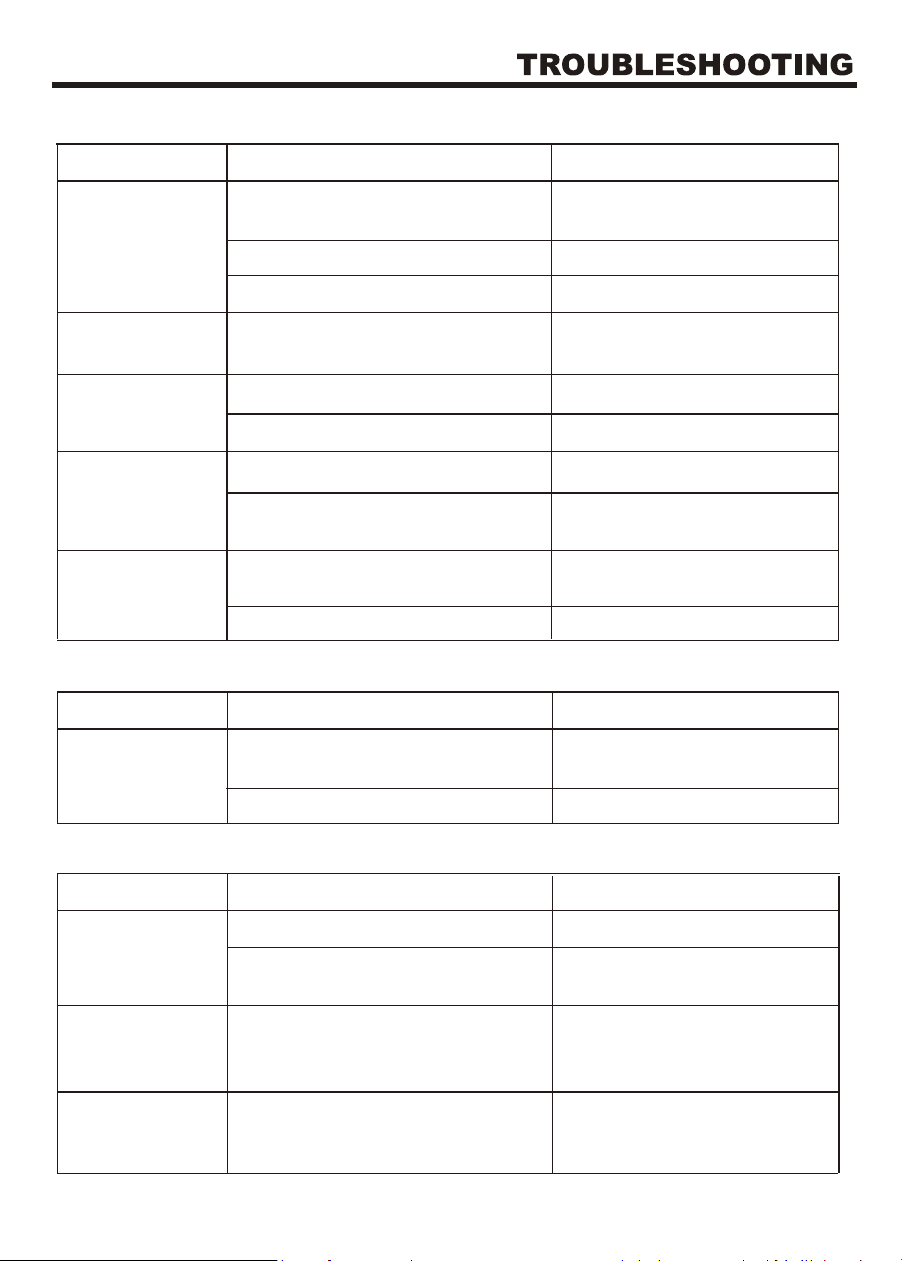
3.5mm SWC port is located on the rear of the unit,
on the MAIN POWER I/O Harness
POWER
MAXIMUM OUTPUT 500mA
10A
R.CAM F.CAM
L-IN R L
R R
F L
F RR-IN
V-IN V-OUT
SUB1
SUB2
16
17
Problem
Unit does not
power on
Screen touch is
insensitive
No audio output
Low audio output
Casue
Radio fuse blown
Install new fuse with right rating
Install new fuse with right rating
Press the Reset button
Car battery fuse blown
Illegal operation
Place of touch screen is offset
Improper audio output connection
VOLUME 0
Volume set too low Increase the volume
Heavily biased volume balance
Check and adjust the channel
balance to the center position
Turn up the volume
Check wiring and correct
Go to setup menu and set the
calibration
Corrective Action
Problem
Weak station
searching
Casue
Auto antenna is not fully extended
Connect the auto antenna
properly
Turn Local function OFF
Local function is activated
Corrective Action
Problem
No image
Casue
Incorrect connection to parking wire Check wiring and correct
Stop vehicle in safe place and
parking brake ON
Parking brake is not engaged
Corrective Action
Poor sound quality
or distortion
Speaker power rating not compatible
with unit
Connect proper speakers
Speaker is shorted Check speaker contrast
Table 1:General problem
Table 2:Tuner problem
Flashing image or
interference
appears on screen
Improper video signal connections Check wiring and correct
Improper image,
improper height/
width ratio display
Improper aspect ratio setup Use correct aspect ratio setting
Table 3:TFT monitors problem