Lenovo 10w
User Guide

Read this first
Before using this documentation and the product it supports, ensure that you read and understand the
following:
• Safety and Warranty Guide
• Setup Guide
•
Generic Safety and Compliance Notices
Third Edition (July 2022)
© Copyright Lenovo 2022.
LIMITED AND RESTRICTED RIGHTS NOTICE: If data or software is delivered pursuant to a General Services
Administration “GSA” contract, use, reproduction, or disclosure is subject to restrictions set forth in Contract No. GS-
35F-05925.

Contents
Discover your Lenovo tablet . . . . . . . iii
Chapter 1. Meet your tablet . . . . . . . 1
Overview . . . . . . . . . . . . . . . . . . 1
Specifications . . . . . . . . . . . . . . . . 2
USB specifications. . . . . . . . . . . . . 2
Chapter 2. Get started with your
tablet . . . . . . . . . . . . . . . . . . . 5
Access networks . . . . . . . . . . . . . . . 5
Connect to Wi-Fi networks. . . . . . . . . . 5
Interact with your tablet. . . . . . . . . . . . . 5
Connect to an external display . . . . . . . . 5
Lenovo 10w Detachable Keyboard (for
selected models) . . . . . . . . . . . . . 6
Use the touch screen . . . . . . . . . . . 8
Use Lenovo Integrated Pen (for selected
models) . . . . . . . . . . . . . . . . 10
Pen dummy (for selected models) . . . . . . 11
Chapter 3. Explore your tablet . . . . 13
Use the Vantage app . . . . . . . . . . . . . 13
Manage the disk . . . . . . . . . . . . . . 13
Manage power . . . . . . . . . . . . . . . 13
Check the battery status . . . . . . . . . 14
Charge the battery . . . . . . . . . . . . 14
Change the power settings . . . . . . . . 14
Transfer data . . . . . . . . . . . . . . . . 15
Set up a Bluetooth connection . . . . . . . 15
Chapter 4. Configure advanced
settings. . . . . . . . . . . . . . . . . 17
UEFI BIOS setup utility . . . . . . . . . . . . 17
Enter the UEFI BIOS setup utility . . . . . . 17
Change the startup sequence . . . . . . . 17
Change the hotkey mode . . . . . . . . . 17
Enable or disable the Always On USB
function . . . . . . . . . . . . . . . . 17
Use passwords . . . . . . . . . . . . . . . 17
Password types . . . . . . . . . . . . . 17
Set an administrator password . . . . . . . 18
Change or remove the administrator
password . . . . . . . . . . . . . . . 18
Set a user password . . . . . . . . . . . 18
Change or remove the user password . . . . 18
Enable the power on password . . . . . . . 19
Use firewalls programs . . . . . . . . . . . . 19
Chapter 5. Help and support . . . . . 21
Frequently asked questions . . . . . . . . . . 21
Self-help resources . . . . . . . . . . . . . 22
Windows label . . . . . . . . . . . . . . . 23
What are CRUs . . . . . . . . . . . . . . . 23
Call Lenovo . . . . . . . . . . . . . . . . 24
Before you contact Lenovo . . . . . . . . 24
Lenovo Customer Support Center . . . . . . 25
Appendix A. Compliance
information . . . . . . . . . . . . . . . 27
Appendix B. Notices and
trademarks . . . . . . . . . . . . . . . 29
© Copyright Lenovo 2022 i

ii Lenovo 10w User Guide

Discover your Lenovo tablet
Thank you for choosing a Lenovo
®
tablet! We are dedicated to delivering the best solution to you.
Before starting your tour, please read the following information:
• Illustrations in this documentation might look different from your product.
• Depending on the model, some optional accessories, features, software programs, and user interface
instructions might not be applicable to your tablet.
• Documentation content is subject to change without notice. To get the latest documentation, go to
https://
pcsupport.lenovo.com
.
© Copyright Lenovo 2022 iii

iv Lenovo 10w User Guide
Chapter 1. Meet your tablet
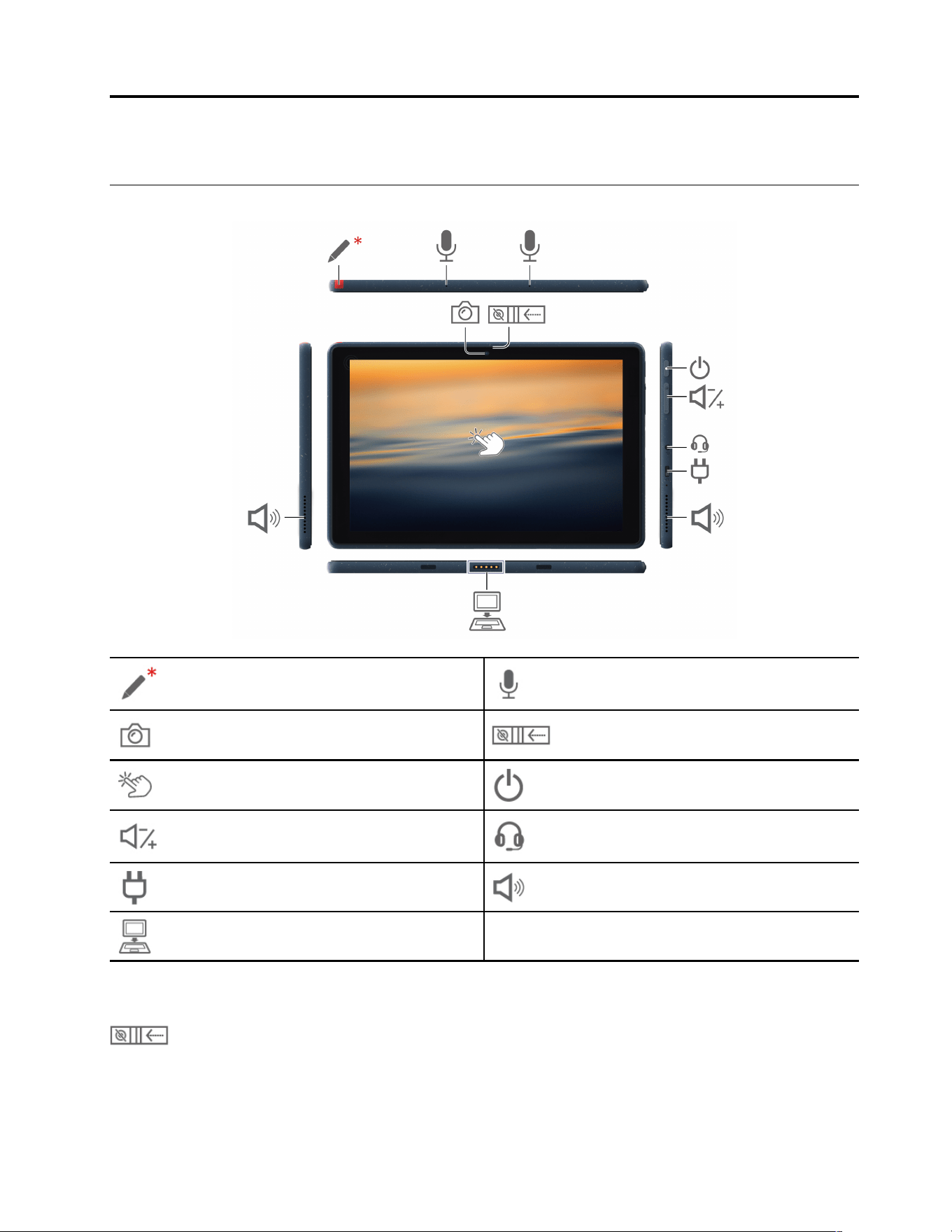
Overview
Lenovo Integrated Pen*
Microphone
Camera
Webcam privacy shutter
Touch screen Power button
Volume button Audio connector
Power connector / USB-C
®
3.2
connector Gen 1
Speakers
Pogo interface connector
* for selected models
Webcam privacy shutter
Slide the webcam privacy shutter to cover or uncover the camera lens. It is designed to protect your privacy.
© Copyright Lenovo 2022 1
Related topics
• “USB specifications” on page 2
• “Use the touch screen ” on page 8
• “Use Lenovo 10w Detachable Keyboard (for selected models)” on page 7
• “Use Lenovo Integrated Pen (for selected models)” on page 10
• “Charge the battery” on page 14
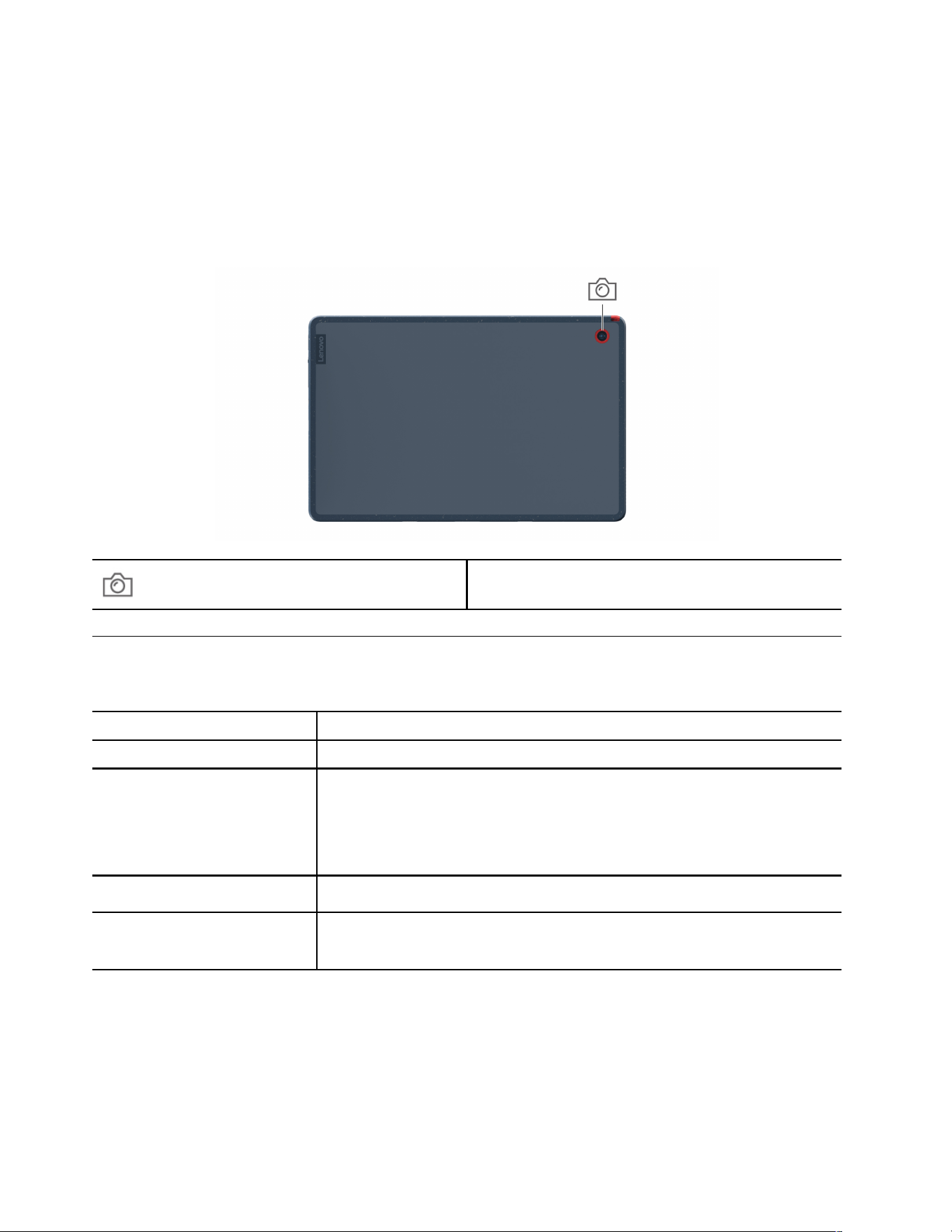
Rear Camera
Specifications
For detailed specifications of your tablet, go to https://psref.lenovo.com and search by product.
Memory Low Power Double Data Rate 4X (LPDDR4X), soldered on board, up to 8 GB
Storage device Embedded Multi Media Card (eMMC), up to 128 GB
Display
• Color display with In-Plane Switching (IPS) technology
• Display ratio: 16:10
• Display resolution: 1200 x 1920 pixels
• Multi-touch technology
Security features
• Firmware Trusted Platform Module (fTPM) (for selected models)
Wireless features
• Bluetooth
• Wireless LAN
USB specifications
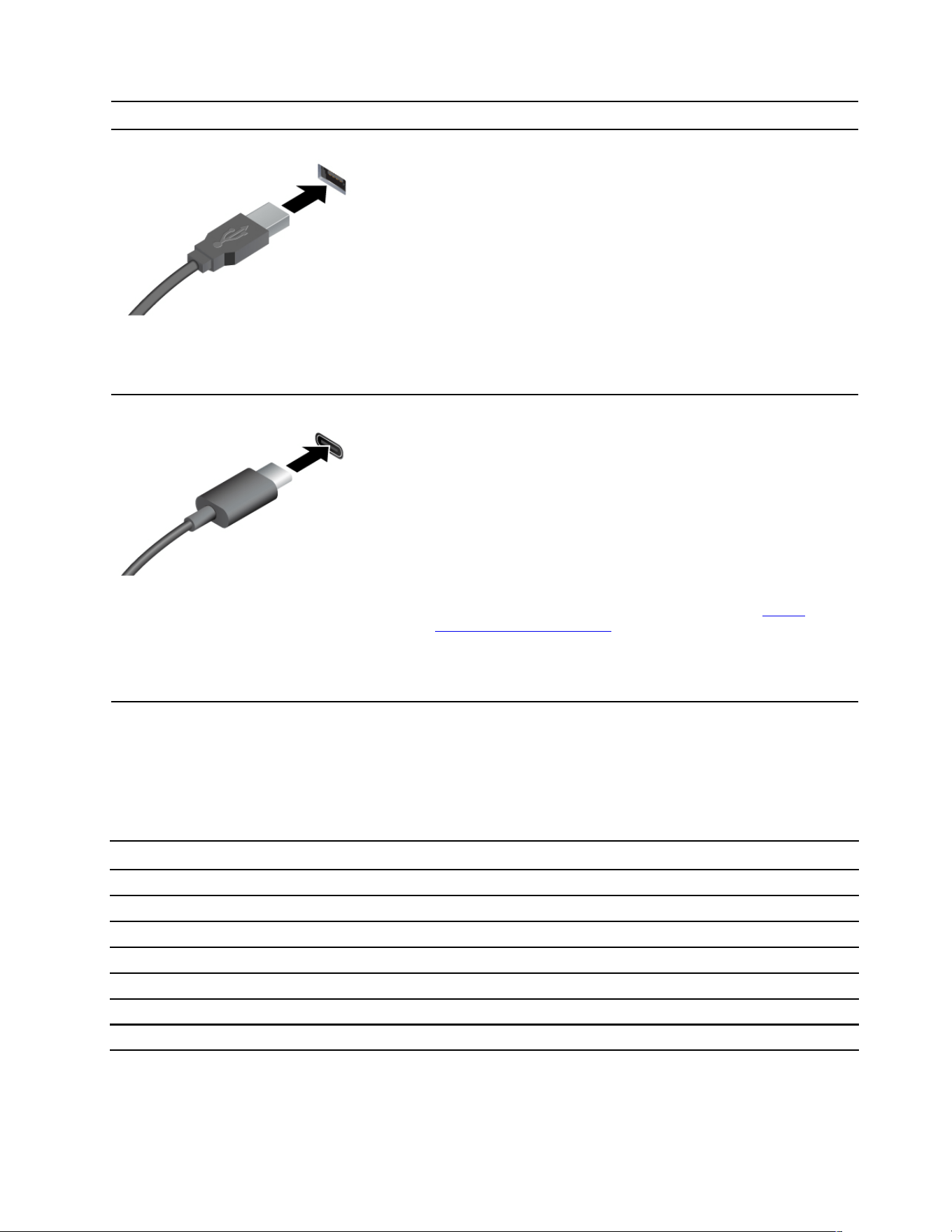
Note: Depending on the model, some USB connectors might not be available on your tablet.
2
Lenovo 10w User Guide
Connector name
Description
• USB 2.0 connector
• USB 3.2 connector Gen 1
• USB 3.2 connector Gen 2
Connect USB-compatible devices, such as a USB keyboard, USB
mouse, USB storage device, or USB printer.
• USB-C (3.2 Gen 1) connector
• USB-C (3.2 Gen 2) connector
• USB-C (Thunderbolt 3) connector
• USB-C (Thunderbolt 4) connector
• USB 4 connector
• Charge USB-C compatible devices with the output voltage and
current of 5 V and 3 A.
• Connect to an external display:
– USB-C to VGA: up to 1920 x 1200 pixels, 60 Hz
– USB-C to DP: up to 2560 x 1440 pixels, 60 Hz
• Connect to USB-C accessories to help expand your tablet
functionality. To purchase USB-C accessories, go to
https://
www.lenovo.com/accessories
.
Statement on USB transfer rate
Depending on many factors such as the processing capability of the host and peripheral devices, file
attributes, and other factors related to system configuration and operating environments, the actual transfer
rate using the various USB connectors on this device will vary and will be slower than the data rate listed
below for each corresponding device.
USB device Data rate (Gbit/s)
3.2 Gen 1 / 3.1 Gen 1
5
3.2 Gen 2 / 3.1 Gen 2
10
3.2 Gen 2 × 2
20
4 Gen 2 × 2
20
4 Gen 3 × 2
40
Thunderbolt 3 40
Thunderbolt 4 40
Chapter 1. Meet your tablet 3

4 Lenovo 10w User Guide
Chapter 2. Get started with your tablet
Access networks
This section helps you connect to a wireless or wired network.
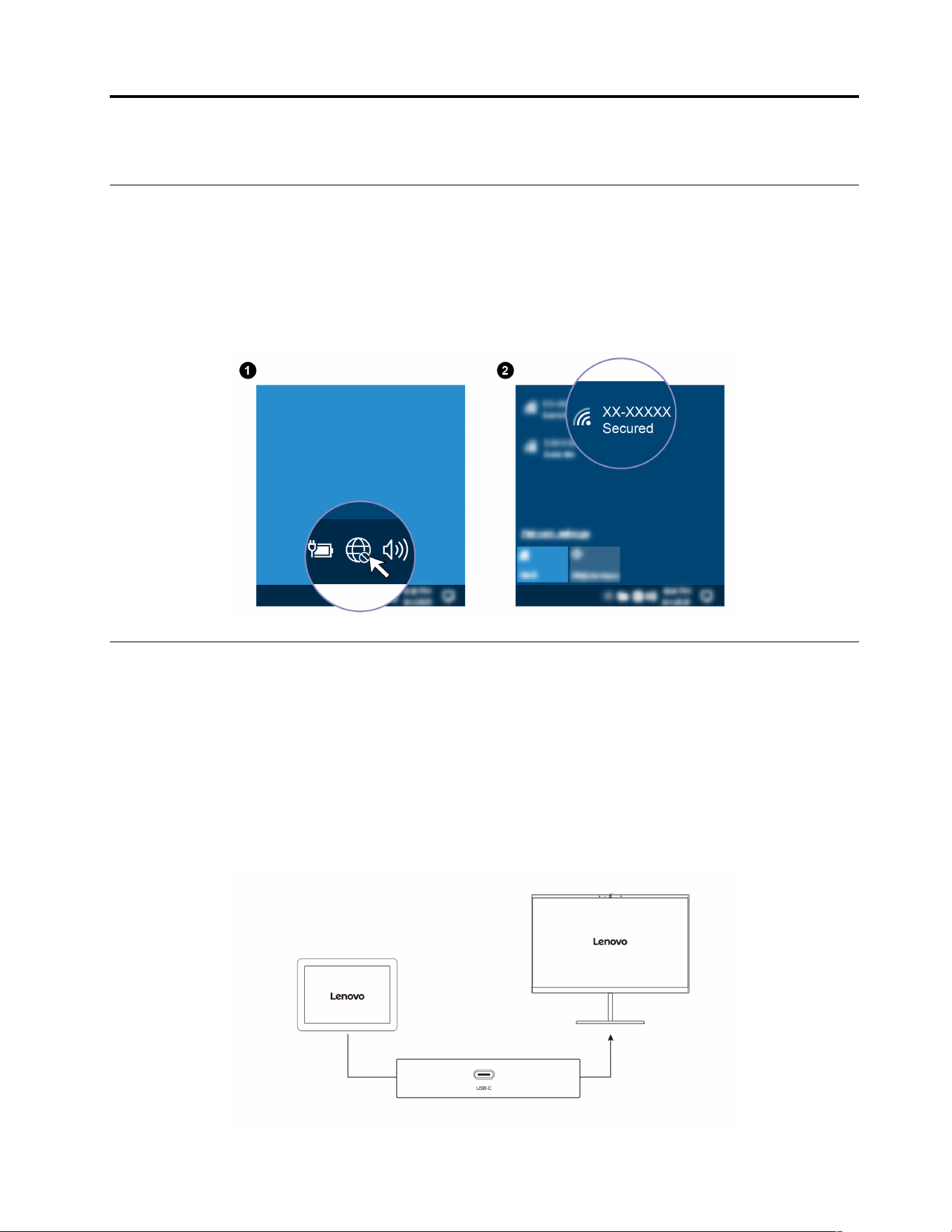
Connect to Wi-Fi networks
Click the network icon in the Windows
®
notification area, and then select a network for connection. Provide
required information, if needed.
Interact with your tablet
Your tablet provides you various ways to navigate the screen.
Connect to an external display
Connect your tablet to a projector or a monitor to give presentations or expand your workspace.
Connect to a wired display
If your tablet cannot detect the external display, right-click a blank area on the desktop and select display
settings. Then follow the on-screen instructions to detect the external display.
© Copyright Lenovo 2022 5
Supported resolution
The following table lists the supported maximum resolution of the external display.
Connect the external display to Supported resolution
USB-C (3.2 Gen1) connector Up to 2K / 60 Hz
Connect to a wireless display
To use a wireless display, ensure that both your tablet and the external display support the Miracast
®
feature.
Press Windows logo key + K and then select a wireless display to connect with.
Set the display mode
Press
or and then select a display mode of your preference.
Change display settings
1. Right-click a blank area on the desktop and select display settings.
2. Select the display that you want to configure and change display settings of your preference.
You can change the settings for both the tablet display and the external display. For example, you can define
which one is the main display and which one is the secondary display. You also can change the resolution
and orientation.
Lenovo 10w Detachable Keyboard (for selected models)
Depending on the model, your tablet might come with a Lenovo 10w Detachable Keyboard (referred to as
keyboard). Attach the keyboard to your tablet so that you can transform your tablet into a portable notebook
computer.
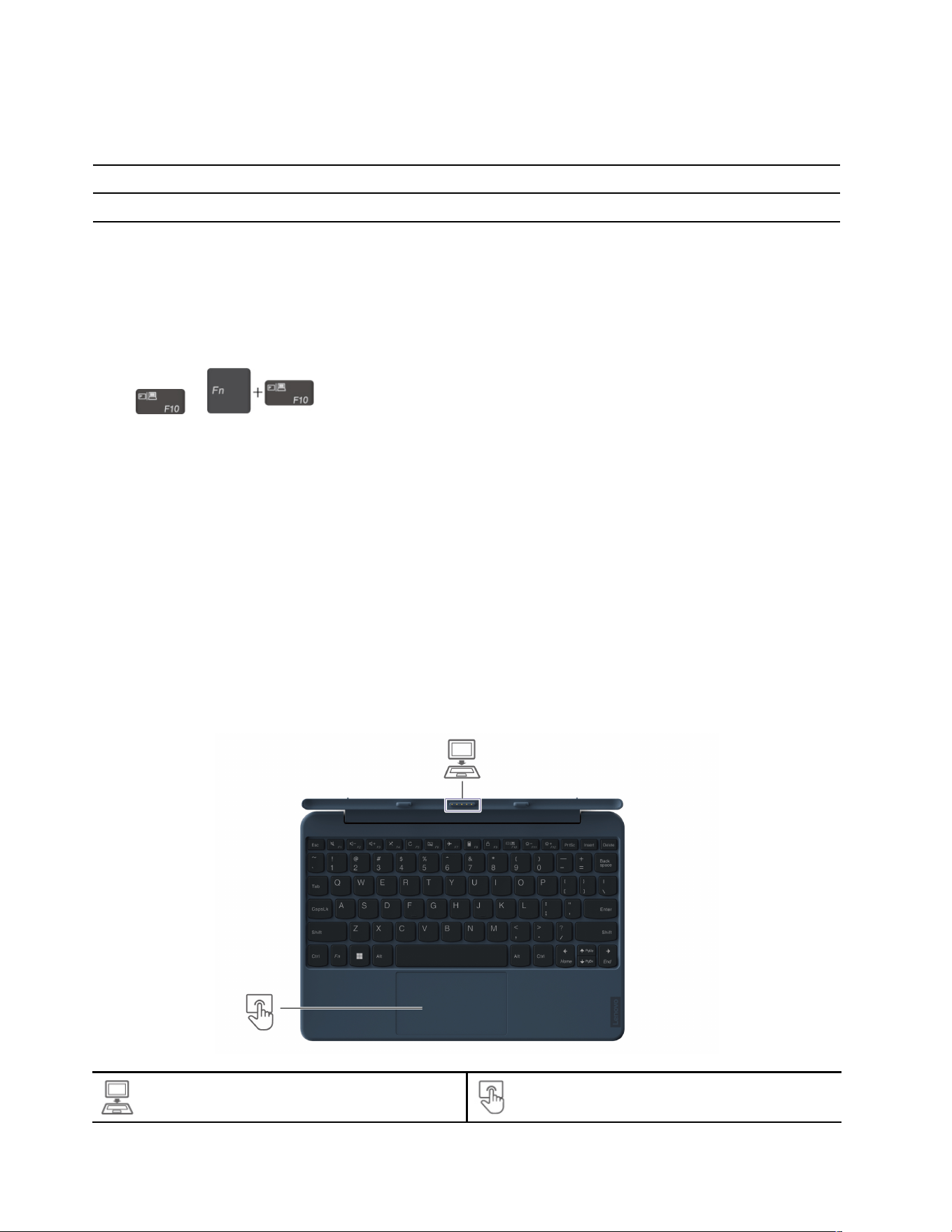
Keyboard overview
Pogo interface connector Trackpad
6 Lenovo 10w User Guide
Use Lenovo 10w Detachable Keyboard (for selected models)
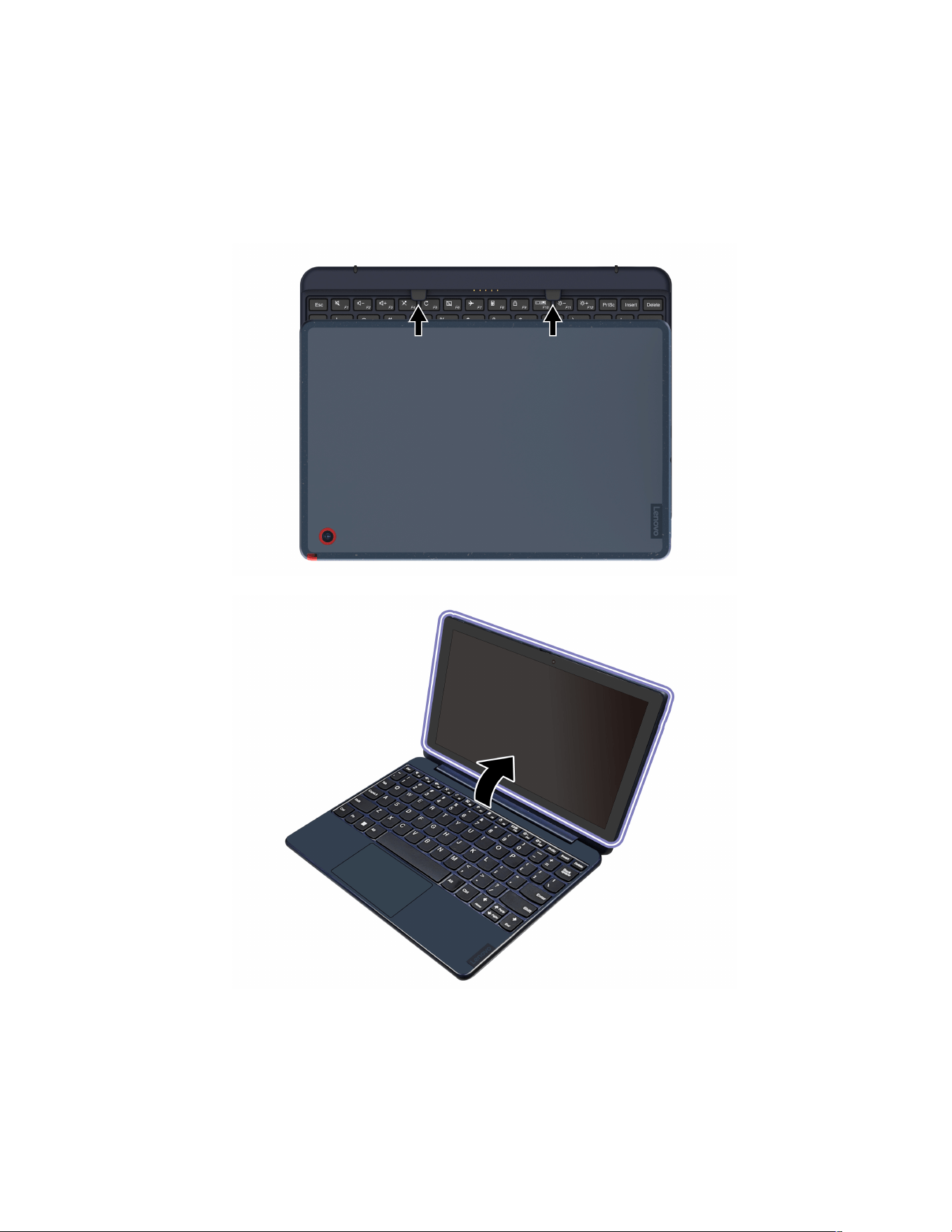
Attach the keyboard to your tablet
Align the keyboard guide pins with the tablet guide pin connectors in the direction shown by the arrows.
When the keyboard gets close enough, it magnetically attaches to your tablet. Then, you can adjust the
tablet to your preferred viewing angle (within 180 degrees).
To detach your computer, you can easily remove the keyboard by pulling it away.
Use Hotkeys
Some keys on the keyboard are printed with icons. These keys are called hotkeys and can be pressed alone
or in combination with the Fn key to access certain functions or settings quickly. The functions of hotkeys are
symbolized by the icons printed on them.
Chapter 2. Get started with your tablet 7
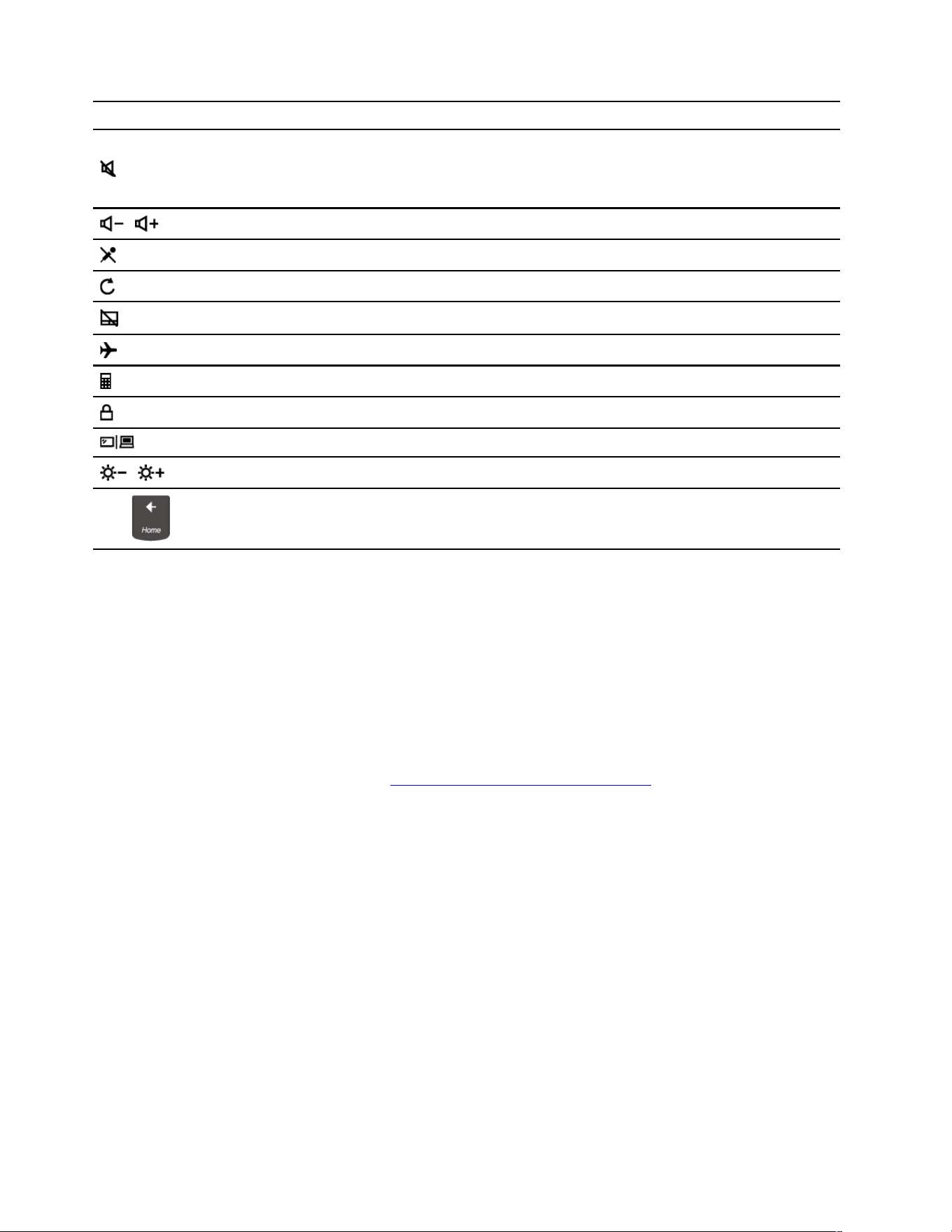
Hotkey
Function
Mute / unmute the speakers.
If you mute the speakers and turn off your tablet, the speakers remain muted when you
turn on your tablet.
/
Decrease / increase the volume.
Mute / unmute the microphones.
Refresh the current window.
Enable / disable the touchpad.
Turn on / turn off the airplane mode.
Open the Windows Calculator.
Lock the current user account.
Manage external displays.
/
Decrease / increase display brightness.
Fn +
Equal the Home key.
Use the hotkey mode
Some hotkeys share keys with functions keys (F1 to F12). The hotkey mode is a UEFI BIOS setting that
changes how hotkeys (or function keys) are used.
• When the hotkey mode is enabled, press Fn together with the hotkey to use the hotkey.
• When the hotkey mode is disabled, press the hotkey directly.
Use the touch screen
If your tablet display supports the multi-touch function, you can navigate the screen with simple touch
gestures. For more touch gestures, refer to
https://support.microsoft.com/windows
Note: Some gestures might not be available depending on the app you use.
8
Lenovo 10w User Guide
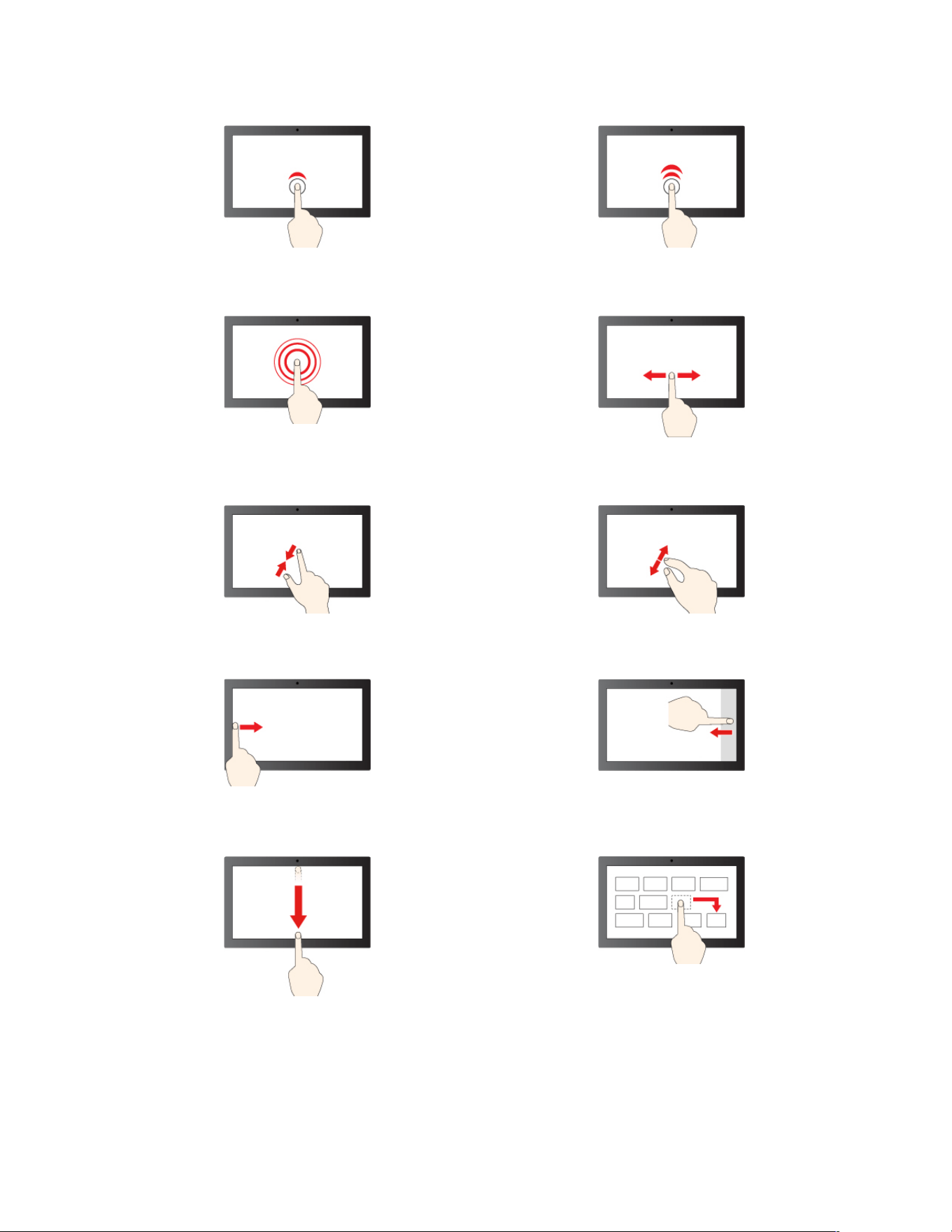
Tap once to single click Tap twice quickly to double-click
Tap and hold to right-click
Slide to scroll through items
Zoom out Zoom in
Swipe from the left: open widget panel(Windows 11)
Swipe from the right: open notification center (Windows
11)
Swipe downwards shortly: show title bar
Swipe downwards: close the current app
Drag
Chapter 2. Get started with your tablet 9
Maintenance tips:
• Turn off the tablet before cleaning the multi-touch screen.
• Use a dry, soft, and lint-free cloth or a piece of absorbent cotton to remove fingerprints or dust from the
multi-touch screen. Do not apply solvents to the cloth.
• The multi-touch screen is a glass panel covered with a plastic film. Do not apply pressure or place any
metallic object on the screen, which might damage the touch panel or cause it to malfunction.
• Do not use fingernails, gloved fingers, or inanimate objects for input on the screen.
• Regularly calibrate the accuracy of the finger input to avoid a discrepancy.
Use Lenovo Integrated Pen (for selected models)
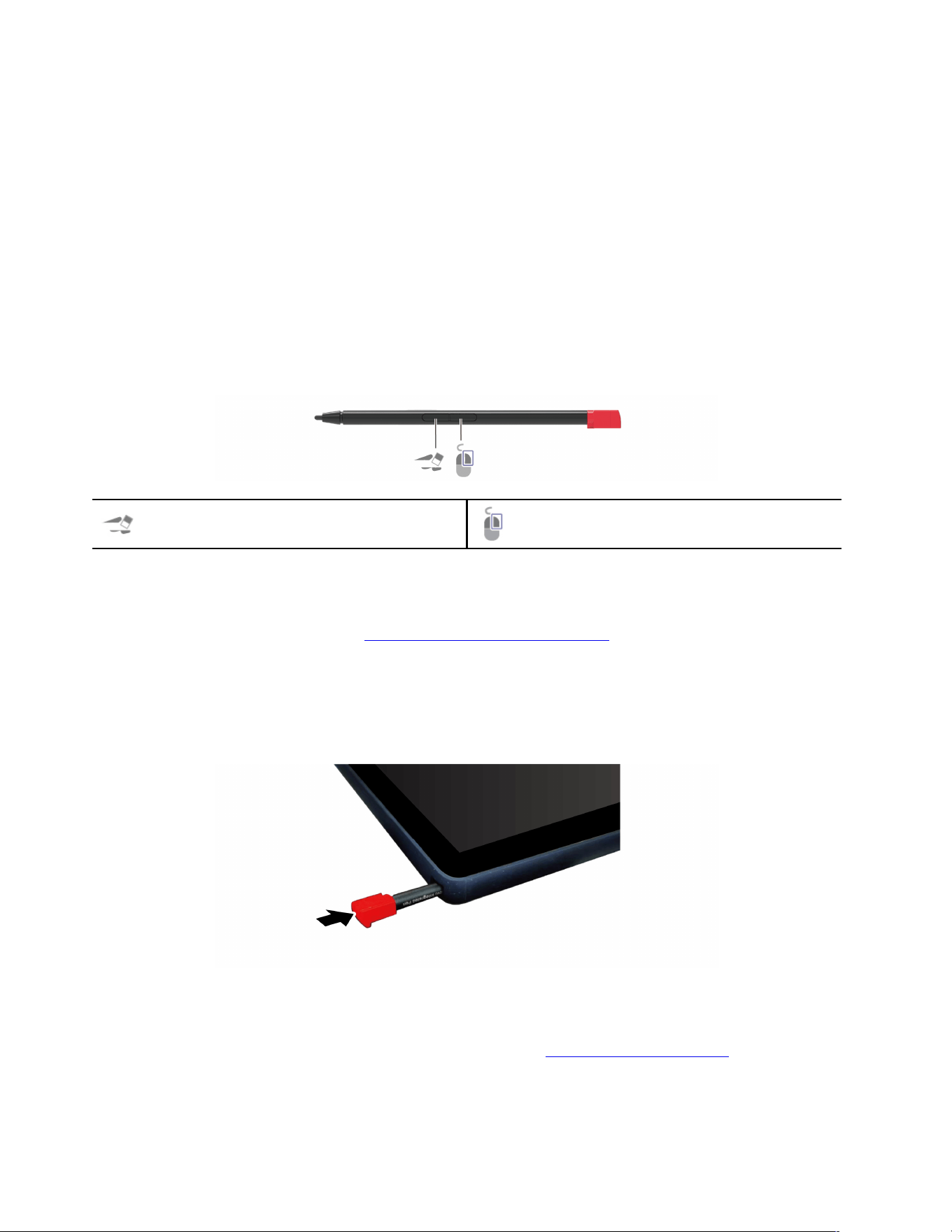
The following information refers to the Lenovo Integrated Pen, model: WG 13. The garaged rechargeable
electronic Lenovo Integrated Pen enables a more precise and easier way of writing and sketching.
Eraser button
Right-click button
Note: The default function of each button might vary in different applications.
Lenovo Integrated Pen is not waterproof. Keep the pen away from water and excessive moisture. To
purchase Lenovo Integrated Pen, go to
https://www.lenovo.com/accessories.
Charge Lenovo Integrated Pen
1. Ensure that your tablet is on or in sleep mode.
2. Insert the pen back into the pen slot. The pen is 80% charged in about 15 seconds and 100% charged
in about five minutes.
Set Lenovo Integrated Pen
You can configure the Lenovo Integrated Pen in Lenovo Pen Settings. Do the following to configure your pen:
1. To download the latest version of Lenovo Pen Settings, go to
http://www.wacomeng.com.
2. Install and open Lenovo Pen Settings.
3. Configure the settings as you prefer.
10
Lenovo 10w User Guide
Pen dummy (for selected models)
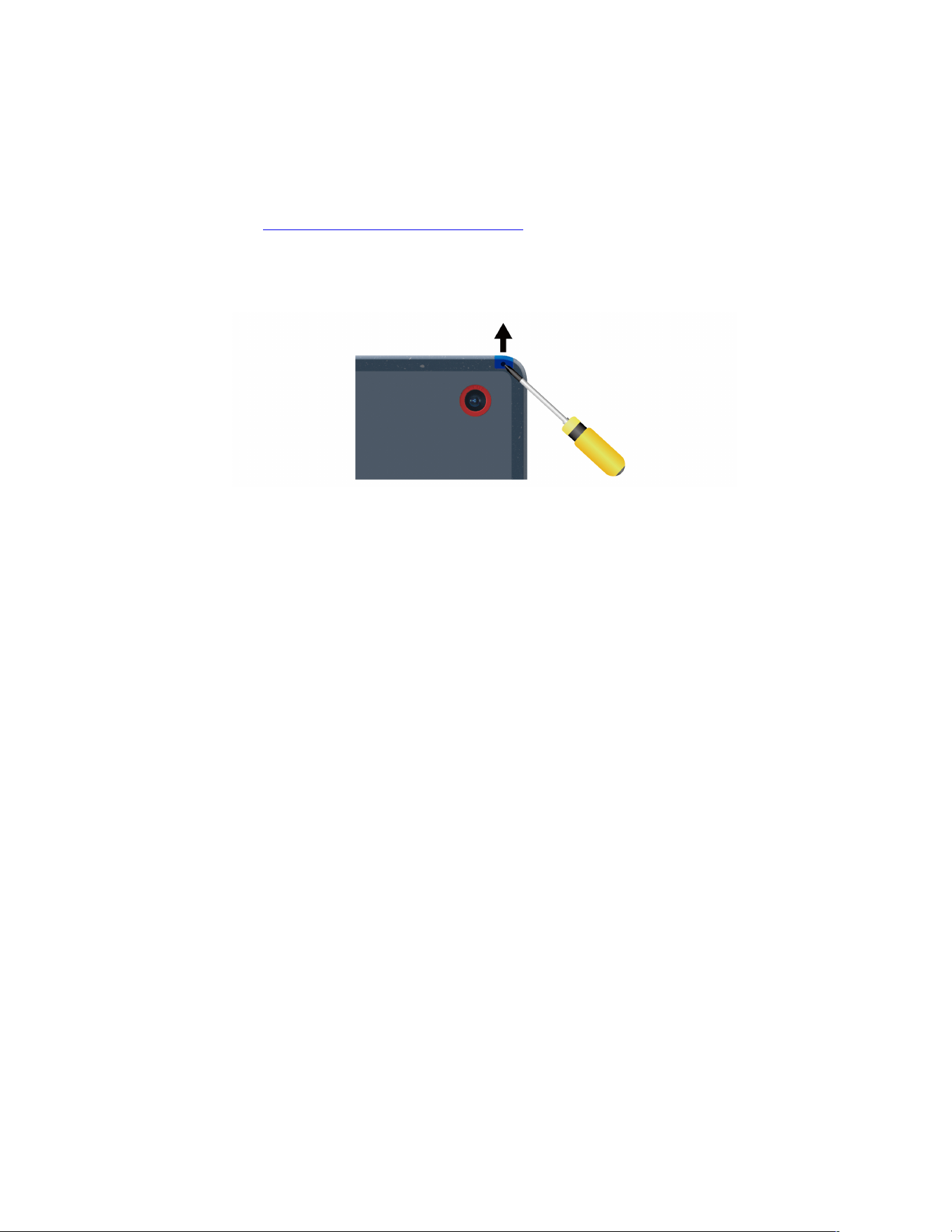
Depending on models, your tablet might come with a pen dummy. If you need replace the pen dummy with a
Lenovo integrated pen, do as following to remove it:
Prerequisite
Before you start, read
Generic Safety and Compliance Notices and print the following instructions.
Removal procedure
Use a tool as shown to release the pen dummy, then remove it.
Chapter 2. Get started with your tablet 11

12 Lenovo 10w User Guide
Chapter 3. Explore your tablet
Use the Vantage app
The preinstalled Vantage app is a customized one-stop solution to help you maintain your tablet with
automated updates and fixes, configure hardware settings, and get personalized support.
To access the Vantage app, type Vantage in the Windows search box.
Key features
The Vantage app enables you to:
• Know the device status easily and customize device settings.
• Download and install UEFI BIOS, firmware, and driver updates to keep your tablet up-to-date.
• Look up warranty status (online).
• Access User Guide.
Notes:
• The available features vary depending on the tablet model.
• The Vantage app makes periodic updates of the features to keep improving your experience with your
tablet. The description of features might be different from that on your actual user interface.
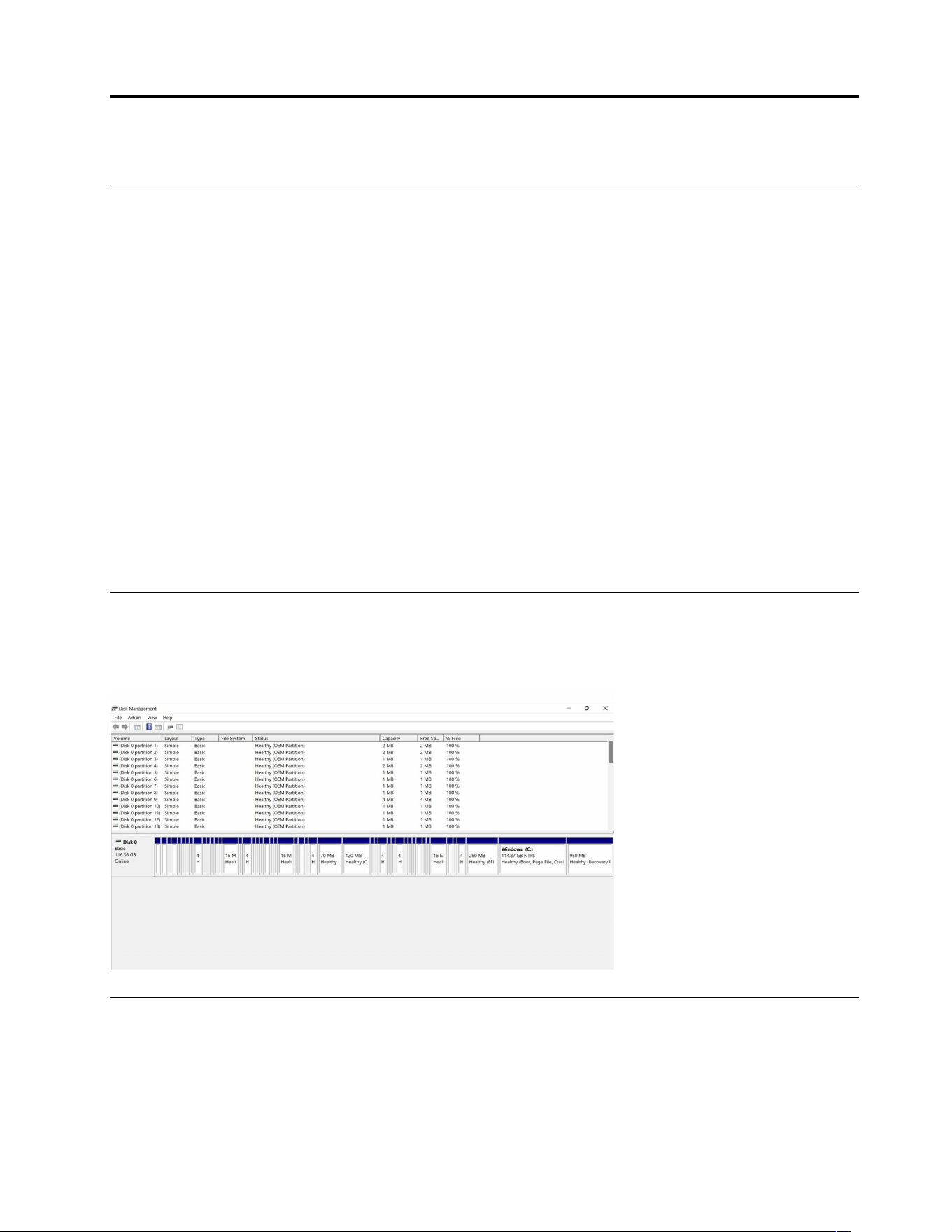
Manage the disk
Attention: Your tablet is specially designed with quantities of partitions in Disk Management to store BIOS
and firmware. Do not delete or modify any OEM partitions. Otherwise, the device will not start up normally
and will stay in black screen in next startup.
Manage power
Use the information in this section to achieve the best balance between performance and power efficiency.
© Copyright Lenovo 2022 13
Check the battery status
Go to Settings ➙ System to check the battery status. For more details about your battery, refer to the
Vantage app.
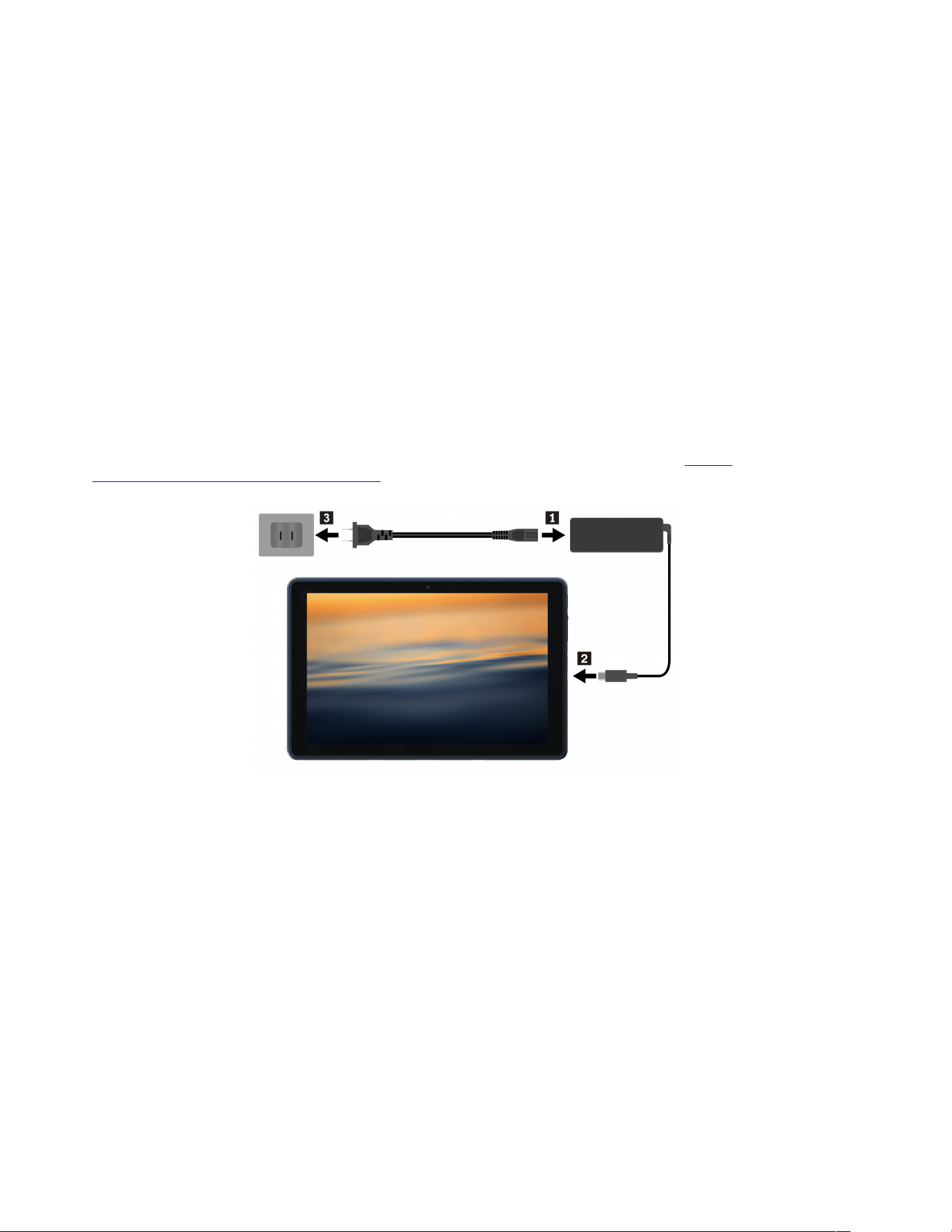
Charge the battery
Power source of the ac power adapter:
• Power: 45 W
• Sine-wave input at 50 Hz to 60 Hz
• Input rating of the ac power adapter: 100 V to 240 V ac, 50 Hz to 60 Hz
• Output rating of the ac power adapter: 20 V dc, 2.25 A
When the battery power is low, charge your battery by connecting your tablet to ac power. The actual
charging time depends on the battery size, the physical environment, and whether you are using the tablet.
Note: Some models may not ship with ac adapters and power cords. Use only the certified adapters and
power cords provided by Lenovo that comply with the requirements of relevant national standards to charge
the product. It is recommended to use the Lenovo qualified adapters. You can refer to
https://
www.lenovo.com/us/en/compliance/eu-doc
.
Notes: To maximize the life of the battery:
• Use the battery until the charge is depleted and recharge the battery completely before using it. Once the
battery is fully charged, it must discharge to 94% or lower before it will be allowed to recharge again.
• The battery may optimize its full charge capacity based on your usage. After prolonged periods of limited
use, full battery capacity may not be available until you discharge to as low as 20% and recharge
completely. For more information, refer to the power section of the Vantage app.
Change the power settings
For ENERGY STAR
®
compliant tablets, the following power plan takes effect when your tablet has been idle
for a specified duration:
• Turn off the display: After 10 minutes
• Put the tablet to sleep: After 10 minutes
To reset the power plan:
1. Go to Control Panel and view by Large icons or Small icons.
14
Lenovo 10w User Guide

2. Click Power Options.
3. Choose or customize a power plan of your preference.
To reset the power button function:
1. Go to Control Panel and view by Large icons or Small icons.
2. Click Power Options, and then click Choose what the power buttons do on the left pane.
3. Change the settings as you prefer.
Transfer data
Quickly share your files using the built-in Bluetooth technology among devices with the same features.
Set up a Bluetooth connection
You can connect all types of Bluetooth-enabled devices to your tablet, such as a keyboard, a mouse, a
smartphone, or speakers. To ensure successful connection, place the devices at most 10 meters (33 feet)
from the tablet.
1. Type Bluetooth in the Windows search box and then press Enter.
2. Turn on Bluetooth, if it is off.
3. Select a Bluetooth device, and then follow the on-screen instructions.
Chapter 3. Explore your tablet 15

16 Lenovo 10w User Guide

Chapter 4. Configure advanced settings
UEFI BIOS setup utility
UEFI BIOS setup utility is the first program that the tablet runs. When the tablet turns on, UEFI BIOS setup
utility performs a self test to make sure that various devices in the tablet are functioning.
Enter the UEFI BIOS setup utility
Restart the tablet. When the logo screen is displayed, press Fn + F2 to enter the UEFI BIOS setup utility.
Change the startup sequence
You might need to change the startup sequence to allow the tablet to start from another device or a network
location.
1. Enter the setup utility.
2. Navigate to the Boot menu.
3. Follow the on-screen instructions to change the order of devices under Boot Priority Order.
Note: You can also change the startup sequence temporarily without opening the setup utility. To do so,
start the tablet. When the logo screen is displayed, press Fn + F12.
Change the hotkey mode
1. Open the setup utility.
2. Select Configuration ➙ Hotkey Mode and press Enter.
3. Change the setting to Disabled or Enabled.
4. Select Exit ➙ Exit Saving Changes.
Enable or disable the Always On USB function
For tablet models with the Always On USB connector, the always-on function can be enabled or disabled in
the setup utility.
1. Open the setup utility.
2. Select Configuration ➙ Always On USB and press Enter.
3. Change the setting to Disabled or Enabled.
4. Select Exit ➙ Exit Saving Changes.
Use passwords
This section introduces the types of passwords that you can set in the setup utility.
Password types
You can set various types of passwords in the UEFI BIOS setup utility.
Notes:
• All passwords set in the setup utility consist of alphanumeric characters only.
• If you start the setup utility using the user password, you can only change a few settings.
© Copyright Lenovo 2022 17

Password type Pre-requisite Usage
Administrator password
No
Use the administrator password to
enter the setup utility.
User password
The administrator password must be
set.
Use the user password to enter the
setup utility.
Set an administrator password
You can set the administrator password to prevent unauthorized access to the setup utility.
Attention: If you forget the administrator password, a Lenovo authorized service personnel cannot reset
your password. You must take your tablet to a Lenovo authorized service personnel to have the system
board replaced. Proof of purchase is required and a fee will be charged for parts and service.
1. Enter the setup utility.
2. Select Security ➙ Set Administrator Password and press Enter.
3. Enter a password string that contains only lower case letters and numbers and then press Enter.
4. Enter the password again and press Enter.
5. Select Exit ➙ Exit Saving Changes.
Next time you turn on the tablet, you should enter the administrator password to enter the setup utility.
Change or remove the administrator password
Only the administrator can change or remove the administrator password.
1. Enter the setup utility.
2. Select Security ➙ Set Administrator Password and press Enter.
3. Enter the current password.
4. In the Enter New Password field, enter the new password.
5. In the Confirm New Password field, enter the new password again.
Note: If you want to remove the password, leave both fields blank, and press Enter twice.
6. Select Exit ➙ Exit Saving Changes.
If you remove the administrator password, the user password is also removed.
Set a user password
You must set the administrator password before you can set the user password. The system administrator
might need to set a user password so that other users can access the tablet.
1. Enter the setup utility.
2. Select Security ➙ Set User Password and press Enter.
3. Enter a password string that contains only letters and numbers and then press Enter.
Note: The user password should be different from the administrator password.
4. Enter the password again and press Enter.
5. Select Exit ➙ Exit Saving Changes.
Change or remove the user password
1. Enter the setup utility.
18
Lenovo 10w User Guide
2. Select Security ➙ Set User Password and press Enter.
3. Enter the current password.
4. In the Enter New Password field, enter the new password.
5. In the Confirm New Password field, enter the new password again.
Note: If you want to remove the password, select Security ➙ Clear User Password and press Enter.
6. Select Exit ➙ Exit Saving Changes.
Enable the power on password
If the administrator password has been set, you can enable the power on password to enforce stronger
security.
1. Enter the setup utility.
2. Select Security ➙ Power-on Password and press Enter.
Note: The administrator password must be set in advance.
3. Change the setting to Enabled.
4. Select Exit ➙ Exit Saving Changes.
If the power on password is enabled, you must enter the administrator password or user password every
time you enter the setup utility.
Use firewalls programs
Your tablet might be preinstalled with a firewall program. The firewall protects against tablet Internet security
threats, unauthorized access, intrusions, and Internet attacks. It also protects your privacy.
For more information, see the help system of the program.
Chapter 4. Configure advanced settings 19

20 Lenovo 10w User Guide

Chapter 5. Help and support
Frequently asked questions
How do I open the Control Panel? Type Control Panel in the Windows search box and then press Enter.
How should I turn off my tablet? Open the Start menu and select Power ➙ Shut down.
How do I partition my storage
drive?
Refer to
https://support.lenovo.com/solutions/ht503851.
What should I do if my tablet
stops responding?
Press and hold the power button until the tablet turns off. Then restart the tablet.
What should I do if I spill liquid on
the tablet?
1. Carefully unplug the ac power adapter and turn off the tablet immediately.
The more quickly you stop the current from passing through the tablet the
more likely you will reduce damage from short circuits.
Attention: Although you might lose some data or work by turning off the
tablet immediately, leaving the tablet on might make your tablet unusable.
2. Wait until you are certain that all the liquid is dry before turning on your tablet.
CAUTION:
Do not try to drain out the liquid by turning over the tablet. If your tablet
has keyboard drainage holes on the bottom, the liquid will be drained out
through the holes.
Where can I get the latest device
drivers and UEFI BIOS?
• The Vantage app
• Lenovo Support Web site at
https://support.lenovo.com
How do I disinfect my tablet?
1. Squeeze out excess liquid from wipe or disinfecting cloth before using.
Recommended wipes are hydrogen peroxide wipes and alcohol based wipes.
Do not use wipes containing sodium hypochlorite (bleach).
2. Gently wipe the tablet thoroughly, being careful to ensure no liquid drips into
the tablet. Do not wipe on connector pins.
3. After disinfecting, follow the cleaning procedure from the wipe supplier to
minimize chemical buildup of disinfectant residue.
4. Always allow the tablet to completely dry prior to any use.
© Copyright Lenovo 2022 21

Self-help resources
Use the following self-help resources to learn more about the tablet and troubleshoot problems.
Resources How to access?
Troubleshooting and FAQ
•
https://www.lenovo.com/tips
• https://forums.lenovo.com
Accessibility information
https://www.lenovo.com/accessibility
Reset or restore Windows
• Use Lenovo recovery options.
1. Go to
https://support.lenovo.com/
HowToCreateLenovoRecovery
.
2. Follow the on-screen instructions.
• Use Windows recovery options.
1. Go to
https://pcsupport.lenovo.com.
2. Detect your tablet or manually select your tablet
model.
3. Click Diagnostics ➙ Operating System
Diagnostics and then follow the on-screen
instructions.
Use the Vantage app to:
• Configure device settings.
• Download and install UEFI BIOS, drivers, and firmware
updates.
• Secure your tablet from outside threats.
• Diagnose hardware problems.
• Check the tablet warranty status.
• Access User Guide and helpful articles.
Type Vantage in the Windows search box and then press
Enter.
Product documentation:
• Safety and Warranty Guide
• Generic Safety and Compliance Notices
• Setup Guide
• This User Guide
• Regulatory Notice
Go to
https://pcsupport.lenovo.com. Then, follow the on-
screen instructions to filter out the documentation you
want.
22 Lenovo 10w User Guide

Resources How to access?
Lenovo Support Web site with the latest support
information of the following:
• Drivers and software
• Diagnostic solutions
• Product and service warranty
• Product and parts details
• Knowledge base and frequently asked questions
https://pcsupport.lenovo.com
Windows help information
• Open the Start menu and click Get Help or Tips.
• Use Windows Search or the Cortana
®
personal
assistant.
• Microsoft support Web site:
https://
support.microsoft.com
Windows label
Your tablet might have a Windows Genuine Microsoft label affixed to its cover depending on the following
factors:
• Your geographic location
• Edition of Windows that is preinstalled
Go to
https://www.microsoft.com/en-us/howtotell/Hardware.aspx for illustrations of the various types of
Genuine Microsoft labels.
• In the People’s Republic of China, the Genuine Microsoft label is required on all tablet models preinstalled
with any edition of the Windows operating system.
• In other countries and regions, the Genuine Microsoft label is required only on tablet models licensed for
Windows Pro editions.
The absence of a Genuine Microsoft label does not indicate that the preinstalled Windows version is not
genuine. For details on how to tell whether your preinstalled Windows product is genuine, refer to the
information provided by Microsoft at
https://www.microsoft.com/en-us/howtotell/default.aspx.
There are no external, visual indicators of the Product ID or Windows version for which the tablet is licensed.
Instead, the Product ID is recorded in the tablet firmware. Whenever a Windows product is installed, the
installation program checks the tablet firmware for a valid, matching Product ID to complete the activation.
In some cases, an earlier Windows version might be preinstalled under the terms of the Windows Pro edition
license downgrade rights.
What are CRUs
Customer Replaceable Units (CRUs) are parts that can be upgraded or replaced by the customer. The tablets
contain the following types of CRUs:
• Self-service CRUs: Refer to parts that can be installed or replaced easily by customer themselves or by
trained service technicians at an additional cost.
• Optional-service CRUs: Refer to parts that can be installed or replaced by customers with a greater skill
level. Trained service technicians can also provide service to install or replace the parts under the type of
warranty designated for the customer’s machine.
Chapter 5. Help and support 23

If you intend on installing a CRU, Lenovo will ship the CRU to you. CRU information and replacement
instructions are shipped with your product and are available from Lenovo at any time upon request. You
might be required to return the defective part that is replaced by the CRU. When return is required: (1) return
instructions, a prepaid shipping label, and a container will be included with the replacement CRU; and (2) you
might be charged for the replacement CRU if Lenovo does not receive the defective CRU within thirty (30)
days of your receipt of the replacement CRU. For full details, see the Lenovo Limited Warranty
documentation at
https://www.lenovo.com/warranty/llw_02.
Refer to the following CRU list for your tablet.
Self-service CRUs
• ac power adapter*
• Power cord*
• Lenovo 10w Detachable Keyboard*
• Lenovo Integrated Pen*
• Pen dummy*
* for selected models
Note: Replacement of any parts not listed above, including the built-in rechargeable battery, must be done
by a Lenovo-authorized repair facility or technician. Go to
https://support.lenovo.com/partnerlocation for more
information.
Call Lenovo
If you have tried to correct the problem yourself and still need help, you can call Lenovo Customer Support
Center.
Before you contact Lenovo
Prepare the following before you contact Lenovo:
1. Record the problem symptoms and details:
• What is the problem? Is it continuous or intermittent?
• Any error message or error code?
• What operating system are you using? Which version?
• Which software applications were running at the time of the problem?
• Can the problem be reproduced? If so, how?
2. Record the system information:
• Product name
• Machine type and serial number
24
Lenovo 10w User Guide
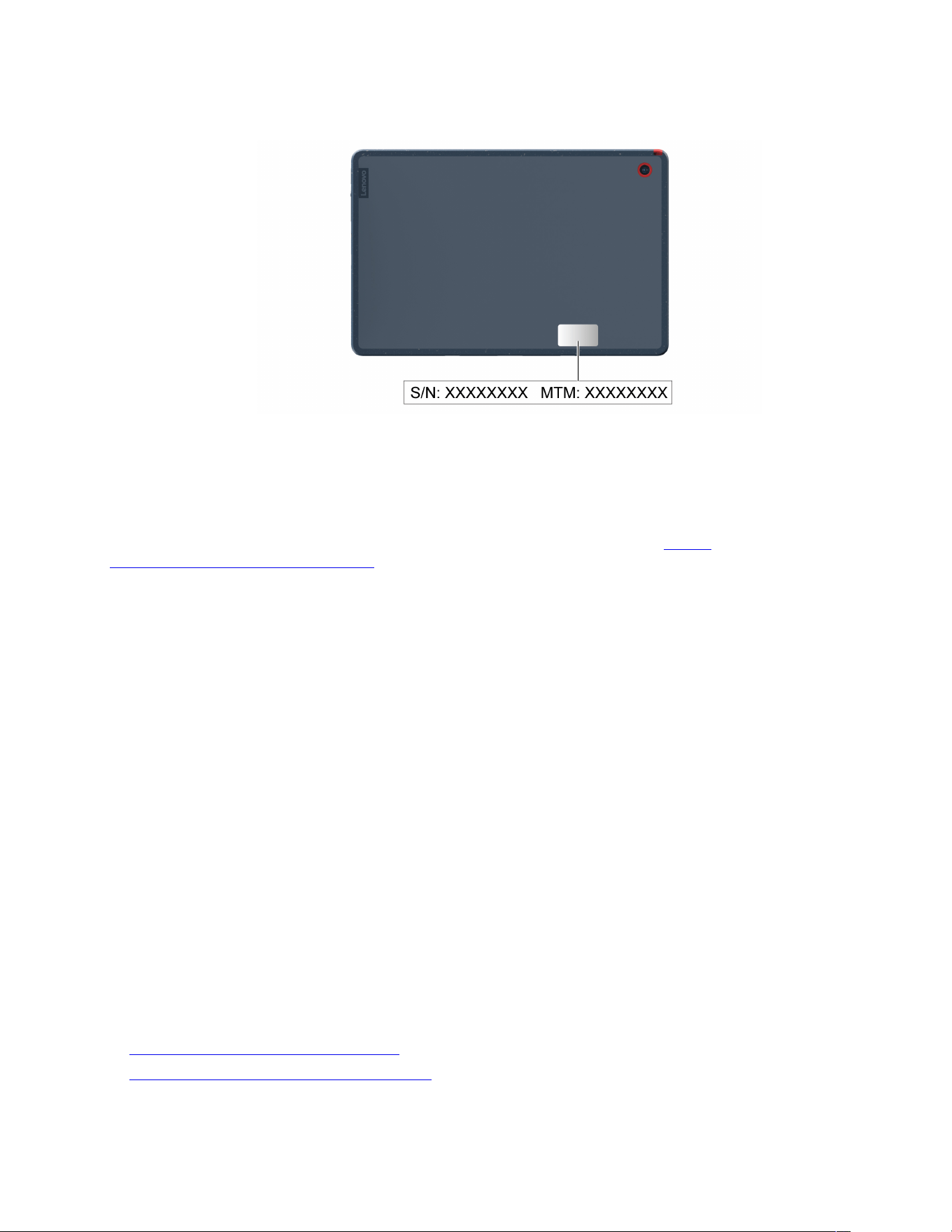
The following illustration shows where to find the machine type and serial number of your tablet.
Lenovo Customer Support Center
During the warranty period, you can call Lenovo Customer Support Center for help.
Telephone numbers
For a list of the Lenovo Support phone numbers for your country or region, go to
https://
pcsupport.lenovo.com/supportphonelist
for the latest phone numbers.
Note: Phone numbers are subject to change without notice. If the number for your country or region is not
provided, contact your Lenovo reseller or Lenovo marketing representative.
Services available during the warranty period
• Problem determination - Trained personnel are available to assist you with determining if you have a
hardware problem and deciding what action is necessary to fix the problem.
• Lenovo hardware repair - If the problem is determined to be caused by Lenovo hardware under warranty,
trained service personnel are available to provide the applicable level of service.
• Engineering change management - Occasionally, there might be changes that are required after a product
has been sold. Lenovo or your reseller, if authorized by Lenovo, will make selected Engineering Changes
(ECs) that apply to your hardware available.
Services not covered
• Replacement or use of parts not manufactured for or by Lenovo or nonwarranted parts
• Identification of software problem sources
• Configuration of UEFI BIOS as part of an installation or upgrade
• Changes, modifications, or upgrades to device drivers
• Installation and maintenance of network operating systems (NOS)
• Installation and maintenance of programs
For the terms and conditions of the Lenovo Limited Warranty that apply to your Lenovo hardware product,
go to:
•
https://www.lenovo.com/warranty/llw_02
• https://pcsupport.lenovo.com/warrantylookup
Chapter 5. Help and support 25

26 Lenovo 10w User Guide
Appendix A. Compliance information
For compliance information, refer to Regulatory Notice at https://pcsupport.lenovo.com and Generic Safety
and Compliance Notices at
https://pcsupport.lenovo.com/docs/generic_notices.
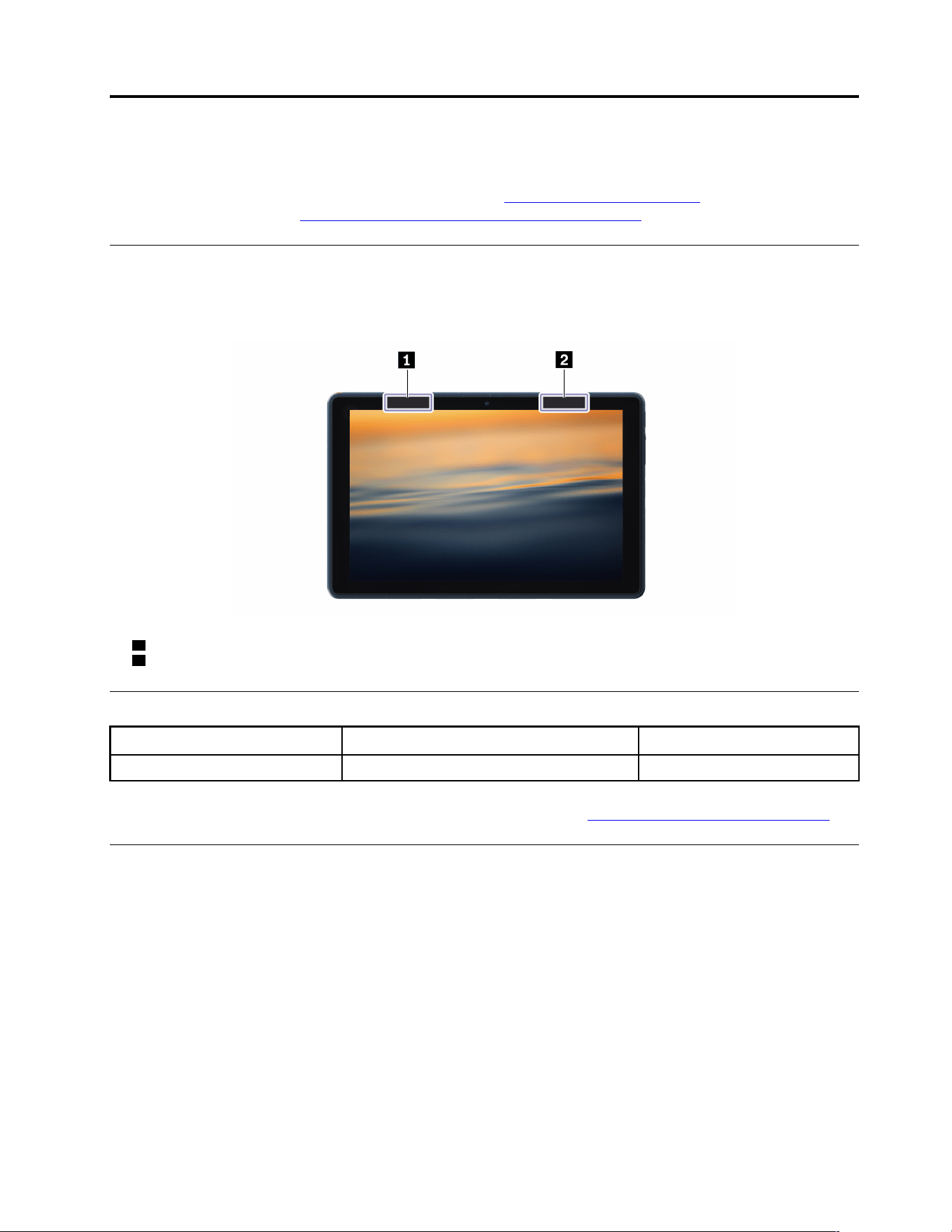
Locate the wireless antennas
Your tablet has a wireless antenna system. You can enable wireless communication wherever you are. The
following illustrations show the antenna locations on your tablet.
1 Wireless-LAN antenna (auxiliary)
2 Wireless-LAN antenna (main)
Certification-related information
Product name Compliance ID Machine type
Lenovo 10w LN0002W 82SU and 82ST
Further compliance information related to your product is available at https://www.lenovo.com/compliance.
Safety instructions for teachers, parents and adult supervisors
This tablet is intended for use as a child development tool primarily by children, 6 years of age or above.
There must be supervision by an adult. It is a must to have a thorough explanation to children on safe and
proper handling of the tablet, battery pack, and ac power adapter.
• For ITE with power supplies not intended to be handled by children: As with all electrical products,
precautions should be observed handling and use to prevent electric shock. The ac power adapter should
not be handled by children.
• The tablet should not be placed on the bare skin (lap) of the child for long periods. The tablet should be
placed on a flat surface, like desktop, if your child intends to use it for more than a few minutes.
• The tablet (including the ac power adapter and the battery pack, as applicable) should not be left in the
rain or subjected to exposure to water. If cleaning is necessary do not immerse it in water; wipe clean with
damp cloth.
© Copyright Lenovo 2022 27
• The tablet (including the ac power adapter and the battery pack, as applicable) should not be dropped,
crushed (stepped on) or otherwise abused.
• An adult should caution his or her child about the potential trip hazard as posed by the cable between a
power source and the tablet. An adult should inspect the tablet (including the ac power adapter and the
battery pack, as applicable) periodically for damage. Similarly, if a child notices damaged/broken parts,
this should be reported to the teacher/parents/adult supervisors immediately. Damaged parts may be
replaced through service provided by Lenovo.
DANGER
ELECTRICALLY OPERATED PRODUCT. Not recommended for children under 3 years of age (or
other intended age range). As with all electrical products, precautions should be observed during
handling and use of electrical products to reduce the risk of electric shock.
Operating environment
Maximum altitude (without pressurization)
3048 m (10 000 ft)
Temperature
• Operating: 5°C to 35°C (41°F to 95°F)
• Storage: 5°C to 43°C (41°F to 109°F)
Note: When you charge the battery, its temperature must be no lower than 10°C (50°F).
Relative humidity
• Operating: 8% to 95% at wet-bulb temperature 23°C (73°F)
• Storage: 5% to 95% at wet-bulb temperature 27°C (81°F)
28
Lenovo 10w User Guide

Appendix B. Notices and trademarks
Notices
Lenovo may not offer the products, services, or features discussed in this document in all countries. Consult
your local Lenovo representative for information on the products and services currently available in your
area. Any reference to a Lenovo product, program, or service is not intended to state or imply that only that
Lenovo product, program, or service may be used. Any functionally equivalent product, program, or service
that does not infringe any Lenovo intellectual property right may be used instead. However, it is the user's
responsibility to evaluate and verify the operation of any other product, program, or service.
Lenovo may have patents or pending patent programs covering subject matter described in this document.
The furnishing of this document does not give you any license to these patents. You can send license
inquiries, in writing, to:
Lenovo (United States), Inc.
8001 Development Drive
Morrisville, NC 27560
U.S.A.
Attention: Lenovo Director of Licensing
LENOVO PROVIDES THIS PUBLICATION "AS IS" WITHOUT WARRANTY OF ANY KIND, EITHER EXPRESS
OR IMPLIED, INCLUDING, BUT NOT LIMITED TO, THE IMPLIED WARRANTIES OF NON-INFRINGEMENT,
MERCHANTABILITY OR FITNESS FOR A PARTICULAR PURPOSE. Some jurisdictions do not allow
disclaimer of express or implied warranties in certain transactions, therefore, this statement may not apply to
you.
Changes are made periodically to the information herein; these changes will be incorporated in new editions
of the publication. To provide better service, Lenovo reserves the right to improve and/or modify the
products and software programs described in the manuals included with your tablet, and the content of the
manual, at any time without additional notice.
The software interface and function and hardware configuration described in the manuals included with your
tablet might not match exactly the actual configuration of the tablet that you purchase. For the configuration
of the product, refer to the related contract (if any) or product packing list, or consult the distributor for the
product sales. Lenovo may use or distribute any of the information you supply in any way it believes
appropriate without incurring any obligation to you.
The products described in this document are not intended for use in implantation or other life support
applications where malfunction may result in injury or death to persons. The information contained in this
document does not affect or change Lenovo product specifications or warranties. Nothing in this document
shall operate as an express or implied license or indemnity under the intellectual property rights of Lenovo or
third parties. All information contained in this document was obtained in specific environments and is
presented as an illustration. The result obtained in other operating environments may vary.
Lenovo may use or distribute any of the information you supply in any way it believes appropriate without
incurring any obligation to you.
Any references in this publication to non-Lenovo Web sites are provided for convenience only and do not in
any manner serve as an endorsement of those Web sites. The materials at those Web sites are not part of the
materials for this Lenovo product, and use of those Web sites is at your own risk.
© Copyright Lenovo 2022 29

Any performance data contained herein was determined in a controlled environment. Therefore, the result
obtained in other operating environments may vary significantly. Some measurements may have been made
on development-level systems and there is no guarantee that these measurements will be the same on
generally available systems. Furthermore, some measurements may have been estimated through
extrapolation. Actual results may vary. Users of this document should verify the applicable data for their
specific environment.
This document is copyrighted by Lenovo and is not covered by any open source license, including any Linux
agreement(s) which may accompany software included with this product. Lenovo may update this document
at any time without notice.
For the latest information or any questions or comments, contact or visit the Lenovo Web site:
https://pcsupport.lenovo.com
Trademarks
LENOVO and LENOVO logo are trademarks of Lenovo. ENERGY STAR and the ENERGY STAR mark are
registered trademarks owned by the U.S. Environmental Protection Agency. Microsoft, Windows, BitLocker,
and Cortana are trademarks of the Microsoft group of companies. The terms HDMI and HDMI High-Definition
Multimedia Interface are trademarks or registered trademarks of HDMI Licensing LLC in the United States
and other countries. Wi-Fi, Wi-Fi Alliance, and Miracast are registered trademarks of Wi-Fi Alliance. USB-C
®
is a registered trademark of USB Implementers Forum. All other trademarks are the property of their
respective owners.
30
Lenovo 10w User Guide