LINCOLN CORSAIR Owner's Manual


The information contained in this publication was correct at the time of release. In the interest of continuous development, we reserve the right to change specifications, design or
equipment at any time without notice or obligation. No part of this publication may be reproduced, transmitted, stored in a retrieval system or translated into any language in any
form by any means without our written permission. Errors and omissions excepted.
© Ford Motor Company 2024
All rights reserved.
Part Number: -202407-20240705175440
California Proposition 65
WARNING: Operating, servicing and maintaining a passenger vehicle or off-highway motor vehicle can expose you to chemicals including engine exhaust, carbon monoxide,
phthalates, and lead, which are known to the State of California to cause cancer and birth defects or other reproductive harm. To minimize exposure, avoid breathing exhaust,
do not idle the engine except as necessary, service your vehicle in a well-ventilated area and wear gloves or wash your hands frequently when servicing your vehicle. For more
information go to www.P65Warnings.ca.gov/passenger-vehicle.
WARNING: Battery posts, terminals and related accessories contain lead and lead
compounds, chemicals known to the State of California to cause cancer and reproductive harm.
Wash your hands after handling.


Contacting Us
Contacting Us ..................................................17
Introduction
About This Publication ..................................19
Using This Publication ..................................20
Symbols Glossary
Symbols Used on Your Vehicle ...................21
Symbols Used On Your Instrument Cluster
.........................................................................23
Data Privacy
Data Privacy ....................................................26
Service Data ....................................................27
Event Data .......................................................28
Settings Data ..................................................28
Connected Vehicle Data .............................29
Mobile Device Data ......................................29
Emergency Call System Data .....................30
Environment
Protecting the Environment .........................31
Visual Search
Interior Overview ...........................................32
Exterior Overview ..........................................34
Child Safety
Child Safety Precautions .............................36
Child Restraint Anchor Points .....................37
Child Restraints ..............................................38
Installing Child Restraints .............................41
Booster Seats .................................................46
Child Safety Locks .........................................49
Seatbelts
Seatbelt Precautions .....................................51
Fastening the Seatbelts ...............................52
Sensitive Locking Mode ...............................53
Automatic Locking Mode .............................53
Adjusting the Seatbelts During Pregnancy
.........................................................................54
Adjusting the Seatbelt Height ....................55
Seatbelt Reminder .........................................55
Checking the Seatbelts ................................57
Seatbelt Extensions ......................................58
Personal Safety System™
What Is the Personal Safety System .........59
How Does the Personal Safety System
Work .............................................................59
Personal Safety System Components
........................................................................59
Airbags
How Do the Front Airbags Work ...............60
How Do the Side Airbags Work .................60
How Do the Knee Airbags Work ................61
How Does the Safety Canopy™ Work .......62
Airbag Precautions ........................................63
Properly Adjusting the Driver and Front
Passenger Seats ........................................64
Children and Airbags ....................................64
Front Passenger Sensing System .............64
Crash Sensors and Airbag Indicator ........68
Disposing of Airbags ....................................69
Pedestrian Alert System - Plug-In
Hybrid Electric Vehicle (PHEV)
What Is the Pedestrian Alert System ........70
1
Corsair (CTF) Canada/Mexico/United States of America, enUSA, Edition date: 202407, DOM
Table of Contents

911 Assist
What Is 911 Assist ............................................71
How Does 911 Assist Work ...........................71
Emergency Call Requirements ....................71
Emergency Call Limitations .........................72
Keys and Remote Controls
Remote Control Limitations .........................73
Using the Remote Control ...........................73
Removing the Key Blade ..............................74
Sounding the Panic Alarm ...........................74
Locating Your Vehicle ...................................74
Changing the Remote Control Battery
.........................................................................75
Replacing a Lost Key or Remote Control
.........................................................................76
Programming the Remote Control ............76
Keys and Remote Controls Audible
Warnings ......................................................77
Keys and Remote Controls –
Troubleshooting .........................................78
Phone as a Key
What Is Phone as a Key ................................79
Phone as a Key Limitations .........................79
Programming Your Phone ...........................79
Using the Valet Mode ...................................80
Using the Backup Start Passcode .............80
Phone as a Key – Troubleshooting ............81
Doors and Locks
Operating the Doors From Outside Your
Vehicle .........................................................84
Operating the Doors From Inside Your
Vehicle .........................................................85
Door Lock Switch Inhibitor ..........................85
Autounlock ......................................................85
Autolock ...........................................................86
Mislock .............................................................86
Door Lock Indicators .....................................87
Doors and Locks Audible Warnings ..........87
Doors and Locks – Troubleshooting ........87
Keyless Entry
What Is Keyless Entry ...................................89
Keyless Entry Limitations .............................89
Keyless Entry Settings ..................................89
Using Keyless Entry ......................................89
Keyless Entry – Troubleshooting ..............90
Easy Entry and Exit
How Does Easy Entry and Exit Work .........91
Switching Easy Entry and Exit On and Off
..........................................................................91
Liftgate
Liftgate Precautions ......................................92
Opening the Liftgate .....................................92
Setting the Liftgate Opening Height ........94
Closing the Liftgate .......................................95
Stopping the Liftgate Movement ...............97
Liftgate Obstacle Detection ........................97
Liftgate – Troubleshooting ..........................98
Security
Passive Anti-Theft System .........................100
Anti-Theft Alarm System ............................100
Security – Troubleshooting ........................101
2
Corsair (CTF) Canada/Mexico/United States of America, enUSA, Edition date: 202407, DOM
Table of Contents

Steering Wheel
Adjusting the Steering Wheel - Vehicles
With: Power Adjustable Steering Column
.......................................................................103
Adjusting the Steering Wheel - Vehicles
With: Manual Adjustable Steering
Column .......................................................103
Resetting the Stopping Position - Vehicles
With: Power Adjustable Steering Column
.......................................................................104
Horn .................................................................104
Switching the Heated Steering Wheel On
and Off - Vehicles With: Heated Steering
Wheel ..........................................................104
Wipers and Washers
Wipers .............................................................106
Autowipers .....................................................106
Switching the Rear Window Wiper On and
Off ................................................................107
Reverse Wipe ................................................107
Checking the Wiper Blades ......................108
Replacing the Front Wiper Blades ...........108
Replacing the Rear Wiper Blades ............108
Washers ..........................................................109
Wipers and Washers – Troubleshooting
.........................................................................111
Exterior Lighting
Exterior Lighting Control .............................112
Headlamps ......................................................112
Headlamps – Troubleshooting ..................113
Autolamps .......................................................113
Exterior Lamps ...............................................114
Automatic High Beam Control ...................115
Automatic High Beam Control –
Troubleshooting ........................................118
Adaptive Front Lighting ...............................118
Adaptive Front Lighting – Troubleshooting
.......................................................................120
Interior Lighting
Switching All of the Interior Lamps On and
Off .................................................................121
Switching the Front Interior Lamps On and
Off .................................................................121
Switching the Rear Interior Lamps On and
Off .................................................................121
Interior Lamp Function .................................121
Adjusting the Instrument Panel Lighting
Brightness ..................................................122
Ambient Lighting ..........................................122
Interior Lighting – Troubleshooting .........122
Windows
Opening and Closing the Windows ........123
Global Opening and Closing .....................124
Window Bounce-Back ................................124
Locking the Rear Window Controls .........125
Interior Mirror
Interior Mirror Precautions .........................126
Auto-Dimming Interior Mirror ....................126
Exterior Mirrors
Adjusting the Exterior Mirrors ...................127
Folding the Exterior Mirrors .......................127
Auto-Dimming Exterior Mirror ...................128
Glass Roof
Opening and Closing the Sunshade .......129
Opening and Closing the Glass Roof ......129
3
Corsair (CTF) Canada/Mexico/United States of America, enUSA, Edition date: 202407, DOM
Table of Contents

Venting the Glass Roof ...............................130
Glass Roof Bounce-Back ............................130
Instrument Cluster - Excluding:
Plug-In Hybrid Electric Vehicle
(PHEV)
Instrument Cluster Overview ....................132
Tachometer ....................................................135
Speedometer ................................................135
Fuel Gauge ....................................................135
Engine Coolant Temperature Gauge ......135
Instrument Cluster - Plug-In
Hybrid Electric Vehicle (PHEV)
Instrument Cluster Overview ....................136
Speedometer .................................................137
Fuel Gauge .....................................................137
Vehicle Range Display ................................137
Engine Coolant Temperature Gauge ......138
Instrument Cluster Display - Plug-
In Hybrid Electric Vehicle
(PHEV)
Using the Instrument Cluster Display
Controls ......................................................139
Instrument Cluster Display Main Menu
.......................................................................140
Customizing the Instrument Cluster Display
.......................................................................140
Fuel Economy Display .................................141
EV Coach .........................................................141
Electric Economy ...........................................141
Brake Coach ..................................................142
Trip Summary ................................................142
Vehicle Charging Status .............................142
Instrument Cluster Display -
Excluding: Plug-In Hybrid
Electric Vehicle (PHEV)
Using the Instrument Cluster Display
Controls ......................................................143
Instrument Cluster Display Main Menu
.......................................................................144
Customizing the Instrument Cluster Display
.......................................................................144
Trip Computer
Accessing the Trip Computer ...................145
Resetting the Trip Computer .....................145
Configuring the Trip Computer .................145
Trip Data .........................................................145
Head Up Display
What Is the Head Up Display ....................146
Switching the Head Up Display On and Off
.......................................................................146
Head Up Display Settings ..........................146
Head Up Display Indicators .......................148
Head Up Display – Troubleshooting ......150
Remote Start
Using Remote Start - Vehicles With:
Lincoln Mobile App/Phone as a Key
........................................................................151
Using Remote Start - Vehicles With:
Remote Control .........................................151
Remote Start Settings .................................152
Climate Control
Identifying the Climate Control Unit ........153
4
Corsair (CTF) Canada/Mexico/United States of America, enUSA, Edition date: 202407, DOM
Table of Contents

Switching Climate Control On and Off
.......................................................................153
Switching Recirculated Air On and Off
.......................................................................153
Switching Air Conditioning On and Off
.......................................................................153
Switching Defrost On and Off ...................153
Switching Maximum Defrost On and Off
.......................................................................154
Switching Maximum Cooling On and Off
.......................................................................154
Switching the Heated Wiper Park On and
Off ................................................................154
Switching the Heated Rear Window On
and Off ........................................................154
Setting the Blower Motor Speed .............155
Switching the Heated Mirrors On and Off
.......................................................................155
Setting the Temperature ............................155
Directing the Flow of Air ............................155
Auto Mode .....................................................156
Climate Control Hints ..................................157
Climate Control – Warning Lamps ...........158
Air Conditioning System Refrigerant ......158
Interior Air Quality
What Is the Cabin Air Filter ........................160
Replacing the Cabin Air Filter ...................160
Auto Air Refresh ...........................................160
Interior Air Quality – Troubleshooting
.......................................................................163
Front Seats
Front Seat Precautions ...............................164
Sitting in the Correct Position ...................164
Power Seats ..................................................165
Massage Seats .............................................168
Heated Seats ................................................169
Ventilated Seats ............................................170
Rear Seats
Manual Seats ..................................................171
Power Seats ...................................................173
Heated Seats .................................................174
Rear Occupant Alert System
What is the Rear Occupant Alert System
.......................................................................175
How Does the Rear Occupant Alert System
Work ............................................................175
Rear Occupant Alert System Precautions
.......................................................................175
Rear Occupant Alert System Limitations
.......................................................................175
Rear Occupant Alert System Settings
.......................................................................176
Rear Occupant Alert System Indicators
.......................................................................176
Rear Occupant Alert System Audible
Warnings .....................................................177
Memory Function
How Does the Memory Function Work
.......................................................................178
Memory Function Precautions ..................178
Locating the Memory Function Buttons
.......................................................................178
Saving a Preset Position .............................178
Recalling a Preset Position ........................178
Garage Door Opener
Garage Door Opener Introduction ..........180
5
Corsair (CTF) Canada/Mexico/United States of America, enUSA, Edition date: 202407, DOM
Table of Contents

Garage Door Opener Precautions and
Frequencies ..............................................180
Programming the Garage Door Opener
........................................................................181
Garage Door Opener Additional
Assistance ..................................................184
USB Ports
Locating the USB Ports ..............................185
Playing Media Using the USB Port ..........185
Charging a Device .......................................186
Power Outlet
What Is the Power Outlet ...........................187
Power Outlet Precautions ..........................187
Locating the Power Outlets .......................187
Wireless Accessory Charger
What Is the Wireless Accessory Charger
.......................................................................188
Wireless Accessory Charger Precautions
.......................................................................188
Locating the Wireless Accessory Charger
.......................................................................188
Charging a Wireless Device ......................189
Wireless Accessory Charger –
Troubleshooting .......................................189
Storage
Overhead Storage .......................................190
Glove Compartment ....................................190
Center Console ............................................190
Starting and Stopping the Engine
Starting and Stopping the Engine –
Precautions ................................................191
Push Button Ignition Switch .......................191
Starting the Engine ......................................192
Engine Block Heater ...................................193
Stopping the Engine ....................................194
Automatic Engine Stop ...............................195
Accessing the Passive Key Backup
Position .......................................................196
Starting and Stopping the Engine –
Troubleshooting .......................................196
Plug-In Hybrid Electric Vehicle
Information - Plug-In Hybrid
Electric Vehicle (PHEV)
Plug-In Hybrid Electric Vehicle Information
......................................................................200
Low Engine Use Mode ...............................201
Power Flow ...................................................202
Auto-Start-Stop - Gasoline
What Is Auto-Start-Stop .............................204
Auto-Start-Stop Precautions ....................204
Switching Auto-Start-Stop On and Off
......................................................................204
Stopping the Engine ...................................204
Restarting the Engine ................................204
Auto-Start-Stop Indicators ........................204
Auto-Start-Stop – Troubleshooting ........205
Fuel and Refueling
Fuel and Refueling Precautions ..............207
Fuel Quality ..................................................208
Locating the Fuel Filler Funnel ................208
Running Out of Fuel ...................................209
6
Corsair (CTF) Canada/Mexico/United States of America, enUSA, Edition date: 202407, DOM
Table of Contents

Refueling ........................................................210
Fuel Tank Capacity - Excluding: Plug-In
Hybrid Electric Vehicle (PHEV) .............216
Fuel Tank Capacity - Plug-In Hybrid Electric
Vehicle (PHEV) ..........................................216
Fuel and Refueling – Troubleshooting
.......................................................................217
Catalytic Converter
What Is the Catalytic Converter ...............219
Catalytic Converter Precautions ..............219
Catalytic Converter – Troubleshooting
......................................................................220
High Voltage Battery - Plug-In
Hybrid Electric Vehicle (PHEV)
What Is the High Voltage Battery ............221
High Voltage Battery Precautions ...........221
Recycling and Disposing of the High
Voltage Battery .........................................221
Charging Your Vehicle - Plug-In
Hybrid Electric Vehicle (PHEV)
Charging Equipment Precautions ...........222
Charging Equipment Overview ...............223
Charging Equipment Indicators ...............224
Locating the Charge Port ..........................230
Charge Port Indicators ...............................230
AC Charging .................................................232
Charging Settings .......................................234
Using Your Vehicle App and Charging
......................................................................239
Charging Your Vehicle – Troubleshooting
......................................................................240
Automatic Transmission
Automatic Transmission Positions ..........242
Manually Shifting Gears .............................243
Temporary Neutral Mode ..........................244
Automatic Return to Park (P) ....................245
Grade Assist - Plug-In Hybrid Electric
Vehicle (PHEV) .........................................245
Shifting Your Immobile Vehicle Out of Park
(P) ................................................................246
Automatic Transmission Audible Warnings
......................................................................247
Automatic Transmission Fluid Capacity
and Specification .....................................247
Automatic Transmission – Information
Messages ..................................................248
All-Wheel Drive
How Does All-Wheel Drive Work ............249
All-Wheel Drive Precautions ....................249
All-Wheel Drive Limitations ......................249
All-Wheel Drive – Troubleshooting ........250
Brakes
Brake Precautions ........................................251
Anti-Lock Braking System ..........................251
Brake Over Accelerator ..............................251
Locating the Brake Fluid Reservoir .........251
Checking the Brake Fluid .........................252
Brake Fluid Specification ..........................252
Brakes – Troubleshooting ........................254
Electric Parking Brake
What Is the Electric Parking Brake .........256
7
Corsair (CTF) Canada/Mexico/United States of America, enUSA, Edition date: 202407, DOM
Table of Contents

Applying the Electric Parking Brake ......256
Applying the Electric Parking Brake in an
Emergency ...............................................256
Manually Releasing the Electric Parking
Brake ..........................................................257
Automatically Releasing the Electric
Parking Brake ...........................................257
Electric Parking Brake Audible Warning
......................................................................257
Releasing the Electric Parking Brake if the
Vehicle Battery Has Run Out of Charge
......................................................................257
Electric Parking Brake – Troubleshooting
......................................................................257
Reverse Brake Assist
What Is Reverse Brake Assist ..................259
How Does Reverse Brake Assist Work
......................................................................259
Reverse Brake Assist Precautions ..........259
Switching Reverse Brake Assist On and
Off ...............................................................260
Overriding Reverse Brake Assist ............260
Reverse Brake Assist Indicators .............260
Reverse Brake Assist – Troubleshooting
.......................................................................261
Reverse Brake Assist Videos ...................262
Hill Start Assist
What Is Hill Start Assist ..............................263
How Does Hill Start Assist Work .............263
Hill Start Assist Precautions .....................263
Hill Start Assist – Troubleshooting .........263
Auto Hold
How Does Auto Hold Work ......................264
Switching Auto Hold On and Off ............264
Using Auto Hold ..........................................264
Auto Hold Indicators ..................................265
Traction Control
What Is Traction Control ............................266
How Does Traction Control Work ...........266
Switching Traction Control On and Off
......................................................................266
Traction Control Indicator .........................266
Traction Control – Troubleshooting .......267
Stability Control
How Does Stability Control Work ...........268
Switching Stability Control On and Off
......................................................................269
Stability Control Indicator .........................269
Stability Control – Troubleshooting ........270
Steering
Electric Power Steering ..............................271
Steering – Troubleshooting ......................272
Parking Aids
Parking Aid Precautions ............................273
Switching Parking Aid On and Off ..........274
Rear Parking Aid ..........................................274
Front Parking Aid .........................................275
Parking Aid Indicators ................................276
Parking Aids – Troubleshooting ..............277
Rear View Camera
What Is the Rear View Camera ................279
Rear View Camera Precautions ...............279
Locating the Rear View Camera ..............279
8
Corsair (CTF) Canada/Mexico/United States of America, enUSA, Edition date: 202407, DOM
Table of Contents

Rear View Camera Guide Lines ..............279
Rear View Camera Object Distance
Indicators ..................................................280
Rear View Camera Settings .....................280
360 Degree Camera
What Is the 360 Degree Camera ............282
How Does the 360 Degree Camera Work
......................................................................282
360 Degree Camera Precautions ..........282
Locating the 360 Degree Cameras ........283
360 Degree Camera Guide Lines ..........283
360 Degree Camera Settings ..................284
Adaptive Cruise Control
How Does Adaptive Cruise Control With
Stop and Go Work ..................................285
Adaptive Cruise Control Precautions .....285
Adaptive Cruise Control Limitations ......286
Switching Adaptive Cruise Control On and
Off ...............................................................288
Adaptive Cruise Control Automatic
Cancellation .............................................289
Setting the Adaptive Cruise Control Speed
......................................................................289
Setting the Adaptive Cruise Control Gap
......................................................................290
Canceling the Set Speed ..........................292
Resuming the Set Speed ..........................292
Overriding the Set Speed .........................293
Adaptive Cruise Control Indicators ........294
Switching From Adaptive Cruise Control
to Cruise Control .....................................294
Lane Centering ............................................294
Lane Centering – Troubleshooting ........297
Predictive Speed Assist ............................299
Predictive Speed Assist – Troubleshooting
.......................................................................301
Adaptive Cruise Control – Troubleshooting
......................................................................302
Adaptive Cruise Control Videos .............303
Lincoln BlueCruise
What Is BlueCruise .....................................304
How Does BlueCruise Work .....................304
BlueCruise Precautions .............................305
BlueCruise Requirements .........................306
BlueCruise Limitations ...............................307
BlueCruise Settings ....................................307
Switching BlueCruise On and Off ...........307
BlueCruise Alerts ........................................308
BlueCruise Automatic Cancellation .......308
BlueCruise Indicators .................................309
Lane Change Assist .....................................310
Lane Change Assist – Troubleshooting
.......................................................................312
In-Lane Repositioning .................................312
BlueCruise – Troubleshooting ..................313
BlueCruise Videos .......................................315
Drive Mode Control
What Is Drive Mode Control ......................316
How Does Drive Mode Control Work ......316
Selecting a Drive Mode ..............................316
Drive Modes ..................................................316
Drive Mode Control – Troubleshooting
.......................................................................318
Drive Mode Control Videos .......................319
9
Corsair (CTF) Canada/Mexico/United States of America, enUSA, Edition date: 202407, DOM
Table of Contents

Lane Keeping System
What Is the Lane Keeping System ..........320
How Does the Lane Keeping System Work
......................................................................320
Lane Keeping System Precautions ........320
Lane Keeping System Limitations ............321
Switching the Lane Keeping System On
and Off ........................................................321
Switching the Lane Keeping System Mode
......................................................................322
Lane Keeping System Settings ................322
Alert Mode ....................................................322
Aid Mode .......................................................322
Alert and Aid Mode .....................................323
Lane Keeping System Indicators .............323
Blind Spot Assist ..........................................324
Lane Keeping System – Troubleshooting
......................................................................327
Blind Spot Information System
What Is Blind Spot Information System
......................................................................329
How Does Blind Spot Information System
Work ...........................................................329
Blind Spot Information System Precautions
......................................................................329
Blind Spot Information System Limitations
......................................................................329
Blind Spot Information System
Requirements ...........................................330
Switching Blind Spot Information System
On and Off ................................................330
Locating the Blind Spot Information System
Sensors ......................................................330
Blind Spot Information System Indicators
.......................................................................331
Blind Spot Information System –
Troubleshooting ......................................332
Cross Traffic Alert
What Is Cross Traffic Alert .........................334
How Does Cross Traffic Alert Work ........334
Cross Traffic Alert Precautions ................334
Cross Traffic Alert Limitations ..................336
Switching Cross Traffic Alert On and Off
......................................................................336
Locating the Cross Traffic Alert Sensors
......................................................................336
Cross Traffic Alert Indicators ....................337
Cross Traffic Alert – Troubleshooting
......................................................................338
Pre-Collision Assist
What Is Pre-Collision Assist ......................339
How Does Pre-Collision Assist Work ......339
Pre-Collision Assist Precautions ..............339
Pre-Collision Assist Limitations .................341
Switching Pre-Collision Assist On and Off
.......................................................................341
Locating the Pre-Collision Assist Sensors
......................................................................342
Forward Collision Warning ........................343
Distance Alert ...............................................343
Automatic Emergency Braking ................343
Evasive Steering Assist ..............................343
Pre-Collision Assist – Troubleshooting
......................................................................344
Speed Sign Recognition
What Is Speed Sign Recognition .............347
How Does Speed Sign Recognition Work
......................................................................347
Speed Sign Recognition Precautions .....347
10
Corsair (CTF) Canada/Mexico/United States of America, enUSA, Edition date: 202407, DOM
Table of Contents

Speed Sign Recognition Limitations ......347
Speed Sign Recognition Indicators ........348
Speed Sign Recognition Settings ...........348
Speed Sign Recognition – Troubleshooting
......................................................................349
Driver Alert
What Is Driver Alert ......................................351
How Does Driver Alert Work .....................351
Driver Alert Precautions .............................351
Driver Alert Limitations ..............................352
Switching Driver Alert On and Off ..........352
Driver Alert – Troubleshooting ................352
Load Carrying
Load Carrying Precautions .......................353
Locating the Safety Compliance
Certification Labels .................................354
What Is the Gross Axle Weight Rating
......................................................................354
What Is the Gross Vehicle Weight Rating
......................................................................354
What Is the Gross Combined Weight
Rating .........................................................354
Calculating Payload ....................................355
Calculating the Load Limit ........................355
Roof Rack ......................................................357
Luggage Compartment
Luggage Compartment Precautions ......358
Installing and Removing the Luggage
Compartment Cover ..............................358
Luggage Compartment Anchor Points
......................................................................359
Connecting a Trailer
Connecting a Trailer Precautions .............361
Connecting a Trailer ....................................361
Towing a Trailer
Towing a Trailer Precautions ....................363
Trailer Brake Precautions ..........................363
Towing a Trailer Limitations ......................364
Loading Your Trailer ....................................364
Trailer Towing Hints ....................................364
Launching or Retrieving a Boat or Personal
Watercraft .................................................365
Towing Weights and Dimensions ............366
Trailer Sway Control
How Does Trailer Sway Control Work
......................................................................368
Trailer Sway Control Precautions ............368
Driving Hints
Breaking-In ...................................................369
Driving Economically ..................................369
Driving in Cold Weather ............................369
Driving Through Mud and Water .............370
Driving on Hilly or Sloping Terrain ..........370
Driving In Sand ..............................................371
Driving Through Shallow Water ................371
Electric Vehicle - Plug-In Hybrid Electric
Vehicle (PHEV) .........................................372
Floor Mats ......................................................372
Crash and Breakdown
Information
Roadside Assistance ..................................374
High Voltage Battery Vehicle Precautions
- Plug-In Hybrid Electric Vehicle (PHEV)
......................................................................375
11
Corsair (CTF) Canada/Mexico/United States of America, enUSA, Edition date: 202407, DOM
Table of Contents

Switching the Hazard Flashers On and Off
.......................................................................377
Jump Starting the Vehicle .........................377
Post-Crash Alert System .............................381
Post-Collision Braking ................................382
Automatic Crash Shutoff ...........................382
Transporting the Vehicle ...........................383
Fail-Safe Cooling .........................................383
Towing Your Vehicle
Towing Your Vehicle Precautions ...........386
Recreationally Towing Your Vehicle -
Plug-In Hybrid Electric Vehicle (PHEV)
......................................................................386
Recreationally Towing Your Vehicle -
Gasoline, AWD .........................................387
Recreationally Towing Your Vehicle -
Gasoline, FWD .........................................387
Emergency Towing - Plug-In Hybrid
Electric Vehicle (PHEV) ..........................387
Emergency Towing - Gasoline .................388
Towing Your Vehicle – Troubleshooting
......................................................................388
Fuses
Fuse Precautions ........................................389
Under Hood Fuse Box ...............................389
Body Control Module Fuse Box ..............398
Identifying Fuse Types ..............................402
Fuses – Troubleshooting ..........................402
Maintenance
Maintenance Precautions .........................403
Opening and Closing the Hood ..............403
Under Hood Overview - 2.0L EcoBoost™
......................................................................405
Under Hood Overview - 2.5L, Plug-In
Hybrid Electric Vehicle (PHEV) ............407
Engine Oil ......................................................409
Engine Air Filter ............................................415
Coolant ............................................................418
Changing the Fuel Filter ............................424
Drive Belt Routing Overview - 2.0L
EcoBoost™ .................................................424
12V Battery ....................................................424
12V Battery – Troubleshooting ................429
Adjusting the Headlamps ...........................431
Exterior Bulbs ...............................................433
Interior Bulbs ................................................433
Maintenance Videos ...................................433
Vehicle Specifications
Engine Specifications - 2.0L EcoBoost™
......................................................................434
Engine Specifications - 2.5L .....................435
Motorcraft Parts - 2.0L EcoBoost™ ..........436
Motorcraft Parts - 2.5L ................................437
Vehicle Care
Cleaning Products .......................................438
Cleaning the Exterior .................................439
Cleaning the Interior ....................................441
Repairing Minor Paint Damage ................443
Waxing Your Vehicle ...................................443
Storing Your Vehicle
Preparing Your Vehicle for Storage ........445
Removing Your Vehicle From Storage
......................................................................446
12
Corsair (CTF) Canada/Mexico/United States of America, enUSA, Edition date: 202407, DOM
Table of Contents

Wheel and Tire Information
Locating the Tire label ...............................447
Department of Transportation Uniform Tire
Quality Grades .........................................447
Information on the Tire Sidewall .............448
Glossary of Tire Terminology ...................453
Tire Replacement Requirements ............453
Using Snow Chains ....................................456
Tire Care
Checking the Tire Pressures ....................458
Inflating the Tires ........................................458
Inspecting the Tire for Wear .....................459
Inspecting the Tire for Damage ..............459
Inspecting the Wheel Valve Stems .........463
Tire Rotation .................................................463
Tire Sealant and Inflator Kit
What Is the Tire Sealant and Inflator Kit
......................................................................465
Tire Sealant and Inflator Kit Precautions
......................................................................465
Locating the Tire Sealant and Inflator Kit
......................................................................465
Tire Sealant and Inflator Kit Components
......................................................................466
Using the Tire Sealant and Inflator Kit
......................................................................466
Tire Pressure Monitoring System
What Is the Tire Pressure Monitoring
System .......................................................472
Tire Pressure Monitoring System Overview
......................................................................472
Tire Pressure Monitoring System
Precautions ...............................................473
Tire Pressure Monitoring System
Limitations .................................................474
Viewing the Tire Pressures .......................474
Tire Pressure Monitoring System –
Troubleshooting ......................................474
Changing a Road Wheel
Changing a Flat Tire ....................................477
Wheel Nuts ...................................................483
Vehicle Identification
Vehicle Identification Number .................485
Connected Vehicle
What Is a Connected Vehicle ...................486
Connected Vehicle Requirements ..........486
Connected Vehicle Limitations ................486
Connecting the Vehicle to a Mobile
Network .....................................................486
Connecting the Vehicle to a Wi-Fi Network
......................................................................486
Connected Vehicle Settings .....................487
Connected Vehicle – Troubleshooting
......................................................................487
Vehicle Hotspot
Setting Up a Vehicle Hotspot ..................490
Vehicle Hotspot Settings ..........................490
Vehicle Hotspot – Troubleshooting ........491
Audio System
Audio System Precautions .......................492
Switching the Audio Unit On and Off .....492
Selecting the Audio Source .....................492
Media Control Buttons ...............................492
Adjusting the Volume .................................492
13
Corsair (CTF) Canada/Mexico/United States of America, enUSA, Edition date: 202407, DOM
Table of Contents

Setting a Memory Preset ...........................493
Muting the Audio .........................................493
Adjusting the Sound Settings ..................493
Setting the Clock and Date ......................493
AM/FM Radio ................................................493
Switching the Display On and Off ...........494
Digital Radio .................................................494
Satellite Radio ..............................................496
Audio System – Troubleshooting ...........498
Center Display
Center Display Overview ..........................502
Home Screen ...............................................502
Status Bar ......................................................503
Information On Demand Screen .............504
Settings ..........................................................504
Rebooting the Center Display .................504
Voice Interaction
Lincoln Personal Assistant .......................505
Alexa Built-In
What is Alexa Built-In .................................507
Alexa Built-In Requirements .....................507
Signing In to Your Account .......................507
Using Alexa Built-In ....................................507
Alexa Built-In Settings ................................507
Phone
Phone Precautions .....................................509
Connecting Your Phone ............................509
Phone Menu .................................................509
Making and Receiving a Phone Call ........511
Sending and Receiving a Text Message
.......................................................................513
Switching Text Message Notification On
and Off ........................................................514
Enabling Apps on a Mobile Device .........514
Switching Apple CarPlay On and Off ......515
Switching Android Auto™ On and Off ......515
Bluetooth®
Connecting a Bluetooth® Device .............516
Playing Media Using Bluetooth® ..............516
Personal Profiles
How Do Personal Profiles Work ...............517
Enabling or Disabling Personal Profiles
.......................................................................517
Creating a Personal Profile ........................518
Linking or Unlinking a Personal Profile to
a Remote Control .....................................518
Linking or Unlinking a Personal Profile to
a Device .....................................................518
Navigation
Connected Navigation ..............................520
Accessing Navigation ................................520
Navigation Map Updates ..........................520
Adjusting the Map ......................................520
Live Traffic .....................................................520
Setting a Destination ...................................521
Waypoints ......................................................521
Route Guidance ...........................................522
Vehicle Software Updates
Vehicle Software Updates ........................523
Software Update Settings .........................523
14
Corsair (CTF) Canada/Mexico/United States of America, enUSA, Edition date: 202407, DOM
Table of Contents

Software Update Indicators .....................524
Vehicle System Reset
Performing a System Reset ......................525
Accessories
Accessories ..................................................526
Lincoln Protect
What Is Lincoln Protect ..............................528
Scheduled Maintenance
Scheduled Maintenance ............................531
General Maintenance Information ..........535
Customer Information
Rollover Warning ..........................................541
The Better Business Bureau Auto Line
Program ......................................................541
The Mediation and Arbitration Program
......................................................................542
Reporting Safety Defects in the United
States .........................................................543
Reporting Safety Defects in Canada ......543
Third Party Software Copyright
Acknowledgment ....................................545
Radio Frequency Certification Labels
......................................................................545
Perchlorate ...................................................604
Replacement Parts Recommendation
......................................................................604
Mobile Communications Equipment ......605
Federal Highway Administration
Regulation ................................................605
End User License Agreement .................606
Emission Law ................................................636
Export Unique Options ..............................637
Warranty Information ..................................638
Appendices
Electromagnetic Compatibility ................640
15
Corsair (CTF) Canada/Mexico/United States of America, enUSA, Edition date: 202407, DOM
Table of Contents

16
Corsair (CTF) Canada/Mexico/United States of America, enUSA, Edition date: 202407, DOM

If you require assistance or clarification on
policies or procedures, please contact the
customer relationship center.
United States
Lincoln
Lincoln Concierge
P.O. Box 6248
Dearborn, MI 48126
1-800-521-4140
TDD for the hearing impaired:
7-1-1 (where offered by your telephone
service provider)
www.owner.lincoln.com
Lincoln Automotive Financial Services
- US Only
Lincoln Automotive Financial Services offers
a full range of financing and lease plans to
help you acquire your vehicle. We are
dedicated to providing answers, information
and a truly extraordinary experience.
For assistance call 1-888-498-8801, or for
more information about Lincoln Automotive
Financial Services and access to an account
manager, visit www.lincoln.com/finance.
Canada
Lincoln
Customer Relationship Centre
P.O. Box 2000
Oakville, Ontario L6K 0C8
1-800-387-9333
TDD for the hearing impaired:
7-1-1 (where offered by your telephone
service provider)
www.lincolncanada.com
Australia
Ford Motor Company
Attention: Customer Relationship Centre
Private Mail Bag 5
Fairlane Business Park #3
Campbellfield, Victoria, 3061
Telephone: 13 3673 (FORD)
E-mail: [email protected]
New Zealand
Ford Motor Company
Attention: Customer Relationship Centre
Private Bag 76912
Manukau City 2241
Telephone: 0800 367 369 (FORDNZ)
E-mail: [email protected]
China
Customer Relationship Center
Telephone: 400-988-6789
Email: [email protected]
Wechat Account: Lincoln_in_China
Weibo Account: Lincoln China
Asia Pacific
E-mail: [email protected]
17
Corsair (CTF) Canada/Mexico/United States of America, enUSA, Edition date: 202407, DOM
Contacting Us

Caribbean, Central America and Israel
Ford Motor Company
Ford Export Operations
Attention: Owner Relations
1555 Fairlane Drive
Fairlane Business Park #3
Allen Park, MI 48101
Fax: (313) 390-0804
Telephone: (313) 594-4857
E-mail: [email protected]
U.S. Virgin Islands and Puerto Rico
Ford Motor Company
Ford Export Operations
Attention: Owner Relations
1555 Fairlane Drive
Fairlane Business Park #3
Allen Park, MI 48101
Telephone: (800) 841-3673
E-mail: [email protected]
Chile
Ford Customer Service
Telephone: 800-470-408
Argentina
Telephone: 0800-888-3673
Brazil
www.ford.com.br
North Africa
E-mail: [email protected]
Sub-Saharan Africa
E-mail: [email protected]
Puerto Rico
Ford International Business Development,
Inc.
P.O. Box 11957
Caparra Heights Station
San Juan, PR 00922-1957
1-800-392-3673 (FORD)
Fax: (313) 390-0804
E-mail: [email protected]
www.ford.com.pr
Middle East
Ford Middle East Customer Relationship
Center
P.O. Box 21740
Dubai, United Arab Emirates
Telephone: 80004441066
Toll-free number for the Kingdom of Saudi
Arabia: 8008443673
Mobily and Zain cell phone users in Saudi
Arabia: 800850078
Kuwait: 22280384
Local telephone number for Kuwait: +965 1
898900
Fax: +971 4 3327266
E-mail: [email protected]
www.me.ford.com
South Korea
Telephone: +82-02-1600-6003
E-mail: [email protected]
18
Corsair (CTF) Canada/Mexico/United States of America, enUSA, Edition date: 202407, DOM
Contacting Us
ABOUT THIS PUBLICATION
WARNING: Driving while distracted
can result in loss of vehicle control, crash
and injury. We strongly recommend that
you use extreme caution when using any
device that may take your focus off the
road. Your primary responsibility is the safe
operation of your vehicle. We recommend
against the use of any hand-held device
while driving and encourage the use of
voice-operated systems when possible.
Make sure you are aware of all applicable
local laws that may affect the use of
electronic devices while driving.
WARNING: You risk death, fire, or
serious injury to yourself and others if you
do not follow the instruction highlighted
by the warning symbol.
Thank you for choosing. We recommend
that you take some time to get to know your
vehicle in order to benefit from greater safety
and pleasure from driving it. Use this
publication, whether in-vehicle, print, in
Lincoln mobile app or online, to familiarize
yourself with the features on your vehicle.
Note: Use and operate your vehicle in line
with all applicable laws and regulations.
Note: Pass on all printed owner’ s information
when selling this vehicle.
Features and Options
This publication describes product features
and options available throughout the range
of available models, sometimes even before
they are generally available. It may describe
options that are not available on the vehicle
you have bought.
Providing Feedback
If you would like to provide feedback to the
Owner's Manual team, please email us at
OWNERMANU[email protected].
You will not receive a direct email response.
Your submission will be investigated and
necessary changes will be made to the
Owner's Manual content.
To help investigate your submission, please
include the following information:
• Your vehicle model
• The country in which your vehicle was
purchased
• The Owner's Manual section needing
investigation
Illustrations
Some of the illustrations in this manual could
show features as used in different models,
some can appear different to you on your
vehicle.
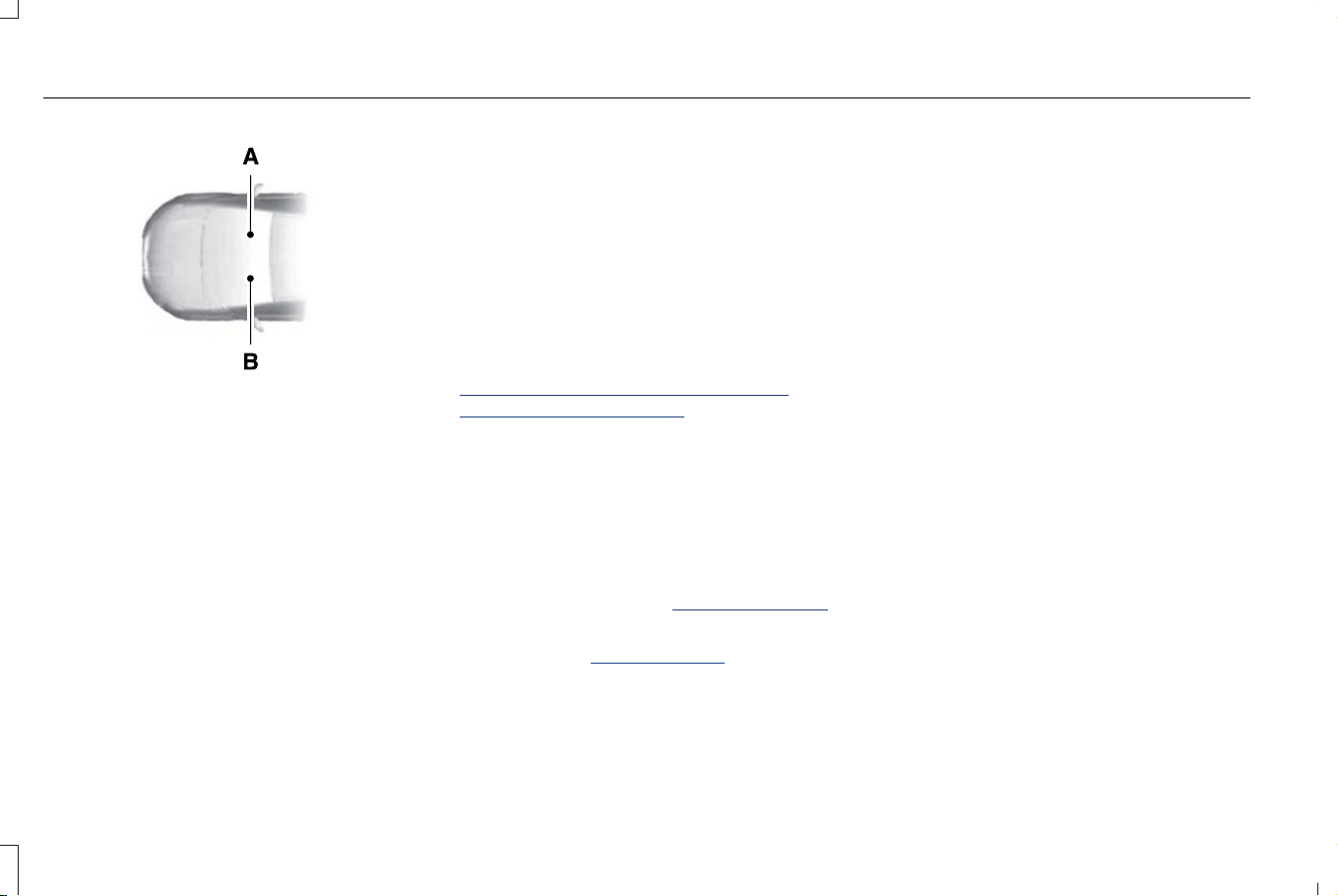
Location of Components
This manual may qualify the location of a
component as left-hand side or right-hand
side. The side is determined when facing
forward in the seat.
19
Corsair (CTF) Canada/Mexico/United States of America, enUSA, Edition date: 202407, DOM
Introduction
E154903
Right-hand side.A
Left-hand side.B
Accessing the Digital Owner's Manual
Landscape Center Display Screen
Depending on your vehicle, the Owner's
Manual application is located in either the
Apps list or the Features list.
1. Press Apps or Features on the
touchscreen.
Note: Some vehicles have the Apps or
Features buttons on the home screen. Not
all vehicles have a Features button.
2. Select the Owner's Manual application.
Accessing the Online and Printed
Owner's Manual
Online Owner's Manual
• Through your device's app store, you can
download the Lincoln mobile app.
• You can visit the local Ford Website.
Note: To find the local Ford website, visit
https://corporate.ford.com/operations/
locations/global-links.html.
Note: We strongly recommend downloading
a copy of the Owner's Manual and having it
with you whenever you drive, and to view
the information if you are unable to be inside
the vehicle.
Printed Owner's Manual
In U.S. and Canada, visit www.helminc.com
or see an authorized dealer.
In Europe, visit www.z-order.de or see an
authorized dealer.
For all other Countries, see your authorized
dealer.
USING THIS PUBLICATION
To quickly locate information about your
vehicle, use the word search within the
Owner's Manual application.
20
Corsair (CTF) Canada/Mexico/United States of America, enUSA, Edition date: 202407, DOM
Introduction
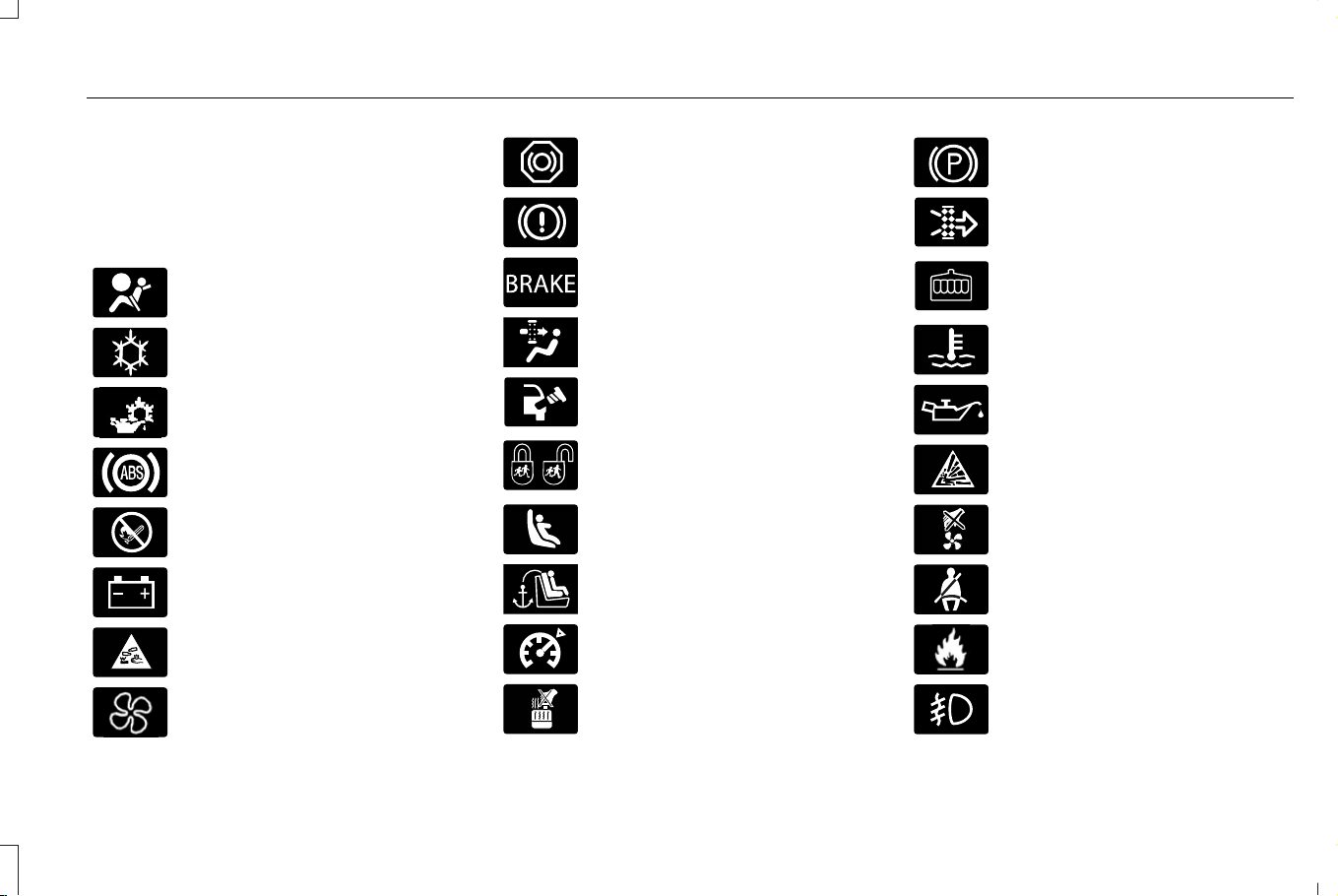
SYMBOLS USED ON YOUR
VEHICLE
These are some of the symbols you may see
on your vehicle.
E67017
Airbag
E162384
Air conditioning system
E231157
Air conditioning system lubricant
type
E67020
Anti-lock braking system
E139220
Avoid smoking, flames or sparks
E67021
Battery
E139227
Battery acid
Blower motor
E139209
Brake fluid - non petroleum based
E67024
Brake system
E270480
Brake system
E139223
Cabin air filter
Check fuel cap
Child safety door lock or unlock
E139211
Child seat lower anchor
E141128
Child seat tether anchor
E332905
Cruise control
E139219
Do not open when hot
E139212
Electric Parking brake
Engine air filter
Engine coolant
E103308
Engine coolant temperature
E67022
Engine oil
E139221
Explosive gas
E139228
Fan warning
E71880
Fasten seatbelt
E231160
Flammable
Front fog lamps
21
Corsair (CTF) Canada/Mexico/United States of America, enUSA, Edition date: 202407, DOM
Symbols Glossary
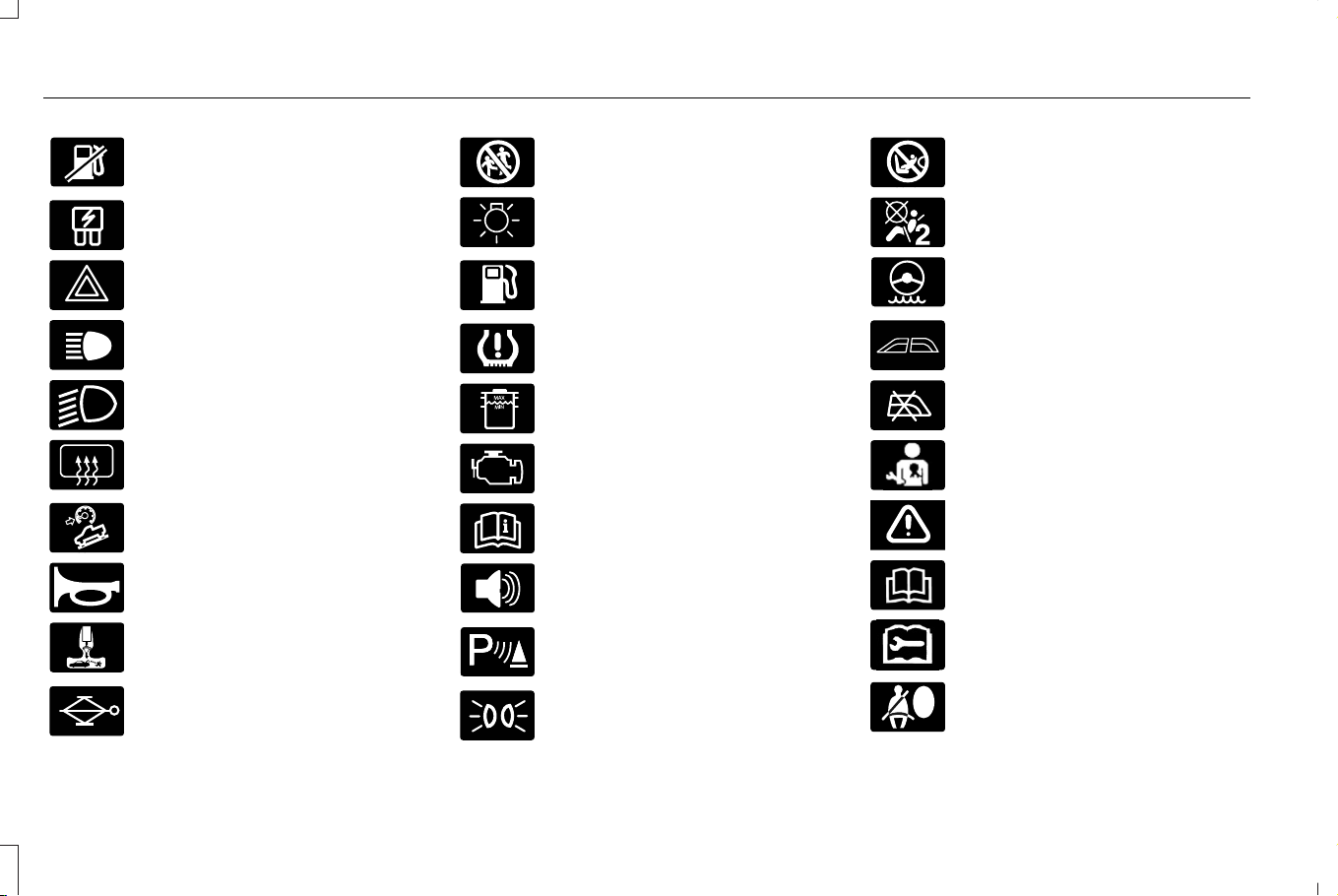
Fuel pump reset
E139214
Fuse compartment
E75790
Hazard flashers
E67019
Headlamp high beams
E270968
Headlamps on
Heated rear window
E163171
Hill descent control
E270945
Horn control
Interior luggage compartment
release
E139231
Jack
E161353
Keep out of reach of children
Lighting control
Low fuel level
E139232
Low tire pressure warning
E139229
Maintain correct fluid level
E67028
Malfunction Indicator Lamp (MIL)
E72343
Note operating instructions
Panic alarm
E139213
Parking aid
E71341
Parking lamps
E270849
Passenger airbag activated
E270850
Passenger airbag deactivated
Power steering fluid
E139216
Power windows front/rear
E139225
Power window lockout
E231159
Requires registered technician
E65963
Safety alert
E72021
See Owner's Manual
E231158
See Service Manual
Side airbag
22
Corsair (CTF) Canada/Mexico/United States of America, enUSA, Edition date: 202407, DOM
Symbols Glossary
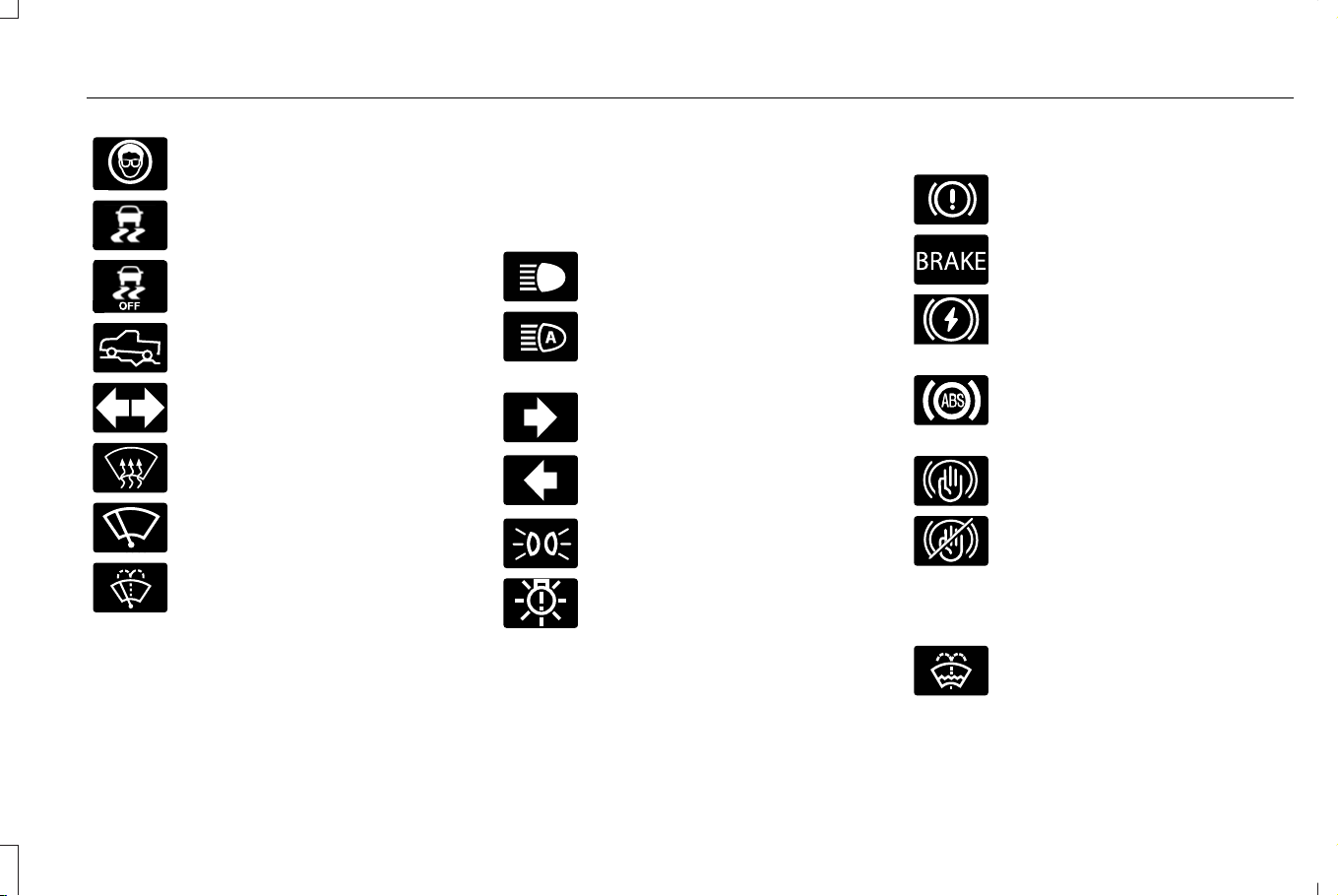
E167012
Shield the eyes
E138639
Stability control
E130458
Stability control off
E332910
Trail control
E67018
Turn Signal
E73953
Windshield defrosting system
E270969
Windshield wiping system
E270967
Windshield wash and wipe
SYMBOLS USED ON YOUR
INSTRUMENT CLUSTER
Lighting and Signaling
E67019
High beams. See Headlamp
Indicators (page 112).
E146105
Auto high beams. See Automatic
High Beam Control Indicators
(page 117).
Turn signal - right. See Using the
Turn Signal Lamps (page 114).
Turn signal - left. See Using the
Turn Signal Lamps (page 114).
E71341
Positioning/side lights. See
Headlamp Indicators (page 112).
E181350
Exterior bulb failure. See Exterior
Bulb Specification Chart (page
433).
Brakes
E67024
Brake failure. See Brakes –
Warning Lamps (page 254).
E270480
Brake failure. See Brakes –
Warning Lamps (page 254).
E423119
Electric parking brake fault. See
Electric Parking Brake – Warning
Lamps (page 257).
E67020
Anti-lock brake system
malfunction. See Brakes –
Warning Lamps (page 254).
E323448
Automatic brake hold. See Auto
Hold Indicators (page 265).
E323449
Automatic brake hold off or
unavailable. See Auto Hold
Indicators (page 265).
Visibility
E132353
Windshield washer fluid level. See
Wipers and Washers – Warning
Lamps (page 111).
23
Corsair (CTF) Canada/Mexico/United States of America, enUSA, Edition date: 202407, DOM
Symbols Glossary
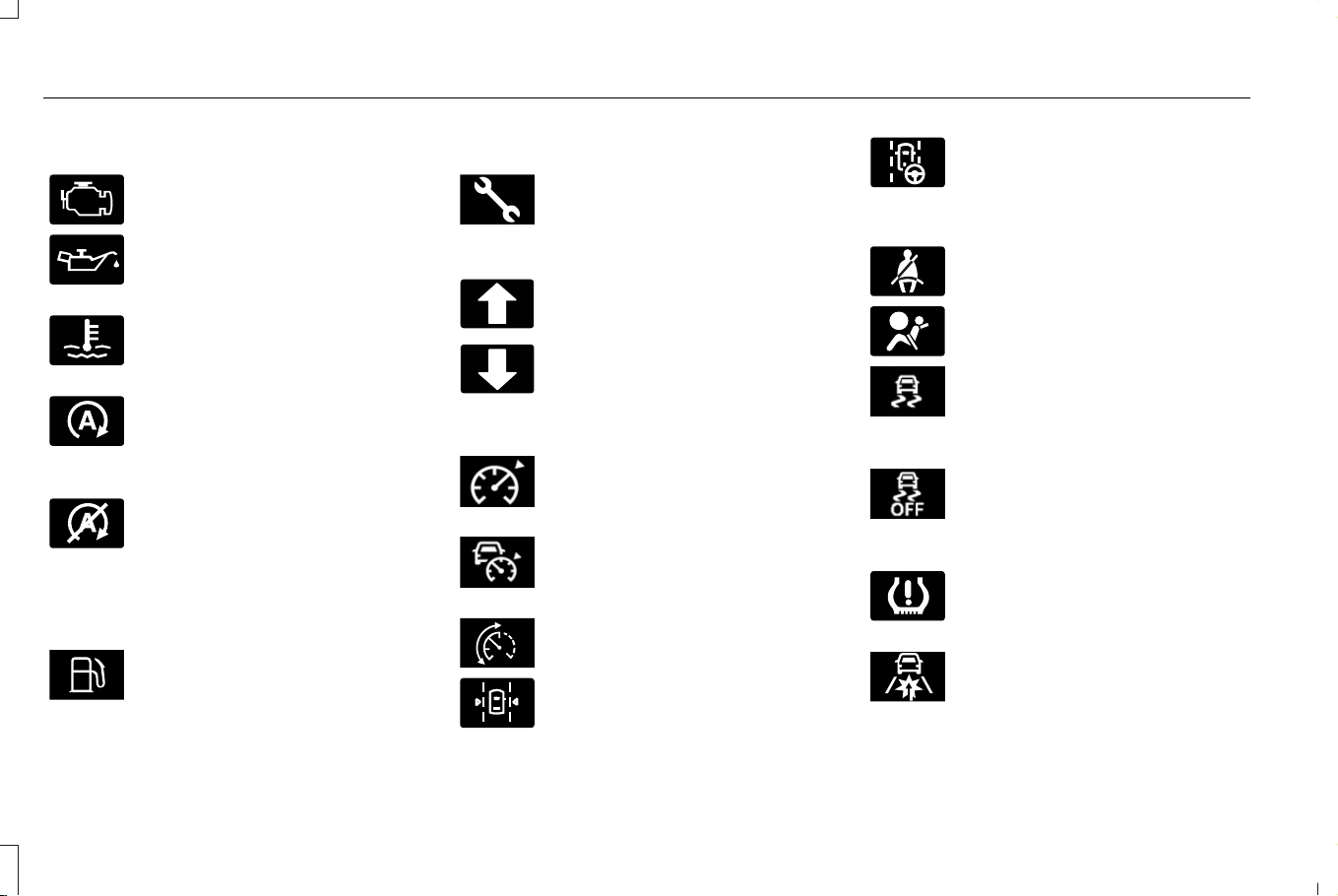
Engine
E67028
Check engine. See Coolant –
Warning Lamps (page 423).
E67022
Engine oil pressure. See Starting
and Stopping the Engine –
Warning Lamps (page 196).
E103308
Engine coolant temperature. See
Coolant – Warning Lamps (page
423).
E121377
Auto Start/Stop. See
Auto-Start-Stop Indicators (page
204). See Auto-Start-Stop
Indicators (page 204).
E146361
Auto Start/Stop off or unavailable.
See Auto-Start-Stop Indicators
(page 204). See Auto-Start-Stop
Indicators (page 204).
Fuel
E422624
Fuel. See Fuel and Refueling –
Warning Lamps (page 217).
Transmission
E415072
Non-emission powertrain fault.
See Starting and Stopping the
Engine – Warning Lamps (page
196).
Shift up. See Manually Shifting
Gears (page 243).
Shift down. See Manually Shifting
Gears (page 243).
Driver Assistance
E402396
Cruise control. See Switching
From Adaptive Cruise Control to
Cruise Control (page 294).
E402315
Adaptive cruise control. See
Adaptive Cruise Control
Indicators (page 294).
E396410
Speed limiter.
E308131
Lane keeping assist. See
Switching the Lane Keeping
System On and Off (page 321).
E297977
Lane centering assist. See Lane
Centering Indicators (page 297).
Safety
E71880
Seatbelt. See Seatbelt Reminder
Indicators (page 55).
E67017
Airbag. See Crash Sensors and
Airbag Indicator (page 68).
E411393
Stability control system active or
not available. See Stability
Control Indicator (page 269). See
Traction Control Indicator (page 266).
E411501
Stability control system off. See
Stability Control Indicator (page
269). See Traction Control
Indicator (page 266).
E139232
Tire failure/Low tire pressure. See
Tire Pressure Monitoring System
– Warning Lamps (page 474).
E415138
Forward collision warning system.
See Pre-Collision Assist –
Warning Lamps (page 344).
24
Corsair (CTF) Canada/Mexico/United States of America, enUSA, Edition date: 202407, DOM
Symbols Glossary
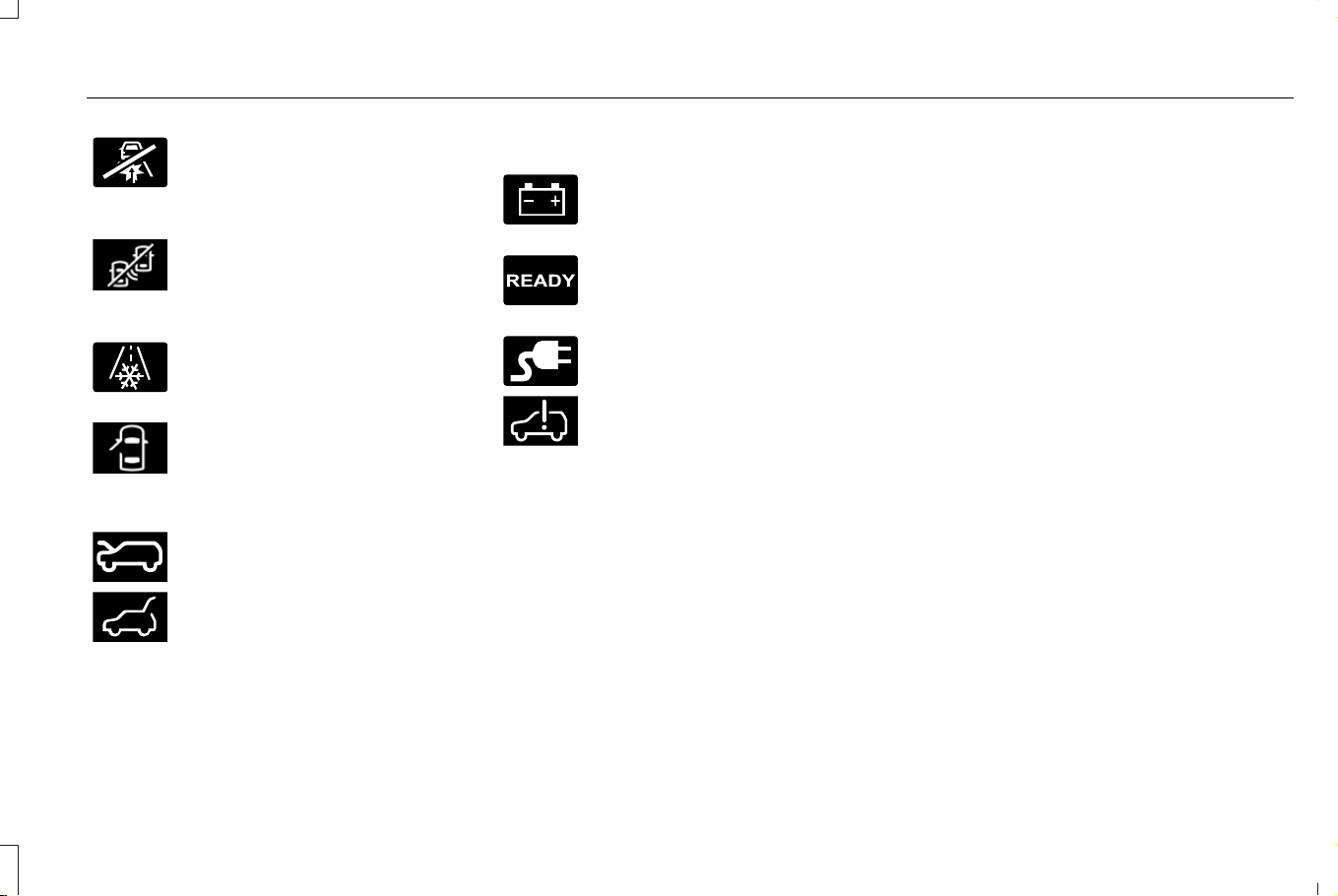
E335612
Forward collision warning system
off or unavailable. See
Pre-Collision Assist – Warning
Lamps (page 344).
E414546
Blind spot information system off
or unavailable. See Switching
Blind Spot Information System On
and Off (page 330).
E131558
Icy road conditions. See Climate
Control – Warning Lamps (page
158).
E406036
Door(s) ajar. See Doors and Locks
– Warning Lamps (page 87).
Security
E246598
Hood release/ajar. See Opening
and Closing the Hood (page 403).
E397136
Liftgate release/ajar. See Liftgate
– Warning Lamps (page 98).
Electrical Systems
E67021
Battery charge level. See 12V
Battery – Warning Lamps (page
429).
E224090
Ready to drive. See Plug-In
Hybrid Electric Vehicle
Information (page 200).
E228962
External cord connected. See
Charging Settings (page 234).
E389521
Hybrid/electric system failure. See
What Is the High Voltage Battery
(page 221).
25
Corsair (CTF) Canada/Mexico/United States of America, enUSA, Edition date: 202407, DOM
Symbols Glossary

WARNING: Do not connect wireless
plug-in devices to the data link connector.
Unauthorized third parties could gain
access to vehicle data and impair the
performance of safety related systems.
Only allow repair facilities that follow our
service and repair instructions to connect
their equipment to the data link connector.
We respect your privacy and are committed
to protecting it. The information contained
in this publication was correct at the time of
release, but as technology rapidly changes,
we recommend that you visit the local
Lincoln website for the latest information.
Your vehicle has electronic control units that
have data recording functionality and the
ability to permanently or temporarily store
data. This data could include information on
the condition and status of your vehicle,
vehicle maintenance requirements, events
and malfunctions. The types of data that can
be recorded are described in this section.
Some of the data recorded is stored in event
logs or error logs.
Note: Error logs are reset following a service
or repair.
Note: We may provide information in
response to requests from law enforcement,
other government authorities and third
parties acting with lawful authority or through
a legal process. Such information could be
used by them in legal proceedings.
Data recorded includes, for example:
• Operating states of system components,
for example fuel level, tire pressure and
battery charge level.
• Vehicle and component status, for
example wheel speed, deceleration,
lateral acceleration and seatbelt status.
• Events or errors in essential systems, for
example headlamps and brakes.
• System responses to driving situations,
for example airbag deployment and
stability control.
• Environmental conditions, for example
temperature.
Some of this data, when used in combination
with other information, for example an
accident report, damage to a vehicle or
eyewitness statements, could be associated
with a specific person.
Services That We Provide
If you use our services, we collect and use
data, for example account information,
vehicle location and driving characteristics,
that could identify you. We transmit this data
through a dedicated, protected connection.
We only collect and use data to enable your
use of our services to which you have
subscribed, with your consent or where
permitted by law. For additional information,
see the terms and conditions of the services
to which you have subscribed.
For additional information about our privacy
policy, refer to the local Lincoln website.
26
Corsair (CTF) Canada/Mexico/United States of America, enUSA, Edition date: 202407, DOM
Data Privacy

Services That Third Parties Provide
We recommend that you review the terms
and conditions and data privacy information
for any services equipped with your vehicle
or to which you subscribe. We take no
responsibility for services that third parties
provide.
Where equipped, SiriusXM with 360L may
use the modem. To disable, turn off the
SiriusXM with 360L or Vehicle Connectivity
setting. See Enabling and Disabling the
Modem (page 486).
SERVICE DATA
Service data recorders in your vehicle are
capable of collecting and storing diagnostic
information about your vehicle. This
potentially includes information about the
performance or status of various systems
and modules in the vehicle, such as engine,
throttle, steering or brake systems. In order
to properly diagnose and service your
vehicle, Ford Motor Company (Ford of
Canada in Canada), and service and repair
facilities may access or share among them
vehicle diagnostic information received
through a direct connection to your vehicle
when diagnosing or servicing your vehicle.
Additionally, Ford Motor Company (Ford of
Canada, in Canada) may, where permitted
by law, use vehicle diagnostic information
for vehicle improvement or with other
information we may have about you, for
example, your contact information, to offer
you products or services that may interest
you. Data may be provided to our service
providers such as part suppliers that may
help diagnose malfunctions, and who are
similarly obligated to protect data. We retain
this data only as long as necessary to
perform these functions or to comply with
law. We may provide information where
required in response to official requests to
law enforcement or other government
authorities or third parties acting with lawful
authority or court order, and such information
may be used in legal proceedings. For U.S.
only (if equipped), if you choose to use
connected apps and services, you consent
that certain diagnostic information may also
be accessed electronically by Ford Motor
Company and Ford authorized service
facilities, and that the diagnostic information
may be used to provide services to you,
personalizing your experience, troubleshoot,
and to improve products and services and
offer you products and services that may
interest you, where permitted by law. For
Canada only, for more information, please
review the Ford of Canada privacy policy at
www.ford.ca, including our U.S. data storage
and use of service providers in other
jurisdictions who may be subject to legal
requirements in Canada, the United States
and other countries applicable to them, for
example, lawful requirements to disclose
personal information to governmental
authorities in those countries.
27
Corsair (CTF) Canada/Mexico/United States of America, enUSA, Edition date: 202407, DOM
Data Privacy

EVENT DATA
This vehicle is equipped with an event data
recorder. The main purpose of an event data
recorder is to record, in certain crash or near
crash-like situations, such as an airbag
deployment or hitting a road obstacle; this
data will assist in understanding how a
vehicle’s systems performed. The event data
recorder is designed to record data related
to vehicle dynamics and safety systems for
a short period of time, typically 30 seconds
or less.
The event data recorder in this vehicle is
designed to record such data as:
• How various systems in your vehicle
were operating.
• Whether or not the driver and passenger
seatbelts were buckled/fastened.
• How far (if at all) the driver was
depressing the accelerator and/or the
brake pedal.
• How fast the vehicle was traveling.
• Where the driver was positioning the
steering wheel.
This data can help provide a better
understanding of the circumstances in which
crashes and injuries occur.
Note: Event data recorder data is recorded
by your vehicle only if a non-trivial crash
situation occurs; no data is recorded by the
event data recorder under normal driving
conditions and no personal data or
information (for example name, gender, age,
and crash location) is recorded. However,
parties, such as law enforcement, could
combine the event data recorder data with
the type of personally identifying data
routinely acquired during a crash
investigation.
To read data recorded by an event data
recorder, special equipment is required, and
access to the vehicle or the event data
recorder is needed. In addition to the vehicle
manufacturer, other parties, such as law
enforcement, that have such special
equipment, can read the information if they
have access to the vehicle or the event data
recorder.
BlueCruise Data (If Equipped)
If BlueCruise is active in certain crash or near
crash-like situations, such as an airbag
deployment or hitting a road obstacle, the
system may record driver attentiveness,
based on the direction of eyes and duration,
and photographs of the driver seat area.
Note: No data is recorded under normal
driving conditions.
SETTINGS DATA
Your vehicle has electronic control units that
have the ability to store data based on your
personalized settings. The data is stored
locally in the vehicle or on devices that you
connect to it, for example, a USB drive or
digital music player. You can delete some of
this data and also choose whether to share
it through the services to which you
subscribe.
28
Corsair (CTF) Canada/Mexico/United States of America, enUSA, Edition date: 202407, DOM
Data Privacy

Comfort and Convenience Data
Data recorded includes, for example:
• Seat and steering wheel position.
• Climate control settings.
• Radio presets.
Entertainment Data
Data recorded includes, for example:
• Music, videos or album art.
• Contacts and corresponding address
book entries.
• Navigation destinations.
CONNECTED VEHICLE DATA
The modem has a SIM. The
modem was enabled when your
vehicle was built and periodically
sends messages to stay connected to the
cell phone network, receive automatic
software updates and send vehicle-related
information to us, for example diagnostic
information. These messages could include
information that identifies your vehicle, the
SIM and the electronic serial number of the
modem. Cell phone network service
providers could have access to additional
information, for example cell phone network
tower identification. For additional
information about our privacy policy, visit
www.ConnectedLincoln.com or refer to your
local Lincoln website.
Note: The modem continues to send this
information unless you disable the modem
or stop the modem from sharing vehicle data
by changing the modem settings. See
Connected Vehicle (page 486).
Note: The service can be unavailable or
interrupted for a number of reasons, for
example environmental or topographical
conditions and data plan coverage.
Note: To find out if your vehicle has a
modem, visit www.ConnectedLincoln.com.
MOBILE DEVICE DATA
If you connect a mobile device to your
vehicle, you can display data from your
device on the touchscreen for example,
music and album art. You can share your
vehicle data with mobile apps on your device
through the system. See Enabling Apps on
a Mobile Device (page 514).
The mobile apps function operates by your
connected device sending data to us in the
United States. The data is encrypted and
includes, for example, the vehicle
identification number of your vehicle, the
SYNC module serial number, odometer,
enabled apps, usage statistics and
debugging information. We retain it only as
long as necessary to provide the service, to
troubleshoot, for continuous improvement
and to offer you products and services that
may be of interest to you according to your
preferences and where allowed by law.
29
Corsair (CTF) Canada/Mexico/United States of America, enUSA, Edition date: 202407, DOM
Data Privacy

If you connect a cell phone to the system,
the system creates a profile that links to that
cell phone. The cell phone profile enables
more mobile features and efficient operation.
The profile contains, for example data from
your phonebook, read and unread text
messages and call history, including history
of calls when your cell phone was not
connected to the system.
If you connect a media device, the system
creates and retains a media device index of
supported media content. The system also
records a short diagnostic log of
approximately 10 minutes of all recent system
activity.
The cell phone profile, media device index
and diagnostic log remain in your vehicle
unless you delete them and are generally
accessible only in your vehicle when you
connect your cell phone or media device. If
you no longer plan to use the system or your
vehicle, we recommend you use the system
reset function to erase the stored
information. See Performing a System
Reset (page 525).
System data cannot be accessed without
special equipment and access to your
vehicle's module.
For additional information about our privacy
policy, refer to the local Lincoln website.
Note: To find out if your vehicle has
connectivity technology, visit
www.ConnectedLincoln.com.
EMERGENCY CALL SYSTEM DATA
When the emergency call system is active,
it may disclose to emergency services that
your vehicle has been in a crash involving
the deployment of an airbag or activation of
the fuel pump shut-off. Certain versions or
updates to the emergency call system may
also be capable of electronically or verbally
disclosing to emergency services operators
your vehicle location or other details about
your vehicle or crash to assist emergency
services operators to provide the most
appropriate emergency services. If you do
not want to disclose this information, do not
activate the emergency call system.
Note: You cannot deactivate emergency call
systems that are required by law.
30
Corsair (CTF) Canada/Mexico/United States of America, enUSA, Edition date: 202407, DOM
Data Privacy

PROTECTING THE ENVIRONMENT
Sustainability is a priority at Ford. We are
constantly looking for ways to reduce our
impact on the planet while providing
customers with great products and delivering
a strong business. You should play your part
in protecting the environment. Correct
vehicle usage and the authorized disposal
of waste, cleaning and lubrication materials
are significant steps toward this aim.
For additional information about our
sustainability progress and initiatives, visit
www.sustainability.ford.com.
31
Corsair (CTF) Canada/Mexico/United States of America, enUSA, Edition date: 202407, DOM
Environment
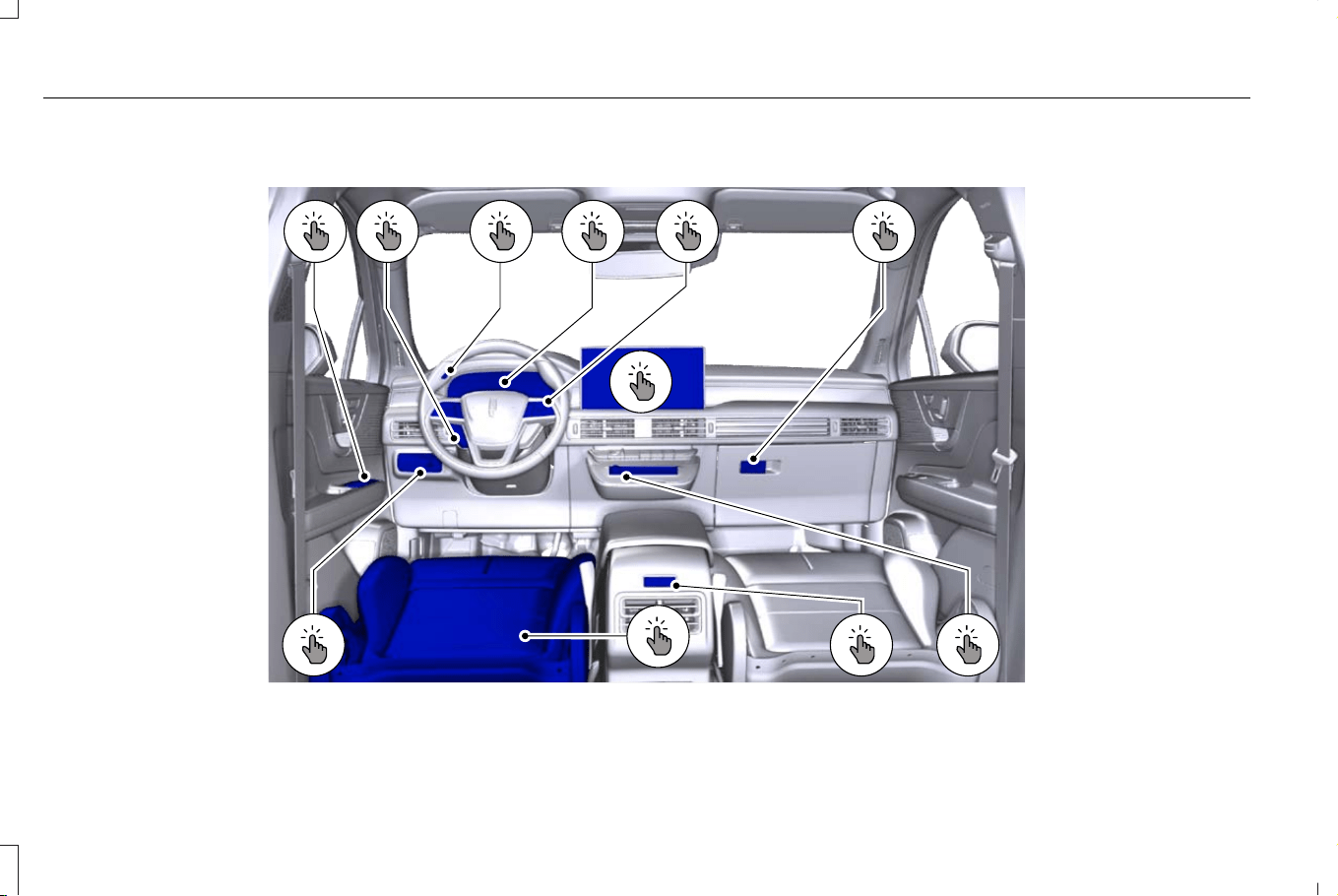
INTERIOR OVERVIEW
E422625
A B C D E F
G
J
I HK
32
Corsair (CTF) Canada/Mexico/United States of America, enUSA, Edition date: 202407, DOM
Visual Search

See Adjusting the Exterior Mirrors (page 127).A
See Setting the Adaptive Cruise Control Speed (page 289).B
See Using Lincoln Personal Assistant (page 505).C
See Instrument Cluster Overview (page 132). See Instrument Cluster Overview (page 136).D
See Using the Instrument Cluster Display Controls (page 139).E
See Opening the Glove Compartment (page 190).F
See Center Display Overview (page 502).G
See Switching the Hazard Flashers On and Off (page 377).H
See Switching the Heated Seats On and Off (page 174).I
See Sitting in the Correct Position (page 164).J
See Exterior Lighting Control (page 112).K
33
Corsair (CTF) Canada/Mexico/United States of America, enUSA, Edition date: 202407, DOM
Visual Search
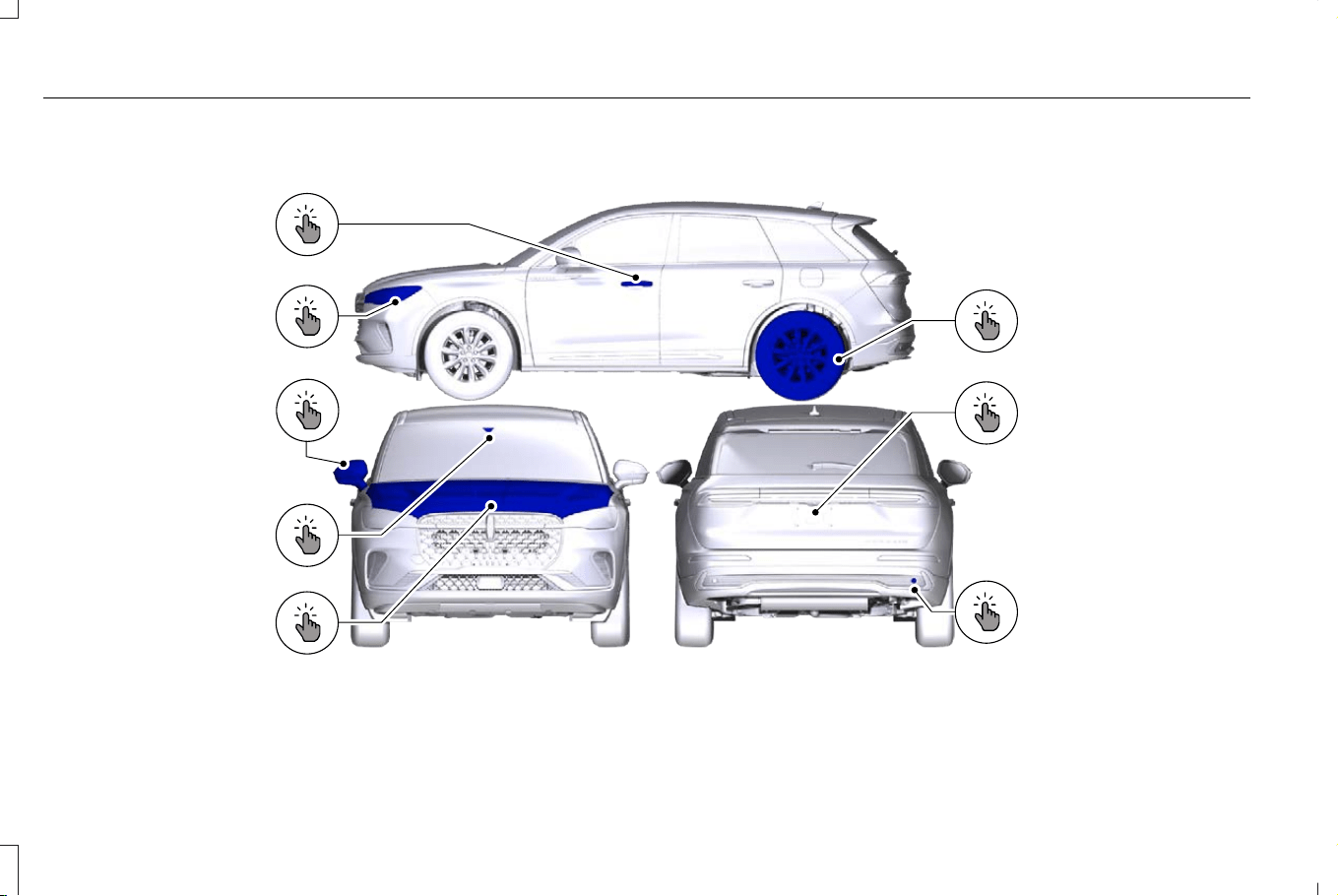
EXTERIOR OVERVIEW
E422626
B
C
D
A
H
F
E
G
34
Corsair (CTF) Canada/Mexico/United States of America, enUSA, Edition date: 202407, DOM
Visual Search

See Unlocking and Locking the Doors Using the Key Blade (page 84).A
See Changing a Flat Tire (page 477).B
See Opening the Liftgate From Outside Your Vehicle (page 92).C
See Locating the Rear Parking Aid Sensors (page 274).D
See Opening and Closing the Hood (page 403).E
See Locating the Pre-Collision Assist Sensors (page 342).F
See Folding the Exterior Mirrors (page 127).G
See Using the High Beam Headlamps (page 112).H
35
Corsair (CTF) Canada/Mexico/United States of America, enUSA, Edition date: 202407, DOM
Visual Search
CHILD SAFETY PRECAUTIONS
WARNING: Always make sure your
child is secured properly in a device that
is appropriate for their height, age and
weight. Child safety restraints must be
bought separately from your vehicle.
Failure to follow these instructions and
guidelines may result in an increased risk
of serious injury or death to your child.
WARNING: All children are shaped
differently. The National Highway Traffic
Safety Administration and other safety
organizations, base their recommendations
for child restraints on probable child height,
age and weight thresholds, or on the
minimum requirements of the law. We
recommend that you check with a NHTSA
Certified Child Passenger Safety
Technician (CPST) to make sure that you
properly install the child restraint in your
vehicle and that you consult your
pediatrician to make sure you have a child
restraint appropriate for your child. To
locate a child restraint fitting station and
CPST, contact NHTSA toll free at
1-888-327-4236 or go to
www.nhtsa.dot.gov. In Canada, contact
Transport Canada toll free at
1-800-333-0371 or go to www.tc.gc.ca to
find a Child Car Seat Clinic in your area.
Failure to properly restrain children in child
restraints made especially for their height,
age and weight, may result in an increased
risk of serious injury or death to your child.
WARNING: On hot days, the
temperature inside the vehicle can rise
very quickly. Exposure of people or animals
to these high temperatures for even a short
time can cause death or serious heat
related injuries, including brain damage.
Small children are particularly at risk.
WARNING: Do not place a rearward
facing child restraint in front of an active
airbag. Failure to follow this instruction
could result in personal injury or death.
WARNING: Properly secure children
12 years old and under in a rear seating
position whenever possible. If you are
unable to properly secure all children in a
rear seating position, properly secure the
largest child on the front seat. If you must
use a forward facing child restraint on the
front seat, move the seat as far back as
possible. Failure to follow these
instructions could result in personal injury
or death.
WARNING: Always carefully follow
the instructions and warnings provided by
the manufacturer of any child restraint to
determine if the restraint device is
appropriate for your child's size, height,
weight, or age. Follow the child restraint
manufacturer's instructions and warnings
provided for installation and use in
conjunction with the instructions and
warnings provided by your vehicle
36
Corsair (CTF) Canada/Mexico/United States of America, enUSA, Edition date: 202407, DOM
Child Safety
manufacturer. A safety seat that is
improperly installed or utilized, is
inappropriate for your child's height, age,
or weight or does not properly fit the child
may increase the risk of serious injury or
death.
WARNING: Do not allow a passenger
to hold a child on their lap when your
vehicle is moving. Failure to follow this
instruction could result in personal injury
or death in the event of a sudden stop or
crash.
WARNING: Do not use pillows, books
or towels to boost your child's height.
Failure to follow this instruction could result
in personal injury or death.
WARNING: Properly secure child
restraints or booster seats when they are
not in use. They could become projectiles
in a sudden stop or crash. Failure to follow
this instruction could result in personal
injury or death.
WARNING: Do not put the shoulder
section of the seatbelt or allow the child to
put the shoulder section of the seatbelt
under their arm or behind their back.
Failure to follow this instruction could
reduce the effectiveness of the seatbelt
and increase the risk of injury or death in
a crash.
WARNING: Do not leave children or
pets unattended in your vehicle. Failure to
follow this instruction could result in
personal injury or death.
When installing a child restraint with
seatbelts:
• Place the vehicle seat in the upright
position before you install the child
restraint.
• Use the correct seatbelt buckle for that
seating position.
• Insert the belt tongue into the buckle.
Make sure the tongue is securely
fastened in the buckle.
• Keep the buckle release button pointing
up and away from the child restraint, with
the tongue between the child restraint
and the release button, to prevent
accidental unbuckling.
• Put the seatbelt in the automatic locking
mode.
CHILD RESTRAINT ANCHOR POINTS
WHAT ARE THE CHILD RESTRAINT
ANCHOR POINTS
Anchor points allow you to quickly and safely
install a child restraint.
37
Corsair (CTF) Canada/Mexico/United States of America, enUSA, Edition date: 202407, DOM
Child Safety
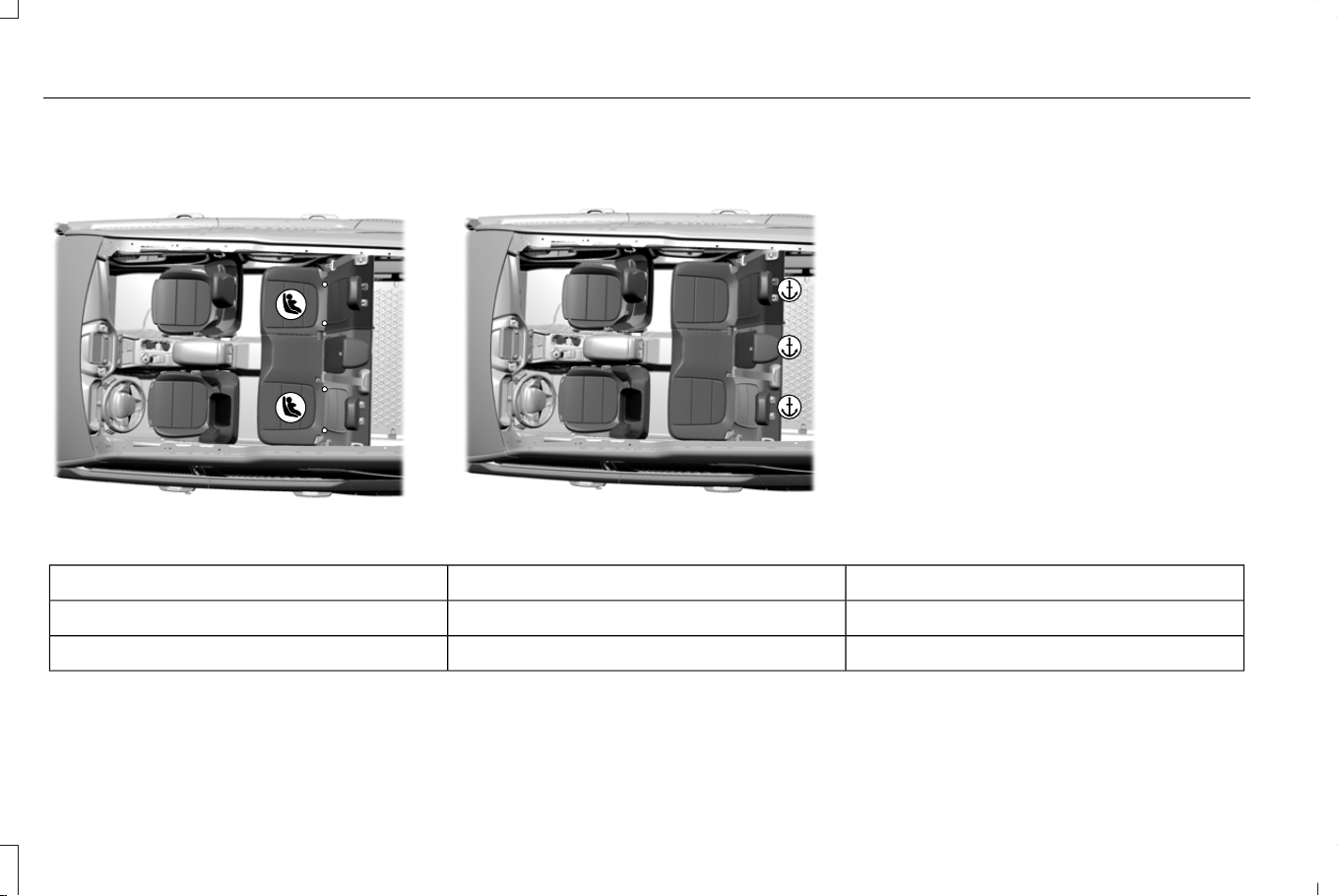
LOCATING THE CHILD RESTRAINT
LOWER ANCHOR POINTS
E316405
LOCATING THE CHILD RESTRAINT
TOP TETHER ANCHOR POINTS
E316413
CHILD RESTRAINTS
CHILD RESTRAINT POSITION
INFORMATION
Install the child restraint tightly against the
vehicle seat. It may be necessary to lift or
remove the head restraint.
Rear Facing Child Restraints
Seatbelt OnlyLATCH (Lower Anchors Only)Combined Weight of Child and Child Restraint
XXUp to 65 lb (29 kg)
XOver 65 lb (29 kg)
38
Corsair (CTF) Canada/Mexico/United States of America, enUSA, Edition date: 202407, DOM
Child Safety

Forward Facing Child Restraints
Seatbelt and LATCH (Lower Anchors
and Top Tether Anchor)
Seatbelt and Top Tether AnchorLATCH (Lower Anchors and Top
Tether Anchor)
Combined Weight of Child and Child
Restraint
XXXUp to 65 lb (29 kg)
XXOver 65 lb (29 kg)
39
Corsair (CTF) Canada/Mexico/United States of America, enUSA, Edition date: 202407, DOM
Child Safety

CHILD RESTRAINTS RECOMMENDATION
Recommended Restraint TypeChild Size, Height, Weight, or Age
Use a child restraint (sometimes called an infant carrier,
convertible seat, or toddler seat).
Children weighing 40 lb (18 kg) or less (generally age four or younger).
Use a belt-positioning booster seat.
Children who have outgrown or no longer properly fit in a child restraint (generally
children who are less than 57 in (1.45 m) tall, are greater than age four and less
than age 12, and between 40 lb (18 kg) and 80 lb (36 kg) and upward to 100 lb
(45 kg) if recommended by your child restraint manufacturer).
Use a vehicle seatbelt having the lap belt snug and low
across the hips, shoulder belt centered across the
shoulder and chest, and seat backrest upright.
Children who have outgrown or no longer properly fit in a belt-positioning booster
seat (generally children who are at least 57 in (1.45 m) tall or greater than 80 lb
(36 kg) or 100 lb (45 kg) if recommended by child restraint manufacturer).
You are required by law to properly use child
restraints for infants and toddlers in the
United States, Canada and Mexico.
Many states and provinces require that small
children use approved booster seats until
they reach age eight, a height of 57 in
(1.45 m) tall, or 80 lb (36 kg). Check your local
and state or provincial laws for specific
requirements about the safety of children in
your vehicle.
When possible, properly restrain children 12
years of age and under in a rear seating
position of your vehicle. Accident statistics
suggest that children are safer when properly
restrained in the rear seating positions than
in a front seating position.
When installing a rear facing child restraint,
adjust the vehicle seats to avoid interference
between the child restraint and the vehicle
seat in front of the child restraint.
40
Corsair (CTF) Canada/Mexico/United States of America, enUSA, Edition date: 202407, DOM
Child Safety
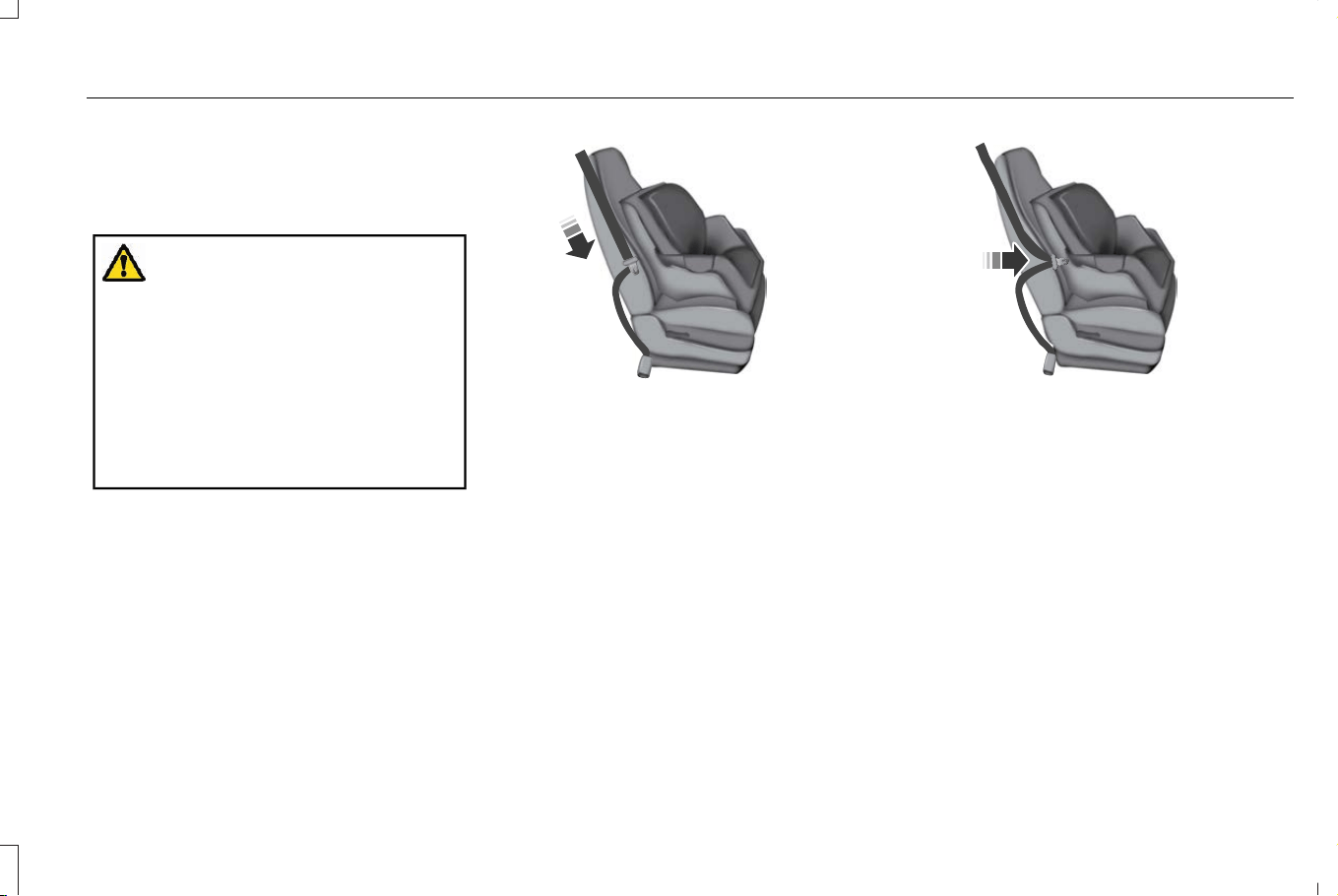
INSTALLING CHILD RESTRAINTS
USING SEATBELTS
WARNING: Depending on where you
secure a child restraint, and depending on
the child restraint design, you may block
access to certain seatbelt buckle
assemblies and LATCH lower anchors,
rendering those features potentially
unusable. To avoid risk of injury, make sure
occupants only use seating positions
where they are able to be properly
restrained.
Note: Although the child restraint illustrated
is a forward-facing child restraint, the steps
are the same for installing a rear-facing child
restraint.
Perform the following steps when installing
the child restraint with seatbelts:
1. Position the child restraint in a seat with
a seatbelt.
E142529
2. After positioning the child restraint in the
proper seating position, pull down on the
shoulder belt and then grasp the
shoulder belt and lap belt together
behind the belt tongue.
E142530
3. While holding the shoulder and lap belt
portions together, route the tongue
through the child restraint according to
the child restraint manufacturer's
instructions. Make sure that you did not
twist the belt webbing.
41
Corsair (CTF) Canada/Mexico/United States of America, enUSA, Edition date: 202407, DOM
Child Safety
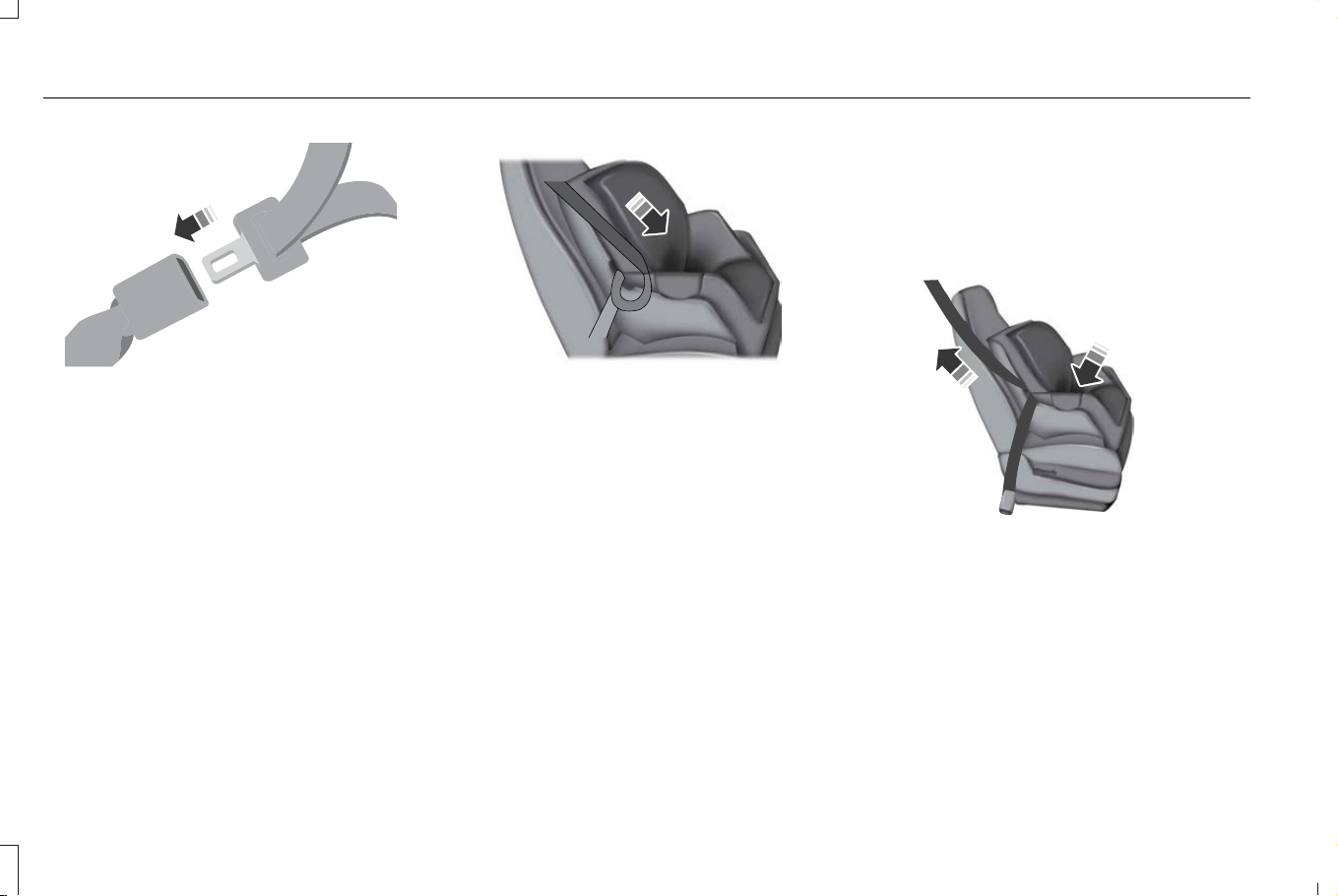
E142531
4. Insert the belt tongue into the proper
buckle (the buckle closest to the direction
the tongue is coming from) for that
seating position until you hear a snap and
feel the latch engage. Make sure the
tongue is latched securely by pulling on
it.
E142875
5. To put the retractor in the automatic
locking mode, grasp the shoulder portion
of the belt and pull downward until you
pull all of the belt out.
Note: The automatic locking mode is
available on the front passenger and rear
seats.
6. Allow the belt to retract to remove slack.
The belt clicks as it retracts to indicate it
is in the automatic locking mode.
7. Try to pull the belt out of the retractor to
make sure the retractor is in the
automatic locking mode. You should not
be able to pull more belt out. If the
retractor did not lock, unbuckle the belt
and repeat Steps 5 and 6.
E142533
8. Remove remaining slack from the belt.
Force the seat down with extra weight,
for example, by pressing down or
kneeling on the child restraint while
pulling up on the shoulder belt in order
to force slack from the belt. This is
necessary to remove the remaining slack
that exists once you add the extra weight
42
Corsair (CTF) Canada/Mexico/United States of America, enUSA, Edition date: 202407, DOM
Child Safety
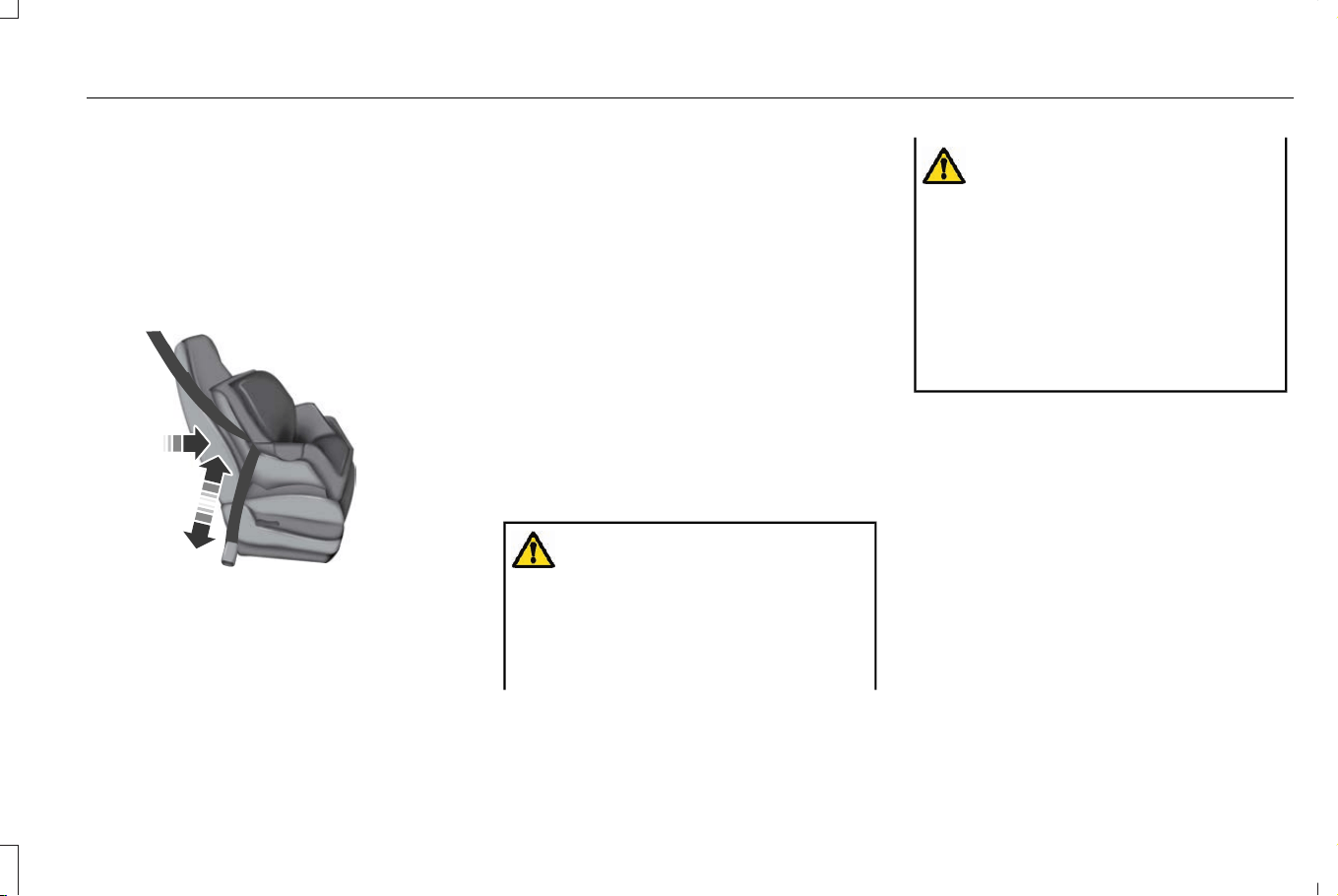
of the child to the child restraint. It also
helps to achieve the proper snugness of
the child restraint to your vehicle.
Sometimes, a slight lean toward the
buckle will provide extra help to remove
remaining slack from the belt.
9. If the child restraint has a tether strap,
attach it.
E142534
10. Before placing the child in the seat,
forcibly move the seat forward and back
to make sure the seat is securely held
in place. To check this, grab the seat at
the belt path and attempt to move it
side to side and forward and back.
There should be no more than 1 in
(2.5 cm) of movement.
We recommend checking with a NHTSA
Certified Child Passenger Safety Technician
to make certain the child restraint is properly
installed. In Canada, check with Transport
Canada for referral to a Child Car Seat Clinic.
USING LOWER ANCHORS AND
TETHERS FOR CHILDREN
WARNING: Do not attach two child
safety restraints to the same anchor. In a
crash, one anchor may not be strong
enough to hold two child safety restraint
attachments and may break, causing
serious injury or death.
WARNING: Depending on where you
secure a child restraint, and depending on
the child restraint design, you may block
access to certain seatbelt buckle
assemblies and LATCH lower anchors,
rendering those features potentially
unusable. To avoid risk of injury, make sure
occupants only use seating positions
where they are able to be properly
restrained.
The LATCH (Lower Anchors and Tethers for
CHildren) system has three vehicle anchor
points.
• Two lower anchors where the seat
backrest and seat cushion meet, called
the seat bight.
• One top tether anchor behind that
seating position.
43
Corsair (CTF) Canada/Mexico/United States of America, enUSA, Edition date: 202407, DOM
Child Safety
LATCH-compatible child restraints have two
rigid or webbing mounted attachments that
connect to the two lower anchors at the
LATCH-equipped seating positions in your
vehicle. This type of attachment method
eliminates the need to use seatbelts to attach
the child restraint.
However, you can still use the seatbelt to
attach the child restraint. For forward-facing
child restraints, you must also attach the top
tether strap to the proper top tether anchor
if a top tether strap has been provided with
your child restraint.
Follow the instructions on attaching child
restraints with tether straps.
INSTALLING A CHILD RESTRAINT IN
A CENTER SEAT
WARNING: The standardized spacing
for LATCH lower anchors is 11 in (280 mm)
center to center. Do not use LATCH lower
anchors for the center seating position
unless the child restraint manufacturer's
instructions permit and specify using
anchors spaced at least as far apart as
those in this vehicle.
The lower anchors at the center of the
second row rear seat are spaced 18 in
(46 cm) apart. You cannot install a child
restraint with rigid LATCH attachments at the
center seating position. You can only use
LATCH compatible child restraints with
attachments on belt webbing at this seating
position provided that the child restraint
manufacturer's instructions permit use with
the anchor spacing stated. Do not attach a
child restraint to any lower anchor if an
adjacent child restraint is attached to that
anchor.
Each time you use the child restraint, check
that the seat is properly attached to the lower
anchors and tether anchor, if applicable. Tug
the child restraint from side to side and
forward and back where it is secured to your
vehicle. The seat should move less than 1 in
(2.5 cm).
If you did not properly anchor the child
restraint, the risk of a child being injured in
a crash greatly increases.
COMBINING THE SEATBELT AND
LOWER ANCHORS FOR ATTACHING
CHILD RESTRAINTS
When used in combination, you may attach
either the seatbelt or the LATCH lower
anchors first, provided a proper installation
is achieved. Attach the tether strap afterward,
if it is included with the child restraint.
44
Corsair (CTF) Canada/Mexico/United States of America, enUSA, Edition date: 202407, DOM
Child Safety
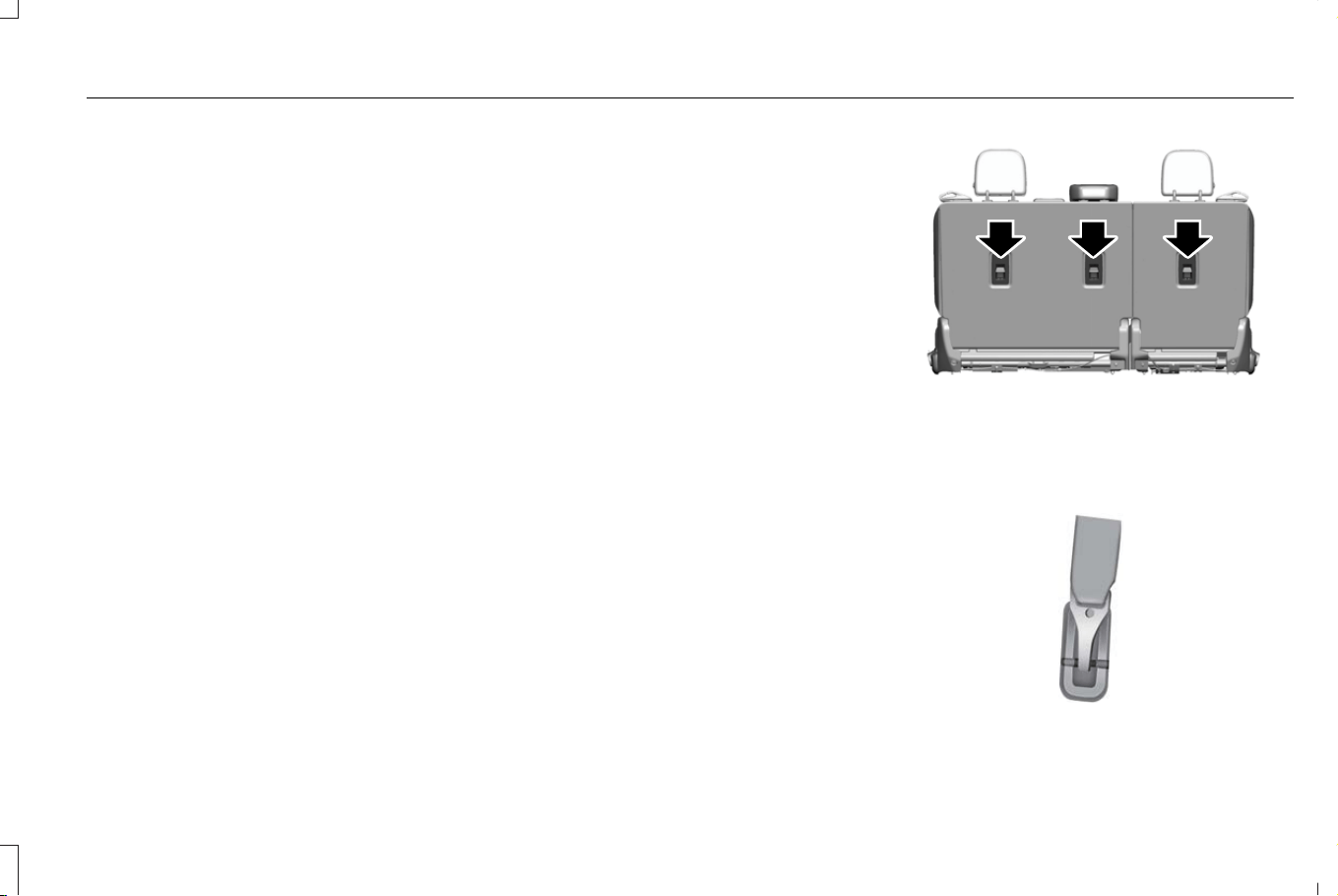
USING TETHER STRAPS
Many forward-facing child restraints include
a tether strap which extends from the back
of the child restraints and hooks to an
anchoring point called the top tether anchor.
Tether straps are available as an accessory
for many older child restraints.
Contact the manufacturer of your child
restraint for information about ordering a
tether strap, or to obtain a longer tether strap
if the tether strap on your child restraint does
not reach the appropriate top tether anchor
in your vehicle.
Once you install the child restraint using
either the seatbelt, the lower anchors of the
LATCH system, or both, you can attach the
top tether strap.
Perform the following steps to install a child
restraint with tether anchors:
Note: If you install a child restraint with rigid
LATCH attachments, do not tighten the
tether strap enough to lift the child restraint
off your vehicle seat cushion when the child
is seated in it. Keep the tether strap just snug
without lifting the front of the child restraint.
Keeping the child restraint just touching your
vehicle seat gives the best protection in a
crash.
1. Route the child restraint tether strap over
the back of the seat. For the outermost
seating positions, route the tether strap
under the head restraint and between
the head restraint posts. For the center
seating positions, route the tether strap
over the top of the head restraint. If
needed, you can also remove the head
restraints.
E305488
2. Locate the correct anchor on the back
panel of the rear seat for the selected
seating position. The anchors are labeled
with the tether strap symbol.
E142539
45
Corsair (CTF) Canada/Mexico/United States of America, enUSA, Edition date: 202407, DOM
Child Safety
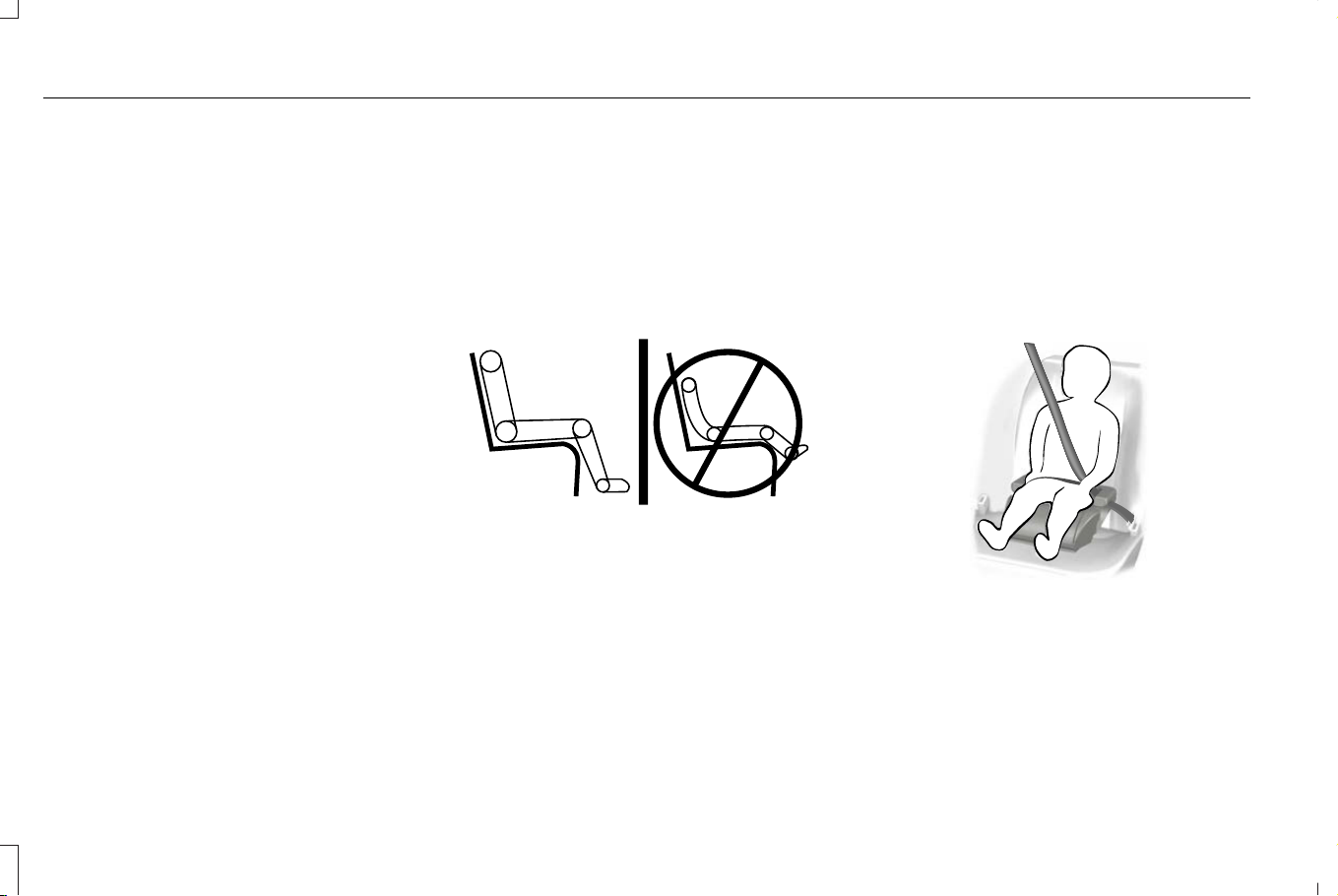
3. Clip the tether strap to the anchor as
shown.
4. Tighten the child restraint tether strap
according to the manufacturer's
instructions.
Note: If your child restraint system has a
tether strap and the manufacturer
recommends its use, we also recommend
its use.
BOOSTER SEATS
Use a belt-positioning booster seat for
children who have outgrown or no longer
properly fit in a child restraint and meet the
following criteria.
• Generally children who are less than
57 in (1.45 m) tall.
• Are greater than age four (4) and less
than age twelve (12).
• Are between 40 lb (18 kg) and 80 lb
(36 kg) and upward to 100 lb (45 kg).
Many state and provincial laws require that
children use approved booster seats until
they reach age eight, a height of 57 in
(1.45 m) tall, or 80 lb (36 kg).
Booster seats should be used until you can
answer yes to all of these questions when
seated without a booster seat:
E142595
• Can the child sit all the way back against
their vehicle seat backrest with knees
bent comfortably at the edge of the seat
cushion?
• Can the child sit without slouching?
• Does the lap belt rest low across the
hips?
• Is the shoulder belt centered on the
shoulder and chest?
• Can the child stay seated like this for the
whole trip?
Always use booster seats in conjunction with
your vehicle lap and shoulder belt.
Types of Booster Seats
E68924
• Backless booster seats
If your backless booster seat has a
removable shield, remove the shield.
46
Corsair (CTF) Canada/Mexico/United States of America, enUSA, Edition date: 202407, DOM
Child Safety
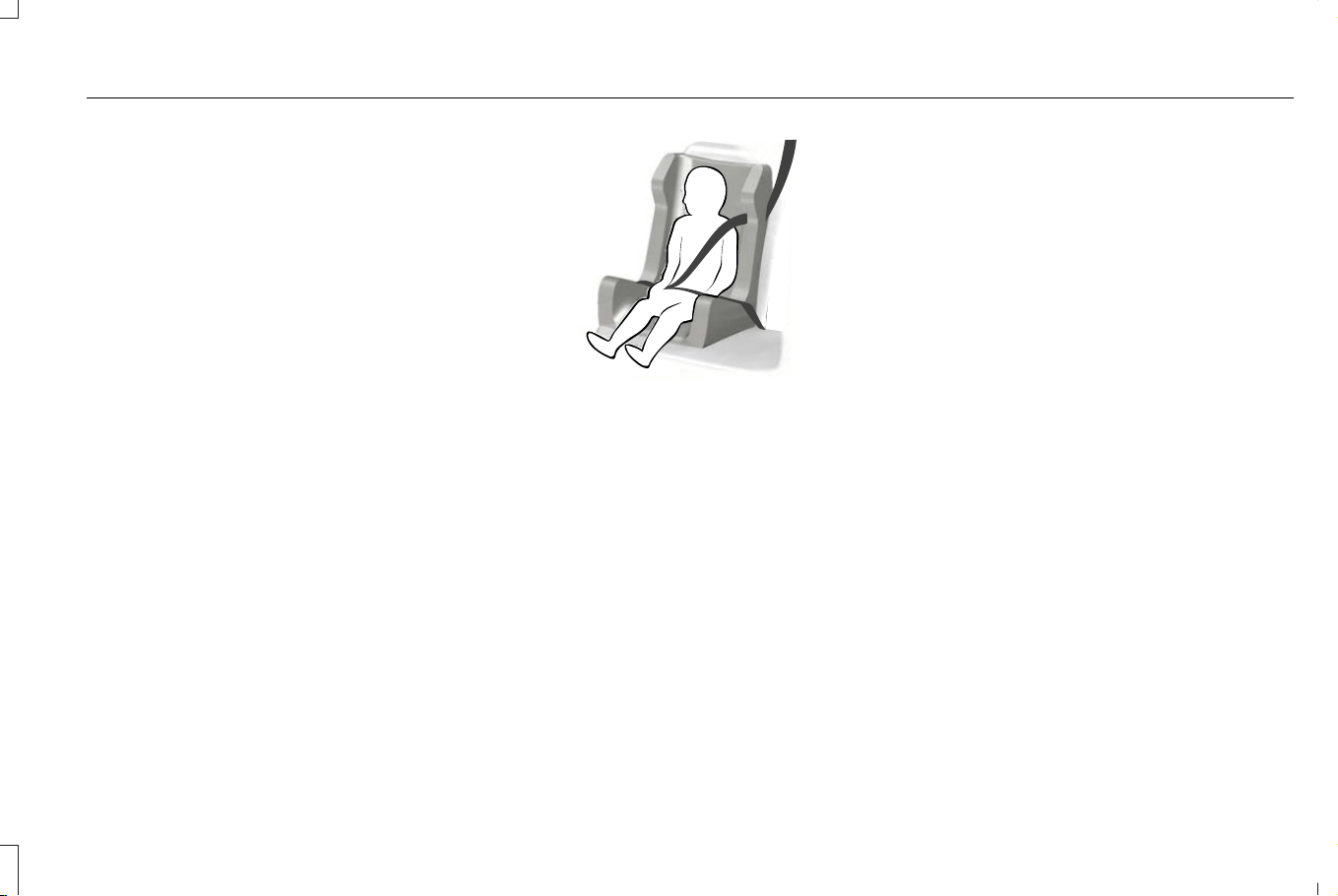
If a vehicle seating position has a low seat
backrest or no head restraint, a backless
booster seat may place your child's head, as
measured at the tops of the ears, above the
top of the seat. In this case, move the
backless booster to another seating position
with a higher seat backrest or head restraint
and lap and shoulder belts, or consider using
a high-back booster seat.
E70710
• High-back booster seats
If, with a backless booster seat, you cannot
find a seating position that adequately
supports your child's head, a high-back
booster seat would be a better choice.
Children and booster seats vary in size and
shape. Choose a booster that keeps the lap
belt low and snug across the hips, never up
across the stomach, and lets you adjust the
shoulder belt to cross the chest and rest
snugly near the center of the shoulder.
The following drawings compare the ideal
fit to a shoulder belt uncomfortably close to
the neck and a shoulder belt that could slip
off the shoulder. The drawings also show
how the lap belt should be low and snug
across the child's hips.
47
Corsair (CTF) Canada/Mexico/United States of America, enUSA, Edition date: 202407, DOM
Child Safety
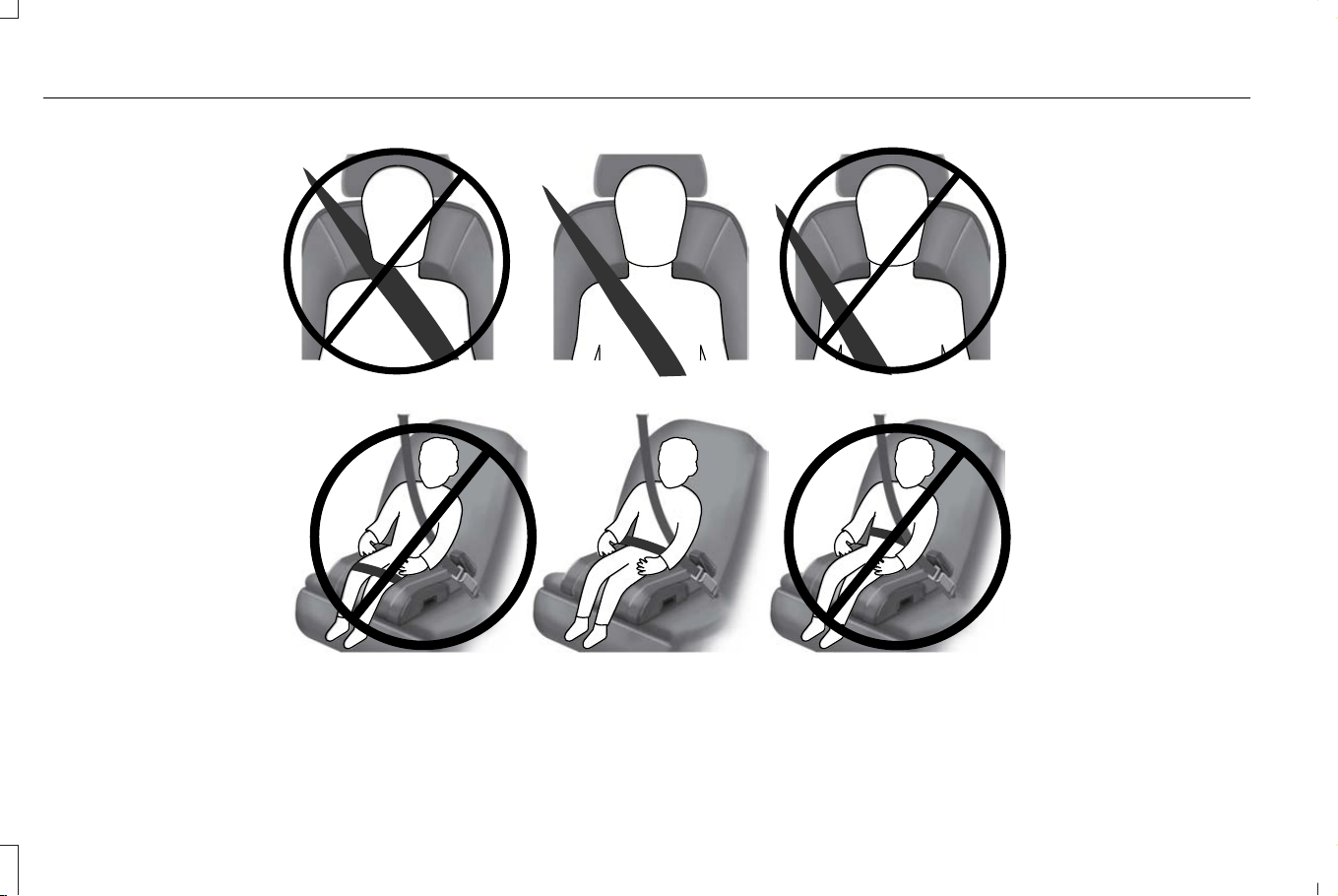
E142596
E142597
48
Corsair (CTF) Canada/Mexico/United States of America, enUSA, Edition date: 202407, DOM
Child Safety
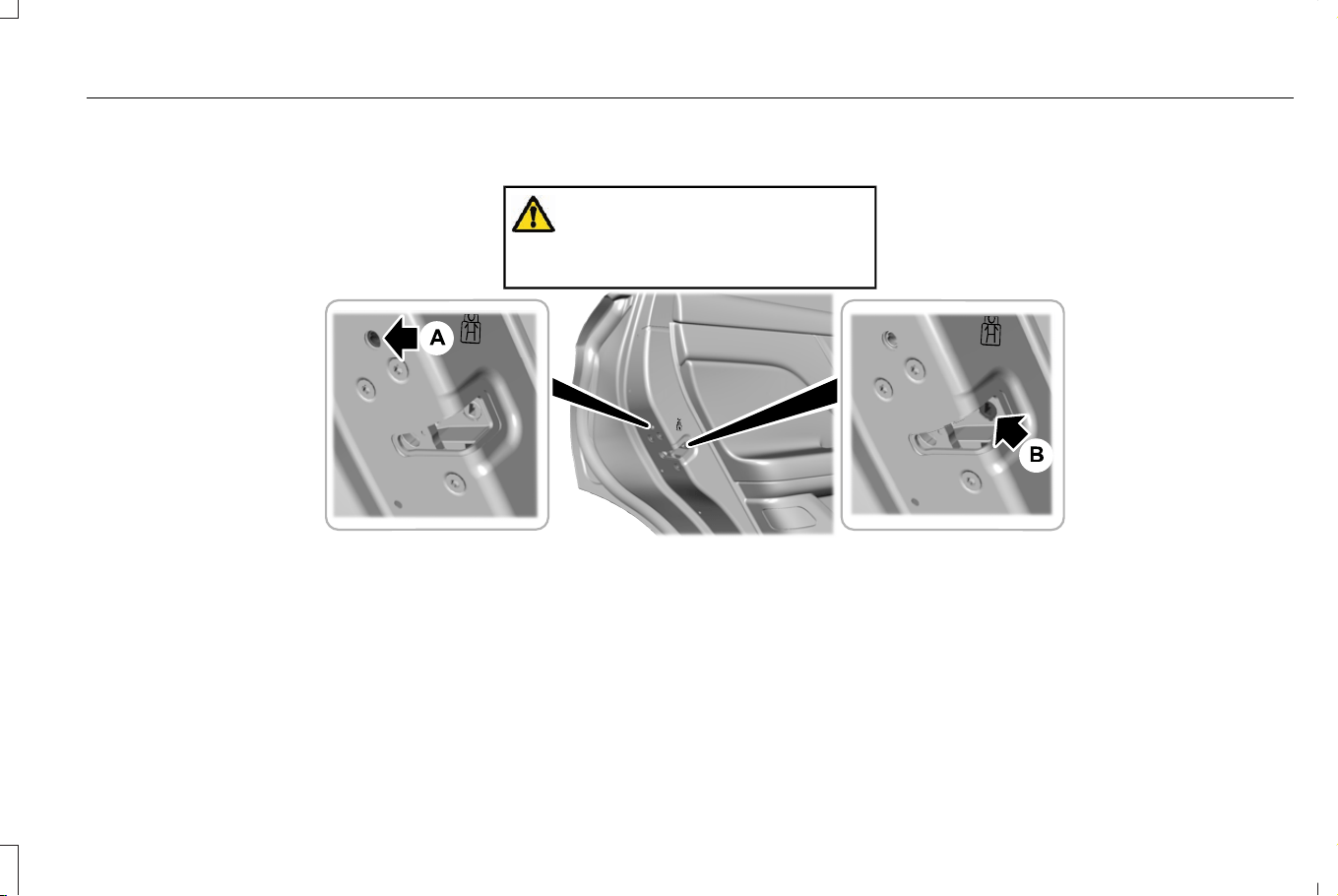
If the booster seat slides on the vehicle seat
upon which it is being used, placing a
rubberized mesh sold as shelf or carpet liner
under the booster seat may improve this
condition. Do not use any item thicker than
this under the booster seat. Check with the
booster seat manufacturer's instructions.
CHILD SAFETY LOCKS
WARNING: You cannot open the rear
doors from inside if you have put the child
safety locks on.
E420039
Manual emergency lock. See Individually Unlocking and Locking the Doors Using the Key Blade (page 84).A
Child safety lock.B
A child safety lock is on the rear edge of
each rear door. You must switch each child
safety lock separately.
Left-Hand Side
Turn it clockwise to switch the child lock on
and counterclockwise to switch it off.
Right-Hand Side
Turn it counterclockwise to switch the child
lock on and clockwise to switch it off.
49
Corsair (CTF) Canada/Mexico/United States of America, enUSA, Edition date: 202407, DOM
Child Safety

Note: To make sure the child safety lock is
on, pull the inside door handle twice to verify
the door does not open.
Note: To open the rear doors from inside the
vehicle when the child lock is engaged, roll
down the rear window and use the outside
door handle. Or have someone outside the
vehicle open the door.
50
Corsair (CTF) Canada/Mexico/United States of America, enUSA, Edition date: 202407, DOM
Child Safety
SEATBELT PRECAUTIONS
WARNING: Always drive and ride
with your seatback upright and the lap belt
snug and low across the hips.
WARNING: Children must always be
properly restrained.
WARNING: Do not allow a passenger
to hold a child on their lap when your
vehicle is moving. Failure to follow this
instruction could result in personal injury
or death in the event of a sudden stop or
crash.
WARNING: All occupants of your
vehicle, including the driver, should always
properly wear their seatbelts, even when
an airbag supplemental restraint system is
provided. Failure to properly wear your
seatbelt could seriously increase the risk
of injury or death.
WARNING: It is extremely dangerous
to ride in a cargo area, inside or outside of
a vehicle. In a crash, people riding in these
areas are more likely to be seriously
injured or killed. Do not allow people to
ride in any area of your vehicle that is not
equipped with seats and seatbelts. Make
sure everyone in your vehicle is in a seat
and properly using a seatbelt. Failure to
follow this warning could result in serious
personal injury or death.
WARNING: In a rollover crash, an
unbelted person is significantly more likely
to die than a person wearing a seatbelt.
WARNING: Each seating position in
your vehicle has a specific seatbelt
assembly made up of one buckle and one
tongue designed to be used as a pair. Use
the shoulder belt on the outside shoulder
only. Never wear the shoulder belt under
the arm. Never use a single seatbelt for
more than one person.
WARNING: Even with advanced
restraints systems, properly restrain
children 12 and under in a rear seating
position. Failure to follow this could
seriously increase the risk of injury or
death.
WARNING: Seatbelts and seats may
be hot in a vehicle that is in the sunshine.
The hot seatbelts or seats may burn a small
child. Check seat covers and buckles
before you place a child anywhere near
them.
WARNING: If your vehicle is involved
in a crash, have the seatbelts and
associated components inspected as soon
as possible. Failure to follow this instruction
could result in personal injury or death.
All seating positions in this vehicle have lap
and shoulder seatbelts. All occupants of the
vehicle should properly wear their seatbelts,
even when an airbag supplemental restraint
system is provided.
51
Corsair (CTF) Canada/Mexico/United States of America, enUSA, Edition date: 202407, DOM
Seatbelts
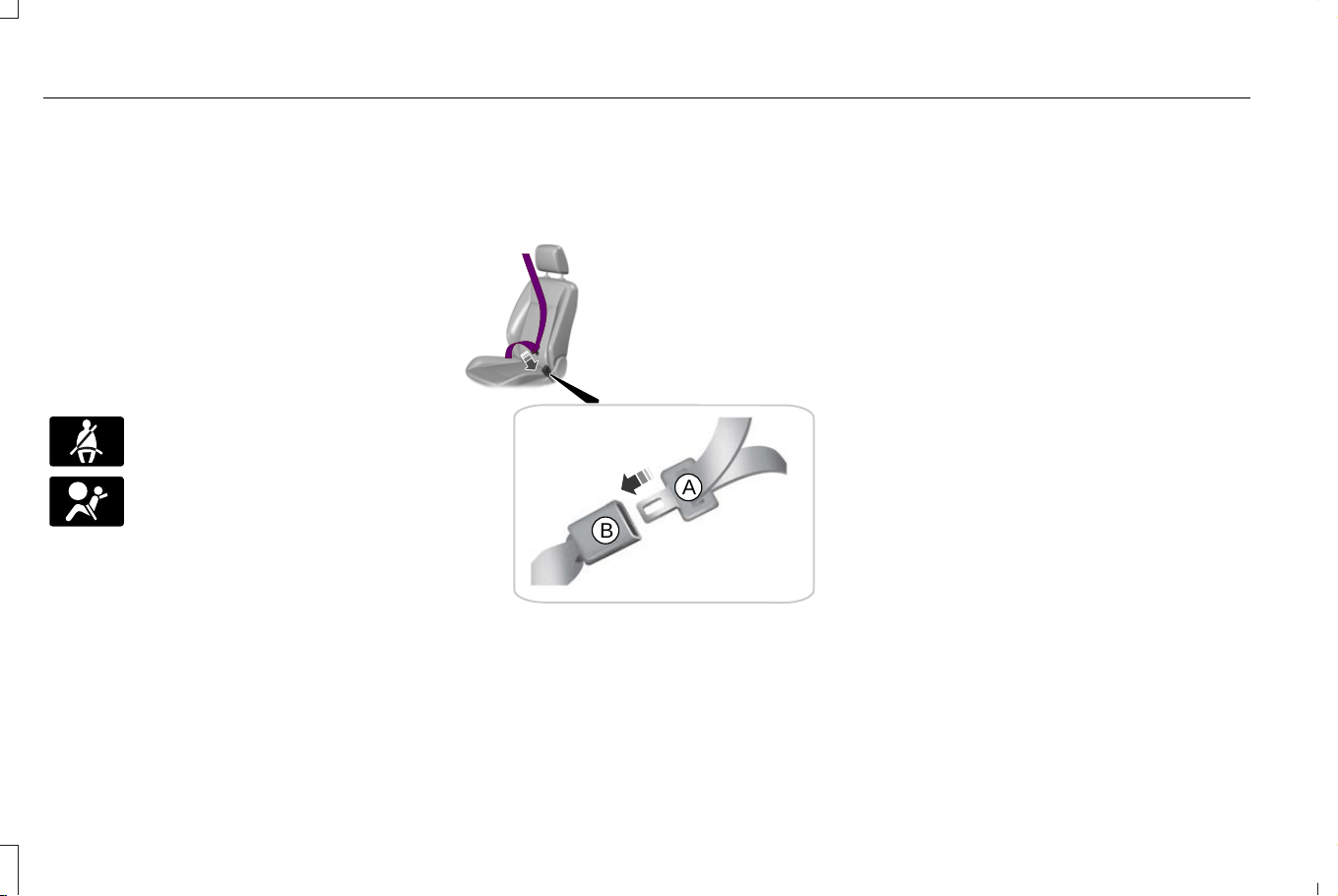
The seatbelt system consists of:
• Lap and shoulder seatbelts.
• A shoulder seatbelt with automatic
locking mode, except driver seatbelt.
• Height adjusters at the front outermost
seating positions.
• Seatbelt pretensioners at the front
outermost and second row outermost
seating positions.
• Belt tension sensor at the front outermost
passenger seating position.
E71880
A seatbelt warning light and tone.
E67017
Crash sensors and monitoring
system with readiness indicator.
The seatbelt pretensioners are designed to
tighten the seatbelts when activated. In
frontal and near-frontal crashes, the seatbelt
pretensioners may be activated alone or, if
the crash is of sufficient severity, together
with the front airbags. The pretensioners may
also activate when a Safety Canopy airbag
deploys.
FASTENING THE SEATBELTS
All seatbelts in your vehicle are a three-point
combination lap and shoulder seatbelt.
E338014
B
A
Seatbelt tongue.A
Seatbelt buckle.B
1. Pull the seatbelt out steadily.
Note: It may lock if you pull it sharply or if
the vehicle is on a slope.
2. Insert the tongue into the buckle.
3. Pull the seatbelt tight to remove any
slack.
Unfastening the Seatbelts
1. Press the red button on the buckle to
release the seatbelt.
2. Hold the seatbelt tongue and let it retract
completely and smoothly to its stowed
position.
When in use, place the rear seatbelts in the
belt guides on the outermost seat backrests.
52
Corsair (CTF) Canada/Mexico/United States of America, enUSA, Edition date: 202407, DOM
Seatbelts
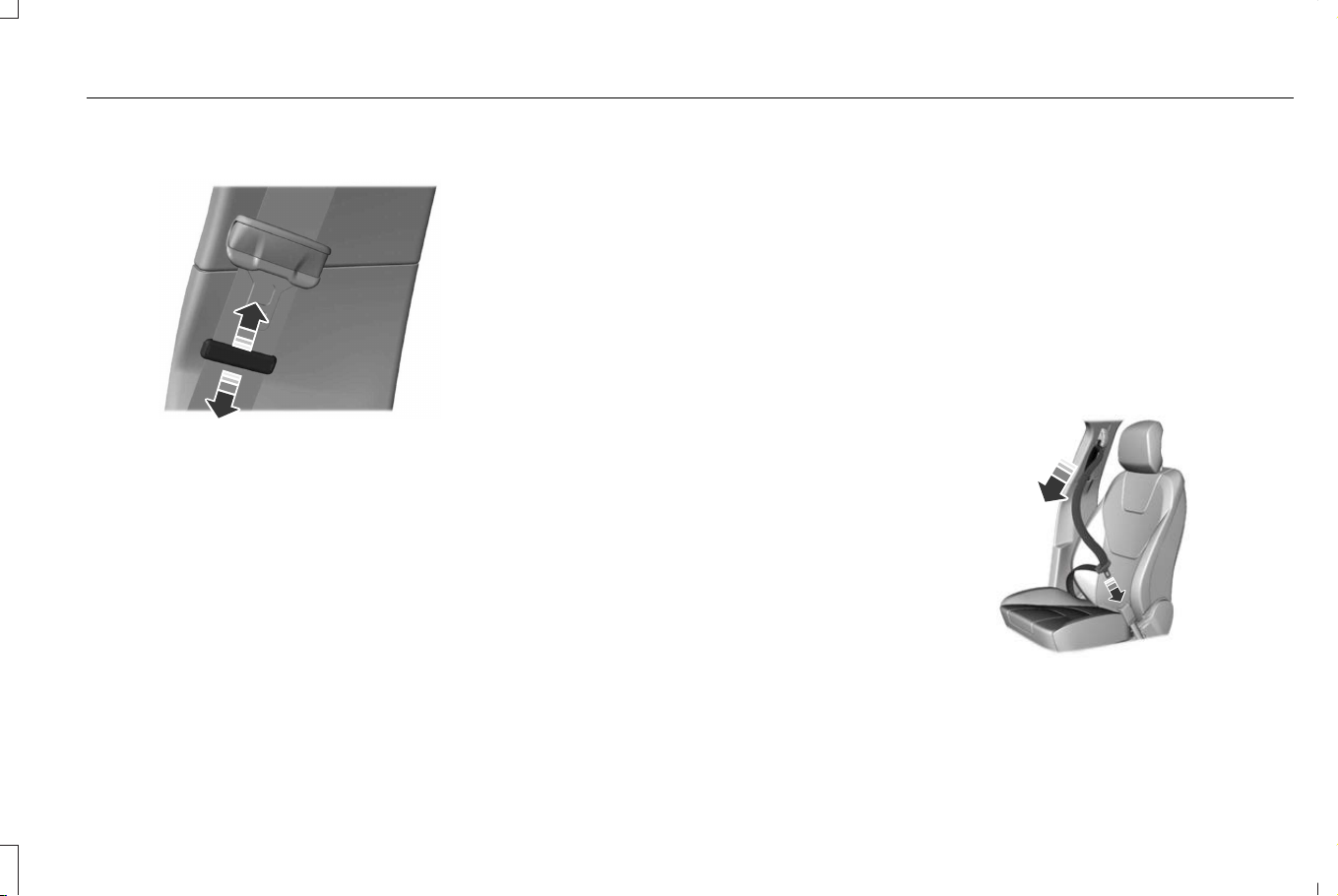
Using a Sliding Clip (If Equipped)
E200788
Slide the clip away from the tongue so there
is no loose webbing when an occupant or
child seat is buckled. Use the sliding clip to
raise the tongue to prevent it from rattling
and to access it more easily.
SENSITIVE LOCKING MODE
WHAT IS SENSITIVE LOCKING MODE
Sensitive locking mode is a seatbelt retractor
feature that allows shoulder belt length
adjustment according to your movements
and locking in response to vehicle
movement.
HOW DOES SENSITIVE LOCKING
MODE WORK
If the driver suddenly brakes, turns a corner
sharply, or the vehicle receives an impact of
about 5 mph (8 km/h) or more, the seatbelts
lock to help reduce forward movement of
the driver and passengers.
In addition, the seatbelt retractor locks if you
pull the seatbelt webbing out too quickly. If
the retractor locks, slowly lower the height
adjuster to allow the seatbelt to retract.
If the retractor does not unlock, pull the
seatbelt out slowly then feed a small length
of webbing back toward the stowed position.
AUTOMATIC LOCKING MODE
WHAT IS AUTOMATIC LOCKING
MODE
This is a safety feature built into the seatbelt
retractors that keeps the seatbelts
pre-locked.
ENGAGING AUTOMATIC LOCKING
MODE
E142591
1. Fasten the combination lap and shoulder
belt.
53
Corsair (CTF) Canada/Mexico/United States of America, enUSA, Edition date: 202407, DOM
Seatbelts
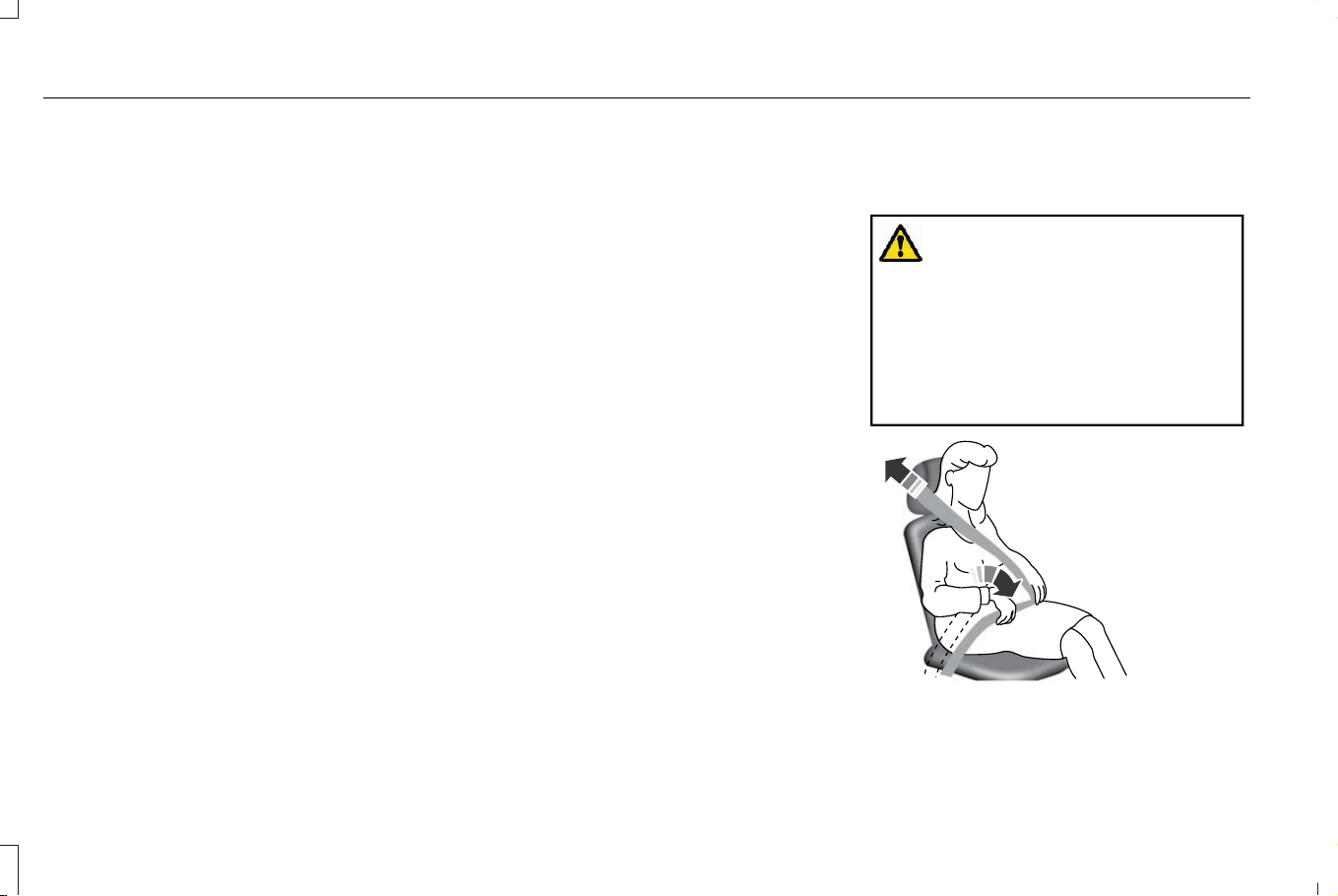
2. Grasp the shoulder portion and pull
downward until you pull the entire belt
out.
3. Allow the belt to retract. As the belt
retracts, you will hear a clicking sound.
This indicates the seatbelt is now in the
automatic locking mode.
DISENGAGING AUTOMATIC LOCKING
MODE
Unbuckle the combination lap and shoulder
belt and allow it to retract completely to
disengage the automatic locking mode and
activate the vehicle sensitive locking mode.
Extracting Seatbelts in the Rear
Outermost Seat Positions
Seatbelts in the rear outermost positions can
lock if you firmly return the seat backrest to
its upright position. You can unlock the
seatbelts using the following procedures.
For vehicles where the rear seats recline:
1. Recline the seat to its full rear recline
position.
2. The seatbelt should then unlock.
3. Return the seat backrest to its desired
upright position.
For vehicles with rear seats that do not
recline or are locked with the seat in its full
rear recline position:
1. Grasp the seatbelt webbing at the top of
the seat backrest.
2. Pull the seatbelt webbing forward, firmly.
3. After pulling the seatbelt forward, allow
the seatbelt to feed back into the seatbelt
retractor as much as possible. If
necessary, press the seat backrest down
to allow the seatbelt webbing to retract
further.
4. The seatbelt should then unlock.
5. If the seatbelt does not unlock, repeat
steps 1-3.
ADJUSTING THE SEATBELTS
DURING PREGNANCY
WARNING: Always ride and drive
with your seatback upright and properly
fasten your seatbelt. Fit the lap portion of
the seatbelt snugly and low across the
hips. Position the shoulder portion of the
seatbelt across your chest. Pregnant
women must follow this practice. See the
following figure.
E142590
54
Corsair (CTF) Canada/Mexico/United States of America, enUSA, Edition date: 202407, DOM
Seatbelts
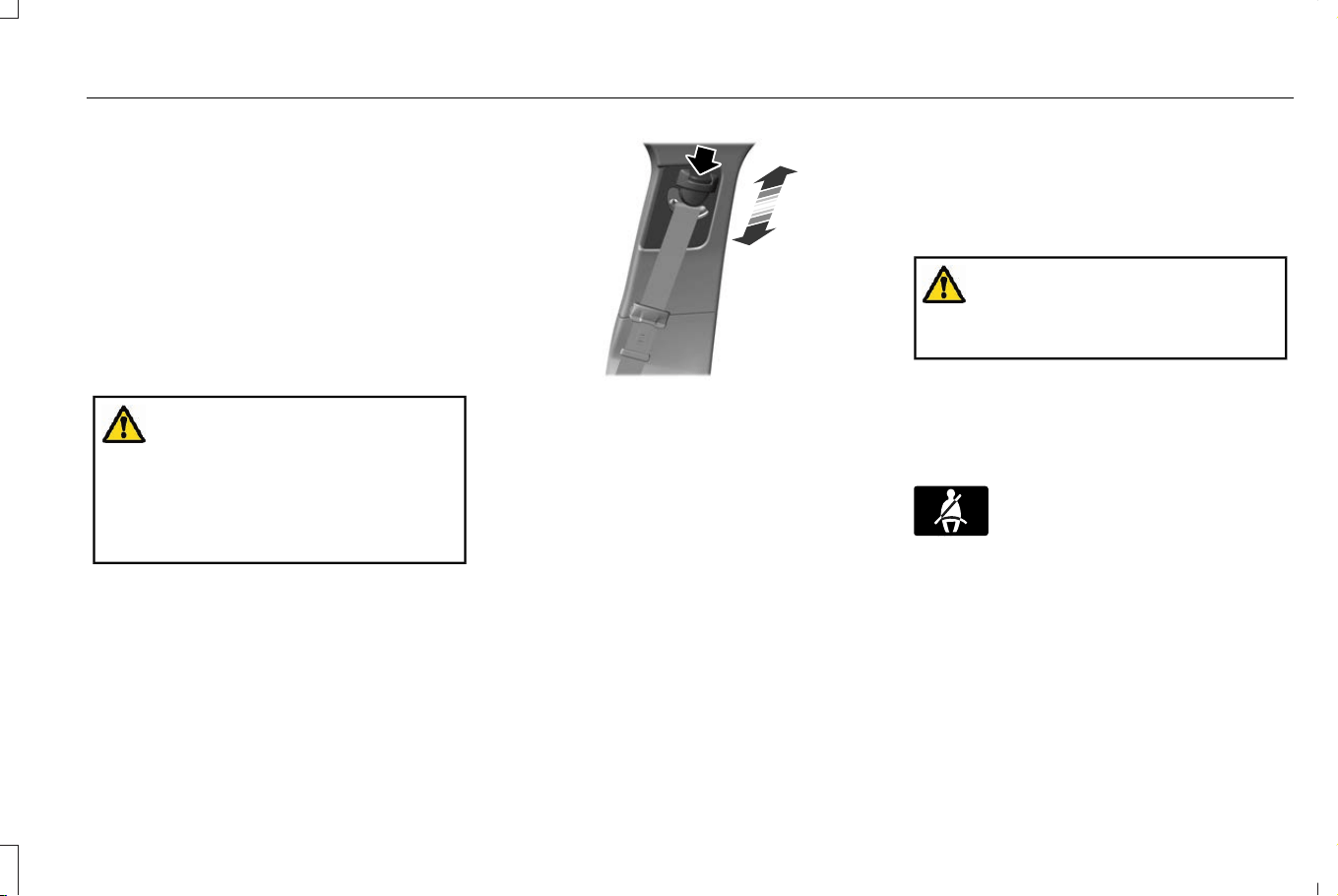
Pregnant women should always wear their
seatbelt. Position the lap belt portion of a
combination lap and shoulder belt low across
the hips below the belly and worn as tight
as comfort allows. Position the shoulder belt
to cross the middle of the shoulder and the
center of the chest.
ADJUSTING THE SEATBELT
HEIGHT
WARNING: Position the seatbelt
height adjuster so that the seatbelt rests
across the middle of your shoulder. Failure
to adjust the seatbelt correctly could
reduce its effectiveness and increase the
risk of injury in a crash.
E200161
1. Press the button and slide the height
adjuster up or down.
2. Release the button and pull down on the
height adjuster to make sure it is locked
in place.
SEATBELT REMINDER
HOW DOES THE SEATBELT REMINDER
WORK
WARNING: The system will only
provide protection when you use the
seatbelt correctly.
This system monitors all seating positions
and provides audio and graphic feedback.
SEATBELT REMINDER INDICATORS
E71880
This lamp illuminates if you do not
fasten your seatbelt when you
switch the ignition on. The lamp
switches off when you fasten your seatbelt.
When the initial warning expires for the
driver, more warnings are provided for the
driver and front passenger. This lamp
illuminates if you or your front passenger do
not fasten the seatbelt buckle and the
vehicle speed exceeds 6 mph (10 km/h).
55
Corsair (CTF) Canada/Mexico/United States of America, enUSA, Edition date: 202407, DOM
Seatbelts
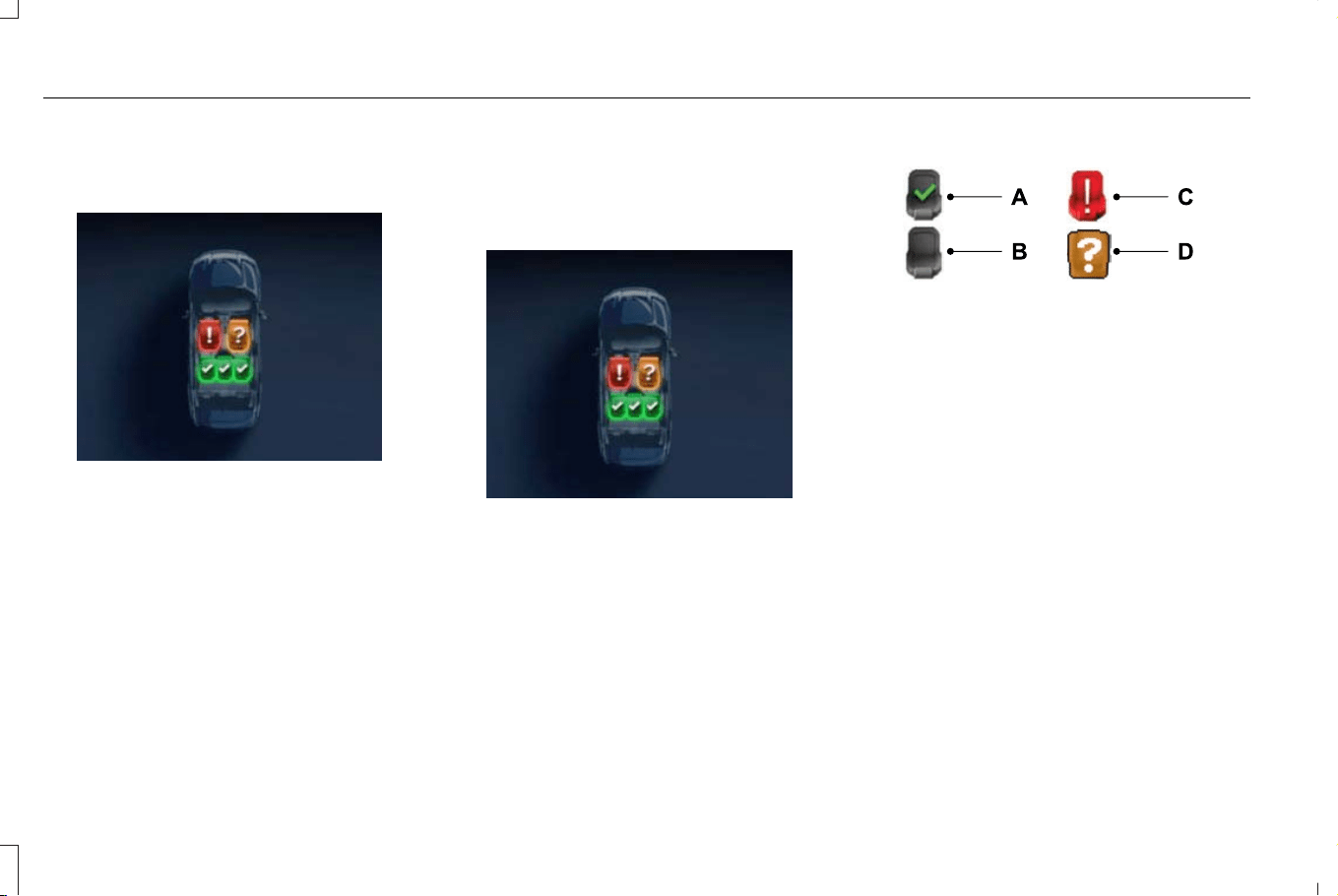
Note: To avoid inadvertent warnings, do not
place large objects on the front passenger
seat.
E423562
This warning displays if an occupant
unfastens the rear seatbelt buckle or it
becomes unfastened.
Note: If a rear seat is unoccupied, or an
occupant never fastens the seatbelt buckle
to begin with, the warning will not display.
Note: Front seating positions appear in this
warning display. Warnings for unfastened
front seatbelt buckles appear in the initial
warning lamp.
Seatbelt Status
To view the seatbelt status, use the
information cluster controls on the steering
wheel.
E423562
E274703
Seatbelt fastened.A
Seatbelt not fastened.B
Seatbelt recently unfastened.C
Fault.D
SEATBELT REMINDER AUDIBLE
WARNINGS
A warning tone sounds and the warning lamp
illuminates if you are not wearing your
seatbelt when your vehicle exceeds a
relatively low speed.
The warning tone sounds for a short period
of time or until you fasten your seatbelt.
56
Corsair (CTF) Canada/Mexico/United States of America, enUSA, Edition date: 202407, DOM
Seatbelts
SWITCHING THE SEATBELT
REMINDER ON AND OFF
WARNING: While the system allows
you to deactivate it, this system is designed
to improve your chances of being safely
belted and surviving an accident. We
recommend you leave the system
activated for yourself and others who may
use the vehicle.
Note: The driver and front passenger
warnings switch off independently. When
you perform this procedure for one seating
position and the other seat is occupied,
fasten the other seat.
Read Steps 1 - 4 before proceeding with the
programming procedure.
Make sure that:
• You set the parking brake.
• The transmission is in park (P).
• The ignition is off.
• You close all vehicle doors.
• You unfasten the driver and front
passenger seatbelts.
1. Start the engine.
2. Wait a short period of time until the
seatbelt warning tone switches off. After
Step 2, wait an additional five seconds
before proceeding with Step 3. Once you
start Step 3, complete the procedure
within 30 seconds.
3. For the seating position you are switching
off, fasten then unfasten the seatbelt four
times at a moderate speed ending in the
unfastened state. After each unfasten,
the seatbelt warning light switches on
and off with each fasten.
4. The seatbelt warning light flashes for
confirmation.
This switches the feature off for that seating
position if it is currently on.
This switches the feature on for that seating
position if it is currently off.
CHECKING THE SEATBELTS
Check the seatbelts and child restraints
periodically to make sure they work properly
and are not damaged. Make sure there are
no nicks, tears or cuts. Replace if necessary.
Check the following seatbelt assemblies after
a crash.
• Retractors.
• Buckles.
• Front seatbelt buckle assemblies.
• Shoulder belt height adjusters.
• Shoulder belt guide on seat backrest.
• Child restraint LATCH and tether anchors.
• Attaching hardware.
Read the child restraint manufacturer's
instructions for additional inspection and
maintenance information specific to the child
restraint.
57
Corsair (CTF) Canada/Mexico/United States of America, enUSA, Edition date: 202407, DOM
Seatbelts
We recommend that all seatbelt assemblies
in use in vehicles involved in a crash be
replaced. However, if the crash was minor
and an authorized dealer finds that the belts
do not show damage and continue to
operate properly, they do not need to be
replaced. Seatbelt assemblies not in use
during a crash should also be checked and
replaced if either damage or improper
operation is noted.
Properly care for seatbelts. See Cleaning
Seatbelts (page 443).
SEATBELT EXTENSIONS
WARNING: Persons who fit into the
vehicle's seatbelt should not use an
extension. Unnecessary use could result
in serious personal injury in the event of a
crash.
WARNING: Only use extensions
provided free of charge by our dealers.
The dealer will provide an extension
designed specifically for this vehicle, model
year and seating position. The use of an
extension intended for another vehicle,
model year or seating position may not
offer you the full protection of your
vehicle's seatbelt restraint system.
WARNING: Never use seatbelt
extensions to install child restraints.
WARNING: Do not use extensions
to change the way the seatbelt fits across
the torso, over the lap or to make the
seatbelt buckle easier to reach.
If, because of body size or driving position,
it is not possible to properly fasten the
seatbelt over your lap and shoulder, an
extension that is compatible with the
seatbelts is available free of charge from our
dealers. Only use our seatbelt extensions
made by the original equipment seatbelt
manufacturer with our seatbelts. Ask your
authorized dealer if your extension is
compatible with your vehicle restraint system.
58
Corsair (CTF) Canada/Mexico/United States of America, enUSA, Edition date: 202407, DOM
Seatbelts

WHAT IS THE PERSONAL SAFETY
SYSTEM
An advanced safety system that protects
occupants in frontal crashes.
HOW DOES THE PERSONAL
SAFETY SYSTEM WORK
This system provides an improved level of
frontal crash protection to front seat
occupants and is designed to reduce the risk
of airbag-related injuries. The system
analyzes occupant conditions and crash
severity before activating the appropriate
safety devices. During a crash, the restraints
control module may deploy the seatbelt
pretensioners, and one or both stages of the
dual-stage airbags based on crash severity
and occupant conditions.
PERSONAL SAFETY SYSTEM
COMPONENTS
• Driver and passenger dual-stage airbag
supplemental restraints.
• Front seat outermost seatbelts with
pretensioners, energy management
retractors and seatbelt usage sensors.
• Driver seat position sensor.
• Passenger seat position sensor.
• Front passenger sensing system.
• Passenger airbag off and on indicators.
• Front crash severity sensors.
• Restraints control module with impact
and safing sensors.
• Restraint system warning light and tone.
• The electrical wiring for the airbags, crash
sensors, seatbelt pretensioners, front
seatbelt usage sensors, front passenger
sensing system and indicator lights.
59
Corsair (CTF) Canada/Mexico/United States of America, enUSA, Edition date: 202407, DOM
Personal Safety System™
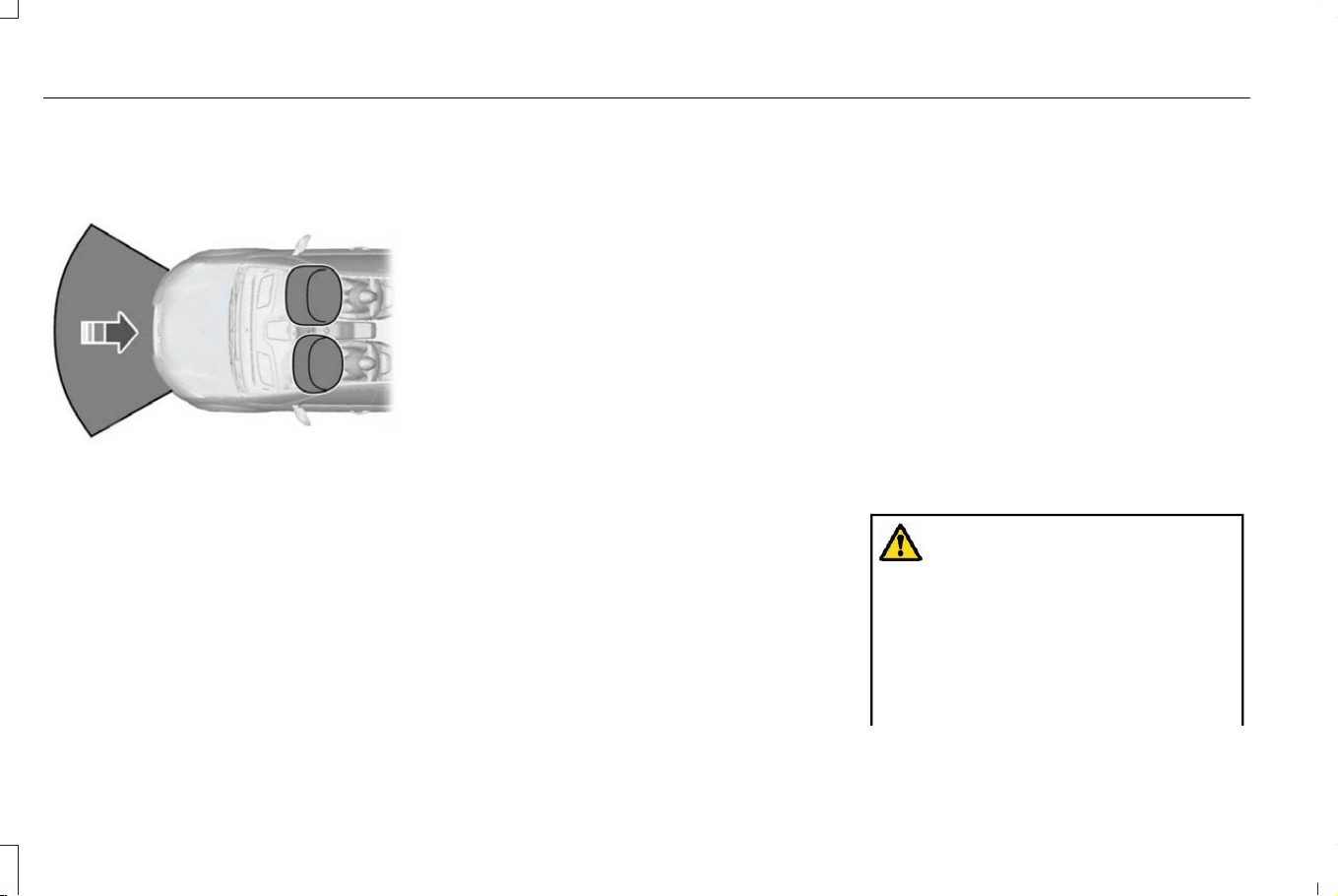
HOW DO THE FRONT AIRBAGS
WORK
E151127
The driver and front passenger airbags
deploy during significant frontal and near
frontal crashes.
The driver and passenger front airbag system
consists of:
• Driver and passenger airbag modules.
• Front passenger sensing system.
• Crash sensors and monitoring system
with readiness indicator. See Crash
Sensors and Airbag Indicator (page 68).
The airbags are a supplemental restraint
system and are designed to work with the
seatbelts to help protect the driver and right
front passenger from certain upper body
injuries. Airbags do not inflate slowly; there
is a risk of injury from a deploying airbag.
Note: You will hear a loud bang and see a
cloud of harmless powdery residue if an
airbag deploys. This is normal.
The airbags inflate and deflate rapidly upon
activation. After airbag deployment, it is
normal to notice a smoke-like, powdery
residue or smell the burnt propellant. This
may consist of cornstarch, talcum powder (to
lubricate the bag) or sodium compounds (for
example, baking soda) that result from the
combustion process that inflates the airbag.
Small amounts of sodium hydroxide may be
present which may irritate the skin and eyes,
but none of the residue is toxic.
Contact with a deploying airbag may cause
abrasions or swelling. Temporary hearing
loss is also a possibility as a result of the
noise associated with a deploying airbag.
Because airbags must inflate rapidly and with
considerable force, there is the risk of death
or serious injuries such as fractures, facial
and eye injuries or internal injuries,
particularly to occupants who are not
properly restrained or are otherwise out of
position at the time of airbag deployment.
Thus, it is extremely important that occupants
be properly restrained as far away from the
airbag module as possible.
Routine maintenance of the airbags is not
required.
HOW DO THE SIDE AIRBAGS
WORK
WARNING: Do not place objects or
mount equipment on or near the airbag
cover, on the side of the front or rear
seatbacks, or in areas that may come into
contact with a deploying airbag. Failure to
follow these instructions may increase the
risk of personal injury in the event of a
crash.
60
Corsair (CTF) Canada/Mexico/United States of America, enUSA, Edition date: 202407, DOM
Airbags
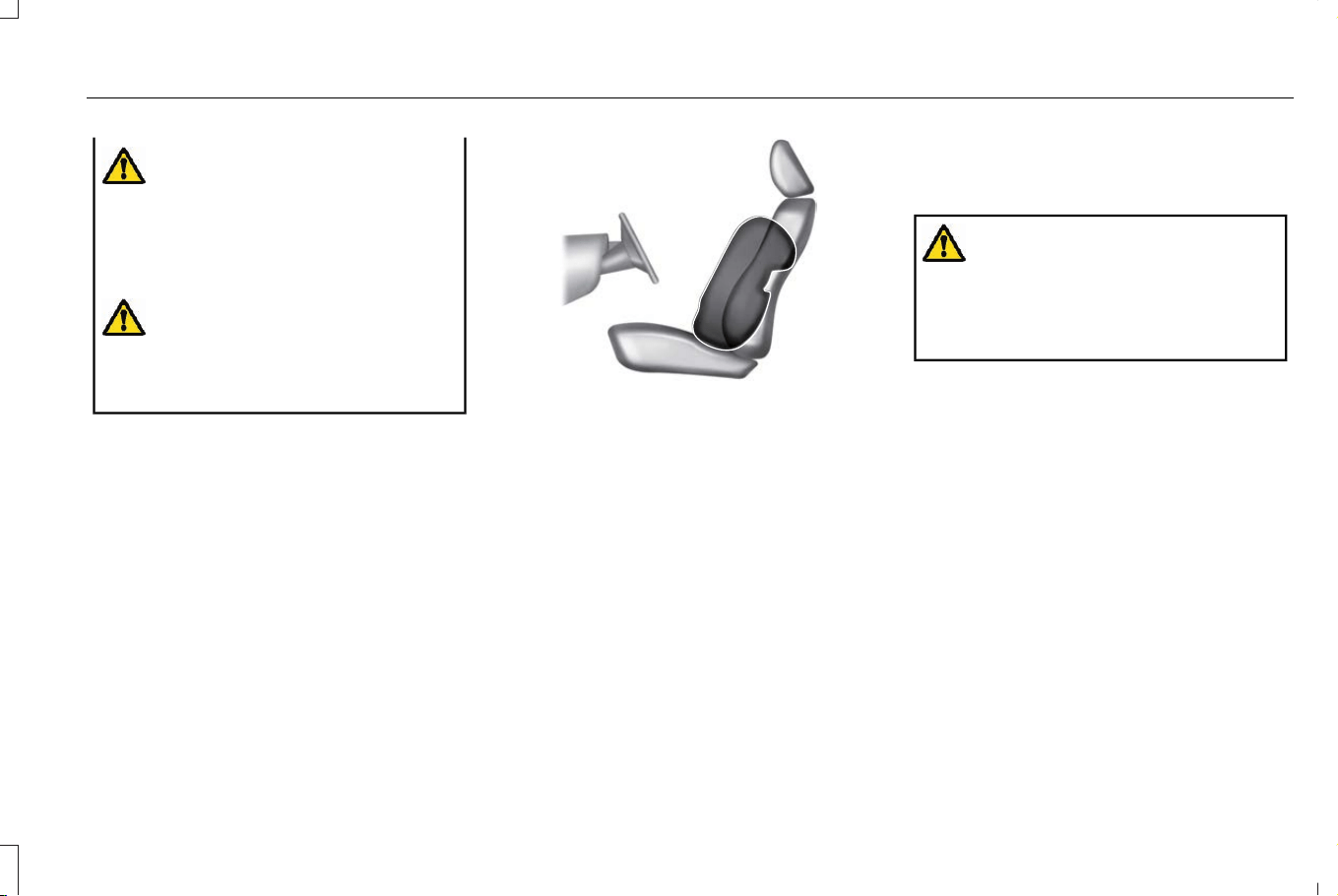
WARNING: Do not use accessory
seat covers. The use of accessory seat
covers may prevent the deployment of the
airbags and the seatbelt from retracting
correctly which could increase the risk of
injuries in a crash.
WARNING: Do not lean your head
on the door. The side airbag could injure
you as it deploys from the side of the
seatback.
The side airbags are on the outermost side
of the front seat backrests. In certain
sideways crashes or rollovers, the airbags
inflate. The airbag was designed to inflate
between the door panel and occupant to
further enhance the protection provided
occupants in side impact crashes.
E152533
The system consists of:
• A label or embossed side panel
indicating that there are side airbags in
your vehicle.
• Side airbags inside the driver and front
passenger seat backrests.
• Crash sensors and monitoring system
with a readiness indicator. See Crash
Sensors and Airbag Indicator (page 68).
HOW DO THE KNEE AIRBAGS
WORK
WARNING: Close the glove box door
when your vehicle is moving. Failure to
follow this instruction could reduce the
effectiveness of the passenger knee airbag
and increase the risk of injury in a crash.
A driver knee airbag is under or within the
instrument panel. A passenger knee airbag
is within or under the glove compartment.
During a crash, the restraints control module
may activate the driver and passenger knee
airbags based on crash severity and
occupant conditions. Under certain crash
and occupant conditions, the driver and
passenger knee airbag may deploy but the
front airbags may not activate. As with front
and side airbags, it is important to be
properly seated and restrained to reduce the
risk of death or serious injury.
61
Corsair (CTF) Canada/Mexico/United States of America, enUSA, Edition date: 202407, DOM
Airbags
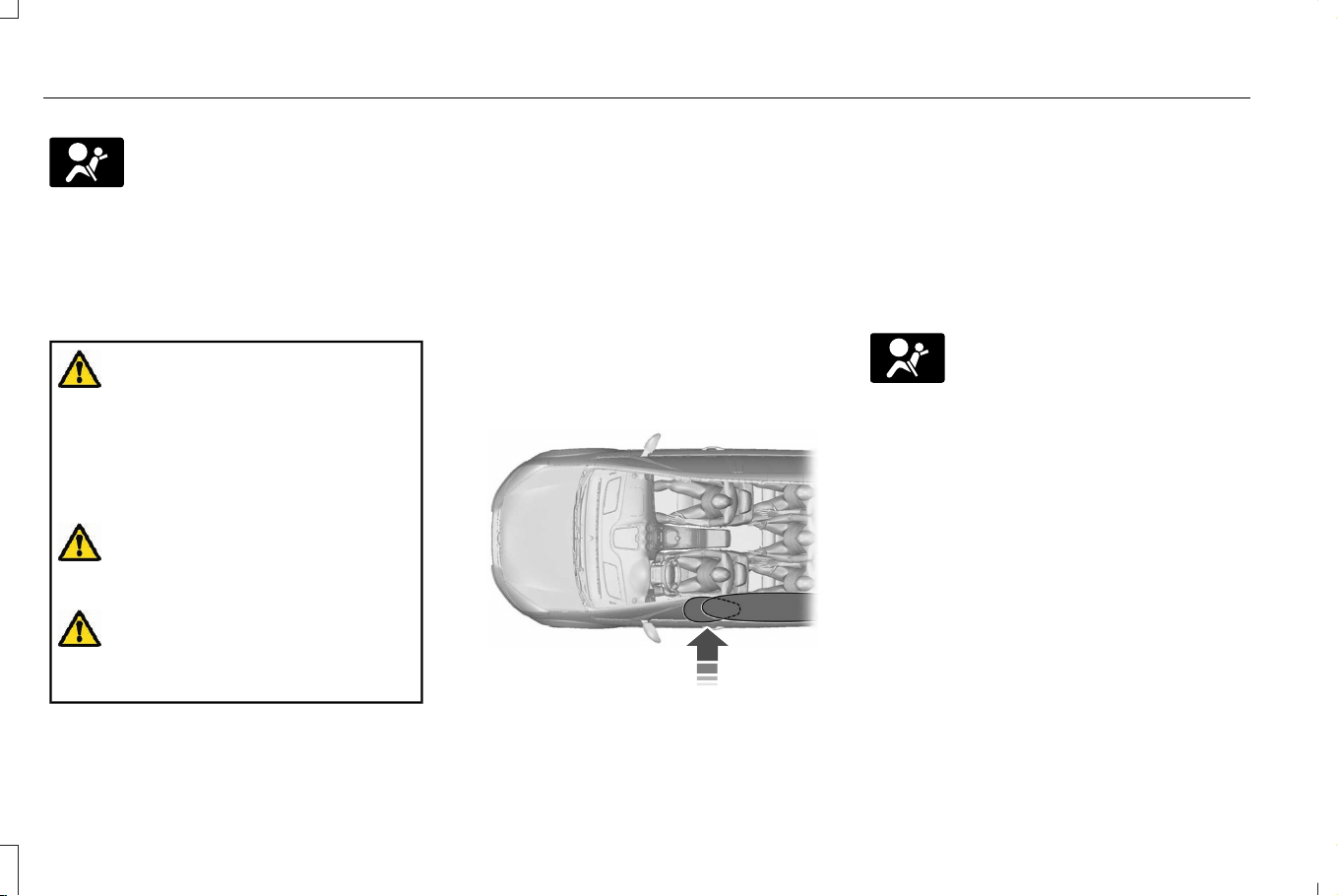
E67017
Make sure the knee airbags are
operating properly. See Crash
Sensors and Airbag Indicator
(page 68).
HOW DOES THE SAFETY CANOPY™
WORK
WARNING: Do not place objects or
mount equipment on or near the headliner
at the siderail that may come into contact
with a deploying curtain airbag. Failure to
follow these instructions may increase the
risk of personal injury in the event of a
crash.
WARNING: Do not lean your head
on the door. The curtain airbag could injure
you as it deploys from the headliner.
WARNING: To reduce risk of injury,
do not obstruct or place objects in the
deployment path of the airbag.
The Safety Canopy deploys during significant
side crashes or when a certain likelihood of
a rollover event is detected by the rollover
sensor. The Safety Canopy is mounted to
the roof side-rail sheet metal, behind the
headliner, above each row of seats. In certain
sideways crashes or rollover events, the
Safety Canopy will be activated, regardless
of which seats are occupied. The Safety
Canopy inflates between the side window
area and occupants to further enhance
protection provided in side impact crashes
and rollover events.
E75004
The system consists of the following:
• Safety Canopy curtain airbags above the
trim panels over the front and rear side
windows identified by a label or wording
on the headliner or roof-pillar trim.
• A flexible headliner which opens above
the side doors to allow air curtain
deployment
E67017
· Crash sensors and monitoring
system with a readiness indicator.
See Crash Sensors and Airbag
Indicator (page 68).
Properly restrain children 12 years old and
under in the rear seats. The Safety Canopy
will not interfere with children restrained
using a properly installed child or booster
seat because it is designed to inflate
downward from the headliner above the
doors along the side window opening.
62
Corsair (CTF) Canada/Mexico/United States of America, enUSA, Edition date: 202407, DOM
Airbags
AIRBAG PRECAUTIONS
WARNING: Airbags do not inflate
slowly or gently, and the risk of injury from
a deploying airbag is the greatest close to
the trim covering the airbag module.
WARNING: All occupants of your
vehicle, including the driver, should always
properly wear their seatbelts, even when
an airbag supplemental restraint system is
provided. Failure to properly wear your
seatbelt could seriously increase the risk
of injury or death.
WARNING: Properly secure children
12 years old and under in a rear seating
position whenever possible. If you are
unable to properly secure all children in a
rear seating position, properly secure the
largest child on the front seat. If you must
use a forward facing child restraint on the
front seat, move the seat as far back as
possible. Failure to follow these
instructions could result in personal injury
or death.
WARNING: Do not place your arms
on the airbag cover or through the steering
wheel. Failure to follow this instruction
could result in personal injury.
WARNING: Keep the areas in front
of the airbags free from obstruction. Do
not affix anything to or over the airbag
covers. Objects could become projectiles
during airbag deployment. Failure to follow
this instruction could result in personal
injury or death.
WARNING: To reduce risk of injury,
do not obstruct or place objects in the
deployment path of the airbag.
WARNING: Do not place a rearward
facing child restraint in front of an active
airbag. Failure to follow this instruction
could result in personal injury or death.
WARNING: Do not attempt to service,
repair, or modify the supplementary
restraint system or associated components.
Failure to follow this instruction could result
in personal injury or death.
WARNING: Several airbag system
components get hot after inflation. To
reduce the risk of injury, do not touch them
after inflation.
WARNING: If a supplementary
restraint system component has deployed,
it will not function again. Have the system
and associated components inspected as
soon as possible. Failure to follow this
instruction could result in personal injury
or death.
63
Corsair (CTF) Canada/Mexico/United States of America, enUSA, Edition date: 202407, DOM
Airbags
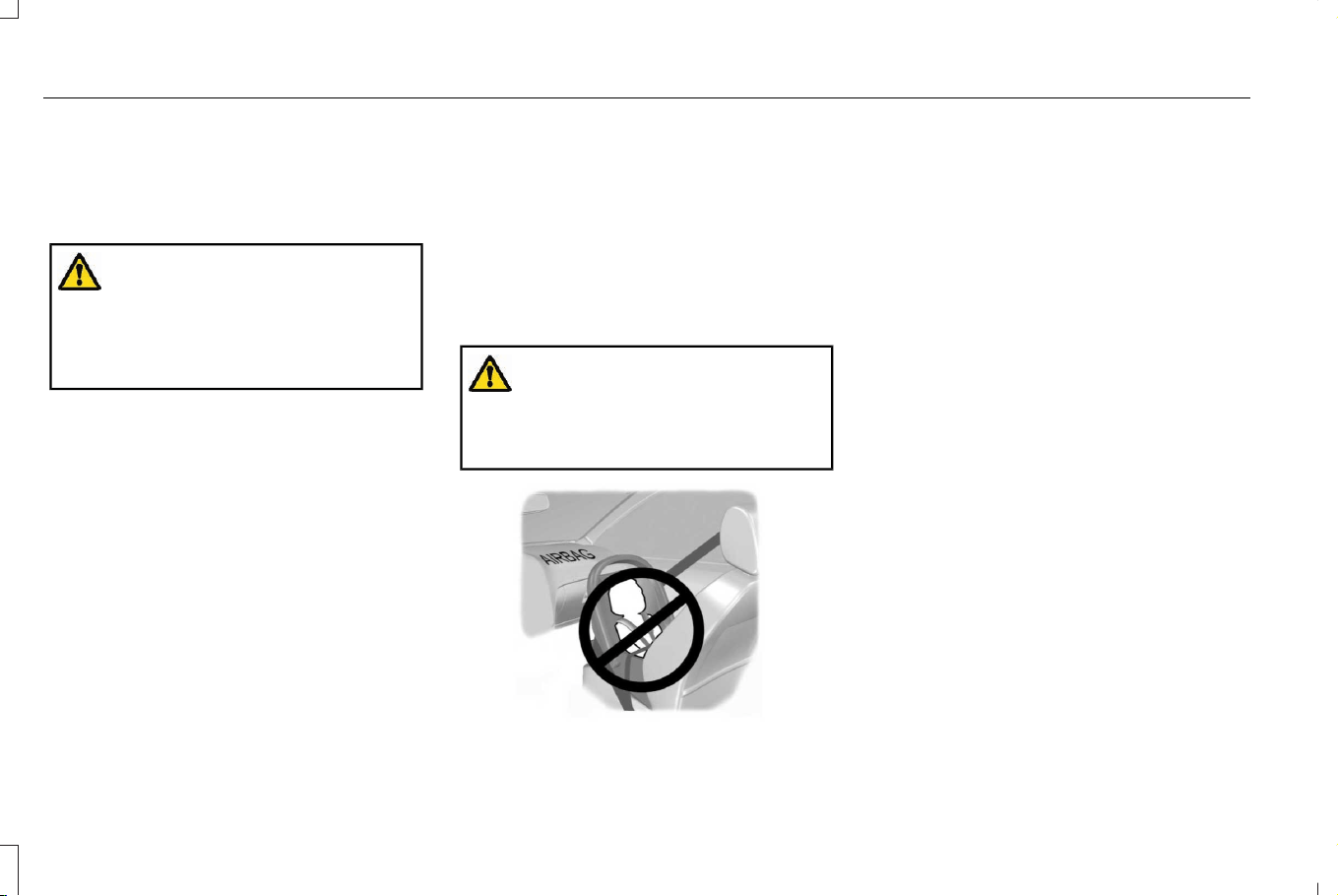
PROPERLY ADJUSTING THE
DRIVER AND FRONT PASSENGER
SEATS
WARNING: National Highway Traffic
Safety Administration (NHTSA)
recommends a minimum distance of at
least 10 in (25 cm) between an occupant's
chest and the driver airbag module.
To properly position yourself away from the
airbag:
• Move your seat to the rear as far as you
can while still reaching the pedals
comfortably.
• Recline the seat slightly one or two
degrees from the upright position.
After all occupants have adjusted their seats
and put on seatbelts, it is very important that
they continue to sit properly. Properly seated
occupants sit upright, lean against the seat
backrest, and center themselves on the seat
cushion, with their feet comfortably extended
on the floor. Sitting improperly can increase
the chance of injury in a crash event. For
example, if an occupant slouches, lies down,
turns sideways, sits forward, leans forward
or sideways, or puts one or both feet up, the
chance of injury during a crash greatly
increases.
CHILDREN AND AIRBAGS
WARNING: Do not place a rearward
facing child restraint in front of an active
airbag. Failure to follow this instruction
could result in personal injury or death.
E142846
Children must always be properly restrained.
Accident statistics suggest that children are
safer when properly restrained in the rear
seating positions than in the front seating
position. Failure to follow these instructions
may increase the risk of injury in a crash.
FRONT PASSENGER SENSING
SYSTEM
WHAT IS THE FRONT PASSENGER
SENSING SYSTEM
This system detects a properly seated
occupant and determines if the front
passenger airbag should be enabled.
HOW DOES THE FRONT PASSENGER
SENSING SYSTEM WORK
The system uses a passenger airbag status
indicator which illuminates indicating that the
front passenger frontal airbag is either
enabled or disabled.
64
Corsair (CTF) Canada/Mexico/United States of America, enUSA, Edition date: 202407, DOM
Airbags

Note: When you first switch the ignition on,
the passenger airbag status indicator off and
on lamps illuminate for a short period to
confirm they are functional.
E181984
The indicator lamps are in the overhead
console.
The front passenger sensing system is
designed to disable the front passenger
frontal airbag under these conditions:
• The front passenger seat is unoccupied.
• The system determines an infant is
present in a child restraint.
• A passenger takes their weight off of the
seat for a period of time.
• If there is a problem with the airbag
system or the passenger sensing system.
Even with this technology, parents are
strongly encouraged to always properly
restrain children in the rear seat.
• When the front passenger sensing
system disables the front passenger
frontal airbag, the passenger airbag
status indicator illuminates the off lamp.
• If you have installed the child restraint
and the passenger airbag status indicator
illuminates the on lamp, switch your
vehicle off, remove the child restraint
from your vehicle and reinstall the
restraint following the child restraint
manufacturer's instructions.
The front passenger sensing system works
with sensors that are part of the front
passenger seat and seatbelt. The sensors
are designed to detect the presence of a
properly seated occupant and determine if
the front passenger frontal airbag should be
enabled.
• When the front passenger sensing
system enables the front passenger
frontal airbag, the passenger airbag
status indicator illuminates the on lamp.
If a person of adult size is sitting in the front
passenger seat, but the passenger airbag
status indicator off lamp is illuminated, it is
possible that the person is not sitting
properly in the seat. If this happens:
• Switch your vehicle off and ask the
person to place the seat backrest in an
upright position.
• Have the person sit upright in the seat,
centered on the seat cushion, with the
person's legs comfortably extended.
• Restart your vehicle and have the person
remain in this position for about two
minutes. This allows the system to detect
that person and enable the passenger
frontal airbag.
• If the indicator off lamp remains
illuminated even after this, you should
advise the person to ride in the rear seat.
After all occupants have adjusted their seats
and put on seatbelts, it is very important that
they continue to sit upright, leaning against
the seat backrest, and centered on the seat
cushion, with their feet comfortably extended
on the floor.
65
Corsair (CTF) Canada/Mexico/United States of America, enUSA, Edition date: 202407, DOM
Airbags

Sitting improperly can increase the chance
of injury in a crash event. For example, if an
occupant slouches, lies down, turns
sideways, sits forward, leans forward or
sideways, or puts one or both feet up, the
chance of injury during a crash greatly
increases.
If you think that the state of the passenger
airbag status indicator lamp is incorrect,
check for the following:
• Objects lodged underneath the seat.
• Objects between the seat cushion and
the center console.
• Objects hanging off the seat backrest.
• Objects stowed in the seat backrest map
pocket.
• Objects placed on the occupant's lap.
• Cargo interference with the seat
• Other passengers pushing or pulling on
the seat.
• Rear passenger feet and knees resting
or pushing on the seat.
The listed conditions could cause the weight
of a properly seated occupant to be
incorrectly interpreted by the front passenger
sensing system. The person in the front
passenger seat could appear heavier or
lighter due to the conditions listed.
E67017
Make sure the front passenger
sensing system is operating
properly. See Crash Sensors and
Airbag Indicator (page 68).
If the airbag readiness light is on, do the
following:
• Pull your vehicle over.
• Switch your vehicle off.
• Check for any objects lodged underneath
the front passenger seat or cargo
interfering with the seat.
• Remove the obstruction if found.
• Restart your vehicle.
• Wait at least two minutes and verify that
the airbag readiness light in the
instrument cluster is no longer
illuminated.
• If the airbag readiness light in the
instrument cluster remains illuminated,
there may be a problem due to the front
passenger sensing system.
Do not attempt to repair or service the
system. Take your vehicle in for service
immediately.
If it is necessary to modify an advanced front
airbag system to accommodate a person
with disabilities, contact your Customer
Relationship Center. See Contacting Us
(page 17).
66
Corsair (CTF) Canada/Mexico/United States of America, enUSA, Edition date: 202407, DOM
Airbags
FRONT PASSENGER SENSING
SYSTEM PRECAUTIONS
WARNING: Sitting improperly, out of
position or with the seatback reclined too
far can take weight off the seat cushion
and affect the decision of the passenger
sensing system, resulting in serious injury
or death in the event of a crash. Always sit
upright against your seat back, with your
feet on the floor.
WARNING: Any alteration or
modification to the front passenger seat
may affect the performance of the front
passenger sensing system. This could
seriously increase the risk of injury or
death.
WARNING: Do not place objects
under the front passenger seat or between
the seat and the center console. Failure to
follow this instruction may interfere with
the front passenger seat sensing system
and increase the risk of injury or death in
a crash.
WARNING: Check the passenger
airbag indicator lamp for proper airbag
status. Failure to follow this instruction
could result in personal injury or death.
FRONT PASSENGER SENSING SYSTEM INDICATORS
Passenger AirbagPassenger Airbag Status IndicatorOccupant
DisabledOFF: IlluminatedEmpty
ON: Not Illuminated
DisabledOFF: IlluminatedChild
67
Corsair (CTF) Canada/Mexico/United States of America, enUSA, Edition date: 202407, DOM
Airbags
Passenger AirbagPassenger Airbag Status IndicatorOccupant
ON: Not Illuminated
EnabledOFF: Not IlluminatedAdult
ON: Illuminated
CRASH SENSORS AND AIRBAG
INDICATOR
WARNING: Modifying or adding
equipment to the front of your vehicle
could affect the performance of the airbag
system, increasing the risk of injury. This
includes the hood, bumper system, frame,
front body structure, tow hooks, hood pins,
push bar and snowplows.
Your vehicle has a collection of crash and
occupant sensors. These sensors provide
information to the restraints control module
which activates the following:
• Front and rear seatbelt pretensioners.
• Driver airbag.
• Passenger airbag.
• Knee airbag(s).
• Seat mounted side airbags.
• Safety Canopy.
Based on the type of crash, the restraints
control module deploys the appropriate
safety devices.
The restraints control module also monitors
the readiness of the above safety devices
plus the crash and occupant sensors. The
readiness of the safety system is indicated
by a warning indicator light in the instrument
cluster or by a backup tone if the warning
light is not working. Routine maintenance of
the airbag is not required.
A difficulty with the system is indicated by
one or more of the following:
E67017
The readiness light will not
illuminate immediately after you
switch the ignition on.
• The readiness light either flashes or stays
on.
• You hear a series of five tones. The tone
pattern repeats periodically until the
problem, the light or both are repaired.
If any of these things happen, even
intermittently, have the supplemental
restraint system serviced immediately.
Unless serviced, the system may not function
properly in the event of a crash.
68
Corsair (CTF) Canada/Mexico/United States of America, enUSA, Edition date: 202407, DOM
Airbags

The fact that the seatbelt pretensioners or
front airbags did not activate for both front
seat occupants in a crash does not mean
that something is wrong with the system.
Rather, it means the restraints control module
determined the accident conditions (crash
severity, seatbelt usage) were not
appropriate to activate these safety devices.
• The front airbags activate only in frontal
and near-frontal crashes. Front airbags
may activate in rollovers, side impacts or
rear impacts if the crash causes sufficient
frontal deceleration.
• The seatbelt pretensioners activate in
frontal, near-frontal and side crashes, and
in rollovers.
• The knee airbag(s) deploy based on
crash severity and occupant conditions.
• The side airbags inflate in certain side
impact crashes or rollover events. Side
airbags may activate in other types of
crashes if the vehicle experiences
sufficient sideways motion or
deformation.
• The Safety Canopy inflates in certain side
impact crashes or rollover events. The
Safety Canopy may activate in other
types of crashes if the vehicle
experiences sufficient sideways motion
or deformation, or a certain likelihood of
rollover.
DISPOSING OF AIRBAGS
Contact your authorized dealer as soon as
possible. Airbags must be disposed of by
qualified personnel.
69
Corsair (CTF) Canada/Mexico/United States of America, enUSA, Edition date: 202407, DOM
Airbags

WHAT IS THE PEDESTRIAN ALERT
SYSTEM
Due to the quiet operation of hybrid and
electric vehicles at low speeds, the system
creates a subtle sound to alert pedestrians.
The system is on when your vehicle is
running and not in park (P). Some sound may
be audible in the passenger compartment.
70
Corsair (CTF) Canada/Mexico/United States of America, enUSA, Edition date: 202407, DOM
Pedestrian Alert System - Plug-In Hybrid Electric Vehicle (PHEV)

WHAT IS 911 ASSIST
911 Assist is a SYNC system feature that can
call for help.
For more information, visit
www.owner.ford.com.
HOW DOES 911 ASSIST WORK
If a crash deploys an airbag, excluding knee
airbags and rear inflatable seatbelts, or
activates the fuel pump shut-off, your vehicle
may be able to contact emergency services
by dialing 911 through a paired and
connected Bluetooth® enabled phone.
Not all crashes deploy an airbag or activate
the fuel pump shut-off. If a connected cell
phone sustains damage or loses its
connection to SYNC during a crash, SYNC
searches for and tries to connect to a
previously paired cell phone. SYNC then
attempts to call the emergency services.
Before making the call:
• SYNC provides about 10 seconds to
cancel the call. If you fail to cancel the
call, SYNC attempts to dial 911.
• SYNC says the following, or a similar
message: SYNC will attempt to call 911,
to cancel the call, press Cancel on your
screen or press and hold the phone
button on your steering wheel.
If you do not cancel the call and SYNC makes
a successful call a pre-recorded message
plays for the 911 operator. The occupants in
your vehicle are able to talk with the
operator. Be prepared to provide your name,
phone number and location immediately
because not all 911 systems are capable of
receiving this information electronically.
During an emergency call the system
transmits vehicle data to the emergency
service.
EMERGENCY CALL
REQUIREMENTS
WARNING: Do not wait for 911 Assist
to make an emergency call if you can do
it yourself. Dial emergency services
immediately to avoid delayed response
time which could increase the risk of
serious injury or death after a crash. If you
do not hear 911 Assist within five seconds
of the crash, the system or phone may be
damaged or non-functional.
WARNING: Always place your phone
in a secure location in your vehicle so it
does not become a projectile or get
damaged in a crash. Failure to do so may
cause serious injury to someone or
damage the phone which could prevent
911 Assist from working properly.
WARNING: Unless the 911 Assist
setting is set on before a crash, the system
will not dial for help which could delay
response time, potentially increasing the
risk of serious injury or death after a crash.
71
Corsair (CTF) Canada/Mexico/United States of America, enUSA, Edition date: 202407, DOM
911 Assist (If Equipped)

• SYNC must be powered and working
properly at the time of the incident and
throughout feature activation and use.
• The 911 Assist feature must be set on
before the incident.
• You must pair and connect a Bluetooth®
enabled and compatible cell phone to
SYNC.
• A connected Bluetooth® enabled phone
must have the ability to make and
maintain an outgoing call at the time of
the incident.
• A connected Bluetooth® enabled phone
must have adequate network coverage,
battery power and signal strength.
• The vehicle must have battery power and
be located in the U.S., Canada or in a
territory in which 911 is the emergency
number.
Note: If any user sets 911 Assist to on or off,
that setting applies for all paired phones. If
911 Assist is switched off and the phone is
connected to SYNC, an icon displays on the
status bar.
Note: Every phone operates differently.
While SYNC 911 Assist works with most
cellular phones, some may have trouble
using this feature.
EMERGENCY CALL LIMITATIONS
The SYNC 911 Assist feature only operates
in the U.S., Canada or in a territory in which
911 is the emergency number.
• Your cellular phone or 911 Assist
hardware sustains damage in a crash.
• The vehicle's battery or the SYNC system
has no power.
• The phone(s) thrown from your vehicle
are the ones paired and connected to
the system.
72
Corsair (CTF) Canada/Mexico/United States of America, enUSA, Edition date: 202407, DOM
911 Assist (If Equipped)
REMOTE CONTROL LIMITATIONS
WARNING: Changes or modifications
not expressively approved by the party
responsible for compliance could void the
user's authority to operate the equipment.
The term "IC:" before the radio certification
number only signifies that Industry Canada
technical specifications were met.
This device complies with Part 15 of the FCC
Rules and with Industry Canada
license-exempt RSS standard(s). Operation
is subject to the following two conditions: (1)
This device may not cause harmful
interference, and (2) This device must accept
any interference received, including
interference that may cause undesired
operation.
Make sure a valid remote control is within
3 ft (1 m) from the front door handles and rear
of vehicle.
The system may not function if:
• The remote control remains stationary
for about a minute.
• The vehicle battery has no charge.
• The remote control battery has no
charge.
• There is interference causing issues with
the remote control frequencies.
• The remote control is too close to metal
objects or electronic devices, for example
keys or a cell phone.
USING THE REMOTE CONTROL
WARNING: Do not leave a key or
remote control unattended in the vehicle.
Children or pets could operate the power
windows, moonroof or other controls.
Failure to follow this instruction could result
in personal injury or death.
Use your remote control to access various
vehicle systems.
Note: The buttons on your remote may vary
depending on the vehicle region or options.
Unlock
E138629
Press the button to unlock all
doors. See Unlocking and
Locking the Doors Using the
Remote Control (page 84).
Lock
E138623
Press the button to lock all doors.
See Unlocking and Locking the
Doors Using the Remote Control
(page 84).
Remote Start (If Equipped)
E138625
Press the button twice within three
seconds to remote start. See
Using Remote Start (page 151).
73
Corsair (CTF) Canada/Mexico/United States of America, enUSA, Edition date: 202407, DOM
Keys and Remote Controls
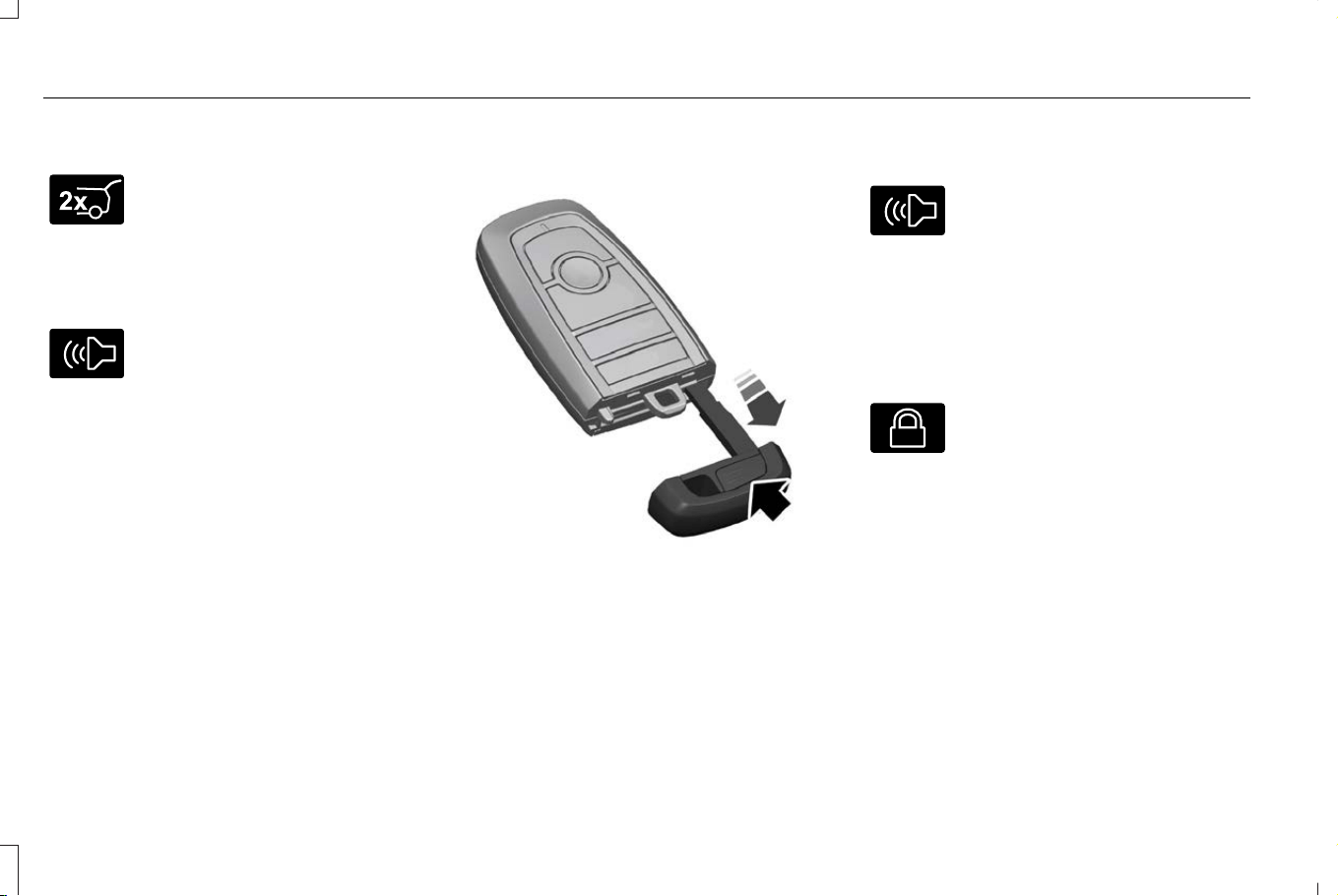
Opening and Closing the Liftgate
E267940
Press the button twice within three
seconds to open and close the
liftgate. See Opening the Liftgate
Using the Remote Control (page 93).
Panic Alarm (If Equipped)
E138624
Press the button to sound the
panic alarm. See Sounding the
Panic Alarm (page 74).
REMOVING THE KEY BLADE
E322866
Push the release button on your passive key
and pull the key blade out.
SOUNDING THE PANIC ALARM
E138624
Press the button to sound the
panic alarm. Press the button
again or switch the ignition on to
turn it off.
Note: The panic alarm only operates when
the ignition is off.
LOCATING YOUR VEHICLE
E138623
Press the lock button twice within
three seconds. The turn signal
lamps flash. We recommend you
use this method to locate your vehicle.
74
Corsair (CTF) Canada/Mexico/United States of America, enUSA, Edition date: 202407, DOM
Keys and Remote Controls
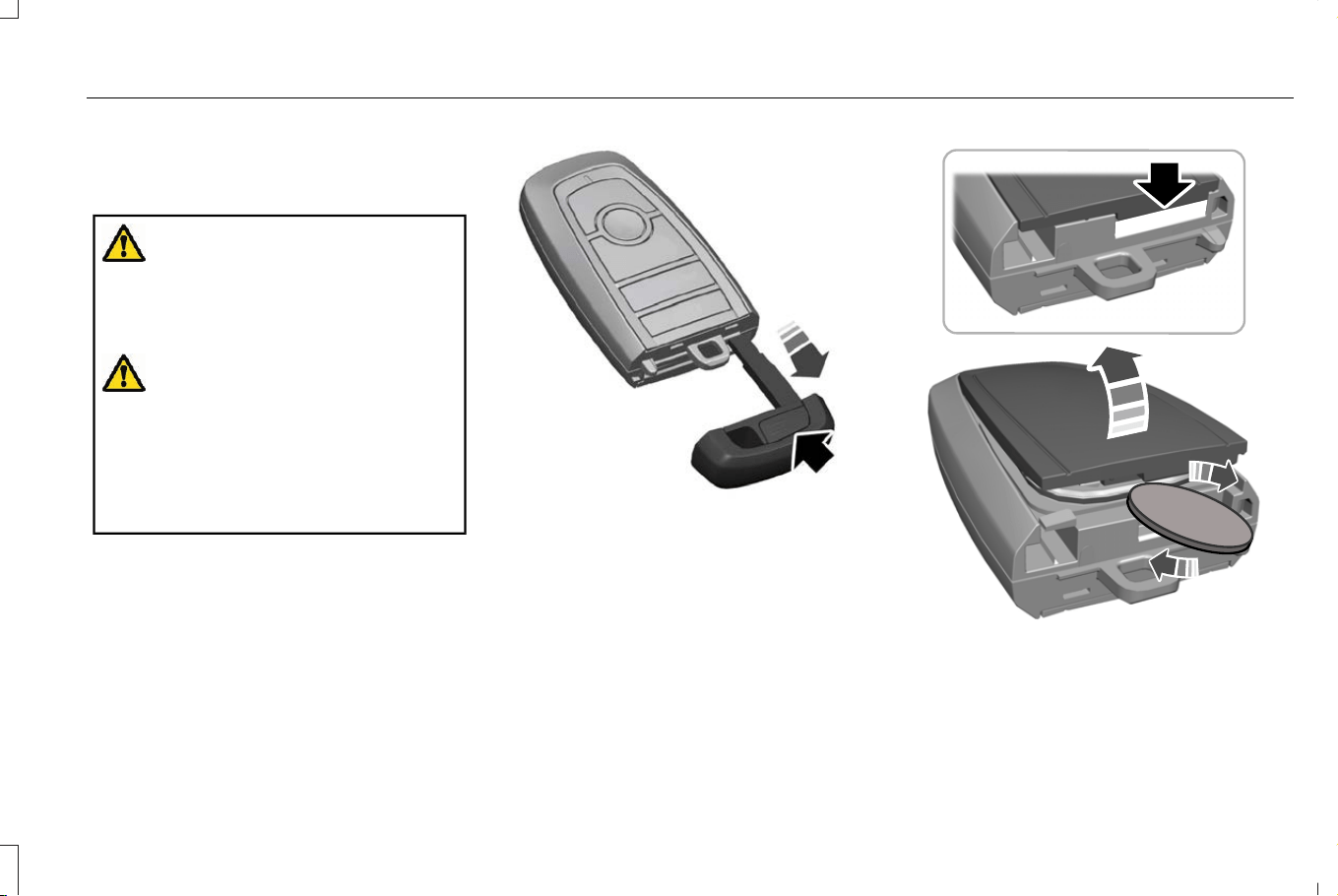
CHANGING THE REMOTE
CONTROL BATTERY
WARNING: Keep batteries away from
children to prevent ingestion. Failure to
follow this instruction could result in
personal injury or death. If ingested,
immediately seek medical attention.
WARNING: If the battery
compartment does not securely close, stop
using the remote control and replace it as
soon as possible. In the meantime, keep
the remote control away from children.
Failure to follow this instruction could result
in personal injury or death.
The remote control uses one coin-type 3-volt
lithium battery CR2450 or equivalent.
E322866
1. Push the release button and pull the key
blade out.
E303824
2. Twist a thin coin under the tab hidden
behind the key blade head to remove
the battery cover.
75
Corsair (CTF) Canada/Mexico/United States of America, enUSA, Edition date: 202407, DOM
Keys and Remote Controls
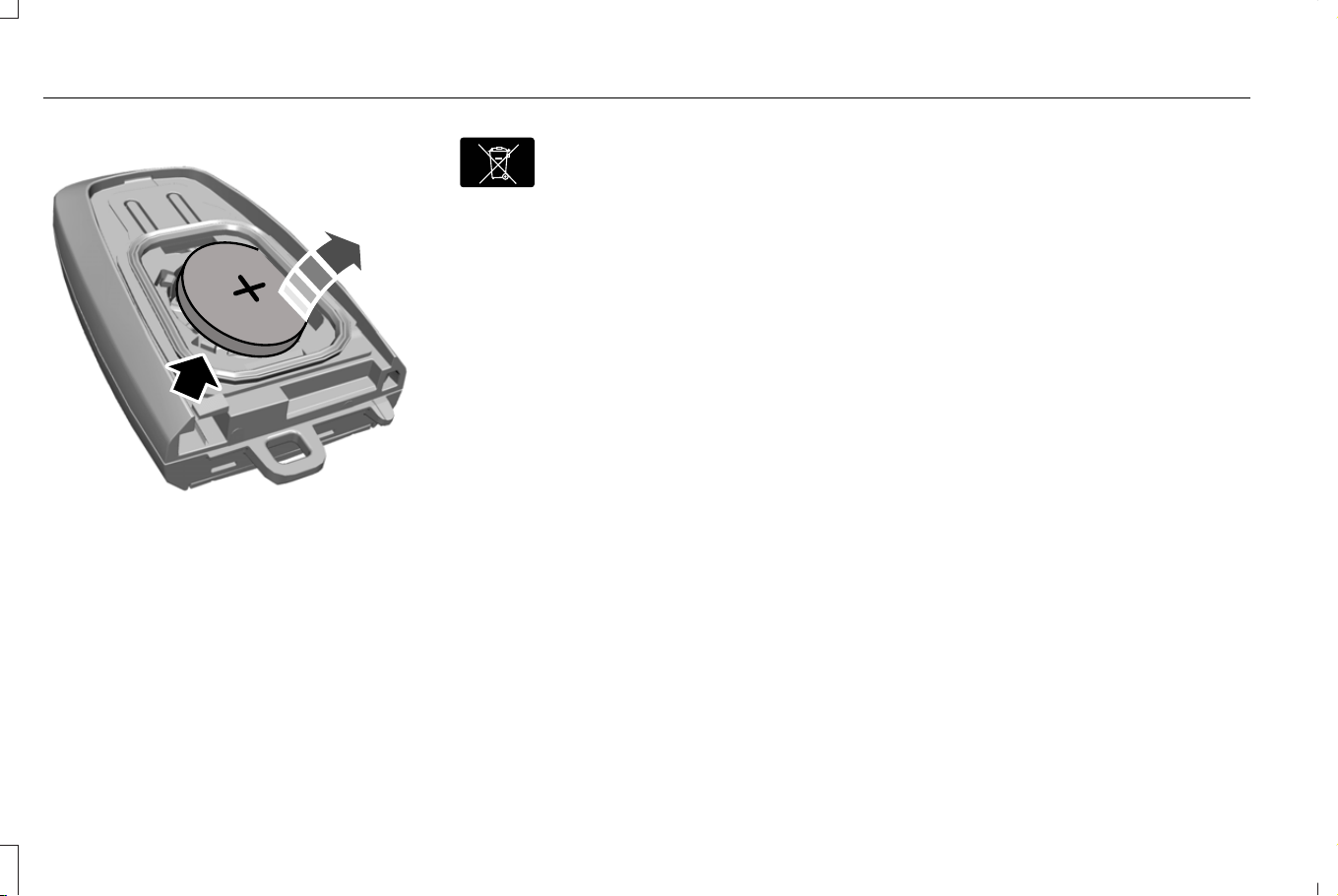
E218402
3. Insert a screwdriver, and carefully remove
the battery.
4. Install a new battery with the + facing
upward.
5. Reinstall the battery housing cover onto
the transmitter and install the key blade.
E107998
Dispose of old batteries in an
environmentally friendly way. Seek
advice from your local authority
about recycling old batteries.
Note: Do not wipe off any grease on the
battery terminals or on the back surface of
the circuit board.
Note: Replacing the battery does not erase
the programmed key from your vehicle. The
remote control should operate normally.
REPLACING A LOST KEY OR
REMOTE CONTROL
You can purchase replacement keys or
remote controls from an authorized dealer.
Authorized dealers can program remote
controls for your vehicle.
PROGRAMMING THE REMOTE
CONTROL
Note: You can program a maximum of four
remote controls to your vehicle.
Note: If your programmed remote controls
are lost or stolen and you do not have an
extra coded remote, you need to have your
vehicle towed to an authorized dealer. Store
an extra programmed remote away from
your vehicle in a safe place to help prevent
any inconvenience. Contact an authorized
dealer to purchase additional spare or
replacement remotes.
You must have two previously programmed
remote controls inside your vehicle and the
new unprogrammed remote controls readily
accessible. Contact an authorized dealer to
have the spare remote control programmed
if two previously programmed remotes are
not available. Make sure that your vehicle
is off before beginning this procedure. Make
sure that you close all the doors before
beginning and that they remain closed
throughout the procedure. Perform all steps
within 30 seconds of starting the sequence.
Stop and wait for at least one minute before
starting again if you perform any steps out
of sequence.
Read and understand the entire procedure
before you begin.
76
Corsair (CTF) Canada/Mexico/United States of America, enUSA, Edition date: 202407, DOM
Keys and Remote Controls
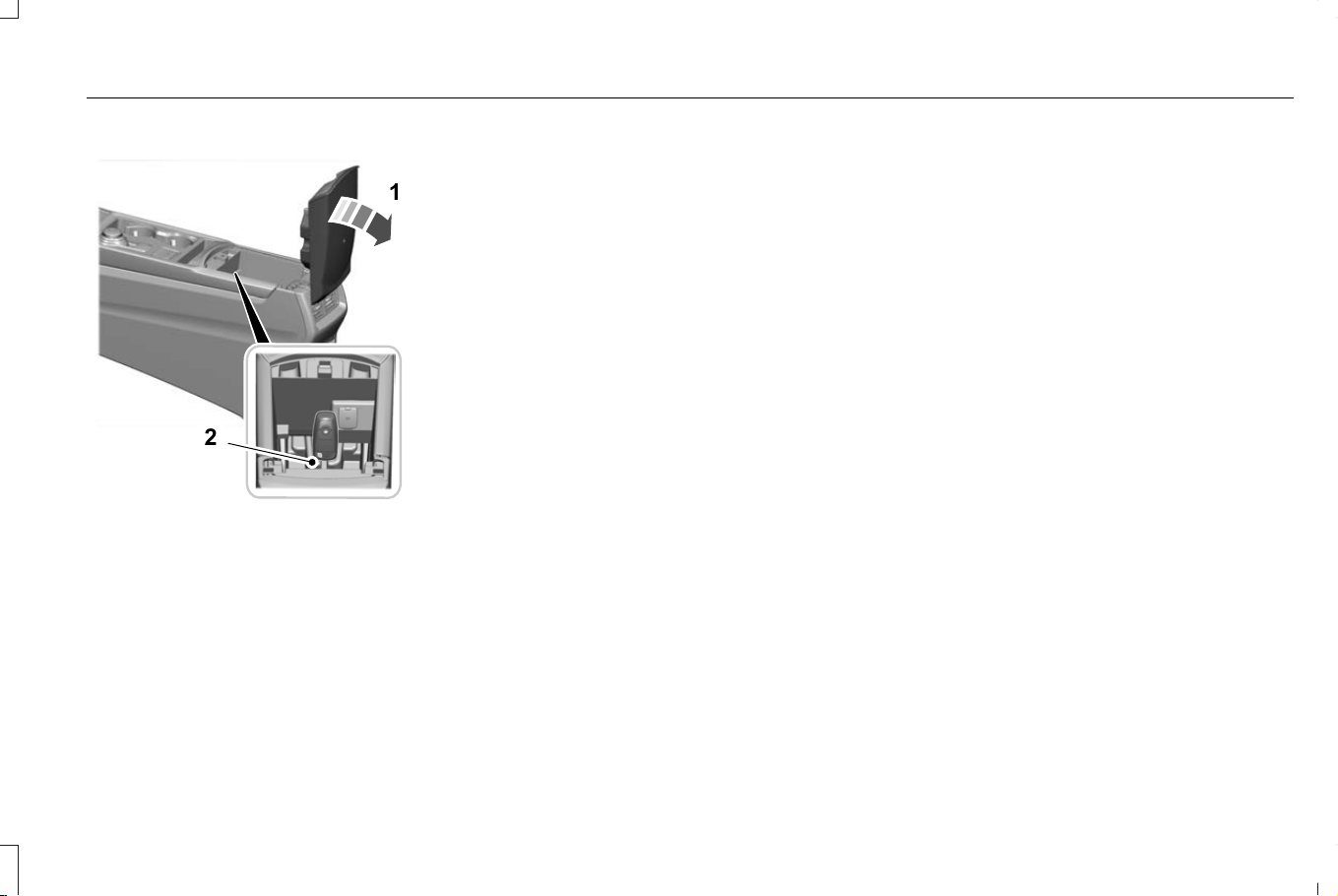
Programming Backup Location
E331284
1
2
1. Open the center console lid (1).
2. Place the first programmed remote in the
backup slot inside the center console (2),
with your foot off the brake pedal press
and release the push button ignition
switch.
3. Wait a few seconds and then press and
release the push button ignition switch
again.
4. Remove the remote control.
5. Within 10 seconds, place a second
programmed remote control in the
backup slot. Press and release the push
button ignition switch.
6. Wait a few seconds and then press and
release the push button ignition switch
again. Keep the ignition on for a few
seconds, but no more than 10 seconds.
7. Remove the remote control.
8. Place the unprogrammed remote control
in the backup slot and press and release
the push button ignition switch.
Programming is now complete. With your
foot on the brake pedal press the push
button ignition switch to verify the remote
control functions operate and your vehicle
starts with the new remote control.
If programming was not successful, wait 10
seconds and repeat Steps 1 through 7. If you
are still unsuccessful, contact an authorized
dealer to program remote controls for your
vehicle.
KEYS AND REMOTE CONTROLS
AUDIBLE WARNINGS
Key In Reminder
Sounds when the following conditions are
met:
• Vehicle is out of park (P).
• You switch the vehicle off.
• You open the driver's door.
• You have left the key inside the vehicle.
77
Corsair (CTF) Canada/Mexico/United States of America, enUSA, Edition date: 202407, DOM
Keys and Remote Controls

KEYS AND REMOTE CONTROLS – TROUBLESHOOTING
KEYS AND REMOTE CONTROLS – INFORMATION MESSAGES
ActionMessage
Replace remote control battery.Key Battery Low Replace Soon
78
Corsair (CTF) Canada/Mexico/United States of America, enUSA, Edition date: 202407, DOM
Keys and Remote Controls

WHAT IS PHONE AS A KEY
Phone as a Key allows you to use your phone
in place of a passive key.
You can use your phone for the following
functions:
• Remote locking and unlocking.
• Passive entry and exit.
• Passive start and drive the vehicle.
• Remote start.
• Memory function recall.
PHONE AS A KEY LIMITATIONS
Limitations can vary based on the make and
model of your phone, phone location and
physical obstructions.
The following items could impact Phone as
a Key performance or prevent functionality
in some cases:
• The typical operating range for Phone as
a Key is 131 ft (40 m).
• Your Bluetooth® connection is not
enabled, is disrupted, or out of range.
• Phone as a Key is not active or enabled
on at least one phone.
• Your vehicle battery has depleted.
• Your phone battery has depleted.
• Interference from other devices using
radio frequencies or physical
obstructions.
• Your phone is too close to metal objects
or other electronic devices.
Note: Do not leave a duplicate coded key
in the vehicle. Always take your keys and
phone and lock all doors when leaving the
vehicle.
PROGRAMMING YOUR PHONE
To program your device as Phone as a Key:
1. Visit your device's app store to download
the Lincoln mobile app.
2. Create a new account or sign in to an
existing account on the Lincoln mobile
app.
3. Add the vehicle identification number to
your account and follow the prompts in
the Lincoln mobile app to complete the
authorization process.
4. After the authorization is complete, you
can set up Phone as a Key following the
prompts in the Lincoln mobile app.
5. After Phone as a Key is set up, you can
set up the backup start passcode by
following the prompts on your
touchscreen.
Note: Keep your new backup start passcode
with you in case of an emergency.
Resetting Phone as a Key
1. From the settings menu, press General.
See Center Display (page 502).
2. Press Reset.
3. Press the app connect reset option.
4. Press Phone as a Key Reset.
5. Confirm you would like to continue with
erasing all Phone as a Key and backup
start passcodes.
6. Press Continue.
79
Corsair (CTF) Canada/Mexico/United States of America, enUSA, Edition date: 202407, DOM
Phone as a Key (If Equipped)

7. Confirm you are aware you are erasing
all authorized users and Lincoln mobile
app connect settings.
8. Press Continue.
USING THE VALET MODE
Classic Valet Mode
Enabling Valet Mode
Make sure the remote control is in your
vehicle.
1. Press Settings on the touchscreen.
2. Press Valet Mode.
3. Enter a four digit code to lock the
touchscreen.
4. Re-enter the same four digit code to
complete enabling valet mode.
Disabling Valet Mode
1. Press Exit Valet Mode.
2. Enter your four digit code to disable valet
mode and unlock your touchscreen.
Enhanced Valet Mode
Enabling Valet Mode
Have your backup start passcode completely
set up before using valet mode. See
Programming Your Phone (page 79).
Note: If your vehicle detects a remote
control, the system defaults to classic valet
mode.
1. Press Settings on the touchscreen.
2. Press Valet Mode.
Note: If the system detects a valid phone as
a key, a valet passcode displays on both the
touchscreen and mobile app.
Note: If the system does not detect a valid
phone as a key, it prompts you to enter your
backup start passcode on the touchscreen.
Once validated, a valet passcode displays
on the touchscreen.
3. Provide the valet the first five digits of the
valet passcode to enter on the keyless
entry keypad to unlock your vehicle.
4. Provide the valet the eight-digit valet
passcode to enter on the touchscreen to
start and drive your vehicle.
Disabling Valet Mode
1. Press Exit Valet Mode.
Note: If the system detects a valid phone as
a key, valet mode disables.
Note: If the system does not detect a valid
phone as a key, it prompts you to enter your
backup start passcode. Once validated, valet
mode disables.
USING THE BACKUP START
PASSCODE
Make sure you have phone as a key active
on at least one phone to use the previously
created backup start passcode. See
Programming Your Phone (page 79).
80
Corsair (CTF) Canada/Mexico/United States of America, enUSA, Edition date: 202407, DOM
Phone as a Key (If Equipped)

1. Press the brake pedal and the push
button ignition switch. If the system does
not detect a valid phone as a key or
remote control, a message appears on
the touchscreen and the system prompts
you for your backup start passcode.
Note: The touchscreen times out after 30
seconds with no interaction.
Note: If the backup start passcode screen
does not appear, press the brake pedal and
push button ignition switch again.
2. Use the touchscreen to enter your
backup start passcode.
3. After entering your backup start
passcode, press Enter within 30 seconds.
4. Once the system validates the backup
start passcode, a message alerts you to
start your vehicle.
5. Press the brake pedal and the push
button ignition switch within 20 seconds
to start the vehicle.
6. If your vehicle does not start, repeat
steps 1-5.
System Lockout
The system locks after five combined
incorrect attempts of the following:
• Entering a backup start passcode.
• Resetting a current passcode.
• Entering a valet mode passcode.
Note: The system remains locked for five
minutes. After five minutes the system allows
codes to be entered again.
PHONE AS A KEY –
TROUBLESHOOTING
PHONE AS A KEY – FREQUENTLY
ASKED QUESTIONS
How can I tell if my vehicle has Phone
as a Key?
• The vehicle's touchscreen shows the
Phone as a Key reset option.
• Additional control buttons appear on the
home screen of the Lincoln mobile app
if you have already set up Phone as a
Key on your vehicle through the Lincoln
mobile app.
81
Corsair (CTF) Canada/Mexico/United States of America, enUSA, Edition date: 202407, DOM
Phone as a Key (If Equipped)

What happens if I cannot unlock the
vehicle with Phone as a Key?
• Attempt to move your phone closer to
the vehicle.
• Check that the Lincoln mobile app is still
running and that the Phone as a Key
control screen shows Bluetooth® is
connected. If the phone is connected,
attempt to press the remote unlock
button in the Lincoln mobile app. If the
phone is not connected or the remote
unlock button does not work in the
Lincoln mobile app, attempt to force
close and restart the app.
Why do I get a No Key Detected
message in the instrument cluster
display when I am using Phone as a
Key and my phone is in the car?
• Your phone’s Bluetooth® connection has
been disrupted or is not connected. Try
reconnecting your phone's Bluetooth®
connection.
• Move the phone closer to the center of
the vehicle near the cup holder or center
console.
• Verify Phone as a Key is still active,
enabled and has not been revoked.
What do I do if my phone is lost,
damaged or the battery has depleted?
• Use the backup start passcode that you
created. See Using the Backup Start
Passcode (page 80).
How many phones can I use for Phone
as a Key?
• You can program and activate up to four
phones with Phone as a Key to control
your vehicle.
How does a valet drive my car if I only
use Phone as a Key?
• Have the valet use the temporary valet
passcode that you created. See Using
the Valet Mode (page 80).
I uninstalled my Lincoln mobile app
and reinstalled it. Why am I not able to
set up Phone as a Key again?
• Using the key list in the Lincoln mobile
app remove the key that was previously
associated with your phone.
• Reset Phone as a Key from your vehicle,
and then set up Phone as a Key again.
See Programming Your Phone (page
79).
82
Corsair (CTF) Canada/Mexico/United States of America, enUSA, Edition date: 202407, DOM
Phone as a Key (If Equipped)

Why can I not remotely start the
vehicle with Phone as a Key?
• Using the Lincoln mobile app, verify your
Phone as a Key setup is complete and
Bluetooth® is connected on at least one
phone. If Phone as a Key setup is not
complete, complete the setup as
prompted from the Lincoln mobile app.
See Programming Your Phone (page
79).
83
Corsair (CTF) Canada/Mexico/United States of America, enUSA, Edition date: 202407, DOM
Phone as a Key (If Equipped)
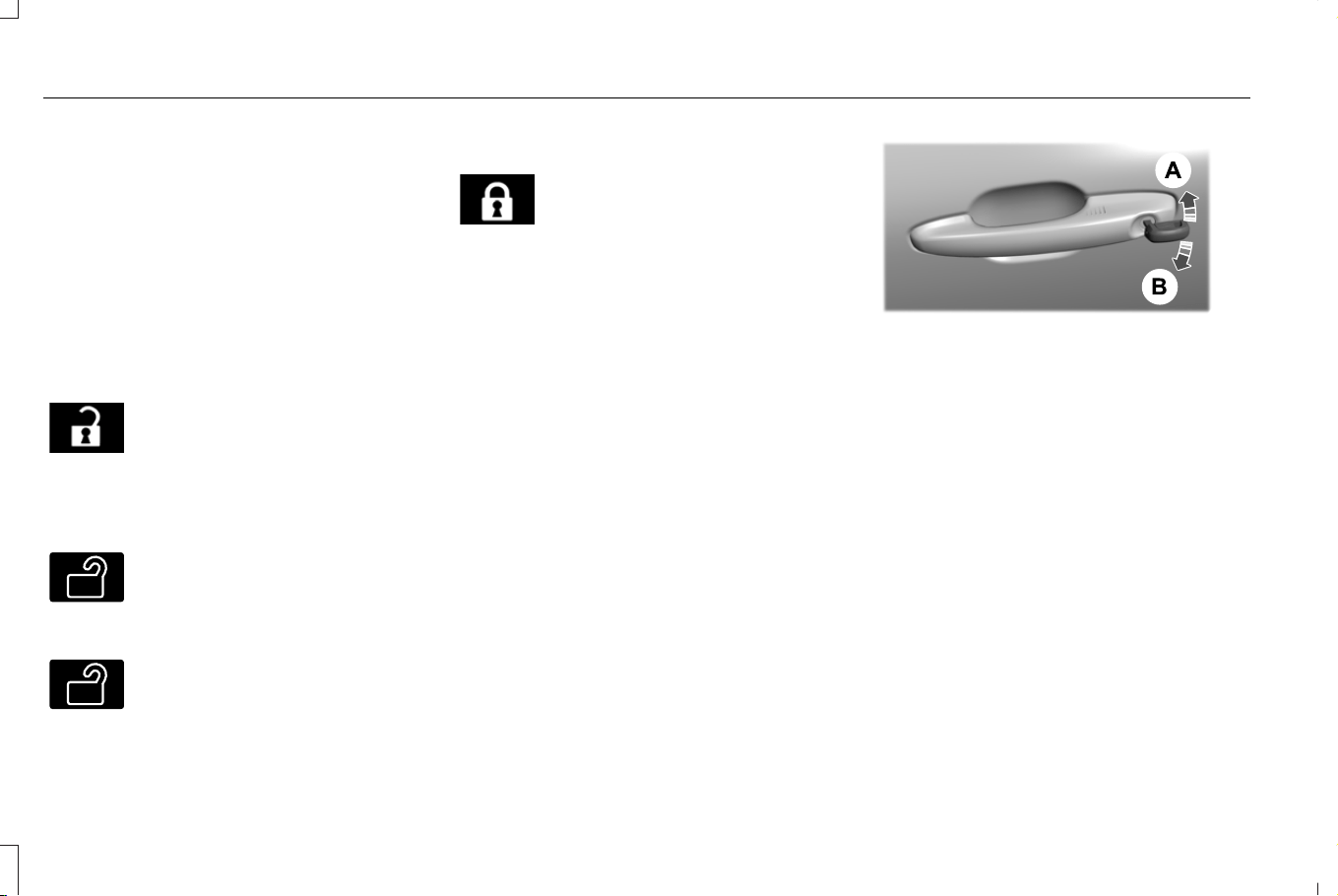
OPERATING THE DOORS FROM
OUTSIDE YOUR VEHICLE
UNLOCKING AND LOCKING THE
DOORS USING THE REMOTE
CONTROL
You can only use the remote control when
your vehicle is stationary.
Unlocking the Doors
E267112
Press the button to unlock all
doors. One long flash of the turn
signal lamps confirms that your
vehicle has unlocked.
One-Stage Unlocking
E138629
Press the button to unlock all
doors.
Two-Stage Unlocking (If Equipped)
E138629
Press the button to unlock the
driver's door. Press the button
again within three seconds to
unlock all doors.
Locking the Doors
E267111
Press the button to lock all doors.
One short flash of the turn signal
lamps confirms your vehicle is
locked.
A tone sounds when you press the lock
button twice within three seconds on the
remote control to confirm your vehicle is
locked.
Note: You can also lock and unlock your
vehicle without using the remote control. See
Keyless Entry (page 89).
UNLOCKING AND LOCKING THE
DOORS USING THE KEY BLADE
If there is a power door lock fault, use the
key blade to lock and unlock the driver door.
E328009
A
Lock.A
Unlock.B
You can individually lock or unlock all other
doors. See Individually Unlocking and
Locking the Doors Using the Key Blade
(page 84).
INDIVIDUALLY UNLOCKING AND
LOCKING THE DOORS USING THE KEY
BLADE
If there is a power door lock fault you can
use the key blade to lock and unlock the
doors.
84
Corsair (CTF) Canada/Mexico/United States of America, enUSA, Edition date: 202407, DOM
Doors and Locks
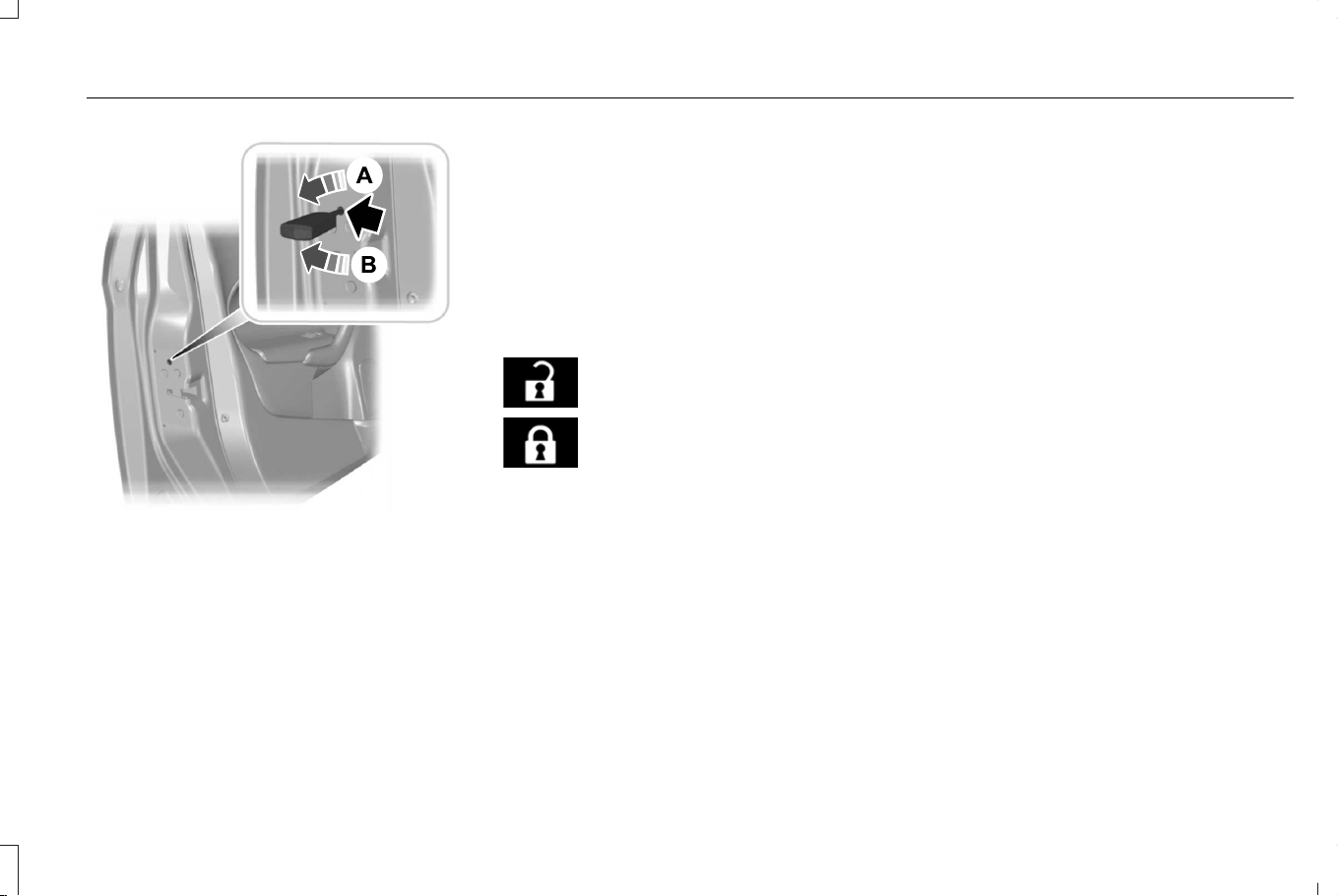
E112203
Lock.A
Unlock.B
OPERATING THE DOORS FROM
INSIDE YOUR VEHICLE
UNLOCKING AND LOCKING THE
DOORS USING THE CENTRAL
LOCKING
The power door lock control is on the front
doors.
E267112
Press the button to unlock all
doors.
E267111
Press the button to lock all doors.
Note: The central locking only operates if
the front doors are fully closed.
OPENING THE DOORS FROM INSIDE
YOUR VEHICLE
Pull the interior door handle twice to unlock
and open a rear door. The first pull unlocks
the door and the second pull opens the door.
DOOR LOCK SWITCH INHIBITOR
HOW DOES THE DOOR LOCK SWITCH
INHIBITOR WORK
The door lock switch inhibitor is a theft
protection feature that prevents someone
unlocking the vehicle from inside using the
power door lock control switch.
When you lock your vehicle with the remote
control, the power door lock control switch
does no longer operate after 20 seconds.
Note: You must unlock your vehicle with the
remote control, or switch the ignition on, to
restore the power door lock control switch
function.
AUTOUNLOCK
WHAT IS AUTOUNLOCK
Autounlock is a feature that centrally unlocks
the vehicle doors when your vehicle comes
to a stop and you open the driver door.
85
Corsair (CTF) Canada/Mexico/United States of America, enUSA, Edition date: 202407, DOM
Doors and Locks

AUTOUNLOCK REQUIREMENTS
Autounlock unlocks all the doors when all of
the following occur:
• Your vehicle has come to a complete
stop and all of the doors are closed.
• You open the driver door within 10
minutes of stopping the vehicle.
SWITCHING AUTOUNLOCK ON AND
OFF
1. From the settings menu, press Vehicle.
2. Press Locks.
3. Switch Autounlock on or off.
AUTOLOCK
WHAT IS AUTOLOCK
Autolock is a locking feature that centrally
locks your vehicle doors when driving.
AUTOLOCK REQUIREMENTS
Autolock locks all the doors after:
1. All doors are closed and the ignition is
on.
2. Your vehicle speed exceeds 12 mph
(20 km/h).
Autolock repeats if:
1. Your vehicle is stopped.
2. Any door is opened and closed again.
3. Your vehicle speed exceeds 12 mph
(20 km/h).
MISLOCK
WHAT IS MISLOCK
Mislock is a locking feature that warns you
if your vehicle has not locked.
MISLOCK LIMITATIONS
When you press the lock button once, the
direction indicators do not flash if:
• Any door or the liftgate is open.
• The hood is open.
When you press the lock button twice within
three seconds, the horn sounds if:
• Any door or the liftgate is open.
• The hood is open.
If you switch mislock off, the horn does not
sound if you press the lock button on the
remote control when a door is open.
SWITCHING MISLOCK ON AND OFF
1. From the settings menu, press Vehicle.
2. Press Locks.
3. Switch Mislock on or off.
86
Corsair (CTF) Canada/Mexico/United States of America, enUSA, Edition date: 202407, DOM
Doors and Locks

DOOR LOCK INDICATORS (IF EQUIPPED)
An LED on the power door lock control
illuminates when all doors are locked. It
remains on for up to five minutes after you
switch the ignition off.
DOORS AND LOCKS AUDIBLE
WARNINGS
Door Ajar Audible Warning
Sounds when any front door is not fully
closed and your vehicle is moving.
DOORS AND LOCKS –
TROUBLESHOOTING
DOORS AND LOCKS – WARNING
LAMPS
Door Ajar Warning Lamp
E249859
Illuminates when you switch the
ignition on and remains on if any
door or the hood is open.
DOORS AND LOCKS – INFORMATION MESSAGES
DetailsMessage
Displays if a door is open. Fully close the door.Driver Door Ajar
Passenger Door Ajar
Rear Left Door Ajar
Rear Right Door Ajar
Displays if a hood is open. Fully close the hood.Hood Ajar
87
Corsair (CTF) Canada/Mexico/United States of America, enUSA, Edition date: 202407, DOM
Doors and Locks

DOORS AND LOCKS – FREQUENTLY
ASKED QUESTIONS
Can accessories such as steps or
handles be used with the latch
assembly?
• Do not use the door latch assembly to
attach any accessory, such as handles
or steps, as this can cause damage to
your vehicle.
88
Corsair (CTF) Canada/Mexico/United States of America, enUSA, Edition date: 202407, DOM
Doors and Locks
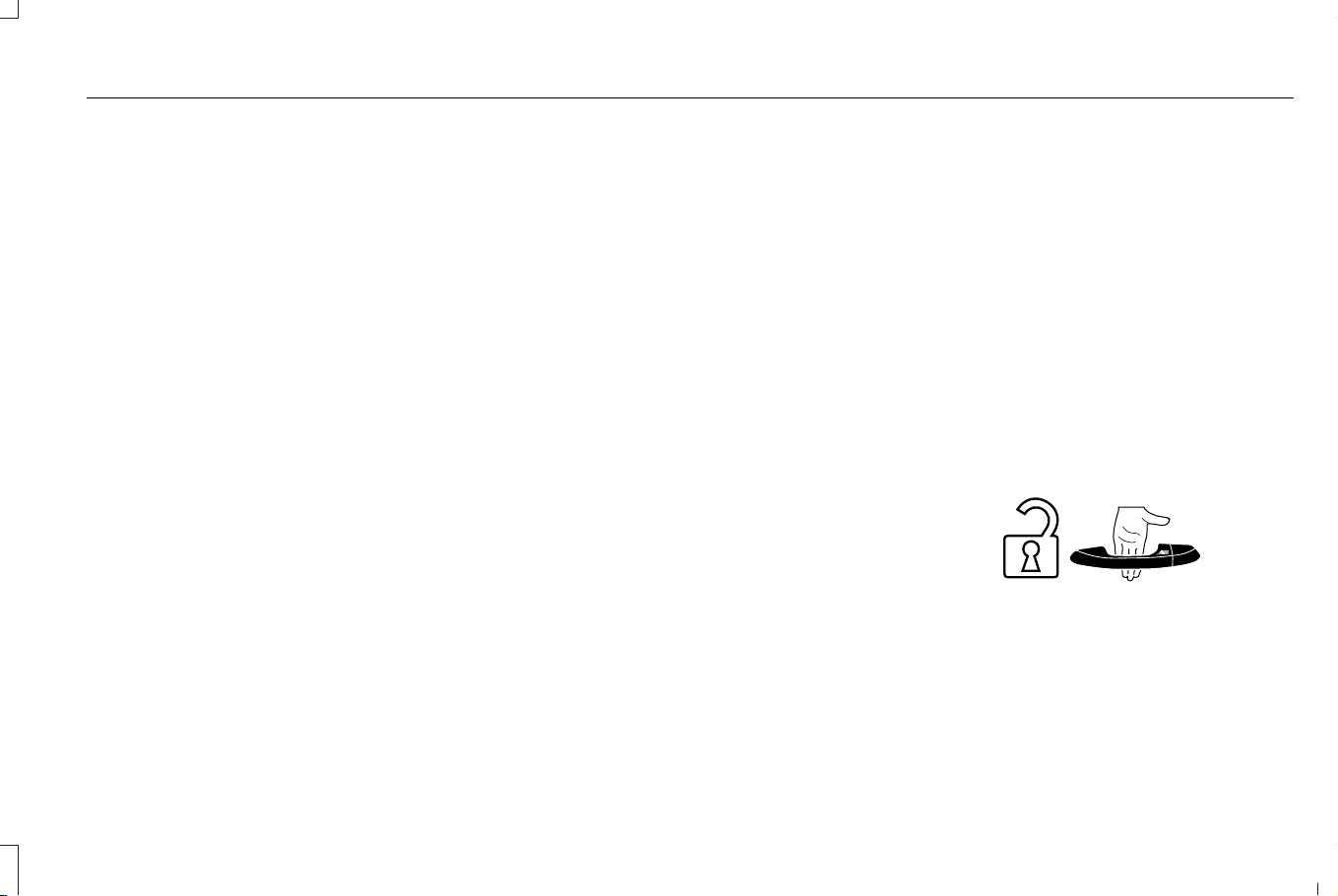
WHAT IS KEYLESS ENTRY
The system allows you to lock and unlock
your vehicle without taking the passive key
out of your pocket or purse.
KEYLESS ENTRY LIMITATIONS
Make sure your remote control is within 3 ft
(1 m) from the front door handles and the
tailgate.
The system could not function if:
• The remote control remains stationary
for about a minute.
• The vehicle battery has no charge.
• The remote control battery has no
charge.
• There is interference causing issues with
the remote control frequencies.
• The remote control is too close to metal
objects or electronic devices, for example
keys or a cell phone.
KEYLESS ENTRY SETTINGS
Switching Keyless Entry On and Off
1. From the settings menu, press Vehicle.
2. Press Locks.
Reprogramming the Unlocking
Function
You can enable the two-stage unlocking
function allowing you to unlock only the
driver door when you touch the unlock
sensor.
Press and hold both the lock and unlock
buttons on the remote control for four
seconds to disable or enable two-stage
unlocking.
If you program the unlocking function so that
only the driver door unlocks, you can unlock
all of the other doors from inside your vehicle
using the power door lock control. You can
unlock individual doors by pulling the interior
door handles on those doors.
Keyless Detection Alert
Displays a message in the instrument cluster
if no valid key is detected, when you exit
your vehicle with a key, after the last front
door is closed and your keyless vehicle is in
run, indicating your vehicle is still on. An
audible alert sounds if you have driven the
vehicle and reached a speed of 16 mph
(25 km/h) and the above mentioned
conditions are met.
USING KEYLESS ENTRY
Unlocking the Doors
E248553
89
Corsair (CTF) Canada/Mexico/United States of America, enUSA, Edition date: 202407, DOM
Keyless Entry
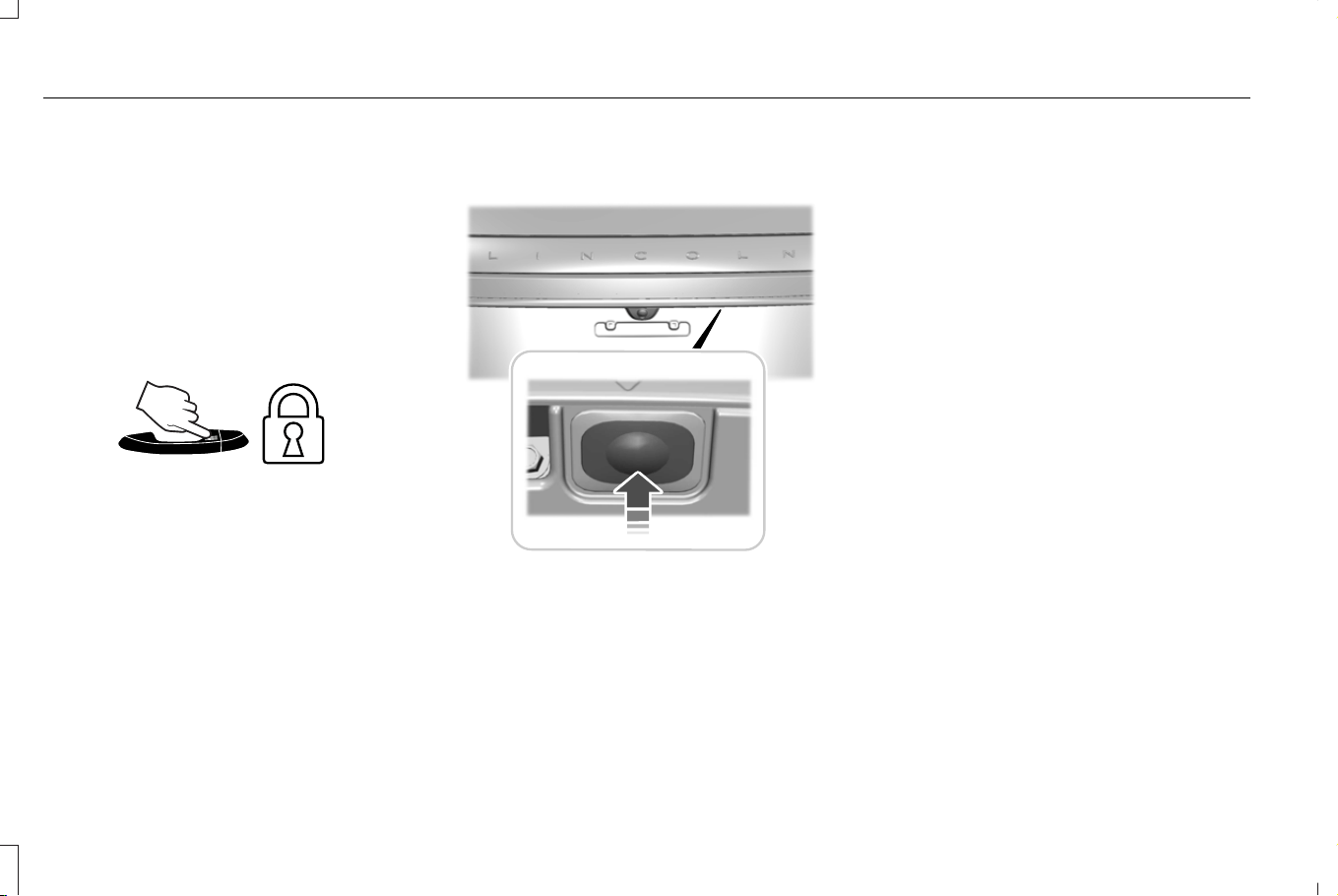
With the remote control within 3 ft (1 m) of
your vehicle, touch the unlock sensor on the
back of the door handle for a brief period
and then pull on the door handle to unlock,
being careful not to touch the lock sensor at
the same time or pull on the door handle too
quickly. The system requires a brief delay to
authenticate the remote control.
Locking the Doors
E248554
With your passive key within 3 ft (1 m) of your
vehicle, touch the outer door handle lock
sensor for approximately one second to lock,
being careful not to touch the unlock sensor
on the back of the door handle at the same
time. After locking, you can immediately pull
on the door handle to confirm locking
occurred without inadvertently unlocking.
Opening the Liftgate with the Remote
Control
E291416
Press the exterior liftgate release button
inside of the liftgate handle. The liftgate
unlocks and opens. See Opening the
Liftgate From Outside Your Vehicle (page
92).
KEYLESS ENTRY –
TROUBLESHOOTING
KEYLESS ENTRY – FREQUENTLY
ASKED QUESTIONS
Why does the keyless entry system not
function?
If the system does not function it may
be limited. See Keyless Entry
Limitations (page 89). If the system still
does not function use the remote
control or the key blade to lock and
unlock your vehicle.
Why can I not lock my vehicle?
If you electronically lock your vehicle
with a rear door or the liftgate open, the
system searches for a passive key inside
your vehicle after you close the last
door. If the system detects a key, all
doors unlock indicating that a key is
inside. Your vehicle locks if another
passive key is within the detection range
after you close the last door.
90
Corsair (CTF) Canada/Mexico/United States of America, enUSA, Edition date: 202407, DOM
Keyless Entry

HOW DOES EASY ENTRY AND
EXIT WORK
Easy entry and exit moves the driver seat
rearward and the steering column up when
you switch the ignition off. The driver seat
and steering column return to their previous
positions when you switch the ignition on.
Note: Depending on your vehicle, the column
may move up and in.
SWITCHING EASY ENTRY AND
EXIT ON AND OFF
1. Using the touchscreen, select Settings.
2. Select Vehicle.
3. Select Easy Entry/Exit.
If you press any adjustment or memory
button when in easy exit mode, the system
cancels the operation.
91
Corsair (CTF) Canada/Mexico/United States of America, enUSA, Edition date: 202407, DOM
Easy Entry and Exit
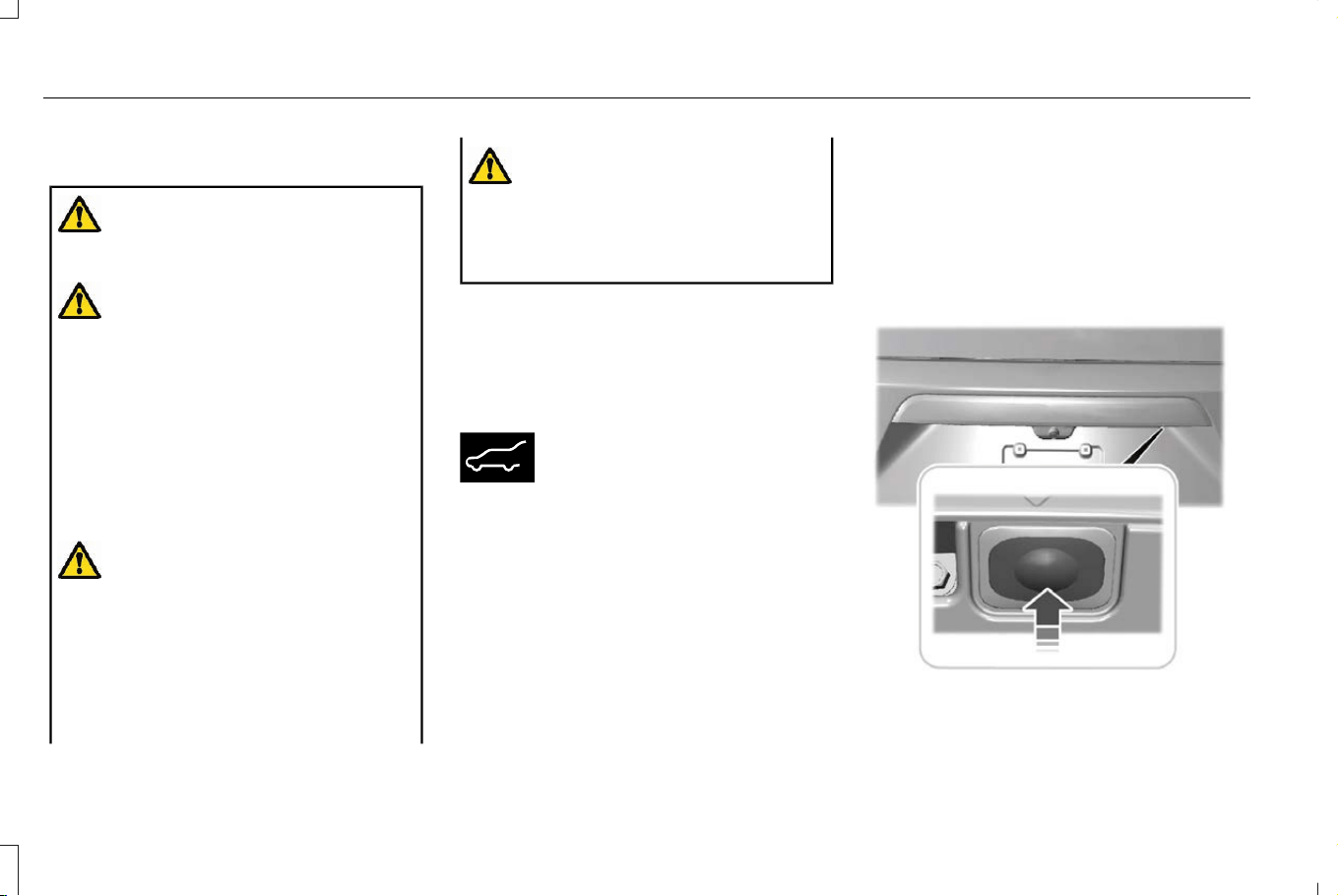
LIFTGATE PRECAUTIONS
WARNING: Make sure all persons
are clear of the power liftgate area before
opening or closing the liftgate.
WARNING: It is extremely dangerous
to ride in a cargo area, inside or outside of
a vehicle. In a crash, people riding in these
areas are more likely to be seriously
injured or killed. Do not allow people to
ride in any area of your vehicle that is not
equipped with seats and seatbelts. Make
sure everyone in your vehicle is in a seat
and properly using a seatbelt. Failure to
follow this warning could result in serious
personal injury or death.
WARNING: Make sure that you fully
close the liftgate to prevent exhaust fumes
from entering your vehicle. If you are
unable to fully close the liftgate, open the
air vents or the windows to allow fresh air
to enter your vehicle. Failure to follow this
instruction could result in personal injury
or death.
WARNING: Keep keys out of reach
of children. Do not allow children to
operate or play near an open or moving
power liftgate. You should supervise the
operation of the power liftgate at all times.
OPENING THE LIFTGATE
OPENING THE LIFTGATE FROM INSIDE
YOUR VEHICLE
E138633
With the transmission in park (P),
press the button on the instrument
panel.
Note: Be careful when opening or closing
the liftgate in a garage or other enclosed
area to avoid damaging the liftgate.
Note: Do not hang anything, for example a
bike rack, from the glass or liftgate. This
could damage the liftgate and its
components.
Note: Do not leave the liftgate open while
driving. This could damage the liftgate and
its components.
OPENING THE LIFTGATE FROM
OUTSIDE YOUR VEHICLE
1. Unlock the liftgate with the remote
control or power door unlock control. If
a passive key is within 3 ft (1 m) of the
liftgate, the liftgate unlocks when you
press the liftgate release button.
E291352
2. Press and release the liftgate control
button.
92
Corsair (CTF) Canada/Mexico/United States of America, enUSA, Edition date: 202407, DOM
Liftgate
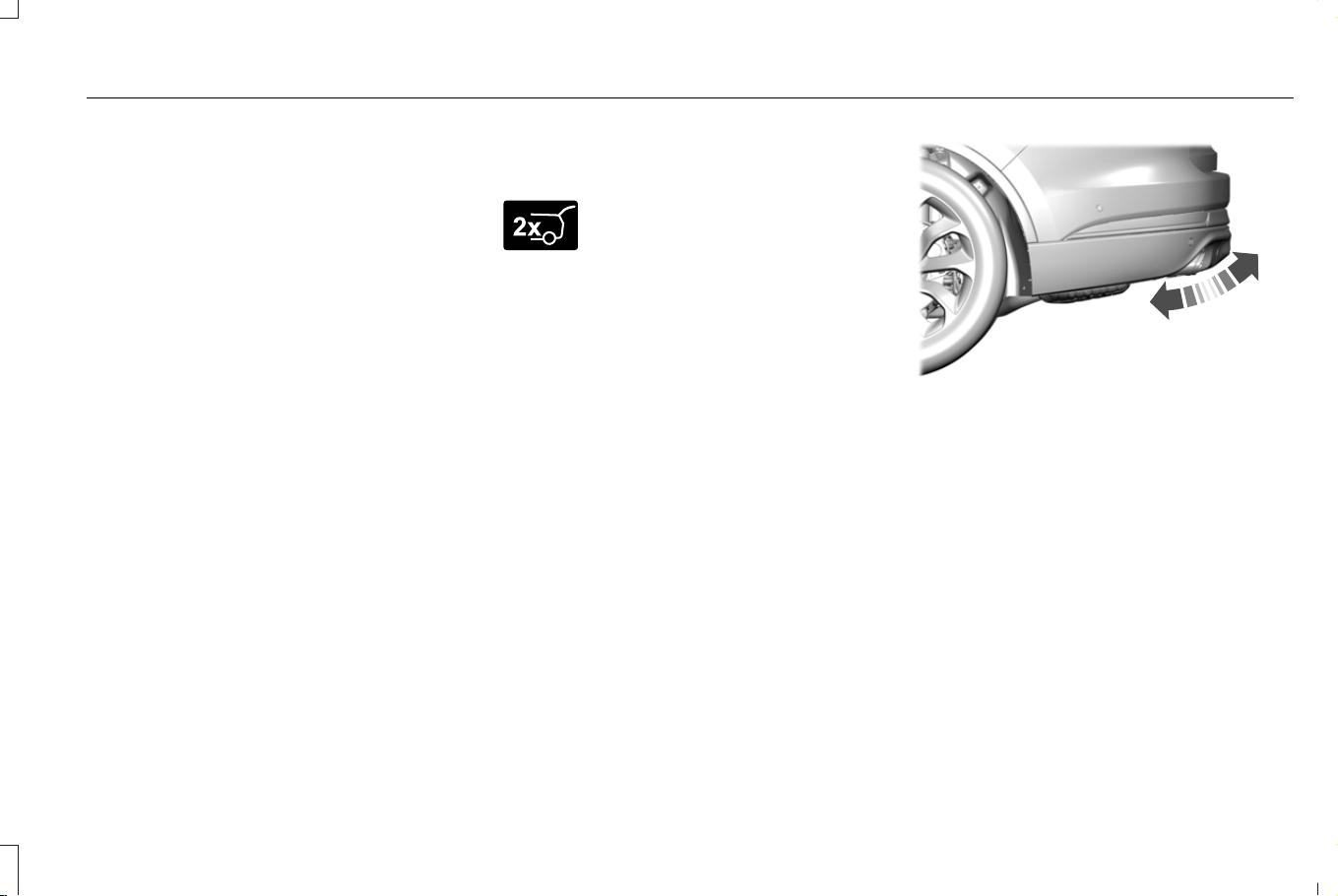
Note: Allow the power system to open the
liftgate. Manually pushing or pulling the
liftgate could activate the system’ s obstacle
detection feature and stop the power
operation or reverse its direction, replicate
a strut failure, or damage mechanical
components.
Note: Be careful when opening or closing
the liftgate in a garage or other enclosed
area to avoid damaging the liftgate.
Note: Do not hang anything, for example a
bike rack, from the glass or liftgate. This
could damage the liftgate and its
components.
Note: Do not leave the liftgate open while
driving. This could damage the liftgate and
its components.
Switching the Power Liftgate On or Off
You can switch the power liftgate on or off
through the vehicle settings on your
touchscreen.
When switched off, the liftgate only unlatches
and does not power open or close.
OPENING THE LIFTGATE USING THE
REMOTE CONTROL
E267940
Press the remote control button
twice within a few seconds.
OPENING THE HANDS-FREE LIFTGATE
(If Equipped)
Make sure you have the passive key within
3 ft (1 m) of the liftgate.
1. Stand behind your vehicle, and face the
liftgate.
2. Move your foot, in a single-kick motion,
without pausing, under and away from
the rear bumper detection area.
E300799
3. The liftgate opens.
Avoid the following actions when using the
hands-free opening feature:
• Making physical contact with the bumper.
• Holding your foot under the bumper.
• Sweeping your foot from side to side, or
kicking at an odd angle.
93
Corsair (CTF) Canada/Mexico/United States of America, enUSA, Edition date: 202407, DOM
Liftgate
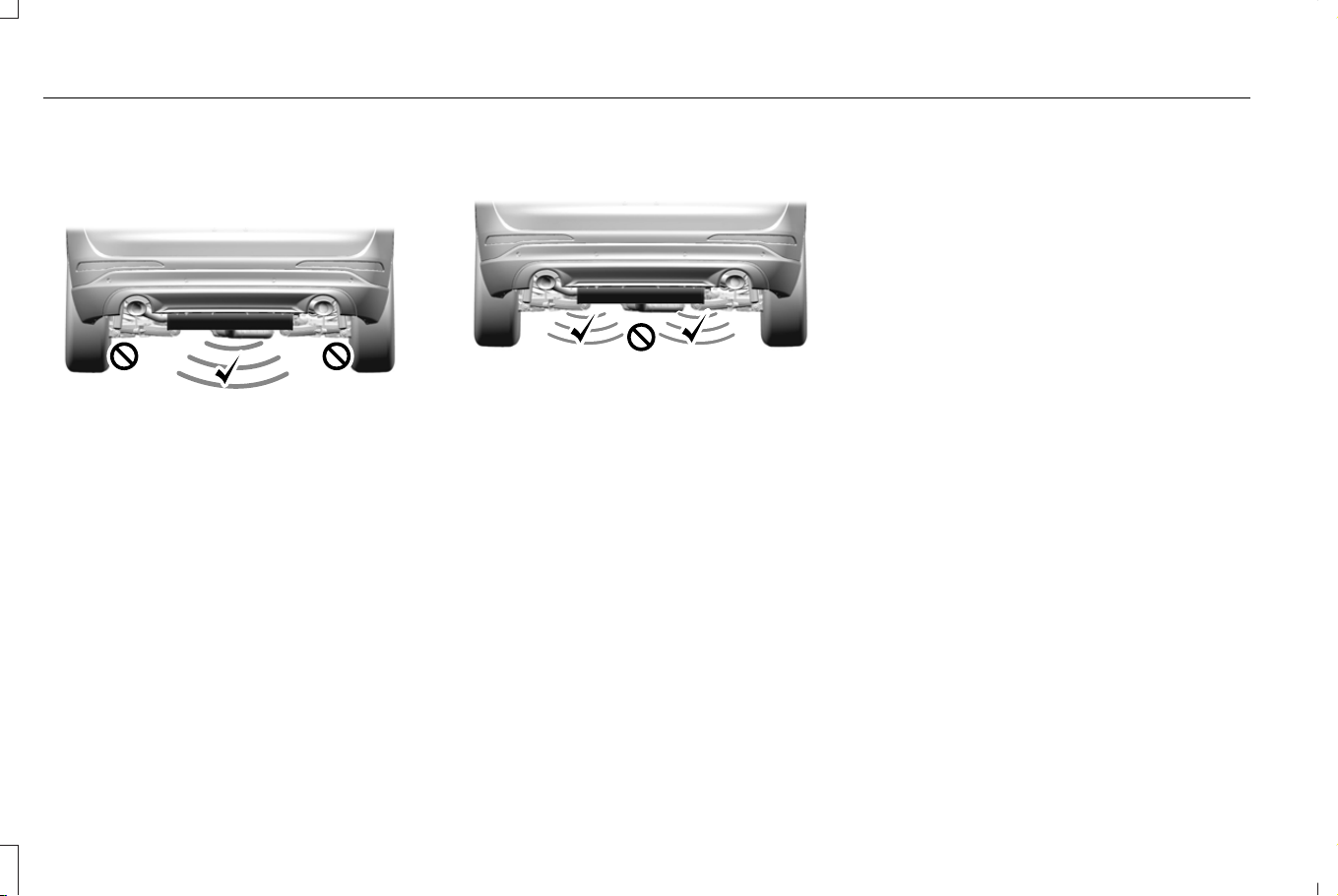
Detection Zones
Vehicles Without a Trailer Hitch
E310717
The detection area is in the center of the rear
bumper.
Vehicles With a Trailer Hitch
E310718
The detection area is on the left-hand side
and right-hand side of the hitch, between the
exhaust and the hitch.
Note: Allow the power system to open the
liftgate. Manually pushing or pulling the
liftgate may activate the system’s obstacle
detection feature and stop the power
operation or reverse its direction, replicate
a strut failure, or damage mechanical
components.
Note: Splashing water may cause the
hands-free liftgate to open. Keep the
passive key away from the rear bumper
detection area when you wash your vehicle.
SETTING THE LIFTGATE OPENING
HEIGHT
1. Open the liftgate.
2. Stop the liftgate movement by pressing
the control button on the liftgate when it
reaches the desired height.
Note: Once the liftgate stops moving, you
can manually move it to the desired height.
3. Press and hold the control button on the
liftgate until a tone sounds, indicating
programming is complete.
Note: You can only use the liftgate control
button to program the height.
Note: You cannot program the height if the
liftgate position is too low.
4. The power liftgate now opens at the
programmed height. To change the
programmed height, repeat the steps.
Note: You can fully open the liftgate by
manually pushing it upward to the maximum
open position if it opens in a lower position.
94
Corsair (CTF) Canada/Mexico/United States of America, enUSA, Edition date: 202407, DOM
Liftgate
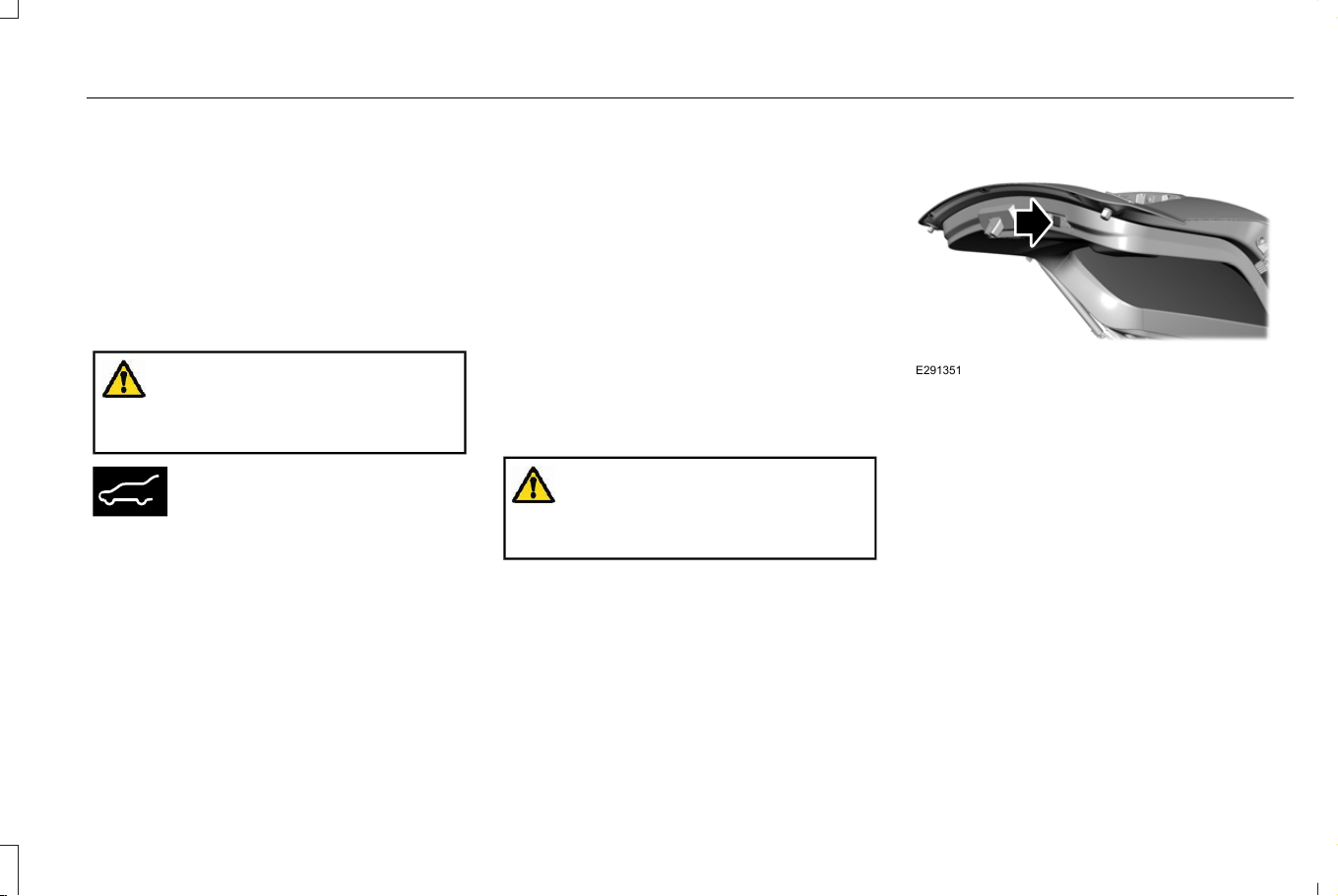
Note: The system recalls the new
programmed height until you reprogram it,
even if you disconnect the battery.
CLOSING THE LIFTGATE
CLOSING THE LIFTGATE FROM INSIDE
YOUR VEHICLE
WARNING: Make sure all persons
are clear of the power liftgate area before
using the power liftgate control.
E138633
With the transmission in park (P),
press the button on the instrument
panel.
Note: Make sure that you close the liftgate
before operating or moving your vehicle,
especially in an enclosure, like a garage or
a parking structure. This could damage the
liftgate and its components.
Note: Make sure the area behind your
vehicle is free from obstruction and that
there is enough room for you to operate the
liftgate. Objects too close to your vehicle,
for example a wall, garage door or another
vehicle may come into contact with the
moving liftgate. This could damage the
liftgate and its components.
Note: Make sure that you fully close the
liftgate to prevent cargo from falling out.
CLOSING THE LIFTGATE FROM
OUTSIDE YOUR VEHICLE
WARNING: Make sure all persons
are clear of the power liftgate area before
opening or closing the liftgate.
E291351
Press and release the liftgate button.
Note: Make sure that you close the liftgate
before operating or moving your vehicle,
especially in an enclosure, like a garage or
a parking structure. This could damage the
liftgate and its components.
Note: Make sure the area behind your
vehicle is free from obstruction and that
there is enough room for you to operate the
liftgate. Objects too close to your vehicle,
for example a wall, garage door or another
vehicle may come into contact with the
moving liftgate This could damage the
liftgate and its components.
95
Corsair (CTF) Canada/Mexico/United States of America, enUSA, Edition date: 202407, DOM
Liftgate
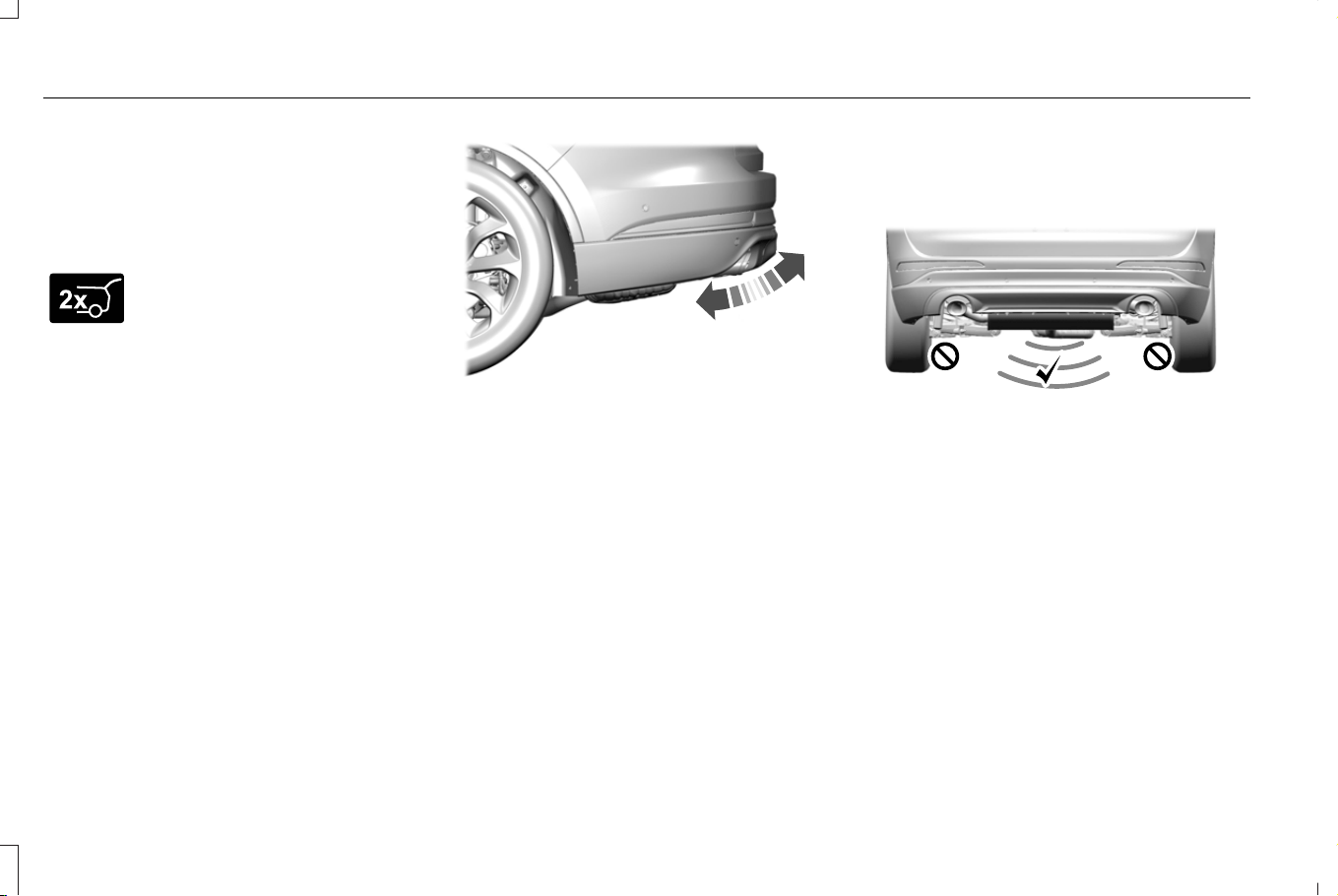
Note: Make sure you fully close the liftgate
to prevent cargo from falling out.
CLOSING THE LIFTGATE USING THE
REMOTE CONTROL
E267940
Press the remote control button
twice within three seconds.
CLOSING THE HANDS-FREE LIFTGATE
(If Equipped)
Make sure you have the passive key within
3 ft (1 m) of the liftgate.
1. Stand behind your vehicle, and face the
liftgate.
2. Move your foot, in a single-kick motion,
without pausing, under and away from
the rear bumper detection area.
E300799
3. The liftgate closes.
Avoid the following actions when using the
hands-free opening feature:
• Making physical contact with the bumper.
• Holding your foot under the bumper.
• Sweeping your foot from side to side, or
kicking at an odd angle.
Detection Zones
Vehicles Without a Trailer Hitch
E310717
The detection area is in the center of the rear
bumper.
96
Corsair (CTF) Canada/Mexico/United States of America, enUSA, Edition date: 202407, DOM
Liftgate
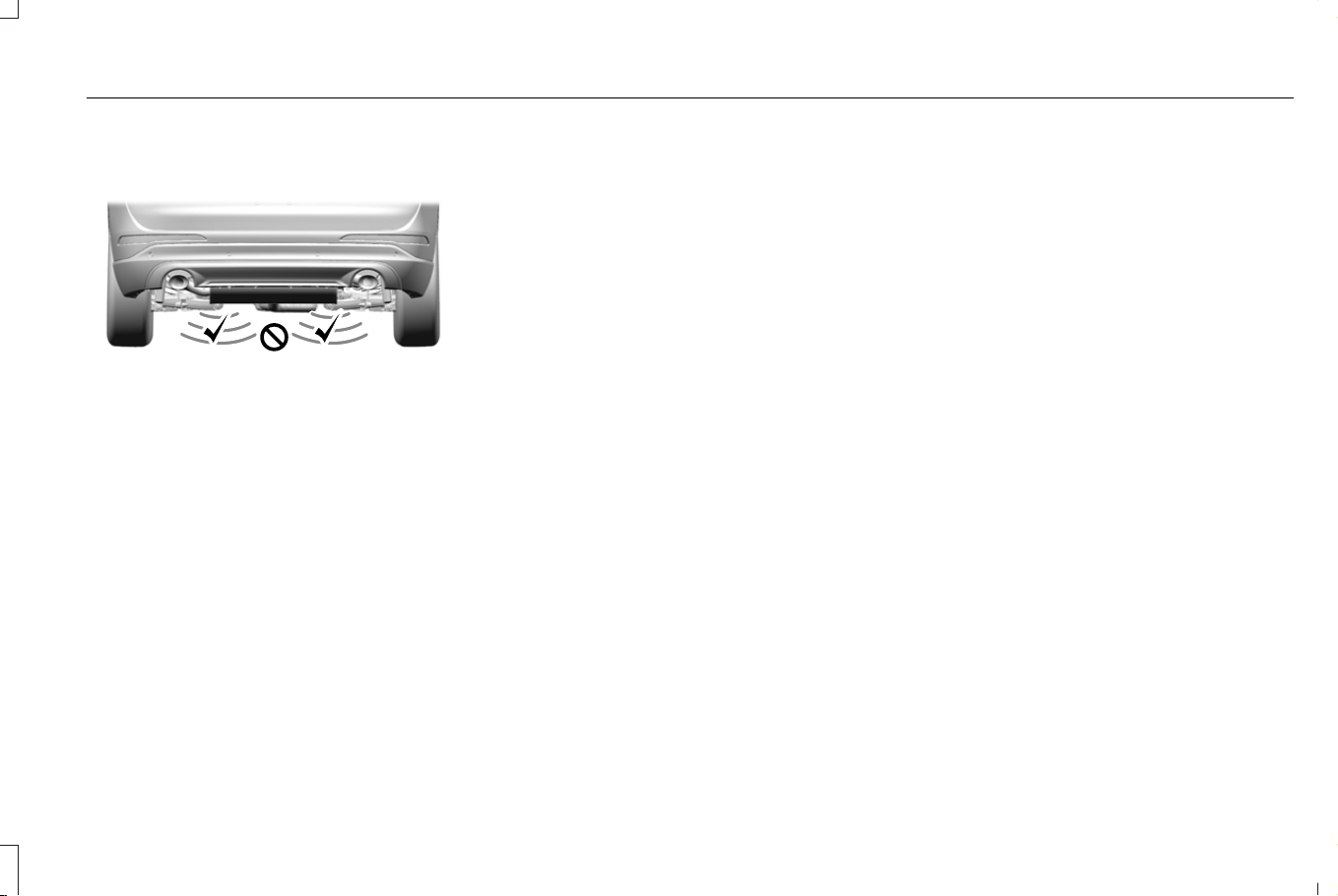
Vehicles With a Trailer Hitch
E310718
The detection area is on the left-hand side
and right-hand side of the hitch, between the
exhaust and the hitch.
Note: Allow the power system to close the
liftgate. Manually pushing or pulling the
liftgate may activate the system’s obstacle
detection feature and stop the power
operation or reverse its direction, replicate
a strut failure, or damage mechanical
components.
Note: Any physical actions that mimic a
kicking motion such as splashing water,
trailer chains or vacuum hoses may cause
the hands-free liftgate to activate. Switch the
power liftgate off through your vehicle
settings or keep the passive key away from
the rear bumper detection area.
STOPPING THE LIFTGATE
MOVEMENT
Note: Do not apply sudden excessive force
to the liftgate while it is in motion. This could
damage the power liftgate and its
components.
Note: Selections will vary depending on
region or options.
You can stop the liftgate movement by doing
any of the following:
• Pressing the liftgate control button on
the liftgate.
• Pressing the liftgate control button inside
the vehicle.
• Pressing the liftgate button on the remote
control twice.
• Pressing the liftgate button on an
authorized device.
• Moving your foot under and away from
the center rear bumper in a single-kick
motion.
LIFTGATE OBSTACLE DETECTION
Closing the Liftgate
The system stops when it detects an
obstacle. A tone sounds and the system
reverses to open. Once you remove the
obstacle, you can power close the liftgate.
Note: To prevent accidental obstacle
detection, let the power liftgate close
completely before you enter your vehicle.
Opening the Liftgate
The system stops when it detects an
obstacle and a tone sounds. Once you
remove the obstacle, you can continue to
operate the liftgate.
97
Corsair (CTF) Canada/Mexico/United States of America, enUSA, Edition date: 202407, DOM
Liftgate
LIFTGATE – TROUBLESHOOTING
LIFTGATE – WARNING LAMPS
E162453
Illuminates when the liftgate is not
completely closed.
LIFTGATE – INFORMATION MESSAGES
ActionMessage
The liftgate is not completely closed. Close the liftgate.Liftgate Ajar
98
Corsair (CTF) Canada/Mexico/United States of America, enUSA, Edition date: 202407, DOM
Liftgate

LIFTGATE – FREQUENTLY ASKED
QUESTIONS
Why won't my power liftgate function?
• It can happen in freezing conditions or
when parking on downhill slopes.
• Make sure the power liftgate is enabled
in the vehicle settings menu.
• Make sure the transmission is in park (P),
ensure nothing is obstructing the liftgate
path and there is not excessive weight
on the liftgate.
• If there are continued issues, the battery
voltage may be low or there may be
other system issues. See an authorized
dealer.
99
Corsair (CTF) Canada/Mexico/United States of America, enUSA, Edition date: 202407, DOM
Liftgate

PASSIVE ANTI-THEFT SYSTEM
WHAT IS THE PASSIVE ANTI-THEFT
SYSTEM
The passive anti-theft system prevents
someone from starting your vehicle with an
incorrectly coded key.
Note: Do not leave a duplicate coded key
in your vehicle. Always take the keys and
lock all the doors when leaving your vehicle.
HOW DOES THE PASSIVE ANTI-THEFT
SYSTEM WORK
The passive anti-theft system arms when you
switch your vehicle off.
It disarms when you switch your vehicle on
with a correctly coded key.
Note: The system is not compatible with
non-Ford aftermarket remote start systems.
Note: Do not leave a duplicate coded key
in your vehicle. Always take the keys and
lock all doors when leaving your vehicle.
ARMING THE PASSIVE ANTI-THEFT
SYSTEM
The passive anti-theft system arms your
vehicle after a short period of time when you
switch the power off.
DISARMING THE PASSIVE ANTI-THEFT
SYSTEM
The passive anti-theft system disarms when
you switch the power on with a correctly
coded key.
Note: You could have difficulty starting the
vehicle if you have metallic objects,
electronic devices or a second coded key
on the same key chain.
ANTI-THEFT ALARM SYSTEM
WHAT IS THE ANTI-THEFT ALARM
SYSTEM
The anti-theft alarm system warns you of an
unauthorized entry to your vehicle.
HOW DOES THE ANTI-THEFT ALARM
SYSTEM WORK
When armed, the anti-theft alarm is triggered
in any of the following ways:
• If someone opens a door, the liftgate or
the hood without a correctly coded key
or remote control.
• If you turn the power on without a
correctly coded key.
If the anti-theft alarm is triggered, the alarm
horn sounds for 30 seconds and the
direction indicators flash for 5 minutes.
Any further attempts to carry out one of the
above sounds the alarm again.
WHAT IS THE PERIMETER ALARM
The perimeter alarm is designed to detect
unauthorized access to your vehicle.
ARMING THE ANTI-THEFT ALARM
SYSTEM
The alarm is ready to arm when you switch
your vehicle off.
100
Corsair (CTF) Canada/Mexico/United States of America, enUSA, Edition date: 202407, DOM
Security

Lock your vehicle with your remote control
to arm the alarm.
DISARMING THE ANTI-THEFT ALARM
SYSTEM
Disarm the alarm by performing any of the
following actions:
• Unlock the doors or luggage
compartment with the remote control.
• Switch your vehicle on or start your
vehicle.
SECURITY – TROUBLESHOOTING
SECURITY – INFORMATION MESSAGES
DetailsMessage
The system has not detected a correctly coded key.No Key Detected
The system has malfunctioned. Have your vehicle checked as soon as possible.Starting System Fault
Displays when the alarm has been triggered due to unauthorized entry.Vehicle Alarm To Stop Alarm, Start
Vehicle.
Alarm
101
Corsair (CTF) Canada/Mexico/United States of America, enUSA, Edition date: 202407, DOM
Security

SECURITY – FREQUENTLY ASKED
QUESTIONS
What should I do if there is a potential
alarm problem with my vehicle?
• Take all remote controls to an authorized
dealer if there is a potential alarm
problem with your vehicle.
What should I do if my vehicle is unable
to start with a correctly coded key?
• Have your vehicle checked as soon as
possible.
102
Corsair (CTF) Canada/Mexico/United States of America, enUSA, Edition date: 202407, DOM
Security
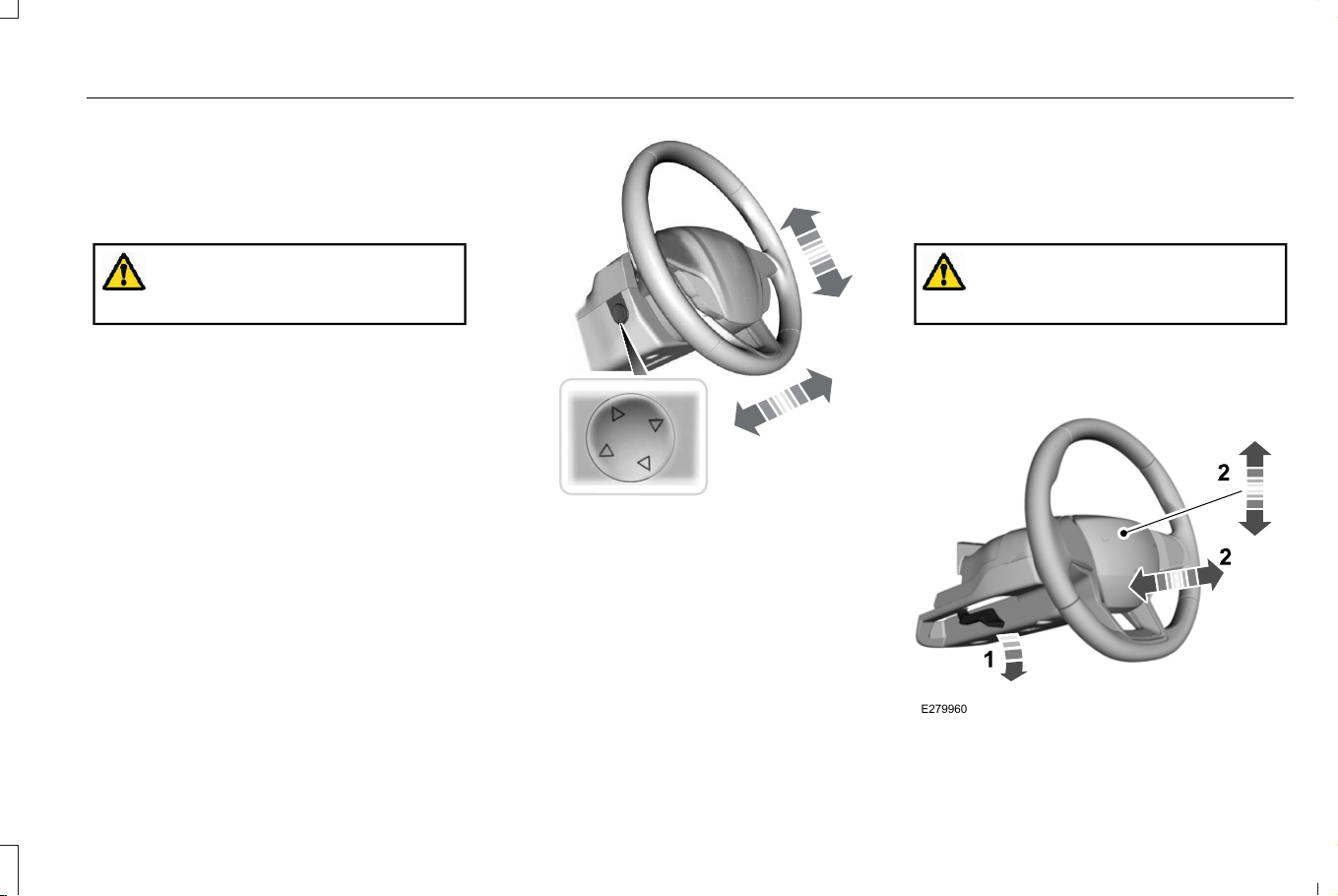
ADJUSTING THE STEERING WHEEL
- VEHICLES WITH: POWER
ADJUSTABLE STEERING COLUMN
WARNING: Do not adjust the steering
wheel when your vehicle is moving.
Note: Make sure that you are sitting in the
correct position. See Sitting in the Correct
Position (page 164).
E261582
Press the top or bottom of the control to
move the steering wheel up or down.
Press the front or rear of the control to move
the steering wheel in or out.
ADJUSTING THE STEERING WHEEL
- VEHICLES WITH: MANUAL
ADJUSTABLE STEERING COLUMN
WARNING: Do not adjust the steering
wheel when your vehicle is moving.
Note: Make sure that you are sitting in the
correct position. See Sitting in the Correct
Position (page 164).
E279960
103
Corsair (CTF) Canada/Mexico/United States of America, enUSA, Edition date: 202407, DOM
Steering Wheel
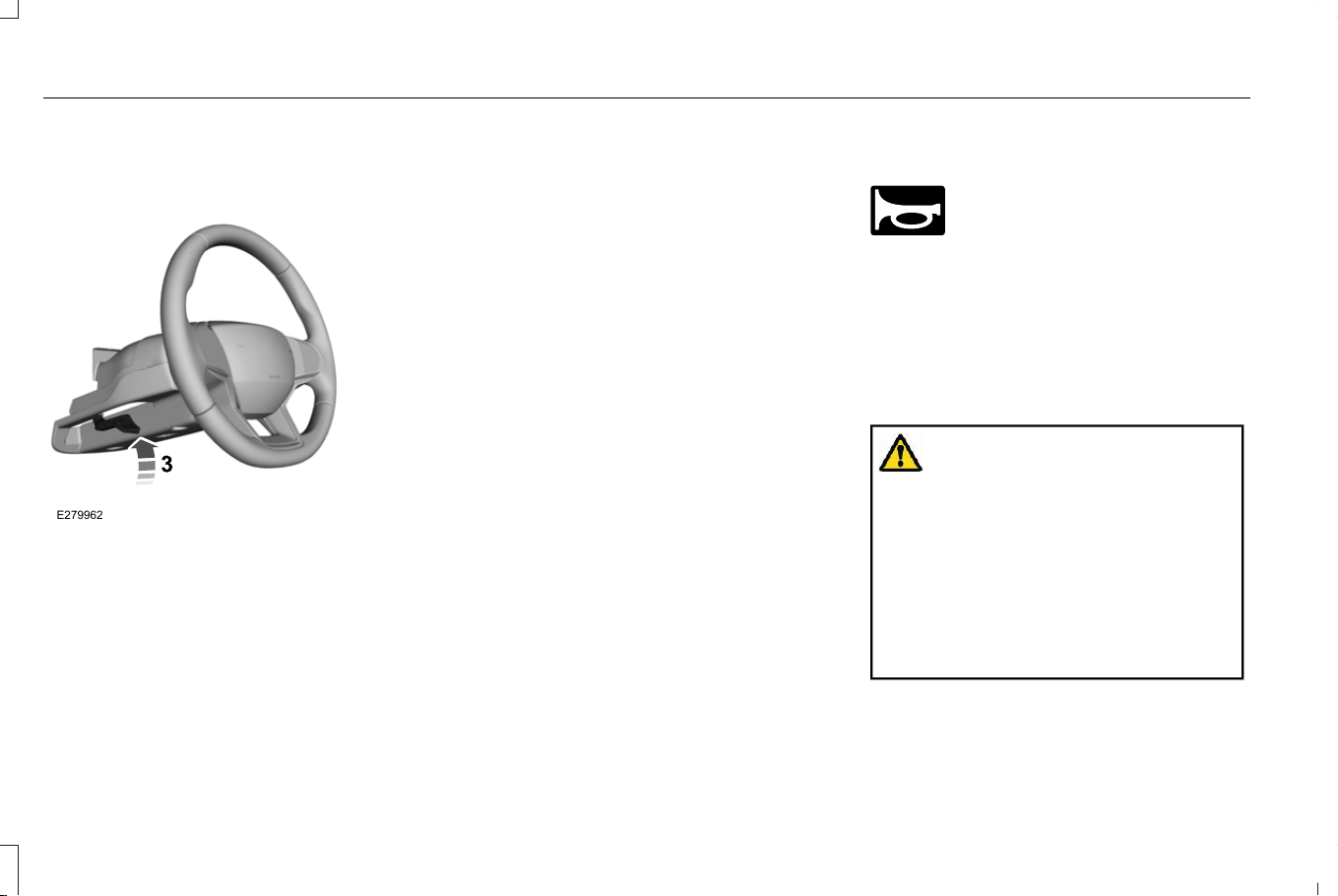
1. Unlock the steering column.
2. Adjust the steering wheel to the desired
position.
E279962
3. Lock the steering column.
RESETTING THE STOPPING
POSITION - VEHICLES WITH:
POWER ADJUSTABLE STEERING
COLUMN
Note: The steering wheel stops when it
detects an obstruction. This sets a new
stopping position.
To reset the steering column to its normal
stopping position:
1. Confirm there is nothing obstructing the
motion of the steering column.
2. Press and hold the steering column
control until the steering column stops
moving.
3. Press the steering column control again.
Note: The steering column may start to move
again.
4. When the steering column stops,
continue holding the control for a few
seconds.
5. Repeat for each direction, as necessary.
HORN
E270945
Press on the center of the steering
wheel near the horn icon to
activate the horn.
SWITCHING THE HEATED
STEERING WHEEL ON AND OFF -
VEHICLES WITH: HEATED
STEERING WHEEL
WARNING: Use caution when using
the heated steering wheel if you are
unable to feel pain to your skin because
of advanced age, chronic illness, diabetes,
spinal cord injury, medication, exhaustion
or other physical conditions. Failure to
follow this instruction could result in
personal injury, especially if the heated
steering wheel is used for long periods of
time.
104
Corsair (CTF) Canada/Mexico/United States of America, enUSA, Edition date: 202407, DOM
Steering Wheel

E256621
To activate the heated steering
wheel, press the button on the
touchscreen. An indicator
illuminates when the heated steering wheel
is on. To turn it off, press the heated steering
wheel button again.
Note: The engine must be running to use
the heated steering wheel.
Note: A sensor regulates the temperature
of the steering wheel.
Note: The heated steering wheel may
remain on after remote starting your vehicle,
depending on the remote start settings. It
may also turn on when you start your vehicle
if it was on the last time the engine was
switched off.
Note: In warm temperatures, the steering
wheel quickly reaches its maximum
temperature and the system reduces the
current to the heating element. This could
cause you to think that the system has
stopped working but it has not. This is
normal.
105
Corsair (CTF) Canada/Mexico/United States of America, enUSA, Edition date: 202407, DOM
Steering Wheel
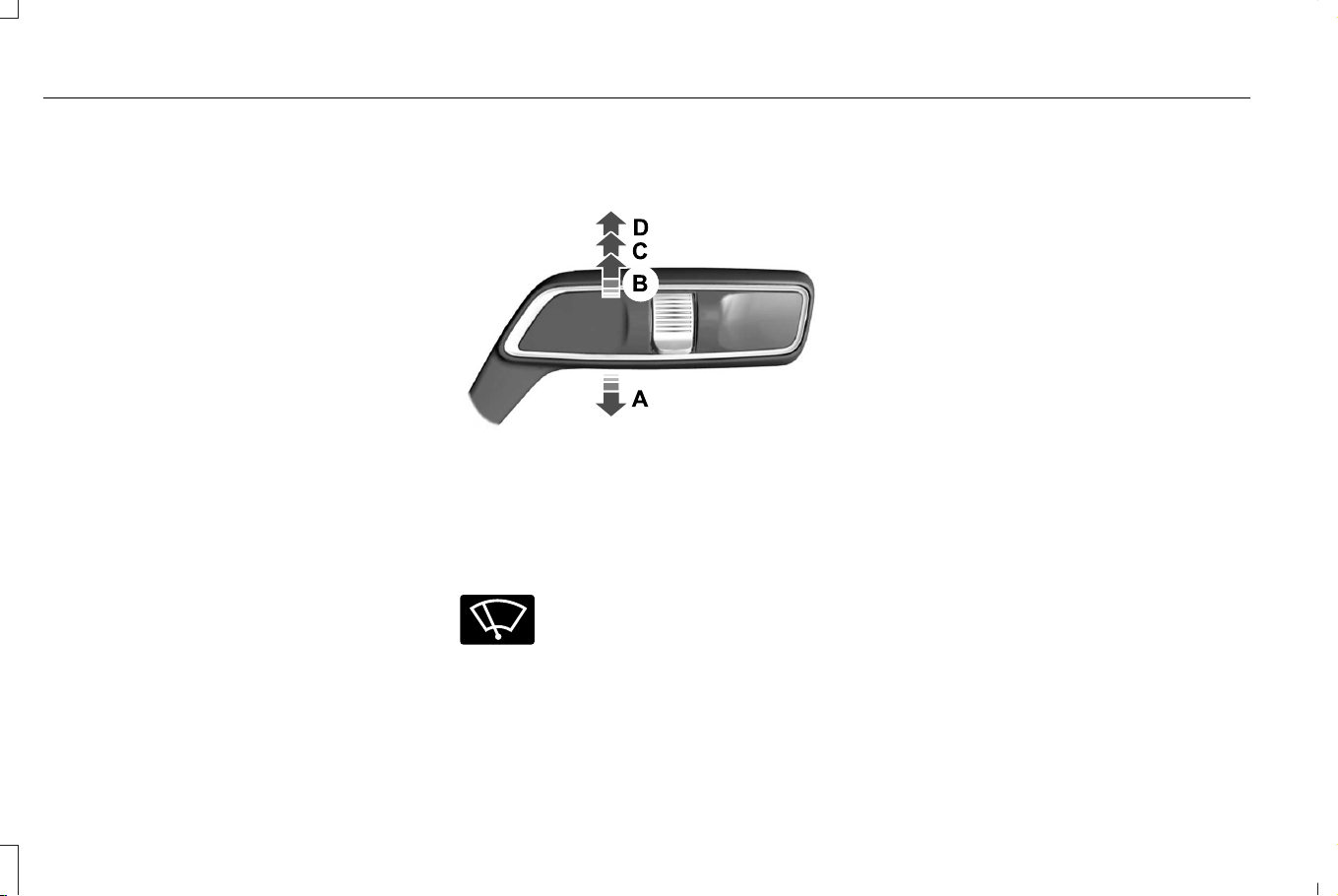
WIPERS
WIPER PRECAUTIONS
Do not operate the wipers on a dry
windshield. This could scratch the glass or
damage the wiper blades. Use the
windshield washers before wiping a dry
windshield.
Fully defrost the windshield before you
switch the windshield wipers on.
Switch the windshield wipers off before
entering a car wash.
SWITCHING WINDSHIELD WIPERS ON
AND OFF
E269410
Single wipe.A
Intermittent wipe/Auto wipe.B
Normal wipe.C
High-speed wipe.D
E270969
Push the lever up or down to
operate the windshield wipers.
AUTOWIPERS (IF EQUIPPED)
WHAT ARE AUTOWIPERS
Autowipers turns on and controls the speed
and frequency of the windshield wipers.
AUTOWIPERS SETTINGS
1. Using the instrument cluster controls on
the steering wheel, select Settings.
2. Select Vehicle.
3. Select Wipers.
4. Switch Rain Sensing on or off.
Note: When you switch the feature off, the
wipers do not operate based on the rain
sensor. When you switch on the windshield
wipers to the intermittent wipe position with
the feature off, the wipers use the wipe
speed set by the rotary control.
106
Corsair (CTF) Canada/Mexico/United States of America, enUSA, Edition date: 202407, DOM
Wipers and Washers
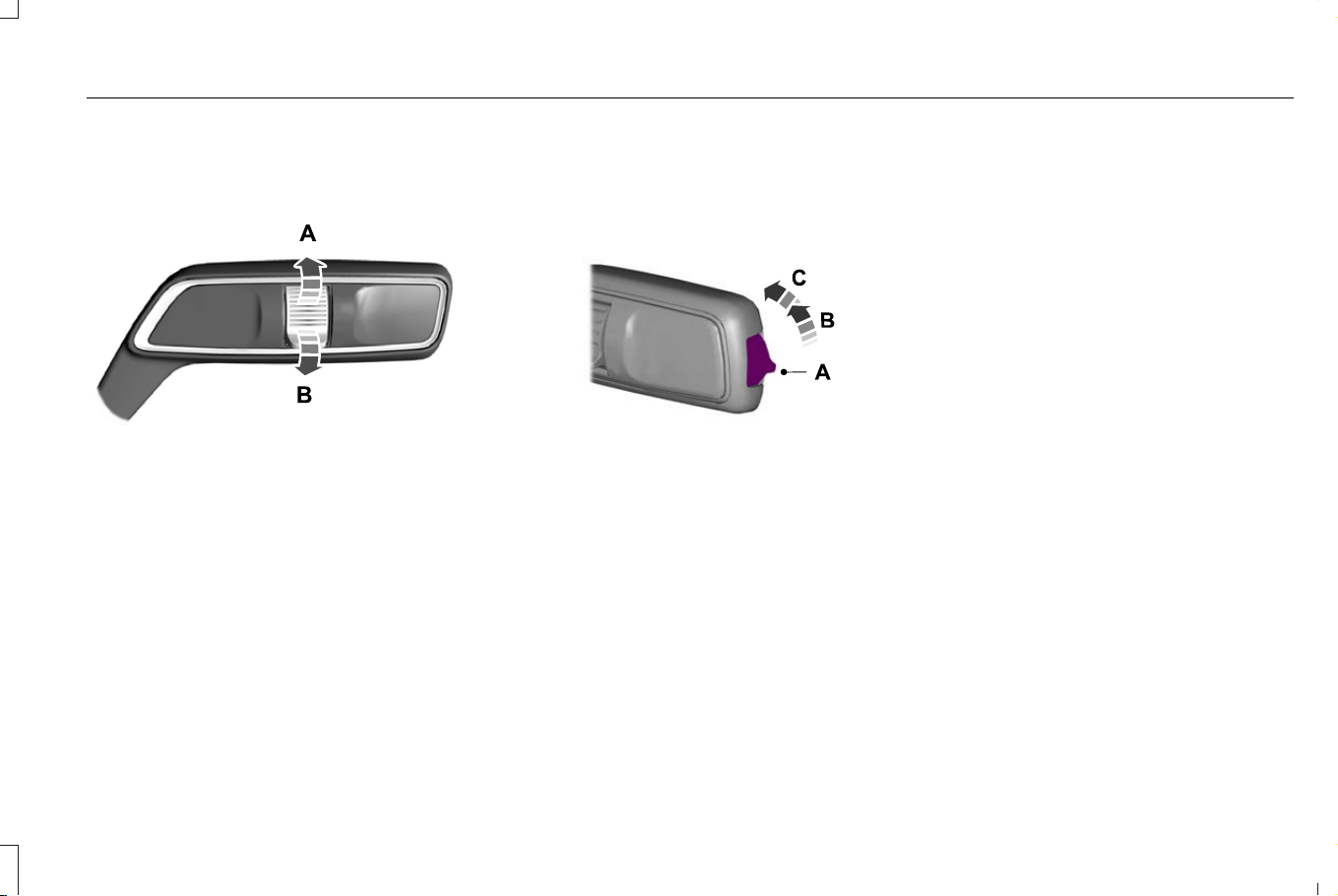
ADJUSTING THE SENSITIVITY OF THE
RAIN SENSOR
E330179
High sensitivity.A
Low sensitivity.B
Use the rotary control to set the sensitivity
of the rain sensor.
When you select high sensitivity, the wipers
operate when the sensor detects a small
amount of water on the windshield.
When you select low sensitivity, the wipers
operate when the sensor detects a large
amount of water on the windshield.
SWITCHING THE REAR WINDOW
WIPER ON AND OFF
E396130
Rear window wiper off.A
Intermittent wipe.B
Continuous wipe.C
REVERSE WIPE
WHAT IS REVERSE WIPE
Reverse wipe turns on the rear window wiper
when you shift into reverse (R) and the
windshield wipers are on.
REVERSE WIPE SETTINGS
1. Using the instrument cluster controls on
the steering wheel, select Settings.
2. Select Vehicle.
3. Select Wipers.
4. Switch Reverse Wiper on or off.
107
Corsair (CTF) Canada/Mexico/United States of America, enUSA, Edition date: 202407, DOM
Wipers and Washers
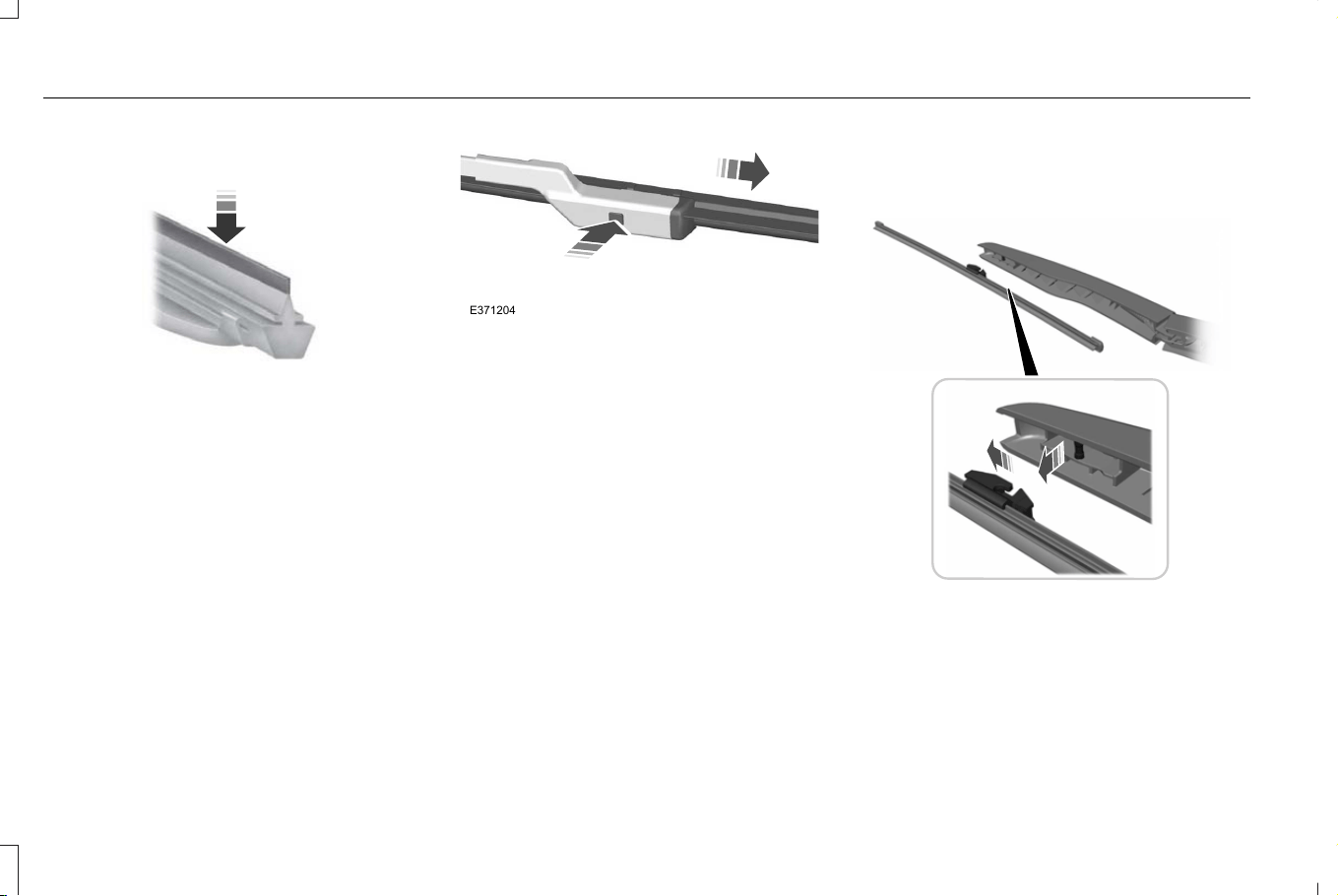
CHECKING THE WIPER BLADES
E142463
Run the tip of your fingers over the edge of
the blade to check for roughness.
REPLACING THE FRONT WIPER
BLADES
1. Turn the vehicle off.
2. Manually rotate the wiper upward to the
proper position.
Note: The position should enable wiper arm
lift without contacting the hood and easy for
you to operate.
E371204
3. Lift the wiper arm and then press the
wiper blade locking button.
Note: Do not hold the wiper blade to lift the
wiper arm.
4. Remove the wiper blade.
Note: Make sure that the wiper arm does
not spring back against the glass when the
wiper blade is not attached.
5. To install, reverse the removal procedure.
Note: Make sure that the wiper blade locks
into place.
Your vehicle may be equipped with a heated
wiper park feature that allows the wipers to
operate in cold temperatures. See Switching
the Heated Wiper Park On and Off (page
154).
REPLACING THE REAR WIPER
BLADES
E271380
1. Lift the wiper arm.
Note: Do not hold the wiper blade to lift the
wiper arm.
108
Corsair (CTF) Canada/Mexico/United States of America, enUSA, Edition date: 202407, DOM
Wipers and Washers
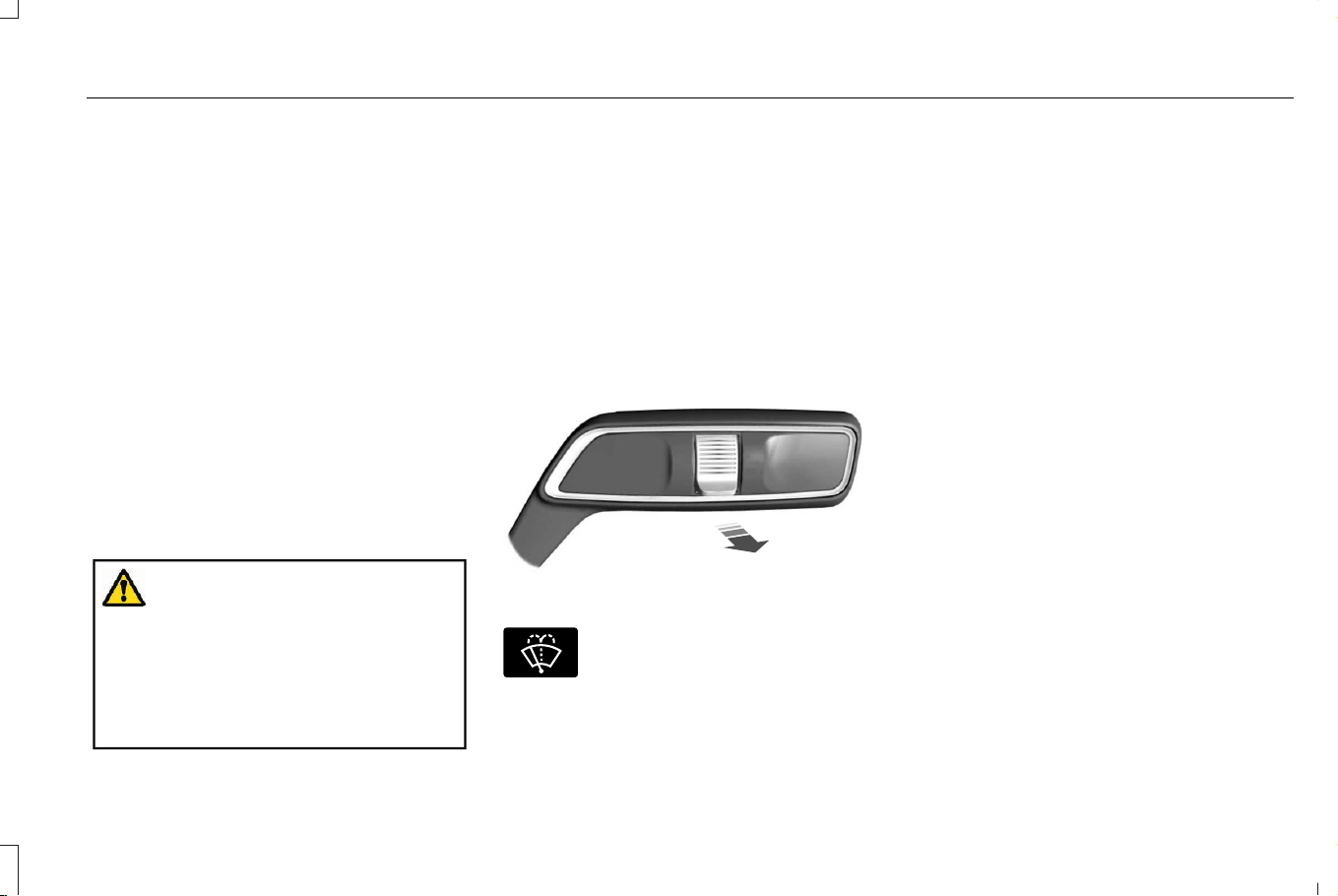
Note: Do not lift the wiper arm beyond the
limited service-up position, as this might
cause damage to the wiper arm. The limited
service-up position is intended to protect the
wiper arm against car washes.
2. Remove the wiper blade.
Note: Make sure that the wiper arm does
not spring back against the glass when the
wiper blade is not attached.
3. To install, reverse the removal procedure.
Note: Make sure that the wiper blade locks
into place.
WASHERS
WASHER PRECAUTIONS
WARNING: If you operate your
vehicle in temperatures below 41°F (5°C),
use washer fluid with antifreeze protection.
Failure to use washer fluid with antifreeze
protection in cold weather could result in
impaired windshield vision and increase
the risk of injury or accident.
Do not operate the washers when the
washer reservoir is empty. This could cause
the washer pump to overheat.
Keep the outside of the windshield clean.
The rain sensor is very sensitive and the
wipers may operate if dirt, mist or insects hit
the windshield.
USING THE WINDSHIELD WASHER
E269412
E270967
Pull the lever toward you to
operate the windshield washer.
Note: A courtesy wipe occurs a short time
after the wipers stop to clear any remaining
washer fluid when switched on. See
Switching the Courtesy Wipe On and Off
(page 109).
SWITCHING THE COURTESY WIPE ON
AND OFF
1. Using the instrument cluster controls on
the steering wheel, select Settings.
2. Select Vehicle.
3. Select Wipers.
4. Switch Courtesy Wipe on or off.
109
Corsair (CTF) Canada/Mexico/United States of America, enUSA, Edition date: 202407, DOM
Wipers and Washers
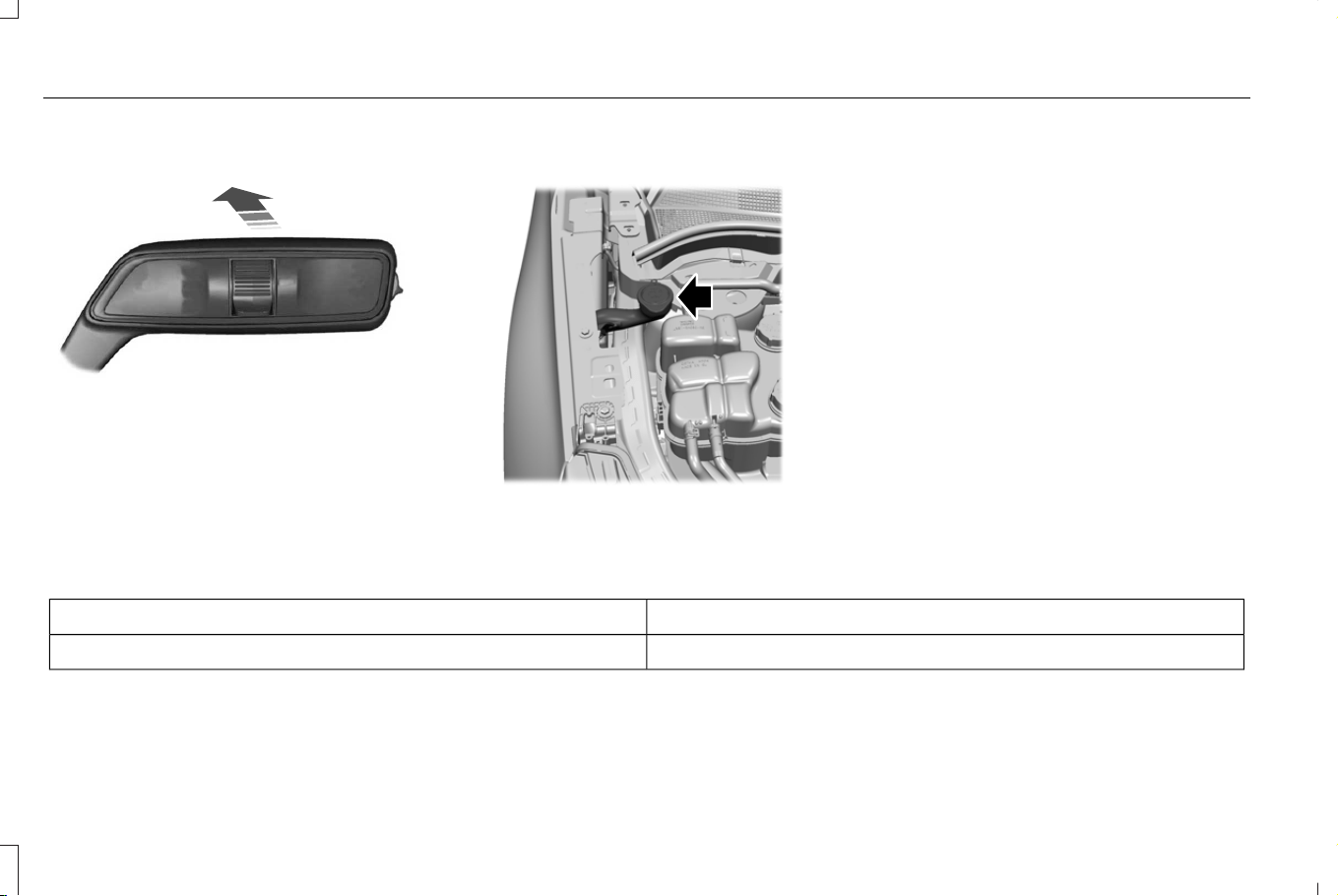
USING THE REAR WINDOW WASHER
E269727
Push the lever away from you to operate the
rear window washer.
ADDING WASHER FLUID
E368670
WASHER FLUID SPECIFICATION
Capacities
QuantityVariant
Fill as required.All.
110
Corsair (CTF) Canada/Mexico/United States of America, enUSA, Edition date: 202407, DOM
Wipers and Washers
Materials
SpecificationName
WSS-M14P19-AMotorcraft® Premium Windshield Wash Concentrate with Bitterant(U.S.)
Motorcraft® Premium Quality Windshield Washer Fluid -35 °C / Liquide lave-glace
de haute qualité -35 °C Motorcraft®(Canada)
ZC-32-B2(U.S.)
CXC-37-M(Canada)
WIPERS AND WASHERS –
TROUBLESHOOTING
WIPERS AND WASHERS – WARNING
LAMPS
E132353
Illuminates when the windshield
washer fluid is low.
WIPERS AND WASHERS –
FREQUENTLY ASKED QUESTIONS
Why are there streaks and smears on
the windshield?
• The wiper blades could be dirty, worn or
damaged. Check the wiper blades. See
Checking the Wiper Blades (page 108).
If the wiper blades are dirty, clean them
with washer fluid or water applied with a
soft sponge or cloth. If the wiper blades
are worn or damaged, install new ones.
See Replacing the Front Wiper Blades
(page 108).
111
Corsair (CTF) Canada/Mexico/United States of America, enUSA, Edition date: 202407, DOM
Wipers and Washers
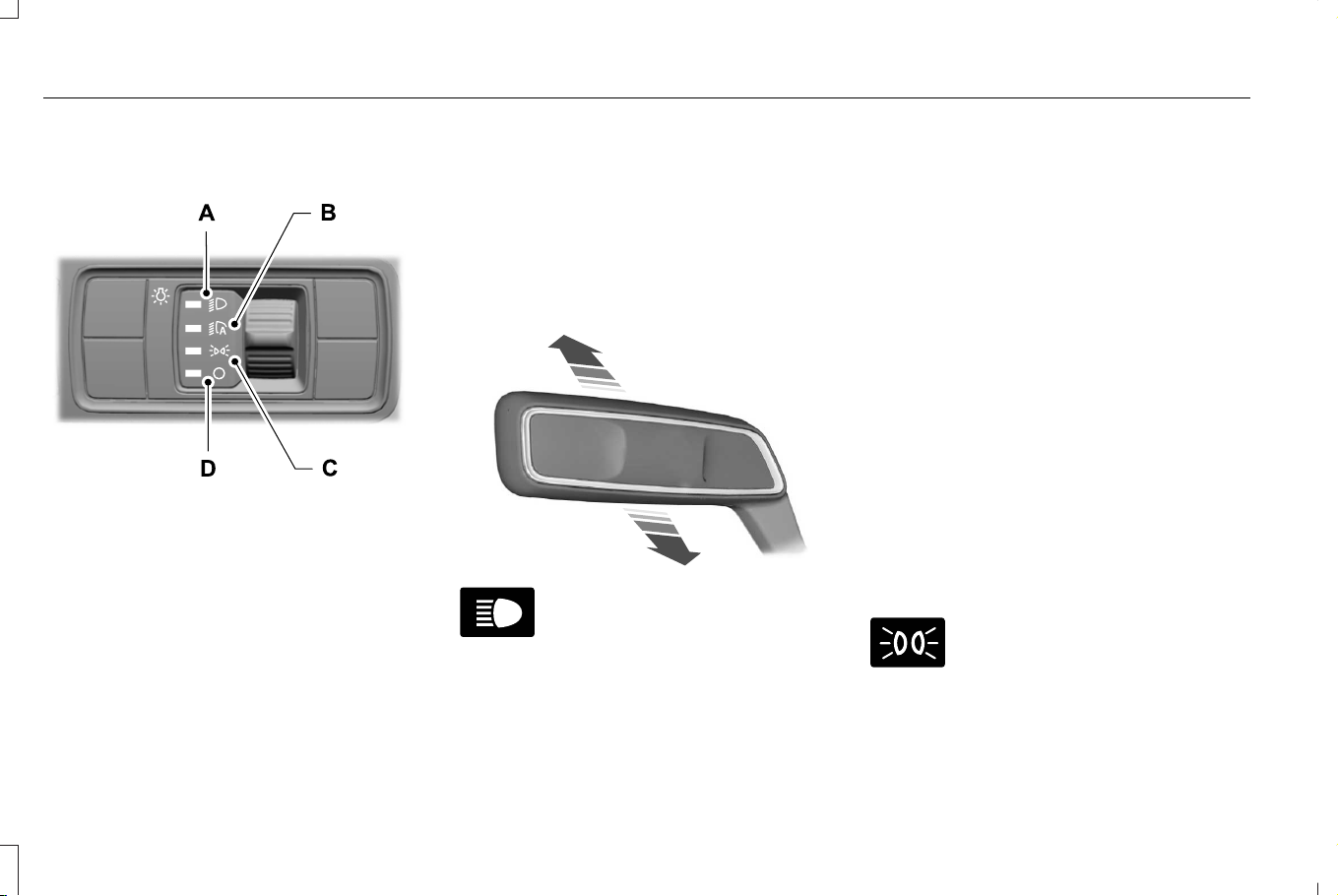
EXTERIOR LIGHTING CONTROL
E344567
Headlamps on.A
Autolamps on.B
Parking lamps on.C
Lamps off.D
Press the toggle switch upward or downward
to make a selection.
Note: The lighting control defaults to
autolamps each time you switch your vehicle
on.
HEADLAMPS
USING THE HIGH BEAM HEADLAMPS
E339556
E67019
Push the lever away from you to
switch the high beam on.
Push the lever forward again or pull the lever
toward you to switch the high beams off.
Slightly pull the lever toward you and release
it to flash the headlamps.
Note: Continuous activation only with
headlamps on.
SWITCHING HEADLAMP EXIT DELAY
ON AND OFF
To switch headlamp exit delay on, pull the
turn signal lever toward you when the
headlamps are off and the ignition is off. A
short tone sounds when the system is on.
To switch headlamp exit delay off, pull the
turn signal lever toward you again or switch
your vehicle on.
Note: The headlamps turn off after three
minutes with any door open or 30 seconds
after the last door closes.
HEADLAMP INDICATORS
Lamps On
E71341
Illuminates when you switch the
low beam headlamps or the
parking lamps on.
112
Corsair (CTF) Canada/Mexico/United States of America, enUSA, Edition date: 202407, DOM
Exterior Lighting

Headlamp High Beam
E67019
Illuminates when you switch the
high beam headlamps on.
HEADLAMPS – TROUBLESHOOTING
HEADLAMPS – FREQUENTLY ASKED
QUESTIONS
Why is there condensation in the
headlamps?
• Headlamps have vents to accommodate
normal changes in air pressure.
Condensation can be a natural
by-product of this design. When moist air
enters the lamp assembly through the
vents, there is a possibility that
condensation can occur when the
temperature is cold. When normal
condensation occurs, a fine mist can form
on the interior of the lens. The fine mist
eventually clears and exits through the
vents during normal operation.
How much condensation is acceptable?
• The presence of a fine mist, for example
no streaks, drip marks or large droplets.
A fine mist covers less than 50% of the
lens.
How long does it take for the
acceptable condensation to clear?
• Clearing time can take as long as 48
hours under dry weather conditions.
How much condensation is
unacceptable?
• A water puddle inside the lamp. Streaks,
drip marks or large droplets present on
the interior of the lens.
What should I do if unacceptable
condensation is present?
• Have your vehicle checked as soon as
possible.
Why do my headlamps turn off when I
have them switched on when I switch
my vehicle off?
• The battery saver turns the headlamps
off after a short period of time after you
switch your vehicle off.
AUTOLAMPS
WHAT ARE AUTOLAMPS
WARNING: The system does not
relieve you of your responsibility to drive
with due care and attention. You may need
to override the system if it does not turn
the headlamps on in low visibility
conditions, for example daytime fog.
Autolamps turn the headlamps on in low light
situations or when the windshield wipers
operate.
113
Corsair (CTF) Canada/Mexico/United States of America, enUSA, Edition date: 202407, DOM
Exterior Lighting
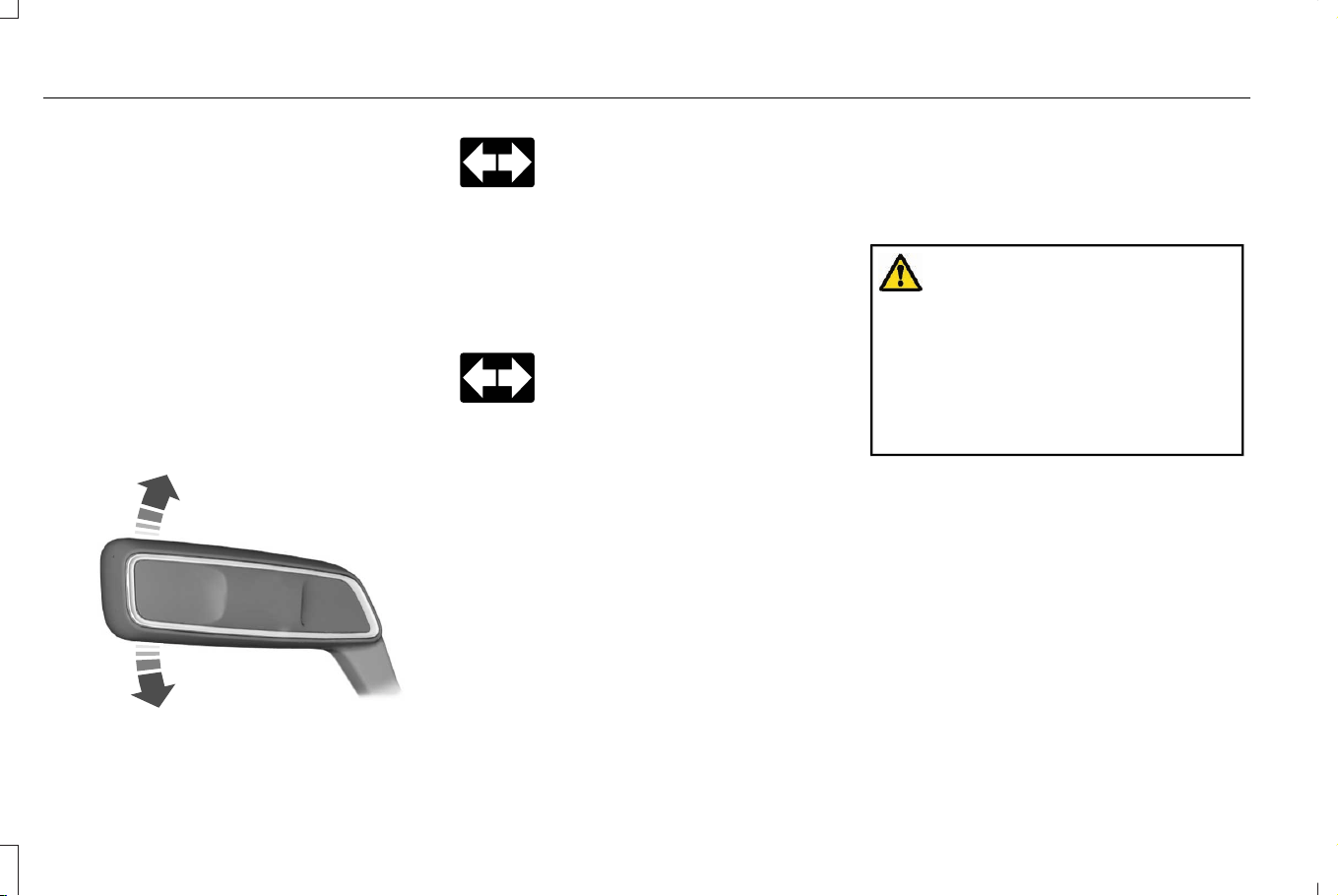
AUTOLAMP SETTINGS
1. Using the instrument cluster controls on
the steering wheel, select Settings.
2. Select Vehicle.
3. Select Lighting.
4. Select Autolamp Delay.
5. Select a setting and press the OK button.
EXTERIOR LAMPS
USING THE TURN SIGNAL LAMPS
E273180
E67018
Push the lever up or down to
switch the turn signal lamps on.
Set the lever to the middle position to switch
the turn signal lamps off.
Note: Tap the lever up or down to make the
turn signal lamps flash three times.
Turn Signal Lamp Indicator
E67018
It flashes when you switch the turn
signal lamps on.
Note: An increase in the rate of flashing
warns of a failed turn signal lamp.
SWITCHING THE DAYTIME RUNNING
LAMPS ON AND OFF - VEHICLES
WITH: CONFIGURABLE DAYTIME
RUNNING LAMPS
WARNING: The daytime running
lamps system does not activate the rear
lamps and may not provide adequate
lighting during low visibility driving
conditions. Make sure you switch the
headlamps on, as appropriate, during all
low visibility conditions. Failure to do so
may result in a crash.
1. Using the instrument cluster controls on
the steering wheel, select Settings.
2. Select Vehicle.
3. Select Lighting.
4. Switch Daytime Running Lights on or
off.
The daytime running lamps turn on when all
of the following occur:
• You switch the system on.
• You switch your vehicle on.
114
Corsair (CTF) Canada/Mexico/United States of America, enUSA, Edition date: 202407, DOM
Exterior Lighting
• The transmission is not in park (P) for
vehicles with automatic transmissions or
you release the parking brake for
vehicles with manual transmissions.
• The lighting control is in the autolamps
position.
• The headlamps are off.
Note: Other lighting control positions do not
turn on the daytime running lamps.
SWITCHING THE DAYTIME RUNNING
LAMPS ON AND OFF - VEHICLES
WITH: DAYTIME RUNNING LAMPS
(DRL)
WARNING: The daytime running
lamps system may not activate the rear
lamps and may not provide adequate
lighting during low visibility driving
conditions. Make sure you switch the
headlamps on, as appropriate, during all
low visibility conditions. Failure to do so
may result in a crash.
Daytime running lamps are always on unless
you switch on the headlamps or your vehicle
is in park (P).
SWITCHING WELCOME LIGHTING ON
AND OFF
Welcome lighting turns on the exterior lamps
when you approach your vehicle with an
authenticated device.
1. Using the instrument cluster controls on
the steering wheel, select Settings.
2. Select Vehicle.
3. Select Lighting.
4. Switch Welcome Lighting on or off.
Note: Welcome lighting still displays when
you use your remote control to unlock your
vehicle.
EXTERIOR LAMPS ON AUDIBLE
WARNING
Sounds when you open the driver door and
the exterior lamps are on.
AUTOMATIC HIGH BEAM CONTROL
HOW DOES AUTOMATIC HIGH BEAM
CONTROL WORK
Automatic high beam control turns the high
beams on if it is dark enough and no other
traffic is present. If it detects an approaching
vehicle’s headlamps or tail lamps, or street
lighting ahead, the system turns the high
beams off.
A camera sensor, centrally mounted behind
the windshield of your vehicle, continuously
monitors conditions to turn the high beams
on and off.
115
Corsair (CTF) Canada/Mexico/United States of America, enUSA, Edition date: 202407, DOM
Exterior Lighting
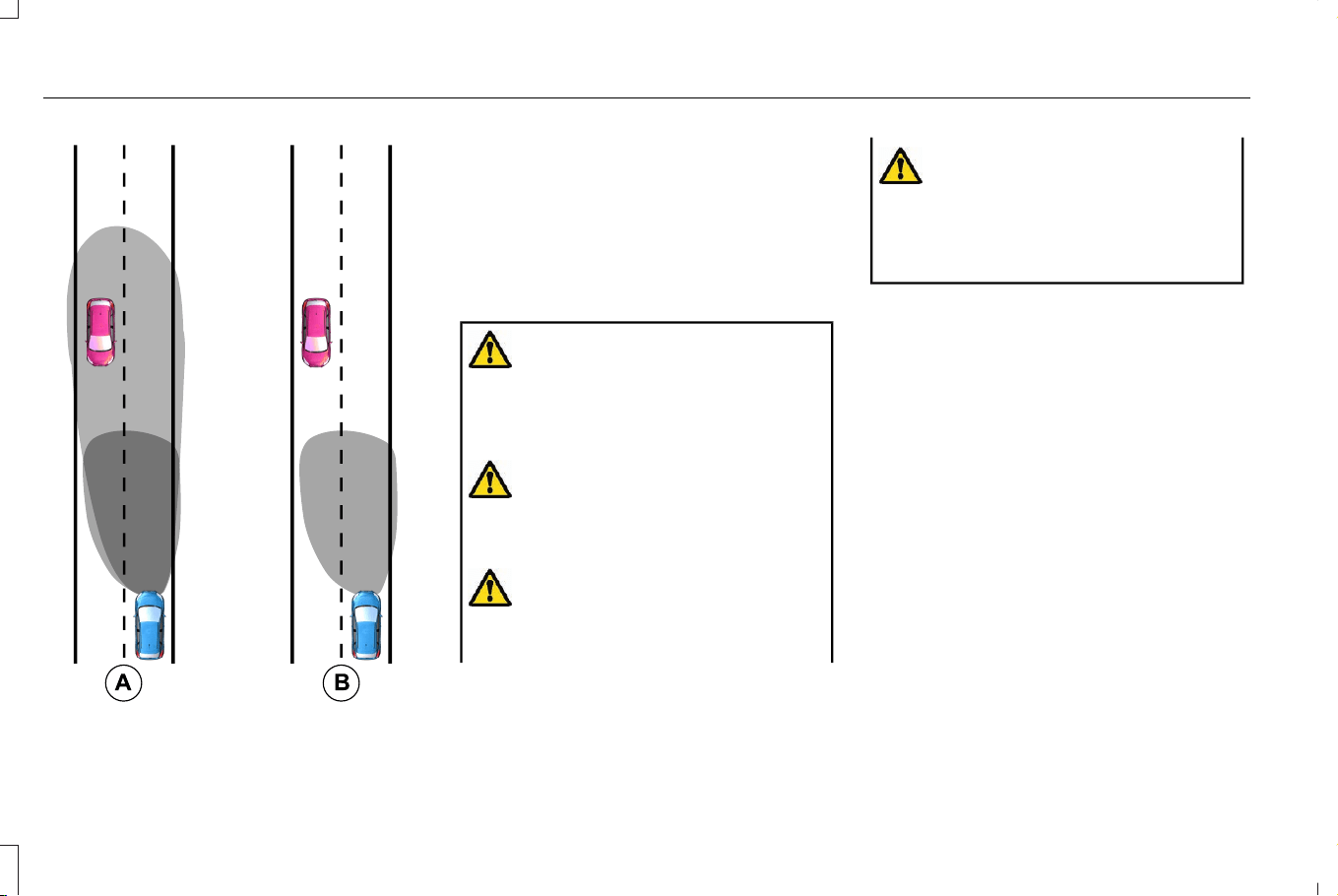
E327596
Without automatic high beam
control.
A
With automatic high beam control.B
AUTOMATIC HIGH BEAM CONTROL
PRECAUTIONS
WARNING: The system does not
relieve you of your responsibility to drive
with due care and attention. You may need
to override the system if it does not turn
the high beams on or off.
WARNING: The system may not
switch the high beams off if the lights of
oncoming vehicles are hidden by
obstacles, for example guard rails.
WARNING: You may need to
override the system when approaching
other road users.
WARNING: In situations with poor
visibility, such as fog, heavy rain or other
inclement weather, you may need to
override or completely switch off the
system.
AUTOMATIC HIGH BEAM CONTROL
REQUIREMENTS
The system turns the high beams on if all of
the following occur:
• You switch the system on.
• You set the lighting control to the
autolamps position.
• The ambient light level is low enough that
you require high beams.
• There is no traffic in front of your vehicle.
• The vehicle speed is greater than
approximately 25 mph (40 km/h).
116
Corsair (CTF) Canada/Mexico/United States of America, enUSA, Edition date: 202407, DOM
Exterior Lighting
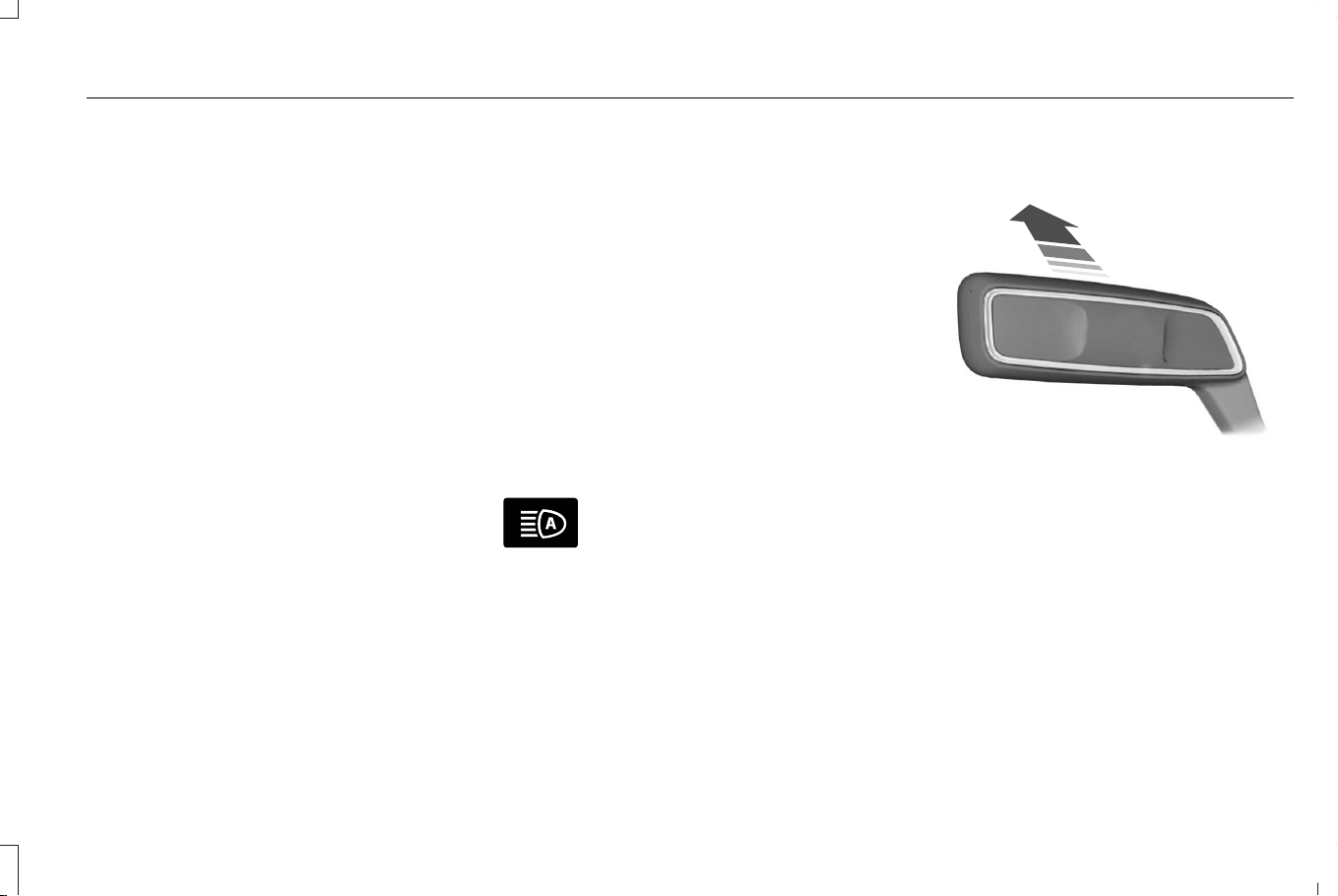
AUTOMATIC HIGH BEAM CONTROL
LIMITATIONS
The system turns the high beams off if any
of the following occur:
• You switch the system off.
• You set the lighting control to any
position except autolamps.
• The ambient light level is high enough
that you do not require high beams.
• The system detects an approaching
vehicle's headlamps or a leading
vehicle's tail lamps.
• The system detects severe rain, snow or
fog.
• The system detects street lighting.
• The camera has reduced visibility.
• The vehicle speed falls below
approximately 19 mph (30 km/h).
Note: The deactivation speed may be lower
on curves.
SWITCHING AUTOMATIC HIGH BEAM
CONTROL ON AND OFF
1. Using the instrument cluster controls on
the steering wheel, select Settings.
2. Select Vehicle.
3. Select Lighting.
4. Switch Auto High Beam on or off.
AUTOMATIC HIGH BEAM CONTROL
INDICATORS
E146105
Illuminates to confirm when the
system is ready to assist.
OVERRIDING AUTOMATIC HIGH BEAM
CONTROL
E273182
Push the lever away from you to switch the
high beam on.
Push the lever away from you again to switch
the high beams off.
Push the lever away from you for a third time
to switch automatic high beam control back
on.
117
Corsair (CTF) Canada/Mexico/United States of America, enUSA, Edition date: 202407, DOM
Exterior Lighting

AUTOMATIC HIGH BEAM CONTROL – TROUBLESHOOTING
AUTOMATIC HIGH BEAM CONTROL – INFORMATION MESSAGES
DetailsMessage
The camera has reduced visibility. Clean the windshield. If the message continues to appear,
have your vehicle checked as soon as possible.
Front Camera Low Visibility Clean Screen
The camera has malfunctioned. Wait a short period of time for the camera to cool down. If the
message continues to appear, have your vehicle checked as soon as possible.
Front Camera Temporarily Not Available
The camera has malfunctioned. Have your vehicle checked as soon as possible.Front Camera Malfunction Service
Required
ADAPTIVE FRONT LIGHTING (IF EQUIPPED)
HOW DOES ADAPTIVE FRONT
LIGHTING WORK
Adaptive front lighting adjusts the headlamps
to improve visibility in certain situations.
Note: There are several types of adaptive
front lighting. Availability and activation
conditions may vary based on your vehicle.
Switching Adaptive Front Lighting On
or Off
Set the lighting control to the autolamps
position to use adaptive front lighting.
Note: Other lighting control positions do not
turn on adaptive front lighting.
118
Corsair (CTF) Canada/Mexico/United States of America, enUSA, Edition date: 202407, DOM
Exterior Lighting

Adaptive Front Lighting Types
DetailsName
Provides additional light on the road depending on your vehicle speed
and weather conditions.
Speed Dependent Light Mode
Directs the light beam based on your steering around a curve. Addi-
tionally, lane makings detected by the front windshield camera and
map data also help direct the light beam.
Dynamic Bending Light
Adds lighting at the inside of a curve or corner when you are turning
the steering wheel.
Static Bending Light
Activates targeted lighting when certain traffic signs are detected in
intersection and roundabout scenarios.
Sign Based Light Mode
Note: This feature may use map data. We
recommend having all connected vehicle
settings enabled to allow the map content
to be updated to the latest version. See
Connected Vehicle Settings (page 487). If
your vehicle does not receive automatic
updates, take your vehicle to an authorized
dealer to receive periodic updates.
SWITCHING ADAPTIVE FRONT
LIGHTING ON AND OFF
Set the lighting control to the autolamps
position to use adaptive front lighting.
Note: Other lighting control positions do not
turn on adaptive front lighting.
119
Corsair (CTF) Canada/Mexico/United States of America, enUSA, Edition date: 202407, DOM
Exterior Lighting

ADAPTIVE FRONT LIGHTING – TROUBLESHOOTING (IF EQUIPPED)
ADAPTIVE FRONT LIGHTING – INFORMATION MESSAGES
DetailsMessage
Displays when the front camera sensor has reduced visibility. Clean the windshield. If the message
continues to appear, have your vehicle checked as soon as possible.
Front Camera Low Visibility Clean Screen
Displays if the front camera sensor malfunctions. Wait a short period of time for the sensor to
cool down. If the message continues to appear, have your vehicle checked as soon as possible.
Front Camera Temporarily Not Available
Displays when adaptive front lighting malfunctions. If the message continues to appear, have your
vehicle checked as soon as possible.
Advanced front lighting features
Temporarily unavailable See manual
Displays when adaptive front lighting malfunctions. If the message continues to appear, have your
vehicle checked as soon as possible.
Check Headlamp System See Manual
120
Corsair (CTF) Canada/Mexico/United States of America, enUSA, Edition date: 202407, DOM
Exterior Lighting
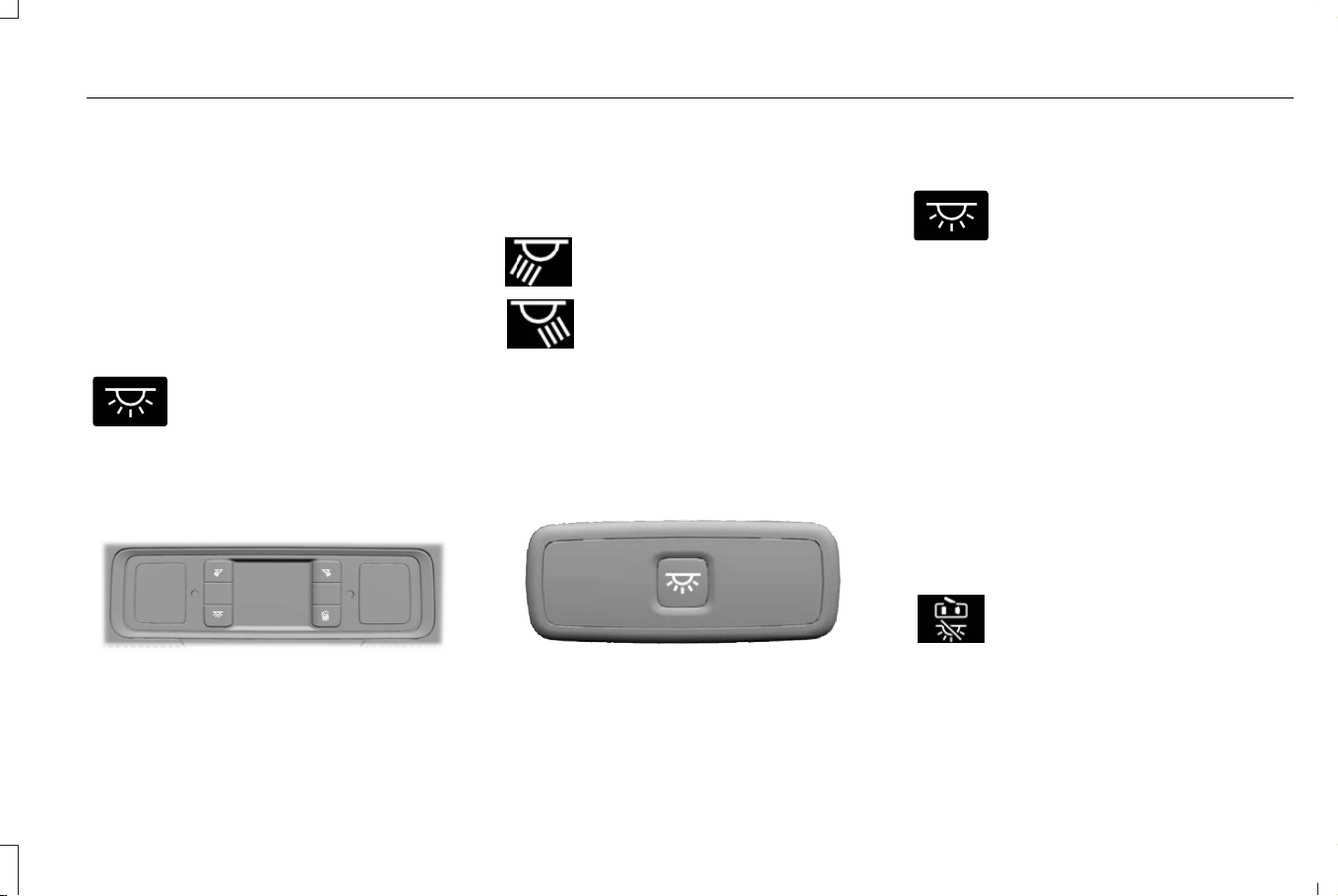
SWITCHING ALL OF THE INTERIOR
LAMPS ON AND OFF
The lamps turn on under the following
conditions:
• You open any door.
• You press a button on the remote control.
• You press the all lamps on button on the
overhead console.
E259649
Press to switch all interior lamps
on or off.
SWITCHING THE FRONT INTERIOR
LAMPS ON AND OFF
E281230
The front interior lamp switches are on the
overhead console.
Note: The position of each button on the
overhead console depends on your vehicle.
Individual Map Lamps
E262193
Press to switch the left-hand
individual dome lamp on and off.
Press to switch the right-hand
individual dome lamp on and off.
SWITCHING THE REAR INTERIOR
LAMPS ON AND OFF
E281231
The rear interior lamps may be above the
rear seat or above the rear windows.
E259649
Press to switch the lamps on or off.
Note: If you switch the rear lamps on through
the overhead console, you cannot switch
them off with the rear lamp switch.
INTERIOR LAMP FUNCTION
WHAT IS THE INTERIOR LAMP
FUNCTION
The interior lamp function switches the
courtesy and door lamps on or off.
SWITCHING THE INTERIOR LAMP
FUNCTION ON AND OFF
Press to switch the interior lamp
function on and off.
Note: The indicator lamp illuminates amber
when the door function is off.
121
Corsair (CTF) Canada/Mexico/United States of America, enUSA, Edition date: 202407, DOM
Interior Lighting

ADJUSTING THE INSTRUMENT
PANEL LIGHTING BRIGHTNESS
The instrument lighting dimmer buttons are
on the lighting control.
E291299
E296433
Repeatedly press one of the
buttons to adjust the brightness.
AMBIENT LIGHTING
SWITCHING AMBIENT LIGHTING ON
AND OFF
1. Press Settings on the touchscreen.
2. Press Vehicle Settings.
3. Press Ambient Lighting.
4. Press a color.
ADJUSTING AMBIENT LIGHTING
Drag the selected color up or down.
INTERIOR LIGHTING –
TROUBLESHOOTING
INTERIOR LIGHTING – FREQUENTLY
ASKED QUESTIONS
Why do my courtesy lamps or interior
lamps turn off when I have them
switched on when I switch my vehicle
off?
• The battery saver turns the courtesy
lamps and interior lamps off after a short
period of time after you switch your
vehicle off.
122
Corsair (CTF) Canada/Mexico/United States of America, enUSA, Edition date: 202407, DOM
Interior Lighting
OPENING AND CLOSING THE
WINDOWS
WARNING: Do not leave children or
pets unattended in your vehicle and do not
let children play with the power windows.
Failure to follow this instruction could result
in personal injury or death.
WARNING: When closing the power
windows, verify that they are free of
obstructions and make sure children and
pets are not in the proximity of the window
openings. Failure to follow this instruction
could result in personal injury or death.
WARNING: If an obstruction is
detected, release the switch and reverse
the window immediately. Failure to follow
this instruction could result in personal
injury or death.
WARNING: Do not leave a key or
remote control unattended in the vehicle.
Children or pets could operate the power
windows and could become trapped in a
closing window. Failure to follow this
instruction could result in personal injury
or death.
Press the window control switch
to open the window. Lift the
window control switch to close the
window.
Note: The power windows operate with the
ignition on, and for several minutes after you
switch the ignition off or until you open a
front door.
To reduce wind noise or pulsing noise when
one window is open, slightly open the
opposite window.
One-Touch Open
Fully press the window control switch and
release it. Press again or lift it to stop the
window.
One-Touch Close
Fully lift the window control switch and
release it. Press again or lift it to stop the
window.
Resetting One-Touch Close
Carry out all steps within 30 seconds of
starting the sequence.
1. Close the window.
2. Press and hold the window control switch
until the window is fully open. Keep the
window control switch pressed for a few
seconds.
3. Lift and hold the window control switch
until the window is fully closed. Keep the
window control switch held for a few
seconds.
4. Press and hold the window control switch
until the window is fully open. Keep the
window control switch pressed for a few
seconds.
5. Lift and hold the window control switch
until the window is fully closed. Keep the
window control switch held for a few
seconds.
123
Corsair (CTF) Canada/Mexico/United States of America, enUSA, Edition date: 202407, DOM
Windows
Note: Repeat the procedure if the window
does not close when you use one-touch.
GLOBAL OPENING AND CLOSING
WHAT IS GLOBAL OPENING AND
CLOSING
You can use the remote control to open the
windows with the ignition off.
USING GLOBAL OPENING
1. Press and release the unlock button on
the remote control.
2. Press and hold the unlock button on the
remote control.
3. Release the button when the windows
start to open.
Press the lock or the unlock button on the
remote control to stop global opening.
Note: You can use global opening for a short
period of time when you unlock your vehicle
using the remote control.
SWITCHING GLOBAL OPENING ON
AND OFF
1. From the settings menu, press Vehicle.
2. Press Windows.
3. Switch Remote open on or off.
USING GLOBAL CLOSING
WARNING: When closing the power
windows, verify that they are free of
obstructions and make sure children and
pets are not in the proximity of the window
openings. Failure to follow this instruction
could result in personal injury or death.
1. Press and hold the lock button on the
remote control.
2. Release the button when the windows
start to close.
Press the lock or the unlock button on the
remote control to stop global closing.
Note: Bounce-back is on during global
closing. See What Is Window Bounce-Back
(page 124).
SWITCHING GLOBAL CLOSING ON
AND OFF
1. From the settings menu, press Vehicle.
2. Press Windows.
3. Switch Remote close on or off.
WINDOW BOUNCE-BACK
WHAT IS WINDOW BOUNCE-BACK
The window stops and reverses some
distance if it detects an obstacle when
closing.
124
Corsair (CTF) Canada/Mexico/United States of America, enUSA, Edition date: 202407, DOM
Windows
OVERRIDING WINDOW BOUNCE-
BACK
WARNING: If you override
bounce-back, the window does not reverse
if it detects an obstacle. Take care when
closing the windows to avoid personal
injury or damage to your vehicle.
WARNING: Bounce-back is off until
you reset the memory. Take care when
closing the windows to avoid personal
injury or damage to your vehicle.
Note: The window stops if you release the
switch before the window fully closes.
Pull up the window switch and hold within a
few seconds of the window reaching the
bounce-back position. The window travels
up with no bounce-back protection. The
window stops if you release the switch
before the window fully closes.
LOCKING THE REAR WINDOW
CONTROLS
WARNING: When children and pets
are in the rear seat, use the power window
lockout button to prevent accidental
operation of the power windows.
Press the control to lock or unlock
the rear window controls. It
illuminates when you lock the rear
window controls.
125
Corsair (CTF) Canada/Mexico/United States of America, enUSA, Edition date: 202407, DOM
Windows

INTERIOR MIRROR PRECAUTIONS
WARNING: Do not adjust the mirrors
when your vehicle is moving. This could
result in the loss of control of your vehicle,
serious personal injury or death.
Note: Do not clean the mirror housing or
glass with harsh abrasives, fuel or other
petroleum-based cleaning products.
AUTO-DIMMING INTERIOR MIRROR
WHAT IS THE AUTO-DIMMING
INTERIOR MIRROR
The mirror dims to reduce the effect of bright
light from behind. It returns to normal when
the bright light from behind is no longer
present or if you shift into reverse (R).
AUTO-DIMMING INTERIOR MIRROR
LIMITATIONS
Do not block the sensors on the front and
back of the mirror.
Note: A rear center passenger or raised rear
center head restraint could prevent light from
reaching the sensor.
126
Corsair (CTF) Canada/Mexico/United States of America, enUSA, Edition date: 202407, DOM
Interior Mirror
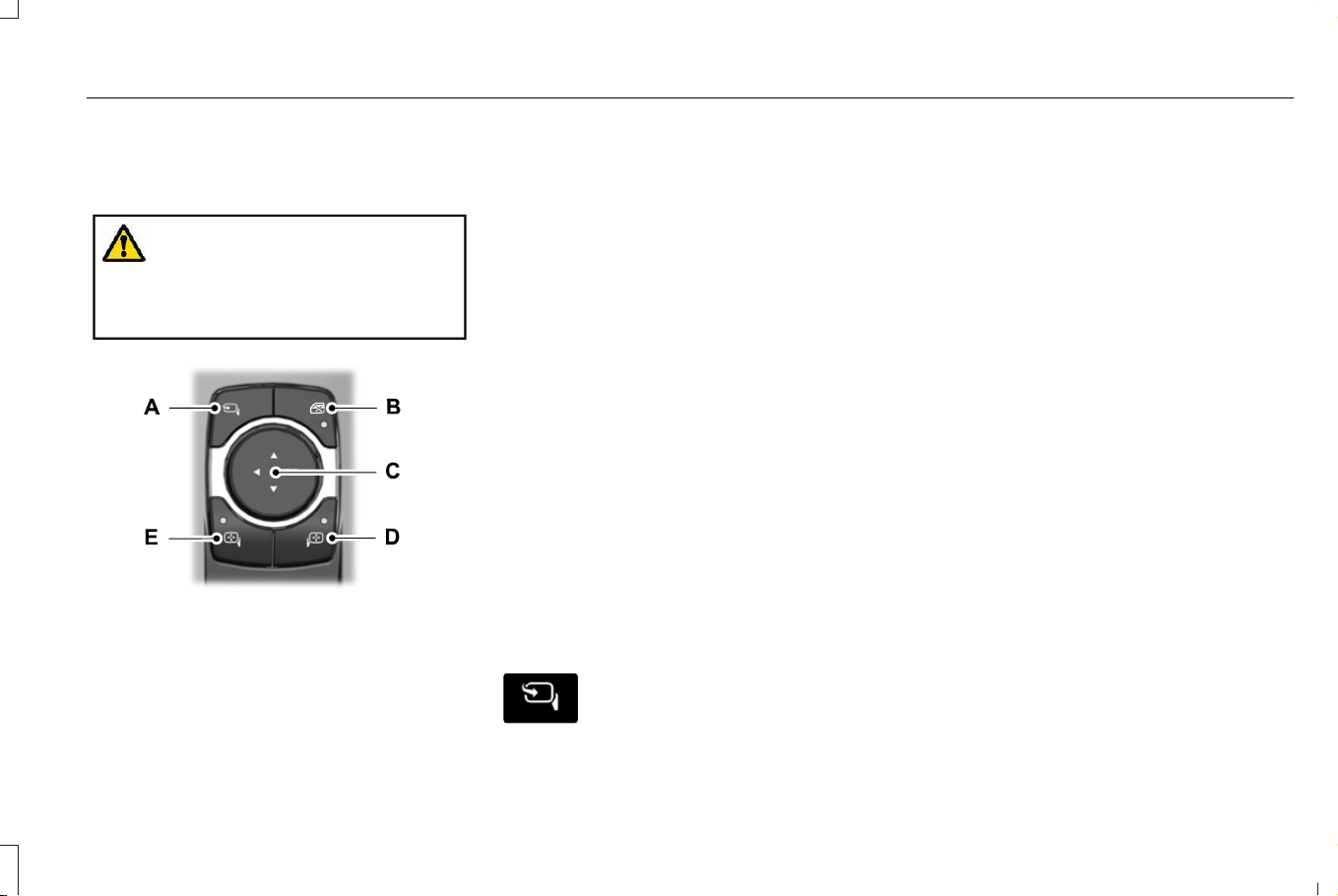
ADJUSTING THE EXTERIOR
MIRRORS
WARNING: Do not adjust the mirrors
when your vehicle is moving. This could
result in the loss of control of your vehicle,
serious personal injury or death.
E368669
Power fold.A
Window lock.B
Adjustment control.C
Right-hand mirror.D
Left-hand mirror.E
To adjust the mirrors, switch your vehicle on
and place the ignition in accessory or start.
1. Select the mirror you want to adjust. The
control light turns on.
2. Use the adjustment control to adjust the
position of the mirror.
3. Press the mirror control again. The
control light turns off.
FOLDING THE EXTERIOR MIRRORS
With the auto-fold feature enabled, the
exterior mirrors fold in toward the glass after
you place the transmission into park (P), turn
off the vehicle, open and close the driver
side door and lock the vehicle. The exterior
mirrors unfold and return to their driving
position after you unlock the vehicle and
open and close the driver side door.
For tight parking conditions, press
the control to fold the mirrors.
Press the control again to unfold the mirrors.
If you press the control to fold in the mirrors
with auto-fold on, the mirrors do not unfold
when you unlock your vehicle.
Note: The power folding mirrors operate with
the ignition on, and for several minutes after
you switch the ignition off.
Note: If you fold and unfold the mirrors
several times within one minute, the power
fold function may turn off to protect the
motors from overheating.
Switching Auto-fold On and Off
1. Press Settings on the touchscreen.
2. Press Vehicle.
3. Press Mirrors.
4. Switch Autofold on or off.
127
Corsair (CTF) Canada/Mexico/United States of America, enUSA, Edition date: 202407, DOM
Exterior Mirrors

Loose, Noisy or Intermittently Working
Mirrors
If you manually fold the power folding
mirrors, they may not work properly even
after you reposition them. Reset the mirrors
if:
• They vibrate when you drive.
• They feel loose.
• They do not stay in the folded or
unfolded position.
• One of the mirrors is not in its normal
driving position.
• The mirrors are intermittently working.
To reset the power fold feature, use the
power folding mirror control to fold and
unfold the mirrors. You may hear a loud noise
as you reset the power folding mirrors. This
sound is normal. Operate the power folding
mirrors an additional 3 to 4 times to
synchronize the mirrors.
If the above process does not help you to fix
the mirror, perform the following steps.
1. Fold or retract both mirrors manually.
2. Using the power folding control switch,
operate the mirrors until you hear an
audible click.
3. Operate the power folding an additional
3 to 4 times to synchronize the mirrors.
Repeat this process as needed each time
you manually fold the mirrors.
AUTO-DIMMING EXTERIOR MIRROR
(IF EQUIPPED)
WHAT IS THE AUTO-DIMMING
EXTERIOR MIRROR
The driver exterior mirror dims when the
interior auto-dimming mirror turns on.
Memory Mirrors (If Equipped)
You can save and recall the mirror positions
through the memory function. See Memory
Function (page 178).
Heated Exterior Mirrors (If Equipped)
See Switching the Heated Mirrors On and
Off (page 155).
Signal Indicator Mirrors (If Equipped)
The forward-facing portion of the appropriate
mirror housing blinks when you switch on
the direction indicator.
Lincoln Welcome Mat (If Equipped)
Projection lights, on the bottom of the mirror
housings, project an image onto the ground
a short distance from the vehicle.
Blind Spot Monitor
See What Is Blind Spot Information System
(page 329).
360 Degree Camera (If Equipped)
See What Is the 360 Degree Camera (page
282).
128
Corsair (CTF) Canada/Mexico/United States of America, enUSA, Edition date: 202407, DOM
Exterior Mirrors
OPENING AND CLOSING THE
SUNSHADE
WARNING: Do not leave a key or
remote control unattended in the vehicle.
Children or pets could operate the
sunshade and get caught in a closing
sunshade. Failure to follow this instruction
could result in personal injury.
WARNING: Do not leave children or
pets unattended in your vehicle and do not
let children play with the sunshade. Failure
to follow this instruction could result in
personal injury.
The controls are on the overhead console.
Opening the Sunshade
E312249
Press and release the switch to
activate the one-touch open
feature. To stop movement, press
the switch a second time. The sunshade also
opens when you open the glass roof.
Note: The sunshade stops short of its fully
opened position for the comfort of rear
passengers. To fully open the sunshade,
press the switch again.
Closing the Sunshade
WARNING: When closing the
sunshade, verify that it is free of
obstructions and make sure children and
pets are not in the proximity of the
sunshade. Failure to follow this instruction
could result in personal injury.
WARNING: If an obstruction is
detected, press the switch a second time
and reverse the sunshade immediately.
Failure to follow this instruction could result
in personal injury.
E312250
Press and release the switch to
activate the one-touch close
feature. To stop movement, press
the switch a second time.
Note: If fully open, the sunshade stops after
covering the rear glass panel. Press and
release again to fully close the sunshade.
Note: If the glass roof is either in the open
or vent position and the sunshade is in the
mid-open position, press and release the
switch to close the glass roof first and then
the sunshade.
OPENING AND CLOSING THE
GLASS ROOF
WARNING: Do not allow anyone to
stand or place any portion of their body
through the open glass roof while the
vehicle is in motion. Make sure everyone
in your vehicle is in a seat and properly
using a seatbelt. Failure to follow this
warning could result in serious injury or
death in the event of a sudden stop or
crash.
WARNING: Do not leave children or
pets unattended in your vehicle and do not
let children play with the glass roof. Failure
to follow this instruction could result in
personal injury.
129
Corsair (CTF) Canada/Mexico/United States of America, enUSA, Edition date: 202407, DOM
Glass Roof (If Equipped)
WARNING: Do not leave a key or
remote control unattended in the vehicle.
Children or pets could operate the glass
roof and could become trapped in a
closing glass roof. Failure to follow this
instruction could result in personal injury
or death.
The controls are on the overhead console.
Opening the Glass Roof
E312251
Press and release the switch to
activate the one-touch open
feature. To stop movement, press
the switch a second time.
Note: The glass roof stops short of the fully
opened position to reduce wind noise or
rumbling that may happen with the glass
roof fully open.
Press and release the switch again to fully
open the glass roof.
Closing the Glass Roof
WARNING: When closing the glass
roof, verify that it is free of obstructions
and make sure children and pets are not
in the proximity of the glass roof. Failure
to follow this instruction could result in
personal injury or death.
WARNING: If an obstruction is
detected, release the switch and reverse
the glass roof immediately. Failure to follow
this instruction could result in personal
injury or death.
E312252
Press and release the switch to
activate the one-touch close
feature, from either the open or
vent positions. To stop movement, press the
switch a second time.
VENTING THE GLASS ROOF
WARNING: Do not leave children or
pets unattended in your vehicle and do not
let children play with the glass roof. Failure
to follow this instruction could result in
personal injury.
The glass roof controls are on the overhead
console.
E312252
With the glass roof in the closed
position, press and release the
switch to vent the glass roof. To
close the glass roof from the vent position,
press and release the switch again.
GLASS ROOF BOUNCE-BACK
WHAT IS GLASS ROOF BOUNCE-BACK
The glass roof stops and reverses some
distance if it detects an obstacle when
closing.
130
Corsair (CTF) Canada/Mexico/United States of America, enUSA, Edition date: 202407, DOM
Glass Roof (If Equipped)

OVERRIDING GLASS ROOF BOUNCE-
BACK
Press and hold the close switch within two
seconds after the glass roof comes to a stop.
131
Corsair (CTF) Canada/Mexico/United States of America, enUSA, Edition date: 202407, DOM
Glass Roof (If Equipped)
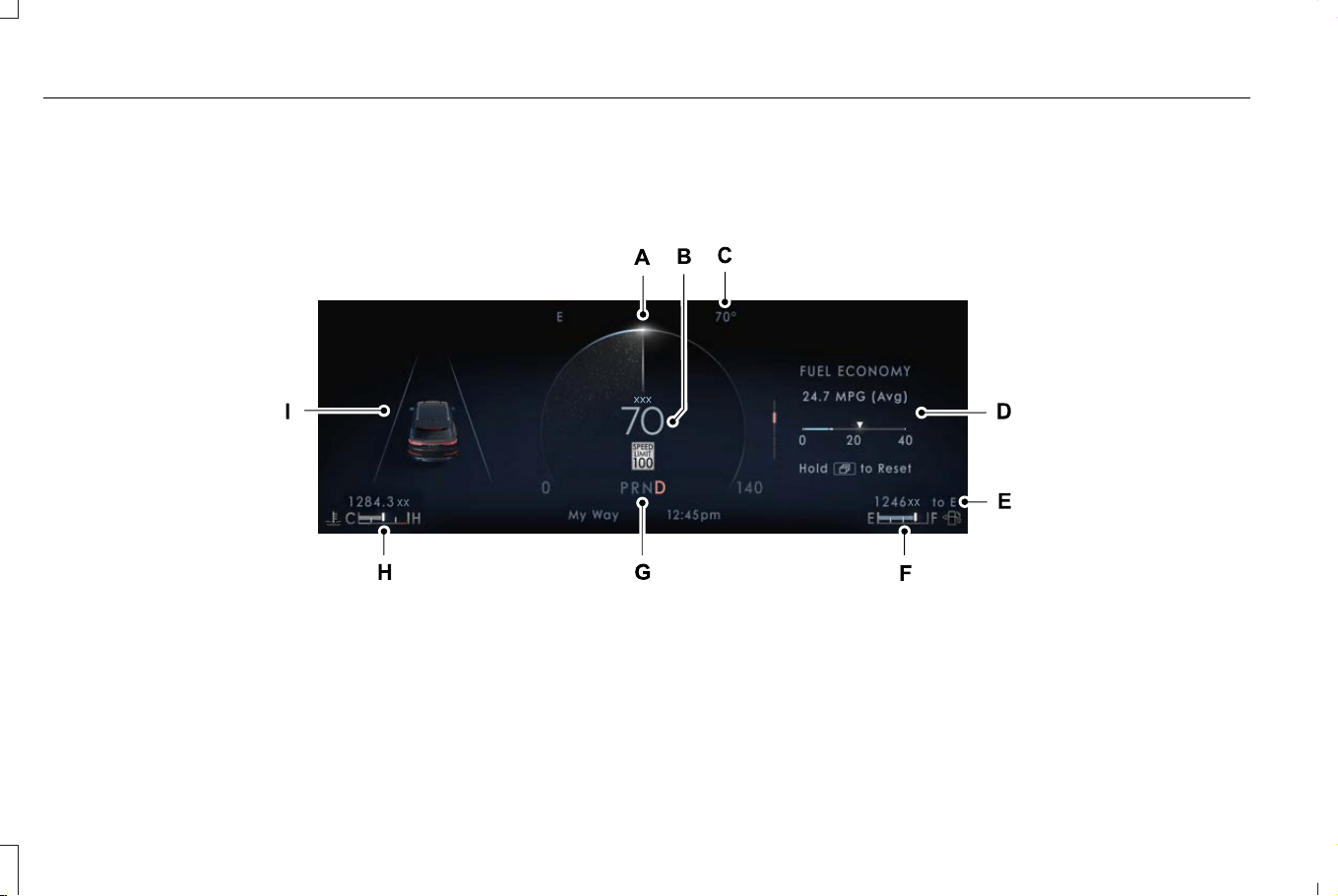
INSTRUMENT CLUSTER OVERVIEW
Single Gauge View
E378514
Status BarA
Speedometer.B
Outside air temperature.C
Right information group.D
132
Corsair (CTF) Canada/Mexico/United States of America, enUSA, Edition date: 202407, DOM
Instrument Cluster - Excluding: Plug-In Hybrid Electric Vehicle (PHEV)

Vehicle driving range.E
Fuel gauge.F
Automatic transmission position indicatorsG
Engine coolant temperature gauge.H
Left information group.I
Note: Displays may appear slightly different depending on region.
Note: You can select from Fahrenheit or Celsius for the outside air temperature.
133
Corsair (CTF) Canada/Mexico/United States of America, enUSA, Edition date: 202407, DOM
Instrument Cluster - Excluding: Plug-In Hybrid Electric Vehicle (PHEV)
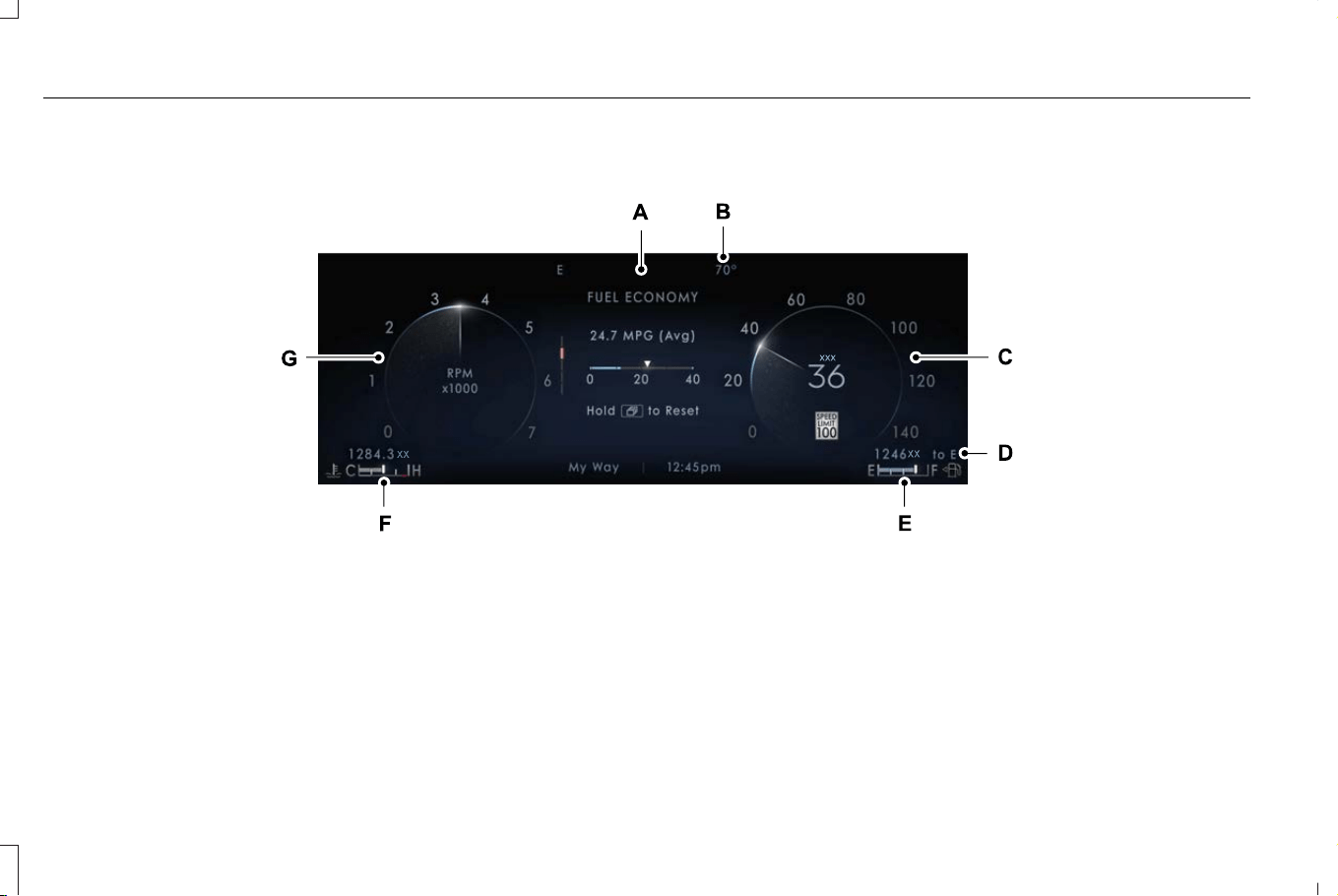
Dual Gauge View
E378515
Status Bar.A
Outside air temperature.B
Speedometer.C
Vehicle driving range.D
Fuel gauge.E
134
Corsair (CTF) Canada/Mexico/United States of America, enUSA, Edition date: 202407, DOM
Instrument Cluster - Excluding: Plug-In Hybrid Electric Vehicle (PHEV)

Engine coolant temperature gauge.F
TachometerG
Note: Displays may appear slightly different depending on region.
Note: You can select from Fahrenheit or Celsius for the outside air temperature.
TACHOMETER
Indicates the engine speed.
SPEEDOMETER
Indicates the vehicle speed.
FUEL GAUGE
WHAT IS THE FUEL GAUGE
Indicates approximately how much fuel is in
the fuel tank.
FUEL GAUGE LIMITATIONS
The fuel gauge may not provide an accurate
reading when your vehicle is on an incline.
LOCATING THE FUEL FILLER DOOR
The arrow adjacent to the fuel pump symbol
indicates on which side of your vehicle the
fuel filler door is located.
WHAT IS THE LOW FUEL REMINDER
A low fuel level reminder displays and
sounds when the distance to empty reaches
50 mi (80 km), 25 mi (40 km), 10 mi (20 km)
and 0 mi (0 km).
Note: The low fuel reminder can appear at
different fuel gauge positions depending on
fuel economy conditions. This variation is
normal.
WHAT IS DISTANCE TO EMPTY
Indicates the approximate distance your
vehicle can travel on the fuel remaining in
the tank. Changes in driving pattern can
cause the value to not only decrease but also
increase or stay constant for periods of time.
ENGINE COOLANT TEMPERATURE
GAUGE
Indicates the engine coolant temperature.
135
Corsair (CTF) Canada/Mexico/United States of America, enUSA, Edition date: 202407, DOM
Instrument Cluster - Excluding: Plug-In Hybrid Electric Vehicle (PHEV)
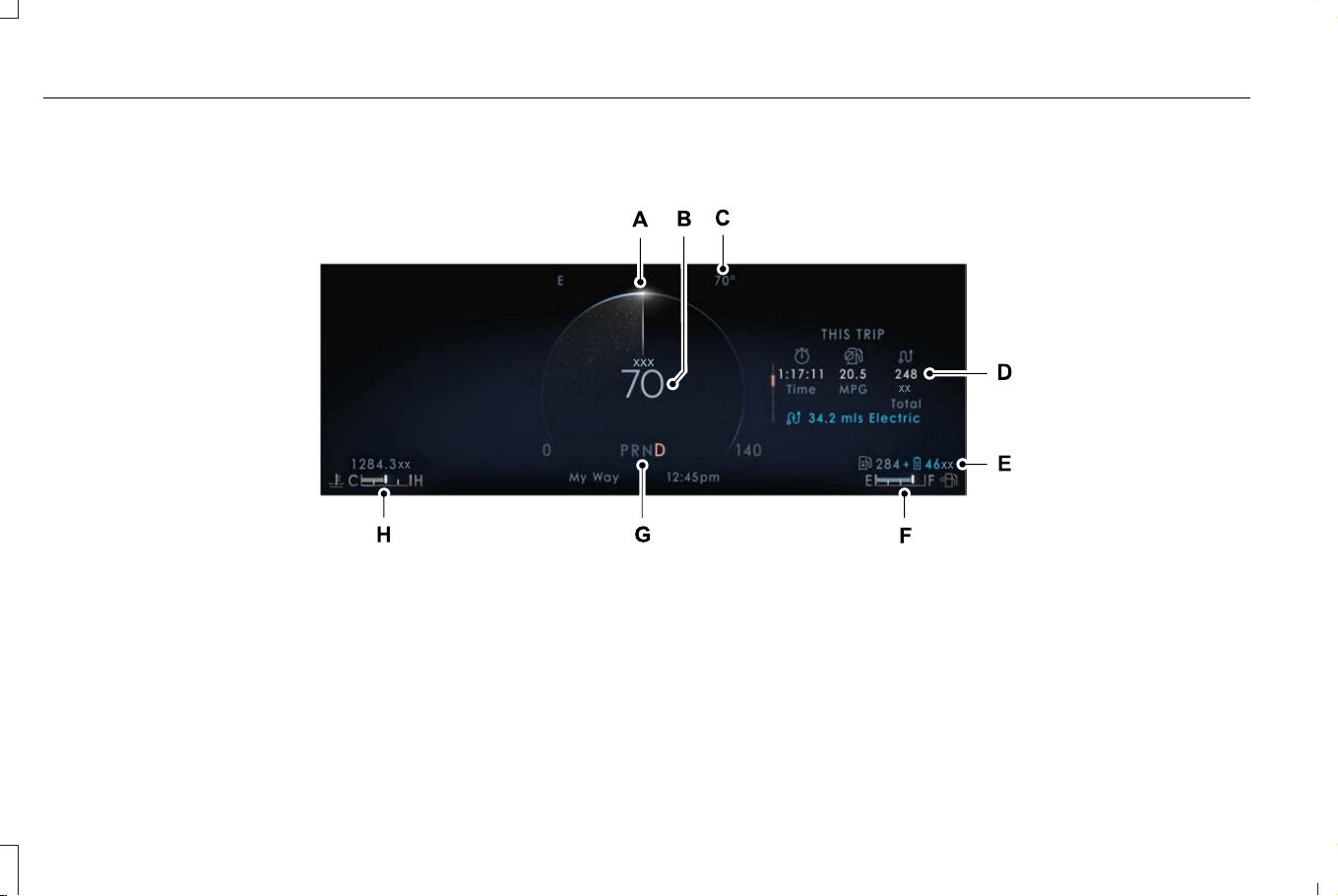
INSTRUMENT CLUSTER OVERVIEW
E424906
Status BarA
Speedometer.B
Outside air temperature.C
Right information group.D
Vehicle driving range.E
136
Corsair (CTF) Canada/Mexico/United States of America, enUSA, Edition date: 202407, DOM
Instrument Cluster - Plug-In Hybrid Electric Vehicle (PHEV)

Fuel gauge.F
Automatic transmission position indicatorsG
Engine coolant temperature gauge.H
Note: Displays may appear slightly different depending on region.
Note: Outside air temperature can be selected in either degree Fahrenheit or degree Celsius.
SPEEDOMETER
Indicates the vehicle speed.
FUEL GAUGE
WHAT IS THE FUEL GAUGE
Indicates approximately how much fuel is in
the fuel tank.
FUEL GAUGE LIMITATIONS
The fuel gauge may not provide an accurate
reading when your vehicle is on an incline.
LOCATING THE FUEL FILLER DOOR
The arrow adjacent to the fuel pump symbol
indicates on which side of your vehicle the
fuel filler door is located.
WHAT IS THE LOW FUEL REMINDER
A low fuel level reminder displays and
sounds when the distance to empty reaches
50 mi (80 km), 25 mi (40 km), 10 mi (20 km)
and 0 mi (0 km).
Note: The low fuel reminder can appear at
different fuel gauge positions depending on
fuel economy conditions. This variation is
normal.
VEHICLE RANGE DISPLAY
Displays the approximate range your vehicle
can travel with the energy currently onboard.
Estimates vary based on the energy used
when driving.
Changes in driving pattern can cause the
values to not only decrease but also increase
or stay constant for periods of time.
The amount of energy being used when
driving is affected by such as:
• Mild or aggressive acceleration or
braking.
• Your vehicle's speed.
• Use of accessories, such as climate
control.
137
Corsair (CTF) Canada/Mexico/United States of America, enUSA, Edition date: 202407, DOM
Instrument Cluster - Plug-In Hybrid Electric Vehicle (PHEV)

• Ambient temperature and weather
conditions.
• Driving in a city or on a highway.
• Driving on hilly road conditions.
• Towing.
Note: It is normal for vehicle range estimates
to vary due to changes in average energy
usage. This could cause different range
estimates each time you fully charge your
battery or fill your tank.
Note: Electric range is lower in cold
temperatures due to reduced energy
capacity in the high voltage battery. Set a
departure time and cabin temperature to
maintain battery temperature for best range
and performance. See Plug-In Hybrid
Electric Vehicle Information (page 200). See
Charging Settings (page 234).
Gasoline Distance to Empty
Indicates the approximate distance your
vehicle can travel on the fuel remaining in
the tank.
Electric Range
Indicates the approximate distance your
vehicle can travel on electric power only with
the engine off.
ENGINE COOLANT TEMPERATURE
GAUGE
Indicates the engine coolant temperature.
138
Corsair (CTF) Canada/Mexico/United States of America, enUSA, Edition date: 202407, DOM
Instrument Cluster - Plug-In Hybrid Electric Vehicle (PHEV)
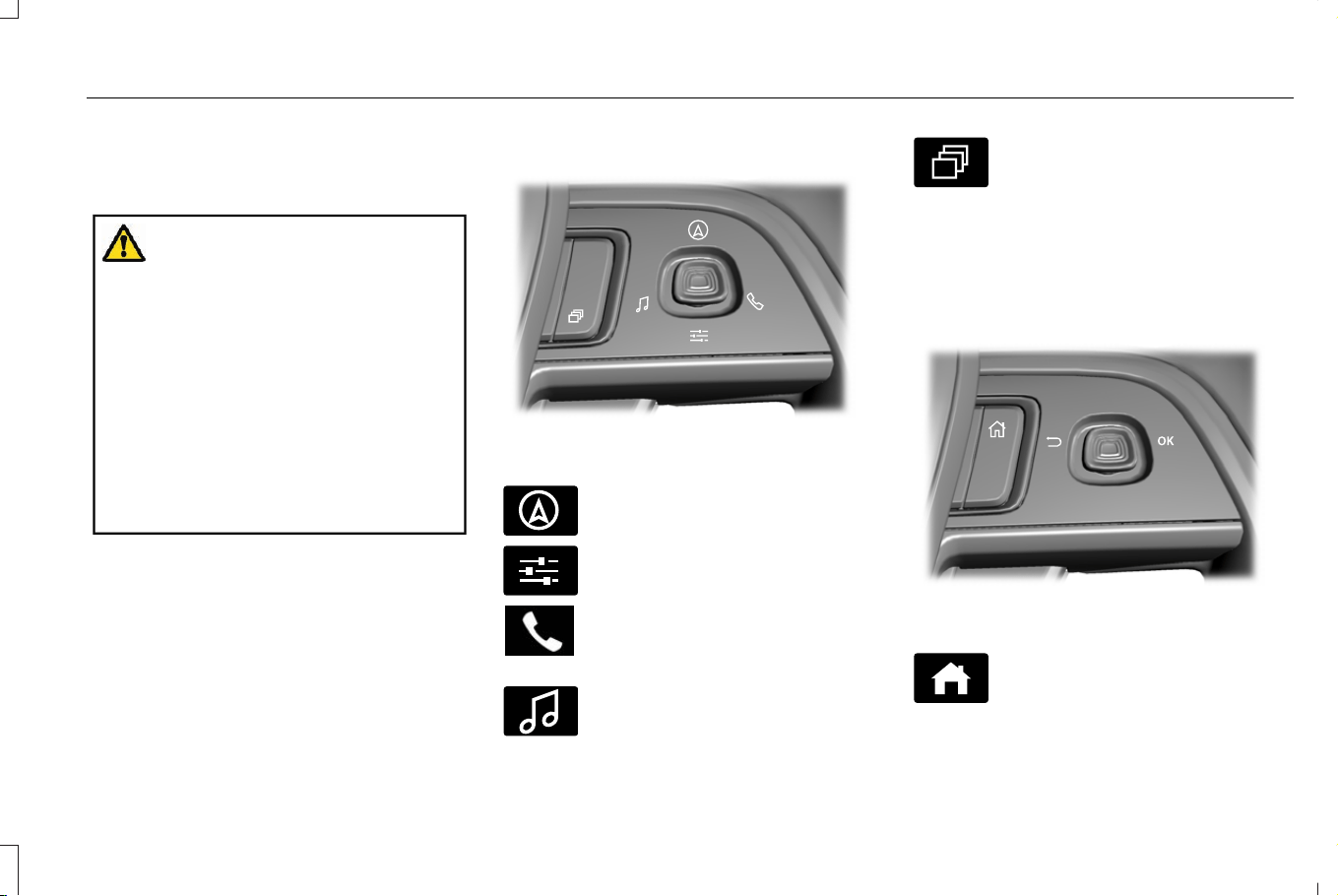
USING THE INSTRUMENT
CLUSTER DISPLAY CONTROLS
WARNING: Driving while distracted
can result in loss of vehicle control, crash
and injury. We strongly recommend that
you use extreme caution when using any
device that may take your focus off the
road. Your primary responsibility is the safe
operation of your vehicle. We recommend
against the use of any hand-held device
while driving and encourage the use of
voice-operated systems when possible.
Make sure you are aware of all applicable
local laws that may affect the use of
electronic devices while driving.
You can control various systems on your
vehicle using the quick action menu (QAM)
on the right-hand side of the steering wheel.
The instrument cluster provides the
corresponding information.
Instrument Cluster Display Controls
E281220
Note: The controls change when you enter
a submenu.
E281481
Move the selector switch up to
enter the navigation submenu.
E280315
Move the selector switch down to
enter the settings submenu.
Move the selector switch to the
right to enter the mode phone
submenu.
E100027
Move the selector switch to the left
to enter the media submenu.
E281483
Press the folder button to scroll
through information on demand
display screens. See Customizing
the Instrument Cluster Display (page 144).
Menu Controls
The following controls are only available
once you enter a submenu:
E299701
Use the selector switch to toggle up and
down.
E272621
Press the home button to exit a
submenu.
139
Corsair (CTF) Canada/Mexico/United States of America, enUSA, Edition date: 202407, DOM
Instrument Cluster Display - Plug-In Hybrid Electric Vehicle (PHEV)
E281480
Move the selector switch to the left
to exit a submenu.
E265041
Move the selector switch to the
right to choose and confirm
settings or messages.
Status Indicator
E204495
This icon shows the features on or
off status. A check in the box
indicates the feature is on, and
unchecked indicates the feature is off.
Note: Some menu items are regional specific
or optional and may appear slightly different
or not at all.
INSTRUMENT CLUSTER DISPLAY
MAIN MENU
Depending on your vehicle options, some
menu items can appear different or not at
all.
Note: For your safety, some features are
speed-dependent and could be unavailable
when your vehicle is above a certain speed.
Menu Item
Settings
Audio
Phone
Navigation
CUSTOMIZING THE INSTRUMENT
CLUSTER DISPLAY
You can customize the gauge displays
through the following:
ActionMenu Item
Press the OK button.Display
140
Corsair (CTF) Canada/Mexico/United States of America, enUSA, Edition date: 202407, DOM
Instrument Cluster Display - Plug-In Hybrid Electric Vehicle (PHEV)

FUEL ECONOMY DISPLAY
This display comes with an instant fuel
economy gauge, along with the average fuel
economy. The gauge continuously averages
the fuel economy since your last reset.
The system includes both the electric only
and the hybrid operation in the calculation.
More electric only driving results in a greater
average fuel economy.
When the gasoline engine is off, changes
from the instant fuel economy gauge to an
electric driving message.
Note: Press and hold the OK button on the
controls on the steering wheel to reset your
average fuel economy.
EV COACH
EV coach can help you get the most out of
your vehicle's electric driving capabilities.
When you are accelerating or maintaining
speed you see a blue or white solid bar
indicating vehicle power. You may also see
a blue rectangular box which shows the
power level at which the engine turns on.
• When the power level is within the box,
the color of the bar is blue. This means
you are in electric operation and the
engine is off.
• When the power level is outside of the
box, the color of the bar is white. This
means you are in hybrid operation with
a combination of the electric motor and
the engine providing vehicle power.
When you are decelerating with either your
foot off the accelerator pedal or on the brake
pedal, a green or white solid bar displays
indicating the power being used to slow
down your vehicle. You may also see a green
rectangular box which shows the amount of
power that can be recaptured by the
regenerative braking system and returned
to the high voltage battery.
• When the power level is within the box,
the color of the bar will be all green. This
means that the regenerative braking
system is being used to efficiently slow
your vehicle down and return the
maximum percentage of energy to the
high voltage battery.
• When the power level is outside of the
box, then the bar is white. This means
both the regenerative braking system
and conventional braking system are
being used.
ELECTRIC ECONOMY
This screen shows your average driving
distance per kilowatt-hour of electricity used
on your plug-in hybrid vehicle. The value is
calculated only when your available electric
range is being used and the gasoline engine
is off.
Distance per full charge is also shown. This
is an estimate of the electric range you would
have if you plugged in and fully charged your
vehicle right now. The higher your electric
economy, the higher your distance per full
charge.
141
Corsair (CTF) Canada/Mexico/United States of America, enUSA, Edition date: 202407, DOM
Instrument Cluster Display - Plug-In Hybrid Electric Vehicle (PHEV)

Your electric economy is affected by your
driving style and route, climate control use,
outside temperature and other factors. Best
economy is achieved with mild to moderate
acceleration and braking, moderate speeds
and low climate control usage.
Note: Electric economy is a selectable
screen. See Customizing the Instrument
Cluster Display (page 140).
BRAKE COACH
The brake coach appears after your vehicle
has come to a stop. It coaches you to brake
in a manner that maximizes the amount of
energy returned through the regenerative
braking system.
The percent displayed indicates the
regenerative braking efficiency, with 100%
representing the maximum amount of energy
recovered.
Note: While regenerative braking works in
all drive modes, brake coach display may
not be available in all drive modes.
You can switch brake coach on or off in the
settings menu. See Instrument Cluster
Display Main Menu (page 140).
TRIP SUMMARY
The trip summary displays upon shutting off
your vehicle. The values are cumulative since
you last started your vehicle.
The information shown is the same as the
This Trip screen. See Trip Data (page 145).
VEHICLE CHARGING STATUS
The vehicle charge status displays when you
switch off your vehicle and when you switch
on your vehicle when plugged in. Charging
status includes the charge start or charge
end time as appropriate. You can modify
your charge settings though the touchscreen.
See Charging Settings (page 234).
142
Corsair (CTF) Canada/Mexico/United States of America, enUSA, Edition date: 202407, DOM
Instrument Cluster Display - Plug-In Hybrid Electric Vehicle (PHEV)
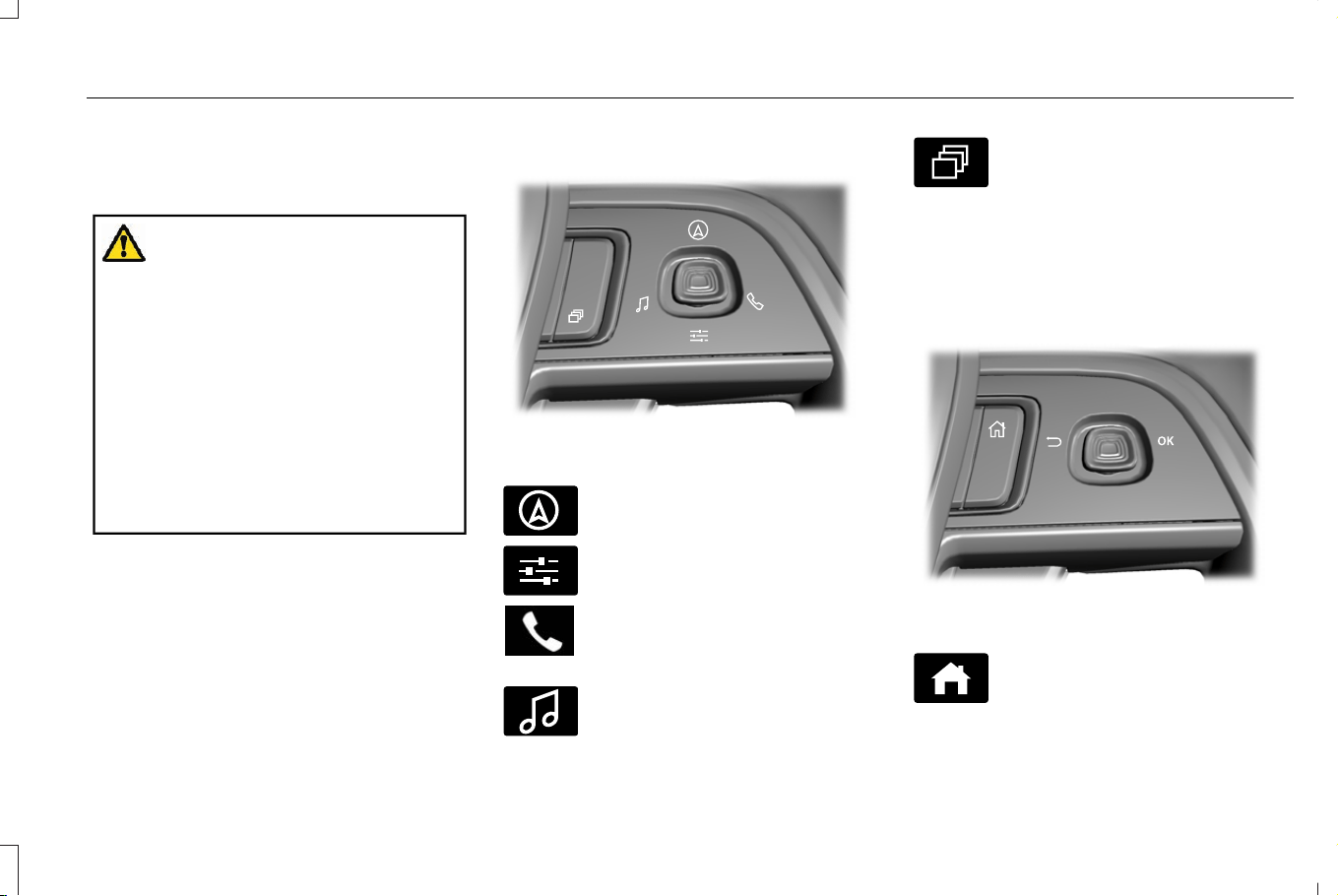
USING THE INSTRUMENT
CLUSTER DISPLAY CONTROLS
WARNING: Driving while distracted
can result in loss of vehicle control, crash
and injury. We strongly recommend that
you use extreme caution when using any
device that may take your focus off the
road. Your primary responsibility is the safe
operation of your vehicle. We recommend
against the use of any hand-held device
while driving and encourage the use of
voice-operated systems when possible.
Make sure you are aware of all applicable
local laws that may affect the use of
electronic devices while driving.
You can control various systems on your
vehicle using the quick action menu (QAM)
on the right-hand side of the steering wheel.
The instrument cluster provides the
corresponding information.
Instrument Cluster Display Controls
E281220
Note: The controls change when you enter
a submenu.
E281481
Move the selector switch up to
enter the navigation submenu.
E280315
Move the selector switch down to
enter the settings submenu.
Move the selector switch to the
right to enter the mode phone
submenu.
E100027
Move the selector switch to the left
to enter the media submenu.
E281483
Press the folder button to scroll
through information on demand
display screens. See Customizing
the Instrument Cluster Display (page 144).
Menu Controls
The following controls are only available
once you enter a submenu:
E299701
Use the selector switch to toggle up and
down.
E272621
Press the home button to exit a
submenu.
143
Corsair (CTF) Canada/Mexico/United States of America, enUSA, Edition date: 202407, DOM
Instrument Cluster Display - Excluding: Plug-In Hybrid Electric Vehicle (PHEV)
E281480
Move the selector switch to the left
to exit a submenu.
E265041
Move the selector switch to the
right to choose and confirm
settings or messages.
Status Indicator
E204495
This icon shows the features on or
off status. A check in the box
indicates the feature is on, and
unchecked indicates the feature is off.
Note: Some menu items are regional specific
or optional and may appear slightly different
or not at all.
INSTRUMENT CLUSTER DISPLAY
MAIN MENU
Depending on your vehicle options, some
menu items can appear different or not at
all.
Note: For your safety, some features are
speed-dependent and could be unavailable
when your vehicle is above a certain speed.
Menu Item
Settings
Audio
Phone
Navigation
CUSTOMIZING THE INSTRUMENT
CLUSTER DISPLAY
You can customize the gauge displays
through the following:
ActionMenu Item
Press the OK button.Display
144
Corsair (CTF) Canada/Mexico/United States of America, enUSA, Edition date: 202407, DOM
Instrument Cluster Display - Excluding: Plug-In Hybrid Electric Vehicle (PHEV)

ACCESSING THE TRIP COMPUTER
1. From the settings menu, select Display
setup. See Using the Instrument Cluster
Display Controls (page 139).
2. Select Information Screens.
3. Select a trip and press the OK button.
Once a trip screen has been added, use the
instrument cluster display controls on the
steering wheel to view it.
RESETTING THE TRIP COMPUTER
1. Use the instrument cluster display
controls to navigate the home screen.
2. Select the trip screen you want to reset.
3. Press and hold the OK button until the
system reset confirmation appears.
CONFIGURING THE TRIP
COMPUTER
1. Using the instrument cluster display
controls on the steering wheel, select a
trip screen.
2. Press the menu button on the steering
wheel.
3. Select Configure View.
4. Select the values to display.
TRIP DATA
Trip 1 and 2
Provides trip timer, trip average fuel economy
and total trip distance traveled. For hybrid
vehicles, the trip also shows the distance
traveled on electric power only with the
engine off.
Note: Trip 1 and 2 are selectable screens.
See Accessing the Trip Computer (page
145).
This Trip
Provides trip timer, trip average fuel
economy, total trip distance traveled, and
distance traveled on electric power only with
the engine off. If the gasoline engine has not
turned on during the trip then trip average
fuel economy is not shown. This Trip resets
each time you start your vehicle.
Note: This trip is a selectable screen. See
Accessing the Trip Computer (page 145).
145
Corsair (CTF) Canada/Mexico/United States of America, enUSA, Edition date: 202407, DOM
Trip Computer

WHAT IS THE HEAD UP DISPLAY
The system displays information on a display
screen in your field of vision, allowing you to
keep your eyes on the road. You can select
which information the system displays.
SWITCHING THE HEAD UP
DISPLAY ON AND OFF
Use the instrument cluster controls on the
steering wheel to navigate to the head up
display menu.
ActionMenu Item
Press the OK button.HUD
Press the OK button.HUD On
Note: The system remembers the last setting
when you start the engine.
HEAD UP DISPLAY SETTINGS
You can control the system's options through
the instrument cluster display by using the
HUD, OK and arrow buttons on your steering
wheel. See Using the Instrument Cluster
Display Controls (page 139).
You can adjust the display according to your
height to make viewing the content easier.
You can also adjust what content displays
and the brightness of the content. The
system's options appear in the instrument
cluster while the updates happen in the head
up display.
Note: If HUD On is unchecked, other options
of the system are hidden.
Note: The head up display menu
automatically closes after a certain period
of inactivity.
Note: The head up display image brightness
automatically adjusts to the brightness of
the ambient environment. You have the
ability to adjust the brightness further
according to your preference.
Note: In some instances, sunlight can cause
some reflections in and around the head up
display image.
146
Corsair (CTF) Canada/Mexico/United States of America, enUSA, Edition date: 202407, DOM
Head Up Display (If Equipped)

Head-Up Display (HUD)
Follow onscreen directions to confirm or modify your settings.Brightness
Follow onscreen directions to confirm or
modify your settings.
Vertical PositionHUD Adjustments
Image Rotation
Turns the distance to empty, time and temperature on and off.HUD Content
Select Your SettingCruise and Lane Control
Note: When you save a memory preset position, your current HUD settings are also saved to that memory preset position. See How Does
the Memory Function Work (page 178).
147
Corsair (CTF) Canada/Mexico/United States of America, enUSA, Edition date: 202407, DOM
Head Up Display (If Equipped)
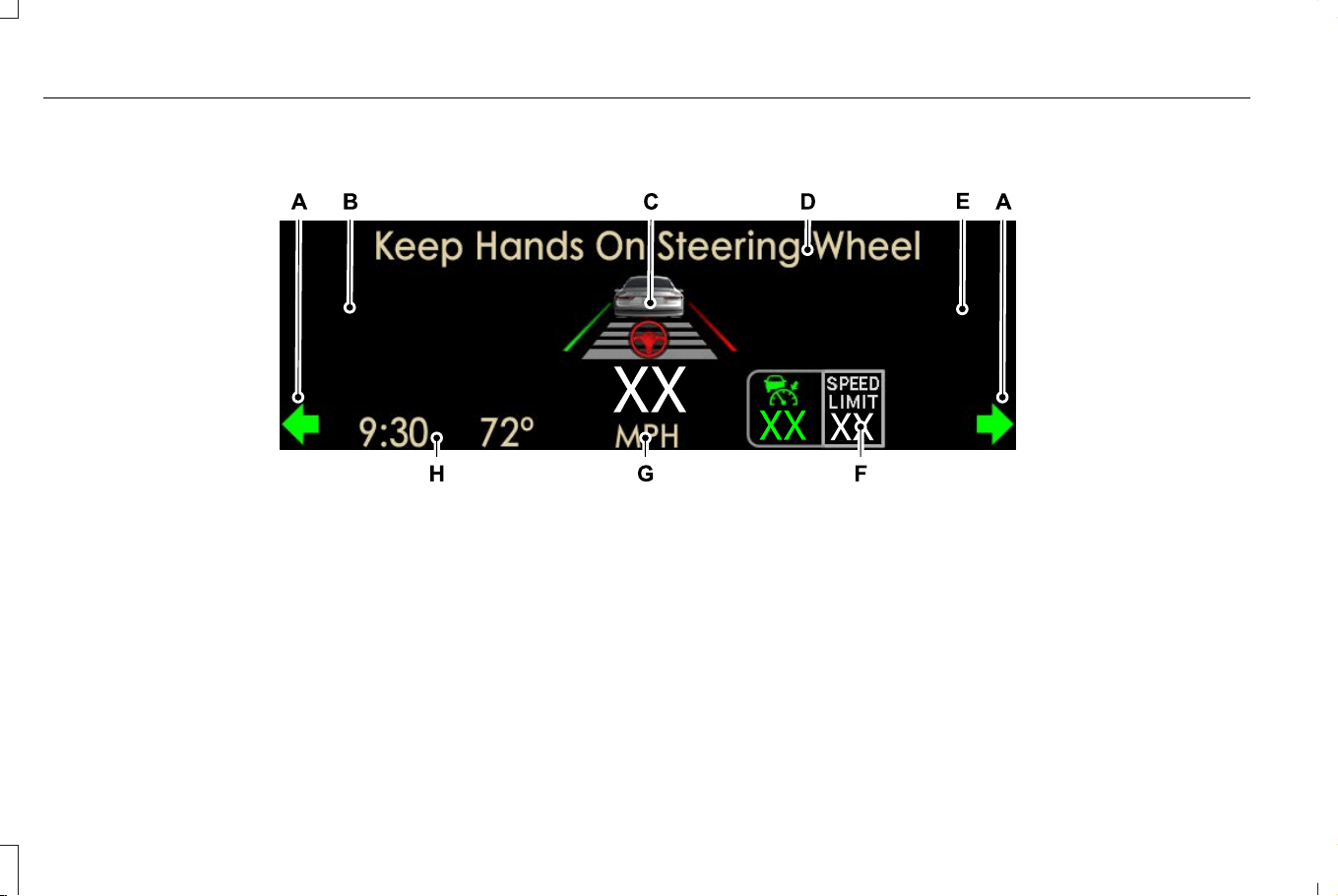
HEAD UP DISPLAY INDICATORS
E307581
Signaling and traffic indication.A
Navigation display area.B
Advanced driver assistance systems display area.C
System message display area.D
Advanced driver assistance systems message display area.E
Speed limit display area.F
148
Corsair (CTF) Canada/Mexico/United States of America, enUSA, Edition date: 202407, DOM
Head Up Display (If Equipped)

Speedometer display area.G
Status bar.H
Signaling and Traffic Indication
Displays turn signals and blind spot
information, if turn signals are active.
Navigation Display Area
Displays navigation next turn instructions.
Advanced Driver Assistance Systems
Display Area
Displays adaptive cruise control, lane
centering aid and lane keeping system status
and warnings.
System Message Display Area
Displays system messages and notifications
including incoming phone calls.
Advanced Driver Assistance Systems
Message Display Area
Displays advanced driver assistance systems
messages and image adjustment prompts.
Speed Limit Display Area
Displays the speed limit information if it is
available in the map database or is detected
by the camera.
Speedometer Display Area
Displays the current vehicle speed and the
transmission gear selection.
Status Bar
Displays distance to empty, time and outside
air temperature. Next to distance to empty,
the fuel gauge fill color changes to yellow in
low fuel conditions. You can switch off the
status bar in the head up display settings
menu.
149
Corsair (CTF) Canada/Mexico/United States of America, enUSA, Edition date: 202407, DOM
Head Up Display (If Equipped)

HEAD UP DISPLAY – TROUBLESHOOTING
HEAD UP DISPLAY – INFORMATION MESSAGES
ActionMessage
The system is malfunctioning or something is obstructing the display.
Make sure that the head up display is free from obstruction. If the
message continues to appear, have your vehicle checked as soon as
possible.
Head Up Display System Fault See Manual
Press the button on the steering wheel or center console. The head
up display menu appears in the instrument cluster display. Make sure
the blue frame is fully visible. Do not manually move the screen. This
can cause damage not covered by your vehicle's warranty.
Head Up Display To Position Use the Information Display
150
Corsair (CTF) Canada/Mexico/United States of America, enUSA, Edition date: 202407, DOM
Head Up Display (If Equipped)
USING REMOTE START - VEHICLES
WITH: LINCOLN MOBILE APP/
PHONE AS A KEY
WARNING: Do not start the engine
in a closed garage or in other enclosed
areas. Exhaust fumes are toxic. Always
open the garage door before you start the
engine. Failure to follow this instruction
could result in personal injury or death.
WARNING: Do not keep electrical
devices plugged in the power outlet
whenever the device is not in use. Power
outlets power up during remote start.
The system allows you to remotely start your
vehicle to heat or cool the interior to a preset
temperature.
Follow the instructions in the vehicle app to
start and stop your vehicle.
Note: The vehicle app must be paired with
your vehicle to remotely start using the app.
Note: Depending on your vehicle app, you
may need to be within a certain range for
the vehicle to successfully remote start.
When you successfully remote start your
vehicle:
• The vehicle doors lock.
• The turn signal lamps flash twice.
• The parking lamps turn on when the
vehicle is running.
• The vehicle remains secured when you
have remotely started the vehicle. A valid
key must be inside your vehicle to switch
your vehicle on and drive your vehicle.
• All other vehicle systems remain off when
you have remotely started the vehicle.
The horn sounds if the system fails to start.
Note: You cannot adjust any comfort settings
until you switch your vehicle on from inside
your vehicle.
Remote start does not work under the
following conditions:
• Remote start is not enabled.
• The alarm horn is sounding.
• The hood is open.
• The transmission is not in park (P).
• Your vehicle is already on.
Note: Do not use remote start if your fuel
level is low.
Note: A maximum of two remote starts are
allowed. After that you have to switch your
vehicle on and off before you can use
remote start again.
USING REMOTE START - VEHICLES
WITH: REMOTE CONTROL
WARNING: Do not start the engine
in a closed garage or in other enclosed
areas. Exhaust fumes are toxic. Always
open the garage door before you start the
engine. Failure to follow this instruction
could result in personal injury or death.
WARNING: Do not keep electrical
devices plugged in the power outlet
whenever the device is not in use. Power
outlets power up during remote start.
151
Corsair (CTF) Canada/Mexico/United States of America, enUSA, Edition date: 202407, DOM
Remote Start
The system allows you to remotely start your
vehicle to heat or cool the interior to a preset
temperature.
1.
E138623
Press the button on the remote
control.
2.
E138625
Press the button twice within a
few seconds.
When you successfully remote start your
vehicle:
• The vehicle doors lock.
• The turn signal lamps flash twice.
• The parking lamps turn on when the
vehicle is running.
• The vehicle remains secured when you
have remotely started the vehicle. A valid
key must be inside your vehicle to switch
your vehicle on and drive your vehicle.
• All other vehicle systems remain off when
you have remotely started the vehicle.
The horn sounds if the system fails to start.
Note: You cannot adjust any comfort settings
until you switch your vehicle on from inside
your vehicle.
Remote start does not work under the
following conditions:
• Remote start is not enabled.
• The alarm horn is sounding.
• The hood is open.
• The transmission is not in park (P).
• Your vehicle is already on.
Note: Do not use remote start if your fuel
level is low.
Note: A maximum of two remote starts are
allowed. After that you have to switch your
vehicle on and off before you can use
remote start again.
E138625
To remotely stop your vehicle,
press the button.
REMOTE START SETTINGS
1. From the settings menu, press Vehicle.
2. Press Remote Start Setup.
You can adjust the following in the remote
start settings menu:
• Enable or disable remote start.
• Climate control settings.
• Heated seat settings.
• Heated steering wheel settings.
• Remote start duration.
152
Corsair (CTF) Canada/Mexico/United States of America, enUSA, Edition date: 202407, DOM
Remote Start
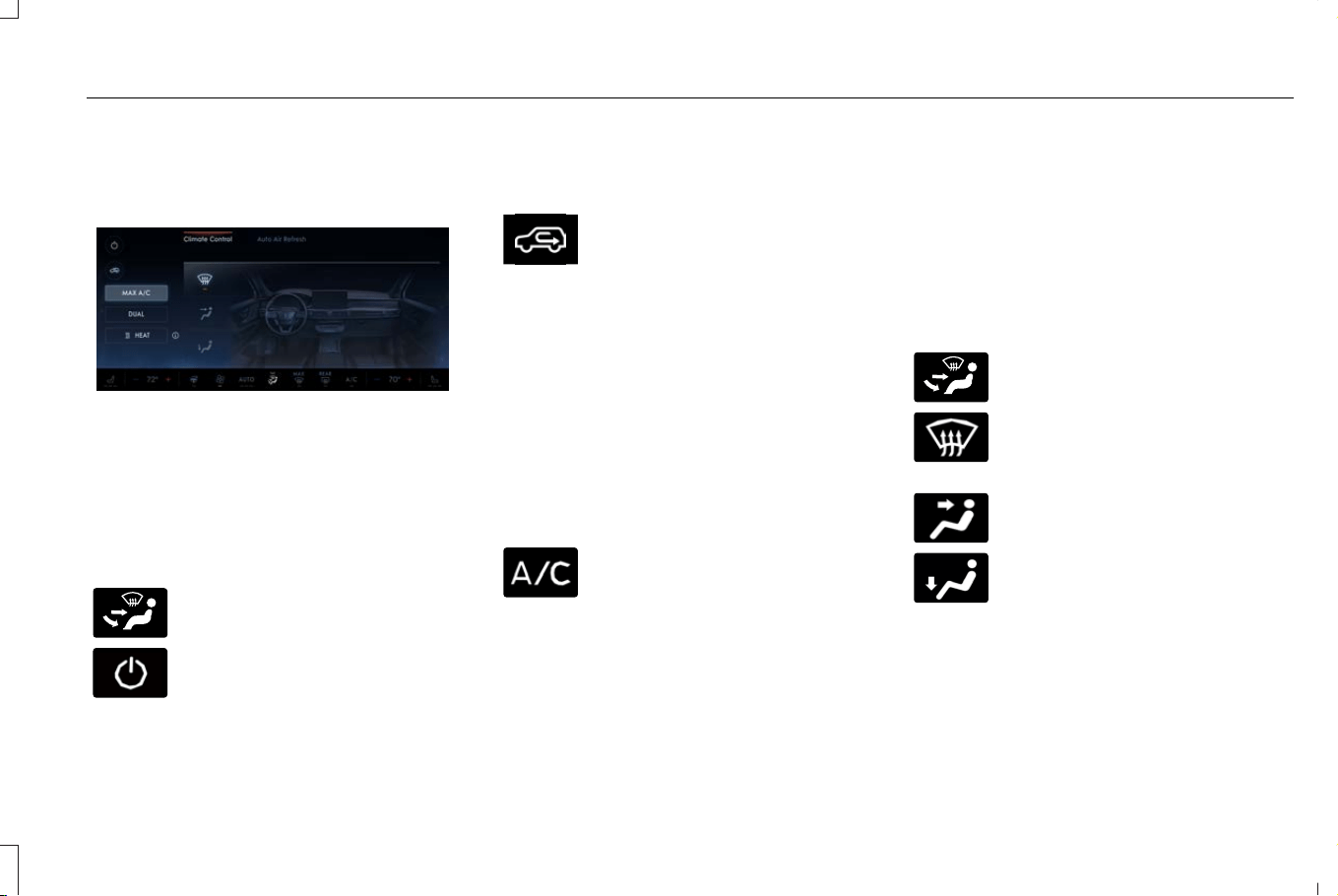
IDENTIFYING THE CLIMATE
CONTROL UNIT
E423080
Note: Depending on your vehicle options,
the controls may look different from what
you see here.
SWITCHING CLIMATE CONTROL
ON AND OFF
E265283
Press the button to activate the
selection screen.
Press the button.
SWITCHING RECIRCULATED AIR
ON AND OFF
E412999
Press the button to recirculate air
currently in the passenger
compartment.
Note: Recirculated air may automatically
turn off, or prevent you from switching on in
all air flow modes except MAX A/C to reduce
the risk of fogging. Recirculation may also
automatically turn on and off in various air
distribution control combinations to improve
heating or cooling efficiency.
SWITCHING AIR CONDITIONING
ON AND OFF
Press the button.
Note: Under certain conditions, the air
conditioning compressor could continue to
operate after you switch air conditioning off.
Note: To keep the system and its
components fully functional, switch air
conditioning on and let your vehicle idle at
least once per month for a minimum of two
minutes.
SWITCHING DEFROST ON AND
OFF
E265283
Press the button to activate the
selection screen.
Press the button on the
touchscreen to switch the
windshield air vents on.
E244097
Make sure that the instrument
panel air vents are switched off.
E244098
Make sure that the footwell air
vents are switched off.
153
Corsair (CTF) Canada/Mexico/United States of America, enUSA, Edition date: 202407, DOM
Climate Control
SWITCHING MAXIMUM DEFROST
ON AND OFF
Press the button on the
touchscreen.
Air flows through the windshield air vents,
and the blower motor adjusts to the highest
speed.
You can also use this setting to defog and
clear the windshield of a thin covering of ice.
Note: You can also press the button on the
instrument panel to switch the maximum
defrost on or off.
Note: To prevent window fogging, you
cannot select recirculated air when
maximum defrost is on.
Note: The heated rear window and air
conditioning also turn on when you select
maximum defrost.
SWITCHING MAXIMUM COOLING
ON AND OFF
E265283
Press the button to activate the
selection screen.
Press the button.
Note: When you switch maximum cooling
off, air conditioning remains on.
Note: In certain conditions, for example, cold
weather, maximum cooling may not activate
or could run slow when switched on. This
helps reduce power consumption from the
battery.
SWITCHING THE HEATED WIPER
PARK ON AND OFF (IF EQUIPPED)
The heated wiper park is an
auxiliary feature that supports the
wipers to remain functional in cold
temperatures. The feature assists
in defrosting the bottom of the
windshield where the wipers sit when not in
use.
The feature can be activated in two ways;
-When Defrost or MAX defrost button is
pressed and ambient temperature is less
than 2°C.
- Automatically when ambient temperature
is less than 0°C.
SWITCHING THE HEATED REAR
WINDOW ON AND OFF
Press the button to clear the rear
window of thin ice and fog. The
heated rear window turns off after
a short period of time.
Note: Do not use harsh chemicals, razor
blades or other sharp objects to clean or
remove decals from the inside of the heated
rear window as this could cause damage to
the heated rear window grid lines not
covered by the vehicle Warranty.
Note: The engine must be running or your
vehicle must be ready to drive to switch the
system on.
154
Corsair (CTF) Canada/Mexico/United States of America, enUSA, Edition date: 202407, DOM
Climate Control
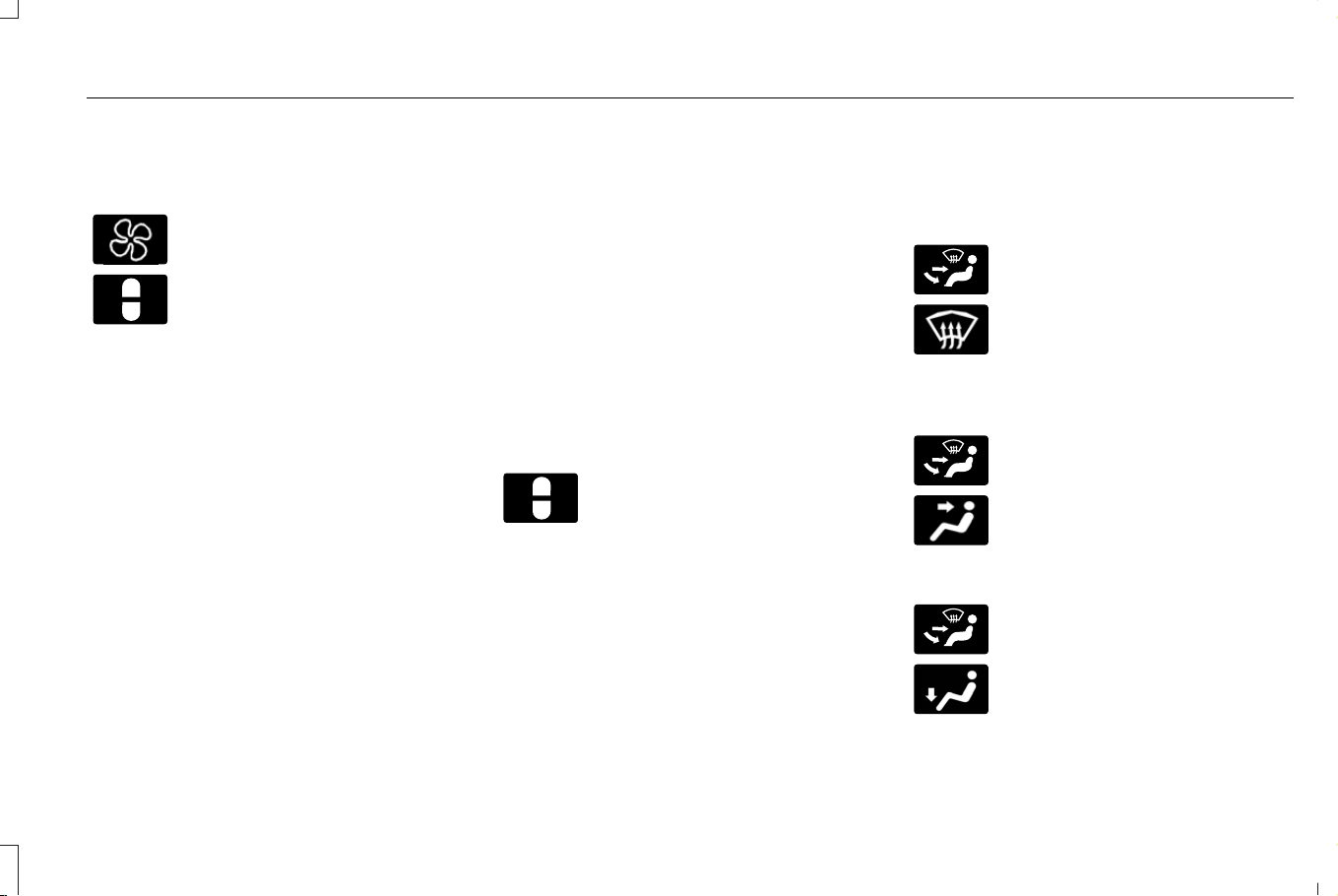
SETTING THE BLOWER MOTOR
SPEED
Press the button to set the blower
motor speed.
E328451
Slide the control to set the blower
motor speed.
Note: You can press + or - to set the blower
motor speed.
SWITCHING THE HEATED
MIRRORS ON AND OFF
When you switch the heated rear window
on, the heated exterior mirrors turn on. See
Switching the Heated Rear Window On and
Off (page 154).
Note: Do not remove ice from the mirrors
with a scraper or adjust the mirror glass
when it is frozen in place.
Note: Do not clean the mirror housing or
glass with harsh abrasives, fuel or other
petroleum-based cleaning products. The
vehicle warranty may not cover damage
caused to the mirror housing or glass.
Note: The engine must be running or your
vehicle must be ready to drive to switch the
system on.
SETTING THE TEMPERATURE
Press the temperature controls on either side
of the climate control to set the temperature
for that side.
E328451
Slide the control to set the
temperature.
Note: You can press + or - to set the
temperature.
DIRECTING THE FLOW OF AIR
Directing Air to the Windshield Air
Vents
E265283
Press the button to activate the
selection screen.
Press the button on the
touchscreen.
Directing Air to the Instrument Panel
Air Vents
E265283
Press the button to activate the
selection screen.
E244097
Press the button on the
touchscreen.
Directing Air to the Footwell Air Vents
E265283
Press the button to activate the
selection screen.
E244098
Press the button on the
touchscreen.
155
Corsair (CTF) Canada/Mexico/United States of America, enUSA, Edition date: 202407, DOM
Climate Control
AUTO MODE
SWITCHING AUTO MODE ON AND
OFF
E358754
Press the button to switch auto
mode on. Repeatedly press the
button to adjust auto mode.
Note: When you switch auto mode on, lights
on the blower motor control do not illuminate
to indicate the blower motor speed.
Adjust the blower motor control or air
distribution control to switch auto mode off.
AUTO MODE INDICATORS
The indicators are on the Auto Mode button.
DescriptionAuto Mode Indicator Status
The blower motor speed is reduced. Use this setting to minimize the amount of noise from the
blower motor. This setting increases the time taken to cool the interior.
One indicator illuminated.
The blower motor speed is moderate.Two indicators illuminated.
The blower motor speed is increased. Use this setting to reduce the time taken to cool the interior.
This setting increases the amount of noise from the blower motor.
Three indicators illuminated.
156
Corsair (CTF) Canada/Mexico/United States of America, enUSA, Edition date: 202407, DOM
Climate Control

SWITCHING DUAL MODE ON AND OFF
E265283
Press the button to activate the
selection screen.
E265280
Press the button.
Note: When dual mode is off, setting the
temperature using the driver side controls,
sets the temperature for both sides.
Note: Setting the temperature using the
passenger side controls, sets the passenger
temperature and switches dual mode on.
CLIMATE CONTROL HINTS
General Hints
• Prolonged use of recirculated air may
cause the windows to fog up.
• You may feel a small amount of air from
the footwell air vents regardless of the
air distribution setting.
• To reduce humidity build-up inside your
vehicle, do not drive with the system
switched off or with recirculated air
always switched on.
• Do not place objects under the front
seats as this may interfere with the
airflow to the rear seats.
• Remove any snow, ice or leaves from the
air intake area at the base of the
windshield.
• To improve the time to reach a
comfortable temperature in hot weather,
drive with the windows open until you
feel cold air through the air vents.
Automatic Climate Control
• Adjusting the settings when your vehicle
interior is extremely hot or cold is not
necessary. Automatic mode is best
recommended to maintain set
temperature.
• The system adjusts to heat or cool the
interior to the temperature you select as
quickly as possible.
• For the system to function efficiently, the
instrument panel and side air vents
should be fully open.
• If you press AUTO during cold outside
temperatures, the system directs air flow
to the windshield and side window air
vents.In addition, the blower motor may
run at a slower speed until the engine
warms up.
• If you press AUTO during hot
temperatures and the inside of the
vehicle is hot, the system uses
recirculated air to maximize interior
cooling. Blower motor speed may also
reduce until the air cools.
Quickly Heating the Interior
1. Press AUTO.
2. Adjust the temperature function to the
setting you prefer.
Recommended Settings for Heating
1. Press AUTO.
157
Corsair (CTF) Canada/Mexico/United States of America, enUSA, Edition date: 202407, DOM
Climate Control
2. Adjust the temperature function to the
setting you prefer. Use 72°F (22°C) as a
starting point, then adjust the setting as
necessary.
Quickly Cooling the Interior
1. Press MAX A/C.
2. Drive with the windows open for a short
period of time.
Recommended Settings for Cooling
1. Press AUTO.
2. Adjust the temperature function to the
setting you prefer. Use 72°F (22°C) as a
starting point, then adjust the setting as
necessary.
Defogging the Side Windows in Cold
Weather
1. Press and release defrost or maximum
defrost.
2. Adjust the temperature control to the
setting you prefer. Use 72°F (22°C) as a
starting point, then adjust the setting as
necessary.
CLIMATE CONTROL – WARNING
LAMPS
WARNING: Even if the temperature
rises to above 39°F (4°C) there is no
guarantee that the road is free of hazards
caused by inclement weather.
E131558
Illuminates when the outside air
temperature is between 39.2°F
(4°C) and 32.0°F (0°C).
AIR CONDITIONING SYSTEM
REFRIGERANT
WARNING: The air conditioning
refrigerant system contains refrigerant
under high pressure. Only qualified
personnel should service the air
conditioning refrigerant system. Opening
the air conditioning refrigerant system can
cause personal injury.
Your vehicle has an under hood label that
identifies the refrigerant used by the air
conditioning system.
Note: Only allow a trained and certified
technician service the refrigerant system to
ensure proper and safe operation, per the
society of automotive engineers J2845.
Note: Never repair or replace the air
conditioning evaporator with one from a
salvage vehicle. Only replace it with a new
evaporator to ensure proper and safe
operation.
The meaning of each symbol on the under
hood label are as follows:
E429212
Caution
E429213
Air conditioning system.
E429214
System lubricant type.
E429215
See vehicle service manual for
service information.
158
Corsair (CTF) Canada/Mexico/United States of America, enUSA, Edition date: 202407, DOM
Climate Control

E429216
Requires registered technician to
service.
E429217
Flammable refrigerant.
E429218
Replace safety system
components. Do not repair, reuse
or try to salvage.
159
Corsair (CTF) Canada/Mexico/United States of America, enUSA, Edition date: 202407, DOM
Climate Control

WHAT IS THE CABIN AIR FILTER
Your vehicle is equipped with a cabin air
filter, which gives you and your passengers
the following benefits:
• It improves your driving comfort by
reducing particle and odor concentration.
• It improves the interior compartment
cleanliness.
• It protects the climate control
components from particle deposits.
REPLACING THE CABIN AIR FILTER
Replace the filter at regular intervals. See
Scheduled Maintenance (page 531).
Note: Make sure you have a cabin air filter
installed at all times. This prevents foreign
objects from entering the system. Running
the system without a filter in place could
result in degradation or damage to the
system.
Note: Using an aftermarket cabin air filter
could reduce cabin air filtration and climate
control performance.
AUTO AIR REFRESH (IF EQUIPPED)
WHAT IS AUTO AIR REFRESH
Auto air refresh helps improve or maintain
the quality of air within your vehicle cabin.
HOW DOES AUTO AIR REFRESH
WORK
Auto air refresh uses an air quality sensor to
automatically adjust the climate control
system to change from outside air to
recirculated air to help reduce the entry of
outside odors into the cabin. It uses a
particulate matter sensor in the cabin to
estimate and provide information about
particulate matter pollution in the cabin. It
also allows you to refresh the cabin air with
outside air on-demand or automatically.
CHECKING THE INTERIOR AIR
QUALITY
E265283
Press the button on the
touchscreen.
1. Press Auto Air Refresh.
160
Corsair (CTF) Canada/Mexico/United States of America, enUSA, Edition date: 202407, DOM
Interior Air Quality
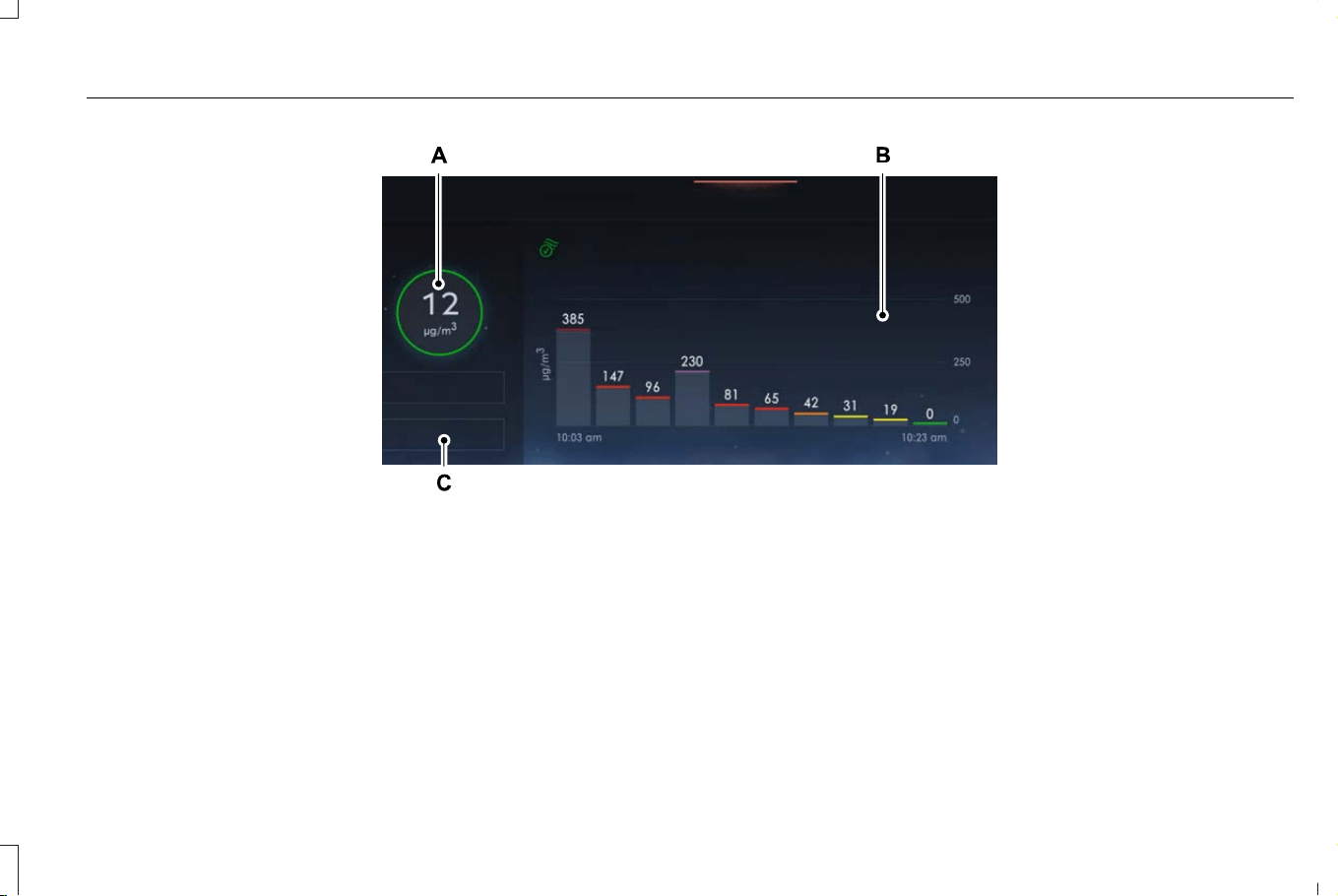
E373334
Cabin air quality.A
Cabin air history.B
Help button.C
161
Corsair (CTF) Canada/Mexico/United States of America, enUSA, Edition date: 202407, DOM
Interior Air Quality
Particulate Matter Pollution
Information
Press Help for more information about
particulate matter pollution.
The numbers provided by the cabin's PM2.5
sensor are estimates of the concentration of
particles in the cabin air. The measurement
unit is µg/m3, representing mass (micrograms
of particulates) per unit of air volume (cubic
meter of air).
The colors around the PM2.5 numbers
provide visual cues about the concentration
levels.
Note: PM2.5 is only one pollution type
contributing to an Air Quality Index and by
itself does not represent the Air Quality
Index.
AUTO AIR REFRESH INDICATORS
The indicator area is on the touchscreen
feature bar and displays one of the following:
E324585
Indicates blower motor is on for
filtering and PM2.5 is low.
E283817
Indicates the blower motor is on
for filtering.
E324586
Indicates the blower motor is off.
E324587
Indicates the status is not available.
MANUALLY REFRESHING THE
INTERIOR AIR
E265283
Press the button on the
touchscreen.
1. Press Auto Air Refresh.
2. Press Cabin Refresh.
Note: Climate control settings could change
for about 90 seconds to help flow outside
air into the cabin. You can change the
blower motor speed to the settings you
prefer.
Note: The climate control must be on to
manually refresh the interior air.
AUTOMATICALLY REFRESHING THE
INTERIOR AIR
If the cabin air recirculates continuously for
longer than 35 minutes, climate control
settings could change automatically for about
90 seconds to help flow outside air into the
cabin.
Refreshing the Interior Air Upon Cabin
Start
If the cabin is above 75°F (24°C) and the
engine has been off for over 30 minutes,
when you start the engine the climate control
system settings could change for
approximately 75 seconds to help flow
outside air into the cabin.
Note: Refreshing may also occur if the
climate control and blower motor were
previously on.
162
Corsair (CTF) Canada/Mexico/United States of America, enUSA, Edition date: 202407, DOM
Interior Air Quality

Refreshing the Interior Air Upon
Remote Start
If the cabin is above 75°F (24°C) while parked
for over 30 minutes, when you remote start
the engine the climate control system
settings could change for approximately 75
seconds to help flow outside air into the
cabin.
AUTO AIR REFRESH HINTS
To further improve the air quality in the cabin:
• Adjust the windows and other cabin
openings such as the glass roof.
• Switch recirculated air on or off.
• Manually refresh the interior air.
• Adjust the blower motor speed.
• Replace the cabin air filter at regular
intervals.
INTERIOR AIR QUALITY –
TROUBLESHOOTING
INTERIOR AIR QUALITY –
INFORMATION MESSAGES
Note: Depending on your vehicle options,
not all messages display or are available.
Certain messages may be abbreviated or
shortened depending upon which cluster
type you have.
ActionMessage
Allow time for the cabin PM2.5 sensor to cool down, warm up, or dry
out.
Environmental Limit
163
Corsair (CTF) Canada/Mexico/United States of America, enUSA, Edition date: 202407, DOM
Interior Air Quality
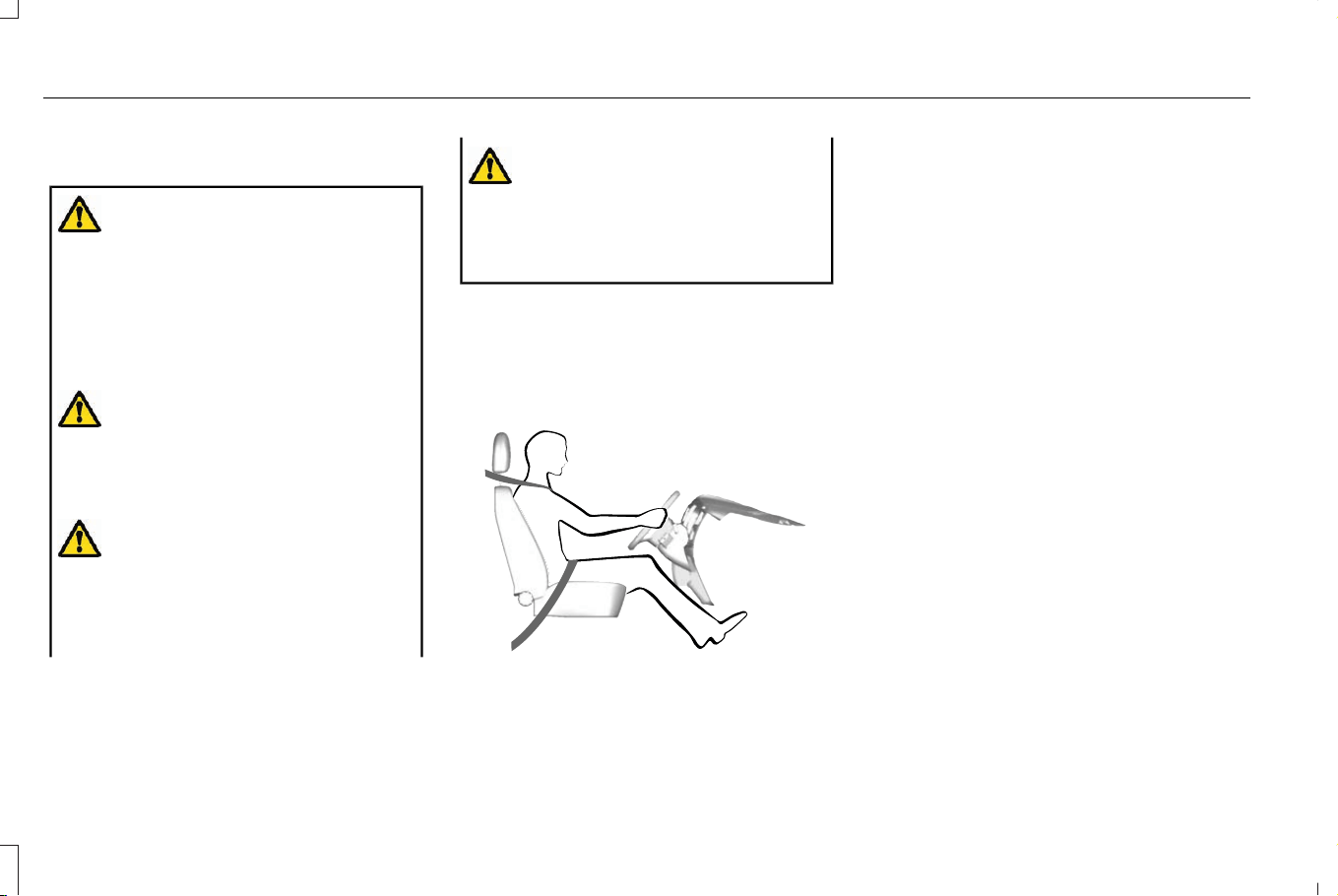
FRONT SEAT PRECAUTIONS
WARNING: Sitting improperly, out of
position or with the seatback reclined too
far can take weight off the seat cushion
and affect the decision of the passenger
sensing system, resulting in serious injury
or death in the event of a crash. Always sit
upright against your seat back, with your
feet on the floor.
WARNING: Do not recline the seat
backrest too far as this can cause the
occupant to slide under the seatbelt,
resulting in personal injury in the event of
a crash.
WARNING: Do not place objects
higher than the top of the seat backrest.
Failure to follow this instruction could result
in personal injury or death in the event of
a sudden stop or crash.
WARNING: Do not adjust the driver
seat or seat backrest when your vehicle is
moving. This may result in sudden seat
movement, causing the loss of control of
your vehicle.
SITTING IN THE CORRECT
POSITION
E68595
When you use them properly, the seat, head
restraint, seatbelt and airbags will provide
optimum protection in the event of a crash.
We recommend that you follow these
guidelines:
• Sit in an upright position with the base of
your spine as far back as possible.
• Do not recline the seat backrest so that
your torso is more than 30 degrees from
the upright position.
• Adjust the head restraint so that the top
of it is level with the top of your head and
as far forward as possible. Make sure that
you remain comfortable.
• Keep sufficient distance between
yourself and the steering wheel. We
recommend a minimum of 10 in (25 cm)
between your breastbone and the airbag
cover.
• Hold the steering wheel with your arms
slightly bent.
164
Corsair (CTF) Canada/Mexico/United States of America, enUSA, Edition date: 202407, DOM
Front Seats
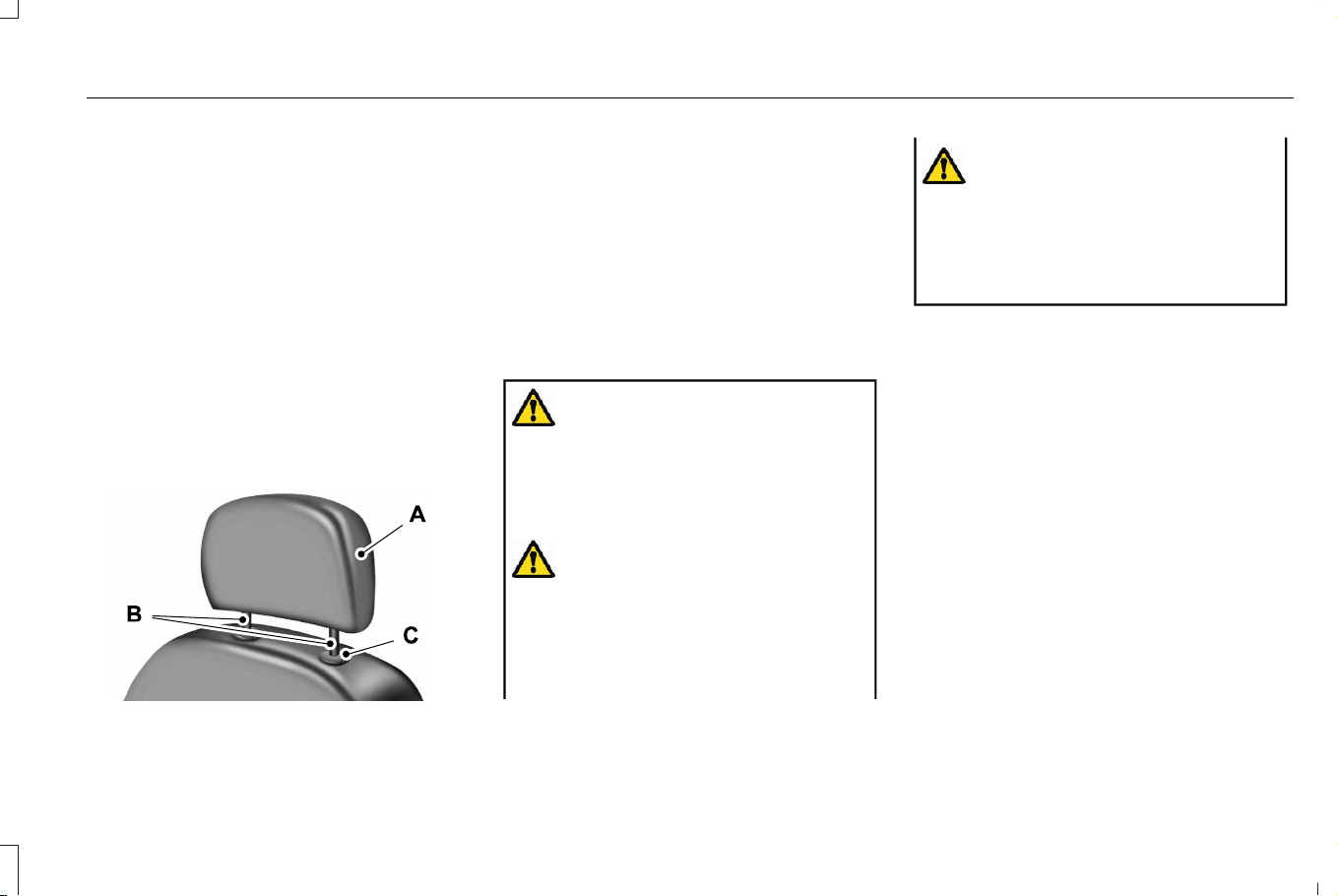
• Bend your legs slightly so that you can
press the pedals fully.
• Position the shoulder strap of the seatbelt
over the center of your shoulder and
position the lap strap tightly across your
hips.
Make sure that your driving position is
comfortable and that you can maintain full
control of your vehicle.
POWER SEATS
HEAD RESTRAINT COMPONENTS
E291139
The front seat head restraints consists of:
An energy absorbing head
restraint.
A
Two steel stems.B
Guide sleeve adjust and unlock
button.
C
ADJUSTING THE HEAD RESTRAINT
WARNING: Fully adjust the head
restraint before you sit in or operate your
vehicle. This will help minimize the risk of
neck injury in the event of a crash. Do not
adjust the head restraint when your vehicle
is moving.
WARNING: The head restraint is a
safety device. Whenever possible it should
be installed and properly adjusted when
the seat is occupied. Failure to adjust the
head restraint properly could reduce its
effectiveness during certain impacts.
WARNING: Adjust the head restraints
for all passengers before you drive your
vehicle. This will help minimize the risk of
neck injury in the event of a crash. Do not
adjust the head restraints when your
vehicle is moving.
To raise the head restraint, pull the head
restraint up.
To lower the head restraint:
1. Press and hold the adjust and release
button.
2. Push the head restraint down.
To tilt the head restraint - if equipped:
165
Corsair (CTF) Canada/Mexico/United States of America, enUSA, Edition date: 202407, DOM
Front Seats
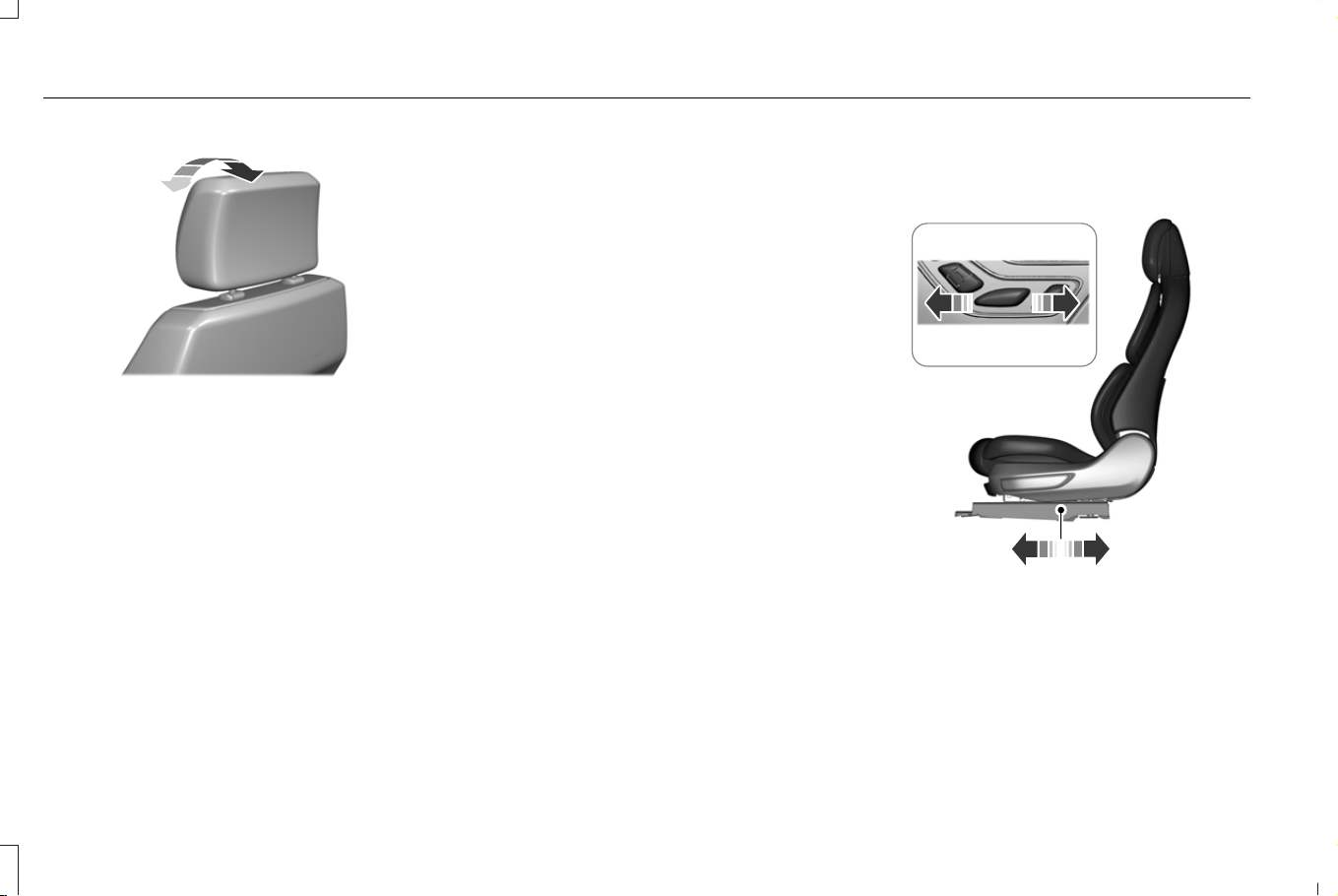
E327919
1. Adjust the seat backrest to an upright
position.
2. Pivot the head restraint forward toward
your head to the preferred position.
After the head restraint reaches the
forward-most tilt position, pivot it forward
again to release it to the rearward, untilted
position.
Note: Do not attempt to force the head
restraint backward after it is tilted. Instead,
continue tilting it forward until the head
restraint releases to the upright position.
REMOVING THE HEAD RESTRAINT
1. Pull up the head restraint until it reaches
its highest position.
2. Press and hold the adjust and unlock
button.
3. Pull up the head restraint.
INSTALLING THE HEAD RESTRAINT
Align the steel stems into the guide sleeves
and push the head restraint down until it
locks.
MOVING THE SEAT BACKWARD AND
FORWARD
E348863
166
Corsair (CTF) Canada/Mexico/United States of America, enUSA, Edition date: 202407, DOM
Front Seats
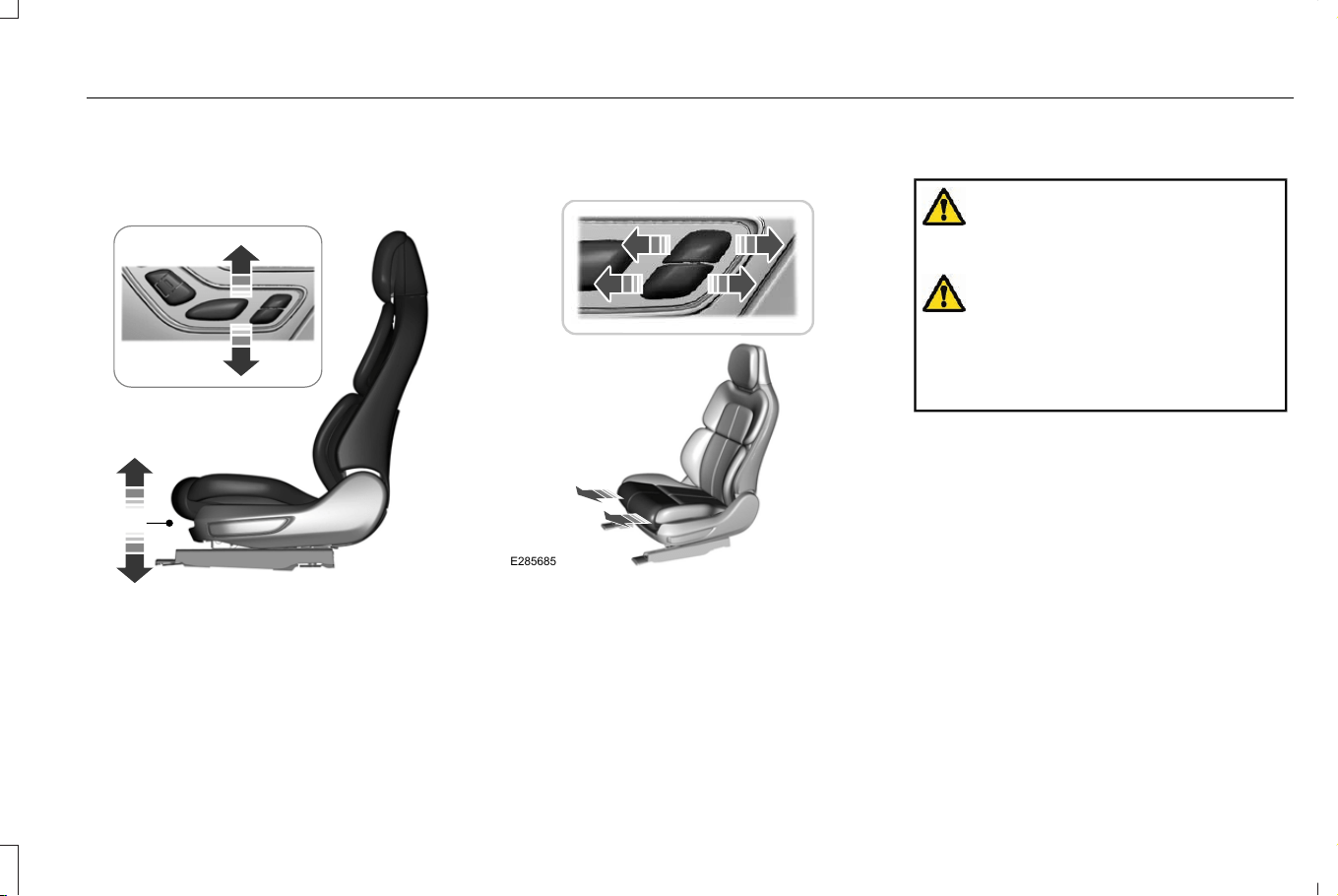
ADJUSTING THE SEAT CUSHION (If
Equipped)
E349631
Adjusting the Length of the Seat
Cushion (If Equipped)
E285685
ADJUSTING THE SEAT BACKREST
WARNING: Do not place cargo or
any objects behind the seatback before
returning it to the original position.
WARNING: Do not adjust the driver
seat or seat backrest when your vehicle is
moving. This may result in sudden seat
movement, causing the loss of control of
your vehicle.
167
Corsair (CTF) Canada/Mexico/United States of America, enUSA, Edition date: 202407, DOM
Front Seats
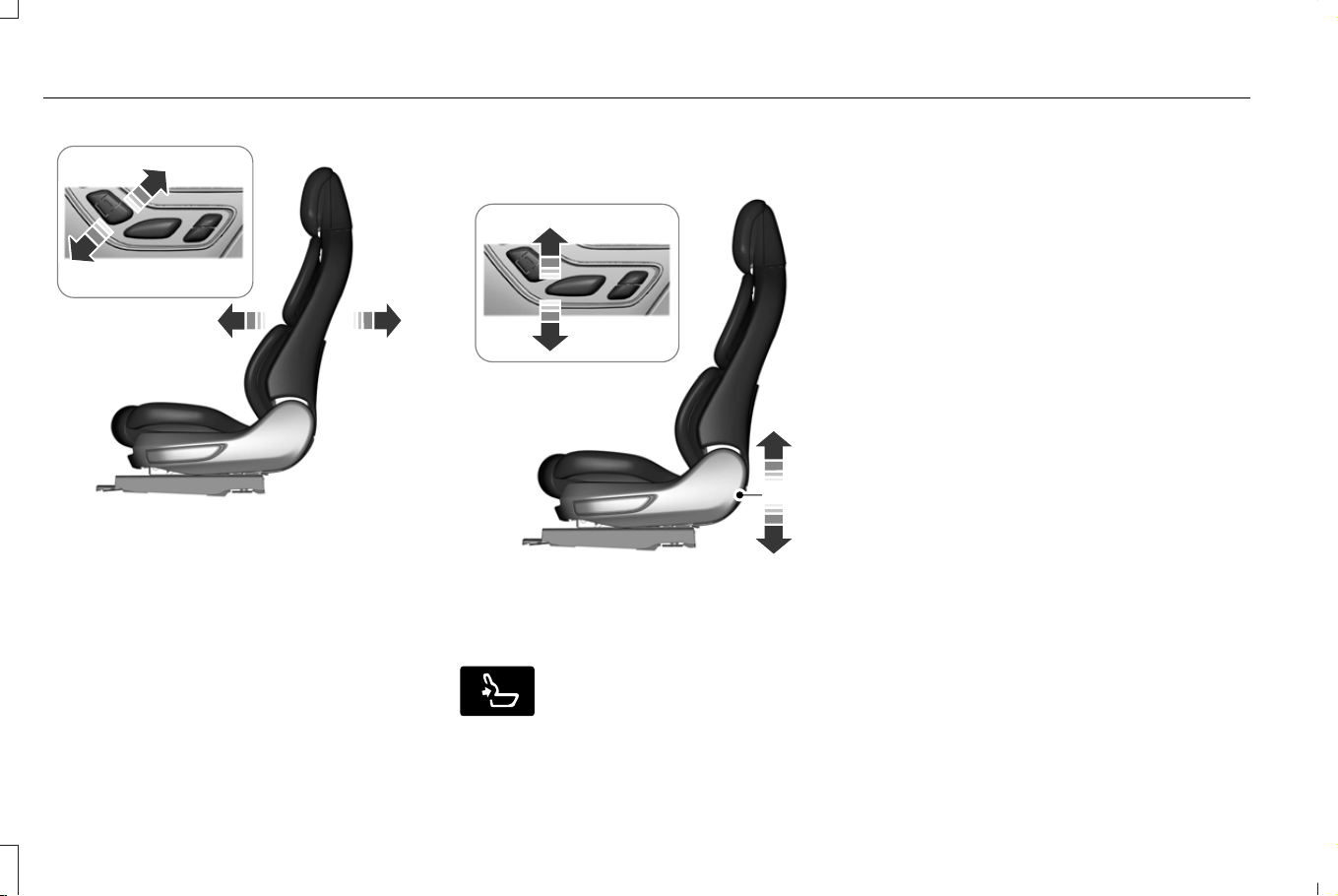
E348865
ADJUSTING THE SEAT HEIGHT
E349633
ADJUSTING THE LUMBAR SUPPORT
(If Equipped)
E285278
Press this button on the door to
access the lumbar menu on the
touchscreen.
MASSAGE SEATS (IF EQUIPPED)
MASSAGE SEAT LIMITATIONS
The engine must be running or the vehicle
must be in accessory mode to activate the
seats.
Allow a few seconds for any selection to
activate. The seat backrest and cushion
massage cannot function at the same time.
ADJUSTING THE MASSAGE SEAT
SETTINGS
You can adjust this feature through the
touchscreen.
168
Corsair (CTF) Canada/Mexico/United States of America, enUSA, Edition date: 202407, DOM
Front Seats
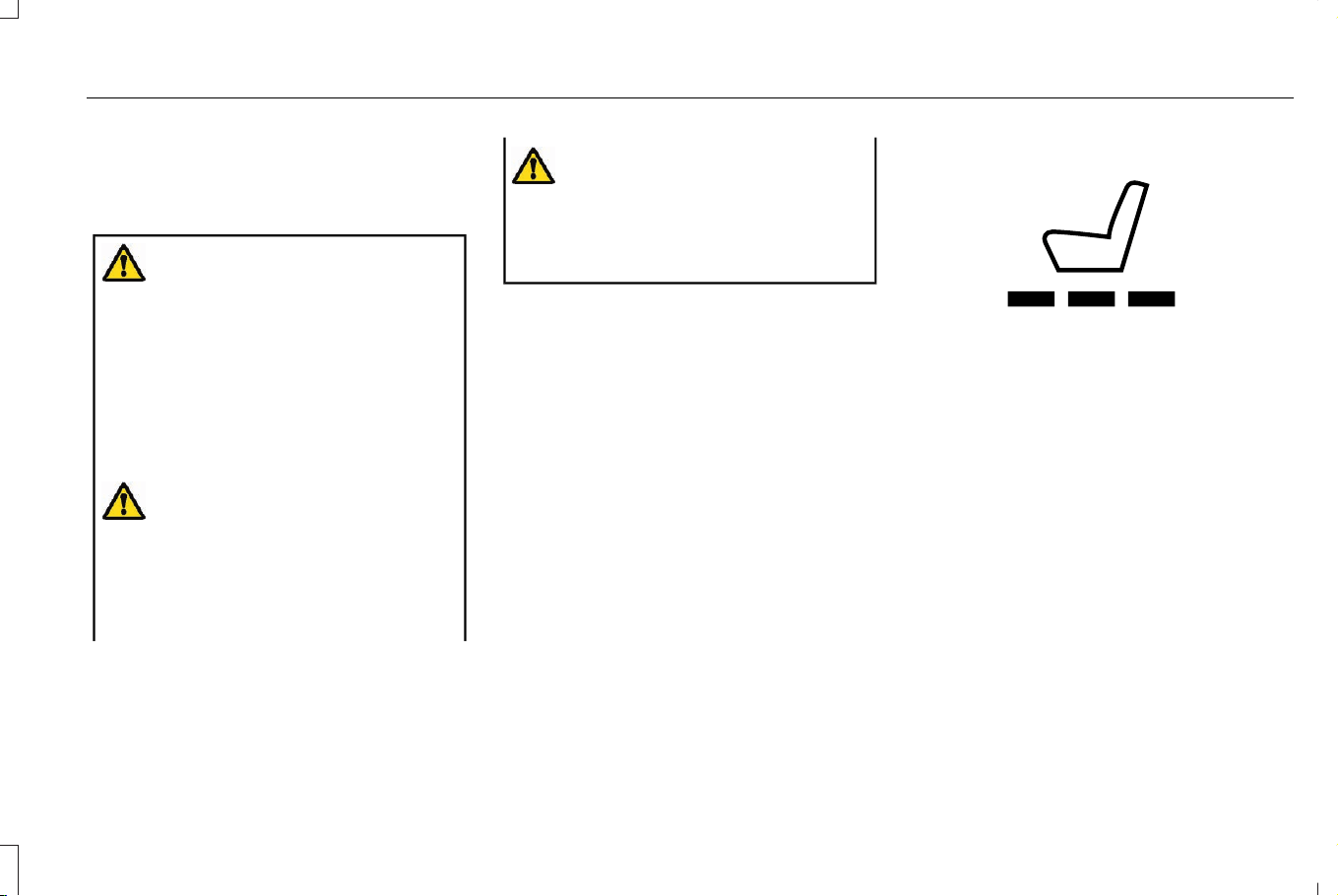
HEATED SEATS
HEATED SEAT PRECAUTIONS
WARNING: Use caution when using
the heated seat if you are unable to feel
pain to your skin because of advanced
age, chronic illness, diabetes, spinal cord
injury, medication, alcohol use, exhaustion
or other physical conditions. The heated
seat could cause burns even at low
temperatures, especially if used for long
periods of time. Failure to follow this
instruction could result in personal injury.
WARNING: Do not poke sharp
objects into the seat cushion or seat
backrest. This could damage the heated
seat element and cause it to overheat.
Failure to follow this instruction could result
in personal injury.
WARNING: Do not place anything on
the seat that blocks the heat, for example
a seat cover or a cushion. This could cause
the seat to overheat. Failure to follow this
instruction could result in personal injury.
Do not:
• Place heavy objects on the seat.
• Operate the heated seat if water or any
other liquid spills on the seat. Allow the
seat to dry.
SWITCHING THE HEATED SEATS ON
AND OFF
The vehicle must be running to use this
feature.
E368423
Press the seat symbol on the touchscreen
to switch on the heated seats. Then, slide
the menu bar up to control the heat intensity.
The more indicators that display, the warmer
the temperature of the seat.
Note: The heated seats may remain on after
you remote start your vehicle, based on your
remote start settings.
Note: The heated seats may turn on when
you start your vehicle if they were on when
you switched your vehicle off.
169
Corsair (CTF) Canada/Mexico/United States of America, enUSA, Edition date: 202407, DOM
Front Seats

VENTILATED SEATS (IF EQUIPPED)
SWITCHING THE VENTILATED SEATS
ON AND OFF
The vehicle must be running to use this
feature.
E368423
Press the seat symbol on the touchscreen
to switch on the ventilated seats. Then, slide
the menu bar down to control the fan speed.
More indicator lights indicate higher fan
speeds.
Note: The ventilated seats switch on during
a remote start if they are enabled.
Note: The ventilated seats may switch on
when you start your vehicle if they were on
when you previously switched your vehicle
off.
170
Corsair (CTF) Canada/Mexico/United States of America, enUSA, Edition date: 202407, DOM
Front Seats
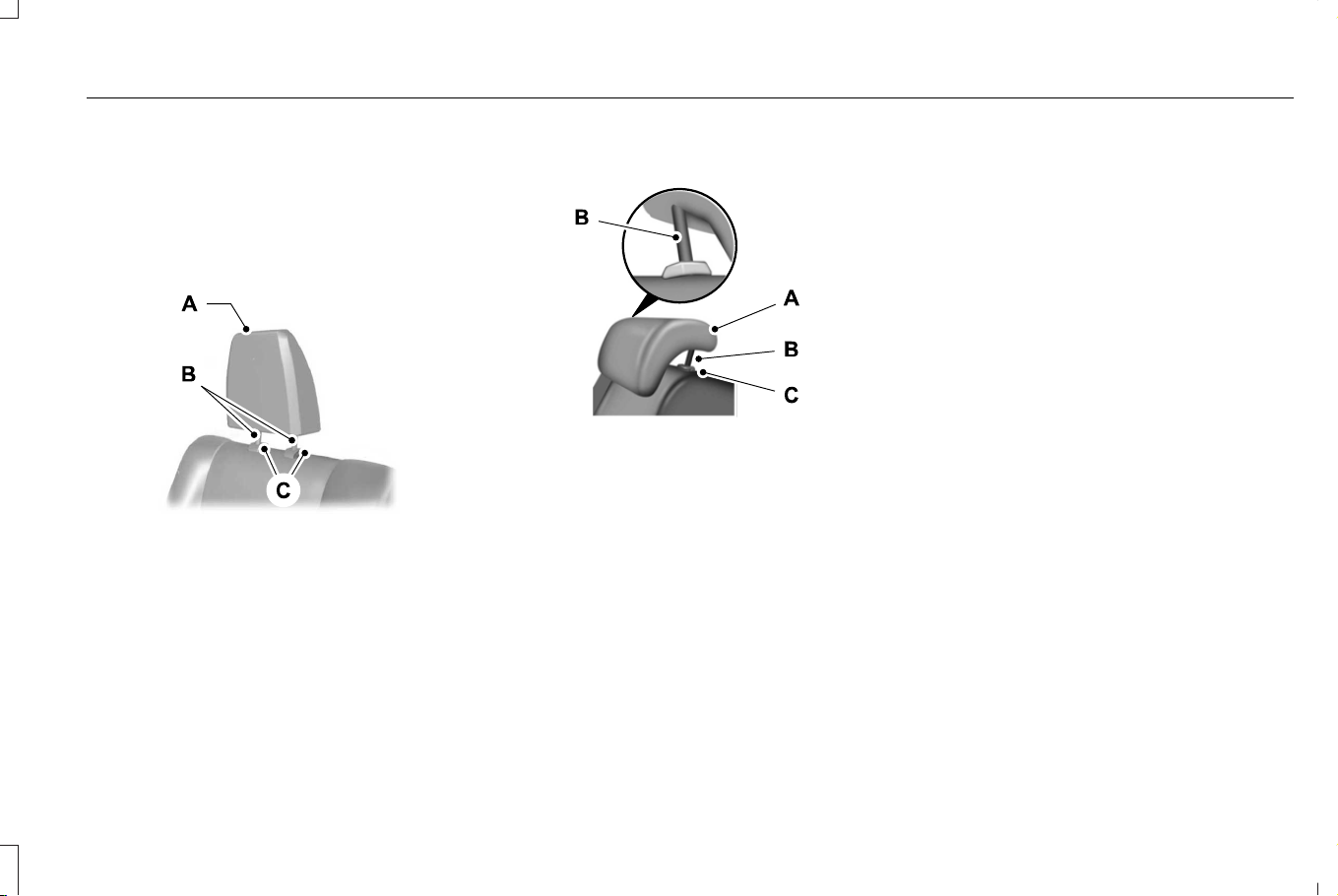
MANUAL SEATS
HEAD RESTRAINT COMPONENTS
Outermost Head Restraints
E379014
The head restraints consist of:
An energy absorbing head
restraint.
A
Two steel stems.B
Guide sleeve unlock and remove
buttons.
C
Center Head Restraint
E379015
The head restraint consists of:
An energy absorbing head
restraint.
A
Two steel stems.B
Guide sleeve unlock and remove
button.
C
ADJUSTING THE HEAD RESTRAINT
Raising the Head Restraint
To raise the center head restraint, pull the
head restraint up.
Lowering the Head Restraint
1. Press and hold the adjust and unlock
button.
2. Push the head restraint down.
REMOVING THE HEAD RESTRAINT
Outermost Head Restraints
1. Pull the head restraint up until it reaches
its highest position.
2. Press and hold the guide sleeve adjust
and unlock button, and the unlock and
remove button.
3. Pull the head restraint up.
Center Head Restraint
1. Pull the head restraint up until it reaches
its highest position.
171
Corsair (CTF) Canada/Mexico/United States of America, enUSA, Edition date: 202407, DOM
Rear Seats
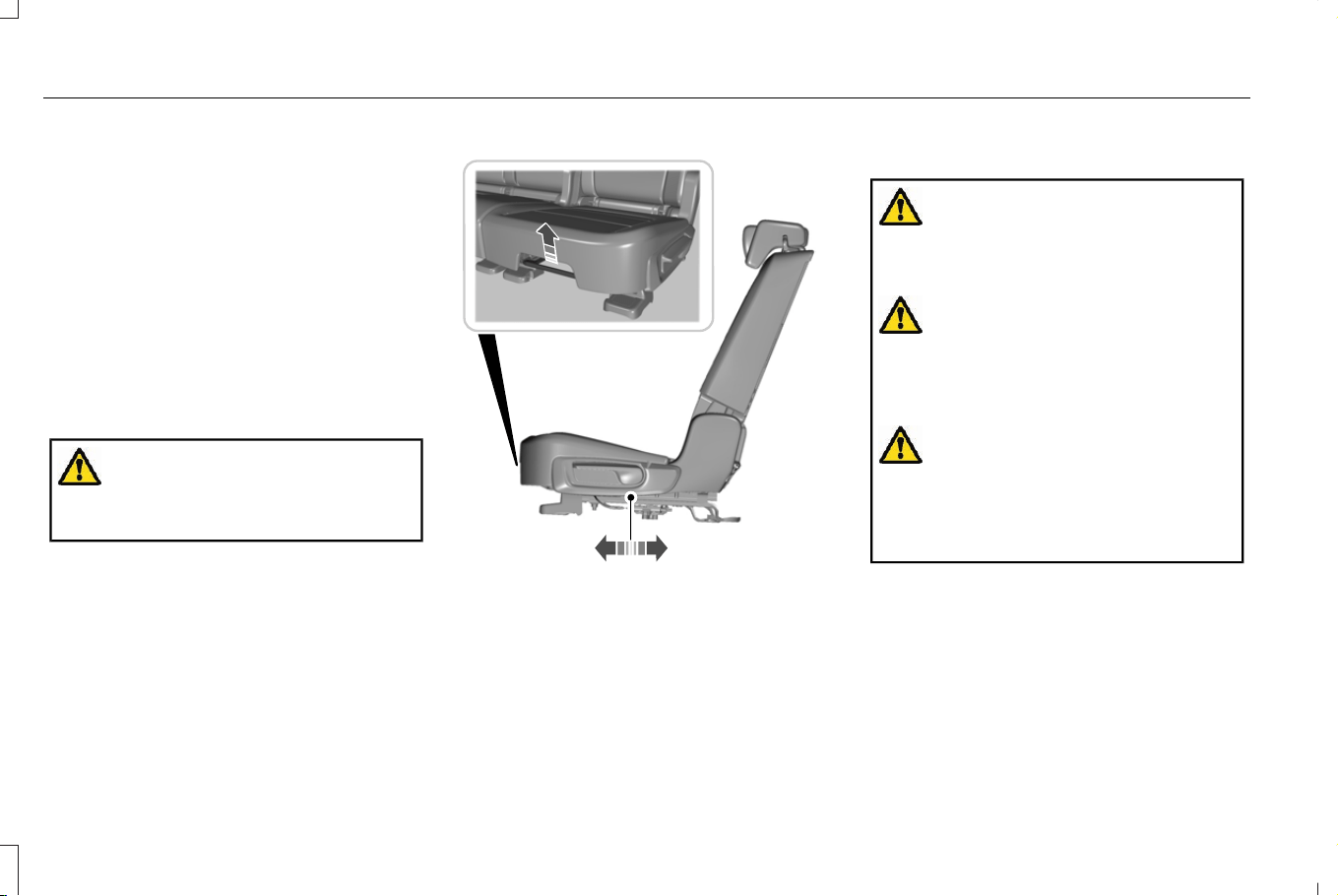
2. Press and hold the guide sleeve unlock
and remove button.
3. Pull the head restraint up.
INSTALLING THE HEAD RESTRAINT
Align the steel stems into the guide sleeves
and push the head restraint down until it
locks.
MOVING THE SEAT BACKWARD AND
FORWARD
WARNING: Make sure the seat fully
locks into place by rocking it backward and
forward.
E298125
ADJUSTING THE SEAT BACKREST
With the seat occupied, pull the lever on the
side of the seat cushion up to recline the seat
backrest.
FOLDING THE SEAT BACKREST
WARNING: To prevent possible
damage to the seat or seatbelts, make sure
that the seatbelts are not fastened before
folding the seatback.
WARNING: When folding or unfolding
the seats, take care not to get your fingers
caught between the seat backrest and seat
frame. Failure to follow this warning could
result in serious personal injury.
WARNING: Do not place any objects
on a folded seat. Hard objects may
become projectiles in a crash or sudden
stop, which may increase the risk of
serious personal injury.
172
Corsair (CTF) Canada/Mexico/United States of America, enUSA, Edition date: 202407, DOM
Rear Seats
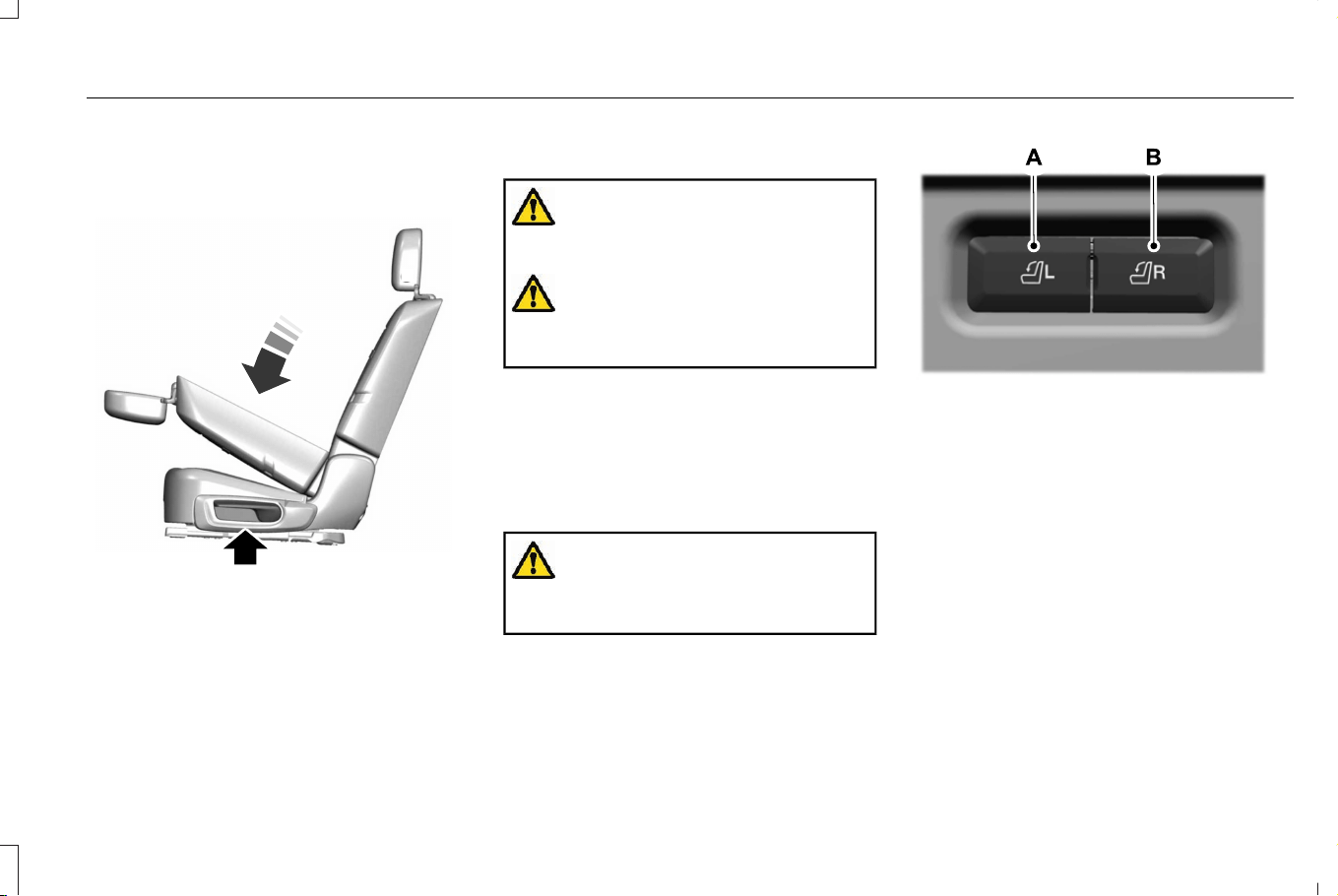
E326037
With the seat empty, pull the lever up to fold
the seat backrest forward. You may need to
lower the center head restraint first.
UNFOLDING THE SEAT BACKREST
WARNING: When unfolding the seat
backrests, make sure that the seatbelts are
not trapped behind the seat.
WARNING: Make sure that the seats
and the seat backrests are secure and fully
locked in their catches.
Pull the seat backrest up to unfold.
POWER SEATS (IF EQUIPPED)
FOLDING THE SEAT BACKREST
WARNING: Do not fold a seat if it is
occupied. Failure to follow this instruction
could result in personal injury.
E298032
Folds the left-hand rear seat
backrest.
A
Folds the right-hand rear seat
backrest.
B
Press and hold the button for a few seconds
to fold the corresponding seat.
173
Corsair (CTF) Canada/Mexico/United States of America, enUSA, Edition date: 202407, DOM
Rear Seats
HEATED SEATS (IF EQUIPPED)
HEATED SEAT PRECAUTIONS
WARNING: Use caution when using
the heated seat if you are unable to feel
pain to your skin because of advanced
age, chronic illness, diabetes, spinal cord
injury, medication, alcohol use, exhaustion
or other physical conditions. The heated
seat could cause burns even at low
temperatures, especially if used for long
periods of time. Failure to follow this
instruction could result in personal injury.
WARNING: Do not poke sharp
objects into the seat cushion or seat
backrest. This could damage the heated
seat element and cause it to overheat.
Failure to follow this instruction could result
in personal injury.
WARNING: Do not place anything on
the seat that blocks the heat, for example
a seat cover or a cushion. This could cause
the seat to overheat. Failure to follow this
instruction could result in personal injury.
Do not:
• Place heavy objects on the seat.
• Operate the heated seat if water or any
other liquid spills on the seat. Allow the
seat to dry.
SWITCHING THE HEATED SEATS ON
AND OFF
The vehicle must be running to use this
feature.
The rear seat heat controls are on the rear
of the center console.
E146322
Press the heated seat symbol to cycle
through the various heat settings and off.
More indicator lights indicate warmer
settings.
The heated seats turn off when you switch
off the vehicle.
174
Corsair (CTF) Canada/Mexico/United States of America, enUSA, Edition date: 202407, DOM
Rear Seats

WHAT IS THE REAR OCCUPANT
ALERT SYSTEM
The rear occupant alert system monitors
vehicle conditions and notifies you to check
for rear seat occupants when you switch the
ignition off. The notifications can be in the
form of warnings inside the vehicle and
sounding of the horn if activated for a short
period of time.
HOW DOES THE REAR OCCUPANT
ALERT SYSTEM WORK
The system monitors the activity of the
buckle on the rear seatbelt and the opening
and closing of the rear doors to indicate the
potential presence of an occupant in the rear
seat.
When Child Seat Installed is selected, the
system monitors only the opening and
closing of the rear doors to indicate the
potential presence of an occupant in the rear
seat.
When Child Seat Installed is not selected,
the system monitors the rear seatbelt buckle
activity and the opening and closing of the
rear doors to indicate the potential presence
of an occupant in the rear seat.
A message displays in the touchscreen and
an audible warning sounds when you switch
the ignition off after any of the following
conditions have been met:
• A rear door is opened or closed while
the ignition is on.
• You switch the ignition on within 15
minutes of a rear door opening and
closing.
• You switch the ignition on within 15
minutes of the alert having displayed or
sounded.
If you do not open a rear door within a short
period of time of the message appearing in
the center display, the first audible warning
sounding and driver door open to close, the
horn sounds for a short period of time.
Note: Horn sounds only when the Rear
Occupant Alert is set to Alert & Horn. If you
change the setting, then there is no horn
sound.
REAR OCCUPANT ALERT SYSTEM
PRECAUTIONS
WARNING: On hot days, the
temperature inside the vehicle can rise
very quickly. Exposure of people or animals
to these high temperatures for even a short
time can cause death or serious heat
related injuries, including brain damage.
Small children are particularly at risk.
WARNING: Do not leave children or
pets unattended in your vehicle. Failure to
follow this instruction could result in
personal injury or death.
REAR OCCUPANT ALERT SYSTEM
LIMITATIONS
The system does not detect the presence of
objects or passengers in the rear seat. It
monitors the activity of the buckle on the rear
seatbelt and the opening and closing of the
rear doors.
175
Corsair (CTF) Canada/Mexico/United States of America, enUSA, Edition date: 202407, DOM
Rear Occupant Alert System
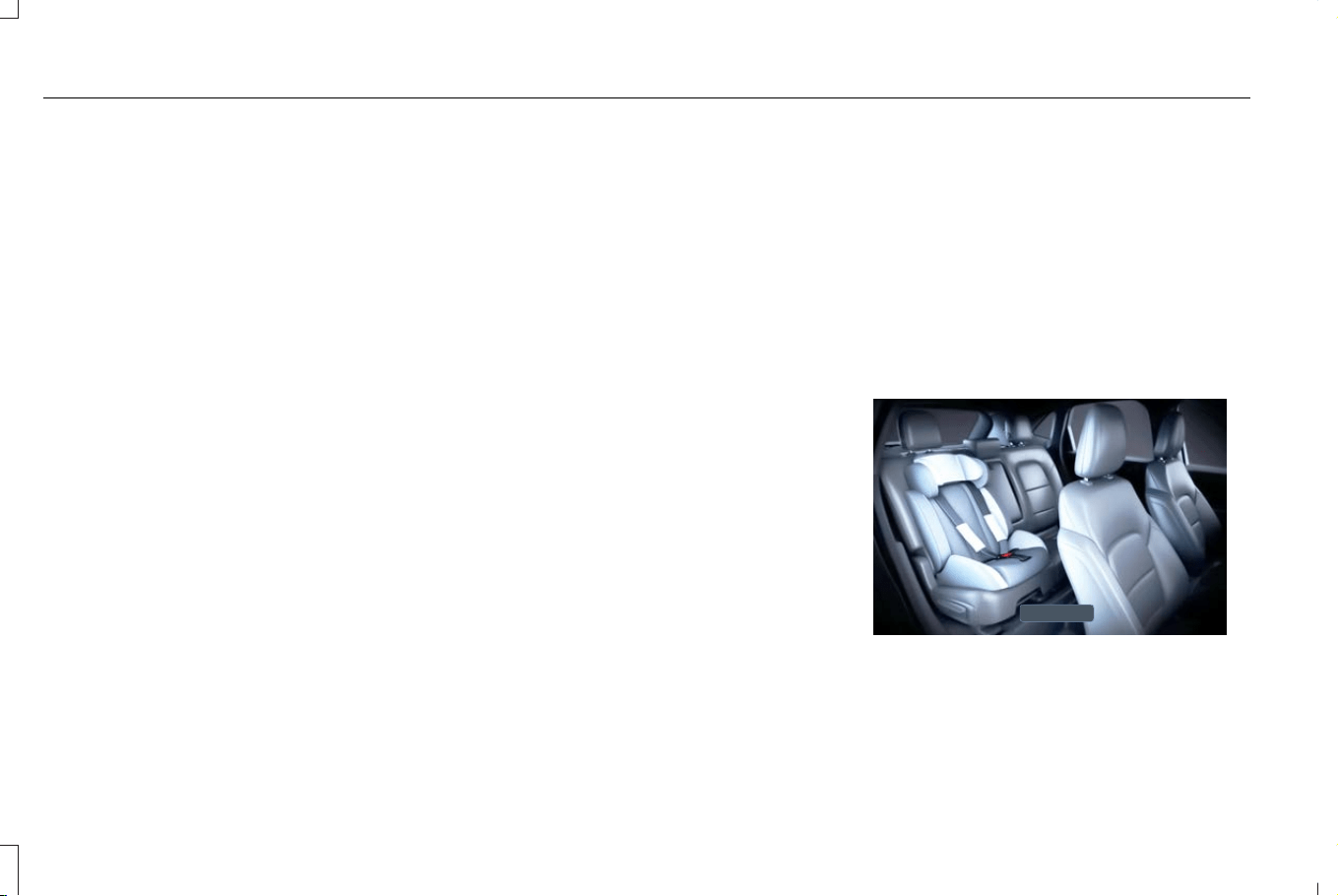
Note: It is possible to receive an alert when
there is no rear seat occupant, but alert
conditions are met.
Note: It is possible to receive no alert when
there is an occupant in the rear seat, if alert
conditions are not met. For example, if a rear
seat occupant does not enter the vehicle
through a rear door.
REAR OCCUPANT ALERT SYSTEM
SETTINGS
1. From the settings menu, press Vehicle.
See Center Display (page 502).
2. Press Rear Occupant Alert.
3. Select Alert & Horn or Alert Only or Off.
Note: The default setting is Alert Only.
Note: If you choose Alert only, the horn does
not sound even when the alert conditions
are met.
Note: Performing a system reset causes the
system to switch on again.
Switching Child Seat Installed On and
Off
When the system is switched on, it monitors
the opening and closing of the rear doors to
indicate the potential presence of an
occupant in the rear seat.
1. From the settings menu, press Vehicle.
See Center Display (page 502).
2. Press Rear Occupant Alert.
3. Switch Child Seat Installed on or off.
Note: The default setting is on.
Switch the system on when the child restraint
is mounted on any of the following:
• Forward facing seat.
• Rear facing seat.
• Toddler in a LATCH system child seat.
Switch the system off when the child is using
any of the following:
• Seatbelt.
• Booster seat.
Semiannual Reminder
When you switch the system off, a message
appears every six months as a reminder that
the system is off. You can switch the system
back on or leave it off.
REAR OCCUPANT ALERT SYSTEM
INDICATORS
E418304
176
Corsair (CTF) Canada/Mexico/United States of America, enUSA, Edition date: 202407, DOM
Rear Occupant Alert System

Message
Check rear seats for occupants.
Displays when you switch your vehicle off
after the alert conditions are met.
The message displays for a short period of
time. Press Close to acknowledge and
remove the message.
Note: The graphic may be different for your
vehicle.
REAR OCCUPANT ALERT SYSTEM
AUDIBLE WARNINGS
The first audible warning is an alert tone
within the vehicle, which sounds when you
switch your vehicle off after the alert
conditions are met. The warning sounds for
a short period of time.
The second audible warning is from the horn.
It sounds when you do not open a rear door
within a short period of time of the message
appearing in the center display, the first
audible warning sounding, and driver door
open to close. The warning sounds for a
short period of time.
177
Corsair (CTF) Canada/Mexico/United States of America, enUSA, Edition date: 202407, DOM
Rear Occupant Alert System
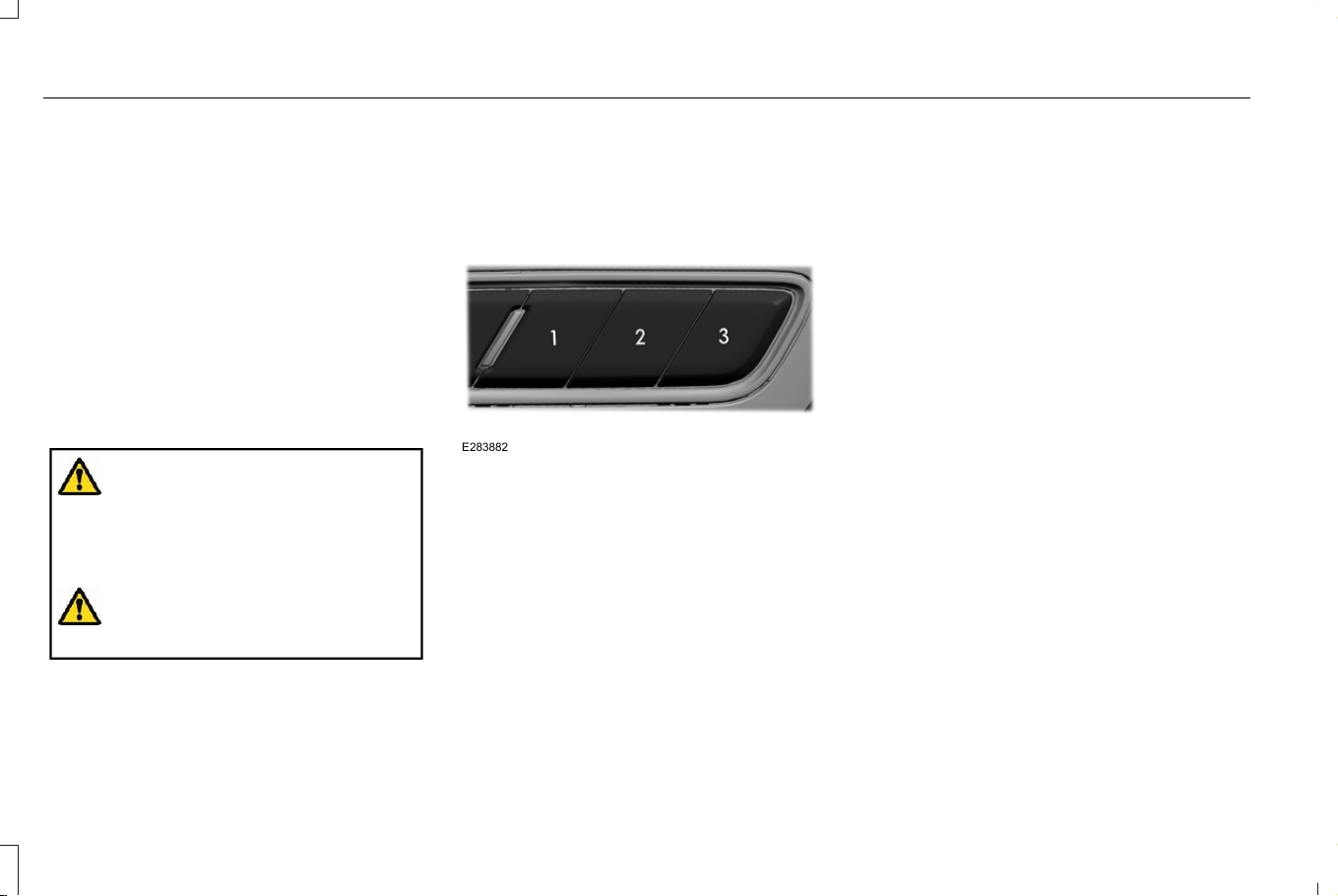
HOW DOES THE MEMORY
FUNCTION WORK
The memory function recalls the position of
these features:
• Memory driver seat.
• Memory power side mirrors.
• Memory steering column.
MEMORY FUNCTION
PRECAUTIONS
WARNING: Before activating the
memory seat, make sure that the area
immediately surrounding the seat is clear
of obstructions and that all occupants are
clear of moving parts.
WARNING: Do not use the memory
function when your vehicle is moving.
LOCATING THE MEMORY
FUNCTION BUTTONS
E283882
The memory function buttons are on the
driver door.
SAVING A PRESET POSITION
1. Switch the ignition on.
2. Adjust the memory features to your
preferred position.
3. Press and hold the preferred preset
button until you hear a single tone.
A confirmation message appears in the
information cluster display.
You can save up to three preset memory
positions at any time.
RECALLING A PRESET POSITION
Press and release a memory function button.
Note: You can only recall a preset memory
position when the ignition is off, or when the
ignition is on and the vehicle is not moving.
Note: Pressing any of the memory feature
controls during a memory recall cancels the
operation.
You can also recall a preset memory position
by:
• Pressing the unlock button on your
remote control if you linked it to a preset
position.
• Unlocking the intelligent driver door
handle if a linked remote control is
present.
178
Corsair (CTF) Canada/Mexico/United States of America, enUSA, Edition date: 202407, DOM
Memory Function

Note: Using a linked remote control to recall
your memory position when the ignition is
off moves the seat and steering column to
the easy entry position.
179
Corsair (CTF) Canada/Mexico/United States of America, enUSA, Edition date: 202407, DOM
Memory Function
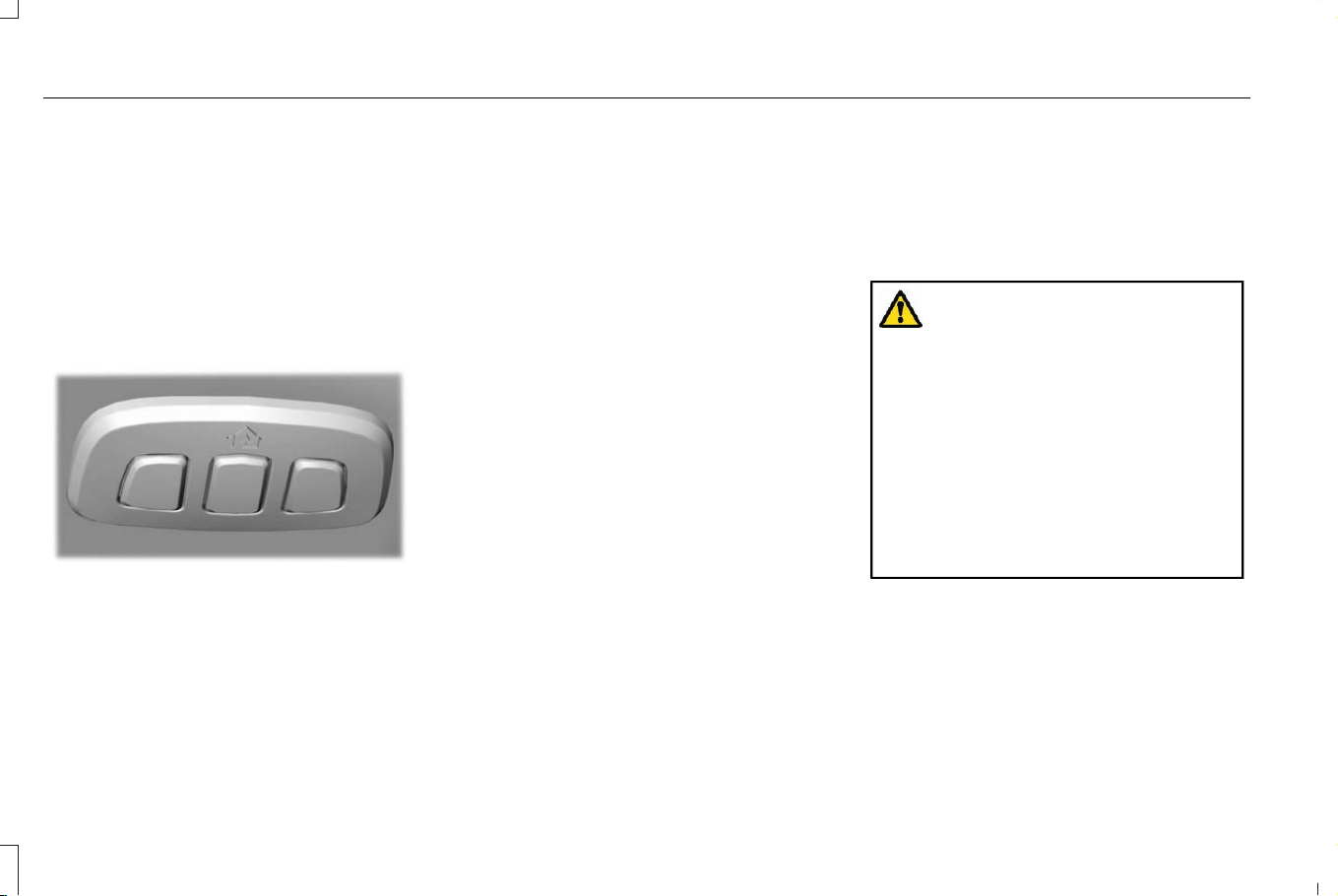
GARAGE DOOR OPENER
INTRODUCTION
HomeLink Wireless Control System
The universal garage door opener replaces
the common handheld garage door opener
with a three-button transmitter integrated
into the driver-side sun visor.
E188211
How Does The Garage Door Opener
Work
The system includes two primary features, a
garage door opener and a platform for
remote activation of devices within the home.
You can program garage doors as well as
entry gate operators, security systems, entry
door locks and home or office lighting.
Garage Door Opener Limitations
Canadian radio-frequency laws require
transmitter signals to time out, or quit, after
several seconds – which may not be long
enough for HomeLink to pick up the signal.
U.S. gate operators time-out in the same
manner.
GARAGE DOOR OPENER
PRECAUTIONS AND
FREQUENCIES
Garage Door Opener Precautions
WARNING: Do not use the system
with any garage door opener that does not
have the safety stop and reverse feature
as required by U.S. Federal Safety
Standards (this includes any garage door
opener manufactured before April 1, 1982).
A garage door opener which cannot detect
an object, signaling the door to stop and
reverse, does not meet current federal
safety standards. Using a garage door
opener without these features increases
the risk of serious injury or death.
180
Corsair (CTF) Canada/Mexico/United States of America, enUSA, Edition date: 202407, DOM
Garage Door Opener (If Equipped)
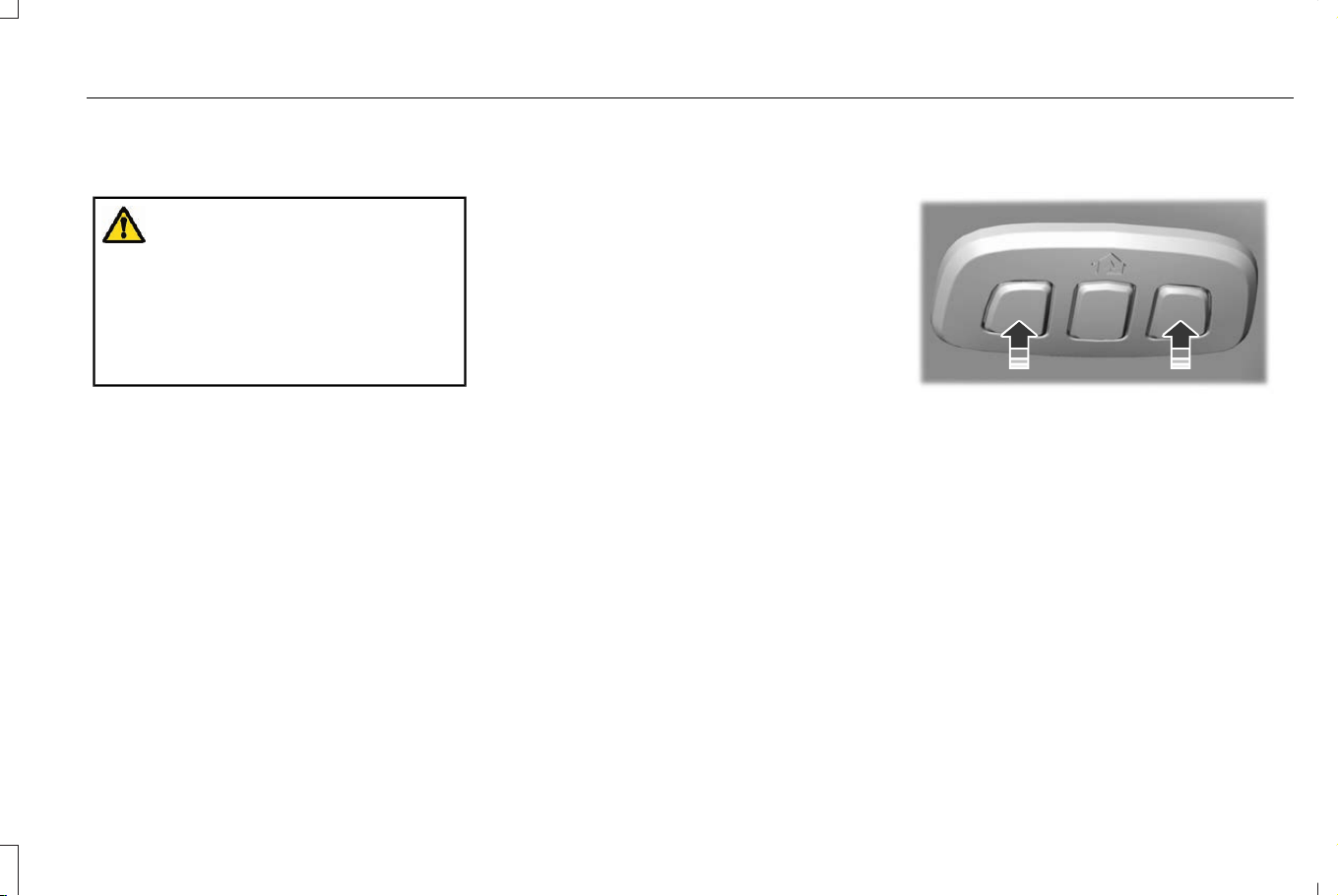
FCC and RSS-210 Industry Canada
Compliance
WARNING: Changes or modifications
not expressively approved by the party
responsible for compliance could void the
user's authority to operate the equipment.
The term "IC:" before the radio certification
number only signifies that Industry Canada
technical specifications were met.
This device complies with Part 15 of the FCC
Rules and with RSS-210 of Industry Canada.
Operation is subject to the following two
conditions: (1) this device may not cause
harmful interference, and (2) this device must
accept any interference received, including
interference that may cause undesired
operation.
This equipment complies with FCC radiation
exposure limits set forth for an uncontrolled
environment. End Users must follow the
specific operating instructions for satisfying
RF exposure compliance. This transmitter
must be at least 8 in (20 cm) from the user
and must not be co-located or operating in
conjunction with any other antenna or
transmitter.
PROGRAMMING THE GARAGE
DOOR OPENER
To clear all stored codes in the garage door
opener in your vehicle, use the clear
function. To override one button, use the
reprogram function.
Note: Make sure that the garage door and
security device are free from obstruction
when you are programming. Do not program
the system with the vehicle in the garage.
Clearing the Garage Door Opener
E188213
To clear all stored codes in the garage door
opener in the vehicle:
1. Press and hold the outer two function
buttons simultaneously for approximately
10 seconds until the indicator above the
buttons flashes rapidly.
2. When the indicator flashes, release the
buttons.
Note: This clears all stored codes. You
cannot erase individual buttons.
181
Corsair (CTF) Canada/Mexico/United States of America, enUSA, Edition date: 202407, DOM
Garage Door Opener (If Equipped)
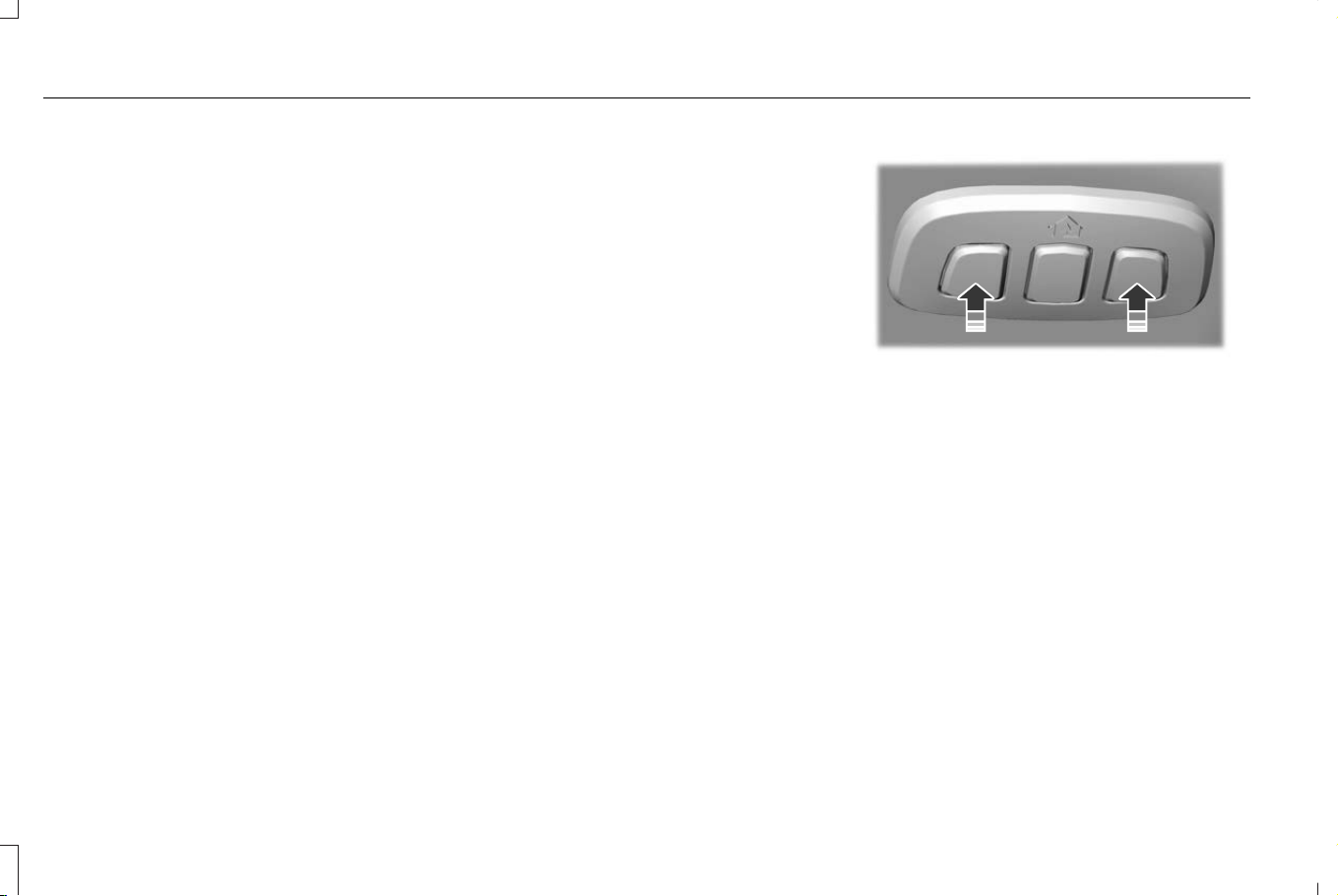
Note: You can program a maximum of three
devices. To change or replace any of the
three devices after they have been initially
programmed, you must either clear all codes,
or reprogram each individual button.
Note: We recommend that upon the sale or
lease termination of your vehicle, you erase
the programmed function buttons for security
reasons.
Reprogramming the Garage Door
Opener
If a button on your garage door opener has
already been programmed, you can override
it. To program a device to a previously
trained button:
1. Press and hold the desired button for
approximately 20 seconds until the
indicator begins to flash.
2. Without releasing the button, proceed to
Step 3 of Programming the Garage Door
Opener to your Handheld Transmitter.
Programming the Garage Door Opener
to your Handheld Transmitter
Note: The programming steps below assume
you are programming a HomeLink that was
not previously programmed. If your
HomeLink was previously programmed, you
may need to clear or reprogram your
HomeLink buttons.
Note: Put a new battery in the handheld
transmitter. This allows for quicker training
and accurate transmission of the
radio-frequency signal.
Note: Make sure that the garage door and
security device are free from obstruction
when you are programming. Do not program
the system with the vehicle in the garage.
E188213
To program your in-vehicle HomeLink
function button with your handheld
transmitter:
1. With your vehicle parked outside of the
garage, switch your vehicle on, but do
not start your vehicle.
2. Press and release one of the three
HomeLink function buttons that you
would like to program.
Note: The indicator should begin to flash. If
the indicator does not flash, press and hold
the function button for 20 seconds until the
indicator begins to flash.
182
Corsair (CTF) Canada/Mexico/United States of America, enUSA, Edition date: 202407, DOM
Garage Door Opener (If Equipped)
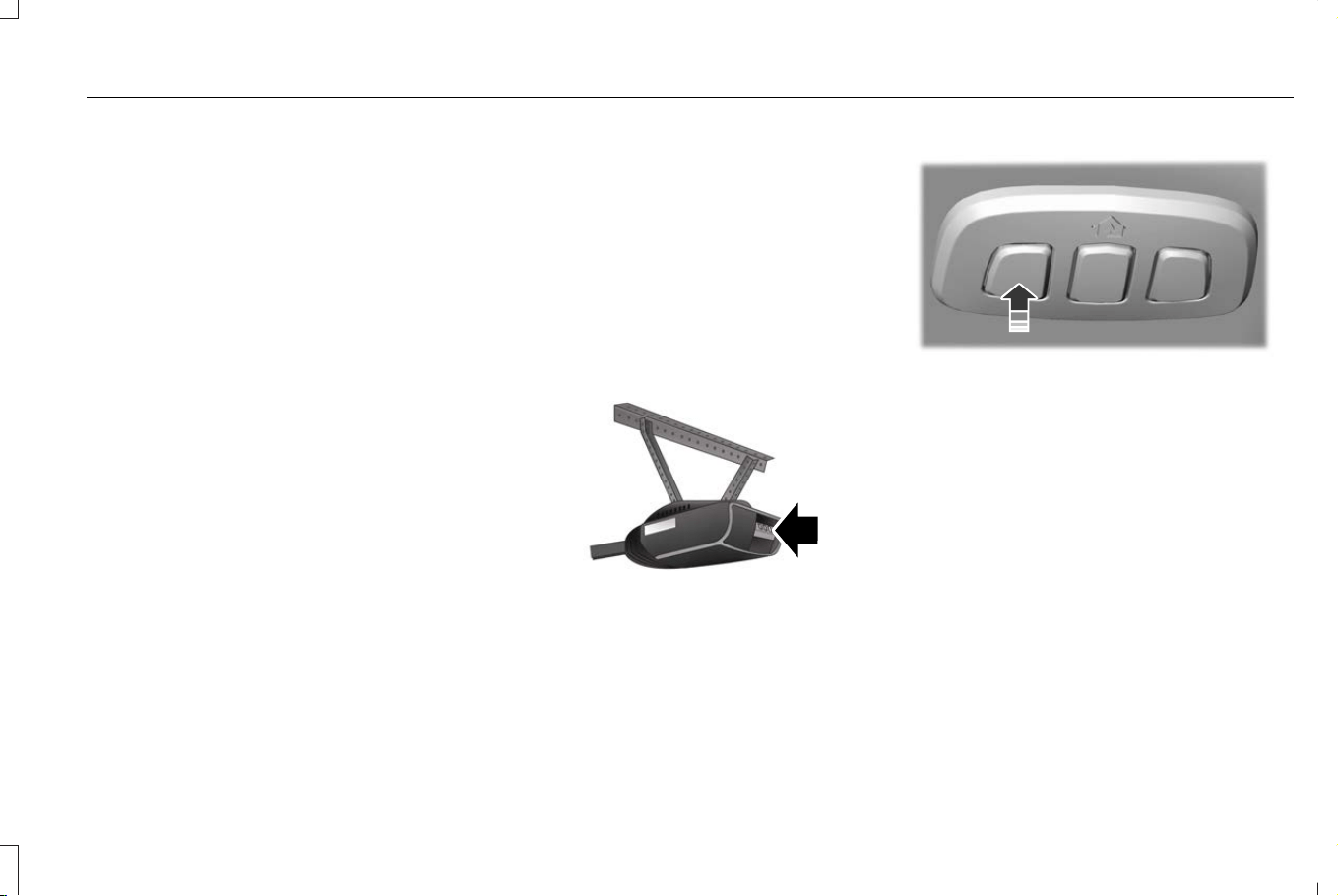
3. Hold your handheld garage door
transmitter 1–3 in (2–8 cm) away from the
HomeLink button you want to program.
4. Press and hold the handheld transmitter
button you want to program while
watching the indicator on HomeLink.
Continue to hold the handheld button
until the HomeLink indicator flashes
rapidly or is continuously on.
Note: You may need to use a different
method if you live in Canada or have
difficulties programming your gate operator
or garage door opener.
5. Press and hold the HomeLink button you
programmed for two seconds, then
release. You may need to do this twice
to activate the door.
Note: If the indicator stays on, the
programming is complete.
Note: If the HomeLink indicator flashes
rapidly, repeat Step 5.
Note: If your device still does not operate,
you must program your garage door.
6. To program additional buttons, repeat
Steps 1–4.
Note: Make sure you keep the original
remote control transmitter for use in other
vehicles as well as for future system
programming.
Programming the Garage Door Opener
to your Garage Door Opener Motor
Note: Make sure that the garage door and
security device are free from obstruction
when you are programming. Do not program
the system with the vehicle in the garage.
E142659
1. Press the learn button on the garage
door opener motor and then you have
30 seconds to complete the next two
steps.
2. Return to your vehicle.
E188212
3. Press and hold one of the three
HomeLink function buttons you want to
program for two seconds, then release.
4. Repeat Step 3. Depending on your brand
of garage door opener, you may need to
repeat this sequence a third time.
183
Corsair (CTF) Canada/Mexico/United States of America, enUSA, Edition date: 202407, DOM
Garage Door Opener (If Equipped)

Programming the Garage Door Opener
to your Gate Opener Motor
Gate Operator / Canadian Programming
Canadian radio-frequency laws require
transmitter signals to time-out (or quit) after
several seconds of transmission – which may
not be long enough for HomeLink to pick up
the signal during programming. Similar to
this Canadian law, some U.S. gate operators
are designed to time-out in the same manner.
Note: If programming a garage door opener
or gate operator, it is advised that you
unplug the device during the cycling process
to prevent possible overheating.
1. Press and release your handheld
transmitter, every two seconds, until the
HomeLink indicator flashes rapidly or is
continuously on.
2. Release the handheld transmitter button.
3. Press and hold the HomeLink function
button you want to program for two
seconds, then release. You may need to
do this twice to activate the door.
Note: If the indicator stays on, the
programming is complete.
Note: If the HomeLink indicator flashes
rapidly, repeat Step 3.
4. To program additional buttons, repeat
Steps 1–4.
GARAGE DOOR OPENER
ADDITIONAL ASSISTANCE
Video Setup Instructions
Universal Garage Door Opener: Homelink
Universal Garage Door Opener: HomeLink
for Genie Intellicode 2 Video Link
Universal Garage Door Opener Homelink
for Genie Intellicode Video Link
Additional assistance can be found online at
www.homelink.com/Ford or by calling the
toll-free help line at 1-800-355-3515.
184
Corsair (CTF) Canada/Mexico/United States of America, enUSA, Edition date: 202407, DOM
Garage Door Opener (If Equipped)
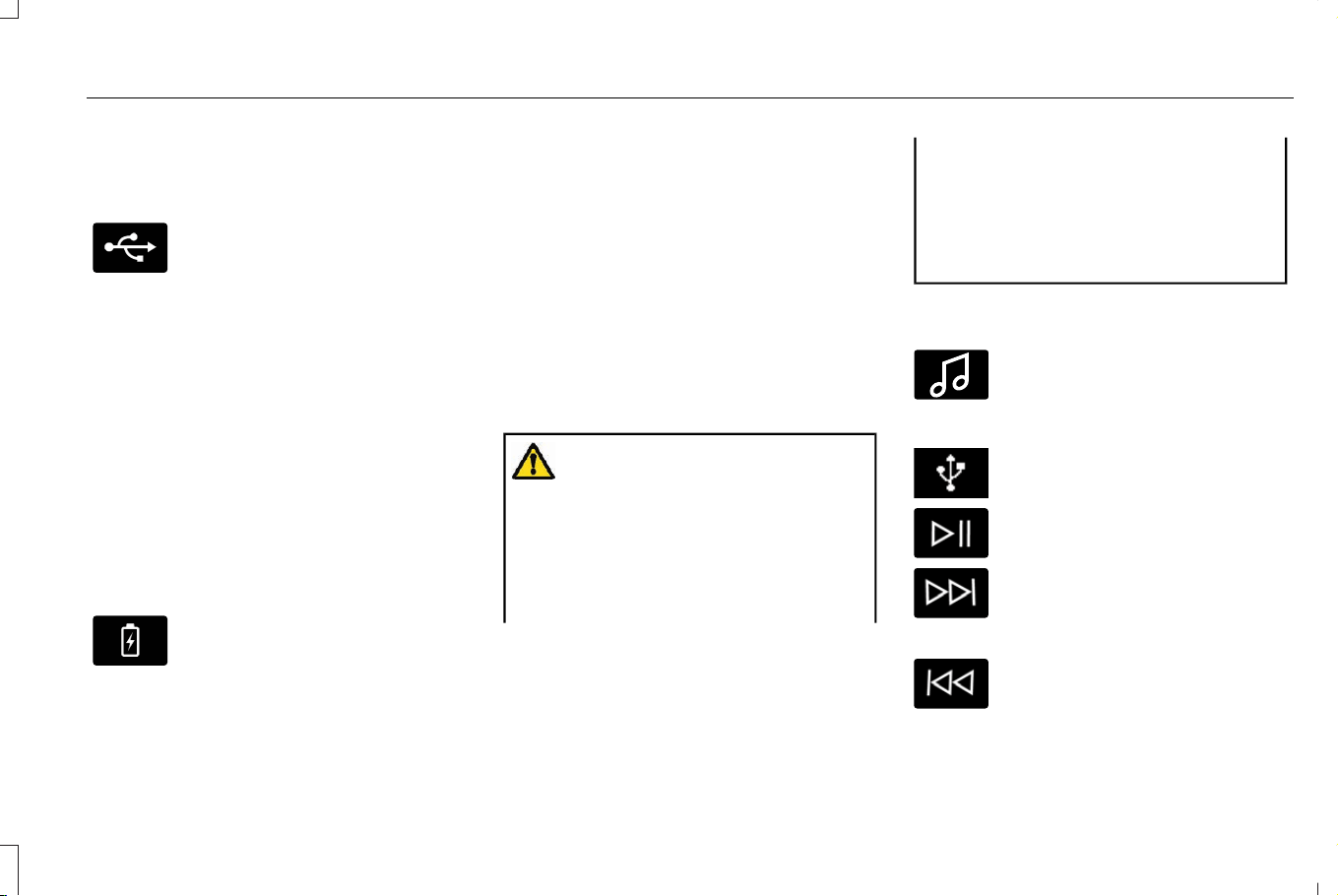
LOCATING THE USB PORTS
Data Transfer USB Ports
E250655
The USB ports could be in the following
locations:
• On the lower instrument panel.
• Inside the center console.
Note: These USB ports can also charge
devices.
Note: Not all USB ports in your vehicle have
data transfer capabilities.
Note: We recommend using only USB-IF
certified cables and adapters. Non-certified
cables and adapters may not work.
Charge Only USB Ports
E263583
The USB ports could be in the following
locations:
• On the lower instrument panel.
• On the upper instrument panel.
• Inside the media bin.
• Inside the center console.
• On the rear of the center console.
• Behind the first row seats.
• In the cargo area.
PLAYING MEDIA USING THE USB
PORT
WARNING: Driving while distracted
can result in loss of vehicle control, crash
and injury. We strongly recommend that
you use extreme caution when using any
device that may take your focus off the
road. Your primary responsibility is the safe
operation of your vehicle. We recommend
against the use of any hand-held device
while driving and encourage the use of
voice-operated systems when possible.
Make sure you are aware of all applicable
local laws that may affect the use of
electronic devices while driving.
Connect your device to a data transfer USB
port.
E100027
Press the audio button on the
feature bar.
Select Sources.
Select the USB option.
Press to play a track. Press again
to pause the track.
Press to skip to the next track.
Press and hold to fast forward
through the track.
Press once to return to the
beginning of a track. Repeatedly
press to return to previous tracks.
185
Corsair (CTF) Canada/Mexico/United States of America, enUSA, Edition date: 202407, DOM
USB Ports

Press and hold to fast rewind.
CHARGING A DEVICE
Connect your device to the USB port.
Data Transfer USB Ports
E250655
You can charge your device through the data
transfer USB port when SYNC is on.
Charge Only USB Ports
E263583
You can charge your device through the
charge only USB port when the vehicle is in
accessory mode or when the vehicle is
running.
186
Corsair (CTF) Canada/Mexico/United States of America, enUSA, Edition date: 202407, DOM
USB Ports
WHAT IS THE POWER OUTLET
The power outlet can power devices using
a 12 V outlet adapter.
POWER OUTLET PRECAUTIONS
WARNING: Do not plug electrical
devices into the power outlets that exceed
the maximum power rating. Incorrect use
of the power outlets can cause damage
not covered by the vehicle warranty, and
can result in fire or personal injury.
When you switch the vehicle on, you can use
the power outlets to power 12 V appliances
with a maximum current rating of 15 A.
To prevent damage to the vehicle's battery:
• Do not use the power outlets over the
vehicle capacity of 12 V DC 180 W or a
fuse could blow.
• Do not plug in any device that supplies
power to the vehicle through the power
outlets. This could result in damage to
vehicle systems.
• Do not hang any accessory from the
accessory plug. Always keep the power
outlets caps closed when not in use.
• Do not insert objects other than an
accessory plug into the power outlets.
To prevent the battery from running out of
charge:
• Do not use the power outlets longer than
necessary when the vehicle is off.
• Do not leave devices plugged in
overnight or when you park your vehicle
for extended periods.
• Using devices for extended periods may
require starting and running the engine
to recharge the battery.
LOCATING THE POWER OUTLETS
Power outlets may be in the following
locations:
• On the lower instrument panel.
• Inside the center console.
• On the front of the center console.
• On the rear of the center console.
• In the cargo area.
• On the passenger side floor panel.
• 3rd row on the quarter trim panels.
187
Corsair (CTF) Canada/Mexico/United States of America, enUSA, Edition date: 202407, DOM
Power Outlet
WHAT IS THE WIRELESS
ACCESSORY CHARGER
The wireless accessory charger allows you
to charge one compatible Qi wireless
charging device on the charging area.
WIRELESS ACCESSORY CHARGER
PRECAUTIONS
WARNING: Wireless charging
devices can affect the operation of
implanted medical devices, including
cardiac pacemakers. If you have any
implanted medical devices, we recommend
that you consult with your physician.
WARNING: Remove all metal objects
like coins and keys from the charging
surface and remove any metal objects
attached to your mobile phone before
placing the device on the charging surface.
Some mobile devices or cases may attract
metal objects. Metal objects on the
charging surface or attached to the phone
may become hot while charging is active.
If an object is left on or near the charging
surface or attached to the phone while the
device is charging, let the objects cool
before removing to prevent personal injury.
Keep the charging area clean and remove
foreign objects prior to charging a device.
Do not place items with a magnetic strip or
radio-frequency identification chip, for
example passports, parking tickets,
transportation passes or credit cards, near
the charging area when charging a device.
Damage could occur to the magnetic strip
or radio-frequency identification chip.
Do not place metal objects, for example
remote controls, coins and candy wrappers,
on or near the charging area when charging
a device. Metal objects may heat up and
degrade the charging performance, in
addition to causing interruptions in charging.
Charging could be interrupted, degraded, or
could stop if any of the following occur:
• The system detects a foreign object.
• The device is misaligned on the charging
area.
• The device moves on the active charging
area when the vehicle is in motion.
• The vehicle ambient temperature is too
high.
• You attempt to charge a non-Qi
compatible device on the wireless
charger.
Note: During charging, the device and the
charger could heat up, this is normal. If the
battery gets hotter than usual, the device
may stop charging.
LOCATING THE WIRELESS
ACCESSORY CHARGER
E297549
The charging area is on the center
console or in the media bin below
the instrument panel.
188
Corsair (CTF) Canada/Mexico/United States of America, enUSA, Edition date: 202407, DOM
Wireless Accessory Charger (If Equipped)
CHARGING A WIRELESS DEVICE
Place the device on the center of the
charging surface with the charging side
down. The charging stops after your device
reaches a full charge.
You can use the charger when the vehicle
is in accessory mode, when the vehicle is
running or when the touchscreen is on.
E263583
Displays on the status bar when
wireless charging is in progress.
Note: The charging performance may be
affected if your device is in a case. It may be
necessary to remove the case to wirelessly
charge your device.
Note: Software and firmware updates may
affect device compatibility, including the use
of unofficial software or firmware. You should
verify charging functionality with your
specific devices in-vehicle.
WIRELESS ACCESSORY CHARGER – TROUBLESHOOTING
WIRELESS ACCESSORY CHARGER – INFORMATION MESSAGES
DescriptionBehaviorMessage
The system stops charging your device if the
system detects the phone is misaligned, or a
foreign metal object is on the charging
surface.
Pop-up window.
Phone misaligned or object between phone
and charger detected. Correct the condition
to resume charging.
189
Corsair (CTF) Canada/Mexico/United States of America, enUSA, Edition date: 202407, DOM
Wireless Accessory Charger (If Equipped)
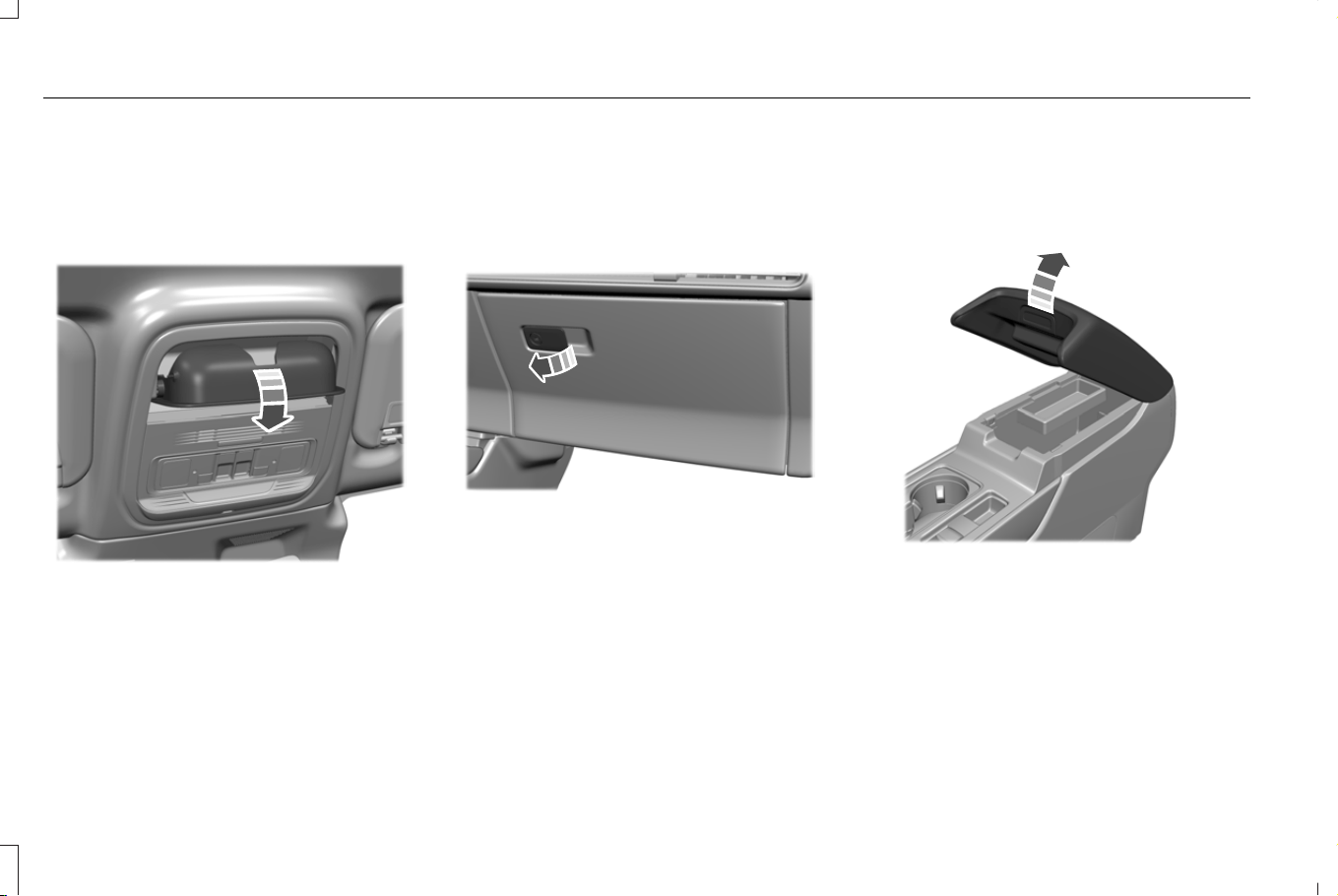
OVERHEAD STORAGE
OPENING THE OVERHEAD STORAGE
COMPARTMENT
E380013
Press near the rear edge of the door to open.
GLOVE COMPARTMENT
OPENING THE GLOVE
COMPARTMENT
E380014
Pull the latch to the left to open.
CENTER CONSOLE
OPENING THE CENTER CONSOLE
E379778
Pull the latch to open the center console.
190
Corsair (CTF) Canada/Mexico/United States of America, enUSA, Edition date: 202407, DOM
Storage
STARTING AND STOPPING THE
ENGINE – PRECAUTIONS
WARNING: Extended idling at high
engine speeds can produce very high
temperatures in the engine and exhaust
system, creating the risk of fire or other
damage.
WARNING: Do not park, idle or drive
your vehicle on dry grass or other dry
ground cover. The emission system heats
up the engine compartment and exhaust
system, creating the risk of fire.
WARNING: Do not start the engine
in a closed garage or in other enclosed
areas. Exhaust fumes are toxic. Always
open the garage door before you start the
engine. Failure to follow this instruction
could result in personal injury or death.
WARNING: Do not use starting fluid,
for example ether, in the air intake system.
Such fluid could cause immediate
explosive damage to the engine and
possible personal injury.
WARNING: Exhaust leaks may result
in entry of harmful and potentially lethal
fumes into the passenger compartment. If
you smell exhaust fumes inside your
vehicle, have your vehicle inspected
immediately. Do not drive if you smell
exhaust fumes.
The powertrain control system meets all
Canadian interference-causing equipment
standard requirements regulating the
impulse electrical field or radio noise.
If you stop your vehicle and leave the engine
idling for long periods, we recommend that
you do one of the following:
• Open the windows at least 1 in (2.5 cm).
• Set your climate control to outside air.
PUSH BUTTON IGNITION SWITCH
E357998
Switching the Ignition Off
When the ignition is on or in accessory mode,
press the push button ignition switch once
without your foot on the brake pedal.
Switching the Ignition to Accessory
Mode
When the ignition is off, press the push
button ignition switch once without your foot
on the brake pedal.
All electrical circuits and accessories are
operational and the warning lamps and
indicators illuminate.
191
Corsair (CTF) Canada/Mexico/United States of America, enUSA, Edition date: 202407, DOM
Starting and Stopping the Engine
Note: Your vehicle has a battery saver
feature that shuts your vehicle off when it
detects a certain amount of battery drain, or
after approximately 30 minutes of inactivity
in accessory mode.
Note: The system may not function if the
passive key is close to metal objects or
electronic devices, for example keys or a
cell phone.
Note: You need a valid passive key inside
your vehicle to switch the ignition on and
start the engine.
STARTING THE ENGINE
STARTING A GASOLINE ENGINE
Before starting your vehicle, check the
following:
• Make sure that the parking brake is on.
• Make sure that the transmission is in park
(P).
1. Fully press the brake pedal.
Note: Do not touch the accelerator pedal.
E357998
2. Press the push button ignition switch.
Note: The engine may continue cranking for
up to 15 seconds or until it starts.
Note: The engine takes longer to start at
lower temperatures. It may crank for several
seconds when very cold.
STARTING A HYBRID ELECTRIC
VEHICLE SYSTEM
Before starting your vehicle, check the
following:
• Make sure the parking brake is on.
• Make sure the transmission is in park (P).
Note: Do not touch the accelerator pedal.
1. Fully press the brake pedal.
E357998
2. Press the push button ignition switch.
E354490
When you start your vehicle, a
green indicator appears in the
instrument cluster letting you know
that your vehicle is ready for driving. Since
your vehicle is equipped with a silent key
start, the engine may not start when your
vehicle starts.
When the engine starts for the first time on
your drive, the idle speed increases, this
helps warm up the engine. If the engine idle
speed does not decrease, have your vehicle
checked by an authorized dealer.
The system does not function if:
• The passive key frequencies are jammed.
• The key battery has no charge.
192
Corsair (CTF) Canada/Mexico/United States of America, enUSA, Edition date: 202407, DOM
Starting and Stopping the Engine
RESTARTING THE ENGINE AFTER
STOPPING IT
The system allows you to start the engine
within 10 seconds of switching it off, even if
it does not detect a valid passive key.
Within 10 seconds of switching the engine
off, fully press the brake pedal and press the
push button ignition switch. After 10 seconds,
you can no longer start the engine if the
system does not detect a valid passive key.
When you start the engine, it remains running
until you press the push button ignition
switch, even if your vehicle does not detect
a valid passive key. If you open and close a
door when the engine is running, the system
searches for a valid passive key.
ENGINE BLOCK HEATER (IF EQUIPPED)
ENGINE BLOCK HEATER
PRECAUTIONS
WARNING: Failure to follow engine
block heater instructions could result in
property damage or serious personal
injury.
WARNING: Do not use your heater
with ungrounded electrical systems or
two-pronged adapters. There is a risk of
electrical shock.
WARNING: Do not fully close the
hood, or allow it to drop under its own
weight when using the engine block
heater. This could damage the power cable
and may cause an electrical short resulting
in fire, injury and property damage.
We recommend that you do the following for
a safe and correct operation:
• Use a 16-gauge outdoor extension cord
that is product certified by Underwriter’ s
Laboratory (UL) or Canadian Standards
Association (CSA). This extension cord
must be suitable for use outdoors, in cold
temperatures, and be clearly marked
Suitable for Use with Outdoor
Appliances. Do not use an indoor
extension cord outdoors. This could
result in an electric shock or become a
fire hazard.
• Use as short an extension cord as
possible.
• Do not use multiple extension cords.
• Make sure that when in operation, the
extension cord plug and engine block
heater cord plug connections are free
and clear of water. This could cause an
electric shock or fire.
• If the engine block heater cord is under
the hood, do not remove the wiring from
its original location. Do not close the
hood on the extension wiring.
193
Corsair (CTF) Canada/Mexico/United States of America, enUSA, Edition date: 202407, DOM
Starting and Stopping the Engine
• Park your vehicle in a clean area, clear
of combustible materials.
• Firmly connect the engine block heater
cord and the extension cord.
• Check the extension cord for heat
anywhere when the system has been
operating for approximately 30 minutes.
• Unplug and properly stow the system
before starting and driving your vehicle.
The protective cover seals the terminals
of the engine block heater cord plug
when not in use.
• Check the engine block heater system
for proper operation before winter.
HOW DOES THE ENGINE BLOCK
HEATER WORK
The engine block heater warms the engine
coolant. This allows the climate control
system to quickly respond. The equipment
includes a heater element installed in the
engine block and a wire harness. You can
connect the system to a grounded 220-240
volt AC electrical source.
Note: The engine block heater is most
effective when outdoor temperatures are
below 0°F (-18°C). We recommend the use
of engine block heater to improve engine
cold start performance.
USING THE ENGINE BLOCK HEATER
Make sure the receptacle terminals are clean
and dry prior to use. Clean them with a dry
cloth if necessary.
The heater uses 0.4 to 1.0 kilowatt-hours of
energy per hour of use. The system does not
have a thermostat. It achieves maximum
temperature after approximately three hours
of operation. Using the engine block heater
longer than three hours does not improve
system performance and unnecessarily uses
electricity.
STOPPING THE ENGINE
STOPPING THE ENGINE WHEN YOUR
VEHICLE IS STATIONARY
1. Shift into park (P).
2. Apply the parking brake.
3. Wait until the engine reaches idle speed.
E357998
4. Press the push button ignition switch.
STOPPING THE ENGINE WHEN YOUR
VEHICLE IS MOVING
WARNING: Switching off the engine
when your vehicle is still moving results in
a significant decrease in braking
assistance. Higher effort is required to
apply the brakes and to stop your vehicle.
A significant decrease in steering
assistance could also occur. The steering
does not lock, but higher effort could be
194
Corsair (CTF) Canada/Mexico/United States of America, enUSA, Edition date: 202407, DOM
Starting and Stopping the Engine

required to steer your vehicle. When you
switch the ignition off, some electrical
circuits, for example airbags, also turn off.
If you unintentionally switch the ignition
off, shift into neutral (N) and restart the
engine.
Only in case of emergency, do the following:
E357998
1. Press and hold the push button ignition
switch until the engine stops, or press it
three times within two seconds.
2. Shift into neutral (N) and use the brakes
to safely bring your vehicle to a complete
stop.
3. Shift into park (P).
4. Apply the parking brake.
AUTOMATIC ENGINE STOP
WHAT IS AUTOMATIC ENGINE STOP
Automatic engine stop is a feature that
switches the engine off if it has been idling
for an extended period to help you save fuel.
HOW DOES AUTOMATIC ENGINE
STOP WORK
Automatic engine stop turns the engine off.
The ignition also turns off in order to save
battery power. Before the engine shuts
down, a message appears in the information
display showing a timer counting down. If
you do not intervene within 30 seconds, the
engine shuts down. Another message
appears in the information display to inform
you that the engine has shut down in order
to save fuel. Start your vehicle as you
normally do.
SWITCHING AUTOMATIC ENGINE
STOP ON AND OFF
1. From the settings menu, press Vehicle.
2. Switch 30min Max Idle on or off.
Note: You cannot permanently switch off
the automatic shutdown. If you switch it off,
it turns on each time you switch the ignition
on.
OVERRIDING AUTOMATIC ENGINE
STOP
You can stop the engine shutdown, or reset
the timer, at any point before the 30-second
countdown has expired by doing any of the
following:
• Pressing the brake pedal or accelerator
pedal.
• Pressing the OK or RESET button during
the countdown.
Note: You cannot permanently switch off
the automatic engine shutdown feature.
When you switch it off temporarily, it turns
on at the next ignition cycle.
195
Corsair (CTF) Canada/Mexico/United States of America, enUSA, Edition date: 202407, DOM
Starting and Stopping the Engine
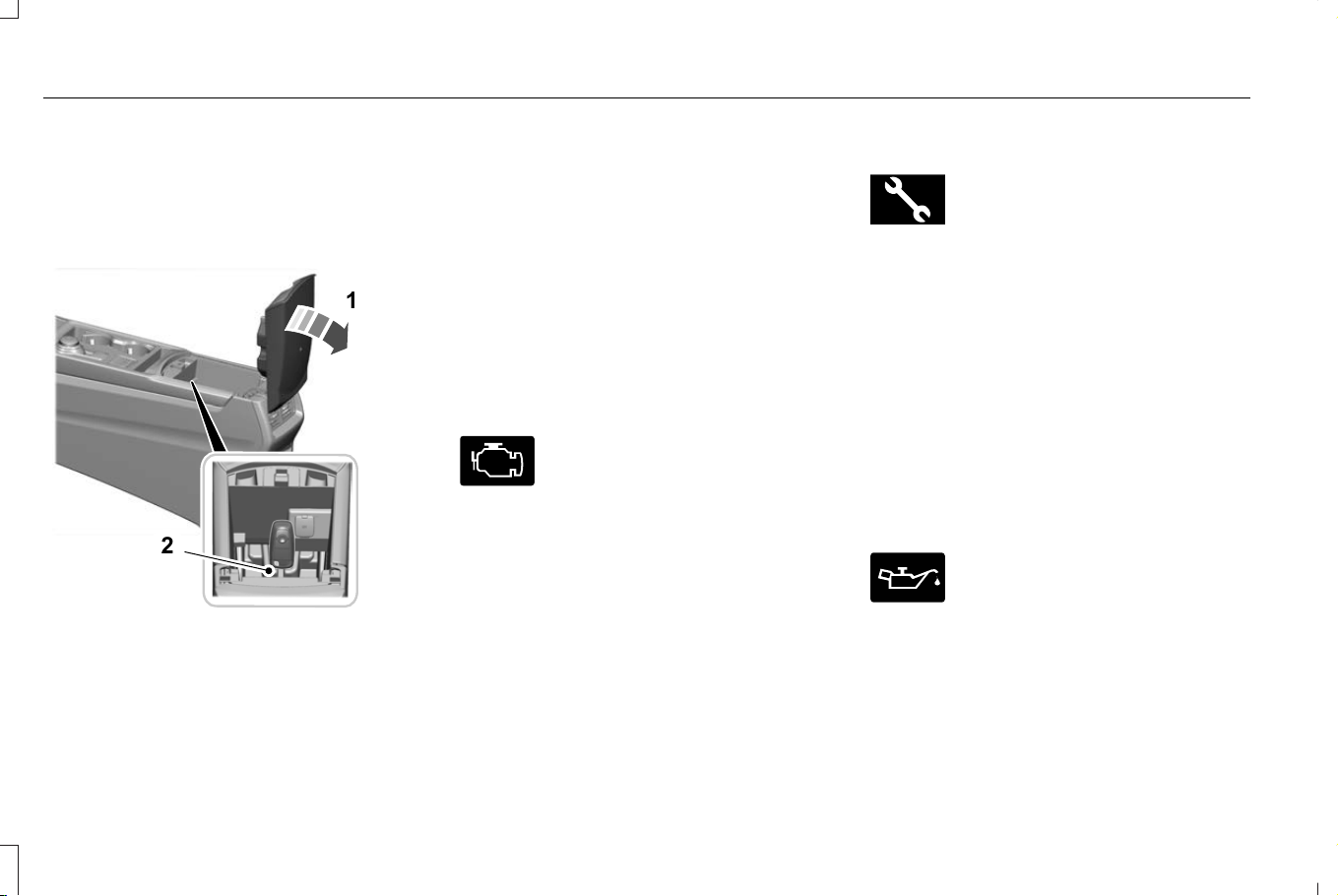
ACCESSING THE PASSIVE KEY
BACKUP POSITION
If you are unable to start your vehicle, do the
following:
E331284
1
2
1. Open the center console lid.
2. With the buttons facing the front of your
vehicle, place the passive key into the
backup slot.
3. With the key in this position, press the
brake pedal, then press the push button
ignition switch to switch the ignition on
and start your vehicle.
STARTING AND STOPPING THE
ENGINE – TROUBLESHOOTING
STARTING AND STOPPING THE
ENGINE – WARNING LAMPS
Malfunction Indicator Lamp
E67028
If it illuminates when the engine is
running, the on-board diagnostics
system is detecting a malfunction
of the vehicle emission control system.
If it flashes, engine misfire could be
occurring. Increased exhaust gas
temperatures could damage the catalytic
converter or other vehicle components.
Avoid heavy acceleration and deceleration,
and have your vehicle checked as soon as
possible.
Powertrain Warning Lamp
E415072
If it illuminates when the engine is
running, this indicates a powertrain
or four-wheel drive fault. If it
flashes when you are driving, immediately
reduce the vehicle speed. Avoid heavy
acceleration and deceleration, and have your
vehicle checked as soon as possible.
If both lamps illuminate when the engine is
running, stop your vehicle as soon as it is
safe to do so. Continuing to drive your
vehicle could cause reduced power or the
engine to stop. Switch the ignition off and
attempt to restart the engine. Have your
vehicle checked as soon as possible.
Oil Pressure Warning Lamp
E67022
It illuminates when you switch the
ignition on. If it illuminates when
the engine is running, this indicates
a malfunction. Stop your vehicle and switch
the engine off. Check the engine oil level.
If the oil level is sufficient, this indicates a
system malfunction. Have your vehicle
checked as soon as possible.
196
Corsair (CTF) Canada/Mexico/United States of America, enUSA, Edition date: 202407, DOM
Starting and Stopping the Engine

STARTING AND STOPPING THE ENGINE – INFORMATION MESSAGES
ActionMessage
Displays if you exceed the starting time limit. You cannot attempt to start the engine for 15 minutes.
If you cannot start the engine after 15 minutes passes, have your vehicle immediately checked.
Cranking Time Exceeded
Displays if you are unable to start your vehicle with a correctly coded key. The system has
detected a fault that requires service. Have your vehicle checked as soon as possible.
Starting System Fault
Displays if the system does not detect a valid passive key.No Key Detected
197
Corsair (CTF) Canada/Mexico/United States of America, enUSA, Edition date: 202407, DOM
Starting and Stopping the Engine

STARTING AND STOPPING THE
ENGINE – FREQUENTLY ASKED
QUESTIONS - GASOLINE
Why is the engine idle speed high
when I start the engine?
• The speed the engine idles immediately
after starting is optimized to minimize
vehicle emissions and maximize cabin
comfort and fuel economy.
Why is the engine not cranking?
The engine will not crank if:
• The system does not detect a valid
passive key.
• The passive key battery has no charge.
• The vehicle battery does not have
sufficient charge.
• The brake pedal is not pressed for
automatic transmissions or the clutch
pedal is not pressed for manual
transmissions.
• The transmission is not in the park (P) or
neutral (N) for automatic transmissions.
• The starting system has been disabled
after multiple attempts of starting the
engine.
What should I do if the starting system
is disabled?
• You can only attempt to start the engine
for a set number of times before the
starting system temporarily disables. If
you exceed the limit, a message may
appear and you need to wait at least 15
minutes to start the engine again.
What should I do if the engine does not
start?
• If you cannot start the engine after three
attempts, wait 10 seconds and do the
following:
1. Fully press the brake pedal for automatic
transmissions or clutch pedal for manual
transmissions.
Note: Make sure that the parking brake is
applied.
Note: Make sure that the transmission is in
park (P) or neutral (N) for automatic
transmissions.
2. Fully press and hold the accelerator
pedal.
3. Press the push button ignition switch.
See Push Button Ignition Switch (page
191).
Note: The engine cranks for a short period
of time and then stops.
4. Release the accelerator pedal.
5. Press the push button ignition switch.
See Push Button Ignition Switch (page
191).
Why do I experience different driving
characteristics?
• If you disconnect the battery, your vehicle
may exhibit some unusual driving
characteristics for about 5 mi (8 km) after
you reconnect it. This is because the
engine management system must realign
itself with the engine. You can disregard
any unusual driving characteristics during
this period.
198
Corsair (CTF) Canada/Mexico/United States of America, enUSA, Edition date: 202407, DOM
Starting and Stopping the Engine

Why does the system not detect a
passive key?
• If the system does not detect a passive
key and you are unable to start the
engine, insert the passive key into the
backup position and press the push
button ignition switch to start the engine.
See Accessing the Passive Key Backup
Position (page 196).
STARTING AND STOPPING THE
ENGINE – FREQUENTLY ASKED
QUESTIONS - PLUG-IN HYBRID
ELECTRIC VEHICLE (PHEV)
Why does the engine not crank?
• When you start your vehicle, a green
indicator light appears in the instrument
cluster letting you know that your vehicle
is ready for driving. Since your vehicle is
equipped with a silent key start, the
engine may not start when your vehicle
starts.
Why is the engine speed high when
the engine first starts?
• When the engine starts for the first time
on your drive, the idle speed increases,
this helps to warm up the engine. If the
engine idle speed does not slow down,
have your vehicle checked by an
authorized dealer.
Why can I not start my vehicle when
the high voltage battery is charged?
• Your vehicle has a high voltage to low
voltage energy transfer feature that
keeps the 12-volt battery charged by the
high voltage battery. However 12-volt
battery depletion can still occur, and in
such case you are unable to start your
vehicle. See 12V Battery (page 424).
Why does the system not detect a
passive key?
• If the system does not detect a passive
key and you are unable to start your
vehicle, insert the passive key into the
backup position and press the push
button ignition switch to start your
vehicle. See Accessing the Passive Key
Backup Position (page 196).
199
Corsair (CTF) Canada/Mexico/United States of America, enUSA, Edition date: 202407, DOM
Starting and Stopping the Engine
PLUG-IN HYBRID ELECTRIC
VEHICLE INFORMATION
A plug-in hybrid electric vehicle combines a
gasoline engine with an electric motor and
rechargeable high voltage battery allowing
you to use electricity to power your vehicle.
Charging your vehicle adds electrical energy
that propels the vehicle, providing extended
electric-only driving range. System conditions
could require the engine to operate while
electric-only range is still available.
Plug-In Hybrid Electric Vehicle Driving
Characteristics
Your plug-in hybrid vehicle shares the driving
characteristics of hybrid electric vehicles with
the addition of extended electric- only driving
range and unique selectable drive modes.
The system maximizes the use of
electric-only operation in normal drive mode.
System conditions could require the engine
to operate, however, the system uses the
available electric range whenever possible.
In Pure EV drive mode, your vehicle typically
uses only electric power. The engine
operates to provide extra power when you
fully press the accelerator pedal. System
conditions may also require the engine to
operate.
Preserve EV drive mode saves the electric
range for later use. If you select this mode
and the battery is at full or near full charge,
it uses some electric-only range to discharge
the battery. This allows the regenerative
braking system to fully operate. If battery
charge is low when this mode is selected the
engine charges the high voltage battery to
provide some electric range for later.
Other drive modes use electric power as
necessary to deliver the selected drive mode
experience. See What Is Drive Mode
Control (page 316).
Plug-In Hybrid Electric Vehicle
Indicators
E293827
When you start your vehicle, a
green ready indicator light appears
in the instrument cluster letting you
know that your vehicle is ready for driving.
The engine may not start because your
vehicle has a silent key start feature. This
fuel saving feature allows your vehicle to be
ready to drive without requiring the gas
engine to be running.
The indicator remains on when your vehicle
is on, whether the engine is running or not,
to indicate your vehicle is capable of
movement using the electric motor, gas
engine or both.
Typically, the engine does not start unless
the vehicle is cold, a climate control change
is requested or you press the accelerator
pedal.
Plug-In Hybrid Electric Vehicle
Information – Warning Lamps
E384927
Illuminates if your vehicle's
electrical system requires service
to identify the cause for your
vehicle to shut down or enter a limited
operating mode. A message may appear in
the instrument cluster display. Have your
vehicle checked as soon as possible.
200
Corsair (CTF) Canada/Mexico/United States of America, enUSA, Edition date: 202407, DOM
Plug-In Hybrid Electric Vehicle Information - Plug-In Hybrid Electric Vehicle (PHEV)

Plug-In Hybrid Electric Vehicle
Information – Information Messages
DetailsMessage
Your vehicle needs
confirmation it is
unplugged before
allowing a start.
Check to make sure
you unplugged your
vehicle and then
respond to the
message prompt
before starting your
vehicle.
Vehicle Plugged In ?
Yes No
Your vehicle detects
it is still plugged in
after you attempt to
start it.
Unplug Prior to
Starting Vehicle
Your vehicle enables
the engine due to
the climate control
defrost setting. This
is normal operation.
Engine Enabled Due
to Defrost Setting
DetailsMessage
For full defrost heat,
select a drive mode
other than Pure EV.
The engine may run
to provide more
cabin heat.
Change Drive Mode
for Full Defrost
Your vehicle enables
the engine for
system performance.
This is normal opera-
tion.
Engine Enabled for
System Performance
Displays when a
malfunction occurs
in the high voltage
electric system.
Stop your vehicle as
soon as it is safe to
do so. Have your
vehicle checked as
soon as possible.
Stop Safely Now
LOW ENGINE USE MODE
Low engine use mode maintains proper
engine lubrication at sufficient temperature
and activates when you drive your vehicle
with limited engine operation.
When in low engine use mode, your vehicle
runs the engine as necessary. When low
engine use mode begins, a message appears
in the information display. If low engine use
mode does not complete before you switch
your vehicle off, it continues the next time
you start your vehicle and the message
reappears.
Note: Pure EV now mode is not available
when in low engine use mode.
Note: Cold temperatures affect the engine
warm up time and the low engine use mode
may operate more frequently.
Note: An oil change is not required but gives
you the option of not running a low engine
use cycle. Resetting the oil life monitoring
system suspends the low engine use mode.
201
Corsair (CTF) Canada/Mexico/United States of America, enUSA, Edition date: 202407, DOM
Plug-In Hybrid Electric Vehicle Information - Plug-In Hybrid Electric Vehicle (PHEV)

POWER FLOW
The power flow shows how power is being
used in the vehicle and also displays reasons
for engine operation.
E304437
The power flow information for
your plug-in hybrid vehicle is
available through the Home screen
or under Apps.
Vehicle Operational States
Power flows to or from the front and rear
wheels depending on operational state and
driving conditions.
• Idling: The vehicle is running and in park
(P). The engine and, or the high voltage
battery are on.
• Electric driving: The vehicle is running
and in drive (D) or neutral (N). The high
voltage battery provides power to the
wheels.
• Hybrid driving: The vehicle is running and
in drive (D) or neutral (N). The engine and
the high voltage battery provide power
to the wheels.
• Regenerative braking: The vehicle is
running in drive (D) and is slowing down.
The regenerative braking system
captures power and sends it back to the
high voltage battery.
• Charging: The vehicle is plugged in and
the high voltage battery is being charged.
Engine On Due To
The following conditions help explain why
the engine is on and what you can do to
allow all electric operation.
• Drive power: The engine is on due to
accelerator pedal pressure or speed
control activation. Reduce pressure on
the accelerator pedal or switch off the
speed control to return to full electric
mode.
• High speed: The engine is on because
the vehicle speed exceeds the level for
full electric operation. Reduce the speed
to return to electric operation.
• Heater setting: The engine is on because
of the heater setting. Reduce or switch
off the heater setting to return to electric
operation.
• Neutral gear: The engine is on because
the vehicle is in neutral (N). Shift out of
neutral gear to return to electric
operation.
• Engine cold: The engine is on because
it is cold. The vehicle returns to electric
operation once the engine is sufficiently
warm.
• Battery charging: The engine is on to
charge the high voltage battery. The
vehicle returns to electric operation once
the battery is sufficiently charged.
• Low gear: The engine is on because the
vehicle is in low (L). Shift out of low (L) to
return to electric operation.
• Normal operation: The engine is on to
optimize vehicle operation. The vehicle
returns to electric operation when
possible.
• Low use: The engine is on to maintain
engine oil quality. The vehicle returns to
electric operation when low engine use
mode is complete. See Low Engine Use
Mode (page 201).
202
Corsair (CTF) Canada/Mexico/United States of America, enUSA, Edition date: 202407, DOM
Plug-In Hybrid Electric Vehicle Information - Plug-In Hybrid Electric Vehicle (PHEV)

• Engine braking active: The engine is on
to provide increased powertrain braking.
This can occur when you turn on the
grade assist feature, when speed control
is on or when driving with your foot off
the accelerator pedal. Turning off grade
assist or speed control may allow the
vehicle to return to electric operation.
• Battery temperature: The engine is on
due to high or low high voltage battery
temperature. This is a normal operating
condition. The vehicle returns to electric
operation when possible.
• Drive mode: The engine is on due to the
drive mode selection. Select an
appropriate drive mode for electric only
operation.
203
Corsair (CTF) Canada/Mexico/United States of America, enUSA, Edition date: 202407, DOM
Plug-In Hybrid Electric Vehicle Information - Plug-In Hybrid Electric Vehicle (PHEV)
WHAT IS AUTO-START-STOP
The system is designed to help reduce fuel
consumption and CO
2
emissions by stopping
the engine when it is idling, for example at
traffic lights.
AUTO-START-STOP PRECAUTIONS
WARNING: Apply the parking brake,
shift into park (P), switch the ignition off
and remove the key before you leave your
vehicle. Failure to follow this instruction
could result in personal injury or death.
WARNING: Apply the parking brake,
shift into park (P), switch the ignition off
and remove the key before you open the
hood or have any service or repair work
completed. If you do not switch the ignition
off, the engine could restart at any time.
Failure to follow this instruction could result
in personal injury or death.
SWITCHING AUTO-START-STOP
ON AND OFF
The system turns on when you switch the
ignition on.
E121377
Press the button to switch the
system off.
Note: OFF illuminates in the switch.
Note: Deactivating the system using the
button lasts only one key cycle.
Press the button again to switch the system
back on.
Note: The system turns off if it detects a
malfunction. If the system malfunctions,
have your vehicle checked as soon as
possible.
STOPPING THE ENGINE
Stop your vehicle, keep your foot on the
brake pedal and the transmission in drive
(D).
RESTARTING THE ENGINE
Release the brake pedal or press the
accelerator pedal.
A message appears in the instrument cluster
display if the system requires you to take
action.
AUTO-START-STOP INDICATORS
WARNING: The system may require
the engine to automatically restart when
the auto-start-stop indicator illuminates
green or flashes amber. Failure to follow
this instruction could result in personal
injury.
E121377
The auto-start-stop indicator
illuminates green when the engine
stops. It flashes amber and a
message appears when you need to take
action.
204
Corsair (CTF) Canada/Mexico/United States of America, enUSA, Edition date: 202407, DOM
Auto-Start-Stop - Gasoline
E146361
The auto-start-stop indicator
illuminates gray with a
strikethrough when the system is
not available.
AUTO-START-STOP –
TROUBLESHOOTING
AUTO-START-STOP – INFORMATION
MESSAGES
A message appears in the instrument cluster
display if the system requires you to take
action.
ActionConditionMessage
Press the brake pedal to restart the engine.The system needs to restart the engine but
requires your confirmation.
Auto StartStop Press Brake to Start Engine
Press the brake pedal or the accelerator pedal
to restart the engine.
The system needs to restart the engine but
requires your confirmation.
Auto StartStop Press a Pedal to Start Engine
205
Corsair (CTF) Canada/Mexico/United States of America, enUSA, Edition date: 202407, DOM
Auto-Start-Stop - Gasoline

AUTO-START-STOP – FREQUENTLY
ASKED QUESTIONS
Why does the engine not always stop
when I expect it to?
The system is designed to work in a way that
complements other vehicle systems, allowing
them to operate at optimum performance.
The system does not stop the engine if:
• The driver door is open.
• Your vehicle is at high altitude.
• The heated windshield is on.
• The engine is warming up.
• The outside temperature is too low or
too high.
• The battery charge is low.
• The battery temperature is outside the
optimal operating range.
• The engine is required to run to maintain
interior climate and reduce fogging.
Why does the engine sometimes
restart when I do not expect it to?
The system is designed to work in a way that
complements other vehicle systems, allowing
them to operate at optimum performance.
The system restarts the engine if:
• You switch the heated windshield on.
• You switch maximum defrost on.
• Your vehicle starts to roll downhill in
neutral.
• The engine is required to run to maintain
adequate brake system assistance.
• The engine is required to run to maintain
interior climate and reduce fogging.
Can I permanently switch the system
off?
No. The system plays an important role in
reducing the fuel consumption and the CO
2
emissions.
Will the frequent engine starts cause
parts to wear out?
Your vehicle has an enhanced battery and
starter motor that are designed for the
increased number of engine starts.
206
Corsair (CTF) Canada/Mexico/United States of America, enUSA, Edition date: 202407, DOM
Auto-Start-Stop - Gasoline
FUEL AND REFUELING
PRECAUTIONS
WARNING: Fuels can cause serious
injury or death if misused or mishandled.
WARNING: Fuel may contain
benzene, which is a cancer-causing agent.
WARNING: Read and follow all the
instructions on the pump island.
WARNING: When refueling always
shut the engine off and never allow sparks
or open flames near the fuel tank filler
valve. Never smoke or use a cell phone
while refueling. Fuel vapor is extremely
hazardous under certain conditions. Avoid
inhaling excess fumes.
Follow these guidelines when refueling:
• Extinguish all smoking materials and any
open flames before refueling your
vehicle.
• Switch the engine off before refueling.
• Automotive fuels can be harmful or fatal
if swallowed. Fuel is highly toxic and if
swallowed can cause death or permanent
injury. If fuel is swallowed immediately
call a physician, even if no symptoms are
immediately apparent. The toxic effects
of fuel may not be apparent for hours.
• Avoid inhaling fuel vapors. Inhaling fuel
vapor can lead to eye and respiratory
tract irritation. In severe cases, excessive
or prolonged breathing of fuel vapor can
cause serious illness and permanent
injury.
• Avoid getting fuel in your eyes. If you
splash fuel in your eyes, immediately
remove contact lenses, if worn, flush with
water for 15 minutes and seek medical
attention. Failure to seek proper medical
attention could lead to permanent injury.
• Fuels can be harmful if absorbed through
the skin. If you splash fuel on your skin,
clothing or both, promptly remove
contaminated clothing and thoroughly
wash your skin with soap and water.
Repeated or prolonged skin contact
causes skin irritation.
• Be particularly careful if you are taking
Antabuse or other forms of Disulfiram for
the treatment of alcoholism. Breathing
fuel vapors could cause an adverse
reaction, serious personal injury or
sickness. Immediately call a physician if
you experience any adverse reactions.
207
Corsair (CTF) Canada/Mexico/United States of America, enUSA, Edition date: 202407, DOM
Fuel and Refueling
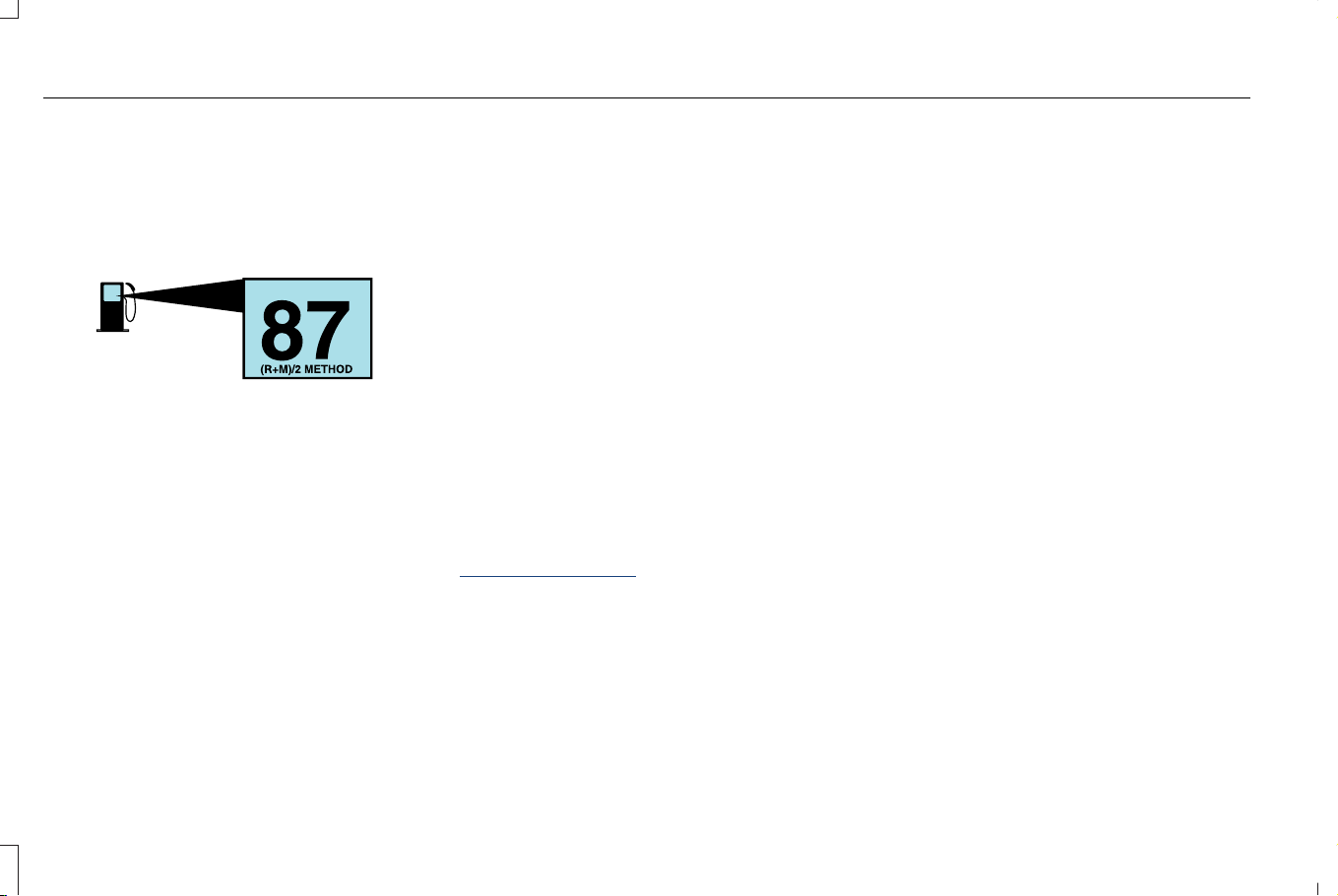
FUEL QUALITY
SELECTING THE CORRECT FUEL
E161513
Your vehicle operates on regular unleaded
gasoline with a minimum pump (R+M)/2
octane rating of 87.
Some fuel stations, particularly those in high
altitude areas, offer fuels posted as regular
unleaded gasoline with an octane rating
below 87. The use of these fuels could result
in engine damage that will not be covered
by the vehicle Warranty.
For best overall vehicle and engine
performance, premium fuel with an octane
rating of 91 or higher is recommended. The
performance gained by using premium fuel
is most noticeable in hot weather as well as
other conditions, for example when towing
a trailer. See Towing a Trailer (page 363).
Do not be concerned if the engine
sometimes knocks lightly. However, if the
engine knocks heavily while using fuel with
the recommended octane rating, contact an
authorized dealer to prevent any engine
damage.
We recommend Top Tier detergent
gasolines, where available to help minimize
engine deposits and maintain optimal vehicle
and engine performance.
For additional information, visit
www.toptiergas.com.
Note: Use of any fuel for which the vehicle
was not designed can impair the emission
control system, cause loss of vehicle
performance, and cause damage to the
engine which may not be covered by the
vehicle Warranty.
Do not use:
• Diesel fuel.
• Fuels containing kerosene or paraffin.
• Fuel containing more than 15% ethanol
(E15) or E85 fuel.
• Fuels containing methanol.
• Fuels containing metallic-based additives,
including manganese-based compounds.
• Fuels containing the octane booster
additive, methylcyclopentadienyl
manganese tricarbonyl (MMT).
• Leaded fuel, using leaded fuel is
prohibited by law.
The use of fuels with metallic compounds
such as methylcyclopentadienyl manganese
tricarbonyl, which is a manganese-based fuel
additive, will impair engine performance and
affect the emission control system.
LOCATING THE FUEL FILLER
FUNNEL
The fuel filler funnel is under the luggage
compartment floor covering.
208
Corsair (CTF) Canada/Mexico/United States of America, enUSA, Edition date: 202407, DOM
Fuel and Refueling
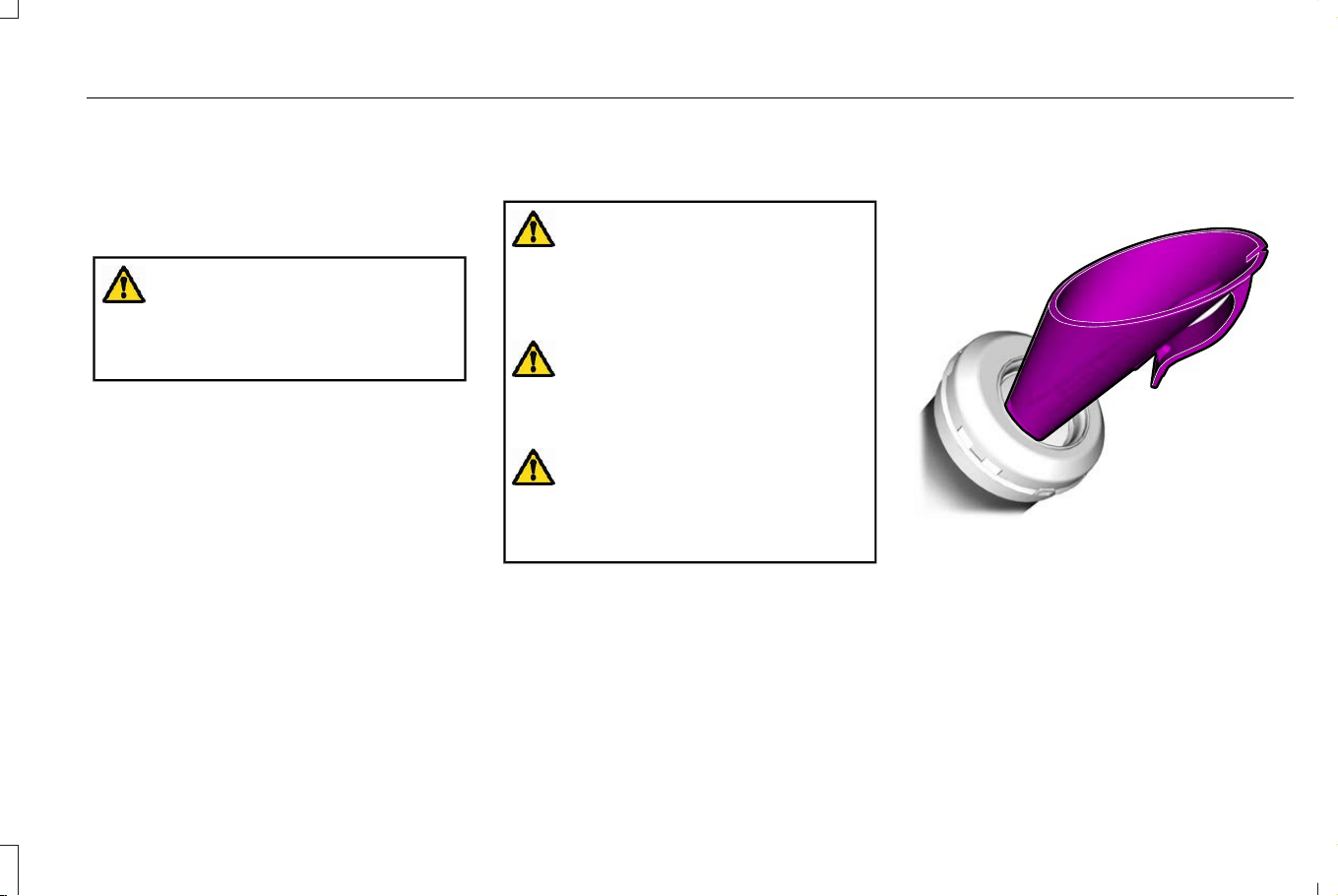
RUNNING OUT OF FUEL
FILLING A PORTABLE FUEL
CONTAINER
WARNING: Flow of fuel through a
fuel pump nozzle can produce static
electricity. This can cause a fire if you are
filling an ungrounded fuel container.
Use the following guidelines to avoid
electrostatic charge build-up, which can
produce a spark, when filling an ungrounded
fuel container:
• Only use an approved fuel container to
transfer fuel to your vehicle. Place the
container on the ground when filling it.
• Do not fill a fuel container when it is
inside your vehicle (including the cargo
area).
• Keep the fuel pump nozzle in contact
with the fuel container when filling it.
• Do not use a device that holds the fuel
pump nozzle lever in the fill position.
ADDING FUEL FROM A PORTABLE
FUEL CONTAINER
WARNING: Do not insert the nozzle
of a fuel container or an aftermarket funnel
into the fuel filler neck. This may damage
the fuel system filler neck or its seal and
cause fuel to run onto the ground.
WARNING: Do not pry open the fuel
tank filler valve. This could damage the fuel
system. Failure to follow this instruction
could result in fire, personal injury or death.
WARNING: Do not dispose of fuel in
the household refuse or the public sewage
system. Use an authorized waste disposal
facility.
When refueling the vehicle fuel tank from a
fuel container, use the fuel filler funnel
included with your vehicle. See Locating
the Fuel Filler Funnel (page 208).
Note: Do not use aftermarket funnels as they
may not work with the capless fuel system
and can damage it.
When refueling the vehicle fuel tank from a
fuel container, do the following:
1. Fully open the fuel filler door.
E157452
2. Fully insert the fuel filler funnel into the
fuel filler inlet.
3. Add fuel to your vehicle from the fuel
container.
4. Remove the fuel filler funnel.
5. Fully close the fuel filler door.
209
Corsair (CTF) Canada/Mexico/United States of America, enUSA, Edition date: 202407, DOM
Fuel and Refueling
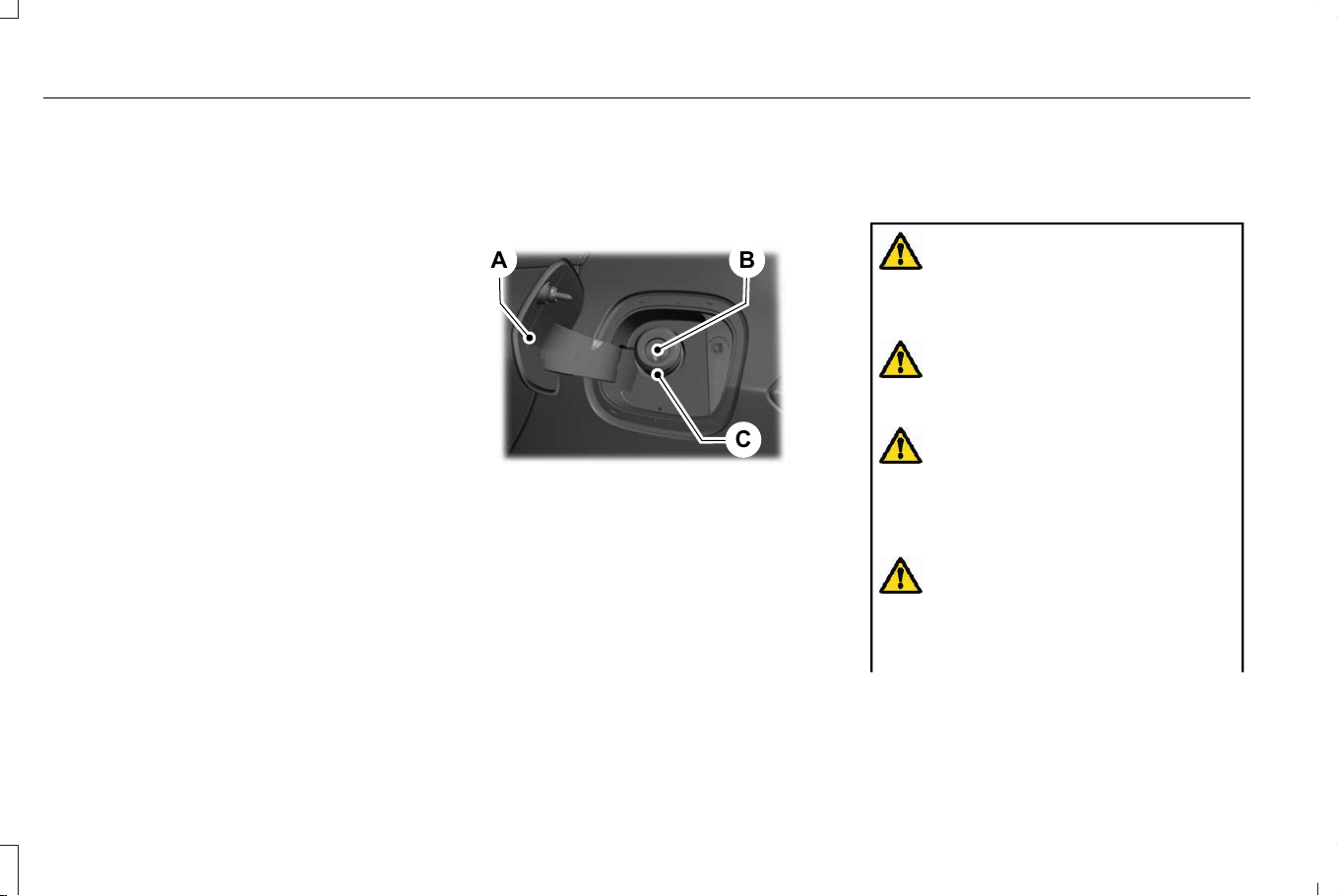
6. Clean the fuel filler funnel and place it
back in your vehicle or correctly dispose
of it.
Note: If your vehicle runs out of fuel add a
minimum of 1.3 gal (5 L) of fuel to restart the
engine.
Note: You may need to switch the ignition
from off to on several times after refueling
to allow the fuel system to pump the fuel
from the tank to the engine. When restarting,
cranking time takes a few seconds longer
than normal.
Note: Extra funnels can be purchased from
an authorized dealer if you choose to
dispose of the funnel.
REFUELING
REFUELING SYSTEM OVERVIEW
E267248
B
C
A
Fuel filler door.A
Fuel filler inlet.B
Fuel tank filler pipe.C
REFUELING YOUR VEHICLE -
EXCLUDING: PLUG-IN HYBRID
ELECTRIC VEHICLE (PHEV)
WARNING: Do not pry open the fuel
tank filler valve. This could damage the fuel
system. Failure to follow this instruction
could result in fire, personal injury or death.
WARNING: Do not remove the fuel
pump nozzle from its fully inserted position
when refueling.
WARNING: Stop refueling when the
fuel pump nozzle automatically shuts off
for the first time. Failure to follow this will
fill the expansion space in the fuel tank and
could lead to fuel overflowing.
WARNING: Do not overfill the fuel
tank. The pressure in an overfilled tank
may cause leakage and lead to fuel spray
and fire.
210
Corsair (CTF) Canada/Mexico/United States of America, enUSA, Edition date: 202407, DOM
Fuel and Refueling
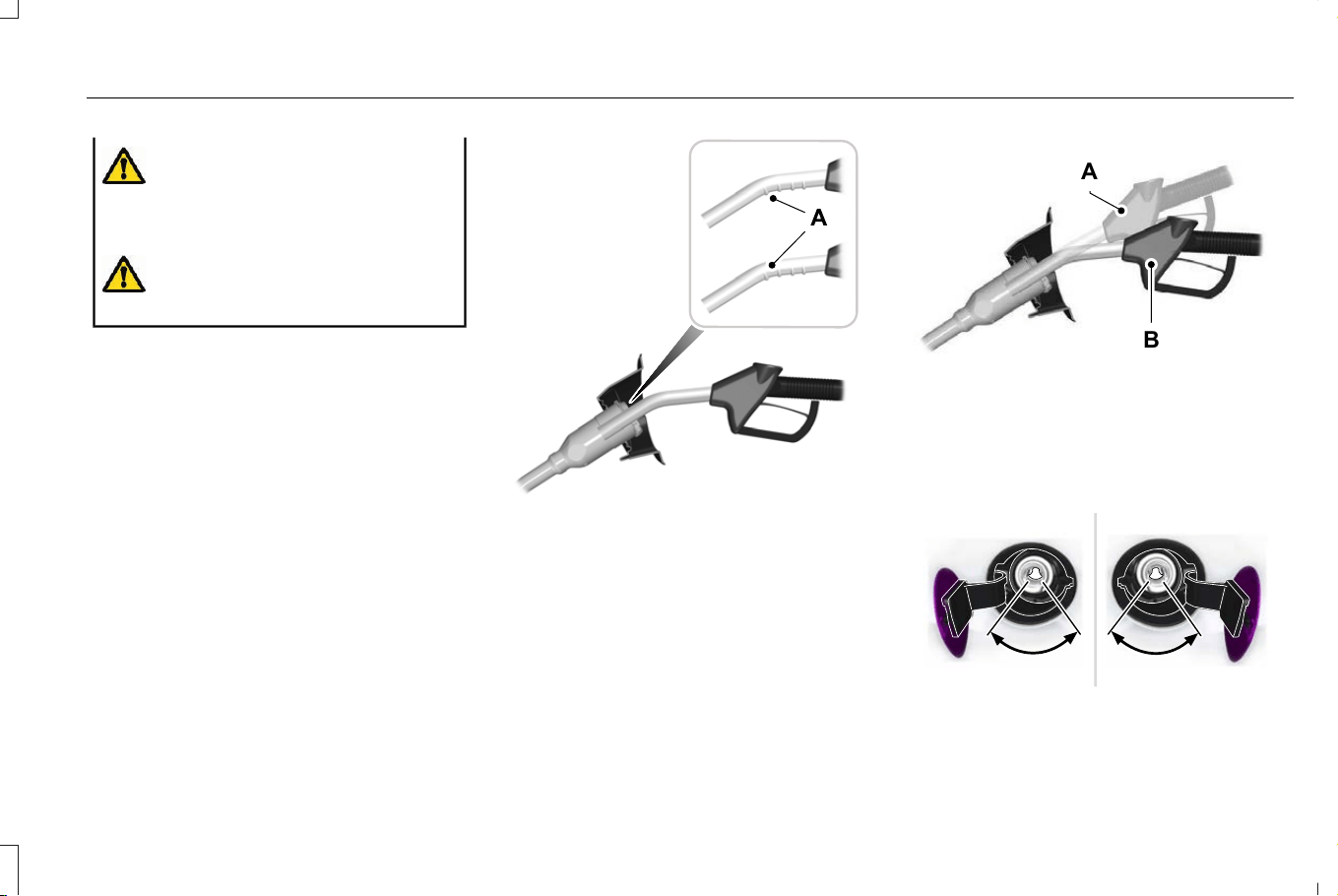
WARNING: Wait at least five seconds
before removing the fuel pump nozzle to
allow any residual fuel to drain into the fuel
tank.
WARNING: Read and follow all the
instructions on the pump island.
1. Fully open the fuel filler door.
2. Select the correct fuel pump nozzle for
your vehicle.
E139202
3. Insert the fuel pump nozzle up to the first
notch on the nozzle A. Keep the fuel
pump nozzle resting on the fuel tank filler
pipe.
E139203
A
B
4. Hold the fuel pump nozzle in position B
when refueling. Holding the fuel pump
nozzle in position A can affect the flow
of fuel and shut off the fuel pump nozzle
before the fuel tank is full.
E337395
5. Operate the fuel pump nozzle within the
area shown.
211
Corsair (CTF) Canada/Mexico/United States of America, enUSA, Edition date: 202407, DOM
Fuel and Refueling
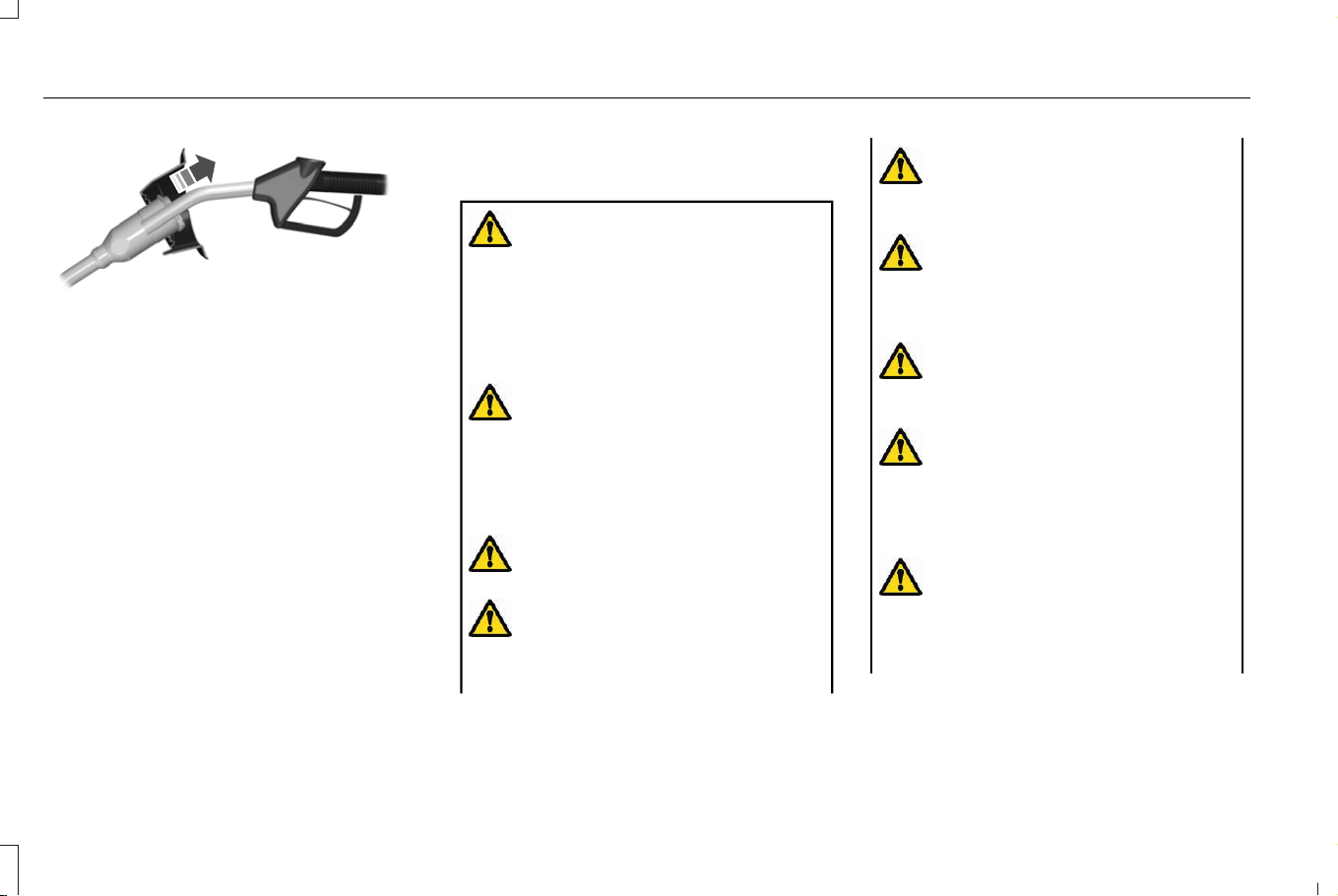
E119081
6. When the nozzle shuts off, wait at least
5 seconds, then slightly raise the fuel
pump nozzle and slowly remove it.
7. Fully close the fuel filler door.
Do not attempt to start the engine if you have
filled the fuel tank with incorrect fuel.
Incorrect fuel use could cause damage not
covered by the vehicle Warranty. Have your
vehicle immediately checked.
REFUELING YOUR VEHICLE - PLUG-IN
HYBRID ELECTRIC VEHICLE (PHEV)
WARNING: When refueling always
shut the engine off and never allow sparks
or open flames near the fuel tank filler
valve. Never smoke or use a cell phone
while refueling. Fuel vapor is extremely
hazardous under certain conditions. Avoid
inhaling excess fumes.
WARNING: The fuel system may be
under pressure. If you hear a hissing sound
near the fuel filler inlet, do not refuel until
the sound stops. Otherwise, fuel may spray
out, which could cause serious personal
injury.
WARNING: Fuel vapor burns violently
and a fuel fire can cause severe injuries.
WARNING: Keep children away from
the fuel pump. Never let children pump
fuel.
WARNING: Stay outside your vehicle
and do not leave the fuel pump unattended
when refueling your vehicle.
WARNING: Do not pry open the fuel
tank filler valve. This could damage the fuel
system. Failure to follow this instruction
could result in fire, personal injury or death.
WARNING: Do not remove the fuel
pump nozzle from its fully inserted position
when refueling.
WARNING: Stop refueling when the
fuel pump nozzle automatically shuts off
for the first time. Failure to follow this will
fill the expansion space in the fuel tank and
could lead to fuel overflowing.
WARNING: Do not overfill the fuel
tank. The pressure in an overfilled tank
may cause leakage and lead to fuel spray
and fire.
212
Corsair (CTF) Canada/Mexico/United States of America, enUSA, Edition date: 202407, DOM
Fuel and Refueling
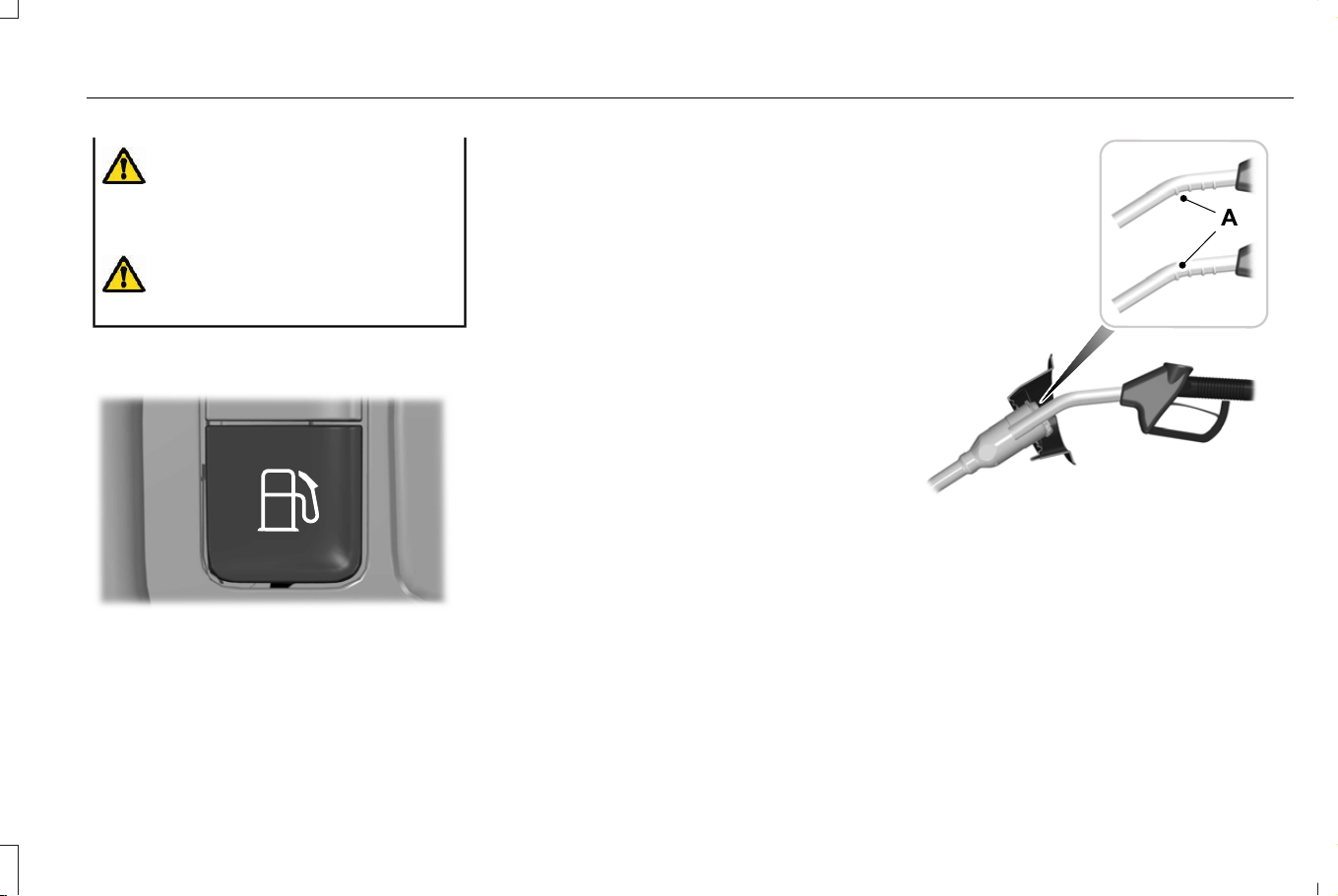
WARNING: Wait at least five seconds
before removing the fuel pump nozzle to
allow any residual fuel to drain into the fuel
tank.
WARNING: Read and follow all the
instructions on the pump island.
1. When you stop your vehicle, shift into
park (P) and switch the ignition off.
E293006
2. Press the button on the instrument panel
next to the headlamp switch to open the
fuel filler door. The fuel filler door can
take up to 15 seconds to open before you
can insert a fuel filler nozzle.
Note: Avoid pressing the button and
blocking the fuel filler door at the same time.
If an issue occurs, press the fuel filler door
open button again to reset the fuel filler door
lock mechanism.
Note: Do not pry open the fuel filler door as
it can cause damage to your vehicle not
covered by the vehicle Warranty.
E139202
3. Insert the fuel pump nozzle up to the first
notch on the nozzle A. Keep it resting
on the cover of the fuel tank filler pipe
opening.
213
Corsair (CTF) Canada/Mexico/United States of America, enUSA, Edition date: 202407, DOM
Fuel and Refueling
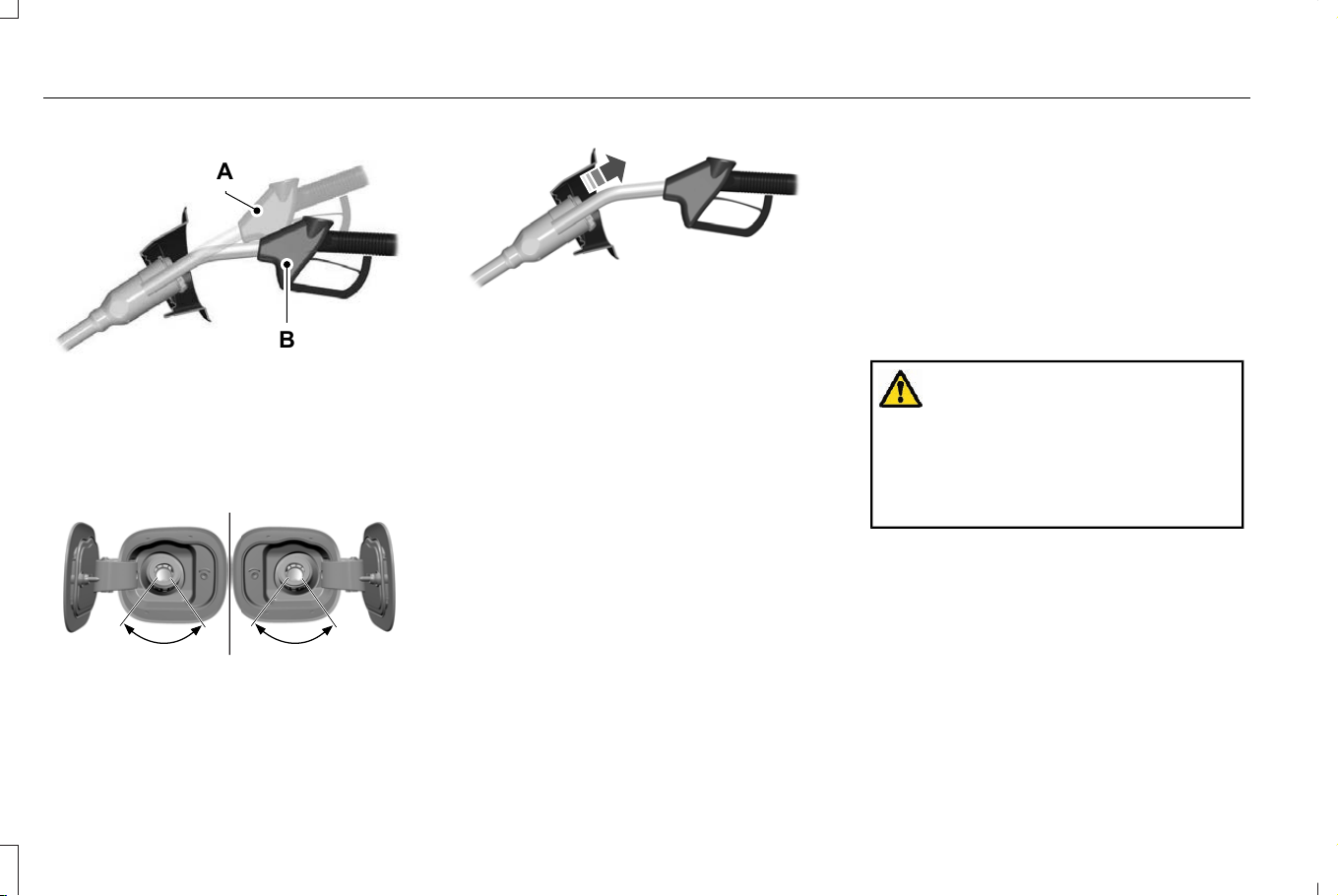
E139203
A
B
4. Hold the fuel pump nozzle in position B
when refueling. Holding the fuel pump
nozzle in position A can affect the flow
of fuel and shut off the fuel pump nozzle
before the fuel tank is full.
E337454
5. Operate the fuel pump nozzle within the
area shown.
E119081
6. When the nozzle shuts off, wait at least
5 seconds, then slightly raise the fuel
pump nozzle and slowly remove it.
7. Close the fuel filler door.
Note: To close the fuel filler door, press the
center rear edge of the fuel filler door and
then release.
Note: Leaving the fuel door open could set
a check engine lamp. See Fuel and
Refueling – Troubleshooting (page 217).
Complete the refueling process within 20
minutes. If 20 minutes elapses, press the
button on the instrument panel again. Fuel
pump nozzle automatic shut off could occur
if you do not press the button on the
instrument panel.
Do not attempt to start the engine if you have
filled the fuel tank with incorrect fuel.
Incorrect fuel use could cause damage not
covered by the vehicle Warranty. Have your
vehicle immediately checked.
MANUALLY OPENING THE FUEL
FILLER DOOR - PLUG-IN HYBRID
ELECTRIC VEHICLE (PHEV)
WARNING: The fuel system may be
under pressure. If you hear a hissing sound
near the fuel filler inlet, do not refuel until
the sound stops. Otherwise, fuel may spray
out, which could cause serious personal
injury.
Note: The transmission must be in park (P)
or neutral (N).
When using the manual override cable do
the following:
1. Switch the ignition on.
214
Corsair (CTF) Canada/Mexico/United States of America, enUSA, Edition date: 202407, DOM
Fuel and Refueling
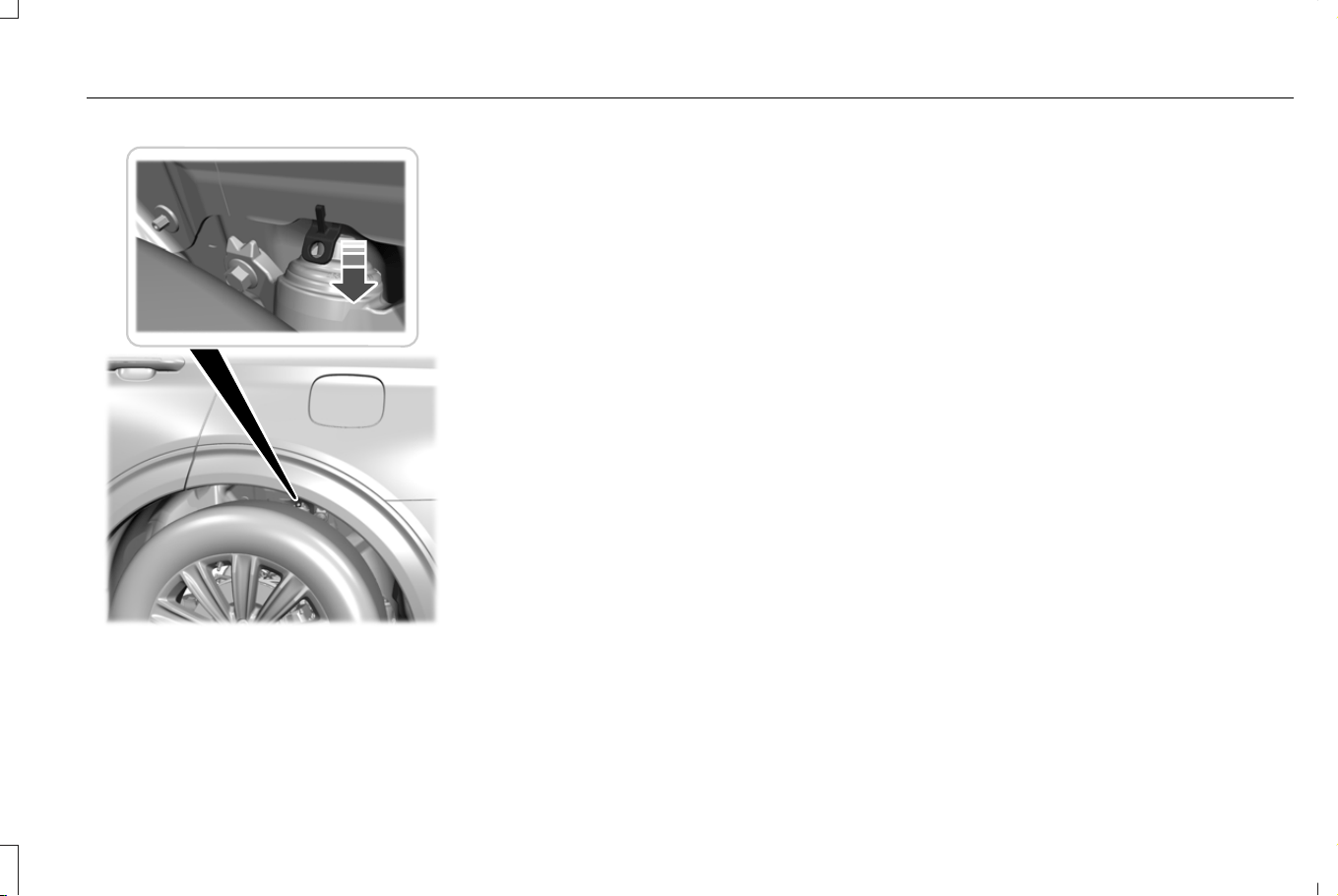
E297793
Note: The manual override cable is in the
left side rear wheel well area.
2. Pull the manual override cable down.
Note: Pull the manual override cable once.
Repeated pulls can damage the manual
override cable.
Note: Make sure the manual override cable
moves freely without any obstructions.
3. Switch the ignition off.
4. Complete the refueling process within
20 minutes.
5. Return the manual override cable to its
original position.
Note: Only follow this procedure if the fuel
filler door fails to open. If the problem
remains, have your vehicle checked as soon
as possible.
215
Corsair (CTF) Canada/Mexico/United States of America, enUSA, Edition date: 202407, DOM
Fuel and Refueling

FUEL TANK CAPACITY - EXCLUDING: PLUG-IN HYBRID ELECTRIC VEHICLE (PHEV)
Capacities
QuantityVariant
16.9 gal (64 L)2.0L
Advertised Capacity
The advertised capacity is the maximum
amount of fuel that you can add to the fuel
tank when the fuel gauge indicates empty.
In addition, the fuel tank contains an empty
reserve. The empty reserve is an unspecified
amount of fuel that remains in the fuel tank
when the fuel gauge indicates empty.
Note: When refueling your vehicle after the
fuel gauge indicates empty, you might not
be able to refuel the full amount of the
advertised capacity due to the empty
reserve still present in the fuel tank.
FUEL TANK CAPACITY - PLUG-IN HYBRID ELECTRIC VEHICLE (PHEV)
Capacities
QuantityVariant
11.1 gal (42 L)PHEV.
Advertised Capacity
The advertised capacity is the maximum
amount of fuel that you can add to the fuel
tank when the fuel gauge indicates empty.
In addition, the fuel tank contains an empty
reserve. The empty reserve is an unspecified
amount of fuel that remains in the fuel tank
when the fuel gauge indicates empty.
Note: When refueling your vehicle after the
fuel gauge indicates empty, you might not
be able to refuel the full amount of the
advertised capacity due to the empty
reserve still present in the fuel tank.
216
Corsair (CTF) Canada/Mexico/United States of America, enUSA, Edition date: 202407, DOM
Fuel and Refueling
FUEL AND REFUELING –
TROUBLESHOOTING
FUEL AND REFUELING – WARNING
LAMPS
If it illuminates when you are
driving, refuel as soon as possible.
FUEL AND REFUELING – INFORMATION MESSAGES - EXCLUDING: PLUG-IN HYBRID ELECTRIC VEHICLE (PHEV)
ActionMessage
An early reminder of a low fuel condition. Refill your vehicle.Fuel Level Low
Check to make sure the fuel fill inlet is fully closed.Check Fuel Fill Inlet
217
Corsair (CTF) Canada/Mexico/United States of America, enUSA, Edition date: 202407, DOM
Fuel and Refueling

FUEL AND REFUELING – INFORMATION MESSAGES - PLUG-IN HYBRID ELECTRIC VEHICLE (PHEV)
ActionMessage
An early reminder of a low fuel condition.Fuel Level Low
The fuel fill inlet may not be properly closed.Check Fuel Fill Inlet
Appears while the fuel system is depressurizing with the fuel filler door closed. Wait for the fuel
system to depressurize and for the fuel filler door to unlatch.
Please wait for fuel door to open
Appears when the fuel system has depressurized and opened the fuel filler door. Open the fuel
filler door to refuel and close the fuel filler door when refueling is complete.
Fuel Door Open
Your vehicle is equipped with a sealed fuel system that requires the fuel filler door to be closed
after refueling. This warning message appears when the fuel filler door is ajar. Close the fuel
filler door to avoid the Check Engine light.
Fuel door ajar Close fully to avoid Check
engine light
If you see this message and the Check Engine light illuminates, close the fuel filler door. The
Check Engine light should clear within five seconds. If the Check Engine light persists, see your
dealer.
Appears when the fuel system fails to depressurize, or the fuel filler door fails to open. You have
to use the fuel filler door manual override cable when opening the fuel door.
Refuel Error See Manual
218
Corsair (CTF) Canada/Mexico/United States of America, enUSA, Edition date: 202407, DOM
Fuel and Refueling
WHAT IS THE CATALYTIC
CONVERTER
The catalytic converter is part of your
vehicle's emissions system and filters harmful
pollutants from the exhaust gas.
CATALYTIC CONVERTER
PRECAUTIONS
WARNING: Do not park, idle or drive
your vehicle on dry grass or other dry
ground cover. The emission system heats
up the engine compartment and exhaust
system, creating the risk of fire.
WARNING: The normal operating
temperature of the exhaust system is very
high. Never work around or attempt to
repair any part of the exhaust system until
it has cooled. Use special care when
working around the catalytic converter.
The catalytic converter heats up to a very
high temperature after only a short period
of engine operation and stays hot after the
engine is switched off.
WARNING: Exhaust leaks may result
in entry of harmful and potentially lethal
fumes into the passenger compartment. If
you smell exhaust fumes inside your
vehicle, have your vehicle inspected
immediately. Do not drive if you smell
exhaust fumes.
To avoid damaging the catalytic converter:
• Do not crank the engine for more than
10 seconds at a time.
• Do not run the engine with a spark plug
lead disconnected.
• Do not push-start or tow-start your
vehicle. Use booster cables. See Jump
Starting Precautions (page 377).
• Use the correct fuel. See Fuel and
Refueling (page 207).
• Do not switch the ignition off when your
vehicle is moving.
• Avoid running out of fuel.
• Have the items listed in scheduled
maintenance information performed
according to the specified schedule.
Note: Do not make any unauthorized
changes to your vehicle or engine. By law,
vehicle owners and anyone who
manufactures, repairs, or services a fleet of
vehicles are not permitted to intentionally
remove an emission control device or
prevent it from working.
219
Corsair (CTF) Canada/Mexico/United States of America, enUSA, Edition date: 202407, DOM
Catalytic Converter

CATALYTIC CONVERTER –
TROUBLESHOOTING
CATALYTIC CONVERTER – WARNING
LAMPS
Your vehicle has an on-board diagnostics
system that monitors the emission control
system. If any of the following warning lamps
illuminate, this may indicate that the on-board
diagnostics system has detected an emission
control system malfunction.
E103308
E67021
E67028
Continuing to drive your vehicle may cause
reduced power or the engine to stop. Failure
to respond to a warning lamp may cause
damage that your vehicle Warranty may not
cover. Have your vehicle checked as soon
as possible.
220
Corsair (CTF) Canada/Mexico/United States of America, enUSA, Edition date: 202407, DOM
Catalytic Converter
WHAT IS THE HIGH VOLTAGE
BATTERY
The high voltage battery is a highly
sophisticated lithium ion battery system, used
to store electrified energy to power your
vehicle.
HIGH VOLTAGE BATTERY
PRECAUTIONS
WARNING: This battery pack should
only be serviced by an authorized electric
vehicle technician. Improper handling can
result in personal injury or death.
WARNING: Keep your hands and
clothing clear of the cooling fan.
WARNING: Apply the parking brake,
shift into park (P), switch the ignition off
and remove the key before you open the
hood or have any service or repair work
completed. If you do not switch the ignition
off, the engine could restart at any time.
Failure to follow this instruction could result
in personal injury or death.
WARNING: Do not touch the
electronic ignition system parts after you
have switched the ignition on or when the
engine is running. The system operates at
high voltage. Failure to adhere to this
warning could result in serious personal
injury or death.
Your vehicle consists of various high-voltage
components and wiring. All of the
high-voltage power flows through specific
wiring assemblies labeled as such or covered
with a solid orange convolute, or orange
striped tape, or both. Do not come in contact
with these components.
RECYCLING AND DISPOSING OF
THE HIGH VOLTAGE BATTERY
Please recycle in accordance with local
regulations.
221
Corsair (CTF) Canada/Mexico/United States of America, enUSA, Edition date: 202407, DOM
High Voltage Battery - Plug-In Hybrid Electric Vehicle (PHEV)
CHARGING EQUIPMENT
PRECAUTIONS
WARNING: Read all instructions and
warnings in this publication before using
the charging equipment.
WARNING: Do not use an electrical
outlet that is immersed or submerged in
water, snow, or in an electrical storm. When
using the charging equipment, avoid
moisture, water and snow at all times.
Failure to follow these instructions could
result in fire, electric shock, personal injury
or death.
WARNING: The wall outlet and
charging equipment must be in good
condition and installed to comply with
provisions of up-to-date local codes and
regulations. Do not use an ungrounded
wall outlet. Have a qualified, licensed
electrician install and check the wall outlet,
if you suspect that it is not properly
grounded, the connection feels loose, or
the outlet is damaged. The wall plug must
fit firmly and fully into the outlet. Do not
use extension cords, surge protectors,
timers or other adapters. Failure to follow
these instructions could result in electric
shock, property damage, personal injury,
or death.
WARNING: Do not drop the control
box or coupler. Failure to follow this
instruction could result in personal injury,
fire, electric shock, death or property
damage.
WARNING: Visually inspect the
charging equipment before each use. Do
not use the charging equipment if it is
damaged. Do not attempt to open or repair
any part of the charging equipment
components as it will not operate. Charging
equipment components contain critical
safety devices in the wall outlet plug and
connector that cannot be serviced. Contact
your local dealer for assistance. Failure to
follow these instructions could result in fire,
electric shock, or personal injury or death.
WARNING: Do not use the charging
equipment in temperatures outside of the
operation range of -22°F (-30°C) to 122°F
(50°C). Store the charging equipment in a
clean dry place between the temperatures
of -22°F (-30°C) to 185°F (85°C). Stow the
control box indoors on the hanger or all
the charging equipment in the bag after
use to prevent damage to the charging
equipment and personal injury.
WARNING: Do not connect or
disconnect any pluggable components of
the charging equipment when in use or
charging. Do not put fingers or any object
into the electric charge coupler. Supervise
any children in the vicinity of the charging
equipment when plugged into the wall
outlet. Failure to follow these instructions
could result in damage to the charging
equipment, fire, electric shock, personal
injury or death.
222
Corsair (CTF) Canada/Mexico/United States of America, enUSA, Edition date: 202407, DOM
Charging Your Vehicle - Plug-In Hybrid Electric Vehicle (PHEV)
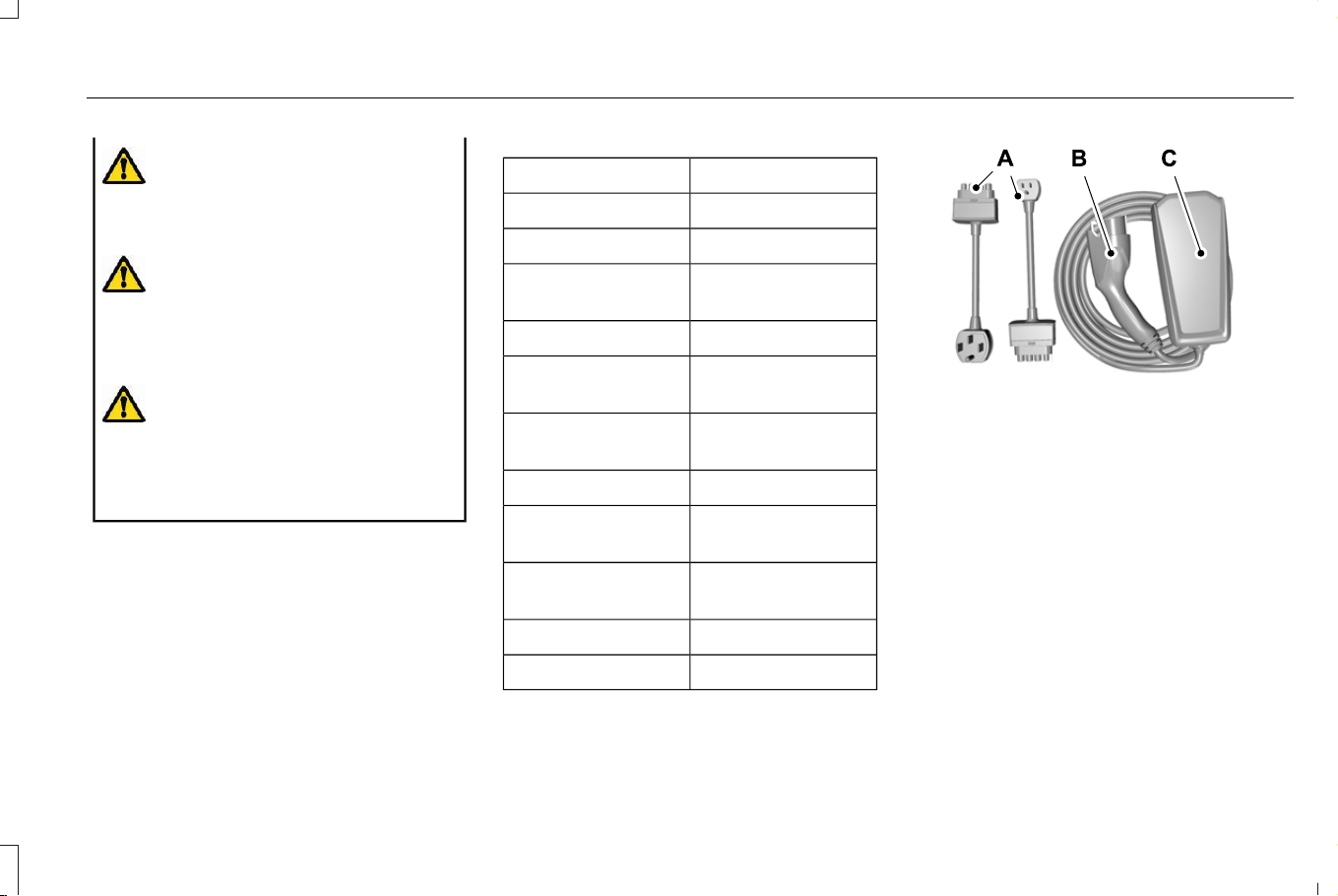
WARNING: This equipment has
arcing or sparking parts. Do not expose to
flammable vapors. Position this equipment
at least 18 in (450 mm) above the floor.
WARNING: To reduce the risk of fire,
connect only to a circuit provided with 40
amps maximum branch circuit overcurrent
protection installed in accordance with
NEC and local electrical code.
WARNING: High voltage is present
in your electric meter housing and power
distribution panel. Contact with high
voltage can result in fire, electric shock,
personal injury or death.
CHARGING EQUIPMENT
OVERVIEW
Your vehicle comes with a mobile power
cord that has a low power connector to use
with a 120V plug NEMA 5-15 and a high
power connector to use with a 240V plug
NEMA 14-50.
Specification ValueSpecification Type
SAECharger Model
120-240 VACVoltage
32 Amps max
continuous
Maximum Current
60HzFrequency
< 2 WattsPower draw when
idle
Approximately 20 ft
(6.1 m)
Cable length
8.6 lb (3.9 kg)Weight
-22°F (-30°C) to 122°F
(50°C)
Operating temper-
ature
-22°F (-30°C) to 185°F
(85°C)
Storage temperature
IP67CCID Environmental
Not requiredVentilation
E336365
Connector.A
Coupler.B
Control box.C
The mobile power cord is located in the
luggage compartment and allows you to
charge the vehicle's battery using a standard
household outlet.
You must plug the connector into the charger
control box first. Then plug the connector
into the household outlet, and then plug the
coupler into the vehicle charge port.
223
Corsair (CTF) Canada/Mexico/United States of America, enUSA, Edition date: 202407, DOM
Charging Your Vehicle - Plug-In Hybrid Electric Vehicle (PHEV)
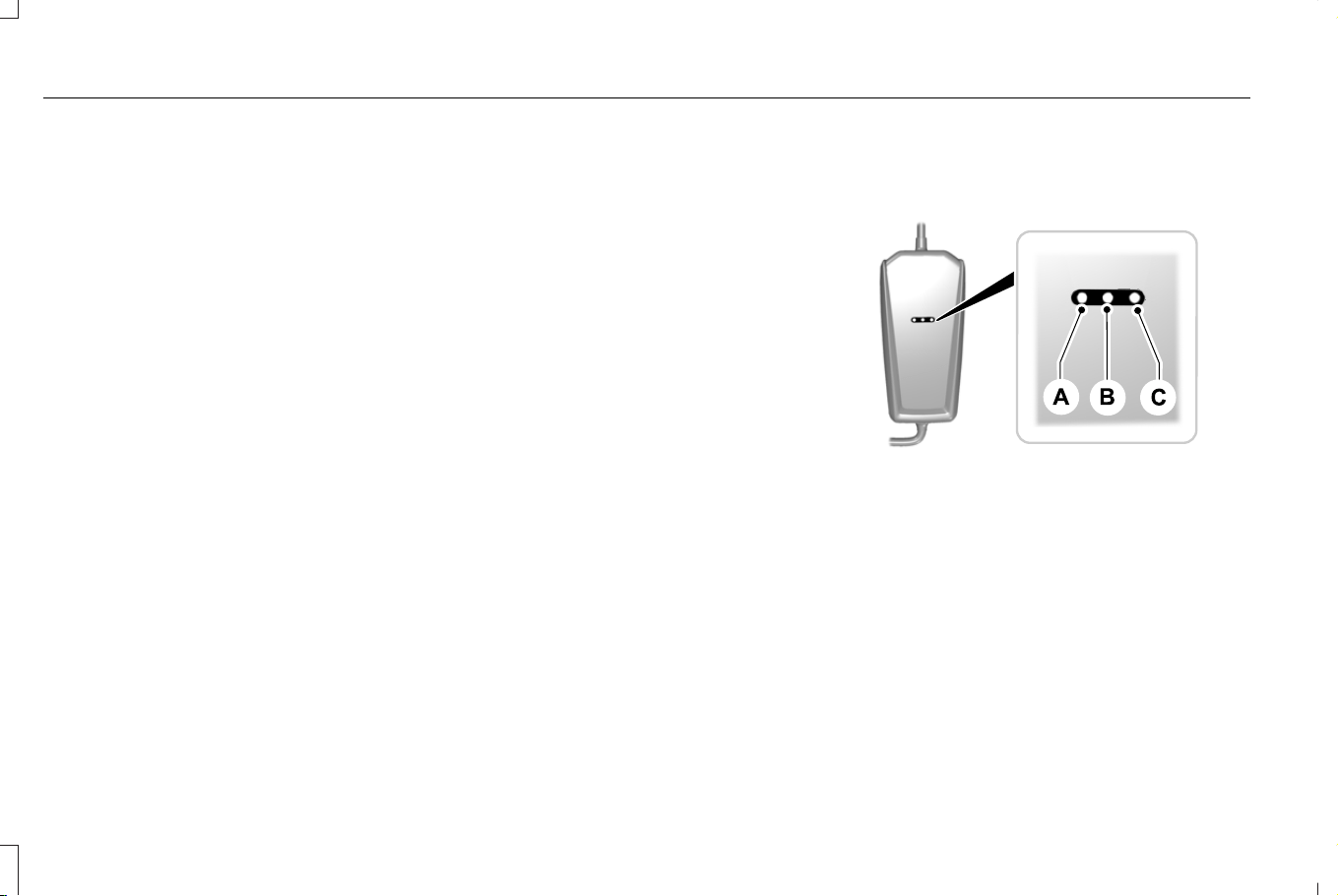
The power indicator illuminates blue when
the connector is properly inserted into the
charger control box and dedicated wall
outlet.
Note: To insert the connector, firmly grasp
the connector by the cable or plug and push
into the charger control box until an audible
click is heard. Make sure the connector is
fully inserted and flush with the charger
control box before inserting it into the outlet.
Improper insertion of the connector results
in an amber fault light or intermittent
charging, and a longer charge session.
Note: Follow the installation instructions
provided with the mobile power cord.
Note: We recommend using the supplied
plugs and connectors.
Note: If you do not use a dedicated circuit,
the circuit breaker could trip or open. If a
dedicated circuit is not available, contact a
licensed professional electrician regarding
the installation of a dedicated outlet.
Note: The mobile power cord does not
charge and gives a fault indication if ground
is not present.
Note: Plug the connector for the mobile
power cord directly into the wall plug
receptacle. Do not plug the mobile power
cord into any form of extension cord.
Note: The wall bracket must be used to
support the charge control box. The charge
control box cannot be hung from the outlet
or wall plug.
CHARGING EQUIPMENT
INDICATORS
E336515
Amber Fault Indicator Light.A
Blue Status Indicator Light.B
Red Trouble Indicator Light.C
Note: When first plugged into a wall outlet
the amber, blue and red indicators will blink
once. Then the blue indicator turns on,
followed by a blink of the red indicator. After,
the blue indicator turns off then back on. This
cycle will happen twice if a different
connector is used from a previous charge.
224
Corsair (CTF) Canada/Mexico/United States of America, enUSA, Edition date: 202407, DOM
Charging Your Vehicle - Plug-In Hybrid Electric Vehicle (PHEV)

Mobile Power Cord Indicator Lights
Unpowered
DetailsREDBLUEAMBER
The mobile power cord is not
powered.
OFFOFFOFF
Make sure the outlet is operational, and the
circuit breaker is in the ON position or try
using another outlet. Ensure the connector
is fully inserted into mobile power cord.
Ensure the plug is not severely degraded. If
the error persists, contact us.
Charging
DetailsREDBLUEAMBER
The mobile power cord is char-
ging.
OFFPULSINGOFF
No action required.
225
Corsair (CTF) Canada/Mexico/United States of America, enUSA, Edition date: 202407, DOM
Charging Your Vehicle - Plug-In Hybrid Electric Vehicle (PHEV)

Standby
DetailsREDBLUEAMBER
The mobile power cord is
powered and ready to charge. At
the current time the mobile power
cord is not charging the vehicle.
OFFONOFF
If you expect the mobile power cord to be
charging the vehicle, make sure the vehicle
coupler is properly inserted into the vehicle.
Check and adjust your charging time
preferences in the on screen display. If your
vehicle is still not charging, contact us.
Startup and Rebooting
DetailsREDBLUEAMBER
The mobile power cord is recov-
ering after encountering an error.
ONONON
226
Corsair (CTF) Canada/Mexico/United States of America, enUSA, Edition date: 202407, DOM
Charging Your Vehicle - Plug-In Hybrid Electric Vehicle (PHEV)

Mobile power cord is powering up or
recovering after an error. If the mobile power
cord cycles for more than 2-3 minutes,
unplug the vehicle coupler. Unplug and
replug in the connector. If the issue persists,
contact us.
Charging Reduced, Internal Issue
DetailsREDBLUEAMBER
The mobile power cord is charging
at a reduced rate due to over-
heating.
OFFPULSINGON
Make sure the connector and the control box
are properly connected. Unplug and replug
in the connector. If the mobile power cord is
warm or in a hot environment, try charging
in a cooler area. Try a different outlet. Try a
different connector if you have one available.
If the error persists, contact us.
Charging Reduced, AC Plug Or Wall Outlet
DetailsREDBLUEAMBER
The mobile power cord is charging
at a reduced rate due to over-
heating of the connector or the
wall outlet.
OFFPULSINGBLINK
227
Corsair (CTF) Canada/Mexico/United States of America, enUSA, Edition date: 202407, DOM
Charging Your Vehicle - Plug-In Hybrid Electric Vehicle (PHEV)

Make sure the connector and control box
are properly connected. Unplug and replug
in the connector. Ensure the connector is
fully seated. If the mobile power cord is warm
or in a hot environment, try charging a cooler
area. Try a different outlet. Try a different
connector if you have one available. Have a
licensed electrician check for missing
ground, utility under or overvoltage. If the
error persists, contact us.
User Troubleshooting
DetailsREDBLUEAMBER
The mobile power cord has
encountered a fault that requires
troubleshooting.
OFFOFFON
Make sure the connector and control box
are properly connected. Unplug and replug
in the connector. If the mobile power cord is
warm or in a hot environment, try charging
in a cooler area. Try a different outlet. Try a
different connector if you have one available.
If the error persists, contact us.
228
Corsair (CTF) Canada/Mexico/United States of America, enUSA, Edition date: 202407, DOM
Charging Your Vehicle - Plug-In Hybrid Electric Vehicle (PHEV)

Non - Recoverable Fault
DetailsREDBLUEAMBER
There is an internal fault in the
mobile power cord that cannot be
recovered.
ONOFFOFF
Try a different connector if you have one
available. If error persists, contact us.
Non - Recoverable Fault
DetailsREDBLUEAMBER
There is an internal fault in the
connector that cannot be
recovered.
BLINKOFFOFF
Try using another connector if you have one
available. If not, contact us about obtaining
a replacement. If your warranty has expired,
you can order a replacement from your
dealer.
229
Corsair (CTF) Canada/Mexico/United States of America, enUSA, Edition date: 202407, DOM
Charging Your Vehicle - Plug-In Hybrid Electric Vehicle (PHEV)
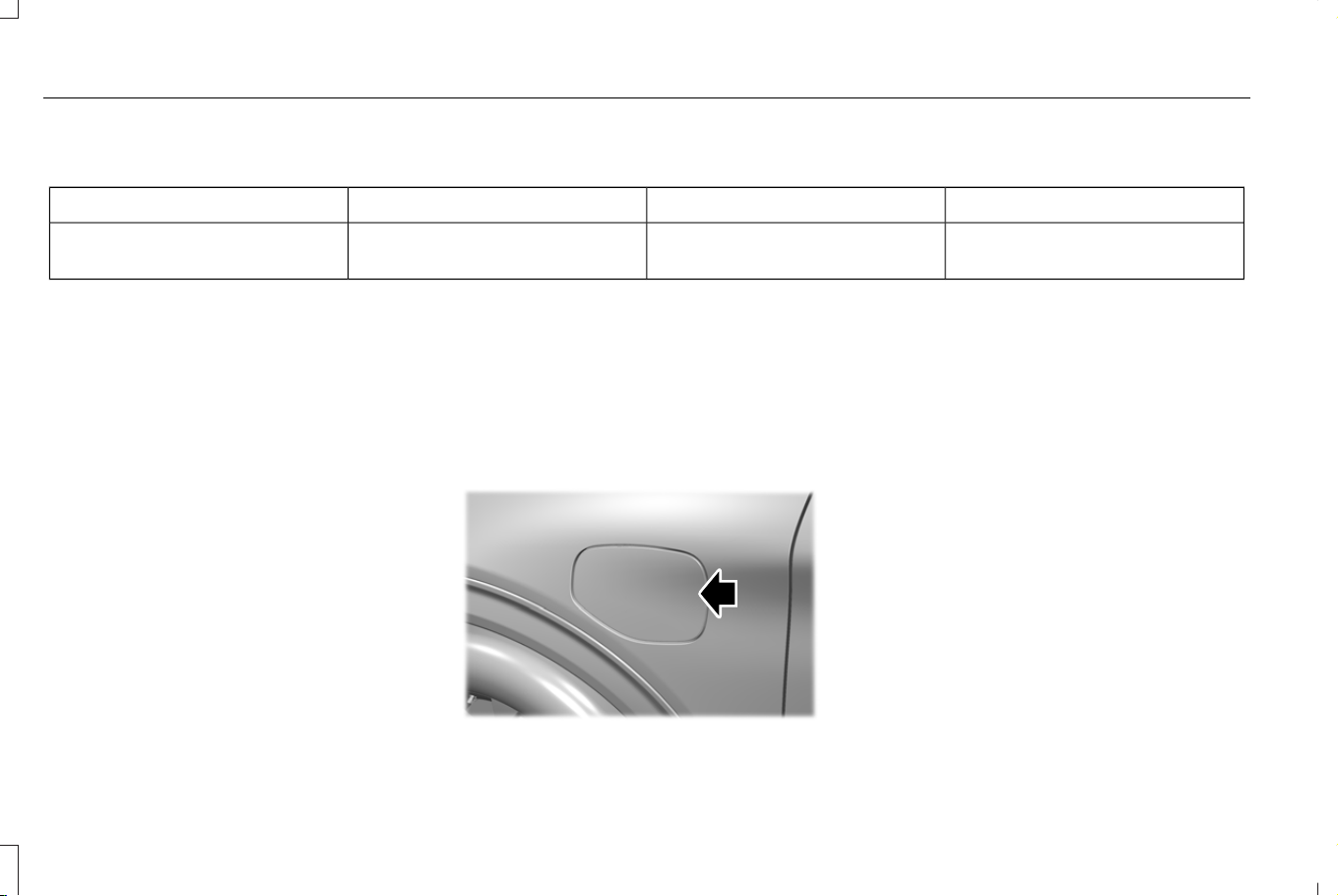
Ground Leakage Fault
DetailsREDBLUEAMBER
Electrical current is leaking
through a potentially unsafe path.
PULSINGOFFOFF
Potential shock hazard - immediately turn off
circuit breaker for the outlet within home.
Discontinue use. Contact us about obtaining
a replacement.
Note: When plugging into an unfamiliar wall
outlet, let the vehicle charge for several
minutes before leaving it unattended. The
red indicator will illuminate if not charging.
The unit will turn off if breaker or
infrastructure ground fault circuit interrupter
(GFCI) is tripped. You can view vehicle
charging status remotely via the vehicle App.
LOCATING THE CHARGE PORT
The charge port is between the front
left-hand side door and the front left-hand
wheel well. To open, press the center right
edge of the charge port door, and then
release.
E295258
Note: Do not force the charge port door
open or closed. Forcing the door open or
closed damages the charge port.
CHARGE PORT INDICATORS
The charge status indicator around the
charge port indicates the charge status of
the high voltage battery in your vehicle.
Divided into five zones, the charge status
indicator displays the state of charge in 20
percent increments.
We use the color white as a courtesy light to
help with plugging in and to acknowledge
actions such as plugging in, unplugging or
pressing the charge times button.
230
Corsair (CTF) Canada/Mexico/United States of America, enUSA, Edition date: 202407, DOM
Charging Your Vehicle - Plug-In Hybrid Electric Vehicle (PHEV)
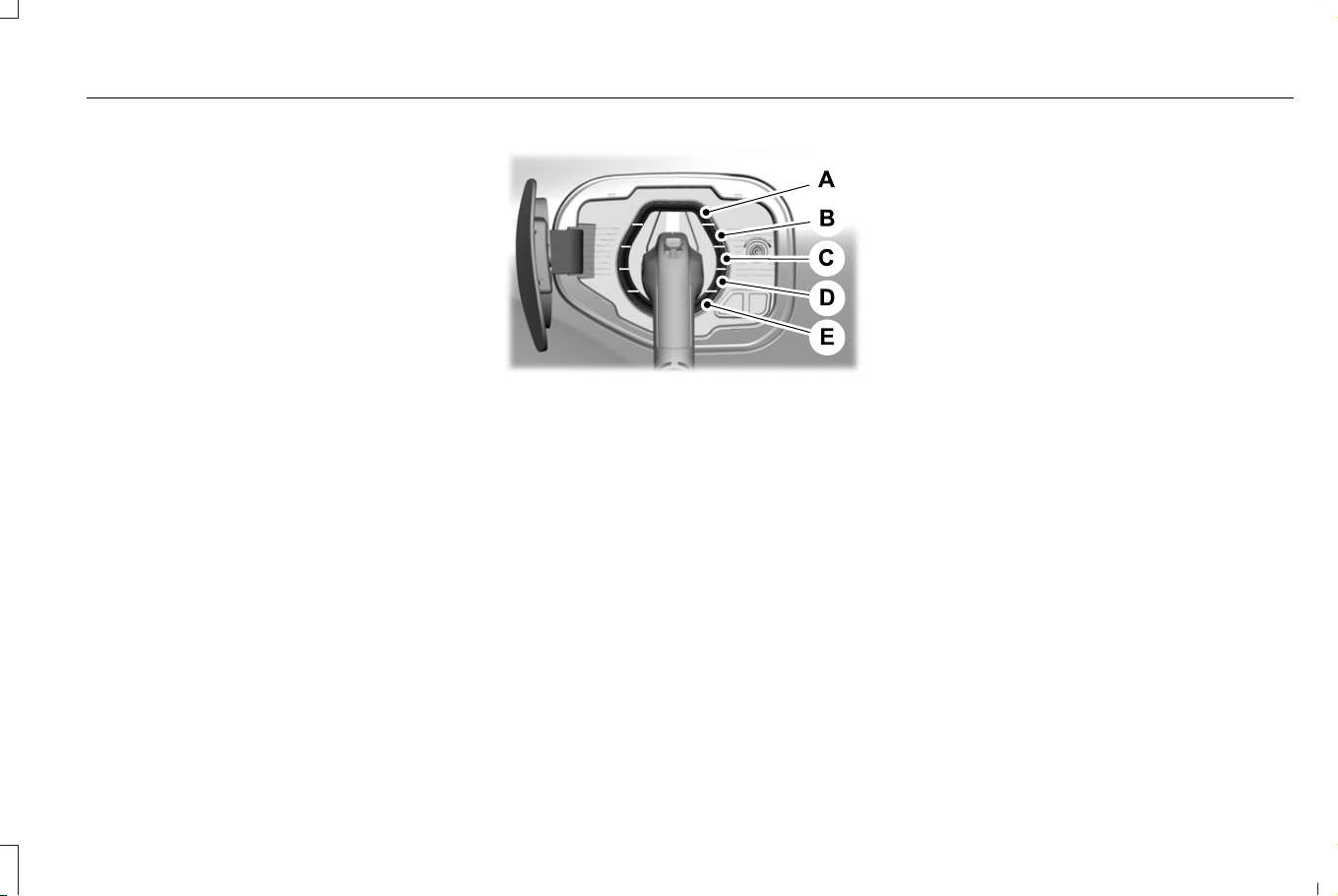
We use the color blue when you plug the
vehicle in and are either charging or waiting
to charge.
We use the color orange to indicate charge
faults.
The charge status indicator displays how far
along the charge is:
• When the bottom zone is pulsing, the
charge is between 0-20 percent.
• When the bottom zone illuminates and
the next is pulsing, the charge is between
20-40 percent.
• When two zones illuminate and the next
is pulsing, the charge is between 40-60
percent.
• When three zones illuminate and the next
is pulsing, the charge is between 60-80
percent.
• When four zones illuminate and the top
zone is pulsing, the charge is between
80-100 percent.
• When all zones illuminate, the charge is
100 percent.
E301197
80%-100% state of charge.A.
60%-80% state of charge.B.
40%-60% state of charge.C.
20%-40% state of charge.D.
0%-20% state of charge.E.
Note: When charging stops, the charge
status indicator shows all the completed
zones illuminate in a blue color for 30
seconds before turning off. For example, if
charging stops at 70 percent, then the
bottom three zones illuminate to indicate a
battery charge level of at least 60 percent
but less than 80 percent. Charging stops
when complete or when paused due to
preferred charge settings or charge station
actions.
Note: If the charge status indicator does not
light up or pulse after plugging in, please
verify that the charge port light setting is On.
If you do not wish to have the charge status
indicator light up at all while charging, then
you can switch it Off. See charge port light
settings under access menu in features on
your touchscreen.
231
Corsair (CTF) Canada/Mexico/United States of America, enUSA, Edition date: 202407, DOM
Charging Your Vehicle - Plug-In Hybrid Electric Vehicle (PHEV)
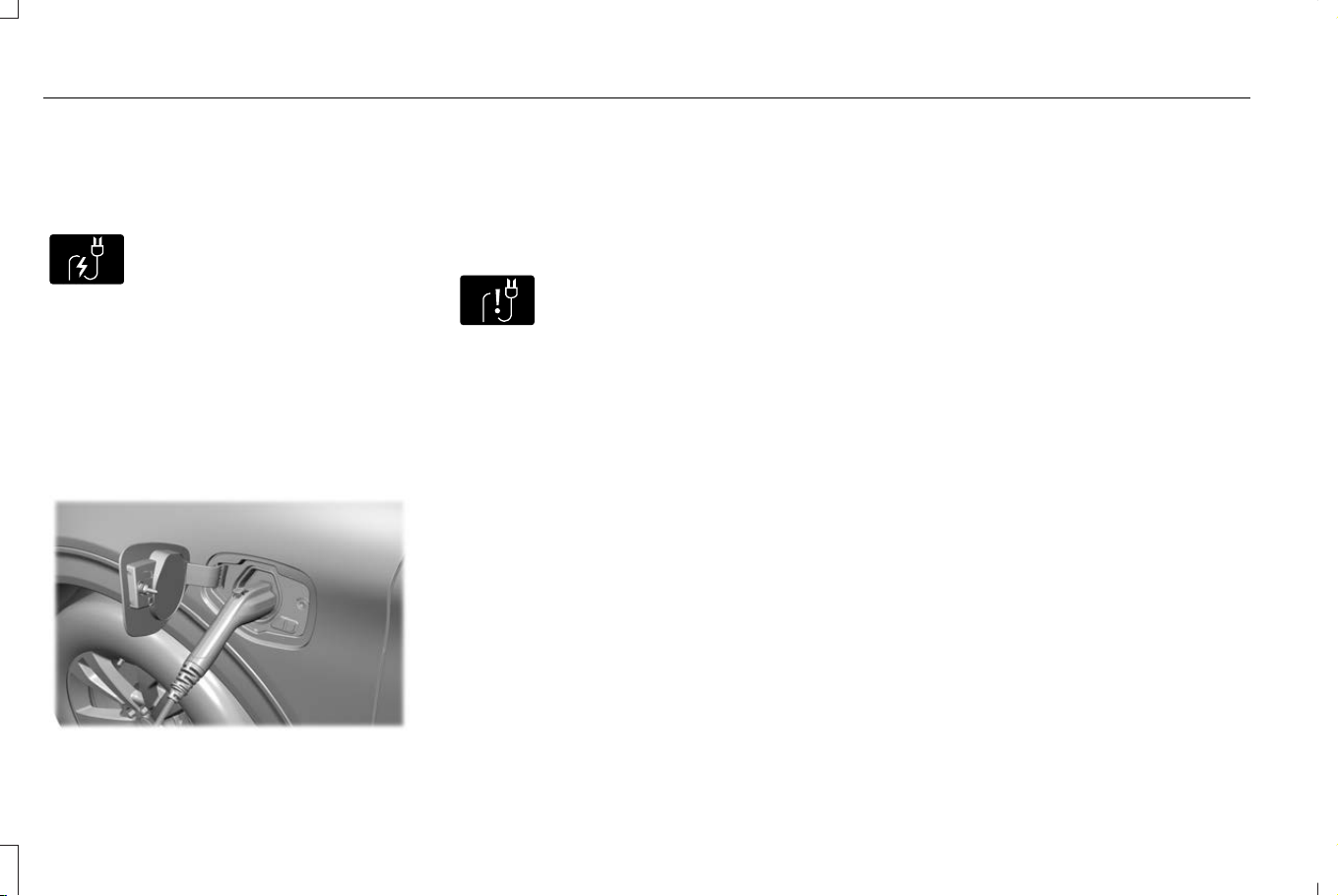
AC CHARGING
CHARGING AT HOME
E306676
To charge the high voltage battery:
1. Put the vehicle in park (P).
2. Press and release the center right edge
of the charge port door to open.
3. Plug the charging coupler into the charge
port receptacle on your vehicle. Make
sure the button clicks confirming that you
have completely engaged the coupler.
E295257
4. Verify that the cord acknowledgment
feature activates. This indicates the
beginning of a normal charge cycle. The
charge status indicator lights up each
zone alternately from bottom to top and
from bottom to top again.
E306677
Note: You can identify charging faults by the
color orange on the charge status indicator.
Faults can occur within the vehicle charging
system or outside the vehicle, such as with
the charge cord, charge station or electrical
supply.
Note: If the system detects a fault in the
vehicle charging system at any point in a
charge cycle, the entire charge status
indicator illuminates in an orange color for
30 seconds and then turns off. If this
happens, unplug the charging coupler and
then plug it back into the charge port
receptacle. If the problem persists, have your
vehicle checked as soon as possible.
Note: If the system detects a fault outside
the vehicle, such as with the charge station
or charge cord, the entire charge status
indicator flashes continuously for 30 seconds
and then turns off. If this happens, check the
charge cord and the charge station or
electrical supply.
Note: Put your vehicle in park (P) to charge,
and for the charge status indicator to
illuminate.
Stopping Charging
1. Press the button on the charging coupler.
2. While holding the button, remove the
charging coupler from the charge port
receptacle.
232
Corsair (CTF) Canada/Mexico/United States of America, enUSA, Edition date: 202407, DOM
Charging Your Vehicle - Plug-In Hybrid Electric Vehicle (PHEV)
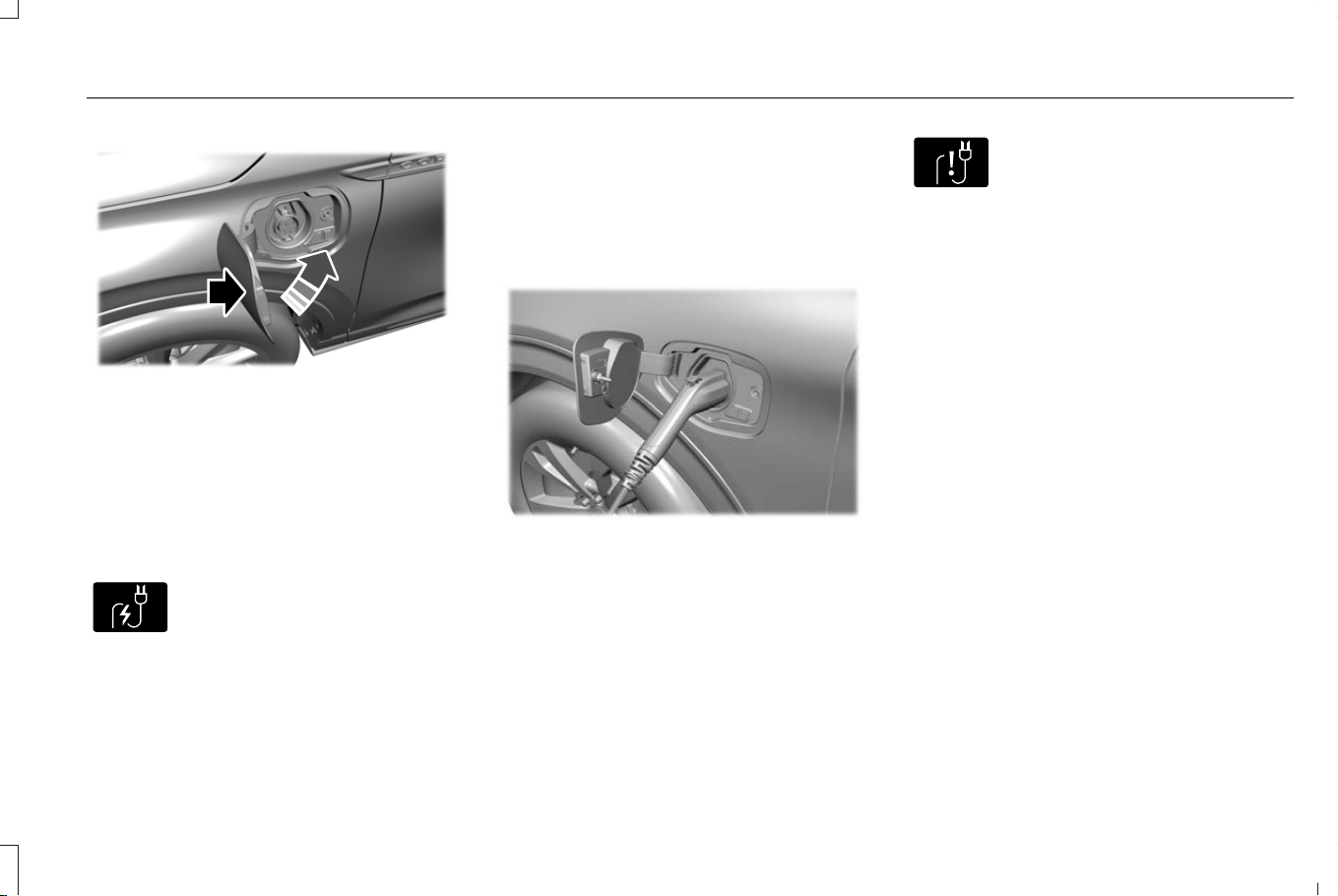
E295444
3. Press the center right edge of the charge
port door to close.
Note: Do not pull the wall plug from the wall
when your vehicle is charging. Doing so
could damage the outlet and the cord.
CHARGING IN PUBLIC
E306676
To charge the high voltage battery:
1. Put the vehicle in park (P).
2. Press and release the center right edge
of the charge port door to open.
3. Select the appropriate charge station
coupler.
4. Plug the charging coupler into the charge
port receptacle on your vehicle. Make
sure the button clicks confirming that you
have completely engaged the coupler.
E295257
5. Verify that the cord acknowledgment
feature activates. This indicates the
beginning of a normal charge cycle. The
charge status indicator lights up each
zone alternately from bottom to top and
from bottom to top again.
6. If using a charging station, follow the
instructions on the charge station to
begin the charging process.
E306677
Note: You can identify charging faults by the
color orange on the charge status indicator.
Faults can occur within the vehicle charging
system or outside the vehicle, such as with
the charge cord, charge station or electrical
supply.
Note: If the system detects a fault in the
vehicle charging system at any point in a
charge cycle, the entire charge status
indicator illuminates in an orange color for
30 seconds and then turns off. If this
happens, unplug the charging coupler and
then plug it back into the charge port
receptacle. If the problem persists, have your
vehicle checked as soon as possible.
Note: If the system detects a fault outside
the vehicle, such as with the charge station
or charge cord, the entire charge status
indicator flashes continuously for 30 seconds
and then turns off. If this happens, check the
charge cord and the charge station or
electrical supply.
233
Corsair (CTF) Canada/Mexico/United States of America, enUSA, Edition date: 202407, DOM
Charging Your Vehicle - Plug-In Hybrid Electric Vehicle (PHEV)
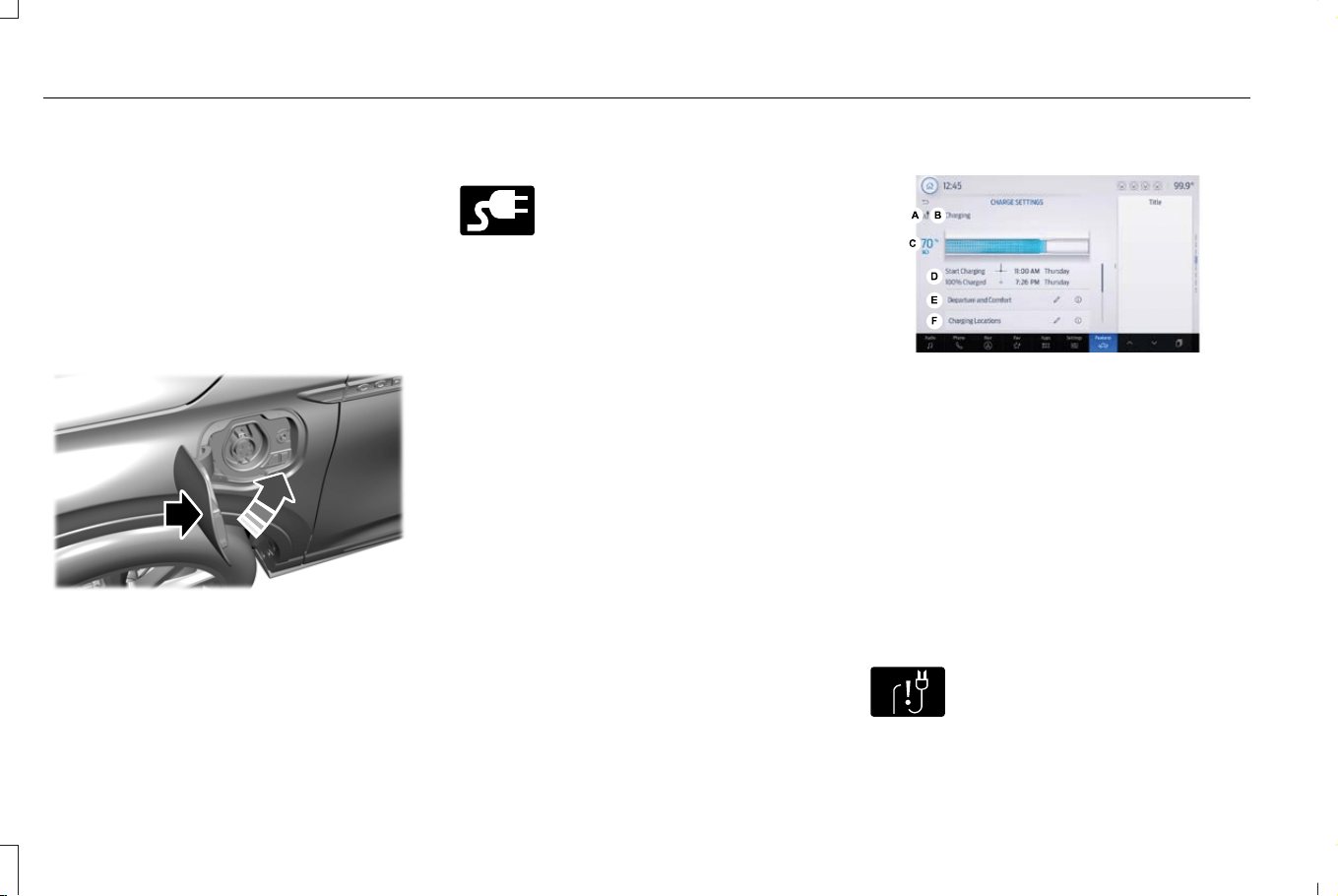
Note: Put your vehicle in park (P) to charge,
and for the charge status indicator to
illuminate.
Stopping Charging
1. Press the button on the charging coupler.
2. While holding the button, remove the
charging coupler from the charge port
receptacle.
E295444
3. Press the center right edge of the charge
port door to close.
CHARGING SETTINGS
E228962
You can schedule charging to take
advantage of lower cost electricity
rates during off-peak hours if you
have signed up for a time of use pricing plan
with your utility provider. You can also set a
max charge limit for your battery and a
departure time and cabin temperature so
your vehicle is ready to go when you are.
Scheduled charging can be set up on the
touchscreen or in the vehicle app.
To view your charge settings:
1. Press Features on the touchscreen.
2. Press Charge Settings on the
touchscreen.
Charge Settings Screen
E389413
Charging status icon.A
Charging status.B
High voltage battery state of
charge.
C
Charging time information.D
Departure and comfort settings.E
Charging locations.F
Charging Status Icons
Displays when your vehicle is plugged in.
E306677
Not charging due to a fault.
234
Corsair (CTF) Canada/Mexico/United States of America, enUSA, Edition date: 202407, DOM
Charging Your Vehicle - Plug-In Hybrid Electric Vehicle (PHEV)
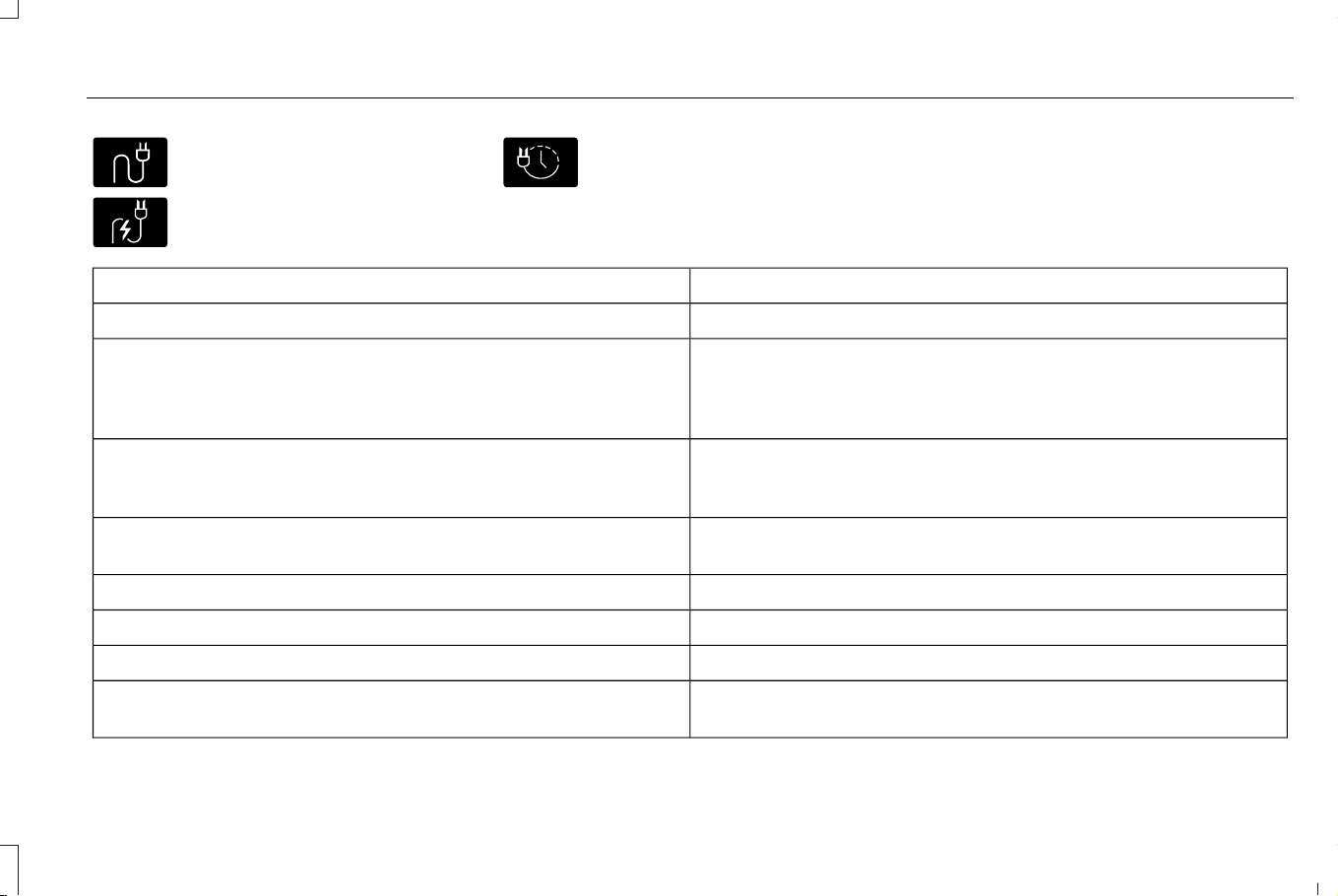
E335144
Not currently charging.
E306676
Charging.
E306678
Waiting to charge based on charge
time settings.
Charging Status
Shows the present state of the charging
system.
DetailsCharge Status
The vehicle is unplugged and starts charging once plugged in.Will charge when plugged in
The vehicle is unplugged at a location with charging time preferences
enabled. Charging is scheduled to start at the time displayed based
on your settings. You must plug in prior to the start time shown for
the vehicle to begin charging at that time.
Will wait for preferred charging time
The vehicle is plugged in at a location with charging time preferences
enabled. Charging starts at the time displayed based on your charge
time settings.
Waiting for preferred charging time
The vehicle is plugged in and charging has been stopped through
the vehicle app.
Charging stopped
The vehicle is plugged in and charging.Charging
The vehicle finished charging to the max charge limit setting.Charged
The vehicle is plugged in and charging the 12V battery.Charging 12V battery
The vehicle is plugged in and the climate control system is operating
according to the departure and comfort settings.
Conditioning the cabin
235
Corsair (CTF) Canada/Mexico/United States of America, enUSA, Edition date: 202407, DOM
Charging Your Vehicle - Plug-In Hybrid Electric Vehicle (PHEV)

DetailsCharge Status
The vehicle is plugged in and conditioning the high voltage battery.Conditioning the battery
The vehicle is plugged in and there is a fault within the vehicle char-
ging system. Unplug and plug back in. If the fault is still present,
contact your authorized dealer.
Vehicle charging fault
The vehicle is plugged in and a fault has been detected with the
charge station or charging cord. Check the charging cord and the
charging station or electrical supply.
Charging station fault
A charging coupler has been plugged into the vehicle but there is no
connection with a charging power source.
Charging station not detected
The vehicle is plugged in and charging has been paused at the charge
station.
Charging station paused
High Voltage Battery State of Charge
Displays the remaining charge percentage
with 100% representing the total amount of
energy you can get from an external charge.
Charging Time Information
When charging, the start and estimated end
time displays.
When your vehicle is at a saved charging
location and not plugged in, the start and
end times display based on known charging
infrastructure.
Note: Charging time information is
estimated. Certain conditions could result in
longer charging times. See Charging Your
Vehicle (page 222).
Departure and Comfort
E353986
Press the edit button for departure
and comfort settings.
236
Corsair (CTF) Canada/Mexico/United States of America, enUSA, Edition date: 202407, DOM
Charging Your Vehicle - Plug-In Hybrid Electric Vehicle (PHEV)

Setting departure times allows you to control
charging schedules and warm or cool your
cabin and the high voltage battery when your
vehicle is plugged in, so your vehicle is ready
to drive when you are. By setting a departure
time, your vehicle can use your charging time
preferences to minimize your electricity costs
but still prioritize finishing charging before
your scheduled departure. The calendar view
allows you to program two departure times
per day for each day of the week.
Note: By using energy from your charging
source while plugged in, battery temperature
can be managed for best driving
performance and less energy is needed for
heating or cooling of the cabin at the start
of your drive. This helps maximize your
driving range.
Note: You can also access this feature using
the vehicle app.
Departure and Comfort Setup
Follow these steps to set departure times
and cabin comfort level.
1. Press the edit button for departure and
comfort on the charge settings screen.
2. Two time settings show for each day of
the week on the departure times
schedule screen. Select any one.
3. On the Departure Times settings screen,
set your desired time, cabin comfort level
and days of the week to repeat. Press
Save.
4. Your settings are now shown on the
departure times schedule screen. Press
back to return to the main charge settings
screen. The next departure time and
cabin temperature display.
Note: Cabin conditioning comfort level could
vary depending on whether you plug into a
normal household outlet or a higher power
outlet or charging station. The power
available for conditioning is limited to the
charging station power available. At low
ambient temperatures and low charge
power, a small amount of high voltage
battery power in addition to the charging
power could be used to heat the cabin.
Charging Locations
E353986
Press the edit button to set
preferred charging times for a
specific charging location.
Your vehicle prioritizes charging based on
your preferred time settings. You can set two
preferred charging time windows for
weekdays and two for weekends. This
feature allows you to take advantage of
electric utility rate plans that offer lower
pricing during certain times of day. Contact
your utility company to see what plans are
available.
Note: Your vehicle charges during your
preferred time windows. Charging outside
these windows only occurs when additional
charging time is needed to reach the
maximum charge limit set for this location
by your next departure time. In this case, the
vehicle begins charging right away after
plugging in.
Note: You can also access this feature using
the vehicle app.
237
Corsair (CTF) Canada/Mexico/United States of America, enUSA, Edition date: 202407, DOM
Charging Your Vehicle - Plug-In Hybrid Electric Vehicle (PHEV)
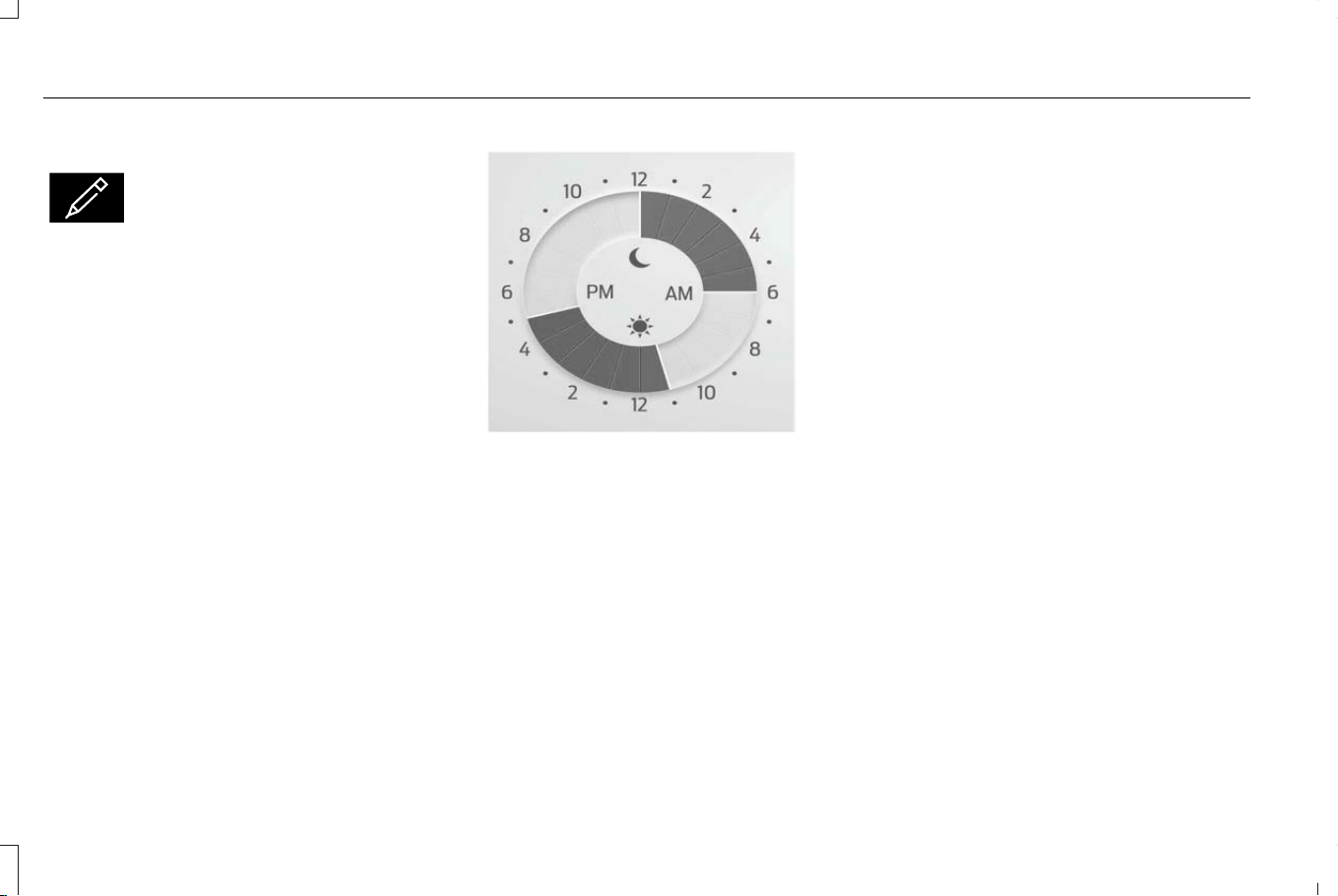
Charging Location Setup
E353986
Follow these steps to set time and
charge level preferences for a
charging location.
1. Press the edit button for charging
locations on the charge settings screen.
2. On the charging locations screen select
add new location. You can also edit
settings for previously saved locations
listed on this screen.
3. Select an address from the list of recent
charge locations.
4. Confirm that this is the location you want
to save with the help of the map view.
Edit the location name if desired and set
a maximum charge limit. Press continue
to schedule.
Note: Depending on the GPS location, the
address on the navigation may not precisely
match up with your charging location.
Confirm on the map that the pin is in the
expected location.
Note: Charging stops when your vehicle
reaches the maximum charge limit setting.
E359594
5. Set preferred charging times for weekday
and/or weekend by pressing and
dragging along the 24 hour time wheel.
You can set up two blocks of time charge
windows. Press Continue once you have
your desired time settings for weekday
and weekend
Note: Selecting all or none of the 24 hours
results in any time of day given equal priority
for charging.
6. The summary screen displays your
settings for this location. Press save or
press back to change your settings.
Whenever your vehicle is at a saved
charging location, the charge settings
screen displays the location name, and
the charging times are based on your
preferred time settings for that location
plus the next departure time.
Note: Reaching your max charge limit by
your next departure time is always the
priority. When charging time preferences are
set, charging outside your preferred charging
time windows could be necessary to finish
by your next departure time. In this case, the
vehicle begins charging immediately after
plugging in. Charging pauses when the rest
of the charge can be done within the
preferred charging windows.
238
Corsair (CTF) Canada/Mexico/United States of America, enUSA, Edition date: 202407, DOM
Charging Your Vehicle - Plug-In Hybrid Electric Vehicle (PHEV)
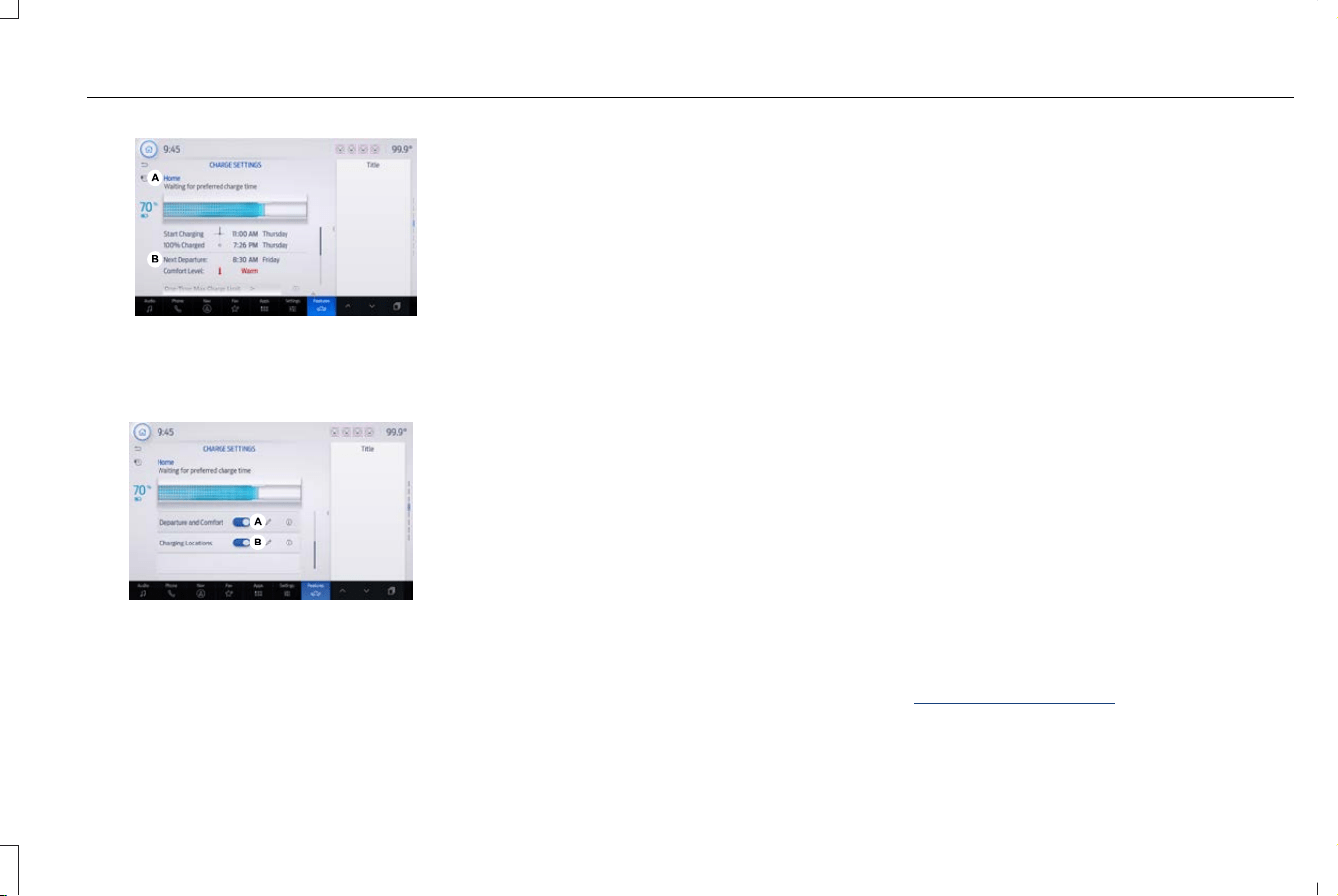
E363399
Charging location name.A
Next departure time and cabin
temperature.
B
E389449
On/Off switch for departure and
comfort.
A
On/Off switch for charging
locations.
B
Charging Location Name
Displays when your vehicle is at a saved
charging location.
Next Departure Time and Cabin Comfort
Level
Displays the next departure time and
associated cabin comfort setting.
On/Off Switch for Departure and Comfort
This switch is visible when you have at least
one departure time set. Use this switch to
turn all departure times off and on. Switching
off departure and comfort does not delete
your settings, however, you must switch back
on to re-enable them.
On/Off Switch for Charging Locations
This switch is visible when your vehicle is at
a saved charging location. Use this switch to
turn your settings off and on for this location
only. Switching off for this location does not
delete your settings, however, you must
switch back on to re-enable them.
Note: If the charging locations switch is off,
the vehicle begins charging to 100% once
plugged in.
USING YOUR VEHICLE APP AND
CHARGING
The vehicle app allows you to do the
following:
• Monitor and manage your vehicle's
charging, including charge schedules and
preferences.
• Locate a charger and activate a charger
on the Charge Network.
• Plan a trip and charging options along
your route.
• Check charging station plug availability.
• Initiate a charge session automatically at
Plug and Charge capable charge stations.
• Override charge preferences and starting
and stopping charging.
For additional information, visit
www.owner.lincoln.com.
239
Corsair (CTF) Canada/Mexico/United States of America, enUSA, Edition date: 202407, DOM
Charging Your Vehicle - Plug-In Hybrid Electric Vehicle (PHEV)

CHARGING YOUR VEHICLE – TROUBLESHOOTING
CHARGING YOUR VEHICLE – INFORMATION MESSAGES
ActionMessage
Your vehicle needs confirmation that you unplugged it before allowing a start. Make sure your
vehicle is unplugged and you respond to the message before starting your vehicle.
Is vehicle plugged in?
Your vehicle detects it is still plugged in after you attempt to start it.Unplug Prior to Starting Vehicle
A charging fault has been detected. Check the charging cord and the charge station or electrical
supply.
Charge Station Fault See Manual
The charging station cannot communicate with your vehicle. Contact the station provider.Charge Station Communication Error
Contact Station Provider
240
Corsair (CTF) Canada/Mexico/United States of America, enUSA, Edition date: 202407, DOM
Charging Your Vehicle - Plug-In Hybrid Electric Vehicle (PHEV)

CHARGING YOUR VEHICLE –
FREQUENTLY ASKED QUESTIONS
Why does my vehicle have a hum or
fan noise when charging?
• A hum or a fan noise could be present
when charging the high voltage battery.
This is a normal operation as your vehicle
is keeping the battery cool while
charging.
241
Corsair (CTF) Canada/Mexico/United States of America, enUSA, Edition date: 202407, DOM
Charging Your Vehicle - Plug-In Hybrid Electric Vehicle (PHEV)
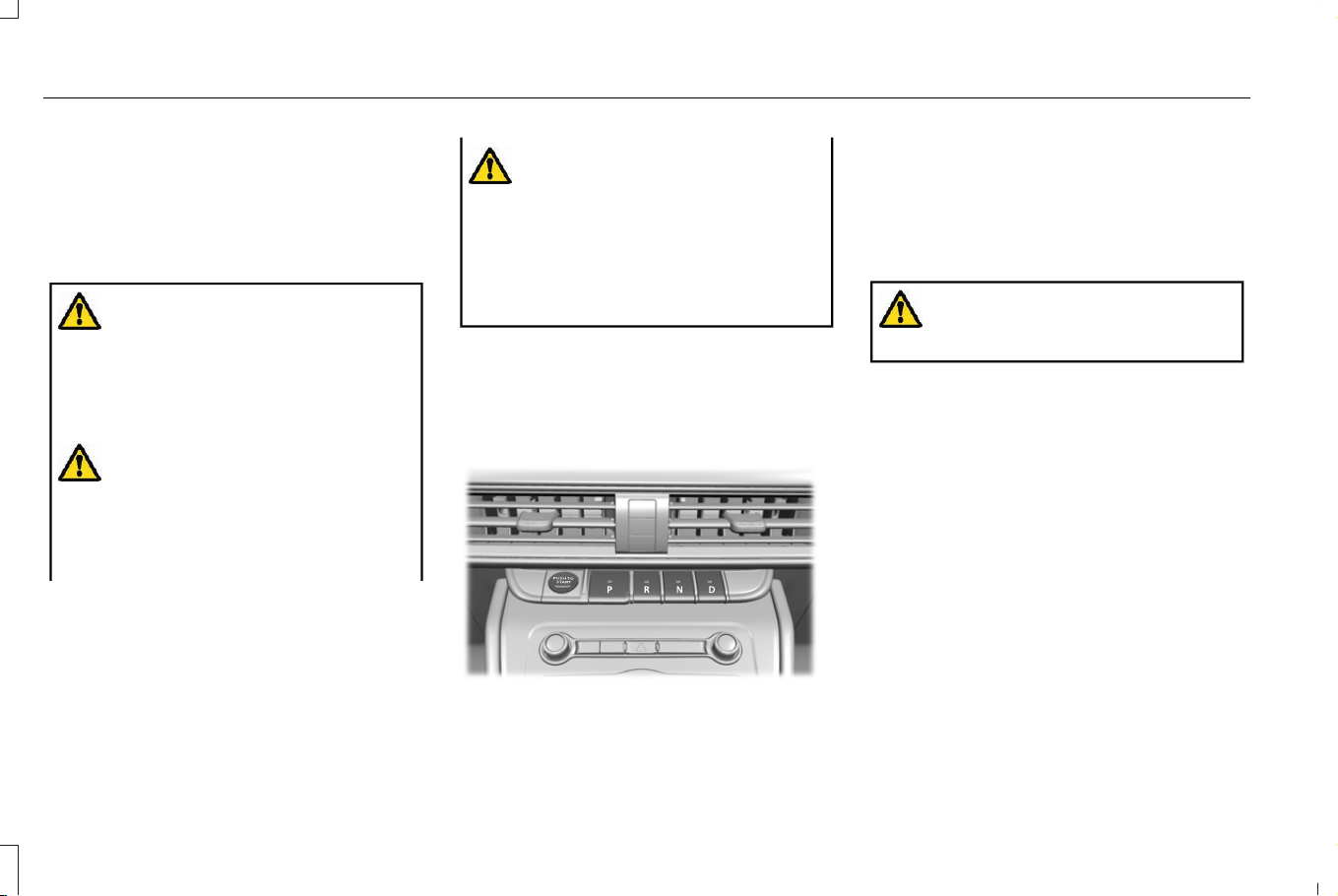
AUTOMATIC TRANSMISSION
POSITIONS
AUTOMATIC TRANSMISSION
PRECAUTIONS
WARNING: Apply the parking brake,
shift into park (P), switch the vehicle off and
remove the key or remote control before
you leave your vehicle. Failure to follow
this instruction could result in personal
injury or death.
WARNING: When your vehicle is
stationary, keep the brake pedal fully
pressed when shifting gears. Failure to
follow this instruction could result in
personal injury, death or property damage.
WARNING: Do not apply the brake
pedal and accelerator pedal
simultaneously. Applying both pedals
simultaneously for more than a few
seconds limits vehicle performance, which
may result in difficulty maintaining speed
in traffic and could lead to serious injury.
SHIFTING YOUR VEHICLE INTO GEAR
The transmission selector is on the center
stack.
E309222
1. Press and hold the brake pedal.
2. Press a button to select a position.
Note: The position illuminates on the
transmission selector.
PARK (P)
WARNING: Shift into park (P) only
when your vehicle is stationary.
In park (P) power is not transmitted to the
driven wheels.
Note: A tone sounds if you attempt to exit
your vehicle without the vehicle in park (P).
Note: Your vehicle may not shift out of park
(P) if the 12V battery has run out of charge.
Note: Your vehicle may not shift out of park
(P) if a fuse is blown.
Note: Your vehicle may not shift out of park
(P) unless the key or remote control is inside
your vehicle.
Note: The electronic parking brake could
apply when you power your vehicle on with
the selector in park (P).
242
Corsair (CTF) Canada/Mexico/United States of America, enUSA, Edition date: 202407, DOM
Automatic Transmission
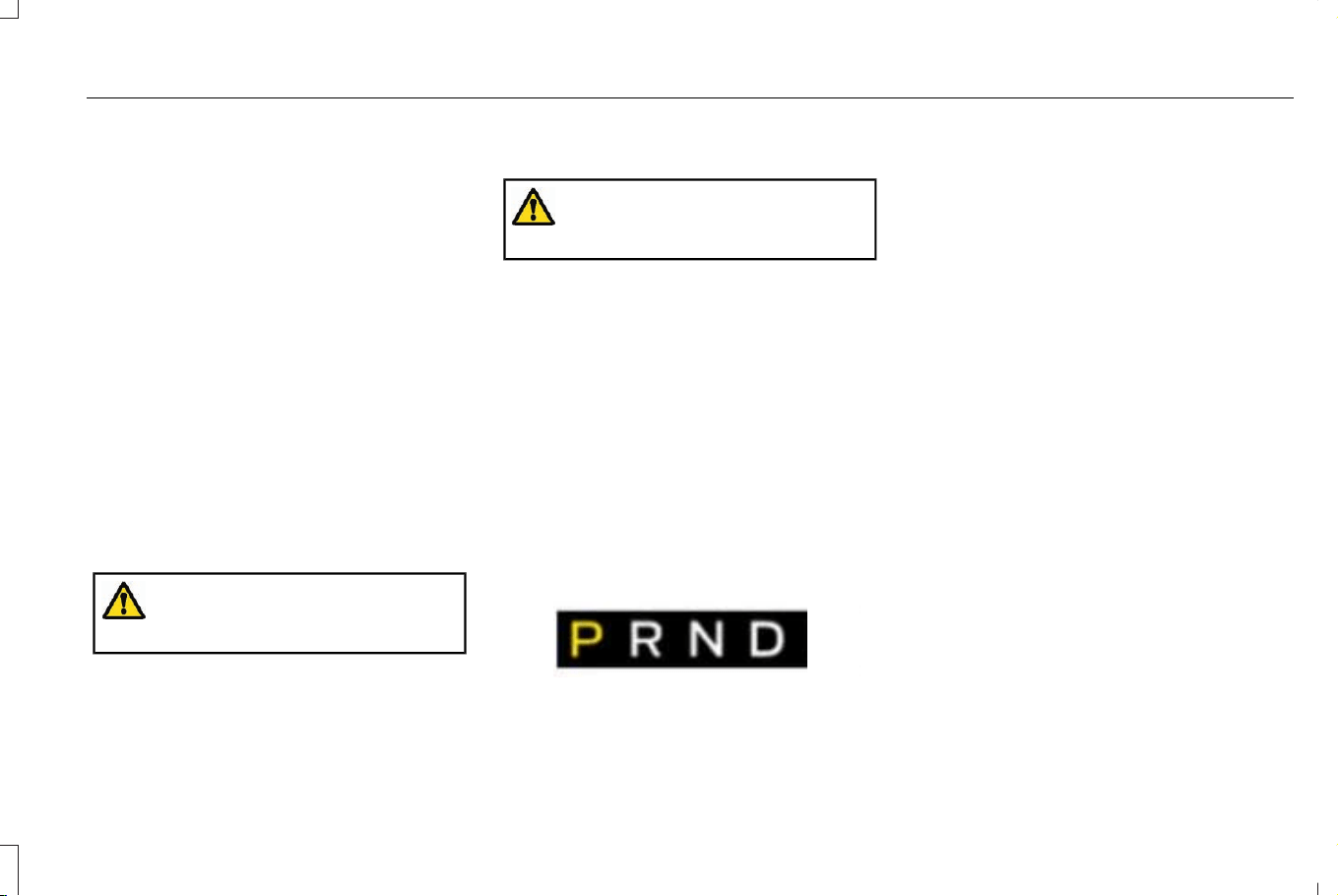
Note: The electronic parking brake could
apply if you shift to park (P) without fully
pressing the brake pedal.
Note: The electronic parking brake could
apply if you shift to park (P) on a slope.
Note: Do not manually release the parking
brake when the selector is in park (P). See
Automatically Releasing the Electric
Parking Brake (page 257).
Note: Your vehicle could shift into park (P) if
you attempt to exit your vehicle without the
transmission in park (P). See Automatic
Return to Park (P) (page 245).
Note: A tone could sound when you select
park (P).
REVERSE (R)
WARNING: Shift into reverse (R) only
when your vehicle is stationary.
In reverse (R) power is transmitted to the
driven wheels.
NEUTRAL (N)
WARNING: In neutral (N) your vehicle
is free to roll.
In neutral (N) power is not transmitted to the
driven wheels.
DRIVE (D)
In drive (D) power is transmitted to the driven
wheels.
AUTOMATIC TRANSMISSION
POSITION INDICATORS
The instrument cluster displays the current
position.
E368319
Note: The position could illuminate on the
transmission selector.
MANUALLY SHIFTING GEARS
Shifting Using the Paddle Shifters
The instrument cluster displays the current
gear. The current gear flashes when your
vehicle cannot shift into the requested gear.
Your vehicle does not shift if the requested
gear raises or lowers the engine speed
beyond the limit.
Your vehicle could shift when you fully press
the accelerator or brake pedal.
Note: Prolonged driving with high engine
speed could cause vehicle damage not
covered by vehicle warranty.
Note: Drive modes could affect when the
vehicle shifts into the requested gear.
243
Corsair (CTF) Canada/Mexico/United States of America, enUSA, Edition date: 202407, DOM
Automatic Transmission

E144821
Manually Shifting in Drive (D)
Use this feature to temporarily change gear.
Note: We recommend using this feature for
engine braking or driving on hilly or
mountainous roads.
• Pull either paddle to switch the feature
on.
• Pull the right (+) paddle to upshift.
• Pull the left (-) paddle to downshift.
• Hold the right (+) paddle for a few
seconds to switch the feature off.
Note: The feature switches off after a short
period of time if neither paddle is pulled.
TEMPORARY NEUTRAL MODE
How Does Temporary Neutral Mode
Work
Use this mode to keep your vehicle in neutral
(N), for a limited time, when you exit your
vehicle or switch your vehicle off. For
example, if you exit your vehicle before an
automatic car wash.
Note: You do not need to use this mode at
an automatic car wash if you shift into
neutral (N) and stay in your vehicle with
power on.
Note: Do not tow your vehicle in this mode.
Note: Automatic return to park (P) is delayed
when your vehicle is in this mode. See
Automatic Return to Park (P) (page 245).
Temporary Neutral Mode Limitations
This mode could be unavailable if your 12 V
battery charge level is low. Connect an
external power source and attempt the
procedure again.
Your vehicle could shift to park (P) after 30
minutes, or when the vehicle battery charge
level is low. Prolonged use of this mode can
cause the 12 V battery to run out of charge.
This mode could be unavailable if your
vehicle is below operating temperature.
Warm up your vehicle and attempt the
procedure again.
Do not tow your vehicle in this mode. Failure
to follow these instructions could result in
vehicle damage not covered by the vehicle
warranty.
Entering Temporary Neutral Mode
1. Bring your vehicle to a complete stop.
2. Press and hold the brake pedal.
3. Power your vehicle on.
4. Shift into neutral (N).
Note: An instructional message appears.
5. Shift into neutral (N) again within a few
seconds.
Note: A confirmation message appears
when your vehicle enters the mode.
6. Release the brake pedal.
244
Corsair (CTF) Canada/Mexico/United States of America, enUSA, Edition date: 202407, DOM
Automatic Transmission

Note: Your vehicle is free to roll.
7. Switch your vehicle off.
Note: Do not tow your vehicle in this mode.
Note: The neutral (N) indicator on the
selector may flash in this mode.
Exiting Temporary Neutral Mode
1. Press the brake pedal.
2. Shift into park (P), or power your vehicle
on and shift into drive (D) or reverse (R).
AUTOMATIC RETURN TO PARK (P)
How Does Automatic Return to Park
(P) Work
Your vehicle shifts into park (P) when your
vehicle is stationary and any of the following
occur:
• You switch the vehicle off.
• You open the driver door with the driver
seatbelt unfastened.
• You unfasten the driver seatbelt when
the driver door is open.
Note: Do not use automatic return to park
(P) when your vehicle is moving, except in
an emergency. See Starting and Stopping
the Engine (page 191).
Automatic Return to Park (P)
Limitations
Automatic return to park (P) may not work if
any of the following occur:
• The driver door ajar sensor is
malfunctioning.
• The driver seatbelt sensor is
malfunctioning.
See an authorized dealer if any of the
following occur:
• Seatbelt indicator illuminates or tone
sounds with the driver seatbelt fastened.
• Door ajar indicator does not illuminate
with the driver door open.
• Door ajar indicator illuminates with the
driver door closed.
• Transmission not in park message
appears, with the driver door closed, after
you shift out of park (P).
GRADE ASSIST - PLUG-IN HYBRID
ELECTRIC VEHICLE (PHEV)
How Does Grade Assist Work?
This feature helps maintain vehicle speed
when driving down a slope. The system uses
a combination of engine motoring and
regenerative braking to maintain vehicle
speed.
Note: You could hear engine speed
increasing and decreasing. This is normal
operation.
The system activates when all the following
occur:
• Your vehicle is on a downhill slope.
• The selector is in drive (D).
• You release the accelerator pedal.
245
Corsair (CTF) Canada/Mexico/United States of America, enUSA, Edition date: 202407, DOM
Automatic Transmission

SHIFTING YOUR IMMOBILE
VEHICLE OUT OF PARK (P)
WARNING: When doing this
procedure, you need to take your vehicle
out of park (P) which means your vehicle
can roll freely. To avoid unwanted vehicle
movement, apply the parking brake prior
to doing this procedure. Use wheels
chocks if appropriate.
Use this procedure to shift your vehicle out
of park (P) in the event of an electrical
malfunction or emergency.
Note: This mode could be unavailable if your
12 volt battery charge level is low. Connect
an external power source and attempt the
procedure again.
Note: Your vehicle could shift to park (P)
after 30 minutes, or when the vehicle battery
charge level is low. Prolonged use of this
mode can cause the 12 volt battery to run
out of charge.
Note: This mode could be unavailable if your
vehicle is below operating temperature.
Warm up your vehicle and attempt the
procedure again.
Note: Do not tow your vehicle in this mode.
Failure to follow these instructions could
result in vehicle damage not covered by the
vehicle warranty.
Shifting Your Vehicle Out of Park (P)
1. Apply the parking brake.
Note: If the battery is out of charge, use an
external power source to apply the parking
brake.
2. Power your vehicle on without your foot
on the brake pedal.
3. Fully press and hold the brake pedal.
4. Fully press and hold the accelerator
pedal.
5. Shift into neutral (N).
6. Shift into neutral (N) again within a few
seconds.
7. Attempt to start your vehicle.
Note: A confirmation message appears
when your vehicle enters the mode.
Note: You must complete this procedure
within 15 seconds. If your vehicle shifts into
park (P) attempt the procedure again.
8. Release the accelerator and brake
pedals.
9. Release the parking brake.
Note: Your vehicle is free to roll.
10. Switch your vehicle off.
Note: Do not tow your vehicle in this mode.
Returning Your Vehicle to Normal
Mode
1. Press the brake pedal.
2. Shift into park (P).
246
Corsair (CTF) Canada/Mexico/United States of America, enUSA, Edition date: 202407, DOM
Automatic Transmission

AUTOMATIC TRANSMISSION
AUDIBLE WARNINGS
Transmission Not In Park (P) Audible
Warning
Sounds if you open the driver door before
shifting into park (P).
Park Selection Audible Warning
Sounds when you shift into park (P).
AUTOMATIC TRANSMISSION
FLUID CAPACITY AND
SPECIFICATION
Materials
SpecificationName
WSS-M2C949-A,Motorcraft® MERCON® ULV Automatic Transmission Fluid(U.S.)
Motorcraft® MERCON® ULV Automatic Transmission Fluid / MERCON® ULV huile
pour boîtes automatique Motorcraft®(Canada)
XT-12-QULV(U.S. & Canada)
Note: Only use transmission fluid that
conforms to the defined specification. Use
of other fluids could result in vehicle damage
not covered by the vehicle warranty.
247
Corsair (CTF) Canada/Mexico/United States of America, enUSA, Edition date: 202407, DOM
Automatic Transmission

AUTOMATIC TRANSMISSION –
INFORMATION MESSAGES
DescriptionMessage
The electric parking
brake is not fully
applied.
Park Brake Not
Applied
A reminder to shift
into park (P). In addi-
tion, this message
appears after recon-
necting or rechar-
ging the battery until
you cycle the igni-
tion to the on mode.
Transmission Not in
Park
Displays when there
is a system fault and
the parking brake
needs to be pressed
before exiting the
vehicle. Have your
vehicle checked as
soon as possible.
SHIFT SYS FAULT
Apply Park Brake
Before Exiting the
Vehicle
DescriptionMessage
The system has
detected a fault that
requires service.
Have your vehicle
checked as soon as
possible.
Transmission
Malfunction Service
Now
Displays to confirm
that your vehicle has
entered Stay in
Neutral Mode.
Stay in Neutral Mode
Engaged
Displays when you
shift into neutral (N).
Select N To Confirm
Stay In Neutral Mode
248
Corsair (CTF) Canada/Mexico/United States of America, enUSA, Edition date: 202407, DOM
Automatic Transmission

HOW DOES ALL-WHEEL DRIVE
WORK
The all-wheel drive system is designed to
continuously monitor and adjust power
delivery to the front and rear wheels to
optimize both traction and handling. The
AWD system turns on when needed and
does not require input from you.
Your all-wheel drive vehicle is not intended
for off-road use. The AWD feature gives your
vehicle some limited off-road capabilities in
which driving surfaces are relatively level,
obstruction-free and otherwise similar to
normal on-road driving conditions. Operating
your vehicle in conditions other than those,
could subject the vehicle to excess stress
which might result in damage which is not
covered under your warranty.
ALL-WHEEL DRIVE PRECAUTIONS
WARNING: Do not become
overconfident in the ability of all-wheel
drive vehicles. Although an all-wheel drive
vehicle may accelerate better than a
two-wheel drive vehicle in low traction
situations, it won't stop any faster than
two-wheel drive vehicles. Always drive at
a safe speed.
ALL-WHEEL DRIVE LIMITATIONS
Using different size tires other than the
provided spare could cause system damage
or disable the all-wheel drive system.
249
Corsair (CTF) Canada/Mexico/United States of America, enUSA, Edition date: 202407, DOM
All-Wheel Drive (If Equipped)

ALL-WHEEL DRIVE – TROUBLESHOOTING
ALL-WHEEL DRIVE – INFORMATION MESSAGES
ActionMessage
The all-wheel drive system temporarily turns off to protect itself from overheating.AWD Temporarily Disabled
The all-wheel drive system will resume normal function and clear this message after driving a
short distance with the road tire re-installed or after the system cools.
AWD Restored
The all-wheel drive system temporarily turns off to protect itself from overheating or if you are
using the temporary spare tire.
AWD OFF
The all-wheel drive system is not operating properly. If the warning stays on or continues to
come on, contact an authorized dealer.
AWD Malfunction Service Required
250
Corsair (CTF) Canada/Mexico/United States of America, enUSA, Edition date: 202407, DOM
All-Wheel Drive (If Equipped)

BRAKE PRECAUTIONS
Wet brakes result in reduced braking
efficiency. Gently press the brake pedal a
few times when leaving a car wash or driving
from standing water to dry the brakes.
Note: Depending on applicable laws and
regulations in the country for which your
vehicle was originally built, your brake lamps
may flash during heavy braking. Following
this, your hazard lights may also flash when
your vehicle comes to a stop.
ANTI-LOCK BRAKING SYSTEM
ANTI-LOCK BRAKING SYSTEM
LIMITATIONS
The anti-lock braking system does not
eliminate the risk of crash when:
• You drive too closely to the vehicle in
front of you.
• Your vehicle is hydroplaning.
• You take corners too fast.
• The road surface is poor.
Note: If the system activates, the brake
pedal could pulse and travel further.
Maintain pressure on the brake pedal.
ANTI-LOCK BRAKING SYSTEM
INDICATORS
This system helps you maintain steering
control during emergency stops by keeping
the brakes from locking.
E67020
If the warning lamp illuminates
when you are driving, this indicates
a malfunction. Your vehicle
continues to have normal braking without
the anti-lock brake system function. Have
your vehicle checked as soon as possible.
The warning lamp also momentarily
illuminates when you switch the ignition on
to confirm the lamp is functional. If it does
not illuminate when you switch the ignition
on, or begins to flash at any time, have the
system checked by an authorized dealer.
BRAKE OVER ACCELERATOR
In the event the accelerator pedal becomes
stuck or entrapped, apply steady and firm
pressure to the brake pedal to slow the
vehicle and reduce engine power. If you
experience this condition, apply the brakes
and bring your vehicle to a safe stop. Move
the transmission to park (P), switch the
engine off and apply the parking brake.
Inspect the accelerator pedal for any
interference. If none are found and the
condition persists, have your vehicle towed
to the nearest authorized dealer.
LOCATING THE BRAKE FLUID
RESERVOIR
See Under Hood Overview (page 405).
251
Corsair (CTF) Canada/Mexico/United States of America, enUSA, Edition date: 202407, DOM
Brakes
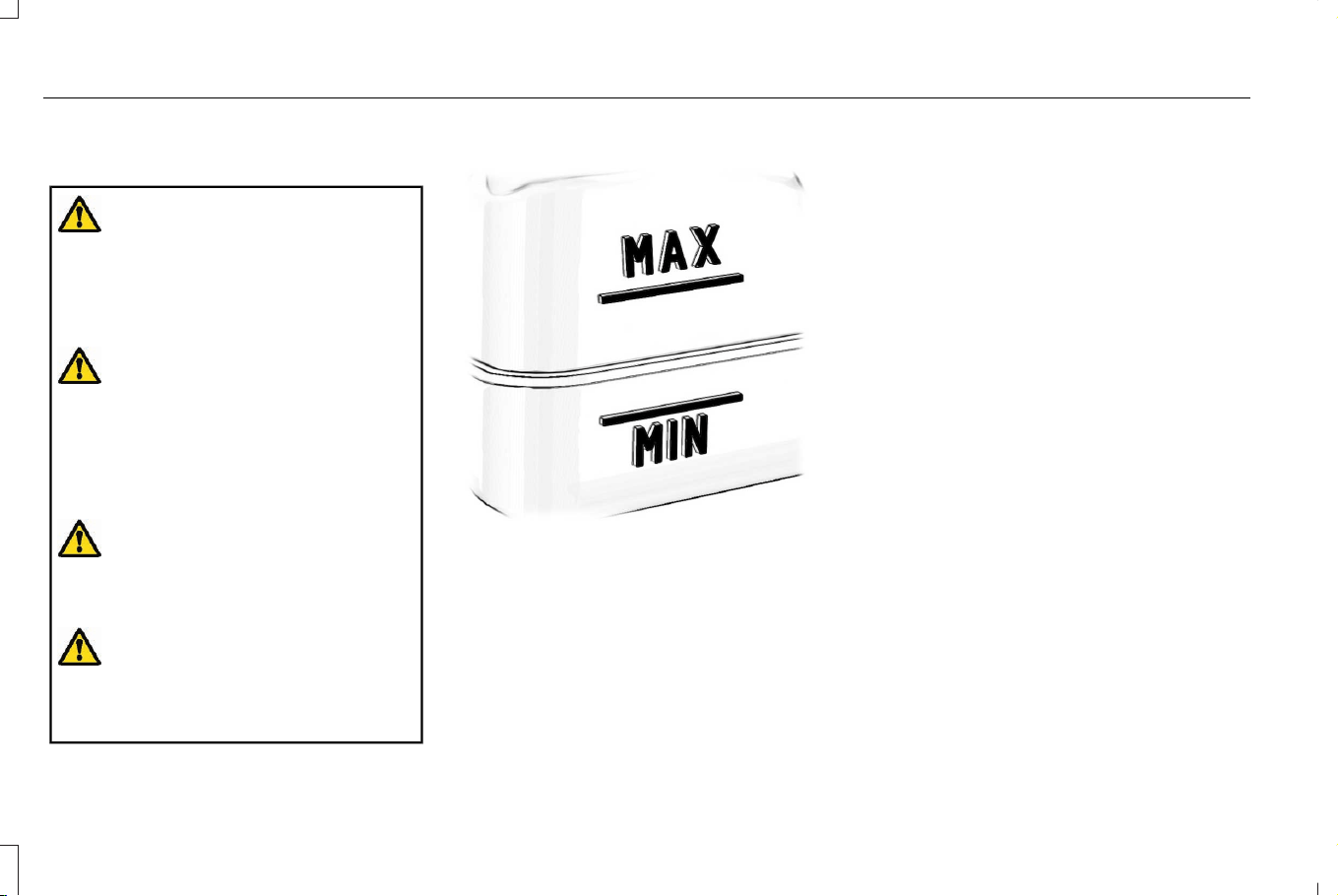
CHECKING THE BRAKE FLUID
WARNING: Do not use any fluid other
than the recommended brake fluid as this
will reduce brake efficiency. Use of
incorrect fluid could result in the loss of
vehicle control, serious personal injury or
death.
WARNING: Only use brake fluid from
a sealed container. Contamination with dirt,
water, petroleum products or other
materials may result in brake system
damage or failure. Failure to adhere to this
warning could result in the loss of vehicle
control, serious personal injury or death.
WARNING: Do not allow the fluid to
touch your skin or eyes. If this happens,
rinse the affected areas immediately with
plenty of water and contact your physician.
WARNING: The brake system could
be affected if the brake fluid level is below
the MIN mark or above the MAX mark on
the brake fluid reservoir.
1. Park your vehicle on a level surface.
E170684
2. Look at the brake fluid reservoir to see
where the brake fluid level is relative to
the MIN and the MAX marks on the
reservoir.
Note: To avoid fluid contamination, the
reservoir cap must remain in place and fully
tight, unless you are adding fluid.
Only use fluid that meets our specifications.
See Brake Fluid Specification (page 252).
BRAKE FLUID SPECIFICATION
Use fluid that meets the defined specification
and viscosity grade.
If you do not use fluid that meets the defined
specification and viscosity grade, it could
result in:
• Component damage that your vehicle
warranty does not cover.
• Reduced brake performance.
Note: We recommend you to use Dot 4 Low
Viscosity (LV) High Performance Brake Fluid
meeting WSS-M6C65-A2 specifications or
ISO 4925 Class 6 standards. If you use any
fluid other than the recommended fluid, it
could cause reduced brake performance
and not meet our performance standards.
Keep brake fluid clean and dry.
Contamination with dirt, water, petroleum
products or other materials could result in
brake system damage and possible failure.
252
Corsair (CTF) Canada/Mexico/United States of America, enUSA, Edition date: 202407, DOM
Brakes

Capacities
QuantityVariant
Fill as required.All.
Materials
SpecificationName
WSS-M6C65-A2Motorcraft® DOT 4 LV High Performance Motor Vehicle Brake Fluid(U.S.)
Motorcraft® DOT 4 LV High Performance Motor Vehicle Brake Fluid / Liquide de
frein automobile haute performance DOT 4 LV Motorcraft®(Canada)
PM-20(U.S. & Canada)
253
Corsair (CTF) Canada/Mexico/United States of America, enUSA, Edition date: 202407, DOM
Brakes
BRAKES – TROUBLESHOOTING
BRAKES – WARNING LAMPS
WARNING: Driving your vehicle with
the warning lamp on is dangerous. A
significant decrease in braking
performance may occur. It may take you
longer to stop your vehicle. Have your
vehicle checked as soon as possible.
Driving extended distances with the
parking brake engaged can cause brake
failure and the risk of personal injury.
E67020
If the ABS indicator illuminates
when you are driving, this indicates
a malfunction. Your vehicle
continues to have normal braking without
the anti-lock braking system function. See
an authorized dealer.
It also momentarily illuminates when you
switch the ignition on to confirm the lamp is
functional. If it does not illuminate when you
switch the ignition on, or begins to flash at
any time, have the system checked by an
authorized dealer.
E270480
E67024
The brake indicator momentarily
illuminates when you switch the
ignition on to confirm the lamp is
functional. It may also illuminate when you
apply the parking brake and the ignition is
on. If it illuminates when your vehicle is
moving, make sure the parking brake is
disengaged. If the parking brake is
disengaged, this indicates low brake fluid
level or a brake system fault. See an
authorized dealer.
Note: Lamps may vary depending on region.
BRAKES – INFORMATION MESSAGES
The brake fluid level
is low and the brake
system should be
inspected immedi-
ately. See Checking
the Brake Fluid
(page 252).
Brake Fluid Level
Low
The brake system
needs servicing.
Stop the vehicle in a
safe place. Contact
an authorized
dealer.
Check Brake System
BRAKES – FREQUENTLY ASKED
QUESTIONS
Is brake dust on the wheels normal?
Brake dust could accumulate on the
wheels, even under normal driving
conditions. Some dust is inevitable as
the brakes wear and does not contribute
to brake noise. See Cleaning Wheels
(page 440).
254
Corsair (CTF) Canada/Mexico/United States of America, enUSA, Edition date: 202407, DOM
Brakes

Will wet driving conditions effect my
braking abilities?
Wet brakes result in reduced braking
efficiency. Gently press the brake pedal
a few times when driving from a car
wash or standing water to dry the
brakes.
Is brake noise considered normal?
Occasional brake noise is normal. If a
metal-to-metal, continuous grinding or
continuous squeal sound is present, the
brake linings may be worn-out and an
authorized dealer should check them.
If the vehicle has continuous vibration
or shudder in the steering wheel while
braking, an authorized dealer should
check your vehicle.
When should you replace the brake fluid?
Brake fluid absorbs water over time
which degrades the effectiveness of the
brake fluid. Change the brake fluid at
the specified intervals to prevent
degraded braking performance.
255
Corsair (CTF) Canada/Mexico/United States of America, enUSA, Edition date: 202407, DOM
Brakes
WHAT IS THE ELECTRIC PARKING
BRAKE
The electric parking brake is used to hold
your vehicle on slopes and flat roads.
APPLYING THE ELECTRIC
PARKING BRAKE
WARNING: Apply the parking brake,
shift into park (P), switch the ignition off
and remove the key before you leave your
vehicle. Failure to follow this instruction
could result in personal injury or death.
WARNING: If you drive extended
distances with the parking brake applied,
you could cause damage to the brake
system.
WARNING: The electric parking
brake does not operate if the vehicle
battery has run out of charge.
WARNING: If the parking brake is
fully released, but the brake warning lamp
remains illuminated, the brakes may not
be working properly. Have your vehicle
checked as soon as possible.
E267156
The switch is on the lower part of
the instrument panel.
Pull the switch up to apply the electric
parking brake. The red warning lamp flashes,
then steadily illuminates when the parking
brake is applied.
Note: You can apply the electric parking
brake when the ignition is off.
Note: The electric parking brake could
automatically apply when park (P) is
selected. See Park (P) (page 242).
APPLYING THE ELECTRIC
PARKING BRAKE IN AN
EMERGENCY
You can use the electric parking brake to
slow or stop your vehicle in an emergency.
Pull the switch up and hold it.
The red warning lamp illuminates, a tone
sounds and the stoplamps turn on when you
use the electric parking brake in an
emergency.
The electric parking brake continues to slow
your vehicle down unless you release the
switch.
Note: Do not apply the electric parking brake
when your vehicle is moving, except in an
emergency. If you repeatedly use the electric
parking brake to slow or stop your vehicle,
you could cause damage to the brake
system.
256
Corsair (CTF) Canada/Mexico/United States of America, enUSA, Edition date: 202407, DOM
Electric Parking Brake
MANUALLY RELEASING THE
ELECTRIC PARKING BRAKE
1. Switch the ignition on.
2. Press and hold the brake pedal.
3. Push the switch down.
The red warning lamp turns off.
Pulling Away When Towing a Trailer Uphill
1. Press and hold the brake pedal.
2. Pull the switch upward and hold it.
3. Shift into gear.
4. Press the accelerator pedal until engine
has developed sufficient torque to
prevent your vehicle from rolling down
the hill.
5. Release the switch and pull away in a
normal manner.
AUTOMATICALLY RELEASING THE
ELECTRIC PARKING BRAKE
1. Close the driver door.
2. Shift into gear.
3. Press the accelerator pedal and pull away
in a normal manner.
ELECTRIC PARKING BRAKE
AUDIBLE WARNING
Sounds when the parking brake is on and
your vehicle is moving. If the warning tone
continues after you have released the
parking brake, this indicates a malfunction.
Have your vehicle checked as soon as
possible.
RELEASING THE ELECTRIC
PARKING BRAKE IF THE VEHICLE
BATTERY HAS RUN OUT OF
CHARGE
WARNING: The electric parking
brake does not operate if the vehicle
battery has run out of charge.
Connect a booster battery to the vehicle
battery to release the electric parking brake
if the vehicle battery has run out of charge.
See Jump Starting Precautions (page 377).
ELECTRIC PARKING BRAKE –
TROUBLESHOOTING
ELECTRIC PARKING BRAKE –
WARNING LAMPS
Brake System
E270480
E67024
It illuminates red when you apply
the parking brake and your vehicle
is on. If the lamp flashes when the
parking brake has been released,
this indicates the parking brake
system requires service. Have your vehicle
checked as soon as possible.
Note: Lamps may vary depending on region.
257
Corsair (CTF) Canada/Mexico/United States of America, enUSA, Edition date: 202407, DOM
Electric Parking Brake
Electric Parking Brake
E67024
E146190
When the lamp illuminates yellow,
it indicates a malfunction in the
electric parking brake. Have your
vehicle checked as soon as possible.
Note: Lamps may vary depending on region.
ELECTRIC PARKING BRAKE – INFORMATION MESSAGES
ActionMessage
The electric parking brake is set and a manual release is attempted without the brake
pedal being pressed.
To Release: Press Brake and Switch
The electric parking brake is set and an automatic release is attempted but cannot be
performed. Perform a manual release.
Park Brake Use Switch to Release
The electric parking brake is set and your vehicle speed exceeds 3 mph (5 km/h).
Release the electric parking brake before continuing to drive.
Release Park Brake
The electric parking brake is not fully applied.Park Brake Not Applied
The electric parking brake is not fully released.Park Brake Not Released
The electric parking brake system has been put into a special mode to allow brake
service. Have the system checked as soon as possible.
Brake maintenance mode
The electric parking brake system has detected a condition that requires service. Some
functionality may still be available. Have the system checked as soon as possible.
Park Brake Limited Function Service Required
The electric parking brake system has detected a condition that requires service. Have
the system checked as soon as possible.
Park Brake Malfunction Service Now
258
Corsair (CTF) Canada/Mexico/United States of America, enUSA, Edition date: 202407, DOM
Electric Parking Brake
WHAT IS REVERSE BRAKE ASSIST
Reverse brake assist is designed to reduce
impact damage or assist in avoiding a
collision while in reverse (R).
HOW DOES REVERSE BRAKE
ASSIST WORK
Reverse brake assist functions when in
reverse (R) and traveling at a speed of
1–7 mph (2–12 km/h).
If the system detects an obstacle behind your
vehicle, it provides a warning through the
rear parking aid or cross traffic alert system.
Using sensors on the rear of the vehicle, it
can detect a possible collision and apply the
brakes. If full braking occurs, the system
attempts to stop the vehicle a safe distance
from the obstacle.
REVERSE BRAKE ASSIST
PRECAUTIONS
WARNING: You are responsible for
controlling your vehicle at all times. The
system is designed to be an aid and does
not relieve you of your responsibility to
drive with due care and attention. Failure
to follow this instruction could result in the
loss of control of your vehicle, personal
injury or death.
WARNING: To help avoid personal
injury, always use caution when in reverse
(R) and when using the sensing system.
WARNING: The system may not
operate properly during severe weather
conditions, for example snow, ice, heavy
rain and spray. Always drive with due care
and attention. Failure to take care may
result in a crash.
WARNING: Traffic control systems,
fluorescent lamps, inclement weather, air
brakes, external motors and fans may
affect the correct operation of the sensing
system. This may cause reduced
performance or false alerts.
WARNING: Some situations and
objects prevent hazard detection. For
example low or direct sunlight, inclement
weather, unconventional vehicle types, and
pedestrians. Apply the brakes when
necessary. Failure to follow this instruction
could result in the loss of control of your
vehicle, personal injury or death.
WARNING: Do not use the system
with accessories that extend beyond the
front or rear of your vehicle, for example a
trailer hitch or bike rack. The system is not
able to make corrections for the additional
length of the accessories.
259
Corsair (CTF) Canada/Mexico/United States of America, enUSA, Edition date: 202407, DOM
Reverse Brake Assist (If Equipped)

The system only applies the brakes for a
short period of time when an event occurs.
Act as soon as you notice the brakes apply
to remain in control of the vehicle. If you do
not intervene the vehicle may start to move
again.
Note: Certain add-on devices around the
bumper or fascia may create false alerts. For
example, large trailer hitches, bicycle or
surfboard racks, license plate brackets,
bumper covers or any other device that may
block the normal detection zone of the
system. Remove the add-on device to
prevent false alerts.
Note: The system does not react to small or
moving objects, particularly those close to
the ground.
Note: The system does not operate during
hard acceleration or steering.
Note: If your vehicle sustains damage to the
bumper or fascia leaving it misaligned or
bent, it could alter the sensing zone causing
inaccurate measurement of obstacles or
false alerts.
Note: Vehicle loading and suspension
changes can impact the angle of the sensors
and may change the normal detection zone
of the system resulting in inaccurate
measurement of obstacles or false alerts.
Note: When you connect a trailer, the system
may detect the trailer and provide an alert,
or the system turns off. If the system does
not turn off, manually switch the system off
after you connect the trailer.
Note: You may experience reduced system
performance on road surfaces that limit
deceleration. For example, roads with ice,
loose gravel, mud or sand.
SWITCHING REVERSE BRAKE
ASSIST ON AND OFF
1. Press Features on the touchscreen.
2. Press Driver Assistance.
3. Switch Reverse Brake Assist on or off.
Note: The system is unavailable when the
rear parking aid or cross traffic alert is off.
Note: If your vehicle is not equipped with
cross traffic alert the reverse braking assist
relies on input from the rear parking aid and
rear camera sensors.
Note: The default setting is on in some
regions.
OVERRIDING REVERSE BRAKE
ASSIST
There could be instances when unexpected
or unwanted braking occurs. Firmly pressing
the accelerator pedal or switching the feature
off overrides the system.
REVERSE BRAKE ASSIST
INDICATORS
If the system determines that a collision with
an obstacle may occur, full braking may
apply.
E293490
A message and warning indicator
appear when the system applies
the brakes.
260
Corsair (CTF) Canada/Mexico/United States of America, enUSA, Edition date: 202407, DOM
Reverse Brake Assist (If Equipped)

REVERSE BRAKE ASSIST – TROUBLESHOOTING
REVERSE BRAKE ASSIST – INFORMATION MESSAGES
DescriptionMessage
Displays for a few seconds when the system applies the brakes.Reverse Brake Assist
Displays when a related system or feature error occurs. Make sure
the exterior cameras are clean and not obstructed. Drive the vehicle
on a straight road for a short period. If the message remains, have
the system checked as soon as possible.
Reverse Brake Assist Not Available See Manual
Displays when a system error has occurred. Have your vehicle
checked as soon as possible.
Reverse Brake Assist Fault
Displays when reverse brake assist is off.Reverse Brake Assist Off
261
Corsair (CTF) Canada/Mexico/United States of America, enUSA, Edition date: 202407, DOM
Reverse Brake Assist (If Equipped)

REVERSE BRAKE ASSIST –
FREQUENTLY ASKED QUESTIONS
Why is reverse brake assist
unavailable?
• Make sure you switch the system on.
See Switching Reverse Brake Assist On
and Off (page 260).
• Make sure that the liftgate or tailgate,
hood and all doors are closed.
• Make sure the cross traffic alert system
is on. See What Is Cross Traffic Alert
(page 334).
• Make sure the rear parking aid system is
on. See What is the Rear Parking Aid
(page 274).
• Make sure that traction control is on. See
Switching Traction Control On and Off
(page 266).
• Your vehicle may have sustained a rear
end impact. Have the sensors checked
for proper coverage and operation.
• Make sure the exterior cameras are not
dirty or obstructed. If dirty, clean the
cameras. If the reverse brake assist
unavailable message still appears after
cleaning the cameras, wait a short time
for the message to clear. If the message
does not clear, drive the vehicle on a
straight road for a short period. If the
message remains, have the system
checked.
• Make sure the sensors are not blocked
or faulted. See Locating the Rear
Parking Aid Sensors (page 274). See
Locating the Cross Traffic Alert Sensors
(page 336).
• You recently had your vehicle serviced,
or the battery disconnected. Drive your
vehicle a short distance to resume
system operation.
• The system does not function when you
connect a trailer. Operation resumes
when you disconnect the trailer.
Note: If you are still having problems with
reverse brake assist, have the system
checked as soon as possible.
REVERSE BRAKE ASSIST VIDEOS
Lincoln Reverse Brake Assist Video Link
262
Corsair (CTF) Canada/Mexico/United States of America, enUSA, Edition date: 202407, DOM
Reverse Brake Assist (If Equipped)
WHAT IS HILL START ASSIST
Hill Start Assist applies the brakes to hold
your vehicle after you bring it to a stop on a
slope. This makes it easier for you to pull
away without using the parking brake.
HOW DOES HILL START ASSIST
WORK
When the system activates, your vehicle
remains stationary for a few seconds after
you release the brake pedal. This gives you
time to move your foot from the brake pedal
to the accelerator pedal. The brakes release
when you apply the accelerator pedal and
the vehicle begins to move forward, or the
system exceeds the time allowed for
automatically applying the brakes.
The system activates when your vehicle is
in any forward gear and facing uphill, or
when your vehicle is in reverse (R) and facing
downhill.
HILL START ASSIST PRECAUTIONS
WARNING: The system does not
replace the parking brake. When you leave
your vehicle, always apply the parking
brake.
WARNING: You must remain in your
vehicle when the system turns on. At all
times you are responsible for controlling
your vehicle, supervising the system, and
intervening if required. Failure to follow
this instruction could result in the loss of
control of your vehicle, personal injury or
death.
WARNING: The system turns off if
there is a malfunction.
HILL START ASSIST –
TROUBLESHOOTING
HILL START ASSIST – INFORMATION
MESSAGES
DetailsMessage
Displays when
system is not avail-
able. Have your
vehicle checked as
soon as possible.
Hill Start Assist Not
Available
263
Corsair (CTF) Canada/Mexico/United States of America, enUSA, Edition date: 202407, DOM
Hill Start Assist

HOW DOES AUTO HOLD WORK
Auto hold applies the brakes to hold your
vehicle after you bring the vehicle to a stop.
This can help when waiting on a hill or in
traffic.
SWITCHING AUTO HOLD ON AND
OFF
WARNING: The system does not
replace the parking brake. When you leave
your vehicle, always apply the parking
brake.
WARNING: You must remain in your
vehicle when the system turns on. At all
times you are responsible for controlling
your vehicle, supervising the system, and
intervening if required. Failure to follow
this instruction could result in the loss of
control of your vehicle, personal injury or
death.
You can switch the system on or off by
accessing the menu in the SYNC display
screen.
1. From the features menu, press Driver
Assistance. See Center Display (page
502).
2. Switch Auto Hold on or off.
Note: You can only switch the system on
after you close the driver door, and fasten
your seatbelt.
Note: The system remembers the last setting
when you start your vehicle.
Note: When using an automatic car wash,
make sure to switch auto hold off, or shift to
neutral (N) with the brake pedal applied to
make sure auto hold is not active.
USING AUTO HOLD
1. Bring your vehicle to a complete stop.
The auto hold active indicator illuminates
in the instrument cluster display.
2. Release the brake pedal. The system
holds your vehicle at a standstill. The
auto hold active indicator remains
illuminated in the instrument cluster
display.
3. Apply the accelerator and drive off in a
normal manner. The system releases the
brakes and the auto hold active indicator
switches off.
Note: The system only activates if you apply
enough pressure to the brake pedal to bring
the vehicle to a standstill.
Note: Under certain conditions, the system
could apply the electric parking brake. The
brake system warning lamp illuminates. The
electric parking brake releases when you
press the accelerator pedal. See
Automatically Releasing the Electric
Parking Brake (page 257).
Note: The system switches off if you shift
into reverse (R) or neutral (N) while pressing
the brake pedal.
264
Corsair (CTF) Canada/Mexico/United States of America, enUSA, Edition date: 202407, DOM
Auto Hold

There could be actions that can cause the
auto hold system not to work when the
following occur:
• Your vehicle is in temporary neutral
mode.
• The driver door is open.
• You shift into reverse (R) or neutral (N)
before the system is active.
AUTO HOLD INDICATORS
E323448
Illuminates when the system is
active.
E323449
Illuminates when the system is on
but cannot hold your vehicle at a
standstill at this particular time.
265
Corsair (CTF) Canada/Mexico/United States of America, enUSA, Edition date: 202407, DOM
Auto Hold
WHAT IS TRACTION CONTROL
The traction control system helps to avoid
drive wheel spin and loss of traction.
HOW DOES TRACTION CONTROL
WORK
If your vehicle begins to slide, the system
applies the brakes to individual wheels and,
when needed, reduces power at the same
time. If the wheels spin when accelerating
on slippery or loose surfaces, the system
reduces power in order to increase traction.
SWITCHING TRACTION CONTROL
ON AND OFF
WARNING: Operating your vehicle
with the traction control disabled could
lead to an increased risk of loss of vehicle
control, vehicle rollover, personal injury
and death.
E356488
The traction control system turns on each
time you switch the ignition on.
The button for your traction control system
is located on the center console.
Press and release the button to switch
traction control off. The stability control
system remains fully active.
When you switch traction control off, a
message and an illuminated icon appear on
the instrument cluster.
Press the switch again to turn the traction
control system back on to normal operation.
If your vehicle is stuck in mud or snow,
switching traction control off may be
beneficial as this allows the wheels to spin.
Note: When you switch traction control off,
stability control remains fully active.
TRACTION CONTROL INDICATOR
Stability and Traction Control Indicator
E138639
If the indicator does not illuminate
when you switch the ignition on,
or remains on when the engine is
running, this indicates a malfunction. Have
your vehicle checked by an authorized
dealer as soon as possible.
E130458
The traction control off indicator
illuminates when you switch the
traction control system off, or when
an alternative stability control mode is
selected that requires the traction control off
depending on the drive mode selected.
266
Corsair (CTF) Canada/Mexico/United States of America, enUSA, Edition date: 202407, DOM
Traction Control
TRACTION CONTROL –
TROUBLESHOOTING
TRACTION CONTROL – WARNING
LAMPS
System Messages
E138639
The traction control light
temporarily illuminates on start-up
and flashes when activated by a
driving condition.
The traction control off light temporarily
illuminates on start-up and stays on:
• When you switch the traction control
system off.
• When you select an alternative stability
control mode.
• If a problem occurs in the system.
TRACTION CONTROL – INFORMATION MESSAGES
AdvanceTrac™ and Traction Control
ActionMessage
The system detects a condition that requires service. Contact an authorized dealer as soon as
possible.
Service AdvanceTrac
The status of the AdvanceTrac system after you switched it off.AdvanceTrac Off
The status of the AdvanceTrac system after you switched it on.AdvanceTrac On
The status of the AdvanceTrac sport mode after you switched it on.AdvanceTrac SPORT MODE
The status of the traction control system after you switched it off.Traction Control Off
The status of the traction control system after you switched it on.Traction Control On
267
Corsair (CTF) Canada/Mexico/United States of America, enUSA, Edition date: 202407, DOM
Traction Control
HOW DOES STABILITY CONTROL
WORK
WARNING: Vehicle modifications
involving braking system, aftermarket roof
racks, suspension, steering system, tire
construction and wheel and tire size may
change the handling characteristics of your
vehicle and may adversely affect the
performance of the electronic stability
control system. In addition, installing any
stereo speakers may interfere with and
adversely affect the electronic stability
control system. Reducing the effectiveness
of the electronic stability control system
could lead to an increased risk of loss of
vehicle control, vehicle rollover, personal
injury and death.
WARNING: Remember that even
advanced technology cannot defy the laws
of physics. It's always possible to lose
control of a vehicle due to inappropriate
driver input for the conditions. Aggressive
driving on any road condition can cause
you to lose control of your vehicle
increasing the risk of personal injury or
property damage. Activation of the
electronic stability control system is an
indication that at least some of the tires
have exceeded their ability to grip the
road; this could reduce the operator's
ability to control the vehicle potentially
resulting in a loss of vehicle control, vehicle
rollover, personal injury and death.
WARNING: You are responsible for
controlling your vehicle at all times. The
system is designed to be an aid and does
not relieve you of your responsibility to
drive with due care and attention. Failure
to follow this instruction could result in the
loss of control of your vehicle, personal
injury or death.
If a driving condition activates either the
stability control or traction control you may
experience the following conditions:
• The stability and traction control light
flashes.
• Your vehicle slows down.
• Reduced engine power.
The stability control system has several
features built into it to help you maintain
control of your vehicle:
Electronic Stability Control
Electronic stability control enhances your
vehicle’s ability to prevent skids or lateral
slides by applying brakes to one or more of
the wheels individually and, if necessary,
reducing engine power.
Roll Stability Control
Roll stability control enhances your vehicle’ s
ability to prevent rollovers by detecting your
vehicle’s roll motion and the rate at which it
changes by applying the brakes to one or
more wheels individually.
Curve Control
Curve control enhances your vehicle’ s ability
to follow the road when cornering severely
or avoiding objects in the roadway. Curve
control operates by reducing engine power
and, if necessary, applying brakes to one or
more of the wheels individually.
268
Corsair (CTF) Canada/Mexico/United States of America, enUSA, Edition date: 202407, DOM
Stability Control
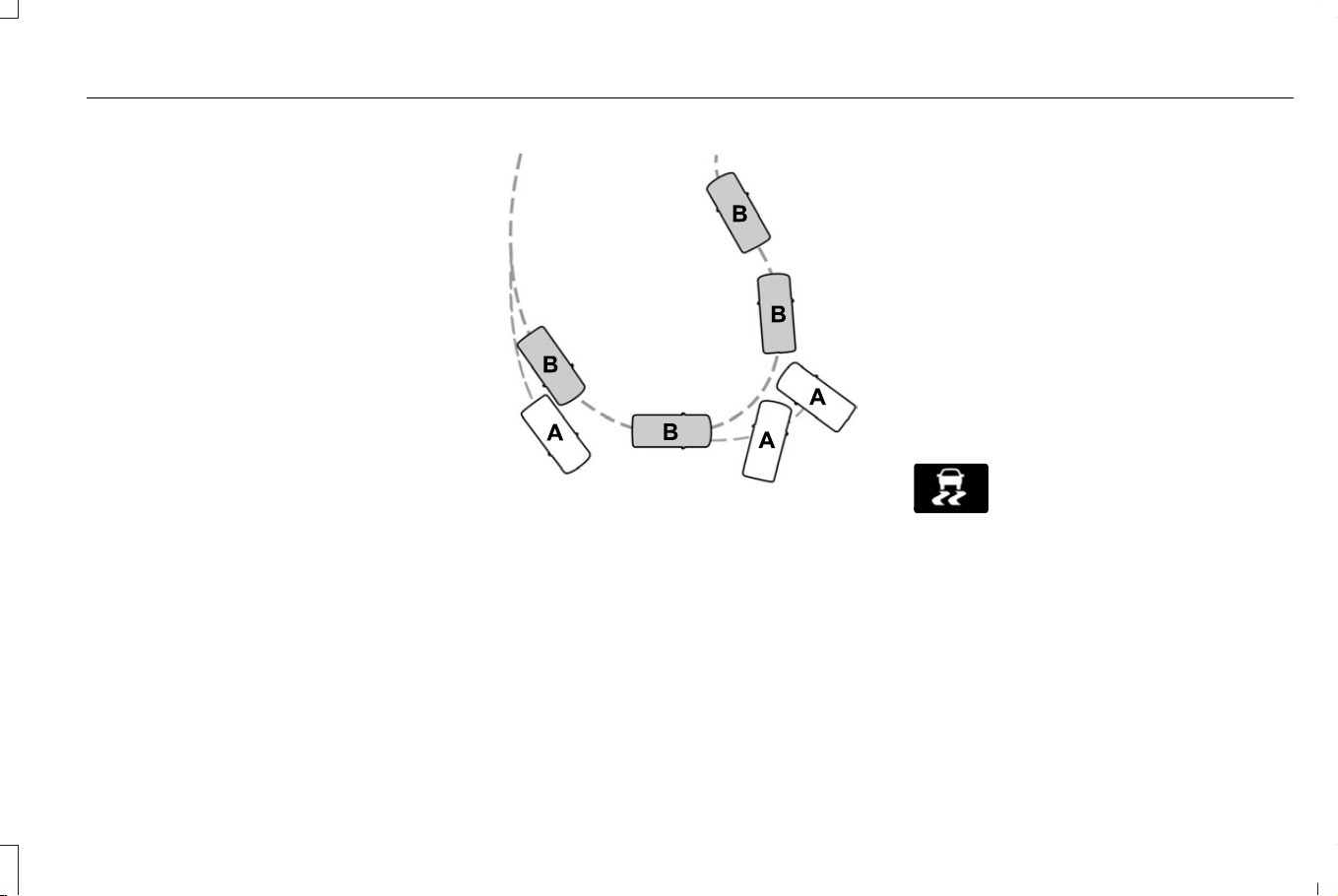
Side Wind Stabilization
Side wind stabilization is an advanced
feature that works by carefully applying the
brakes on one side of the vehicle to reduce
the effect of a side wind gust on the vehicle's
path.
Traction Control
Traction control enhances your vehicle’s
ability to maintain traction of the wheels by
detecting and controlling wheel spin. See
What Is Traction Control (page 266).
E72903
Vehicle without stability control
skidding off its intended route.
A
Vehicle with stability control
maintaining control on a slippery
surface.
B
SWITCHING STABILITY CONTROL
ON AND OFF
The system turns on each time you switch
the ignition on.
When you shift the transmission into reverse
(R), the systems are disabled.
You can switch the traction control system
off or on independently. See Switching
Traction Control On and Off (page 266).
STABILITY CONTROL INDICATOR
E138639
The system turns on each time you
switch the ignition on. You can
switch off the traction control
portion of the system independently. See
How Does Traction Control Work (page 266).
269
Corsair (CTF) Canada/Mexico/United States of America, enUSA, Edition date: 202407, DOM
Stability Control

STABILITY CONTROL –
TROUBLESHOOTING
STABILITY CONTROL – WARNING
LAMPS
Stability Control
E138639
It flashes when the system is
active. If it remains illuminated or
does not illuminate when you
switch the ignition on, this indicates a system
error. During a system error the system
switches off. Have the system checked by
an authorized dealer immediately.
Stability Control Off
E130458
Illuminates when you switch the
system off. It goes out when you
switch the system back on or when
you switch the ignition off.
STABILITY CONTROL – INFORMATION
MESSAGES
Displayed when the
system has detected
a condition that
requires service.
Contact your author-
ized dealer as soon
as possible.
Service Advan-
ceTrac
The traction control
has been disabled or
enabled by the
driver
AdvanceTrac Off On
270
Corsair (CTF) Canada/Mexico/United States of America, enUSA, Edition date: 202407, DOM
Stability Control
ELECTRIC POWER STEERING
HOW DOES ELECTRIC POWER
STEERING WORK
The electric power steering system assists
the brake system to help operate advanced
stability control and accident avoidance
systems.
If your vehicle loses electrical power or
detects a concern when you are driving, the
system switches to reduced steering assist
or manual steering. Additionally, whenever
disconnecting the battery or installing a new
one, you must drive your vehicle a short
distance before the system relearns the
strategy and reactivates all systems.
ELECTRIC POWER STEERING
PRECAUTIONS
WARNING: The electric power
steering system has diagnostic checks that
continuously monitor the system. If a fault
is detected, a message displays in the
information display. Stop your vehicle as
soon as it is safe to do so. Switch the
vehicle off. After at least 10 seconds, switch
the vehicle on and watch the information
display for a steering system warning
message. If a steering system warning
message returns, have the system checked
as soon as possible.
WARNING: If the system detects an
error, you may not feel a difference in the
steering, however a serious condition may
exist. Have your vehicle checked as soon
as possible. Failure to do so may result in
loss of steering control.
Adapt your speed and driving behavior
according to reduced steering assist.
Extreme continuous steering may increase
the effort to steer. This occurs to prevent
internal overheating and damage to the
steering system. If this occurs, you will not
lose the ability to steer your vehicle manually
nor will it cause damage to the system.
Normal steering and driving allows the
system to cool down and steering assist
returns to normal.
Note: There is no fluid reservoir to check or
fill.
When your vehicle is still moving, a
significant decrease in steering assistance
or a loss of steering assistance could occur
if:
• You switch your vehicle off.
• Your vehicle loses electrical power.
• Your vehicle detects a concern.
When your vehicle is off and your vehicle
begins moving, there is no steering
assistance.
271
Corsair (CTF) Canada/Mexico/United States of America, enUSA, Edition date: 202407, DOM
Steering
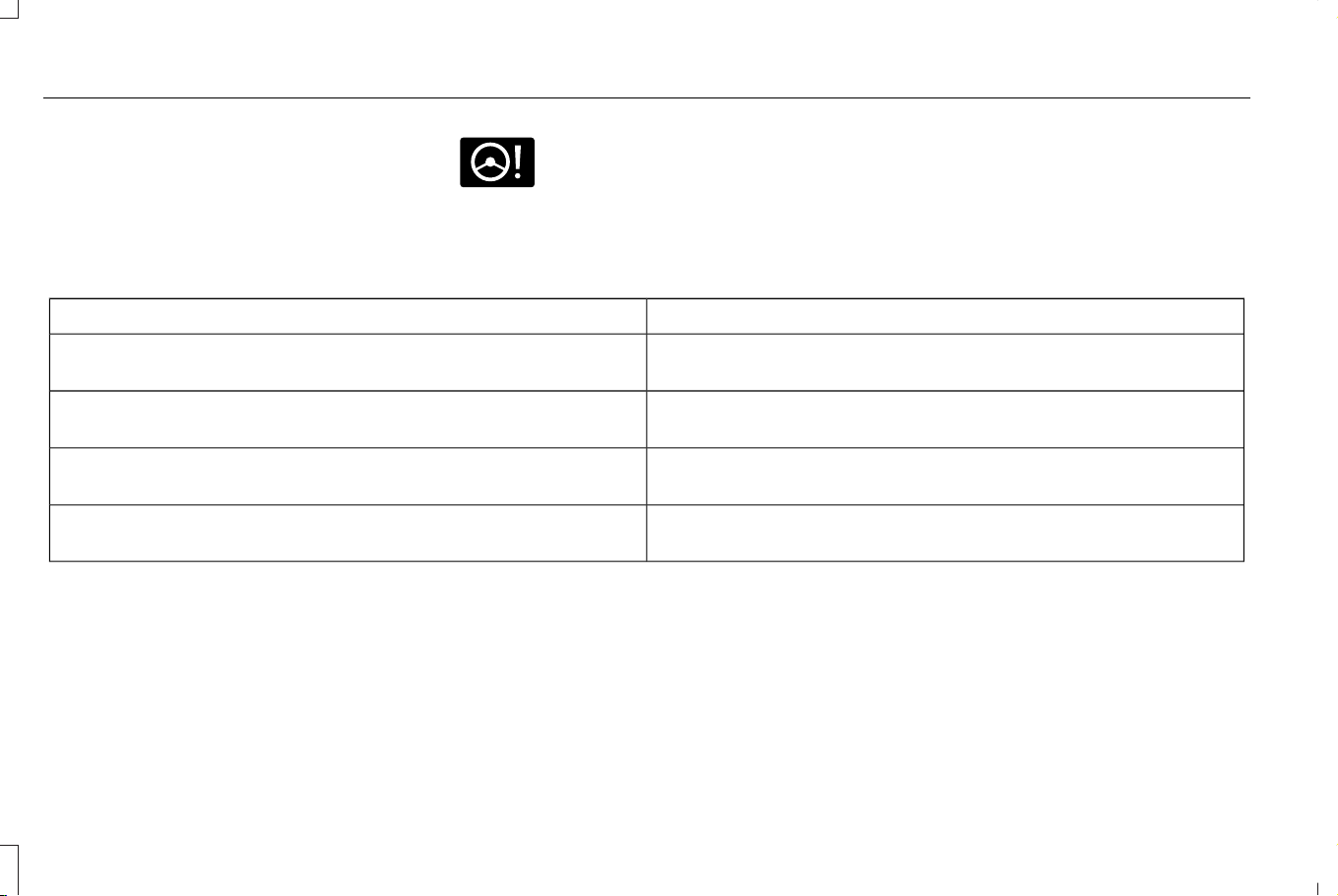
STEERING – TROUBLESHOOTING
STEERING – WARNING LAMPS
E223375
The electric power steering system
indicator illuminates if the system
detects a fault during the
continuous diagnostic checks.
Note: If a red warning message displays,
stop your vehicle as soon as it is safe to do
so.
STEERING – INFORMATION MESSAGES
ActionMessage
The power steering system has detected a condition that requires
service. Have your vehicle checked as soon as possible.
Steering Fault Service Now
The power steering system is not working. Stop your vehicle in a safe
place. Have your vehicle checked as soon as possible.
Steering Loss Stop Safely
The power steering system has detected a condition that requires
service. Have your vehicle checked as soon as possible.
Steering Assist Fault Service Required
The steering system has detected a condition that requires service.
Have your vehicle checked as soon as possible.
Steering Lock Malfunction Service Now
272
Corsair (CTF) Canada/Mexico/United States of America, enUSA, Edition date: 202407, DOM
Steering
PARKING AID PRECAUTIONS
WARNING: To help avoid personal
injury, always use caution when in reverse
(R) and when using the sensing system.
WARNING: The system may not
detect objects with surfaces that absorb
reflection. Always drive with due care and
attention. Failure to take care may result
in a crash.
WARNING: Traffic control systems,
fluorescent lamps, inclement weather, air
brakes, external motors and fans may
affect the correct operation of the sensing
system. This may cause reduced
performance or false alerts.
WARNING: The system may not
detect small or moving objects, particularly
those close to the ground.
WARNING: The parking aid system
can only assist you to detect objects when
your vehicle is moving at parking speeds.
To help avoid personal injury you must
take care when using the parking aid
system.
WARNING: The system may not
function if the sensor is blocked.
WARNING: In cold and severe
weather conditions the system may not
function. Rain, snow and spray can all limit
sensor performance.
WARNING: If damage occurs in the
immediate area surrounding the sensor,
have your vehicle checked as soon as
possible.
Note: If your vehicle sustains damage
leaving the sensors misaligned, this will
cause inaccurate measurements or false
alerts.
When you connect a trailer to your vehicle,
the rear parking aid detects the trailer and
provides an alert. Disable the parking aid
when you connect a trailer to prevent the
alert.
Note: Connected trailers might be detected
by the vehicle and parking aid turns off
automatically in those instances.
Note: Certain add-on devices installed
around the bumper or fascia may create
false alerts. For example, large trailer
hitches, bike or surfboard racks, license plate
brackets, bumper covers or any other device
could block the normal detection zone of the
parking aid system. Aftermarket spare tires
or spare tire covers mounted to the rear
tailgate could cause false alerts from the
park aid system. Remove the add-on device
to prevent false alerts.
Note: Keep the sensors free from snow, ice
and large accumulations of dirt. If the
sensors are covered, the system's accuracy
can be affected.
Do not clean the sensors with sharp objects.
273
Corsair (CTF) Canada/Mexico/United States of America, enUSA, Edition date: 202407, DOM
Parking Aids
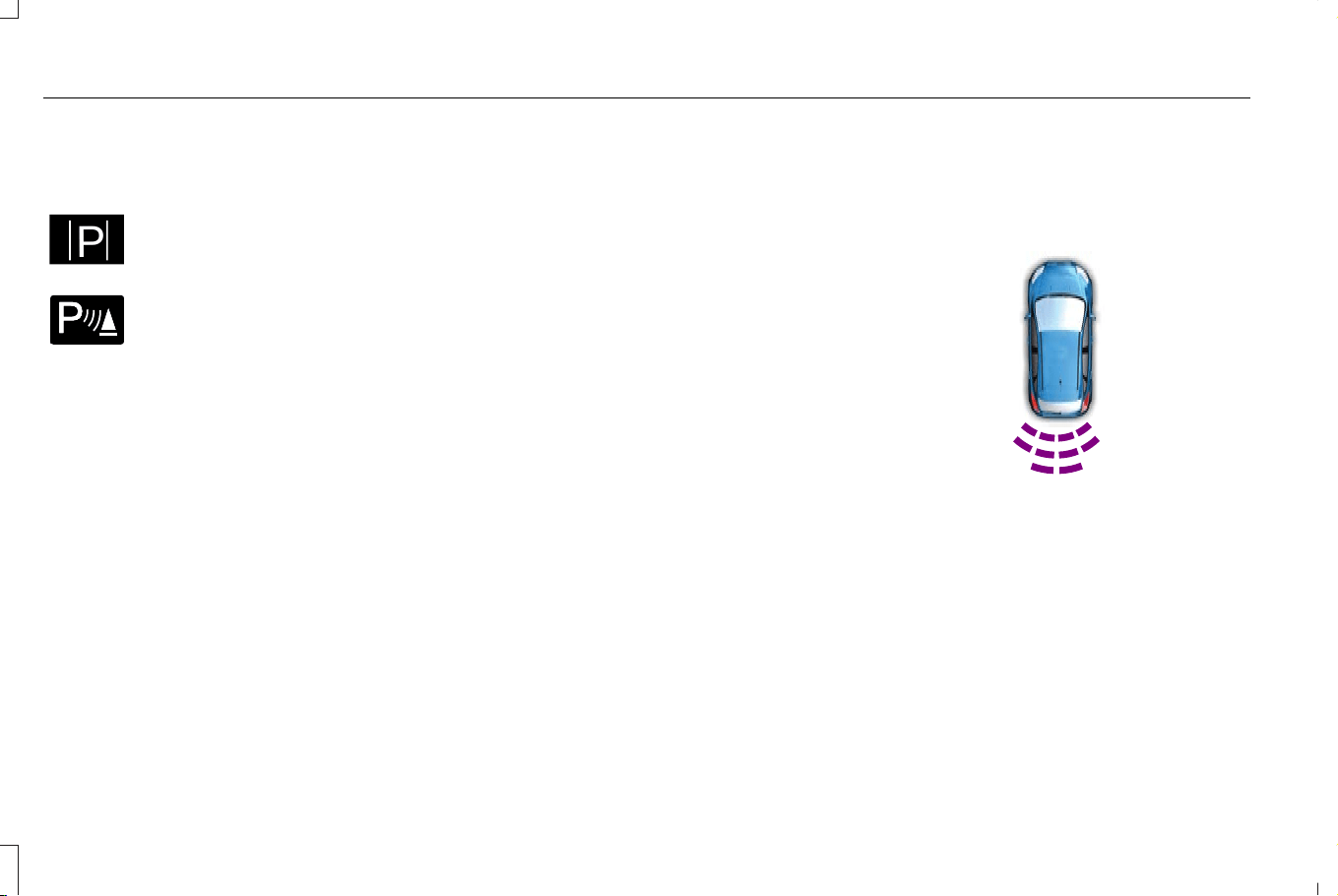
SWITCHING PARKING AID ON AND
OFF
E326188
P
Press the parking aid button on the
touchscreen and use the menu to
switch the system on and off.
E139213
You can also switch the system on
and off by pressing the button on
the rear view camera screen.
REAR PARKING AID
WHAT IS THE REAR PARKING AID
Rear parking sensors detect objects behind
your vehicle when in reverse (R).
REAR PARKING AID LIMITATIONS
There is a decreased coverage area at the
outer corners.
The rear parking aid sensors are active when
your vehicle is in reverse (R) and the vehicle
speed is less than 5 mph (8 km/h).
The sensor coverage area is up to 71 in
(180 cm) from the rear bumper.
The rear parking aid detects large objects
when you shift into reverse (R) and any of
the following occur:
• Your vehicle is moving backward at a low
speed.
• Your vehicle is stationary but an object
is approaching the rear of your vehicle
at a low speed.
• Your vehicle is moving backward at a low
speed and an object is moving towards
your vehicle, for example another vehicle
at a low speed.
The system shall provide no audible warning
for the object behind the vehicle when in
neutral (N) gear.
LOCATING THE REAR PARKING AID
SENSORS
E130178
The rear parking aid sensors are in the rear
bumper.
274
Corsair (CTF) Canada/Mexico/United States of America, enUSA, Edition date: 202407, DOM
Parking Aids
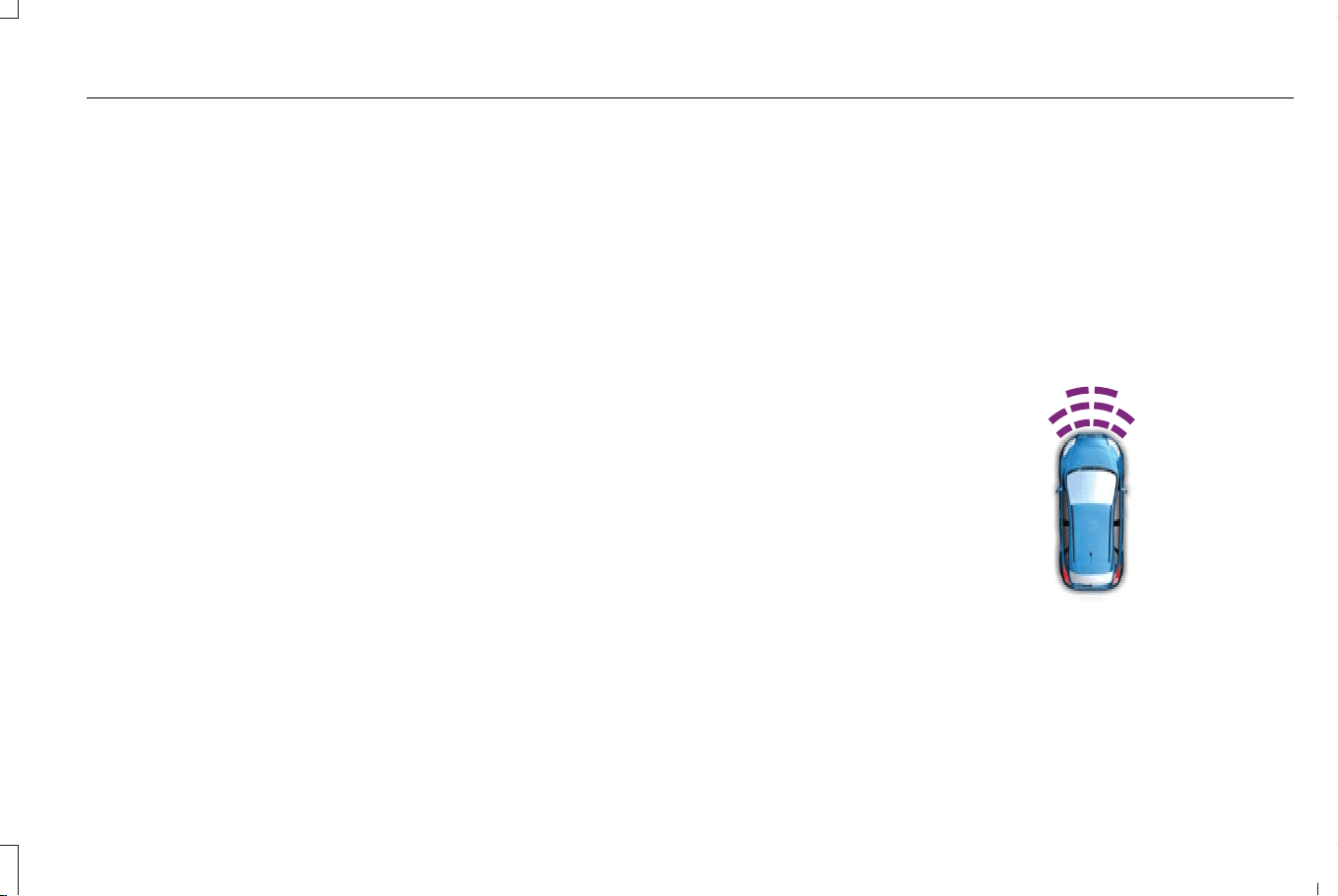
REAR PARKING AID AUDIBLE
WARNINGS
A warning tone sounds when your vehicle
approaches an object. As your vehicle
moves closer to an object, the rate of the
tone increases. The warning tone
continuously sounds when an object is 12 in
(30 cm) or less from the rear bumper.
If your vehicle remains stationary for a few
seconds, the audible warning turns off. If your
vehicle moves backward the tone sounds
again.
Note: When the parking aid system sounds
a tone, the audio system may reduce the set
volume.
FRONT PARKING AID (IF EQUIPPED)
WHAT IS THE FRONT PARKING AID
Front parking sensors detect objects in front
of your vehicle.
FRONT PARKING AID LIMITATIONS
The front parking aid sensors are active
when your vehicle is in any position other
than park (P) and the vehicle speed is less
than 5 mph (8 km/h).
The sensor coverage area is up to 28 in
(70 cm) from the front bumper.
If your vehicle is in reverse (R), the front
parking aid detects objects and provides an
audible warning when your vehicle is moving
at a low speed and when an object is moving
toward your vehicle, for example, another
vehicle at a low speed. If your vehicle
remains stationary for a few seconds, the
audible warning turns off. Visual indication
is always active in reverse (R).
If your vehicle is in any forward gear, the
front parking aid provides audible warnings
and a visual indication when your vehicle is
moving at a speed of 5 mph (8 km/h) or
below and the system detects an object
within the detection zone. If your vehicle
remains stationary for a few seconds, the
visual indication and audible warning turns
off.
If your vehicle is in neutral (N), the front and
rear sensors provide a visual indication only
when your vehicle is moving below a speed
of 5 mph (8 km/h) and the system detects
obstacles inside the detection areas. Once
your vehicle stops, the visual indication and
audible warning stops after a few seconds.
LOCATING THE FRONT PARKING AID
SENSORS
E187330
The front parking aid sensors are in the front
bumper.
275
Corsair (CTF) Canada/Mexico/United States of America, enUSA, Edition date: 202407, DOM
Parking Aids
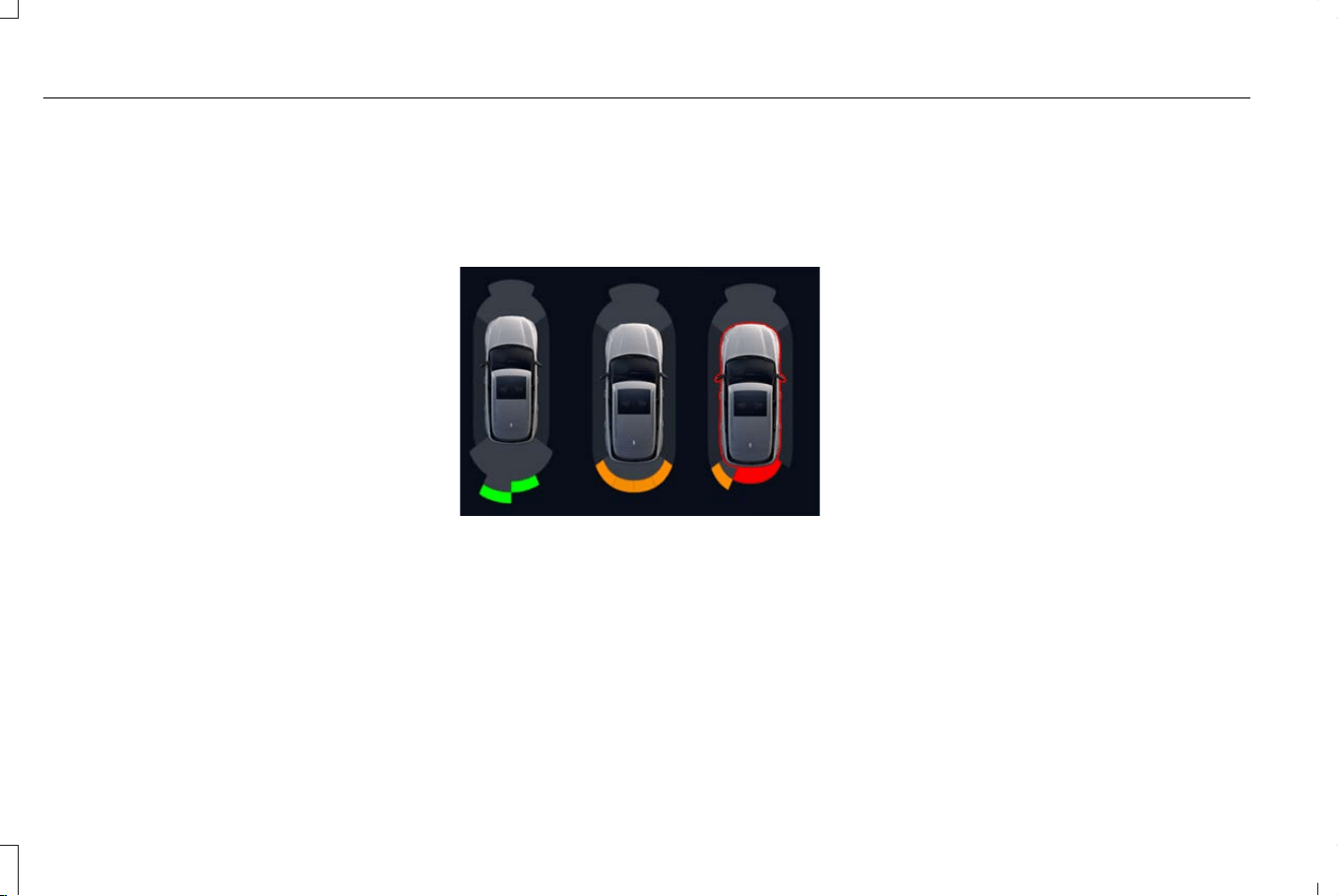
FRONT PARKING AID AUDIBLE
WARNINGS
A warning tone sounds when there is an
object within 28 in (70 cm) from the front
bumper. As your vehicle moves closer to an
object, the rate of the tone increases.
The warning tone continuously sounds when
an object is 12 in (30 cm) or less from the
front bumper.
Note: If the detected object is 12 in (30 cm)
or less from your vehicle, visual indication
remains on.
PARKING AID INDICATORS
Parking Aid Indicators Shown When
360 Degree Camera Views are not
Available
E429186
The system provides object distance
indication through the touchscreen.
• As the distance to an object decreases,
the indicators change color. The
indicators for closer objects appear
closer to the vehicle icon.
• The indicators are green when the object
is at the farthest detection point. As the
object gets closer, the indicators turn
amber. When the object is at the closet
detection point, the indicators turn red.
• If there is no object detected, the
distance indicators are not activated.
The activated visual indicators continue
displaying when your vehicle is stopped in
reverse (R). If stopped in drive (D) or neutral
(N), the activated visual indicators disappear
after four seconds.
Note: If stopped in drive (D) or neutral (N)
with rear camera delay mode showing the
rear camera view, the activated visual
indicators continue displaying.
Parking aids are not available in the following
situations:
• The system is switched off.
• A trailer is connected.
276
Corsair (CTF) Canada/Mexico/United States of America, enUSA, Edition date: 202407, DOM
Parking Aids
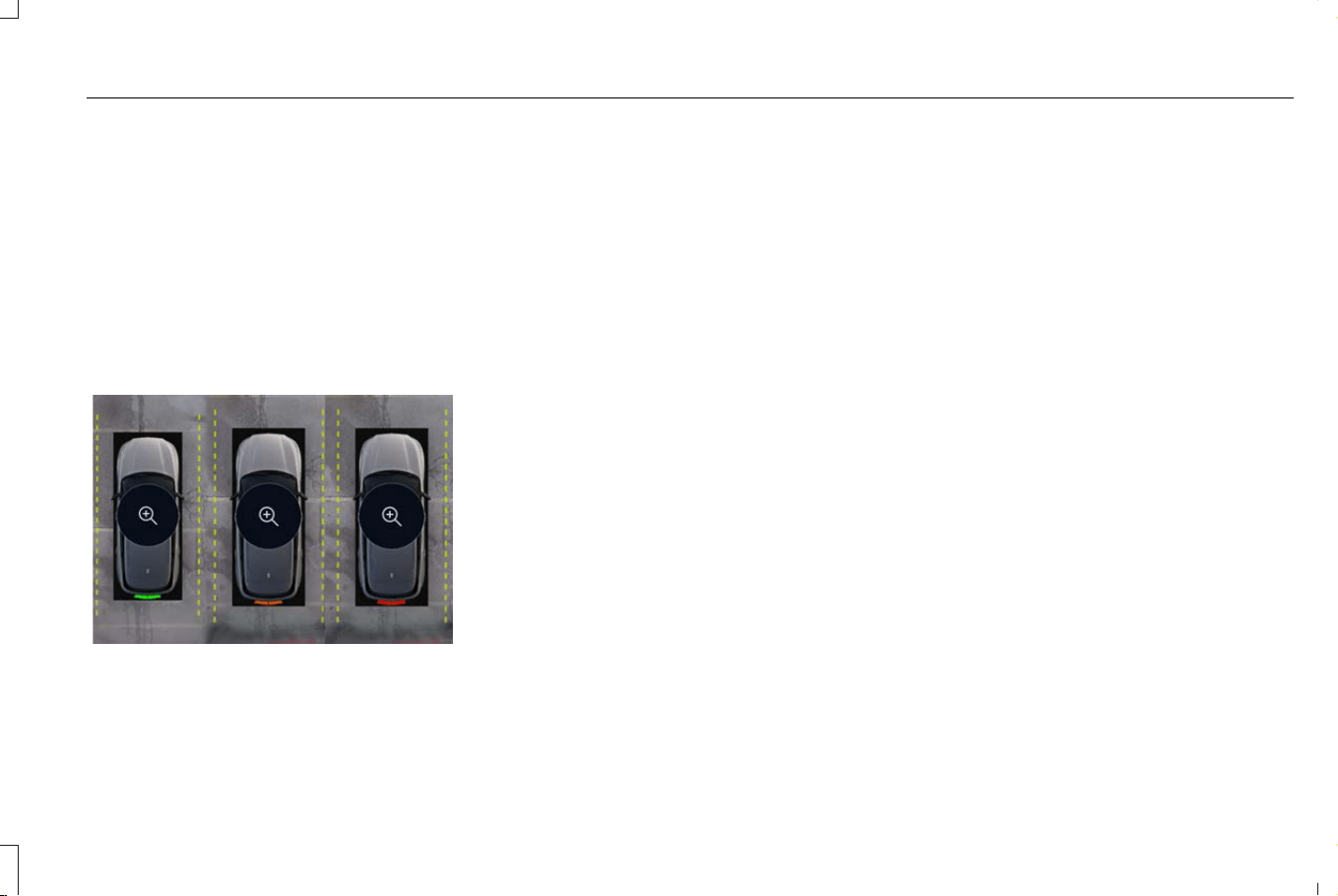
• Sensors are blocked.
• A system fault occurs.
Note: If the parking aids are not available,
the distance indicators do not display. See
Parking Aids – Troubleshooting (page 277).
Note: Front park aid indicators may not be
available.
Parking Aid Indicators Shown in 360
Degree Camera Views (If Equipped)
E429184
The system provides object distance
indication through the touchscreen.
• As the distance to an object decreases,
the indicators change color.
• The indicators are green when the object
is at the farthest detection point. As the
object gets closer, the indicators turn
amber. When the object is at the closest
detection point, the indicators turn red.
• If there is no object detected, the
distance indicators are not activated.
The activated visual indicators continue
displaying when your vehicle is stopped in
reverse (R). If stopped in drive (D) or neutral
(N), the activated visual indicators disappear
after four seconds.
Note: If stopped in drive (D) or neutral (N)
with rear camera delay mode showing the
rear camera view, the activated visual
indicators continue displaying.
Parking aids are not available in the following
situations:
• The system is switched off.
• A trailer is connected.
• Sensors are blocked. The distance
indicators appear white.
• A system fault occurs.
Note: If the parking aids are not available,
the distance indicators do not display. See
Parking Aids – Troubleshooting (page 277).
PARKING AIDS – TROUBLESHOOTING
PARKING AIDS – INFORMATION
MESSAGES
If a fault is present in the parking aids, a
warning message appears in the instrument
cluster or the touchscreen.
277
Corsair (CTF) Canada/Mexico/United States of America, enUSA, Edition date: 202407, DOM
Parking Aids

ActionMessage
The system detects a condition that requires service. Have your
vehicle checked as soon as possible. You may be able to resolve by
cleaning the sensors and restarting your vehicle.
Park Aid Fault
Inclement weather, ice, mud, or water is blocking the sensor, causing
the system to become unavailable. You can typically clean the sensor
to resolve.
Parking Sensors Blocked
An electrical trailer connection is sensed during a given ignition cycle.Trailer Connected
278
Corsair (CTF) Canada/Mexico/United States of America, enUSA, Edition date: 202407, DOM
Parking Aids
WHAT IS THE REAR VIEW CAMERA
The rear view camera provides a video
image of the area behind your vehicle when
the transmission is in reverse (R).
REAR VIEW CAMERA
PRECAUTIONS
WARNING: The rear view camera
system is a reverse aid supplement device
that still requires the driver to use it in
conjunction with the interior and exterior
mirrors for maximum coverage.
WARNING: Objects that are close to
either corner of the bumper or under the
bumper, might not be seen on the screen
due to the limited coverage of the camera
system.
WARNING: Objects above the
camera may not be visible. Check the area
behind your vehicle when necessary.
WARNING: Reverse your vehicle
slowly. Failure to follow this instruction
could result in the loss of control of your
vehicle, personal injury or death.
WARNING: Use caution when the
liftgate or tailgate is ajar. If the liftgate or
tailgate is ajar, the camera will be out of
position and the video image could be
incorrect. All guide lines disappear when
the liftgate or tailgate is ajar. Failure to
follow this instruction could result in
personal injury.
WARNING: Do not switch the camera
features on or off when your vehicle is
moving.
Note: When towing, the camera only sees
what you are towing. This might not provide
adequate coverage and you might not see
some objects. In some vehicles, the
guidelines may disappear when you connect
the trailer tow connector.
LOCATING THE REAR VIEW
CAMERA
The rear view camera is on the liftgate or
tailgate. It provides a view of the area behind
your vehicle.
REAR VIEW CAMERA GUIDE LINES
Note: Active guide lines and fixed guide lines
are only available when the transmission is
in reverse (R).
Note: The centerline is only available if the
active or fixed guide lines are on.
279
Corsair (CTF) Canada/Mexico/United States of America, enUSA, Edition date: 202407, DOM
Rear View Camera
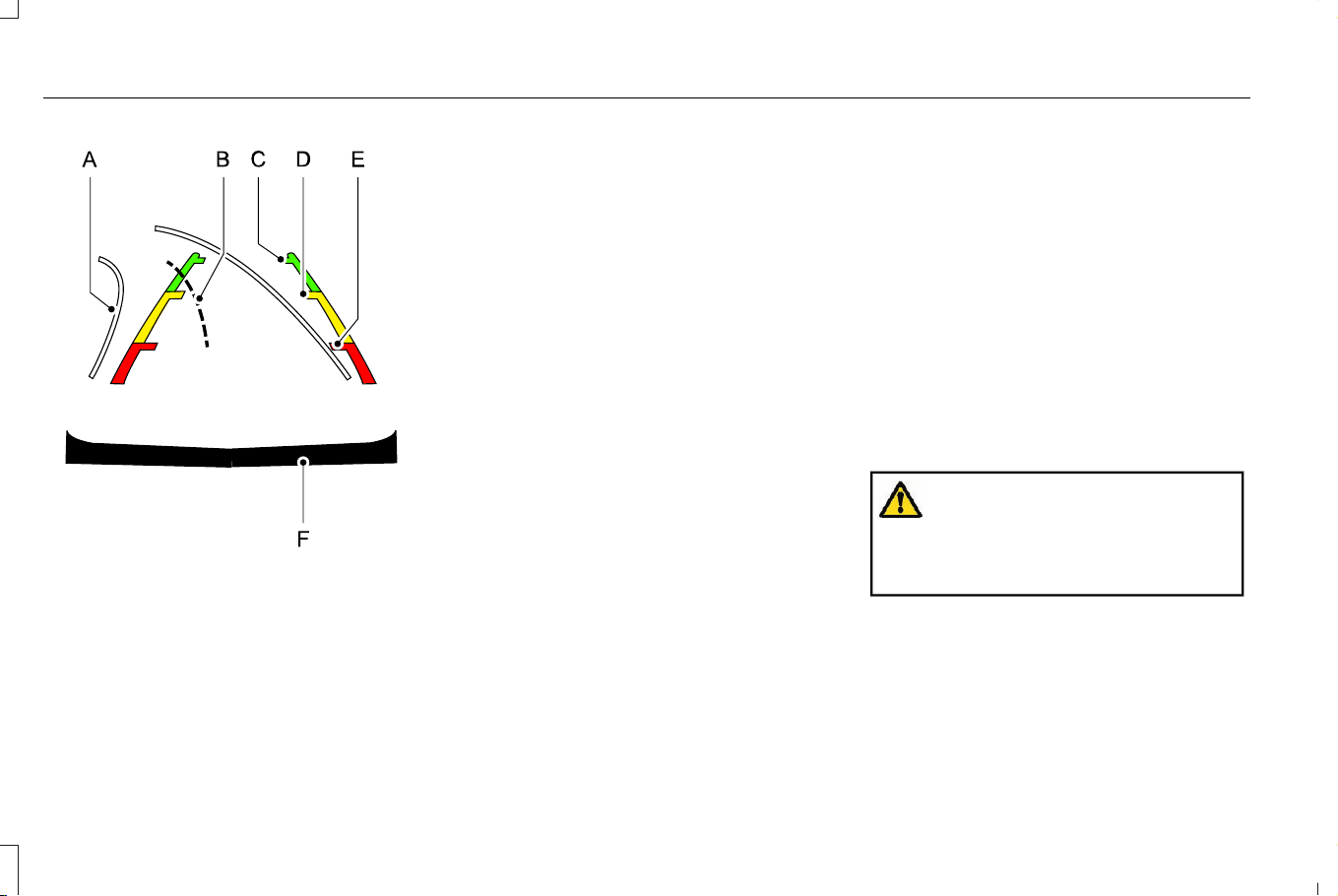
E306774
A. Active guide lines.
B. Centerline.
C. Fixed guide line: Green zone.
D. Fixed guide line: Yellow zone.
E. Fixed guide line: Red zone.
F. Rear bumper.
Active guide lines only show with fixed guide
lines. To use active guide lines, turn the
steering wheel to point the guide lines
toward an intended path. If the steering
wheel position changes while reversing, your
vehicle might deviate from the intended path.
The fixed and active guide lines fade in and
out depending on the steering wheel
position. The active guide lines do not
display when the steering wheel position is
straight.
Use caution while reversing. Objects in the
red zone are closest to your vehicle and
objects in the green zone are farther away.
Objects get closer to your vehicle as they
move from the green zone to the yellow or
red zones. Use the side view mirrors and rear
view mirror to get better coverage on both
sides and rear of your vehicle.
REAR VIEW CAMERA OBJECT
DISTANCE INDICATORS
The system provides an image of your
vehicle and the sensor zones. The zones
highlight green, yellow, and red when the
parking aid sensors detect an object in the
coverage area.
REAR VIEW CAMERA SETTINGS
ZOOMING THE REAR VIEW CAMERA
IN AND OUT
WARNING: When manual zoom is
on, the full area behind your vehicle may
not show. Be aware of your surroundings
when using the manual zoom feature.
Selectable settings for this feature are zoom
in (+) and zoom out (-). Press the symbol on
the camera screen to change the view. The
default setting is zoom off.
280
Corsair (CTF) Canada/Mexico/United States of America, enUSA, Edition date: 202407, DOM
Rear View Camera
This allows you to get a closer view of an
object behind your vehicle. The zoomed
image keeps the bumper in the image to
provide a reference.
Note: Manual zoom is only available when
the transmission is in reverse (R).
Note: Only the centerline shows when you
enable manual zoom.
SWITCHING REAR VIEW CAMERA
DELAY ON AND OFF
1. Press Features on the touchscreen.
2. Press Driver Assistance.
3. Switch rear view camera delay on or off.
When shifting the transmission out of reverse
(R) and into any gear other than park (P), the
camera image remains in the display until:
• Your vehicle speed reaches
approximately 5 mph (8 km/h).
• You shift your vehicle into park (P).
SWITCHING THE REAR VIEW CAMERA
VIEW
Press to access the different camera views.
E310967
Rear normal view provides a view
of what is directly behind your
vehicle. This view is available at all
speeds in reverse (R), drive (D) and neutral
(N). When your vehicle is not in reverse (R),
this view may be displayed with different text
or graphics.
E310974
Rear split view provides a
wide-angle view of what is behind
your vehicle.
E224485
Zooms in on the view and park
hold is activated when your vehicle
is in park (P). See Connecting a
Trailer (page 361).
281
Corsair (CTF) Canada/Mexico/United States of America, enUSA, Edition date: 202407, DOM
Rear View Camera
WHAT IS THE 360 DEGREE
CAMERA
The 360 degree camera system provides
visibility around your vehicle in parking
maneuvers such as:
• Centering in a parking space.
• Obstacles near your vehicle.
• Parallel parking.
The 360 degree camera system consists of
front, side and rear cameras.
HOW DOES THE 360 DEGREE
CAMERA WORK
The 360 degree camera system consists of
front, side and rear cameras.
The 360 Degree Camera system:
• Allows you to see what is directly in front
of or behind your vehicle.
• Provides a cross traffic view in front of
and behind your vehicle.
• Allows you to see a top-down view of the
area outside your vehicle, including the
blind spots and obstacles near your
vehicle.
360 DEGREE CAMERA
PRECAUTIONS
WARNING: The 360 degree camera
system still requires the driver to use it in
conjunction with looking out of the
windows, and checking the interior and
exterior mirrors for maximum coverage.
WARNING: Objects that are close to
either corner of the bumper or under the
bumper, might not be seen on the screen
due to the limited coverage of the camera
system.
WARNING: Use caution when turning
camera features on or off when the
transmission is not in park (P). Make sure
your vehicle is not moving.
WARNING: You are responsible for
controlling your vehicle at all times. The
system is designed to be an aid and does
not relieve you of your responsibility to
drive with due care and attention. Failure
to follow this instruction could result in the
loss of control of your vehicle, personal
injury or death.
WARNING: Use caution when the
liftgate is ajar. If the liftgate is ajar, the
camera is out of position and the video
image could be incorrect. All guide lines
disappear when the liftgate is ajar. Failure
to follow this instruction could result in
personal injury.
WARNING: When manual zoom is
on, the full area behind your vehicle may
not show. Be aware of your surroundings
when using the manual zoom feature.
282
Corsair (CTF) Canada/Mexico/United States of America, enUSA, Edition date: 202407, DOM
360 Degree Camera (If Equipped)
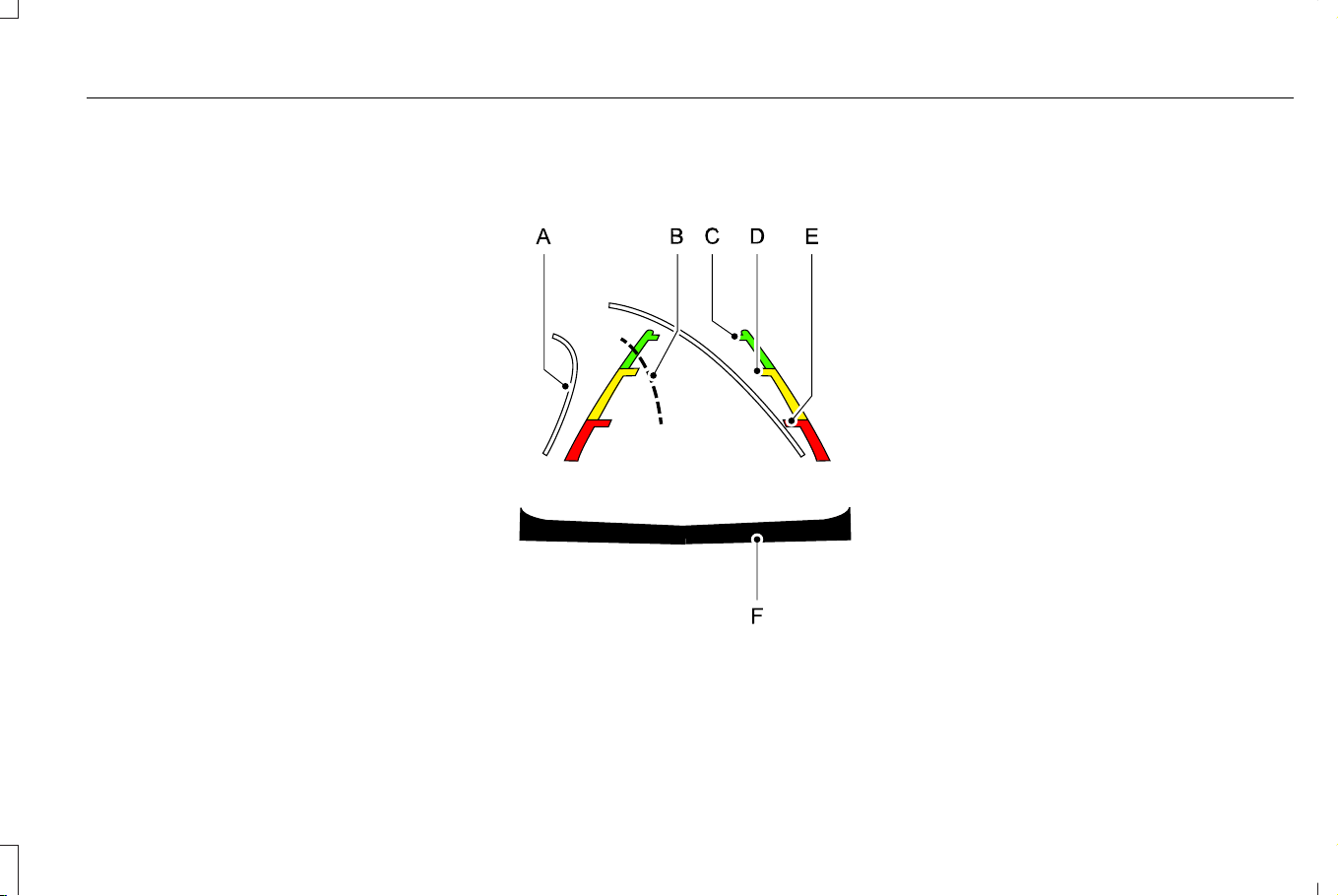
LOCATING THE 360 DEGREE
CAMERAS
Rear View Camera
The rear view camera is on the liftgate. It
provides a video image of the area behind
your vehicle.
Front View Camera
The front view camera is in the grille. It
provides a video image of the area in front
of your vehicle.
Side View Camera
The side view camera is on the outside
mirror. It provides a video image of the area
on the sides of your vehicle to aid you when
parking.
360 DEGREE CAMERA GUIDE
LINES
E306774
A. Active guide lines.
B. Centerline.
C. Fixed guide line: Green zone.
D. Fixed guide line: Yellow zone.
E. Fixed guide line: Red zone.
F. Rear bumper.
Active guide lines only show with fixed guide
lines. Turn the steering wheel to point the
guide lines toward an intended path. If the
steering wheel position changes when
reversing, your vehicle could deviate from
the intended path.
The fixed and active guide lines fade in and
out depending on the steering wheel
position. The active guide lines do not
display when the steering wheel position is
straight.
Objects in the red zone are closest to your
vehicle and objects in the green zone are
farther away. Objects get closer to your
vehicle as they move from the green zone
to the yellow or red zones. Use the side view
mirrors and rear view mirror to get better
coverage on both sides and rear of your
vehicle.
Note: Active guide lines and fixed guide lines
are only available when the transmission is
in reverse (R).
283
Corsair (CTF) Canada/Mexico/United States of America, enUSA, Edition date: 202407, DOM
360 Degree Camera (If Equipped)
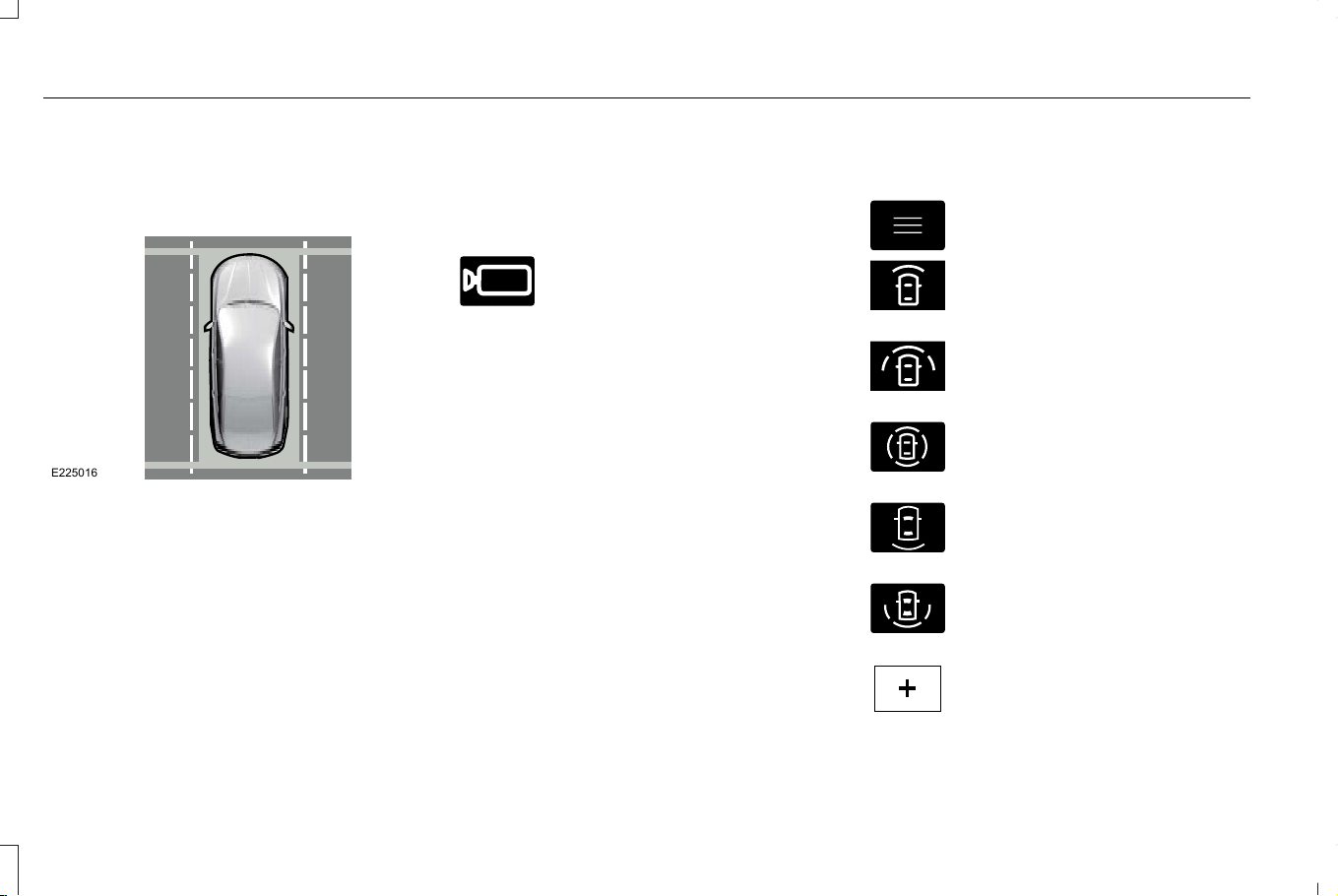
Note: The centerline is only available if the
active or fixed guide lines are on.
Keep Out Zone
E225016
The yellow dotted lines running parallel to
your vehicle represent the keep out zone.
360 DEGREE CAMERA SETTINGS
SWITCHING THE 360 DEGREE
CAMERA ON AND OFF
E205884
The 360 degree camera system
button is on the instrument panel
and allows you to toggle through
different camera views. The front and rear
cameras have multiple screens which consist
of:
• Normal view
• Normal view with 360
• Split view
When in park (P), neutral (N) or drive (D), only
the front images display when you press the
button. When in reverse (R), only the rear
images display when you press the button.
Note: The 360 degree camera system turns
off when your vehicle is in motion at low
speed, except when in reverse (R).
SWITCHING THE 360 DEGREE
CAMERA VIEW
E337002
Press to access the different
camera views.
E422118
Front normal view provides an
image of what is directly in front of
your vehicle.
E422119
Front split view provides an
extended view of what is in front
of your vehicle.
E310996
Normal + 360 degree view
contains the normal camera view
next to a 360 degree camera view.
E310967
Rear normal view provides an
image of what is directly behind
your vehicle.
E310974
Rear split view provides an
extended view of what is behind
your vehicle.
E224485
Zooms in on the image.
284
Corsair (CTF) Canada/Mexico/United States of America, enUSA, Edition date: 202407, DOM
360 Degree Camera (If Equipped)
HOW DOES ADAPTIVE CRUISE
CONTROL WITH STOP AND GO
WORK
Adaptive cruise control with stop and go
uses radar and camera sensors to maintain
a set gap between your vehicle and the
vehicle in front of you while following it to a
complete stop. Stop and go can also be set
to follow a vehicle directly in front of you and
adjust the set speed, while you are at a
complete stop.
ADAPTIVE CRUISE CONTROL
PRECAUTIONS
WARNING: You are responsible for
controlling your vehicle at all times. The
system is designed to be an aid and does
not relieve you of your responsibility to
drive with due care and attention. Failure
to follow this instruction could result in the
loss of control of your vehicle, personal
injury or death.
WARNING: Do not use adaptive
cruise control on winding roads, in heavy
traffic or when the road surface is slippery.
This could result in loss of vehicle control,
serious injury or death.
WARNING: Pay close attention to
changing road conditions such as entering
or leaving a highway, on roads with
intersections or roundabouts, roads
without visible lanes of travel, roads that
are unpaved, or steep slopes. Failure to
follow this instruction could result in the
loss of control of your vehicle, personal
injury or death.
WARNING: The system is not a crash
warning or avoidance system.
WARNING: Do not use the system
when towing a trailer that has aftermarket
electronic trailer brake controls. Failure to
follow this instruction could result in the
loss of control of your vehicle, personal
injury or death.
WARNING: Do not use tire sizes
other than those recommended because
this can affect the normal operation of the
system. Failure to do so may result in a loss
of vehicle control, which could result in
serious injury.
WARNING: Do not use the system
with a snow plow blade installed.
WARNING: In situations with poor
visibility, such as fog, heavy rain or other
inclement weather, you may need to
override or completely switch off the
system.
When Following a Vehicle
WARNING: When following a vehicle
that is braking, your vehicle does not
always decelerate quickly enough to avoid
a crash without driver intervention. Apply
the brakes when necessary. Failure to
follow this instruction could result in
personal injury or death.
285
Corsair (CTF) Canada/Mexico/United States of America, enUSA, Edition date: 202407, DOM
Adaptive Cruise Control
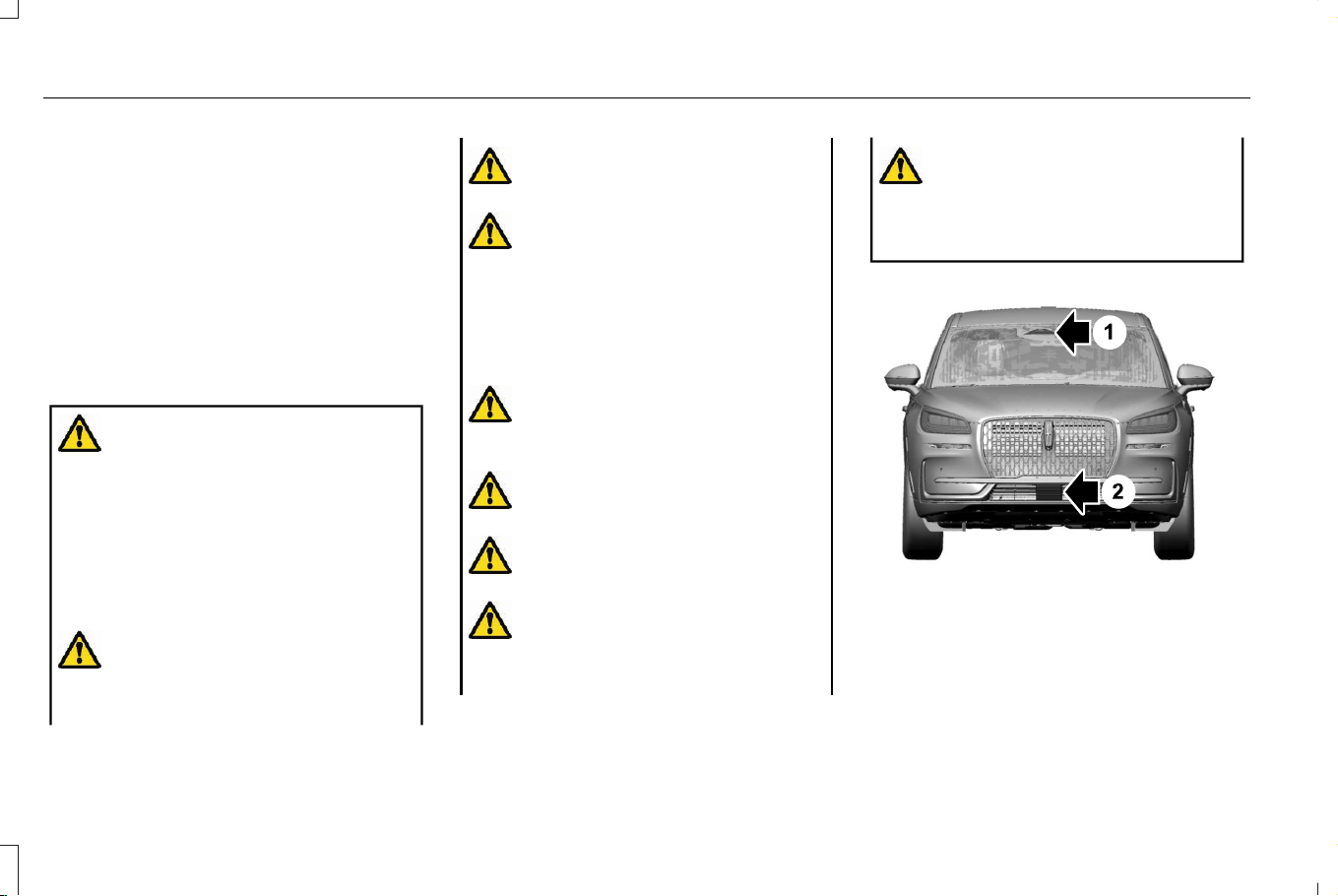
Hilly Condition Usage
Select a lower gear when the system is
active in situations such as prolonged
downhill driving on steep slopes, for example
in mountainous areas.
ADAPTIVE CRUISE CONTROL
LIMITATIONS
Sensor Limitations
WARNING: On rare occasions,
detection issues can occur due to the road
infrastructures, for example bridges,
tunnels and safety barriers. In these cases,
the system may brake late or
unexpectedly. At all times, you are
responsible for controlling your vehicle,
supervising the system and intervening, if
required.
WARNING: If the system
malfunctions, have your vehicle checked
as soon as possible.
WARNING: Large contrasts in outside
lighting can limit sensor performance.
WARNING: The system only warns
of vehicles detected by the radar sensor.
In some cases there may be no warning
or a delayed warning. Apply the brakes
when necessary. Failure to follow this
instruction could result in personal injury
or death.
WARNING: The system may not
detect stationary or slow moving vehicles
below 6 mph (10 km/h).
WARNING: The system does not
detect pedestrians or objects in the road.
WARNING: The system does not
detect oncoming vehicles in the same lane.
WARNING: The system may not
operate properly if the sensor is blocked.
Keep the windshield free from obstruction.
WARNING: The sensor may
incorrectly track lane markings as other
structures or objects. This can result in a
false or missed warning.
E370664
Camera.1.
Radar sensor.2.
The camera is on the windshield behind the
interior mirror.
286
Corsair (CTF) Canada/Mexico/United States of America, enUSA, Edition date: 202407, DOM
Adaptive Cruise Control

The radar sensor is in the lower grille.
Note: You cannot see the sensor. It is behind
a fascia panel.
Note: Keep the front of your vehicle free of
dirt, metal badges or objects. Vehicle front
protectors, aftermarket lights, additional
paint or plastic coatings could also degrade
sensor performance.
A message displays if something obstructs
the camera or the sensor. When something
blocks the sensor, the system cannot detect
a vehicle ahead and does not function. See
Adaptive Cruise Control – Information
Messages (page 302).
The radar sensor has a limited field of view.
It may not detect vehicles at all or detect a
vehicle later than expected in some
situations. The lead vehicle image does not
illuminate if the system does not detect a
vehicle in front of you.
287
Corsair (CTF) Canada/Mexico/United States of America, enUSA, Edition date: 202407, DOM
Adaptive Cruise Control
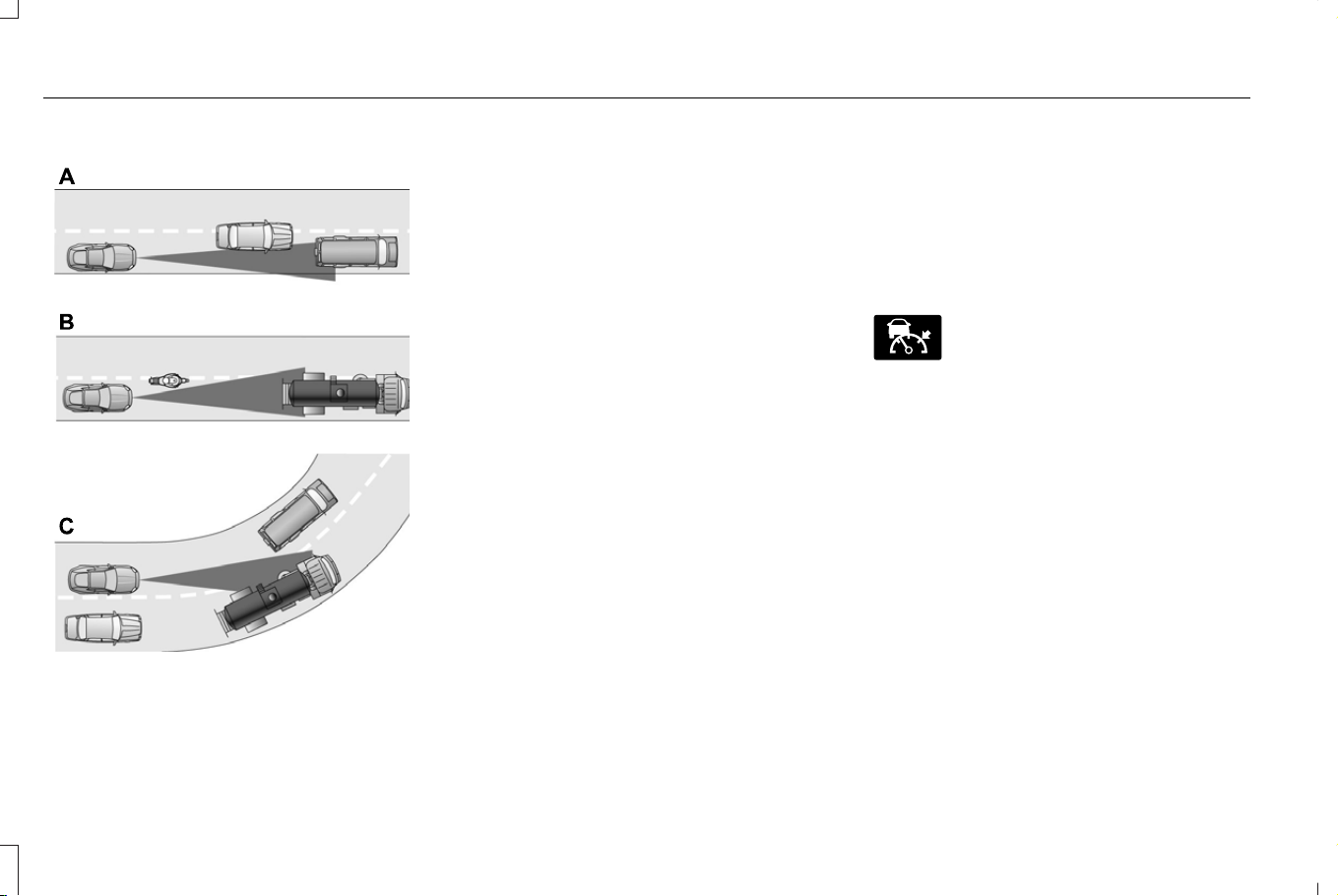
Detection Issues Can Occur:
E71621
When driving on a different line
than the vehicle in front.
A
B With vehicles that edge into your
lane. The system can only detect
these vehicles once they move
fully into your lane.
There may be issues with the
detection of vehicles in front when
driving into and coming out of a
bend or curve in the road.
C
In these cases, the system may brake late or
unexpectedly.
If something hits the front end of your vehicle
or damage occurs, the radar-sensing zone
may change. This could cause missed or
false vehicle detection.
Optimal system performance requires a clear
view of the road by the windshield camera.
Optimal performance may not occur if:
• The camera is blocked.
• There is poor visibility or lighting
conditions.
• There are bad weather conditions.
SWITCHING ADAPTIVE CRUISE
CONTROL ON AND OFF
The cruise controls are on the steering
wheel.
Switching Adaptive Cruise Control On
E144529
Press the button to activate the
system. When the system
activates, the set speed is equal to
whichever is greater, the current vehicle
speed, or 15 mph when in imperial units or
20 km/h when in metric units. If the speed is
too low, or other conditions are not correct
for adaptive cruise control activation, the
system enters standby mode. When you are
below 15 mph when in imperial units or 20
km/h when in metric units, adaptive cruise
control does not activate unless you are
following another vehicle.
The indicator, current gap setting and set
speed appear in the instrument cluster
display.
288
Corsair (CTF) Canada/Mexico/United States of America, enUSA, Edition date: 202407, DOM
Adaptive Cruise Control
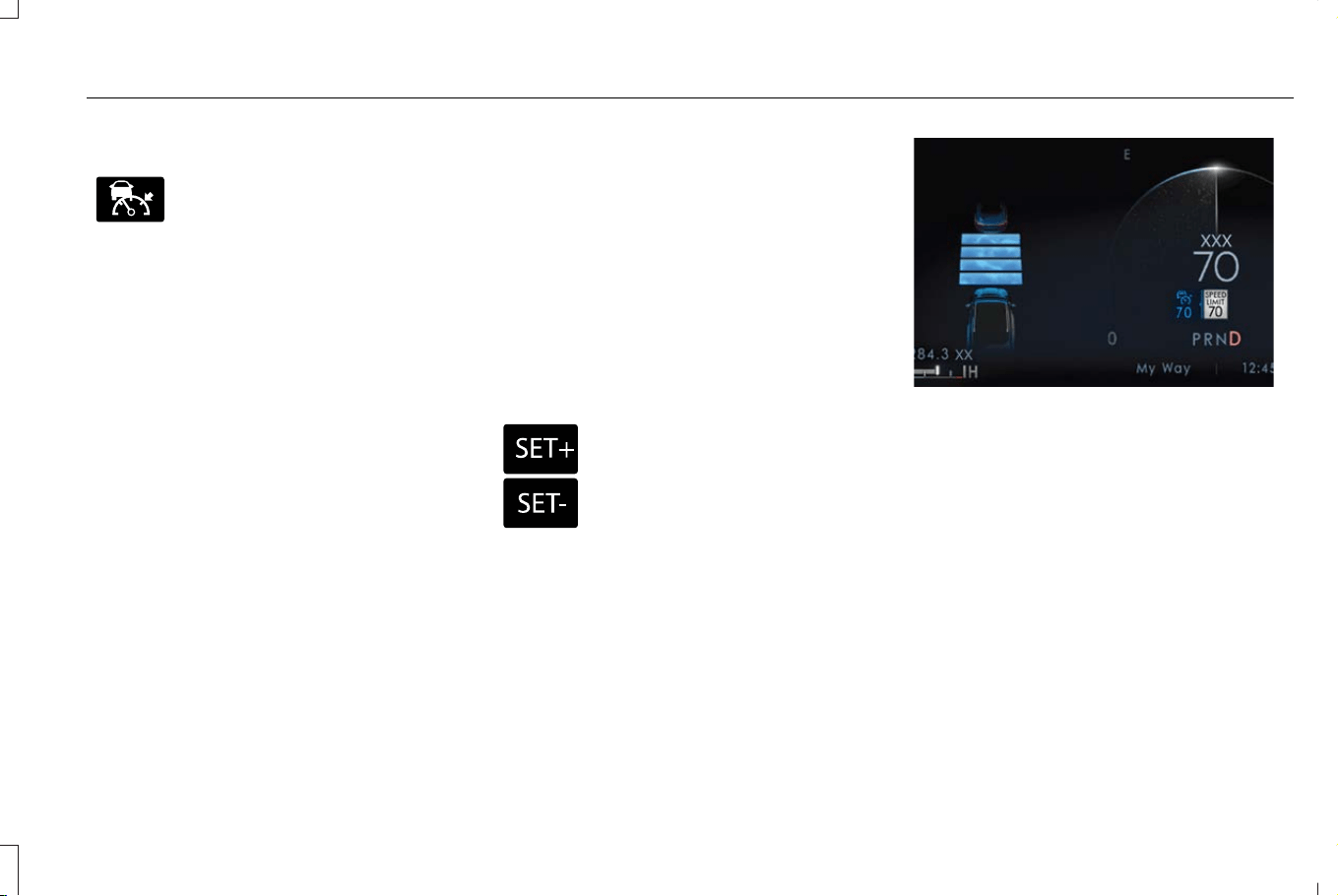
Switching Adaptive Cruise Control Off
E144529
Press the button when the system
is in standby mode or switch your
vehicle off.
Note: When you switch the system off, the
set speed clears.
ADAPTIVE CRUISE CONTROL
AUTOMATIC CANCELLATION
The system may cancel if:
• The tires lose traction.
• You apply the parking brake.
The system may cancel and set the parking
brake if:
• You unbuckle the seatbelt and open the
driver door after adaptive cruise control
stops your vehicle.
• Adaptive cruise control holds your
vehicle at a stop continuously for more
than three minutes.
The system may deactivate or prevent
activating when requested if:
• The vehicle has a blocked sensor.
• The brake temperature is too high.
• There is a failure in the system or a
related system.
SETTING THE ADAPTIVE CRUISE
CONTROL SPEED
Drive to the speed you prefer.
E246884
E246885
Press either button to set the
current speed.
Take your foot off the accelerator pedal.
The indicator, current gap setting and set
speed appear in the instrument cluster
display when initially activating adaptive
cruise control.
E371374
After a few seconds, the graphic in the
instrument cluster display changes to show
that adaptive cruise control is active.
289
Corsair (CTF) Canada/Mexico/United States of America, enUSA, Edition date: 202407, DOM
Adaptive Cruise Control
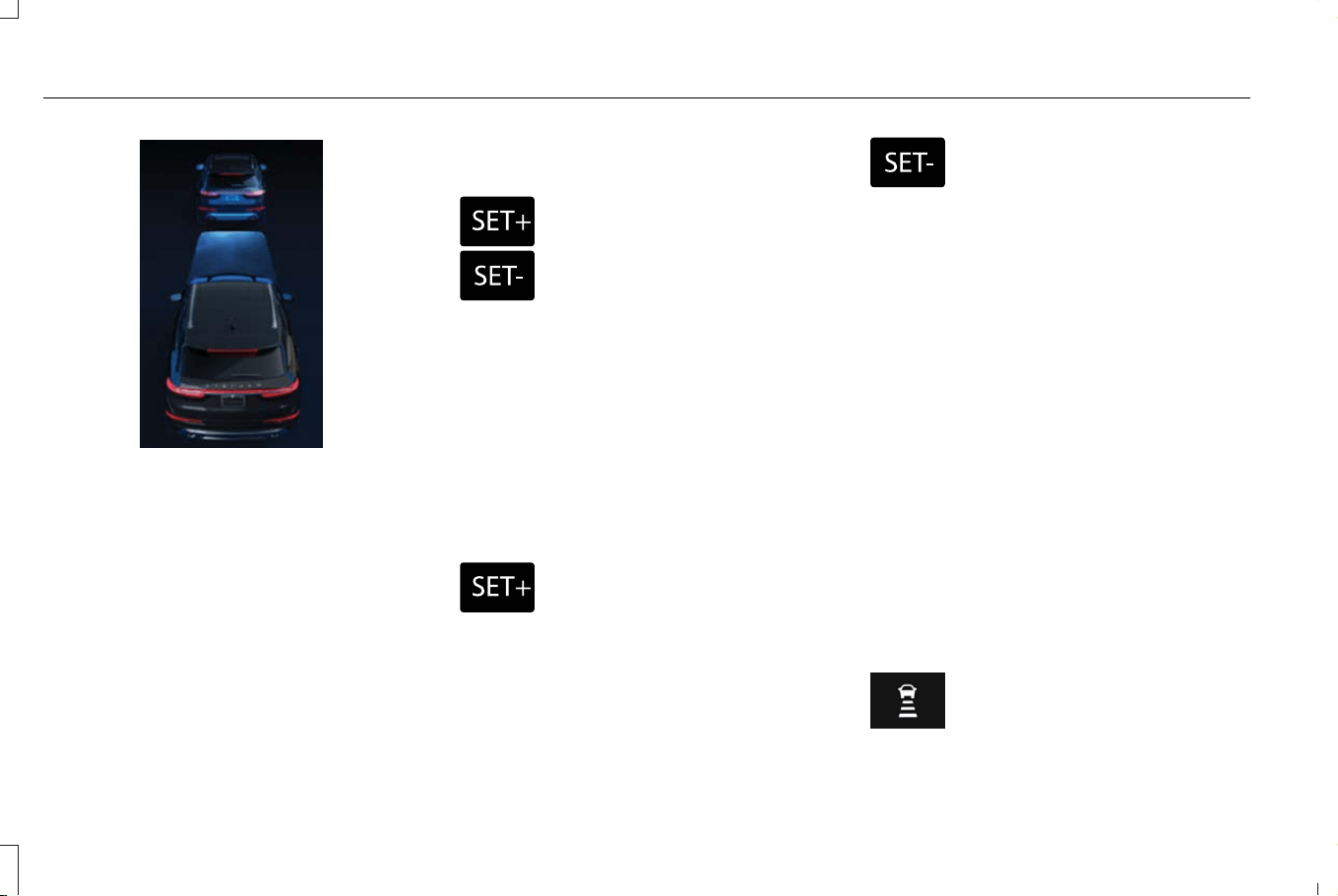
E371375
A vehicle image illuminates if there is a
vehicle detected in front of you.
Note: When adaptive cruise control is active,
the speedometer can vary slightly from the
set speed displayed in the instrument cluster
display.
Setting the Adaptive Cruise Speed
from a Complete Stop
E246884
E246885
Press the SET+ or SET- buttons
while keeping the brake pedal fully
depressed.
The set speed adjusts to 20 km/h when in
metric units or 15 mph when in imperial units.
The indicator, current gap setting and set
speed appear in the instrument cluster
display.
Note: The system activates from a complete
stop only when it detects a lead vehicle in
close proximity.
Manually Changing the Set Speed
E246884
Press the button to increase the
set speed in small increments.
Press and hold the button to
increase the set speed in large increments.
Release the button when the set speed is
equal to the desired speed.
E246885
Press the button to decrease the
set speed in small increments.
Press and hold the button to
decrease the set speed in large increments.
Release the button when the set speed is
equal to the desired speed.
You can also press the accelerator or brake
pedal until you reach the speed you prefer.
Press either button to select the current
speed as the set speed.
The system could apply the brakes to slow
the vehicle to the new set speed. The set
speed continuously displays in the
instrument cluster display when the system
is active.
SETTING THE ADAPTIVE CRUISE
CONTROL GAP
You can decrease or increase the distance
between your vehicle and the vehicle in front
by pressing the gap control.
Press the button to cycle through
the four gap settings.
290
Corsair (CTF) Canada/Mexico/United States of America, enUSA, Edition date: 202407, DOM
Adaptive Cruise Control
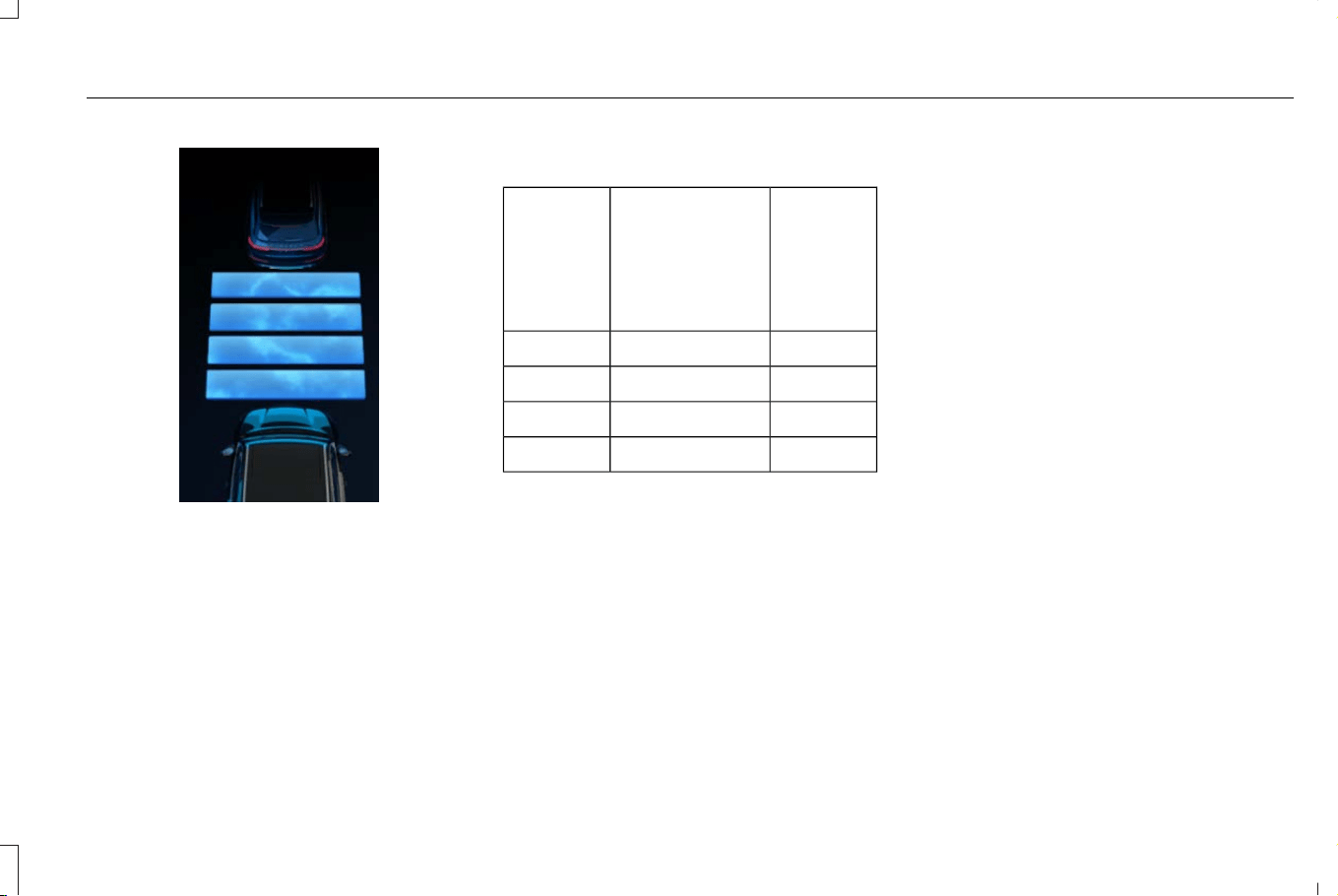
E370638
The selected gap appears in the instrument
cluster display as shown by the bars in the
image.
Note: The gap setting is time dependent and
therefore, the distance adjusts with your
vehicle speed.
Note: It is your responsibility to select a gap
appropriate to the driving conditions.
Adaptive Cruise Control Gap Settings
Dynamic
Behavior
Gap DistanceGraphic
Display,
Bars Indic-
ated
Between
Vehicles
SportClosest1
NormalClose2
NormalMedium3
ComfortFar4
Each time you switch the system on, it
selects the last chosen gap setting.
Following a Vehicle
When a vehicle ahead of you enters the
same lane or a slower vehicle is ahead in the
same lane, the vehicle speed adjusts to
maintain the gap setting.
Note: When you are following a vehicle and
you switch on a turn signal lamp, adaptive
cruise control may provide a small,
temporary acceleration to help you pass.
Your vehicle maintains a consistent gap from
the vehicle ahead until:
• The vehicle in front of you accelerates to
a speed above the set speed.
• The vehicle in front of you moves out of
the lane you are in.
• You set a new gap distance.
The system applies the brakes to slow down
your vehicle to maintain a safe gap distance
from the vehicle in front of you. The system
only applies limited braking. You can
override the system by applying the brakes.
Note: The brakes may emit noise when
applied by the system.
If the system determines that its maximum
braking level is not sufficient, an audible
warning sounds, a message appears in the
instrument cluster display and an indicator
flashes when the system continues to brake.
Take immediate action.
291
Corsair (CTF) Canada/Mexico/United States of America, enUSA, Edition date: 202407, DOM
Adaptive Cruise Control
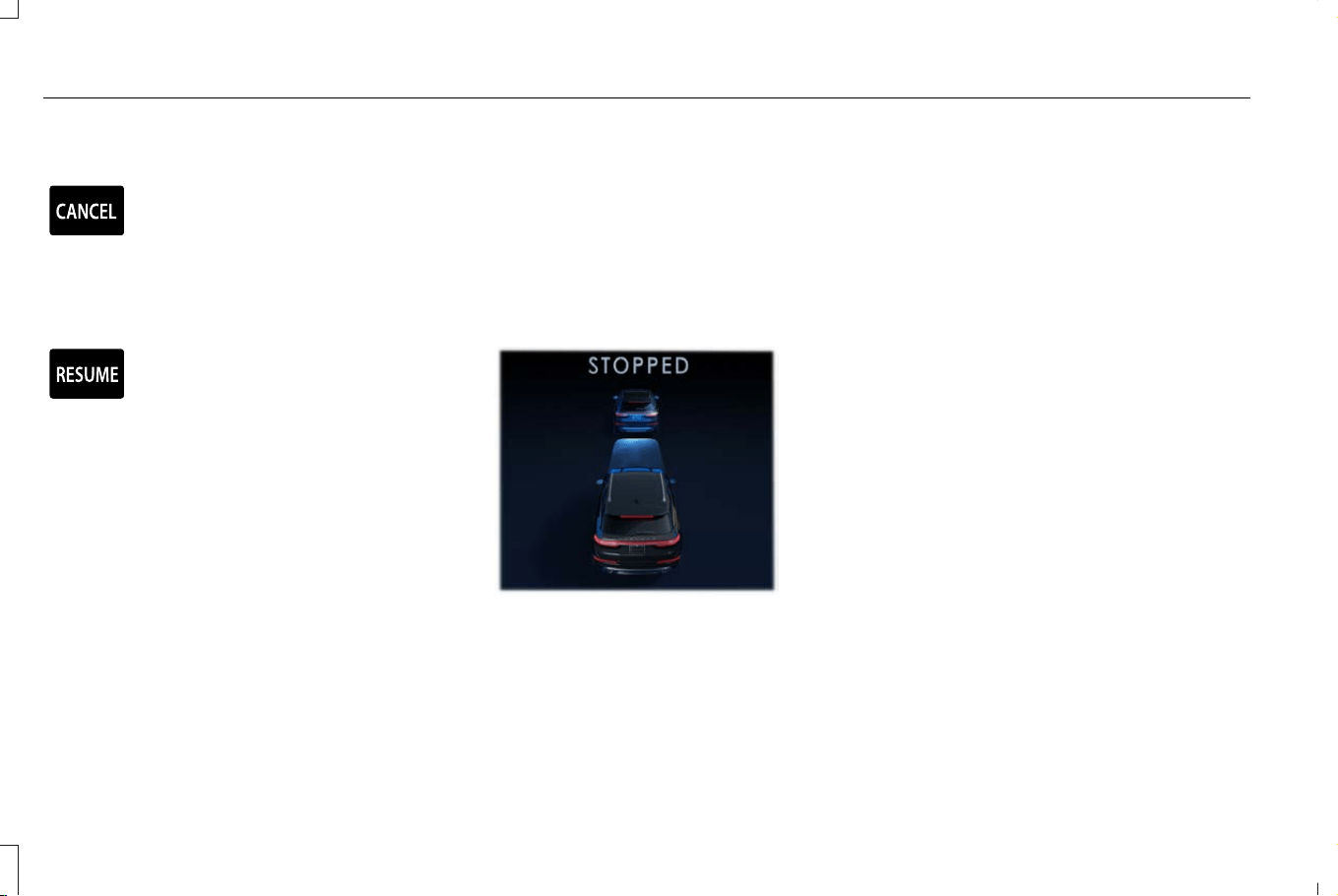
CANCELING THE SET SPEED
E281471
Press the button or tap the brake
pedal.
The set speed does not erase.
RESUMING THE SET SPEED
E281472
Press the button.
The vehicle speed returns to the previously
set speed and gap setting. The set speed
displays continuously in the instrument
cluster display when the system is active.
Note: Only use resume if you are aware of
the set speed and intend to return to it.
Resuming the Set Speed from a
Complete Stop
Without an Active BlueCruise Service Plan:
If your vehicle follows a vehicle to a complete
stop and remains stationary for less than a
few seconds, your vehicle accelerates from
a stationary position to follow the vehicle
ahead.
E377039
With an Active BlueCruise Service Plan:
If your vehicle follows a vehicle to a complete
stop and remains stationary for less than
approximately three minutes, your vehicle
accelerates from a stationary position to
follow the vehicle ahead.
The following conditions must be met before
your vehicle auto-resumes:
• You are facing forward and paying
attention to the road ahead.
• The road is clear of obstacles such as
pedestrians or other vehicles crossing
your path.
If your vehicle follows a vehicle to a complete
stop and remains stationary for more than a
few seconds, an indicator and message
displays.
292
Corsair (CTF) Canada/Mexico/United States of America, enUSA, Edition date: 202407, DOM
Adaptive Cruise Control
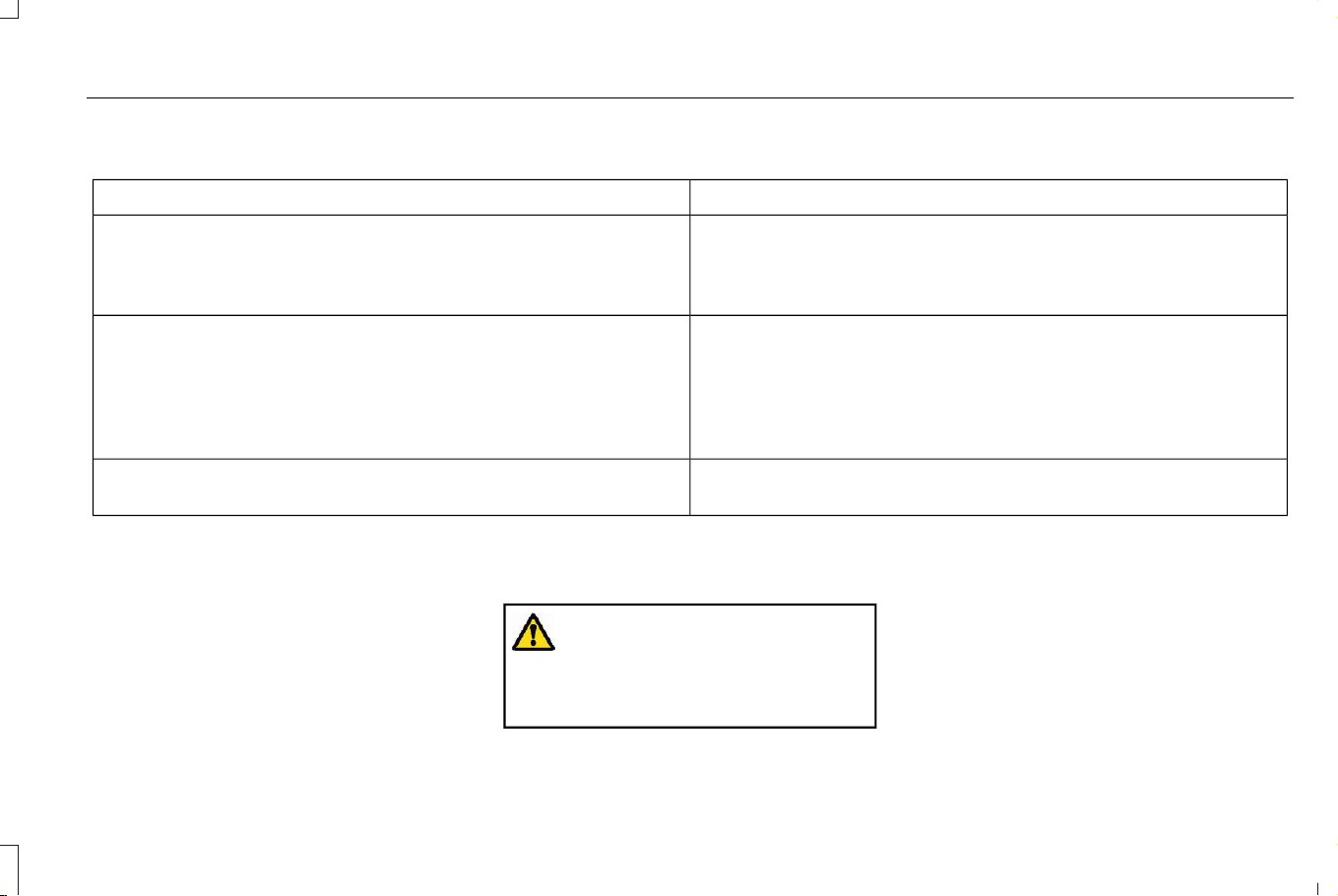
Information Messages
DetailsMessage
(Only available with an active BlueCruise service plan).
The vehicle is stopped behind a lead vehicle and all conditions are
met for the vehicle to accelerate with the lead vehicle once the lead
vehicle begins to accelerate.
Auto-Resume
If the lead vehicle begins to move and all of the auto-resume condi-
tions are not met, you are prompted to press the resume button.
Pay attention to the road ahead and surroundings to make sure that
it is safe to resume.
Press and release the button or use the accelerator pedal to resume
following the lead vehicle.
Press button to resume
Cruise control does not automatically resume when this display is
active. Use the accelerator pedal to resume.
Stopped
Note: If approximately three minutes at a
stop is exceeded, the vehicle cancels
adaptive cruise control and the electric
parking brake is set. The driver is required
to resume control of the vehicle and release
the electric parking brake.
OVERRIDING THE SET SPEED
WARNING: If you override the system
by pressing the accelerator pedal, it does
not automatically apply the brakes to
maintain a gap from any vehicle ahead.
When you press the accelerator pedal, you
override the set speed and gap distance.
Use the accelerator pedal to intentionally
exceed the set speed limit.
When you override the system, the indicator
remains blue, the set speed is dimmed and
the lead vehicle icon does not appear in the
instrument cluster display.
293
Corsair (CTF) Canada/Mexico/United States of America, enUSA, Edition date: 202407, DOM
Adaptive Cruise Control
The system resumes operation when you
release the accelerator pedal. The vehicle
speed decreases to the set speed, or a lower
speed if following a slower vehicle.
ADAPTIVE CRUISE CONTROL
INDICATORS
E144529
Illuminates when you switch
adaptive cruise control on. The
color of the indicator changes to
indicate the system status.
White indicates the system is on but inactive.
Blue indicates that you set the speed and
the system is active.
SWITCHING FROM ADAPTIVE
CRUISE CONTROL TO CRUISE
CONTROL
WARNING: Normal cruise control will
not brake when your vehicle is
approaching slower vehicles. Always be
aware of which mode you have selected
and apply the brakes when necessary.
1. Press Features on the touchscreen.
2. Press Driver Assistance.
3. Press Cruise Control.
4. Press Normal Cruise Control.
E332905
The cruise control indicator
replaces the adaptive cruise
control indicator if you select
normal cruise control. The gap setting does
not display, and the system does not respond
to lead vehicles. Automatic braking remains
active to maintain set speed. The system
remembers the last setting when you start
your vehicle.
LANE CENTERING
HOW DOES LANE CENTERING WORK
Adaptive cruise control with lane centering
uses the vehicle's front radar sensor and
front windshield camera sensor, together
with the steering sensor to operate.
Using these sensors, the system applies
continuous steering assistance towards
driving in the middle of the lane.
Note: The gap setting for adaptive cruise
control with lane centering, operates in the
same way as normal adaptive cruise control.
LANE CENTERING PRECAUTIONS
WARNING: Do not use the system
when towing a trailer. Failure to follow this
instruction could result in the loss of
control of your vehicle, personal injury or
death.
294
Corsair (CTF) Canada/Mexico/United States of America, enUSA, Edition date: 202407, DOM
Adaptive Cruise Control

WARNING: Do not use the system if
any changes or modifications to the
steering wheel have been made. Any
changes or modifications to the steering
wheel could affect the functionality or
performance of the system. Failure to
follow this instruction could result in the
loss of control of your vehicle, personal
injury or death.
Adaptive cruise control precautions apply to
lane centering unless stated otherwise or
contradicted by a lane centering precaution.
See Adaptive Cruise Control Precautions
(page 285).
LANE CENTERING REQUIREMENTS
You must keep your hands on the steering
wheel at all times.
Lane centering only activates when all of the
following occur:
• Adaptive cruise control with lane
centering is enabled in the touchscreen.
See Switching Lane Centering On and
Off (page 296).
• You have adaptive cruise control with
stop and go enabled and set.
• The steering system detects your hands
on the steering wheel.
• The system detects both lane markings
when driving on a straight road.
• Your vehicle is initially centered in the
lane between two visible line markings.
• A trailer is not detected.
Note: If the system does not detect valid
lane line markings, the system remains in
standby until valid line markings are
available.
Note: If the system does not detect your
hands on the steering wheel, apply a slight
force to the steering wheel.
LANE CENTERING LIMITATIONS
Adaptive cruise control limitations apply to
lane centering unless stated otherwise or
contradicted by a lane centering limitation.
See Lane Centering Requirements (page
295).
Lane Centering may not be able to center
your vehicle in the lane in any of the
following conditions:
• The lane is too narrow or wide.
• The curve in the road is too tight.
• The system does not detect the minimum
required lane markings or when lanes
merge or split.
• When the required steering effort to
maintain lane center exceeds the lane
centering system limit.
• When driving in areas that are under
construction or when road work is in
progress.
• If the front windshield camera and/or the
front radar are blocked.
• When using a spare tire.
295
Corsair (CTF) Canada/Mexico/United States of America, enUSA, Edition date: 202407, DOM
Adaptive Cruise Control
• Inclement weather conditions including,
but not limited to, high wind, heavy rain,
and fog.
• Driving into direct sunlight.
• When modification to the steering system
has been made, including alterations to
the steering wheel.
• When a trailer is detected, the system
disables lane centering. See Lane
Centering Precautions (page 294).
Note: The system steering assistance is
limited and may not have sufficient effort for
all driving situations and/or conditions, such
as driving through tight curves or driving
through curves at high speeds.
Note: In exceptional conditions, the system
may deviate from the lane center.
SWITCHING LANE CENTERING ON
AND OFF
You must keep your hands on the steering
wheel at all times.
The controls are on the steering wheel.
E362891
Press the button.
The indicator appears in the instrument
cluster. When the lane centering system is
on, the color of the indicator changes to
indicate the system status.
You can override the system at any time by
steering your vehicle.
Note: The lane centering requirements must
be met before you can enable the feature.
See Lane Centering Requirements (page
295).
Enabling and Disabling Lane Centering
1. Press Features on the touchscreen.
2. Press Driver Assistance.
3. Press Cruise Control.
4. Press Adaptive Cruise Control.
5. Switch Lane Centering on or off.
LANE CENTERING ALERTS
You must keep your hands on the steering
wheel at all times.
When the system is active and detects no
steering activity for a period of time, the
system alerts you to put your hands on the
steering wheel. If you do not react
appropriately to the warnings the adaptive
cruise control with lane centering system
cancels and slows your vehicle down to idle
speeds while maintaining steering control.
See Lane Centering Automatic Cancellation
(page 296).
The system also alerts you if your vehicle
crosses lane line markings without detected
steering activity.
Note: The system could detect a light grip
or light touch on the steering wheel as
hands-off driving.
LANE CENTERING AUTOMATIC
CANCELLATION
When an external condition cancels the
system, for example, no lane line markings
available, a tone sounds and a message
appears in the instrument cluster display.
296
Corsair (CTF) Canada/Mexico/United States of America, enUSA, Edition date: 202407, DOM
Adaptive Cruise Control
E281472
If your vehicle starts to slow down
after system cancellation, you must
take full control of the vehicle. To
re-enable adaptive cruise control with lane
centering after cancellation, press and
release the resume button.
Automatic cancellation can also occur if:
• The lane becomes too wide or narrow.
• The system cannot detect valid lane
markings.
• Lane markings cross over one another.
• The curve of the road is too sharp.
Note: If your vehicle slows down due to your
inactivity twice within a key cycle, the system
disables. To reset the system, when the
vehicle is stationary, return the gear selector
to park (P) and turn the vehicle off. Then,
restart the vehicle with your foot on the
brake pedal.
LANE CENTERING MANUAL
CANCELLATION
When you perform the following actions,
adaptive cruise control with lane centering
will cancel:
• The brake pedal is pressed.
• Adaptive cruise control button on the
steering wheel is switched off.
The lane centering system is momentarily
suppressed when either of the following
actions are performed:
• Turn signal indicator is latched or tapped.
• You steer the vehicle out of lane.
LANE CENTERING INDICATORS
E297977
Illuminates when you switch lane
centering on. The color of the
indicator changes to indicate the
system status.
Gray status indicates the system is on but in
standby mode.
Green status indicates the system is enabled
and applying steering assistance to keep the
vehicle in the center of the lane.
Amber status with an audible tone, that then
changes to gray status, indicates a system
automatic cancellation.
LANE CENTERING –
TROUBLESHOOTING
LANE CENTERING – INFORMATION
MESSAGES
Note: Depending on your vehicle options
and instrument cluster type, some messages
can appear different or not at all.
297
Corsair (CTF) Canada/Mexico/United States of America, enUSA, Edition date: 202407, DOM
Adaptive Cruise Control

DetailsMessage
You must return your hands to the steering wheel and provide steering input to cancel the
message.
Keep Hands on Steering Wheel
Lane centering is currently not available, due to conditions that prevent the system from becoming
active. To reset the system, when the vehicle is stationary, return the gear selector to park (P)
and turn the vehicle off. Then, restart the vehicle with your foot on the brake pedal.
Lane Centering Assist Not Available
Adaptive cruise control with lane centering is about to cancel. You must immediately take full
control of the vehicle.
Resume Control
Adaptive cruise control with lane centering is in standby mode. When safe to do so, you can
resume adaptive cruise control with lane centering by applying pressure on the accelerator
pedal. Alternatively, you can also re-enable adaptive cruise control with lane centering by pressing
the resume button on the steering wheel.
Press Accelerator Pedal to Resume
298
Corsair (CTF) Canada/Mexico/United States of America, enUSA, Edition date: 202407, DOM
Adaptive Cruise Control
PREDICTIVE SPEED ASSIST
HOW DOES PREDICTIVE SPEED
ASSIST WORK
Predictive Speed Assist works with adaptive
cruise control and adjusts the vehicle speed
to the road geometry and to the speed limit
detected by the speed sign recognition
system. As the system identifies curves and
highway exits, the vehicle speed temporarily
decreases ahead of and during the changing
road geometry. When passing new speed
signs, the set speed updates. See Predictive
Speed Assist Precautions (page 299).
There are limitations that affect the accuracy
of the speed sign recognition system and its
ability to determine the current speed limit.
Predictive speed assist and its ability to
determine the current speed limit shares
these limitations. See Speed Sign
Recognition (page 347).
Note: The adaptive cruise control gap setting
operates normally when the feature is
enabled.
PREDICTIVE SPEED ASSIST
PRECAUTIONS
WARNING: You are responsible for
controlling your vehicle at all times. The
system is designed to be an aid and does
not relieve you of your responsibility to
drive with due care and attention. Failure
to follow this instruction could result in the
loss of control of your vehicle, personal
injury or death.
WARNING: Pay close attention to
changing road conditions. You may need
to override the system by pressing the
brake or accelerator pedal if the adjusted
speed becomes higher or lower than
necessary.
WARNING: The system only provides
limited braking. Your vehicle may not
always decelerate quickly enough to avoid
a crash without driver intervention. Apply
the brakes when necessary.
WARNING: The system does not
activate the turn signal.
Adaptive cruise control precautions apply to
predictive speed assist unless stated
otherwise or contradicted by a predictive
speed assist precaution. See Adaptive
Cruise Control Precautions (page 285).
The system only applies limited braking. You
can override the system with the accelerator
pedal or cancel the system by applying the
brakes.
The system may adapt to various factors
such as time of day, lane width. This could
influence speed adjustments and
accelerations.
The system may adapt to various drive
modes. See Drive Mode Control (page 316).
This could influence speed adjustments and
accelerations.
Note: The system does not activate the turn
signal automatically.
299
Corsair (CTF) Canada/Mexico/United States of America, enUSA, Edition date: 202407, DOM
Adaptive Cruise Control

PREDICTIVE SPEED ASSIST
LIMITATIONS
WARNING: The system may not
always adjust vehicle speed in certain road
or weather conditions such as crossing
traffic, yield or stop signs, right of way,
traffic lights, speed bumps, rain, snow, fog.
You must always apply the brake or
accelerator pedal when necessary.
The road geometry and speed limit
information provided by the navigation map
data could be inaccurate or out of date.
The system may not detect and read speed
limit signs with conditional information, for
example, when a sign is flashing, during
specific time ranges, or when children are
present.
Note: The system does not set the vehicle
speed to speed limits shown with a
supplementary traffic sign.
Under certain conditions, the system may
not adjust the vehicle speed until after your
vehicle passes the speed limit.
Detection of road geometry operates only
where related information is available. Road
geometry information may not be available
in some areas.
SWITCHING PREDICTIVE SPEED
ASSIST MODE ON AND OFF
1. Press Features on the touchscreen.
2. Press Driver Assistance.
3. Press Cruise Control.
4. Press Adaptive Cruise Control.
5. Switch Predictive Speed Assist on or off.
ADJUSTING THE SET SPEED
TOLERANCE
1. Press Features on the touchscreen.
2. Press Drive Assistance.
3. Press Cruise Control.
4. Press Adaptive Cruise Control.
5. Switch Predictive Speed Assist on.
6. Press Tolerance.
7. Adjust the slider to set the tolerance.
Note: You can set tolerance for vehicle
speed adjustment based on speed sign
recognition only.
PREDICTIVE SPEED ASSIST ALERTS
If the speed sign recognition system detects
a speed limit below the minimum adaptive
cruise control set speed, a tone sounds and
the system returns to standby mode.
PREDICTIVE SPEED ASSIST
INDICATORS
A blue marker around the speed sign and a
blue arrow next to the set speed indicates
that the system is active.
300
Corsair (CTF) Canada/Mexico/United States of America, enUSA, Edition date: 202407, DOM
Adaptive Cruise Control
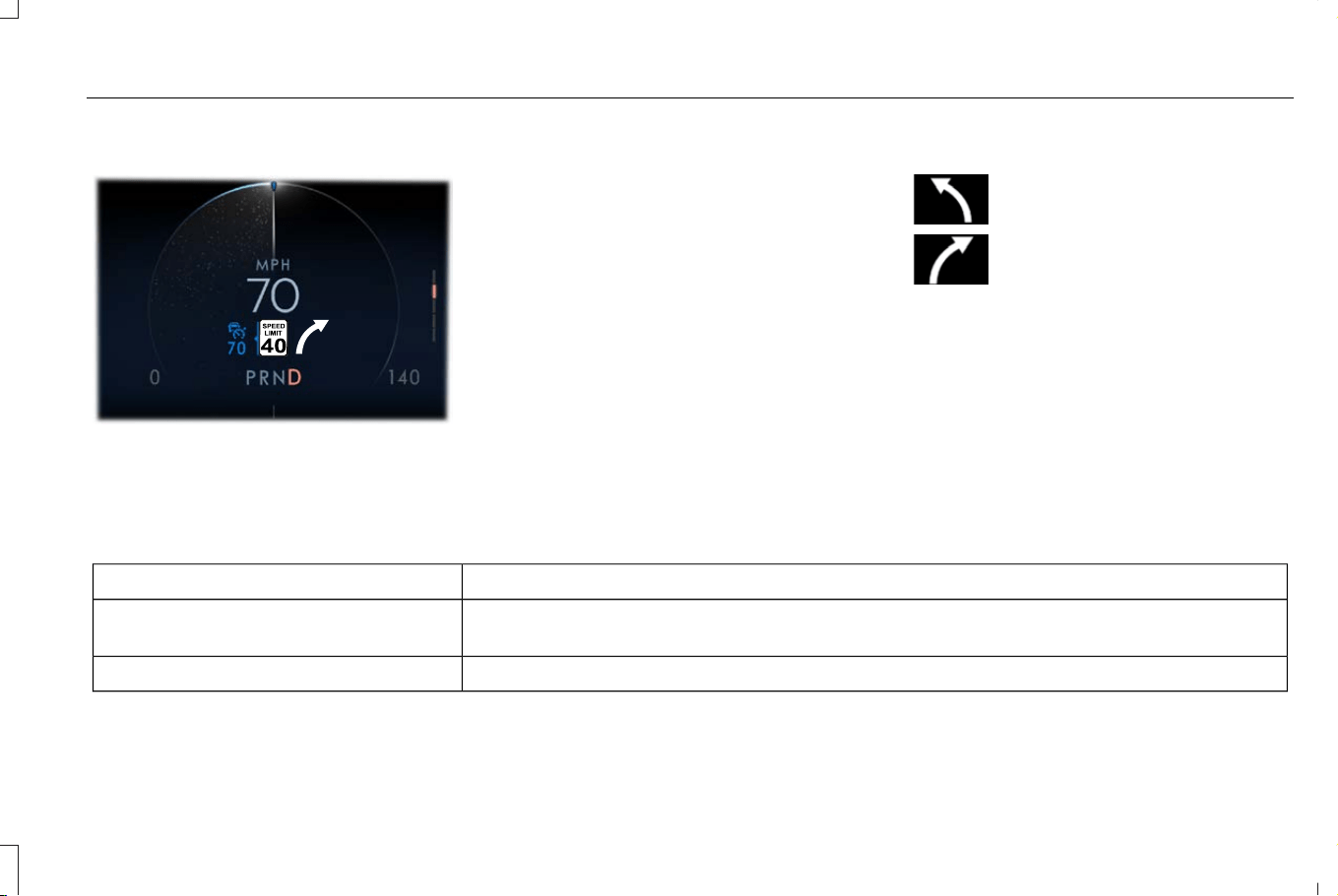
Speed sign indicator
E384806
When the system detects a new speed sign,
a gray indicator appears above the set speed
while the system adjusts the vehicle speed
to the speed limit. When the speed limit is
reached, the set speed updates and the gray
indicator disappears.
Road geometry indicator
When the system detects a curve or highway
exit, the vehicle starts to decelerate, and the
indicator appears and changes color.
Road geometry indicator symbols
E379737
Left curve.
E379738
Right curve.
PREDICTIVE SPEED ASSIST – TROUBLESHOOTING
PREDICTIVE SPEED ASSIST – INFORMATION MESSAGES
DetailsMessage
Navigation system based speed limit information is not available. If the message continues to
appear, have your vehicle checked as soon as possible.
Adaptive Cruise Control Speed Sign
Recognition Not Available
The system is going to cancel and you must take control.Driver Resume Control
301
Corsair (CTF) Canada/Mexico/United States of America, enUSA, Edition date: 202407, DOM
Adaptive Cruise Control

ADAPTIVE CRUISE CONTROL –
TROUBLESHOOTING
ADAPTIVE CRUISE CONTROL –
INFORMATION MESSAGES
Note: Depending on your vehicle options
and instrument cluster type, not all messages
display or are available.
Note: The system could abbreviate or
shorten certain messages depending upon
which cluster type you have.
DetailsMessage
Contact an authorized dealer to have the radar checked for proper
coverage and operation.
Front Sensor Not Aligned
Conditions exist preventing the system from being available.Cruise Control Not Available
You have a blocked radar because of poor radar visibility due to
inclement weather or ice, mud, or water in front of the sensor. You
can typically clean the sensor to resolve this issue.
Adaptive Cruise Control Not Available
Sensor Blocked
See Manual
Due to the nature of sensor technology, it is possible to get a blockage
warning with no actual block. This happens, for example, when driving
in sparse rural or desert environments. A false blocked condition
either self clears, or clears after you restart your vehicle.
You have selected normal cruise control. The system does not brake
or react to traffic.
Normal Cruise Active Adaptive Braking Off
Displays when the adaptive cruise control is going to cancel and you
must take control.
Adaptive Cruise - Driver Resume Control
Displays when the vehicle speed is too slow to activate the adaptive
cruise control and there is no lead vehicle in range.
Cruise Control Speed Too Low to Activate
302
Corsair (CTF) Canada/Mexico/United States of America, enUSA, Edition date: 202407, DOM
Adaptive Cruise Control

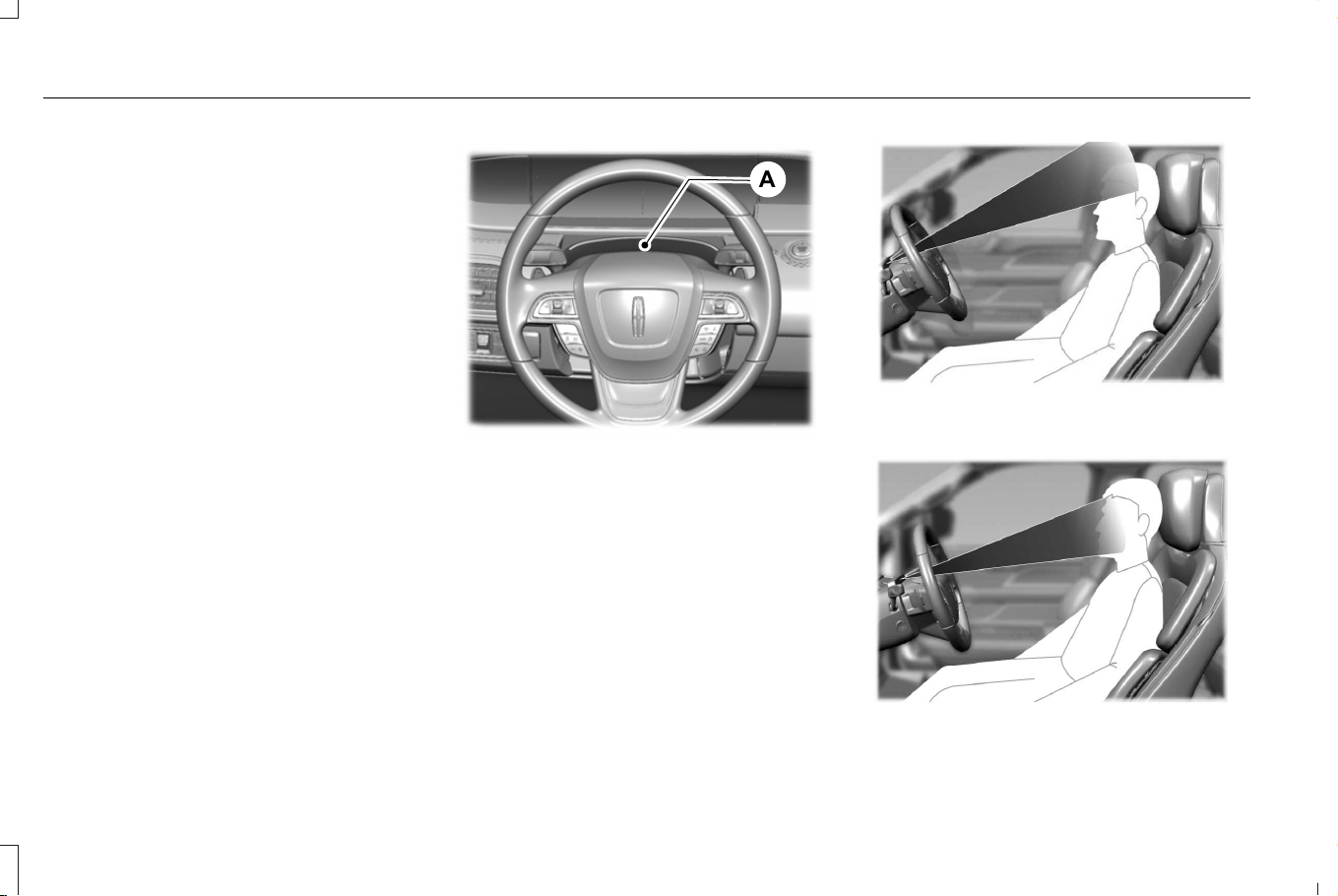
WHAT IS BLUECRUISE
BlueCruise keeps your vehicle centered in
the lane and offers a hands-free driving
mode in certain situations when using
adaptive cruise control.
HOW DOES BLUECRUISE WORK
BlueCruise uses cameras to monitor your
vehicle position within a lane and applies
steering support to keep your vehicle
centered in the lane.
Using the cameras and location information,
BlueCruise allows you to remove your hands
from the steering wheel and offers a
hands-free driving mode in certain areas.
When active, BlueCruise uses a driver facing
camera and infrared lighting to monitor your
eyes and head position to detect if you are
distracted. If the system determines you are
distracted, it alerts you to return your eyes
to the road.
E351152
A
Lighting and camera area.A
E381702
Steering column too high, camera cannot
see the face.
E381703
304
Corsair (CTF) Canada/Mexico/United States of America, enUSA, Edition date: 202407, DOM
Lincoln BlueCruise (If Equipped)
Appropriate position, camera can see the
face.
For the most optimal experience from the
driver facing camera:
• Make sure to not wear any facial
coverings.
• Raise the seating position and/or lower
the steering column so your face is seen
by the driver facing camera.
• Avoid leaning the seat back so the driver
facing camera can see your face.
• Avoid using infrared blocking sunglasses.
• Make sure your hands, arms or other
objects are not blocking the driver facing
camera.
Note: When BlueCruise is active, in certain
crash or near crash-like situations, such as
an air bag deployment or hitting a road
obstacle, camera data may record through
the vehicle event data recorder. See Event
Data (page 28).
Note: No data records under normal driving
conditions.
BLUECRUISE PRECAUTIONS
WARNING: You are responsible for
keeping your eyes on the road at all times.
The system is designed to be an aid and
does not relieve you of your responsibility
to drive with due care and attention. Failure
to follow this instruction could result in the
loss of control of your vehicle, personal
injury or death.
WARNING: You are responsible for
controlling your vehicle at all times. The
system is designed to be an aid and does
not relieve you of your responsibility to
drive with due care and attention. Failure
to follow this instruction could result in the
loss of control of your vehicle, personal
injury or death.
WARNING: Do not use the system
when towing a trailer. Failure to follow this
instruction could result in the loss of
control of your vehicle, personal injury or
death.
WARNING: Obstructions to the driver
facing camera or infrared lighting could
prevent the system from properly
operating. Keep the camera and lighting
areas free from obstruction. Failure to
follow this instruction could result in the
loss of control of your vehicle, personal
injury or death.
WARNING: Do not use the system if
any changes or modifications to the
steering wheel have been made. Any
changes or modifications to the steering
wheel could affect the functionality or
performance of the system. Failure to
follow this instruction could result in the
loss of control of your vehicle, personal
injury or death.
WARNING: The system may not
function if the sensor is blocked.
305
Corsair (CTF) Canada/Mexico/United States of America, enUSA, Edition date: 202407, DOM
Lincoln BlueCruise (If Equipped)
WARNING: Pay close attention to
changing road conditions such as entering
or leaving a highway, on roads with
intersections or roundabouts, roads
without visible lanes of travel, roads that
are unpaved, or steep slopes, railroad
crossings, pedestrian crossings, and school
zones. Failure to follow this instruction
could result in the loss of control of your
vehicle, personal injury or death.
WARNING: The system is not a crash
warning or avoidance system.
WARNING: Large contrasts in outside
lighting can limit sensor performance.
WARNING: The system attempts to
keep your vehicle in the center of the lane
as well as maintain speed and gap control.
The system may not be able to perform
these tasks in all situations. Do not use the
system in complex or uncertain driving
conditions. Failure to follow this instruction
could result in the loss of control of your
vehicle, personal injury or death.
WARNING: Your vehicle could drift
out of the lane of travel. Always be
prepared to manually steer your vehicle.
Failure to follow this instruction could result
in the loss of control of your vehicle,
personal injury or death.
WARNING: The system will not
operate if the sensor cannot track the road
lane markings.
BLUECRUISE REQUIREMENTS
BlueCruise only activates when all of the
following occur:
• BlueCruise service plan is active. See
Lincoln.com
(https://www.lincoln.com/connectedservices/)
or the Lincoln mobile app for details.
• Modem is enabled. See Connecting the
Vehicle to a Mobile Network (page 486).
• BlueCruise is enabled in your center
display screen. See BlueCruise Settings
(page 307).
• Adaptive cruise control is switched on.
• Automatic Emergency Braking is
switched on. See Switching Automatic
Emergency Braking On and Off (page
343).
• The driver seatbelt is fastened.
• The system detects both lane markings.
• Your hands are on the steering wheel.
• Your eyes are on the road.
Note: For hands-free mode to work, your
vehicle must be on certain limited access
divided freeways.
Note: The system may require updated
software for hands-free mode. See Vehicle
Software Updates (page 523).
Note: Without an active BlueCruise
subscription, your vehicle is still capable of
lane centering. This system requires you to
keep your hands on the steering wheel at
all times. See Lane Centering Requirements
(page 295).
306
Corsair (CTF) Canada/Mexico/United States of America, enUSA, Edition date: 202407, DOM
Lincoln BlueCruise (If Equipped)

BLUECRUISE LIMITATIONS
Any of the following conditions could result
in BlueCruise not correctly operating:
• You do not have your vehicle centered
in the lane.
• The lane is too narrow or too wide.
• The system does not detect at least one
lane marking or when lanes merge or
split.
• You are applying a low amount of
steering input.
• You are using the system in areas under
construction.
• If you make any aftermarket modifications
to the steering system.
• You are using a spare tire.
The driver-facing camera may not operate
correctly due to any of the following:
• You have a pre-existing eye condition,
such as an eye misalignment, or have
had eye surgery.
• You cover your facial features by a mask,
hat or other items.
• The lighting conditions change
significantly.
• You are not in the field of view of the
camera.
• You position or tilt yourself to one side.
• You are moving around extensively.
• You are wearing glasses or sunglasses
that are too dark or reflective.
Note: The system has limited steering
assistance and may not be sufficient for all
driving situations.
Note: In exceptional conditions, such as
inclement weather or direct sunlight, the
system could deviate from the center line.
Note: The information provided by the
navigation map data could be inaccurate or
out of date.
BLUECRUISE SETTINGS
Enabling BlueCruise
1. Press Features on the touchscreen.
2. Press Driver Assistance.
3. Press Cruise Control.
4. Press Lane Centering with Hands-Free.
Enabling Activation Prompts
1. Press Features on the touchscreen.
2. Press Driver Assistance.
3. Press Cruise Control.
4. Press Activation Prompts.
SWITCHING BLUECRUISE ON AND
OFF
Switching BlueCruise On
The controls are on the steering wheel.
Using Activation Prompts
E144529
When the prompt appears, press
the button to switch BlueCruise on.
The indicator appears in the
instrument cluster. When the system is on,
the color of the indicator changes to indicate
the system status.
307
Corsair (CTF) Canada/Mexico/United States of America, enUSA, Edition date: 202407, DOM
Lincoln BlueCruise (If Equipped)
Note: You must enable activation prompts
in the touchscreen.
Using Steering Wheel Controls
E308131
E144529
Using the adaptive cruise control
and lane keeping buttons, make
sure both systems are active.
BlueCruise activates.
Switching BlueCruise Off
E308131
E144529
Press either the lane keeping or
adaptive cruise control button
when system is active or in
standby mode.
BlueCruise turns off through each
ignition cycle.
BLUECRUISE ALERTS
When BlueCruise is providing hands-on
driving or transitioning to hands-on driving
from hands-free driving and detects no
steering activity for a certain period of time,
the system alerts you with an audible
warning and a message in the instrument
cluster display to put your hands on the
steering wheel.
When BlueCruise is providing hands-on or
hands-free driving and detects you are not
looking at the road for a certain period of
time, the system alerts you to return your
eyes to the road. Depending on where you
are looking, the alert can be a message in
the instrument cluster and an audible
warning.
If you do not react to the warnings, the
system alerts you to take control of your
vehicle, quickly applies and releases the
brakes, activates the hazard lights, and slows
your vehicle to a stop within the lane of travel
while maintaining steering control.
If your vehicle slows down or stops and you
resume control, a message appears to
prompt you to press the accelerator pedal
to allow the system to resume.
Note: If the system detects significant
inactivity, it disables until the next time you
start your vehicle.
BLUECRUISE AUTOMATIC
CANCELLATION
When an external condition cancels
BlueCruise, for example, no lane markings
available, a message appears in the
instrument cluster, and an audible warning
sounds.
E281472
If your vehicle starts to slow down,
you must take control by returning
your attention to the road and your
hands to the steering wheel. Then press and
release the button to reactivate BlueCruise.
System cancellation can also occur if:
308
Corsair (CTF) Canada/Mexico/United States of America, enUSA, Edition date: 202407, DOM
Lincoln BlueCruise (If Equipped)
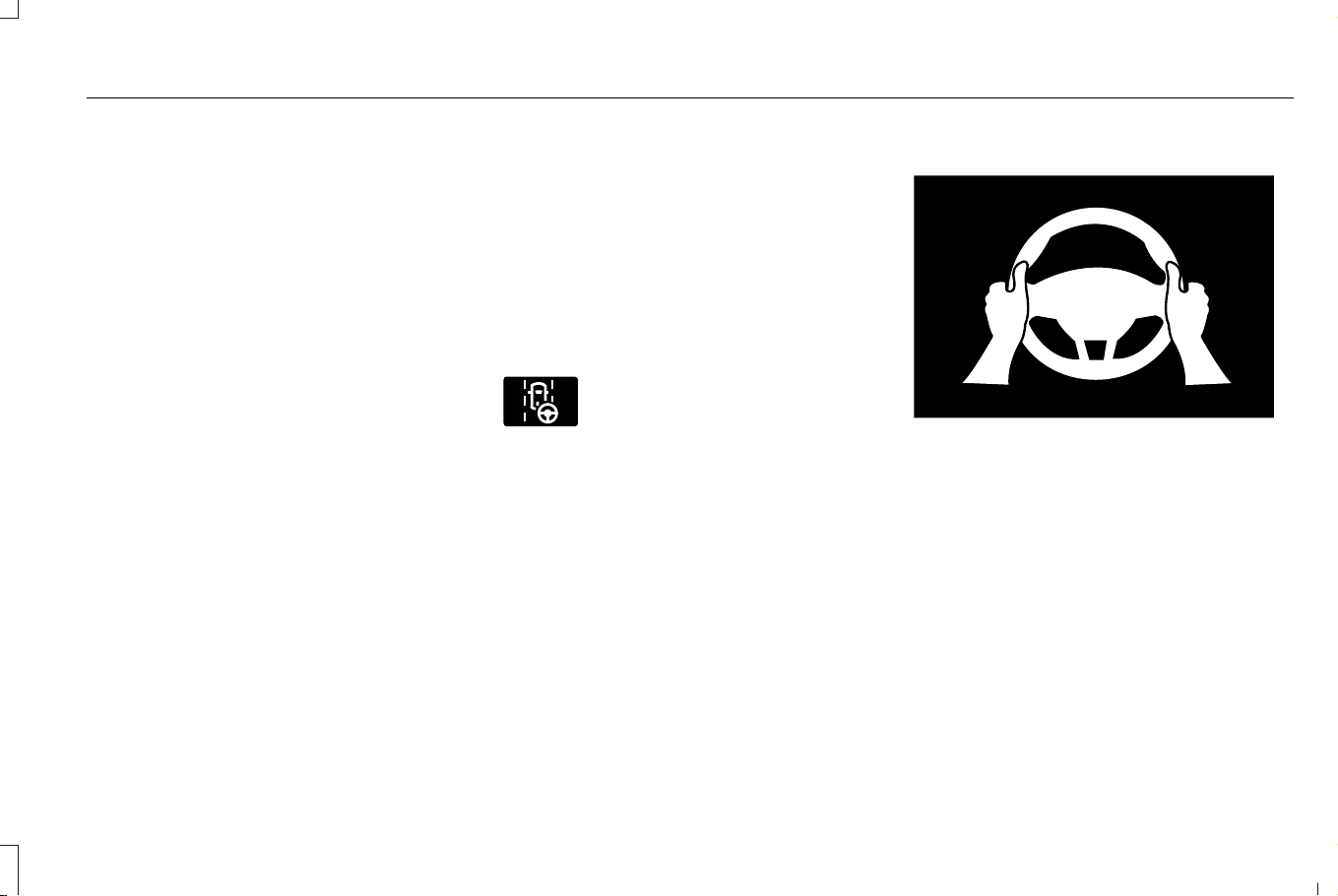
• The lane becomes too narrow.
• The system cannot detect valid lane
markings.
• Lane markings cross.
• Your eyes are not on the road or your
hands are not on the steering wheel.
If you have your hands on the steering wheel
and your eyes are on the road when the
feature is active and a cancellation occurs,
the system displays a canceled graphic in
the instrument cluster and sounds an audible
warning.
If you are not paying attention to the road or
your hands are not on the steering wheel
and a cancellation occurs, the system
displays a message in the instrument cluster,
and sounds an audible warning until you
resume control.
If you do not resume control in time,
BlueCruise quickly activates and releases
the brakes, activates the hazard lights, and
slows your vehicle to a stop within the lane
of travel while maintaining steering control.
If your vehicle slows down or stops and you
resume control, a message appears to
prompt you to press the accelerator pedal
to allow the system to resume.
Note: If the system detects repeated
inactivity, it disables until the next time you
start your vehicle.
BLUECRUISE INDICATORS
E297977
When on, the color of the indicator
changes to indicate the status.
Gray indicates BlueCruise is on but inactive.
Green indicates BlueCruise is active and
applying continuous steering support.
Blue indicates BlueCruise is active and
hands-free driving mode is available.
Hands-On Driving Support Available
E333236
The graphic in the cluster changes to a wheel
with hands on it indicating hands-on driving
mode is active.
When this indicator is present, you must keep
your hands on the steering wheel.
309
Corsair (CTF) Canada/Mexico/United States of America, enUSA, Edition date: 202407, DOM
Lincoln BlueCruise (If Equipped)
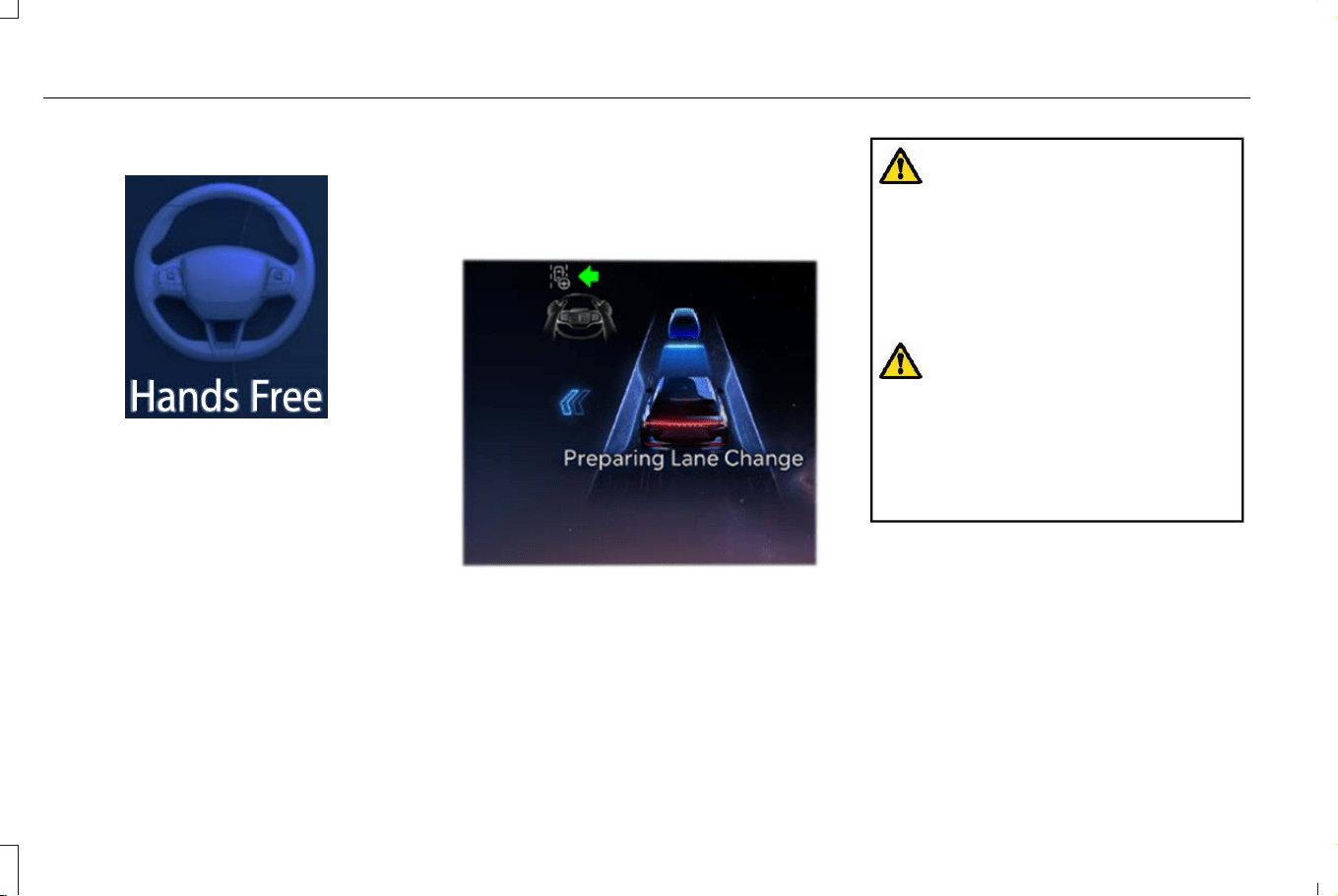
Hands-Free Driving Support Available
E333232
The graphic in the cluster changes to a wheel
without hands on it indicating hands-free
driving mode is available.
When this indicator is present, you can
remove your hands from the steering wheel.
LANE CHANGE ASSIST
HOW DOES LANE CHANGE ASSIST
WORK
E393071
Lane change assist can automatically
perform a single lane change when you
request the lane change using the turn signal
lever. This feature is available down to
40 mph (65 km/h).
WARNING: You are responsible for
controlling your vehicle at all times. The
system is designed to be an aid and does
not relieve you of your responsibility to
drive with due care and attention. Failure
to follow this instruction could result in the
loss of control of your vehicle, personal
injury or death.
WARNING: Do not use the lane
change assist system as a replacement for
using the interior and exterior mirrors or
looking over your shoulder before
changing lanes. The lane change assist
system is not a replacement for careful
driving.
1. Make sure the lane you are requesting
is clear of traffic or obstacles.
2. Tap or latch the lever in the direction of
your planned lane change.
3. Once the lane change is complete, move
the turn signal lever back to the middle
position if necessary.
310
Corsair (CTF) Canada/Mexico/United States of America, enUSA, Edition date: 202407, DOM
Lincoln BlueCruise (If Equipped)

Note: When using lane change assist you
can tap or latch the lever.
Lane Change Suggestion
If you are approaching or have been
following a slower moving vehicle, the
system may suggest a lane change to pass
that vehicle using an available passing lane.
LANE CHANGE ASSIST LIMITATIONS
Lane change assist will not perform the
requested maneuver if traffic is identified in
the selected lane.
SWITCHING LANE CHANGE ASSIST
ON AND OFF
1. Press Features on the touchscreen.
2. Press Driver Assistance.
3. Press Cruise Control.
4. Press Lane Change Assist to toggle the
system on and off.
LANE CHANGE ASSIST
CANCELLATION
To cancel lane change assist, manually steer
your vehicle or return the turn signal lever to
the middle position.
311
Corsair (CTF) Canada/Mexico/United States of America, enUSA, Edition date: 202407, DOM
Lincoln BlueCruise (If Equipped)

LANE CHANGE ASSIST – TROUBLESHOOTING
LANE CHANGE ASSIST – INFORMATION MESSAGES
DetailsMessage
The lane you have selected to enter has a vehicle or obstacle.Lane is busy
A lane is not recognized or available to perform the requested
maneuver.
No lane detected
The driver has manually overridden the lane change.Driver canceled
The requested lane change is being performed.Changing lanes
If desired, press the turn signal lever in the direction indicated by the
lane change suggestion to initiate the lane change.
Lane change suggested
Note: The instrument cluster display may
abbreviate or shorten certain messages.
IN-LANE REPOSITIONING
HOW DOES IN-LANE REPOSITIONING
WORK
BlueCruise with in-lane repositioning uses
the vehicle's front and corner radar sensors
together with the front windshield camera
sensor to operate.
Using these sensors, the system
automatically adjusts your vehicle’ s position
in the lane based on the current driving
situation.
Note: In-lane repositioning is active only
when BlueCruise is enabled while traveling
on divided highways and when any of the
following occur:
312
Corsair (CTF) Canada/Mexico/United States of America, enUSA, Edition date: 202407, DOM
Lincoln BlueCruise (If Equipped)
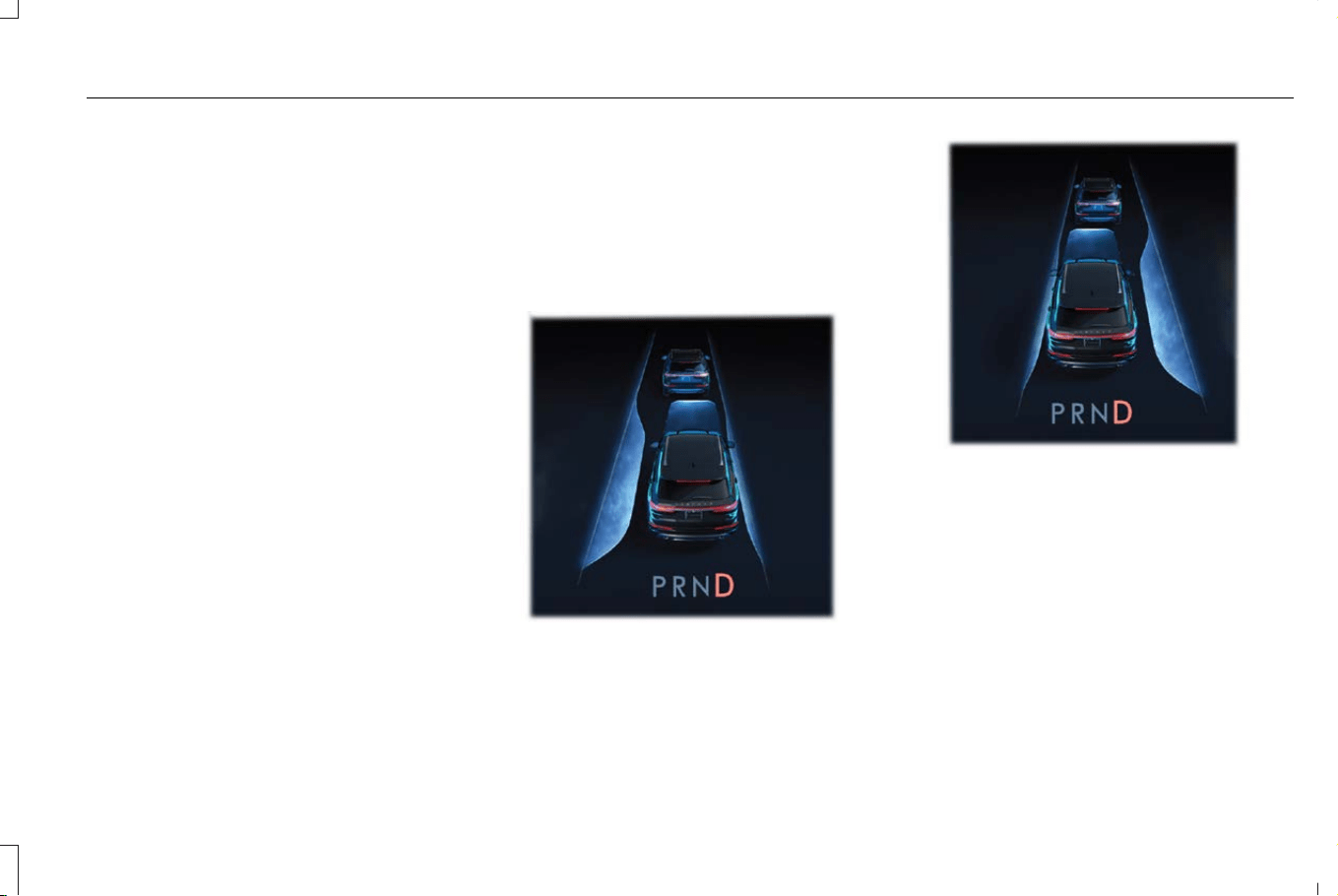
• Passing or being passed by adjacent lane
vehicles in close proximity.
• In a curve.
• Driving in outer lanes.
Note: In certain situations, the vehicle may
bias without showing the indicators.
Note: Keep the front of your vehicle free of
dirt, metal badges or objects. Vehicle front
protectors, aftermarket lights, additional
paint or plastic coatings could also degrade
sensor performance.
Note: The radar sensor has a limited field of
view. It may not detect vehicles at all or
detect a vehicle later than expected in some
situations.
SWITCHING IN-LANE REPOSITIONING
ON AND OFF
1. Press Features on the touchscreen.
2. Press Driver Assistance.
3. Press Cruise Control.
4. Press Adaptive Cruise Control.
5. Press Lane Centering with Hands-Free.
6. Press In-Lane Repositioning to toggle the
system on or off.
IN-LANE REPOSITIONING INDICATORS
E383893
Biased towards right-hand side of the lane.
E383894
Biased towards left-hand side of the lane.
BLUECRUISE – TROUBLESHOOTING
BLUECRUISE – INFORMATION
MESSAGES
Depending on your vehicle options and
instrument cluster type, not all messages
display or are available.
313
Corsair (CTF) Canada/Mexico/United States of America, enUSA, Edition date: 202407, DOM
Lincoln BlueCruise (If Equipped)

DetailsMessage
Make sure you return your hands to the steering wheel and provide
steering input.
Keep Hands on Steering Wheel
The system is going to cancel and you must take control by returning
your attention to the road and your hands to the steering wheel.
Resume Control
Return your attention to the road.Watch the Road
Conditions exist preventing the system from being available. If the
message continues to display, have the system checked as soon as
possible.
BlueCruise not available
Press the accelerator pedal and follow the prompts.Press Accelerator Pedal to Resume
Make sure your facial features are visible and in the field of view of
the driver facing camera.
Driver monitor camera cannot detect face See manual
Make sure your hands, arms or other objects are not obscuring the
camera.
Driver monitor camera is blocked See manual
Conditions exist preventing the system from being available. If the
message continues to display, have the system checked as soon as
possible.
Driver monitor camera fault See manual
BlueCruise is active, keep your attention on the road.BlueCruise On Watch the road Be prepared to resume control
The system is in standby mode, press the button on the steering wheel
to activate.
BlueCruise available Press {ICON} to activate
314
Corsair (CTF) Canada/Mexico/United States of America, enUSA, Edition date: 202407, DOM
Lincoln BlueCruise (If Equipped)

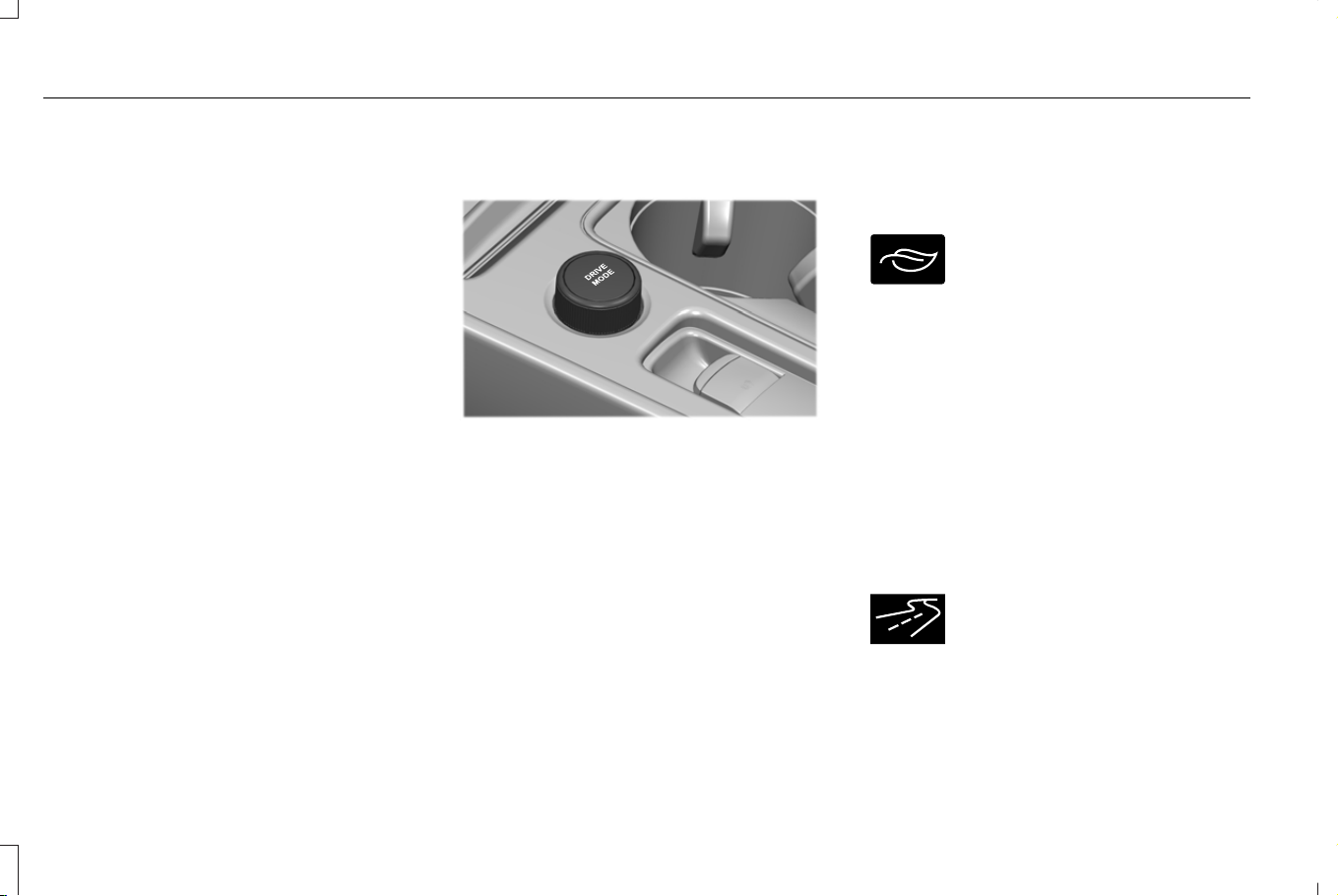
WHAT IS DRIVE MODE CONTROL
This feature connects multiple vehicle
systems through a single interface, providing
you with enhanced vehicle control and
driving dynamics for different driving
scenarios, terrains, weather, or various road
conditions.
HOW DOES DRIVE MODE
CONTROL WORK
When a drive mode is selected it alters
various electrical and mechanical systems
within the vehicle to a predetermined
configuration. The systems altered and
features available will depend on which
mode is selected.
Note: The drive mode system reverts to the
normal mode each time you start your
vehicle.
SELECTING A DRIVE MODE
E307643
Rotate the controller located on the center
console. Rotate the drive mode controller
once to activate the drive mode selection
menu in the display. Rotate the controller a
second time to select and engage the drive
mode.
Note: Drive mode changes may not be
available when the ignition is off.
DRIVE MODES
CONSERVE
E295413
This mode decreases accelerator
pedal responsiveness to soften
driver inputs and encourage
efficient driving.
Depending on your vehicle’s options,
adaptive cruise control is slower to return to
the set speed and auto start- stop engages
more often. The system decreases air
conditioning output to conserve energy when
set to auto mode.
Use this mode for fuel efficient driving which
allows for an extended driving range.
EXCITE
E392863
This mode increases accelerator
pedal responsiveness and holds
the transmission in lower gears
longer for enhanced acceleration. The
system switches the chassis controls to their
sport settings.
316
Corsair (CTF) Canada/Mexico/United States of America, enUSA, Edition date: 202407, DOM
Drive Mode Control

Depending on your vehicle’s options, this
feature sets the exhaust to a louder tone,
inhibits auto-start stop, increases steering
torque buildup, and it adjusts the suspension
for enhanced driver connectivity and
responsive driving dynamics.
Use this mode for a sportier and engaging
driving experience.
NORMAL
E225310
This mode adjusts all systems to
their base settings and balances
vehicle performance for all around
drivability. Each time you switch your vehicle
off it defaults to this mode.
Use this mode for everyday driving, such as
city and highway routes or commuting.
PRESERVE EV
This mode prioritizes the use of the vehicles
engine over electric only driving to save
electric driving range for later use. Use this
mode for electric battery energy
conservation. For example, you first drive at
high speeds on open roads where engine
operation is appropriate. Later, you drive at
low speeds in an urban area where electric
only is most efficient. See Plug-In Hybrid
Electric Vehicle Information (page 200).
PURE EV
This mode prioritizes the use of the high
voltage battery power and electric motor
driving over engine operation. Use this mode
for electric only driving.
Note: Your vehicle could accelerate more
slowly, and the top speed could be reduced.
Note: For more power, you can temporarily
enable your engine at any time by using one
of the following methods:
• Press and hold the folder button on the
steering wheel when viewing the pure
EV information screen. Your vehicle
enables the engine as needed, and
returns to pure EV after several seconds,
or when the vehicle no longer needs the
engine.
• Press the accelerator pedal fully. A
pop-up message appears. Press OK on
the steering wheel to activate as needed.
Your vehicle could enable the engine if
system conditions require it. An engine
enabled message displays if this occurs.
See Plug-In Hybrid Electric Vehicle
Information (page 200). Your engine
could enable if the climate control is in a
defrost mode and the outside
temperature is cold. If the vehicle does
not need defrost, select a different
climate control mode to permit pure EV.
Your vehicle changes from pure EV mode
to normal mode when the vehicle electric
range is zero.
Note: When in pure EV mode, your vehicle
stays in this mode if there is electric driving
range available and the system does not
fault.
317
Corsair (CTF) Canada/Mexico/United States of America, enUSA, Edition date: 202407, DOM
Drive Mode Control
SLIPPERY
E295414
This mode lowers accelerator
pedal responsiveness, adjusts
transmission shift points, and
optimizes traction and stability controls to
help mitigate wheel spin and maintain vehicle
control in slick driving conditions.
Depending on your vehicle’s options, this
feature adjusts the all-wheel drive control to
provide optimum traction for slippery
surfaces.
Use this mode for less than ideal road
conditions such as snow and ice covered
roads or for firm surfaces that are covered
with loose or slippery materials.
Note: Do not use this mode when driving on
dry pavement.
DRIVE MODE CONTROL –
TROUBLESHOOTING
DRIVE MODE CONTROL – WARNING
LAMPS
E130458
Some drive modes reduce traction
and stability control performance
and the indicator illuminates in the
instrument cluster.
Note: The system has diagnostic checks that
continuously monitor the system for proper
operation. If a mode is unavailable due to a
system fault, the drive mode system defaults
to normal. When the system defaults to
normal, the driveline settings remain the
same as prior to the system fault.
DRIVE MODE CONTROL – INFORMATION MESSAGES
DetailsMessage
The system is not available. If it is still not available the next time you switch the ignition on, the
system has malfunctioned. Have your vehicle checked as soon as possible.
Drive Mode Not Available
318
Corsair (CTF) Canada/Mexico/United States of America, enUSA, Edition date: 202407, DOM
Drive Mode Control

DRIVE MODE CONTROL –
FREQUENTLY ASKED QUESTIONS
Why did the system default to normal
mode?
• If a mode is unavailable due to a system
fault, it defaults to normal mode and the
driveline settings remain the same as
prior to the system fault.
Can I switch drive modes while I am
driving?
• In most instances, you can switch drive
modes while you are driving (if you
maintain attention on the road), or while
the vehicle is stationary. However, you
should not switch the vehicle into a drive
mode intended for off-road or track use
while driving on paved, public roads. For
example, while driving on a paved
highway, it would be acceptable to switch
from normal mode to conserve mode,
but not to deep conditions mode.
How long does it take for the vehicle
to switch modes after I make a
selection?
• After switching modes, the new drive
mode will activate within several
seconds, if all the appropriate
pre-conditions are met.
How should I decide which drive mode
to use?
• Selecting a drive mode usually depends
on the driving experience you would like
to have, and the driving conditions. For
example, if you want to have a more
exciting on-road driving experience, you
could switch into excite mode. If you find
yourself driving on slick roads, you could
switch into slippery mode.
Will drive modes impact my vehicle’s
fuel consumption?
• Drive modes can have an impact on your
vehicle’ s fuel consumption. In addition to
the active mode, your driving style will
also affect the fuel consumption.
DRIVE MODE CONTROL VIDEOS
Lincoln Drive Modes Video Link
319
Corsair (CTF) Canada/Mexico/United States of America, enUSA, Edition date: 202407, DOM
Drive Mode Control
WHAT IS THE LANE KEEPING
SYSTEM
The lane keeping system alerts you by
providing temporary steering assistance or
steering wheel vibration when it detects an
unintended lane departure.
HOW DOES THE LANE KEEPING
SYSTEM WORK
The lane keeping system uses a forward
looking camera mounted on the windshield
to monitor vehicle movement within the lane
of travel.
When the camera detects a drift out of the
lane of travel, the lane keeping system alerts
the driver by vibrating the steering wheel, or
aids the driver by providing a small steering
input to move the vehicle back into the lane
of travel.
The driver can select one of three modes:
• Alert (if equipped)
• Aid
• Alert + Aid
LANE KEEPING SYSTEM
PRECAUTIONS
WARNING: You are responsible for
controlling your vehicle at all times. The
system is designed to be an aid and does
not relieve you of your responsibility to
drive with due care and attention. Failure
to follow this instruction could result in the
loss of control of your vehicle, personal
injury or death.
WARNING: The system will not
operate if the sensor cannot track the road
lane markings.
WARNING: The sensor may
incorrectly track lane markings as other
structures or objects. This can result in a
false or missed warning.
WARNING: In cold and severe
weather conditions the system may not
function. Rain, snow and spray can all limit
sensor performance.
WARNING: The system may not
operate properly if the sensor is blocked.
Keep the windshield free from obstruction.
WARNING: If damage occurs in the
immediate area surrounding the sensor,
have your vehicle checked as soon as
possible.
WARNING: The system may not
correctly operate if your vehicle is fitted
with a suspension kit not approved by us.
WARNING: Large contrasts in outside
lighting can limit sensor performance.
320
Corsair (CTF) Canada/Mexico/United States of America, enUSA, Edition date: 202407, DOM
Lane Keeping System
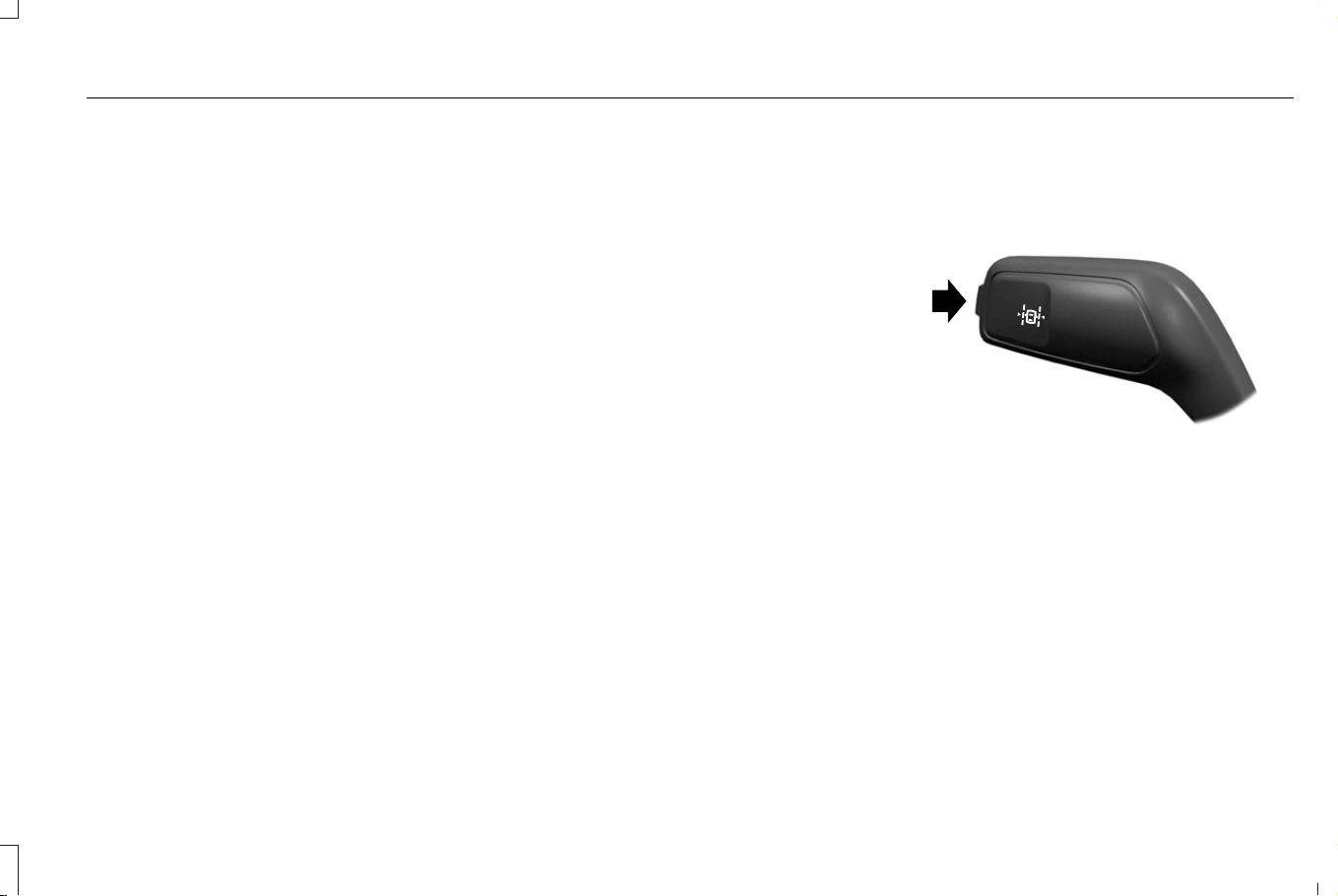
LANE KEEPING SYSTEM
LIMITATIONS
The lane keeping system only operates when
the vehicle speed is greater than 40 mph
(64 km/h).
The system works when the camera can
detect at least one lane marking or the edge
of the road.
The lane keeping system may not correctly
operate in any of the following conditions:
• The lane keeping system does not detect
at least one lane marking.
• You switch the turn signal on.
• You apply direct steering, accelerate fast
or brake hard.
• The vehicle speed is less than 40 mph
(64 km/h).
• The anti-lock brake, stability control or
traction control system activates.
• The lane is too narrow.
• Something is obscuring the camera or it
is unable to detect the lane markings due
to environment, traffic or vehicle
conditions.
The lane keeping system may not correct
lane positioning in any of the following
conditions:
• High winds.
• Uneven road surfaces.
• Heavy or uneven loads.
• Incorrect tire pressure.
SWITCHING THE LANE KEEPING
SYSTEM ON AND OFF
E288067
To activate the lane keeping system, press
the button on the direction indicator stalk.
To deactivate the lane keeping system, press
the button again.
Note: When switching the system on or off
a message appears in the instrument cluster
display to show the status.
Note: The system stores the on or off setting
until manually changed.
321
Corsair (CTF) Canada/Mexico/United States of America, enUSA, Edition date: 202407, DOM
Lane Keeping System
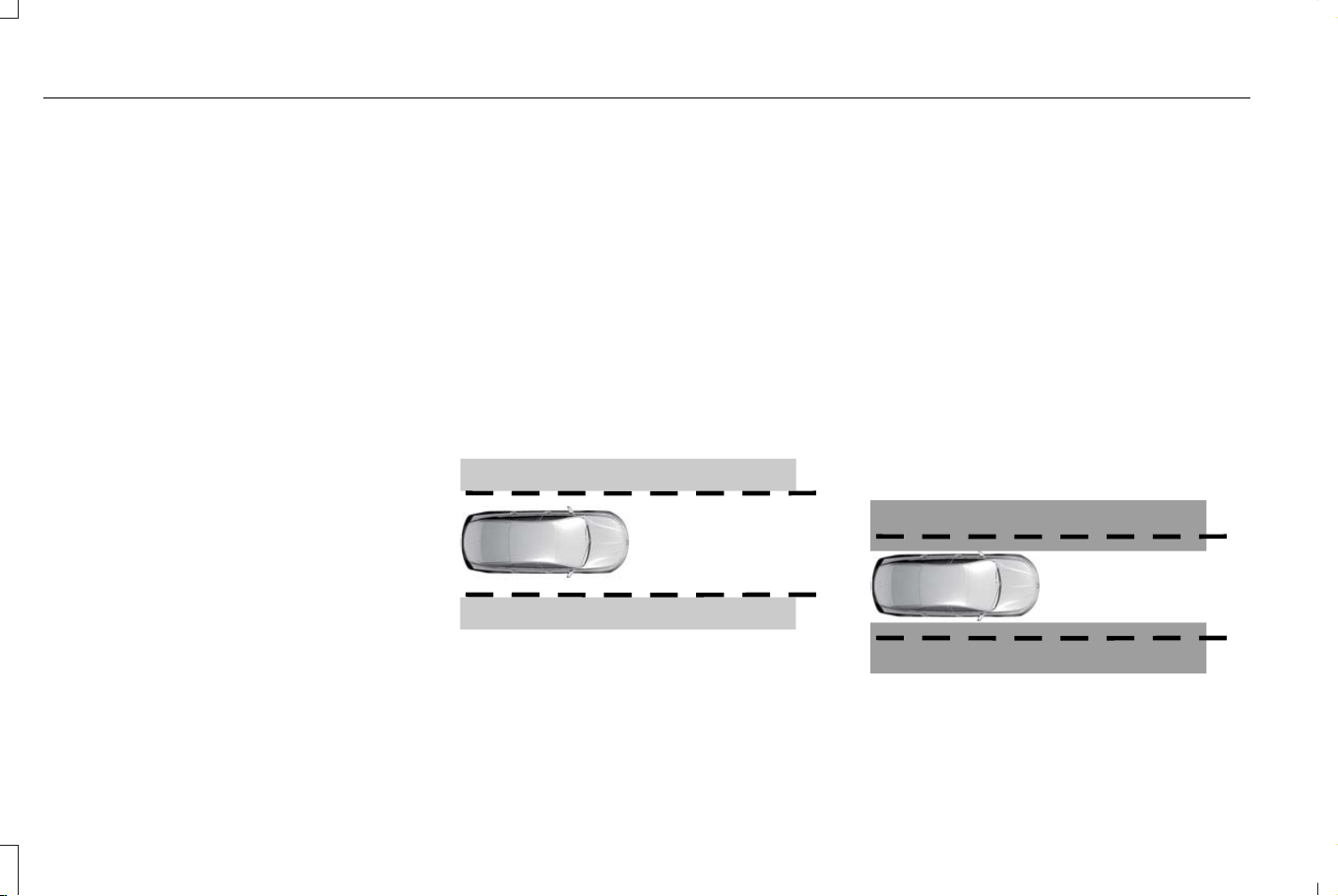
SWITCHING THE LANE KEEPING
SYSTEM MODE
1. From the settings menu, press Driver
Assistance.
2. Press Lane-Keeping System.
3. Press Lane-Keeping Mode.
4. Select a mode.
Note: The system remembers the last setting
when you start your vehicle.
LANE KEEPING SYSTEM SETTINGS
Adjusting the Steering Wheel Vibration
Intensity
1. Access the vehicle drawer on the
touchscreen.
2. Press SETTINGS.
3. Press Driver Assistance.
4. Press Lane-Keeping System.
5. Press Lane-Keeping Intensity.
6. Select a setting.
Note: This setting is not available in all
modes.
ALERT MODE
WHAT IS ALERT MODE
Alert mode vibrates the steering wheel when
it detects an unintended lane departure.
HOW DOES ALERT MODE WORK
E165515
When in alert mode, the lane keeping system
alerts you by vibrating the steering wheel.
The intensity of the vibration is set through
the lane keeping system menu.
AID MODE
WHAT IS AID MODE
Aid mode provides temporary steering
assistance toward the center of the lane.
HOW DOES AID MODE WORK
E165516
322
Corsair (CTF) Canada/Mexico/United States of America, enUSA, Edition date: 202407, DOM
Lane Keeping System
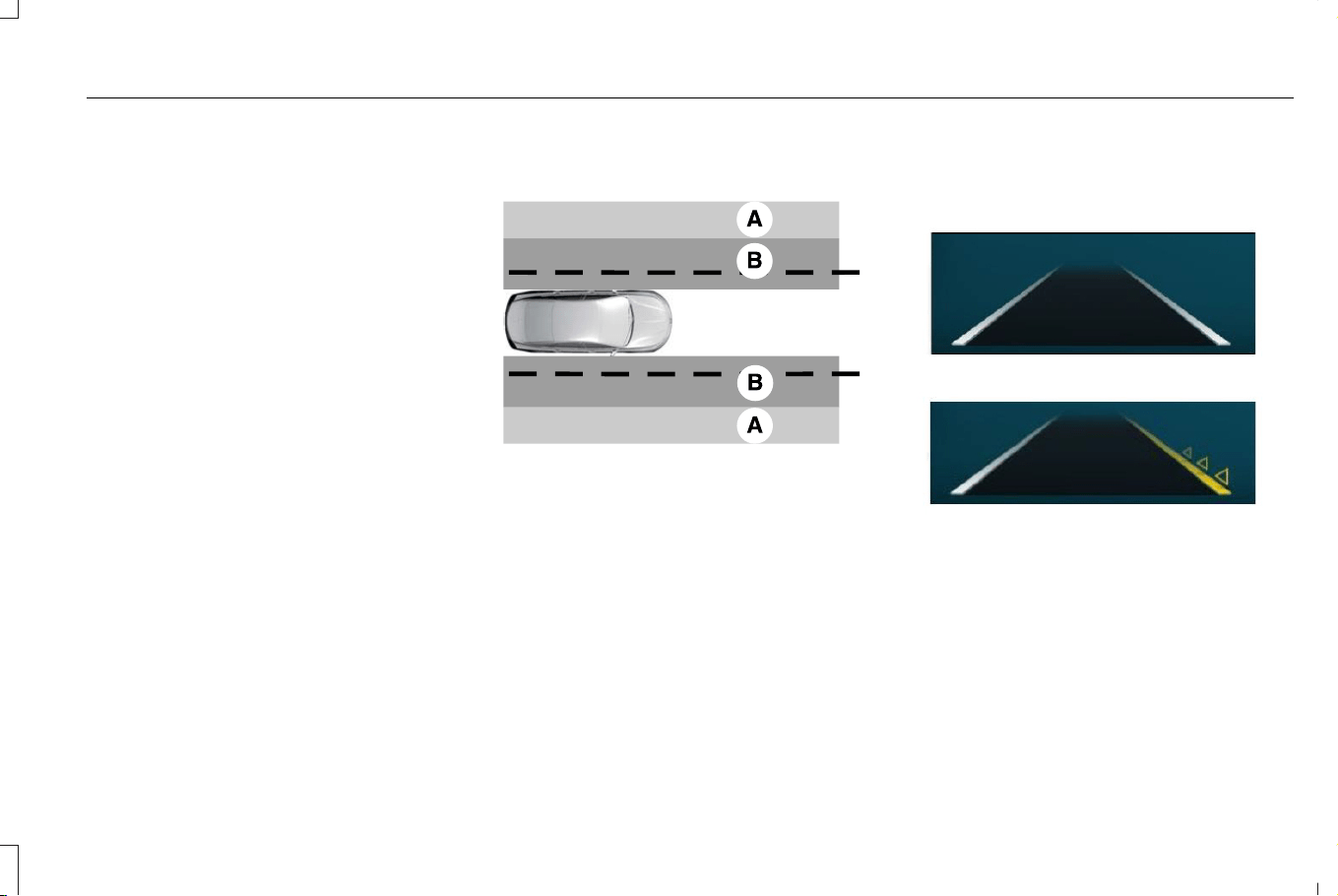
The lane keeping system aids you when an
unintentional lane departure occurs. The
system provides a small steering input to
move the vehicle towards the center of the
lane.
ALERT AND AID MODE
WHAT IS ALERT AND AID MODE
Alert and aid mode uses multiple features to
keep you in your lane. The system first
provides a small steering input to bring your
vehicle back towards the center of the lane.
If your vehicle moves too far from the center
of the lane the system alerts you with
vibration in the steering wheel.
HOW DOES ALERT AND AID MODE
WORK
E165517
Alert.A
Aid.B
The lane keeping system detects a lane
departure and provides aid when the
vehicles enters B and applies the additional
alert warning if A is entered.
LANE KEEPING SYSTEM
INDICATORS
E294544
If you switch the lane keeping system on, a
graphic with lane markings appears in the
information display.
When you switch the system off, the lane
marking graphics do not display.
Note: The overhead vehicle graphic may still
display if adaptive cruise control is enabled.
323
Corsair (CTF) Canada/Mexico/United States of America, enUSA, Edition date: 202407, DOM
Lane Keeping System
While the lane keeping system is on, the
color of the lane markings change to indicate
the system status.
RedYellowWhiteGray
Indicates that the system is
providing or has just provided a
lane keeping alert warning.
Indicates that the system is
providing or has just provided a
lane keeping aid intervention.
Indicates that the system is avail-
able or ready to provide a warning
or intervention on the indicated
side.
Indicates that the system is
temporarily unavailable to provide
a warning or intervention on the
indicated side.
BLIND SPOT ASSIST
WHAT IS BLIND SPOT ASSIST
Blind spot assist is an extension of the lane
keeping system.
It may help you identify adjacent vehicles
during a lane change.
Blind spot assist provides a blind spot
warning and steering assistance to help you
become aware of and steer away from
vehicles in your blind spot during lane
changes.
HOW DOES BLIND SPOT ASSIST
WORK
E334922
Activate and deactivate the system
using the lane keeping system
button on the steering wheel.
The blind spot assist feature is enabled
whenever you select "Aid" or "Alert +Aid"
from the lane keeping system.
During lane changes, the design of the blind
spot assist feature detects vehicles in, or
approaching, your blind spot and provides
a warning, plus steering assistance to direct
your vehicle back into your lane.
When active, this system functions with or
without the use of turn signals and hazard
flashers.
You must keep your hands on the steering
wheel at all times.
BLIND SPOT ASSIST LIMITATIONS
All system limitations present in the basic
lane keeping system also apply to blind spot
assist.
Blind spot assist does not function under the
following conditions:
324
Corsair (CTF) Canada/Mexico/United States of America, enUSA, Edition date: 202407, DOM
Lane Keeping System
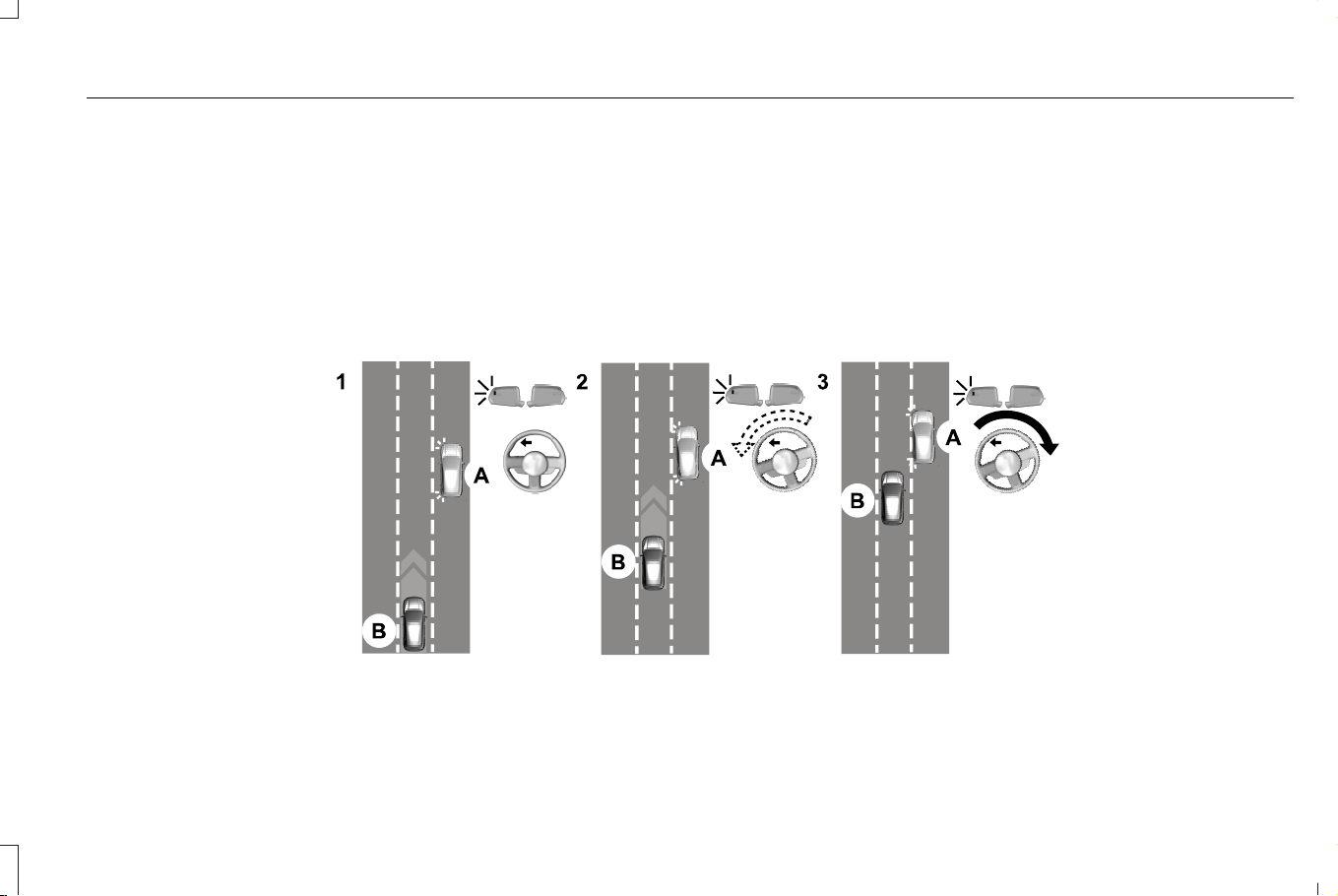
• No lane markings are detected.
• One or both rear radar sensors become
blocked or faulty.
• You attach a bicycle or cargo rack to your
vehicle in a manner that causes false
alerts.
Note: Blind spot assist may have reduced
performance if you attach a trailer to your
vehicle without a wiring connection.
Blind spot assist may have difficulty detecting
hazards under the following conditions:
• If a vehicle is approaching in an adjacent
lane at a higher speed than your vehicle.
• Bad weather conditions are present that
obstruct the sensors.
BLIND SPOT ASSIST INDICATORS
E310089
325
Corsair (CTF) Canada/Mexico/United States of America, enUSA, Edition date: 202407, DOM
Lane Keeping System

Diagram 1: Vehicle A uses its left turn signal
preparing to change from the right lane to
the middle lane. Vehicle B is already in the
middle lane and just entered Vehicle A's
blind spot causing the blind spot information
system alert indicator to flash on the exterior
mirror.
Diagram 2: The driver of Vehicle A begins
to steer into the center lane not aware of
Vehicle B.
Diagram 3: Blind spot assist counter steers
to help alert the driver of Vehicle A to direct
their vehicle back into the right lane to help
avoid a possible collision with Vehicle B.
The lane keeping aid warning lamp or yellow
lane marking in your instrument cluster
display indicate blind spot assist activation.
In addition, the blind spot information system
alert indicator flashes on the exterior mirror
on the same side as the detection. See Blind
Spot Information System (page 329).
Blind Spot Assist Information Messages
ActionMessage
Displays if you attach a trailer to your vehicle.Blind Spot Assist Not Available Trailer
Attached
Displays if your blind spot information system sensors are blocked.Blind Spot Assist Not Available Side
Sensor Blocked
The system has detected a fault that requires service. Have your vehicle checked as soon as
possible.
Blind Spot Assist System fault
Lost communication with the trailer module. Blind spot assist is suppressed until the failure is
fixed.
Trailer Brake Module Fault
Lost communication with the trailer module. Blind spot assist is suppressed until the failure is
fixed.
Trailer Lighting Module Fault See Manual
Front camera fault. Blind spot assist is disabled until the failure is fixed.Front Camera Fault Service Required
326
Corsair (CTF) Canada/Mexico/United States of America, enUSA, Edition date: 202407, DOM
Lane Keeping System

LANE KEEPING SYSTEM – TROUBLESHOOTING
LANE KEEPING SYSTEM – INFORMATION MESSAGES
ActionMessage
The system has malfunctioned. Have your vehicle checked as soon
as possible.
Lane Keeping Sys. Malfunction Service Required
The system has detected a condition that has caused the system to
be temporarily unavailable.
Front Camera Temporarily Not Available
The system has detected a condition that requires you to clean the
windshield in order for it to operate properly.
Front Camera Low Visibility Clean Screen
The system has malfunctioned. Have your vehicle checked as soon
as possible.
Front Camera Malfunction Service Required
The system requests that you keep your hands on the steering wheel.Keep Hands on Steering Wheel
327
Corsair (CTF) Canada/Mexico/United States of America, enUSA, Edition date: 202407, DOM
Lane Keeping System

LANE KEEPING SYSTEM –
FREQUENTLY ASKED QUESTIONS
Why is the feature not available (lane
markings are gray) when I can see the
lane markings on the road?
• Your vehicle speed is less than 40 mph
(65 km/h).
• The sun is shining directly into the
camera lens.
• A quick intentional lane change has
occurred.
• You are driving your vehicle too close to
the lane markings for an extended
interval of time.
• Driving at high speeds in curves.
• The last alert warning or aid intervention
occurred a short time ago.
• Ambiguous lane markings, for example,
in construction zones.
• Rapid transition from light to dark, or from
dark to light.
• Sudden offset in lane markings.
• ABS or AdvanceTrac™ is active.
• There is a camera blockage due to dirt,
grime, fog, frost or water on the
windshield.
• You are driving too close to the vehicle
in front of you.
• Transitioning between no lane markings
to lane markings, or vice versa.
• There is standing water on the road.
• Faint lane markings, for example, partial
yellow lane markings on concrete roads.
• Lane width is too narrow or too wide.
• You have not calibrated the camera after
a windshield replacement.
• Driving on roads with tight curves or
uneven surfaces.
Why does the vehicle not come back
toward the middle of the lane, as
expected, in the Aid, or Aid + Alert
mode?
• High cross winds are present.
• There is a large road crown.
• Rough roads, grooves or shoulder
drop-offs.
• Heavy, uneven loading of the vehicle or
improper tire inflation pressure.
• You changed the tires or modified the
suspension.
328
Corsair (CTF) Canada/Mexico/United States of America, enUSA, Edition date: 202407, DOM
Lane Keeping System
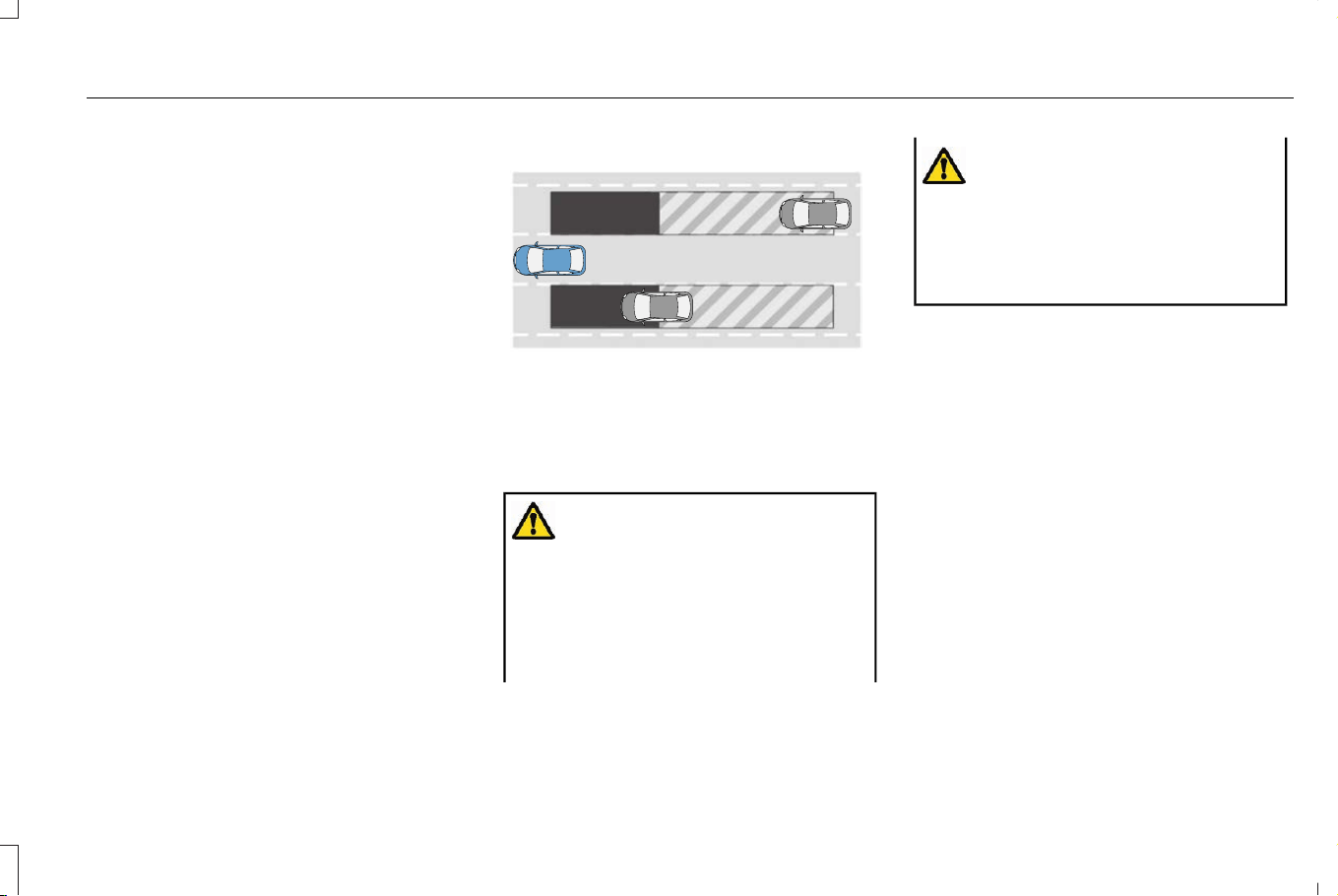
WHAT IS BLIND SPOT
INFORMATION SYSTEM
Blind spot information system detects
vehicles that may have entered the blind
spot zone.
HOW DOES BLIND SPOT
INFORMATION SYSTEM WORK
Blind spot information system uses sensors
on both sides of your vehicle, detecting
rearward from the exterior mirrors to
approximately 13 ft (4 m) beyond the rear
bumper. The detection area extends to
approximately 59 ft (18 m) beyond the rear
bumper when the vehicle speed is greater
than 30 mph (48 km/h) to alert you of faster
approaching vehicles.
E255695
BLIND SPOT INFORMATION
SYSTEM PRECAUTIONS
WARNING: Do not use the blind spot
information system as a replacement for
using the interior and exterior mirrors or
looking over your shoulder before
changing lanes. The blind spot information
system is not a replacement for careful
driving.
WARNING: The system may not
operate properly during severe weather
conditions, for example snow, ice, heavy
rain and spray. Always drive with due care
and attention. Failure to take care may
result in a crash.
Note: Blind spot information system does
not prevent contact with other vehicles. It
does not detect parked vehicles,
pedestrians, animals or other infrastructure.
BLIND SPOT INFORMATION
SYSTEM LIMITATIONS
Blind spot information system does not
operate in park (P) or reverse (R).
The system may not alert you if a vehicle
quickly passes through the detection zone
while overtaking.
Note: For vehicles without the trailer
coverage feature, we recommend that you
switch the blind spot information system off
when you attach a trailer.
329
Corsair (CTF) Canada/Mexico/United States of America, enUSA, Edition date: 202407, DOM
Blind Spot Information System
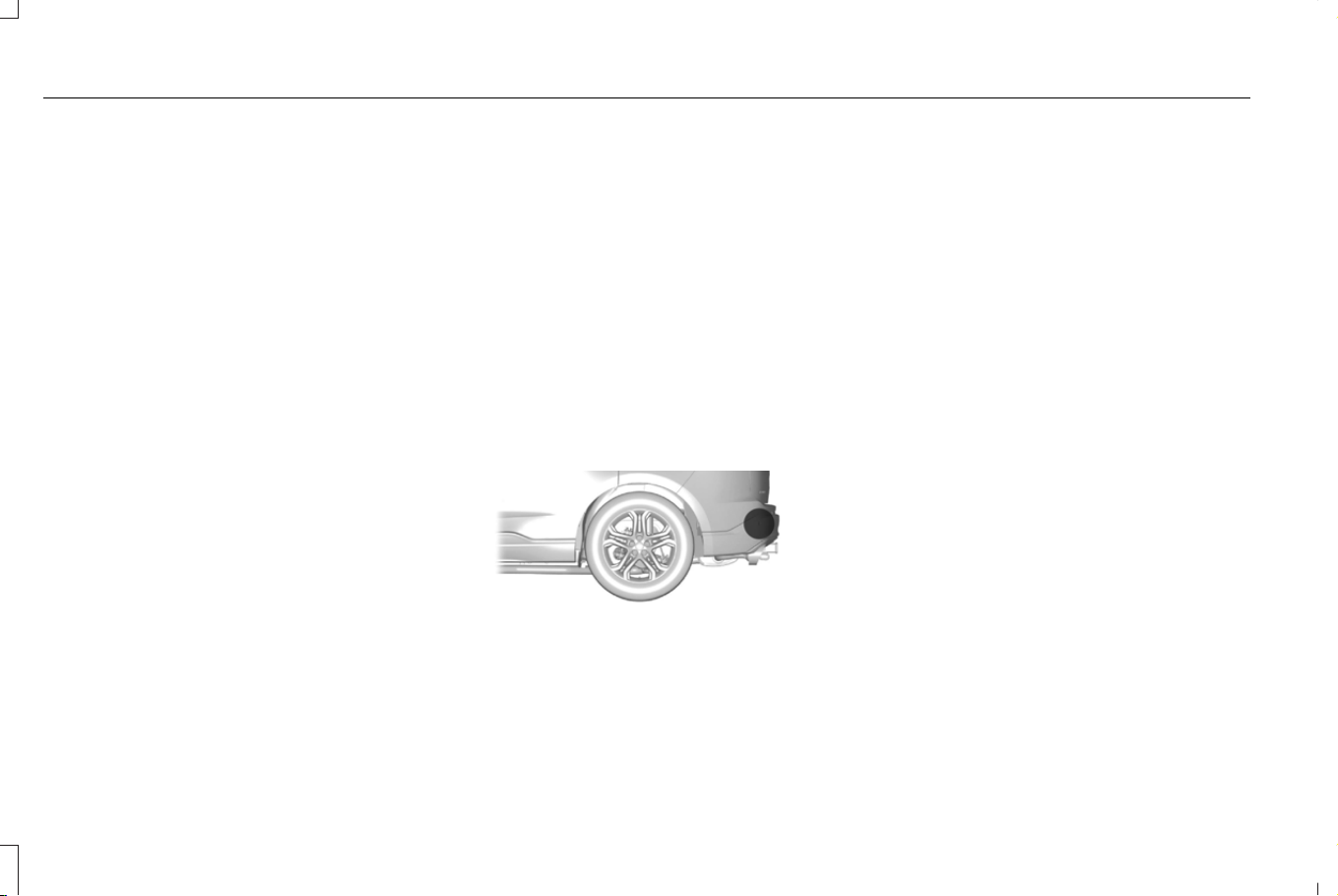
BLIND SPOT INFORMATION
SYSTEM REQUIREMENTS
Blind spot information system turns on when
all the following occur:
• You start your vehicle.
• You shift into drive (D).
• The vehicle speed is greater than 6 mph
(10 km/h).
SWITCHING BLIND SPOT
INFORMATION SYSTEM ON AND
OFF
1. From the settings menu, press Driver
Assistance.
2. Switch Blind Spot Information System on
or off.
When you switch blind spot information
system off, a warning lamp illuminates. When
you switch the system on or off, the alert
indicators flash twice. A telltale remains
illuminated in the instrument cluster when
the blind spot information system is switched
off in the settings menu.
Note: The system remembers the last setting
when you start your vehicle.
LOCATING THE BLIND SPOT
INFORMATION SYSTEM SENSORS
E205199
The sensors are behind the rear fascia on
both sides of your vehicle.
Note: Keep the sensors free from snow, ice
and large accumulations of dirt.
Note: Do not cover the sensors with bumper
stickers, repair compound or other objects.
Note: Bike and cargo racks could cause
false alerts due to obstruction of the sensor.
We recommend switching the feature off
when using a bike or cargo rack.
Note: Blocked sensors may affect system
accuracy.
If the sensors become blocked, a message
appears in the instrument cluster display.
See Blind Spot Information System –
Information Messages (page 332). The alert
indicators illuminate but the system does not
alert you.
330
Corsair (CTF) Canada/Mexico/United States of America, enUSA, Edition date: 202407, DOM
Blind Spot Information System
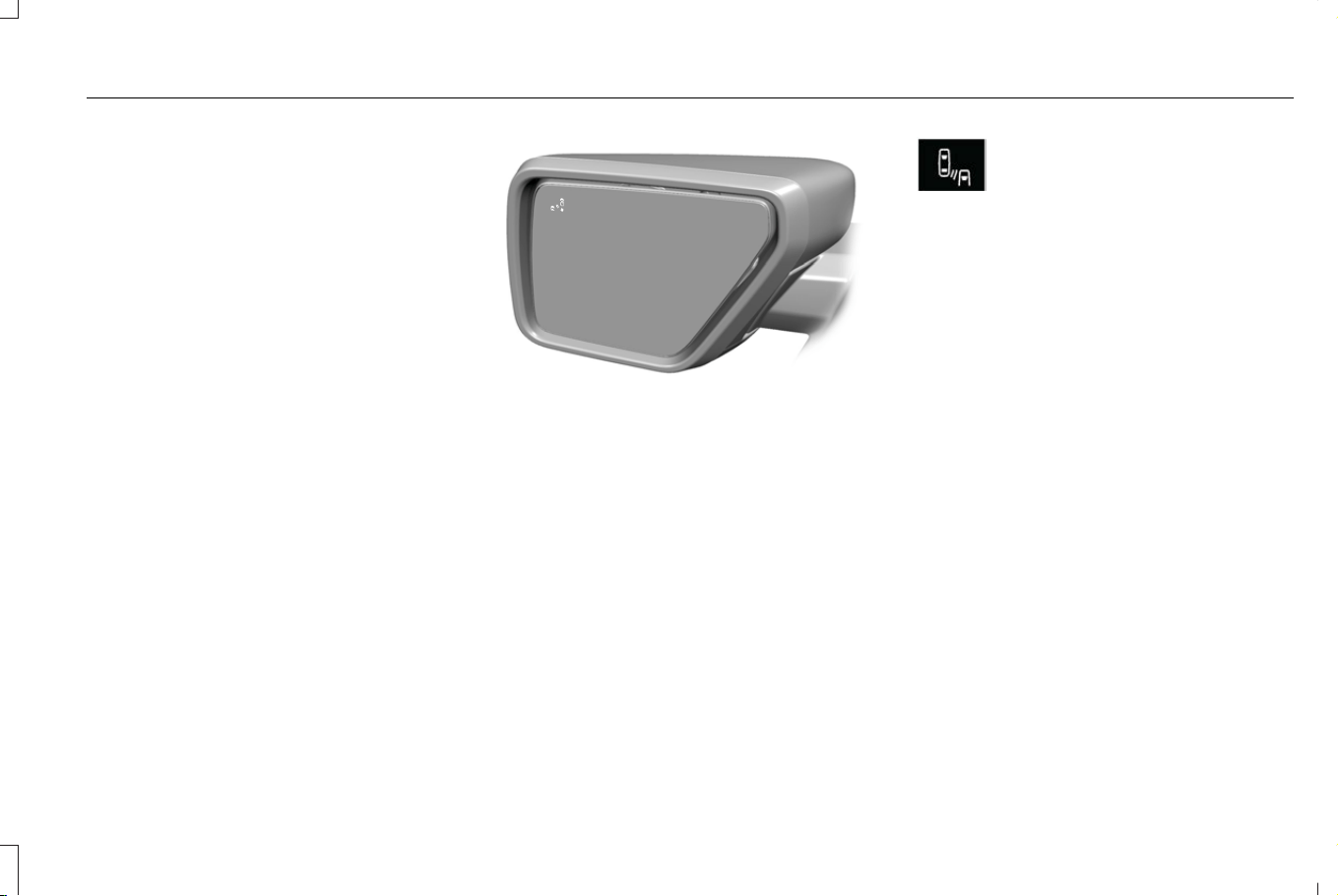
BLIND SPOT INFORMATION
SYSTEM INDICATORS
E309137
E249861
E249861
When blind spot information
system detects a vehicle, an alert
indicator illuminates in the exterior
mirror on the side the approaching vehicle
is coming from. If you turn the turn signal on
for that side of your vehicle, the alert
indicator flashes.
331
Corsair (CTF) Canada/Mexico/United States of America, enUSA, Edition date: 202407, DOM
Blind Spot Information System

BLIND SPOT INFORMATION SYSTEM – TROUBLESHOOTING
BLIND SPOT INFORMATION SYSTEM – INFORMATION MESSAGES
ActionMessage
A fault with the system has occurred. Have your vehicle checked as
soon as possible.
Blind Spot System Fault
Something is blocking the sensors. Clean the sensors.Blind Spot Not Available Sensor Blocked See Manual
The system automatically turns off and displays this message when
you connect a trailer to your vehicle under any of the following
conditions:
- Your vehicle does not have blind spot information system with trailer
coverage.
- You switch the blind spot information system off through the touch-
screen.
- Your trailer exceeds the limits for the system.Only appears if your
vehicle has blind spot information system with trailer coverage.
Blind Spot Alert Deactivated Trailer Attached
332
Corsair (CTF) Canada/Mexico/United States of America, enUSA, Edition date: 202407, DOM
Blind Spot Information System

Note: When connecting a trailer, the system
may detect the trailer and turn the system
OFF. If the system does not automatically
turn OFF, manually switch the blind spot
information system OFF. If your vehicle has
the blind spot information system with trailer
coverage, the system prompts you to set up
a trailer that allows the feature to function,
if your trailer meets the requirements of the
system.
333
Corsair (CTF) Canada/Mexico/United States of America, enUSA, Edition date: 202407, DOM
Blind Spot Information System
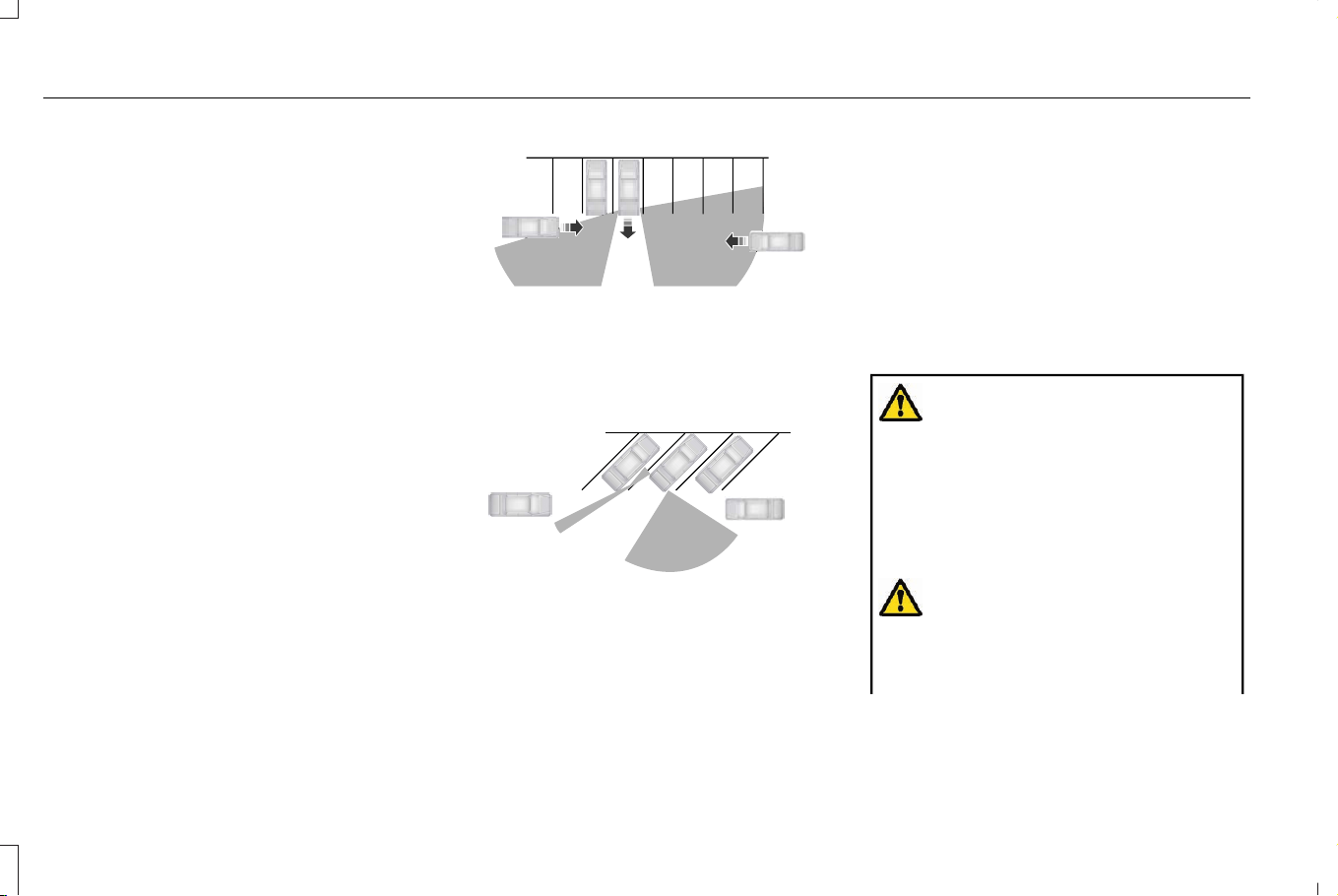
WHAT IS CROSS TRAFFIC ALERT
The system is designed to alert you of road
users and traffic objects approaching from
the rear sides and from behind your vehicle
when you shift into reverse (R).
If you continue to reverse after the system
alerts you, the system is designed to apply
the brakes if it still detects approaching road
users or traffic objects. If the system applies
the brakes, a message appears in the
instrument cluster display.
Note: There could be instances when
unexpected or unwanted braking occurs.
You can override this by firmly pressing the
accelerator pedal.
HOW DOES CROSS TRAFFIC
ALERT WORK
Cross Traffic Alert is designed to detect road
users or traffic objects approaching above a
minimum speed of 5 mph (8 km/h). Coverage
can decrease when the sensors are partially,
mostly or fully obstructed.
E142440
The sensor on the left-hand side is only
partially obstructed and zone coverage on
the right-hand side is maximized.
E142441
Zone coverage also decreases when parking
at narrow angles. The sensor on the left-hand
side is mostly obstructed and zone coverage
on that side is severely reduced.
Note: Slowly reversing helps increase the
coverage area and effectiveness.
The system only applies the brakes for a
short period of time when an event occurs.
Take action as soon as you notice the system
applying the brakes in order to remain in
control of your vehicle, the system does not
do this for you.
CROSS TRAFFIC ALERT
PRECAUTIONS
WARNING: You are responsible for
controlling your vehicle at all times. The
system is designed to be an aid and does
not relieve you of your responsibility to
drive with due care and attention. Failure
to follow this instruction could result in the
loss of control of your vehicle, personal
injury or death.
WARNING: If damage occurs in the
immediate area surrounding the sensor,
have your vehicle checked as soon as
possible.
334
Corsair (CTF) Canada/Mexico/United States of America, enUSA, Edition date: 202407, DOM
Cross Traffic Alert
WARNING: To help avoid personal
injury, always use caution when in reverse
(R) and when using the sensing system.
WARNING: The system may not
operate properly during severe weather
conditions, for example snow, ice, heavy
rain and spray. Always drive with due care
and attention. Failure to take care may
result in a crash.
WARNING: The system may not
detect objects with surfaces that absorb
reflection. Always drive with due care and
attention. Failure to take care may result
in a crash.
WARNING: Traffic control systems,
fluorescent lamps, inclement weather, air
brakes, external motors and fans may
affect the correct operation of the sensing
system. This may cause reduced
performance or false alerts.
WARNING: Some situations and
objects prevent hazard detection, for
example, inclement weather,
unconventional vehicle types and
pedestrians. Apply the brakes when
necessary. Failure to follow this instruction
could result in the loss of control of your
vehicle, personal injury or death.
WARNING: Do not use the system
with accessories that extend beyond the
front or rear of your vehicle, for example a
trailer hitch or bike rack. The system is not
able to make corrections for the additional
length of the accessories.
WARNING: Do not use the cross
traffic alert system as a replacement for
using the interior and exterior mirrors or
looking over your shoulder before
reversing out of a parking space. The cross
traffic alert system is not a replacement for
careful driving.
Note: Certain add-on devices around the
bumper or fascia may cause unexpected
system behavior. For example, large trailer
hitches, bicycle or surfboard racks, license
plate brackets, fuel containers, bumper
covers or any other device may block the
normal detection zone of the system.
Remove the add-on device to prevent
unexpected system behavior.
Note: If your vehicle sustains damage to the
bumper or fascia leaving it misaligned or
bent, it could alter the sensing zone causing
inaccurate measurement of obstacles or
false alerts.
Note: Vehicle loading and suspension
changes can impact the angle of the sensors
and may change the normal detection zone
of the system resulting in inaccurate
measurement of obstacles or false alerts.
Note: You may experience reduced system
performance on road surfaces that limit
deceleration. For example, roads with ice,
loose gravel, mud or sand.
335
Corsair (CTF) Canada/Mexico/United States of America, enUSA, Edition date: 202407, DOM
Cross Traffic Alert
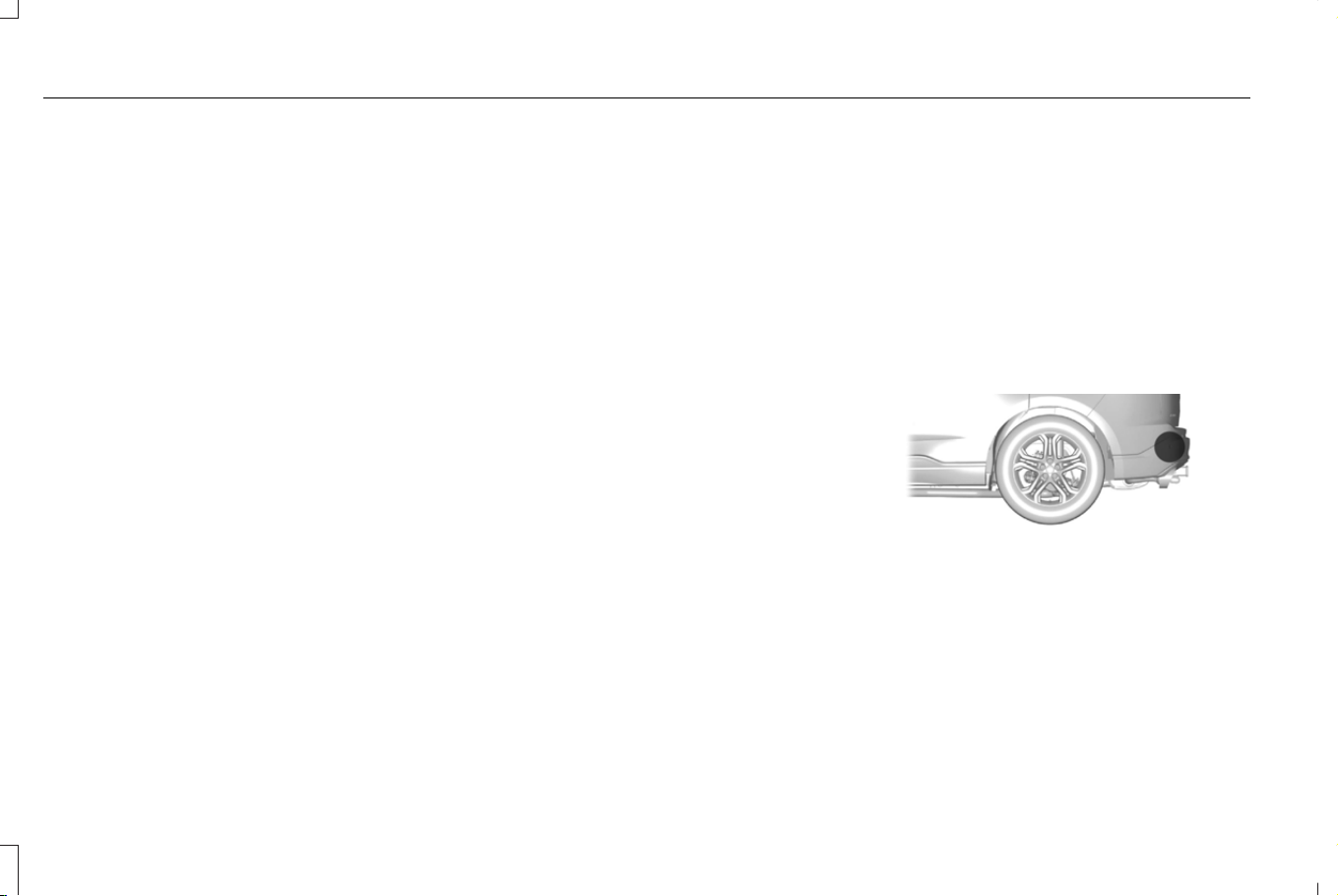
CROSS TRAFFIC ALERT
LIMITATIONS
The system may not correctly operate when
any of the following occur:
• Something is blocking the sensors.
• Adjacently parked vehicles or objects are
obstructing the sensors.
• Traffic objects approach at speeds less
than 5 mph (8 km/h) or greater than
37 mph (60 km/h).
• Your vehicle speed is greater than 7 mph
(12 km/h).
• You reverse out of an angled parking
space.
• If you switch the traction system off, cross
traffic alert does not apply the brakes.
Note: The system does not alert for small
stationary and moving objects.
Cross Traffic Alert Limitations with a
Trailer Attached
The system remains on when you attach a
trailer to vehicles with blind spot information
system with trailer coverage under the
following conditions:
• You connect a bike rack or cargo rack
with a maximum length of 3 ft (1 m).
• You set the trailer length to 3 ft (1 m) in
the touchscreen.
Note: The system may not correctly operate
when towing a trailer. For vehicles with an
approved trailer tow module and tow bar,
the system turns off when you attach a trailer
greater than 3 ft (1 m). For vehicles with an
aftermarket trailer tow module or tow bar,
we recommend that you switch the system
off when you attach a trailer.
SWITCHING CROSS TRAFFIC
ALERT ON AND OFF
1. From the settings menu, press Driver
Assistance.
2. Press Cross Traffic Alert.
3. Switch the feature on or off.
When you switch the system on or off, the
alert indicators flash twice.
Note: The system switches on every time
you switch the ignition on.
LOCATING THE CROSS TRAFFIC
ALERT SENSORS
E205199
The sensors are located at the rear corners
on both sides of your vehicle.
Note: Keep the sensors free from snow, ice
and large accumulations of dirt.
Note: Do not cover the sensors with bumper
stickers, repair compound or other objects.
336
Corsair (CTF) Canada/Mexico/United States of America, enUSA, Edition date: 202407, DOM
Cross Traffic Alert
Note: Blocked sensors may affect system
accuracy.
If something is blocking the sensors, a
message may appear in the information
display.
Note: Bike and cargo racks could cause
false alerts due to obstruction of the sensor.
We recommend switching the feature off
when using a bike or cargo rack.
CROSS TRAFFIC ALERT
INDICATORS
E268294
When the system detects an
approaching vehicle, a tone
sounds, an alert indicator
illuminates in the relevant exterior mirror and
arrows appear in the touchscreen to show
from which side the vehicle is approaching.
If the system malfunctions, a message
appears. Have your vehicle checked as soon
as possible.
Note: In exceptional conditions, the system
could alert you or apply the brakes, even
when there is nothing in the detection zone,
for example a vehicle passing further away
from your vehicle.
337
Corsair (CTF) Canada/Mexico/United States of America, enUSA, Edition date: 202407, DOM
Cross Traffic Alert

CROSS TRAFFIC ALERT – TROUBLESHOOTING
CROSS TRAFFIC ALERT – INFORMATION MESSAGES
DetailsMessage
Displays when the system detects a vehicle. Check for approaching
traffic.
Cross Traffic Alert
Displays if the cross traffic alert system sensors are blocked. Clean
the sensors. If the message continues to appear, have your vehicle
checked as soon as possible.
Cross Traffic Not Available Sensor Blocked See Manual
The system has malfunctioned. Have your vehicle checked as soon
as possible.
Cross Traffic System Fault
Displays if you attach a trailer to your vehicle.Cross Traffic Alert Deactivated Trailer Attached
Displays if the system applies the brakes. Check for approaching
traffic.
Cross Traffic Alert Applying Brakes
Note: If your vehicle has reverse brake
assist See Reverse Brake Assist –
Information Messages (page 261).
338
Corsair (CTF) Canada/Mexico/United States of America, enUSA, Edition date: 202407, DOM
Cross Traffic Alert
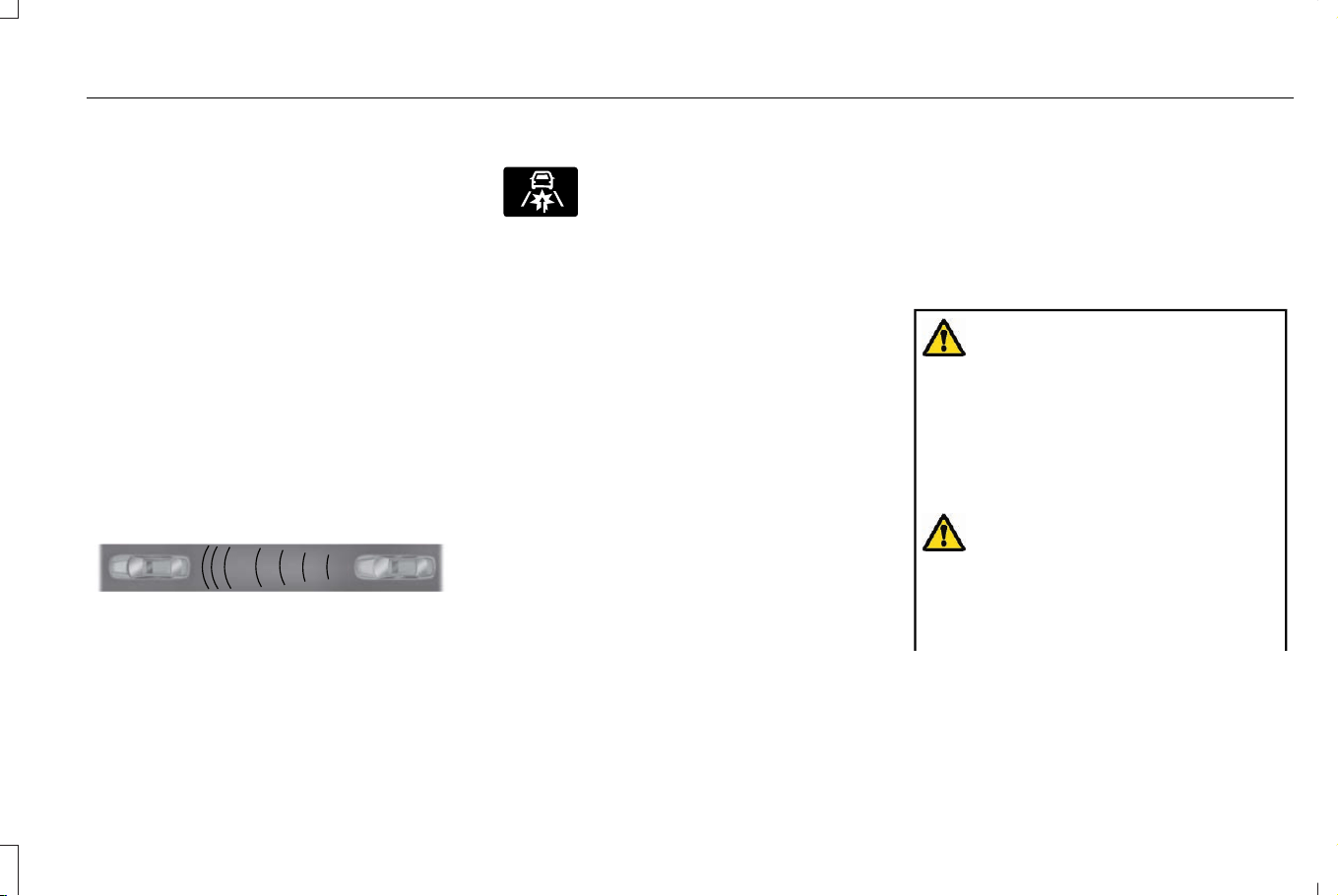
WHAT IS PRE-COLLISION ASSIST
Pre-collision assist detects and warns of
approaching hazards in the roadway. The
system provides multiple levels of assistance
to help avoid a collision if your vehicle is
rapidly approaching another stationary
vehicle, a vehicle traveling in the same
direction as yours, or a pedestrian or cyclist
within your driving path.
HOW DOES PRE-COLLISION
ASSIST WORK
The system warns the driver of potential
hazards by providing three levels of
assistance.
E156130
If your vehicle is rapidly approaching
potential hazards the system provides the
following levels of functionality:
1. Alert.
2. Brake support.
3. Automatic emergency braking.
E329466
Alert: When active, a flashing
visual warning appears and an
audible warning tone sounds.
Brake Support: The system helps reduce
the impact speed by preparing the brakes
for rapid braking. The system does not
automatically apply the brakes. If you press
the brake pedal, the system may apply
additional braking up to maximum braking
force, even if you lightly press the brake
pedal.
Automatic Emergency Braking: Automatic
emergency braking may activate if the
system determines that a collision is
imminent.
Note: If the pre-collision assist alerts are too
frequent or disturbing, you can reduce the
alert sensitivity. Setting the low sensitivity
results in fewer and later warnings of a
potential forward collision. The manufacturer
recommends using the high sensitivity
setting where possible.
Note: Automatic emergency braking
performance is not affected by the sensitivity
setting.
Each system has various levels of detection
capabilities. See Pre-Collision Assist
Limitations (page 341).
PRE-COLLISION ASSIST
PRECAUTIONS
WARNING: You are responsible for
controlling your vehicle at all times. The
system is designed to be an aid and does
not relieve you of your responsibility to
drive with due care and attention. Failure
to follow this instruction could result in the
loss of control of your vehicle, personal
injury or death.
WARNING: The system only provides
limited braking. Your vehicle may not
always decelerate quickly enough to avoid
a crash without driver intervention. Apply
the brakes when necessary.
339
Corsair (CTF) Canada/Mexico/United States of America, enUSA, Edition date: 202407, DOM
Pre-Collision Assist
WARNING: The system does not
operate during hard acceleration or
steering. Failure to take care may lead to
a crash or personal injury.
WARNING: The system may operate
with reduced function during cold and
inclement weather conditions. Snow, ice,
rain, spray and fog can adversely affect the
system. Keep the front camera and radar
free of snow and ice. Failure to follow this
instruction may result in the loss of control
of your vehicle, serious personal injury or
death.
WARNING: The system may not
function properly if your vehicle is fitted
with a replacement windshield not
approved by us.
WARNING: Do not perform
windshield repairs around the rear-view
mirror. Failure to follow this instruction
could limit sensor performance.
WARNING: System performance
could be reduced in situations where the
vehicle camera has limited detection
capability. These situations include but are
not limited to direct or low sunlight,
vehicles at night without tail lights,
unconventional vehicle types, pedestrians
or cyclists with complex backgrounds,
running pedestrians or fast moving cyclists,
partly obscured pedestrians or cyclists,
pedestrians or cyclists that the system
cannot distinguish from a group. Failure to
take care may result in the loss of control
of your vehicle, personal injury or death.
WARNING: The system cannot help
prevent all crashes. Do not rely on this
system to replace driver judgment and the
need to maintain a safe distance and
speed.
WARNING: Take additional care if
your vehicle is heavily loaded or you are
towing a trailer. These conditions could
result in reduced performance of this
system. Failure to follow this instruction
could result in the loss of control of your
vehicle, personal injury or death.
Note: Automatic emergency braking may
activate when a collision is imminent. The
system cannot prevent all crashes, but may
reduce crash severity. Do not test automatic
emergency braking or forward collision
warning. Testing this system must only be
conducted by authorized test facilities using
specialized equipment. Do not use automatic
emergency braking to replace normal
braking for any reason. Relying on automatic
emergency braking to stop your vehicle may
cause an unexpected accident which could
lead to serious injury or death.
Note: The system does not detect animals.
340
Corsair (CTF) Canada/Mexico/United States of America, enUSA, Edition date: 202407, DOM
Pre-Collision Assist

PRE-COLLISION ASSIST
LIMITATIONS
Pre-collision assist depends on the detection
ability of its camera and sensors. Any
obstructions or damage to these areas can
limit detection or prevent the system from
functioning. See Locating the Pre-Collision
Assist Sensors (page 342).
The system is active at 3 mph (5 km/h) and
above.
Note: The pre-collision assist system
automatically disables when you select
four-wheel drive low or manually disable
AdvanceTrac™.
Note: Brake support and automatic
emergency braking are active up to the
maximum speed of your vehicle.
Pedestrian Detection Limitations
Pedestrian detection is active at speeds up
to 50 mph (80 km/h).
Pedestrian detection operates optimally
when detected hazards are clearly
identifiable. System performance may reduce
in situations where pedestrians are running,
partly obscured, have a complex
background, or cannot be distinguished from
a group.
Cyclist Detection Limitations
Cyclist detection is active at speeds up to
50 mph (80 km/h).
Cyclist detection functions optimally when
detected hazards are clearly identifiable.
System performance may reduce in
situations where cyclists are fast-moving,
partly obscured, have a complex
background, or cannot be distinguished from
a group.
Intersection Assist (If Equipped)
If your vehicle comes with a radar sensor
included in adaptive cruise control, the
pre-collision assist system may operate in a
scenario where you are turning across an
oncoming vehicle's path. Detection of
vehicles driving in an oncoming direction is
active if your vehicle is driving at speeds up
to 19 mph (30 km/h).
E309750
SWITCHING PRE-COLLISION
ASSIST ON AND OFF
You cannot switch the system off.
341
Corsair (CTF) Canada/Mexico/United States of America, enUSA, Edition date: 202407, DOM
Pre-Collision Assist
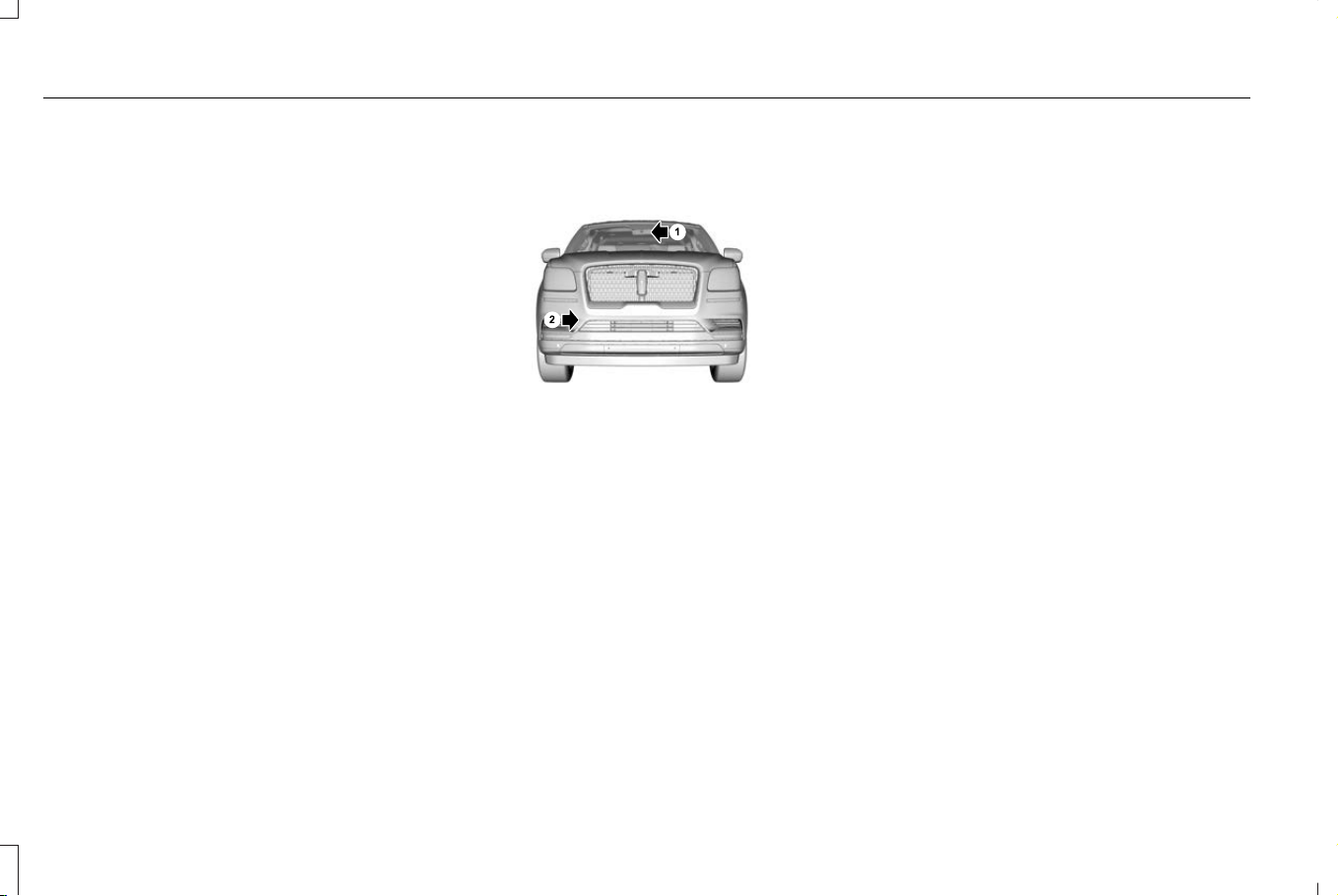
Adjusting the Pre-Collision Assist
Settings
You can adjust the following settings by
using the touchscreen controls in the
pre-collision assist menu:
• Change alert and distance alert sensitivity
to one of three possible settings.
• Switch distance indication and alert on
or off.
• If required, switch automatic emergency
braking on or off.
• If required, switch evasive steering assist
on or off.
Note: Automatic emergency braking and
evasive steering automatically turn on every
time you start your vehicle.
Note: If you switch automatic emergency
braking off, evasive steering assist switches
off.
LOCATING THE PRE-COLLISION
ASSIST SENSORS
E253503
Camera.1.
Radar sensor.2.
If a message regarding a blocked sensor or
camera appears in the instrument cluster
display, something is obstructing the radar
or front windshield camera. The radar sensor
is behind the fascia in the center of the lower
grille. With a blocked sensor or camera, the
system may not function, or performance
may reduce. See Pre-Collision Assist –
Information Messages (page 345).
Note: Proper system operation requires a
clear view of the road by the camera. Repair
any windshield damage in the area of the
camera's field of view.
Note: If your vehicle has a radar sensor, and
something hits the front end of your vehicle
or damage occurs, the radar sensing zone
could change. This may cause missed or
false vehicle detections. Have your vehicle
serviced to have the radar checked for
proper coverage and operation.
Note: If your vehicle detects excessive heat
at the camera or a potential misalignment
condition, a message may display in the
instrument cluster display indicating
temporary sensor unavailability. When
operational conditions are correct, the
message disappears. For example, when
the ambient temperature around the sensor
decreases or the sensor successfully
recalibrates.
342
Corsair (CTF) Canada/Mexico/United States of America, enUSA, Edition date: 202407, DOM
Pre-Collision Assist

FORWARD COLLISION WARNING
WHAT IS FORWARD COLLISION
WARNING
A warning flashes and an audible warning
sounds if your vehicle rapidly approaches
another vehicle to warn you of the risk of a
crash with the vehicle in front of you.
ADJUSTING THE SENSITIVITY OF
FORWARD COLLISION WARNING
1. From the settings menu, press Driver
Assistance.
2. Press Pre-Collision Assist.
3. Press Alert Sensitivity.
4. Select a setting.
DISTANCE ALERT
WHAT IS DISTANCE ALERT
The system alerts you with a warning lamp
if the distance to the vehicle ahead is small.
Note: The warning lamp does not illuminate
if cruise control or adaptive cruise control is
active.
ADJUSTING THE SENSITIVITY OF
DISTANCE ALERT
1. From the settings menu, press Driver
Assistance.
2. Press Pre-Collision Assist.
3. Press Alert Sensitivity.
AUTOMATIC EMERGENCY BRAKING
WHAT IS AUTOMATIC EMERGENCY
BRAKING
Automatic emergency braking may activate
if the system determines that a collision is
imminent. The system may help to reduce
impact damage or avoid the crash
completely.
Automatic emergency braking is only
available up to certain speeds. See
Pre-Collision Assist Limitations (page 341).
SWITCHING AUTOMATIC EMERGENCY
BRAKING ON AND OFF
1. From the settings menu, press Driver
Assistance.
2. Press Pre-Collision Assist.
3. Press Auto Emergency Braking.
4. Switch the feature on or off.
Note: A telltale remains illuminated in the
instrument cluster when automatic
emergency braking is switched off using the
settings menu.
EVASIVE STEERING ASSIST
WHAT IS EVASIVE STEERING ASSIST
If your vehicle is rapidly approaching a road
user, evasive steering assist helps you steer
around the road user.
343
Corsair (CTF) Canada/Mexico/United States of America, enUSA, Edition date: 202407, DOM
Pre-Collision Assist

After you turn the steering wheel in an
attempt to avoid a crash with the road user,
the system applies additional steering torque
to help you steer around the road user. After
you pass the road user, the system applies
steering torque when you turn the steering
wheel to steer back into the lane. The system
deactivates after you fully pass the road user.
Note: Road users are defined as pedestrians
or bicyclists in your vehicle's path or another
stationary vehicle in the same lane or a
vehicle traveling in the same lane in the
same direction as you. See Pre-Collision
Assist Precautions (page 339).
EVASIVE STEERING ASSIST
LIMITATIONS
Evasive steering assist only activates when
all the following occur:
• Automatic emergency braking and
evasive steering assist are on.
• The system detects a road user ahead
and starts to apply the brakes.
• You significantly turn the steering wheel
to steer around a road user.
Note: Evasive steering assist does not
automatically steer around a road user. If
you do not turn the steering wheel, evasive
steering assist does not activate.
Note: Evasive steering assist does not
activate if the distance to the road user
ahead is too small and the system cannot
avoid a crash.
SWITCHING EVASIVE STEERING
ASSIST ON AND OFF
1. From the settings menu, press Driver
Assistance.
2. Press Pre-Collision Assist.
3. Press Evasive Steering Assist.
4. Switch the feature on or off.
Note: If you switch automatic emergency
braking off, evasive steering assist turns off.
Note: Automatic emergency braking and
evasive steering assist turn on every time
you start your vehicle.
PRE-COLLISION ASSIST –
TROUBLESHOOTING
PRE-COLLISION ASSIST – WARNING
LAMPS
E335612
A telltale illuminates in the
instrument cluster display to
indicate if the system is disabled,
unavailable, or temporarily degraded due to
external environmental conditions.
Note: No action is needed if the telltale
illuminates without a corresponding
information message. See Pre-Collision
Assist Precautions (page 339).
344
Corsair (CTF) Canada/Mexico/United States of America, enUSA, Edition date: 202407, DOM
Pre-Collision Assist
PRE-COLLISION ASSIST – INFORMATION MESSAGES
ActionMessage
You have a blocked sensor due to bad weather, ice, mud or water in
front of the radar sensor. You can typically clean the sensor to resolve.
Pre-Collision Assist Not Available Sensor Blocked
A fault with the system has occurred. Have your vehicle checked as
soon as possible.
Pre-Collision Assist Not Available
345
Corsair (CTF) Canada/Mexico/United States of America, enUSA, Edition date: 202407, DOM
Pre-Collision Assist

PRE-COLLISION ASSIST –
FREQUENTLY ASKED QUESTIONS
Camera Troubleshooting
The windshield in front of the camera
is dirty or obstructed.
• Clean the outside of the windshield in
front of the camera.
The windshield in front of the camera
is clean, but the message remains in
the instrument cluster display.
• Wait a short time. It could take several
minutes for the camera to detect that
there is no obstruction.
Radar Troubleshooting (If Equipped)
The surface of the radar in the grille is
dirty or obstructed.
• Clean the grille surface in front of the
radar or remove the object causing the
obstruction.
The surface of the radar in the grille is
clean, but the message remains in the
instrument cluster display.
• Wait a short time. It could take several
minutes for the radar to detect that there
is no obstruction.
Heavy rain, spray or fog is interfering
with the radar signals.
• Due to the current conditions, the system
temporarily disables this feature.
Pre-collision assist reactivates a short
time after the weather conditions
improve.
Swirling water, snow or ice on the
surface of the road is interfering with
the radar signals.
• Due to the current conditions, the system
temporarily disables this feature.
Pre-collision assist reactivates a short
time after the weather conditions
improve.
Radar is out of alignment due to a
front-end impact.
• Have your vehicle serviced to have the
radar checked for proper coverage and
operation.
346
Corsair (CTF) Canada/Mexico/United States of America, enUSA, Edition date: 202407, DOM
Pre-Collision Assist
WHAT IS SPEED SIGN
RECOGNITION
Speed sign recognition detects speed limit
signs to inform you of the current speed limit.
Detected speed signs appear in the
instrument cluster display.
HOW DOES SPEED SIGN
RECOGNITION WORK
Speed sign recognition uses the front
windshield camera to detect speed signs.
If your vehicle has speed sign recognition
with Map Data, stored speed sign data may
influence the indicated speed limit value.
SPEED SIGN RECOGNITION
PRECAUTIONS
WARNING: You are responsible for
controlling your vehicle at all times. The
system is designed to be an aid and does
not relieve you of your responsibility to
drive with due care and attention. Failure
to follow this instruction could result in the
loss of control of your vehicle, personal
injury or death.
WARNING: In cold and severe
weather conditions the system may not
function. Rain, snow and spray can all limit
sensor performance.
WARNING: The system may not
operate properly if the sensor is blocked.
Keep the windshield free from obstruction.
WARNING: Do not perform
windshield repairs around the rear-view
mirror. Failure to follow this instruction
could limit sensor performance.
WARNING: The system may not
correctly operate if your vehicle is fitted
with a suspension kit not approved by
Ford.
WARNING: Not all traffic signs can
be recognized by the system and
displayed correctly.
Note: Always fit our original parts when
replacing headlamp bulbs. Other bulbs may
reduce system performance.
SPEED SIGN RECOGNITION
LIMITATIONS
Speed sign recognition may not detect the
correct speed due to:
• Construction zones.
• Outdated map data.
347
Corsair (CTF) Canada/Mexico/United States of America, enUSA, Edition date: 202407, DOM
Speed Sign Recognition (If Equipped)
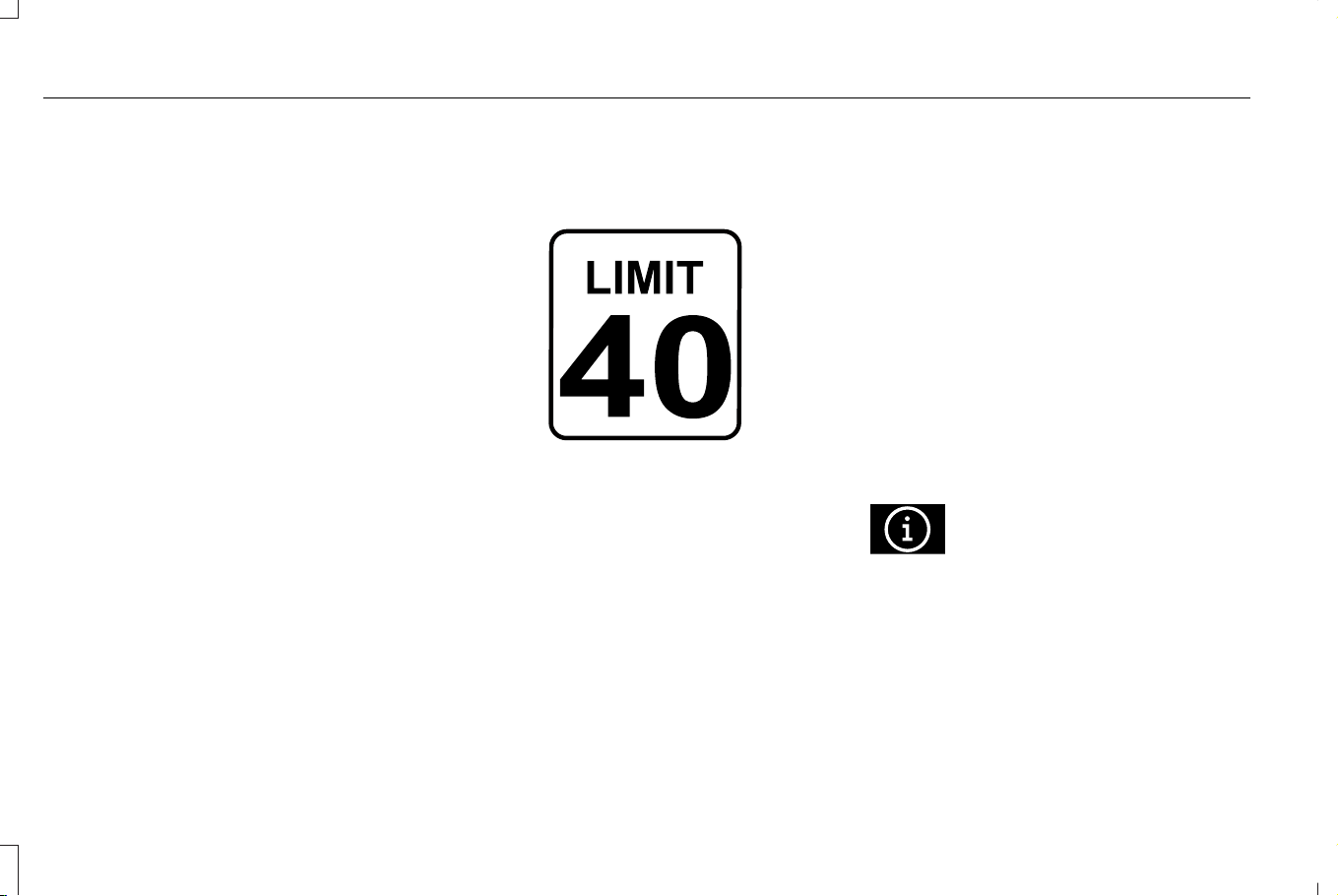
• Incorrect recognition of speed limits by
the sensor of signs on parallel roads or
exit ramps.
• Missed recognition of faded, dirty, or
distorted signs.
Note: The system may not detect all speed
signs and may incorrectly read signs.
SPEED SIGN RECOGNITION
INDICATORS
E430728
When the system detects a speed limit sign,
it appears in the instrument cluster display.
Note: Sign indicator image may vary based
on your vehicle's display type.
SPEED SIGN RECOGNITION
SETTINGS
1. From the settings menu, press driver
assistance. See Center Display (page
502).
2. Press Speed Limit Assist.
You can adjust the following settings:
• Switch the speed warning on or off.
• Set the speed limit tolerance (if
equipped).
E366956
If you see this icon next to a menu
option, press it for more
information.
348
Corsair (CTF) Canada/Mexico/United States of America, enUSA, Edition date: 202407, DOM
Speed Sign Recognition (If Equipped)

SPEED SIGN RECOGNITION – TROUBLESHOOTING
SPEED SIGN RECOGNITION – INFORMATION MESSAGES
DetailsMessage
The traffic sign data provided by the Map Data is unavailable due to
weak or no signal. Wait for a short period of time for the signal to
improve. If the message continues to appear, have the system checked
as soon as possible.
Traffic Sign Reduced Performance See Manual
349
Corsair (CTF) Canada/Mexico/United States of America, enUSA, Edition date: 202407, DOM
Speed Sign Recognition (If Equipped)

SPEED SIGN RECOGNITION –
FREQUENTLY ASKED QUESTIONS
Why does the speed limit change
without any sign on the road?
• The speed limit changes due to the
speed limit data stored in the map data.
Why does speed sign recognition show
a wrong speed limit?
• The system shows a wrong speed limit
due to incorrect and outdated map data
or due to incorrect recognition of the
speed limits by the camera.
350
Corsair (CTF) Canada/Mexico/United States of America, enUSA, Edition date: 202407, DOM
Speed Sign Recognition (If Equipped)
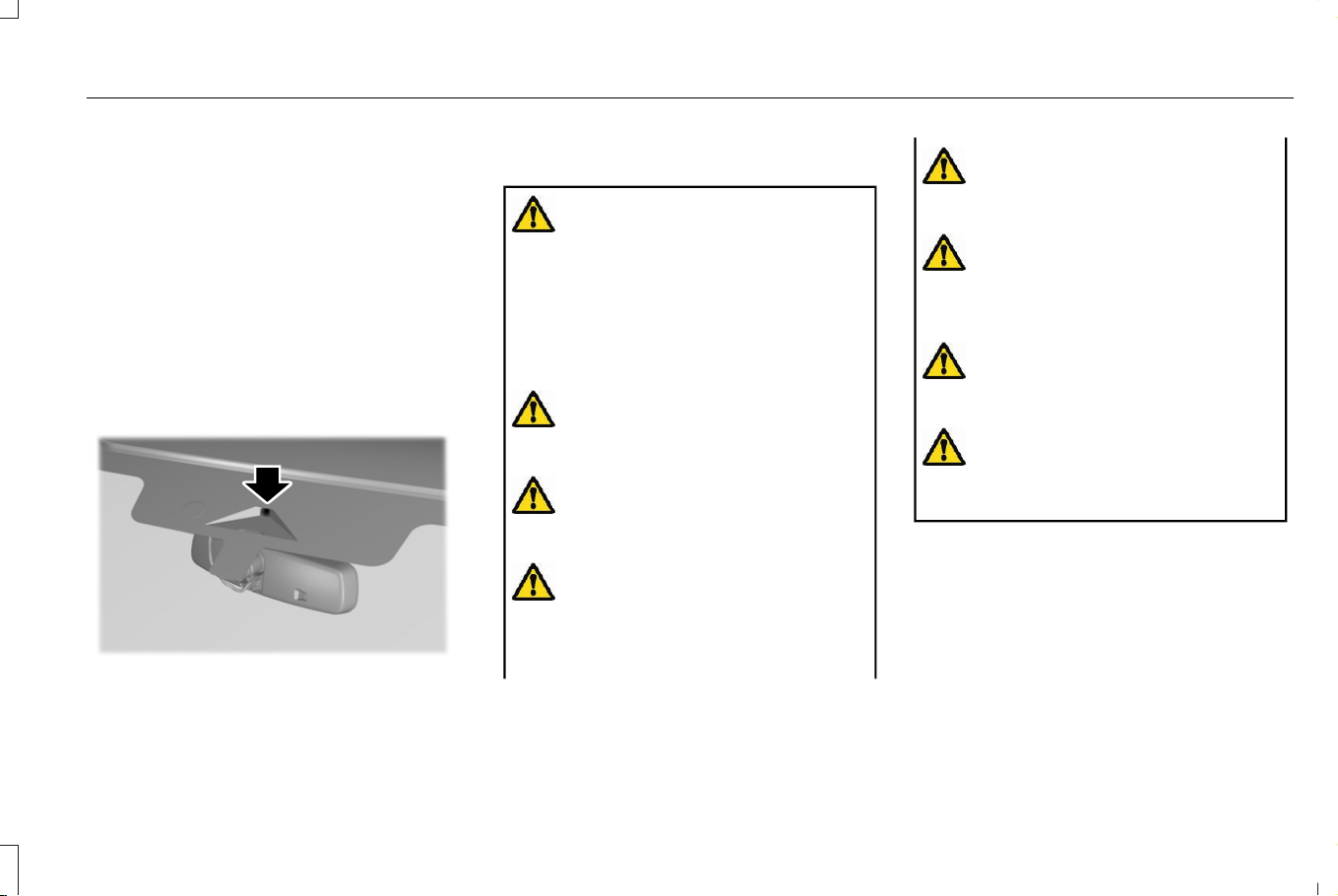
WHAT IS DRIVER ALERT
Driver alert alerts you if it determines that
you are becoming drowsy or if your driving
deteriorates.
HOW DOES DRIVER ALERT WORK
Driver alert determines your alertness level
based on your driving behavior in relation to
the lane markings and other factors using
the front windshield camera.
E309385
DRIVER ALERT PRECAUTIONS
WARNING: You are responsible for
controlling your vehicle at all times. The
system is designed to be an aid and does
not relieve you of your responsibility to
drive with due care and attention. Failure
to follow this instruction could result in the
loss of control of your vehicle, personal
injury or death.
WARNING: Take regular rest breaks
if you feel tired. Do not wait for the system
to warn you.
WARNING: Certain driving styles may
result in the system warning you even if
you are not feeling tired.
WARNING: In cold and severe
weather conditions the system may not
function. Rain, snow and spray can all limit
sensor performance.
WARNING: The system will not
operate if the sensor cannot track the road
lane markings.
WARNING: If damage occurs in the
immediate area surrounding the sensor,
have your vehicle checked as soon as
possible.
WARNING: The system may not
correctly operate if your vehicle is fitted
with a suspension kit not approved by us.
WARNING: The system may not
operate properly if the sensor is blocked.
Keep the windshield free from obstruction.
Note: If something is blocking the camera
or damaged the windshield, Driver Alert may
not function.
351
Corsair (CTF) Canada/Mexico/United States of America, enUSA, Edition date: 202407, DOM
Driver Alert

DRIVER ALERT LIMITATIONS
Driver alert may not function correctly if:
• The sensor cannot track the road lane
markings.
• Your vehicle's speed is less than
approximately 40 mph (65 km/h).
SWITCHING DRIVER ALERT ON
AND OFF
1. Press Features on the touchscreen.
2. Press Driver Assistance.
3. Switch Driver Alert on or off.
Note: The system remains on or off
depending on how it was last set.
Resetting Driver Alert
You can reset the system by either:
• Switching your vehicle off and on.
• Opening and closing the driver door
when your vehicle is stationary, and it is
safe to do so.
DRIVER ALERT – TROUBLESHOOTING
DRIVER ALERT – INFORMATION MESSAGES
ActionMessage
Stop and rest as soon as it is safe to do so.Driver Alert Warning Rest Now
Take a rest soon.Driver Alert Warning Rest Suggested
352
Corsair (CTF) Canada/Mexico/United States of America, enUSA, Edition date: 202407, DOM
Driver Alert
LOAD CARRYING PRECAUTIONS
Keep your loaded vehicle weight within
its design rating capability, with or
without a trailer. Properly loading your
vehicle provides maximum return of
vehicle design performance. Before you
load your vehicle, become familiar with
the following terms for determining your
vehicle’s weight rating, with or without
a trailer, from the vehicle’s Tire and
Loading Information label or Safety
Compliance Certification label.
WARNING: The appropriate
loading capacity of your vehicle can
be limited either by volume capacity
(how much space is available) or by
payload capacity (how much weight
the vehicle should carry). Once you
have reached the maximum payload
of your vehicle, do not add more
cargo, even if there is space available.
Overloading or improperly loading
your vehicle can contribute to loss of
vehicle control and vehicle rollover.
WARNING: Exceeding the Safety
Compliance Certification label vehicle
weight limits can adversely affect the
performance and handling of your
vehicle, cause vehicle damage and
can result in the loss of control of your
vehicle, serious personal injury or
death.
WARNING: Do not use
replacement tires with lower load
carrying capacities than the original
tires because they may lower your
vehicle's GVWR and GAWR limitations.
Replacement tires with a higher limit
than the original tires do not increase
the GVWR and GAWR limitations.
WARNING: Do not exceed the
GVWR or the GAWR specified on the
certification label.
WARNING: Exceeding any
vehicle weight rating can adversely
affect the performance and handling
of your vehicle, cause vehicle damage
and can result in the loss of control of
your vehicle, serious personal injury
or death.
WARNING: When loading the
roof racks, we recommend you evenly
distribute the load, as well as maintain
a low center of gravity. Loaded
vehicles, with higher centers of gravity,
may handle differently than unloaded
vehicles. Take extra precautions, such
as slower speeds and increased
stopping distance, when driving a
heavily loaded vehicle.
The gross combined weight must never
exceed the Gross Combined Weight
Rating.
353
Corsair (CTF) Canada/Mexico/United States of America, enUSA, Edition date: 202407, DOM
Load Carrying
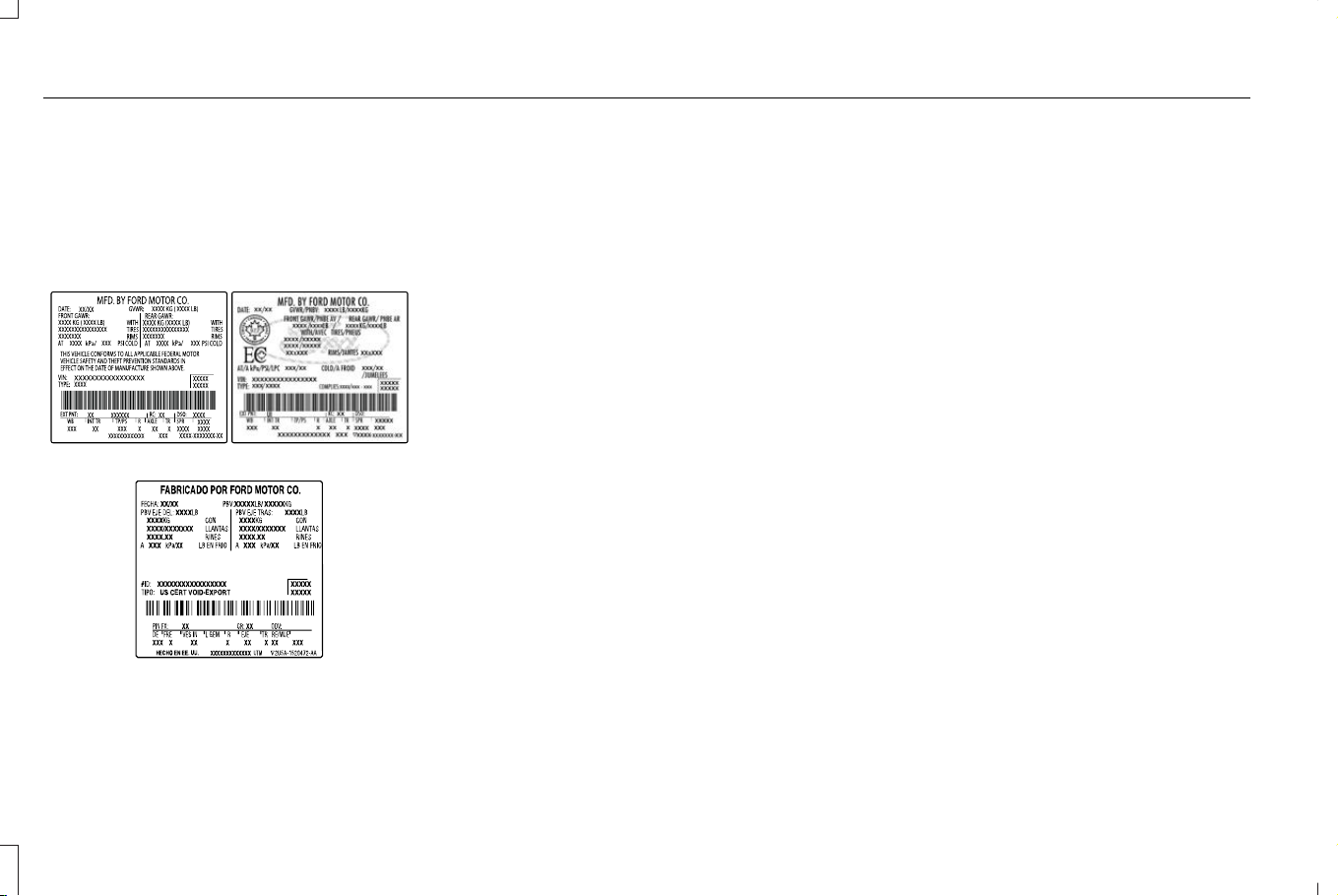
LOCATING THE SAFETY
COMPLIANCE CERTIFICATION
LABELS
Safety Compliance Certification Label
Example:
E198828
E423210
The Safety Compliance Certification label is
located on the door pillar, door latch post,
or the door edge that meets the door latch
post, next to the driver seat.
WHAT IS THE GROSS AXLE
WEIGHT RATING
GAWR (Gross Axle Weight Rating)
GAWR is the maximum allowable weight
that a single axle (front or rear) can carry.
These numbers are on the Safety
Compliance Certification label.
WHAT IS THE GROSS VEHICLE
WEIGHT RATING
GVWR is the maximum allowable weight
of the fully loaded vehicle. This includes
all options, equipment, passengers and
cargo. It appears on the Safety
Compliance Certification label.
WHAT IS THE GROSS COMBINED
WEIGHT RATING
Gross Combined Weight Rating (GCWR)
is the maximum allowable weight of the
vehicle and the loaded trailer, including
all cargo and passengers, that the
vehicle can handle without risking
damage. (Important: The towing
vehicle’s braking system is rated for
operation at Gross Vehicle Weight
Rating, not at Gross Combined Weight
Rating.) Separate functional brakes
should be used for safe control of towed
vehicles and for trailers where the Gross
Combined Weight of the towing vehicle
plus the trailer exceed the Gross Vehicle
Weight Rating of the towing vehicle.
See Recommended Towing Weights
(page 366).
354
Corsair (CTF) Canada/Mexico/United States of America, enUSA, Edition date: 202407, DOM
Load Carrying
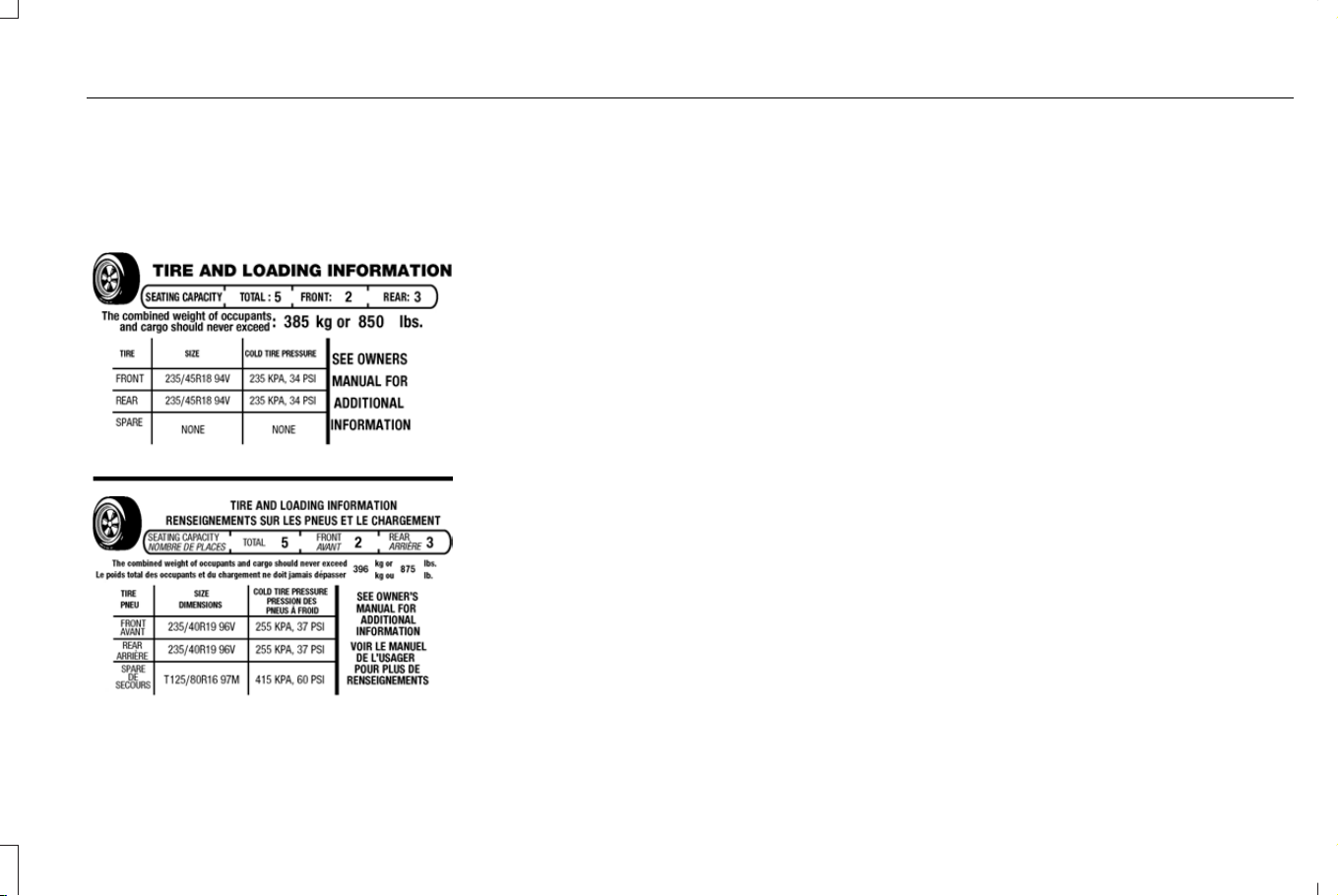
CALCULATING PAYLOAD
Tire and Loading Label Information
Example:
E198719
Payload is the combined weight of cargo
and passengers that your vehicle is
carrying. The maximum payload for your
vehicle appears on the Tire and Loading
label. The label is either on the B-pillar
or the edge of the driver door. Vehicles
exported outside the US and Canada
may not have a tire and loading label.
Look for “The combined weight of
occupants and cargo should never
exceed XXX kg or XXX lb” for maximum
payload. The payload listed on the Tire
and Loading Information label is the
maximum payload for your vehicle as
built by the assembly plant. If you install
any additional equipment on your
vehicle, you must determine the new
payload. Subtract the weight of the
equipment from the payload listed on
the Tire and Loading label. When towing,
trailer tongue weight or king pin weight
is also part of payload.
CALCULATING THE LOAD LIMIT
Steps for determining the correct load
limit:
1. Locate the statement "The combined
weight of occupants and cargo
should never exceed XXX kg or XXX
lb." on your vehicle’s placard.
2. Determine the combined weight of
the driver and passengers that will
be riding in your vehicle.
3. Subtract the combined weight of the
driver and passengers from XXX kg
or XXX lb.
4. The resulting figure equals the
available amount of cargo and
luggage load capacity. For example,
if the “XXX” amount equals 1,400 lb.
and there will be five 150 lb.
passengers in your vehicle, the
amount of available cargo and
luggage load capacity is 650 lb.
(1400-750 (5 x 150) = 650 lb.)
5. Determine the combined weight of
luggage and cargo being loaded on
the vehicle. That weight may not
safely exceed the available cargo
and luggage load capacity calculated
in Step 4.
355
Corsair (CTF) Canada/Mexico/United States of America, enUSA, Edition date: 202407, DOM
Load Carrying

6. If your vehicle will be towing a trailer,
load from your trailer will be
transferred to your vehicle. Consult
this manual to determine how this
reduces the available cargo and
luggage load capacity of your
vehicle.
Helpful examples for calculating the
available amount of cargo and luggage
load capacity
Suppose your vehicle has a 1400-pound
(635-kilogram) cargo and luggage
capacity. You decide to go golfing. Is
there enough load capacity to carry you,
four of your friends and all the golf bags?
You and four friends average 220
pounds (99 kilograms) each and the golf
bags weigh approximately 30 pounds
(13.5 kilograms) each. The calculation
would be: 1400 - (5 x 220) - (5 x 30) =
1400 - 1100 - 150 = 150 pounds. Yes, you
have enough load capacity in your
vehicle to transport four friends and your
golf bags. In metric units, the calculation
would be: 635 kilograms - (5 x 99
kilograms) - (5 x 13.5 kilograms) = 635 -
495 - 67.5 = 72.5 kilograms.
Suppose your vehicle has a 1400-pound
(635-kilogram) cargo and luggage
capacity. You and one of your friends
decide to pick up cement from the local
home improvement store to finish that
patio you have been planning for the
past two years. Measuring the inside of
the vehicle with the rear seat folded
down, you have room for twelve
100-pound (45-kilogram) bags of
cement. Do you have enough load
capacity to transport the cement to your
home? If you and your friend each weigh
220 pounds (99 kilograms), the
calculation would be: 1400 - (2 x 220) -
(12 x 100) = 1400 - 440 - 1200 = - 240
pounds. No, you do not have enough
cargo capacity to carry that much
weight. In metric units, the calculation
would be: 635 kilograms - (2 x 99
kilograms) - (12 x 45 kilograms) = 635 -
198 - 540 = -103 kilograms. You will need
to reduce the load weight by at least
240 pounds (104 kilograms). If you
remove three 100-pound (45-kilogram)
cement bags, then the load calculation
would be: 1400 - (2 x 220) - (9 x 100) =
1400 - 440 - 900 = 60 pounds. Now you
have the load capacity to transport the
cement and your friend home. In metric
units, the calculation would be: 635
kilograms - (2 x 99 kilograms) - (9 x 45
kilograms) = 635 - 198 - 405 = 32
kilograms.
The above calculations also assume that
the loads are positioned in your vehicle
in a manner that does not overload the
front or the rear gross axle weight rating
specified for your vehicle on the Safety
Compliance Certification label.
356
Corsair (CTF) Canada/Mexico/United States of America, enUSA, Edition date: 202407, DOM
Load Carrying
ROOF RACK (IF EQUIPPED)
ROOF RACK PRECAUTIONS
WARNING: Read and follow the
manufacturer's instructions when you are
fitting a roof rack.
WARNING: When loading the roof
racks, we recommend you evenly distribute
the load, as well as maintain a low center
of gravity. Loaded vehicles, with higher
centers of gravity, may handle differently
than unloaded vehicles. Take extra
precautions, such as slower speeds and
increased stopping distance, when driving
a heavily loaded vehicle.
Note: If you use a roof rack, the fuel
consumption of your vehicle will be higher
and you may experience different driving
characteristics.
Note: Never place loads directly on the roof
panel. The roof panel is not designed to
directly carry a load.
Make sure that you securely fasten the load.
Check the tightness of the load before
driving and at each fuel stop.
357
Corsair (CTF) Canada/Mexico/United States of America, enUSA, Edition date: 202407, DOM
Load Carrying
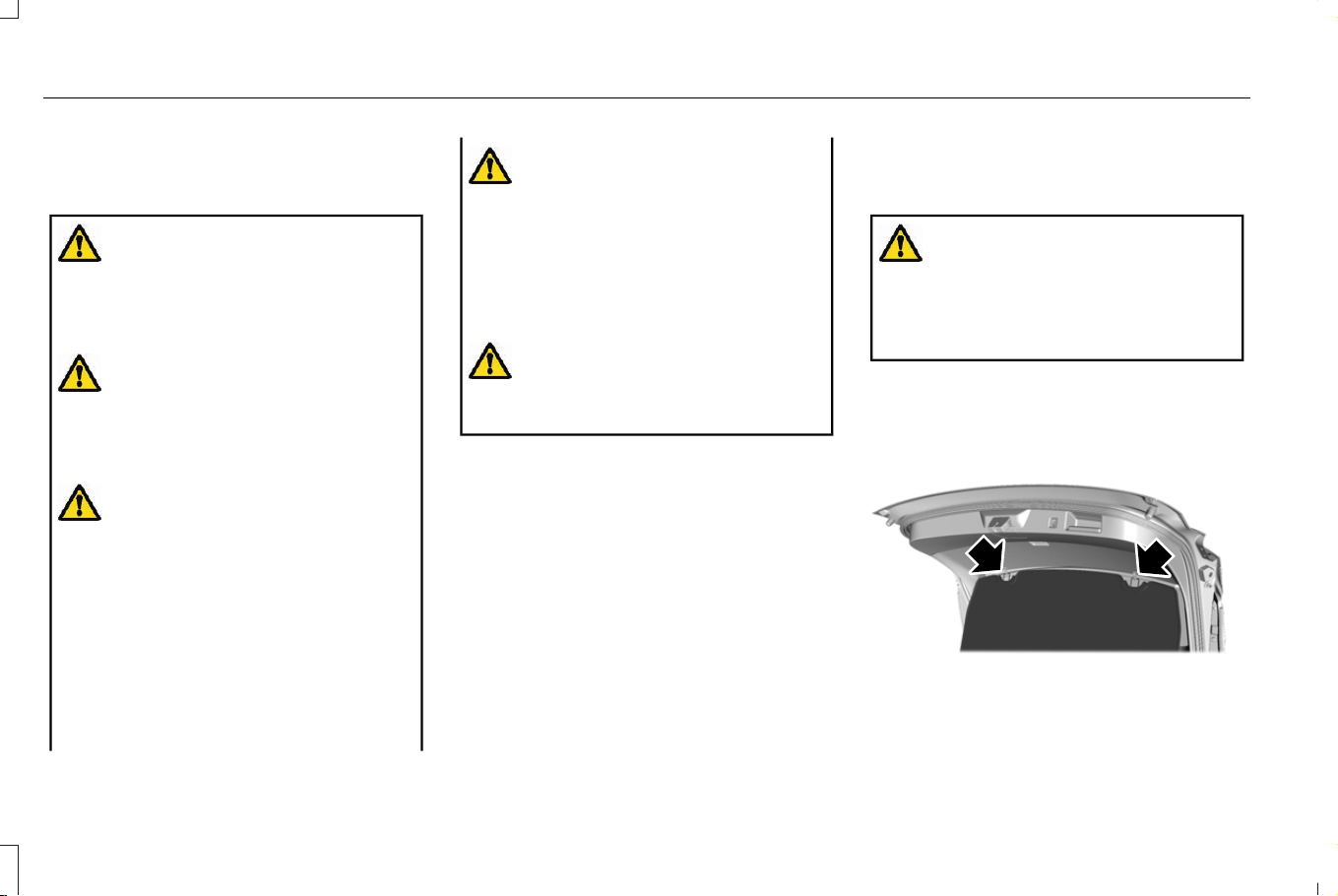
LUGGAGE COMPARTMENT
PRECAUTIONS
WARNING: Make sure that you
properly secure objects in the luggage
compartment. Failure to follow this
instruction could result in personal injury
in the event of a sudden stop or crash.
WARNING: Do not place objects on
the luggage cover. Failure to follow this
instruction could result in personal injury
or death in the event of a sudden stop or
crash.
WARNING: The appropriate loading
capacity of your vehicle can be limited
either by volume capacity (how much
space is available) or by payload capacity
(how much weight the vehicle should
carry). Once you have reached the
maximum payload of your vehicle, do not
add more cargo, even if there is space
available. Overloading or improperly
loading your vehicle can contribute to loss
of vehicle control and vehicle rollover.
WARNING: Make sure that you fully
close the liftgate to prevent exhaust fumes
from entering your vehicle. If you are
unable to fully close the liftgate, open the
air vents or the windows to allow fresh air
to enter your vehicle. Failure to follow this
instruction could result in personal injury
or death.
WARNING: Do not exceed the
maximum front and rear axle loads for your
vehicle.
Note: When loading long objects into your
vehicle, for example pipes, timber or
furniture, be careful not to damage the
interior trim.
INSTALLING AND REMOVING THE
LUGGAGE COMPARTMENT COVER
WARNING: Make sure that you
properly secure the luggage cover. Failure
to follow this instruction could result in
personal injury in the event of a sudden
stop or crash.
Installing the Luggage Cover
1. Insert the luggage cover.
E309671
2. Insert the retaining clips into the liftgate
trim panel.
358
Corsair (CTF) Canada/Mexico/United States of America, enUSA, Edition date: 202407, DOM
Luggage Compartment
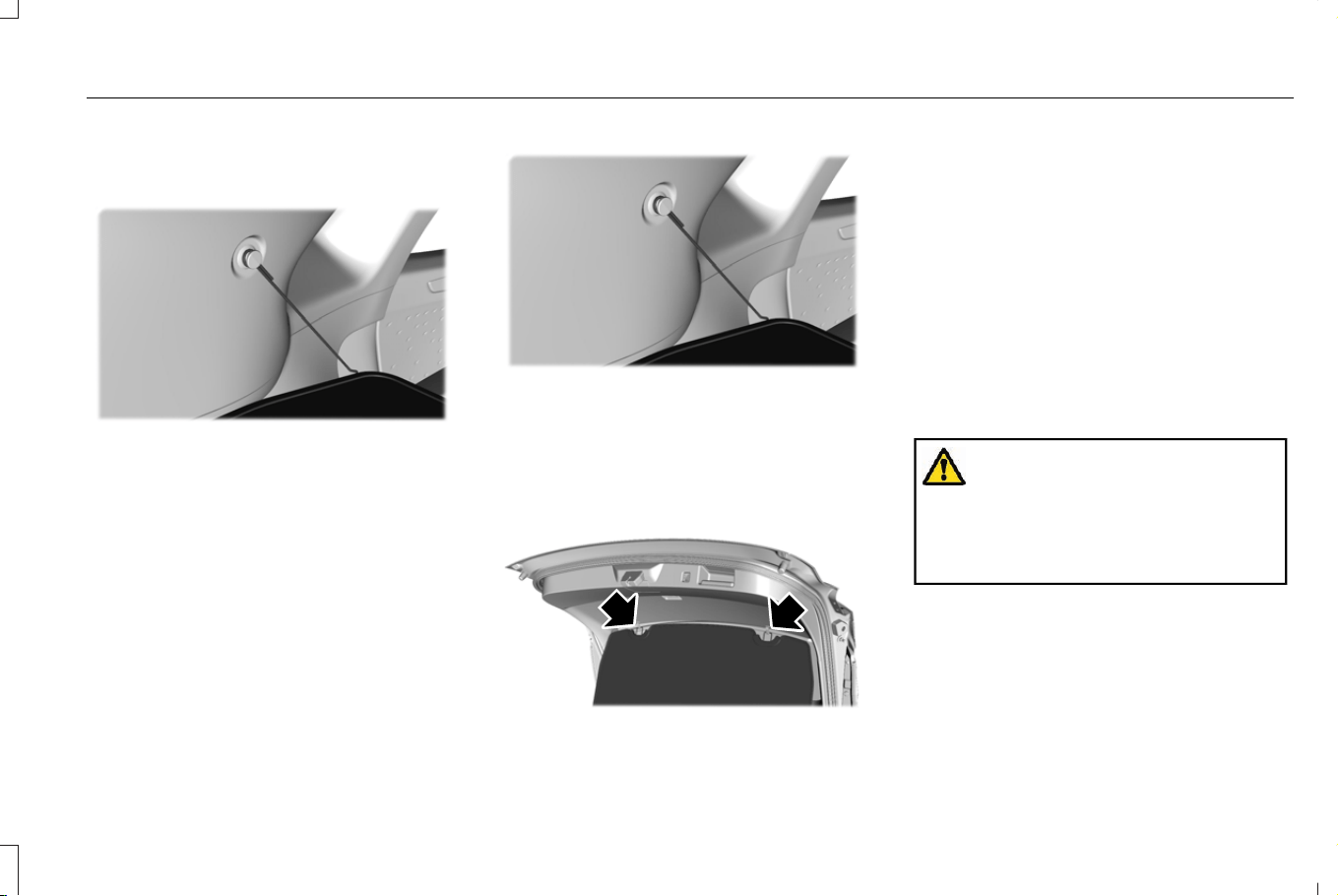
Note: Make sure to support the luggage
cover when inserting the retaining clips.
E309672
3. Attach the retaining cord to the luggage
compartment trim panel.
Removing the Luggage Cover
1. Open the liftgate.
E309672
2. Detach the retaining cord on the luggage
compartment trim panel.
Note: Support the luggage cover when
detaching the retaining cord.
E309671
3. Detach the retaining clips on the liftgate
trim panel.
4. Lift the luggage cover out of the liftgate.
The luggage cover can be stowed in the
luggage compartment.
LUGGAGE COMPARTMENT ANCHOR
POINTS
LUGGAGE COMPARTMENT ANCHOR
POINT PRECAUTIONS
WARNING: Make sure that you
properly secure objects in the luggage
compartment. Failure to follow this
instruction could result in personal injury
in the event of a sudden stop or crash.
359
Corsair (CTF) Canada/Mexico/United States of America, enUSA, Edition date: 202407, DOM
Luggage Compartment
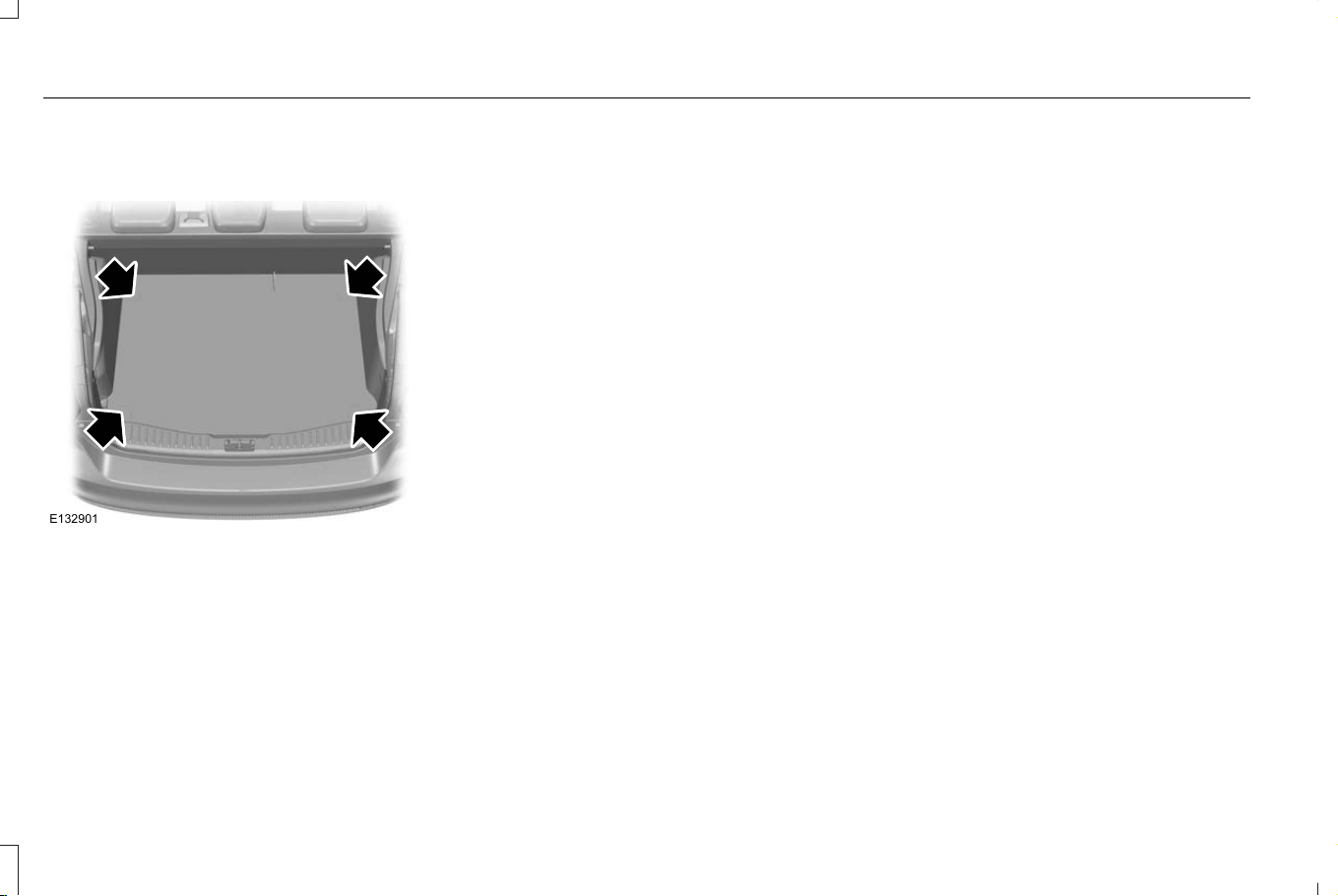
LOCATING THE LUGGAGE
COMPARTMENT ANCHOR POINTS
E132901
360
Corsair (CTF) Canada/Mexico/United States of America, enUSA, Edition date: 202407, DOM
Luggage Compartment
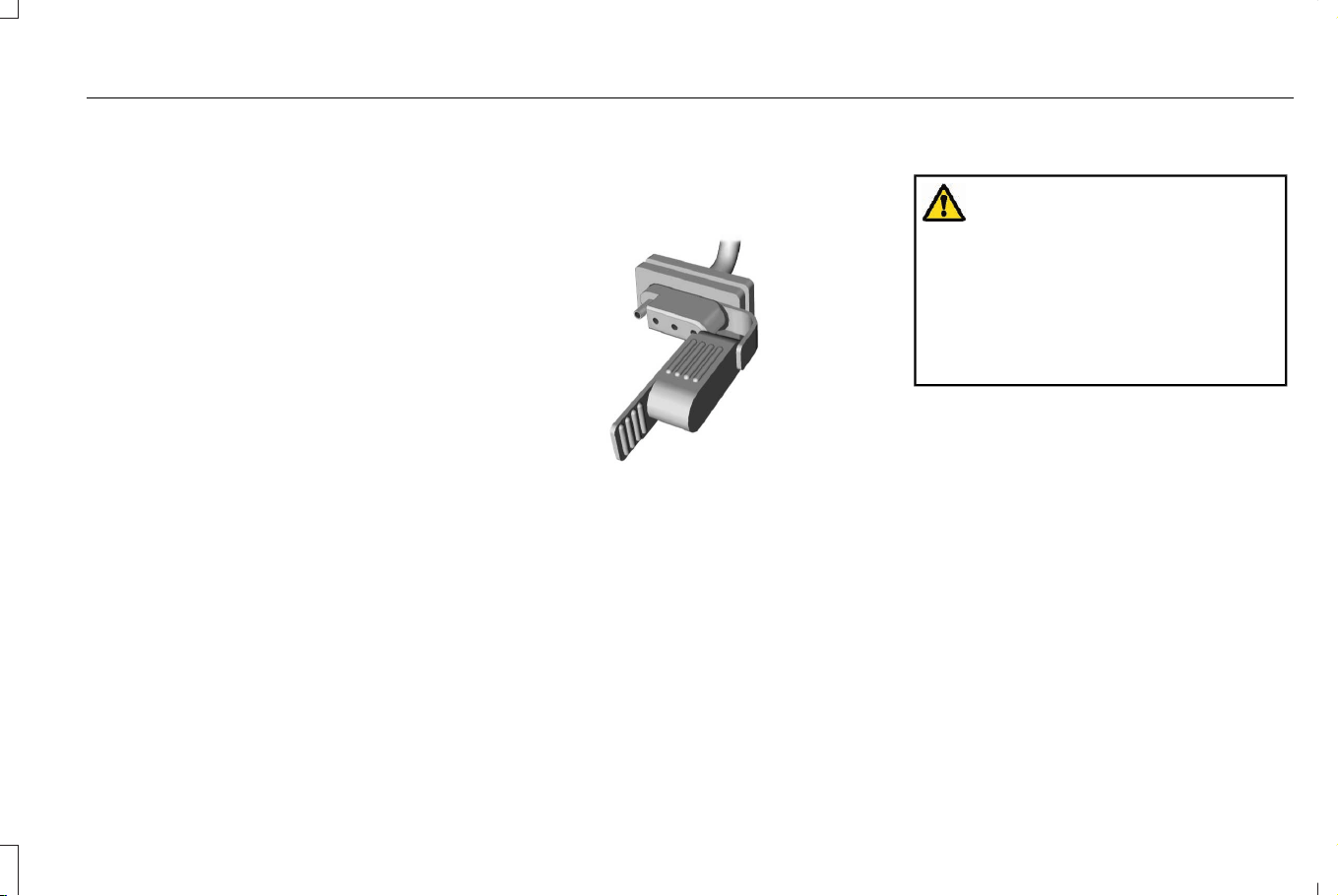
CONNECTING A TRAILER
PRECAUTIONS
Do not tow a trailer until you drive your
vehicle at least 1,000 mi (1,600 km).
Consult your local motor vehicle laws for
towing a trailer.
See the instructions included with towing
accessories for the proper installation and
adjustment specifications.
Service your vehicle more frequently if you
tow a trailer.
If you use a rental trailer, follow the
instructions the rental agency gives you.
Account for the trailer coupler weight as part
of your vehicle load when calculating the
total vehicle weight.
Do not exceed the load limits. See
Calculating the Load Limit (page 355).
CONNECTING A TRAILER
Trailer Towing Connector (If Equipped)
E168683
When attaching the trailer wiring connector
to your vehicle, only use a proper fitting
connector that works with the vehicle and
trailer functions.
Note: Install the waterproof protection cap
back onto the trailer towing connector
whenever it is not in use. This helps to
prevent water damage and trailer towing
connector malfunction.
Trailer Lamps
WARNING: Never connect any trailer
lamp wiring to the vehicle's tail lamp wiring;
this may damage the electrical system
resulting in fire. Contact your authorized
dealer as soon as possible for assistance
in proper trailer tow wiring installation.
Additional electrical equipment may be
required.
Trailer lamps are required on most towed
vehicles. Make sure all running lights, brake
lights, turn signals and hazard lights are
working.
Hitches
Do not use a hitch that either clamps onto
the bumper or attaches to the axle.
Distribute the trailer load so 10-15% of the
total trailer weight is on the tongue.
361
Corsair (CTF) Canada/Mexico/United States of America, enUSA, Edition date: 202407, DOM
Connecting a Trailer (If Equipped)
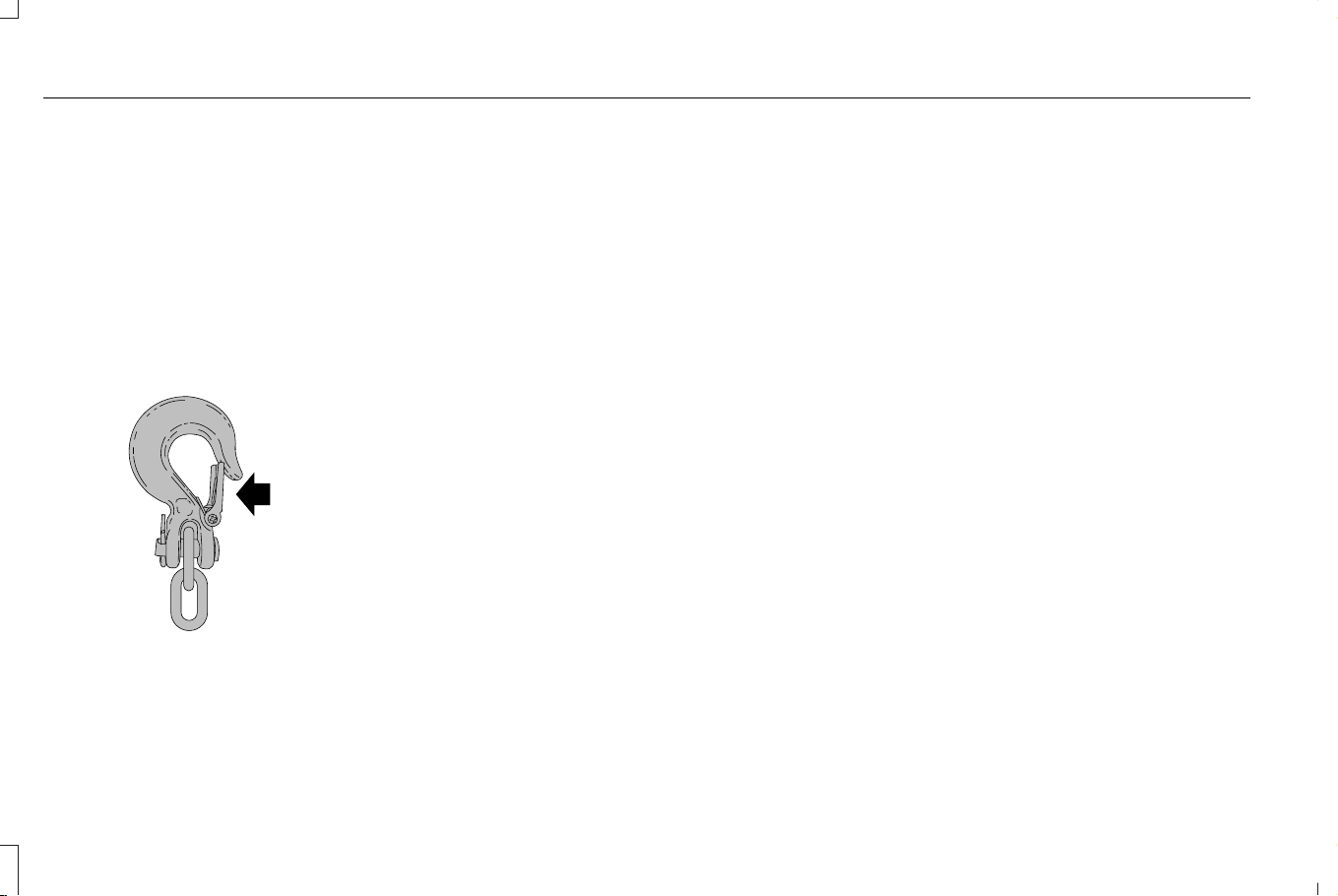
Safety Chains
Note: Do not attach safety chains to the
bumper. Always connect the safety chains
to the frame or hook retainers of your trailer
hitch.
Install trailer safety chains to the trailer hitch
as recommended by the manufacturer. Cross
the chains under the trailer coupler and allow
enough slack for turning tight corners. Do
not allow the chains to drag on the ground.
E265060
If the trailer safety chain hook has a latch,
make sure the latch is fully closed.
362
Corsair (CTF) Canada/Mexico/United States of America, enUSA, Edition date: 202407, DOM
Connecting a Trailer (If Equipped)
TOWING A TRAILER PRECAUTIONS
WARNING: Do not exceed the
GVWR or the GAWR specified on the
certification label.
WARNING: Towing trailers
beyond the maximum recommended
gross trailer weight exceeds the limit
of your vehicle and could result in
engine damage, transmission damage,
structural damage, loss of vehicle
control, vehicle rollover and personal
injury.
WARNING: Do not exceed the
lowest rating capacity for your vehicle
or trailer hitch. Overloading your
vehicle or trailer hitch can impair your
vehicle stability and handling. Failure
to follow this instruction could result
in the loss of control of your vehicle,
personal injury or death.
WARNING: Make sure that the
vertical load on the tow ball is between
the minimum and maximum
recommended weight at all times.
Failure to follow this instruction could
result in the loss of control of your
vehicle, personal injury or death.
WARNING: Do not cut, drill, weld
or modify the trailer hitch. Modifying
the trailer hitch could reduce the hitch
rating.
WARNING: The anti-lock brake
system does not control the trailer
brakes.
TRAILER BRAKE PRECAUTIONS
WARNING: Do not connect a trailer's
hydraulic brake system directly to your
vehicle's brake system. Your vehicle may
not have enough braking power and your
chances of having a collision greatly
increase.
WARNING: Do not tow a trailer fitted
with electric trailer brakes unless your
vehicle is fitted with a compatible
aftermarket electronic trailer brake
controller. Failure to follow this instruction
could result in the loss of control of your
vehicle, personal injury or death. For
additional information and assistance, we
recommend that you contact an authorized
dealer.
Electric brakes and manual, automatic or
surge-type trailer brakes are safe if you install
them properly and adjust them to the
manufacturer's specifications. The trailer
brakes must meet local and federal
regulations.
363
Corsair (CTF) Canada/Mexico/United States of America, enUSA, Edition date: 202407, DOM
Towing a Trailer (If Equipped)

The rating for the tow vehicle's braking
system operation is at the gross vehicle
weight rating, not the gross combined weight
rating.
Certain states require functioning trailer
brakes for trailers over a specified weight.
Be sure to check state regulations for this
specified weight.
Ford Motor Company recommends separate
functioning brake systems for trailers
weighing more than 1,500 lb (680 kg) when
loaded.
TOWING A TRAILER LIMITATIONS
The vehicle's load capacity designation
is by weight, not by volume, so you
cannot necessarily use all available
space when loading a vehicle or trailer.
Towing a trailer also depends on
additional systems present in your
vehicle. See Lane Centering
Precautions (page 294). See BlueCruise
Precautions (page 305). See Adaptive
Cruise Control Precautions (page 285).
Note: Your vehicle could have reduced
performance when operating at high
altitudes and when heavily loaded or
towing a trailer. When driving at
elevation, to match driving performance
as perceived at sea level, reduce gross
vehicle weight and gross combination
weight by 2% per 1,000 ft (300 m)
elevation.
LOADING YOUR TRAILER
To help minimize how trailer movement
affects your vehicle when driving:
• Load the heaviest items closest to
the trailer floor.
• Load the heaviest items centered
between the left and right side trailer
tires.
• Load the heaviest items above the
trailer axles or just slightly forward
toward the trailer tongue. Do not
allow the final trailer tongue weight
to go above or below 10-15% of the
loaded trailer weight. The trailer
tongue weight should never exceed
10% of the maximum towing capacity.
• Select a ball mount with the correct
rise or drop. When both the loaded
vehicle and trailer are connected, the
trailer frame should be level, or
slightly angled down toward your
vehicle, when viewed from the side.
TRAILER TOWING HINTS
Towing a trailer places an extra load on your
vehicle's engine, transmission, axle, brakes,
tires and suspension. Periodically inspect
these components during and after any
towing operation.
When driving with a trailer or payload, a slight
takeoff vibration or shudder may be present
due to the increased payload weight.
364
Corsair (CTF) Canada/Mexico/United States of America, enUSA, Edition date: 202407, DOM
Towing a Trailer (If Equipped)

Your vehicle may have a temporary or
conventional spare tire. A temporary spare
tire is different in diameter or width,
tread-type, or is from a different manufacturer
than the road tires on your vehicle. Consult
information on the tire label or Safety
Compliance label for limitations when using.
When towing a trailer:
• Obey country specific regulations for
towing a trailer.
• Do not drive faster than 70 mph
(113 km/h) during the first 500 mi
(800 km).
• Do not make full-throttle starts.
• Check your hitch, electrical connections
and trailer wheel lug nuts thoroughly after
you have traveled 50 mi (80 km).
• When stopped in congested or heavy
traffic during hot weather, place the
transmission in park (P) to aid engine and
transmission cooling and to help A/C
performance.
• Turn off the speed control with heavy
loads or in hilly terrain. The speed control
may turn off when you are towing on
long, steep slopes.
• Shift to a lower gear when driving down
a long or steep hill. Do not continuously
apply the brakes, as they may overheat
and become less effective.
• If your transmission has Grade Assist or
Tow/Haul, use this feature when towing.
This provides engine braking and helps
eliminate excessive transmission shifting
for optimum fuel economy and
transmission cooling.
• Your vehicle has AdvanceTrac with roll
stability control. When towing a trailer,
additional loads could cause the
AdvanceTrac system to engage during
cornering maneuvers. Reduce cornering
speeds to make sure that you can
maintain control of the vehicle and trailer
if the AdvanceTrac system engages.
• Allow more distance for stopping with a
trailer attached. Anticipate stops and
gradually brake.
• Avoid parking on a slope. However, if
you must park on a slope, turn the
steering wheel to point your vehicle tires
away from traffic flow, set the parking
brake, place the transmission in park (P)
and place wheel chocks in front and back
of the trailer wheels.
Note: Chocks are not included with your
vehicle.
LAUNCHING OR RETRIEVING A
BOAT OR PERSONAL
WATERCRAFT
When backing down a ramp during boat
launching or retrieval:
• Do not allow the static water level to rise
above the bottom edge of the rear
bumper.
• Do not allow waves to break higher than
6 in (15 cm) above the bottom edge of
the rear bumper.
365
Corsair (CTF) Canada/Mexico/United States of America, enUSA, Edition date: 202407, DOM
Towing a Trailer (If Equipped)
Exceeding 6 in (15 cm) could allow water to
enter vehicle components, causing internal
damage to the components and affecting
driveability, emissions and reliability.
Note: Replace the rear axle lubricant
anytime the rear axle has been submerged
in water.
Note: Disconnect the trailer wiring connector
before backing the trailer into the water.
Note: Reconnect the trailer wiring connector
after removing the trailer from the water.
TOWING WEIGHTS AND DIMENSIONS
RECOMMENDED TOWING WEIGHTS
WebsiteMarket
https://www.fordpro.com/en-us/fleet-vehicles/manuals-and-
guides/
United States of America
https://www.fordpro.ca/en-ca/fleet-vehicles/manuals-and-
guides/
Canada (English)
https://www.fordpro.ca/fr-ca/fleet-vehicles/manuals-and-guides/Canada (French)
366
Corsair (CTF) Canada/Mexico/United States of America, enUSA, Edition date: 202407, DOM
Towing a Trailer (If Equipped)

WHAT IS THE MAXIMUM LOADED
TRAILER WEIGHT
The maximum loaded trailer weight is
the highest possible weight of a fully
loaded trailer the vehicle can tow.
CALCULATING THE MAXIMUM
LOADED TRAILER WEIGHT FOR YOUR
VEHICLE
1. Start with the gross combined weight
rating for your vehicle model and
axle ratio.
2. Subtract all of the following that
apply to your vehicle:
• Vehicle curb weight.
• Hitch hardware weight, for example
a draw bar, ball, locks or weight
distributing hardware.
• Driver weight.
• Passenger weight.
• Payload, cargo and luggage weight.
• Aftermarket equipment weight.
This equals the maximum loaded trailer
weight for this combination.
Note: The trailer tongue load is
considered part of the payload for your
vehicle. Reduce the total payload by the
final trailer tongue weight.
Note: Consult an authorized dealer to
determine the maximum trailer weight
allowed for your vehicle if you are not
sure.
367
Corsair (CTF) Canada/Mexico/United States of America, enUSA, Edition date: 202407, DOM
Towing a Trailer (If Equipped)

HOW DOES TRAILER SWAY
CONTROL WORK
The system applies the brakes to the
individual wheels and reduces engine torque
to aid vehicle stability.
If the trailer begins to sway, the stability
control lamp flashes and the message Trailer
Sway Reduce Speed appears in the
information display.
Stop your vehicle as soon as it is safe to do
so. Check the vertical weight on the tow ball
and trailer load distribution.
TRAILER SWAY CONTROL
PRECAUTIONS
WARNING: Turning off trailer sway
control increases the risk of loss of vehicle
control, serious injury or death. Ford does
not recommend disabling this feature
except in situations where speed reduction
may be detrimental (such as hill climbing),
the driver has significant trailer towing
experience, and can control trailer sway
and maintain safe operation.
Note: This feature only activates when
significant trailer sway occurs.
Note: This feature does not prevent trailer
sway, but reduces it once it begins.
Note: This feature cannot stop all trailers
from swaying.
Note: In some cases, if vehicle speed is too
high, the system may activate multiple times,
gradually reducing vehicle speed.
368
Corsair (CTF) Canada/Mexico/United States of America, enUSA, Edition date: 202407, DOM
Trailer Sway Control (If Equipped)

BREAKING-IN
You need to break in new tires for
approximately 300 mi (480 km). During this
time, your vehicle may exhibit some unusual
driving characteristics.
DRIVING ECONOMICALLY
The following helps to improve fuel
consumption:
• Drive smoothly, accelerate gently and
anticipate the road ahead to avoid heavy
braking.
• Regularly check your tire pressures and
make sure that they are inflated to the
correct pressure.
• Follow the recommended maintenance
schedule and carry out the
recommended checks.
• Plan your journey and check the traffic
before you set off. It is more efficient to
combine errands into a single trip
whenever possible.
• Avoid idling the engine in cold weather
or for extended periods. Start the engine
only when you are ready to set off.
• Do not carry unnecessary weight in your
vehicle as extra weight wastes fuel.
• Do not add unnecessary accessories to
the exterior of your vehicle, for example
running boards. If you use a roof rack,
remember to fold it down or remove it
when not in use.
• Do not shift into neutral when you are
braking or when your vehicle is slowing
down.
• Shut all windows when driving at high
speeds.
• Switch off all electric systems when not
in use, for example air conditioning. Make
sure that you unplug any accessories
from the auxiliary power points when not
in use.
DRIVING IN COLD WEATHER
The functional operation of some
components and systems can be affected at
temperatures below approximately -13°F
(-25°C).
Driving on Snow and Ice
WARNING: If you are driving in
slippery conditions that require tire chains
or cables, then it is critical that you drive
cautiously. Keep speeds down, allow for
longer stopping distances and avoid
aggressive steering to reduce the chances
of a loss of vehicle control which can lead
to serious injury or death. If the rear end
of your vehicle slides while cornering, steer
in the direction of the slide until you regain
control of your vehicle.
On ice and snow, you should drive more
slowly than usual. Your vehicle has a four
wheel anti-lock brake system, do not pump
the brake pedal. See Anti-Lock Braking
System Limitations (page 251).
369
Corsair (CTF) Canada/Mexico/United States of America, enUSA, Edition date: 202407, DOM
Driving Hints
In snow and ice, all-wheel drive vehicles have
advantages over two-wheel drive vehicles
but can still skid. When driving on snowy or
icy roads, should you start to slide, turn the
steering wheel in the direction of the slide
until you regain control.
On snow and ice, avoid suddenly applying
power and avoid quick change of direction.
Apply the accelerator slowly and steadily
when starting from a stop.
Avoid sudden braking. An all-wheel drive
vehicle may accelerate better than a
two-wheel drive vehicle in snow and ice.
However, an all-wheel drive vehicle will not
stop any faster, as braking occurs at all four
wheels. Do not become overconfident to
road conditions.
DRIVING THROUGH MUD AND
WATER
Mud
Be cautious of sudden changes in vehicle
speed or direction when you are driving in
mud. Even all-wheel drive and four-wheel
drive vehicles can lose traction in mud. If
your vehicle slides, steer in the direction of
the slide until you regain control of your
vehicle. After driving through mud, clean off
residue stuck to rotating driveshafts and tires.
Excess residue can cause an imbalance that
could damage drive components.
Note: If your vehicle gets stuck in mud, it
could be rocked out by shifting between
forward and reverse gears, stopping
between shifts in a steady pattern. Press
lightly on the accelerator in each gear.
Water
If you must drive though water approach it
cautiously. See Driving Through Shallow
Water (page 371).
DRIVING ON HILLY OR SLOPING
TERRAIN
WARNING: Extreme care should be
used when steering the vehicle in reverse
down a slope so as not to cause the
vehicle to swerve out of control.
Although natural obstacles could make it
necessary to travel diagonally up or down a
hill or steep incline, you should try to drive
straight up or straight down.
Note: Avoid turning on steep slopes or hills.
A danger lies in losing traction, slipping
sideways and possible vehicle rollover.
Whenever driving on a hill, determine
beforehand the route you can use. Do not
drive over the crest of a hill without seeing
what conditions are on the other side. Do
not drive in reverse over a hill without the
aid of an observer.
370
Corsair (CTF) Canada/Mexico/United States of America, enUSA, Edition date: 202407, DOM
Driving Hints
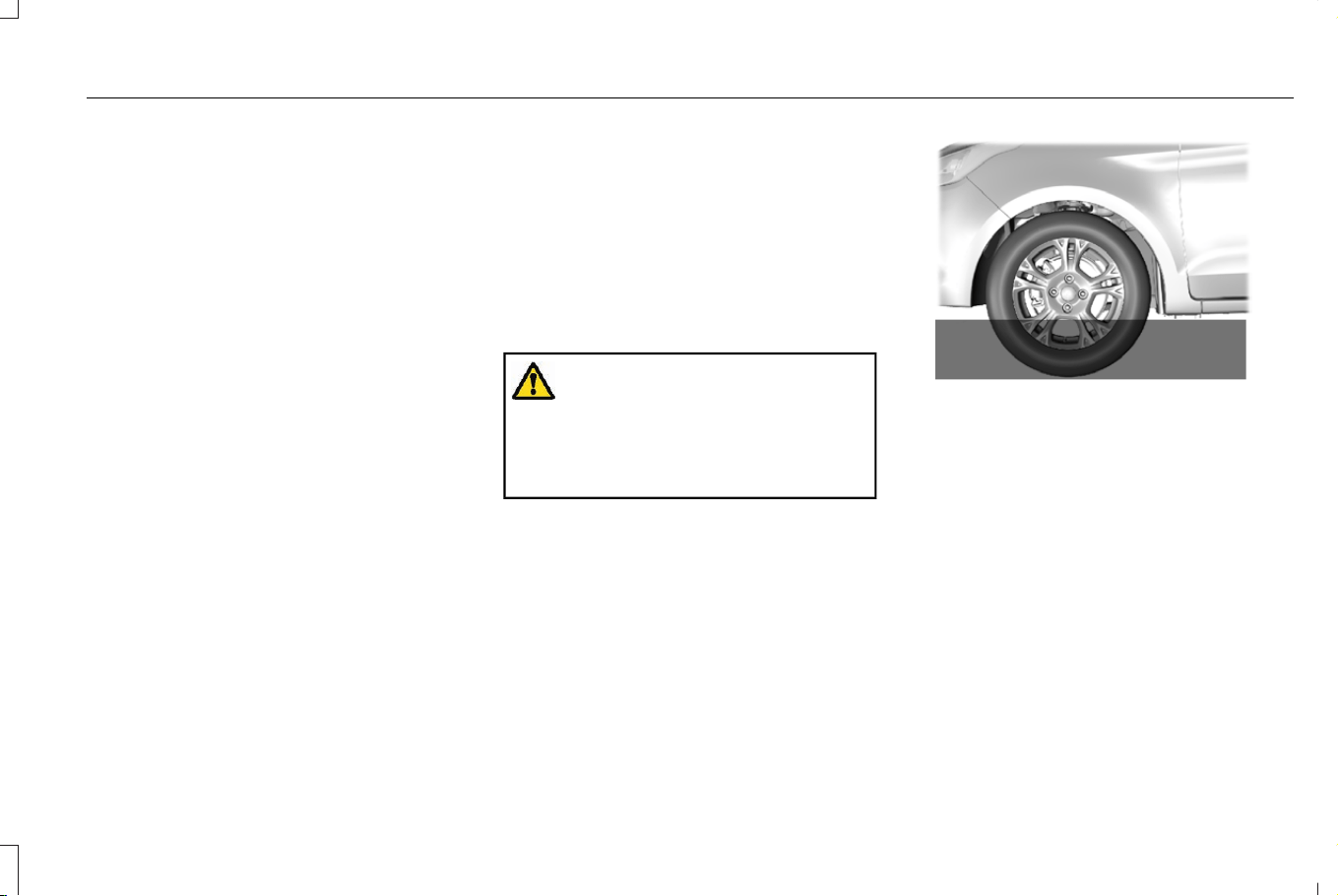
Apply just enough power to the wheels to
climb the hill. Too much power causes the
tires to slip, spin or lose traction, and you
could lose control of your vehicle. When
descending a steep hill, do not descend the
hill in neutral. Avoid sudden hard braking to
keep the front wheels rolling and to maintain
your vehicle's steering.
Note: Your vehicle has anti-lock brakes,
apply the brakes steadily. Do not pump the
brakes.
DRIVING IN SAND
When driving over sand, try to keep all four
wheels on the most solid area of the trail.
Steadily drive through the terrain. Apply the
accelerator slowly and avoid excessive
wheel slip. Do not drive your vehicle in deep
sand for an extended period of time. This
could overheat the system. A message
appears in the instrument cluster display.
Note: If your vehicle gets stuck in sand, it
could be rocked out by shifting between
forward and reverse gears, stopping
between shifts in a steady pattern. Press
lightly on the accelerator pedal in each gear.
DRIVING THROUGH SHALLOW
WATER
WARNING: Do not attempt to cross
a deep or flowing body of water. Failure to
follow this instruction could result in the
loss of control of your vehicle, personal
injury or death.
Note: Driving through standing water can
cause vehicle damage.
Note: Engine damage can occur if water
enters the air filter.
Before driving through standing water, check
the depth. Never drive through water that is
higher than the bottom of the front rocker
area of your vehicle.
E266447
When driving through standing water, drive
very slowly and do not stop your vehicle.
Your brake performance and traction could
be limited. After driving through water and
as soon as it is safe to do so:
• Lightly press the brake pedal to dry the
brakes and to check that they work.
• Turn the steering wheel to check that the
steering power assist works.
Check the function of the following:
• Horn
• Exterior lights
371
Corsair (CTF) Canada/Mexico/United States of America, enUSA, Edition date: 202407, DOM
Driving Hints
ELECTRIC VEHICLE - PLUG-IN HYBRID
ELECTRIC VEHICLE (PHEV)
MAXIMIZING YOUR DRIVING RANGE
Driving in Cold Weather
Keep your vehicle fully charged in cold
weather conditions.
Use the heated seats and steering wheel for
comfort along with moderate cabin
temperature and fan settings to reduce the
energy needed for climate control.
Preconditioning Your Vehicle
Precondition your vehicle using the
departure and comfort settings to heat or
cool the cabin and the high voltage battery
when you have your vehicle plugged in.
Using energy from the charging source prior
to your departure, the system can manage
the battery temperature for the best driving
performance and use less energy for heating
or cooling the cabin at the start of your drive.
This helps maximize your driving range. See
Charging Your Vehicle (page 222).
Note: You can also access departure and
comfort settings using the Lincoln mobile
app.
Note: Lower cabin temperature settings on
the climate control system results in better
trip range.
Parking Your Vehicle
At temperatures just above the freezing point
and lower, plug your vehicle in when not in
use to maintain high voltage battery
performance.
When possible park your vehicle under a
covered area or in a garage. This helps
moderate temperatures which affect the
performance of the high voltage battery and
requires energy to heat or cool the cabin.
Driving Style
Range is reduced when driving aggressively
or at consistently high speeds. Aggressive
driving for extended periods could result in
reducing your battery’s efficiency and
lifespan. Use the trip application on your
touchscreen to see your driving scores. See
Trip Computer (page 145).
FLOOR MATS
WARNING: Use a floor mat designed
to fit the footwell of your vehicle that does
not obstruct the pedal area. Failure to
follow this instruction could result in the
loss of control of your vehicle, personal
injury or death.
WARNING: Pedals that cannot move
freely can cause loss of vehicle control and
increase the risk of serious personal injury.
WARNING: Secure the floor mat to
both retention devices so that it cannot slip
out of position and interfere with the
pedals. Failure to follow this instruction
could result in the loss of control of your
vehicle, personal injury or death.
372
Corsair (CTF) Canada/Mexico/United States of America, enUSA, Edition date: 202407, DOM
Driving Hints
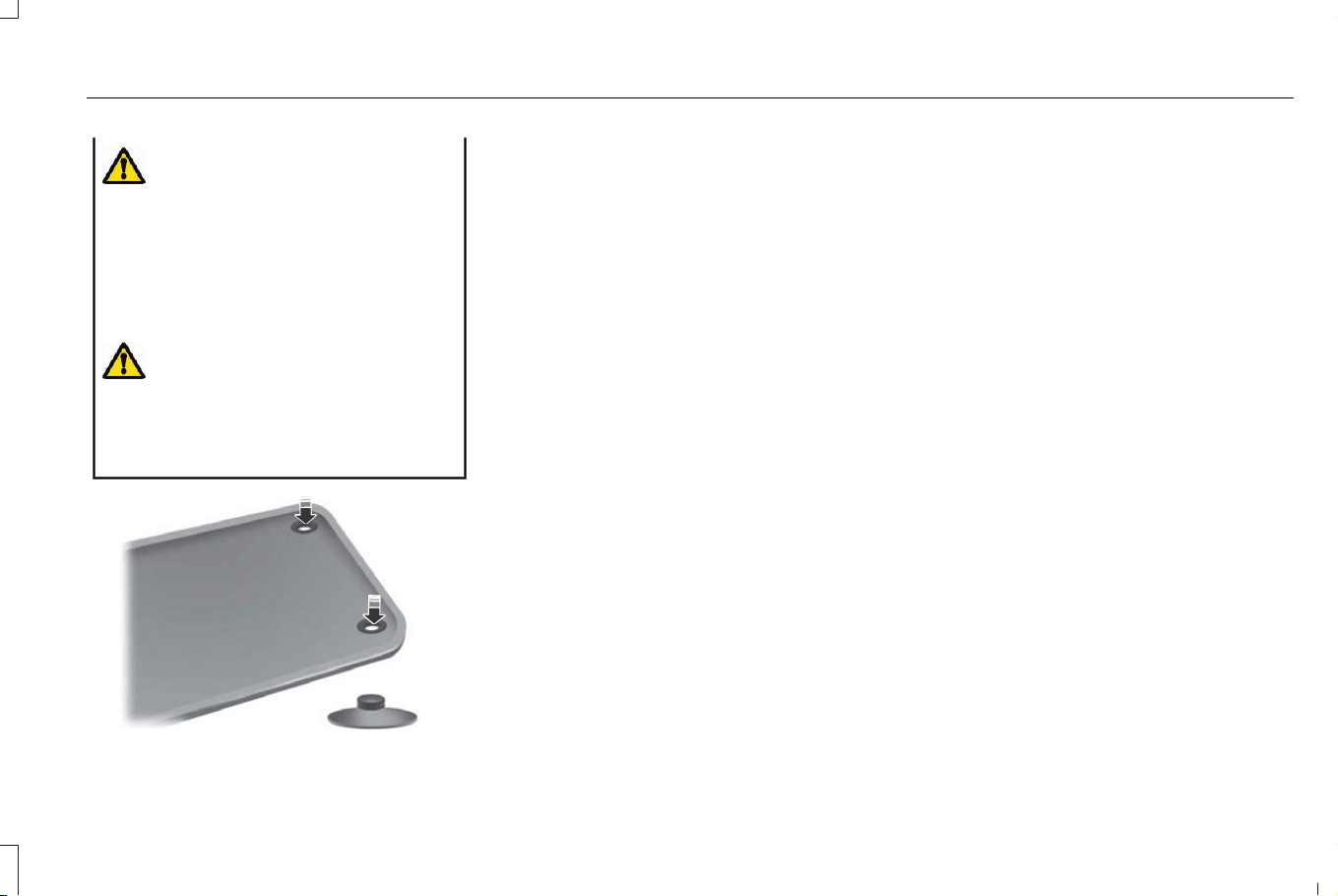
WARNING: Do not place additional
floor mats or any other covering on top of
the original floor mats. This could result in
the floor mat interfering with the operation
of the pedals. Failure to follow this
instruction could result in the loss of
control of your vehicle, personal injury or
death.
WARNING: Always make sure that
objects cannot fall into the driver foot well
while your vehicle is moving. Objects that
are loose can become trapped under the
pedals causing a loss of vehicle control.
E142666
To install floor mats that have eyelets,
position the floor mat eyelet over the
retention post and press down to lock in
position. Repeat for all eyelets on the floor
mat.
To remove the floor mats, reverse the
installation procedure.
Note: Regularly check the floor mats to make
sure they are secure.
373
Corsair (CTF) Canada/Mexico/United States of America, enUSA, Edition date: 202407, DOM
Driving Hints

ROADSIDE ASSISTANCE
Vehicles Sold in the United States:
Getting Roadside Assistance
If you have a vehicle concern, Lincoln offers
a complimentary roadside assistance
program. This program is separate from the
New Vehicle Limited Warranty.
The service is available:
• Throughout the life of the vehicle for
original owners.
• For six years or 70,000 mi (110,000 km),
whichever comes first, for subsequent
owners.
Knowing your vehicle's VIN, mileage and
your specific location allows help to get to
you faster.
Roadside Assistance covers:
• A flat tire change with a good spare. For
vehicles with an unusable tire inflation
kit, we provide towing service.
• Battery jump start.
• Lock-out assistance - key replacement
cost is the client's responsibility.
• Fuel delivery — independent service
contractors, if not prohibited by state,
local or municipal law shall deliver up to
2 gal (8 L) of gasoline fuel to a disabled
vehicle. Roadside Assistance limits fuel
delivery service to two no-charge
occurrences within a 12-month period.
• Winch out — available within 100 ft (30 m)
of a paved or county maintained road,
no recoveries.
• Towing — independent service
contractors, if not prohibited by state,
local or municipal law shall tow Lincoln
eligible vehicles to the client's selling or
preferred dealer within 100 mi (160 km)
of the disablement location or to the
nearest Lincoln dealer. If a client requests
a tow to a selling or preferred dealer that
is more than 100 mi (160 km) from the
disablement location, the client is
responsible for any mileage costs in
excess of 100 mi (160 km).
• Roadside Assistance includes up to $200
for a towed trailer if the disabled eligible
vehicle requires service at the nearest
authorized dealer. If the towing vehicle
is operational but the trailer is not, then
the trailer does not qualify for any
roadside services.
Vehicles Sold in the United States:
Using Roadside Assistance
United States clients who require roadside
assistance, call 1-800-521-4140 or contact
Roadside Assistance using the Lincoln Way
mobile app.
374
Corsair (CTF) Canada/Mexico/United States of America, enUSA, Edition date: 202407, DOM
Crash and Breakdown Information
If you need to arrange roadside assistance
on your own, Lincoln reimburses a
reasonable amount for towing to the nearest
Lincoln dealership within 100 mi (160 km). To
obtain reimbursement information, United
States clients, call 1-800-521-4140. Clients
need to submit their original receipts.
Vehicles Sold in Canada: Getting
Roadside Assistance
If you have a vehicle concern, Lincoln offers
a complimentary roadside assistance
program. This program is eligible within
Canada or the continental United States.
The service is available 24 hours a day,
seven days a week.
This program is separate from the New
Vehicle Limited Warranty, beginning from
the original warranty start date and lasts the
life of the vehicle for the original owner.
Subsequent owners receive coverage that
is concurrent with the 6 years or 70,000 mi
(110,000 km), whichever occurs first,
powertrain warranty coverage period.
Note: Canadian roadside coverage and
benefits may differ from the U.S. coverage.
For complete program coverage details,
review your warranty guide, contact your
dealer, call us in Canada at 1-844-665-2007,
or visit our website at
www.lincolncanada.com.
Download the Sykes4Lincoln Roadside
Assistance App for access to your roadside
assistance services. For more information,
scan here:
E398727
If you purchased your vehicle in Canada and
require roadside assistance, please call
1-844-665-2007 or contact Roadside
Assistance using the Lincoln Way mobile
app.
Ford Motor Company reserves the right to
modify or discontinue Roadside Assistance
at any time. Certain restrictions apply to
Roadside Assistance benefits.
For further details, call
1-800-521-4140 (United States)
1-844-665-2007 (Canada)
HIGH VOLTAGE BATTERY VEHICLE
PRECAUTIONS - PLUG-IN HYBRID
ELECTRIC VEHICLE (PHEV)
In the event of damage or fire involving an
electric vehicle or hybrid-electric vehicle:
• Assume the high-voltage battery and
associated components are energized
and fully charged.
• Exposed electrical components, wires
and high-voltage batteries present
potential high-voltage shock hazards.
375
Corsair (CTF) Canada/Mexico/United States of America, enUSA, Edition date: 202407, DOM
Crash and Breakdown Information

• Venting high-voltage battery vapors are
potentially toxic and flammable.
• Physical damage to the vehicle or
high-voltage battery could result in
immediate or delayed release of toxic,
flammable gases and fire.
Vehicle information and general safety
practices include reviewing the owner's
manual and becoming familiar with your
vehicle's safety information and
recommended safety practices.
Crashes
A crash or impact significant enough to
require an emergency response for
conventional vehicles would also require the
same response for an electric or
hybrid-electric vehicle.
If Possible:
1. Move your vehicle to a safe, nearby
location and remain on the scene.
2. Roll down the windows before you switch
your vehicle off.
3. Place your vehicle in park (P), set the
parking brake, switch off the vehicle,
activate the hazard flashers and move
your key(s) at least 16 ft (5 m) away from
the vehicle.
Always:
• Call emergency assistance if needed and
advise that an electric or hybrid-electric
vehicle is involved.
• Avoid contact with leaking fluids and
gases, and remain out of the way of
oncoming traffic until emergency
responders arrive.
• When emergency responders arrive, tell
them that the vehicle involved is an
electric vehicle or hybrid-electric vehicle.
Fires
As with any vehicle, call emergency
assistance immediately if you see sparks,
smoke or flames coming from the vehicle.
Remain a safe distance from the vehicle and
try to stay clear of the smoke.
1. Exit the vehicle immediately.
2. Advise emergency assistance that an
electric or hybrid-electric vehicle is
involved.
3. As with any vehicle fire, do not inhale
smoke, vapors or gas from the vehicle,
as they may be hazardous.
Post-Incident
1. Do not store a severely damaged vehicle
with a lithium-ion battery inside a
structure or within 49 ft (15 m) of any
structure or vehicle.
2. Make sure that passenger and luggage
compartments remain ventilated.
3. Call emergency assistance if you observe
leaking fluids, sparks, smoke or flames,
or hear gurgling or bubbling from the
high-voltage battery.
376
Corsair (CTF) Canada/Mexico/United States of America, enUSA, Edition date: 202407, DOM
Crash and Breakdown Information
SWITCHING THE HAZARD
FLASHERS ON AND OFF
E75790
The hazard flasher button is on the
instrument panel. Press the button
to switch the hazard flashers on if
your vehicle is creating a safety hazard for
other road users.
When you switch the hazard flashers on, all
front and rear direction indicators flash.
Note: The hazard flashers operate when the
ignition is in any position, or if the key is not
in the ignition. The battery loses charge and
could have insufficient power to restart your
vehicle.
Press the button again to switch them off.
JUMP STARTING THE VEHICLE
JUMP STARTING PRECAUTIONS
WARNING: Batteries normally
produce explosive gases which can cause
personal injury. Therefore, do not allow
flames, sparks or lighted substances to
come near the battery. When working near
the battery, always shield your face and
protect your eyes. Always provide correct
ventilation.
WARNING: Keep batteries out of
reach of children. Batteries contain sulfuric
acid. Avoid contact with skin, eyes or
clothing. Shield your eyes when working
near the battery to protect against possible
splashing of acid solution. In case of acid
contact with skin or eyes, flush immediately
with water for a minimum of 15 minutes and
get prompt medical attention. If acid is
swallowed, call a physician immediately.
WARNING: Use only adequately
sized cables with insulated clamps.
WARNING: Make sure that the cables
are clear of any moving parts and fuel
delivery system parts.
WARNING: Connect batteries with
only the same nominal voltage.
WARNING: Using the jump leads
incorrectly or completing the jump start
procedure incorrectly can cause the
battery to explode, which can lead to
severe injuries.
WARNING: All work on the vehicle
battery and the electrical system can cause
serious chemical burns, fire or electric
shocks. Always read the warnings and
safety information before carrying out any
kind of work on the battery
WARNING: Never charge a 12-volt
vehicle battery once it has been frozen.
Discharged 12-volt vehicle batteries can
even freeze at temperatures of
approximately 0°C (+32°F).
377
Corsair (CTF) Canada/Mexico/United States of America, enUSA, Edition date: 202407, DOM
Crash and Breakdown Information
WARNING: The battery should be
replaced if it is or has ever been frozen.
WARNING: A highly explosive
mixture of gases is given off when the
vehicle battery is jump started. Always
keep fire, sparks, naked flames and lit
cigarettes away from the vehicle battery.
Never use a mobile telephone when the
jump leads are being connected or
disconnected.
WARNING: Only charge the battery
in a well-ventilated space as the battery
emits a highly explosive mixture of gases
when the vehicle is being jump started.
WARNING: Never confuse the
negative and positive terminals or connect
the jump leads incorrectly.
WARNING: Observe the jump lead
manufacturer's instructions.
WARNING: If the engine is running
while the hood is open, stay clear of
moving engine components. Failure to
follow this warning could result in serious
personal injury or death.
Do not attempt to push-start an automatic
transmission vehicle. This could cause
transmission damage.
Do not disconnect the battery of the disabled
vehicle. This could damage your vehicle's
electrical system.
PREPARING THE VEHICLE
Use only a 12 volt supply to start your vehicle.
Park the booster vehicle close to the hood
of the disabled vehicle, making sure the two
vehicles do not touch.
JUMP STARTING THE VEHICLE -
GASOLINE
Connecting the Jumper Cables
WARNING: Do not connect the
negative jumper cable to any other part of
your vehicle. Use the ground point.
Note: If you are using a jump pack or booster
box, follow the manufacturer's instructions.
378
Corsair (CTF) Canada/Mexico/United States of America, enUSA, Edition date: 202407, DOM
Crash and Breakdown Information
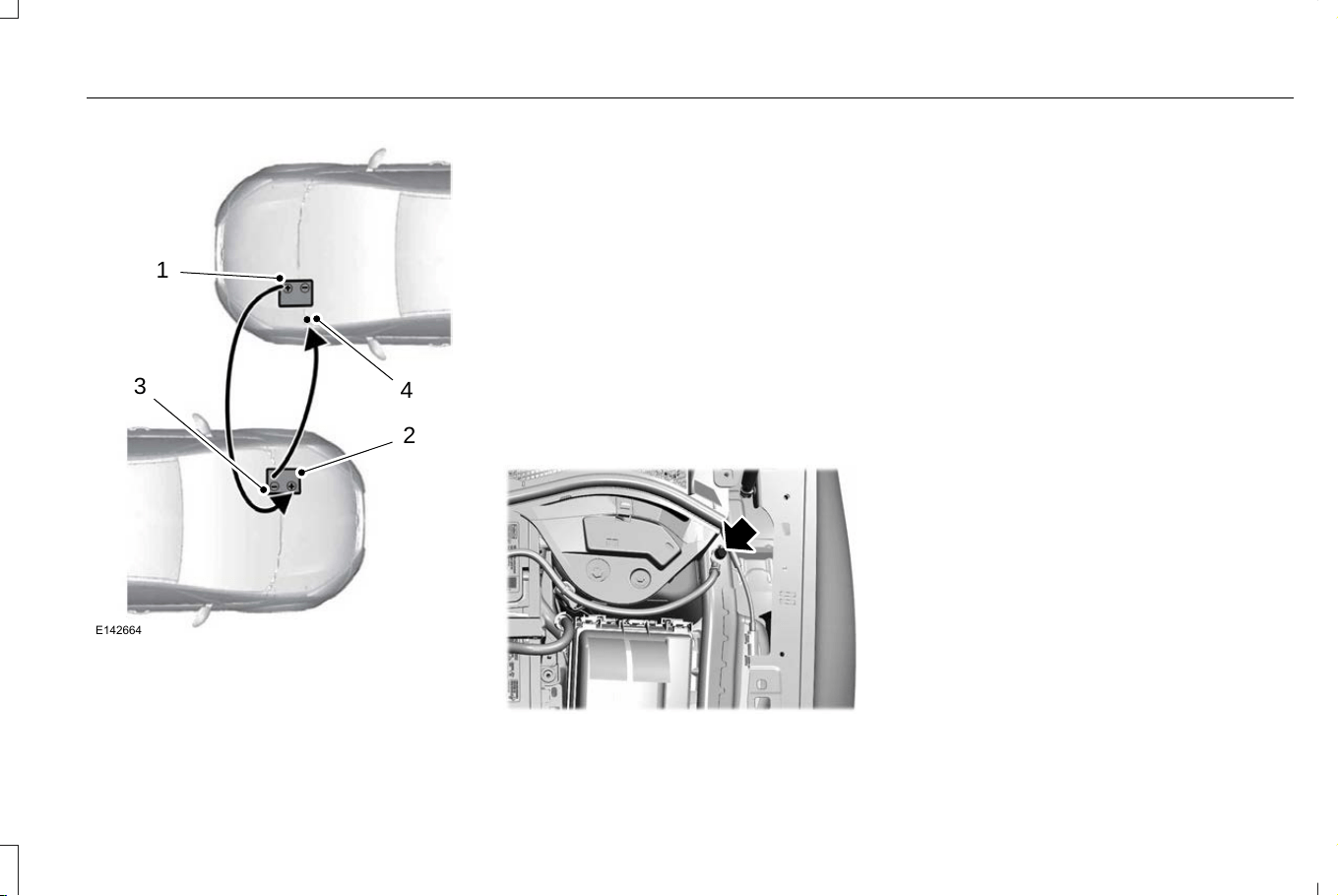
4
2
1
3
E142664
1. Pull the red rubber boot backward.
Connect the positive (+) jumper cable to
the positive (+) terminal of the discharged
battery.
2. Connect the other end of the positive (+)
jumper cable to the positive (+) terminal
of the booster vehicle battery.
3. Connect the negative (-) jumper cable to
the negative (-) terminal of the booster
vehicle battery.
4. Make the final connection of the negative
(-) jumper cable to an exposed metal part
of the disabled vehicle's engine, as
shown in the following illustration, away
from the battery and fuel injection
system, or connect the negative (-)
jumper cable to a ground connection
point if available.
E379440
Starting the Engine
1. Start the engine of the booster vehicle
and moderately rev the engine, or gently
press the accelerator to keep the engine
speed between 2000 RPM and 3000
RPM, as shown in your tachometer.
2. Start the engine of the disabled vehicle.
3. Once you start the disabled vehicle, run
both vehicle engines for an additional
three minutes before disconnecting the
jumper cables.
Removing the Jumper Cables
Remove the jumper cables in the reverse
order that they were connected.
Note: Do not switch the headlamps on when
disconnecting the cables. The peak voltage
could blow the bulbs.
379
Corsair (CTF) Canada/Mexico/United States of America, enUSA, Edition date: 202407, DOM
Crash and Breakdown Information
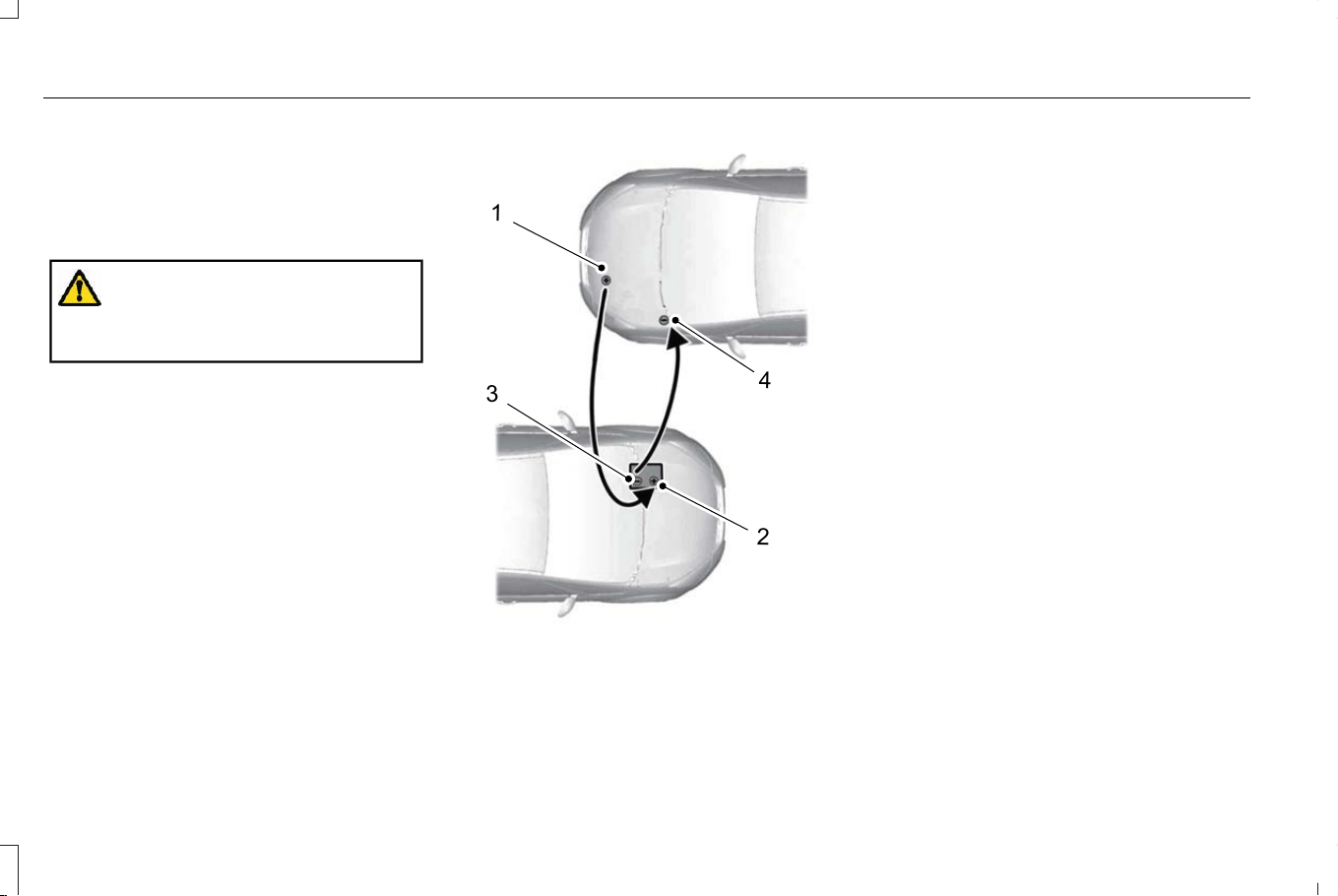
JUMP STARTING THE VEHICLE -
PLUG-IN HYBRID ELECTRIC VEHICLE
(PHEV)
Connecting the Jumper Cables
WARNING: Do not connect the
negative jumper cable to any other part of
your vehicle. Use the ground point.
Note: If you are using a jump pack or booster
box, follow the manufacturer's instructions.
4
2
1
3
E361307
Note: Make sure both vehicles are off before
connecting the jumper cables.
1. Pull the red rubber boot back. Connect
the positive (+) jumper cable to the
positive (+) terminal.
Note: The positive terminal is located in the
under hood fuse box.
2. Connect the other end of the positive (+)
jumper cable to the positive (+) terminal
of the booster vehicle battery.
3. Connect the negative (-) jumper cable to
the negative (-) terminal of the booster
vehicle battery.
4. Make the final connection of the negative
(-) jumper cable to an exposed metal part
of the disabled vehicle's engine, as
shown in the following illustration, away
from the battery and fuel injection
system, or connect the negative (-)
jumper cable to a ground connection
point if available.
Note: Do not use the hood latch as a
negative (-) connection point. This could
cause springs in the latch to burn and
prevent the hood from operating correctly.
380
Corsair (CTF) Canada/Mexico/United States of America, enUSA, Edition date: 202407, DOM
Crash and Breakdown Information
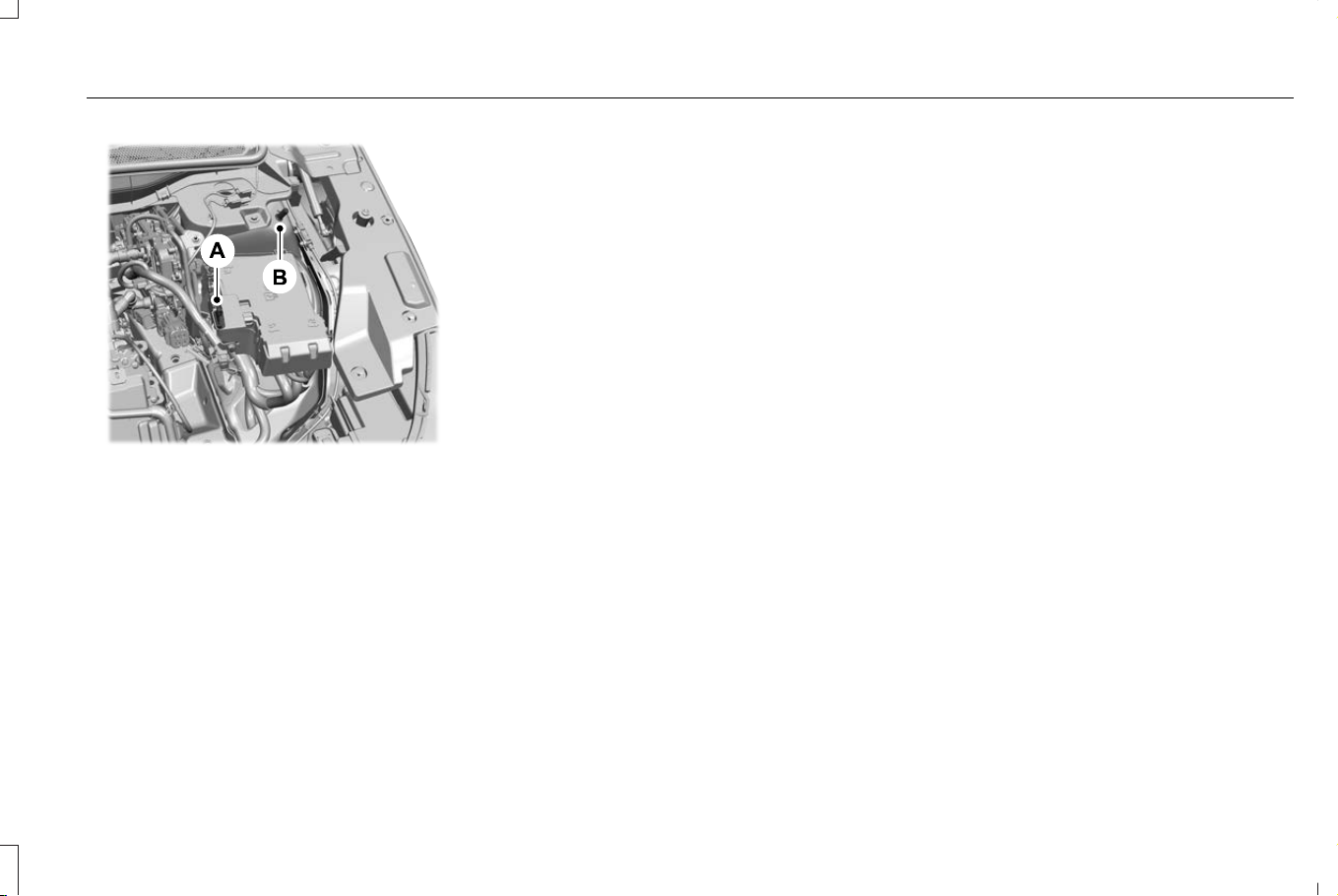
E422696
Positive (+) pin.A
Ground connection point.B
Starting the Engine
1. Start the engine of the booster vehicle
and moderately rev the engine, or gently
press the accelerator to keep the engine
speed between 2000 and 3000 RPM, as
shown in your tachometer.
2. Start the engine of the disabled vehicle.
3. Once you start the disabled vehicle, run
both vehicle engines for an additional
three minutes before disconnecting the
jumper cables.
Removing the Jumper Cables
Remove the jumper cables in the reverse
order that they were connected.
Note: Do not switch the headlamps on when
disconnecting the cables. The peak voltage
could blow the bulbs.
POST-CRASH ALERT SYSTEM
WHAT IS THE POST-CRASH ALERT
SYSTEM
The system helps draw attention to your
vehicle in the event of a serious impact.
HOW DOES THE POST-CRASH ALERT
SYSTEM WORK
The system is designed to turn the hazard
flashers on, turn the courtesy lamps on,
intermittently sound the horn and unlock all
doors in the event of a serious impact that
deploys an airbag or the seatbelt
pretensioners.
POST-CRASH ALERT SYSTEM
LIMITATIONS
Depending on applicable laws in the country
your vehicle was built for, the horn does not
sound in the event of a serious impact.
SWITCHING THE POST-CRASH ALERT
SYSTEM OFF
Press the hazard flasher switch, the unlock
button on the remote control, the panic
button on the remote control or cycle the
ignition to switch the system off.
Note: The alert turns off when the vehicle
battery runs out of charge.
381
Corsair (CTF) Canada/Mexico/United States of America, enUSA, Edition date: 202407, DOM
Crash and Breakdown Information
POST-COLLISION BRAKING
How Does Post-Collision Braking Work
In the event of a moderate to severe crash,
the braking system reduces the vehicle’s
speed to prevent or reduce the impact of a
potential secondary crash.
Post-Collision Braking Limitations
Post-collision braking does not activate if any
of the following occur:
• The anti-lock braking system is damaged
during the collision.
• Electronic stability control is disabled.
Overriding Post-Collision Braking
You can override post-collision braking by
pressing the brake or accelerator pedal.
Post-Collision Braking Indicators
E138639
It flashes when a post-collision
braking event is occurring.
AUTOMATIC CRASH SHUTOFF
WHAT IS AUTOMATIC CRASH
SHUTOFF
The automatic crash shutoff is designed to
stop the fuel going to the engine in the event
of a moderate or severe crash.
Note: Not every impact causes a shutoff.
AUTOMATIC CRASH SHUTOFF
PRECAUTIONS
WARNING: If your vehicle has been
involved in a crash, have the fuel system
checked. Failure to follow this instruction
could result in fire, personal injury or death.
RE-ENABLING YOUR VEHICLE
1. Switch the ignition off.
2. Attempt to start your vehicle.
3. Switch the ignition off.
4. Attempt to start your vehicle.
Note: If your vehicle does not start after the
third attempt, have your vehicle checked as
soon as possible.
382
Corsair (CTF) Canada/Mexico/United States of America, enUSA, Edition date: 202407, DOM
Crash and Breakdown Information
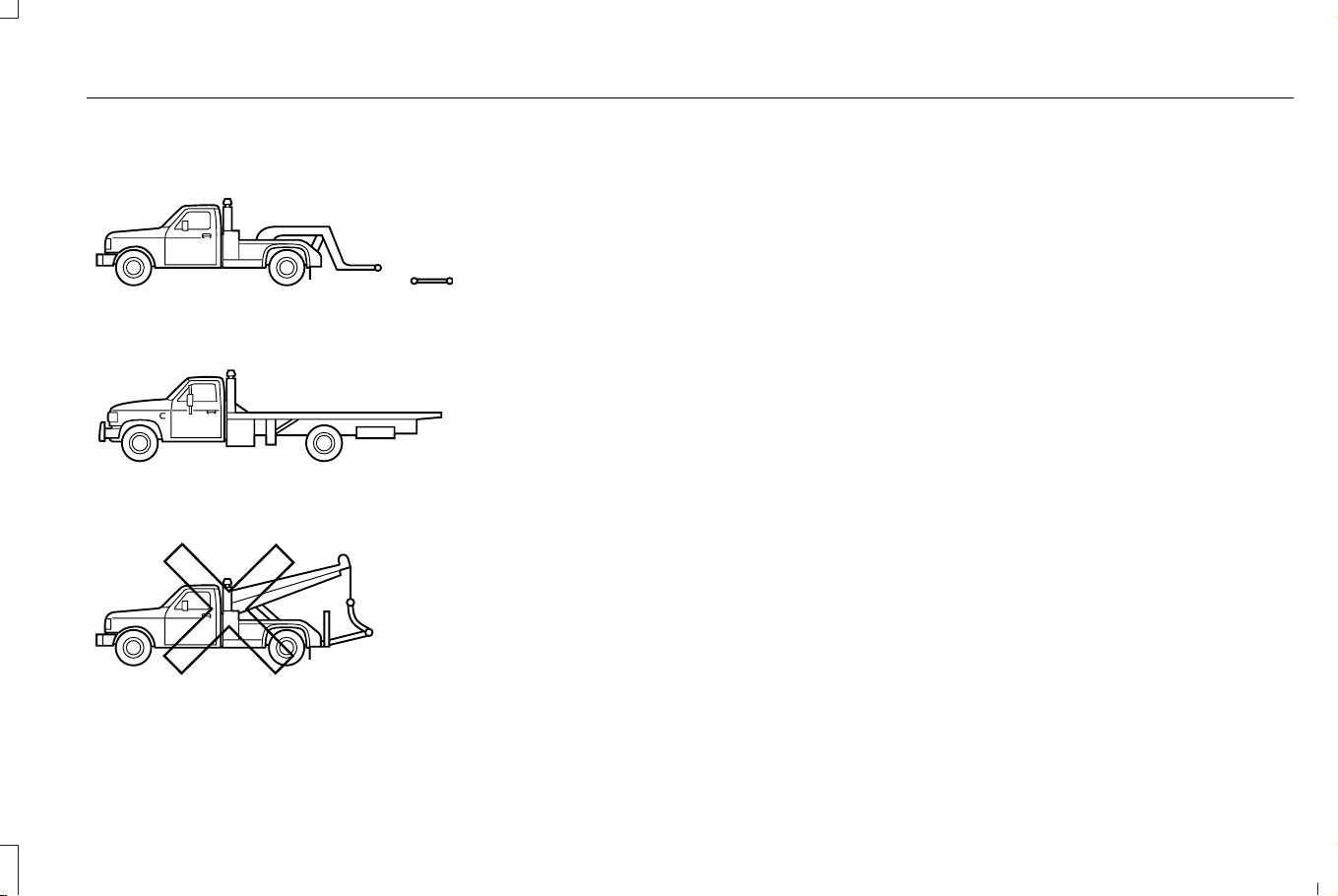
TRANSPORTING THE VEHICLE
E143886
If you need to tow your vehicle, contact a
professional towing service or your roadside
assistance service provider.
Your manufacturer produces a towing
manual for all authorized tow truck operators.
Have your tow truck operator refer to this
manual for proper hook-up and towing
procedures.
We recommend the use of a wheel lift and
dollies or flatbed equipment to tow your
vehicle. Vehicle damage could occur if towed
incorrectly, or by any other means.
Front-wheel and rear-wheel drive vehicles
must have their designated drive wheels off
the ground regardless of towing direction.
Use tow dollies to prevent damage to the
transmission.
All-wheel or four-wheel drive vehicles require
that all wheels be off the ground using a
wheel lift and dollies or flatbed equipment.
This prevents damage to the transmission
and drive system.
Note: You need to switch on the ignition to
unlock the steering.
Note: Make sure you check the steering
column before towing. It could lock if the
battery is dead.
FAIL-SAFE COOLING
WHAT IS FAIL-SAFE COOLING
Fail-safe cooling allows you to temporarily
drive your vehicle before any incremental
component damage occurs due to
overheating.
The fail-safe distance depends on outside
temperature, vehicle load and terrain.
HOW DOES FAIL-SAFE COOLING
WORK
If the engine reaches a preset
over-temperature condition, the engine
automatically switches to alternating cylinder
operation. Each disabled cylinder acts as an
air pump and cools the engine.
383
Corsair (CTF) Canada/Mexico/United States of America, enUSA, Edition date: 202407, DOM
Crash and Breakdown Information
When this occurs, your vehicle still operates,
however:
• Engine power is limited.
• The air conditioning system turns off.
Continued operation increases the engine
temperature, causing the engine to
completely shut down. Your steering and
braking effort increases in this situation.
When the engine temperature cools, you can
re-start the engine.
Note: Have your vehicle checked as soon
as possible to minimize engine damage.
DRIVING WHEN FAIL-SAFE MODE IS
ACTIVATED
WARNING: Fail-safe mode is for use
during emergencies only. Operate your
vehicle in fail-safe mode only as long as
necessary to bring your vehicle to rest in
a safe location and seek immediate repairs.
When in fail-safe mode, your vehicle will
have limited power, will not be able to
maintain high-speed operation, and may
completely shut down without warning,
potentially losing engine power, power
steering assist, and power brake assist,
which may increase the possibility of a
crash resulting in serious injury.
WARNING: Do not remove the
coolant reservoir cap when the engine is
on or the cooling system is hot. Wait 10
minutes for the cooling system to cool
down. Cover the coolant reservoir cap with
a thick cloth to prevent the possibility of
scalding and slowly remove the cap.
Failure to follow this instruction could result
in personal injury.
Continued operation increases the engine
temperature, causing the engine to
completely shut down. Your steering and
braking effort increases in this situation.
When the engine temperature cools, you can
re-start the engine. Have your vehicle
checked as soon as possible to minimize
engine damage.
Your vehicle has limited engine power when
in the fail-safe mode, drive your vehicle with
caution. Your vehicle does not maintain
high-speed operation and the engine may
operate poorly.
Remember that the engine is capable of
automatically shutting down to prevent
engine damage. In this situation:
1. Pull off the road as soon as safely
possible and switch the engine off.
2. If you are a member of a roadside
assistance program, we recommend that
you contact your roadside assistance
service provider.
3. If this is not possible, wait for a short
period of time for the engine to cool.
4. Check the coolant level. If the coolant
level is at or below the minimum mark,
add prediluted coolant immediately.
5. When the engine temperature cools, you
can re-start the engine. Have your vehicle
checked as soon as possible to minimize
engine damage.
Note: Driving your vehicle without repair
increases the chance of engine damage.
384
Corsair (CTF) Canada/Mexico/United States of America, enUSA, Edition date: 202407, DOM
Crash and Breakdown Information

FAIL-SAFE COOLING INDICATORS
E103308
If the engine begins to overheat,
the coolant temperature gauge
moves toward the red zone.
E67028
A warning lamp illuminates and a
message may appear in the
instrument cluster display.
385
Corsair (CTF) Canada/Mexico/United States of America, enUSA, Edition date: 202407, DOM
Crash and Breakdown Information

TOWING YOUR VEHICLE
PRECAUTIONS
Use the following guidelines when towing
your vehicle. Failure to follow this instruction
could result in vehicle damage not covered
by the vehicle warranty.
Note: Make sure you properly secure your
vehicle to the tow vehicle.
Note: If you are unsure of the vehicle’s
configuration, contact an authorized dealer.
RECREATIONALLY TOWING YOUR
VEHICLE - PLUG-IN HYBRID
ELECTRIC VEHICLE (PHEV)
Follow these guidelines if you have a need
for recreational towing. An example of
recreational towing is towing your vehicle
behind a motorhome. These guidelines
ensure that you do not damage the
transmission.
Note: Put your climate control system in
recirculated air mode to prevent exhaust
fumes from entering your vehicle. See
Climate Control (page 153).
You can tow your vehicle with all four wheels
on the ground under the following
conditions:
• You switch Neutral Tow on.
• Your vehicle is facing forward for towing
in a forward direction.
• You release the parking brake.
• You do not exceed 70 mph (113 km/h).
Switching Neutral Tow On
1. Switch your vehicle on in accessory
mode.
2. Press the menu button on the steering
wheel to enter the information display
main menu.
3. Select Settings.
4. Select Neutral Tow.
5. Follow the instructions on the information
display.
6. Fully press the brake pedal.
7. Shift into neutral (N).
8. Switch the ignition off.
Note: Switching neutral tow on requires
battery power.
Note: If the parking brake is applied, a
message appears in the information display.
Note: If your vehicle has an ignition key, you
cannot remove the key from the ignition
when the transmission is in neutral (N) and
your vehicle is off.
Note: Start the engine and allow it to run for
a few minutes at the beginning of each day,
and every six hours or fewer. With the engine
running and your foot on the brake, shift into
drive (D) and then into reverse (R) before
shifting back into neutral (N). Before
continuing to tow, switch neutral tow on.
386
Corsair (CTF) Canada/Mexico/United States of America, enUSA, Edition date: 202407, DOM
Towing Your Vehicle

RECREATIONALLY TOWING YOUR
VEHICLE - GASOLINE, AWD
You cannot recreational tow your vehicle
with all wheels on the ground because
vehicle or transmission damage could occur.
You must recreational tow your vehicle with
all four wheels off the ground, such as when
using a car-hauling trailer. Otherwise, you
cannot recreational tow your vehicle.
RECREATIONALLY TOWING YOUR
VEHICLE - GASOLINE, FWD
You cannot recreational tow your vehicle
with all wheels on the ground because
vehicle or transmission damage could occur.
Place the front wheels on a two-wheel tow
dolly. If you are using a tow dolly, follow the
instructions specified by the equipment
provider.
Note: Release the parking brake before
towing your vehicle. See Manually
Releasing the Electric Parking Brake (page
257).
EMERGENCY TOWING - PLUG-IN
HYBRID ELECTRIC VEHICLE
(PHEV)
If your vehicle becomes inoperable without
access to wheel dollies or a vehicle transport
trailer, it can be flat-towed with all wheels on
the ground, regardless of the powertrain and
transmission configuration, under the
following conditions:
• Your vehicle is facing forward for towing
in a forward direction.
• You switch Neutral Tow on.
• You release the parking brake.
• Maximum speed is 35 mph (55 km/h).
• Maximum distance is 50 mi (80 km).
Switching Neutral Tow On
1. Switch your vehicle on in accessory
mode.
2. Press the menu button on the steering
wheel to enter the instrument cluster
display main menu.
3. Select Settings.
4. Select Vehicle Settings.
5. Select Neutral Tow.
6. Follow the instructions on the instrument
cluster display.
7. Fully press the brake pedal.
8. Shift into neutral (N).
9. Switch your vehicle off.
Note: Failure to follow these instructions
could result in damage to the transmission.
Note: Switching neutral tow on requires
battery power.
Note: Put your climate control system in
recirculated air mode to prevent exhaust
fumes from entering your vehicle. See
Climate Control (page 153).
Switching Neutral Tow Off
1. Switch your vehicle on in accessory
mode.
2. Fully press the brake pedal.
3. Shift into park (P).
387
Corsair (CTF) Canada/Mexico/United States of America, enUSA, Edition date: 202407, DOM
Towing Your Vehicle

EMERGENCY TOWING - GASOLINE
If you need to tow your vehicle, contact a
professional towing service or, if you are a
member of a roadside assistance program,
your roadside assistance service provider.
TOWING YOUR VEHICLE – TROUBLESHOOTING
TOWING YOUR VEHICLE – INFORMATION MESSAGES - PLUG-IN HYBRID ELECTRIC VEHICLE (PHEV)
DescriptionMessage
Reminder to switch off the ignition when in neutral tow.Neutral Tow Engaged Turn Ignition Off for
Towing
Displays when neutral tow is active and you want to exit neutral tow.Neutral tow engaged Depress Brake and
Select Park to Exit Neutral Tow
Reminder to remove park brake when in neutral tow.Neutral Tow Remove Park Brake for Towing
Displays when the neutral tow is off.Neutral Tow Disengaged
Displays when neutral tow is on.Neutral Tow Enabled Leave Transmission
in Neutral
388
Corsair (CTF) Canada/Mexico/United States of America, enUSA, Edition date: 202407, DOM
Towing Your Vehicle
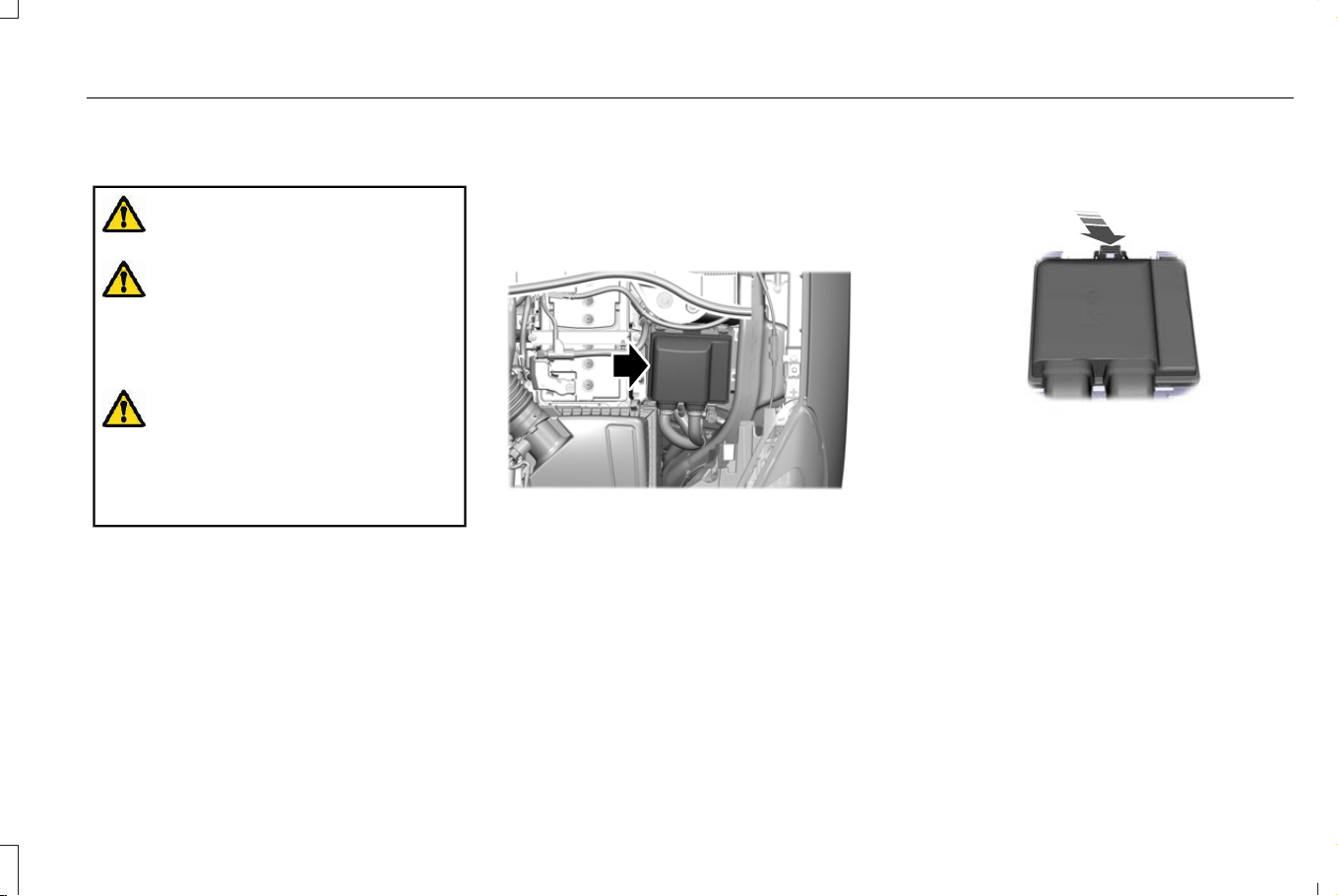
FUSE PRECAUTIONS
WARNING: Always disconnect the
battery before servicing high current fuses.
WARNING: To reduce risk of
electrical shock, always replace the cover
to the power distribution box before
reconnecting the battery or refilling fluid
reservoirs.
WARNING: Always replace a fuse
with one that has the specified amperage
rating. Using a fuse with a higher
amperage rating can cause severe wire
damage and could start a fire.
UNDER HOOD FUSE BOX
LOCATING THE UNDER HOOD FUSE
BOX
E334436
ACCESSING THE UNDER HOOD FUSE
BOX
E253688
1. Pull the latch toward you and remove the
top cover.
389
Corsair (CTF) Canada/Mexico/United States of America, enUSA, Edition date: 202407, DOM
Fuses
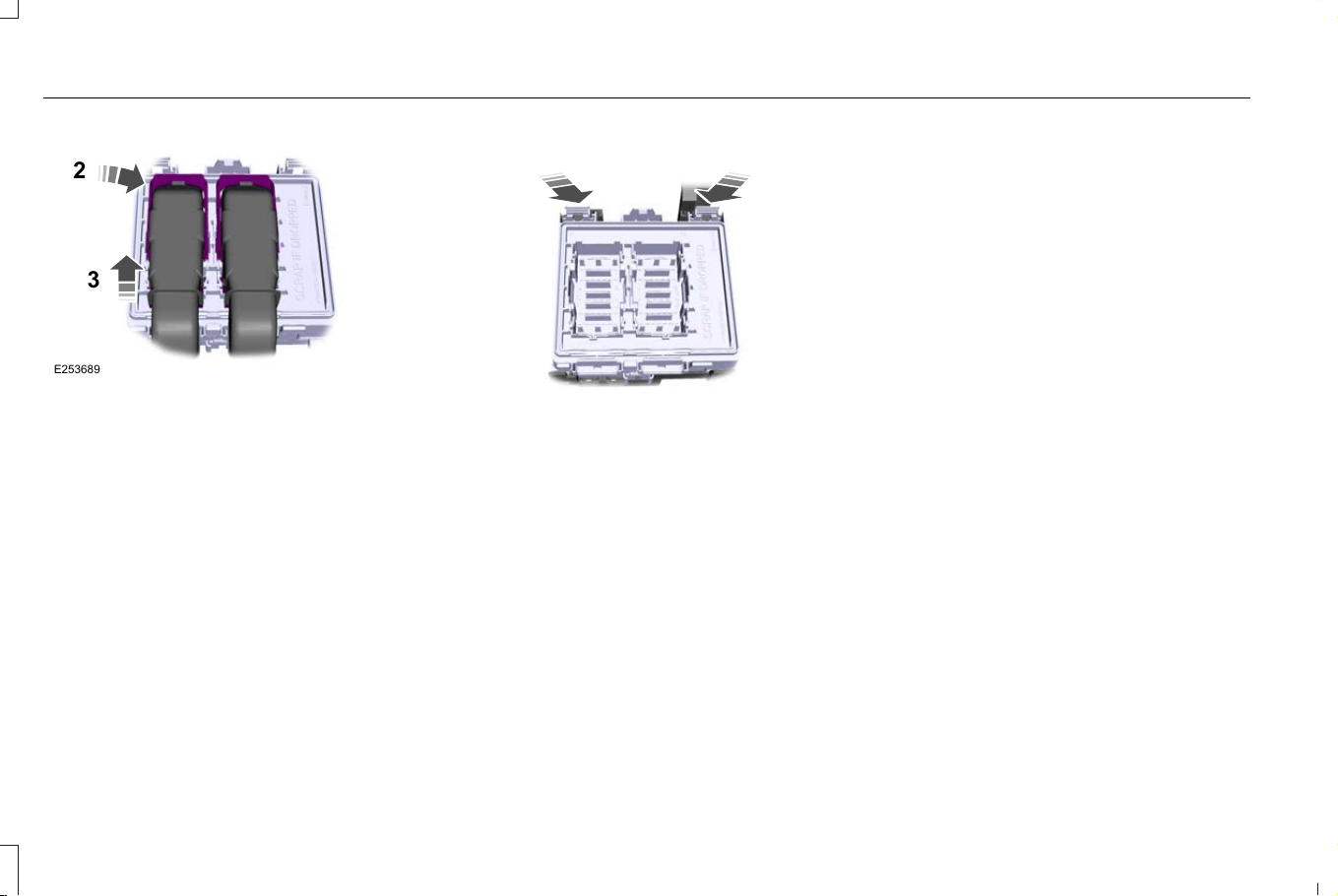
E253689
2
3
2. Pull the connector lever upward.
3. Pull the connector upward to remove it.
E253693
4. Pull both latches toward you and remove
the fuse box.
5. Turn the fuse box over and open the lid.
390
Corsair (CTF) Canada/Mexico/United States of America, enUSA, Edition date: 202407, DOM
Fuses
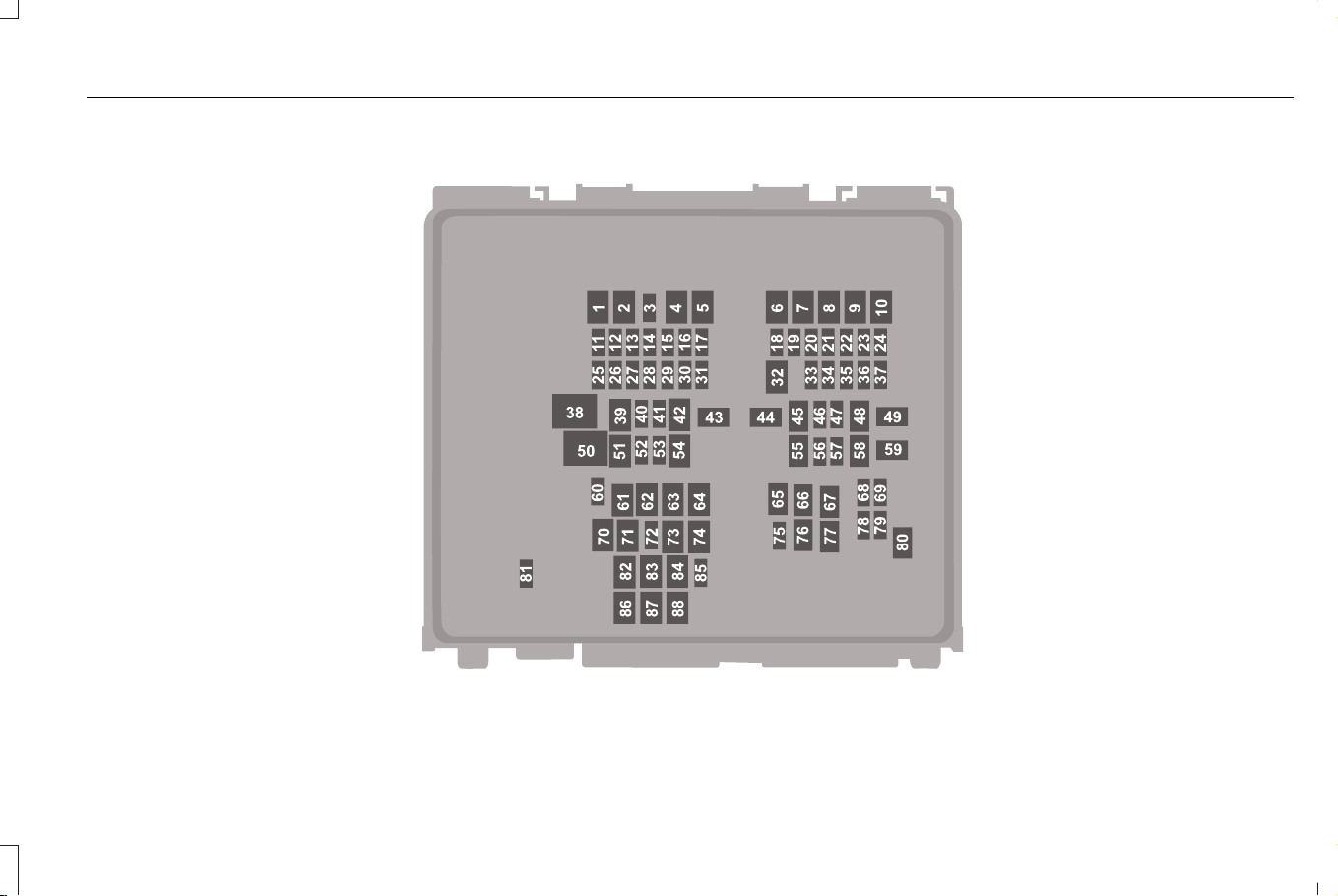
IDENTIFYING THE FUSES IN THE UNDER HOOD FUSE BOX
E292669
391
Corsair (CTF) Canada/Mexico/United States of America, enUSA, Edition date: 202407, DOM
Fuses

Protected ComponentRatingItem
Not used.—1
Rear defrost.30 A2
Not used (spare).10 A3
Electric water pump (hybrid).50 A4
Not used.—5
Not used.—6
Driveline control module.40 A7
Not used.—8
Second row seat release.30 A9
Not used.—10
Powertrain control module.15 A11
Powertrain control module.15 A12
Powertrain control module.15 A13
Powertrain control module.15 A14
Vehicle dynamics module.10 A15
392
Corsair (CTF) Canada/Mexico/United States of America, enUSA, Edition date: 202407, DOM
Fuses

Protected ComponentRatingItem
Not used.—16
Heated wiper park.15 A17
Air conditioning clutch.10 A18
Not used (spare).10 A19
DC/DC converter (hybrid).5 A20
Battery charge control module (hybrid).10 A21
Not used (spare).5 A22
Charge port light ring (hybrid).5 A23
Battery electronic control module (hybrid).5 A24
Left-hand enhanced exterior lighting module.25 A25
Right-hand enhanced exterior lighting module.25 A26
Powertrain control module (hybrid).5 A27
Anti-lock brake system module.10 A28
Powertrain control module.10 A29
Electronic stability control.10 A30
Transmission oil pump.
393
Corsair (CTF) Canada/Mexico/United States of America, enUSA, Edition date: 202407, DOM
Fuses

Protected ComponentRatingItem
Electronic power assist steering.5 A31
Body control module.30 A32
Advanced driver assistance system.20 A33
Headlamp leveling.10 A34
Heated steering wheel.15 A35
Powertrain control module (hybrid).10 A36
Horn.20 A37
Blower motor.40 A38
Not used.—39
USB smart charger.5 A40
Amplifier.20 A41
Driver power seat.30 A42
Anti-lock brake control valves.40 A43
Not used (spare).40 A44
Passenger power seat.30 A45
Not used (spare).20 A46
394
Corsair (CTF) Canada/Mexico/United States of America, enUSA, Edition date: 202407, DOM
Fuses

Protected ComponentRatingItem
Heated seats.20 A47
Power liftgate.30 A48
Anti-lock brake control pump.60 A49
Cooling fan.60 A50
Glass roof.30 A51
USB charge port - rear console.5 A52
USB charge port - rear console.5 A53
Rear heated seat module.20 A54
Starter motor.30 A55
Amplifier.20 A56
Data link connector.10 A57
Climate controlled seat module.30 A58
Body control module.40 A59
Rear window washer pump.20 A60
Not used.—61
Not used.—62
395
Corsair (CTF) Canada/Mexico/United States of America, enUSA, Edition date: 202407, DOM
Fuses

Protected ComponentRatingItem
Not used.—63
Not used.—64
Not used.—65
Not used.—66
Not used.—67
Mass air flow and intake air temperature
sensor.
5 A68
Port fuel injectors.15 A69
Rear cargo power point.20 A70
Rear console power point.20 A71
Rear window wiper.20 A72
Not used.—73
Windshield wiper motor.30 A74
Not used (spare).20 A75
Not used.—76
Not used.—77
396
Corsair (CTF) Canada/Mexico/United States of America, enUSA, Edition date: 202407, DOM
Fuses

Protected ComponentRatingItem
Multi-contour seats.15 A78
Not used (spare).10 A79
Fuel pump.20 A80
Not used.—81
Not used (spare).40 A82
Not used.—83
Auxiliary power distribution box (hybrid).40 A84
Rain sensor.5 A85
Not used.—86
Not used.—87
Not used.—88
397
Corsair (CTF) Canada/Mexico/United States of America, enUSA, Edition date: 202407, DOM
Fuses
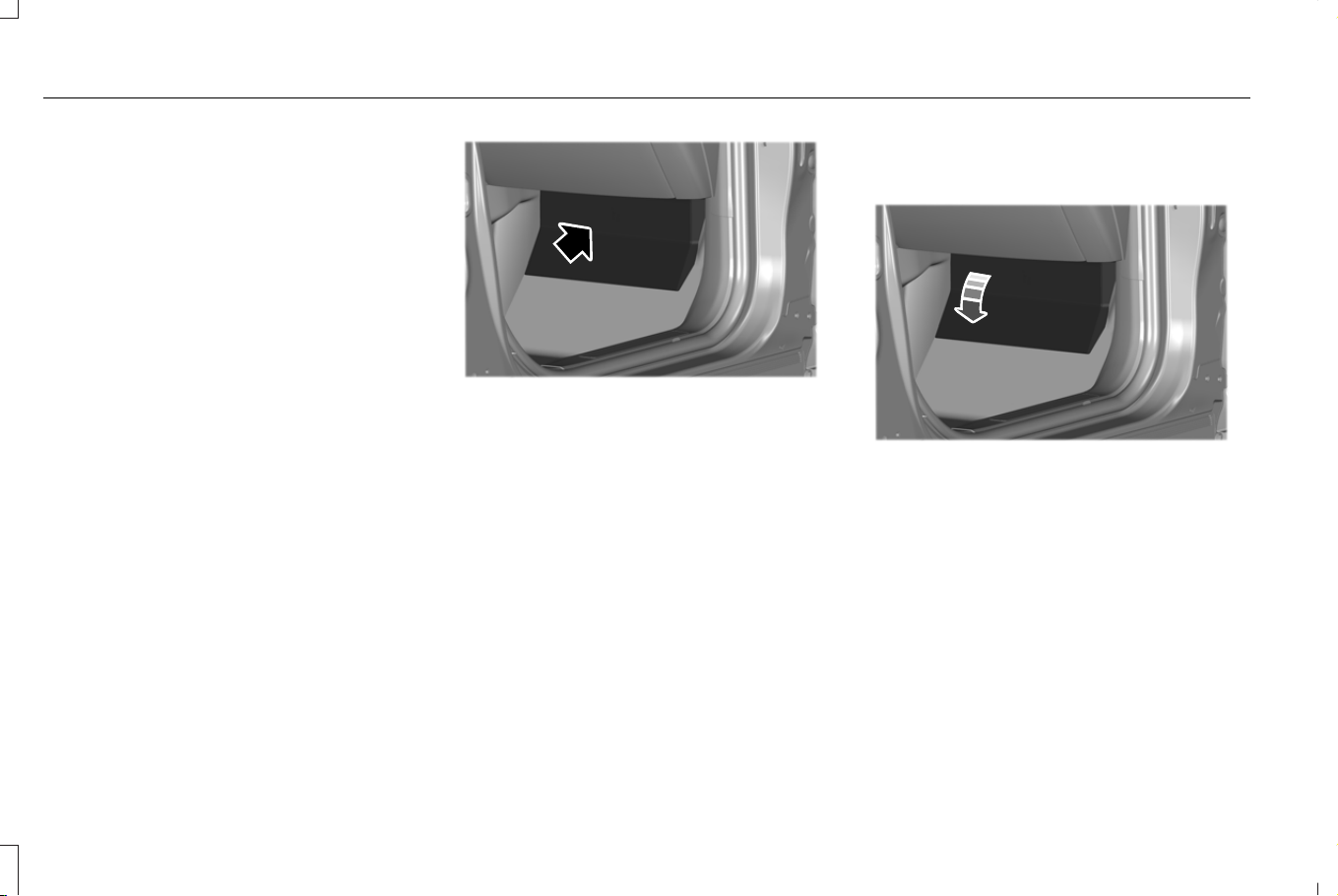
BODY CONTROL MODULE FUSE BOX
LOCATING THE BODY CONTROL
MODULE FUSE BOX
E329070
ACCESSING THE BODY CONTROL
MODULE FUSE BOX
E329071
398
Corsair (CTF) Canada/Mexico/United States of America, enUSA, Edition date: 202407, DOM
Fuses
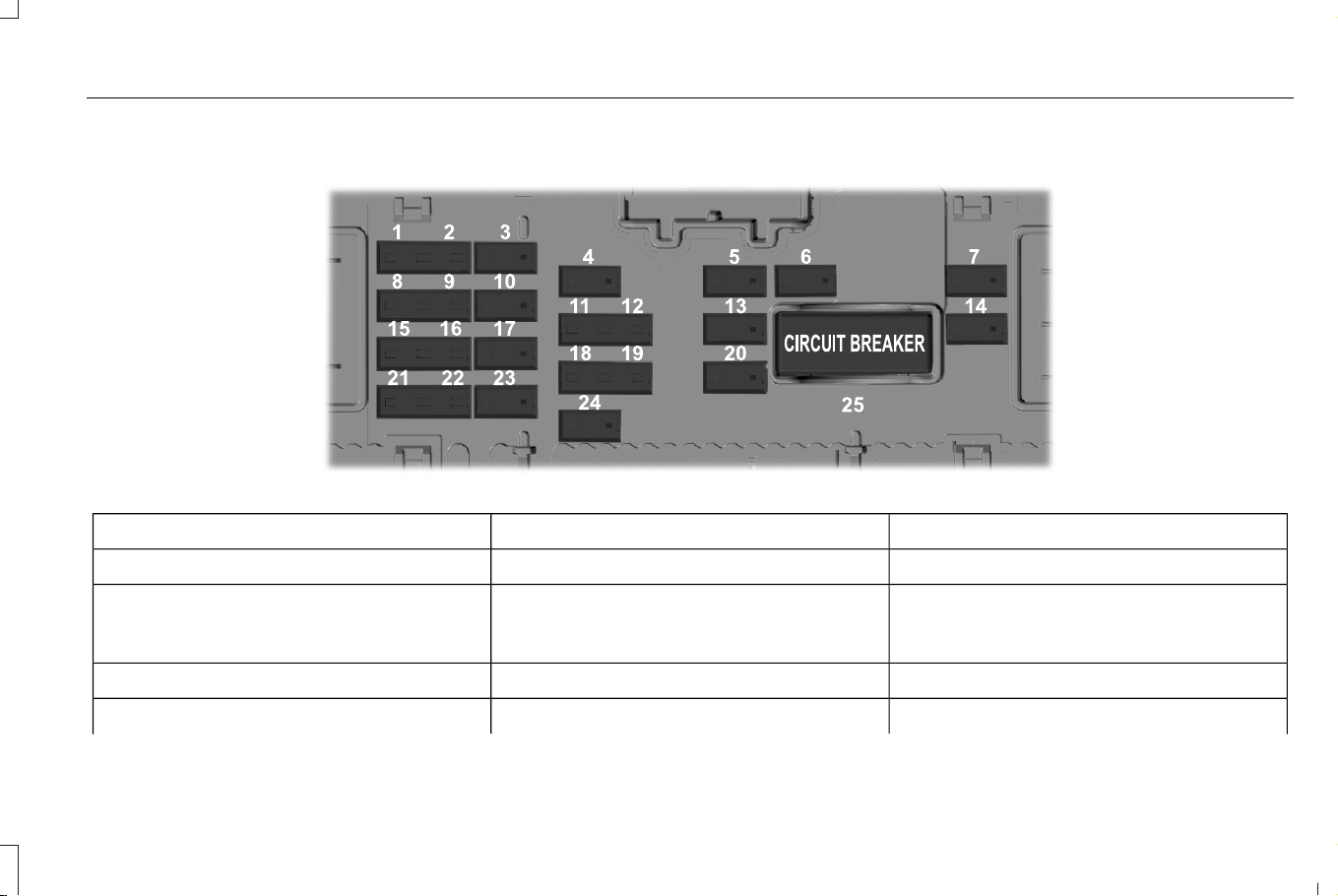
IDENTIFYING THE FUSES IN THE BODY CONTROL MODULE FUSE BOX
E293328
Protected ComponentRatingItem
Not used.5 A1
Rear heated seats.5 A2
Air quality sensor.
Particulate matter sensor.
Not used (spare).10 A3
Integrated control panel.10 A4
399
Corsair (CTF) Canada/Mexico/United States of America, enUSA, Edition date: 202407, DOM
Fuses

Protected ComponentRatingItem
Center display.
Gateway module.
Lock.20 A5
Unlock.
Glass roof.10 A6
Passenger door module.30 A7
Driveline control module.5 A8
Electrochromatic mirror.5 A9
Extended power module.10 A10
Power liftgate.5 A11
Hands-free liftgate actuation module.
Telematics control unit module.
Keyless keypad switch.5 A12
Head up display.
Driver door lock.15 A13
Driver door module.30 A14
Extended power module.15 A15
Not used (spare).15 A16
400
Corsair (CTF) Canada/Mexico/United States of America, enUSA, Edition date: 202407, DOM
Fuses

Protected ComponentRatingItem
SYNC.15 A17
Radio frequency transceiver module.
Driver power seat switch.7.5 A18
Passenger power seat switch.
Wireless accessory charging module.
Selectable drive mode switch.
Driver state monitor.
Headlamp switch pack.7.5 A19
Telematics control unit module.
Bluetooth low energy module.
Not used (spare).10 A20
Climate control.7.5 A21
E-shifter module.
Instrument cluster.7.5 A22
Steering column control module.
Audio unit.20 A23
Not used (spare).20 A24
Not used (spare).30 A25
401
Corsair (CTF) Canada/Mexico/United States of America, enUSA, Edition date: 202407, DOM
Fuses
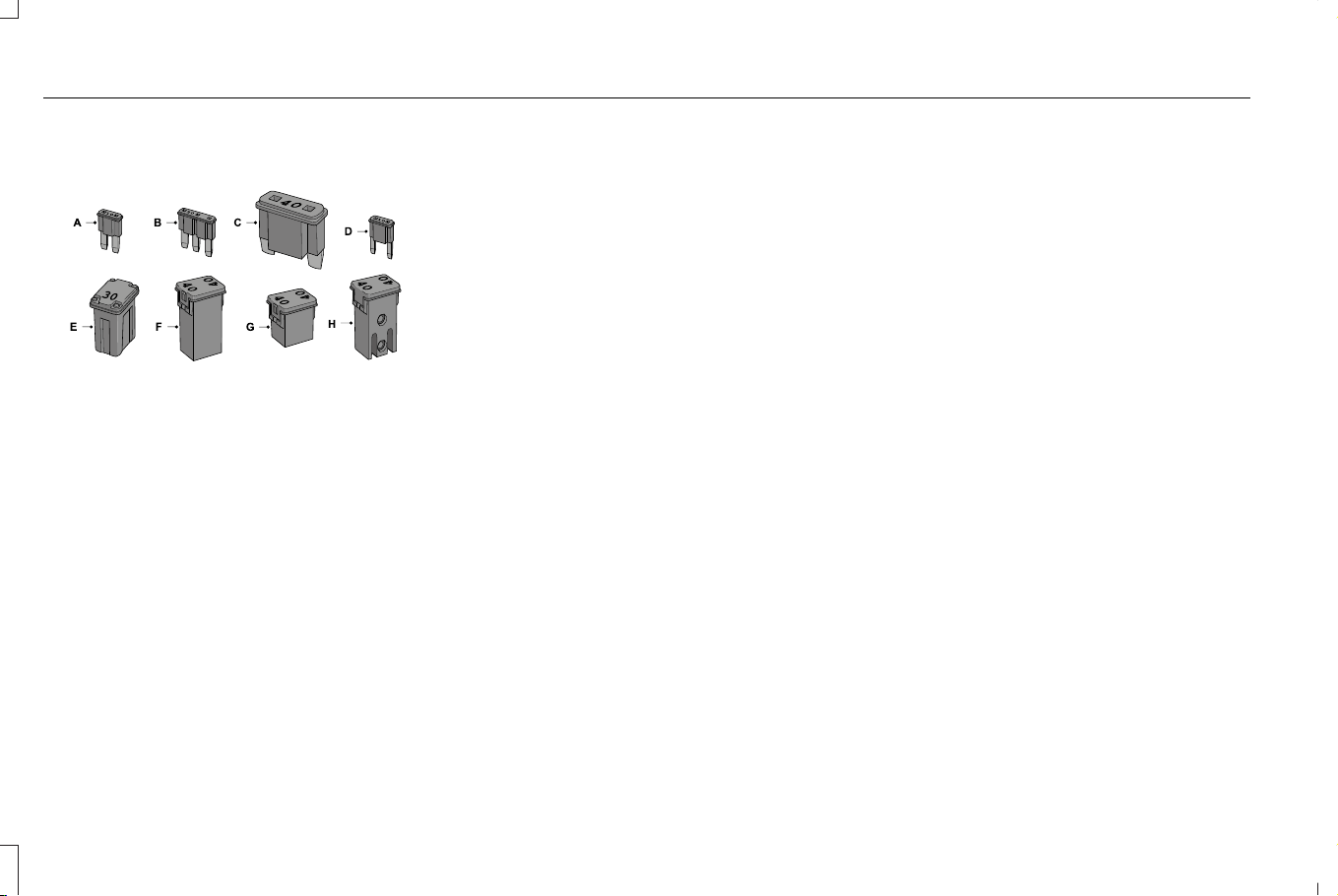
IDENTIFYING FUSE TYPES
E267379
Micro 2.A
Micro 3.B
Maxi.C
Mini.D
M Case.E
J Case.F
J Case Low Profile.G
Slotted M Case.H
FUSES – TROUBLESHOOTING
FUSES – FREQUENTLY ASKED
QUESTIONS
When do I need to check a fuse?
• If electrical components in the vehicle
are not working.
When do I need to replace a fuse?
• If a fuse has blown.
How do I identify a blown fuse?
• You can identify a blown fuse by a
broken wire within the fuse.
402
Corsair (CTF) Canada/Mexico/United States of America, enUSA, Edition date: 202407, DOM
Fuses
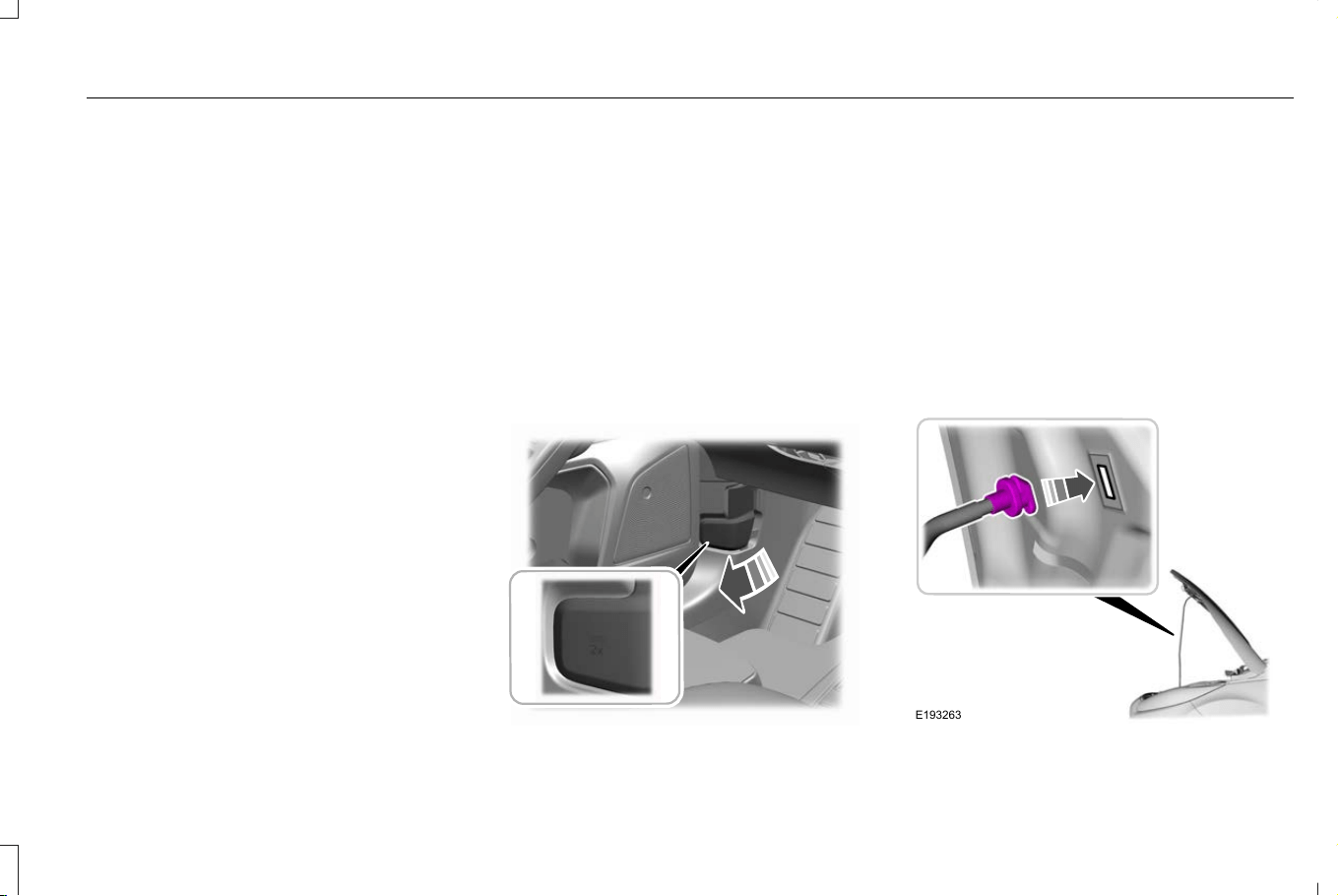
MAINTENANCE PRECAUTIONS
Service your vehicle regularly to help
maintain its roadworthiness and resale value.
There is a large network of authorized
dealers that are there to help you with their
professional servicing expertise. We believe
that their specially trained technicians are
best qualified to service your vehicle properly
and expertly. They are supported by a wide
range of highly specialized tools developed
specifically for servicing your vehicle.
If your vehicle requires professional service,
an authorized dealer can provide the
necessary parts and service. Check your
warranty information to find out which parts
and services are covered.
Use only recommended fuels, lubricants,
fluids and service parts conforming to
specifications.
• Do not work on a hot engine.
• Make sure that nothing gets caught in
moving parts.
• Do not work on a vehicle with the engine
running in an enclosed space, unless you
are sure you have enough ventilation.
• Keep all open flames and other burning
material, such as cigarettes, away from
the battery and all fuel related parts.
• Set the parking brake, shift the
transmission to park (P) and block the
wheels.
OPENING AND CLOSING THE
HOOD
Opening the Hood
E263274
1. Open the left-hand front door.
2. Fully pull the hood release lever and let
it completely retract.
Note: This action releases the hood latch.
3. Fully pull the hood release lever for a
second time.
Note: This action fully releases the hood.
4. Open the hood.
Note: There is no secondary hood release
under the hood.
E193263
403
Corsair (CTF) Canada/Mexico/United States of America, enUSA, Edition date: 202407, DOM
Maintenance
5. Support the hood with the strut.
Closing the Hood
WARNING: Make sure that you fully
latch the hood before driving. Failure to
follow this instruction could result in
personal injury or death.
1. Remove the strut from the catch and
secure it correctly in the clip.
2. Lower the hood and allow it to drop
under its own weight for the last 10–14 in
(25–35 cm).
Warning Lamps and Indicators
E246598
This lamp illuminates when the
ignition is on and the hood is not
completely closed.
Information Messages
ActionMessage
Stop your vehicle as soon as it is safe to do so and close the hood.Hood Ajar
404
Corsair (CTF) Canada/Mexico/United States of America, enUSA, Edition date: 202407, DOM
Maintenance
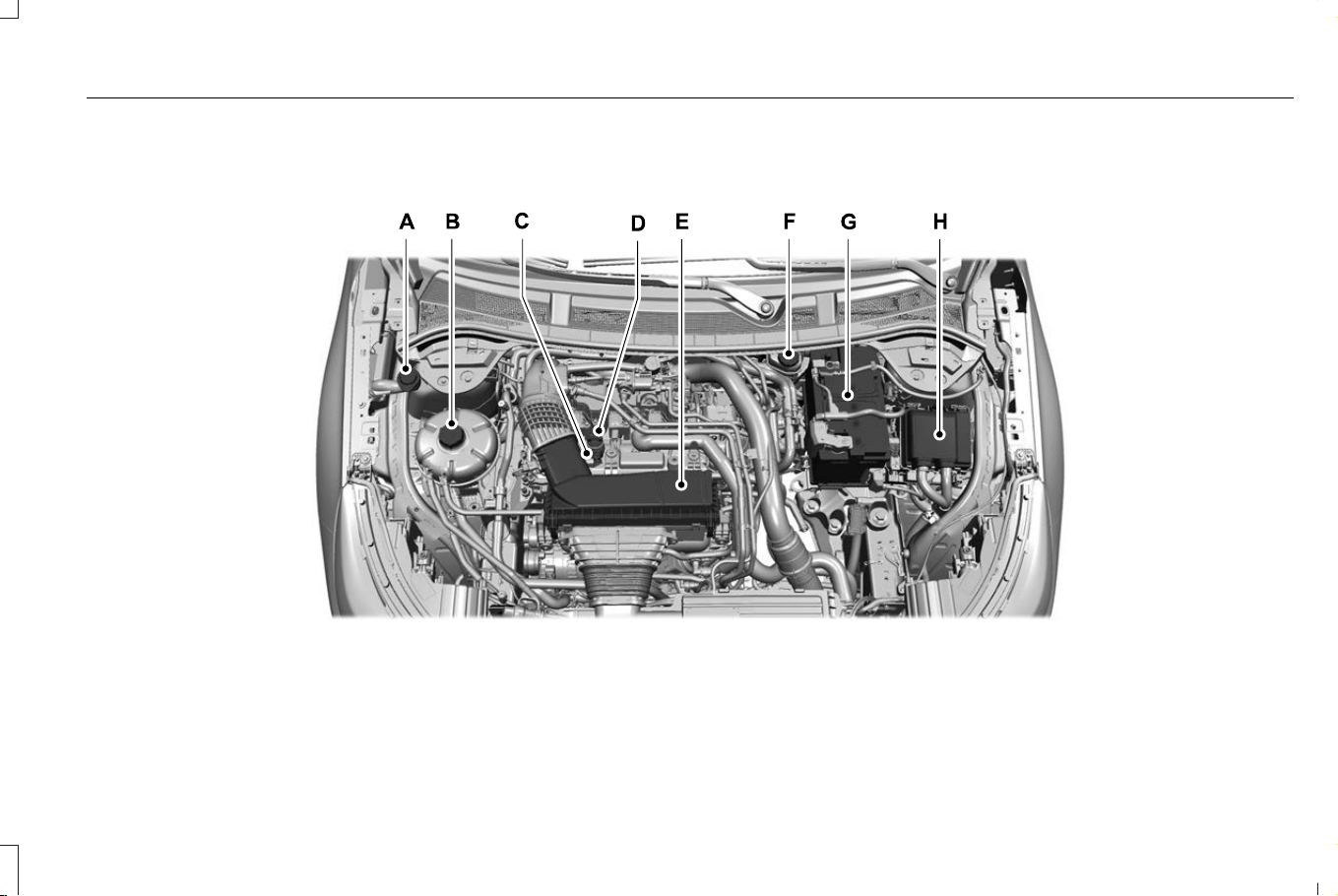
UNDER HOOD OVERVIEW - 2.0L ECOBOOST™
E369111
405
Corsair (CTF) Canada/Mexico/United States of America, enUSA, Edition date: 202407, DOM
Maintenance

Windshield washer fluid reservoir See Adding Washer Fluid (page 110).A
Engine coolant reservoir. See Changing the Coolant (page 420).B
Engine oil dipstick. See Engine Oil Dipstick Overview (page 409).C
Engine oil filler cap. See Adding Engine Oil (page 409).D
Air filter assembly. See Changing the Engine Air Filter (page 415).E
Brake fluid reservoir. See Locating the Brake Fluid Reservoir (page 251).F
Battery. See Changing the 12V Battery (page 426).G
Engine compartment fuse box. See Fuses (page 389).H
406
Corsair (CTF) Canada/Mexico/United States of America, enUSA, Edition date: 202407, DOM
Maintenance
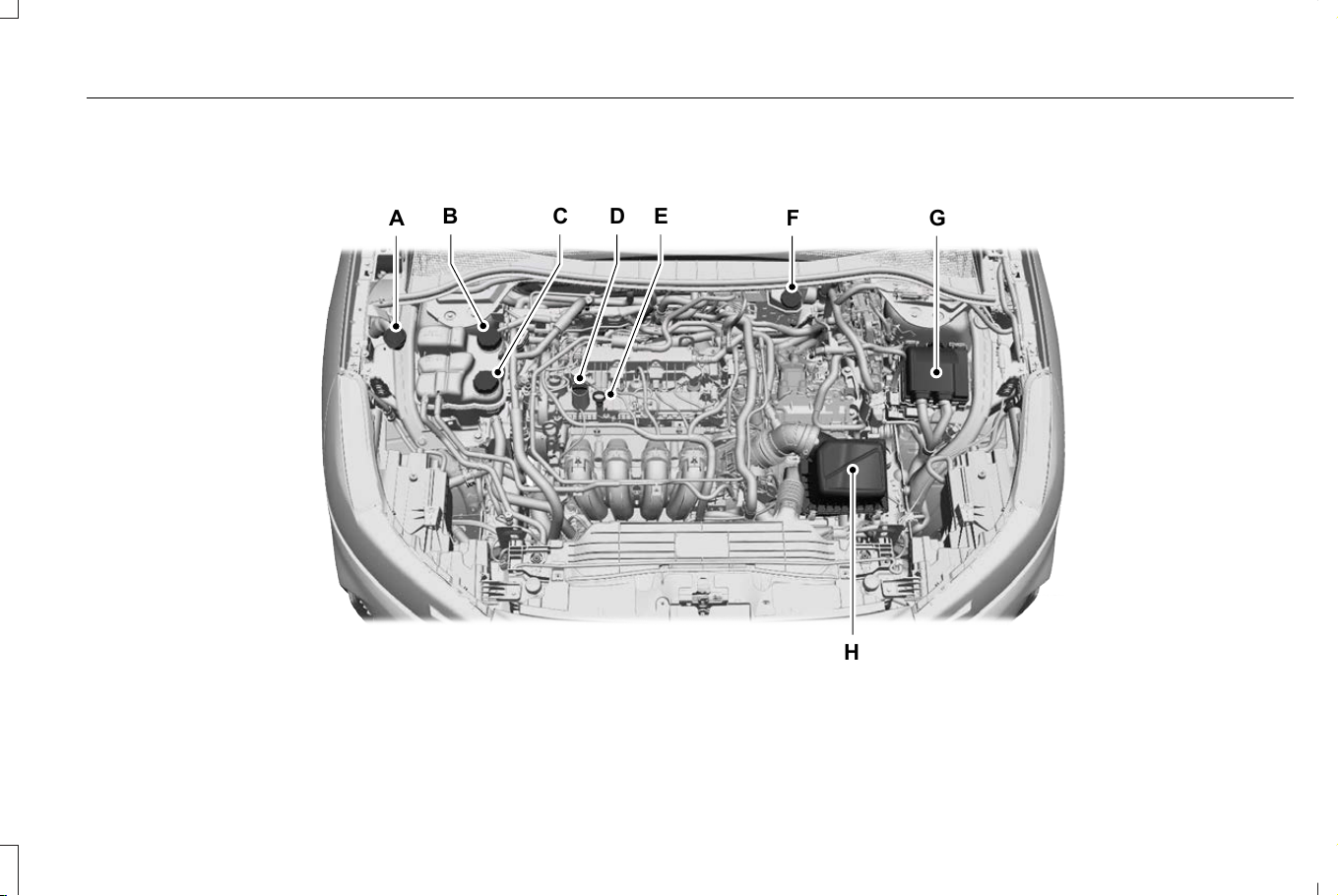
UNDER HOOD OVERVIEW - 2.5L, PLUG-IN HYBRID ELECTRIC VEHICLE (PHEV)
B
C D E
H
A F G
E424355
407
Corsair (CTF) Canada/Mexico/United States of America, enUSA, Edition date: 202407, DOM
Maintenance

Windshield washer fluid reservoir: See Adding Washer Fluid (page 110).A
Low temperature coolant cap: See Checking the Coolant Level (page 418).B
High temperature coolant cap: See Checking the Coolant Level (page 418).C
Engine oil filler cap: See Adding Engine Oil (page 409).D
Engine oil dipstick: See Engine Oil Dipstick Overview (page 409).E
Brake fluid reservoir: See Checking the Brake Fluid (page 252).F
Power distribution box: See Under Hood Fuse Box (page 391).G
Air filter assembly: See Changing the Engine Air Filter (page 417).H
408
Corsair (CTF) Canada/Mexico/United States of America, enUSA, Edition date: 202407, DOM
Maintenance
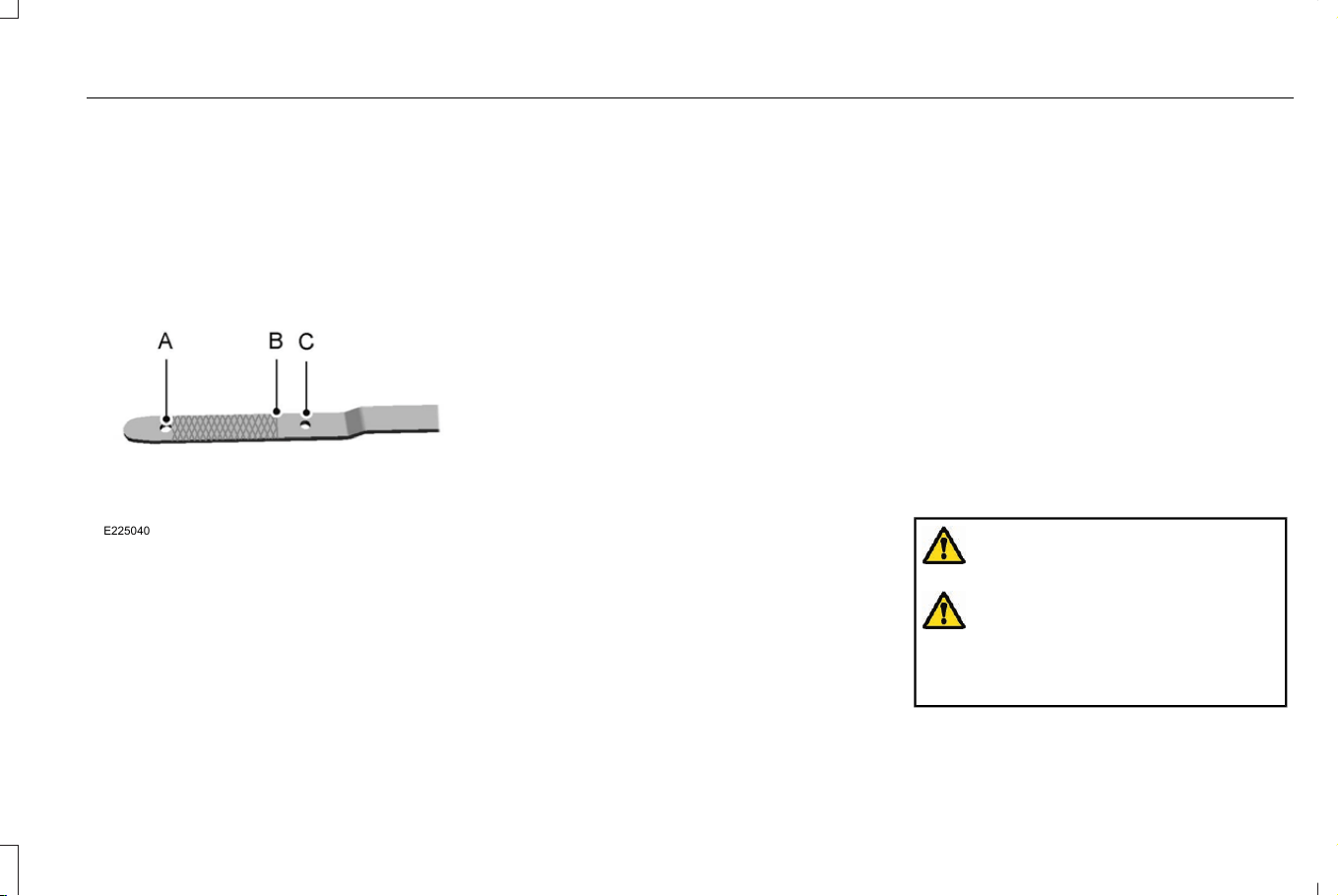
ENGINE OIL
ENGINE OIL DIPSTICK OVERVIEW
E225040
Minimum.A
Fill Level.B
Maximum.C
CHECKING THE ENGINE OIL LEVEL
1. Make sure that your vehicle is on level
ground.
2. Check the oil level before starting the
engine, or switch the engine off after
warm up and wait 15 minutes for the oil
to drain into the oil pan.
Note: Checking the oil level too soon could
result in an inaccurate reading.
3. Remove the dipstick and wipe it with a
clean, lint-free cloth.
4. Reinstall the dipstick and make sure it is
fully seated.
5. Remove the dipstick again to check the
oil level.
Note: Read both sides of the dipstick and
use the lowest oil level as the correct
reading.
Note: If the oil level is between the
maximum and minimum marks, the oil level
is acceptable. Do not add oil.
6. If the oil level is at the minimum mark,
immediately add oil.
7. Reinstall the dipstick. Make sure it is fully
seated.
Note: The oil consumption of new engines
reaches its normal level after approximately
3,000 mi (5,000 km).
Note: Increases in oil level can occur from
frequent short trips that do not allow the
engine to get to operating temperature, as
well as frequent idling or low speed driving
for long periods of time.
Note: If oil levels are continuously noted
above the maximum mark, have your vehicle
checked as soon as possible.
ADDING ENGINE OIL
WARNING: Do not remove the filler
cap when the engine is running.
WARNING: Do not add engine oil
when the engine is hot. Failure to follow
this instruction could result in personal
injury.
409
Corsair (CTF) Canada/Mexico/United States of America, enUSA, Edition date: 202407, DOM
Maintenance

Do not use supplemental engine oil additives
because they are unnecessary and could
lead to engine damage that the vehicle
warranty may not cover.
1. Clean the area surrounding the engine
oil filler cap before you remove it.
2. Remove the engine oil filler cap.
3. Add engine oil that meets our
specifications. See Engine Oil (page
411).
4. Reinstall the engine oil filler cap. Turn it
clockwise until you feel a strong
resistance.
Note: Do not add oil further than the
maximum mark. Oil levels above the
maximum mark may cause engine damage.
Note: Immediately soak up any oil spillage
with an absorbent cloth.
INTELLIGENT OIL LIFE MONITOR
Under certain conditions the vehicle’s
intelligent oil life monitor may determine your
oil requires replacement prior to your general
service. Should this occur it is recommended
you replace your oil within two weeks or
500 mi (800 km) of being alerted.
Your authorized dealer will be able to advise
you whether only an engine oil and filter
change is recommended or whether you
should complete your general service
inclusive of oil and oil Filter.
RESETTING THE INTELLIGENT OIL LIFE
MONITOR
Use the information display controls on the
steering wheel to reset the oil change
indicator.
From the main menu scroll to:
Action and descriptionMessage
Press the right arrow button,
then from this menu scroll to
the following message.
Settings
Press the right arrow button,
then from this menu scroll to
the following message.
Vehicle
Press the right arrow button,
then from this menu scroll to
the following message.
Oil Life
Press and hold the OK button
until the instrument cluster
displays the following
message.
Hold OK to
Reset
Reset Successful
When the oil change indicator
resets the instrument cluster
displays 100%.
Remaining Life
{00}%
410
Corsair (CTF) Canada/Mexico/United States of America, enUSA, Edition date: 202407, DOM
Maintenance
Action and descriptionMessage
If the instrument cluster
displays one of the following
messages, repeat the
process.
Not Reset
Reset Cancelled
ENGINE OIL CAPACITY AND
SPECIFICATION - 2.0L ECOBOOST™
Use oil that meets the defined specification
and viscosity grade.
If you do not use oil that meets the defined
specification and viscosity grade, it could
result in:
• Component damage that your vehicle
warranty does not cover.
• Longer engine cranking periods.
• Increased emission levels.
• Reduced vehicle performance.
• Reduced fuel economy.
E142732
An oil that displays this symbol conforms to
current engine, emission system and fuel
economy performance standards of ILSAC.
We recommend Motorcraft motor oil for your
vehicle. If Motorcraft oil is not available, use
motor oils of the recommended viscosity
grade that display the API Certification Mark
for gasoline engines.
Do not use supplemental engine oil additives
because they are unnecessary and could
lead to engine damage that your vehicle
warranty does not cover.
Capacities
Including the Oil FilterVariant
6.1 qt (5.8 L)All.
411
Corsair (CTF) Canada/Mexico/United States of America, enUSA, Edition date: 202407, DOM
Maintenance

Materials
SpecificationName
WSS-M2C961-A1Motorcraft® SAE 5W-30 Motor Oil(U.S.)
Motorcraft® SAE 5W-30 Motor Oil / Huile moteur SAE 5W-30 Motorcraft®(Canada)
XO-5W30-Q1SP, XO-5W30-Q1FS(U.S.)
CXO-5W30-LSP6, CXO-5W30-LFS6(Canada)
Alternative Engine Oil for Extremely
Cold Climates
To improve engine cold start performance,
we recommend that you use the following
alternative engine oil in extremely cold
climates, where the ambient temperature
reaches -22.0°F (-30°C) or below.
Materials
SpecificationName
WSS-M2C963-A1Engine Oil - SAE 0W-30
412
Corsair (CTF) Canada/Mexico/United States of America, enUSA, Edition date: 202407, DOM
Maintenance
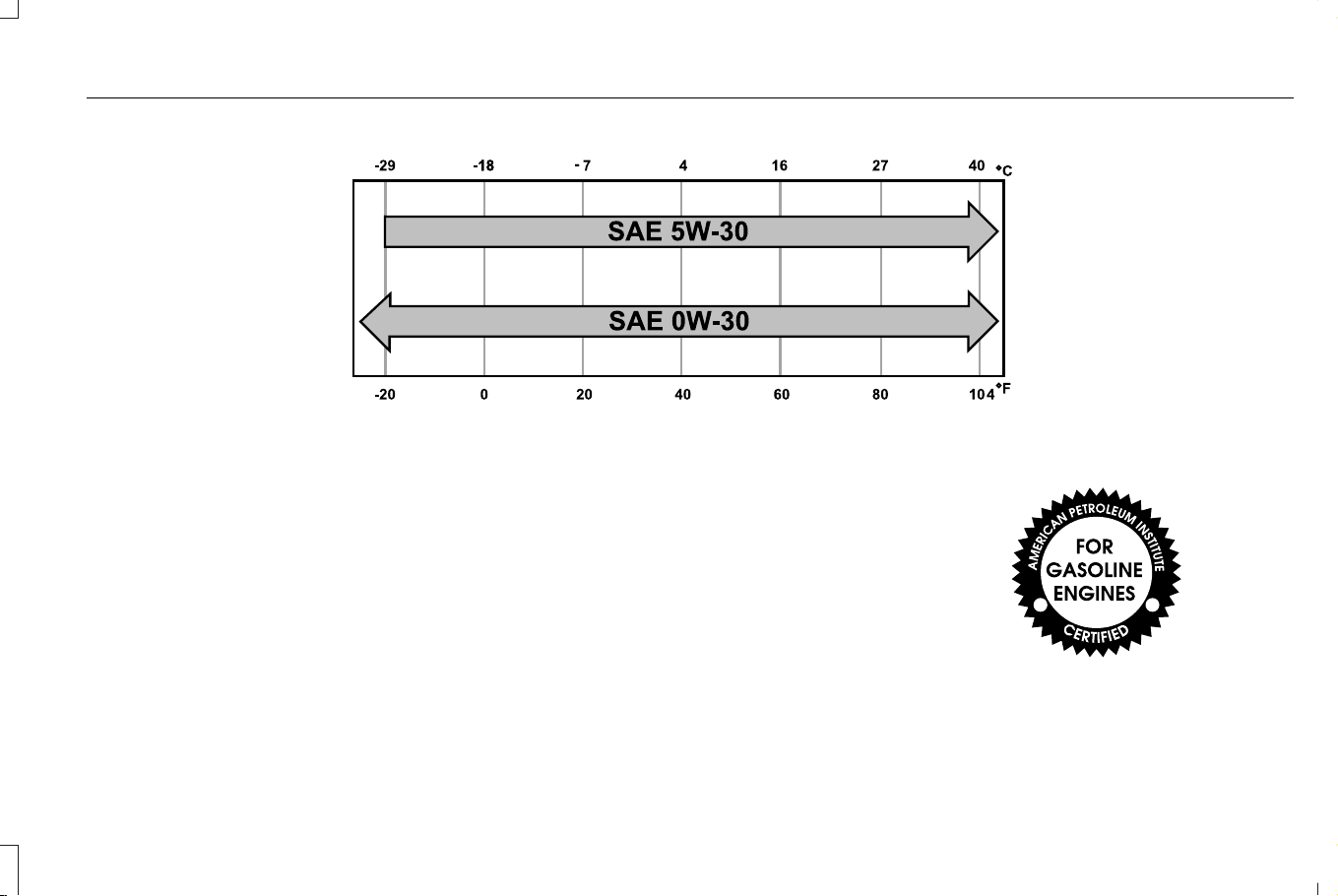
E240523
Note: If you use your vehicle regularly above
the altitude of 5,000 ft (1,524 m) and under
the temperature of -4.0°F (-20°C), it is
recommended to use the alternative engine
oil.
ENGINE OIL CAPACITY AND
SPECIFICATION - PLUG-IN HYBRID
ELECTRIC VEHICLE (PHEV)
Use oil that meets the defined specification
and viscosity grade.
If you do not use oil that meets the defined
specification and viscosity grade, it could
result in:
• Component damage that your vehicle
warranty does not cover.
• Longer engine cranking periods.
• Increased emission levels.
• Reduced vehicle performance.
• Reduced fuel economy.
E142732
413
Corsair (CTF) Canada/Mexico/United States of America, enUSA, Edition date: 202407, DOM
Maintenance

An oil that displays this symbol conforms to
current engine, emission system and fuel
economy performance standards of ILSAC.
We recommend Motorcraft motor oil for your
vehicle. If Motorcraft oil is not available, use
motor oils of the recommended viscosity
grade that display the API Certification Mark
for gasoline engines.
Do not use supplemental engine oil additives
because they are unnecessary and could
lead to engine damage that your vehicle
warranty does not cover.
Capacities
Including the Oil FilterVariant
5.7 qt (5.4 L)All.
Materials
SpecificationName
WSS-M2C962-A1Motorcraft® SAE 0W-20 Motor Oil(U.S.)
Motorcraft® SAE 0W-20 Motor Oil / Huile moteur SAE 0W-20 Motorcraft®(Canada)
XO-0W20-QFS(U.S.)
CXO-0W20-LFS6(Canada)
414
Corsair (CTF) Canada/Mexico/United States of America, enUSA, Edition date: 202407, DOM
Maintenance

ENGINE AIR FILTER
CHANGING THE ENGINE AIR FILTER -
2.0L ECOBOOST™
WARNING: To reduce the risk of
vehicle damage and personal burn injuries,
do not start your engine with the air
cleaner removed and do not remove it
while the engine is running.
Change the air filter element at the proper
intervals.
When changing the air filter element, use
only the air filter element listed. See
Motorcraft Parts (page 436).
Note: Failure to use the correct air filter
element could result in severe engine
damage that the vehicle warranty may not
cover.
Note: When servicing the air filter, do not
allow foreign material to enter the air
induction system. The engine is susceptible
to damage from even small particles.
415
Corsair (CTF) Canada/Mexico/United States of America, enUSA, Edition date: 202407, DOM
Maintenance
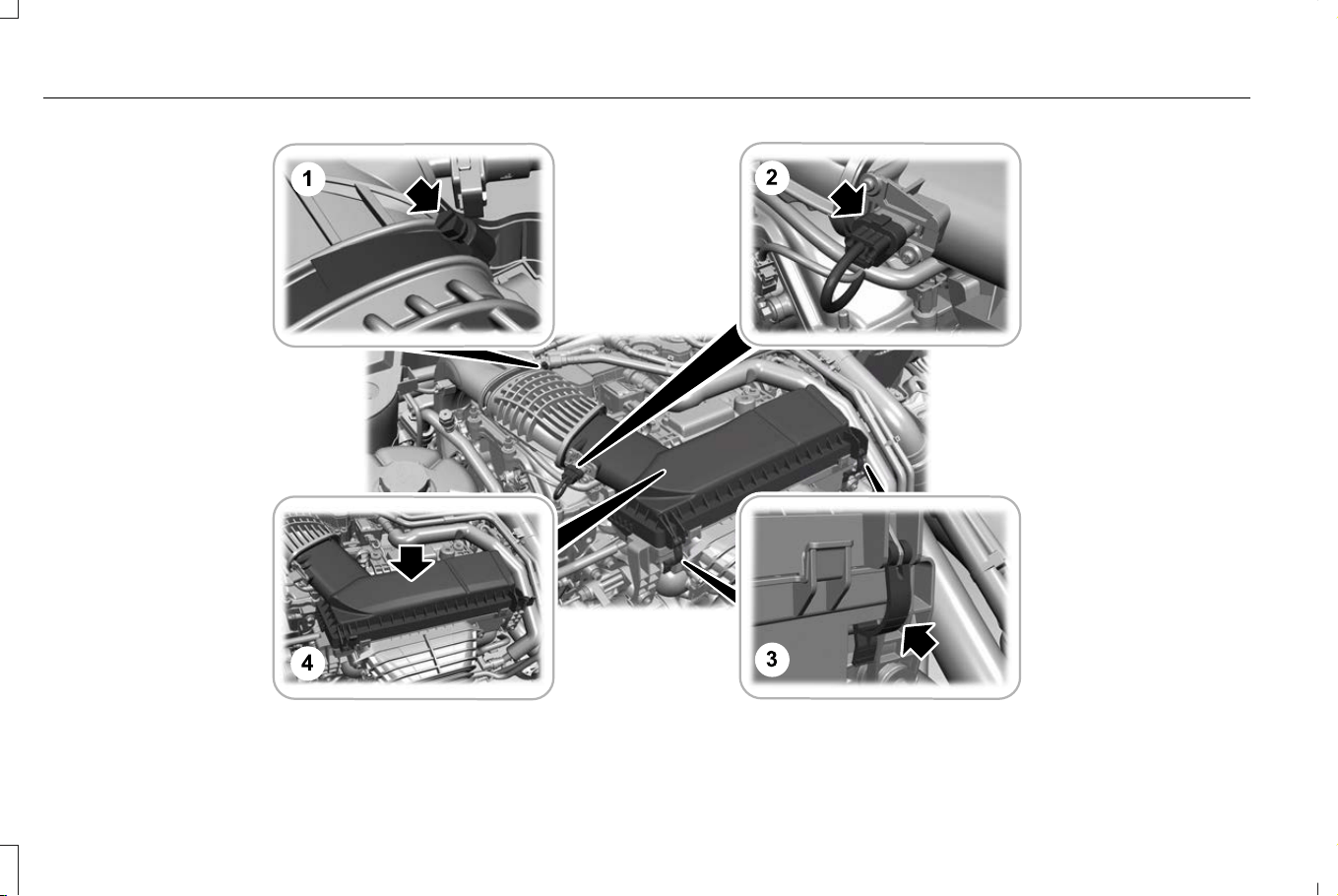
E369109
416
Corsair (CTF) Canada/Mexico/United States of America, enUSA, Edition date: 202407, DOM
Maintenance
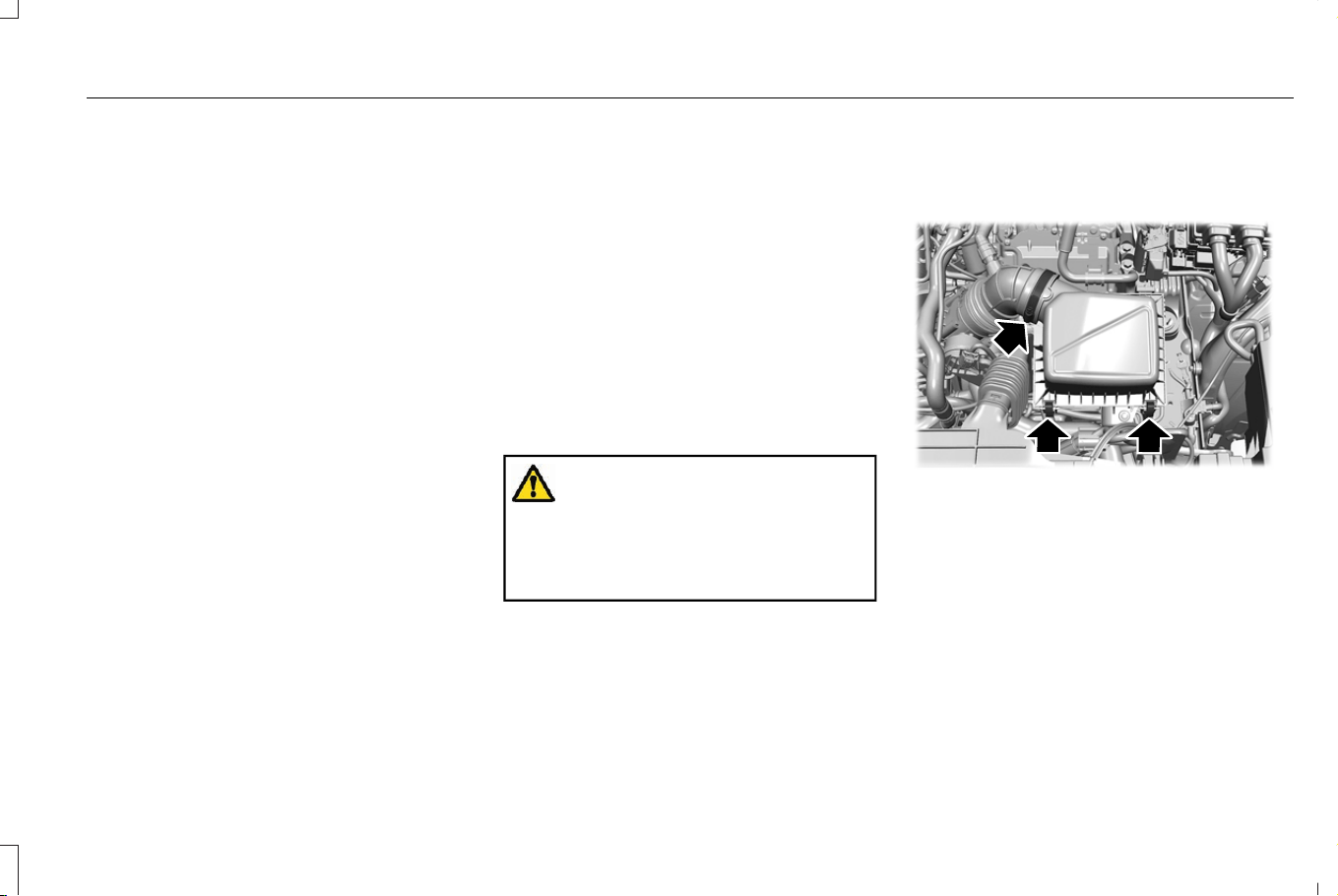
1. Loosen the clamp. See Maintenance
Videos (page 433).
2. Disconnect the connector.
3. Release the two clips securing the airbox
cover to the housing.
4. Lift up on the airbox cover.
5. Remove the air filter element from the
housing.
6. Wipe any dirt or debris from the housing.
Note: Do not allow dirt or debris to enter the
air filter housing and make sure you have a
good seal.
7. Install the new air filter element.
Note: Be careful not to crimp the air filter
element edges between the housing and
cover. This can cause filter damage and
allow unfiltered air to enter the engine if not
properly seated.
8. Install the airbox cover back into the
housing. Make sure that all four cover
fingers are seated in their corresponding
housing windows. Press down with your
right hand on the flexible tube, while
pulling back on the housing bracket with
your left hand.
9. Reverse Steps 3, 2 and 1. Make sure the
clamp joint is fully seated.
CHANGING THE ENGINE AIR FILTER -
PLUG-IN HYBRID ELECTRIC VEHICLE
(PHEV)
WARNING: To reduce the risk of
vehicle damage and personal burn injuries,
do not start your engine with the air
cleaner removed and do not remove it
while the engine is running.
When changing the air filter element, use
only parts that meet or exceed our
specifications.
Change the air filter element at the proper
interval. See Maintenance (page 403).
Note: If you do not use the correct air filter
element, your vehicle warranty could be
void.
E424356
1. Using a screwdriver, loosen the clamp
on air filter housing cover.
2. Gently pull the boot back away from the
air filter housing cover.
3. Release the two clips from the air filter
housing cover.
4. Remove air filter housing cover.
5. Remove the air filter element from the air
filter housing.
417
Corsair (CTF) Canada/Mexico/United States of America, enUSA, Edition date: 202407, DOM
Maintenance
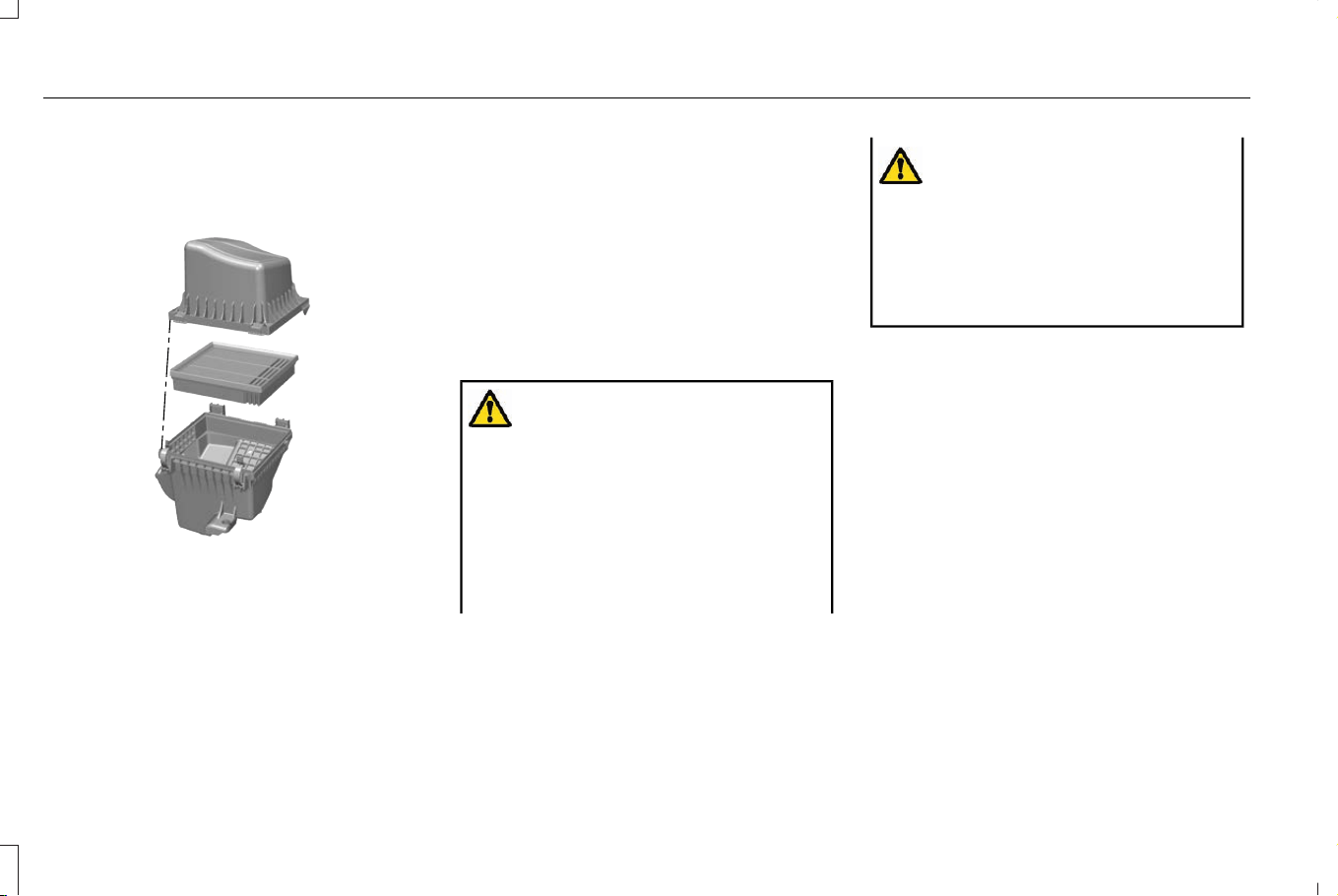
6. Wipe any dirt or debris from the air filter
housing assembly to make sure no dirt
gets in the engine and to make sure you
have a good seal.
E424357
7. Install a new air filter element. Be careful
not to crimp the filter element edges
between the air filter housing and cover.
This could cause filter damage and allow
unfiltered air to enter the engine if it is
not properly seated.
8. Install the air filter housing cover.
9. Engage the clips to secure the air filter
housing cover to the air filter housing.
10. Reconnect the boot to the air filter
housing cover and securely tighten the
clamp.
COOLANT
CHECKING THE COOLANT LEVEL
WARNING: Do not remove the
coolant reservoir cap when the engine is
on or the cooling system is hot. Wait 10
minutes for the cooling system to cool
down. Cover the coolant reservoir cap with
a thick cloth to prevent the possibility of
scalding and slowly remove the cap.
Failure to follow this instruction could result
in personal injury.
WARNING: To reduce the risk of
personal injury, make sure the engine is
cool before unscrewing the coolant
pressure relief cap. The cooling system is
under pressure. Steam and hot liquid can
come out forcefully when you loosen the
cap slightly.
When the engine is cold, check the
concentration and level of the coolant at the
intervals listed in the scheduled maintenance
information. See Scheduled Maintenance
(page 531).
Note: Make sure that the coolant level is
between the MIN and the MAX marks on
the coolant reservoir.
Note: Coolant expands when it is hot. The
level may extend beyond the MAX mark.
This is normal.
418
Corsair (CTF) Canada/Mexico/United States of America, enUSA, Edition date: 202407, DOM
Maintenance
Maintain coolant concentration within 48%
to 50%, which equates to a freeze point
between -29°F (-34°C) and -35°F (-37°C).
Coolant concentration should be checked
using a refractometer. We do not recommend
the use of hydrometers or coolant test strips
for measuring coolant concentration.
ADDING COOLANT
WARNING: Do not add coolant when
the vehicle is on or the cooling system is
hot. Failure to follow this instruction could
result in personal injury.
WARNING: Do not remove the
coolant reservoir cap when the engine is
on or the cooling system is hot. Wait 10
minutes for the cooling system to cool
down. Cover the coolant reservoir cap with
a thick cloth to prevent the possibility of
scalding and slowly remove the cap.
Failure to follow this instruction could result
in personal injury.
WARNING: Do not allow the fluid to
touch your skin or eyes. If this happens,
rinse the affected areas immediately with
plenty of water and contact your physician.
WARNING: Do not put coolant in the
windshield washer reservoir. If sprayed on
the windshield, coolant could make it
difficult to see through the windshield.
WARNING: Do not add coolant
further than the MAX mark.
Note: Do not use stop leak pellets, cooling
system sealants, or non-specified additives
as they can cause damage to the engine
cooling or heating systems. Resulting
component damage may not be covered by
the vehicle Warranty.
Note: Automotive fluids are not
interchangeable.
It is very important to use prediluted coolant
approved to the correct specification in order
to avoid plugging the small passageways in
the engine cooling system. See Coolant
(page 421). Do not mix different colors or
types of coolant in your vehicle. Mixing of
engine coolants or using an incorrect coolant
may harm the engine or cooling system
components and may not be covered by the
vehicle Warranty.
Note: If prediluted coolant is not available,
use the approved concentrated coolant
diluting it to 50/50 with deionised or distilled
water. See Coolant (page 421). Using water
that has not been deionised may contribute
to deposit formation, corrosion and plugging
of the small cooling system passageways.
Note: Coolants marketed for all makes and
models may not be approved to our
specifications and may cause damage to
the cooling system. Resulting component
damage may not be covered by the vehicle
Warranty.
If the coolant level is at or below the
minimum mark, add prediluted coolant
immediately.
419
Corsair (CTF) Canada/Mexico/United States of America, enUSA, Edition date: 202407, DOM
Maintenance
To top up the coolant level do the following:
1. Unscrew the cap slowly. Any pressure
escapes as you unscrew the cap.
2. Add prediluted coolant approved to the
correct specification. See Coolant (page
421).
3. Add enough prediluted coolant to reach
the correct level.
4. Replace the coolant reservoir cap. Turn
the cap clockwise until it contacts the
hard stop.
5. Check the coolant level in the coolant
reservoir the next few times you drive
your vehicle. If necessary, add enough
prediluted engine coolant to bring the
coolant level to the correct level.
If you have to add more than 1.1 qt (1 L) of
engine coolant per month, have your vehicle
checked as soon as possible. Operating an
engine with a low level of coolant can result
in engine overheating and possible engine
damage.
In case of emergency, you can add a large
amount of water without engine coolant in
order to reach a vehicle service location.
Water alone, without engine coolant, can
cause engine damage from corrosion,
overheating or freezing.
Do not use the following as a coolant
substitute:
• Alcohol.
• Methanol.
• Brine.
• Any coolant mixed with alcohol or
methanol antifreeze.
Alcohol and other liquids can cause engine
damage from overheating or freezing.
Do not add extra inhibitors or additives to
the coolant. These can be harmful and
compromise the corrosion protection of the
coolant.
CHANGING THE COOLANT
For coolant change, see your authorized
dealer.
Changing the coolant is necessary at specific
mileage intervals listed in the scheduled
maintenance information.
MANAGING THE COOLANT
TEMPERATURE
If you tow a trailer with your vehicle, the
engine may temporarily reach a higher
temperature during severe operating
conditions, for example ascending a long or
steep grade in high ambient temperatures.
At this time, you may notice the coolant
temperature gauge moves toward the red
zone and a message may appear in the
information display.
WARNING: To reduce the risk of
crash and injury, be prepared that the
vehicle speed may reduce and the vehicle
may not be able to accelerate with full
power until the coolant temperature
reduces.
WARNING: If you continue to drive
your vehicle when the engine is
overheating, the engine could stop without
warning. Failure to follow this instruction
could result in the loss of control of your
vehicle.
420
Corsair (CTF) Canada/Mexico/United States of America, enUSA, Edition date: 202407, DOM
Maintenance

You may notice a reduction in vehicle speed
caused by reduced engine power in order
to manage the engine coolant temperature.
Your vehicle may enter this mode if certain
high-temperature and high-load conditions
take place. The amount of speed reduction
depends on vehicle loading, grade and
outside temperature. If this occurs, there is
no need to stop your vehicle. You can
continue to drive. See Fail-Safe Cooling
(page 383).
The air conditioning may automatically turn
on and off during severe operating
conditions to protect the engine from
overheating. When the coolant temperature
decreases to the normal operating
temperature, the air conditioning turns on.
If the coolant temperature gauge moves fully
into the red zone, or if the coolant
temperature warning or service engine soon
messages appear in your information display,
do the following:
1. Stop your vehicle as soon as it is safe to
do so. Fully apply the parking brake, shift
into park (P) or neutral (N).
2. Leave the engine running until the
coolant temperature gauge needle
returns to the normal position. If the
temperature does not drop after several
minutes, follow the remaining steps.
3. Switch the engine off and wait for it to
cool. Check the coolant level.
4. If the coolant level is at or below the
minimum mark, add prediluted coolant
immediately.
5. If the coolant level is normal, restart the
engine and continue.
COOLING SYSTEM CAPACITY AND
SPECIFICATION - 2.0L ECOBOOST™
Use coolant that meets the defined
specification.
If you do not use coolant that meets the
defined specification, it could result in:
• Component damage that your vehicle
warranty does not cover.
• Reduced vehicle performance.
Capacities
QuantityVariant
9.2 ± 0.3 qt (8.75 ± 0.25 L)All.
421
Corsair (CTF) Canada/Mexico/United States of America, enUSA, Edition date: 202407, DOM
Maintenance

Materials
SpecificationName
WSS-M97B57-A2Motorcraft® Yellow Prediluted Antifreeze/Coolant(U.S.)
Motorcraft® Yellow Prediluted Antifreeze/Coolant / Antigel/liquide de refroidissement
prédilué jaune Motorcraft®(Canada)
VC-13DL-G(U.S.)
CVC-13DL-G(Canada)
COOLING SYSTEM CAPACITY AND
SPECIFICATION - PLUG-IN HYBRID
ELECTRIC VEHICLE (PHEV)
Use coolant that meets the defined
specification.
If you do not use coolant that meets the
defined specification, it could result in:
• Component damage that your vehicle
warranty does not cover.
• Reduced vehicle performance.
Capacities
QuantityVariant
6.6 qt (6.2 L)Low temperature cooling circuit.
10.1 qt (9.6 L)High temperature cooling circuit.
422
Corsair (CTF) Canada/Mexico/United States of America, enUSA, Edition date: 202407, DOM
Maintenance
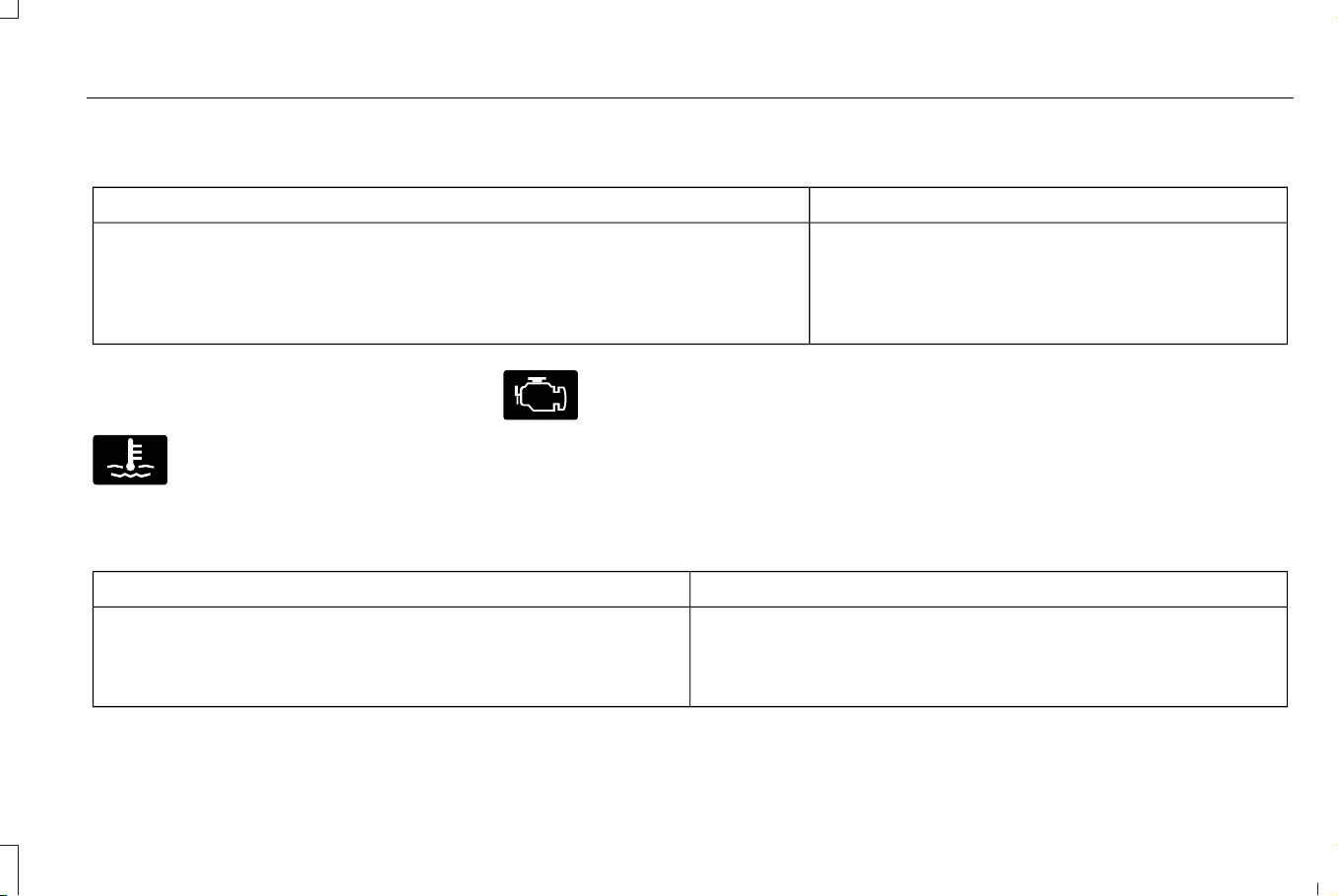
Materials
SpecificationName
WSS-M97B57-A2Motorcraft® Yellow Prediluted Antifreeze/Coolant(U.S.)
Motorcraft® Yellow Prediluted Antifreeze/Coolant / Antigel/liquide de refroidissement
prédilué jaune Motorcraft®(Canada)
VC-13DL-G(U.S.)
CVC-13DL-G(Canada)
COOLANT – WARNING LAMPS
E103308
If the engine begins to overheat,
the coolant temperature gauge
moves toward the red zone.
E67028
A warning lamp illuminates and a
message may appear in the
information display.
COOLANT – INFORMATION MESSAGES
Description and ActionMessage
Displays when the engine temperature is too high. Stop your vehicle
as soon as it is safe to do so, switch the engine off and allow it to cool.
If the problem persists, have your vehicle checked as soon as possible.
See Checking the Coolant Level (page 418).
High engine temperature Stop safely
423
Corsair (CTF) Canada/Mexico/United States of America, enUSA, Edition date: 202407, DOM
Maintenance
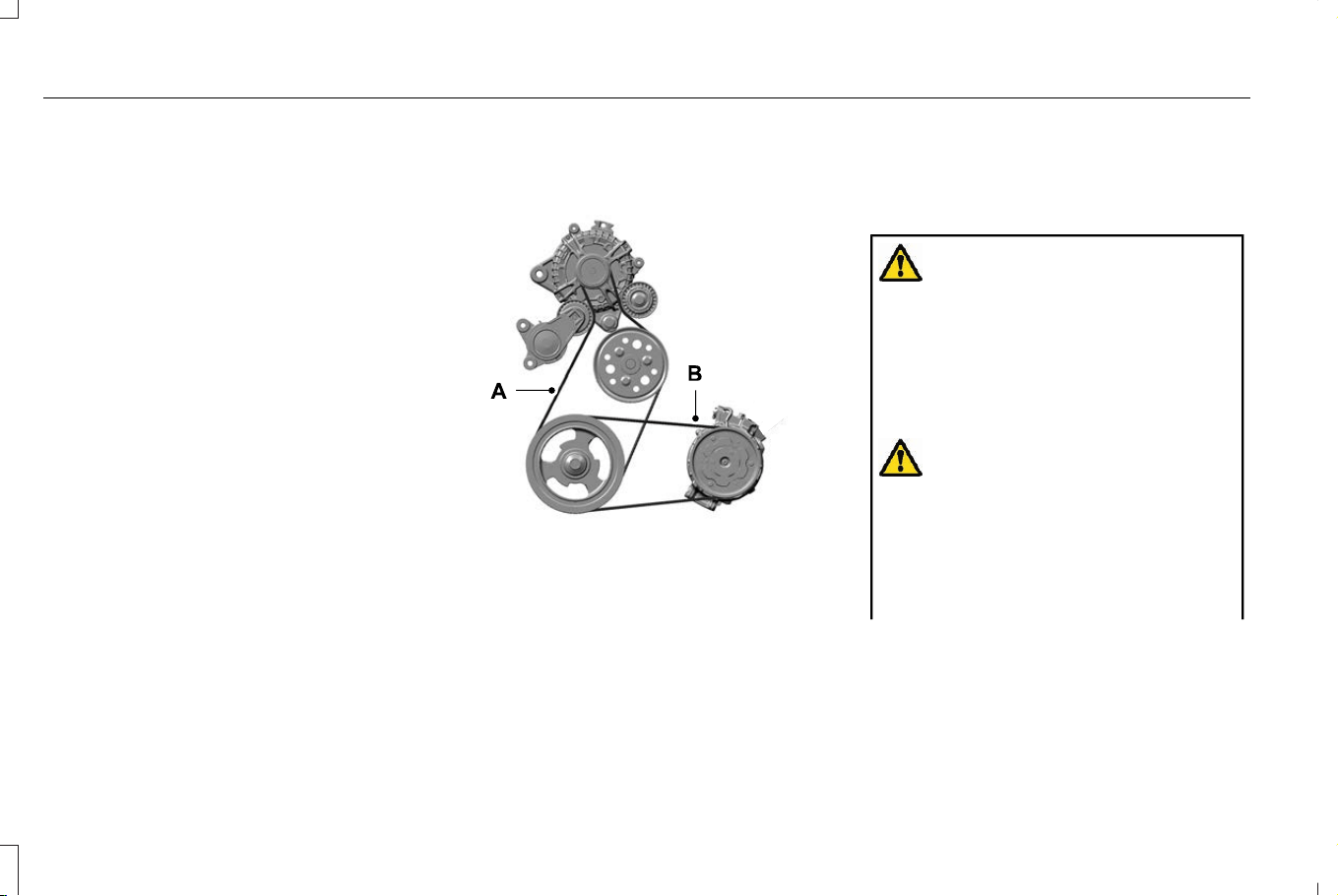
CHANGING THE FUEL FILTER
Your vehicle has a lifetime fuel filter that
integrates with the fuel tank. It does not need
regular maintenance or replacement.
DRIVE BELT ROUTING OVERVIEW
- 2.0L ECOBOOST™
E369110
The long drive belt is on the first
pulley groove closest to the
engine.
A.
The short drive belt is on the
second pulley groove farthest from
engine.
B.
12V BATTERY
12V BATTERY PRECAUTIONS
WARNING: Batteries normally
produce explosive gases which can cause
personal injury. Therefore, do not allow
flames, sparks or lighted substances to
come near the battery. When working near
the battery, always shield your face and
protect your eyes. Always provide correct
ventilation.
WARNING: When lifting a
plastic-cased battery, excessive pressure
on the end walls could cause acid to flow
through the vent caps, resulting in personal
injury and damage to the vehicle or battery.
Lift the battery with a battery carrier or with
your hands on opposite corners.
424
Corsair (CTF) Canada/Mexico/United States of America, enUSA, Edition date: 202407, DOM
Maintenance
WARNING: Keep batteries out of
reach of children. Batteries contain sulfuric
acid. Avoid contact with skin, eyes or
clothing. Shield your eyes when working
near the battery to protect against possible
splashing of acid solution. In case of acid
contact with skin or eyes, flush immediately
with water for a minimum of 15 minutes and
get prompt medical attention. If acid is
swallowed, call a physician immediately.
WARNING: Battery posts, terminals
and related accessories contain lead and
lead compounds, chemicals known to the
State of California to cause cancer and
reproductive harm. Wash your hands after
handling.
WARNING: This vehicle may have
more than one battery. Removing the
battery cables from only one battery does
not disconnect your vehicle electrical
system. Make sure you disconnect the
battery cables from all batteries when
disconnecting power. Failure to do so may
cause serious personal injury or property
damage.
WARNING: For vehicles with
Auto-Start-Stop the battery requirement is
different. You must replace the battery with
one of exactly the same specification.
WHAT IS THE BATTERY
MANAGEMENT SYSTEM
The battery management system monitors
battery conditions and takes actions to
extend battery life.
HOW DOES THE BATTERY
MANAGEMENT SYSTEM WORK
If excessive battery drain is detected, the
system temporarily disables some electrical
systems to protect the battery.
Systems included are:
• Heated rear window.
• Heated seats.
• Climate control.
• Heated steering wheel.
• Audio unit.
• Navigation system.
A message could appear in the information
display to alert you that battery protection
actions are active. This message is only for
notification that an action is taking place, and
not intended to indicate an electrical problem
or that the battery requires replacement.
425
Corsair (CTF) Canada/Mexico/United States of America, enUSA, Edition date: 202407, DOM
Maintenance

BATTERY MANAGEMENT SYSTEM
LIMITATIONS
After battery replacement, or in some cases
after charging the battery with an external
charger, the battery management system
requires eight hours of vehicle sleep time to
relearn the battery state of charge. During
this time, your vehicle must remain fully
locked with the ignition switched off.
Note: Prior to relearning the battery state of
charge, the battery management system
could temporarily disable some electrical
systems.
Electrical Accessory Installation
To make sure the battery management
system works correctly, do not connect an
electrical device ground connection directly
to the battery negative post. This can cause
inaccurate measurements of the battery
condition and potential incorrect system
operation.
Note: If you add electrical accessories or
components to the vehicle, it could adversely
affect battery performance and durability.
This could also affect the performance of
other electrical systems in the vehicle.
CHANGING THE 12V BATTERY -
EXCLUDING: PLUG-IN HYBRID
ELECTRIC VEHICLE (PHEV)
The battery is in the engine compartment.
See Maintenance (page 403).
Your vehicle has a maintenance-free battery.
It does not require additional water during
service.
If the vehicle battery has a cover, make sure
you correctly install it after cleaning or
replacing the battery.
For longer, trouble-free operation, keep the
top of the battery clean and dry and the
battery cables tightly fastened to the battery
terminals. If any corrosion is present on the
battery or terminals, remove the cables from
the terminals and clean with a wire brush.
You can neutralize the acid with a solution
of baking soda and water.
We recommend that you disconnect the
negative battery cable terminal from the
battery if you plan to store your vehicle for
an extended period.
Note: If you only disconnect the negative
battery cable terminal, make sure it is
isolated or placed away from the battery
terminal to avoid unintended connection or
arcing.
If you disconnect or replace the battery and
your vehicle has an automatic transmission,
it must relearn its adaptive strategy. Because
of this, the transmission may shift firmly when
first driven. This is normal operation while
the transmission fully updates its operation
to optimum shift feel.
Removing the Battery
1. Apply the parking brake and switch the
ignition off.
2. Switch all electrical equipment off, for
example lights and radio.
3. Wait a minimum of two minutes before
disconnecting the battery.
426
Corsair (CTF) Canada/Mexico/United States of America, enUSA, Edition date: 202407, DOM
Maintenance

Note: The engine management system has
a power hold function and remains powered
for a period of time after you switch the
ignition off. This is to allow diagnostic and
adaptive tables to be stored. Disconnecting
the battery without waiting can cause
damage not covered by the vehicle
Warranty.
4. Disconnect and isolate the negative
battery cable terminal.
5. Disconnect and isolate the positive
battery cable terminal.
6. Remove the battery securing clamp.
7. Remove the battery.
If you disconnect or replace the vehicle
battery, you must reset the following
features:
• Window bounce-back. See Window
Bounce-Back (page 124).
• Clock Settings.
• Pre-set radio stations.
Replacing the Battery
Note: Before reconnecting the battery, make
sure the ignition remains switched off.
You must replace the battery with one of
exactly the same specification.
To install, reverse the removal procedure.
Note: Make sure that you correctly install
the battery terminal covers, battery cover
and battery cable terminals.
CHANGING THE 12V BATTERY - PLUG-
IN HYBRID ELECTRIC VEHICLE (PHEV)
The battery is in the luggage compartment.
Your vehicle has a maintenance-free battery.
It does not require additional water during
service.
If the vehicle battery has a cover, make sure
you correctly install it after cleaning or
replacing the battery.
For longer, trouble-free operation, keep the
top of the battery clean and dry and the
battery cables tightly fastened to the battery
terminals. If any corrosion is present on the
battery or terminals, remove the cables from
the terminals and clean with a wire brush.
You can neutralize the acid with a solution
of baking soda and water.
Note: If you only disconnect the negative
battery cable terminal, make sure it is
isolated or placed away from the battery
terminal to avoid unintended connection or
arcing.
If you disconnect or replace the battery and
your vehicle has an automatic transmission,
it must relearn its adaptive strategy. Because
of this, the transmission may shift firmly when
first driven. This is normal operation while
the transmission fully updates its operation
to optimum shift feel.
Removing the Battery
1. Apply the parking brake and switch the
ignition off.
2. Switch all electrical equipment off, for
example lights and radio.
427
Corsair (CTF) Canada/Mexico/United States of America, enUSA, Edition date: 202407, DOM
Maintenance

3. Wait a minimum of two minutes before
disconnecting the battery.
Note: The engine management system has
a power hold function and remains powered
for a period of time after you switch the
ignition off. This is to allow diagnostic and
adaptive tables to be stored. Disconnecting
the battery without waiting can cause
damage not covered by the vehicle
Warranty.
4. Remove the battery securing clamp.
5. Detach the vent hose from the battery.
6. Disconnect and isolate the negative
battery cable terminal.
7. Disconnect and isolate the positive
battery cable terminal.
8. Remove the battery.
If you disconnect or replace the vehicle
battery, you must reset the following
features:
• Window bounce-back. See What Is
Window Bounce-Back (page 124).
• Clock Settings.
• Pre-set radio stations.
Replacing the Battery
Note: Before reconnecting the battery, make
sure the ignition remains switched off.
You must replace the battery with one of
exactly the same specification.
To install, reverse the removal procedure.
Note: Make sure that you correctly install
the battery terminal covers, battery cover
and battery cable terminals.
RESETTING THE BATTERY SENSOR
When you install a new battery, reset the
battery sensor by doing the following:
1. Switch the ignition on, and leave the
engine off.
Note: Complete Steps 2 and 3 within 10
seconds.
2. Flash the high beam headlamps five
times, ending with the high beams off.
3. Press and release the brake pedal three
times.
The battery warning lamp flashes three times
to confirm that the reset is successful.
RECYCLING AND DISPOSING OF THE
12V BATTERY
E107998
Make sure that you dispose of old
batteries in an environmentally
friendly way. Seek advice from
your local authority about recycling old
batteries.
CHARGING THE 12V BATTERY - PLUG-
IN HYBRID ELECTRIC VEHICLE (PHEV)
Your vehicle has a high voltage to low
voltage energy transfer feature that keeps
the 12-volt battery charged by the high
voltage battery. If the 12-volt battery level is
low, the high voltage battery transfers energy
to the 12-volt battery when the vehicle is off.
12-volt battery depletion can still occur if the
high voltage battery state of charge is low.
Always take care not to deep discharge the
12-volt battery as it may cause premature
wear.
428
Corsair (CTF) Canada/Mexico/United States of America, enUSA, Edition date: 202407, DOM
Maintenance
12V BATTERY – TROUBLESHOOTING
12V BATTERY – WARNING LAMPS -
EXCLUDING: PLUG-IN HYBRID
ELECTRIC VEHICLE (PHEV)
E67021
If it illuminates while driving, it
indicates a charging system error.
Switch off all unnecessary electrical
equipment and have your vehicle
immediately checked.
12V BATTERY – WARNING LAMPS -
PLUG-IN HYBRID ELECTRIC VEHICLE
(PHEV)
E67021
If it illuminates when the green
ready to drive indicator is
activated, this indicates your
vehicle requires service. Have your vehicle
checked as soon as possible.
12V BATTERY – INFORMATION MESSAGES - EXCLUDING: PLUG-IN HYBRID ELECTRIC VEHICLE (PHEV)
DetailsMessage
The charging system needs servicing. If the warning stays on or continues to come on, have
your vehicle checked as soon as possible.
Check Charging System
The charging system needs servicing. If the warning stays on or continues to come on, have
your vehicle checked as soon as possible.
Charging System Service Soon
The charging system needs servicing. Have your vehicle immediately checked.Charging System Service Now
429
Corsair (CTF) Canada/Mexico/United States of America, enUSA, Edition date: 202407, DOM
Maintenance

DetailsMessage
The battery management system determines that the 12V battery is at a low state of charge.
Start the engine to charge the battery or charge the battery using an aftermarket battery charger.
Always use the vehicle ground point when connecting the negative cable of the external battery
charger. See Jump Starting the Vehicle (page 378). This message clears once you restart your
vehicle and the battery state of charge has recovered. Do not switch on the ignition when a
battery charger is in use to charge the battery.
Battery State of Charge Low
The battery management system determines that the battery is at a low state of charge. Turn
the ignition off as soon as possible to protect the battery. This message will clear once the vehicle
has been started and the battery state of charge has recovered. Turning off unnecessary electrical
loads will allow faster battery state-of-charge recovery.
Turn Power Off To Save Battery
Displayed when the battery management system detects an extended low-voltage condition.
Various vehicle features will be disabled to help preserve the battery. Turn off as many of the
electrical loads as soon as possible to improve system voltage. If the system voltage has
recovered, the disabled features will operate again as normal.
Electrical Power Saver Active Some
Features Turned Off See Manual
430
Corsair (CTF) Canada/Mexico/United States of America, enUSA, Edition date: 202407, DOM
Maintenance

12V BATTERY – INFORMATION MESSAGES - PLUG-IN HYBRID ELECTRIC VEHICLE (PHEV)
ActionMessage
Your vehicle has a 12 volt battery problem. We recommend having
the battery system checked by an authorized EV dealer.
12V Battery Fault Service Soon
The electric vehicle range is reduced due to the park and/or hazard
lamps on while your vehicle was off.
Electric Range Reduced due to Park/Hazard Lamps On While Vehicle
Off
Your vehicle has an electrical drain within the vehicle. Please check
for any aftermarket devices that could be draining the battery. If none
are found, please have your vehicle serviced by an authorized EV
dealer.
Electrical System Drain Service Required
ADJUSTING THE HEADLAMPS
Vertical Aim Adjustment
The headlamps on your vehicle are properly
aimed at the assembly plant. If your vehicle
has been in an accident, the alignment of
your headlamps should be checked by your
authorized dealer.
431
Corsair (CTF) Canada/Mexico/United States of America, enUSA, Edition date: 202407, DOM
Maintenance
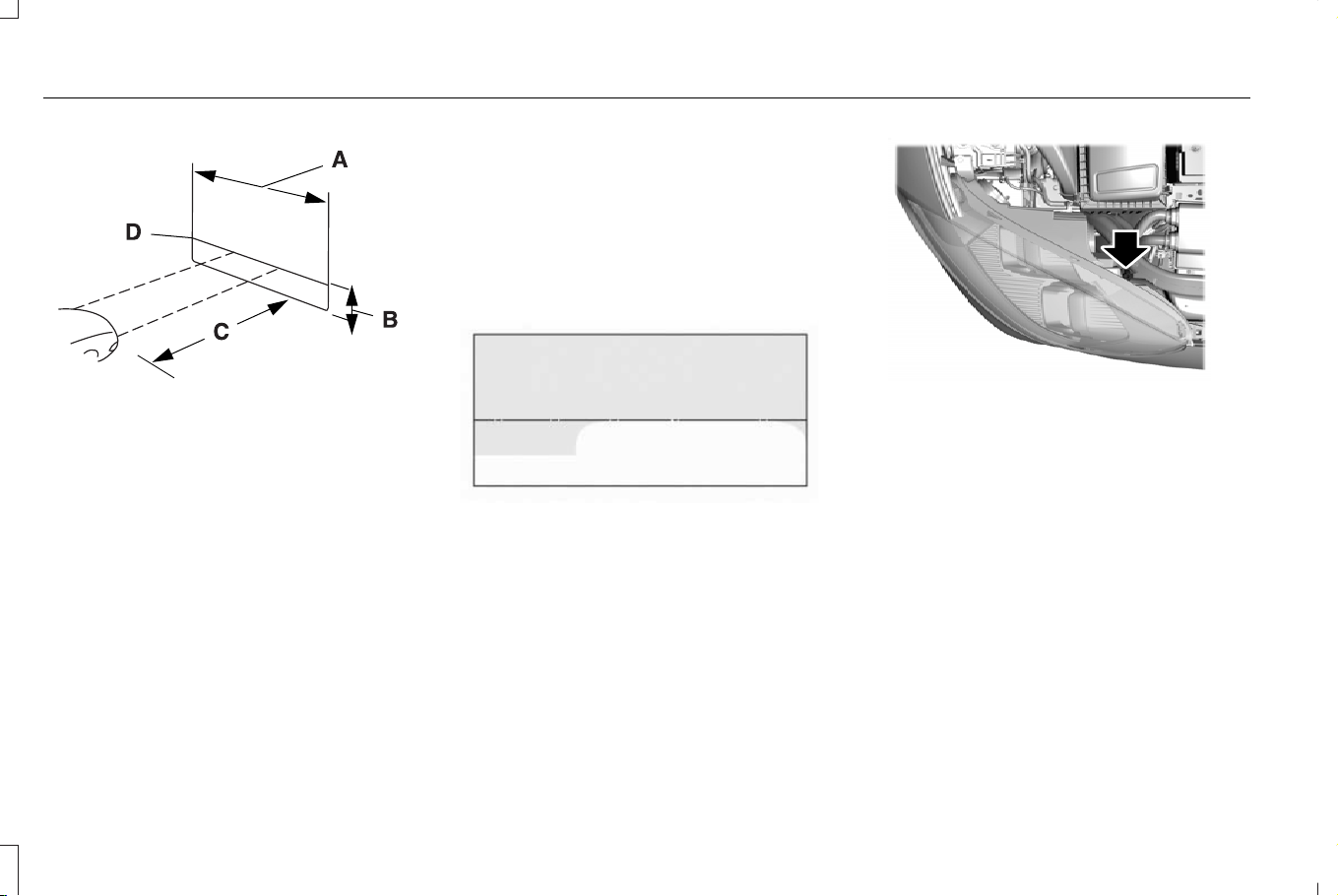
E142592
8 feet (2.4 meters)A
Center height of lamp to groundB
25 feet (7.6 meters)C
Horizontal reference lineD
1. Park the vehicle directly in front of a wall
or screen on a level surface,
approximately 25 ft (7.6 m) away.
2. Measure the height of the low beam
optical center. There is a reference
cross-marking on the headlamp outer
lens. Mark an 8 ft (2.4 m) horizontal
reference line on the vertical wall or
screen at this height.
Note: To see a clearer light pattern for
adjusting, you may want to block the light
from one headlamp when adjusting the
other.
3. Switch on the low beam headlamps to
illuminate the wall or screen and open
the hood.
E142465
4. On the wall or screen you will observe a
flat zone of high intensity light located at
the top of the right hand portion of the
beam pattern. If the top edge of the high
intensity light zone is not at the horizontal
reference line, the headlamp does need
to be adjusted.
E307889
5. Locate the vertical adjuster on each
headlamp. Using a Phillips #2
screwdriver, turn the adjuster either
clockwise or counterclockwise in order
to aim the headlamp. The horizontal
edge of the brighter light should touch
the horizontal reference line.
6. Close the hood and switch off the lamps.
Horizontal Aim Adjustment
Horizontal aim is not required for this vehicle
and is non-adjustable.
432
Corsair (CTF) Canada/Mexico/United States of America, enUSA, Edition date: 202407, DOM
Maintenance

EXTERIOR BULBS
EXTERIOR BULB SPECIFICATION
CHART
Your vehicle has LED lamps. These are not
serviceable items. See an authorized dealer
if they fail.
INTERIOR BULBS
INTERIOR BULB SPECIFICATION
CHART
Your vehicle has LED lamps. These are not
serviceable items. See an authorized dealer
if they fail.
MAINTENANCE VIDEOS
2.0L Engine Air Filter Replacement Video
Link
433
Corsair (CTF) Canada/Mexico/United States of America, enUSA, Edition date: 202407, DOM
Maintenance

ENGINE SPECIFICATIONS - 2.0L ECOBOOST™
SpecificationEngine
10.8:1Compression ratio.
121.7 in³ (1,995 cm³)Displacement.
1-3-4-2Firing order.
Coil on plugIgnition system.
0.026–0.030 in (0.65–0.75 mm)Spark plug gap.
434
Corsair (CTF) Canada/Mexico/United States of America, enUSA, Edition date: 202407, DOM
Vehicle Specifications

ENGINE SPECIFICATIONS - 2.5L
SpecificationEngine
13.0:1Compression ratio.
152 in³ (2,490 cm³)Displacement.
1-3-4-2Firing order.
Coil on plugIgnition system.
0.049–0.053 in (1.25–1.35 mm)Spark plug gap.
435
Corsair (CTF) Canada/Mexico/United States of America, enUSA, Edition date: 202407, DOM
Vehicle Specifications

MOTORCRAFT PARTS - 2.0L ECOBOOST™
Motorcraft Part NumberComponent
FA-2064Air filter element.
BAGM-94RH7-800Battery.
FP-90Cabin air filter.
FL-2127
Engine oil filter.
1
SP-597-XSpark plug.
WW-2765-A (driver side)Windshield wiper blade.
WW-1814-A (passenger side)
WW-1003-A (rear window)
1
If a Motorcraft oil filter is not available, use an oil filter that aligns to SAE/USCAR – 36 Performance Specifications. Filter Type B.
We recommend Motorcraft parts that are
available at your authorized dealer or at
www.fordparts.com. We engineer these parts
for your vehicle to meet or exceed our
specifications. Use of other parts could
impact vehicle performance, emissions and
durability. Your warranty could be void for
any damage related to use of other parts.
436
Corsair (CTF) Canada/Mexico/United States of America, enUSA, Edition date: 202407, DOM
Vehicle Specifications

MOTORCRAFT PARTS - 2.5L
Motorcraft Part NumberComponent
FA-1948Air filter element.
FL-910-S
Oil filter.
1
BAGM-48H6-760Battery.
SP-530-XSpark plug.
FP-90Cabin air filter.
WW-2765-A (driver side)Windshield wiper blade.
WW-1814-A (passenger side)
WW-1003-A (rear window)
1
If a Motorcraft oil filter is not available, use an oil filter that aligns to SAE/USCAR – 36 Performance Specifications. Filter Type B.
We recommend Motorcraft parts that are available at your authorized dealer or at www.fordparts.com. We engineer these parts for your
vehicle to meet or exceed our specifications. Use of other parts could impact vehicle performance, emissions and durability. Your warranty
could be void for any damage related to use of other parts.
437
Corsair (CTF) Canada/Mexico/United States of America, enUSA, Edition date: 202407, DOM
Vehicle Specifications

CLEANING PRODUCTS
Materials
For best results, use the following products
or products of equivalent quality:
For additional information and assistance,
we recommend that you contact an
authorized dealer.
SpecificationName
Motorcraft® Bug and Tar Remover, ZC-42 (U.S. & Canada)
ESR-M5B194-BMotorcraft® Custom Bright Metal Cleaner, ZC-15 (U.S. & Canada)
ESR-M14P4-AMotorcraft® Detail Wash, ZC-3-A (U.S. & Canada)
ESR-M14P3-AMotorcraft® Engine Shampoo and Degreaser, ZC-20 (U.S.)
Motorcraft® Engine Shampoo, CXC-66-A (Canada)
Motorcraft® Premium Leather and Vinyl Cleaner, ZC-56 (U.S. & Canada)
Motorcraft® Multi-Purpose Cleaner, CXC-101 (Canada)
WSS-M14P19-AMotorcraft® Premium Windshield Wash Concentrate with Bitterant, ZC-32-B2 (U.S.)
WSS-M14P19-AMotorcraft® Premium Quality Windshield Washer Fluid, CXC-37-F/M (Canada)
Motorcraft® Professional Strength Carpet & Upholstery Cleaner, ZC-54 (U.S. & Canada)
ESR-M14P5-AMotorcraft® Premium Glass Cleaner, CXC-100 (Canada)
438
Corsair (CTF) Canada/Mexico/United States of America, enUSA, Edition date: 202407, DOM
Vehicle Care

SpecificationName
Motorcraft® Spot and Stain Remover, ZC-14 (U.S.)
ESR-M14P5-AMotorcraft® Ultra-Clear Spray Glass Cleaner, ZC-23 (U.S.)
Motorcraft® Wheel and Tire Cleaner, ZC-37-A (U.S. & Canada)
CLEANING THE EXTERIOR
CLEANING THE EXTERIOR
PRECAUTIONS
Immediately remove fuel spillages, additive
residuals, bird droppings, insect deposits
and road tar. These may damage your
vehicle’s paintwork or trim over time.
Remove any exterior accessories, for
example antennas, before entering a car
wash.
Note: If you intend to park your vehicle for
an extended period after cleaning, drive it
for few minutes before parking. This reduces
the risk of corrosion of the brake discs, brake
pads and linings.
CLEANING HEADLAMPS AND REAR
LAMPS
We recommend that you only use cold or
lukewarm water containing car shampoo to
clean the headlamps and the rear lamps.
Do not scrape the lamps.
Do not wipe lamps when they are dry.
CLEANING WINDOWS AND WIPER
BLADES
To clean the windshield and wiper blades:
• Clean the windshield with a non-abrasive
glass cleaner.
Note: When cleaning the interior of the
windshield, avoid getting any glass cleaner
on the instrument panel or door panels. Wipe
any glass cleaner off these surfaces
immediately.
• Clean the wiper blades with washer fluid
or water applied with a soft sponge or
cloth.
Note: Do not use razor blades or other
sharp objects to clean or remove decals from
the inside of the heated rear window. This
can cause damage not covered by the
vehicle Warranty.
439
Corsair (CTF) Canada/Mexico/United States of America, enUSA, Edition date: 202407, DOM
Vehicle Care

CLEANING CHROME, ALUMINIUM OR
STAINLESS STEEL
We recommend that you only use a car
shampoo, a soft cloth and water on bumpers
and other chrome, aluminium or stainless
steel parts.
Note: For additional information and
assistance, we recommend that you contact
an authorized dealer.
Note: Rinse the area well after cleaning.
Note: Do not use abrasive materials, for
example steel wool or plastic pads, as they
can scratch these surfaces.
Note: Do not use chrome cleaner, metal
cleaner or polish on wheels or wheel covers.
CLEANING WHEELS
Only use a recommended wheel and tire
cleaner to clean the wheels. For additional
information and assistance, we recommend
that you contact an authorized dealer.
1. Use a sponge to remove heavy deposits
of dirt and brake dust.
2. Rinse well after cleaning.
Note: Do not apply a cleaning chemical to
warm or hot wheel rims and covers.
If you intend to park your vehicle for an
extended period after cleaning the wheels,
drive it for few minutes before parking. This
reduces the risk of corrosion of the brake
discs, brake pads and linings.
Do not clean the wheels when they are hot.
Note: Some car washes could damage
wheel rims and covers.
Note: Using non-recommended cleaners,
harsh cleaning products, chrome wheel
cleaners or abrasive materials could
damage wheel rims and covers.
CLEANING THE ENGINE
COMPARTMENT
Use a vacuum cleaner to remove debris from
the screen area below the windshield.
Note: If you are not familiar with the parts
around the engine do not wash the engine
compartment. Avoid frequent engine
washes.
When washing the engine compartment:
• Never wash or rinse the engine while it
is hot or running.
• Never wash or rinse any ignition coil,
spark plug wire or spark plug well.
• Cover the battery, power distribution box,
and air filter assembly to prevent water
damage.
Note: If your vehicle has an engine cover
remove the cover before application of
shampoo and degreaser.
• Spray an approved engine shampoo and
degreaser on all parts that require
cleaning and rinse with water.
Note: Follow the manufacturer's instructions
for using engine shampoo and degreaser.
CLEANING STRIPES OR GRAPHICS
It is recommended to wash your vehicle by
hand however, pressure washing may be
used under the following conditions:
440
Corsair (CTF) Canada/Mexico/United States of America, enUSA, Edition date: 202407, DOM
Vehicle Care
• Use a spray with a minimum of 40° wide
spray angle pattern.
• Keep the nozzle 12 in (30 cm) and at a
90° angle to your vehicle.
• Do not use water pressure higher than
1,000 psi (6,895 kPa).
• Do not use water hotter than 73°F (23°C).
Note: Holding the pressure washer nozzle
at an angle to the vehicle's surface may
damage graphics and cause the edges to
peel away.
CLEANING CAMERA LENSES AND
SENSORS
We recommend that you only use lukewarm
or cold water and a soft cloth to clean the
camera lens and sensors.
Note: Do not pressure wash camera lens
and sensors.
CLEANING THE UNDERBODY
Flush the complete underside of your vehicle
frequently. Keep body and door drain holes
free from packed dirt.
Rear suspension components may require
regular cleaning with a power washer or a
thorough rinse with a strong stream of water
if the vehicle is operated in dusty or muddy
environments. Rear leaf springs or other
suspension components may emit squeaking
or popping noises while operating the
vehicle if particles, such as dirt, rocks, or
other debris, are present in the components.
CLEANING THE INTERIOR
CLEANING THE INSTRUMENT PANEL
WARNING: Do not use chemical
solvents or strong detergents when
cleaning the steering wheel or instrument
panel to avoid contamination of the airbag
system.
We recommend that you only clean the
instrument panel and cluster lens with a
damp soft cloth. Dry the area with a clean,
soft cloth.
For additional information and assistance,
we recommend that you contact an
authorized dealer.
Note: Avoid cleaners or polishes that
increase the gloss of the upper portion of
the instrument panel. The dull finish in this
area helps protect you from undesirable
windshield reflection.
CLEANING PLASTIC
We recommend that you only use a mild
soap and water solution on a soft cloth. Dry
the area with a clean, soft cloth.
CLEANING DISPLAYS AND SCREENS
We recommend that you only use a
microfiber cloth in a circular motion to clean
off the fingerprint or dust.
Note: Do not pour or spray alcohol onto the
touchscreen.
Note: Do not use detergent or any type of
solvent to clean the touchscreen.
441
Corsair (CTF) Canada/Mexico/United States of America, enUSA, Edition date: 202407, DOM
Vehicle Care
CLEANING FABRIC
WARNING: On vehicles equipped
with seat-mounted airbags, do not use
chemical solvents or strong detergents.
Such products could contaminate the side
airbag system and affect performance of
the side airbag in a crash.
We recommend that you only clean fabric in
the following way:
1. Remove dust and loose dirt with a
vacuum cleaner.
2. Wipe the surface with a soft, damp cloth
and a mild soap and water solution. Dry
the area with a clean, soft cloth.
3. For additional information and assistance,
we recommend that you contact an
authorized dealer.
For heavy stains, spot clean the area. If a ring
forms on the fabric, clean the entire area
immediately, but do not oversaturate or the
ring could set.
CLEANING LEATHER
WARNING: On vehicles equipped
with seat-mounted airbags, do not use
chemical solvents or strong detergents.
Such products could contaminate the side
airbag system and affect performance of
the side airbag in a crash.
We recommend that you only clean the
leather surfaces in the following way:
1. Remove dust and loose dirt with a
vacuum cleaner.
2. Wipe the surface with a soft, damp cloth
and a mild soap and water solution. Dry
the area with a clean, soft cloth.
3. Make sure the leather is dry, then apply
a small amount of conditioner to a clean,
dry cloth.
4. Rub the conditioner into the leather until
it disappears. Allow the conditioner to
dry, then repeat the process for the entire
interior. If a film appears, wipe it off with
a dry, clean cloth.
5. For additional information and assistance,
we recommend that you contact an
authorized dealer.
CLEANING VINYL
WARNING: On vehicles equipped
with seat-mounted airbags, do not use
chemical solvents or strong detergents.
Such products could contaminate the side
airbag system and affect performance of
the side airbag in a crash.
We recommend that you only clean vinyl
surfaces in the following way:
1. Remove dust and loose dirt with a
vacuum cleaner.
2. Wipe the surface with a soft, damp cloth
and a mild soap and water solution. Dry
the area with a clean, soft cloth.
3. For additional information and assistance,
we recommend that you contact an
authorized dealer.
442
Corsair (CTF) Canada/Mexico/United States of America, enUSA, Edition date: 202407, DOM
Vehicle Care
CLEANING CARPETS AND FLOOR
MATS
We recommend that you only clean your
carpets in the following way:
1. Remove dust and loose dirt with a
vacuum cleaner.
2. Wipe the surface with a soft, damp cloth
and a mild soap and water solution. Dry
the area with a clean, soft cloth.
3. For additional information and assistance,
we recommend that you contact an
authorized dealer.
For heavy stains, spot clean the area. If a ring
forms on the fabric, clean the entire area
immediately, but do not oversaturate or the
ring could set.
We recommend that you only clean your
floor mats in the following way:
1. Remove dust and loose dirt with a
vacuum cleaner.
2. Wash rubber floor mats using mild soap
and lukewarm or cold water.
3. Completely dry the floor mat before
placing them back in your vehicle.
CLEANING SEATBELTS
WARNING: Do not use cleaning
solvents, bleach or dye on the vehicle's
seatbelts, as these actions may weaken
the belt webbing.
1. Wipe the surface with a soft, damp cloth
and a mild soap and water solution. Dry
the area with a clean, soft cloth.
CLEANING GLASS ROOF TRACKS
1. Remove debris from the tracks with a
vacuum cleaner.
2. Wipe the bulb seal and mating painted
roof metal surface with a soft, damp cloth
and a mild soap and water solution.
Note: The glass roof rail tracks are greased
to maintain proper functionality. Do not wipe
off the grease.
REPAIRING MINOR PAINT
DAMAGE
We recommend that you contact an
authorized dealer to identify your vehicle
color code. Authorized dealers have
touch-up paint to match your vehicle's color.
Before repairing minor paint damage, use a
cleaner to remove particles such as bird
droppings, tree sap, insect deposits, tar
spots, road salt and industrial fallout.
Read the instructions before using cleaning
products.
WAXING YOUR VEHICLE
Wax the high-gloss painted surface of your
prewashed vehicle once or twice a year.
We recommend that you only use an
approved quality wax that does not contain
abrasives. Follow the manufacturer's
instructions to apply and remove the wax.
For additional information and assistance,
we recommend that you contact an
authorized dealer.
443
Corsair (CTF) Canada/Mexico/United States of America, enUSA, Edition date: 202407, DOM
Vehicle Care

When washing and waxing, park your vehicle
in a shaded area out of direct sunlight.
Note: Avoid waxing unpainted or low-gloss
black colored parts, they discolor over time.
444
Corsair (CTF) Canada/Mexico/United States of America, enUSA, Edition date: 202407, DOM
Vehicle Care

PREPARING YOUR VEHICLE FOR
STORAGE
If you plan on storing your vehicle for 30
days or more, the following maintenance
recommendations makes sure your vehicle
stays in good operating condition.
Under various conditions, long-term storage
may lead to degraded engine performance
or failure unless you use specific precautions
to preserve your vehicle.
General
• Store all vehicles in a dry, ventilated
place.
• If vehicles are stored outside, they
require regular maintenance to protect
against rust and weather damage.
• Make sure all linkages, cables, levers and
pins under your vehicle are covered with
grease to prevent rust.
• Move vehicles at least 25 ft (7.5 m) every
15 days to lubricate working parts and
prevent corrosion.
• Fill the fuel tank with high-quality fuel
until the first automatic shutoff of the fuel
pump nozzle.
Engine
• Change the engine oil and filter prior to
storage because used engine oil contains
contaminants which may cause engine
damage.
• Start the engine every 15 days for a
minimum of 15 minutes. Run at fast idle
with the climate controls set to defrost
until the engine reaches normal
operating temperature.
• With your foot on the brake, shift through
all the gears while the engine is running.
Body
• Wash your vehicle thoroughly to remove
dirt, grease, oil, tar or mud from exterior
surfaces, rear wheel housings and the
underside of front fenders.
• Periodically wash your vehicle if it is
stored in exposed locations.
• Touch-up exposed or primed metal to
prevent rust.
• Cover chrome and stainless steel parts
with a thick coat of auto wax to prevent
discoloration. Rewax as necessary when
you wash your vehicle.
• Lubricate all hood, door and luggage
compartment hinges and latches with a
light grade oil.
• Cover interior trim to prevent fading.
• Keep all rubber parts free from oil and
solvents.
445
Corsair (CTF) Canada/Mexico/United States of America, enUSA, Edition date: 202407, DOM
Storing Your Vehicle

12 Volt Battery
• When storing your vehicle for longer than
30 days the battery state of charge
should be approximately 50%.
Additionally, we recommend to
disconnect the 12v battery to reduce
system loads on the battery, or you can
use a trickle charger for longer storage
periods.
• Check and recharge as necessary. Keep
connections clean.
Note: It is necessary to reset memory
features if you disconnect the battery cables.
Tires
• Maintain recommended air pressure.
• To minimize flat spots on the tires, inflate
all four tires to the recommended cold
pressures listed on the Safety
Compliance Certification label or Tire
Label affixed to your vehicle. When the
vehicle is taken out of storage, reset the
tire pressures as necessary to the
recommended levels listed on the Safety
Compliance Certification label or Tire
Label affixed to your vehicle.
Note: If you store your vehicle in a location
with low ambient temperatures, follow the
instructions for care of summer tires.
Brakes
Make sure the brakes and parking brake fully
release.
Note: If you intend to park your vehicle for
an extended period after cleaning, drive it
for few minutes before parking. This reduces
the risk of corrosion of the brake discs, brake
pads and linings.
REMOVING YOUR VEHICLE FROM
STORAGE
When your vehicle is ready to come out of
storage, do the following:
• We recommend that you change the
engine oil before you use your vehicle
again.
• Wash your vehicle to remove any dirt or
grease film build-up on window surfaces.
• Check windshield wipers for any
deterioration.
• Check the underhood for any foreign
materials such as mice or squirrel nests.
• Check the exhaust for any foreign
materials.
• Check tire pressures and set tire inflation
per the Tire Label.
• Check brake pedal operation. Corroded
brake rotors could cause brake noise.
Drive your vehicle and gently apply and
release the brakes repeatedly over a
10-minute drive to reduce the corrosion
from the brakes.
• Check fluid levels (including coolant, oil
and gas) to make sure there are no leaks,
and fluids are at recommended levels.
• If you remove the battery, clean the
battery cable ends and check for
damage.
Contact an authorized dealer if you have any
concerns or issues.
446
Corsair (CTF) Canada/Mexico/United States of America, enUSA, Edition date: 202407, DOM
Storing Your Vehicle
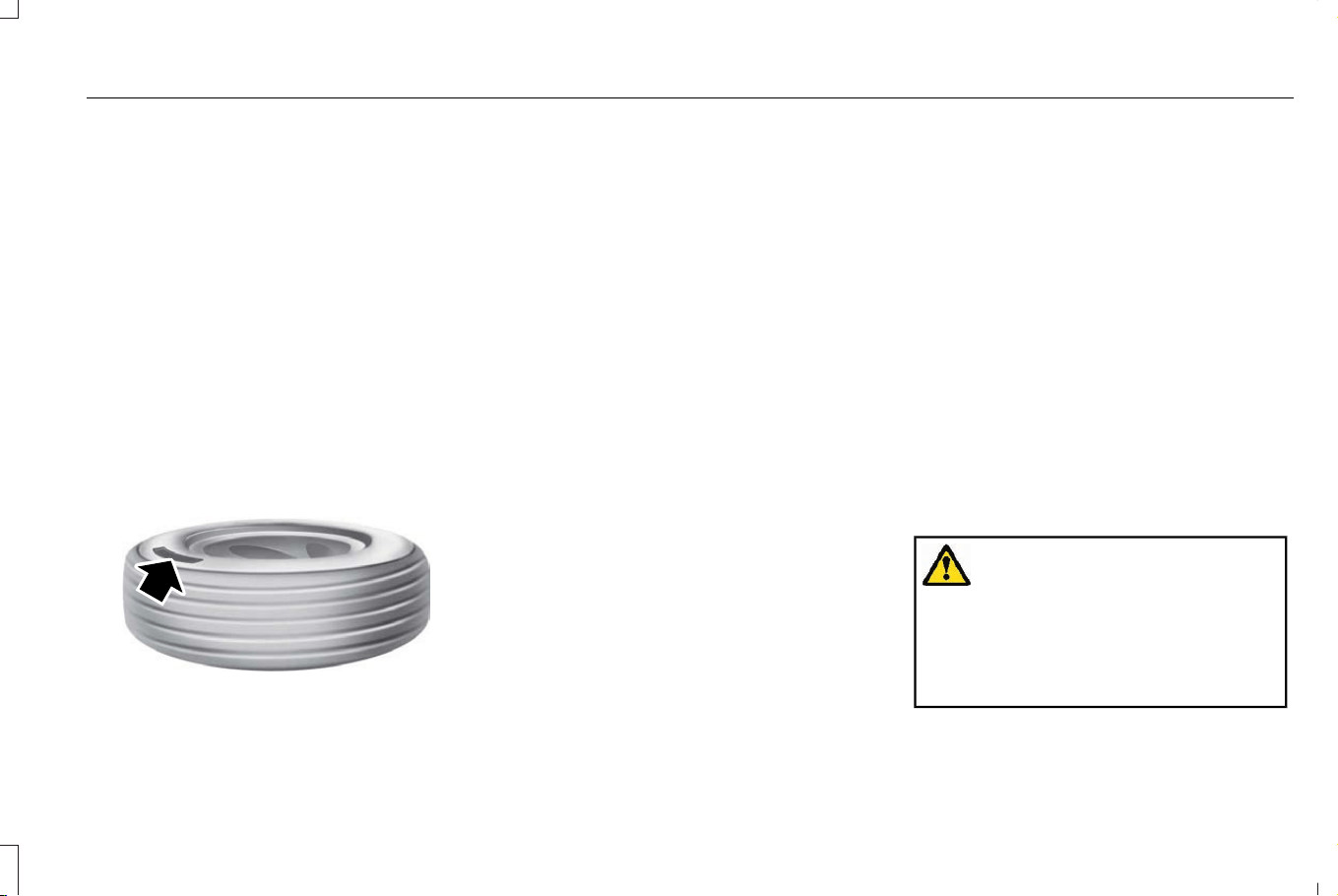
LOCATING THE TIRE LABEL
The tire label or safety certification label
is on the driver side B-pillar or the edge
of the driver door. It contains information
on the recommended front and rear tire
inflation pressures. See Locating the
Safety Compliance Certification Labels
(page 354).
DEPARTMENT OF
TRANSPORTATION UNIFORM TIRE
QUALITY GRADES
E142542
Tire Quality Grades apply to new
pneumatic passenger car tires. The
Quality grades can be found where
applicable on the tire sidewall between
tread shoulder and maximum section
width. For example: Treadwear 200
Traction AA Temperature A.
These Tire Quality Grades are
determined by standards that the United
States Department of Transportation has
set.
Tire Quality Grades apply to new
pneumatic passenger car tires. They do
not apply to deep tread, winter-type
snow tires, space-saver or temporary
use spare tires, light truck or LT type
tires, tires with nominal rim diameters of
10 to 12 inches or limited production tires
as defined in Title 49 Code of Federal
Regulations Part 575.104 (c)(2).
U.S. Department of Transportation Tire
quality grades: The U.S. Department of
Transportation requires us to give you
the following information about tire
grades exactly as the government has
written it.
Treadwear
The treadwear grade is a comparative
rating based on the wear rate of the tire
when tested under controlled conditions
on a specified government test course.
For example, a tire graded 150 would
wear 1½ times as well on the
government course as a tire graded 100.
The relative performance of tires
depends upon the actual conditions of
their use, however, and may depart
significantly from the norm due to
variations in driving habits, service
practices, and differences in road
characteristics and climate.
Traction AA A B C
WARNING: The traction grade
assigned to this tire is based on
straight-ahead braking traction tests,
and does not include acceleration,
cornering, hydroplaning or peak
traction characteristics.
447
Corsair (CTF) Canada/Mexico/United States of America, enUSA, Edition date: 202407, DOM
Wheel and Tire Information
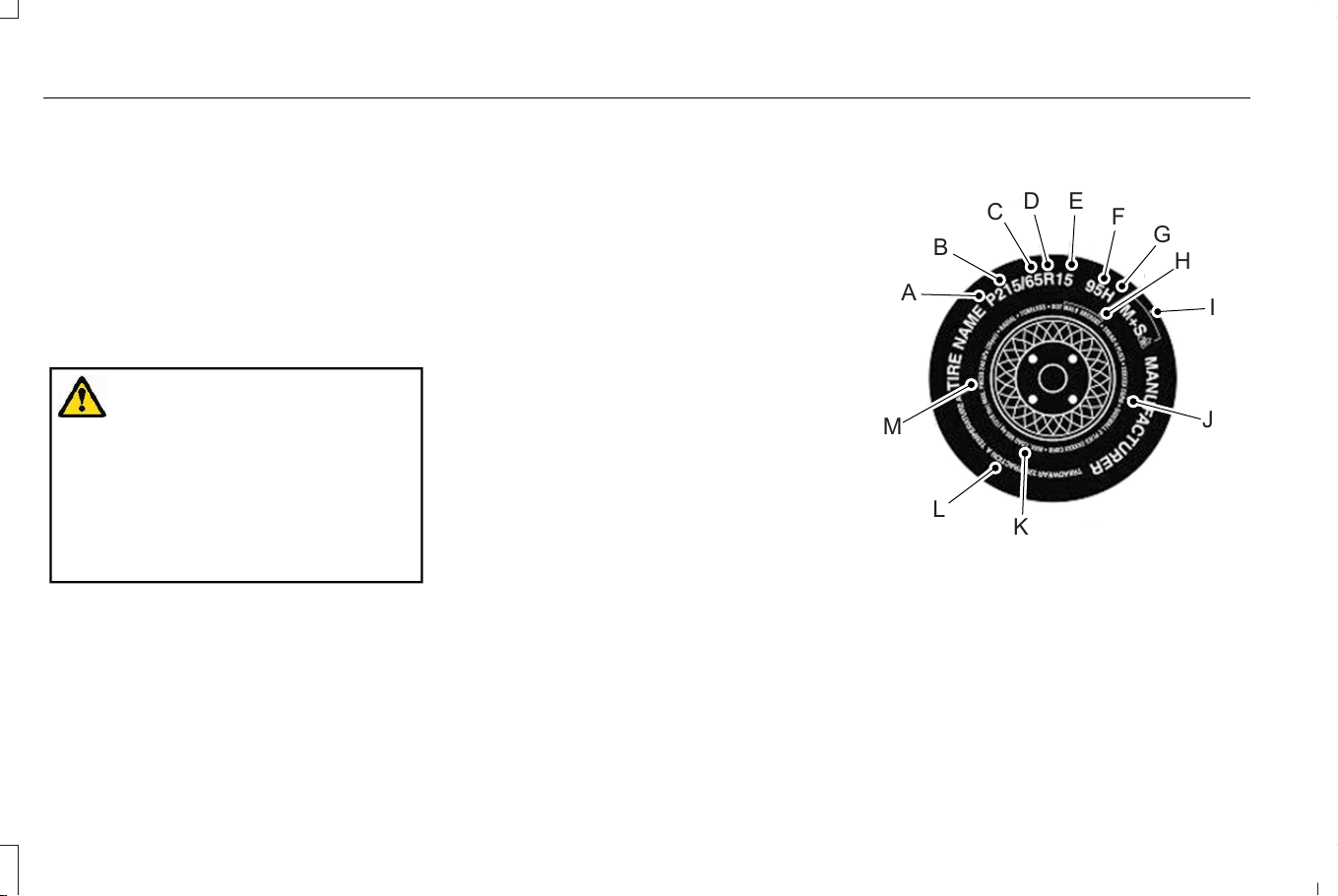
The traction grades, from highest to
lowest are AA, A, B, and C. The grades
represent the tire’ s ability to stop on wet
pavement as measured under controlled
conditions on specified government test
surfaces of asphalt and concrete. A tire
marked C may have poor traction
performance.
Temperature A B C
WARNING: The temperature
grade for this tire is established for a
tire that is properly inflated and not
overloaded. Excessive speed,
underinflation, or excessive loading,
either separately or in combination,
can cause heat buildup and possible
tire failure.
The temperature grades are A (the
highest), B and C, representing the tire’ s
resistance to the generation of heat and
its ability to dissipate heat when tested
under controlled conditions on a
specified indoor laboratory test wheel.
Sustained high temperature can cause
the material of the tire to degenerate
and reduce tire life, and excessive
temperature can lead to sudden tire
failure. The grade C corresponds to a
level of performance which all
passenger car tires must meet under the
Federal Motor Vehicle Safety Standard
No. 139. Grades B and A represent
higher levels of performance on the
laboratory test wheel than the minimum
required by law.
INFORMATION ON THE TIRE
SIDEWALL
Both United States and Canada Federal
regulations require tire manufacturers
to place standardized information on the
sidewall of all tires. This information
identifies and describes the fundamental
characteristics of the tire and also
provides a U.S. DOT Tire Identification
Number for safety standard certification
and in case of a recall.
Information on P Type Tires
H
I
J
K
L
M
A
B
C
D
E
F
G
E142543
P215/65R15 95H is an example of a tire
size, load index and speed rating. The
definitions of these items are listed
below. (Note that the tire size, load index
and speed rating for your vehicle may
be different from this example.)
448
Corsair (CTF) Canada/Mexico/United States of America, enUSA, Edition date: 202407, DOM
Wheel and Tire Information

A. P: Indicates a tire, designated by the
Tire and Rim Association, that may be
used for service on cars, sport utility
vehicles, minivans and light trucks. Note:
If your tire size does not begin with a
letter this may mean it is designated by
either the European Tire and Rim
Technical Organization or the Japan Tire
Manufacturing Association.
B. 215: Indicates the nominal width of
the tire in millimeters from sidewall edge
to sidewall edge. In general, the larger
the number, the wider the tire.
C. 65: Indicates the aspect ratio which
gives the tire's ratio of height to width.
D. R: Indicates a radial type tire.
E. 15: Indicates the wheel or rim
diameter in inches. If you change your
wheel size, you will have to purchase
new tires to match the new wheel
diameter.
F. 95: Indicates the tire's load index. It
is an index that relates to how much
weight a tire can carry. You may find this
information in your owner’s manual. If
not, contact a local tire dealer.
Note: You may not find this information
on all tires because it is not required by
federal law.
G. H: Indicates the tire's speed rating.
The speed rating denotes the speed at
which a tire is designed to be driven for
extended periods of time under a
standard condition of load and inflation
pressure. The tires on your vehicle may
operate at different conditions for load
and inflation pressure. These speed
ratings may need to be adjusted for the
difference in conditions. The ratings
range from 81 mph (130 km/h) to
186 mph (300 km/h). These ratings are
listed in the following chart.
Note: You may not find this information
on all tires because it is not required by
federal law.
Speed ratingLetter rating
81 mph (130 km/h)M
87 mph (140 km/h)N
99 mph (160 km/h)Q
106 mph (170 km/h)R
112 mph (180 km/h)S
118 mph (190 km/h)T
124 mph (200 km/h)U
130 mph (210 km/h)H
149 mph (240 km/h)V
449
Corsair (CTF) Canada/Mexico/United States of America, enUSA, Edition date: 202407, DOM
Wheel and Tire Information

Speed ratingLetter rating
168 mph (270 km/h)W
186 mph (300 km/h)Y
Note: For tires with a maximum speed
capability over 149 mph (240 km/h), tire
manufacturers sometimes use the letters
ZR. For those with a maximum speed
capability over 186 mph (299 km/h), tire
manufacturers always use the letters
ZR.
H. U.S. DOT Tire Identification Number
(TIN): This begins with the letters DOT
and indicates that the tire meets all
federal standards. The next two
numbers or letters are the plant code
designating where it was manufactured,
the next two are the tire size code and
the last four numbers represent the
week and year the tire was built. For
example, the numbers 317 mean the 31st
week of 1997. After 2000, the numbers
go to four digits. For example, 2501
means the 25th week of 2001. The
numbers in between are identification
codes used for traceability. This
information is used to contact customers
if a tire defect requires a recall.
I. M+S or M/S: Mud and Snow, or
AT: All Terrain, or
AS: All Season.
J. Tire Ply Composition and Material
Used: Indicates the number of plies or
the number of layers of rubber-coated
fabric in the tire tread and sidewall. Tire
manufacturers also must indicate the ply
materials in the tire and the sidewall,
which include steel, nylon, polyester,
and others.
K. Maximum Load: Indicates the
maximum load in kilograms and pounds
that can be carried by the tire. See the
Safety Compliance Certification Label
(affixed to either the door hinge pillar,
door-latch post, or the door edge that
meets the door-latch post, next to the
driver's seating position), for the correct
tire pressure for your vehicle.
L. Treadwear, Traction and
Temperature Grades:
*Treadwear The treadwear grade is a
comparative rating based on the wear
rate of the tire when tested under
controlled conditions on a specified
government test course. For example,
a tire graded 150 would wear one and
one-half times as well on the
government course as a tire graded 100.
450
Corsair (CTF) Canada/Mexico/United States of America, enUSA, Edition date: 202407, DOM
Wheel and Tire Information

*Traction: The traction grades, from
highest to lowest are AA, A, B, and C.
The grades represent the tire's ability to
stop on wet pavement as measured
under controlled conditions on specified
government test surfaces of asphalt and
concrete. A tire marked C may have
poor traction performance.
*Temperature: The temperature grades
are A (the highest), B and C,
representing the tire's resistance to the
generation of heat and its ability to
dissipate heat when tested under
controlled conditions on a specified
indoor laboratory test wheel.
M. Maximum Inflation Pressure:
Indicates the tire manufacturers'
maximum permissible pressure or the
pressure at which the maximum load
can be carried by the tire. This pressure
is normally higher than the vehicle
manufacturer's recommended cold
inflation pressure which can be found
on the Safety Compliance Certification
Label (affixed to either the door hinge
pillar, door-latch post, or the door edge
that meets the door-latch post, next to
the driver's seating position), or Tire
Label which is located on the B-Pillar or
the edge of the driver’s door. The cold
inflation pressure should never be set
lower than the recommended pressure
on the vehicle label.
The tire suppliers may have additional
markings, notes or warnings such as
standard load or radial tubeless.
Additional Information Contained on
the Tire Sidewall for LT Type Tires
Note: Tire Quality Grades do not apply
to this type of tire.
A
B
C
B
D
E142544
LT type tires have some additional
information beyond those of P type tires;
these differences are described below.
A. LT: Indicates a tire, designated by the
Tire and Rim Association, that is
intended for service on light trucks.
451
Corsair (CTF) Canada/Mexico/United States of America, enUSA, Edition date: 202407, DOM
Wheel and Tire Information
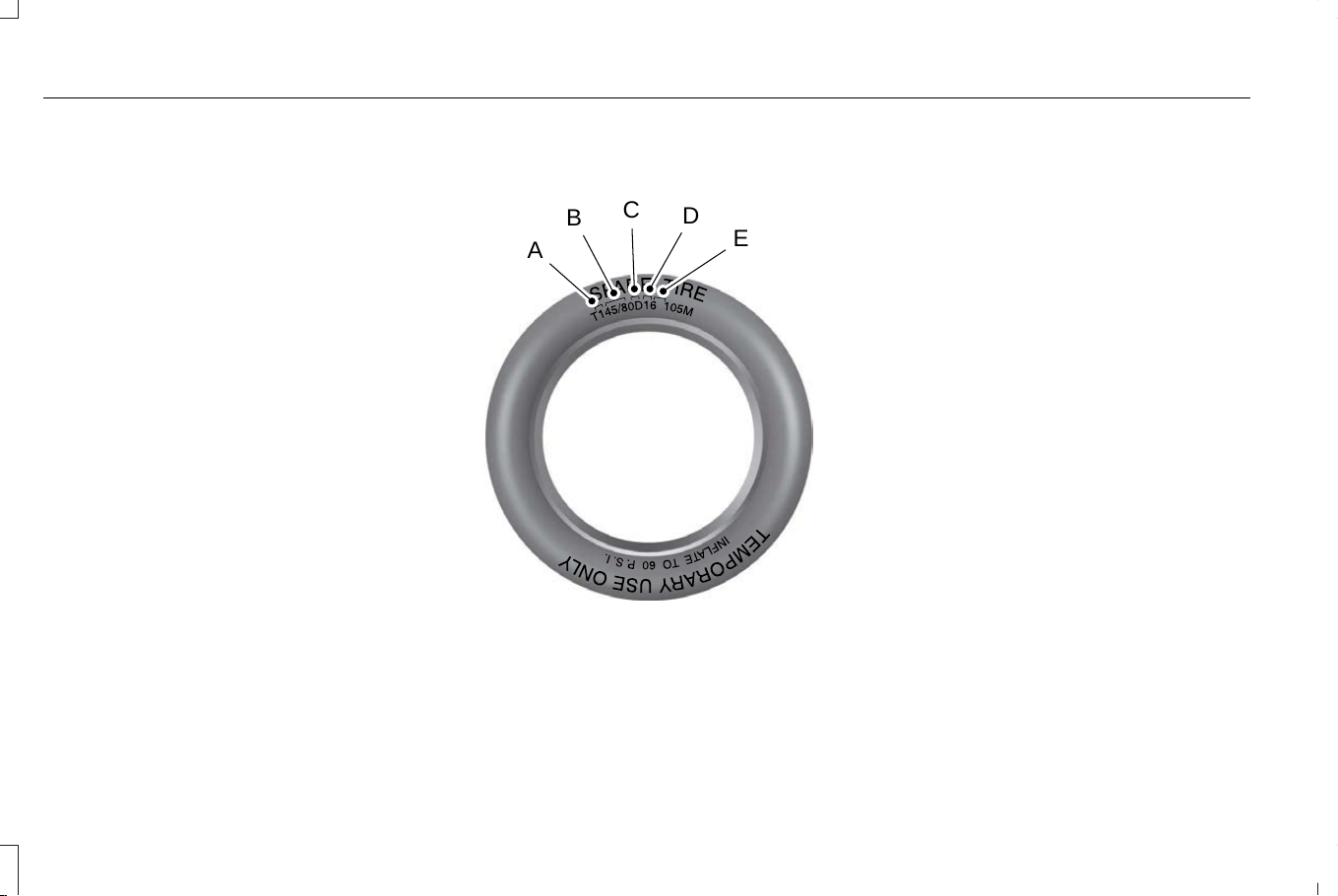
B. Load Range and Load Inflation
Limits: Indicates the tire's load-carrying
capabilities and its inflation limits.
C. Maximum Load Dual lb (kg) at psi
(kPa) cold: Indicates the maximum load
and tire pressure when the tire is used
as a dual, defined as four tires on the
rear axle (a total of six or more tires on
the vehicle).
D. Maximum Load Single lb (kg) at psi
(kPa) cold: Indicates the maximum load
and tire pressure when the tire is used
as a single, defined as two tires (total)
on the rear axle.
Information on T Type Tires
T145/80D16 is an example of a tire size.
Note: The temporary tire size for your
vehicle may be different from this
example. Tire Quality Grades do not
apply to this type of tire.
A
B
C
D
E
E142545
T type tires have some additional
information beyond those of P type tires;
these differences are described below:
A. T: Indicates a type of tire, designated
by the Tire and Rim Association, that is
intended for temporary service on cars,
sport utility vehicles, minivans and light
trucks.
B. 145: Indicates the nominal width of
the tire in millimeters from sidewall edge
to sidewall edge. In general, the larger
the number, the wider the tire.
C. 80: Indicates the aspect ratio which
gives the tire's ratio of height to width.
Numbers of 70 or lower indicate a short
sidewall.
D. D: Indicates a diagonal type tire.
R: Indicates a radial type tire.
E. 16: Indicates the wheel or rim
diameter in inches. If you change your
wheel size, you will have to purchase
new tires to match the new wheel
diameter.
452
Corsair (CTF) Canada/Mexico/United States of America, enUSA, Edition date: 202407, DOM
Wheel and Tire Information

GLOSSARY OF TIRE
TERMINOLOGY
*Tire label: A label showing the original
equipment tire sizes, recommended
inflation pressure and the maximum
weight the vehicle can carry.
*Tire Identification Number (TIN): A
number on the sidewall of each tire
providing information about the tire
brand and manufacturing plant, tire size
and date of manufacture. Also referred
to as DOT code.
*Inflation pressure: A measure of the
amount of air in a tire.
*Standard load: A class of P-metric or
Metric tires designed to carry a
maximum load at set pressure. For
example: For P-metric tires 35 psi
(2.4 bar) and for Metric tires 36 psi
(2.5 bar). Increasing the inflation
pressure beyond this pressure will not
increase the tire’s load carrying
capability.
*Extra load: A class of P-metric or Metric
tires designed to carry a heavier
maximum load at 42 psi (2.9 bar).
Increasing the inflation pressure beyond
this pressure will not increase the tire’s
load carrying capability.
*kPa: Kilopascal, a metric unit of air
pressure.
*PSI: Pounds per square inch, a standard
unit of air pressure.
*Cold tire pressure: The tire pressure
when the vehicle has been stationary
and out of direct sunlight for an hour or
more and prior to the vehicle being
driven for 1 mi (1.6 km).
*Recommended inflation pressure: The
cold inflation pressure found on the
Safety Compliance Certification Label
(affixed to either the door hinge pillar,
door-latch post, or the door edge that
meets the door-latch post, next to the
driver's seating position), or Tire Label
located on the B-Pillar or the edge of the
driver door.
* B-pillar: The structural member at the
side of the vehicle behind the front door.
*Bead area of the tire: Area of the tire
next to the rim.
* Sidewall of the tire: Area between the
bead area and the tread.
*Tread area of the tire: Area of the
perimeter of the tire that contacts the
road when mounted on the vehicle.
*Rim: The metal support (wheel) for a
tire or a tire and tube assembly upon
which the tire beads are seated.
TIRE REPLACEMENT
REQUIREMENTS
Your vehicle is equipped with tires
designed to provide a safe ride and
handling capability.
453
Corsair (CTF) Canada/Mexico/United States of America, enUSA, Edition date: 202407, DOM
Wheel and Tire Information
WARNING: Only use
replacement tires and wheels that are
the same size, load index, speed
rating, and type as those originally
provided for your vehicle. The
recommended tire and wheel sizes
can be found on the Tire Label on the
driver side door frame or the edge of
the driver door. If this information is
not found in those locations, or for
additional options, contact your
authorized dealer. Use of any tire or
wheel not recommended, could affect
the safety and performance of your
vehicle, which could result in an
increased risk of loss of vehicle
control, vehicle rollover, personal
injury and death.
WARNING: To reduce the risk of
serious injury, when mounting
replacement tires and wheels, you
should not exceed the maximum
pressure indicated on the sidewall of
the tire to set the beads without
additional precautions listed below. If
the beads do not seat at the maximum
pressure indicated, re-lubricate and
try again.
WARNING: For a mounting
pressure more than 20 psi (1.38 bar)
greater than the maximum pressure,
a Ford dealer or other tire service
professional should do the mounting.
WARNING: Always inflate steel
carcass tires with a remote air fill with
the person inflating standing at a
minimum of 12 ft (3.66 m) away from
the wheel and tire assembly.
WARNING: Only use the
specified jacking points. If you use any
other locations you could damage
vehicle components, such as brake
lines.
WARNING: When inflating the
tire for mounting pressures up to
20 psi (1.38 bar) greater than the
maximum pressure on the tire sidewall,
the following precautions must be
taken to protect the person mounting
the tire:
• Make sure that you have the correct
tire and wheel size.
• Lubricate the tire bead and wheel
bead seat area again.
• Stand at a minimum of 12 ft (3.66 m)
away from the wheel and tire
assembly.
• Use both eye and ear protection.
Important: Remember to replace the
wheel valve stems when the road tires
are replaced on your vehicle.
454
Corsair (CTF) Canada/Mexico/United States of America, enUSA, Edition date: 202407, DOM
Wheel and Tire Information
It is recommended that the two front
tires or two rear tires generally be
replaced as a pair if the worn tires still
have usable depth.
To avoid potential All-Wheel Drive (AWD)
malfunction or (AWD) system damage,
it is recommended to replace all four
tires rather than mixing significantly worn
tires with new tires.
The tire pressure sensors mounted in
the wheels (originally installed on your
vehicle) are not designed to be used in
aftermarket wheels.
The use of wheels or tires not
recommended may affect the operation
of your tire pressure monitoring system.
If the tire pressure monitoring system
indicator is flashing, your system is
malfunctioning. Your replacement tire
might be incompatible with your tire
pressure monitoring system, or some
component of the system may be
damaged.
Age
WARNING: Tires degrade over
time depending on many factors such
as weather, storage conditions, and
conditions of use (load, speed, inflation
pressure) the tires experience
throughout their lives.
In general, tires should be replaced
after six years regardless of tread
wear. However, heat caused by hot
climates or frequent high loading
conditions can accelerate the aging
process and may require tires to be
replaced more frequently.
You should replace your spare tire
when you replace the road tires or
after six years due to aging even if it
has not been used.
U.S. DOT Tire Identification Number
Both United States and Canada Federal
regulations require tire manufacturers
to place standardized information on the
sidewall of all tires. This information
identifies and describes the fundamental
characteristics of the tire and also
provides a U.S. DOT Tire Identification
Number for safety standard certification
and in case of a recall.
This begins with the letters DOT and
indicates that the tire meets all federal
standards. The next two numbers or
letters are the plant code designating
where it was manufactured, the next two
are the tire size code and the last four
numbers represent the week and year
the tire was built. For example, the
numbers 317 mean the 31st week of
1997. After 2000, the numbers go to four
digits. For example, 2501 means the
25th week of 2001. The numbers in
between are identification codes used
for traceability. This information is used
to contact customers if a tire defect
requires a recall.
455
Corsair (CTF) Canada/Mexico/United States of America, enUSA, Edition date: 202407, DOM
Wheel and Tire Information
USING SNOW CHAINS
WARNING: Do not exceed 30 mph
(50 km/h). Failure to follow this instruction
could result in the loss of control of your
vehicle, personal injury or death.
WARNING: Do not use snow chains
on snow-free roads.
WARNING: Only fit snow chains to
specified tires.
WARNING: If your vehicle is fitted
with wheel trims, remove them before
fitting snow chains.
WARNING: If you are driving in
slippery conditions that require tire chains
or cables, then it is critical that you drive
cautiously. Keep speeds down, allow for
longer stopping distances and avoid
aggressive steering to reduce the chances
of a loss of vehicle control which can lead
to serious injury or death. If the rear end
of your vehicle slides while cornering, steer
in the direction of the slide until you regain
control of your vehicle.
WARNING: Remember that even
advanced technology cannot defy the laws
of physics. It's always possible to lose
control of a vehicle due to inappropriate
driver input for the conditions. Aggressive
driving on any road condition can cause
you to lose control of your vehicle
increasing the risk of personal injury or
property damage. Activation of the
electronic stability control system is an
indication that at least some of the tires
have exceeded their ability to grip the
road; this could reduce the operator's
ability to control the vehicle potentially
resulting in a loss of vehicle control, vehicle
rollover, personal injury and death.
WARNING: Wheels and tires must
be the same size, load index and speed
rating as those originally fitted on the
vehicle. Use of any other tire or wheel can
affect the safety and performance of your
vehicle. Additionally, the use of
non-recommended tires and wheels can
cause steering, suspension, axle, transfer
case or power transfer unit failure. Follow
the recommended tire inflation pressures
found on the Safety Compliance
Certification label, or the Tire Label on the
B-Pillar or the edge of the driver door.
Failure to follow this instruction could result
in loss of vehicle control, vehicle rollover,
or personal injury or death.
456
Corsair (CTF) Canada/Mexico/United States of America, enUSA, Edition date: 202407, DOM
Wheel and Tire Information

The tires on your vehicle could have
all-weather treads to provide traction in rain
and snow. In some climates you will need to
use snow tires and chains on your vehicle in
emergency situations or if required by law.
Note: The suspension insulation and
bumpers will help prevent vehicle damage.
Do not remove these components from your
vehicle when using snow tires and chains.
Note: Driving too fast for road conditions
creates the possibility of loss of vehicle
control. Driving at very high speeds for
extended periods of time may result in
damage to vehicle components.
Follow these guidelines when using snow
tires and chains:
• The snow chains or cables must be
mounted in pairs on the front tires only.
• Chains may damage aluminum wheels.
• Use ultra low profile cables, 10 mm or
less in dimension as measured on the
sidewall of your tire, only with 225/60R18
all season tires.
• Do not use snow chains or cables with
225/55R19, or 245/45R20.
• Not all S-class snow chains or cables
meet these restrictions. Chains of this
size restriction will include a tensioning
device.
• Purchase chains or cables from a
manufacturer that clearly labels body to
tire dimension restrictions.
• When driving with snow chains do not
exceed 30 mph (50 km/h) or the
maximum speed recommended by the
chain manufacturer, whichever is less.
• Install cables securely, verifying that the
cables do not touch any wiring or brake
lines.
• Drive cautiously. If you hear the cables
rub or bang against the vehicle, stop and
retighten them. If this does not work,
remove the cables to prevent vehicle
damage.
• Remove the tire chains when they are no
longer needed. Do not use tire chains on
dry roads.
If you have any questions regarding snow
chains or cables, please contact your
authorized dealer.
457
Corsair (CTF) Canada/Mexico/United States of America, enUSA, Edition date: 202407, DOM
Wheel and Tire Information
CHECKING THE TIRE PRESSURES
Safe operation of your vehicle requires
that your tires are properly inflated.
Every day before you drive, check your
tires.
At least once a month and before long
trips, inspect each tire and check the tire
pressure with a tire gauge. Inflate all
tires to the recommended inflation
pressure. See Inflating the Tires (page
458).
INFLATING THE TIRES
WARNING: Under-inflation is the
most common cause of tire failures
and may result in severe tire cracking,
tread separation or blowout, with
unexpected loss of vehicle control and
increased risk of injury. Under-inflation
increases sidewall flexing and rolling
resistance, resulting in heat buildup
and internal damage to the tire. It also
may result in unnecessary tire stress,
irregular wear, loss of vehicle control
and accidents. A tire can lose up to
half of its air pressure and not appear
to be flat!
WARNING: Do not use the tire
pressure displayed in the information
display as a tire pressure gauge.
Failure to follow this instruction could
result in personal injury or death.
Use the recommended cold inflation
pressure for optimum tire performance
and wear. Under-inflation or
over-inflation may cause uneven
treadwear patterns.
Inflate your tires to the recommended
inflation pressure even if it is less than
the maximum inflation pressure
information found on the tire. You can
find the tire label with the recommended
tire inflation pressure next to the tire size
on the B-Pillar or the edge of the driver
door.
The recommended tire inflation pressure
is also found on the Safety Compliance
Certification Label, affixed to either the
door hinge pillar, door-latch post, or the
door edge that meets the door-latch on
the B-pillar, or on the edge of the driver
door.
Failure to follow the tire pressure
recommendations can cause uneven
treadwear patterns and adversely affect
the way your vehicle handles.
Checking Pressure when tires are hot:
If pressures are checked after tires have
been driven for more than three minutes
or more than 1 mile, (2 km) the tires
become hot and the pressures will
increase by approximately 4 psi (27.6
kPa). Therefore when the tire pressure
is adjusted under these conditions, it
should be increased to a gauge reading
of 4 psi (27.6 kPa) greater than the
recommended cold inflation pressure.
After inflating the tires while hot, make
sure to recheck tire pressure later once
the tires are cold.
458
Corsair (CTF) Canada/Mexico/United States of America, enUSA, Edition date: 202407, DOM
Tire Care
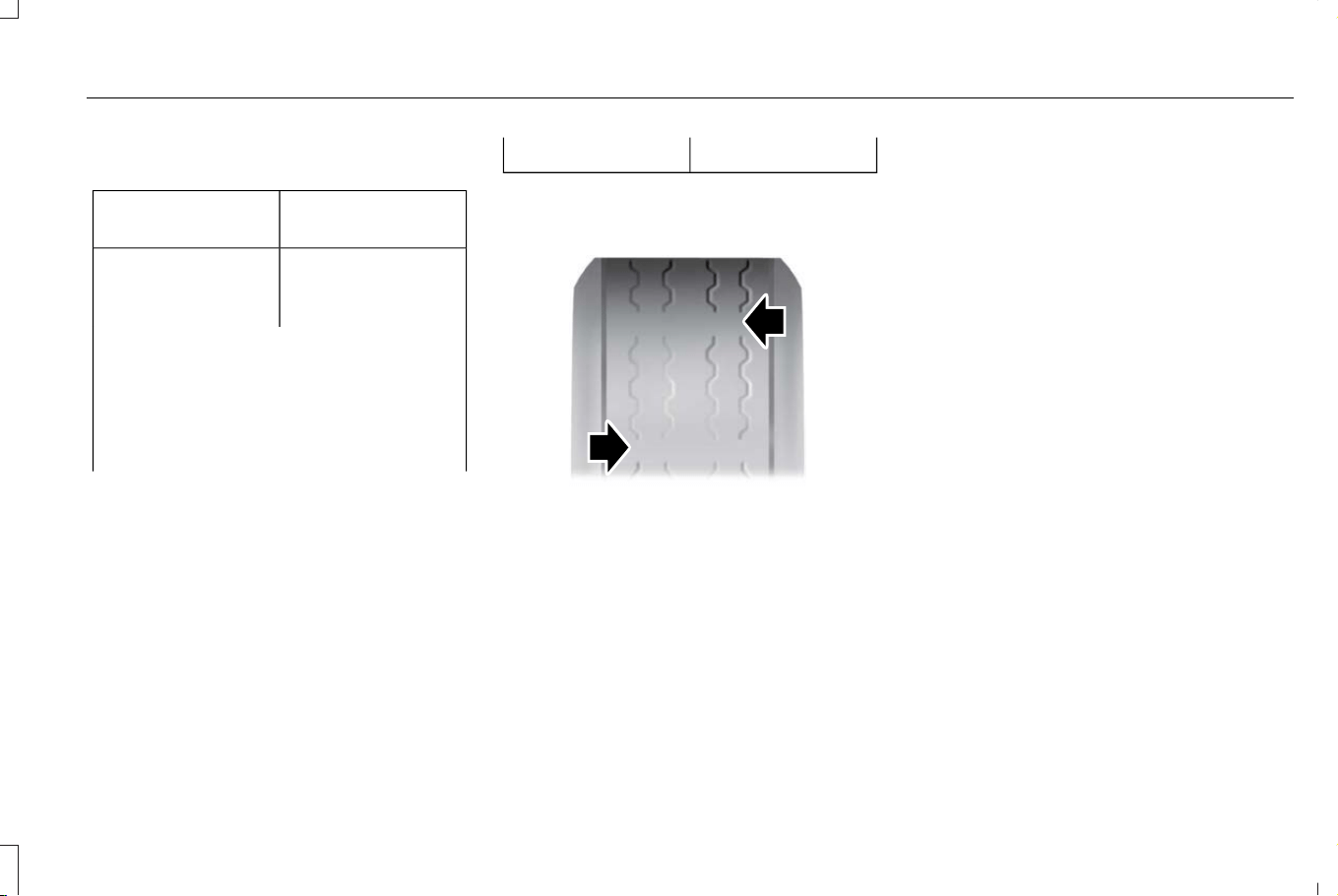
For Example Only
33 psi (230 kPa)Gauge reading of
hot tire
32 psi (220 kPa)If recommended,
cold inflation pres-
sure is
The hot tire pressure is only 1 psi (10
kPa) greater than the recommended
cold inflation pressure. Therefore, add
3 psi (20 kPa) more to increase the hot
pressure to 4 psi (30 kPa) over the
recommended cold inflation pressure.
36 psi (250 kPa)New hot pressure
INSPECTING THE TIRE FOR WEAR
E142546
When the tread is worn down to 2/32
inch (1.6 mm), tires must be replaced to
help prevent your vehicle from skidding
and hydroplaning. Built-in treadwear
indicators, or wear bars, which look like
narrow strips of smooth rubber across
the tread will appear on the tire when
the tread is worn down to 2/32 inch (1.6
mm).
When the tire tread wears down to the
same height as these wear bars, the tire
is worn out and must be replaced.
The tires should also be balanced
periodically. An unbalanced tire and
wheel assembly may result in irregular
tire wear.
Periodically inspect the tire treads for
uneven or excessive wear and remove
objects such as stones, nails or glass
that may be wedged in the tread
grooves.
INSPECTING THE TIRE FOR
DAMAGE
Inspect the tire sidewalls for cracking,
cuts, bruises and other signs of damage
or excessive wear. If internal damage to
the tire is suspected, have the tire
dismounted and inspected in case it
needs to be repaired or replaced. For
your safety, tires that are damaged or
show signs of excessive wear should
not be used because they are more
likely to blow out or fail.
459
Corsair (CTF) Canada/Mexico/United States of America, enUSA, Edition date: 202407, DOM
Tire Care

Periodically inspect the tire treads and
sidewalls for damage, such as bulges in
the tread or sidewalls, cracks in the
tread groove and separation in the tread
or sidewall. If damage is observed or
suspected, have the tire inspected by a
tire professional.
Safety Practices
WARNING: If your vehicle is
stuck in snow, mud or sand, do not
rapidly spin the tires; spinning the tires
can tear the tire and cause an
explosion. A tire can explode in as little
as three to five seconds.
WARNING: Do not spin the
wheels at over 34 mph (55 km/h). The
tires may fail and injure a passenger
or bystander.
HIGH SPEED DRIVING CAN BE
DANGEROUS
Correct inflation pressure is especially
important. However, at high speeds,
even with the correct inflation pressure,
a road hazard for example is more
difficult to avoid and if contact is made,
has a greater chance of causing tire
damage than at a lower speed.
Moreover, driving at high speed reduces
the reaction time available to avoid
accidents and bring your vehicle to a
safe stop.
If you see any damage to a tire or wheel,
replace it with the spare at once and visit
a participating Tire Retailer.
Exceeding the maximum speeds shown
on the following page for each type of
tire will cause the tire to build up
excessive heat which can cause tire
damage that could result in sudden tire
destruction and rapid air loss. Failure to
control a vehicle when one or more tires
experience a sudden air loss can lead
to an accident.
In any case, you should not exceed
reasonable speeds as indicated by the
legal limits and driving conditions.
DO NOT OVERLOAD: DRIVING ON
ANY OVERLOADED TIRE IS
DANGEROUS
The maximum load rating of your tires
is molded on the tire sidewall. Do not
exceed this rating. Follow the loading
instructions of the manufacturer of your
vehicle and this will ensure that your
tires are not overloaded. Tires which are
loaded beyond their maximum allowable
loads for the particular application will
build up excessive heat that may result
in sudden tire destruction. Do not
exceed the gross axle weight rating for
any axle on your vehicle.
460
Corsair (CTF) Canada/Mexico/United States of America, enUSA, Edition date: 202407, DOM
Tire Care

TIRE ALTERATIONS
Do not make or allow to be made any
alterations on your tires. Alterations may
prevent proper performance, leading to
tire damage which can result in an
accident. Tires which become
unserviceable due to alterations such
as truing, whitewall inlays, addition of
balancing or sealant liquids, or the use
of tire dressing containing petroleum
distillates are excluded from warranty
coverage.
REPAIRS - WHEREVER POSSIBLE, SEE
YOUR TIRE RETAILER AT ONCE
If any tire sustains a puncture, have the
tire demounted and thoroughly
inspected by a tire retailer for possible
damage that may have occurred. A tread
area puncture in any passenger or light
truck tire can be repaired provided that
the puncture hole is not more than 1/4”
in diameter, not more than one radial
cable per casing ply is damaged, and
the tire has not been damaged further
by the puncturing object or by running
underinflated. Tire punctures consistent
with these guidelines should only be
repaired by following the US Tire
Manufacturers Association (USTMA)
recommended repair procedures.
Plug-only repairs done on-the-wheel are
considered improper and therefore, not
recommended. Such repairs are not
reliable and may cause further damage
to the tire.
STORAGE
Tires contain waxes and emollients to
protect their outer surfaces from ozone
and weather checking. As the tire rolls
and flexes, the waxes and emollients
continually migrate to the surface,
replenishing this protection throughout
the normal use of the tire. Consequently,
when tires sit unused for long periods
of time (a month or more) their surfaces
become dry and more susceptible to
ozone and weather checking and the
casing becomes susceptible to flat
spotting. For this reason, tires should
always be stored in a cool, dry, clean,
indoor environment. If storage is for
one month or more, eliminate the
weight from the tires by raising the
vehicle or by removing the tires from
the vehicle. Failure to store tires in
accordance with these instructions
could result in damage to your tires or
premature aging of the tires and
sudden tire failure.
When tires are stored, be sure they are
placed away from sources of heat and
ozone such as direct sunlight, hot pipes
and electric generators. Be sure that
surfaces on which tires are stored are
clean and free from grease, gasoline or
other substances, which could
deteriorate the rubber. Failure to store
tires in accordance with these
instructions could result in damage to
your tires or premature aging of the tires
and sudden tire failure.
461
Corsair (CTF) Canada/Mexico/United States of America, enUSA, Edition date: 202407, DOM
Tire Care

FOLLOW THESE MOUNTING
RECOMMENDATIONS
Tire changing can be dangerous and
must be done by professionally trained
persons using proper tools and
procedures as specified by the US Tire
Manufacturers Association (USTMA).
Single or dual assemblies must be
completely deflated before
demounting.
Your tires should be mounted on wheels
of correct size and type and which are
in good, clean condition. Wheels that
are bent, chipped, rusted (steel wheels)
or corroded (alloy wheels) may cause
tire damage. The inside of the tire must
be free from foreign material. Have your
retailer check the wheels before
mounting new tires. Mismatched tires
and rims can explode during mounting.
Also, mismatched tires and rims can
result in dangerous tire failure on the
road. If a tire is mounted by error on the
wrong-sized rim, do not remount it on
the proper rim - scrap it. It may have
been damaged internally (which is not
externally visible) by having been
dangerously stretched and could fail on
the highway.
Old valves may leak. When new
tubeless tires are mounted, have new
valves of the correct type installed.
Tubeless tires must only be mounted
on wheels designed for tubeless tires
i.e., wheels which have safety humps
or ledges.
It is recommended that you have your
tires and wheels balanced. Tires and
wheels, which are not balanced, may
cause steering difficulties, a bumpy ride,
and irregular tire wear.
Be sure that all your valves have
suitable valve caps. The valve cap is
the primary seal against air loss.
TEMPORARY SPARE TIRES
When using any temporary spare tire,
be sure to follow the vehicle
manufacturer’s instructions.
REMEMBER... TO AVOID DAMAGE TO
YOUR TIRES AND POSSIBLE
ACCIDENT:
• CHECK TIRE PRESSURE AT LEAST
ONCE EACH MONTH WHEN TIRES
ARE COLD AND BEFORE LONG
TRIPS.
• DO NOT
UNDERINFLATE/OVERINFLATE.
• DO NOT OVERLOAD.
• DRIVE AT MODERATE SPEEDS,
OBSERVE LEGAL LIMITS.
• AVOID DRIVING OVER POTHOLES,
OBSTACLES, CURBS OR EDGES OF
PAVEMENT.
• AVOID EXCESSIVE WHEEL
SPINNING.
• IF YOU SEE ANY DAMAGE TO A
TIRE, REPLACE WITH THE SPARE
AND VISIT ANY AUTHORIZED
RETAILER AT ONCE.
• IF YOU HAVE ANY QUESTIONS,
CONTACT YOUR AUTHORIZED
RETAILER.
462
Corsair (CTF) Canada/Mexico/United States of America, enUSA, Edition date: 202407, DOM
Tire Care

Highway Hazards
No matter how carefully you drive, there
is always the possibility that you could
eventually have a flat tire on the
highway. Drive slowly to the closest safe
area out of traffic. This could further
damage the flat tire, but your safety is
more important.
If you feel a sudden vibration or ride
disturbance while driving, or you suspect
your tire or vehicle has been damaged,
immediately reduce your speed. Drive
with caution until you can safely pull off
the road. Stop and inspect the tires for
damage. If a tire is under-inflated or
damaged, deflate it, remove the wheel
and replace it with your spare tire and
wheel. If you cannot detect a cause,
have the vehicle towed to the nearest
repair facility or tire dealer to have the
vehicle inspected.
Tire and Wheel Alignment
A bad jolt from hitting a curb or pothole
can cause the front end of your vehicle
to become misaligned or cause damage
to your tires. If your vehicle seems to
pull to one side when you are driving,
the wheels could be out of alignment.
Have an authorized dealer check the
wheel alignment periodically.
Wheel misalignment in the front or the
rear can cause uneven and rapid
treadwear of your tires and should be
corrected by an authorized dealer.
INSPECTING THE WHEEL VALVE
STEMS
Check the valve stems for holes, cracks,
or cuts that could permit air leakage.
TIRE ROTATION
WARNING: If the tire label shows
different tire pressures for the front
and rear tires and the vehicle has a
tire pressure monitoring system, then
you need to update the settings for
the system sensors. Always perform
the system reset procedure after tire
rotation. If you do not reset the system,
it may not provide a low tire pressure
warning when necessary.
Rotating your tires at the recommended
interval will help your tires wear more
evenly, providing better tire performance
and longer tire life.
Note: If your tires show any uneven
wear have the alignment checked by
an authorized dealer before rotating
tires.
Note: If you have a dissimilar spare
wheel and tire assembly, it is intended
for temporary use only and should not
be used in a tire rotation.
463
Corsair (CTF) Canada/Mexico/United States of America, enUSA, Edition date: 202407, DOM
Tire Care
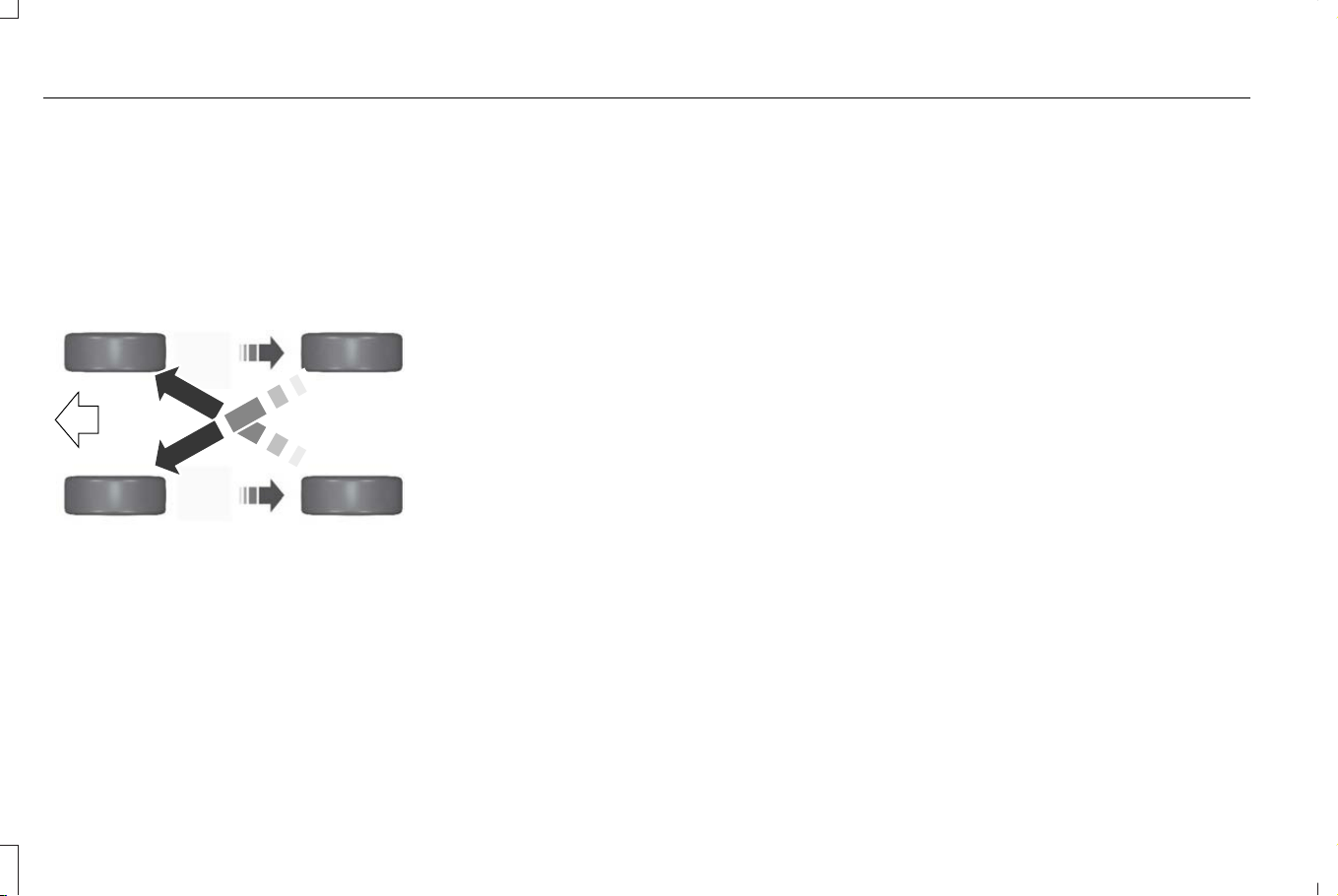
Note: After having your tires rotated,
inflation pressure must be checked and
adjusted to the vehicle requirements.
Tire Rotation Diagram
Follow the diagram indicating the correct
tire locations for rotating the tires.
E142547
464
Corsair (CTF) Canada/Mexico/United States of America, enUSA, Edition date: 202407, DOM
Tire Care
WHAT IS THE TIRE SEALANT AND
INFLATOR KIT
The kit consists of an air compressor to
re-inflate the tire and a canister of sealing
compound that effectively seals most
punctures. This kit provides a temporary tire
repair allowing you to drive your vehicle up
to 120 mi (200 km) at a maximum speed of
50 mph (80 km/h) to reach a tire service
location.
Note: The temporary mobility kit contains
enough sealant compound in the canister
for one tire repair only. See an authorized
dealer for replacement sealant canisters.
TIRE SEALANT AND INFLATOR KIT
PRECAUTIONS
WARNING: Failure to follow these
guidelines could result in an increased risk
of loss of vehicle control, injury or death.
WARNING: Do not run the engine
when operating the air compressor unless
the vehicle is outdoors or in a
well-ventilated area.
Note: Do not use the kit if a tire has become
severely damaged. Only punctures located
within the tire tread can be sealed with the
kit.
Do not attempt to repair punctures larger
than 0.24 in (6 mm) or damage to the tire's
sidewall. The tire may not completely seal.
• Drive carefully and avoid abrupt steering
maneuvers.
• Periodically monitor tire inflation pressure
in the affected tire; if the tire is losing
pressure, have the vehicle towed.
• Read the information in the Tips for Use
of the Kit section to make sure safe
operation of the kit and your vehicle.
After sealant use, the tire pressure
monitoring system sensor and valve stem on
the wheel must be replaced by an authorized
dealer.
LOCATING THE TIRE SEALANT
AND INFLATOR KIT
The kit is located under the load floor in the
rear of the vehicle.
465
Corsair (CTF) Canada/Mexico/United States of America, enUSA, Edition date: 202407, DOM
Tire Sealant and Inflator Kit (If Equipped)
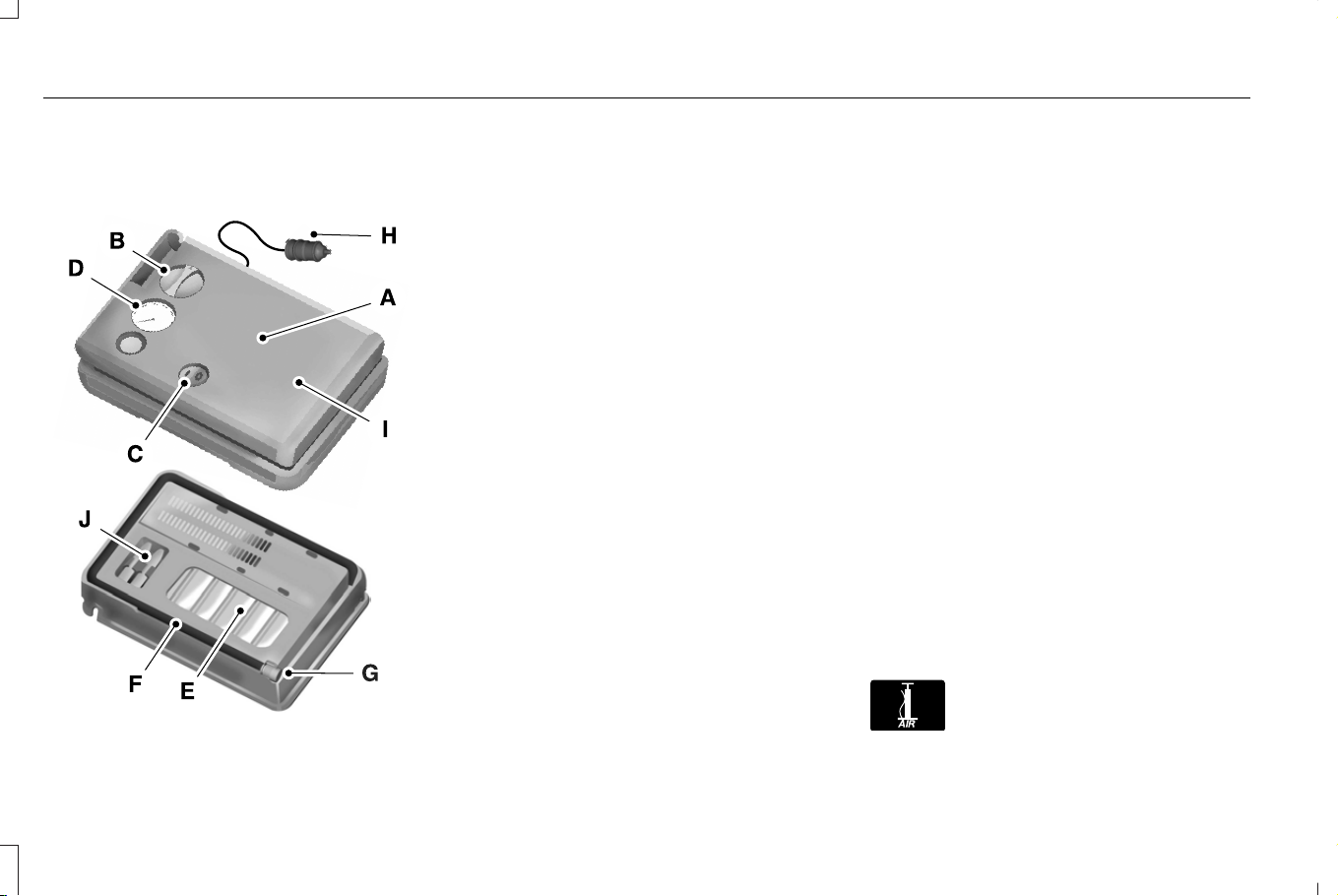
TIRE SEALANT AND INFLATOR KIT
COMPONENTS
E175977
Air compressor (inside)A
Selector switchB
On and Off buttonC
Air pressure gaugeD
Sealant bottle and canisterE
Dual purpose hose: air and repairF
Tire valve connectorG
Accessory power plugH
Casing/housingI
Bike/raft/sports ball adaptersJ
USING THE TIRE SEALANT AND
INFLATOR KIT
Tips for use of the kit
To make sure the kit operates safely and
properly, observe the following:
• Before operating the kit, make sure your
vehicle is safely off the road and away
from moving traffic.
• Do not remove any foreign objects, such
as nails or screws, from the tire.
• Do not allow the compressor to operate
continuously for more than 15 minutes.
This prevents the compressor from
overheating.
• Only use the kit when the ambient
temperature is between -22°F (-30°C) and
158°F (70°C).
• Only use the sealing compound before
the use-by date. The use-by date is on a
label on the sealant canister and can be
seen through the rectangular viewing
window on the bottom of the compressor.
Check the use-by date regularly and
replace the canister when the sealant
expires.
Note: Sealant compound contains latex. Use
appropriate precautions to avoid any allergic
reactions.
E175978
Place the selector in the Air
position when inflating a tire or
other objects.
466
Corsair (CTF) Canada/Mexico/United States of America, enUSA, Edition date: 202407, DOM
Tire Sealant and Inflator Kit (If Equipped)
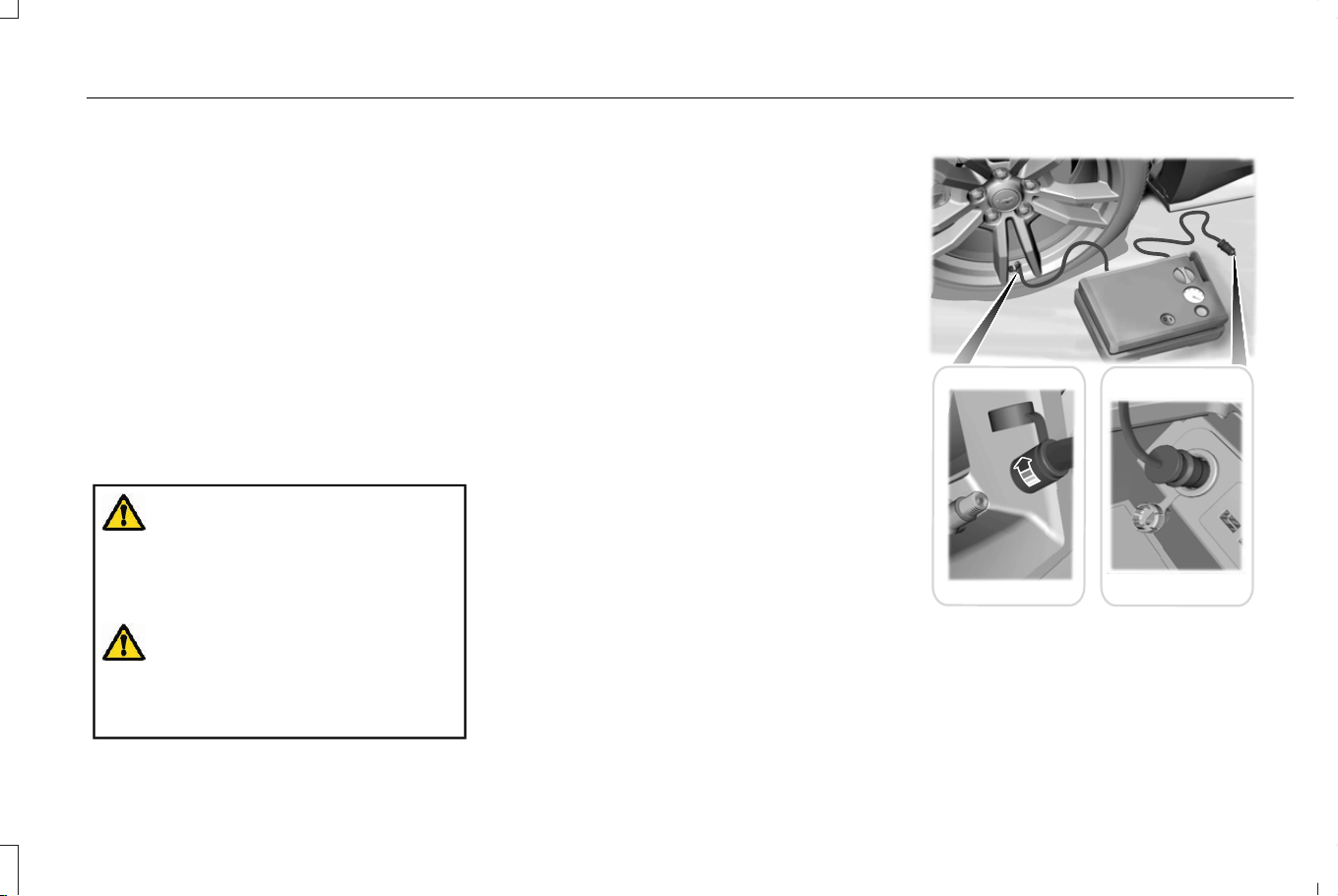
What to do when a tire is punctured
A tire puncture within the tire's tread area
can be repaired in two stages with the kit.
• In the first stage, the tire is reinflated with
a sealing compound and air. After the tire
has been inflated, drive the vehicle a
short distance approximately 4 mi (6 km)
to distribute the sealant in the tire.
• In the second stage, check the tire
pressure and adjust, if necessary, to the
vehicle's specified tire inflation pressure.
First Stage: Reinflating the Tire with
sealing compound and air
WARNING: Do not stand directly over
the kit while inflating the tire. If you notice
any unusual bulges or deformations in the
tire's sidewall during inflation, stop and call
roadside assistance.
WARNING: If the tire does not inflate
to the recommended tire pressure within
15 minutes, stop and call roadside
assistance.
Park the vehicle in a safe, level and secure
area, away from moving traffic.
Turn the hazard lights on. Apply the parking
brake and power off the vehicle. Inspect the
flat tire for visible damage.
If a puncture is located in the tire sidewall,
stop and call roadside assistance.
1. Remove the valve cap from the tire valve.
2. Unwrap the dual purpose hose (black
tube) from the back of the compressor
housing.
3. Fasten the hose to the tire valve by
turning the connector clockwise. Tighten
the connection securely.
E175979
4. Plug the power cable into the 12-volt
power point in the vehicle.
467
Corsair (CTF) Canada/Mexico/United States of America, enUSA, Edition date: 202407, DOM
Tire Sealant and Inflator Kit (If Equipped)
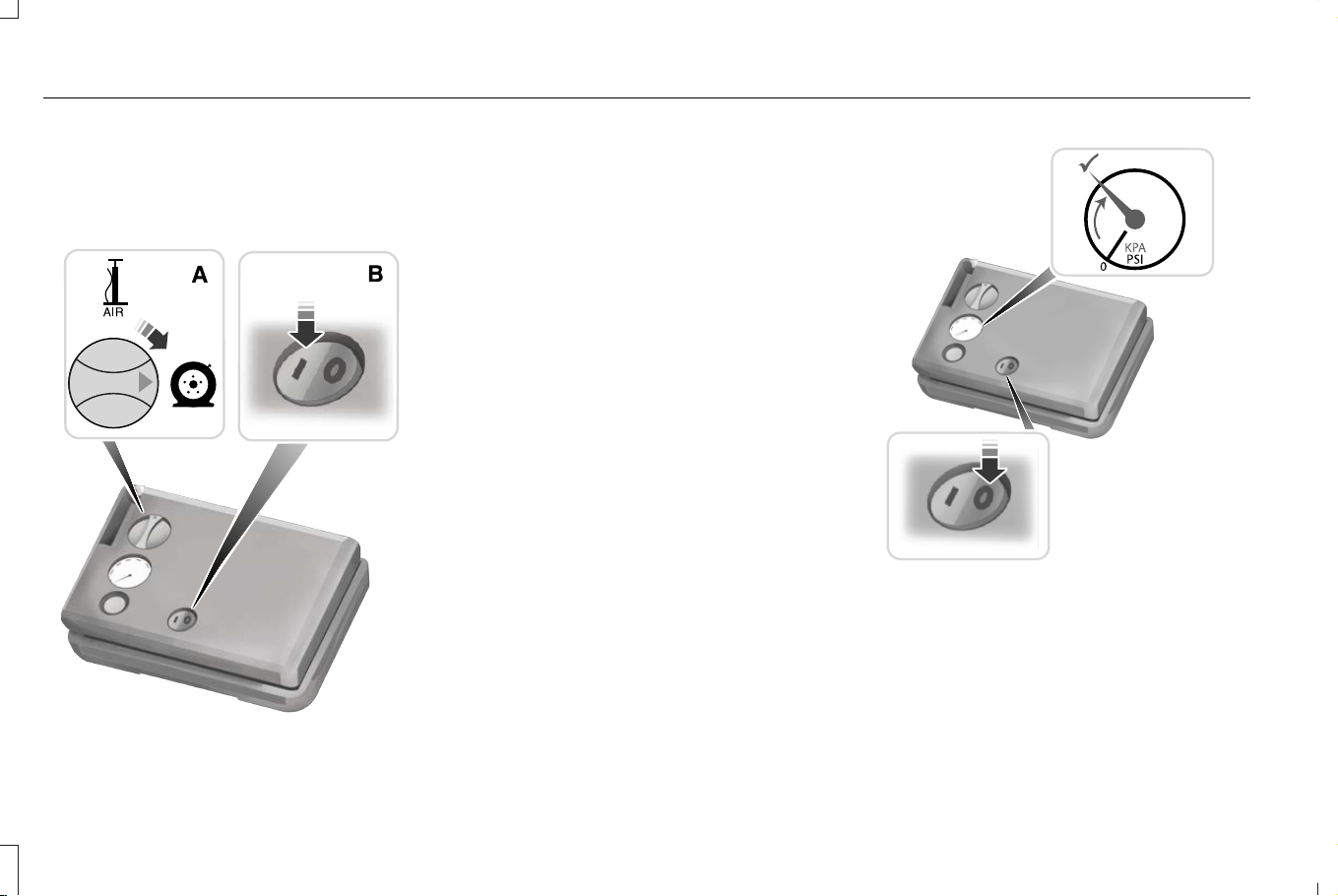
5. Remove the warning sticker found on the
casing/housing and place it on the top of
the instrument panel or the center of the
dash.
E175981
6. Turn dial (A) clockwise to the sealant
position. Turn the kit on by pressing the
on/off button (B).
7. Inflate the tire to the pressure listed on
the tire label located on the driver door
or the door jamb area. Check the final
tire pressure with the compressor turned
off to get an accurate pressure reading.
E175982
8. When the recommended tire pressure is
reached, turn off the kit, unplug the
power cable, and disconnect the hose
from the tire valve. Re-install the valve
cap on the tire valve and return the kit to
the rear of the vehicle.
468
Corsair (CTF) Canada/Mexico/United States of America, enUSA, Edition date: 202407, DOM
Tire Sealant and Inflator Kit (If Equipped)
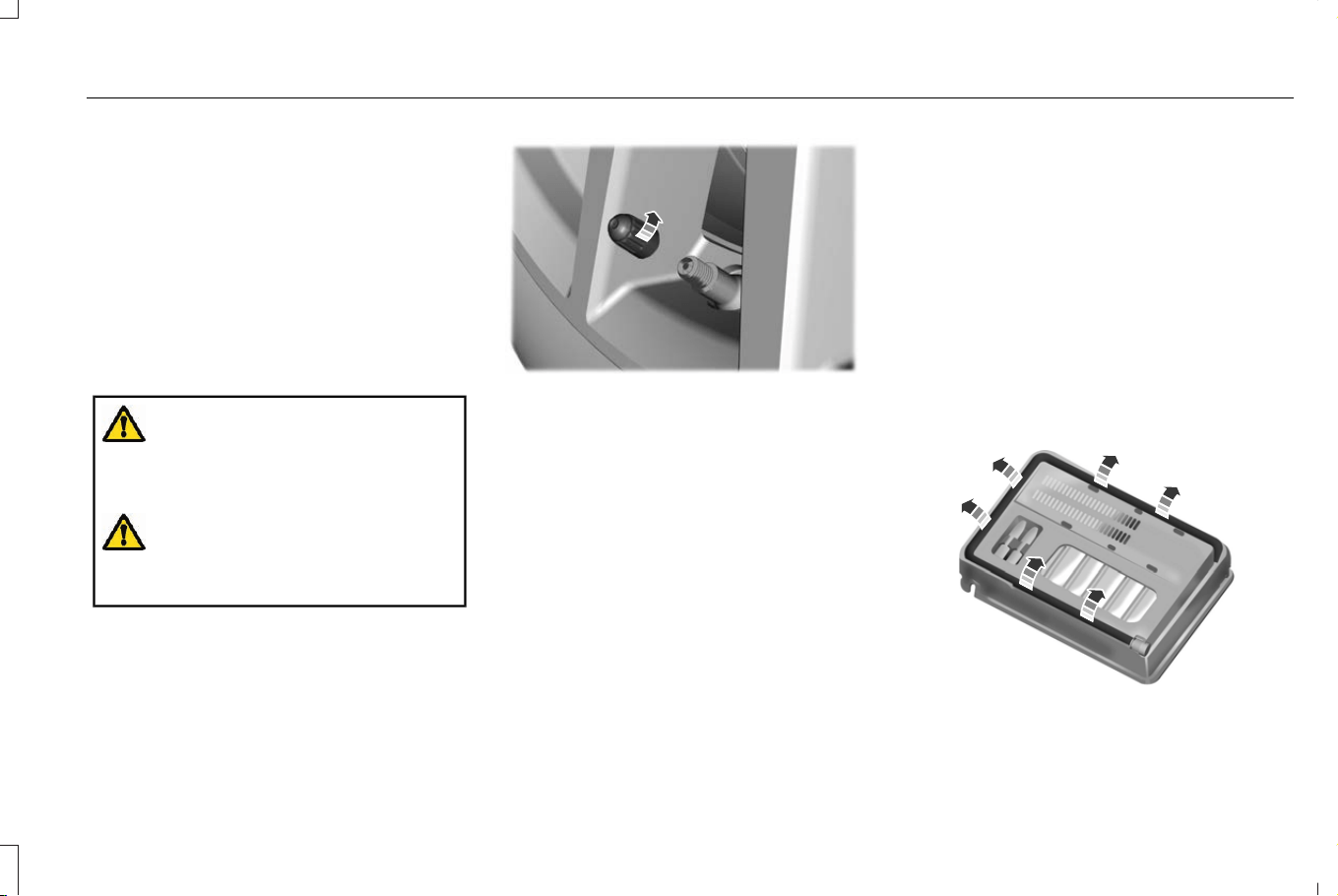
9. Drive the vehicle 4 mi (6 km) to distribute
the sealant evenly inside the tire.
Note: If you experience any unusual
vibration, ride disturbance or noise while
driving, reduce your speed until you can
safely pull off to the side of the road to call
for roadside assistance. Do not proceed to
the second stage of this operation.
Second Stage: Checking the tire
pressure with the inflator kit
WARNING: If the tire does not inflate
to the recommended tire pressure within
15 minutes, stop and call roadside
assistance.
WARNING: The power plug may get
hot after use and should be handled
carefully when unplugging.
Check the air pressure of your tires as
follows:
E175983
1. Remove the valve cap from the tire valve.
2. Firmly screw the air compressor hose
onto the valve stem by turning clockwise.
3. Push and turn the dial clockwise to the
air position.
4. If required, turn on the compressor and
adjust the tire to the recommended
inflation pressure.
5. Unplug the hoses, re-install the valve cap
on the tire and return the kit to the rear
of the vehicle.
What to do after the tire has been
sealed
After using the kit to seal your tire, replace
the sealant canister. Sealant canisters and
spare parts can be obtained at an authorized
dealer. Empty sealant canisters may be
disposed of at home. However, canisters still
containing liquid sealant should be disposed
of in accordance with local waste disposal
regulation.
Removal of the sealant canister from the
kit
E175984
1. Unwrap the dual purpose hose (black
tube) from the compressor housing.
469
Corsair (CTF) Canada/Mexico/United States of America, enUSA, Edition date: 202407, DOM
Tire Sealant and Inflator Kit (If Equipped)
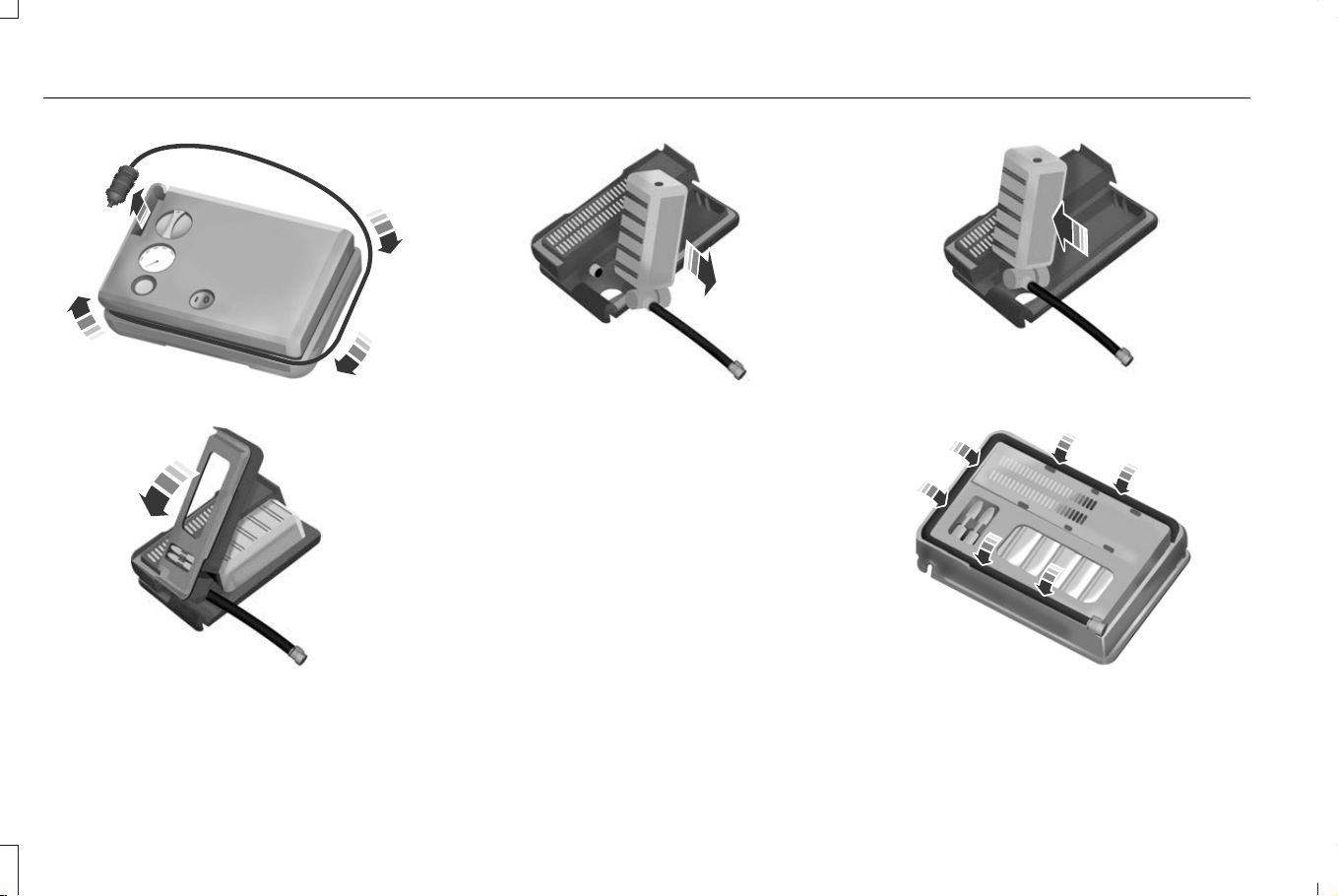
E175985
2. Unwrap the power cord.
E175986
3. Remove the back cover.
E175987
4. Rotate the sealant canister up 90
degrees and pull away from
casing/housing to remove.
Installation of the sealant canister to the
kit
1. With the canister held perpendicular to
the housing, insert the canister nozzle
into the connector and push until seated.
2. Rotate the canister 90 degrees down into
the housing/casing.
E175988
3. Snap the back cover back into place.
E175989
4. Wrap the dual purpose hose (black tube)
around the channel on the bottom of the
housing/casing.
470
Corsair (CTF) Canada/Mexico/United States of America, enUSA, Edition date: 202407, DOM
Tire Sealant and Inflator Kit (If Equipped)
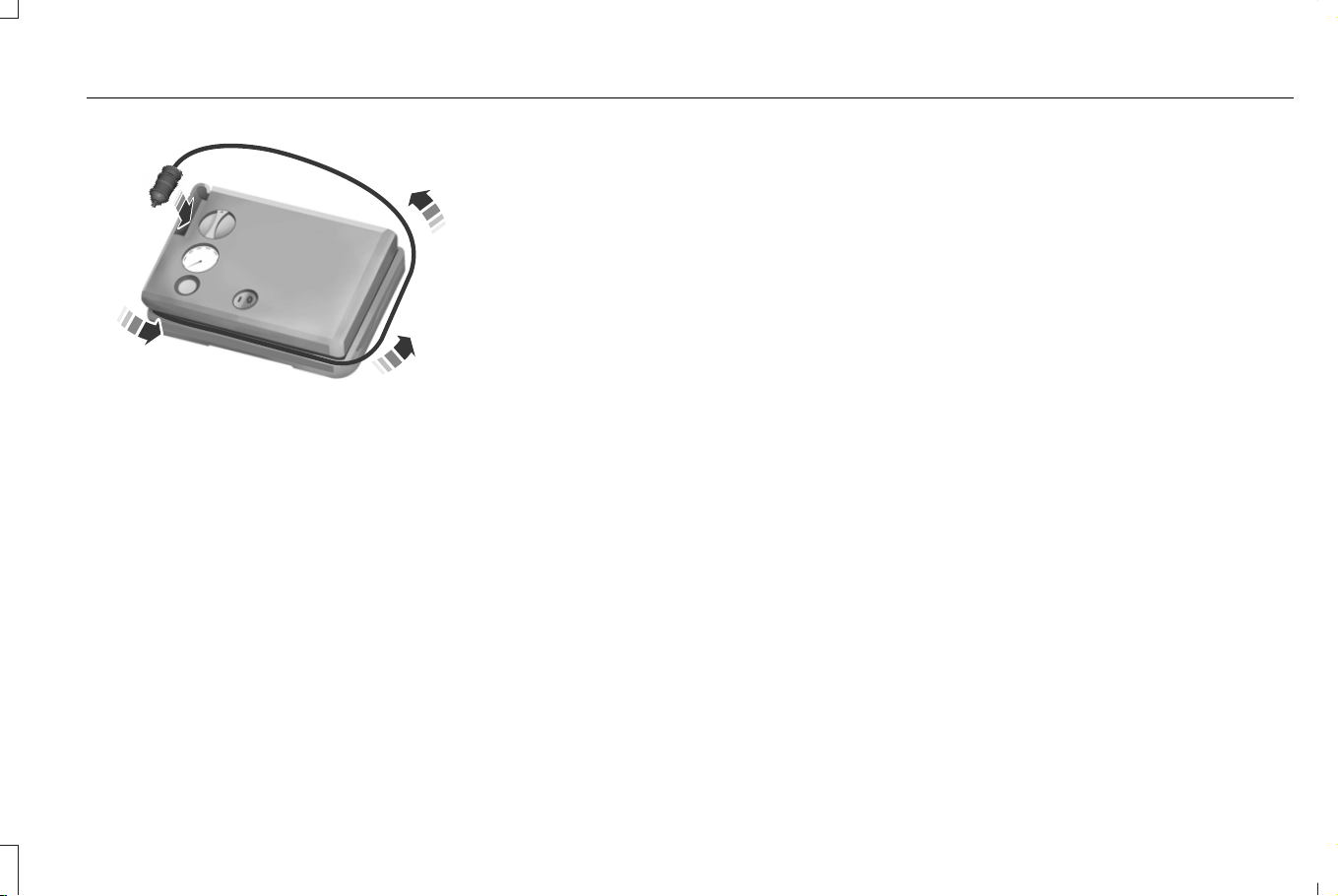
E175990
5. Wrap the power cord around the housing
and stow the accessory power plug.
471
Corsair (CTF) Canada/Mexico/United States of America, enUSA, Edition date: 202407, DOM
Tire Sealant and Inflator Kit (If Equipped)
WHAT IS THE TIRE PRESSURE
MONITORING SYSTEM
E139232
The tire pressure monitoring
system measures the vehicle's tire
pressures. A warning lamp
illuminates if one or more tires are
significantly underinflated or if there is a
system malfunction.
TIRE PRESSURE MONITORING
SYSTEM OVERVIEW
WARNING: Under-inflation is the
most common cause of tire failures and
may result in severe tire cracking, tread
separation or blowout, with unexpected
loss of vehicle control and increased risk
of injury. Under-inflation increases sidewall
flexing and rolling resistance, resulting in
heat buildup and internal damage to the
tire. It also may result in unnecessary tire
stress, irregular wear, loss of vehicle
control and accidents. A tire can lose up
to half of its air pressure and not appear
to be flat!
WARNING: To determine the
required pressure(s) for your vehicle, see
the Safety Compliance Certification Label
(on the door hinge pillar, door-latch post
or the door edge that meets the door-latch
post, next to the driver seat) or the Tire
Label on the B-Pillar or the edge of the
driver door.
Each tire, including the spare (if provided),
should be checked monthly when cold and
inflated to the inflation pressure
recommended by the vehicle manufacturer
on the vehicle placard or tire inflation
pressure label. (If your vehicle has tires of a
different size than the size indicated on the
vehicle placard or tire inflation pressure label,
you should determine the proper tire inflation
pressure for those tires).
As an added safety feature, your vehicle has
been equipped with a Tire Pressure
Monitoring System (TPMS) that illuminates a
low tire pressure telltale when one or more
of your tires is significantly under-inflated.
Accordingly, when the low tire pressure
telltale illuminates, you should stop and
check your tires as soon as possible, and
inflate them to the proper pressure. Driving
on a significantly under-inflated tire causes
the tire to overheat and can lead to tire
failure. Under-inflation also reduces fuel
efficiency and tire tread life, and may affect
the vehicle’s handling and stopping ability.
Please note that the TPMS is not a substitute
for proper tire maintenance, and it is the
driver’ s responsibility to maintain correct tire
pressure, even if under-inflation has not
reached the level to trigger illumination of
the TPMS low tire pressure telltale.
472
Corsair (CTF) Canada/Mexico/United States of America, enUSA, Edition date: 202407, DOM
Tire Pressure Monitoring System
Your vehicle has also been equipped with a
TPMS malfunction indicator to indicate when
the system is not operating properly. The
TPMS malfunction indicator is combined with
the low tire pressure telltale. When the
system detects a malfunction, the telltale will
flash for approximately one minute and then
remain continuously illuminated. This
sequence will continue upon subsequent
vehicle start-ups as long as the malfunction
exists.
When the malfunction indicator is illuminated,
the system may not be able to detect or
signal low tire pressure as intended. TPMS
malfunctions may occur for a variety of
reasons, including the installation of
replacement or alternate tires or wheels on
the vehicle that prevent the TPMS from
functioning properly. Always check the TPMS
malfunction telltale after replacing one or
more tires or wheels on your vehicle to
ensure that the replacement or alternate tires
and wheels allow the TPMS to continue to
function properly.
WARNING: Changes or modifications
not expressively approved by the party
responsible for compliance could void the
user's authority to operate the equipment.
The term "IC:" before the radio certification
number only signifies that Industry Canada
technical specifications were met.
This device complies with Part 15 of the FCC
Rules and with License exempt RSS
Standards of Industry Canada. Operation is
subject to the following two conditions:
1. This device may not cause harmful
interference, and
2. This device must accept any interference
received, including interference that may
cause undesired operation.
TIRE PRESSURE MONITORING
SYSTEM PRECAUTIONS
WARNING: The tire pressure
monitoring system is not a substitute for
manually checking tire pressures. You
should periodically check tire pressures
using a pressure gauge. Failure to correctly
maintain tire pressures could increase the
risk of tire failure, loss of control, vehicle
rollover and personal injury.
WARNING: Do not use the tire
pressure displayed in the information
display as a tire pressure gauge. Failure to
follow this instruction could result in
personal injury or death.
Note: The use of tire sealants can damage
the tire pressure monitoring system.
Note: If the tire pressure monitor sensor
becomes damaged it may not function.
473
Corsair (CTF) Canada/Mexico/United States of America, enUSA, Edition date: 202407, DOM
Tire Pressure Monitoring System
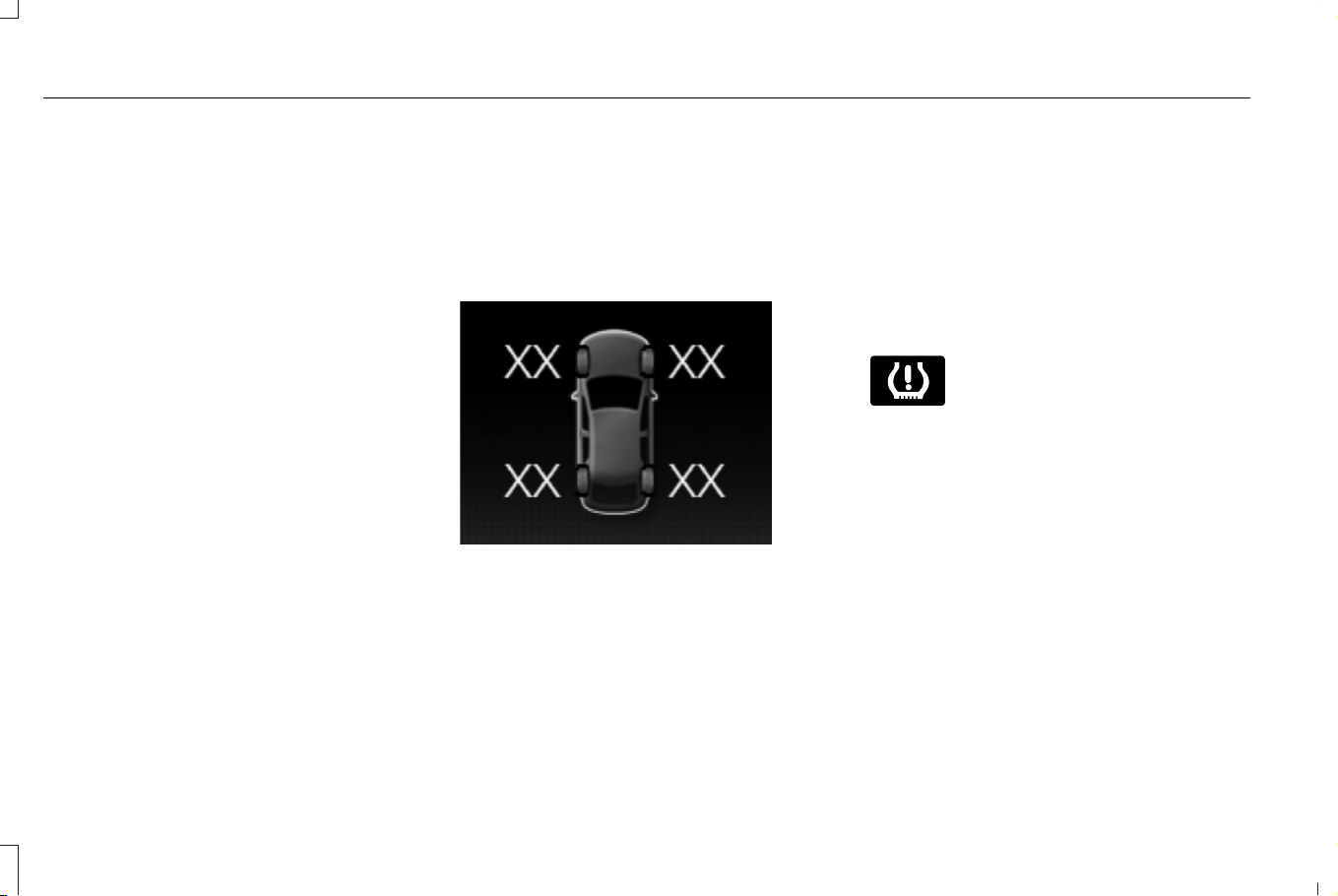
TIRE PRESSURE MONITORING
SYSTEM LIMITATIONS
When the outside temperature drops
significantly, the tire pressure could decrease
and activate the low tire pressure warning
lamp.
The warning lamp could also illuminate when
you use a spare wheel, or tire sealant from
the inflator kit.
Note: Regularly checking the vehicle tire
pressures can reduce the possibility for the
warning lamp to illuminate due to outside
air temperature changes.
Note: After you inflate the tires to the
recommended pressure it could take up to
two minutes of driving over 20 mph (32 km/h)
for the warning indicator to turn off.
VIEWING THE TIRE PRESSURES
E250820
To view the current tire pressures, use
the information display or touchscreen.
TIRE PRESSURE MONITORING
SYSTEM – TROUBLESHOOTING
TIRE PRESSURE MONITORING
SYSTEM – WARNING LAMPS
E139232
The low tire pressure warning lamp
has combined functions, as it
warns you when your tires need
air, and when the system is no longer
capable of functioning as intended.
474
Corsair (CTF) Canada/Mexico/United States of America, enUSA, Edition date: 202407, DOM
Tire Pressure Monitoring System

Action RequiredPossible CauseWarning Lamp
After inflating your tires to the manufacturer’s recommended
pressure as shown on the tire label, on the edge of driver door
or the B-pillar, drive your vehicle for at least two minutes over
20 mph (32 km/h) before the light turns off.
One or more tires are significantly under
inflated
Solid warning lamp
Repair the damaged road wheel and tire and refit it to your vehicle
to restore operation of the system.
Temporary spare wheel in useSolid warning lamp or flashing
warning lamp
If the tires are inflated to the recommended tire pressures and
the temporary spare wheel is not in use, the system detected a
fault that requires service. Have your vehicle checked as soon
as possible.
Tire pressure monitoring system
malfunction
475
Corsair (CTF) Canada/Mexico/United States of America, enUSA, Edition date: 202407, DOM
Tire Pressure Monitoring System

TIRE PRESSURE MONITORING SYSTEM – INFORMATION MESSAGES
ActionMessage
After inflating your tires to the manufacturer’s recommended pressure as shown on the tire label,
on the edge of the driver door or the B-pillar, drive your vehicle for at least two minutes over
20 mph (32 km/h) before the light turns off.
Tire Pressure Low
The system has detected a fault that requires service. Have your vehicle checked as soon as
possible.
Tire Pressure Monitor Fault
The system has detected a fault that requires service or a spare tire is in use. Have your vehicle
checked as soon as possible.
Tire Pressure Sensor Fault
476
Corsair (CTF) Canada/Mexico/United States of America, enUSA, Edition date: 202407, DOM
Tire Pressure Monitoring System
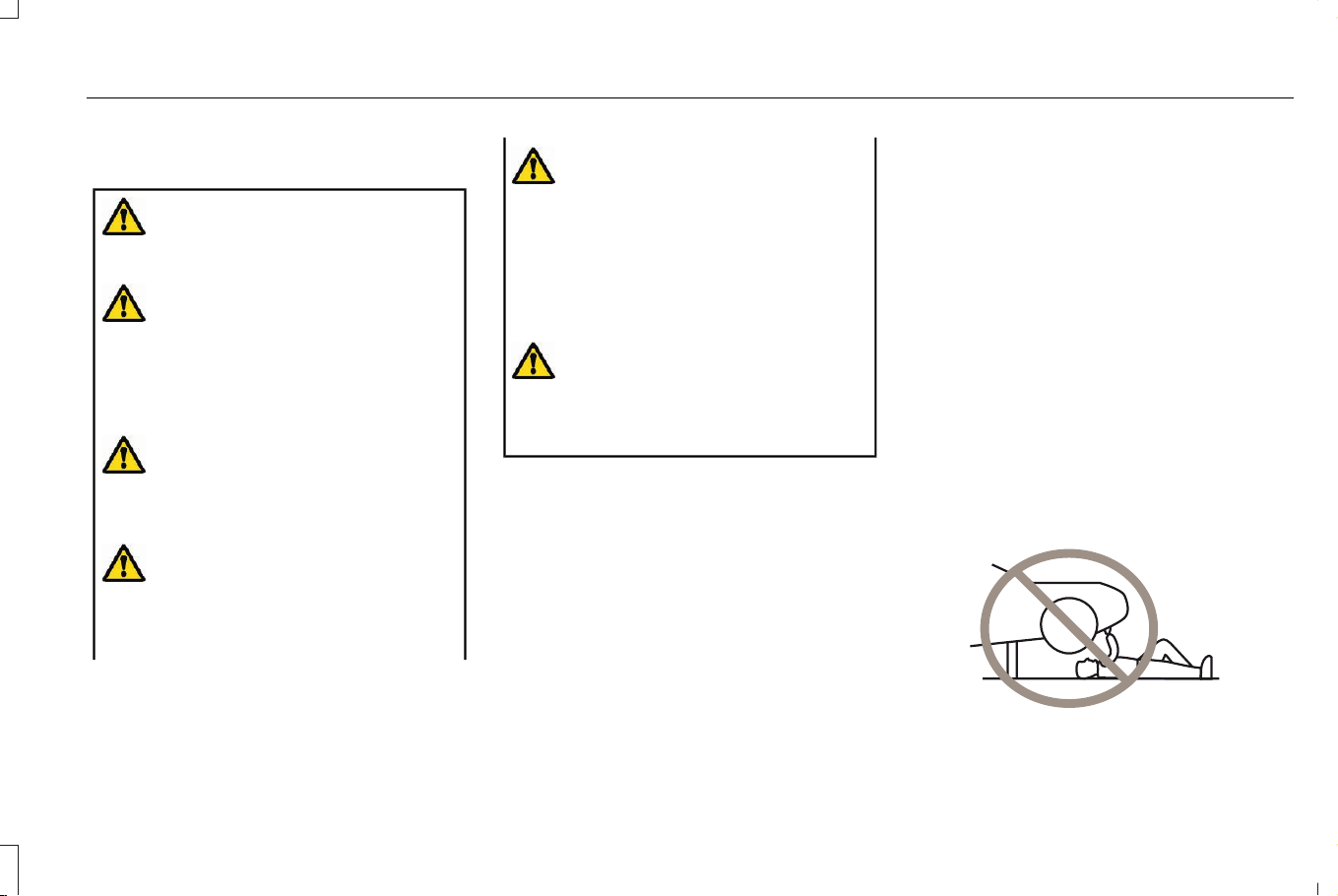
CHANGING A FLAT TIRE (IF EQUIPPED)
WARNING: Failure to follow these
guidelines could result in an increased risk
of loss of vehicle control, injury or death.
WARNING: Do not attempt to change
a tire on the side of the vehicle close to
moving traffic. Pull far enough off the road
to not obstruct the flow of traffic and avoid
the danger of being hit when operating the
jack or changing the wheel.
WARNING: If your vehicle has an
automatic transmission, shift into park (P),
apply the parking brake, and switch the
vehicle off.
WARNING: Make sure that your
vehicle is on firm and level ground with the
front wheels pointing straight ahead and
set up a warning triangle if available.
WARNING: To help prevent your
vehicle from moving when changing a
wheel, use an appropriate block or wheel
chock to secure the wheel diagonally
opposite to the wheel being changed. For
example, when changing the front left
wheel, place an appropriate block or wheel
chock on the right rear wheel.
WARNING: Do not switch off stability
control or select sport mode, when using
a temporary spare wheel or after repairing
a tire using the temporary mobility kit.
Make sure all passengers are out of your
vehicle.
If the spare wheel is the same type and size
as the your vehicle road wheels, you can fit
the spare wheel and continue to drive in the
normal manner. We recommend that you
have the damaged road wheel and tire
repaired or replaced as soon as possible.
If the spare wheel is not the same type and
size as your vehicle road wheels, it has a
label showing the maximum driving speed
limit.
Note: Your vehicle may exhibit some
different driving characteristics if you fit the
spare wheel.
Note: The ground clearance of your vehicle
may be reduced when the spare wheel is
fitted. Take care when parking next to a
curb.
Note: : If the spare wheel is fitted to your
vehicle, do not drive through an automatic
car wash.
On Plug-in and Full Hybrid Electric Vehicles
you can find the jack and wrench to the left
of the spare tire.
On Non Plug-in or Full Hybrid Electric
Vehicles, you can find the jack and wrench
under the spare tire.
E166722
477
Corsair (CTF) Canada/Mexico/United States of America, enUSA, Edition date: 202407, DOM
Changing a Road Wheel
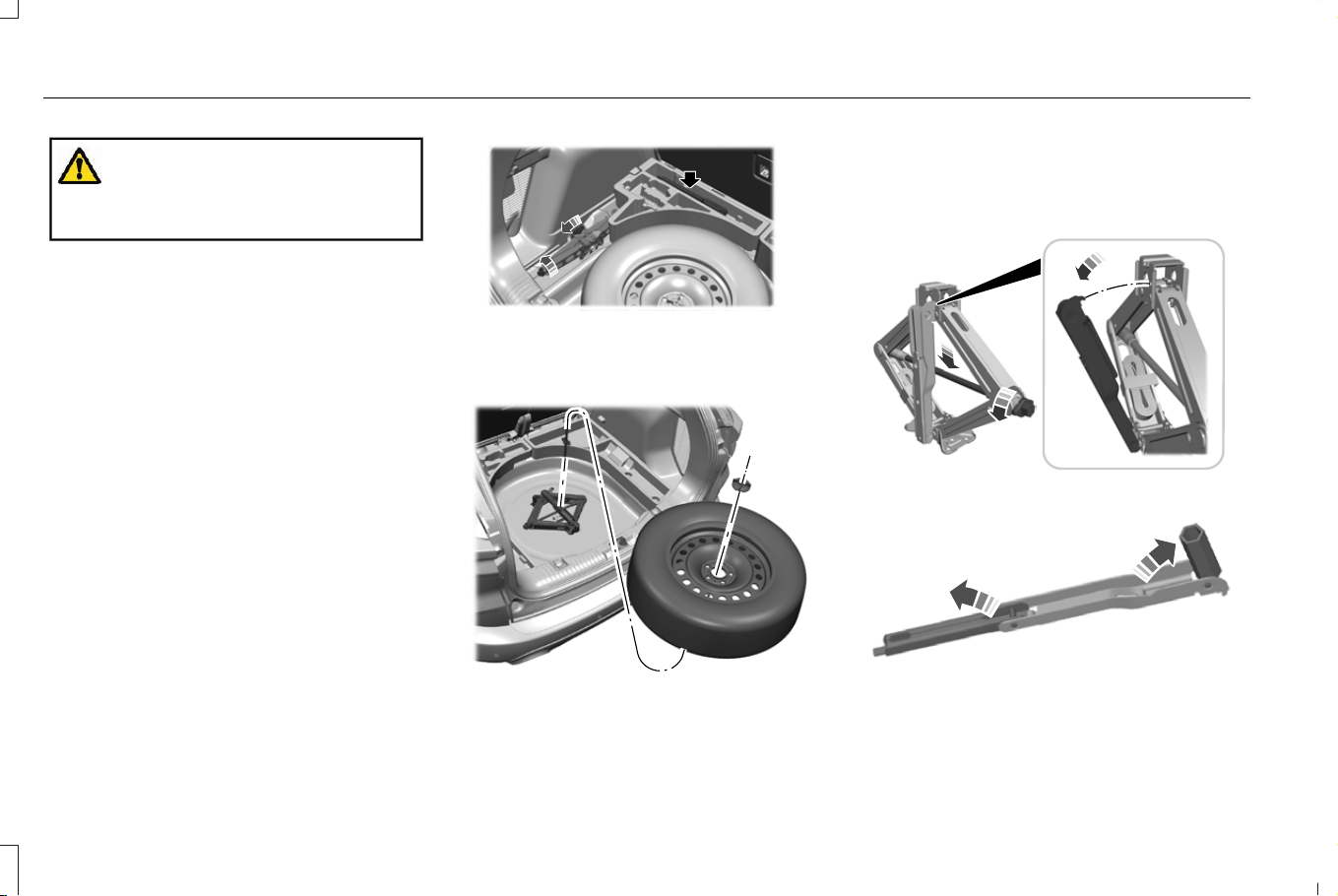
WARNING: No person should place
any portion of their body under a vehicle
that is supported by a jack.
Note: The jack does not require
maintenance or additional lubrication over
the service life of your vehicle with normal
usage.
1. Park on a level surface, set the parking
brake and activate the hazard flashers.
2. Place the transmission in park (P) and
turn the engine off.
3. Lift and remove the carpeted cargo area
floor to access the spare tire, jack and
wheel nut wrench.
4. Remove the wing nut that secures the
spare tire by turning it counterclockwise.
5. Remove the spare tire and jack kit from
the spare tire compartment.
E431897
6. Remove the jack and the flat tire retainer
strap from the jack base.
E431896
7. Turn the jack hex nut drive screw
counterclockwise to detach the wheel
nut wrench from the jack. This lowers the
jack and releases the mechanical lock.
E294117
8. Unfold the wheel nut wrench for use.
E181744
9. Block the diagonally opposite wheel.
478
Corsair (CTF) Canada/Mexico/United States of America, enUSA, Edition date: 202407, DOM
Changing a Road Wheel
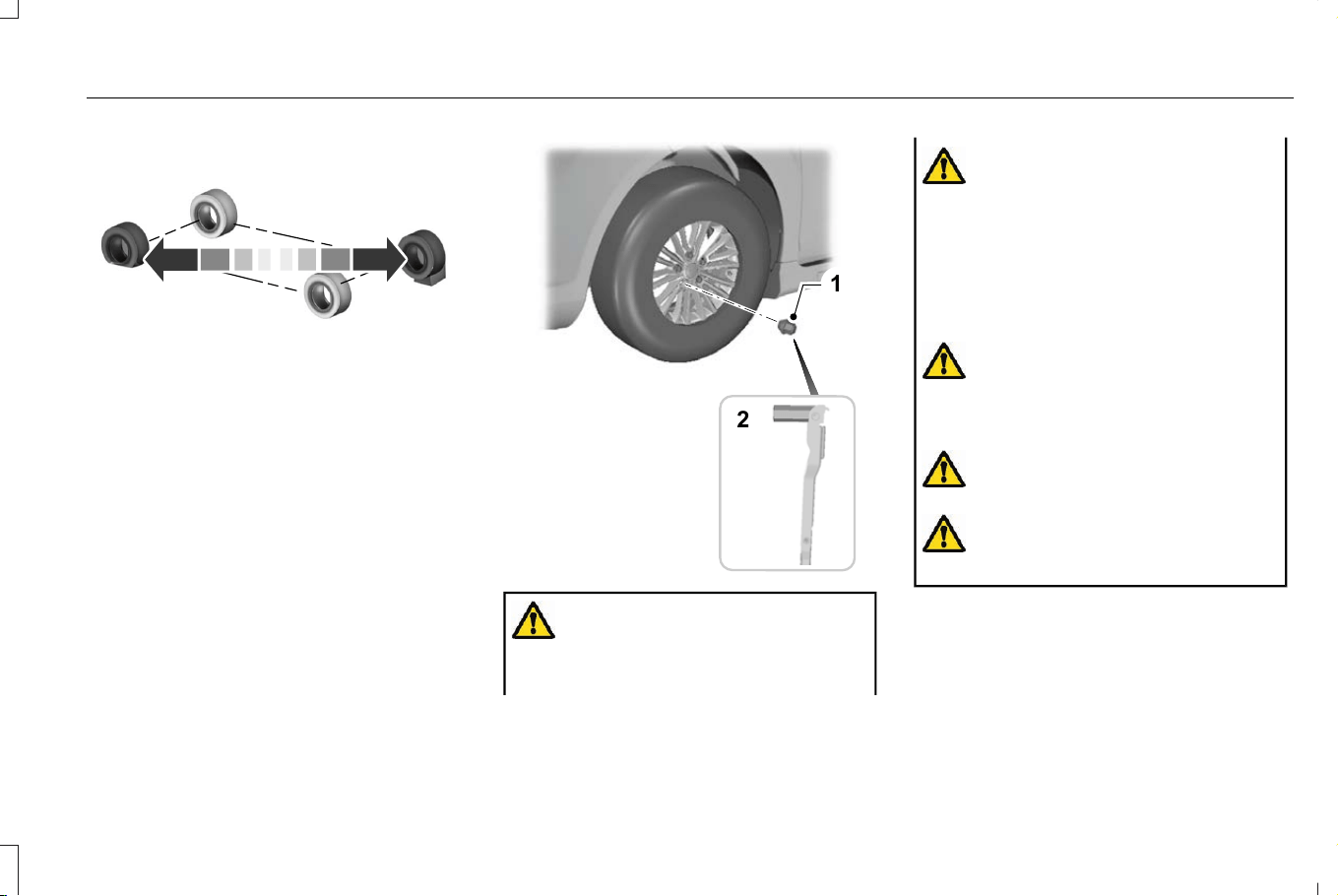
E142551
10. Loosen each wheel nut one-half turn
counterclockwise, but do not remove
them until the wheel is raised off the
ground.
1
E181745
2
WARNING: Only use the jack
provided as original equipment with your
vehicle.
WARNING: The jack supplied with
this vehicle is only intended for changing
a flat tire in an emergency. Do not attempt
to do any other work on your vehicle when
it is supported by the jack, as your vehicle
could slip off the jack. Failure to follow this
instruction could result in personal injury
or death.
WARNING: Only use the specified
jacking points. If you use any other
locations you could damage vehicle
components, such as brake lines.
WARNING: Never place anything
between the vehicle jack and the ground.
WARNING: Never place anything
between the vehicle jack and your vehicle.
11. The vehicle jacking points shown here
are also depicted on the warning label
on the jack. Small arrow-shaped marks
on the vehicle sills show the location of
the jacking points.
479
Corsair (CTF) Canada/Mexico/United States of America, enUSA, Edition date: 202407, DOM
Changing a Road Wheel
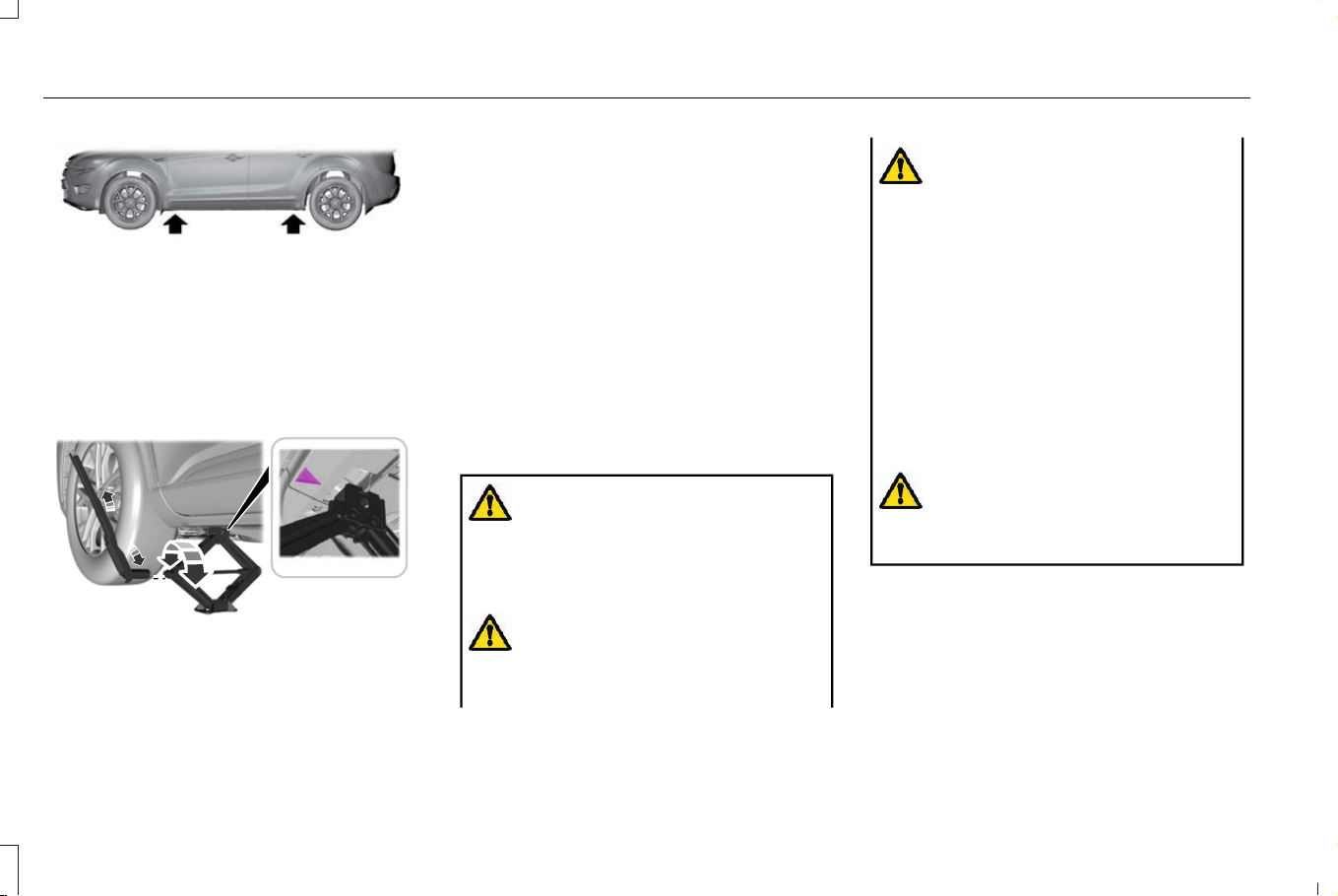
E145908
12. Turn the wrench clockwise to raise the
vehicle until the flat tire is completely
off the ground.
E338668
13. Remove the wheel nuts with the wheel
nut wrench.
Note: For vehicles with full wheel covers with
exposed wheel nuts, remove the wheel nuts
prior to removing the wheel cover or damage
to the wheel cover may occur.
14. Replace the flat tire with the spare tire,
making sure the valve stem is facing
outward. Reinstall the wheel nuts until
the wheel is snug against the hub. Do
not fully tighten the wheel nuts until the
wheel has been lowered.
15. Lower the wheel by turning the jack
handle counterclockwise.
16. Remove the jack and fully tighten the
wheel nuts in the order shown.
WARNING: Make sure there is no
grease or oil on the threads or the surface
between the wheel studs and the wheel
nuts. This can cause the wheel nuts to
loosen while driving.
WARNING: Only use the spare wheel
and tire assembly provided as original
equipment with your vehicle.
WARNING: When you install a wheel,
remove any corrosion, dirt or foreign
materials present on the mounting surfaces
of the wheel or the surface of the wheel
hub, brake drum or brake disc that
contacts the wheel. Make sure to secure
any fasteners that attach the rotor to the
hub so they do not interfere with the
mounting surfaces of the wheel. Installing
wheels without following these steps can
cause the wheel nuts to loosen and the
wheel to come off while your vehicle is in
motion, resulting in loss of vehicle control,
personal injury or death.
WARNING: Have the wheel nuts
checked for tightness and the tire pressure
checked as soon as possible.
480
Corsair (CTF) Canada/Mexico/United States of America, enUSA, Edition date: 202407, DOM
Changing a Road Wheel
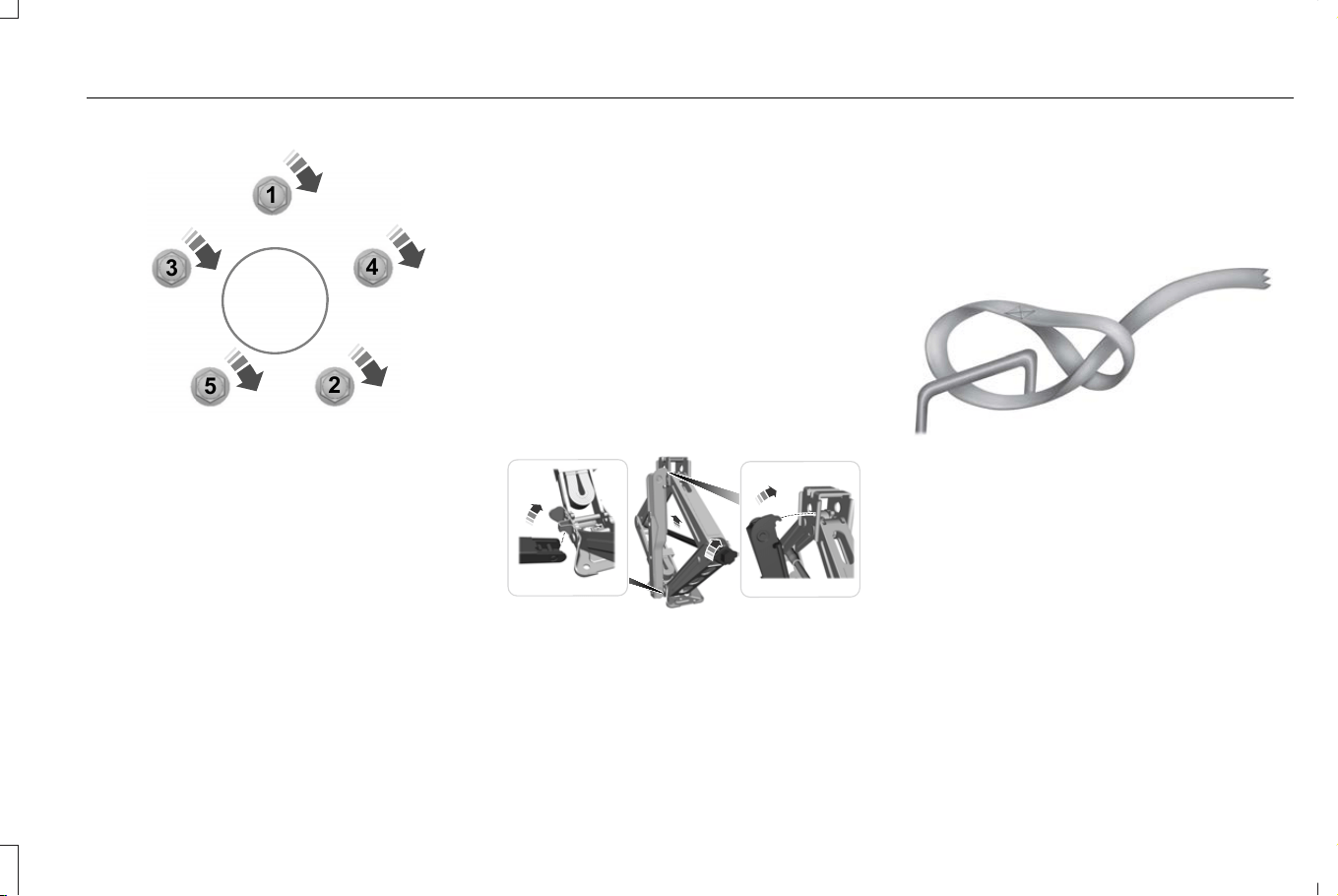
1
2
3
4
5
E306781
Stowing the flat tire
1. To store the jack kit on Non Plug-in or
Full Hybrid Electric Vehicles, fold the jack
and wrench handle and engage it to the
bracket of the jack base using the wheel
nut wrench pin.
Note: To store the jack and wrench on
Plug-in and Full Hybrid Electric Vehicles, fold
the jack and wrench into the closed position,
and place the wrench into the storage
compartment. Position the jack assembly
into the closed position and make sure the
jack is fastened securely before you drive.
2. When attaching the folded wrench on the
jack, swing the wrench upward and
adjust the jack height until the wrench
hook engages the hole on the jack.
Tighten the hex nut clockwise until
secure.
E294121
3. Re-position the jack kit assembly into the
original vehicle position and secure with
the plastic wing nut. Make sure the jack
is fastened securely before you drive.
4. Unblock the wheels.
5. Stow the flat tire on the floor in the cargo
area. Secure with the flat tire retainer
strap by following the next steps:
E142906
6. Locate the cargo tie-down near the
seatback. Push the loop of the retainer
strap through the tie-down. Thread the
non-loop end through the loop.
481
Corsair (CTF) Canada/Mexico/United States of America, enUSA, Edition date: 202407, DOM
Changing a Road Wheel
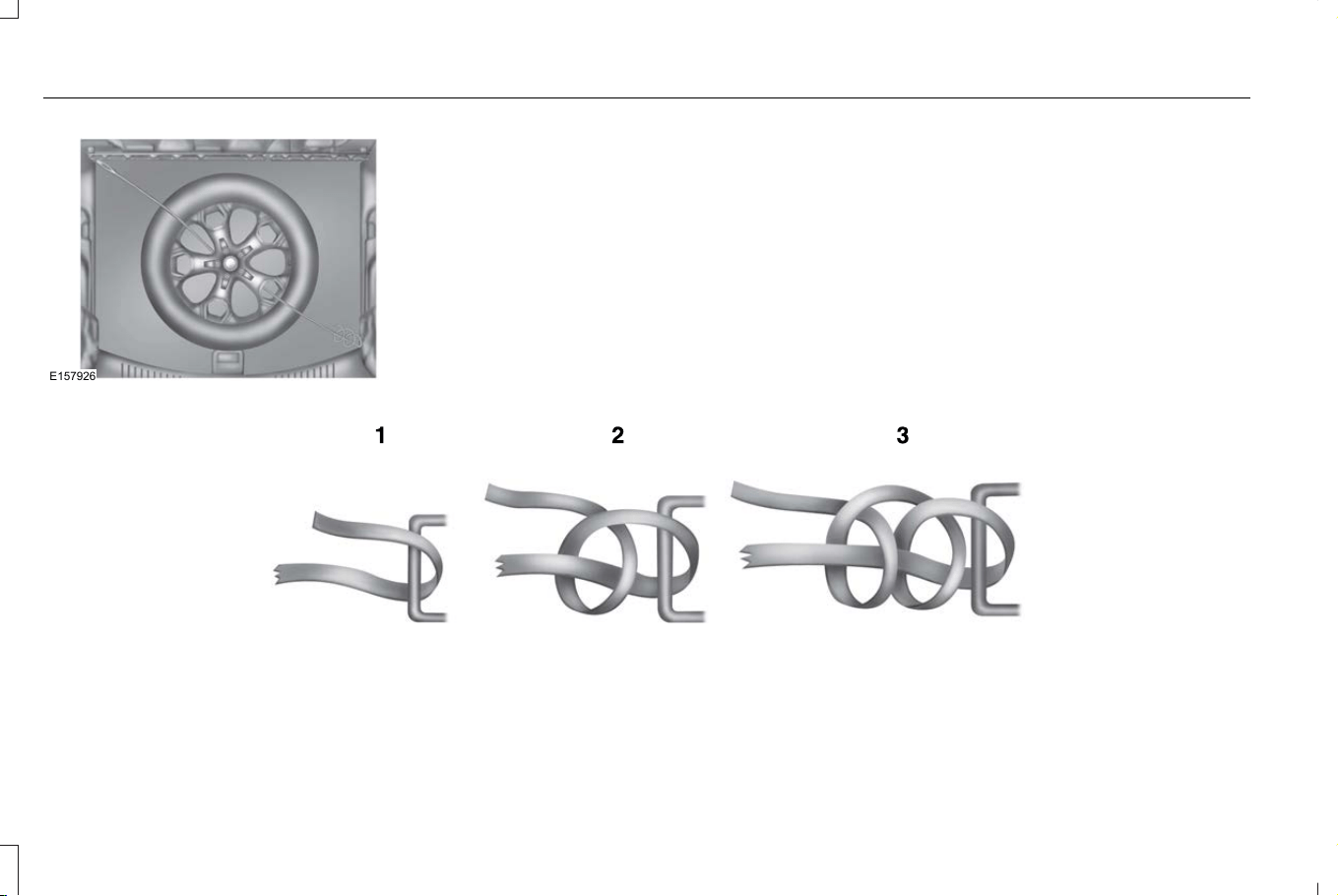
E157926
7. Weave the retainer strap through the
wheel openings.
8. Locate the front cargo tie-down at the
opposite corner of the cargo area to the
tie-down used in Step 6. Thread the
retainer strap through the tie-down and
pull tight.
9. Secure by tying a 2-half hitch knot.
E143746
482
Corsair (CTF) Canada/Mexico/United States of America, enUSA, Edition date: 202407, DOM
Changing a Road Wheel
WHEEL NUTS
WARNING: When you install a wheel, remove any corrosion, dirt or foreign materials present on the mounting surfaces of the wheel
or the surface of the wheel hub, brake drum or brake disc that contacts the wheel. Make sure to secure any fasteners that attach the rotor
to the hub so they do not interfere with the mounting surfaces of the wheel. Installing wheels without following these steps can cause the
wheel nuts to loosen and the wheel to come off while your vehicle is in motion, resulting in loss of vehicle control, personal injury or death.
lb.ft (Nm)
Bolt size
100 lb.ft (135 Nm)M12 x 1.5
*
Torque specifications are for nut and bolt threads free of dirt and rust. Use only Ford recommended replacement fasteners.
Retighten the wheel nuts to the specified torque within 100 mi (160 km) after any wheel disturbance (such as tire rotation, changing a flat tire,
wheel removal).
483
Corsair (CTF) Canada/Mexico/United States of America, enUSA, Edition date: 202407, DOM
Changing a Road Wheel
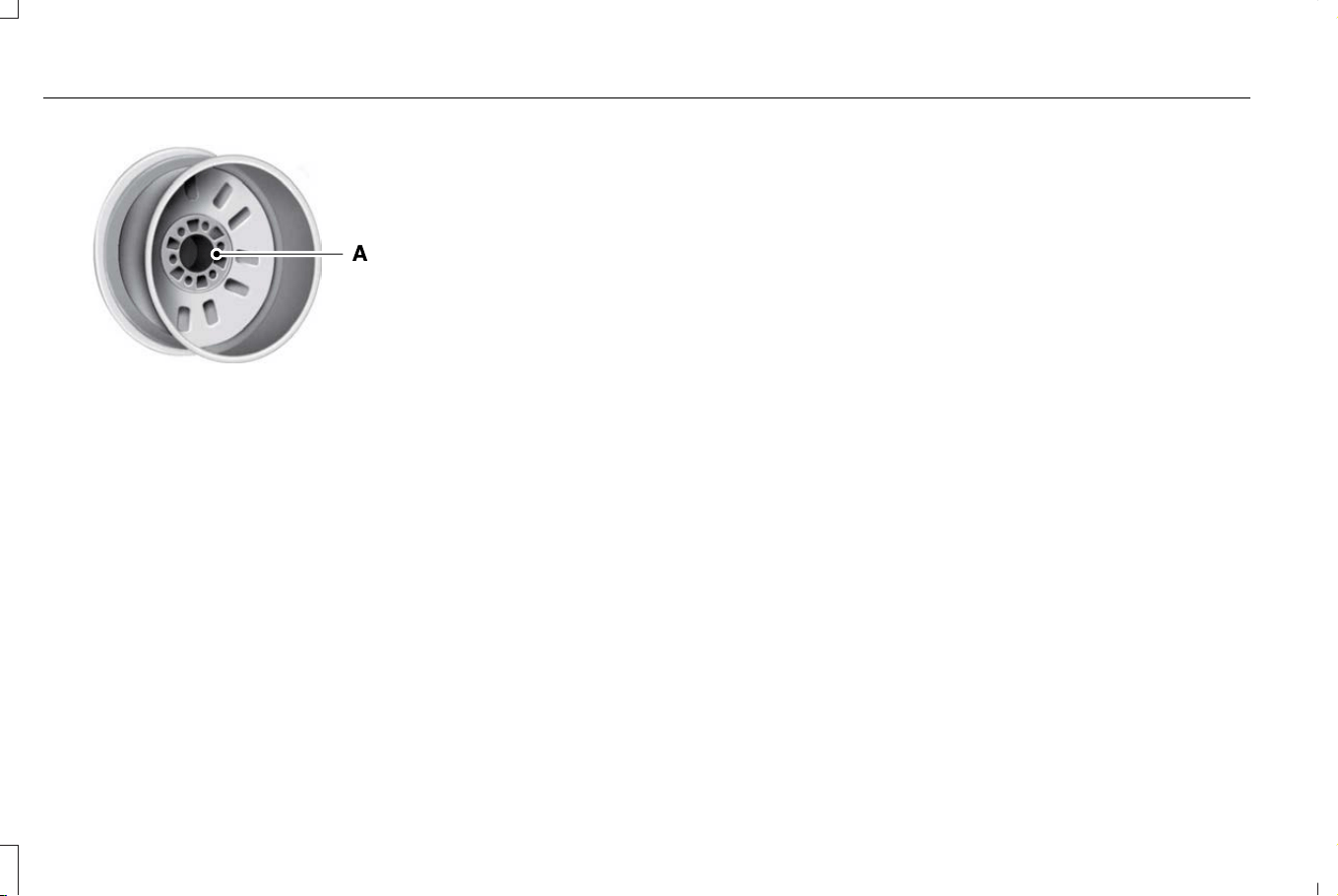
E145950
Wheel pilot bore.A
Inspect the wheel pilot bore and mounting
surface prior to installation. Remove any
visible corrosion or loose particles.
484
Corsair (CTF) Canada/Mexico/United States of America, enUSA, Edition date: 202407, DOM
Changing a Road Wheel
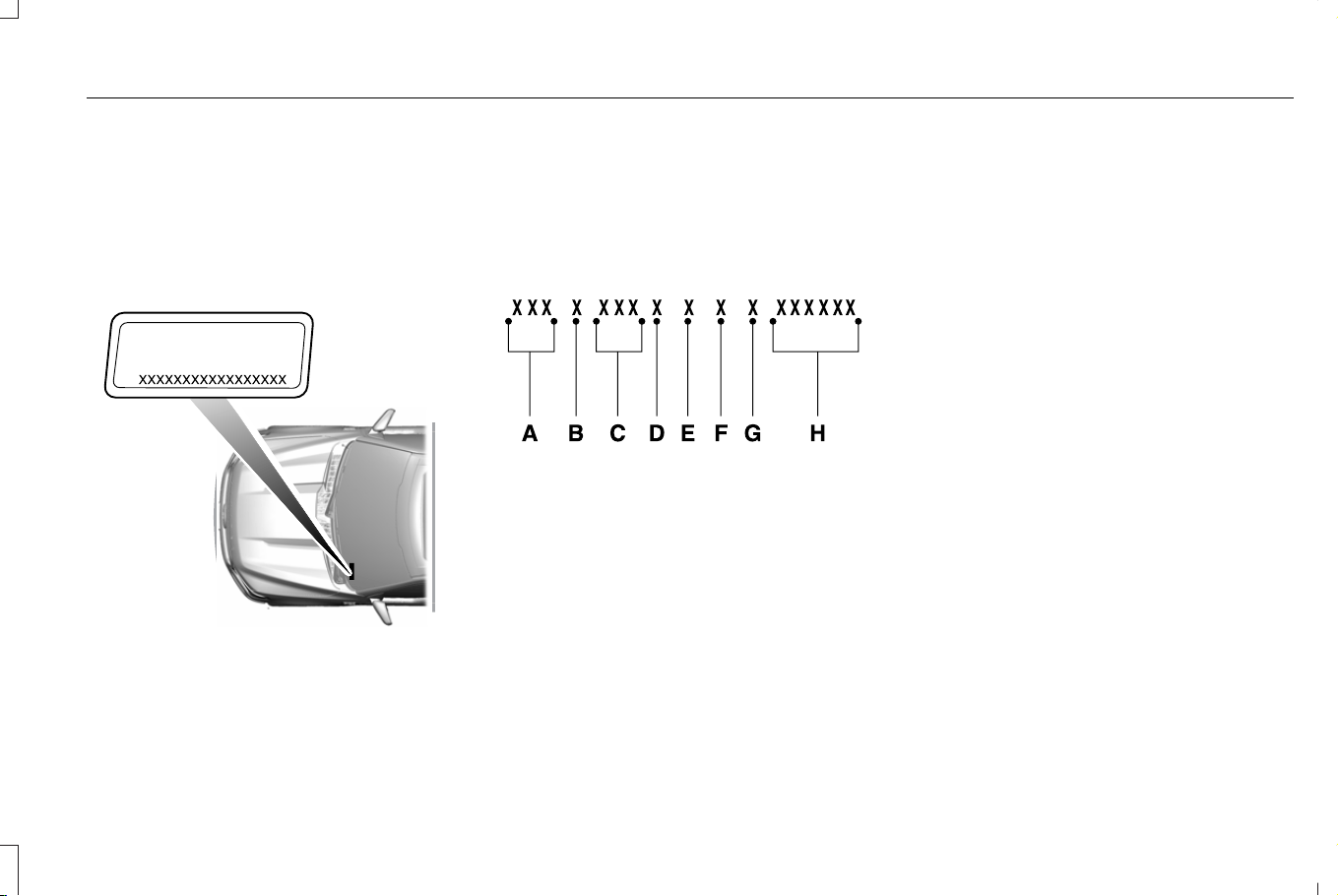
VEHICLE IDENTIFICATION NUMBER
LOCATING THE VEHICLE
IDENTIFICATION NUMBER
The vehicle identification number is on the
left-hand side of the instrument panel.
E311767
Note: In the illustration, XXXX is
representative of your vehicle identification
number.
VEHICLE IDENTIFICATION NUMBER
OVERVIEW
The vehicle identification number contains
the following information:
E142477
World manufacturer identifier.A
Brake system, gross vehicle weight
rating, restraint devices and their
locations.
B
Make, vehicle line, series, body
type.
C
Engine or motor type.D
Check digit.E
Model year.F
Assembly plant.G
Production sequence number.H
485
Corsair (CTF) Canada/Mexico/United States of America, enUSA, Edition date: 202407, DOM
Vehicle Identification

WHAT IS A CONNECTED VEHICLE
A connected vehicle has technology that
allows your vehicle to connect to a mobile
network and for you to access a range of
features. When used in conjunction with the
Lincoln mobile app, it could allow you to
monitor and control your vehicle further, for
example checking the tire pressures and the
vehicle location. For additional information,
refer to the local Lincoln website.
CONNECTED VEHICLE
REQUIREMENTS
Connected service and related feature
functionality requires a compatible vehicle
network.
Some remote features require additional
service activation. Log in to your Lincoln
account for details. Some restrictions, third
party terms and message or data rates may
apply.
CONNECTED VEHICLE
LIMITATIONS
Evolving technology, cellular networks, or
regulations could affect functionality and
availability, or continued provision of some
features. These changes could even stop
some features from functioning.
CONNECTING THE VEHICLE TO A
MOBILE NETWORK
WHAT IS THE MODEM
The modem allows access to a
range of features built into your
vehicle.
ENABLING AND DISABLING THE
MODEM
1. From the settings menu, press
Connectivity.
2. Press Connected Vehicle Features.
3. Switch vehicle connectivity on or off.
CONNECTING LINCOLN WAY TO THE
MODEM
1. Make sure that the modem is enabled
using the vehicle settings menu.
2. Open the Lincoln Way app on your
device and log in.
3. Add your vehicle or select your vehicle
if already added.
4. Select the option to activate your vehicle.
5. Make sure that the name on the screen
matches the name shown in your Lincoln
Way account.
6. Confirm that your Lincoln Way account
is connected to the modem.
CONNECTING THE VEHICLE TO A
WI-FI NETWORK
1. From the settings menu, press
Connectivity.
2. Press Wi-Fi.
3. Switch Wi-Fi on.
4. Press View Available Networks.
486
Corsair (CTF) Canada/Mexico/United States of America, enUSA, Edition date: 202407, DOM
Connected Vehicle

5. Select an available Wi-Fi network.
Note: Enter the network password to
connect to a secure network.
CONNECTED VEHICLE SETTINGS
You can adjust several settings on the
touchscreen under the connected vehicle
features menu, such as:
• Vehicle connectivity.
• Share vehicle data.
• Share vehicle location.
• Share driving data.
Note: Depending on your vehicle, different
options may be available.
Note: Editing connectivity settings could
result in some features not operating
correctly or at all. When you edit connectivity
settings, pop-up messages may appear to
notify you that services will not work without
that setting. If you switch a feature on,
pop-up messages could appear informing
you of the settings that will be turned on.
Some features, for example driver assistance
features, use map data. We recommend
having all connected vehicle settings
enabled to allow the map content to be
updated to the latest version.
E366956
Press the button next to a menu
option for more information.
CONNECTED VEHICLE –
TROUBLESHOOTING
CONNECTED VEHICLE – FREQUENTLY
ASKED QUESTIONS
Why is my Lincoln mobile app not
connecting to my vehicle?
• The modem is not enabled. Switch
vehicle connectivity on.
• The network signal is weak. Move your
vehicle closer to a place where the
network signal is not obstructed.
487
Corsair (CTF) Canada/Mexico/United States of America, enUSA, Edition date: 202407, DOM
Connected Vehicle

Why can I not connect to a Wi-Fi
network?
• You entered the wrong network
password. Enter the correct password.
• The network signal is weak. Move your
vehicle closer to the Wi-Fi router or to a
place where the network signal is not
obstructed.
• There are multiple access points in range
with the same network name. Choose a
unique name for your network. Do not
use the default name unless it contains
a unique identifier, for example, as part
of the MAC address.
Why does the Wi-Fi connection
disconnect after successful
connection?
• The network signal is weak. Move your
vehicle closer to the Wi-Fi router or to a
place where the network signal is not
obstructed.
What can I do if I am close to a Wi-Fi
router but the network signal strength
is weak?
• If your vehicle has a heated windshield,
position your vehicle so that the
windshield is not facing the Wi-Fi router.
• If your vehicle has metallic tinting on the
windows but not on the windshield,
position your vehicle so that the
windshield is facing the Wi-Fi router or
open the windows that are facing the
router.
• If your vehicle has metallic tinting on the
windows and the windshield, open the
windows that are facing the router.
• If your vehicle is in a garage and you
have the garage door closed, open the
garage door as it could block the signal.
Why can I not see a network I expect
to see in the list of available networks?
• The network is hidden. Make the network
visible and try again, or manually add a
network in the Wi-Fi settings menu.
• Some network security types are not
supported, for example, WEP.
Why do software downloads take too
long?
• The network signal is weak. Move your
vehicle closer to the Wi-Fi router or to a
place where the network signal is not
obstructed.
• Wi-Fi network is in high demand or has
a slow Internet connection. Use a more
reliable Wi-Fi network.
488
Corsair (CTF) Canada/Mexico/United States of America, enUSA, Edition date: 202407, DOM
Connected Vehicle

Why does the software not update
when the system seems to connect to
a Wi-Fi network and the signal strength
is excellent?
• No software update is available at this
time.
• Select automatic updates option in the
settings menu to enable automatic
software update or contact an authorized
dealer.
• There could be a connection problem.
Test the network using another device.
489
Corsair (CTF) Canada/Mexico/United States of America, enUSA, Edition date: 202407, DOM
Connected Vehicle

SETTING UP A VEHICLE HOTSPOT
With a data plan, your hotspot can provide
devices in and around your vehicle with Wi-Fi
data.
Note: A mobile device is required to
complete hotspot setup.
1. From the settings menu, press Vehicle
Hotspot. See Center Display (page 502).
2. Press Settings.
3. Press Show Password.
4. Connect your device to the vehicle
hotspot by selecting the hotspot from the
list of Wi-Fi Networks.
5. When prompted, enter the password.
Activating a Trial or Purchasing a Data
Plan
1. Connect a device to your vehicle hotspot.
The vehicle network carrier’s service
activation website opens on your device.
Note: If the website does not open, open a
new website and it redirects to the vehicle
network carrier’s website.
2. Follow the instructions on the carrier
portal to purchase a plan or start a trial.
Note: Visit the vehicle network carrier’s
website to purchase more data.
Note: Hotspot services are subject to your
vehicle network carrier agreement, coverage
and availability.
VEHICLE HOTSPOT SETTINGS
You can change the following in the vehicle
hotspot settings menu:
• Vehicle hotspot name or password.
• Vehicle hotspot frequency.
Changing the Vehicle Hotspot Name
or Password
The hotspot information can only be updated
once you activate the hotspot.
1. From the settings menu, press Vehicle
Hotspot. See Center Display (page 502).
2. Press Settings.
3. Press Edit.
4. Press Change Network Name.
5. Enter your required network name.
6. Press enter to save the network name.
7. Press Change Password.
8. Enter your required password.
9. Press enter to save the password.
Changing the Vehicle Hotspot
Frequency
The vehicle hotspot frequency band is
selectable depending upon your device
capabilities. You cannot connect your device
to the vehicle hotspot if it does not support
the selected frequency band.
1. From the settings menu, press Vehicle
Hotspot. See Center Display (page 502).
2. Press Settings.
3. Press Edit.
4. Press Change Frequency Band.
5. Select a frequency.
490
Corsair (CTF) Canada/Mexico/United States of America, enUSA, Edition date: 202407, DOM
Vehicle Hotspot

VEHICLE HOTSPOT –
TROUBLESHOOTING
VEHICLE HOTSPOT – FREQUENTLY
ASKED QUESTIONS
Why can I not see the vehicle hotspot
name when I search for Wi-Fi networks
on my cell phone or other device?
• Make sure the vehicle hotspot visibility
is on.
• Check what frequency the hotspot is
transmitting in the vehicle hotspot
settings menu. If the frequency is 5 GHz
and your device cannot see the network,
change the frequency to 2.4 GHz.
• The system does not provide a vehicle
hotspot at this time.
How do I remove the vehicle from the
vehicle network carrier's account?
• Contact your vehicle network carrier.
491
Corsair (CTF) Canada/Mexico/United States of America, enUSA, Edition date: 202407, DOM
Vehicle Hotspot
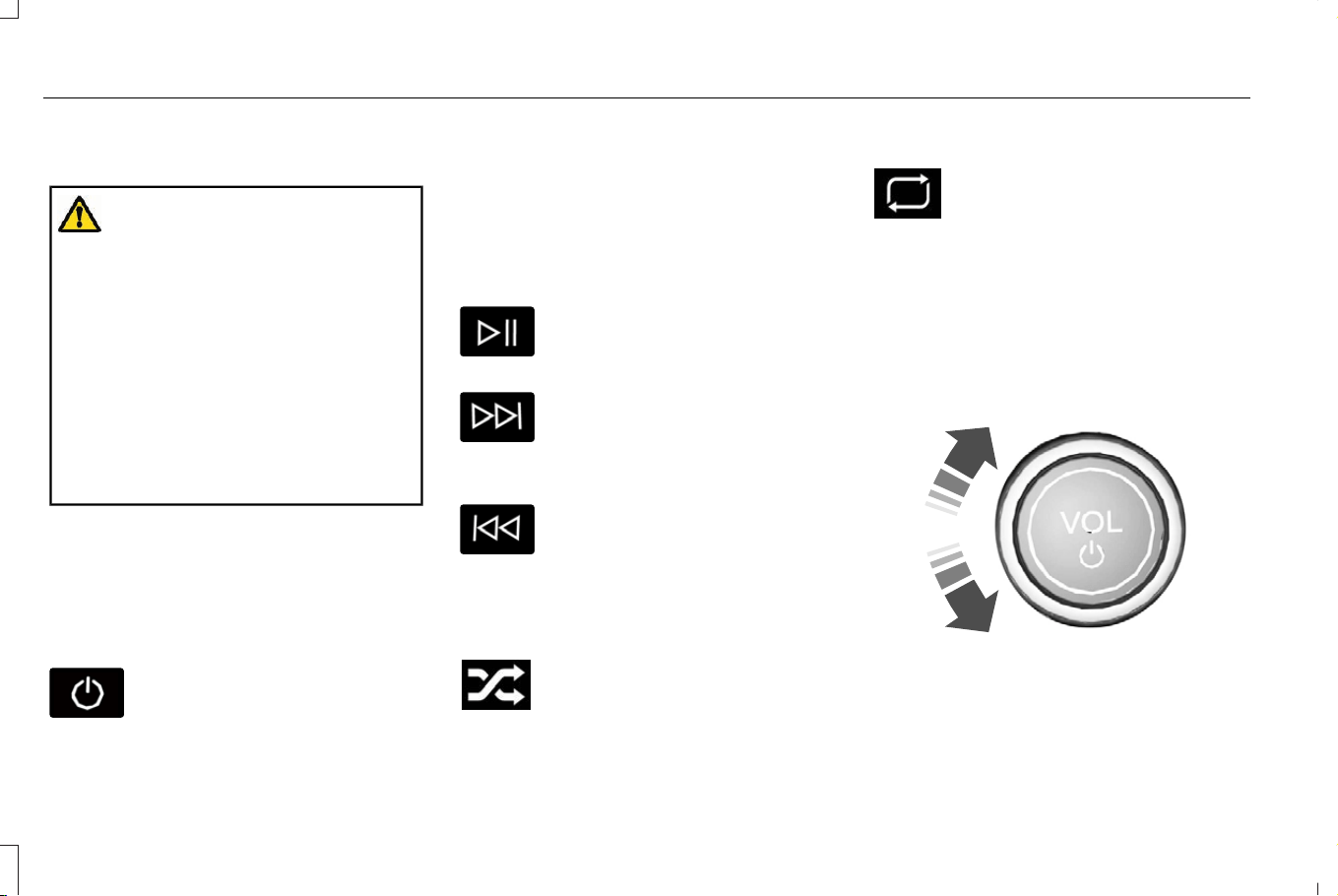
AUDIO SYSTEM PRECAUTIONS
WARNING: Driving while distracted
can result in loss of vehicle control, crash
and injury. We strongly recommend that
you use extreme caution when using any
device that may take your focus off the
road. Your primary responsibility is the safe
operation of your vehicle. We recommend
against the use of any hand-held device
while driving and encourage the use of
voice-operated systems when possible.
Make sure you are aware of all applicable
local laws that may affect the use of
electronic devices while driving.
Listening to loud audio for long periods of
time could damage your hearing.
SWITCHING THE AUDIO UNIT ON
AND OFF
Press the button on the volume
control.
SELECTING THE AUDIO SOURCE
Press Sources on the touchscreen to open
the media source menu.
MEDIA CONTROL BUTTONS
Press to play a track. Press again
to pause the track.
Note: Not all sources can be paused.
Press the button to skip to the next
track.
Press and hold the button to fast
forward through the track.
Press the button once to return to
the beginning of a track.
Repeatedly press the button to
return to previous tracks.
Press and hold the button to fast rewind
through the track.
Press the button on the
touchscreen to switch shuffle
mode on or off.
Note: Not all sources have shuffle mode.
Press the button on the
touchscreen to change repeat
mode.
Note: Not all sources have repeat mode.
ADJUSTING THE VOLUME
E248939
492
Corsair (CTF) Canada/Mexico/United States of America, enUSA, Edition date: 202407, DOM
Audio System

Turn to adjust the volume.
Some vehicles may be able to adjust the
volume using buttons on the steering wheel.
SETTING A MEMORY PRESET
1. Select a station or channel.
2. Press and hold a memory preset button
on the touchscreen.
Note: The audio mutes briefly while the
system saves the preset and returns once it
is stored.
Note: You can save presets from multiple
sources to the memory preset bar.
MUTING THE AUDIO
Press the button on the steering
wheel to mute the audio.
Press to mute the signal. Press
again to restore the signal.
ADJUSTING THE SOUND
SETTINGS
To access the sound settings menu:
1. From the settings menu, press Sound.
From the menu, you can adjust the following:
• Tone settings.
• Balance and fade.
• Speed compensated volume.
• Volume settings.
• Sound mode/Occupancy mode
Note: Depending on your vehicle options,
not all settings are available.
SETTING THE CLOCK AND DATE
1. Press Settings on the touchscreen.
2. Press Clock Settings.
3. Set the time.
Note: The AM and PM options are not
available if 24-hour mode is on.
Switching Automatic Time Updates On
and Off
1. Press Settings on the touchscreen.
2. Press Clock Settings.
3. Switch Auto Time Update on or off.
AM/FM RADIO
AM/FM RADIO LIMITATIONS
The further you travel from an AM or FM
station, the weaker the signal and the weaker
the reception.
Hills, mountains, tall buildings, bridges,
tunnels, freeway overpasses, parking
garages, dense tree foliage and
thunderstorms can interfere with the
reception.
When you pass a ground-based broadcast
repeating tower, a stronger signal may
overtake a weaker one and result in the
audio system muting.
493
Corsair (CTF) Canada/Mexico/United States of America, enUSA, Edition date: 202407, DOM
Audio System
SELECTING A RADIO STATION
Manually Selecting a Radio Station
E270235
Turn to search through the radio frequency
band.
Using Direct Tune
1. Press Direct Tune to open the number
pad.
2. Enter the station you prefer.
Note: You can only enter a valid station for
the audio source you are currently listening
to.
Using Seek
Press either button. The system
stops at the first station it finds in
that direction.
Using the Station List
1. Press Browse.
Note: Available on FM radio only.
2. Press a station.
SWITCHING THE DISPLAY ON AND
OFF
Audio Unit
E272035
Press the button.
Touchscreen
To switch the display off:
1. From the settings menu, press Display.
2. Press Display Off.
Note: The display defaults to on each time
you switch your vehicle on.
To switch the display on, press anywhere on
the touchscreen.
DIGITAL RADIO (IF EQUIPPED)
WHAT IS DIGITAL RADIO
HD Radio™ technology is the digital evolution
of analog AM/FM radio.
For additional information, visit
www.HDRadio.com.
494
Corsair (CTF) Canada/Mexico/United States of America, enUSA, Edition date: 202407, DOM
Audio System

HD Radio Technology is manufactured under
license from iBiquity Digital Corporation and
foreign patents. HD Radio and the HD and
HD Radio logos are proprietary trademarks
of XPERI. The vehicle manufacturer and
XPERI are not responsible for the content
sent using HD Radio technology. Content
may be changed, added or deleted at any
time at the station owner's discretion.
HOW DOES DIGITAL RADIO WORK
Your system has a special receiver that
allows it to receive digital broadcasts in
addition to analog broadcasts.
HD1 signifies the main programming status
and is available in both analog and digital
broadcasts. Other multicast stations are only
available digitally and could contain new or
different content.
Note: When the system first receives an HD1
station, it plays the station in the analog
version until it verifies the station is an HD
Radio station. Then it shifts to the digital
version.
Note: There is an audio mute delay when
switching to an HD2 or HD3 station because
the system has to reacquire and decode the
digital signal.
DIGITAL RADIO LIMITATIONS
If you are outside the reception area, the
system could not work.
If you are on the fringe of the reception area,
the station could mute due to weak signal
strength.
Note: If you are listening to HD1, the system
changes back to the analog broadcast until
the digital broadcast is available again. If
you are listening to any other multicast
channels, the station mutes and stays muted
unless it is able to connect to the digital
signal again.
Depending on the station quality, you could
hear a slight sound change when the station
changes between analog and digital audio.
You cannot access a saved HD station if your
vehicle is outside the station’s reception
area.
SWITCHING DIGITAL RADIO
RECEPTION ON AND OFF
1. From the settings menu, press Radio.
2. Switch HD Radio on or off.
DIGITAL RADIO INDICATORS
HD Radio Indicator
The indicator appears when HD Radio is on
and you tune to a station broadcasting HD
Radio technology.
E142616
The color of the indicator changes to indicate
the system status.
Gray indicates the system is acquiring a
digital station.
495
Corsair (CTF) Canada/Mexico/United States of America, enUSA, Edition date: 202407, DOM
Audio System

Orange indicates digital audio is playing.
Multicast Indicator
The multicast indicator appears if the current
station is broadcasting multiple digital
broadcasts. The highlighted numbers
indicate additional digital channels available.
Note: For stations that have more than one
HD multicast, the HD indicator and radio text
appears as a button. Press the button to
cycle through all of the HD stations on that
specific frequency.
SATELLITE RADIO (IF EQUIPPED)
WHAT IS SATELLITE RADIO
Your factory-installed SiriusXM radio system
includes a limited subscription term, which
begins on the date of sale or lease of your
vehicle. See an authorized dealer for
availability.
For additional information about extended
subscription terms, visit www.SiriusXM.com
in the United States, www.SiriusXM.ca in
Canada, or call SiriusXM at 1-888-539-7474.
Note: SiriusXM reserves the unrestricted
right to change, rearrange, add or delete
programming including canceling, moving
or adding particular channels, and its prices,
at any time, with or without notice to you.
Neither SiriusXM and its affiliates nor Ford
Motor Company and its affiliates will be
liable to you or any third party for any such
modification, suspension or termination.
SATELLITE RADIO LIMITATIONS
For optimal reception performance, keep the
antenna clear of snow and ice build-up and
keep luggage and other material as far away
from the antenna as possible. Placing
luggage over the antenna may reduce
performance. Factory-installed and
aftermarket vehicle structures including, but
not limited to, roof racks and soft top roofs
in a partially open position could reduce
reception performance.
Hills, mountains, tall buildings, bridges,
tunnels, freeway overpasses, parking
garages, dense tree foliage and
thunderstorms can interfere with your
reception.
When you pass a ground-based
broadcast-repeating tower, a stronger signal
may overtake a weaker one and could result
in the audio system muting. Your display
could show an error message to indicate the
interference.
LOCATING THE SATELLITE RADIO
IDENTIFICATION NUMBER
1. Select SiriusXM as the audio source.
2. Tune to channel 0.
SELECTING A CHANNEL
Manually Selecting a Channel
E328569
E328570
Press the button to find the
previous or next available radio
channel.
496
Corsair (CTF) Canada/Mexico/United States of America, enUSA, Edition date: 202407, DOM
Audio System
Linear Tuner
The linear tuner is displayed when manually
selecting a channel. You can swipe left or
right on the linear tuner carousel to navigate
through the channel list. Tap on a channel
title to listen to it.
Using Direct Tune
1. Press the channel up or down button to
open the linear tuner screen.
2. Press Direct Tune to open the number
pad.
3. Enter the channel you prefer.
Using Seek
Press either button.
Using the Channel List
1. Press Browse.
2. Select a channel.
SATELLITE RADIO SETTINGS
Subscription
Your subscription status is displayed. You
can subscribe or manage your subscription
directly from the touchscreen.
SiriusXM Favorites
While you are listening to SiriusXM, you can
save favorites by:
• Tapping the currently tuned channel or
show logo on the SiriusXM audio screen.
• Tuning to a channel or show you want to
save as a favorite. Navigate to the
SiriusXM Favorites screen and press the
Add Current button. The currently tuned
channel or show is saved as a favorite.
• Saving a radio preset. This saves the
currently tuned SiriusXM channel or show
as a favorite
Note: Requires a trial or active subscription
to use.
Listening History
Listening history is a list of recently listened
to SiriusXM content. You can view, manage
and reset the listening history using the
controls on the touchscreen.
Note: Requires a trial or active subscription
to use.
Help and Support
You can contact SiriusXM Customer Care
directly from the operating system and view
information required to manage your
SiriusXM account.
SETTING AN ALERT
E343640
Set a notification for the current
song, artist, or sports team by
pressing the icon. The system
alerts you when it plays again on any
channel. Selecting this button allows you to
enable and edit alerts.
Note: Notifications can be switched on or
off and edited in the satellite radio settings.
497
Corsair (CTF) Canada/Mexico/United States of America, enUSA, Edition date: 202407, DOM
Audio System

AUDIO SYSTEM – TROUBLESHOOTING (IF EQUIPPED)
AUDIO SYSTEM – INFORMATION MESSAGES
Satellite Radio Troubleshooting
Recommended ActionPotential EffectsError Message
Internet connectivity is turned off. See
Connected Vehicle (page 486).
Internet streaming and On Demand shows are
unavailable and some SiriusXM features are
disabled.
Connectivity Disabled
SYNC attempts to connect. See Satellite
Radio Limitations (page 496). Switch to a
satellite connection for the current channel if
the option is available.
Audio system may mute. Switch to Satellite
button may be displayed on the SiriusXM
audio screen if the channel is also available
via satellite.
No Internet
Antenna may be obstructed or satellite
reception is weak in your location. See
Satellite Radio Limitations (page 496). Switch
to an internet connection for the current
channel if the option is available.
Audio system may mute. Switch to Internet
button may be displayed on the SiriusXM
audio screen if the channel is also available
via streaming.
No Satellite Signal
Allow some time for the audio to load or tune
to a different channel.
Audio system may mute while the audio
attempts to load.
Slow Network Connection
498
Corsair (CTF) Canada/Mexico/United States of America, enUSA, Edition date: 202407, DOM
Audio System

Recommended ActionPotential EffectsError Message
A temporary update may be in progress. Allow
some time before retrying to tune to the
channel. If the issue continues, the channel
may no longer be available.
Audio system may mute. Radio may tune to a
different channel.
Channel Unavailable
A temporary update may be in progress. Allow
some time before retrying to play the episode.
If the issue continues, the episode may no
longer be available.
Audio system may mute. Radio may tune to a
different channel.
Episode Unavailable
Allow some time and retry the action.Audio system may mute. Radio may tune to a
different channel.
Something went wrong
Your subscription has expired or you have not
yet subscribed for access to the listed content.
Navigate to Subscription under the Satellite
Radio Settings menu. If you have an active
subscription which includes the listed channel
or content and you see this error, you may
need to refresh your radio. To refresh your
SiriusXM radio, visit www.siriusxm.com/refresh
in the US, or www.siriusxm.ca/refresh in
Canada.
You may need to provide your SiriusXM Radio
identification number. See Locating the
Satellite Radio Identification Number (page
496).
Cannot listen to selected content. Content
may appear grayed out and some features
may be disabled.
Subscribe to Listen
499
Corsair (CTF) Canada/Mexico/United States of America, enUSA, Edition date: 202407, DOM
Audio System

Recommended ActionPotential EffectsError Message
Your subscription does not include access to
the listed content. You may need to upgrade
your subscription. Navigate to Subscription
under the Satellite Radio Settings menu. If you
have an active subscription which includes
the listed channel or content and you see this
error, you may need to refresh your radio. To
refresh your SiriusXM radio, visit www.siri-
usxm.com/refresh in the US, or www.siri-
usxm.ca/refresh in Canada.
You may need to provide your SiriusXM Radio
identification number. See Locating the
Satellite Radio Identification Number (page
496).
Cannot listen to selected content. Content
may appear grayed out and some features
may be disabled.
Upgrade to Listen
Content is not available in your location or
SiriusXM is unable to determine your location.
Tuning to a different channel may resolve the
issue.
Audio may mute. Not available in your location
or Unable to determine your location may be
displayed.
Location Restricted Content
The Block Explicit Content filter is turned on.
Navigate to Listener Settings under the Satel-
lite Radio Settings menu to access the Block
Explicit Content filter. Navigate to Listener
Settings. See Satellite Radio Settings (page
497).
Audio may mute. Radio may tune to a different
channel.
Channel Blocked
500
Corsair (CTF) Canada/Mexico/United States of America, enUSA, Edition date: 202407, DOM
Audio System

Recommended ActionPotential EffectsError Message
If issue persists, you may need to visit an
authorized dealer for service.
Audio may mute. Access to SiriusXM features
may be unavailable.
Antenna Problem or Hardware Problem
Allow SiriusXM some time to complete
updating.
Audio may mute.SiriusXM Updating...
No action necessary. If loading time is longer
than usual, See Satellite Radio Settings (page
497).
Audio may mute. Content may be temporarily
unavailable while loading.
Loading...
No action necessary. Allow SiriusXM some
time to finish loading.
Audio may mute. Content and controls may
be temporarily unavailable.
SiriusXM Loading...
501
Corsair (CTF) Canada/Mexico/United States of America, enUSA, Edition date: 202407, DOM
Audio System
CENTER DISPLAY OVERVIEW
WARNING: Driving while distracted
can result in loss of vehicle control, crash
and injury. We strongly recommend that
you use extreme caution when using any
device that may take your focus off the
road. Your primary responsibility is the safe
operation of your vehicle. We recommend
against the use of any hand-held device
while driving and encourage the use of
voice-operated systems when possible.
Make sure you are aware of all applicable
local laws that may affect the use of
electronic devices while driving.
For your safety, features that are not critical
while driving are not available when the
vehicle is moving at or above 5 mph (8 km/h).
Note: Illustrations are provided for
conceptual understanding only and may
appear differently on your vehicle.
E405233
Home screen button. See Home
Screen (page 502).
A
Status bar. See Status Bar (page
503).
B
Information on demand screen.
See Information On Demand
Screen (page 504).
C
Climate control. See Climate
Control (page 153).
D
HOME SCREEN
E394612
Press to open the home screen.
Features, such as navigation, audio and
phone, are located in the main portion of the
display. The icons located on the side of the
display allow you to access other vehicle
features and settings.
E280315
Press to access the settings menu.
You can change the display language and
other measurement units under the General
menu.
E335299
Press to view features.
Note: The icon may be different depending
on your vehicle.
E353220
Press to see a list of apps. To open
an app, select the app.
E366956
If you see this icon next to a menu
option, press it for more
information.
502
Corsair (CTF) Canada/Mexico/United States of America, enUSA, Edition date: 202407, DOM
Center Display
STATUS BAR
The status bar appears at the top of the
display. The following buttons and icons can
appear in the status bar.
Note: Some buttons and icons may not apply
to your vehicle or may not appear exactly
as shown.
Alexa Built-In
E368039
Press to set up Alexa. See Alexa
Built-In (page 507).
Wireless Charging
E353214
Wireless charging active.
E372644
Device connected and not
charging.
Traffic Announcements
E358770
Traffic announcements are turned
on but are not supported by the
selected station.
E295068
Traffic announcements are turned
on and supported by the selected
station but are not active.
E358769
Traffic announcements are active.
Note: If no traffic announcement icons are
displayed, traffic announcements are turned
off.
Vehicle Data
E353219
Wi-Fi available.
Wi-Fi connected.
Vehicle data sharing on.
E335292
Vehicle data sharing off.
Vehicle location sharing on.
Vehicle data and vehicle location
sharing on.
Outside Air Temperature
E432925
Outside air temperature is active.
Audio System
E353221
Audio system muted.
Connected Device
Cell phone microphone muted.
E353213
Phone call in progress.
E353208
Media player connected using
Bluetooth®.
Cell phone network signal
strength.
Cell phone roaming.
E335295
Text message received.
503
Corsair (CTF) Canada/Mexico/United States of America, enUSA, Edition date: 202407, DOM
Center Display
E353216
Unread email message.
Automatic crash notification system
off.
E335293
Cell phone battery status.
Software Updates
Press to see details about software
updates. See Vehicle Software
Updates (page 523).
Back Button
E247889
Some screens have a back button
in the top corner. Press the button
to return to the previous screen.
INFORMATION ON DEMAND
SCREEN
The information on demand screen displays
cards on the side of the display and allows
you to see information from different
features.
You can swipe up or down to view a different
card.
Note: On some screens, you can swipe a
card toward the center of the screen to move
the content into the main screen.
SETTINGS
Display Settings
From the display menu you can do the
following:
• Switch the calm screen on.
• Manually adjust the screen brightness.
• Set the display mode.
Touchscreen Brightness
To manually adjust the screen brightness,
use the plus or minus buttons.
Note: The display brightness is limited if the
settings of the instrument panel lighting
brightness are set to the highest or lowest
setting.
REBOOTING THE CENTER DISPLAY
You can reboot the center display using the
controls on the steering wheel.
1. Simultaneously press and hold the seek
forward and audio system power button
for 10 seconds.
504
Corsair (CTF) Canada/Mexico/United States of America, enUSA, Edition date: 202407, DOM
Center Display
LINCOLN PERSONAL ASSISTANT
USING LINCOLN PERSONAL
ASSISTANT
The digital assistant allows you to control
vehicle features using conversational
requests.
To begin a voice interaction using the wake
word, say the selected wake word, then say
your command.
E142599
Press the voice interaction button
on the steering wheel. A tone
sounds before you can say your
command.
Note: You may need to enable your vehicle's
modem to use certain voice commands. See
Enabling and Disabling the Modem (page
486).
Voice Command Examples
To see examples of what voice commands
you can use with different features:
1. From the settings menu, press Lincoln
Assistant.
2. Press Voice Command Help.
3. Select a feature.
LINCOLN PERSONAL ASSISTANT
SETTINGS
To access the settings menu:
1. From the settings menu, press Lincoln
Assistant.
From the settings menu you can do the
following:
• Switch listen for wake word on or off.
• Set the preferred wake word.
• Switch advanced mode on or off.
• Switch phone confirmation on or off.
• Switch the commands list on or off.
• View the commands help menu.
E366956
Press the button next to a menu
option for more information.
LINCOLN PERSONAL ASSISTANT –
FREQUENTLY ASKED QUESTIONS
Why does the system not understand
what I am saying?
• You are speaking too soon. When using
the button of the steering wheel, wait for
the tone before you speak.
Why does the system not understand
the name of a track or artist?
• Bluetooth® does not support voice
commands. Connect your device to a
USB port.
• You are not saying the name exactly as
it appears on your device. Say the name
of the track or artist exactly as it appears
on your device. Spell out any
abbreviations in the name.
• The system does not recognize some
special characters contained in the name
of a song or artist, for example *, - or +.
Rename the files on your device or use
the touchscreen to select and play the
track.
505
Corsair (CTF) Canada/Mexico/United States of America, enUSA, Edition date: 202407, DOM
Voice Interaction

Why does the system not understand
the name of a contact in the
phonebook on my device and calls the
wrong contact?
• You are not saying the name exactly as
it appears on your device. Say the first
and last name of the contact exactly as
it appears on your device. Spell out any
abbreviations in the name.
• The name contains special characters,
for example *, - or +. Rename the contact
on your device or use the touchscreen
to select and call the contact.
Why does the system not understand
foreign names of contacts in the
phonebook on my device?
• The system applies phonetic
pronunciation rules of the selected
language to the names of contacts in the
phonebook on your device. Select the
name of the contact on the touchscreen
and use the Hear it option to get an idea
of how the system expects you to
pronounce it.
Why do the system voice prompts and
the pronunciation of some words not
seem accurate?
• The system uses text-to-speech
technology and a synthetically generated
voice rather than a pre-recorded human
voice.
506
Corsair (CTF) Canada/Mexico/United States of America, enUSA, Edition date: 202407, DOM
Voice Interaction

WHAT IS ALEXA BUILT-IN
Alexa Built-In allows you to use Alexa in your
vehicle for auto-specific use cases on the
road and gives you access to an
ever-evolving number of skills that help to
make your life more productive, entertaining,
and connected while using your vehicle.
ALEXA BUILT-IN REQUIREMENTS
To use Alexa, all of the following must occur:
• Your vehicle modem is enabled.
• You are signed in to an existing Amazon
account.
• Vehicle location services are enabled.
• Vehicle connectivity and vehicle data
sharing is enabled.
SIGNING IN TO YOUR ACCOUNT
E368039
Press the button in the status bar
and follow the on-screen prompts.
To sign in using the settings menu:
1. From the settings menu, press Amazon
Alexa.
2. Press Get Started.
3. Sign in to the Amazon account by either
scanning the code or entering the
on-screen code into the Amazon website.
4. Once logged in, follow the on-screen
prompts.
5. When complete, the vehicle informs you
that Alexa is ready to be used in the
vehicle.
Signing Out of Your Account
1. From the settings menu, press Amazon
Alexa.
2. Press Sign Out.
USING ALEXA BUILT-IN
To use Alexa, say “Alexa” or press the voice
interaction button on the steering wheel and
then say “Alexa” to invoke Alexa to start
listening.
Note: If the wake word is not enabled, you
can only use the voice interaction button.
You can use Alexa for the following and
more:
• Entertainment.
• Hands-free calling.
• Traffic and navigation.
• Vehicle controls.
• Smart home device control.
• Weather and news information.
ALEXA BUILT-IN SETTINGS
Enabling the Wake Word
1. From the settings menu, press Amazon
Alexa.
2. Switch Listen for Wake Word on or off.
Note: If the wake word is not enabled, you
can only use the voice interaction button.
Contact List
Displays a list of connected phones and
contact sharing status for each phone.
507
Corsair (CTF) Canada/Mexico/United States of America, enUSA, Edition date: 202407, DOM
Alexa Built-In (If Equipped)

To change the contact sharing status:
1. From the settings menu, press Amazon
Alexa.
2. Press Contact List.
3. Enable or disable sharing for each phone.
Note: You can share contacts from more
than one phone at a time.
Things to Try
Learn more about what you can do with
Alexa by browsing the things to try.
1. From the settings menu, press Amazon
Alexa.
2. Press Things to Try.
508
Corsair (CTF) Canada/Mexico/United States of America, enUSA, Edition date: 202407, DOM
Alexa Built-In (If Equipped)
PHONE PRECAUTIONS
WARNING: Driving while distracted
can result in loss of vehicle control, crash
and injury. We strongly recommend that
you use extreme caution when using any
device that may take your focus off the
road. Your primary responsibility is the safe
operation of your vehicle. We recommend
against the use of any hand-held device
while driving and encourage the use of
voice-operated systems when possible.
Make sure you are aware of all applicable
local laws that may affect the use of
electronic devices while driving.
CONNECTING YOUR PHONE
Go to the settings menu on your device and
switch Bluetooth® on.
Press the phone option on the
feature bar.
1. Press Add Phone.
Note: A prompt alerts you to search for your
vehicle on your cell phone.
2. Select your vehicle on your cell phone.
Note: A number appears on your cell phone
and on the touchscreen.
3. Confirm the number on your cell phone
matches the number on the touchscreen.
Note: The touchscreen indicates that you
have successfully paired your cell phone.
4. Download the phonebook from your cell
phone when you are prompted.
Note: If you pair more than one cell phone,
use the phone settings on the center display
to specify the primary phone. You can
change this setting at any time.
PHONE MENU
This menu becomes available after pairing
a phone.
Recent Call List
Display and select an entry from a list of
previous calls.
Contacts
Display a smart search form to look up your
contacts. Use the List button to alphabetically
sort your contacts.
Favorites
Display the list of favorite contacts that are
set up on your phone.
Messaging
Displays the list of text messages to read,
listen to, or respond to.
Email
Displays the list of emails to read, listen to,
or respond to.
Phone List
Display the list of paired or connected
devices that you can select.
Note: Up to 12 devices can be stored.
509
Corsair (CTF) Canada/Mexico/United States of America, enUSA, Edition date: 202407, DOM
Phone

Do Not Disturb
Reject incoming calls and switch ring tones
and alerts off.
Phone Keypad
Directly dial a number.
Voice Control
Press the button and say a command to use
the Google or Siri voice assistant available
on your connected phone to access
supported features.
Note: Some features under the phone menu
may not be available if the feature is not
supported through the phone.
510
Corsair (CTF) Canada/Mexico/United States of America, enUSA, Edition date: 202407, DOM
Phone

MAKING AND RECEIVING A
PHONE CALL
Making Calls
To call a number in your contacts, select:
Action and DescriptionMenu Item
You can then select the
name of the contact you
want to call. Any numbers
stored for that contact
display along with any
stored contact photos. You
can then select the number
that you want to call. The
system begins the call.
Contacts
To call a number from your recent calls,
select:
Action and DescriptionMenu Item
You can then select an entry
that you want to call. The
system begins the call.
Recent Call
List
To call a number from your favorites, select:
Action and DescriptionMenu Item
You can then select an entry
that you want to call. The
system begins the call.
Favorites
To call a number that is not stored in your
phone, select:
Action and DescriptionMenu Item
Select the digits of the
number you wish to call.
Phone
Keypad
The system begins the call.Call
Pressing the backspace button deletes the
last digit you typed.
Receiving Calls
During an incoming call, an audible tone
sounds. Caller information appears in the
display if it is available.
To accept the call, select:
Menu Item
Accept
Note: You can also accept the call by
pressing the phone button on the steering
wheel.
To reject the call, select:
Menu Item
Reject
Ignore the call by doing nothing. The system
logs it as a missed call.
During a Phone Call
During a phone call, the contacts name and
number display on the screen along with the
call duration.
The phone status items are also visible:
• Signal Strength.
• Battery.
511
Corsair (CTF) Canada/Mexico/United States of America, enUSA, Edition date: 202407, DOM
Phone

You can select any of the following during
an active phone call:
Item
Immediately end a
phone call. You can
also press the button
on the steering
wheel.
End Call
Press this to access
the phone keypad.
Keypad
You can switch the
microphone off so
the caller does not
hear you.
Mute
Transfer the phone
call audio to the cell
phone or back to the
touchscreen.
Privacy
512
Corsair (CTF) Canada/Mexico/United States of America, enUSA, Edition date: 202407, DOM
Phone

SENDING AND RECEIVING A TEXT MESSAGE
DescriptionMenu Item
Hear the text message.Hear It
View the text message.View
Call the sender.Call
Reply to the text message with a standard text message.Reply
513
Corsair (CTF) Canada/Mexico/United States of America, enUSA, Edition date: 202407, DOM
Phone

SWITCHING TEXT MESSAGE
NOTIFICATION ON AND OFF
The settings on your device must be enabled
to receive text message notifications on the
center display. Check your device settings
to enable these features.
ENABLING APPS ON A MOBILE
DEVICE
When you start an app through the system
for the first time, you could be asked to grant
certain permissions. You can review and
change the permissions that you have
granted at any time when your vehicle is not
moving. We recommend that you check your
data plan before using your apps through
the system. Using them could result in
additional charges. We also recommend that
you check the app provider's terms and
conditions and privacy policy before using
their app. Make sure that you have an active
account for apps that you want to use
through the system. Some apps work with
no setup. Others require you to configure
some personal settings before you can use
them.
Enabling Apps on an iOS Device
Select the apps option on the
feature bar.
1. Select Mobile Apps Help.
2. Follow the instructions to pair and
connect your device via Bluetooth® or
with a USB cable.
3. Start the apps on your device that you
want to use.
4. Select the app that you want to use on
the touchscreen.
Note: Some apps may run through Apple
CarPlay if it is enabled.
Note: Closing an app on your device closes
it on the touchscreen.
Note: For troubleshooting assistance select
Mobile Apps List under Mobile Apps Help.
Enabling Apps on an Android Device
Select the apps option on the
feature bar.
1. Select Mobile Apps Help.
2. Follow the instructions to pair and
connect your device via Bluetooth® or
with a USB cable.
3. Start the apps on your device that you
want to use.
4. Select Find Mobile Apps.
5. Select the app that you want to use on
the touchscreen.
Note: Some devices may lose the ability to
play music over USB when Mobile Apps are
enabled.
Note: Some apps may run through Android
Auto if it is enabled.
Note: Closing an app on your device closes
it on the touchscreen.
Note: For troubleshooting assistance select
Mobile Apps List under Mobile Apps Help.
514
Corsair (CTF) Canada/Mexico/United States of America, enUSA, Edition date: 202407, DOM
Phone
SWITCHING APPLE CARPLAY ON
AND OFF
Enabling Apple CarPlay with USB
1. Connect your device to a USB port.
2. Follow the instructions on your device
and the touchscreen.
Note: Selecting Enable Wireless CarPlay on
your device prepares the device for wireless
CarPlay when you reenter the vehicle.
Enabling Apple CarPlay with Wireless
1. Pair your device to Bluetooth®.
2. Follow the instructions on your device
and the touchscreen.
Disabling Apple CarPlay
E280315
Select the settings option on the
feature bar.
1. Press Phone List.
2. Select your device from the list.
3. Press Disable.
Re-Enabling Apple CarPlay
E280315
Select the settings option on the
feature bar.
1. Press Phone List.
2. Select your device from the list.
3. Press Connect to Apple CarPlay.
SWITCHING ANDROID AUTO™ ON
AND OFF
Enabling Android Auto with USB (If
Equipped)
1. Connect your device to a USB port.
2. Follow the instructions on the
touchscreen.
Note: Certain features of the system are not
available when you are using Android Auto.
Enabling Android Auto with Wireless
1. Pair your device to Bluetooth®.
2. Follow the instructions on your device
and the touchscreen.
Note: Certain Android™ devices do not
support Android Auto Wireless. Check your
Android OS version for compatibility.
Disabling Android Auto
E280315
Select the settings option on the
feature bar.
1. Press Phone List.
2. Select your device from the list.
3. Press Disable.
Re-Enabling Android Auto
E280315
Select the settings option on the
feature bar.
1. Press Phone List.
2. Select your device from the list.
3. Press Connect to Android Auto.
515
Corsair (CTF) Canada/Mexico/United States of America, enUSA, Edition date: 202407, DOM
Phone
CONNECTING A BLUETOOTH®
DEVICE
1. Make sure Bluetooth® is enabled on your
device.
2. Press Settings on the touchscreen.
3. Press Connectivity.
4. Press Bluetooth.
5. Press Add a Bluetooth Device.
Note: A prompt alerts you to search for your
vehicle on your device.
6. Select your vehicle on your device.
Note: A number appears on your device and
on the touchscreen.
7. Confirm that the number on your device
matches the number on the touchscreen.
Note: The touchscreen indicates that you
have successfully paired your device.
The Bluetooth® word mark and logos are
registered trademarks owned by Bluetooth
SIG, Inc. and any use of such marks by Ford
Motor Company is under license. Other
trademarks and trade names are those of
their respective owners.
PLAYING MEDIA USING
BLUETOOTH®
WARNING: Driving while distracted
can result in loss of vehicle control, crash
and injury. We strongly recommend that
you use extreme caution when using any
device that may take your focus off the
road. Your primary responsibility is the safe
operation of your vehicle. We recommend
against the use of any hand-held device
while driving and encourage the use of
voice-operated systems when possible.
Make sure you are aware of all applicable
local laws that may affect the use of
electronic devices while driving.
Connect your device.
E100027
Press the audio button on the
feature bar.
E250655
Press Sources.
Press the Bluetooth® option.
Press to play a track. Press again
to pause the track.
Press to skip to the next track.
Press and hold to fast forward
through the track.
Press once to return to the
beginning of a track. Repeatedly
press to return to previous tracks.
Press and hold to fast rewind through the
track.
516
Corsair (CTF) Canada/Mexico/United States of America, enUSA, Edition date: 202407, DOM
Bluetooth®

HOW DO PERSONAL PROFILES
WORK
This feature allows you to create multiple
personal profiles enabling users to
personalize vehicle’s settings such as seats
and mirrors, as well as non-positional settings
like radio, navigation and driver assist.
Positional settings are saved by holding a
memory seat button. Non-positional settings
are saved when you change a setting while
a profile is active. You can create one profile
for each preset memory seat button along
with a guest profile.
Recalling and Changing a Profile
You can recall a profile using the
touchscreen or the preset button you
selected when you created your profile. You
can also link a remote control and a mobile
device to your profile, to recall the profile.
ENABLING OR DISABLING
PERSONAL PROFILES
1. Switch the vehicle on and leave the
vehicle in park (P).
2. Press Settings on the touchscreen.
3. Press Personal Profiles.
4. Switch Personal Profiles on or off.
When enabled:
• Unlocking a door with a remote control
or mobile device that is not linked to a
driver profile does not change the active
profile, but remains in the last known
profile. It does not change the positional
settings.
• Pressing a memory seat button that is
not linked to a driver profile or saved to
a preset setting does not change the
active profile, but remains in the last
known profile. It does not change the
positional settings.
• Pressing a memory seat button that is
not linked to a driver profile but is saved
to a preset setting does not change the
active profile, but remains in the last
known profile. It recalls the positional
settings that you saved to that memory
seat button.
517
Corsair (CTF) Canada/Mexico/United States of America, enUSA, Edition date: 202407, DOM
Personal Profiles

When disabled:
• Unlocking a door with a remote control
or mobile device does not recall any
non-positional settings but still recalls
positional settings from the driver profile
which the remote control or mobile
device is linked to.
• Pressing a memory seat button that is
not linked to a driver profile or saved to
a preset setting does not change the
positional or non-positional settings.
• Pressing a memory seat button that is
linked to a driver profile or has saved to
a preset setting recalls the positional
settings that you saved to that memory
seat button.
CREATING A PERSONAL PROFILE
Use the touchscreen to create a personal
profile.
1. Switch the vehicle on and leave the
vehicle in park (P).
2. Select the Personal Profiles button under
Settings.
3. Follow the instructions on the display.
LINKING OR UNLINKING A
PERSONAL PROFILE TO A REMOTE
CONTROL
You can save Personal Profiles, including
preset memory positions, for up to three
remote controls by assigning a remote
control to a personal profile using the
touchscreen.
Use the touchscreen to link a remote control
to a personal profile.
1. Switch the vehicle on and leave the
vehicle in park (P).
2. Select Personal Profiles under Settings.
3. Touch the arrow for the profile you want
to link to a remote control.
4. Select remote control.
5. Follow the instructions on the display.
Note: If more than one linked remote control
is in range, the memory function moves to
the settings of the first key to initiate a
memory recall.
Note: The guest profile consists of existing
settings when there is no driver profile
created. After you create a driver profile, the
guest profile serves as an additional driver
profile.
Note: You cannot link a remote control to a
guest profile.
LINKING OR UNLINKING A
PERSONAL PROFILE TO A DEVICE
Use the touchscreen to link a mobile device
to a personal profile.
1. Switch the vehicle on and leave the
vehicle in park (P).
2. Select the Personal Profiles button under
Settings.
3. Touch the arrow for the profile you wish
to link to a mobile device.
4. Select mobile device.
5. Follow the instructions on the display.
518
Corsair (CTF) Canada/Mexico/United States of America, enUSA, Edition date: 202407, DOM
Personal Profiles

Note: To successfully link a mobile device,
the mobile device must be in your vehicle,
and must have previously been setup as a
remote control for your vehicle.
Note: The guest profile consists of existing
settings when there is no driver profile
created. After you create a driver profile, the
guest profile serves as an additional driver
profile.
Note: You cannot link a personalized name
to a guest profile.
519
Corsair (CTF) Canada/Mexico/United States of America, enUSA, Edition date: 202407, DOM
Personal Profiles
CONNECTED NAVIGATION (IF
EQUIPPED)
Your vehicle may be equipped with
connected navigation. Depending on your
version, you are given a 90 day or 3 year
trial. After the trial period, you need to sign
up to continue the experience. For additional
information, visit lincoln.com/
connectedservices.
Note: If you do not sign up or renew your
subscription, you can still use navigation
through a connected device.
ACCESSING NAVIGATION
Press the button to access
Navigation.
Note: As the driver, be aware of all local
traffic regulations and road attributes, and
operate your vehicle in a safe and legal
manner.
NAVIGATION MAP UPDATES
To update your map data over Wi-Fi, your
vehicle must be connected to a Wi-Fi access
point. For USB updates and other details,
contact dealers at 1-866-462-8837 in the
United States and Canada, or 800-557-5539
in Mexico.
Note: If you find map data errors, you may
report them by going to
www.here.com/mapcreator.
ADJUSTING THE MAP
ZOOMING THE MAP IN AND OUT
You can use pinch gestures to zoom in and
out. Place two fingers on the screen and
move them apart to zoom in. Place two
fingers on the screen and bring them
together to zoom out.
CHANGING THE FORMAT OF THE
MAP
E328845
Press the Menu button.
1. Press the Map Orientation tile.
2. Select a map orientation.
LIVE TRAFFIC
WHAT IS LIVE TRAFFIC
You can observe real-time road congestion
when live traffic is on.
SWITCHING LIVE TRAFFIC ON AND
OFF
E328845
Press the Menu button.
1. Press the Traffic on Map tile.
2. Press Traffic on or Traffic Off.
520
Corsair (CTF) Canada/Mexico/United States of America, enUSA, Edition date: 202407, DOM
Navigation

SETTING A DESTINATION
SETTING A DESTINATION USING THE
TEXT ENTRY SCREEN
1. Press the search bar at the top of the
screen.
2. Enter your destination using the
keyboard.
3. Press Search.
4. Select a destination from the list.
5. Press Start to begin navigation.
SETTING A DESTINATION USING THE
MAP SCREEN
Press and hold on the map to place a pin at
that location. Information about the location
of the pin appears on the screen.
E328844
Press the button to begin
navigation to the pin.
SETTING A DESTINATION USING A
PREDICTIVE DESTINATION
Press the predicted destination card on the
screen to navigate to it. These appear when
the navigation system has learned your
driving habits.
SETTING A DESTINATION USING A
RECENT DESTINATION
1. Press the Recents tile.
2. Select a destination from the list.
SETTING A DESTINATION USING
A SAVED DESTINATION
1. Press Saved Places.
2. Select a saved destination.
Note: Press the star icon next when viewing
location details to save the location.
SETTING A DESTINATION USING A
POINT OF INTEREST
Press a point of interest icon on the map.
Information about the location of the point
of interest appears on the screen.
E328844
Press the button to begin
navigation to the point of interest.
WAYPOINTS
ADDING A WAYPOINT
E328843
Press the Add Waypoint button
when in an active navigation
session.
1. Select a category or enter your waypoint
on the keyboard and press Search.
2. Select a waypoint from the list.
3. Press Add to Trip.
EDITING WAYPOINTS
1. Press the waypoint you would like to edit.
521
Corsair (CTF) Canada/Mexico/United States of America, enUSA, Edition date: 202407, DOM
Navigation

2. Select an option to reorder or delete the
waypoint.
ROUTE GUIDANCE
ADJUSTING THE GUIDANCE PROMPT
VOLUME
Turn the volume control when a guidance
prompt plays to adjust the volume.
REPEATING AN INSTRUCTION
Press the turn indicator to hear the last voice
instruction.
CANCELING ROUTE GUIDANCE
E280804
Press the button to cancel route
guidance to the selected location.
522
Corsair (CTF) Canada/Mexico/United States of America, enUSA, Edition date: 202407, DOM
Navigation

This introduces new features and provides
updates to the vehicle's software systems.
Make sure to switch Automatic Updates on,
set a recurring update schedule and connect
your vehicle to Wi-Fi. Updates could take
longer when not connected to Wi-Fi or could
not download at all. See Connecting the
Vehicle to a Wi-Fi Network (page 486).
Your vehicle may be able to receive drivable
software updates, non-drivable software
updates or both. Drivable software updates
happen during normal vehicle usage and
require limited input from you. You are
notified on your touchscreen and connected
device prior to a non-drivable update.
Most non-drivable updates complete in less
than 30 minutes, although some updates
could take up to a few hours.
You are notified of vehicle software update
status on to the top left of touchscreen. You
can also see the notifications in your
connected device. See Software Update
Indicators (page 524).
Vehicle Software Update Requirements
Non-drivable software updates do not install
if any of the following occur:
• Your vehicle is running.
• Your vehicle is switched on.
• Your vehicle is not parked.
• The 12 V battery charge is too low.
• The hazard indicators are switched on.
• The alarm is sounding.
• The doors are open.
• The parking lamps are switched on.
• You are pressing the brake pedal.
• An emergency call is in process.
• Your vehicle is in limp home mode.
Vehicle Software Update Limitations
Once you begin a non-drivable software
update, you cannot:
• Cancel the update.
• Enter your vehicle unless you have a key
blade.
• You can open the doors using the
mechanical latch if child locks are not
on.
• Use the remote control to lock, unlock or
start your vehicle.
• Drive your vehicle.
• Charge your vehicle.
• Charging resumes once the update
completes.
SOFTWARE UPDATE SETTINGS
To access the Software Updates menu:
1. Press Settings on the touchscreen.
2. Press Software Updates.
523
Corsair (CTF) Canada/Mexico/United States of America, enUSA, Edition date: 202407, DOM
Vehicle Software Updates
You can do the following in the Software
Updates menu:
• Switch Automatic Updates on and off.
• Schedule and install software updates.
• View software update details.
E366956
Press the button next to a menu
option for more information.
Switching Automatic Updates On and
Off
Your vehicle may come with Automatic
Updates switched on. To make sure your
vehicle always has the latest software, which
could include security or other
enhancements, we recommend switching
Automatic Updates on.
Note: Software updates require approval to
download or install with Automatic Updates
switched off.
Scheduling and Installing Software
Updates
Scheduling Software Updates
From the Software Updates menu:
1. Press Recurring Schedule.
2. Select the days and time for updates.
The more days that updates are scheduled,
the more frequently your vehicle installs new
updates when available. We recommend
selecting a time you normally do not need
your vehicle, such as overnight.
Some updates require your vehicle to be
switched off.
Note: The schedule you set is recurring. If
Automatic Updates is on, every time a
non-drivable update is available, it installs
on this schedule unless you change it. You
are notified on your touchscreen and
connected device prior to a non-drivable
update, with an option to reschedule it.
Installing Software Updates
Using the Status Bar
1. Press a Software Update indicator on
your touchscreen when it appears.
2. Follow the instructions on the
touchscreen.
Using the Touchscreen
From the Software Updates menu:
1. Press Update Details.
2. Press Update Now.
Viewing Software Update Details
From the Software Updates menu, press
Update Details.
SOFTWARE UPDATE INDICATORS
You can press the indicators in the status bar
when they appear for more information.
E327787
Vehicle software update reminder,
schedule required, confirmation of
default schedule required, or
consent required.
E327788
Vehicle software update canceled,
update not successful, or
precondition not met.
E353218
Vehicle software update
successful.
524
Corsair (CTF) Canada/Mexico/United States of America, enUSA, Edition date: 202407, DOM
Vehicle Software Updates

PERFORMING A SYSTEM RESET
Performing a system reset allows you to
remove all personal information and restore
settings to their factory defaults.
1. Press Settings on the touchscreen.
2. Press General.
3. Press Reset.
4. Press Factory Reset.
5. Follow the prompts on the screen to
complete the reset.
525
Corsair (CTF) Canada/Mexico/United States of America, enUSA, Edition date: 202407, DOM
Vehicle System Reset

For a complete listing of the accessories that
are available for your vehicle, please contact
your authorized dealer or visit the online
store web site:
Web Address (United States)
www.Accessories.Ford.com
Web Address (Canada)
www.Accessories.Ford.ca
We will repair or replace any properly
authorized dealer-installed Ford Original
Accessory found to be defective in
factory-supplied materials or workmanship
during the warranty period, as well as any
component damaged by the defective
accessories.
We will warrant your Ford Original Accessory
through the warranty that provides the
greatest benefit:
• 24 months, unlimited mileage.
• The remainder of your new vehicle
limited warranty.
Contact an authorized dealer for details and
a copy of the warranty.
Ford Licensed Accessories are the accessory
manufacturer's designs. The manufacturer
develops and therefore warrants Ford
Licensed Accessories, and does not design
or test these accessories to Ford Motor
Company engineering requirements.
Contact an authorized Ford dealer for the
manufacturer’s limited warranty details, and
request a copy of the Ford Licensed
Accessories product limited warranty from
the accessory manufacturer.
For maximum vehicle performance, keep the
following information in mind when adding
accessories or equipment to your vehicle:
• When adding accessories, equipment,
passengers and luggage to your vehicle,
do not exceed the total weight capacity
of the vehicle or of the front or rear axle
(GVWR or GAWR as indicated on the
Safety Compliance Certification label).
Ask an authorized dealer for specific
weight information.
• The Federal Communications
Commission (FCC) and Canadian Radio
Telecommunications Commission (CRTC)
regulate the use of mobile
communications systems that are
equipped with radio transmitters, for
example two-way radios, telephones and
theft alarms. Any such equipment
installed in your vehicle should comply
with Federal Communications
Commission (FCC) and Canadian Radio
Telecommunications Commission (CRTC)
regulations and should be installed only
by an authorized dealer.
526
Corsair (CTF) Canada/Mexico/United States of America, enUSA, Edition date: 202407, DOM
Accessories

• An authorized dealer needs to install
mobile communications systems.
Improper installation may harm the
operation of your vehicle, particularly if
the manufacturer did not design the
mobile communication system
specifically for automotive use.
• If you or an authorized Ford dealer add
any non-Ford electrical or electronic
accessories or components to your
vehicle, you may adversely affect battery
performance and durability. In addition,
you may also adversely affect the
performance of other electrical systems
in the vehicle.
527
Corsair (CTF) Canada/Mexico/United States of America, enUSA, Edition date: 202407, DOM
Accessories

WHAT IS LINCOLN PROTECT
Protect yourself from the rising cost of
vehicle repairs with the Lincoln Protect
extended service plan.
Lincoln Protect Extended Service Plans
(United States Only)
Lincoln Protect means peace of mind. It is
the extended service plan backed by Lincoln,
and provides more protection beyond the
New Vehicle Limited Warranty coverage.
When you visit your Lincoln Dealer, insist on
genuine Lincoln Protect extended service
plans.
Lincoln Protect Extended Service Plan Can
Quickly Pay for Itself
One trip to the Service Center could easily
exceed the price of your Lincoln Protect
extended service plan. With Lincoln Protect,
you minimize your risk for unexpected repair
bills and rising repair costs.
Up to 1000+ Covered Vehicle Components
There are four mechanical Lincoln Protect
extended service plans with different levels
of coverage. Ask your authorized dealer for
details.
1. PremiumCARE - Our most comprehensive
coverage. With over 1,000 covered
components, this plan is so complete it
is probably easier to list what is not
covered.
2. ExtraCARE - Covers 113 components, and
includes many high-tech items.
3. BaseCARE - Covers 84 components.
4. PowertrainCARE - Covers 29 critical
components.
Lincoln Protect extended service plans are
honored by all authorized Lincoln dealers in
the United States, Canada and Mexico.
That means you get:
• Reliable, quality service at any Lincoln or
Ford dealership.
• Repairs performed by factory trained
technicians, using genuine parts.
Rental Car Reimbursement
First Day Rental Benefit
If you bring your car into your dealer for
service, we will give you a rental vehicle to
use for the day.
Extended Rental Benefits
If your vehicle is kept overnight for covered
repairs, you are eligible for rental car
coverage, including bumper to bumper
warranty repairs, and field service actions.
Roadside Assistance
Exclusive 24/7 roadside assistance, including:
• Towing, flat-tire change and battery jump
starts.
• Out of fuel and lock-out assistance.
• Travel expense reimbursement for
lodging, meals and rental car.
• Assistance for taxi, shuttle, rental car
coverage and other transportation.
528
Corsair (CTF) Canada/Mexico/United States of America, enUSA, Edition date: 202407, DOM
Lincoln Protect

Transferable Coverage
If you sell your vehicle before your Lincoln
Protect extended service plan coverage
expires, you can transfer any remaining
coverage to the new owner. This should give
you and your potential buyer a little more
peace of mind.
Less Cost to Properly Maintain Your Vehicle
The Lincoln Protect extended service plan
also offers a Premium Maintenance Plan that
covers all scheduled maintenance, and
selected wear items. The coverage is
prepaid, so you never have to worry about
the cost of your vehicle’s maintenance.
Covered maintenance includes:
• Windshield wiper blades.
• Spark plugs.
• The clutch disc - if equipped.
• Brake pads and linings.
• Shock absorbers and struts.
• Engine cooling hoses, clamps and
o-rings.
• Engine belts.
• Diesel exhaust fluid replenishment - if
equipped.
Interest Free Finance Options
Just a 5% down payment will provide you
with an affordable, no interest, no fee
payment program allowing you all the
security and benefits Lincoln Protect
extended service plan has to offer while
paying over time. You are pre-approved with
no credit check or hassles. To learn more,
call our Lincoln Protect extended service
plan specialists at 800-367-3377.
Complete the information below and mail to:
Lincoln Protect Extended Service Plan
P.O. Box 321067
Detroit, MI 48232
Lincoln Protect (Canada Only)
You can get more protection for your vehicle
by purchasing a Lincoln Protect extended
service plan. The Lincoln Protect extended
service plan is the only service contract
backed by Lincoln, Limited. Depending on
the plan you purchase, the Lincoln Protect
extended service plan provides benefits such
as:
• Rental reimbursement.
• Coverage for certain maintenance and
wear items.
• Protection against repair costs after your
New Vehicle Limited Warranty Coverage
expires.
• Roadside Assistance benefits.
529
Corsair (CTF) Canada/Mexico/United States of America, enUSA, Edition date: 202407, DOM
Lincoln Protect

There are several Lincoln Protect extended
service plans available in various time,
distance and deductible combinations. Each
plan is tailored to fit your own driving needs,
including reimbursement for towing and
rental. When you purchase a Lincoln Protect
extended service plan, you receive added
peace-of-mind protection throughout
Canada, the United States and Mexico,
provided by a network of participating
authorized Lincoln dealers.
Note: Repairs performed outside of Canada,
the United States and Mexico are not eligible
for Lincoln Protect extended service plan
coverage.
This information is subject to change. For
more information, visit your local Lincoln of
Canada dealer or www.LincolnCanada.com
to find the Lincoln Protect extended service
plan that is right for you.
530
Corsair (CTF) Canada/Mexico/United States of America, enUSA, Edition date: 202407, DOM
Lincoln Protect

Intelligent Oil-Life Monitor™
Your vehicle has an Intelligent Oil-Life
Monitor that determines when you should
change the engine oil based on how you use
your vehicle. By using several important
factors in its calculations, the monitor helps
reduce the cost of owning your vehicle and
reduces environmental waste at the same
time.
This means you do not have to remember to
change the oil on a mileage-based schedule.
Your vehicle lets you know when an oil
change is due by displaying a message in
the instrument cluster display.
The following table provides examples of
vehicle use and its impact on oil change
intervals. It is a guideline only. Actual oil
change intervals depend on several factors
and generally decrease with severity of use.
Maintenance Intervals
At Every Oil Change Interval as Indicated by the Information Display
1
Change the engine oil and filter.
2
Rotate the tires.
Perform a multi-point inspection, recommended.
Inspect the automatic transmission fluid level. Consult your dealer for requirements.
Inspect the brake pads, rotors, hoses and the parking brake.
Inspect the engine coolant level/strength and the hoses.
Inspect the exhaust system and the heat shields.
Inspect the rear axle and U-joints - all wheel drive only.
Inspect the half-shaft boots.
531
Corsair (CTF) Canada/Mexico/United States of America, enUSA, Edition date: 202407, DOM
Scheduled Maintenance

At Every Oil Change Interval as Indicated by the Information Display
1
Inspect the steering linkage, ball joints, suspension, tie-rod ends, driveshaft and U-joints.
Inspect the tires, tire wear and measure the tread depth.
Inspect the wheels and related components for abnormal noise, wear, looseness or drag.
Inspect cabin air filter if equipped, service as required.
Inspect engine air filter, service as required.
1
Do not exceed one year or 10,000 mi (16,000 km) between service intervals. Hybrid vehicles may achieve longer distances between oil
changes, but do not exceed the one-year max oil change interval.
2
Reset the oil change reminder after engine oil and filter changes. See Resetting the Intelligent Oil Life Monitor (page 410).
Brake Fluid Maintenance
1
Change the brake fluid.
2
Every three years.
1
Perform this maintenance item every 3 years. Do not exceed the designated time for the interval.
2
Brake fluid servicing requires special equipment available at your authorized dealer.
532
Corsair (CTF) Canada/Mexico/United States of America, enUSA, Edition date: 202407, DOM
Scheduled Maintenance

Other Maintenance Items
1
Replace the cabin air filter.Every 20,000 mi
(32,000 km)
Replace the engine air filter.Every 30,000 mi
(48,000 km) For severe service, Change the automatic transmission fluid.
For severe service, Replace the spark plugs.Every 60,000 mi
(96,000 km)
Replace the spark plugs.
Every 100,000 mi
(160,000 km)
Inspect the accessory drive belt or belts.
2
Change the automatic transmission fluid.Every 150,000 mi
(240,000 km)
533
Corsair (CTF) Canada/Mexico/United States of America, enUSA, Edition date: 202407, DOM
Scheduled Maintenance

Other Maintenance Items
1
Replace the accessory drive belt or belts.
3
Change the engine coolant.
4
At 200,000 mi
(320,000 km)
1
Perform these maintenance items within 3,000 mi (4,800 km) of the last engine oil and filter change. Do not exceed the designated distance
for the interval.
2
After initial inspection, inspect every other oil change until replaced.
3
If not replaced within the last 100,000 mi (160,000 km).
4
Initial replacement at 10 years or 200,000 mi (320,000 km), then every five years or 100,000 mi (160,000 km).
Exceptions
There are several exceptions to the
schedule:
Axle and PTU Maintenance
The Power Transfer Unit (PTU) and rear axle
(AWD only) in your vehicle does not require
any scheduled maintenance. The PTU
lubricant may be more likely to require a fluid
change if the vehicle has extended periods
of extreme or severe duty cycle driving.
Changing or checking the PTU lubricant is
not necessary unless the unit has been
submerged in water, shows sign of leakage.
Contact your authorized dealer for service.
California Fuel Filter Replacement
If you register your vehicle in California, the
California Air Resources Board has
determined that the failure to perform this
maintenance item does not nullify the
emission warranty or limit recall liability
before the completion of your vehicle's
useful life. Ford Motor Company, however,
urges you to have all recommended
maintenance services performed at the
specified intervals and to record all vehicle
service.
534
Corsair (CTF) Canada/Mexico/United States of America, enUSA, Edition date: 202407, DOM
Scheduled Maintenance

Hot Climate Oil Change Intervals
Vehicles operating in the Middle East, North
Africa, Sub-Saharan Africa or locations with
similar climates using an American Petroleum
Institute (API) Certified for Gasoline Engines
(Certification mark) oil of SM or SN quality,
the oil change interval is 5,000 mi
(8,000 km).
Engine Air Filter and Cabin Air Filter
Replacement
The life of the engine air filter and cabin air
filter is dependent on exposure to dusty and
dirty conditions. Vehicles operated in these
conditions require frequent inspection and
replacement of the engine air filter and cabin
air filter.
What Are Considered Severe Driving
Conditions
A vehicle that is driven for short trips of less
than 5–10 mi (8–16 km), driving in
temperatures well below or above average,
driving in any dusty conditions, idling more
than recommended such as in traffic, and
driving with a heavy load or while towing a
load are considered severe driving
conditions. If the vehicle is driven in any of
these conditions, follow the severe service
maintenance items listed in the scheduled
maintenance chart.
GENERAL MAINTENANCE
INFORMATION
Why Maintain Your Vehicle?
Carefully following the maintenance
schedule helps protect against major repair
expenses resulting from neglect or
inadequate maintenance and may help to
increase the value of your vehicle when you
sell or trade it. Keep all receipts for
completed maintenance with your vehicle.
We have established regular maintenance
intervals for your vehicle based upon
rigorous testing. It is important that you have
your vehicle serviced at the proper times.
These intervals serve two purposes; one is
to maintain the reliability of your vehicle and
the second is to keep your cost of owning
your vehicle down.
It is your responsibility to have all scheduled
maintenance performed and to make sure
that the materials used meet the
specifications identified in this owner's
manual.
Failure to perform scheduled maintenance
invalidates warranty coverage on parts
affected by the lack of maintenance.
Why Maintain Your Vehicle at Your
Dealership?
Factory-Trained Technicians
Service technicians participate in extensive
factory-sponsored certification training to
help them become experts on the operation
of your vehicle. Ask your dealership about
the training and certification their technicians
have received.
535
Corsair (CTF) Canada/Mexico/United States of America, enUSA, Edition date: 202407, DOM
Scheduled Maintenance

Genuine Ford and Motorcraft® Replacement
Parts
Dealerships stock Ford, Motorcraft and
Ford-authorized branded re-manufactured
replacement parts. These parts meet or
exceed our specifications. Parts installed at
your dealership carry a nationwide 24-month
or unlimited mile (kilometer) parts and labor
limited warranty.
If you do not use our authorized parts, they
may not meet our specifications and
depending on the part, it could affect
emissions compliance.
Convenience
Many dealerships have extended evening
and Saturday hours to make your service
visit more convenient and they offer one stop
shopping. They can perform any services
that are required on your vehicle, from
general maintenance to collision repairs.
Note: Not all dealers have extended hours
or body shops. Please contact your dealer
for details.
Protecting Your Investment
Maintenance is an investment that pays
dividends in the form of improved reliability,
durability and resale value. To maintain the
proper performance of your vehicle and its
emission control systems, make sure you
have scheduled maintenance performed at
the designated intervals.
Your vehicle has an Intelligent Oil-Life
Monitor system, a message appears in the
information display at the proper oil change
interval. This interval may be up to one year
or 10,000 mi (16,000 km), hybrid vehicles
may exceed 10,000 mi (16,000 km).
Your vehicle can be driven in such a way that
dilutes and increases the level of oil by short
trips that do not allow the engine to get to
operating temperature, extended idling, and
low speed driving for long periods of time.
When the oil change message appears in
the information display, it is time for an oil
change. Make sure you perform the oil
change within two weeks or 500 mi (800 km)
of the message appearing. Make sure you
reset the Intelligent Oil-Life Monitor after
each oil change. See Resetting the
Intelligent Oil Life Monitor (page 410).
If your information display resets prematurely
or becomes inoperative, you should perform
the oil change interval at six months or
5,000 mi (8,000 km) from your last oil
change. Never exceed one year or 10,000 mi
(16,000 km) between oil change intervals,
Your vehicle is very sophisticated and built
with multiple, complex, performance systems.
Every manufacturer develops these systems
using different specifications and
performance features. That is why it is
important to rely upon your dealership to
properly diagnose and repair your vehicle.
536
Corsair (CTF) Canada/Mexico/United States of America, enUSA, Edition date: 202407, DOM
Scheduled Maintenance

We have recommended maintenance
intervals for various parts and component
systems based upon engineering testing.
We rely upon this testing to determine the
most appropriate mileage for replacement
of oils and fluids to protect your vehicle at
the lowest overall cost to you and
recommends against maintenance schedules
that deviate from the scheduled maintenance
information.
We strongly recommend the use of only
genuine Ford, Motorcraft or Ford-authorized
re-manufactured replacement parts
engineered for your vehicle.
Additives and Chemicals
This owner's manual and our Workshop
Manual list the recommended additives and
chemicals for your vehicle. We do not
recommend using chemicals or additives not
approved by us as part of your vehicle’s
normal maintenance. Please consult your
warranty information.
Oils, Fluids and Flushing
In many cases, fluid discoloration is a normal
operating characteristic and, by itself, does
not necessarily indicate a concern or that the
fluid needs to be changed. However, a
qualified expert, such as the factory-trained
technicians at your dealership, should
immediately inspect discolored fluids that
also show signs of overheating or foreign
material contamination.
Make sure to change your vehicle’ s oils and
fluids at the specified intervals or in
conjunction with a repair. Flushing is a viable
way to change fluid for many vehicle
sub-systems during scheduled maintenance.
It is critical that systems are flushed only with
new fluid that is the same as that required
to fill and operate the system or using a
Ford-approved flushing chemical.
Scheduled Maintenance Service
Intervals
For your scheduled maintenance service
intervals, visit https://www.ford.com/support/
maintenance-schedule.
Owner Checks and Services
Make sure you perform the following basic
maintenance checks and inspections every
month or at six-month intervals.
537
Corsair (CTF) Canada/Mexico/United States of America, enUSA, Edition date: 202407, DOM
Scheduled Maintenance

Check Every Month
Engine oil level.
Function of all interior and exterior lights.
Tires (including spare) for wear and proper pressure.
Windshield washer fluid level.
Fuel and water separator. Drain if necessary (or if indicated by the information display).
Holes and slots in the tail pipe to make sure they are functional and clear of debris.
Check Every Six Months
Battery connections. Clean if necessary.
Body and door drain holes for obstructions. Clean if necessary.
Cooling system fluid level and coolant strength.
Door weatherstrips for wear. Lubricate if necessary.
Hinges, latches and outside locks for proper operation. Lubricate if necessary.
Parking brake for proper operation.
538
Corsair (CTF) Canada/Mexico/United States of America, enUSA, Edition date: 202407, DOM
Scheduled Maintenance

Check Every Six Months
Seatbelts and seat latches for wear and function.
Safety warning lamps (brake, ABS, airbag and seatbelt) for operation.
Washer spray and wiper operation. Clean or replace blades as necessary.
Multi-Point Inspection
In order to keep your vehicle running right,
it is important to have the systems on your
vehicle regularly checked. This can help
identify potential issues and prevent major
problems. We recommend having the
following multi-point inspection performed
at every scheduled maintenance interval to
help make sure your vehicle keeps running
great.
Multi-Point Inspection
Hazard warning system operation.Accessory drive belt(s).
Horn operation.Battery performance.
Radiator, cooler, heater and air conditioning hoses.Engine air filter.
Suspension components for leaks or damage.Exhaust system.
539
Corsair (CTF) Canada/Mexico/United States of America, enUSA, Edition date: 202407, DOM
Scheduled Maintenance

Multi-Point Inspection
Steering and linkage.Exterior lamps operation.
Tires (including spare) for wear and proper pressure
2
.Fluid levels
1
; fill if necessary.
Windshield for cracks, chips or pits.For oil and fluid leaks.
Washer spray and wiper operation.Half-shaft dust boots.
1
Brake, coolant recovery reservoir, automatic transmission and window washer.
2
If your vehicle comes with a temporary mobility kit, check the tire sealant expiration Use By date on the canister. Replace as needed.
Make sure to ask your dealership service
advisor or technician about the multi-point
vehicle inspection. It is a comprehensive way
to perform a thorough inspection of your
vehicle. Your checklist gives you immediate
feedback on the overall condition of your
vehicle.
Severe Driving Conditions
A vehicle that is driven for short trips of less
than 5–10 mi (8–16 km), driving in
temperatures greatly below or above
average, driving in any dusty conditions,
idling more than recommended such as in
traffic, and driving with a heavy load or while
towing a load are considered severe driving
conditions. If you drive your vehicle in any
of these conditions, follow the severe service
maintenance items listed in the scheduled
maintenance chart.
540
Corsair (CTF) Canada/Mexico/United States of America, enUSA, Edition date: 202407, DOM
Scheduled Maintenance
ROLLOVER WARNING
WARNING: Utility vehicles have a
significantly higher rollover rate than other
types of vehicles.
WARNING: Vehicles with a higher
center of gravity (utility and four-wheel
drive vehicles) handle differently than
vehicles with a lower center of gravity
(passenger cars). Avoid sharp turns,
excessive speed and abrupt steering in
these vehicles. Failure to drive cautiously
increases the risk of losing control of your
vehicle, vehicle rollover, personal injury
and death.
WARNING: In a rollover crash, an
unbelted person is significantly more likely
to die than a person wearing a seatbelt.
WARNING: Do not become
overconfident in the ability of four-wheel
drive vehicles. Although a four-wheel drive
vehicle may accelerate better than a
two-wheel drive vehicle in low traction
situations, it won't stop any faster than
two-wheel drive vehicles. Always drive at
a safe speed.
Utility vehicles and trucks handle differently
than passenger cars in the various driving
conditions that are encountered on streets,
highways and off-road. Utility vehicles and
trucks are not designed for cornering at
speeds as high as passenger cars any more
than low-slung sports cars are designed to
perform satisfactorily under off-road
conditions.
THE BETTER BUSINESS BUREAU
AUTO LINE PROGRAM
Your satisfaction is important to Ford Motor
Company and to your dealer. If a warranty
concern has not been resolved using the
three-step procedure outlined earlier in this
chapter in the Getting the Services you need
section, you may be eligible to participate in
the BBB AUTO LINE program.
The BBB AUTO LINE program consists of
two parts – mediation and arbitration. During
mediation, a representative of the BBB will
contact both you and Ford Motor Company
to explore options for settlement of the claim.
If an agreement is not reached during
mediation or you do not want to participate
in mediation, and if your claim is eligible, you
may participate in the arbitration process. An
arbitration hearing will be scheduled so that
you can present your case in an informal
setting before an impartial person. The
arbitrator considers the testimony provided
and makes a decision after the hearing.
541
Corsair (CTF) Canada/Mexico/United States of America, enUSA, Edition date: 202407, DOM
Customer Information

Disputes submitted to the BBB AUTO LINE
program are usually decided within 40 days
after you file your claim with the BBB. You
are not bound by the decision, and may
reject the decision and proceed to court
where all findings of the BBB Auto Line
dispute, and decision, are admissible in the
court action. Should you choose to accept
the BBB AUTO LINE decision, Ford is then
bound by the decision, and must comply with
the decision within 30 days of receipt of your
acceptance letter.
BBB AUTO LINE Application: Using the
information that follows, call or write to
request a program application. You will be
asked for your name and address, general
information about your new vehicle,
information about your warranty concerns,
and any steps you have already taken to try
to resolve them. A Customer Claim Form will
be mailed that needs to be completed,
signed and returned to the BBB along with
proof of ownership. Upon receipt, the BBB
reviews the claim for eligibility under the
Program Summary Guidelines.
You can get more information by calling
BBB AUTO LINE at 1-800-955-5100, or
writing to:
BBB AUTO LINE a Division of BBB National
Programs, Inc.
1676 International Drive, Suite 550
McLean, VA 22102
BBB AUTO LINE applications can also be
requested by calling the Ford Motor
Company Customer Relationship Center at
1-800-392-3673.
For additional information, refer to the Better
Business Bureau website.
Note: Ford Motor Company reserves the
right to change eligibility limitations, modify
procedures, or to discontinue this process
at any time without notice and without
obligation.
THE MEDIATION AND
ARBITRATION PROGRAM
For vehicles delivered to authorized
Canadian dealers. In those cases where you
continue to feel that the efforts by Ford of
Canada and the authorized dealer to resolve
a factory-related vehicle service concern
have been unsatisfactory, Ford of Canada
participates in an impartial third party
mediation/arbitration program administered
by the Canadian Motor Vehicle Arbitration
Plan (CAMVAP).
The CAMVAP program is a straightforward
and relatively speedy alternative to resolve
a disagreement when all other efforts to
produce a settlement have failed. This
procedure is without cost to you and is
designed to eliminate the need for lengthy
and expensive legal proceedings.
542
Corsair (CTF) Canada/Mexico/United States of America, enUSA, Edition date: 202407, DOM
Customer Information

In the CAMVAP program, impartial third-party
arbitrators conduct hearings at mutually
convenient times and places in an informal
environment. These impartial arbitrators
review the positions of the parties, make
decisions and, when appropriate, render
awards to resolve disputes. CAMVAP
decisions are fast, fair, and final as the
arbitrator’ s award is binding on both you and
Ford of Canada.
CAMVAP services are available in all
Canadian territories and provinces. For more
information, without charge or obligation, call
your CAMVAP Provincial Administrator
directly at 1-800-207-0685 or visit
www.camvap.ca.
REPORTING SAFETY DEFECTS IN
THE UNITED STATES
If you believe that your vehicle has a
defect which could cause a crash or
could cause injury or death, you should
immediately inform the National
Highway Traffic Safety Administration
(NHTSA) in addition to notifying Ford
Motor Company.
If NHTSA receives similar complaints, it
may open an investigation, and if it finds
that a safety defect exists in a group of
vehicles, it may order a recall and
remedy campaign. However, NHTSA
cannot become involved in individual
problems between you, your dealer, or
Ford Motor Company.
To contact NHTSA, you may call the
Vehicle Safety Hotline toll-free at
1-888-327-4236 (TTY: 1-800-424-9153);
go to www.safercar.gov; or write to:
Administrator
1200 New Jersey Avenue, Southeast
Washington, D.C. 20590
You can also obtain other information
about motor vehicle safety from
www.safercar.gov.
REPORTING SAFETY DEFECTS IN
CANADA
If you believe that your vehicle has a defect
which could cause a crash or could cause
injury or death, you should immediately
inform Transport Canada and Ford of
Canada.
543
Corsair (CTF) Canada/Mexico/United States of America, enUSA, Edition date: 202407, DOM
Customer Information

Transport Canada Contact Information
http://tc.canada.ca/recallsWebsite (English)
http://tc.canada.ca/rappelsWebsite (French)
1-800-333-0510Phone
Lincoln of Canada Contact Information
www.LincolnCanada.comWebsite
1-800-387-9333Phone
544
Corsair (CTF) Canada/Mexico/United States of America, enUSA, Edition date: 202407, DOM
Customer Information
THIRD PARTY SOFTWARE
COPYRIGHT ACKNOWLEDGMENT
Your vehicle could have components that
use open source software. For additional
information, visit http://corporate.ford.com/
ford-open-source.html.
RADIO FREQUENCY CERTIFICATION
LABELS
ANTENNAS
European Union EU
E310043
Ukraine
E269682
United Kingdom
E362840
545
Corsair (CTF) Canada/Mexico/United States of America, enUSA, Edition date: 202407, DOM
Customer Information
BLIND SPOT INFORMATION SYSTEM SENSORS
Type DesignationSupplierDevice
2F5TRAptivSRR5 BLIS Corner Radar (RRU2)
Argentina
E380327
H-28070
Brazil
E375123
15375-23-12270
China
CMIIT ID: 2023LJ10407
Djibouti
AGREE PAR LE MCPT (REPUBLIQUE DE
DJIBOUTI)
Numéro d'agrément:
040/DDTIC/2024
Date d'agrément:
16/04/2024
546
Corsair (CTF) Canada/Mexico/United States of America, enUSA, Edition date: 202407, DOM
Customer Information
Europe Union EU
E310043
Ghana
NCA APPROVED: 7E6-M0-XDF-TME
Indonesia
E436612
Jamaica
This product has been Type Approved by
Jamaica: SMA - 2F5TR.
Mauritania
AGREE PAR L'ANE MAURITANIE
Numéro d'agrément:
1222/ARE/2023
Date d'agrément:
06/02/2023
547
Corsair (CTF) Canada/Mexico/United States of America, enUSA, Edition date: 202407, DOM
Customer Information
Mexico
IFT: ROAP2F23-27117
Morocco
AGREE PAR L'ANRT MAROC
Numéro d'agrément:
MR00036523ANRT2023
Date d'agrément:
30/01/23
Paraguay
E339812
NR: 2022-04-I-0255
South Africa
E436613
South Korea
E339675
R-C-1Ap-2F5TR
Taiwan
E373549
CCAI23LP0640T2
548
Corsair (CTF) Canada/Mexico/United States of America, enUSA, Edition date: 202407, DOM
Customer Information
United Arab Emirates (U.A.E.)
E418703
United Kingdom
E362840
United States and Canada
FCC ID: L2C2F5TR
IC: 3432A-2F5TR
549
Corsair (CTF) Canada/Mexico/United States of America, enUSA, Edition date: 202407, DOM
Customer Information
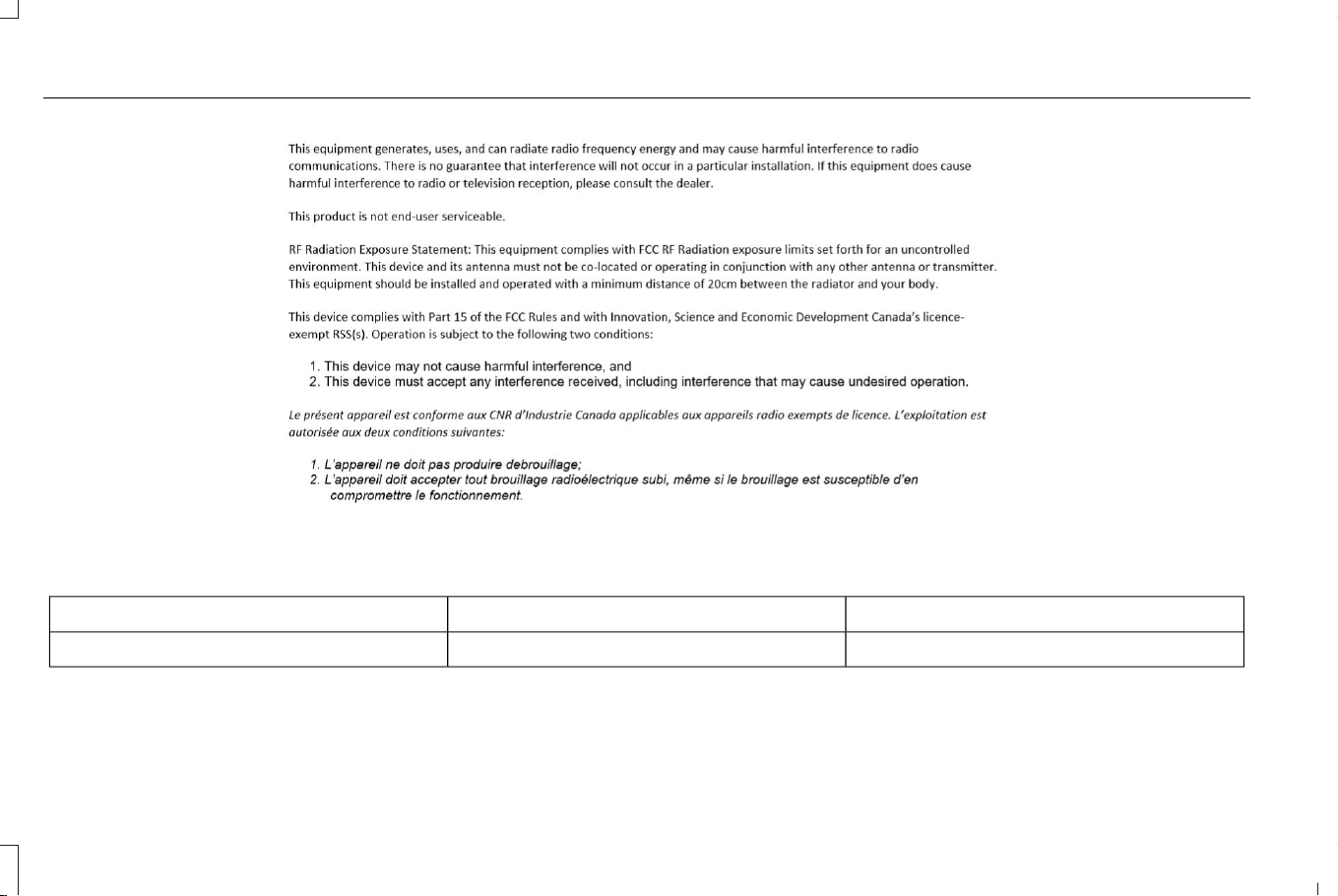
E357468
BLIND SPOT INFORMATION SYSTEM SENSORS
Type DesignationSupplierDevice
F5TRAptivSRR5 BLIS Corner Radar
550
Corsair (CTF) Canada/Mexico/United States of America, enUSA, Edition date: 202407, DOM
Customer Information
Argentina
E338548
Brazil
E387284
China
CMIIT ID: 2022LP14250
Djibouti
E367134
Europe Union EU
E310043
Ghana
E344037
551
Corsair (CTF) Canada/Mexico/United States of America, enUSA, Edition date: 202407, DOM
Customer Information
Indonesia
E436588
Jamaica
E344038
Mauritania
E367135
Mexico
IFETEL: RCPAPF520-0480
Morocco
E368150
552
Corsair (CTF) Canada/Mexico/United States of America, enUSA, Edition date: 202407, DOM
Customer Information
Paraguay
E339812
NR: 2020-10-I-0753
Singapore
E339940
South Africa
E369016
South Korea
E338319
R-C-1Ap-F5TR
553
Corsair (CTF) Canada/Mexico/United States of America, enUSA, Edition date: 202407, DOM
Customer Information
Taiwan
E356894
Thailand
E392562
Ukraine
E269682
United Arab Emirates (U.A.E.)
E418704
554
Corsair (CTF) Canada/Mexico/United States of America, enUSA, Edition date: 202407, DOM
Customer Information

United Kingdom
E362840
United States and Canada
FCC ID: L2CF5TR
IC: 3432A-F5TR
E427204
555
Corsair (CTF) Canada/Mexico/United States of America, enUSA, Edition date: 202407, DOM
Customer Information
Vietnam
E278262
REMOTE FUNCTION ACTUATOR
Type DesignationSupplierDevice
S2NA0DensoBluetooth Low Energy Module
556
Corsair (CTF) Canada/Mexico/United States of America, enUSA, Edition date: 202407, DOM
Customer Information
China
CMIIT ID: 2018DJ4563
United States and Canada
WARNING: Changes or modifications
not expressively approved by the party
responsible for compliance could void the
user's authority to operate the equipment.
The term "IC:" before the radio certification
number only signifies that Industry Canada
technical specifications were met.
FCC ID: HYQS2NA0
IC: 1551A-S2NA0
This device complies with Part 15 of the FCC
Rules and with Innovation, Science and
Economic Development Canada’s
licence-exempt RSS(s). Operation is subject
to the following two conditions:
1. This device may not cause harmful
interference, and
2. This device must accept any interference
received, including interference that may
cause undesired operation.
BODY CONTROL MODULE
South Korea
E339675
R-R-175-P005
United Arab Emirates (U.A.E.)
E345743
United States and Canada
WARNING: Changes or modifications
not expressively approved by the party
responsible for compliance could void the
user's authority to operate the equipment.
The term "IC:" before the radio certification
number only signifies that Industry Canada
technical specifications were met.
FCC ID: LXPP004
557
Corsair (CTF) Canada/Mexico/United States of America, enUSA, Edition date: 202407, DOM
Customer Information

IC: 2298A-P004 This device complies with Part 15 of the FCC
Rules and with Innovation, Science and
Economic Development Canada’s
licence-exempt RSS(s). Operation is subject
to the following two conditions:
1. This device may not cause harmful
interference, and
2. This device must accept any interference
received, including interference that may
cause undesired operation.
CRUISE CONTROL MODULE
Type DesignationSupplierDevice
L2C0065TRDelphi/AptivMid Range Radar (MRR)
558
Corsair (CTF) Canada/Mexico/United States of America, enUSA, Edition date: 202407, DOM
Customer Information
Argentina
E308030
Brazil
E340118
Djibouti
E342394
European Union EU
E310043
Ghana
E340191
Indonesia
E342395
559
Corsair (CTF) Canada/Mexico/United States of America, enUSA, Edition date: 202407, DOM
Customer Information

Israel
E402791
Jamaica
E340518
Malaysia
E269697
HIDF16000009
Mauritania
E340190
Moldova
E337971
560
Corsair (CTF) Canada/Mexico/United States of America, enUSA, Edition date: 202407, DOM
Customer Information
Morocco
E340192
Pakistan
E342396
Paraguay
E308039
Serbia
E308040
Singapore
E340193
South Africa
E340194
561
Corsair (CTF) Canada/Mexico/United States of America, enUSA, Edition date: 202407, DOM
Customer Information
South Korea
E339675
R-CMM-DLH-L2C0065TR
Syria
E342397
Taiwan, China
E340195
Ukraine
E308043
562
Corsair (CTF) Canada/Mexico/United States of America, enUSA, Edition date: 202407, DOM
Customer Information
United Arab Emirates
E308044
United Kingdom
E362840
United States and Canada
FCC ID: L2C0065TR
IC: 3432A-0065TR
563
Corsair (CTF) Canada/Mexico/United States of America, enUSA, Edition date: 202407, DOM
Customer Information
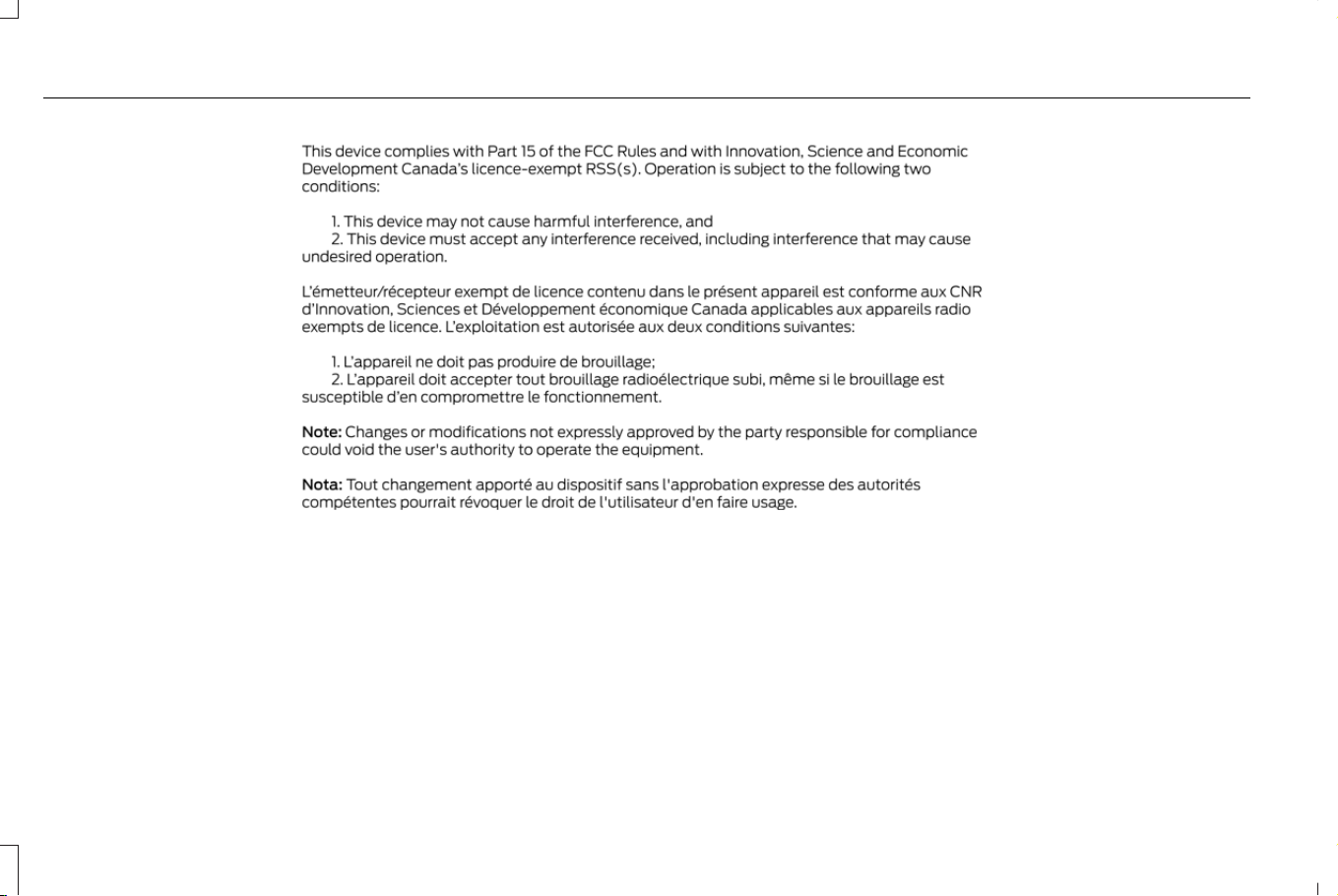
E427204
564
Corsair (CTF) Canada/Mexico/United States of America, enUSA, Edition date: 202407, DOM
Customer Information
Zambia
E340196
PASSIVE KEY
Type DesignationSupplierDevice
A2C97102000ContinentalPassive Key
565
Corsair (CTF) Canada/Mexico/United States of America, enUSA, Edition date: 202407, DOM
Customer Information
Argentina
E380327
H-22290
Ghana
NCA APPROVED: 2R9-8M-7E0-x94
Jamaica
This product has been Type Approved by
Jamaica: SMA – A2C97102000
Paraguay
E339812
NR: 2016-9-I-000222
South Korea
E339675
566
Corsair (CTF) Canada/Mexico/United States of America, enUSA, Edition date: 202407, DOM
Customer Information

MSIP-CRM-TAL-A2C97102000
Ukraine
E269682
United Kingdom
E362840
Vietnam
E278262
PASSIVE KEY
Type DesignationSupplierDevice
A2C931426ContinentalPassive Key
567
Corsair (CTF) Canada/Mexico/United States of America, enUSA, Edition date: 202407, DOM
Customer Information
Argentina
E380327
H-16366
Brazil
E375123
02445-16-01821
Jamaica
This product has been Type Approved by
Jamaica: SMA – M3N-A2C931426
United States and Canada
WARNING: Changes or modifications
not expressively approved by the party
responsible for compliance could void the
user's authority to operate the equipment.
The term "IC:" before the radio certification
number only signifies that Industry Canada
technical specifications were met.
FCC ID: M3N-A2C931426
IC: 7812A-A2C931426
This device complies with Part 15 of the FCC
Rules and with Innovation, Science and
Economic Development Canada’s
licence-exempt RSS(s). Operation is subject
to the following two conditions:
1. This device may not cause harmful
interference, and
2. This device must accept any interference
received, including interference that may
cause undesired operation.
568
Corsair (CTF) Canada/Mexico/United States of America, enUSA, Edition date: 202407, DOM
Customer Information
RADIO TRANSCEIVER MODULE
Type DesignationSupplierDevice
FO2-RX433UDAAptivRadio Transceiver Module (RTM)
Democratic Republic of Congo
Agréé par l'ARPTC
N° d'homologation:
HER - 0151/Septembre/2022
Date d'homologation:
22/09/2022
Djibouti
AGREE PAR LE MCPT (REPUBLIQUE DE
DJIBOUTI)
Numéro d'agrément:
033/DDTIC/2020
Date d'agrément:
07/06/2020
Europe Union EU
E310043
569
Corsair (CTF) Canada/Mexico/United States of America, enUSA, Edition date: 202407, DOM
Customer Information

Ghana
NCA PRODUCT IDENTIFIERS: SRO-1M-7E4-
108
Jamaica
This product has been Type Approved by
Jamaica: SMA – FO2-RX433UDA
Independent State of Samoa
E365127
Israel
E409153
E431812
Malaysia
E339836
HIDF16000009
Mauritania
AGREE PAR L'ANE MAURITANIE
Numéro d'agrément:
0803/ARE/2020
Date d'agrément:
03/06/2020
570
Corsair (CTF) Canada/Mexico/United States of America, enUSA, Edition date: 202407, DOM
Customer Information
Mexico
E364908
IFT: RCPAPFO21-0004
Moldova
E337971
Morocco
E340648
Pakistan
E342392
Serbia
23
E414466
South Africa
E340649
571
Corsair (CTF) Canada/Mexico/United States of America, enUSA, Edition date: 202407, DOM
Customer Information

Taiwan
E373549
CCAB22LP1370T1
Thailand
E409232
Ukraine
E269682
United Kingdom
E362840
572
Corsair (CTF) Canada/Mexico/United States of America, enUSA, Edition date: 202407, DOM
Customer Information
United Arab Emirates (U.A.E.)
E417982
Zambia
E340646
573
Corsair (CTF) Canada/Mexico/United States of America, enUSA, Edition date: 202407, DOM
Customer Information
SYNC
Type DesignationSupplierDevice
SYNC-G4FordSYNC
SYNC-G4L
Argentina
E338546
E338545
Brazil
E342398
574
Corsair (CTF) Canada/Mexico/United States of America, enUSA, Edition date: 202407, DOM
Customer Information
E342510
Djibouti
E342399
E342511
European Union EU
E310043
Ghana
E338082
E338203
Indonesia
E380500
575
Corsair (CTF) Canada/Mexico/United States of America, enUSA, Edition date: 202407, DOM
Customer Information
E384585
Jamaica
E342400
E342512
Malaysia
E269697
HIDF16000009
Mauritania
E342401
E342513
576
Corsair (CTF) Canada/Mexico/United States of America, enUSA, Edition date: 202407, DOM
Customer Information
Moldova
E337971
Morocco
E338085
E338205
Pakistan
E342402
2019
Paraguay
E339812
2020-03-I-00192
2020-03-I-00193
577
Corsair (CTF) Canada/Mexico/United States of America, enUSA, Edition date: 202407, DOM
Customer Information
Serbia
E342403
Singapore
E339940
South Africa
E342404
TA-2019/2465
E342514
South Korea
E338087
E338206
Taiwan
E342405
578
Corsair (CTF) Canada/Mexico/United States of America, enUSA, Edition date: 202407, DOM
Customer Information
E342515
Ukraine
E269682
United Arab Emirates (U.A.E.)
E338088
579
Corsair (CTF) Canada/Mexico/United States of America, enUSA, Edition date: 202407, DOM
Customer Information
E361931
United Kingdom
E362840
United States and Canada
WARNING: Changes or modifications
not expressively approved by the party
responsible for compliance could void the
user's authority to operate the equipment.
The term "IC:" before the radio certification
number only signifies that Industry Canada
technical specifications were met.
FCC ID: KMH-SYNCG4
FCC ID: KMH-SYNCG4L
IC: 1422A-SYNCG4
IC: 1422A-SYNCG4L
This device complies with Part 15 of the FCC
Rules and with Innovation, Science and
Economic Development Canada’s
licence-exempt RSS(s). Operation is subject
to the following two conditions:
1. This device may not cause harmful
interference, and
2. This device must accept any interference
received, including interference that may
cause undesired operation.
580
Corsair (CTF) Canada/Mexico/United States of America, enUSA, Edition date: 202407, DOM
Customer Information
Zambia
E342406
E342516
TELEMATICS CONTROL UNIT
Type DesignationSupplierDevice
FB5-TCUFordTelematics Control Unit
581
Corsair (CTF) Canada/Mexico/United States of America, enUSA, Edition date: 202407, DOM
Customer Information
Argentina
E380327
C-28150
Brazil
E365116
Europe Union EU
E310043
Malaysia
E269697
HIDF16000009
Mexico
E364908
582
Corsair (CTF) Canada/Mexico/United States of America, enUSA, Edition date: 202407, DOM
Customer Information
South Africa
E363451
Taiwan
E394624
We recommend that the distance between
the antenna of the telematics control unit
and the user be greater than 14 in (35 cm)
when using the telematics control unit.
United Arab Emirates (U.A.E.)
E418760
583
Corsair (CTF) Canada/Mexico/United States of America, enUSA, Edition date: 202407, DOM
Customer Information

United Kingdom
E362840
United States and Canada
FCC ID: KMH-14H074-NA1
IC: 1422A-14H074NA1
E427204
584
Corsair (CTF) Canada/Mexico/United States of America, enUSA, Edition date: 202407, DOM
Customer Information
Vietnam
E278262
TIRE PRESSURE MONITORING SYSTEM SENSORS - VEHICLES WITH: 315 MHZ SENSORS
Type DesignationSupplierDevice
AG2SM3Schrader/Sensata315 MHz Faraday PAL Sensor
585
Corsair (CTF) Canada/Mexico/United States of America, enUSA, Edition date: 202407, DOM
Customer Information
Brazil
E384579
Mexico
E342359
Taiwan
E339821
United States and Canada
WARNING: Changes or modifications
not expressively approved by the party
responsible for compliance could void the
user's authority to operate the equipment.
The term "IC:" before the radio certification
number only signifies that Industry Canada
technical specifications were met.
FCC ID: MRXAG2SM3
IC: 2546A-AG2SM3
This device complies with Part 15 of the FCC
Rules and with Innovation, Science and
Economic Development Canada’s
licence-exempt RSS(s). Operation is subject
to the following two conditions:
1. This device may not cause harmful
interference, and
2. This device must accept any interference
received, including interference that may
cause undesired operation.
586
Corsair (CTF) Canada/Mexico/United States of America, enUSA, Edition date: 202407, DOM
Customer Information
TIRE PRESSURE MONITORING SYSTEM SENSORS - VEHICLES WITH: 433 MHZ SENSORS
Type DesignationSupplierDevice
AG2SM4Schrader/Sensata434 MHz Faraday PAL Sensor
Argentina
E339822
Brazil
E339823
Democratic Republic of Congo
Agréé par l'ARPTC
N° d'homologation: HIR -0081/6/2018
Date d'homologation: 18/6/2018
Djibouti
AGREE PAR LE MCPT (REPUBLIQUE DE
DJIBOUTI)
Numéro d'agrément:
045/DDTIC/2018
Date d'agrément:
06/05/18
587
Corsair (CTF) Canada/Mexico/United States of America, enUSA, Edition date: 202407, DOM
Customer Information
European Union EU
E310043
The RED 2014/53/EU (replacing R&TTE Directive 1999/5/EC on 13 June 2016) explicitly states that instructions for intentional radiators include
reference to "(a) frequency band(s) in which the radio equipment operates; and (b) maximum radio-frequency power transmitted in the
frequency band(s) in which the radio equipment operates," in addition to carrying over the general operational instruction and Declaration
of Conformity inclusion requirements from the R&TTE Directive.
Hereby, Schrader Electronics Ltd. declares that the radio equipment type AG2SM4 is in compliance with Directive 2014/53/EU. The full text
of the EU declaration of conformity is available at the following internet address:
https://www.schradertpms.com/en-gb/downloads
f=433.92MHz
P<10mW (e.i.r.p)
Schrader Electronics Ltd. 11 Technology Park, Belfast Road, Antrim BT41 1QS, Northern Ireland United Kingdom.
588
Corsair (CTF) Canada/Mexico/United States of America, enUSA, Edition date: 202407, DOM
Customer Information
Ghana
E341832
Israel
E385959
Mauritania
E339946
Mexico
E342358
Moldova
E337971
Morocco
E339947
589
Corsair (CTF) Canada/Mexico/United States of America, enUSA, Edition date: 202407, DOM
Customer Information

Nigeria
E337972
Oman
E341834
Pakistan
E337974
Paraguay
E339812
NR: 2018-06-I-000224
Customs Union (CU) - Belarus,
Kazakhstan and Russia
E253816
Serbia
E364764
590
Corsair (CTF) Canada/Mexico/United States of America, enUSA, Edition date: 202407, DOM
Customer Information
Sierra Leone
E382724
TAN: 2018-002-0025
Singapore
E339948
South Africa
E339825
South Korea
E339675
R-CRM-SRD-AG2SM4
591
Corsair (CTF) Canada/Mexico/United States of America, enUSA, Edition date: 202407, DOM
Customer Information
Taiwan
E339826
Ukraine
E385958
United Arab Emirates (U.A.E.)
E426552
592
Corsair (CTF) Canada/Mexico/United States of America, enUSA, Edition date: 202407, DOM
Customer Information
United Kingdom
E362840
United States and Canada
WARNING: Changes or modifications
not expressively approved by the party
responsible for compliance could void the
user's authority to operate the equipment.
The term "IC:" before the radio certification
number only signifies that Industry Canada
technical specifications were met.
FCC ID: MRXAG2SM4
IC: 2546A- AG2SM4
This device complies with Part 15 of the FCC
Rules and with Innovation, Science and
Economic Development Canada’s
licence-exempt RSS(s). Operation is subject
to the following two conditions:
1. This device may not cause harmful
interference, and
2. This device must accept any interference
received, including interference that may
cause undesired operation.
Vietnam
E278262
C0170230620AF04A2
Zambia
E339828
593
Corsair (CTF) Canada/Mexico/United States of America, enUSA, Edition date: 202407, DOM
Customer Information
WIRELESS ACCESSORY CHARGING MODULE
Type DesignationSupplierDevice
WCFDM00N2A1LG/BH EVSWireless Charger (WCM)
WCFDM00N2A3
WCFDM00N2A5
Argentina
E368925
E368926
E368927
594
Corsair (CTF) Canada/Mexico/United States of America, enUSA, Edition date: 202407, DOM
Customer Information
Brazil
E367123
Democratic Republic of Congo
Agréé par l'ARPTC
N° d'homologation: HER-062/Avril/2023
Date d'homologation: 28/4/2023
European Union
E310043
Ghana
E364756
Indonesia
E375961
E375962
595
Corsair (CTF) Canada/Mexico/United States of America, enUSA, Edition date: 202407, DOM
Customer Information
E375963
Israel
E370175
E387620
E387621
Jamaica
E364757
Malaysia
E269697
596
Corsair (CTF) Canada/Mexico/United States of America, enUSA, Edition date: 202407, DOM
Customer Information
HIDF16000009
Mauritania
E364761
E364762
E364763
Moldova
E337971
Morocco
E364758
597
Corsair (CTF) Canada/Mexico/United States of America, enUSA, Edition date: 202407, DOM
Customer Information
E364759
E364760
Paraguay
E339812
NR: 2021-04-I-0202
NR: 2021-04-I-0203
NR: 2021-04-I-0204
Russia
E253816
Serbia
E364764
Sierra Leone
E371606
598
Corsair (CTF) Canada/Mexico/United States of America, enUSA, Edition date: 202407, DOM
Customer Information
Singapore
E339940
South Africa
E364768
South Korea
E339675
R-R-LGE-WCFDM00N2A1
Taiwan
E373549
CCAB21LP050AT3
E373549
CCAB21LP0500T1
E373549
CCAB21LP050BT5
599
Corsair (CTF) Canada/Mexico/United States of America, enUSA, Edition date: 202407, DOM
Customer Information
E390486
Ukraine
E269682
United Kingdom
E362840
600
Corsair (CTF) Canada/Mexico/United States of America, enUSA, Edition date: 202407, DOM
Customer Information
United Arab Emirates (U.A.E.)
E417828
E417830
601
Corsair (CTF) Canada/Mexico/United States of America, enUSA, Edition date: 202407, DOM
Customer Information
E417829
United States and Canada
FCC ID: BEJWCFDM00N2A
IC: 2703H-WCFDM00N2A
602
Corsair (CTF) Canada/Mexico/United States of America, enUSA, Edition date: 202407, DOM
Customer Information
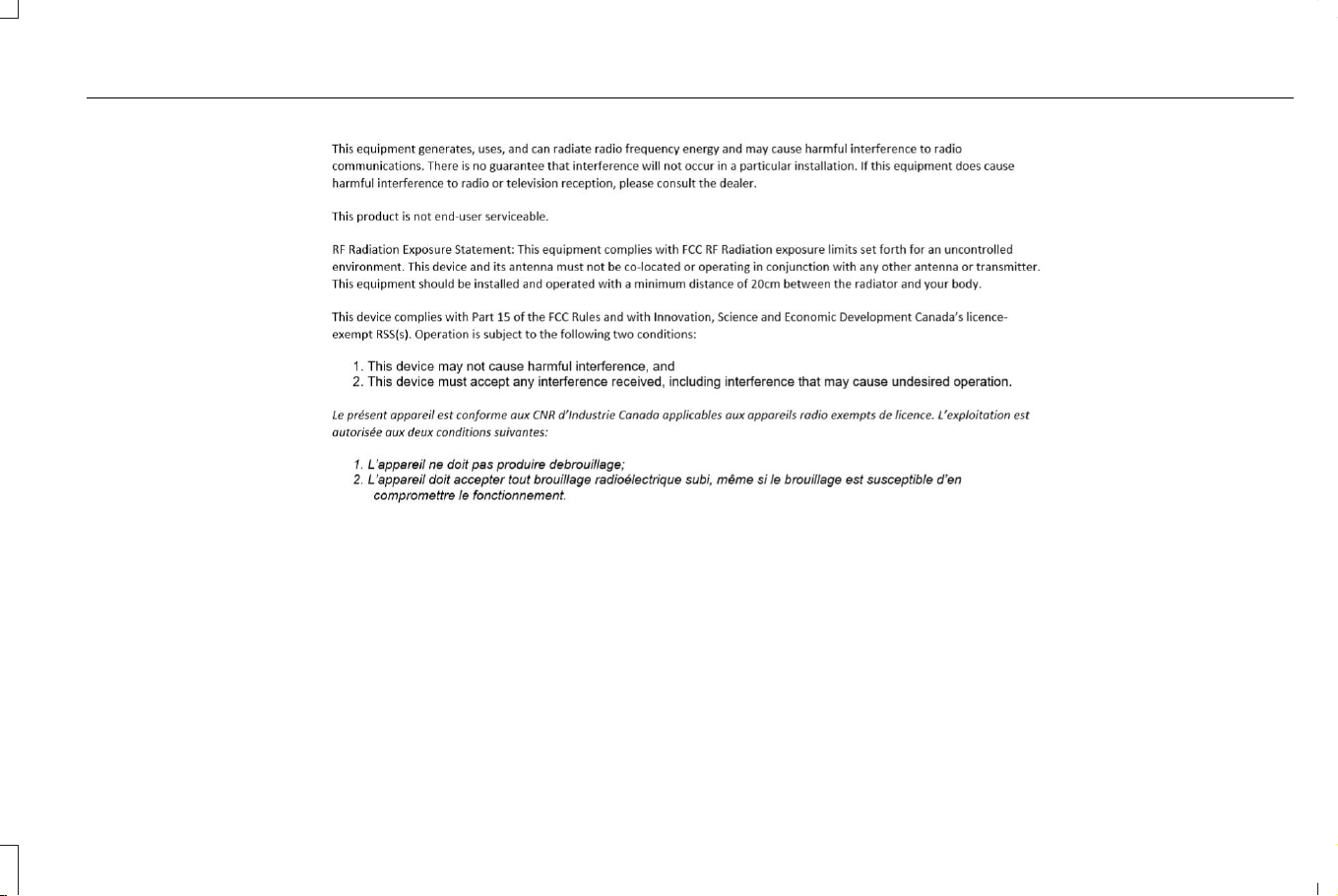
E357468
603
Corsair (CTF) Canada/Mexico/United States of America, enUSA, Edition date: 202407, DOM
Customer Information

Vietnam
E278262
Zambia
E364773
PERCHLORATE
Certain components in your vehicle such as
airbag modules, seatbelt pretensioners and
remote control batteries may contain
perchlorate material. Special handling may
apply for service or vehicle end of life
disposal.
For more information visit:
www.dtsc.ca.gov/hazardouswaste/perchlorate.
REPLACEMENT PARTS
RECOMMENDATION
We have built your vehicle to the highest
standards using quality parts. We
recommend that you demand the use of
genuine Ford and Motorcraft parts whenever
your vehicle requires scheduled
maintenance or repair. You can clearly
identify genuine Ford and Motorcraft parts
by looking for the Ford, FoMoCo or
Motorcraft branding on the parts or their
packaging.
Scheduled Maintenance and
Mechanical Repairs
One of the best ways for you to make sure
that your vehicle provides years of service
is to have it maintained in line with our
recommendations using parts that conform
to the specifications detailed in this Owner’ s
Manual.
Genuine Ford and Motorcraft parts meet or
exceed these specifications.
Collision Repairs
We hope that you never experience a
collision, but accidents happen sometimes.
Genuine Ford replacement collision parts
meet our stringent requirements for fit, finish,
structural integrity, corrosion protection and
dent resistance. During vehicle development
we validate that these parts deliver the
intended level of protection as a whole
system. A great way to know for sure you
are getting this level of protection is to use
genuine Ford replacement collision parts.
604
Corsair (CTF) Canada/Mexico/United States of America, enUSA, Edition date: 202407, DOM
Customer Information

Warranty on Replacement Parts
Genuine Ford and Motorcraft replacement
parts are the only replacement parts that
benefit from a Ford Warranty.
The Ford Warranty may not cover damage
caused to your vehicle as a result of failed
non-Ford parts.
For additional information, refer to the terms
and conditions of the Ford Warranty.
MOBILE COMMUNICATIONS
EQUIPMENT
WARNING: Driving while distracted
can result in loss of vehicle control, crash
and injury. We strongly recommend that
you use extreme caution when using any
device that may take your focus off the
road. Your primary responsibility is the safe
operation of your vehicle. We recommend
against the use of any hand-held device
while driving and encourage the use of
voice-operated systems when possible.
Make sure you are aware of all applicable
local laws that may affect the use of
electronic devices while driving.
Using mobile communications equipment is
becoming increasingly important in the
conduct of business and personal affairs.
However, you must not compromise your
own or others’ safety when using such
equipment. Mobile communications can
enhance personal safety and security when
appropriately used, particularly in emergency
situations. Safety must be paramount when
using mobile communications equipment to
avoid negating these benefits. Mobile
communication equipment includes, but is
not limited to, cellular phones, pagers,
portable email devices, text messaging
devices and portable two-way radios.
FEDERAL HIGHWAY
ADMINISTRATION REGULATION
Regulations such as those issued by the
Federal Highway Administration or issued
pursuant to the Occupational Safety and
Health Act (OSHA), and state and local laws
and regulations may require additional
equipment for the way you intend to use your
vehicle. It is the responsibility of the
registered owner to determine the
applicability of such laws and regulations to
your intended use for the vehicle, and to
arrange for the installation of required
equipment. The dealer has information
about the availability of equipment which can
be ordered for your vehicle.
605
Corsair (CTF) Canada/Mexico/United States of America, enUSA, Edition date: 202407, DOM
Customer Information

END USER LICENSE AGREEMENT
VEHICLE SOFTWARE END USER
LICENSE AGREEMENT (EULA)
• You (“You” or “Your” as applicable) have
acquired a vehicle having several
devices, including SYNC ® and various
control modules, ("DEVICES") that include
software licensed or owned by Ford
Motor Company and its affiliates ("FORD
MOTOR COMPANY"). Those software
products of FORD MOTOR COMPANY
origin, as well as associated media,
printed materials, and "online" or
electronic documentation ("SOFTWARE")
are protected by international intellectual
property laws and treaties. The
SOFTWARE is licensed, not sold. All
rights reserved.
• The SOFTWARE may interface with
and/or communicate with, or may be later
upgraded to interface with and/or
communicate with additional software
and/or systems provided by FORD
MOTOR COMPANY.
IF YOU DO NOT AGREE TO THIS END
USER LICENSE AGREEMENT ("EULA") DO
NOT USE THE DEVICES OR COPY THE
SOFTWARE. ANY USE OF THE SOFTWARE,
INCLUDING BUT NOT LIMITED TO USE ON
THE DEVICES, WILL CONSTITUTE YOUR
AGREEMENT TO THIS EULA (OR
RATIFICATION OF ANY PREVIOUS
CONSENT).
GRANT OF SOFTWARE LICENSE: This EULA
grants you the following license:
• You may use the SOFTWARE as installed
on the DEVICES and as otherwise
interfacing with systems and/or services
provide by or through FORD MOTOR
COMPANY or its third party software and
service providers.
Description of Other Rights and Limitations.
• Speech Recognition: If the SOFTWARE
includes speech recognition
component(s), you should understand
that speech recognition is an inherently
statistical process and that recognition
errors are inherent in the process.
Neither FORD MOTOR COMPANY nor
its suppliers shall be liable for any
damages arising out of errors in the
speech recognition process. It is your
responsibility to monitor any speech
recognition functions included in the
system.
• Limitations on Reverse Engineering,
Decompilation and Disassembly: You
may not reverse engineer, decompile,
translate, disassemble or attempt to
discover any source code or underlying
ideas or algorithms of the SOFTWARE
nor permit others to reverse engineer,
decompile or disassemble the
SOFTWARE, except and only to the
extent that such activity is expressly
permitted by applicable law
notwithstanding this limitation or to the
extent as may be permitted by the
licensing terms governing use of any
open source components included with
the SOFTWARE.
606
Corsair (CTF) Canada/Mexico/United States of America, enUSA, Edition date: 202407, DOM
Customer Information

• Limitations on Distributing, Copying,
Modifying and Creating Derivative
Works: You may not distribute, copy,
make modifications to or create
derivative works based on the
SOFTWARE, except and only to the
extent that such activity is expressly
permitted by applicable law
notwithstanding this limitation or to the
extent as may be permitted by the
licensing terms governing use of any
open source components included with
the SOFTWARE.
• Single EULA: The end user
documentation for the DEVICES and
related systems and services may contain
multiple EULAs, such as multiple
translations and/or multiple media
versions (e.g., in the user documentation
and in the software). Even if you receive
multiple EULAs, you are licensed to use
only one (1) copy of the SOFTWARE.
• SOFTWARE Transfer: You may
permanently transfer your rights under
this EULA only as part of a sale or transfer
of the DEVICES, provided you retain no
copies, you transfer all of the SOFTWARE
(including all component parts, the media
and printed materials, any upgrades, and,
if applicable, the Certificate(s) of
Authenticity), and the recipient agrees to
the terms of this EULA. If the SOFTWARE
is an upgrade, any transfer must include
all prior versions of the SOFTWARE.
• Termination: Without prejudice to any
other rights, FORD MOTOR COMPANY
may terminate this EULA if you fail to
comply with the terms and conditions of
this EULA.
• Internet-Based Services Components:
The SOFTWARE may contain
components that enable and facilitate
the use of certain Internet-based
services. You acknowledge and agree
that FORD MOTOR COMPANY, third
party software and service suppliers, its
affiliates and/or its designated agent may
automatically check the version of the
SOFTWARE and/or its components that
you are utilizing and may provide
upgrades or supplements to the
SOFTWARE that may be automatically
downloaded to your DEVICES.
• Additional Software/Services: The
SOFTWARE may permit FORD MOTOR
COMPANY, third party software and
service suppliers, its affiliates and/or its
designated agent to provide or make
available to you SOFTWARE updates,
supplements, add-on components, or
Internet-based services components of
the SOFTWARE after the date you obtain
your initial copy of the SOFTWARE
("Supplemental Components".)
SOFTWARE updates may cause you to
incur additional charges from your
wireless service provider. If FORD
MOTOR COMPANY or third party
software and services suppliers provide
or make available to you Supplemental
Components and no other EULA terms
are provided along with the
Supplemental Components, then the
terms of this EULA shall apply. FORD
607
Corsair (CTF) Canada/Mexico/United States of America, enUSA, Edition date: 202407, DOM
Customer Information

MOTOR COMPANY, its affiliates and/or
its designated agent reserve the right to
discontinue without liability any
Internet-based services provided to you
or made available to you through the use
of the SOFTWARE.
608
Corsair (CTF) Canada/Mexico/United States of America, enUSA, Edition date: 202407, DOM
Customer Information

• Links to Third Party Sites: The
SOFTWARE may provide you with the
ability to link to third party sites. The third
party sites are not under the control of
FORD MOTOR COMPANY, its affiliates
and/or its designated agent. Neither
FORD MOTOR COMPANY nor its
affiliates nor its designated agent are
responsible for (I) the contents of any
third party sites, any links contained in
third party sites, or any changes or
updates to third party sites, or (ii)
webcasting or any other form of
transmission received from any third
party sites. If the SOFTWARE provides
links to third party sites, those links are
provided to you only as a convenience,
and the inclusion of any link does not
imply an endorsement of the third party
site by FORD MOTOR COMPANY, its
affiliates and/or its designated agent.
• Obligation to Drive Responsibly: You
recognize your obligation to drive
responsibly and keep attention on the
road. You will read and abide with the
DEVICES operating instructions
particularly as they pertain to safety and
you agree to assume any risk associated
with the use of the DEVICES.
UPGRADES AND RECOVERY MEDIA: If the
SOFTWARE is provided by FORD MOTOR
COMPANY separate from the DEVICES on
media such as a ROM chip, CD ROM disk(s)
or via web download or other means, and is
labeled "For Upgrade Purposes Only" or "For
Recovery Purposes Only" you may install one
(1) copy of such SOFTWARE onto the
DEVICES as a replacement copy for the
existing SOFTWARE, and use it in
accordance with this EULA, including any
additional EULA terms accompanying the
upgrade SOFTWARE.
INTELLECTUAL PROPERTY RIGHTS: All
title and intellectual property rights in and to
the SOFTWARE (including but not limited to
any images, photographs, animations, video,
audio, music, text and "applets" incorporated
into the SOFTWARE), the accompanying
printed materials, and any copies of the
SOFTWARE, are owned by FORD MOTOR
COMPANY, or its affiliates or suppliers. The
SOFTWARE is licensed, not sold. You may
not copy the printed materials accompanying
the SOFTWARE. All title and intellectual
property rights in and to the content which
may be accessed through use of the
SOFTWARE is the property of the respective
content owner and may be protected by
applicable copyright or other intellectual
property laws and treaties. This EULA grants
you no rights to use such content outside its
intended use. All rights not specifically
granted under this EULA are reserved by
FORD MOTOR COMPANY, its affiliates, and
third party software and service providers
and suppliers. Use of any on-line services
which may be accessed through the
SOFTWARE may be governed by the
respective terms of use relating to such
services. If this SOFTWARE contains
documentation that is provided only in
electronic form, you may print one copy of
such electronic documentation.
609
Corsair (CTF) Canada/Mexico/United States of America, enUSA, Edition date: 202407, DOM
Customer Information

EXPORT RESTRICTIONS: You acknowledge
that the SOFTWARE is subject to U.S. and
European Union export jurisdiction. You
agree to comply with all applicable
international and national laws that apply to
the SOFTWARE, including the U.S. Export
Administration Regulations, as well as
end-user, end-use and destination
restrictions issued by U.S. and other
governments.
TRADEMARKS: This EULA does not grant
you any rights in connection with any
trademarks or service marks of FORD
MOTOR COMPANY, its affiliates, and third
party software and service providers.
PRODUCT SUPPORT: Please refer to FORD
MOTOR COMPANY instructions provided in
the documentation for the DEVICES product
support, such as the vehicle owner guide.
Should you have any questions concerning
this EULA, or if you desire to contact FORD
MOTOR COMPANY for any other reason,
please refer to the address provided in the
documentation for the DEVICES.
No Liability for Certain Damages: EXCEPT
AS PROHIBITED BY LAW, FORD MOTOR
COMPANY, ANY THIRD PARTY SOFTWARE
OR SERVICES SUPPLIERS, AND THEIR
AFFILIATES SHALL HAVE NO LIABILITY FOR
ANY INDIRECT, SPECIAL, CONSEQUENTIAL
OR INCIDENTAL DAMAGES ARISING FROM
OR IN CONNECTION WITH THE USE OR
PERFORMANCE OF THE SOFTWARE. THIS
LIMITATION SHALL APPLY EVEN IF ANY
REMEDY FAILS OF ITS ESSENTIAL
PURPOSE. THERE ARE NO WARRANTIES
OTHER THAN THOSE THAT MAY BE
EXPRESSLY PROVIDED FOR YOUR NEW
VEHICLE.
SYNC® Automotive Important Safety
Information Read and follow instructions:
• Before using your SYNC® system, read
and follow all instructions and safety
information provided in this end user
manual ("Owner Guide".) Not following
precautions found in the Owner Guide
can lead to an accident or other serious
injuries.
General Operation
• Voice Command Control: Certain
functions within the SYNC® system may
be accomplished using voice commands.
Using voice commands while driving
helps you to operate the system without
removing your hands from the wheel or
eyes from the road.
• Prolonged Views of Screen: Do not
access any function requiring a
prolonged view of the screen while you
are driving. Pull over in a safe and legal
manner before attempting to access a
function of the system requiring
prolonged attention.
• Volume Setting: Do not raise the volume
excessively. Keep the volume at a level
where you can still hear outside traffic
and emergency signals while driving.
Driving while unable to hear these
sounds could cause an accident.
610
Corsair (CTF) Canada/Mexico/United States of America, enUSA, Edition date: 202407, DOM
Customer Information

• Navigation Features: Any navigation
features included in the system are
intended to provide turn by turn
instructions to get you to a desired
destination. Please make certain all
persons using this system carefully read
and follow instructions and safety
information fully.
• Distraction Hazard: Any navigation
features may require manual (non-verbal)
setup. Attempting to perform such set-up
or insert data while driving can distract
your attention and could cause an
accident or other serious injury. Stop the
vehicle in a safe and legal manner before
attempting these operations.
• Let Your Judgment Prevail: Any
navigation features are provided only as
an aid. Make your driving decisions
based on your observations of local
conditions and existing traffic regulations.
Any such feature is not a substitute for
your personal judgment. Any route
suggestions made by this system should
never replace any local traffic regulations
or your personal judgment or knowledge
of safe driving practices.
• Route Safety: Do not follow the route
suggestions if doing so would result in
an unsafe or illegal maneuver, if you
would be placed in an unsafe situation,
or if you would be directed into an area
that you consider unsafe. The driver is
ultimately responsible for the safe
operation of the vehicle and therefore,
must evaluate whether it is safe to follow
the suggested directions.
• Potential Map Inaccuracy: Maps used
by this system may be inaccurate
because of changes in roads, traffic
controls or driving conditions. Always use
good judgment and common sense when
following the suggested routes.
• Emergency Services: Do not rely on any
navigation features included in the
system to route you to emergency
services. Ask local authorities or an
emergency services operator for these
locations. Not all emergency services
such as police, fire stations, hospitals and
clinics are likely to be contained in the
map database for such navigation
features.
611
Corsair (CTF) Canada/Mexico/United States of America, enUSA, Edition date: 202407, DOM
Customer Information

Your Responsibilities and Assumptions of
Risk
612
Corsair (CTF) Canada/Mexico/United States of America, enUSA, Edition date: 202407, DOM
Customer Information

• You agree to each of the following:(a)
Any use of the SOFTWARE while driving
an automobile or other vehicle in
violation of applicable law or otherwise
driving in an unsafe manner presents a
significant risk of distracted driving and
should not be attempted under any
circumstances;(b) Use of the SOFTWARE
at excessive volume poses a significant
risk of hearing damage and should not
be attempted under any
circumstances;(c) The SOFTWARE may
not be compatible with new or different
versions of an operating system, third
party software, or third party services,
and the SOFTWARE may potentially
cause a critical failure of an operating
system, third party software, or third party
service.(d) Any third party service
accessed by or third party software used
with the SOFTWARE (I) may charge an
additional fee for access, (ii) may not
work correctly, on an uninterrupted basis,
or error free, (iii) may change streaming
formats or discontinue operation, (iv) may
contain adult, profane or offensive
content; and (v) may contain inaccurate,
false or misleading traffic, weather,
financial or safety information or other
content; and (e) Use of the SOFTWARE
may cause you to incur additional
charges from your wireless service
provider (WSP) and any data or minute
calculators that may be included in the
software program are for reference only,
are not warranted in any way and should
not be relied upon in anyway.
• When using the SOFTWARE, you agree
to be responsible for and assume the
entire risk to the items set forth in Section
(a) – (e) above.
Disclaimer of Warranty
YOU EXPRESSLY ACKNOWLEDGE AND
AGREE THAT USE OF THE DEVICES AND
SOFTWARE IS AT YOUR SOLE RISK AND
THAT THE ENTIRE RISK AS TO
SATISFACTORY QUALITY, PERFORMANCE,
COMPATIBILITY, ACCURACY AND EFFORT
IS WITH YOU. TO THE MAXIMUM EXTENT
PERMITTED BY APPLICABLE LAW, THE
SOFTWARE AND ANY THIRD PARTY
SOFTWARE OR THIRD-PARTY SERVICES
ARE PROVIDED "AS IS" AND “AS
AVAILABLE”, WITH ALL FAULTS AND
WITHOUT WARRANTY OF ANY KIND, AND
FORD MOTOR COMPANY HEREBY
DISCLAIMS ALL WARRANTIES AND
CONDITIONS WITH RESPECT TO THE
SOFTWARE, THIRD PARTY SOFTWARE, AND
THIRD-PARTY SERVICES, EITHER EXPRESS,
IMPLIED OR STATUTORY, INCLUDING, BUT
NOT LIMITED TO, THE IMPLIED
WARRANTIES AND/OR CONDITIONS OF
MERCHANTABILITY, OF SATISFACTORY
QUALITY, OF FITNESS FOR AN ARTICULAR
PURPOSE, OF ACCURACY, OF QUIET
ENJOYMENT, AND NON-INFRINGEMENT
OF THIRD-PARTY RIGHTS. FORD MOTOR
COMPANY DOES NOT WARRANT (a)
AGAINST INTERFERENCE WITH YOUR
ENJOYMENT OF THE SOFTWARE, THIRD
PARTY SOFTWARE, OR THIRD-PARTY
SERVICES, (b) THAT THE SOFTWARE, THIRD
PARTY SOFTWARE, OR THIRD-PARTY
SERVICES WILL MEET YOUR
REQUIREMENTS, (c) THAT THE OPERATION
OF THE SOFTWARE, THIRD PARTY
SOFTWARE, OR THIRD-PARTY SERVICES
WILL BE UNINTERRUPTED OR ERROR-FREE,
(d) OR THAT DEFECTS IN THE SOFTWARE,
THIRD PARTY SOFTWARE, OR THIRD-PARTY
SERVICES WILL BE CORRECTED. NO ORAL
613
Corsair (CTF) Canada/Mexico/United States of America, enUSA, Edition date: 202407, DOM
Customer Information

OR WRITTEN INFORMATION OR ADVICE
GIVEN BY FORD MOTOR COMPANY OR ITS
AUTHORIZED REPRESENTATIVE SHALL
CREATE A WARRANTY. SHOULD THE
SOFTWARE, THIRD PARTY SOFTWARE, OR
THIRD-PARTY SERVICES PROVE
DEFECTIVE, YOU ASSUME THE ENTIRE
COST OF ALL NECESSARY SERVICING,
REPAIR OR CORRECTION. SOME
JURISDICTIONS DO NOT ALLOW THE
DISCLAIMER OF IMPLIED WARRANTIES OR
LIMITATIONS ON APPLICABLE STATUTORY
RIGHTS OF A CONSUMER, SO THE ABOVE
DISCLAIMER MAY NOT FULLY APPLY TO
YOU. THE SOLE WARRANTY PROVIDED BY
FORD MOTOR COMPANY SHALL BE FOUND
IN THE WARRANTY INFORMATION
INCLUDING WITH YOUR OWNER GUIDE. TO
THE EXTENT THAT THERE IS ANY
CONFLICT BETWEEN THE TERMS OF THIS
SECTION AND THE WARRANTY BOOKLET,
THE WARRANTY BOOKLET SHALL
CONTROL.
Applicable Law, Venue, Jurisdiction
• The laws of the State of Michigan govern
this EULA and Your use of the
SOFTWARE. Your use of the SOFTWARE
may also be subject to other local, state,
national, or international laws. Any
litigation arising out of or related to this
EULA shall be brought and maintained
exclusively in a court of the State of
Michigan located in Wayne County or in
the United States District Court for the
Eastern District of Michigan. You hereby
consent to submit to the personal
jurisdiction of a court in the State of
Michigan located in Wayne County and
the United States District Court for the
Eastern District of Michigan for any
dispute arising out of or relating to this
EULA.
Binding Arbitration and Class Action Waiver
(a) Application. This Section applies to any
dispute EXCEPT IT DOES NOT INCLUDE A
DISPUTE RELATING TO COPYRIGHT
INFRINGEMENT, OR TO THE
ENFORCEMENT OR VALIDITY OF YOUR,
FORD MOTOR COMPANY, OR ANY OF
FORD MOTOR COMPANY’S LICENSORS’
INTELLECTUAL PROPERTY RIGHTS. Dispute
means any dispute, action, or other
controversy between You and FORD MOTOR
COMPANY, other than the exceptions listed
above, concerning the SOFTWARE (including
its price) or this EULA, whether in contract,
warranty, tort, statute, regulation, ordinance,
or any other legal or equitable basis.
(b) Notice of Dispute. In the event of a
Dispute, You or FORD MOTOR COMPANY
must give the other a “Notice of Dispute”,
which is a written statement of the name,
address, and contact information of the party
giving it, the facts giving rise to the dispute,
and the relief requested. You and FORD
MOTOR COMPANY will attempt to resolve
any dispute through informal negotiation
within 60 days from the date the Notice of
Dispute is sent. After 60 days, You or FORD
MOTOR COMPANY may commence
arbitration.
614
Corsair (CTF) Canada/Mexico/United States of America, enUSA, Edition date: 202407, DOM
Customer Information

(c) Small claims court. You may also litigate
any dispute in small claims court in your
county of residence or FORD MOTOR
COMPANY’S principal place of business, if
the dispute meets all requirements to be
heard in the small claims court. You may
litigate in small claims court whether or not
You negotiated informally first.
(d) Binding arbitration. If You and FORD
MOTOR COMPANY, do not resolve any
dispute by informal negotiation or in small
claims court, any other effort to resolve the
dispute will be conducted exclusively by
binding arbitration. You are giving up the
right to litigate (or participate in as a party or
class member) all disputes in court before a
judge or jury. Instead, all disputes will be
resolved before a neutral arbitrator, whose
decision will be final except for a limited right
of appeal under the Federal Arbitration Act.
Any court with jurisdiction over the parties
may enforce the arbitrator’s award.
(e) Class action waiver. Any proceedings to
resolve or litigate any dispute in any forum
will be conducted solely on an individual
basis. Neither you nor FORD MOTOR
COMPANY, will seek to have any dispute
heard as a class action, as a private attorney
general action, or in any other proceeding
in which any party acts or proposes to act in
a representative capacity. No arbitration or
proceeding will be combined with another
without the prior written consent of all parties
to all affected arbitrations or proceedings.
(f) Arbitration procedure. Any arbitration
will be conducted by the American
Arbitration Association (the “AAA”), under its
Commercial Arbitration Rules. If You are an
individual and use the SOFTWARE for
personal or vehicle use, or if the value of the
dispute is $75,000 or less whether or not
You are an individual or how You use the
SOFTWARE, the AAA Supplementary
Procedures for Consumer-Related Disputes
will also apply. To commence arbitration,
submit a Commercial Arbitration Rules
Demand for Arbitration form to the AAA. You
may request a telephonic or in-person
hearing by following the AAA rules. In a
dispute involving $10,000 or less, any
hearing will be telephonic unless the
arbitrator finds good cause to hold an
in-person hearing instead. For more
information, see adr.org or call
1-800-778-7879. You agree to commence
arbitration only in your county of residence
or FORD MOTOR COMPANY’S principal
place of business. The arbitrator may award
the same damages to you individually as a
court could. The arbitrator may award
declaratory or injunctive relief only to you
individually, and only to the extent required
to satisfy your individual claim.
(g) Arbitration fees and incentives.
• I. Disputes involving $75,000 or less.
FORD MOTOR COMPANY will promptly
reimburse your filing fees and pay the
AAA’s and arbitrator’s fees and
expenses. If you reject FORD MOTOR
COMPANY’S last written settlement offer
made before the arbitrator was appointed
(“last written offer”), your dispute goes
all the way to an arbitrator’s decision
(called an “award”), and the arbitrator
awards you more than the last written
offer, FORD MOTOR COMPANY will give
615
Corsair (CTF) Canada/Mexico/United States of America, enUSA, Edition date: 202407, DOM
Customer Information

you three incentives: (1) pay the greater
of the award or $1,000; (2) pay twice your
reasonable attorney’ s fees, if any; and (3)
reimburse any expenses (including expert
witness fees and costs) that your attorney
reasonably accrues for investigating,
preparing, and pursuing your claim in
arbitration. The arbitrator will determine
the amounts.
• ii. Disputes involving more than $75,000.
The AAA rules will govern payment of
filing fees and the AAA’ s and arbitrator’ s
fees and expenses.
• iii. Disputes involving any amount. In any
arbitration you commence, FORD
MOTOR COMPANY will seek its AAA or
arbitrator’s fees and expenses, or Your
filing fees it reimbursed, only if the
arbitrator finds the arbitration frivolous
or brought for an improper purpose. In
any arbitration FORD MOTOR COMPANY
commences, it will pay all filing, AAA, and
arbitrator’ s fees and expenses. It will not
seek its attorney’s fees or expenses from
you in any arbitration. Fees and expenses
are not counted in determining how
much a dispute involves.
(h) Claims or disputes must be filed within
one year. To the extent permitted by law,
any claim or dispute under this EULA to
which this Section applies must be filed
within one year in small claims court (Section
c) or in arbitration (Section d). The one-year
period begins when the claim or dispute first
could be filed. If such a claim or dispute is
not filed within one year, it is permanently
barred.
(I) Severability. If the class action waiver
(Section e) is found to be illegal or
unenforceable as to all or some parts of a
dispute, then that portion of Section e will
not apply to those parts. Instead, those parts
will be severed and proceed in a court of
law, with the remaining parts proceeding in
arbitration. If any other provision of that
portion Section e is found to be illegal or
unenforceable, that provision will be severed
with the remainder of Section e remaining in
full force and effect.
Telenav Software End User License
Agreement
Please read these terms and conditions
carefully before you use the TeleNav
Software. Your use of the TeleNav Software
indicates that you accept these terms and
conditions. If you do not accept these terms
and conditions, do not break the seal of the
package, launch, or otherwise use the
TeleNav Software. TeleNav may revise this
Agreement and the privacy policy at any
time, with or without notice to you. You agree
to visit http://www.telenav.com from time to
time to review the then current version of
this Agreement and of the privacy policy.
1. Safe and Lawful Use
You acknowledge that devoting attention to
the TeleNav Software may pose a risk of
injury or death to you and others in situations
that otherwise require your undivided
attention, and you therefore agree to comply
with the following when using the TeleNav
Software:
(a) observe all traffic laws and otherwise drive
safely;
616
Corsair (CTF) Canada/Mexico/United States of America, enUSA, Edition date: 202407, DOM
Customer Information

(b) use your own personal judgment while
driving. If you feel that a route suggested by
the TeleNav Software instructs you to
perform an unsafe or illegal maneuver,
places you in an unsafe situation, or directs
you into an area that you consider to be
unsafe, do not follow such instructions;
(c) do not input destinations, or otherwise
manipulate the TeleNav Software, unless
your vehicle is stationary and parked;
(d) do not use the TeleNav Software for any
illegal, unauthorized, unintended, unsafe,
hazardous, or unlawful purposes, or in any
manner inconsistent with this Agreement;
(e) arrange all GPS and wireless devices and
cables necessary for use of the TeleNav
Software in a secure manner in your vehicle
so that they will not interfere with your
driving and will not prevent the operation of
any safety device (such as an airbag).
You agree to indemnify and hold TeleNav
harmless against all claims resulting from any
dangerous or otherwise inappropriate use
of the TeleNav Software in any moving
vehicle, including as a result of your failure
to comply with the directions above.
2. Account Information
You agree: (a) when registering the TeleNav
Software, to provide TeleNav with true,
accurate, current, and complete information
about yourself, and (b) to inform TeleNav
promptly of any changes to such information,
and to keep it true, accurate, current and
complete.
3. Software License
• Subject to your compliance with the
terms of this Agreement, TeleNav hereby
grants to you a personal, non-exclusive,
non-transferable license (except as
expressly permitted below in connection
with your permanent transfer of the
TeleNav Software license), without the
right to sublicense, to use the TeleNav
Software (in object code form only) in
order to access and use the TeleNav
Software. This license shall terminate
upon any termination or expiration of this
Agreement. You agree that you will use
the TeleNav Software only for your
personal business or leisure purposes,
and not to provide commercial navigation
services to other parties.
3.1 License Limitations
• (a) reverse engineer, decompile,
disassemble, translate, modify, alter or
otherwise change the TeleNav Software
or any part thereof; (b) attempt to derive
the source code, audio library or
structure of the TeleNav Software without
the prior express written consent of
TeleNav; (c) remove from the TeleNav
Software, or alter, any of TeleNav's or its
suppliers' trademarks, trade names,
logos, patent or copyright notices, or
other notices or markings; (d) distribute,
sublicense or otherwise transfer the
TeleNav Software to others, except as
part of your permanent transfer of the
TeleNav Software; or (e) use the TeleNav
Software in any manner that
I. infringes the intellectual property or
proprietary rights, rights of publicity or
privacy or other rights of any party,
ii. violates any law, statute, ordinance or
regulation, including but not limited to laws
and regulations related to spamming, privacy,
consumer and child protection, obscenity or
defamation, or
617
Corsair (CTF) Canada/Mexico/United States of America, enUSA, Edition date: 202407, DOM
Customer Information

iii. is harmful, threatening, abusive, harassing,
tortuous, defamatory, vulgar, obscene,
libelous, or otherwise objectionable; and (f)
lease, rent out, or otherwise permit
unauthorized access by third parties to the
TeleNav Software without advanced written
permission of TeleNav.
4. Disclaimers
• To the fullest extent permissible pursuant
to applicable law, in no event will
TeleNav, its licensors and suppliers, or
agents or employees of any of the
foregoing, be liable for any decision
made or action taken by you or anyone
else in reliance on the information
provided by the TeleNav Software.
TeleNav also does not warrant the
accuracy of the map or other data used
for the TeleNav Software. Such data may
not always reflect reality due to, among
other things, road closures, construction,
weather, new roads and other changing
conditions. You are responsible for the
entire risk arising out of your use of the
TeleNav Software. For example but
without limitation, you agree not to rely
on the TeleNav Software for critical
navigation in areas where the well-being
or survival of you or others is dependent
on the accuracy of navigation, as the
maps or functionality of the TeleNav
Software are not intended to support
such high risk applications, especially in
more remote geographical areas.
• TELENAV EXPRESSLY DISCLAIMS AND
EXCLUDES ALL WARRANTIES IN
CONNECTION WITH THE TELENAV
SOFTWARE, WHETHER STATUTORY,
EXPRESS OR IMPLIED, INCLUDING ALL
WARRANTIES WHICH MAY ARISE FROM
COURSE OF DEALING, CUSTOM OR
TRADE AND INCLUDING, BUT NOT
LIMITED TO, THE IMPLIED WARRANTIES
OF MERCHANTABILITY, FITNESS FOR
A PARTICULAR PURPOSE AND
NON-INFRINGEMENT OF THIRD PARTY
RIGHTS WITH RESPECT TO THE
TELENAV SOFTWARE.
• Certain jurisdictions do not permit the
disclaimer of certain warranties, so this
limitation may not apply to you.
5. Limitation of Liability
• TO THE EXTENT PERMITTED UNDER
APPLICABLE LAW, UNDER NO
CIRCUMSTANCES SHALL TELENAV OR
ITS LICENSORS AND SUPPLIERS BE
LIABLE TO YOU OR TO ANY THIRD
PARTY FOR ANY INDIRECT,
INCIDENTAL, CONSEQUENTIAL,
SPECIAL OR EXEMPLARY DAMAGES
(INCLUDING IN EACH CASE, BUT NOT
LIMITED TO, DAMAGES FOR THE
INABILITY TO USE THE EQUIPMENT OR
ACCESS DATA, LOSS OF DATA, LOSS
OF BUSINESS, LOSS OF PROFITS,
BUSINESS INTERRUPTION OR THE LIKE)
ARISING OUT OF THE USE OF OR
INABILITY TO USE THE TELENAV
SOFTWARE, EVEN IF TELENAV HAS
BEEN ADVISED OF THE POSSIBILITY OF
SUCH DAMAGES. NOTWITHSTANDING
ANY DAMAGES THAT YOU MIGHT
INCUR FOR ANY REASON
WHATSOEVER (INCLUDING, WITHOUT
LIMITATION, ALL DAMAGES
REFERENCED HEREIN AND ALL DIRECT
OR GENERAL DAMAGES IN CONTRACT,
TORT (INCLUDING NEGLIGENCE) OR
618
Corsair (CTF) Canada/Mexico/United States of America, enUSA, Edition date: 202407, DOM
Customer Information

OTHERWISE), THE ENTIRE LIABILITY OF
TELENAV AND OF ALL OF TELENAV'S
SUPPLIERS SHALL BE LIMITED TO THE
AMOUNT ACTUALLY PAID BY YOU FOR
THE TELENAV SOFTWARE. SOME
STATES AND/OR JURISDICTIONS DO
NOT ALLOW THE EXCLUSION OR
LIMITATION OF INCIDENTAL OR
CONSEQUENTIAL DAMAGES, SO THE
ABOVE LIMITATIONS OR EXCLUSIONS
MAY NOT APPLY TO YOU.
6. Arbitration and Governing Law
• You agree that any dispute, claim or
controversy arising out of or relating to
this Agreement or the TeleNav Software
shall be settled by independent
arbitration involving a neutral arbitrator
and administered by the American
Arbitration Association in the County of
Santa Clara, California. The arbitrator
shall apply the Commercial Arbitration
Rules of the American Arbitration
Association, and the judgment upon the
award rendered by the arbitrator may be
entered by any court having jurisdiction.
Note that there is no judge or jury in an
arbitration proceeding and the decision
of the arbitrator shall be binding upon
both parties. You expressly agree to
waive your right to a jury trial. This
Agreement and performance hereunder
will be governed by and construed in
accordance with the laws of the State of
California, without giving effect to its
conflict of law provisions. To the extent
judicial action is necessary in connection
with the binding arbitration, both TeleNav
and you agree to submit to the exclusive
jurisdiction of the courts of the County of
Santa Clara, California. The United
Nations Convention on Contracts for the
International Sale of Goods shall not
apply.
7. Assignment
• You may not resell, assign, or transfer
this Agreement or any of your rights or
obligations, except in totality, in
connection with your permanent transfer
of the TeleNav Software, and expressly
conditioned upon the new user of the
TeleNav Software agreeing to be bound
by the terms and conditions of this
Agreement. Any such sale, assignment
or transfer that is not expressly permitted
under this paragraph will result in
immediate termination of this Agreement,
without liability to TeleNav, in which case
you and all other parties shall
immediately cease all use of the TeleNav
Software. Notwithstanding the foregoing,
TeleNav may assign this Agreement to
any other party at any time without
notice, provided the assignee remains
bound by this Agreement.
8. Miscellaneous
8.1
This Agreement constitutes the entire
agreement between TeleNav and you with
respect to the subject matter hereof.
8.2
Except for the limited licenses expressly
granted in this Agreement, TeleNav retains
all right, title and interest in and to the
TeleNav Software, including without
limitation all related intellectual property
rights. No licenses or other rights which are
619
Corsair (CTF) Canada/Mexico/United States of America, enUSA, Edition date: 202407, DOM
Customer Information

not expressly granted in this Agreement are
intended to, or shall be, granted or conferred
by implication, statute, inducement, estoppel
or otherwise, and TeleNav and its suppliers
and licensors hereby reserve all of their
respective rights other than the licenses
explicitly granted in this Agreement.
8.3
By using the TeleNav Software, you consent
to receive from TeleNav all communications,
including notices, agreements, legally
required disclosures or other information in
connection with the TeleNav Software
(collectively, "Notices") electronically.
TeleNav may provide such Notices by
posting them on TeleNav's Website or by
downloading such Notices to your wireless
device. If you desire to withdraw your
consent to receive Notices electronically,
you must discontinue your use of the
TeleNav Software.
8.4
TeleNav's or your failure to require
performance of any provision shall not affect
that party's right to require performance at
any time thereafter, nor shall a waiver of any
breach or default of this Agreement
constitute a waiver of any subsequent breach
or default or a waiver of the provision itself.
8.5
If any provision herein is held unenforceable,
then such provision will be modified to reflect
the intention of the parties, and the
remaining provisions of this Agreement will
remain in full force and effect.
8.6
The headings in this Agreement are for
convenience of reference only, will not be
deemed to be a part of this Agreement, and
will not be referred to in connection with the
construction or interpretation of this
Agreement. As used in this Agreement, the
words "include" and "including" and
variations thereof, will not be deemed to be
terms of limitation, but rather will be deemed
to be followed by the words "without
limitation".
9. Other Vendors Terms and Conditions
• The Telenav Software utilizes map and
other data licensed to Telenav by third
party vendors for the benefit of you and
other end users. This Agreement includes
end-user terms applicable to these
companies (included at the end of this
Agreement), and thus your use of the
Telenav Software is also subject to such
terms. You agree to comply with the
following additional terms and conditions,
which are applicable to Telenav’s third
party vendor licensors.
620
Corsair (CTF) Canada/Mexico/United States of America, enUSA, Edition date: 202407, DOM
Customer Information

9.1 End User Terms Required by HERE
North America, LLC
The data (“Data”) is provided for your
personal, internal use only and not for resale.
It is protected by copyright, and is subject to
the following terms and conditions which are
agreed to by you, on the one hand, and
Telenav (“Telenav”) and its licensors
(including their licensors and suppliers) on
the other hand.
© 2013 HERE. All rights reserved.
The Data for areas of Canada includes
information taken with permission from
Canadian authorities, including: © Her
Majesty the Queen in Right of Canada, ©
Queen's Printer for Ontario, © Canada Post
Corporation, GeoBase®, © Department of
Natural Resources Canada.
HERE holds a non-exclusive license from the
United States Postal Service® to publish and
sell ZIP+4® information.
©United States Postal Service® 2014. Prices
are not established, controlled or approved
by the United States Postal Service®. The
following trademarks and registrations are
owned by the USPS: United States Postal
Service, USPS, and ZIP+4
The Data for Mexico includes certain data
from Instituto Nacional de Estadística y
Geografía.
9.2 End User Terms Required by NAV2
(Shanghai) Co., Ltd
The data (“Data”) is provided for your
personal, internal use only and not for resale.
It is protected by copyright, and is subject to
the following terms and conditions which are
agreed to by you, on the one hand, and
NAV2 (Shanghai) Co., Ltd (“NAV2”) and its
licensors (including their licensors and
suppliers) on the other hand. 20xx. All rights
reserved
Terms and Conditions
Permitted Use. You agree to use this Data
together with the Telenav Software solely
for the internal business and personal
purposes for which you were licensed, and
not for service bureau, time-sharing or other
similar purposes. Accordingly, but subject to
the restrictions set forth in the following
paragraphs, you agree not to otherwise
reproduce, copy, modify, decompile,
disassemble, create any derivative works of,
or reverse engineer any portion of this Data,
and may not transfer or distribute it in any
form, for any purpose, except to the extent
permitted by mandatory laws.
Restrictions. Except where you have been
specifically licensed to do so by Telenav, and
without limiting the preceding paragraph,
you may not use this Data (a) with any
products, systems, or applications installed
or otherwise connected to or in
communication with vehicles, capable of
vehicle navigation, positioning, dispatch, real
time route guidance, fleet management or
similar applications; or (b) with or in
621
Corsair (CTF) Canada/Mexico/United States of America, enUSA, Edition date: 202407, DOM
Customer Information

communication with any positioning devices
or any mobile or wireless-connected
electronic or computer devices, including
without limitation cellular phones, palmtop
and handheld computers, pagers, and
personal digital assistants or PDAs.
Warning. The Data may contain inaccurate
or incomplete information due to the
passage of time, changing circumstances,
sources used and the nature of collecting
comprehensive geographic data, any of
which may lead to incorrect results.
No Warranty. This Data is provided to you
“as is,” and you agree to use it at your own
risk. Telenav and its licensors (and their
licensors and suppliers) make no guarantees,
representations or warranties of any kind,
express or implied, arising by law or
otherwise, including but not limited to,
content, quality, accuracy, completeness,
effectiveness, reliability, fitness for a
particular purpose, usefulness, use or results
to be obtained from this Data, or that the
Data or server will be uninterrupted or
error-free.
Disclaimer of Warranty: TELENAV AND ITS
LICENSORS (INCLUDING THEIR LICENSORS
AND SUPPLIERS) DISCLAIM ANY
WARRANTIES, EXPRESS OR IMPLIED, OF
QUALITY, PERFORMANCE,
MERCHANTABILITY, FITNESS FOR A
PARTICULAR PURPOSE OR
NON-INFRINGEMENT. Some States,
Territories and Countries do not allow certain
warranty exclusions, so to that extent the
above exclusion may not apply to you.
Disclaimer of Liability: TELENAV AND ITS
LICENSORS (INCLUDING THEIR LICENSORS
AND SUPPLIERS) SHALL NOT BE LIABLE TO
YOU: IN RESPECT OF ANY CLAIM, DEMAND
OR ACTION, IRRESPECTIVE OF THE
NATURE OF THE CAUSE OF THE CLAIM,
DEMAND OR ACTION ALLEGING ANY LOSS,
INJURY OR DAMAGES, DIRECT OR
INDIRECT, WHICH MAY RESULT FROM THE
USE OR POSSESSION OF THE
INFORMATION; OR FOR ANY LOSS OF
PROFIT, REVENUE, CONTRACTS OR
SAVINGS, OR ANY OTHER DIRECT,
INDIRECT, INCIDENTAL, SPECIAL OR
CONSEQUENTIAL DAMAGES ARISING OUT
OF YOUR USE OF OR INABILITY TO USE
THIS INFORMATION, ANY DEFECT IN THE
INFORMATION, OR THE BREACH OF THESE
TERMS OR CONDITIONS, WHETHER IN AN
ACTION IN CONTRACT OR TORT OR BASED
ON A WARRANTY, EVEN IF TELENAV OR
ITS LICENSORS HAVE BEEN ADVISED OF
THE POSSIBILITY OF SUCH DAMAGES.
Some States, Territories and Countries do
not allow certain liability exclusions or
damages limitations, so to that extent the
above may not apply to you.
Export Control. You shall not export from
anywhere any part of the Data or any direct
product thereof except in compliance with,
and with all licenses and approvals required
under, applicable export laws, rules and
regulations, including but not limited to the
laws, rules and regulations administered by
the Office of Foreign Assets Control of the
U.S. Department of Commerce and the
Bureau of Industry and Security of the U.S.
Department of Commerce. To the extent that
any such export laws, rules or regulations
prohibit HERE from complying with any of its
obligations hereunder to deliver or distribute
Data, such failure shall be excused and shall
not constitute a breach of this Agreement.
622
Corsair (CTF) Canada/Mexico/United States of America, enUSA, Edition date: 202407, DOM
Customer Information

Entire Agreement. These terms and
conditions constitute the entire agreement
between Telenav (and its licensors, including
their licensors and suppliers) and you
pertaining to the subject matter hereof, and
supersedes in their entirety any and all
written or oral agreements previously
existing between us with respect to such
subject matter.
Governing Law. The above terms and
conditions shall be governed by the laws of
the State of Illinois [insert “Netherlands”
where European HERE Data is used], without
giving effect to (i) its conflict of laws
provisions, or (ii) the United Nations
Convention for Contracts for the International
Sale of Goods, which is explicitly excluded.
You agree to submit to the jurisdiction of the
State of Illinois [insert “The Netherlands”
where European HERE Data is used] for any
and all disputes, claims and actions arising
from or in connection with the Data provided
to you hereunder.
Government End Users. If the Data is being
acquired by or on behalf of the United States
government or any other entity seeking or
applying rights similar to those customarily
claimed by the United States government,
this Data is a “commercial item” as that term
is defined at 48 C.F.R. (“FAR”) 2.101, is
licensed in accordance with these End-User
Terms, and each copy of Data delivered or
otherwise furnished shall be marked and
embedded as appropriate with the following
“Notice of Use,” and shall be treated in
accordance with such Notice:
NOTICE OF USE
CONTRACTOR (MANUFACTURER/
SUPPLIER) NAME: HERE
CONTRACTOR (MANUFACTURER/
SUPPLIER) ADDRESS: c/o Nokia, 425 West
Randolph Street, Chicago, Illinois 60606
This Data is a commercial item as defined
in FAR 2.101 and is subject to these End-
User Terms under which this Data was
provided.
© 1987 – 2014 HERE – All rights reserved.
If the Contracting Officer, federal government
agency, or any federal official refuses to use
the legend provided herein, the Contracting
Officer, federal government agency, or any
federal official must notify HERE prior to
seeking additional or alternative rights in the
Data.
I. US/Canada Territory
A. United States Data. The End-User
Terms for any Application containing Data
for the United States shall contain the
following notices:
“HERE holds a non-exclusive license
from the United States Postal Service®
to publish and sell ZIP+4® information.”
“©United States Postal Service® 20XX.
Prices are not established, controlled or
approved by the United States Postal
Service®. The following trademarks and
registrations are owned by the USPS:
United States Postal Service, USPS, and
ZIP+4.”
623
Corsair (CTF) Canada/Mexico/United States of America, enUSA, Edition date: 202407, DOM
Customer Information

B. Canada Data. The following provisions
apply to the Data for Canada, which may
include or reflect data from third party
licensors (“Third Party Data”), including
Her Majesty the Queen in Right of Canada
(“Her Majesty”), Canada Post Corporation
(“Canada Post”) and the Department of
Natural Resources of Canada (“NRCan”):
1. Disclaimer and Limitation: Client
agrees that its use of the Third Party
Data is subject to the following provi-
sions:
a. Disclaimer: The Third Party Data is
licensed on an “as is” basis. The
licensors of such data, including Her
Majesty, Canada Post and NRCan,
make no guarantees, representations
or warranties respecting such data,
either express or implied, arising by
law or otherwise, including but not
limited to, effectiveness, complete-
ness, accuracy or fitness for a partic-
ular purpose.
b. Limitation on Liability: The Third
Party Data licensors, including Her
Majesty, Canada Post and NRCan,
shall not be liable: (i) in respect of any
claim, demand or action, irrespective
of the nature of the cause of the claim,
demand or action alleging any loss,
injury or damages, direct or indirect,
which may result from the use or
possession of such Data; or (ii) in any
way for loss of revenues or contracts,
or any other consequential loss of any
kind resulting from any defect in the
Data.
2. Copyright Notice: In connection with
each copy of all or any portion of the
Data for the Territory of Canada, Client
shall affix in a conspicuous manner the
following copyright notice on at least
one of: (i) the label for the storage media
of the copy; (ii) the packaging for the
copy; or (iii) other materials packaged
with the copy, such as user manuals or
end user license agreements: “This data
includes information taken with permis-
sion from Canadian authorities, including
© Her Majesty the Queen in Right of
Canada, © Queen's Printer for Ontario,
© Canada Post Corporation, GeoBase®,
© The Department of Natural Resources
Canada. All rights reserved.”
3. End-User Terms: Except as otherwise
agreed by the parties, in connection with
the provision of any portion of the Data
for the Territory of Canada to End-Users
as may be authorized under the Agree-
ment, Client shall provide such End-
Users, in a reasonably conspicuous
manner, with terms (set forth with other
end user terms required to be provided
624
Corsair (CTF) Canada/Mexico/United States of America, enUSA, Edition date: 202407, DOM
Customer Information

under the Agreement, or as otherwise
may be provided, by Client) which shall
include the following provisions on
behalf of the Third Party Data licensors,
including Her Majesty, Canada Post and
NRCan:
The Data may include or reflect data
of licensors, including Her Majesty the
Queen in the Right of Canada (“Her
Majesty”), Canada Post Corporation
(“Canada Post”) and the Department
of Natural Resources Canada
(“NRCan”). Such data is licensed on
an “as is” basis. The licensors,
including Her Majesty, Canada Post
and NRCan, make no guarantees,
representations or warranties
respecting such data, either express
or implied, arising by law or otherwise,
including but not limited to, effective-
ness, completeness, accuracy or
fitness for a particular purpose. The
licensors, including Her Majesty,
Canada Post and NRCan, shall not be
liable in respect of any claim, demand
or action, irrespective of the nature of
the cause of the claim, demand or
action alleging any loss, injury or
damages, direct or indirect, which may
result from the use or possession of
the data or the Data. The licensors,
including Her Majesty, Canada Post
and NRCan, shall not be liable in any
way for loss of revenues or contracts,
or any other consequential loss of any
kind resulting from any defect in the
data or the Data.
End User shall indemnify and save
harmless the licensors, including Her
Majesty, Canada Post and NRCan, and
their officers, employees and agents
from and against any claim, demand
or action, irrespective of the nature of
the cause of the claim, demand or
action, alleging loss, costs, expenses,
damages or injuries (including injuries
resulting in death) arising out of the
use or possession of the data or the
Data.
4. Additional Provisions: The terms
contained in this Section are in addition
to all of the rights and obligations of the
parties under the Agreement. To the
extent that any of the provisions of this
Section are inconsistent with, or conflict
with, any other provisions of the Agree-
ment, the provisions of this Section shall
prevail.
625
Corsair (CTF) Canada/Mexico/United States of America, enUSA, Edition date: 202407, DOM
Customer Information

II. Mexico. The following provision applies
to the Data for Mexico, which includes
certain data from the Instituto Nacional de
Estadística y Geografía (“INEGI”):
A. Any and all copies of the Data and/or
packaging containing Data for Mexico
shall contain the following notice: “Fuente:
INEGI (Instituto Nacional de Estadística y
Geografía)”
III. Latin America Territory
A. Third Party Notices. Any and all copies
of the Data and/or packaging relating
thereto shall include the respective Third
Party Notices set forth below and used as
described below corresponding to the
Territory (or portion thereof) included in
such copy:
NoticeTerritory
IGN “INSTITUTO
GEOGRAFICO NACIONAL
ARGENTINO”
Argentina
“INSTITUTO GEOGRAFICO
MILITAR DEL ECUADOR
AUTORIZACION N° IGM-2011-
01- PCO-01 DEL 25 DE ENERO
DE 2011”
Ecuador
“source: © IGN 2009 - BD
TOPO ®”
“Fuente: INEGI (Instituto
Nacional de Estadística y
Geografía)”
Guade-
loupe,
French
Guiana
and
Marti-
nique
Mexico
IV. Middle East Territory
A. Third Party Notices. Any and all copies
of the Data and/or packaging relating
thereto shall include the respective Third
Party Notices set forth below and used as
described below corresponding to the
Territory (or portion thereof) included in
such copy:
NoticeCountry
“© Royal Jordanian
Geographic Centre” . The fore-
going notice requirement for
Jordan Data is a material term
of the Agreement. If Client or
any of its permitted subli-
censees (if any) fail to meet
such requirement, HERE shall
have the right to terminate
Client’ s license with respect to
the Jordan Data.
Jordan
B. Jordan Data. Client and its permitted
sublicensees (if any) are restricted from
licensing and/or otherwise distributing
HERE’s database for the country of Jordan
(“Jordan Data”) for use in Enterprise
Applications to (i) non-Jordanian entities
for use of the Jordan Data solely in Jordan
or (ii) Jordan-based customers. In addition,
Client, its permitted sublicensees (if any)
and End-Users are restricted from using
the Jordan Data in Enterprise Applications
if such party is (i) a non-Jordanian entity
using the Jordan Data solely in Jordan or
(ii) a Jordan-based customer. For purposes
626
Corsair (CTF) Canada/Mexico/United States of America, enUSA, Edition date: 202407, DOM
Customer Information

of the foregoing, “Enterprise Applications”
shall mean Geomarketing applications,
GIS applications, mobile business asset
management applications, call center
applications, telematics applications,
public organization Internet applications
or for providing geocoding services.
V. Europe Territory
A. Use of Certain Traffic Codes in Europe
1. General Restrictions Applicable to
Traffic Codes. Client acknowledges and
agrees that in certain countries of the
Europe Territory, Client will need to
obtain rights directly from third party
RDS-TMC code providers to receive and
use the Traffic Codes in the Data and to
deliver to End-Users Transactions in any
way derived from or based on such
Traffic Codes. For such countries, HERE
shall deliver the Data incorporating
Traffic Codes to Client only after
receiving certification from Client of its
having obtained such rights.
2. Display of Third Party Rights Legends
for Belgium. Client shall, for each Trans-
action that uses Traffic Codes for
Belgium, provide the following notice to
the End-User: “Traffic Codes for Belgium
are provided by the Ministerie van de
Vlaamse Gemeenschap and the
Ministèrie de l’Equipement et des
Transports.”
B. Paper Maps. With respect to any license
granted to Client relating to making,
selling or distributing paper maps (i.e., a
map fixed on a paper or paper-like
medium): (a) such license with respect to
Data for the Territory of Great Britain is
conditioned on Client’s entering into and
complying with a separate written agree-
ment with the Ordnance Survey (“OS”) to
create and sell paper maps, Client’s
paying to the OS any and all applicable
paper map royalties, and Client’s
complying with the OS copyright notice
requirements; (b) such license for selling
or otherwise distributing for charge with
respect to Data for the Territory of Czech
Republic is conditioned on Client’s
obtaining prior written consent from
Kartografie a.s.; (c) such license for selling
or distributing with respect to Data for the
Territory of Switzerland is conditioned on
Client’s obtaining a permit from
Bundesamt für Landestopografie of
Switzerland; (d) Client is restricted from
using Data for the Territory of France to
create paper maps with a scale between
1:5,000 and 1:250,000; and (e) Client is
restricted from using any Data to create,
sell or distribute paper maps that are the
same or substantially similar, in terms of
data content and specific use of color,
symbols and scale, to paper maps
published by the European national
mapping agencies, including without
limitation, Landervermessungämter of
Germany, Topografische Dienst of the
Netherlands, Nationaal Geografisch
Instituut of Belgium, Bundesamt für
Landestopografie of Switzerland,
Bundesamt für Eich-und Vermessung-
swesen of Austria, and the National Land
Survey of Sweden.
627
Corsair (CTF) Canada/Mexico/United States of America, enUSA, Edition date: 202407, DOM
Customer Information

C. OS Enforcement. Without limiting
Section IV(B) above, with respect to Data
for the Territory of Great Britain, Client
acknowledges and agrees that the
Ordnance Survey (“OS”) may bring a direct
action against Client to enforce compli-
ance with the OS copyright notice (see
Section IV(D) below) and paper map
requirements (see Section IV(B) above)
contained in this Agreement.
D. Third Party Notices. Any and all copies
of the Data and/or packaging relating
thereto shall include the respective Third
Party Notices set forth below and used as
described below corresponding to the
Territory (or portion thereof) included in
such copy:
NoticeCountry(ies)
“© Bundesamt für Eich- und
Vermessungswesen”
Austria
“© EuroGeographics”
Croatia
Cyprus,
Estonia,
Latvia,
Lithuania,
Moldova,
Poland,
Slovenia
and/or
Ukraine
“source: © IGN 2009 – BD
TOPO ®”
France
“Die Grundlagendaten
wurden mit Genehmigung
der zuständigen Behörden
entnommen”
Germany
“Contains Ordnance Survey
data © Crown copyright
and database right 2010
Contains Royal Mail data ©
Royal Mail copyright and
database right 2010”
Great Britain
“Copyright Geomatics Ltd.”Greece
“Copyright © 2003; Top-
Map Ltd.”
Hungary
“La Banca Dati Italiana è
stata prodotta usando
quale riferimento anche
cartografia numerica ed al
tratto prodotta e fornita
dalla Regione Toscana.”
Italy
“Copyright © 2000;
Norwegian Mapping
Authority”
Norway
“Source: IgeoE – Portugal”Portugal
“Información geográfica
propiedad del CNIG”
Spain
“Based upon electronic
data © National Land
Survey Sweden.”
Sweden
“Topografische Grundlage:
© Bundesamt für
Landestopographie.
Switzerland
E. Respective Country Distribution. Client
acknowledges that HERE has not received
approvals to distribute map data for the
following countries in such respective
countries: Albania, Belarus, Kyrgyzstan,
Moldova and Uzbekistan. HERE may
628
Corsair (CTF) Canada/Mexico/United States of America, enUSA, Edition date: 202407, DOM
Customer Information

update such list from time to time. The
license rights granted to Client under this
TL with respect to the Data for such
countries are contingent upon Client’s
compliance with all applicable laws and
regulations, including, without limitation,
any required licenses or approvals to
distribute the Application incorporating
such Data in such respective countries.
VI. Australia Territory
A. Third Party Notices. Any and all copies
of the Data and/or packaging relating
thereto shall include the respective Third
Party Notices set forth below and used as
described below corresponding to the
Territory (or portion thereof) included in
such copy:
Copyright. Based on data provided
under license from PSMA Australia
Limited (www.psma.com.au).
Product incorporates data which is ©
20XX Telstra Corporation Limited, GM
Holden Limited, Intelematics Australia
Pty Ltd and Continental Pty Ltd.
B. Third Party Notices for Australia. In
addition to the foregoing, the End-User
Terms for any Application containing RDS-
TMC Traffic Codes for Australia shall
contain the following notice: “Product
incorporates traffic location codes which
is © 20XX Telstra Corporation Limited and
its licensors.”
AT&T Vehicle Network Carrier Telematics
Disclosure
END USER FOR PURPOSES OF THIS
SECTION MEANS YOU AND YOUR HEIRS,
EXECUTORS, LEGAL PERSONAL
REPRESENTATITVES AND PERMITED
ASSIGNS. FOR PURPOSES OF THIS
SECTION “UNDERLYING WIRELESS SERVICE
CARRIER” INCLUDES ITS AFFILIATES AND
CONTRACTORS AND THEIR RESPECTIVE
OFFICERS, DIRECTORS, EMPLOYEES,
SUCCESSORS AND ASSIGNS. END USER
HAS NO CONTRACTUAL RELATIONSHIP
WITH THE UNDERLYING WIRELESS SERVICE
CARRIER AND END USER IS NOT A THIRD
PARTY BENEFICIARY OF ANY AGREEMENT
BETWEEN FORD AND UNDERLYING
CARRIER. END USER UNDERSTANDS AND
AGREES THAT THE UNDERLYING CARRIER
HAS NO LEGAL, EQUITABLE, OR OTHER
LIABILITY OF ANY KIND TO END USER. IN
ANY EVENT, REGARDLESS OF THE FORM
OF THE ACTION, WHETHER FOR BREACH
OF CONTRACT, WARRANTY, NEGLIGENCE,
STRICT LIABILITY IN TORT OR OTHERWISE,
END USER'S EXCLUSIVE REMEDY FOR
CLAIMS ARISING IN ANY WAY IN
CONNECTION WITH THIS AGREEMENT, FOR
ANY CAUSE WHATSOEVER, INCLUDING
BUT NOT LIMITED TO ANY FAILURE OR
DISRUPTION OF SERVICE PROVIDED
HEREUNDER, IS LIMITED TO PAYMENT OF
DAMAGES IN AN AMOUNT NOT TO EXCEED
THE AMOUNT PAID BY END USER FOR THE
SERVICES DURING THE TWO-MONTH
PERIOD PRECEDING THE DATE THE CLAIM
AROSE.
629
Corsair (CTF) Canada/Mexico/United States of America, enUSA, Edition date: 202407, DOM
Customer Information

(ii) END USER AGREES TO INDEMNIFY AND
HOLD HARMLESS THE UNDERLYING
WIRELESS SERVICE CARRIER AND ITS
OFFICERS, EMPLOYEES, AND AGENTS
AGAINST ANY AND ALL CLAIMS,
INCLUDING WITHOUT LIMITATION CLAIMS
FOR LIBEL, SLANDER, OR ANY PROPERTY
DAMAGE, PERSONAL INJURY OR DEATH,
ARISING IN ANY WAY, DIRECTLY OR
INDIRECTLY, IN CONNECTION WITH THIS
AGREEMENT OR THE USE, FAILURE TO USE,
OR INABILITY TO USE THE DEVICE EXCEPT
WHERE THE CLAIMS RESULT FROM THE
UNDERLYING CARRIER’S GROSS
NEGLIGENCE OR WILLFUL MISCONDUCT.
THIS INDEMNITY WILL SURVIVE THE
TERMINATION OF THE AGREEMENT.
(iii) END USER HAS NO PROPERTY RIGHT
IN ANY NUMBER ASSIGNED TO THE
DEVICE.
(iv) END USER UNDERSTANDS THAT FORD
AND THE UNDERLYING CARRIER CANNOT
GUARANTY THE SECURITY OF WIRELESS
TRANSMISSIONS, AND WILL NOT BE LIABLE
FOR ANY LACK OF SECURITY RELATING
TO THE USE OF THE SERVICES
THE SERVICE IS FOR [END USER’S] USE
ONLY AND END USER MAY NOT RESELL
THE SERVICE TO ANY OTHER PARTY END
USER UNDERSTANDS THAT THE
UNDERLYING CARRIER DOES NOT
GUARANTEE ANY END USER
UNINTERRUPTED SERVICE OR COVERAGE.
THE UNDERLYING CARRIER DOES NOT
WARRANT THAT END USERS CAN OR WILL
BE LOCATED USING THE SERVICE. THE
UNDERLYING CARRIER MAKES NO
WARRANTY, EXPRESS OR IMPLIED, OF
MERCHANTABILITY OR FITNESS FOR A
PARTICULAR PURPOSE, SUITABILITY, OR
PERFORMANCE REGARDING ANY SERVICES
OR GOODS, AND IN NO EVENT SHALL
AT&T BE LIABLE, WHETHER OR NOT DUE
TO ITS OWN NEGLIGENCE, FOR ANY: (A)
ACT OR OMISSION OF A THIRD PARTY; (B)
MISTAKES, OMISSIONS, INTERRUPTIONS,
ERRORS, FAILURES TO TRANSMIT, DELAYS,
OR DEFECTS IN THE SERVICE PROVIDED
BY OR THROUGH THE UNDERLYING
CARRIER; (C) DAMAGE OR INJURY CAUSED
BY SUSPENSION OR TERMINATION BY THE
UNDERLYING CARRIER; OR (D) DAMAGE OR
INJURY CAUSED BY A FAILURE OR DELAY
IN CONNECTING A CALL TO ANY ENTITY,
INCLUDING 911 OR ANY OTHER
EMERGENCY SERVICE. TO THE FULL
EXTENT ALLOWED BY LAW, THE END USER
RELEASES, INDEMNIFIES AND HOLDS THE
UNDERLYING CARRIER HARMLESS FROM
AND AGAINST ANY AND ALL CLAIMS OF
ANY PERSON OR ENTITY FOR DAMAGES
OF ANY NATURE ARISING IN ANY WAY
FROM OR RELATING TO, DIRECTLY OR
INDIRECTLY, SERVICES PROVIDED BY THE
UNDERLYING CARRIER OR ANY PERSON’S
USE THEREOF, INCLUDING CLAIMS ARISING
IN WHOLE OR IN PART FROM THE ALLEGED
NEGLIGENCE OF THE UNDERLYING
CARRIER.
VII. China Territory
Personal Use Only
You agree to use this Data together with
[insert name of Client Application] for the
solely personal, non-commercial purposes
for which you were licensed, and not for
service bureau, time-sharing or other similar
purposes. Accordingly, but subject to the
restrictions set forth in the following
paragraphs, you may copy this Data only as
necessary for your personal use to (i) view
630
Corsair (CTF) Canada/Mexico/United States of America, enUSA, Edition date: 202407, DOM
Customer Information

it, and (ii) save it, provided that you do not
remove any copyright notices that appear
and do not modify the Data in any way. You
agree not to otherwise reproduce, copy,
modify, decompile, disassemble or reverse
engineer any portion of this Data, and may
not transfer or distribute it in any form, for
any purpose, except to the extent permitted
by mandatory laws.
Restrictions
Except where you have been specifically
licensed to do so by NAV2 , and without
limiting the preceding paragraph, you may
not (a) use this Data with any products,
systems, or applications installed or
otherwise connected to or in communication
with vehicles, capable of vehicle navigation,
positioning, dispatch, real time route
guidance, fleet management or similar
applications; or (b) with or in communication
with any positioning devices or any mobile
or wireless-connected electronic or computer
devices, including without limitation cellular
phones, palmtop and handheld computers,
pagers, and personal digital assistants or
PDAs. You agree to cease using this Data if
you fail to comply with these terms and
conditions.
Limited Warranty
NAV2 warrants that (a) the Data will perform
substantially in accordance with the
accompanying written materials for a period
of ninety (90) days from the date of receipt,
and (b) any support services provided by
NAV2 shall be substantially as described in
applicable written materials provided to you
by NAV2, and NAV2’s support engineers will
make commercially reasonable efforts to
solve any problem issues.
Customer Remedies
NAV2 and its suppliers’ entire liability and
your exclusive remedy shall be, at NAV2’s
sole discretion, either (a) return of the price
paid, if any, or (b) repair or replacement of
the Data that do not meet NAV2’s Limited
Warranty and that are returned to NAV2 with
a copy of your receipt. This Limited Warranty
is void if failure of the Data has resulted from
accident, abuse, or misapplication. Any
replacement Data will be warranted for the
remainder of the original warranty period or
thirty (30) days, whichever is longer. Neither
these remedies nor any product support
services offered by NAV2 are available
without proof of purchase from an authorized
international source.
No Other Warranty:
EXCEPT FOR THE LMITED WARRANTY SET
FORTH ABOVE AND TO THE EXTENT
PERMITTED BY APPLICABLE LAW, NAV2
AND ITS LICENSORS (INCLUDING THEIR
LICENSORS AND SUPPLIERS) DISCLAIM
ANY WARRANTIES, EXPRESS OR IMPLIED,
OF QUALITY, PERFORMANCE,
MERCHANTABILITY, FITNESS FOR A
PARTICULAR PURPOSE, OWNERSHIP OR
NON-INFRINGEMENT. Certain warranty
exclusions may not be permitted under
applicable law, so to that extent the above
exclusion may not apply to you.
631
Corsair (CTF) Canada/Mexico/United States of America, enUSA, Edition date: 202407, DOM
Customer Information

Limited Liability:
TO THE EXTENT PERMITTED BY
APPLICABLE LAW, NAV2 AND ITS
LICENSORS (INCLUDING THEIR LICENSORS
AND SUPPLIERS) SHALL NOT BE LIABLE TO
YOU: IN RESPECT OF ANY CLAIM, DEMAND
OR ACTION, IRRESPECTIVE OF THE
NATURE OF THE CAUSE OF THE CLAIM,
DEMAND OR ACTION ALLEGING ANY LOSS,
INJURY OR DAMAGES, DIRECT OR
INDIRECT, WHICH MAY RESULT FROM THE
USE OR POSSESSION OF THE
INFORMATION; OR FOR ANY LOSS OF
PROFIT, REVENUE, CONTRACTS OR
SAVINGS, OR ANY OTHER DIRECT,
INDIRECT, INCIDENTAL, SPECIAL OR
CONSEQUENTIAL DAMAGES ARISING OUT
OF YOUR USE OF OR INABILITY TO USE
THIS INFORMATION, ANY DEFECT IN THE
INFROMATION, OR THE BREACH OF THESE
TERMS OR CONDITIONS, WHETHER IN AN
ACTION IN CONTRACT OR TORT OR BASED
ON A WARRANTY, EVEN IF NAV2 OR ITS
LICENSORS HAVE BEEN ADVISED OF THE
POSSIBILITY OF SUCH DAMAGES. UNDER
NO CIRCUMSTANCES SHALL NAV2’s OR
ITS SUPPLIERS’ LIABILITY HEREUNDER
EXCEED THE PRICE PAID. Certain liability
exclusions may not be permitted under
applicable law, so to that extent the above
exclusion may not apply to you.
Export Control
You agree not to export to anywhere any
part of the Data provided to you or any direct
product thereof except in compliance with,
and with all licenses and approvals required
under, applicable export laws, rules and
regulations.
IP Protection
The Data are owned by NAV2 or its suppliers
and are protected by applicable copyright
and other intellectual property law and
treaties. The Data are provided solely on the
basis of a license to use, not sale.
Entire Agreement
These terms and conditions constitute the
entire agreement between NAV2(and its
licensors, including their licensors and
suppliers) and you pertaining to the subject
matter hereof, and supersedes in their
entirety any and all written or oral
agreements previously existing between us
with respect to such subject matter.
Governing Law.
The above terms and conditions shall be
governed by the laws of the People’s
Republic of China, without giving effect to (i)
its conflict of laws provisions, or (ii) the United
Nations Convention for Contracts for the
International Sale of Goods, which is
explicitly excluded. Any dispute arising from
or in connection with the Data provided to
you hereunder shall be submitted to the
Shanghai International Economic and Trade
Arbitration Commission for arbitration.
Gracenote® Copyright
CD and music-related data from Gracenote,
Inc., copyright©
632
Corsair (CTF) Canada/Mexico/United States of America, enUSA, Edition date: 202407, DOM
Customer Information

2000-2007 Gracenote. Gracenote Software,
copyright © 2000-2007 Gracenote. This
product and service may practice one or
more of the following U.S. Patents 5,987,525;
6,061,680; 6,154,773; 6,161,132; 6,230,192;
6,230,207; 6.240,459; 6,330,593 and other
patents issued or pending. Some services
supplied under license from Open Globe,
Inc. for U.S. Patent 6,304,523.
Gracenote and CDDB are registered
trademarks of Gracenote. The Gracenote
logo and logotype, and the "Powered by
Gracenote™" logo are trademarks of
Gracenote.
Gracenote® End User License Agreement
(EULA)
This device contains software from
Gracenote, Inc. of 2000 Powell Street
Emeryville, California 94608 ("Gracenote").
The software from Gracenote (the
"Gracenote Software") enables this device
to do disc and music file identification and
obtain music-related information, including
name, artist, track, and title information
("Gracenote Data") from online servers
("Gracenote Servers"), and to perform other
functions. You may use Gracenote Data only
by means of the intended End User functions
of this device. This device may contain
content belonging to Gracenote's providers.
If so, all of the restrictions set forth herein
with respect to Gracenote Data shall also
apply to such content and such content
providers shall be entitled to all of the
benefits and protections set forth herein that
are available to Gracenote. You agree that
you will use the content from Gracenote
("Gracenote Content") , Gracenote Data, the
Gracenote Software, and Gracenote Servers
for your own personal, non-commercial use
only. You agree not to assign, copy, transfer
or transmit the Gracenote Content,
Gracenote Software or any Gracenote Data
(except in a Tag associated with a music file)
to any third party. YOU AGREE NOT TO USE
OR EXPLOIT GRACENOTE CONTENT,
GRACENOTE DATA, THE GRACENOTE
SOFTWARE, OR GRACENOTE SERVERS,
EXCEPT AS EXPRESSLY PERMITTED
HEREIN.
You agree that your non-exclusive licenses
to use the Gracenote Content, Gracenote
Data, the Gracenote Software, and
Gracenote Servers will terminate if you
violate these restrictions. If your licenses
terminate, you agree to cease any and all
use of the Gracenote Content, Gracenote
Data, the Gracenote Software, and
Gracenote Servers.
Gracenote, respectively, reserve all rights in
Gracenote Data, the Gracenote Software,
and the Gracenote Servers and Gracenote
Content, including all ownership rights.
Under no circumstances will either
Gracenote become liable for any payment
to you for any information that you provide,
including any copyrighted material or music
file information. You agree that Gracenote
may enforce its respective rights, collectively
or separately, under this agreement against
you, directly in each company's own name.
633
Corsair (CTF) Canada/Mexico/United States of America, enUSA, Edition date: 202407, DOM
Customer Information

Gracenote uses a unique identifier to track
queries for statistical purposes. The purpose
of a randomly assigned numeric identifier is
to allow Gracenote to count queries without
knowing anything about who you are. For
more information, see the web page at
www.gracenote.com for the Gracenote
Privacy Policy.
THE GRACENOTE SOFTWARE, EACH ITEM
OF GRACENOTE DATA AND THE
GRACENOTE CONTENT ARE LICENSED TO
YOU "AS IS". NEITHER GRACENOTE MAKES
ANY REPRESENTATIONS OR WARRANTIES,
EXPRESS OR IMPLIED, REGARDING THE
ACCURACY OF ANY GRACENOTE DATA
FROM THE GRACENOTE SERVERS OR
GRACENOTE CONTENT. GRACENOTE
COLLECTIVELY AND SEPARATELY RESERVE
THE RIGHT TO DELETE DATA AND/OR
CONTENT FROM THE COMPANIES'
RESPECTIVE SERVERS OR, IN THE CASE OF
GRACENOTE, CHANGE DATA CATEGORIES
FOR ANY CAUSE THAT GRACENOTE
DEEMS SUFFICIENT. NO WARRANTY IS
MADE THAT EITHER GRACENOTE
CONTENT OR THE GRACENOTE SOFTWARE
OR GRACENOTE SERVERS ARE
ERROR-FREE OR THAT THE FUNCTIONING
OF THE GRACENOTE SOFTWARE OR
GRACENOTE SERVERS WILL BE
UNINTERRUPTED. GRACENOTE IS NOT
OBLIGATED TO PROVIDE YOU WITH ANY
ENHANCED OR ADDITIONAL DATA TYPES
THAT GRACENOTE MAY CHOOSE TO
PROVIDE IN THE FUTURE AND IS FREE TO
DISCONTINUE ITS ONLINE SERVICES AT
ANY TIME. GRACENOTE DISCLAIM ALL
WARRANTIES EXPRESS OR IMPLIED,
INCLUDING, BUT NOT LIMITED TO, IMPLIED
WARRANTIES OF MERCHANTABILITY,
FITNESS FOR A PARTICULAR PURPOSE,
TITLE, AND NON-INFRINGEMENT. NEITHER
GRACENOTE WARRANTS THE RESULTS
THAT WILL BE OBTAINED BY YOUR USE
OF THE GRACENOTE SOFTWARE OR ANY
GRACENOTE SERVER. IN NO CASE WILL
GRACENOTE BE LIABLE FOR ANY
CONSEQUENTIAL OR INCIDENTAL
DAMAGES OR FOR ANY LOST PROFITS OR
LOST REVENUES FOR ANY REASON
WHATSOEVER. © Gracenote 2007.
Taiwan Territory
According to the "Technical Specifications
for Low Power Radio Frequency Equipment"
formulated by the National Communications
and Communication Committee of the
Executive Yuan: 3.8.2. For the low-power
radio frequency equipment that has obtained
the verification certificate, the company, firm
or user shall not change the frequency,
increase the power or change the
characteristics and functions of the original
design without authorization.
The use of low-power radio frequency
equipment must not affect flight safety and
interfere with legal communications: when
the system detects interference, immediately
stop using it until there is no interference.
The aforementioned legal communication
refers to the wireless communication
operated in accordance with the provisions
of the Telecommunications Management
Law. Low-power radio frequency equipment
needs to endure the interference of legal
communication or industrial, scientific and
medical radio wave radiation electrical
equipment.
634
Corsair (CTF) Canada/Mexico/United States of America, enUSA, Edition date: 202407, DOM
Customer Information
SUNA TRAFFIC CHANNEL – TERMS AND
CONDITIONS
By activating, using and/or accessing the
SUNA Traffic Channel, SUNA Predictive or
other content or material provided by
Intelematics (together, SUNA Products
and/or Services), you must accept certain
terms and conditions. The following is a brief
summary of the terms and conditions that
apply to you. To view the full terms and
conditions relevant to your use of the SUNA
Products and/or Services, please consult:
Website
www.sunatraffic.com.au/termsandcondi-
tions/
1. Acceptance
By using SUNA Products and/or Services,
you will be deemed to have accepted and
agreed to be bound by the terms and
conditions fully detailed at:
Website
www.sunatraffic.com.au/termsandcondi-
tions/
2. Intellectual Property
SUNA Products and/or Services are for your
personal use. You may not record, or
retransmit the content, nor use the content
in association with any other traffic
information or route guidance service or
device not approved by Intelematics. You
obtain no right of ownership in any
Intellectual Property Rights (including
copyright) in the data that is used to provide
SUNA Products and/or Services.
3. Appropriate Use
SUNA Products and/or Services are intended
as an aid to personal motoring and travel
planning, and do not provide comprehensive
or accurate information on all occasions. On
occasions, you may experience additional
delay as a result of using SUNA Products
and/or Services. You acknowledge that it is
not intended, or suitable, for use in
applications where time of arrival or driving
directions may impact the safety of the public
or yourself.
4. Use of SUNA Products and Services
while driving
You, and other authorized drivers of the
vehicle in which SUNA Products and/or
Services are available or installed and active,
remain at all times responsible for observing
all relevant laws and codes of safe driving.
In particular, you agree to only actively
operate SUNA Products and/or Services
when the Vehicle is at a complete stop and
it is safe to do so.
5. Service Continuity and Reception of the
SUNA Traffic Channel
635
Corsair (CTF) Canada/Mexico/United States of America, enUSA, Edition date: 202407, DOM
Customer Information
We will use reasonable endeavors to provide
the SUNA Traffic Channel 24 hours a day,
365 days a year. The SUNA Traffic Channel
may occasionally be unavailable for technical
reasons or for planned maintenance. We will
try to perform maintenance at times when
congestion is light. We reserve the right to
withdraw SUNA Products and/or Services at
any time.
Also, we cannot assure the uninterrupted
reception of the SUNA Traffic Channel
RDS-TMC signal at any particular location.
6. Limitation of Liability
Neither Intelematics (nor its suppliers or the
manufacturer of your device (the
“Suppliers”)) shall be liable to you or to any
third party for any damages either direct,
indirect, incidental, consequential or
otherwise arising out of the use of or inability
to use SUNA Products and/or Services even
if Intelematics or a Supplier has been advised
of the possibility of such damages. You also
acknowledge that neither Intelematics nor
any Supplier guarantees nor make any
warranties that relate to the availability,
accuracy or completeness of SUNA Products
and/or Services, and to the extent which it
is lawful to do so, both Intelematics and each
Supplier excludes any warranties which
might otherwise be implied by any State or
Federal legislation in relation to SUNA
Products and/or Services.
7. Please Note
Great care has been taken in preparing this
manual. Constant product development may
mean that some information is not entirely
up-to-date. The information in this document
is subject to change without notice.
EMISSION LAW
WARNING: Do not remove or alter
the original equipment floor covering or
insulation between it and the metal floor
of the vehicle. The floor covering and
insulation protect occupants of the vehicle
from the engine and exhaust system heat
and noise. On vehicles with no original
equipment floor covering insulation, do not
carry passengers in a manner that permits
prolonged skin contact with the metal floor.
Failure to follow these instructions may
result in fire or personal injury.
U.S. federal laws and certain state laws
prohibit removing or rendering inoperative
emission control system components. Similar
federal or provincial laws may apply in
Canada. We do not approve of any vehicle
modification without first determining
applicable laws.
E67028
Tampering with emissions control
systems including related sensors
or the Diesel Exhaust Fluid system
can result in reduced engine power and the
illumination of the service engine soon light.
636
Corsair (CTF) Canada/Mexico/United States of America, enUSA, Edition date: 202407, DOM
Customer Information

Tampering With a Noise Control
System
Federal laws prohibit the following acts:
• Removal or rendering inoperative by any
person other than for purposes of
maintenance.
• Repair or replacement of any device or
element of the design incorporated into
a new vehicle for the purpose of noise
control prior to its sale or delivery to the
ultimate purchaser or while it is in use.
• The use of the vehicle after any person
removes or renders inoperative any
device or element of the design.
The U.S. Environmental Protection Agency
may presume to constitute tampering as
follows:
• Removal of hood blanket, fender apron
absorbers, fender apron barriers,
underbody noise shields or acoustically
absorptive material.
• Tampering or rendering inoperative the
engine speed governor, to allow engine
speed to exceed manufacturer
specifications.
If the engine does not start, runs rough,
experiences a decrease in engine
performance, experiences excess fuel
consumption or produces excessive exhaust
smoke, check for the following:
• A plugged or disconnected air inlet
system hose.
• A plugged engine air filter element.
• Water in the fuel filter and water
separator.
• A clogged fuel filter.
• Contaminated fuel.
• Air in the fuel system, due to loose
connections.
• An open or pinched sensor hose.
• Incorrect engine oil level.
• Incorrect fuel for climatic conditions.
• Incorrect engine oil viscosity for climactic
conditions.
Note: Some vehicles have a lifetime fuel filter
that is integrated with the fuel tank. Regular
maintenance or replacement is not needed.
Note: If these checks do not help you correct
the concern, have your vehicle checked as
soon as possible.
Noise Emissions Warranty, Prohibited
Tampering Acts and Maintenance
On January 1, 1978, Federal regulation
became effective governing the noise
emission on trucks over 10,000 lb (4,536 kg)
Gross Vehicle Weight Rating (GVWR). The
preceding statements concerning prohibited
tampering acts and maintenance, and the
noise warranty found in the Warranty Guide,
are applicable to complete chassis cabs over
10,000 lb (4,536 kg) GVWR.
EXPORT UNIQUE OPTIONS
For your particular global region, your vehicle
may be equipped with features and options
that are different from the features and
options that are described in this Owner’s
Manual. A market unique supplement may
be supplied that complements this book. By
referring to the market unique supplement,
if provided, you can properly identify those
features, recommendations and
637
Corsair (CTF) Canada/Mexico/United States of America, enUSA, Edition date: 202407, DOM
Customer Information

specifications that are unique to your vehicle.
This Owner’s Manual is written primarily for
the U.S. and Canadian markets. Features or
equipment listed as standard may be
different on units built for export. Refer to
this Owner’s Manual for all other required
information and warnings.
WARRANTY INFORMATION
The following warranties may apply to your
vehicle:
• New vehicle limited warranties.
• Emissions warranties, if applicable. (Note:
Fully-electric vehicles are not eligible for
emissions warranties.)
• Other warranties, if applicable.
Detailed warranty information specific to your
vehicle can be found in the Warranty Guide
at www.owner.lincoln.com.
The following California Warranty Statement,
required by California regulations, applies to
vehicles certified to California emissions
standards and registered in a state that
requires California emissions warranty. If
applicable, additional California Emissions
Warranties can be found in the Warranty
Guide at www.owner.lincoln.com.
CALIFORNIA EMISSION CONTROL
WARRANTY STATEMENT
YOUR WARRANTY RIGHTS AND
OBLIGATIONS
The California Air Resources Board and Ford
Motor Company are pleased to explain the
emission control system warranty on your
(year) vehicle. In California, new motor
vehicles must be designated, built and
equipped to meet the State's stringent
anti-smog standards. Ford Motor Company
must warrant the emission control system on
your vehicle for the periods of time listed
below provided there has been no abuse,
neglect or improper maintenance of your
vehicle.
Your emission control system may include
parts such as the carburetor or fuel-injection
system, the ignition system, catalytic
converter and engine computer. Also
included may be hoses, belts, connectors
and other emission-related assemblies.
Where a warrantable condition exists, Ford
Motor Company will repair your vehicle at
no cost to you including diagnosis, parts and
labor.
MANUFACTURER'S WARRANTY
COVERAGE:
(For 1990 and subsequent model passenger
cars, light-duty trucks, and medium-duty
vehicles.)
- For 3 years or 50,000 miles (whichever
occurs first);
1) If your vehicle fails a Smog Check
inspection, all necessary repairs and
adjustments will be made by Ford Motor
Company to ensure that your emission
control system PERFORMANCE WARRANTY.
638
Corsair (CTF) Canada/Mexico/United States of America, enUSA, Edition date: 202407, DOM
Customer Information

2) If any emission-related part on your vehicle
is defective, the part will be repaired or
replaced by Ford Motor Company. This is
your short-term emission control system
DEFECTS WARRANTY.
- For 7 years or 70,000 miles (whichever
occurs first);
1) If an emission-related part listed in this
warranty booklet specially noted with
coverage for 7 years or 70,000 miles is
defective, the part will be repaired or
replaced by Ford Motor Company. This is
your long-term emission control system
DEFECTS WARRANTY.
OWNER'S WARRANTY RESPONSIBILITIES:
- As the vehicle owner, you are responsible
for the performance of the required
maintenance listed in your owner's manual.
Ford Motor Company recommends that you
retain all receipts covering maintenance on
your vehicle, but Ford Motor Company
cannot deny warranty solely for the lack of
receipts or for your failure to ensure the
performance of all scheduled maintenance.
- You are responsible for presenting your
vehicle to a Ford or Lincoln dealer as soon
as a problem exists. The warranty repairs
should be completed in a reasonable amount
of time, not to exceed 30 days.
- As the vehicle owner, you should also be
aware that Ford Motor Company may deny
you warranty coverage if your vehicle or a
part has failed due to abuse, neglect,
improper maintenance or unapproved
modifications.
If you have any questions regarding your
warranty rights and responsibilities, you
should contact Lincoln Concierge at
1-800-521-4140 or the California Air Resource
Board at 4001 Iowa Avenue, Riverside, CA
92507.
New Vehicle Limited Warranty
Your vehicle comes with a New Vehicle
Limited Warranty. The express warranties of
the New Vehicle Limited Warranty are in
substitution for and exclude all other
liabilities of any kind whether arising under
statute, in tort, by implication of law or
otherwise including, to the full extent as may
be allowed by law, liability for any other
representations respecting the vehicle,
statutory warranties or implied warranties or
conditions as to its merchantability or fitness.
Download a free electronic copy or order
one free printed copy of the most up-to-date
Warranty Guide by visiting the Owner
Manuals section of owner.lincoln.com (United
States).
For Canada, visit
lincolncanada.com/warranty.
For Limo/Livery/Hearse vehicles: View and
download your Warranty Guide by visiting
the Warranty Information section of the Fleet
website, fleet.ford.com/limo (United States
only).
639
Corsair (CTF) Canada/Mexico/United States of America, enUSA, Edition date: 202407, DOM
Customer Information

ELECTROMAGNETIC
COMPATIBILITY
WARNING: Do not place objects or
mount equipment on or near the airbag
cover, on the side of the front or rear
seatbacks, or in areas that may come into
contact with a deploying airbag. Failure to
follow these instructions may increase the
risk of personal injury in the event of a
crash.
WARNING: Keep antenna and power
cables at least 4 in (10 cm) from any
electronic modules and airbags.
Note: We test and certify your vehicle to
meet electromagnetic compatibility
legislation. It is your responsibility to make
sure that any equipment an authorized
dealer installs on your vehicle complies with
applicable local legislation and other
requirements. Installation of some
aftermarket electronic devices could
degrade the performance of vehicle
functions, which use radio frequency signals
such as broadcast radio receiver, tire
pressure monitoring system, push button
start, Bluetooth® connectivity or satellite
navigation.
Note: Any radio frequency transmitter
equipment in your vehicle, such as, cellular
telephones and amateur radio transmitters,
must keep to the parameters in the following
illustrations and table. We do not provide
any other special provisions or conditions
for installations or use.
640
Corsair (CTF) Canada/Mexico/United States of America, enUSA, Edition date: 202407, DOM
Appendices
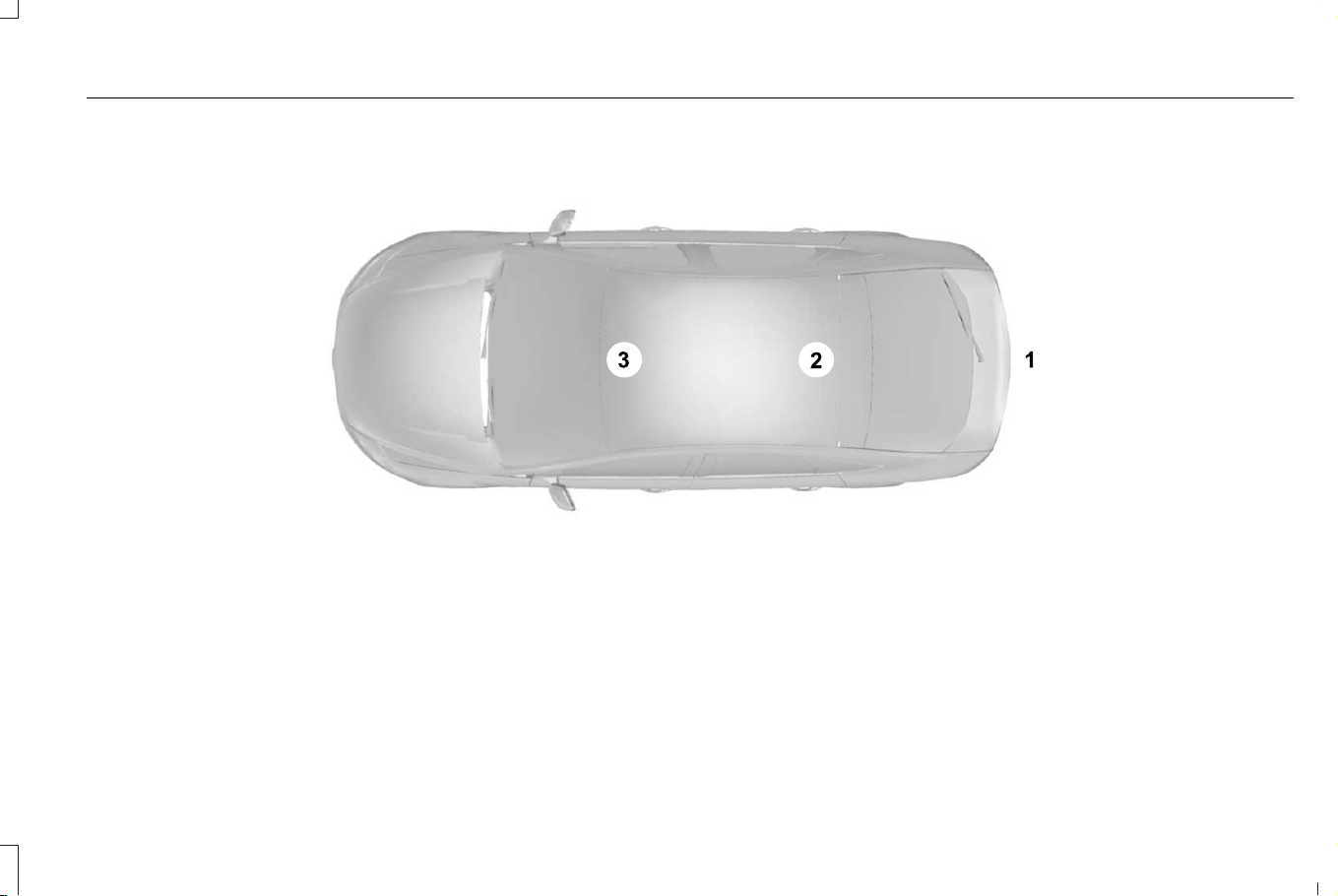
Car
E239120
641
Corsair (CTF) Canada/Mexico/United States of America, enUSA, Edition date: 202407, DOM
Appendices
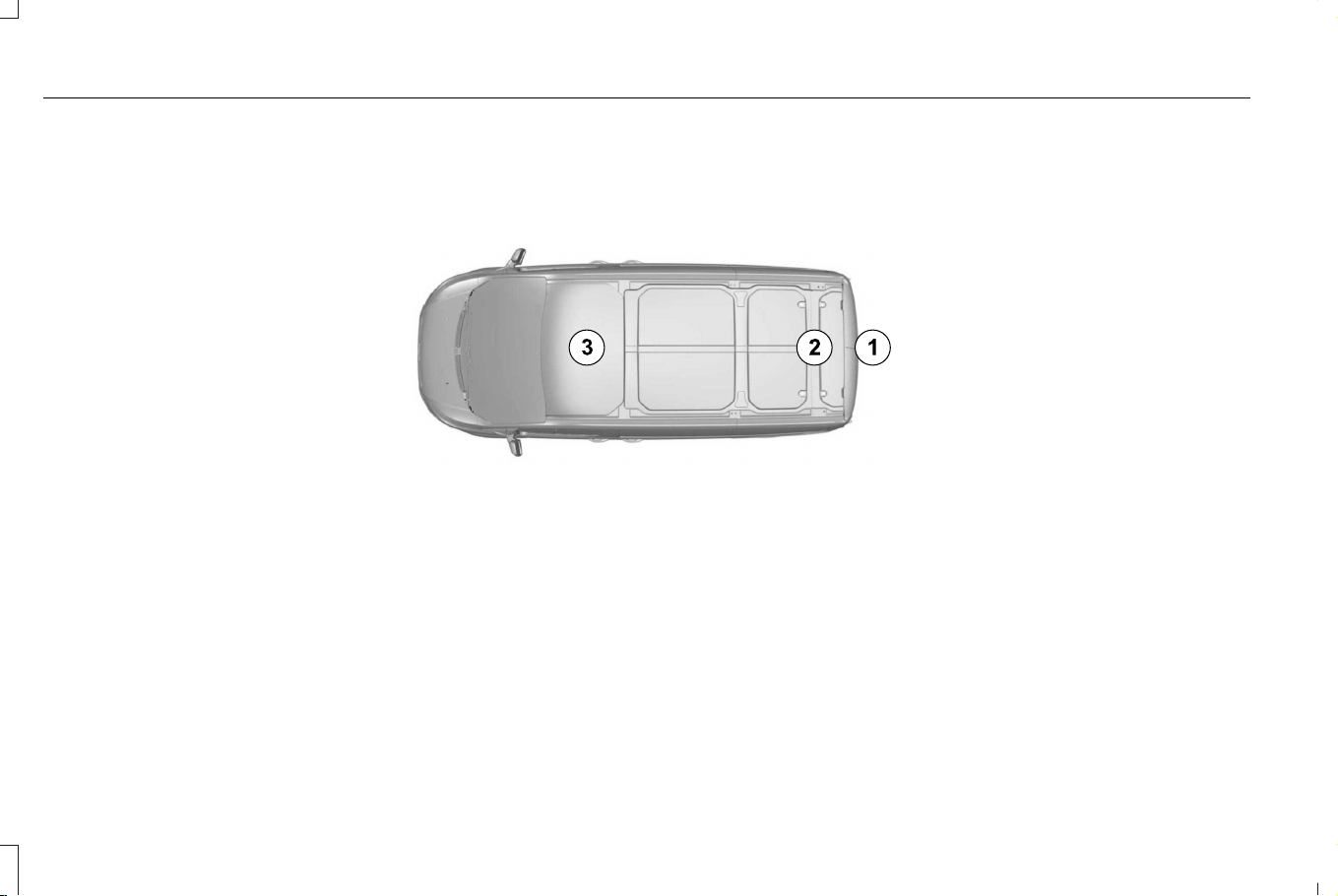
Van
E239122
642
Corsair (CTF) Canada/Mexico/United States of America, enUSA, Edition date: 202407, DOM
Appendices
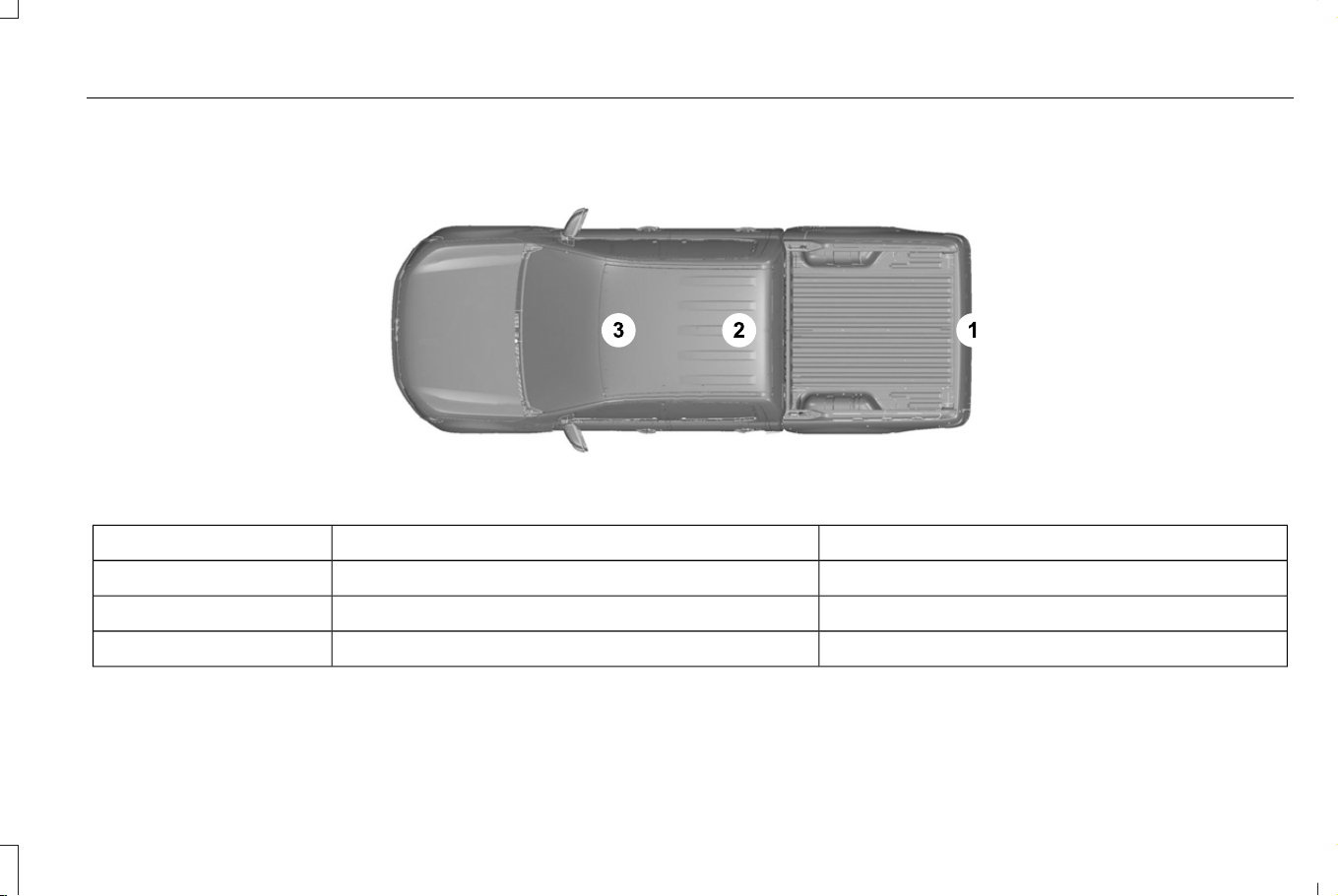
Truck
E239121
Antenna PositionsMaximum Output Power Watt (Peak RMS)Frequency Band MHz
1501-30
2, 35050-54
2, 35068-88
643
Corsair (CTF) Canada/Mexico/United States of America, enUSA, Edition date: 202407, DOM
Appendices

Antenna PositionsMaximum Output Power Watt (Peak RMS)Frequency Band MHz
2, 350142-176
2, 350380-512
2, 310806-870
644
Corsair (CTF) Canada/Mexico/United States of America, enUSA, Edition date: 202407, DOM
Appendices

1
12V Battery.....................................................424
12V Battery Precautions...................................424
Battery Management System
Limitations.......................................................426
Changing the 12V Battery................................426
Charging the 12V Battery.................................428
How Does the Battery Management System
Work..................................................................425
Recycling and Disposing of the 12V
Battery..............................................................428
Resetting the Battery Sensor..........................428
What Is the Battery Management
System..............................................................425
12V Battery – Troubleshooting.................429
12V Battery – Information Messages............429
12V Battery – Warning Lamps.........................429
3
360 Degree Camera...................................282
360 Degree Camera Settings.........................284
360 Degree Camera Guide Lines............283
360 Degree Camera Precautions............282
360 Degree Camera Settings...................284
Switching the 360 Degree Camera On and
Off......................................................................284
Switching the 360 Degree Camera
View..................................................................284
9
911 Assist............................................................71
A
A/C
See: Climate Control..........................................153
About This Publication...................................19
ABS
See: Brakes...........................................................251
Accessing Navigation.................................520
Accessing the Passive Key Backup
Position.........................................................196
Accessing the Trip Computer....................145
Accessories...................................................526
AC Charging..................................................232
Charging at Home..............................................232
Charging in Public..............................................233
Adaptive Cruise Control.............................285
Adaptive Cruise Control –
Troubleshooting.............................................302
Lane Centering...................................................294
Lane Centering – Troubleshooting................297
Predictive Speed Assist....................................299
Predictive Speed Assist –
Troubleshooting..............................................301
Adaptive Cruise Control Automatic
Cancellation................................................289
Adaptive Cruise Control Indicators.........294
Adaptive Cruise Control Limitations.......286
Adaptive Cruise Control
Precautions.................................................285
Adaptive Cruise Control –
Troubleshooting.........................................302
Adaptive Cruise Control – Information
Messages.........................................................302
Adaptive Cruise Control Videos...............303
Adaptive Front Lighting................................118
How Does Adaptive Front Lighting Work......118
Switching Adaptive Front Lighting On and
Off........................................................................119
Adaptive Front Lighting –
Troubleshooting..........................................120
Adaptive Front Lighting – Information
Messages..........................................................120
Adjusting the Exterior Mirrors....................127
Adjusting the Headlamps............................431
Adjusting the Instrument Panel Lighting
Brightness....................................................122
Adjusting the Map........................................520
Changing the Format of the Map...................520
Zooming the Map In and Out..........................520
645
Corsair (CTF) Canada/Mexico/United States of America, enUSA, Edition date: 202407, DOM
Index

Adjusting the Seatbelt Height.....................55
Adjusting the Seatbelts During
Pregnancy......................................................54
Adjusting the Sound Settings...................493
Adjusting the Steering Wheel - Vehicles
With: Manual Adjustable Steering
Column..........................................................103
Adjusting the Steering Wheel - Vehicles
With: Power Adjustable Steering
Column..........................................................103
Adjusting the Volume..................................492
Aid Mode........................................................322
How Does Aid Mode Work..............................322
What Is Aid Mode...............................................322
Airbag Precautions.........................................63
Airbags..............................................................60
Front Passenger Sensing System....................64
Air Conditioning
See: Climate Control..........................................153
Air Conditioning System Refrigerant........158
Alert and Aid Mode......................................323
How Does Alert and Aid Mode Work............323
What Is Alert and Aid Mode.............................323
Alert Mode.....................................................322
How Does Alert Mode Work...........................322
What Is Alert Mode............................................322
Alexa Built-In..................................................507
Alexa Built-In Requirements......................507
Alexa Built-In Settings.................................507
All-Wheel Drive.............................................249
All-Wheel Drive – Troubleshooting...............250
All-Wheel Drive Limitations........................249
All-Wheel Drive Precautions......................249
All-Wheel Drive – Troubleshooting.........250
All-Wheel Drive – Information
Messages........................................................250
AM/FM Radio.................................................493
AM/FM Radio Limitations..................................493
Selecting a Radio Station.................................494
Ambient Lighting...........................................122
Adjusting Ambient Lighting..............................122
Switching Ambient Lighting On and Off........122
Anti-Lock Braking System...........................251
Anti-Lock Braking System Indicators.............251
Anti-Lock Braking System Limitations...........251
Anti-Theft Alarm System.............................100
Arming the Anti-Theft Alarm System.............100
Disarming the Anti-Theft Alarm System.........101
How Does the Anti-Theft Alarm System
Work...................................................................100
What Is the Anti-Theft Alarm System.............100
What Is the Perimeter Alarm............................100
Appendices...................................................640
Applying the Electric Parking Brake.......256
Applying the Electric Parking Brake in an
Emergency..................................................256
Approach Detection
See: Switching Welcome Lighting On and
Off........................................................................115
Audio System................................................492
AM/FM Radio.......................................................493
Audio System – Troubleshooting...................498
Digital Radio.........................................................494
Satellite Radio.....................................................496
Audio System Precautions.........................492
Audio System – Troubleshooting............498
Audio System – Information Messages........498
Auto Air Refresh............................................160
Auto Air Refresh Hints........................................163
Auto Air Refresh Indicators...............................162
Automatically Refreshing the Interior Air......162
Checking the Interior Air Quality.....................160
How Does Auto Air Refresh Work..................160
Manually Refreshing the Interior Air...............162
What Is Auto Air Refresh...................................160
Auto-Dimming Exterior Mirror....................128
What Is the Auto-Dimming Exterior
Mirror..................................................................128
Auto-Dimming Interior Mirror.....................126
Auto-Dimming Interior Mirror
Limitations........................................................126
What Is the Auto-Dimming Interior
Mirror..................................................................126
Auto Hold.......................................................264
646
Corsair (CTF) Canada/Mexico/United States of America, enUSA, Edition date: 202407, DOM
Index

Auto Hold Indicators...................................265
Autolamps........................................................113
Autolamp Settings................................................114
What Are Autolamps............................................113
Autolock............................................................86
Autolock Requirements.......................................86
What Is Autolock...................................................86
Automatically Releasing the Electric
Parking Brake.............................................257
Automatic Crash Shutoff............................382
Automatic Crash Shutoff Precautions...........382
Re-Enabling Your Vehicle.................................382
What Is Automatic Crash Shutoff...................382
Automatic Emergency Braking.................343
Switching Automatic Emergency Braking On
and Off..............................................................343
What Is Automatic Emergency Braking........343
Automatic Engine Stop................................195
How Does Automatic Engine Stop
Work...................................................................195
Overriding Automatic Engine Stop.................195
Switching Automatic Engine Stop On and
Off.......................................................................195
What Is Automatic Engine Stop.......................195
Automatic High Beam Control....................115
Automatic High Beam Control Indicators.......117
Automatic High Beam Control
Limitations..........................................................117
Automatic High Beam Control
Precautions........................................................116
Automatic High Beam Control
Requirements....................................................116
How Does Automatic High Beam Control
Work....................................................................115
Overriding Automatic High Beam
Control................................................................117
Switching Automatic High Beam Control On
and Off................................................................117
Automatic High Beam Control –
Troubleshooting...........................................118
Automatic High Beam Control – Information
Messages...........................................................118
Automatic Locking Mode..............................53
Disengaging Automatic Locking Mode...........54
Engaging Automatic Locking Mode.................53
What Is Automatic Locking Mode.....................53
Automatic Return to Park (P).....................245
Automatic Transmission Audible
Warnings......................................................247
Automatic Transmission.............................242
Automatic Transmission Positions.................242
Automatic Transmission Fluid Capacity and
Specification................................................247
Automatic Transmission – Information
Messages....................................................248
Automatic Transmission Positions...........242
Automatic Transmission Position
Indicators.........................................................243
Automatic Transmission Precautions............242
Drive (D)................................................................243
Neutral (N)............................................................243
Park (P)..................................................................242
Reverse (R)...........................................................243
Shifting Your Vehicle Into Gear.......................242
Auto Mode......................................................156
Auto Mode Indicators.........................................156
Switching Auto Mode On and Off...................156
Switching Dual Mode On and Off...................157
Auto-Start-Stop.............................................204
Auto-Start-Stop – Troubleshooting...............205
Auto-Start-Stop Indicators.........................204
Auto-Start-Stop Precautions......................204
Auto-Start-Stop – Troubleshooting.........205
Auto-Start-Stop – Frequently Asked
Questions........................................................206
Auto-Start-Stop – Information
Messages........................................................205
Autounlock.......................................................85
Autounlock Requirements..................................86
Switching Autounlock On and Off....................86
What Is Autounlock..............................................85
647
Corsair (CTF) Canada/Mexico/United States of America, enUSA, Edition date: 202407, DOM
Index

Autowipers......................................................106
Adjusting the Sensitivity of the Rain
Sensor................................................................107
Autowipers Settings...........................................106
What Are Autowipers.........................................106
AWD
See: All-Wheel Drive..........................................249
B
Blind Spot Assist...........................................324
Blind Spot Assist Indicators.............................325
Blind Spot Assist Limitations...........................324
How Does Blind Spot Assist Work.................324
What Is Blind Spot Assist..................................324
Blind Spot Information System.................329
Blind Spot Information System –
Troubleshooting.............................................332
Blind Spot Information System
Indicators......................................................331
Blind Spot Information System
Limitations...................................................329
Blind Spot Information System
Precautions.................................................329
Blind Spot Information System
Requirements.............................................330
Blind Spot Information System –
Troubleshooting.........................................332
Blind Spot Information System – Information
Messages.........................................................332
BlueCruise Alerts.........................................308
BlueCruise Automatic Cancellation........308
BlueCruise Indicators..................................309
BlueCruise Limitations................................307
BlueCruise Precautions..............................305
BlueCruise Requirements..........................306
BlueCruise Settings.....................................307
BlueCruise – Troubleshooting...................313
BlueCruise – Information Messages..............313
BlueCruise Videos........................................315
Bluetooth®.......................................................516
Body Control Module Fuse Box...............398
Accessing the Body Control Module Fuse
Box.....................................................................398
Identifying the Fuses in the Body Control
Module Fuse Box...........................................399
Locating the Body Control Module Fuse
Box.....................................................................398
Bonnet Lock
See: Opening and Closing the Hood............403
Booster Seats..................................................46
Brake Coach...................................................142
Brake Fluid Specification...........................252
Brake Over Accelerator...............................251
Brake Precautions.........................................251
Brakes..............................................................251
Anti-Lock Braking System.................................251
Brakes – Troubleshooting................................254
Brakes – Troubleshooting.........................254
Brakes – Frequently Asked Questions........254
Brakes – Information Messages.....................254
Brakes – Warning Lamps.................................254
Breaking-In.....................................................369
C
Calculating Payload.....................................355
Calculating the Load Limit.........................355
Canceling the Set Speed...........................292
Catalytic Converter.......................................219
Catalytic Converter – Troubleshooting........220
Catalytic Converter Precautions...............219
Catalytic Converter –
Troubleshooting.........................................220
Catalytic Converter – Warning Lamps..........220
Center Console.............................................190
Opening the Center Console...........................190
Center Display..............................................502
Center Display Overview...........................502
Changing a Flat Tire.....................................477
Changing a Road Wheel.............................477
Changing the Fuel Filter.............................424
648
Corsair (CTF) Canada/Mexico/United States of America, enUSA, Edition date: 202407, DOM
Index

Changing the Remote Control
Battery.............................................................75
Charge Port Indicators................................230
Charging a Device........................................186
Charging a Wireless Device.......................189
Charging Equipment Indicators................224
Charging Equipment Overview................223
Charging Equipment Precautions............222
Charging Settings.........................................234
Charging Your Vehicle................................222
AC Charging........................................................232
Charging Your Vehicle –
Troubleshooting.............................................240
Charging Your Vehicle –
Troubleshooting.........................................240
Charging Your Vehicle – Frequently Asked
Questions..........................................................241
Charging Your Vehicle – Information
Messages.........................................................240
Checking the Brake Fluid..........................252
Checking the Seatbelts.................................57
Checking the Tire Pressures.....................458
Checking the Wiper Blades........................108
Children and Airbags.....................................64
Child Restraint Anchor Points......................37
Locating the Child Restraint Lower Anchor
Points...................................................................38
Locating the Child Restraint Top Tether
Anchor Points....................................................38
What Are the Child Restraint Anchor
Points...................................................................37
Child Restraints...............................................38
Child Restraint Position Information.................38
Child Restraints Recommendation...................40
Child Safety......................................................36
Child Restraint Anchor Points............................37
Child Restraints......................................................38
Installing Child Restraints.....................................41
Child Safety Locks..........................................49
Child Safety Precautions...............................36
Cleaning Products........................................438
Cleaning the Exterior...................................439
Cleaning Camera Lenses and Sensors.........441
Cleaning Chrome, Aluminium or Stainless
Steel..................................................................440
Cleaning Headlamps and Rear Lamps.........439
Cleaning Stripes or Graphics..........................440
Cleaning the Engine Compartment...............440
Cleaning the Exterior Precautions.................439
Cleaning the Underbody...................................441
Cleaning Wheels................................................440
Cleaning Windows and Wiper Blades..........439
Cleaning the Interior.....................................441
Cleaning Carpets and Floor Mats..................443
Cleaning Displays and Screens.......................441
Cleaning Fabric...................................................442
Cleaning Glass Roof Tracks.............................443
Cleaning Leather................................................442
Cleaning Plastic...................................................441
Cleaning Seatbelts.............................................443
Cleaning the Instrument Panel.........................441
Cleaning Vinyl.....................................................442
Climate Control..............................................153
Auto Mode............................................................156
Climate Control Hints...................................157
Climate Control – Warning Lamps............158
Closing the Liftgate........................................95
Closing the Hands-Free Liftgate.......................96
Closing the Liftgate From Inside Your
Vehicle................................................................95
Closing the Liftgate From Outside Your
Vehicle................................................................95
Closing the Liftgate Using the Remote
Control................................................................96
Configuring the Trip Computer..................145
Connected Navigation................................520
Connected Vehicle......................................486
Connected Vehicle – Troubleshooting.........487
Connecting the Vehicle to a Mobile
Network............................................................486
Connected Vehicle Data...............................29
Connected Vehicle Limitations.................486
Connected Vehicle Requirements...........486
649
Corsair (CTF) Canada/Mexico/United States of America, enUSA, Edition date: 202407, DOM
Index

Connected Vehicle Settings......................487
Connected Vehicle –
Troubleshooting.........................................487
Connected Vehicle – Frequently Asked
Questions.........................................................487
Connecting a Bluetooth® Device..............516
Connecting a Trailer.....................................361
Connecting a Trailer Precautions..............361
Connecting the Vehicle to a Mobile
Network........................................................486
Connecting Lincoln Way to the Modem.......486
Enabling and Disabling the Modem..............486
What Is the Modem............................................486
Connecting the Vehicle to a Wi-Fi
Network........................................................486
Connecting Your Phone.............................509
Contacting Us...................................................17
Coolant.............................................................418
Adding Coolant....................................................419
Changing the Coolant.......................................420
Checking the Coolant Level.............................418
Coolant – Information Messages...................423
Coolant – Warning Lamps................................423
Cooling System Capacity and
Specification.....................................................421
Managing the Coolant Temperature.............420
Crash and Breakdown Information..........374
Automatic Crash Shutoff..................................382
Fail-Safe Cooling................................................383
Jump Starting the Vehicle.................................377
Post-Crash Alert System....................................381
Crash Sensors and Airbag Indicator..........68
Creating a Personal Profile.........................518
Cross Traffic Alert.........................................334
Cross Traffic Alert – Troubleshooting...........338
Cross Traffic Alert Indicators......................337
Cross Traffic Alert Limitations...................336
Cross Traffic Alert Precautions..................334
Cross Traffic Alert –
Troubleshooting.........................................338
Cross Traffic Alert – Information
Messages.........................................................338
Customer Information..................................541
Radio Frequency Certification Labels...........545
Customizing the Instrument Cluster
Display...........................................................140
D
Data Privacy.....................................................26
Department of Transportation Uniform Tire
Quality Grades............................................447
Digital Radio...................................................494
Digital Radio Indicators.....................................495
Digital Radio Limitations...................................495
How Does Digital Radio Work.........................495
Switching Digital Radio Reception On and
Off......................................................................495
What Is Digital Radio..........................................494
Dinghy Tow
See: Recreationally Towing Your Vehicle -
Gasoline, AWD................................................387
See: Recreationally Towing Your Vehicle -
Gasoline, FWD................................................387
See: Recreationally Towing Your Vehicle -
Plug-In Hybrid Electric Vehicle (PHEV)......386
Directing the Flow of Air.............................155
Disposing of Airbags.....................................69
Distance Alert................................................343
Adjusting the Sensitivity of Distance
Alert...................................................................343
What Is Distance Alert.......................................343
Door Lock Indicators......................................87
Door Lock Switch Inhibitor...........................85
How Does the Door Lock Switch Inhibitor
Work.....................................................................85
Doors and Locks Audible Warnings...........87
Doors and Locks.............................................84
Autolock..................................................................86
Autounlock.............................................................85
Door Lock Switch Inhibitor.................................85
Doors and Locks – Troubleshooting................87
Mislock.....................................................................86
650
Corsair (CTF) Canada/Mexico/United States of America, enUSA, Edition date: 202407, DOM
Index

Operating the Doors From Inside Your
Vehicle................................................................85
Operating the Doors From Outside Your
Vehicle.................................................................84
Doors and Locks – Troubleshooting..........87
Doors and Locks – Frequently Asked
Questions...........................................................88
Doors and Locks – Information
Messages...........................................................87
Doors and Locks – Warning Lamps.................87
Drive Belt Routing Overview - 2.0L
EcoBoost™....................................................424
Drive Mode Control......................................316
Drive Mode Control – Troubleshooting.........318
Drive Modes.........................................................316
Drive Mode Control –
Troubleshooting..........................................318
Drive Mode Control – Frequently Asked
Questions..........................................................319
Drive Mode Control – Information
Messages..........................................................318
Drive Mode Control – Warning Lamps..........318
Drive Mode Control Videos........................319
Drive Modes...................................................316
Conserve...............................................................316
Excite......................................................................316
Normal....................................................................317
Preserve EV...........................................................317
Pure EV...................................................................317
Slippery..................................................................318
Driver Alert......................................................351
Driver Alert – Troubleshooting.......................352
Driver Alert Limitations...............................352
Driver Alert Precautions..............................351
Driver Alert – Troubleshooting.................352
Driver Alert – Information Messages............352
Driving Economically...................................369
Driving Hints..................................................369
Electric Vehicle - Plug-In Hybrid Electric
Vehicle (PHEV)................................................372
Driving in Cold Weather.............................369
Driving In Sand...............................................371
Driving on Hilly or Sloping Terrain...........370
Driving Through Mud and Water..............370
Driving Through Shallow Water.................371
Drowsiness Monitor
See: Driver Alert..................................................351
E
Easy Entry and Exit..........................................91
Electric Economy............................................141
Electric Parking Brake Audible
Warning........................................................257
Electric Parking Brake.................................256
Electric Parking Brake –
Troubleshooting.............................................257
Electric Parking Brake –
Troubleshooting.........................................257
Electric Parking Brake – Information
Messages.........................................................258
Electric Parking Brake – Warning
Lamps................................................................257
Electric Power Steering...............................271
Electric Power Steering Precautions..............271
How Does Electric Power Steering
Work...................................................................271
Electric Vehicle - Plug-In Hybrid Electric
Vehicle (PHEV)............................................372
Maximizing Your Driving Range......................372
Electromagnetic Compatibility..................640
Emergency Call Limitations..........................72
Emergency Call Requirements.....................71
Emergency Call System Data......................30
Emergency Towing - Gasoline..................388
Emergency Towing - Plug-In Hybrid Electric
Vehicle (PHEV)............................................387
Emission Law.................................................636
Enabling Apps on a Mobile Device..........514
Enabling or Disabling Personal
Profiles...........................................................517
End User License Agreement..................606
651
Corsair (CTF) Canada/Mexico/United States of America, enUSA, Edition date: 202407, DOM
Index

Engine Air Filter.............................................415
Changing the Engine Air Filter.........................415
Engine Block Heater....................................193
Engine Block Heater Precautions...................193
How Does the Engine Block Heater
Work...................................................................194
Using the Engine Block Heater.......................194
Engine Coolant Temperature Gauge.......135
Engine Oil.......................................................409
Adding Engine Oil..............................................409
Checking the Engine Oil Level.......................409
Engine Oil Capacity and Specification............411
Engine Oil Dipstick Overview.........................409
Intelligent Oil Life Monitor.................................410
Resetting the Intelligent Oil Life Monitor......410
Engine Specifications - 2.0L
EcoBoost™....................................................434
Engine Specifications - 2.5L......................435
Environment......................................................31
Evasive Steering Assist...............................343
Evasive Steering Assist Limitations...............344
Switching Evasive Steering Assist On and
Off......................................................................344
What Is Evasive Steering Assist......................343
EV Coach..........................................................141
Event Data........................................................28
Export Unique Options...............................637
Exterior Bulbs................................................433
Exterior Bulb Specification Chart...................433
Exterior Lamps................................................114
Exterior Lamps On Audible Warning...............115
Switching the Daytime Running Lamps On
and Off................................................................114
Switching Welcome Lighting On and Off.......115
Using the Turn Signal Lamps.............................114
Exterior Lighting Control..............................112
Exterior Lighting.............................................112
Adaptive Front Lighting......................................118
Adaptive Front Lighting –
Troubleshooting..............................................120
Autolamps..............................................................113
Automatic High Beam Control..........................115
Automatic High Beam Control –
Troubleshooting...............................................118
Exterior Lamps......................................................114
Headlamps.............................................................112
Headlamps – Troubleshooting.........................113
Exterior Mirrors...............................................127
Auto-Dimming Exterior Mirror..........................128
Exterior Overview...........................................34
F
Fail-Safe Cooling..........................................383
Driving When Fail-Safe Mode Is
Activated..........................................................384
Fail-Safe Cooling Indicators............................385
How Does Fail-Safe Cooling Work................383
What Is Fail-Safe Cooling.................................383
Fastening the Seatbelts................................52
Federal Highway Administration
Regulation...................................................605
Flat Tire
See: Changing a Flat Tire.................................477
Flat Tow
See: Recreationally Towing Your Vehicle -
Gasoline, AWD................................................387
See: Recreationally Towing Your Vehicle -
Gasoline, FWD................................................387
See: Recreationally Towing Your Vehicle -
Plug-In Hybrid Electric Vehicle (PHEV)......386
Floor Mats.......................................................372
Folding the Exterior Mirrors........................127
Forward Collision Warning.........................343
Adjusting the Sensitivity of Forward Collision
Warning.............................................................343
What is Forward Collision Warning................343
652
Corsair (CTF) Canada/Mexico/United States of America, enUSA, Edition date: 202407, DOM
Index

Four Wheels Down Tow
See: Recreationally Towing Your Vehicle -
Gasoline, AWD................................................387
See: Recreationally Towing Your Vehicle -
Gasoline, FWD................................................387
See: Recreationally Towing Your Vehicle -
Plug-In Hybrid Electric Vehicle (PHEV)......386
Front Parking Aid..........................................275
Front Parking Aid Audible Warnings.............276
Front Parking Aid Limitations..........................275
Locating the Front Parking Aid Sensors.......275
What is the Front Parking Aid..........................275
Front Passenger Sensing System..............64
Front Passenger Sensing System
Indicators............................................................67
Front Passenger Sensing System
Precautions........................................................67
How Does the Front Passenger Sensing
System Work......................................................64
What Is the Front Passenger Sensing
System.................................................................64
Front Seat Precautions................................164
Front Seats......................................................164
Heated Seats........................................................169
Massage Seats.....................................................168
Power Seats..........................................................165
Ventilated Seats...................................................170
Fuel and Refueling.......................................207
Fuel and Refueling – Troubleshooting...........217
Fuel Quality..........................................................208
Refueling...............................................................210
Running Out of Fuel..........................................209
Fuel and Refueling Precautions...............207
Fuel and Refueling –
Troubleshooting..........................................217
Fuel and Refueling – Information
Messages..........................................................217
Fuel and Refueling – Warning Lamps............217
Fuel Economy Display...................................141
Fuel Gauge.....................................................135
Fuel Gauge Limitations......................................135
Locating the Fuel Filler Door............................135
What Is Distance to Empty................................135
What Is the Fuel Gauge.....................................135
What Is the Low Fuel Reminder.......................135
Fuel Quality...................................................208
Selecting the Correct Fuel...............................208
Fuel Tank Capacity - Excluding: Plug-In
Hybrid Electric Vehicle (PHEV)................216
Fuel Tank Capacity - Plug-In Hybrid Electric
Vehicle (PHEV)............................................216
Fuse Precautions..........................................389
Fuses...............................................................389
Body Control Module Fuse Box.....................398
Fuses – Troubleshooting.................................402
Under Hood Fuse Box......................................389
Fuses – Troubleshooting...........................402
Fuses – Frequently Asked Questions..........402
G
Garage Door Opener Additional
Assistance....................................................184
Garage Door Opener...................................180
Garage Door Opener Introduction...........180
Garage Door Opener Precautions and
Frequencies.................................................180
General Maintenance Information...........535
Glass Roof Bounce-Back.............................130
Overriding Glass Roof Bounce-Back...............131
What Is Glass Roof Bounce-Back....................130
Glass Roof.......................................................129
Glass Roof Bounce-Back...................................130
Global Opening and Closing......................124
Switching Global Closing On and Off............124
Switching Global Opening On and Off..........124
Using Global Closing..........................................124
Using Global Opening........................................124
What Is Global Opening and Closing.............124
Glossary of Tire Terminology....................453
Glove Compartment.....................................190
Opening the Glove Compartment..................190
653
Corsair (CTF) Canada/Mexico/United States of America, enUSA, Edition date: 202407, DOM
Index

Grade Assist - Plug-In Hybrid Electric
Vehicle (PHEV)...........................................245
H
Headlamp Adjusting
See: Adjusting the Headlamps........................431
Headlamps.......................................................112
Headlamp Indicators...........................................112
Switching Headlamp Exit Delay On and
Off........................................................................112
Using the High Beam Headlamps...................112
Headlamps – Troubleshooting...................113
Headlamps – Frequently Asked
Questions...........................................................113
Head Up Display...........................................146
Head Up Display – Troubleshooting..............150
Head Up Display Indicators........................148
Head Up Display Settings...........................146
Head Up Display – Troubleshooting.......150
Head Up Display – Information
Messages.........................................................150
Heated Seats..................................................169
Heated Seat Precautions..................................169
Switching the Heated Seats On and Off.......169
Heating
See: Climate Control..........................................153
High Voltage Battery....................................221
High Voltage Battery Precautions............221
High Voltage Battery Vehicle Precautions
- Plug-In Hybrid Electric Vehicle
(PHEV)...........................................................375
Hill Start Assist..............................................263
Hill Start Assist – Troubleshooting.................263
Hill Start Assist Precautions.......................263
Hill Start Assist – Troubleshooting..........263
Hill Start Assist – Information
Messages.........................................................263
Home Screen................................................502
Hood Lock
See: Opening and Closing the Hood............403
Horn..................................................................104
How Does 911 Assist Work............................71
How Does Adaptive Cruise Control With
Stop and Go Work.....................................285
How Does All-Wheel Drive Work.............249
How Does Auto Hold Work.......................264
How Does Blind Spot Information System
Work..............................................................329
How Does BlueCruise Work......................304
How Does Cross Traffic Alert Work.........334
How Does Drive Mode Control Work......316
How Does Driver Alert Work......................351
How Does Easy Entry and Exit Work..........91
How Does Hill Start Assist Work..............263
How Does Pre-Collision Assist Work......339
How Does Reverse Brake Assist
Work..............................................................259
How Does Speed Sign Recognition
Work..............................................................347
How Does Stability Control Work............268
How Does the 360 Degree Camera
Work..............................................................282
How Does the Lane Keeping System
Work..............................................................320
How Does the Memory Function
Work...............................................................178
How Does the Personal Safety System
Work................................................................59
How Does the Rear Occupant Alert System
Work...............................................................175
How Does the Safety Canopy™ Work........62
How Does Traction Control Work............266
How Does Trailer Sway Control
Work..............................................................368
How Do Personal Profiles Work................517
How Do the Front Airbags Work................60
How Do the Knee Airbags Work..................61
How Do the Side Airbags Work..................60
I
Icon Glossary
See: Symbols Glossary.........................................21
654
Corsair (CTF) Canada/Mexico/United States of America, enUSA, Edition date: 202407, DOM
Index

Icons
See: Symbols Glossary.........................................21
Identifying Fuse Types................................402
Identifying the Climate Control Unit.........153
Inflating the Tires..........................................458
Information On Demand Screen..............504
Information on the Tire Sidewall..............448
In-Lane Repositioning..................................312
How Does In-Lane Repositioning Work.........312
In-Lane Repositioning Indicators.....................313
Switching In-Lane Repositioning On and
Off.......................................................................313
Inspecting the Tire for Damage...............459
Inspecting the Tire for Wear......................459
Inspecting the Wheel Valve Stems..........463
Installing and Removing the Luggage
Compartment Cover.................................358
Installing Child Restraints..............................41
Combining the Seatbelt and Lower Anchors
for Attaching Child Restraints........................44
Installing a Child Restraint in a Center
Seat......................................................................44
Using Lower Anchors and Tethers for
Children...............................................................43
Using Seatbelts......................................................41
Using Tether Straps..............................................45
Instrument Cluster Display..........................139
Instrument Cluster Display Main
Menu..............................................................140
Instrument Cluster.........................................132
Fuel Gauge............................................................135
Instrument Cluster Overview.....................132
Interior Air Quality.........................................160
Auto Air Refresh..................................................160
Interior Air Quality – Troubleshooting...........163
Interior Air Quality –
Troubleshooting..........................................163
Interior Air Quality – Information
Messages..........................................................163
Interior Bulbs.................................................433
Interior Bulb Specification Chart.....................433
Interior Lamp Function..................................121
Switching the Interior Lamp Function On and
Off........................................................................121
What Is the Interior Lamp Function..................121
Interior Lighting...............................................121
Ambient Lighting.................................................122
Interior Lamp Function........................................121
Interior Lighting – Troubleshooting................122
Interior Lighting – Troubleshooting..........122
Interior Lighting – Frequently Asked
Questions..........................................................122
Interior Mirror.................................................126
Auto-Dimming Interior Mirror...........................126
Interior Mirror Precautions..........................126
Interior Overview............................................32
Introduction.......................................................19
J
Jump Starting the Vehicle..........................377
Jump Starting Precautions...............................377
Jump Starting the Vehicle................................378
Preparing the Vehicle........................................378
K
Keyless Entry...................................................89
Keyless Entry – Troubleshooting......................90
Keyless Entry Limitations..............................89
Keyless Entry Settings...................................89
Keyless Entry – Troubleshooting................90
Keyless Entry – Frequently Asked
Questions...........................................................90
Keys and Remote Controls Audible
Warnings.........................................................77
Keys and Remote Controls...........................73
Keys and Remote Controls –
Troubleshooting................................................78
Keys and Remote Controls –
Troubleshooting............................................78
Keys and Remote Controls – Information
Messages...........................................................78
655
Corsair (CTF) Canada/Mexico/United States of America, enUSA, Edition date: 202407, DOM
Index

L
Lane Centering.............................................294
How Does Lane Centering Work...................294
Lane Centering Alerts.......................................296
Lane Centering Automatic Cancellation......296
Lane Centering Indicators................................297
Lane Centering Limitations..............................295
Lane Centering Manual Cancellation............297
Lane Centering Precautions............................294
Lane Centering Requirements........................295
Switching Lane Centering On and Off..........296
Lane Centering – Troubleshooting..........297
Lane Centering – Information
Messages.........................................................297
Lane Change Assist......................................310
How Does Lane Change Assist Work............310
Lane Change Assist Cancellation....................311
Lane Change Assist Limitations.......................311
Switching Lane Change Assist On and
Off........................................................................311
Lane Change Assist –
Troubleshooting..........................................312
Lane Change Assist – Information
Messages..........................................................312
Lane Keeping System Indicators..............323
Lane Keeping System.................................320
Aid Mode..............................................................322
Alert and Aid Mode............................................323
Alert Mode...........................................................322
Blind Spot Assist.................................................324
Lane Keeping System –
Troubleshooting.............................................327
Lane Keeping System Limitations.............321
Lane Keeping System Precautions..........320
Lane Keeping System Settings.................322
Lane Keeping System –
Troubleshooting.........................................327
Lane Keeping System – Frequently Asked
Questions.........................................................328
Lane Keeping System – Information
Messages.........................................................327
Launching or Retrieving a Boat or Personal
Watercraft....................................................365
Liftgate...............................................................92
Closing the Liftgate..............................................95
Liftgate – Troubleshooting.................................98
Opening the Liftgate............................................92
Liftgate Obstacle Detection.........................97
Liftgate Precautions.......................................92
Liftgate – Troubleshooting...........................98
Liftgate – Frequently Asked Questions..........99
Liftgate – Information Messages......................98
Liftgate – Warning Lamps...................................98
Lincoln BlueCruise.......................................304
BlueCruise – Troubleshooting.........................313
In-Lane Repositioning........................................312
Lane Change Assist............................................310
Lane Change Assist – Troubleshooting........312
Lincoln Personal Assistant.........................505
Lincoln Personal Assistant – Frequently Asked
Questions........................................................505
Lincoln Personal Assistant Settings..............505
Using Lincoln Personal Assistant...................505
Lincoln Protect..............................................528
Linking or Unlinking a Personal Profile to
a Device........................................................518
Linking or Unlinking a Personal Profile to
a Remote Control.......................................518
Live Traffic......................................................520
Switching Live Traffic On and Off..................520
What Is Live Traffic.............................................520
Load Carrying................................................353
Roof Rack..............................................................357
Load Carrying Precautions........................353
Loading Your Trailer.....................................364
Locating the 360 Degree Cameras.........283
Locating the Blind Spot Information System
Sensors........................................................330
Locating the Brake Fluid Reservoir..........251
Locating the Charge Port...........................230
Locating the Cross Traffic Alert
Sensors........................................................336
Locating the Fuel Filler Funnel.................208
656
Corsair (CTF) Canada/Mexico/United States of America, enUSA, Edition date: 202407, DOM
Index

Locating the Memory Function
Buttons..........................................................178
Locating the Power Outlets........................187
Locating the Pre-Collision Assist
Sensors........................................................342
Locating the Rear View Camera...............279
Locating the Safety Compliance
Certification Labels...................................354
Locating the Tire label.................................447
Locating the Tire Sealant and Inflator
Kit...................................................................465
Locating the USB Ports................................185
Locating the Wireless Accessory
Charger.........................................................188
Locating Your Vehicle....................................74
Locking the Rear Window Controls..........125
Low Engine Use Mode................................201
Luggage Compartment Anchor
Points............................................................359
Locating the Luggage Compartment Anchor
Points................................................................360
Luggage Compartment Anchor Point
Precautions.....................................................359
Luggage Compartment..............................358
Luggage Compartment Anchor Points.........359
Luggage Compartment Precautions.......358
M
Maintenance..................................................403
12V Battery...........................................................424
12V Battery – Troubleshooting.......................429
Coolant...................................................................418
Engine Air Filter...................................................415
Engine Oil.............................................................409
Exterior Bulbs......................................................433
Interior Bulbs........................................................433
Maintenance Precautions..........................403
Maintenance Videos....................................433
Making and Receiving a Phone Call.........511
Manually Releasing the Electric Parking
Brake.............................................................257
Manually Shifting Gears..............................243
Manual Seats...................................................171
Adjusting the Head Restraint............................171
Adjusting the Seat Backrest.............................172
Folding the Seat Backrest.................................172
Head Restraint Components.............................171
Installing the Head Restraint............................172
Moving the Seat Backward and
Forward.............................................................172
Removing the Head Restraint...........................171
Unfolding the Seat Backrest.............................173
Massage Seats...............................................168
Adjusting the Massage Seat Settings............168
Massage Seat Limitations.................................168
Media Control Buttons................................492
Memory Function...........................................178
Memory Function Precautions...................178
Mislock..............................................................86
Mislock Limitations...............................................86
Switching Mislock On and Off...........................86
What Is Mislock.....................................................86
Mobile Communications Equipment.......605
Mobile Device Data........................................29
Moonroof
See: Glass Roof....................................................129
Motorcraft Parts - 2.0L EcoBoost™...........436
Motorcraft Parts - 2.5L.................................437
Muting the Audio..........................................493
N
Navigation Map Updates...........................520
Navigation......................................................520
Adjusting the Map..............................................520
Live Traffic............................................................520
Route Guidance..................................................522
Setting a Destination..........................................521
Waypoints..............................................................521
657
Corsair (CTF) Canada/Mexico/United States of America, enUSA, Edition date: 202407, DOM
Index

Neutral Towing
See: Recreationally Towing Your Vehicle -
Gasoline, AWD................................................387
See: Recreationally Towing Your Vehicle -
Gasoline, FWD................................................387
See: Recreationally Towing Your Vehicle -
Plug-In Hybrid Electric Vehicle (PHEV)......386
Neutral Tow
See: Recreationally Towing Your Vehicle -
Gasoline, AWD................................................387
See: Recreationally Towing Your Vehicle -
Gasoline, FWD................................................387
See: Recreationally Towing Your Vehicle -
Plug-In Hybrid Electric Vehicle (PHEV)......386
O
Opening and Closing the Glass Roof......129
Opening and Closing the Hood...............403
Opening and Closing the Sunshade........129
Opening and Closing the Windows.........123
Opening the Liftgate......................................92
Opening the Hands-Free Liftgate....................93
Opening the Liftgate From Inside Your
Vehicle................................................................92
Opening the Liftgate From Outside Your
Vehicle................................................................92
Opening the Liftgate Using the Remote
Control................................................................93
Operating the Doors From Inside Your
Vehicle............................................................85
Opening the Doors From Inside Your
Vehicle................................................................85
Unlocking and Locking the Doors Using the
Central Locking.................................................85
Operating the Doors From Outside Your
Vehicle............................................................84
Individually Unlocking and Locking the Doors
Using the Key Blade........................................84
Unlocking and Locking the Doors Using the
Key Blade...........................................................84
Unlocking and Locking the Doors Using the
Remote Control.................................................84
OTA
See: Software Update Settings......................523
See: Vehicle Software Updates......................523
Overhead Storage........................................190
Opening the Overhead Storage
Compartment...................................................190
Overriding Reverse Brake Assist.............260
Overriding the Set Speed..........................293
Over the air
See: Software Update Settings......................523
Over-the-air
See: Software Update Settings......................523
See: Vehicle Software Updates......................523
See: Vehicle Software Updates......................523
P
Panorama Roof
See: Glass Roof....................................................129
Panoramic Roof
See: Glass Roof....................................................129
Parking Aid Indicators.................................276
Parking Aid Precautions.............................273
Parking Aids...................................................273
Front Parking Aid................................................275
Parking Aids – Troubleshooting.....................277
Rear Parking Aid.................................................274
Parking Aids – Troubleshooting...............277
Parking Aids – Information Messages..........277
Passive Anti-Theft System..........................100
Arming the Passive Anti-Theft System..........100
Disarming the Passive Anti-Theft
System...............................................................100
How Does the Passive Anti-Theft System
Work...................................................................100
What Is the Passive Anti-Theft System..........100
Pedestrian Alert System................................70
Perchlorate....................................................604
658
Corsair (CTF) Canada/Mexico/United States of America, enUSA, Edition date: 202407, DOM
Index

Performing a System Reset.......................525
Personal Profiles............................................517
Personal Safety System Components.......59
Personal Safety System™..............................59
Phone as a Key Limitations..........................79
Phone as a Key................................................79
Phone as a Key – Troubleshooting...................81
Phone as a Key – Troubleshooting.............81
Phone as a Key – Frequently Asked
Questions............................................................81
Phone Menu..................................................509
Phone..............................................................509
Phone Precautions......................................509
Playing Media Using Bluetooth®...............516
Playing Media Using the USB Port...........185
Plug-In Hybrid Electric Vehicle
Information..................................................200
Post-Collision Braking.................................382
Post-Crash Alert System..............................381
How Does the Post-Crash Alert System
Work...................................................................381
Post-Crash Alert System Limitations..............381
Switching the Post-Crash Alert System
Off.......................................................................381
What Is the Post-Crash Alert System.............381
Power Flow....................................................202
Power Outlet...................................................187
Power Outlet Precautions...........................187
Power Seats....................................................165
Adjusting the Head Restraint...........................165
Adjusting the Lumbar Support.........................168
Adjusting the Seat Backrest.............................167
Adjusting the Seat Cushion..............................167
Adjusting the Seat Height.................................168
Folding the Seat Backrest.................................173
Head Restraint Components............................165
Installing the Head Restraint............................166
Moving the Seat Backward and
Forward.............................................................166
Removing the Head Restraint..........................166
Power-Up
See: Software Update Settings......................523
See: Vehicle Software Updates......................523
Pre-Collision Assist Limitations..................341
Pre-Collision Assist Precautions...............339
Pre-Collision Assist......................................339
Automatic Emergency Braking.......................343
Distance Alert......................................................343
Evasive Steering Assist.....................................343
Forward Collision Warning...............................343
Pre-Collision Assist – Troubleshooting.........344
Pre-Collision Assist –
Troubleshooting.........................................344
Pre-Collision Assist – Frequently Asked
Questions.........................................................346
Pre-Collision Assist – Information
Messages.........................................................345
Pre-Collision Assist – Warning Lamps..........344
Predictive Speed Assist.............................299
Adjusting the Set Speed Tolerance..............300
How Does Predictive Speed Assist
Work..................................................................299
Predictive Speed Assist Alerts.......................300
Predictive Speed Assist Indicators................300
Predictive Speed Assist Limitations..............300
Predictive Speed Assist Precautions............299
Switching Predictive Speed Assist Mode On
and Off..............................................................300
Predictive Speed Assist –
Troubleshooting..........................................301
Predictive Speed Assist – Information
Messages..........................................................301
Preparing Your Vehicle for Storage.........445
Programming the Garage Door
Opener...........................................................181
Programming the Remote Control.............76
Programming Your Phone.............................79
Properly Adjusting the Driver and Front
Passenger Seats..........................................64
Protecting the Environment..........................31
Puncture
See: Changing a Flat Tire.................................477
Push Button Ignition Switch.........................191
659
Corsair (CTF) Canada/Mexico/United States of America, enUSA, Edition date: 202407, DOM
Index

R
Radio Frequency Certification
Labels...........................................................545
Antennas..............................................................545
Blind Spot Information System Sensors.......546
Body Control Module........................................557
Cruise Control Module......................................558
Passive Key..........................................................565
Radio Transceiver Module...............................569
Remote Function Actuator...............................556
SYNC......................................................................574
Telematics Control Unit.....................................581
Tire Pressure Monitoring System
Sensors............................................................585
Wireless Accessory Charging Module.........594
Rear Occupant Alert System Audible
Warnings........................................................177
Rear Occupant Alert System
Indicators......................................................176
Rear Occupant Alert System
Limitations....................................................175
Rear Occupant Alert System
Precautions..................................................175
Rear Occupant Alert System......................175
Rear Occupant Alert System
Settings.........................................................176
Rear Parking Aid...........................................274
Locating the Rear Parking Aid Sensors........274
Rear Parking Aid Audible Warnings...............275
Rear Parking Aid Limitations............................274
What is the Rear Parking Aid...........................274
Rear Seats........................................................171
Heated Seats........................................................174
Manual Seats.........................................................171
Power Seats..........................................................173
Rear View Camera Guide Lines...............279
Rear View Camera Object Distance
Indicators.....................................................280
Rear View Camera Precautions................279
Rear View Camera.......................................279
Rear View Camera Settings............................280
Rear View Camera Settings......................280
Switching Rear View Camera Delay On and
Off.......................................................................281
Switching the Rear View Camera View.........281
Zooming the Rear View Camera In and
Out.....................................................................280
Rebooting the Center Display..................504
Recalling a Preset Position.........................178
Recreationally Towing Your Vehicle -
Gasoline, AWD...........................................387
Recreationally Towing Your Vehicle -
Gasoline, FWD............................................387
Recreationally Towing Your Vehicle -
Plug-In Hybrid Electric Vehicle
(PHEV)...........................................................386
Recycling and Disposing of the High
Voltage Battery...........................................221
Refueling.........................................................210
Manually Opening the Fuel Filler Door.........214
Refueling System Overview.............................210
Refueling Your Vehicle.......................................210
Releasing the Electric Parking Brake if the
Vehicle Battery Has Run Out of
Charge..........................................................257
Remote Control Limitations..........................73
Remote Start....................................................151
Remote Start Settings..................................152
Removing the Key Blade...............................74
Removing Your Vehicle From
Storage.........................................................446
Repairing Minor Paint Damage.................443
Replacement Parts
Recommendation......................................604
Replacing a Lost Key or Remote
Control............................................................76
Replacing the Cabin Air Filter....................160
Replacing the Front Wiper Blades............108
Replacing the Rear Wiper Blades.............108
Reporting Safety Defects in Canada.......543
660
Corsair (CTF) Canada/Mexico/United States of America, enUSA, Edition date: 202407, DOM
Index

Reporting Safety Defects in the United
States............................................................543
Resetting the Stopping Position - Vehicles
With: Power Adjustable Steering
Column..........................................................104
Resetting the Trip Computer......................145
Restarting the Engine..................................204
Resuming the Set Speed...........................292
Reverse Brake Assist Indicators..............260
Reverse Brake Assist Precautions...........259
Reverse Brake Assist..................................259
Reverse Brake Assist –
Troubleshooting..............................................261
Reverse Brake Assist –
Troubleshooting..........................................261
Reverse Brake Assist – Frequently Asked
Questions........................................................262
Reverse Brake Assist – Information
Messages..........................................................261
Reverse Brake Assist Videos....................262
Reverse Wipe.................................................107
Reverse Wipe Settings.......................................107
What Is Reverse Wipe........................................107
Roadside Assistance...................................374
Rollover Warning...........................................541
Roof Rack........................................................357
Roof Rack Precautions......................................357
Route Guidance............................................522
Adjusting the Guidance Prompt
Volume.............................................................522
Canceling Route Guidance..............................522
Repeating an Instruction..................................522
Running-In
See: Breaking-In.................................................369
Running Out of Fuel....................................209
Adding Fuel From a Portable Fuel
Container.........................................................209
Filling a Portable Fuel Container...................209
S
Satellite Radio...............................................496
Locating the Satellite Radio Identification
Number.............................................................496
Satellite Radio Limitations................................496
Satellite Radio Settings.....................................497
Selecting a Channel..........................................496
Setting an Alert...................................................497
What Is Satellite Radio......................................496
Saving a Preset Position..............................178
Scheduled Maintenance.............................531
Seatbelt Extensions.......................................58
Seatbelt Precautions.......................................51
Seatbelt Reminder..........................................55
How Does the Seatbelt Reminder Work.........55
Seatbelt Reminder Audible Warnings.............56
Seatbelt Reminder Indicators............................55
Switching the Seatbelt Reminder On and
Off.........................................................................57
Seatbelts............................................................51
Automatic Locking Mode....................................53
Seatbelt Reminder................................................55
Sensitive Locking Mode......................................53
Security............................................................100
Anti-Theft Alarm System...................................100
Passive Anti-Theft System................................100
Security – Troubleshooting...............................101
Security – Troubleshooting.........................101
Security – Frequently Asked Questions.......102
Security – Information Messages....................101
Selecting a Drive Mode...............................316
Selecting the Audio Source......................492
Sending and Receiving a Text
Message.......................................................513
Sensitive Locking Mode................................53
How Does Sensitive Locking Mode
Work.....................................................................53
What is Sensitive Locking Mode.......................53
Service Data.....................................................27
Setting a Destination....................................521
Setting a Destination Using a Point of
Interest...............................................................521
661
Corsair (CTF) Canada/Mexico/United States of America, enUSA, Edition date: 202407, DOM
Index

Setting a Destination Using a Predictive
Destination.......................................................521
Setting a Destination Using a Recent
Destination.......................................................521
Setting a Destination Using a Saved
Destination.......................................................521
Setting a Destination Using the Map
Screen...............................................................521
Setting a Destination Using the Text Entry
Screen...............................................................521
Setting a Memory Preset............................493
Settings Data...................................................28
Settings...........................................................504
Setting the Adaptive Cruise Control
Gap................................................................290
Setting the Adaptive Cruise Control
Speed...........................................................289
Setting the Blower Motor Speed..............155
Setting the Clock and Date.......................493
Setting the Liftgate Opening Height.........94
Setting the Temperature.............................155
Setting Up a Vehicle Hotspot...................490
Shifting Your Immobile Vehicle Out of Park
(P)...................................................................246
Signing In to Your Account........................507
Sitting in the Correct Position....................164
Software Update Indicators.......................524
Software Update Settings..........................523
Software Update
See: Software Update Settings......................523
See: Vehicle Software Updates......................523
Sounding the Panic Alarm............................74
Speedometer.................................................135
Speed Sign Recognition Indicators.........348
Speed Sign Recognition Limitations........347
Speed Sign Recognition
Precautions..................................................347
Speed Sign Recognition Settings............348
Speed Sign Recognition.............................347
Speed Sign Recognition –
Troubleshooting.............................................349
Speed Sign Recognition –
Troubleshooting.........................................349
Speed Sign Recognition – Frequently Asked
Questions........................................................350
Speed Sign Recognition – Information
Messages.........................................................349
Stability Control Indicator...........................269
Stability Control............................................268
Stability Control – Troubleshooting...............270
Stability Control – Troubleshooting.........270
Stability Control – Information
Messages.........................................................270
Stability Control – Warning Lamps................270
Starting and Stopping the Engine –
Precautions...................................................191
Starting and Stopping the Engine..............191
Automatic Engine Stop......................................195
Engine Block Heater...........................................193
Starting and Stopping the Engine –
Troubleshooting..............................................196
Starting the Engine.............................................192
Stopping the Engine...........................................194
Starting and Stopping the Engine –
Troubleshooting..........................................196
Starting and Stopping the Engine – Frequently
Asked Questions............................................198
Starting and Stopping the Engine –
Information Messages...................................197
Starting and Stopping the Engine – Warning
Lamps................................................................196
Starting the Engine.......................................192
Restarting the Engine After Stopping It.........193
Starting a Gasoline Engine...............................192
Starting a Hybrid Electric Vehicle
System...............................................................192
Status Bar.......................................................503
Steering............................................................271
Electric Power Steering......................................271
Steering – Troubleshooting.............................272
Steering – Troubleshooting.......................272
Steering – Information Messages..................272
Steering – Warning Lamps...............................272
Steering Wheel..............................................103
662
Corsair (CTF) Canada/Mexico/United States of America, enUSA, Edition date: 202407, DOM
Index

Stopping the Engine....................................204
Stopping the Engine When Your Vehicle is
Moving...............................................................194
Stopping the Engine When Your Vehicle is
Stationary..........................................................194
Stopping the Liftgate Movement................97
Storage............................................................190
Center Console....................................................190
Glove Compartment...........................................190
Overhead Storage..............................................190
Storing Your Vehicle....................................445
Sunroof
See: Glass Roof....................................................129
Switching Adaptive Cruise Control On and
Off..................................................................288
Switching Air Conditioning On and
Off...................................................................153
Switching All of the Interior Lamps On and
Off....................................................................121
Switching Android Auto™ On and Off......515
Switching Apple CarPlay On and Off.......515
Switching Auto Hold On and Off..............264
Switching Auto-Start-Stop On and
Off..................................................................204
Switching Blind Spot Information System
On and Off...................................................330
Switching BlueCruise On and Off............307
Switching Climate Control On and
Off...................................................................153
Switching Cross Traffic Alert On and
Off..................................................................336
Switching Defrost On and Off....................153
Switching Driver Alert On and Off...........352
Switching Easy Entry and Exit On and
Off.....................................................................91
Switching From Adaptive Cruise Control
to Cruise Control.......................................294
Switching Maximum Cooling On and
Off...................................................................154
Switching Maximum Defrost On and
Off...................................................................154
Switching Parking Aid On and Off...........274
Switching Pre-Collision Assist On and
Off...................................................................341
Switching Recirculated Air On and
Off...................................................................153
Switching Reverse Brake Assist On and
Off..................................................................260
Switching Stability Control On and
Off..................................................................269
Switching Text Message Notification On
and Off...........................................................514
Switching the Audio Unit On and
Off..................................................................492
Switching the Display On and Off............494
Switching the Front Interior Lamps On and
Off....................................................................121
Switching the Hazard Flashers On and
Off..................................................................377
Switching the Head Up Display On and
Off...................................................................146
Switching the Heated Mirrors On and
Off...................................................................155
Switching the Heated Rear Window On
and Off...........................................................154
Switching the Heated Steering Wheel On
and Off - Vehicles With: Heated Steering
Wheel.............................................................104
Switching the Heated Wiper Park On and
Off...................................................................154
Switching the Lane Keeping System
Mode.............................................................322
Switching the Lane Keeping System On
and Off...........................................................321
Switching the Rear Interior Lamps On and
Off....................................................................121
Switching the Rear Window Wiper On and
Off...................................................................107
Switching Traction Control On and
Off..................................................................266
Symbols Glossary............................................21
Symbols Used On Your Instrument
Cluster.............................................................23
663
Corsair (CTF) Canada/Mexico/United States of America, enUSA, Edition date: 202407, DOM
Index

Symbols Used on Your Vehicle....................21
System Update
See: Software Update Settings......................523
See: Vehicle Software Updates......................523
T
Tachometer.....................................................135
Temporary Neutral Mode...........................244
The Better Business Bureau Auto Line
Program.........................................................541
The Mediation and Arbitration
Program.......................................................542
Third Party Software Copyright
Acknowledgment......................................545
Tire Care.........................................................458
Tire Pressure Monitoring System
Limitations....................................................474
Tire Pressure Monitoring System
Overview......................................................472
Tire Pressure Monitoring System
Precautions..................................................473
Tire Pressure Monitoring System.............472
Tire Pressure Monitoring System –
Troubleshooting.............................................474
Tire Pressure Monitoring System –
Troubleshooting.........................................474
Tire Pressure Monitoring System –
Information Messages..................................476
Tire Pressure Monitoring System – Warning
Lamps................................................................474
Tire Replacement Requirements..............453
Tire Rotation..................................................463
Tire Sealant and Inflator Kit
Components...............................................466
Tire Sealant and Inflator Kit
Precautions.................................................465
Tire Sealant and Inflator Kit.......................465
Towing a Trailer Limitations.......................364
Towing a Trailer Precautions.....................363
Towing a Trailer.............................................363
Towing Weights and Dimensions...................366
Towing Weights and Dimensions.............366
Calculating the Maximum Loaded Trailer
Weight for Your Vehicle................................367
Recommended Towing Weights....................366
What Is the Maximum Loaded Trailer
Weight...............................................................367
Towing Your Vehicle Precautions.............386
Towing Your Vehicle....................................386
Towing Your Vehicle –
Troubleshooting.............................................388
Towing Your Vehicle –
Troubleshooting.........................................388
Towing Your Vehicle – Information
Messages.........................................................388
Traction Control Indicator..........................266
Traction Control............................................266
Traction Control – Troubleshooting...............267
Traction Control – Troubleshooting.........267
Traction Control – Information
Messages.........................................................267
Traction Control – Warning Lamps................267
Trailer Brake Precautions...........................363
Trailer Sway Control Precautions.............368
Trailer Sway Control....................................368
Trailer Towing Hints.....................................364
Transporting the Vehicle............................383
Trip Computer................................................145
Trip Data..........................................................145
Trip Summary..................................................142
U
Under Hood Fuse Box................................389
Accessing the Under Hood Fuse Box..........389
Identifying the Fuses in the Under Hood Fuse
Box......................................................................391
Locating the Under Hood Fuse Box..............389
664
Corsair (CTF) Canada/Mexico/United States of America, enUSA, Edition date: 202407, DOM
Index

Under Hood Overview - 2.0L
EcoBoost™...................................................405
Under Hood Overview - 2.5L, Plug-In
Hybrid Electric Vehicle (PHEV)...............407
USB Ports........................................................185
Using Alexa Built-In.....................................507
Using Auto Hold...........................................264
Using Keyless Entry.......................................89
Using Remote Start - Vehicles With: Lincoln
Mobile App/Phone as a Key.....................151
Using Remote Start - Vehicles With:
Remote Control............................................151
Using Snow Chains......................................456
Using the Backup Start Passcode..............80
Using the Instrument Cluster Display
Controls.........................................................139
Using the Remote Control............................73
Using the Tire Sealant and Inflator
Kit...................................................................466
Using the Valet Mode....................................80
Using This Publication...................................20
Using Your Vehicle App and
Charging......................................................239
V
Vehicle Care..................................................438
Cleaning the Exterior.........................................439
Cleaning the Interior...........................................441
Vehicle Charging Status..............................142
Vehicle Hotspot Settings...........................490
Vehicle Hotspot – Troubleshooting.........491
Vehicle Hotspot – Frequently Asked
Questions..........................................................491
Vehicle Hotspot............................................490
Vehicle Hotspot – Troubleshooting................491
Vehicle Identification Number..................485
Locating the Vehicle Identification
Number.............................................................485
Vehicle Identification Number
Overview..........................................................485
Vehicle Identification...................................485
Vehicle Identification Number........................485
Vehicle Range Display.................................137
Vehicle Software Updates.........................523
Vehicle Specifications.................................434
Vehicle System Reset.................................525
Ventilated Seats.............................................170
Switching the Ventilated Seats On and
Off.......................................................................170
Ventilation
See: Climate Control..........................................153
Venting the Glass Roof................................130
Viewing the Tire Pressures........................474
Visual Search...................................................32
Voice Interaction..........................................505
Lincoln Personal Assistant...............................505
W
Warranty Information...................................638
Washers...........................................................109
Adding Washer Fluid...........................................110
Switching the Courtesy Wipe On and
Off.......................................................................109
Using the Rear Window Washer.......................110
Using the Windshield Washer..........................109
Washer Fluid Specification................................110
Washer Precautions............................................109
Washers
See: Wipers and Washers.................................106
Waxing Your Vehicle....................................443
Waypoints........................................................521
Adding a Waypoint.............................................521
Editing Waypoints...............................................521
What Is 911 Assist.............................................71
What Is a Connected Vehicle....................486
What is Alexa Built-In..................................507
What Is Auto-Start-Stop..............................204
What Is Blind Spot Information
System..........................................................329
What Is BlueCruise.......................................304
What Is Cross Traffic Alert..........................334
665
Corsair (CTF) Canada/Mexico/United States of America, enUSA, Edition date: 202407, DOM
Index

What Is Drive Mode Control.......................316
What Is Driver Alert.......................................351
What Is Hill Start Assist...............................263
What Is Keyless Entry....................................89
What Is Lincoln Protect...............................528
What Is Phone as a Key.................................79
What Is Pre-Collision Assist.......................339
What Is Reverse Brake Assist...................259
What Is Speed Sign Recognition..............347
What Is the 360 Degree Camera.............282
What Is the Cabin Air Filter.........................160
What Is the Catalytic Converter.................219
What Is the Electric Parking Brake..........256
What Is the Gross Axle Weight
Rating............................................................354
What Is the Gross Combined Weight
Rating............................................................354
What Is the Gross Vehicle Weight
Rating............................................................354
What Is the Head Up Display.....................146
What Is the High Voltage Battery..............221
What Is the Lane Keeping System...........320
What Is the Pedestrian Alert System.........70
What Is the Personal Safety System..........59
What Is the Power Outlet............................187
What is the Rear Occupant Alert
System...........................................................175
What Is the Rear View Camera.................279
What Is the Tire Pressure Monitoring
System..........................................................472
What Is the Tire Sealant and Inflator
Kit...................................................................465
What Is the Wireless Accessory
Charger.........................................................188
What Is Traction Control.............................266
Wheel and Tire Information.......................447
Wheel Nuts.....................................................483
Wi Fi
See: Connecting the Vehicle to a Wi-Fi
Network............................................................486
Window Bounce-Back..................................124
Overriding Window Bounce-Back..................125
What Is Window Bounce-Back.........................124
Windows..........................................................123
Global Opening and Closing............................124
Window Bounce-Back........................................124
Wipers and Washers –
Troubleshooting............................................111
Wipers and Washers – Frequently Asked
Questions............................................................111
Wipers and Washers – Warning Lamps...........111
Wipers and Washers....................................106
Autowipers............................................................106
Reverse Wipe.......................................................107
Washers.................................................................109
Wipers....................................................................106
Wipers and Washers – Troubleshooting.........111
Wipers..............................................................106
Switching Windshield Wipers On and
Off.......................................................................106
Wiper Precautions...............................................106
Wireless Accessory Charger
Precautions..................................................188
Wireless Accessory Charger –
Troubleshooting..........................................189
Wireless Accessory Charger – Information
Messages..........................................................189
Wireless Accessory Charger......................188
Wireless Accessory Charger –
Troubleshooting..............................................189
666
Corsair (CTF) Canada/Mexico/United States of America, enUSA, Edition date: 202407, DOM
Index


, Edition date: 202407