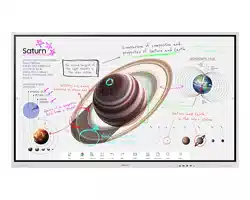
© Samsung
Samsung owns the copyright for this manual. Use or reproduction of this manual in parts or entirety without the authorization of Samsung is prohibited.
Trademarks other than Samsung are property of their respective owners.
User Manual
WM55B WM65B WM75B WM85B
The colour and the appearance may differ depending on the product, and the content in the
manual is subject to change without prior notice to improve the performance.
Recommended hours of use per day of this product is under 12 hours. If the product is used
for longer than 12 hours a day, the warranty may be void.
[For India Only]
This product is RoHS compliant.
For more information on safe disposal and recycling visit our website
www.samsung.com/in or contact our Helpline numbers -
1800 40 SAMSUNG (1800 40 7267864) (Toll-Free)
1800 5 SAMSUNG (1800 5 7267864) (Toll-Free)
2
Table of contents
Before using the product
Safety precautions 4
Safety symbols 4
Storage 5
Electricity and safety 5
Installation 5
Operation 6
Precautions for use 8
Preparations
Checking the components 9
Parts 10
Ports 12
Tray 14
Ports 15
Buttons 16
Before installing the product
(Installation guide) 17
Installing the wall mount on a wall
perpendicular to the ground 20
Installing the wall mount on a tilted wall 20
Installing the wall mount 21
Using the wall mount kit 21
Wall mount kit specications (VESA) 22
Connecting to a network 23
Network settings (Wired) 23
Network settings (Wireless) 25
Writing
What’s a ‘Roll’? 27
Pen Mode 28
Screen elements 28
Drawing 29
Erasing 29
Using the simple menu 29
Brush Mode 30
Screen elements 30
Menu 31
Roll Browser 32
Page Viewer 33
Note On/Off 34
Using the Select tools 35

3
Table of contents
IMPORT
Connecting to a mobile device 37
Connecting using Smart View or Screen
Mirroring 37
Connecting to a PC 37
Connecting using a cable 38
Connecting using a OPS (Sold separately) 39
Connecting via the Wireless Display
function 39
Connecting via SMARTVIEW+ 40
Connecting to Internet 41
Read before using the INTERNET function 41
Connecting to WORKSPACE 42
Importing from a USB device 42
Source window 43
Document view 44
Image view 45
Video view 46
EXPORT
Sending email 48
Printing 49
Installing Flip Printing Software 49
Setting up the printer 49
Exporting to a USB device 51
Exporting from a Network Drive 51
Sending to a mobile device 52
Sharing your screen 52
SETTINGS
Connect 53
Anynet+ (HDMI-CEC) 54
Local Address Book 56
System 62
Picture 65
Support 67
Troubleshooting guide
Problems and solutions 68
Specications
General 74
Preset timing modes 76
Appendix
Responsibility for the pay service
(Cost to customers) 77
Not a product defect 77
A product damage caused by customer’s
fault 77
Others 77
Prevention of afterimage burn-in 78
What is afterimage burn-in? 78
Recommended prevention practices 78
Licence 78
4
Chapter 01
Before using the product
Safety precautions
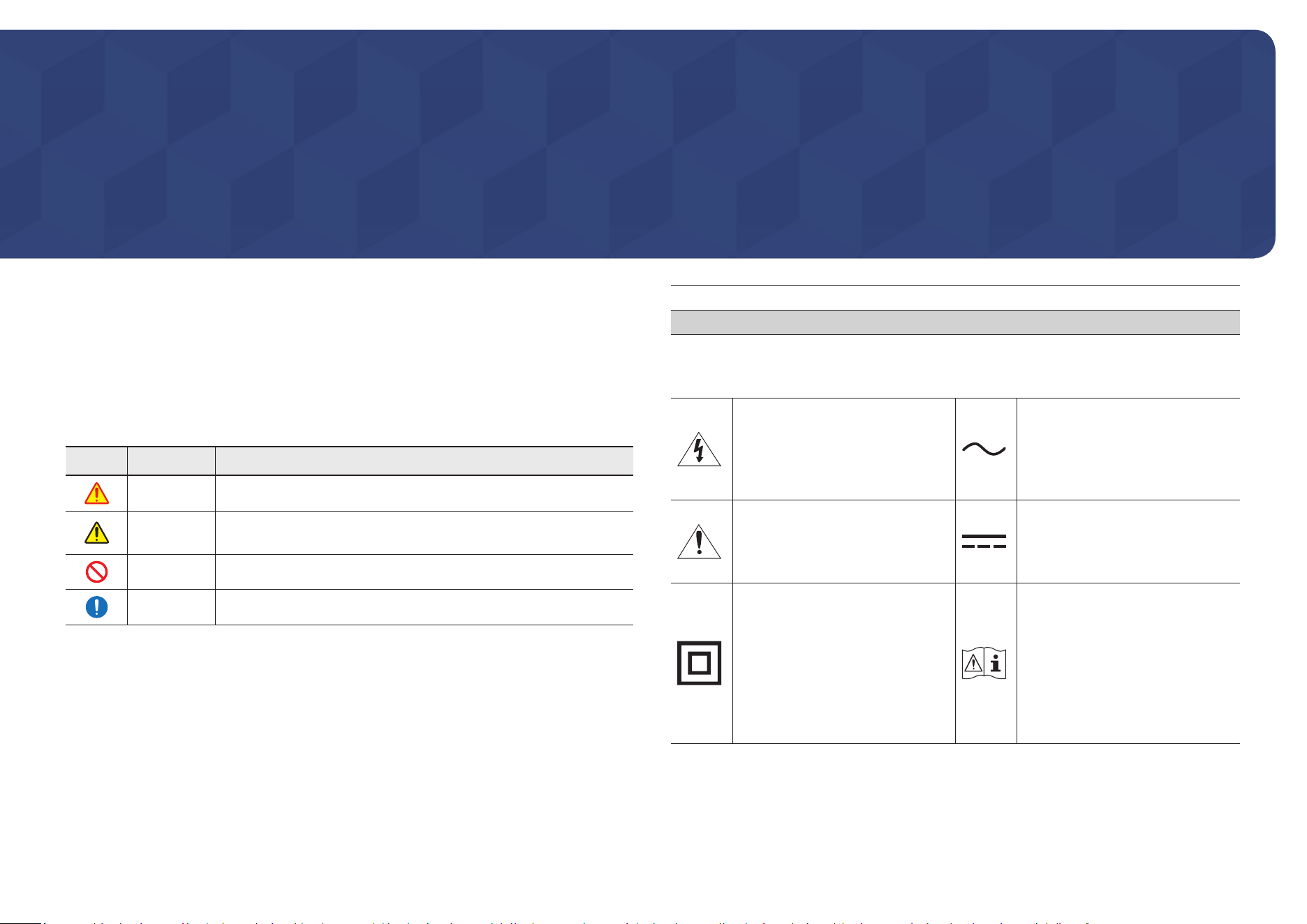
The following safety instructions are to ensure your personal safety and prevent property
damage. Please read the following to ensure the proper use of the product.
Safety symbols
Symbol Name Meaning
Warning A serious or fatal injury may result if instructions are not followed.
Caution
Personal injury or damage to properties may result if instructions
are not followed.
Prohibition Do NOT attempt.
Instruction Follow directions.
CAUTION
RISK OF ELECTRIC SHOCK. DO NOT OPEN.
CAUTION: TO REDUCE THE RISK OF ELECTRIC SHOCK, DO NOT REMOVE COVER (OR BACK).
THERE ARE NO USER SERVICEABLE PARTS INSIDE. REFER ALL SERVICING TO QUALIFIED
PERSONNEL.
This symbol indicates that high
voltage is present inside. It is
dangerous to make any kind of
contact with any internal part of
this product.
AC voltage: Rated voltage marked
with this symbol is AC voltage.
This symbol indicates that this
product has included important
literature concerning operation
and maintenance.
DC voltage: Rated voltage marked
with this symbol is DC voltage.
Class II product: This symbol
indicates that a safety connection
to electrical earth (ground) is
not required. If this symbol is not
present on a product with a mains
lead, the product MUST have a
reliable connection to protective
earth (ground).
Caution. Consult instructions
for use: This symbol instructs
the user to consult the user
manual for further safety related
information.
5
Storage
Due to the characteristics of high-glossy products, using a UV humidier nearby may create
white-coloured stains on the product.
" Contact Customer Service Centre if the inside of the product needs cleaning (service fee
will be charged).
Electricity and safety
Warning
Do not use a damaged power cord or plug, or a loose power socket.
An electric shock or re may result.
Do not use multiple products with a single power socket.
Overheated power sockets may cause a re.
Do not touch the power plug with wet hands. Otherwise, an electric shock may
result.
Do not bend or pull the power cord with force. Be careful not to leave the power
cord under a heavy object.
Damage to the cord may result in a re or electric shock.
Do not place the power cord or product near heat sources.
A re or electric shock may result.
Insert the power plug all the way in so it is not loose.
An unsecure connection may cause a re.
Connect the power plug to a grounded power socket (type 1 insulated devices
only).
An electric shock or injury may result.
Clean any dust around the pins of the power plug or the power socket with a dry
cloth.
A re may result.
Caution
Do not disconnect the power cord while the product is being used.
The product may become damaged by an electric shock.
Only use the power cord provided with your product by Samsung. Do not use the
power cord with other products.
A re or electric shock may result.
Keep the power socket where the power cord is connected unobstructed.
The power cord must be disconnected to cut off power to the product when an
issue occurs.
Hold the plug when disconnecting the power cord from the power socket.
An electric shock or re may result.
Installation
Warning
DO NOT PLACE CANDLES, INSECT REPELLANTS OR CIGARETTES ON TOP OF THE
PRODUCT. DO NOT INSTALL THE PRODUCT NEAR HEAT SOURCES.
A re may result.
Do not install the product in poorly ventilated spaces such as a bookcase or closet.
An increased internal temperature may cause a re.
Do not install the product on an unstable or vibrating surface (insecure shelf,
sloped surface, etc.)
• The product may fall and become damaged and/or cause an injury.
• Using the product in an area with excess vibration may damage the product or
cause a re.
Do not expose the product to direct sunlight, heat, or a hot object such as a stove.
The product lifespan may be reduced or a re may result.
6
Do not install the product within the reach of young children.
• The product may fall and injure children.
• As the front is heavy, install the product on a at and stable surface.
Edible oil, such as soybean oil, can damage or deform the product. Do not install
the product in a kitchen or near a kitchen counter.
Have a technician install the wall-mount hanger.
• Installation by an unqualied person can result in an injury.
• Only use approved cabinets.
Install the product at least 10 cm away from the wall to allow ventilation.
An increased internal temperature may cause a re.
Keep the plastic packaging out of the reach of children.
Children may suffocate.
Do not install the product in a vehicle or a place exposed to dust, moisture (water
drips, etc.), oil, or smoke.
A re or electric shock may result.
Caution
Do not set down the product on its front.
The screen may become damaged.
Do not drop the product while moving.
Product failure or personal injury may result.
Set down the product gently.
Product failure or personal injury may result.
Installing the product in an unusual place (a place exposed to a lot of ne dust,
chemical substances, extreme temperatures or a signicant presence of moisture,
or a place where the product will operate continuously for an extended period of
time) may seriously affect its performance.
Be sure to consult Samsung Customer Service Centre if you want to install the
product at such a place.
Operation
Warning
There is a high voltage inside the product. Never disassemble, repair or modify the
product yourself.
• A re or electric shock may result.
• Contact Samsung Customer Service Centre for repairs.
Do not let children hang from the product or climb on top of it.
Children may become injured or seriously harmed.
If the product is dropped or the outer case is damaged, turn off the power switch
and disconnect the power cord. Then contact Samsung Customer Service Centre.
Continued use can result in a re or electric shock.
Do not leave heavy objects or items that children like (toys, sweets, etc.) on top of
the product.
The product or heavy objects may fall as children try to reach for the toys or sweets
resulting in a serious injury.
Do not move the product by pulling the power cord or any cable.
Product failure, an electric shock or re may result from a damaged cable.
Do not lift or move the product by pulling the power cord or any cable.
Product failure, an electric shock or re may result from a damaged cable.
Ensure the vents are not blocked by tablecloths or curtains.
An increased internal temperature may cause a re.
Do not insert metallic objects (chopsticks, coins, hairpins, etc) or objects that burn
easily (paper, matches, etc) into the product (via the vent or input/output ports,
etc).
• Be sure to power off the product and disconnect the power cord when water
or other foreign substances have entered the product. Then contact Samsung
Customer Service Centre.
• Product failure, an electric shock or re may result.
7
Do not place objects containing liquid (vases, pots, bottles, etc) or metallic objects
on top of the product.
• Be sure to power off the product and disconnect the power cord when water
or other foreign substances have entered the product. Then contact Samsung
Customer Service Centre.
• Product failure, an electric shock or re may result.
Before moving the product, turn off the power switch and disconnect the power
cable and all other connected cables.
Damage to the cord may result in a re or electric shock.
If the product generates abnormal sounds, a burning smell or smoke, disconnect
the power cord immediately and contact Samsung Customer Service Centre.
An electric shock or re may result.
During a lightning or thunderstorm, power off the product and remove the power
cable.
A re or electric shock may result.
Do not drop objects on the product or apply impact.
A re or electric shock may result.
If a gas leakage is found, do not touch the product or power plug. Also, ventilate
the area immediately.
Sparks can cause an explosion or re.
Do not use or keep combustible spray or an inammable substance near the
product.
An explosion or re may result.
Caution
Do not use humidiers or stoves around the product.
A re or electric shock may result.
Do not touch the screen when the product has been turned on for an extended
period of time as it will become hot.
Do not place heavy objects on the product.
Product failure or personal injury may result.
Leaving the screen xed on a stationary image for an extended period of time may
cause afterimage burn-in or defective pixels.
Activate power-saving mode or a moving-picture screen saver if you will not be
using the product for an extended period of time.
Disconnect the power cord from the power socket if you do not plan on using the
product for an extended period of time (vacation, etc).
Dust accumulation combined with heat can cause a re, electric shock or electric
leakage.
Use the product at the recommended resolution and frequency.
Your eyesight may deteriorate.
Looking at the screen too close for an extended period of time can deteriorate your
eyesight.
Rest your eyes for more than 5 minutes for every 1 hour of product use.
Eye fatigue will be relieved.
Store small accessories out of the reach of children.
8
Precautions for use
Be careful that if you use the supplied pen with a load exceeding 2.5 kg, scratches may occur
on the protective glass.
If you use a ballpoint pen other than the supplied pen, be careful that the screen may be
stained with ink or damaged.
Do not use a dirty brush to avoid screen damage.
" We recommend that you use the supplied pen. Do not use sharp, pointed objects other
than the pen.
" If dust or dirt from the supplied pen remains on the protective glass, clean it referring to
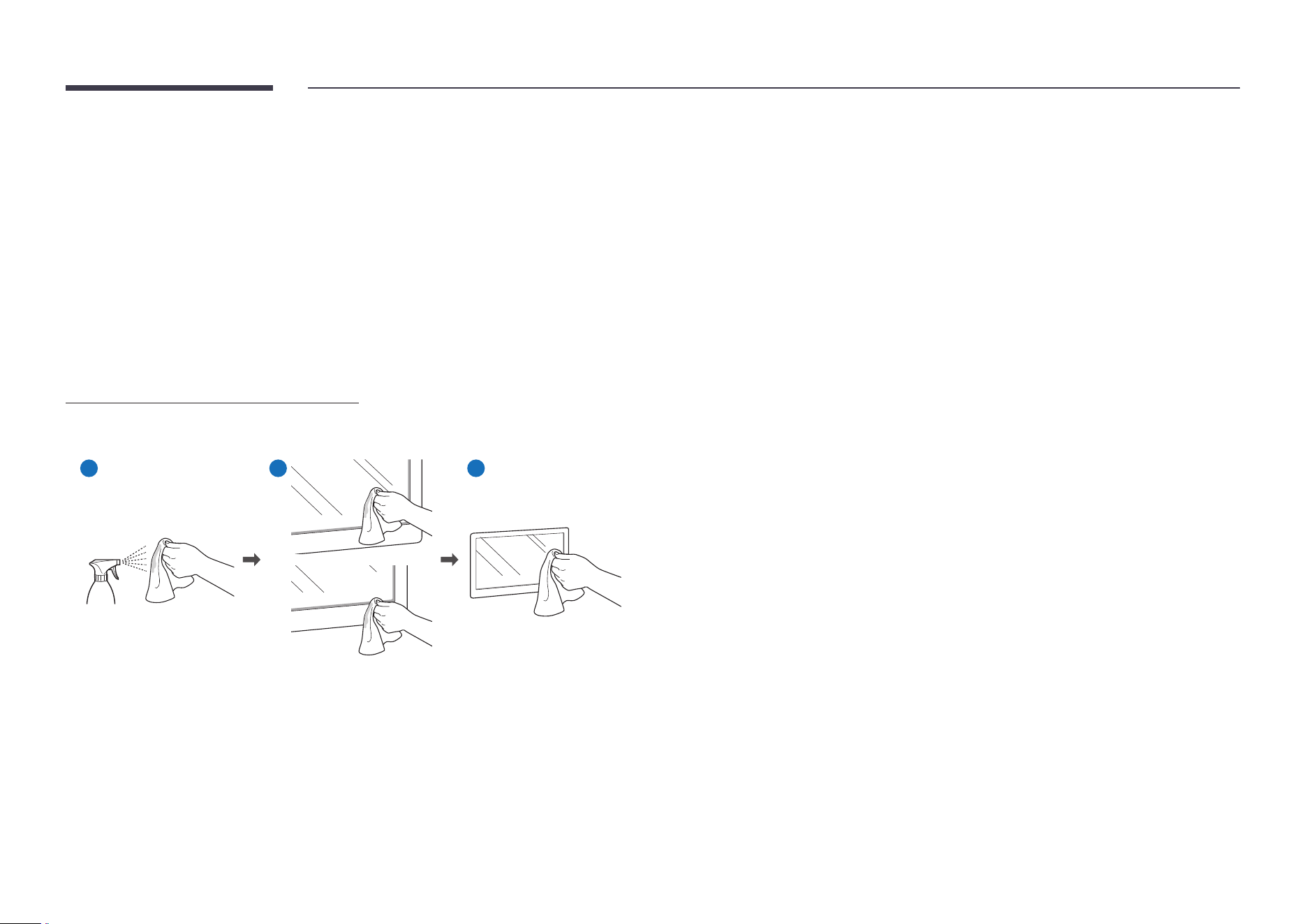
the instructions below.
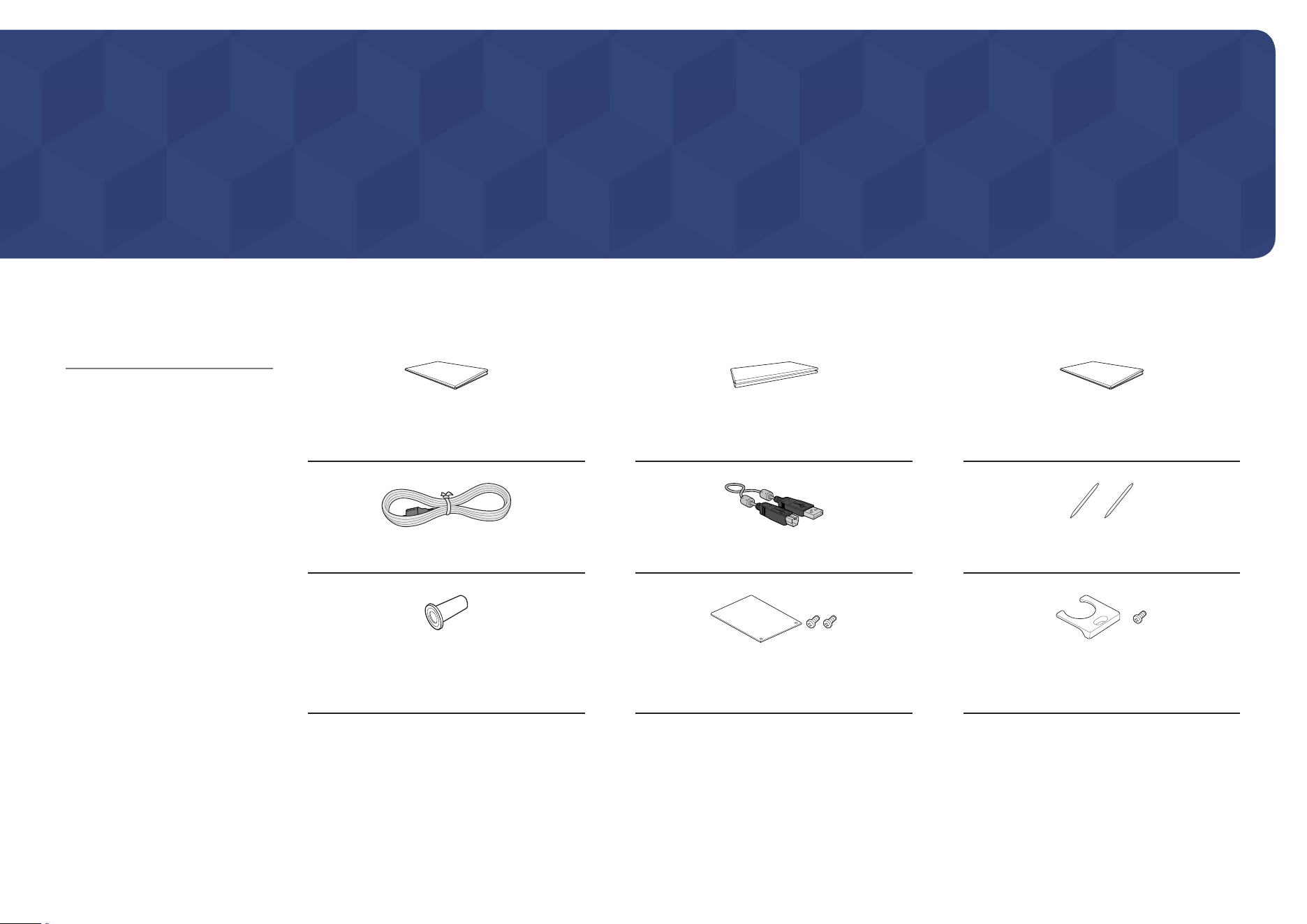
Cleaning the exterior and display
Wipe the surface with a slightly wet, soft cloth, and then wipe with a dry cloth.
1 2 3
9
Chapter 02
Preparations
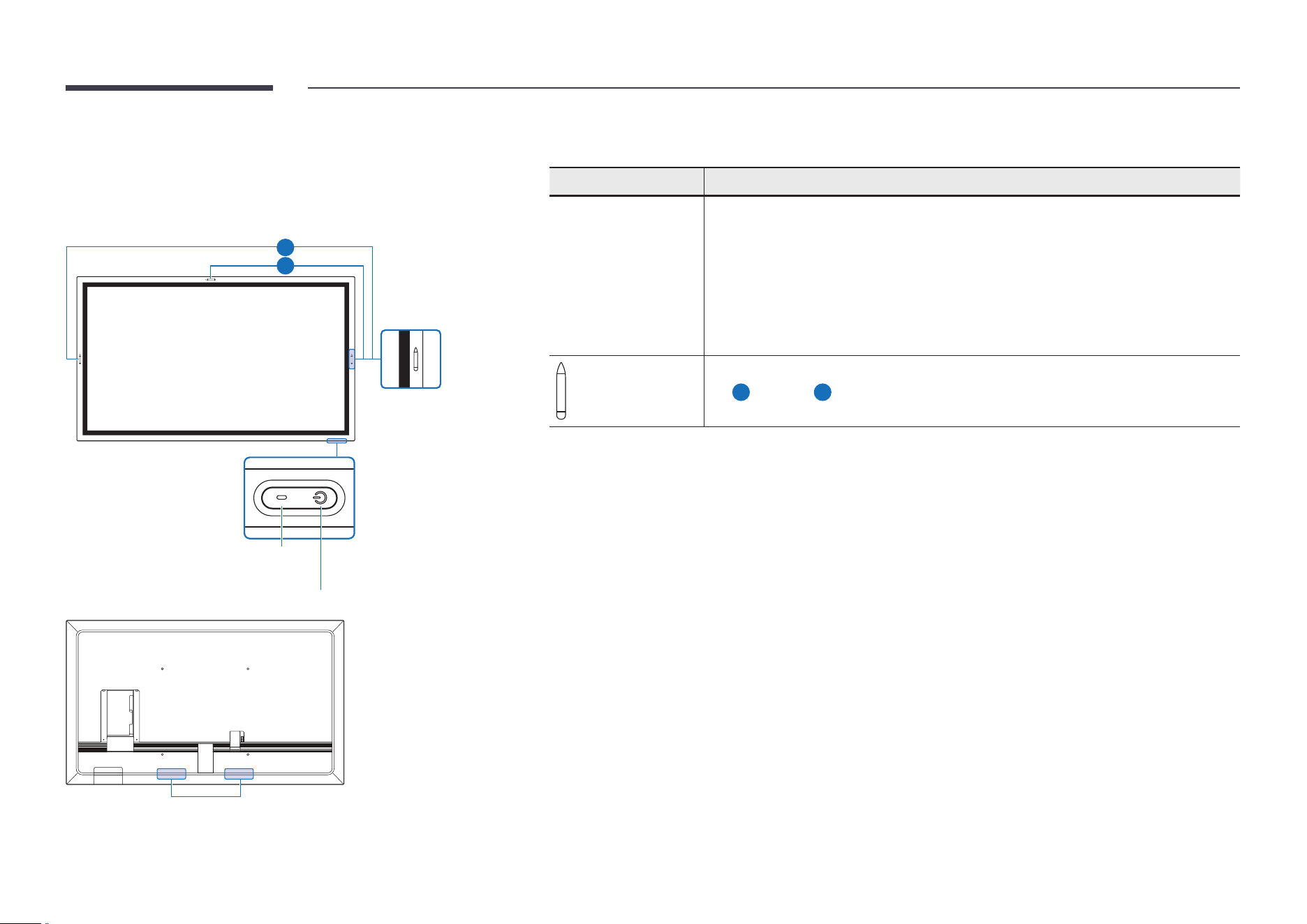
Checking the components
Quick Setup Guide Warranty card
(Not available in some locations)
Regulatory guide
Power cord USB cable Touch pen x 2
Wall Mount Adapter x 4
(Supported models: WM75B)
Terminal cover, Screw (M4 x L10) x 2
(Supported models: WM55B, WM65B)
Cable cover, Screw (M4 x L10)
(Supported models: WM55B, WM65B)
$ Contact the vendor where you
purchased the product if any
components are missing.
$ The appearance of the
components may differ from the
images shown.
$ Refer to the installation guide
for the WMB stand or wall mount
(available for optional purchase).
10
Parts
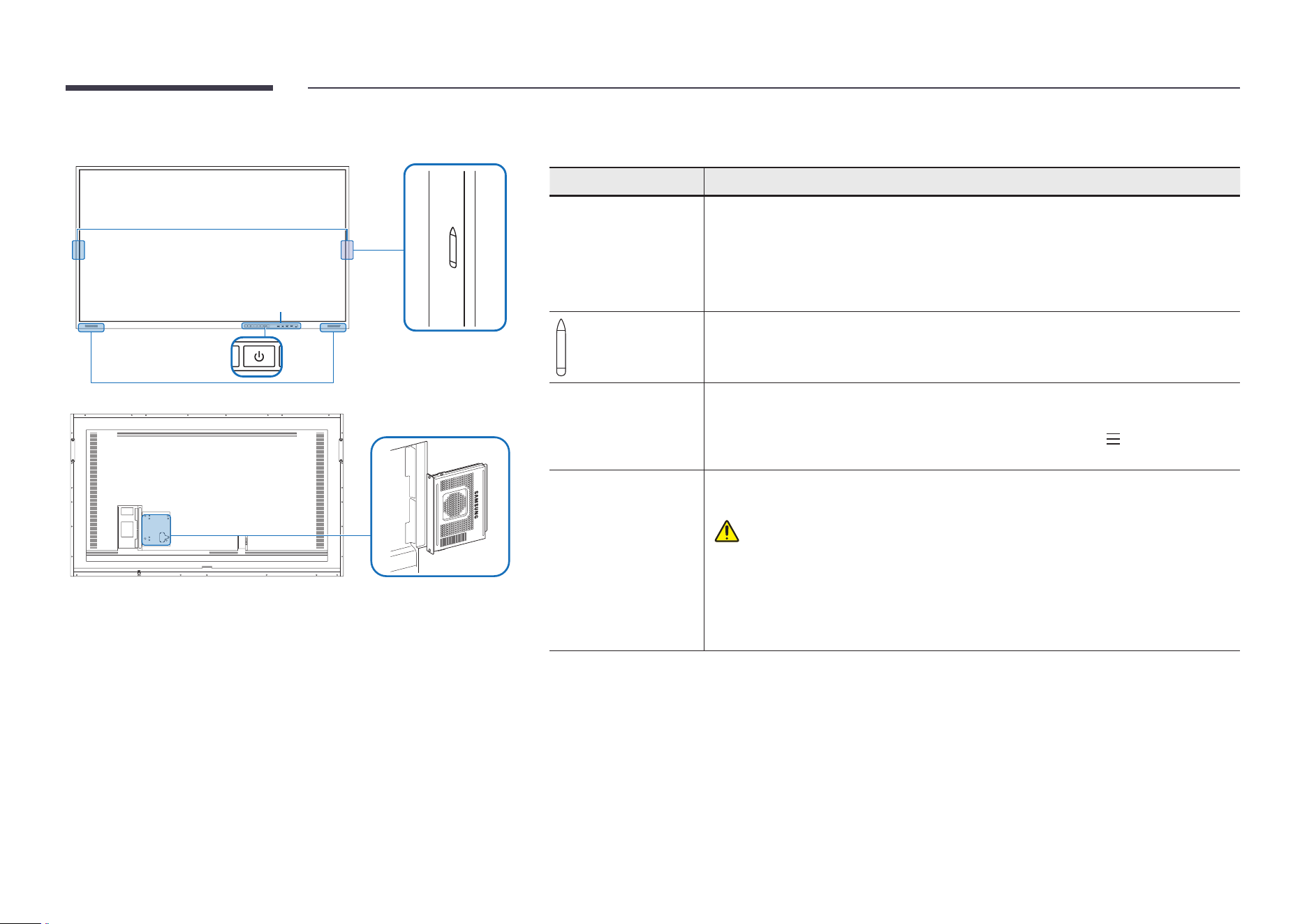
WM55B/WM65B
Power indicator
Power button
A
B
Speaker
" The colour and shape of parts may differ from what is shown. Specications are subject to change without
notice to improve quality.
Parts Description
Power button &
indicator
Press the button to turn on the product and press and hold the button to turn off the
product.
" The power indicator is off when the product is on.
" The power indicator is on when the product is off.
In writing mode, shortly press the Power button to switch to the screen saver mode.
In case the PIP screen is in Full Screen mode, press the Power button to display the
adjustment menu. Press again to hide.
The pen is magnetic. Keep it by attaching to the marked location.
"
A
: WM55B,
B
: WM65B
11
WM75B/WM85B
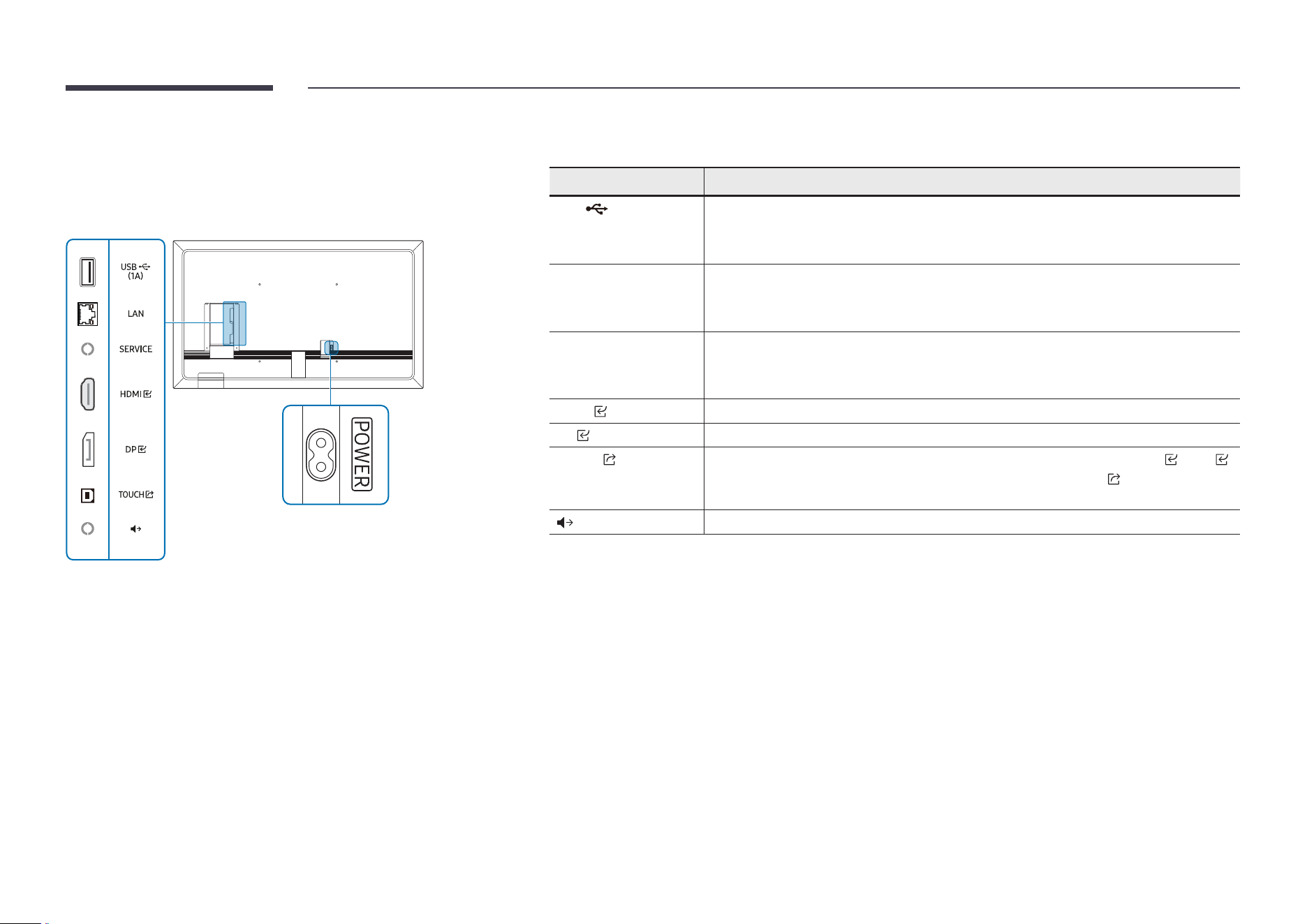
Flip speaker
Power button &
indicator
Side view
Light sensor
OPS case
" The colour and shape of parts may differ from what is shown. Specications are subject to change without
notice to improve quality.
Parts Description
Power button &
indicator
Press the button to turn on the product and press and hold the button to turn off the
product.
" The power indicator is off when the product is on.
" The power indicator is on when the product is off.
In writing mode, shortly press the Power button to switch to the screen saver mode.
The pen is magnetic. Keep it by attaching to the marked location.
Light sensor The light sensor is used to detect ambient light for the Brightness Optimisation
function.
• You can turn on or off the Brightness Optimisation function at Menu → SETTINGS
→ System → Advanced Settings → Brightness Optimisation.
OPS case (Sold
separately)
Connect the OPS case to the product and insert the standard OPS module into the
case. You can purchase the OPS case and module separately.
Before inserting the OPS module, make sure to remove the power cable from
the product to completely cut off the power supply.
" OPS refers to the Intel Open Pluggable Specication.
" When the OPS case needs to be installed, be sure to install the OPS case rst
before the product.
" OPS power supply: 16 V/4.5 A
12
Ports
WM55B/WM65B
" The colour and shape of parts may differ from what is shown. Specications are subject to change without
notice to improve quality.
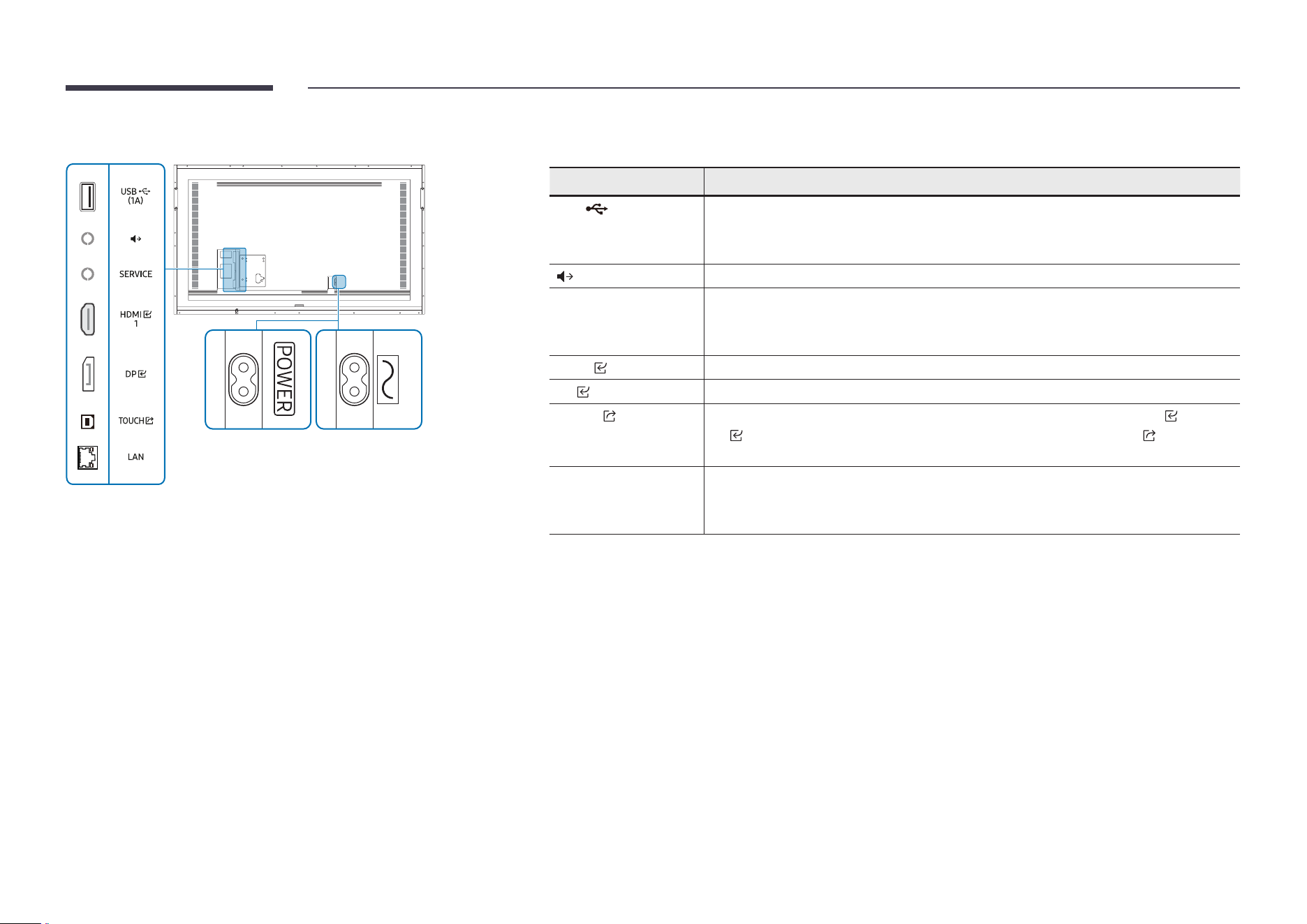
Ports Description
USB (1A) Connect to a USB memory device.
" The USB ports on the product accept a maximum constant current of 1.0 A. If the
maximum value is exceeded, USB ports may not work.
LAN Connects to a network using a LAN cable. (10/100 Mbps)
" Use Cat7(*STP Type) cable for the connection.
* Shielded Twist Pair.
SERVICE Dedicated to service technicians.
" This port is for servicing only and has no user function. Do not connect a cable to
this port.
HDMI Connects to a source device using a HDMI cable.
DP Connects to a source device using a DP cable.
TOUCH Allows touch-based control of the PC screen connected through the HDMI or DP
port. Use the supplied USB cable to connect between the TOUCH port on the rear
of the product and the PC.
Outputs sound to an audio device via an audio cable.
13
WM75B/WM85B
WM75B WM85B
" The colour and shape of parts may differ from what is shown. Specications are subject to change without
notice to improve quality.
Ports Description
USB (1A) Connect to a USB memory device.
" The USB ports on the product accept a maximum constant current of 1.0 A. If the
maximum value is exceeded, USB ports may not work.
Outputs sound to an audio device via an audio cable.
SERVICE Dedicated to service technicians.
" This port is for servicing only and has no user function. Do not connect a cable to
this port.
HDMI 1 Connects to a source device using a HDMI cable.
DP Connects to a source device using a DP cable.
TOUCH Allows touch-based control of the PC screen connected through the HDMI 1 or
DP port. Use the supplied USB cable to connect between the TOUCH port on the
rear of the product and the PC.
LAN Connects to a network using a LAN cable. (10/100 Mbps)
" Use Cat7(*STP Type) cable for the connection.
* Shielded Twist Pair.
14
Tray
WM55B/WM65B
" Trays are sold separately. Contact your vendor for assistance to make a purchase.
" The colour and shape of parts may differ from what is shown. Specications are subject to change without
notice to improve quality.
" The product must be powered off when you install the tray.
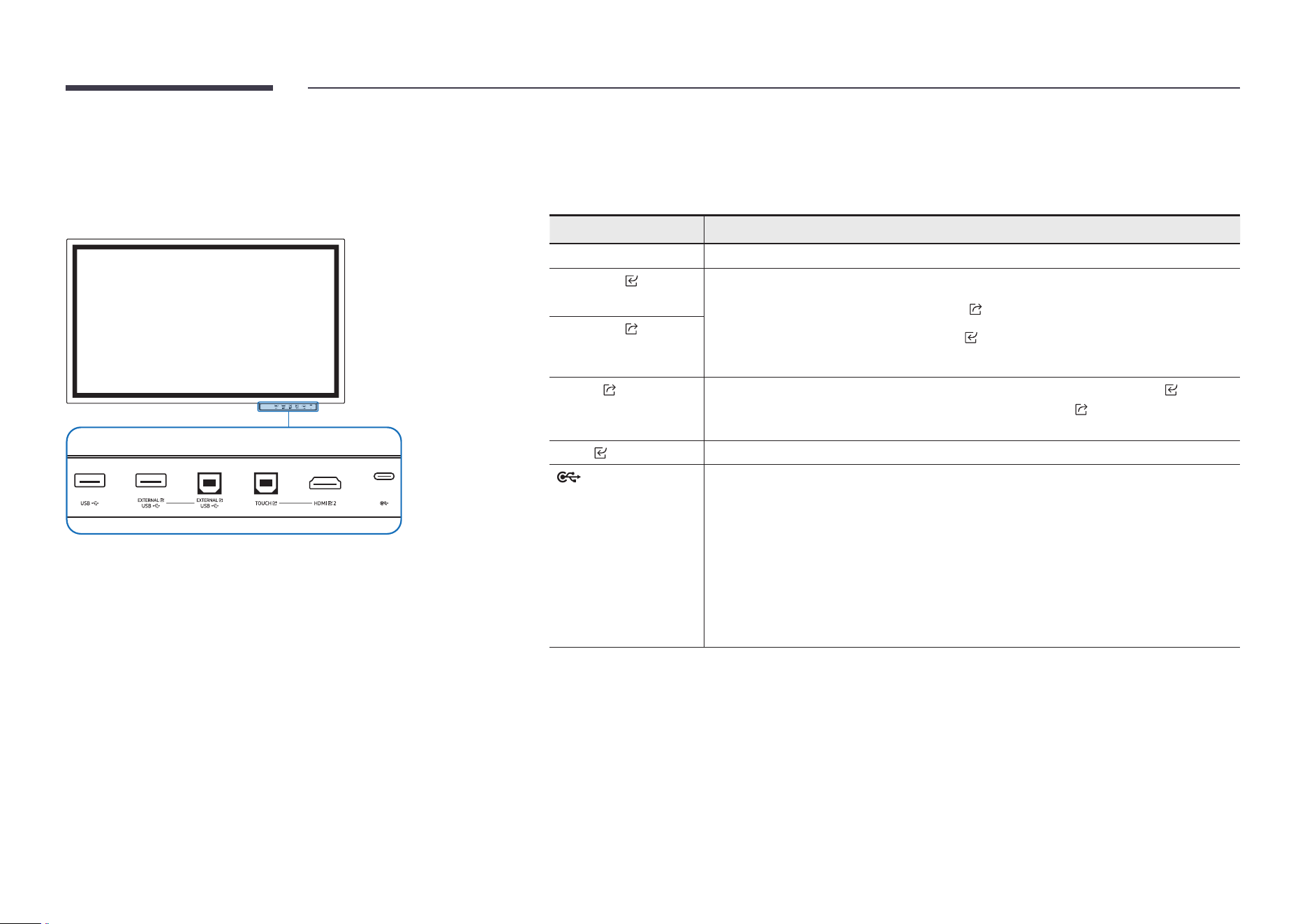
Ports Description
USB Connect to a USB memory device.
EXTERNAL
(USB)
Provides USB connectivity to PC.
1
Use a USB cable to connect EXTERNAL (USB) to the connected PC.
2
Connect the USB device to EXTERNAL (USB).
3
A connection is established between the USB device and PC.
EXTERNAL
(USB)
TOUCH Allows touch-based control of the PC screen connected through the HDMI 2 port.
Use the supplied USB cable to connect between the TOUCH port on the tray and
the PC.
HDMI 2 An HDMI port for displaying input from an external source.
You can connect a device using a USB-C cable.
• USB-C connection allows video output and touch-based control of the device.
" Data transfer is not supported.
" You must use a USB-C cable that supports video transmission. Use a cable that
supports DP ALT Mode (Video transmission).
" Use a USB-C cable that is 1 m or shorter in length.
" Charing is also supported up to 15 W (5 V/max 3 A). Charging with USB-C cable is
only available when the product is on.
15
WM75B/WM85B
" The colour and shape of parts may differ from what is shown. Specications are subject to change without
notice to improve quality.
Ports
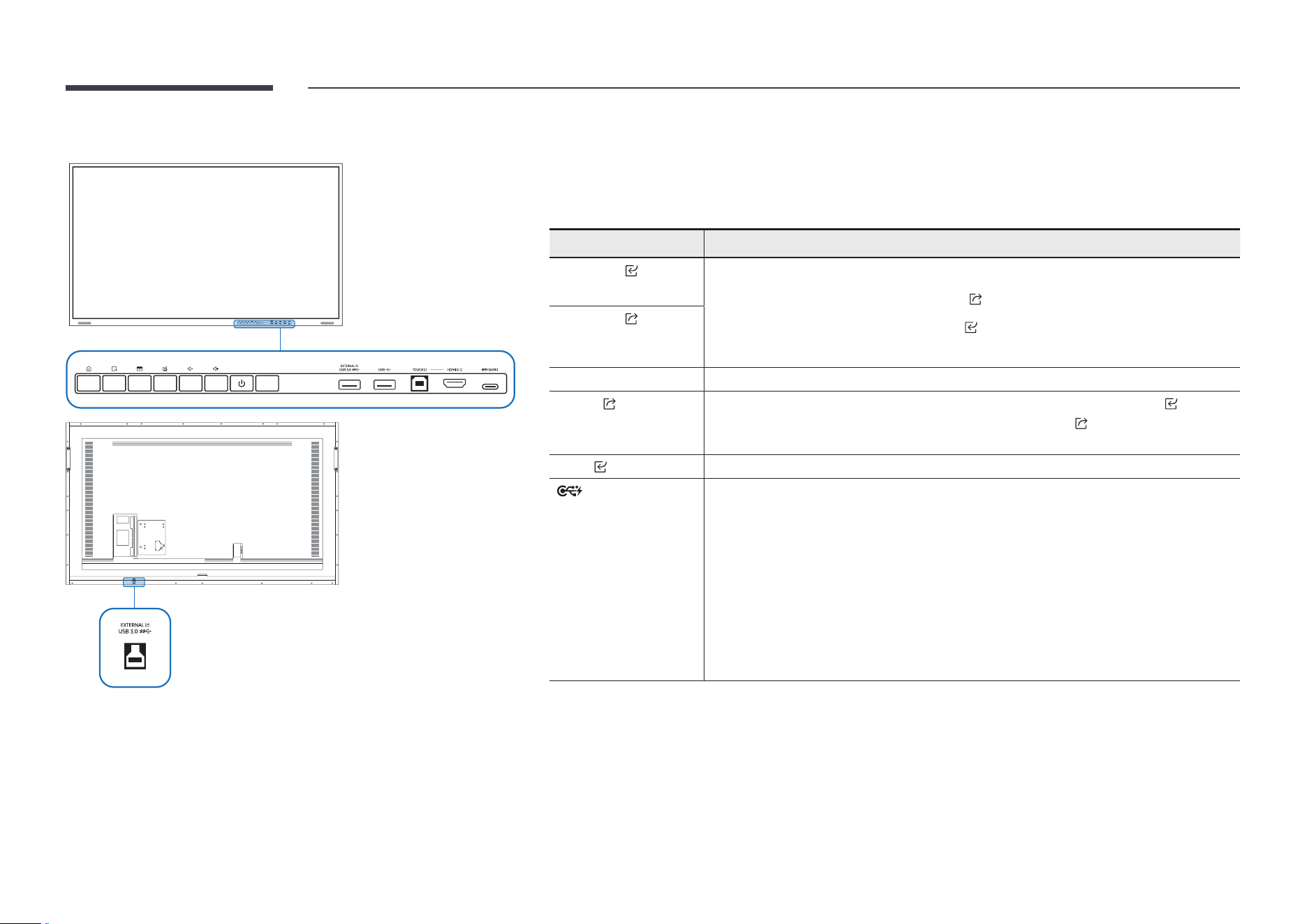
Ports Description
EXTERNAL
(USB 3.0)
Provides USB connectivity to PC.
1
Use a USB cable to connect EXTERNAL (USB 3.0) to the connected PC.
2
Connect the USB device to EXTERNAL (USB 3.0).
3
A connection is established between the USB device and PC.
EXTERNAL
(USB 3.0)
USB Connect to a USB memory device.
TOUCH Allows touch-based control of the PC screen connected through the HDMI 2 port.
Use the supplied USB cable to connect between the TOUCH port on the tray and
the PC.
HDMI 2 An HDMI port for displaying input from an external source.
(65 W) You can connect a device using a USB-C cable.
• USB-C connection allows video output, touch-based control of the device and you
can also charge the connected device.
" Data transfer is not supported.
" You must use a USB-C cable that supports video transmission and charging
function. Use a cable that supports DP ALT Mode (Video transmission) and Power
Delivery (65 W or higher).
" Use a USB-C cable that is 1 m or shorter in length.
" Charging with USB-C cable is only available when the product is on.
16
Buttons
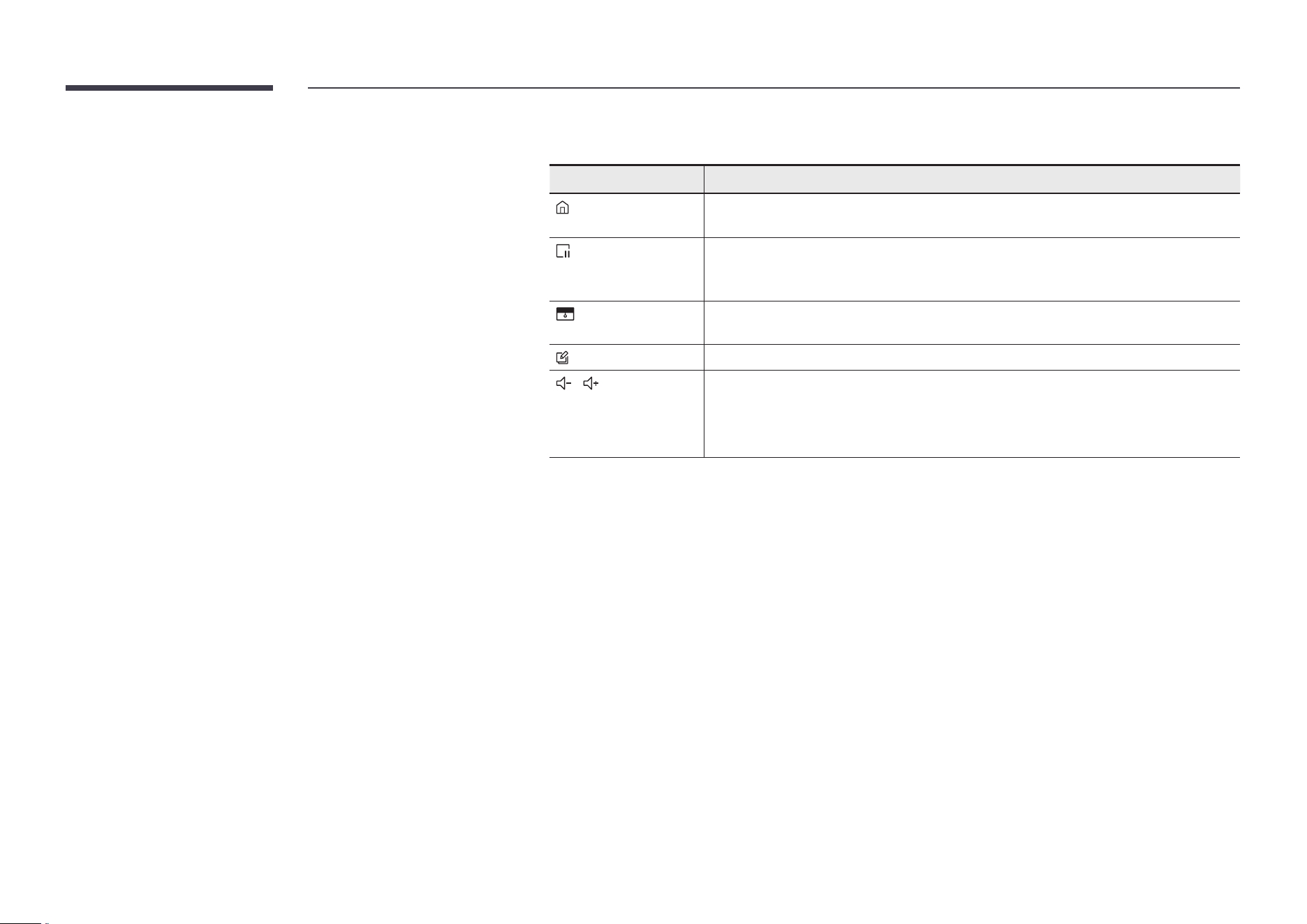
Buttons Description
Press the button to display the EXPORT / IMPORT menu. Press the button again to
close the menu.
Press the button to use the Freeze Frame function. The source screen will be paused
on the Flip screen, but it does not affect the source device. Press the button again to
cancel the function.
Press the button to use the Block Screen function. The contents on the screen will be
covered in black. Press the button again to cancel the function.
You can turn the Note on or off.
/
Adjust the volume.
" If you have connected two Bluetooth speakers, volume control is only available
when connected speakers support the AVRCP (Audio Video Remote Control
Prole). (AVRCP is supported on Samsung Soundbars released in 2021 and later.)
17
Before installing the product (Installation guide)
This product can be wall-mounted. The exclusive Samsung stand (for WM55B) and wall mount (for WM65B) are available for optional purchase.
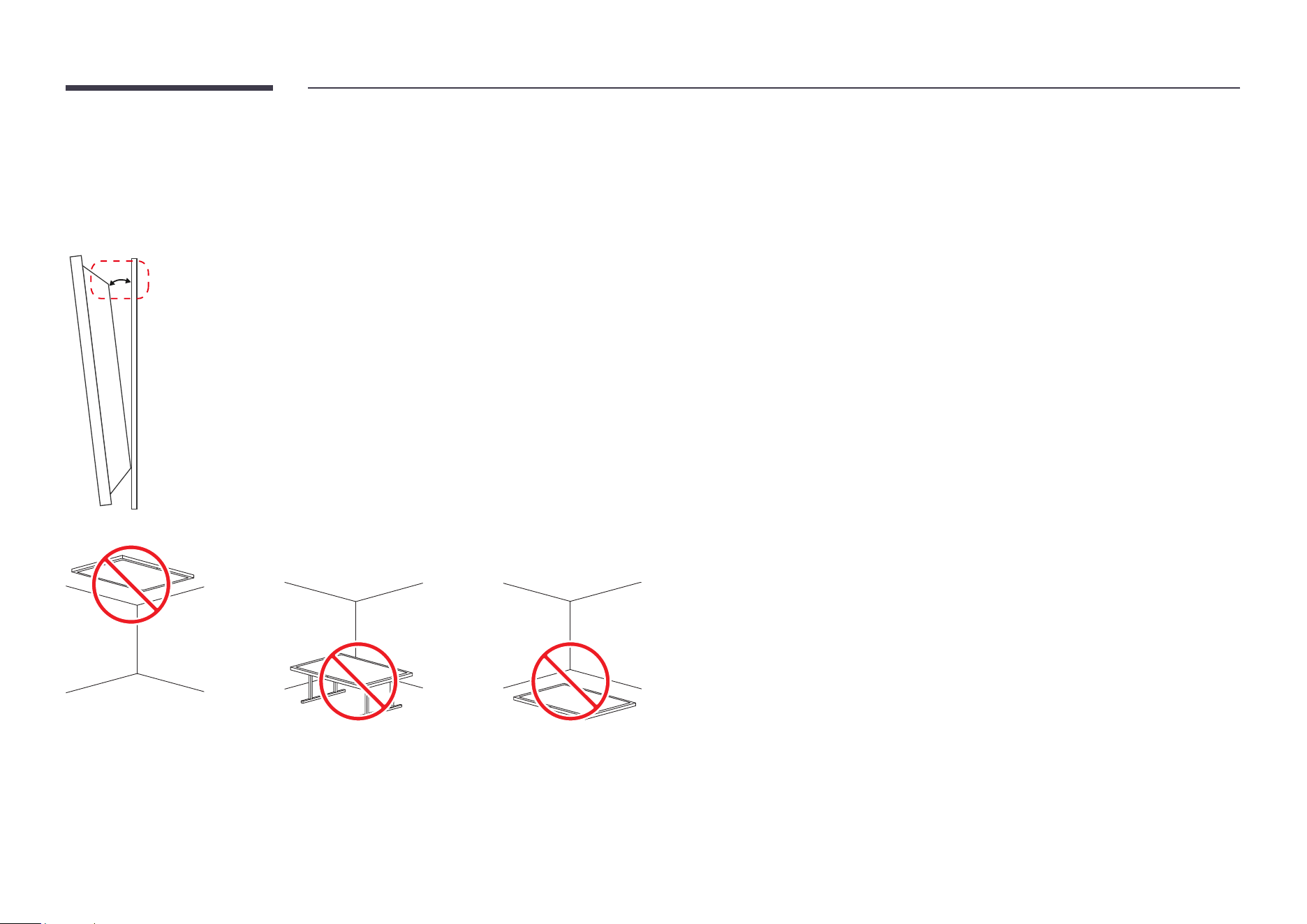
• Make sure the installed product is parallel to the wall.
" If the product is tilted more than 5 degrees toward the front, touch-related functions may malfunction.
5°
A
B
A
B
" Do not use this model installed on a ceiling, oor, or table.
18
WM55B
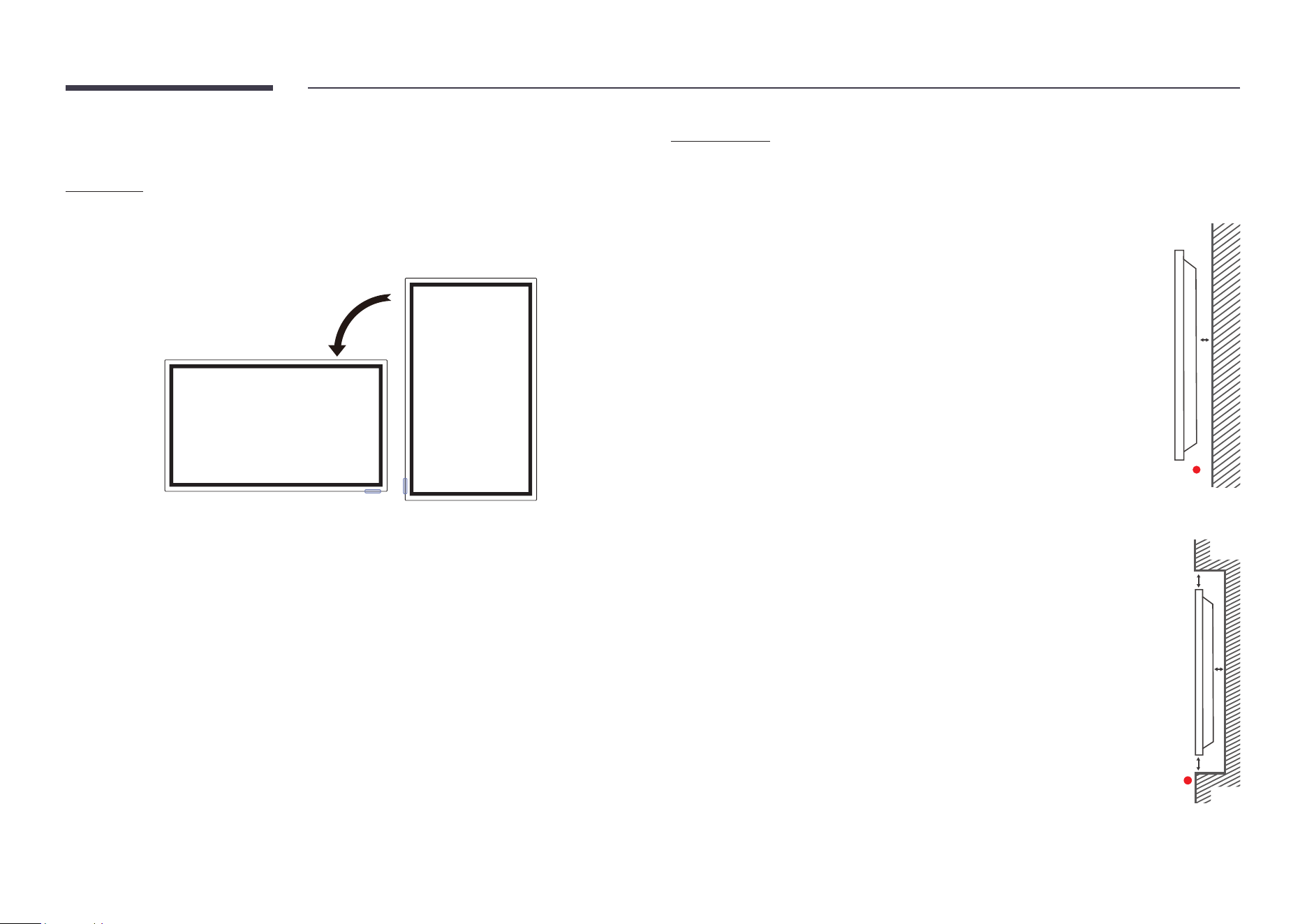
Rotation
" Contact Samsung Customer Service Centre for further details.
• To use the product in landscape mode, turn it anticlockwise and make sure the power
indicator is on the right after turning.
Ventilation
" Contact Samsung Customer Service Centre for further details.
Installation on a perpendicular wall
A Minimum 15 mm
B Ambient temperature: 35 °C or less
" When installing the product on a perpendicular wall, allow at least 15 mm of
space between the product and wall surface for ventilation and ensure that
the ambient temperature is kept below 35 °C.
A
B
Installation on an indented wall
A Minimum 15 mm
B Minimum 25 mm
C Ambient temperature: 35 °C or less
" When installing the product on an indented wall, allow at least the space
specied above between the product and wall for ventilation and ensure
that the ambient temperature is kept below 35 °C.
B
B
C
A
19
WM65B
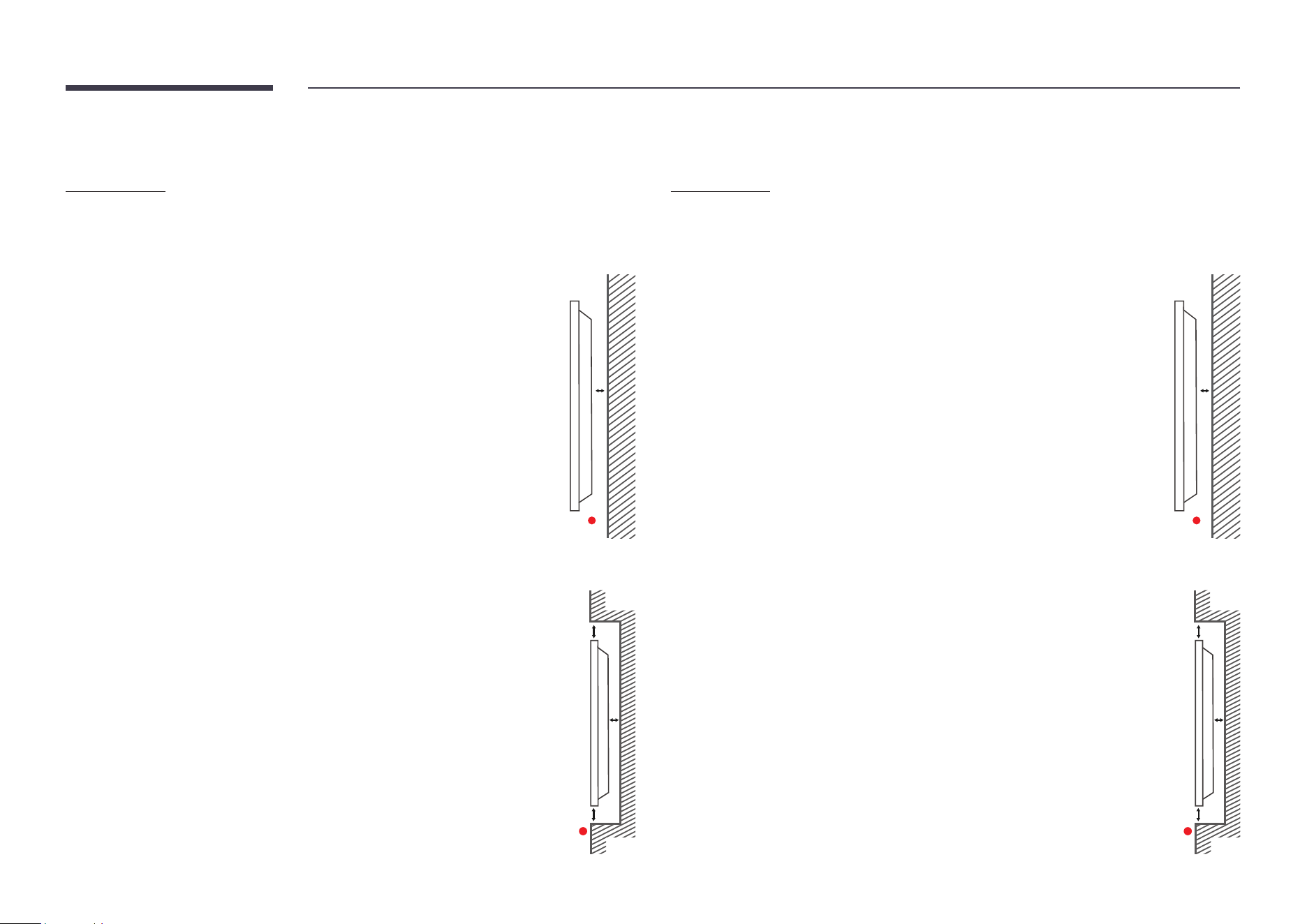
Ventilation
" Contact Samsung Customer Service Centre for further details.
Installation on a perpendicular wall
A Minimum 0 mm
B Ambient temperature: 35 °C or less
A
B
Installation on an indented wall
A Minimum 0 mm
B Minimum 25 mm
C Ambient temperature: 35 °C or less
" When installing the product on an indented wall, allow at least the space
specied above between the product and wall for ventilation and ensure
that the ambient temperature is kept below 35 °C.
B
B
C
A
WM75B/WM85B
Ventilation
" Contact Samsung Customer Service Centre for further details.
Installation on a perpendicular wall
A Minimum 15 mm
B Ambient temperature: 35 °C or less
A
B
Installation on an indented wall
A Minimum 15 mm
B Minimum 25 mm
C Ambient temperature: 35 °C or less
" When installing the product on an indented wall, allow at least the space
specied above between the product and wall for ventilation and ensure
that the ambient temperature is kept below 35 °C.
B
B
C
A
20
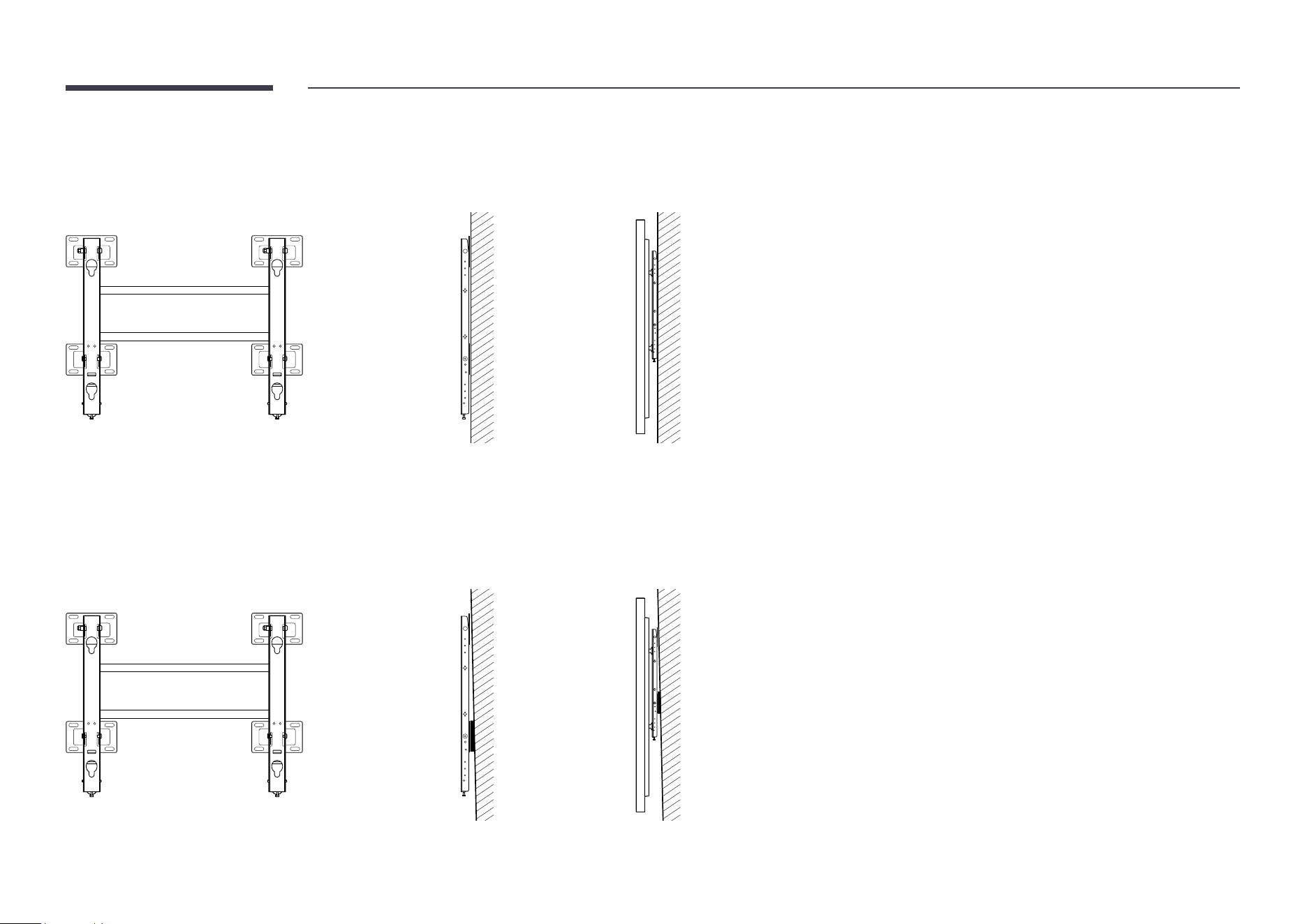
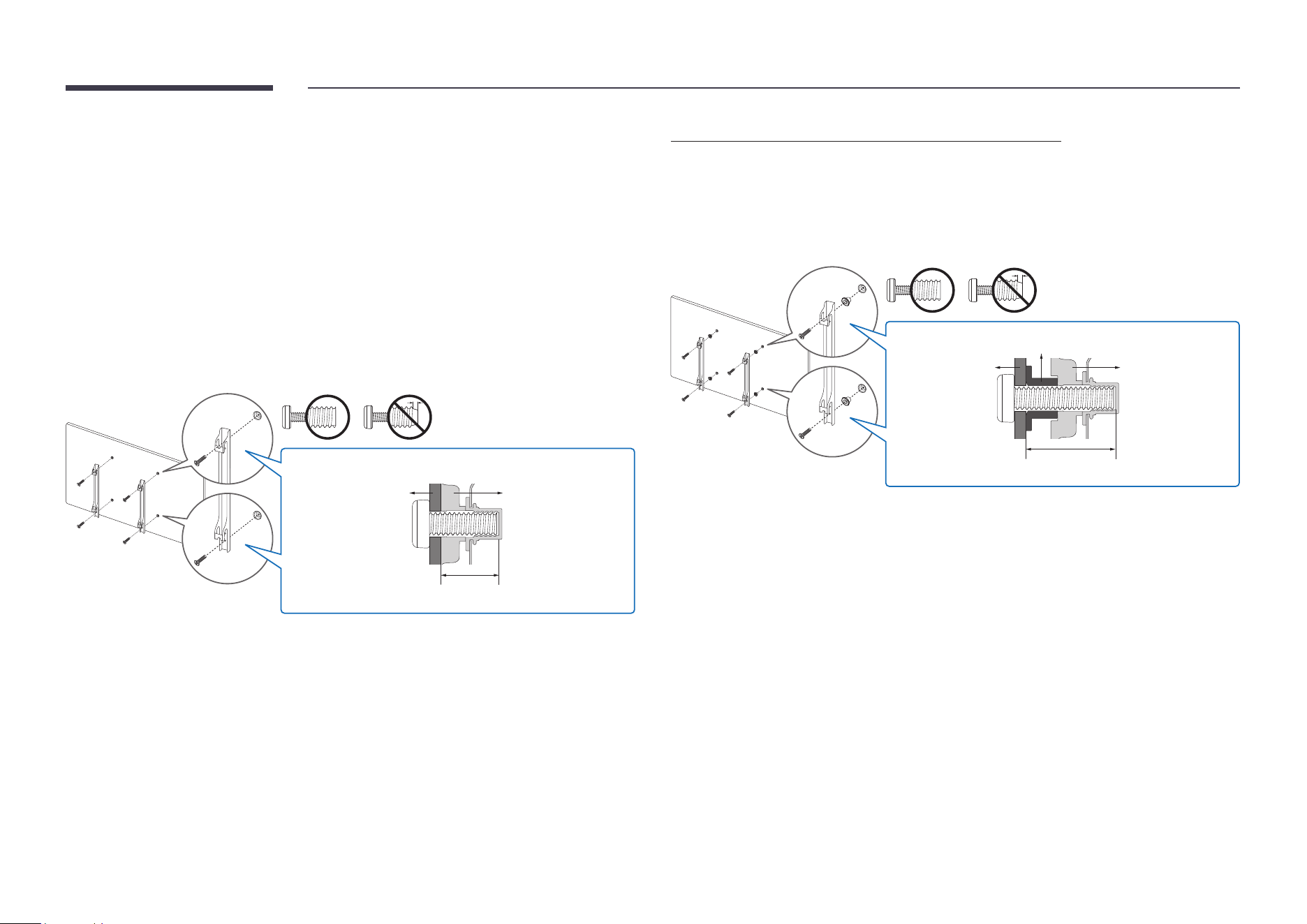
Installing the wall mount on a wall perpendicular to the ground
• When installing the wall mount, keep the product parallel to the wall.
" The appearance may differ depending on the product.
Installing the wall mount on a tilted wall
• When installing the wall mount, keep the product parallel to the wall.
• Using the spacer, install the wall mount so that it is perpendicular to the oor.
" The appearance may differ depending on the product.
21
Installing the wall mount
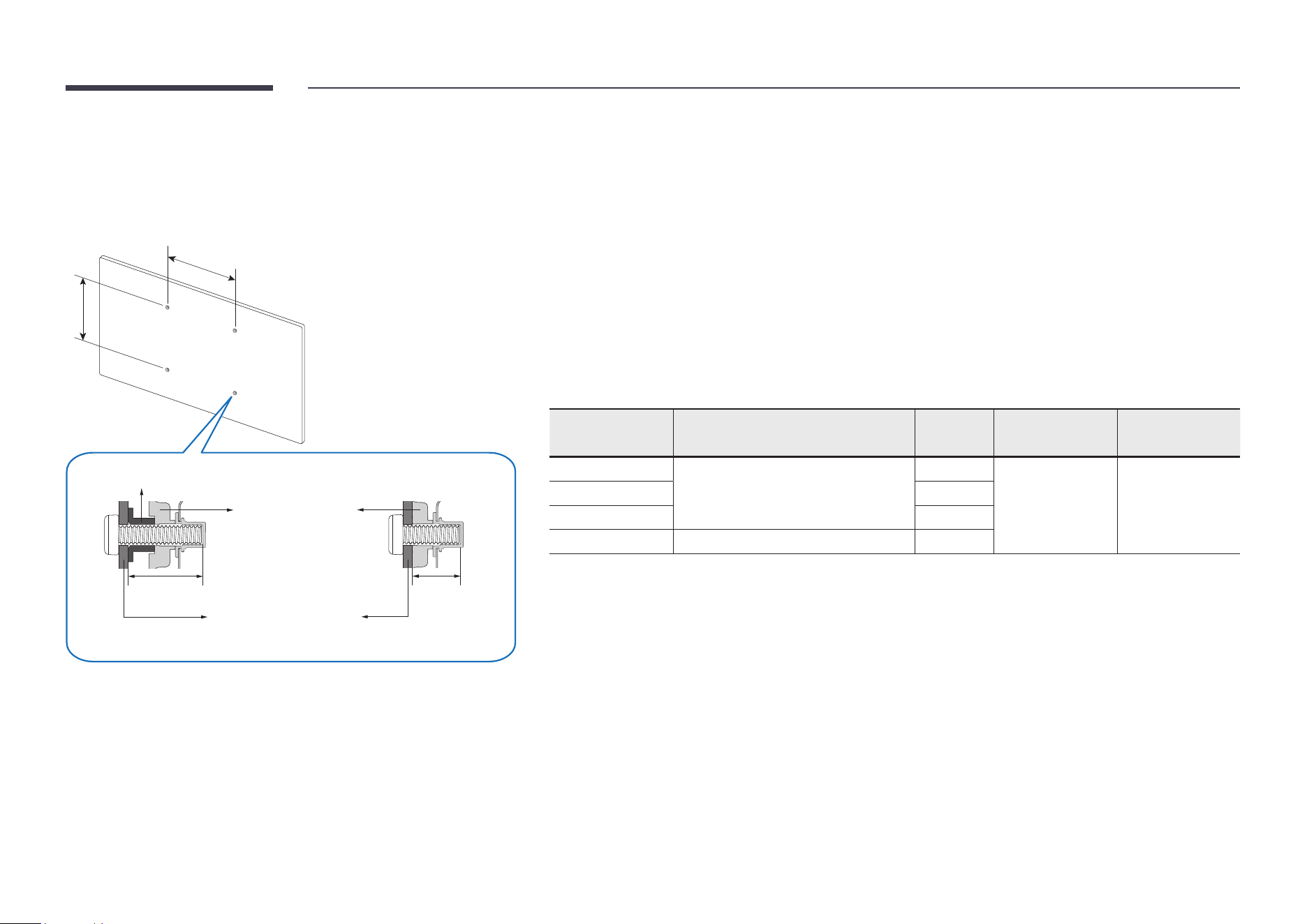
Using the wall mount kit
• The wall mount kit allows you to mount the product on the wall.
• For detailed information on installing the wall mount, see the instructions provided with
the wall mount.
• We recommend you contact a technician for assistance when installing the wall mount
bracket.
• Samsung is not responsible for any damage to the product or injury to yourself or others
if you select to install the wall mount on your own.
Wall mount
bracket
Product
C
<WM55B/WM65B/WM85B>
Using the wall mount adapter (WM75B only)
Install the provided wall mount adpaters as shown in the gure below before installing the
wall mount kit.
" If you are installing a third-party wall mount, note that the length of the screws you can
use to attach the product to the wall mount is shown in column C in the table on the next
page.
Wall mount
bracket
Product
C
Wall mount adapter
<WM75B>
22
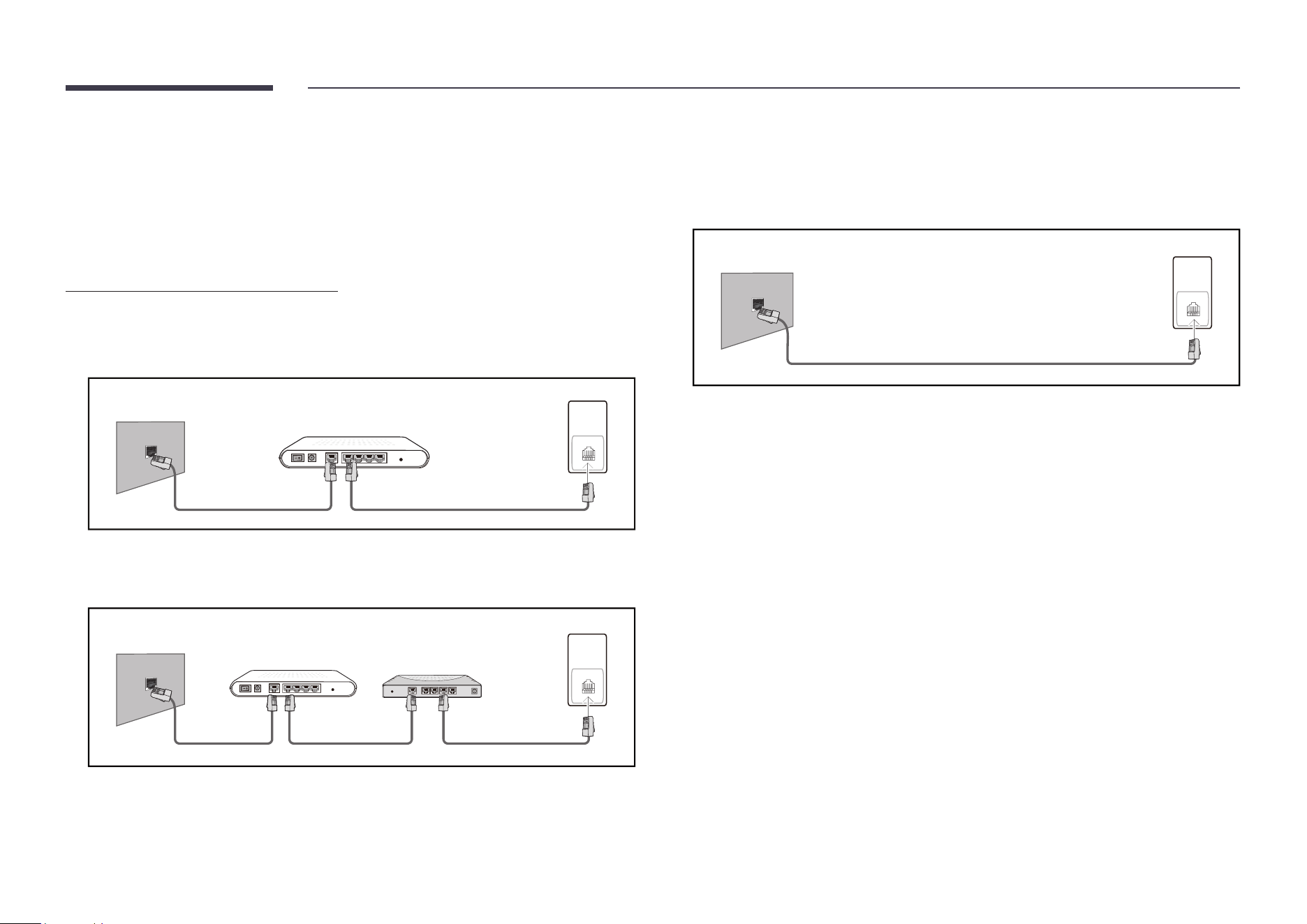
Wall mount kit specications (VESA)
" Install your wall mount on a solid wall perpendicular to the oor. To
install the product on the other wall area, contact the nearest agency.
If you install the product on a slanted wall, it may fall and result in
severe personal injury.
A
B
C
C
Product
Wall mount adapter
Wall mount bracket
<WM75B> <WM55B/WM65B/WM85B>
• Samsung wall mount kits contain a detailed installation manual and all parts necessary for assembly are
provided.
• Do not use screws that are longer than the standard length or do not comply with the VESA standard screw
specications. Screws that are too long may cause damage to the inside of the product.
• For wall mounts that do not comply with the VESA standard screw specications, the length of the screws
may differ depending on the wall mount specications.
• Do not fasten the screws too rmly. This may damage the product or cause the product to fall, leading to
personal injury. Samsung is not liable for these kinds of accidents.
• Samsung is not liable for product damage or personal injury when a non-VESA or non-specied wall mount is
used or the consumer fails to follow the product installation instructions.
• Always have at least two people mount the product on a wall. (Four or more people for the 85-inch size and
larger models.)
• Standard dimensions for wall mount kits are shown in the table below.
Model name
VESA screw hole specs (A x B) in
millimetres
C (mm) Standard screw Quantity
WM55B 400 x 400 30 - 31 M8 4
WM65B 32 - 33
WM75B 30 - 31
WM85B 600 x 400 37 - 38
" Do not install your Wall Mount Kit while your product is turned on. It may result in personal injury due to
electric shock.
23
Connecting to a network
" Connecting parts may differ in different products.
Network settings (Wired)
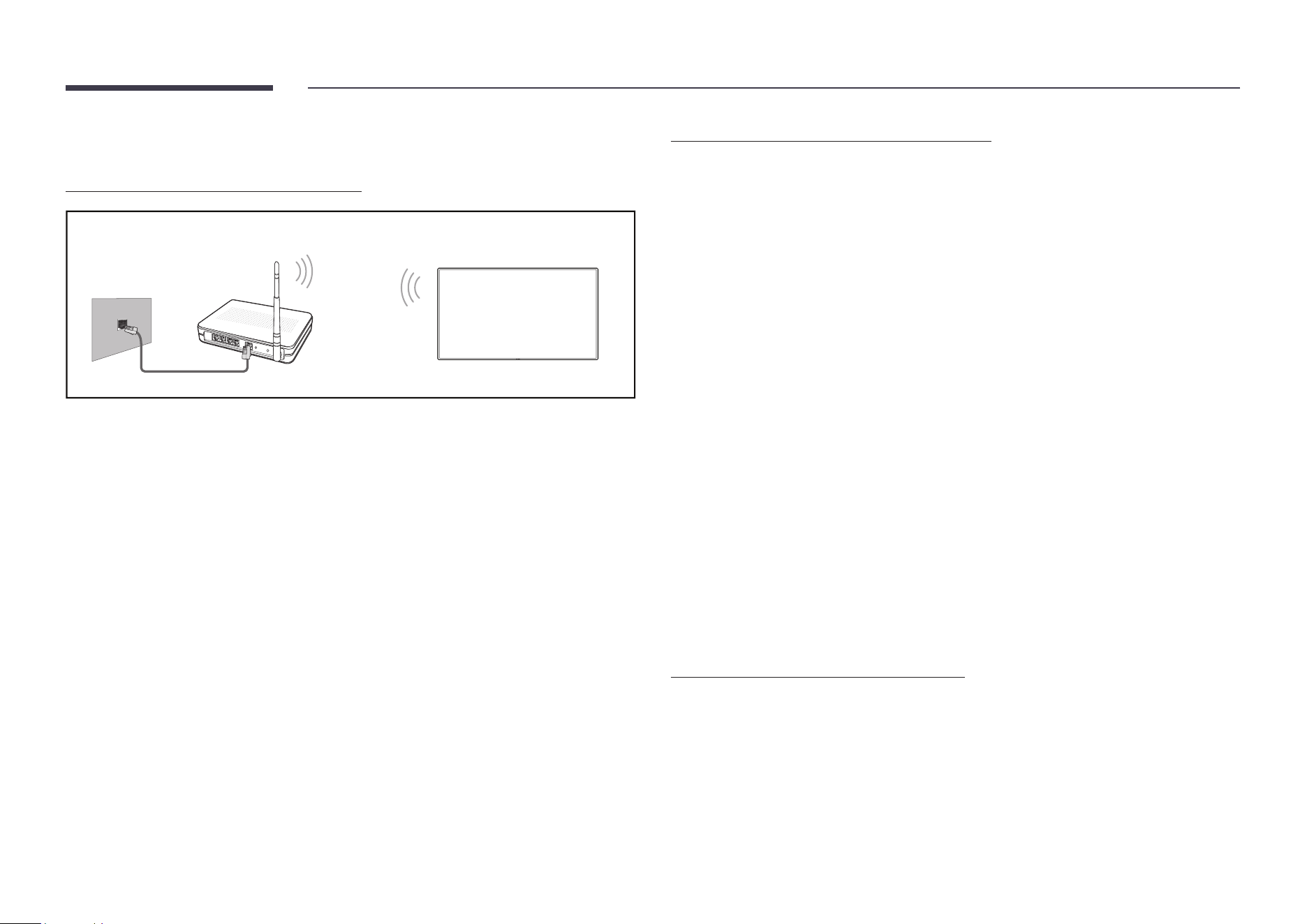
Connecting to a wired network
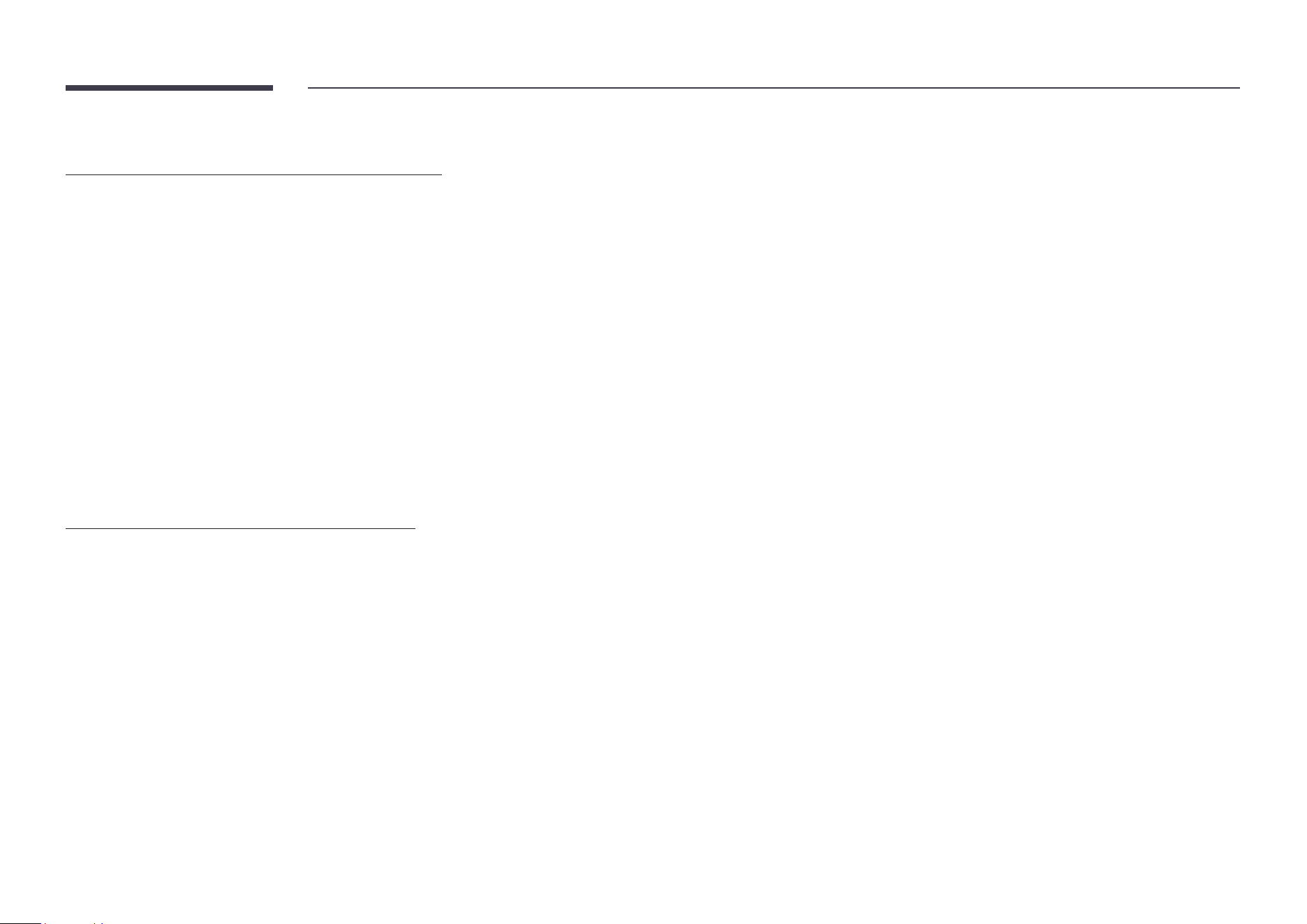
There are three ways to attach your product to your LAN using cable.
• You can attach your product to your LAN by connecting the LAN port on the back of your
product to an external modem using a LAN cable. See the diagram below.
External modem (ADSL/VDSL)
The modem port on the
wall
LAN
LAN
Modem cable LAN cable
• You can attach your product to your LAN by connecting the LAN port on the back of your
product to an IP sharer which is connected to an external modem. Use LAN cable for the
connection. See the diagram below.
LAN
LAN
The modem port on the
wall
External modem (ADSL/
VDSL)
IP sharer (having DHCP
server)
Modem cable LAN cableLAN cable
• Depending on how your network is congured, you may be able to attach your product to
your LAN by connecting the LAN port on the back of your product directly to a network
wall outlet using a LAN cable.
See the diagram below. Note that the wall outlet is attached to a modem or router
elsewhere in your house.
LAN
LAN
The modem port on the
wall
LAN cable
If you have a Dynamic Network, you should use an ADSL modem or router that supports
the Dynamic Host Conguration Protocol (DHCP). Modems and routers that support DHCP
automatically provide the IP address, subnet mask, gateway, and DNS values your product
needs to access the Internet so you do not have to enter them manually. Most home
networks are Dynamic Networks.
Some networks require a Static IP address. If your network requires a Static IP address, you
must enter the IP address, subnet mask, gateway, and DNS values manually on your product
Cable Setup Screen when you set up the network connection. To get the IP address, subnet
mask, gateway, and DNS values, contact your Internet Service Provider (ISP).
If you have a Windows computer, you can also get these values through your computer.
" You can use ADSL modems that support DHCP if your network requires a Static IP
address.
" ADSL modems that support DHCP also let you use Static IP addresses.
24
Set the network connection to use Internet services such as perform software upgrades.
Automatic Open Network Settings (Wired)
Connect to the network using a LAN cable.
Make sure a LAN cable is connected rst.
How to set up automatically
1
Set Network Type to Wired from the Open Network Settings page.
2
The network connection screen appears, and the verication process starts.
3
When the connection has been veried, the OK button appears on the bottom of the
screen.
4
Tap OK.
" If the connection process fails, check the LAN port connection.
" If the automatic process cannot nd the network connection values or if you want to
set the connection manually, go to the next section, “Manual Open Network Settings
(Wired)”.
Manual Open Network Settings (Wired)
Ofces may use static IP addresses.
If this is the case, ask the network administrator for the IP address, subnet mask, gateway
and DNS server address. Enter these values manually.
Getting the network connection values
To view the Network connection values on most Windows computers, follow these steps.
1
Right click the Network icon on the bottom right of the screen.
2
In the pop-up menu that appears, click Status.
3
On the dialog that appears, click the Support tab.
4
On the Support tab, click the Details button. The Network connection values are
displayed.
How to set up manually
1
Set Network Type to Wired from the Open Network Settings page.
2
The network connection screen appears, and the verication process starts.
3
Select Cancel while network connections are being attempted. This will stop the
connection.
4
Select IP Settings on network connection screen. The IP Settings screen appears.
5
Select the eld at the top and then set IP setting to Enter manually.
" Setting IP setting to Enter manually automatically changes DNS setting to Enter
manually.
6
Enter the IP Address, Subnet mask, Gateway, and DNS Server values manually.
7
When done, select OK at the bottom of the page. The network test screen appears and
the verication process starts.
8
When the connection has been veried, the OK button appears on the bottom of the
screen.
9
Tap OK to complete the setting.
25
Network settings (Wireless)
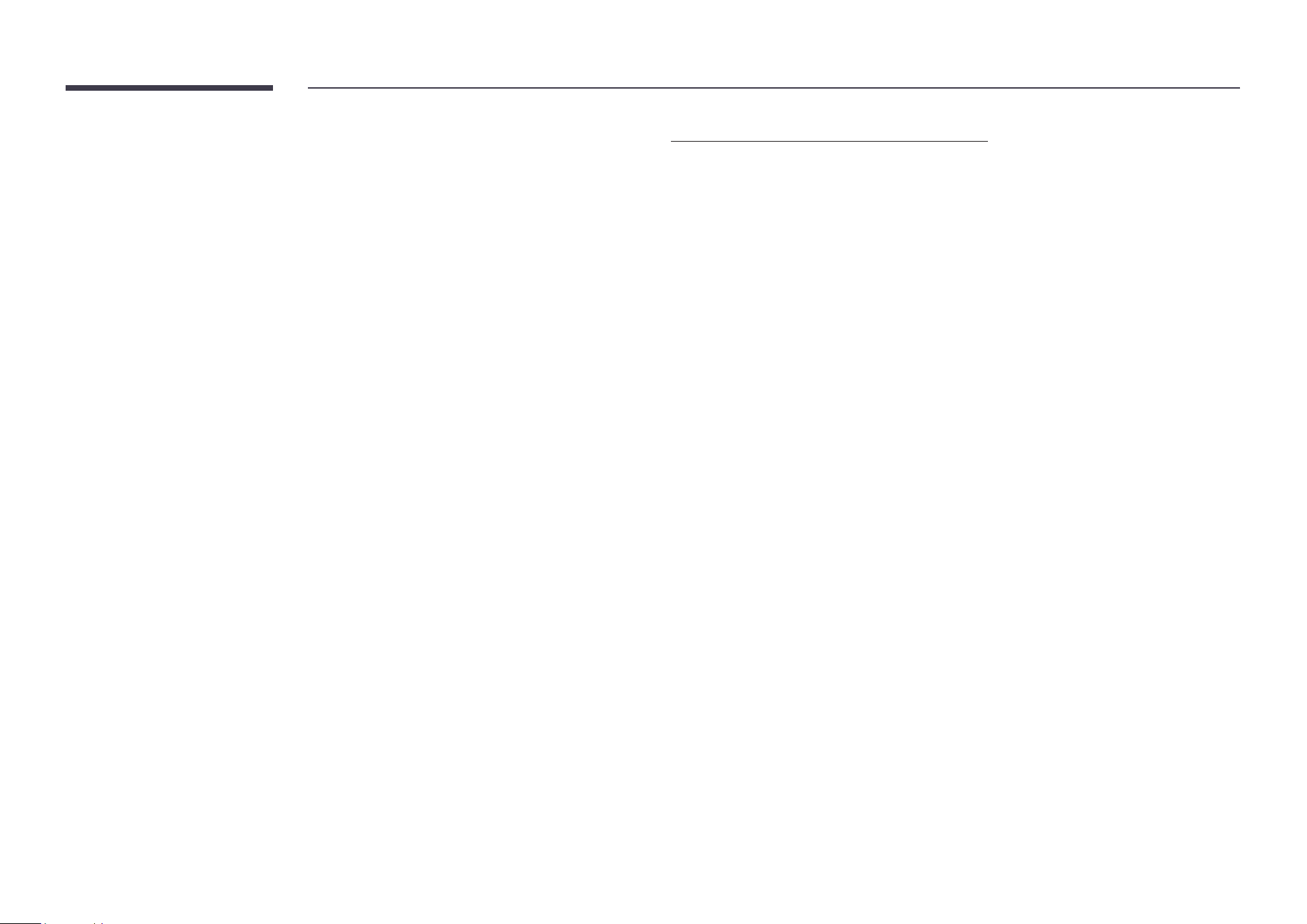
Connecting to a wireless network
Wireless IP sharer
(router having DHCP server)
The LAN port on the wall
LAN cable
Samsung recommends using IEEE 802.11n. When you play video over a network connection,
the video may not play smoothly.
" Select a channel for the wireless IP sharer that is not currently being used. If the channel
set for the wireless IP sharer is currently being used by another device nearby, this will
result in interference and communication failure.
" Your product supports only the following wireless network security protocols.
If you select the Pure High-throughput (Greeneld) 802.11n mode and the encryption
type is set to WEP, TKIP or TKIP AES (WPS2Mixed) on your AP or wireless router, Samsung
products will not support a connection in compliance with new Wi-Fi certication
specications.
" If your wireless router supports WPS (Wi-Fi Protected Setup), you can connect to the
network via PBC (Push Button Conguration) or PIN (Personal Identication Number).
WPS will automatically congure the SSID and WPA key in either mode.
" Connection methods: You can setup the wireless network connection in three ways. Auto
Setup (Using the Auto Network Search function), Manual Setup, Use WPS
" This product supports Enterprise WPA2 (TLS/TTLS/PEAP).
Automatic network setup (Wireless)
Most wireless networks have an optional security system that requires devices that access
the network to transmit an encrypted security code called an Access or Security Key. The
Security Key is based on a Pass Phrase, typically a word or a series of letters and numbers of a
specied length you were asked to enter when you set up security for your wireless network.
If you use this method of setting up the network connection, and have a Security Key for your
wireless network, you will have to enter the Pass Phrase during the automatic or manual
setup process.
How to set up automatically
1
Set Network Type to Wireless from the Open Network Settings page.
2
The product searches for available wireless networks. When done, it displays a list of the
available networks.
3
In the list of networks, select a network.
" If the desired wireless router does not appear, select Refresh to search again.
" If the router cannot be found after retrying, select Add Network.
4
If you selected a password-protected network, enter the password, and tap Go.
" You may skip this step if you selected an open network.
5
The network connection screen appears, and the verication process starts.
6
When the connection has been veried, the OK button appears on the bottom of the
screen.
7
Tap OK.
Manual network setup (Wireless)
Ofces may use static IP addresses.
If this is the case, ask the network administrator for the IP address, subnet mask, gateway
and DNS server address. Enter these values manually.
Getting the network connection values
To view the network connection values on most Windows computers, follow these steps.
26
1
Right click the Network icon on the bottom right of the screen.
2
In the pop-up menu that appears, click Status.
3
On the dialog that appears, click the Support tab.
4
On the Support tab, click the Details button. The Network connection values are
displayed.
How to set up manually
1
Set Network Type to Wireless from the Open Network Settings page.
2
The product searches for available wireless networks. When done, it displays a list of the
available networks.
3
In the list of networks, select a network.
" If the desired wireless router does not appear, select Refresh to search again.
" If the router cannot be found after retrying, select Add Network.
4
If you selected a password-protected network, enter the password, and tap Go.
" You may skip this step if you selected an open network.
5
The network connection screen appears, and the verication process starts.
6
Select Cancel while network connections are being attempted. This will stop the
connection.
7
Select IP Settings on network connection screen. The IP Settings screen appears.
8
Select the eld at the top and then set IP setting to Enter manually.
" Changing IP setting to Enter manually automatically changes DNS setting to Enter
manually.
9
Enter the IP Address, Subnet mask, Gateway, and DNS Server values manually.
10
When done, select OK at the bottom of the page. The network test screen appears, and
the verication process starts.
11
When the connection has been veried, the OK button appears on the bottom of the
screen.
12
Tap OK to complete the setting.
How to set up using the WPS button
If your router has a WPS button, follow these steps.
1
Set Network Type to Wireless from the Open Network Settings page.
2
Select Use WPS.
3
Press the WPS or PBC button on your wireless router within the next two minutes. Your
product automatically acquires all the network setting values it needs and connects to
your network.
4
The network connection screen appears, and network setup is done.
27
Chapter 03
Writing
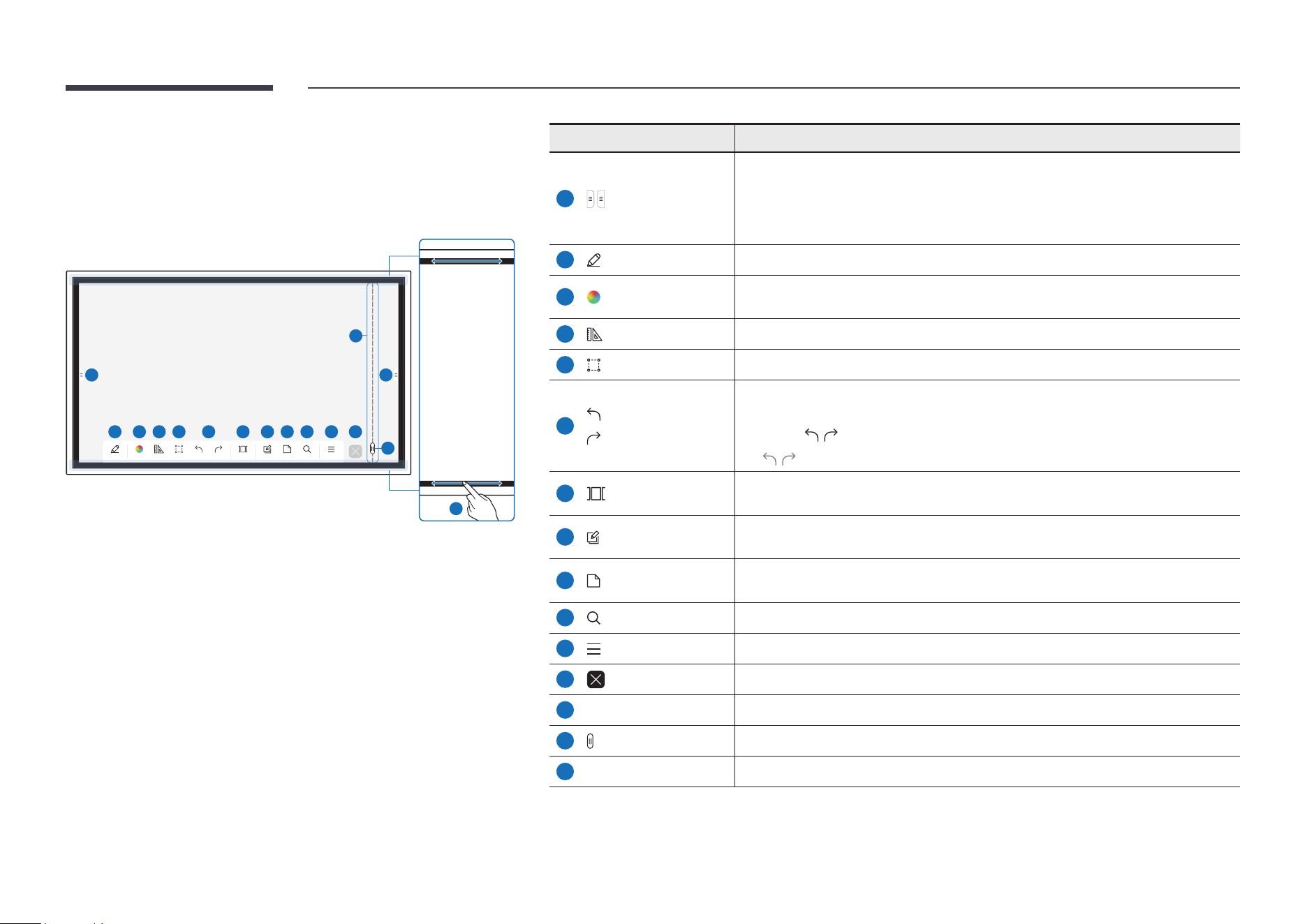
What’s a ‘Roll’?
• Files are called ‘rolls’ in this product. A ‘roll’ is a le with multiple pages linked together.
• A roll can have up to 20 pages linked together.
" BRUSH MODE supports one page only.
" You can open only one roll on one screen. For more information, refer to “Menu”.
Landscape orientation Portrait orientation
Page 1 Page 2
Page 1
Page 2
28
Pen Mode
Screen elements
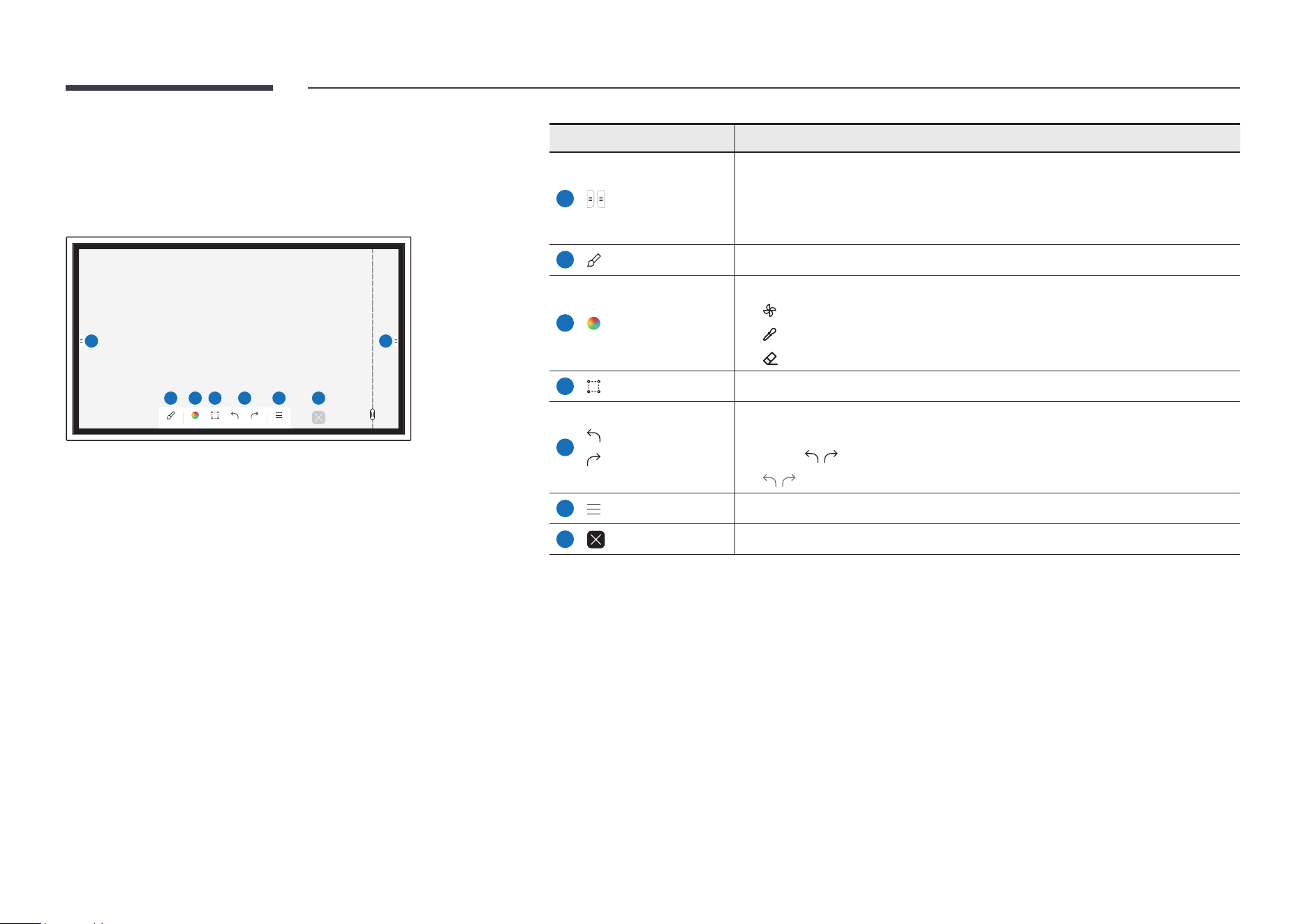
2 3 4 5 6 7 8 9 10 11 12
Pen Mode Palette Maths Tools Select Undo Redo Pages Note On/Off Miniboard Search Menu
11
15
13
14
Buttons Description
1
Tap to open the IMPORT/EXPORT window.
• IMPORT: View the screen of a mobile device or PC connected to the product,
or import data such as images from a connected USB or network drive.
• EXPORT: Share your creations in various ways.
2
Pen Mode
Tap to select a mode. You can select from PEN MODE or BRUSH MODE.
3
Palette
Tap to open the Palette. You can select the colour and thickness of the pen and
the highlighter.
4
Maths Tools
Use math tools to make geometric constructions and take measurements.
5
Select
Select the area you want to edit, capture, send in an email, print, or search.
6
Undo
Redo
Undo or redo the last action.
• If any page editing actions such as page adding, deleting, and moving are
found, / is reset.
" / can be performed up to 20 times for each individual.
7
Pages
You can add or delete a page, and you can also navigate through pages on the
current roll.
8
Note On/Off
Create a layer to write or draw on over the screen which can also be saved the
captured image.
9
Miniboard
Bring out Miniboard to take notes or draw as a separate layer above the viewer
or source screen.
10
Search
Tap to search the Internet.
11
Menu Tap to see more options available in the menu.
12
Close the current roll and create a new roll.
13
Page breaking line See page lines.
14
Scroll through pages.
15
Bezel Scroll Scroll the black area to move the pages.
29
Drawing
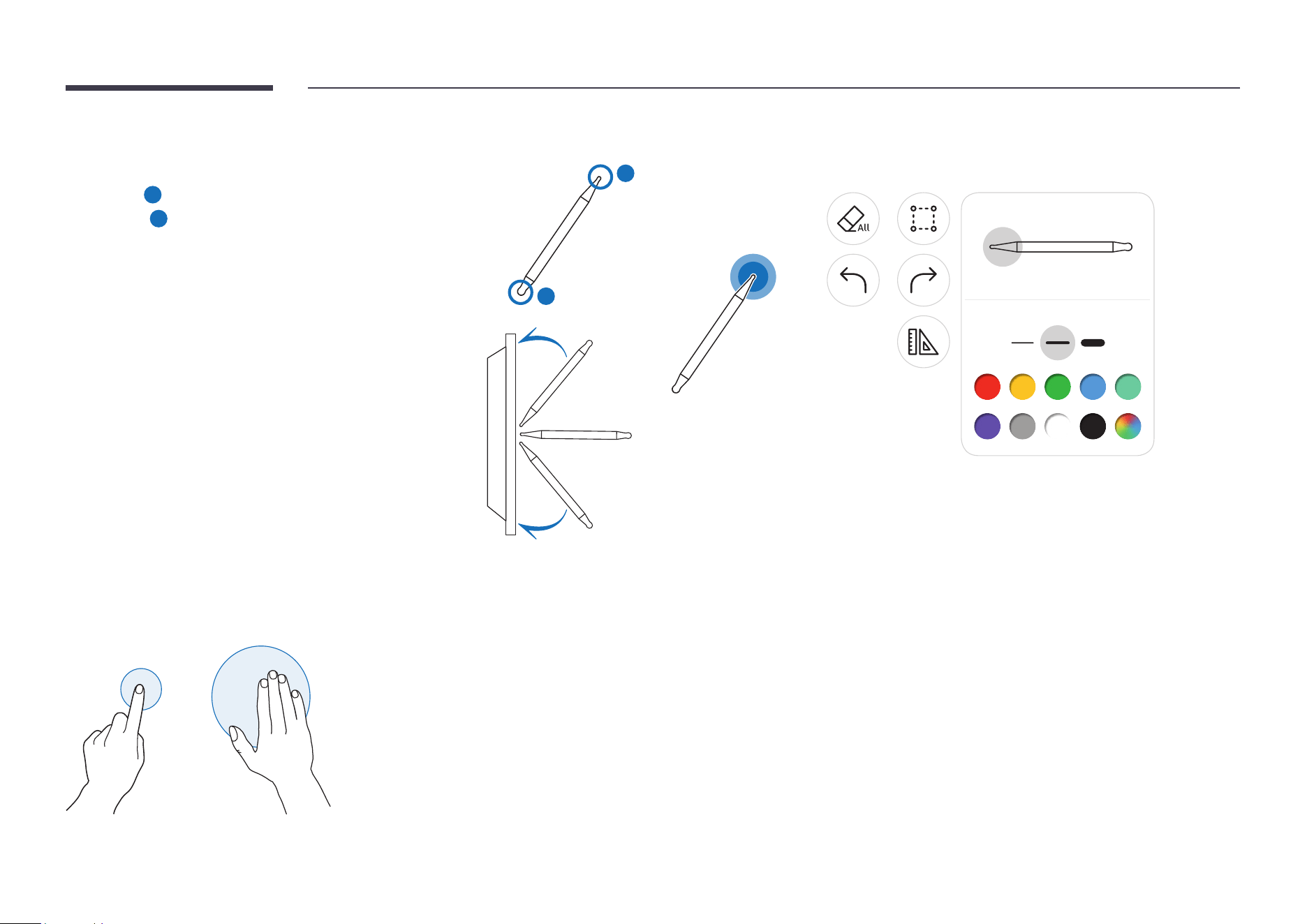
You can freely use the supplied pen to write anything you want.
• Thin Tip (
A
): Pen Type
• Thick Tip (
B
): Highlighter Type
A
B
• When you are using the thin tip, if the pen is tilted too much
toward the screen (within 45 degrees as shown in the gure),
the output can appear to be highlighter type.
45 °
45 °
Erasing
You can use your nger or palm to erase your writing.
Using the simple menu
With long presses everywhere, you can quickly access simple menu.
→
Palette
Pen Highlighter
30
Brush Mode
Screen elements
1 1
2 3 4 5 6 7
Brush Mode Palette Select Undo Redo Menu
Buttons Description
1
Tap to open the IMPORT/EXPORT window.
• IMPORT: View the screen of a mobile device or PC connected to the product,
or import data such as images from a connected USB or network drive.
• EXPORT: Share your creations in various ways.
2
Brush Mode
Tap to select a mode. You can select from PEN MODE or BRUSH MODE.
3
Palette
Tap to open the Palette. You can select the colour and use other options.
• : Dry colours to stop blending.
• : Extract the colour from the selected point.
• : Delete the selected area.
4
Select
Select the area you want to capture, send in an email, or print.
5
Undo
Redo
Undo or redo the last action.
• If any page editing actions such as page adding, deleting, and moving are
found, / is reset.
" / can be performed up to 5 times for each individual.
6
Menu Tap to see more options available in the menu.
7
Close the current roll and create a new roll.
" Changes in the thickness depending on the area touching the screen apply immediately. (max. 5.0 cm)
" Brush use is recommended.
" BRUSH MODE supports single touch only.
" The product can distinguish 2048 levels of thickness in BRUSH MODE.
31
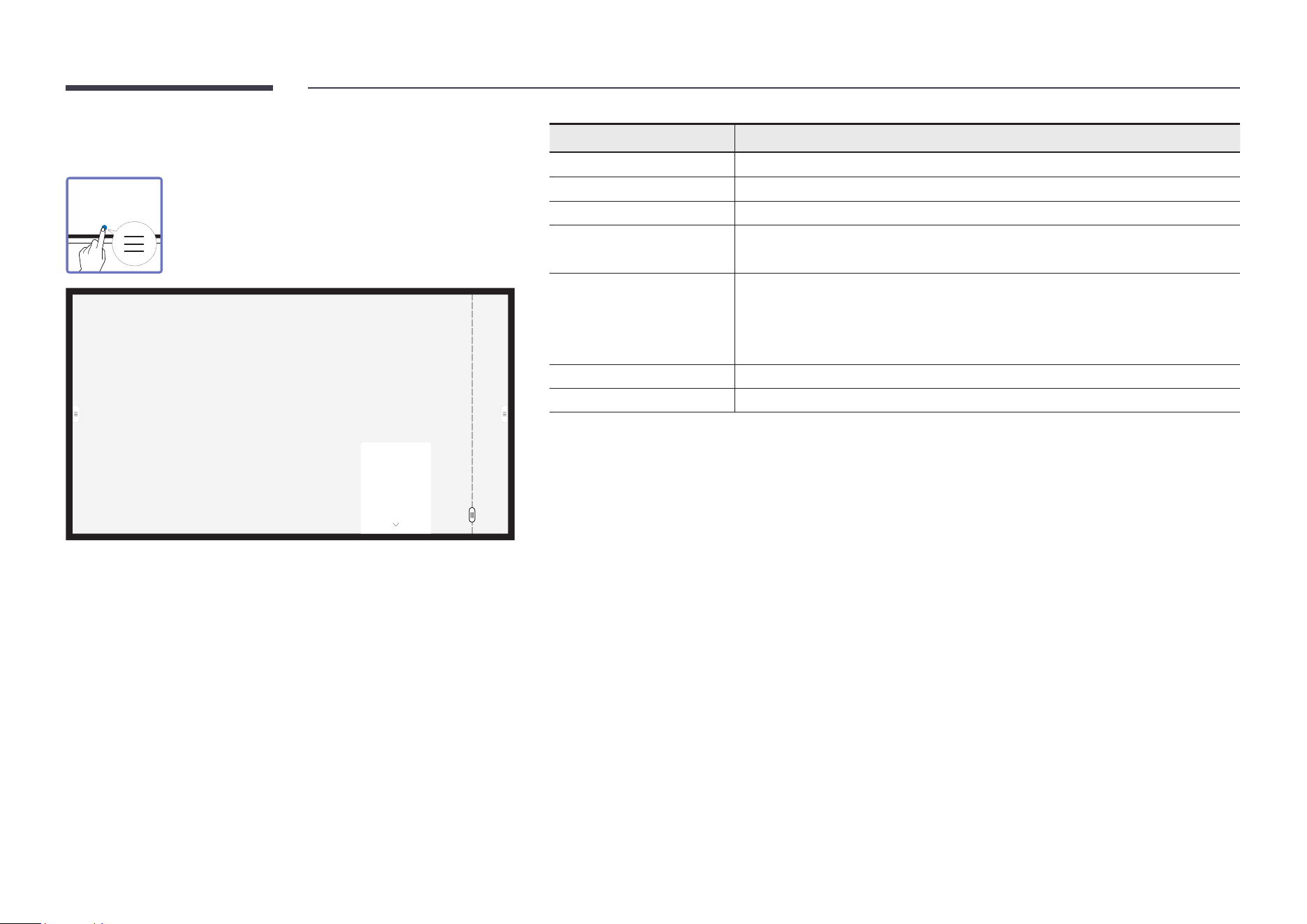
Menu
NEW
SAVE
ROLL BROWSER
FORMS
ROLL LOCK
SETTINGS
HOW TO USE
Buttons Description
NEW Create a new roll.
SAVE Save the current roll.
ROLL BROWSER Open, delete or export saved rolls.
FORMS Change the background format.
" This menu is only visible in PEN MODE.
ROLL LOCK / UNLOCK • ROLL LOCK: Press a six-digit password to lock the current roll.
• UNLOCK: To unlock a locked roll, press the six-digit password you set when
locking the roll.
" Once unlocked, the current roll remains unlocked until it is locked again.
SETTINGS You can see the conguration menu.
HOW TO USE You can see How To Use.
32
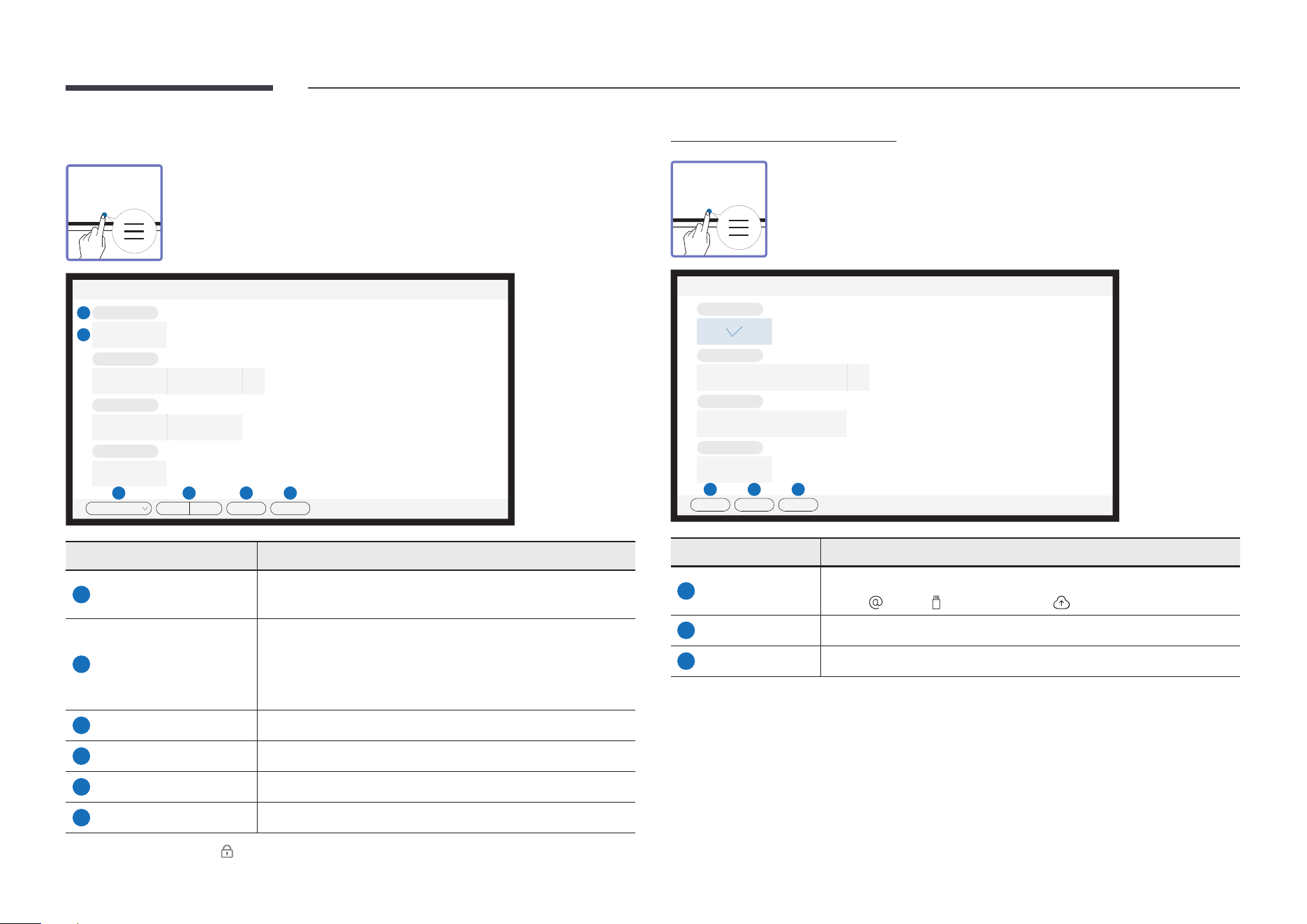
Roll Browser
→ ROLL BROWSER
Open, browse and manage rolls via Roll Browser.
Roll Browser
5
****-**-**_****
**/**/**** **:** **
6
****-**-**_****
**/**/**** **:** **
****-**-**_****
**/**/**** **:** **
****-**-**_****
**/**/**** **:** **
1 2 3 4
All By date By name Edit Close
Parts Description
1
All
You can view the list by the mode you want.
• All / Pen Mode / Brush Mode
2
By date By name
Set the sort order of les.
• By date: The rolls are sorted by recent date. This is the
default sort option.
• By name: The rolls are sorted by name of the rolls.
3
Edit Select multiple rolls to export or delete.
4
Close Close Roll Browser.
5
File name Rename the le.
6
Rolls Browse and open a desired roll.
" To open a locked roll ( ), press the six-digit password.
Deleting / Exporting rolls
→ ROLL BROWSER → Edit
You can select multiple rolls to export or delete.
Select
****-**-**_****
**/**/**** **:** **
****-**-**_****
**/**/**** **:** **
****-**-**_****
**/**/**** **:** **
****-**-**_****
**/**/**** **:** **
1 2 3
Export Delete Cancel
Parts Description
1
Export
Share the selected rolls any way you like.
Email ( ) / USB ( ) / Network Drive ( )
2
Delete Delete the selected rolls.
3
Cancel Deselect the roll.
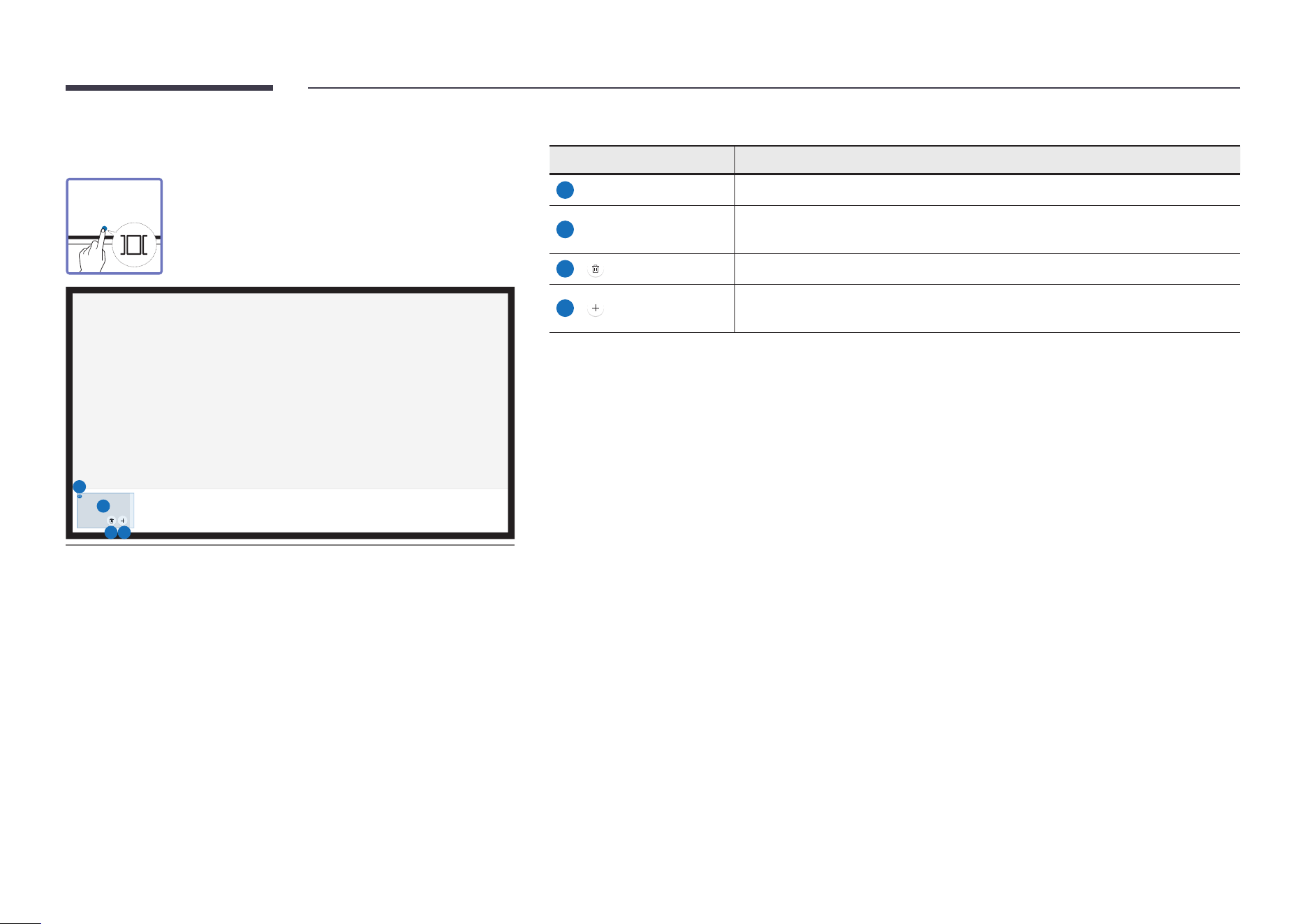
33
Page Viewer
You can move or edit the created rolls for each page.
01
1
2
3 4
$ The displayed image may differ depending on the model.
" This menu is only visible in PEN MODE.
Parts Description
1
Page number Displays the page number.
2
Focus
Displays the page you are currently viewing.
• When you tap a page, the focus is moved to it.
3
Delete the focused page.
4
Add a new page.
" You can create up to 20 pages per roll.
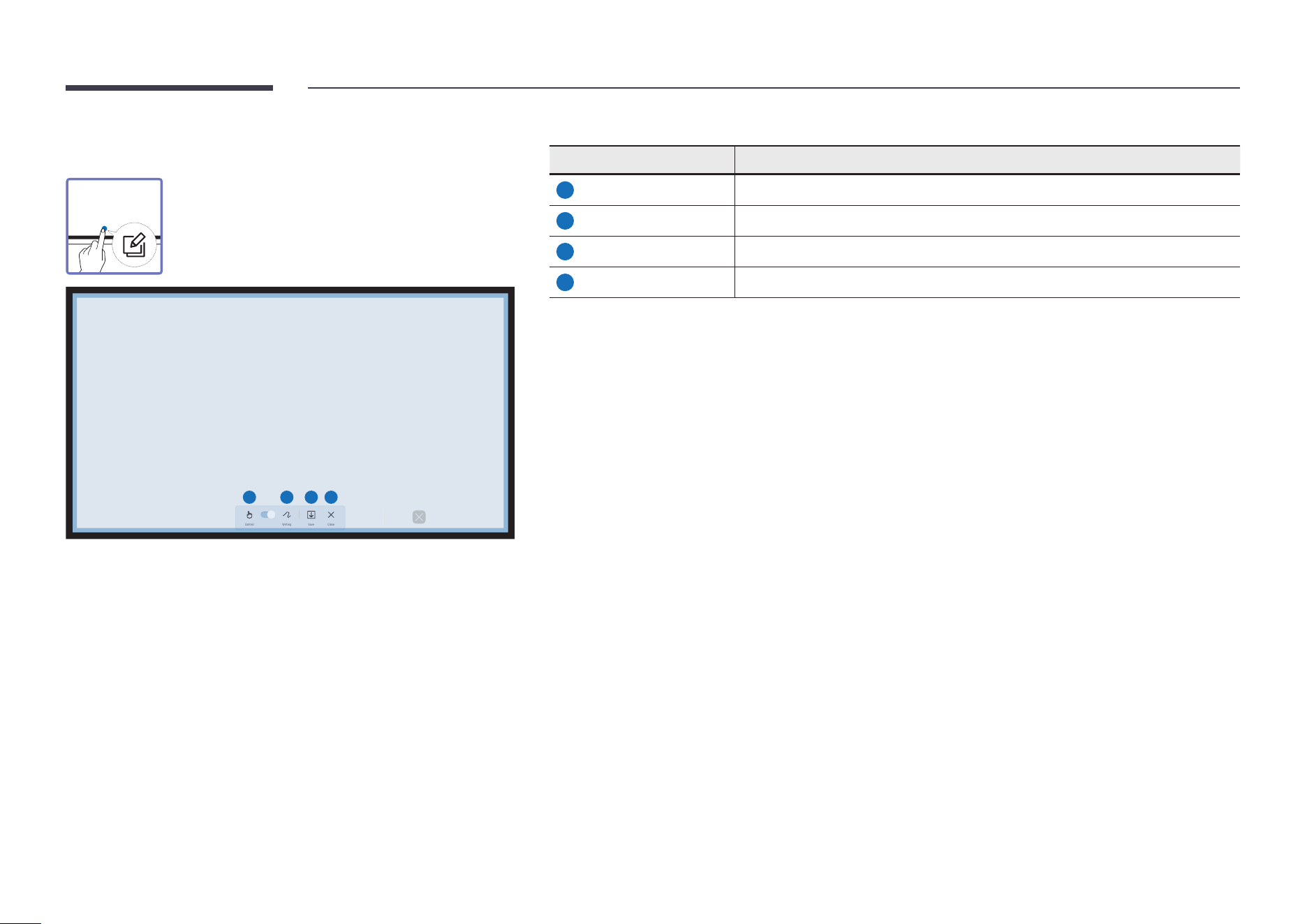
34
Note On/Off
Add a layer over the screen to write or draw on. This can
be useful for adding note to content from an external
source.
1 2 3 4
Control Writing Save Close
" This menu is only visible in PEN MODE.
Parts Description
1
Control You can control the content beneath the note layer.
2
Writing Write or draw on the note layer without affecting the content underneath.
3
Save You can save the note as a captured image.
4
Close You can close the note.
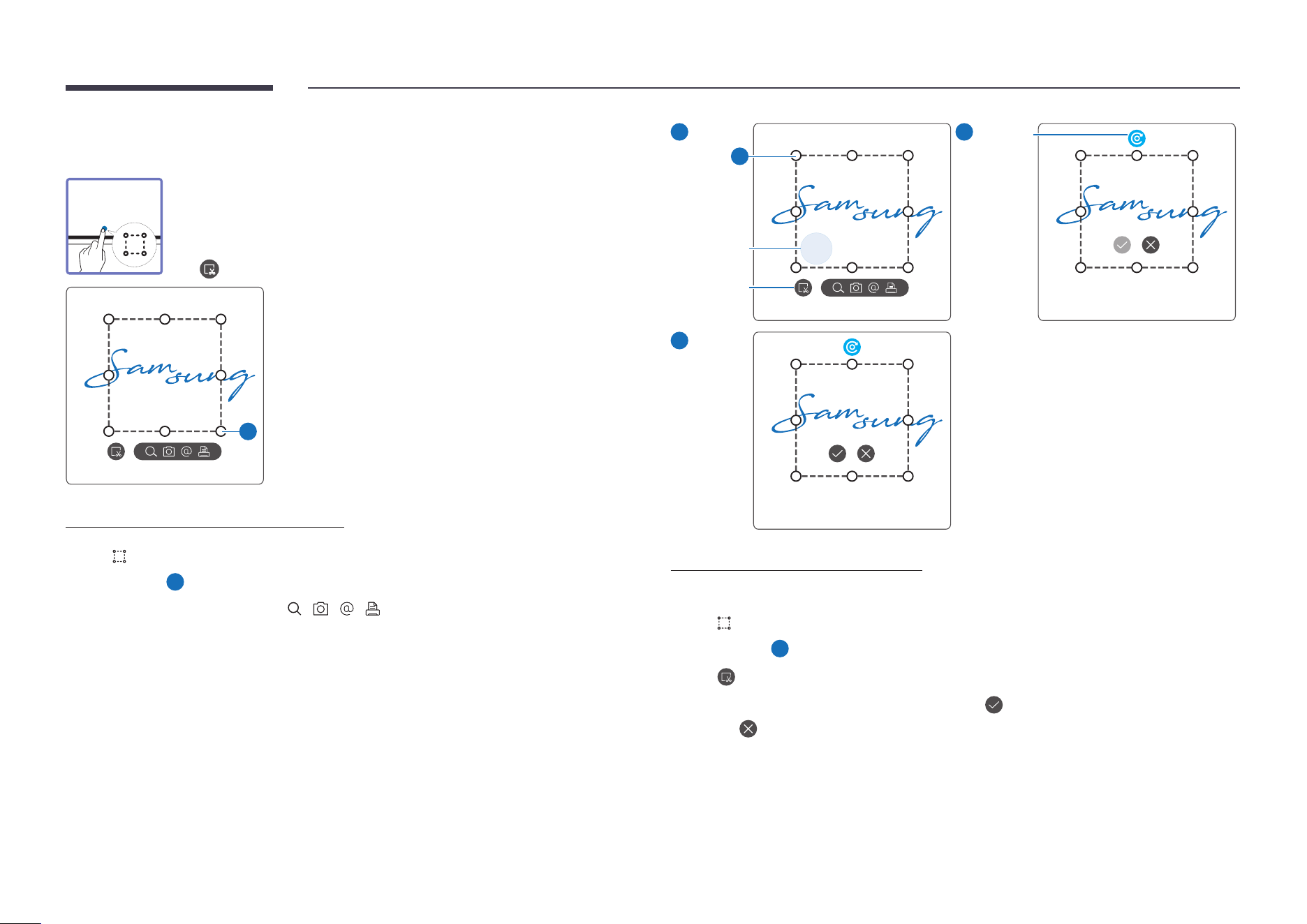
35
Using the Select tools
Select the area you want to edit, capture, send in an email, print, or search.
Use to move, rotate, or resize the selection.
A
Search / Capture / Email / Print
1
Tap in the tool menu. A select box appears on the screen.
" Drag the
A
of the select box to adjust the size.
2
Select the area and choose from / / / options.
" The product must be connected to a network to use the Search, Email or Print
function.
" The Search function is only available for handwriting.
1
A
Resize
Move
Edit
2
Rotate
3
Editing the selected content
" The editing function is only available in PEN MODE.
1
Tap in the tool menu. A select box appears on the screen.
" Drag the
A
of the select box to adjust the size.
2
Tap to enable editing for the selected area.
3
Move, rotate or resize the selected area and tap .
" Tap to abort the changes.
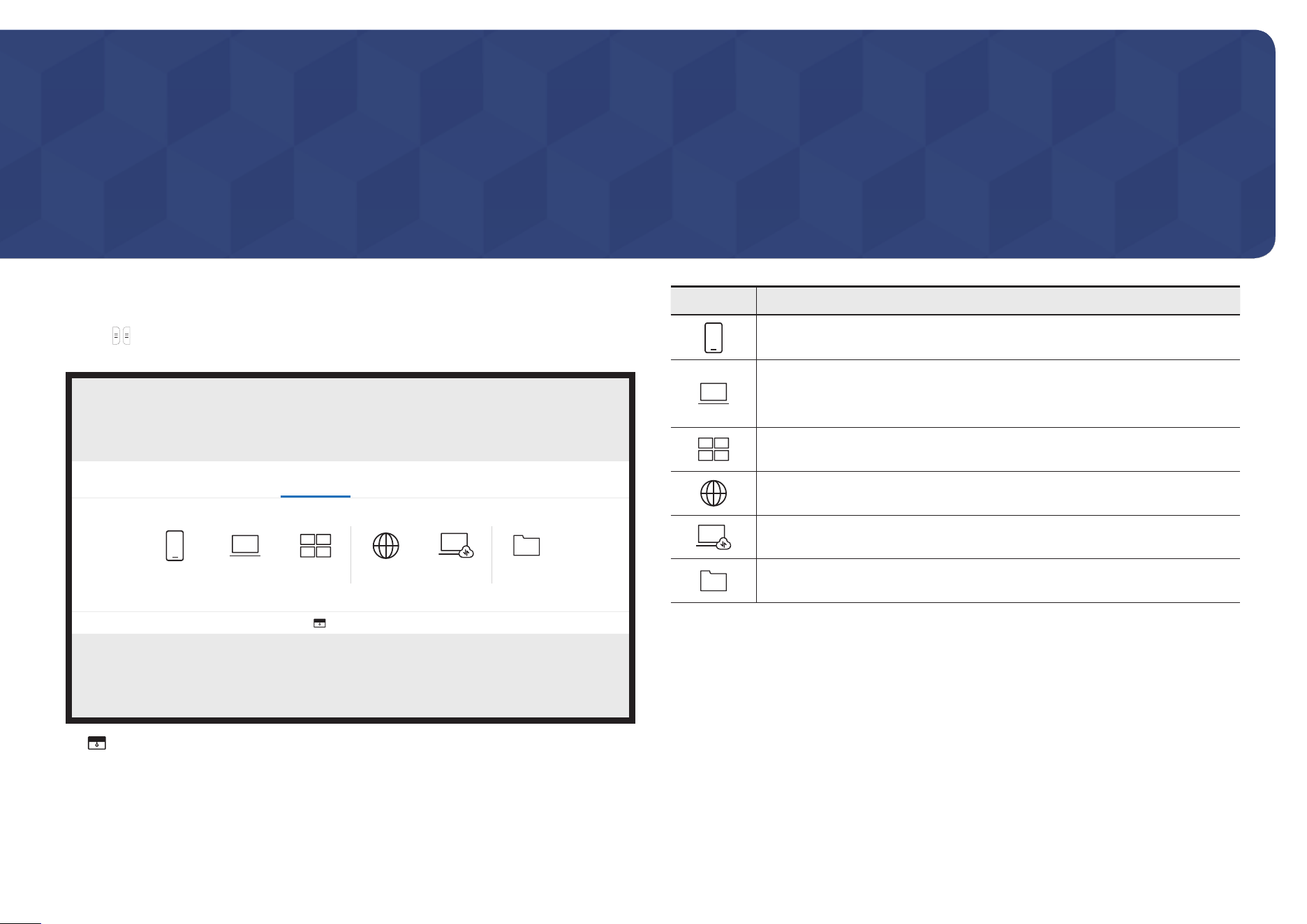
36
Chapter 04
IMPORT
You can view the screen of a mobile device or PC connected to the product, or import data
such as images from a connected USB or network drive.
• Tap on the left or right side of the screen to open the IMPORT/EXPORT window. Then,
tap IMPORT to select the desired device.
IMPORT EXPORT
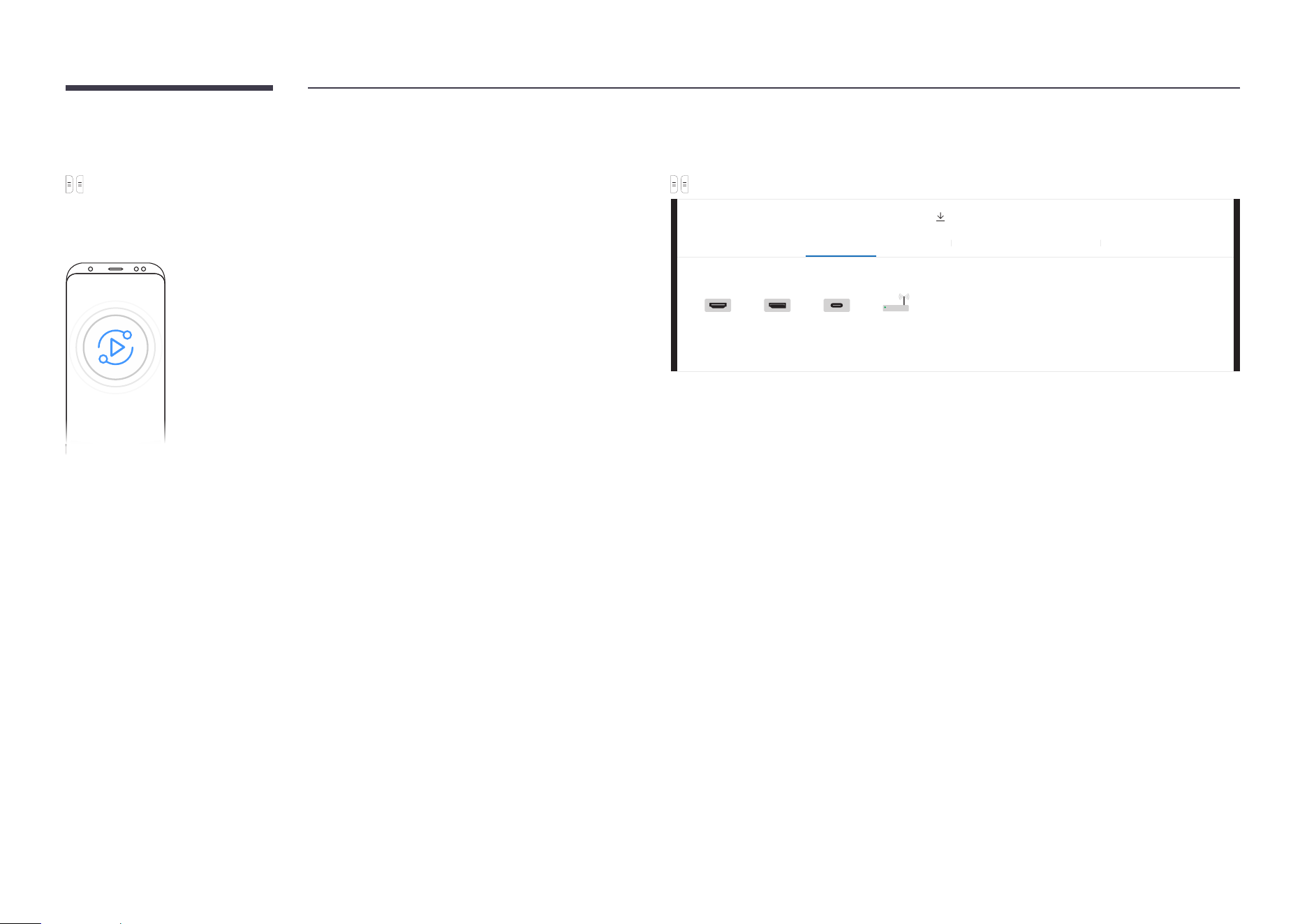
MOBILE PC SMARTVIEW+ INTERNET WORKSPACE FILE BROWSER
BLOCK SCREEN
" BLOCK SCREEN: You can hide the Flip screen for a while with BLOCK SCREEN. To
return to the previous screen, press the Power button.
Icons Description
Displays the screen from a mobile device by using Smart View or Screen
Mirroring function.
Displays your PC screen using HDMI, DisplayPort, USB-C, OPS connection or
Wireless Display.
" OPS is only available for WM75B/WM85B.
You can display the screen shared from your PC, mobile, or tablet.
Connect the network to access the Internet from the product like accessing
the Internet from a computer.
Access to remote PC and your work resources with this function.
You can view all content (on this device or a connected USB storage or
network drive) or download les from the Internet.
" The native FLIP format (.iwb) refers to les that are directly saved from the device and
only supported by FLIP devices.
" Supported video le formats: avi, mkv, asf, wmv, .mp4, mov, 3gp, vro, mpg, mpeg, ts, tp,
trp, v, vob, svi, m2ts, mts, .webm, .rmvb
" Supportable image le formats: JPG, BMP, PNG, MPO
" Supported document le formats: DOC, PPT, PDF, XLS
37
Connecting to a mobile device
→ IMPORT → MOBILE
Connecting using Smart View or Screen Mirroring
Smart View
1
Drag down the top bar on the mobile device screen to start Smart View or Screen
Mirroring.
2
Select this product from the list of devices displayed on the screen.
- The initial device name is [CLASS] Interactive Signage Flip.
" You can control the mobile device from the product screen.
" HDCP (High-bandwidth Digital Content Protection) contents will not show on the screen
if PIP Capture is set to On.
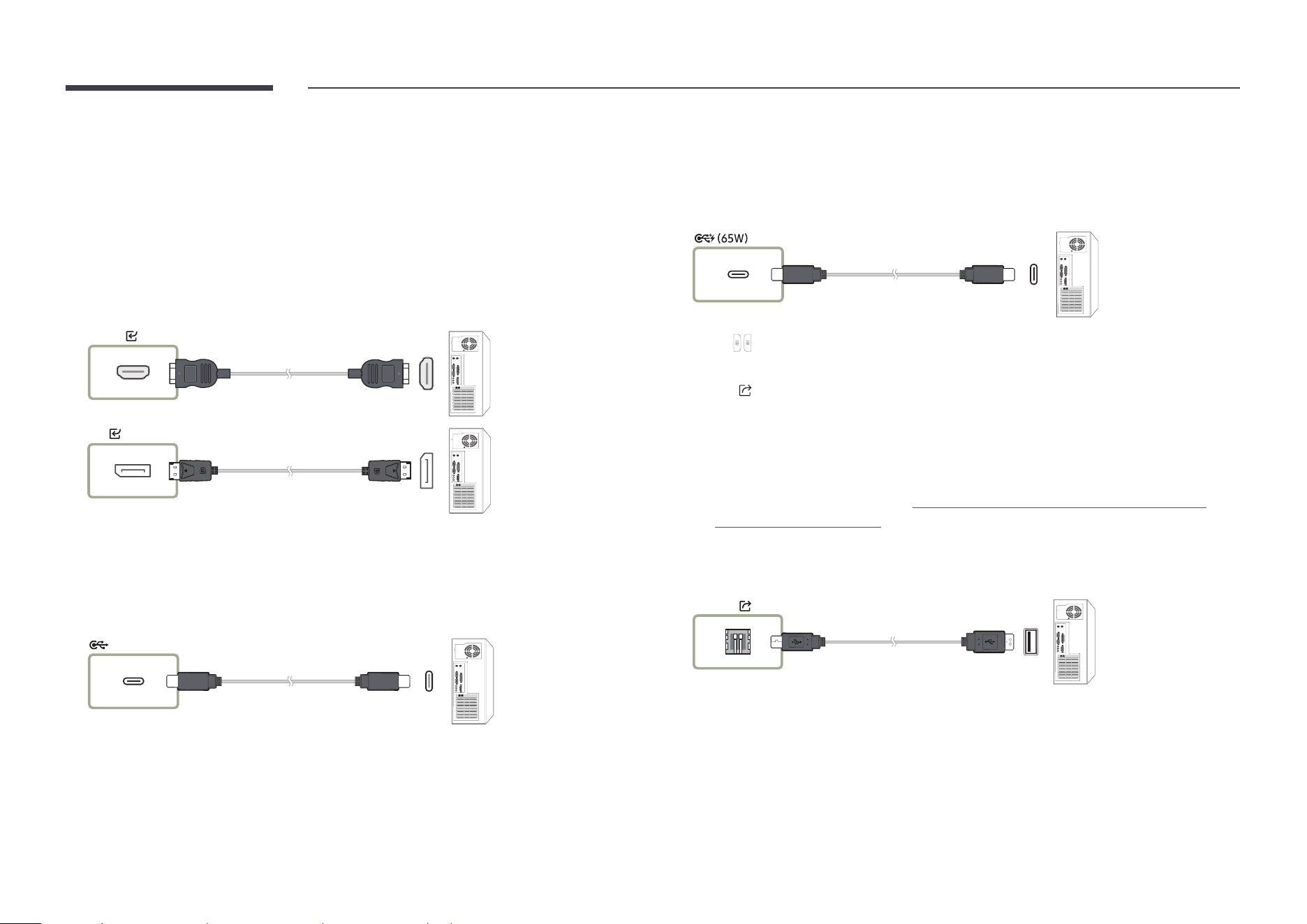
Connecting to a PC
→ IMPORT → PC
IMPORT
MOBILE PC SMARTVIEW+ INTERNET WORKSPACE FILE BROWSER
PC
HDMI 2 DisplayPort USB-C Wireless
38
Connecting using a cable
" Connecting parts may differ depending on the model.
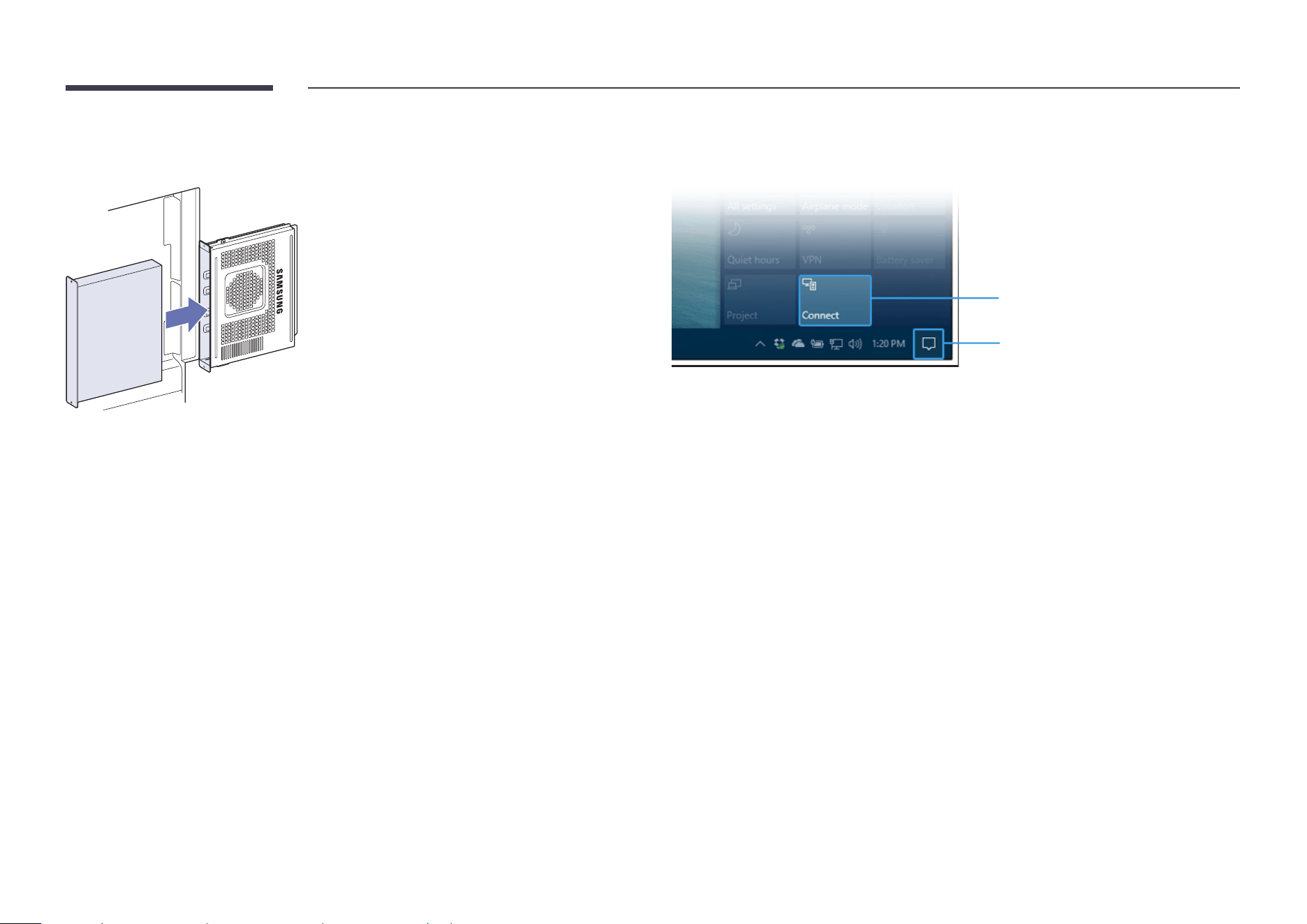
1
Connect the product to the PC using an HDMI, DP, and USB-C cable.
" HDCP contents will not show on the screen if PIP Capture is set to On.
" When the screen is black, turn off PIP Capture because some graphic cards can
support HDCP automatically.
" Use a USB-C cable that is 1 m or shorter in length.
" Charging with USB-C cable is only available when the product is on.
HDMI
DP
<WM55B/WM65B>
" You must use a USB-C cable that supports video transmission. Use a cable that
supports DP ALT Mode (Video transmission).
" Charing is also supported up to 15 W (5 V/max 3 A). Charging with USB-C cable is only
available when the product is on.
<WM75B/WM85B>
" You must use a USB-C cable that supports video transmission and charging function.
Use a cable that supports DP ALT Mode (Video transmission) and Power Delivery
(65 W or higher).
" Charging with USB-C cable is only available when the product is on.
2
Select → IMPORT → PC → HDMI / DisplayPort / USB-C on the screen.
3
To control the PC from the product screen, connect the supplied USB cable to the
TOUCH port on the product.
" If used in a multi-screen setup, make sure you have congured FLIP as the main
display.
" This step does not apply if you are using a USB-C cable.
" If you use Mac OS, you must install the UPDD driver to control your PC. You can
download the UPDD driver from https://displaysolutions.samsung.com/support/
resources/product-support.
If you are using MAC with macOS 11 (Big Sur) and over, go to System Preference, click
Security & Privacy, then select App Store and identied developers under the header
Allow apps downloaded from.
TOUCH
39
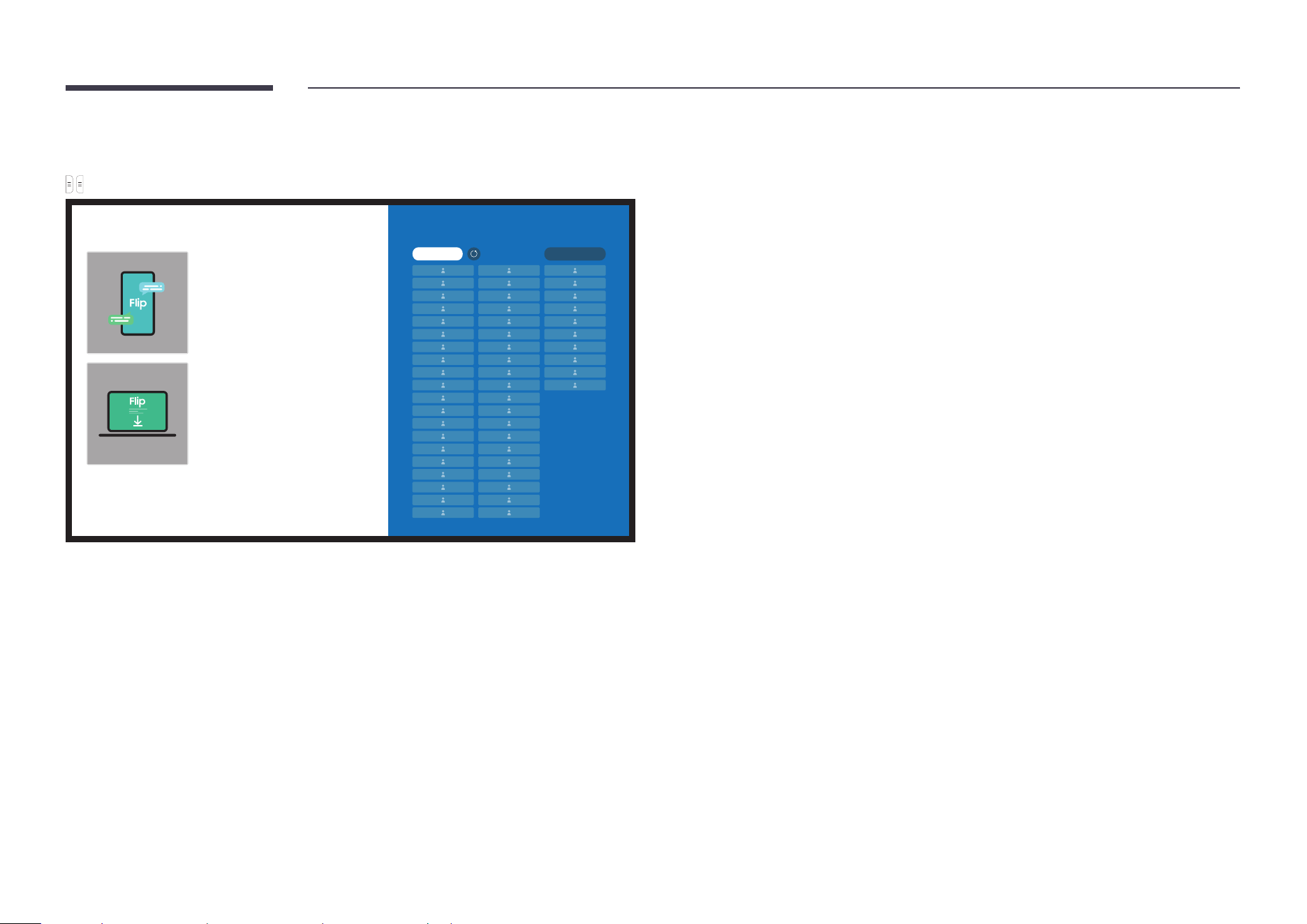
Connecting using a OPS (Sold separately)
" OPS is only available for WM75B/WM85B.
Touchscreen may not work properly during initial OPS Windows settings. Connect a mouse
and keyboard to OPS for use during initial settings.
" Turn off Flip before connecting OPS.
Connecting via the Wireless Display function
" This function is only available for the laptop that supports the Wireless Display function.
STEP. 02
STEP. 01
1
Select Action Center or Devices in the taskbar notication area of the laptop.
2
Click Connect or Project and select a [CLASS] Interactive Signage Flip device to complete
the connection.
" The connection procedure may vary depending on the laptop.
" After the Wireless Display connection is made, you can control the laptop screen from the
product screen.
" This function is only supported by Windows 8.1 and 10.
40
Connecting via SMARTVIEW+
→ IMPORT → SMARTVIEW+
How to Get Connected
Make sure that your PC and mobile are connected to the same network as Flip.
For Mobile
Samsung Signage Mobile
Download Samsung Signage Mobile and launch the app.
Then follow the instructions.
For PC
***
Visit the URL above using your PC. Then follow the instructions.
Go to *** to download the certicate for the rst time.
SMARTVIEW+ is only available on
Chrome, Edge, Firefox, and Safari.
Connected List
Select to display up to 4 participants then tap Display Now.
Display Now 0/50 Sort by Position
▼
You can display the screen shared from your PC, mobile, or tablet.
Make sure that your PC, mobile, and tablet are connected to the same network as Flip.
1
Select SMARTVIEW+.
2
Once SMARTVIEW+ starts, follow the onscreen instruction to connect with the desired
device.
" The CA certicate installation is required for the PC Client, and you can download the CA
certicate from the URL provided in the initial screen of SMARTVIEW+.
" You may get a security warning if you try to access Flip SMARTVIEW+ on your PC client
browser without the CA certicate installed. Click ‘Advanced’ on the browser to advance
to the site, and you can install the CA certicate. (This instruction may not apply to all the
browsers.)
" If the Client device’s screen aspect ratio differs from the Flip, the Client device may
transmit a partially cropped screen. You may experience a partially cropped image of the
Client device’s screen on Flip since it displays according to the signal received from the
Client device.
" SMARTVIEW+ supports the following browsers; however, browsers on some devices may
not work normally.
- Web Browser: Chrome 72 above, Safari 13 above, Edge 79 above, FireFox 66 above
- PC: Windows, Mac OS, ChromeOS
- We recommend the following for optimized screen sharing with SMARTVIEW+:
• Use the Firefox browser.
• Set the client device’s screen aspect ratio and the screen orientation the same as
the Flip. (Example: PC – Landscape, Flip – Landscape)
" You can download and install the SAMSUNG SIGNAGE MOBILE app (Samsung Flip) from
the Play Store, App Store, and Galaxy Store.
- Mobile: iOS(12 above), Android(9 above)
" After connecting the client device to Flip, you must choose a sharing option from the full
screen, app screen, or browser tab to start sharing your screen.
41
Connecting to Internet
→ IMPORT → INTERNET
Connect the network to access the Internet from the product like accessing the Internet from
a computer.
Capture, reposition, or see the browser window in full screen view.
" A specic page may not appear or work due to compatibility issues.
Read before using the INTERNET function
Read this information before using the INTERNET function.
• File download and upload is supported.
• The INTERNET function may not be able to access certain websites, including websites
operated by certain companies.
• Flip does not support playback of ash videos.
• E-commerce for online purchases is not supported.
• ActiveX is not supported.
• Only a limited number of fonts are supported. Certain symbols and characters may not be
displayed properly.
• The response to remote commands and the resulting on-screen display may be delayed
while a web page is loading.
• Loading a web page may be delayed or suspended completely depending on the status of
the participating systems.
• Copy and paste operations are not supported.
• When composing an email or a simple message, certain functions such as the font size
and color selection may not be available.
• There is a limit to the number of bookmarks and the size of the log le that can be saved.
• The number of windows that can be opened concurrently is limited.
• Web browsing speed will differ with the network environment.
• Browsing history is saved from latest to oldest, with the oldest entries being overwritten
rst.
• Depending on the types of video/audio codecs supported, you may not be able to play
certain HTML5 video and audio les.
• Video sources from PC-optimized streaming service providers may not play properly on
our proprietary INTERNET browser.
42
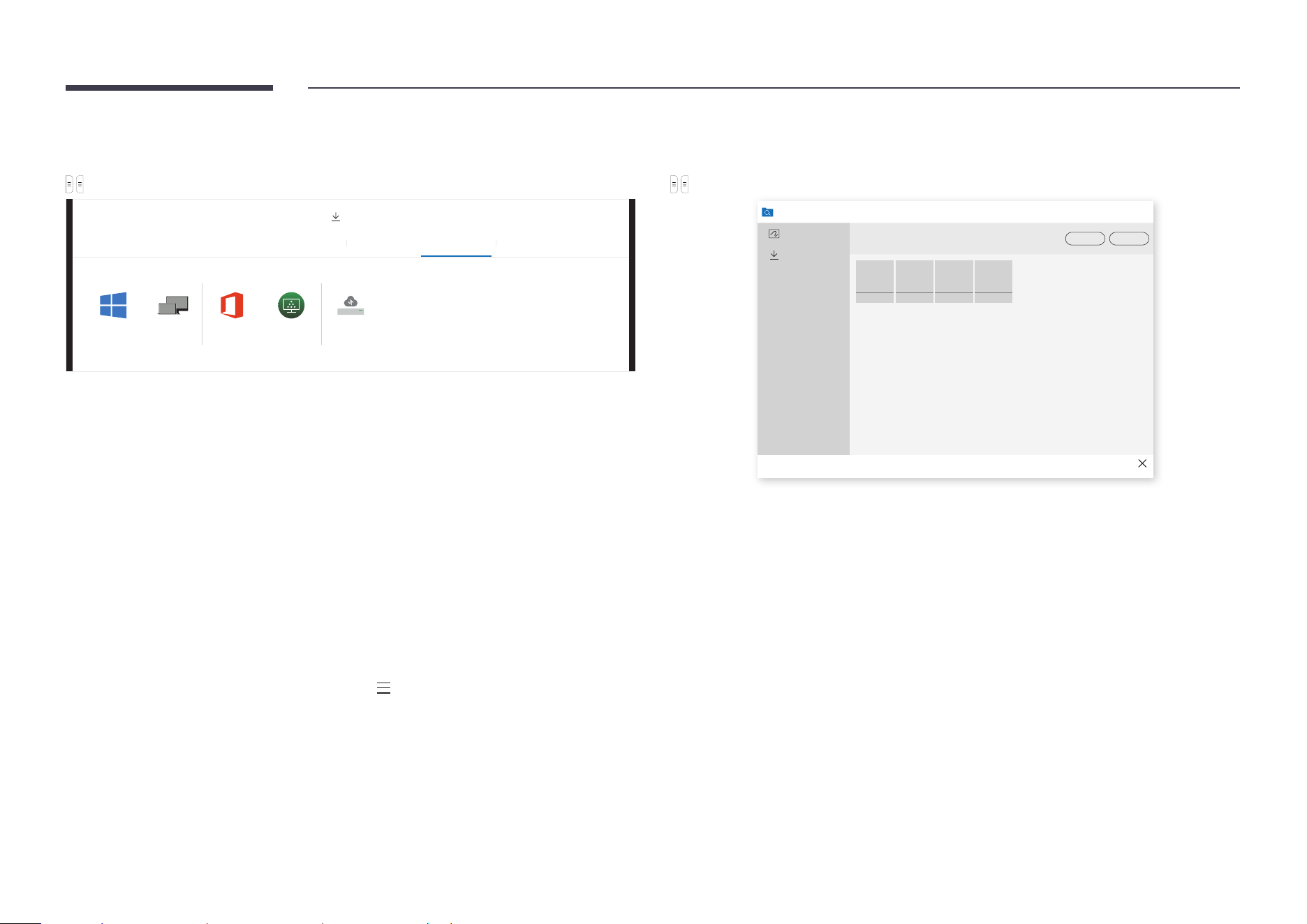
Connecting to WORKSPACE
→ IMPORT → WORKSPACE
IMPORT
MOBILE PC SMARTVIEW+ INTERNET WORKSPACE FILE BROWSER
WORKSPACE
Windows PC Mac Microsoft 365 VMware Horizon Network Drive
※ Connect a keyboard and mouse to this device before starting.
Access to remote PC and your work resources with this function.
• Windows PC
- Remote PC: This function allows you to connect your product to a remote PC or a
cloud server.
" Only PCs or Cloud Servers running on macOS/Windows 7 Pro or newer are supported.
• Mac
- Remote Login: Connect to Your Mac via Remote Login
• Microsoft 365: Provides access to Microsoft 365 features from Microsoft.
• VMware Horizon: Enterprise customers with VMware infrastructure can access VMware
Horizon.
• Network Drive: Connect the network drive to bring les.
" You can register a network drive while the network is connected.
For information about how to connect to a network, see “Connecting to a network”.
" You can register a network drive account at Menu → SETTINGS → Connect →
Advanced Settings → Network Drive → Add Account.
To register a network drive account, you must enter the Address, Username, and
Password.
To register your network drive account, refer to “Add Account” for Network Drive.
" Import videos, images, native FLIP les (.iwb), or document les.
Importing from a USB device
→ IMPORT → FILE BROWSER
FILE BROWSER
Rolls
Export Delete
Downloaded Files
Untitled_**** Untitled_**** Untitled_**** Untitled_****
Close
" The contents displayed on your product screen may differ from the above image.
Connect an external HDD or a USB storage device.
" Import videos, images, native FLIP les (.iwb), or document les.
43
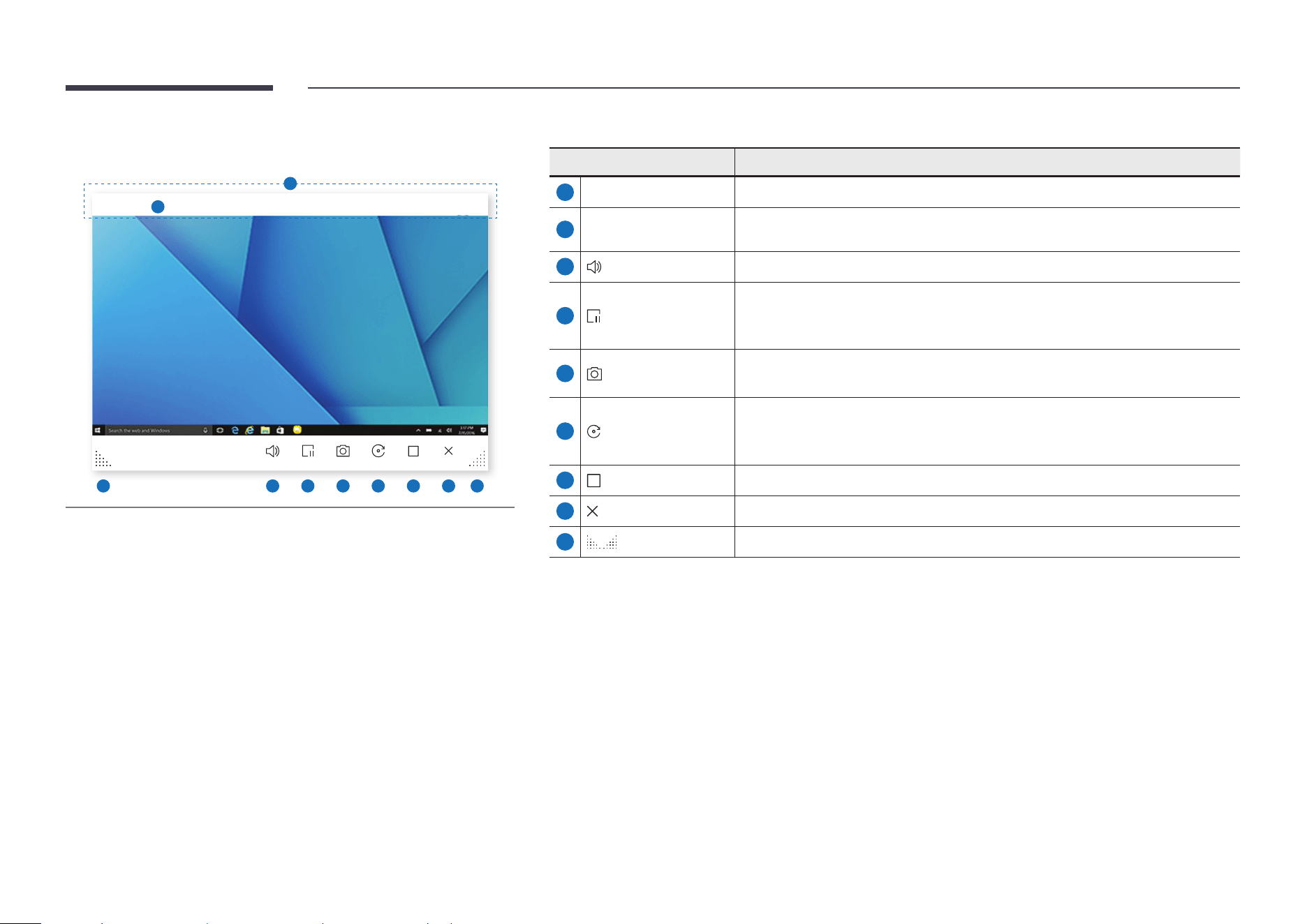
Source window
Device name
2
Volume Freeze Frame Capture Rotate Maximize Close
9 3 4 5 6 7 8 9
1
$ Available functions may differ depending on the PIP setting.
When you connect a PC or a mobile device to the product, the source window appears.
Parts Description
1
Title bar You can drag the title bar to move the source window to the desired position.
2
Device name / Source
port
Displays the name of the connected device or source port.
3
Volume
Adjust the volume.
4
Freeze Frame
Pause the input screen display.
" This feature is not available when you connect to the product via SMARTVIEW
or SCREEN SHARE.
5
Capture
Capture the source window.
" This feature is not available when PIP Capture is set to Off.
6
Rotate
Rotate the source window.
" This function is supported only on Android 8.0 Oreo version or later of
Samsung mobile devices.
7
Maximize
You can view the input source on full screen.
8
Close Close the viewer.
9
Adjust the size of the source window.
44
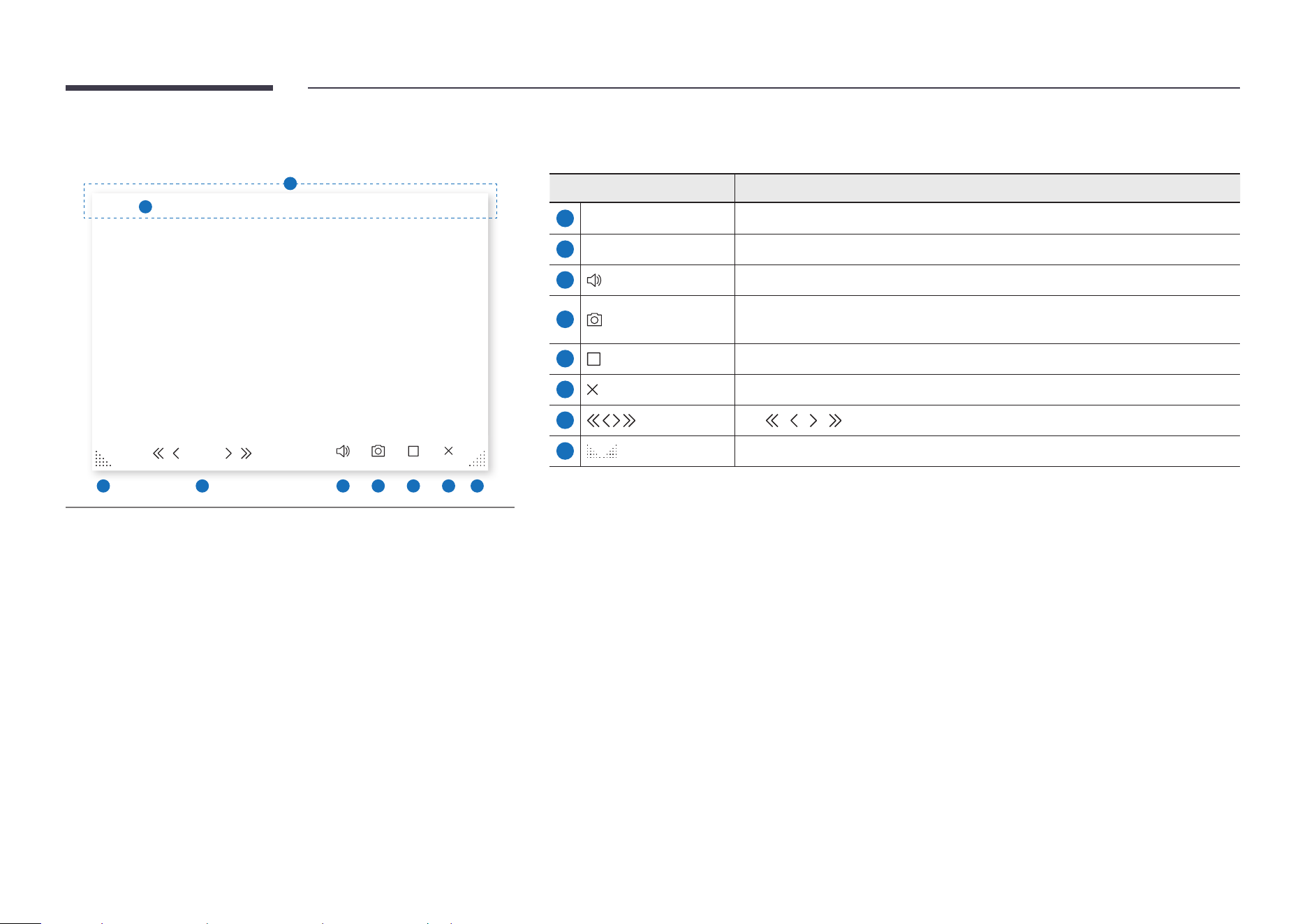
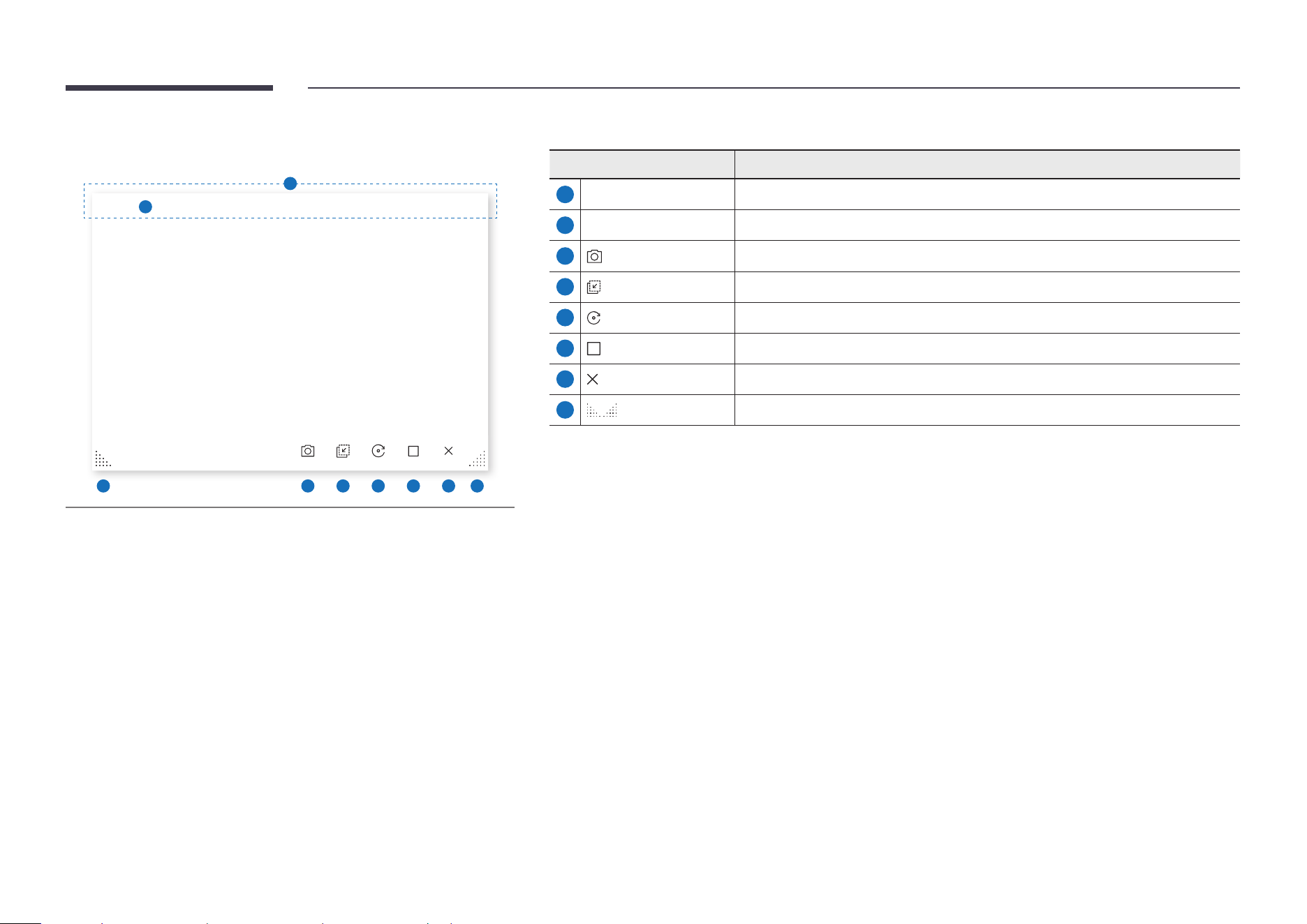
Document view
File name
2
2/10
Volume Capture Maximize Close
8 7 3 4 5 6 8
1
$ Available functions may differ depending on the PIP setting.
Displays the document le you select to import from a File Browser or network drive.
" Supported document le formats: DOC, PPT, PDF, XLS
Parts Description
1
Title bar You can drag the title bar to move the viewer to the desired position.
2
File name Name of the currently viewing le.
3
Volume
Adjust the volume.
4
Capture
Capture the document viewer screen.
" This feature is not available when PIP Capture is set to Off.
5
Maximize
You can view the document on full screen.
6
Close Close the viewer.
7
Tap / / / to move between pages.
8
Adjust size of the viewer.
45
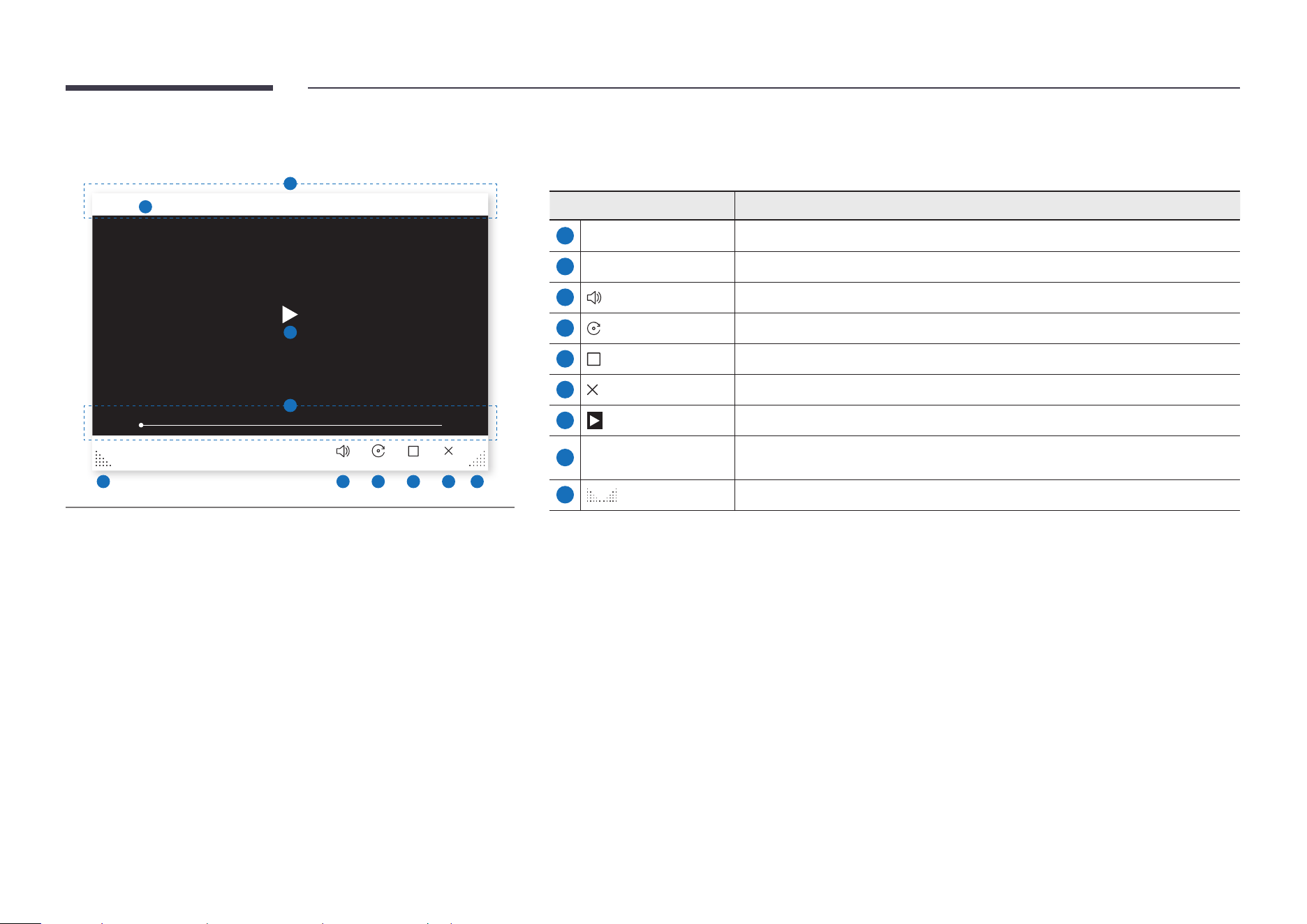
Image view
File name
2
Capture Merge Rotate Maximize Close
8 3 4 5 6 7 8
1
$ Available functions may differ depending on the PIP setting.
Select the le to import from the File Browser or network drive.
Parts Description
1
Title bar You can drag the title bar to move the viwer to the desired position.
2
File name Name of the currently viewing le.
3
Capture
Capture the image viewer screen.
4
Merge Image
Tap to paste the image to the roll.
5
Rotate
Rotate the image.
6
Maximize
You can view the image on full screen.
7
Close Close the viewer.
8
Adjust size of the viewer.
46
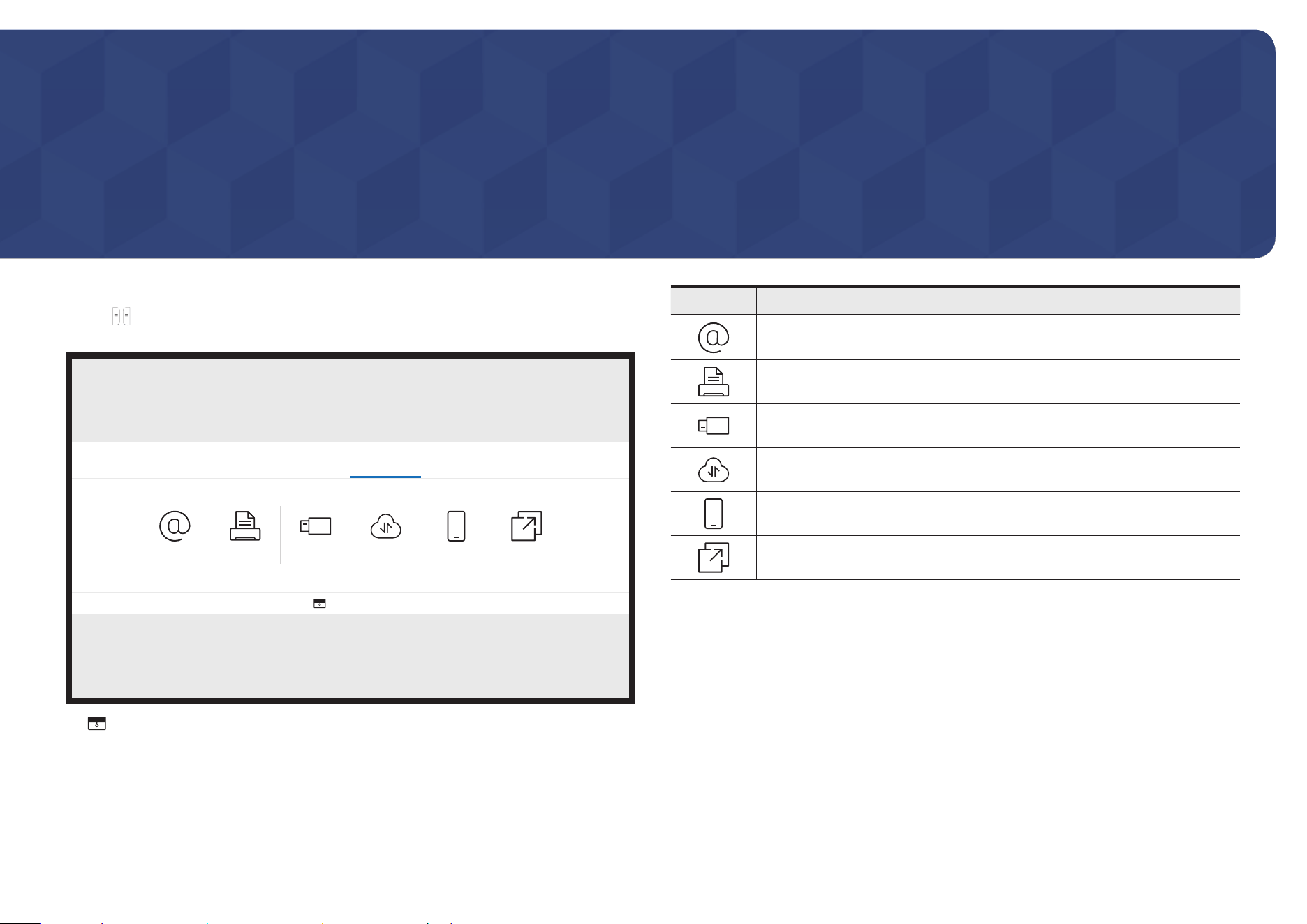
Video view
File name
2
00:00:00 01:00:00
Volume Rotate Maximize Close
9 3 4 5 6 9
1
7
8
$ Available functions may differ depending on the PIP setting.
Select the video le to import from a File Browser or network device and display.
" Supported video le formats: avi, mkv, asf, wmv, .mp4, mov, 3gp, vro, mpg, mpeg, ts, tp, trp, v, vob, svi, m2ts,
mts, .webm, .rmvb
Parts Description
1
Title bar You can drag the title bar to move the viewer to the desired position.
2
File name Name of the currently viewing le.
3
Volume
Adjust the volume.
4
Rotate
Rotate the video screen.
5
Maximize
You can view the video on full screen.
6
Close Close the viewer.
7
Play or pause the video.
8
Playback slider and
time details
Navigate through the video and view time details for the le.
9
Adjust size of the viewer.
47
Chapter 05
EXPORT
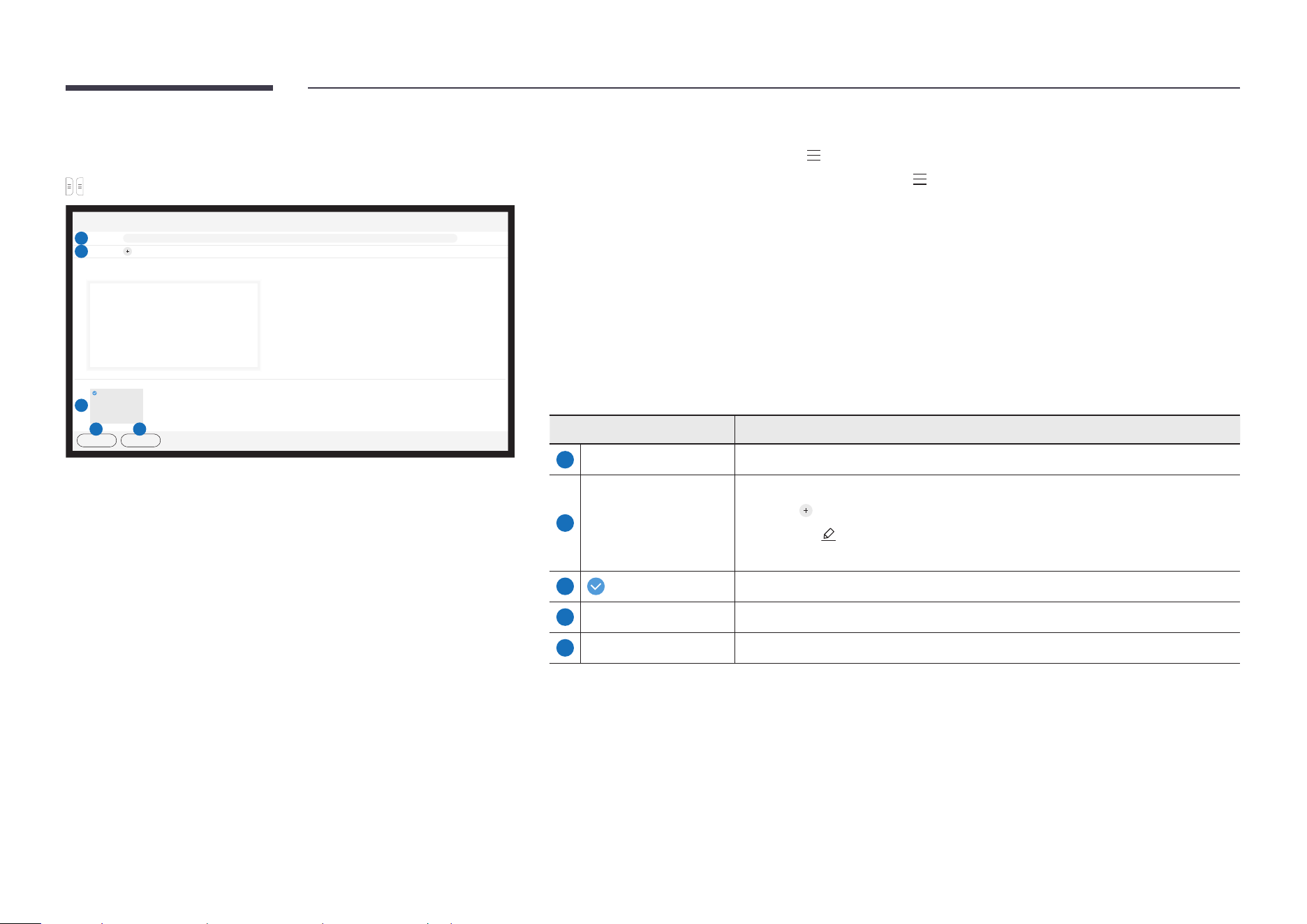
You can export your created rolls in various ways.
• Tap on the left or right side of the screen to open the IMPORT/EXPORT window. Then,
tap EXPORT to select the desired menu.
IMPORT EXPORT
EMAIL PRINT USB NETWORK DRIVE MOBILE SCREEN SHARE
BLOCK SCREEN
" BLOCK SCREEN: You can hide the Flip screen for a while with BLOCK SCREEN. To
return to the previous screen, press the Power button.
Icons Description
Send your created rolls via email.
Print your created rolls.
Export your created rolls to a connected USB device.
Export your created rolls to a registered and connected network drive.
Send the roll to a mobile device.
Share your screen with selected devices.
48
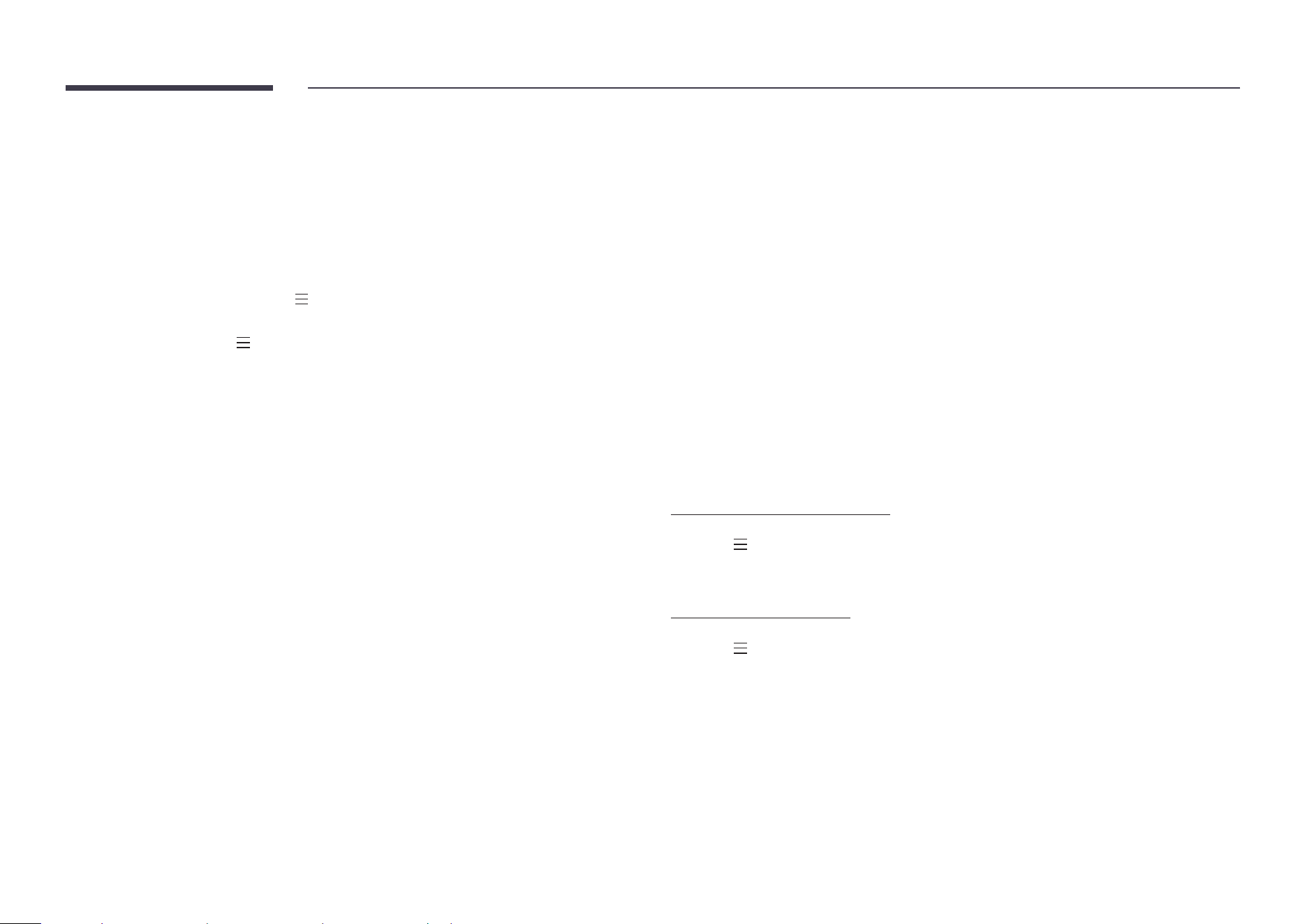
Sending email
→ EXPORT → EMAIL
Email
******_****
01
3
01
Send Cancel
1
Subject [[CLASS] Interactive Signage Flip] ****-**-**, **:**
2
To
4 5
To send your created rolls via email, rst register your email account.
" You can register your email account at Menu → SETTINGS → Connect → Advanced Settings → Email.
" If you set Sender Authentication to Personal Account at Menu → SETTINGS → Connect → Advanced Settings
→ Email, you must authenticate your account each time you send an email. See below.
- You can send emails when Sender Authentication is set to Personal Account as long as you have an
account on that mail server (SMTP Server Name and SMTP Port Number).
Note that it requires the sender to provide the SMTP account ID and password, as well as the sender
address for every email.
- If you set Sender Authentication to Default Account, you can use the SMTP ID and password you saved
to Default Account to send emails. (The sender address is usually identical to the SMTP ID, with some
exceptions depending on the SMTP server.)
- For the SMTP information required to register a mail server, contact your mail server administrator.
" Files saved as dedicated les are converted to PDF les and sent.
Parts Description
1
Subject The email subject is automatically set to the device name and the current date.
2
To
Enter the recipient's email address.
• Press and type text by using the virtual keyboard.
" Press on the virtual keyboard to enter text by handwriting.
" Search recipient in Local Address Book or LDAP server.
3
Select the pages to send.
4
Send Send the email.
5
Cancel Tap to cancel sending an email.
49
Printing
To print, you must set up the Print Server and the Clock Set.
To set up the Print Server, the product and the printer you want and your PC must be
connected to the same network.
Flip Printing Software must be also installed on the PC connected.
" For information about how to connect to a network, see “Connecting to a network”.
" You can set up the Print Server at Menu → SETTINGS → Connect → Advanced Settings →
Print Server.
" You can set Clock Set at Menu → SETTINGS → System → Time → Clock Set.
" The Flip Printing Software is available on the website
- http://displaysolutions.samsung.com
- http://www.samsung.com
" Devices that transfer les, such as virtual printers (PDF, XPS, One note, etc.) or fax
machines, are not supported, but only printers that can print actual paper are supported.
" For print paper size, only A4 is supported.
Installing Flip Printing Software
Follow the onscreen instructions to install Flip Printing Software.
" The installation takes about 10 minutes, and the time taken may vary depending on your
PC environment.
PC installation requirements
• Supported operating systems:
Windows 7(32/64 bit), Windows 10(32/64 bit), MAC
" When installing the software, make sure that critical Windows updates are already
installed. Update Windows to the latest version before beginning the setup.
" For Windows 7, make sure that Service Pack 1 is already installed.
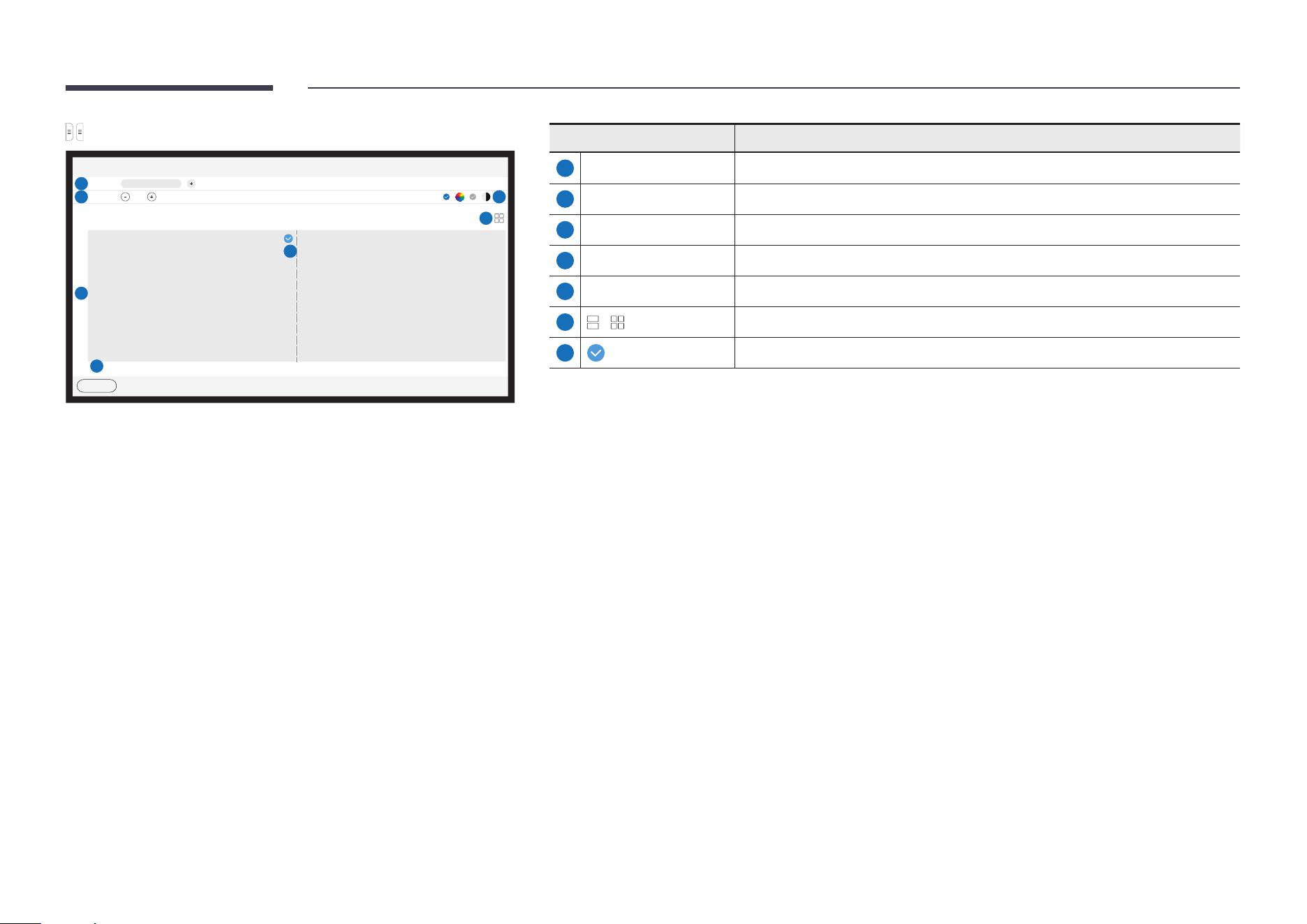
Setting up the printer
After the Flip Printing Software is installed, make the following settings on the product
onscreen menu.
Setting up automatically
1
Select Menu → SETTINGS → Connect → Advanced Settings menu.
2
Select Print Server → Connect to Server → Auto.
Setting up manually
1
Select Menu → SETTINGS → Connect → Advanced Settings menu.
2
Select Print Server → Connect to Server → Manual, and then enter the Server IP address
and the Server Port number of the PC where Flip Printing Software is installed.
50
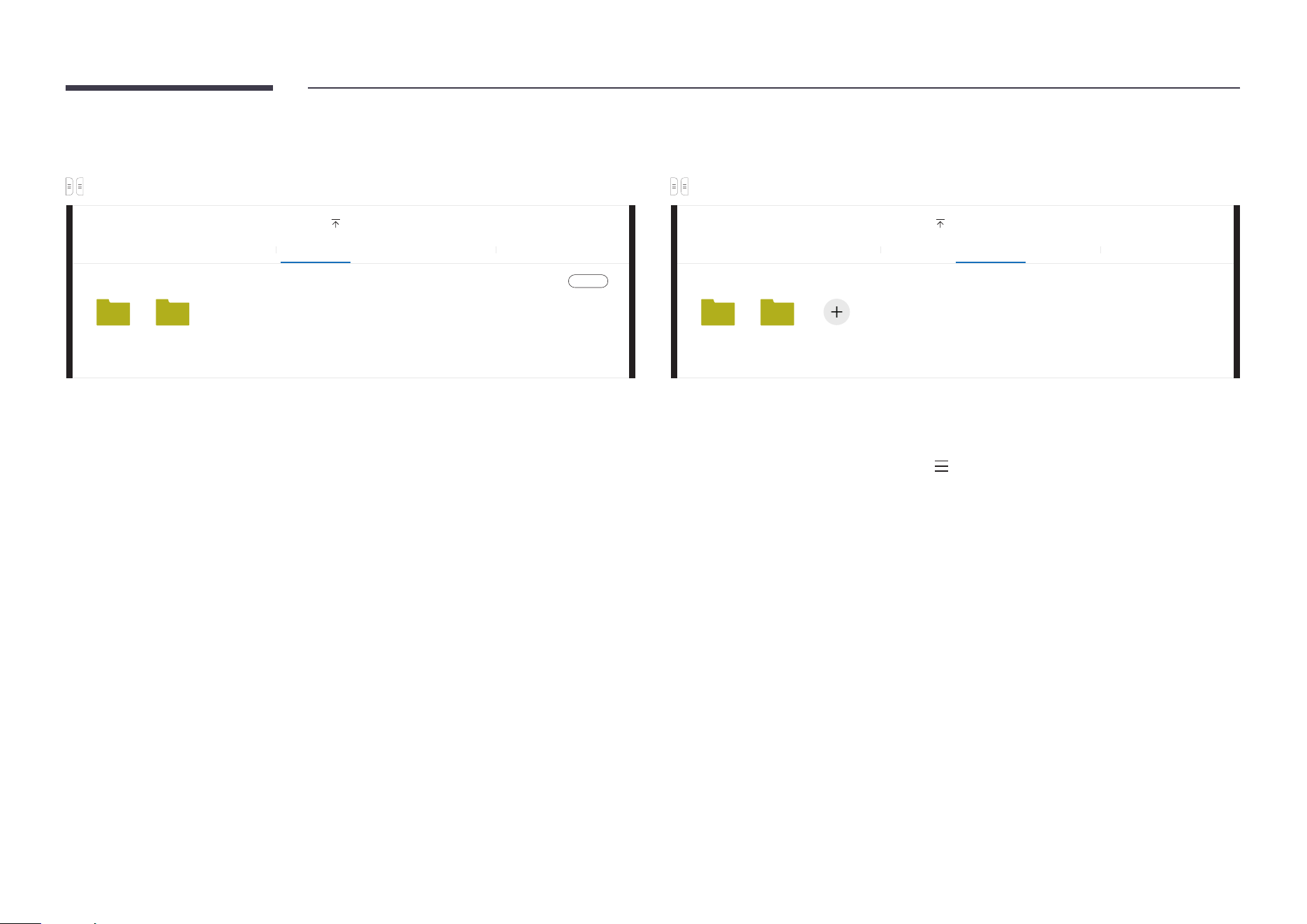
→ EXPORT → PRINT
Print
1
Printer
2
Copies 01 Colour Mode
5
6
3
1 2
4
Print
7
Parts Description
1
Printer Displays a list of connected printers. Select a printer to print the roll with.
2
Copies Set the number of prints.
3
Print preview area Preview the roll to print.
4
Print Start the printing.
5
Colour Mode Select the colour to print the roll with.
6
/
Change the page view mode of the roll to print.
7
Select the pages to print.
51
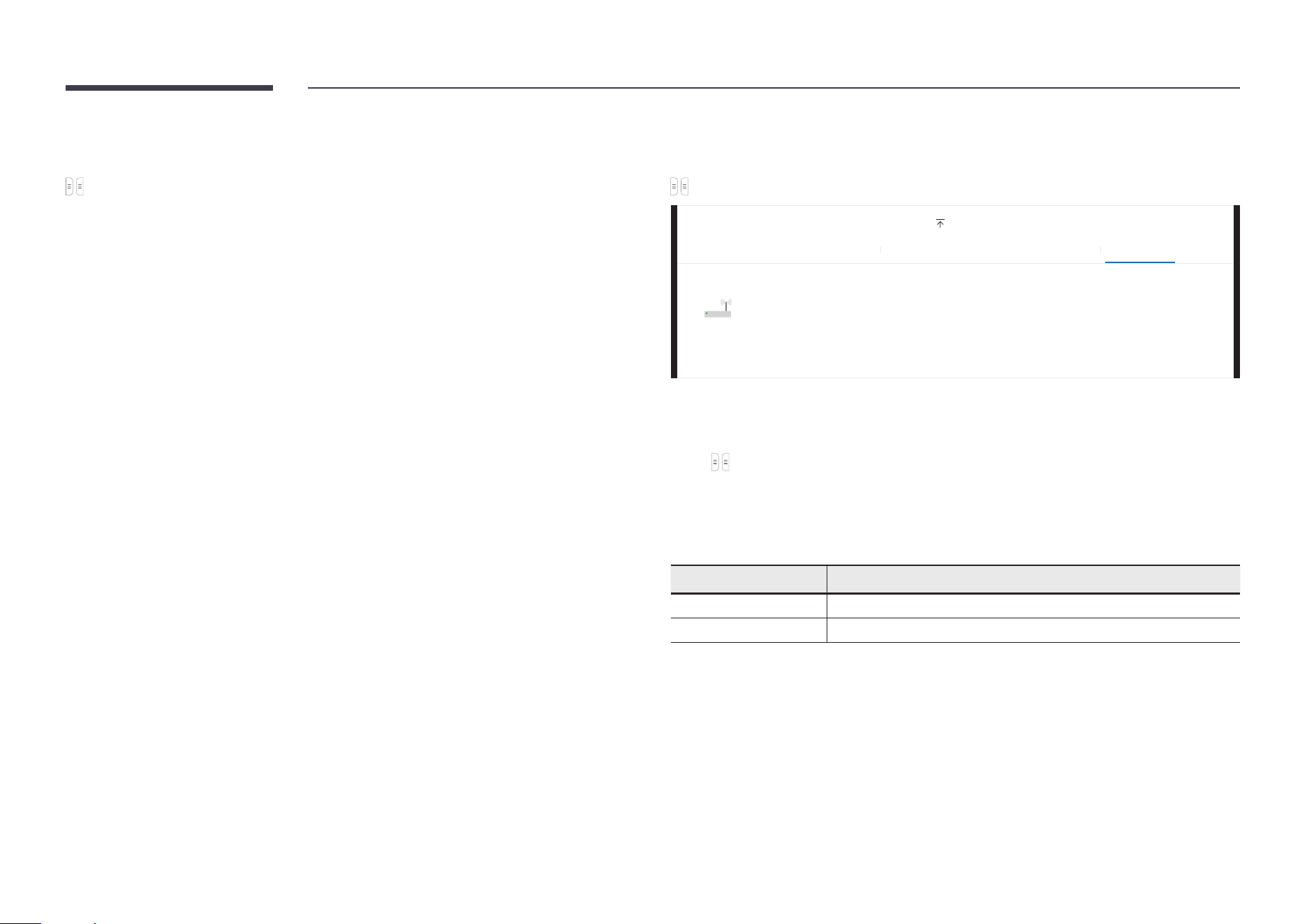
Exporting to a USB device
→ EXPORT → USB
EXPORT
EMAIL PRINT USB NETWORK DRIVE MOBILE SCREEN SHARE
USB
Save
USB 1 USB 2
" The contents displayed on your product screen may differ from the above image.
Connect an external HDD or a USB storage device.
" Your device saves les in two versions (IWB and PDF formats).
Exporting from a Network Drive
→ EXPORT → NETWORK DRIVE
EXPORT
EMAIL PRINT USB NETWORK DRIVE MOBILE SCREEN SHARE
NETWORK DRIVE
NETWORK 1 NETWORK 2 Add
Connect the network drive to save les.
" You can register a network drive while the network is connected.
For information about how to connect to a network, see “Connecting to a network”.
" You can register a network drive account at Menu → SETTINGS → Connect → Advanced Settings
→ Network Drive → Add Account.
To register a network drive account, you must enter the Address, Username, and
Password.
To register your network drive account, refer to “Add Account” for Network Drive.
" Your device saves les in two versions (IWB and PDF formats).
52
Sending to a mobile device
→ EXPORT → MOBILE
View the screen of the product from a mobile device.
" Sharing is only available for rolls at the moment.
Download the SAMSUNG SIGNAGE MOBILE app after searching from Play Store or Galaxy
store to your mobile device and enter the following information which can be found on the
product screen.
• Versions supported: iOS(12 or above), Android(9.0 or above)
• QR code, Wi-Fi Name, Wi-Fi Password, Server IP address
Sharing your screen
→ EXPORT → SCREEN SHARE
EXPORT
EMAIL PRINT USB NETWORK DRIVE MOBILE SCREEN SHARE
SCREEN SHARE
Wireless
Share your screen with selected devices.
Connecting wirelessly
Select → EXPORT → SCREEN SHARE → Wireless on the screen and then the device to share
the screen with.
" SCREEN SHARE feature works best when using FLIP in landscape orientation.
" Devices must support receiving Screen Mirroring to project the shared screen using
SCREEN SHARE.
Buttons Description
Change Device Change devices to share the screen with.
Disconnect Stop sharing.
53
Chapter 06
SETTINGS
→ SETTINGS
Connect
2nd 3rd Description
Network Congure your device's network.
Network Status View your current network and Internet status.
Open Network Settings Congure network settings to connect to an available network.
Reset Network Restore the network settings to the factory default.
External Device Manager Input Device Manager Setup up input devices (keyboard or mouse) to use with your display device. You can add input devices and congure
settings.
• Bluetooth Device List
• Keyboard Settings
• Mouse Settings
Device Connection Manager Allow devices on your network, like smartphones and tablets, to share content with your product.
• Access Notication
• Device List
Anynet+ (HDMI-CEC) Activate or deactivate HDMI-CEC.
54
Anynet+ (HDMI-CEC)
Anynet+ is a function that enables you to control all connected Samsung devices that
support Anynet+ with your Samsung product remote. The Anynet+ system can be used only
with Samsung devices that have the Anynet+ feature. To be sure your Samsung device has
this feature, check if there is an Anynet+ logo on it.
• You can only control Anynet+ devices using the product remote control, not the buttons
on the product.
• The product remote control may not work under certain conditions. If this occurs, reselect
the Anynet+ device.
• Anynet+ works when the AV device supporting Anynet+ is in the standby or on status.
• While in PIP mode, Anynet+ functions only when an AV device is connected as the primary
display. It does not work if the AV device is connected as a secondary display.
• Anynet+ supports up to 12 AV devices in total. Note that you can connect up to 3 devices
of the same type.
55
2nd 3rd Description
Device Name Change your device name.
This is the name that will appear on mobile devices and computers connected to your network.
Apple AirPlay Settings Use AirPlay to effortlessly stream videos, music, and photos from your iPhone, iPad, or Mac to Flip.
Advanced Settings Email Set up an email account for sending emails.
• SMTP Server Name: SMTP server address
• SMTP Port Number: SMTP server port
• SSL/TLS: Enable or disable SSL/TLS
• Sender Authentication: Choose the authentication mode to be used when sending emails
- Personal Account / Default Account / Personal (LDAP) Account
• Default Account: Default SMTP account
• Password: Password for the default SMTP account
• Sender Email: Sender's email address
• Recipient Address: Select from options to manage email contacts after successfully send emails
- Auto Save / Do Not Save / Delete All
• Local Address Book: Import contacts from a USB device or delete them.
- Import / Delete
" For more information, refer to “Importing Local Address Book contacts”.
56
Local Address Book
Importing Local Address Book contacts
To use FLIP Local Address Book, rst import contacts from a CSV le using a USB device.
1
Use LDAP: Set Don’t Use.
Menu → SETTINGS → Connect → Advanced Settings → Enter password → LDAP →
Set LDAP Connection → Use LDAP → Don’t Use
2
Set up details under Email menu.
Menu → SETTINGS → Connect → Advanced Settings → Enter password → Email
3
Edit and save your Local Address Book to a USB device.
Make a list of contacts in the following structure and save it to the root directory as
RecentSearchList.csv.
- RecentSearchList.csv structure (example)
4
Connect the USB device to FLIP to import contacts.
Menu → SETTINGS → Connect → Advanced Settings → Enter password → Email →
Local Address Book → Import
" The USB device and its contents may not be detected properly if a USB extension
cable is used. (USB hubs are not supported.)
" Do not remove the USB device while loading.
" If more than two USB devices are connected, some of them may not be detected.
" USB devices that require higher operating power need to be connected to the
USB (1A) port on the back.
" The le system supports FAT, exFAT, and NTFS formats.
Using Local Address Book contacts
Automatically search and suggest from the list of contacts when selecting recipient(s) in
→ EXPORT → EMAIL.
" To use this function, complete setting details under Email menu.
Deleting Local Address Book contacts
Menu → SETTINGS → Connect → Advanced Settings → Enter password → Email →
Local Address Book → Delete
57
2nd 3rd Description
Advanced Settings Print Server Set up the Print Server to use the printing function.
" For more information, refer to “Printing”.
• Connect to Server
- Auto: View and select one from a list of server IP addresses of the PCs where Flip Printing Software is installed,
available on the network.
- Manual: Enter the Server IP address and Server Port number of the PC where Flip Printing Software is installed.
• Server IP: Enter the Server IP address of the PC where Flip Printing Software is installed.
• Server Port: Enter the Server Port number of the PC where Flip Printing Software is installed.
Network Drive Add or edit network drive accounts. If you cannot connect to the network drive, update SAMBA of PC to the latest version.
• Add Account: Add new network drive accounts. Only Samba can be added to the network drive.
" SAMBA 2.0 or later is supported. If you cannot connect to the network drive, update SAMBA to the latest version.
" To register a network drive account, you must enter the Address, Username, and Password.
- Address: //computer IP address/shared folder name
" When entering an address, be sure to use / instead of ₩ and \.
For example, if you share a folder named “sharedfolder” on a PC with IP address of 12.34.56.789, enter
“//12.34.56.789/sharedfolder” as the address.
- Username: A Windows account with permissions to the shared folder
" When entering a domain, be sure to use ₩ or \.
For example, DomainName₩WindowsAccount
- Password: The password you set for your Windows account
• Edit Account: Edit network drive accounts.
58
2nd 3rd Description
Advanced Settings LDAP Set LDAP connection or congure connected LDAP queries.
• Set LDAP Connection
Congure a new LDAP connection.
- Use LDAP: Whether or not to use LDAP
- Import Setup Value: Can fetch the following settings from LDAPConnectionCong.txt stored on the USB (Password
excluded)
" For more information, refer to “How to create a text le for use of LDAP”.
- Authentication Type: Kerberos, Anonymous or Basic whichever is supported by the LDAP server
- User ID: DN(Distinguished Name) of User ID that is used in the LDAP server
" The format of User ID complies with the DN format of LDAP.
e.g. cn=admin, dc=myldap, dc=com
- Password: Password that is used for authentication of the LDAP server
- Server Address: IP or URL of the LDAP server
- Server Port Number: Port number of the LDAP server
- Base DN: Base DN that is to be used for search in the DIT(Directory Information Tree) when connecting LDAP
- SSL/TLS: Whether or not to use SSL/TLS
" When SSL/TLS is set to be Use, the encrypted data communication is enabled.
- Use Untrusted Certicates: Whether or not to allow untrusted certicates
" The following menu is activated when setting Authentication Type to Kerberos.
" Kerberos Realm: Kerberos realm data
" KDC Host: KDC Host URL
" KDC Port: KDC Host port number
59
2nd 3rd Description
Advanced Settings LDAP • LDAP Query Conguration
Set the query for the connected LDAP.
- UID: Change the user UID that is used in LDAP.
- Email: Change the Email that is used in LDAP.
- Name: Change the user name (common name) that is used in LDAP.
- Last Name: Change the surname of the user that is used in LDAP.
- Position: Change the title that is used in LDAP.
- Company name: Change the company name that is used in LDAP.
- Department: Change the department name that is used in LDAP.
- Use Custom Query: Fetches the user dened query from LDAPQuery.txt (case sensitive) stored on the USB.
" For more information, refer to “How to create a text le for use of LDAP”.
" When the mapping does not match, the search result does not include the attributes.
Server Network Settings Set up your server network connection and related functions.
• Connect to server: Connect to MagicInfo server.
• Server Access: Allow or deny access to MagicInfo server.
• Proxy server: Set up your proxy server connection and related functions.
Certicate Manager Manage the certicate les for this device.
• App Certicate: View and manage the app certicates installed on this device. Connect a USB ash drive that contains
certicates to install them on this device.
• Wi-Fi Certicate: Manage the certicates installed on this device. Connect a USB ash drive that contains certicates
to install them on this device.
60
How to create a text le for use of LDAP
The LDAP conguration basically consists of many long sentences.
During LDAP conguration, FLIP can be fetched using the text le to prevent typos and make
a batch setting.
" Input of le name and content should be case sensitive for correct operation.
• Format of LDAPConnectionCong.txt
(1) Example of the text le
User ID=cn=Manager, dc=example, dc=com
Server Address=123.456.789.012
Server Port Number=12345
Base DN=dc=samsung, dc=example, dc=com
SSL/TLS=Don’t Use
Use Untrusted Certicates=Don’t Use
Authentication Type=Basic
Kerberos Realm=MYLDAP.COM
KDC Host=krb1.myldap.com
KDC Port=88
(2) Allocation of values (VAL) for each key
User ID: Enter User ID.
Server Address: Enter the IP or URL of the LDAP server.
Server Port Number: Enter the Port of the LDAP server.
SSL/TLS: Enter Use or Don’t Use.
Use Untrusted Certicates: Enter Use or Don’t Use.
Authentication Type: Enter Basic or Anonymous.
- The following three items will be added if you select Kerberos type verication.
Kerberos Realm: Fill in the Kerberos eld (Example: MYLDAP.LDAP)
KDC Host: Enter the KDC Host URL (Example: krb1.myldap.com)
KDC Port: Enter the KDC Host Port (Example: 88)
" If you select to use Kerberos type verication, use the original Kerberos User ID
for a User ID instead of User ID in DN(Distinguished Name) format. (Example:
Mirko)
61
• Format of LDAPQuery.txt
(1) Example of the text le
UID=uid
Email=mail
Name=cn
Last Name=sn
Position=title
Company Name=o
Department=departmentNumber
Query=(|(mail=*<A>*)(cn=*<A>*))
(2) Allocation of values (VAL) for each key
1) Mapping part (all rows except the last)
- Includes all rows except the last, in the order of UID, Email, Name, Last Name,
Position, Company name, and Department.
- Values are mapped in the following manner.
On the left of “=” syntax is the name that is seen in the LDAP Query
Conguration menu (also on the left) and mapped to the values on the right
side of “=” (the actual LDAP Server attributes).
- You can choose attributes to change values. For instance, you can change the
right-side values without changing the left-side values.
2) Query part
- <A> is the Keyword that is used for a Search.
- The syntax for the Use Custom Query complies with the LDAP Query rule
excluding <A>.
For example, when <A> is included in the mail or cn attribute, you can create it
as follows.
Query=(|(mail=*<A>*)(cn=*<A>*))
62
System
2nd 3rd Description
Language Change your Language settings.
Rolls Auto Save Automatically save all data.
Delete All Delete all data from the device, including locked data.
Period for Delete All Set a regular reset interval at which all data on the internal storage will be deleted.
Time Congure various time-related settings.
Clock Set Set current date and time.
DST Adjust clock for Daylight Saving Time.
" Start Date, End Date and Time Offset are enabled only when DST is set to On.
Change PIN Change your 6-digit Personal Identication Number (PIN).
" The default PIN number is 000000.
" Change the PIN to keep your device secure.
Sound Output Select speakers for sound output.
• Flip Speaker / Audio Out / Bluetooth Speaker List
" If your Bluetooth sound device does not support the AVC (Automatic Volume Control), you have to adjust the volume
directly on the Bluetooth sound device.
Sound Feedback Select the volume of the sound feedback for certain options (capture, merge to roll, etc.)
• Off / Low / Medium / High
63
2nd 3rd Description
Advanced Settings Congure advanced settings which includes USB Lock and Network Lock.
Enter your 6 digit PIN number. The default PIN number is "000000".
" If you want to change the PIN number, use the Change PIN function.
" Change the PIN to keep your device secure.
Screen Saver Set up the sreensaver. The selected image can be used as a custom screensaver.
Touch Control Lock Run Touch Control Lock.
" Tap and hold the screen to release Touch Control Lock.
USB Lock Set up a USB Lock. After setting up, the device will be restarted to apply the settings.
• Off / Read-only / On
Network Lock Block external network access.
Screen Monitoring Lock Block screen images from being monitored by MagicINFO Server.
Auto Power Off Choose how long the display will stay on before turning off after no user interaction is detected.
PC module power Turns on or off to sync with OPS Power when the power is on or off.
• Synced power-on: When the Flip is turned on, the PC module is automatically turned on as well.
• Synced power-off: When the Flip is turned off, the PC module is automatically turned off as well.
" This feature is only available for WM75B/WM85B.
No Signal/No Interaction
Power Off
Save power by turning the device off when no signals/touch interactions are received from any source.
Brightness Optimisation Automatically adjust the picture brightness based on the ambient light level.
" This feature is only available for WM75B/WM85B.
Minimum Brightness Set the minimum brightness for the display. This function only works if its value is lower than the value set in the Picture
menu’s Backlight setting.
" This feature is only available for WM75B/WM85B.
Remote Power Control Turn Remote Power Control on or off. By activating this feature, the network connection is maintained when the product is
turned off.
64
2nd 3rd Description
Advanced Settings Remote Management Settings Set to connect and control the Flip remotely from other devices.
• Remote Management: Restrict access to the product from other devices via the network.
• Device ID: Set a unique ID number.
• PC Connection Cable: Select the type of cable used to connect the product to a PC.
• Secured Protocol: Secure the protocol between the product and other devices.
PIP Capture Turn PIP Capture on or off.
" HDCP contents will not show on the screen if PIP Capture is set to On.
Power on Source Setting Set the default source (or app) when turning on the power. By setting this, either Roll or Source (or app) is turned on at
power on.
Auto Source Switching Set Auto Source Switching. By activating this feature, newly connected sources are displayed automatically.
" New source devices connected within 20 seconds of the product power-on may not be displayed automatically.
PIP Screen Default Size Set the default size for the PIP screen.
• Full Screen / Partial Screen
Edit Workspace You can add your favourite URLs in Samsung Workspace.
URL Launcher Settings Set the URL Launcher.
• Install Web Apps: Install the web application by entering an address.
• Install from USB Device: Install the web application from the USB storage device.
• Uninstall: Remove the installed web application.
• Timeout Setting: Set the timeout period for connecting to the URL.
• Developer Mode: Select to set developer mode.
Clone Product Export this device's settings or import from other devices.
Self Diagnosis Run self diagnosis on the email, LDAP, or print server.
" You can export a detailed self-diagnosis report including information about emails, LDAP, print servers, and other
information to a USB storage device connected to the product.
Start Setup Go through the initial setup steps like you did the rst time you used this product.
Zero Touch Conguration Set up the device via Tizen Business Manager. Before using Zero Touch Conguration, register the device at Tizen Business
Manager.
65
Picture
2nd 3rd Description
Backlight Adjust backlight brightness to your preference. 100 is the brightest setting.
Colour Temperature It sets colour temperature. The value and temperature increase simultaneously, so the ratio of blue colour rises.
(Range: 2800K - 16000K)
White Balance R-Gain / G-Gain / B-Gain / R-Offset
/ G-Offset / B-Offset / Reset
Adjust the colour temperature of the picture so that white objects appear brighter.
Input Signal Plus Expands the input signal range for HDMI connections.
• Tap HDMI 1 or HDMI 2 to turn Input Signal Plus on or off for the selected source.
" Supports resolutions up to 3840 x 2160 @ 60 Hz with Input Signal Plus expansion set to on.
Supports resolutions up to 3840 x 2160 @ 30 Hz with Input Signal Plus expansion set to off.
Supported Resolutions for UHD Input Signals
Check the supported resolution for UHD input signals.
• Resolution: 3840 x 2160p, 4096 x 2160p
If Input Signal Plus is off.
Frame rate (fps) Colour Depth / Chroma Sampling RGB 4:4:4 YCbCr 4:4:4 YCbCr 4:2:2 YCbCr 4:2:0
50 / 60 8 bit - - - O
If Input Signal Plus is on.
Frame rate (fps) Colour Depth / Chroma Sampling RGB 4:4:4 YCbCr 4:4:4 YCbCr 4:2:2 YCbCr 4:2:0
50 / 60 8 bit O O O O
10 bit - - O O
12 bit - - O O
HDMI Black Level Adjust the black level to optimise the HDMI picture brightness and contrast.
" This function is available only when the product is connected to a PC using an HDMI cable and the Source window is
turned on.
USB-C Preference You can select between DP Alt Mode 1 (supports up to UHD 60 Hz) or DP ALT Mode 2 (supports up to UHD 30 Hz).
66
2nd 3rd Description
Reset Picture Restore all picture settings to the factory default.
67
Support
2nd 3rd Description
Software Update Update the software installed on your product.
Update Now Update software by downloading update les.
- Online update
" Requires an Internet connection.
- Update with a USB device
After downloading the update le from the Samsung website and storing it on a USB device, connect the USB
device to the product to update.
" Make sure you saved the update le in a top-level folder.
• Current version: This is the software version already installed in the product.
Auto update Automatically start software updates once your device is powered off.
" Requires an Internet connection.
Apps Manage and update your apps. To use the Apps menu, please agree to the Terms and conditions.
Check details information of app and reinstall when the app does not work properly.
Terms and conditions You can view the Terms & Conditions and Privacy Policy.
Contact Samsung Contact information for assistance with your device.
" Go to Contact Samsung and nd the product Model Code and Software Version.
Reset All It initialises all items in the entire menu.
68
Chapter 07
Troubleshooting guide
Problems and solutions
Source window (HDMI) issue
Blank spaces are found on all four sides of the screen
when an HDMI cable is connected to the product and
PC.
The blank spaces found on the screen have nothing to do with the product.
Blank spaces on the screen are caused by the PC or graphics card. To resolve the problem,
adjust the screen size in the HDMI settings for the graphics card.
If the graphics card settings menu does not have an option to adjust the screen size, update
the graphics card driver to the latest version.
(Please contact the graphics card or computer manufacturer for further details about how to
adjust the screen settings.)
The images on the screen look distorted. Check the connected cable. Compatibility is not guaranteed if you use a cable that has not
been supplied by Samsung.
The screen is not clear. The screen is blurry. Set the resolution and frequency to the recommended level.
The screen appears unstable and shaky. Check that the resolution and frequency of the PC and graphics card are set within a range
compatible with the product. Then, change the screen settings if required by referring to
'Preset timing modes'.
There are shadows or ghost images left on the screen.
White does not really look white. Go to Picture and adjust the White Balance settings.
The product will turn off automatically. Make sure the power cable is connected properly to the product and power outlet.
$ Test your product as follows before
calling Samsung Customer Service
Centre. If the problem persists,
contact Samsung Customer
Service Centre.
69
Source window (HDMI) issue
The screen display does not look normal. Encoded video content may cause the display to appear corrupted in scenes featuring fast
moving objects such as in a sports event or action video.
Low signal level or low picture quality may cause the display to appear corrupted. This does
not mean the product is defective.
A mobile device within a distance of one-meter radius may cause static on analogue and
digital products.
The brightness and colour do not look normal. From the menu, select Menu → SETTINGS → Picture → Reset Picture to try resetting the
screen.
The display looks unstable and then freezes. The screen may freeze when a resolution other than the recommended resolution is used or
if the signal is not stable. To resolve the issue, change the PC resolution to the recommended
resolution.
The screen cannot be displayed in full screen. If the source window is set to full screen mode while in portrait orientation, a black bar
appears at both the top and bottom.
Change to landscape orientation, and then switch the Source window to full screen mode.
70
Sound issue
There is no sound. Check the volume.
The volume is too low. Adjust the volume.
If the volume is still low after turning it up to the maximum level, adjust the volume on your
PC sound card or software programme.
Video is available but there is no sound. If an HDMI cable or a DP cable is connected, check the audio output settings on the PC.
If a source device is used
• Check the audio output settings for the source device.
(For example, if your monitor is connected to HDMI, you may need to change the audio
option of your video output device to HDMI.)
Reconnect the power cable to the device and then reboot the device.
There is static coming from the speakers. Low signal level can cause corrupted sound.
There is audible sound when the volume is muted. Audio settings for main speakers are separate from the internal speakers on the product.
Changing or muting the volume on the product does not affect an external
amplier(decoder).
71
Touch function issues
The icons can be touched but the drawings cannot. Use the provided product-specic pen.
Touching does not work when HDMI connection is
used.
Check whether the TOUCH port on the product is connected to a USB port on the PC using
the supplied USB cable.
• WM55B/WM65B
" HDMI or DP → TOUCH on the rear of the product
" HDMI 2 → TOUCH on the tray
• WM75B/WM85B
" HDMI 1 or DP → TOUCH on the rear of the product
" HDMI 2 → TOUCH on the tray
I use two pens, but they do not work well. Make sure that there is enough space between the two pens at multi-touching.
The pen thickness is not recognized properly. The pen might be tilted too much toward the screen (within 45 degree). Make sure to hold
the pen with its thick tip away from the screen.
There is a screen touch malfunction such as slow or
inaccurate responding.
Make sure that there are no foreign substances on the screen surface.
Check whether the screen is broken.
Make sure that the product is not exposed to direct sunlight.
When the product is turned on after turning off, do not tap the screen because touch
calibration is performed for 5 seconds.
Check that the installed product is parallel to the wall.
72
Anynet+ issues
Anynet+ does not work. Check if the device is an Anynet+ device. The Anynet+ system supports Anynet+ devices only.
Check if the Anynet+ device power cord is properly connected.
Check the Anynet+ device’s Video/Audio/HDMI cable connections.
Check whether Anynet+ (HDMI-CEC) is set to On in Menu → SETTINGS →
External Device Manager.
Check whether the remote control is Anynet+ compatible.
Anynet+ doesn’t work in certain situations. (initial setup)
If you have removed and then reconnected the HDMI cable, please make sure to search
devices again or turn your product off and on again.
Check if the Anynet+ function of the Anynet device turns on.
I want to start Anynet+. Check if the Anynet+ device is properly connected to the product and check if Anynet+
(HDMI-CEC) is set to On in Menu → SETTINGS → External Device Manager.
I want to exit Anynet+. Press the SOURCE button on the product remote control and select a non-Anynet+ device.
The message “Disconnecting Anynet+ device...”
appears on the screen.
You cannot use the remote control when you are conguring Anynet+ or switching to a view
mode.
Use the remote control after the product has completed Anynet+ conguration or has
nished switching to Anynet+.
The Anynet+ device does not play. You cannot use the play function when initial setup is in progress.
73
Anynet+ issues
The connected device is not displayed. Check whether or not the device supports Anynet+ functions.
Check whether or not the HDMI cable is properly connected.
Check whether Anynet+ (HDMI-CEC) is set to On in Menu → SETTINGS →
External Device Manager.
Search Anynet+ devices again.
Anynet+ requires an HDMI connection. Make sure the device is connected to your product
with an HDMI cable.
Some HDMI cables may not support Anynet+ functions.
If the connection is terminated because there has been a power failure or the HDMI cable has
been disconnected, please repeat the device scan.
Other issue
The product smells like plastic. The plastic smell is normal and disappears over time.
Small particles are found on the edges of the product. The particles are part of the product design. The product is not defective.
When I try to change the PC resolution, a message
"The dened resolution is not currently supported."
appears.
The message "The dened resolution is not currently supported." appears if the input source
resolution exceeds the maximum resolution of the product.
To resolve the issue, change the PC resolution to a resolution supported on the product.
There is no sound from the speakers in HDMI mode
when a DVI-HDMI cable is connected.
DVI cables do not transmit sound data.
HDMI Black Level is not functioning properly on an
HDMI device with YCbCr output.
This function works only when the HDMI signal of the external device is RGB output.
There is no sound in HDMI mode. Displayed picture colours may not look normal. Video or sound may not be available. This
can occur if a source device that only supports an older version of the HDMI standard is
connected to the product.
74
Chapter 08
Specications
General
Model Name WM55B WM65B WM75B WM85B
Panel Size 138.7 cm 163.9 cm 189.3 cm 214.7 cm
Display area 1209.6 mm (H) x 680.4
mm (V)
1428.48 mm (H) x
803.52 mm (V)
1650.24 mm (H) x 928.26
mm (V)
1872.0 mm (H) x 1053.0
mm (V)
Synchronization
(Panel Spec)
Horizontal Frequency 30 - 81 kHz
Vertical Frequency 48 - 75 Hz
Resolution Optimum resolution 3840 x 2160
Maximum resolution
Power Supply AC100-240V~ 50/60Hz
Refer to the label at the back of the product as the standard voltage can vary in different countries.
Environmental
considerations
Operating Temperature : 0 °C – 40 °C (32 °F – 104 °F)
* For installing the enclosure, keep the internal temperature at 40 °C or below.
Humidity : 10% – 80%, non-condensing
Storage Temperature : -20 °C – 45 °C (-4 °F – 113 °F)
Humidity : 5% – 95%, non-condensing
* Applicable before the product package is unpacked.
$ Horizontal Frequency:
The time required to scan a single
line from the left to the right side
of the screen is called a horizontal
cycle. The reciprocal number
of a horizontal cycle is called
horizontal frequency. Horizontal
frequency is measured in kHz.
$ Vertical Frequency:
The product displays a single
image multiple times per second
(like a uorescent light) to display
what the viewer sees. The rate of
a single image being displayed
repeatedly per second is called
vertical frequency or refresh rate.
Vertical frequency is measured
in Hz.
75
" Due to the nature of the manufacturing of this product, approximately 1 pixel per million (1 ppm) may appear brighter or darker on the panel. This
does not affect product performance.
" This product can be set to only one resolution for each screen size to obtain the optimum picture quality due to the nature of the panel. Using
a resolution other than the specied resolution may degrade the picture quality. To avoid this, it is recommended that you select the optimum
resolution specied for your product.
" For detailed device specications, visit the Samsung website.
76
Preset timing modes
The screen will automatically be adjusted if a signal that belongs to the following standard
signal modes is transmitted from your PC. If the signals transmitted from the PC differ from
the standard mode, the screen may not be displayed. In such a case, change the settings as
shown in the following table by referring to the graphics card user manual.
Resolution
Horizontal
Frequency
(kHz)
Vertical
Frequency
(Hz)
Pixel Clock
(MHz)
Sync Polarity Port
H V HDMI
DISPLAYPORT/
USB TYPE C
IBM, 720 x 400 31.469 70.087 28.322 - + O O
MAC, 640 x 480 35.000 66.667 30.240 - - O O
MAC, 832 x 624 49.726 74.551 57.284 - - O O
MAC, 1152 x 870 68.681 75.062 100.000 - - O O
VESA CVT, 3840 x 2160RB 110.500 49.977 442.000 + - - O
VESA CVT, 3840 x 2160RB 133.313 59.997 533.250 + - - O
VESA DMT, 640 x 480 31.469 59.940 25.175 - - O O
VESA DMT, 640 x 480 37.861 72.809 31.500 - - O O
VESA DMT, 640 x 480 37.500 75.000 31.500 - - O O
VESA DMT, 800 x 600 37.879 60.317 40.000 + + O O
VESA DMT, 800 x 600 48.077 72.188 50.000 + + O O
VESA DMT, 800 x 600 46.875 75.000 49.500 + + O O
VESA DMT, 1024 x 768 48.363 60.004 65.000 - - O O
VESA DMT, 1024 x 768 56.476 70.069 75.000 - - O O
VESA DMT, 1024 x 768 60.023 75.029 78.750 + + O O
VESA DMT, 1152 x 864 67.500 75.000 108.000 + + O O
VESA DMT, 1280 x 720 45.000 60.000 74.250 + + O O
VESA DMT, 1280 x 800 49.702 59.810 83.500 - + O O
VESA DMT, 1280 x 1024 63.981 60.020 108.000 + + O O
VESA DMT, 1280 x 1024 79.976 75.025 135.000 + + O O
VESA DMT, 1366 x 768 47.712 59.790 85.500 + + O O
Resolution
Horizontal
Frequency
(kHz)
Vertical
Frequency
(Hz)
Pixel Clock
(MHz)
Sync Polarity Port
H V HDMI
DISPLAYPORT/
USB TYPE C
VESA DMT, 1440 x 900 55.935 59.887 106.500 - + O O
VESA DMT, 1600 x 900RB 60.000 60.000 108.000 + + O O
VESA DMT, 1680 x 1050 65.290 59.954 146.250 - + O O
VESA DMT, 1920 x 1080 67.500 60.000 148.500 + + O O
VESA DMT, 2560 x 1440RB 88.787 59.951 241.500 + - O O
CEA-861, 720(1440) x 576i 15.625 50.000 27.000 - - O -
CEA-861, 720(1440) x 480i 15.734 59.940 27.000 - - O -
CEA-861, 720 x 576 31.250 50.000 27.000 - - O O
CEA-861, 720 x 480 31.469 59.940 27.000 - - O O
CEA-861, 1280 x 720 37.500 50.000 74.250 + + O O
CEA-861, 1280 x 720 45.000 60.000 74.250 + + O O
CEA-861, 1920 x 1080i 28.125 50.000 74.250 + + O -
CEA-861, 1920 x 1080i 33.750 60.000 74.250 + + O -
CEA-861, 1920 x 1080 27.000 24.000 74.250 + + O -
CEA-861, 1920 x 1080 28.125 25.000 74.250 + + O -
CEA-861, 1920 x 1080 33.750 30.000 74.250 + + O -
CEA-861, 1920 x 1080 56.250 50.000 148.500 + + O O
CEA-861, 1920 x 1080 67.500 60.000 148.500 + + O O
CEA-861, 3840 x 2160 54.000 24.000 297.000 + + O -
CEA-861, 3840 x 2160 56.250 25.000 297.000 + + O -
CEA-861, 3840 x 2160 67.500 30.000 297.000 + + O O
CEA-861, 3840 x 2160 112.500 50.000 594.000 + + O O
CEA-861, 3840 x 2160 135.000 60.000 594.000 + + O O
CEA-861, 4096 x 2160 54.000 24.000 297.000 + + O -
CEA-861, 4096 x 2160 67.500 30.000 297.000 + + O -
CEA-861, 4096 x 2160 112.500 50.000 594.000 + + O -
CEA-861, 4096 x 2160 135.000 60.000 594.000 + + O -

77
Chapter 09
Appendix
Responsibility for the pay service
(Cost to customers)
" When the service is requested, in spite of in warranty, we may charge you for a visit from a
service technician in the following cases.
Not a product defect
Cleaning of the product, Adjustment, Explanation, Re-installation and etc.
• If a service technician is requested to give instructions on how to use product or simply
adjusts options without disassembling product.
• If a defect is caused by external environmental factors (Internet, Antenna, Wired Signal,
etc.)
• If a product is reinstalled or devices are connected additionally after installing the
purchased product for the rst time.
• If a product is reinstalled to move to a different spot or to move to a different house.
• If the customer requests instructions on how to use another company’s product.
• If customer requests instructions on how to use the network or another company’s
programme.
• If customer requests software installation and setup for the product.
• If a service technician removes/cleans dusts or foreign materials inside of the product.
• If customer requests an installation additionally after purchasing a product through
home-shopping or online.
A product damage caused by customer’s fault
Product damage caused by customer’s mishandling or wrong repair
If a product damage is caused by;
• External impact or drop.
• Use of supplies or separately sold product unspecied by Samsung.
• Repair from a person besides an engineer of outsourcing service company or partner of
Samsung Electronics Co., Ltd.
• Remodeling or repairing the product by customer.
• Using it with incorrect voltage or non-authorised electrical connections.
• Not following the “cautions” in User Manual.
Others
• If product fails by natural disaster. (lightning, re, earthquake, ood damage, etc)
• If consumable components are all used up. (Battery, Toner, Fluorescent lights, Head,
Vibrator, Lamp, Filter, Ribbon, etc.)
" If customer requests a service in case the product has no defect, service fee may be
charged. So please read User Manual rst.
78
Prevention of afterimage burn-in
What is afterimage burn-in?
Afterimage burn-in should not occur when the panel is operating normally. Normal operation
refers to a continuously changing video pattern. If the panel displays a xed pattern for an
extended period of time a slight voltage difference may occur between the electrodes in
pixels that control the liquid crystals.
Such a voltage difference between electrodes increases with time and makes the liquid
crystals thinner. When this occurs, a previous image can remain on the screen when the
pattern changes.
This information is a guide to prevent afterimage burn-in. Viewing a xed screen
for an extended period of time may cause afterimage burn-in. This problem is not
included in warranty.
Recommended prevention practices
Viewing a xed screen for an extended period of time may cause afterimage burn-ins or
smudges. Turn off the product when it is not used for a long time, activate the Power Saving
mode, or run a moving screen saver.
Licence
The terms HDMI and HDMI High-Denition Multimedia Interface, and
the HDMI Logo are trademarks or registered trademarks of HDMI
Licensing Administrator, Inc. in the United States and other countries.
Open Source Licence Notice
In the case of using open source software, Open Source Licences are available on the
product menu. For information on the Open Source Licence Notice, contact Samsung Open
Source (http://opensource.samsung.com).