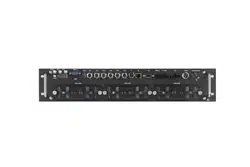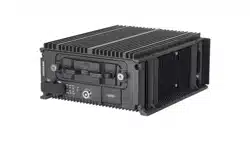

Mobile Video Recorder User Manual

Legal Informaon
User Manual
©2018 Hangzhou Hikvision Digital Technology Co., Ltd.
About this Manual
This Manual is subject to domesc and internaonal copyright protecon. Hangzhou Hikvision
Digital Technology Co., Ltd. ("Hikvision") reserves all rights to this manual. This manual cannot be
reproduced, changed, translated, or distributed,
parally or wholly, by any means, without the
prior wrien permission of Hikvision.
Please use this user manual under the guidance of professionals.
Trademarks
and other Hikvision marks are the property of Hikvision and are
registered trademarks or the subject of applicaons for the same by Hikvision and/or its aliates.
Other trademarks menoned in this manual are the properes of their respecve owners. No right
of license is given to use such trademarks without express permission.
Disclaimer
TO THE MAXIMUM EXTENT PERMITTED BY APPLICABLE LAW, HIKVISION MAKES NO WARRANTIES,
EXPRESS OR IMPLIED, INCLUDING WITHOUT LIMITATION THE IMPLIED WARRANTIES OF
MERCHANTABILITY AND FITNESS FOR A PARTICULAR PURPOSE, REGARDING THIS MANUAL.
HIKVISION DOES NOT WARRANT, GUARANTEE, OR MAKE ANY REPRESENTATIONS REGARDING THE
USE OF THE MANUAL, OR THE CORRECTNESS, ACCURACY, OR RELIABILITY OF INFORMATION
CONTAINED HEREIN. YOUR USE OF THIS MANUAL AND ANY RELIANCE ON THIS MANUAL SHALL BE
WHOLLY AT YOUR OWN RISK AND RESPONSIBILITY.
REGARDING TO THE PRODUCT WITH INTERNET ACCESS, THE USE OF PRODUCT SHALL BE WHOLLY
AT YOUR OWN RISKS. HIKVISION SHALL NOT TAKE ANY RESPONSIBILITIES FOR ABNORMAL
OPERATION, PRIVACY LEAKAGE OR OTHER DAMAGES RESULTING FROM CYBER ATTACK, HACKER
ATTACK, VIRUS INSPECTION, OR OTHER INTERNET SECURITY RISKS; HOWEVER, HIKVISION WILL
PROVIDE TIMELY TECHNICAL SUPPORT IF REQUIRED.
SURVEILLANCE LAWS VARY BY JURISDICTION. PLEASE CHECK ALL RELEVANT LAWS IN YOUR
JURISDICTION BEFORE USING THIS PRODUCT IN ORDER TO ENSURE THAT YOUR USE CONFORMS
THE APPLICABLE LAW. HIKVISION SHALL NOT BE LIABLE IN THE EVENT THAT THIS PRODUCT IS USED
WITH ILLEGITIMATE PURPOSES.
IN THE EVENT OF ANY CONFLICTS BETWEEN THIS MANUAL AND THE APPLICABLE LAW, THE LATER
PREVAILS.
Mobile Video Recorder User Manual
i

Regulatory Informaon
FCC Informaon
Please take aenon that changes or modicaon not expressly approved by the party responsible
for compliance could void the user’s authority to operate the equipment.
FCC compliance: This equipment has been tested and found to comply with the limits for a Class B
digital device, pursuant to part 15 of the FCC Rules. These limits are designed to provide
reasonable
protecon against harmful interference in a residenal installaon. This equipment
generates, uses and can radiate radio frequency energy and, if not installed and used in accordance
with the
instrucons, may cause harmful interference to radio communicaons. However, there is
no guarantee that interference will not occur in a parcular installaon. If this equipment does
cause harmful interference to radio or television
recepon, which can be determined by turning
the equipment o and on, the user is encouraged to try to correct the interference by one or more
of the following measures:
• Reorient or relocate the receiving antenna.
• Increase the
separaon between the equipment and receiver.
• Connect the equipment into an outlet on a circuit dierent from that to which the receiver is
connected.
• Consult the dealer or an experienced radio/TV technician for help.
This equipment should be installed and operated with a minimum distance 20cm between the
radiator and your body.
FCC Condions
This device complies with part 15 of the FCC Rules. Operaon is subject to the following two
condions:
1. This device may not cause harmful interference.
2. This device must accept any interference received, including interference that may cause
undesired
operaon.
EU Conformity Statement
This product and - if applicable - the supplied accessories too are marked with "CE"
and comply therefore with the applicable harmonized European standards listed
under the RE Direcve 2014/53/EU, the EMC Direcve 2014/30/EU, the RoHS
Direcve 2011/65/EU.
2012/19/EU (WEEE direcve): Products marked with this symbol cannot be
disposed of as unsorted municipal waste in the European Union. For proper
recycling, return this product to your local supplier upon the purchase of
Mobile Video Recorder User Manual
ii

equivalent new equipment, or dispose of it at designated collecon points. For
more informaon see: www.recyclethis.info
2006/66/EC (baery direcve): This product contains a baery that cannot be
disposed of as unsorted municipal waste in the European Union. See the product
documentaon for specic baery informaon. The baery is marked with this
symbol, which may include
leering to indicate cadmium (Cd), lead (Pb), or
mercury (Hg). For proper recycling, return the
baery to your supplier or to a
designated
collecon point. For more informaon see: www.recyclethis.info
Mobile Video Recorder User Manual
iii
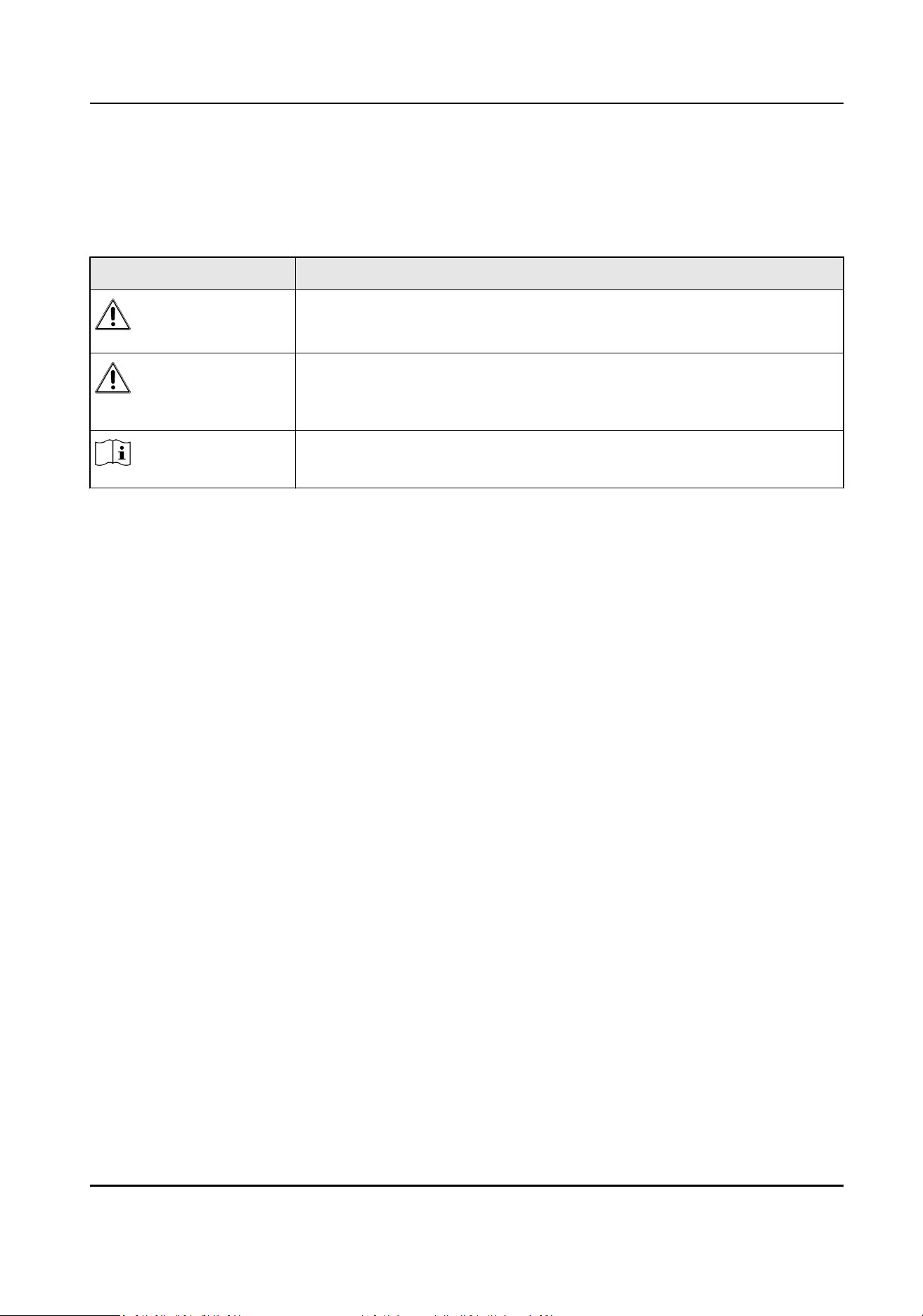
Symbol Convenons
The symbols that may be found in this document are dened as follows.
Symbol Descripon
Danger
Indicates a hazardous situaon which, if not avoided, will or could
result in death or serious injury.
Cauon
Indicates a potenally hazardous situaon which, if not avoided, could
result in equipment damage, data loss, performance degradaon, or
unexpected results.
Note
Provides addional informaon to emphasize or supplement
important points of the main text.
Mobile Video Recorder User Manual
iv

Contents
Chapter 1 Product Introducon .................................................................................................. 1
1.1 Introducon ........................................................................................................................... 1
1.2 Key Features ........................................................................................................................... 1
Chapter 2 Start Up Device ........................................................................................................... 2
2.1 Acvate the Device ................................................................................................................ 2
2.1.1 Default Informaon ...................................................................................................... 2
2.1.2 Acvaon ...................................................................................................................... 2
2.2 Access Device via Web Browser ............................................................................................. 4
Chapter 3 Basic
Operaon .......................................................................................................... 5
3.1 Congure Date & Time ........................................................................................................... 5
3.2 IP Camera Adding ................................................................................................................... 5
3.2.1
Acvate IP Camera ........................................................................................................ 5
3.2.2 Add IP Camera ............................................................................................................... 6
3.2.3 Edit IP Camera ............................................................................................................... 6
3.3 Recording ............................................................................................................................... 7
3.3.1 Format Storage Media .................................................................................................. 7
3.3.2
Congure Connuous Recording .................................................................................. 7
3.3.3
Congure Event Triggered Recording ............................................................................ 8
3.3.4 Disaster Storage ............................................................................................................ 8
3.4 Playback ................................................................................................................................. 9
3.5 Backup ................................................................................................................................... 9
3.5.1 Back Up Videos ............................................................................................................. 9
3.5.2 Back Up Clipped Videos .............................................................................................. 10
3.5.3 Back Up Pictures ......................................................................................................... 10
Chapter 4 Network ................................................................................................................... 11
4.1 Network
Connecon ............................................................................................................ 11
Mobile Video Recorder User Manual
v

4.1.1 Dial .............................................................................................................................. 11
4.1.2 Connect Wi-Fi .............................................................................................................. 11
4.1.3 Set Local Network ....................................................................................................... 12
4.1.4 Port
Conguraon ....................................................................................................... 12
4.1.5 DDNS Conguraon .................................................................................................... 12
4.2 Plaorm Connecon ............................................................................................................ 13
4.2.1 Connect to Mobile Surveillance Plaorm ................................................................... 13
4.2.2 Connect to Guarding Vision ........................................................................................ 14
4.3 Network Sharing .................................................................................................................. 15
4.3.1 Set Wi-Fi AP ................................................................................................................. 15
4.3.2 Set Network Share ...................................................................................................... 15
Chapter 5 Live View and Conguraon ..................................................................................... 16
5.1 Live View .............................................................................................................................. 16
5.1.1 Start/Stop Live View .................................................................................................... 16
5.1.2 Split Screen ................................................................................................................. 16
5.1.3 Select Live View Stream .............................................................................................. 16
5.1.4 Manual Capture .......................................................................................................... 16
5.1.5 Manual Recording ....................................................................................................... 17
5.1.6 Start/Stop Two-Way Audio .......................................................................................... 17
5.1.7 Set Live View Volume .................................................................................................. 17
5.1.8 Full-Screen Live View .................................................................................................. 17
5.1.9 Channel-Zero ............................................................................................................... 18
5.2 PTZ
Operaon ...................................................................................................................... 18
5.2.1 Congure PTZ .............................................................................................................. 18
5.2.2 PTZ Control Panel ........................................................................................................ 18
5.3 Local
Conguraon .............................................................................................................. 19
Chapter 6 Mobile Device Features ............................................................................................ 20
6.1 Timed Shutdown .................................................................................................................. 20
Mobile Video Recorder User Manual
vi

6.2 Delayed Shutdown ............................................................................................................... 20
6.3 Congure Satellite Posioning ............................................................................................. 20
6.4
Congure G-Sensor Alarm ................................................................................................... 21
6.5 Congure Sensor-in .............................................................................................................. 22
Chapter 7 Camera Management ............................................................................................... 23
7.1 Congure Encoding Parameters ........................................................................................... 23
7.2 Image Sengs ...................................................................................................................... 23
7.2.1 Set Image Parameters ................................................................................................. 23
7.2.2 Set Mirror Type ........................................................................................................... 23
7.2.3 Restore Default Parameters ........................................................................................ 23
7.3 Set OSD Parameters ............................................................................................................. 24
7.4 Set Privacy Mask .................................................................................................................. 24
Chapter 8 Driving Behavior
Conguraon ................................................................................. 25
8.1 Smart Device Driving Behavior
Conguraon ...................................................................... 25
8.1.1 Conguraon .............................................................................................................. 25
8.1.2 Play Videos and Pictures ............................................................................................. 26
8.2 Other Device Driving Behavior
Conguraon ...................................................................... 26
8.2.1 Connect Smart Terminal .............................................................................................. 26
8.2.2 Set Arming .................................................................................................................. 27
Chapter 9 Events and Alarms .................................................................................................... 28
9.1
Congure Moon Detecon Alarm ...................................................................................... 28
9.2 Congure Video Loss Alarm ................................................................................................. 28
9.3
Congure Video Tampering Alarm ....................................................................................... 28
9.4 Congure Alarm Input ......................................................................................................... 29
9.5 Congure Alarm Output ....................................................................................................... 29
9.6
Congure Excepon Alarm .................................................................................................. 30
9.7 Congure Arming Schedule ................................................................................................. 30
9.8
Congure Linkage Acons .................................................................................................... 30
Mobile Video Recorder User Manual
vii

9.8.1 Trigger Recording ........................................................................................................ 30
9.8.2 Trigger Audible Warning ............................................................................................. 30
9.8.3 Full Screen Monitoring ................................................................................................ 31
9.8.4 Trigger Alarm Output .................................................................................................. 31
Chapter 10 Security .................................................................................................................. 32
10.1 User Account Management ............................................................................................... 32
10.2 Set Security
Queson ......................................................................................................... 32
10.3 Congure Whitelist ............................................................................................................ 33
10.4 SSH Sengs ....................................................................................................................... 33
Chapter 11 Maintenance .......................................................................................................... 34
11.1 View System Informaon ................................................................................................... 34
11.2 Search Log File ................................................................................................................... 34
11.3 Upgrade the System ........................................................................................................... 34
11.4 Reboong ........................................................................................................................... 34
11.5 Restore Default Sengs ..................................................................................................... 34
11.6 Export Conguraon File ................................................................................................... 35
11.7 Import
Conguraon File ................................................................................................... 35
11.8 Congure DST Sengs ....................................................................................................... 35
11.9 Congure Local Output ...................................................................................................... 36
11.10
Congure RS-232 ............................................................................................................. 36
Chapter 12 Local Menu Operaon ............................................................................................ 37
12.1 IP Camera Adding ............................................................................................................... 37
12.1.1
Acvate IP Camera .................................................................................................... 37
12.1.2 Add IP Camera .......................................................................................................... 37
12.1.3 Edit IP Camera ........................................................................................................... 38
12.2 Recording ........................................................................................................................... 38
12.2.1 Format Storage Media .............................................................................................. 38
12.2.2
Congure Recording Schedule .................................................................................. 38
Mobile Video Recorder User Manual
viii

12.3 Playback ............................................................................................................................. 39
12.4 Back up .............................................................................................................................. 39
Mobile Video Recorder User Manual
ix

Chapter 1 Product Introducon
Introduce the recorder and its key features.
1.1 Introducon
Adopng embedded Linux operang system, mobile video recorder (hereinaer referred to as the
recorder) provides powerful monitoring
funcons. It can both work alone as a recorder and
cooperate with other devices to build a comprehensive surveillance system. The recorder is widely
applied to the surveillance projects of public
transportaon, school bus, etc.
1.2 Key Features
• User-friendly GUI providing easy and exible operaons.
• Pluggable 3G/4G module and built-in Wi-Fi module providing exible data transmission
soluons.
• Informaon collecon interfaces collecng driving informaon such as le/right turn, braking,
reversing, etc.
• Specialized
aviaon connectors ensuring signal stability.
• Ignion startup and delay (0 to 6h) shutdown.
•
Baery protecon avoids vehicle from running out of baery.
• Wide-range power input (+ 9 to + 32 VDC).
•
Power-o protecon avoids key data from loss.
• Tensile aluminum chassis with no fan design well adaptable to working environment.
•
Soware-based rewall supported.
• GNSS (Global Navigaon Satellite System) module precisely posioning the vehicle via the
satellite and recording the
locaon informaon in the stream.
Mobile Video Recorder User Manual
1

Chapter 2 Start Up Device
2.1 Acvate the Device
You can acvate the recorder via the SADP soware, the Web, the client soware or the local
menu.
Cauon
• If you want to
acvate the device via the SADP soware, the Web or the iVMS-4200 client
soware, make sure that the device and your computer are in the same network segment.
•
• If you want to acvate the recorder via the local menu, you must connect the device to an
external monitor.
2.1.1 Default Informaon
The default seng of the recorder is as follows:
• Default IP: 192.168.1.64.
• Default user name: admin.
2.1.2
Acvaon
For the rst-me access, you need to acvate the recorder by seng an admin password. No
operaon is allowed before acvaon.
Acvate
via Local Menu
You can acvate the recorder via the local menu when it's connected to an external monitor.
Steps
1. Enter the same password in Password and Conrm Password.
Note
We highly recommend you to create a strong password of your own choosing (using a minimum
of 8 characters, including at least three kinds of following categories: upper case leers, lower
case leers, numbers, and special characters) in order to increase the security of your product.
And we recommend you reset your password regularly, especially in the high security system,
reseng the password monthly or weekly can beer protect your product.
2. Click OK.
Mobile Video Recorder User Manual
2

Acvate via SADP
SADP soware is used for detecng the online device, acvang the device, and reseng the
password. Get the SADP
soware from the supplied disk or the ocial website, and install the
SADP according to the prompts. Follow the steps to acvate the camera.
Before You Start
• Ensure your computer and the recorder are in the same network segment.
•
Install the SADP soware in your computer.
Steps
1. Run the SADP
soware.
2. Check the recorder status from the device list, and select the inacve recorder.
Note
We highly recommend you to create a strong password of your own choosing (using a minimum
of 8 characters, including at least three kinds of following categories: upper case leers, lower
case leers, numbers, and special characters) in order to increase the security of your product.
And we recommend you reset your password regularly, especially in the high security system,
reseng the password monthly or weekly can beer protect your product.
3. Enter the same password in Password and Conrm Password.
4. Click Acvate.
Acvate
via iVMS-4200
iVMS-4200 is versale video management soware for mulple kinds of devices. Get the client
soware from the supplied disk or the ocial website, and install the soware according to the
prompts. Follow the steps to
acvate the device.
Before You Start
• Ensure your computer and the recorder are in the same network segment.
• Install the soware in your computer.
Steps
1. Run the soware.
2. Go to Control Panel → Device Management .
3. Select inacve recorders.
4. Click
Acvate.
Note
We highly recommend you to create a strong password of your own choosing (using a minimum
of 8 characters, including at least three kinds of following categories: upper case leers, lower
case leers, numbers, and special characters) in order to increase the security of your product.
Mobile Video Recorder User Manual
3

And we recommend you reset your password regularly, especially in the high security system,
reseng the password monthly or weekly can beer protect your product.
5. Enter the same password in Password and
Conrm Password.
6. Click OK.
Acvate via Web Browser
You can acvate the device via a web browser.
Before You Start
Ensure your computer and the recorder are in the same network segment.
Steps
1. Open web browser, input the IP address of the device and then press Enter.
Note
We highly recommend you to create a strong password of your own choosing (using a minimum
of 8 characters, including at least three kinds of following categories: upper case leers, lower
case leers, numbers, and special characters) in order to increase the security of your product.
And we recommend you reset your password regularly, especially in the high security system,
reseng the password monthly or weekly can beer protect your product.
2. Enter the same password in Password and Conrm.
3. Click OK.
2.2 Access Device via Web Browser
Get access to the recorder via web browser.
Steps
1. Open the web browser, enter the IP address of the recorder, and then press Enter.
2. Enter User Name and Password and click Login.
3. Install the plug-in before viewing the live video and managing the camera. Please follow the
installaon prompts to install the plug-in.
What to do next
Click Logout in top right corner to log out the recorder.
Mobile Video Recorder User Manual
4

Chapter 3 Basic Operaon
You can perform the basic operaons once the recorder is connected to an IP camera.
Note
All the operaons from Chapter 3 to Chapter 11 is done via web browser.
3.1 Congure Date & Time
Congure me zone and me synchronizaon mode.
Steps
1. Go to Conguraon → System → System Sengs → Time Sengs .
2. Select Time Zone according to the recorder
locaon.
3. Select me synchronizaon mode as NTP or Manual Time Sync.
-
If an NTP server is available, select NTP and enter NTP server informaon to synchronize NTP
server me to your recorder.
-
Select Manual Time Sync. and set
me to customize the recorder me.
-
Select Manual Time Sync. and check Sync. with computer me to synchronize the computer
me to your recorder.
4. Click Save.
3.2 IP Camera Adding
The secon is only available for the recorder that supports network camera.
3.2.1
Acvate IP Camera
Before adding an IP camera, acvate it by seng a password for it.
Steps
1. Go to
Conguraon → System → Camera Management .
2. Select an inacvated IP camera.
Note
We highly recommend you to create a strong password of your own choosing (using a minimum of
8 characters, including at least three kinds of following categories: upper case leers, lower case
leers, numbers, and special characters) in order to increase the security of your product. And we
recommend you reset your password regularly, especially in the high security system,
reseng the
password monthly or weekly can
beer protect your product.
1. Click Acvaon.
Mobile Video Recorder User Manual
5

4. Enter the same password in New Password and
Conrm.
5. Click OK.
3.2.2 Add IP Camera
You can add the acvated IP cameras. Ensure the device and IP cameras are in the same network
segment.
Before You Start
The record and the camera to add must be in the same network segment.
Steps
1. Go to
Conguraon → System → Camera Management .
2. Oponal: If the recorder and the camera are in dierent network segment, modify IP camera
address.
1) Check the IP camera and click Modify.
2) Enter IP Address and Password.
3) Click OK.
3. Select a camera and click Add.
Note
If the recorder password is the same with the camera's, click Quick Add to add the camera.
4. Enter IP camera informaon.
5. Click OK.
3.2.3 Edit IP Camera
You can visit, delete, and modify the added IP cameras.
Before You Start
If the recorder contains only one network card, you can visit IP camera via the recorder. If the
recorder contains dual network card, you need to enable virtual host
funcon before vising IP
camera via the recorder. Go to Conguraon → Network → Advanced Sengs → Other and check
Enable Virtual Host.
Steps
1. Go to
Conguraon → System → Camera Management .
2. Oponal: Click address of IP camera to visit.
3.
Oponal: Check IP cameras and click Delete to delete added IP cameras.
Mobile Video Recorder User Manual
6

3.3 Recording
To record the videos for connected cameras, you need to install a storage media and format it, and
congure the recording schedule.
3.3.1 Format Storage Media
A newly installed storage media must be inialized before it can be used.
Before You Start
Install a storage media.
Steps
1. Go to Conguraon → Storage → Storage Management .
2. Check the storage media and click Format.
Result
Aer format, the storage media status should be Normal.
3.3.2 Congure Connuous Recording
The recorder is congured with all-day connuous recording by default.
Before You Start
Install and format a storage media.
Steps
1. Go to Conguraon → Storage → Schedule Sengs .
2. Select Channel No.
3. Check Enable.
4. Select recording type as Connuous.
5. Oponal: Click Advanced to congure Pre-record and Post-record.
Pre-record
The me you set to start recording before the scheduled me or the event. For example, if
an alarm triggers recording at 10:00, and the pre-record me is set as 5 seconds, the device
starts to record at 9:59:55.
Post-record
The me you set to stop recording aer the scheduled me or the event. For example, if an
alarm triggered recording ends at 11:00, and the post-record me is set as 5 seconds, the
device records unl 11:00:05.
6. Set recording schedule. For detailed steps, refer to Congure Arming Schedule .
7. Oponal: Click Copy to to copy upper sengs to other channel.
8. Click Save.
Mobile Video Recorder User Manual
7

3.3.3 Congure Event Triggered Recording
Trigger recording when an event is triggered.
Before You Start
• Install and format the storage media.
• Congure event parameters. For details, refer to Events and Alarms .
Steps
1. Go to Conguraon → Storage → Schedule Sengs .
2. Select Channel No.
3. Check Enable.
4. Select recording type as Moon | Alarm, Alarm, Moon, or Moon & Alarm.
Moon | Alarm
Trigger recording when either moon detecon or alarm input is detected.
Alarm
Trigger recording when alarm input is detected.
Moon
Trigger recording when either moon detecon detected.
Moon & Alarm
Trigger recording when both moon detecon and alarm input are detected.
5. Oponal: Click Advanced to congure Pre-record and Post-record.
Pre-record
The me you set to start recording before the scheduled me or the event. For example, if
an alarm triggers recording at 10:00, and the pre-record me is set as 5 seconds, the device
starts to record at 9:59:55.
Post-record
The me you set to stop recording aer the scheduled me or the event. For example, if an
alarm triggered recording ends at 11:00, and the post-record me is set as 5 seconds, the
device records unl 11:00:05.
6. Set recording schedule. For detailed steps, refer to Congure Arming Schedule .
7. Oponal: Click Copy to to copy upper sengs to other channel.
8. Click Save.
3.3.4 Disaster Storage
The funcon is only available for recorder supporng mobile reproof storage box. The recorder
will save videos in both HDD and mobile reproof storage box to ensure data seurity.
Mobile Video Recorder User Manual
8
Before You Start
• Connect a mobile
reproof storage box to your recorder.
•
Congure the recording schedule.
Steps
1. Go to
Conguraon → Vehicle → Storage For Calamity .
2. Check Enable.
3. Check Redundant Channel. The recorder will save the videos of the selected channels in both
HDD and mobile
reproof storage box.
4.
Click Save.
3.4 Playback
Play videos saved in storage medias.
Steps
1. Go to Playback.
2. Click to select a channel in channel list.
3. Select playback type as Ordinary Search or Event Search.
-
To search all the videos, select Ordinary Search.
-
To search event videos, select Event Search.
4. Search search condions.
5. Click Search.
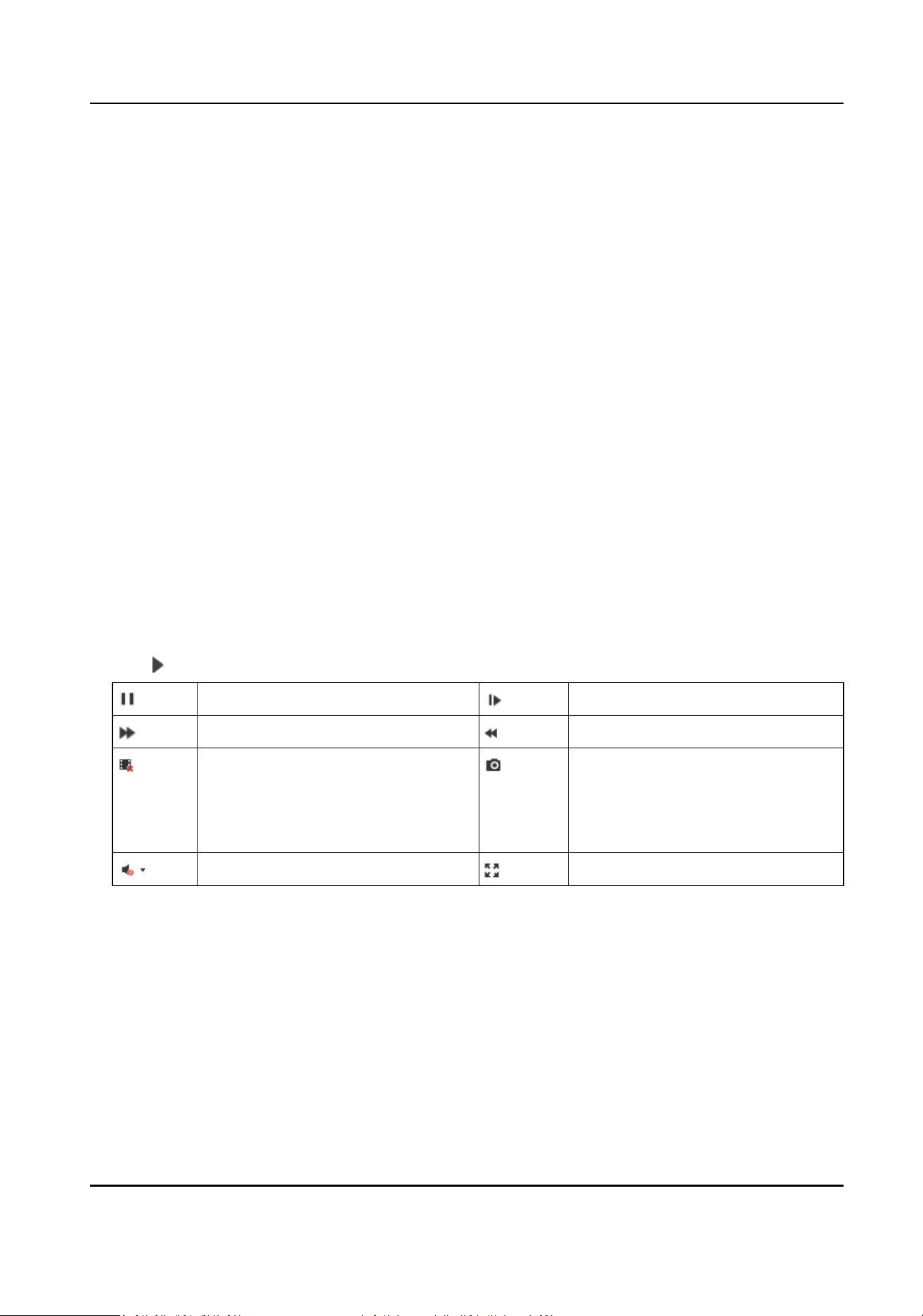
6. Click
to start playback.
Pause.
Single frame playback.
Fast forward. Slow forward.
Stop all playbacks. Capture.
For picture saving path, refer to
Conguraon → Local → Save
snapshots when playback to .
Turn on audio. Full screen.
3.5 Backup
3.5.1 Back Up Videos
Download videos to a local path.
Steps
1. Go to Playback.
Mobile Video Recorder User Manual
9

2. Click
.
3. Search search condions.
4. Click Search.
5. Check videos to download and click Download.
6. For the video saving path, refer to
Conguraon → Local → Save Downloaded Files to .
3.5.2 Back Up Clipped Videos
Clip videos and save them to a local path.
Steps
1. Go to Playback.
2. Start playback.
3. Click
to start clipping.
4. Click
to stop clipping.
5. For clipped video saving path, refer to Conguraon → Local → Save clips to .
3.5.3 Back Up Pictures
Back up pictures to a local path.
Steps
1. Go to Picture.
2. Set search condions.
3. Click Search.
4. Check pictures to download.
5. Click Donwload.
6. For picture saving path, refer to
Conguraon → Local → Picture and Clip Sengs .
Mobile Video Recorder User Manual
10

Chapter 4 Network
4.1 Network Connecon
4.1.1 Dial
Set dialing parameters.
Before You Start
Install 3G/4G SIM card and connect 3G/4G antenna to your recorder.
Steps
1. Go to
Conguraon → Network → Basic Sengs → 3G/4G .
2. Check Enable.
3. Click Dial Parameters.
4. Select Network Mode.
-
Automac: The recorder will automacally switch to the strongest network.
-
Auto-Search and Auto-Switch: Network priory: 4G > 3G > 2G. The recorder will automacall
connect the network of high priorty.
-
3G: The recorder only connects 3G network.
-
4G: The recorder only connects 4G network.
5.
Oponal: To connect private network, enter Access Number, User Name, Password, and APN.
6. Click Save.
7.
Oponal: Click Wireless Dial-up Status to view dialing status.
4.1.2 Connect Wi-Fi
Congure Wi-Fi parameters.
Steps
1. Go to Conguraon → Network → Basic Sengs → TCP/IP .
2. Set WLAN parameters.
1) Click WLan 1.
2)
Oponal: Check DHCP. Use SADP tool to obtain the recorder IP address when DHCP is
enabled.
3) Enter wireless network IPv4 Address, IPv4 SubnetMask, IPv4 Default Gateway, and DNS
Server .
4) Click Save.
3. Go to
Conguraon → Network → Advanced Sengs → Wi-Fi .
1) Check Enable Wi-Fi.
2) Click Search to search available wireless networks.
3) Select a wireless network in Wireless List.
Mobile Video Recorder User Manual
11

4) Enter SSID.
5) Select Network Mode as Managed.
6) Select Security Mode and enter Wi-Fi key.
4. Click Save.
5.
Oponal: Go to Conguraon → Network → Advanced Sengs → Wi-Fi → Wi-Fi Status to
view Wi-Fi status.
4.1.3 Set Local Network
Congure local network parameters.
Steps
1. Go to Conguraon → Network → Basic Sengs → TCP/IP .
2. Select LAN port.
-
Debug Interface: Used to debug the recorder.
-
Rear interface: Used to connect network cameras.
3. Enter network parameters: IPv4 Address, IPv4 Subnet Mask, and IPv4 Default Gateway.
4. Oponal: To access the recorder via internet, congure DNS server.
5. Click Save.
4.1.4 Port
Conguraon
Go to Conguraon → Network → Basic Sengs → Port .
HTTP Port
Used to access the recorder via web browser.
RTSP Port
Used to get stream.HTTPS Port
HTTPS Port
Used for secure
communicaon over a network.
Server Port
Used to access the recorder via client soware.
4.1.5 DDNS
Conguraon
If your recorder external network is a dynamic IP address, you can use the Dynamic DNS (DDNS) for
network access.
Before You Start
• Register your recorder on the DDNS server.
•
Congure local network IP address, subnet mask, gateway, and DNS server.
• Create port mapping, default port:80, 8000, and 554.
Mobile Video Recorder User Manual
12

Steps
1. Go to Conguraon → Network → Basic Sengs → DDNS .
2. Select DDNS Type.
3. Enter server informaon.
4. Click Save.
What to do next
Open the web browser and enter the recoder domain name to visit it.
4.2 Plaorm Connecon
4.2.1 Connect to Mobile Surveillance Plaorm
The device can be remotely accessed via mobile surveillance plaorm.
Before You Start
Create the device ID on mobile surveillance plaorm.
Steps
1. Go to Conguraon → Network → Advanced Sengs → Plaorm Access .
2. Check Enable.
3. Select Plaorm Access Mode as Ehome Plaorm.
4. Select Server Address Type, and enter Server Address, Server Port, and Device ID.
Server Address
Enter the stac IP address of mobile surveillance plaorm.
Server Port
The default value is 7660.
Device ID
The ID of the device registered on the mobile surveillance plaorm. If you leave it empty,
device logs in to the plaorm with serial No.
5. Click OK.
Note
• You can download mobile surveillance plaorm to your computer by vising our ocial
website and going to Home > VMS > Support > Download >HikCentralProfessionalV2.2.0.
Ocial website: hp://www.hikvision.com/en/ .
• You can download iVMS-5260M to your mobile phone by searching it in app store/google play
or scan QR code below. If you use Android system, install googleplay applicaon on your
mobile phone before scanning the QR code.
Mobile Video Recorder User Manual
13

Figure 4-1 iOS
Figure 4-2 Android
4.2.2 Connect to Guarding Vision
The device can be remotely accessed via guarding vision plaorm.
Before You Start
• Connect your recorder to internet.
• Congure IP address, sub-netmask, gateway, and DNS server of LAN port.
Steps
1. Go to Conguraon → Network → Advanced Sengs → Plaorm Access .
2. Check Enable.
3. Select Plaorm Access Mode as Guarding Vision.
Cauon
Valid security code range [6-12]. You can use a combinaon of numbers, lowercase, and
uppercase.
4. Enter a cusmized Security Code. You need to enter the security code when adding the recorder
in guarding vision.
5. Click Save.
6. Visit guarding vision plaorm.
-
For computer user: Visit dev.guardingvision.com .
-
For mobile phone user: Download Guarding Vision applicaon in app store or google play.
7. Register an account.
8. Add the recorder by its serial number (a 9-bit character printed in device lable) and security
code.
9. Start live view of your camera.
Mobile Video Recorder User Manual
14

4.3 Network Sharing
4.3.1 Set Wi-Fi AP
The recorder can work as a wireless router. Othe devices can access network via the recorder.
Steps
Cauon
You can only turn on one funcon between Wi-Fi AP and Wi-Fi. Turning on one of them will turn
o the other.
1. Go to Conguraon → Network → Advanced Sengs → Wi-Fi AP .
2. Check Enable Wi-Fi AP, Enable AP Broadcast, and Enable WLAN HotSpot.
3.
Congure hotspot parameters.
1) Enter SSID (hotspot name).
2) Select Security Mode.
3) Enter IP Address and Sub-net Mask.
Note
The IP address must be in dierent network segment with TCP/IP address.
4. Check Enable DHCP and enter Start IP Address and End IP Address.
5. Click Save.
4.3.2 Set Network Share
Connect a periphral device to your recorder with a network cable. The periphral device can access
internet
aer the recorder succesfully dialed to internet.
Steps
1. Go to Conguraon → Network → Basic Sengs → TCP/IP → Lan .
2. Check Enable Network Share.
3.
Congure the network parameters for the periphral device.
1) Set its IP address in the same network segment with your recorder.
2) Set its network gateway IP as the recorder IP address.
4. Click Save.
The periphral device can access internet
aer the recorder succesfully dialed to internet.
Mobile Video Recorder User Manual
15

Chapter 5 Live View and Conguraon
5.1 Live View
5.1.1 Start/Stop Live View
Start/stop the live view of cameras.
Steps
1. Go to Live View.
2. Click
to select window division and click to select a window to display the live view image.
3. Double click a camera in the camera list to display its live image in selected window. Or click
to start the live view of all cameras.
4. Double click the camera again to stop its live view. Or click
to stop the live view of all
cameras.
5.1.2 Split Screen
Live view window division is selectable.
Window Division
Click to select live view window division.
Paging
Click / to turn to previous/next window.
5.1.3 Select Live View Stream
The recorder supports main stream and sub-stream. Main stream is used for connuous recording
and sub-stream is used for network transmission.
Click
in camera list to select live view stream.
5.1.4 Manual Capture
Capture live view pictures and save them to your computer.
Steps
1. Go to Live View.
2. Start live view of a camera.
3. Click
.
Mobile Video Recorder User Manual
16

4. View captured pictures.
-
Enter the path popped up in the lower right corner.
-
Go to
Conguraon → Local → Picture and Clip Sengs for the saving path of captured
pictures.
5.1.5 Manual Recording
Record videos in live view and save them to your computer.
Steps
1. Go to Live View.
2. Start live view of a camera.
3. Click
to start recording.
4. Click to stop recording.
5. Go to the set saving path to view recorded videos.
-
Enter the path popped up in the lower right corner.
-
Go to
Conguraon → Local → Record File Sengs for picture saving path.
5.1.6 Start/Stop Two-Way Audio
You can have real-me two-way audio between your computer and the recorder.
Before You Start
Connect the audio input and output devices to the recorder and computer.
Steps
1. Start the live view of a camera.
2. Click
.
Result
• At computer end, you can hear the audio from recorder.
• At recorder end, you can hear the audio from computer.
5.1.7 Set Live View Volume
Turn on audio and adjust audio volume.
Click to turn on audio.
Drag the slider to adjust volume.
5.1.8 Full-Screen Live View
Display the live view image in full screen.
Mobile Video Recorder User Manual
17

Start the live view and click to display the live view image in full screen.
Press Esc to exit from the full-screen mode.
5.1.9 Channel-Zero
Channel-zero, known as virtual channel, can show the videos from all channels of the recorder,
reducing the bandwidth while simultaneously previewing from mul-channel.
Steps
1. Go to
Conguraon → Video/Audio → Channel-zero .
2. Check Enable Channel-zero Encoding.
3. Select Max. Bitrate and Max. Frame Rate.
4. Click Save.
5. Go to Live View.
6. Double click ZeroChannel 01 in the camera list to start live veiw of channel-zero.
5.2 PTZ
Operaon
Congure PTZ parameters and control PTZ.
5.2.1
Congure PTZ
Follow the steps to set PTZ parameters. The conguraon of the PTZ parameters should be done
before you control the PTZ camera.
Before You Start
Connect the RS-485 cables of the PTZ camera to EXT.DEV interface of the device.
Steps
1. Go to
Conguraon → System → System Sengs → PTZ Cong .
2. Select Channel No. of PTZ camera.
3.
Congure the parameters of the PTZ camera. All the parameters should be exactly the same
with those of the PTZ camera.
4. Click Save.
5.2.2 PTZ Control Panel
Go to Live View. Control PTZ camera via PTZ panel.
Note
PTZ control panel may vary with recorder model.
Mobile Video Recorder User Manual
18

Icon Descripon Icon Descripon
Direcon buons. Auto-scan buon.
Zoom -. Zoom +.
Focus +. Focus -.
Iris +. Iris -.
Turn on /o light. Start/stop wiper.
5.3 Local Conguraon
Local conguraon refers to the parameters of live view image, videos and captured pictures.
Stream Type
Select the default live live stream type. Main stream and sub-stream are selectable.
Play Performance
Shortest Delay: The recorder ensures
real-me capacity in priority.
Auto:
Automacally adjust the live view stream to balance real-me capacity and uency.
Rules
Reserved.
Image Size
Adjust the image aspect rao.
Auto Start Live View
Enable: Automacally turn on live view aer logged in the recorder.
Mobile Video Recorder User Manual
19

Chapter 6 Mobile Device Features
6.1 Timed Shutdown
The recorder will automacally start up/shut down according the schedule.
Before You Start
Wire power cord. For details, refer to quick start guide.
Steps
1. Go to Conguraon → Vehicle → Start .
2. Select Auto Work Type as Auto Working.
3. Set the shutdown schedule. For detailed steps, refer to
Congure Arming Schedule .
4. Oponal: Check Low Power Protect and select Low Power Protect Limit. If the voltage of the
recorder reaches the selected threshold, the recorder will shut down
automacally.
5. Click Save.
6.2 Delayed Shutdown
You can set the shutdown delay me (Vehicle Ignion Startup and Shutdown) for the recorder.
Before You Start
Wire power cord. For details, refer to quick start guide.
Steps
1. Go to Conguraon → Vehicle → Start .
2. Select Auto Work Type as Halt Delay.
3. Select Delay Time.
4. Click Save.
5.
Oponal: Check Low Power Protect and select Low Power Protect Limit. If the voltage of the
recorder reaches the selected percentage, the recorder will shut down automacally.
6.3
Congure Satellite Posioning
The built-in GNSS module supports GPS (Global Posioning System), enabling device posioning
and speed limit alarm.
Before You Start
Install the posioning antenna.
Steps
1. Go to Conguraon → Vehicle → Posion Sengs .
2. Select Posion Module.
Mobile Video Recorder User Manual
20

Built-in
Obtain data from the satellite posioning module built in the recorder.
Intelligent Display Terminal
Obtain data from display terminal.
3. Select Locang Module.
4.
Oponal: Check Enable of Satellite Timing to synchronize recorder me with satellite me.
5. Congure speed limit.
1) Select Speed Units.
2) Enter Speed Limit of Alarm.
If vehicle speed exceeds the set value, the recorder will alarm.
6. Check the channels you want the
posioning informaon to be displayed.
The posioning informaon will be displayed in the live view and playback mode of the selected
channel.
7.
Congure linkage acons.
• If you want the speeding vehicle to trigger the speed alarm, check Trigger Alarm Output.
• If you want the speeding vehicle to trigger the system to beep, check Audible Warning.
8. Click Save.
6.4
Congure G-Sensor Alarm
G-Sensor detects and records acceleraon informaon in 3-axial (X, Y, Z) direcons.
Before You Start
Connect a G-sensor to the recorder.
Steps
1. Go to Conguraon → Vehicle → G-Sensor .
2. Select modeule according to actual
situaon.
-
External: The G-sensor is connected to the device through RS-232/RS-485 interface.
-
Built-in: The G-sensor is a built-in module of the device.
3. Set the limit value for acceleraon alarm in X, Y and Z direcons.
Note
X, Y and Z represent the direcon of acceleraon and the unit of alarm value is G (G=9.8 m/s
2
).
During driving, the recorder will alarm when acceleraon of any direcon exceeds the set value.
4. Set the linkage
acons for acceleraon alarm, including Audible Warning and Alarm Output.
5. Click Save.
Mobile Video Recorder User Manual
21

6.5 Congure Sensor-in
Sensor-in detects and records the vehicle's driving informaon, including pedal braking, turning
le/right, reversing, etc.
Before You Start
Connect the recorder sensor-in interface and vehicle corresponding interface. For details, refer to
quick user guide.
Steps
1. Go to
Conguraon → Vehicle → Sensor-In .
2. Select Trigger Level and Pop Channel according to actual
situaon.
The the image of selected channel will be displayed in full screen when sensor-in is triggered.
3. Click Save.
Mobile Video Recorder User Manual
22

Chapter 7 Camera Management
7.1 Congure Encoding Parameters
Congure encoding parameters to adjsut live view image and video parameters.
Go to Conguraon → Video/Audio → Video .
In good network situaon, you can set high resoluon and bitrate to improve image quality.
In bad network situaon, you can set low resoluon, bitrate, and frame rate to get uent image.
7.2 Image
Sengs
7.2.1 Set Image Parameters
You can adjust image parameters including bightness, contrast, etc.
Steps
1. Go to Conguraon → Image → Display Sengs .
2. Select Channel No.
3. Select Scene according to actual
situaon.
4. Adjust image parameters as desired.
7.2.2 Set Mirror Type
You can enable mirror image and set mirror type to get suble image.
Steps
1. Go to Conguraon → Image → Display Sengs .
2. Select Mirror Type as desired.
Note
The funcon varies with recorder model.
7.2.3 Restore Default Parameters
You can restore image parameters to defaults.
Go to
Conguraon → Image → Display Sengs , select Channel No., and click Default.
Mobile Video Recorder User Manual
23

7.3 Set OSD Parameters
Congure the camera name, OSD (On Screen Display) sengs, etc.
Steps
1. Go to
Conguraon → Image → OSD Sengs .
2. Select Channel No.
3. Enter Camera Name, select Time Format and Date Format.
4.
Oponal: Check Display Name, Dispaly Date, and Display Week as your desire.
5. Set OSD Display Mode.
6.
Oponal: To display text on OSD, check one text overlay and enter text.
7. Drag the red frame on live view window to adjust OSD posion.
8. Click Save.
Result
The check display contents will be overlaied on the live view image and videos.
7.4 Set Privacy Mask
The privacy mask can be used to protect personal privacy by concealing parts of the image from
view or recording with a masked area.
Up to four privacy mask areas are supported for each channel.
Steps
1. Go to
Conguraon → Image → Privacy Mask .
2. Select Channel No.
3. Check Enable Privacy Mask.
4. Draw
detecon area.
1) Click Draw Area.
2) In preview area, drag to draw the
detecon area.
3) Click Stop Drawing.
5. Click Save.
Result
The image of drawn area will be shield in the live view and videos.
Mobile Video Recorder User Manual
24

Chapter 8 Driving Behavior Conguraon
The funcon analyzing driver's behavior, including smoking, fague driving, talking on phone, etc.
The recorder will trigger warning when these behaviors are detected.
8.1 Smart Device Driving Behavior Conguraon
Only the recorder with A in model name supports driving behavior detecon funcon. One
recorder supports analyzing one channel at a me.
8.1.1 Conguraon
Calibrate Camera Posion
Calibrate network camera posion before enabling driving behavior detecon.
Before You Start
Add the network camera in your recorder.
Steps
1. Go to Conguraon → VCA → Driving Behaviors → IPC Posion Calibraon .
2. Select Channel No.
3. Adjust the network camera posion to make the driver face image appear in the red frame and
his chin is above the yellow line.
Congure Driving Behavior Analysis
Set the driving behavior analysis parameters according to actual situaon to lower false detecon
rate.
Steps
1. Go to Conguraon → VCA → Driving Behaviors → Driving Behaviors .
2. Select Camera No.
3. Check behaviors to analyze and congure their parameters.
Alarm Time
Device alarms when the corresponding driving behavior lasts for the set me.
Condence Interval
Available for on-the-phone detecon and smoking detecon. The higher the value is, the
lower the false detecon rate. You are recommended to use the default value.
Mobile Video Recorder User Manual
25

Stop Detecons when Driving in Low-Speed
The feature is valid when GPS posioning succeeded. When the vehicle speed is lower than
the set value, all the driving behavior analyses will stop.
Voice Alarm
When it is checked, device will send out voice alarm when a checked behavior is detected.
Note
One recorder supports analyze driving behavior for one channel at a me. Enabling the driving
behavior analysis will disable driving behavior analysis of other channels.
4. Click Save.
Result
When a concerned driving behavior is detected, the connected intercom will automacally send
out audio broadcast.
8.1.2 Play Videos and Pictures
We take the example of playing videos to describe the steps.
Steps
1. Go to Playback.
2. Select a channel in channel list.
3. Click Event Search.
4. Select Event Type as Driver Behavior.
5. Set search
condions.
6. Click Search.
7. Select videos to play.
8.2 Other Device Driving Behavior
Conguraon
For the recorder supports network camera, when the recorder and a smart terminal connects the
same network camera, and the smart terminal is added to the recorder, the recorder will receive
driving behavior analysis from the smart terminal.
8.2.1 Connect Smart Terminal
Before You Start
Add the same network camera to both smart terminal and recorder.
Steps
1. Go to Conguraon → Vehicle → Smart Terminal Access .
2. Check Enable.
Mobile Video Recorder User Manual
26

3. Enter smart terminal
informaon.
4. Click Save.
8.2.2 Set Arming
In the set arming period, the recorder will trigger specied linkage method when the concerned
driving behavior is detected.
Steps
1. Go to
Conguraon → Event → Basic Event → Driving Behaviors .
2. Select Channel No. and Driving Behaviors. The channel should be network camera that
connected to both the added smart terminal and the recorder.
3. Check Enable.
4.
Congure arming schedule. For detailed steps, refer to Congure Arming Schedule .
5.
Congure linkage method. For detailed steps, refer to Congure Linkage Acons .
6. Click Save.
Mobile Video Recorder User Manual
27

Chapter 9 Events and Alarms
9.1 Congure Moon Detecon Alarm
When moon detecon alarm is congured, once a moon event is detected, the device starts to
record and mulple linkage acons will be triggered.
Steps
1. Go to Conguraon → Event → Basic Event → Moon Detecon .
2. Select Channel No.
3. Draw
detecon area.
1) Click Draw Area.
2) In preview area, drag to draw the
detecon area.
3) Click Stop Drawing.
4.
Congure arming schedule. For detailed steps, refer to Congure Arming Schedule .
5. Congure linkage method. For detailed steps, refer to Congure Linkage Acons .
6. Set Sensivity.
7. Click Save.
9.2
Congure Video Loss Alarm
When the recorder cannot receive video signal from the analog cameras, the video loss alarm will
be triggered. Linkage acons, including audible warning and alarm output, can be set to respond.
Steps
1. Go to Conguraon → Event → Basic Event → Video Loss .
2. Check Enable Video Loss
Detecon.
3. Congure arming schedule. For detailed steps, refer to Congure Arming Schedule .
4.
Congure linkage method. For detailed steps, refer to Congure Linkage Acons .
5. Click Save.
9.3
Congure Video Tampering Alarm
A tampering alarm is triggered when the camera is covered and the monitoring area cannot be
viewed. Linkage
acons, including audible warning, alarm output, can be set to respond.
Steps
1. Go to Conguraon → Event → Basic Event → Video Tamptering .
2. Select Channel No.
3. Draw
detecon area.
1) Click Draw Area.
2) In preview area, drag to draw the detecon area.
Mobile Video Recorder User Manual
28

3) Click Stop Drawing.
4.
Congure arming schedule. For detailed steps, refer to Congure Arming Schedule .
5. Congure linkage method. For detailed steps, refer to Congure Linkage Acons .
6. Set
Sensivity.
7. Click Save.
9.4 Congure Alarm Input
Congure the sengs for alarm input, including trigger level, arming schedule and alarm linkage
acons, etc.
Before You Start
Connect an alarm device to your recorder.
Steps
1. Go to
Conguraon → Event → Basic Event → Alarm Input .
2. Select Alarm Input No. and enter Alarm Name.
3. Select Alarm Type according to alarm device type.
4. Check Enable Alarm Input Handling.
5.
Congure arming schedule. For detailed steps, refer to Congure Arming Schedule .
6. Congure linkage method. For detailed steps, refer to Congure Linkage Acons .
7.
Oponal: Click Copy to and select desired channels to o copy the above sengs to other alarm
inputs.
8. Click Save.
9.5
Congure Alarm Output
Congure the arming schedule, alarm duraon me and alarm name for alarm output.
Before You Start
Connect alarm output device to your recorder. For details, refer to installaon guide.
Steps
1. Go to Conguraon → Event → Basic Event → Alarm Output .
2. Select Alarm Output No. and enter Alarm Name.
3. Select Delay to set dwell
me.
Alarm output will connue for the set me.
4. Congure arming schedule. For detailed steps, refer to Congure Arming Schedule .
5. Oponal: Click Manual Alarm to trigger alarm manually. Click Stop Alarm to stop manual alarm.
6.
Oponal: Click Copy to and select desired channels to o copy the above sengs to other alarm
outputs.
7. Click Save.
Mobile Video Recorder User Manual
29

9.6 Congure Excepon Alarm
Congure alarms which are triggered by excepons to take necessary acons in me.
Steps
1. Go to
Conguraon → Event → Basic Event → Excepon .
2. Select
Excepon Type.
3. Congure linkage method. For detailed steps, refer to Congure Linkage Acons .
4.
Click Save.
9.7 Congure Arming Schedule
Steps
1. Drag in
me line to draw a arming period.
2. Adjust the set arming period.
-
Click a period and adjust its length.
-
Click a period, enter start
me and end me, and click Save.
-
Click Delete All to delete all periods.
Note
Up to 8 me periods can be set for each day and each of the me periods cannot be
overlapped.
3. Oponal: Click Copy to and select desired days to copy the above sengs to other days.
4. Click Save.
9.8
Congure Linkage Acons
Check Linkage Method, select Sengs, check the linkage acons needed, click Apply and OK.
Note
Linkage acons vary with event type.
9.8.1 Trigger Recording
To trigger recording when an event occurs, check Trigger Recording.
9.8.2 Trigger Audible Warning
To generate an audible warning when an event occurs, check Trigger Audible Warning.
Mobile Video Recorder User Manual
30

9.8.3 Full Screen Monitoring
To display image from the arming channel in full screen, check Full Screen Monitoring.
9.8.4 Trigger Alarm Output
To trigger the alarm of alarm output device connected to the recorder, check Trigger Alarm
Output.
Mobile Video Recorder User Manual
31

Chapter 10 Security
10.1 User Account Management
You can add and delete users, and modify the password and permission of users.
Steps
1. Go to
Conguraon → System → User Management .
2. Click Add.
3. Edit new user parameters and click OK to create the user.
Note
We highly recommend you to create a strong password of your own choosing (using a minimum
of 8 characters, including at least three kinds of following categories: upper case leers, lower
case leers, numbers, and special characters) in order to increase the security of your product.
And we recommend you reset your password regularly, especially in the high security system,
reseng the password monthly or weekly can beer protect your product.
Delete Select a user and click Delete to delete the user.
Modify Select a user and click Modify to modify the user informaon.
10.2 Set Security Queson
If you forgot admin password, you can reset password by answering security quesons. Follow the
steps to set security
quesons.
Before You Start
Your computer and recorder must be in the same network segment.
Steps
1. Go to
Conguraon → System → User Management .
2. Click Security Queson.
3. Enter Admin Password.
4. Set security
quesons.
5. Click OK.
Result
If you forgot admin password, you can visit the recorder via computer in the same network
segment with your recorder and click Forgot Password to reset password.
Mobile Video Recorder User Manual
32

10.3 Congure Whitelist
Only the trusted IP addresses on the white list can access the device via the network.
Steps
1. Go to
Conguraon → System → Security → White List .
2. CheckEnable White List.
3. Click Add and enter desired IP Address.
-
Select an IP address and click Modify to edit the IP address.
-
Select an IP address and click Delete to delete the IP address.
4. Click Save.
10.4 SSH
Sengs
SSH is disabled by default for security reasons. This seng is reserved for professional
maintenance personnel only.
Mobile Video Recorder User Manual
33

Chapter 11 Maintenance
11.1 View System Informaon
You can view your recorder system informaon and edit recorder name and record number.
Go to Conguraon → System → System Sengs → Basic Informaon to view the recorder
informaon. You can edit Device Nmae and Device No.
11.2 Search Log File
You can view and export logs saved in the recorder storage media.
Go to Conguraon → System → Maintenance → Log to search or export logs.
11.3 Upgrade the System
You are recommended to upgrade the recorder with the help of professional technical support.
Before You Start
Save the upgrade le in computer.
Steps
1. Go to Conguraon → System → Maintenance → Upgrade & Maintenance .
2. Click Browse and select upgrade
le.
3. Click Upgrade and click OK in popup message box to start upgrading.
Cauon
The upgrading process will be 1 to 10 minutes, please don't disconnect power to the recorder
during the process. The recorder reboots automacally aer upgrading.
11.4 Reboong
Reboot your recorder via menu instead of disconnecng power from the recorder.
Go to
Conguraon → System → Maintenance → Upgrade & Maintenance . Click Reboot and
click OK in popup message box to start reboong..
11.5 Restore Default
Sengs
If your recorder is abnormal, you can restore recorder to defaults segs.
Mobile Video Recorder User Manual
34

Go to Conguraon → System → Maintenance → Upgrade & Maintenance .
Restore
Restore all parameters, except the network (including IP address, subnet mask, gateway, MTU,
NIC working mode, default route, server port, etc.) and user account parameters, to the factory
default sengs.
Default
Restore all parameters to the factory default
sengs.
11.6 Export Conguraon File
The conguraon les of the recorder can be exported to your computer for backup.
Steps
1. Go to Conguraon → System → Maintenance → Upgrade & Maintenance .
2. Click Device Parameters and select the
conguraon le saving path.
11.7 Import
Conguraon File
The conguraon le of one device can be imported to mulple devices if they are to be
congured with the same parameters.
Steps
Cauon
Only devices of the same model can share conguraon le.
1. Go to Conguraon → System → Maintenance → Upgrade & Maintenance .
2. Click Browse of Import
Cong. File and select conguraon le.
3. Click Import and click OK in popup message box to start imporng.
11.8
Congure DST Sengs
Congure DST (Daylight Saving Time) sengs for the system.
Steps
1. Go to Conguraon → System → System Sengs → Time Sengs .
2. Check Enable DST.
3. Set Start Time and End Time for DST.
4. Select DST Bias.
5. Click Save.
Mobile Video Recorder User Manual
35

11.9 Congure Local Output
You can congure local output and resoluon remotely.
Go to Conguraon → System → System Sengs → Menu Output to congure Menu Output and
Resoluon.
Note
The funcon varies with model.
11.10 Congure RS-232
To debug recorder via serial port or connect serial device, you can congure RS-232 parameters.
Before You Start
Connect a serial device to your recorder RS-232 interface.
Steps
1. Go to Conguraon → System → System Sengs → Serial Cong .
2. Select COM port the serial device connects to.
3. EditBaudrate, Data Bit, Stop Bit, Parity, and Flow Control.
4. Select Usage.
Console
Connect a computer to the recorder through the computer serial port. Recorder parameters
can be
congured by using soware such as HyperTerminal. The serial port parameters must
be the same as of the recorder when connecng with the computer serial port.
Transparent Channel
Connect a serial device directly to the recorder. The serial device will be controlled remotely
by the computer through the network and the protocol of the serial device. If alarm
buon is
connected, select RS-232 usage as Transparent Channel.
5. Click Save.
Mobile Video Recorder User Manual
36

Chapter 12 Local Menu Operaon
Connect a display and a mouse to recorder, you can operate the recorder locally.
12.1 IP Camera Adding
The secon is only available for the recorder that supports network camera.
12.1.1 Acvate IP Camera
Before adding an IP camera, acvate it by seng a password for it.
Before You Start
Connect the IP camera to IP camera interface in the recorder rear panel.
Steps
1. Go to Menu → Other
Sengs → IPC Sengs .
2. Click Manual Management.
3. Select an
inacvated IP camera.
4.
Acvate the selected IP camera.
-
Click Quick
Acve. The IP camera password will be set as the same with the device password.
-
Click Manu Acve and enter the same password in New Password and Conrm.
Cauon
We highly recommend you to create a strong password of your own choosing (using a minimum
of 8 characters, including at least three kinds of following categories: upper case leers, lower
case leers, numbers, and special characters) in order to increase the security of your product.
And we recommend you reset your password regularly, especially in the high security system,
reseng the password monthly or weekly can beer protect your product.
12.1.2 Add IP Camera
Before You Start
The IP camera is acve.
Steps
1. Select Menu → Other Sengs → IPC Sengs
2. Uncheck Auto Add and click Manage IP Camera.
3. Edit camera IP address.
1) Select an IP camera and click Edit.
2) Enter an IP address that is in the same network segment with the recorder.
Mobile Video Recorder User Manual
37

4. Add the IP camera.
1) Click ManuAdd.
2) Select IP channel No. for the IP camera.
3) Edit the required
informaon.
4) Click OK.
12.1.3 Edit IP Camera
You can edit or delete added IP cameras.
Steps
1. Go to Menu → Other Sengs → IPC Sengs .
2.
Oponal: You can change the parameters of the added IP cameras.
1) Select an IP camera.
2) Edit the parameters. If you change the IP address, you will connect to another IP camera.
3) Click OK.
3.
Oponal: Select an IP camera, click Delete to delete the IP camera.
12.2 Recording
To record the videos for connected cameras, you need to install a storage media and format it, and
congure the recording schedule.
12.2.1 Format Storage Media
A newly installed storage media must be formaed before it can be used.
Before You Start
Install storage media.
Steps
1. Go to Menu → Storage .
2. Check storage media to format.
3. Click Format.
Aer format, the storage media Status should be Normal.
12.2.2
Congure Recording Schedule
All-day recording is on by default. Device will start and stop recording according to the congured
recording schedule.
Before You Start
Install storage media and format it.
Mobile Video Recorder User Manual
38

Steps
1. Go to Menu → Basic
Sengs → Record .
2. Select the camera to set recording schedule.
3. Click Set of Schedule.
4.
Check Enable Schedule.
5. Select the day from the dropdown list for
sengs.
6.
Congure all day schedule or custom schedule.
-
Check All Day to enable all-day recording, and then select the recording type from the drop-
down list.
-
Uncheck All Day, customize the
me period for recording, and select the recording type for
each
me period.
Note
Up to 8 me periods can be set for each day and each of the me periods cannot be
overlapped.
7. Click OK.
12.3 Playback
You can search and play back the videos stored on the recorder.
Steps
1. Go to Menu → Video Search .
2. Select Search Mode.
General
Normal videos.
Event
Moon detecon, alarm, moon│alarm, moon&alarm videos.
3. Select Camera, Video Type, Start Time, and End Time.
4. Click Search.
5. Select a video and click Play.
12.4 Back up
Back up the videos stored on the recorder.
Before You Start
Connect a USB storage device to your recorder.
Steps
1. Go to Menu → Video Search .
2. Select Search Mode.
Mobile Video Recorder User Manual
39

General
Normal videos.
Event
Moon detecon, alarm, moon│alarm, moon&alarm videos.
3. Select Camera, Video Type Start Time, and End Time
4. Click Search.
5. Select the videos and click Export.
Note
The number of USB interface varies with recorder model. If your recorder contains only one USB
interface, you can back up videos via remote control or touchscreen.
Mobile Video Recorder User Manual
40

UD11292B