
0
Mobile Video Recorder
User Manual

Mobile Video Recorder User Manual
I
Legal Information
© 2022 Hangzhou Hikvision Digital Technology Co., Ltd. All rights reserved.
About this Manual
The Manual includes instructions for using and managing the Product. Pictures, charts, images and all other information
hereinafter are for description and explanation only. The information contained in the Manual is subject to change,
without notice, due to firmware updates or other reasons. Please find the latest version of this Manual at the Hikvision
website (https://www.hikvision.com/).
Please use this Manual with the guidance and assistance of professionals trained in supporting the Product.
Trademarks
and other Hikvision’s trademarks and logos are the properties of Hikvision in various jurisdictions.
Other trademarks and logos mentioned are the properties of their respective owners.
Disclaimer
TO THE MAXIMUM EXTENT PERMITTED BY APPLICABLE LAW, THIS MANUAL AND THE PRODUCT DESCRIBED, WITH ITS
HARDWARE, SOFTWARE AND FIRMWARE, ARE PROVIDED “AS IS” AND “WITH ALL FAULTS AND ERRORS”. HIKVISION
MAKES NO WARRANTIES, EXPRESS OR IMPLIED, INCLUDING WITHOUT LIMITATION, MERCHANTABILITY, SATISFACTORY
QUALITY, OR FITNESS FOR A PARTICULAR PURPOSE. THE USE OF THE PRODUCT BY YOU IS AT YOUR OWN RISK. IN NO
EVENT WILL HIKVISION BE LIABLE TO YOU FOR ANY SPECIAL, CONSEQUENTIAL, INCIDENTAL, OR INDIRECT DAMAGES,
INCLUDING, AMONG OTHERS, DAMAGES FOR LOSS OF BUSINESS PROFITS, BUSINESS INTERRUPTION, OR LOSS OF DATA,
CORRUPTION OF SYSTEMS, OR LOSS OF DOCUMENTATION, WHETHER BASED ON BREACH OF CONTRACT, TORT
(INCLUDING NEGLIGENCE), PRODUCT LIABILITY, OR OTHERWISE, IN CONNECTION WITH THE USE OF THE PRODUCT,
EVEN IF HIKVISION HAS BEEN ADVISED OF THE POSSIBILITY OF SUCH DAMAGES OR LOSS.
YOU ACKNOWLEDGE THAT THE NATURE OF THE INTERNET PROVIDES FOR INHERENT SECURITY RISKS, AND HIKVISION
SHALL NOT TAKE ANY RESPONSIBILITIES FOR ABNORMAL OPERATION, PRIVACY LEAKAGE OR OTHER DAMAGES
RESULTING FROM CYBER-ATTACK, HACKER ATTACK, VIRUS INFECTION, OR OTHER INTERNET SECURITY RISKS; HOWEVER,
HIKVISION WILL PROVIDE TIMELY TECHNICAL SUPPORT IF REQUIRED.
YOU AGREE TO USE THIS PRODUCT IN COMPLIANCE WITH ALL APPLICABLE LAWS, AND YOU ARE SOLELY RESPONSIBLE
FOR ENSURING THAT YOUR USE CONFORMS TO THE APPLICABLE LAW. ESPECIALLY, YOU ARE RESPONSIBLE, FOR USING
THIS PRODUCT IN A MANNER THAT DOES NOT INFRINGE ON THE RIGHTS OF THIRD PARTIES, INCLUDING WITHOUT
LIMITATION, RIGHTS OF PUBLICITY, INTELLECTUAL PROPERTY RIGHTS, OR DATA PROTECTION AND OTHER PRIVACY
RIGHTS. YOU SHALL NOT USE THIS PRODUCT FOR ANY PROHIBITED END-USES, INCLUDING THE DEVELOPMENT OR
PRODUCTION OF WEAPONS OF MASS DESTRUCTION, THE DEVELOPMENT OR PRODUCTION OF CHEMICAL OR
BIOLOGICAL WEAPONS, ANY ACTIVITIES IN THE CONTEXT RELATED TO ANY NUCLEAR EXPLOSIVE OR UNSAFE NUCLEAR
FUEL-CYCLE, OR IN SUPPORT OF HUMAN RIGHTS ABUSES.
IN THE EVENT OF ANY CONFLICTS BETWEEN THIS MANUAL AND THE APPLICABLE LAW, THE LATTER PREVAILS.

Mobile Video Recorder User Manual
II
Regulatory Information
FCC Information
Please take attention that changes or modification not expressly approved by the party responsible
for compliance could void the user’s authority to operate the equipment.
FCC Compliance
This equipment has been tested and found to comply with the limits for a Class A digital device,
pursuant to part 15 of the FCC Rules. These limits are designed to provide reasonable protection
against harmful interference when the equipment is operated in a commercial environment. This
equipment generates, uses, and can radiate radio frequency energy and, if not installed and used in
accordance with the instruction manual, may cause harmful interference to radio communications.
Operation of this equipment in a residential area is likely to cause harmful interference in which
case the user will be required to correct the interference at his own expense.
FCC Conditions
This device complies with part 15 of the FCC Rules. Operation is subject to the following two
conditions:
1. This device may not cause harmful interference.
2. This device must accept any interference received, including interference that may cause
undesired operation.
EU Conformity Statement
This product and - if applicable - the supplied accessories too are marked with "CE" and
comply therefore with the applicable harmonized European standards listed under the
EMC Directive 2014/30/EU, the LVD Directive 2014/35/EU, the RoHS Directive 2011/65/EU, RE
Directive 2014/53/EU.
2012/19/EU (WEEE directive): Products marked with this symbol cannot be disposed of as
unsorted municipal waste in the European Union. For proper recycling, return this product
to your local supplier upon the purchase of equivalent new equipment, or dispose of it at
designated collection points. For more information see: www.recyclethis.info
2006/66/EC (battery directive): This product contains a battery that cannot be disposed
of as unsorted municipal waste in the European Union. See the product documentation
for specific battery information. The battery is marked with this symbol, which may include
lettering to indicate cadmium (Cd), lead (Pb), or mercury (Hg). For proper recycling, return the
battery to your supplier or to a designated collection point. For more information see:
www.recyclethis.info
Industry Canada ICES-003 Compliance
This device meets the CAN ICES-3 (A)/NMB-3(A) standards requirements.
Mobile Video Recorder User Manual
III
Symbol Conventions
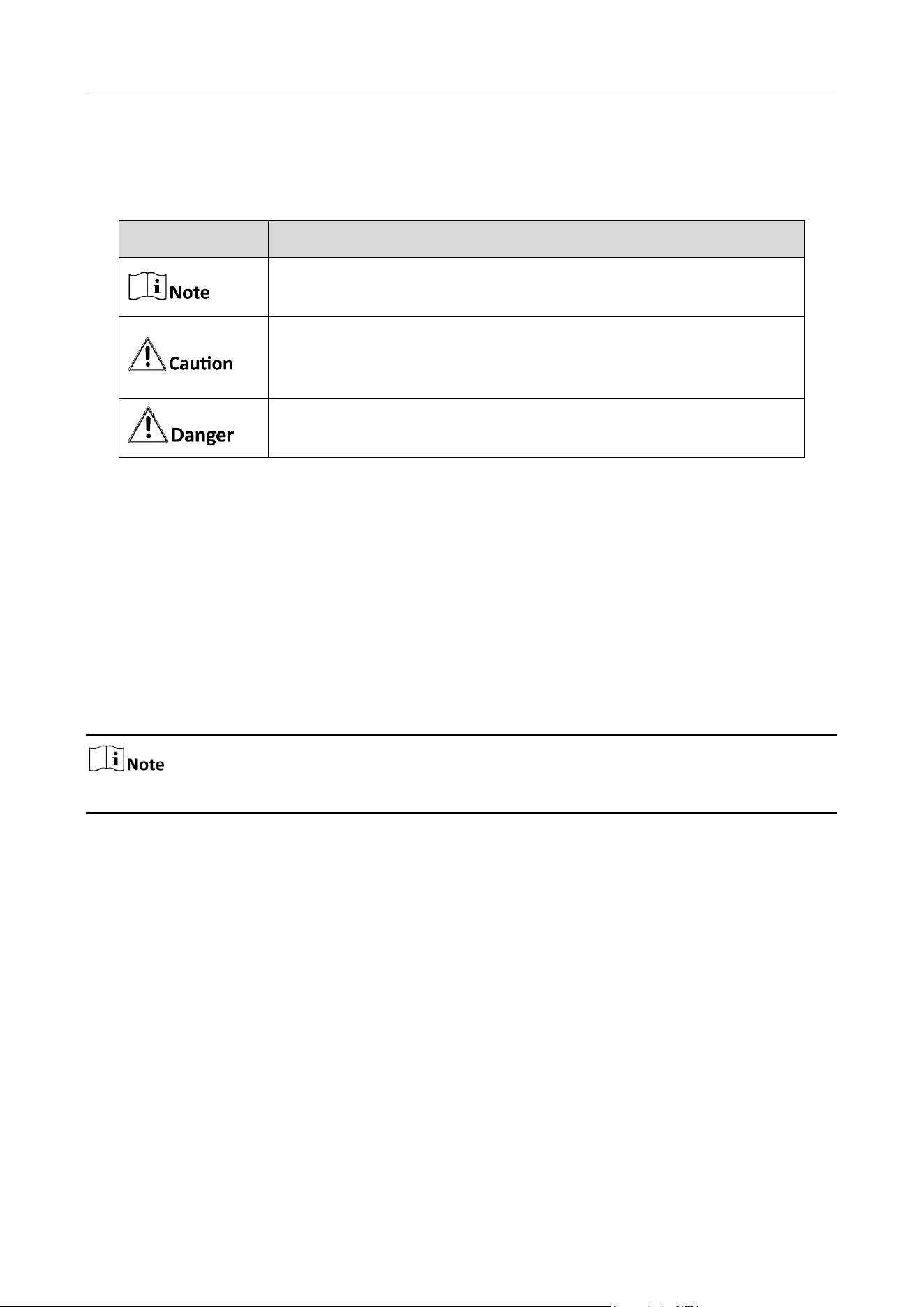
The symbols that may be found in this document are defined as follows.
Safety Instructions
Proper configuration of all passwords and other security settings is the responsibility of the
installer and/or end-user.
In the use of the product, you must be in strict compliance with the electrical safety regulations of
the nation and region. Please refer to technical specifications for detailed information.
Input voltage should meet both the SELV (Safety Extra Low Voltage) and the Limited Power Source
with 9 to 32 VDC according to the IEC60950-1 standard. Please refer to technical specifications for
detailed information.
It is recommended to use either 12 V or 24 V adapter when testing the device.
Do not connect several devices to one power adapter as adapter overload may cause over-heating
or a fire hazard.
Please make sure that the plug is firmly connected to the power socket.
If smoke, odor or noise rise from the device, turn off the power at once and unplug the power
cable, and then please contact the service center.
Preventive and Cautionary Tips
Before connecting and operating your device, please be advised of the following tips:
Ensure unit is installed in a well-ventilated, dust-free environment.
Keep all liquids away from the device.
Ensure environmental conditions meet factory specifications.
Symbol
Description
Provides additional information to emphasize or supplement
important points of the main text.
Indicates a potentially hazardous situation, which if not avoided,
could result in equipment damage, data loss, performance
degradation, or unexpected results.
Indicates a hazard with a high level of risk, which if not avoided, will
result in death or serious injury.

Mobile Video Recorder User Manual
IV
Ensure unit is properly secured to a rack or shelf. Major shocks or jolts to the unit as a result of
dropping it may cause damage to the sensitive electronics within the unit.
Use the device in conjunction with an UPS if possible.
Power down the unit before connecting and disconnecting accessories and peripherals.
A factory recommended HDD should be used for this device.
Improper use or replacement of the battery may result in hazard of explosion. Replace with the
same or equivalent type only. Dispose of used batteries according to the instructions provided by
the battery manufacturer.

Mobile Video Recorder User Manual
V
TABLE OF CONTENTS
Chapter 1 Product Introduction ...................................................................................................... 1
Introduction ................................................................................................................................................... 1
Key Features .................................................................................................................................................. 1
Chapter 2 Start Up Device .............................................................................................................. 2
Activation ...................................................................................................................................................... 2
2.1.1 Default Information ............................................................................................................................. 2
2.1.2 Activate via Local Menu ....................................................................................................................... 2
2.1.3 Activate via SADP ................................................................................................................................ 2
2.1.4 Activate via Web Browser .................................................................................................................... 3
Access Device via Web Browser...................................................................................................................... 3
Chapter 3 Basic Operation .............................................................................................................. 4
Configure Date & Time ................................................................................................................................... 4
Manage IP Camera ......................................................................................................................................... 4
3.2.1 Activate IP Camera .............................................................................................................................. 4
3.2.2 Add IP Camera ..................................................................................................................................... 5
3.2.3 Edit IP Camera ..................................................................................................................................... 5
Record and Capture ....................................................................................................................................... 5
3.3.1 Format Storage Media ......................................................................................................................... 5
3.3.2 Configure Continuous Recording.......................................................................................................... 6
3.3.3 Configure Event Triggered Recording ................................................................................................... 6
3.3.4 Configure Disaster Storage .................................................................................................................. 7
Playback ........................................................................................................................................................ 8
Back up .......................................................................................................................................................... 8
3.5.1 Back up Videos .................................................................................................................................... 8
3.5.2 Back Up Clipped Videos ....................................................................................................................... 9
3.5.3 Back up Pictures .................................................................................................................................. 9
Chapter 4 Network ....................................................................................................................... 10
Network Connection .....................................................................................................................................10
4.1.1 Dial ....................................................................................................................................................10
4.1.2 Connect to Wi-Fi .................................................................................................................................11
4.1.3 Set Local Network...............................................................................................................................12
4.1.4 Configure Port ....................................................................................................................................14
4.1.5 DDNS Configuration ............................................................................................................................14
4.1.6 Configure Priority ...............................................................................................................................14
Platform Connection .....................................................................................................................................14
4.2.1 Connect to Mobile Surveillance Platform ............................................................................................14
4.2.2 Connect to Guarding Vision ................................................................................................................15
Network Sharing ...........................................................................................................................................16
4.3.1 Share Network via Wi-Fi AP ................................................................................................................16
4.3.2 Share Network via Cable .....................................................................................................................16
Chapter 5 Live View and Configuration ........................................................................................ 18
Live View ......................................................................................................................................................18
5.1.1 Start/Stop Live View ...........................................................................................................................18
5.1.2 Split Screen ........................................................................................................................................18
5.1.3 Select Live View Stream ......................................................................................................................18

Mobile Video Recorder User Manual
VI
5.1.4 Manual Capture..................................................................................................................................18
5.1.5 Manual Recording ..............................................................................................................................19
5.1.6 Start/Stop Two-Way Audio .................................................................................................................19
5.1.7 Set Live View Volume .........................................................................................................................19
5.1.8 Full-Screen Live View ..........................................................................................................................19
5.1.9 Channel-Zero ......................................................................................................................................19
PTZ Operation ...............................................................................................................................................20
5.2.1 Configure PTZ .....................................................................................................................................20
5.2.2 PTZ Control Panel ...............................................................................................................................20
Local Configuration .......................................................................................................................................21
Chapter 6 Mobile Device Features ............................................................................................... 23
Timed Shutdown ...........................................................................................................................................23
Delayed Shutdown ........................................................................................................................................23
Configure Satellite Positioning .......................................................................................................................23
Configure G-Sensor Alarm .............................................................................................................................25
Configure Sensor-in .......................................................................................................................................26
Chapter 7 Camera Management .................................................................................................. 27
Configure Encoding Parameters ....................................................................................................................27
Configure Audio Parameters .........................................................................................................................28
Image Settings ..............................................................................................................................................28
7.3.1 Set Image Parameters.........................................................................................................................28
7.3.2 Set Mirror Type ..................................................................................................................................29
7.3.3 Restore Default Parameters ................................................................................................................29
Set OSD Parameters ......................................................................................................................................29
Set Privacy Mask ...........................................................................................................................................30
Chapter 8 Events and Alarms ....................................................................................................... 32
Configure Motion Detection Alarm ................................................................................................................32
Configure Video Tampering Alarm .................................................................................................................32
Configure Video Loss Alarm ...........................................................................................................................33
Configure Alarm Input ...................................................................................................................................33
Configure Alarm Output ................................................................................................................................34
Configure Exception Alarm ............................................................................................................................35
Configure Arming Schedule ...........................................................................................................................35
Configure Linkage Actions .............................................................................................................................35
Chapter 9 User Management ....................................................................................................... 37
Manage User Account ...................................................................................................................................37
Configure Security Question ..........................................................................................................................37
Chapter 10 Security ...................................................................................................................... 38
Configure Allowlist ......................................................................................................................................38
Configure SSH .............................................................................................................................................38
Chapter 11 Maintenance .............................................................................................................. 39
View System Information ............................................................................................................................39
Search Log File ............................................................................................................................................39
Upgrade the System ....................................................................................................................................39
Configure Image Partition ...........................................................................................................................39
Configure Overwritten Recording ................................................................................................................40
Print Log .....................................................................................................................................................40

Mobile Video Recorder User Manual
VII
Rebooting ...................................................................................................................................................40
Restore Default Settings ..............................................................................................................................40
Export Configuration File .............................................................................................................................40
Import Configuration File ..........................................................................................................................41
Configure DST Settings ..............................................................................................................................41
Synchronize Time ......................................................................................................................................41
Configure Menu Output ............................................................................................................................41
Configure RS-232 ......................................................................................................................................42
Chapter 12 Local Menu Operation ............................................................................................... 43
Manage IP Camera ......................................................................................................................................43
12.1.1 Activate IP Camera ...........................................................................................................................43
12.1.2 Add IP Camera ..................................................................................................................................43
12.1.3 Edit IP Camera ..................................................................................................................................44
Recording ...................................................................................................................................................44
12.2.1 Format Storage Media ......................................................................................................................44
12.2.2 Configure Recording Schedule ..........................................................................................................44
Playback .....................................................................................................................................................45
Back up .......................................................................................................................................................45
Preview Settings..........................................................................................................................................46

Mobile Video Recorder User Manual
1
Chapter 1 Product Introduction
Introduction
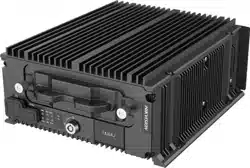
Adopting embedded Linux operating system, mobile video recorder (hereinafter referred to as the
recorder) provides powerful monitoring functions. It can both work alone as a recorder and
cooperate with other devices to build a comprehensive surveillance system. The recorder can be
widely applied to surveillance projects of public transportation, school bus, etc.
Key Features
Easy and flexible operations provided by user-friendly GUI.
Flexible data transmission solutions provided by pluggable 3G/4G module and built-in Wi-Fi
module.
Information collection interfaces to collect driving information such as left/right turn, braking,
reversing, etc.
Specialized aviation connectors ensuring signal stability.
Ignition startup and delay (0 to 6h) shutdown.
Battery protection to avoid vehicle from running out of battery.
Power-off protection avoids key data from loss.
Wide-range power input (+ 9 to + 32 VDC).
Tensile aluminum chassis with no fan design well adaptable to working environment.
Support software-based firewall.
Support GNSS (Global Navigation Satellite System) module to precisely position vehicles via
the satellite and recording the location information in the stream.
Mobile Video Recorder User Manual
2
Chapter 2 Start Up Device
Activation
The recorder can be activated via the SADP software, the Web, the client software and the local
menu.
If you want to activate the device via the SADP software or the Web, make sure that the device and
your computer are in the same network segment.
If you want to activate the recorder via the local menu, you must connect the device to an external
monitor.
For the first-time access, you need to activate the recorder by setting an admin password. No
operation is allowed before activation.
The default setting of the recorder is as follows:
Default IP: 192.168.1.64.
Default user name: admin.
You can activate the recorder via the local menu when it's connected to an external monitor.
Enter the same password in Password and Confirm Password.
We highly recommend you to create a strong password of your own choosing (using a minimum of
8 characters, including at least three kinds of following categories: upper case letters, lower case
letters, numbers, and special characters) in order to increase the security of your product. And we
recommend you reset your password regularly, especially in the high security system, resetting the
password monthly or weekly can better protect your product.
Click OK.
SADP software is used for detecting the online device, activating the device, and resetting the
password. Get the SADP software from the supplied disk or the official website, and install the SADP
according to the prompts. Follow the steps to activate the camera.
Before You Start
Ensure your computer and the recorder are in the same network segment.
Install the SADP software in your computer.
Mobile Video Recorder User Manual
3
Run the SADP software.
Check the recorder status from the device list, and select the inactive recorder.
We highly recommend you to create a strong password of your own choosing (using a minimum of
8 characters, including at least three kinds of following categories: upper case letters, lower case
letters, numbers, and special characters) in order to increase the security of your product. And we
recommend you reset your password regularly, especially in the high security system, resetting the
password monthly or weekly can better protect your product.
Enter the same password in Password and Confirm Password.
Click Activate.
You can activate the device via a web browser.
Before You Start
Ensure your computer and the recorder are in the same network segment.
Open web browser, input the IP address of the device and then press Enter.
We highly recommend you to create a strong password of your own choosing (using a minimum of
8 characters, including at least three kinds of following categories: upper case letters, lower case
letters, numbers, and special characters) in order to increase the security of your product. And we
recommend you reset your password regularly, especially in the high security system, resetting the
password monthly or weekly can better protect your product.
Enter the same password in Password and Confirm.
Click OK.
Access Device via Web Browser
Get access to the recorder via web browser.
Open the web browser, enter the IP address of the recorder, and then press Enter.
Enter User Name and Password and click Login.
Install the plug-in before viewing the live video and managing the camera. Please follow the
installation prompts to install the plug-in.
What to do next
Click Logout in top right corner to log out the recorder.
Mobile Video Recorder User Manual
4
Chapter 3 Basic Operation
You can perform the basic operations once the recorder is connected to an IP camera.
All the operations from Chapter 3 to Chapter 11 is done via web browser.
Configure Date & Time
Configure time zone and time synchronization mode.
Go to Configuration > System > System Settings > Time Settings.
Select Time Zone according to the recorder location.
Select time synchronization mode as NTP or Manual Time Sync.
1) If an NTP server is available, select NTP and enter NTP server information to synchronize
NTP server time to your recorder.
2) Select Manual Time Sync. and set time to customize the recorder time.
3) Select Manual Time Sync. and check Sync. with computer time to synchronize the
computer time to your recorder.
Click Save.
Manage IP Camera
The section is only available for the recorder that supports network camera.
Before adding an IP camera, activate it by setting a password for it.
Go to Configuration > System > Camera Management > IP Camera.
Select an inactivated IP camera.
We highly recommend you to create a strong password of your own choosing (using a minimum of
8 characters, including at least three kinds of following categories: upper case letters, lower case
letters, numbers, and special characters) in order to increase the security of your product. And we
recommend you reset your password regularly, especially in the high security system, resetting the
password monthly or weekly can better protect your product.
Click Activation.
Enter the same password in New Password and Confirm.
Mobile Video Recorder User Manual
5
Click OK.
You can add the activated IP cameras. Ensure the device and IP cameras are in the same network
segment.
Before You Start
The record and the camera to add must be in the same network segment.
Go to Configuration > System > Camera Management > IP Camera.
Optional: If the recorder and the camera are in different network segment, modify IP camera
address.
1) Check the IP camera and click Modify.
2) Enter IP Address and Password.
3) Click OK.
Select a camera and click Add.
If the recorder password is the same with the camera's, click Quick Add to add the camera.
Enter IP camera information.
Click OK.
You can visit, delete, and modify the added IP cameras.
Before You Start
If the recorder contains only one network card, you can visit IP camera via the recorder. If the
recorder contains dual network card, you need to enable virtual host function before visiting IP
camera via the recorder. Go to Configuration > Network > Advanced Settings > Other and check
Enable Virtual Host.
Go to Configuration > System > Camera Management > IP Camera.
Optional: Click address of IP camera to visit.
Optional: Check IP cameras and click Delete to delete added IP cameras.
Record and Capture
To record the videos for connected cameras, you need to install a storage media and format it, and
configure the recording schedule.
Mobile Video Recorder User Manual
6
A newly installed storage media must be initialized before it can be used.
Before You Start
Install a storage media.
Go to Configuration > Storage > Storage Management.
Check the storage media and click Format.
Result
After format, the storage media status should be Normal.
The recorder is configured with all-day continuous recording by default.
Before You Start
Install and format a storage media.
Go to Configuration > Storage > Schedule Settings.
Select Channel No.
Check Enable.
Select recording type as Continuous.
Optional: Click Advanced to configure Pre-record and Post-record.
Pre-record
The time you set to start recording before the scheduled time or the event. For example, if an alarm
triggers recording at 10:00, and the pre-record time is set as 5 seconds, the device starts to record
at 9:59:55.
Post-record
The time you set to stop recording after the scheduled time or the event. For example, if an alarm
triggered recording ends at 11:00, and the post-record time is set as 5 seconds, the device records
until 11:00:05.
Set recording schedule. For detailed steps, refer to Configure Arming Schedule.
Optional: Click Copy to to copy upper settings to other channel.
Click Save.
Trigger recording when an event is triggered.
Before You Start
Install and format the storage media.
Configure event parameters. For details, refer to Events and Alarms.
Go to Configuration > Storage > Schedule Settings.
Mobile Video Recorder User Manual
7
Select Channel No.
Check Enable.
Select recording type as Motion | Alarm, Alarm, Motion, or Motion & Alarm.
Motion | Alarm
Trigger recording when either motion detection or alarm input is detected.
Alarm
Trigger recording when alarm input is detected.
Motion
Trigger recording when either motion detection detected.
Motion & Alarm
Trigger recording when both motion detection and alarm input are detected.
Optional: Click Advanced to configure Pre-record and Post-record.
Pre-record
The time you set to start recording before the scheduled time or the event. For example, if an alarm
triggers recording at 10:00, and the pre-record time is set as 5 seconds, the device starts to record
at 9:59:55.
Post-record
The time you set to stop recording after the scheduled time or the event. For example, if an alarm
triggered recording ends at 11:00, and the post-record time is set as 5 seconds, the device records
until 11:00:05.
Set recording schedule. For detailed steps, refer to Configure Arming Schedule.
Optional: Click Copy to to copy upper settings to other channel.
Click Save.
The function is only available for recorder supporting mobile fireproof storage box. The recorder
will save videos in both HDD and mobile fireproof storage box to ensure data security.
Before You Start
• Connect a mobile fireproof storage box to your recorder.
• Configure the recording schedule.
Go to Configuration > Vehicle > Storage For Calamity.
Check Enable.
Check Redundant Channel. The recorder will save the videos of the selected channels in
both HDD and mobile fireproof storage box.
Click Save.
Mobile Video Recorder User Manual
8
Playback
Play videos saved in storage media.
Go to Playback.
Select a channel in channel list.
Select playback type.
To search all the videos, select Ordinary Search.
To search event videos, select Event Search.
Set search conditions.
Click Search.
Click to start playback.
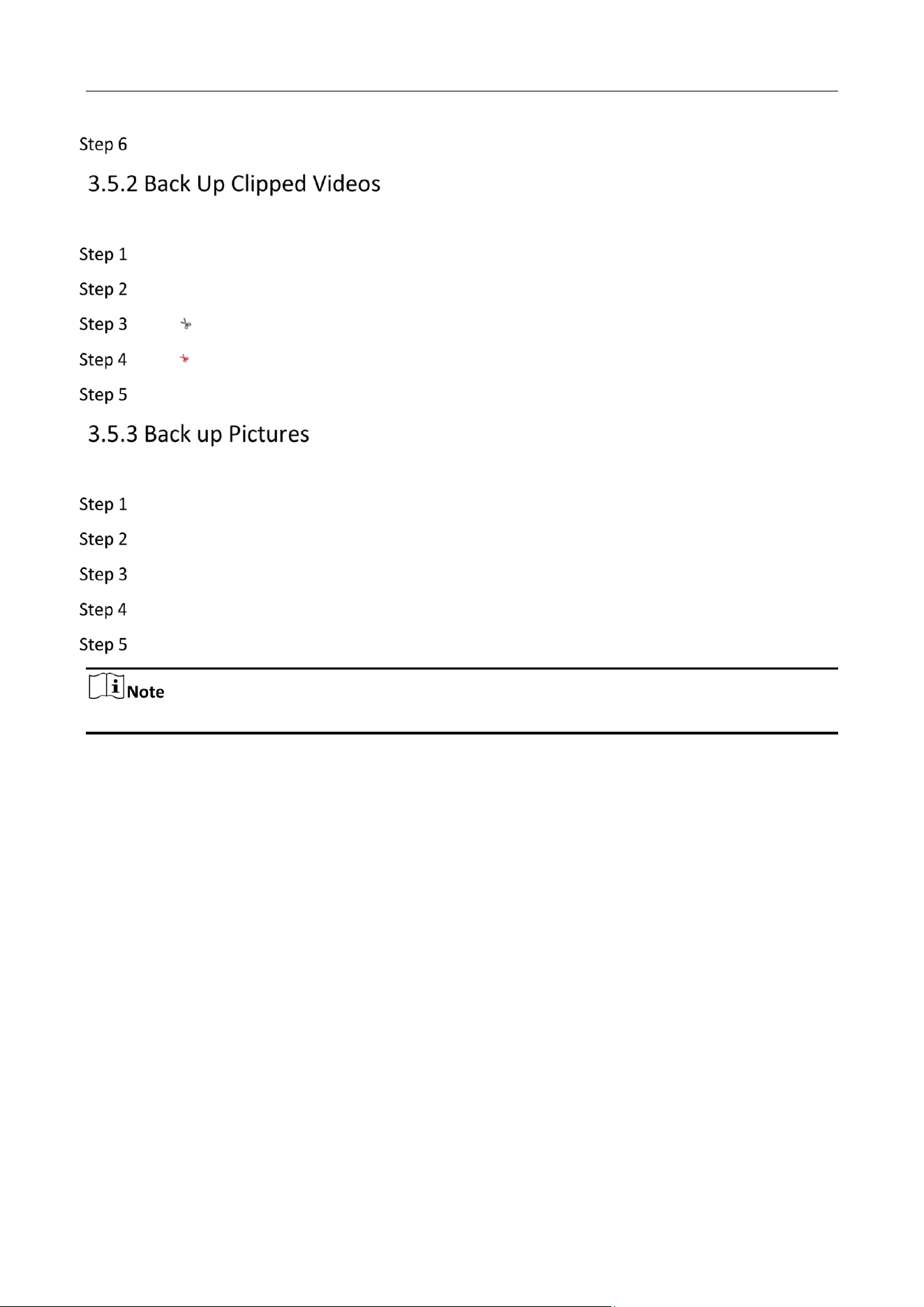
Playback Options
Icon
Description
Icon
Description
Pause.
Single frame playback.
Fast forward.
Slow forward.
Stop all playbacks.
Capture a picture.
For picture saving path, refer to
Configuration > Local > Save
snapshots when playback to.
Turn on/off audio.
Full screen.
Back up
Download videos to a local path.
Go to Playback.
Click .
Set search conditions.
Click Search.
Check videos to download and click Download.
Mobile Video Recorder User Manual
9
For the video saving path, refer to Configuration > Local > Save Downloaded Files to.
Clip videos and save them to a local path.
Go to Playback.
Start playback.
Click to start clipping.
Click to stop clipping.
For clipped video saving path, refer to Configuration > Local > Save clips to.
Back up pictures to a local path.
Go to Picture.
Set search conditions.
Click Search.
Check pictures to download.
Click Download.
For picture saving path, refer to Configuration > Local > Picture and Clip Settings.
Mobile Video Recorder User Manual
10
Chapter 4 Network
Network Connection
Set dialing parameters.
Before You Start
Install 3G/4G SIM card and connect 3G/4G antenna to your recorder.
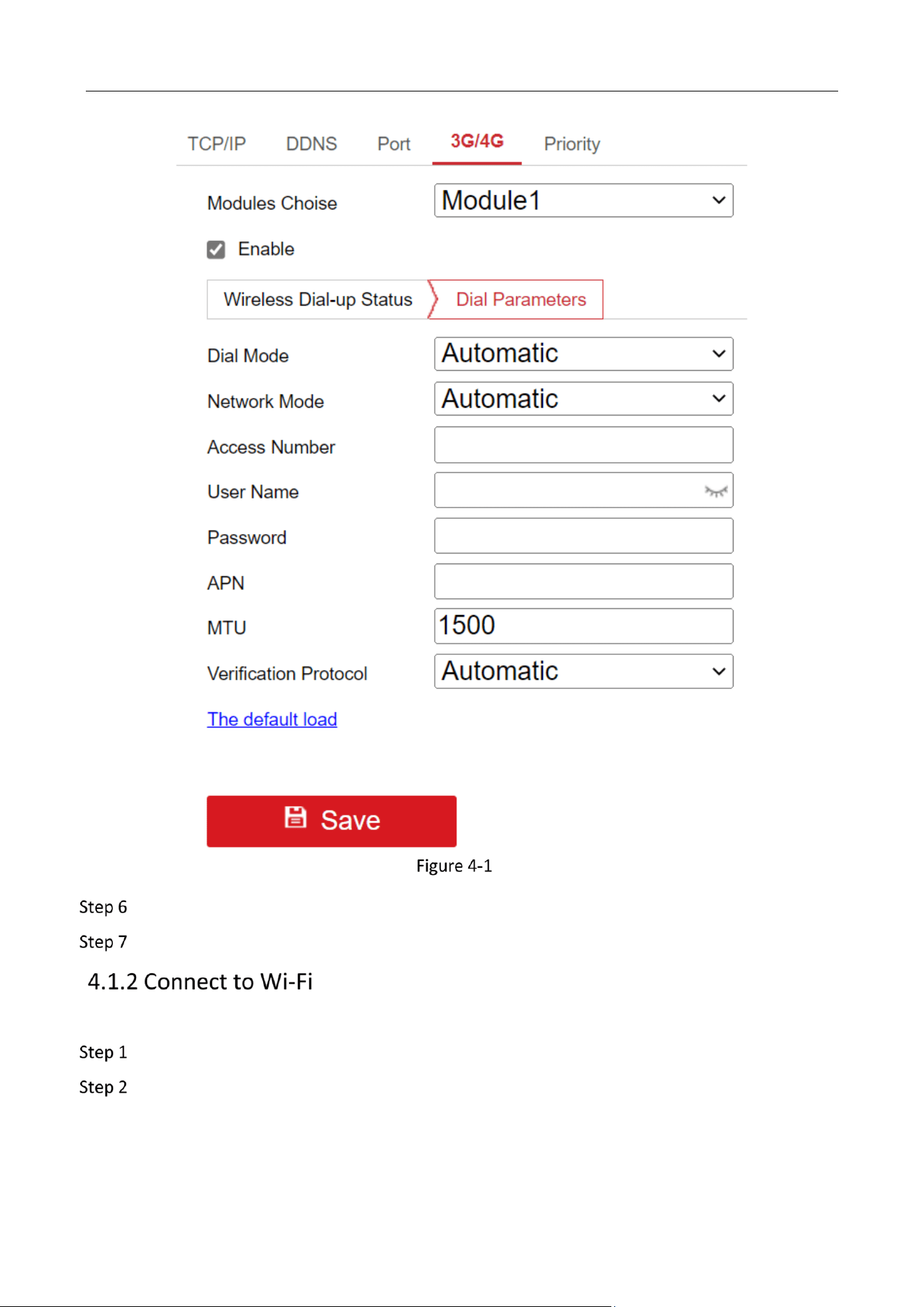
Go to Configuration > Network > Basic Settings > 3G/4G.
Check Enable.
Click Dial Parameters.
Select Network Mode. For now, only automatic mode is supported.
Automatic:
The recorder will automatically switch to the strongest network.
Auto-Search and Auto-Switch:
Network priority: 4G > 3G > 2G. The recorder will automatically connect the network of high
priority.
3G
The recorder only connects 3G network.
4G
The recorder only connects 4G network.
Optional: To connect private network, enter Access Number, User Name, Password, and
APN.
Mobile Video Recorder User Manual
11
Set Dial Parameters
Click Save.
Optional: Click Wireless Dial-up Status to view dialing status.
Configure Wi-Fi parameters to connect the device to the network via Wi-Fi.
Go to Configuration > Network > Basic Settings > TCP/IP.
Set WLAN parameters.
1) Click WLan 1.
2) Optional: Check DHCP. Use SADP tool to obtain the recorder IP address when DHCP is enabled.
Mobile Video Recorder User Manual
12
If you want to enable DHCP, the network that the device is connected to should support DHCP
(Dynamic Host Configuration Protocol).
3) Enter wireless network IPv4 Address, IPv4 Subnet Mask, IPv4 Default Gateway, and DNS
Server.
4) Click Save.
Go to Configuration > Network > Advanced Settings > Wi-Fi.
1) Click Wi-Fi Configuration.
2) Check Enable Wi-Fi.
3) Click Search to search available wireless networks.
4) Select a wireless network in Wireless List.
5) Enter SSID.
6) Select Network Mode as Managed.
7) Select Security Mode and enter Wi-Fi key.
Click Save.
Optional: Go to Configuration > Network > Advanced Settings > Wi-Fi > Wi-Fi Status to view
Wi-Fi status.
Configure local network parameters.
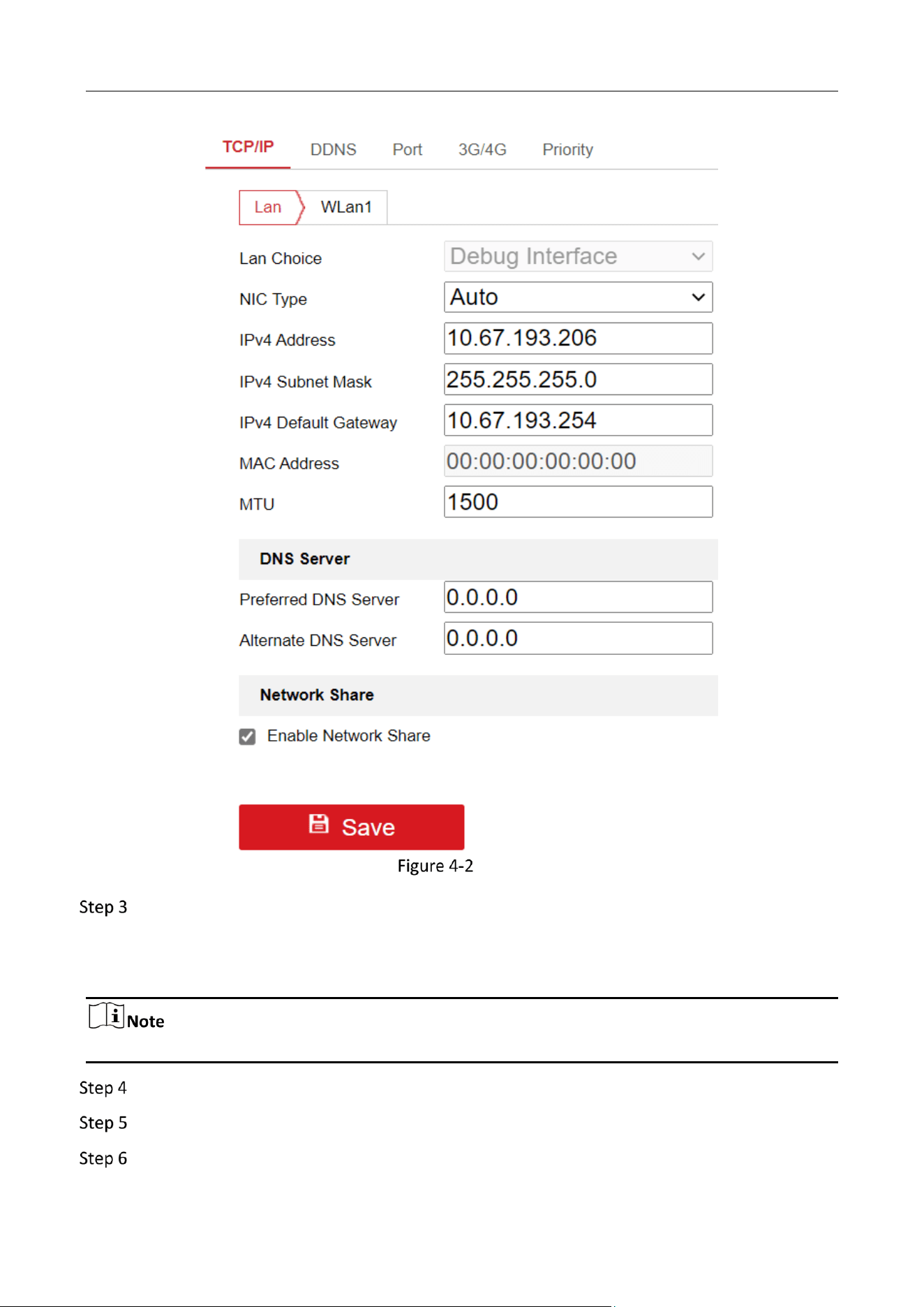
Go to Configuration > Network > Basic Settings > TCP/IP.
Click Lan.
Mobile Video Recorder User Manual
13
Configure Local Network
Select LAN Choice.
Debug Interface: Used to debug the recorder.
Front Interface: Used to connect network cameras.
Do not set the debug and rear net to the same network segment. Otherwise, it will lead to conflict.
Enter network parameters: IPv4 Address, IPv4 Subnet Mask, and IPv4 Default Gateway.
Optional: To access the recorder via internet, configure DNS server.
Click Save.
Mobile Video Recorder User Manual
14
Go to Configuration > Network > Basic Settings > Port to set the following parameters.
HTTP Port
To access the recorder via web browser.
RTSP Port
To get stream.
HTTPS Port
To secure communication over a network.
Server Port
To access the recorder via client software.
If your recorder external network is a dynamic IP address, you can use the Dynamic DNS (DDNS) for
network access.
Before You Start
Register your recorder on the DDNS server.
Configure local network IP address, subnet mask, gateway, and DNS server.
Create port mapping, default port: 80, 8000, and 554.
Go to Configuration > Network > Basic Settings > DDNS.
Select DDNS Type.
Enter server information.
Click Save.
What to do next
Open the web browser and enter the recorder domain name to visit it.
The device will automatically connect network of high priority.
Go to Configuration > Network > Basic Settings > Priority.
Check Enable NetPriority.
Set the priority of the network.
Platform Connection
The device can be remotely accessed via mobile surveillance platform.
Before You Start
Create the device ID on mobile surveillance platform.
Mobile Video Recorder User Manual
15
Go to Configuration > Network > Advanced Settings > Platform Access.
Check Enable.
Select Platform Access Mode as Ehome Platform.
Select Platform Version.
Select Server Address Type, and enter Server Address, Server Port, and Device ID.
Server Address
Enter the static IP address of mobile surveillance platform.
Server Port
The default value is 7660.
Device ID
The ID of the device registered on the mobile surveillance platform. If you leave it empty, device
logs in to the platform with serial No.
Click OK.
• You can download mobile surveillance platform to your computer by visiting our official website
and going to Home > VMS > Support > Download > iVMS-5200 Mobile Surveillance. Official
website: http://www.hikvision.com/en/ .
• You can download iVMS-5260M to your mobile phone by searching it in app store/google play
or scan QR code below. If you use Android system, install Google Play application on your mobile
phone before scanning the QR code.
iOS
Android
The device can be remotely accessed via guarding vision platform.
Before You Start
Connect your recorder to internet.
Configure IP address, sub-netmask, gateway, and DNS server of LAN port.
Go to Configuration > Network > Advanced Settings > Platform Access.
Check Enable.
Mobile Video Recorder User Manual
16
Select Platform Access Mode as Guarding Vision.
Enter a customized Security Code. You need to enter the security code when adding the
device in Guarding Vision.
Valid security code range [6-12]. You can use a combination of numbers, lowercase, and uppercase.
Click Save.
Visit guarding vision platform.
For computer user: Visit dev.Quardingvision.com.
For mobile phone user: Download Guarding Vision application in App Store (iOS system) or
Google Play(TM) (Android system).
Register an account.
Add the recorder by its serial number (a 9-bit character printed in device label) and security
code.
Start live view of your camera.
Network Sharing
The recorder can work as a wireless router, via which -other devices can access via the network.
You can only turn on one function between Wi-Fi AP and Wi-Fi. Turning on one of them will turn
off the other.
Go to Configuration > Network > Advanced Settings > Wi-Fi AP.
Check Enable Wi-Fi AP, Enable AP Broadcast, and Enable WLAN HotSpot.
Configure hotspot parameters.
1) Enter SSID (hotspot name).
2) Select Security Mode.
3) Enter IP Address and Sub-net Mask.
The IP address must be in different network segment with TCP/IP address.
Check Enable DHCP and enter Start IP Address and End IP Address.
Click Save.

Mobile Video Recorder User Manual
17
Connect a peripheral device to your recorder with a network cable. The peripheral device can access
internet after the recorder successfully dialed to internet.
Before You Start
Configure the IP address, gateway, etc. of the peripheral device.
Go to Configuration > Network > Basic Settings > TCP/IP > Lan.
Check Enable Network Share.
Configure the network parameters for the peripheral device.
1) Set its IP address in the same network segment with your recorder.
2) Set its network gateway IP as the recorder IP address.
Click Save.
The peripheral device can access internet after the recorder successfully dialed to internet.
Mobile Video Recorder User Manual
18
Chapter 5 Live View and Configuration
Live View
Start/stop the live view of cameras.
Go to Live View.
Click to se006Cect window division and click to select a window to display the live view
image.
Double click a camera in the camera list to display its live image in selected window. Or click
to start the live view of all cameras.
Double click the camera again to stop its live view. Or click ; to stop the live view of all
cameras.
Live view window division is selectable.
Window Division
Click to select live view window division.
Paging
Click to turn to previous/next window.
The recorder supports main stream and sub-stream. Main stream is used for continuous recording
and sub-stream is used for network transmission.
Click in camera list to select live view stream.
Capture live view pictures and save them to your computer.
Go to Live View.
Start live view of a camera.
Click .
View captured pictures.
Enter the path popped up in the lower right corner.
Go to Configuration > Local > Picture and Clip Settings for the saving path of captured
pictures.
Mobile Video Recorder User Manual
19
Record videos in live view and save them to your computer.
Go to Live View.
Start live view of a camera.
Click to start recording.
Click to stop recording.
Go to the set saving path to view recorded videos.
Enter the path popped up in the lower right corner of the interface.
Go to Configuration > Local > Record File Settings for the saving path of record files.
You can have real-time two-way audio between your computer and the recorder.
Before You Start
Connect the audio input and output devices to the recorder and computer.
Start the live view of a camera.
Click .
Result
At computer end, you can hear the audio from recorder.
At recorder end, you can hear the audio from computer.
Turn on audio and adjust audio volume.
Click to turn on audio.
Drag the slider to adjust volume.
Display the live view image in full screen.
Start the live view and click to display the live view image in full screen.
Press Esc to exit from the full-screen mode.
Channel-zero, known as virtual channel, can show the videos from all channels of the recorder,
reducing the bandwidth while simultaneously previewing from multi-channel.
Go to Configuration > Video/Audio > Channel-zero.
Check Enable Channel-zero Encoding.
Select Max. Bitrate and Max. Frame Rate.
Mobile Video Recorder User Manual
20
Click Save.
Go to Live View.
Double click Zero Channel 01 in the camera list to start live view of channel-zero.
PTZ Operation
Configure PTZ parameters and control PTZ.
Follow the steps to set PTZ parameters. The configuration of the PTZ parameters should be done
before you control the PTZ camera.
Before You Start
Connect the RS-485 cables of the PTZ camera to EXT.DEV interface of the device.
Go to Configuration > System > System Settings > PTZ Config.
Select Channel No. of PTZ camera.
Configure the parameters of the PTZ camera.
All the parameters should be exactly the same with those of the PTZ camera.
Click Save.
Go to Live View. Control PTZ camera via PTZ panel.
PTZ control panel may vary with recorder model.
PTZ Icon and Description
Icon
Description
Icon
Description
Direction buttons.
Auto-scan button.
Zoom -.
Zoom +.
Focus +.
Focus -.
Iris +.
Iris -.
Turn on /off light.
Start/stop wiper.

Mobile Video Recorder User Manual
21
Local Configuration
Go to Configuration > Local to configure the parameters of live view, record files, pictures, and
clips.
Local Configurations
Options
Descriptions
Stream Type
Select Main Stream if you want to view the HD image
for default live view. Select Sub Stream if you want to
view the BD image for default live view.
Play Performance
Shortest Delay: The recorder ensures real-time
capacity in priority.
Auto: Automatically adjust the live view stream to
balance real-time capacity and fluency.
Rules
If you enable the function, after the connected
camera has been set motion detection alarm and
enabled VCA function, the rule information will be
displayed on the live view image (e.g., marked with a
green rectangle).
Image Size
Select the image aspect ratio.
Auto Start Live View
Select Yes if you want to enable live view
automatically after login.
Image Format
Select the captured picture format in live view.
Record File Size
Select the packed size of the manually recorded and
downloaded video files. After the selection, the
maximum record file size is the value you selected.
Save record files to
Set the saving path for the manually recorded video
files. You can click Browse to change the saving path.
Save downloaded files to
Set the saving path for the downloaded video files.
You can click Browse to change the saving path.
Save snapshots in live view to
Set the saving path for the manually captured
pictures in live view mode. You can click Browse to
change the saving path.

Mobile Video Recorder User Manual
22
Save snapshots when playback to
Set the saving path for the manually captured
pictures in playback mode. You can click Browse to
change the saving path.
Save clips to
Set the saving path for the clipped video files in
playback mode. You can click Browse to change the
saving path.
Mobile Video Recorder User Manual
23
Chapter 6 Mobile Device Features
Timed Shutdown
The recorder will automatically start up/shut down according the schedule.
Before You Start
Wire power cord. For details, refer to the Quick Start Guide.
Go to Configuration > Vehicle > Startup.
Select Auto Work Type as Scheduled Startup/shutdown.
Set the shutdown schedule. For detailed steps, refer to Configure Arming Schedule.
Optional: Check Low Power Protect and select Low Power Protect Limit. If the voltage of the
recorder reaches the selected threshold, the recorder will shut down automatically.
Click Save.
Delayed Shutdown
You can set the shutdown delay time (Vehicle Ignition Startup and Shutdown) for the recorder.
Before You Start
Wire power cord. For details, refer to quick start guide.
Go to Configuration > Vehicle > Startup.
Select Auto Work Type as Halt Delay.
Select Delay Time.
Click Save.
Optional: Check Low Power Protect and select Low Power Protect Limit. If the voltage of the
recorder reaches the selected percentage, the recorder will shut down automatically.
Configure Satellite Positioning
The built-in GNSS module supports GPS (Global Positioning System), enabling device positioning and
speed limit alarm.
Before You Start
Install the positioning antenna.
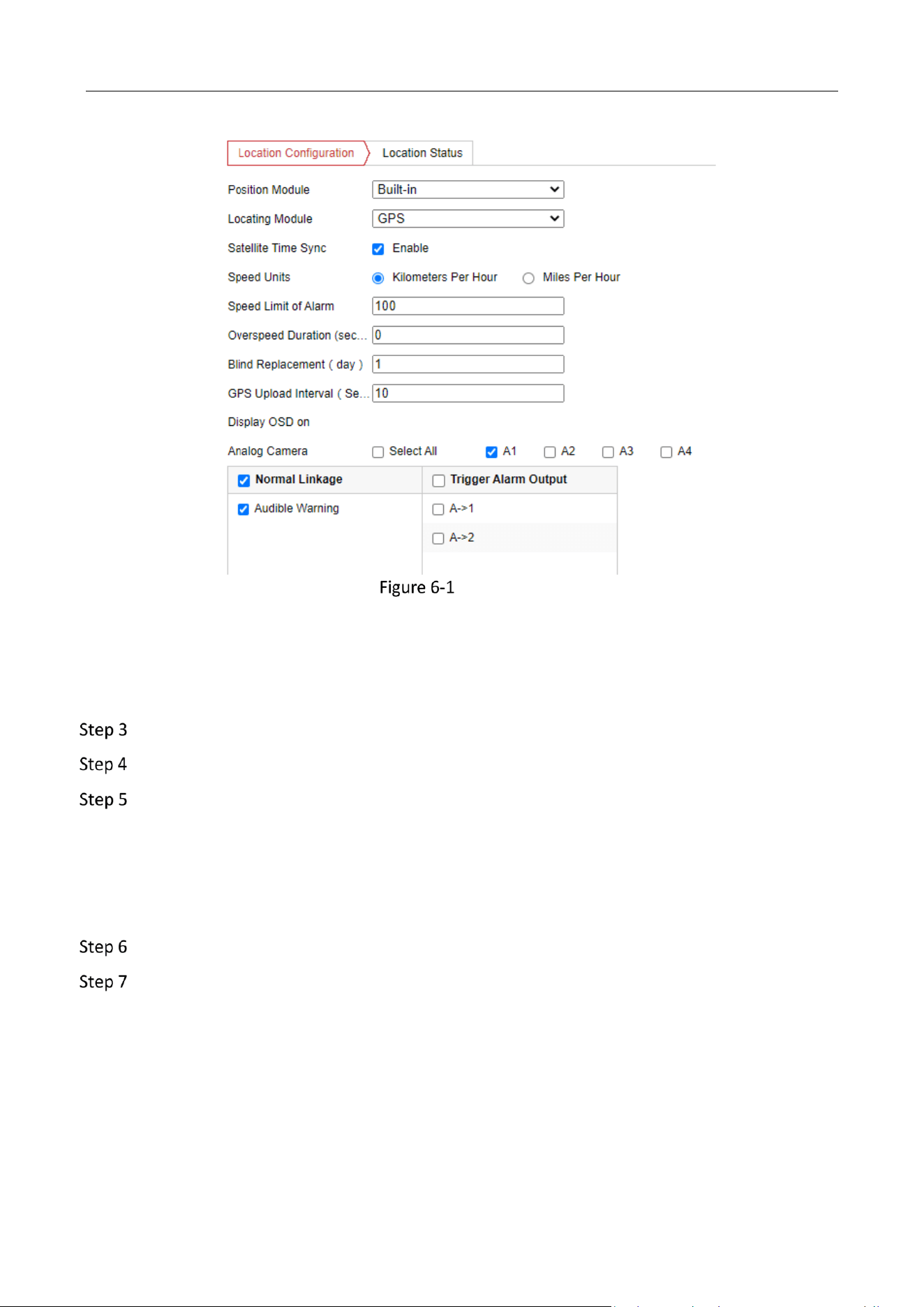
Go to Configuration > Vehicle > Position Settings > Location Configuration.
Select Position Module.
Mobile Video Recorder User Manual
24
Configure Satellite Positioning
Built-in
Obtain data from the satellite positioning module built in the recorder.
Intelligent Display Terminal
Obtain data from display terminal.
Select Locating Module.
Optional: Check Enable of Satellite Timing to synchronize recorder time with satellite time.
Configure speed limit.
1) Select Speed Units.
2) Enter Speed Limit of Alarm.
3) Enter Overspeed Duration (seconds).
If vehicle speed exceeds the set value, the recorder will alarm.
Check the channels you want the positioning information to be displayed.
Enter Blind Replacement and GPS Upload Interval.
Blind Replacement
In the area without network signal, after the signal restores, the positioning information from the
start time without network signal to the current time will be uploaded. For example, if you enter 3,
after the network signal restores, the data from 3 days ago to now will be uploaded.
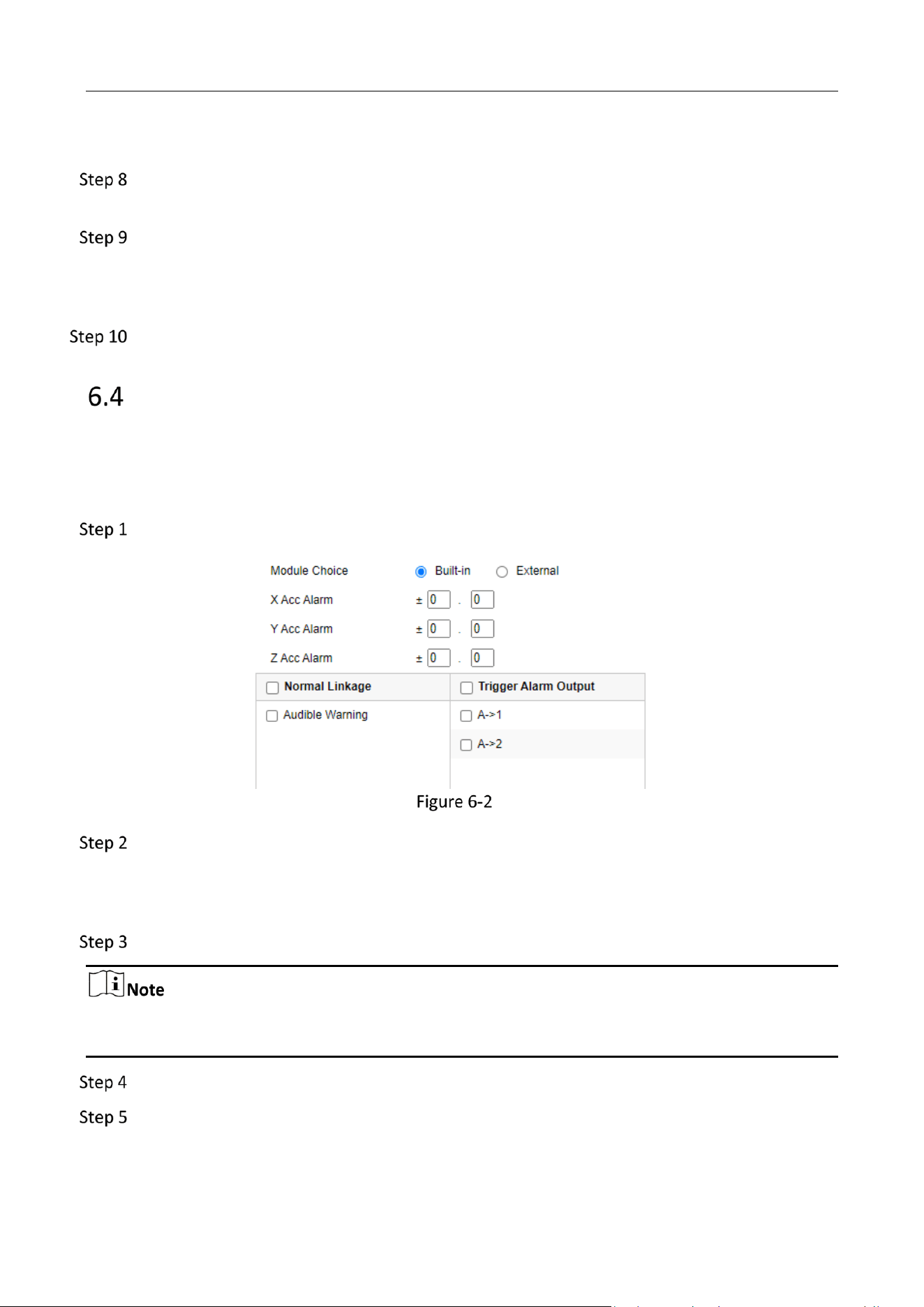
GPS Upload Interval
Mobile Video Recorder User Manual
25
The positioning information will be uploaded according to the set interval.
The positioning information will be displayed in the live view and playback mode of the
selected channel.
Configure linkage actions.
If you want the speeding vehicle to trigger the speed alarm, check Trigger Alarm Output.
If you want the speeding vehicle to trigger the system to beep, check Audible Warning.
Click Save.
Configure G-Sensor Alarm
G-Sensor detects and records acceleration information in 3-axial (X, Y, Z) directions.
Before You Start
Connect a G-sensor to the recorder.
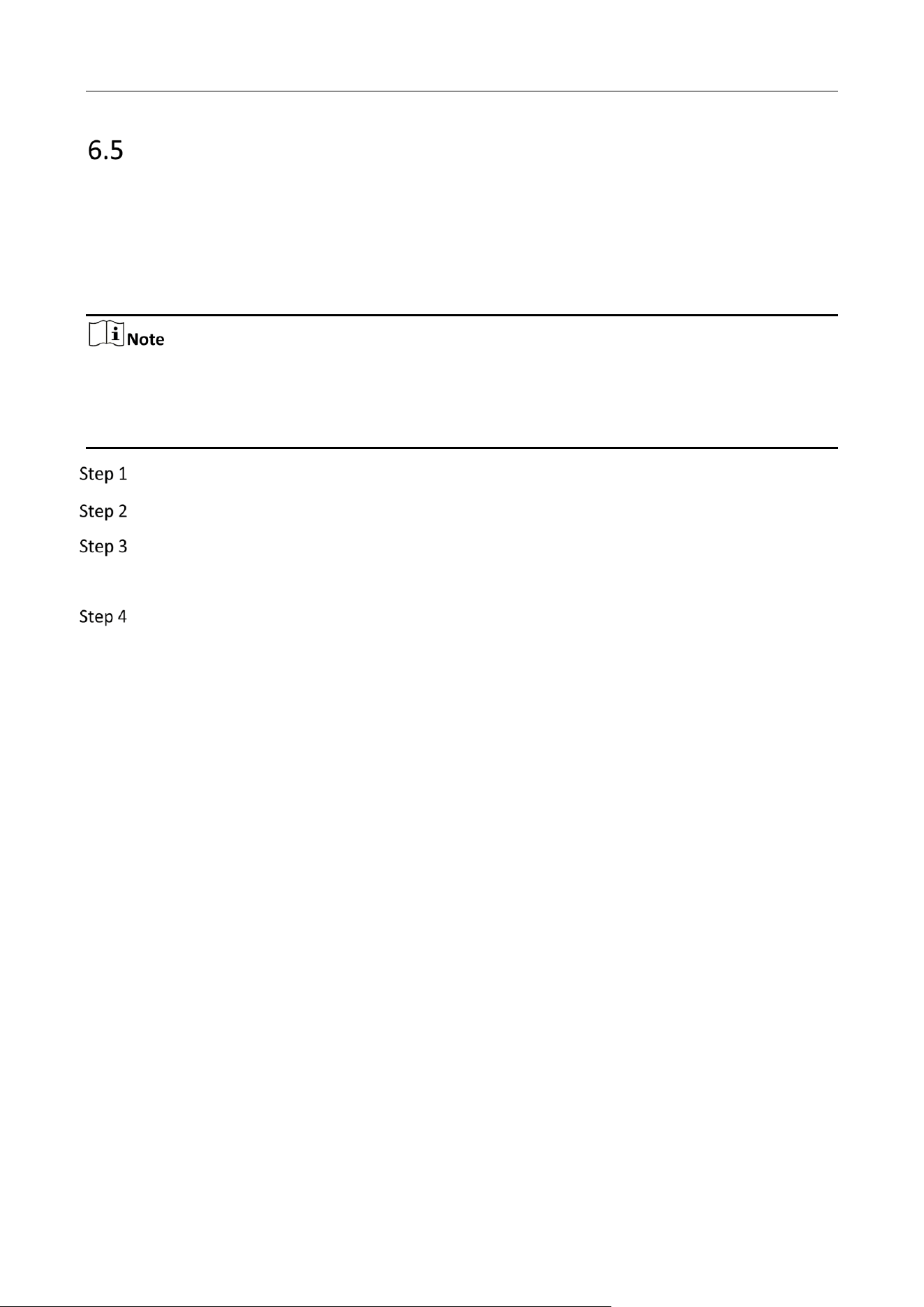
Go to Configuration > Vehicle > G-Sensor.
Configure G-Sensor
Select module according to actual situation.
External: The G-sensor is connected to the device through RS-232/RS-485 interface.
Built-in: The G-sensor is a built-in module of the device.
Set the limit value for acceleration alarm in X, Y and Z directions.
X, Y and Z represent the direction of acceleration and the unit of alarm value is G (G=9.8 m/s
2
).
During driving, the recorder will alarm when acceleration of any direction exceeds the set value.
Set the linkage actions for acceleration alarm, including Audible Warning and Alarm Output.
Click Save.
Mobile Video Recorder User Manual
26
Configure Sensor-in
Sensor-in detects and records the vehicle's driving information, including pedal braking, turning
left/right, reversing, etc.
Before You Start
Connect the recorder sensor-in interface and vehicle corresponding interface. For details, refer to
quick user guide.
If sensor-in is disabled, you can configure it via alarm input. For example, for the recorder with 4-ch
alarm inputs, according to the sequence of the parameters on the interface, braking corresponds
to No. 5 alarm input (A<-5), turning left corresponds to No. 6 alarm input (A<-6), and so on. Refer
to "Configure Alarm Input" for details.
Go to Configuration > Vehicle > Sensor-In.、
Check Enable.
Select Trigger Level and Pop Channel according to actual situation.
The image of selected channel will be displayed in full screen when sensor-in is triggered.
Click Save.

Mobile Video Recorder User Manual
27
Chapter 7 Camera Management
Configure Encoding Parameters
Configure encoding parameters to adjust live view image and video parameters.
Go to Configuration > Video/Audio > Video.
In good network situation, you can set high resolution and bitrate to improve image quality.
In bad network situation, you can set low resolution, bitrate, and frame rate to get fluent image.
In good network situation, you can set high resolution and bitrate to improve image quality.
In bad network situation, you can set low resolution, bitrate, and frame rate to get fluent
image.
In bad network situation, if you want to guarantee the resolution, you can set low bitrate and
frame rate to get fluent image.
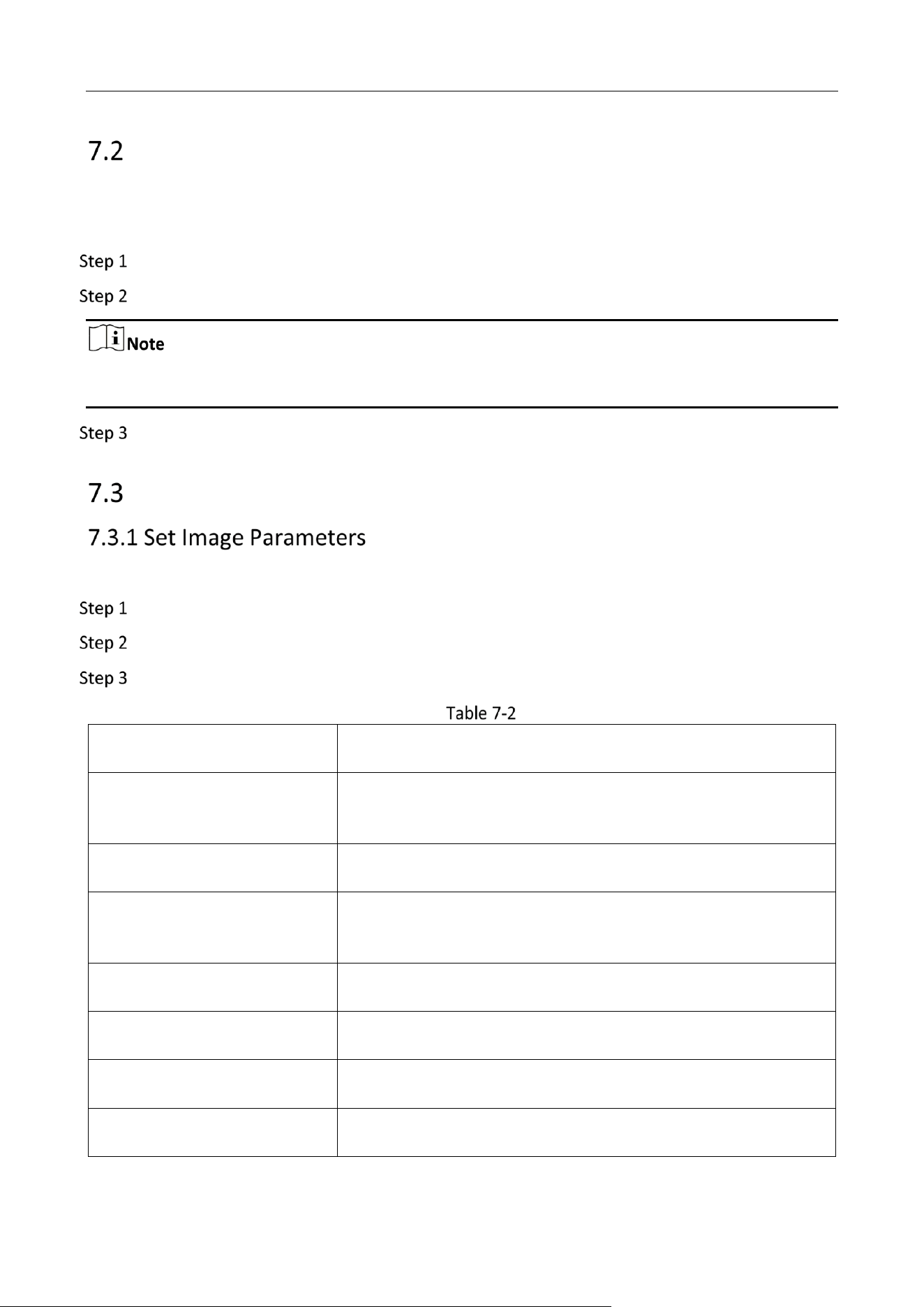
Encoding Parameters
Options
Descriptions
Stream Type
Main Stream is used for HD storage and live view. Sub Stream is used
for BD storage and live view when the network bandwidth is
insufficient.
Video Type
If you want to record both video and audio, select Video&Audio. If you
just want to record video, select Video Stream.
Resolution
The higher the resolution, the clearer the image, and the higher the
requirement of network bandwidth.
Bitrate Type
You can select Variable or Constant.
Video Quality
If the bitrate is variable, you can select video quality according to your
needs. The higher the video quality, the higher the requirement of
network bandwidth.
Frame Rate
The higher the frame rate, the higher the requirement of network
bandwidth, and the higher the needed storage capacity.
Max. Bitrate
If the bitrate is variable, enter the max. bitrate. The bitrate will change
automatically below the max. value.
Video Encoding
Select H.265 (only supported by some models) or H.264 according to
the actual needs.
Mobile Video Recorder User Manual
28
Configure Audio Parameters
You can configure the audio encoding format.
The device supports embedded audio or peripheral audio device has been connected
Go to Configuration > Video/Audio > Audio.
Select Analog Channel Audio Coding and Intercom Audio Coding.
The selected encoding format should be the same with that of the embedded audio or peripheral
audio device.
Click Save.
Image Settings
You can adjust image parameters including brightness, contrast, etc.
Go to Configuration > Image > Display Settings.
Select Channel No.
Set image parameters.
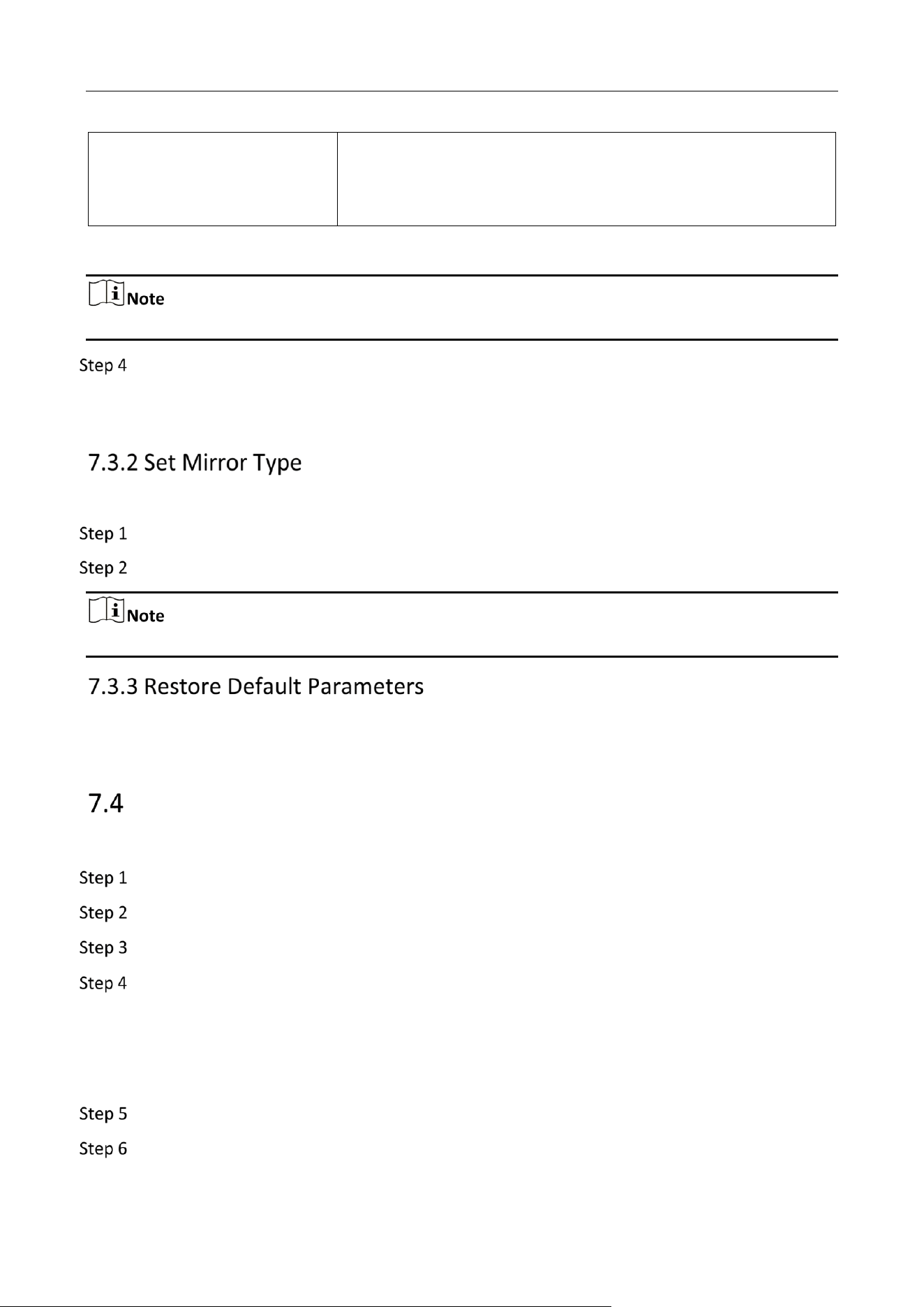
Image Parameters
Options
Descriptions
Scene
Select Standard, Indoor, Outdoor or DimLight according to the
actual situation.
Brightness
It refers to the maximum brightness of the image.
Contrast
It refers to the contrast of the image. Set it to adjust the levels
and permeability of the image.
Saturation
It refers to the colorfulness of the image color.
Hue
It refers to the hue of the image.
Sharpness
It refers to the edge contrast of the image.
Denoising
If refers to reduce video noise reduction of the image.
Mobile Video Recorder User Manual
29
Mirror Type
When the visual angle of the live view image deviates with that
of the actual covered area, you can set the mirror type to
adjust the image to the normal visual angle.
The supported parameters may vary with different models. The actual device prevails.
Optional: When the image color is imbalanced, or the lens cannot be controlled, click
Default to improve the image.
You can enable mirror image and set mirror type to get suitable image.
Go to Configuration > Image > Display Settings.
Select Mirror Type as desired.
The function varies with recorder model.
You can restore image parameters to defaults.
Go to Configuration > Image > Display Settings, select Channel No., and click Default.
Set OSD Parameters
Configure the camera name, OSD (On Screen Display) settings, etc.
Go to Configuration > Image > OSD Settings.
Select Channel No.
Select Display Mode and OSD Size.
Set the display content.
Check Display Name and enter Camera Name, and enter Time Format and Date Format.
Check Display Date, and enter Time Format and Date Format.
Check Display Week.
Set OSD Display Mode.
Optional: To display text on OSD, check one of the Text Overlay and enter text.
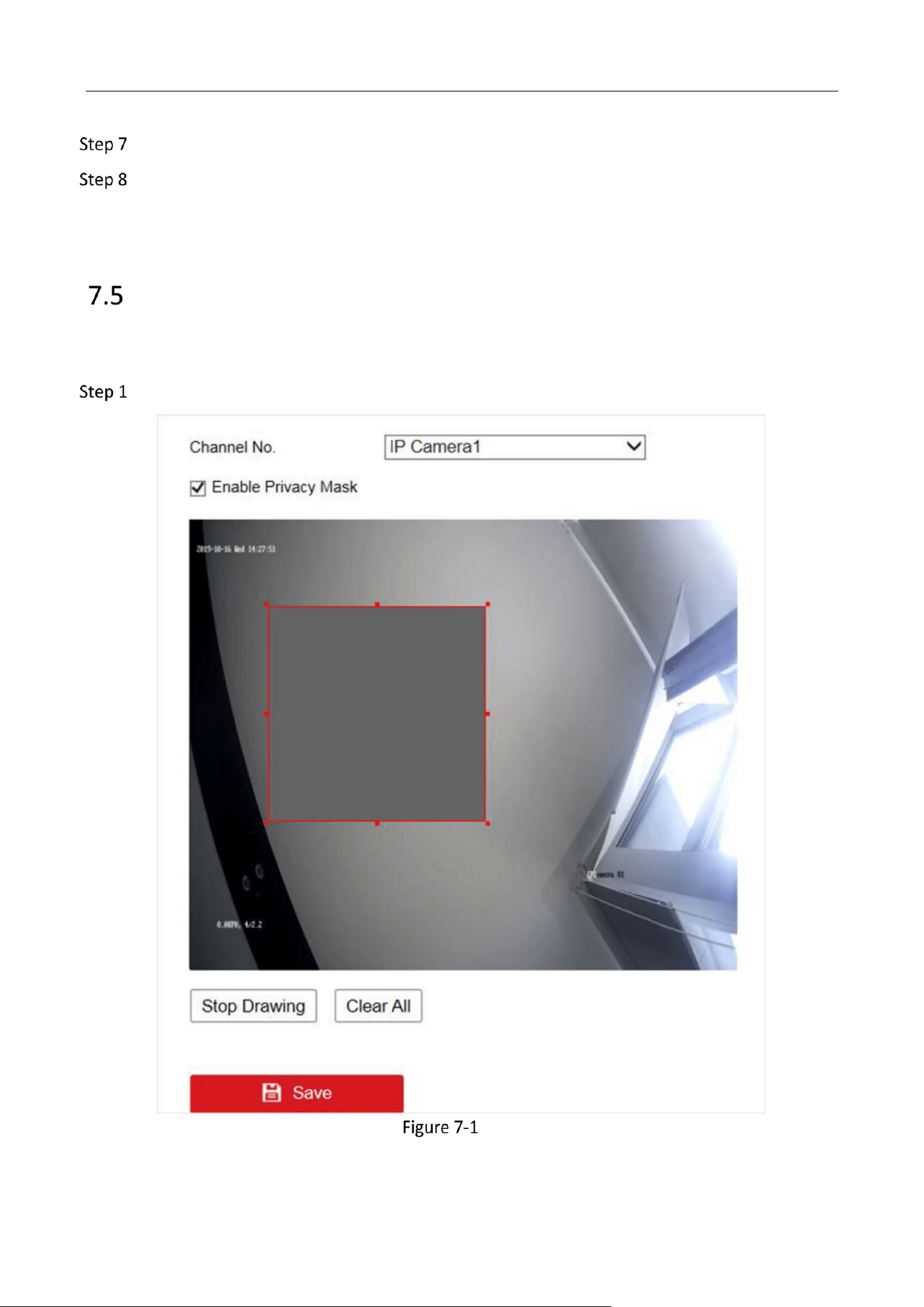
Mobile Video Recorder User Manual
30
Drag the red frame on live view window to adjust OSD position.
Click Save.
Result
The check display contents will be overlaid on the live view image and videos.
Set Privacy Mask
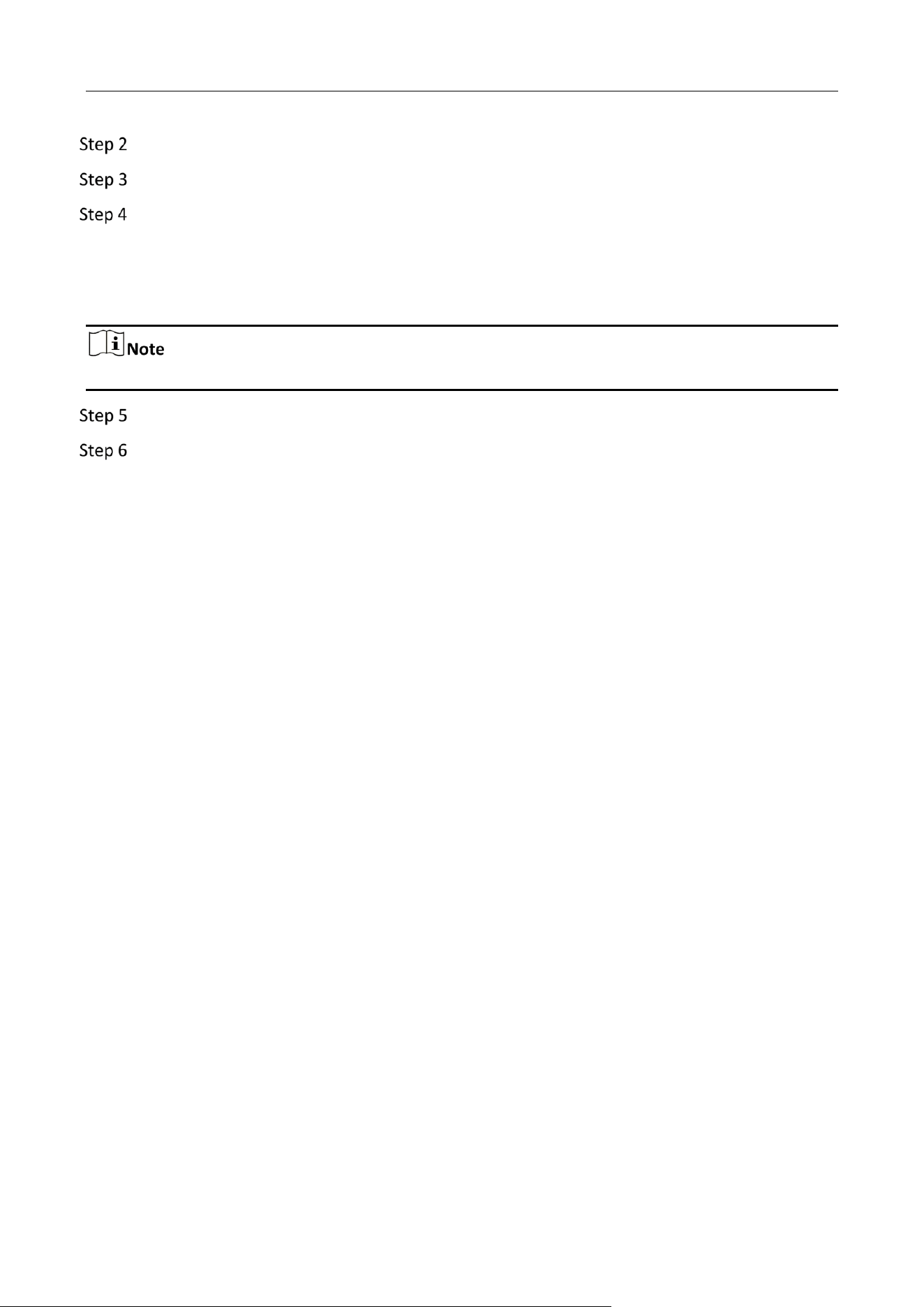
The privacy mask can be used to protect personal privacy by concealing parts of the image from
view or recording with a masked area.
Go to Configuration > Image > Privacy Mask.
Configure Privacy Mask
Mobile Video Recorder User Manual
31
Select Channel No.
Check Enable Privacy Mask.
Draw detection area.
1) Click Draw Area.
2) In preview area, drag to draw the detection area.
3) Click Stop Drawing.
Up to four privacy mask areas are supported for each channel.
Optional: Click Clear All to clear all the drawn areas.
Click Save.
Result
The image of drawn area will be shield in the live view and videos.
Mobile Video Recorder User Manual
32
Chapter 8 Events and Alarms
Configure Motion Detection Alarm
When motion detection alarm is configured, once a motion event is detected, the device starts to
record and multiple linkage actions will be triggered.
Go to Configuration > Event > Basic Event > Motion Detection.
Select Channel No.
Draw detection area.
1) Click Draw Area.
2) In preview area, drag to draw the detection area.
3) Click Stop Drawing.
Set Sensitivity.
Configure arming schedule. For detailed steps, refer to Configure Arming Schedule.
Configure linkage method. For detailed steps, refer to Configure Linkage Actions.
Click Save.
Configure Video Tampering Alarm
A tampering alarm is triggered when the camera is covered and the monitoring area cannot be
viewed. Linkage actions, including audible warning, alarm output, can be set to respond.
Go to Configuration > Event > Basic Event > Video Tampering.
Select Channel No.
Draw detection area.
1) Click Draw Area.
2) In preview area, drag to draw the detection area.
3) Click Stop Drawing.
Configure arming schedule. For detailed steps, refer to Configure Arming Schedule.
Configure linkage method. For detailed steps, refer to Configure Linkage Actions.
Set Sensitivity.
Click Save.
Mobile Video Recorder User Manual
33
Configure Video Loss Alarm
When the recorder cannot receive video signal from the analog cameras, the video loss alarm will
be triggered. Linkage actions, including audible warning and alarm output, can be set to respond.
Go to Configuration > Event > Basic Event > Video Loss.
Check Enable Video Loss Detection.
Configure arming schedule. For detailed steps, refer to Configure Arming Schedule.
Configure linkage method. For detailed steps, refer to Configure Linkage Actions.
Click Save.
Configure Alarm Input
Configure the settings for alarm input, including trigger level, arming schedule and alarm linkage
actions, etc.
Before You Start
Connect an alarm device to your recorder.
Go to Configuration > Event > Basic Event > Alarm Input.
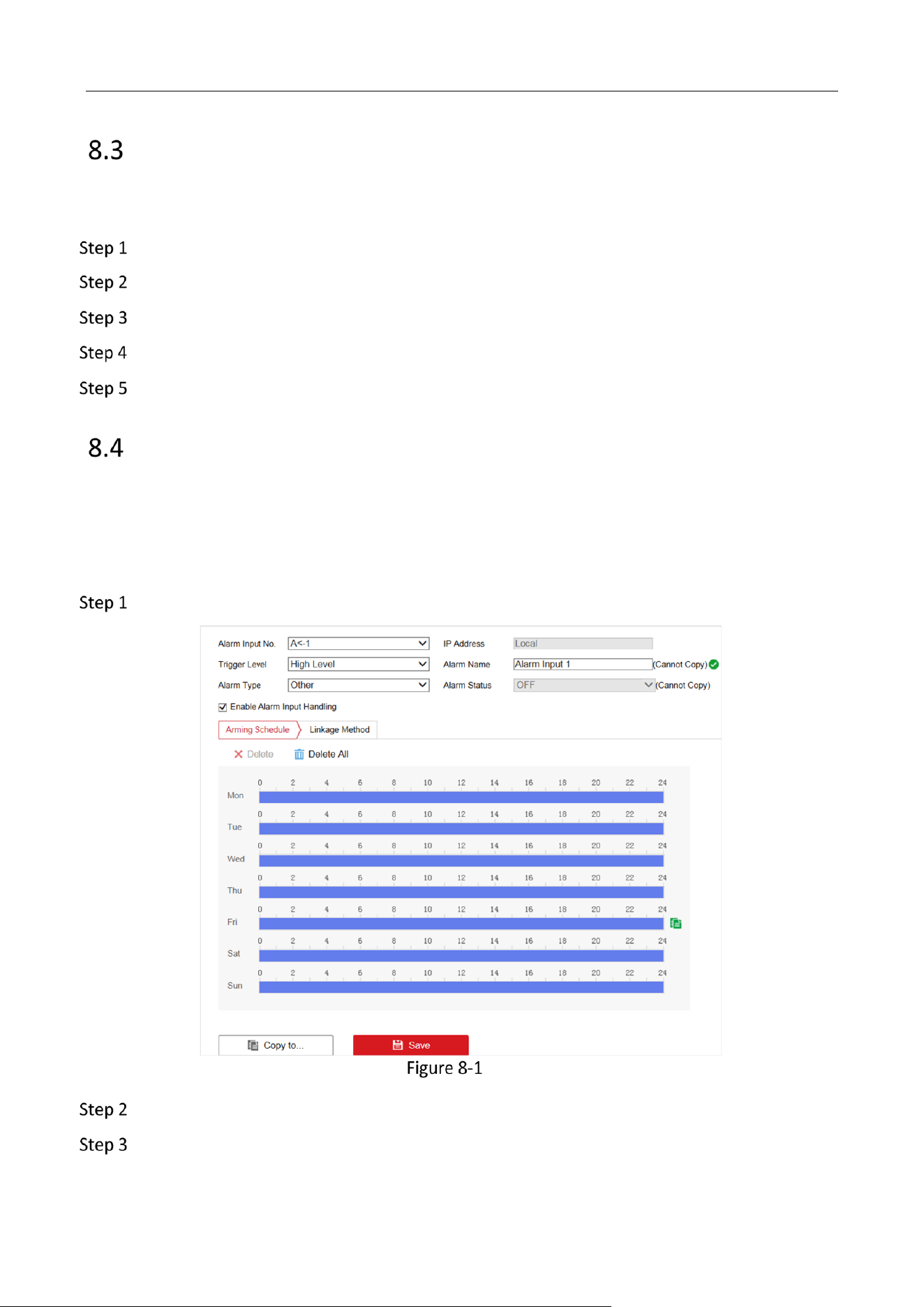
Configure Alarm Input
Select Alarm Input No. and enter Alarm Name.
Select Alarm Type according to alarm device type.
Mobile Video Recorder User Manual
34
Check Enable Alarm Input Handling.
Configure arming schedule. For detailed steps, refer to Configure Arming Schedule.
Configure linkage method. For detailed steps, refer to Configure Linkage Actions.
Optional: Click Copy to and select desired channels to copy the above settings to other alarm
inputs.
Click Save.
Configure Alarm Output
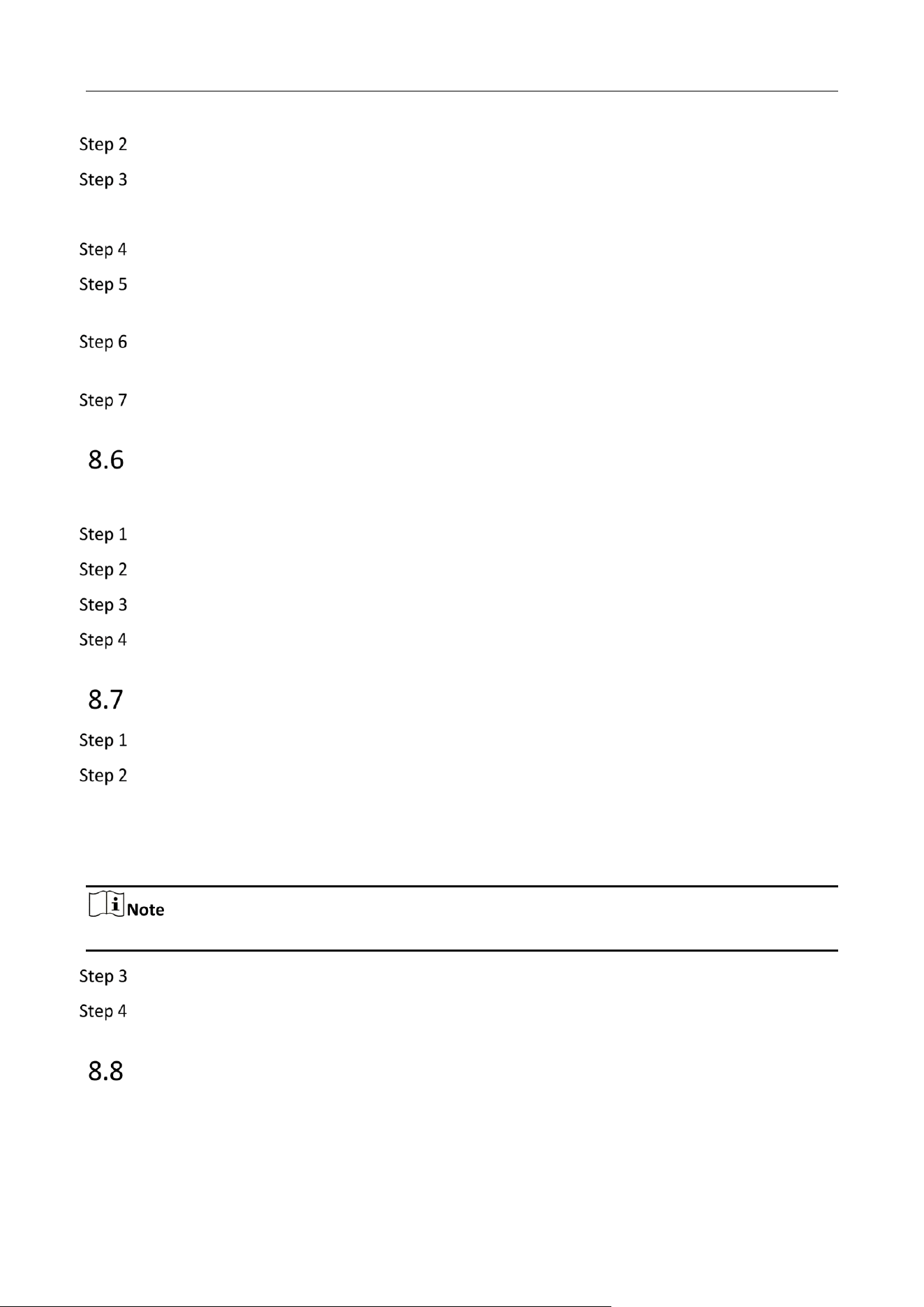
Configure the arming schedule, alarm duration time and alarm name for alarm output.
Before You Start
Connect alarm output device to your recorder. For details, refer to installation guide.
Go to Configuration > Event > Basic Event > Alarm Output.
Configure Alarm Output
Mobile Video Recorder User Manual
35
Select Alarm Output No. and enter Alarm Name.
Select Delay to set dwell time.
Alarm output will continue for the set time.
Configure arming schedule. For detailed steps, refer to Configure Arming Schedule.
Optional: Click Manual Alarm to trigger alarm manually. Click Stop Alarm to stop manual
alarm.
Optional: Click Copy to and select desired channels to o copy the above settings to other
alarm outputs.
Click Save.
Configure Exception Alarm
Configure alarms which are triggered by exceptions to take necessary actions in time.
Go to Configuration > Event > Basic Event > Exception.
Select Exception Type.
Configure linkage method. For detailed steps, refer to Configure Linkage Actions.
Click Save.
Configure Arming Schedule
Drag in time line to draw an arming period.
Adjust the set arming period.
1) Click a period and adjust its length.
2) Click a period, enter start time and end time, and click Save.
3) Click Delete All to delete all periods.
Up to 8 time periods can be set for each day and each of the time periods cannot be overlapped.
Optional: Click Copy to and select desired days to copy the above settings to other days.
Click Save.
Configure Linkage Actions
Check the linkage action(s) when events occur, and click Save.
Mobile Video Recorder User Manual
36
Linkage actions vary with event type.
Linkage Actions
Options
Descriptions
Audible Warning
The device will trigger an audible beep when
events occur.
Send Email
The device will send an Email alarm host when
events occur.
Notify Surveillance Center
The device will send an exception or alarm
signal to the remote alarm host when events
occur.
The alarm host refers to the computer installed
with the remote client.
Full Screen Monitoring
The image of the alarm channel will pop up on
the connected external monitor when events
occur, and be displayed in full screen.
Trigger Alarm Output
Check the alarm output channel(s) to trigger
the alarm of the connected alarm output
device(s).
Mobile Video Recorder User Manual
37
Chapter 9 User Management
Manage User Account
You can add and delete users, and modify the password and permission of users.
Go to Configuration > System > User Management.
Click Add.
Edit new user parameters and click OK to create the user.
We highly recommend you to create a strong password of your own choosing (using a minimum of
8 characters, including at least three kinds of following categories: upper case letters, lower case
letters, numbers, and special characters) in order to increase the security of your product. And we
recommend you reset your password regularly, especially in the high security system, resetting the
password monthly or weekly can better protect your product.
Delete
Select a user and click Delete to delete the user.
Modify
Select a user and click Modify to modify the user information.
Configure Security Question
If you forgot the admin password, you can reset password by answering security questions. Follow
the steps to set security questions.
Before You Start
Your computer and recorder must be in the same network segment.
Go to Configuration > System > User Management.
Click Security Question.
Enter Admin Password.
Set security questions.
Click OK.
Result
If you forgot admin password, you can visit the recorder via computer in the same network segment
with your recorder and click Forgot Password to reset password.
Mobile Video Recorder User Manual
38
Chapter 10 Security
Configure Allowlist
Only the trusted IP addresses on the white list can access the device via the network.
Go to Configuration > System > Security > Allowlist.
Check Enable Allowlist.
Click Add and enter desired IP Address, and click OK.
Optional: Edit or delete the IP address.
1) Select an IP address and click Modify to edit the IP address.
2) Select an IP address and click Delete to delete the IP address.
Click Save.
Configure SSH
SSH is disabled by default for security reasons. This setting is reserved for professional maintenance
personnel only.
Go to Configuration > System > Security > Security Service.
Uncheck Enable SSH.
Click Save.
Mobile Video Recorder User Manual
39
Chapter 11 Maintenance
View System Information
You can view your recorder system information and edit recorder name and record number.
Go to Configuration > System > System Settings > Basic Information to view the recorder
information. You can edit Device Name and Device No.
Search Log File
You can view and export logs saved in the recorder storage media.
Go to Configuration > System > Maintenance > Log to search or export logs.
Upgrade the System
You are recommended to upgrade the recorder with the help of professional technical support.
Before You Start
Save the upgrade file in computer.
Go to Configuration > System > Maintenance > Upgrade & Maintenance.
Click Browse and select upgrade file.
Click Upgrade and click OK in popup message box to start upgrading.
The upgrading process will be 1 to 10 minutes, please don't disconnect power to the recorder
during the process. The recorder reboots automatically after upgrading.
Configure Image Partition
Configure image partition value if you want to change the reserved image storage capacity.
Before You Start
The storage media has been formatted.
Go to Configuration > Storage > Advanced Settings.
Enter Image Partition.
Click Save.
Mobile Video Recorder User Manual
40
Configure Overwritten Recording
You can enable overwritten recording if you want to overwrite the former record files when the
storage media is full. Or disable overwritten record if you want to stop recording when the storage
media is full.
Go to Configuration > Storage > Advanced Settings.
Check or uncheck Enable Overwriting according to your needs.
Click Save.
Print Log
If you need to debug the device, you can enable printing log.
Go to Configuration > Storage > Advanced Settings.
Check Enable Print Log.
Click Save.
Rebooting
Reboot your recorder via menu instead of disconnecting power from the recorder.
Go to Configuration > System > Maintenance > Upgrade & Maintenance. Click Reboot and click OK
in popup message box to start rebooting.
Restore Default Settings
If your recorder is abnormal, you can restore recorder to defaults settings.
Go to Configuration > System > Maintenance > Upgrade & Maintenance.
Restore
Restore all parameters, except the network (including IP address, subnet mask, gateway, MTU, NIC
working mode, default route, server port, etc.) and user account parameters, to the factory default
settings.
Default
Restore all parameters to the factory default settings.
Export Configuration File
The configuration files of the recorder can be exported to your computer for backup.
Go to Configuration > System > Maintenance > Upgrade & Maintenance.
Click Device Parameters and select the configuration file saving path.

Mobile Video Recorder User Manual
41
Import Configuration File
The configuration file of one device can be imported to multiple devices if they are to be configured
with the same parameters.
Only devices of the same model can share configuration file.
Go to Configuration > System > Maintenance > Upgrade & Maintenance.
Click Browse of Import Config. File and select configuration file.
Click Import and click OK in popup message box to start importing.
Configure DST Settings
Configure DST (Daylight Saving Time) settings for the system.
Go to Configuration > System > System Settings > Time Settings.
Check Enable DST.
Set Start Time and End Time for DST.
Select DST Bias.
Click Save.
Synchronize Time
Synchronize the device time when it is inconsistent with the actual time.
Go to Configuration > System > System Settings > Time Settings.
Select Time Zone according to the device location.
Select the time synchronization mode.
– If an NTP server is available, select NTP and enter NTP server information to synchronize the
device time with that of the NTP server.
– Select Manual Time Sync. and set time to customize the device time.
– Select Manual Time Sync. and check Sync. with computer time to synchronize the device time
with that of the computer.
Click Save.
Configure Menu Output
You can configure local output and resolution remotely.
Go to Configuration > System > System Settings > Menu Output to configure Menu Output and
Mobile Video Recorder User Manual
42
Resolution.
The function varies with model.
Configure RS-232
To debug recorder via serial port or connect serial device, you can configure RS-232 parameters.
Before You Start
Connect a serial device to your recorder RS-232 interface.
Go to Configuration > System > System Settings > Serial Config.
Select COM port the serial device connects to.
Edit Bit rate, Data Bit, Stop Bit, Parity, and Flow Control.
Select Usage.
Console
Connect a computer to the recorder through the computer serial port. Recorder parameters can be
configured by using software such as HyperTerminal. The serial port parameters must be the same
as of the recorder when connecting with the computer serial port.
Transparent Channel
Connect a serial device directly to the recorder. The serial device will be controlled remotely by the
computer through the network and the protocol of the serial device. If alarm button is connected,
select RS-232 usage as Transparent Channel.
Click Save.
Mobile Video Recorder User Manual
43
Chapter 12 Local Menu Operation
Connect a display and a mouse to recorder, and you can operate the recorder locally.
Manage IP Camera
The section is only available for the recorder that supports network camera.
Before adding an IP camera, activate it by setting a password for it.
Before You Start
Connect the IP camera to IP camera interface in the recorder rear panel.
Go to Menu > Other Settings > IPC Settings.
Click Manual Management.
Select an inactivated IP camera.
Activate the selected IP camera.
Click Quick Active. The IP camera password will be set as the same with the device password.
Click Manu Active and enter the same password in New Password and Confirm.
We highly recommend you to create a strong password of your own choosing (using a minimum of
8 characters, including at least three kinds of following categories: upper case letters, lower case
letters, numbers, and special characters) in order to increase the security of your product. And we
recommend you reset your password regularly, especially in the high security system, resetting the
password monthly or weekly can better protect your product.
Before You Start
The IP camera is active.
Go to Menu > Other Settings > IPC Settings
Uncheck Auto Add and click Manage IP Camera.
Edit camera IP address.
1) Select an IP camera and click Edit.
2) Enter an IP address that is in the same network segment with the recorder.
Mobile Video Recorder User Manual
44
Add the IP camera.
Click Manual Add.
Select IP channel No. for the IP camera.
Edit the required information.
Click OK.
You can edit or delete added IP cameras.
Go to Menu > Other Settings > IPC Settings.
Optional: You can change the parameters of the added IP cameras.
1) Select an IP camera.
2) Edit the parameters. If you change the IP address, you will connect to another IP camera.
3) Click OK.
Optional: Select an IP camera, click Delete to delete the IP camera.
Recording
To record the videos for connected cameras, you need to install a storage media and format it, and
configure the recording schedule.
A newly installed storage media must be formatted before it can be used.
Before You Start
Install storage media.
Go to Menu > Storage.
Check storage media to format.
Click Format.
After format, the storage media Status should be Normal.
All-day recording is on by default. Device will start and stop recording according to the configured
recording schedule.
Before You Start
Install storage media and format it.
Go to Menu > Basic Settings > Record.
Mobile Video Recorder User Manual
45
Select the camera to set recording schedule.
Click Set of Schedule.
Check Enable Schedule.
Select the day from the dropdown list for settings.
Configure all day schedule or custom schedule.
Check All Day to enable all-day recording, and then select the recording type from the drop-
down list.
Uncheck All Day, customize the time period for recording, and select the recording type for
each time period.
Up to 8 time periods can be set for each day and each of the time periods cannot be overlapped.
Click OK.
Playback
You can search and play back the videos stored on the recorder.
Go to Menu > Video Search.
Select Search Mode.
General
Normal videos.
Event
Motion detection, alarm, motion|alarm, motion&alarm videos.
Select Camera, Video Type, Start Time, and End Time.
Click Search.
Select a video and click Play.
Back up
Back up the videos stored on the recorder.
Before You Start
Connect a USB storage device to your recorder.
Go to Menu > Video Search.
Select Search Mode.
Mobile Video Recorder User Manual
46
General
Normal videos.
Event
Motion detection, alarm, motion|alarm, motion&alarm videos.
Select Camera, Video Type Start Time, and End Time.
Click Search.
Select the videos and click Export.
The number of USB interface varies with recorder model. If your recorder contains only one USB
interface, you can back up videos via remote control or touchscreen.
Preview Settings
Purpose:
Configure the dwell time of live view, set the camera order, enable/disable the audio preview, etc.
Go to Menu > Other Settings > Preview.
Select the Video Output according to the actual needs.
Configure the Preview Mode, Dwell Time, and Enable Audio Output.
Preview Mode: Select the window division mode for live view.
Dwell Time: The switch interval of the live view screen. The screen will be switched to the next
one after the selected dwell time.
Enable Audio Output: Enable/disable audio output for the selected video output.
Click OK.

0
UD Number