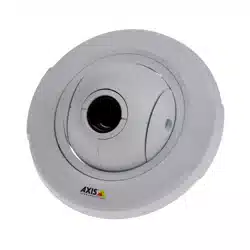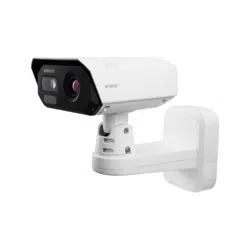


AXISP12ThermalNetworkCameraSeries
TableofContents
ProductoverviewAXISP1280-E...............................3
ProductoverviewAXISP1290-E...............................4
Sensorunits...............................................6
Sensorunits....................................................6
Findthedeviceonthenetwork................................7
Accessthedevice...............................................7
Aboutsecurepasswords..........................................7
Setup.....................................................8
Webpageoverview..............................................8
Imagequality...................................................9
Privacymasks..................................................10
Overlays.......................................................11
Streamingandstorage...........................................12
Events........................................................13
Applications....................................................14
Troubleshooting............................................15
Resettofactorydefaultsettings...................................15
Checkthecurrentrmware.......................................15
Upgradethermware............................................15
Technicalissues,cluesandsolutions................................
16
Performanceconsiderations.......................................
17
Specications..............................................18
SDcardslot....................................................
18
Buttons.......................................................
18
Connectors....................................................
18
2
AXISP12ThermalNetworkCameraSeries
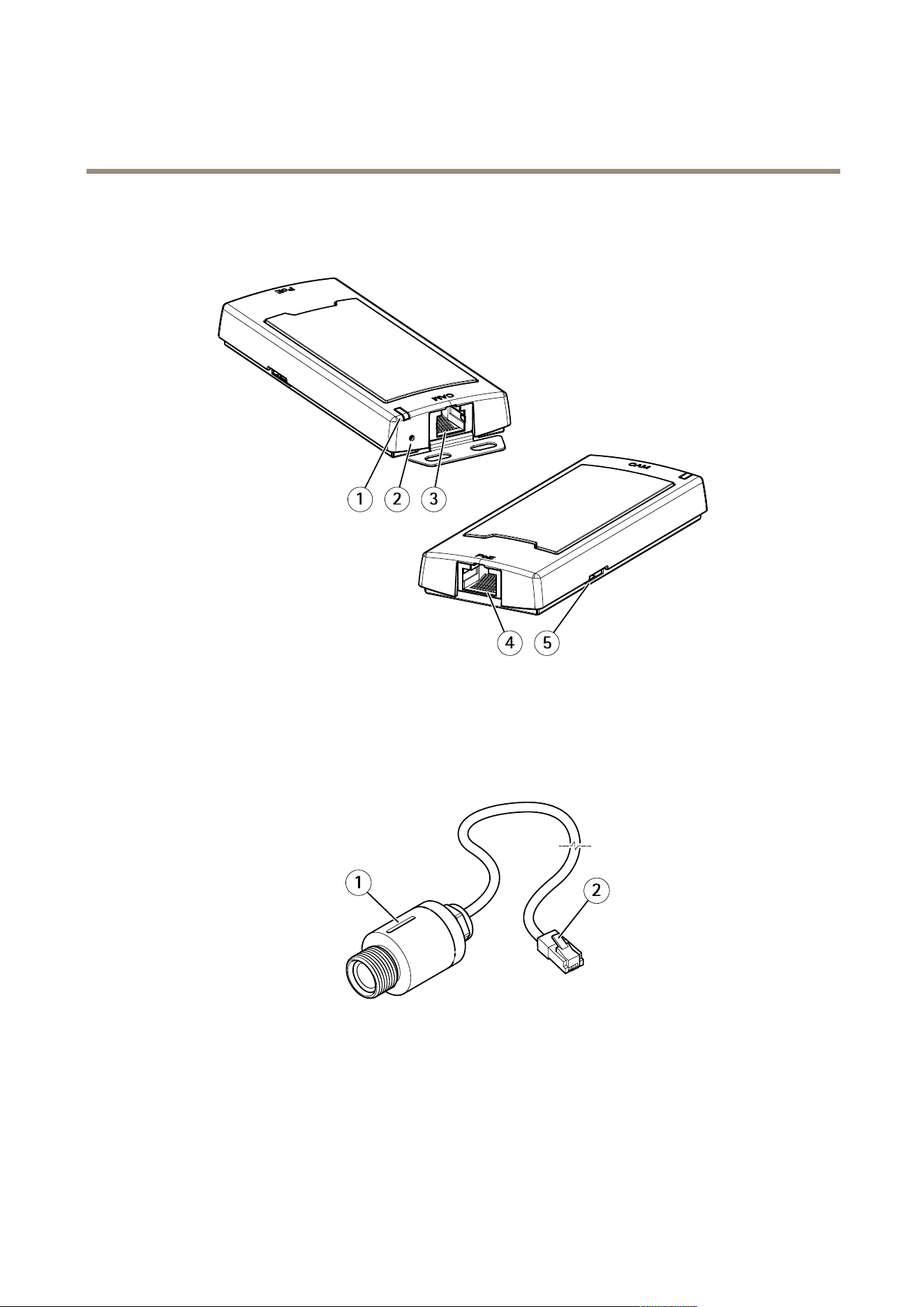
ProductoverviewAXISP1280-E
ProductoverviewAXISP1280-E
AXISP12MkIIMainUnit
1
StatusLED
2
Controlbutton
3
RJ12connector
4
Networkconnector(PoE)
5
SDcardslot(microSDcard)
AXISFA1080ThermalSensorunit
1
Sensorunit
2
RJ12connector
3

AXISP12ThermalNetworkCameraSeries
ProductoverviewAXISP1290-E
ProductoverviewAXISP1290-E
AXISP12ThermalMainUnit
1
StatusLED
2
Controlbutton
3
RJ12connector
4
Networkconnector(PoE)
5
SDcardslot(microSDcard)
4

AXISP12ThermalNetworkCameraSeries
ProductoverviewAXISP1290-E
AXISFA4090–EThermalSensorunit
1
Domecover
2
Lockring
3
Sensorunit
4
RJ12connector
5
Hardceilingmount(useasrequired)
5

AXISP12ThermalNetworkCameraSeries
Sensorunits
Sensorunits
Sensorunits
Whenconnectingasensorunittoamainunit,werecommendthatyoumaketheconnectionbeforepoweringupthemainunit.If
youdisconnectasensorunitandconnectadifferentone,itmaybenecessarytorestartthemainunit.
Shortenthesensorunitcable
Note
Thiscablecanonlybeshortened,notextendedormodiedinanyotherway.
Thesensorunitisdeliveredwithacable.Toshortenthecablefollowthesesteps:
1.Cutthecabletothedesiredlength.Measurefromthesensorunit.
2.Striptheplasticoutercoatingfromtheendofthecable.
3.Peelbacktheshield.
4.Flattenthecoloredwiresintheorderdescribedbelow.
1
Brown
2
White/brown
3
Notused
4
Notused
5
White/blue
6
Blue
NO NO
NO
TICE TICE
TICE
Makesurethatthewiresstayinthecorrectorderandthatthecableshieldmakesgoodcontactwiththeconnectorshield.
5.Insertthewiresallthewayintoashielded6P6CRJ12connector.
6.Useacrimpingtooltofastentheconnectortothecable.
6

AXISP12ThermalNetworkCameraSeries
Findthedeviceonthenetwork
Findthedeviceonthenetwork
TondAxisdevicesonthenetworkandassignthemIPaddressesinWindows®,useAXISIPUtilityorAXISDeviceManager.Both
applicationsarefreeandcanbedownloadedfromaxis.com/support
FormoreinformationabouthowtondandassignIPaddresses,seethedocumentHowtoassignanIPaddressandaccessyour
deviceonthedevicepageataxis.com
Accessthedevice
1.OpenabrowserandentertheIPaddressorhostnameoftheAxisdevice.
IfyouhaveaMaccomputer(OSX),gotoSafari,clickonBonjourandselectthedevicefromthedrop-downlist.Toadd
Bonjourasabrowserbookmark,gotoSafari>Preferences.
IfyoudonotknowtheIPaddress,useAXISIPUtilityorAXISDeviceManagertondthedeviceonthenetwork.
2.Entertheusernameandpassword.Ifyouaccessthedeviceforthersttime,youmustsettherootpassword.See
Setasecurepasswordfortherootaccountonpage7.
3.Theliveviewpageopensinyourbrowser.
Aboutsecurepasswords
Important
Axisdevicessendtheinitiallysetpasswordincleartextoverthenetwork.Toprotectyourdeviceaftertherstlogin,set
upasecureandencryptedHTTPSconnectionandthenchangethepassword.
Thedevicepasswordistheprimaryprotectionforyourdataandservices.Axisdevicesdonotimposeapasswordpolicyasthey
maybeusedinvarioustypesofinstallations.
Toprotectyourdatawestronglyrecommendthatyou:
•Useapasswordwithatleast8characters,preferablycreatedbyapasswordgenerator.
•Don’texposethepassword.
•Changethepasswordatarecurringinterval,atleastonceayear.
Setasecurepasswordfortherootaccount
Important
Thedefaultadministratorusernameisroot.Ifthepasswordforrootislost,resetthedevicetofactorydefaultsettings.
1.Typeapassword.Followtheinstructionsaboutsecurepasswords.SeeAboutsecurepasswordsonpage7.
2.Retypethepasswordtoconrmthespelling.
3.ClickCreatelogin.Thepasswordhasnowbeencongured.
7
AXISP12ThermalNetworkCameraSeries
Setup
Setup
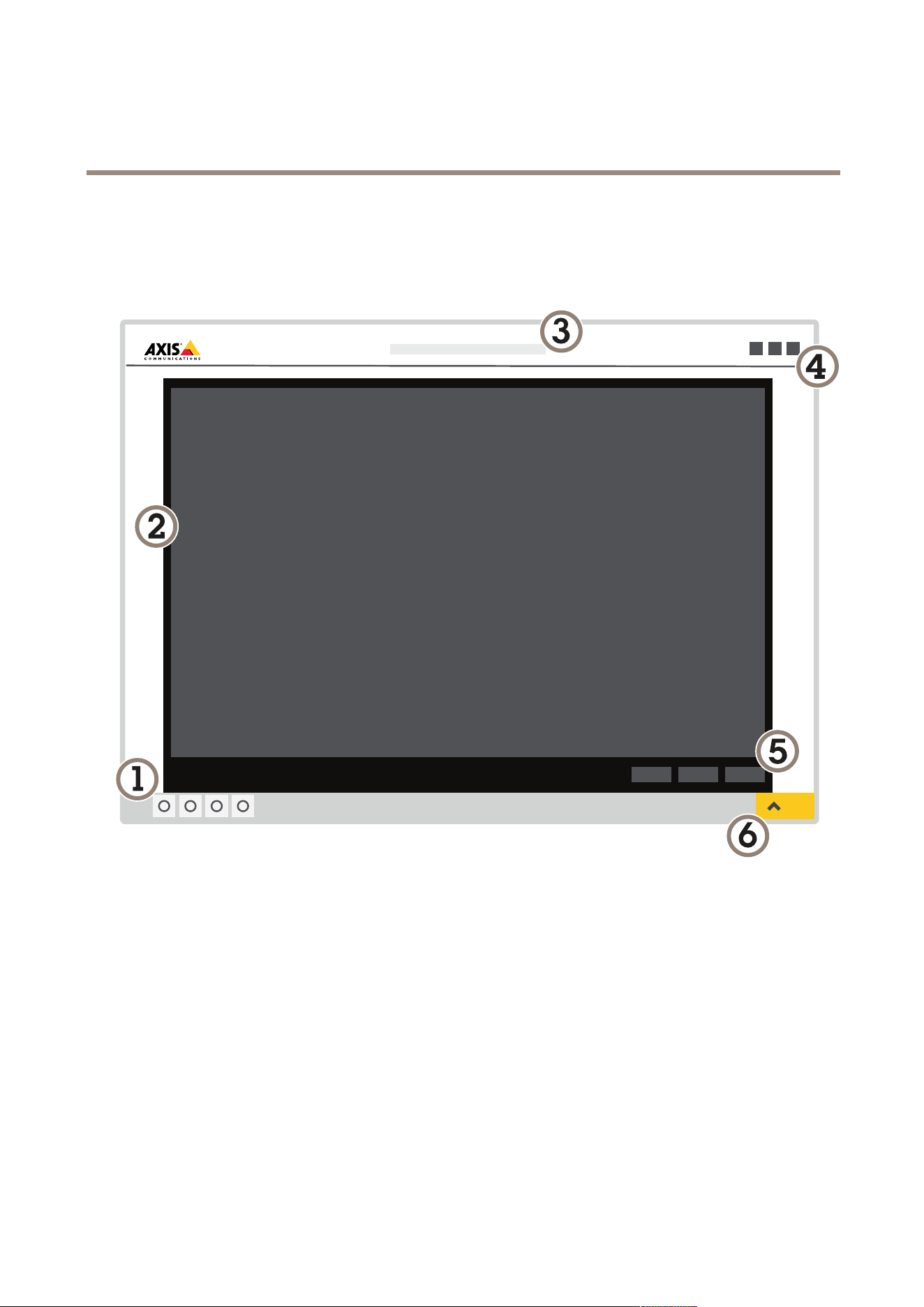
Webpageoverview
1
Liveviewcontrolbar
2
Liveview
3
Productname
4
Controls
5
Videocontrolbar
6
Settingstoggle
8

AXISP12ThermalNetworkCameraSeries
Setup
7
Settingstabs
Needmorehelp?
Youcanaccessthebuilt-inhelpfromthedevice’swebpage.Thehelpprovidesmoredetailedinformationonthedevice’sfeaturesand
theirsettings.
Imagequality
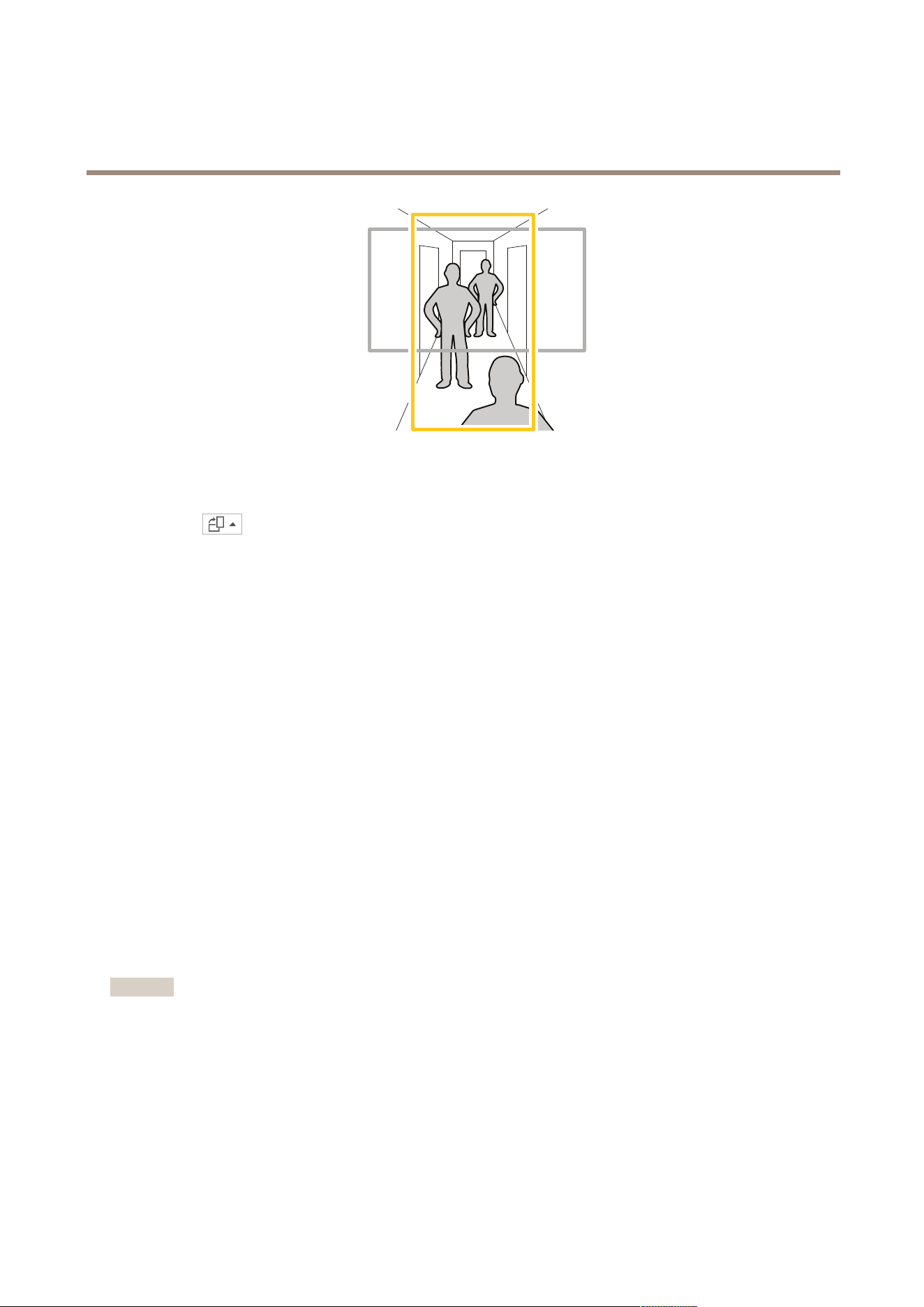
Monitorlongandnarrowareas
Usecorridorformattobetterutilizethefulleldofviewinalongandnarrowarea,forexampleastaircase,hallway,road,ortunnel.
9
AXISP12ThermalNetworkCameraSeries
Setup
1.Dependingonyourdevice,turnthecameraorthe3-axislensinthecamera90°or270°.
2.Ifthedevicedoesn’trotatetheviewautomatically,logintothewebpageandgotoSettings>System>Orientation.
3.Click
.
4.Rotatetheview90°or270°.
Findoutmoreataxis.com/axis-corridor-format
Colorpalettes
Colorpalettesappliedtothermalimageshelpthehumaneyedistinguishimagedetails.Thecolorsinthepalettearearticially
createdpseudocolorsthatemphasizetemperaturedifferences.
Colorpaletterecommendation
Theproducthasseveralcolorpalettestochoosefrom.Ifanoperatorwatchesthevideostream,chooseanyofthepalettes.Ifthe
videostreamisonlyusedbyapplications,selectthewhite-hotpalette.
Privacymasks
Hidepartsoftheimagewithprivacymasks
Whatisaprivacymask?
Aprivacymaskisauser-denedareathatpreventsusersfromviewingapartofthemonitoredarea.Inthevideostream,privacy
masksappearasblocksofsolidcolor.
You’llseetheprivacymaskonallsnapshots,recordedvideo,andlivestreams.
YoucanusetheVAPIX®applicationprogramminginterface(API)toturnofftheprivacymasks.
Important
Usingmultipleprivacymasksmayaffecttheproduct’sperformance.
Createaprivacymask
Tocreateaprivacymask,gotoSettings>Privacymask.
10

AXISP12ThermalNetworkCameraSeries
Setup
Overlays
Aboutoverlays
Overlaysaresuperimposedoverthevideostream.Theyareusedtoprovideextrainformationduringrecordings,suchasatimestamp,
orduringproductinstallationandconguration.
Showanimageoverlay
1.GotoSettings>Overlay.
2.SelectCreateoverlayandselectImageoverlay.
3.ChooseImport.
4.Uploadownoverlayimage.
5.Choosetheimagefromthelistofimages.
6.Topositiontheimageoverlay,chooseCustomoroneofthepresets.
Showatextoverlayinthevideostreamwhenthedevicedetectsmotion
Thisexampleexplainshowtodisplaythetext“Motiondetected”whenthedevicedetectsmotion:
MakesuretheAXISVideoMotionDetectionapplicationisrunning:
1.GotoSettings>Apps>AXISVideoMotionDetection.
2.Starttheapplicationifitisnotalreadyrunning.
3.Makesureyouhavesetuptheapplicationaccordingtoyourneeds.
Addtheoverlaytext:
4.GotoSettings>Overlay.
5.Enter#Dinthetexteld.
6.Choosetextsizeandappearance.
Createarule:
7.GotoSystem>Events>Rulesandaddarule.
8.Typeanamefortherule.
9.Inthelistofconditions,selectAXISVideoMotionDetection.
10.Inthelistofactions,selectUseoverlaytext.
11.Selectaviewarea.
12.Type“Motiondetected”.
13.Settheduration.
14.ClickSave.
11

AXISP12ThermalNetworkCameraSeries
Setup
Streamingandstorage
Choosevideocompressionformat
Decidewhichcompressionmethodtousebasedonyourviewingrequirements,andonthepropertiesofyournetwork.The
availableoptionsare:
MotionJPEG
MotionJPEGorMJPEGisadigitalvideosequencethatismadeupofaseriesofindividualJPEGimages.Theseimagesarethen
displayedandupdatedataratesufcienttocreateastreamthatshowsconstantlyupdatedmotion.Fortheviewertoperceivemotion
videotheratemustbeatleast16imageframespersecond.Fullmotionvideoisperceivedat30(NTSC)or25(PAL)framespersecond.
TheMotionJPEGstreamusesconsiderableamountsofbandwidth,butprovidesexcellentimagequalityandaccesstoeveryimage
containedinthestream.
H.264orMPEG-4Part10/AVC
Note
H.264isalicensedtechnology.TheAxisproductincludesoneH.264viewingclientlicense.Installingadditionalunlicensed
copiesoftheclientisprohibited.Topurchaseadditionallicenses,contactyourAxisreseller.
H.264can,withoutcompromisingimagequality,reducethesizeofadigitalvideolebymorethan80%comparedtotheMotion
JPEGformatandbyasmuchas50%comparedtotheMPEG-4standard.Thismeansthatlessnetworkbandwidthandstoragespace
arerequiredforavideole.Orseenanotherway,highervideoqualitycanbeachievedforagivenbitrate.
Reducebandwidthandstorage
Important
Ifyoureducethebandwidthitcanresultinlossofdetailsinthepicture.
1.GotoliveviewandselectH.264.
2.GotoSettings>Stream.
3.Dooneormoreofthefollowing:
-TurnontheZipstreamfunctionalityandselectthedesiredlevel.
-TurnondynamicGOPandsetahighGOPlengthvalue.
-Increasethecompression.
-TurnondynamicFPS.
Setupnetworkstorage
Tostorerecordingsonthenetwork,youneedtosetupnetworkstorage:
1.GotoSettings>System>Storage.
2.ClickSetupunderNetworkstorage.
3.EntertheIPaddressofthehostserver.
4.Enterthenameofthesharedlocationonthehostserver.
5.Movetheswitchifthesharerequiresalogin,andenterusernameandpassword.
6.ClickConnect.
12

AXISP12ThermalNetworkCameraSeries
Setup
HowdoImage,Stream,andStreamprolesettingsrelatetoeachother?
TheImagetabcontainscamerasettingsthataffectallvideostreamsfromtheproduct.Ifyouchangesomethinginthistab,it
immediatelyaffectsallvideostreamsandrecordings.
TheStreamtabcontainssettingsforvideostreams.Yougetthesesettingsifyourequestavideostreamfromtheproductanddon’t
specifyforexampleresolution,orframerate.WhenyouchangethesettingsintheStreamtab,itdoesn’taffectongoingstreams,but
itwilltakeeffectwhenyoustartanewstream.
TheStreamprolessettingsoverridethesettingsfromtheStreamtab.Ifyourequestastreamwithaspecicstreamprole,the
streamcontainsthesettingsofthatprole.Ifyourequestastreamwithoutspecifyingastreamprole,orrequestastreamprole
thatdoesn'texistintheproduct,thestreamcontainsthesettingsfromtheStreamtab.
Recordandwatchvideo
Torecordvideoyoumustrstsetupnetworkstorage,seeSetupnetworkstorageonpage12,orhaveanSDcardinstalled.
1.Gotothecamera’sliveview.
2.ClickonRecordoncetostartrecordingandonemoretimetostoprecording.
Towatchyourrecording:
1.ClickonStorage>Gotorecordings.
2.Selectyourrecordinginthelistanditwillplayautomatically.
Events
Rulesandalerts
Youcancreaterulestomakeyourdeviceperformanactionwhencertaineventsoccur.Aruleconsistsofconditionsandactions.
Theconditionscanbeusedtotriggertheactions.Forexample,thedevicecanstartarecordingorsendanemailwhenitdetects
motion,orshowanoverlaytextwhenitrecords.
Triggeranaction
1.GotoSettings>System>Eventstosetuparule.Theruledeneswhenthecamerawillperformcertainactions.Rules
canbesetupasscheduled,recurring,orforexample,triggeredbymotiondetection.
2.SelecttheConditionthatmustbemettotriggertheaction.Ifyouspecifymorethanoneconditionfortherule,allofthe
conditionsmustbemettotriggertheaction.
3.SelectwhichActionthecamerashouldperformwhentheconditionsaremet.
Note
Ifyoumakechangestoanactiverule,thentheruleneedstoberestartedforthechangestotakeeffect.
Recordvideowhenthecameradetectsmotion
ThisexampleexplainshowtosetupthecameratostartrecordingtotheSDcardvesecondsbeforeitdetectsmotionandto
stoponeminuteafter.
MakesuretheAXISVideoMotionDetectionapplicationisrunning:
1.GotoSettings>Apps>AXISVideoMotionDetection.
2.Starttheapplicationifitisnotalreadyrunning.
3.Makesureyouhavesetuptheapplicationaccordingtoyourneeds.
Createarule:
13

AXISP12ThermalNetworkCameraSeries
Setup
1.GotoSettings>System>Eventsandaddarule.
2.Typeanamefortherule.
3.Inthelistofconditions,underApplication,selectAXISVideoMotionDetection(VMD).
4.Inthelistofactions,underRecordings,selectRecordvideowhiletheruleisactive.
5.Selectanexistingstreamproleorcreateanewone.
6.Settheprebuffertimeto5seconds.
7.Setthepostbuffertimeto60seconds.
8.Inthelistofstorageoptions,selectSDcard.
9.ClickSave.
Applications
Applications
AXISCameraApplicationPlatform(ACAP)isanopenplatformthatenablesthirdpartiestodevelopanalyticsandotherapplications
forAxisproducts.Tondoutmoreaboutavailableapplications,downloads,trialsandlicenses,gotoaxis.com/applications
TondtheusermanualsforAxisapplications,gotoaxis.com
Note
•Severalapplicationscanrunatthesametimebutsomeapplicationsmightnotbecompatiblewitheachother.Certain
combinationsofapplicationsmightrequiretoomuchprocessingpowerormemoryresourceswhenruninparallel.Verify
thattheapplicationsworktogetherbeforedeployment.
14

AXISP12ThermalNetworkCameraSeries
Troubleshooting
Troubleshooting
Ifyoucan’tndwhatyou’relookingforhere,trythetroubleshootingsectionataxis.com/support
Resettofactorydefaultsettings
Important
Resettofactorydefaultshouldbeusedwithcaution.Aresettofactorydefaultresetsallsettings,includingtheIPaddress,to
thefactorydefaultvalues.
Toresettheproducttothefactorydefaultsettings:
1.Disconnectpowerfromtheproduct.
2.Pressandholdthecontrolbuttonwhilereconnectingpower.See.
3.Keepthecontrolbuttonpressedfor15–30secondsuntilthestatusLEDindicatorashesamber.
4.Releasethecontrolbutton.TheprocessiscompletewhenthestatusLEDindicatorturnsgreen.Theproducthasbeenreset
tothefactorydefaultsettings.IfnoDHCPserverisavailableonthenetwork,thedefaultIPaddressis192.168.0.90
5.UsetheinstallationandmanagementsoftwaretoolstoassignanIPaddress,setthepassword,andaccessthevideostream.
Theinstallationandmanagementsoftwaretoolsareavailablefromthesupportpagesonaxis.com/support
Itisalsopossibletoresetparameterstofactorydefaultthroughthewebinterface.GotoSettings>System>Maintenanceand
clickDefault.
Checkthecurrentrmware
Firmwareisthesoftwarethatdeterminesthefunctionalityofnetworkdevices.Oneofyourrstactionswhentroubleshootinga
problemshouldbetocheckthecurrentrmwareversion.Thelatestversionmaycontainacorrectionthatxesyourparticular
problem.
Tocheckthecurrentrmware:
1.Gototheproduct’swebpage.
2.Clickonthehelpmenu.
3.ClickAbout.
Upgradethermware
Important
Preconguredandcustomizedsettingsaresavedwhenthermwareisupgraded(providedthatthefeaturesareavailablein
thenewrmware)althoughthisisnotguaranteedbyAxisCommunicationsAB.
Important
Makesuretheproductremainsconnectedtothepowersourcethroughouttheupgradeprocess.
Note
Whenyouupgradetheproductwiththelatestrmwareintheactivetrack,theproductreceivesthelatestfunctionality
available.Alwaysreadtheupgradeinstructionsandreleasenotesavailablewitheachnewreleasebeforeupgradingthe
rmware.Tondthelatestrmwareandthereleasenotes,gotoaxis.com/support/rmware
15

AXISP12ThermalNetworkCameraSeries
Troubleshooting
1.Downloadthermwareletoyourcomputer,availablefreeofchargeataxis.com/support/rmware
2.Logintotheproductasanadministrator.
3.GotoSettings>System>Maintenance.Followtheinstructionsonthepage.Whentheupgradehasnished,the
productrestartsautomatically.
AXISDeviceManagercanbeusedformultipleupgrades.Findoutmoreataxis.com/products/axis-device-manager
Technicalissues,cluesandsolutions
Ifyoucan’tndwhatyou’relookingforhere,trythetroubleshootingsectionataxis.com/support
Problemsupgradingthermware
FirmwareupgradefailureIfthermwareupgradefails,thedevicereloadsthepreviousrmware.Themostcommonreason
isthatthewrongrmwarelehasbeenuploaded.Checkthatthenameofthermwarele
correspondstoyourdeviceandtryagain.
ProblemssettingtheIPaddress
Thedeviceislocatedona
differentsubnet
IftheIPaddressintendedforthedeviceandtheIPaddressofthecomputerusedtoaccessthe
devicearelocatedondifferentsubnets,youcannotsettheIPaddress.Contactyournetwork
administratortoobtainanIPaddress.
TheIPaddressisbeingused
byanotherdevice
DisconnecttheAxisdevicefromthenetwork.Runthepingcommand(inaCommand/DOSwindow,
typepingandtheIPaddressofthedevice):
•Ifyoureceive:Replyfrom<IPaddress>:bytes=32;time=10...
thismeansthattheIPaddressmayalreadybeinusebyanotherdeviceonthenetwork.
ObtainanewIPaddressfromthenetworkadministratorandreinstallthedevice.
•Ifyoureceive:Requesttimedout,thismeansthattheIPaddressisavailable
forusewiththeAxisdevice.Checkallcablingandreinstallthedevice.
PossibleIPaddressconict
withanotherdeviceonthe
samesubnet
ThestaticIPaddressintheAxisdeviceisusedbeforetheDHCPserversetsadynamicaddress.
ThismeansthatifthesamedefaultstaticIPaddressisalsousedbyanotherdevice,theremay
beproblemsaccessingthedevice.
Thedevicecannotbeaccessedfromabrowser
Cannotlogin
WhenHTTPSisenabled,ensurethatthecorrectprotocol(HTTPorHTTPS)isusedwhenattempting
tologin.Youmayneedtomanuallytypehttporhttpsinthebrowser’saddresseld.
Ifthepasswordfortheuserrootislost,thedevicemustberesettothefactorydefaultsettings.
SeeResettofactorydefaultsettingsonpage15.
TheIPaddresshasbeen
changedbyDHCP
IPaddressesobtainedfromaDHCPserveraredynamicandmaychange.IftheIPaddresshasbeen
changed,useAXISIPUtilityorAXISDeviceManagertolocatethedeviceonthenetwork.Identify
thedeviceusingitsmodelorserialnumber,orbytheDNSname(ifthenamehasbeencongured).
Ifrequired,astaticIPaddresscanbeassignedmanually.Forinstructions,gotoaxis.com/support
Certicateerrorwhenusing
IEEE802.1X
Forauthenticationtoworkproperly,thedateandtimesettingsintheAxisdevicemustbe
synchronizedwithanNTPserver.GotoSettings>System>Dateandtime
Thedeviceisaccessiblelocallybutnotexternally
Toaccessthedeviceexternally,werecommendusingoneofthefollowingapplicationsforWindows
®
:
•AXISCompanion:freeofcharge,idealforsmallsystemswithbasicsurveillanceneeds.
•AXISCameraStation:30-daytrialversionfreeofcharge,idealforsmalltomid-sizesystems.
Forinstructionsanddownload,gotoaxis.com/products/axis-companion
16

AXISP12ThermalNetworkCameraSeries
Troubleshooting
Problemswithstreaming
MulticastH.264only
accessiblebylocalclients
Checkifyourroutersupportsmulticasting,oriftheroutersettingsbetweentheclientandthe
deviceneedtobecongured.TheTTL(TimeToLive)valuemayneedtobeincreased.
NomulticastH.264
displayedintheclient
CheckwithyournetworkadministratorthatthemulticastaddressesusedbytheAxisdevice
arevalidforyournetwork.
Checkwithyournetworkadministratortoseeifthereisarewallpreventingviewing.
PoorrenderingofH.264
images
Ensurethatyourgraphicscardisusingthelatestdriver.Thelatestdriverscanusuallybe
downloadedfromthemanufacturer’swebsite.
Lowerframeratethan
expected
•SeePerformanceconsiderationsonpage17.
•Reducethenumberofapplicationsrunningontheclientcomputer.
•Limitthenumberofsimultaneousviewers.
•Checkwiththenetworkadministratorthatthereisenoughbandwidthavailable.
•Lowertheimageresolution.
•Themaximumframespersecondisdependentontheutilityfrequency(60/50Hz)
oftheAxisdevice.
Performanceconsiderations
Whensettingupyoursystem,itisimportanttoconsiderhowvarioussettingsandsituationsaffecttheperformance.Somefactors
affecttheamountofbandwidth(thebitrate)required,otherscanaffecttheframerate,andsomeaffectboth.Iftheloadonthe
CPUreachesitsmaximum,thisalsoaffectstheframerate.
Thefollowingfactorsarethemostimportanttoconsider:
•Highimageresolutionorlowercompressionlevelsresultinimagescontainingmoredatawhichinturnaffectsthe
bandwidth.
•RotatingthelensmanuallywillresultinbetterperformancecomparedtorotatingtheimagefromtheGUI.
•AccessbylargenumbersofMotionJPEGorunicastH.264clientsaffectsthebandwidth.
•Simultaneousviewingofdifferentstreams(resolution,compression)bydifferentclientsaffectsbothframerateand
bandwidth.
Useidenticalstreamswhereverpossibletomaintainahighframerate.Streamprolescanbeusedtoensurethat
streamsareidentical.
•AccessingMotionJPEGandH.264videostreamssimultaneouslyaffectsbothframerateandbandwidth.
•Heavyusageofeventsettingsaffectstheproduct’sCPUloadwhichinturnaffectstheframerate.
•UsingHTTPSmayreduceframerate,inparticularifstreamingMotionJPEG.
•Heavynetworkutilizationduetopoorinfrastructureaffectsthebandwidth.
•Viewingonpoorlyperformingclientcomputerslowersperceivedperformanceandaffectsframerate.
•RunningmultipleAXISCameraApplicationPlatform(ACAP)applicationssimultaneouslymayaffecttheframerateand
thegeneralperformance.
•Usingpalettesaffectstheproduct’sCPUloadwhichinturnaffectstheframerate.
17

AXISP12ThermalNetworkCameraSeries
Specifications
Specifications
Tondthelatestversionoftheproduct’sdatasheet,gototheproductpageataxis.comandlocateSupport&Documentation.
LEDindicators
LED
Color
Indication
GreenSteadygreenfornormaloperation.
Amber
Steadyduringstartup.Flashesduringrmwareupgradeorresettofactorydefault.
Status
RedFlashesredforrmwareupgradefailure.
Note
•TheStatusLEDcanbeconguredtobeunlitduringnormaloperation.Tocongure,gotoSetup>SystemOptions
>Ports&Devices>LED.
•TheStatusLEDcanbeconguredtoashwhileaneventisactive.
•TheStatusLEDcanbeconguredtoashforidentifyingtheunit.GotoSetup>SystemOptions>Maintenance.
SDcardslot
NO NO
NO
TICE TICE
TICE
•RiskofdamagetoSDcard.Donotusesharptools,metalobjects,orexcessiveforcewheninsertingorremovingthe
SDcard.Useyourngerstoinsertandremovethecard.
•Riskofdatalossandcorruptedrecordings.DonotremovetheSDcardwhiletheproductisrunning.UnmounttheSDcard
fromtheproduct’swebpagebeforeremoval.
ThisproductsupportsmicroSD/microSDHC/microSDXCcards.
ForSDcardrecommendations,seeaxis.com
microSD,microSDHC,andmicroSDXCLogosaretrademarksofSD-3CLLC.microSD,microSDHC,microSDXCare
trademarksorregisteredtrademarksofSD-3C,LLCintheUnitedStates,othercountriesorboth.
Buttons
Controlbutton
Thecontrolbuttonisusedfor:
•Resettingtheproducttofactorydefaultsettings.SeeResettofactorydefaultsettingsonpage15.
•ConnectingtoanAXISVideoHostingSystemservice.Toconnect,pressandholdthebuttonforabout3secondsuntilthe
statusLEDashesgreen.
Connectors
Networkconnector
RJ45EthernetconnectorwithPoweroverEthernet(PoE).
18


UserManualVer.M2.2
AXISP12ThermalNetworkCameraSeries
Date:April2019
©AxisCommunicationsAB,2018-2019
PartNo.T10132652