
LS500W/LS500B/LS500WATV/
LS500BATV User's Guide


3
Contents
LS500W/LS500B/LS500WATV/LS500BATV User's Guide........................................................................ 9
Introduction to Your Projector ................................................................................................................. 10
Projector Features.............................................................................................................................. 10
Product Box Contents.................................................................................................................... 11
Additional Components ................................................................................................................ 12
Optional Equipment and Replacement Parts................................................................................. 12
Warranty and Registration Information (U.S. and Canada) ........................................................... 13
Warranty and Registration Information (Latin America)................................................................. 14
Notations Used in the Documentation ................................................................................................ 14
Where to Go for Additional Information .............................................................................................. 14
Additional Projector Software and Manuals........................................................................................ 14
Projector Part Locations ..................................................................................................................... 15
Projector Parts - Front/Top ............................................................................................................ 16
Projector Parts - Rear/Top............................................................................................................. 17
Projector Parts - Connectors ......................................................................................................... 18
Projector Parts - Base.................................................................................................................... 20
Projector Parts - Control Panel ...................................................................................................... 21
Projector Parts - Remote Control................................................................................................... 22
Setting Up the Projector ........................................................................................................................... 28
Projector Placement........................................................................................................................... 28
Projector Setup and Installation Options ....................................................................................... 28
Projection Distance........................................................................................................................ 29
Projector Connections........................................................................................................................ 31
Connecting a Streaming Device .................................................................................................... 31
Connecting to an HDMI Video Source ........................................................................................... 35
Connecting External Speakers Using HDMI ARC ......................................................................... 36
Connecting to External Speakers .................................................................................................. 37
Installing Batteries in the Remote Control .......................................................................................... 38
Using the Projector on a Network ............................................................................................................ 40
Wired Network Projection................................................................................................................... 40

4
Connecting to a Wired Network ..................................................................................................... 40
Selecting Wired Network Settings ................................................................................................. 41
Wireless Network Projection .............................................................................................................. 44
Installing the Wireless LAN Module ............................................................................................... 45
Connecting Directly to a Smartphone or Tablet ............................................................................. 45
Selecting Wireless Network Settings Manually.............................................................................. 47
Wireless LAN Menu Settings .................................................................................................... 50
Selecting Wireless Network Settings in Windows.......................................................................... 51
Selecting Wireless Network Settings on Mac ................................................................................ 51
Setting Up Wireless Network Security ........................................................................................... 52
Using Basic Projector Features ............................................................................................................... 54
Turning On the Projector .................................................................................................................... 54
Using the Home Screen................................................................................................................. 56
Turning Off the Projector .................................................................................................................... 58
Selecting the Language for the Projector Menus................................................................................ 59
Adjusting the Image Position.............................................................................................................. 60
Focusing the Image............................................................................................................................ 62
Adjusting the Front Feet ..................................................................................................................... 62
Image Shape...................................................................................................................................... 63
Correcting Image Shape with Quick Corner .................................................................................. 63
Correcting Image Shape with the Keystone Buttons...................................................................... 65
Resizing the Image with the Zoom Setting ......................................................................................... 67
Viewing 3D Images ............................................................................................................................ 68
3D Viewing Range......................................................................................................................... 69
Remote Control Operation ................................................................................................................. 69
Pairing the Remote Control (LS500WATV/LS500BATV) ................................................................... 71
Selecting an Image Source ................................................................................................................ 71
Image Aspect Ratio ............................................................................................................................ 73
Changing the Image Aspect Ratio ................................................................................................. 73
Available Image Aspect Ratios ...................................................................................................... 74
Color Mode......................................................................................................................................... 74
Changing the Color Mode.............................................................................................................. 75
Available Color Modes................................................................................................................... 75

5
Turning On Automatic Luminance Adjustment .............................................................................. 76
Adjusting Gamma............................................................................................................................... 77
Controlling the Volume with the Volume Buttons................................................................................ 78
Adjusting Projector Features ................................................................................................................... 80
Operating Connected Devices Using the HDMI Link Features........................................................... 80
Shutting Off the Picture and Sound Temporarily ................................................................................ 81
Projector Security Features................................................................................................................ 82
Locking the Projector's Lens Settings and Buttons........................................................................ 82
Unlocking the Projector's Buttons ............................................................................................. 84
Installing a Security Cable ............................................................................................................. 84
Using Advanced Image Adjustment Features .................................................................................... 84
Creating Image Presets................................................................................................................. 85
Adjusting Detail Enhancement ...................................................................................................... 87
Adjusting the Color Convergence (Panel Alignment)..................................................................... 88
Adjusting the Color Tone (Color Uniformity) .................................................................................. 92
Saving Settings to Memory and Using Saved Settings ...................................................................... 94
Adjusting the Menu Settings .................................................................................................................... 96
Using the Projector's Menus............................................................................................................... 96
Image Quality Settings - Image Menu ................................................................................................ 98
Input Signal Settings - Signal Menu.................................................................................................. 101
Projector Feature Settings - Settings Menu...................................................................................... 104
Projector Setup Settings - Extended Menu....................................................................................... 107
Projector Network Settings - Network Menu..................................................................................... 110
Projector Information Display - Info Menu ........................................................................................ 112
Event ID Code List....................................................................................................................... 113
Projector Reset Options - Reset Menu............................................................................................. 115
Maintaining and Transporting the Projector ......................................................................................... 117
Projector Maintenance ..................................................................................................................... 117
Cleaning the Lens........................................................................................................................ 117
Cleaning the Projector Case........................................................................................................ 118
Air Filter and Vent Maintenance ....................................................................................................... 118
Cleaning the Air Filter and Vents ................................................................................................. 119
Replacing the Air Filter ................................................................................................................ 122

6
Replacing the Remote Control Batteries .......................................................................................... 125
Transporting the Projector................................................................................................................ 127
Solving Problems .................................................................................................................................... 128
Projection Problem Tips ................................................................................................................... 128
Projector Light Status ....................................................................................................................... 128
Solving Image or Sound Problems ................................................................................................... 131
Solutions When No Image Appears............................................................................................. 131
Solutions When "No Signal" Message Appears........................................................................... 133
Displaying From a PC Laptop ................................................................................................. 133
Displaying From a Mac Laptop ............................................................................................... 134
Solutions When "Not Supported" Message Appears ................................................................... 134
Solutions When Only a Partial Image Appears............................................................................ 135
Solutions When the Image is Not Rectangular ............................................................................ 135
Solutions When the Image Contains Noise or Static ................................................................... 136
Solutions When the Image is Fuzzy or Blurry .............................................................................. 137
Solutions When the Image Brightness or Colors are Incorrect .................................................... 137
Solutions When a 3D Image Does Not Display Correctly ............................................................ 138
Solutions to Sound Problems ...................................................................................................... 139
Solving Projector or Remote Control Operation Problems ............................................................... 140
Solutions to Projector Power or Shut-Off Problems..................................................................... 140
Solutions to Remote Control Problems........................................................................................ 141
Solutions to HDMI Link Problems ................................................................................................ 142
Solving Network Problems ............................................................................................................... 142
Solutions When Wireless Authentication Fails ............................................................................ 143
Solutions When the Image Contains Static During Network Projection ....................................... 143
Where to Get Help (U.S. and Canada) ............................................................................................. 144
Where to Get Help (Latin America)................................................................................................... 145
Technical Specifications ........................................................................................................................ 147
General Projector Specifications ...................................................................................................... 147
Projector Light Source Specifications............................................................................................... 148
Remote Control Specifications ......................................................................................................... 149
Projector Dimension Specifications.................................................................................................. 149
Projector Electrical Specifications .................................................................................................... 149

7
Projector Environmental Specifications............................................................................................ 150
Projector Safety and Approvals Specifications................................................................................. 150
Safety and Approvals Specifications for Latin America .................................................................... 151
Supported Video Display Formats.................................................................................................... 152
Notices ..................................................................................................................................................... 154
Recycling.......................................................................................................................................... 154
Important Safety Information ............................................................................................................ 154
Laser Safety Information .................................................................................................................. 155
Laser Light Source Warning ............................................................................................................ 157
Important Safety Instructions............................................................................................................ 157
Restriction of Use ........................................................................................................................ 160
List of Safety Symbols...................................................................................................................... 160
FCC Compliance Statement............................................................................................................. 165
Binding Arbitration and Class Waiver ............................................................................................... 166
Trademarks...................................................................................................................................... 169
Copyright Notice............................................................................................................................... 169
A Note Concerning Responsible Use of Copyrighted Materials................................................... 170
Copyright Attribution.................................................................................................................... 170


9
LS500W/LS500B/LS500WATV/LS500BATV User's Guide
Welcome to the LS500W/LS500B/LS500WATV/LS500BATV User's Guide .
For a printable PDF copy of this guide, click here.

10
Introduction to Your Projector
Refer to these sections to learn more about your projector and this manual.
Projector Features
Notations Used in the Documentation
Where to Go for Additional Information
Additional Projector Software and Manuals
Projector Part Locations
Projector Features
The Home Cinema LS500W/LS500B/LS500WATV/LS500BATV projector includes these special
features:
Bright, high-resolution projection system
• Up to 4000 lumens of color brightness (color light output) and white brightness (white light output)
Note: Color brightness (color light output) and white brightness (white light output) will vary depending
on usage conditions. Color light output measured in accordance with IDMS 15.4; white light output
measured in accordance with ISO 21118.
Flexible connectivity
• Three HDMI ports for computer or video device connection
Innovative display and operation features
• Long-life laser light source
• High digital zoom ratio for larger images in shorter projection distances
• 2,500,000:1 contrast ratio and Dynamic Contrast control for sharp, detailed images
• Powerful 2 x 10 W stereo speaker system with audio out port for connecting external speakers
• Epson's Direct Power On feature for quick and easy setup
Product Box Contents
Additional Components
Optional Equipment and Replacement Parts
Warranty and Registration Information (U.S. and Canada)
Warranty and Registration Information (Latin America)

11
Parent topic: Introduction to Your Projector
Product Box Contents
Save all the packaging in case you need to ship the projector. Always use the original packaging (or
equivalent) when shipping.
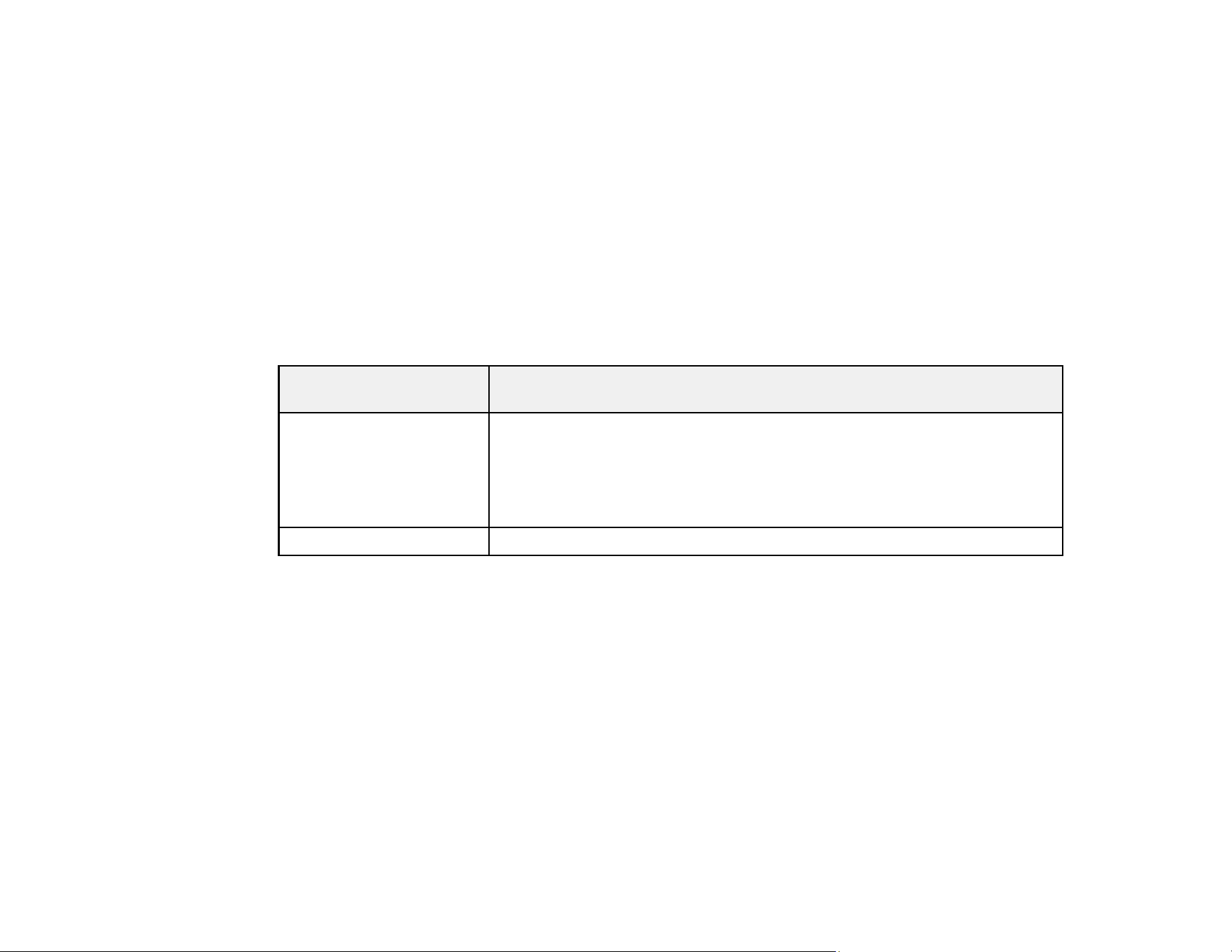
Make sure your projector box included all of these parts:
1 Projector and lens cap
2 Power cord
3 USB power cable with USB Micro-B connector
4 HDMI extension cable
5 Remote control batteries (2 AAA alkaline [LS500W/LS500B], 4 AAA alkaline
[LS500WATV/LS500BATV])
6 Projector remote control (LS500W/LS500B only)
7 Remote control for projector and included streaming device (LS500WATV/LS500BATV only)
8 Streaming device (LS500WATV/LS500BATV only)
9 Remote control for included streaming device (LS500WATV/LS500BATV only)
Parent topic: Projector Features
12
Additional Components
Depending on how you plan to use the projector, you may need to obtain additional components.
Note: To connect a source that does not include a compatible video output port, you need to obtain an
adapter that allows you to connect to an input port on the projector. If the device is a Mac, contact Apple
for compatible adapter options. To connect a smartphone or tablet, you may need to obtain an adapter
that allows you to connect to the projector. This allows you to mirror your smartphone or tablet screens,
watch movies, and more. Contact your device manufacturer for compatible adapter options.
Unless listed as available from Epson in this table, see your local computer or electronics dealer for
purchase information.
Note: Availability of accessories varies by country.
Signal or connection
type
Additional component necessary
HDMI Compatible HDMI cable
Available for purchase from Epson or an authorized Epson reseller.
Note: Older Mac computers (2009 and earlier) may not support HDMI
audio.
3.5 mm stereo mini jack Commercially available 3.5 mm audio cable compatible with your device
Parent topic: Projector Features
Optional Equipment and Replacement Parts
U.S. and Canada: You can purchase screens, other optional accessories, and replacement parts from
an Epson authorized reseller. To find the nearest reseller, call 800-GO-EPSON (800-463-7766) in the
U.S. or 800-807-7766 in Canada. Or you can purchase online at epsonstore.com (U.S. sales) or
epsonstore.ca (Canadian sales).
Latin America: You can purchase screens, other optional accessories, and replacement parts from an
Epson authorized reseller. To find the nearest reseller, go to epson.com.jm. Or you can click the "Where
to Get Help" link below to contact your nearest sales office.
Note: Availability of accessories varies by country.
13
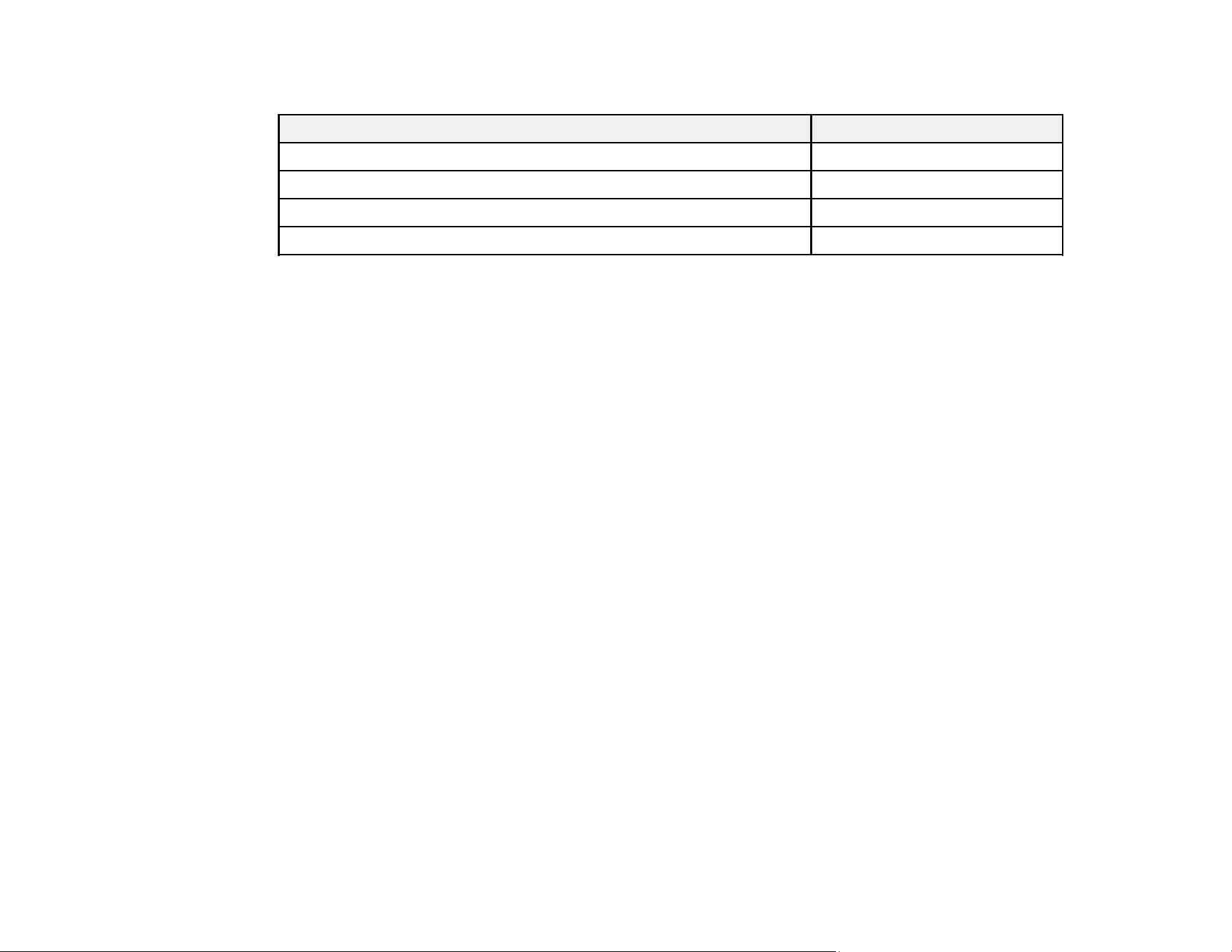
Epson offers the following optional accessories and replacement parts for your projector:
Option or part Part number
Replacement air filter (ELPAF56) V13H134A43
Wireless LAN module (ELPAP10) V12H731P02
HDMI cable (3 ft) [U.S. and Canada] AV22300-03
HDMI cable (6 ft) [U.S. and Canada] AV22300-06
Note: The wireless LAN module is meant for displaying static content like presentations and photos, and
is not recommended for projecting video.
U.S. and Canada: In addition to the accessories listed above, 1-year and 2-year extended service plans
are available.
Parent topic: Projector Features
Related references
Where to Get Help (Latin America)
Where to Get Help (U.S. and Canada)
Warranty and Registration Information (U.S. and Canada)
Your projector comes with a basic warranty that lets you project with confidence. For details, see the
warranty brochure that came with your projector.
Note: Availability varies by region.
In addition, Epson offers free Extra Care Home Service. In the unlikely event of an equipment failure,
you won’t have to wait for your unit to be repaired. Instead, Epson will ship you a replacement unit
anywhere in the United States, Canada, or Puerto Rico. See the Extra Care Home Service brochure for
details.
Register your product online at this site: epson.com/webreg
Registering also lets you receive special updates on new accessories, products, and services.
Parent topic: Projector Features

14
Warranty and Registration Information (Latin America)
Your projector comes with a basic warranty that lets you project with confidence. For details, see the
warranty that came with your projector.
Register your product online at latin.epson.com/support, search for your product, and select Register.
Registering also lets you receive special updates on new accessories, products, and services.
Parent topic: Projector Features
Notations Used in the Documentation
Follow the guidelines in these notations as you read your documentation:
• Warnings must be followed carefully to avoid bodily injury.
• Cautions must be observed to avoid damage to your equipment.
• Notes contain important information about your projector.
• Tips contain additional projection information.
Parent topic: Introduction to Your Projector
Where to Go for Additional Information
Need quick help on using your projector? Here's where to look for help:
• epson.com/support (U.S.), epson.ca/support (Canada), or latin.epson.com/support (Caribbean)
View FAQs (frequently asked questions) and e-mail your questions to Epson technical support 24
hours a day.
• If you still need help after checking this manual and any other sources listed here, you can use the
Epson PrivateLine Support service to get help fast (U.S. and Canada only). For details, see "Where to
Get Help."
Parent topic: Introduction to Your Projector
Related references
Where to Get Help (Latin America)
Where to Get Help (U.S. and Canada)
Additional Projector Software and Manuals
After connecting and setting up the projector, install the projector software as necessary. You may need
to install it from a software CD, if included, or download the software and manuals as necessary.

15
You can install the projector software programs listed here and view their manuals for instructions on
using them.
Note: If you still need help after checking this manual and the sources listed here, you can use the
Epson PrivateLine Support service to get help fast (U.S. and Canada only). For details, see "Where to
Get Help."
Projector software Manual Description
Epson iProjection
(Windows/Mac)
Epson iProjection
Operation Guide
(Windows/Mac)
Lets you project the computer screens of
users over a network.
You can download the latest software and
documentation from the Epson web site. Go to
epson.com/support (U.S.), epson.ca/support
(Canada), or epson.com.jm/support
(Caribbean) and select your projector.
Epson iProjection app Instructions are included
with the app
Lets you project from an iOS device, Android
device, or Chromebook if your projector is
connected to a network that includes a
wireless access point.
Visit epson.com/support (U.S.),
epson.ca/support (Canada), or
epson.com.jm/support (Caribbean) for more
information.
— Open Source Software
License
You can download this document from the
Epson web site. Go to epson.com/support
(U.S.), epson.ca/support (Canada), or
epson.com.jm/support (Caribbean) and select
your projector.
Note: Epson iProjection is not recommended for use with streaming video.
Parent topic: Introduction to Your Projector
Projector Part Locations
Check the projector part illustrations to learn about the parts on your projector.
Projector Parts - Front/Top


17
3 Control panel
4 Focus lever
5 Storage space cover
6 Air intake vent (air filter)
7
Power button and light
8 Projector lights
9 Remote receiver
Parent topic: Projector Part Locations
Related references
Projector Light Status
Projector Parts - Rear/Top
1 Lens
2 Security cable attachment point
3 Power inlet
4 Kensington security slot


21
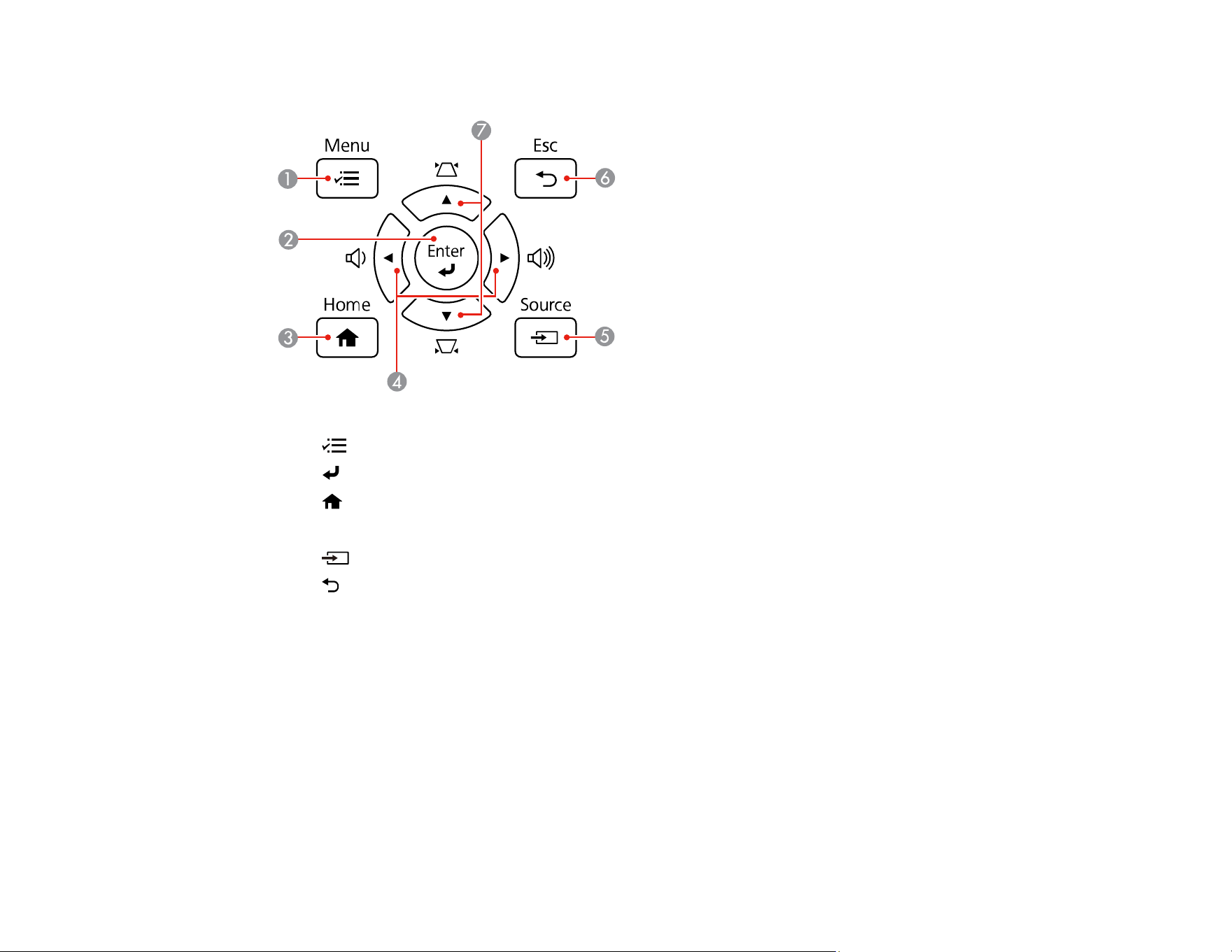
Projector Parts - Control Panel
1 Menu button (accesses projector menu system)
2 Enter button (selects options)
3
Home button (accesses projector Home screen)
4 Volume and left/right arrow buttons
5 Source button (changes the input source)
6 Esc button (cancels/exits functions)
7 Keystone and up/down arrow buttons (display the adjustment screen and adjust screen shape)
Parent topic: Projector Part Locations
22
Projector Parts - Remote Control
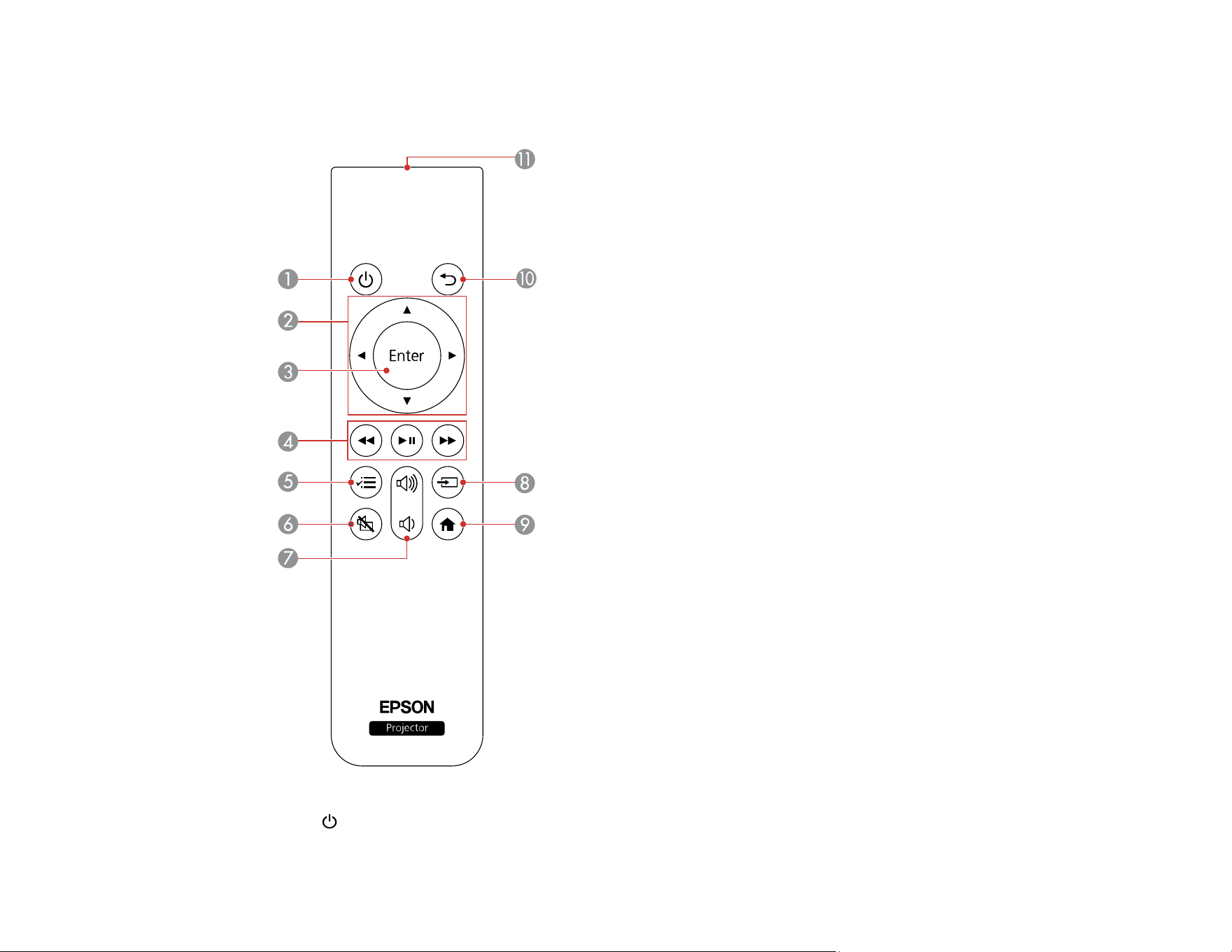
LS500W/B
1
Power button

23
2 Arrow buttons (move through on-screen options)
3 Enter button (selects options)
4
rewind, play/pause, and fast forward buttons (control connected streaming device)
5 Menu button (accesses projector menus)
6
A/V mute button (turns off picture and sound)
7
volume up and volume down buttons
8 Source button (changes the input source)
9
Home button (accesses projector Home screen)
10 Esc button (cancels/exits function)
11 Remote control emitter
LS500WATV/BATV

24
Projector remote control
1
Power button
2 Esc button (cancels/exits function)

25
3 Arrow buttons (move through on-screen options)
4 Enter button (selects options)
5 Menu button (accesses projector menus)
6
volume up and volume down buttons
7
rewind, play/pause, and fast forward buttons (control connected streaming device)
8 keystone button (corrects vertical/horizontal image distortion)
9 mic button (operates Android TV using voice commands)
10 Source button (changes the input source)
11 Home button (accesses Android TV Home screen)
12 App buttons
13
A/V mute button (turns off picture and sound)
14 Command light (turns on when the remote control is in operation)
15 Microphone (listens for voice commands after pressing the mic button)
16 Remote control emitter
26
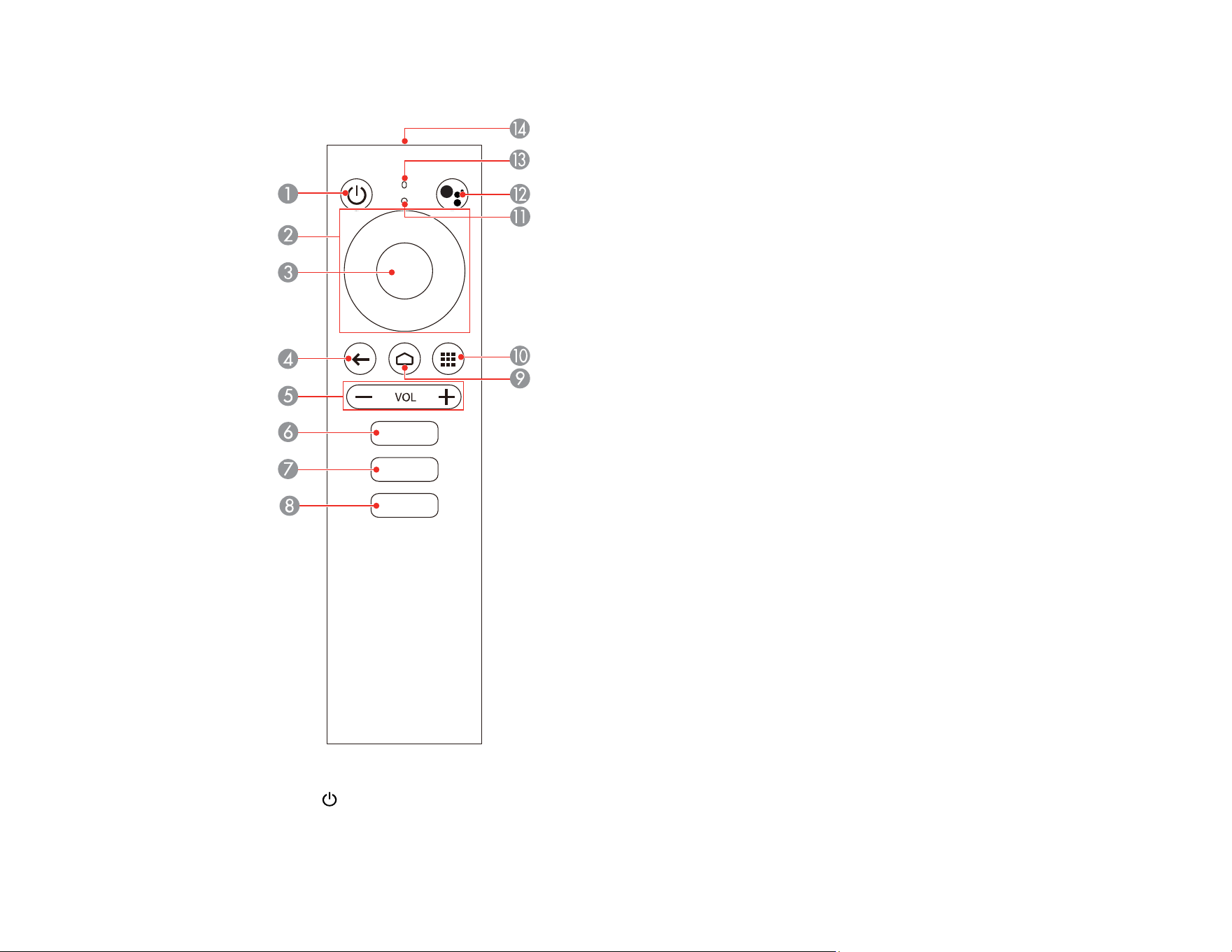
Streaming device remote control
1
Power button
2 Up/Down/Left/Right buttons

27
3 Enter button
4 return button (returns to the previous menu level)
5 Volume down and volume up buttons
6 YouTube button (opens the YouTube app)
7 Netflix button (opens the Netflix app)
8 Google Play button (connects to Google Play)
9 home button (displays the Android TV home screen)
10 apps button (displays list of Android TV apps)
11 Command light (turns on when the remote control is in operation)
12 mic button (operates Android TV using voice commands)
13 Microphone (listens for voice commands after pressing the mic button)
14 Remote control emitter
Parent topic: Projector Part Locations

28
Setting Up the Projector
Follow the instructions in these sections to set up your projector for use.
Projector Placement
Projector Connections
Installing Batteries in the Remote Control
Projector Placement
You can place the projector on almost any flat surface to project an image.
Warning: Do not mount the projector on a ceiling or a wall. It could fall and cause damage or injury.
Keep these considerations in mind as you select a projector location:
• Place the projector on a sturdy, level surface.
• Do not place or install the projector vertically.
• Leave plenty of space around and under the projector for ventilation, and do not place it on top of or
next to anything that could block the vents.
• Wherever you set up the projector, make sure to position it squarely in front of the center of the
screen, not at an angle, if possible.
• Position the projector within reach of a grounded electrical outlet or extension cord.
Projector Setup and Installation Options
Projection Distance
Parent topic: Setting Up the Projector
Projector Setup and Installation Options
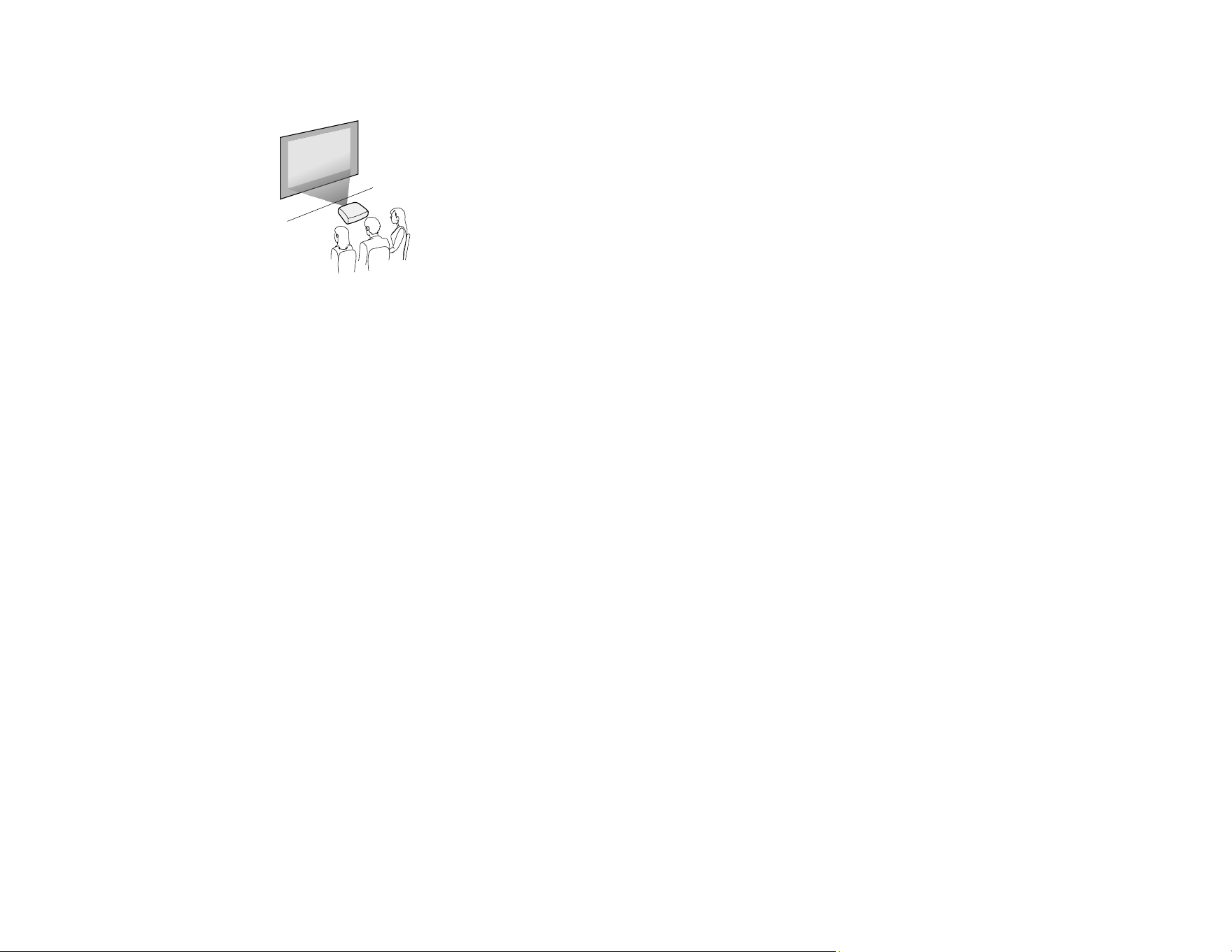
You can set up or install your projector in the following ways:
29
Front
Wherever you set up the projector, make sure to position it squarely in front of the center of the screen,
not at an angle, if possible. Do not place or install the projector vertically.
Note: Do not mount the projector on a ceiling or a wall. It could fall and cause damage or injury.
Parent topic: Projector Placement
Projection Distance
The distance at which you place the projector from the screen determines the approximate size of the
image. The image size increases the farther the projector is from the screen, but can vary depending on
the zoom factor, aspect ratio, and other settings.
Use the tables here to determine approximately how far to place the projector from the screen based on
the size of the projected image. (Conversion figures may have been rounded up or down.)
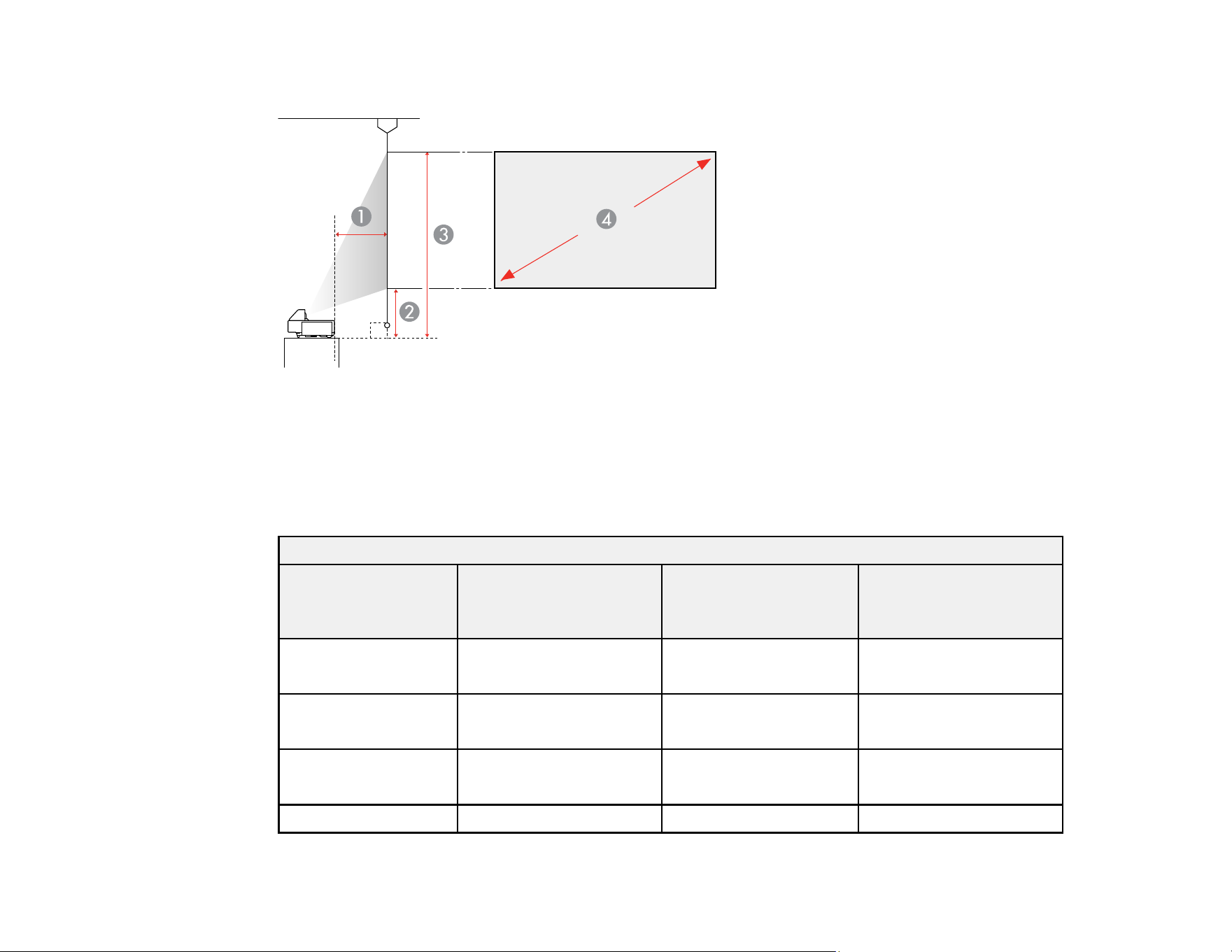
30
You can also use the Projection Distance Calculator here (U.S.), here (Canada), or here (Caribbean).
1 Projection distance (from image to rear of projector)
2 Distance from projector surface to base of image
3 Distance from projector surface to top of image
4 Projected image size
16:9 Aspect Ratio Image or Screen
Screen or image size
(4)
Projection distance (1)
Wide to Tele
Offset from projector
surface (2)
Wide to Tele
Offset from projector
surface (3)
Wide to Tele
70 inches (177.8 cm) 7.8 to 14.0 inches
(19.7 to 35.5 cm)
11.3 to 19.0 inches
(28.7 to 48.2 cm)
45.6 to 53.3 inches
(115.9 to 135.4 cm)
80 inches (203.2 cm) 10.3 to 17.4 inches
(26.2 to 44.2 cm)
12 to 20.8 inches
(30.5 to 52.8 cm)
51.2 to 60.0 inches
(130.1 to 152.4 cm)
90 inches (228.6 cm) 12.8 to 20.8 inches
(32.6 to 52.9 cm)
12.7 to 22.6 inches
(32.2 to 57.3 cm)
56.8 to 66.7 inches
(144.3 to 169.4 cm)
100 inches (254 cm) 15.4 inches (39.1 cm)* 13.4 inches (33.9 cm)* 62.4 inches (158.5 cm)*
31
16:9 Aspect Ratio Image or Screen
Screen or image size
(4)
Projection distance (1)
Wide to Tele
Offset from projector
surface (2)
Wide to Tele
Offset from projector
surface (3)
Wide to Tele
110 inches (279.4 cm) 17.9 inches (45.5 cm)* 14.1 inches (35.7 cm)* 68.0 inches (172.7 cm)*
120 inches (304.8 cm) 20.4 inches (51.9 cm)* 14.7 inches (37.4 cm)* 73.6 inches (186.9 cm)*
130 inches (330.2 cm) 23.0 inches (58.4 cm)* 15.4 inches (39.2 cm)* 79.2 inches (201.1 cm)*
* Wide resolution only
Parent topic: Projector Placement
Projector Connections
See these sections to connect the projector to a variety of projection sources.
Caution: If you will use the projector at altitudes above 4921 feet (1500 m), turn on High Altitude Mode
to ensure the projector's internal temperature is regulated properly. The cooling fans will run at a higher
speed and will be slightly louder.
Connecting a Streaming Device
Connecting to an HDMI Video Source
Connecting External Speakers Using HDMI ARC
Connecting to External Speakers
Parent topic: Setting Up the Projector
Related references
Projector Setup Settings - Extended Menu
Additional Components
Connecting a Streaming Device
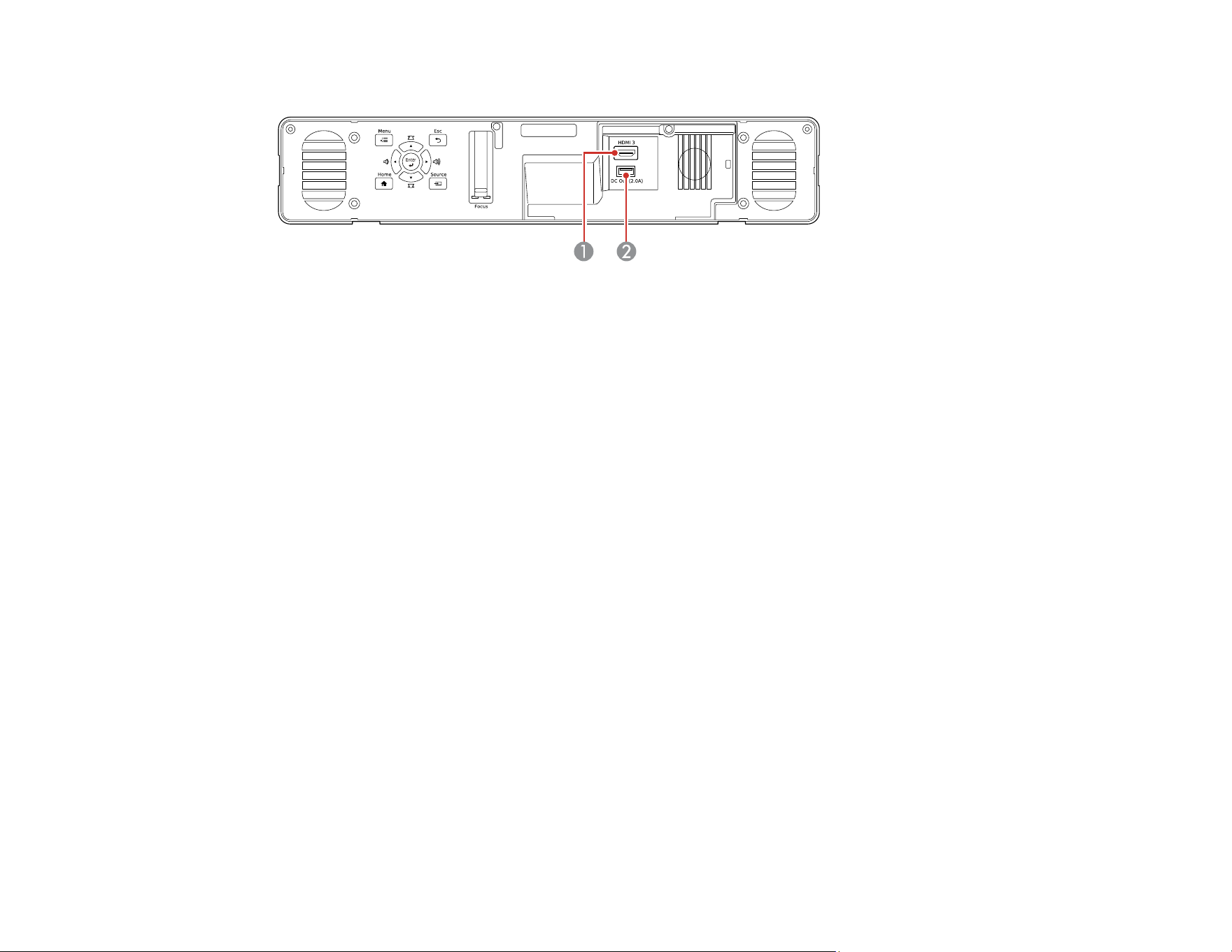
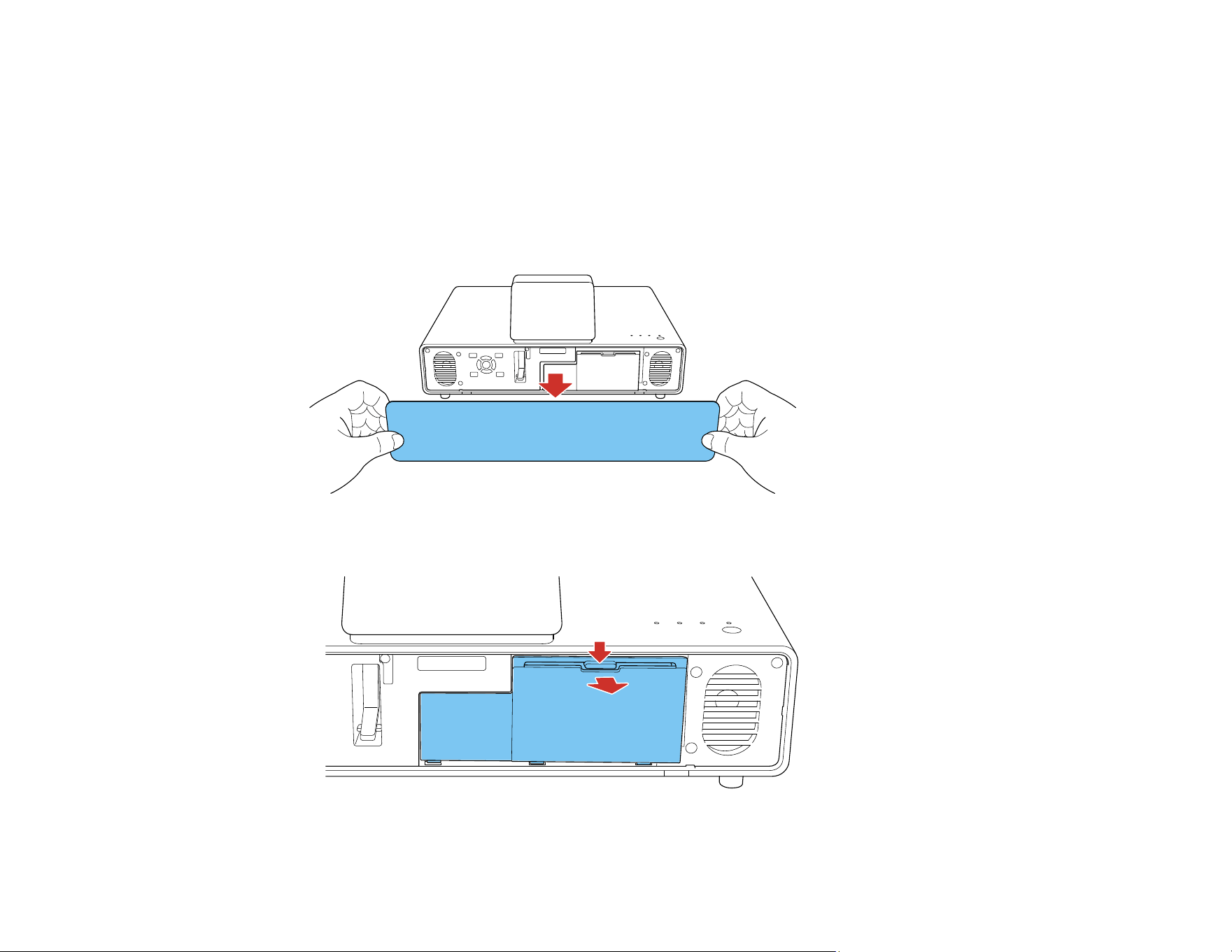
You can connect a streaming device to the projector's HDMI3 port. Connecting the USB power cable
provides power to the streaming device.
32
Note: The illustrations below show the streaming device included with LS500WATV/BATV models. If
you are connecting a different streaming device and it does not have a USB 2.0 Micro-B power port, use
the USB power cable that came with the device.
Note: For LS500WATV/BATV models, the projector remote control must be paired to the included
streaming device to use Android TV and video-on-demand features. Follow the on-screen instructions or
see the link below.
1. Remove the front cover from the projector.
2. Remove the storage space cover.

33
3. Connect the HDMI extension cable to the HDMI3 port and the USB power cable to the DC Out
(2.0A) port.
4. Connect the streaming device to the HDMI extension cable.
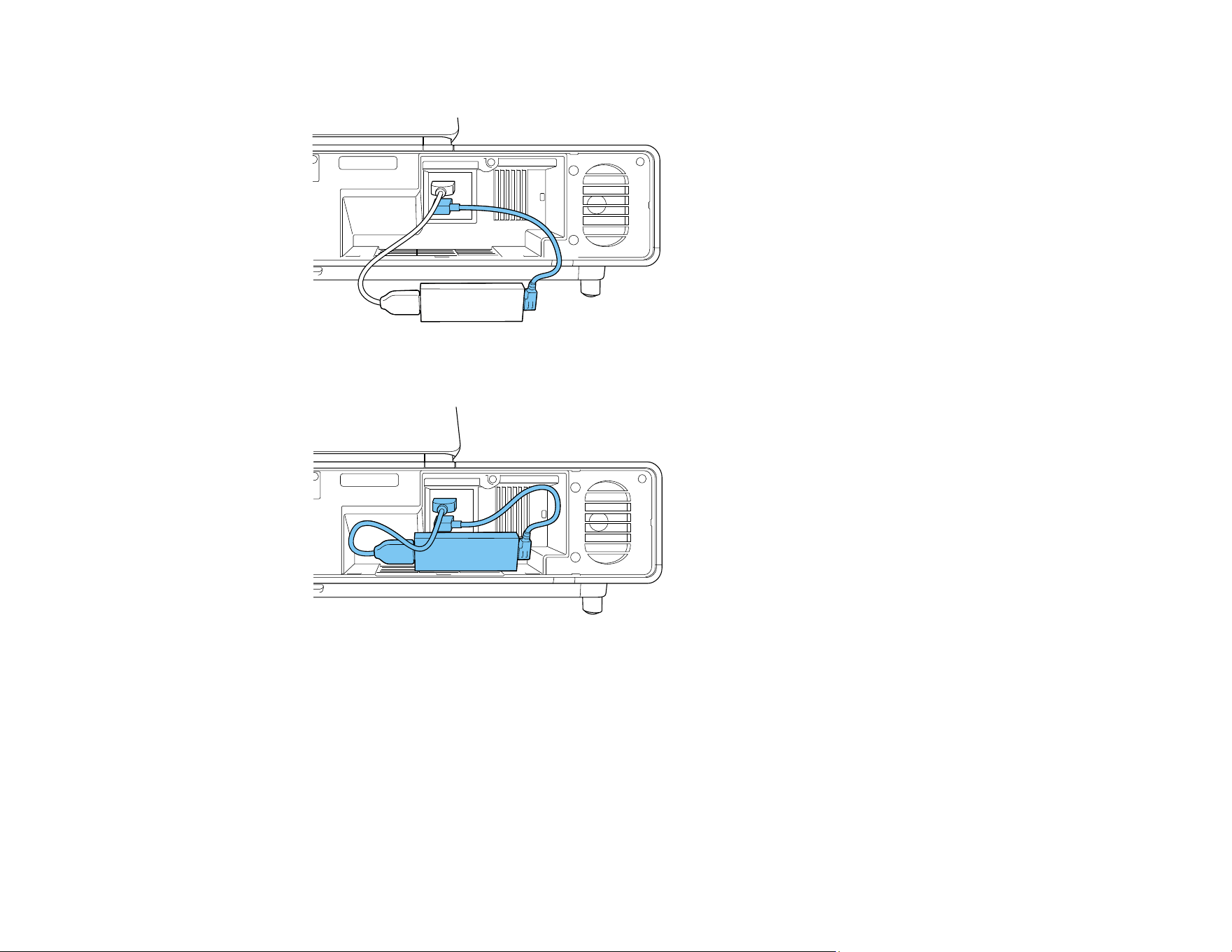
34
5. Connect the USB power cable to the streaming device's USB power port.
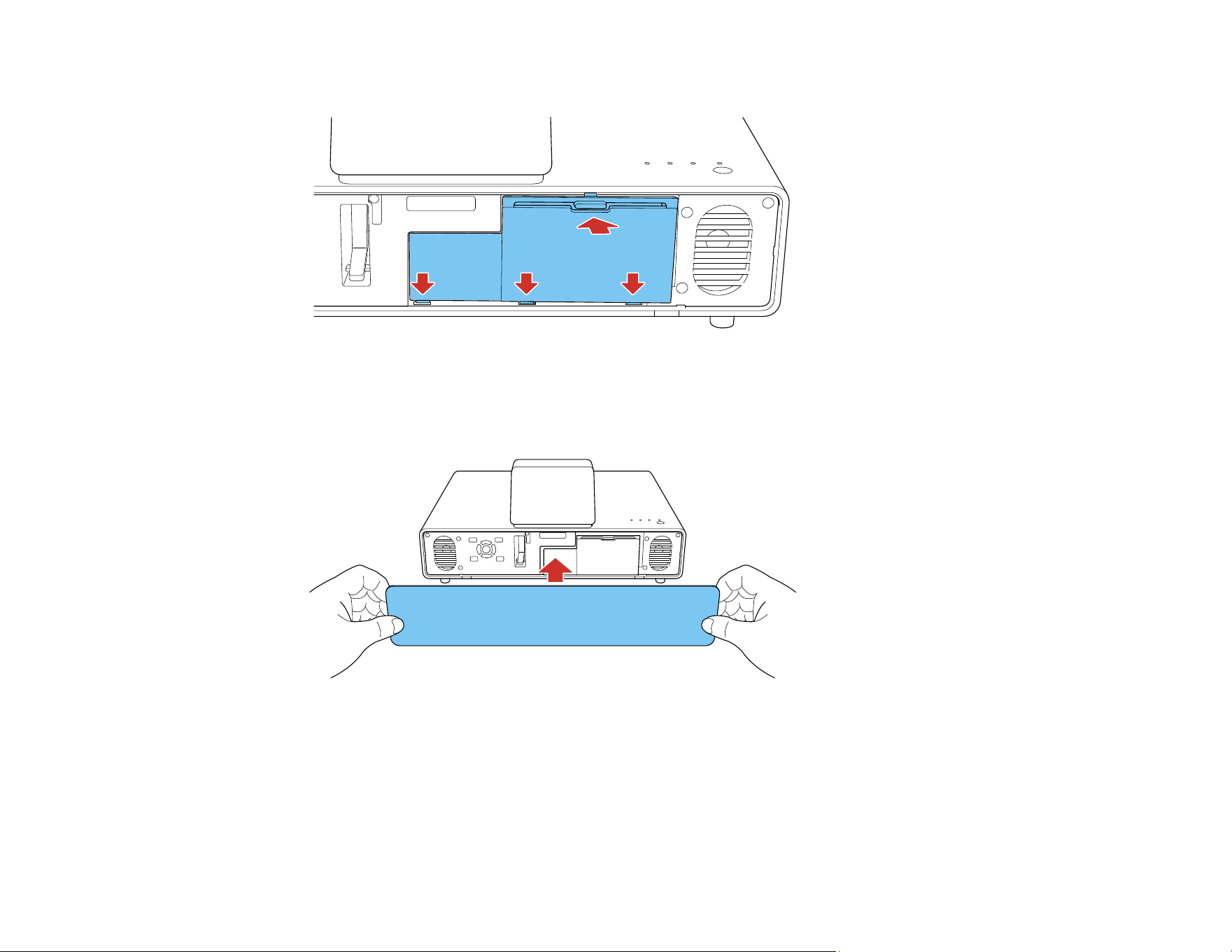
6. Fit the device securely inside the storage space by arranging the cables as shown.
Note: Do not force the device into the projector; you may damage the projector and/or the device.
35
7. Replace the storage space cover as shown.
Note: Make sure to clear the cables or the cover will not close.
8. Replace the front cover of the projector.
Parent topic: Projector Connections
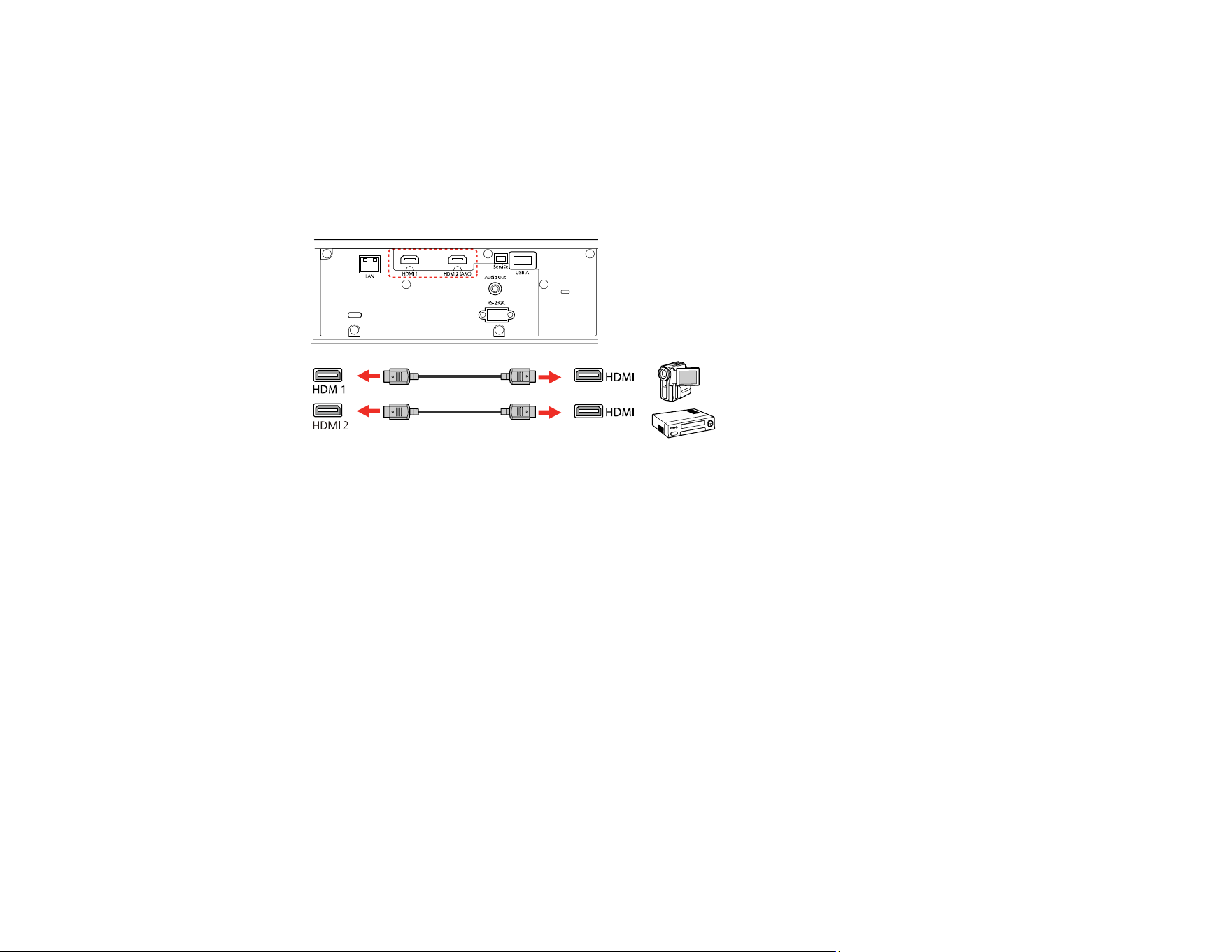
Connecting to an HDMI Video Source
If your video source has an HDMI port, you can connect it to the projector using an optional HDMI cable.
36
1. Connect the HDMI cable to your video source's HDMI output port.
Note: To display signals in the 18 Gbps transmission band, such as from a 4K 60 fps source, use a
cable rated for HDMI 2.0 or higher or you may have trouble displaying an image. If you experience
any trouble displaying images at 18 Gbps, change the EDID setting to Normal.
2. Connect the other end to one of the HDMI ports on the rear of the projector.
Note: When an audio/video source that meets the HDMI CEC standard is connected to one of the
projector's HDMI ports, you can use the projector's remote control to control certain features of the linked
device by accessing the Settings menu and setting HDMI Link to On.
Parent topic: Projector Connections
Related references
Projector Feature Settings - Settings Menu
Input Signal Settings - Signal Menu
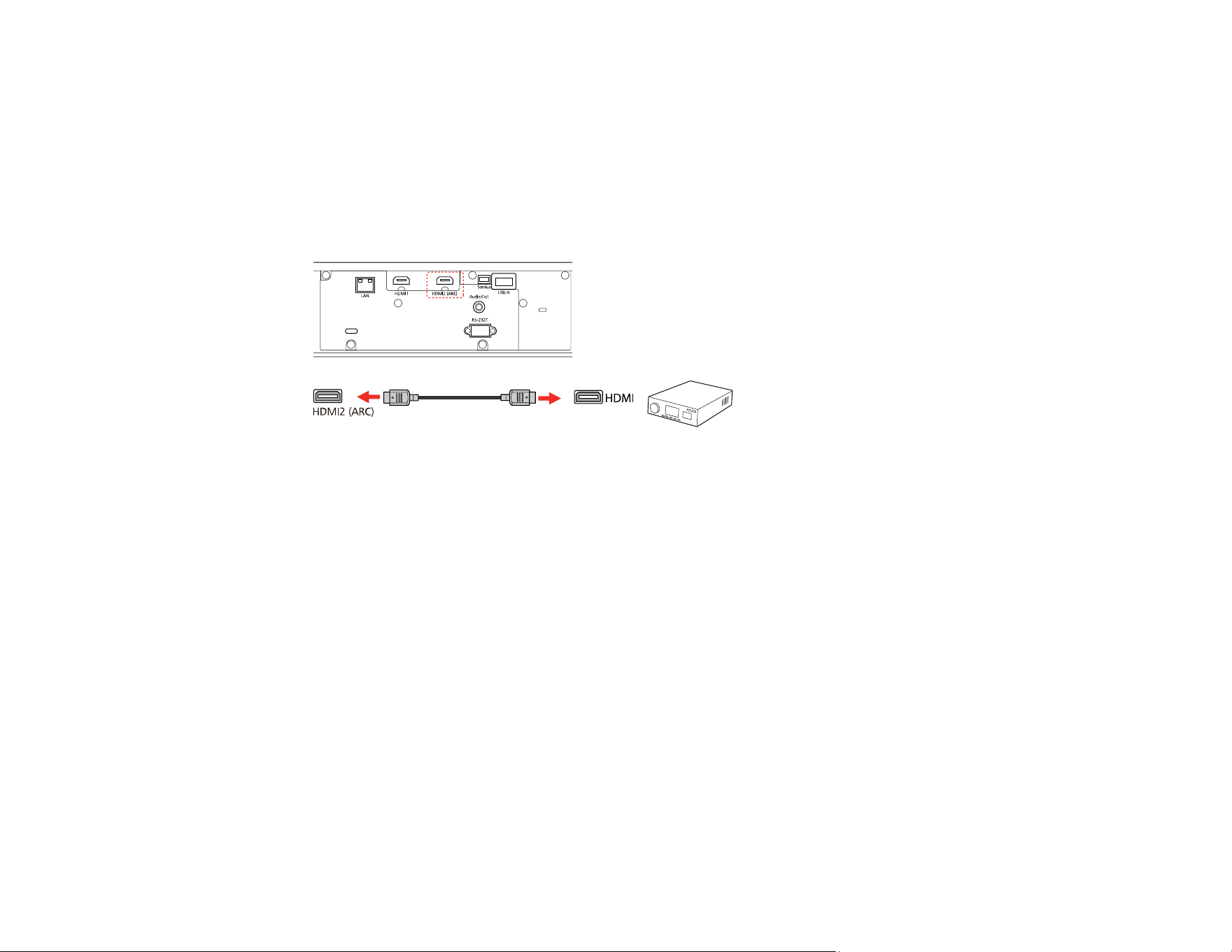
Connecting External Speakers Using HDMI ARC
If your external speakers or A/V receiver are HDMI ARC-compatible, you can connect them to the
projector's HDMI2 (ARC) port using an optional HDMI cable. Make sure the HDMI Link setting is
enabled and AV System is selected as the Audio Out Device setting.
37
1. Connect the HDMI cable to the ARC-compatible HDMI port on your external speakers or A/V
receiver.
Note: To display signals in the 18 Gbps transmission band, such as from a 4K 60 fps source, use a
cable rated for HDMI 2.0 or higher or you may have trouble displaying an image. If you experience
any trouble displaying images at 18 Gbps, change the EDID setting to Normal.
2. Connect the other end to the HDMI2 (ARC) port on the rear of the projector.
3. Select any HDMI control settings on the connected speakers or receiver, as necessary. See your
device's documentation for more information.
Parent topic: Projector Connections
Related references
Projector Feature Settings - Settings Menu
Input Signal Settings - Signal Menu
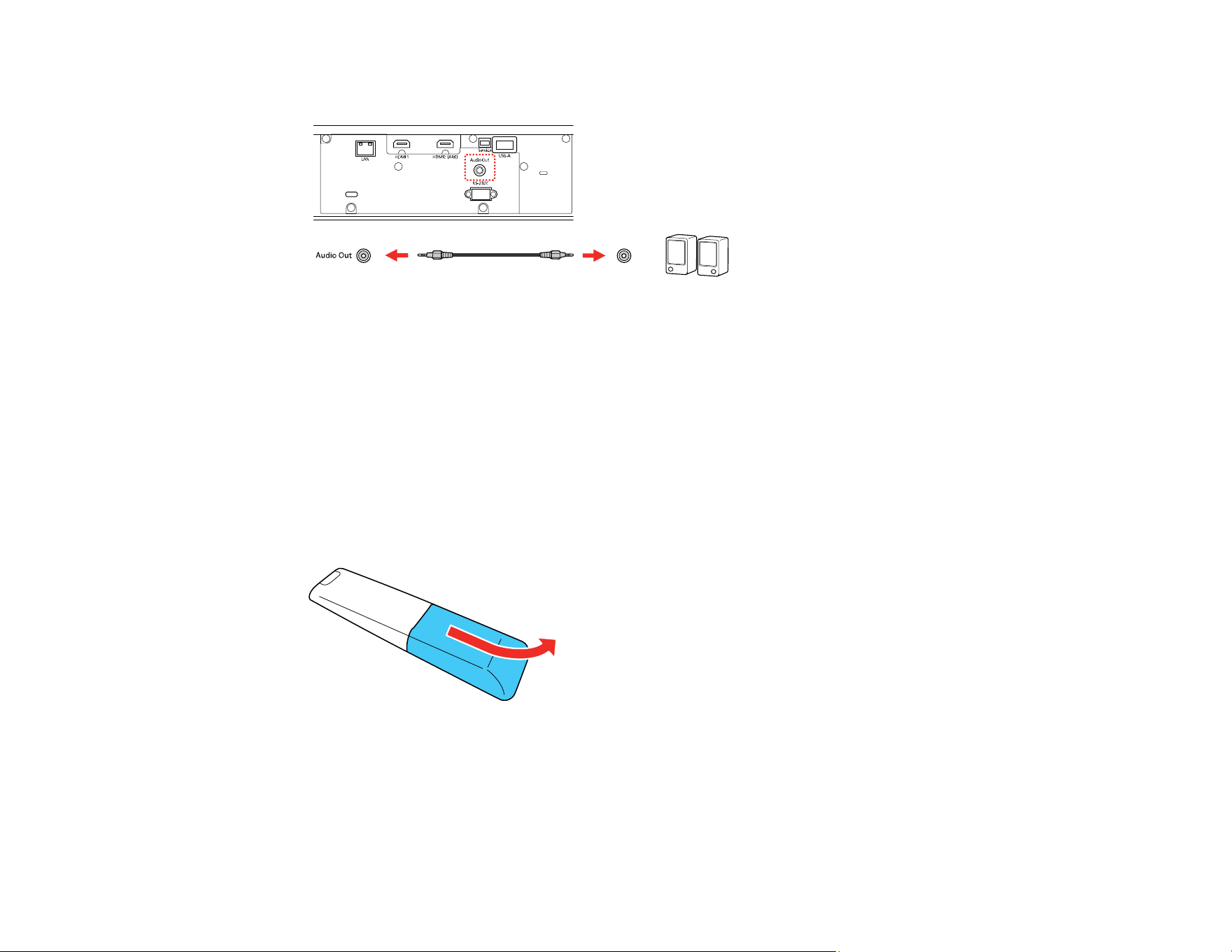
Connecting to External Speakers
To enhance the sound from your video source, you can connect the projector to external self-powered
speakers. You can control the projector's output volume using the projector's remote control.
You can also connect the projector to an amplifier with speakers. This bypasses the internal speakers.
1. Make sure your computer or video source is connected to the projector with both audio and video
cables as necessary.
2. Locate the appropriate cable to connect your external speakers, such as a stereo mini-jack-to-pin-
jack cable, or another type of cable or adapter.
3. Connect one end of the cable to your external speakers as necessary.
38
4. Connect the stereo mini-jack end of the cable to your projector's Audio Out port.
Parent topic: Projector Connections
Installing Batteries in the Remote Control
The remote control uses two AAA manganese or alkaline batteries that came with the projector.
Caution: Use only the type of batteries specified in this manual. Do not install batteries of different types,
or mix new and old batteries.
Note: Your remote may look different but the steps are the same.
1. Remove the battery cover.

39
2. Insert the batteries with the + and – ends facing as shown.
Warning: Make sure the batteries are inserted in the correct positions. If the batteries are not
inserted correctly, they could explode or leak, causing a fire, injury, or damage to the product.
3. Replace the battery cover and slide it up until it clicks into place.
Warning: Dispose of used batteries according to local regulations. Do not expose batteries to heat
or flame. Keep batteries out of the reach of children; they are choking hazards and are very
dangerous if swallowed.
Parent topic: Setting Up the Projector

40
Using the Projector on a Network
Follow the instructions in these sections to set up your projector for use on a network.
Note: Epson iProjection is not recommended for use with streaming video.
Wired Network Projection
Wireless Network Projection
Wired Network Projection
You can project through a wired network. To do this, you connect the projector to your network with an
Ethernet cable, and then set up your projector and computer for network projection.
After connecting and setting up the projector, install the projector software. You may need to install it
from a software CD, if included, or download the software and manuals as necessary.
Note: If your projector is connected via a LAN (Ethernet) cable to a network that includes a wireless
access point, you can connect to the projector wirelessly through the access point using the Epson
network software.
Connecting to a Wired Network
Selecting Wired Network Settings
Parent topic: Using the Projector on a Network
Related references
Additional Projector Software and Manuals
Connecting to a Wired Network
To connect the projector to a wired local area network (LAN), use a 100Base-TX or 10Base-T network
cable. To ensure proper data transmission, use a Category 5 shielded cable or better.
1. Connect one end of the network cable to your network hub, switch, or router.
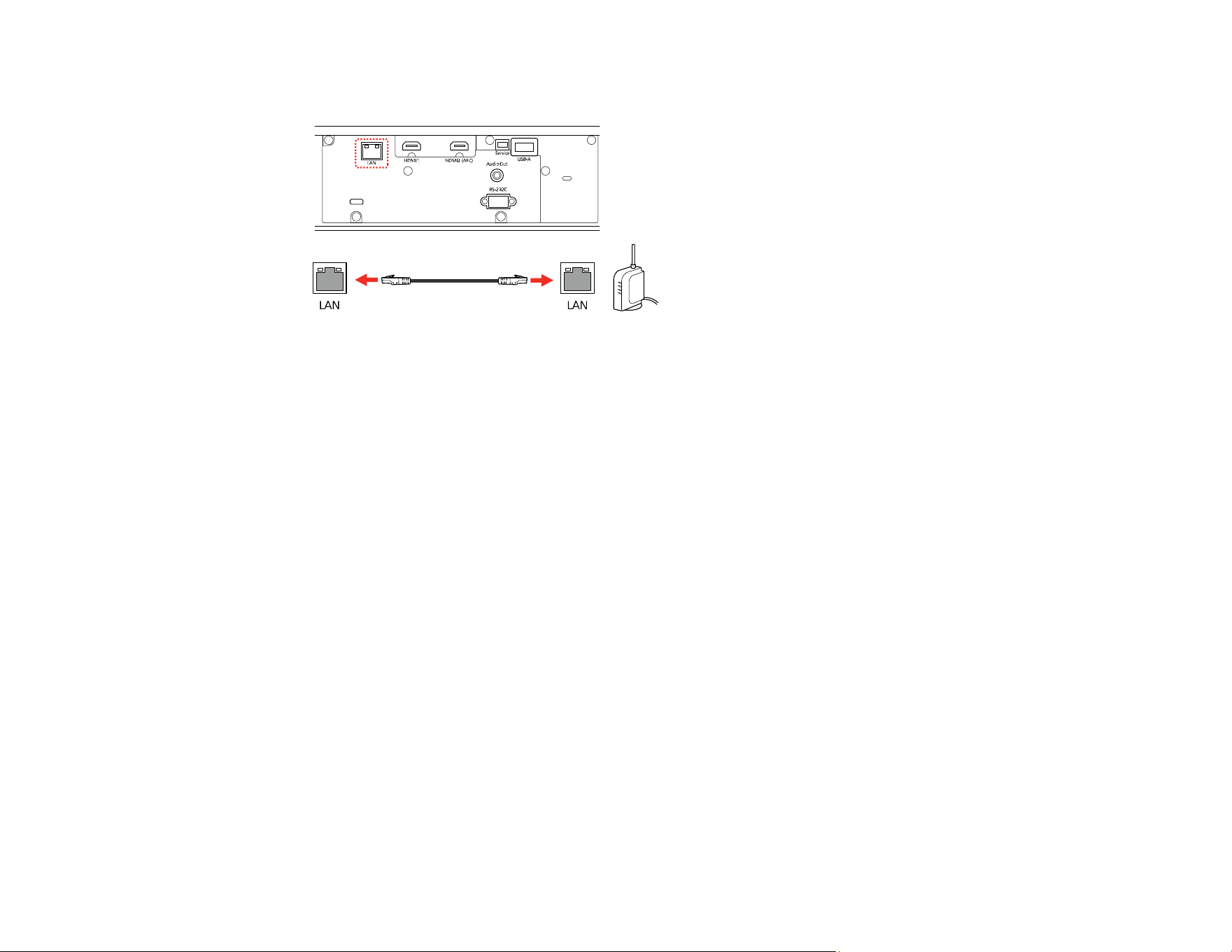
41
2. Connect the other end of the cable to the projector's LAN port.
Parent topic: Wired Network Projection
Selecting Wired Network Settings
Before you can project from computers on your network, you must select the network settings for the
projector using its menu system.
Note: Make sure you already connected the projector to your wired network using the LAN port.
1. Turn on the projector.
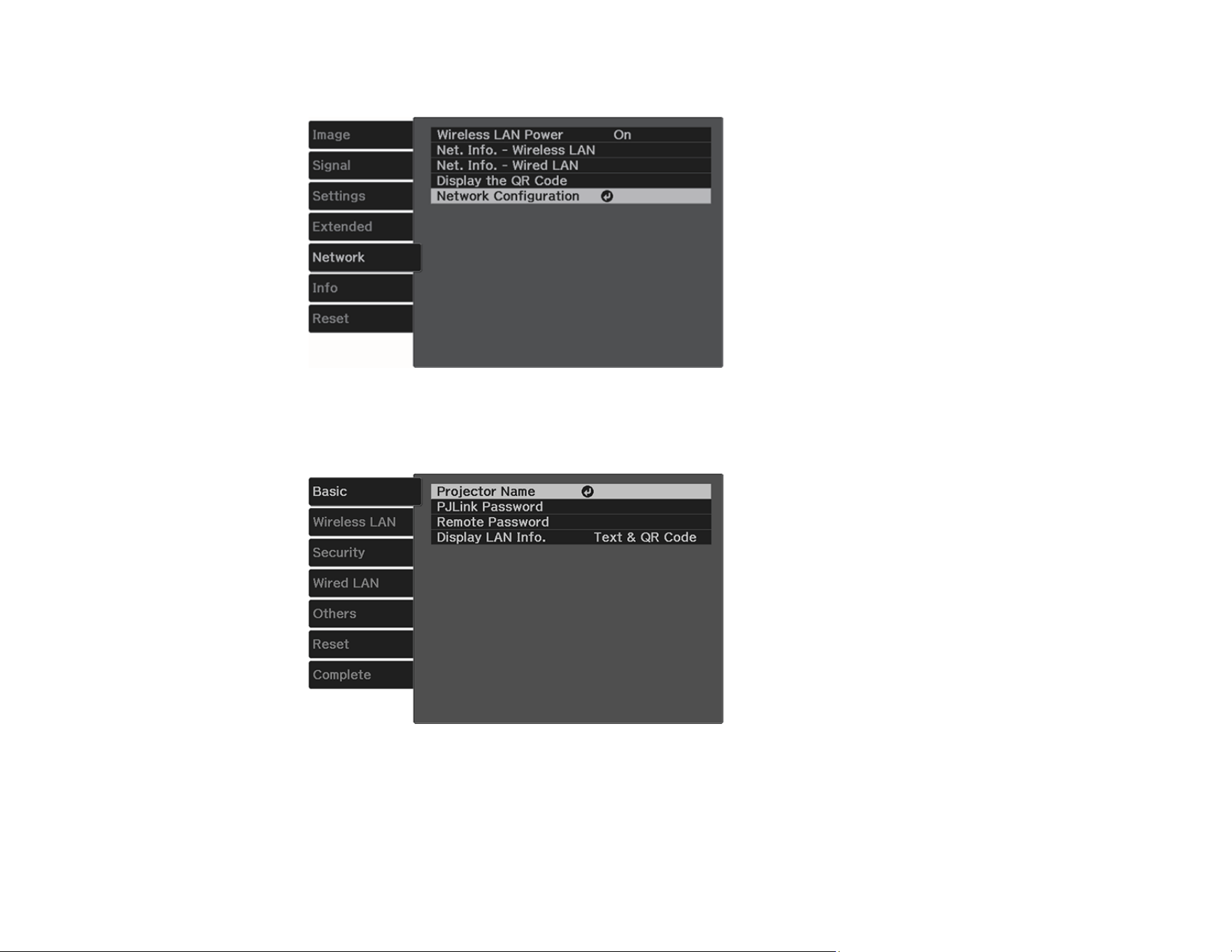
2. Press the Menu button.
42
3. Select the Network menu and press Enter.
4. Select Network Configuration and press Enter.
5. Select the Basic menu and press Enter.
6. Select the following basic options as necessary:
• Projector Name lets you enter a name up to 16 alphanumeric characters long to identify the
projector over the network.
43
• PJLink Password lets you enter a password up to 32 alphanumeric characters long for using the
PJLink protocol for projector control.
• Remote Password lets you enter a password up to 8 alphanumeric characters long for accessing
the Remote or Basic Control screen in Epson Web Control. (Default user name is
EPSONREMOTE; default password is guest.)
• Display LAN Info lets you select how the projector displays network information. You can select
an option to display a QR code that lets you quickly connect your iOS or Android devices using the
Epson iProjection app.
Note: Use the displayed keyboard to enter the name, passwords, and keyword. Press the arrow
buttons on the remote control to highlight characters and press Enter to select them.
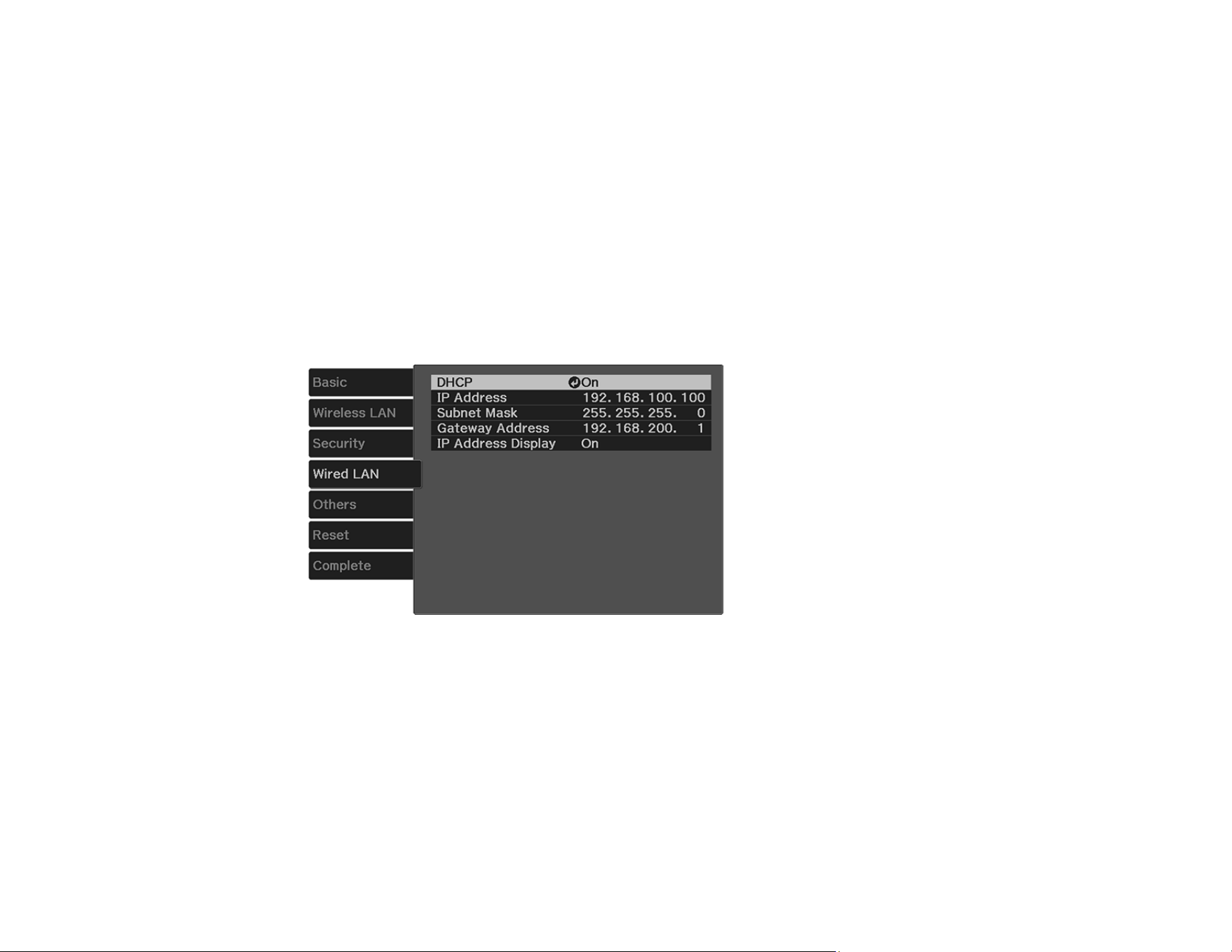
7. Select the Wired LAN menu and press Enter.
8. If necessary, select IP Settings and press Enter.
9. Select your IP Settings as necessary:
• If your network assigns addresses automatically, turn on the DHCP setting.
• If you must set addresses manually, turn off DHCP and enter the projector's IP Address, Subnet
Mask, and Gateway Address as needed.
Note: To highlight the numbers you want from the displayed keyboard, press the arrow buttons on
the remote control. To select a highlighted number, press Enter.

44
10. To prevent display of the IP address on the standby screen, turn off IP Address Display.
11. When you finish selecting settings, select Complete and follow the on-screen instructions to save
your settings and exit the menus.
Parent topic: Wired Network Projection
Wireless Network Projection
You can project over a wireless network. To do this, you must set up your projector and computer for
wireless projection.
Note: The Epson 802.11b/g/n wireless LAN module is not included with your projector and is optional.
To connect wirelessly to your projector, configure the connection using the projector's Network menus.
After connecting and setting up the projector, install the projector software. You may need to install it
from a software CD, if included, or download the software and manuals as necessary.
You can use Epson iProjection to project static images and presentations over a wireless network.
Note: Epson iProjection is not recommended for use with streaming video.
Note: If your projector is connected via a LAN cable to a network that includes a wireless access point,
you can connect to the projector wirelessly through the access point using the Epson network software.
Installing the Wireless LAN Module
Connecting Directly to a Smartphone or Tablet
Selecting Wireless Network Settings Manually
Selecting Wireless Network Settings in Windows
Selecting Wireless Network Settings on Mac
Setting Up Wireless Network Security
Parent topic: Using the Projector on a Network
Related references
Additional Projector Software and Manuals
Optional Equipment and Replacement Parts
45
Installing the Wireless LAN Module
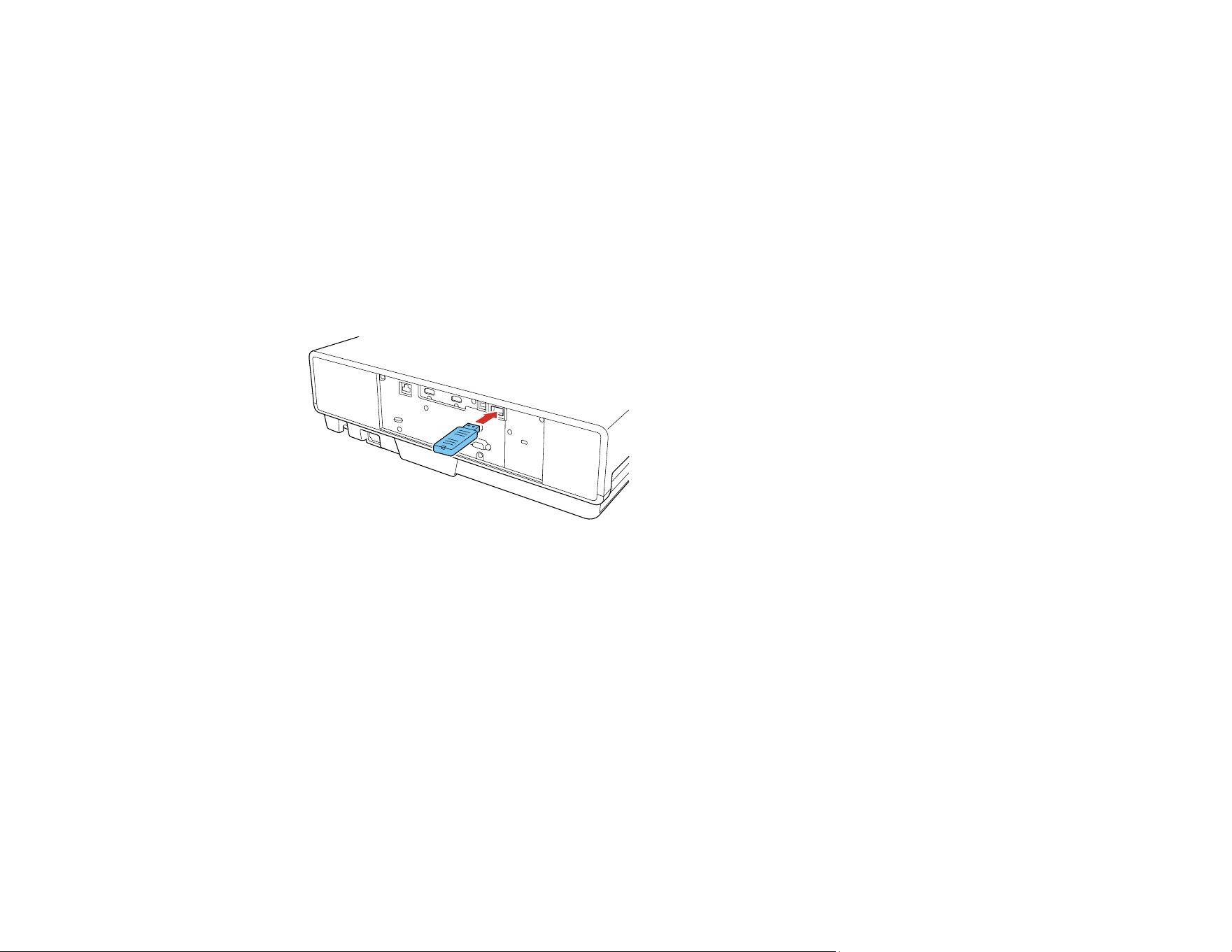
To use the projector over a wireless network, install the Epson 802.11b/g/n wireless module in the
projector. Do not install any other type of wireless module.
Caution: Never remove the module while its indicator light is blue or flashing, or while you are projecting
wirelessly. You may damage the module or lose data.
Note: The Epson 802.11b/g/n wireless LAN module is not included with your projector and is optional.
1. Turn off the projector and unplug the power cord.
2. Insert the wireless LAN module into the USB-A port shown here.
3. Plug in and turn on the projector.
Parent topic: Wireless Network Projection
Related tasks
Turning Off the Projector
Connecting Directly to a Smartphone or Tablet
You can display a QR code on the screen and use it to connect a single smartphone or tablet to your
projector with the Epson iProjection app. Make sure the optional Epson 802.11b/g/n wireless LAN
module is installed.
Note: The Epson 802.11b/g/n wireless LAN module is not included with your projector and is optional.
Note: Epson iProjection is not recommended for use with streaming video.
46
1. Download the latest version of the Epson iProjection app from the App Store or Google Play and
install it on your smartphone or tablet.
2. Press the Menu button on the projector or the projector remote control.
3. Select the Network menu and press Enter.
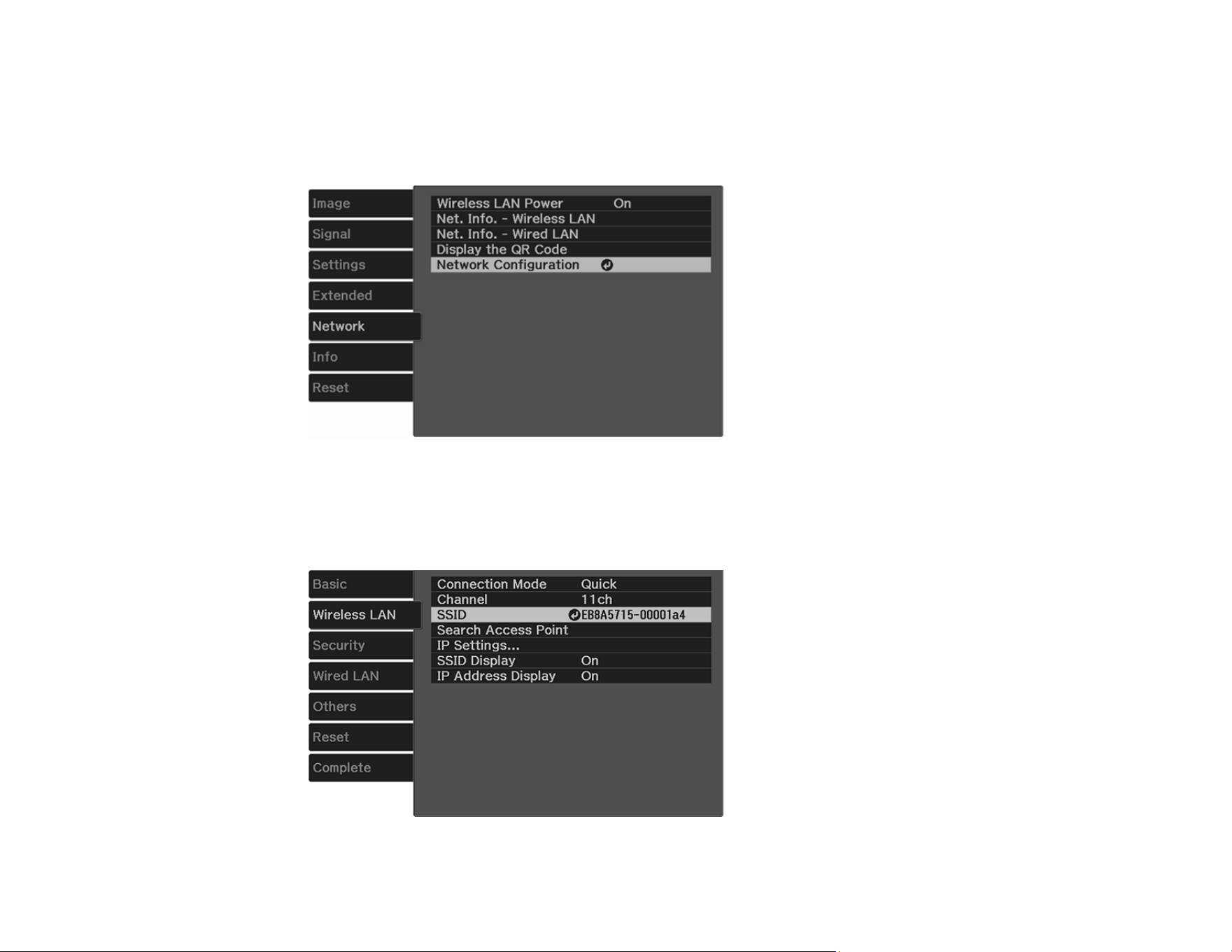
4. Select On as the Wireless LAN Power setting, if necessary.
5. Select Network Configuration and press Enter.
6. Select the Wireless LAN menu and press Enter.

47
7. Select Connection Mode and press Enter.
8. Select Quick and press Enter.
9. Press Esc to return to the Network Configuration menu.
10. Select Complete and follow the on-screen instructions to save your settings.
11. Select Display the QR Code and press Enter.
Your projector displays a QR code on the projection surface.
12. Open the Epson iProjection app on your smartphone or tablet.
13. Use the QR code reader feature to read the QR code and connect your device to the projector.
Note: The projector and the smartphone must be on the same wireless network in order to establish
a connection.
Your smartphone or tablet is now connected to your projector. Visit epson.com/iprojection (U.S.),
epson.ca/iprojection (Canada), or latin.epson.com/iprojection (Caribbean) for information on controlling
your projector with the Epson iProjection app.
Parent topic: Wireless Network Projection
Selecting Wireless Network Settings Manually
Before you can project from your wireless network, you must select the network settings for the projector
using its menu system.
1. Turn on the projector.
2. Press the Menu button.
48
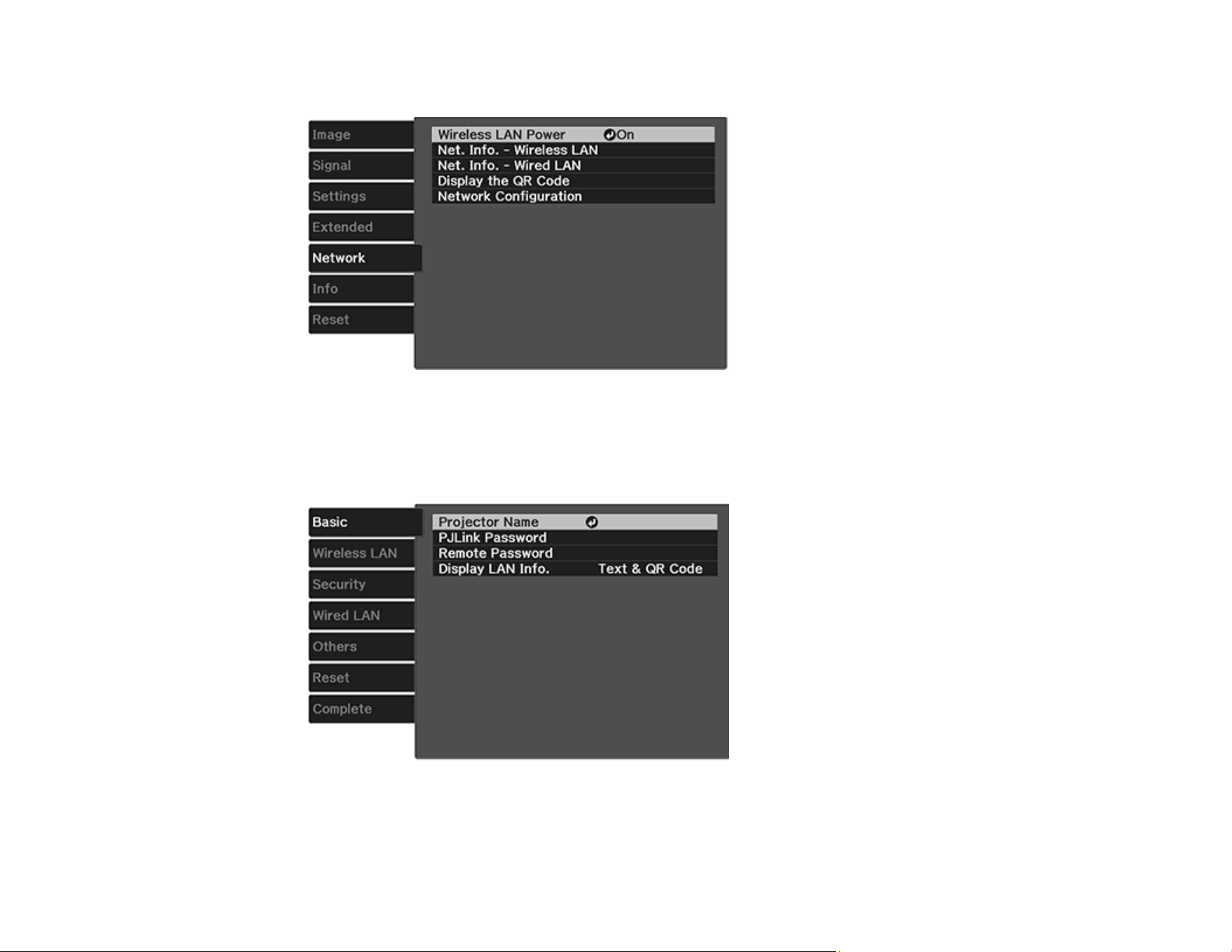
3. Select the Network menu and press Enter.
4. Make sure the Wireless LAN Power setting is set to On .
5. Select Network Configuration and press Enter.
6. Select the Basic menu and press Enter.

49
7. Select the following basic options as necessary:
• Projector Name lets you enter a name up to 16 alphanumeric characters long to identify the
projector over the network.
• PJLink Password lets you enter a password up to 32 alphanumeric characters long for using the
PJLink protocol for projector control.
• Remote Password lets you enter a password up to 8 alphanumeric characters long for accessing
the Remote or Basic Control screen in Epson Web Control. (Default user name is
EPSONREMOTE; default password is guest.
• Display LAN Info lets you select how the projector displays network information. You can select
an option to display a QR code that lets you quickly connect your iOS or Android devices with the
Epson iProjection app.
Note: Use the displayed keyboard to enter the name, passwords and keyword. Press the arrow
buttons on the remote control to highlight characters and press Enter to select them.
8. Select the Wireless LAN menu and press Enter.
9. Select the settings on the Wireless LAN menu as necessary for your network.
10. When you finish selecting settings, select Complete and follow the on-screen instructions to save
your settings and exit the menus.
Note: Check your network security settings after completing the wireless settings.

50
After you complete the wireless settings for your projector, you need to select the wireless network on
your computer, or iOS or Android device.
Wireless LAN Menu Settings
Parent topic: Wireless Network Projection
Wireless LAN Menu Settings
Setting Options Description
Connection Mode Quick
Advanced
Selects the type of wireless
connection:
Quick: lets you directly connect
to multiple devices and
computers using the projector's
wireless network (requires the
optional wireless LAN module).
Advanced: lets you connect to
multiple devices and computers
via a wireless network access
point
Channel 1ch
6ch
11ch
In Quick connection mode,
selects the frequency band
(channel) used by the wireless
LAN
SSID Up 32 alphanumeric characters Manually set the SSID (network
name) of the wireless LAN
system the projector is
connecting to
Search Access Point To Search View Search for available wireless
network access points in
Advanced connection mode
IP Settings DHCP (On or Off)
IP Address
Subnet Mask
Gateway Address
Selects DHCP if your network
assigns IP addresses
automatically, or turns off DHCP
so you can enter the network's IP
address, subnet mask, and
gateway address as needed
51
Setting Options Description
SSID Display On
Off
Selects whether to display the
SSID on the network standby
screen and Home screen
IP Address Display On
Off
Selects whether to display the IP
address on the network standby
screen and Home screen
Parent topic: Selecting Wireless Network Settings Manually
Selecting Wireless Network Settings in Windows
Before connecting to the projector, select the correct wireless network on your computer.
1. To access your wireless utility software, access the Desktop and double-click the network icon on
the Windows taskbar.
2. Do one of the following:
• If your projector is set up on an existing network (Advanced mode), select the network name
(SSID).
• If your projector is configured for Quick mode, select the projector's SSID.
3. Click Connect.
Parent topic: Wireless Network Projection
Selecting Wireless Network Settings on Mac
Before connecting to the projector, select the correct wireless network on your Mac.
1. Click the AirPort icon on the menu bar at the top of the screen.
2. Make sure AirPort is turned on, then do one of the following:
• If your projector is set up on an existing network (Advanced mode), select the network name
(SSID).
• If your projector is configured for Quick mode, select the projector's SSID.
Parent topic: Wireless Network Projection
52
Setting Up Wireless Network Security
You can set up security for your projector to use on a wireless network. Set up one of the following
security options to match the settings used on your network:
• WPA2-PSK
• WPA/WPA2-PSK*
* Available only in Advanced connection mode.
1. Press the Menu button.
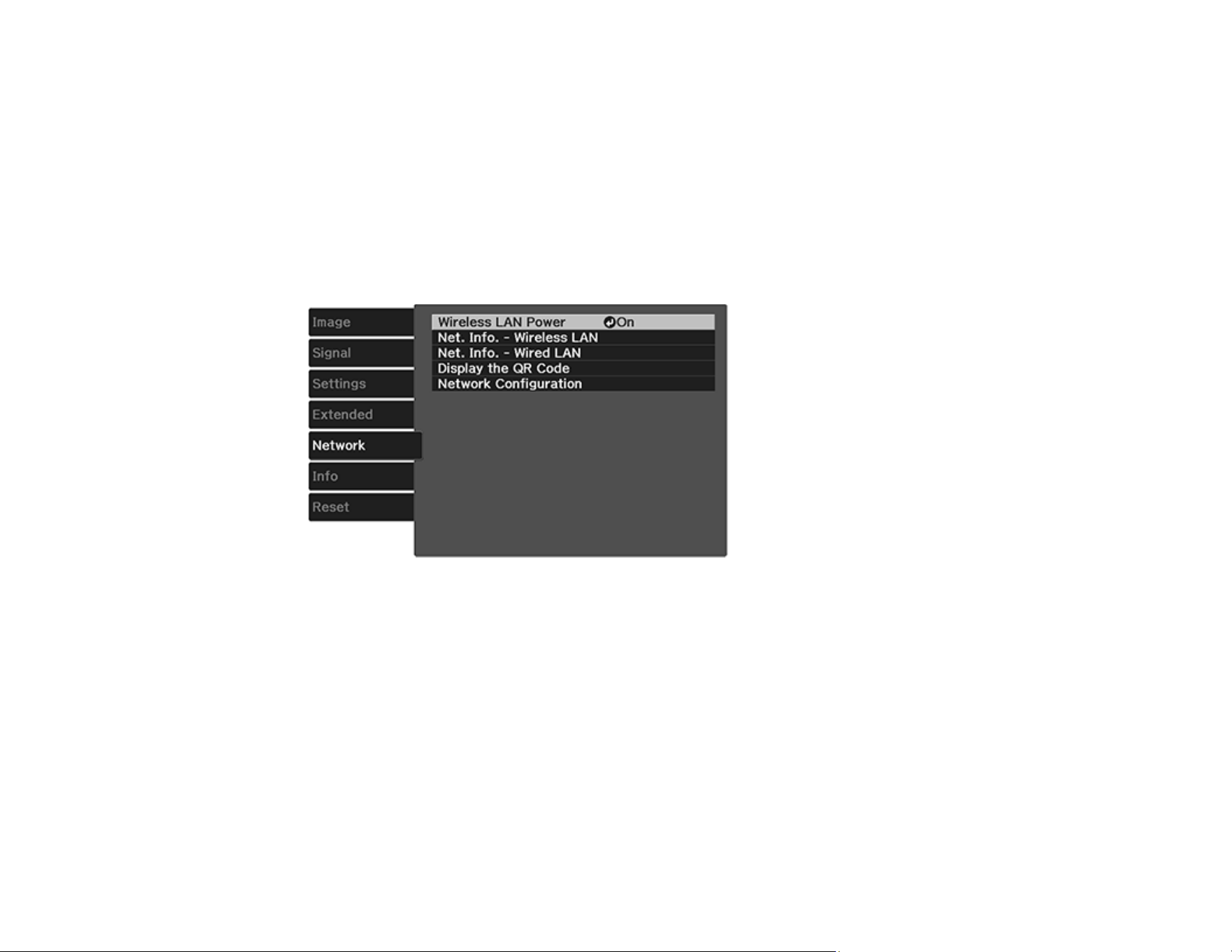
2. Select the Network menu and press Enter.
3. Select Network Configuration and press Enter.


54
Using Basic Projector Features
Follow the instructions in these sections to use your projector's basic features.
Turning On the Projector
Turning Off the Projector
Selecting the Language for the Projector Menus
Adjusting the Image Position
Focusing the Image
Adjusting the Front Feet
Image Shape
Resizing the Image with the Zoom Setting
Viewing 3D Images
Remote Control Operation
Pairing the Remote Control (LS500WATV/LS500BATV)
Selecting an Image Source
Image Aspect Ratio
Color Mode
Adjusting Gamma
Controlling the Volume with the Volume Buttons
Turning On the Projector
Turn on the projector before you turn on the computer or video equipment you want to use.
1. Connect the computer or video equipment you want to use to one of the projector's HDMI ports, if
necessary.
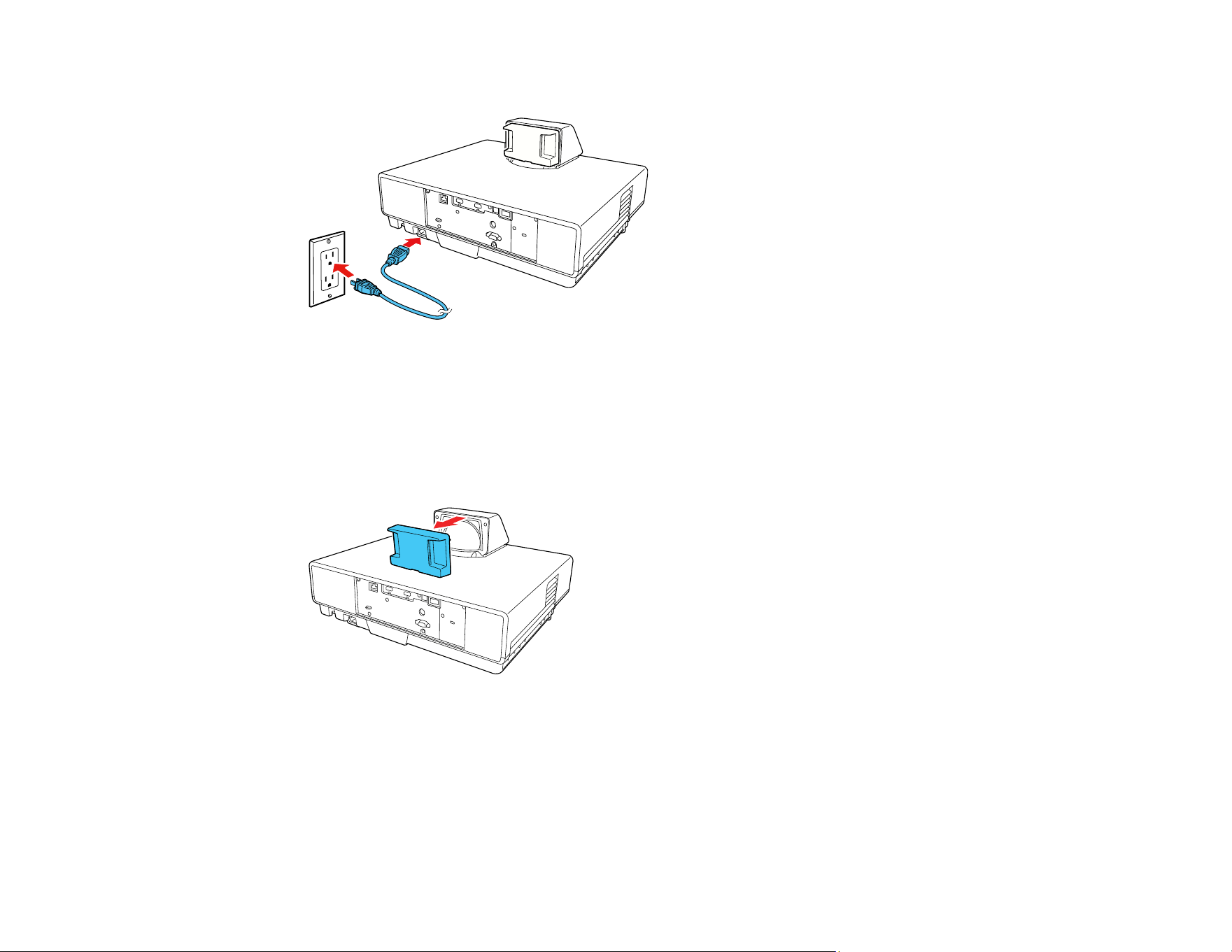
55
2. Connect the power cord to the projector's power inlet.
3. Plug the power cord into an electrical outlet.
The projector's On/Standby light turns blue. This indicates that the projector is receiving power.
Note: With Direct Power On turned on, the projector turns on as soon as you plug it in.
4. Remove the lens cap.
5. Press the power button on the projector or remote control to turn on the projector.
The Status light flashes blue as the projector warms up. After about 30 seconds, the Status light
stops flashing and turns blue.

56
Warning: Never look into the projector lens when the laser is on. This can damage your eyes and is
especially dangerous for children and pets. If you are using the remote control to turn the projector
on, make sure no one is looking into the lens or in front of the projector before turning it on.
Caution: Make sure no objects are blocking the light from the projector lens. Objects blocking the
lens for an extended time can melt and light that is reflected back into the lens can cause the
projector to malfunction. Do not stand in front of the projector lens during projection. Your clothes
could be damaged from the high temperature.
6. Turn on the connected video source.
If you do not see a projected image right away, try the following:
• Make sure the lens cap is off.
• Turn on the connected computer or video device.
• Insert a DVD or other video media and press the play button, if necessary.
• Press the Source button on the projector or the projector remote control and select the desired input.
• Change the screen output from the computer when using a laptop.
• If the Home screen is displayed, select the source you want to project.
Using the Home Screen
Parent topic: Using Basic Projector Features
Related references
Projector Setup Settings - Extended Menu
Using the Home Screen
You can select input sources and other frequently used options from the Home screen.
1. To display the Home screen, do one of the following:
• Press the Home button on the control panel.
• Turn on the projector with the Home Screen Auto Disp setting enabled.
• Turn on the projector when no signal is received from the selected input source.
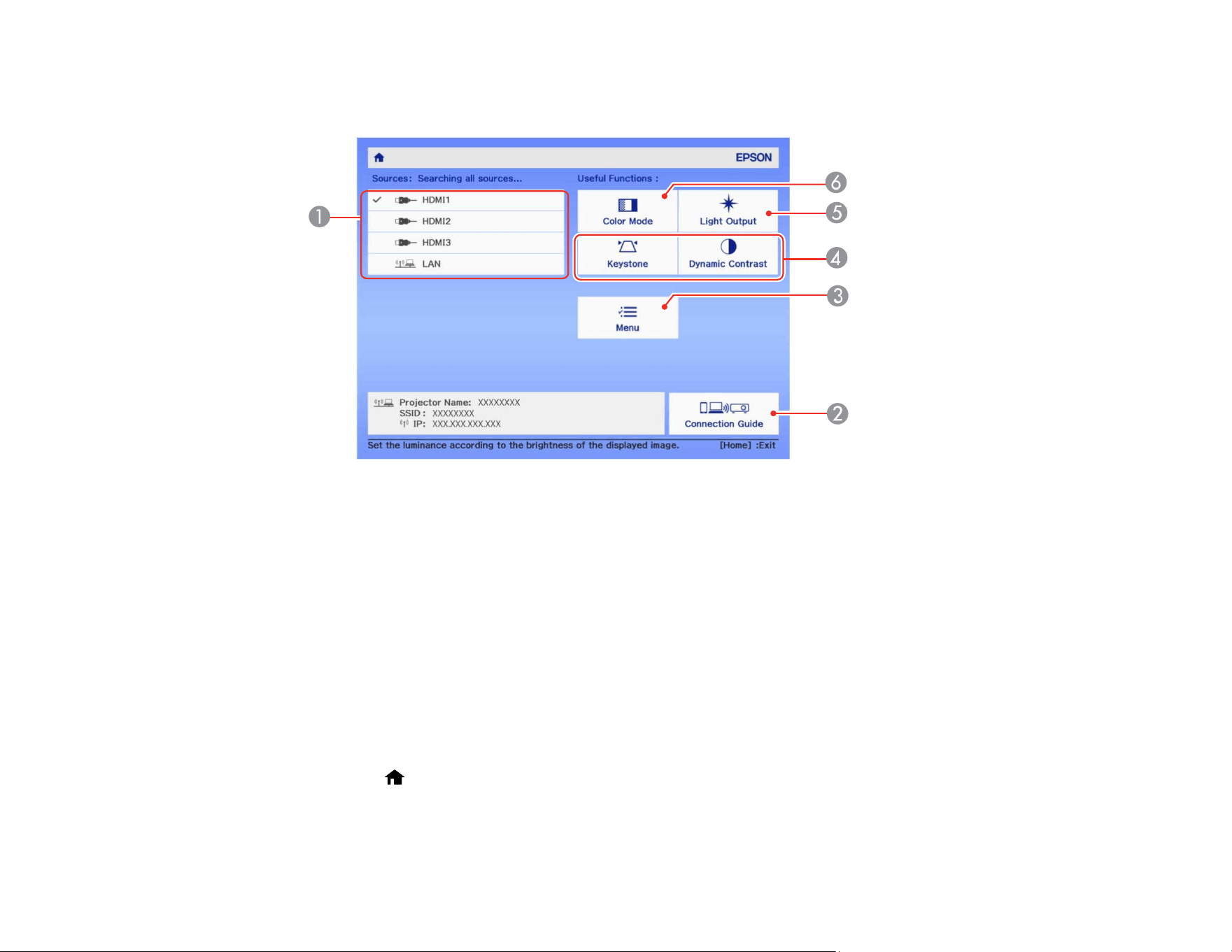
57
2. Press the arrow buttons on the remote control or control panel to navigate the screen, and press
Enter to select an option.
1 Selects the source you want to project
2 Displays the Connection Guide
3 Displays the projector's menus
4 Performs the actions assigned to Custom Function 1 and Custom Function 2 on the Home
screen
5 Displays the brightness for the light source
6 Selects the color mode
Note: You can modify the customizable menu options using the Custom Function 1 and Custom
Function 2 settings in the Extended menu.
3. Press the Home button to exit the Home screen.
Note: The Home screen disappears after 10 minutes of inactivity.
58
Parent topic: Turning On the Projector
Turning Off the Projector
Before turning off the projector, turn off any connected devices and shut down any computer connected
to it so you can see the computer display during shutdown.
Note: Turn off this product when not in use to prolong the life of the projector. Laser life will vary
depending upon mode selected, environmental conditions, and usage. Brightness decreases over time.
Note: When using the A/V Mute feature, the laser is still on. To turn off the laser, turn off the projector.
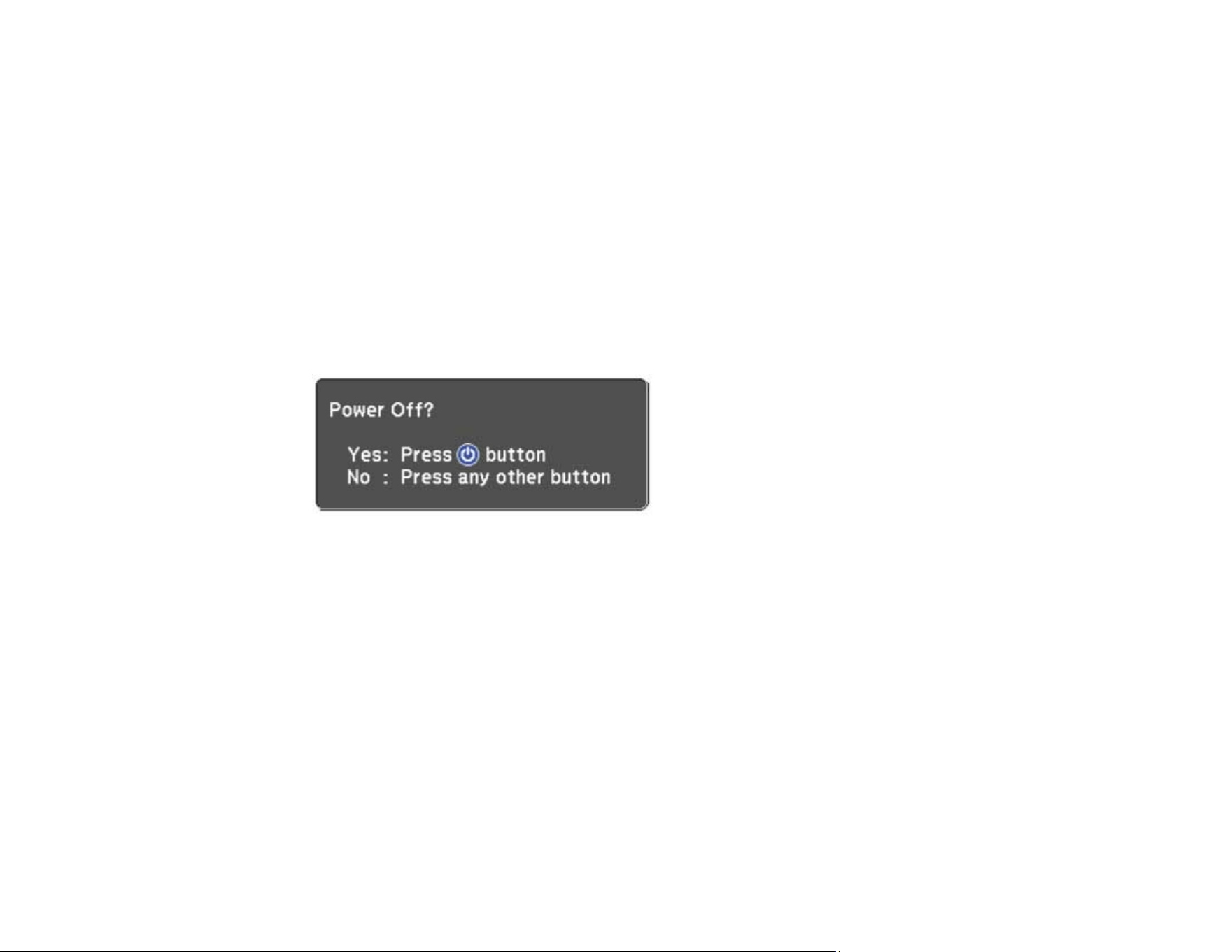
1. Press the power button on the projector or remote control.
The projector displays a shutdown confirmation screen.
Note: If Standby Confirmation is disabled and you press the power button on the remote control,
the confirmation screen is not shown and the projector shuts off.
2. Press the power button again. (To leave it on, press any other button.)
The laser turns off and the Status light flashes as the projector cools down.
Caution: Do not turn the projector on immediately after turning it off. Turning the projector on and off
frequently may shorten the life of the laser.
59
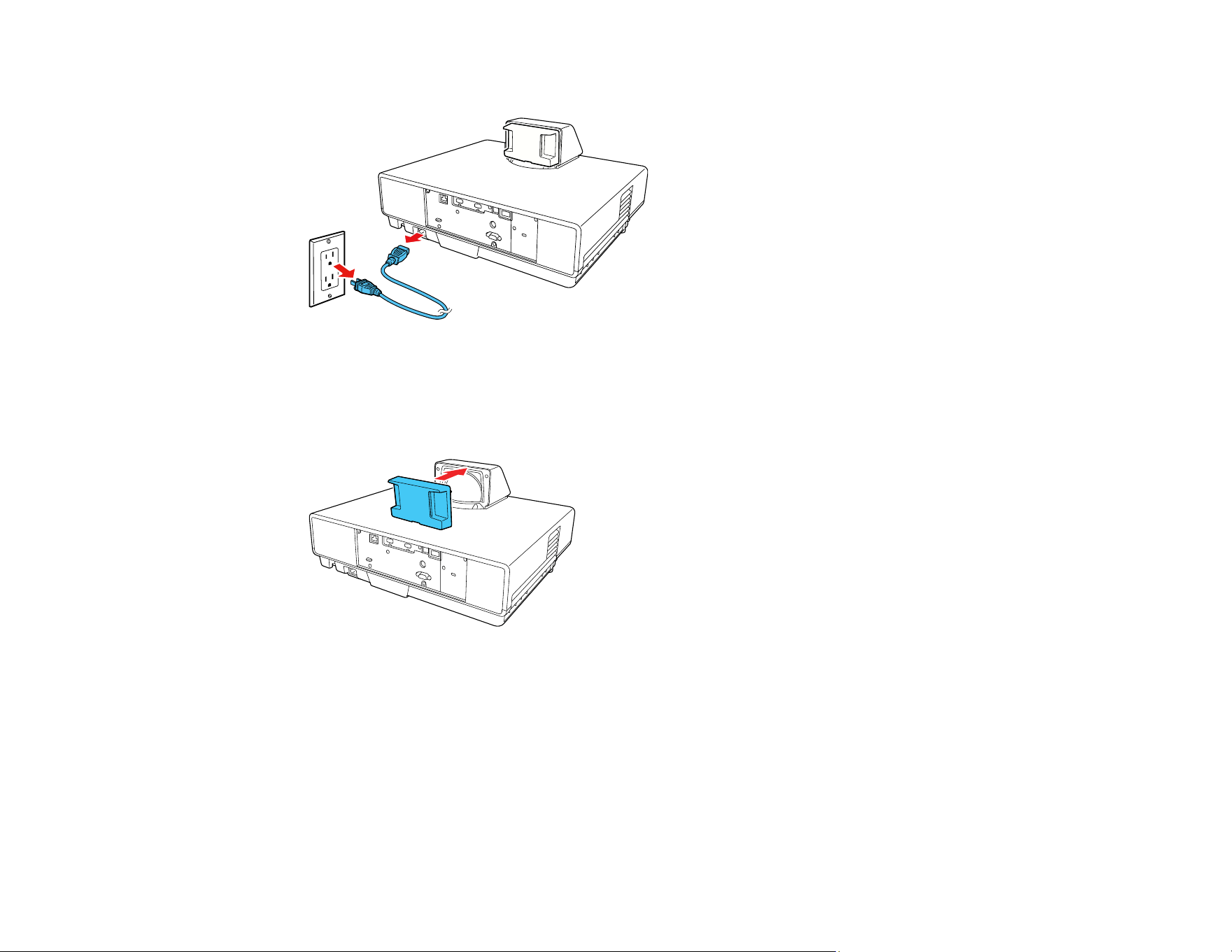
3. To transport or store the projector, make sure the Status light is off, then unplug the power cord.
Caution: To avoid damaging the projector or laser, never unplug the power cord when the Status
light is on or flashing.
4. Attach the lens cap.
Parent topic: Using Basic Projector Features
Related references
Projector Setup Settings - Extended Menu
Selecting the Language for the Projector Menus
If you want to view the projector's menus and messages in another language, you can change the
Language setting.

60
1. Turn on the projector.
2. Press the Menu button.
3. Select the Extended menu and press Enter.
4. Select the Language setting and press Enter.
5. Select the language you want to use and press Enter.
6. Press Menu or Esc to exit the menus.
Parent topic: Using Basic Projector Features
Adjusting the Image Position
You can use the Image Shift feature to adjust the image position without moving the projector.
Note: This feature is not available if the Zoom option is set to the widest setting.
Note: Images are not stable immediately after turning the projector on. Wait at least 20 minutes after
starting projection to adjust the image position. The Image Shift setting is stored even after the projector

61
is turned off. If you change the projector's installation position or angle, you may need to make
adjustments again.
1. Turn on the projector and display an image.
2. Press the Menu button on the projector's control panel or remote control.
3. Select Settings and press Enter.
4. Select Image Shift and press Enter.
5. Use the arrow buttons on the projector or remote control to adjust the image position.
6. When you are finished, press the Menu button to exit.

62
Parent topic: Using Basic Projector Features
Focusing the Image
1. Turn on the projector and display an image.
Note: You can display a pattern to aid in adjusting the projected image using the Settings menu.
2. Raise or lower the focus lever to sharpen the image.
Parent topic: Using Basic Projector Features
Related references
Projector Feature Settings - Settings Menu
Adjusting the Front Feet
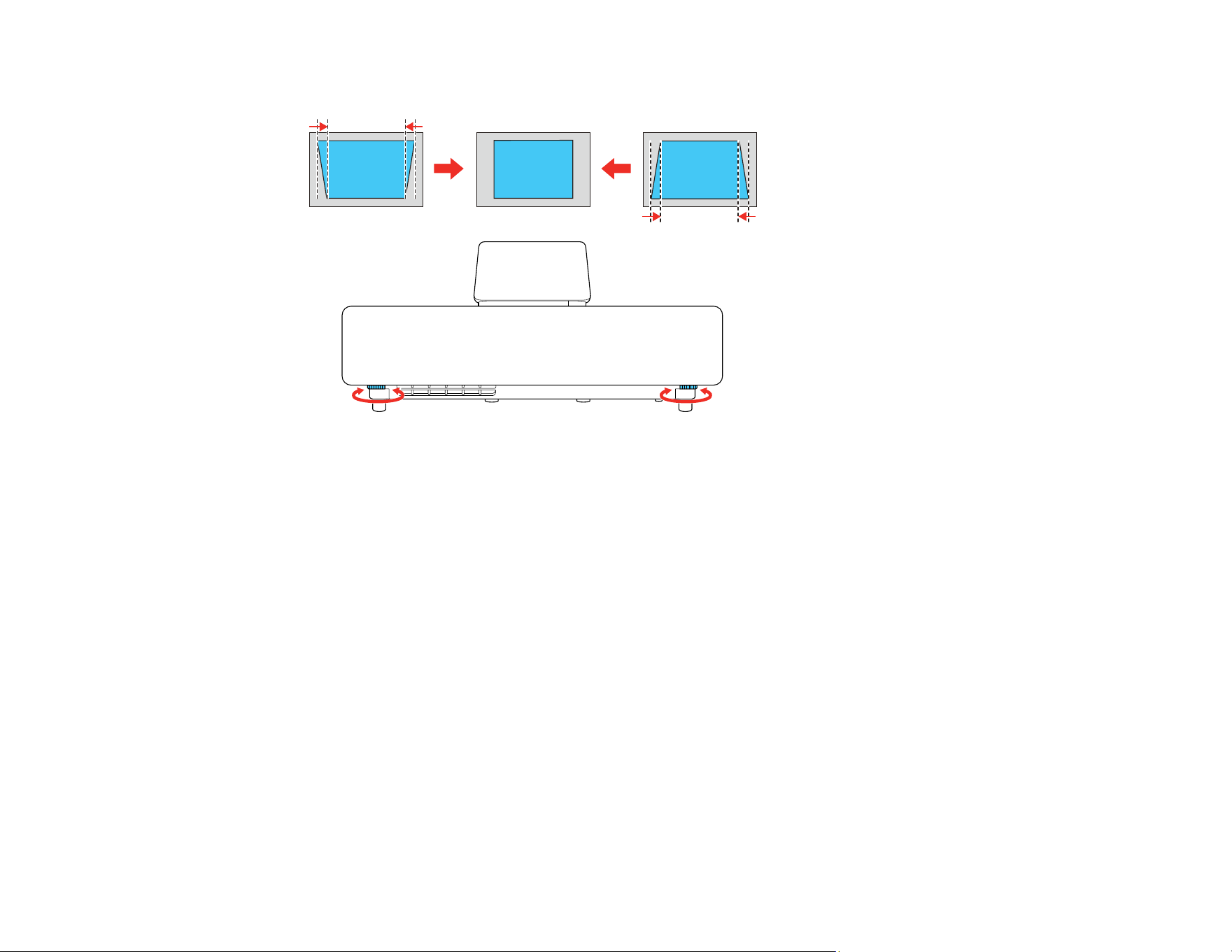
If you are projecting from a table or other flat surface, you can adjust the image using the projector's
adjustable feet. To adjust the image height, set the projector higher or lower while keeping it level and
parallel to the screen.
1. Turn on the projector and display an image.
63
2. Rotate the front feet to adjust any tilting or vertical distortion.
If the projected image is unevenly rectangular, you need to adjust the image shape.
Parent topic: Using Basic Projector Features
Image Shape
You can project an evenly rectangular image by placing the projector directly in front of the center of the
screen and keeping it level. If you place the projector at an angle to the screen, or tilted up or down, or off
to the side, you may need to correct the image shape for the best display quality.
Correcting Image Shape with Quick Corner
Correcting Image Shape with the Keystone Buttons
Parent topic: Using Basic Projector Features
Correcting Image Shape with Quick Corner
You can use the projector's Quick Corner setting to correct the shape and size of an image that is
unevenly rectangular on all sides.
Note: To provide the best possible image quality, adjust the projector's position to correct the image
shape. If this isn't possible, use the Quick Corner setting to correct the image shape.

64
1. Turn on the projector and display an image.
Note: You can display a pattern to aid in adjusting the projected image using the Settings menu.
2. Press the Menu button.
3. Select the Settings menu and press Enter.
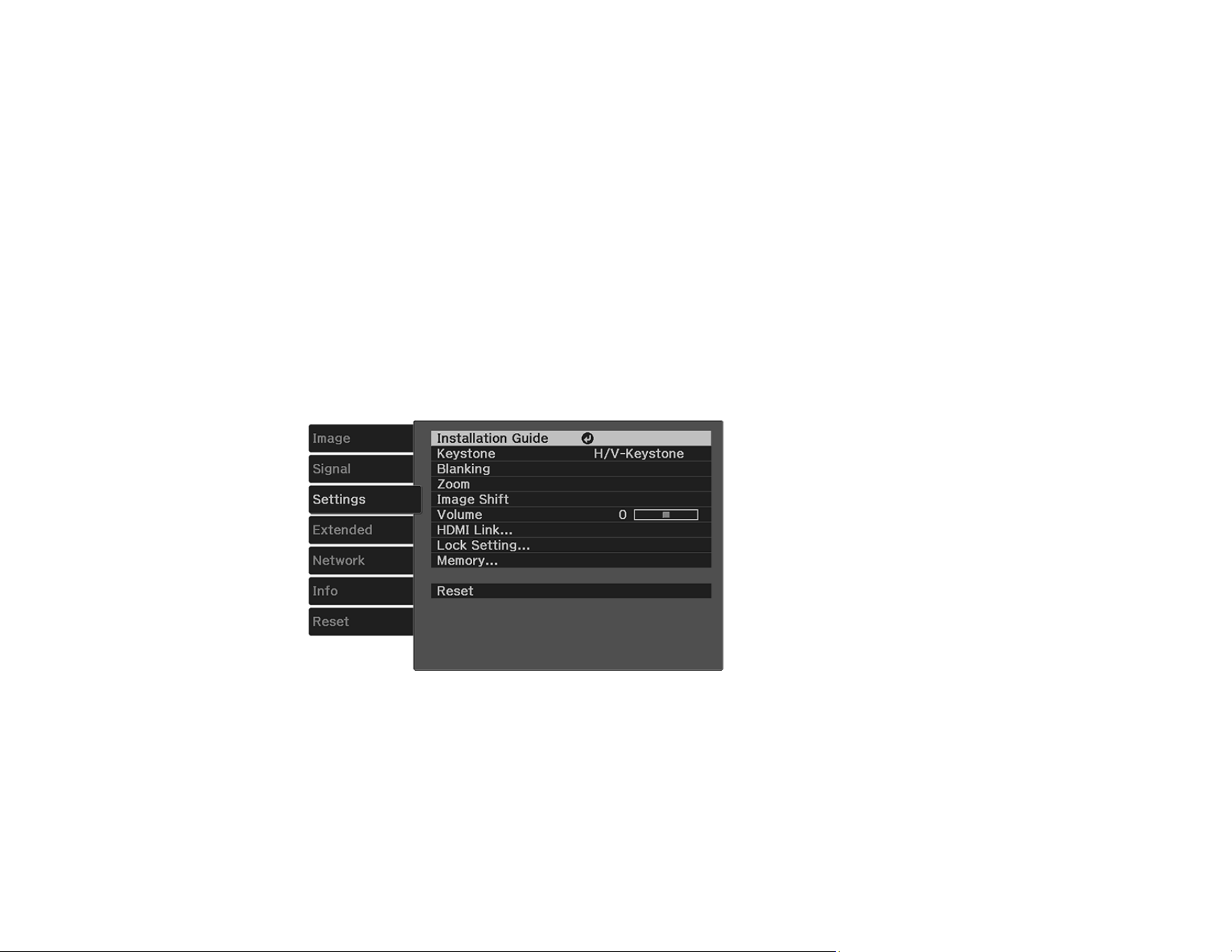
4. Select the Keystone setting and press Enter.
5. Select the Quick Corner setting and press Enter. Then press Enter again.
65
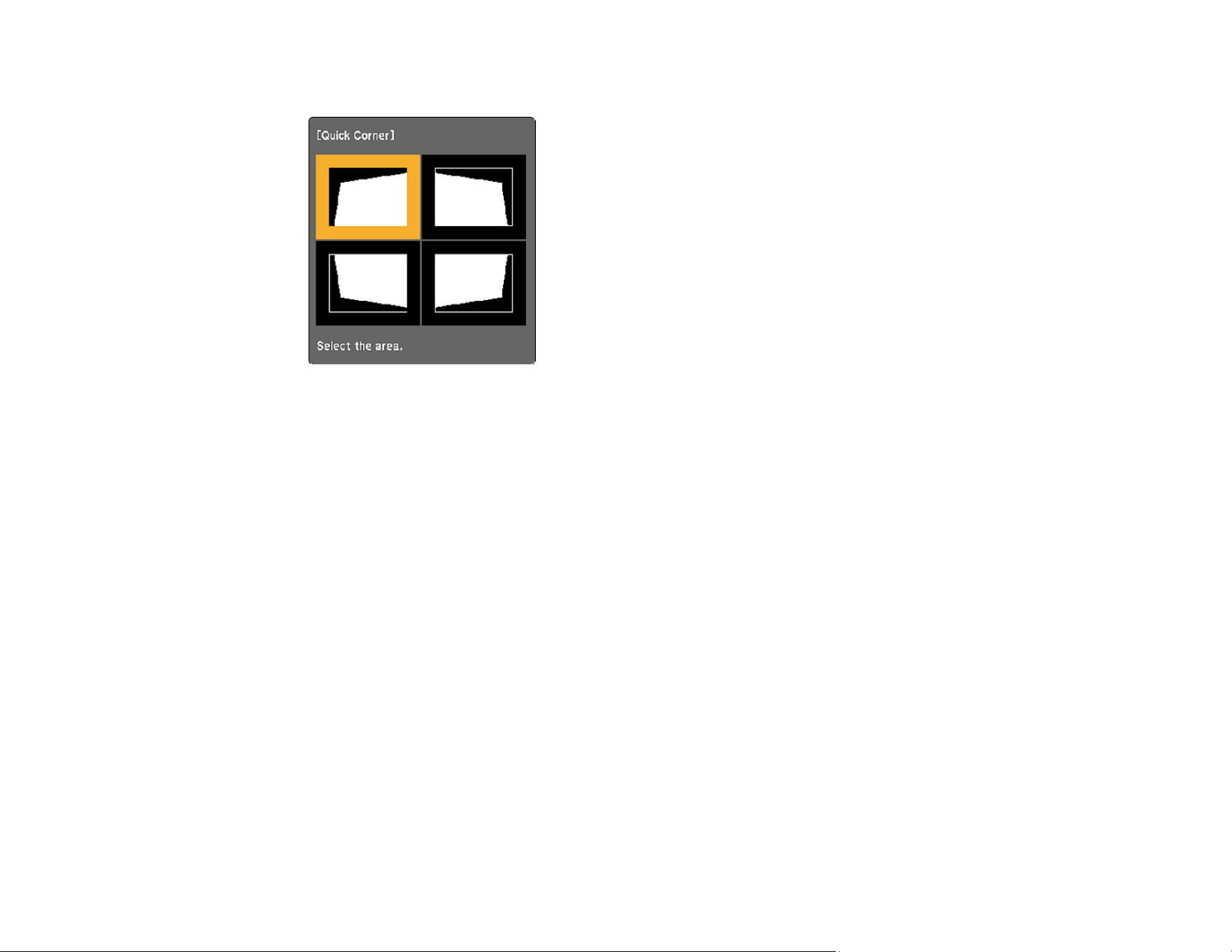
You see the Quick Corner adjustment screen:
Note: To reset your adjustments, press and hold the Esc button for at least 2 seconds to display a
reset screen. Then select Yes.
6. Use the arrow buttons on the projector or remote control to select the corner of the image you want
to adjust. Then press Enter.
7. Press the arrow buttons to adjust the image shape as necessary. Press Enter to return to the area
selection screen.
8. When you are finished, press Esc.
Parent topic: Image Shape
Related references
Projector Feature Settings - Settings Menu
Correcting Image Shape with the Keystone Buttons
You can use the projector's keystone correction buttons to correct the shape of an image that is
unevenly rectangular on the sides.
Note: You can use the keystone buttons to correct the image up to ± 3° horizontally or vertically.
Note: To provide the best possible image quality, adjust the projector's position to correct the image
shape. Due to the ultra-short throw characteristics of the projector, the projected image is greatly

66
affected by small movements. Adjust the projector's position in small increments to square up the image.
If this isn't possible, use the keystone correction buttons on the projector to correct the image shape.
Note: Wait 20 minutes after turning on the projector before setting the focus for maximum accuracy.
1. Turn on the projector and display an image.
Note: You can display a pattern to aid in adjusting the projected image using the Settings menu.
2. Press one of these keystone buttons on the control panel to display the Keystone adjustment
screen.
3. Press a keystone button on the projector's control panel to adjust the image shape.
Vertical
Horizontal
67
After correction, your image is slightly smaller.
Note: If the projector is installed out of reach, you can also correct the image shape with the remote
control using the H/V-Keystone settings in the projector menus.
Parent topic: Image Shape
Related references
Projector Feature Settings - Settings Menu
Resizing the Image with the Zoom Setting
You can resize the image using the Zoom setting.
1. Turn on the projector and display an image.
2. Press the Menu button.
3. Select the Settings menu and press Enter.
4. Select the Zoom setting and press Enter.
5. To enlarge the image size, press the left arrow button on the projector's control panel or remote
control.
6. To reduce the image size, press the right arrow button.
7. Press the Menu button to exit.

68
Parent topic: Using Basic Projector Features
Related references
Projector Feature Settings - Settings Menu
Viewing 3D Images
You can view 3D images using your projector. Viewing 3D images requires a 3D-compatible video
device, a compatible HDMI cable, and a pair of compatible RF 3D glasses (not included with your
projector).
Note: Make sure the 3D Display setting on the Signal menu is set to Auto or 3D.
1. Connect a 3D-compatible video device to the projector using a compatible HDMI cable.
2. Turn on the video device, then turn on the projector.
3. Begin playback from the video device.
Note: Make sure you set the video device to play content in 3D mode.
4. Turn on the 3D glasses.
5. Put on the 3D glasses and view the projected image. If you do not see a 3D image, pair the glasses
with the projector.
Note: If you change the video source or you are not within range of your projector, the glasses may
enter standby mode. Try turning the glasses off and then back on to resume 3D viewing. See the
documentation for your 3D glasses for information on how to pair and operate the glasses.
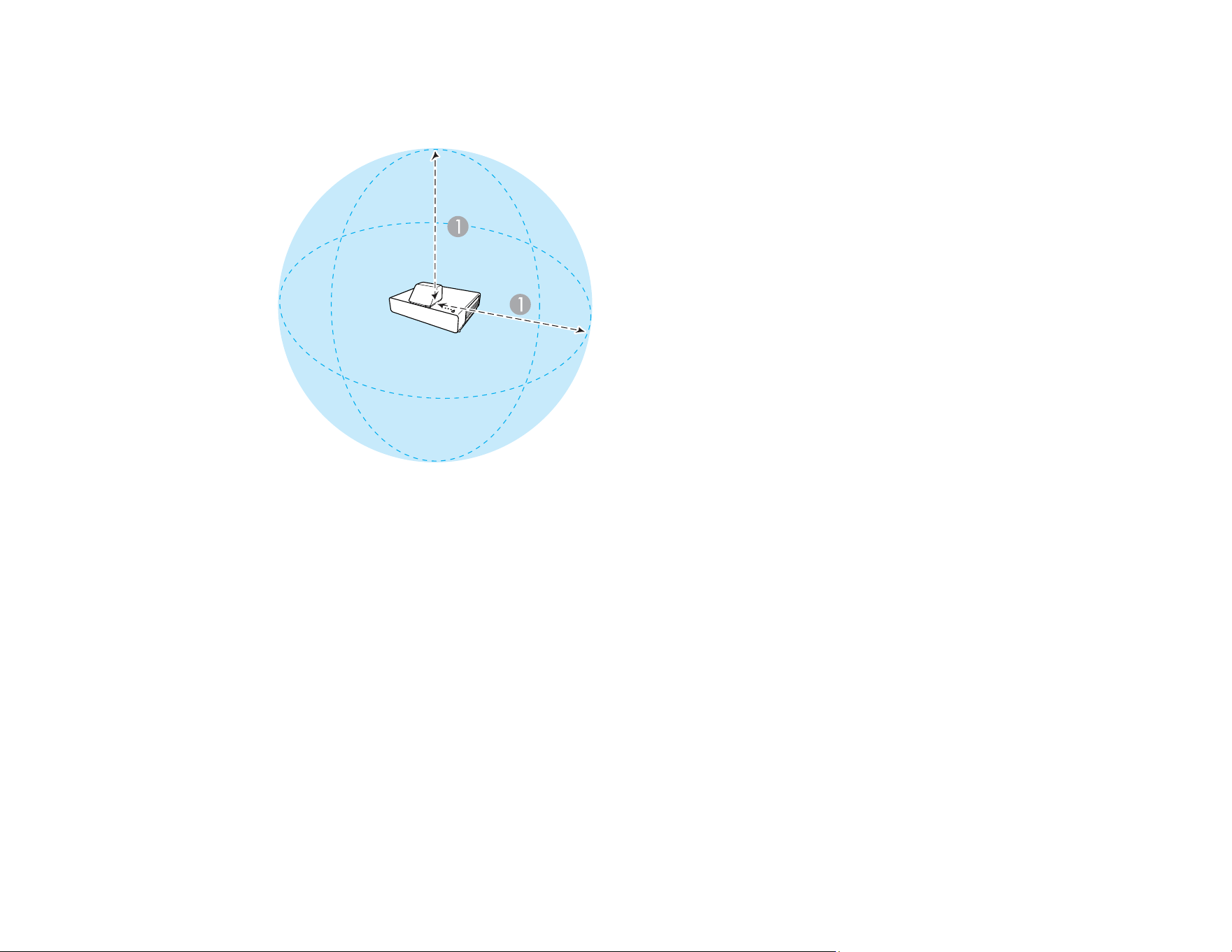
Note: Make sure you are within 32 ft (10 m) of the projector when using the 3D glasses or you may
lose your connection.
3D Viewing Range
Parent topic: Using Basic Projector Features
69
3D Viewing Range
When you view 3D images, make sure you are positioned within the viewing range shown here.
1 32 ft (10 m)
Parent topic: Viewing 3D Images
Remote Control Operation
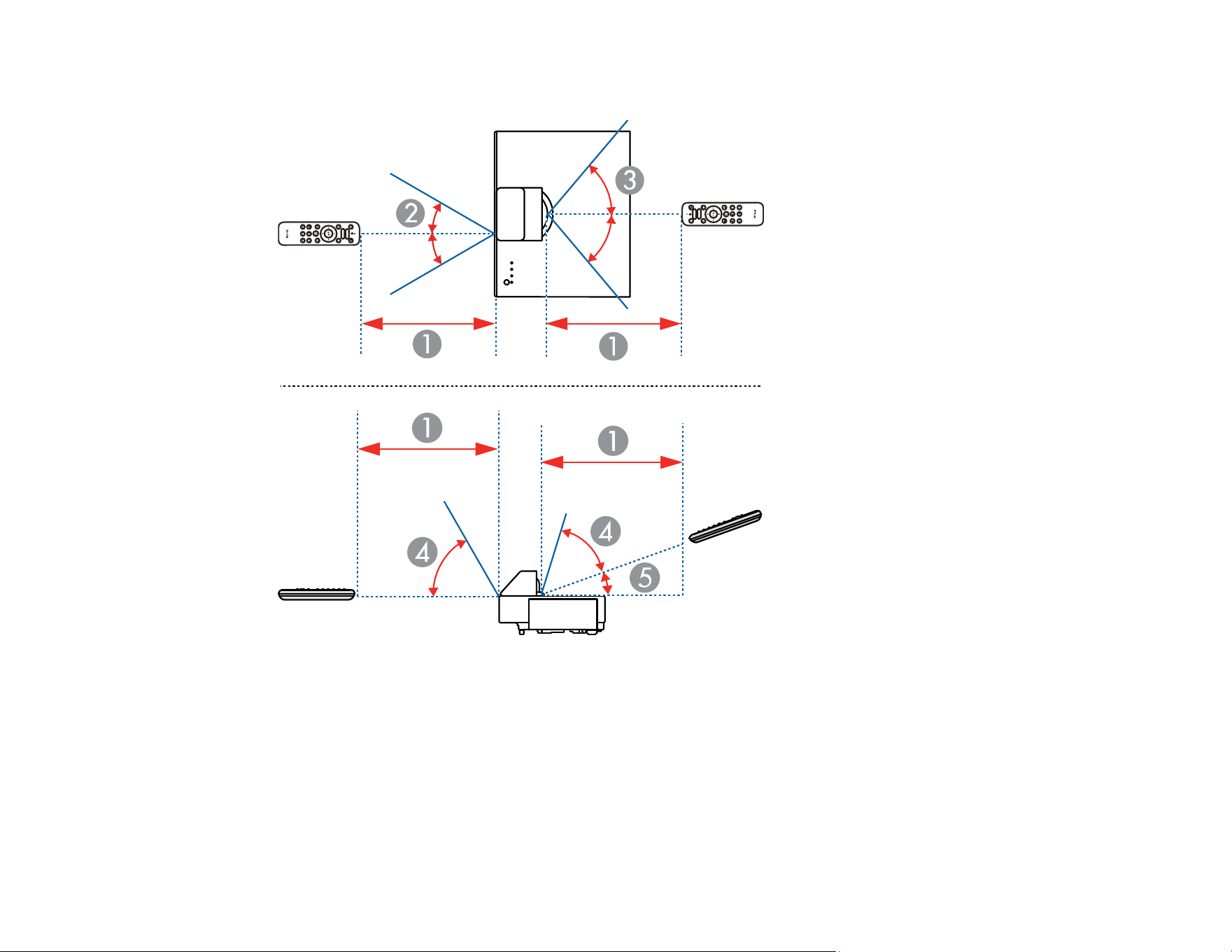
The remote control lets you control the projector from almost anywhere in the room, up to 19.7 feet (6 m)
away. You can point it at the screen or board, or the front or back of the projector.
70
Make sure that you aim the remote control at the projector's receivers within the angles listed here.
1 19.7 feet (6 m)
2 ± 30°
3 ± 55°
4 60°
5 15°

71
Note: Avoid using the remote control in conditions with bright fluorescent lights or in direct sunlight, or
the projector may not respond to commands. If you will not use the remote control for a long time,
remove the batteries.
Parent topic: Using Basic Projector Features
Pairing the Remote Control (LS500WATV/LS500BATV)
To use Android TV and video-on-demand features, you must pair the projector remote control to the
included streaming device.
Note: When you first turn on the projector after connecting the included streaming device, instructions
for pairing the projector remote control are displayed on the screen. If the pairing screen is not displayed,
make sure that the projector and the streaming device are on, then press and hold the Esc and right
arrow buttons on the projector remote control for about 7 seconds.
1. Turn on the projector.
2. Select the correct input source, if necessary.
3. Press and hold the Home and Enter buttons on the projector remote control until the indicator
starts blinking.
A message appears on the screen when the projector remote control is paired.
Parent topic: Using Basic Projector Features
Selecting an Image Source
If you connected multiple image sources to the projector, such as a computer and DVD player, you may
want to switch from one image source to the other.
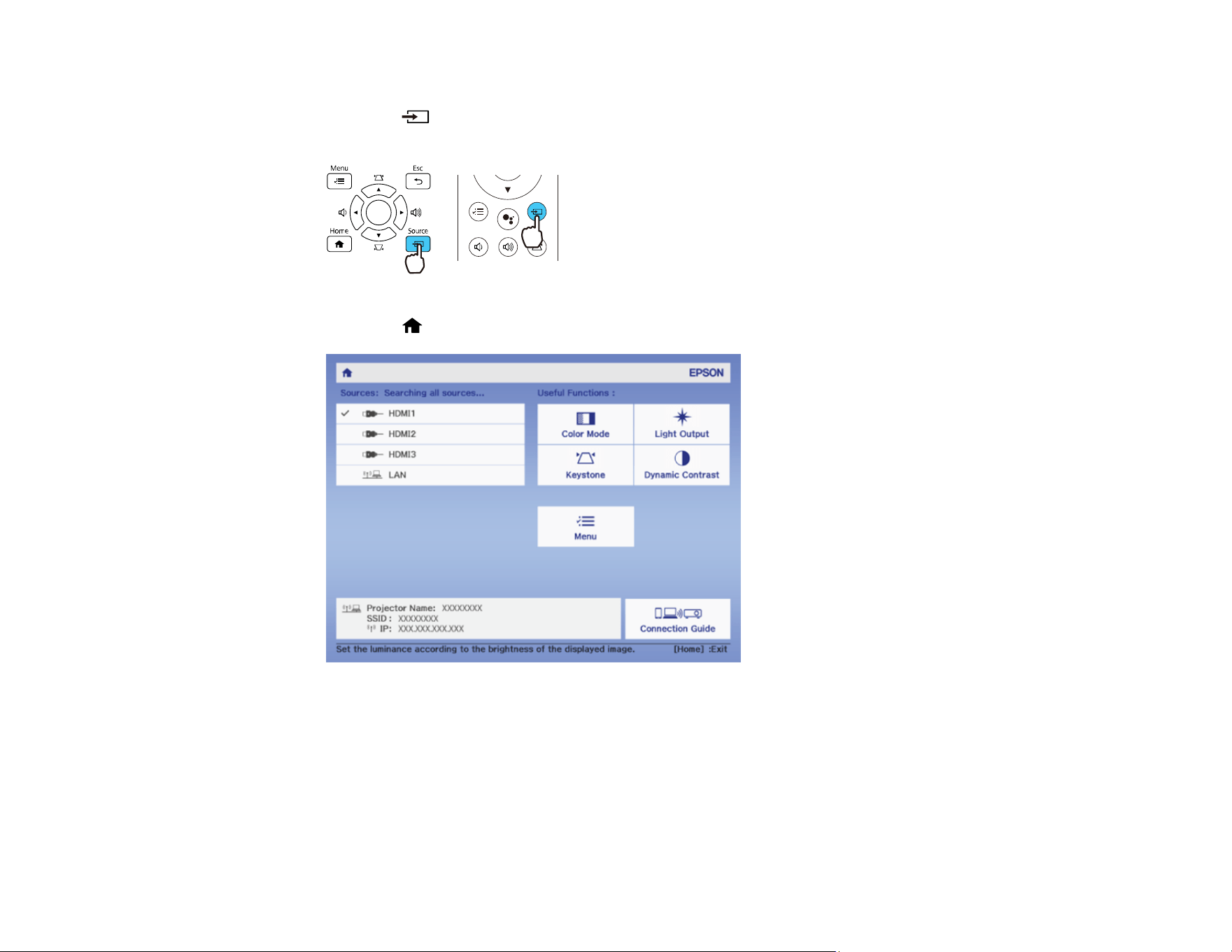
Note: Your remote control may look different from the illustration below, but the instructions are the
same.
1. Make sure the connected image source you want to use is turned on.
2. For video image sources, insert a DVD or other video media and press its play button, if necessary.
72
3. Do one of the following:
• Press the Source button on the projector's control panel or remote control. Press the button
again to cycle through the sources.
• Press the Home button on the projector's control panel and select your image source.
Parent topic: Using Basic Projector Features
Related tasks
Using the Home Screen
73
Image Aspect Ratio
The projector can display images in different width-to-height ratios called aspect ratios. Normally the
input signal from your video source determines the image's aspect ratio. However, for certain images
you can change the aspect ratio to fit your screen.
Changing the Image Aspect Ratio
Available Image Aspect Ratios
Parent topic: Using Basic Projector Features
Changing the Image Aspect Ratio
You can only change the aspect ratio to resize the displayed image. The input signal must be low
resolution.
Note: Aspect setting adjustment is only available when projecting from an HDMI source. You may not
be able to change the Aspect setting depending on the input signal from the HDMI source. When a 4K
image signal is being input, you can only select the Normal setting.
1. Turn on the projector and switch to the image source you want to use.
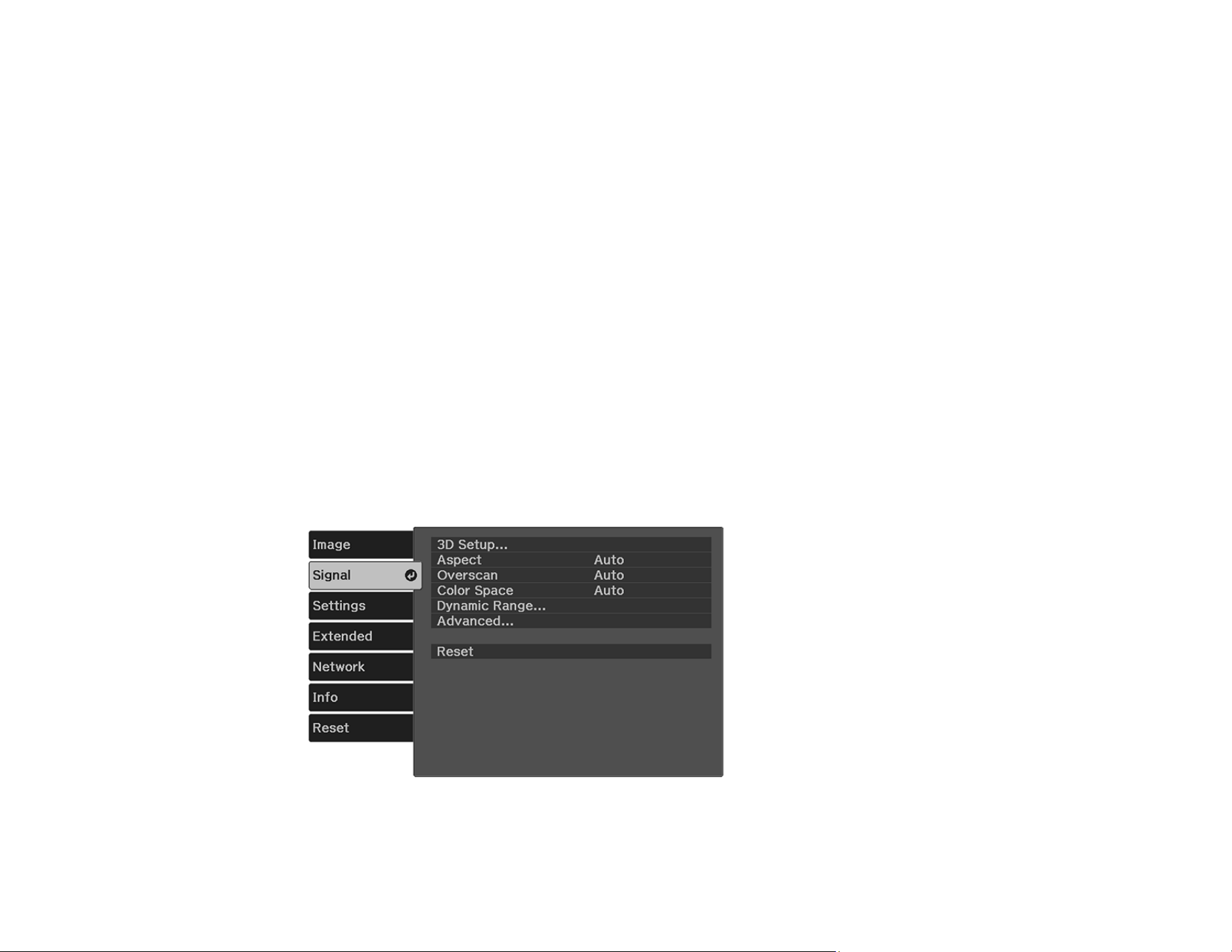
2. Press the Menu button on the projector's control panel or remote control.
3. Select the Signal menu and press Enter.
4. Select Aspect and press Enter.
74
5. Select the aspect ratio you want to use for your input signal and press Enter.
6. Press Menu or Esc to exit the menus.
Parent topic: Image Aspect Ratio
Related references
Input Signal Settings - Signal Menu
Available Image Aspect Ratios
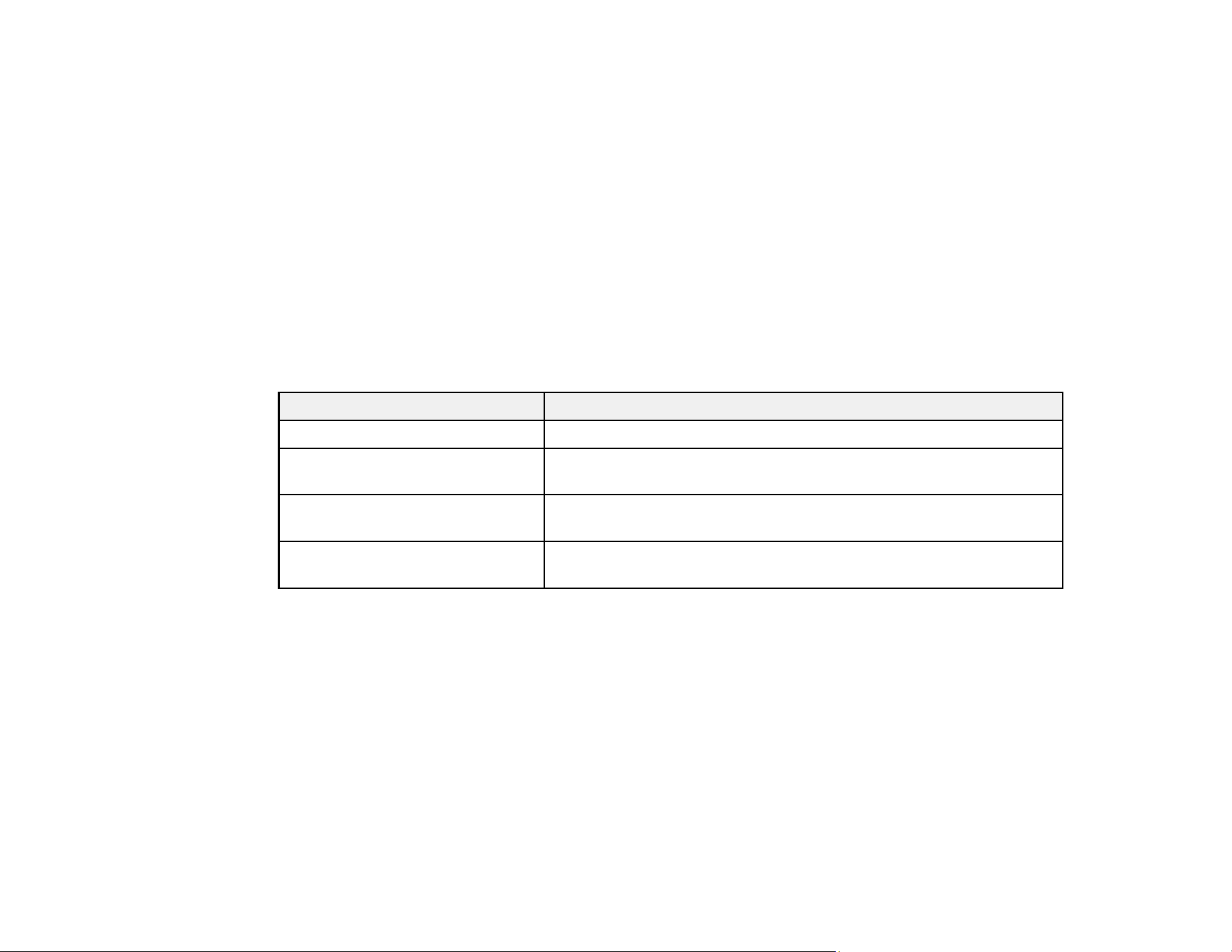
You can select the following image aspect ratios, depending on the input signal from your image source.
Note: When the projector is in 3D mode, the aspect ratio is automatically set to Normal.
Note: Black bands and cropped images may project in certain aspect ratios, depending on the aspect
ratio and resolution of your input signal.
Aspect ratio setting Description
Auto Automatically sets the aspect ratio according to the input signal.
Normal Displays images using the full projection area and maintains the
aspect ratio of the image.
Zoom Displays images using the full width of the projection area and
maintains the aspect ratio of the image.
Full Displays images using the full width of the projection area, but does
not maintain the aspect ratio.
Note: The Auto aspect ratio setting is available only for HDMI image sources.
Parent topic: Image Aspect Ratio
Color Mode
The projector offers different Color Modes to provide optimum brightness, contrast, and color for a
variety of viewing environments and image types. You can select a mode designed to match your image
and environment, or experiment with the available modes.
Changing the Color Mode
Available Color Modes

75
Turning On Automatic Luminance Adjustment
Parent topic: Using Basic Projector Features
Changing the Color Mode
You can change the projector's Color Mode to optimize the image for your viewing environment.
1. Turn on the projector and switch to the image source you want to use.
2. If you are projecting from a DVD player or other video source, insert a disc or other video media and
press the play button, if necessary.
3. Press the Menu button on the projector's control panel or remote control.
4. Select the Image menu and press Enter.
5. Select Color Mode and press Enter.
6. Press the arrow buttons to select a color mode setting and press Enter.
7. When you are finished, press Menu.
Parent topic: Color Mode
Available Color Modes
You can set the projector to use these Color Modes, depending on the input source you are using:

76
Color Mode Description
Dynamic Best for video games in a bright room
Bright Cinema Best for projecting vivid images
Cinema Best for movies projected in a dark room with natural tone images
Game Best for gaming
Parent topic: Color Mode
Turning On Automatic Luminance Adjustment
You can turn on the Dynamic Contrast setting to automatically optimize the image luminance. This
improves the image contrast based on the brightness of the content you project.
1. Turn on the projector and switch to the image source you want to use.
2. Press the Menu button on the projector's control panel or remote control.
3. Select the Image menu and press Enter.
4. Select the Dynamic Contrast setting, choose one of the following options, and press Enter:
• Normal to adjust brightness at the standard speed.
• High Speed to adjust brightness as soon as the scene changes.
5. Press Menu or Esc to exit the menus.
77
Parent topic: Color Mode
Related references
Image Quality Settings - Image Menu
Adjusting Gamma
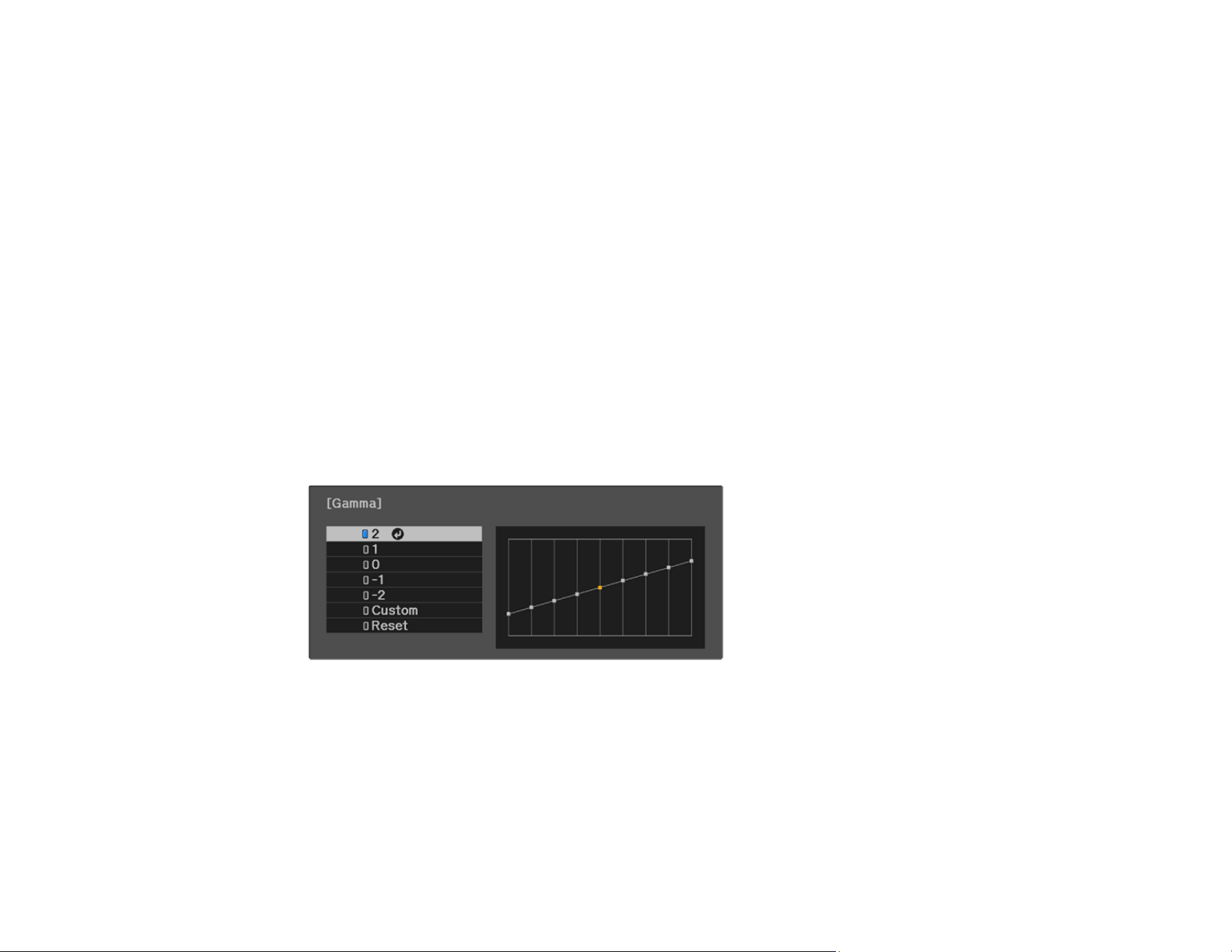
You can adjust the gamma to improve differences in halftone brightness that vary depending on the
connected device.
Note: Project a still image to adjust the gamma; you cannot adjust it properly when projecting a movie or
other moving video. Medical images may not reproduce correctly depending on your operating
environment and screen.
1. Turn on the projector and switch to the image source you want to use.
2. Press the Menu button.
3. Select the Image menu and press Enter.
4. Select the Gamma setting and press Enter.
You see a screen like this:
5. Select and adjust the correction value.
Note: When you select a smaller value, you can reduce the overall brightness of the image to make
the image sharper. When you select a larger value, the dark areas of images become brighter, but
the color saturation for lighter areas may become weaker.
6. If you want to make finer adjustments, select Custom and press Enter.
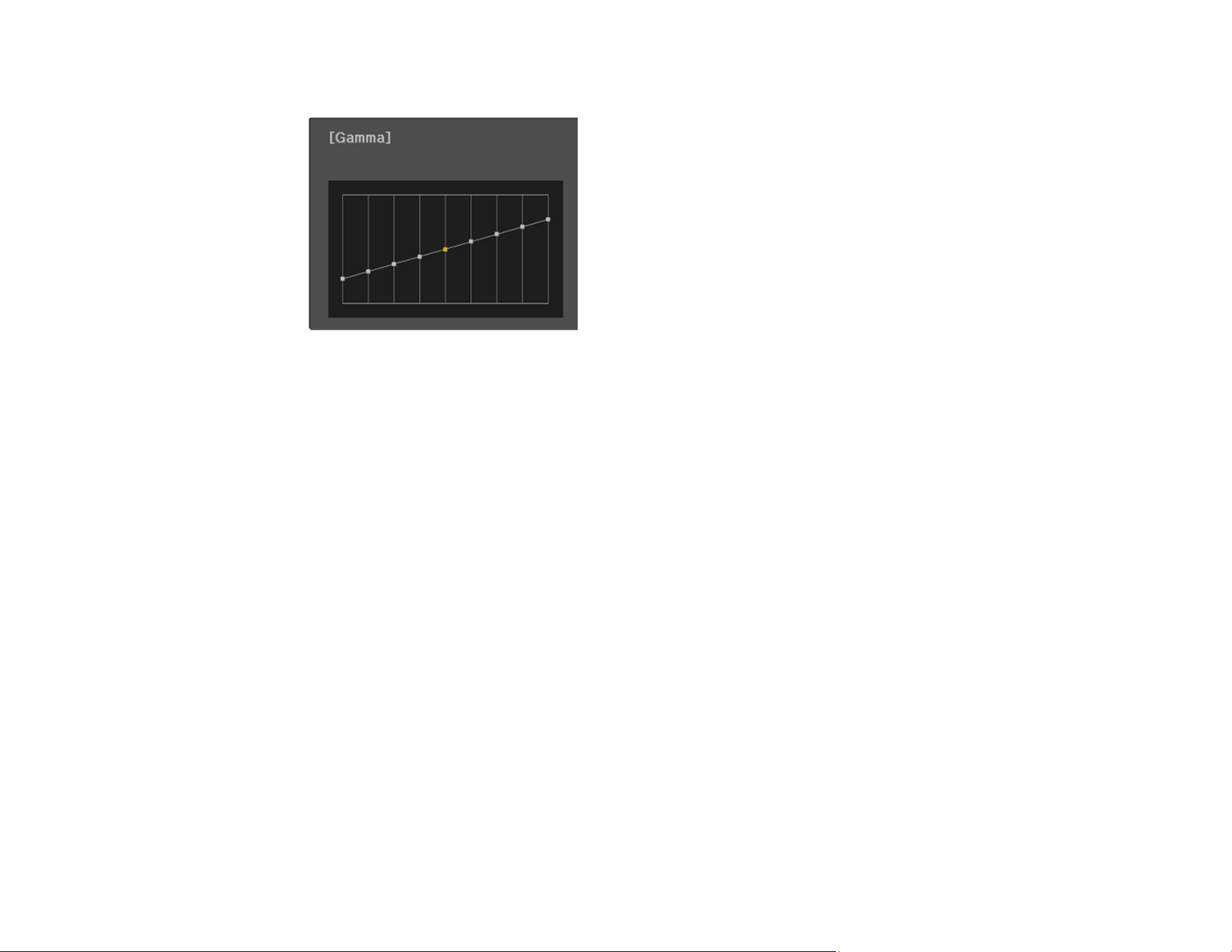
78
You see a screen like this:
7. Press the left or right arrow button to select the tone you want to change, then press the up or down
arrow button to adjust the tone and press Enter.
8. Press Menu or Esc to exit the menus.
Parent topic: Using Basic Projector Features
Related references
Image Quality Settings - Image Menu
Controlling the Volume with the Volume Buttons
You can use the Volume buttons on the projector or the remote control to adjust the volume of your
projected content. The volume buttons control the projector’s internal speaker system or any external
speakers you connected to the projector.
You must adjust the volume separately for each connected input source.
Note: Your remote control may differ from the illustration below, but the instructions are the same.
1. Turn on the projector and start a presentation that includes audio.

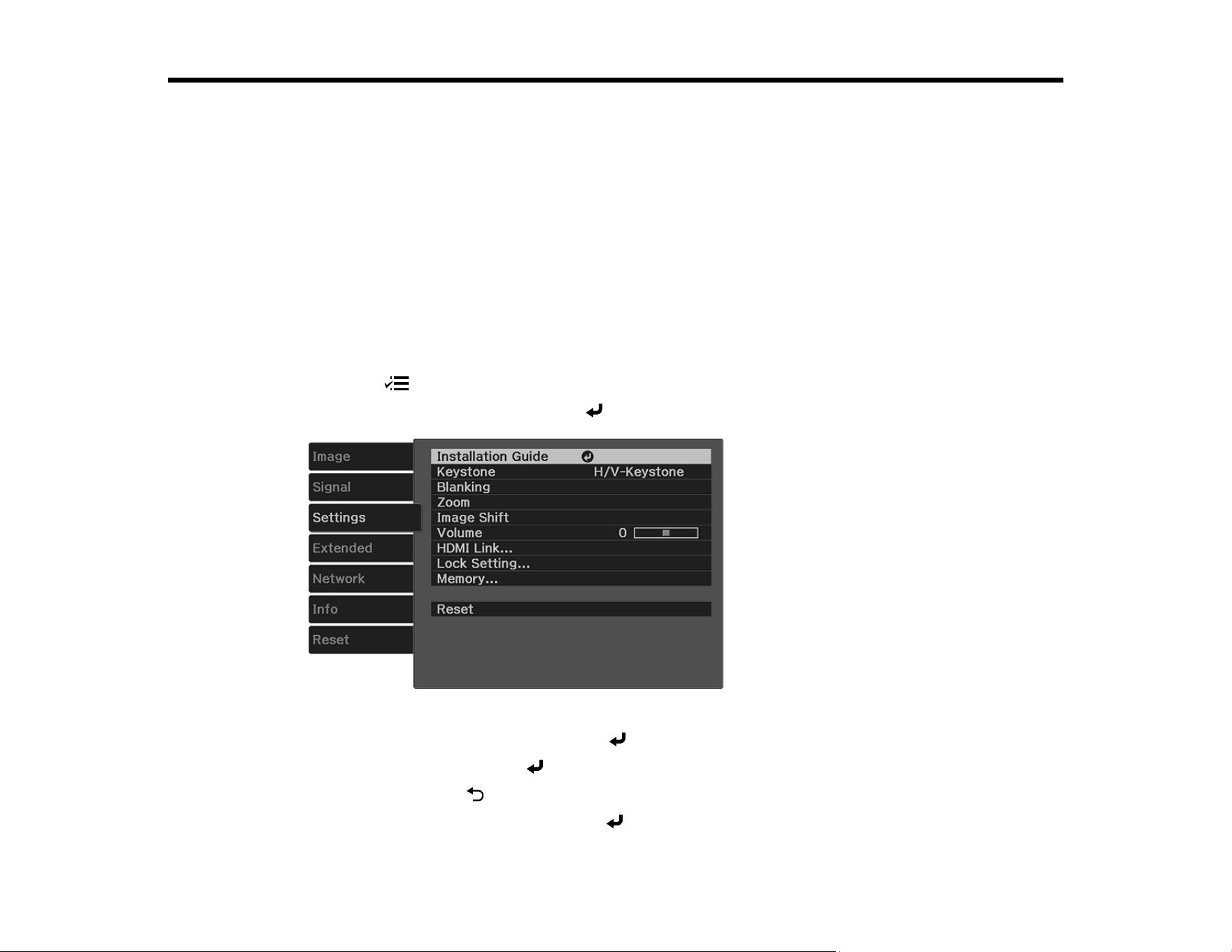
80
Adjusting Projector Features
Follow the instructions in these sections to use your projector's feature adjustments.
Operating Connected Devices Using the HDMI Link Features
Shutting Off the Picture and Sound Temporarily
Projector Security Features
Using Advanced Image Adjustment Features
Saving Settings to Memory and Using Saved Settings
Operating Connected Devices Using the HDMI Link Features
You can use the remote control to control certain features of devices connected to the projector's HDMI
ports.
1. Press the Menu button on the projector's control panel or remote control.
2. Select the Settings menu and press Enter.
3. Select the HDMI Link setting and press Enter.
4. Select HDMI Link and press Enter.
5. Select On and press Esc .
6. Select Device Connections and press Enter.
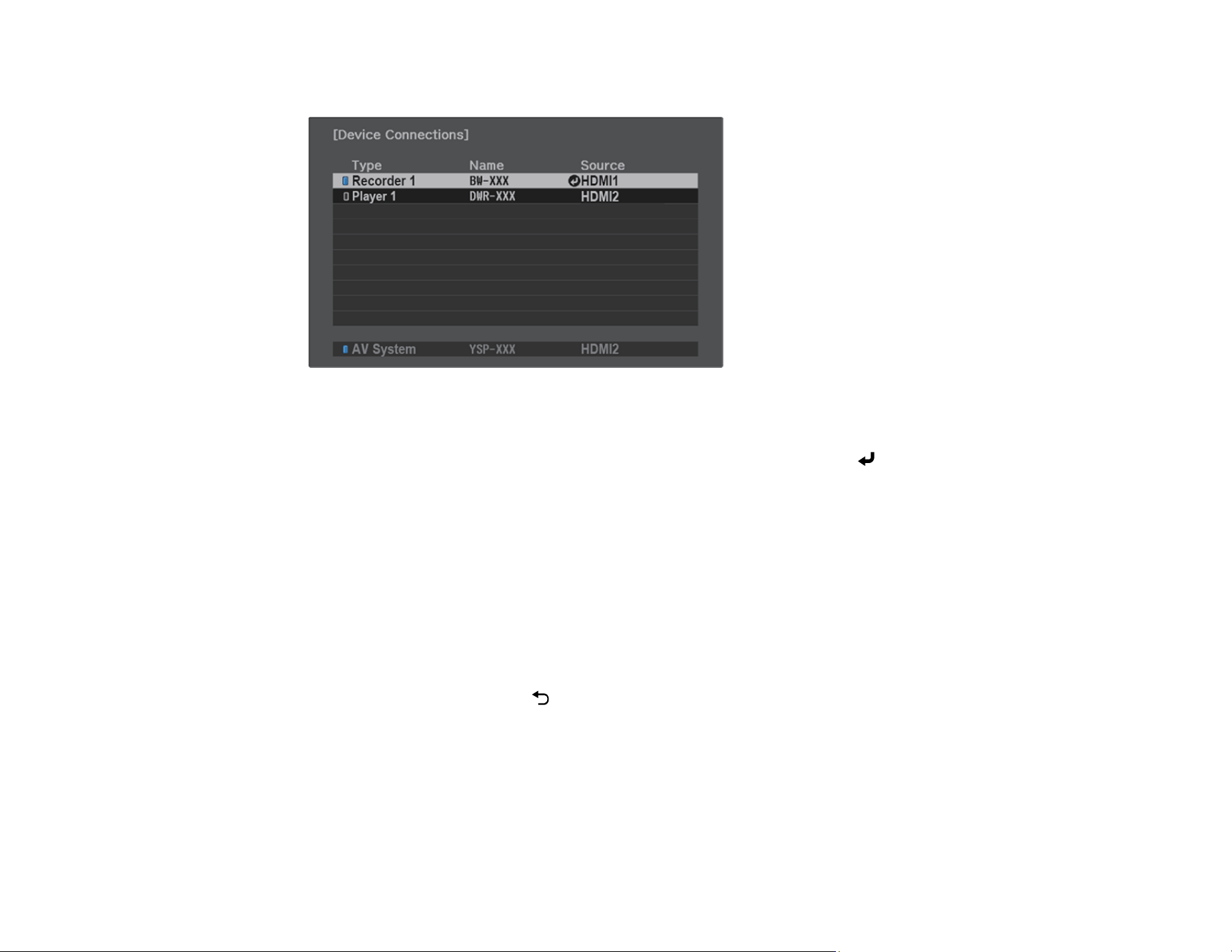
81
You see this screen:
Note: Linked devices are indicated in blue.
7. Select the device you want to control and project images from, and press Enter.
8. Select the following HDMI link options as necessary:
• Audio Out Device: select whether to output audio from the internal speakers or a connected
audio/video system.
• Power On Link: select what happens when you turn on the projector or linked device. Select PJ -
> Device or Bidirectional to turn the linked device on when the projector is turned on, or Device -
> PJ or Bidirectional to turn the projector on when the linked device is turned on.
• Power Off Link: select whether linked devices are turned off when the projector is turned off.
• Link Buffer: turn on to improve the performance of the linked operations by changing the settings
if the HDMI Link feature is not working correctly.
9. When you are finished, press Esc.
Parent topic: Adjusting Projector Features
Shutting Off the Picture and Sound Temporarily
You can temporarily turn off the projected picture and sound if you want to redirect your audience's
attention during a presentation. Any sound or video action continues to run, however, so you cannot
resume projection at the point that you stopped it.

82
Note: Your remote control may differ from the illustration below but the steps are still the same.
1. Press the A/V Mute button on the remote control to temporarily stop projection and mute any sound.
2. To turn the picture and sound back on, press A/V Mute again.
Parent topic: Adjusting Projector Features
Projector Security Features
You can secure your projector to deter theft or prevent unintended use by setting up the following
security features:
• Button lock security to block operation of the projector using the buttons on the control panel.
• Security cabling to physically cable the projector in place.
Locking the Projector's Lens Settings and Buttons
Installing a Security Cable
Parent topic: Adjusting Projector Features
Locking the Projector's Lens Settings and Buttons
You can lock the buttons on the projector's control panel to prevent anyone from accidentally turning on
or using the projector. You can also lock all the buttons, all the buttons except the power button, or only
the power button.
Note: You can use the remote control to control the projector when the control panel buttons are locked.
1. Press the Menu button on the projector's control panel or remote control.
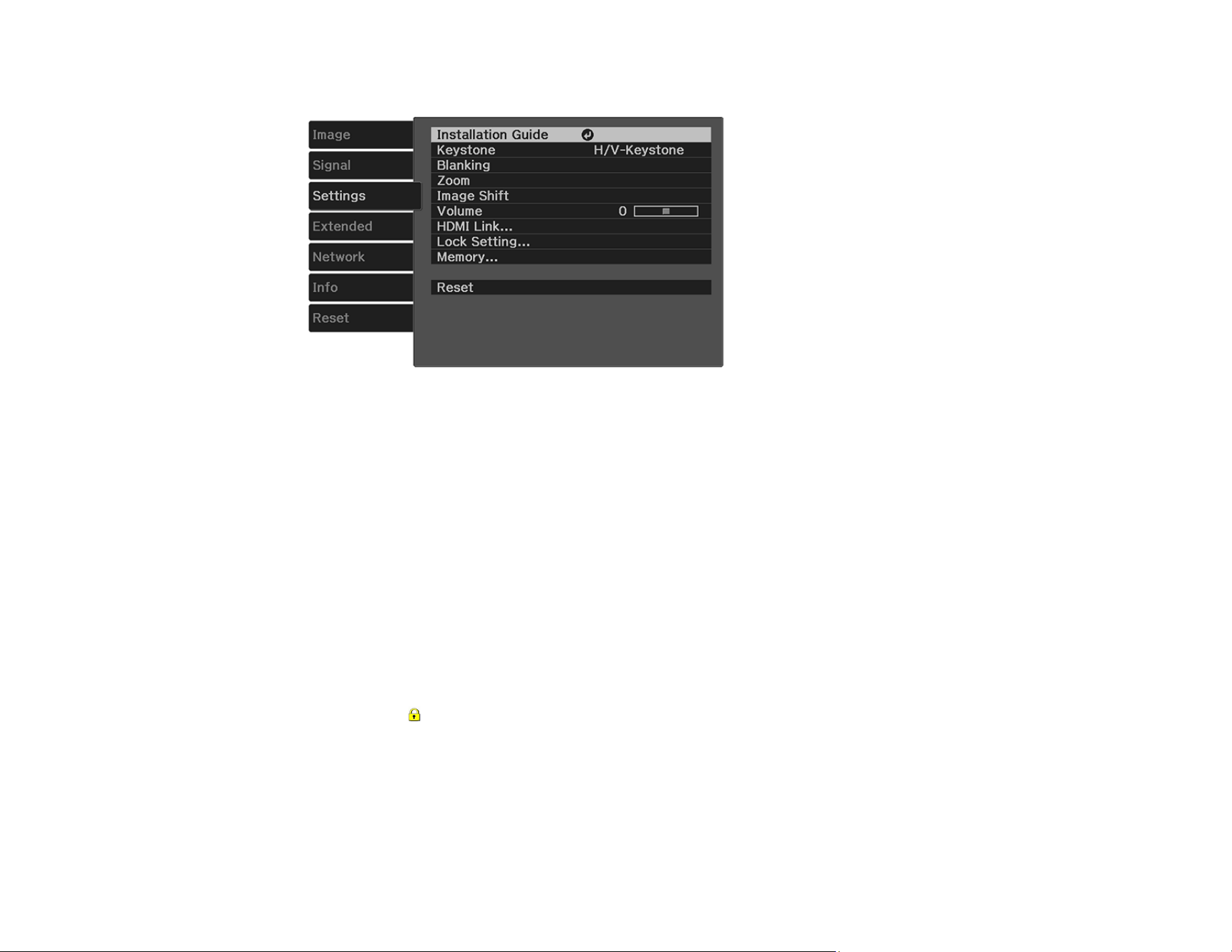
83
2. Select the Settings menu and press Enter.
3. Select the Lock Setting setting and press Enter.
4. Select one of these lock types and press Enter:
• To lock the projector's power button, select Child Lock. This setting is enabled once the projector
is turned off. To turn the projector on, you must press the projector's power button for longer than
three seconds.
Note: Child Lock does not prevent the projector from turning on when the power cord is
connected if the Direct Power On Setting is set to On.
• To lock all buttons, select Control Panel Lock > Full Lock. This setting is enabled once you exit
the configuration menu.
• To lock all buttons except the power button, select Control Panel Lock > Partial Lock. This
setting is enabled once you exit the configuration menu.
Note: The lock icon is displayed on the screen if any control panel buttons are pressed while
this setting is enabled.
You see a confirmation prompt.
5. Select Yes and press Enter.
Unlocking the Projector's Buttons
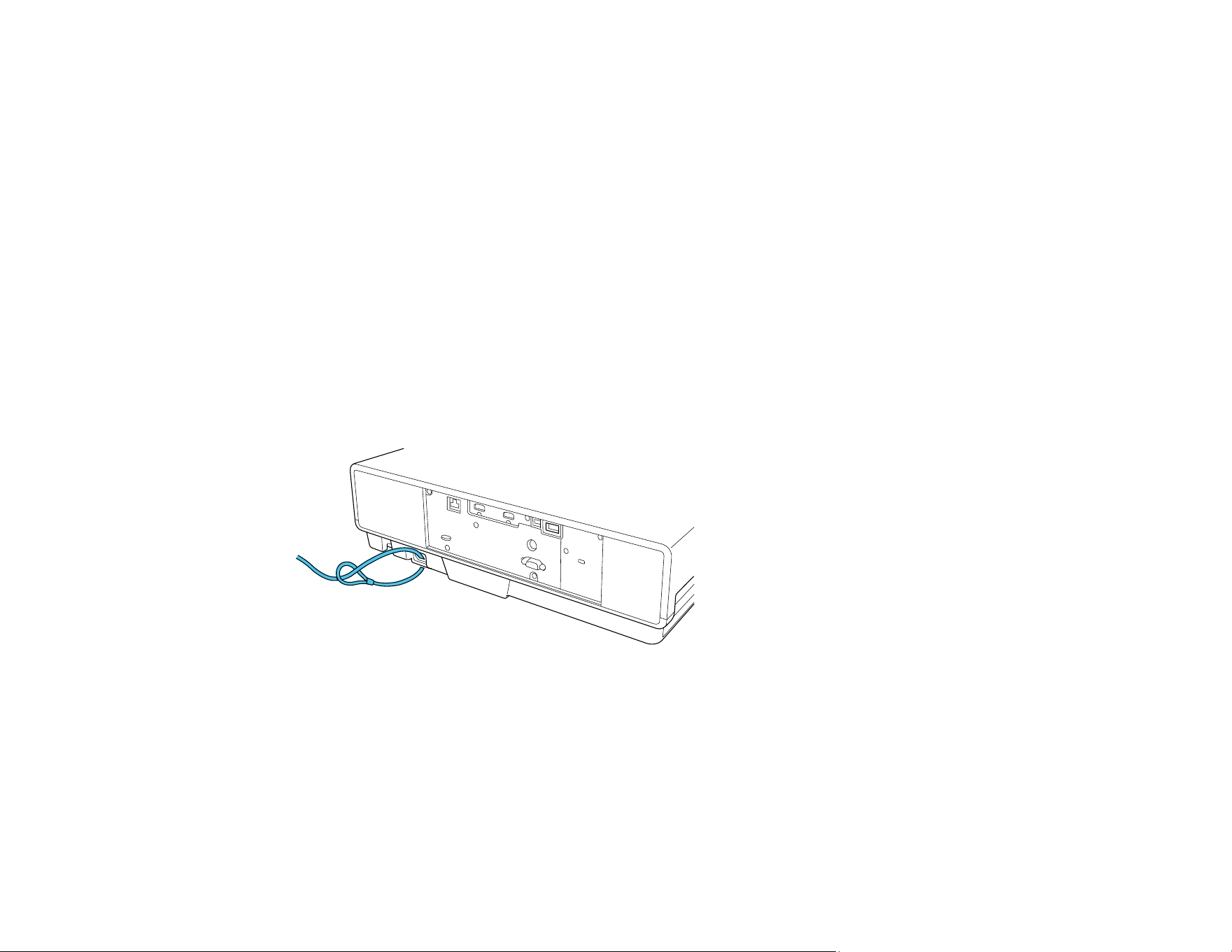
84
Parent topic: Projector Security Features
Unlocking the Projector's Buttons
If the projector's buttons have been locked using one of the Control Panel Lock settings, hold the power
button on the projector's control panel for seven seconds to unlock them. You can also set the Control
Panel Lock setting to Off in the Settings menu.
Parent topic: Locking the Projector's Lens Settings and Buttons
Related references
Projector Feature Settings - Settings Menu
Installing a Security Cable
You can install two types of security cables on the projector to deter theft.
• Use the security slot on the projector to attach a Kensington lock. See your local computer or
electronics dealer for purchase information.
• Use the security cable attachment point on the projector to attach a wire cable and secure it to a room
fixture or heavy furniture.
Parent topic: Projector Security Features
Using Advanced Image Adjustment Features
Follow the instructions in these sections to use your projector's advanced image adjustments.
Creating Image Presets
Adjusting Detail Enhancement
Adjusting the Color Convergence (Panel Alignment)

85
Adjusting the Color Tone (Color Uniformity)
Parent topic: Adjusting Projector Features
Creating Image Presets
You can quickly optimize your projected image by selecting image adjustment settings and saving them
as a preset you can reuse later.
You can save the following settings in a preset:
• Frame Interpolation
• Deinterlacing
• Noise Reduction
• MPEG Noise Reduction
• Super-resolution
• Detail Enhancement
Note: Some settings may be unavailable depending on the input signal type.
1. Press the Menu button.
You see a screen like this:
2. Select the Image menu and press Enter.

86
3. Select the Image Enhancement setting and press Enter.
4. Select the Image Preset Mode setting and press Enter.
5. Select one of the presets and press Enter.
Note: If you select a previously used preset, your new adjustments overwrite the old ones.
6. Press Esc to return to the Image Enhancement menu.
7. Fine-tune the following settings:
• Frame Interpolation
• Deinterlacing (depends on the signal)
• Noise Reduction
• MPEG Noise Reduction
• Super-resolution
• Detail Enhancement
Note: You can select Image Preset Mode and toggle between Off and the preset you were
adjusting to quickly check the effects of the settings. The effect of a preset can vary depending on
the input signal type.
8. Press Menu or Esc to exit the menus.
The currently selected Image Preset Mode will be updated with the current settings.
Parent topic: Using Advanced Image Adjustment Features
Related references
Image Quality Settings - Image Menu

87
Adjusting Detail Enhancement
You can enhance the contrast in detailed areas of an image to create a more textured look.
Note: This feature may not be available depending on the projection mode and input signal.
1. Turn on the projector and switch to the image source you want to use.
2. Press the Menu button.
You see a screen like this:
3. Select the Image menu and press Enter.
4. Select the Image Enhancement setting and press Enter.
5. Select the Detail Enhancement setting and press Enter.
6. Adjust each of the following options as necessary:
• Strength to adjust the image contrast
• Range to adjust the enhanced area of the image
Note: Higher values increase the intensity of the effect.
7. Press Menu or Esc to exit the menus.
Parent topic: Using Advanced Image Adjustment Features
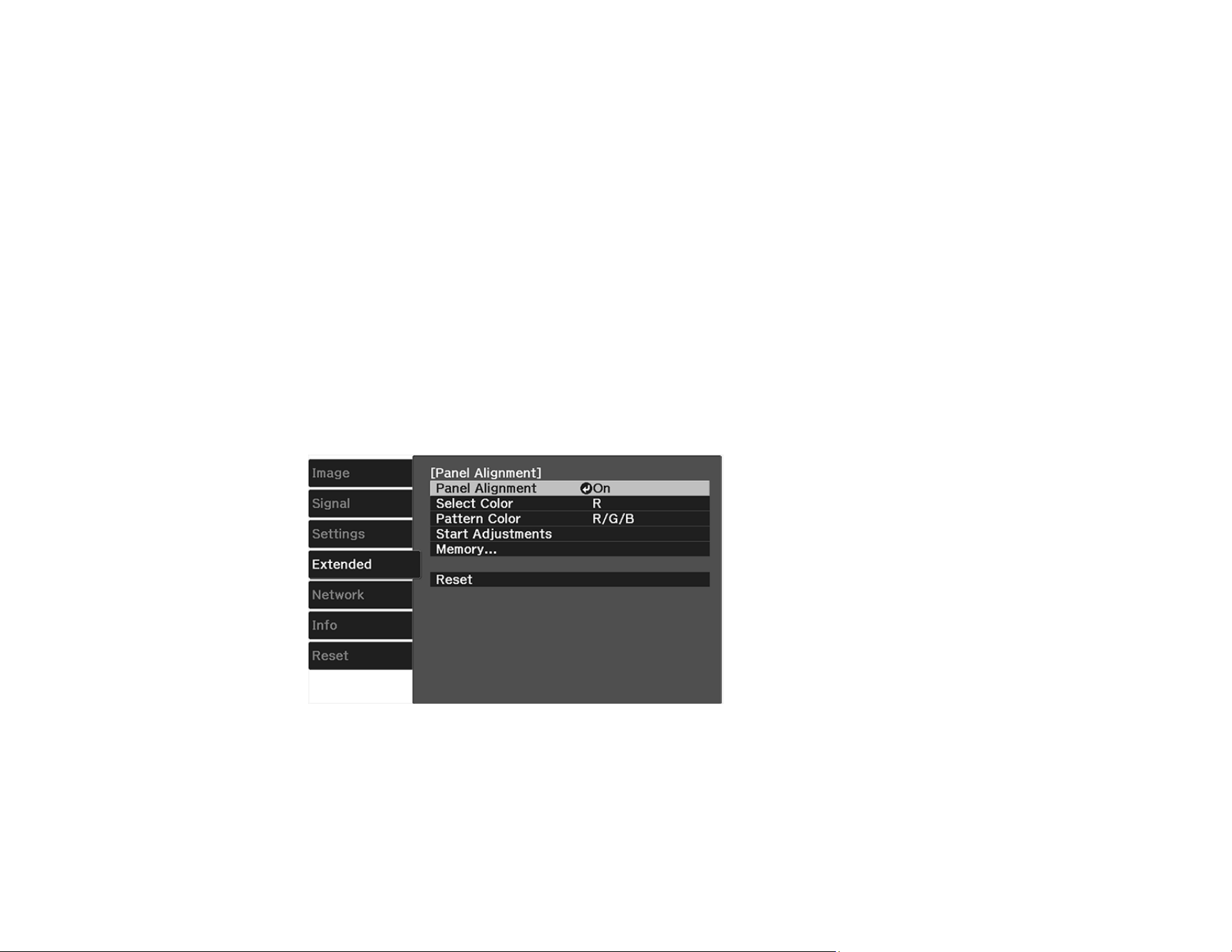
88
Adjusting the Color Convergence (Panel Alignment)
You can use the Panel Alignment feature to manually adjust the color convergence (the alignment of the
red and blue colors) in the projected image.
Note: You can adjust only the red or blue color convergence. Green is the standard color panel and
cannot be adjusted.
Note: Allow your projector to warm up for at least 10 to 15 minutes and make sure the image is in focus
before you use the Panel Alignment feature. For best results, project an image sized at least 60 inches
(152 cm) diagonally in a dark room and on a projection surface that is not colored or textured.
1. Turn on the projector.
2. Press the Menu button.
3. Select the Extended menu and press Enter.
4. Select the Display setting and press Enter.
5. Select the Panel Alignment setting and press Enter.
6. Select the Panel Alignment setting and press Enter.
7. Select On and press Enter.
8. Select the Select Color setting and choose one of the following:
• R to adjust the red color convergence.
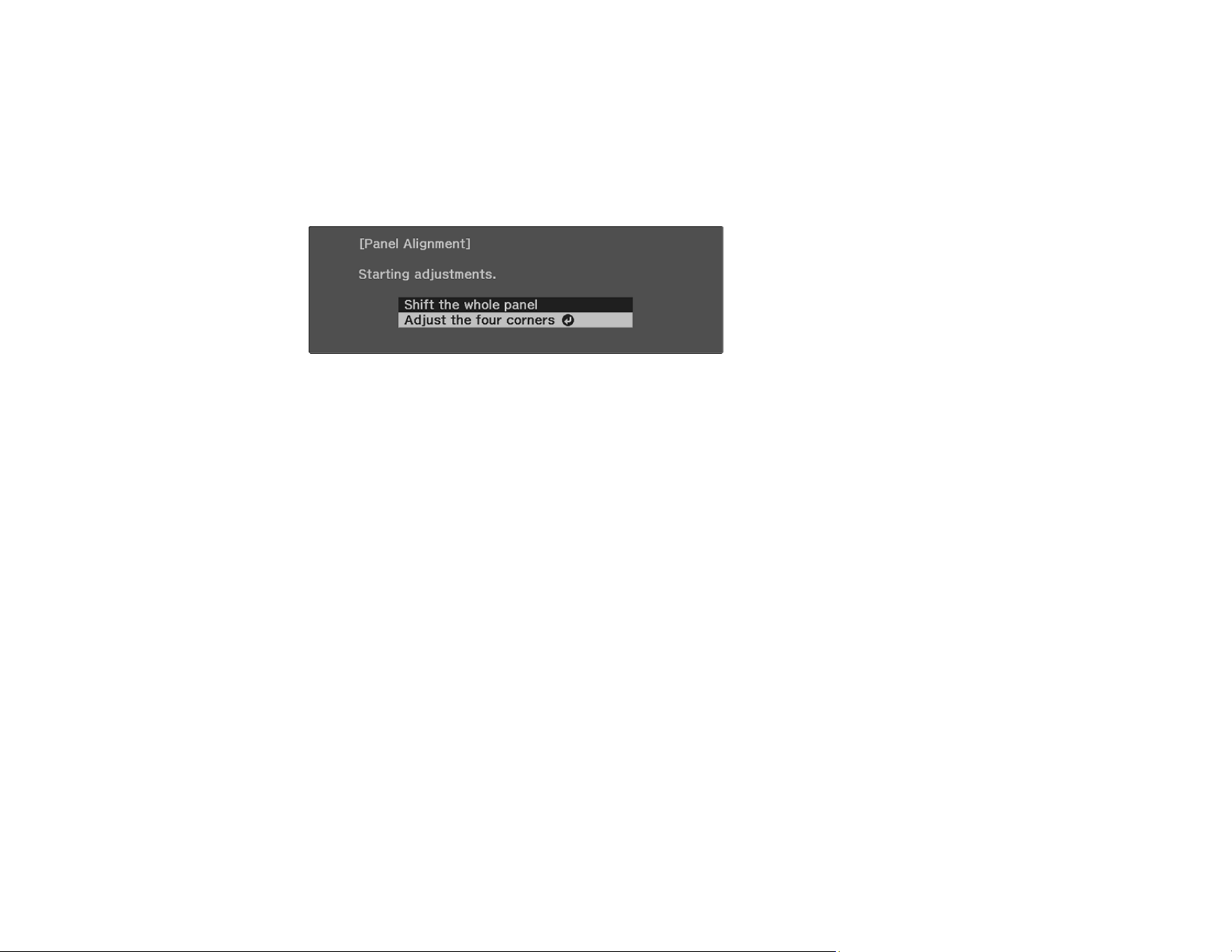
89
• B to adjust the blue color convergence.
9. Select the Pattern Color setting and press Enter.
10. Select the pattern you want to use and press Enter.
11. Select Start Adjustments and press Enter.
You see this screen:
12. Select one of the following:
• Select Shift the whole panel to adjust the whole panel at the same time. (This is not
recommended, as usually only certain areas of the panel need to be adjusted.) Continue with step
13.
• Select Adjust the four corners to adjust the corners of the panel one at a time. Skip to step 16.
13. Press Enter.
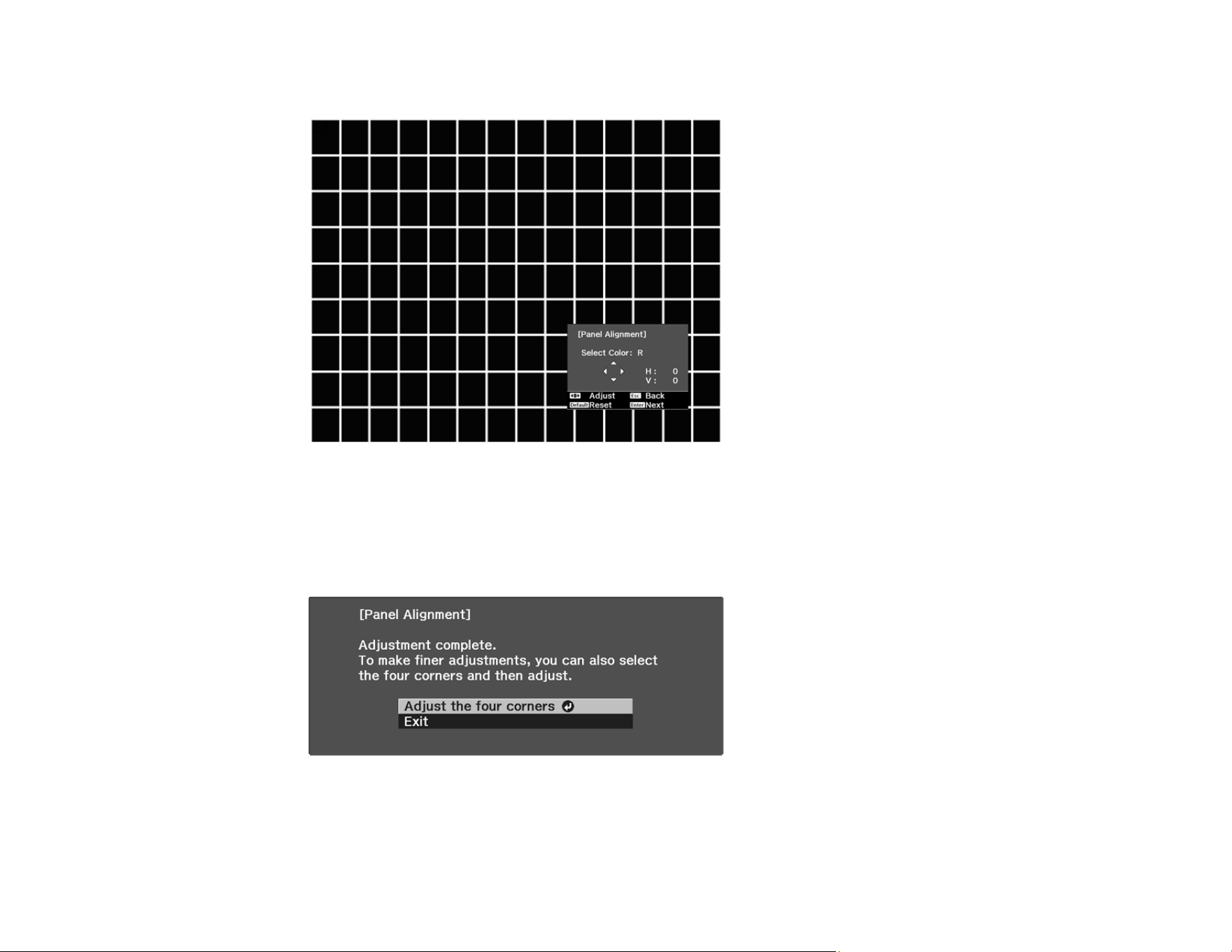
90
You see a screen like this:
14. Use the arrow buttons on the remote control to adjust the color alignment of the color you selected
for the Select Color setting.
15. When you are finished adjusting the screen, press Enter.
You see this screen:
Note: The Shift the whole panel option affects the grid lines in the entire screen. To fine-tune your
adjustments, continue with the next steps.
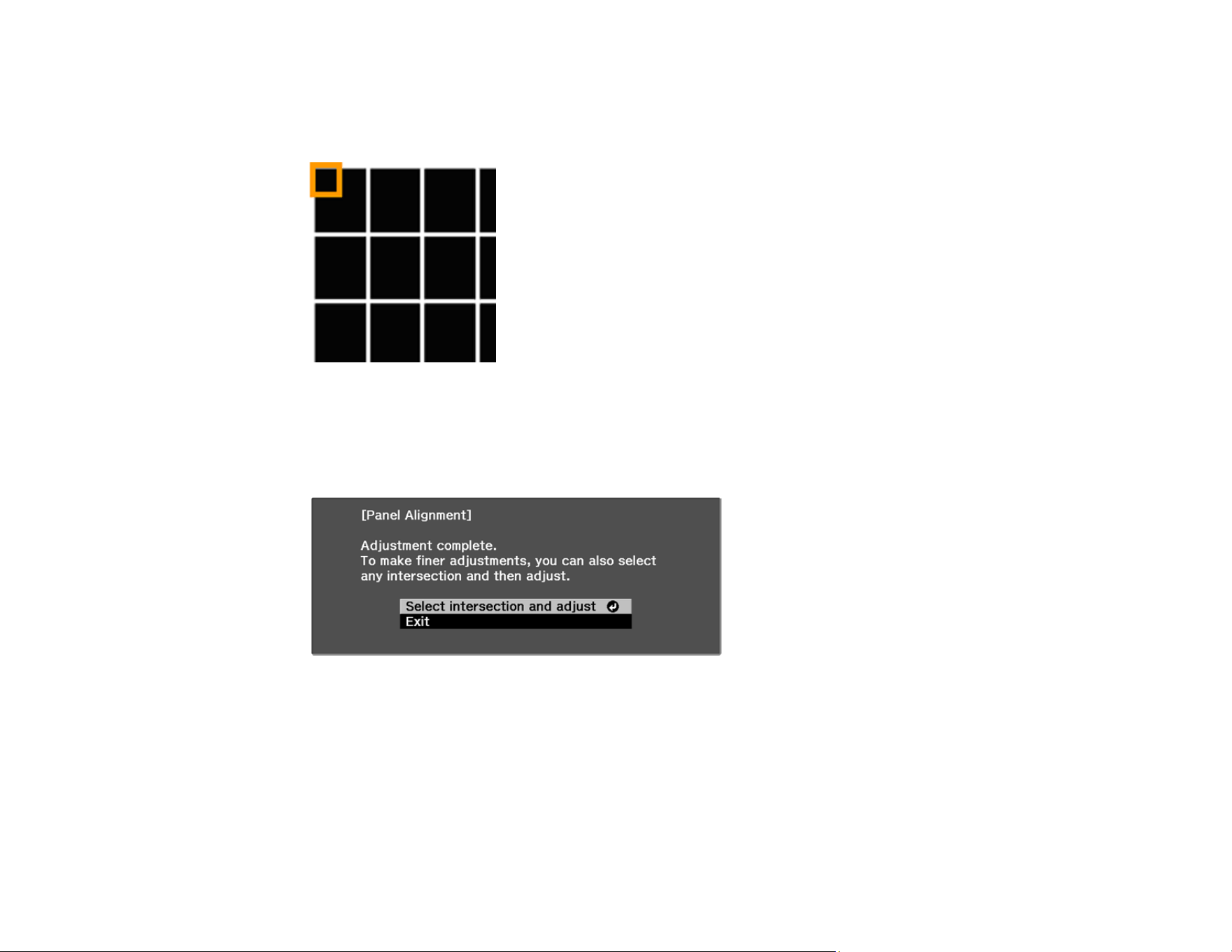
91
16. Select Adjust the four corners and press Enter. (Otherwise, select Exit and press Enter.)
17. Use the arrow buttons on the remote control to adjust the color alignment in the corner of the screen
highlighted by the orange box.
18. Press the Enter button to move to the next corner of the screen.
19. When you are finished adjusting each corner of the screen, press Enter.
You see this screen:
20. Do one of the following:
• If your projector's panel alignment is now correct, select Exit and press Enter to return to the
Panel Alignment menu.
• If your projector needs additional panel alignment, select Select intersection and adjust and
press Enter. Use the arrow keys on the remote control to highlight the corner of any misaligned
box on the screen, press Enter, make any necessary adjustments and press Enter again. Repeat
this step as necessary for the other intersections.
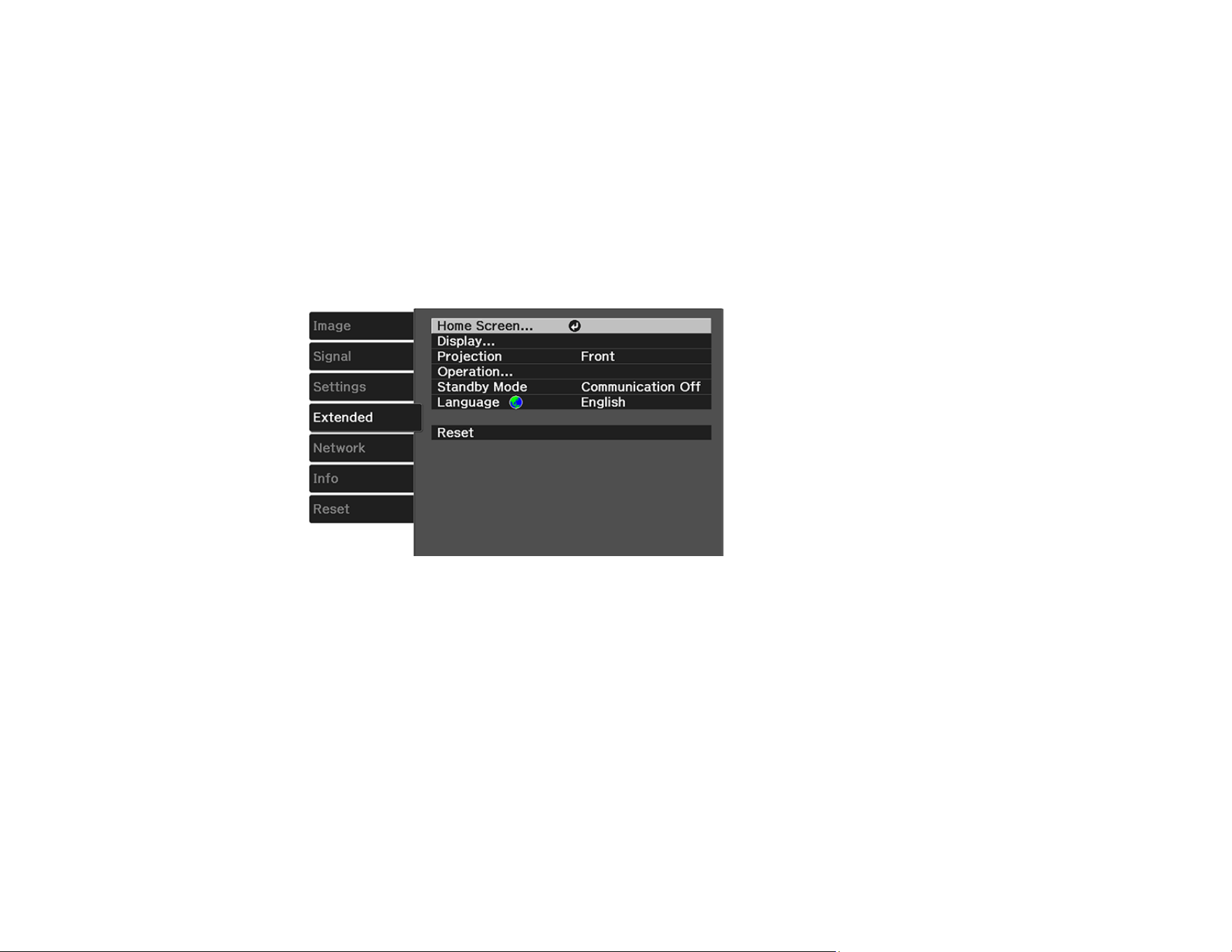
92
Parent topic: Using Advanced Image Adjustment Features
Related references
Projector Setup Settings - Extended Menu
Adjusting the Color Tone (Color Uniformity)
You can use the Color Uniformity feature to manually adjust the color tone balance in the projected
image.
1. Press the Menu button.
2. Select the Extended menu and press Enter.
3. Select the Display setting and press Enter.
4. Select the Color Uniformity setting and press Enter.
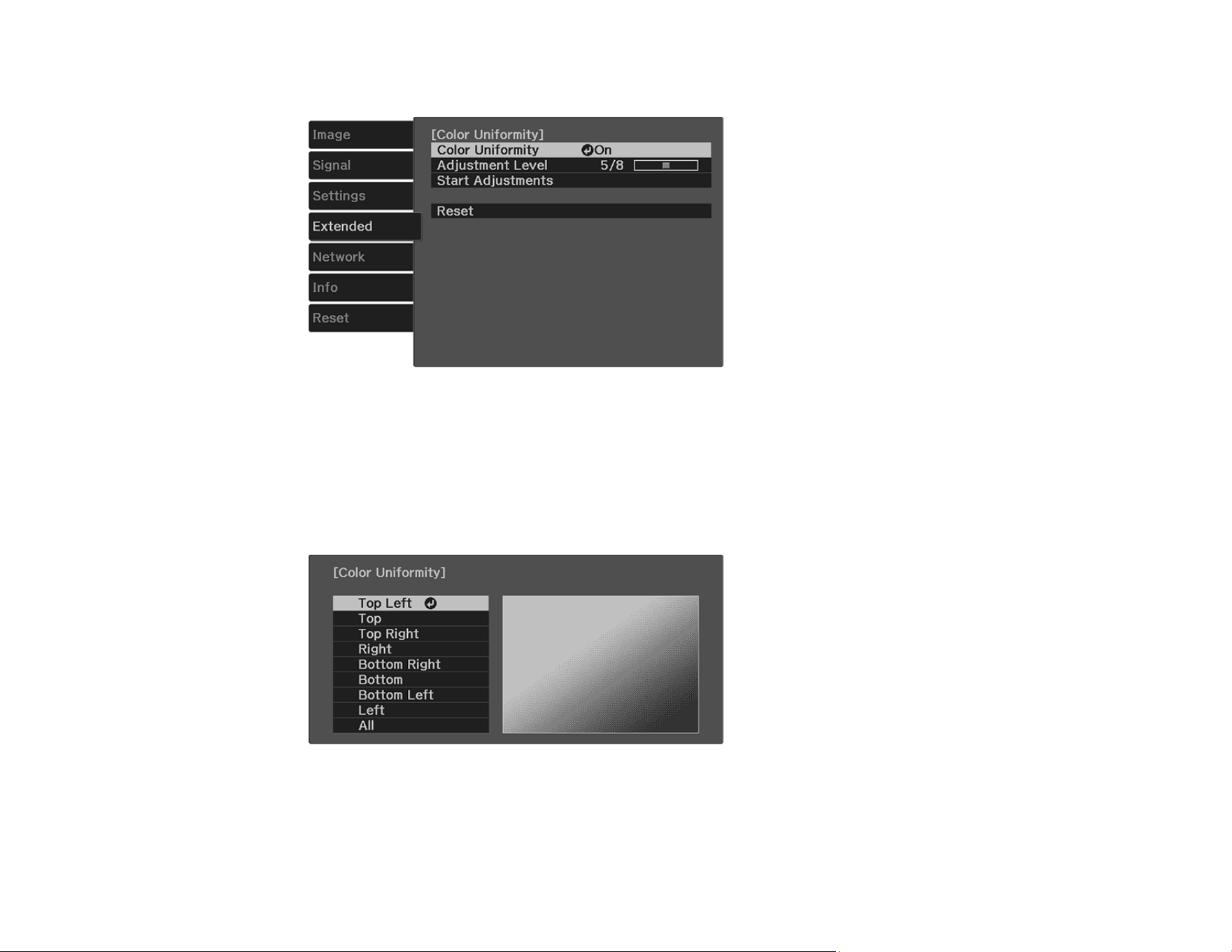
93
You see this screen:
5. Press Enter and select On.
6. Press Esc.
7. Select the Adjustment Level setting and press Enter.
8. Press the right and left arrow buttons to adjust the level, and press Esc.
9. Select the Start Adjustments setting and press Enter.
10. Select the area of the screen that you want to adjust and press Enter.
Note: Adjust the outer areas first, then adjust the entire screen.
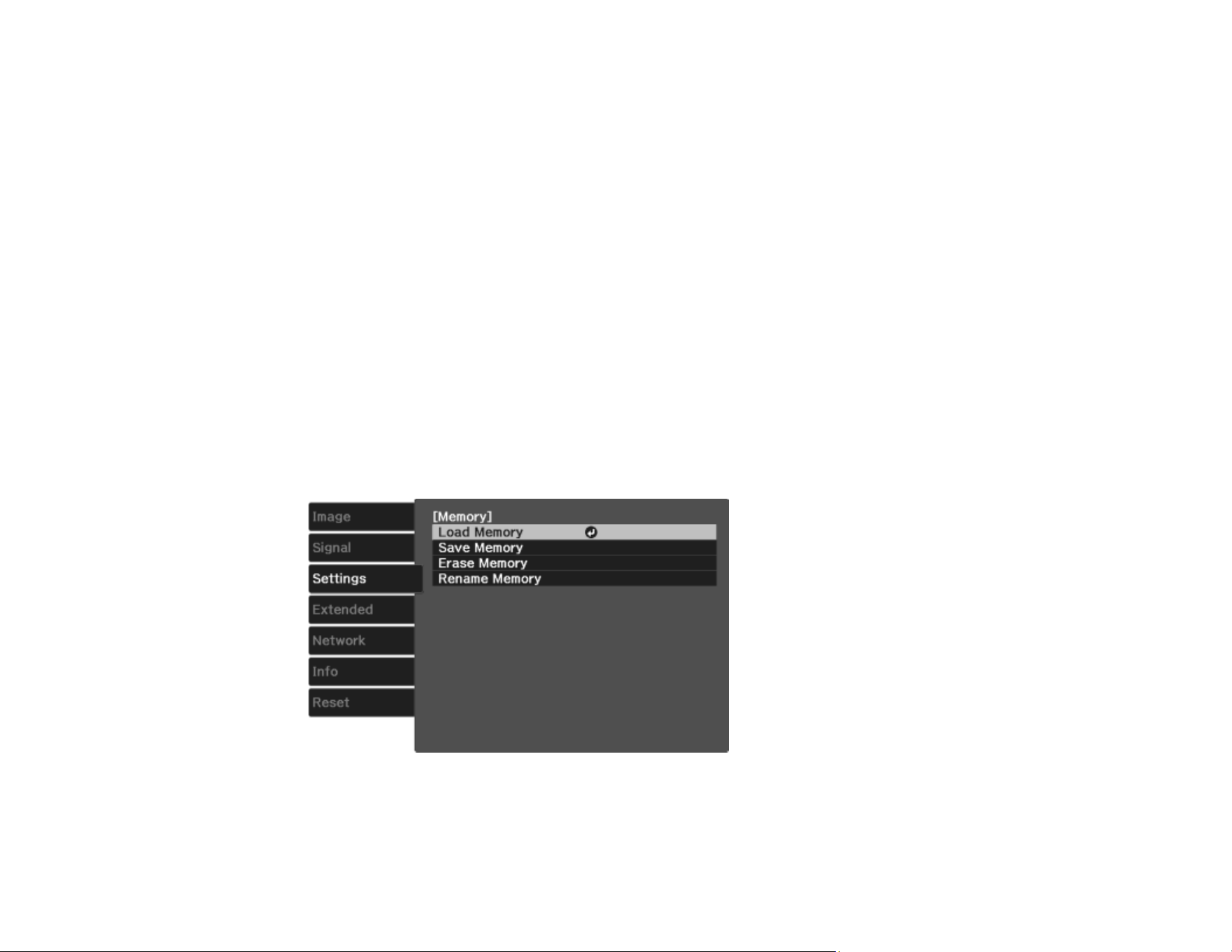
94
11. Select the color (Red, Green, or Blue) you want to adjust, and use the left arrow button to weaken
the color tone and the right arrow button to strengthen the color tone.
12. Press Esc.
13. Repeat steps 10 and 11 for each area you want to adjust.
14. Repeat steps 7 to 11 for each adjustment level.
15. When you are finished, press the Menu button.
Parent topic: Using Advanced Image Adjustment Features
Saving Settings to Memory and Using Saved Settings
You can save customized settings from the Image menu for each of your video inputs and then select
the saved settings whenever you want to use them.
1. Turn on the projector and display an image.
2. Press the Menu button.
3. Select the Settings menu and press Enter.
4. Select the Memory setting and press Enter.
You see this screen:
5. Select one of the following options:
• Load Memory: Overwrites your current settings with saved settings

95
• Save Memory: Saves your current settings to memory (10 memories with different names are
available)
Note: A memory name that has already been used is indicated by a blue mark. Saving over a
previously saved memory overwrites the settings with your current settings.
• Erase Memory: Erases the selected memory settings
• Rename Memory: Renames a saved memory
6. Press Esc to exit.
Parent topic: Adjusting Projector Features

96
Adjusting the Menu Settings
Follow the instructions in these sections to access the projector menu system and change projector
settings.
Using the Projector's Menus
Image Quality Settings - Image Menu
Input Signal Settings - Signal Menu
Projector Feature Settings - Settings Menu
Projector Setup Settings - Extended Menu
Projector Network Settings - Network Menu
Projector Information Display - Info Menu
Projector Reset Options - Reset Menu
Using the Projector 's Menus
You can use the projector's menus to adjust the settings that control how your projector works. The
projector displays the menus on the screen.
Note: Your remote control may look different than the illustration below but the operation is the same.
1. Press the Menu button on the control panel or remote control.
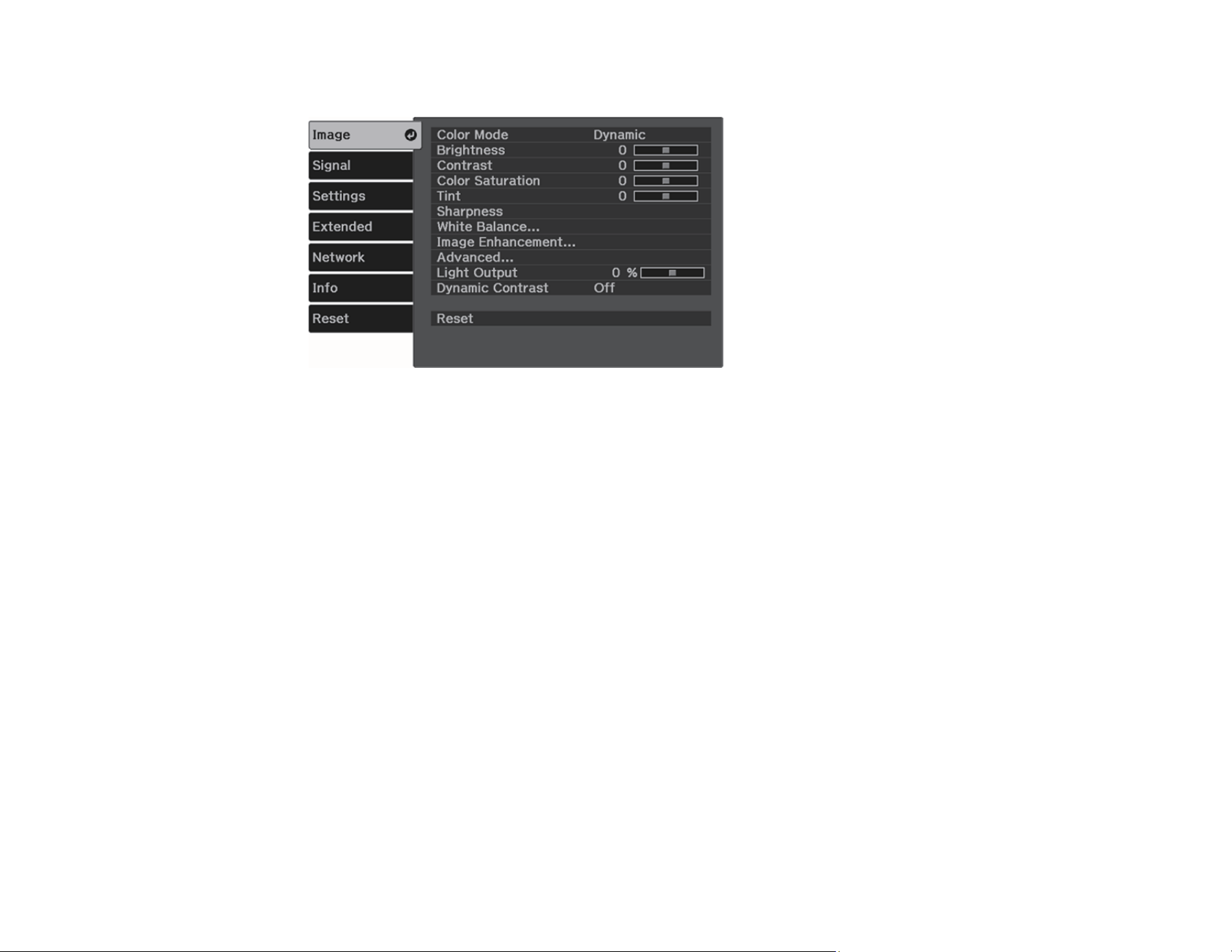
97
You see the menu screen displaying the Image menu settings.
2. Press the up or down arrow button to move through the menus listed on the left. The settings for
each menu are displayed on the right.
Note: The available settings depend on the current input source, resolution, or other menu settings.
3. To change settings in the displayed menu, press Enter.
4. Press the up or down arrow button to move through the settings.
5. Change the settings using the buttons listed on the bottom of the menu screens.
6. To return all the menu settings to their default values, select Reset.
7. When you finish changing settings on a menu, press Esc.
8. Press Menu or Esc to exit the menus.
Parent topic: Adjusting the Menu Settings
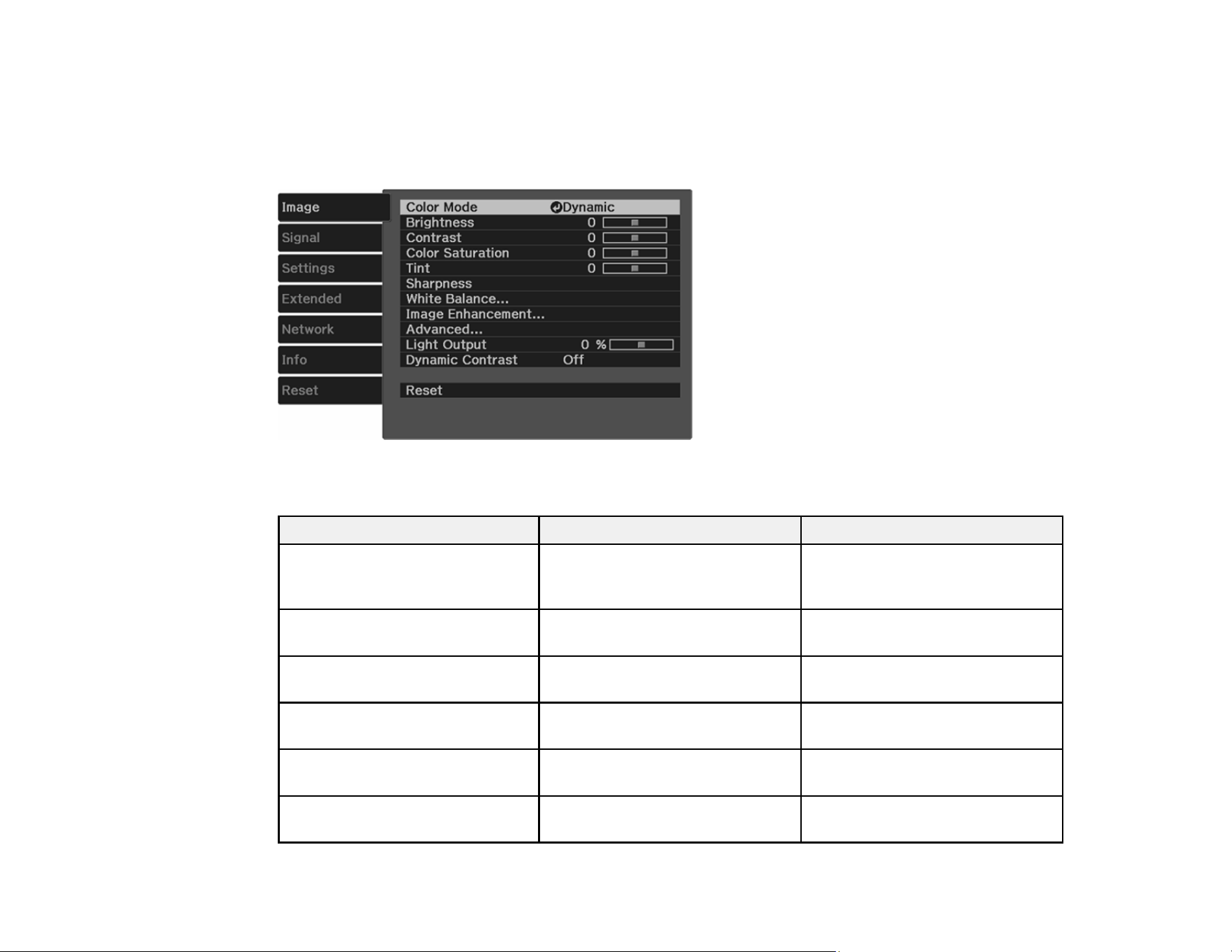
98
Image Quality Settings - Image Menu
Settings on the Image menu let you adjust the quality of your image for the input source you are currently
using. The available settings depend on other settings, the input signal, and the currently selected input
source.
To change settings for an input source, make sure the source is connected and select that source.
Setting Options Description
Color Mode See the list of available Color
Modes
Adjusts the vividness of image
colors for various image types
and environments
Brightness Varying levels available Lightens or darkens the overall
image
Contrast Varying levels available Adjusts the difference between
light and dark areas of the image
Color Saturation Varying levels available Adjusts the intensity of the image
colors
Tint Varying levels available Adjusts the balance of green to
magenta tones in the image
Sharpness Varying levels available Adjusts the sharpness or
softness of image details

99
Setting Options Description
White Balance Color Temp.
G-M Correction
Custom
Grayscale
Sets the overall color tone of the
image
Color Temp.: sets the color
temperature according to the
selected color mode; lower
values tint the image red, and
higher values tint the image blue
G-M Correction: makes fine
adjustments to the color tone;
higher values tint the image
green and lower values tint the
image red
Custom: adjusts the individual
RGB components of the offset
and gain
Grayscale: adjusts the red,
green, blue, and brightness for
the selected adjustment level
Image Enhancement — Adjusts the resolution of the
image. See the table below for
Image Enhancement options
Advanced Gamma
RGBCMY
Gamma: adjusts the colors by
selecting one of the gamma
correction values, referring to the
projected image, or a gamma
graph
RGBCMY: adjusts the hue,
saturation, and brightness for
each color
Light Output Varying levels available Sets the brightness for the light
source
Dynamic Contrast Off
Normal
High Speed
Adjusts the projected luminance
based on the image brightness
when certain Color Modes are
selected
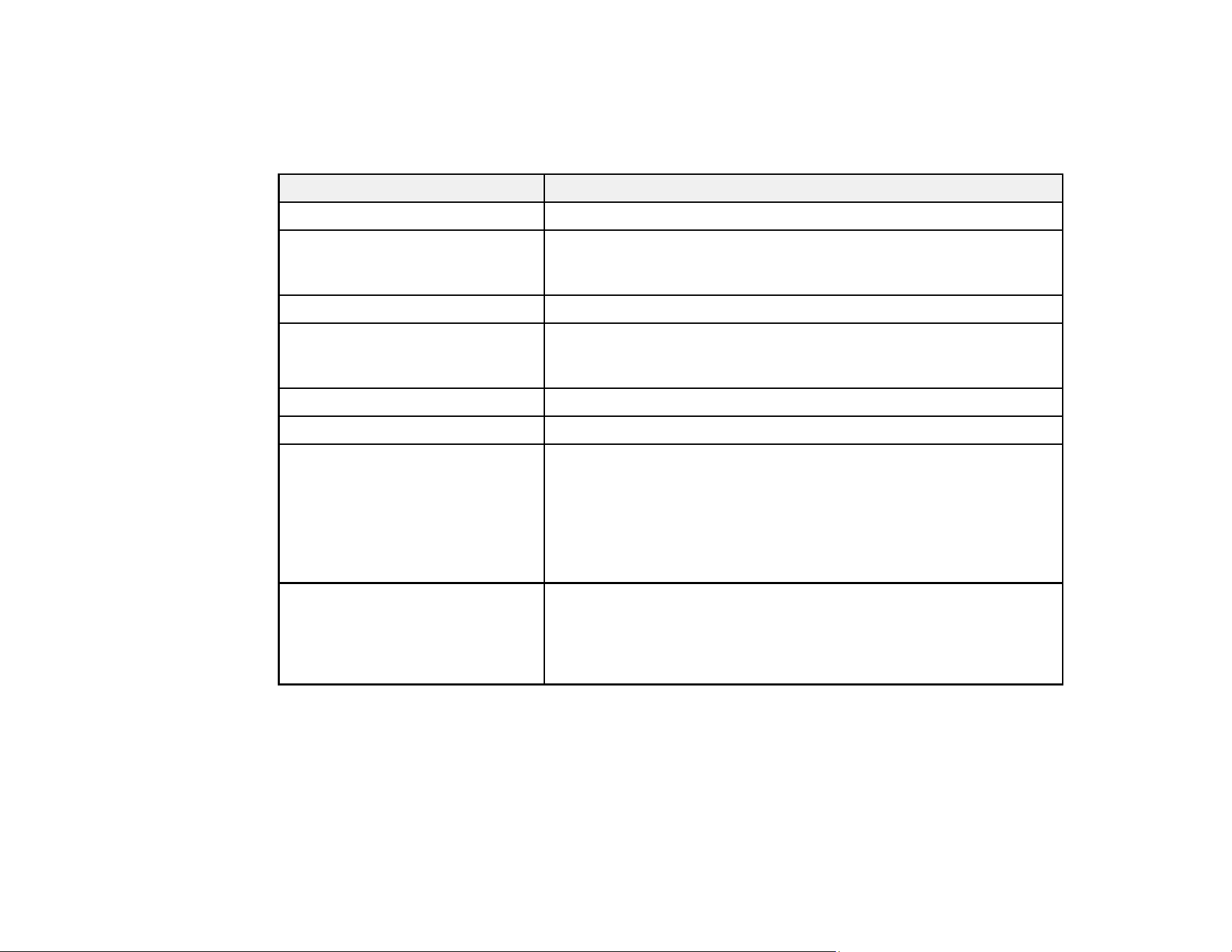
100
Note: The Brightness setting does not affect laser brightness. To change the laser brightness mode,
use the Light Output setting.
Image Enhancement Options
Options Description
4K Enhancement Projects at a doubled resolution
Image Preset Mode Selects preset settings for Frame Interpolation, Deinterlacing, Noise
Reduction, MPEG Noise Reduction, Super-resolution, and Detail
Enhancement
Frame Interpolation Adjusts the smoothness of image movement
Deinterlacing Reduces flickering in analog images (only available when Image
Processing is set to Fine or when receiving a 480i, 576i, or 1080i
signal from one of the HDMI ports)
Noise Reduction Reduces flickering in analog images
MPEG Noise Reduction Smooths out rough images in MPEG format
Super-resolution Adjusts the amount of enhancement for complicated images and
backgrounds
• Fine Line Adjust: enhances the contrast and the outlines of
complicated images
• Soft Focus Detail: enhances the contrast and the outlines for
smooth backgrounds
Detail Enhancement Creates a more textured image
• Strength: the larger the value, the stronger the contrast
• Range: the larger the value, the wider the range of detail
enhancement becomes
Parent topic: Adjusting the Menu Settings
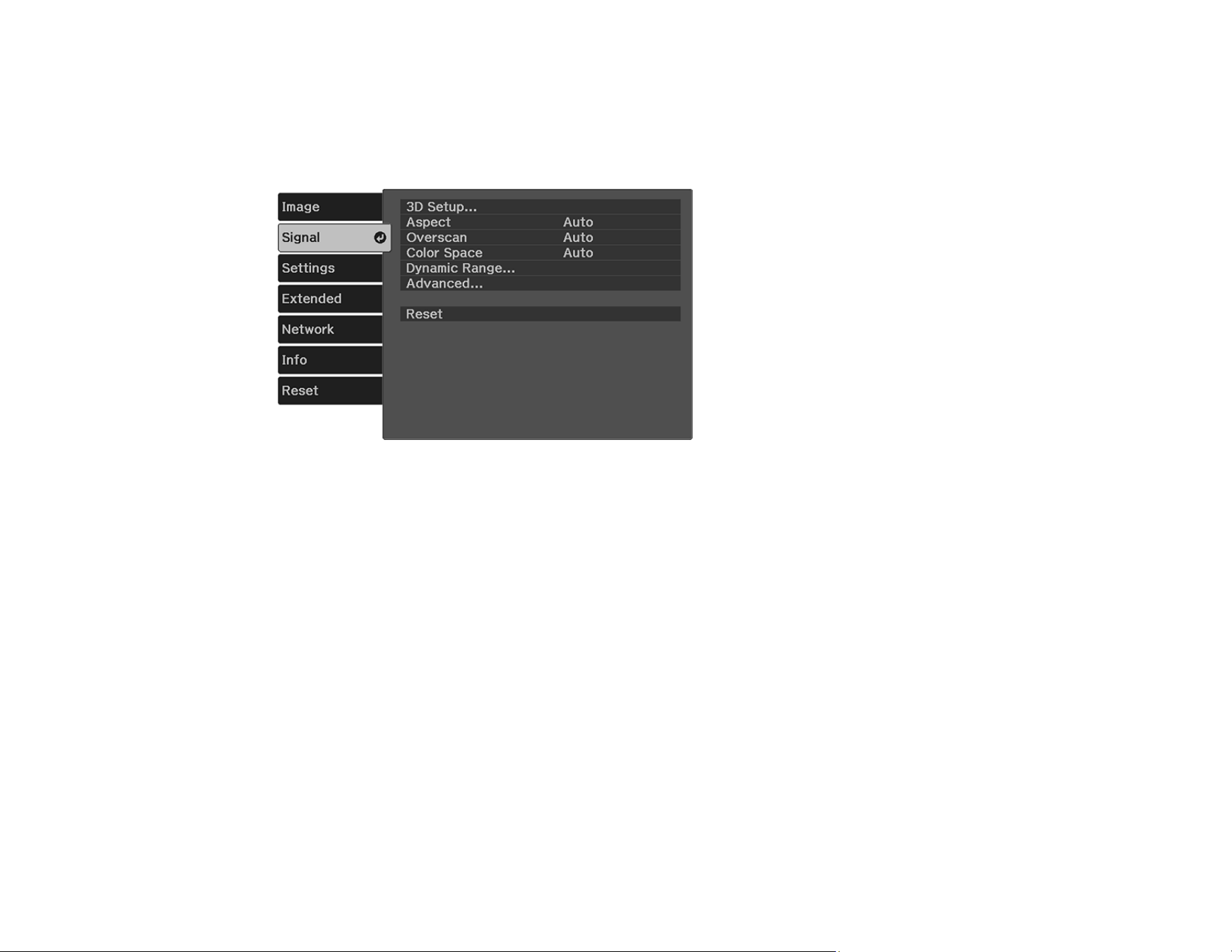
101
Input Signal Settings - Signal Menu
Normally the projector detects and optimizes the input signal settings automatically. If you need to
customize the settings, you can use the Signal menu. The available settings depend on the currently
selected input source.
To change settings for an input source, make sure the source is connected and select that source.

102
Setting Options Description
3D Setup 3D Display
3D Format
3D Depth
Diagonal Screen Size
3D Brightness
Inverse 3D Glasses
3D Viewing Notice
3D Display: Select Auto or 3D to
enables 3D image projection
3D Format: Sets the 3D format for the
input signal
3D Depth: Sets the depth for the 3D
image
Diagonal Screen Size: Sets the
projection size for the 3D image to
optimize the 3D effect
3D Brightness: Sets the brightness for
the 3D image
Inverse 3D Glasses: reverses the
synchronization timing for the left/right
shutters on the 3D glasses and the
left/right images. Enable this function if
the 3D effect is not displayed correctly
3D Viewing Notice: Toggles a notice to
appear when viewing 3D content
Aspect Auto
Normal
Full
Zoom
Sets the available aspect mode for the
selected input source
Overscan Auto
Off
4%
8%
Changes the projected image ratio to
make the edges visible by a selectable
percentage or automatically
Color Space Auto
BT.709
BT.2020
Sets the conversion system for the color
space

103
Setting Options Description
Dynamic Range Dynamic Range
Signal Status
HDR10 Setting
HLG Setting
Dynamic Range: changes the range of
dark and bright areas in images
Signal Status: displays the image signal
HDR10 Setting: changes the PQ curve
of the dynamic range using the HDR PQ
method
HLG Setting: changes the HLG curve of
the dynamic range using the HDR HLG
method
Advanced Video Range
EDID
Image Processing
Video Range: sets the video range to
match the setting of the device
connected to the HDMI input port
• Auto: detects the video range
automatically
• Limited: normally for images from a
device other than a computer; select if
the black areas of the image are too
bright
• Full: normally for images from a
computer; select if the image is too
dark
EDID: selects the EDID settings
• Expanded: supports 3840 × 2160 60
Hz signals
• Normal: supports 3840 × 2160 30 Hz
signals
• 21:9: supports 2560 × 1080 60 Hz
signals
Image Processing: improves the
response speed for images projected at
high speed
Parent topic: Adjusting the Menu Settings
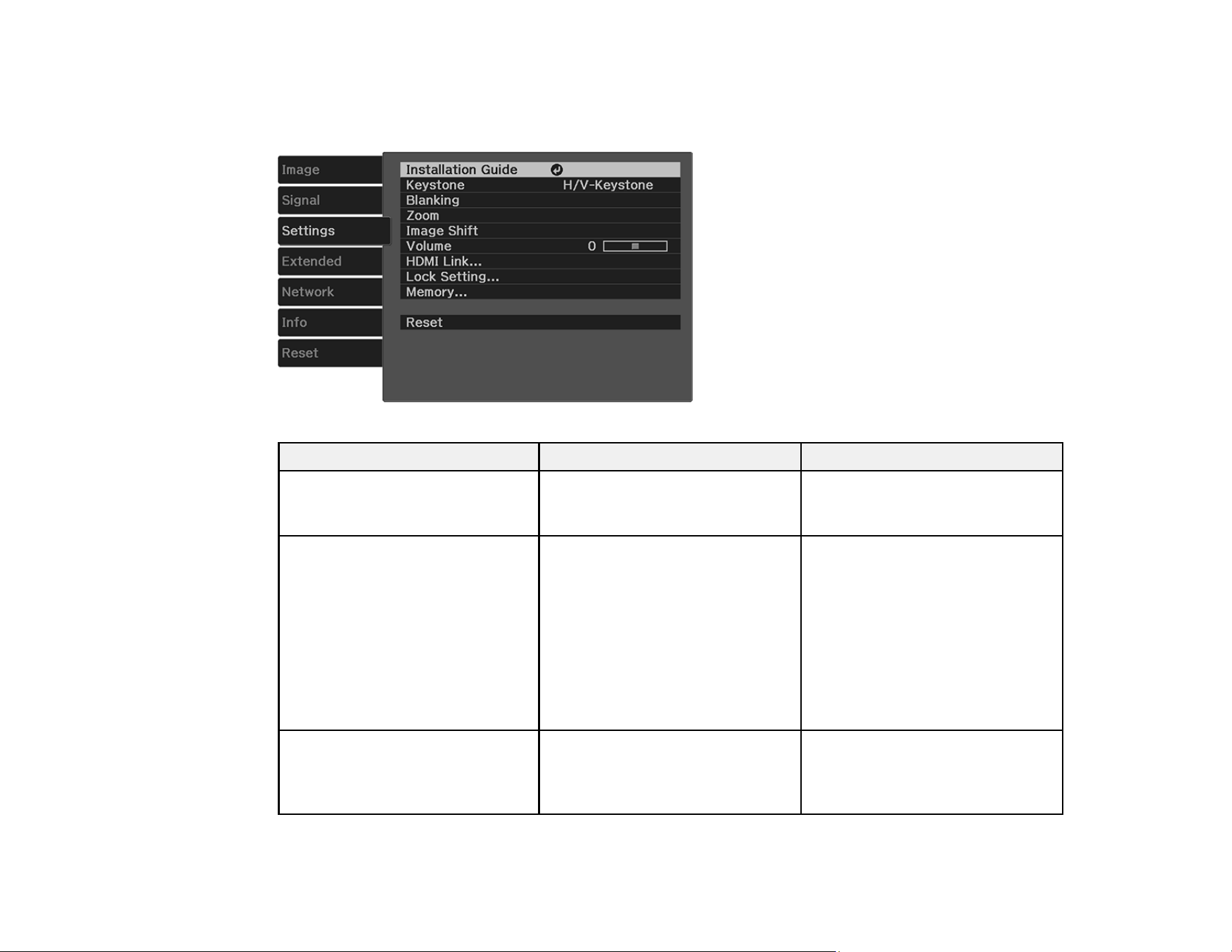
104
Projector Feature Settings - Settings Menu
Options on the Settings menu let you customize various projector features.
Setting Options Description
Installation Guide — Displays an on-screen guide with
instructions for installing and
positioning the projector.
Keystone H/V-Keystone
Quick Corner
Adjusts image shape to
rectangular (horizontally and
vertically)
H/V-Keystone: lets you manually
correct horizontal and vertical
sides
Quick Corner: select to correct
image shape and alignment
using an on-screen display
Blanking Varying levels available Covers part of the image with a
blank (black screen). You can set
the top, bottom, left, or right of
the image

105
Setting Options Description
Zoom Varying levels available Adjusts the size of the projected
image
Image Shift Varying positions available Adjusts the position of the
projected image (not available if
the image is zoomed all the way
in)
Volume Varying levels available Adjusts the volume of projector’s
speaker system or external
speakers
HDMI Link Device Connections
HDMI Link
Audio Out Device
Power On Link
Power Off Link
Link Buffer
Adjusts the HDMI Link options
that allow the projector remote to
control HDMI-connected devices
that support the CEC standard
Device Connections: lists the
devices connected to the HDMI1,
HDMI2 (ARC), and HDMI3 ports
HDMI Link: enables or disables
the HDMI Link feature
Audio Out Device: selects
whether to output audio from the
internal projector speakers or a
connected audio/video system
Power On Link: controls what
happens when you turn on the
projector or a linked device
Power Off Link: controls
whether linked devices are
turned off when the projector is
turned off
Link Buffer: improves the
performance of operations when
the HDMI Link feature is not
working correctly

106
Setting Options Description
Lock Setting Child Lock
Control Panel Lock
Controls projector button locking
to secure the projector
Child Lock: locks the power
button on the projector's control
panel to prevent children from
turning the projector on by
accident.
Control Panel Lock:
• Full Lock: locks all buttons
• Partial Lock: locks all buttons
except the Power button
• Off: no buttons locked
Memory Load Memory
Save Memory
Erase Memory
Rename Memory
Save settings and manage saved
settings
• Load Memory: loads a
memory preset saved in Save
Memory to adjust the image
settings
• Save Memory: saves the
settings made in the Image
menu to a memory preset
• Erase Memory: erases a
memory preset
• Rename Memory: renames a
memory preset
Parent topic: Adjusting the Menu Settings

107
Projector Setup Settings - Extended Menu
Settings on the Extended menu let you customize various projector setup features that control its
operation.
Setting Options Description
Home Screen Home Screen Auto Disp.
Custom Function 1
Custom Function 2
Adjusts settings on the Home
Screen
Home Screen Auto Disp.:
controls whether the Home
screen displays automatically
when the projector is turned on
Custom Function 1 and
Custom Function 2: let you
customize the options displayed
on the Home screen and save
your settings as a preset

108
Setting Options Description
Display Messages
Display Background
Startup Screen
Standby Confirmation
Panel Alignment
Color Uniformity
Selects various display options
Messages: controls whether
messages are displayed on the
screen
Display Background: selects
the screen color or logo to
display when no signal is
received
Startup Screen: controls
whether a special screen
appears when the projector starts
up
Standby Confirmation: sets
whether to show a confirmation
screen before turning off the
projector
Panel Alignment: Corrects color
misalignment in the projected
image
Color Uniformity: adjusts the
color tone balance
Projection Front
Front/Upside Down
Selects the way the projector
faces the screen so the image is
oriented correctly

109
Setting Options Description
Operation Direct Power On
Sleep Mode
Sleep Mode Timer
Illumination
High Altitude Mode
Quick Startup
USB Power in Standby
Log Save Destination
Selects various operation options
Direct Power On: turns on the
projector when you plug it in
Sleep Mode: select On to place
the projector in standby mode
after a certain interval of inactivity
Sleep Mode Timer: sets the
sleep mode internal between 1
and 30 minutes
Illumination: turns off the
indicators on the projector
High Altitude Mode: regulates
the projector’s operating
temperature at altitudes above
4921 feet (1500 m)
Quick Startup: the projector
enters this mode when you turn it
off; you can start projecting in
about five seconds by pressing
the Power button
USB Power in Standby: Sends
power to the connected device
even if the projector is in standby
mode (when the power is off). If
the internal temperature of the
projector gets too high, the power
supply may stop automatically.
This feature is not available in all
countries.
Log Save Destination: sets
where you want to save the
internal projector information logs
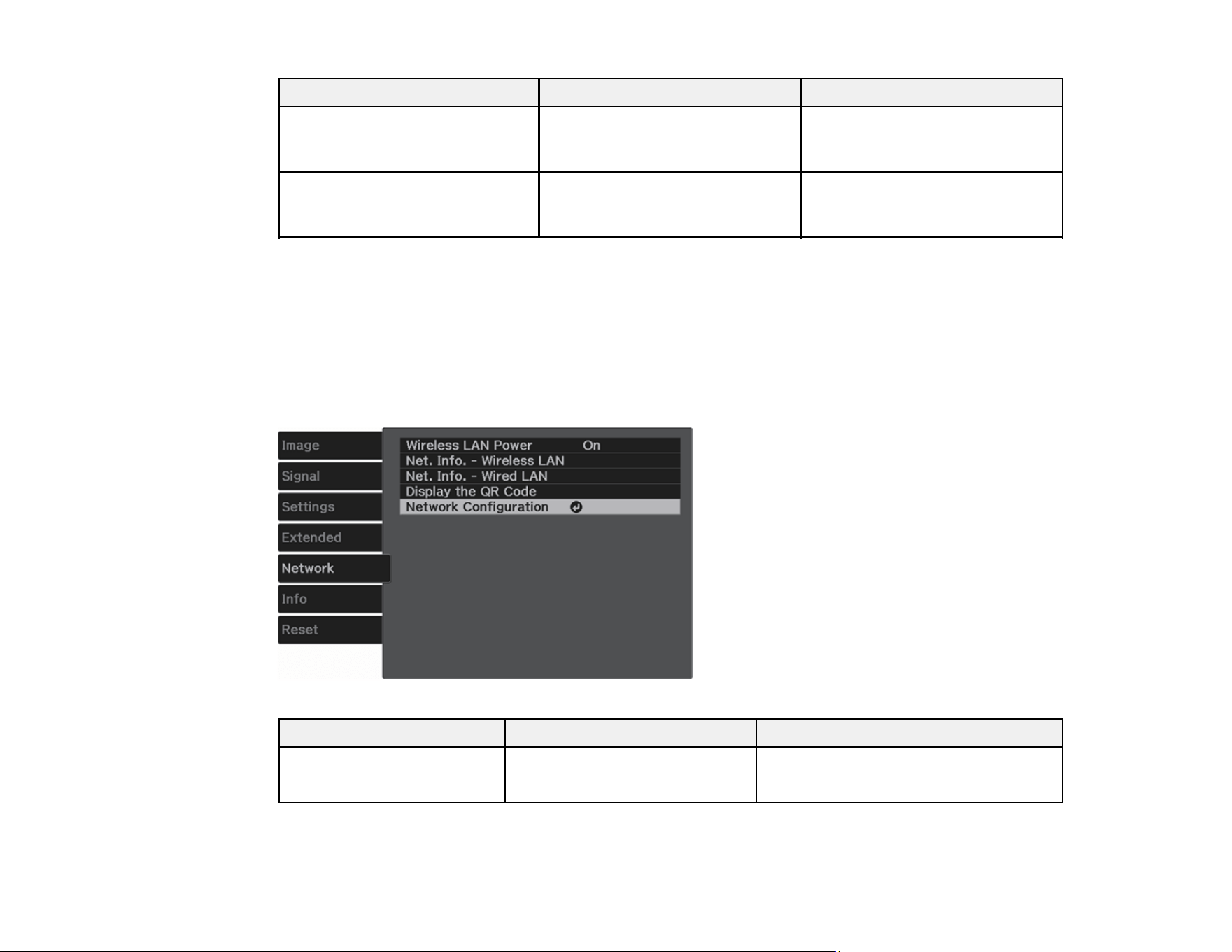
110
Setting Options Description
Standby Mode Communication On
Communication Off
Allows the projector to be
monitored over a network even
when turned off
Language Various languages available Selects the language for
projector menu and message
displays
Parent topic: Adjusting the Menu Settings
Projector Network Settings - Network Menu
Settings on the Network menu let you view network information and set up the projector for monitoring
and control over a network.
Note: The optional wireless LAN module is required for wireless networking.
Setting Options Description
Wireless LAN Power On
Off
Enables or disables wireless
communication

111
Setting Options Description
Net. Info - Wireless LAN Connection Mode
Wireless LAN system
Antenna Level
Projector Name
SSID
DHCP
IP Address
Subnet Mask
Gateway Address
MAC Address
Region Code
Displays wireless network status and
details
Net. Info - Wired LAN Projector Name
DHCP
IP Address
Subnet Mask
Gateway Address
MAC Address
Displays wired network status and
details
Display the QR Code — Displays the QR code for quick
connection to a mobile device
Network Configuration Accesses additional network
menus
Configures your network settings
Parent topic: Adjusting the Menu Settings

112
Projector Information Display - Info Menu
You can display information about the projector and input sources by viewing the Info menu. However,
you cannot change any settings in the menu.
Select Version to display the projector's firmware version. Select Light Source Info to display the
projector's light source information. Select Projector Info to display the settings described below.
Information item Description
Operation Hours Displays the number of hours (H) the projector has been used since
it was turned on
Source Displays the name of the port to which the current input source is
connected
Input Signal Displays the input signal setting of the current input source
Resolution Displays the resolution of the current input source
Scan Mode Displays the scan mode
Refresh Rate Displays the refresh rate of the current input source
3D Format Displays the 3D format of the input signal during 3D projection
Sync Info Displays image signal information that may be needed by a service
technician

113
Information item Description
Color Depth Displays the color depth and color difference
Color Format Displays information on the Color Space and Dynamic Range
Status Displays information about projector problems that may be needed
by a service technician
Serial Number Displays the projector's serial number
Event ID Displays the Event ID number corresponding to a specific projector
problem; see the list of Event ID codes
Event ID Code List
Parent topic: Adjusting the Menu Settings
Event ID Code List
If the Event ID option on the Info menu displays a code number, check this list of Event ID codes for the
solution to the projector problem associated with the code.
Event ID code Cause and solution
0432 The network software did not start. Turn the projector off and then on again.
0435
0433 Cannot display the transferred images. Restart the network software.

114
Event ID code Cause and solution
0022 Unstable network communication. Check the network communication status, wait a
few moments, and try connecting to the network again.
0027
0028
0029
0030
0031
0035
0434
0481
0482
0485
0484 Communication with computer was disconnected. Restart the network software.
04FE The network software quit unexpectedly. Check the network communication status,
then turn the projector off and then on again.
0479 A projector system error has occurred. Turn the projector off and then on again.
04FF
0891 Cannot find the SSID (network name). Make sure your computer and projector are
connected to your access point's current SSID.
0892 The WPA/WPA2 authentication type does not match. Make sure the wireless
network security settings are correct.
0894 Communication with unauthorized access point was disconnected. Contact your
network administrator.
0898 Failed to acquire DHCP address. Make sure the DHCP server is operating correctly.
If you are not using DHCP, turn off the DHCP setting in the Network menus.
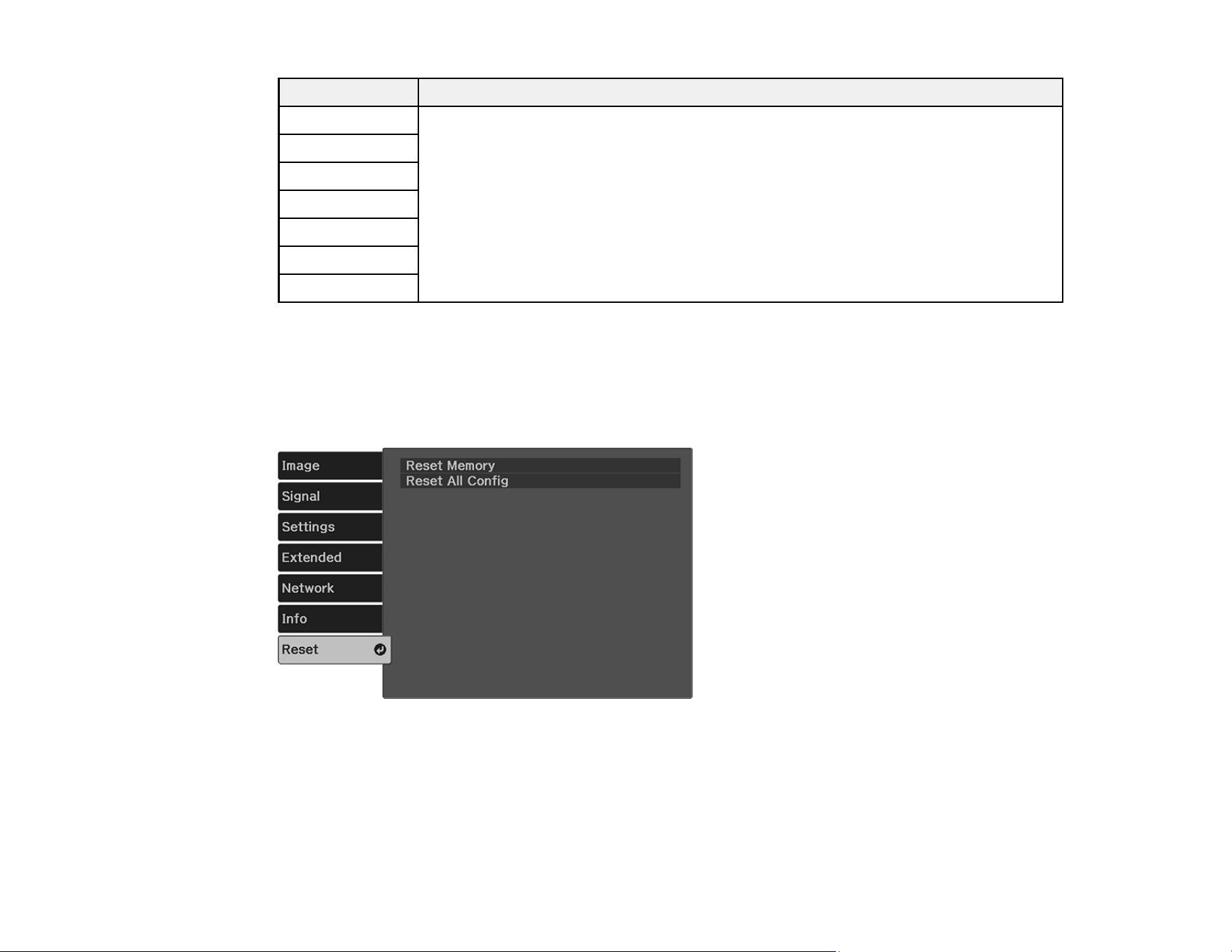
115
Event ID code Cause and solution
0020 A communication error has occurred. Try restarting the network software and
restarting your projector. If that does not solve the problem, contact Epson for help.
0026
0032
0036
0037
0038
0899
Parent topic: Projector Information Display - Info Menu
Projector Reset Options - Reset Menu
You can reset the Memory settings using the Reset Memory option and reset most of the projector
settings to their default values using the Reset All Config option on the Reset menu.
You cannot reset the following settings using the Reset All Config option:
• Zoom
• Image Shift
• Memory


117
Maintaining and Transporting the Projector
Follow the instructions in these sections to maintain your projector and transport it from place to place.
Projector Maintenance
Air Filter and Vent Maintenance
Replacing the Remote Control Batteries
Transporting the Projector
Projector Maintenance
Your projector needs little maintenance to keep working at its best.
You may need to clean the lens periodically, and clean the air filter and air vents to prevent the projector
from overheating due to blocked ventilation.
The only parts you should replace are the air filter and remote control batteries. If any other part needs
replacing, contact Epson or an authorized Epson servicer.
This projector uses a sealed laser light source which does not need servicing and cannot be replaced.
Warning: Before cleaning any part of the projector, turn it off and unplug the power cord. Never open
any cover on the projector, except as specifically explained in this manual. Dangerous electrical voltages
in the projector can injure you severely.
Warning: Do not try to service this product yourself, except as specifically explained in this manual.
Refer all other servicing to qualified servicers.
Cleaning the Lens
Cleaning the Projector Case
Parent topic: Maintaining and Transporting the Projector
Cleaning the Lens
Clean the projector's lens periodically, or whenever you notice dust or smudges on the surface. Make
sure you unplug the projector before cleaning the lens.
• To remove dust or smudges, gently wipe the lens with a cloth meant for cleaning glasses and lenses.

118
• To remove stubborn smudges, moisten a soft, lint-free cloth with lens cleaner and gently wipe the
lens. Do not spray any liquid directly on the lens.
Warning: Do not use a lens cleaner that contains flammable gas. The high heat generated by the
projector may cause a fire.
Caution: Do not use glass cleaner or any harsh materials to clean the lens and do not subject the lens
to any impacts; you may damage it. Do not use canned air, or the gases may leave a residue. Avoid
touching the lens with your bare hands to prevent fingerprints on or damage to the lens surface.
Parent topic: Projector Maintenance
Related tasks
Turning Off the Projector
Cleaning the Projector Case
Before cleaning the projector case, turn off the projector and unplug the power cord.
• To remove dust or dirt, use a soft, dry, lint-free cloth.
• To remove stubborn dirt, use a soft cloth moistened with water and mild soap. Do not spray liquid
directly on the projector.
Caution: Do not use wax, alcohol, benzine, paint thinner, or other chemicals to clean the projector
case. These can damage the case. Do not use canned air, or the gases may leave a flammable
residue.
Parent topic: Projector Maintenance
Related tasks
Turning Off the Projector
Air Filter and Vent Maintenance
Regular filter maintenance is important to maintaining your projector. Your Epson projector is designed
with an easily accessible, user-replaceable filter to protect your projector and make regular maintenance
simple. Filter maintenance intervals will depend on the environment.
If regular maintenance is not performed, your Epson projector will notify you when the temperature
inside the projector has reached a high level. Do not wait until this warning appears to maintain your
projector filter as prolonged exposure to high temperatures may reduce the life of your projector or laser.

119
Damage due to the failure to properly maintain the projector or its filter may not be covered by the
projector's Limited Warranty.
Cleaning the Air Filter and Vents
Replacing the Air Filter
Parent topic: Maintaining and Transporting the Projector
Cleaning the Air Filter and Vents
Clean the projector's air filter or vents if they get dusty, or if you see a message telling you to clean them.
Caution: Do not use water or any detergent to clean the air filter. Do not use canned air, or the gases
may leave a flammable residue.
1. Turn off the projector and unplug the power cord.
2. Lift the projector on the side of the air filter.
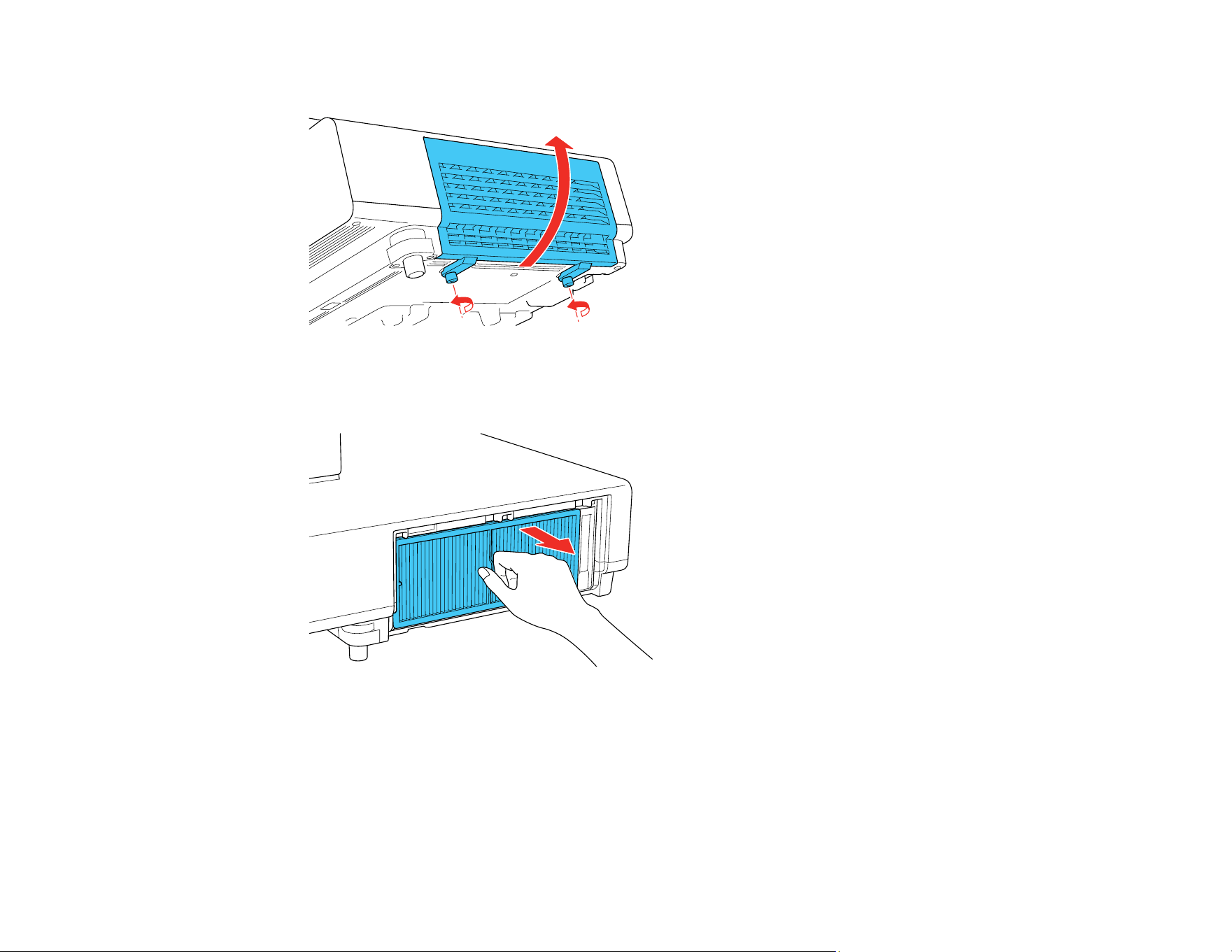
120
3. Loosen the screws securing the air filter cover and remove the air filter cover.
4. Set the projector down.
5. Pull the air filter out of the projector.

121
6. Tap each side of the filter 4 to 5 times to shake off any excess dust. Do this outside the room or
away from the projector.
Caution: Do not use excessive force when tapping the air filter, or it may crack and become
unusable. Do not rinse the air filter in water, or use any detergent or solvent to clean it. Do not use
canned air; the gases may leave a flammable residue, or push dust and debris into the projector's
optics or other sensitive areas.
7. Vacuum the front of the air filter (the side with the tabs) to remove any remaining dust.
Note: If dust is difficult to remove or the air filter is damaged, replace the air filter.
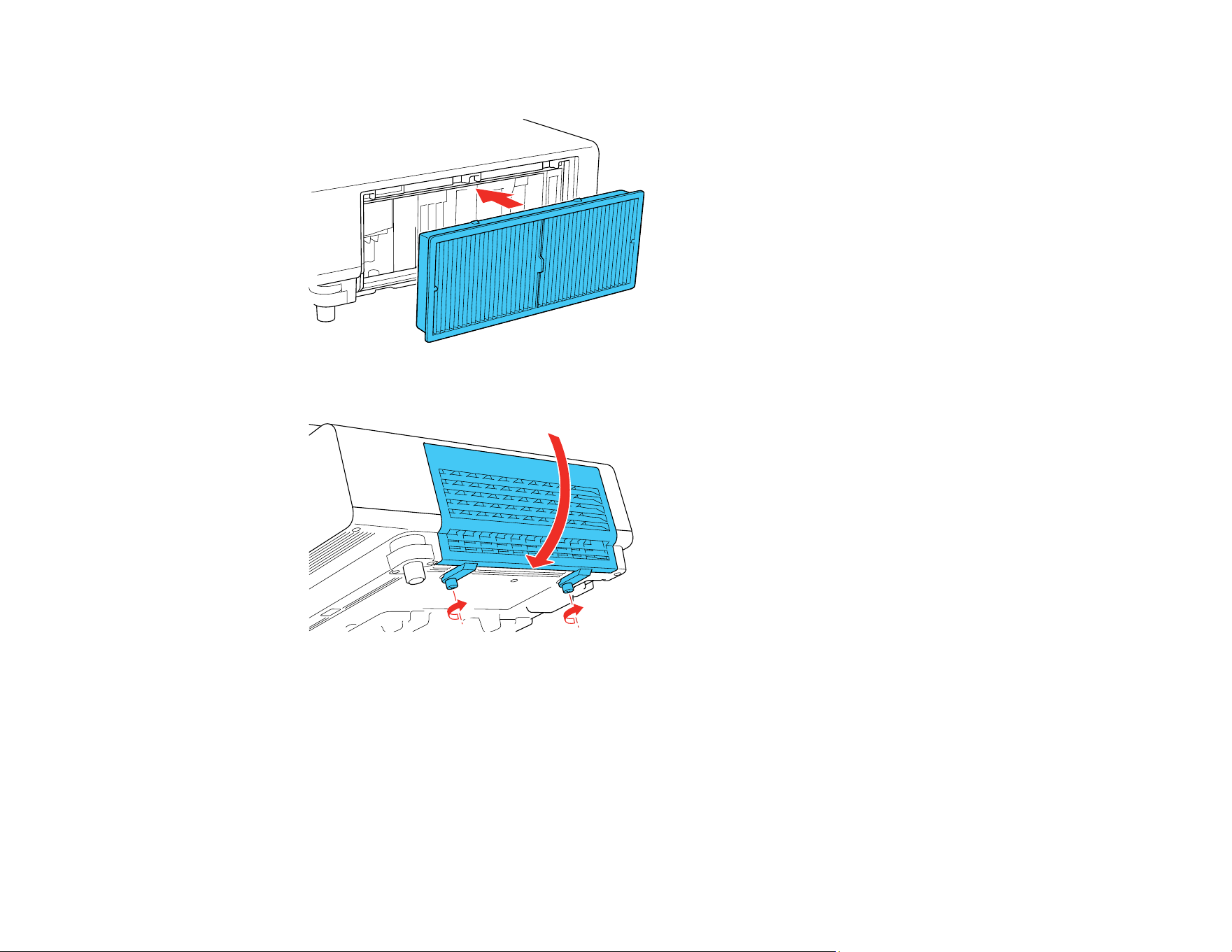
122
8. Place the air filter back in the projector as shown.
9. Lift the projector on the side of the air filter, close the air filter cover, and tighten the screws.
Parent topic: Air Filter and Vent Maintenance
Related tasks
Turning Off the Projector
Replacing the Air Filter
You need to replace the air filter in the following situations:
• After cleaning the air filter, you see a message telling you to clean or replace it
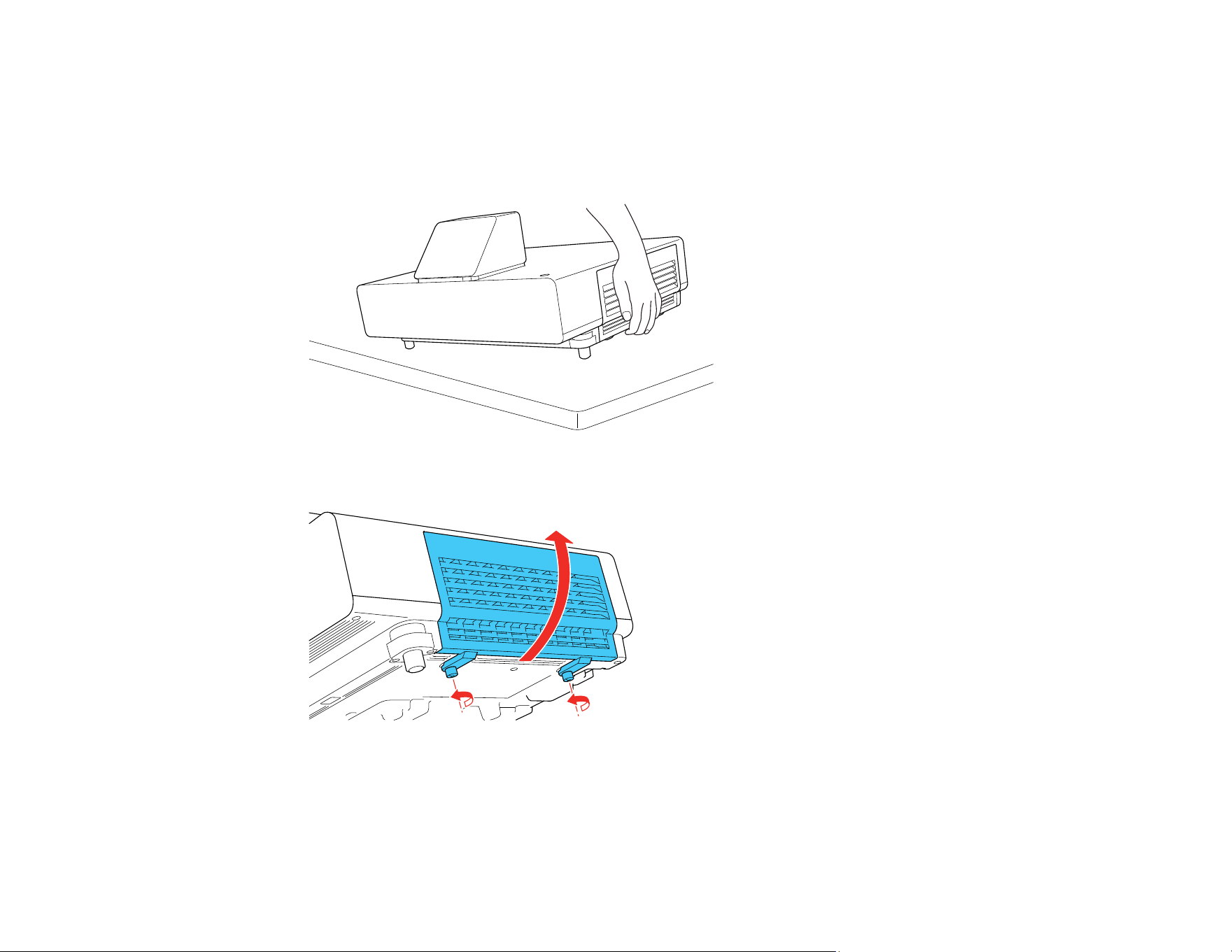
123
• The air filter is torn or damaged
You can replace the air filter while the projector is placed on a table.
1. Turn off the projector and unplug the power cord.
2. Lift the projector on the side of the air filter.
3. Loosen the screws securing the air filter cover and remove the air filter cover.
4. Set the projector down.
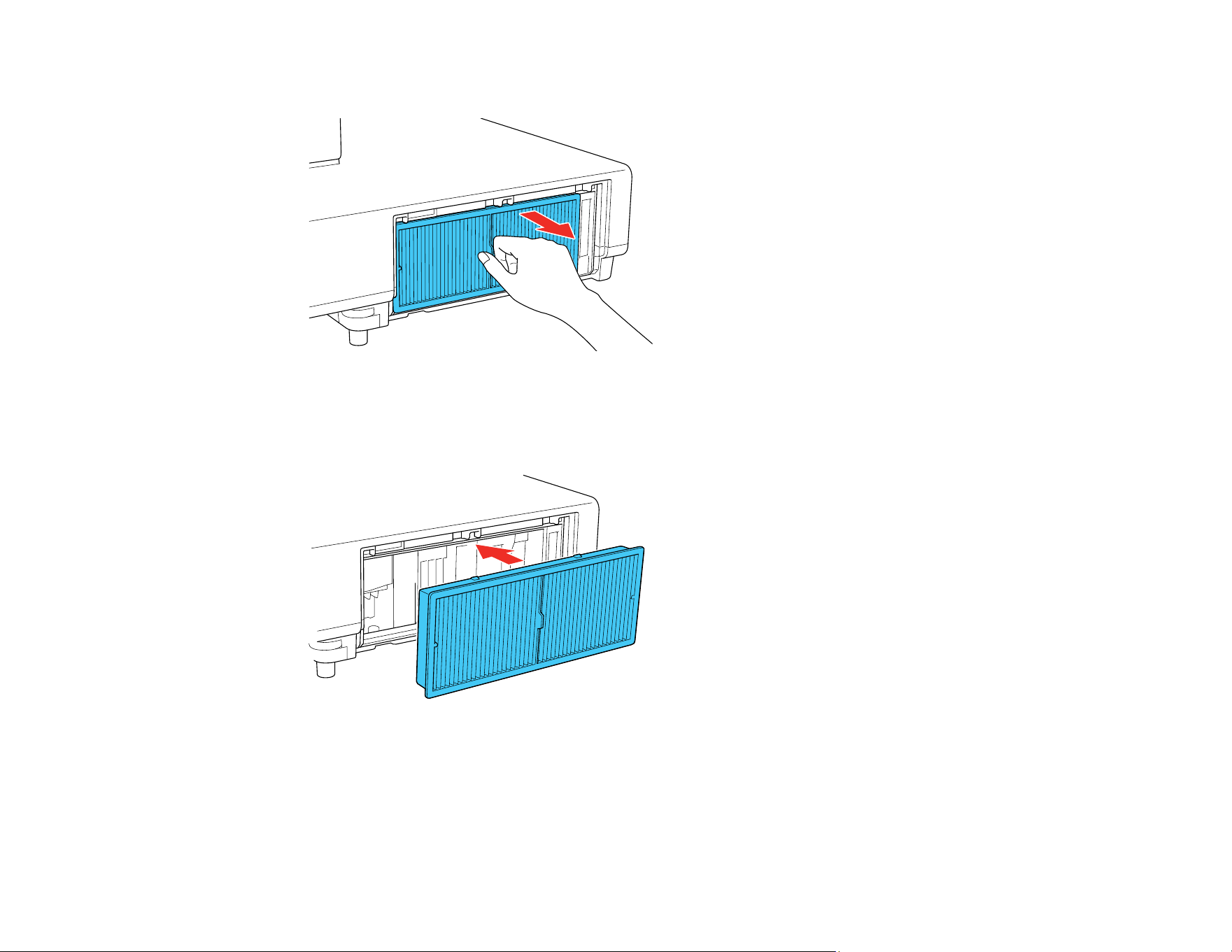
124
5. Pull the air filter out of the projector.
Note: Air filters contain polypropylene. Dispose of used air filters according to local regulations.
6. Place the new air filter in the projector as shown.
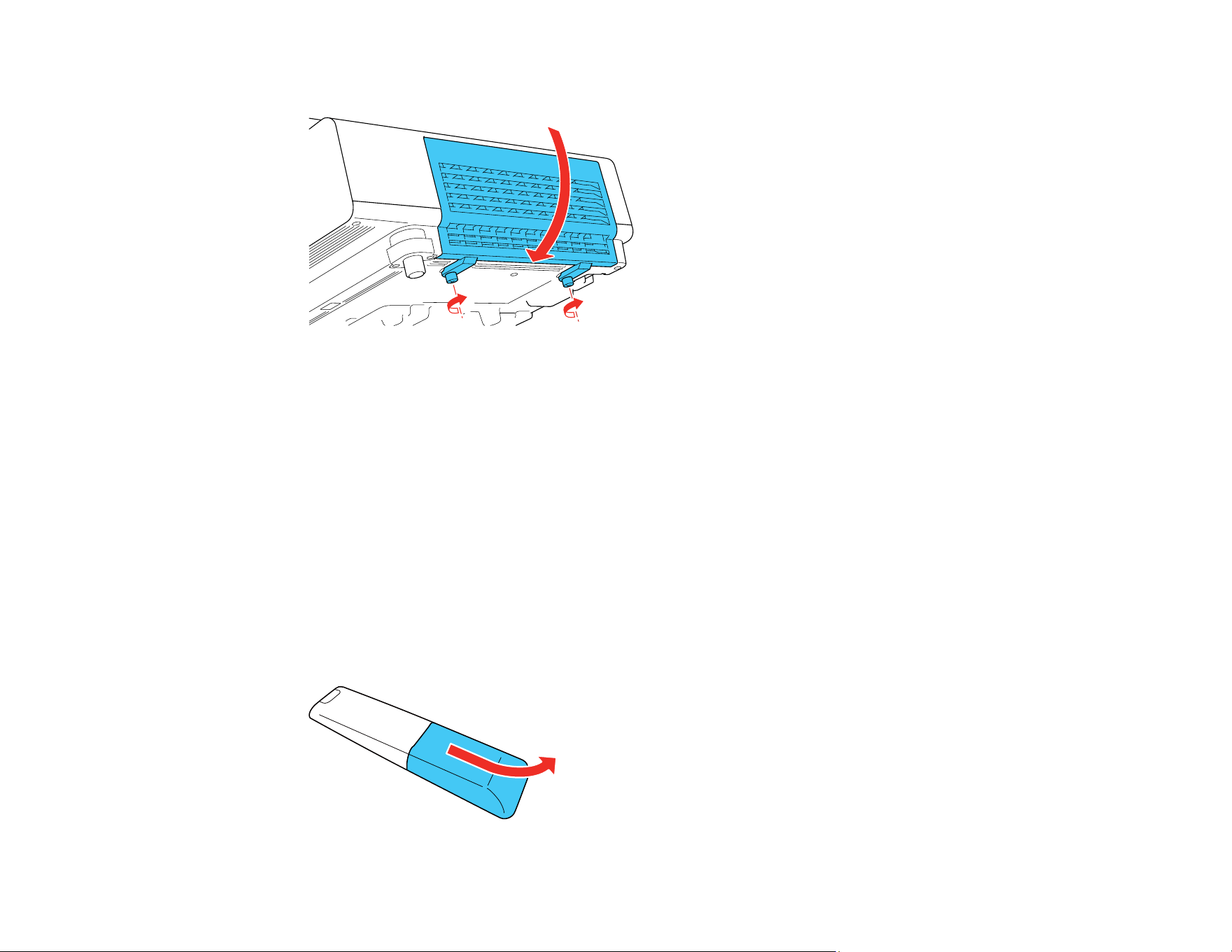
125
7. Lift the projector on the side of the air filter, close the air filter cover, and tighten the screws.
Parent topic: Air Filter and Vent Maintenance
Related tasks
Turning Off the Projector
Replacing the Remote Control Batteries
The remote control uses two AAA manganese or alkaline batteries. Replace the batteries as soon as
they run out.
Caution: Use only the type of batteries specified in this manual. Do not install batteries of different types,
or mix new and old batteries.
Note: Your remote may look different but the steps are the same.
1. Remove the battery cover as shown.
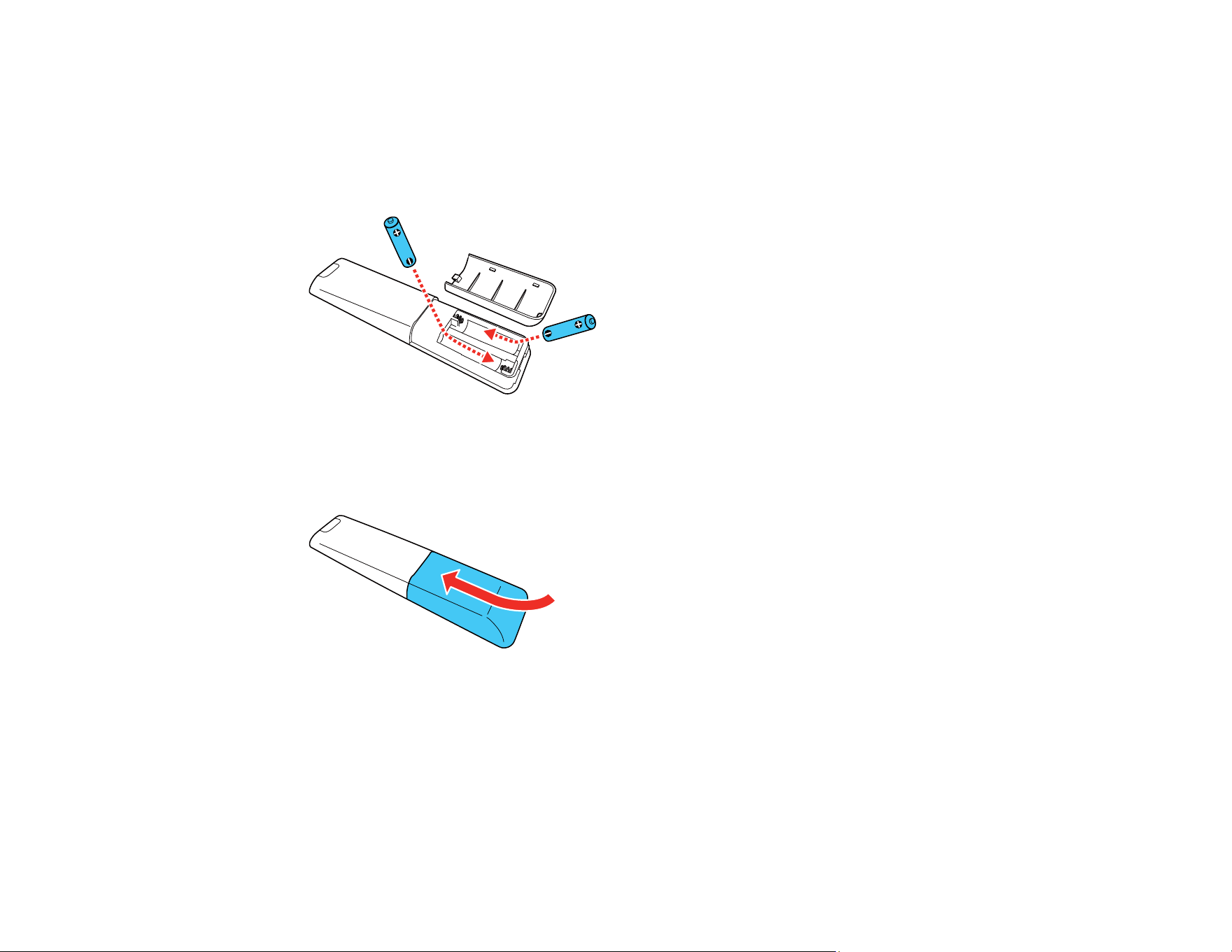
126
2. Remove the old batteries.
Warning: If the battery fluid has leaked, wipe it away with a soft cloth and avoid getting the fluid on
your hands. If it gets on your hands, wash them immediately to avoid injury.
3. Insert the batteries with the + and – ends facing as shown.
Warning: Make sure the batteries are inserted in the correct positions. If the batteries are not
inserted correctly, they could explode or leak, causing a fire, injury, or damage to the product.
4. Replace the battery cover and slide it up until it clicks into place.
Warning: Dispose of used batteries according to local regulations. Do not expose batteries to heat
or flame. Keep batteries out of the reach of children; they are choking hazards and are very
dangerous if swallowed.
Parent topic: Maintaining and Transporting the Projector

127
Transporting the Projector
The projector contains precision parts, some of which are glass. Follow these guidelines to transport,
ship, or store the projector safely:
• Remove any equipment connected to the projector.
• When transporting the projector a long distance or as checked luggage, pack it in a firm box with
cushioning around it and mark the box "Fragile."
• When shipping the projector for repairs, place it in its original packing materials, if possible, or use
equivalent materials with cushioning around the projector. Mark the box "Fragile."
Note: Epson shall not be liable for any damages incurred during transportation.
Parent topic: Maintaining and Transporting the Projector

128
Solving Problems
Check the solutions in these sections if you have any problems using the projector.
Projection Problem Tips
Projector Light Status
Solving Image or Sound Problems
Solving Projector or Remote Control Operation Problems
Solving Network Problems
Where to Get Help (U.S. and Canada)
Where to Get Help (Latin America)
Projection Problem Tips
If the projector is not working properly, try turning it off and unplugging it. Then plug it back in and turn it
on.
If this does not solve the problem, check the following:
• The lights on the projector may indicate what the problem is.
• The solutions in this manual can help you solve many problems.
If none of these solutions help, you can contact Epson for technical support.
Parent topic: Solving Problems
Related references
Where to Get Help (Latin America)
Where to Get Help (U.S. and Canada)
Projector Light Status
Related tasks
Cleaning the Lens
Cleaning the Air Filter and Vents
Replacing the Air Filter
Projector Light Status
The lights on the projector indicate the projector status and let you know when a problem occurs. Check
the status and color of the lights and look for a solution in the table here.

129
Note: If the Illumination setting is Off, all indicator lights are off under normal projection conditions.
1 On/Standby light
2 Status light
3 Laser light
4 Temp (temperature) light
On/Standby
light
Status light Laser light Temp light Status and solution
Blue Blue Off Off Normal operation.
Blue Flashing Off Off Warming up. Wait for an image to
appear.
Shutting down. (When the Status light
stops flashing, you can unplug the
projector.)
Blue/Off Off Off Off Standby mode or monitoring.
Flashing Off Off Off Preparing for monitoring or quick
startup mode; all features are
disabled.

130
On/Standby
light
Status light Laser light Temp light Status and solution
Flashing Varies Off Flashing Projector is too hot. If the temperature
continues to rise, projection will stop
automatically.
• Make sure that the vents and air
filter are not clogged with dust or
obstructed by nearby objects.
• Clean or replace the air filter.
• Make sure the environmental
temperature around the air intake
vents is not too hot.
Off Flashing Off Solid Projector has overheated and turned
off. Leave it turned off to cool down
and wait about five minutes. After the
fan has stopped, disconnect the
power cord and do the following:
• Make sure that the vents and air
filter are not clogged with dust or
obstructed by nearby objects.
• Make sure the environmental
temperature around the air intake
vents is not too hot.
• Clean or replace the air filter.
• If operating the projector at high
altitude, turn on High Altitude
Mode.
• If the problem persists, unplug the
projector and contact Epson for
help.
Flashing Varies Flashing Off Laser warning. Turn the projector off,
unplug it, and contact Epson for help.
Off Flashing Solid Off Laser has a problem. Turn the
projector off, unplug it, and contact
Epson for help.
131
On/Standby
light
Status light Laser light Temp light Status and solution
Off Flashing Off Flashing A fan or sensor has a problem. Turn
the projector off, unplug it, and
contact Epson for help.
Off Flashing Flashing Off Internal projector error. Turn the
projector off, unplug it, and contact
Epson for help.
Parent topic: Solving Problems
Solving Image or Sound Problems
Check the solutions in these sections if you have any problems with projected images or sound.
Solutions When No Image Appears
Solutions When "No Signal" Message Appears
Solutions When "Not Supported" Message Appears
Solutions When Only a Partial Image Appears
Solutions When the Image is Not Rectangular
Solutions When the Image Contains Noise or Static
Solutions When the Image is Fuzzy or Blurry
Solutions When the Image Brightness or Colors are Incorrect
Solutions When a 3D Image Does Not Display Correctly
Solutions to Sound Problems
Parent topic: Solving Problems
Solutions When No Image Appears
If no image appears, try the following solutions:
• Make sure the lens cap is off.
• Press the A/V mute button on the projector remote control to see if the image was temporarily
turned off.
• Check the status lights to confirm the projector is operating normally.
• Make sure all necessary cables are securely connected and the power is on for the projector and
connected video sources.

132
• Make sure the image being projected is not completely black (only when projecting computer images).
• Press the projector's power button to wake it from standby or sleep mode. Also see if your connected
computer is in sleep mode or displaying a blank screen saver.
• If you are projecting from a streaming device, make sure it is powered by the USB power cable inside
the projector. Turn on the connected streaming device or video source, and press the play button to
start a video, if necessary.
• Make sure the connected device meets the HDMI CEC standard. See the documentation supplied
with the device for more information. If necessary, set the CEC function for the connected device
again and restart the device. Turn off the projector and the connected streaming device or video
source, and then turn them back on.
• Turn off the projector and the connected streaming device or video source, and then turn them back
on.
• Press the Menu button. If the projector menu displays, there may be a problem with the connected
video source, cable connection, or port.
• Check the settings on the Signal menu to make sure they are correct for the current video source.
• Adjust the Brightness setting on the Image menu.
• Check the Display menu to make sure the Messages setting is set to On.
• If the projector does not respond when you press the control panel buttons, the buttons may be
locked. Unlock the buttons. Press and hold the power button for 7 seconds or use the remote control.
• If the projector does not respond when you press buttons on the remote control, make sure the remote
and projector are within range of each other.
• If you are projecting from a computer, make sure it is set up to display on an external monitor. If the
computer's display is set to an extended or mirrored mode, try changing it to external output only.
• If you are projecting from a computer using an HDMI cable, turn off the computer and the projector.
Make sure the HDMI cable is securely connected, turn the projector on, then turn the computer on.
• Check the video copyright protection and encryption. The projector may not be able to project
copyrighted videos with updated or revised versions of HDCP encryption.
• If you are using a streaming media device, make sure it has an active Internet connection. Also make
sure it is securely connected to the HDMI3 port using the HDMI extension cable and to the DC Out
(2.0A) port using a USB power cable.
• If the other solutions do not solve the problem, reset all of the projector settings using the options on
the Reset menu.
Parent topic: Solving Image or Sound Problems

133
Related references
Projector Light Status
Projector Setup Settings - Extended Menu
Input Signal Settings - Signal Menu
Projector Reset Options - Reset Menu
Solutions When "No Signal" Message Appears
If the "No Signal" message appears, try the following solutions:
• Press the Source button on the projector's control panel or remote control repeatedly to cycle
through the available sources. Wait a few seconds for an image to appear on each source you cycle
through.
• Press the Home button on the projector's control panel to select from a list of available sources
(shown in black text).
• Turn on the connected computer or video source, and press its play button to begin your presentation,
if necessary.
• Check the connection from the projector to your video sources.
• If you are projecting from a laptop computer, make sure it is set up to display on an external monitor.
• If necessary, turn the projector and the connected computer or video source off and then on again.
• If you are projecting from an HDMI source, replace the HDMI cable with a shorter one.
• Try a different video cable.
• If the other solutions do not solve the problem, reset all of the projector settings using the options on
the Reset menu.
Displaying From a PC Laptop
Displaying From a Mac Laptop
Parent topic: Solving Image or Sound Problems
Related concepts
Projector Connections
Related tasks
Selecting an Image Source
Displaying From a PC Laptop
If you see the "No Signal" message when you display from a PC laptop, you need to set up the laptop to
display on an external monitor.

134
1. Hold down the laptop's Fn key and press the key labeled with a monitor icon or CRT/LCD. (See your
laptop manual for details.) Wait a few seconds for an image to appear. To display on both the
laptop's monitor and the projector, try pressing the same keys again.
Note: On Windows 7 or later, hold down the Windows key and press P at the same time, then click
Duplicate.
2. If the same image is not displayed by the laptop and projector, check the Windows Display utility to
make sure the external monitor port is enabled and extended desktop mode is disabled. (See your
computer or Windows manual for instructions.)
3. If necessary, check your video card settings and set the multiple display option to Clone, Mirror, or
Duplicate.
Parent topic: Solutions When "No Signal" Message Appears
Displaying From a Mac Laptop
If you see the "No Signal" message when you display from a Mac laptop, you need to set up the laptop
for mirrored display. (See your laptop manual for details.)
1. Open the System Preferences utility and select Displays, Display, or Color LCD.
2. Click the Arrange or Arrangement tab.
3. Select the Mirror Displays checkbox.
Parent topic: Solutions When "No Signal" Message Appears
Solutions When "Not Supported" Message Appears
If the "Not Supported" message appears, try the following solutions:
• Make sure the input signal is supported by the projector.
• Make sure the computer's display resolution does not exceed the projector's resolution and frequency
limit. If necessary, select a different display resolution for your computer. (See your computer manual
for details.)
• As a test, try setting the computer's display resolution to the lowest possible setting, and then
gradually increase it as necessary.
• Check the input resolution under Projector Info in the Info menu and make sure that the projector
supports that resolution.
Parent topic: Solving Image or Sound Problems

135
Related references
Supported Video Display Formats
Projector Information Display - Info Menu
Solutions When Only a Partial Image Appears
If only a partial computer image appears, try the following solutions:
• Check the Blanking setting in the Settings menu.
• Select a different image aspect mode in the Signal menu.
• Check your computer display settings to disable dual display and set the resolution within the
projector's limits. (See your computer manual for details.)
• Check the resolution assigned to your presentation files to see if they are created for a different
resolution than you are projecting in. (See your software help for details.)
• Make sure you selected the correct Projection setting.
• Try adjusting the image position using the Image Shift setting in the Settings menu.
• If you are passing the video signal through another device, make sure the device is set up correctly,
then try connecting the video source directly to the projector.
• If you are viewing a 3D image, make sure you selected the correct 3D format.
• If the other solutions do not solve the problem, reset all of the projector settings using the options on
the Reset menu.
Parent topic: Solving Image or Sound Problems
Related references
Projector Setup Settings - Extended Menu
Projector Feature Settings - Settings Menu
Input Signal Settings - Signal Menu
Projector Reset Options - Reset Menu
Related tasks
Changing the Image Aspect Ratio
Resizing the Image with the Zoom Setting
Solutions When the Image is Not Rectangular
If the projected image is not evenly rectangular, try the following solutions:
• Place the projector directly in front of the center of the screen, facing it squarely, if possible.

136
• Adjust the image shape using the Keystone menu setting.
• Adjust the Quick Corner setting to correct the image shape.
Parent topic: Solving Image or Sound Problems
Related concepts
Projector Placement
Related tasks
Correcting Image Shape with Quick Corner
Correcting Image Shape with the Keystone Buttons
Solutions When the Image Contains Noise or Static
If the projected image seems to contain electronic interference (noise) or static, try the following
solutions:
• Check the cables connecting your computer or video source to the projector. They should be:
• Separated from the power cord to prevent interference
• Securely connected at both ends
• Not connected to an extension cable
• No longer than 24 feet (7.3 m) for HDMI cables
• Check the settings on the projector's Signal menu to make sure they match the video source. If
available for your video source, adjust the Deinterlacing and Noise Reduction settings.
• Select a computer video resolution and refresh rate that are compatible with the projector.
• If you adjusted the image shape using the projector controls, try decreasing the Sharpness setting to
improve image quality.
• If you connected an extension power cable, try projecting without it to see if it caused interference in
the signal.
• Try a different cable.
• Try adjusting the Image Enhancement settings on the Image menu.
• If you connected an A/V system that does not support ARC to the HDMI2 (ARC) port, the image may
be distorted.
Parent topic: Solving Image or Sound Problems
Related references
Input Signal Settings - Signal Menu

137
Image Quality Settings - Image Menu
Solutions When the Image is Fuzzy or Blurry
If the projected image is fuzzy or blurry, try the following solutions:
• Adjust the image focus.
• Clean the projector lens.
• Position the projector close enough to the screen, and directly in front of it.
• Position the projector so the keystone adjustment angle is not so wide that it distorts the image.
• Adjust the Sharpness setting to improve image quality.
• If you are projecting from a computer, adjust the computer's resolution to match the projector's native
resolution, if possible.
• Make sure you removed the lens cap.
Parent topic: Solving Image or Sound Problems
Related concepts
Projector Placement
Related references
Image Quality Settings - Image Menu
Related tasks
Cleaning the Lens
Focusing the Image
Solutions When the Image Brightness or Colors are Incorrect
If the projected image is too dark or light, or the colors are incorrect, try the following solutions:
• Check the Color Space and Dynamic Range settings in the Signal menu and make sure they match
the input signal. Select Auto for each setting.
• Try selecting a color mode that best fits the image and environment.
• Check your video source settings.
• Adjust the available settings on the Image menu for the current input source, such as Brightness,
Contrast, Tint, White Balance, and/or Color Saturation.
• Make sure you selected the correct Video Range or EDID setting on the Signal menu, if available for
your image source.

138
• Make sure all the cables are securely connected to the projector and your video device. If you
connected long cables, try connecting shorter cables.
• Make sure the Light Output setting in the Image menu is set correctly.
• Position the projector close enough to the screen.
• If the above solutions do not correct your image, try resetting all of the projector's settings using the
Reset menu.
Parent topic: Solving Image or Sound Problems
Related concepts
Projector Placement
Related references
Input Signal Settings - Signal Menu
Image Quality Settings - Image Menu
Projector Reset Options - Reset Menu
Solutions When a 3D Image Does Not Display Correctly
If a 3D image does not display correctly, try the following solutions:
• Make sure the 3D Display setting on the Signal menu is set to Auto or 3D.
• Make sure your video device and media are both 3D-compatible. Refer to the documentation that
came with your video device for more information.
• Make sure you are using an HDMI cable that supports 3D signals.
• Make sure you selected the correct 3D Format setting on the Signal menu. Normally this should be
set to Auto, but in some cases you may need to select a different setting to match the 3D signal from
your video device.
• Make sure you are using RF 3D active shutter glasses.
• Make sure your 3D glasses are turned on and fully charged. If the glasses have entered standby
mode, turn them off and then back on.
• Make sure your 3D glasses are paired with the projector.
• Adjust the 3D Depth and 3D Brightness settings on the Signal menu. If the setting is too high, you
may have 3D crosstalk or image ghosting.
• Make sure you are within the 3D viewing range.
• Make sure your screen size matches the Diagonal Screen Size setting on the Signal menu.

139
• Avoid using the projector near wireless networks, microwave ovens, 2.4 GHz cordless phones, or
other devices that use the 2.4 GHz frequency band. These devices can interfere with the signal
between the projector and the 3D glasses.
• If the other solutions do not solve the problem, change the Inverse 3D Glasses setting on the Signal
menu. Return the setting to its original value if changing it does not solve the problem as it can
adversely affect the 3D image.
Parent topic: Solving Image or Sound Problems
Related references
Input Signal Settings - Signal Menu
3D Viewing Range
Solutions to Sound Problems
If there is no sound when you expect it or the volume is too low or high, try the following solutions:
• Adjust the projector's volume settings.
• Press the A/V mute button on the projector remote control to resume video and audio if they were
temporarily stopped.
• Make sure the Audio Out Device settings are correct.
• Check your computer or video source to make sure the volume is turned up and the audio output is set
for the correct source.
• Check the cable connection between the projector and your video source.
• Try disconnecting and reconnecting the audio cable.
• Check the audio out cable connection between the projector and your external speakers.
• If you do not hear sound from an HDMI source, set the connected device to PCM output.
• Make sure any connected audio cables are labeled "No Resistance."
• If you are using an ARC-compatible A/V system, make sure it is connected to the projector's ARC-
compatible HDMI port and set the HDMI Link and Audio Out Device settings accordingly.
• If you are using a Mac and you do not hear sound from an HDMI source, make sure your Mac
supports audio through the HDMI port. If not, you need to connect an audio cable directly to your
speaker system.
• If you hear a hissing sound from your projector's speakers when projecting from a computer running
Windows 10 over a network, you may need to adjust the Windows 10 sound properties:
1. Right-click the speaker icon in the Windows taskbar and select Sounds.

140
2. Click the Playback tab, select the playback device, and click Properties.
3. Click the Advanced tab, set the sample rate and bit depth setting to 16 bit, 44100 Hz (CD Quality),
click Apply, and click OK.
Note: These steps may vary depending on the Windows 10 version you are using.
• If you turn the projector on immediately after turning it off, the cooling fans may run at high speed
momentarily and cause an unexpected noise. This is normal.
Parent topic: Solving Image or Sound Problems
Related references
Projector Feature Settings - Settings Menu
Related tasks
Controlling the Volume with the Volume Buttons
Shutting Off the Picture and Sound Temporarily
Solving Projector or Remote Control Operation Problems
Check the solutions in these sections if you have problems operating the projector or remote control.
Solutions to Projector Power or Shut-Off Problems
Solutions to Remote Control Problems
Solutions to HDMI Link Problems
Parent topic: Solving Problems
Solutions to Projector Power or Shut-Off Problems
If the projector does not come on when you press the power button or it shuts off unexpectedly, try the
following solutions:
• Make sure the power cord is securely connected to the projector and to a working electrical outlet.
• The projector's buttons may be locked for security. Unlock the buttons or use the remote control to
turn on the projector.
• Turn off the HDMI Link setting. If this resolves the issue, check the settings on connected devices and
make sure the projector is not receiving shut down requests over CEC.
• If the projector's laser shuts off, the Status light is flashing, and the Temp light is on, the projector has
overheated and shut off. Check the solutions for this light status.
• If the power button on the remote control does not turn on the projector, check its batteries.

141
• Make sure Sleep Mode is not in effect.
• The power cord may be defective. Try another power cord. If that doesn't work, disconnect the cord
and contact Epson.
• Disconnect the projector from the network to see if there is a network setting that needs to be
changed.
Parent topic: Solving Projector or Remote Control Operation Problems
Related references
Projector Light Status
Projector Setup Settings - Extended Menu
Projector Feature Settings - Settings Menu
Related tasks
Unlocking the Projector's Buttons
Related topics
Using the Projector on a Network
Solutions to Remote Control Problems
If the projector does not respond to remote control commands, try the following solutions:
• Check that the remote control batteries are installed correctly and have power. If necessary, replace
the batteries.
• Make sure you are operating the remote control within the reception angle and range of the projector.
• Make sure the projector is not warming up or shutting down.
• Check to see if a button on the remote control is stuck down, causing it to enter sleep mode. Release
the button to wake the remote control up.
• Make sure the projector remote control is paired to the streaming device to operate Android TV
features (if applicable).
• Make sure you are using the projector remote control and not the remote control for Android TV.
• Strong fluorescent lighting, direct sunlight, or infrared device signals may be interfering with the
projector's remote receivers. Dim the lights or move the projector away from the sun or interfering
equipment.
• If you lose the remote control, you can purchase another from an authorized Epson reseller.
Parent topic: Solving Projector or Remote Control Operation Problems

142
Related references
Remote Control Operation
Related tasks
Replacing the Remote Control Batteries
Solutions to HDMI Link Problems
If you cannot control an HDMI device using the HDMI Link buttons, try the following solutions:
• Make sure all necessary cables are securely connected and the power is on for the projector and
connected video sources.
• Make sure the cables meet the HDMI CEC standard.
• Make sure the connected device meets the HDMI CEC standard. See the documentation supplied
with the device for more information.
• Make sure the HDMI Link setting is set to On.
• Check if the device is available in the Device Connections list in the Settings menu. If the device
does not appear, it does not meet the HDMI CEC standards. Connect a different device.
• Make sure the connected devices are turned on and in standby status. See the documentation
supplied with the device for more information.
• If you connected a new device or changed any connections, make sure the CEC function is set for the
connected device. You may need to restart the device.
• Connect no more than three devices that support HDMI Link at the same time.
• If you have connected a speaker or receiver, set the output to PCM.
• If your projector shuts itself off, the connected video source may be turning off the projector. Try
turning off the HDMI Link setting on the projector and video source. See the documentation for your
device for information on how to disable the HDMI Link setting.
Parent topic: Solving Projector or Remote Control Operation Problems
Related references
Projector Feature Settings - Settings Menu
Solving Network Problems
Check the solutions in these sections if you have problems using the projector on a network.
Solutions When Wireless Authentication Fails
Solutions When the Image Contains Static During Network Projection

143
Parent topic: Solving Problems
Solutions When Wireless Authentication Fails
If you cannot authenticate a wireless connection, try the following solutions:
• Make sure the Wireless LAN Power setting is set to On. If it is already set to On, set it to Off, then set
it to On again.
• Check the Security settings and passphrase in the Network Configuration menu. The password is
case sensitive.
• Check the Event ID number displayed in the Info menu and check the link below to identify the
problem.
• Make sure the connected device is on and operating properly.
• Make sure you are using the correct Epson wireless LAN module.
Parent topic: Solving Network Problems
Related references
Additional Components
Event ID Code List
Projector Network Settings - Network Menu
Solutions When the Image Contains Static During Network Projection
If the projected image contains static during network projection, try the following solutions:
• Check for any obstacles between the access point, the computer, the mobile device, and the projector.
If necessary, change their positions to improve communication. Also make sure that they are not too
far apart; move them closer together and try to connect again.
• If the wireless connection is slow or your projected image contains noise, check for interference from
other equipment, such as a Bluetooth device or microwave. Move the interfering device farther away
or expand your wireless bandwidth.
• If the connection speed declines, reduce the number of connected devices.
• If you are using Epson iProjection, you can try adjusting the iProjection settings. See the Epson
iProjection Operation Guide for more information.
Parent topic: Solving Network Problems

144
Where to Get Help (U.S. and Canada)
If you need to contact Epson for technical support services, use the following support options.
Internet Support
Visit Epson's support website at epson.com/support (U.S.), epson.ca/support (Canada), or
latin.epson.com/support (Caribbean) and select your product for solutions to common problems with
your projector. You can download utilities and documentation, get FAQs and troubleshooting advice, or
e-mail Epson with your questions.
Speak to a Support Representative
To use the Epson PrivateLine Support service, call (800) 637-7661. This service is available for the
duration of your warranty period. You may also speak with a projector support specialist by dialing (562)
276-4394 (U.S.) or (905) 709-3839 (Canada).
Support hours are 6 AM to 8 PM, Pacific Time, Monday through Friday and 7 AM to 4 PM, Pacific Time,
Saturday.
Days and hours of support are subject to change without notice. Toll or long distance charges may
apply.
Before you call, have the following information ready:
• Product name
• Product serial number (located on the bottom or rear of the projector, or in the menu system)
• Proof of purchase (such as a store receipt) and date of purchase
• Computer or video configuration
• Description of the problem
Purchase Supplies and Accessories
You can purchase screens, other optional accessories, and replacement parts from an Epson authorized
reseller. To find the nearest reseller, call 800-GO-EPSON (800-463-7766) in the U.S. or 800-807-7766 in
Canada. Or you can purchase online at epsonstore.com (U.S. sales) or epsonstore.ca (Canadian sales).
To purchase a replacement remote control, call (562) 276-4394 (U.S.) or (905) 709-3839 (for dealer
referral in Canada).
Parent topic: Solving Problems
145
Where to Get Help (Latin America)
If you need to contact Epson for technical support services, use the following support options.
Internet Support
Visit Epson's support website at epson.com.jm/support and select your product for solutions to common
problems. You can download utilities and documentation, get FAQs and troubleshooting advice, or e-
mail Epson with your questions.
Speak to a Support Representative
Before you call for support, please have the following information ready:
• Product name
• Product serial number (located on the bottom or rear of the projector, or in menu system)
• Proof of purchase (such as a store receipt) and date of purchase
• Computer or video configuration
• Description of the problem
Then call:
Country Telephone
Argentina (54 11) 5167-0300
0800-288-37766
Bolivia* 800-100-116
Brazil 0800-007-5000
Chile (56 2) 2484-3400
Colombia Bogota: (57 1) 592-2200
Other cities: 018000-915235
Costa Rica 800-377-6627
Dominican Republic* 1-888-760-0068
Ecuador* 1-800-000-044
El Salvador* 800-6570
Guatemala* 1-800-835-0358
146
Country Telephone
Mexico Mexico City: (52 55) 1323-2052
Other cities: 01-800-087-1080
Nicaragua* 00-1-800-226-0368
Panama* 00-800-052-1376
Paraguay 009-800-521-0019
Peru Lima: (51 1) 418-0210
Other cities: 0800-10-126
Uruguay 00040-5210067
Venezuela (58 212) 240-1111
* Contact your local phone company to call this toll-free number from a mobile phone.
Note: Toll or long distance charges may apply. If your country does not appear on the list, contact the
sales office in the nearest country.
Purchase Supplies and Accessories
Parent topic: Solving Problems

147
Technical Specifications
These sections list the technical specifications of your projector.
General Projector Specifications
Projector Light Source Specifications
Remote Control Specifications
Projector Dimension Specifications
Projector Electrical Specifications
Projector Environmental Specifications
Projector Safety and Approvals Specifications
Safety and Approvals Specifications for Latin America
Supported Video Display Formats
General Projector Specifications
Type of display Poly-silicon TFT active matrix
Resolution 1920 × 1080 pixels (HD 1080)
Lens F=1.5
Focal length: 3.9 mm
Color reproduction Full color, up to 1.07 billion colors
Brightness Normal Light Source mode:
White light output 4000 lumens (ISO 21118 standard)
Color light output 4000 lumens
ECO Light Source mode:
White light output 1200 lumens (ISO 21118 standard)
Note: Color brightness (color light output) and white brightness
(white light output) will vary depending on usage conditions. Color
light output measured in accordance with IDMS 15.4; white light
output measured in accordance with ISO 21118.
Contrast ratio 2,500,000:1 with Dynamic Color Mode, Normal Light Source mode,
and Wide Zoom on

148
Image size
(in native aspect ratio)
65 inches (1.65 m) to 130 inches (3.3 m)
Projection distance
(in native aspect ratio)
16.9 inches (0.43 m) to 32.3 inches (0.82 m)
Projection methods Front
Optical aspect ratio
(width-to-height)
16:9
Focus adjustment Manual
Zoom adjustment Digital
Zoom ratio
(Tele-to-Wide)
1.0 to 1.35
Internal sound system Stereo, 10 W × 2
Noise level 36 dB (Normal Light Source mode)
23 dB (ECO Light Source mode)
Keystone correction angle ± 3º vertical and horizontal
USB Type A port compatibility One USB 2.0 compliant port for connecting the optional wireless
LAN module, firmware updates, and saving logs
Parent topic: Technical Specifications
Projector Light Source Specifications
Type Laser diode
Light source output power Up to 104.5 W
Wavelength 449 to 461 nm
Light source life
(approximate)
Up to 20000 hours
Note: Turn off this product when not in use to prolong the life of the projector. Laser life will vary
depending upon mode selected, environmental conditions, and usage. Brightness decreases over time.

149
Parent topic: Technical Specifications
Remote Control Specifications
Reception range 19.7 feet (6 m)
Batteries Two alkaline or manganese AAA
Parent topic: Technical Specifications
Projector Dimension Specifications
Height
(excluding feet)
8.3 inches (209.5 mm)
Width 18.0 inches (458 mm)
Depth 14.8 inches (375 mm)
Weight 20.5 lb (9.3 kg)
Parent topic: Technical Specifications
Projector Electrical Specifications
Rated frequency 50/60 Hz
Power supply 100 to 240 V AC ±10%
3.8 to 1.7 A
Power consumption
(100 to 120 V)
Operating:
Normal Power Consumption mode: 381 W
ECO Power Consumption mode: 236 W
Networked Standby: 2.0 W
Energy Saving: 0.5 W

150
Power consumption
(220 to 240 V)
Operating:
Normal Power Consumption mode: 366 W
ECO Power Consumption mode: 230 W
Networked Standby: 2.0 W
Energy Saving: 0.5 W
Parent topic: Technical Specifications
Projector Environmental Specifications
Temperature Operating:
Up to 7500 feet (2286 m): 41 to 95 °F (5 to 35 °C)
7500 feet (2286 m) to 10000 feet (3048 m): 41 to 86 °F (5 to 30 °C)
Storage: 14 to 140 °F (–10 to 60 °C)
Humidity (relative, non-
condensing)
Operating: 20 to 80%
Storage: 10 to 90%
Operating altitude Up to 4921 feet (1500 m)
Up to 10000 feet (3048 m) with High Altitude Mode enabled
Parent topic: Technical Specifications
Projector Safety and Approvals Specifications
United States FCC Part 15 Class B (DoC)
UL60950-1 2nd edition (cTUVus Mark)
Canada CAN ICES-3 (B)/NMB-3 (B)
CSA C22.2 No. 60950-1
Parent topic: Technical Specifications

151
Safety and Approvals Specifications for Latin America
Notice for Argentina
Bluetooth Module Model: DBUB-E207
Brand: EPSON
CNC ID: C-14922
Notice for Mexico
Operation is subject to the following two conditions: (1) this device may not cause harmful interference,
and (2) this device must accept any interference received, including interference that may cause
undesired operation of the device.
Product Model: H956A/H922A (LS500WATV/LS500BATV, LS500W/LS500B)
Bluetooth Module Model: DBUB-E207
Brand: EPSON
IFT Certification Number: RCPEPDB12-0656
Notice for Paraguay
Imported by:
Fastrax, S.A.
Av. Perú esq. Río de Janeiro, Barrios Las Mercedes, Asunción, Paraguay
Imported by:
Sol Control S.R.L.
Av. Gral. Bernardino Caballero 810 esq. Celsa Speratti, Asunción, Paraguay
Notice for Peru
Product Model: LS500WATV/LS500BATV, LS500W/LS500B
Brand: EPSON
This product uses the following Bluetooth module:
Bluetooth Module Model: DBUB-E207
FCC ID: BKMAE-E207
Product Manufacturer: Seiko Epson Corporation
152
Address: 3-3-5 Owa Suwa-shi, Nagano-Ken 392-8502, Japan
Parent topic: Technical Specifications
Supported Video Display Formats
For best results, your computer's monitor port or video card resolution should be set to display in the
projector's native resolution. However, your projector includes Epson's SizeWise chip that supports other
computer display resolutions, so your image will be resized to fit automatically.
Your computer's monitor port or video card refresh rate (vertical frequency) must be compatible with the
projector. (See your computer or video card manual for details.)
The table here lists the compatible refresh rate and resolution for each compatible video display format.
Display format Refresh rate (in Hz) Resolution (in pixels)
HDMI input signals
VGA60 60 640 × 480
21:9 60 2560 × 1080
SDTV (480i/480p) 59.94 720 × 480
SDTV (576i/576p) 50 720 × 576
HDTV (720p) 50/59.94/60 1280 × 720
HDTV (1080i) 50/59.94/60 1920 × 1080
HDTV (1080p) 23.98/24/29.97/30/50/59.94/60 1920 × 1080
4K 23.98/24/25/29.97/30/50/59.94/6
0
3840 × 2160
23.98/24/25/29.97/30/50/59.94/6
0
4096 × 2160
HDMI 3D Signals
Display format Refresh rate (in Hz) Resolution (in pixels) 3D formats
HDTV (720p) 50/59.94/60 1280 × 720 Frame Packing
Side by Side
Top and Bottom
153
Display format Refresh rate (in Hz) Resolution (in pixels) 3D formats
HDTV (1080i) 50/59.94/60 1920 × 1080 Side by Side
HDTV (1080p) 50/59.94/60 1920 × 1080 Side by Side
23.98/24 1920 × 1080 Frame Packing
Side by Side
Top and Bottom
Compatible 4K HDR Signals
Compatible 4K signals are converted for output as an HDR image. For example, a 4K 60 Hz 4:4:4 8-bit
signal is converted to a 4:2:2 10-bit HDR signal.
Press the Menu button on the remote control and select the Info menu to determine whether you are
receiving an HDR signal.
Refresh rate (in Hz) Resolution (in pixels)
23.98/24/25/29.97/30/50/59.94/60 3840 × 2160
23.98/24/25/29.97/30/50/59.94/60 4096 × 2160
Display format
(refresh rate)
Chroma
subsampling
(pixel encoding)
Color depth: 24
bits (8-bits per
pixel)
Color depth: 30
bits (10-bits per
pixel)
Color depth: 36
bits (12-bits per
pixel)
4K/60p (60 Hz) 4:4:4 SDR – –
4:2:2 SDR HDR HDR
4:2:0 SDR HDR HDR
4K/24p (24 Hz) 4:4:4 SDR HDR HDR
4:2:2 SDR HDR HDR
Parent topic: Technical Specifications

154
Notices
Check these sections for important notices about your projector.
Recycling
Important Safety Information
Laser Safety Information
Laser Light Source Warning
Important Safety Instructions
List of Safety Symbols
FCC Compliance Statement
Binding Arbitration and Class Waiver
Trademarks
Copyright Notice
Recycling
Epson offers a recycling program for end of life products. Please go to this site for information on how to
return your products for proper disposal.
Parent topic: Notices
Important Safety Information
Caution: Never look into the projector lens when the laser is turned on; the bright light can damage your
eyes. Never let children look into the lens when it is on. Never open any cover on the projector, except
the filter covers. Dangerous electrical voltages inside the projector can severely injure you. Except as
specifically explained in this User's Guide, do not attempt to service this product yourself. Refer all
servicing to qualified service personnel.
Warning: The projector and its accessories come packaged in plastic bags. Keep plastic bags away
from small children to avoid any risk of suffocation.
Parent topic: Notices

155
Laser Safety Information
This projector is a Class 2 laser product that complies with the IEC/EN60825-1:2007 international
standard for lasers. Follow these safety instructions when using the projector.
Warning: Possibly hazardous optical radiation emitted from this product. Do not look at operating light
source. Eye injury may result.
• If an error occurs in the projector, turn off the power and unplug the projector immediately. Continuing
to use the projector could result in an electric shock, fire, or visual impairment. Contact Epson support.
• Do not attempt to disassemble or modify the projector. The projector contains a high-power laser
component. Serious injury could result.
• Do not look into the lens during projection. Also, do not look into the lens using optical devices, such
as a magnifying glass or telescope. This could cause visual impairment.
• When turning on the projector at a distance using the remote control, make sure no one is looking into
the lens.
• Do not allow small children to operate the projector. Children must be accompanied by an adult.
• Do not apply optical devices, such as a magnifying glass or reflector, to the projected image. Using the
projector may result in physical harm, fire, or an accident.
• Do not block the light from the lens during projection. The high temperature in this area could cause
burns, fire, or other damage. The lens may overheat due to the reflected light and could cause the
projector to malfunction.
• Before using the projector, make sure there is nothing in the area that could reflect the projected
image.
• When disposing of the projector, do not disassemble it. Dispose of the projector in accordance with
your local or national laws and regulations.
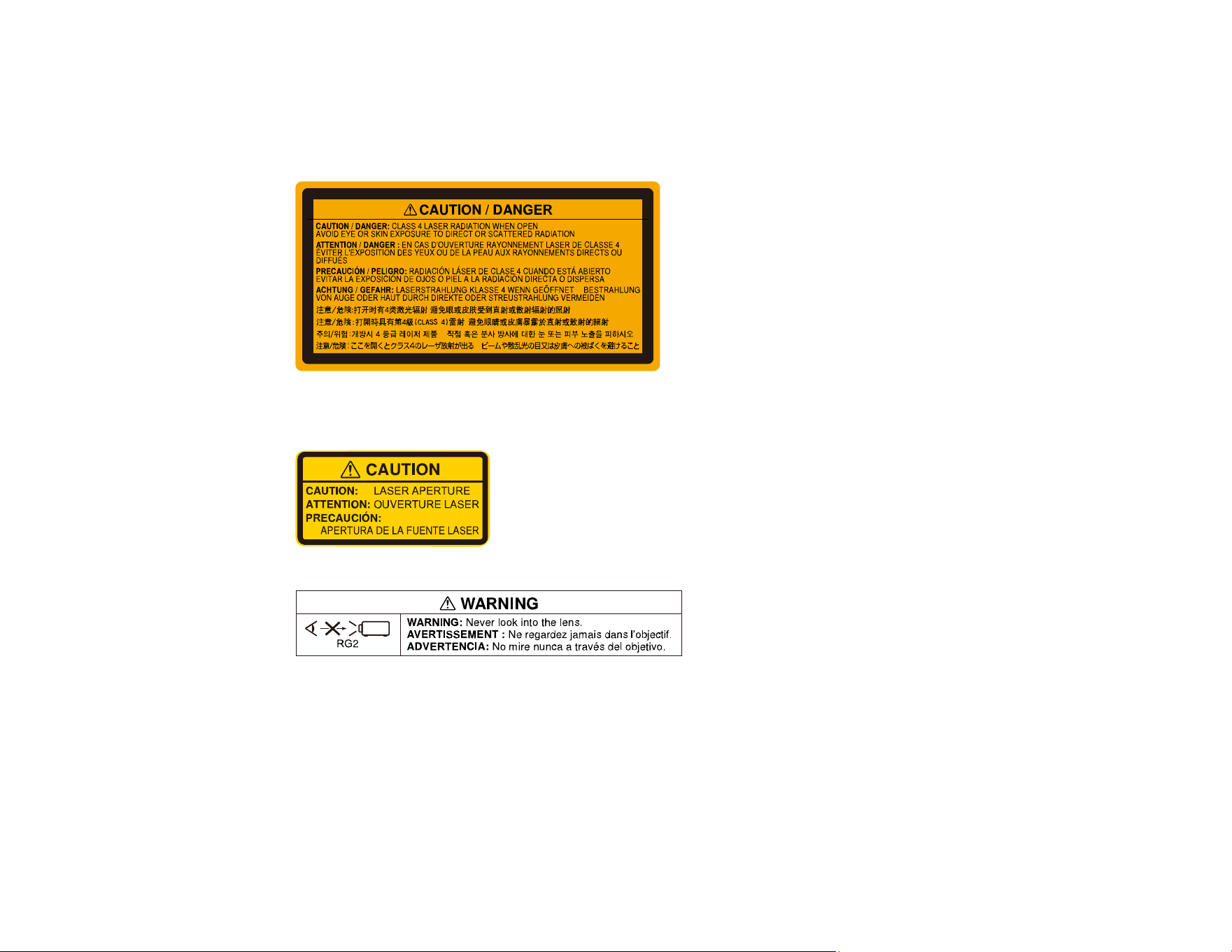
156
Labels are attached to the projector to indicate it is a Class 3R product and complies with FDA
performance standards for laser products except for deviations pursuant to Laser Notice N. 50, dated
June 24, 2007:
• Inside
• Top

157
• Side
Parent topic: Notices
Laser Light Source Warning
Refer to the table here for the Exposure Hazard Values (EHV) in accordance with the IEC62471-2:2009
standard. The EHV indicates the hazard level for objects in front of the light source for 0.25 seconds at a
distance of 7.9 inches (20 cm). The higher the value, the greater the hazard level.
Exposure Hazard Value 0.68
Parent topic: Notices
Important Safety Instructions
Follow these safety instructions when setting up and using the projector:
• Do not look into the lens when the projector is on. The bright light can damage your eyes. Avoid
standing in front of the projector so the bright light does not shine into your eyes.

158
• Do not mount the projector on a ceiling or wall.
• Do not install or place the projector vertically. Doing so may cause a malfunction.
• Do not place the projector on an unstable cart, stand, or table or on a surface that is unable to support
its weight. Otherwise, it could fall or topple causing an accident and injury.
• When installing the projector in a high position, take measures to prevent it from falling by using wires
to ensure safety in an emergency, such as an earthquake, and to prevent accidents. If the projector is
not installed correctly, the projector could fall. This may result in injury or accidents. Contact your
dealer to carry out the installation work.
• Do not install the projector in locations exposed to high humidity and dust, such as on a kitchen
counter, in the kitchen, or near a humidifier, or in locations exposed to oil smoke or steam. Doing so
could cause fire or electric shock.
• Do not use the projector near water, sources of heat, high-voltage electrical wires, or sources of
magnetic fields.
• Use the type of power source indicated on the projector. Use of a different power source may result in
fire or electric shock. If you are not sure of the power available, consult your dealer or power company.
• Place the projector near a wall outlet where the plug can be easily unplugged.
• Take the following precautions when handling the plug: Do not hold the plug with wet hands. Do not
insert the plug into a dusty outlet. Insert the plug firmly into the outlet. Do not pull the power cord when
disconnecting the plug; always be sure to hold the plug when disconnecting it. Do not overload wall
outlets, extension cords, or power strips. Failure to comply with these precautions could result in fire or
electric shock.
• Do not place the projector where the cord can be walked on. This may result in fraying or damage to
the plug.
• Unplug the projector from the wall outlet and allow to cool before cleaning. Use a dry cloth (or, for
stubborn dirt or stains, a moist cloth that has been wrung dry) for cleaning. Do not use liquid or aerosol
cleaners, any sprays containing flammable gas, or solvents such as alcohol, paint thinner, or benzine.
• Do not block the slots and openings in the projector case. They provide ventilation and prevent the
projector from overheating. If the vents are covered, the internal temperature could rise and cause a
fire. Do not place the projector in locations subject to high temperatures, such as near heating
equipment. Do not operate the projector on a sofa, rug, or other soft surface, or set it on top of loose
papers. Do not cover the projector with a blanket, curtain, or tablecloth. If you are setting up the
projector near a wall, leave at least 7.9 inches (20 cm) of space between the wall and the projector.
• Do not operate the projector in a closed-in cabinet unless proper ventilation is provided.
• Never allow objects of any kind to enter any openings in the projector. Do not leave objects, especially
flammable objects, near the projector. Never spill liquid of any kind into the projector.

159
• You may need to clean the air filter and vent. A clogged air filter or vent can block ventilation needed
to cool the projector. Do not use canned air, or the gases may leave a residue.
• Do not store the projector outdoors for an extended length of time.
• Except as specifically explained in this manual, do not attempt to service this product yourself. Refer
all servicing to qualified personnel. Opening or removing covers may expose you to dangerous
voltages and other hazards.
• Never open any covers on the projector except as specifically explained in this manual. Never attempt
to disassemble or modify the projector. Refer all repairs to qualified service personnel.
• Unplug the projector from the wall outlet and refer servicing to qualified service personnel under the
following conditions: if it does not operate normally when you follow the operating instructions, or
exhibits a distinct change in performance; if smoke, strange odors, or strange noises come from the
projector; if the power cord or plug is damaged or frayed; if liquid or foreign objects get inside the
projector, or if it has been exposed to rain or water; if it has been dropped or the housing has been
damaged.
• Do not touch the plug during an electrical storm. Otherwise, you may receive an electric shock.
• Unplug the projector when it will not be used for extended periods.
• Do not use the projector where it may be exposed to rain, water, or excessive humidity.
• Do not install the projector in locations where it may be subject to salt damage. Doing so may result in
malfunction and the corrosion may cause the projector to fall.
• Do not use or store the projector where it may be exposed to smoke, steam, corrosive gases,
excessive dust, vibration, or shock.
• Do not use the projector where flammable or explosive gases may be present.
• Do not use or store the projector or remote control in a hot location, such as near a heater, in direct
sunlight, or in a closed vehicle.
• If you use the projector in a country other than where you purchased it, use the correct power cord for
that country.
• Do not stand on the projector or place heavy objects on it.
• Do not use the projector outside of the required temperature range below:
41 to 95 °F (5 to 35 °C) at an altitude of 7500 feet (2286 m) or less, or 41 to 86 °F (5 to 30 °C) at an
altitude of 7500 feet (2286 m) to 10000 feet (3048 m)
Doing so may cause an unstable display and could lead to projector damage. Do not use or store the
projector where it may be exposed to sudden changes in temperature.
160
• Do not store the projector outside of the required temperature range of 14 to 140 °F (–10 to 60 °C) or
in direct sunlight for long periods of time. Doing so may cause damage to the case.
• Do not place anything that can become warped or damaged by heat near the exhaust vents. Do not
bring your hands or face close to the vents while projection is in progress. Do not bring your face close
to the projector while it is in use.
• Before you move the projector, make sure its power is turned off, the plug is disconnected from the
outlet, and all cables are disconnected.
• Do not place the source of an open flame, such as a lit candle, on or near the projector.
• Do not modify the power cord. Do not place heavy objects on top of the power cord or bend, twist, or
pull it excessively. Keep the power cord away from hot electrical appliances.
Restriction of Use
Parent topic: Notices
Restriction of Use
When this product is used for applications requiring high reliability/safety such as transportation devices
related to aviation, rail, marine, automotive; disaster prevention devices; various safety devices; or
functional/precision devices, you should use this product only after giving consideration to including fail-
safes and redundancies into your design to maintain safety and total system reliability.
Because this product was not intended for use in applications requiring extremely high reliability/safety
such as aerospace equipment, main communication equipment, nuclear power control equipment, or
medical equipment related to direct medical care, please make your own judgment on this product's
suitability after a full evaluation.
Parent topic: Important Safety Instructions
List of Safety Symbols
The following table lists the meaning of the safety symbols labeled on the equipment.
Symbol Approved Standards Description
IEC60417
No.5007
"ON" (power)
To indicate connection to the mains.
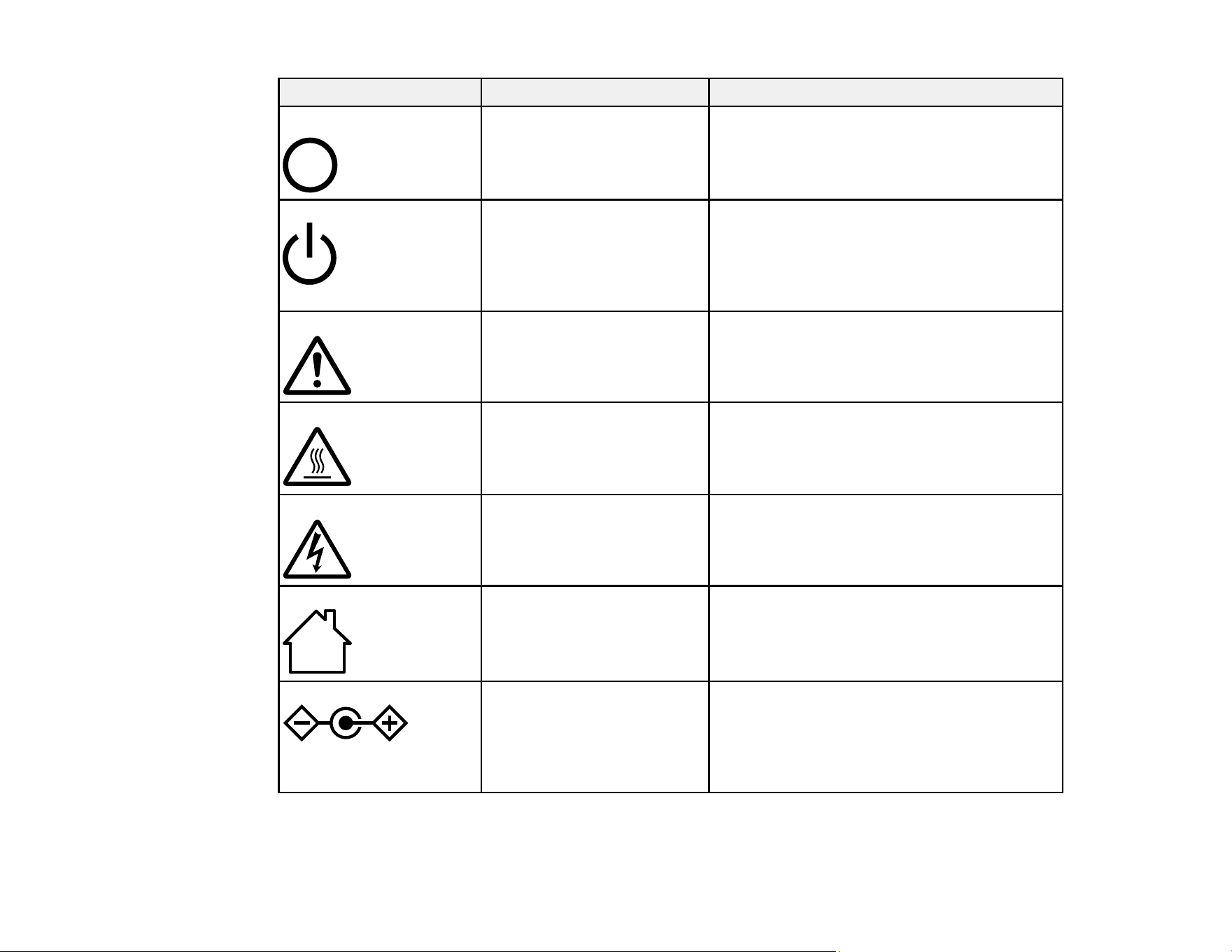
161
Symbol Approved Standards Description
IEC60417
No.5008
"OFF" (power)
To indicate disconnection from the mains.
IEC60417
No.5009
Stand-by
To identify the switch or switch position by
means of which part of the equipment is
switched on in order to bring it into the stand-
by condition.
ISO7000
No.0434B,
IEC3864-B3.1
Caution
To identify general caution when using the
product.
IEC60417
No.5041
Caution, hot surface
To indicate that the marked item can be hot
and should not be touched without taking
care.
IEC60417
No.6042
ISO3864-B3.6
Caution, risk of electric shock
To identify equipment that has risk of electric
shock.
IEC60417
No.5957
For indoor use only
To identify electrical equipment designed
primarily for indoor use.
IEC60417
No.5926
Polarity of DC power connector
To identify the positive and negative
connections (the polarity) on a piece of
equipment to which a DC power supply may
be connected.
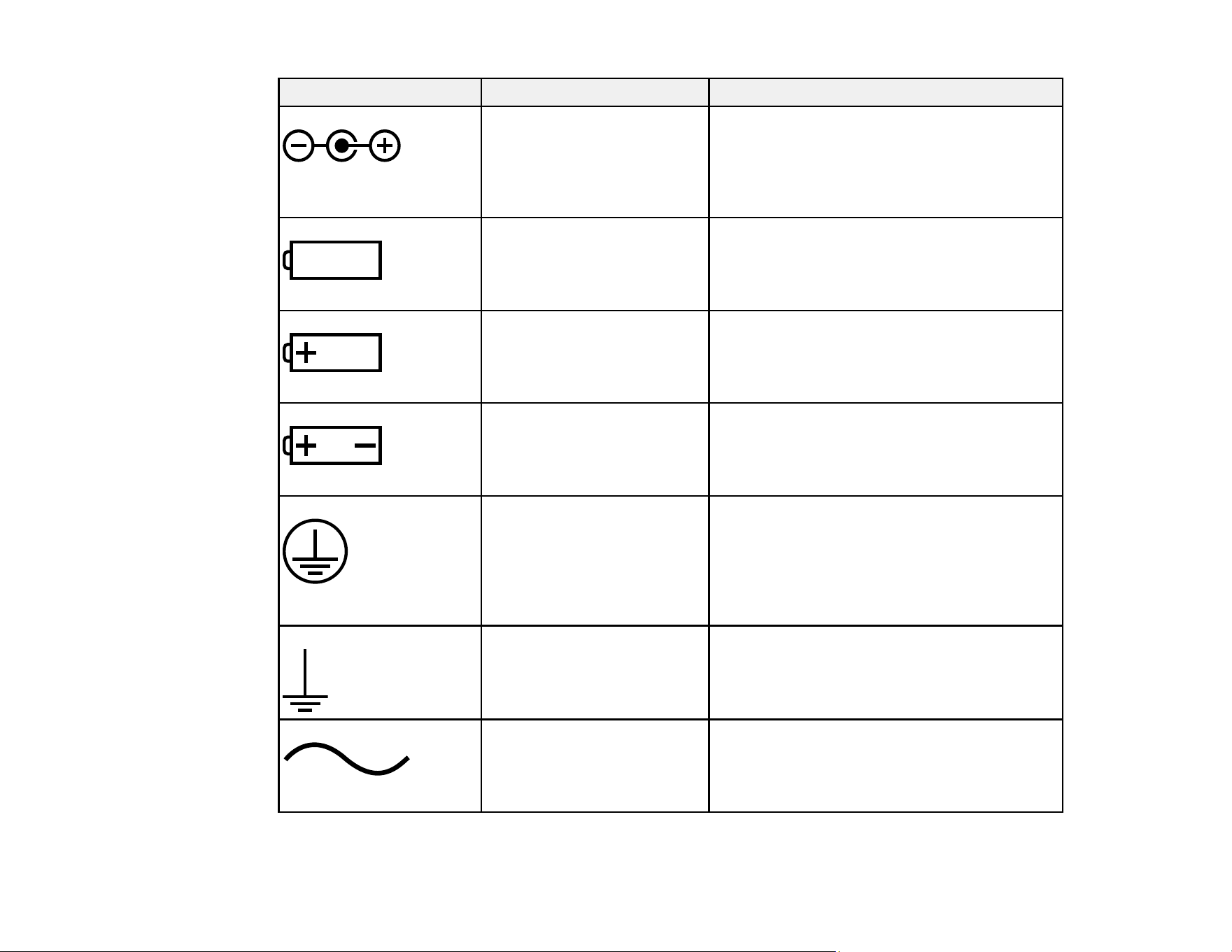
162
Symbol Approved Standards Description
— Polarity of DC power connector
To identify the positive and negative
connections (the polarity) on a piece of
equipment to which a DC. power supply may
be connected.
IEC60417
No.5001B
Battery, general
On battery powered equipment. To identify a
device for instance a cover for the battery
compartment, or the connector terminals.
IEC60417
No.5002
Positioning of cell
To identify the battery holder itself and to
identify the positioning of the cell(s) inside the
battery holder.
— Positioning of cell
To identify the battery holder itself and to
identify the positioning of the cell(s) inside the
battery holder.
IEC60417
No.5019
Protective earth
To identify any terminal which is intended for
connection to an external conductor for
protection against electric shock in case of a
fault, or the terminal of a protective earth
electrode.
IEC60417
No.5017
Earth
To identify an earth (ground) terminal in
cases where neither the symbol No.13 is
explicitly required.
IEC60417
No.5032
Alternating current
To indicate on the rating plate that the
equipment is suitable for alternating current
only; to identify relevant terminals.
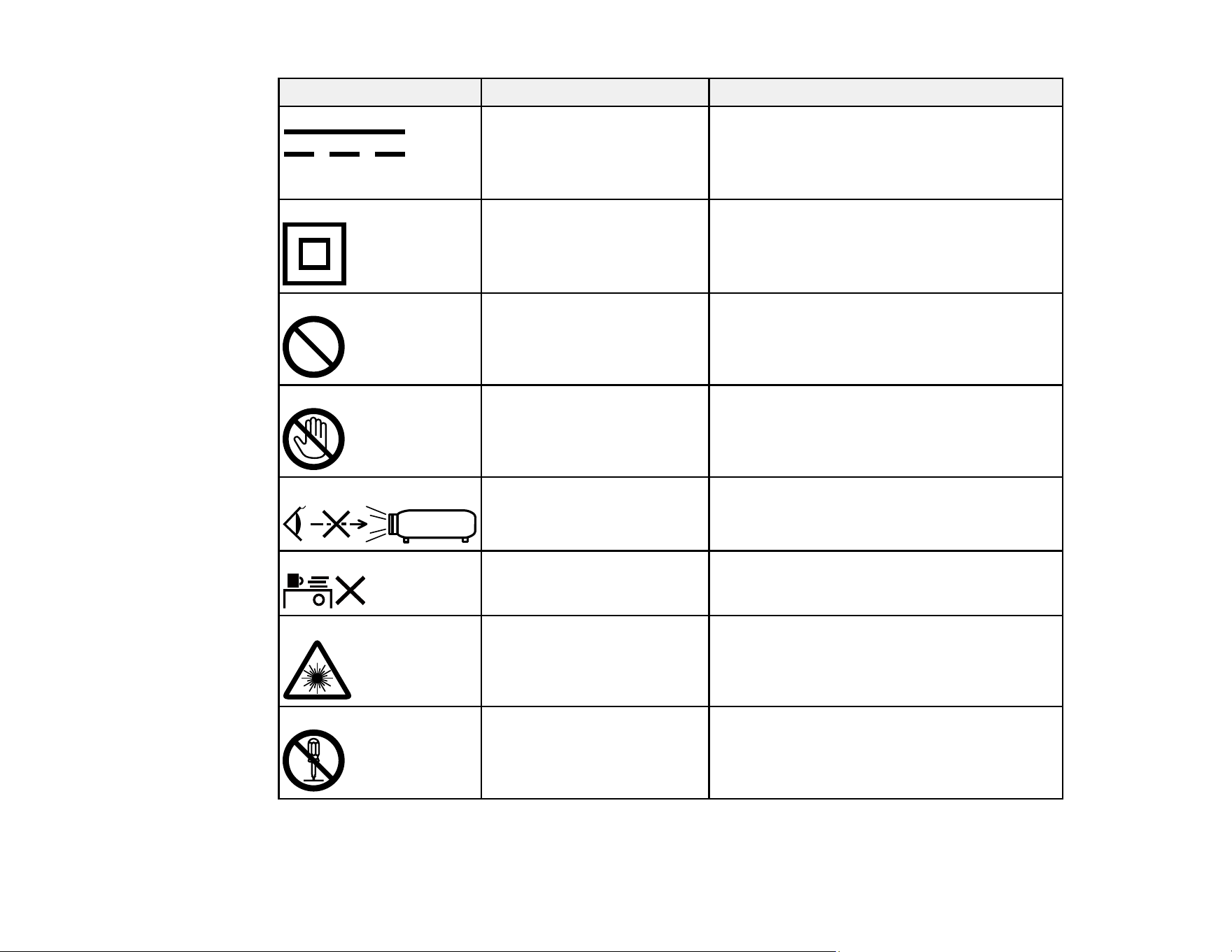
163
Symbol Approved Standards Description
IEC60417
No.5031
Direct current
To indicate on the rating plate that the
equipment is suitable for direct current only;
to identify relevant terminals.
IEC60417
No.5172
Class II equipment
To identify equipment meeting the safety
requirements specified for Class II equipment
according to IEC 61140.
ISO 3864 General prohibition
To identify actions or operations that are
prohibited.
ISO 3864 Contact prohibition
To indicate injury that could occur due to
touching a specific part of the equipment.
— Never look into the projector lens while the
projector is on.
— To indicate that the marked item don’t place
anything on projector.
ISO3864
IEC60825-1
Caution, laser radiation
To indicate the equipment has a laser
radiation part.
ISO 3864 Disassembly prohibition
To indicate a risk of injury, such as electric
shock, if the equipment is disassembled.
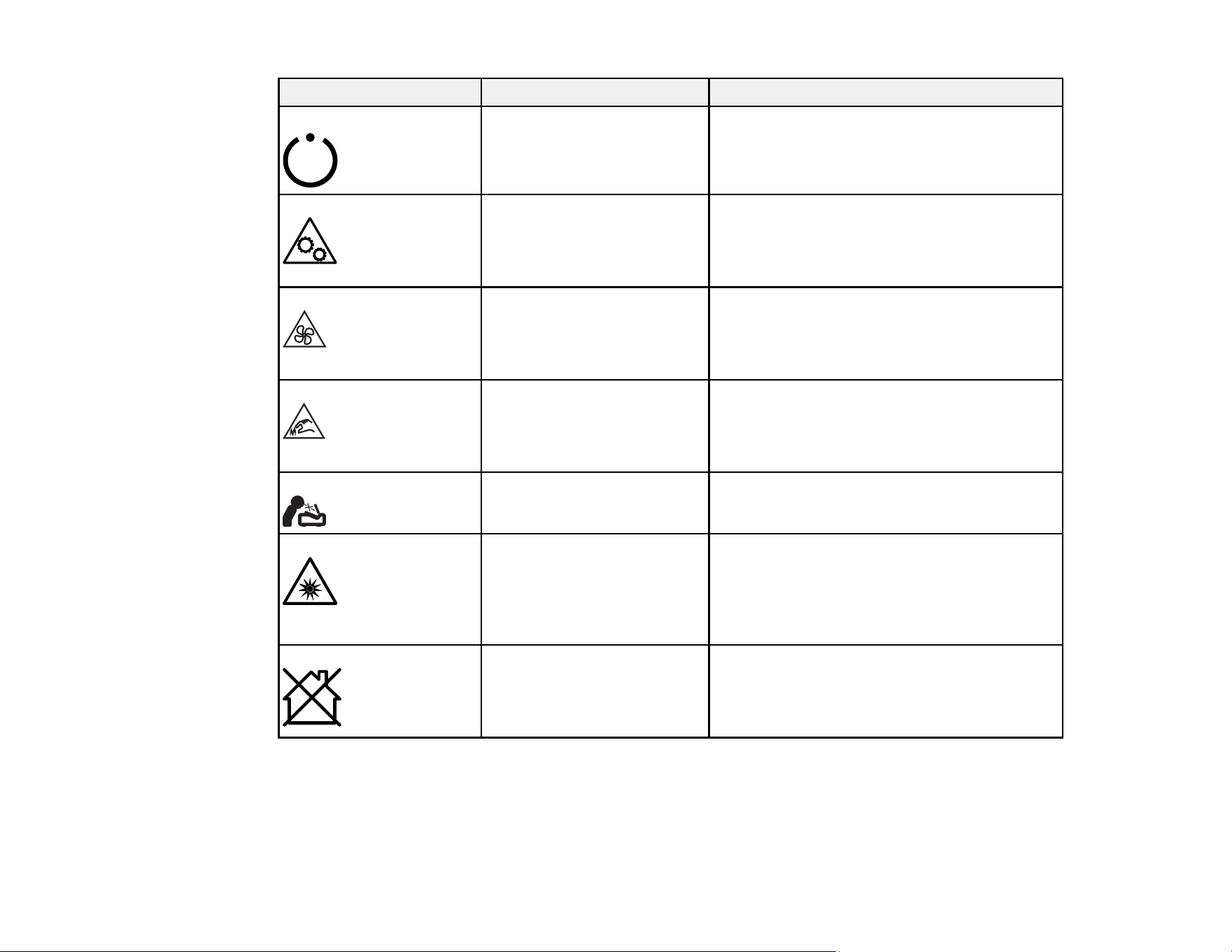
164
Symbol Approved Standards Description
IEC60417
No. 5266
Standby, partial standby
To indicate that part of the equipment is in the
ready status.
ISO3864
IEC60417
No. 5057
Caution, movable parts
To indicate that you must keep away from
movable parts according to protection
standards.
IEC 60417-6056 Caution (movable fan blades)
To indicate that you must keep away from
movable parts according to protection
standards.
IEC 60417-6043 Caution (sharp corners)
To indicate that you must not touch the sharp
corners of the product according to protection
standards.
— Never look into the projection lens while the
projector is on.
ISO7010
No. W027
Warning, light emission (UV, visible light, IR
and so on)
To indicate that you must be careful not to
injure your eyes or skin when near light
emitting sections.
IEC60417
No. 5109
Not to be used in residential areas
To indicate that the electrical
equipment/device is not suitable for use in
residential area.
Parent topic: Notices

165
FCC Compliance Statement
For United States Users
This equipment has been tested and found to comply with the limits for a Class B digital device, pursuant
to Part 15 of the FCC Rules. These limits are designed to provide reasonable protection against harmful
interference in a residential installation. This equipment generates, uses, and can radiate radio
frequency energy and, if not installed and used in accordance with the instructions, may cause harmful
interference to radio communications. However, there is no guarantee that interference will not occur in
a particular installation. If this equipment does cause interference to radio and television reception, which
can be determined by turning the equipment off and on, the user is encouraged to try to correct the
interference by one or more of the following measures:
• Reorient or relocate the receiving antenna.
• Increase the separation between the equipment and receiver.
• Connect the equipment into an outlet on a circuit different from that to which the receiver is connected.
• Consult the dealer or an experienced radio/TV technician for help.
This device complies with part 15 of the FCC Rules. Operation is subject to the following two conditions:
(1) This device may not cause harmful interference, and (2) this device must accept any interference
received, including interference that may cause undesired operation.
WARNING
The connection of a non-shielded equipment interface cable to this equipment will invalidate the FCC
Certification or Declaration of this device and may cause interference levels which exceed the limits
established by the FCC for this equipment. It is the responsibility of the user to obtain and use a shielded
equipment interface cable with this device. If this equipment has more than one interface connector, do
not leave cables connected to unused interfaces. Changes or modifications not expressly approved by
the manufacturer could void the user’s authority to operate the equipment.
For Canadian Users
CAN ICES-3(B)/NMB-3(B)
Parent topic: Notices

166
Binding Arbitration and Class Waiver
1. DISPUTES, BINDING INDIVIDUAL ARBITRATION, AND WAIVER OF CLASS ACTIONS AND
CLASS ARBITRATIONS
1.1 Disputes. The terms of this Section 1 shall apply to all Disputes between you and Epson. The term
"Dispute" is meant to have the broadest meaning permissible under law and includes any dispute, claim,
controversy or action between you and Epson arising out of or relating to this Agreement, Epson
branded products (hardware and including any related software), or other transaction involving you and
Epson, whether in contract, warranty, misrepresentation, fraud, tort, intentional tort, statute, regulation,
ordinance, or any other legal or equitable basis. "DISPUTE" DOES NOT INCLUDE IP CLAIMS, or more
specifically, a claim or cause of action for (a) trademark infringement or dilution, (b) patent infringement,
(c) copyright infringement or misuse, or (d) trade secret misappropriation (an "IP Claim"). You and Epson
also agree, notwithstanding Section 1.6,that a court, not an arbitrator, may decide if a claim or cause of
action is for an IP Claim.
1.2 Binding Arbitration. You and Epson agree that all Disputes shall be resolved by binding arbitration
according to this Agreement. ARBITRATION MEANS THAT YOU WAIVE YOUR RIGHT TO A JUDGE
OR JURY IN A COURT PROCEEDING AND YOUR GROUNDS FOR APPEAL ARE LIMITED.
Pursuant to this Agreement, binding arbitration shall be administered by JAMS, a nationally recognized
arbitration authority, pursuant to its code of procedures then in effect for consumer related disputes, but
excluding any rules that permit joinder or class actions in arbitration (for more detail on procedure, see
Section 1.6 below). You and Epson understand and agree that (a) the Federal Arbitration Act (9 U.S.C.
§1, et seq.) governs the interpretation and enforcement of this Section 1, (b) this Agreement
memorializes a transaction in interstate commerce, and (c) this Section 1 shall survive termination of this
Agreement.
1.3 Pre-Arbitration Steps and Notice. Before submitting a claim for arbitration, you and Epson agree to
try, for sixty (60) days, to resolve any Dispute informally. If Epson and you do not reach an agreement to
resolve the Dispute within the sixty (60) days), you or Epson may commence an arbitration. Notice to
Epson must be addressed to: Epson America, Inc., ATTN: Legal Department, 3840 Kilroy Airport Way,
Long Beach, CA 90806 (the "Epson Address"). The Dispute Notice to you will be sent to the most recent
address Epson has in its records for you. For this reason, it is important to notify us if your address
the Dispute shall include the sender's name, address and contact information, the facts giving rise to the
Dispute, and the relief requested (the "Dispute Notice"). Following receipt of the Dispute Notice, Epson
and you agree to act in good faith to resolve the Dispute before commencing arbitration.
1.4 Small Claims Court. Notwithstanding the foregoing, you may bring an individual action in the small
claims court of your state or municipality if the action is within that court's jurisdiction and is pending only
in that court.

167
1.5 WAIVER OF CLASS ACTIONS AND CLASS ARBITRATIONS. YOU AND EPSON AGREE THAT
EACH PARTY MAY BRING DISPUTES AGAINST THE OTHER PARTY ONLY IN AN INDIVIDUAL
CAPACITY, AND NOT AS A PLAINTIFF OR CLASS MEMBER IN ANY CLASS OR
REPRESENTATIVE PROCEEDING, INCLUDING WITHOUT LIMITATION FEDERAL OR STATE
CLASS ACTIONS, OR CLASS ARBITRATIONS. CLASS ACTION LAWSUITS, CLASS-WIDE
ARBITRATIONS, PRIVATE ATTORNEY-GENERAL ACTIONS, AND ANY OTHER PROCEEDING
WHERE SOMEONE ACTS IN A REPRESENTATIVE CAPACITY ARE NOT ALLOWED.
ACCORDINGLY, UNDER THE ARBITRATION PROCEDURES OUTLINED IN THIS SECTION, AN
ARBITRATOR SHALL NOT COMBINE OR CONSOLIDATE MORE THAN ONE PARTY'S CLAIMS
WITHOUT THE WRITTEN CONSENT OF ALL AFFECTED PARTIES TO AN ARBITRATION
PROCEEDING.
1.6 Arbitration Procedure. If you or Epson commences arbitration, the arbitration shall be governed by
the rules of JAMS that are in effect when the arbitration is filed, excluding any rules that permit arbitration
on a class or representative basis (the "JAMS Rules"), available at http://www.jamsadr.com or by calling
1-800-352-5267 (U.S. or Canada), or https://www.jamsadr.com/about/ or by calling +1-949-224-1810
(Latin America), and under the rules set forth in this Agreement. All Disputes shall be resolved by a
single neutral arbitrator, and both parties shall have a reasonable opportunity to participate in the
selection of the arbitrator. The arbitrator is bound by the terms of this Agreement. The arbitrator, and not
any federal, state or local court or agency, shall have exclusive authority to resolve all disputes arising
out of or relating to the interpretation, applicability, enforceability or formation of this Agreement,
including any claim that all or any part of this Agreement is void or voidable. Notwithstanding this broad
delegation of authority to the arbitrator, a court may determine the limited question of whether a claim or
cause of action is for an IP Claim, which is excluded from the definition of "Disputes" in Section 1.1
above. The arbitrator shall be empowered to grant whatever relief would be available in a court under
law or in equity. The arbitrator may award you the same damages as a court could, and may award
declaratory or injunctive relief only in favor of the individual party seeking relief and only to the extent
necessary to provide relief warranted by that party's individual claim. In some instances, the costs of
arbitration can exceed the costs of litigation and the right to discovery may be more limited in arbitration
than in court. The arbitrator's award is binding and may be entered as a judgment in any court of
competent jurisdiction.
You may choose to engage in arbitration hearings by telephone. Arbitration hearings not conducted by
telephone shall take place in a location reasonably accessible from your primary residence, or in Orange
County, California, at your option.
a) Initiation of Arbitration Proceeding. If either you or Epson decides to arbitrate a Dispute, both parties
agree to the following procedure:
(i) Write a Demand for Arbitration. The demand must include a description of the Dispute and the amount
of damages sought to be recovered. You can find a copy of a Demand for Arbitration at
http://www.jamsadr.com ("Demand for Arbitration").

168
(ii) Send three copies of the Demand for Arbitration, plus the appropriate filing fee, to: JAMS, 500 North
State College Blvd., Suite 600 Orange, CA 92868, U.S.A.
(iii) Send one copy of the Demand for Arbitration to the other party (same address as the Dispute
Notice), or as otherwise agreed by the parties.
b) Hearing Format. During the arbitration, the amount of any settlement offer made shall not be disclosed
to the arbitrator until after the arbitrator determines the amount, if any, to which you or Epson is entitled.
The discovery or exchange of non-privileged information relevant to the Dispute may be allowed during
the arbitration.
c) Arbitration Fees. Epson shall pay, or (if applicable) reimburse you for, all JAMS filings and arbitrator
fees for any arbitration commenced (by you or Epson) pursuant to provisions of this Agreement.
d) Award in Your Favor. For Disputes in which you or Epson seeks $75,000 or less in damages exclusive
of attorney's fees and costs, if the arbitrator's decision results in an award to you in an amount greater
than Epson's last written offer, if any, to settle the Dispute, Epson will: (i) pay you $1,000 or the amount
of the award, whichever is greater; (ii) pay you twice the amount of your reasonable attorney's fees, if
any; and (iii) reimburse you for any expenses (including expert witness fees and costs) that your attorney
reasonably accrues for investigating, preparing, and pursuing the Dispute in arbitration. Except as
agreed upon by you and Epson in writing, the arbitrator shall determine the amount of fees, costs, and
expenses to be paid by Epson pursuant to this Section 1.6d).
e) Attorney's Fees. Epson will not seek its attorney's fees and expenses for any arbitration commenced
involving a Dispute under this Agreement. Your right to attorney's fees and expenses under Section
1.6d) above does not limit your rights to attorney's fees and expenses under applicable law;
notwithstanding the foregoing, the arbitrator may not award duplicative awards of attorney's fees and
expenses.
1.7 Opt-out. You may elect to opt-out (exclude yourself) from the final, binding, individual
arbitration procedure and waiver of class and representative proceedings specified in this
Agreement by sending a written letter to the Epson Address within thirty (30) days of your assent
to this Agreement (including without limitation the purchase, download, installation of the
Software or other applicable use of Epson Hardware, products and services) that specifies (i)
your name, (ii) your mailing address, and (iii) your request to be excluded from the final, binding
individual arbitration procedure and waiver of class and representative proceedings specified in
this Section 1. In the event that you opt-out consistent with the procedure set forth above, all
other terms shall continue to apply, including the requirement to provide notice prior to litigation.
1.8 Amendments to Section 1. Notwithstanding any provision in this Agreement to the contrary, you
and Epson agree that if Epson makes any future amendments to the dispute resolution procedure and
class action waiver provisions (other than a change to Epson's address) in this Agreement, Epson will
obtain your affirmative assent to the applicable amendment. If you do not affirmatively assent to the
applicable amendment, you are agreeing that you will arbitrate any Dispute between the parties in
169
accordance with the language of this Section 1 (or resolve disputes as provided for in Section 1.7, if you
timely elected to opt-out when you first assented to this Agreement).
1.9 Severability. If any provision in this Section 1 is found to be unenforceable, that provision shall be
severed with the remainder of this Agreement remaining in full force and effect. The foregoing shall not
apply to the prohibition against class or representative actions as provided in Section 1.5. This
means that if Section 1.5 is found to be unenforceable, the entire Section 1 (but only Section 1)
shall be null and void.
Parent topic: Notices
Trademarks
EPSON
®
and Quick Corner
®
are registered trademarks, and EPSON Exceed Your Vision is a registered
logomark of Seiko Epson Corporation.
PrivateLine
®
is a registered trademark; SizeWise
TM
is a trademark; and Epson Store
SM
and Extra Care
SM
are service marks of Epson America, Inc.
Windows is a registered trademark of Microsoft Corporation in the United States and/or other countries.
Apple and Mac are trademarks of Apple Inc., registered in the U.S. and other countries.
Google
®
is a registered trademark and Android
TM
, Android TV
TM
, Chromebook
TM
, Google Chrome
TM
,
Google Play
TM
, and YouTube
TM
are trademarks of Google LLC.
HDMI and High-Definition Multimedia Interface are the trademarks or registered trademarks of HDMI
Licensing LLC.
General Notice: Other product names used herein are for identification purposes only and may be
trademarks of their respective owners. Epson disclaims any and all rights in those marks.
Parent topic: Notices
Copyright Notice
All rights reserved. No part of this publication may be reproduced, stored in a retrieval system, or
transmitted in any form or by any means, electronic, mechanical, photocopying, recording, or otherwise,
without the prior written permission of Seiko Epson Corporation. The information contained herein is

170
designed only for use with this Epson product. Epson is not responsible for any use of this information as
applied to other products.
Neither Seiko Epson Corporation nor its affiliates shall be liable to the purchaser of this product or third
parties for damages, losses, costs, or expenses incurred by purchaser or third parties as a result of:
accident, misuse, or abuse of this product or unauthorized modifications, repairs, or alterations to this
product, or (excluding the U.S.) failure to strictly comply with Seiko Epson Corporation's operating and
maintenance instructions.
Seiko Epson Corporation shall not be liable for any damages or problems arising from the use of any
options or any consumable products other than those designated as Original Epson Products or Epson
Approved Products by Seiko Epson Corporation.
Bluetopia is provided for your use by Stonestreet One, LLC under a software license agreement.
Stonestreet One, LLC is and shall remain the sole owner of all right, title and interest whatsoever in and
to Bluetopia and your use is subject to such ownership and to the license agreement. Stonestreet One,
LLC reserves all rights related to Bluetopia not expressly granted under the license agreement and no
other rights or licenses are granted either directly or by implication, estoppel or otherwise, or under any
patents, copyrights, mask works, trade secrets or other intellectual property rights of Stonestreet One,
LLC. © 2000-2012 Stonestreet One, LLC All Rights Reserved.
This information is subject to change without notice.
A Note Concerning Responsible Use of Copyrighted Materials
Copyright Attribution
Parent topic: Notices
A Note Concerning Responsible Use of Copyrighted Materials
Epson encourages each user to be responsible and respectful of the copyright laws when using any
Epson product. While some countries' laws permit limited copying or reuse of copyrighted material in
certain circumstances, those circumstances may not be as broad as some people assume. Contact your
legal advisor for any questions regarding copyright law.
Parent topic: Copyright Notice
Copyright Attribution
© 2020 Epson America, Inc.
8/20
CPD-57962R1
Parent topic: Copyright Notice
