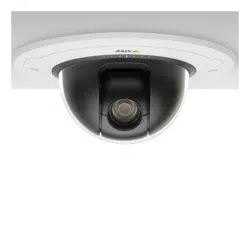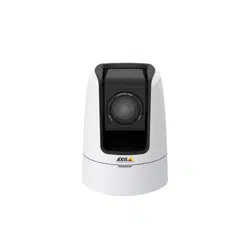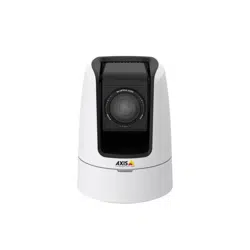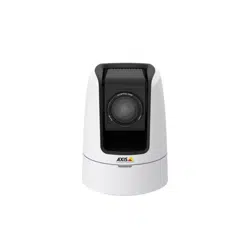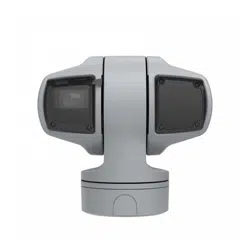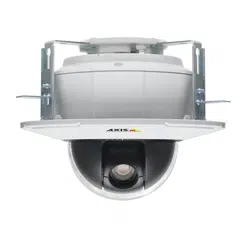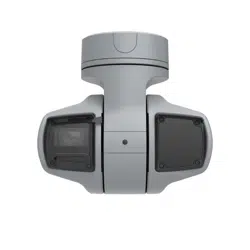


AXISQ6215-LEPTZNetworkCamera
TableofContents
Productoverview...........................................3
Findthedeviceonthenetwork................................4
Accessthedevice...............................................4
Aboutsecurepasswords..........................................4
Setup.....................................................5
Productwebpageoverview........................................5
Imagequality...................................................7
Privacymasks..................................................8
Overlays.......................................................8
PTZ(PanTiltZoom)..............................................9
Streamingandstorage...........................................10
Events........................................................1 1
Applications....................................................14
Troubleshooting............................................15
Resettofactorydefaultsettings...................................15
Checkthecurrentrmware.......................................15
Upgradethermware............................................15
Technicalissues,cluesandsolutions................................16
Performanceconsiderations.......................................17
Specications..............................................18
SDcardslot....................................................
18
Buttons.......................................................
18
Connectors....................................................
18
2

AXISQ6215-LEPTZNetworkCamera
Productoverview
Productoverview
1
SDcardslot
2
Controlbutton
3
Groundscrew
4
Partnumber(P/N)&Serialnumber(S/N)
5
Networkconnector(HighPoE)
6
Impactprotectionbracket
7
StatusLED
8
Wiper
3

AXISQ6215-LEPTZNetworkCamera
Findthedeviceonthenetwork
Findthedeviceonthenetwork
TondAxisdevicesonthenetworkandassignthemIPaddressesinWindows®,useAXISIPUtilityorAXISDeviceManager.Both
applicationsarefreeandcanbedownloadedfromaxis.com/support
FormoreinformationabouthowtondandassignIPaddresses,seethedocumentHowtoassignanIPaddressandaccessyour
deviceonthedevicepageataxis.com
Accessthedevice
1.OpenabrowserandentertheIPaddressorhostnameoftheAxisdevice.
IfyouhaveaMaccomputer(OSX),gotoSafari,clickonBonjourandselectthedevicefromthedrop-downlist.Toadd
Bonjourasabrowserbookmark,gotoSafari>Preferences.
IfyoudonotknowtheIPaddress,useAXISIPUtilityorAXISDeviceManagertondthedeviceonthenetwork.
2.Entertheusernameandpassword.Ifyouaccessthedeviceforthersttime,youmustsettherootpassword.See
Setasecurepasswordfortherootaccountonpage4.
3.Theliveviewpageopensinyourbrowser.
Aboutsecurepasswords
Important
Axisdevicessendtheinitiallysetpasswordincleartextoverthenetwork.Toprotectyourdeviceaftertherstlogin,set
upasecureandencryptedHTTPSconnectionandthenchangethepassword.
Thedevicepasswordistheprimaryprotectionforyourdataandservices.Axisdevicesdonotimposeapasswordpolicyasthey
maybeusedinvarioustypesofinstallations.
Toprotectyourdatawestronglyrecommendthatyou:
•Changethedefaultpasswordthatcomeswitheachdevice.
•Useapasswordwithatleast8characters,preferablycreatedbyapasswordgenerator.
•Don’texposethepassword.
•Changethepasswordatarecurringinterval,atleastonceayear.
Setasecurepasswordfortherootaccount
Important
Thedefaultadministratorusernameisroot.Ifthepasswordforrootislost,resetthedevicetofactorydefaultsettings.
1.Typeapassword.Followtheinstructionsaboutsecurepasswords.SeeAboutsecurepasswordsonpage4.
2.Retypethepasswordtoconrmthespelling.
3.ClickCreatelogin.Thepasswordhasnowbeencongured.
4

AXISQ6215-LEPTZNetworkCamera
Setup
Setup
Productwebpageoverview
1
Liveviewcontrolbar
2
Liveview
3
Productname
4
Controls
5
Videocontrolbar
6
Settingstoggle
5

AXISQ6215-LEPTZNetworkCamera
Setup
7
Settingstabs
Abouttheproduct'sbuilt-inhelp
Youcanaccessthebuilt-inhelpfromtheproduct’swebpage.Thehelpprovidesmoredetailedinformationontheproduct’s
featuresandtheirsettings.
6
AXISQ6215-LEPTZNetworkCamera
Setup
Imagequality
HowtobenetfromIRlightinlow-lightconditionsusingnightmode
Yourcamerausesvisiblelighttodelivercolorimagesduringtheday.Aslightdiminishes,youcansetthecameratoautomatically
shifttonightmode.Innightmodethecamerausesbothvisiblelightandnear-infraredlighttodeliverblack-and-whiteimages.
Sincethecamerausesmoreoftheavailablelightitcandeliverbrighter,moredetailed,images.
1.GotoSettings>Image>Dayandnight,andmakesurethattheIRcutlterissettoAuto.
2.Todetermineatwhatlightlevelyouwantthecameratoshifttonightmode,settheDay-nightshiftprioritytoDay,
NightorNone.
3.EnableAllowIRilluminationandSynchronizeIRilluminationtousethecamera’sbuilt-inIRlightwhenthenight
modeisactivated.
Reducemotionblurinlow-lightconditions
Toreducemotionblurinlow-lightconditions,youcanadjustoneormoreofthefollowingsettings:
Note
Imagenoisewillincreaseifyouincreasethegain.
•Increaseshutterspeedandgain.GotoSettings>Image>ExposureandsetMaxshuttertoashortertime,andMaxgain
toahighervalue.
Ifyouarestillexperiencingmotionblur,youcantryoneofthefollowing:
•Increasethelightlevelinthescene.
•Mountthecamerasothatobjectsmovetowarditorawayfromitratherthansideways.
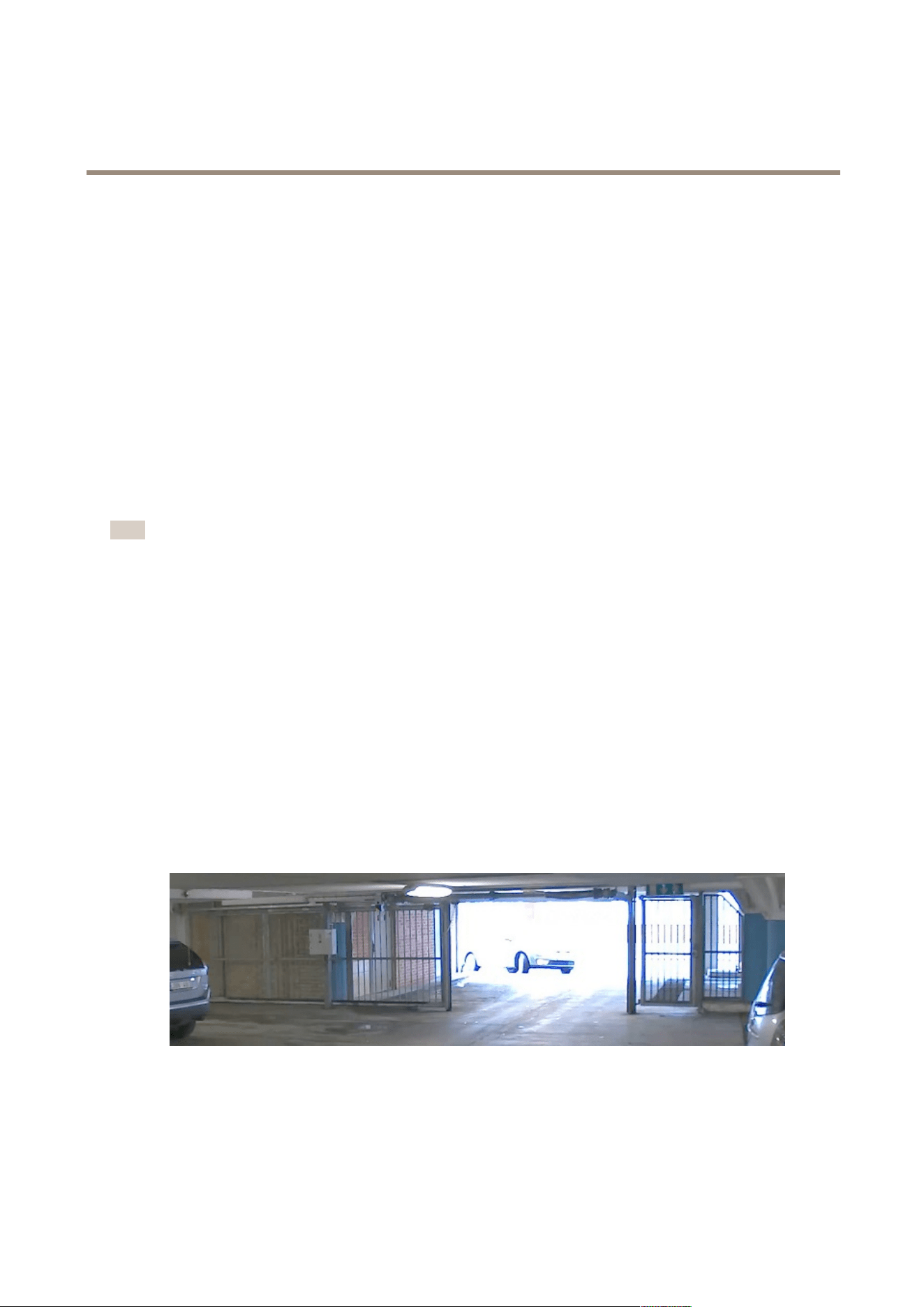
Howtohandlesceneswithstrongbacklight
Dynamicrangeisthedifferenceinlightlevelsinanimage.Insomecasesthedifferencebetweenthedarkestandthebrightest
areascanbesignicant.Theresultisoftenanimagewhereeitherthedarkorthebrightareasarevisible.Widedynamicrange
(WDR)makesbothdarkandbrightareasoftheimagevisible.
1.GotoSettings>Image.
2.Ifrequired,turnonWDRunderWidedynamicrange.
ImagewithoutWDR.
7

AXISQ6215-LEPTZNetworkCamera
Setup
ImagewithWDR.
Note
WDRmaycauseartifactsintheimage.
FindoutmoreaboutWDRandhowtouseitataxis.com/web-articles/wdr
Removewaterfromthefrontglasswiththewiper
Thewiperiscontrolledmanually.
1.ClickontheWiperbuttonintheLiveviewcontrolbar.
Privacymasks
Howtohidepartsoftheimagewithprivacymasks
Whatisaprivacymask?
Aprivacymaskisauser-denedareathatpreventsusersfromviewingapartofthemonitoredarea.Inthevideostream,privacy
masksappearasblocksofsolidcolor.
Theprivacymaskisrelativetothepan,tilt,andzoomcoordinates,soregardlessofwhereyoupointthecamera,theprivacy
maskcoversthesameplaceorobject.
You’llseetheprivacymaskonallsnapshots,recordedvideo,andlivestreams.
YoucanusetheVAPIX®applicationprogramminginterface(API)toturnofftheprivacymasks.
Important
Usingmultipleprivacymasksmayaffecttheproduct’sperformance.
Howtocreateaprivacymask
Tocreateaprivacymask,gotoSettings>Privacymask.
Overlays
Aboutoverlays
Overlaysaresuperimposedoverthevideostream.Theyareusedtoprovideextrainformationduringrecordings,suchasatimestamp,
orduringproductinstallationandconguration.
Howtoshowatextoverlaywhenthecameradetectsmotion
Thisexampleexplainshowtodisplaythetext“Motiondetected”whenthecameradetectsmotion:
8

AXISQ6215-LEPTZNetworkCamera
Setup
MakesuretheAXISVideoMotionDetectionapplicationisrunning:
1.GotoSettings>Apps>AXISVideoMotionDetection.
2.Starttheapplicationifitisnotalreadyrunning.
3.Makesureyouhavesetuptheapplicationaccordingtoyourneeds.
Addtheoverlaytext:
4.GotoSettings>Overlay.
5.Enter#Dinthetexteld.
6.Choosetextsizeandappearance.
Createanactionrule:
7.GotoSystem>Events>Actionrules.
8.CreateanactionrulewithAXISVideoMotionDetectionastrigger.
9.Fromthelistofactions,selectOverlaytext.
10.Type“Motiondetected”.
11.Settheduration.
Displaythepanortiltpositionasatextoverlay
Itmaybeusefultoretrieve,forinstancefromarecordedvideo,thepanortiltpositionindegreesinwhichaneventhastakenplace.
Thiscanbeobtainedbyincludingthepositionintheimageasatextoverlay,usingaso-calledmodier.
1.GotoSettings>Overlay.
2.Inthetexteld,enter#xtoshowthepanposition.
Enter#ytoshowthetiltposition.
3.Choosealignment,textsizeandappearance.
4.Thecurrentpanandtiltpositionsshowupintheliveviewimageandintherecording.
PTZ(PanTiltZoom)
Limitthepan,tilt,andzoommovements
Asanexample,youmightneedtoprotecttheprivacyofresidentslivinginapartmentbuildingslocatedclosetoaparkinglotthat
youwishtosurveil.Todothis,youcanlimitthepan,tilt,andzoommovements,sothattheviewdoesnotcovertheapartment
buildings.GotoSettings>PTZ>Limits.
Aboutguardtours
Aguardtourdisplaysthevideostreamfromdifferentpresetpositionseitherinapredeterminedorrandomorder,andforcongurable
periodsoftime.Oncestarted,aguardtourcontinuestorununtilstopped,evenwhentherearenoclients(webbrowsers)viewingthe
images.
Theguardtourfunctioninthisproductincludestourrecording.Thisallowsrecordingacustomtourusinganinputdevice,suchasa
joystick,amouseorakeyboard,orthroughusingtheVAPIX®ApplicationProgrammingInterface(API).Arecordedtourisareplayofa
recordedsequenceofpan/tilt/zoommovements,includingtheirvariablespeedsandlengths.
Howtocreateaguardtourwithpresetpositions
9

AXISQ6215-LEPTZNetworkCamera
Setup
1.GotoSettings>PTZ>Guardtours
2.Click+.
3.SelectPresetposition.
4.Toedittheguardtour’sproperties,click
5.Typeanamefortheguardtourandspecifythepauselengthinminutesbetweeneachtour.
6.Ifyouwanttheguardtourtogotothepresetpositionsinarandomorder,turnonShufe.
7.ClickDone.
8.ClickAddtoaddthepresetpositionsthatyouwantinyourguardtour.
9.ClickDonetoexittheguardtoursettings.
10.Toscheduletheguardtour,gotoSystem>Events.
Howtocreatearecordedguardtour
1.GotoSettings>PTZ>Guardtours
2.Click+
3.SelectRecorded.
4.Tostartrecordingthepan/tilt/zoommovements,click
5.Whenyou’resatised,click
6.Ifyoure-recordtheguardtouryouwilloverwritetheexistingrecordedguardtour.
7.Toedittheguardtour’sproperties,click
8.Typeanamefortheguardtourandspecifythepauselengthinminutesbetweeneachtour.
9.ClickDonetwicetoexittheguardtoursettings.
10.Toscheduletheguardtour,gotoSystem>Events.
Streamingandstorage
Howtochoosevideocompressionformat
Decidewhichcompressionmethodtousebasedonyourviewingrequirements,andonthepropertiesofyournetwork.The
availableoptionsare:
H.264orMPEG-4Part10/AVC
Note
H.264isalicensedtechnology.TheAxisproductincludesoneH.264viewingclientlicense.Installingadditionalunlicensed
copiesoftheclientisprohibited.Topurchaseadditionallicenses,contactyourAxisreseller.
H.264can,withoutcompromisingimagequality,reducethesizeofadigitalvideolebymorethan80%comparedtotheMotion
JPEGformatandbyasmuchas50%comparedtotheMPEG-4standard.Thismeansthatlessnetworkbandwidthandstoragespace
arerequiredforavideole.Orseenanotherway,highervideoqualitycanbeachievedforagivenbitrate.
10

AXISQ6215-LEPTZNetworkCamera
Setup
Howtoreducebandwidthandstorage
Important
Ifyoureducethebandwidthitcanresultinlossofdetailsinthepicture.
1.GotoliveviewandselectH.264.
2.GotoSettings>Stream.
3.Dooneormoreofthefollowing:
-TurnontheZipstreamfunctionalityandselectthedesiredlevel.
-TurnondynamicGOPandsetahighGOPlengthvalue.
-Increasethecompression.
-TurnondynamicFPS.
Howtosetupnetworkstorage
Tostorerecordingsonthenetwork,youneedtosetupnetworkstorage:
1.GotoSettings>System>Storage.
2.ClickSetupunderNetworkstorage.
3.EntertheIPaddressofthehostserver.
4.Enterthenameofthesharedlocationonthehostserver.
5.Movetheswitchifthesharerequiresalogin,andenterusernameandpassword.
6.ClickConnect.
Howtorecordandwatchvideo
Torecordvideoyoumustrstsetupnetworkstorage,seeHowtosetupnetworkstorageonpage1 1,orhaveanSDcardinstalled.
1.Gotothecamera’sliveview.
2.ClickonRecordoncetostartrecordingandonemoretimetostoprecording.
Towatchyourrecording:
1.ClickonStorage>Gotorecordings.
2.Selectyourrecordinginthelistanditwillplayautomatically.
Events
Theeventpagesallowyoutocongureyourproducttoperformactionswhendifferenteventsoccur.Forexample,theproduct
canstartarecordingorsendanemailnoticationwhenmotionisdetected.Thesetofconditionsthatdeneshowandwhen
theactionistriggerediscalledanactionrule.
Howtotriggeranaction
1.GotoSettings>System>Eventstosetupanactionrule.Theactionruledeneswhenthecamerawillperformcertain
actions.Actionrulescanbesetupasscheduled,recurring,orforexample,triggeredbymotiondetection.
2.SelectwhatTriggermustbemettotriggertheaction.Ifyouspecifymorethanonetriggerfortheactionrule,all
ofthemmustbemettotriggertheaction.
11

AXISQ6215-LEPTZNetworkCamera
Setup
3.SelectwhichActionthecamerashouldperformwhentheconditionsaremet.
Note
Ifyoumakechangestoanactiveactionrule,theactionruleneedstoberestartedforthechangestotakeeffect.
Howtorecordvideowhenthecameradetectsmotion
ThisexampleexplainshowtosetupthecameratostartrecordingtotheSDcardvesecondsbeforeitdetectsmotionandto
stoponeminuteafter.
MakesuretheAXISVideoMotionDetectionapplicationisrunning:
1.GotoSettings>Apps>AXISVideoMotionDetection.
2.Starttheapplicationifitisnotalreadyrunning.
3.Makesureyouhavesetuptheapplicationaccordingtoyourneeds.
Createanactionrule:
4.GotoSettings>System>Eventsandaddanactionrule.
5.Typeanamefortheactionrule.
6.Fromthelistoftriggers,selectApplicationsandthenselectAXISVideoMotionDetection(VMD).
7.Fromthelistofactions,selectRecordvideo.
8.Selectanexistingstreamproleorcreateanewone.
9.Enableandsetthepre-triggertimeto5seconds.
10.EnableWhiletheruleisactive.
11.Enableandsetthepost-triggertimeto60seconds.
12.SelectSDcardfromthelistofstorageoptions.
13.ClickOk.
Howtodirectthecameratoapresetpositionwhenthecameradetectsmotion
Thisexampleexplainshowtosetupthecameratogotoapresetpositionwhenitdetectsmotionintheimage.
MakesuretheAXISVideoMotionDetectionapplicationisrunning:
1.GotoSettings>Apps>AXISVideoMotionDetection.
2.Starttheapplicationifitisnotalreadyrunning.
3.Makesureyouhavesetuptheapplicationaccordingtoyourneeds.
Addapresetposition:
4.GotoSettings>PTZandsetwhereyouwantthecameratobedirectedbycreatingapresetposition.
Createanactionrule:
5.GotoSettings>System>Events>Actionrulesandaddanactionrule.
6.Typeanamefortheactionrule.
7.Fromthelistoftriggers,selectApplicationsandthenselectAXISVideoMotionDetection(VMD).
8.Fromthelistofactions,selectPTZControlandthenselectPresetPosition.
12

AXISQ6215-LEPTZNetworkCamera
Setup
9.Selectthepresetpositionyouwantthecameratogoto.
10.ClickOk.
Howtoautomaticallyzoominonaspecicareawithgatekeeper
Thisexampleexplainshowtousethegatekeeperfunctionalitytomakethecamerazoominautomaticallyonthelicenseplateofa
carthatpassesthroughagate.Whenthecarhaspassed,thecamerazoomsouttothehomeposition.
Createthepresetpositions:
1.GotoSettings>PTZ>Presetpositions.
2.Createthehomepositionthatincludestheentranceofthegate.
3.Createthezoomed-inpresetpositionsothatitcoverstheareaintheimagewhereyouassumethatthelicenseplate
willappear.
Createamotiondetectionprole:
4.GotoSettings>AppsandopenAXISVideoMotionDetection.
5.Createaprolethatcoverstheentranceofthegateandthensavetheprole.
Createanactionrule:
6.GotoSettings>System>Eventsandaddanactionrule.
7.NametheactionruleGatekeeper.
8.Fromthetriggerlist,selectApplicationsandthenselectthepreviouslycreatedmotiondetectionprole.
9.Fromtheactionlist,selectthepreviouslycreatedpresetposition.
10.ClickOK.
Howtorecordvideowhenthecameradetectsimpact
Shockdetectionallowsthecameratodetecttamperingcausedbyvibrationsorshock.Vibrationsduetotheenvironmentortoan
objectcantriggeranactiondependingontheshocksensitivityrange,whichcanbesetfrom0to100.Inthisscenario,someoneis
throwingrocksatthecameraafterhoursandyouwouldliketogetavideoclipoftheevent.
1.GotoSettings>System>Detectors.
2.Setshockdetectiontoon,andsetavaluefortheshocksensitivity.
Createanactionrule:
3.GotoSettings>System>Eventsandaddanactionrule.
4.Typeanamefortheactionrule.
5.Fromthelistoftriggers,selectDetectorsandthenselectShockdetection.
6.Fromthelistofschedules,selectAfterHours.
7.Fromthelistofactions,selectSendVideoClip.
8.Selectanexistingstreamproleorcreateanewone.
9.Enableandsetthepre-triggertimeto5seconds.
10.EnableWhiletheruleisactive.
11.Enableandsetthepost-triggertimeto60seconds.
13

AXISQ6215-LEPTZNetworkCamera
Setup
12.Selectanexistingrecipientorcreateanewone.
13.ClickOK.
Applications
AXISCameraApplicationPlatform(ACAP)isanopenplatformthatenablesthirdpartiestodevelopanalyticsandotherapplications
forAxisproducts.Tondoutmoreaboutavailableapplications,downloads,trialsandlicenses,gotoaxis.com/applications
TondtheusermanualsforAxisapplications,gotoaxis.com
Note
•Severalapplicationscanrunatthesametimebutsomeapplicationsmightnotbecompatiblewitheachother.Certain
combinationsofapplicationsmightrequiretoomuchprocessingpowerormemoryresourceswhenruninparallel.Verify
thattheapplicationsworktogetherbeforedeployment.
14

AXISQ6215-LEPTZNetworkCamera
Troubleshooting
Troubleshooting
Ifyoucan’tndwhatyou’relookingforhere,trythetroubleshootingsectionataxis.com/support
Resettofactorydefaultsettings
Important
Resettofactorydefaultshouldbeusedwithcaution.Aresettofactorydefaultresetsallsettings,includingtheIPaddress,to
thefactorydefaultvalues.
Toresettheproducttothefactorydefaultsettings:
1.Disconnectpowerfromtheproduct.
2.Pressandholdthecontrolbuttonwhilereconnectingpower.SeeProductoverviewonpage3.
3.Keepthecontrolbuttonpressedfor15–30secondsuntilthestatusLEDindicatorashesamber.
4.Releasethecontrolbutton.TheprocessiscompletewhenthestatusLEDindicatorturnsgreen.Theproducthasbeenreset
tothefactorydefaultsettings.IfnoDHCPserverisavailableonthenetwork,thedefaultIPaddressis192.168.0.90
5.UsetheinstallationandmanagementsoftwaretoolstoassignanIPaddress,setthepassword,andaccessthevideostream.
Theinstallationandmanagementsoftwaretoolsareavailablefromthesupportpagesonaxis.com/support
Itisalsopossibletoresetparameterstofactorydefaultthroughthewebinterface.GotoSettings>System>Maintenanceand
clickDefault.
Checkthecurrentrmware
Firmwareisthesoftwarethatdeterminesthefunctionalityofnetworkdevices.Oneofyourrstactionswhentroubleshootinga
problemshouldbetocheckthecurrentrmwareversion.Thelatestversionmaycontainacorrectionthatxesyourparticular
problem.
Tocheckthecurrentrmware:
1.Gototheproduct’swebpage.
2.Clickonthehelpmenu.
3.ClickAbout.
Upgradethermware
Important
Preconguredandcustomizedsettingsaresavedwhenthermwareisupgraded(providedthatthefeaturesareavailablein
thenewrmware)althoughthisisnotguaranteedbyAxisCommunicationsAB.
Important
Makesuretheproductremainsconnectedtothepowersourcethroughouttheupgradeprocess.
Note
Whenyouupgradetheproductwiththelatestrmware,theproductreceivesthelatestfunctionalityavailable.Alwaysread
theupgradeinstructionsandreleasenotesavailablewitheachnewreleasebeforeupgradingthermware.Tondthelatest
rmwareandthereleasenotes,gotoaxis.com/support/rmware
15

AXISQ6215-LEPTZNetworkCamera
Troubleshooting
1.Downloadthelatestrmwareletoyourcomputer,availablefreeofchargeataxis.com/support/rmware
2.Logintotheproductasanadministrator.
3.GotoSettings>System>Maintenance.Followtheinstructionsonthepage.Whentheupgradehasnished,the
productrestartsautomatically.
AXISDeviceManagercanbeusedformultipleupgrades.Findoutmoreataxis.com/products/axis-device-manager
Technicalissues,cluesandsolutions
Ifyoucan’tndwhatyou’relookingforhere,trythetroubleshootingsectionataxis.com/support
Problemsupgradingthermware
FirmwareupgradefailureIfthermwareupgradefails,theproductreloadsthepreviousrmware.Themostcommonreason
isthatthewrongrmwarelehasbeenuploaded.Checkthatthenameofthermwarele
correspondstoyourproductandtryagain.
ProblemssettingtheIPaddress
Theproductislocatedona
differentsubnet
IftheIPaddressintendedfortheproductandtheIPaddressofthecomputerusedtoaccessthe
productarelocatedondifferentsubnets,youcannotsettheIPaddress.Contactyournetwork
administratortoobtainanIPaddress.
TheIPaddressisbeingused
byanotherdevice
DisconnecttheAxisproductfromthenetwork.Runthepingcommand(inaCommand/DOS
window,typepingandtheIPaddressoftheproduct):
•Ifyoureceive:Replyfrom<IPaddress>:bytes=32;time=10...
thismeansthattheIPaddressmayalreadybeinusebyanotherdeviceonthenetwork.
ObtainanewIPaddressfromthenetworkadministratorandreinstalltheproduct.
•Ifyoureceive:Requesttimedout,thismeansthattheIPaddressisavailable
forusewiththeAxisproduct.Checkallcablingandreinstalltheproduct.
PossibleIPaddressconict
withanotherdeviceonthe
samesubnet
ThestaticIPaddressintheAxisproductisusedbeforetheDHCPserversetsadynamicaddress.
ThismeansthatifthesamedefaultstaticIPaddressisalsousedbyanotherdevice,theremay
beproblemsaccessingtheproduct.
Theproductcannotbeaccessedfromabrowser
Cannotlogin
WhenHTTPSisenabled,ensurethatthecorrectprotocol(HTTPorHTTPS)isusedwhenattempting
tologin.Youmayneedtomanuallytypehttporhttpsinthebrowser’saddresseld.
Ifthepasswordfortheuserrootislost,theproductmustberesettothefactorydefaultsettings.
SeeResettofactorydefaultsettingsonpage15.
TheIPaddresshasbeen
changedbyDHCP
IPaddressesobtainedfromaDHCPserveraredynamicandmaychange.IftheIPaddresshasbeen
changed,useAXISIPUtilityorAXISDeviceManagertolocatetheproductonthenetwork.Identify
theproductusingitsmodelorserialnumber,orbytheDNSname(ifthenamehasbeencongured).
Ifrequired,astaticIPaddresscanbeassignedmanually.Forinstructions,gotoaxis.com/support
Theproductisaccessiblelocallybutnotexternally
Routerconguration
CheckthatyourrouterallowsincomingdatatrafctotheAxisproduct.Theroutermustsupport
UPnP
®
.
Firewallprotection
ChecktheInternetrewallwithyournetworkadministrator.
16

AXISQ6215-LEPTZNetworkCamera
Troubleshooting
Problemswithstreaming
MulticastH.264only
accessiblebylocalclients
Checkifyourroutersupportsmulticasting,oriftheroutersettingsbetweentheclientandthe
productneedtobecongured.TheTTL(TimeToLive)valuemayneedtobeincreased.
NomulticastH.264
displayedintheclient
CheckwithyournetworkadministratorthatthemulticastaddressesusedbytheAxisproduct
arevalidforyournetwork.
Checkwithyournetworkadministratortoseeifthereisarewallpreventingviewing.
PoorrenderingofH.264
images
Ensurethatyourgraphicscardisusingthelatestdriver.Thelatestdriverscanusuallybe
downloadedfromthemanufacturer’swebsite.
Colorsaturationisdifferent
inH.264andMotionJPEG
Modifythesettingsforyourgraphicsadapter.Gototheadapter’sdocumentationformore
information.
Lowerframeratethan
expected
•SeePerformanceconsiderationsonpage17.
•Reducethenumberofapplicationsrunningontheclientcomputer.
•Limitthenumberofsimultaneousviewers.
•Checkwiththenetworkadministratorthatthereisenoughbandwidthavailable.
•Lowertheimageresolution.
•Logintotheproduct’swebpageandsetacapturemodethatprioritizesframerate.
Changingthecapturemodetoprioritizeframeratemightlowerthemaximum
resolutiondependingontheproductusedandcapturemodesavailable.
•Themaximumframespersecondisdependentontheutilityfrequency(60/50Hz)of
theAxisproduct.
Performanceconsiderations
Whensettingupyoursystem,itisimportanttoconsiderhowvarioussettingsandsituationsaffecttheperformance.Somefactors
affecttheamountofbandwidth(thebitrate)required,otherscanaffecttheframerate,andsomeaffectboth.Iftheloadonthe
CPUreachesitsmaximum,thisalsoaffectstheframerate.
Thefollowingfactorsarethemostimportanttoconsider:
•Highimageresolutionorlowercompressionlevelsresultinimagescontainingmoredatawhichinturnaffectsthe
bandwidth.
•RotatingthelensmanuallywillresultinbetterperformancecomparedtorotatingtheimagefromtheGUI.
•AccessbylargenumbersofMotionJPEGorunicastH.264clientsaffectsthebandwidth.
•Simultaneousviewingofdifferentstreams(resolution,compression)bydifferentclientsaffectsbothframerateand
bandwidth.
Useidenticalstreamswhereverpossibletomaintainahighframerate.Streamprolescanbeusedtoensurethat
streamsareidentical.
•AccessingMotionJPEGandH.264videostreamssimultaneouslyaffectsbothframerateandbandwidth.
•Heavyusageofeventsettingsaffectstheproduct’sCPUloadwhichinturnaffectstheframerate.
•UsingHTTPSmayreduceframerate,inparticularifstreamingMotionJPEG.
•Heavynetworkutilizationduetopoorinfrastructureaffectsthebandwidth.
•Viewingonpoorlyperformingclientcomputerslowersperceivedperformanceandaffectsframerate.
•RunningmultipleAXISCameraApplicationPlatform(ACAP)applicationssimultaneouslymayaffecttheframerateand
thegeneralperformance.
17

AXISQ6215-LEPTZNetworkCamera
Specifications
Specifications
Tondthelatestversionoftheproduct’sdatasheet,gototheproductpageataxis.comandlocateSupport&Documentation.
SDcardslot
NO NO
NO
TICE TICE
TICE
•RiskofdamagetoSDcard.Donotusesharptools,metalobjects,orexcessiveforcewheninsertingorremovingthe
SDcard.Useyourngerstoinsertandremovethecard.
•Riskofdatalossandcorruptedrecordings.DonotremovetheSDcardwhiletheproductisrunning.UnmounttheSDcard
fromtheproduct’swebpagebeforeremoval.
ThisproductsupportsSD/SDHC/SDXCcards.
ForSDcardrecommendations,seeaxis.com
SD,SDHC,andSDXCLogosaretrademarksofSD-3CLLC.SD,SDHCandSDXCaretrademarksorregistered
trademarksofSD-3C,LLCintheUnitedStates,othercountriesorboth.
Buttons
Controlbutton
Thecontrolbuttonisusedfor:
•Resettingtheproducttofactorydefaultsettings.SeeResettofactorydefaultsettingsonpage15.
•ConnectingtoanAXISVideoHostingSystemservice.Toconnect,pressandholdthebuttonforabout3secondsuntilthe
statusLEDashesgreen.
Connectors
Networkconnector
RJ45Push-pullConnector(IP66)withHighPoweroverEthernet(HighPoE).
NO NO
NO
TICE TICE
TICE
TocomplywiththeIP66-rateddesignofthecameraandmaintaintheIP66protection,thesuppliedRJ45Push-pullConnector
(IP66)shallbeused.Alternatively,usetheRJ45IP66-ratedcablewithpremountedconnectorwhichisavailablefromyour
Axisreseller.Donotremovetheplasticnetworkconnectorshieldfromthecamera.
18

UserManualVer.M1.11
AXISQ6215-LEPTZNetworkCamera
Date:January2019
©AxisCommunicationsAB,2018-2019
PartNo.T101 16228