1
Ring Alarm Panic Button 2nd Gen
Z-Wave Technical Manual

2
Ring Panic Button 2nd Gen
Introduction
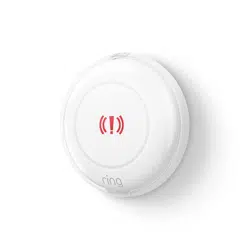
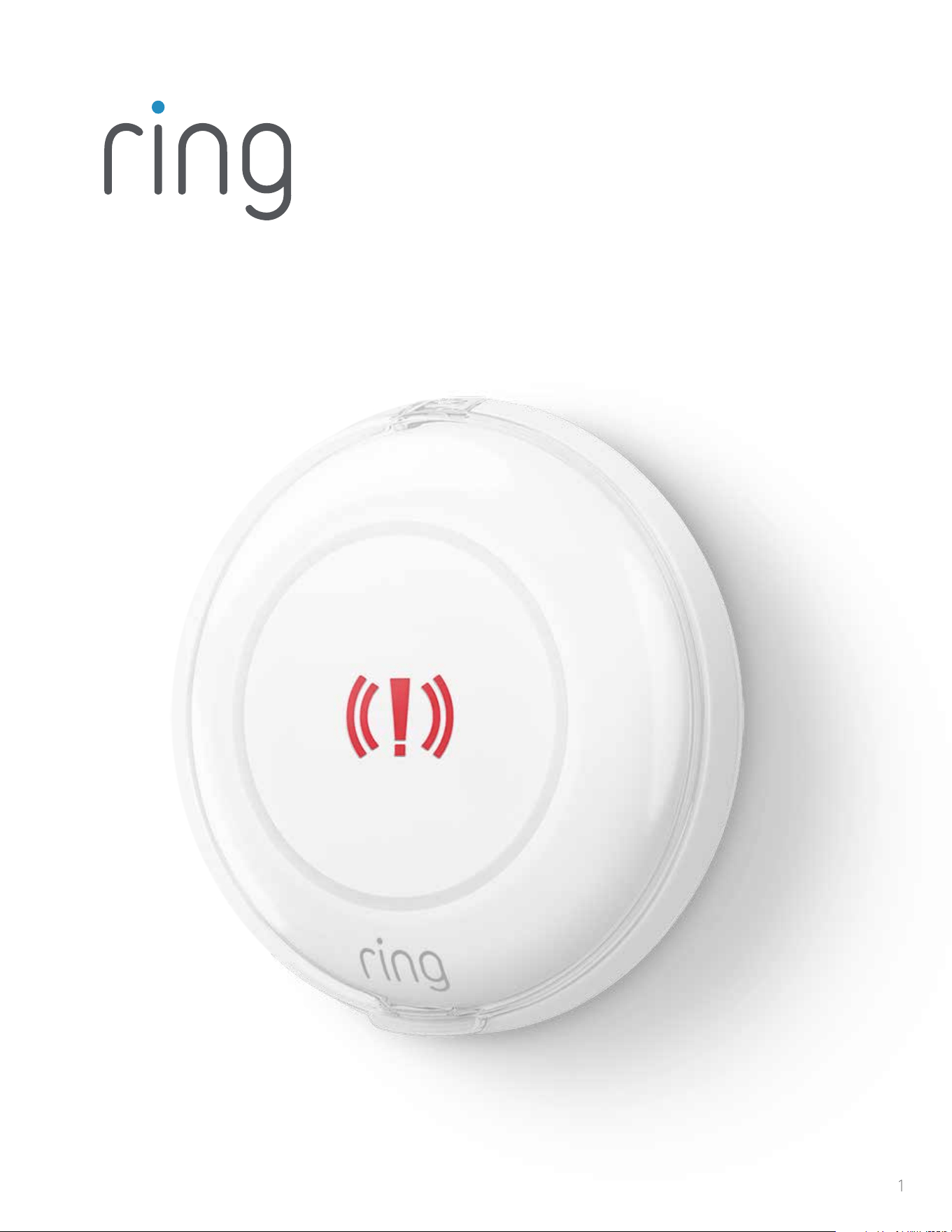
The Ring Alarm Panic Button is a wireless sensor for the Ring Alarm system which provides users with
a single action emergency button. After configuring the device, Neighbors can trigger an emergency
response at the push of a button. The device is configurable in the Ring app to trigger either a Panic,
Medical or Fire alert. The Ring Alarm Base Station is required to enable Panic Button features and
functions within the Ring app.
1. This product can be operated in any Z-WaveTM network with other Z-Wave certified devices from
other manufacturers. All mains operated nodes within the network will act as repeaters regardless
of vendor to increase reliability of the network.
2. SmartStart enabled products can be added into a Z-Wave network by scanning the Z-Wave QR
Code present on the product with a controller providing SmartStart inclusion. No further action
is required and the SmartStart product will be added automatically within 10 minutes of being
switched on in the network vicinity.
Ring Alarm Panic Button Gen 2 – Basic Setup & Installation
1. Ensure your Ring Alarm system is disarmed.
2. In the Ring app, tap Set Up a Device and find the Panic Button in the Security Devices menu.
3. Follow the in-app instructions to complete setup.
a. Pull the battery tab (or reinsert the batteries) to trigger setup mode.
1. Tap the orange setup button to retry setup mode.
Installation
Once your Panic Button is set up in the Ring app, it’s ready to place on a table or shelf. It can also be
mounted to a wall, or discreetly under a desk or table.
Tape Mounting
Clean the mounting location, then peel the rubber pads o of the bottom cover to expose the
adhesive tape. Press the Panic Button firmly to the mounting location and hold for 20 seconds to make
sure the tape is securely attached.
Screw Mounting
You’ll need two flat head No. 4 x 5/8” (3mm x 15mm) screws and two No. 4 x 3/4” (5mm x 19mm)
wall anchors. Twist the bottom cover counterclockwise so that the unlock symbol is aligned with the
indicator. Pull to separate, then set the Panic Button aside. Drill pilot holes in the mounting surface using
a 3/16” (5mm) drill bit. Insert the wall anchors, then screw in the back cover. Place the Panic Button onto
the back cover and twist clockwise so that the lock symbol is aligned with the indicator. Check to make
sure it’s secure.

3
Z-Wave Instructions
Z-Wave Device Type: Notification Sensor
Role Type: Reporting Sleeping Slave (RSS)
• GENERIC_TYPE_SENSOR_NOTIFICATION (0x07)
• SPECIFIC_TYPE_NOTIFICATION_SENSOR (0x01)
Z-Wave Long Range
This device supports both Classic Z-Wave and Z-Wave Long Range. Z-Wave Long Range capable
controllers can include this device as a device in the network. Long Range mode allows for a much
greater operating range of the device. The device can only operate in one mode at a time, and it is
dictated during the inclusion process by the controller or Base Station. To change operating modes
(Z-Wave Smartstart vs. Z-Wave Long Range Smartstart), the device must be removed from the network
and then re-added in the desired mode.
Adding Ring Panic Button Gen 2 to a Z-Wave Network
Ring Panic Button Gen 2 can be added via Smart Start or Classic inclusion mode.
Note: When prompted for the QR Code or PIN, you may find them on the device, on the box, or on a
card inside the box. Keep the device nearby. You’ll be prompted to pull the battery tab to power on the
device and enter setup mode.
Smart Start Inclusion Steps:
1. Initiate the add flow for Security Devices in the Ring mobile application – Follow the guided add flow
instructions provided in the Ring mobile application.
2. When prompted by the mobile application, scan the QR code found on the package of the
Panic Button. The QR code can also be found on the device itself.
3. Pull the pull-tab or insert batteries, and the device will go into Smart Start inclusion mode. While
in this mode, Panic Button can be added to a Z-Wave controller that supports Smart Start. When in
Smart Start inclusion mode, Smart Start can be restarted by tapping the button on the front of
the device.
Classic Inclusion Steps:
1 Initiate add flow for Security Devices in the Ring mobile application – Follow the guided add flow
instructions provided in the Ring mobile application.
2. Select add manually and enter the 5-digit DSK pin found on the package of the Ring Alarm Panic
Button or the 5-digit DSK pin found under the QR code on the device.
3. After powering on the device, press and hold the setup button for ~3 seconds. Release the button
and the device will enter Classic inclusion mode which implements both classic inclusion with a
Node Information Frame, and Network Wide Inclusion. During Classic Inclusion mode, the green
LED will blink three times followed by a brief pause, repeatedly. When Classic inclusion times-out, the
device will blink alternating red and green a few times.
4
Removing a Sensor from a Z-Wave Network
Exclusion Instructions:
1. Initiate remove “Ring Alarm Panic Button” flow in the Ring Alarm mobile application – Select the
settings icon from device details page and choose “Remove Device” to remove the device. This will
place the controller into Remove or “Z-Wave Exclusion” mode.
2. With the controller in Remove (Z-Wave Exclusion) mode, use a paper clip or similar object and tap
the RESET button inside the battery compartment. The device’s red LED turns on solid to indicate the
device was removed from the network.
Ring Panic Button Gen 2 – Factory Reset
Factory Default Instructions
1. To restore Ring Alarm Panic Button to factory default settings, locate the RESET button. This is found
inside the battery compartment on the back of the device after removing the mounting bracket.
2. Using a paperclip or similar object, insert it into the RESET button, press and hold the button down
for 10 seconds.
3. The device will rapidly blink green continuously for 10 seconds. After about 10 seconds, when the
green blinking stops, release the button. The red LED will turn on solid to indicate the device was
removed from the network.
Note: Use this procedure only in the event that the network primary controller is missing or
otherwise inoperable.
Identify Function
A controller application can also send an Indicator command class with the Indicator ID 0x50 (identify)
to turn on the LED on the device.
Comm Test / Manual Wake Up
A comm test can be triggered by press the orange setup button after removing the bracket. This will
cause the device to wake up and send a Wake Up Notification. A solid Green LED indicates a successful
comm test.
LED Behavior for Inclusion Blink Pattern
Smart Start Started Green LED three times, repeated after a brief pause
Classic Inclusion Started Green LED three times, repeated after a brief pause
Classic Inclusion Timed-Out Alternate red and green a few times
Inclusion Successful (Authenticated S2) Green LED on solid
Inclusion Not Successful (Self-Destruct) Red LED on solid

5
Wake-Up Notification
The sensor will wake up every so often to send a Wake-Up Notification to allow the life line master node
controller that the sensor is now available for any queued messages that the controller may have for
the sensor. The time between Wake-Up Notifications can be configured with the Wake-Up Notification
command class according to the following configurable values:
• Min Value 1 hr
• Max Value 24 hr
• Default Value 12 hours (12 * 60 * 60 seconds)
• Wake Up Interval Step Seconds 1 hour (3600 seconds)
Z-Wave Command Classes
Command Class Version Required Security Class
Association 2 Highest granted
Association Group Information 3 Highest granted
Device Reset Locally 1 Highest granted
Firmware Update Meta Data 5 Highest granted
Indicator 3 Highest granted
Manufacturer Specific 2 Highest granted
Multi-Channel Association 3 Highest granted
Powerlevel 1 Highest granted
Security 2 1 None
Supervision 1 None
Transport Service 2 None
Version 3 Highest granted
Z-Wave Plus Info 2 None
Notification 8 Highest granted
Wake Up 2 Highest granted
Configuration 4 Highest granted
Battery 2 Highest granted

6
Configuration Command Class
The sensor has the following supported configuration parameters.
Parameter
No.
Description
Number
of Bytes
Default Min Max Format
1
Heartbeats:
This parameter is the number minutes
between heartbeats. Heartbeats are au-
tomatic battery reports on a timer after
the last event.
1 70 (0x46) 1 (0x01) 70 (0x46)
0x01
Unsigned
2
Number of application level retries at-
tempted for messages either not ACKed
or messages encapsulated via supervi-
sion get that did not receive a report.
1 1 (0x01) 0 (0x00) 5 (0x05)
0x01
Unsigned
3
Application Level Retry Base Wait Time
Period:
The number base seconds used in the
calculation for sleeping between retry
messages.
1 5 (0x05) 1 (0x01) 60 (0x3C)
0x01
Unsigned
4
Button hold-time configuration
in seconds.
1
6 (0x06)
(3 sec)
1 (0x01)
(0.5 sec)
20 (0x14)
(10 sec)
0x01
Unsigned
5
The number of milliseconds waiting for a
Supervisory Report response to a Super-
visory Get encapsulated command from
the sensor before attempting a retry
2
10000
(0x2710)
500
(0x1F4)
30000
(0x7530)
0x01
Unsigned
6
One shot timer:
Writing to this parameter prompts the
sensor to send a wakeup notification
one time after this parameter’s number
of seconds. After which it is reset back
to 0.
2
10000
(0x2710)
500
(0x1F4)
30000
(0x7530)
0x01 Un-
signed
Group Identifier Max Nodes Description
1 (Lifeline) 0x05
1. Notification Report
a. See notification CC section for notifications that are sent
2. Battery Report
3. Device Reset Locally Notification
Association Command Class

7
Notification Command Class, V8
Sensor Condition Command Class and Value Association Group
Panic Button
Press detected
Notification Report
Type: Home Security 0x0A
Event Parameter: 0x04 Panic Alert
1 (Lifeline)
Tampered
Notification Report
Type: Home Security 0x07
State: Tampering Product Covering Removed 0x03
1 (Lifeline)
Tamper Cleared
Notification Report
Type: Home Security 0x07
State: Previous Events Cleared 0x00
Event Parameter: 0x03
1 (Lifeline)
Setup Button Pressed
Notification Report
Type: System 0x09
Event: Heartbeat 0x05
1 (Lifeline)
Watchdog Notification
Notification Report
Type: System 0x09
State Value: 0x04 System Software Failure
State Parameter Value = 0x55
1 (Lifeline)
Software Fault (Ring)
Notification Report
Type: System 0x09
State Value: 0x04 System Software Failure
State Parameter Value = 0xAA (Ring Value for Soft Fault
1 (Lifeline)
Software Fault (SDK)
Notification Report
Type: System 0x09
State Value: 0x04 System Software Failure
State Parameter Value = 0xA9 (SDK Value for Soft Fault)
1 (Lifeline)
Software Fault (Ring)
Type: System 0x09
State Value: 0x04 System Software Failure
State Parameter Value = 0xAA (Ring Value for Soft Fault)
1 (Lifeline)
Power On Reset
Notification Report
Type: 0x08 Power Management
Event Parameter: 0x01 Power has been applied
1 (Lifeline)
Brownout
Notification Report
Type: 0x08 Power Management
Event: 0x05 Voltage Drop/Drift
1 (Lifeline)
Pinhole Reboot
(Soft reset)
Notification Report
Type: System 0x09
State Value: 0x04 System Software Failure
State Parameter Value = 0xAB
1 (Lifeline)
Dropped Frame
Notification Report
Type: System 0x09
State Value: 0x04 System Software Failure
State Parameter Value = 0xAD
1 (Lifeline)
To review your warranty coverage, please visit www.ring.com/warranty.
© 2023 Ring LLC or its affiliates.
Ring, Always Home, and all related logos are trademarks of Ring LLC or its affiliates.