
此页不印刷
SIZE:160X160mm
封面200g铜版纸过亚膜,内页80g双胶纸 ,76页 粘胶。
请勿随意删减或者加页,如有需要请联系。
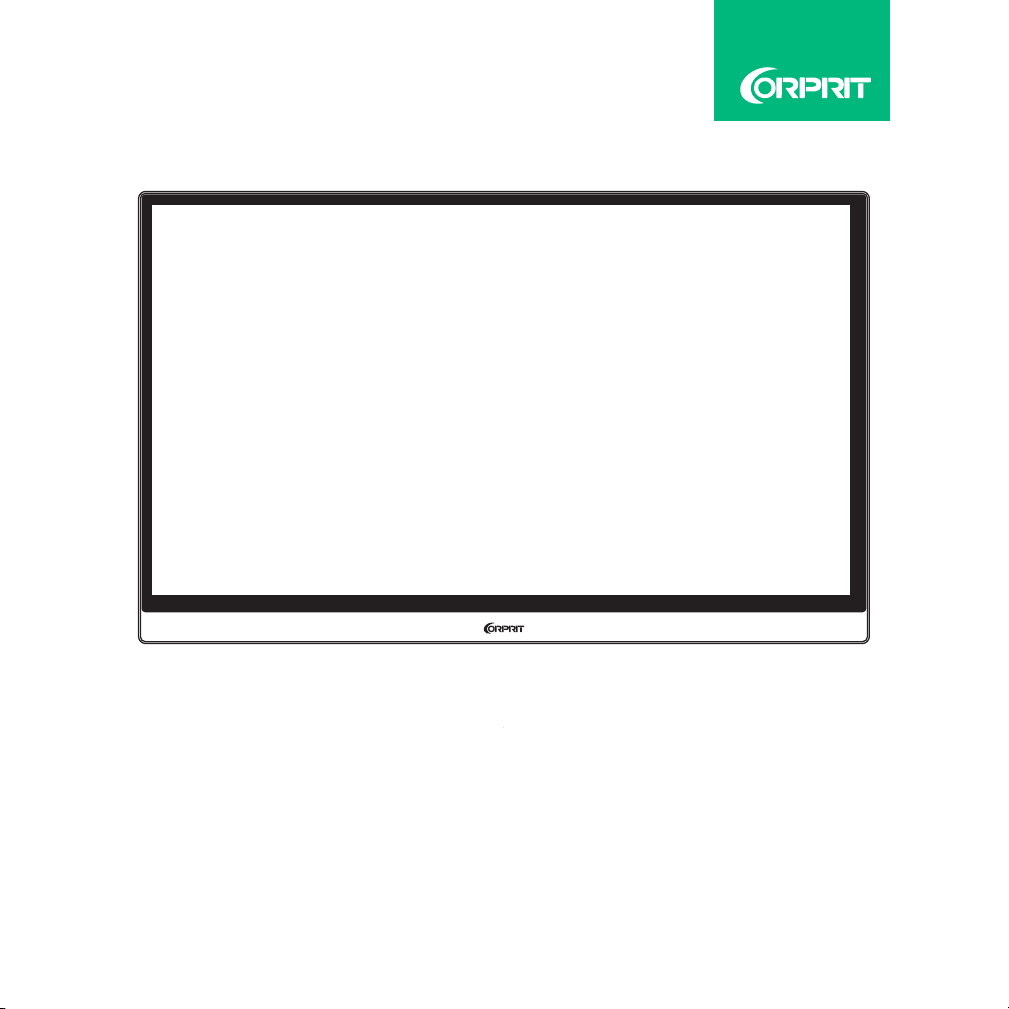
Portable Monitor
Model No.: D158
User Manual


English
V20200821
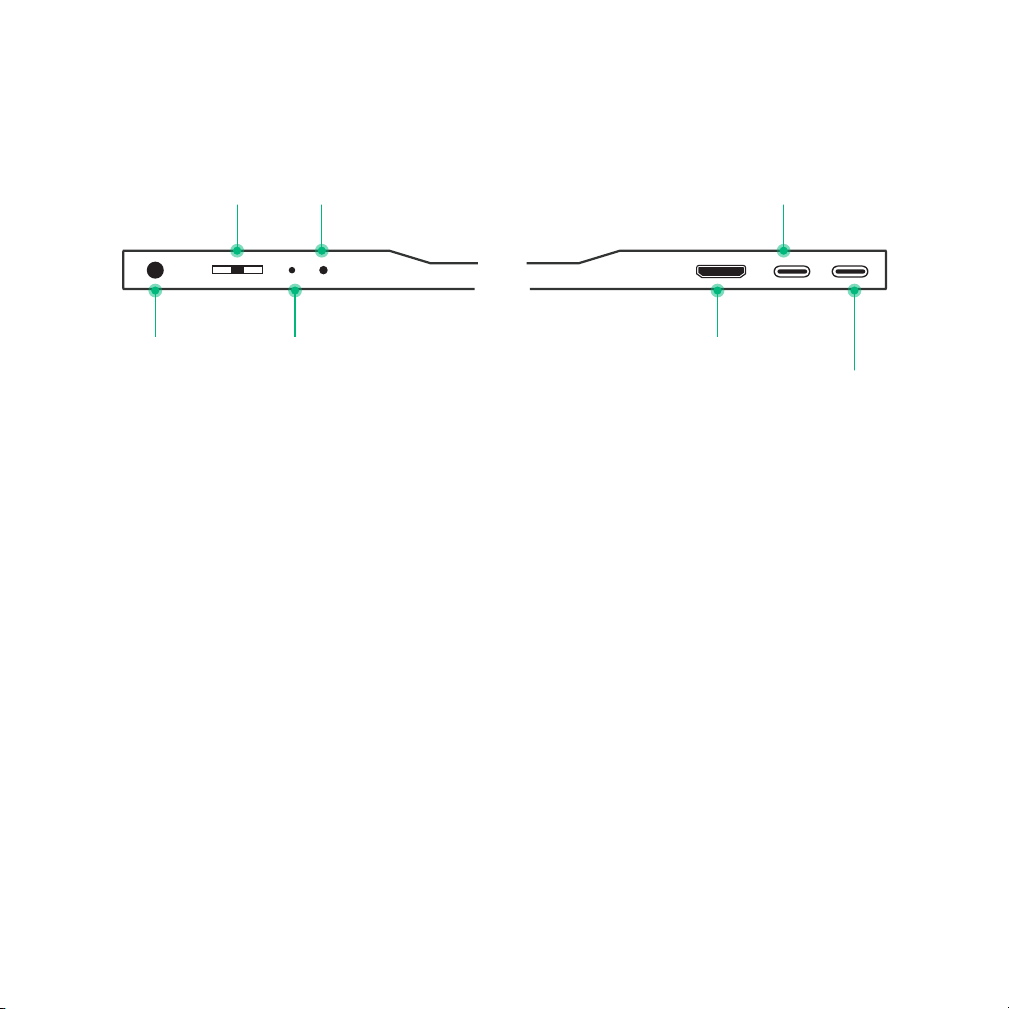
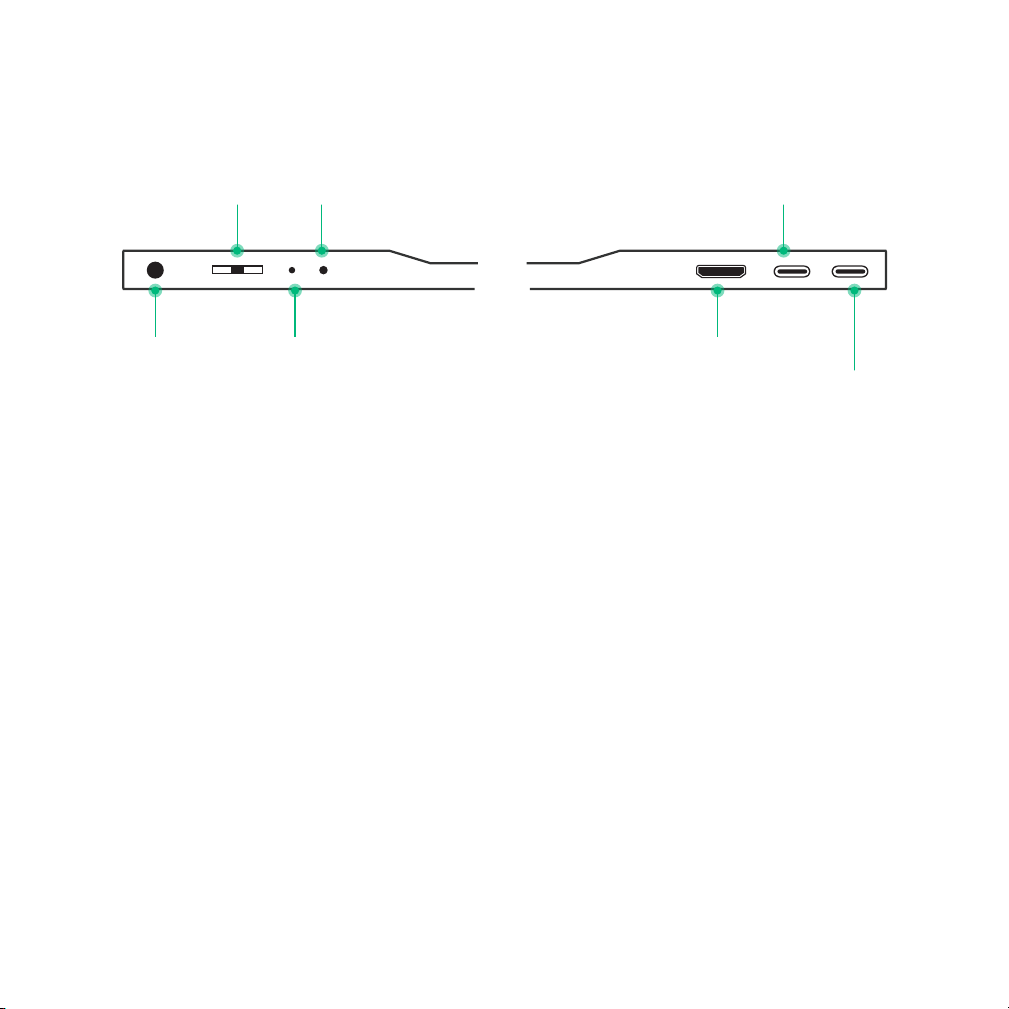
Button And Port Description
● Short press to return during setting up; long press for 3 seconds to turn
On/Off the Monitor ;
Roll Key
Short press the "Roll key" to open the setup menu, scroll the "Roll key" up ●
or down to choose the function, short press the "Roll key" again to confirm
and short press the "Power / Return key" to go back;
Scroll up the "Roll key" on the main interface to fast open the brightness●
quick adjustment bar, scroll up and down to adjust the brightness;
Scroll down the "Roll Key" on the main interface to fast open the volume ●
quick adjustment bar, scroll up and down adjust the volume.
Power/Return key
Signal (green) /
power (red) indicator
Roll key/Menu
3.5mm
headphone
interface
Mini Hdmi-USB
USB-C (signal / power)
USB-C (signal /
power)
Power/Return Key
1

USB-C (Signal/Power)
Full function Type-c interface: designed for display power supply, audio, ●
video signal transmission;
Mini HDMI Interface
Responsible for audio and video signal transmission of display.●
3.5mm headphone interface
Connect external speakers, headphones or digital audio equipment.●
2
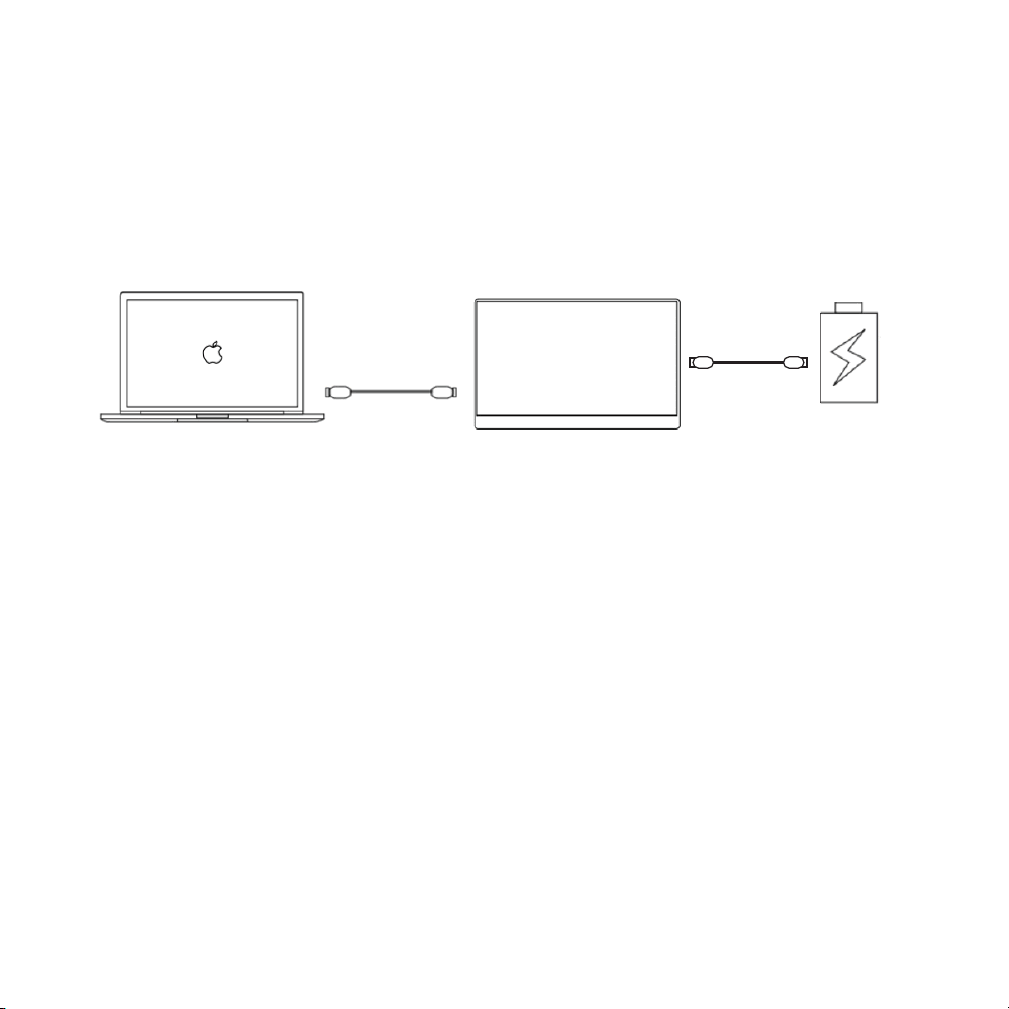
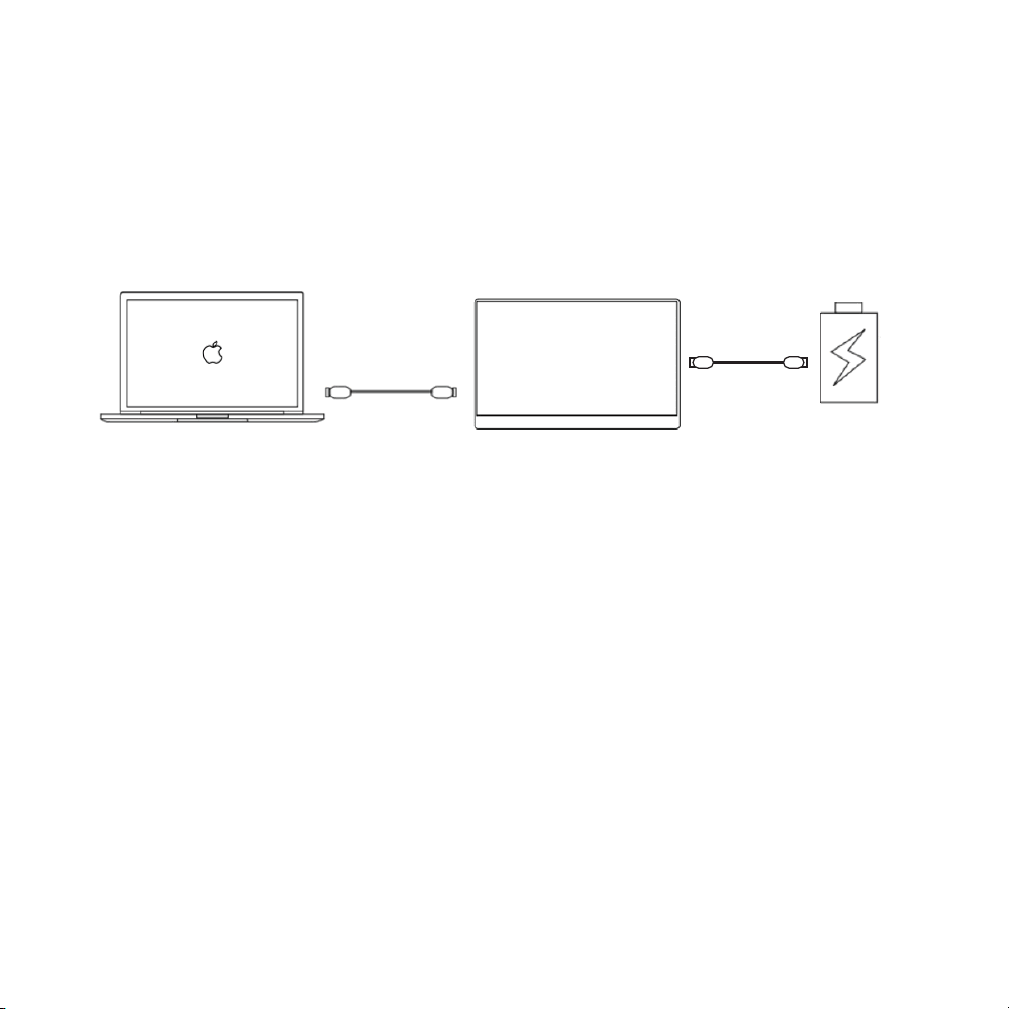
Connect Monitor with Devices
Note:
● When the brightness and volume are adjusted to excess 80%, an external
5V / 2A power supply is needed.
● Not all laptops with a Type-C port can work with Corprit monitor.
Please check the Type C port of your laptop if it supports audio and video
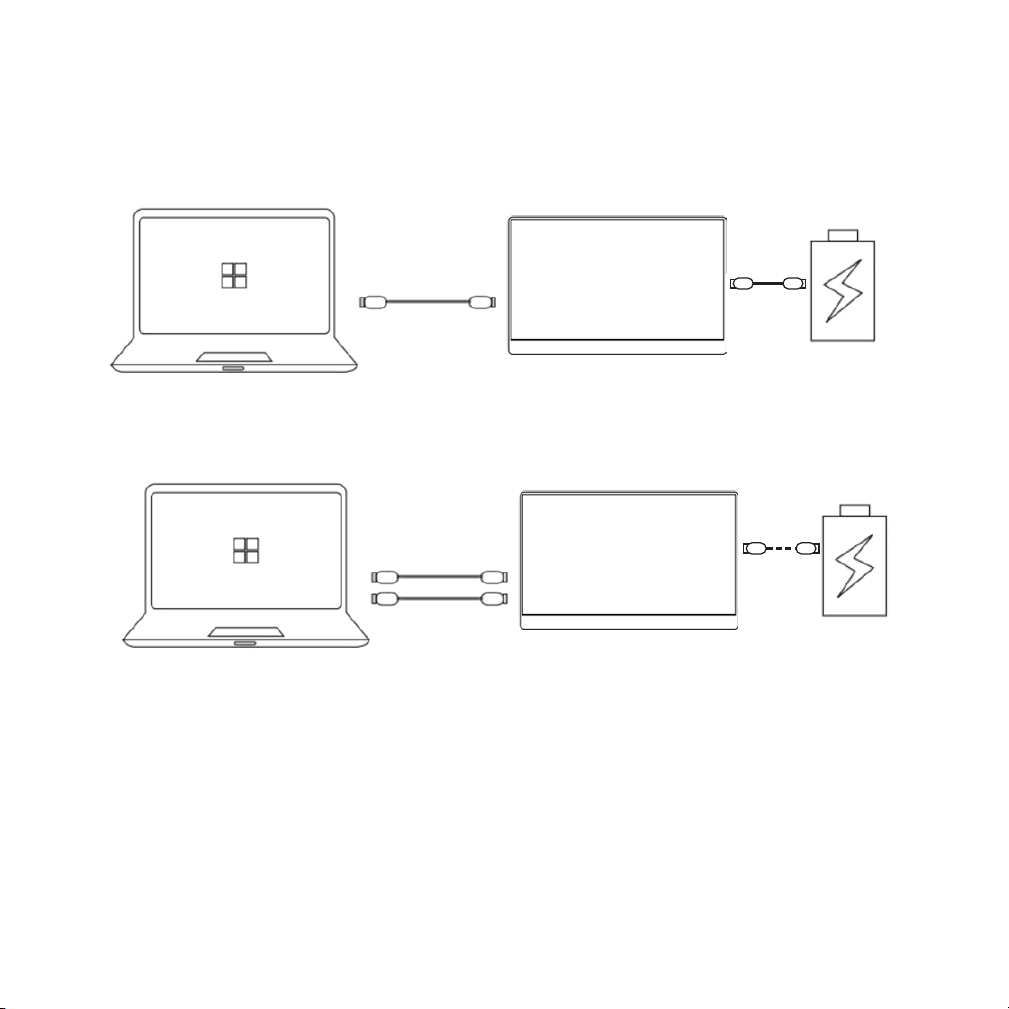
signal transmission
COMPUTER
LAPTOP (With Type-C)
DISPLAY
Type C to
USB A
Type C to Type C
External Power
Supply Of 5VI2A
Or Above
3
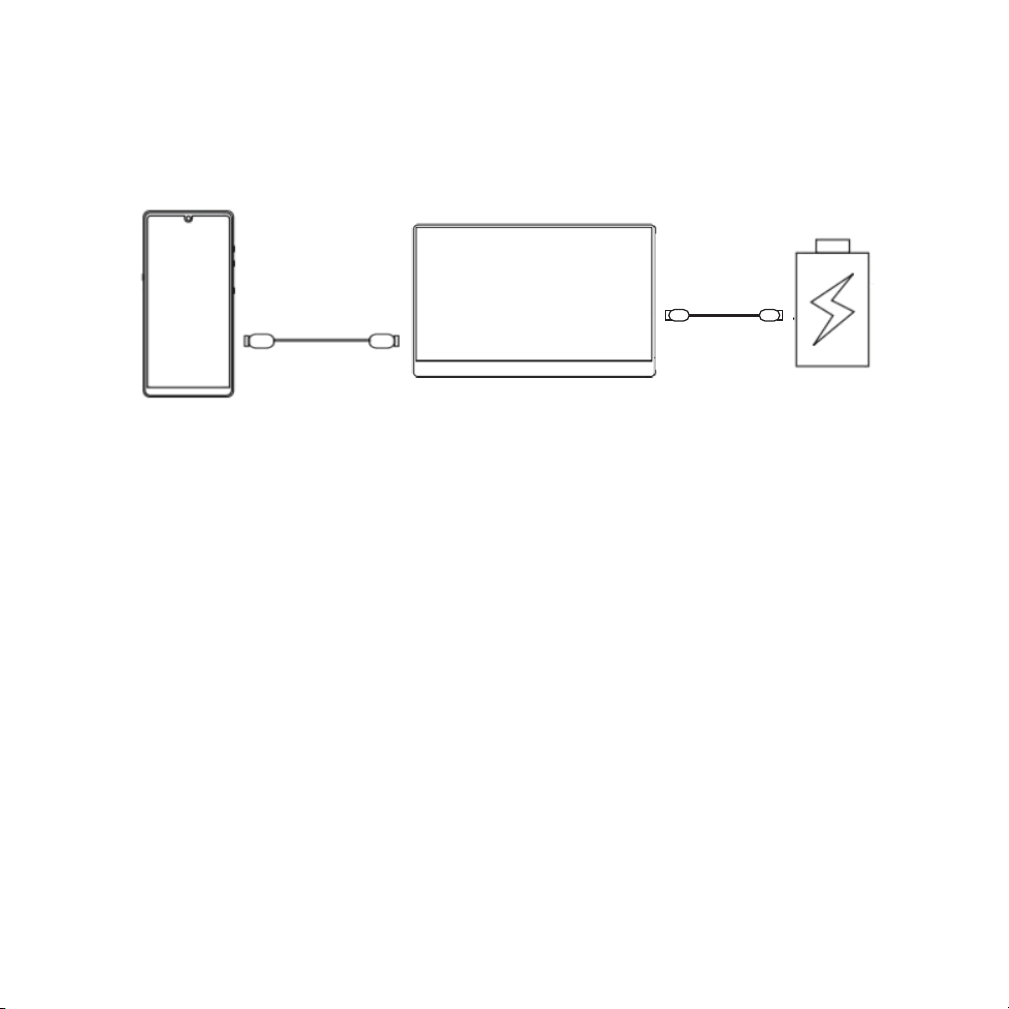
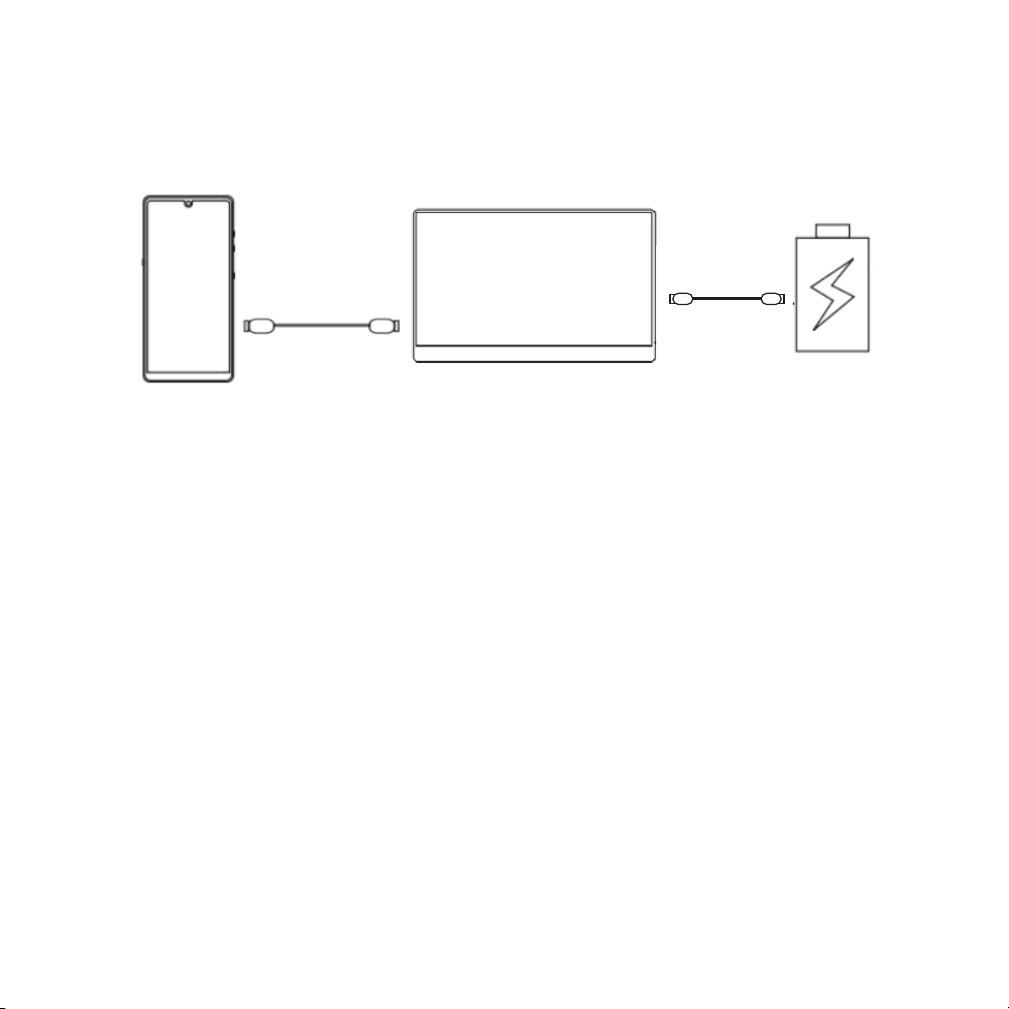
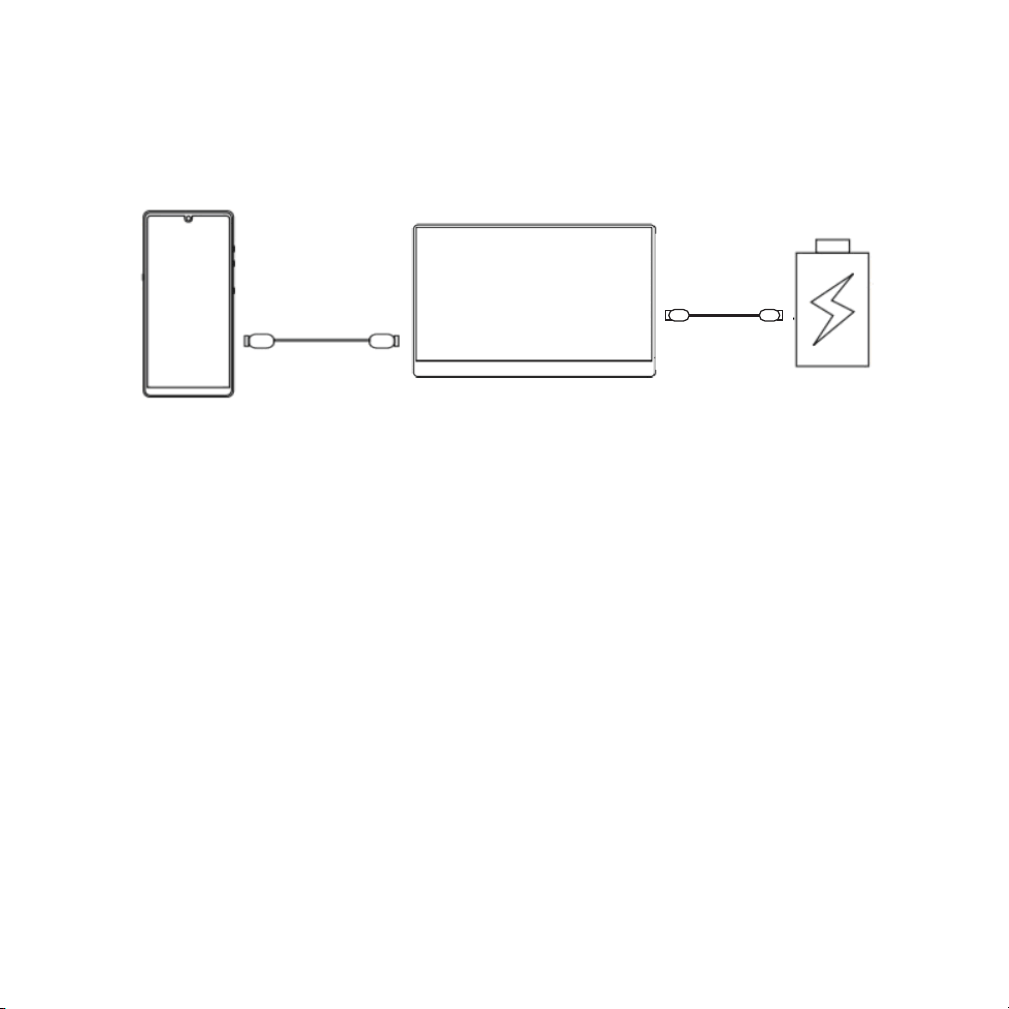
Smart Phone (With Type-C)
● When there is no external power supply, the cell phone battery supplies
power to the monitor. (Energy-saving mode is activated; Brightness is
automatically adjusted to 30%.) Users can adjust the brightness and volume
of the monitor according to the output power of the mobile phone.
● When the external power supply is connected, the monitor charges the
mobile phone through the external power supply in reverse. (To ensure that
the monitor and the mobile phone can get enough working current, please
use at least 10W charger or power bank as the external power supply.
Fast charging to mobile phones is also available if the charger or power bank
support it).
NOTE:
● If you are a iPhone user, please contact Corprit support team to get an
adapter (Lightning to HDMI) if you need.
Type C to
USB A
Type C to Type C
External Power
Supply Of 5VI2A
Or Above
MOBILE
PHONE
DISPLAY
4
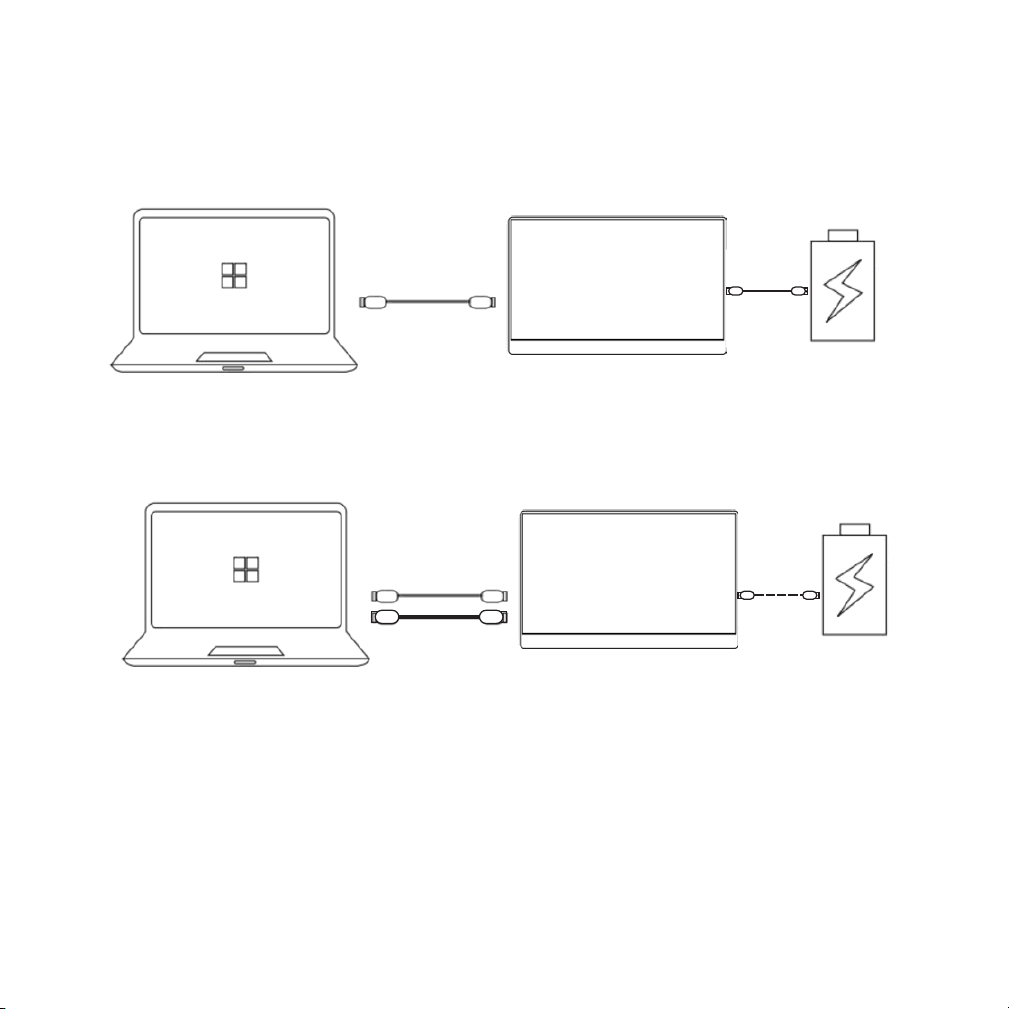
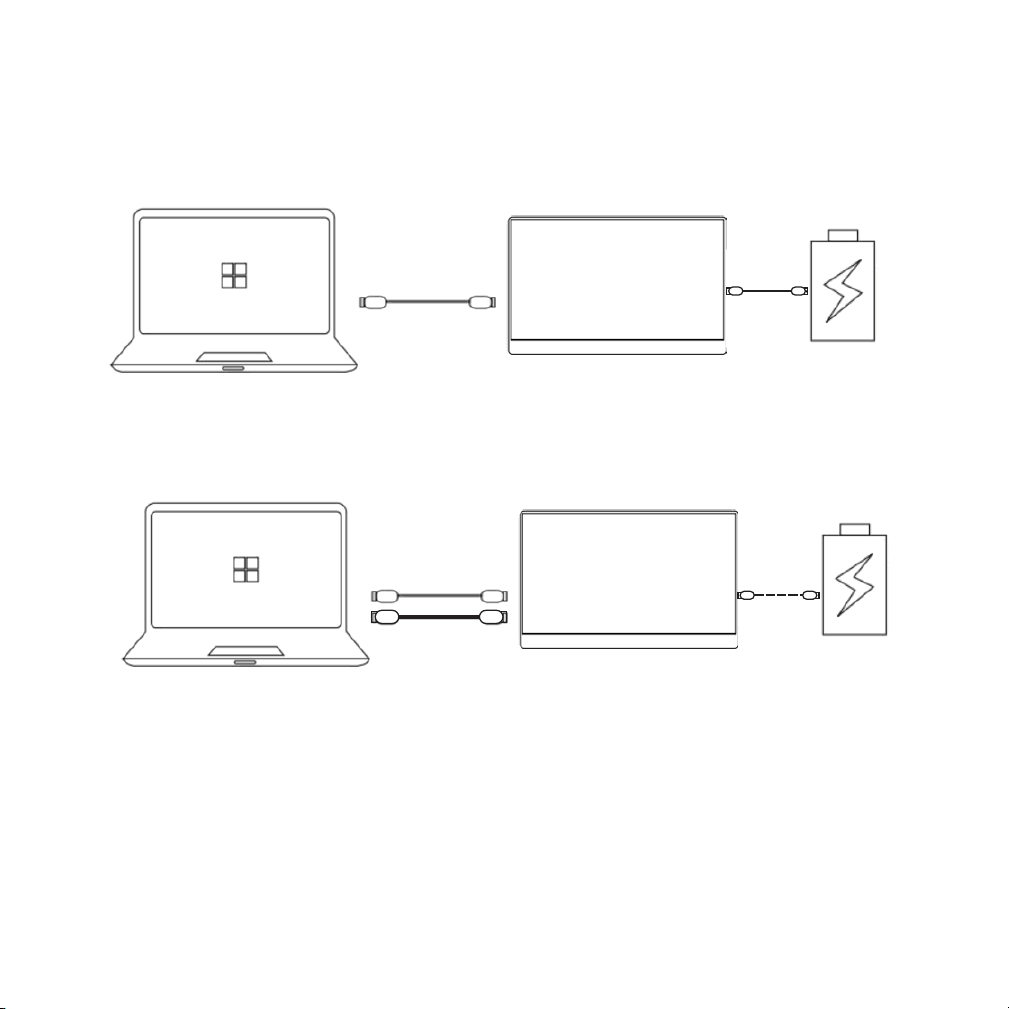
NOTE:
● When connecting to computer with HDMI Port, You need to connect
the power first (5V/2A or above) to ensure the smooth transmission of data
signals.
●Connect the “USB A To Type C” to the computer or to the power adapter to
get power for the monitor.
PC/LAPTOP (With Mini HDMI Port)
OR
DISPLAY
DISPLAY
COMPUTER
USB A toType C
Mini HDMI to
HDMI Cable
Mini HDMI to
HDMI Cable
COMPUTER
Type C to
USB A
External Power
Supply Of 5VI2A
Or Above
External Power
Supply Of 5VI2A
Or Above
Type C to
USB A
5
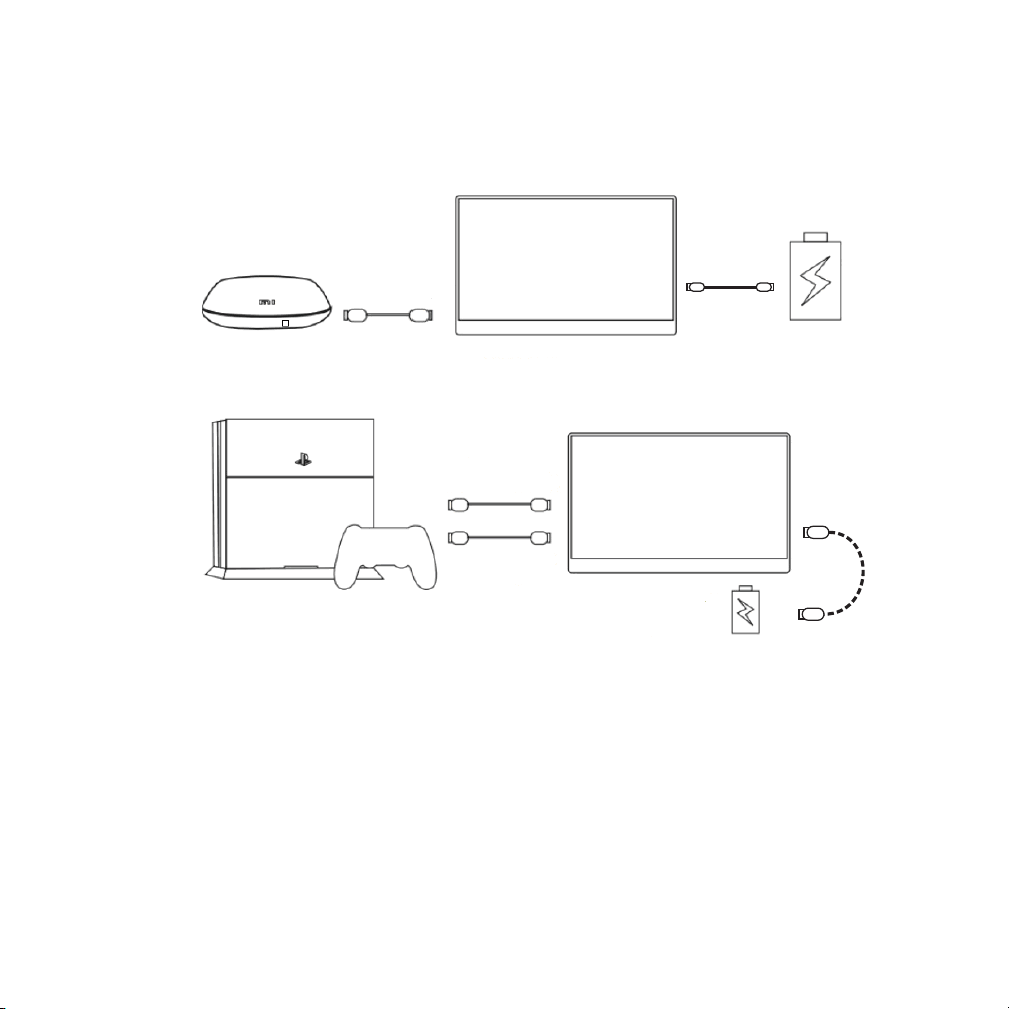
Note:
● Please connect the power supply cable to the monitor before connecting
the monitor to the device to ensure the smooth transmission of signals.
●Connect the “USB A To Type C” to the computer or to the power adapter to
get power for the monitor.
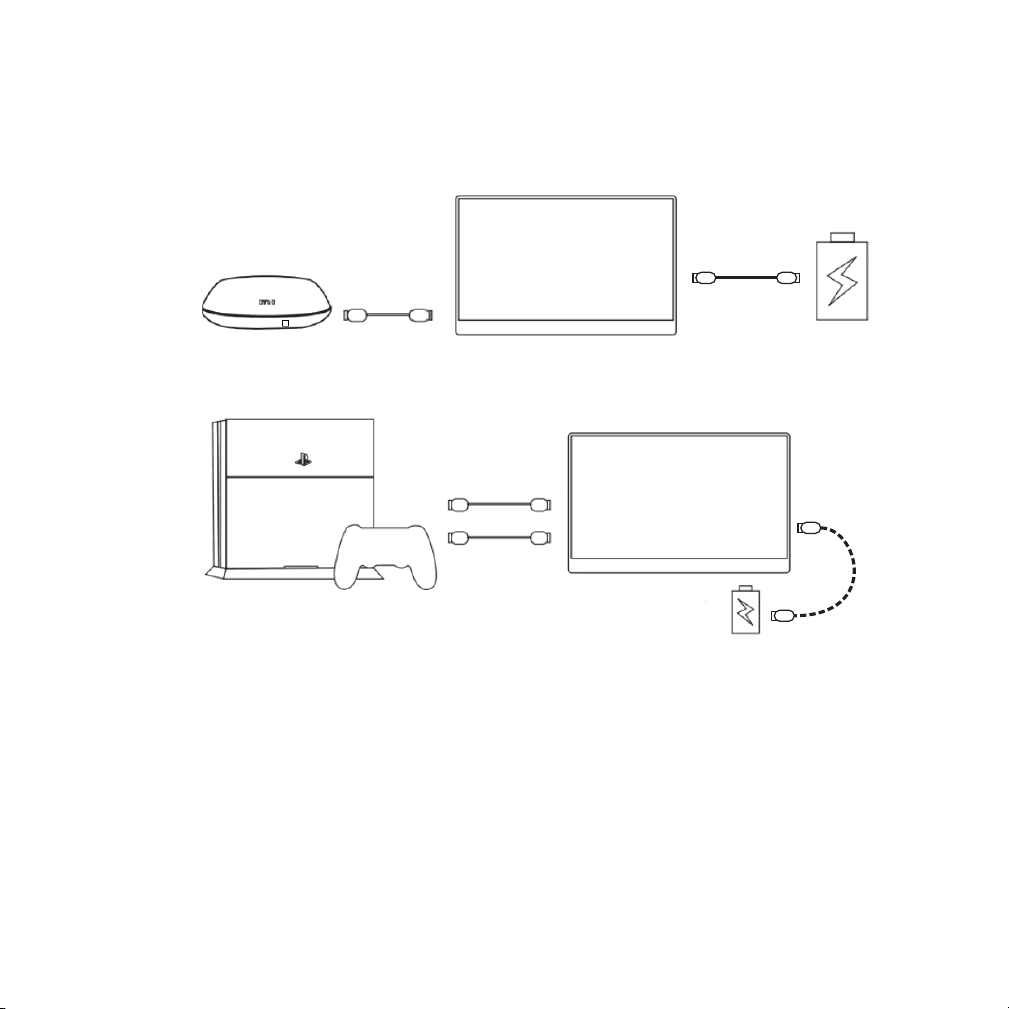
Other Devices
Type C To USB A
Mini HDMI to
HDMI Cable
DISPLAY
DISPLAY
Mini HDMI to
HDMI Cable
Type C to
USB A
External Power
Supply Of 5VI2A
Or Above
External Power
Supply Of 5VI2A
Or Above
Type C to
USB A
6
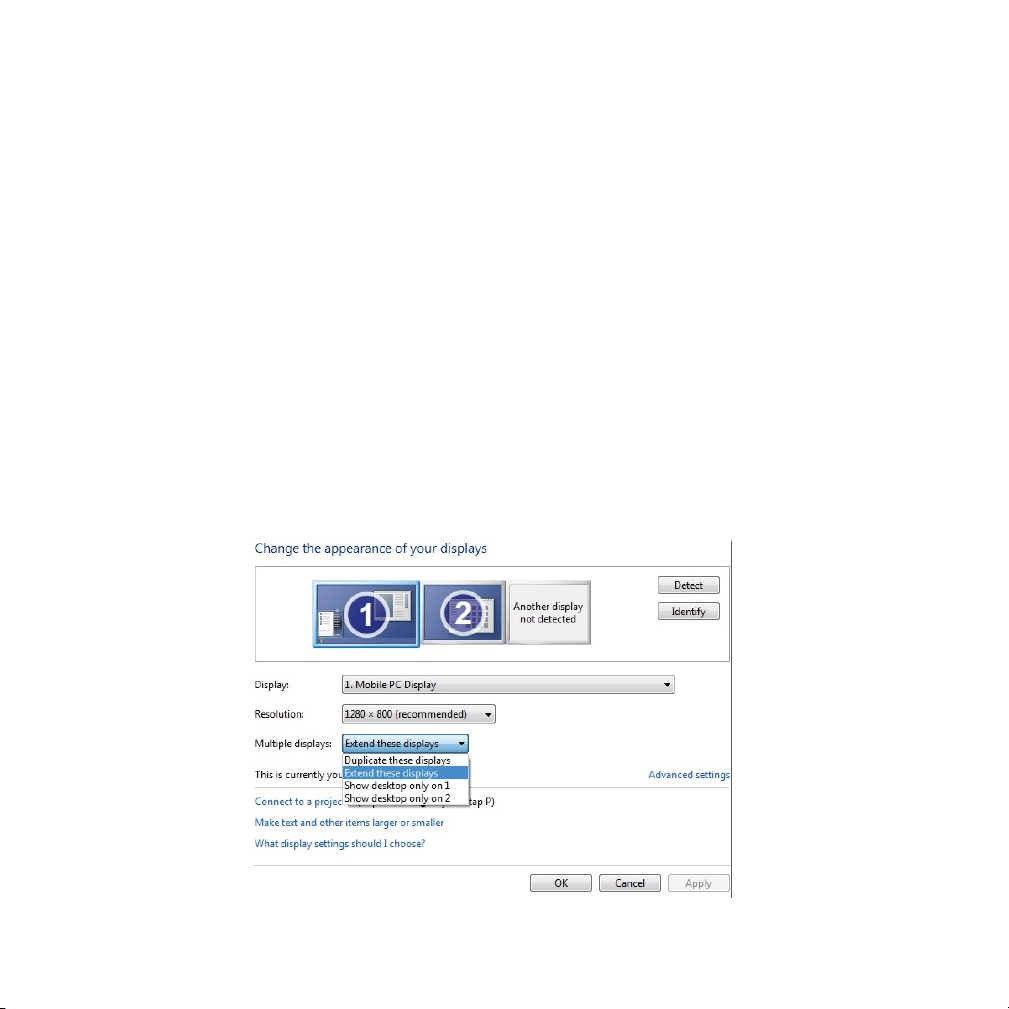
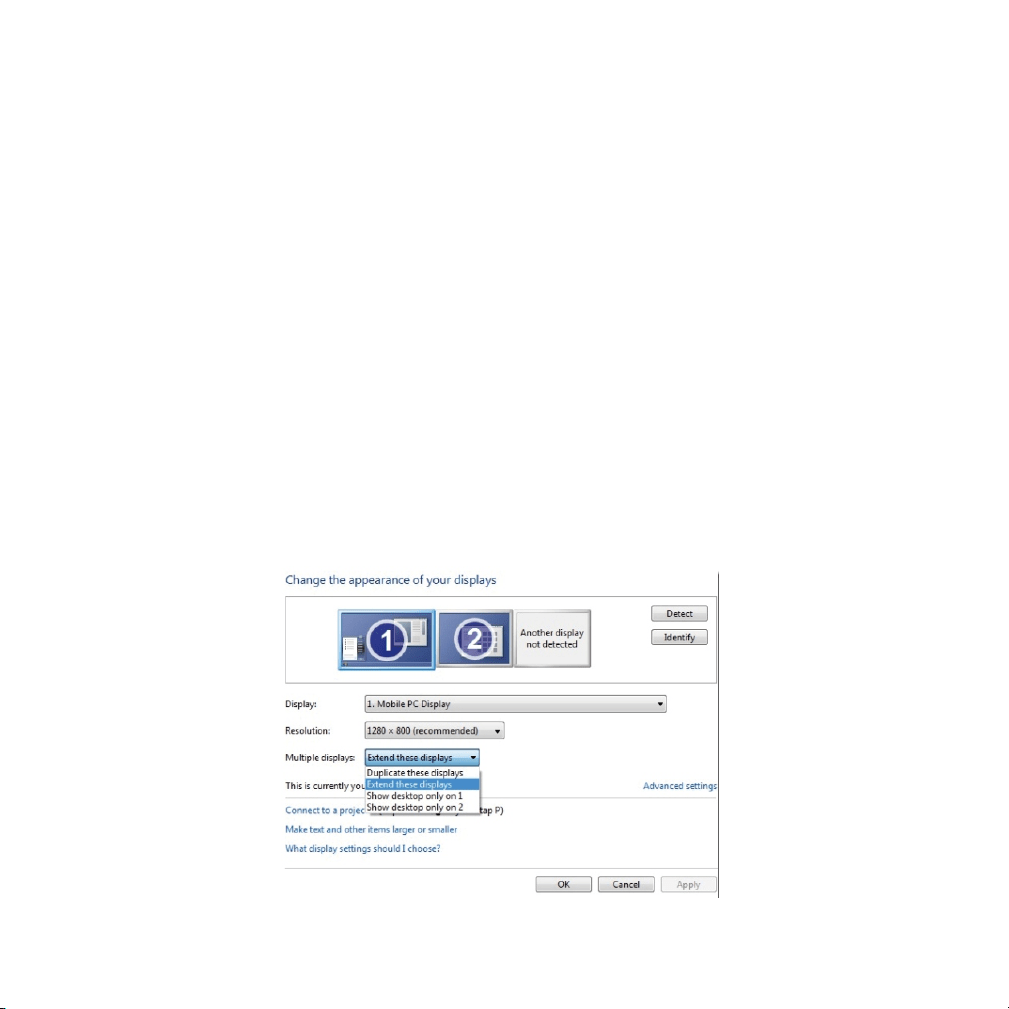
How To Duplicate Or Extend The
Screen Of PC/LAPTOP
1. Connect the Monitor monitor to a PC/LAPTOP and ensure that the Monitor
can be displayed normally .
2. Right-click the desktop and select either Screen resolution (Windows 7/8)
or Display settings (Windows 10).
3. Click the Multiple displays drop-down list, and then select Extend these
displays, or Duplicate these displays.
Note:
● If you cannot see the additional monitor(s) listed, click Detect. If does not
work, try restarting your computer and do steps again.
7
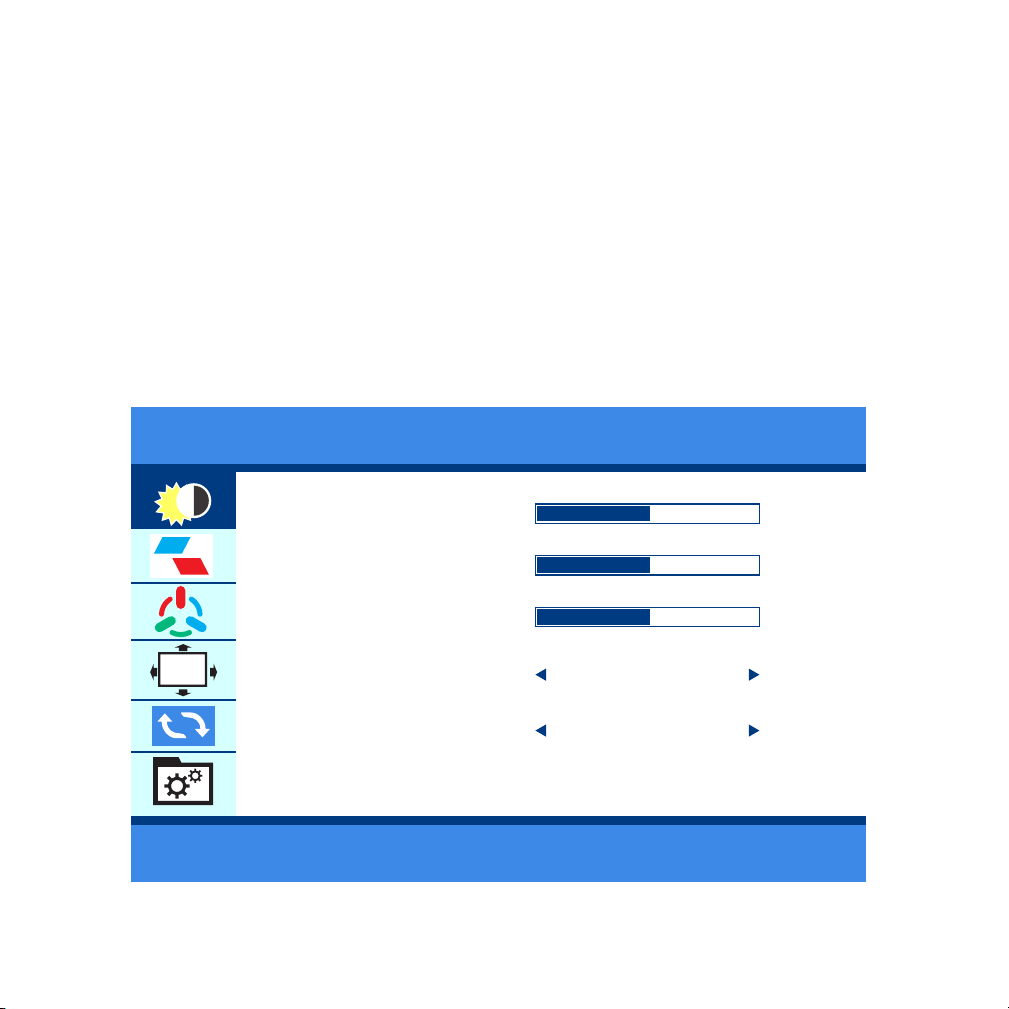
Setup Menu
How to operate
● Short press the "Roll key" to open the setup menu;
● Scroll the "Roll key" up or down to choose the function;
● Short press the "Roll key" again to confirm;
● Short press the "Power / Return key" to go back;
Brightness
BRIGHTNESS
BLACK LEVEL
CONTRAST
ECO
DCR
50
50
50
STANDARD
OFF
BR I GHTNESS
OSD
8
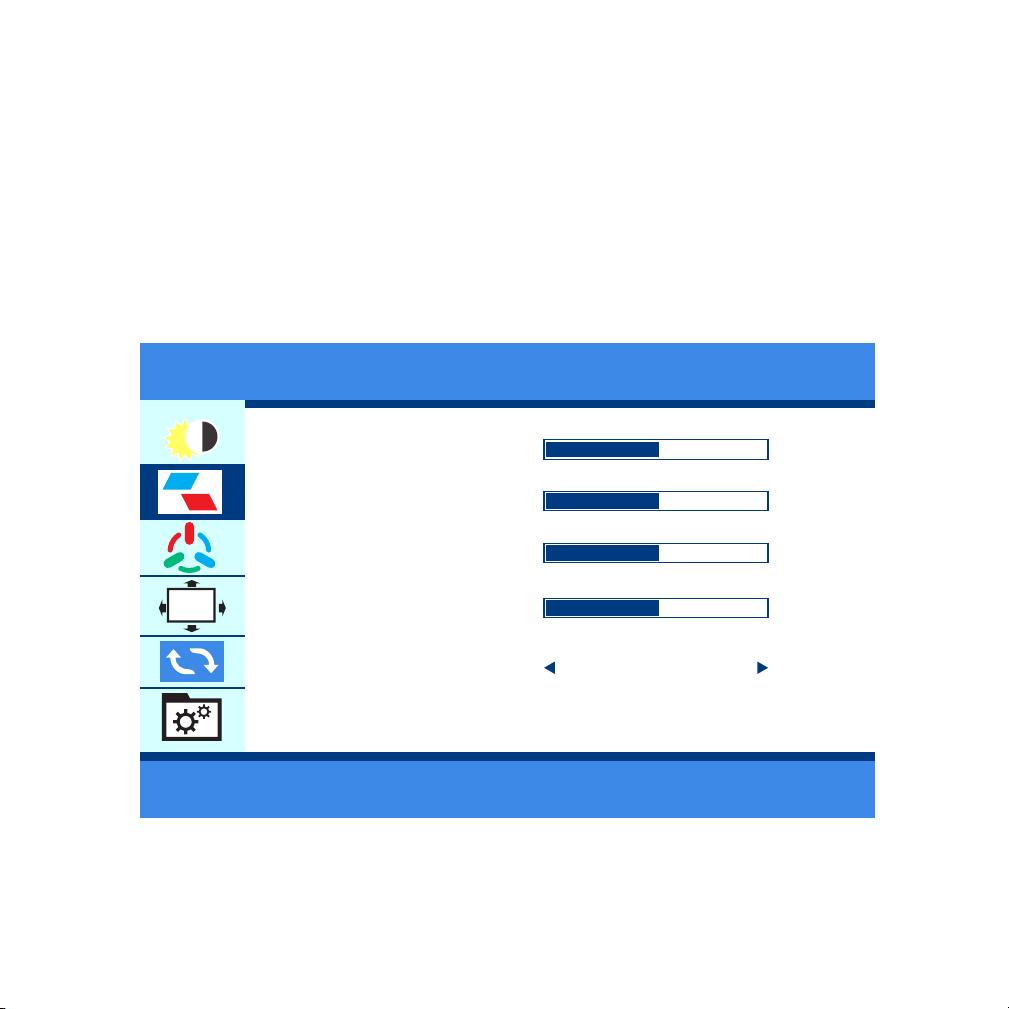
Image
● According to different usage scenarios, different brightness can be adjusted.
Note:
● When the brightness is adjusted to 80, the screen will turn to black
if you do not connect an external power supply of 5V/2A or above.
H. POSITION
V. POSITION
CLOCK
PHASE
ASPE
50
50
50
50
WIDE
IMAGE
OSD
● Set the display image according to personal preference.
9
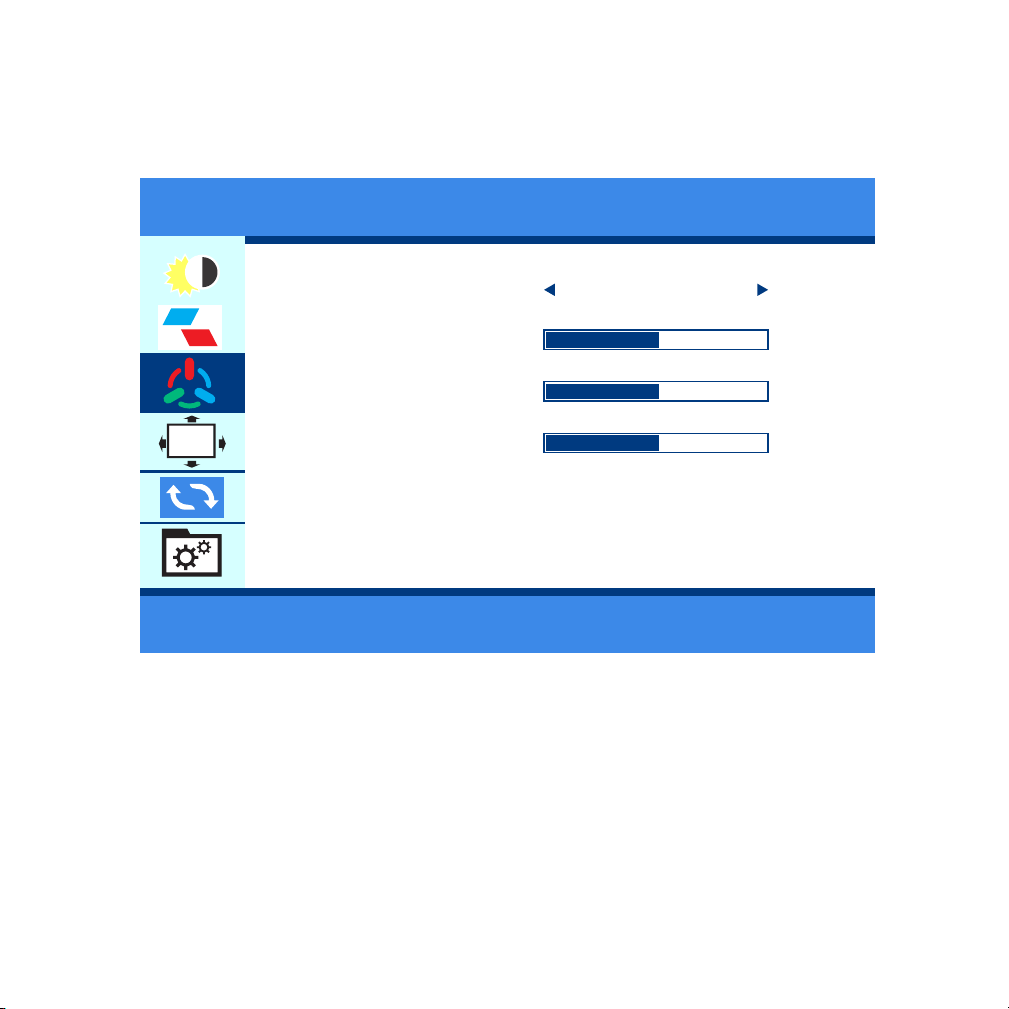
Color
COLOR TEMP
RED
GREEN
BLUE
50
50
50
WIDE
DLOR TEMP.
OSD
● Set the image color according to personal preference.
10
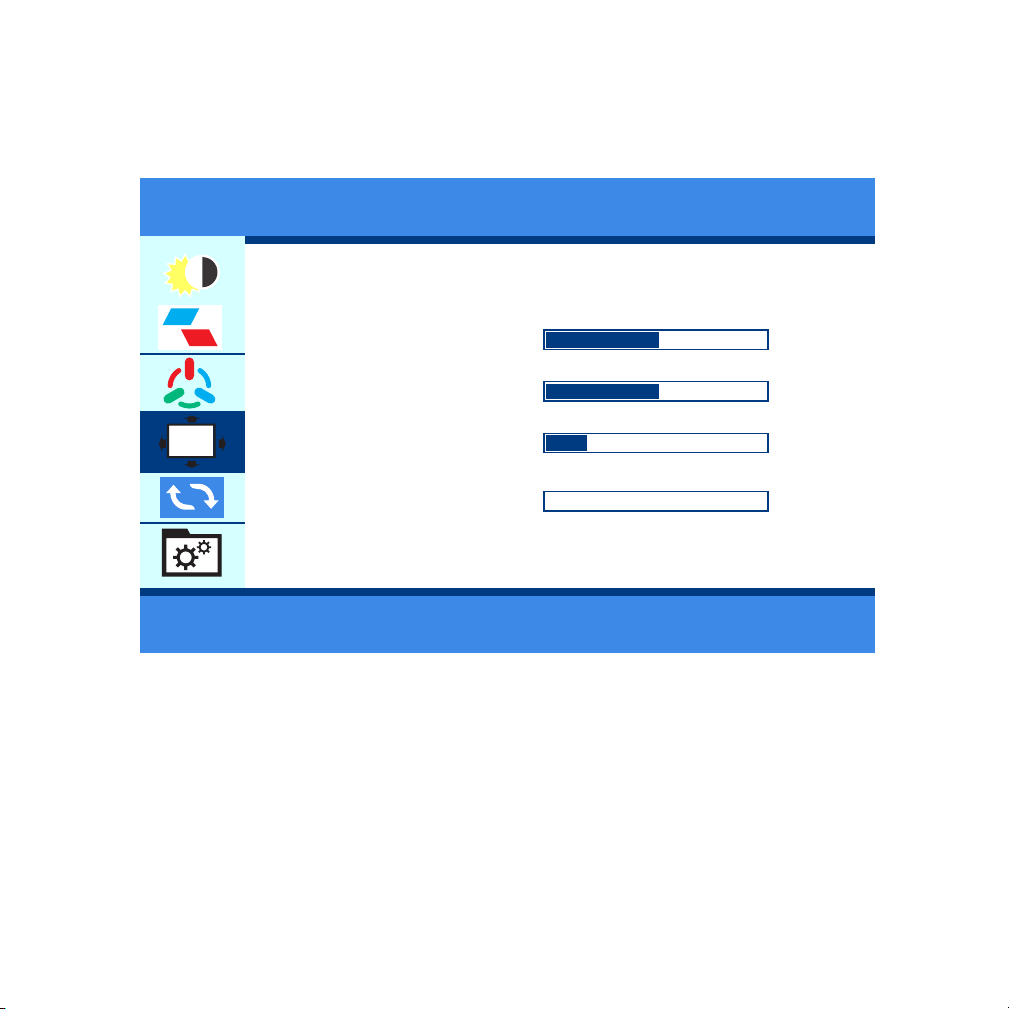
OSD
● Set the OSD according to personal preference.
LANGUAGE
OSD H. POS
OSD v. POS
OSD TIMER
TRANSPARENCY
50
50
10
0
OSD SETTING
OSD
11
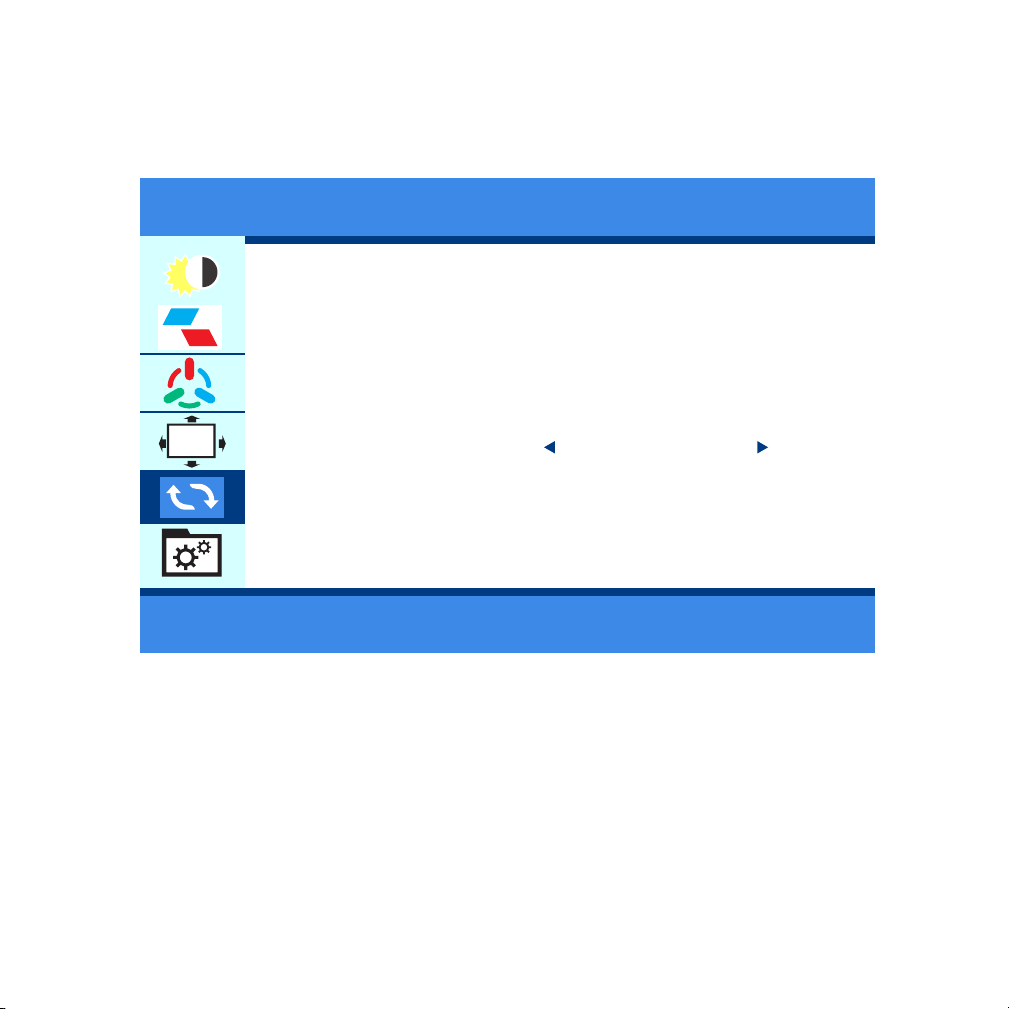
Visual
● If the HDR mode is enabled, the color picture will be richer when playing
games or watching movies.
IMAGE AUTO ADJUST
COLOR AUTO ADJUST
RESET
HDR MODE
RESET
OSD
OFF
12
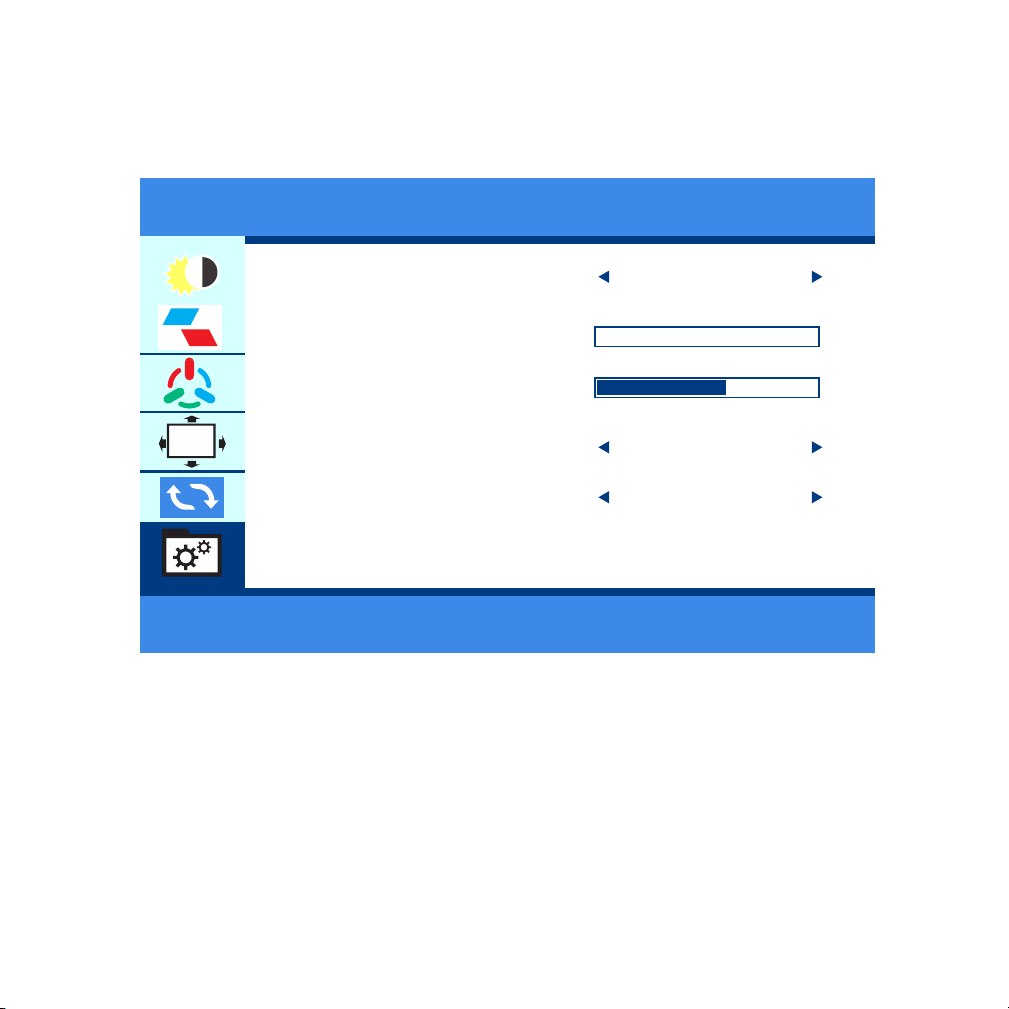
Misc
● Set the display image according to personal preference.
SIGNAL SOURCE
LOW BLUE LIGHT
VOLUME
FREES YNC
OD
MISC
OSD
OFF
OFF
HDMI
0
50
13
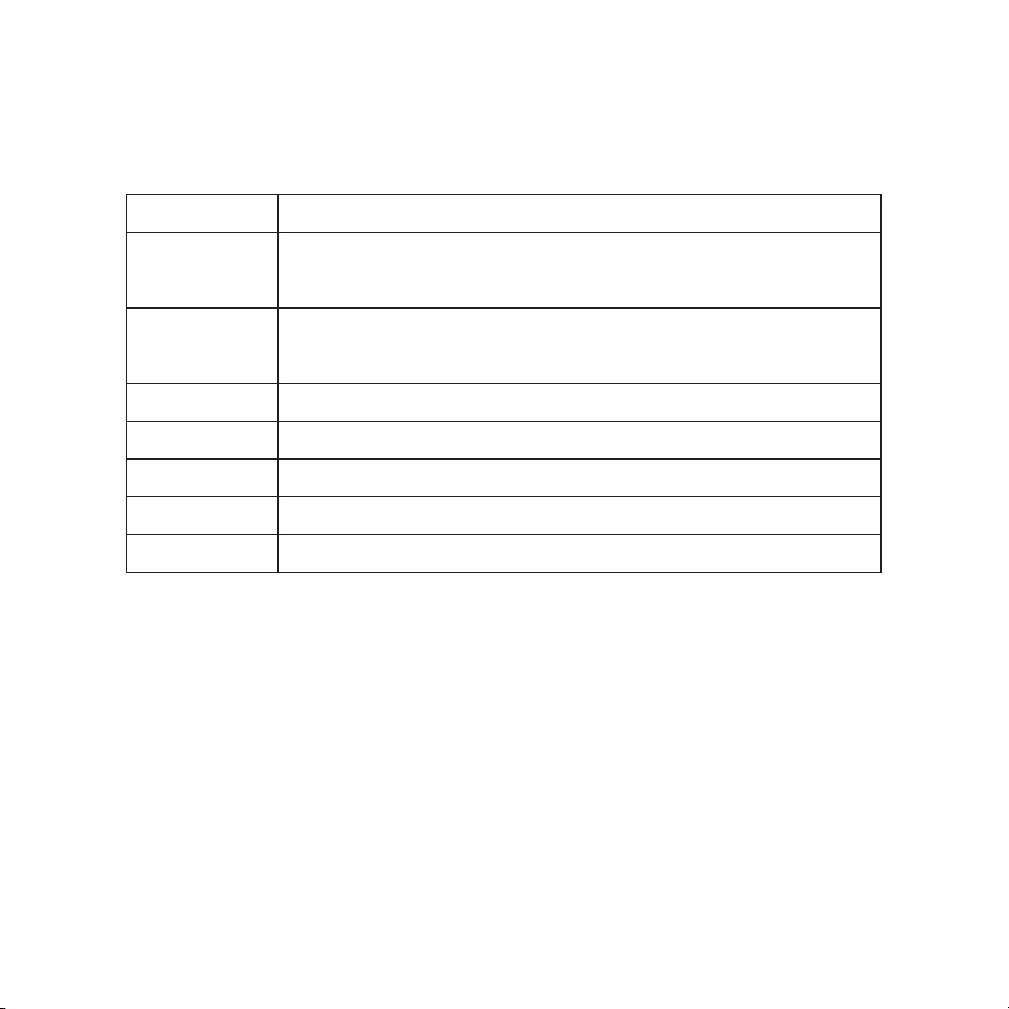
HUAWEI
DEX/S8/S8+/S9/S9+/S10/S10+/S10E/Note 8/Note 9
SAMSUNG
Mate 10/10Pro/20/20Pro/20X/P20/P20Pro/
Honor V20/Honor Note10/P30/P30Pro
OPPO
R17 Pro/Reno
Razer Phone/Razer Phone 2
U Ultra
G5LG
HTC
Razer
Updated continuously...
More
Brand Phone model
Supported phone model
14

Computer model
MateBook、MateBook X、MateBook X Pro、MateBook E
MacBook12、MacBook Pro、MacBook Air、ipad Pro 2018
Magic
Air12.5/13.3inch、Pro15.6 inch、Millet Game Book
Yoga5Pro、ThinkPadX1Carbon2017、Miix720
PavilionX2、EliteBook Folio G1
XPS13 、XPS15
ChromeBook Pixels 、PielBook Pen
LIngYao3、U306、U321series、U41000、ROG series
Surface Book2
Blade Stealth blade/blade sneak version
Updated continuously...
Support computer model
Brand
Huawei
Apple
Honor
Mi
Lenovo
Hp
Dell
Google
Asus
Microsoft
Razer
More
15
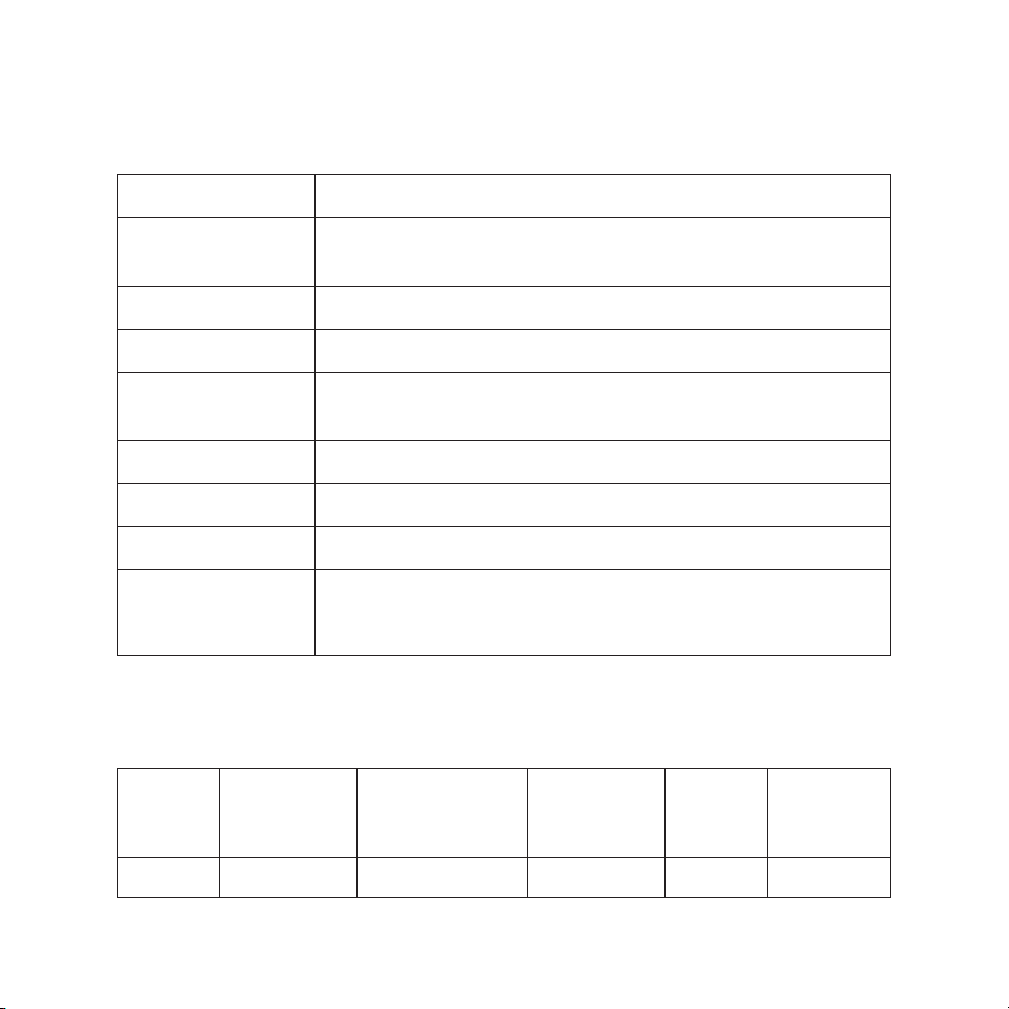
Specification
Product
Product
size(mm)
Color
Viewing angle
Best
perspective
Brightness
Input interface
Output Interface
System
Requirements
Portable display
363*263*6(10)
1080P:262K,80%sRGB
85/85/85/85 (Typ.)(CR≥10)
Full view
300 cd/m²
mini HD interface (signal), Type-C interface×2
3.5mm headphone port
Devices with an HD output interface, computers
with full Type C video output capability
Packing list
Name
Number
Mini HD to
HD Cable
1
Type-C to
Type-C Cable
1
USB to
Type-C
Cable
1
Stand
1 1
Power
Adapter
16

Notices
● Before setting up this Type-c Portable Monitor, carefully read all the
documentation that came with the package.
● To prevent fire or shock hazard, never expose this Type-c Portable Monitor
to rain or moisture.
● Never try to open this Type-c Portable Monitor cabinet.
● Before using this Type-c Portable Monitor, make sure all cables are
correctly connected and the power cables are not damaged. If you detect
anydamage, contact our tech support immediately.( [email protected])
● Avoid dust, humidity, and temperature extremes. Do not place this
Type-c Portable Monitor in any area where it may become wet. Place this
Type-c Portable Monitor on a stable surface.
● Never push objects or spill liquid of any kind into the slots on this Type-c
Portable Monitor cabinet.
● If you encounter technical problems with this Type-c Portable Monitor,
contact our tech support immediately.( [email protected])
17

Care & Cleaning
The following symptoms are
normal with the monitor
● Cleaning. Turn your monitor off and unplug the cable. Clean the monitor
surface with a lint-free, non-abrasive cloth. Stubborn stains may be removed
with a cloth dampened with mild cleaner.
● Avoid using a cleaner containing alcohol or acetone. Use a cleaner
intended for use with the LCD. Never spray cleaner directly on the screen, as
it may drip inside the monitor and cause an electric shock.
● You may find slightly uneven brightness on the screen depending on the
desktop pattern you use.
● When the same image is displayed for hours, an afterimage of the previous
screen may remain after switching the image. The screen will recover slowly
or you can turn off the Power Switch for hours.
● When the screen becomes black or flashes, or cannot work anymore,
contact our tech support to fix it. Do not repair the screen by yourself !
18

● Check if the monitor and the computer are in the ON mode.Make sure the
cable is properly connected between the monitor and the computer.
● Inspect the signal cable and make sure none of the pins are bent.
● Connect the computer with another available monitor to check if the
computer is properly working
3. Screen image is too light or dark
2.The monitor is power on, but there is no screen image
● Press the power button to check if the monitor is in the ON mode.
● Check if the cable is properly connected to the monitor and the power
Outlet.
1. Power is not ON
● Make sure the Type-C cable is properly connected between the Portable
Monitor
and the computer.
● Move electrical devices that may cause electrical interference.
4.Screen image bounces or a wave pattern is present in the image
●Adjust the Brightness settings in OSD menu setting (Picture > Brightnees)
Troubleshooting (FAQ)
19

• Connect your Corprit monitor to a power outlet and an available port on
your PC.
7.Can it support Apple Phone?
• Inspect the Type-C cable and make sure that none of the pins are bent.
5.Screen image has color defects (white does not look white)
• No. The monitor can not work with Bluetooth Mouse and Keyboard directly.
The Bluetooth Mouse and Keyboard can pair with your Phone, and then
connect your phone to the monitor.
8.Can it work with Bluetooth Mouse and Keyboard?
• Yes, please contact Corprit support team to get an adapter (Lightning to
HDMI) if youneed.
• Note: Please use a branded adapter to ensure a good connection.
Right-click the desktop and select either Screen resolution
(Windows 7/8) or Display settings (Windows 10).
• Click the multiple displays drop-down list, and then select Extend these
displays
or Duplicate these displays.
• Note if you cannot see the additional monitor(s) listed, click Detect. If does
not
work, try restarting your computer and do steps again.
6.How to duplicate or extend displays
Troubleshooting (FAQ)
20

9.Can my MACBOOK Air work with this display?
• Please use a Mini Display adapter to connect your MACBOOK Air.
10. The screen of monitor shows No signal
• Please unplug the wire and reconnect.
11. My Android Phone has a Type-C port. It cannot work.
• Not all mobile phones with a Type-c interface can work with Corprit monitor.
Please check the Type C port of your Android Phone whether it supports
audio and video signal transmission. If you don't know it, please consult your
mobile phone service provider.
12.My Android Phone has a Micro USB port. Can it work?
• Yes. You need to buy an adapter. But we don’t recommend it. The clarity
of the picture will be affected, and the experience will be worse than that of
the Apple phone.
• Note: Please use a branded adapter to ensure a good connection.
13. Does this monitor have built-in battery?
·No. It doesn’t have.
14. I lost my accessories of this monitor.
·Please kindly contact our after-sale support team at [email protected]
Troubleshooting (FAQ)
21

15. Can it work with XBOX and Nintendo?
·Yes. Corprit Portable Monitor works with XBOX and Nintendo.
16. What are the warranty and the return policy of the monitor?
·Corprit has a 30-day refund/12-month replacement guarantee. Please
kindly contact our after-sale support team at [email protected] and we're
going to deal with it within 24 hours.
17. My Type C laptop shows no signal (cannot work with Corprit
monitor)monitor?
·Please check if the Type C port of your laptop is a full-featured Type C port.
Whetheryour Type C supports data transmission + PD charging input
functions. Only your laptop has a full-featured Type C interface to be
compatible with our display. If it is just a Type C for charging, it will not be
available.
Support
Tech Support: [email protected]
If you have any question, feel free to contact us.
Troubleshooting (FAQ)
22


Deutsche
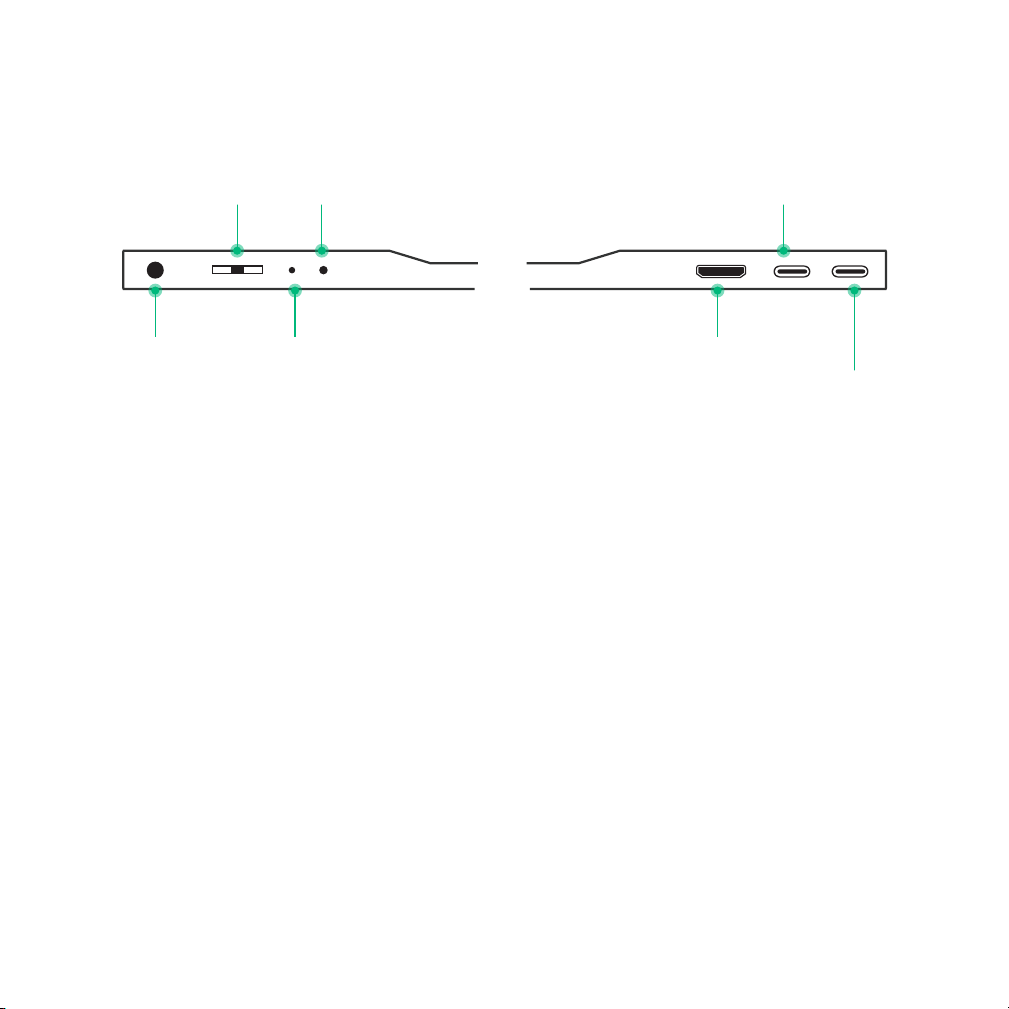
Taste Und Ports - Einführung
● Drücken Sie die Taste kurz, um während der Einrichtung zurückzukehren;
halten Sie sie 3 Sekunden lang gedrückt, um den Monitor ein-/ausschalten.
Taste Roll
Drücken Sie die "Roll-Taste„ kurz, um das Einstellung-Menü zu öffnen, und ●
scrollen Sie mit der "Roll-Taste„ nach oben oder nach unten, um die Funktion
auszuwählen, drücken Sie die "Roll-Taste„ zur Bestätigung erneut kurz, und
drücken Sie die "Betrieb / Return-Taste„ kurz, um zurückzukehren;
● Scrollen Sie mit der “Roll Taste„ auf der Hauptoberfläche nach oben, um die
Schnelleinstellleiste der Helligkeit zu öffnen , scrollen Sie mit der nach oben
und unten, um die Helligkeit anzupassen.
Betrieb/Return-Taste
Signal (grün)/ Betrieb-Anzeige (rot)
Taste Roll/ Menü
3.5mm
Kopfhöreranschluss
USB-C (Signal/Betrieb )
USB-C (Signal/
Betrieb)
Betrieb/Return-Taste
Mini HDMI-Anschluss
25

● Scrollen Sie mit der “Roll Taste„ auf der Hauptoberfläche nach unten, um
die Schnelleinstellleiste der Lautstärke zu öffnen, scrollen Sie mit der nach
oben und unten, um die Lautstärke einzustellen.
USB-C (Signal/Betrieb)
Einwandfreie Funktionen Typ-C-Anschluss: für Stromversorgung, ●
Übertragung von Audio- und Videosignalen.
Mini HDMI-Anschluss
Übertragung von Audio- und Videosignalen.●
3.5mm Kopfhöreranschluss
Anschluss für externen Lautsprecher, Kopfhörer oder digitales Audiogerät.●
26
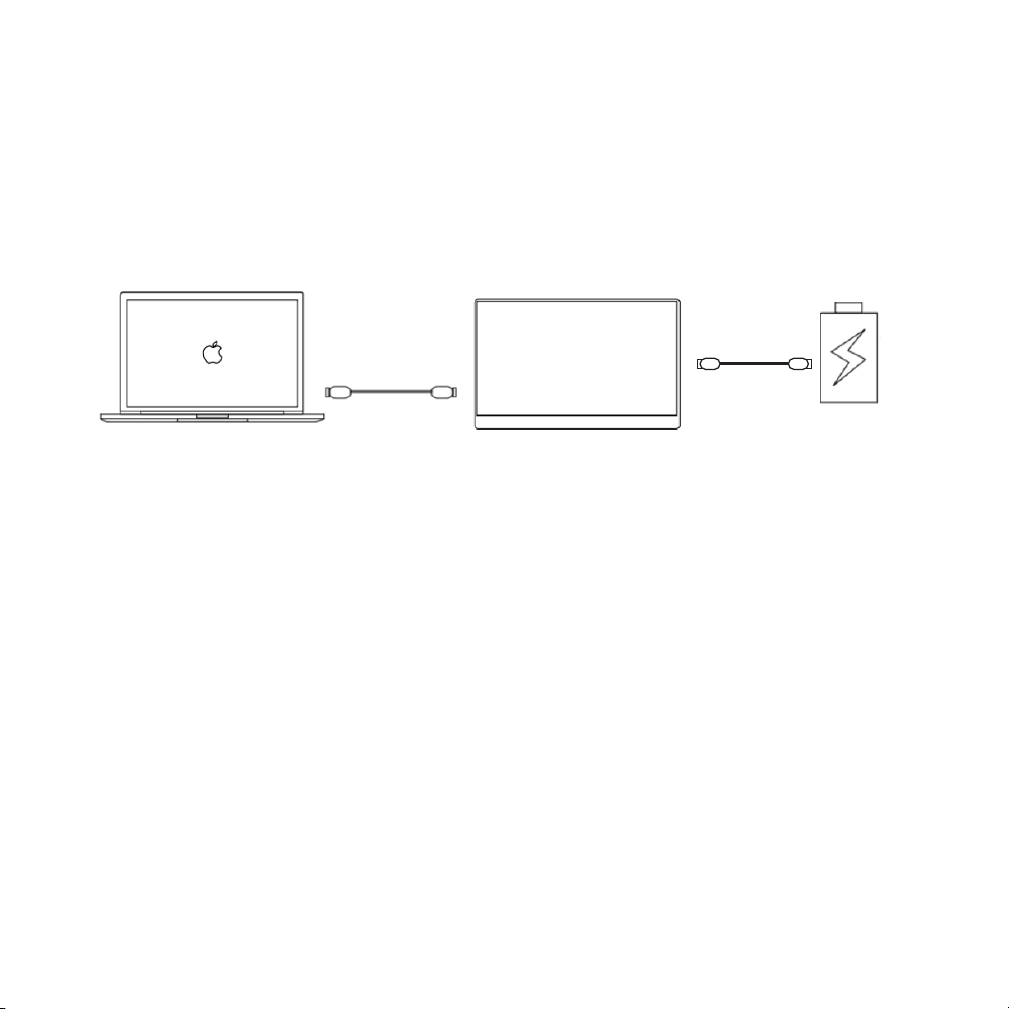
Monitor mit Geräten verbinden
Hinweise
● Wenn die Helligkeit und Lautstärke auf über 80% eingestellt sind,
empfehlen wir den Monitor durch ein Netzteil mit mindestens 5V/2A Strom
zu versorgen.
● Nicht alle Laptop mit einem Typ-C-Anschluss können mit dem
Corprit-Monitor arbeiten. Bitte überprüfen Sie den Typ-C-Anschluss Ihres
Laptops, ob er die Übertragung von Audio- und Videosignalen unterstützt.
COMPUTER
ANZEIGE
Typ-C zu
Typ-C
LAPTOP (mit Typ-C )
Externe Stromquelle
mit 5V/2A oder mher
Typ-C auf
USB-A
27
PHONE (mit Typ-C)
●Wenn keine externe Stromversorgung vorhanden ist, versorgt der Akku des
Mobiltelefons den Monitor mit Strom. (Der Energiesparmodus ist aktiviert; die
Helligkeit wird automatisch auf 30% eingestellt). Benutzer können die Helligkeit
und Lautstärke des Monitors entsprechend der Ausgangsleistung des
Mobiltelefons einstellen.
●Wenn der Monitor extern mit Strom versorgt ist, verfügt der Monitor
gleichzeitig für Ihr Handy auch über Strom zum Aufladen. (Um sicherzustellen,
dass der Monitor und das Mobiltelefon ausreichend Betriebsstrom erhalten
können, verwenden Sie bitte mindestens 10W Ladegerät oder Netzteil als ein
Ladegerät mit höherer Leistung kann ein schnelles Aufladen des
Mobiltelefons ermöglichen. )
HINWEIS
Bitte kontaktieren Sie das Corprit-Supportteam, um einen Adapter (Lightning
auf HDMI) zu erhalten, falls Sie einen benötigen.
SMARTPHONE
ANZEIGE
Externe Stromquelle
mit 5V/2A oder mher
Typ-C auf
USB-A
Typ-C zu
Typ-C
28
Hinweise
● Wenn Sie eine Verbindung zum Computer mit HDMI-Anschluss herstellen,
müssen Sie eine Verbindung mit (5V / 2A oder höher) Strom herstellen, um
eine reibungslose Datenübertragung der Signale zu gewährleisten
● Schließen Sie den „USB A auf Typ C“ an den Computer oder an das Netzteil,
um den Monitor mit Strom zu versorgen.
3. PC/Laptop (mit Mini-HDMI-Anschluss)
ODER
ANZEIGE
ANZEIGE
COMPUTER
USB-A auf Typ-C
Mini HDMI auf
HDMI-Kable
COMPUTER
Mini HDMI auf
HDMI-Kable
Externe Stromquelle
mit 5V/2A oder mher
Typ-C auf
USB-A
Externe Stromquelle
mit 5V/2A oder mher
Typ-C auf
USB-A
29
Hinweise
● Bitte schließen Sie zuerst das Netzkable und dann das “Mini-HDMI auf
HDMI-Kabel„ mit dem Monitor an, um eine reibungslose Übertragung der
Signale zu gewährleisten.
● Schließen Sie das “USB-A zu Typ-C„ an den Computer oder an das
Netzteil an, um den Monitor mit Strom zu versorgen.
Andere Geräte
Mini HDMI auf
HDMI-Kable
ANZEIGE
ANZEIGE
Mini HDMI auf
HDMI-Kable
Typ-C zu USB-A
Externe Stromquelle
mit 5V/2A oder mher
Typ-C auf
USB-A
Externe Stromquelle
mit 5V/2A oder mher
Typ-C auf
USB-A
30
Wie Sie Ihren PC/LAPTOP-Monitor
einrichten, um die Anzeige zu
duplizieren oder erweitern
● Schließen Sie den Corprit-Monitor an einen PC / Laptop an und stellen Sie
sicher, dass der Monitor normal angezeigt werden kann.
Klicken Sie mit der rechten Maustaste auf den Desktop und wählen Sie ●
entweder Bildschirmauflösungen (Windows 7/8) oder Anzeige-Einstellungen
(Windows 10).
Klicken Sie auf die Dropdown-Liste “Mehrere Anzeigen„, und wählen Sie ●
dann “Diese Anzeigen erweitern„ oder “Diese Anzeige duplizieren„.
Hinweis
● Falls dies nicht funktioniert, versuchen Sie, Ihren Computer neu zu starten
und die Schritte zu wiederholen.
31
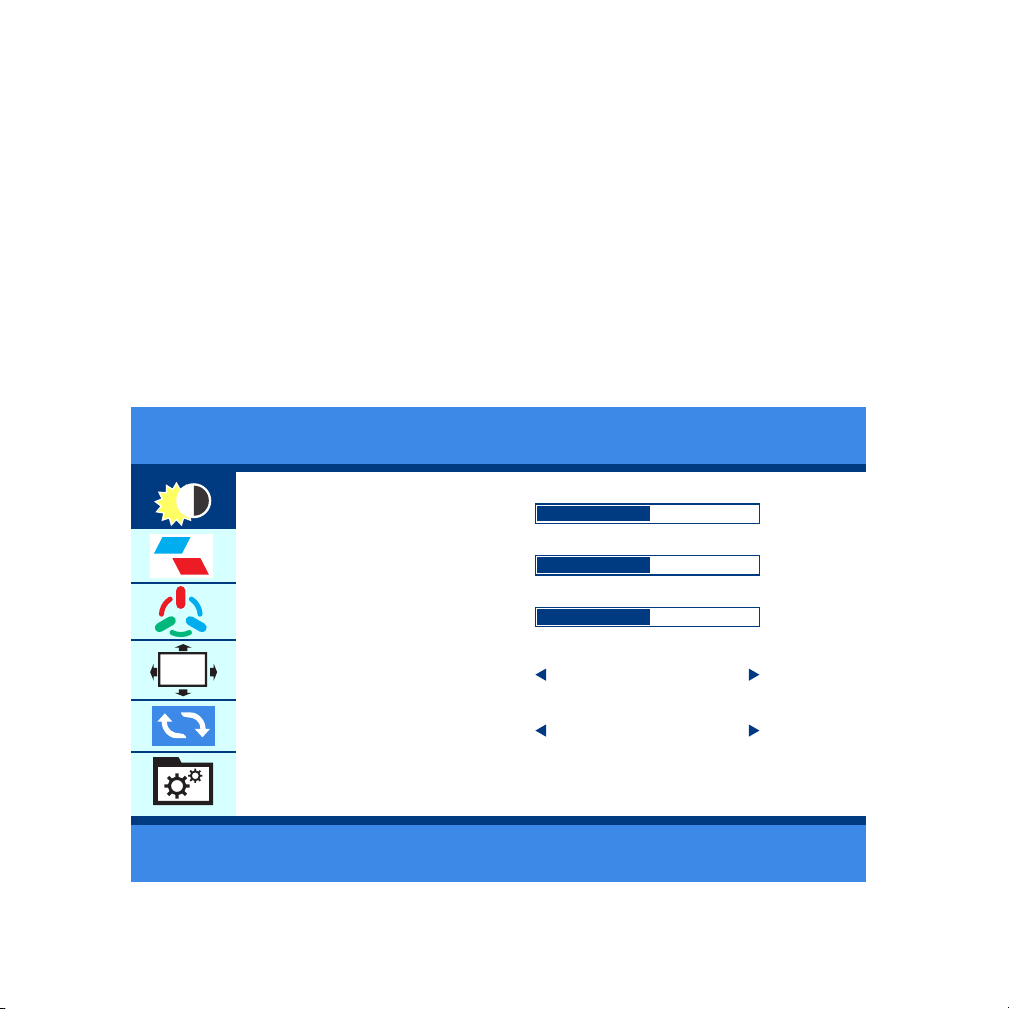
Einstellung-Menü
Wie Sie es betreiben
● Drücken Sie die “Roll Taste„ kurz, um Einstellung-Menü zu öffnen;
● Scrollen Sie mit der “Roll Taste„ nach oben oder unten, um die Funktion
auszuwählen;
● Drücken Sie die “Roll Taste„ erneut zur Bestätigung kurz;
●Drücken Sie die “Betrieb/Return-Taste„ um zurückzukehren;
Helligkeit
BRIGHTNESS
BLACK LEVEL
CONTRAST
ECO
DCR
50
50
50
STANDARD
OFF
BR I GHTNESS
OSD
32
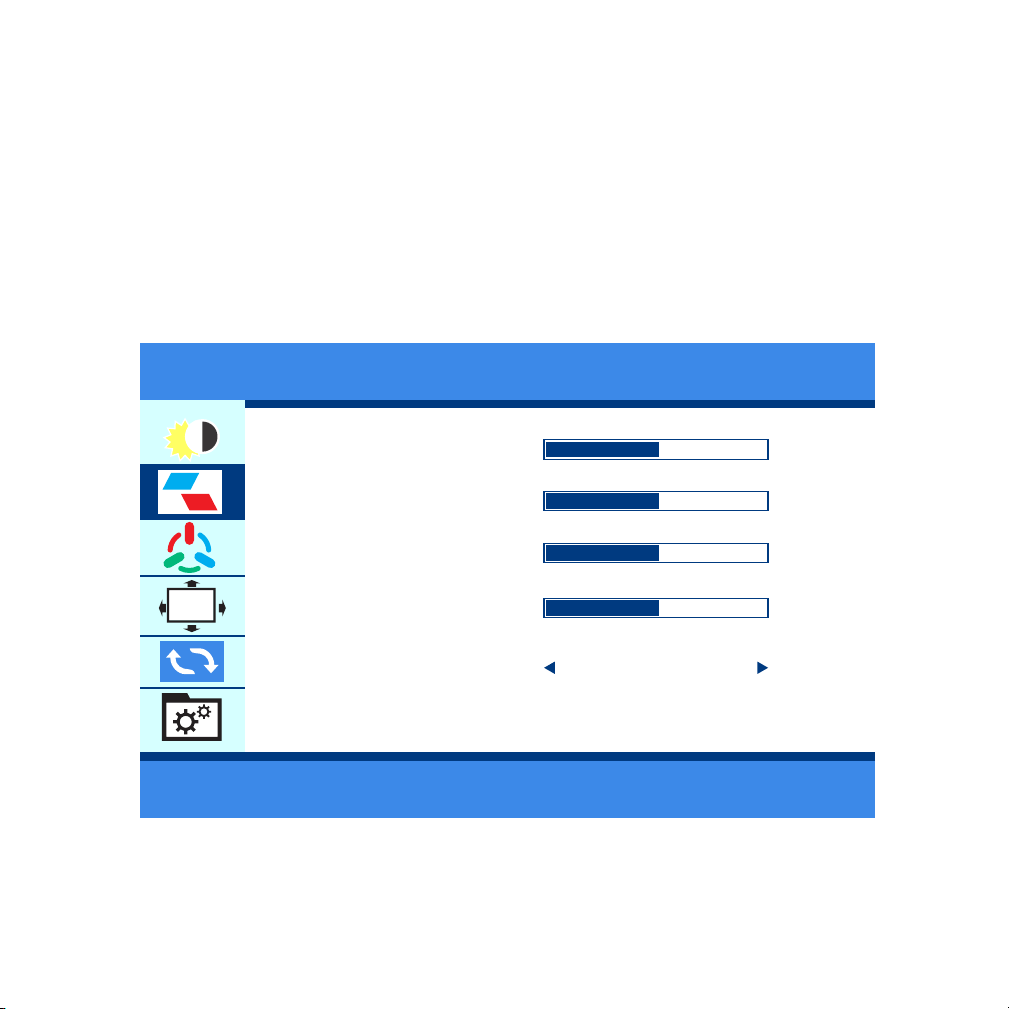
Bild
● Je nach Nutzungsszenario kann die Helligkeit unterschiedlich eingestellt
werden.
Hinweis:
● Wenn die Helligkeit auf 80% eingestellt ist, wird der Bildschirm schwarz,
wenn der Monitor nicht mit Netzteil (mindestens 5V/2A) Strom versorgt wird.
H. POSITION
V. POSITION
CLOCK
PHASE
ASPE
50
50
50
50
WIDE
IMAGE
OSD
● Stellen Sie das Anzeigebild nach Ihren persönlichen Vorlieben ein.
33
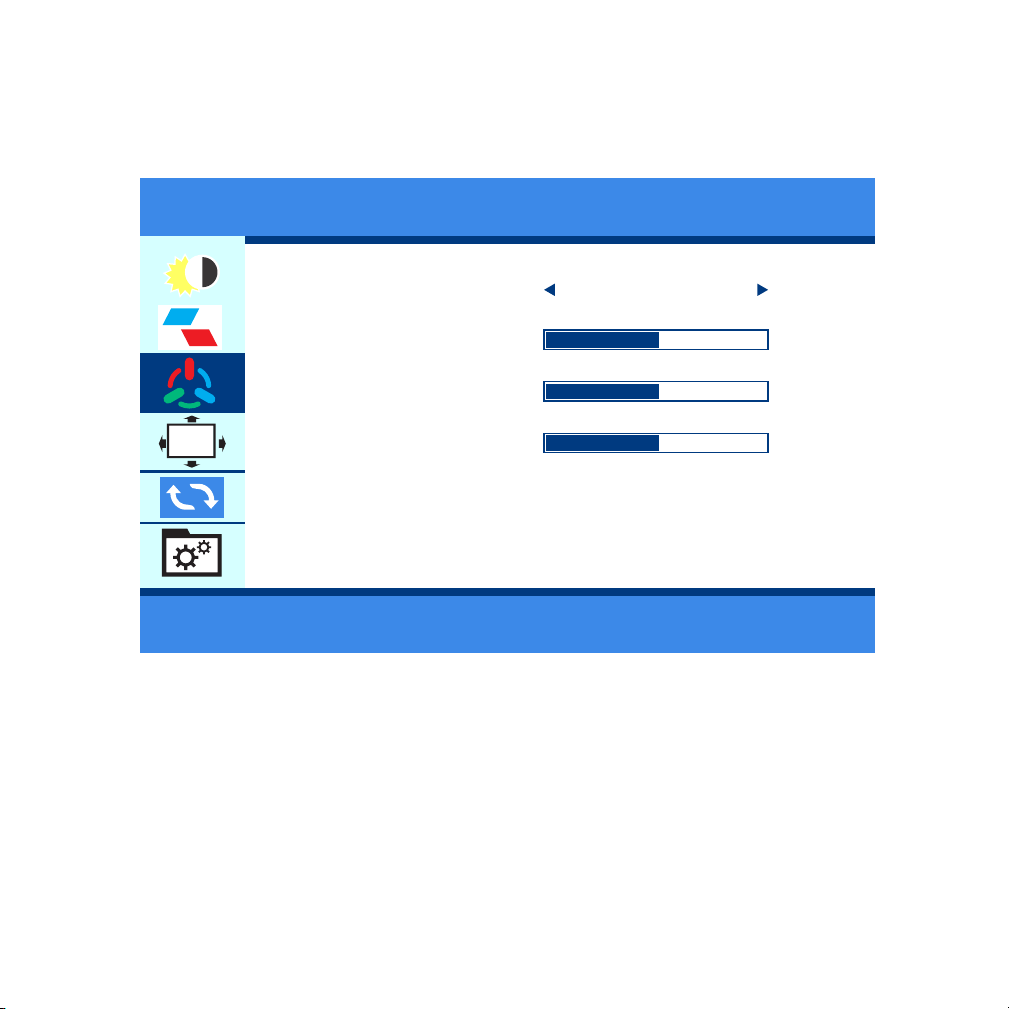
Farbe
COLOR TEMP
RED
GREEN
BLUE
50
50
50
WIDE
DLOR TEMP.
OSD
● Stellen Sie die Bildfarbe nach Ihren persönlichen Vorlieben ein.
34
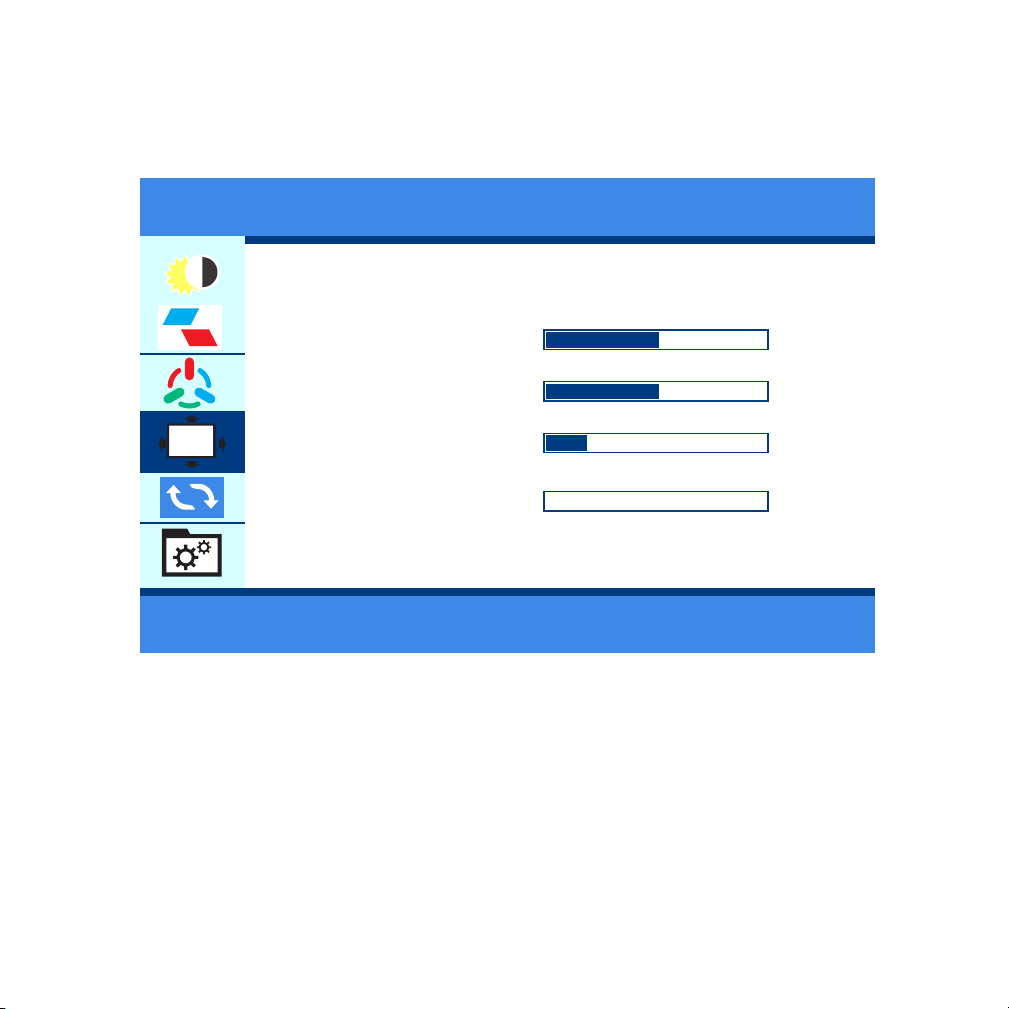
OSD
●Stellen Sie OSD nach Ihren persönlichen Vorlieben ein.
LANGUAGE
OSD H. POS
OSD v. POS
OSD TIMER
TRANSPARENCY
50
50
10
0
OSD SETTING
OSD
35
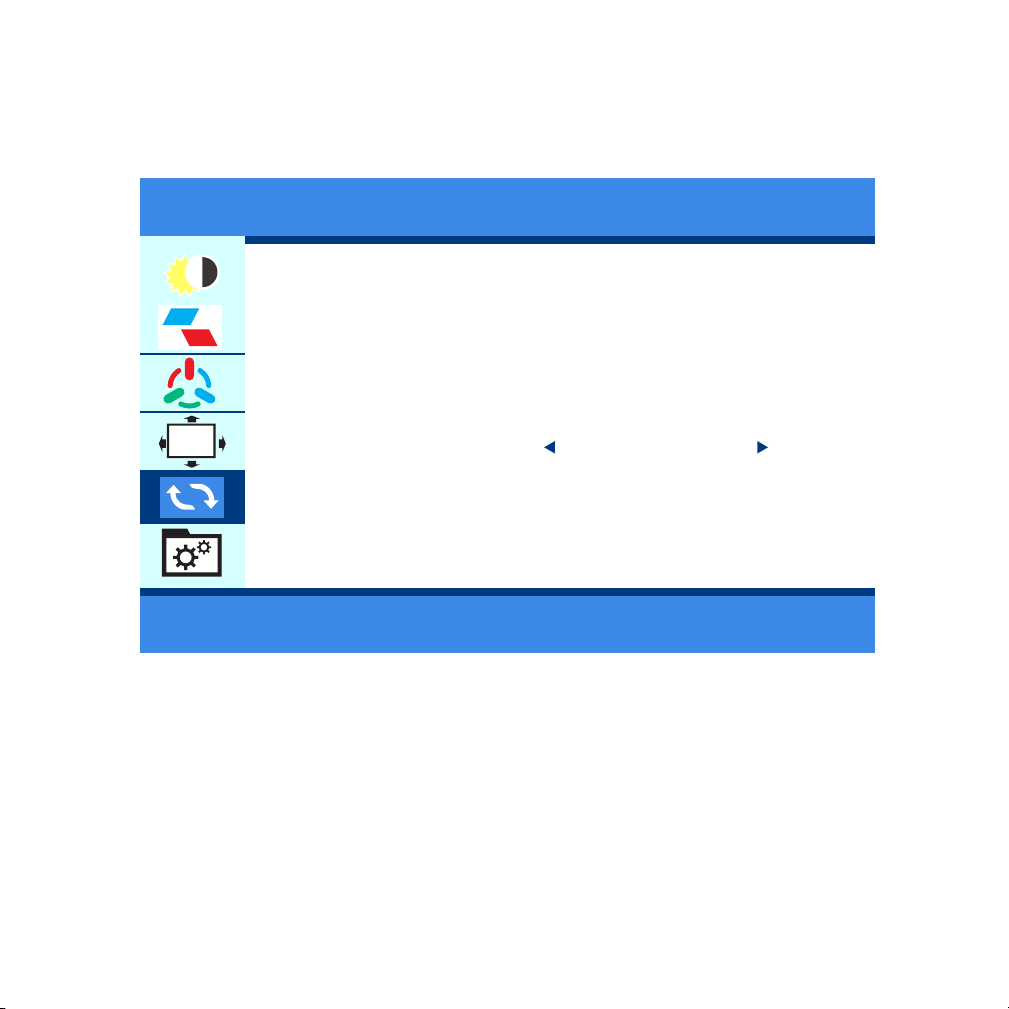
Visual
●Wenn der HDR-Modus aktiviert ist, wird das Farbbild beim Spielen oder
Ansehen von Filmen reicher.
IMAGE AUTO ADJUST
COLOR AUTO ADJUST
RESET
HDR MODE
RESET
OSD
OFF
36
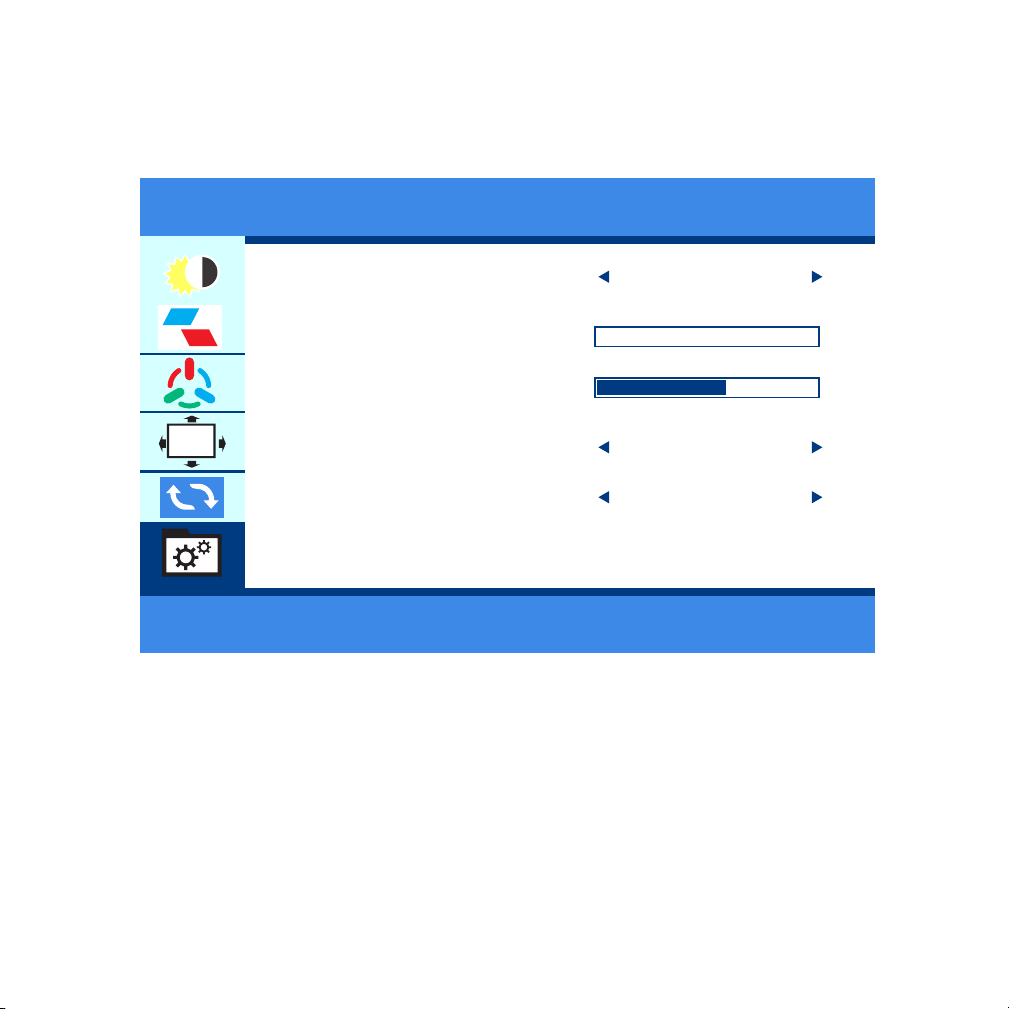
Sonstige
● Stellen Sie Displayanzeige nach Ihren persönlichen Vorlieben ein.
SIGNAL SOURCE
LOW BLUE LIGHT
VOLUME
FREES YNC
OD
MISC
OSD
OFF
OFF
HDMI
0
50
37
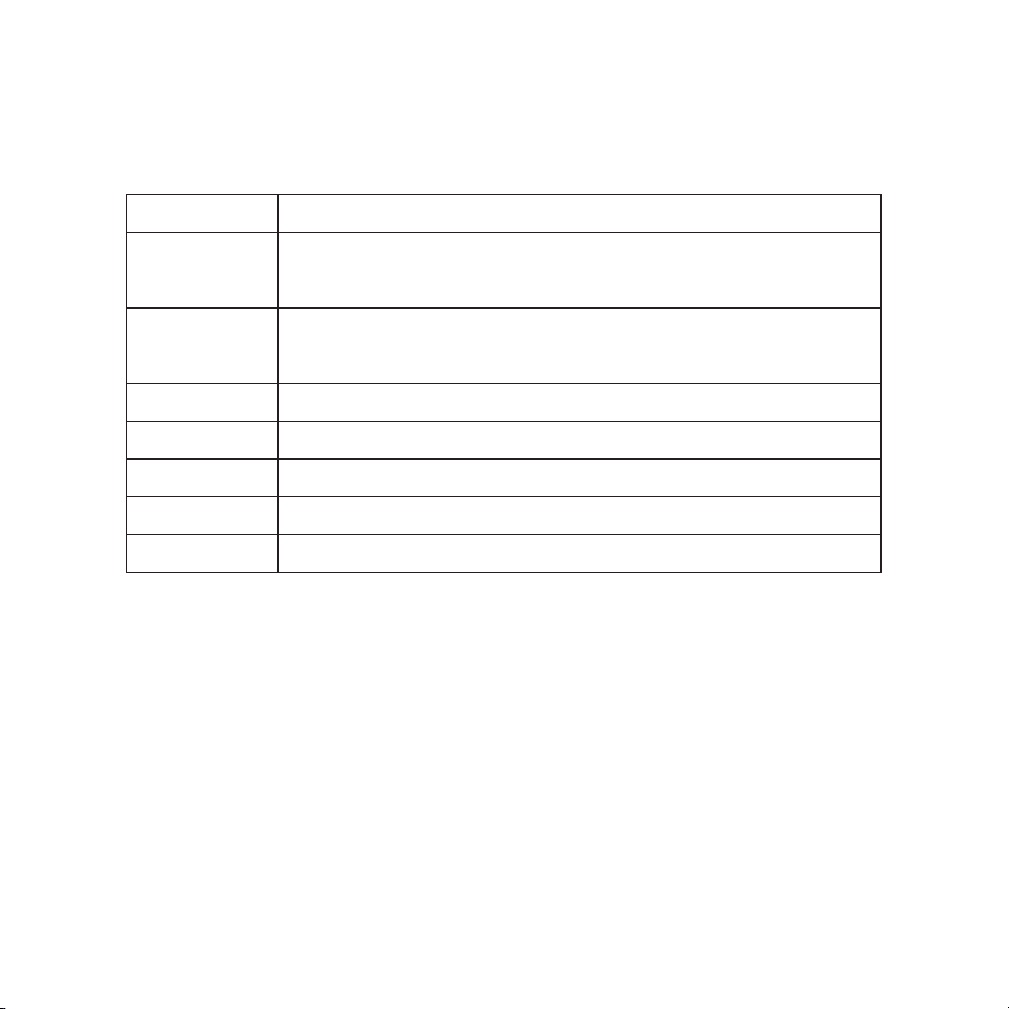
HUAWEI
DEX/S8/S8+/S9/S9+/S10/S10+/S10E/Note 8/Note 9
SAMSUNG
Mate 10/10Pro/20/20Pro/20X/P20/P20Pro/
Honor V20/Honor Note10/P30/P30Pro
OPPO
R17 Pro/Reno
Razer Phone/Razer Phone 2
Ultra
G5LG
HTC
Razer
Wird weweitert...
Andere
Marke Phone Modele
Unterstützte Smartphones
38

Computer Modele
MateBook、MateBook X、MateBook X Pro、MateBook E
MacBook12、MacBook Pro、MacBook Air、ipad Pro 2018
Magic
Air12.5/13.3inch、Pro15.6 inch、Millet Game Book
Yoga5Pro、ThinkPadX1Carbon2017、Miix720
PavilionX2、EliteBook Folio G1
XPS13 、XPS15
ChromeBook Pixels 、PielBook Pen
LIngYao3、U306、U321series、U41000、ROG series
Surface Book2
Blade Stealth blade/blade sneak version
Wird weweitert...
Unterstützte Laptops
Marke
Huawei
Apple
Honor
Mi
Lenovo
Hp
Dell
Google
Asus
Microsoft
Razer
Andere
39
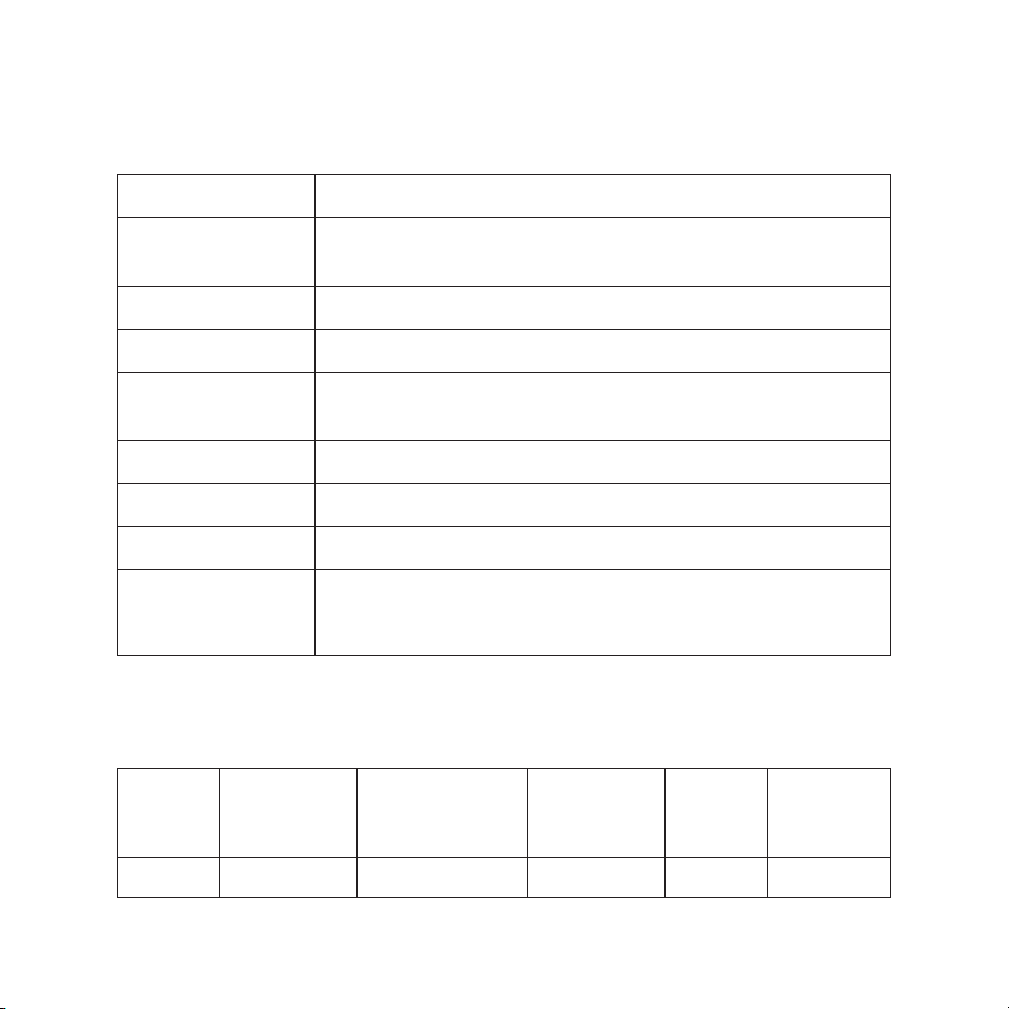
Spezifikationen
Produkt
Größe
Farbe
Betrachtungwinkel
Optimale
Perspektive
Helligkeit
Eingang-Anschluss
Ausgang-Anschluss
Systemanforde-
rungen
Tragbarer Anzeigemonitor
363*263*6(10)
1080P:262K,80%sRGB
85/85/85/85 (Typ.)(CR≥10)
Volle Ansicht
300 cd/m²
Mini HD-Anschluss (Signal), 2 x Typ-C-Anschlüsse
3.5mm Kopfhöreranschluss
Geräte mit HD-Ausgangsschnittstelle, Computer
mit voller Videoausgabefähigkeit vom Typ C.
Verpackungsinhalt
Name
Nummer
Mini-HD zu
HD-Kabel
1
Typ-C zu
Typ-C-Kabel
1
USB auf
Typ-C-
Kabel
1
Ständer
1 1
Netz-
adapter
40

Hinweise
● Bevor Sie diesen tragbaren Typ-C-Monitor einstellen, lesen Sie bitte
sorgfältig die gesamte Dokumentation durch, die mit dem Paket geliefert
wurde.
● Um Feuer oder die Gefahr eines Stromschlags zu vermeiden, lassen Sie
diesen tragbaren Typ-C-Monitor entfernt vor Regen oder Feuchtigkeit.
● Versuchen Sie niemals, das Gehäuse dieses tragbaren Typ-C-Monitors zu
öffnen.
● Vergewissern Sie sich vor der Verwendung dieses tragbaren
Typ-C-Monitors, dass alle Kabel korrekt angeschlossen und das Stromkabel
nicht beschädigt ist. Wenn Sie einen Schaden feststellen, wenden Sie sich
sofort an unseren technischen Support ( [email protected]).
● Vermeiden Sie Staub, Feuchtigkeit und extreme Temperaturen. Vermeiden
Sie bereiche, in denen der Typ-C-Monitor nass werden kann. Stellen Sie
diesen tragbaren Typ-C-Monitor auf eine stabile Oberfläche.
● Schieben Sie niemals Gegenstände in die Öffnungen dieses tragbaren
Typ-C-Monitors oder schütten Sie Flüssigkeit in die Öffnungen.
● Sollten Sie technische Problem mit diesem tragbaren Typ-C-Monitor haben,
wenden Sie sich bitte umgehend an unseren technischen
Support .( [email protected])
41

Pflege & Reinigung
Die folgenden Symptome sind bei
dem Monitor normal
● Reinigung. Schalten Sie Ihren Monitor aus und ziehen Sie das Kabel ab.
Reinigen Sie die Oberfläche des Monitors mit einem fusselfreien, scheuernden
Tuch. Hartnäckige Flecken können mit einem mit mildem Reinigungsmittel
angefeuteten Tuch entfernt werden.
● Vermeiden Sie die Verwendung eines alkohol- oder acetonhaltigen
Reinigers. Verwenden Sie einen Reiniger, der zur Reinigung von LCD-Displays
vorgesehen ist. Sprühen Sie niemals Reinigungsmittel direkt auf den
Bildschirm, da es ins Innere des Monitors tropfen und einen elektrischen
Schlag verursachen kann.
● Je nach dem von Ihnen verwendeten Desktop können leicht
ungleichmäßige Helligkeiten auf dem Monitor auftreten.
● Wenn dasselbe Bild stundenlang angezeigt wird, kann nach dem
Bildwechsel ein Nachbild des vorherigen Bildschirms verbleiben. Der
Bildschirm erholt sich langsam oder Sie können den Netzschalter für einige
Stunden ausschalteb
● Wenn der Bildschirm schwarz wird, flackert oder nicht mehr funktioniert,
wenden Sie sich an unseren technischen Support. Reparieren Sie den
Bildschirm nicht selbst!([email protected])
42

● Vergewissern Sie sich, dass das Kabel zwischen dem Monitor und dem
Computer richtig angeschlossen ist.
● Überprüfen Sie das Signalkabel und vergewissern Sie sich, dass keiner der
Stifte verbogen ist.
● Schließen Sie den Computer an einen anderen verfügbaren Monitor an, um
zu prüfen, ob der Computer ordnungsgemäß funktioniert.
3.Das Bildschirmbild ist zu hell oder zu dunkel
2. Der Monitor ist eingeschaltet, aber es ist kein Bild auf dem Bildschirm zu
sehen.
● Drücken Sie den Netzschalter, um zu prüfen, ob der Monitor eingeschaltet
ist.
● Prüfen Sie, ob das Kabel ordnungsgemäß an den Monitor und an die
Steckdose angeschlossen ist.
1. Strom ist nicht eingeschaltet
● Stellen Sie sicher, dass das Typ-C-Kabel ordnungsgemäß zwischen dem
tragbaren Monitor und dem Computer angeschlossen ist.
● Entfernen Sie elektrische Geräte, die elektrische Störungen verursachen
können.
4. Das Bild auf dem Bildschirm springt oder ein Wellenmuster ist im
Bild vorhanden.
● Passen Sie die Helligkeitseinstellungen in den OSD-Menüeinstellungen an
(Bild > Helligkeit)
Fehlerbehebung (FAQ)
43

●Schließen Sie Ihren Corprit-Monitor an eine Steckdose und einen freien
Anschluss. Klicken Sie mit der rechten Maustaste auf den Desktop und
wählen Sie entweder Bildschirmauflösung (Windows 7 / 8) oder
Anzeigeeinstellungen (Windows 10)
●Klicken Sie auf die Dropdown-Liste “Mehrere Anzeigen„, und wählen Sie
dann “Diese Anzeige erweitern„ oder “Diese Anzeige duplizieren„.
●Beachten Sie, dass Sie auf Erkennen klicken können, wenn Sie den/die
zusätzlichen Monitor (en) nicht aufgelistet sehen. Falls dies nicht funktioniert,
versuchen Sie, Ihren Computer neu zu starten und führen Sie die Schritte
erneut aus.
7. Wird das Apple iPhone unterstützt?
● Überprüfen Sie das Typ-C-Kabel und vergewissern Sie sich, dass keiner der
Stifte verbogen ist.
5. Bildschiembild hat Farbfehler (weiß sieht nicht weiß aus)
●Nein, der Monitor kann nicht direkt mit einer Bluetooth-Maus oder -Tastatur
betrieben werden. Die Bluetooth-Maus oder -Tastatur können mit Ihrem
Telefon gekoppelt werden und dann Ihr Telefon mit dem Monitor verbunden
werden.
8.Wenden Bluetooth-Maus und -Tastatur unterstützt?
●Ja, bitte wenden Sie sich an das Corprit-Supportteam, um einen Adapter
(Lightning auf HDMI) zu erhalten, falls Sie einen benötigen.
●Hinweis: Bitte verwenden Sie einen Markenadapter, um eine gute
Verbindung zu gewährleisten.
6. Wie man Anzeigen dupliziert oder erweitert
44

9. Funktioniert mein MACBOOK Air mit diesem Display?
●Bitte verwenden Sie einen Mini Display-Adapter, um Ihr Macbook Air
anzuschließen.
10. Der Bildschirm des Monitors zeigt “No Signal„.
●Bitte verwenden Sie einen Mini Display-Adapter, um Ihr Macbook Air
anzuschließen.
11.Mein Android-Telefon hat einen Typ-C-Anschluss. Es funktioniert
nicht.
●Nicht alle Mobiltelefone mit einem Typ-C-Anschluss können mit dem
Corprit-Monitor arbeiten. Bitte überprüfen Sie den Typ-C-Anschluss Ihres
Android-Telefons, ob es die Übertragung von Audio- und Videosignalen
unterstützt. Wenn Sie es nicht wissen, wenden Sie sich bitte an Ihren
Mobiltelefonanbieter.
7. Mein Android-Telefon verfügt über einen Micro-USB-Anschluss.
Funktioniert es?
●Ja, Sie müssen einen Adapter kaufen. Aber wir empfehlen es nicht. Die
Schärfe des Bildes wird beeinträchtigt, und die Erfahrung wird schlechter
sein als die mit einem Apple-Telefon.
Hinweis: Bitte verwenden Sie einen Markenadapter, um eine gute Verbindung
zu gewährleisten.
13. Hat dieser Monitor einen eingebauten Akku?
●Nein, er hat nicht.
14. Ich habe mein Zubehör für diesen Monitor verloren.
●Wenden Sie sich bitte an unser Kundendienstteam unter [email protected]
45

15. Funktioniert er mit XBOX und Nintendo?
●Ja, der tragbare Monitor von Corprit funktioniert mit XBOX und Nintendo.
16. Wie lauten die Garantie und die Rückgabebestimmungen für den
Monitor?
●Corprit hat eine 30-tätige Rückerstattungs-/12-monatige Austauschgarantie.
Bitte kontaktieren Sie unser Kundendienstteam unter [email protected].
Wir werden uns innerhalb von 24 Stunden darum kümmern.
17. Mein Typ-C-Laptop zeigt kein Signal an (funktioniert nicht mit dem
Corprit-Monitor)?
●Bitte prüfen Sie, ob der Typ-C-Anschluss Ihres Laptops ein vollwertiger
Typ-C-Anschluss ist, ob Ihr Typ-C Datenübertragung + DP-Display-Ausgang +
PD-Ladeeingang unterstützt. Nur wenn Ihr Laptop über eine voll ausgestattete
Typ-C-Schnittstelle verfügt, funktioniert er mit unserem Bildschirm. Wenn es
sich nur um einen Typ-C-Anschluss zum Aufladen handelt, wird es nicht
funktionieren.
Support
Technischer Support: [email protected]
Wenn Sie Fragen haben, zögern Sie nicht, uns zu kontaktieren.
46


⽇本语
ボタンとポートの説明
●セットアップモードで短く押して戻る。3秒間⻑押しすると、回転して、モニターをオン/オフ
にします;
ロールキー
●[ロールキー]を短く押して、セットアップメニューを開き、[ロールキー]を上下にスクロール
して、機能を選択し、もう⼀度[ロールキー]を短く押して確認し、[電源/リターンキー]を短く
押して、バックします;
●メインインターフェースの[ロールキー]を上にスクロールして、明るさのクイック調整バー
をすばやく開き、上下にスクロールして、明るさを調整します。
●メインインターフェースの[ロールキー]を下にスクロールして、⾳量クイック調整バーをす
ばやく開き、上下にスクロールして、⾳量を調整します。
電源/リターンキー
信号(緑)/
電源(⾚)インジケータ
ロールキー/メニュー
3.5mm
ヘッドホン
インターフェース
ミニHdmi-USB
USB-C(信号/電源)
USB-C(信号/
パワー)
電源/リターンキー
49

USB-C(信号/電源)
●フル機能のType-Cインターフェース:ディスプレイ電源、オーディオ、ビデオ信号伝送⽤に
設計されています。
ミニHDMIインターフェース
●ディスプレイのオーディオおよびビデオ信号伝送を担当します。
3.5mmヘッドフォンインターフェイス
●外部スピーカー、ヘッドフォン、デジタルオーディオ機器を接続します。
50
モニターとデバイスを接続します
注意:
●明るさと⾳量を80%を超えるように調整する場合、外部5V/2A電源が必要です。
●Type-Cポートを備えたすべてのコンピューターがCorpritモニターで動作するわけでは
ありません。コンピューターのTypeCポートはオーディオおよびビデオ信号の伝送をサポー
トしているかどうか、ご確認ください。
パソコン(Type-C)
ディスプレイ
Type-C to
USB A
Type C to Type C
コンピューター
5V/2A以上の
外部電源モバイ
ル電源
51
スマートフォン(Type-C)
●外部電源がない場合、携帯電話のバッテリーがモニターに電⼒を供給する。(省エネモー
ドがアクティブになり、明るさは⾃動的に30%に調整される)ユーザーは、携帯電話の出⼒
電⼒に応じて、モニターの明るさと⾳量を調整できます。
●外部電源が接続されている場合、モニターは外部電源を介して、携帯電話を逆に充電し
ます。( モニターと携帯電話は⼗分な動作電流を得ることができるため、外部電源として少
なくとも10W充電器またはモバイルバッテリーをご使⽤ください。もし充電器またはばモバ
イルバッテリーをサポートしていると、携帯電話への急速充電も対応できます)。
注意:
●iPhoneユーザーの場合、ご希望に応じて、Corpritサポートセンターまでご連絡をお願い
申し上げます。アダプター(LightningtoHDMI)を⼊⼿してください。
Type C to
USB A
Type C to Type C
5V/2A以上の
外部電源モバイ
ル電源
モバイル
フォン
ディスプレイ
52
注意:
●HDMIポートでコンピュータに接続する場合、データをスムーズに送信するために、まず、
電源(5V/2A以上)を接続する必要があります。
●「USBAToTypeC」をコンピューターまたは電源アダプターに接続して、モニターに電源
を供給します。
PC/コンピューター(ミニHDMIポート)
或いは
ディスプレイ
ディスプレイ
USB A toType C
ミニHDMIto
HDMIケーブル
コンピューター
Type C to
USB A
Type C to
USB A
5V/2A以上の
外部電源モバイ
ル電源
5V/2A以上の
外部電源モバイ
ル電源
コンピューター
ミニHDMIto
HDMIケーブル
53
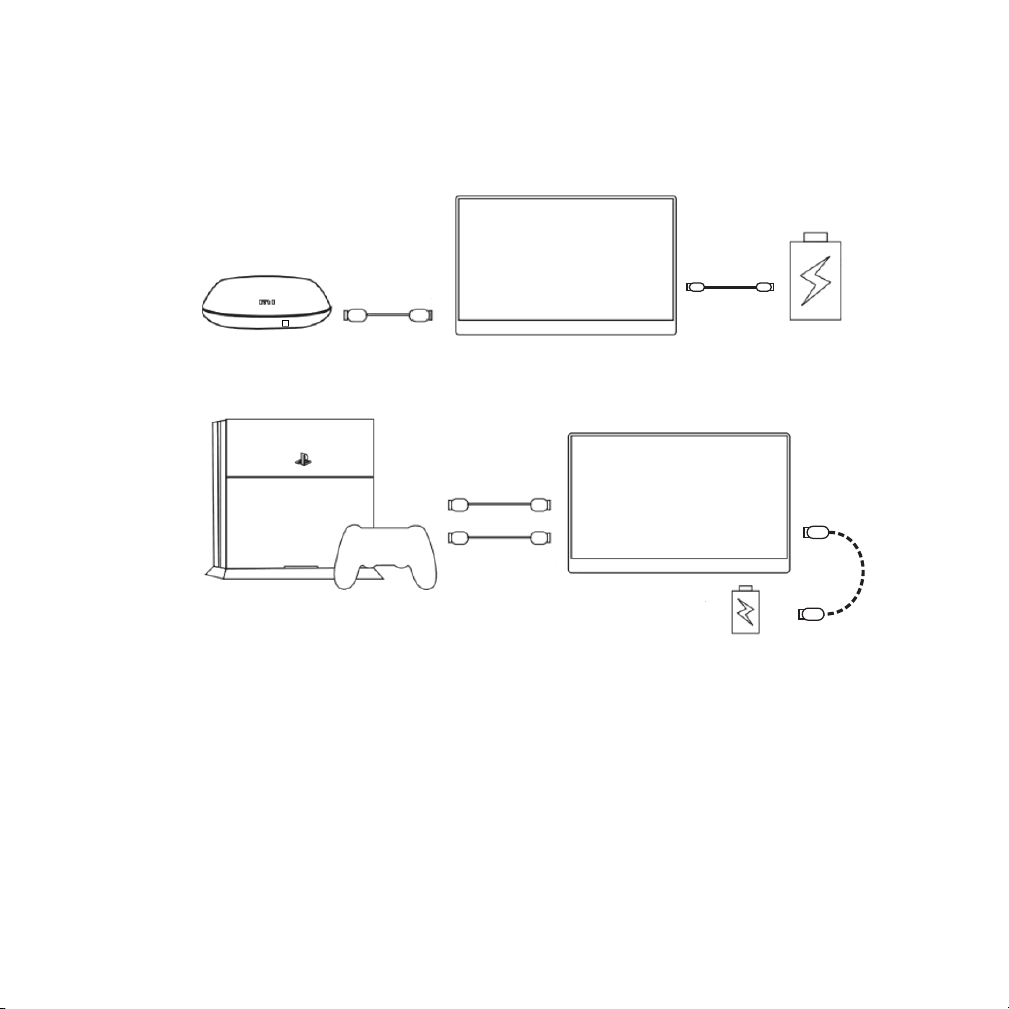
注意:
●信号がスムーズに伝送するために、モニターをデバイスに接続する前に、電源ケーブルを
モニターに接続してください。
●「USBAToTypeC」をコンピューターまたは電源アダプターに接続して、モニターに電源
を供給します。
他のデバイス
Type C To USB A
ミニHDMIto
HDMIケーブル
Type C to
USB A
Type C to
USB A
ディスプレイ
5V/2A以上の
外部電源モバイ
ル電源
ディスプレイ
ミニHDMIto
HDMIケーブル
5V/2A以上の
外部電源モバイ
ル電源
54
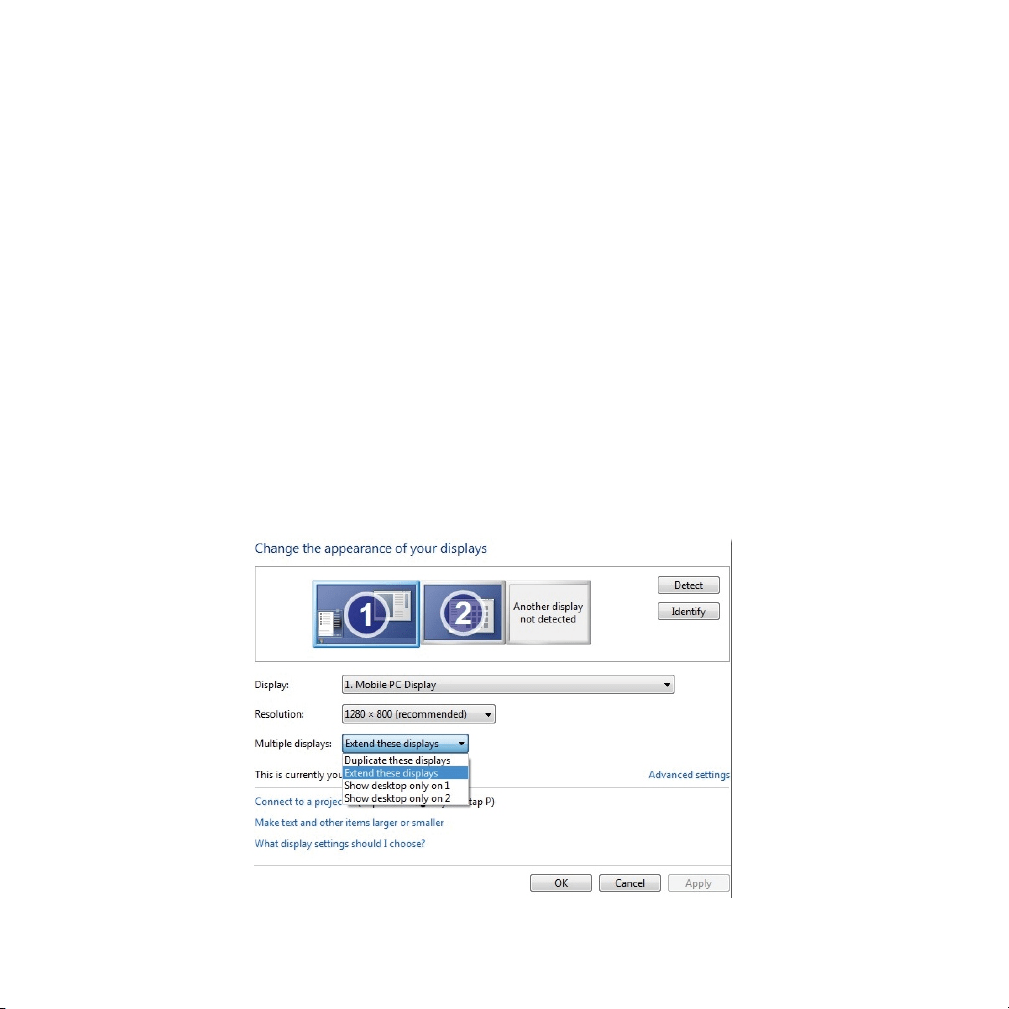
PC/コンピューターの画⾯をコピーまたは拡
張する⽅法
1.モニターをPC/コンピューターに接続し、モニターが正常に表⽰されることを確認します。
2.デスクトップを右クリックして、画⾯の解像度(Windows7/8)または画⾯の設定
( Windows10)を選択します。
3.[複数のディスプレイ]ドロップダウンリストをクリックし、[これらのディスプレイを拡張]また
は[これらのディスプレイを複製]を選択します。
注意:
●追加のモニターが⼀覧に表⽰されない場合は、[検出]をクリックします。動作しない場合
は、コンピュータを再起動して、⼿順をもう⼀度実⾏してください。
55
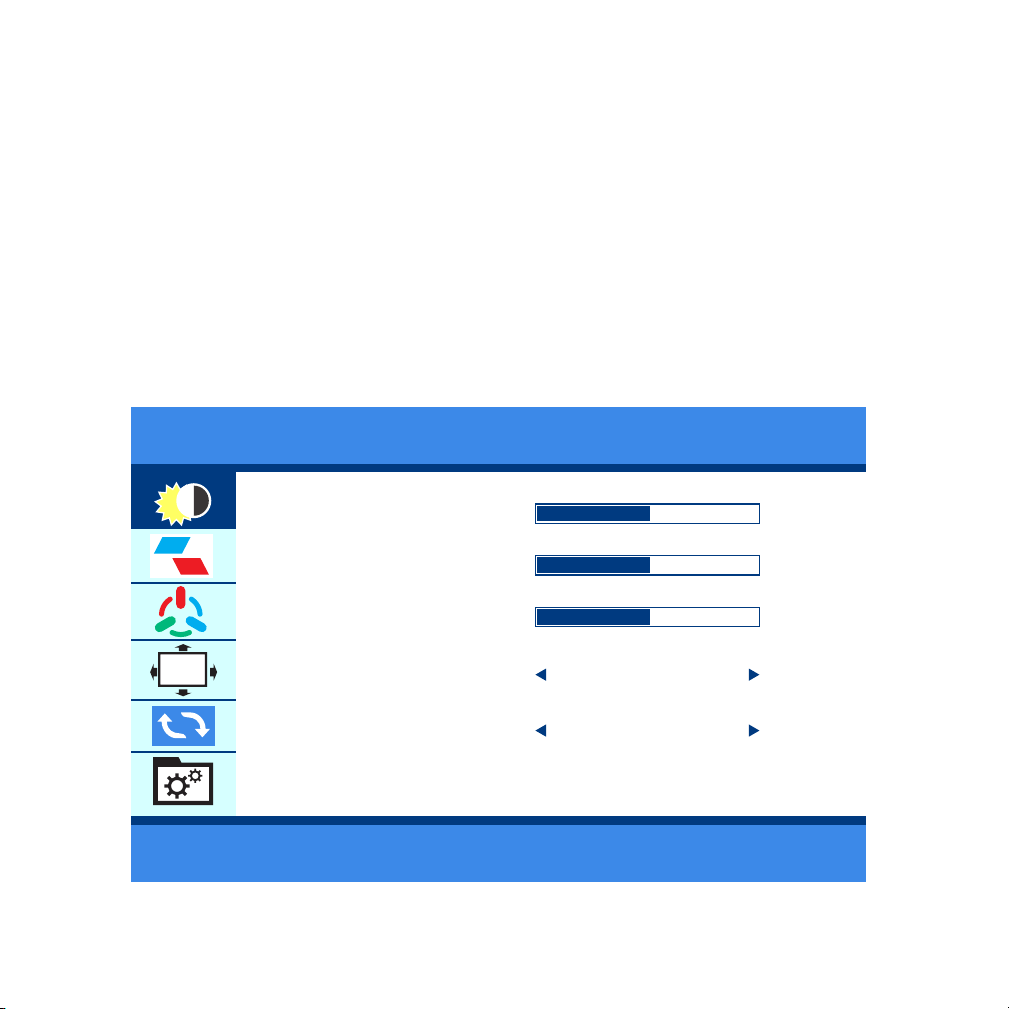
設定メニュー
操作⽅法
●「ロールキー」を短く押して、設定メニューを開きます。
●「ロールキー」を上下にスクロールして、機能を選択します。
●もう⼀度[ロールキー]を短く押して、確認します。
●「電源/リターンキー」を短く押すと戻ります。
輝度
BRIGHTNESS
BLACK LEVEL
CONTRAST
ECO
DCR
50
50
50
STANDARD
OFF
BR I GHTNESS
OSD
56
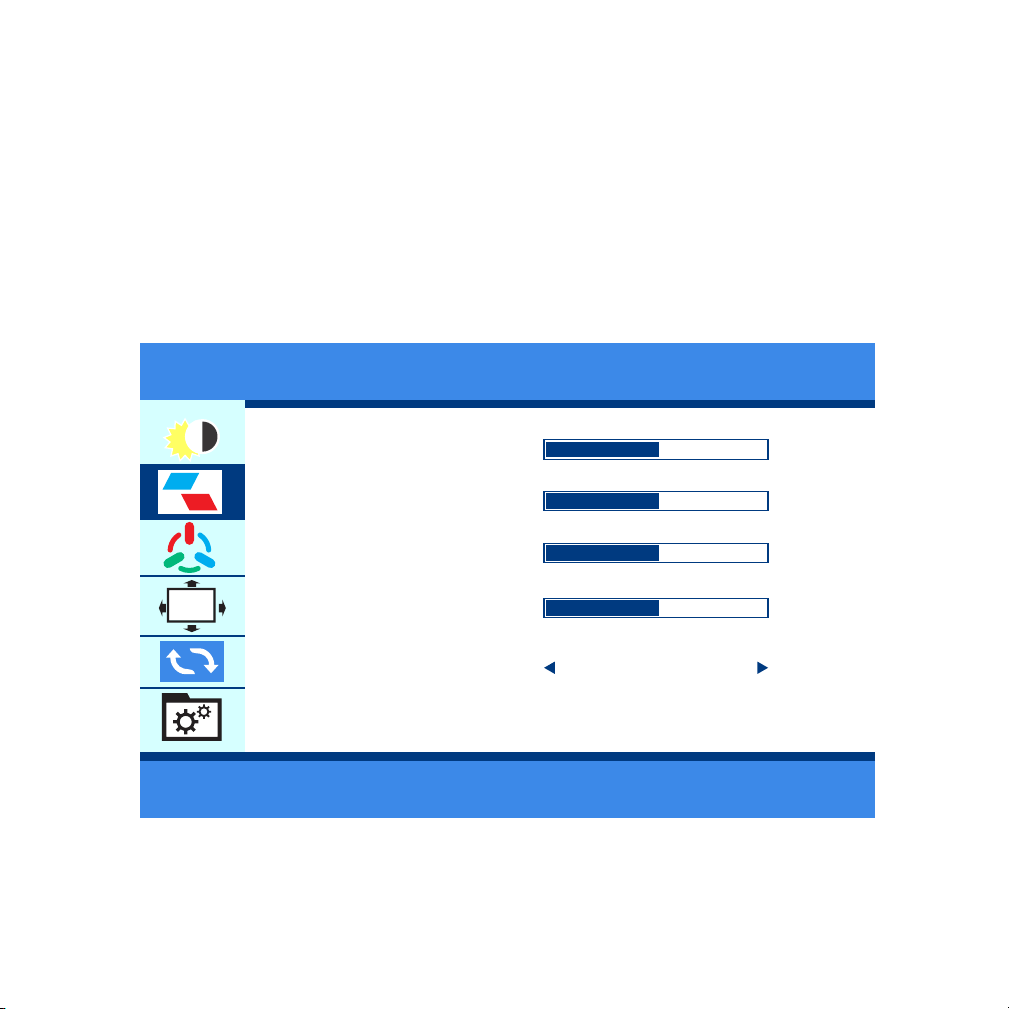
イメージ
●様々な使⽤シーンに応じて、明るさを調整できます。
注意:
●明るさを80に調節した場合、5V/2A以上の外部電源を接続しないと、画⾯が黒くなります。
H. POSITION
V. POSITION
CLOCK
PHASE
ASPE
50
50
50
50
WIDE
IMAGE
OSD
●表⽰画像は個⼈の好みに合わせて設定してください。
57
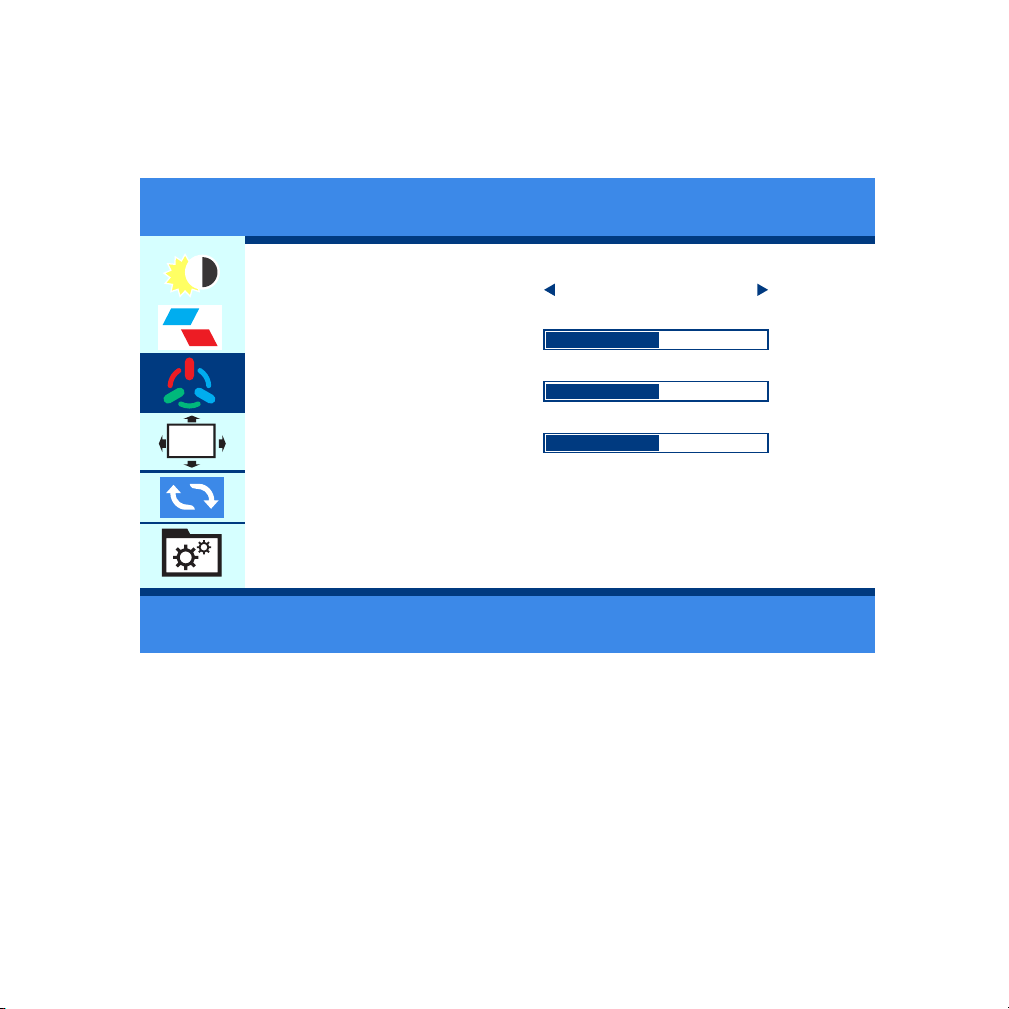
カラー
COLOR TEMP
RED
GREEN
BLUE
50
50
50
WIDE
DLOR TEMP.
OSD
●好みに合わせて画像の⾊を設定してください。
58
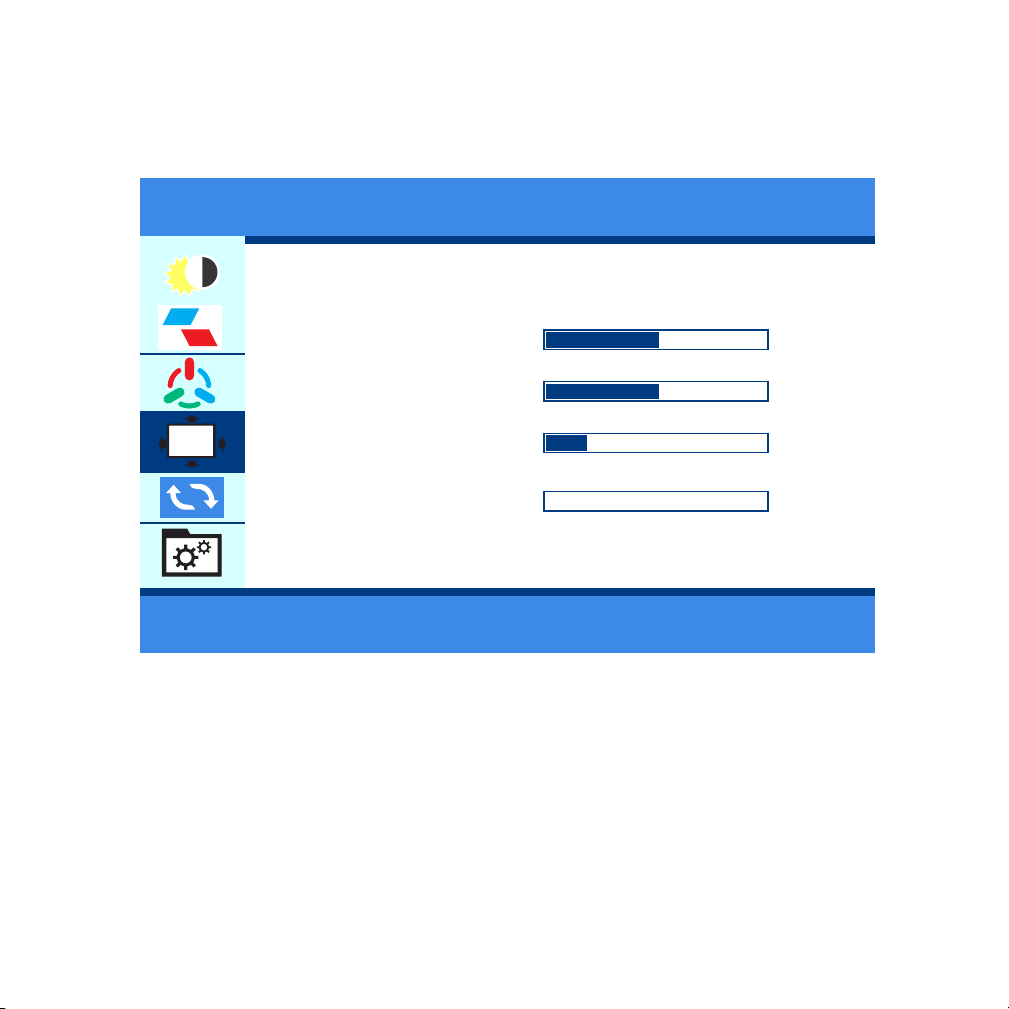
OSD(画⾯上に表⽰)
●個⼈の好みに応じてOSDを設定します。
LANGUAGE
OSD H. POS
OSD v. POS
OSD TIMER
TRANSPARENCY
50
50
10
0
OSD SETTING
OSD
59
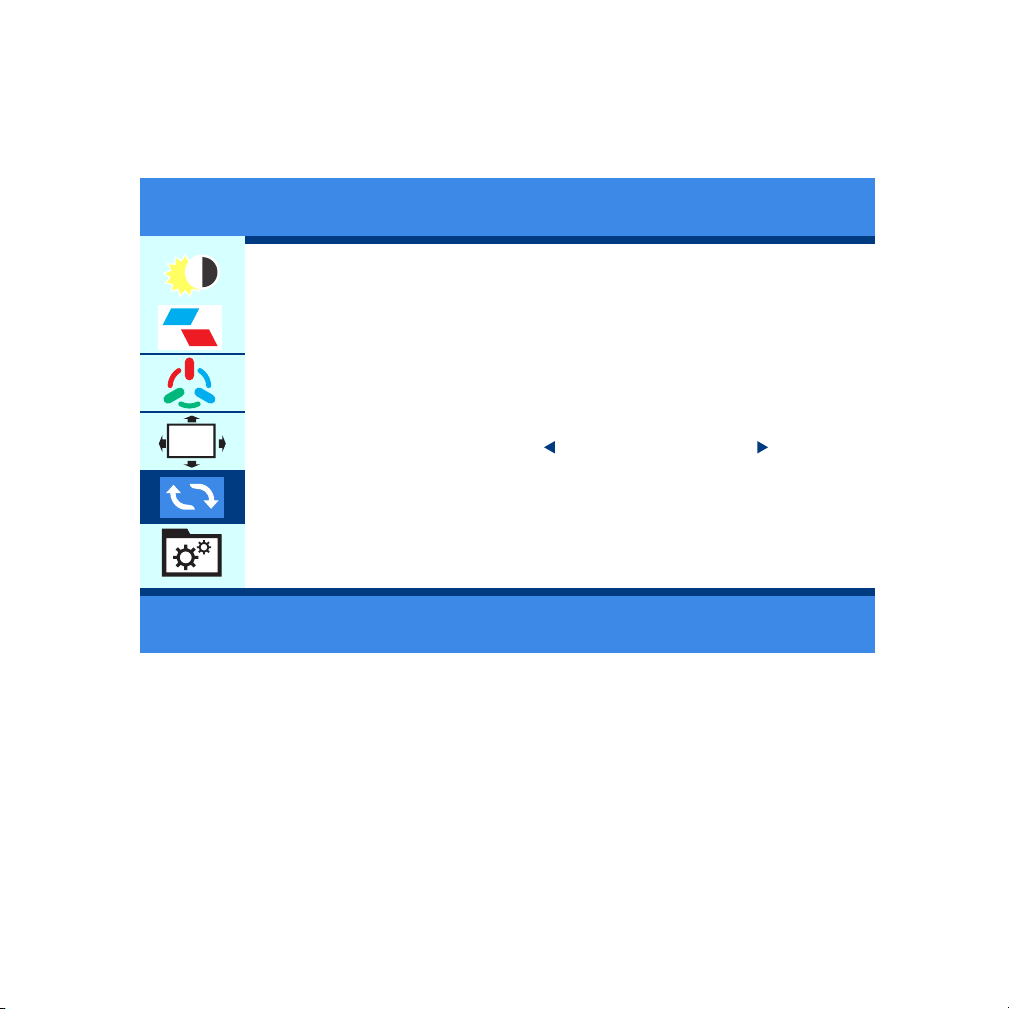
ビジュアル
●HDRモードが有効になっている場合、ゲームをプレイしたり、映画を⾒たりする時、カラー画
像が豊かになります。
IMAGE AUTO ADJUST
COLOR AUTO ADJUST
RESET
HDR MODE
RESET
OSD
OFF
60
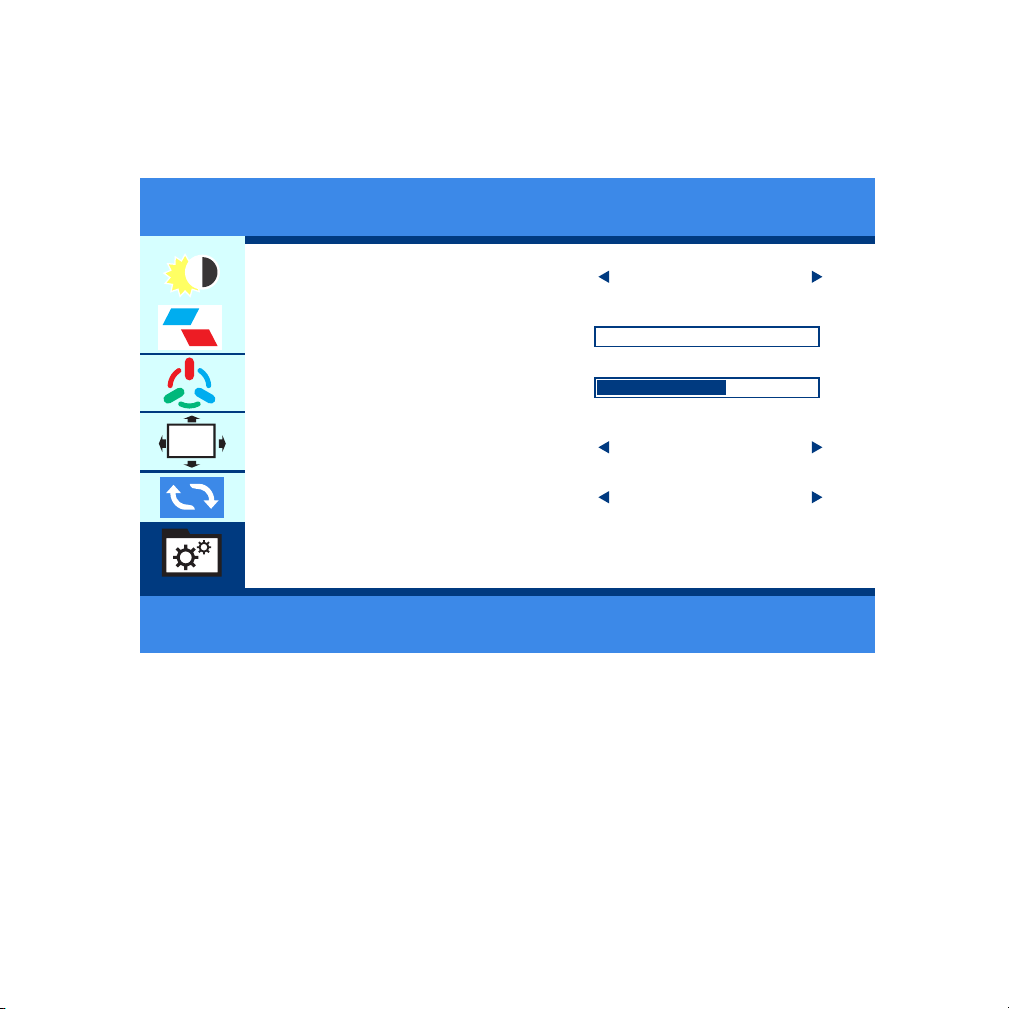
⾳楽
●個⼈の好みに合わせて、表⽰画像を設定してください。
SIGNAL SOURCE
LOW BLUE LIGHT
VOLUME
FREES YNC
OD
MISC
OSD
OFF
OFF
HDMI
0
50
61
HUAWEI
DEX/S8/S8+/S9/S9+/S10/S10+/S10E/Note 8/Note 9
SAMSUNG
Mate 10/10Pro/20/20Pro/20X/P20/P20Pro/
Honor V20/Honor Note10/P30/P30Pro
OPPO
R17 Pro/Reno
Razer Phone/Razer Phone 2
U Ultra
G5LG
HTC
Razer
継続的に更新されます...
もっと
ブランド スマートフォンの型番
サポートされている携帯型番
62

コンピュータの型番
MateBook、MateBook X、MateBook X Pro、MateBook E
MacBook12、MacBook Pro、MacBook Air、ipad Pro 2018
Magic
Air12.5/13.3inch、Pro15.6 inch、Millet Game Book
Yoga5Pro、ThinkPadX1Carbon2017、Miix720
PavilionX2、EliteBook Folio G1
XPS13 、XPS15
ChromeBook Pixels 、PielBook Pen
LIngYao3、U306、U321series、U41000、ROG series
Surface Book2
Blade Stealth blade/blade sneak version
継続的に更新されます...
サポートしているコンピュータの型番
ブランド
Huawei
Apple
Honor
Mi
Lenovo
Hp
Dell
Google
Asus
Microsoft
Razer
もっと
63
仕様
製品
製品サイズ(mm)
⾊域
視野⻆
最⾼の視点
輝度
⼊⼒インターフェース
出⼒インターフェース
システム要求
モバイルモニター
363*263*6(10)
1080P:262K,80%sRGB
85/85/85/85(Typ.)(CR≥10)
全景
300cd/m²
miniHDインターフェース(信号)、Type-Cインターフェース×2
3.5mmヘッドフォンポート
HD出⼒インターフェースを備えたデバイス、フルType-Cビデ
オ出⼒機能のコンピューター
パッケージ内容
名前
数量
miniHDto
HDケーブル
1
Type-Cto
Type-Cケーブル
1
USBto
Type-C
1
保護ケ
ース
1 1
電源アダ
プター
64

注意事情
●このType-cポータブルモニターをセットアップする前に、パッケージに付属品をご確認く
ださい。
●⽕災や感電の危険を防ぐため、このType-cポータブルモニターを⾬や湿気にさらさないで
ください。
●このType-cポータブルモニターキャビネットを開けようとしないでください。
●このType-cポータブルモニターを使⽤する前に、すべてのケーブルが正しく接続され、電
源ケーブルが破損していないことをご確認ください。破損が⾒つかった場合は、すぐに当社
のサポートセンター までお問い合わせください。(jp.support@corprit.cc)
●ほこり、湿気、極端な温度を避けて、このType-cポータブルモニターを濡れる可能性のあ
る場所に置かないでください。安定した場所に置いてください。
●このType-cポータブルモニターのキャビネットのスロットに物体を押し込んだり、液体を
こぼしたりしないでください。
●ご使⽤する時、技術的な問題が発⽣した場合は、当社のテクニカルサポートセンターまで
ご連絡ください。(jp.support@corprit.cc)
65

ケア&クリーニング
以下の症状がありますが、モニター仕様です
●クリーニング。モニターの電源を切り、ケーブルを取り外します。⽷くずの出ない、研磨剤
ではない布でモニターの表⾯を拭きます。頑固な汚れは、中性洗剤で湿らせた布で取り除く
ことができます。
●アルコールやアセトンを含むクリーナーの使⽤は避けてください。LCD専⽤のクリーナー
を使⽤してください。クリーナーを画⾯に直接スプレーしないでください。モニターの内側に
垂れ、感電を引き起こす可能性があります。
●ご使⽤のデスクトップのパターンによっては、画⾯の輝度がわずかに不均⼀になることが
あります。
●同じ画像を数時間表⽰した場合、画像を切り替えても前の画⾯の残像が残る場合があり
ます。画⾯はゆっくりと回復します、或いは電源スイッチを数時間オフにしてください。
●画⾯が黒くなる、点滅する、または機能しなくなった場合は、テクニカルサポートセンター
に連絡をお願い申し上げます。モニターを⾃分で修理しないでください。
(jp.support@corprit.cc)
66

1.電源が⼊っていません
●電源ボタンを押して、モニターがオンモードになっているかどうかを確認します。
●ケーブルがモニターと電源コンセントに正しく接続されていることを確認します。
2.モニターの電源はオンですが、画⾯イメージがありません
●モニターとコンピューターがオンモードになっていることを確認します。モニターとコンピ
ューターのケーブルが正しく接続されていることを確認します。
●信号ケーブルをチェック、全てのピンが曲がっていないことを確認します。
●コンピュータを使⽤可能な別のモニターに接続して、コンピュータが正常に動作している
かどうかを確認します。
3.画⾯の画像が明るすぎ、または暗すぎます。
●OSDメニュー設定(画像>輝度)で輝度設定を調整します
4.画⾯の画像がバウンスする、または画像に波模様があります。
●Type-Cケーブルがポータブルモニターとコンピューターに正しく接続されていること
を確認します。
●移動は電気機器に電気⼲渉を引き起こす可能性があります。
故障??(よくある質問)
67

5.画⾯の画像に⾊の⽋陥がある(⽩が⽩じゃないように表⽰してます)
●Type-Cケーブルをチェックして、すべてのピンが曲がっていないことを確認します。
6.ディスプレイを複製または拡張する⽅法
●Corpritモニターを電源コンセントとPCの使⽤可能なポートに接続します。デスクトップを
右クリックし、画⾯の解像度(Windows7/8)またはディスプレイの設定(Windows10)を選択
します。
●複数のディスプレイのドロップダウンリストをクリックし、[これらのディスプレイを拡張する
]または[これらのディスプレイを複製する]を選択します。
●追加のモニターが⼀覧に表⽰されない場合は、[検出]をクリックします。動作しない場合は、
コンピュータを再起動して、⼿順をもう⼀度実⾏してください。
7.ApplePhoneをサポートできますか?
●はい。必要な場合は、Corpritサポートチームに連絡して、アダプター(LightningtoHDMI)
を⼊⼿してください。
●ご注意:良好な接続を確保するために、ブランドのアダプターをご使⽤ください。
8.Bluetoothマウスとキーボードで動作しますか?
●いいえ。モニターはBluetoothマウス及びキーボードで直接に動作できません。Bluetooth
マウス及びキーボードは、携帯とペアリングして、携帯をモニターに接続できます。
68

9.MACBOOKAirはこのディスプレイで動作しますか?
●MACBOOKAirを接続するには、ミニディスプレイアダプターを使⽤してください。
10.モニターの画⾯に信号が表⽰されません。
●ケーブルを取り外して、再接続してください。
11.私のAndroidフォンにはType-Cポートがあります。動作しません。
●Type-cインターフェースを備えたすべての携帯電話がCorpritモニターを使⽤できるわけで
はありません。
●AndroidフォンのTypeCポートがオーディオ及びビデオ信号伝送をサポートしているかどう
かをご確認ください。分からない場合は、ご利⽤の携帯電話会社にお問い合わせください。
12.AndroidフォンにはマイクロUSBポートがあります。うまくいきますか?
●はい。アダプターを購⼊する必要があります。ただし、お勧めしません。画像の明瞭さが影
響され、エクスペリエンスはAppleの携帯よりも悪くなります。
●ご注意:良好な接続を確保するために、ブランドのアダプターをご使⽤ください。
13.このモニターにはバッテリーが内蔵されていますか?
●いいえ。ありません。
14.このモニターの付属品を紛失しました。
●アフターサービスサポートチーム でご連絡ください。(jp.support@corprit.cc)ま
69

サポート
15.XBOXとNintendoで動作しますか?
●はい。CorpritモバイルモニターはXBOX及びNintendoで動作できます。
16.モニターの保証と返品ポリシーは何ですか?
●Corpritには、30⽇の払い戻し/12ヶ⽉の交換保証があります。アフターサービスサポート
チームsupport@corprit.ccまでご連絡ください。24時間以内に対応いたします。
17.TypeCコンピューターに信号が表⽰されない(Corpritモニターでは機能しない)モニタ
ーが表⽰されますか?
●コンピューターのTypeCポートがフル機能のTypeCポートであるかどうかをご確認くだ
さい。TypeCがデータ送信+PD充電⼊⼒機能をサポートしているかどうか?コンピューター
がフル機能のTypeCインターフェイスを備えており、ディスプレイと互換性があります。充電⽤
のTypeCのみの場合はご利⽤いただけません。
何のご不明な点がございましたら、お気軽にお問い合わせください。
テクニカルサポート:jp.support@corprit.cc
70