
2
This operation manual contains basic instructions on installing and using DirectIP AI in the Box, an IDIS product.
Users who are using this product for the rst time, as well as users with experience using comparable products, must
read this operation manual carefully before use and heed to the warnings and precautions contained herein while
using the product. Safety warnings and precautions contained in this operation manual are intended to promote
proper use of the product and thereby prevent accidents and property damage and must be followed at all times.
Once you have read this operation manual, keep it at an easily accessible location for future reference.
• The manufacturer will not be held responsible for any product damage resulting from the use of unauthorized parts and
accessories or from the user's failure to comply with the instructions contained in this operation manual.
• It is recommended that rst-time users of this network camera and individuals who are not familiar with its use seek
technical assistance from their retailer regarding product installation and use.
• If you need to disassemble the product for functionality expansion or repair purposes, you must contact your retailer and
seek professional assistance.
• Both retailers and users should be aware that this product has been certied as being electromagnetically compatible for
commercial use. If you have sold or purchased this product unintentionally, please replace with a consumer version.
Safety Precautions
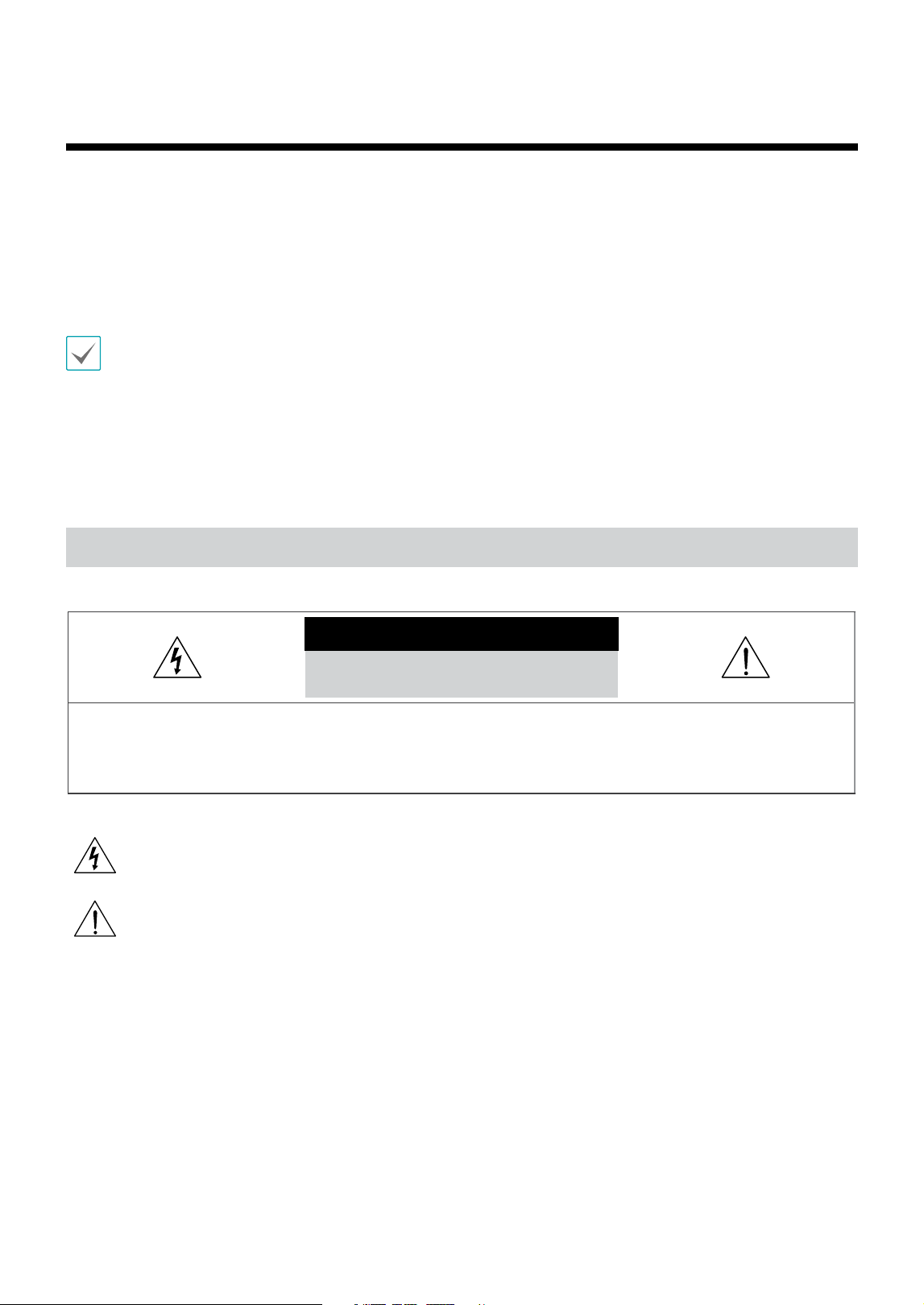
CAUTION
RISK OF ELECTRIC SHOCK
DO NOT OPEN
CAUTION: TO REDUCE THE RISK OF ELECTRIC SHOCK,
DO NOT REMOVE COVER (OR BACK).
NO USER-SERVICEABLE PARTS INSIDE.
REFER SERVICING TO QUALIFIED SERVICE PERSONNEL.
The lightning ash with arrowhead symbol, within an equilateral triangle, is intended to alert the user to the presence of
uninsulated "dangerous voltage" within the product’s enclosure that may be of sucient magnitude to constitute a risk of
electric shock.
The exclamation point within an equilateral triangle is intended to alert the user to the presence of important operating
and maintenance (servicing) instructions in the literature accompanying the appliance.
Before reading this manual

Safety Precautions
3
Safety Precautions
Important Safeguards
1. Read Instructions All the safety and operating instructions should
be read before the appliance is operated.
2. Retain Instructions The safety and operating instructions should
be retained for future reference.
3. Cleaning Unplug this equipment from the wall outlet before
cleaning it. Do not use liquid aerosol cleaners. Use a damp soft cloth
for cleaning.
4. Attachments Never add any attachments and/or equipment
without the approval of the manufacturer as such additions may result
in the risk of re, electric shock or other personal injury.
5. Water and/or Moisture Do not use this equipment near water or
in contact with water.
6. Ventilation
Place this equipment only in an upright position. This
equipment has an open-frame Switching Mode Power Supply (SMPS),
which can cause a re or electric shock if anything is inserted through
the ventilation holes on the side of the equipment.
7. Accessories Do not place this equipment on an wall or ceiling that
is not strong enough to sustain the camera. The equipment may fall,
causing serious injury to a child or adult, and serious damage to the
equipment. Wall or shelf mounting should follow the manufacturer's
instructions, and should use a mounting kit approved by the
manufacturer.
This equipment and cart combination should be moved with care.
Quick stops, excessive force, and uneven surfaces may cause the
equipment and cart combination to overturn.
8. Power Sources This equipment should be operated only from the
type of power source indicated on the marking label. If you are not
sure of the type of power, please consult your equipment dealer or
local power company. You may want to install a UPS (Uninterruptible
Power Supply) system for safe operation in order to prevent damage
caused by an unexpected power stoppage. Any questions concerning
UPS, consult your UPS retailer.
9. Power Cord Operator or installer must remove power and TNT
connections before handling the equipment.
10. Lightning For added protection for this equipment during a
lightning storm, or when it is left unattended and unused for long
periods of time, unplug it from the wall outlet and disconnect the
antenna or cable system. This will prevent damage to the equipment
due to lightning and power-line surges. If thunder or lightning is
common where the equipment is installed, use a surge protection
device.
11. Overloading Do not overload wall outlets and extension cords as
this can result in the risk of re or electric shock.
12. Objects and Liquids Never push objects of any kind through
openings of this equipment as they may touch dangerous voltage
points or short out parts that could result in a re or electric shock.
Never spill liquid of any kind on the equipment.
13. Servicing Do not attempt to service this equipment yourself.
Refer all servicing to qualied service personnel.
14. Damage requiring Service
Unplug this equipment from the wall outlet and refer servicing to
qualied service personnel under the following conditions:
A. When the power-supply cord or the plug has been damaged.
B. If liquid is spilled, or objects have hit the equipment.
C. If the equipment has been exposed to rain or water.
D. If the equipment does not operate normally by following the
operating instructions, adjust only those controls that are covered
by the operating instructions as an improper adjustment of other
controls may result in damage and will often require extensive work
by a qualied technician to restore the equipment to its normal
operation.
E. If the equipment has been dropped, or the cabinet damaged.
F. When the equipment exhibits a distinct change in performance —
this indicates a need for service.
15. Replacement Parts
When replacement parts are required, be sure the service technician
has used replacement parts specied by the manufacturer or that
have the same characteristics as the original part. Unauthorized
substitutions may result in re, electric shock or other hazards.
16. Safety Check
Upon completion of any service or repairs to this equipment, ask the
service technician to perform safety checks to determine that the
equipment is in proper operating condition.
17. Field Installation
This installation should be made by a qualied service person and
should conform to all local codes.
18. Correct Batteries
Warning: Risk of explosion if battery is replaced by an incorrect type.
Replace only with the same or equivalent type. Dispose of used
batteries according to the instructions. The battery shall not be
exposed to excessive heat such as sunshine, re or the like.
19. Tmra
A manufacturer’s maximum recommended ambient temperature
(Tmra) for the equipment must be specied so that the customer and
installer may determine a suitable maximum operating environment
for the equipment.
20. Elevated Operating Ambient Temperature
If installed in a closed or multi-unit rack assembly, the operating
ambient temperature of the rack environment may be greater than
room ambient. Therefore, consideration should be given to installing
the equipment in an environment compatible with the manufacturer’s
maximum rated ambient temperature (Tmra).
21. Reduced Air Flow
Installation of the equipment in the rack should be such that the
amount of airow required for safe operation of the equipment is not
compromised.
22. Mechanical Loading
Mounting of the equipment in the rack should be such that a hazardous
condition is not caused by uneven mechanical loading.
23. Circuit Overloading
Consideration should be given to connection of the equipment to
supply circuit and the eect that overloading of circuits might have on
over current protection and supply wiring. Appropriate consideration
of equipment nameplate ratings should be used when addressing this
concern.
24. Reliable Earthing (Grounding)
Reliable grounding of rack mounted equipment should be maintained.
Particular attention should be given to supply connections other than
direct connections to the branch circuit (e.g., use of power strips).
Safety Precautions
4
In-Text
Symbol Type Description
Caution Important information concerning a specic function.
Note Useful information concerning a specic function.
User’s Caution Statement
Caution: Any changes or modications to the equipment not expressly approved by the party responsible for
compliance could void your authority to operate the equipment.
FCC Compliance Statement
THIS EQUIPMENT HAS BEEN TESTED AND FOUND TO COMPLY WITH THE LIMITS FOR A CLASS A DIGITAL DEVICE, PURSUANT TO PART
15 OF THE FCC RULES. THESE LIMITS ARE DESIGNED TO PROVIDE REASONABLE PROTECTION AGAINST HARMFUL INTERFERENCE
WHEN THE EQUIPMENT IS OPERATED IN A COMMERCIAL ENVIRONMENT. THIS EQUIPMENT GENERATES, USES, AND CAN RADIATE
RADIO FREQUENCY ENERGY AND IF NOT INSTALLED AND USED IN ACCORDANCE WITH THE INSTRUCTION MANUAL, MAY CAUSE
HARMFUL INTERFERENCE TO RADIO COMMUNICATIONS. OPERATION OF THIS EQUIPMENT IN A RESIDENTIAL AREA IS LIKELY TO
CAUSE HARMFUL INTERFERENCE, IN WHICH CASE USERS WILL BE REQUIRED TO CORRECT THE INTERFERENCE AT THEIR OWN EXPENSE.
WARNING: CHANGES OR MODIFICATIONS NOT EXPRESSLY APPROVED BY THE PARTY RESPONSIBLE FOR COMPLIANCE COULD VOID
THE USER’S AUTHORITY TO OPERATE THE EQUIPMENT. THIS CLASS OF DIGITAL APPARATUS MEETS ALL REQUIREMENTS OF THE
CANADIAN INTERFERENCE CAUSING EQUIPMENT REGULATIONS.

Safety Precautions
5
WEEE (Waste Electrical & Electronic Equipment)
Correct Disposal of This Product
(Applicable in the European Union and other European countries with separate collection systems)
This marking shown on the product or its literature, indicates that it should not be disposed with other household
wastes at the end of its working life. To prevent possible harm to the environment or human health from
uncontrolled waste disposal, please separate this from other types of wastes and recycle it responsibly to promote
the sustainable reuse of material resources.
Household users should contact either the retailer where they purchased this product, or their local government
oce, for details of where and how they can take this item for environmentally safe recycling.
Business users should contact their supplier and check the terms and conditions of the purchase contract. This
product should not be mixed with other commercial wastes for disposal.

Safety Precautions
6
Copyright
© 2022 IDIS Co., Ltd.
IDIS Co., Ltd. reserves all rights concerning this operation manual.
Use or duplication of this manual in part or whole without the prior consent of IDIS Co., Ltd. is strictly prohibited.
Contents of this manual are subject to change without prior notice for reasons such as functionality enhancements.
Registered Trademarks
IDIS is a registered trademark of IDIS Co., Ltd.
Other company and product names are registered trademarks of their respective owners.
The information in this manual is believed to be accurate as of the date of publication even though explanations
of some functions may not be included. We are not responsible for any problems resulting from the use
thereof. The information contained herein is subject to change without notice. Revisions or new editions to this
publication may be issued to incorporate such changes.
The software included in this product contains some Open Sources. You may obtain the complete corresponding
source code from us. See the Open Source Guide on the software CD (OpenSourceGuide\OpenSourceGuide.pdf )
or as a printed document included along with the User’s Manual.
Covered by one or more claims of the patents listed at patentlist.accessadvance.com.

7
Table of Contents
1
2
3
Part 1 – Introduction .........................................8
Product Features ................................................................8
Accessories. . . . . . . . . . . . . . . . . . . . . . . . . . . . . . . . . . . . . . . . . . . . . . . . . . . . . . . . . . . . . . . . . . . . .12
Overview ......................................................................12
Front Panel ...............................................................................12
Rear Panel ...............................................................................13
System Requirements ....................................................................14
Network Setup (Alias IP) ........................................................14
General Guideline for AI Box Camera ......................................................15
Part 2 - Camera Installation. . . . . . . . . . . . . . . . . . . . . . . . . . . . . . . . . . 15
People Counting .........................................................................16
Queue Monitoring .......................................................................16
Social Distancing Violation ...............................................................17
Mask Rule Violation ......................................................................17
Part 3 - Appendix ...........................................18
Troubleshooting ...............................................................18
Specications ..................................................................18

8
Part 1 – Introduction
Product Features
This AI in the Box (Articial Intelligent in the Box) analyzes the live video from DirectIP cameras and transmits the video
over Ethernet connections. This product oers the following features:
• Video Inputs : 4-channel H.264 and H.265 IP camera
• DirectIP protocol supported
• Convenient rmware upgrades via network
• Firmware duplication and auto recovery functions to enhance system stability
• Various image analysis function such as People Counting, Heat Map, Social Distancing Violation, Mask Rule Violation
and Queue Monitoring
- People Counting : Counts the number of people passing through the line on the video
- Heat Map : Analyzes the person ows or trac of the settings area on the video
- Social Distancing Violation : Alarm occurs according to the condition by estimating and analyzing the distance
between people detected in the video.
- Mask Rule Violation : Selected camera detects a face and an event occurs depending on whether the face mask is
worn or not.
- Queue Monitoring : Monitors the number of people who have stayed in the setting zone
• Conguration of device settings and integrated management of multiple AI Boxes on the NVR (Network Video
Recorder)
Part 1 – Introduction
9
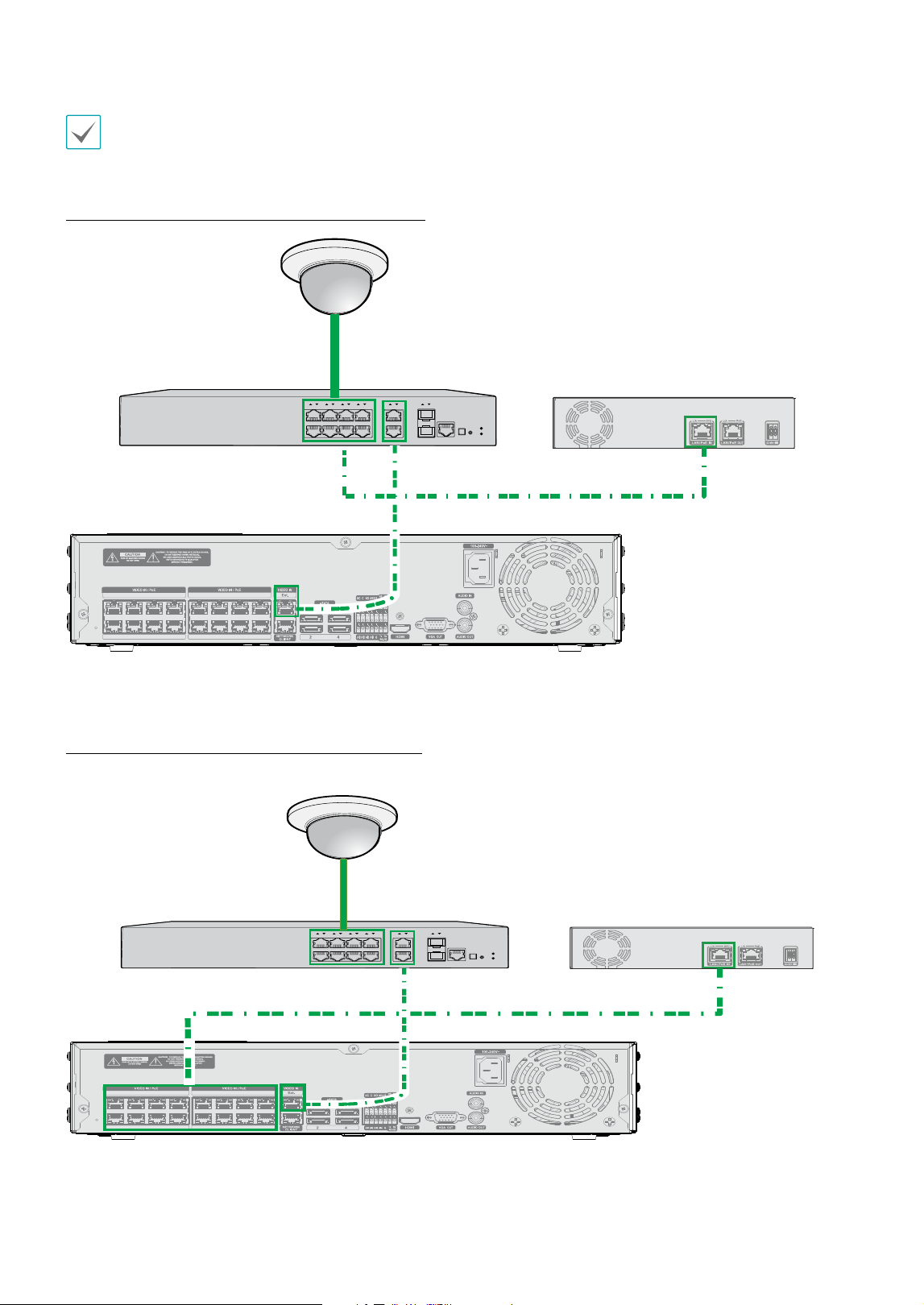
Check the following before connecting the product. (Only for the examples 1,2,3)
• Check if the Swtich's PoE power per port supports 30W.
• Check your PoE switch has enough PoE power.
Example 1 : Connection Diagram Using PoE Switch
PWR
CONSOLE
/ PoE
RESET
DIAG
PoE
21 43 65
87 109 1211
1 3 5 7 9 11 13 15
10 12 14 16
2 864
Example2 : Connection Diagram Using PoE Switch
PWR
CONSOLE
/ PoE
RESET
DIAG
PoE
21 4
3
65 87 109 1211
1 3 5 7 9 11 13 15
10 12 14 16
2 864
Network Camera
PoE Switch DV-1304
NVR (Network Video Recorder)
Network Camera
PoE Switch
DV-1304
NVR (Network Video Recorder)
Part 1 – Introduction
10
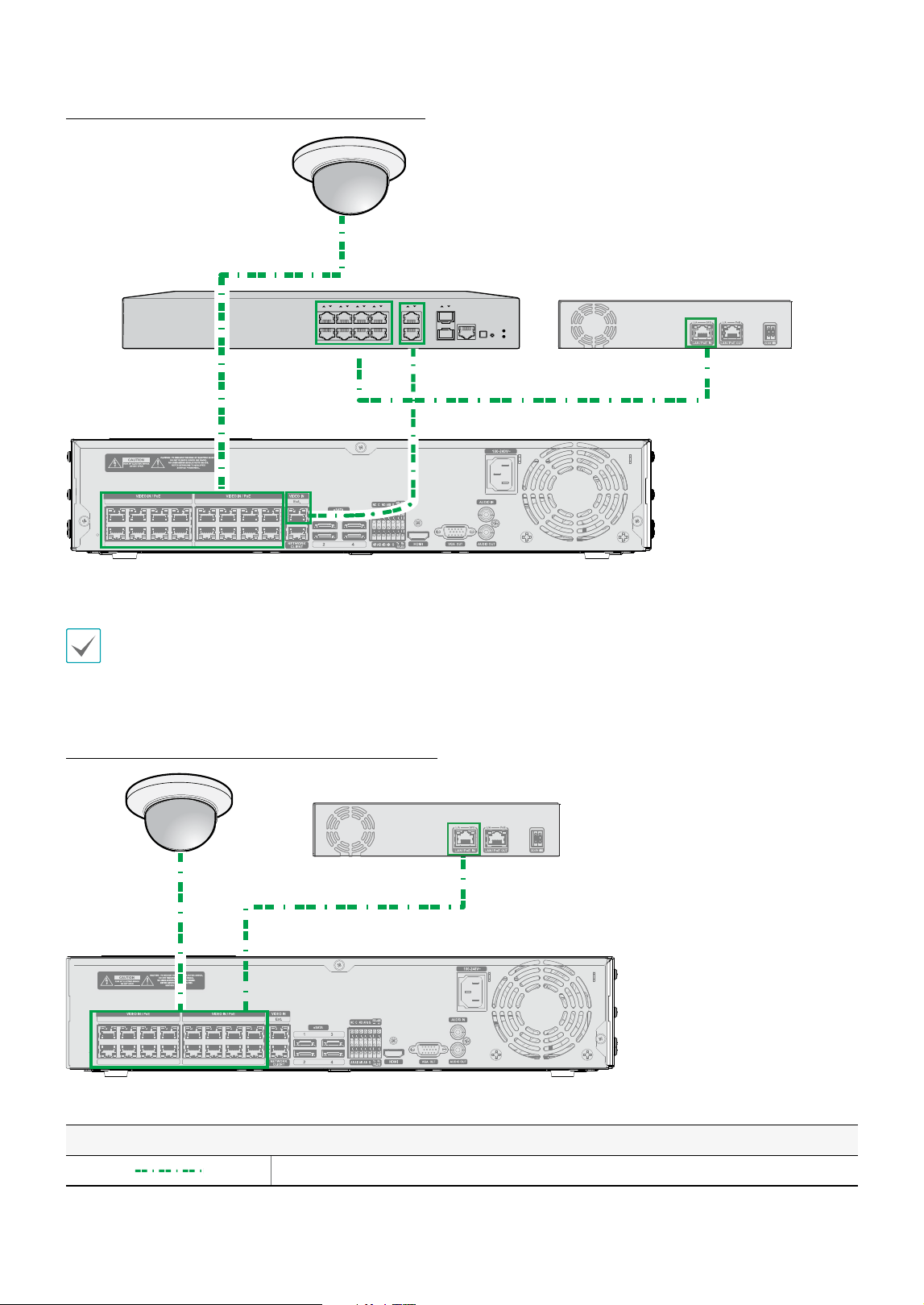
Example 3 : Connection Diagram Using PoE Switch
PWR
CONSOLE
/ PoE
RESET
DIAG
PoE
2
1
4
3
6
5
8
7
10
9
12
11
1 3 5 7 9 11 13 15
10 12 14 16
2 864
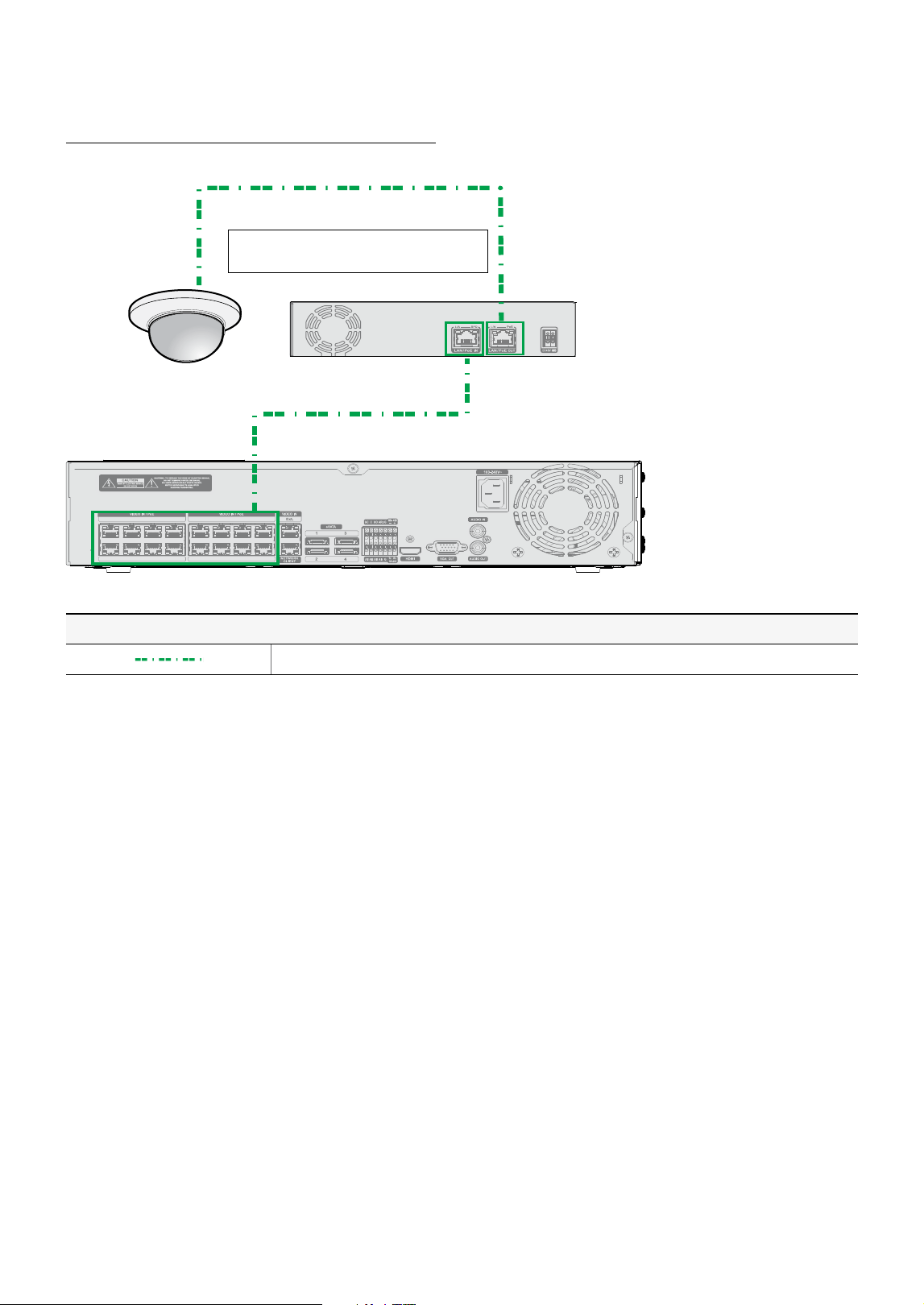
Check the following before connecting the product. (Only for the example 4)
• Check if the NVR's PoE power per port supports 30W.
• Check your NVR has enough PoE power.
Example 4 : Connection Diagram without PoE Switch
1 3 5 7 9 11 13 15
10 12 14 16
2 864
Types of Cables
AUDIO IN
AUDIO OUT
VGA OUT
HDMI
eSATA
NETWORK
CLIENT
VIDEO IN / PoE
NC C NO AR I G
RS -485
- +
A/1 A/2 A/3 A/4 G
Tx Rx
RS -232
CAUTION : TO REDUCE THE RISK OF ELECTRIC SHOCK.
DO NOT REMOVE COVER (OR BACK).
NO USER-SERVICEABLE PARTS INSIDE.
REFER SERVICING TO QUALIFIED
SERVICE PERSONNEL.
1 3
2 4
CAUTION
RISK OF ELECTRIC SHOCK
DO NOT OPEN
A C E G
VIDEO IN
Ext.
B D F H
100-240V~
AUDIO IN
AUDIO OUT
VGA OUT
HDMI
eSATA
NETWORK
CLIENT
VIDEO IN / PoE
NC C NO AR I G
RS -485
- +
A/1 A/2 A/3 A/4 G
Tx Rx
RS -232
CAUTION : TO REDUCE THE RISK OF ELECTRIC SHOCK.
DO NOT REMOVE COVER (OR BACK).
NO USER-SERVICEABLE PARTS INSIDE.
REFER SERVICING TO QUALIFIED
SERVICE PERSONNEL.
1 3
2 4
CAUTION
RISK OF ELECTRIC SHOCK
DO NOT OPEN
A C E G
VIDEO IN
Ext.
B D F H
100-240V~
Video Encoder
NVR (Network Video Recorder)
Analog Camera
LAN Cable (Data + PoE Power)
Network Camera
PoE Switch
DV-1304
NVR (Network Video Recorder)
Network Camera
DV-1304
NVR (Network Video Recorder)
Part 1 – Introduction
11
Example 5 : Sonnection Diagram without PoE Switch
1 3 5 7 9 11 13 15
10 12 14 16
2 864
Types of Cables
AUDIO IN
AUDIO OUT
VGA OUT
HDMI
eSATA
NETWORK
CLIENT
VIDEO IN / PoE
NC C NO AR I G
RS -485
- +
A/1 A/2 A/3 A/4 G
Tx Rx
RS -232
CAUTION : TO REDUCE THE RISK OF ELECTRIC SHOCK.
DO NOT REMOVE COVER (OR BACK).
NO USER-SERVICEABLE PARTS INSIDE.
REFER SERVICING TO QUALIFIED
SERVICE PERSONNEL.
1 3
2 4
CAUTION
RISK OF ELECTRIC SHOCK
DO NOT OPEN
A C E G
VIDEO IN
Ext.
B D F H
100-240V~
AUDIO IN
AUDIO OUT
VGA OUT
HDMI
eSATA
NETWORK
CLIENT
VIDEO IN / PoE
NC C NO AR I G
RS -485
- +
A/1 A/2 A/3 A/4 G
Tx Rx
RS -232
CAUTION : TO REDUCE THE RISK OF ELECTRIC SHOCK.
DO NOT REMOVE COVER (OR BACK).
NO USER-SERVICEABLE PARTS INSIDE.
REFER SERVICING TO QUALIFIED
SERVICE PERSONNEL.
1 3
2 4
CAUTION
RISK OF ELECTRIC SHOCK
DO NOT OPEN
A C E G
VIDEO IN
Ext.
B D F H
100-240V~
Video Encoder
NVR (Network Video Recorder)
Analog Camera
LAN Cable (Data + PoE Power)
DV-1304
NVR (Network Video Recorder)
* PoE power of network camera is
available only when DC48V is supplied.
Network Camera
Part 1 – Introduction
12
Accessories
Upon unpacking the product, check the contents inside to ensure that all the following contents are included.
• AI in the Box
• User Guide and Instruction Manual (This document)
• Rubber Foot (4EA)
Overview
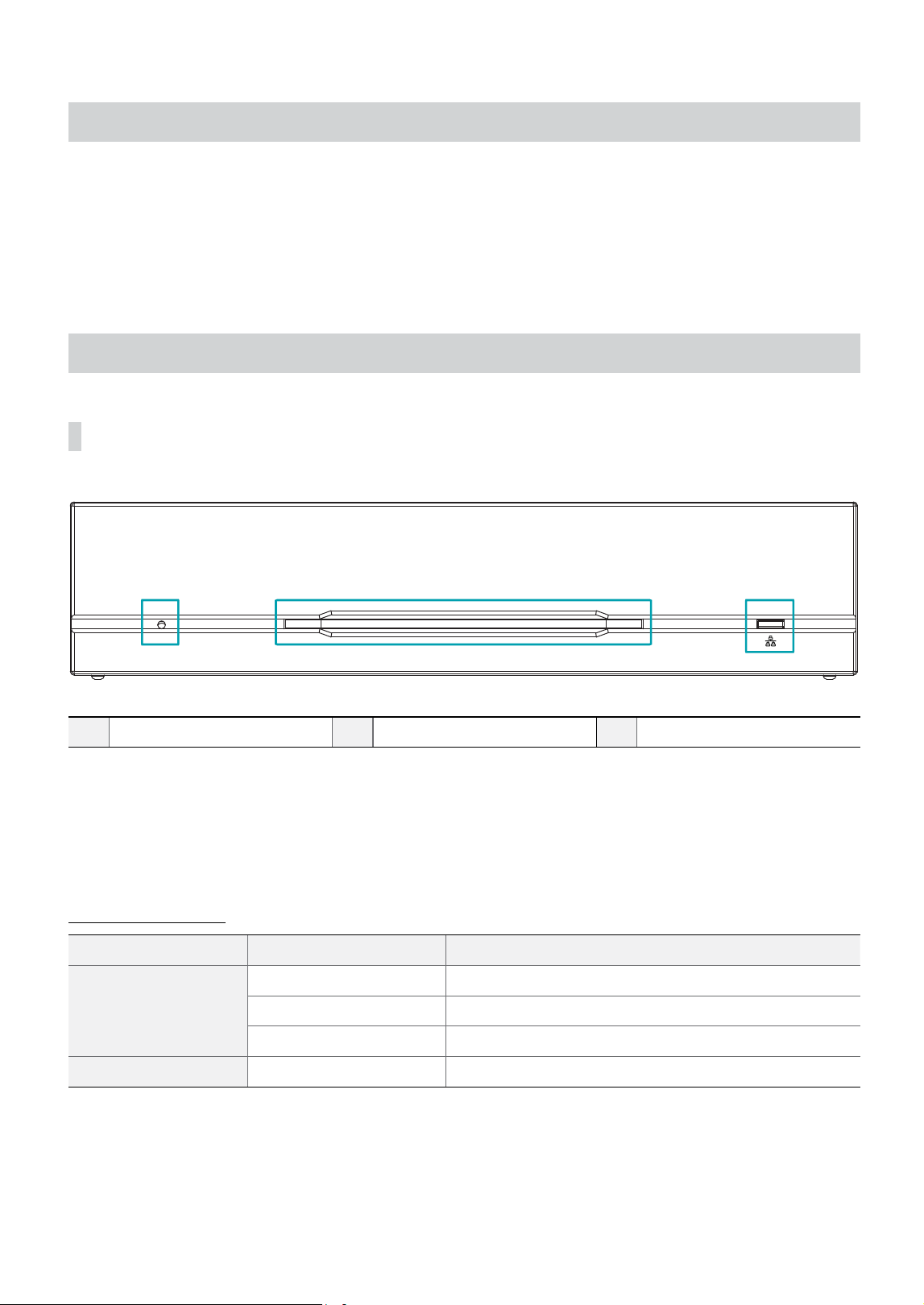
Front Panel
1
23
1
Power LED
2
Network LED
3
Factory Reset Switch
1 Power LED
Displays system operating status
2 Network LED
Displays network connection status
LED Status Indications
LED Status Description
Power LED
O No power connection
Blinking System booting or upgrading
On System operating
Network LED On / Blinking Normal network connection
3 Factory Reset Switch
Use to return all settings to the original factory settings. Connect the power and poke a straightened paperclip into
the factory reset switch hole. Hold the reset switch until the VA Box’s internal buzzer sounds twice. Release the
reset switch, and all of the device settings are now at the original settings it had when it left the factory.
Part 1 – Introduction
13
• Factory Reset during system booting: All of the AI Box’s settings are now at the original settings it had when it
left the factory.
• Factory Reset during system operating: The other settings except for system log are now at the original
settings it had when it left the factory.
• Factory Reset via the IDIS Discovery program: The other settings except for system log and network settings
are now at the original settings it had when it left the factory.
• Factory Reset via the IDIS Discovery program(including network settings) : The other settings except for
system log are now at the original settings it had when it left the factory.
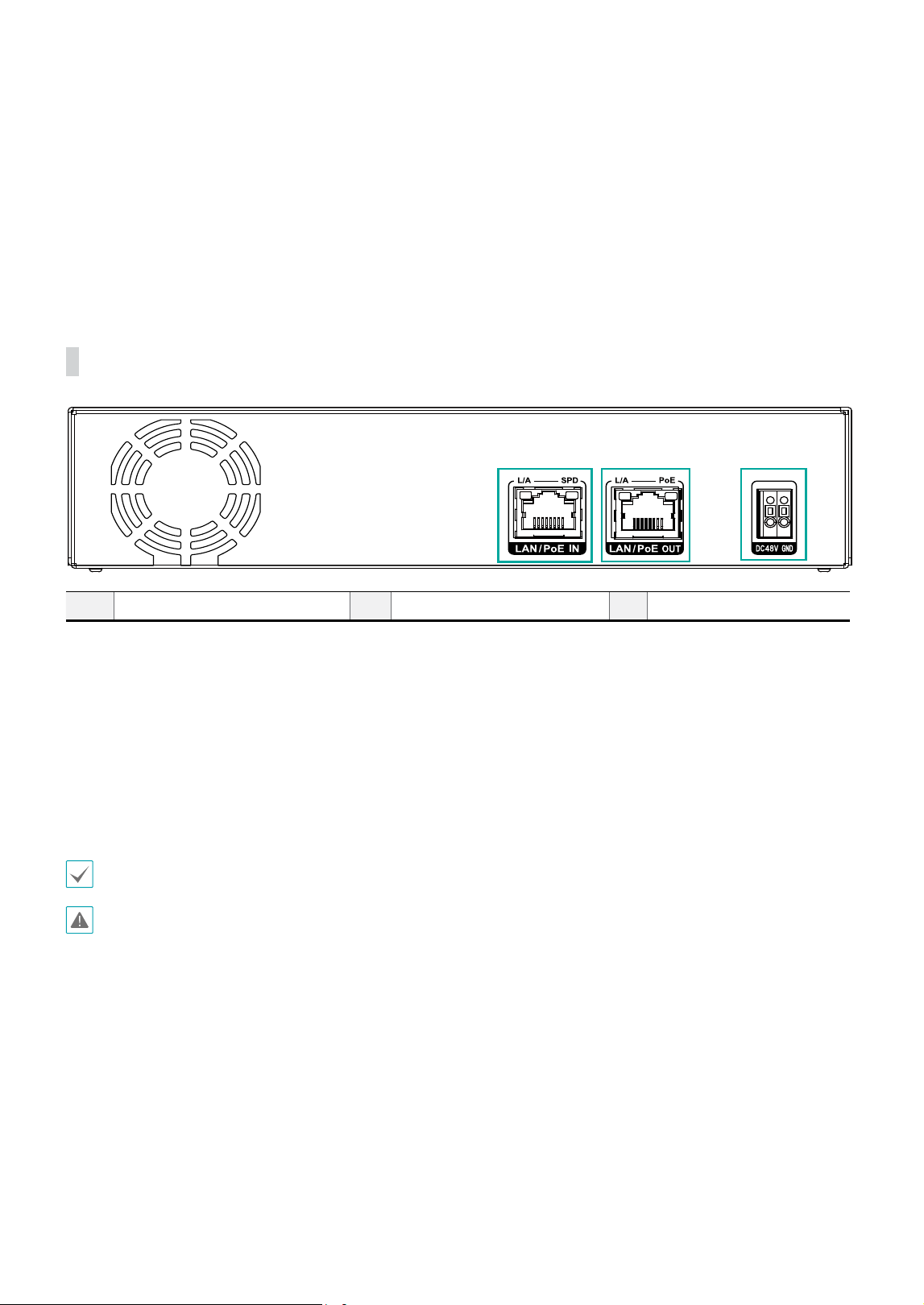
Rear Panel
1
2
3
1
Network + PoE Power Input
2
Camera + PoE Power Output
3
DC48V Input
1 Network + PoE Power In
Connect a Cat5e cable with an RJ-45 jack. The device is capable of connecting to networks via an Ethernet
connector and also receives power (PoE) from the NVR.
2 Camera + PoE Power Output
Connect a network camera.
PoE power of network camera is available only when DC48V is supplied.
3 DC48V Input
Connect the two wires of the power adapter to these ports. Be careful not to cross the DC48V and GND wires.
Booting will commence once connected to a power supply.
• The network connector is not designed to be connected directly with cable or wire intended for outdoor use.
• Organize the power cable so that it will not cause people to trip over or become damaged from chairs, cabinets, desks, and
other objects in the vicinity. Do not run the power cable underneath a rug or carpet.
• Do not connect multiple devices to a single power outlet.
• Please wire within 3m(118") indoors for stable power supply when installing the adapter.
Part 2 - Camera Installation
14
Stream Setting Guide for AI
Box Camera
System Requirements
• Resolution: 640x360 to 1920x1080
• IPS: 10 or higher
• Amount of Data: 640x360 @ 10ips to1920x1080
@10ips
• One of the three streams must match the above
conditions.
• How to calculate the amount of data : Resolution
(horizontal x vertical) x ips
• Minimum Requirement
- Resolution: 640x360
- IPS: 10
• Recommended Setting
- Resolution: 640x360
- IPS: 15 or higher
• If the minimum requiremnet is not satised, AI
function may be aected.
• If all three stream settings of the camera are set to
exceed 1920X1080@10ips, the channel will stop
analyzing.
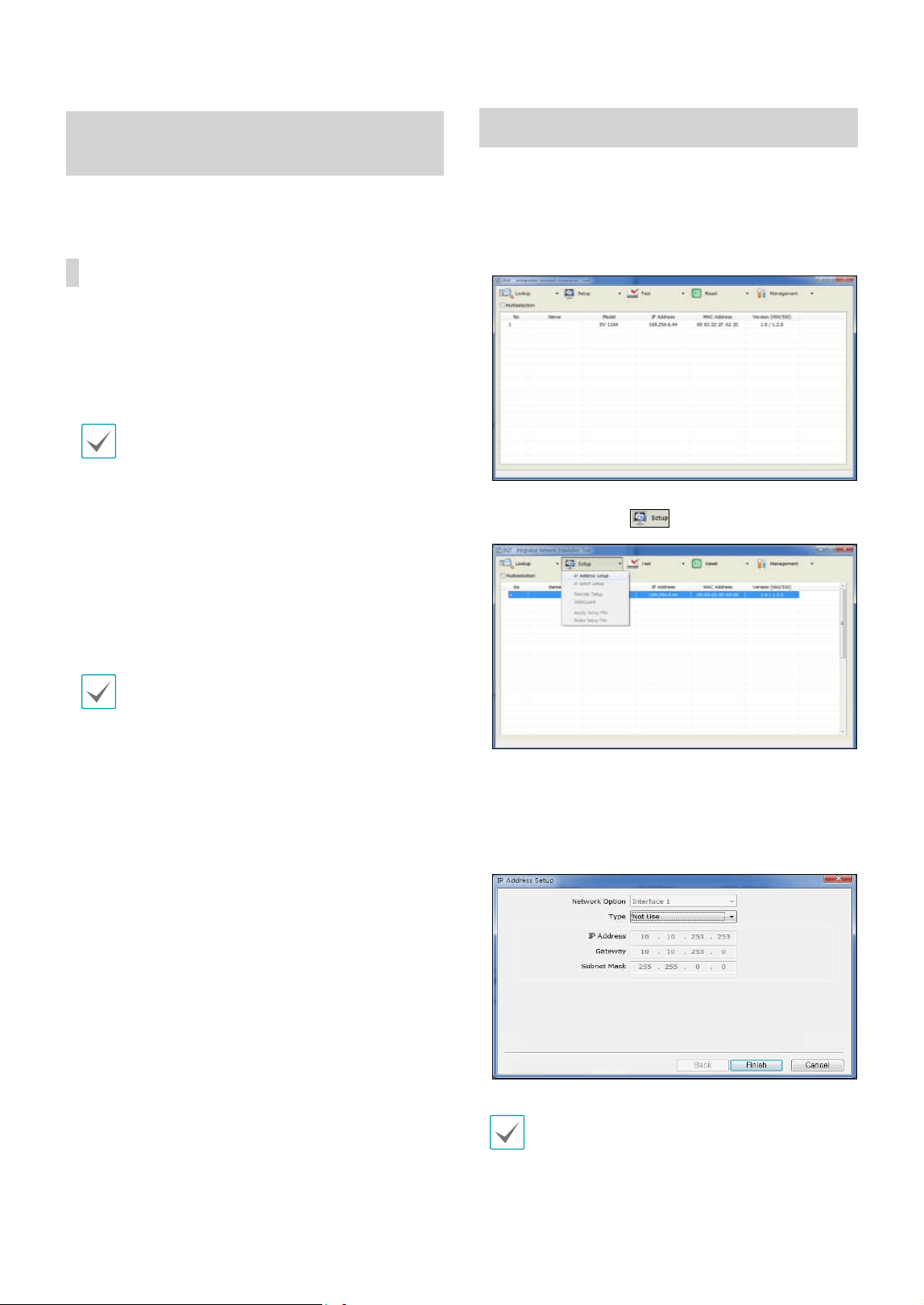
Network Setup (Alias IP)
1
Launch the IDIS Discovery program and then select
the AI in the BOX(DV-1304) from the main screen
whose settings you wish to change.
2
Click on the Setup icon.
3
Select the IP Address Setup from the Setup menu to
load the the Alias IP setting screen. Alternatively, you
can select DV-1304 from the main screen and then
right-click to access the Alias IP setting screen.
• Congure this setting before registering on NVR.
• It supports DHCP and Manual IP settings
15
Part 2 - Camera Installation
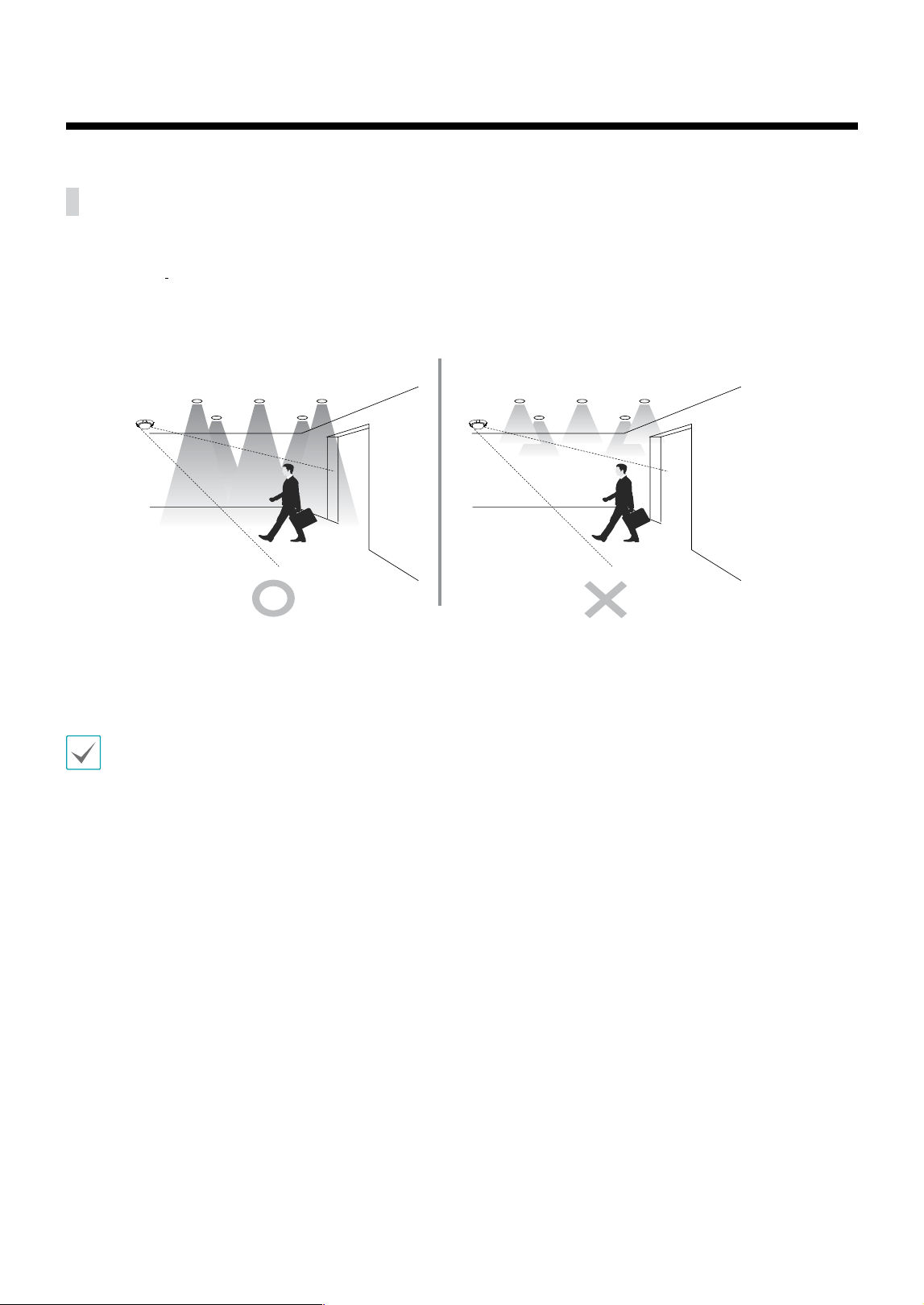
General Guideline for AI Box Camera
In order to properly operate and manage AI Box such as cameras, especially People Counting, Heat Map, Queue
Monitoring,
Social Distance Violations, and Mask Rule Violations, the following must be applied.
Make sure that the lighting is sucient.
60° 60°
30°
30°
[Make sure there is enough light]
The function of the AI in the Box may cause errors in actual measurements. In the following conditions, the
analytical performance may suer due to faulty detections.
• If there is not enough light.
• If it is dicult to obtain a sucient view.
• If only part of the object is visible at the edge of the eld of view.
• When several extremely fast moving objects appear randomly in the image.
• When a person is lying down or sitting without standing upright.
• When a moving object is too close to the camera.
• When people move as a group and their motions block one another.
• When an object moves quickly.
• If an object is reected on the oor, wall, glass, metal or water or makes a shadow from a light source.
• If the position of the camera diers from the direction of a light source and it makes a shadow.
• Fisheye analysis is not supported.
• Corridor Format analysis is not recommended.
• When it can be recognized as a person such as a mannequin or video screen.
Part 2 - Camera Installation
16
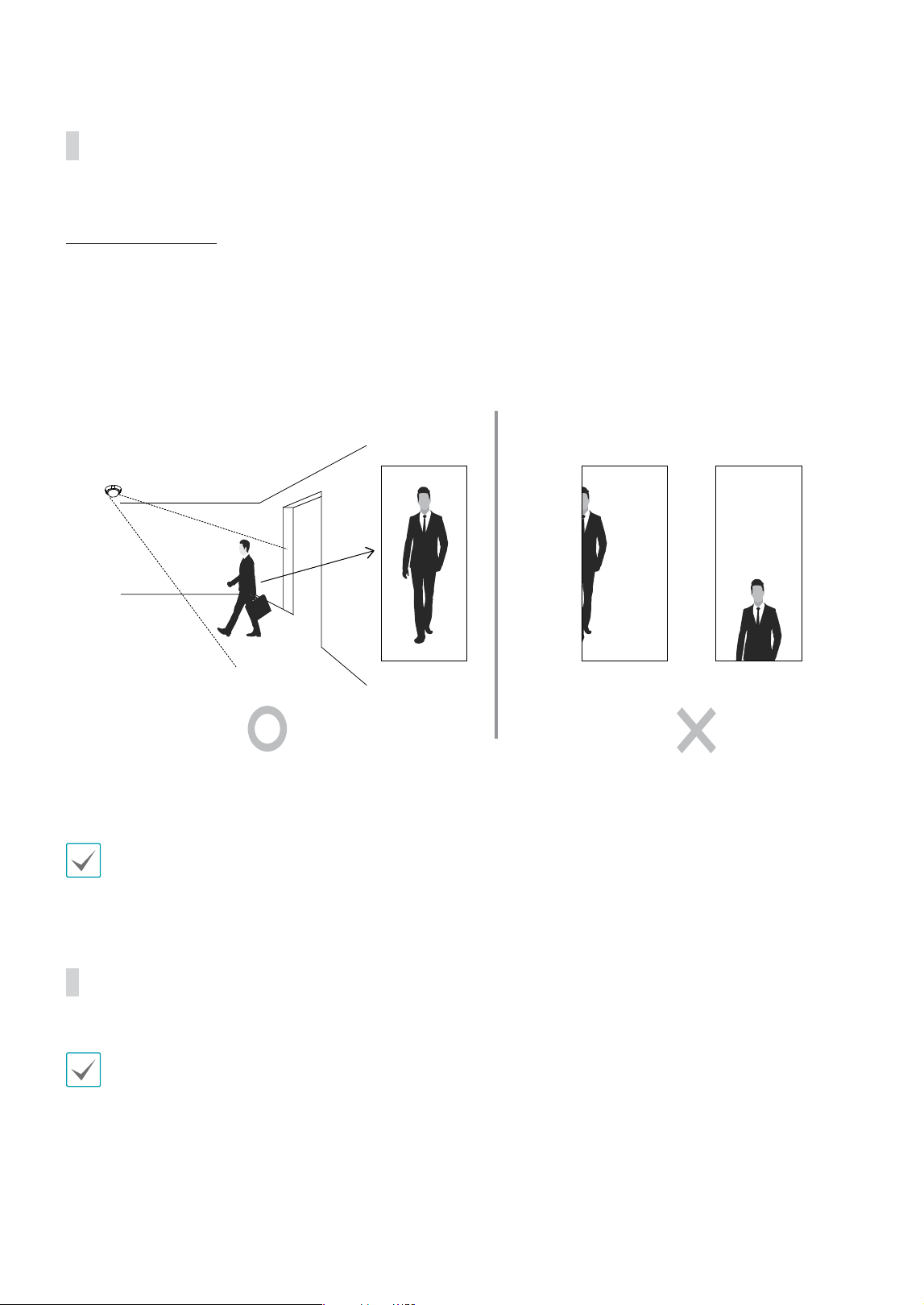
People Counting
Camera Installation
The whole body appears at the place to be counted, and it is installed diagonally so that the front and rear people passing by do not block each other.
- It is installed so that the movement of a person passing through the boundary line can be easily captured.
- The image should be installed so that the person does not tilt more than 30 degrees, and the size of the person on the image should
be larger than 1/16th of the image size.
60° 60°
30°
30°
In the case of AI in the Box People Counting, the recognition rate may decrease in the following cases.
• If the gap between the person in front and the person behind passing through the line is narrow.
• If the environment around the counting line is crowded with people entering and exiting.
Queue Monitoring
In the case of AI in the Box Queue Monitoring, the recognition rate may decrease in the following cases.
• Place with a large oating population
• People who near the camera cover the body of the person behind.
Part 2 - Camera Installation
17
Social Distancing Violation
In the case of AI in the Box Social Distancing Violation, the recognition rate may decrease in the following
cases.
• Only part of the human body is visible
• The perspective of distant and close people is lost due to a horizontal or low-angle camera.
• People close to the camera occupy too much area of the image to obscure nearby people
• People who near the camera cover the person in around.
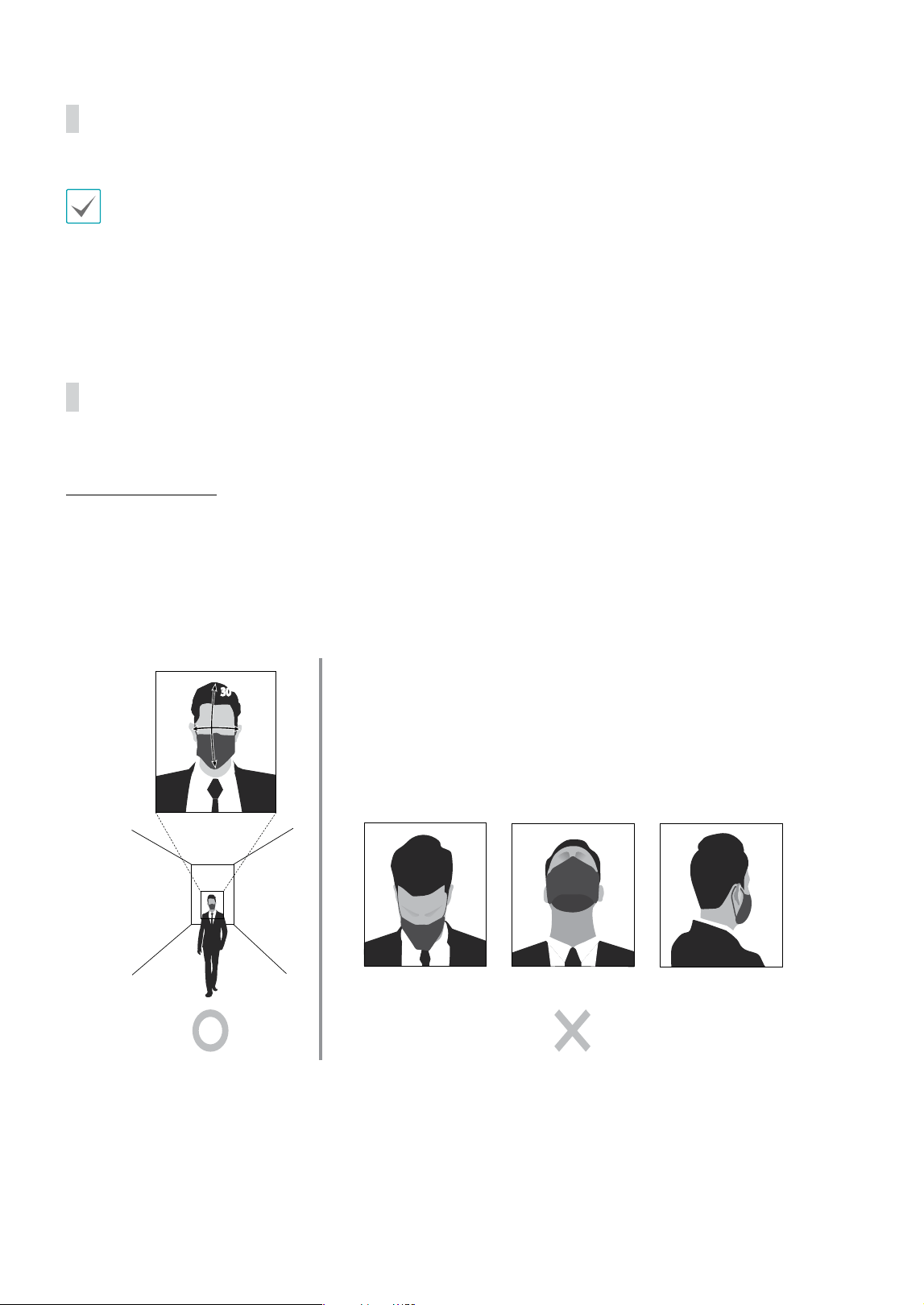
Mask Rule Violation
Camera Installation
The conditions must be satisfied to determine whether the subject violates the mask rules. It is recommended that the camera be installed at the
average height of a person.
- When the resolution is 1920x1080, it can be detected when the size of the face is over 50x50 pixels.
- Based on the front of a person's face, it is detected only within 30
° up and down and 60° left and right.
60° 60°
30°
30°
Part 3 - Appendix
18
Part 3 - Appendix
Troubleshooting
Problem Check
Power LED will not turn on
• Check the LAN cable.
• Check that the power cable is connected or the NVR has power.
The system is unable to recognize
network interface
• Check the LAN cable.
• Check the network LED.
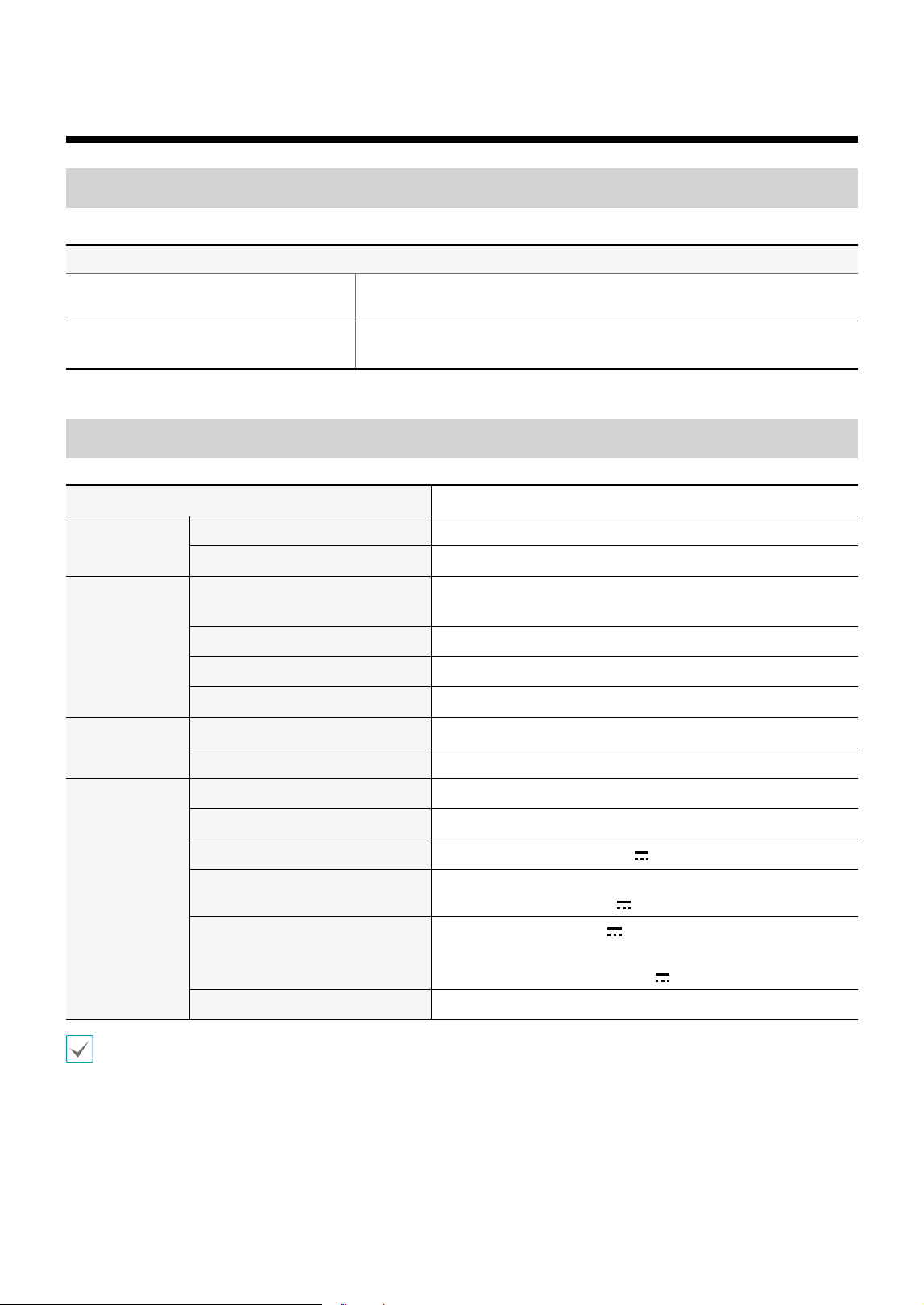
Specications
Model DV-1304
Video
Input 4ch IP
Compression H.264 / H.265
Input/
Output
Ethernet
PoE In Port : 10M / 100Mbps / 1Gbps
PoE Out Port : 10M / 100Mbps
DC48V Input Terminal Blocks
LED Power(Status), Network
Button/Switch Reset
Environmental
Conditions
Operating Temperature 32°F to 104°F (0°C ~ 40°C)
Operating Humidity 0% ~ 90%
General
Dimensions (W x H x D) 7.9” x 1.7” x 6.0” (200mm x 44mm x 152.3mm)
Unit Weight 1.95 lbs. (889g)
Power Supply 48V
, PoE
Power Input
ADAPTOR (INPUT : 100-240V~, 50/60Hz, 1.2A, OUTPUT : 48V
, 1.0A)
Power Consumption
48V
, 0.8A, 38.4W
PoE, IEEE 802.3at(Class 4), 25W
DC OUTPUT : 48V
, 0.35A MAX
Approval KC, FCC, CE
These product specications may change without prior notice.
V2.0