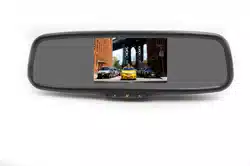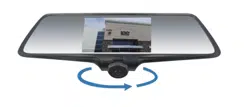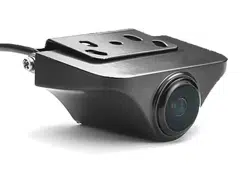
Carkuda (VTG700X)
User Manual

Contents
• Carkuda Concepts
• Quick Start
• Installing Carkuda Mirror
• Using Carkuda Mirror
• Using Carkuda Smartphone App
• Technical Specifications
• Packing List
• FAQs
2
Carkuda Concepts
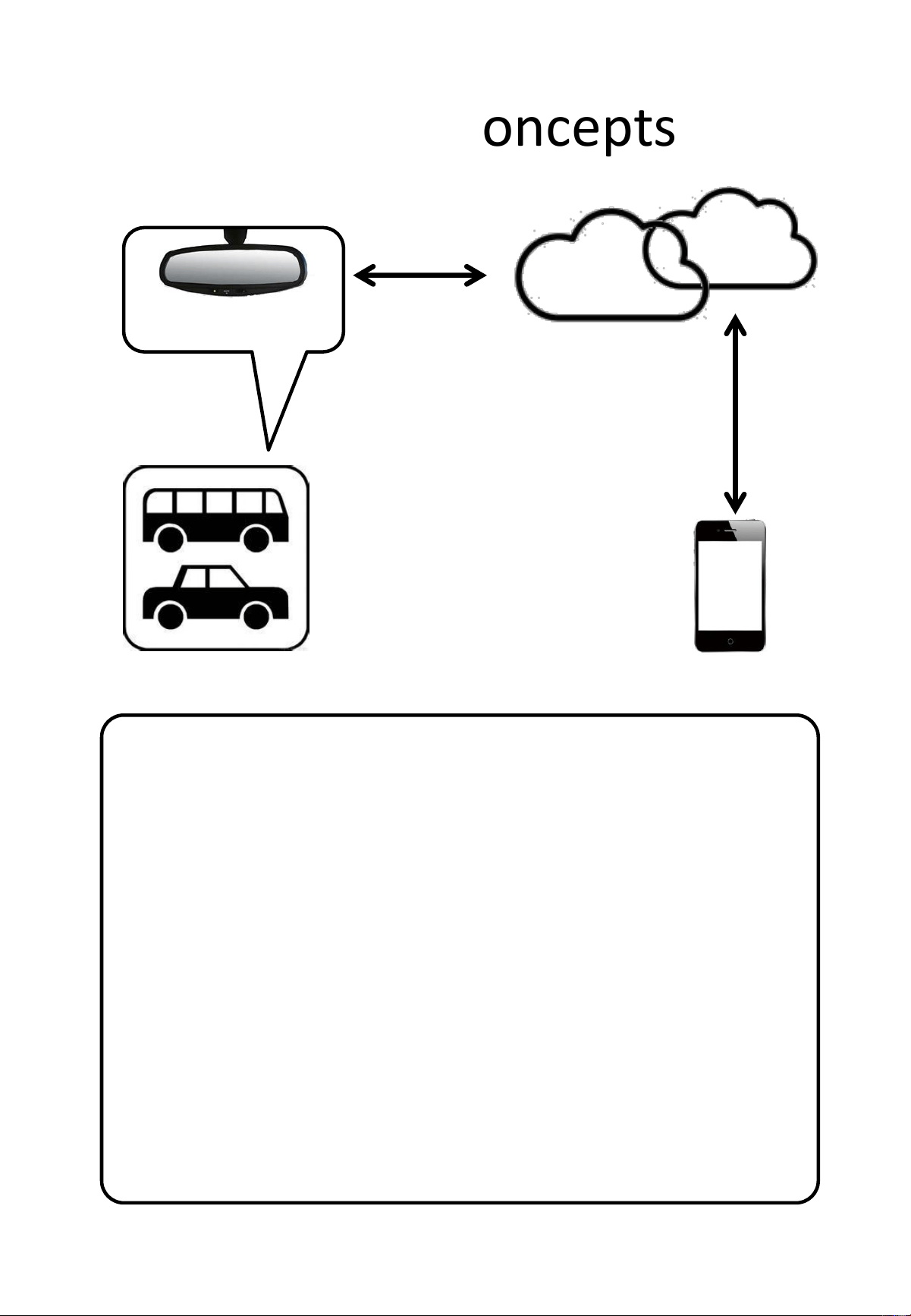
Cloud Services
of Various Providers
Vehicles
Smartphone
Carkuda Mirror
Carkuda Mirror installs in vehicles
Carkuda hardware connects to battery, ACC power
line, reverse signal line and GPS antenna
With Wi-Fi Data Network, mirror talks to Cloud
Services
Data network is Wi-Fi Network
Cloud Services for example can be Google Map,
WAZE, GasBuddy or manufacturer provided cloud
User can use the touch screen to operate the
Carkuda Mirror
Smartphone connects to Carkuda via Wi-Fi network
Smartphone can access Carkuda data from Cloud
Services
3
Wi-Fi
Quick Start
Install Carkuda Mirror
• Mount, Connect, Insert
SD Card
• See Page: 5 - 10
Use In-Mirror
Features
• DVR, Navigate, Play
• See Page: 12 - 25
Carkuda Smartphone
App
• Bind, Check, Monitor
• See Page: 27 - 36
4

Contents
• Carkuda Concepts
• Quick Start
• Installing Carkuda Mirror
– Mounting
– Cables
– GPS Antenna
– SD Card
• Using Carkuda Mirror
• Using Carkuda Smartphone App
• Technical Specifications
• FAQs
5
Installing Carkuda Mirror
-Mounting
6
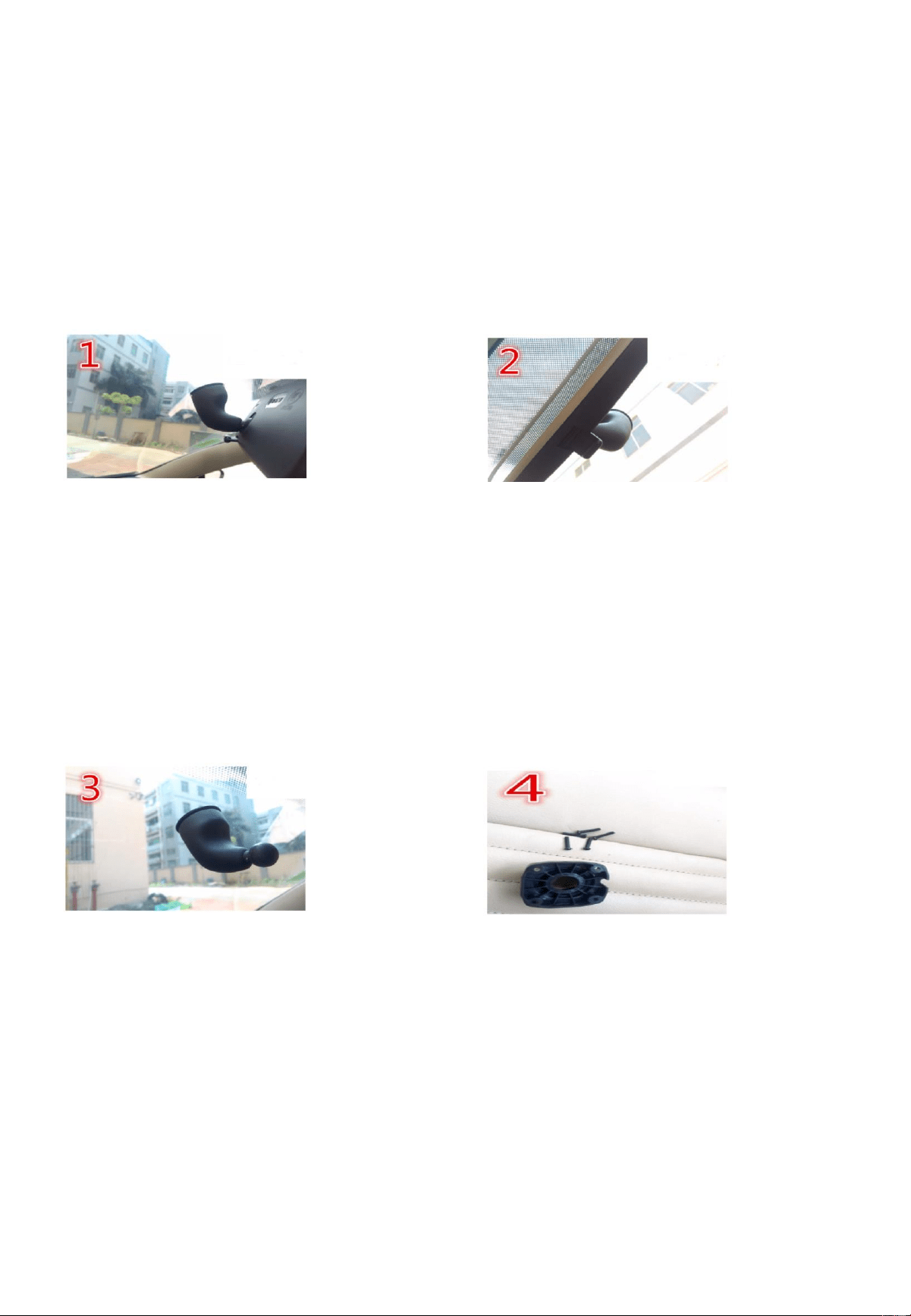
Please identify if your car mirror has a round connector with
mounting bracket.
If yes, then please remove the original mirror
off from the bracket.
Keep the mounting bracket on the windshield as is. We will
use this bracket as the base for universal plastic mounting bracket.
The bracket kit includes 5 screws. 4 are for the installation and
1 extra for backup in case your lose one.
Universal Plastic Brackets
Installing Carkuda Mirror
-Mounting
7
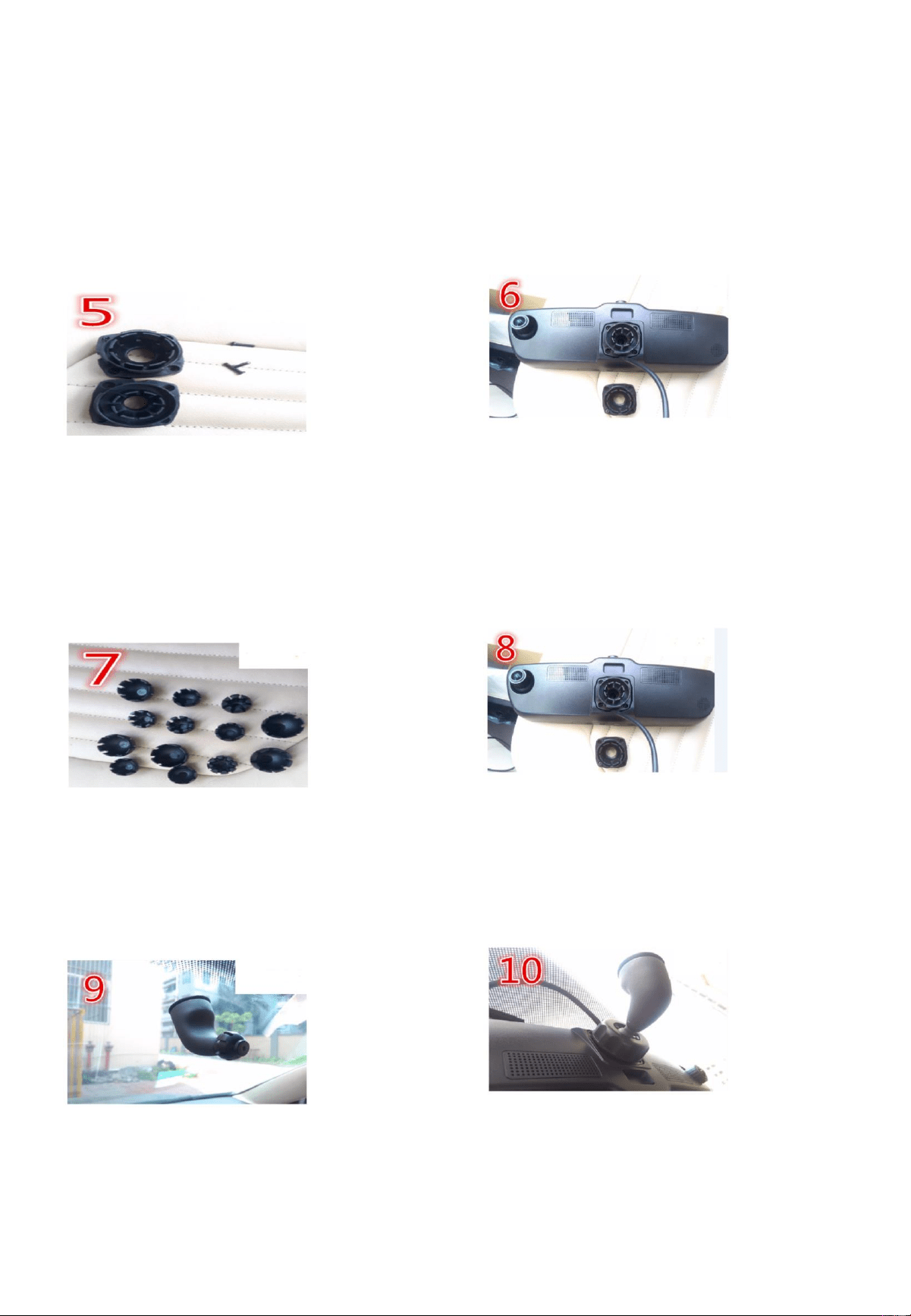
Please select the proper size head circle according to your
Existing mounting bracket. Place the plastic head and drive the
4 screws into the mirror.
There are several sizes of ball cups, select the proper one
that fits for your mounting bracket
You can test the size of ball cup by installing onto the bracket ball.
At last, please put the circle cap, screw head and twist them tightly.
Installing Carkuda Mirror
Harness
8
Carkuda requires constant battery power after vehicle ignition
switch is turned off. This will allow users to access the Carkuda
real time data remotely via Smartphone. Carkuda also needs to
connect to IGN/ACC signal wire to offer security monitoring
features. With IGN/ACC line connected, Carkuda can detect every
IGN on or off event.
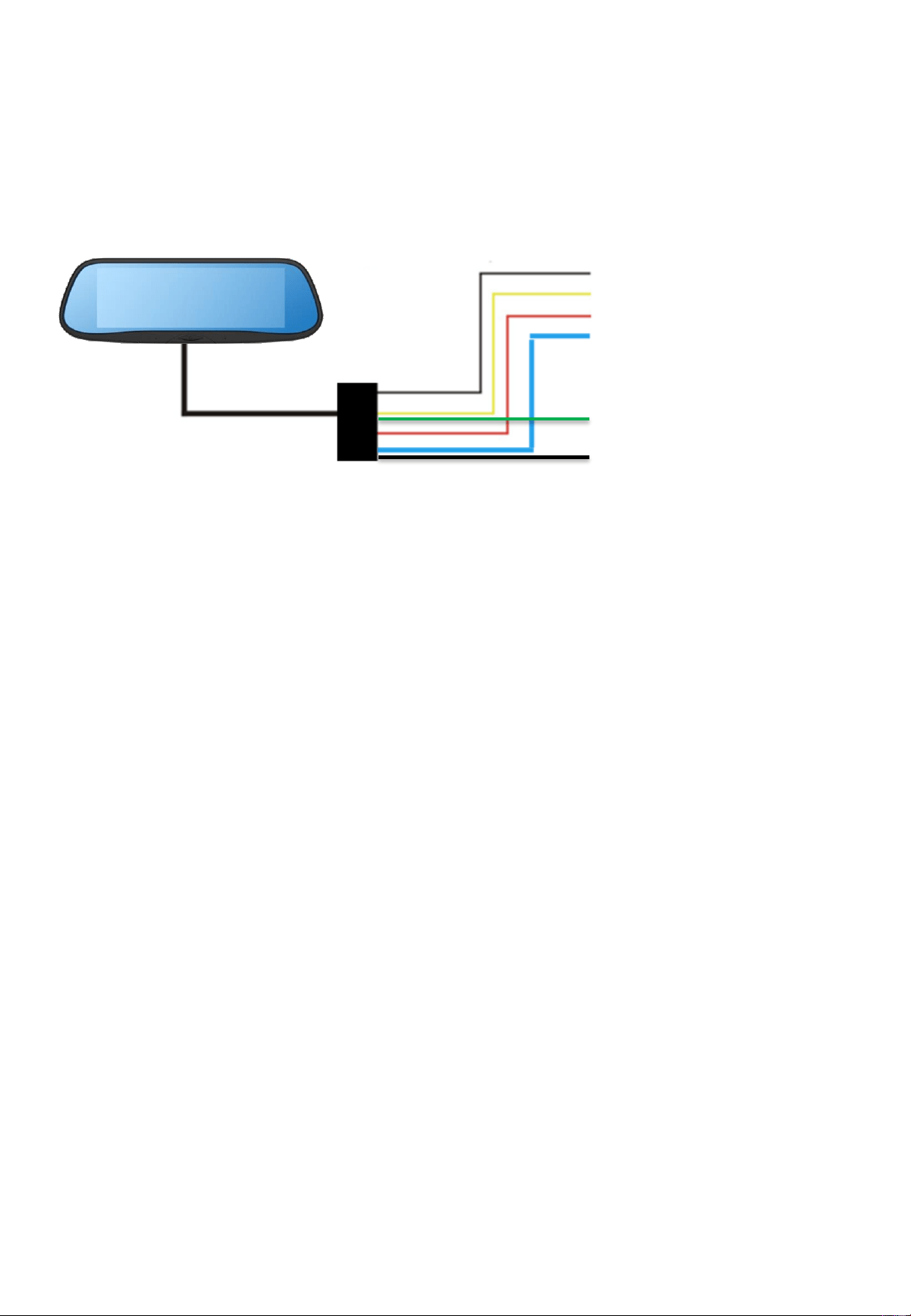
• BLACK wire to chassis ground
• YELLOW wire to 12v + battery, from the fuse box or battery
• RED wire to IGN/ACC switch, which indicates the car is on or off
• BLUE wire to reverse light + for back up camera activation
(Optional feature if a back up camera is installed and connected)
• GREEN wire to FM antenna
•(Optional-Connect to use the FM Modulator Feature)
•YELLOW RCA plug to back up camera
•Warnings
•DO NOT mix the +/- battery connections.
•DO NOT connect RED wire to constant 12 volt, otherwise
Carkuda cannot detect IGN/ACC is on or off
•DO NOT connect YELLOW wire to IGN/ACC power, otherwise
Carkuda will shutdown itself, remote security feature will not
activate.
GND
Battery/Fuse Box
ACC/IGN Key
Reverse Light +
Back up cam input
FM antenna
Black
Yellow
Red
Blue
Green
Black
Installing Carkuda Mirror
-GPS Antenna
9
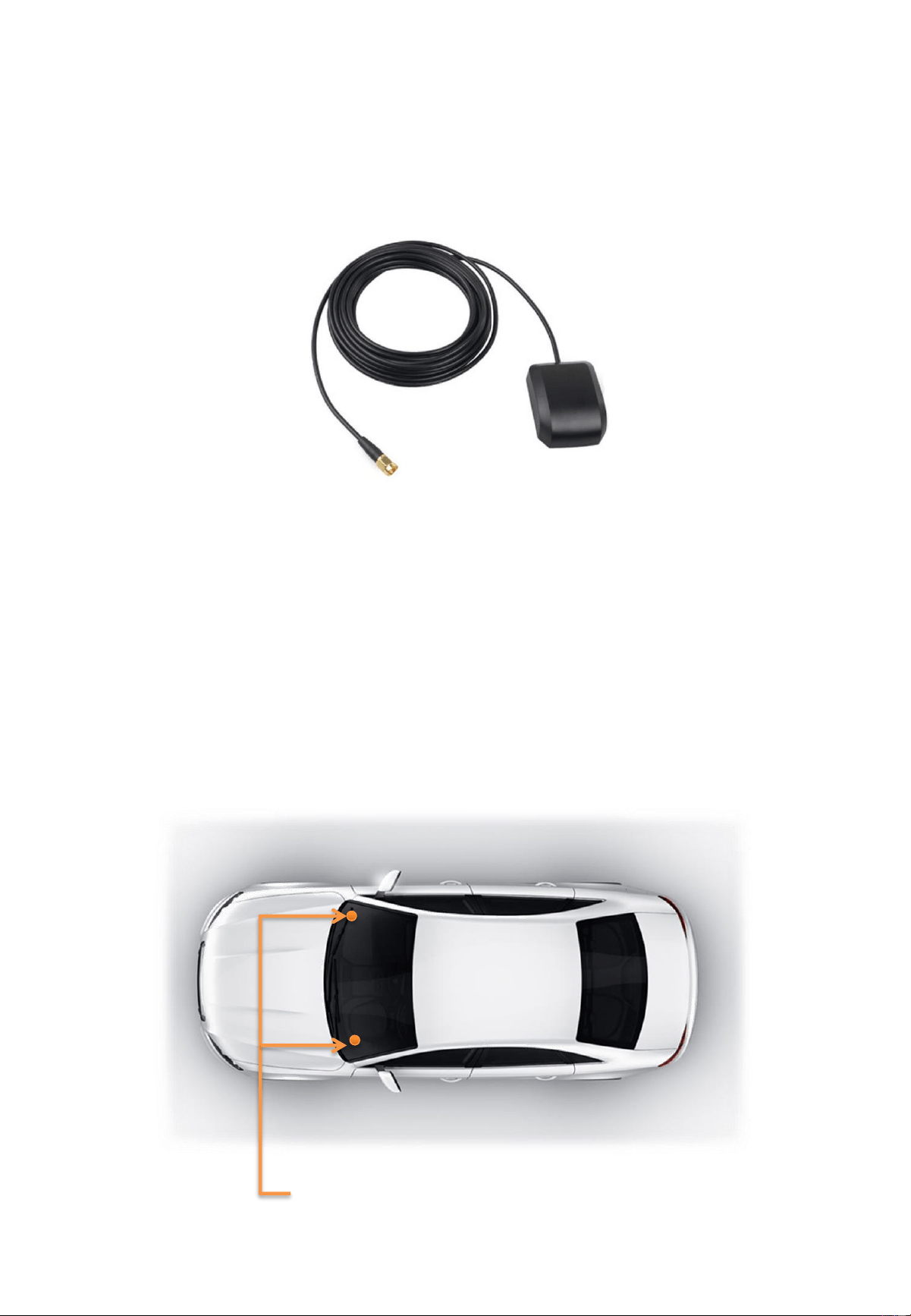
We have also included a GPS antenna. This antenna is used to
receive GPS signal in a very fast and stable manner.
The recommended position to install the GPS antenna is the
inside windshield, or on top of the dashboard.
Once the antenna is properly installed, connect the GPS antenna
to Carkuda.
Recommended GPS Head Position
Better visibility to satellites

Contents
• Carkuda Concepts
• Quick Start
• Installing Carkuda Mirror
• Using Carkuda Mirror
– DVR
– Navigation Apps
– Snapshots
– File Manager
– SOS
– Google Play
– App Manager
– Time and Date
– Wi-Fi Network
– FM Transmitter
– Shutdown Delay
– Software Upgrade
– GPS Signals
– How to Reboot
• Using Carkuda Smartphone App
• Technical Specifications
• FAQs
10
Using Carkuda Mirror
-DVR
11
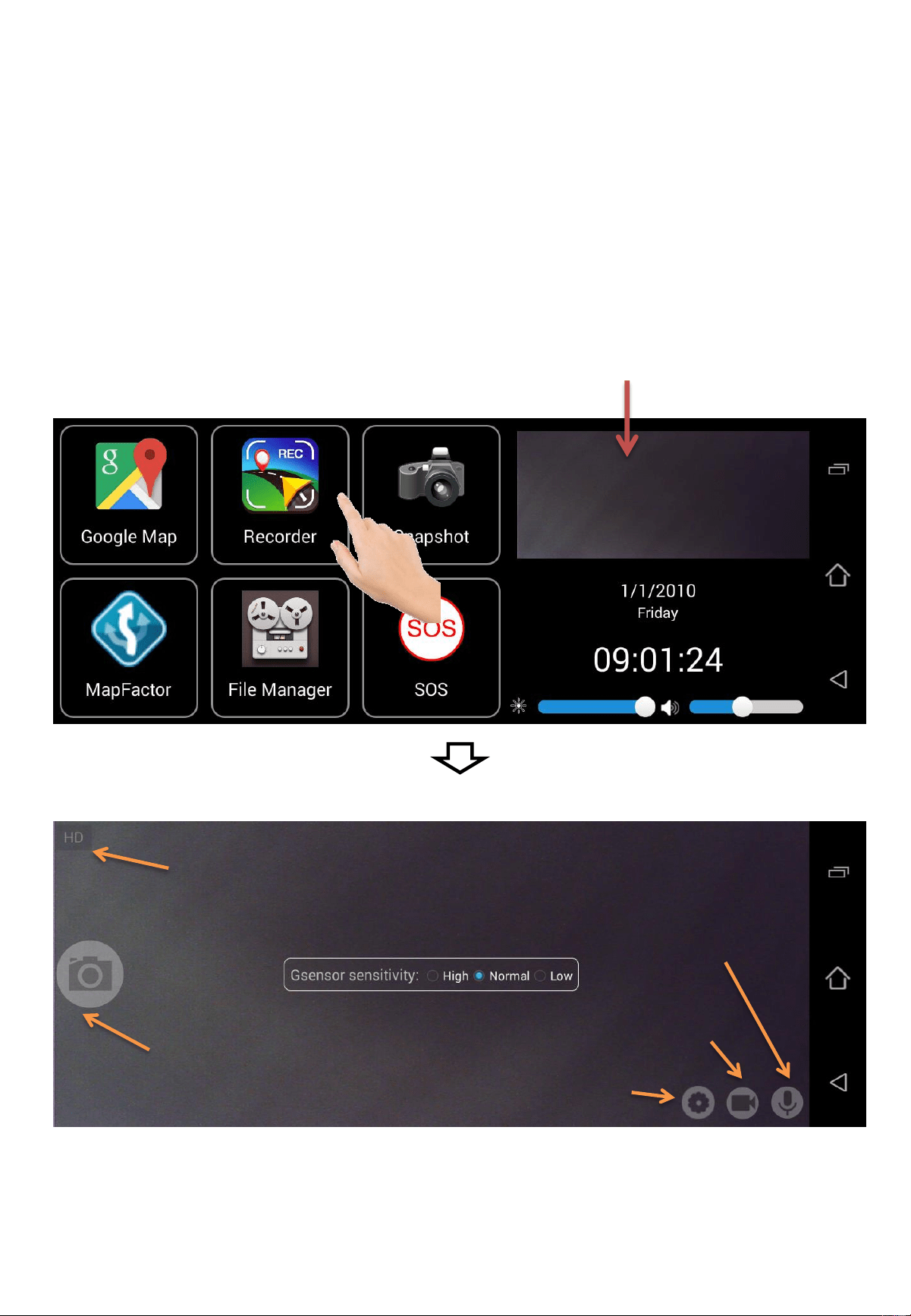
Snapshot
Start/Stop recording
Mute/Un-mute
sound recording
HD/FHD switching
When you tap the Recorder icon. It displays the full view
real time video. To review the video history, tap the File
Manager icon. You can review and play back the video files
on the mirror.
Real time preview window
G-Sensor Settings
Using Carkuda Mirror
-Navigation Apps
12
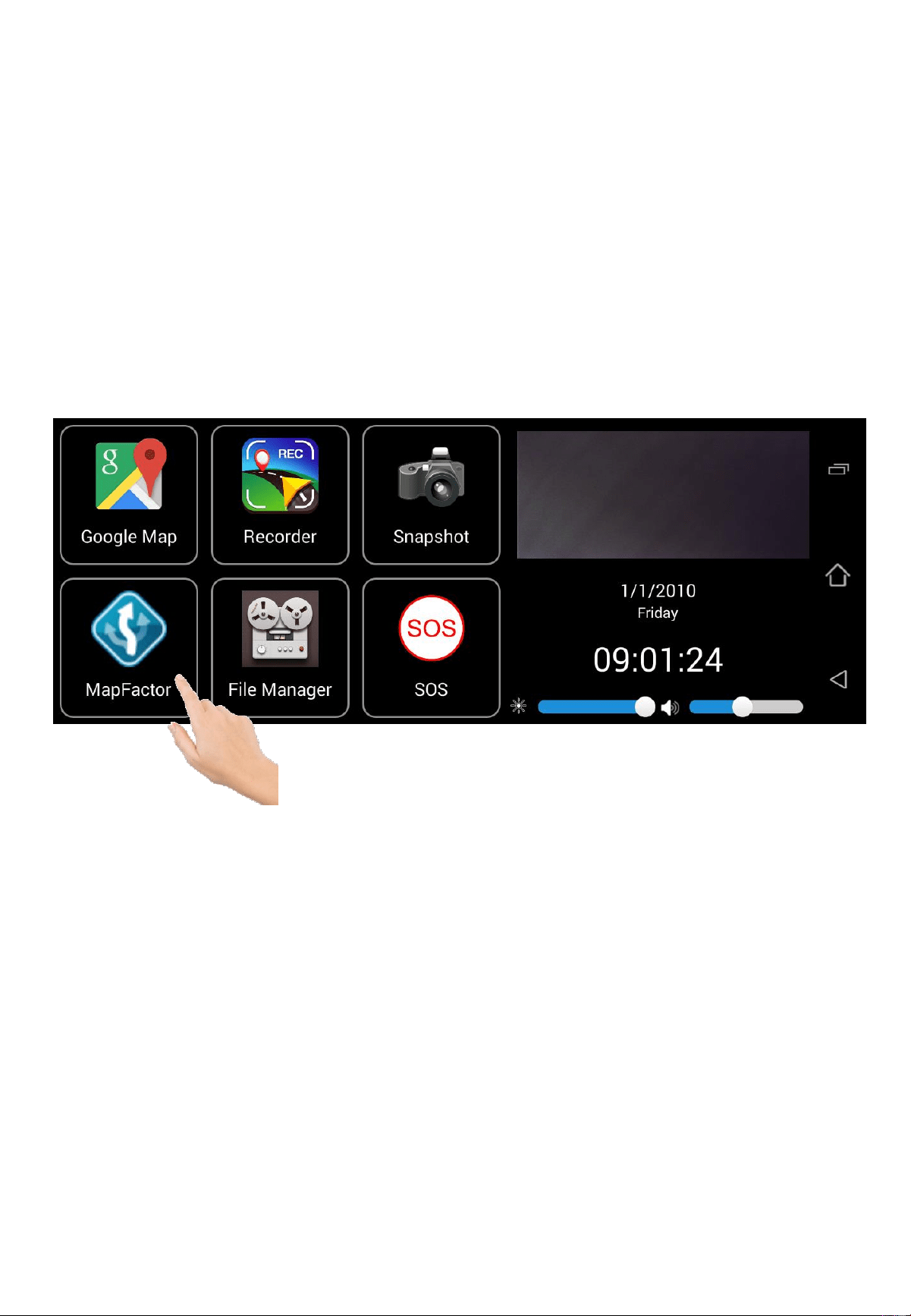
Carkuda supports various navigation systems like Google
Map, MapFactor, WAZE, Yahoo Map and many more. The
user experience is the same as what we have on the
Smartphone.
Note
• Google Map requires a data connection to function.
• MapFactor is pre-loaded with TOM TOM offline map data
• Carkuda can accommodate different navigation apps (online
or offline)
Using Carkuda Mirror
-Snapshots
13
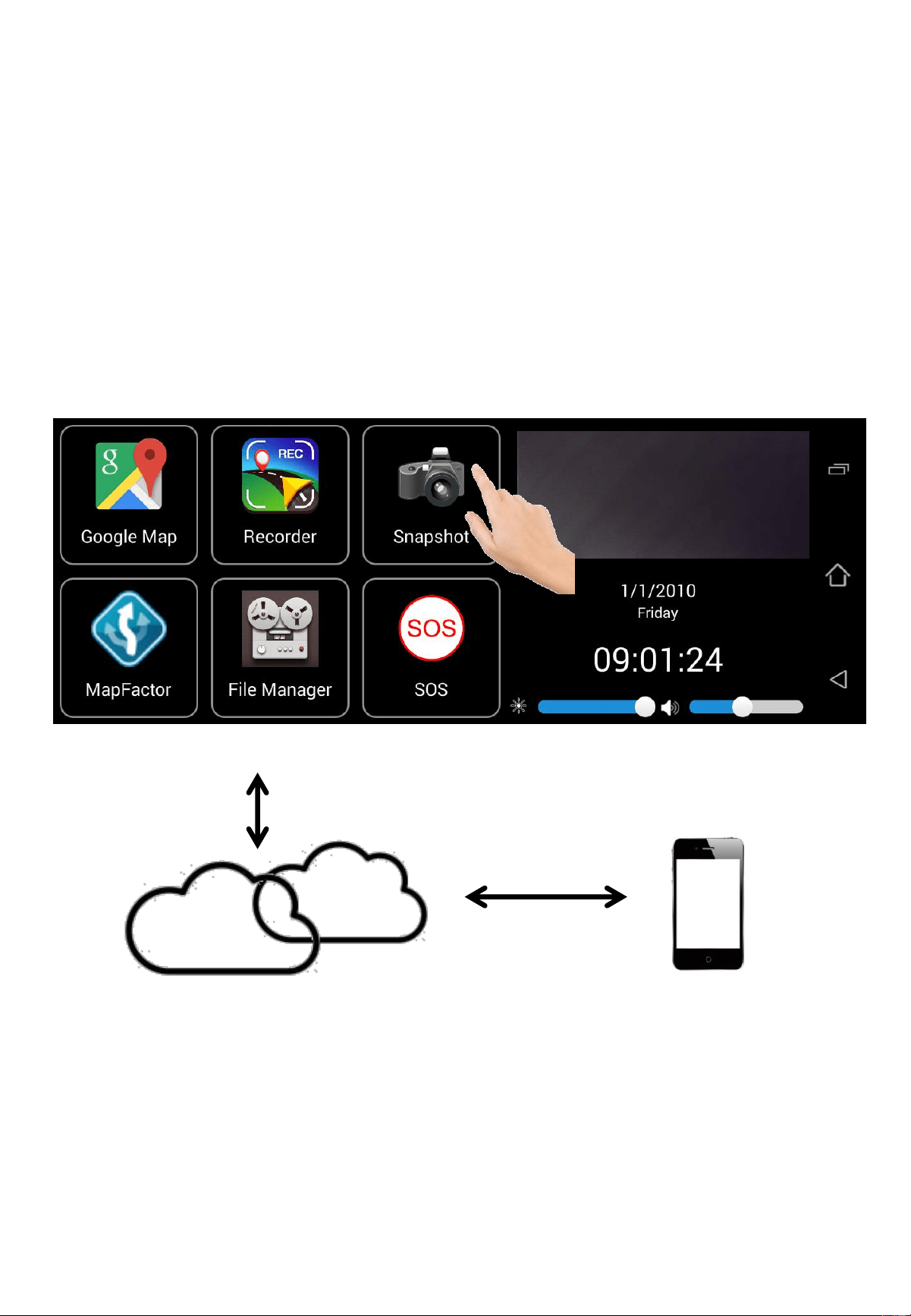
When driving, the driver can instantly tap the Snapshot icon,
Carkuda will capture the image from the front camera and
save it in the File Manager or it can upload to the Cloud Server,
which can be synchronized to your Smartphone app
automatically. Cloud Server requires a Wi-Fi data connection.
Carkuda Cloud Services
Smartphone
Note:
• The Carkuda requires a Wi-Fi data connection to synchronize
photos.
• Carkuda currently offers Cloud Storage for all end users.
Using Carkuda Mirror
-File Manager
14
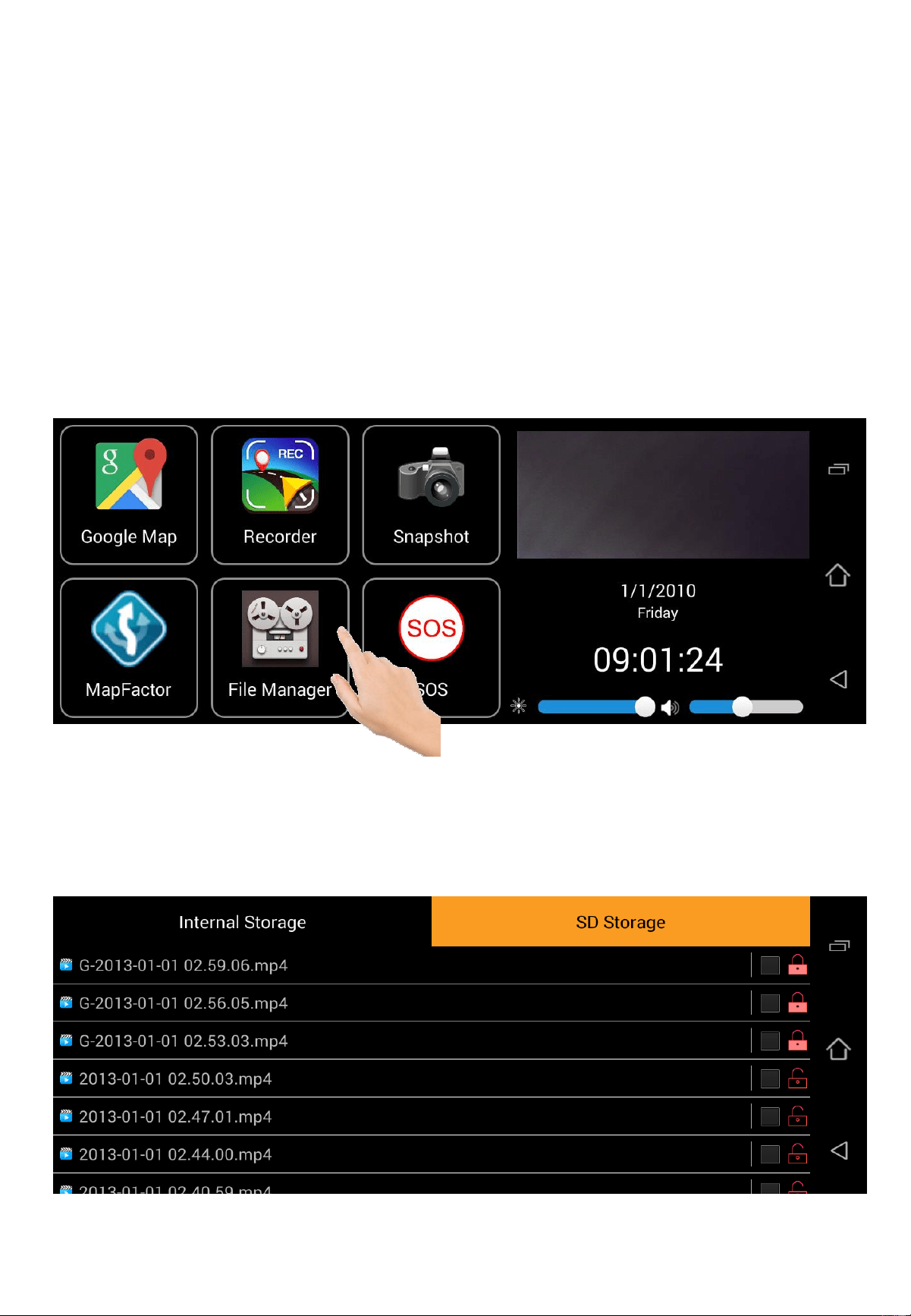
Tap the File Manager icon, users can access DVR videos and
photo history, delete or lock DVR videos and snapshot photos,
clean up SD Storage or Internal Storage space.
For files that start with letter “G”, it is clocked by G-Sensor
detection during hard brake or collision. These files will not
be recycled automatically. Users can delete them manually.
Using Carkuda Mirror
-File Manager
15
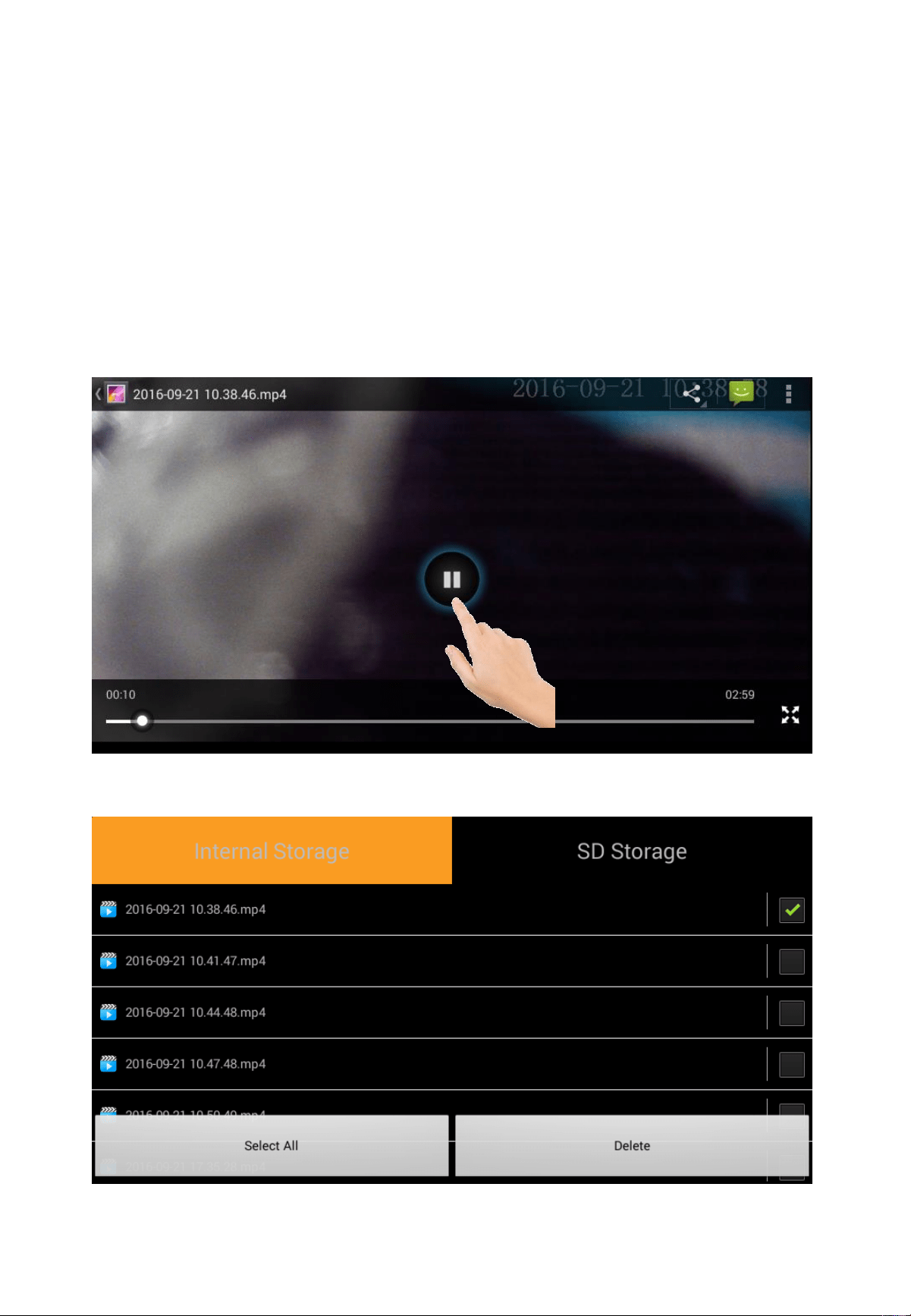
To play videos, click on the file you wish to .
Press return arrow on left-bottom to quit playing.
User can lock, select and delete the files as needed.
Using Carkuda Mirror
-SOS Email
16
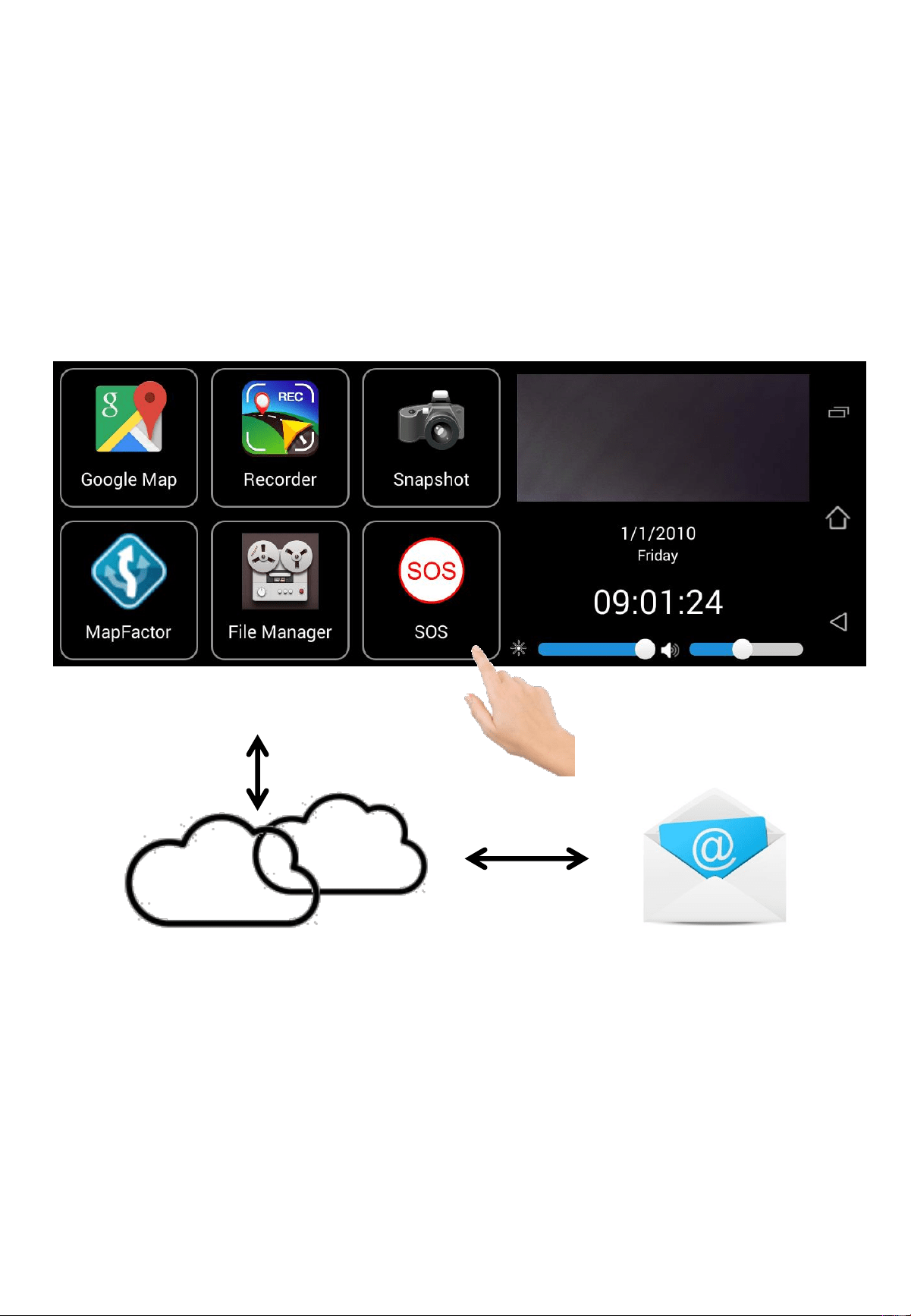
Once SOS icon is tapped, the emergency contact person will
receive an email alert with real time address and images
attached. Wi-Fi data connection required.
Carkuda Service Cloud
PC or Smartphone
Note
•Carkuda Email SOS alert is offered to users globally.
•Carkuda does not guarantee the delivery of E-mail due to
various network situations, different mail servers, etc.
•Carkuda takes no responsibility if the email is lost.
•SOS Email settings: on App, [Personal Center] -> [SOS]
Using Carkuda Mirror
-Google Play
17
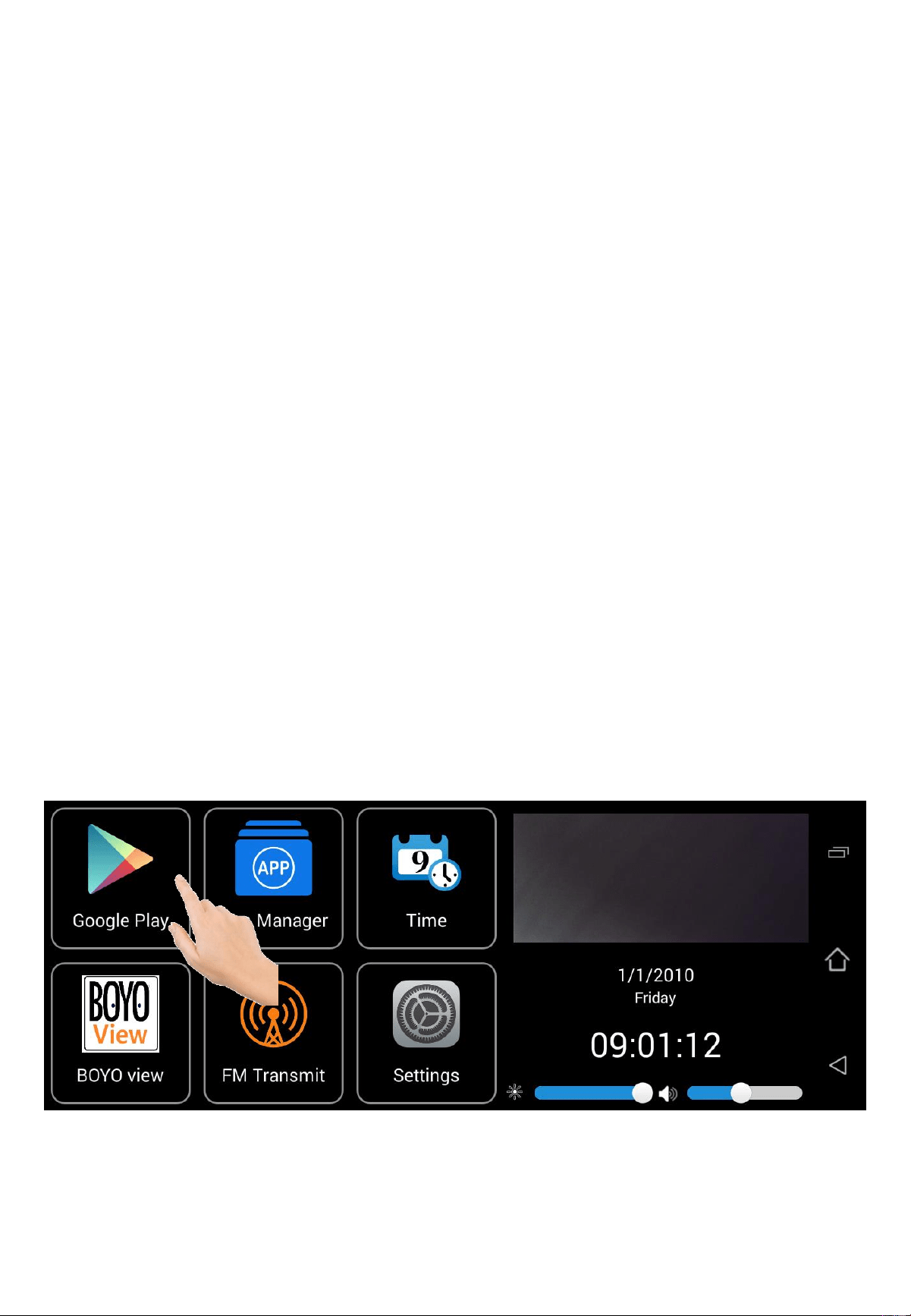
Carkuda offers Google Play store feature. Users can install
their favorite apps into Carkuda.
Once new apps are installed, user can find new icons in the
new pages.
For performance purpose, Carkuda recommends user to
install limited number of Apps. (5 Apps or less)
If the performance is degraded, please use App Manager to
delete Apps accordingly.
Google Play need Wi-Fi data connections to download Apps.
Google Play requires a Google user account to log in.
Using Carkuda Mirror
-App Manager
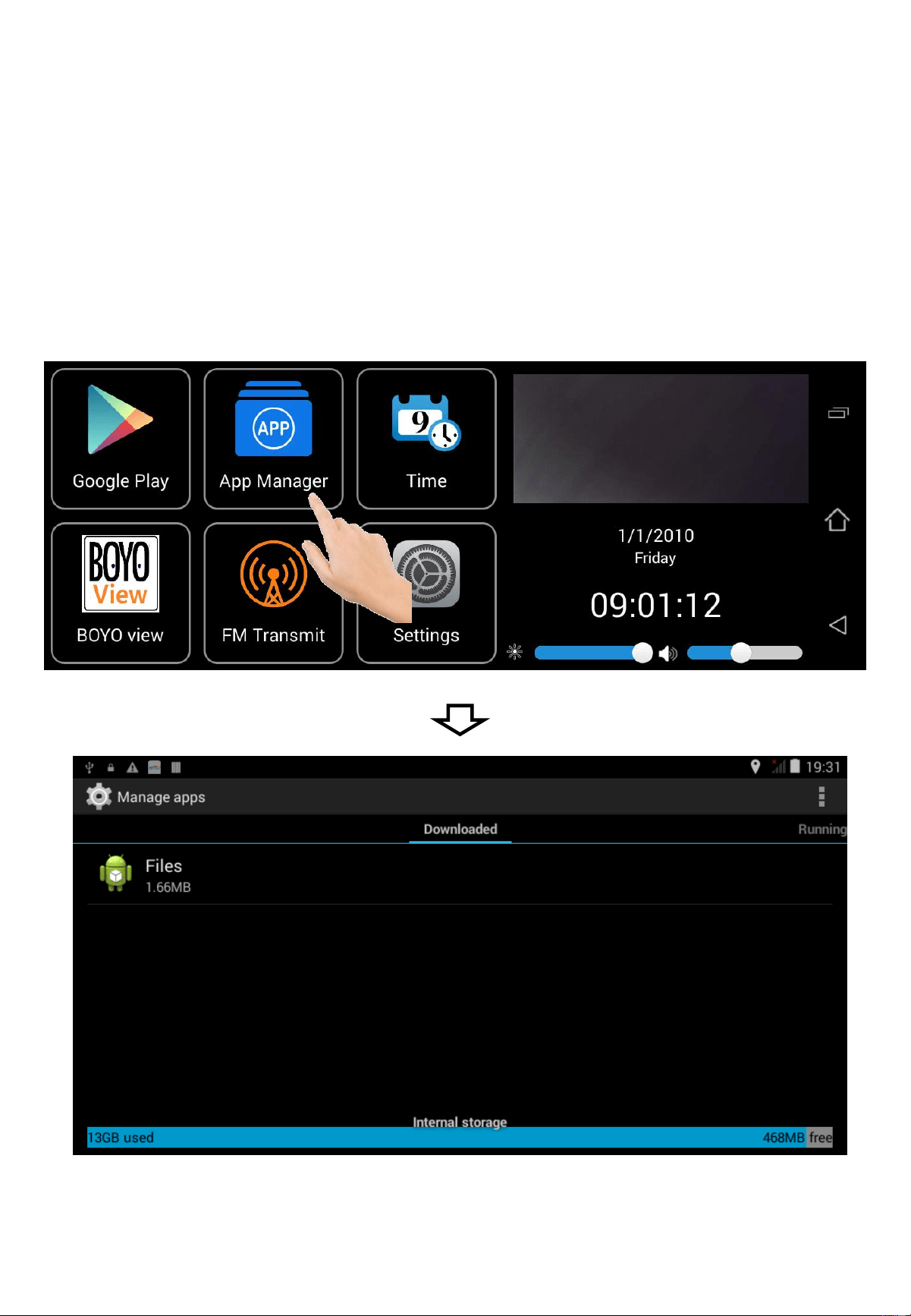
18
To remove an App, tap App Manager, choose the App to be
removed, Tap uninstall. The Carkuda will reboot after
deleting the App. Users can Force Stop or Suspend an App
in App Manager.
Using Carkuda Mirror
-Date and Time
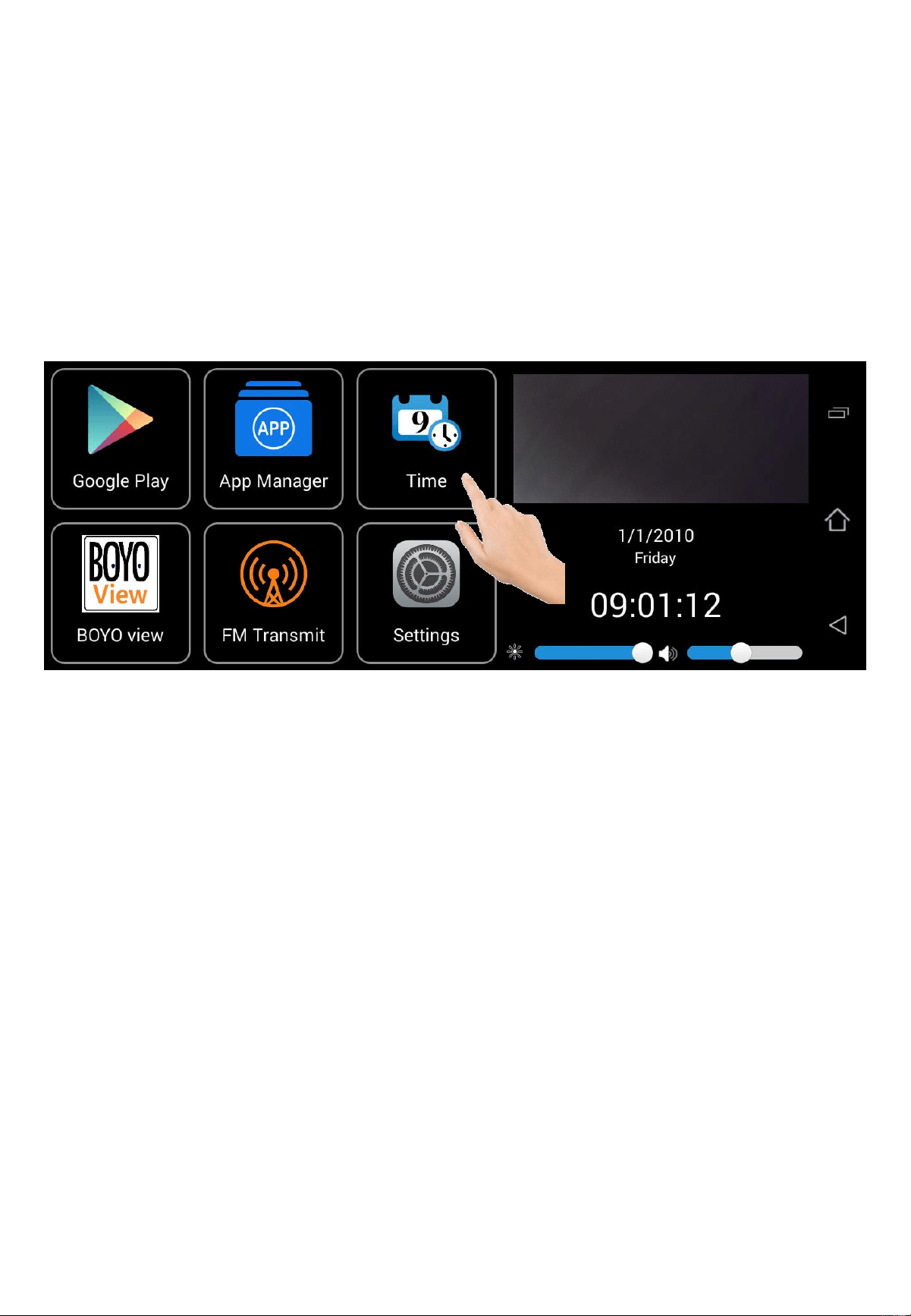
19
Like most of Android devices, users can set the time and
date from the system settings.
Note
We also recommend users to stay on the default settings.
You can turn to GPS timing for automatic date and time
adjustments.
Carkuda will synchronize the date and time automatically
with the network server or GPS during normal operation.
Carkuda mirror MUST have correct date and time to
upload images, alerts, videos to the Cloud Server.
Using Carkuda Mirror
-Wi-Fi Network
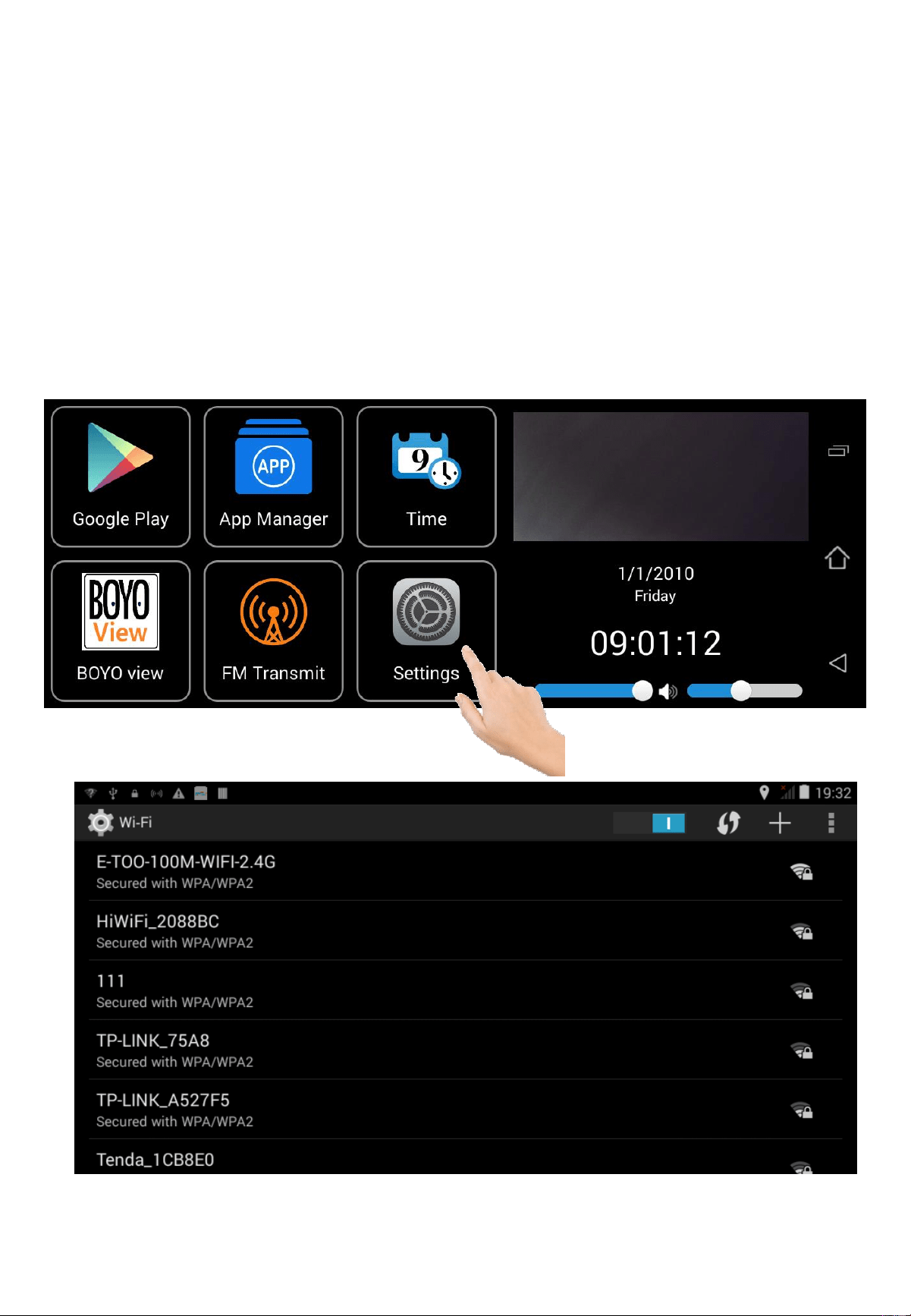
20
Carkuda supports Wi-Fi connection. If there are Wi-Fi networks
nearby, users can click on the Wi-Fi settings, scan and log into
Wi-Fi networks. Typically, Wi-Fi network comes from
Smartphone hotspot or dedicated Wi-Fi routers.
Using Carkuda Mirror
-FM Transmitter
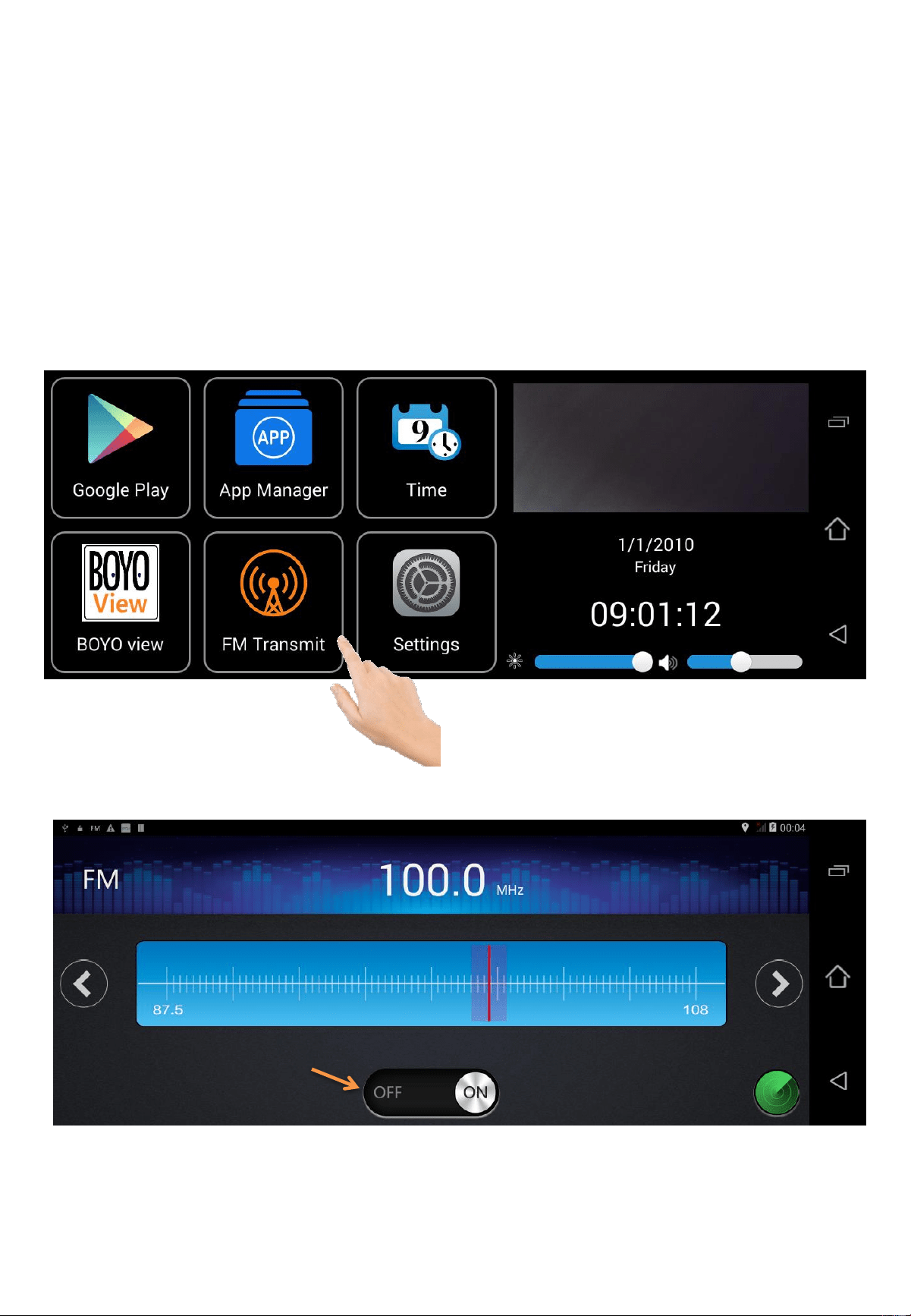
21
Tap FM Transmit icon, Set Carkuda and radio to the same
frequency to connect to radio speakers. Carkuda sound will now
broadcast through your radio. Turn off the FM broadcast to
return to Carkuda speaker.
Turn on/off FM broadcast
Using Carkuda Mirror
-Shutdown Delay
22
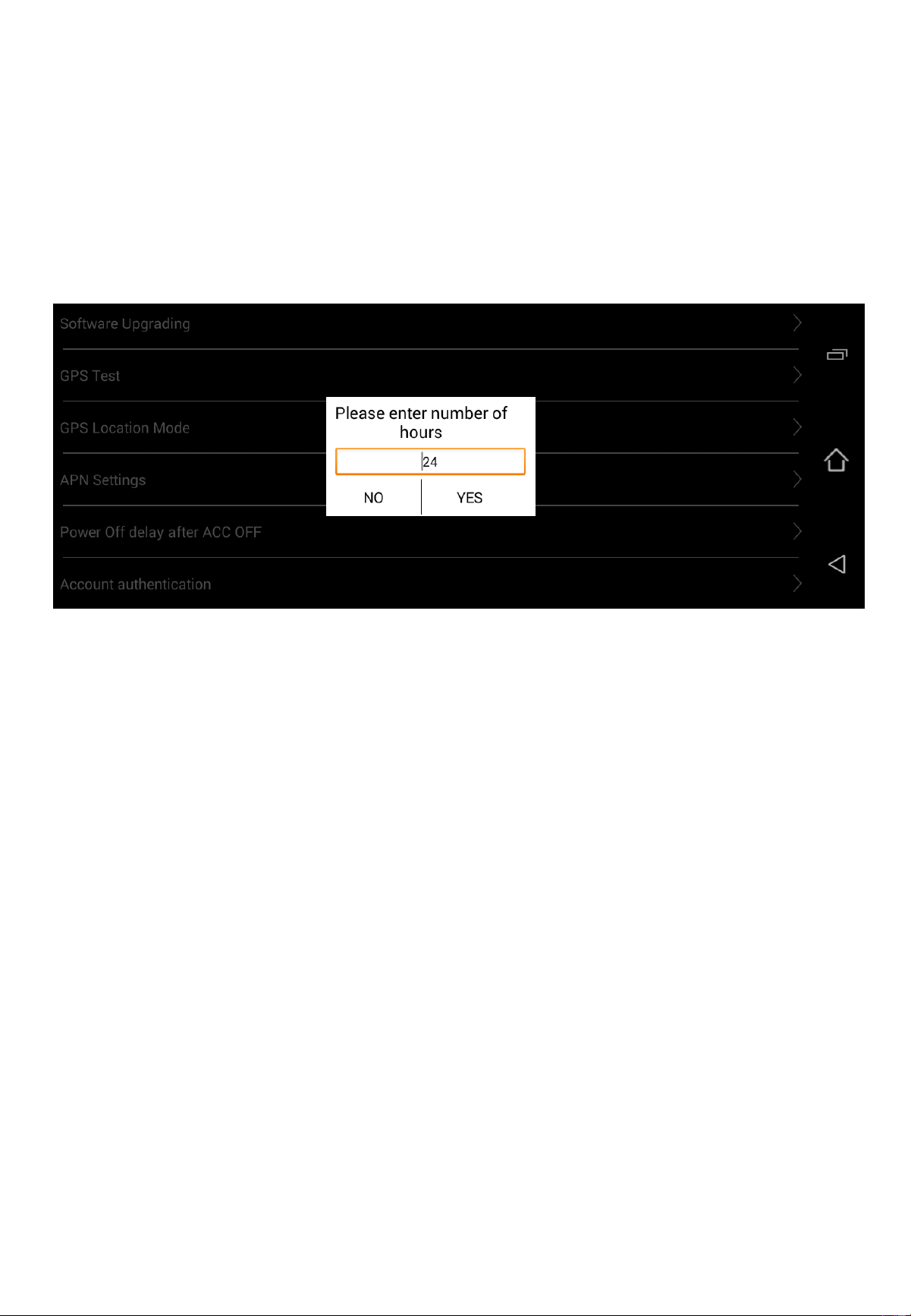
Menu: [Settings]->[Power Off delay after ACC OFF]
Since we offer remote security feature, Carkuda will be in a
standby mode after vehicle is off. It will stay connected to
the data network and respond to remote users request.
And by default, after 17 hours, Carkuda will shutdown to
avoid draining the vehicles battery power.
To change the shutdown delay, navigate to the settings’ last
menu, type in the number of hours and tap YES.
Using Carkuda Mirror
-Software Upgrade
23
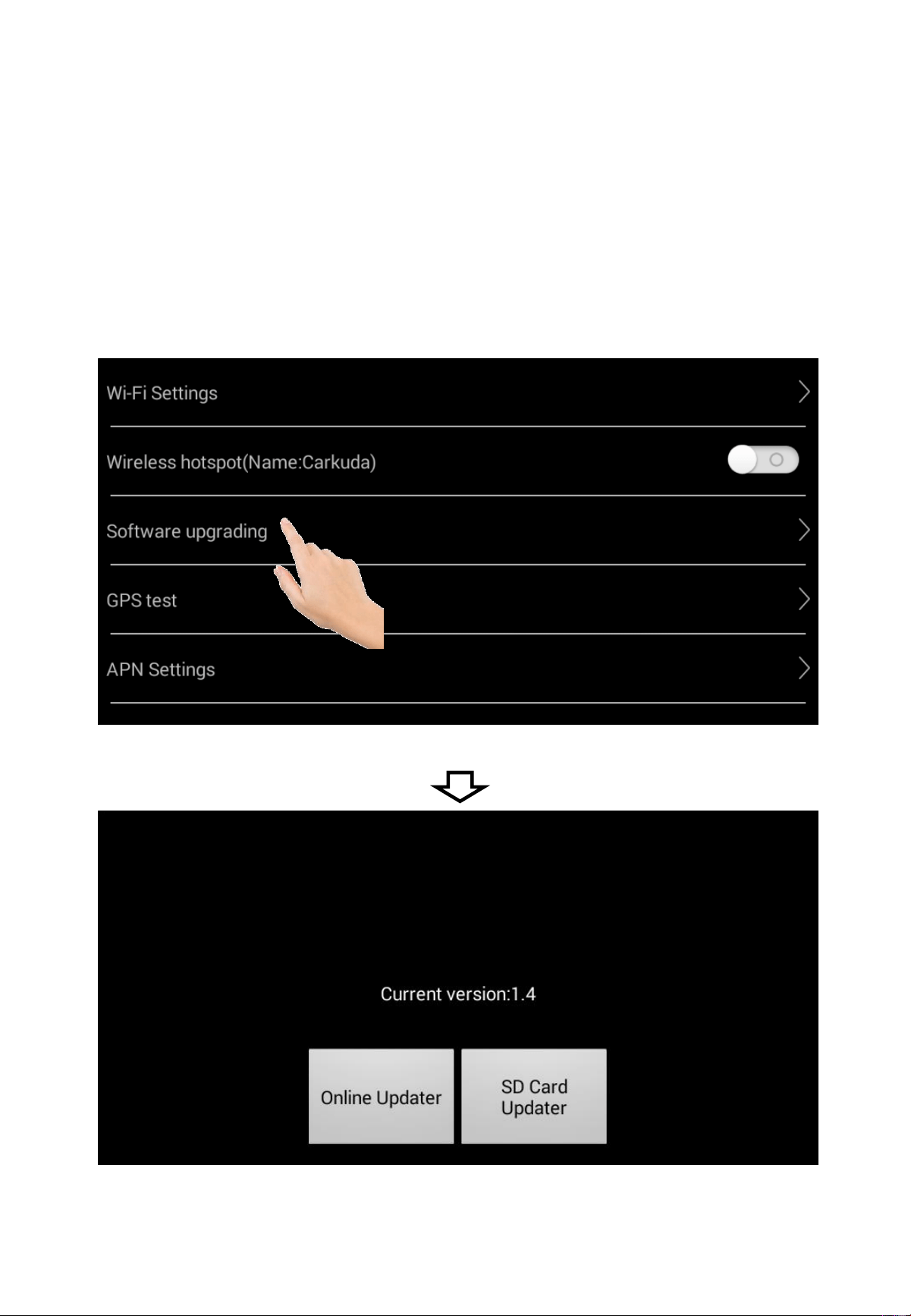
Carkuda offers online and SD card updates.
Online update requires a Wi-Fi data connection.
SD card update files will be available for download.
Using Carkuda Mirror
-GPS test
24
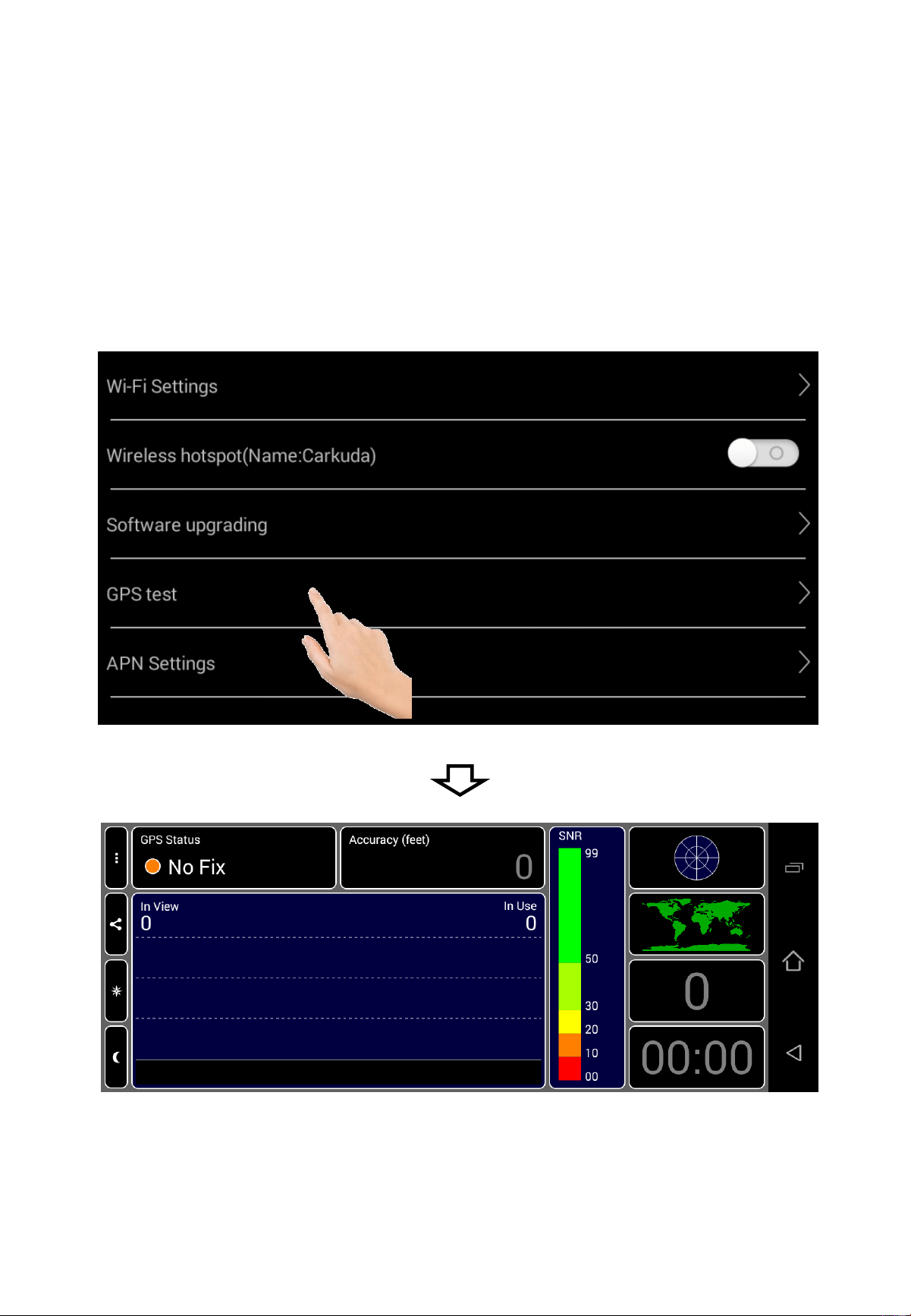
GPS test offer users a tool to check the GPS signal status.
It display the number of satellite received and signal strengths.
Using Carkuda Mirror
-How to Reboot
25
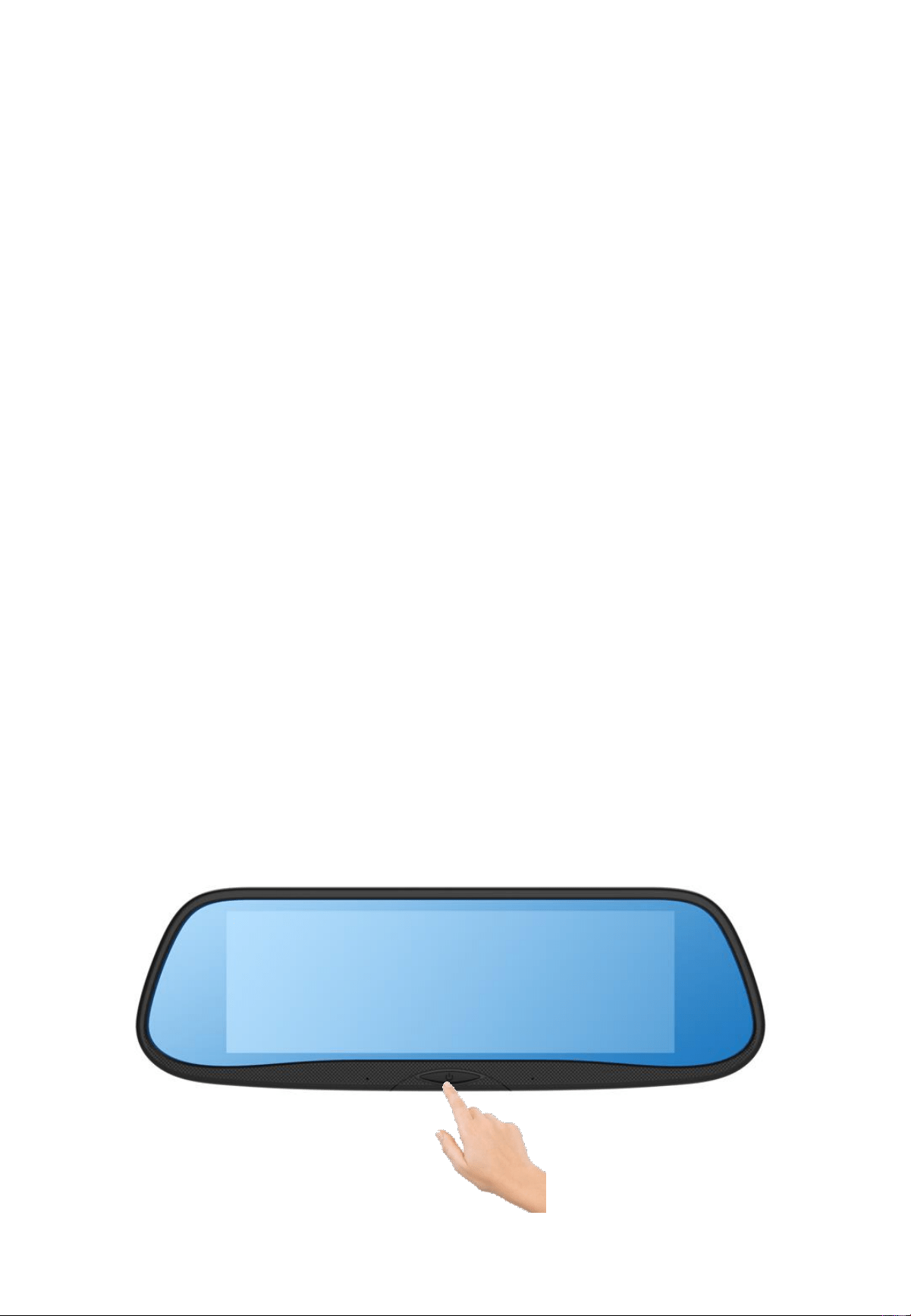
In any case that users experience:
• Screen freeze
• Touch pad not responding
• Installing a new SD card
… etc.
Users can press and hold the middle button on the front face
for approximately ten seconds. Carkuda will flash the screen
and reboot.
If other issues, please contact your local retailer..

Contents
• Carkuda Concepts
• Installing Carkuda Mirror
• Using Carkuda Mirror
• Using Carkuda Smartphone App
– Installing App
– Create User Account
– Login
– Create Vehicle Info
– Binding Mirror with Vehicle
– Safety Alerts
– GPS Tracker
– Live Image Feedback
– Photo Albums
• Technical Specifications
• FAQs
26
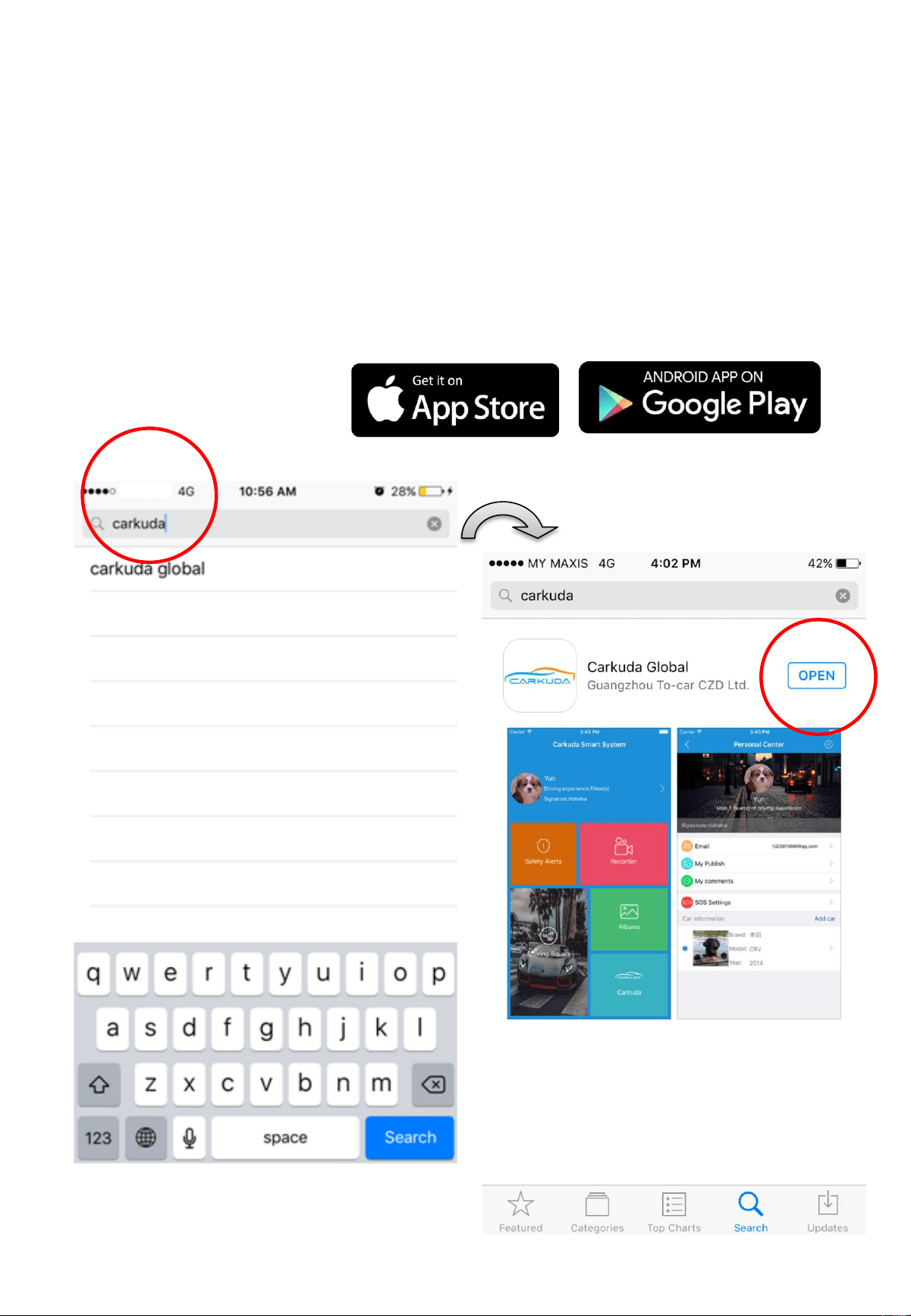
Using Carkuda Smartphone App-
Installing App
27
Please search for "carkuda" in AppStore or Google Play
Store. Please install [Carkuda Global ] App.
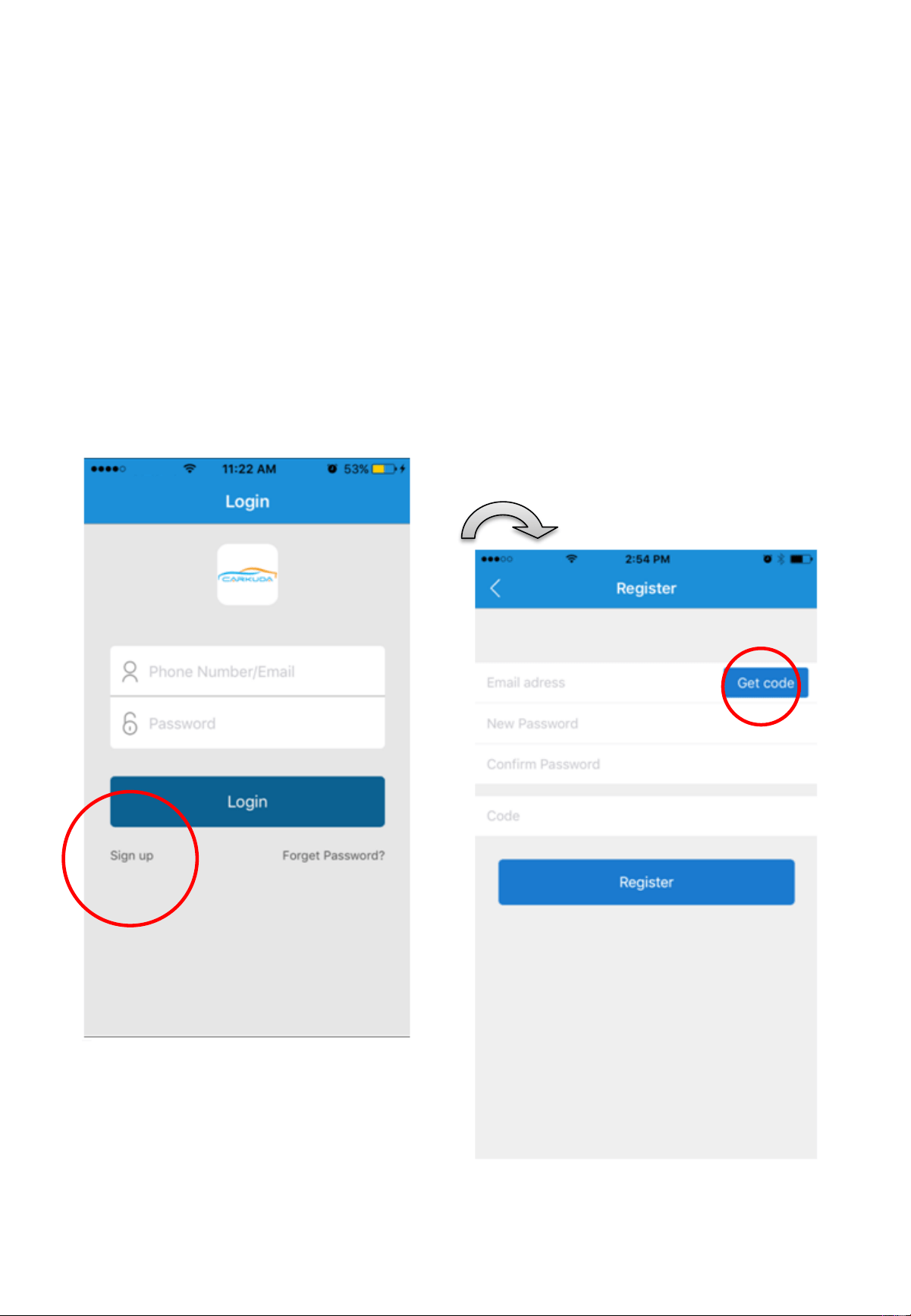
Using Carkuda Smartphone App-
Create User Account
28
Users can register their account by providing a valid email
address, then tap Get code and setup the password.
Sometimes, the verification code email may be found in your
Junk Email box depending on different email services.
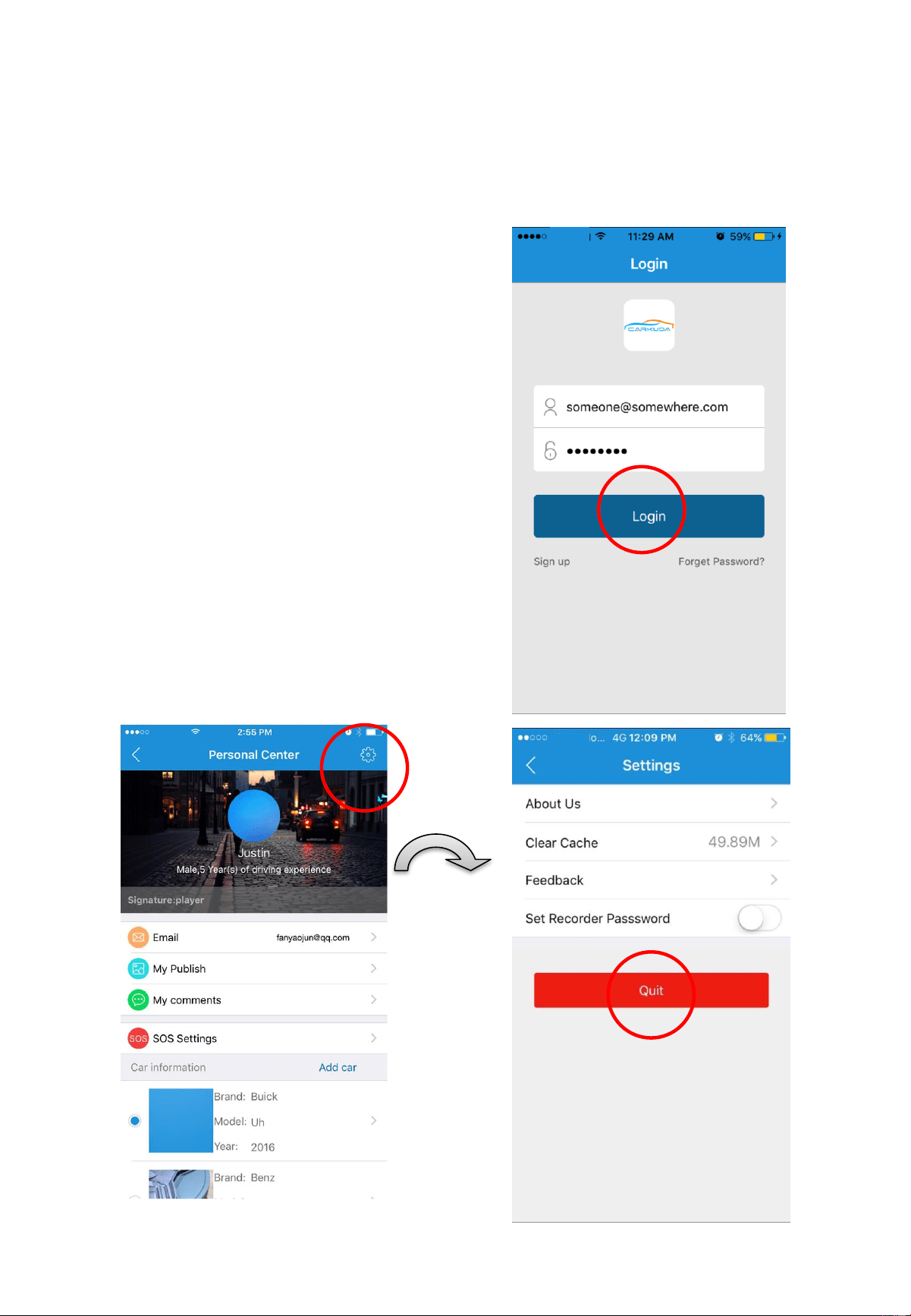
Using Carkuda Smartphone App-
Login/Logout
29
1. To login the App, please
provide the registered
user email and password.
Then click on Login
button
2. To logout the current user,
please click into [Personal
Center], then click on the
icon located right-top of
the screen. In [Settings]
page, click [Quit] to
logout.
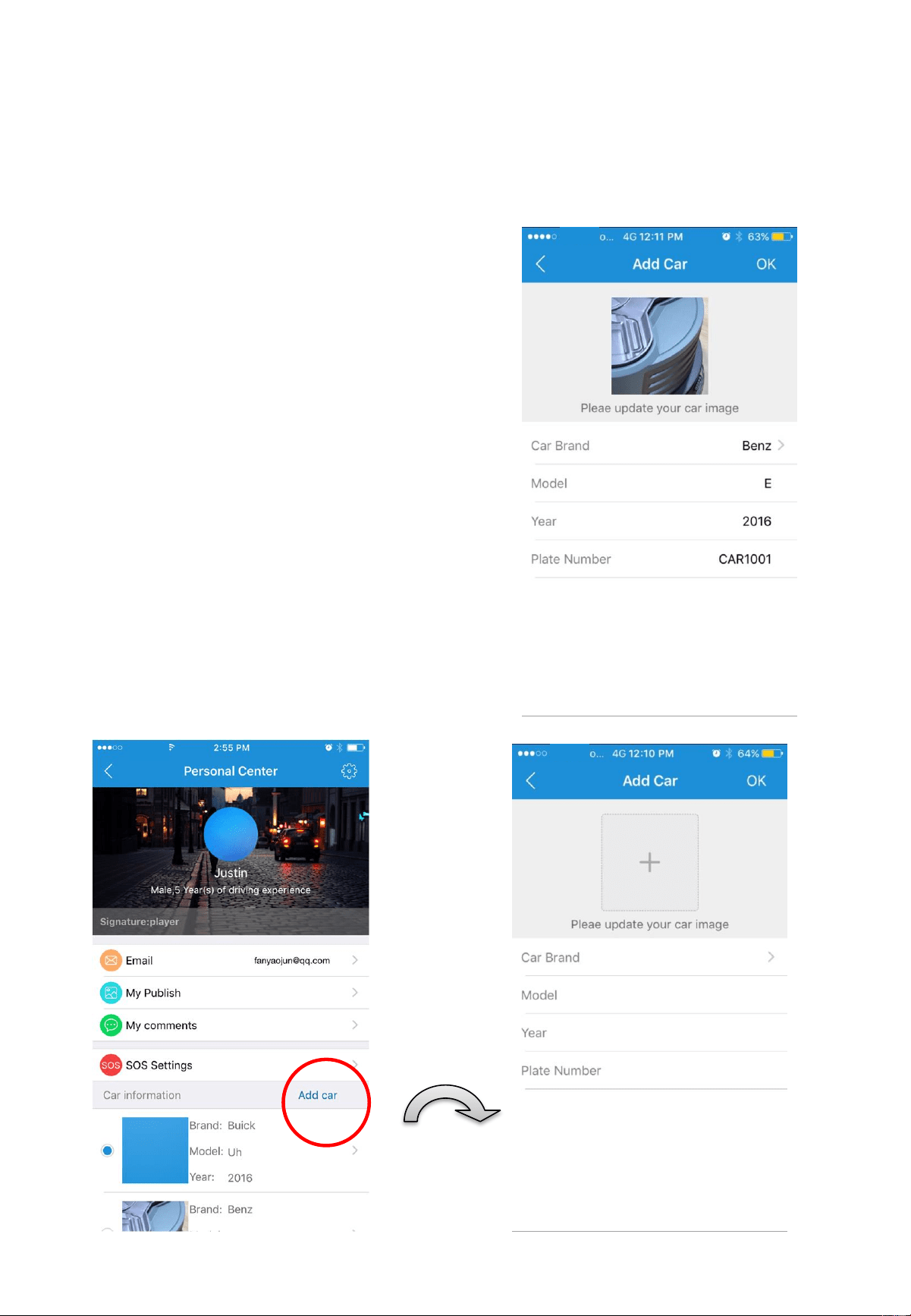
Using Carkuda Smartphone App-
Create Vehicle Info
30
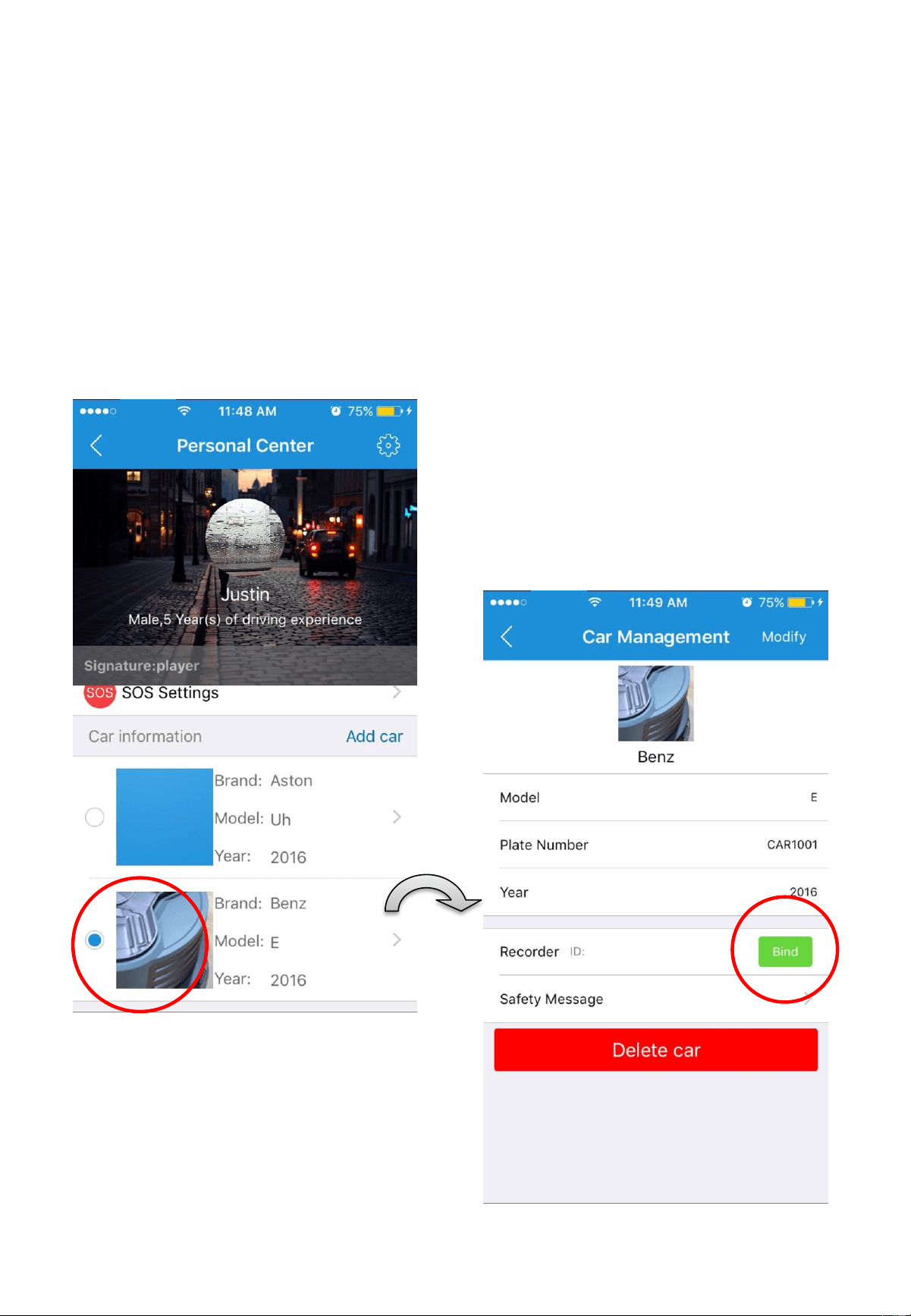
After login, users need to input
the vehicle and Carkuda mirror
information to link all the
devices together.
In [Personal Center], you can
input vehicle info by clicking
[Add car]. In the new page,
please provide the vehicle image,
brand, model, year and license
plate number.
Carkuda App support Max. 10
cars for one account.
Using Carkuda Smartphone App-
Binding Mirror with Vehicle
31
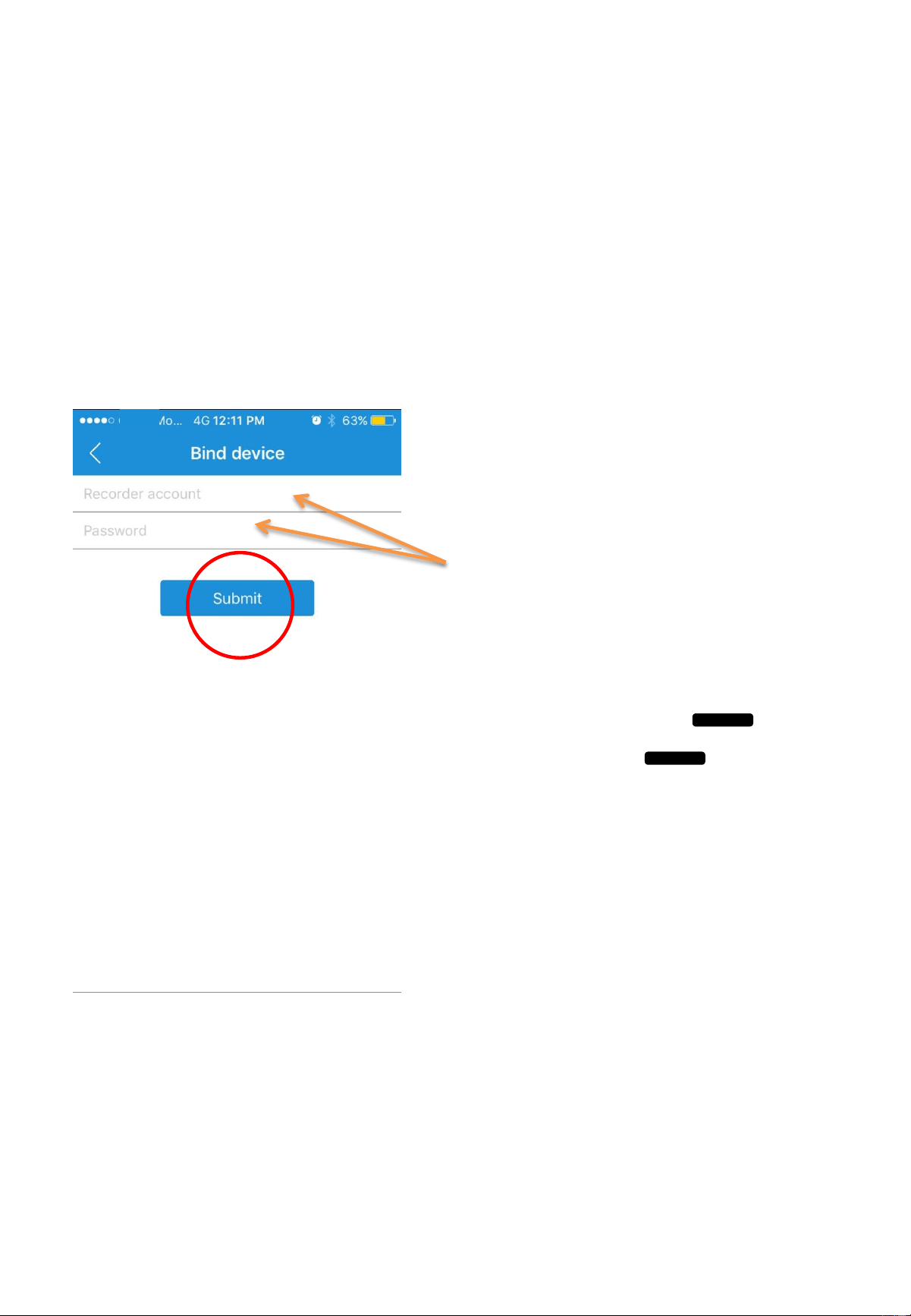
Bind the Carkuda info onto the same vehicle. Tap the green
Bind icon and provide the Carkuda SN and PIN number.
Using Carkuda Smartphone App-
Binding Mirror with Vehicle
32
In the [Bind Device] page, the [Recorder account] equals
[S/N] number, the Password equals [PIN]. The S/N and PIN
can be found on the white label, which is located on the top
of Carkuda mirror.
Note
• For security and privacy purpose, Carkuda system will allow
only one account for the owner to bind a device.
• This exclusive right maximize the data security (ACC record,
GPS track, live images etc.)
• Before another account can access the Carkuda data, the
user would have to un-bind the Carkuda mirror to release this
exclusive right.
Using Carkuda Smartphone App-
Safety Alerts
33
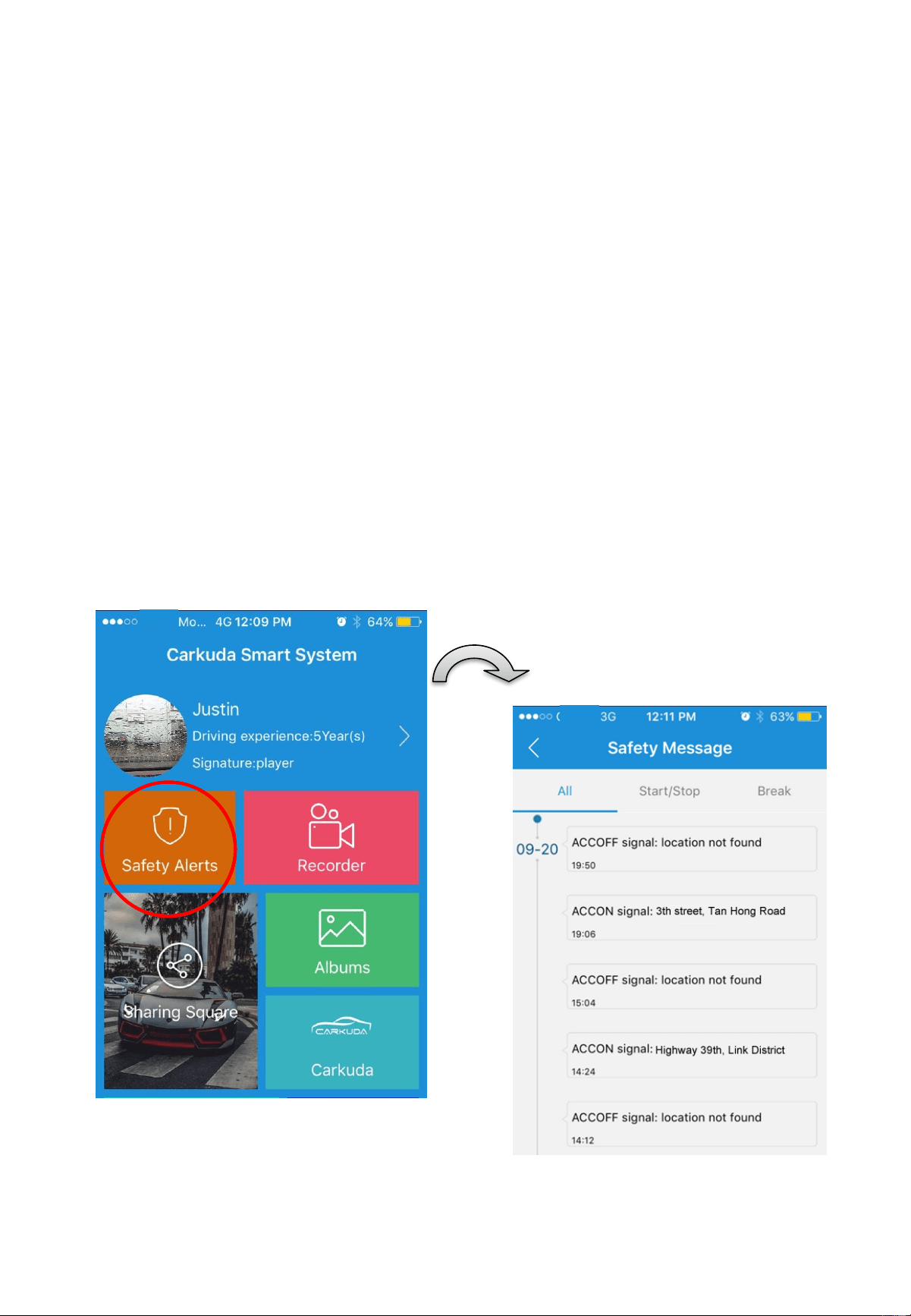
The first block is safety message. It records IGN/ACC on
and off, with time and location.
Note
The locations names depend on the GPS signal. If no
signal, then the location will be recorded as [location not
found].
Using Carkuda Smartphone App-
GPS Tracker
34
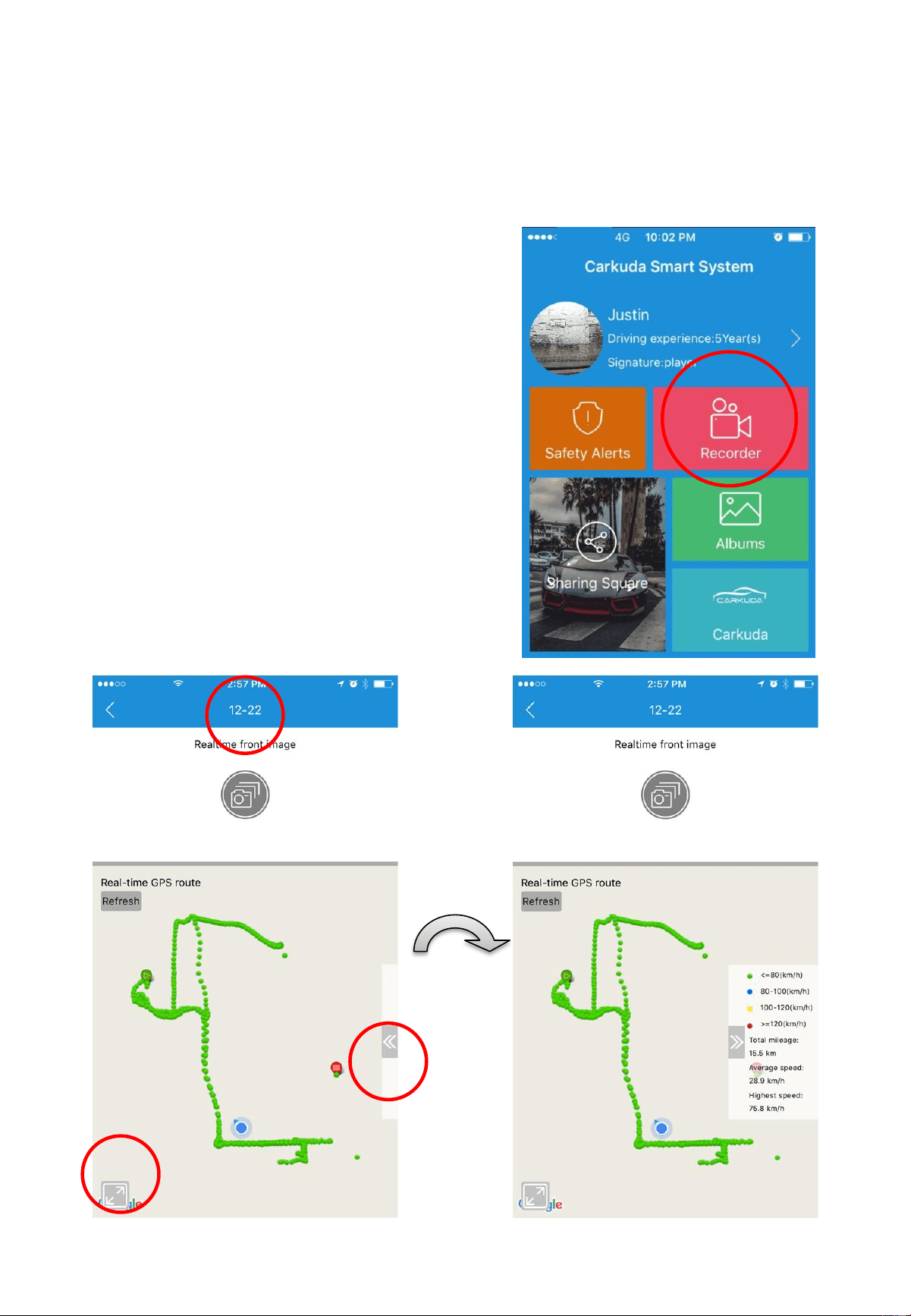
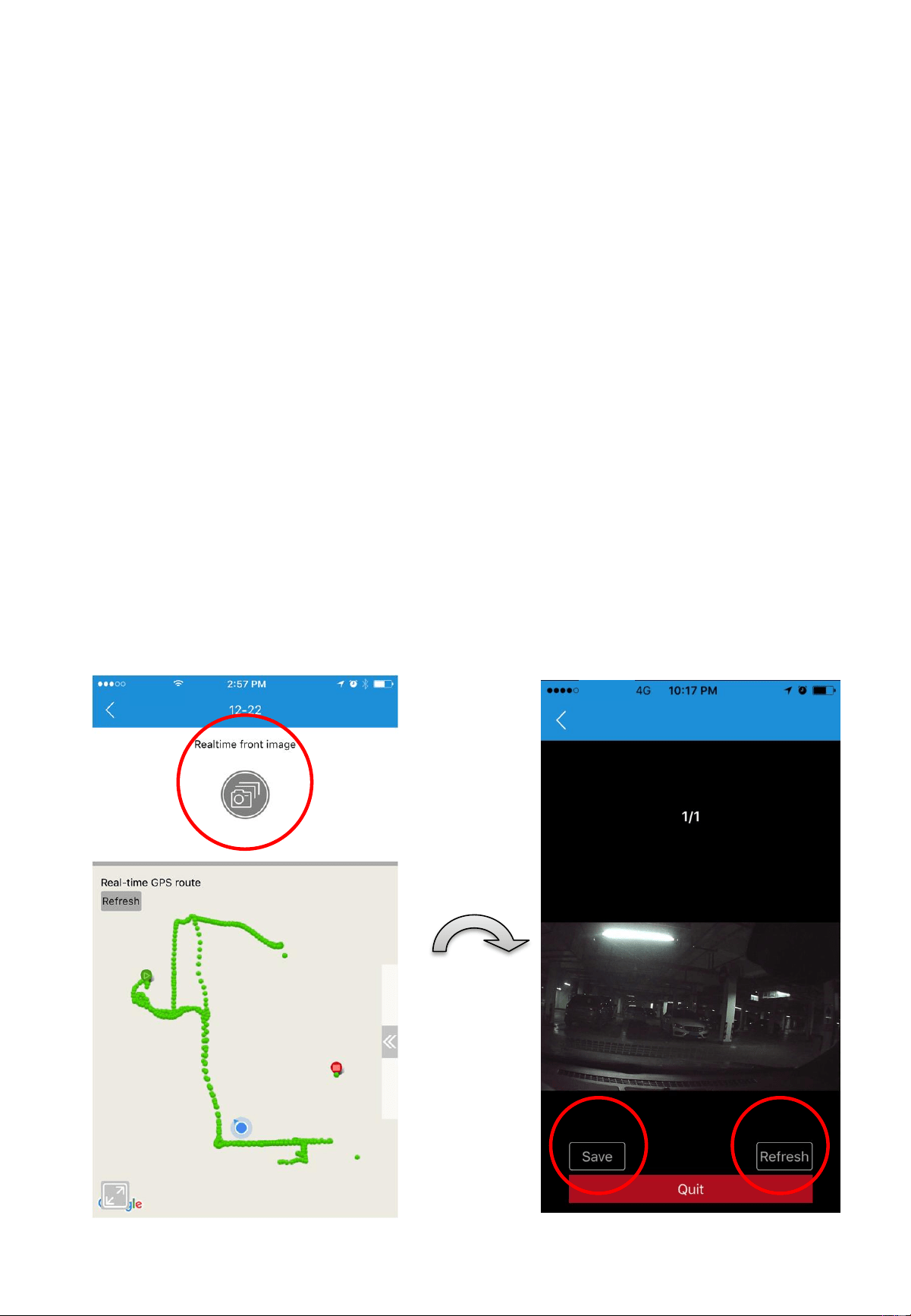
The second block is GPS tracker.
Carkuda records all GPS locations
and speeds.
Distinguished by different colors,
users are able to check where they
drove over the speed limit.
On the top of screen, users can
change the date and see other
historical data.
Using Carkuda Smartphone App-
Live Image Feedback
35
Tap the image button and wait, users can see the front
camera real-time image feedback.
Note
Carkuda VTG700X supports single front camera.
Due to different data network situations, users may
experience different delay times while waiting for image
feedback.
Users can save the image by tapping [Save] on left-bottom.
Or tap [Refresh] to request for new images.
Using Carkuda Smartphone App-
Photo Albums
36
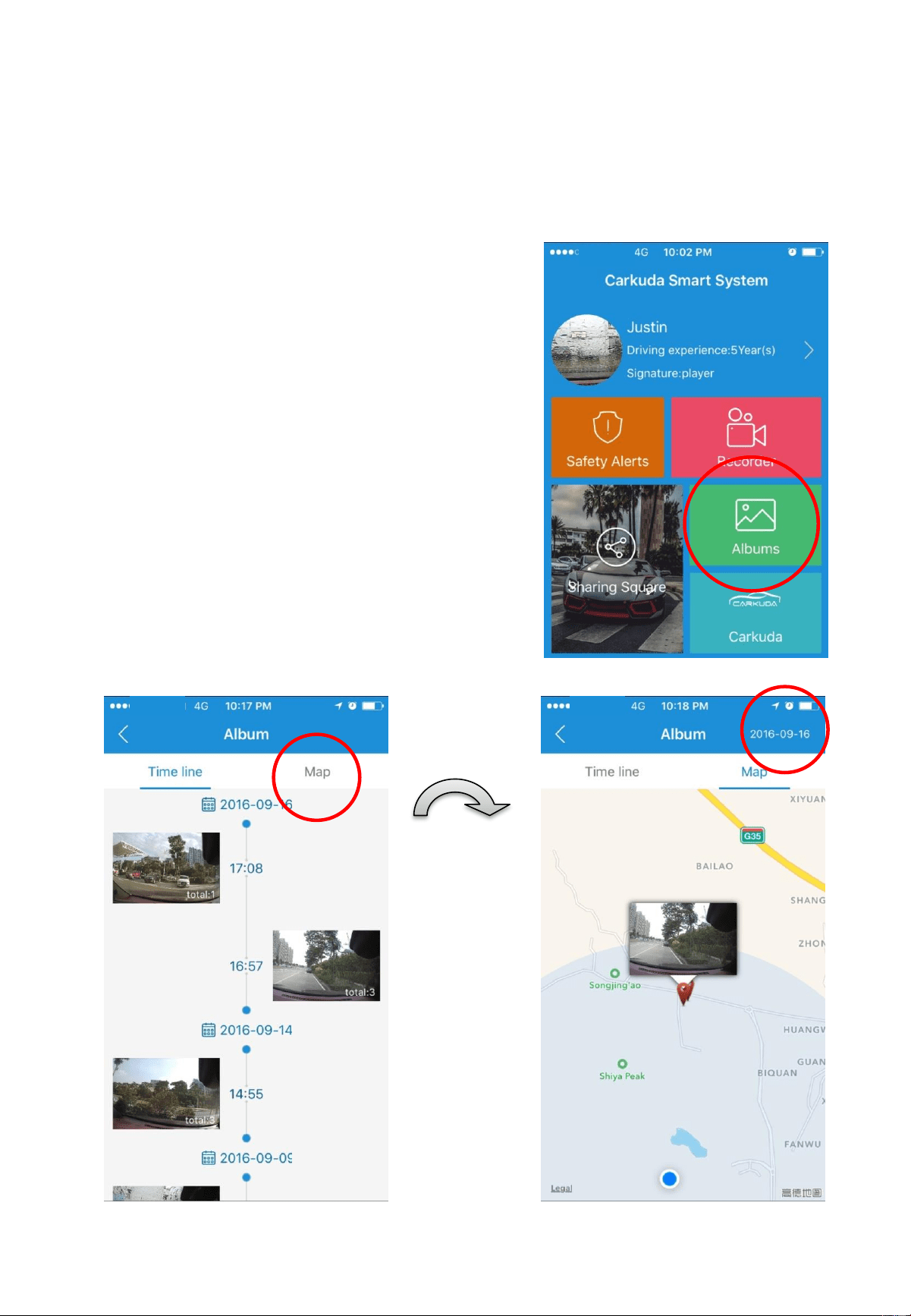
The third block is Albums, the
photos are all snapshots taken
from the Carkuda mirror.
The photos are organized by time
line and locations. By tapping on
[Map] tab, user can switch to map
view.
Search by date is possible by
scrolling to date requested.
Technical Specifications
37
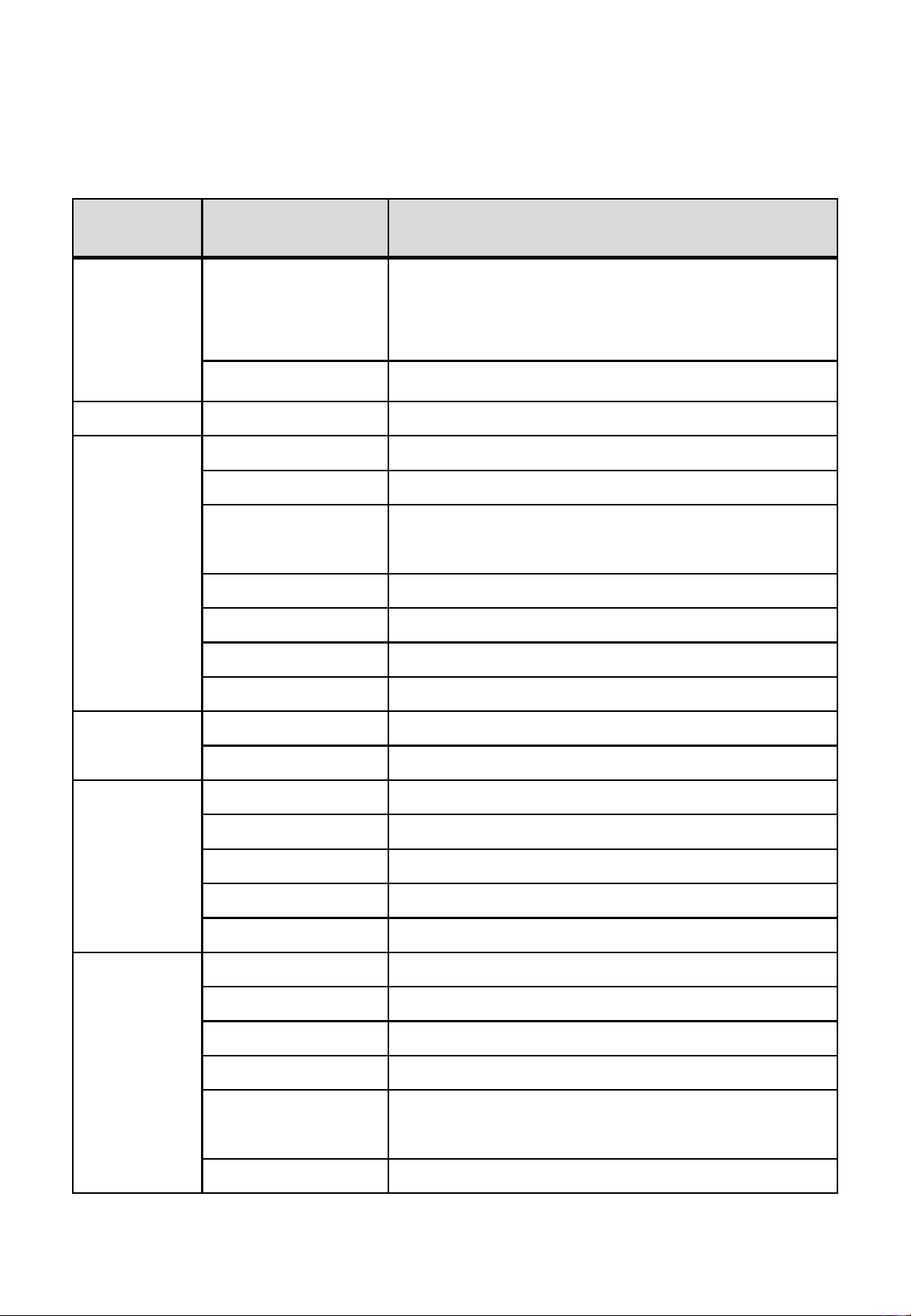
Type Item Note
Wireless
Connection
Wi-Fi
802.11b/g/n
;
@2.4GHz
;
WEP/WPA/WPA2, Access Point for
Tethering
、
72.2Mbps or less
GPS Support GPS (Standalone and A-GPS)
Interfaces
Antennas GPS
、
Wi-Fi/BT
、
FM
Power 12V, has over voltage protection
LCD 7 inches, IPS touch screen 480x1280
Main Camera
Front facing camera, at 720P or 1080P
selectable by user
Rear Camera 480P, AV-IN
MIC Support
ACC detection
Support
Micro
-SD
Card
Support Micro-SD, Maximum 32GB
Sensors
G-sensor Collision Detect
Radar No Support
Software
OS Base Android 4.4
FM transmitter
Support
Media Playback
Support
Rear Camera Support for rear camera video
Smartphone Support App Data Synchronization
Physicals
Size (in) 10.6”x3.54”x1.83”
Languages English, Chinese, Russian, Japanese
System Memory
1GB DDR3+16GB eMMC
CPU MTK 8382
Working
Temperatures
4~158 F
Humidity 95%RH
(
at 113 F
)
Packing List
38
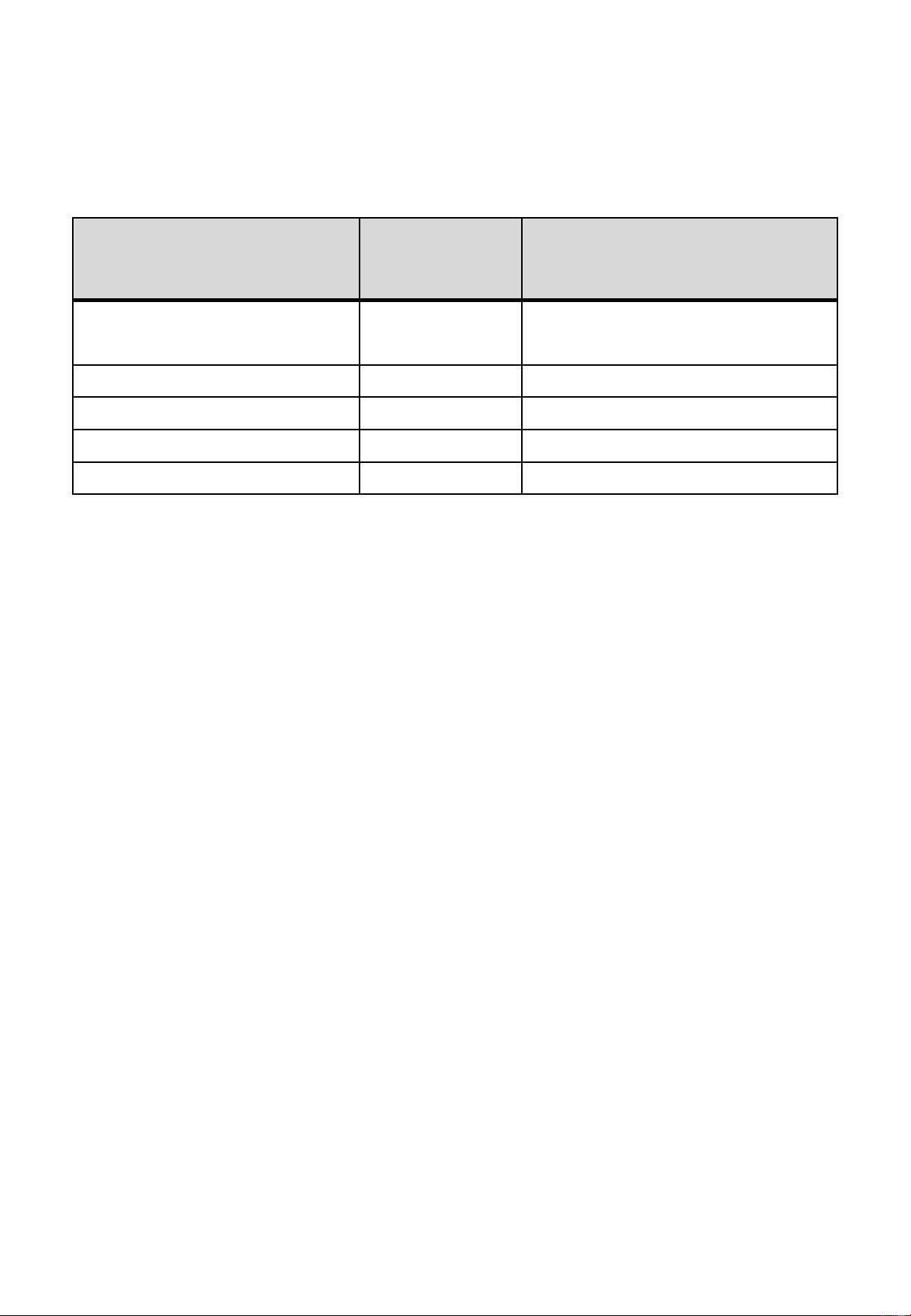
Name Quantity Note
Carkuda
VTG700X
Mirror
1
Main Harness 1
Mounting Brackets 1 Black color
GPS Antenna 1
User Manual 1

FAQs
39
Questions Answers
Is the Smartphone
app free?
The
Carkuda
Smartphone App is available for
download
at the App store at no charge.
Is the
Carkuda
Mirror Cloud
Service
free?
Currently
it is free-of-
charge, later if Carkuda
offers premium services or Carkuda partners
offer extra services, there may be reasonable
fee. It will not affect existing services.
How do I make
sure Carkuda does
not run my vehicle
battery down?
Users can adjust the Power off delay
time
from the [Settings] page. To adjust the delay
from 24 hours down to 1 hour.
Why can’t I get the
real time front
image from the
Carkuda App?
It depends on the data connection status. If
the signal of network is bad, the user will not
be able to pull the image from the
Carkuda
Mirror to the Smartphone.
My
Carkuda
Mirror
touchscreen will
not
respond to
touches.
This may
be due to long continuous
operation, environmental changes, network
issues, etc. Press the middle button for > 10
seconds to reboot the
Carkuda Mirror.

40
For technical support contact 888-941-3060 or email
info@visiontechamerica.com WWW.VISIONTECHAMERICA.COM
Vision Tech America, Inc.
1452 E. Valencia Dr.,
Fullerton, CA 92831
Tel: 888-941-3060