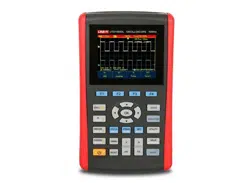

User Manual
UTD1000L Series
DIGITAL STORAGE OSCILLOSCOPE
2011.09
UNI-T Technologies, Inc.


UTD1000L User Manual 1
Preface
Dear users,
Thank you for purchasing UNI-T product. To operate the Oscilloscope correctly,
please read this Manual carefully and especially its “Safety Information” before
use.
Afer reading it, you are suggested to keep the manual properly. Please keep it
with the Oscilloscope together or place it in an accessible location for future
use.

2 UTD1000L User Manual
Copyright Information
UNI-T: Uni-Trend Technology (China)Co., Limited. All copyrights reserved.
UNI-T products, including obtained issued or pending patents, are protected by national or
foreign patent rights. Specifications and price change privileges reserved.
UNI-T shall reserve all rights. Licensed software products are owned by UNI-T, its subsidiaries
or providers and protected by national copyright laws and international treaty provisions.
Information in this publication supersedes previously published materials.
UNI-T is a registered trademark of Uni-Trend Technology (China)., Limited
Warranty period is 3 years since original purchaser purchases the product from UNI-T or
authorized distributor if product is sold or transferred to the third party within 3 years after
original purchaser purchases it. Probe, other fittings and fuses are excluded in this warranty.
UNI-T, at its option, either will repair products with defects independently without
charge of parts and labor or replace them by equivalent products if there is any defect during
applicable warranty period. Warranty parts, modules and replaced products of UNI-T may be
new or with performance of new products after maintenance. All replaced parts, modules and
products become UNI-T properties.
“Users” mentioned below refer to rights persons or entities regulated under the rights of
the warranty. “Users” must report defects to UNI-T within appropriate warranty period and
make proper arrangement in order to get access to the service commiteed by the warranty.
Users shall pack products with defects and submit them to service center designated by UNI-T.
In the meanwhile, they shall pay for freight fee in advance and provide a copy of customer
proof of original purchase. UNI-T shall pay for product return expense to users if transporting
product to location within state of UNI-T service center. Users shall pay for all freight fees,
tariffs, taxes and other expenses if returning products to any other locations.
The warranty is not applicable to any defect, trouble or damage caused by sudden
accidents, normal abrasion of machine parts, improper usage, maintenance or deficiency out
of scope of product regulations. UNI-T shall not be liable for providing the following services
according to warranty regulations:
a) To maintain products which are damaged due to product installation, repair or
maintenance by not UNI-T service representatives.
b) To maintain damage caused by improper usage or connection of incompatible equipment;
c) To maintain damage or trouble caused by using power not provided by UNI-T;
d) To maintain products which have been altered or integrated with other products (if such
alternation or integration will increase product maintenance period or difficulty);
The warranty is signed by UNI-T with respect to the product in lieu of any other expressed
or implied warranties. UNI-T and its distributor refuse any implied warranty for marketability
or suitability with special purpose. UNI-T shall maintain or replace products with defect to
users as the sole and exclusive for warranty violation. UNI-T and distributors shall not be
responsible for any indirect, special, incidental or inevitable damage regardless of whether
UNI-T and its distributors has advanced notice of the possibility of such damages.

UTD1000L User Manual 3
Table of Contents
PREFACE ................................................................................................................................................ 1
COPYRIGHT INFORMATION ................................................................................................................... 2
TABLE OF CONTENTS ............................................................................................................................. 3
CHAPTER 1 SAFETY INFORMATION........................................................................................................ 6
1.1 SAFETY TERMS AND SYMBOLS ................................................................................................................... 6
1.2 GENERAL SAFETY OVERVIEW ..................................................................................................................... 6
CHAPTER 2 UTD1000L SERIES OSCILLOSCOPE OVERVIEW ...................................................................... 8
2.1 UTD1000L SERIES OSCILLOSCOPE INTRODUCTION ....................................................................................... 8
2.2 UTD1000L SERIES OSCILLOSCOPE ACCESSORIES .......................................................................................... 8
2.3 UTD1000L SERIES OSCILLOSCOPE KEY FEATURES ........................................................................................ 9
2.3.1 Scope ......................................................................................................................................... 9
2.3.2 Multimeter ................................................................................................................................. 9
CHAPTER 3 CONNECTIONS TO THE OSCILLOSCOPE ............................................................................... 10
3.1 GENERAL CHECK ................................................................................................................................... 10
3.1.1 Checking for any damage due to the transit ........................................................................... 10
3.1.2 Checking the Accessories ......................................................................................................... 10
3.1.3 Checking the Whole Oscilloscope ............................................................................................ 10
3.2 OSCILLOSCOPE CONNECTIONS ................................................................................................................. 10
3.2.1 Connection Interfaces .............................................................................................................. 10
3.2.2 Compensation Output Connection .......................................................................................... 11
3.3 FRONT PANEL AND KEYPAD .................................................................................................................... 11
CHAPTER 4 USING BASIC OSCILLOSCOPE FUNCTIONS ........................................................................... 15
4.1 ABOUT THE CHAPTER ............................................................................................................................ 15
4.2 POWERING ON THE OSCILLOSCOPE ........................................................................................................... 15
4.3 DESCRIBING THE DISPLAY ....................................................................................................................... 15
4.4 RESETTING THE OSCILLOSCOPE ................................................................................................................ 16
4.5 USING FUNCTIONAL MENUS ................................................................................................................... 17
4.6 HIDING MENUS .................................................................................................................................... 17
4.7 MAKING CONNECTIONS FOR PROBE COMPENSATION................................................................................... 17
4.8 COMPENSATING THE PROBE ................................................................................................................... 18
4.9 SETTING VERTICAL&HORIZONTAL SYSTEMS AND TRIGGER LEVEL MANUALLY.................................................... 19
4.9.1 Vertical System ........................................................................................................................ 19
4.9.2 Horizontal System .................................................................................................................... 19
4.9.3 Trigger Level............................................................................................................................. 20
4.10 AUTOSET FOR WAVEFORM DISPLAY ....................................................................................................... 20
4.11 FULL AUTOSET FOR INPUT SIGNAL .......................................................................................................... 21
4.12 RUN/STOP DATA ACQUISITION ............................................................................................................. 22
4.13 ADJUSTING SCREEN INTENSITY .............................................................................................................. 22
4.14 SAVING BITMAP ................................................................................................................................. 23

4 UTD1000L User Manual
4.15 USING ONLINE HELP ............................................................................................................................ 23
4.16 SETTING SINGLE TRIGGER ..................................................................................................................... 23
4.17 VIEWING OSCILLOSCOPE STATUS ............................................................................................................ 24
4.18 CHECKING OSCILLOSCOPE SYSTEM INFORMATION ...................................................................................... 24
4.19 MAKING AUTO MEASUREMENTS............................................................................................................ 25
4.19.1 Measuring All Parameters ...................................................................................................... 25
4.19.2 Measuring Customized Parameters ....................................................................................... 26
4.20 USING AVG MODE FOR SMOOTHING WAVEFORMS ................................................................................... 27
4.21 USING PEAK DETECT MODE FOR PULSE PEAK DISPLAY ............................................................................... 27
4.22 OBSERVING WAVEFORMS WITH USE OF PERSISTENCE ................................................................................. 28
4.23 SELECTING AC COUPLING ..................................................................................................................... 28
4.24 INVERTING THE WAVEFORM DISPLAY ...................................................................................................... 29
4.25 AUTOSET FOR SIGNALS WITH DC OFFSET ................................................................................................. 30
CHAPTER 5 USING THE MULTIMETER ................................................................................................... 32
5.1 ABOUT THE CHAPTER ............................................................................................................................. 32
5.2 CONNECTIONS TO THE MULTIMETER ......................................................................................................... 32
5.3 DISPLAY INDICATORS .............................................................................................................................. 32
5.4 MAKING MULTIMETER MEASUREMENTS ................................................................................................... 32
5.4.1 Measuring Resistance .............................................................................................................. 32
5.4.2 Testing Diodes .......................................................................................................................... 33
5.4.3 Testing for Continuity ............................................................................................................... 33
5.4.4 Measuring Capacitance ............................................................................................................ 34
5.4.5 Measuring DC Voltage .............................................................................................................. 34
5.4.6 Measuring AC Voltage .............................................................................................................. 35
5.4.7 Measuring DC Current with UTD1000CL .................................................................................. 35
5.4.8 Measuring AC Current with UTD1000CL .................................................................................. 37
5.4.9 Measuring DC Current with UTD1000DL .................................................................................. 38
5.4.10 Measuring AC Current with UTD1000DL ................................................................................ 41
5.5 DATA HOLD ......................................................................................................................................... 44
5.6 MAKING RELATIVE MEASUREMENT .......................................................................................................... 44
5.7 SELECTING MANUAL/AUTO RANGING ....................................................................................................... 45
CHAPTER 6 USING THE OSCILLOSCOPE IN DETAILS .............................................................................. 47
6.1 ABOUT THE CHAPTER ............................................................................................................................. 47
6.2 SETTING VERTICAL SYSTEM ..................................................................................................................... 47
6.2.1 UTD1000L Channel Setup ......................................................................................................... 47
6.3 SETTING HORIZONTAL SYSTEM ................................................................................................................. 49
6.3.1 Changing Timebase .................................................................................................................. 49
6.3.2 Moving Waveforms Horizontally .............................................................................................. 49
6.3.3 Zooming in/out Waveforms ..................................................................................................... 50
6.3.4 Adjusting Trigger Hold-Off ....................................................................................................... 50
6.4 SETTING TRIGGER SYSTEM ...................................................................................................................... 51
6.4.1 Common Setting ....................................................................................................................... 52
6.4.2 Edge Trigger.............................................................................................................................. 53
6.4.3 Pulse Width Trigger .................................................................................................................. 54

UTD1000L User Manual 5
6.4.4 Video Trigger............................................................................................................................ 55
6.4.5 Slope Trigger ............................................................................................................................ 55
6.6 SETTING THE DISPLAY ............................................................................................................................ 58
6.7 SETTING AUTO MEASUREMENTS ............................................................................................................. 59
6.8 RECORDING AND STORAGE ..................................................................................................................... 64
6.8.1 Recording ................................................................................................................................. 64
6.8.2 Storage ..................................................................................................................................... 67
6.8.3 Recalling ................................................................................................................................... 69
6.9 MAKING CURSOR MEASUREMENTS .......................................................................................................... 70
6.10 INTERFACE SETUP ............................................................................................................................... 71
6.11 UTILITY SETUP .................................................................................................................................... 72
6.12 EXECUTING MATHEMATIC FUNCTIONS .................................................................................................... 73
6.13 AUTOSET .......................................................................................................................................... 76
CHAPTER 7 TROUBLESHOOTING ........................................................................................................... 77
7.1 THE OSCILLOSCOPE CANNOT POWER ON:................................................................................................... 77
7.2 THE OSCILLOSCOPE TURNS OFF A FEW SECONDS LATER AFTER POWERED ON: .................................................... 77
7.3 MEASURING VOLTAGE AMPLITUDE IS 10 TIMES LARGER OR SMALLER THAN EXACT VALUE: ................................... 77
7.4 NO WAVEFORM DISPLAYS AFTER ACQUIRING SIGNALS:.................................................................................. 77
7.5 THE WAVEFORM DOES NOT DISPLAY STEADILY:............................................................................................ 77
7.6. THERE IS NO DISPLAY AFTER PRESSING DOWN RUN/STOP BUTTON: .............................................................. 77
7.7 THE DISPLAY SLOWS DOWN AFTER HAVING APPLIED AVG MODE FOR A WHILE: .................................................. 77
7.8 THE WAVEFORM DISPLAY HAS A STAIR-STEPPING SHAPE: ............................................................................... 77
CHAPTER 8 SERVICE AND SUPPORT ...................................................................................................... 78
8.1 UPDATING PROGRAM ............................................................................................................................ 78
8.1.1 Preparation before Update...................................................................................................... 78
8.1.2 Update Conditions ................................................................................................................... 78
8.1.3 Program Update ...................................................................................................................... 78
CHAPTER 9 APPENDIXES ....................................................................................................................... 80
APPENDIX A: TECHNICAL SPECIFICATIONS ........................................................................................................ 80
APPENDIX B MAINTENANCE ......................................................................................................................... 86
APPENDIX C CHINESE-ENGLISH REFERENCE TABLE FOR FRONT PANEL ................................................................ 87
6 UTD1000L User Manual
Chapter 1 Safety Information
1.1 Safety Terms and Symbols
Terms in the manual
Following terms may appear in this manual:
Warning: a Warning specifies conditions and actions that may pose hazards to the user.
Caution: a Caution identifies conditions and actions that may cause damage to the product or
other properties.
Terms on the product
Following terms may show on the product:
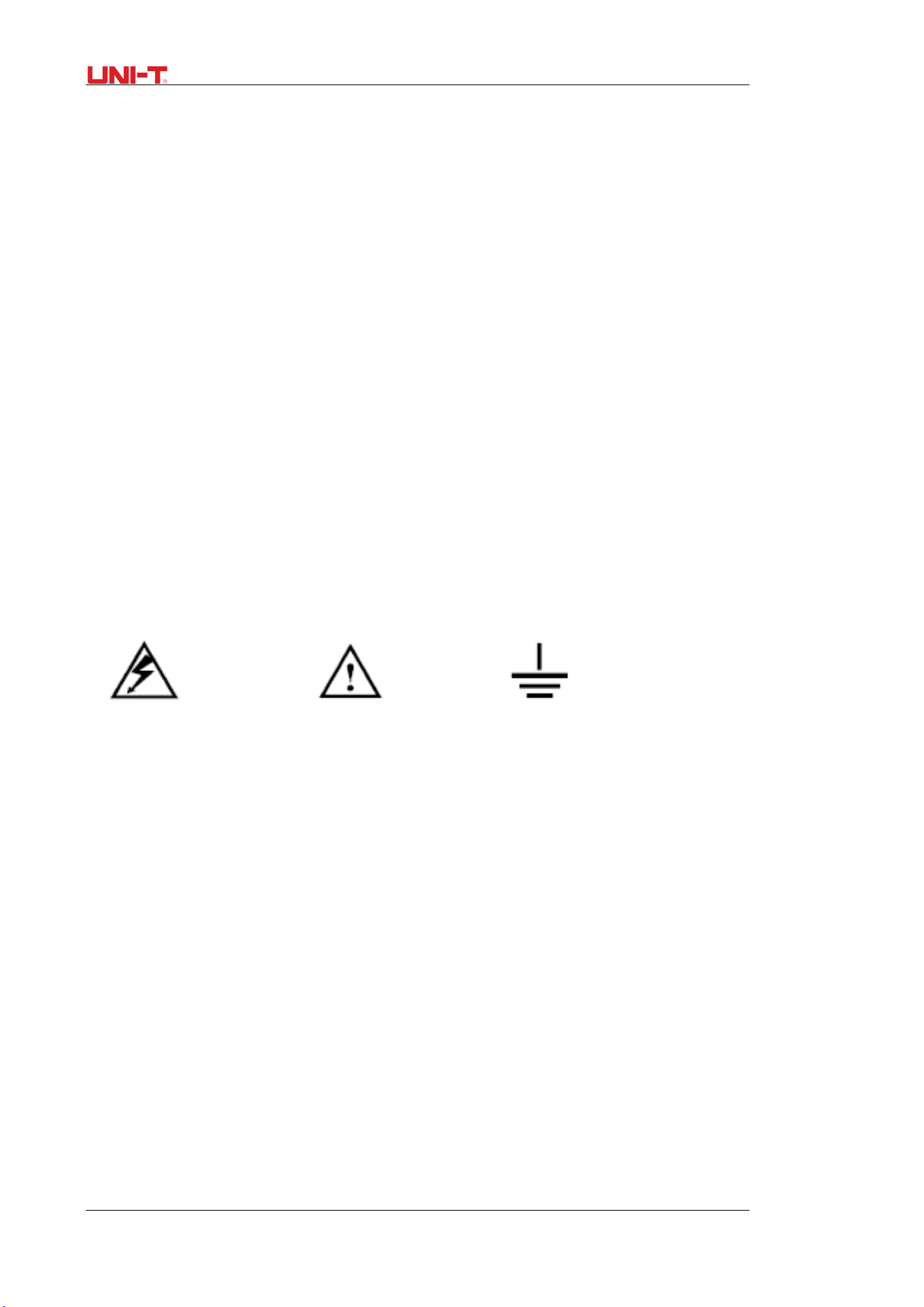
DANGER indicates any injury hazard immediately accessible as you read the marking.
WARNING indicates any injury hazard not immediately accessible as you read the marking.
CAUTION indicates any damage may happen to the product or other properties
Symbols on the product
Following symbols may show on the product:
High Voltage Refer to the manual Measuring Ground Terminal
1.2 General Safety Overview
The oscilloscope is strictly designed and manufactured as per safety/compliances: GB4793
safety requirements for electronic measuring instruments, IEC61010-1, Overvoltage CATⅢ
600V and Pollution Degree II.
Please review following safety precautions to avoid personal injury or any damage to this
product or any products connected to it. Operate the product as specified to prevent any
potential hazards. Only the qualified personnel can perform the servicing procedures.
Warning: To avoid electric shock or fire, use only the power adaptor specified for the
Oscilloscope and certified for the power grid by the country of use.
Warning: If the Oscilloscope terminals are input with voltages higher than 42 V (30 Vrms), to
avoid personal electric shock:

UTD1000L User Manual 7
●Use only the insulated voltage probe, test leads and power adaptor supplied or specified by
UNI-T for this Oscilloscope Series.
●Please check multimeter test leads, oscilloscope probe and other accessories for any
mechanical damage. Please make the replacement if any damage is found.
●Remove all unused test leads, probe and other accessories.
● Insert the power adaptor first into AC socket before connecting it to the Oscilloscope.
●Do not input voltages higher than 300V into scope terminals under CAT II measuring
environment; working voltage applied into multimeter terminals must not exceed 600V
under CATIII measuring environment.
●Do not apply working voltage higher than rated values on the Oscilloscope
●Use only the accessories supplied for the Oscilloscope, do not use them if any damages are
found.
●Do not plug any metal object into the connectors
●Use the Oscilloscope as specified.
●Rated voltage value mentioned in “Warning” is the “working voltage” limit for the power
adaptor. It represents Vrms (50-60Hz) when applying AC sinewave.
Only qualified staff can perform the servicing.
Check all terminals ratings: To avoid fire or electric hazard, please observe all ratings and
symbols on the Oscilloscope. Read through the manual for details before making connections
to the Oscilloscope
Do not operate with suspected failure: Please have it checked by qualified servicing staff if
you doubt the product does not work normally.
Do not operate in damp environment.
Do not operate in explosive environment
Keep the product surface clean and dry
8 UTD1000L User Manual
Chapter 2 UTD1000L Series Oscilloscope Overview
2.1 UTD1000L Series Oscilloscope Introduction
UTD1000L Handheld Digital Storage Oscilloscope (Hereinafter referred to as “The
Oscilloscope”) combines digital scope and multimeter functions just into one tool. The
ease-of-use feature, excellent technical indicators and multi-functions offered the Oscilloscope
can get your work done much faster.
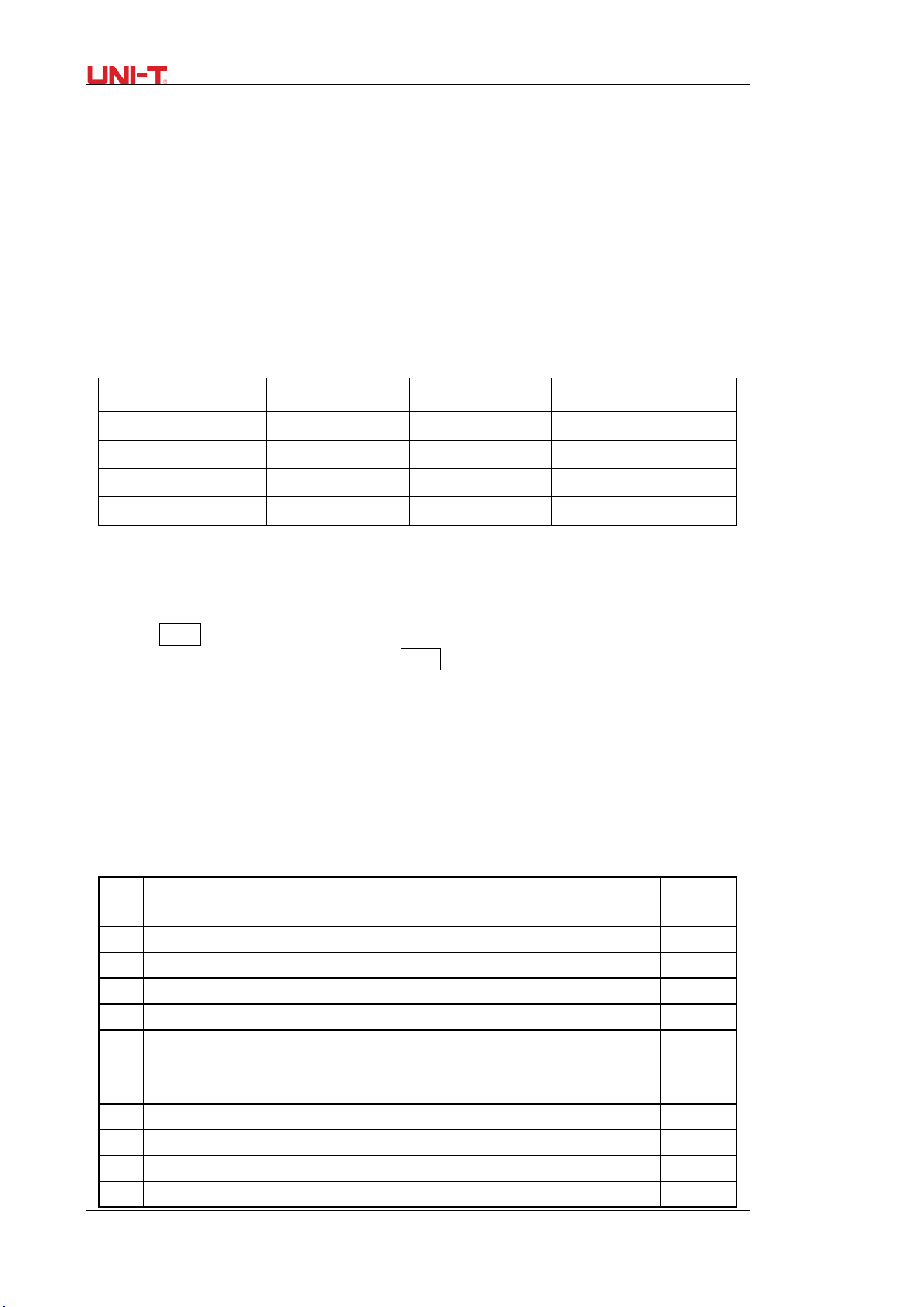
The series offers four models for your option:
UTD1000L Series Oscilloscopes offer users a simple and clear front panel that helps to
perform primary operations, a design you often get used to and can save you a great amount
of time to learn about the Oscilloscope. In order to speed up calibrations and measurements,
pressing AUTO button can make the oscilloscope display proper waveforms and settings
directly. Meanwhile the Oscilloscope offers SHIFT button to combine with other buttons to
further operate the menus much easier. Beside ease of use, this series outstands itself with
superb performance and powerful functions, such as remarkable trigger and analysis ability,
making it easy to capture and analyze the waveforms; high-definition Display and math
function, ensuring a very clear and fast view on waveforms and finding out the signal
problem.
2.2 UTD1000L Series Oscilloscope Accessories
Unpack the carton and you will see following accessories should be included:
No. Description
Standar
d
1 UNI-T Oscilloscope ●
2
Power Adaptor, 1 pc
●
3 UTD1000CL Standard Probe, 1pc; UTD1000DL Standard Probe, 2 pcs ●
4 Multimeter Test Leads, 2pcs (one red, one black) ●
5 UTD1000DL standard UT-M04 (4A current divider module), 1pc;
UT-M10 (mA current module), 1pc.
UTD1000CL standard UT-M07 (10A current divider module),1pc
●
6 Oscilloscope probe adjusting tool, 1pc ●
7 USB wire, 1pc ●
8
Operating Manual, 1pc
●
9 CD (for communication software between PC and the Oscilloscope), 1pc ●
Model Bandwidth Sample Rate Channels
UTD1025CL 25MHz 200MS/s Single Channel
UTD1050CL 50MHz 200MS/s Single Channel
UTD1025DL 25MHz 250MS/s Dual Channel
UTD1050DL 50MHz 250MS/s Dual Channel

UTD1000L User Manual 9
10
carrying bag, 1pc ●
2.3 UTD1000L Series Oscilloscope Key Features
2.3.1 Scope
● Totally Auto Scale; Vertical Scale and Timebase automatically adjusted with the signal and
without any manual interference;
●Unique and powerful Auto Setup, quick and accurate to set up for signals with any DC
component;
● Wider voltage measuring range; Coupled with 10×probe with attenuation up to 200V/div;
● Isolated USB for much safer communication;
●Color, White& black display for your option, perfect for use outdoors with strong sunshine.
● Intelligent local or network software update
●Unique waveform record, storage and recall functions
●High-resolution and high-contrast color LCD
●8 hours of continuous battery operation for UTD1000CL and 6 hours for UTD1000DL
●UTD1000L:22 types of auto measurements
●Simple Printscreen function
●Multilingual help information
2.3.2 Multimeter
● 3999 display count
●Voltage, current, resistance, diode, capacitance, continuity measurements offered
● Measure current up to 6A max(UTD1000DL 4A max).
● Extremely low internal resistance designed for current measurement, ensuring better
measuring accuracy.
● Independent multimeter and scope functions in one tool
10 UTD1000L User Manual
Chapter 3 Connections to the Oscilloscope
3.1 General Check
It is recommended that you should proceed following inspections when you get a new
UT1000L series oscilloscope.
3.1.1 Checking for any damage due to the transit
Contact UNI-T dealership or local UNI-T office immediately if the packing carton or
foamed plastic cushion is seriously damaged.
3.1.2 Checking the Accessories
The accessories supplied for the Oscilloscope are listed in the section “UTD1000L Series
Oscilloscope Accessories” hereinbefore. Please refer to the section and check if any accessory
is missing.
Please contact UNI-T dealership or local UNI-T office if there is any damage or missing item.
3.1.3 Checking the Whole Oscilloscope
If the Oscilloscope is found damaged externally or it does not work normally or pass any
performance test, contact our UNI-T dealership or local UNI-T office
If the product is damaged due to the transit, keep the package and inform the shipping
agency and UNI-T dealership, UNI-T will arrange the maintenance or replacement for you.
3.2 Oscilloscope Connections
3.2.1 Connection Interfaces
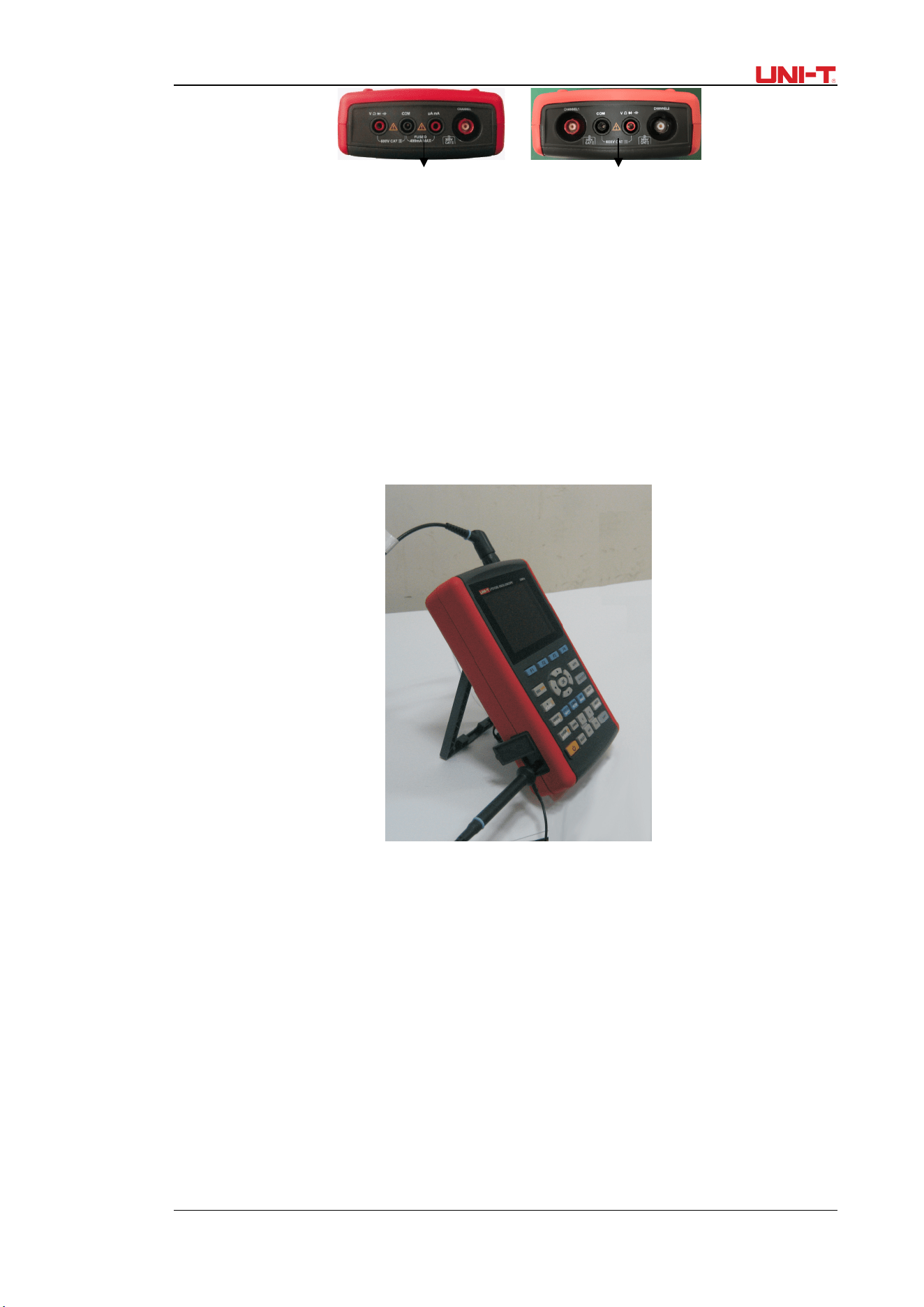
See Figure 3-1 for the Oscilloscope connection interfaces
UTD1000L User Manual 11
5 6
Figure 3-1 Oscilloscope Connection Interfaces
Description:
1. Input terminals for scope channels.
2. USB Connection port
3. The port to connect power adaptor for AC power supply and battery charge.
4. Output terminal for probe compensation
5. UTD1000CL multimeter input terminals.
6. UTD1000DL multimeter input terminals.
3.2.2 Compensation Output Connection
Connect to the output (1 kHz/3V) terminal as shown below for the Oscilloscope probe
compensation.
Figure 3-2 Compensation Output Connection
3.3 Front Panel and Keypad
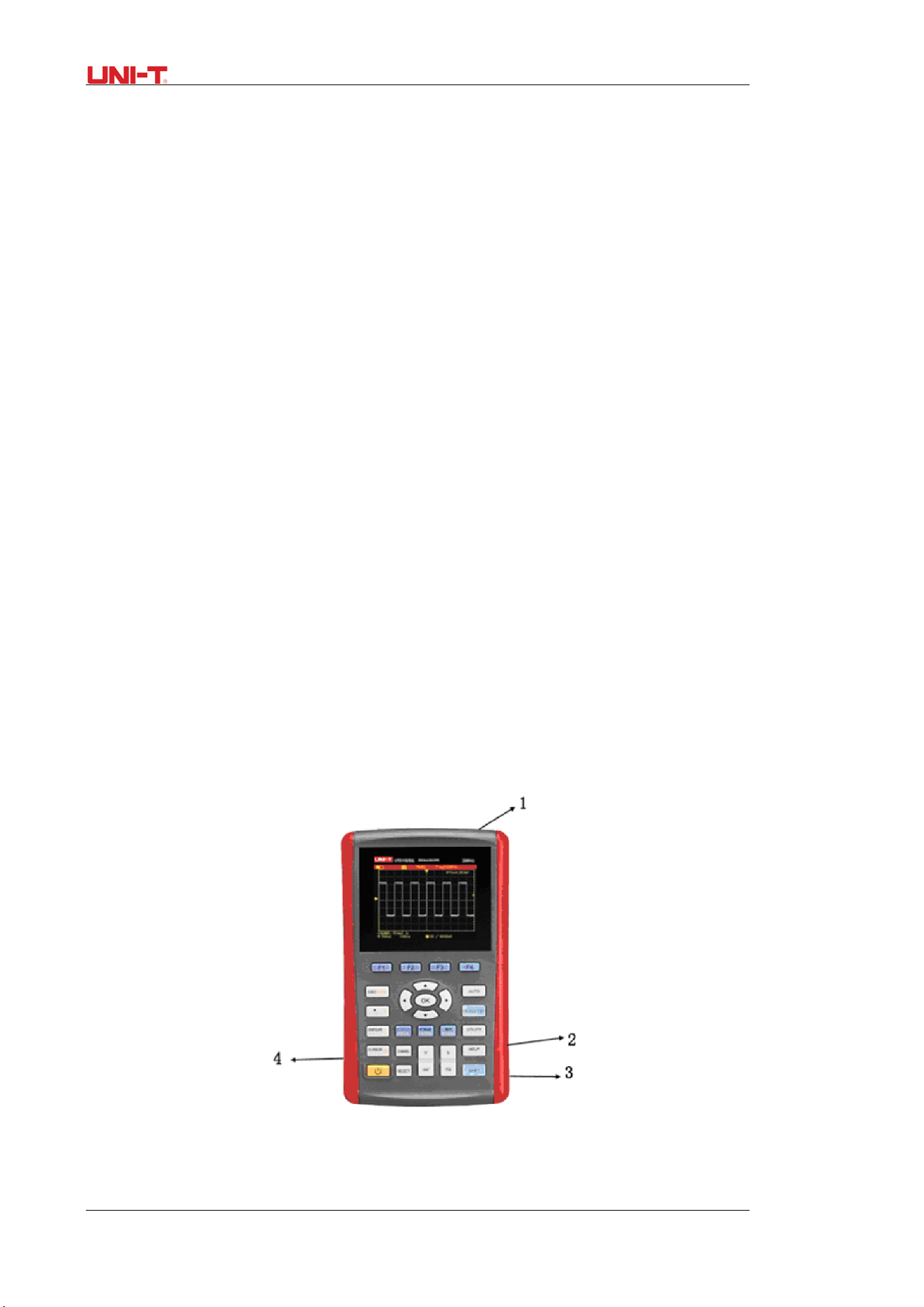
Learn about the Oscilloscope front panel and buttons shown in Figure 3-3:

12 UTD1000L User Manual
Figure 3-3 UTD1000L Series Front Panel
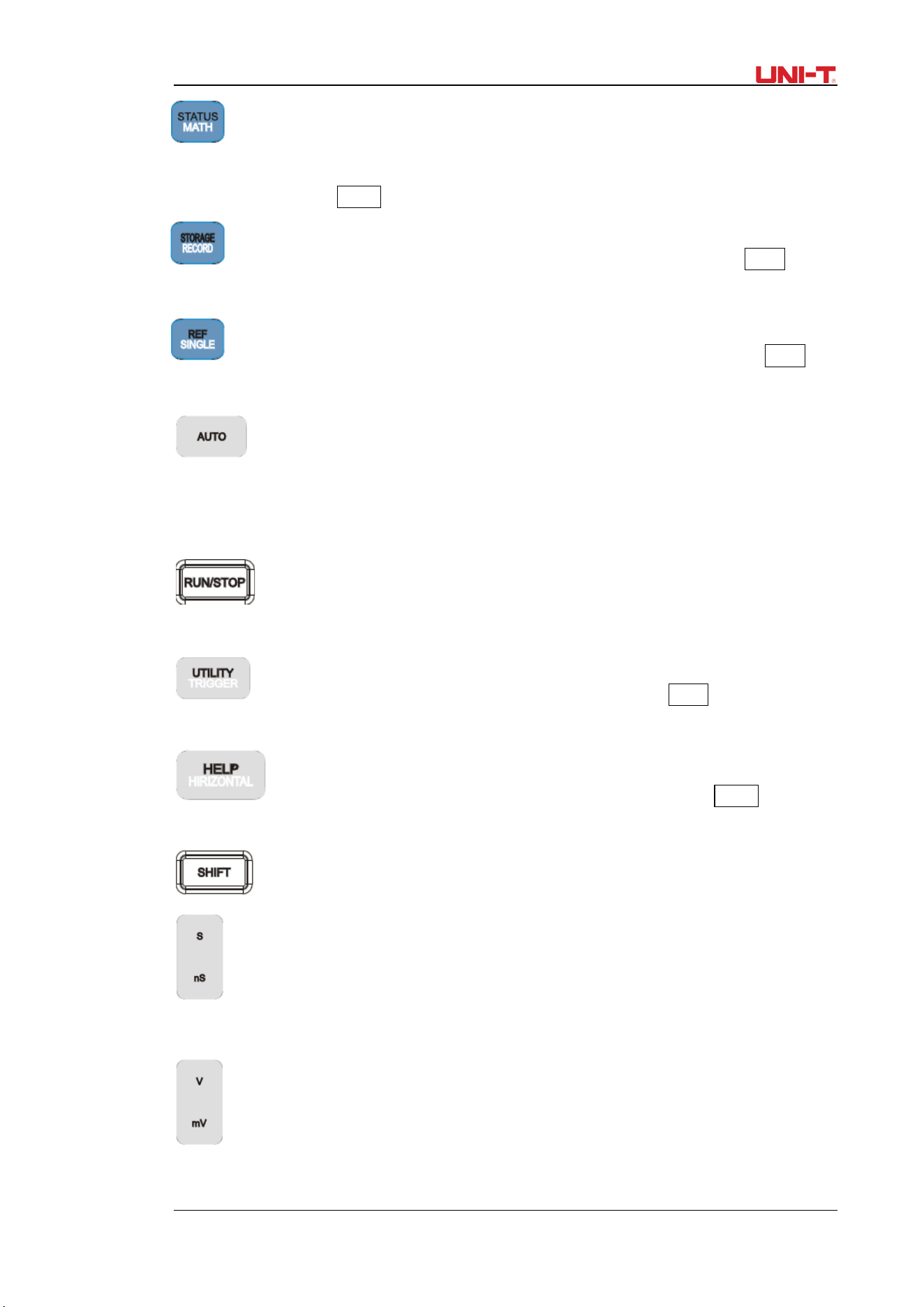
: To power on/off the Oscilloscope
F1~F4: To set up the submenus
: To toggle between Scope (DSO) and multimeter (DMM) modes.
: Press this button to access ACQUIRE (sample mode) menu if under DSO mode; press
SHIFT first and then this button to access intensity, with help of right and left arrow
buttons, you can change screen brightness. If under DMM mode, pressing this button
can access voltage measurement menu.
: Press this button to access DISPLAY (Display mode) menu if under DSO mode; or
press SHIFT first and then this button to access CONFIGURE (interface configuration)
menu; pressing this button under DMM mode to access current measurement menu.
: Press this button under DSO mode to access MEASURE(auto measurement) menu;
or press SHIFT first and then the button to access COURSOR(cursor
measurement)menu; if under DMM mode, press the button to access resistance
measurement menu and measure resistance/ diode/continuity/capacitance.
: In DSO mode, press it to access CHANNEL menu for UTD1000CL; repeatedly press to
toggle between two channel menus for UTD1000DL.
UTD1000L User Manual 13
: In DSO mode, press the button to access FFT menu for UTD1000CL; or press
the button and then F1 button to toggle between FFT and MATH menus for
UTD1000DL. Press SHIFT first and then the button to access STATUS display.
: In DSO mode, press to access RECORD (waveform record) menu; or press SHIFT first
and then the button to access STORAGE menu.
: Under DSO mode, press to set up SINGLE (single trigger) function; press first SHIFT and
then the button to access REF (waveform recall) menu.
: Under DSO mode, press to automatically set up the waveform; press SHIFT first
and then the button to switch on full autoset function. The Oscilloscope can
automatically adjust the ranges to obtain optimal waveform based on the input signal
without any manual interference.
: Under DSO mode, press to start/stop data acquisition; if under DMM, press the
button to lock measuring readings on the screen.
: Under DSO mode, press to access TRIGGER menu; or press SHIFT first and then the
button to access UTILITY menu;
: Under DSO mode, press to access HORIZONTAL menu; or press SHIFT first and
then the button to open HELP information.
: Combine with other buttons to select function options
Timebase: To change scan rate, ranging from 50s/div~10ns/div for 25MHz-bandwidth
models and 50s/div~5ns/div for 50MHz-bandwidth models and stepping in 1-2-5. Press
“s” to access relatively slower scan rate or “ns” to speed up.
Vertical Scale: To change vertical scaling, ranging from 5mV/div~20V/div and stepping
in 1-2-5. Press “V” to zoom in current vertical scale or “mV” to zoom out.

14 UTD1000L User Manual
: To toggle between vertical position and trigger level, if vertical position is choosen,
vertical reference cursor turns solid, then you can move waveforms vertically with Up
and Down buttons. Press SELECT again to make trigger level cursor solid, and also use
Up and Down buttons to adjust trigger point location
Under MEASURE menu, this button is used to confirm selected parameters, or it is
to toggle between Cursor 1 & 2 under cursor measurement.
: Arrow and OK buttons: OK button is used to hide/display current menu;
under DMM mode, it is used to confirm if current divider has been properly
connected when making A current measurement.
Shortcut Buttons Description:
SHIFT + OK: To save current interface into internal memory, which can be exported externally
by PC which has been loaded with the Oscilloscope software.
SHIFT + AUTO: to open full autoset function, in which the Oscilloscope can automatically
adjust vertical scale and horizontal timebase based on the input signal so that the optimal
waveform can be obtained without any manual operation
SHIFT + F1/F2/F3/F4: To open main trigger menu
UTD1000L User Manual 15
Chapter 4 Using Basic Oscilloscope Functions
4.1 About the Chapter
This chapter only briefs users on basic functions of the Oscilloscope, for example, how to
use menus and execute basic operations, not a step-by-step introduction on all functions.
4.2 Powering on the Oscilloscope
UTD1000L Series can be powered by: the battery and power adaptor. The power supply
voltage from the adaptor is DC9V/1.5A. To operate the Oscilloscope normally, please use the
power adaptor specified for the Oscilloscope.
Press Power button and SHIFT light illuminates for 3 seconds, then the Oscilloscope logo
appears, indicating the Oscilloscope has already turned on.
4.3 Describing the Display
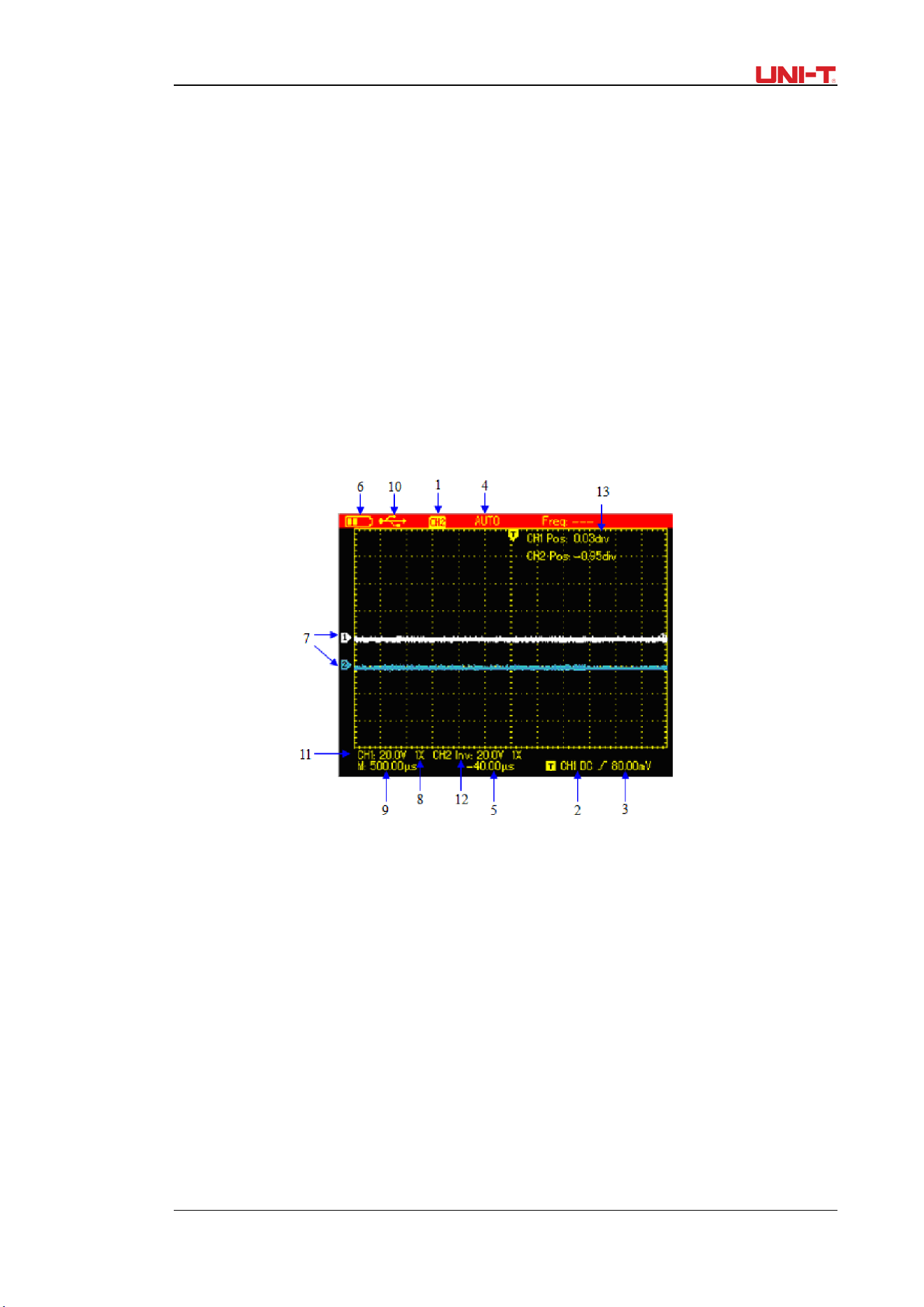
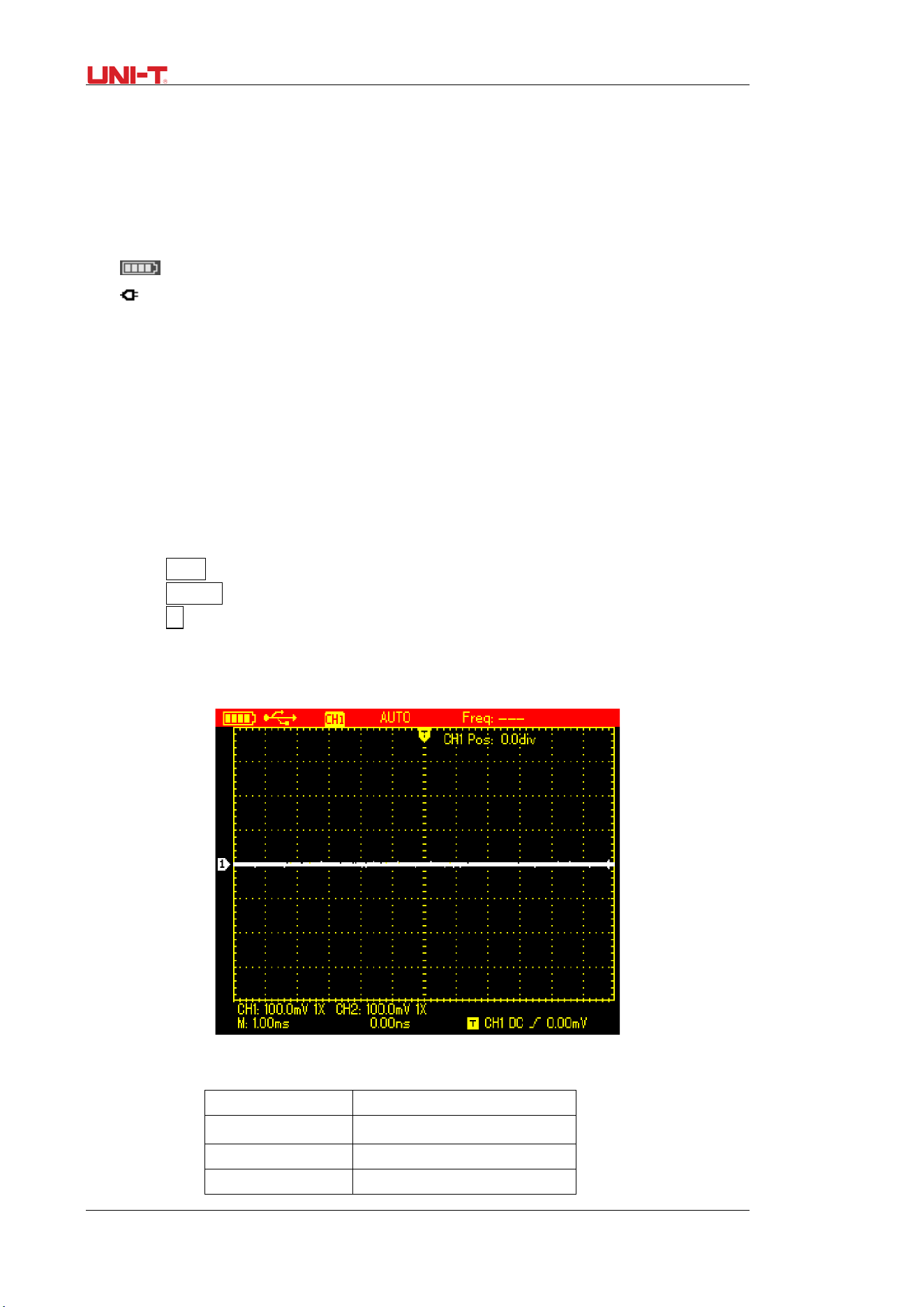
Figure 4-1 Display Interface
Besides the waveform, there are still a lot of details about the waveform and oscilloscope
control settings on the screen:
1. Trigger source status:
CH1/CH2: indicates you can adjust the waveform of this channel
REF: indicates you can adjust the recalled waveform.
FFT: indicates you can execute FFT operation on the waveform.
2. Trigger coupling:
AC ac-coupled
DC dc-coupled
HF high-frequency reject
3. Trigger level readout
4. Trigger status:
ARMED The Oscilloscope is acquiring all pre-trigger data and ignores all trigger events;
READY The Oscilloscope has acquired all pretrigger data and is ready to trigger;
16 UTD1000L User Manual
TRIG’ED The Oscilloscope has detected out one trigger and is acquiring posttrigger data;
STOP The Oscilloscope has stopped acquiring waveforms
AUTO The Oscilloscope is in auto mode and acquires waveforms without trigger;
SCAN The Oscilloscope continuously acquires and displays waveforms under scan mode.
5. The time readout that indicates how far the trigger point is from the central point;
6. The power supply indicator:
The Oscilloscope is powered by the battery;
The Oscilloscope is powered by DC power adaptor.
7. The marker for ground reference point for displayed waveforms;
8.1×: indicates probe attenuation factor for the channel is 1×;
9. The readout for main timebase setting;
10. “Connected to PC” icon;
11. Readout for the current vertical scale factor;
12. Waveform Invert Indicator that indicates that the waveform is reversely displayed;
13. Position readout from the channel reference marker to the horizontal line on the screen.
4.4 Resetting the Oscilloscope
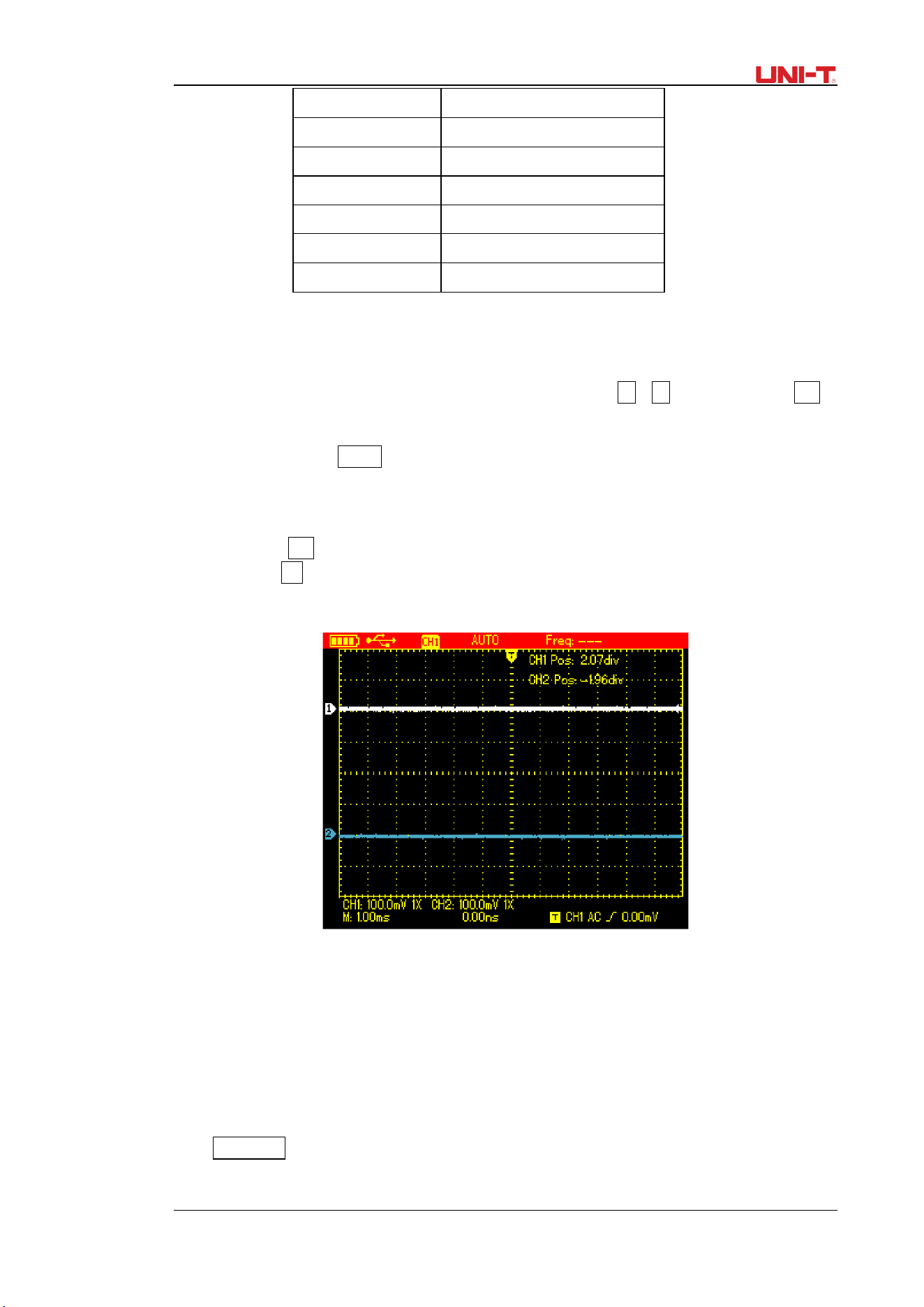
To reset the Oscilloscope to the default, do the following:
1. Press SHIFT button, “shift” icon displays on the upper right corner of the screen;
2. Press UTILITY button and four options shows on the bottom display;
3. Press F2 button to select the default setup. Then the Oscilloscope is set to the default
settings;
Note: Pressing up arrow button can also set the Oscilloscope to the default when powering
on.
Figure 4-2 Default Setup
The Default setup is as follows:
Functions Default Setup
Acquire Mode Normal
SEC/DIV 1ms/div
VOLT/DIV 100mV/div
UTD1000L User Manual 17
Trigger Coupling DC
Channel Status
CH2 Off (1000DL series)
Trigger Mode Auto
Display Format Vector
Persist Time Auto
Display Style Classic
Manual Display Manual
4.5 Using Functional Menus
The procedures below show you how to select functions with use of oscilloscope menus;
1. Press any functional button on the keypad, then corresponding options will show on the
bottom display, you can select one of these options with use of F1 ~ F4. After that, press OK
button to hide functional menus;
2. For the buttons printed with multiple functions, if you want to choose one of these
functions, please press SHIFT button first, accompanied by shift icon on upper right corner of
display, then press the corresponding button to obtain the function you want.
4.6 Hiding Menus
Press down OK button to hide all button icons and menus. To display menus or button
icons, press OK again.
Note: To set up auto hiding time for menus, please find corresponding option in
CONFIGURE menu.
Figure 4-3 Hiding Menus
4.7 Making Connections for Probe Compensation
Connect the signal as follows:
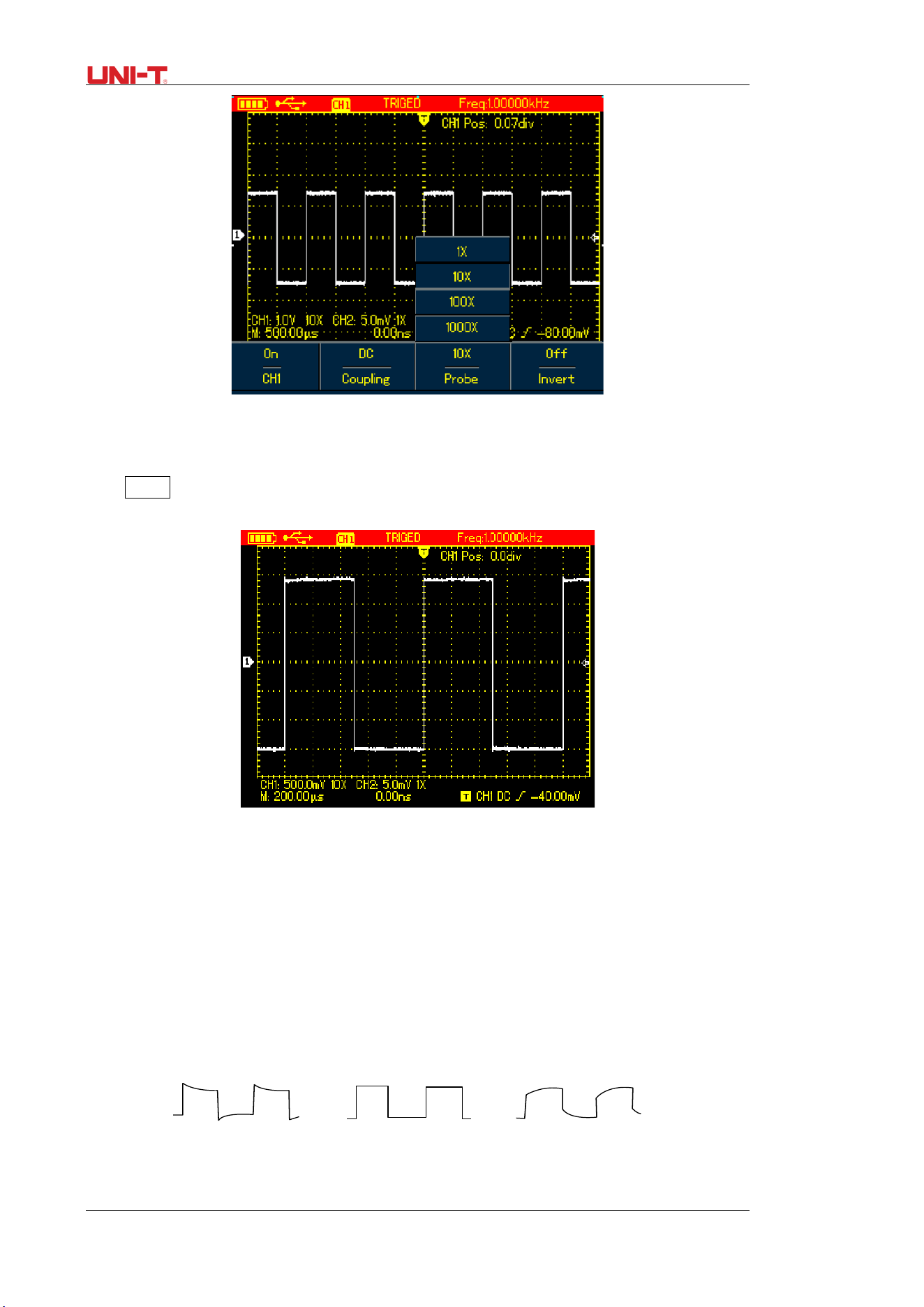
1. Connect the probe connector to the Oscilloscope input terminal and switch probe factor to
10× on the probe.
2. You also need to set up probe factor on the Oscilloscope, this factor changes vertical scale
and ensures the accuracy for measurements. To set up the probe factor on the Osciloscope,
press CHANNEL button, then F3 to set probe factor to10×.
18 UTD1000L User Manual
Figure 4-4 Adjusting Probe Factor
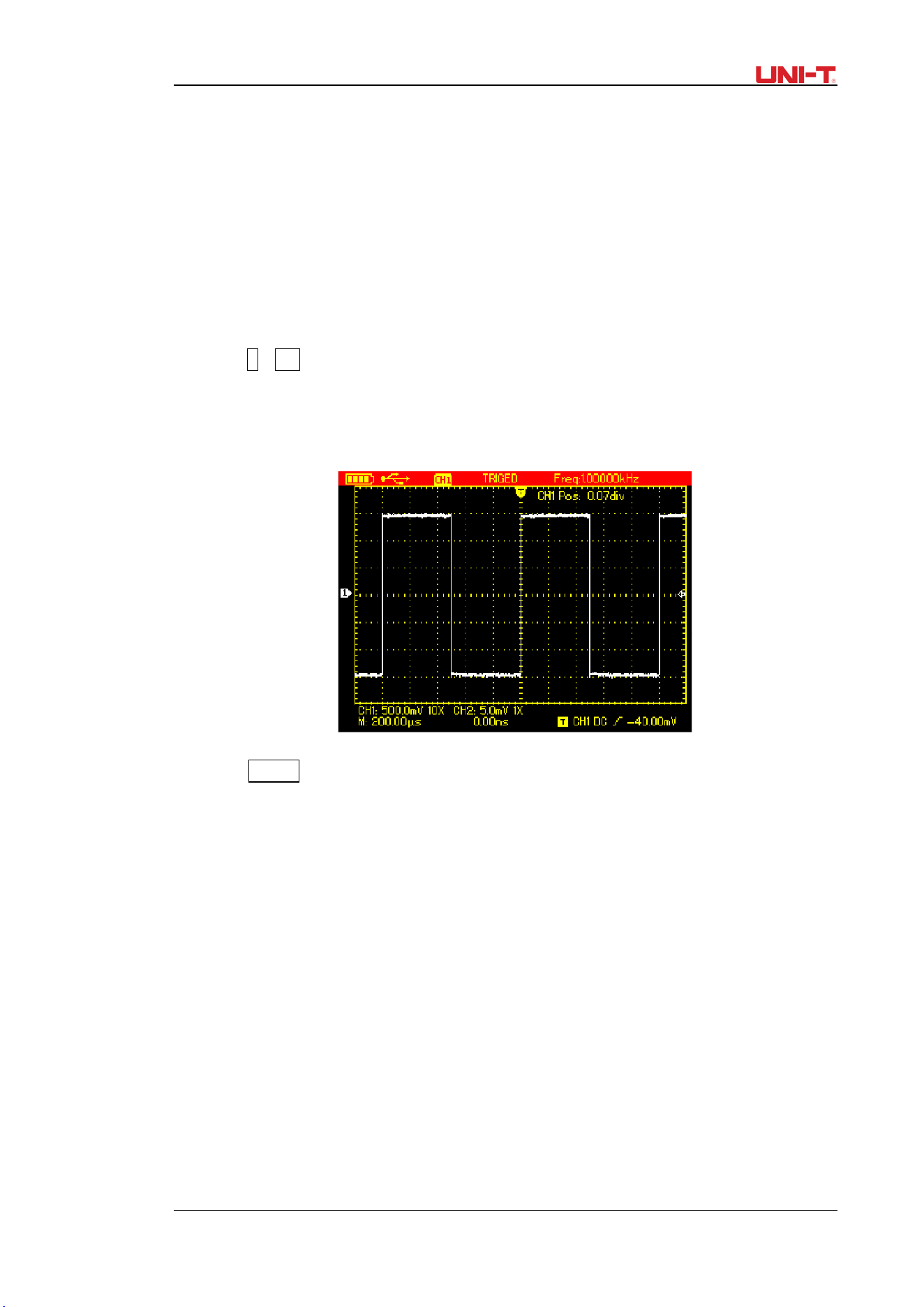
3. Conenct the probe to the output terminal for probe compensation on the Oscilloscope,
press AUTObutton, after several seconds, squarewave displays (1kHz, 3Vpp, Peak-to-Peak
Value), See Figure 4-5.
Figure 4-5 Squarewave Signal from the Oscilloscope Itself
4.8 Compensating the Probe
You need to compensate the probe whenever connecting it to channels for the first time so as
to match the probe to the input channel. Uncompensated probe may cause deviation or error
to the measurement. To compensate the probe, do the following:
1. First of all, set probe factor on the Oscilloscope to 10×, turn the switch to 10× on the probe,
then connect the probe connector to the oscilloscope input channel and the probe tip to
compensation output terminal;
2. Then execute AUTO
3. Observe the displayed waveform
Over Compensated Correctly Compensated Under Compensated
UTD1000L User Manual 19
If the displayed waveform is under-or over-compensated as indicated above, use the
adjusting tool with non-metal handle to adjust the variable capacitor on the probe until
correctly compensated waveform shows.
Warning: To avoid any electric shock when measuring the high voltage with use of the probe,
please ensure the probe wire is perfectly insulated, and do not touch any metal part of the
probe while connecting to the high voltage source.
4.9 Setting Vertical&Horizontal Systems and Trigger Level Manually
4.9.1 Vertical System
Press V~
mV buttons to adjust the vertical scale(VOLT/DIV) and display waveform with
proper size on the screen;
When channel cursor turns solid, press Up and Down button to adjust ground reference
point that can allow the waveform to display at proper location;
Figure 4-6 Moving Waveforms Vertically
Note: Use SELECT button to toggle between vertical position and trigger level.
4.9.2 Horizontal System
Press down s~ns buttons to change the timebase, and the timebase readout in status
bar will vary accordingly. The horizontal scan rate ranges from 5ns~50s/div(10 ns~50s/div
for 25MHz-bandwidth models) and steps in 1-2-5
Press Right and Left arrow buttons to adjust the horizontal location of the trigger point,
which can allows to observe more pretrigger data;
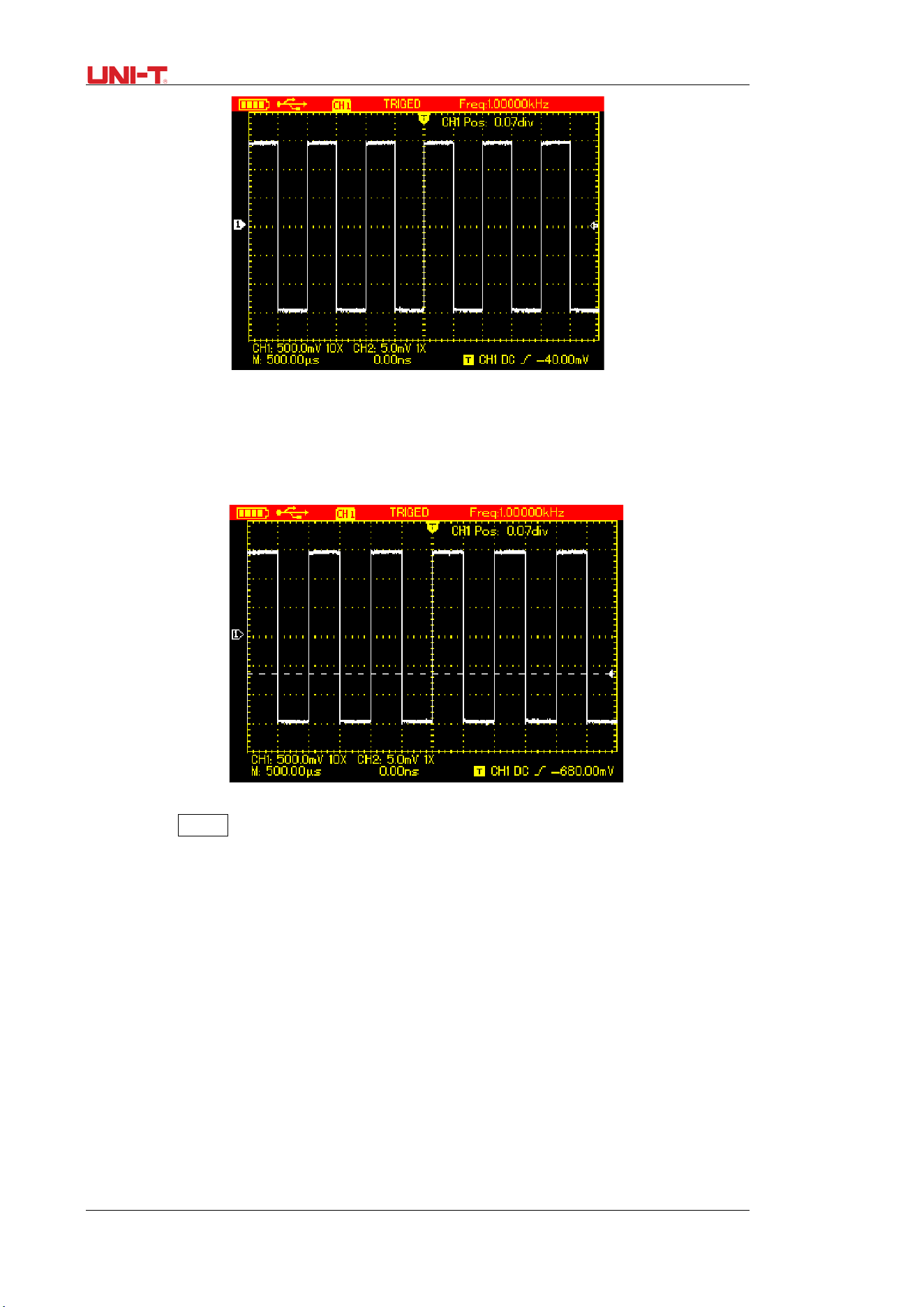
20 UTD1000L User Manual
Figure 4-7 Adjusting Horizontal Timebase
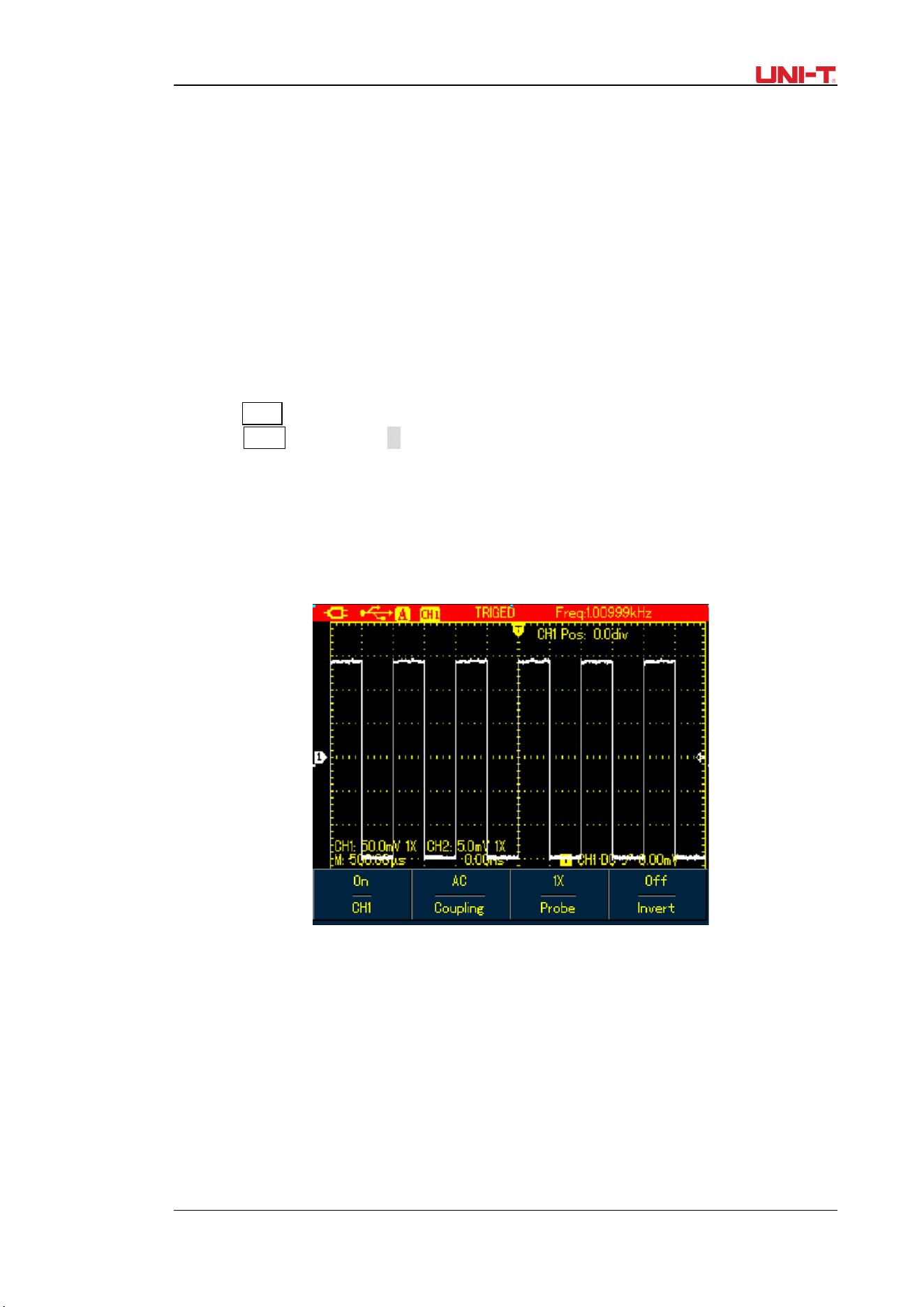
4.9.3 Trigger Level
When trigger level cursor turns solid, use Up and Down arrow buttons to adjust trigger level
location.
Figure 4-8 Adjust Trigger Level
Note: Use SELECT button to toggle between vertical position and trigger level for the
channel. Following chapter will offer more details about the operation mentioned above
4.10 Autoset for Waveform Display
UTD1000L Series is designed with autoset function that can automatically adjust the vertical
scale, scan timebase and trigger mode based on the input signal until the optimal waveform
can be obtained. To apply the autoset function, the tested signal should have a frequency at
≥20Hz and duty cycle>1﹪;
Under AUTOSET mode, the coupling mode of the channel is closely connected to DC autoset;
When DC autset is set to off, all signals in the channel is AC-coupled. If DC autoset is on, the
channel will choose the current setting as coupling mode, when the current setting is DC
coupling, the signal will be DC-coupled and vice versa.
For example:
UTD1000L User Manual 21
1. Input 1kHz, 2Vpp sine signal into two channels, set coupling mode for both channels to DC,
press Shift+UTILITY and then F3 to set DC autoset to off. If AUTOSET is applied, the coupling
mode is switched to AC mode.
2. Input 1kHz, 2Vpp sine signal into two channels, then set AC coupling for one channel and DC
mode to the other. When AUTOSET is applied, the coupling modes for both channels keep
unchanged.
4.11 Full Autoset for Input Signal
UTD1000L can offer creative auto function to capture input signal. With this function
applied, the Oscilloscope varies ranges accordingly based on the input signal until the proper
waveform display can be obtained without any manual interference.
To perform autoset function, do the following:
1. Press SHIFT button, the shift icon shows on upper right corner of the screen
2. Press AUTO button, when A icon displays on the screen, autoset function has already
turned on;
Note: When the model is UTD1000DL and both of its two channels have signals, the signal
from the trigger source channel will be automatically displayed and the other channel will
turn off under autoset mode; if there is only one channel input with signals, this channel
signal will be automatically selected and displayed no matter which channel has been
choosen as the trigger source.
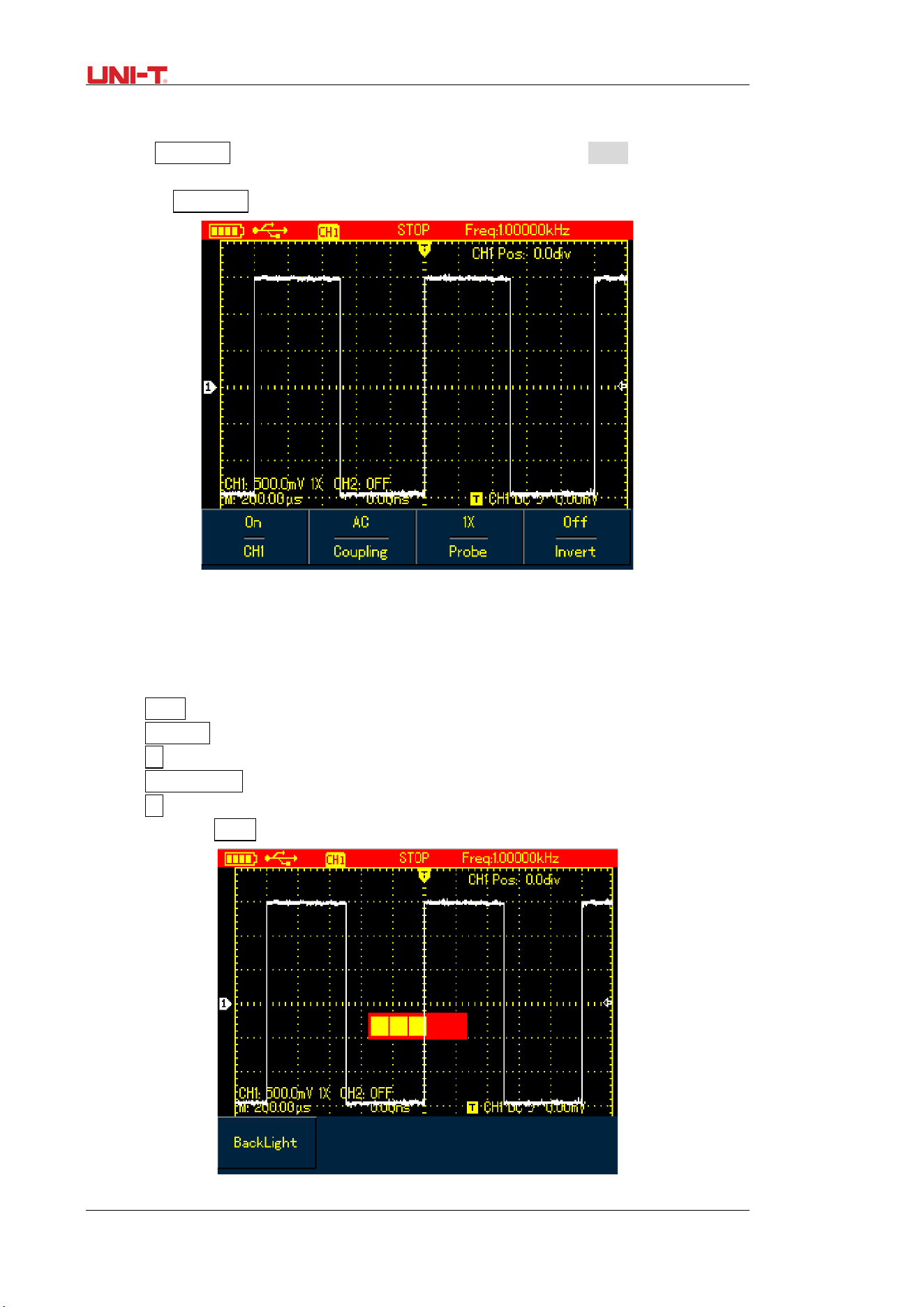
Figure 4-9 Full Autoset
Note:
1. Under autoset mode, trigger mode is set to “Auto” and cannot change.
2. Once you are in autoset mode, following settings are forced to execute:
(1) The Oscilloscope will switch into main timebase status if the current display isn’t under
this status;
(2) The coupling mode will be set to AC mode and allows no change.
3. Any adjustment on the vertical scale or horizontal timebase of the Oscilloscope that has
changed waveform vertical or horizontal location will make the Oscilloscope automatically exit
autoset mode.
22 UTD1000L User Manual
4.12 Run/Stop Data Acquisition
To stop the data acquisition:
1. Press RUN/STOP button, the Oscilloscope stops data acquisition and STOP indicates on the
upper display;
2. Repress RUN/STOP, then the oscilloscope will restart the acquisition.
Figure 4-10 Stop Data Acquisition
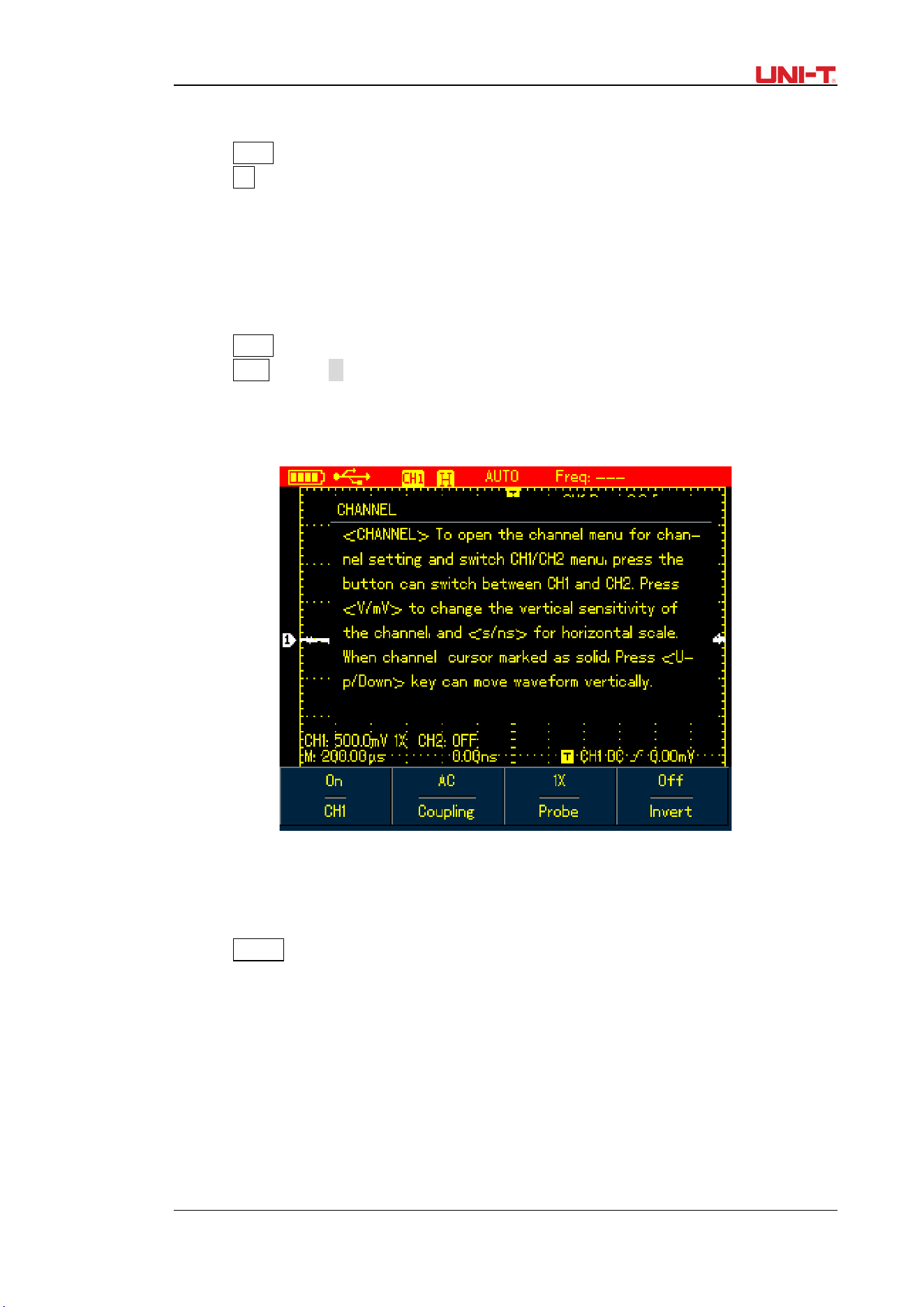
4.13 Adjusting Screen Intensity
To adjust the intensity of the screen, do the following:
1. Press SHIFT button, and shift icon shows on upper right corner of screen;
2. Press ACQUIRE button and select backlight menu;
3. Press F1 to switch on backlight intensity bar;
4. Press Left and Right arrow buttons to adjust the intensity to proper value;
5. Press F1 to switch off the backlight intensity bar.
Note: Press down AUTO button, the backlight intensity bar will switch off automatically.
Figure 4-11 Adjusting Backlight Intensity
UTD1000L User Manual 23
4.14 Saving Bitmap
To save bitmap, do the following:
1. Press SHIFT, and shift icon shows on upper right corner of screen;
2. Press OK button, bitmap then will immediately be saved to the internal memory.
Note: through control software loaded in PC, the bitmaps can be exported to PC in BMP
format and be saved up to 10sets.
4.15 Using Online Help
To use built-in help information, do the following:
1. Press SHIFT, and shift icon shows on the right corner of screen;
2. Press HELP button, H icon shows on the upper display, indicating Help function has already
turned on;
3. Then you can press corresponding menu buttons to check detail information;
4. To turn off this function, repeat Step1 and 2.
Figure 4-12 Help System
4.16 Setting Single Trigger
To set trigger mode to Single directly, do the following:
1. Press SINGLE button, the Oscilloscope will be set under single trigger mode immediately.
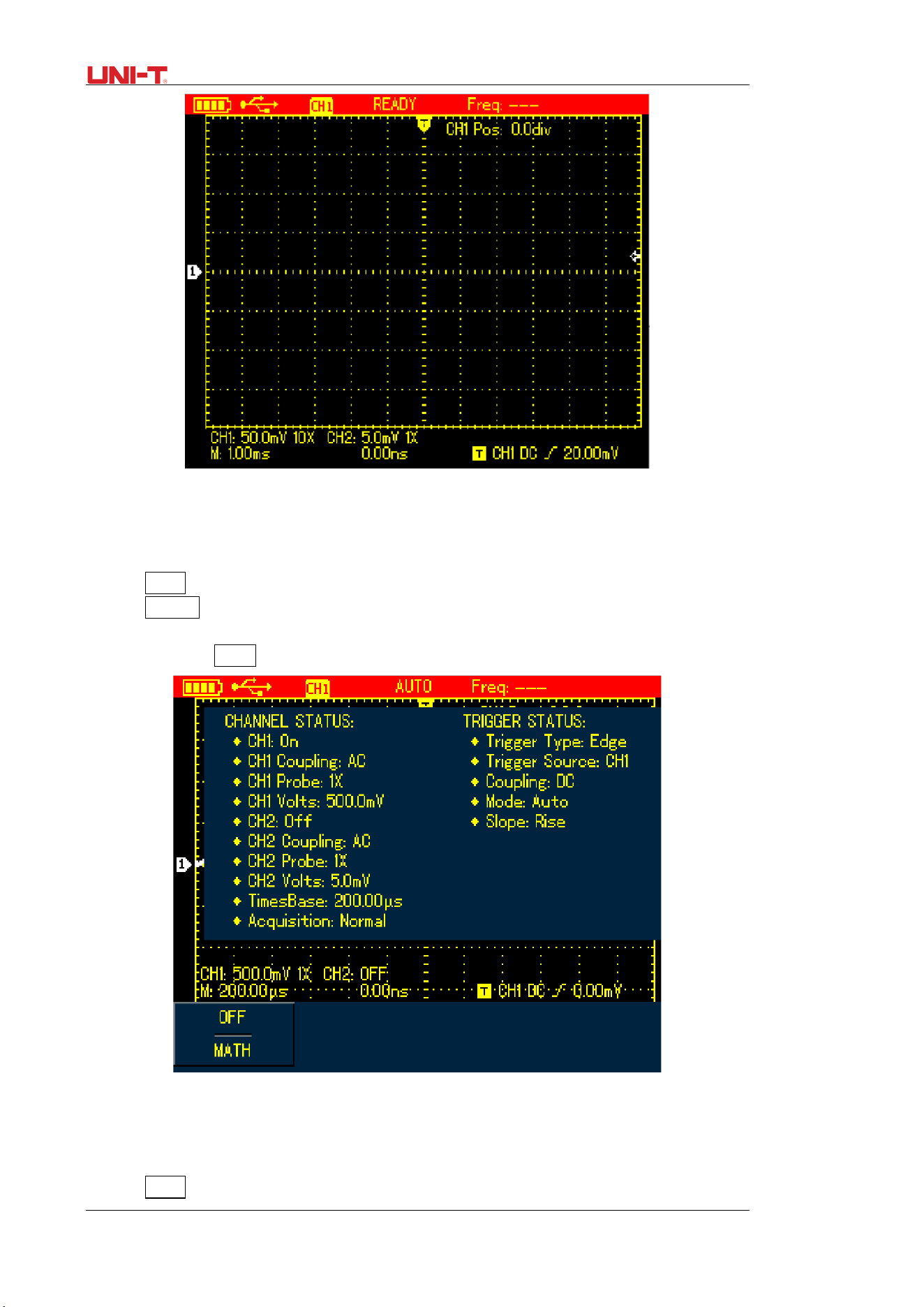
24 UTD1000L User Manual
Figure 4-13 Single Trigger
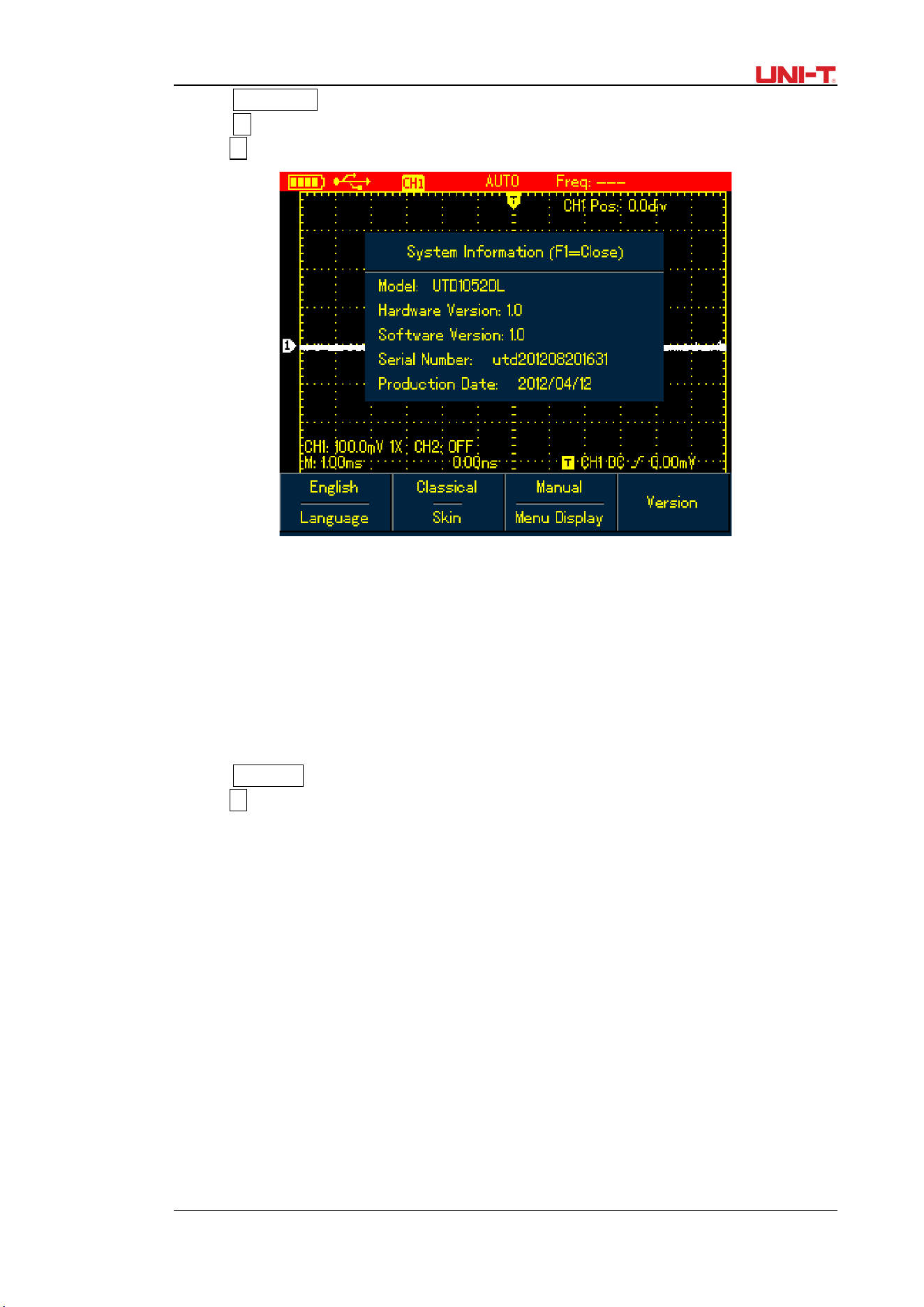
4.17 Viewing Oscilloscope Status
To view the current status of the Oscilloscope, do the following:
1. Press SHIFT button, and shift icon shows on upper right corner of screen;
2. Press STATUS button, current settings of the Oscilloscope will be displayed on the screen;
3. To turn off the information, repeat Step 1 and 2.
Note: Press down AUTO button, status information will then automatically turn off.
Figure 4-14 UTD1000L Status Information
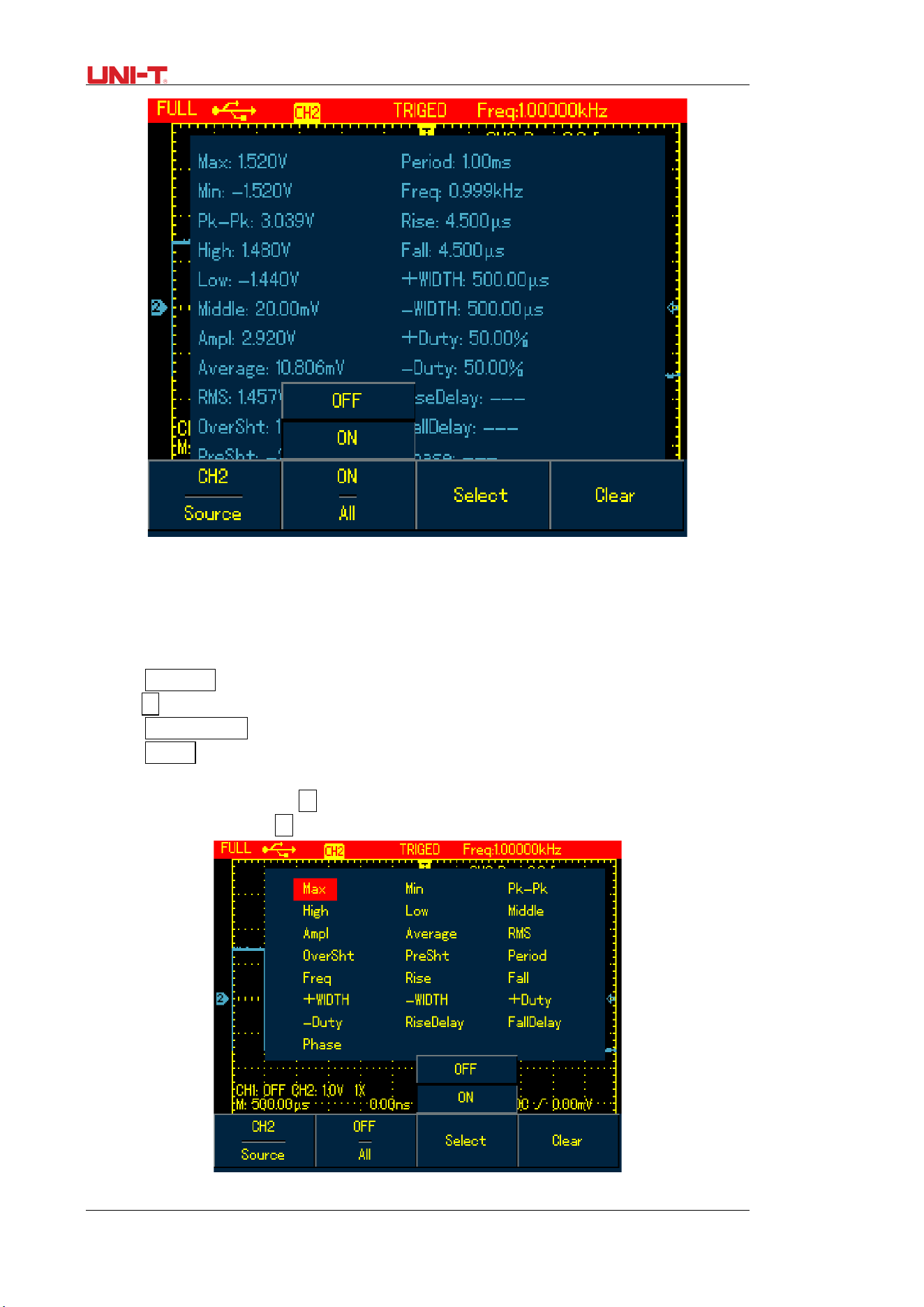
4.18 Checking Oscilloscope System Information
To check the system configuration of the Oscilloscope, do the following:
1. Press SHIFT and shift icon shows on upper right corner of screen;
UTD1000L User Manual 25
2. Press CONFIGUREbutton to switch on display configuration menu;
3. Press F4 button, then details such as oscilloscope model, version will show on the screen;
4. PressF1 button to switch off the displayed window.
Figure 4-15 System Information
4.19 Making Auto Measurements
There are two kinds of auto measurements available in the Oscilloscope: Measure all or
customized parameters. Maximum 4 parameters can be selected if you want to customize your
own measurements.
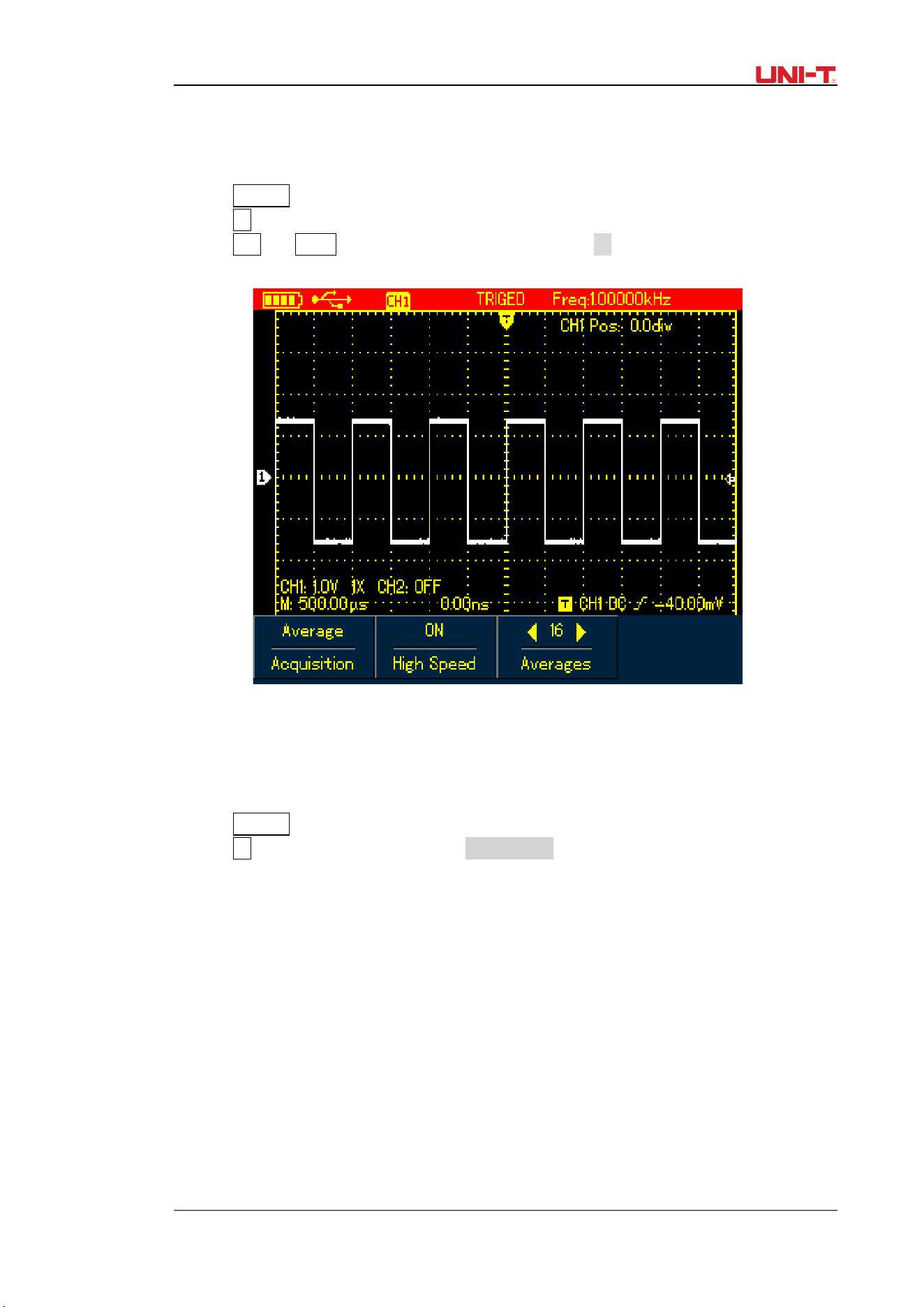
4.19.1 Measuring All Parameters
To measure automatically all parameters, do the following:
1. Press MEASURE button to display measurement menu;
2. PressF2, then the screen will show measurement results for all parameters.
Note:
1) Switching between different signal sources in UTD1000DL will change the paramteters
accordingly for channels;
2) If the signal is input into only one channel of UTD1000DL, the rise delay, fall delay and
phase parameters will not be measured when this channel is choosen as the signal source;
or the signal source is set to the channel without signal input, no parameter measurement
will be made.
26 UTD1000L User Manual
Figure 4-16 UTD1000L measures all parameters
4.19.2 Measuring Customized Parameters
To measure customized parameters, do the following:
1. Press MEASURE button to display measurement menu;
2. PressF3, the screen will display measurement paremeters available for your selection;
3. Press Arrow Buttons to select the desired parameters, indicated in different color;
4. Press SELECT button to confirm, the selected parameter will automatically show on the
screen. You can select up to 4 parameters.
5. To turn off the menu, press F3.
Note: For UTD1000DL, use F1 to select signal source to be measured.
Figure 4-17 UTD1000L Customized Measurement
UTD1000L User Manual 27
4.20 Using AVG mode for Smoothing Waveforms
To smooth the waveforms, do the following:
1. Press ACQUIR button to display sample mode;
2. Press F1 button to set sample mode to AVG;
3. Press Left and Right arrow buttons to set AVG number to 16. Then measurement results will
show after the Oscilloscope has averaged the data for 16 times.
Figure 4-18 Smoothing with 16-times AVG Mode
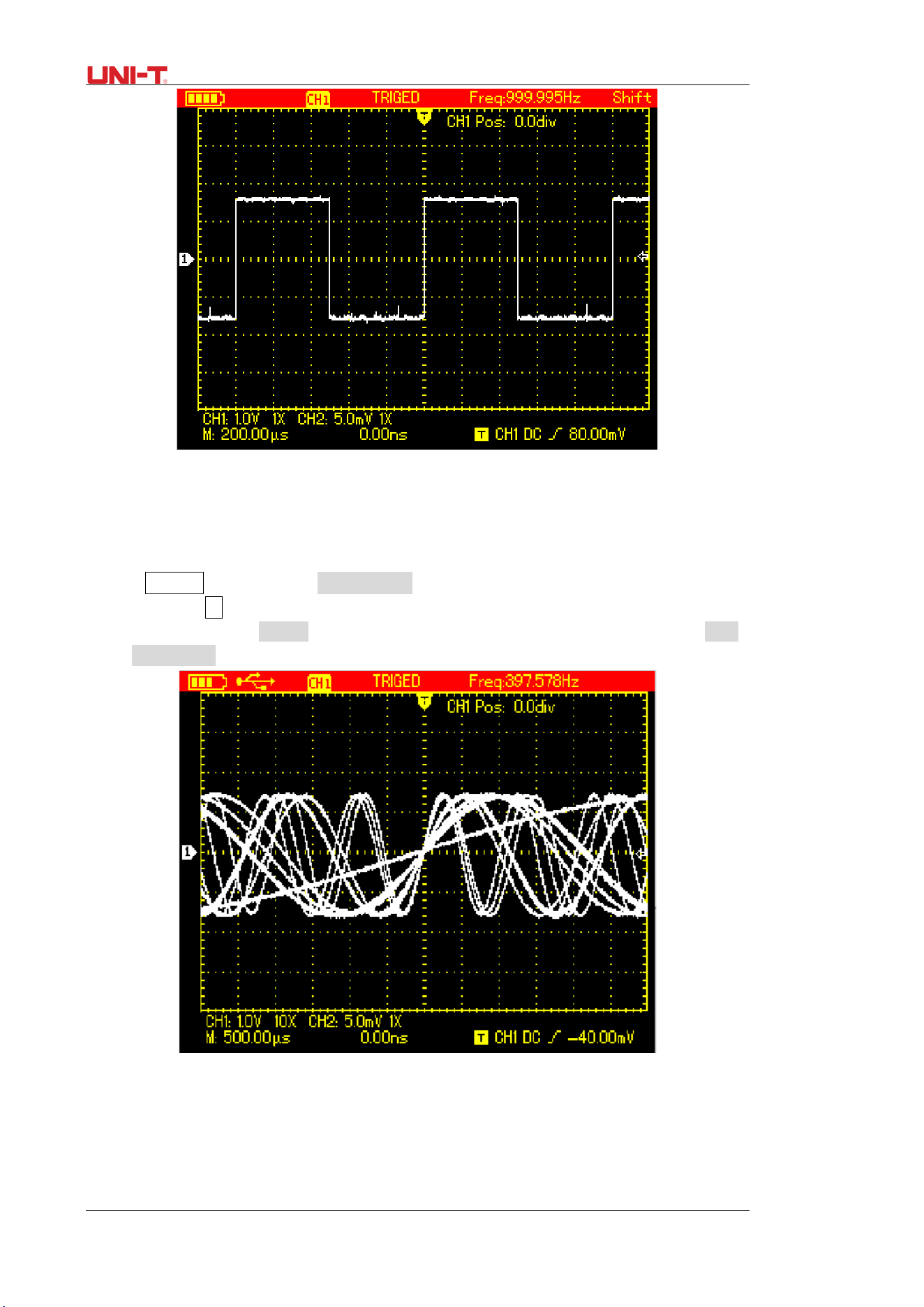
4.21 Using Peak Detect Mode for Pulse Peak Display
This function can be used to display waveforms at 50 ns or wider (Pulse Peak or other
asynchronous waveform).
1. Press ACQUIR button to display sample mode menu;
2. Press F1 button to set sample mode to Peak Detect.
28 UTD1000L User Manual
Figure 4-19 Sampling with Peak Detect Mode
4.22 Observing Waveforms with use of Persistence
Select the Persistence function if you want to observe continuously the dynamic signals.
1. Press DISPLAY button to show Display Mode menu;
2. Keep pressing F4 button to select between 1sec, 3sec, 5sec, Infinite or Auto options. If
display mode is set to Infinite, dynamic signals will be kept on the screen. When set to Auto,
the Persistence function will turn on accordingly.
Figure 4-20 Persistent Display for 3 Seconds
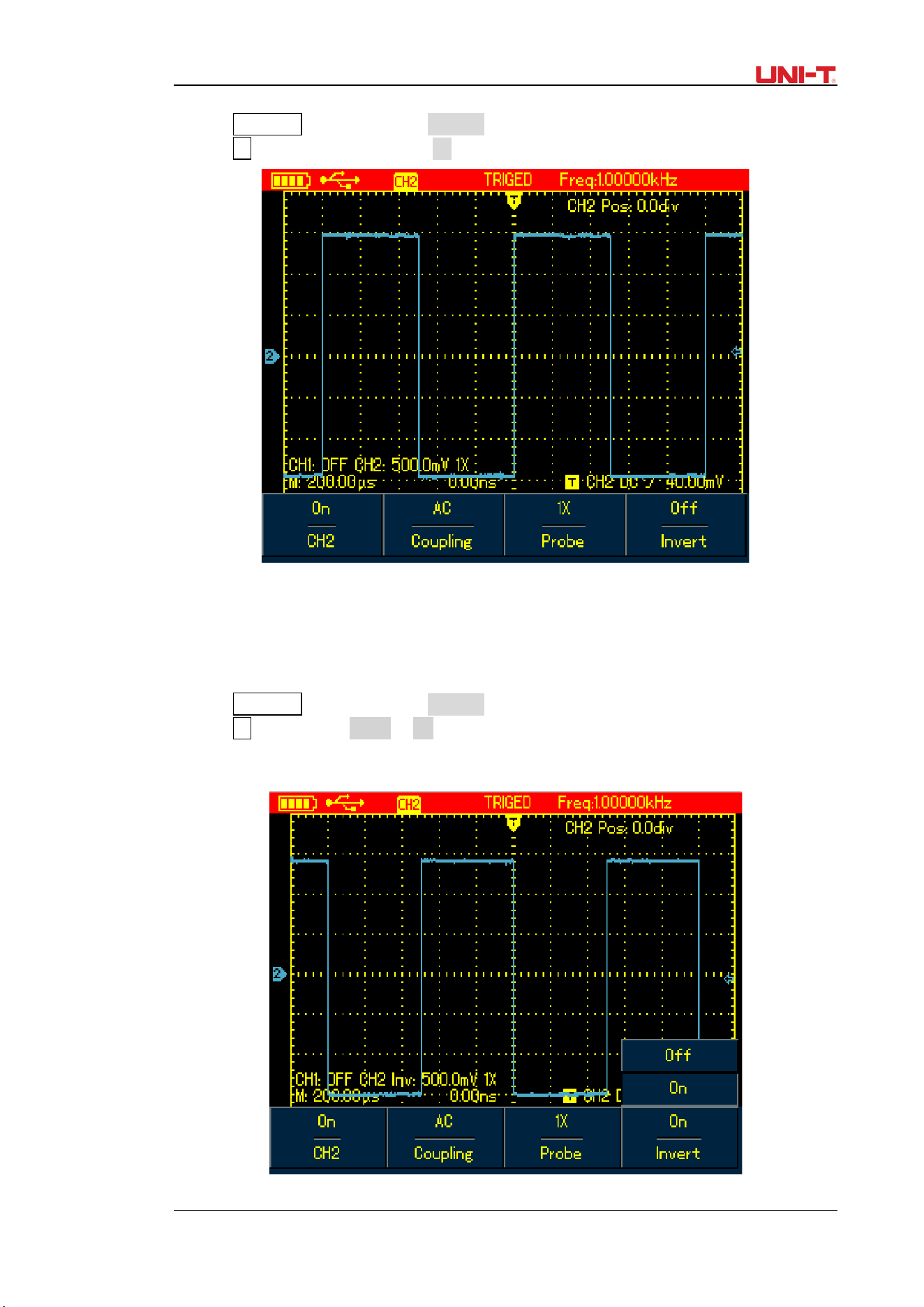
4.23 Selecting AC Coupling
The screen displays both AC and DC voltages if the oscilloscope is set under DC coupling. If only
the small AC signal mixed in the DC signal is expected to display, please select AC coupling
mode.
UTD1000L User Manual 29
To select AC coupling, do the following:
1. Press CHANNEL button to display Channel menu;
2. Press F2 button to set Coupling to AC.
Figure 4-21 UTD1000L AC Coupling
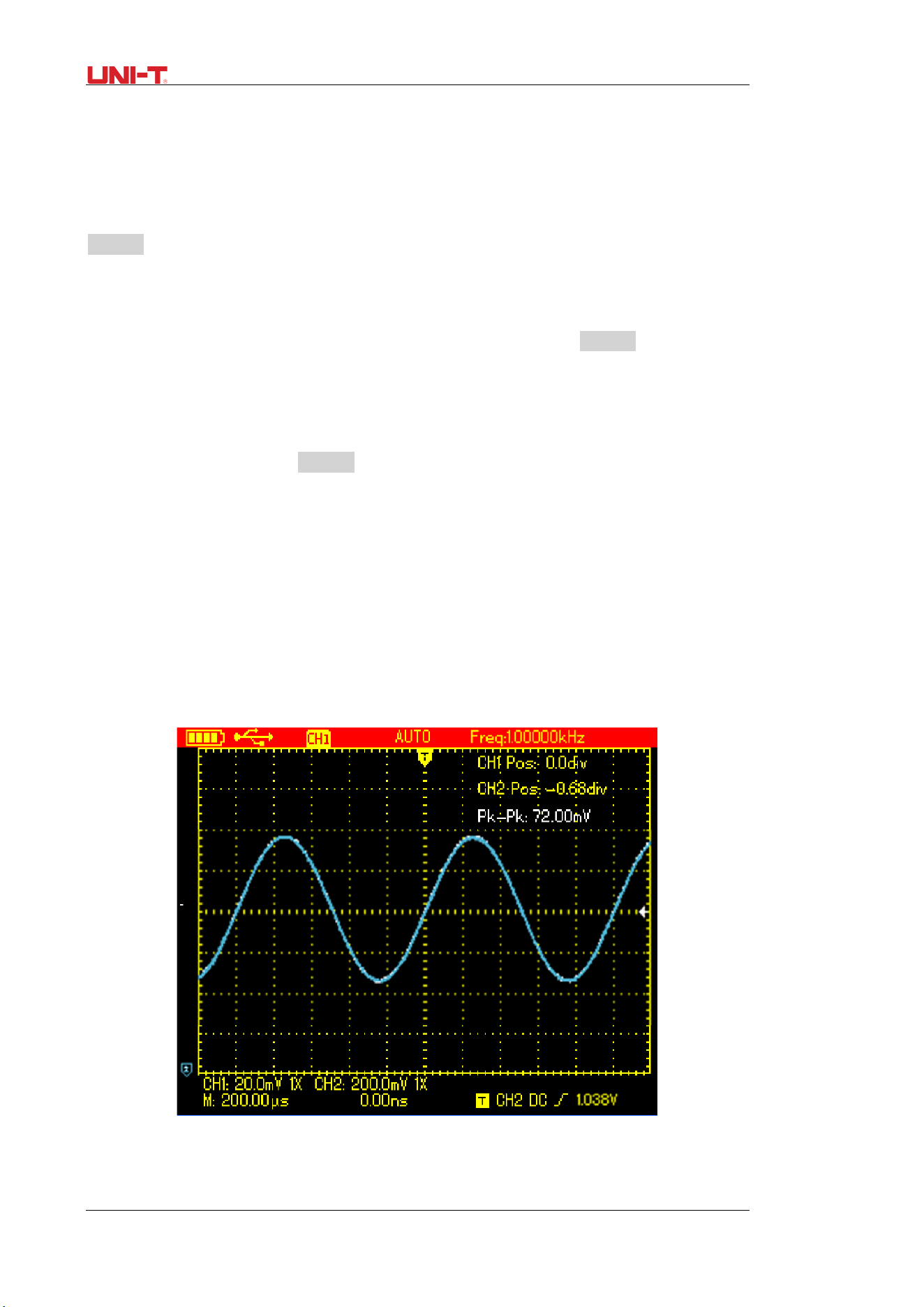
4.24 Inverting the Waveform Display
To invert the waveform on the display, do the following:
1. Press CHANNEL button to display Channel menu;
2. Press F4 button to set Invert to On, then the waveform on the screen will be displayed
reversely.
Figure 4-22 UTD1000L Inverted Waveform
30 UTD1000L User Manual
4.25 Autoset for Signals with DC Offset
UTD1000L Series is designed with powerful autoset function that makes it possible to
perform fast and accurate measurement in DC–coupled mode for signals with any DC
component.
Position parameter on upper right display of screen: This parameter stands for position
readout for the channel reference marker that moves from horizontal central line, if it is
positive value, it indicates the channel marker is above the horizontal central line and the
negative one is for the marker below the horizontal central line. To work out the final DC offset,
first move the waveform to the center of the screen, then multiply the Position value by
current amplitude range readout, that is final DC offset result you want.
For example:
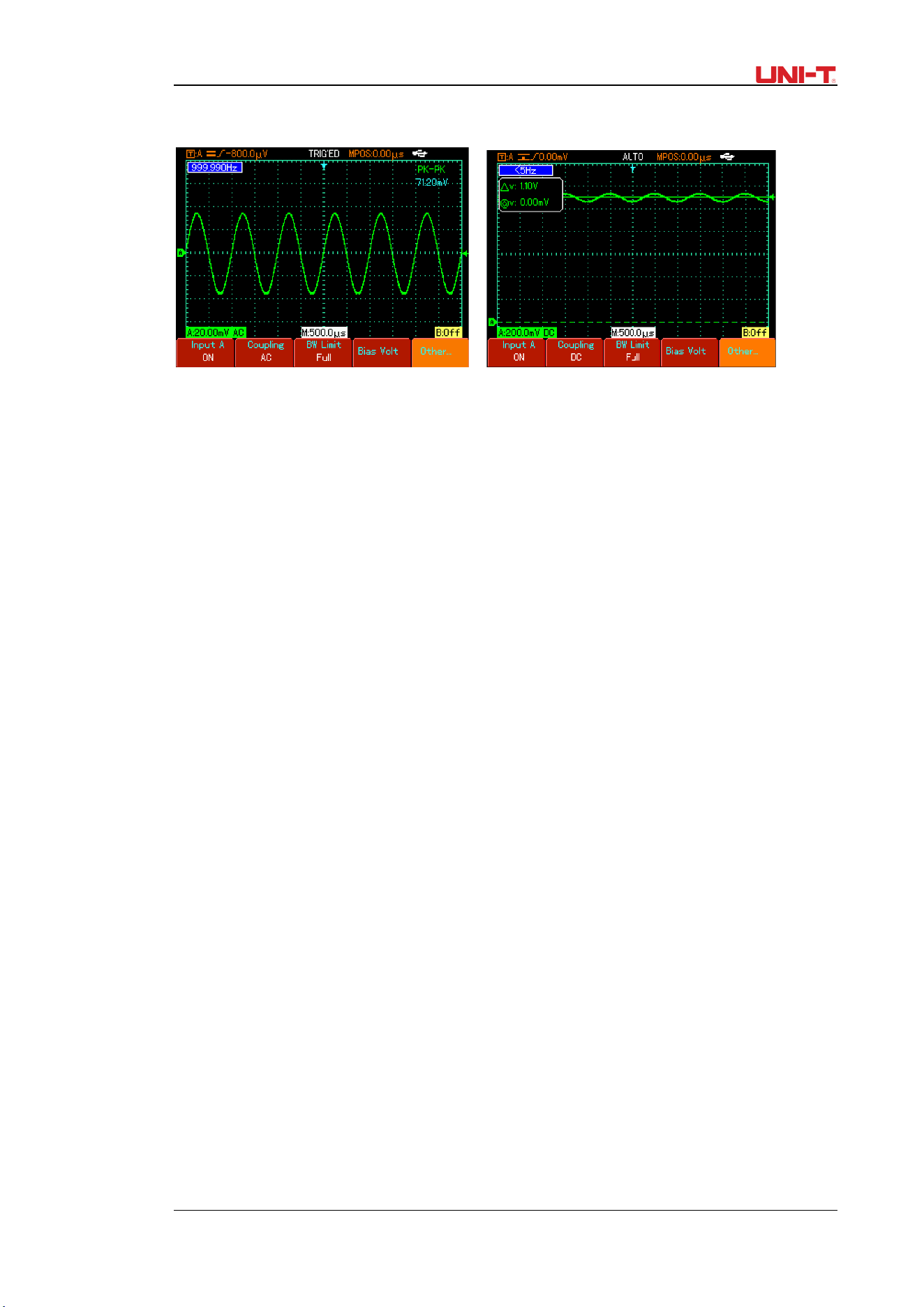
Connect UTD1000CL channel with 70mVpp AC sine signal mixed with 1.1V DC offset, set the
channel to DC coupling, then perform AUTO function, the waveform in Figure 4-24A will show
on the screen. On the display, Position readout -53.63div indicates the channel reference
marker moves 53.63div downward from the horizontal central line. The current amplitude
range is 20mV/div, so DC offset readout: 20mV/div×53.63div =1.0726V
Vpp readout: 72mV means the AC peak-to-peak value of the signal
You can also directly read out the DC level through AVG value.
AVG value: 1.0726V, which stands for the signal DC level.
Through all parameters mentioned above, the signal can be understood very easily.
Note: For UTD1000DL models, CH1 and CH2 are both set to DC coupling when inputting the
signal above, then perform the AUTO function, after that, also move the waveform to the
center of the display(See Figure4-24B ), and then calculate DC offset with use of Position
readout and current amplitude range value.
Figure 4-23 UTD1000L Setup for Signals with DC Offset
As for traditional oscilloscope, it needs hard work to complete the task, for it has to set the
coupling to AC mode first to measure out the AC parameters, and then reset the coupling to
UTD1000L User Manual 31
DC mode, manually adjust vertical scale and use the cursor to work out DC parameters, see
figures as below:
Figure 4-24 AC Parameter Measurement Figure 4-25 DC Parameter Measurement
With the comparison shown above, it is very clear that UTD1000L series is designed with a
powerful ability to measure signals at much faster speed and in a more visual way.

32 UTD1000L User Manual
Chapter 5 Using the Multimeter
5.1 About the Chapter
This chapter introduces the multimeter functions built in the Oscilloscope; examples are also
offered to illustrate how to use the menus and the basic measurements. To switch from
Oscilloscope mode to Multimeter mode, press DMM/DSO button to access DMM mode, the
display screen will change into multimeter interface accordingly.
5.2 Connections to the Multimeter
UTD1000L has two multimeter input terminals: COM, V/Ω, matched to 4-mm banana plugs of
test leads.
UTD1000DL: One UT-M04 (4A current divider) and one UT-M10 (mA current module) are also
offered to use in the measurements
UTD1000CL: One UT-M07 (6A current divider) is also offered to use in the measurements
5.3 Display Indicators
Description:
1. Battery Indicator
2. AUTO Autoset indicator
3. Indicators for Measurement Types:
DC Voltage Measurement
AC Voltage Measurement
DC Current Measurement
AC Current Measurement
Resistance Measurement
Diode Test
Continuity Test
Capacitance Measurement
4. Relative Measurement
5. working statusIndicator; HOLD : Freeze the display
6. Main Display for Measuring Values
7. Manual Ranging Indicator
5.4 Making Multimeter Measurements
Press DSO/ DMM button to access DMM mode, the display then enters into the multimeter
interface. Multimeter functions are ready to use at the moment.
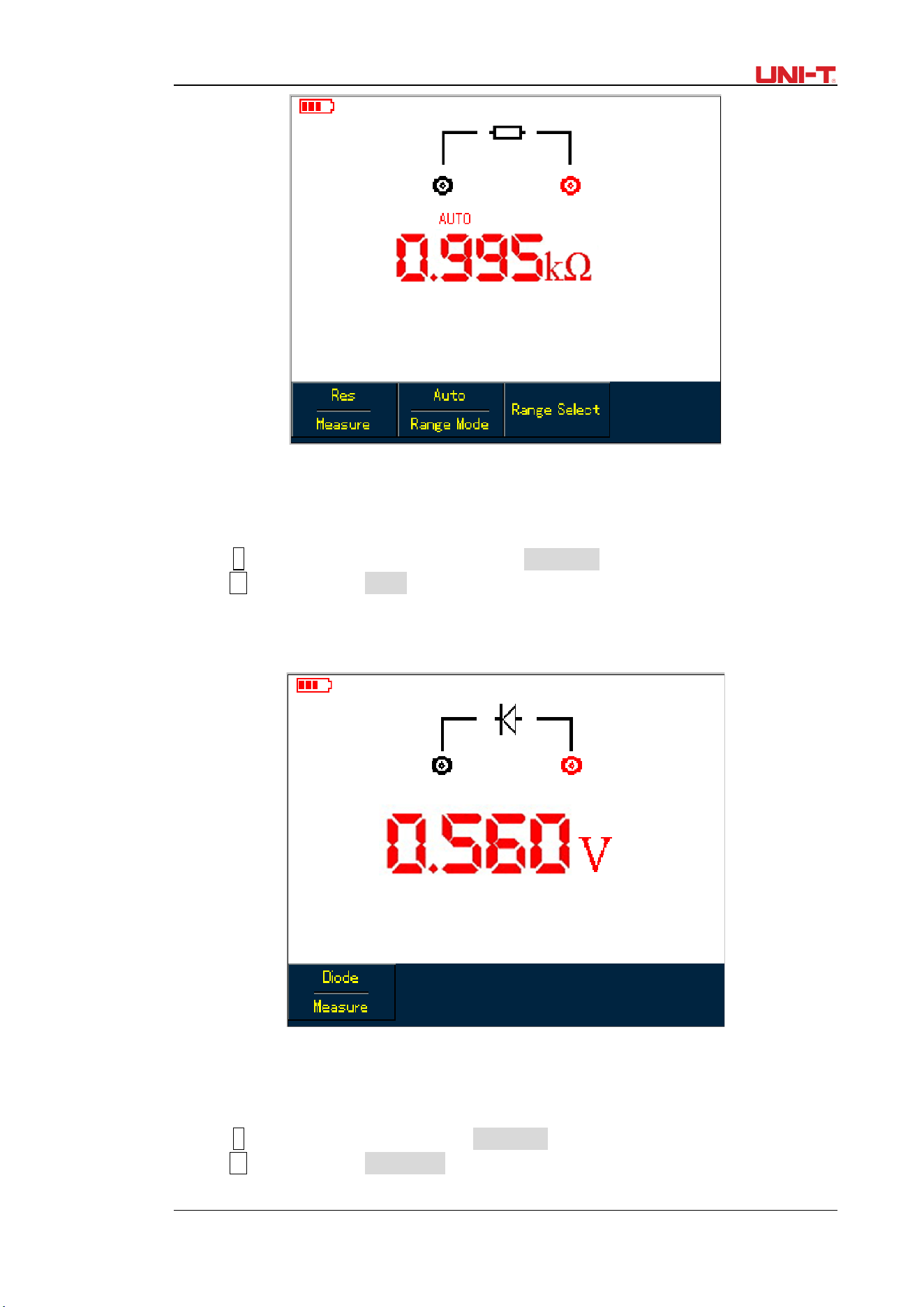
5.4.1 Measuring Resistance
To measure resistance, do the following:
1. Press down R button to set measurement type to Resistance.
2. Plug test lead connectors into multimeter input terminals (Black to COM and Red to V/Ω).
3. Connect test leads respectively to the resistor under test, then take resistance readings.
UTD1000L User Manual 33
Figure 5-1 Measuring Resistance
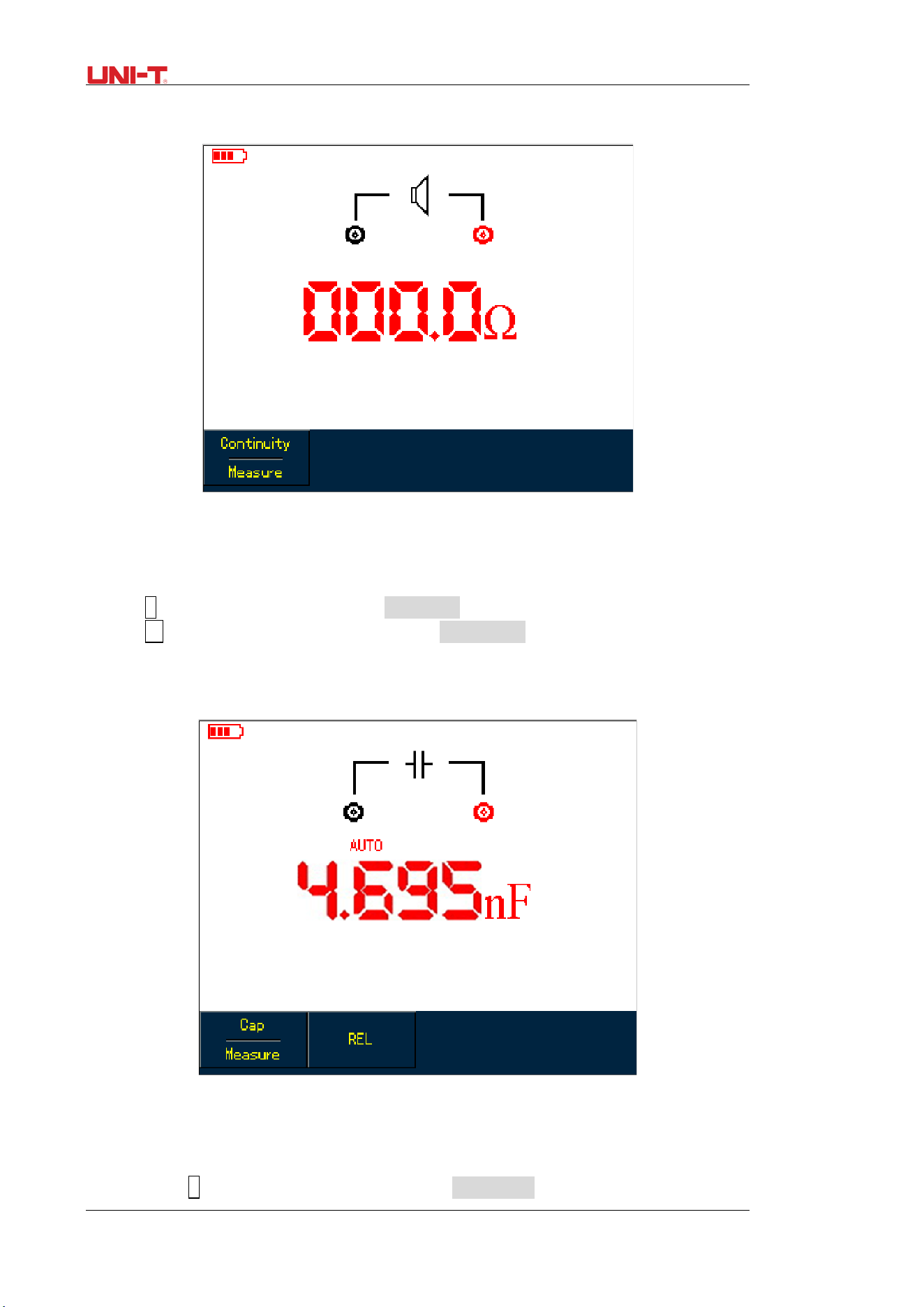
5.4.2 Testing Diodes
To test the diode, do the following:
1. Press R button to set the measurement type to Resistance.
2. PressF1 button to select Diode option.
3. Plug test lead connectors into multimeter input terminals (Black to COM and Red to V/Ω).
4. Connect test leads to the tested diode, then forward voltage drop reading for the diode
displays, accompanied by the measurement unit V.
Fgiure 5-2 Testing Diode
5.4.3 Testing for Continuity
To check the continutity, do the following:
1. Press R to set the measurement type to Resistance.
2. PressF1 button to select Continutity.
3. Plug test lead connectors into multimeter input terminals (Black to COM and Red to V/Ω).
34 UTD1000L User Manual
4. Connect test leads to tested points. The multimeter will beep if tested resistance between
tested points is lower than70Ω.
Figure 5-3 Testing for Continuity
5.4.4 Measuring Capacitance
To measure capacitance, do the following:
1. Press R to set the measurement type to Resistance.
2. Press F1 button to switch measurement type to Capacitance.
3. Plug test lead connectors into multimeter input terminals (Black to COM and Red to V/Ω).
4. Connect test leads to the capacitor under test, then take the reading.
Note: To ensure the accuracy, please use the relative mode if test capacitance is <5 nF.
Figure 5-4 Measuring Capacitance
5.4.5 Measuring DC Voltage
To measure DC voltage, do the following:
1. Press down V button to set measurement type to DC Voltage.
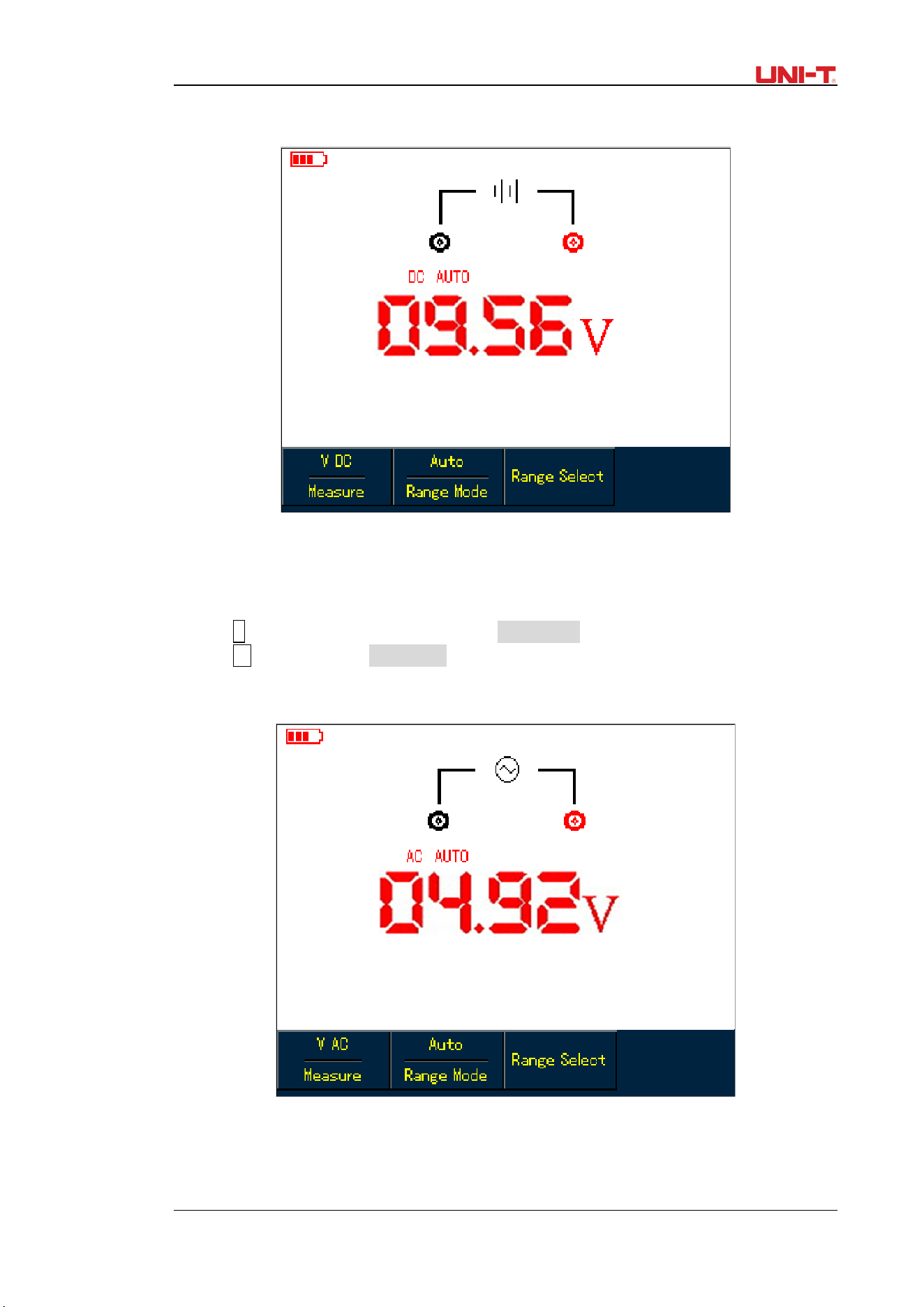
UTD1000L User Manual 35
2. Plug test lead connectors into multimeter input terminals (Black to COM and Red to V/Ω).
3. Connect test leads respectively to tested points, then take DC voltage reading.
Figure 5-5 Measuring DC Voltage
5.4.6 Measuring AC Voltage
To measure AC voltage, do the following:
1. Press V button to set measurement type to DC Voltage.
2. Press F1 button to select AC Voltage option.
3. Plug test lead connectors into multimeter input terminals (Black to COM and Red to V/Ω).
4. Connect test leads respectively to tested points, then take AC voltage reading.
Figure 5-6 Measuring AC Voltage
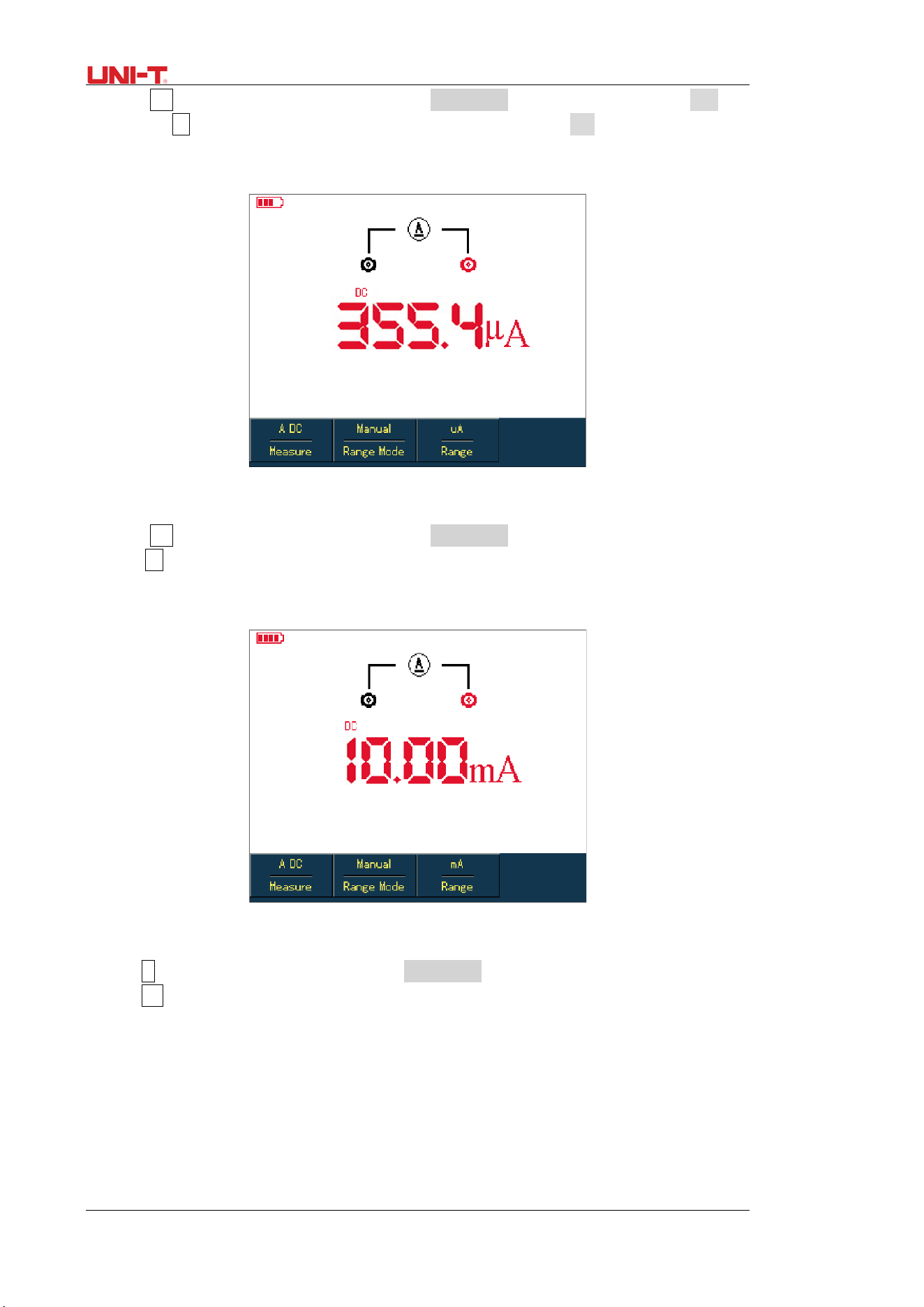
5.4.7 Measuring DC Current with UTD1000CL
To measure DC current equal to or lower than 4mA, do the following:
36 UTD1000L User Manual
1. Press I button to set measurement type to DC Current, the measurement unit is μA, you
can use F3 to toggle betweenμA, mA and A ranges, the default is mA
2. Plug test lead connectors into input terminals(Black to COM and Red to μA/mA )
3. Then connect test leads to tested points, than take the DC current reading.
Figure 5-7 Measuring DC Current lower than 4Ma
To measure DC current lower than 400mA, do the following:
1. Press I button to set measurement type to DC Current,
2. Press F3 button to select mA range, andmeasurement unit will be mA .
3. Plug test lead connectors into input terminals(Black to COM and Red to μA/mA )
4. Then connect test leads to tested points, than take the DC current reading.
Figure 5-8 Measuring DC Current lower than 400mA
To measure DC current equal to or greater than 400mA, do the following:
1. Press I button to set measurement type to DC Current
2. Press F3 button to select A range, and measurement unit will be A .
3. Plug10A Current divider module (UT-M07) into input terminals COM and μA /mA, then
connect black and red test lead connectors respectively to the module (UT-M07)
4. Then connect test leads to tested points, than take the DC current reading.
Warning: If test leads are connected to COM and μA /mA without use of 10A Current divider
module (UT-M07) when measuring current greater than 400mA, the fuse in the product will be
burnt out. Please have the fuse replaced by qualified personnel if the incident happens.
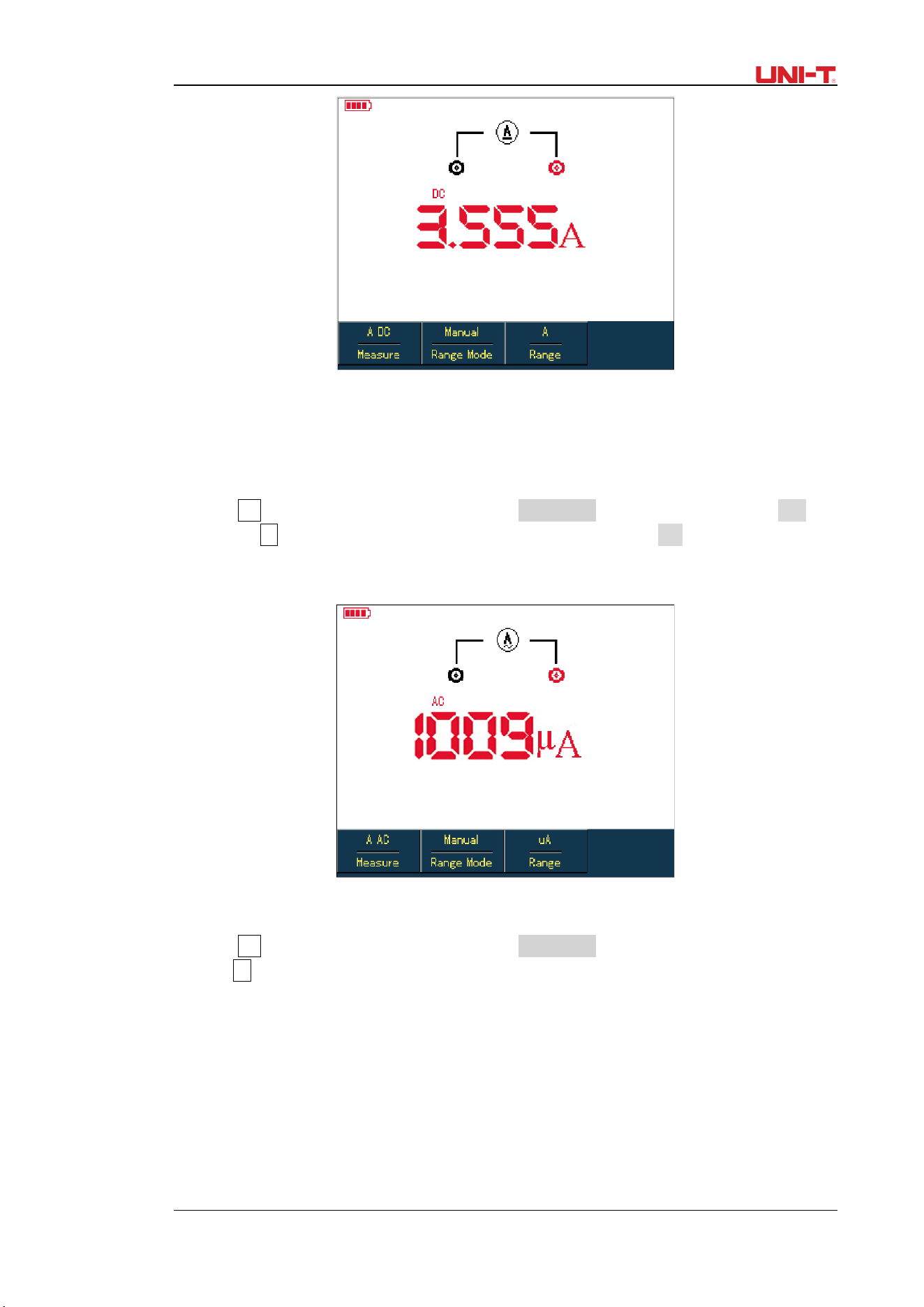
UTD1000L User Manual 37
Figure 5-9 Measuring DC Current Greater Than 400mA
5.4.8 Measuring AC Current with UTD1000CL
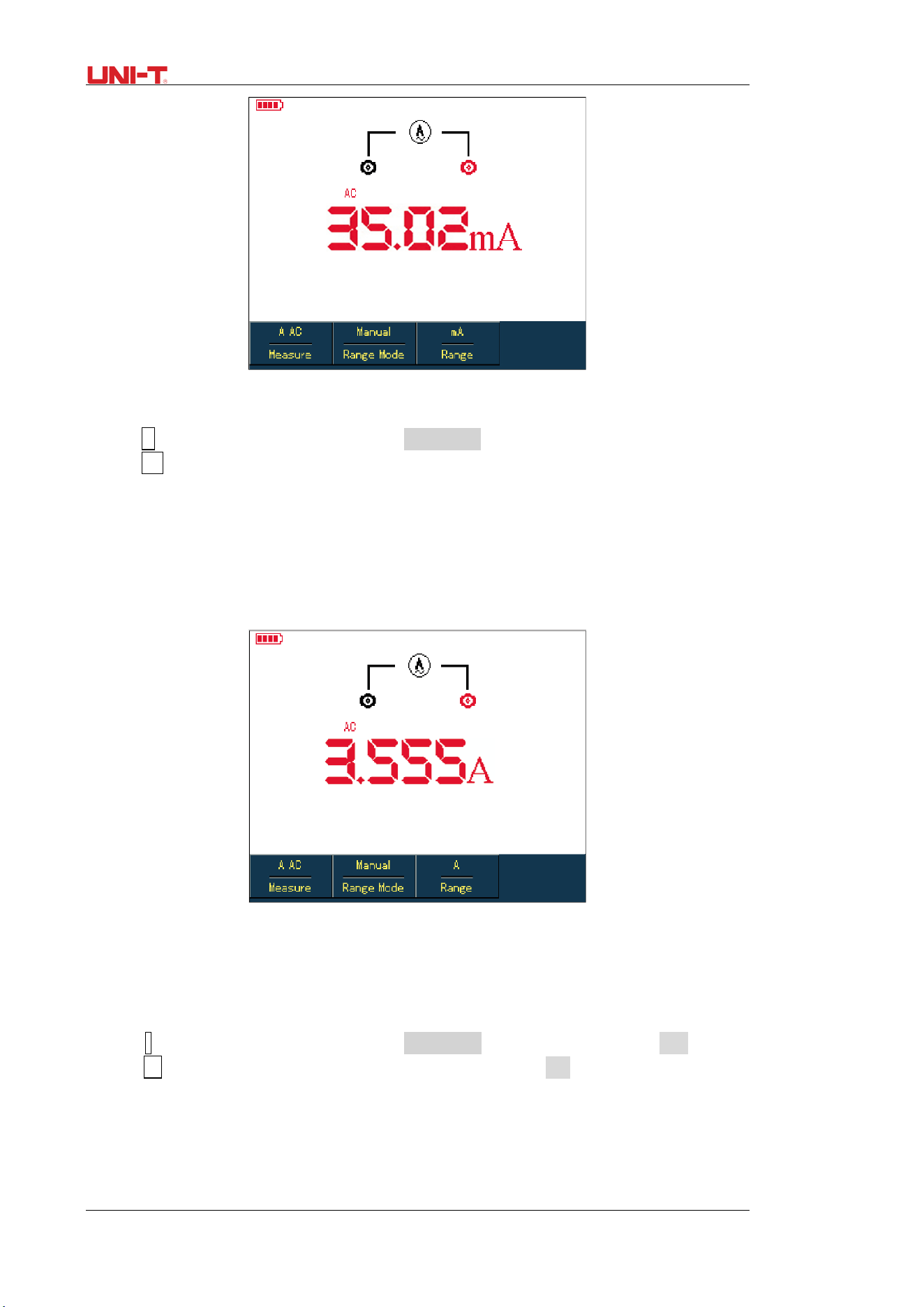
To measure AC current equal to or lower than 4mA, do the following:
1. Press I button to set measurement type to AC Current, the measurement unit is μA, you
can use F3 to toggle betweenμA, mA and A ranges, the default is mA
2. Plug test lead connectors into input terminals(Black to COM and Red to μA/mA )
3. Then connect test leads to tested points, than take the AC current reading.
Figure 5-10 Measuring AC Current lower than 4Ma
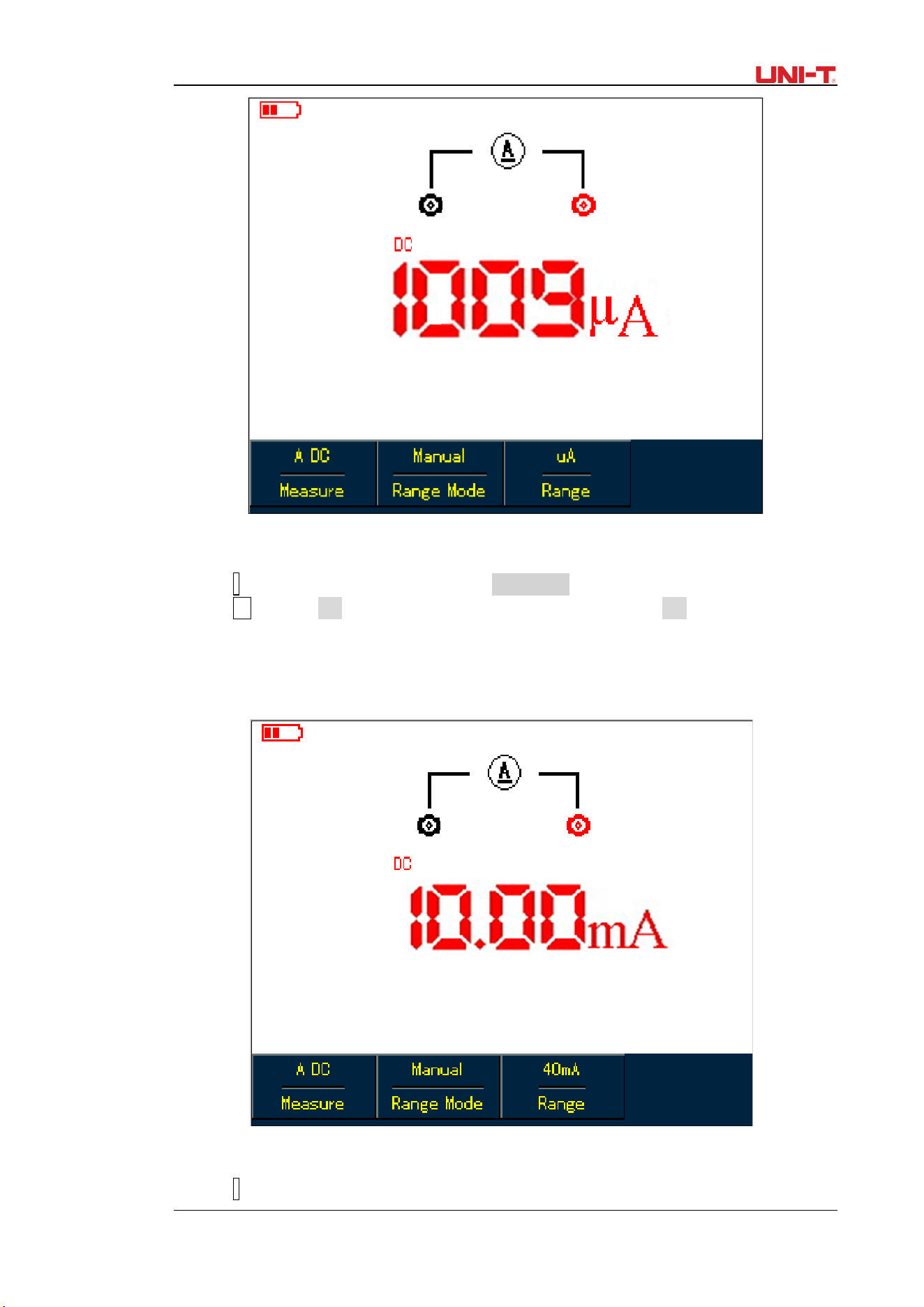
To measure AC current lower than 400mA, do the following:
1. Press I button to set measurement type to AC Current,
2. Press F3 button to select mA range, andmeasurement unit will be mA .
3. Plug test lead connectors into input terminals(Black to COM and Red to μA/mA )
4. Then connect test leads to tested points, than take the DC current reading.
38 UTD1000L User Manual
Figure 5-11 Measuring AC Current lower than 400mA
To measure AC current equal to or greater than 400mA, do the following:
1. Press I button to set measurement type to AC Current
2. Press F3 button to select A range, and measurement unit will be A .
3. Plug10A Current divider module (UT-M07) into input terminals COM and μA /mA, then
connect black and red test lead connectors respectively to the module (UT-M07)
4. Then connect test leads to tested points, than take the DC current reading.
Warning: If test leads are connected to COM and μA /mA without use of 10A Current divider
module (UT-M07) when measuring current greater than 400mA, the fuse in the product will be
burnt out. Please have the fuse replaced by qualified personnel if the incident happens.
Figure 5-12 Measuring AC Current Greater Than 400mA
5.4.9 Measuring DC Current with UTD1000DL
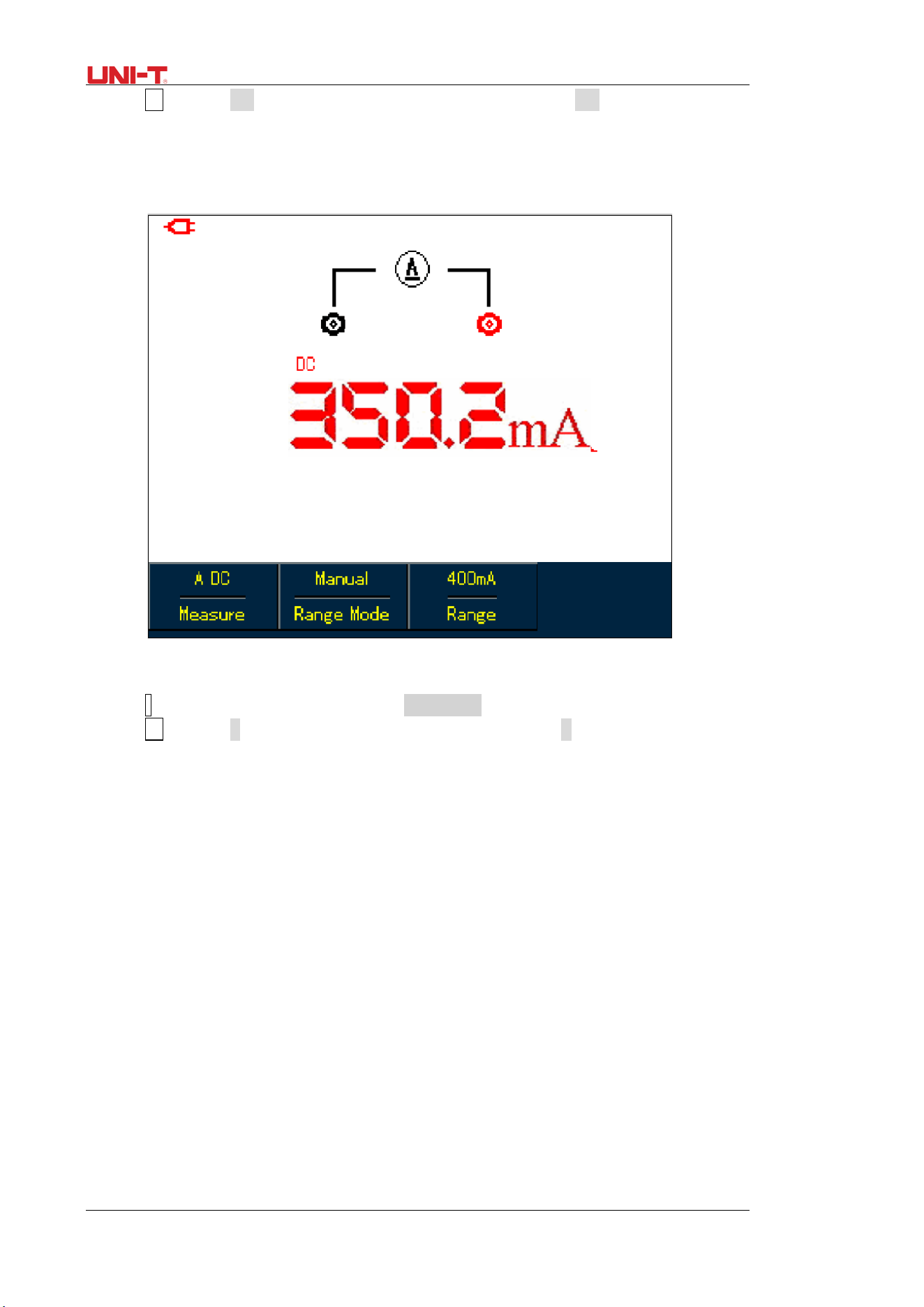
To measure DC current equal to or lower than 1mA, do the following:
1. Press I button to set measurement type to DC Current, the measurement unit isμA, you can
use F3 to toggle betweenμA, mA and A ranges, the default is mA
2. Plug mA current module (UT-M10) into input terminals COM and V/Ω, then turn the switch
on the module to uA range.
3. Insert black and red test leads correspondingly into Black and Red terminals on the module
4. Then connect test leads to tested points, than take the DC current reading.
UTD1000L User Manual 39
Figure 5-13 Measuring DC Current Equal to or Lower than 1mA
To measure DC current within 1mA-40mA, do the following:
1. Press I button to set measurement type to DC Current.
2. Press F3 to select mA range, the measurement unit will change intomA accordingly.
3. Plug mA current module (UT-M10) into input terminalsCOM and V/Ω, then turn the switch
on the module to 40mA range.
4. Insert black and red test leads correspondingly into Black and Red terminals on the module.
5. Then connect test leads to tested points, than take the DC current reading.
Figure 5-14 Measuring DC Current Lower than 40mA
To measure DC current within 40mA-400mA, do the following:
1. Press I button to set measurement type to DC Current.
40 UTD1000L User Manual
2. Press F3 to select mA range, and the measurement unit will display mA accordingly.
3. Plug mA current module (UT-M10) into input terminalsCOM and V/Ω, then turn the switch
on the module to 400mA range.
4. Insert Black and Red test leads correspondingly into Black and Red terminals on the module.
5. Then connect test leads to tested points, than take the DC current reading.
Figure 5-15 Measuring DC Current within 40mA-400mA
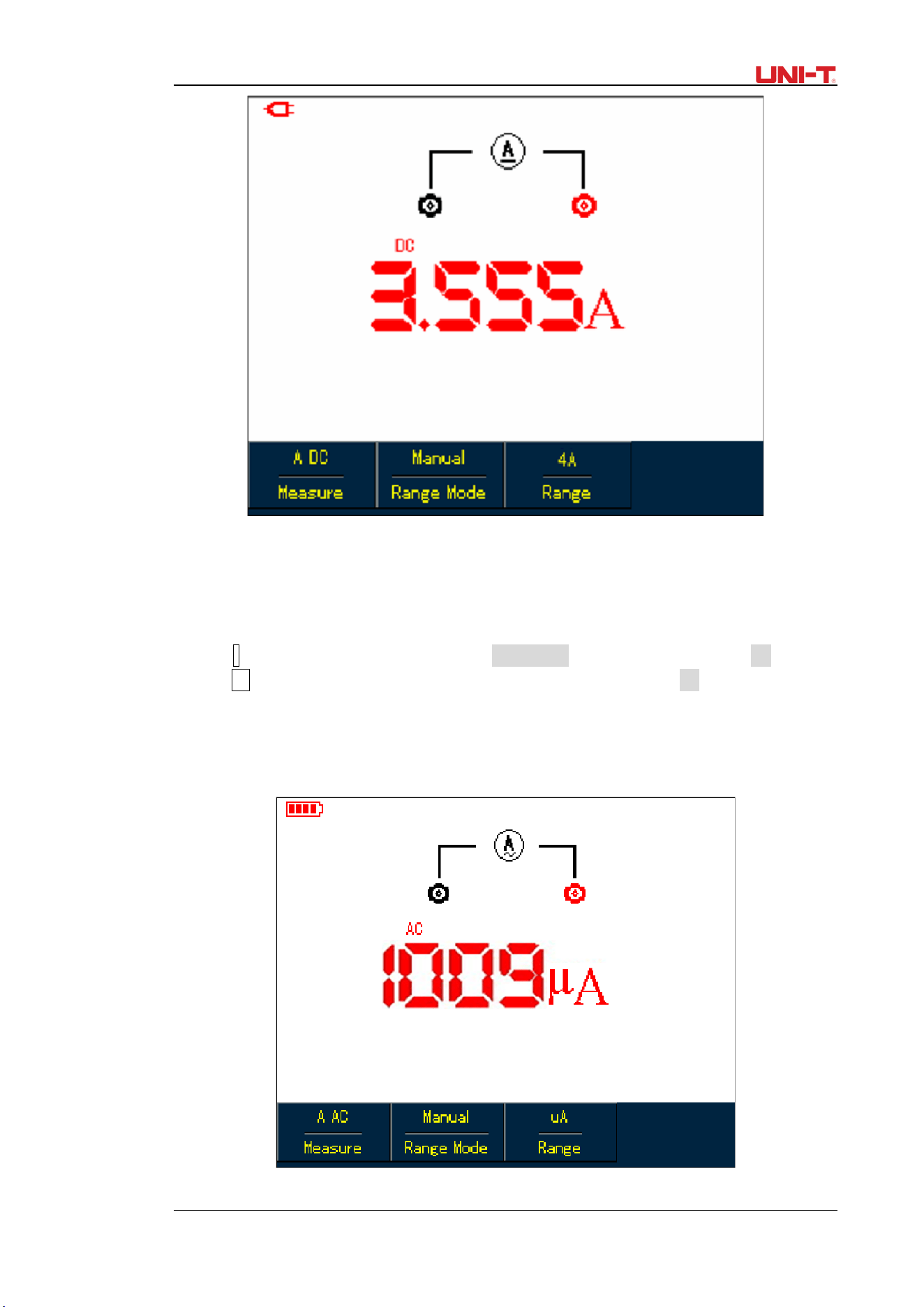
To measure DC current greater than 400mA, do the following:
1. Press I button to set measurement type to DC Current.
2. Press F3 to select A range, and the measurement unit will display A accordingly.
3. Plug 4A current module (UT-M04) into input terminals COM and V/Ω, then
insert test leads properly into the module.
4. Connect test leads to tested points, then take DC current reading.
Warning: If test leads are directly connected to V/Ω and COM terminals without use of 4A
current module (UT-M04) when measuring the current greater than 400mA, the fuse in the
product will be burnt out. Please have the fuse replaced by qualified personnel if the incident
happens.
UTD1000L User Manual 41
Figure5-16 Measuring DC Current Greater than 400mA
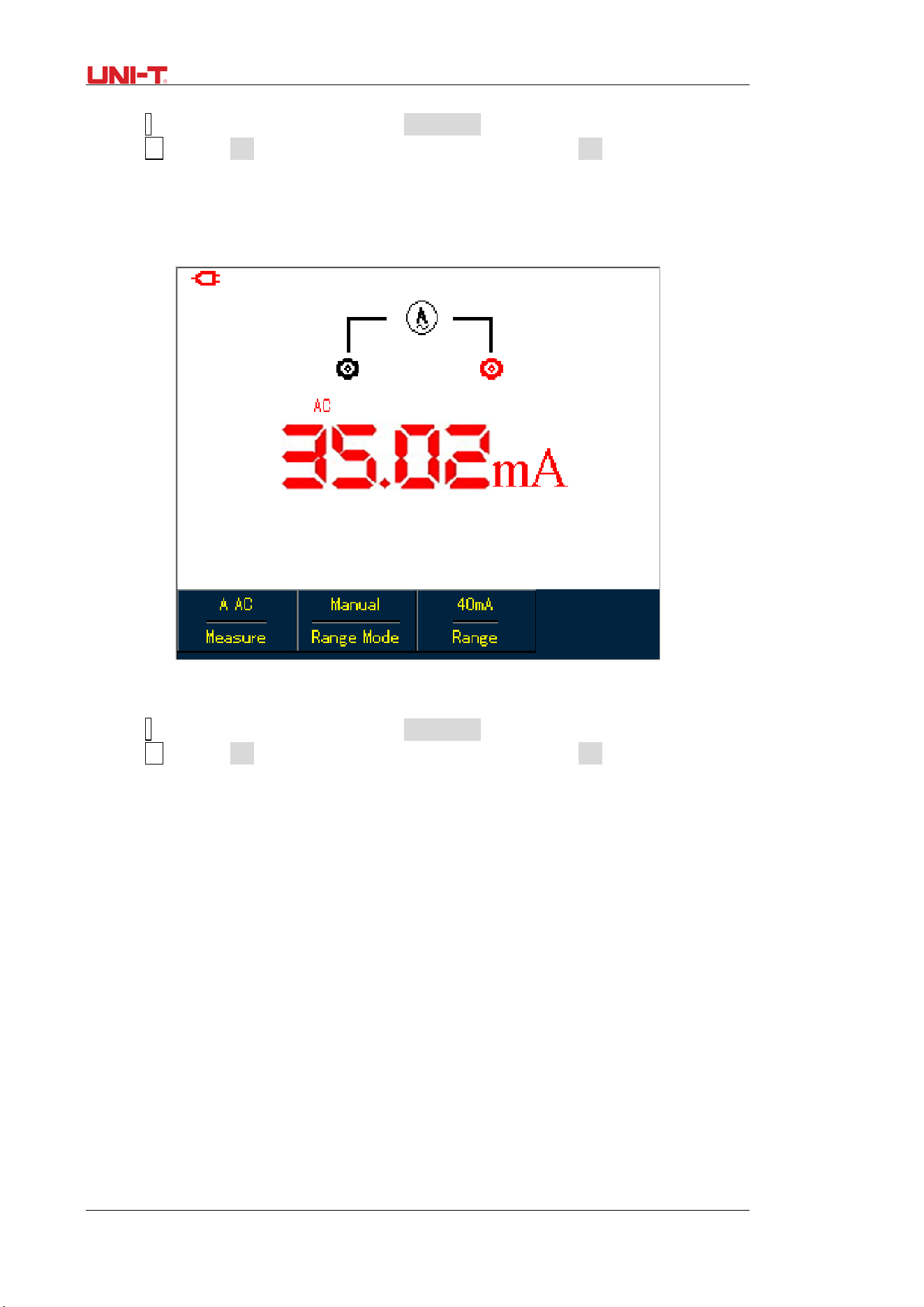
5.4.10 Measuring AC Current with UTD1000DL
To measure AC current equal to or lower than 1mA, do the following:
1. Press I button to set measurement type to AC Current, the measurement unit is μA. You can
use F3 button to select betweenμA, mA and A ranges, the default is μA.
2. Plug mA current module (UT-M10) properly into input terminals COM andV/Ω, then turn the
switch on the module to uA range.
3. Insert Black and Red test leads correspondingly into Black and Red terminals on the module.
4. Connect test leads to tested points, then take the AC current reading.
Figure 5-17 Measuring AC Current Equal to or Lower than 1mA
42 UTD1000L User Manual
To measure AC Current within 1mA-40mA, do the following:
1. Press I button to set measurement type to AC Current,
2. Press F3 to select mA range, the measurement unit will change into mA accordingly.
2. Plug mA current module (UT-M10) properly into input terminals COM andV/Ω, then turn the
switch on the module to 40mA range.Insert Black and Red test leads correspondingly into
Black and Red terminals on the module.
4. Connect test leads to tested points, then take the AC current reading.
Figure 5-18 Measuring AC Current Lower than 40mA
To measure AC Current within40mA-400mA, do the following:
1. Press I button to set measurement type to AC Current,
2. Press F3 to select mA range, the measurement unit will change into mA accordingly.
3. Plug mA current module (UT-M10) properly into input terminals COM andV/Ω, then turn the
switch on the module to 400mA range.
4. Insert Black and Red test leads correspondingly into Black and Red terminals on the module.
5. Connect test leads to tested points, then take the AC current reading.

UTD1000L User Manual 43
Figure 5-19 Measuring AC Current within40mA-400mA
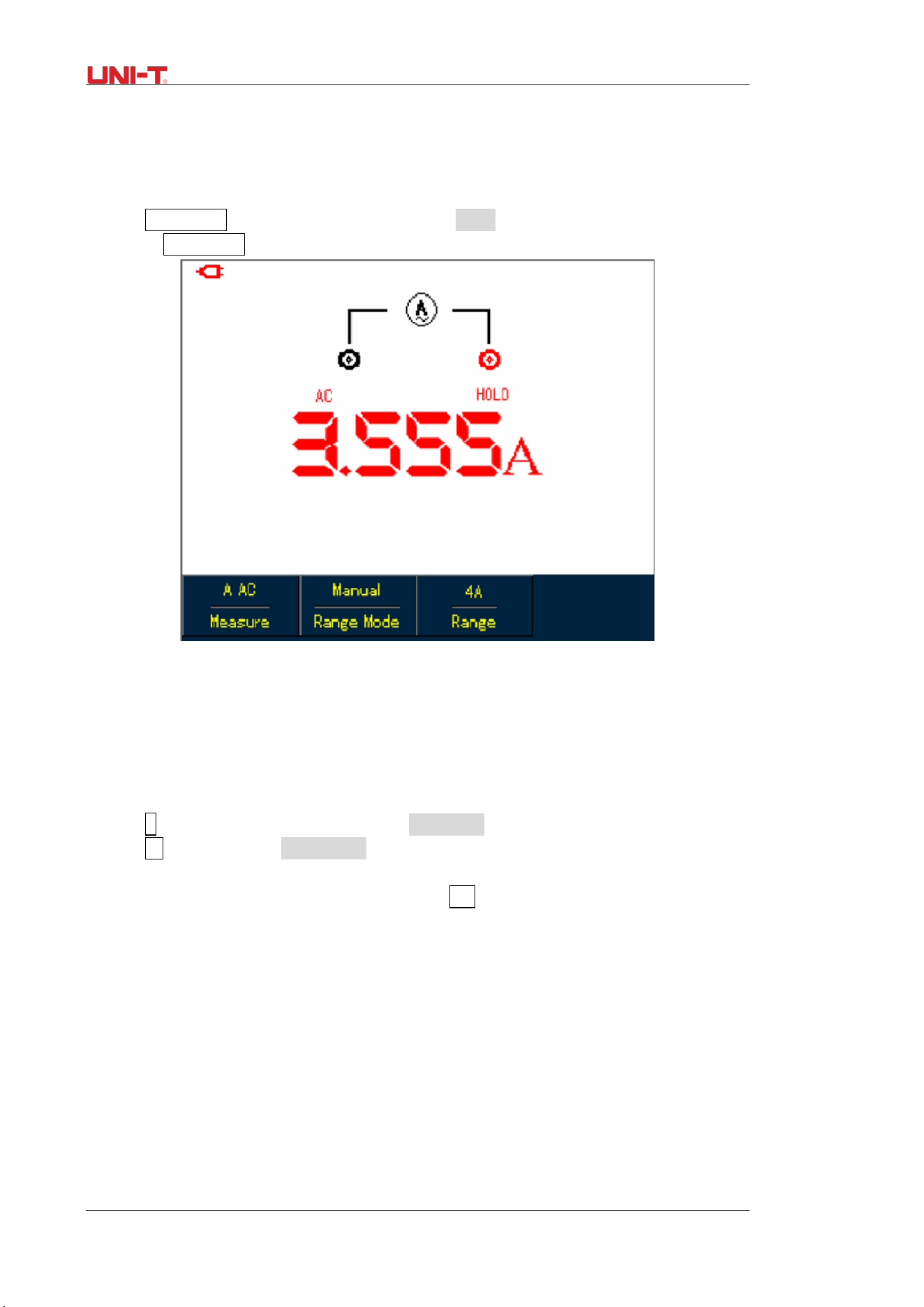
To measure AC Current greater than 400mA, do the following:
1. Press I button to set measurement type to AC Current,
2. Press F3 to select A range, the measurement unit will change into A accordingly.
3. Plug 4A current divider module (UT-M04) properly into input terminals COM andV/Ω, then
insert Black and Red test leads correspondingly into the module.
5. Connect test leads to tested points, then take the AC current reading.
Warning: If test leads are connected to V/Ω and COM terminals without use of 4A current
module (UT-M04) when measuring the current greater than 400mA, the fuse in the product
will be burnt out. Please have the fuse replaced by qualified personnel if the incident happens.
44 UTD1000L User Manual
Figure 5-20 Measuring AC Current Greater than 400mA
5.5 Data Hold
You can freeze the displayed readings any time as you want.
1. Press RUN /STOP to freeze measuring values, and HOLD icon blinks on the display
2. Repress RUN /STOP to restore the measurement
Figure 5-21 Freezing Measurement Values
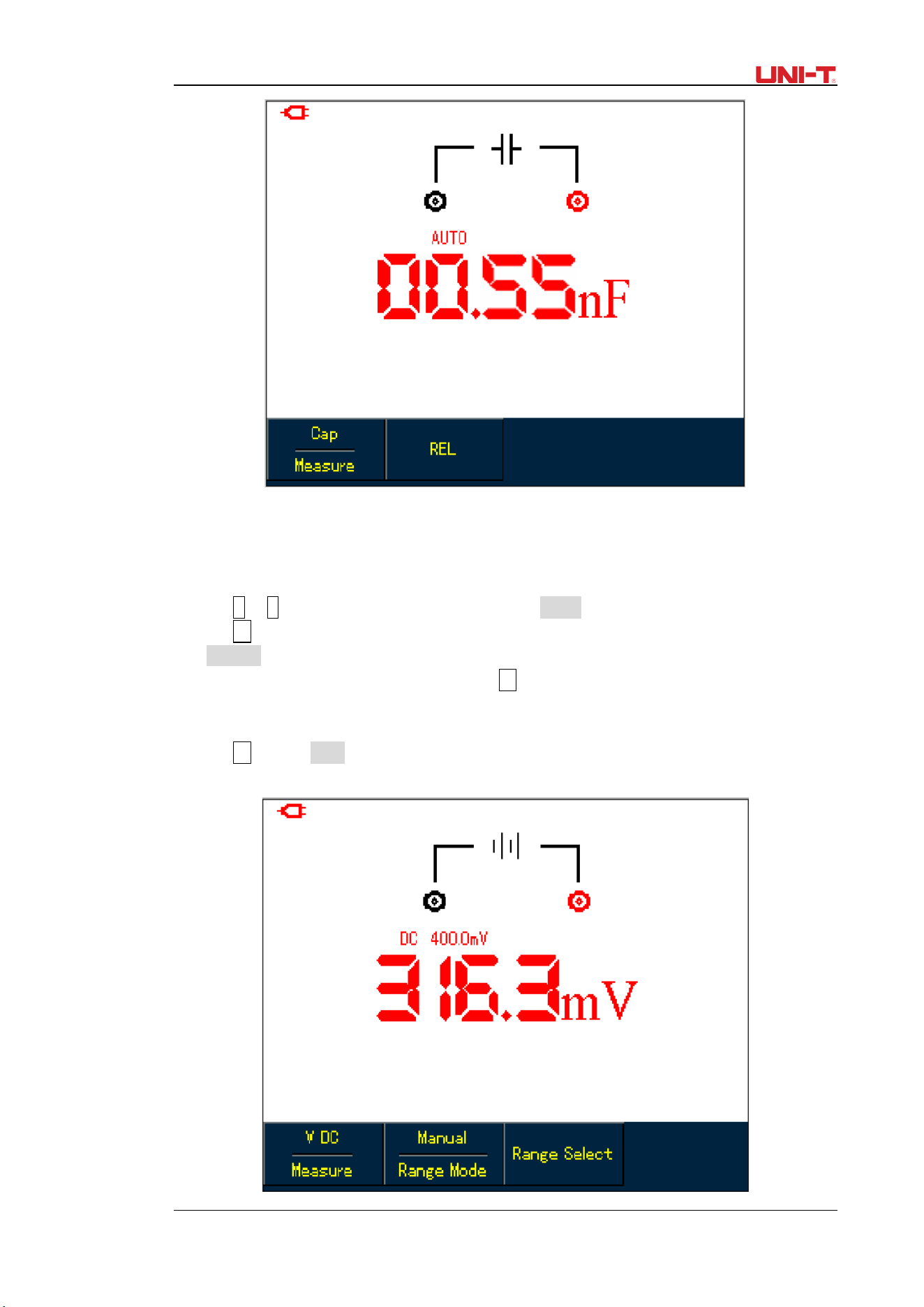
5.6 Making Relative Measurement
Relative measurement displays a current measuring result relative to the specific reference
value.
Refer to capacitance measurement in relative mode. First of all you need to obtain a reference
value:
1. Press R button to set measurement type to Resistance.
2. Press F1 button to select Capacitance option
3. Connect test leads to input terminals (Black to COM and Red to V/Ω)
4. Wait until the reading becomes stable, then press F2 button to access the relative mode, △
icon shows on the upper display and the reference value appears just below △icon.
5. Connect test leads to the capacitor under test, then take capacitance reading on the display.
UTD1000L User Manual 45
Figure 5-22 Measuring Capacitanc in Relative Mode
5.7 Selecting Manual/Auto Ranging
The multimeter defaults at auto mode. To access manual ranging, operate as follows:
1. Press V or R button, and measure mode option is AUTO.
2. Press F2 to select manual measure mode, then the ranging mode will change into
Manual status accordingly.
3. Under manual ranging mode, keep pressing F3 button to reach up to the highest range,
after that, then the selected range jumps directly to the lowest range and circulates again.
The currently selected range shows just above measuring readings.
4. Press F2 button, Auto icon shows on left upper display, indicating the multimeter has
returned to full autoset mode.

46 UTD1000L User Manual
Figure 5-23 Manual Ranging
UTD1000L User Manual 47
Chapter 6 Using the Oscilloscope in Details
6.1 About the Chapter
This chapter offers a step-by-step introduction on UTD1000L Series functions. Detail
information about functional buttons on the front panel and operation examples are included
here.It is recommended that you should read through this chapeter in order to get more and
systematic knowledge of the Oscilloscope.
6.2 Setting Vertical System
6.2.1 UTD1000L Channel Setup
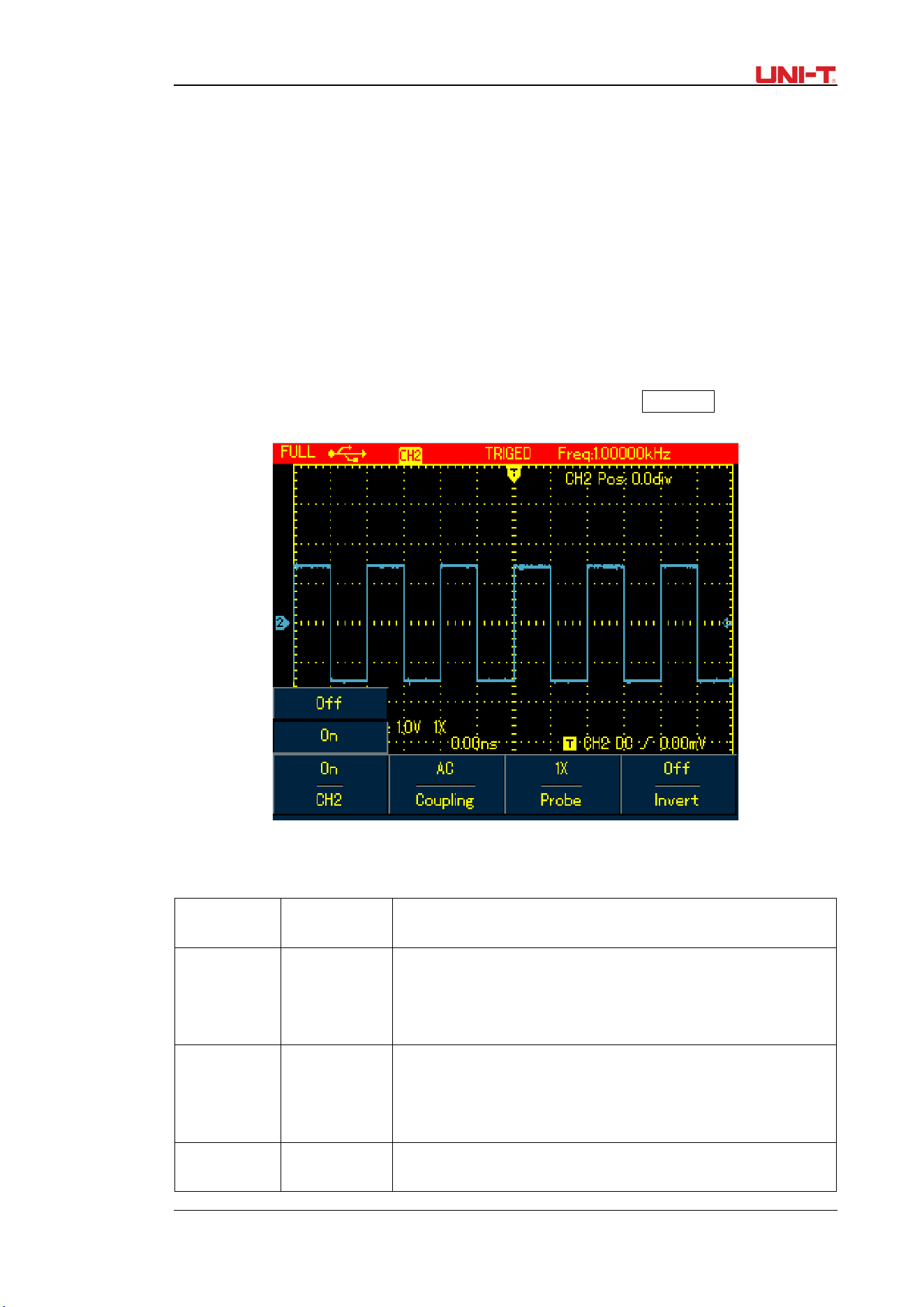
The channels have their own setup menus. Repeat pressing CHANNEL to toggle
between CH1 and CH2 menus and display corresponding menu options as shown below:
Figure 6-1 Channel Menu Setup
Please see channel menu in the following table:
Table 6-1B
Channel
Off
On
Turn off CH1 or CH2 waveform
Turn on CH1 or CH2 waveform
Coupling
DC
AC
GND
AC&DC components pass
DC component is blocked
Display DC level when the channel input terminal is
equivalently grounded.
Probe
Factor
1×
10×
100×
1000×
Select one of them to match to the probe, to ensure accurate
reading. Four types are available: 1×, 10×, 100×, 1000×;
Invert
Off
On
To display the waveform normally.
To invert the waveform display
48 UTD1000L User Manual
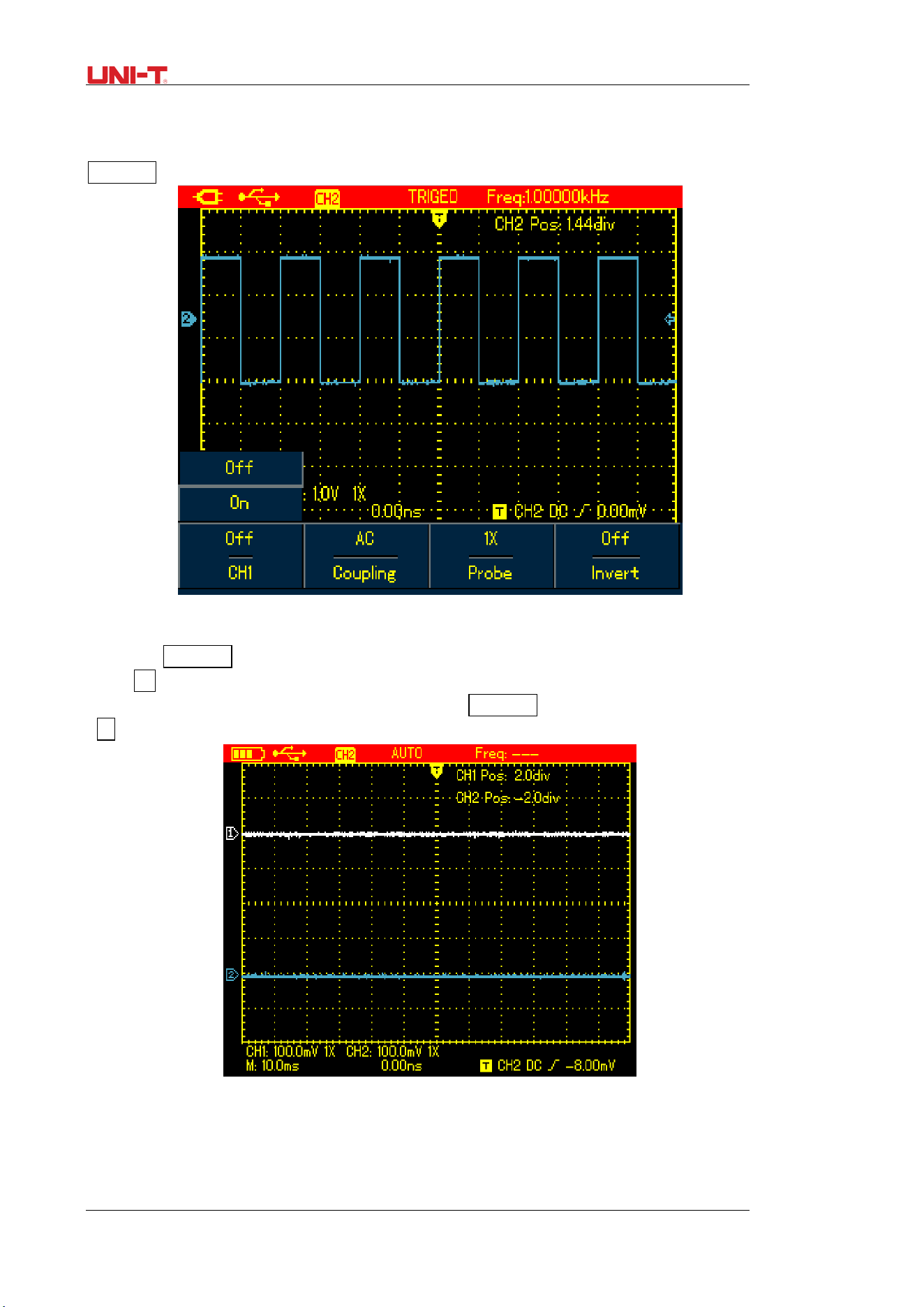
1. Moving Waveform Vertically
Use Up and Down buttons to move the current waveform vertically when the channel
marker becomes solid. If you want to move the waveform from another channel, please press
CHANNEL button again before moving the waveform.
Figure 6-2 Moving Waveform Vertically
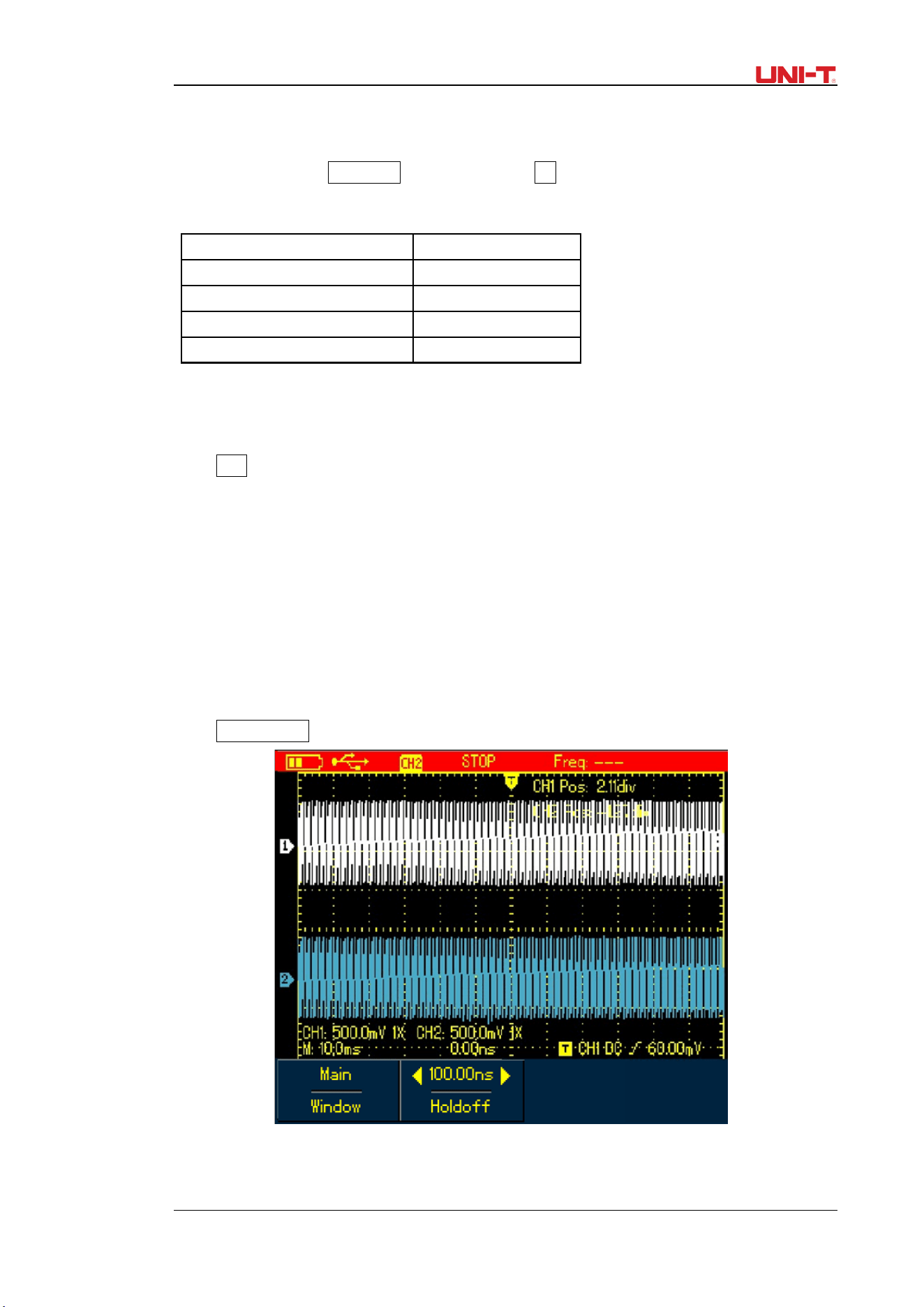
2. Setting Waveform Display
Press CHANNEL button to toggle between different channels. In the channel menu,
pressF1 submenu button to turn on/off the waveform of the current channel. In order to
on/off another channel waveform, you need to press CHANNEL button again before pressing
F1 button
Figure 6-3B Turn on Waveform Display for Dual Channels
3. Setting Probe Factor
To match with the probe factor on the probe, you need to set up corresponding factor in
channel menu. For example, the probe factor is 10:1, please set Probe option in the menu to
UTD1000L User Manual 49
10×. Do the same setting for other selected probe factor in order to ensure accurate voltage
reading.
Under channel menu, press F3 to set up probe factor. To set up probe factor for another
channel, please press CHANNEL again and then the F3 button.
Probe Attenuation Factor VS Menu Option, see following table:
Table 6-2B
Probe Attenuation Factor
Menu Option
1:1 1×
10:1 10×
100:1
100×
1000:1 1000×
6.3 Setting Horizontal System
6.3.1 Changing Timebase
Press s/ns button slow down or speed up the scan rate from 10ns or 5ns/div~
50s/div.
Notes: For 25MHz-bandwidth models: 10ns/div~50s/div; 50MHz-bandwidth Models:
5ns/div~50s/div.
6.3.2 Moving Waveforms Horizontally
Press Left and Right buttons to adjust pretrigger depth. The trigger location is usually set at
horizontal center on the screen. With the adjustment, you can observe 6div pretrigger and
delay data. Through moving the waveform horizontally, more trigger information can be
viewed, which let users know more about pretrigger situation. For instance, by observing and
analyzing pretrigger data of glitches occurring in circuit start-up, you can trace down the cause
to the glitches.
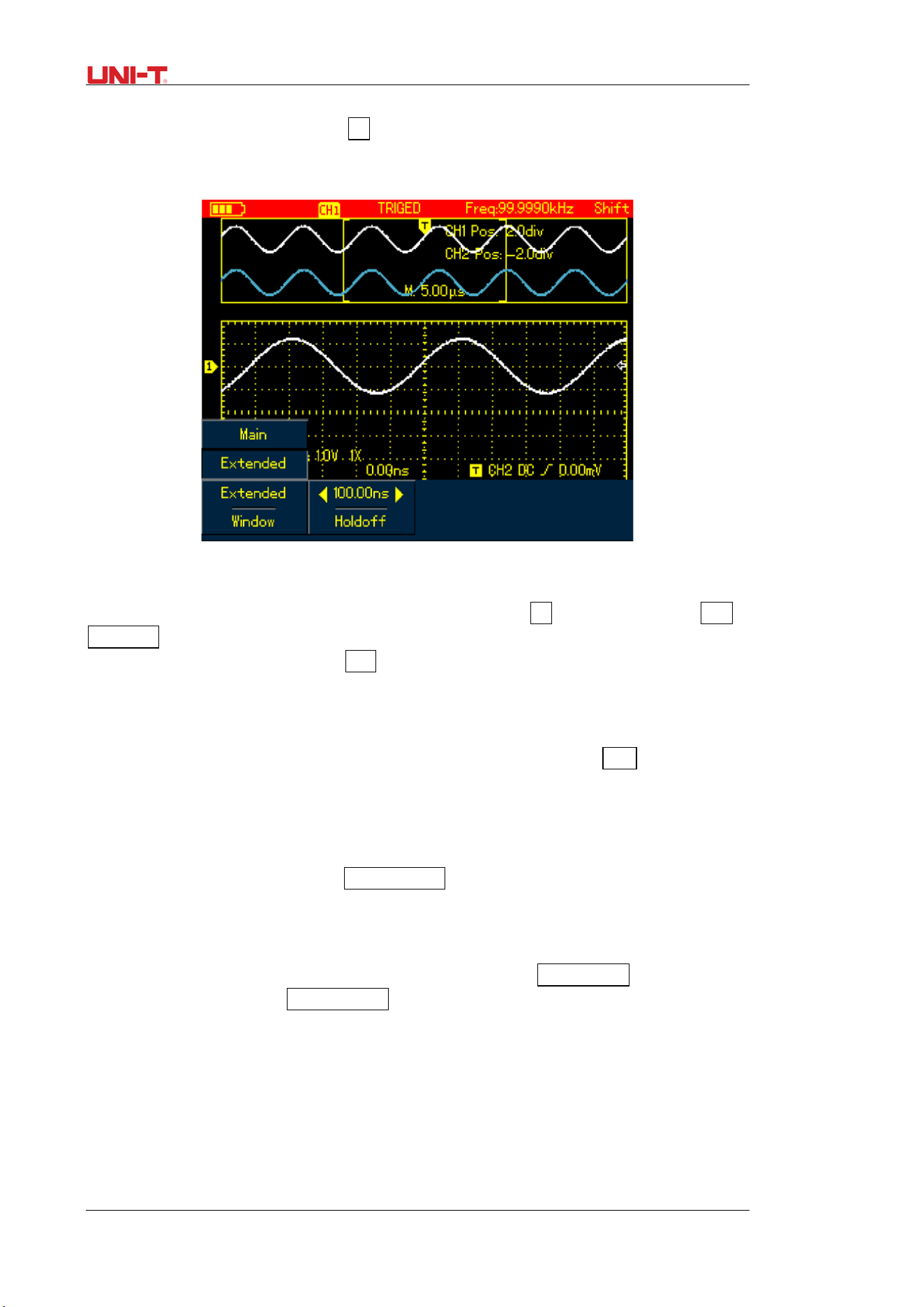
Press HORIZONTAL button to switch on horizontal menu, refer to the following figure:
Figure 6-4 Horizontal Setup Menu
There are two options in horizontal menu: Window and Hold-Off
50 UTD1000L User Manual
6.3.3 Zooming in/out Waveforms
Switch on horizontal menu and press F1 button to zoom in one segment of the wavefom. The
timebase for expanded window shouldn’t be lower than that of main window. Note: Timebase
faster than 100ns cannot enter into expanded window.
Figure 6-5 Screen Display under Window Zoom
Under window zoom function, there are two separate display zones as indicated in the
figure above. The upper part is for the original waveform. Press OK button and then use Left
and Right buttons to select the waveform to be expanded on the left or right, or enlarge or
narrow down the selected zone with s/ns button.
The lower display is for the expanded waveform corresponding to the selected original
zone. One point worth mentioning is that compared with the main timebase, the expanded
timebase has improved the resolution for the waveform display (See Figure 6-5). Since the
displayed waveform corresponds to the selected zone of upper part, using s/ns button to
narrow down the selected zone can enable the expanded waveform to have better timebase,
namely, a higher waveform amplification factor in a horizontal direction.
6.3.4 Adjusting Trigger Hold-Off
Switch on horizontal menu, use Right and Left buttons to adjust hold-off time
(100ns-1.5s). It can be applied to observe complex waveforms (eg: burst). Hold-off time is to
adjust data acquisition period of the oscilloscope to stay in a integral multiple related to the
period of complex waveform so that the Oscilloscope and complex waveform can synchronize.
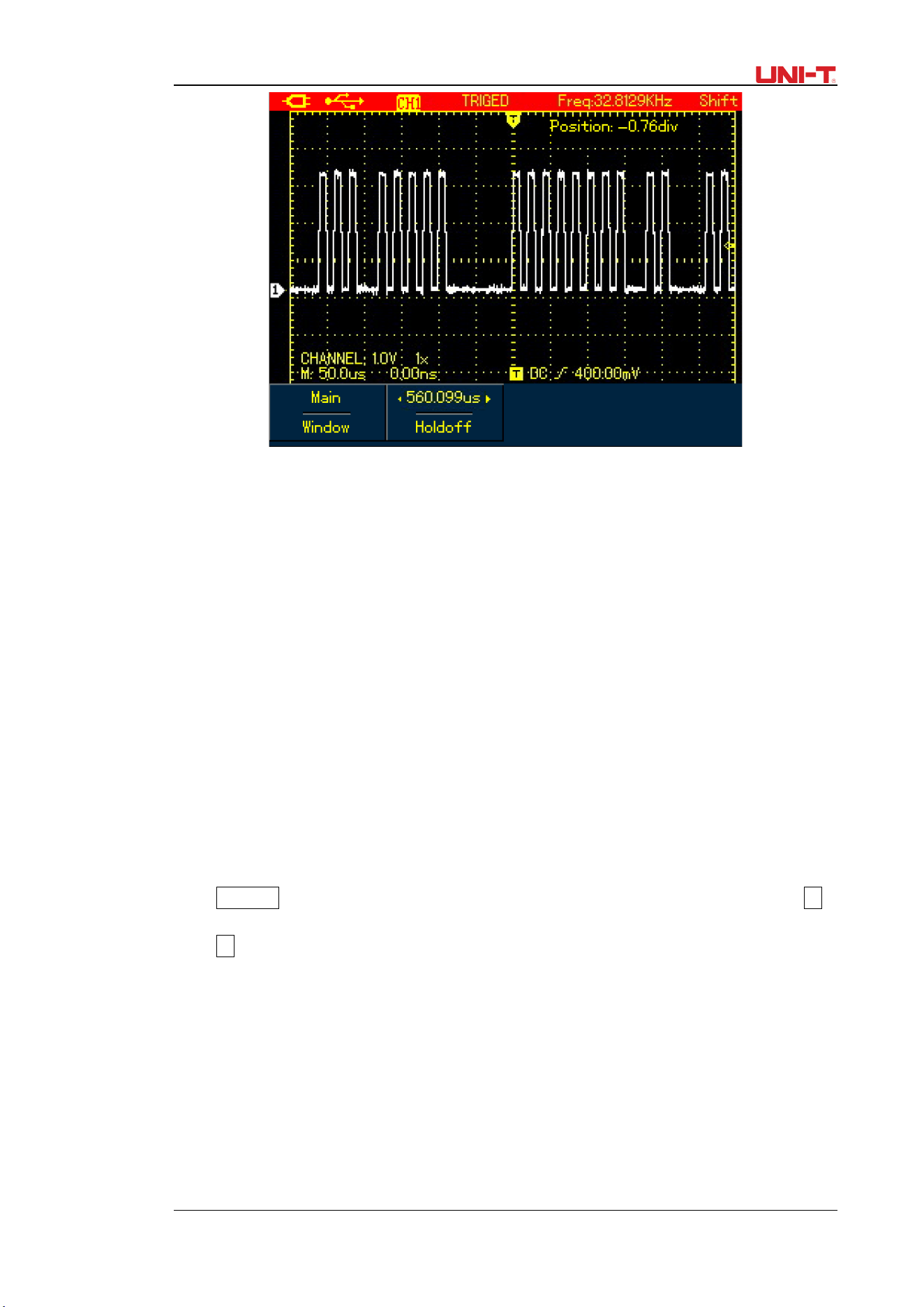
For example, apply tested combined signals into CH1. Press HORIZONTAL to turn on
horizontal menu, then press Right and Left buttons to adjust the hold-Off time until displayed
waveform become stable. See Figure 6-6:
UTD1000L User Manual 51
Figure 6-6 Trigger Hold-Off
Note:
1. The trigger hold-off time can be adjusted only when horizontal menu displays.
2. Generally hold-off time is a little smaller than “Big Period’, for instance for RS232
communication signal waveform, hold-off time should be a little larger than start edge
time of each frame in order to easily observe the waveform.
6.4 Setting Trigger System
Trigger system determines when the Oscilloscope starts to acquire data and display
waveforms. Once the trigger is properly set, the Oscilloscope can transform unstable signal
into meaningful waveform. When the acquisition starts, the Oscilloscope continuously acquires
enough data to fill the pretrigger portion that is displayed to the left of trigger point. Then the
trigger occurs, the Oscilloscope will continue to acquire enough data to fill the posttrigger
waveform to the right of trigger point. TRIGGER button is designed to set up the Oscilloscope
trigger functions.
TRIGGER: Trigger menu button
Trigger Level: to set up signal voltage that corresponds to the trigger point.
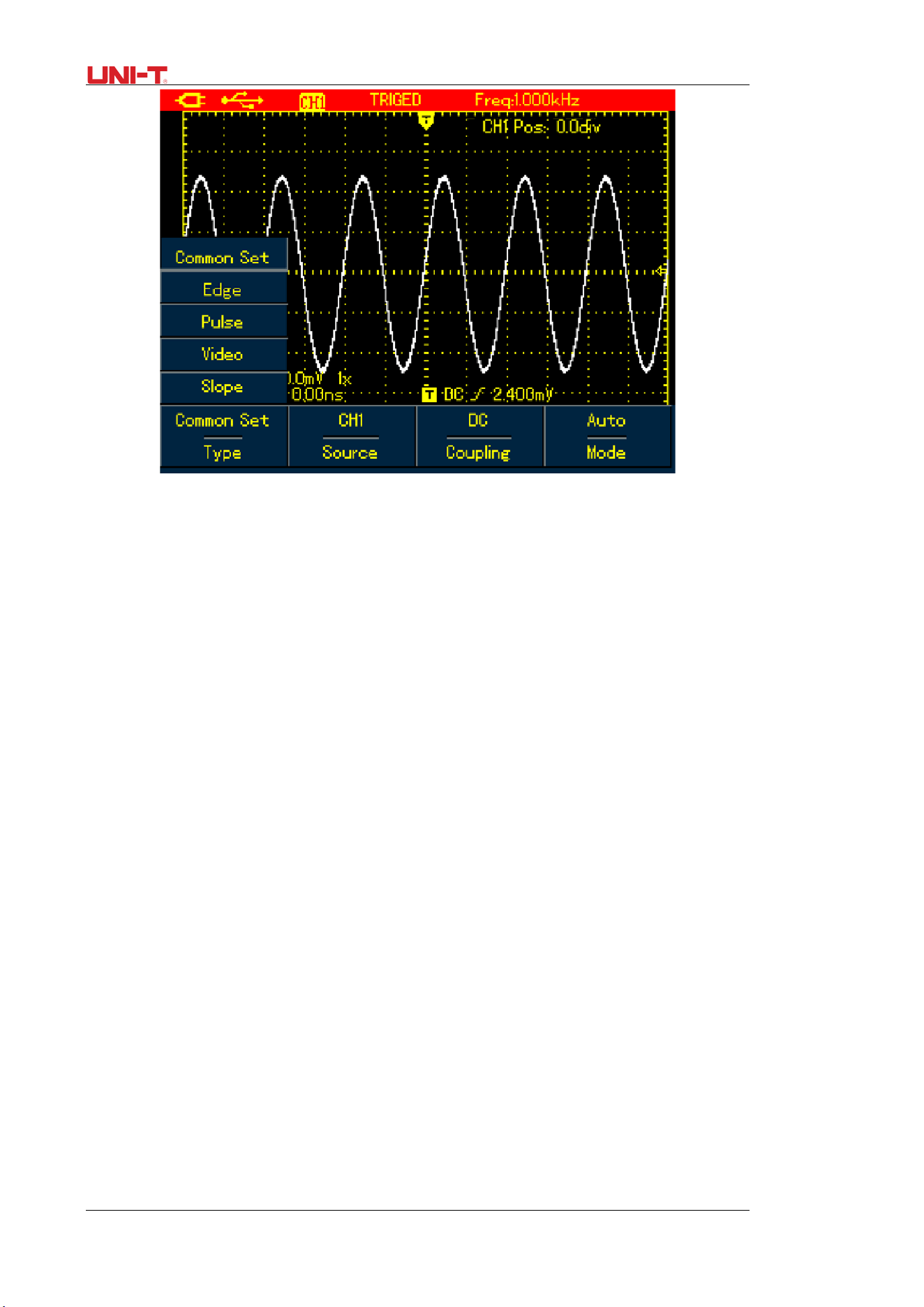
Press TRIGGER button to turn on trigger menu as indicated in the figure below, then press F1
button to switch between different trigger types.
Press F2 to select trigger source.
52 UTD1000L User Manual
Figure 6-7 Trigger Menu
Trigger Controls
Four trigger types are available: edge, video, pulse width and slope, every of which is coupled
with different functional menu. There is still one type- common setting-- used to set up trigger
source, trigger coupling and trigger modes.
Edge Trigger: Trigger on rising or falling edge. You can adjust trigger level to change vertical
location on the edge for trigger point, that is the cross point between trigger level line and the
signal edge on the screen.
Pulse Width Trigger: Trigger when the pulse width of trigger signal reaches up to preset trigger
conditions.
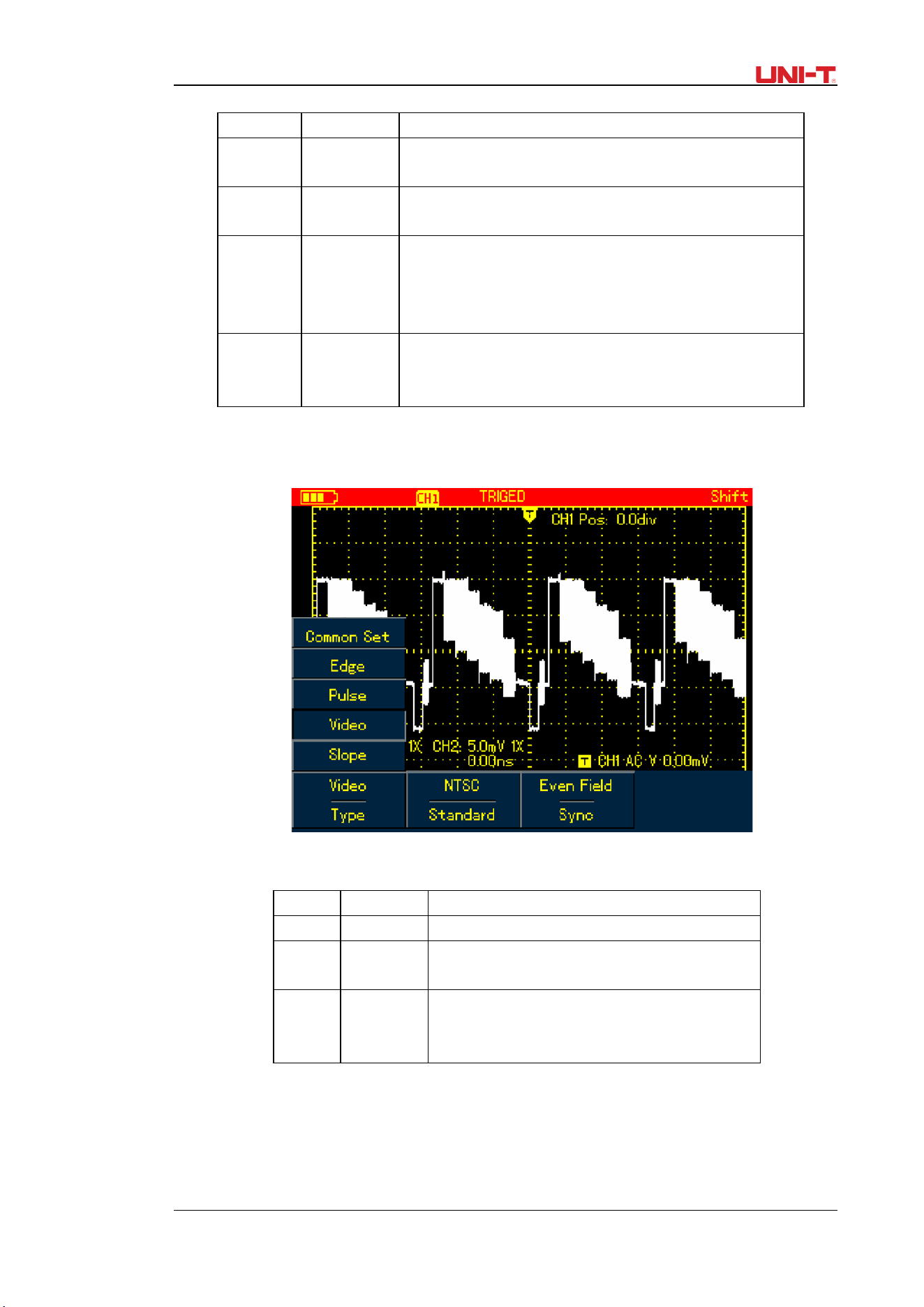
Video Trigger: Trigger on fields or lines of standard video signal.
Slope Trigger: Use the rise or fall speed rate of the signal as trigger condition.
Check details for different kinds of trigger menus
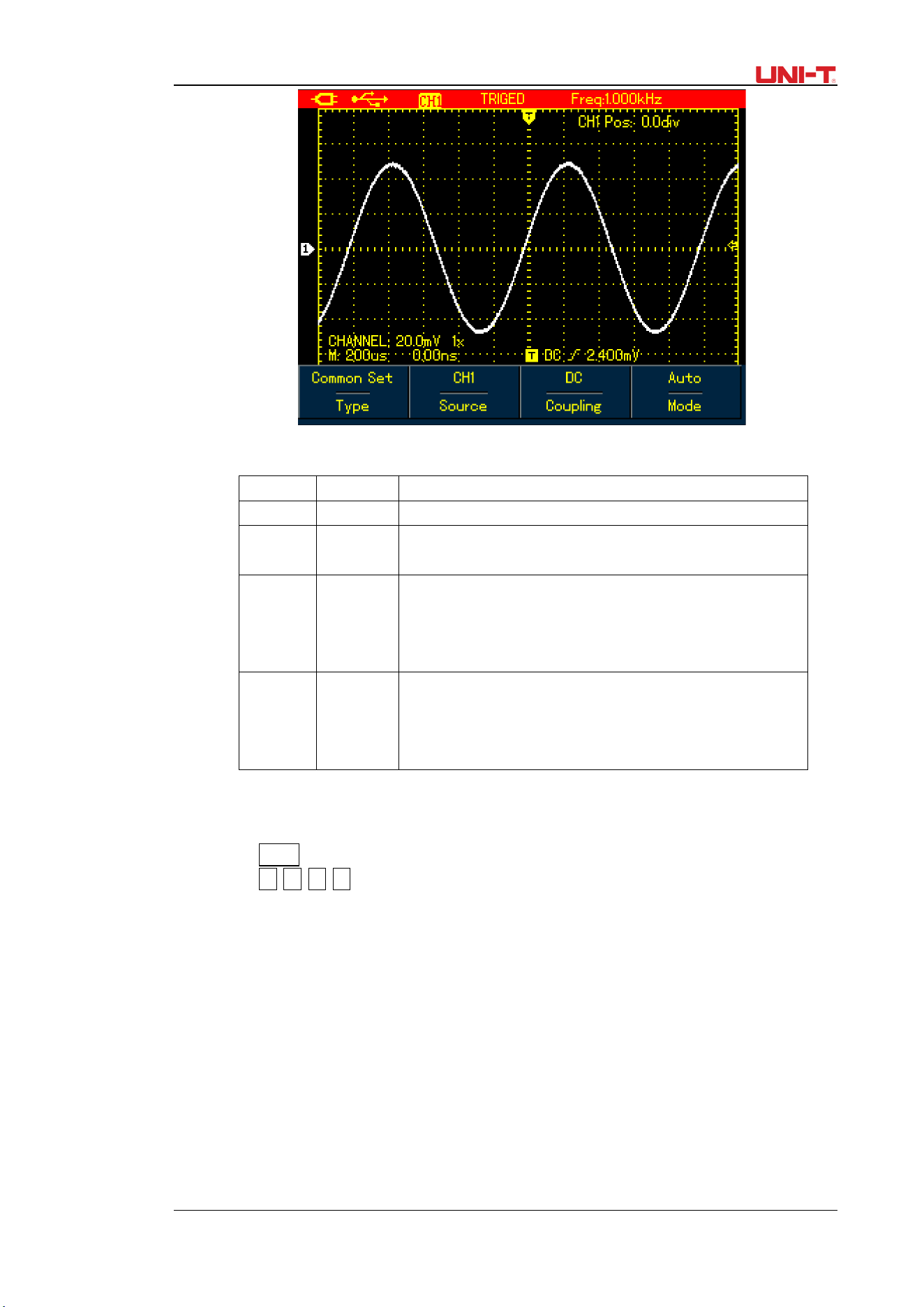
6.4.1 Common Setting
Common Setting is used to set up common trigger items, refer to the table below for details:
UTD1000L User Manual 53
Figure 6-8 Trigger -- Common
Table 6-3
Menu Settings Description
Type Common to set up common trigger items
Source
CH1
CH2
Set CH1 as trigger source
Set CH2 as trigger source
Coupling
AC
DC
HF
Reject
DC component is blocked
DC &AC components pass
Reject high frequency component at>80kHz
Mode
Auto
Normal
The Oscilloscope automatically acquires data when no
trigger signal has been detected.
Acquire waveform only when the trigger condition is
met;
Note:
To set up the common setting, shortcuts are also available to execute the operation:
1. Press SHIFT button, Shift icon displays on right upper corner of the screen;
2. Press F1/F2/F3/F4 button to display common setting menu.
6.4.2 Edge Trigger
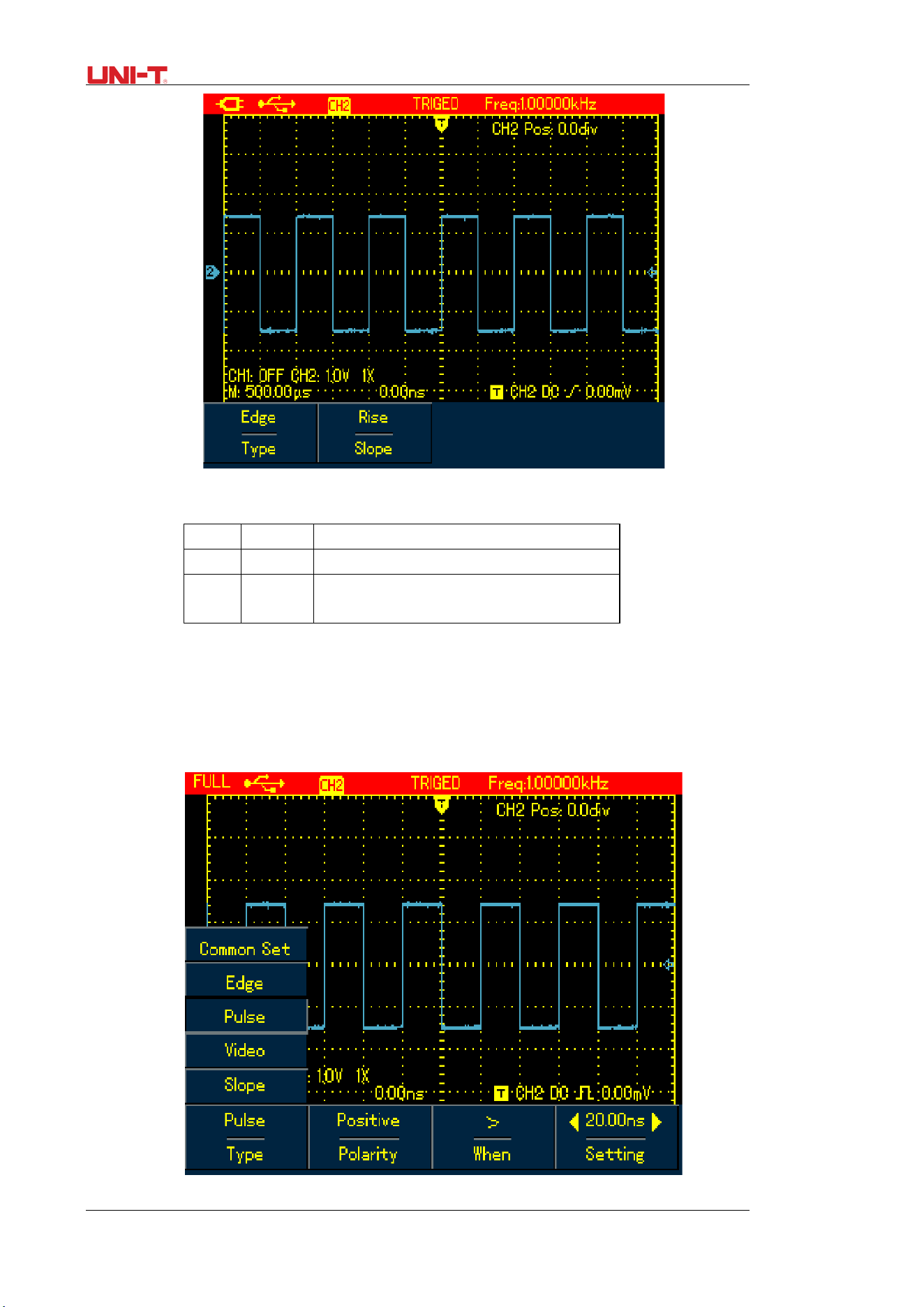
Edge trigger is to trigger on trigger threshold value of signal edge. Please see the table
below for edge trigger menu:
54 UTD1000L User Manual
Figure 6-9 Trigger-Edge Type
Table 6-4
Menu
Settings
Description
Type
Edge
Set trigger Type to Edge.
Slope
Rise
Fall
Set to trigger on rise edge of signal.
Set to trigger on fall edge of signal.
6.4.3 Pulse Width Trigger
It determines the trigger time based on pulse width, which helps you to capture abnormal
pulse by setting specific pulse width conditions.
Figure 6-10 Trigger-Pulse Wdith Type
UTD1000L User Manual 55
Table 6-5
Menu Settings Description
Type Pulse
Width
Set trigger Type to Pulse Width
Polarity Positive
Negative
Set positive pulse width as trigger signal.
Set negative pulse width as trigger signal.
Qualifier =
<
>
Trigger when input pulse width equals to set value;
Trigger when input pulse width is less than set value;
Trigger when input pulse width is greater than set
value;
Time
---
To set up pulse width time value, use Left and Right
arrow buttons to set the value when the menu is
displayed.
6.4.4 Video Trigger
Trigger on fields or lines of NTSC or PAL standard signals if video trigger is selected.
Figure 6-11 Trigger-Video Type
Table 6-6
Menu
Settings
Description
Type Video Set trigger Type to Video.
Format
PAL
NTSC
Trigger on PAL format video signal.
Trigger on NTSC format video signal.
Syn
All Lines
Odd Field
Even Field
Trigger synchronically on all lines.
Trigger on odd fields.
Trigger on even fields.
6.4.5 Slope Trigger
Trigger occurs only after rise or fall speed rate meets set value.
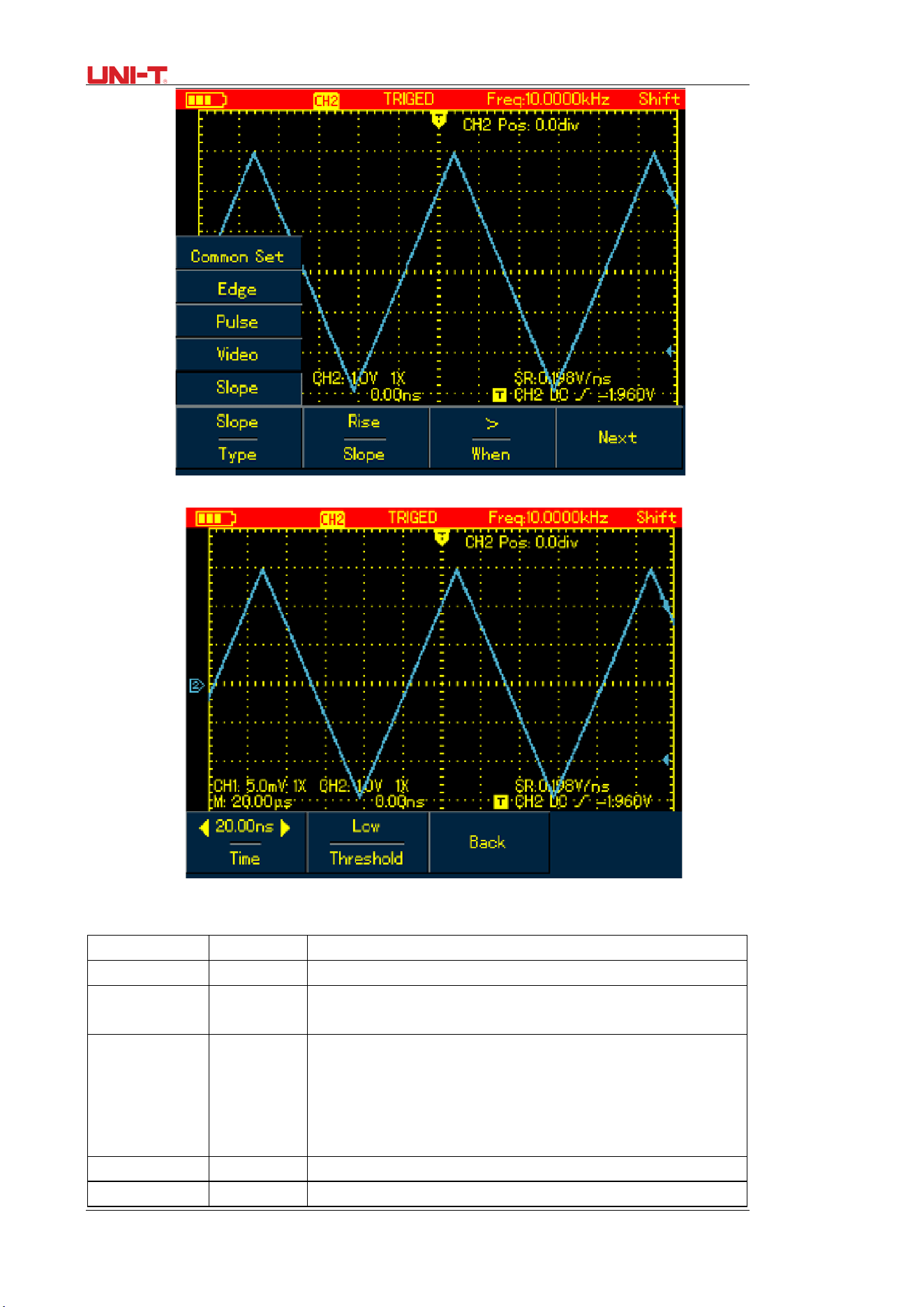
56 UTD1000L User Manual
Figure 6-12 Trigger-Slope Type (Page 1)
Figure 6-13 Trigger – Slope Type (Page 2)
Table 6-7
Menu
Settings
Description
Type
Slope
Set trigger Type to Slope
Slope Type
Rise
Fall
Trigger on rising edge that traverse between thresholds.
Trigger on falling edge between thresholds
Qualifier
>
<
=
Trigger When the slope is greater than the set value of slew
rate.
Trigger When the slope is less than the set value of slew
rate.
Trigger When the slope equals to the set value of slew rate.
Next ---- Page 2 of Slope Menu
Slew Rate ---- To set up slew rate value, use Left and Right arrow buttons

UTD1000L User Manual 57
to pulse width time when the menu is displayed.
Threshold
Low
High
Low&High
Use Up and Down buttons to move low-level threshold
Use Up and Down buttons to move High-level threshold
Use Up and Down buttons to move low-and high-level
thresholds.
Back
-----
To return to Page 1 of Slope Menu.
Term Explanation
1. Trigger Source: Input channel is used as the trigger source
■ Input Channel: Input channel (CHI) is the most commonly used trigger source. For the
channel selected as the trigger source, it should be switched on before it works normally.
2. Trigger Mode: decide what the oscilloscope will do when no trigger event occurs. Three
trigger modes are offered: Auto, Normal and Single.
■ Auto: The system automatically acquires data even there is no signal input and therefore
displays scan reference line on the screen; when the trigger occurs, it converted into trigger
scanning and synchronizes with the signal on its own.
Note: The Oscilloscope will go into SCAN mode if waveform scan rate is set at 50ms/div or
lower timebase.
■ Normal: Under this mode, the Oscilloscope acquires the waveform only after the trigger
conditions are met. It stops to acquire and keeps waiting if no signal is input. Once the trigger
occurs, the scan starts.
■ Single: You just need to press RUN button if under single mode, then the Oscilloscope waits
to trigger. It begins to acquire and display all acquired waveforms once single-shot trigger
signal is detected, after that, it stops.
3. Trigger Coupling: To decide to pass which kind of components through the trigger circuits.
The types include: DC, AC and Hf Reject.
■DC: passes through all components of the signal
■ AC: blocks DC component and attenuate signals at <10Hz
■HF Reject: attenuates high frequency component at >80kHz
4. Pretrigger/Delay Trigger: Capture data before /after the trigger event.The trigger is usually
located at the horizontal center point on the screen, for example, you can observe 6div
pretriger and delay information, adjusting the waveform horizontally can let you view on more
pretrigger information. Pretrigger can indicate what the waveform is like before the trigger
event. So this function can make it easy, for instance, to find out the cause of glitches in start
moment of circuits through observing and analyzing pretrigger data.
6.5 Setting Acquisition Mode
Press ACQUIRE button to access acquisition mode, see the following table:
Table 6-8
Menu Settings Description
Mode
Normal
Peak Detect
AVG
Set to normal sampling
Set to Peak Detect mode,
Set to AVG sampling mode
AVG Number
(only displayed under
AVG mode)
2~256 To set AVG times, stepping in multiples of two,
that is from 2, 4, 8, 16, 32, 64, 128, 256 to 512,
turn Left and Right arrow buttons to change
average times in displayed menu.
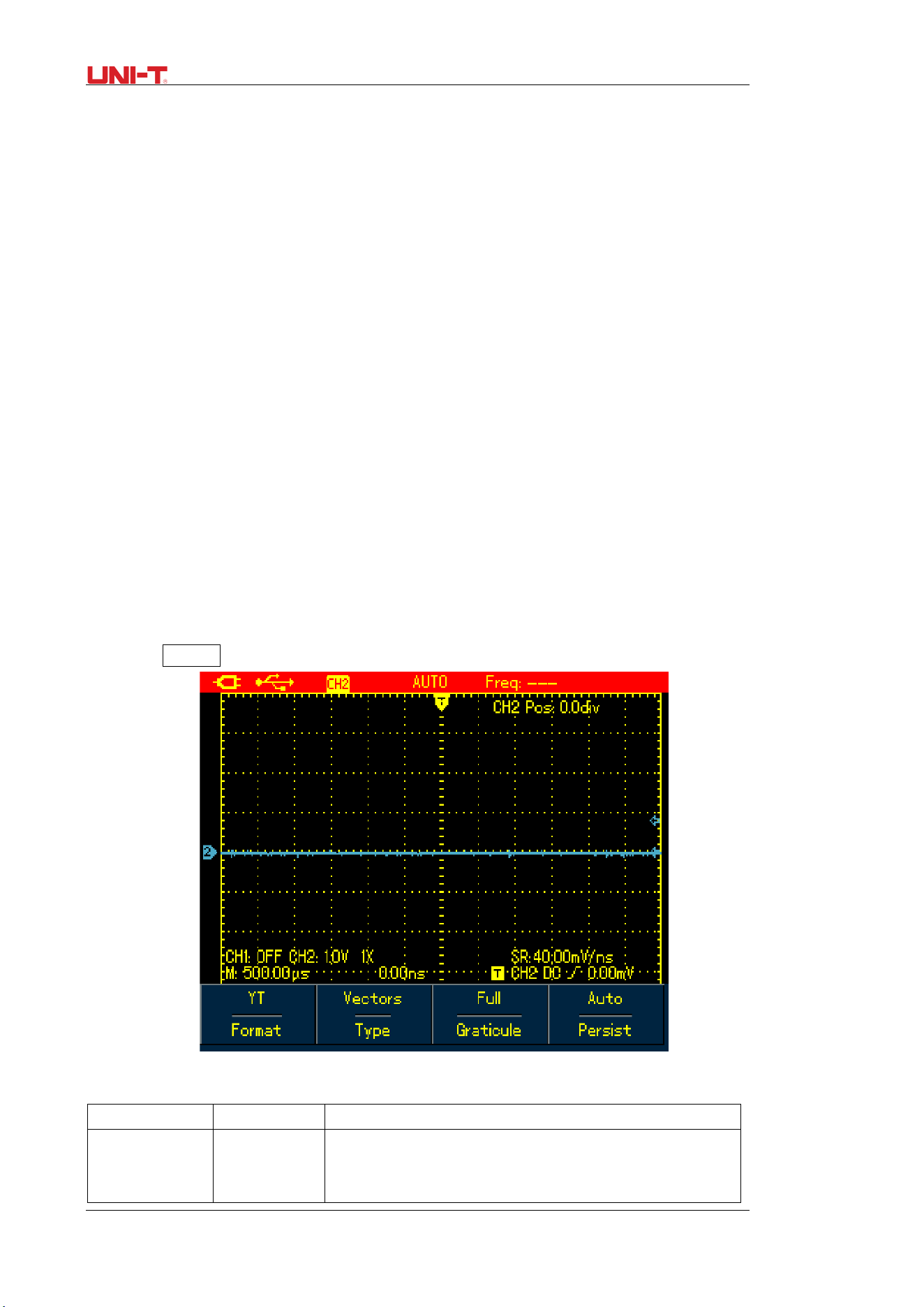
58 UTD1000L User Manual
Note:
1. Use normal mode when you observe single-shot signal.
2. Please select Peak mode if you want to observe signal envelope and also to avoid any
mix-up
3. Use AVG mode if random noise in the signal is required to lower down. The Oscilloscope
steps in multiples of two, please select from 2~512 in AVG times
4. Model UTD1000DL can be able to offer fast acquisition function.
Term Explanation
Normal Mode: The Oscilloscope samples the signals at equal time interval to create the
waveform on the display.
Peak Detect: Under this mode, the Oscilloscope uses Max. and Min. values detected in each
sampling interval to form waveform on the display. It is suitable to capture and display narrow
pulse which may probably be neglected if using Normal mode. However the noise under Peak
Detect sounds louder.
AVG Mode: The Oscilloscope captures certain numbers of waveforms and calculates their
average values that will be used to form waveforms on the display. This mode can reduce
random noise.
Fast Acquisition: it only acquires points for Min. memory depth required for display, which can
shorten the hold-off time between each acquisition and realize superb capture rate. It can
significantly increase the possibility to find out rarely seen issue.
6.6 Setting the Display
Press DISPLAY button to access display menu, please refer to the follow table:,
Figure 6-14 Waveform Display Setup
Table 6-9
Menu Settings Menu
Type
YT
XY
To display relationship between voltage(vertical) and
time(Horizontal).
X-Y display mode using CH1 signal to form X axis and CH2
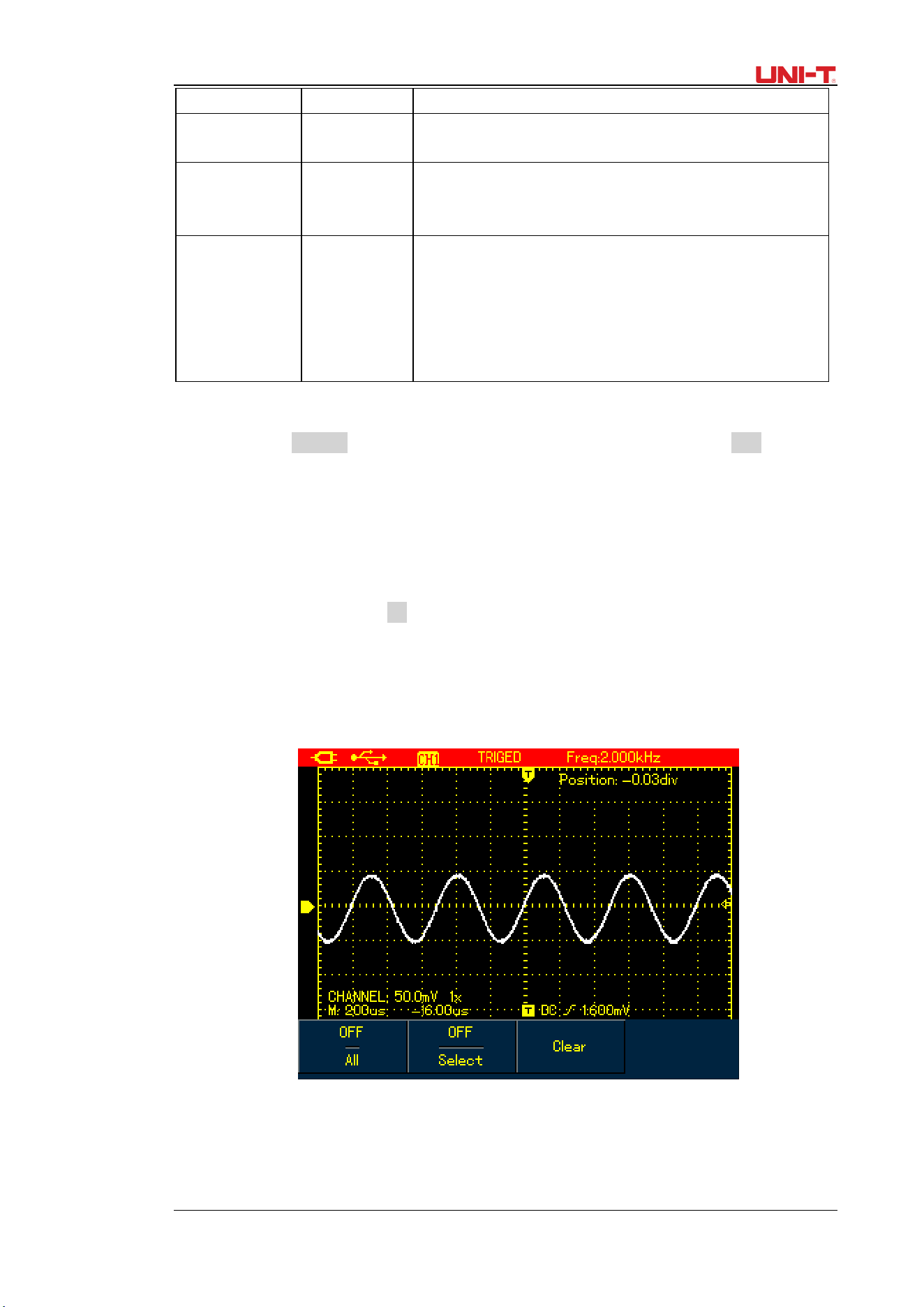
UTD1000L User Manual 59
signal for Y axis(applicable only for dual channel model)
Format Vector
Dots
Connect sample dots and display.
Directly display sample dots
Graticule Full
Grid
Cross Hair
To set the graticule of waveform display zone to Full,
Grid and Cross Hair mode
Persist Off
1s
3s
5s
Infinite
Update the waveforms at normal rate.
Update after waveform data is hold for 1 second.
Update after waveform data is hold for 3 seconds.
Update after waveform data is hold for 5 seconds,
Waveform data is kept on the screen, new data, if any,
could be added into the display continuously.
Term Explanation:
Display Format: VECTOR Display fills out all blanks between neighboring points, DOT Display
just shows sample points.
Update Rate: The times that the oscilloscope updates the waveforms per second. it reflect
how fast the Oscilloscope could allow you to observe signal dynamic change.
Y-T Mode: In this mode, Y axis represents voltage and X axis for the time.
Slow Scan Mode: When the timebase is set at 50ms/div or lower, the Oscilloscope will enter
into slow scan mode. This mode is applied to observe low-frequency signal. It is recommended
that channel coupling is set to DC.
6.7 Setting Auto Measurements
The section below introduces in details the powerful auto measurement function owned by
the Oscilloscope. Press MEASURE button to open auto measurement menu, see the table
below:
Figure 6-15A UTD1000CL Auto Measurement Menu
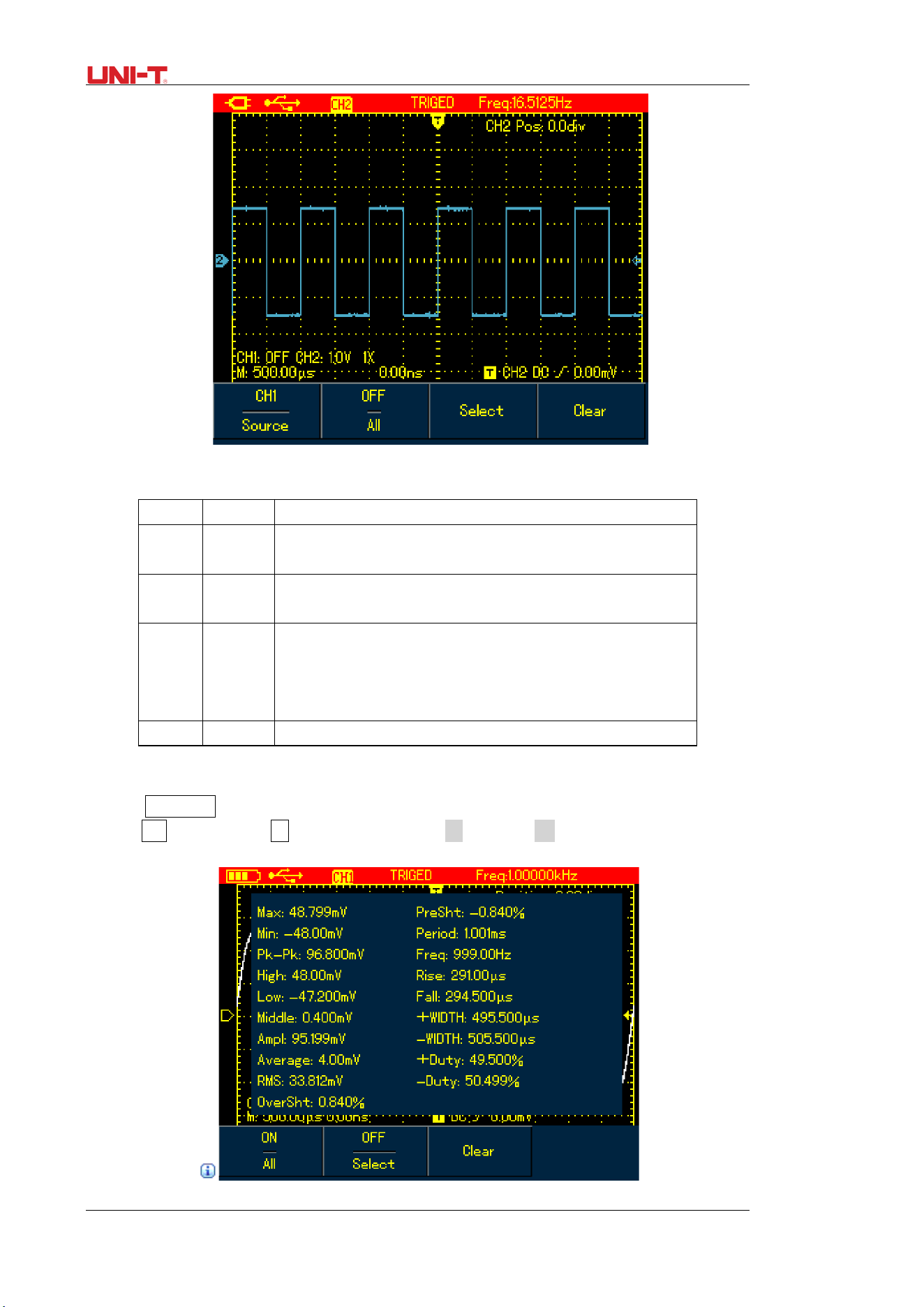
60 UTD1000L User Manual
Figure 6-15B UTD1000DL Auto Measurement Menu
Table 6-10
Menu
Settings
Description
Source CH1
CH2
Select CH1 as the signal source.
Select CH2 as the signal source.
All On
Off
To measure all parameters.
Turn on auto measurement function.
Select On
Off
To select the parameters to be measured by using SELECT
button.The selected parameter will be displayed on the
screen. Max.4 items can be choosen at a time.
Turn off customized parameter selection box
Clear --- To clear the displayed customized parameter
Case 1: To display all measurement parameters of the displayed channel, do the following:
1. Press MEASURE button to open parameter measurement menu;
2. Press F1 of UTD1000CL(F2 of UTD1000DL) to set All option to On;
Then all measurement parameters display on the screen. See the Figures below:
Figure 6-16A UTD1000CL measures all parameters
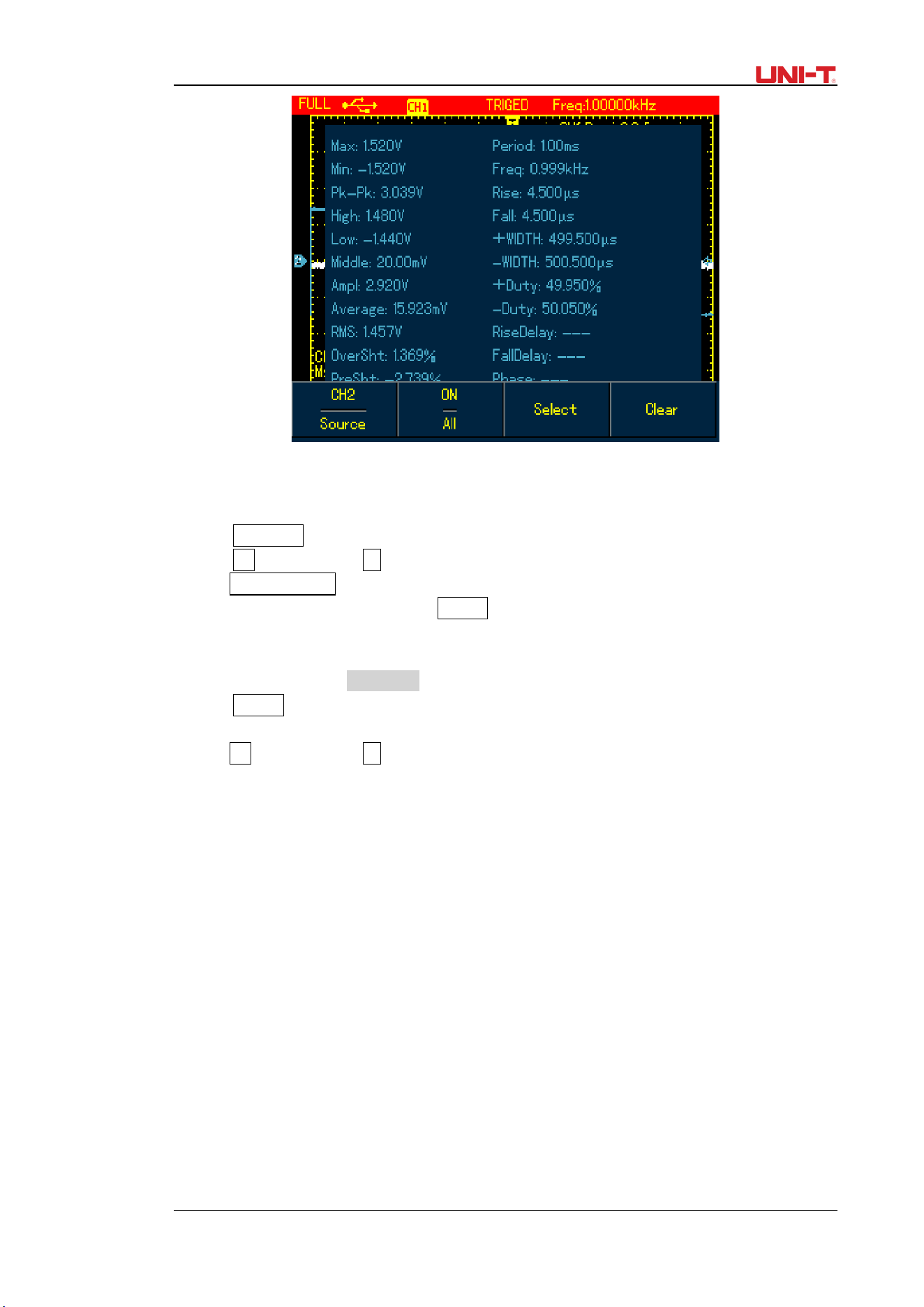
UTD1000L User Manual 61
Figure 6-16B UTD1000DL measures all parameters
Case 2: To measure Vpp and Amplitude parameters, do the following:
1. Press MEASURE to open parameter measurement menu;
2. Press F2 of UTD1000CL (F2 ofUTD1000DL) button to open parameter selection box;
3. Press Arrow Buttons to select Vpp parameter;
4. With Vpp parameter chosen, press SELECT to confirm; and one marker will appear on the
front of Vpp parameter to indicate it has been successfully selected, the parameter will show
on the display accordingly.
5. Do the same to select Amplitude parameter;
6. Press SELECT to confirm, one marker also show on the front of Amplitude parameter, and
then the parameter displays on the screen.
7. Press F2 of UTD1000CL (F3 of UTD1000DL) to turn off parameter selection box;
See the following figures for Vpp and Amplitude parameters displayed on the upper right part
of screen:
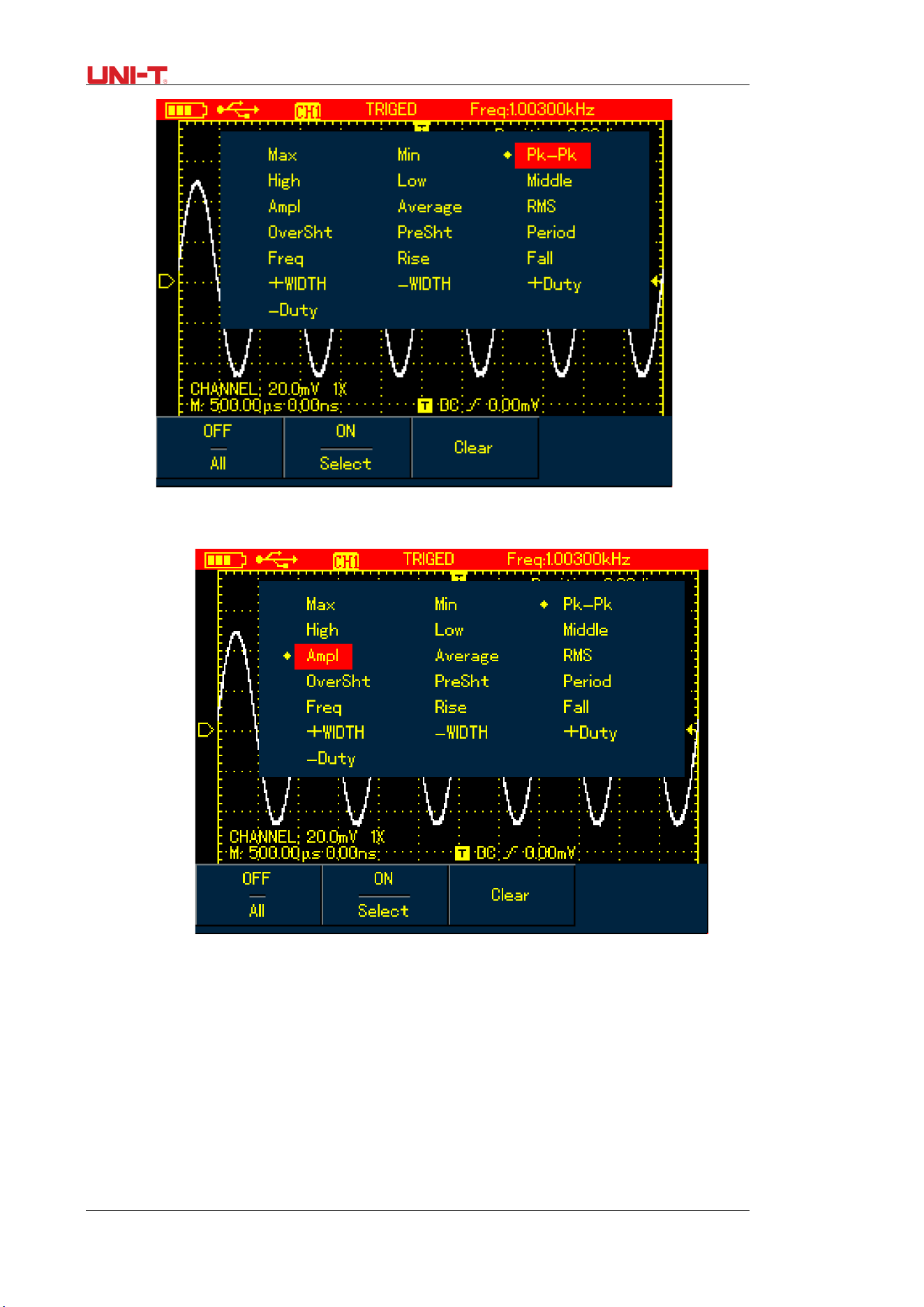
62 UTD1000L User Manual
Figure 6-17 Select Vpp Parameter
Figure 6-18 Select Amplitude Parameter
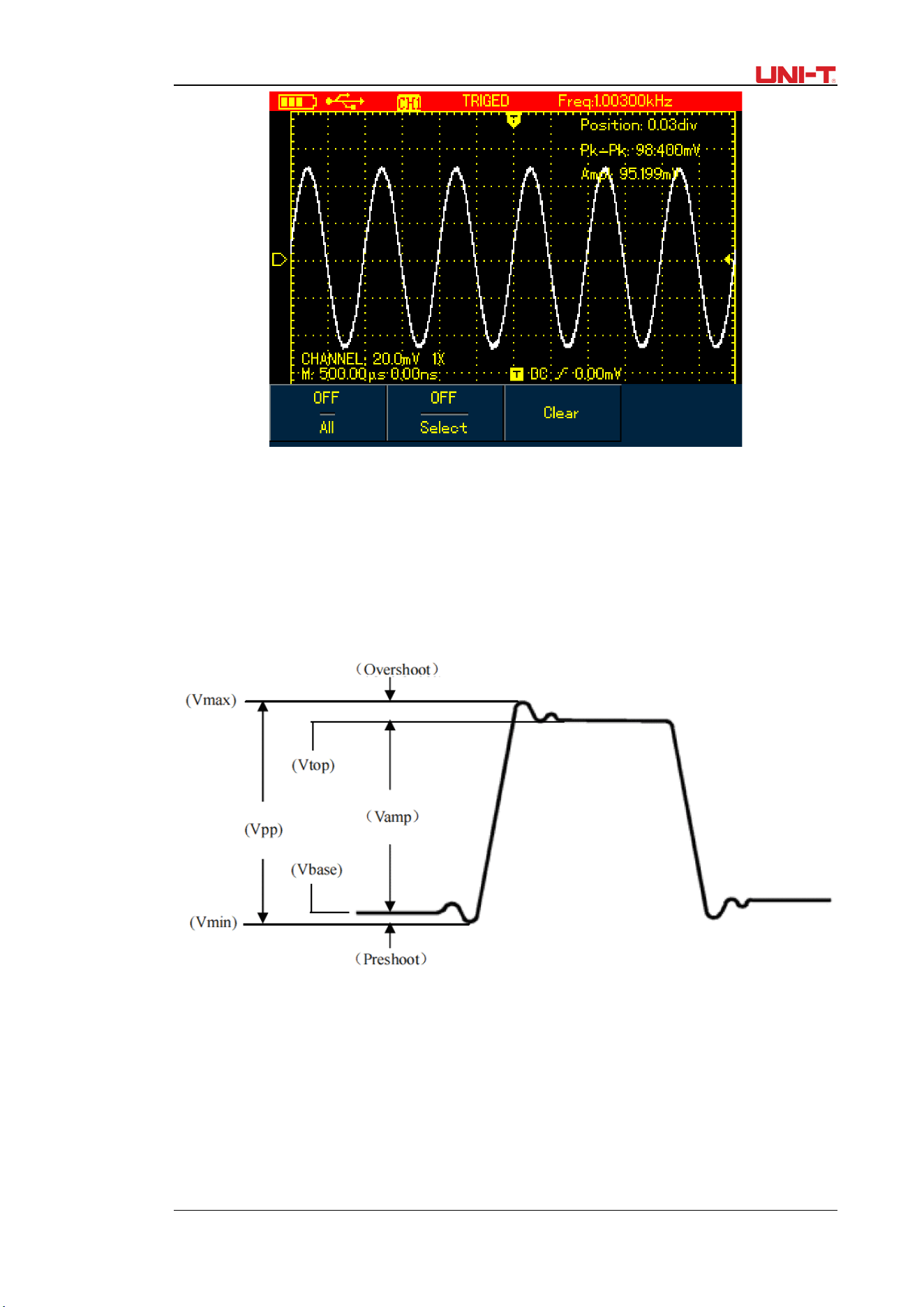
UTD1000L User Manual 63
Figure 6-19 Display Selected Parameters
Note: Parameter selection is to measure parameter immediately. There are 19 types of
parameter measurements for UTD1000CL and 22 types available in UTD1000DL. Under general
circumstances, not all parameters, but just some of them are required to be measured.
Therefore the users can customize their measurements as expected. The software can select
up to 4 parameters displayed on the screen.
Auto Parameter Measurements
Figure 6-20 Voltage Measurement
The voltage parameters that the Oscilloscope can automatically measure include:
Maximum Value (Vmax): Voltage measured from the highest point of waveform to the zero
ground
Minimum Value (Vmin): Voltage measured from the lowest point to the ground
Top Value (Vtop): Voltage measured from the flat top to the ground.
Base Value (Vbase): Voltage measured from the base of the waveform to the ground
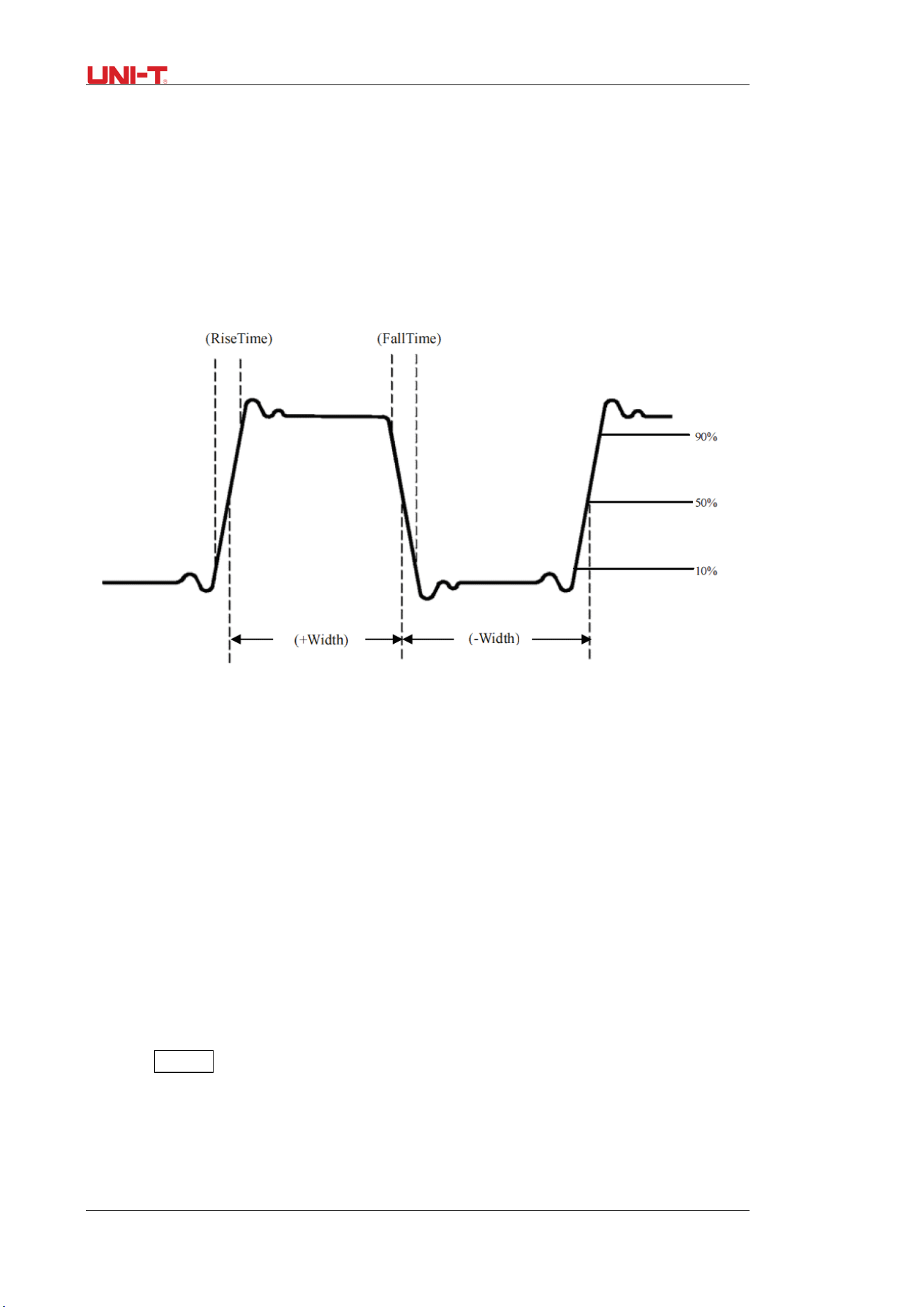
64 UTD1000L User Manual
Middle Value (Vmid): a half of amplitude value
Peak-to-Peak Value (Vpp): Voltage measured from the highest point to the lowest point of
waveform
Amplitude (Vamp): Votage measured from the top to the base of the waveform
Overshoot: (Maxi-Top)/Amplitudex100%
Preshoot: (Min-Low)/Amplitudex100%
Average Value: The arithmetic mean over one cycle in the waveform
RMS Value (Vrms): Effective value, the root mean square voltage over one cycle in AC signal
waveform that corresponds toDC voltage with equal generated energy calculated in this cycle.
Figure 6-21 Time Measurement
The time parameters the Oscilloscope can automatically measure contain:
RiseTime: The time required to rise from 10% to 90% of waveform amplitude.
FallTime: The time required to fall from 90% to 10% of waveform amplitude.
Positive Pulse Width (+Width):
The distance between the mid (50%) amplitude points of a positive pulse.
Negative Pulse Width (-Width):
The distance between the mid (50%) amplitude points of a negative pulse.
Rising Delay: The delay time between rising edges from A to B
Falling Delay: The delay time between falling edges from A to B
Positive Duty Cycle (+Duty): the ratio of positive pulse width to the period.
Negative Duty Cycle (-Duty): the ratio of negative pulse width to the period.
6.8 Recording and Storage
6.8.1 Recording
Press RECORD button to open waveform record menu. There are two independent menus
shown as below:
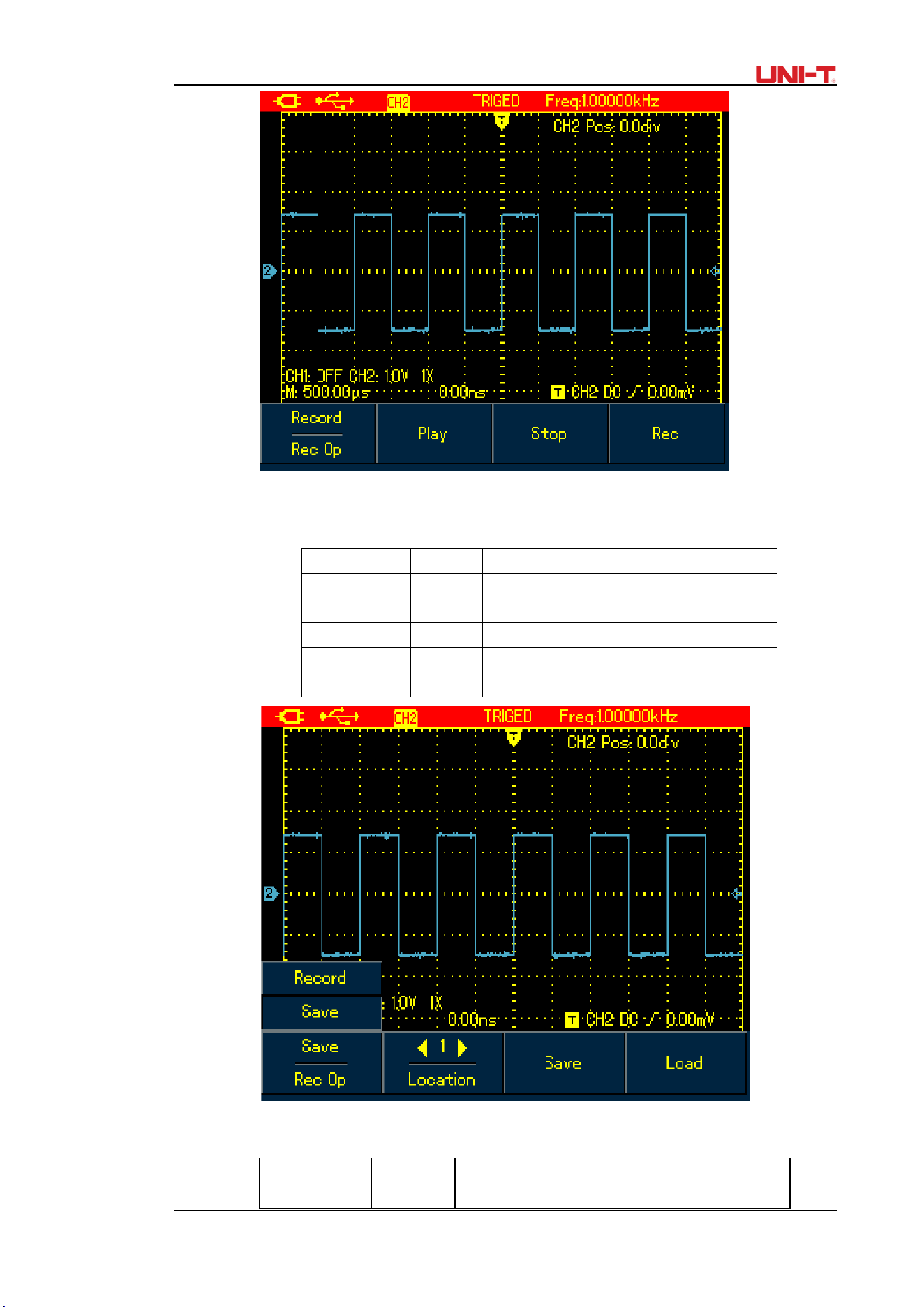
UTD1000L User Manual 65
Figure 6-22 Waveform Record Menu
Set up as the following table:
Table 6-11 Record Menu
Menu Settings Description
Wave Record Record To turn on/off waveform record
function.
Play
----
To play recorded waveform
Stop ---- To stop recording or playing waveforms
Record ---- To begin the recording.
Figure 6-23 Save Menu for Recorded Waveforms
Table 6-12 Save Menu for Recorded Waveforms
Menu Settings Description
Wave Record Save To turn on /off waveform storage function
66 UTD1000L User Manual
Location ---- There are 1-5 location options available, use
arrow buttons to select when the menu
displays
Save ---- To save recorded waveform to internal
memory.
Recall ---- To recall the waveform record that is saved in
internal memory
Note: You can also save the recorded waveform to PC using the control sofeware and play it
on PC.
Case 1: To record channel waveforms and save them to the internal memory, do the
following:
1. Press RECORD button to access record menu;
2. Press F1 to set to Record option;
3. PressF4 to begin recording. To stop recording, press F3 button;
4. Press F1 to set to Save option;
5. Use Arrow Buttons to set the location to 1;
6. Press F3 to save the recorded waveform, “Saving…” shows on the screen. When
“Saving…” icon disappears, it indicates the waveforms have already been saved into
internal memory.
Note: Model UTD1000CL can record up to 300 screens of waveforms, and it is up to 150 for
Model UTD1000DL. If following operations are performed during recording, the recording will
stop.
■ Press RUNSTOP/SINGLE button;
■ PressAUTO or SHIFT+AUTO button
■ Turn Timebase range to access SCAN mode.
Case 2: To recall recorded waveform in Case 1 from the internal memory and replay it, do
the following:
1. Press RECORD to access record menu;
2. Press F1 to set to Save option;
3. Press Arrow Buttons to set Location to 1;
4. Press F4 to begin recalling, “loading…” indicates on the screen, after the loading
finishes, “Load Success” indicates.
5. Press F1 to set to Record option;
6. Press F2 button to begin playing the recalled waveforms automatically, press F3 to
stop or use Arrow Buttons to select the waveform to be played.
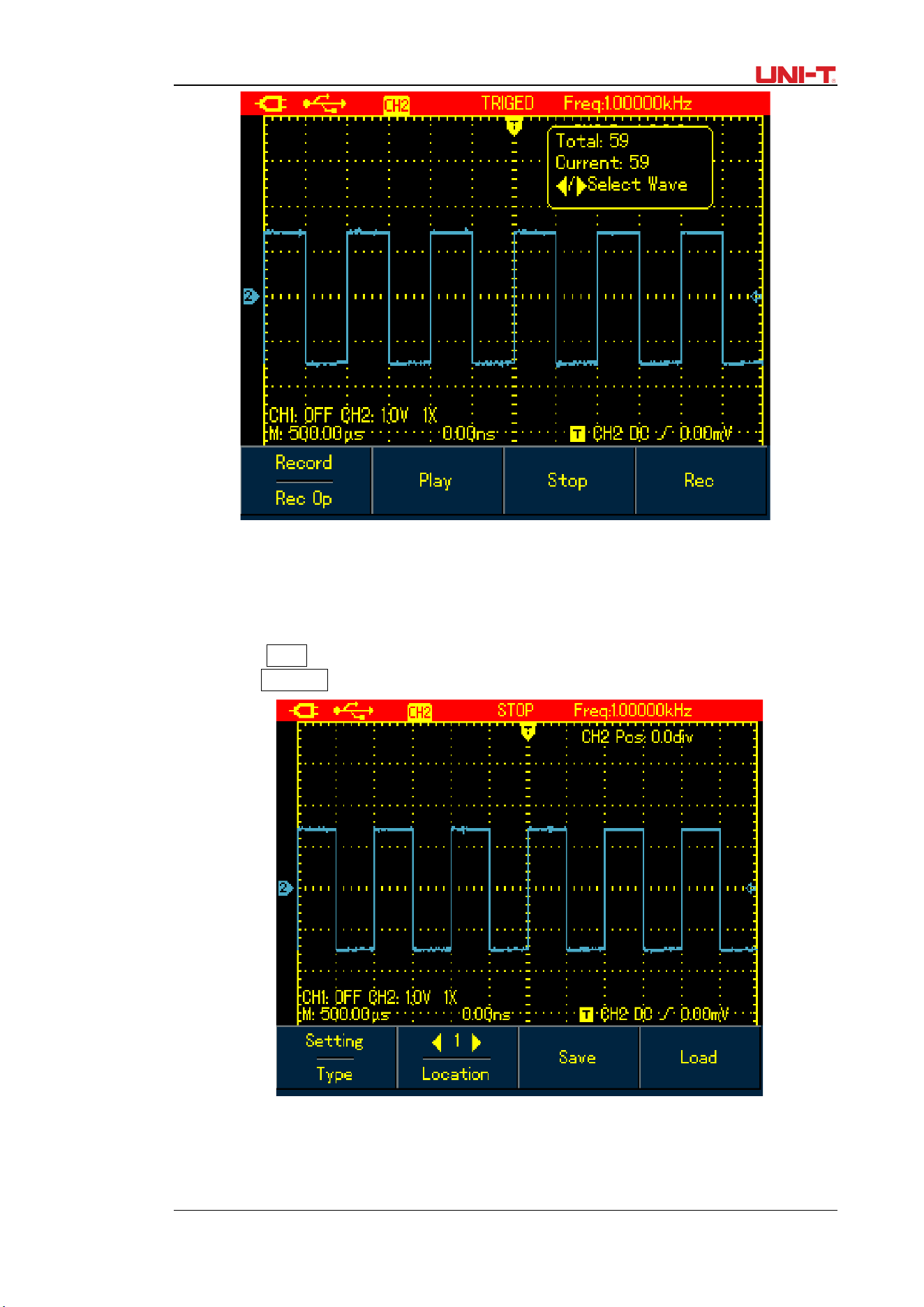
UTD1000L User Manual 67
Figure 6-24 Replay Waveform Record
6.8.2 Storage
To store the waveforms, do the following:
1. Press SHIFT button, and shift icon shows on upper right part of screen;
2. Press STORAGE button to access storage menu;
Figure 6-25 Setting Waveform Storage Menu
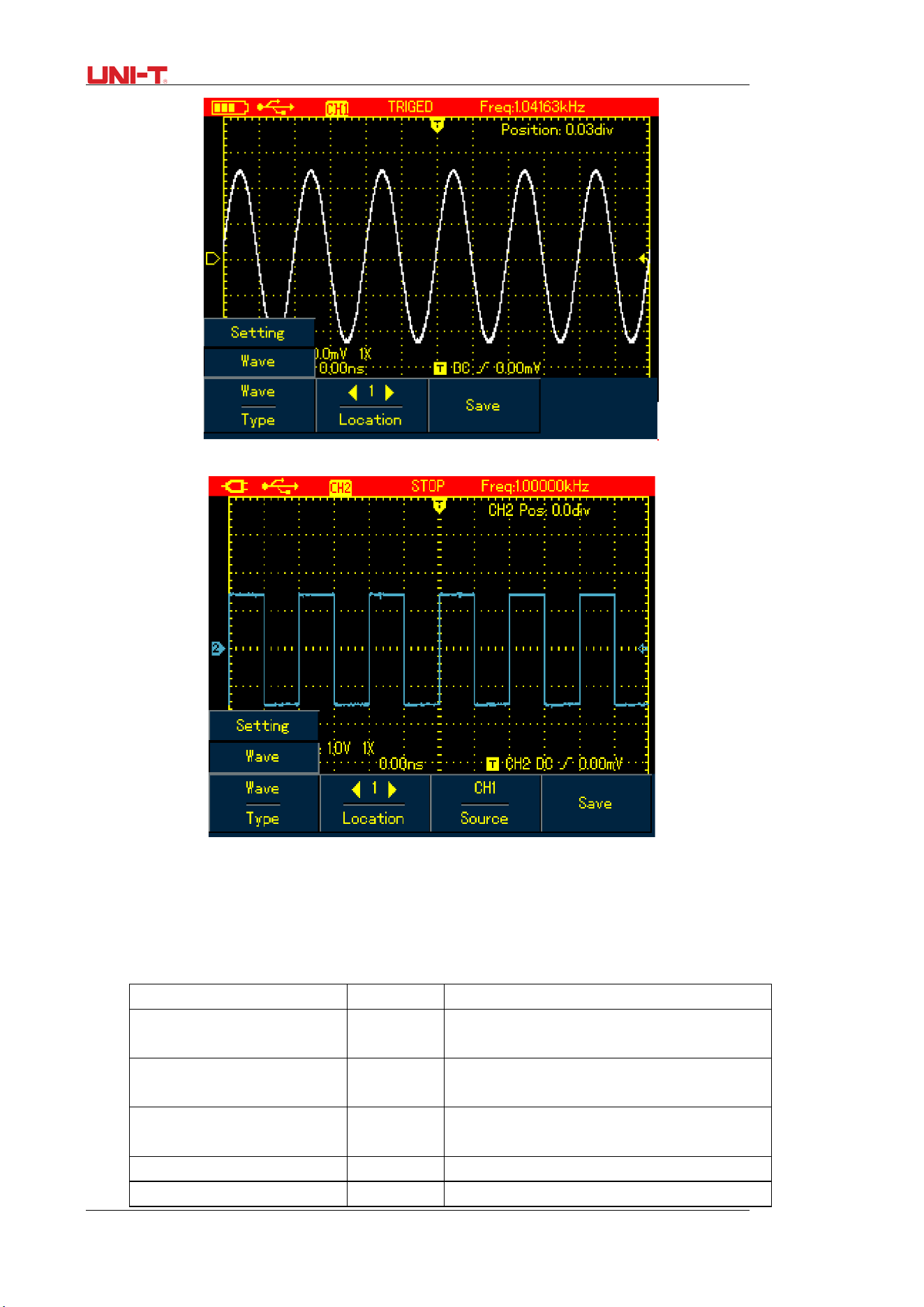
68 UTD1000L User Manual
Figure 6-26A UTD1000CL Waveform Storage Menu
Figure 6-26B UTD1000DL Waveform Storage Menu
Set up the storage menu as follows:
Table 6-13
Menu Settings Description
Type Setup
Waveforms
To save current setups of menus;
To save channel waveforms
Location 1-20 Use arrow buttons to select storage
location.
Source CH1
CH2
To select the channel of the saved
waveform.
Save ---- To save the selected items.
Recall(refer to the following ---- To recall the saved parameters when the
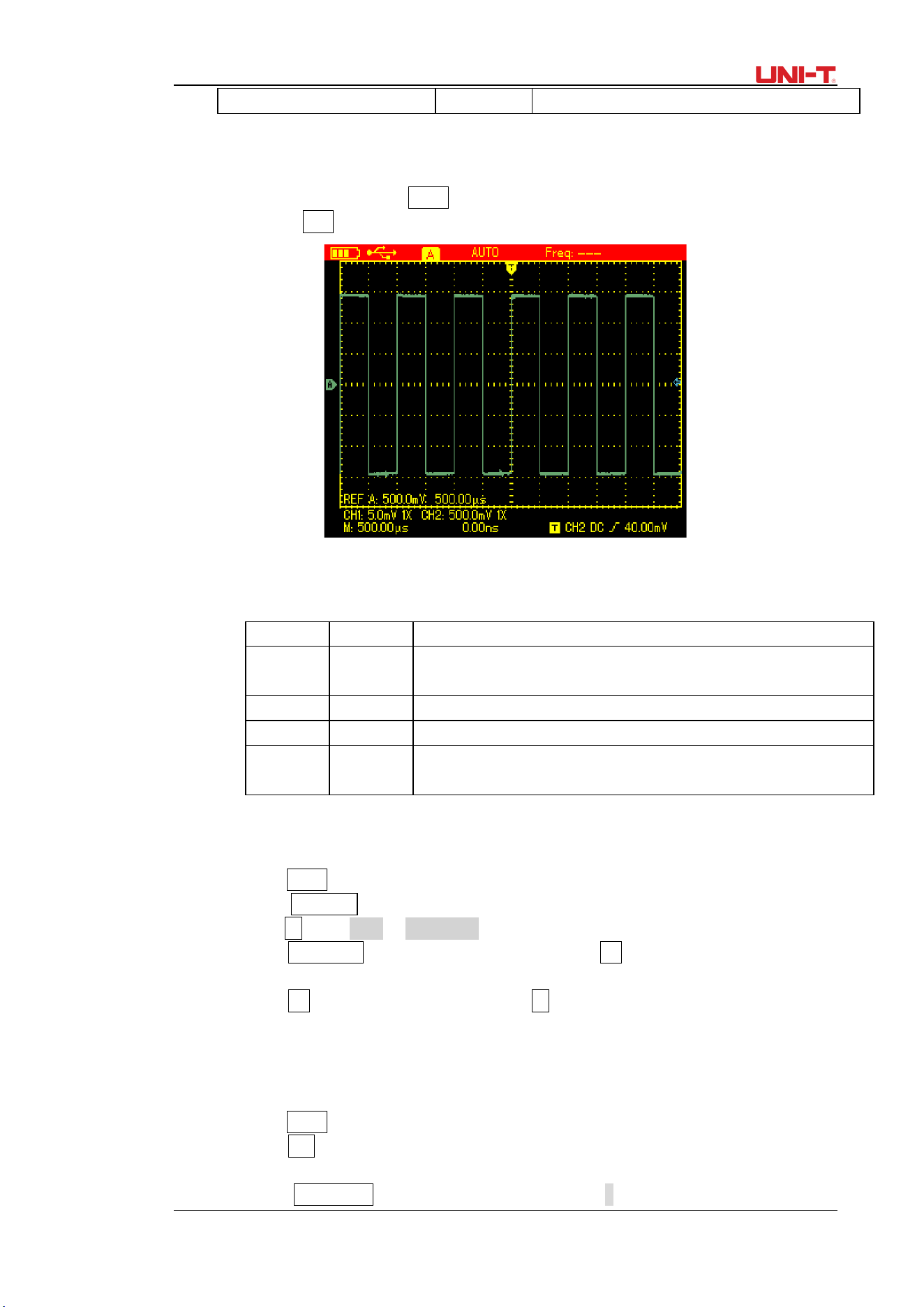
UTD1000L User Manual 69
section for recall setup)
menu is on.
6.8.3 Recalling
To recall the waveforms, press SHIFTbutton and shift icon shows on the upper right part of
screen; then press REF to access waveform recall menu.
Figure 6-27 Recall Reference Waveforms
Set up as shown in the following table:
Table 6-14
Settings Description
Ref Wave REF A
REF B
UTD1000L can recall REFA or REFB individually or both of them
at the same time.
Location 1-20 Use Right and Left buttons to select the location to be recalled.
Recall To begin the recalling
Clear For Model UTD1000L, it’s used to turn off current
waveform(REFA or REFB)
Case 1: To save and recall channel waveforms to the internal channel:
Saving Waveforms
1. Press SHIFT and shift icon shows on upper right part of screen;
2. Press STORAGE to access storage menu;
3. Press F1 to set Type to Waveform;
4. Press Left&Rightbuttons to set Location to 1; press F3 to select target Source; (Only
available in UTD1000DL)
5. Press F3 of UTD1000CL to save, and also F3button for UTD1000DL, then “storage
success” shows on the display , indicating the waveform has been successfully saved
into the Oscilloscope;
Recalling Waveform
6. Press SHIFT, shift icon shows on upper right part of display.
7. Press REF to access waveform recall menu;
8. Press F1 of UTD1000L to select between REFA or REFB;
9. Press Left &Right arrow buttons to set Location to 1;
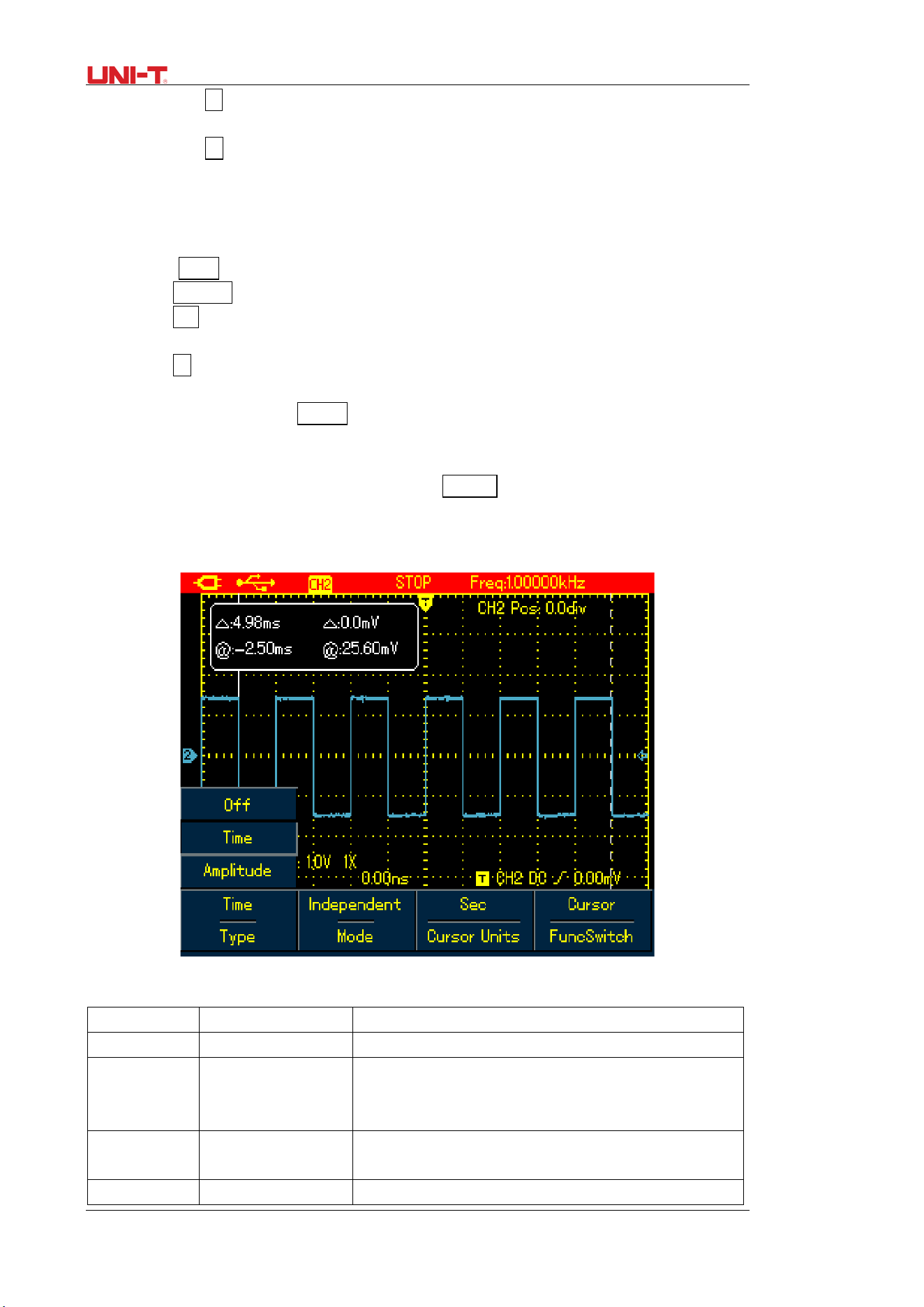
70 UTD1000L User Manual
10. Press F3 to recall, “Load Success” will show to indicate the waveform has been
successfully displayed on the screen too;
11. Press F4 to turn off the current reference waveform.
6.9 Making Cursor Measurements
To make cursor measurements, do the following:
1. Press SHIFT and shift icon shows on upper right part of display.
2. Press CURSOR to access cursor menu;
3. Press F2 of UTD1000DL to choose the channel for cursor measurement (No selection
for UTD1000CL, it defaults at CH1)
4. Press F1 to set up measuring type.
There are two options available for measuring Type in cursor menu: Voltage and Time.
When measuring voltage, use SELECT and arrow buttons to adjust the locations of two cursors
in order to measure ΔV parameter, do the same with Δt measurement.
Voltage/Time Measurement Tips: Cursor 1 and Cursor 2 shows simultaneously on the screen,
use arrow buttons to remove the cursors and press SELECT to choose and adjust the desired
one. Displayed readout is the voltage or time between two cursors.
When the cursor function turns on, measuring values can be automatically shown on upper
left corner of the display.
Figure 6-28 Cursor Menu for Time Measurement
Table 6-15
Menu
Settings
Description
Type Time Use the cursor to measure the time
Mode Independent
Tracking
Move each cursor independently
Move two cursors simultaneously and keep Δt
unchanged
Vertical Unit Sec
Hz
measurement parameter is time
measurement parameter is frequency
Func Switch Channel Use arrow buttons to set the target to channel
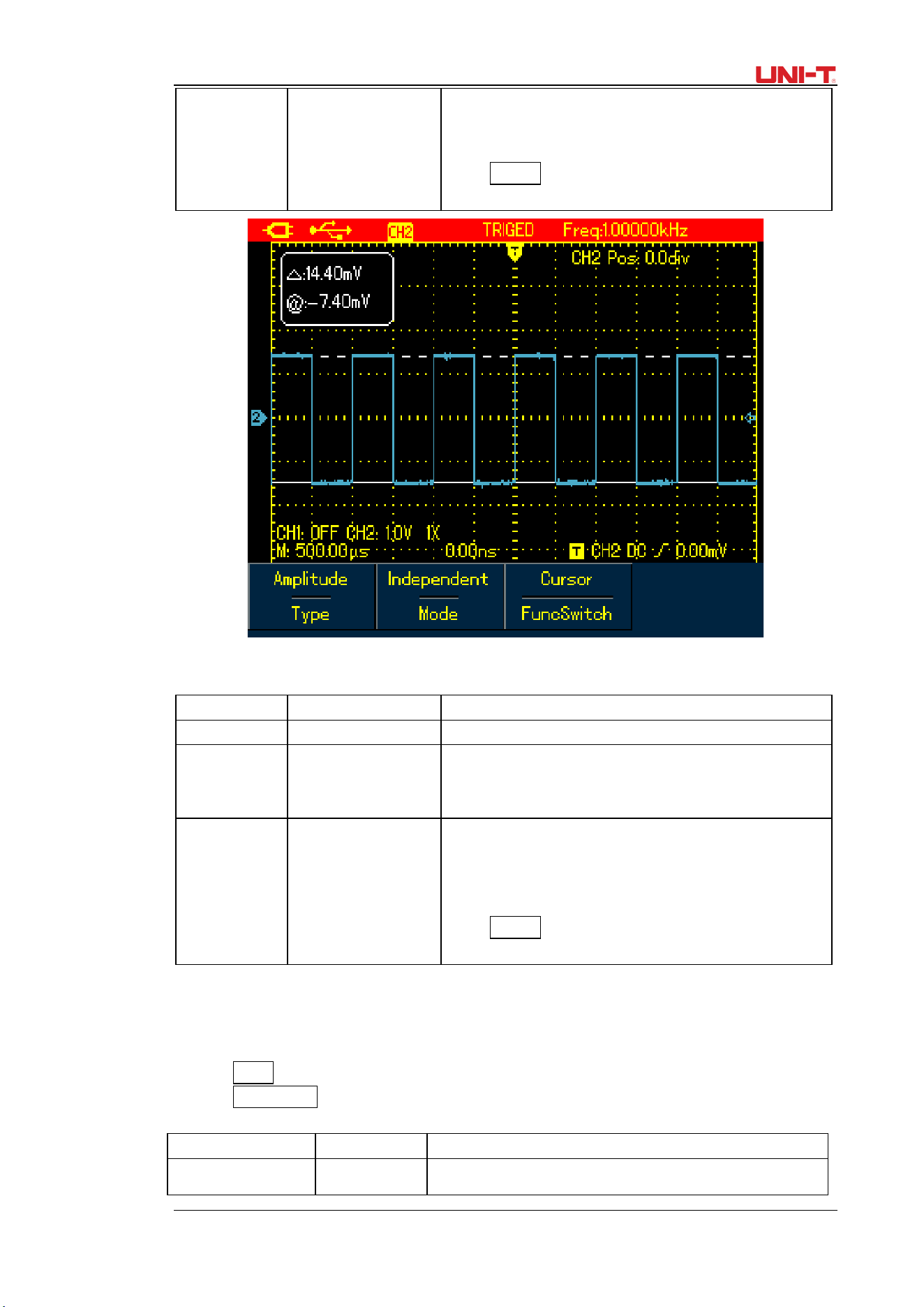
UTD1000L User Manual 71
Trigger
Cursor
waveform;
Use arrow buttons to set the target to trigger level;
Use arrow buttons to set the target to the cursors,
press SELECT to select between Cursor 1 and Cursor
2.
Figure 6-29 Cursor Menu for Voltage Measurement
Table 6-16
Menu
Settings
Description
Type
Voltage
Use the cursor to measure the voltage
Mode Independent
Tracking
Move each cursor independently
Move two cursors simultaneously and keep ΔV
unchanged
Func Switch Channel
Trigger
Cursor
Use arrow buttons to set the target to channel
waveform;
Use arrow buttons to set the target to trigger level;
Use arrow buttons to set the target to the cursors,
press SELECT to select between Cursor 1 and Cursor
2.
6.10 Interface Setup
To set up the display interface for the Oscilloscope, do the following:
1. Press SHIFT, shift icon shows on uppert right corner of display.
2. Press CONFIGURE to enter into diplay configuration menu;
Table 6-17
Functional Menu Settings Description
Language Multilingual To select the desired language
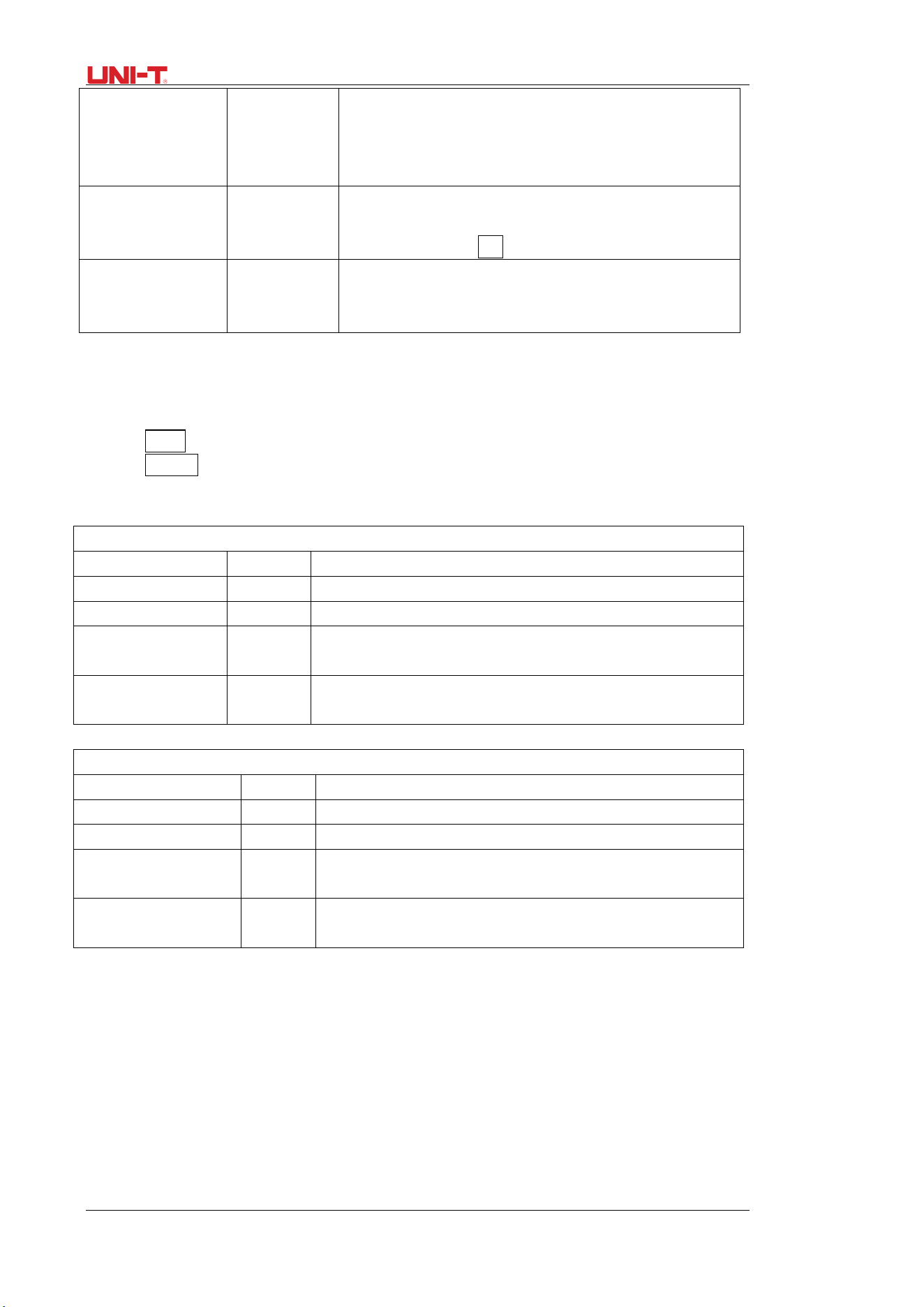
72 UTD1000L User Manual
Style
Classic,
Traditional,
Modern,
White&Black
To select display style
Menu Display
------
To set up waiting time before the manual turns off: 5s,
10s, 20s, Manual, Manual—the menu will not turn off
automatically, use OK to turn it on/ off.
System Info. ------ To display oscilloscope model, hardware version,
software version, etc;
6.11 Utility Setup
To set up the display interface for the Oscilloscope, do the following:
1. Press SHIFT, shift icon shows on upper right corner of the display;
2. Press UTILITY to access Utility menu.
Menu Setup shown as in the following table:
Table 6-18
Model UTD1000CL
Functional Menu
Settings Description
Self-Calibr. ------ The Oscilloscope will calibrate the system automatically.
Default ------ The Oscilloscope returns to factory default status.
Freq Counter On
Off
Turn on /off trigger frequency counter.
Clear ----- Clear saved or recorded waveforms or settings in the
Oscilloscope, etc;
Model UTD1000DL
Functional Menu Settings Description
Self-Calibr. ------ The Oscilloscope will calibrate the system automatically.
Default ------ The Oscilloscope returns to factory default status.
DC Autoset On
Off
Turn on/off DC signal self-identification function
Clear ----- Clear saved or recorded waveforms or settings in the
Oscilloscope, etc;
Key Points:
Self-Calibration: You need to run this operation to avoid any measurement error arising from
environment change. To ensure an accurate calibration, please power on the Oscilloscope and
warm it up for 20 minutes.
Full Autoset: The Oscilloscope can automatically adjust its ranges based on the input signal to
present users optimal waveform without any manual interference.
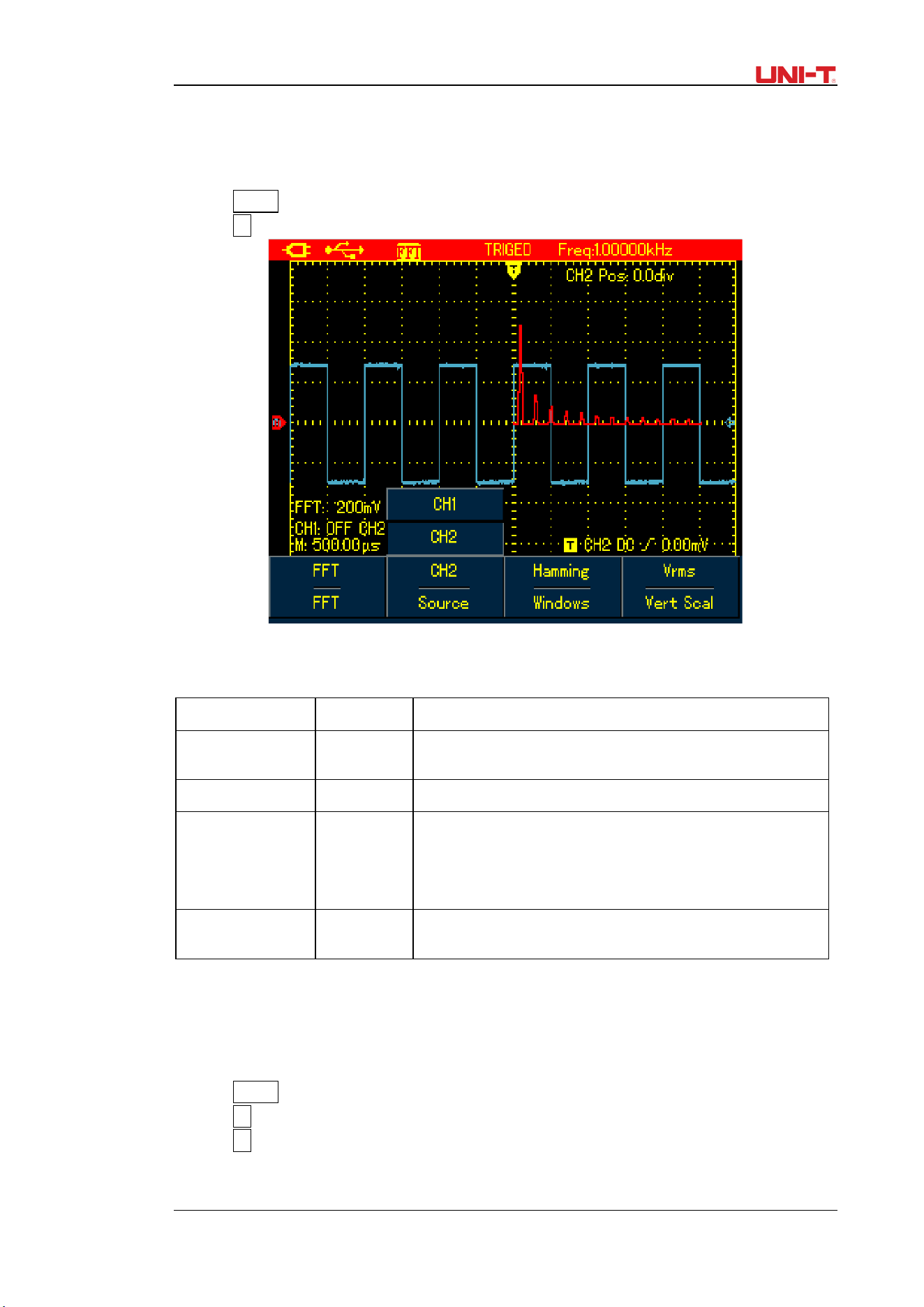
UTD1000L User Manual 73
6.12 Executing Mathematic Functions
1. For Model UTD1000CL, there is only FFT operation available, refer to following displayed
menu:
To execute FFT operation, do the following:
1. Press MATH to open math menu;
2. Press F1 to turn on FFT operation.
Figure 6-30 UTD1000CL FFT Operation
Refet to the menu setup in the following table:
Table 6-19
Functional Menu Settings Description
FFT On
Off
Turn on/off FFT function.
Source CH1 CH1 is the default channel for FFT operation.
Window Hanning
Hamming
Blackman
Rectangle
Set to Hanning window.
Set to Hamming window.
Set to Blaclman window.
Set to Rectangle window.
Vertical Unit Linear
dBV
To set vertical unit to linear or dBV
2. For Model UTD1000DL, both FFT and MATH functions are offered:
Math Operation: It is to execute simple(+,-,×,÷) math operations on CH1 and CH2
waveforms.
To perform Math or FFT operation, do the following:
1. Press MATH to turn on mathematic menu;
2. Press F1 to Set Type to Math
3. Press F1 again to switch to FFT type;
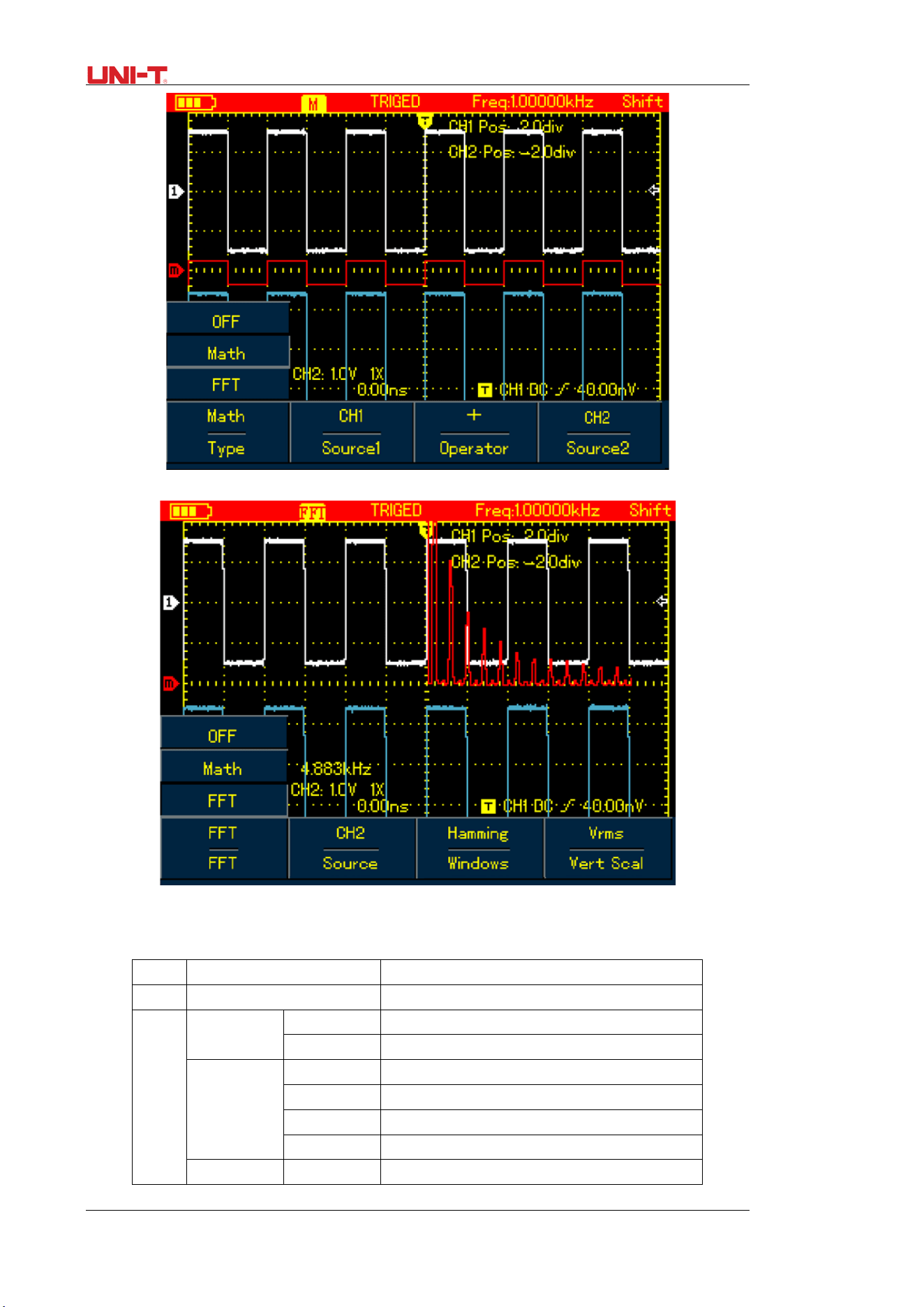
74 UTD1000L User Manual
Figure 6-31 UTD1000DL MATH Operation
Figure 6-32 UTD1000DL FFT Operation
Set up Math and FFT menus as follows:
Table 6-20
Type
Settings Description
OFF ----- Turn off MATH function
Math
Source 1 CH1 Set CH1 as Source 1 of Math operation
CH2
Set CH2 as Source 1 of Math operation
Operator
+
Source1
+
Source 2
-
Source 1
-
Source 2
× Source 1×Source 2
÷ Source 1÷Source 2
Source2 CH1 Set CH1 as Source 2 of Math operation

UTD1000L User Manual 75
CH2
Set CH2 as Source 2 of Math operation
FFT
Source
CH1
Set the source to CH1
CH2
Set the source to CH2
Window
Hanning Set to Hanning window
Hamming Set to Hamming window
Blackman Set to Blackman window
Rectangle Set to Rectangle window
Vertical
Unit
Linear To set vertical unit to linear or dBV
dBV
FFT Spectrum Analysis
FFT (Fast Fourier Transform algorithm) mode can convert time domain (YT) into Frequency
domain for signal waveform graph, which helps to easily observe signals of following kinds:
● Harmonic component and distortion in the measurement system.
●Characterize noises in DC source
●Analyze the virbration
FFT Operation Tips
Signals with DC components or bias may cause error or deviation to FFT waveform
components. In order to reduce DC component, you can set coupling to AC mode. And you can
set ACQUIRE type to AVG to lower down random noise or mixed overlapped frequency
component in repetitive or single pulse event.
Select FFT Window
Suppose YT waveforms repeats constantly and the Oscilloscope then performs FFT on limited
length record. When the period numers are integer, YT waveform at the start and finish points
share same amplitude values and will not cause any interruption to the waveform. If it is
non-integral, the start and finish amplitude are different, and high-frequency transient
interruption will happen at joint points, which is called leakage in frequency domain. To avoid
the leakage, FFT mode will multiply original waveform with one window function to force the
start and finish values all go to 0. Refer to following windows for details:
Table 6-21
FFT
Window
Features Best Applications
Hanning Compared with rectangle type, it has
better amplitude accuracy and less so
for frequency resolution.
Used to measure sine, periodic and
narrowband random noises.
Hamming Frequency resolution for Hamming is
a little better than that of Hanning.
Used to measure transient or short
pulse; and for signals whose signal
levels before and after the event are
greatly different.
Blackman Offers best amplitude accuracy and
worst for the frequency resolution.
Mainly for measuring single frequency
signals and looking for higher order
harmonics
Rectangle Offer best frequency resolution, but
worst for the amplitude accuracy. No
big change before and after adding
window function.
Applicable for measuring transient or
short pulse, the signal levels before
and after the event are approximately
equal. And also for measuring
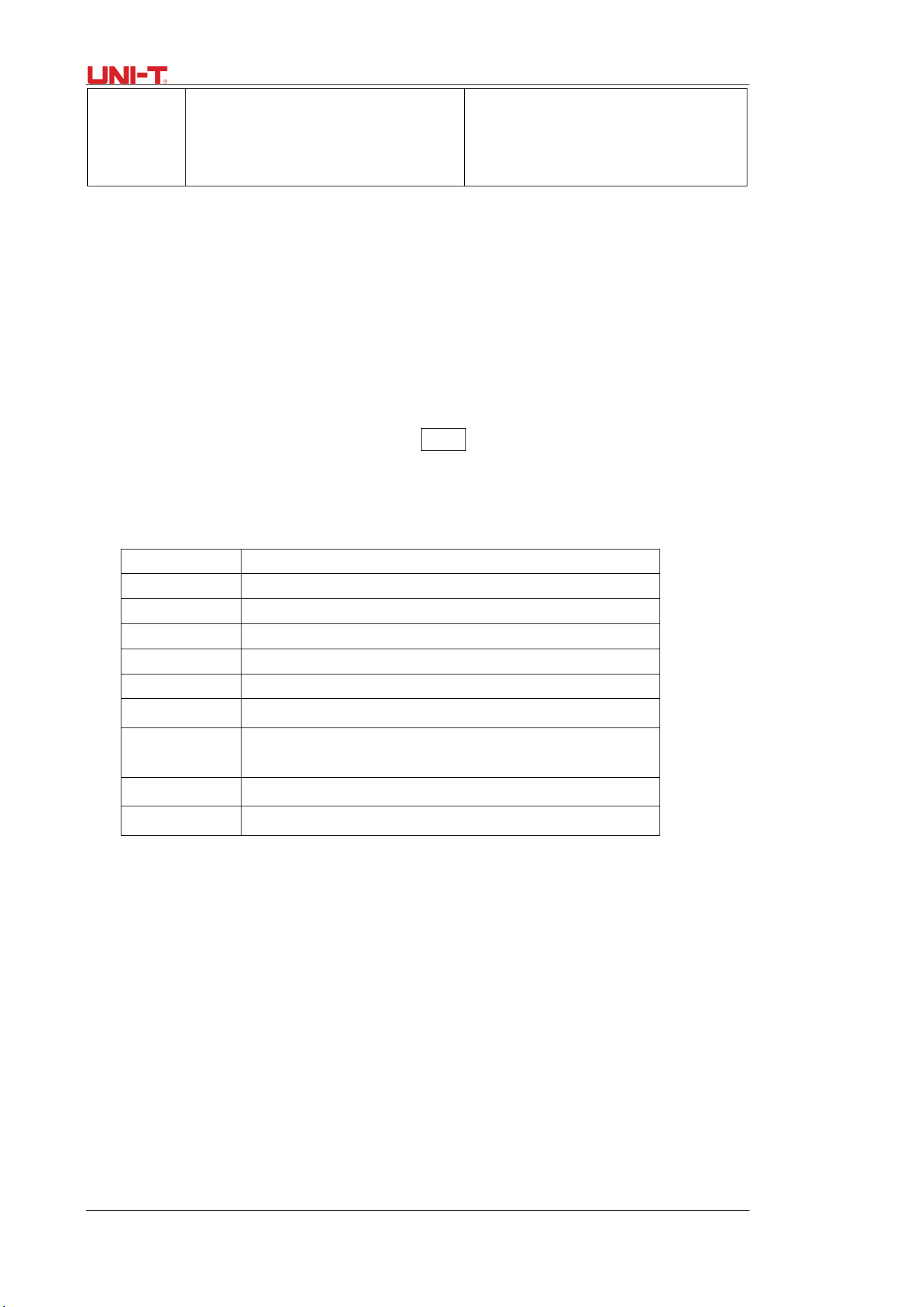
76 UTD1000L User Manual
equal-amplitude sinewave with very
close frequencies, broadband random
noise with relatively slow changing
spectrum.
Term Explanation
FFT Resolution: defined as Quotient between sample rate and operation points. When
operation points are fixed, the lower sample rate is, the better FFT resolution will be.
NYQUIST Frequency: For waveforms with highest frequency f, it at least needs to apply 2f
sample rate in order to recreate original waveform. It is called NYQUIST principle, f is NYQUIST
frequency and 2f is NYQUIST sample rate.
6.13 Autoset
Autoset is used to simplify the operations. Press AUTObutton and then the Oscilloscope will
automatically adjust vertical factor and timebase range based on the waveform amplitude and
frequency until the waveform displays steadily on the screen. System settings for Autoset
function are shown in the following table:
Table 6-22
Functions Settings
Acquire Mode
Normal Sample
Display Type
YT
SEC/DIV
Adjust based on signal frequency
VOLT/DIV Adjust based on signal amplitude
Trigger Type Edge
Trigger Level central point of signal
Trigger
Coupling
DC
Trigger Slope
Rise
Trigger Mode Auto

UTD1000L User Manual 77
Chapter 7 Troubleshooting
7.1 The Oscilloscope cannot power on:
The battery may run out. Try to power on the Oscilloscope again with use of the power
adaptor. If the instrument still doesn’t work, please contact UNI-T for the service.
7.2 The Oscilloscope turns off a few seconds later after powered on:
The battery may run out. Check if the low battery indicator appears on the screen. If it does,
please recharge it.
7.3 Measuring voltage amplitude is 10 times larger or smaller than exact value:
Make sure channel attenuation factor is consistent with probe factor on the applied probe.
7.4 No waveform displays after acquiring signals:
1. Make sure the probe is properly connected to the connection wire.
2. Make sure the connection wire is correctly attached to BNC (channel connector)
3. Make sure the probe is properly connected to the tested object.
4. Make sure there are signals generated from the tested object (you can connect the channel
that can produce signals to the suspected channel and verify the cause)
5. Restart the acquisition
7.5 The waveform does not display steadily:
1. Check if trigger source that has been set up in trigger menu is the same with actual input
channel
2. Check trigger type: Edge type is generally selected for common signals, use video trigger
type for video signals. Onlywhen proper trigger type has been set up can the waveform
display steady.
3. Try to change Coupling to HF Reject to filter out the high-frequency inteference noise in the
signal.
7.6. There is no display after pressing down RUN/STOP button:
1. Check if Trigger Mode in trigger menu is Normal or Single and trigger level has gone beyond
waveform ranges. If they are, set trigger level to the middle or set trigger Mode to AUTO
2. Or you can press AUTO to automatically finish the setup mentioned above.
7.7 The display slows down after having applied AVG mode for a while:
1. If AVG number go above 32times, it is normal for the oscilloscopes to display at a relatively
low rate.
2. Reduce AVG number
7.8 The waveform display has a stair-stepping shape:
1. It is normal situation, it may be caused by lower horizontal timebase, increasing the
timebase can improve the horizontal resolution and the display
2. If display type is VECTOR, links between sample points could probably result in
stair-stepping shape. Change display type to Dots can solve the problem.

78 UTD1000L User Manual
Chapter 8 Service and Support
8.1 Updating Program
Contact UNI-T or log into our website to obtain the latest program package, unzip the
package and apply the Oscilloscope program update system to update the Oscilloscope so as
to ensure your oscilloscope has the latest version of firmware issued already by UNI-T
8.1.1 Preparation before Update
1. Turn on your oscilloscope, press CONFIGURE button and select system information
option so as to obtain details about the Oscillosocpe model, hardware version,
software version, etc.
2. Make sure the program package you get from UNI-T company or website has the
same model number and hardware version with the Oscilloscope to be updated. The
version should be higher than the current version.
8.1.2 Update Conditions
1. The update program must have the same product model with that of your
oscilloscope.
2. The update program must be consistent with your oscilloscope on hardware version
3. The update program version must be higher than or equal to that of your
oscilloscope.
8.1.3 Program Update
1. Properly install the Oscilloscope software into your PC as instructed in
communication software users manual
2. Copy the program package(extension is .upp ) into PC. You can download from UNI-T
website and contact UNI-T company directly to get the package.
3.Connect the Oscilloscope to PC with USB cable, then click to run the software, choose
corresponding oscilloscope model and click 【ENTER】in pop-up interface, the
software interface will appear. Click 【Connect】button on the interface to begin
communication between PC and the Oscilloscope. With this connection finished,
there will be an indication that USB has been connected successfully.
4. Choose from the software menu【Action】→【Program Update】, then select the
copied program package on dialogue box and confirm OK. The Oscilloscope then
begins the update and reads “The Oscilloscope is preparing the update, please
wait…..”
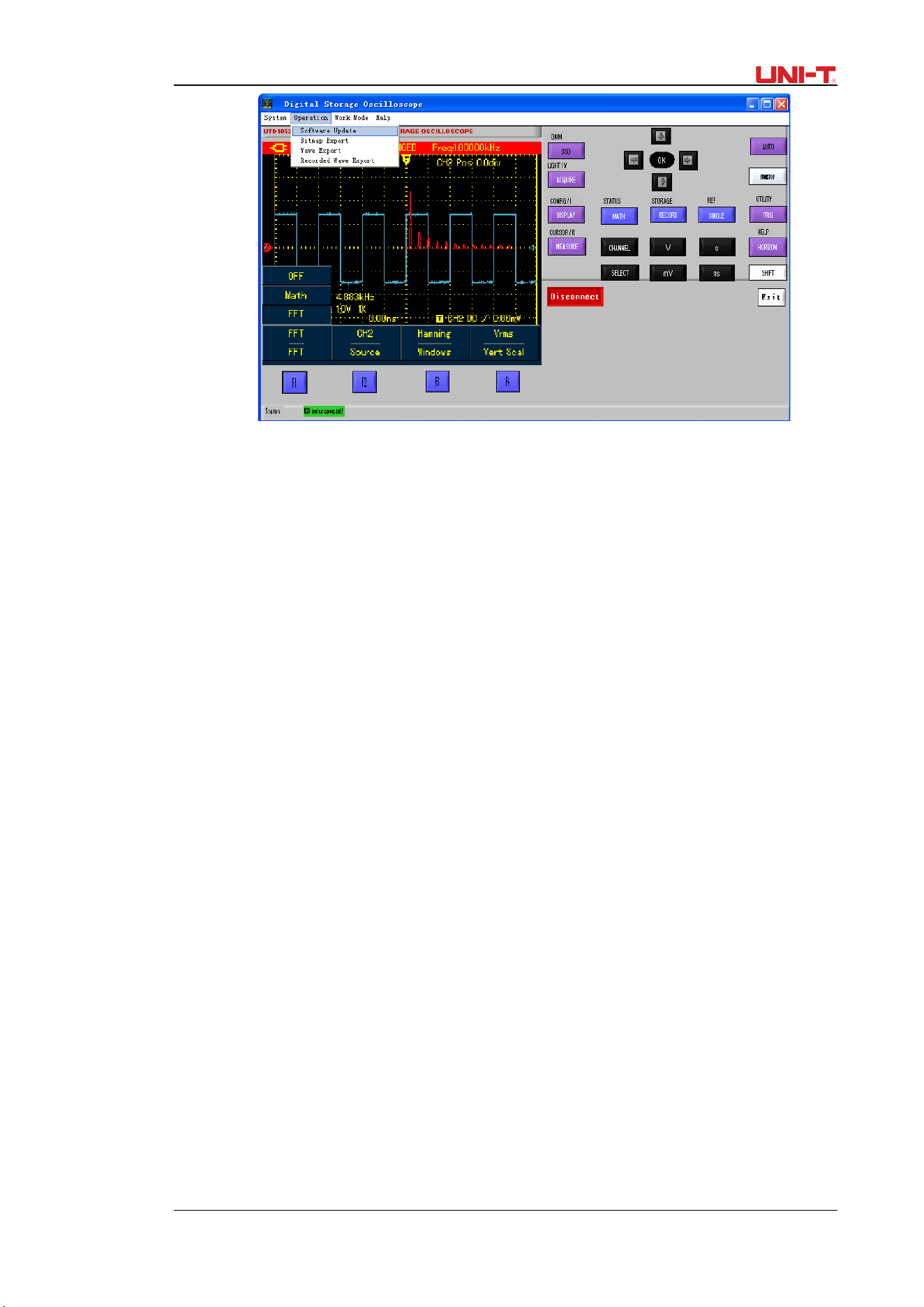
UTD1000L User Manual 79
Figure 8-2 Program Update
5. The Oscilloscope will read “update has succeeded!” on the screen after the update
has finished. Do not do any operation on the Oscilloscope at the moment , please
repower it on to complete the program update.
Notes:
1. When the program package doesn’t adapt to the Oscilloscope, PC reads “the update
file is incorrect, please check!”, then the Oscilloscope then stops the update and
keeps the previous program version unchanged.
2. If the Oscilloscope was disconnected to PC or powered off or PC has been shut down
during update, the update would stop and leave the previous program unchanged.
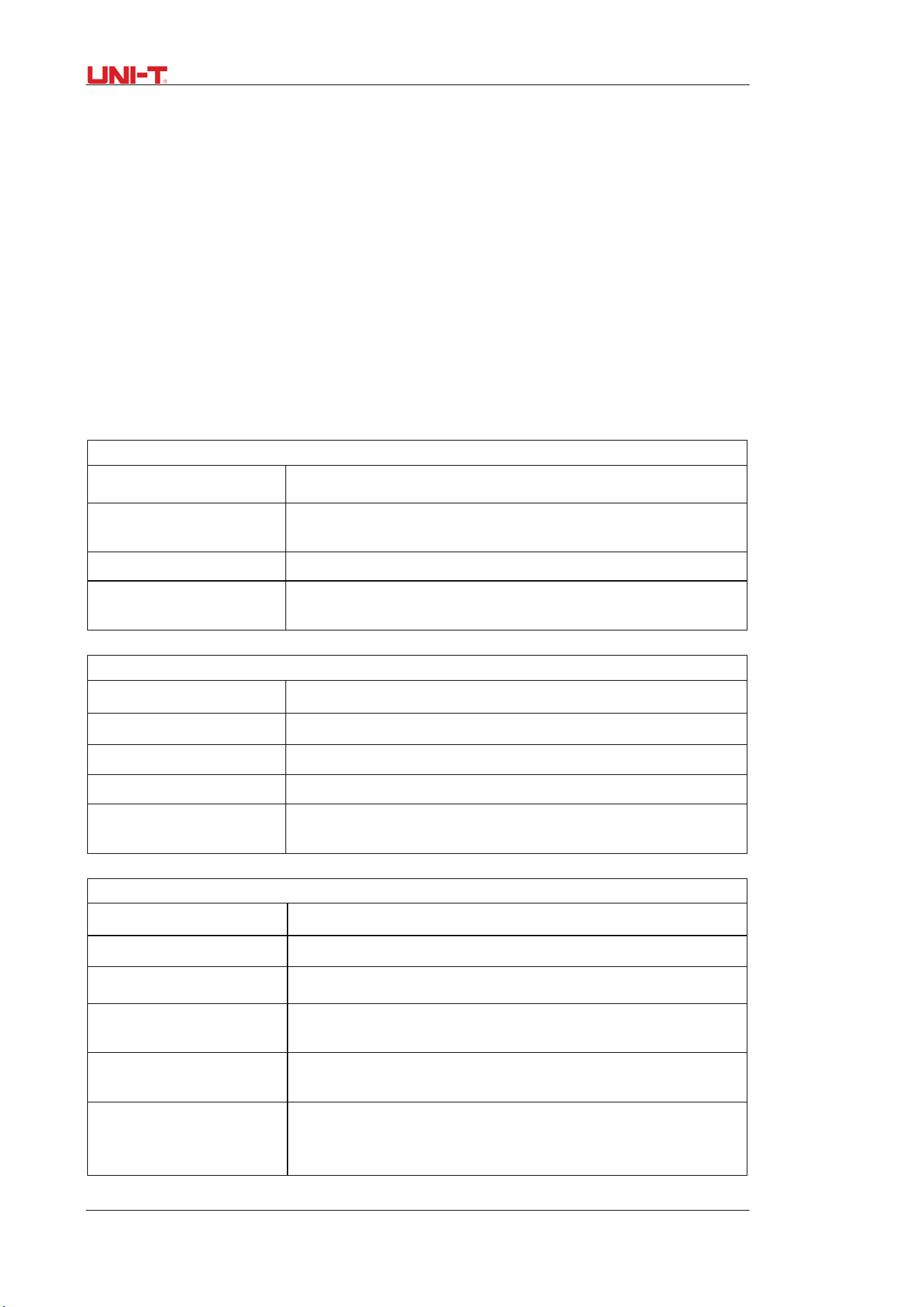
80 UTD1000L User Manual
Chapter 9 Appendixes
Appendix A: Technical Specifications
Unless otherwisef specified, the technical specifications are all applicable for 10× probe
and UTD1025L Oscilloscope. First of all, the Oscilloscope must satisfy two following conditions
in order to mee those specifications:
■ The Oscilloscope must run continuously for more than 30 minutes in regulated working
temperature.
■Users have to execute “self-calibration”procedure in UTILITY menu if operating temperature
is 5℃ or above higher than specified range. All specifications are warranted except items
marked with “Typical”
Technical Specifications:
Oscilloscope
Acquisition mode
Acquisition mode Real-time acquisition
Acquisition rate
UTD1025CL UTD1050CL 200MS/s
UTD1025DL UTD1050DL 250MS/s
Acquisition
Acquisition, Peak Detect, AVG
AVG value
All channels can acquire simultaneously up to N times, N
can be selected from 2, 4, 8, 16, 32,64, 128 and 256.
Input
Input Coupling
DC、AC、GND
Input Impedance
1±2%ΜΩ,与 21±3PF in parallel;
Probe Attenuation Factor 1X,10X,100X,1000X
Max.Input Voltage
300V(DC+AC Peak,、1MΩInput Impedance)
Interchannel Delay
(typical)
50ps
Horizontal
Waveform Interpolation sin(x)/x
Record Length 3M
Memory Depth 12K
Scan Speed(S/div)
UTD1025CL UTD1025DL :10ns/div-50s/div
UTD1050CL UTD1050DL: 5ns/div-50s/div Stepping in 1-2-5
Sample Rate and Delay
Accuracy
±50ppm((any time interval ≥1ms)
Interval Time(△T)
Measuring Accuracy(Full
BW)
SINGLE: ±(1 sampling interval time+50ppm×readings+0.6ns)
﹥16AVGs: ±(1 sampling interval time
+100ppm×readings+0.4ns)
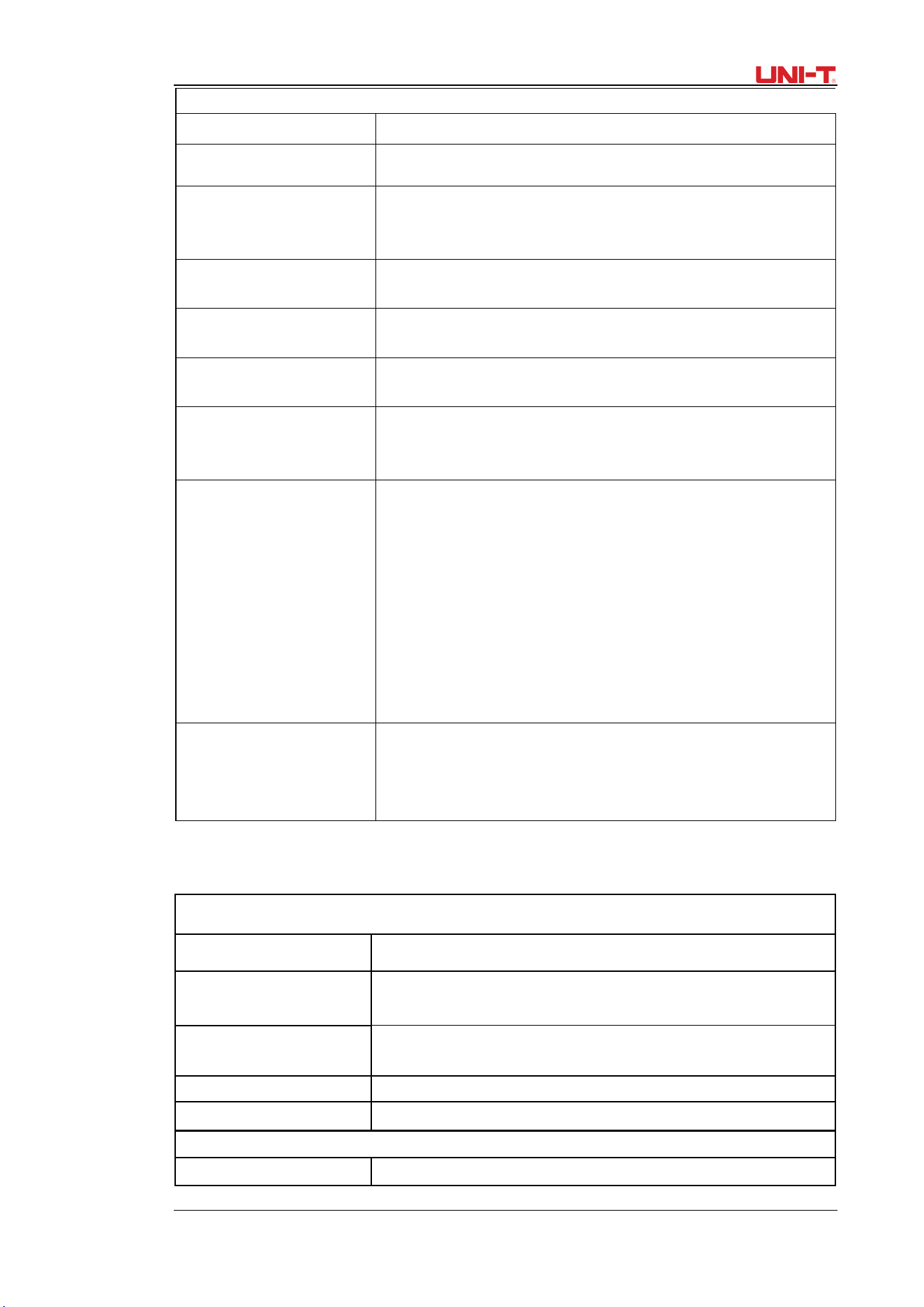
UTD1000L User Manual 81
Vertical
A/D Converter(A/D) 8-bit resolution
Vertical Scale(V/div)
5mV/div~20V/div(at BNC)
Offset Ranges
5mV/div~100mV/div: ±1.2V;
200mV/div~1V/div: ±24V;
2V/div
~
20V/div: ±240V
;
Analog Bandwidth
UTD1025CL UTD1025DL 25MHz
UTD1050CL UTD1050DL 50MHz
LF Response
(AC-Coupled, -3dB)
≤10Hz(at BNC)
Rise Time
UTD1025CL UTD1025DL : ≤14ns
UTD1050CL UTD1050DL : ≤7ns
DC Gain Accuracy
For vertial Sensitivity 5mV/div: ±4%(Normal or AVG)
vertial Sensitivity from 10mV/div~20V/div: ±3% ( Normal or
AVG)
DC Measurement
Accuracy(AVG mode)
Where vertical offset equals zero and N≥16:
±(4%×Readings+0.1div+1mV) and select 5mV/div;
±(3%×Readings+0.1div+1mV) and select 10mV/div~20V/div;
±(3%×Readings+0.1div+1mV)and select bewteen
10mV/div~20V/div.
Where vertival offset does not equal to zero and N≥16:
±[3%×(Readings+Vertical offset value)+(1%×Vertical offset
Value)]+0.2div)
Add 2mV if setting between 5mV/div to 200mV/div; Add 50mV
if settings from 200mV/div to 20V/div.
Voltage
Differnce(△V)Measuring
Accuracy(AVG Mode)
Under same settings and ambient conditions, calculate voltage
difference(ΔV) between any two points just after capturing ≥
16 wavforms and working out average values. Equation:±(3%
×
readings+0.05div)
Trigger
Trigger Sensitivity ≤1div
Trigger Level Range ±10div from screen center point
Pre-Trigger
Normal/Sweep Mode, Pre-trigger/Delay Trigger, Pre-trigger
Depth Adjustable
Hold-Off Range 100ns - 1.5s
Edge Trigger
Edge Type Rise, fall
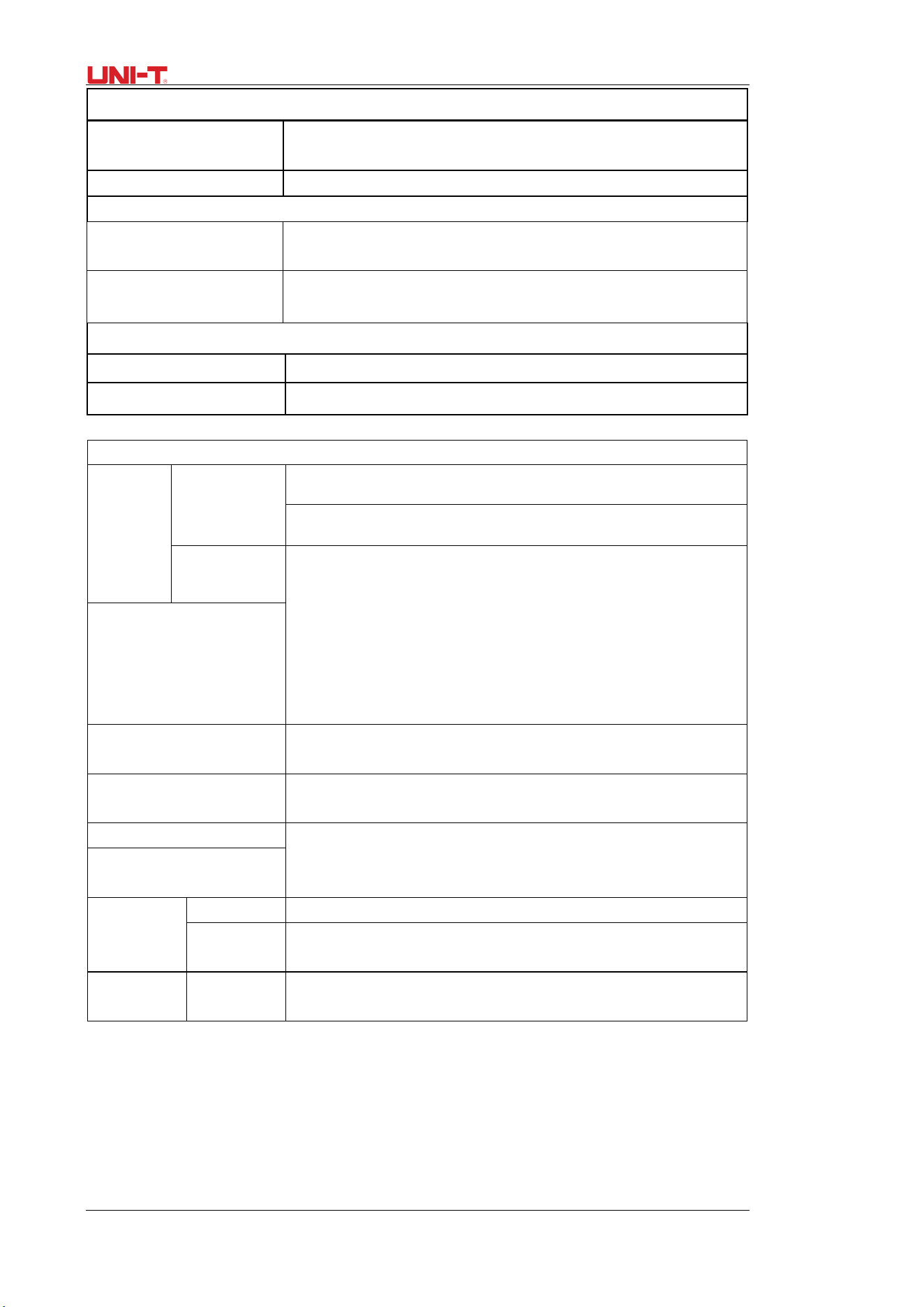
82 UTD1000L User Manual
Pulse Width Trigger
Trigger Mode
(>,<,=)Positive Pulse Width, (>,<,=)Negative Pulse
Width,
Pulse Width Range
20ns-10s
Video Trigger
Trigger Sensitivity
(Video, typical)
2divs Peak-to-Peak Value
Video Format and
Line/Field Frequency
Support standard NTSC and PAL, line numbers from 1~
525(NTSC) and 1~625(PAL)
Slope Trigger
Trigger Conditions
<, >,=
Slew Rate
40pV/μs~1.6kV/μs
Measurements
Cursor
Manual
Mode
Cursor Voltage Difference(ΔV), Cursor Time Difference(ΔT),
ΔT reciprocal(Hz)(1/ΔT)
Auto Mode Cursor allowed to display in auto mode
Auto Measurements
Peak-to-Peak, Amplitude, Max, Min,Top Point, Bottom Point,
Middle, AVG, RMS, Overshoot, Preshoot, Frequency, period,
Rise Time, Fall Time, Positive&Negative Pulse Width, Positive&
Negative Duty Cycle, Rise Delay, Fall Delay, Phase,
total 22
types
Customized Parameter
Measurement
Up to 4 types at a time
Mathematics
UTD1000CL: FFT
UTD1000DL: Math and FFT
Storage Screens: 10sets; Waveforms: 20 sets, Settings:20 types,
Waveform Recording
Store 5 sets of waveform records. UTD1000L: recording
150screens
FFT
Window Hanning,Hamming,Biackman,Rectangular
Sample
Points
1024 points
NYQUIST
Pattern
Phase
Difference
±3degrees
Multimeter
The specified accuracy is valid over the temperature range 18 °C to 28 °C
Add 10 % of specified accuracy for each degree C below 18 °C or above
28 °C
DC Voltage:
UTD1000L User Manual 83
Input Impedance : 10MΩ
Max.Input Voltage: DC400V 。
Range Resolution Accuracy
400.0mv 0.1mv
±(1%+5digits)
4.000V
1mv
40.00V 10mv
400.0V
100mv
AC Voltage:
Input Impedance: 10MΩ
Max.Input Voltage: 400V AC RMS
Frequency Range: 40Hz ~ 400Hz.
Display: RMS of sinewave
Range Resolution Accuracy
400.0mv
0.1mv
±(1.2%+5digits)
4.000V
1mv
40.00V
10mv
400.0V
100mv
UTD1000DL DC Current:
Max. Input DC Current: DC4A
Range
Resolution
Accuracy
999.9μA
Measure with UT-M10
(mA current module)
0.1μA
±(1.2%+5digits)
40.00mA
Measure with UT-M10
(mA current module)
10
μ
A
±(1%+5digits)
400.0mA
Measure with UT-M10
(mA current module)
0.1mA
4.00A
Measure with UT-M04
(4A current divider module)
10mA
±(1.5%+5digits)
84 UTD1000L User Manual
UTD1000CL DC Current:
Max. Input DC Current: DC6A
Range Resolution Accuracy
350.0μA 0.1μA
±(1.2%+5digits)
40.00mA
10
μ
A
±(1%+5digits)
400.0mA 0.1mA
6.00A
Measure with UT-M07
(10A current divider module)
10mA
±(1.5%+5digits)
UTD1000DL AC Current
Max.Input AC Current: AC 4A RMS
Frequency Range: 40Hz ~ 400Hz.
Range
Resolution
Accuracy
999.9μA
Measure with UT-M10
(mA current module)
0.1μA
±(2%+5digits)
40.00mA
Measure with UT-M10
(mA current module)
10
μ
A
±(1.5%+5digits)
400.0mA
Measure with UT-M10
(mA current module)
0.1mA
4.00A
Measure with UT-M04
(4A current divider module)
10mA
±(2.5%+5digits)
UTD1000CL AC Current:
Max. Input DC Current: DC6A
Range
Resolution
Accuracy
350.0
μ
A
0.1
μ
A
±(2%+5digits)
40.00mA
10
μ
A
±(1.5%+5digits)
400.0mA
0.1mA
6.00A
Measure with UT-M07
(10A current divider module)
10mA
±(2.5%+5digits)
UTD1000L User Manual 85
Resistance
Range
Resolution
Accuracy
400.0 Ω
0.1Ω
±(1.2%+5digits)
4.000kΩ
1Ω
40.00kΩ
10Ω
400.0kΩ
100Ω
4.000MΩ
1kΩ
40.00MΩ
10kΩ
±(1.5%
+
5digits)
Capacitance
Range Resolution Accuracy
51.20nF
10pF
±(3%+5digits)
512.0nF
10pF
5.120uF
1nF
51.20μF
10nF
100μF
1
μ
F
Diode:
Voltage Readout: 0V~1.5V
Continuity Test:
Resistance value for discontinuity: >75Ω, the beeper doesn’t sound;
Resistance value for good circuit continuity:≤70Ω,continuous beeping;
Display
Displat Type 3.5inch, TFT LCD
Display Resolution 320Horizontal ×RGB×240 Vertical pixels
Display Color Color/Black&White
Waveform Display Zone Horizontal: 12div, 25dot/div; Vertical: 8div, 25dot/div;
Backlight Brightness
Adjustable
Backlight Intensity
300nit
Language Multilingual
Interface
Standard
USB cable, 1 pc
UTD1000DL: UT-M04(4A current divider module), 1pc,
UT-M10(mA current module), 1pc;
UTD1000CL: UT-M07(10A current divider module), 1pc.
Optional ----
Power Adaptor:
Mains Voltage 100~220 V AC rms,45~440Hz
Output Voltage
9VDC
Output Voltage 4A
86 UTD1000L User Manual
Battery: 7.4 V, 3600mA rechargeable lithium batter; UTD1000CL: 8-hour battery life
UTD1000DL: 6-hour battery life;
Environment
Temperature
Operating:0℃~+40℃
Non-Operating:-20℃~+60℃
Cooling Method Naturally cooled down
Humidity
+10℃~+30℃:≤90%±5%RH,
+30℃~+40℃:≤60%±5%RH
Altitude
Operating:3,000m
Naturally cooled down 5,000m
Mechanical Specifications
Dimensions
(Reference Data)
199mm × 118mm × 49mm
Weight
( Net Weight)
Packing not included 0.9kg
Packing Included 2.3kg
IP Degree
IP2X
Calibration Period one time for each year
Appendix B Maintenance
1. General Service
Do not store or place the Oscilloscope in places that may get its LCD exposed to direct
sunshine for a long time. Do not let spray agent, liquid and solvent stick onto the Oscilloscope
or probe so as to avoid any damage to the Oscilloscope or probe
Cleaning
Check the Oscilloscope and its probe as actual operation requires. Clean the Oscilloscope
surface as follows:
1. Clean dust on the Oscilloscope and probe surface with soft cloth. Avoid any scratch to
LCD transparent protective layer.
2. Clean with soft cloth damped with water or mild agent, no water drop is allowed to
occur. Do not use any corrosives or abrasives. Disconnect the power supply before
cleaning.
Warning: To avoid any short circuit or even personal injury resulted from residual water,
please make sure the Oscilloscope is totally dry before powering it on
2. Storing the Oscilloscope
To store the Oscilloscope for a long term, you need to charge the batteries before storing it.
3. Charging Batteries

UTD1000L User Manual 87
The battery may not be fully charged during the delivery, it must take four hours to fully
charge the battery. The battery can work for 8hours after full charge.
When powered by the battery, the Oscilloscope indicates battery working status on the
upper part of screen.battery indicators may include: , , , , . And
icon means there is only five minutes left before the Oscilloscope powers off. Please
connect the power adaptor to the Oscilloscope if you want to charge the battery and use the
Oscillosocpe at the same time
Caution:
To avoid over-heating when charging the battery, environment temperature shouldn’t
exceed allowable rated value(0℃~+40℃).
Note:
There is no danger involved even the Oscilloscope has been connected to the charger
for a long time, for instance, during the whole weekend, for the Oscilloscope can
automatically switch into very slow charging status.
Replacing Lithium Batttery Pack
The battery pack doesn’t need the replacement under general circumstances. If
necessary, please have the battery pack replaced by qualified personnel and use new battery
with the same specifications.
Appendix C Chinese-English Reference Table for Front Panel
Front Panel in English Front Panel in English
DSO SINGLE
DMM SELECT
ACQUIRE
AUTO
DISPLAY
RUN/STOP
CONFIGURE
UTILITY
CURSOR
TRIGGER
MEASURE HELP
STATUS HORIZONTAL
MATH SHIFT
CHANNEL V/mV
STORAGE s/ns
RECORD OK
REF
V
I
R

88 UTD1000L User Manual
This user manual may be revised without prior notice
UTD1000L User Manual 89