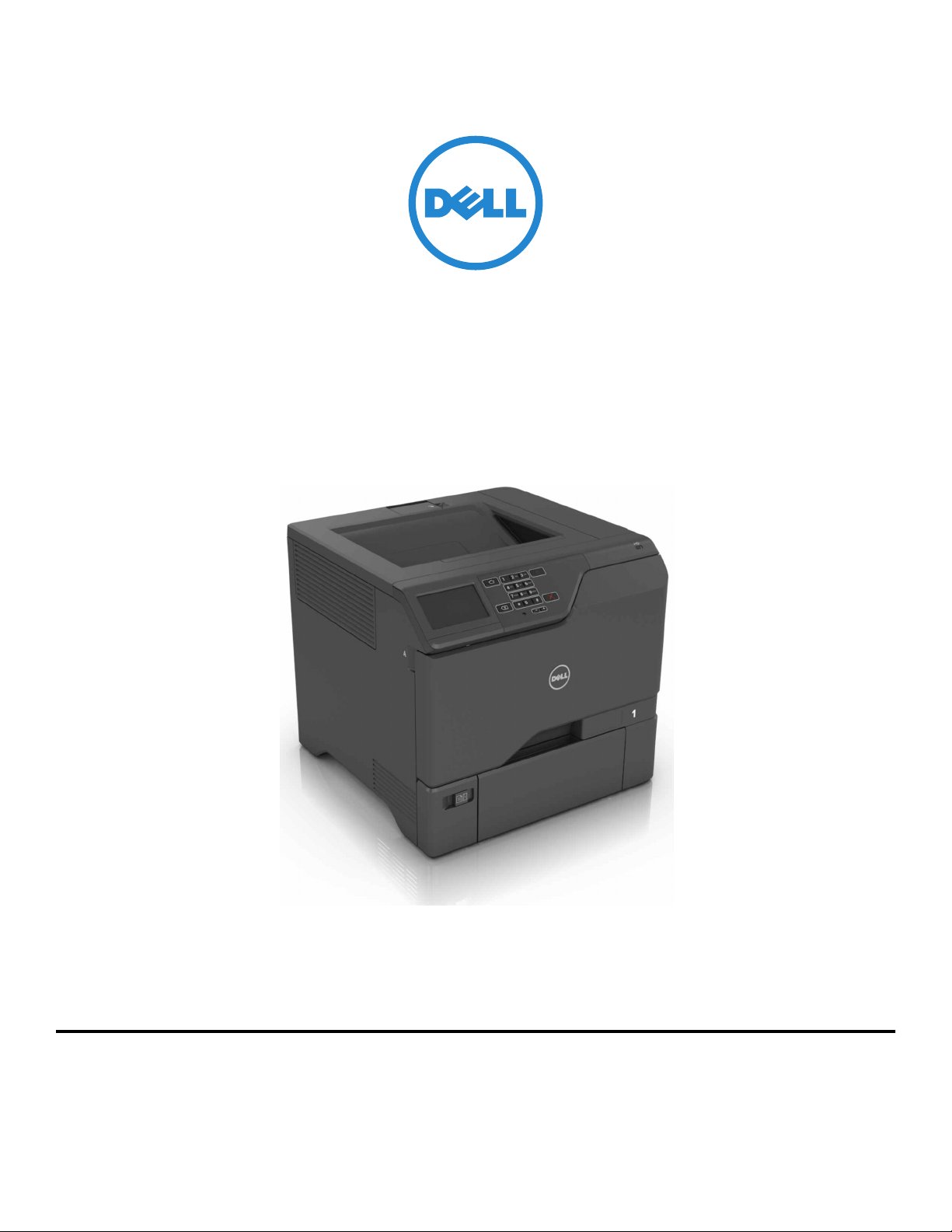
Dell S5840cdn Laser Printer
User's Guide
July 2017
Trademarks
Information in this document is subject to change without notice.
© 2016 Dell, Inc. All rights reserved.
Reproduction of this material in any manner whatsoever without the written permission of Dell Inc. is strictly forbidden.
Trademarks used in this text: Dell and the DELL logo are trademarks of Dell Inc.; Microsoft and Windows are registered trademarks of Microsoft Corporation; AirPrint,
the AirPrint logo, Mac, and the Mac logo are trademarks of Apple, Inc.; Mopria®, the Mopria® logo, and the Mopria® Alliance logo are registered trademarks and service
marks of Mopria Alliance, Inc. in the United States and other countries. Unauthorized use is strictly prohibited. Google Cloud Print is a trademark of Google Inc.
Other trademarks and trade names may be used in this document to refer to the entities claiming the marks and names of their products. Dell Inc. disclaims any
proprietary interest in trademarks and trade names other than its own.

Contents
Safety information........................................................................................ 5
Conventions.......................................................................................................................................................... 5
Learning about the printer...........................................................................8
Finding information about the printer.............................................................................................................8
Selecting a location for the printer................................................................................................................ 10
Printer configurations......................................................................................................................................... 11
Attaching cables.................................................................................................................................................. 11
Using the control panel.....................................................................................................................................13
Understanding the status of the power button and indicator light....................................................... 13
Using the home screen.....................................................................................................................................14
Printing a menu settings page........................................................................................................................15
Menu map.............................................................................................................................................................15
Setting up and using the home screen applications..............................16
Customizing the home screen........................................................................................................................16
Setting up Forms and Favorites..................................................................................................................... 16
Configuring Eco‑Settings................................................................................................................................. 16
Loading paper and specialty media..........................................................17
Setting the size and type of the specialty media....................................................................................... 17
Configuring Universal paper settings............................................................................................................17
Loading trays....................................................................................................................................................... 17
Loading the multipurpose feeder.................................................................................................................. 19
Linking trays........................................................................................................................................................20
Printing......................................................................................................... 21
Printing from a computer..................................................................................................................................21
Printing forms...................................................................................................................................................... 21
Printing from a flash drive................................................................................................................................ 21
Supported flash drives and file types.......................................................................................................... 22
Printing from a mobile device using Mopria Print Service..................................................................... 23
Printing from a mobile device using Google Cloud Print........................................................................23
Printing from a mobile device using AirPrint..............................................................................................23
Printing from a mobile device using Dell Document Hub...................................................................... 23
Contents 2

Configuring confidential jobs......................................................................................................................... 24
Printing held jobs...............................................................................................................................................24
Printing a font sample list................................................................................................................................24
Printing a directory list..................................................................................................................................... 24
Canceling a print job........................................................................................................................................ 25
Securing the printer................................................................................... 26
Erasing printer memory................................................................................................................................... 26
Erasing printer hard disk memory.................................................................................................................26
Configuring printer hard disk encryption....................................................................................................26
Restoring factory default settings................................................................................................................. 26
Statement of Volatility.......................................................................................................................................27
Maintaining the printer.............................................................................. 28
Networking..........................................................................................................................................................28
Setting up serial printing (Windows only)....................................................................................................29
Cleaning the printer..........................................................................................................................................30
Ordering supplies..............................................................................................................................................30
Replacing parts and supplies.......................................................................................................................... 31
Moving the printer..............................................................................................................................................51
Saving energy and paper................................................................................................................................52
Recycling............................................................................................................................................................. 52
Clearing jams.............................................................................................. 54
Avoiding jams.....................................................................................................................................................54
Identifying jam locations..................................................................................................................................55
Paper jam in trays..............................................................................................................................................56
Paper jam in the multipurpose feeder......................................................................................................... 57
Paper jam in the standard bin........................................................................................................................ 57
Paper jam in door A.......................................................................................................................................... 58
Troubleshooting...........................................................................................61
Network connection problems....................................................................................................................... 61
Hardware options problems...........................................................................................................................63
Paper feed problems........................................................................................................................................65
Printing problems.............................................................................................................................................. 68
Color quality problems.....................................................................................................................................87
Contents 3

Contacting technical support.........................................................................................................................89
Upgrading and migrating...........................................................................91
Hardware..............................................................................................................................................................91
Software............................................................................................................................................................. 105
Firmware............................................................................................................................................................ 105
Appendix.................................................................................................... 107
Index........................................................................................................... 109
Contents 4

Safety information
Conventions
Note: A note identifies information that could help you.
Warning: A warning identifies something that could damage the product hardware or software.
CAUTION: A caution indicates a potentially hazardous situation that could injure you.
Dierent types of caution statements include:
CAUTION—POTENTIAL INJURY: Indicates a risk of injury.
CAUTION—SHOCK HAZARD: Indicates a risk of electrical shock.
CAUTION—HOT SURFACE: Indicates a risk of burn if touched.
CAUTION—TIPPING HAZARD: Indicates a crush hazard.
CAUTION—POTENTIAL INJURY: To avoid the risk of fire or electrical shock, connect the power cord to
an appropriately rated and properly grounded electrical outlet that is near the product and easily
accessible.
CAUTION—POTENTIAL INJURY: To avoid the risk of fire or electrical shock, use only the power cord
provided with this product or the manufacturer's authorized replacement.
CAUTION—POTENTIAL INJURY: Do not use this product with extension cords, multioutlet power strips,
multioutlet extenders, or UPS devices. The power capacity of these types of accessories can be easily
overloaded by a laser printer and may result in a risk of fire, property damage, or poor printer
performance.
CAUTION—SHOCK HAZARD: To avoid the risk of electrical shock, do not place or use this product near
water or wet locations.
CAUTION—SHOCK HAZARD: To avoid the risk of electrical shock, do not set up this product or make
any electrical or cabling connections, such as the power cord, fax feature, or telephone, during a
lightning storm.
CAUTION—POTENTIAL INJURY: Do not cut, twist, bind, crush, or place heavy objects on the power
cord. Do not subject the power cord to abrasion or stress. Do not pinch the power cord between objects
such as furniture and walls. If any of these things happen, a risk of fire or electrical shock results. Inspect
the power cord regularly for signs of such problems. Remove the power cord from the electrical outlet
before inspecting it.
CAUTION—SHOCK HAZARD: To avoid the risk of electrical shock, make sure that all external
connections (such as Ethernet and telephone system connections) are properly installed in their marked
plug-in ports.
CAUTION—SHOCK HAZARD: To avoid the risk of electrical shock, if you are accessing the controller
board or installing optional hardware or memory devices sometime after setting up the printer, then turn
the printer o, and unplug the power cord from the electrical outlet before continuing. If you have any
other devices attached to the printer, then turn them o as well, and unplug any cables going into the
printer.
Safety information 5

CAUTION—SHOCK HAZARD: To avoid the risk of electrical shock when cleaning the exterior of the
printer, unplug the power cord from the electrical outlet and disconnect all cables from the printer before
proceeding.
CAUTION—POTENTIAL INJURY: The printer weight is greater than 18 kg (40 lb) and requires two or
more trained personnel to lift it safely.
CAUTION—POTENTIAL INJURY: When moving the printer, follow these guidelines to avoid personal
injury or printer damage:
• Make sure that all doors and trays are closed.
• Turn o the printer, and then unplug the power cord from the electrical outlet.
• Disconnect all cords and cables from the printer.
• If the printer has a caster base, then carefully roll it to the new location. Use caution when passing over
thresholds and breaks in flooring.
• If the printer does not have a caster base but is configured with optional trays, then lift the printer o the
trays. Do not try to lift the printer and the trays at the same time.
• Always use the handholds on the printer to lift it.
• Any cart used to move the printer must have a surface able to support the full footprint of the printer.
• Any cart used to move the hardware options must have a surface able to support the dimensions of the
options.
• Keep the printer in an upright position.
• Avoid severe jarring movements.
• Make sure that your fingers are not under the printer when you set it down.
• Make sure that there is adequate clearance around the printer.
CAUTION—TIPPING HAZARD: Installing one or more options on your printer or MFP may require a
caster base, furniture, or other feature to prevent instability causing possible injury. For more information
on supported configurations, contact the place where you purchased the printer.
CAUTION—TIPPING HAZARD: To reduce the risk of equipment instability, load each tray separately.
Keep all other trays closed until needed.
CAUTION—HOT SURFACE: The inside of the printer might be hot. To reduce the risk of injury from a hot
component, allow the surface to cool before touching it.
CAUTION—POTENTIAL INJURY: This product uses a laser. Use of controls or adjustments or
performance of procedures other than those specified in the User’s Guide may result in hazardous
radiation exposure.
CAUTION—POTENTIAL INJURY: The lithium battery in this product is not intended to be replaced.
There is a danger of explosion if a lithium battery is incorrectly replaced. Do not recharge, disassemble,
or incinerate a lithium battery. Discard used lithium batteries according to the manufacturer's instructions
and local regulations.
This equipment is not suitable for use in locations where children are likely to be present.
This product is designed, tested, and approved to meet strict global safety standards with the use of
specific
manufacturer's components. The safety features of some parts may not always be obvious. The manufacturer
is not responsible for the use of other replacement parts.
Refer service or repairs, other than those described in the user documentation, to a service representative.
Safety information 6

This product uses a printing process that heats the print media, and the heat may cause the media to release
emissions. You must understand the section in your operating instructions that discusses the guidelines for
selecting print media to avoid the possibility of harmful emissions.
This product may produce small amounts of ozone during normal operation, and may be equipped with a filter
designed to limit ozone concentrations to levels well below the recommended exposure limits. To avoid high
ozone concentration levels during extensive usage, install this product in a well-ventilated area and replace
the ozone and exhaust filters if instructed to do so in the product maintenance instructions. If there are no
references to filters in the product maintenance instructions, then there are no filters requiring replacement for
this product.
SAVE THESE INSTRUCTIONS.
Safety information 7
Learning about the printer
Finding information about the printer
What are you looking for? Find it here
Help to set up and use the printer:
• Accessing printer reports
• Accessing the Embedded Web Server
• Installing optional accessories
• Dell instructional videos
• Finding the service tag
• Routine printer maintenance
• Troubleshooting
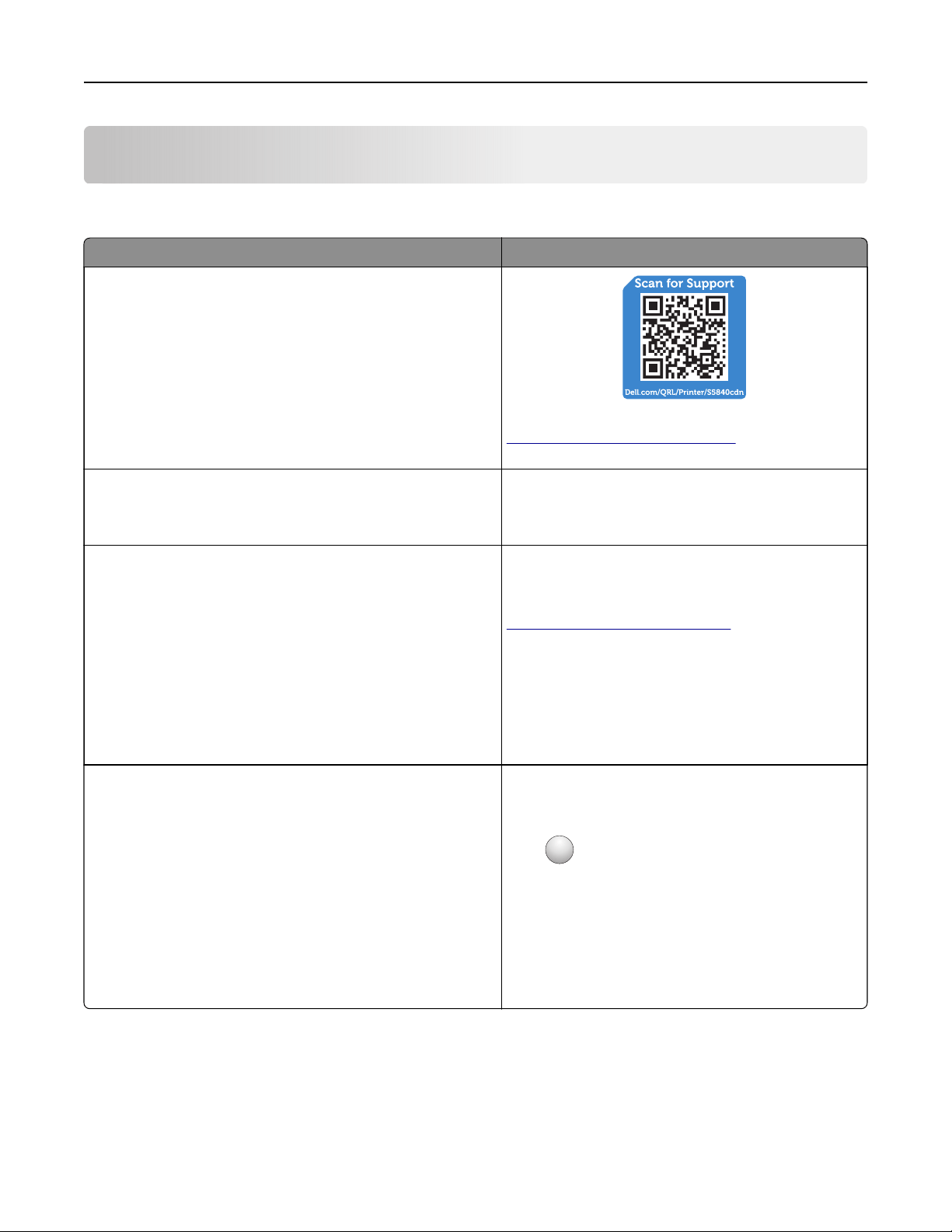
Scan the Quick Response (QR) code or go to
Dell.com/QRL/Printer/S5840cdn to view product
documents.
Initial setup instructions:
• Connecting the printer
• Installing the printer software
Setup documentation—The setup documentation
came with the printer.
Additional setup and instructions for using the printer:
• Selecting and storing paper and specialty media
• Loading paper
• Configuring printer settings
• Viewing and printing documents and photos
• Setting up and using the printer software
• Configuring the printer on a network
• Caring for and maintaining the printer
• Troubleshooting and solving problems
User's Guide and Quick Reference Guide—The
guides are available on the Software CD.
For more information, go to
www.dell.com/support/manuals.
Help using the printer software Help for Microsoft® Windows® or Macintosh
operating systems—Open a printer software program
or application, and then click Help.
Click
?
to view context‑sensitive information.
Notes:
• Help is automatically installed with the printer
software.
• The printer software is located in the printer
program folder or on the desktop, depending
on your operating system.
Learning about the printer 8
What are you looking for? Find it here
The latest supplemental information, updates, and technical
support:
• Documentation
• Driver downloads
• Product upgrades
• Service call and repair information
• Order status
• Live chat support
• E‑mail support
• Voice support
www.dell.com/support/printers
Notes:
• Support contact information for your country or
region is found on the support Web site.
• Documentation came with the printer and is
available on the Software CD.
Have the following information ready when you
contact technical support:
• Service tag
• Express service code
Note: The service tag and express service code
appear on labels on the printer.
• Software and Drivers—Certified drivers for your printer
and installers for Dell printer software
• Readme files—Last‑minute technical changes, or
advanced technical reference materials for experienced
users or technicians
Software CD
• Supplies and accessories for your printer
• Replacement cartridges
www.dell.com/printers
You can purchase printer supplies online, by
telephone, or in select retail stores.
• Safety information for preparing to operate your printer
• Regulatory information
• Warranty information
Product Information Guide
Notes:
• The Product Information Guide may not be
available in your country or region.
• Documentation came with the printer and is
available on the Software CD.
Learning about the printer 9
Selecting a location for the printer
When selecting a location for the printer, leave enough room to open trays, covers, and doors and to install
hardware options.
• Set up the printer near an electrical outlet.
CAUTION—POTENTIAL INJURY: To avoid the risk of fire or electrical shock, connect the power cord
to an appropriately rated and properly grounded electrical outlet that is near the product and easily
accessible.
CAUTION—SHOCK HAZARD: To avoid the risk of electrical shock, do not place or use this product
near water or wet locations.
• Make sure that airflow in the room meets the latest revision of the ASHRAE 62 standard or the CEN Technical
Committee 156 standard.
• Provide a
flat,
sturdy, and stable surface.
• Keep the printer:
– Clean, dry, and free of dust.
– Away from stray staples and paper clips.
– Away from the direct airflow of air conditioners, heaters, or ventilators.
– Free from direct sunlight and humidity extremes.
• Observe the recommended temperatures and avoid fluctuations:
Ambient temperature 10 to 32.2°C (50 to 90°F)
Storage temperature -40 to 43°C (-40 to 110°F)
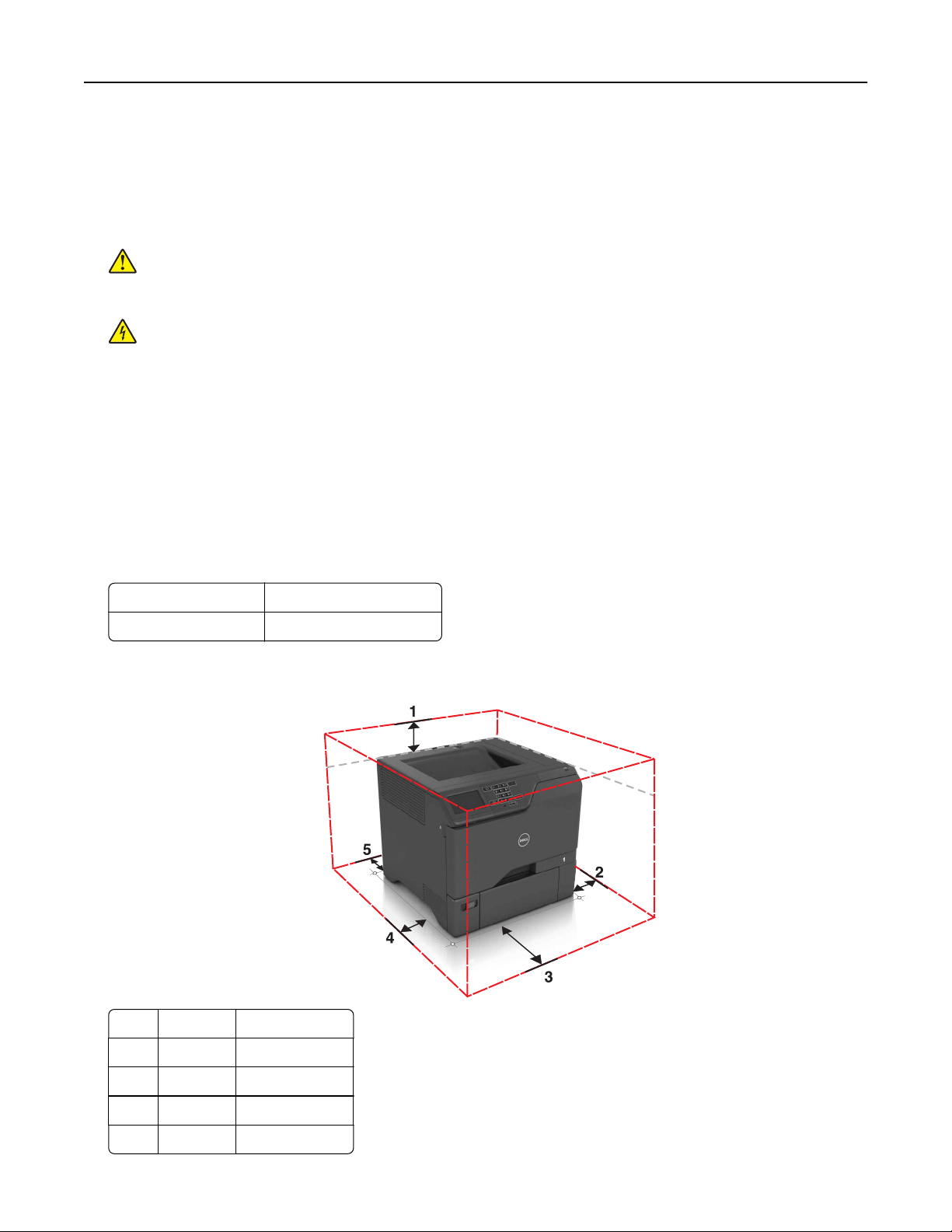
• Allow the following recommended amount of space around the printer for proper ventilation:
1 Top 178 mm ( 7 i n . )
2 Right side 127 mm (5 in.)
3 Front 508 mm (20 in.)
4 Left side 127 mm (5 in.)
5 Rear 76 mm (3 in.)
Learning about the printer 10
Printer configurations
CAUTION—TIPPING HAZARD: Installing one or more options on your printer or MFP may require a
caster base, furniture, or other feature to prevent instability causing possible injury. For more information
on supported configurations, contact the place where you purchased the printer.
CAUTION—TIPPING HAZARD: To reduce the risk of equipment instability, load each tray separately.
Keep all other trays closed until needed.
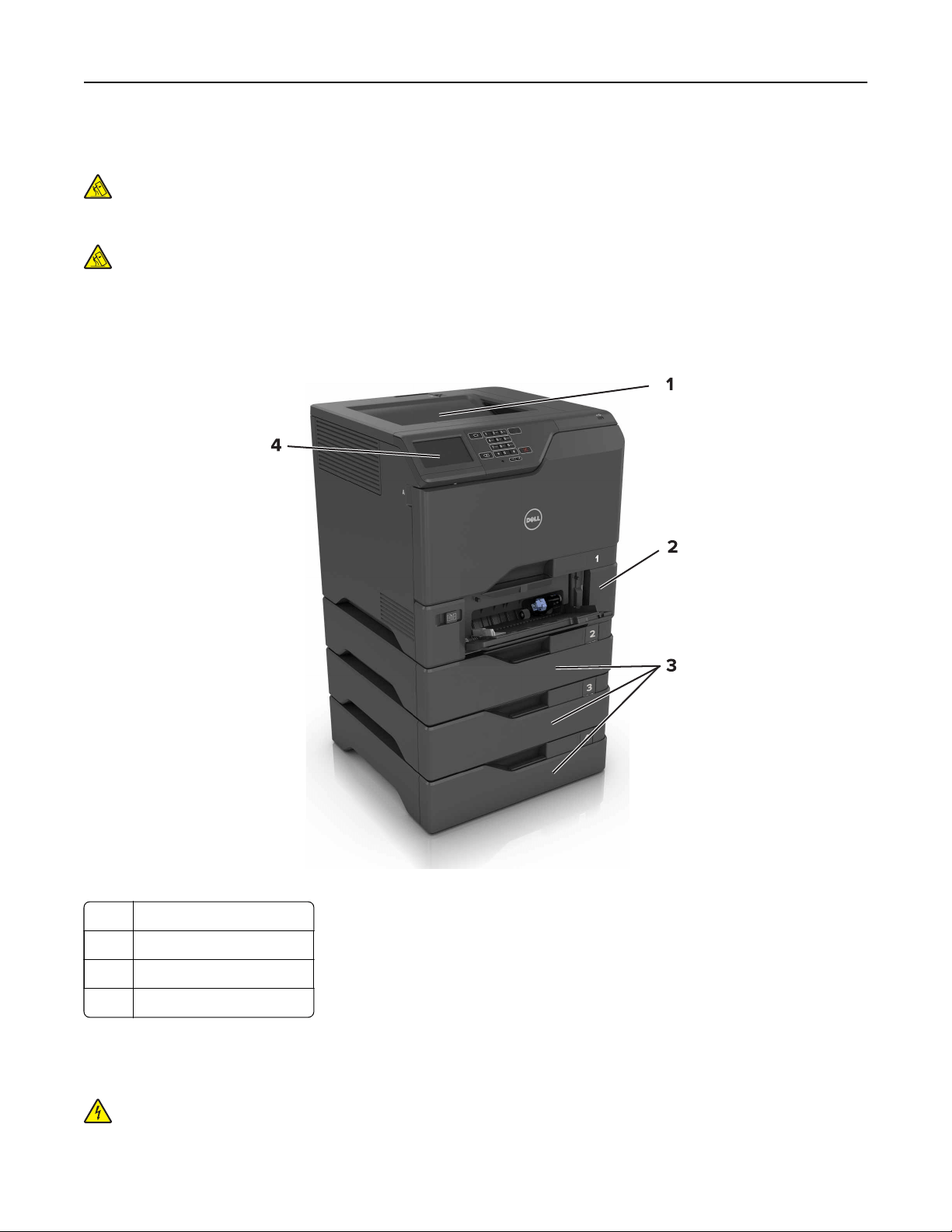
You can configure your printer by adding three optional 550‑sheet trays.
Note: You can place a custom label on the left side of the tray number.
1 Standard bin
2 650-sheet duo tray
3 Optional 550‑sheet trays
4 Control panel
Attaching cables
CAUTION—SHOCK HAZARD: To avoid the risk of electrical shock, do not set up this product or make
any electrical or cabling connections, such as the power cord, fax feature, or telephone, during a
lightning storm.
Learning about the printer 11
CAUTION—POTENTIAL INJURY: To avoid the risk of fire or electrical shock, connect the power cord to
an appropriately rated and properly grounded electrical outlet that is near the product and easily
accessible.
CAUTION—POTENTIAL INJURY: To avoid the risk of fire or electrical shock, use only the power cord
provided with this product or the manufacturer's authorized replacement.
Warning—Potential Damage: Do not touch the USB cable, any wireless network adapter, or the printer in the
area shown while actively printing. Loss of data or a malfunction can occur.
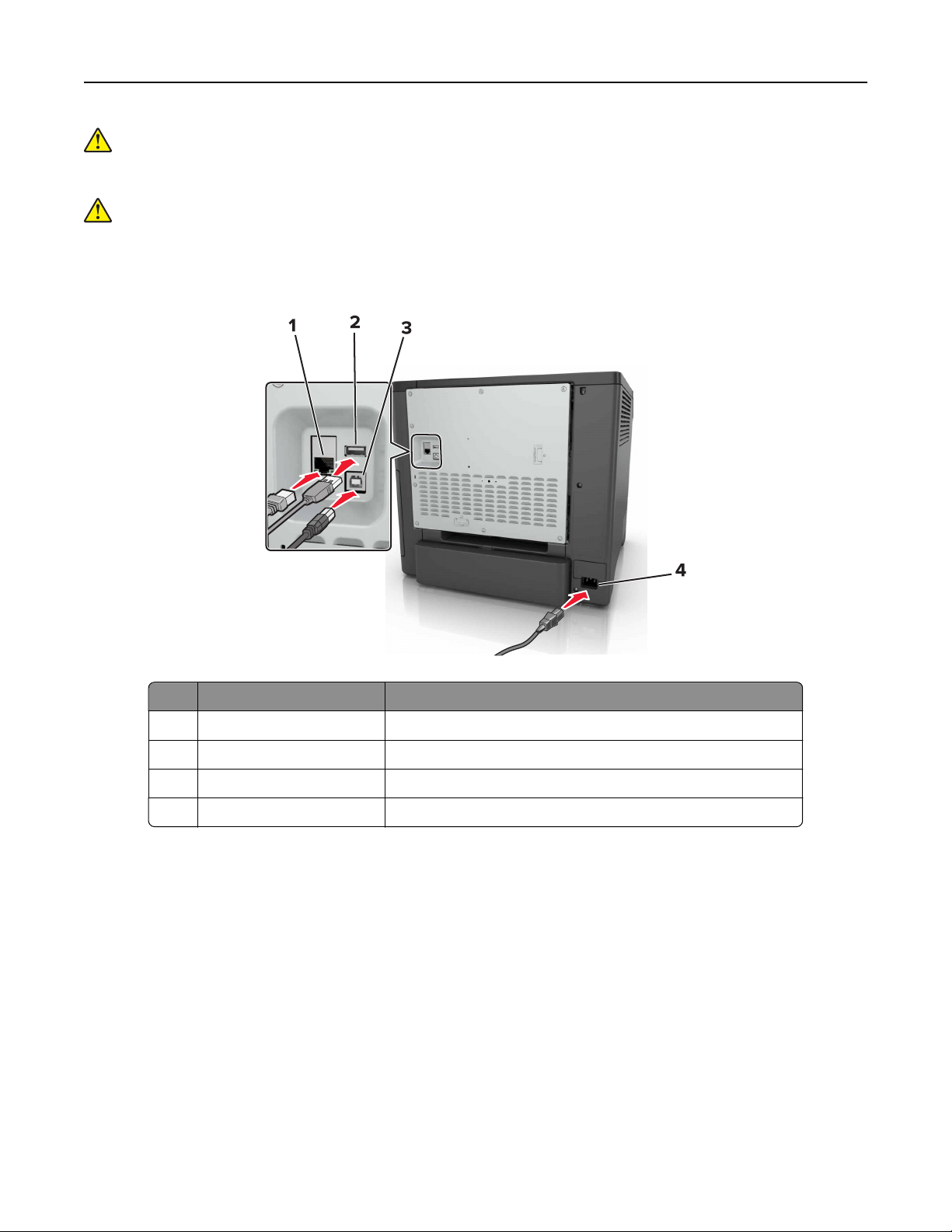
Use the To
1 Ethernet port Connect the printer to a network.
2 USB port Attach a keyboard or any compatible option.
3 USB printer port Connect the printer to a computer.
4 Printer power cord socket Connect the printer to a properly grounded electrical outlet.
Learning about the printer 12
Using the control panel
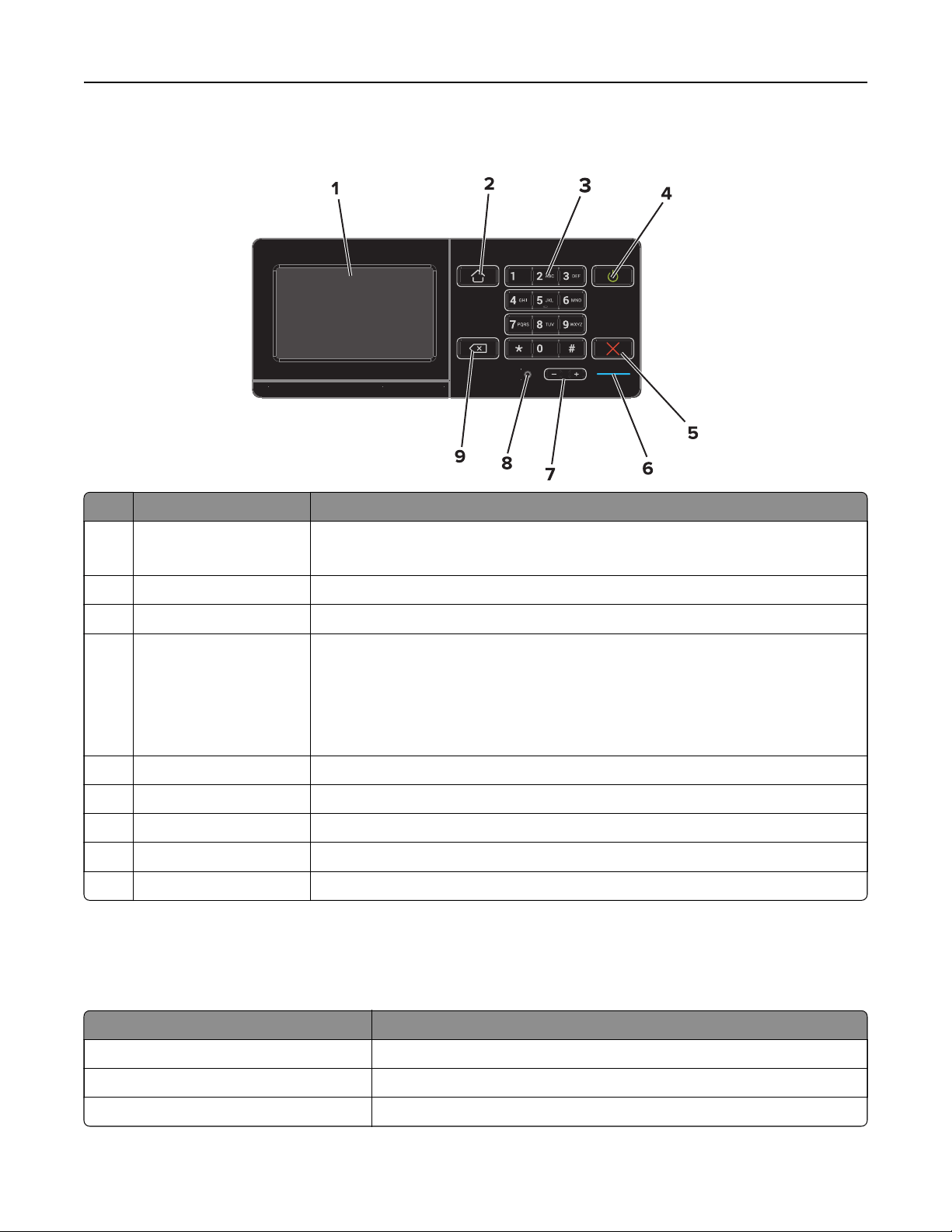
Use the To
1 Display
• View the printer messages and supply status.
• Set up and operate the printer.
2 Home button Go to the home screen.
3 Keypad Enter numbers or symbols in an input field.
4 Power button
• Turn on or turn o the printer.
Note: To tu r n
o
the printer, press and hold the power button for
five
seconds.
• Set the printer to Sleep or Hibernate mode.
• Wake the printer from Sleep or Hibernate mode.
5 Stop or Cancel button Stop the current job.
6 Indicator light Check the status of the printer.
7 Volume buttons Adjust the volume of the headset or speaker.
8 Headset or speaker port Attach a headset or speaker.
9 Backspace button Move the cursor backward and delete a character in an input field.
Understanding the status of the power button and
indicator light
Indicator light Printer status
O The printer is o or in Hibernate mode.
Blue The printer is ready or processing data.
Red The printer requires user intervention.
Learning about the printer 13
Power button light Printer status
O The printer is o, ready, or processing data.
Solid amber The printer is in sleep mode.
Blinking amber The printer is in hibernate mode.
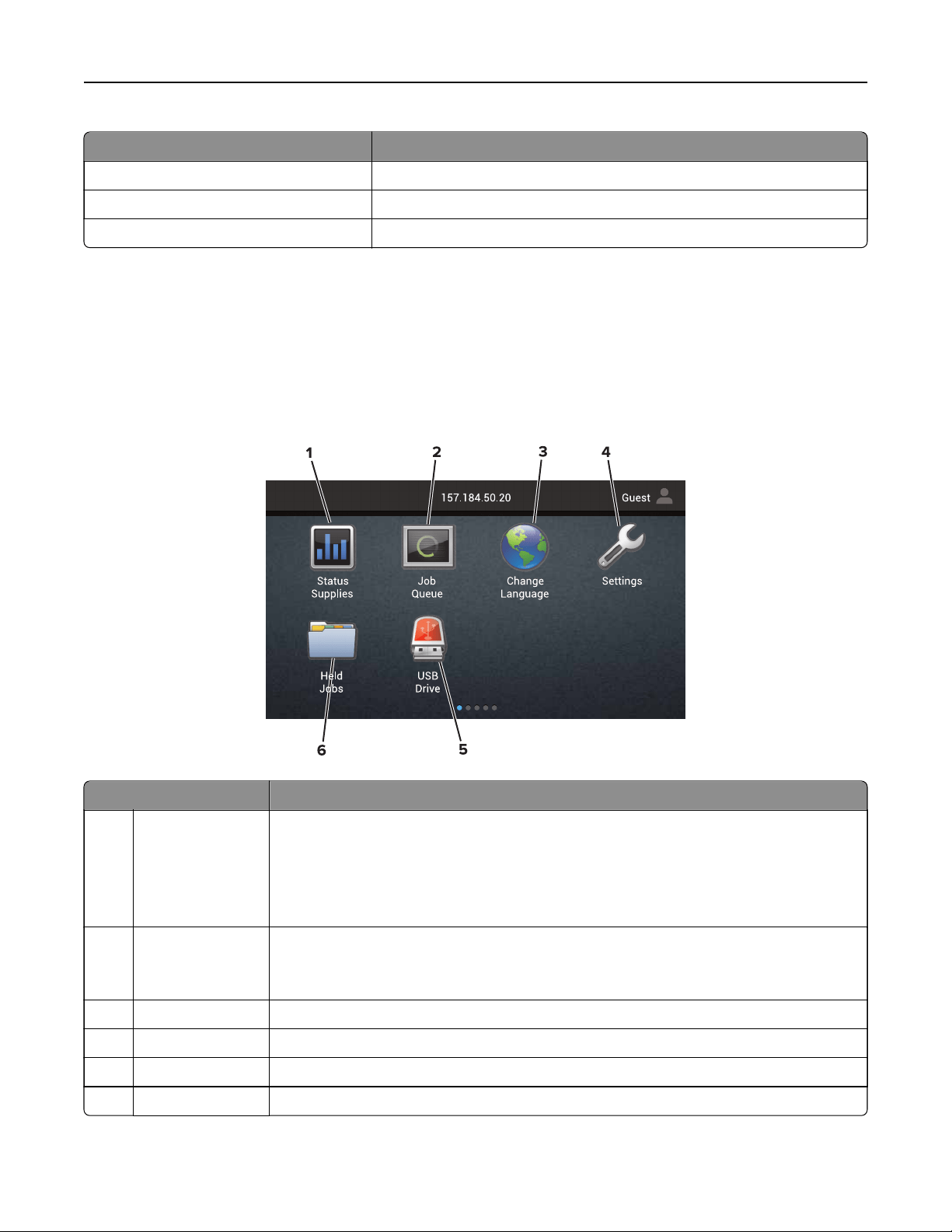
Using the home screen
When the printer is turned on, the display shows the home screen. Use the home screen buttons and icons to
initiate an action.
Note: Your home screen may vary depending on your home screen customization settings, administrative
setup, and active embedded solutions.
Tou ch To
1 Status/Supplies
• Show a printer warning or error message whenever the printer requires intervention
to continue processing.
• View more information on the printer warning or message, and on how to clear it.
Note: You can also access this setting by touching the top section of the home
screen.
2 Job Queue Show all the current print jobs.
Note: You can also access this setting by touching the top section of the home
screen.
3 Change Language Change the language on the printer display.
4 Settings Access the printer menus.
5 USB Drive View, select, or print photos and documents from a flash drive.
6 Held Jobs Show all the current held print jobs.
Learning about the printer 14

These settings may also appear on the home screen
Tou ch To
Bookmarks Access bookmarks.
App Profiles Access application profiles.
Lock Device Prevent users from accessing any printer functions from the home screen.
Printing a menu settings page
From the home screen, touch Settings > Reports > Menu Settings Page.
Menu map
Device Print Paper USB Drive Network/Ports
Preferences
Remote Operator Panel
Notifications
Power Management
Accessibility
Restore Factory Defaults
Maintenance
Visible Home Screen
Icons
About this Printer
Layout
Setup
Quality
Job Accounting
*
XPS
PDF
PostScript
PCL
HTML
Image
Tray Configuration
Media
Configuration
Flash Drive Print Network Overview
Wireless
AirPrint
Ethernet
TCP/IP
IPv6
SNMP
IPSec
LPD Configuration
HTTP/FTP Settings
ThinPrint
USB
Wi‑Fi Direct
Google Cloud Print
Security Option Card Menu Reports Help Troubleshooting
Login Methods
Schedule USB Devices
Security Audit Log
Login Restrictions
Confidential
Print Setup
Solutions LDAP Settings
Mobile Services
Management
Miscellaneous
Note: This setting
appears only when
an optional card is
installed.
Menu Settings Page
Device
Print
Network
Print All Guides
Color Quality Guide
Connection Guide
Information Guide
Media Guide
Moving Guide
Print Quality Guide
Supplies Guide
Print Quality Test Pages
*
To utilize this feature, purchase an optional hard disk with part number 27X0400, or a flash memory card with part
number 57X9801 from
www.lexmark.com.
Learning about the printer 15

Setting up and using the home screen
applications
Customizing the home screen
1 Open a web browser, and then type the printer IP address in the address field.
Notes:
• View the printer IP address on the printer home screen. The IP address appears as four sets of
numbers separated by periods, such as 123.123.123.123.
• If you are using a proxy server, then temporarily disable it to load the web page correctly.
2 Click Settings > Device > Visible Home Screen Icons.
3 Select the icons that you want to appear on the home screen.
4 Apply the changes.
Setting up Forms and Favorites
1 Open a Web browser, and then type the printer IP address in the address field.
Notes:
• View the printer IP address on the printer home screen. The IP address appears as four sets of
numbers separated by periods, such as 123.123.123.123.
• If you are using a proxy server, then temporarily disable it to load the Web page correctly.
2 Click Apps > Forms and Favorites > Configure.
3 Click Add, and then customize the settings.
Notes:
• To make sure that the location settings of the bookmark are correct, type the IP address of the host
computer where the bookmark is located.
• Make sure that the printer has access rights to the folder where the bookmark is located.
4 Apply the changes.
Configuring Eco‑Settings
1 From the home screen, touch Eco‑Settings.
2 Configure the settings.
3 Apply the changes.
Setting up and using the home screen applications 16
Loading paper and specialty media
Setting the size and type of the specialty media
The trays automatically detect the size of plain paper. For specialty media like labels, card stock, or envelopes,
do the following:
1 From the home screen, navigate to:
Settings > Paper > Tray Configuration > Paper Size/Type > select a paper source
2 Set the size and type of the specialty media.
Configuring Universal paper settings
1 From the home screen, touch Settings > Paper > Media Configuration > Universal Setup.
2 Configure the settings.
Loading trays
CAUTION—TIPPING HAZARD: To reduce the risk of equipment instability, load each tray separately.
Keep all other trays closed until needed.
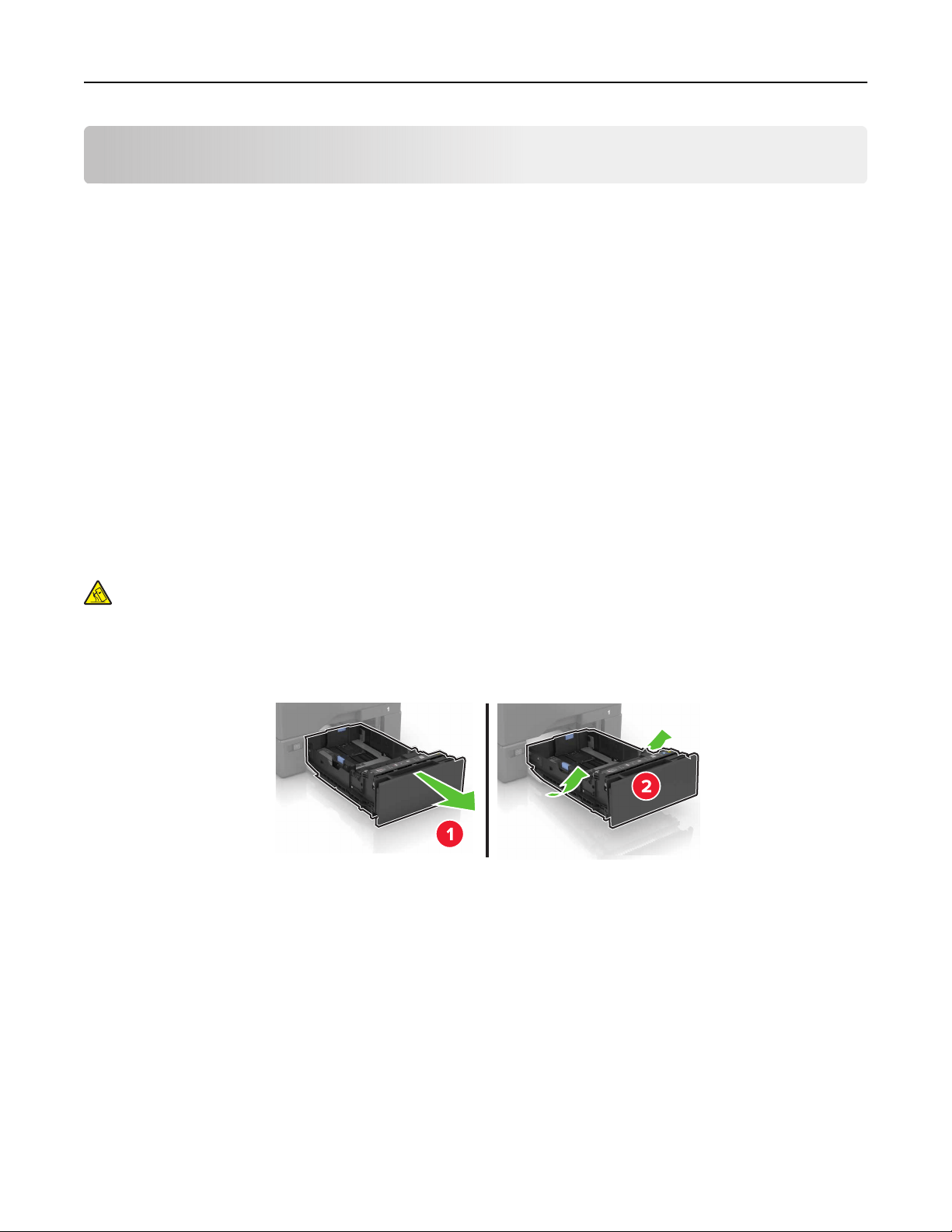
1 Remove the tray.
Note: To avoid jams, do not remove trays while the printer is busy.
2 Adjust the guides to match the size of the paper you are loading.
Note: Use the indicators on the bottom of the tray to position the guides.
Loading paper and specialty media 17

3 Flex, fan, and align the paper edges before loading.
4 Load the paper stack with the printable side faceup.
Notes:
• For one‑sided printing, load letterhead faceup with the header toward the front of the tray.
• For two‑sided printing, load letterhead facedown with the header toward the back of the tray.
• Do not slide paper into the tray.
• Make sure that the stack height is below the maximum paper
fill
indicator.
Overfilling
may cause
paper jams.
5 Insert the tray.
If necessary, set the paper size and type to match the paper loaded in the tray.
Loading paper and specialty media 18
Loading the multipurpose feeder
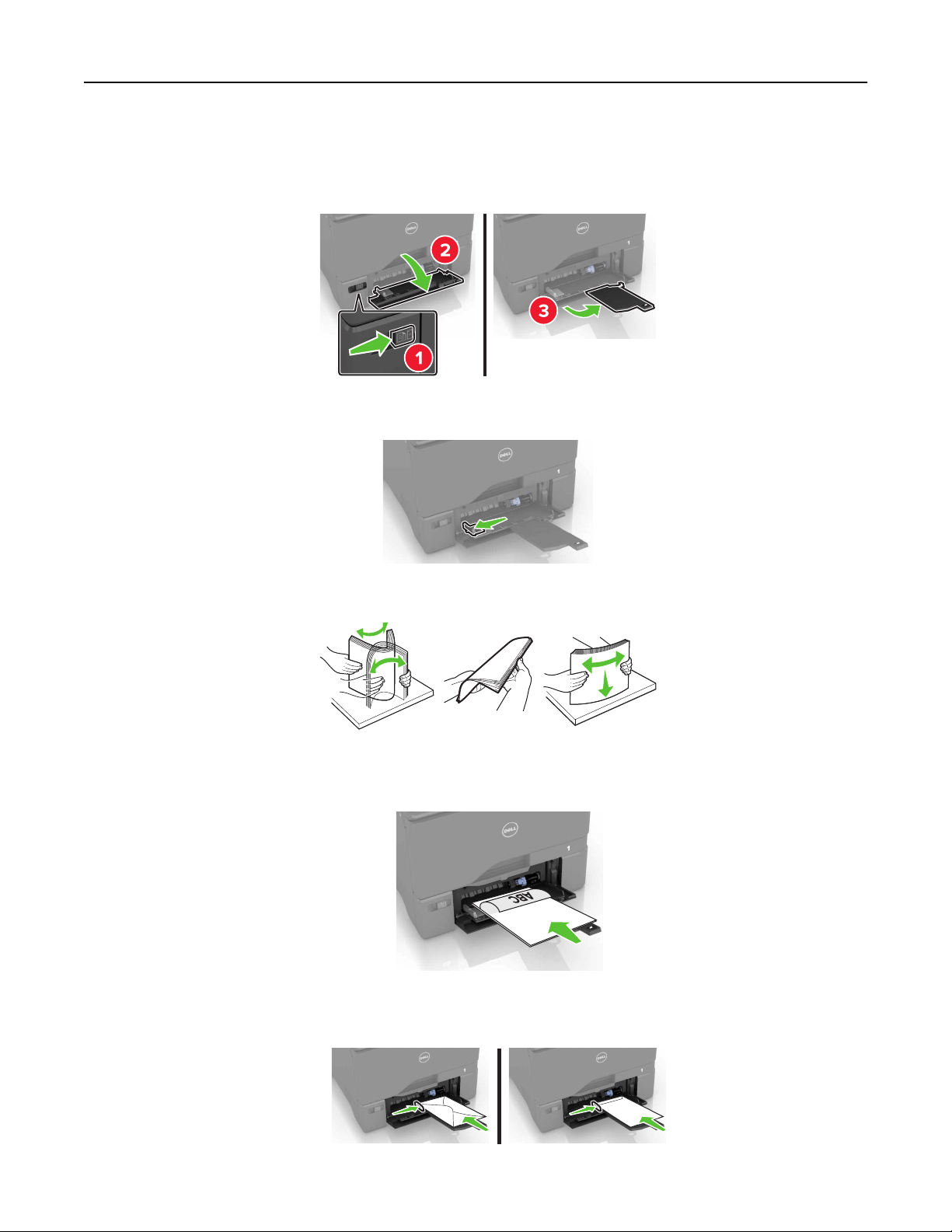
1 Open the multipurpose feeder.
2 Adjust the guide to match the size of the paper you are loading.
3 Flex, fan, and align the paper edges before loading.
4 Load the paper.
• Load paper and card stock with the printable side facedown and the top edge entering the printer first.
• Load envelopes with the flap side up and against the right side of the paper guide. Load European
envelopes with the flap entering the printer first.
Loading paper and specialty media 19

Warning—Potential Damage: Do not use envelopes with stamps, clasps, snaps, windows, coated
linings, or self‑stick adhesives.
5 From the Paper Menu in the control panel, set the paper size and type to match the paper loaded in the
tray.
Linking trays
1 Open a Web browser, and then type the printer IP address in the address field.
Notes:
• View the printer IP address on the printer home screen. The IP address appears as four sets of
numbers separated by periods, such as 123.123.123.123.
• If you are using a proxy server, then temporarily disable it to load the Web page correctly.
2 Click Settings > Paper.
3 Match the paper size and type for the trays you are linking.
Note: To unlink trays, make sure that no trays have the same paper size or type.
4 Save the settings.
Note: You can also change the paper size and type settings from the printer control panel.
Warning—Potential Damage: The temperature of the fuser varies according to the
specified
paper type. To
avoid printing issues, match the paper type settings in the printer with the paper loaded in the tray.
Loading paper and specialty media 20
Printing
Printing from a computer
Note: For specialty media such as labels, card stock, and envelopes, set the paper size and type in the
printer before sending the print job.
1 With a document open, click File > Print.
2 If necessary, adjust the settings.
3 Send the print job.
Printing forms
1 From the home screen, navigate to:
Forms and Favorites > select form > Print
2 If necessary, configure the print settings.
3 Send the print job.
Printing from a flash drive
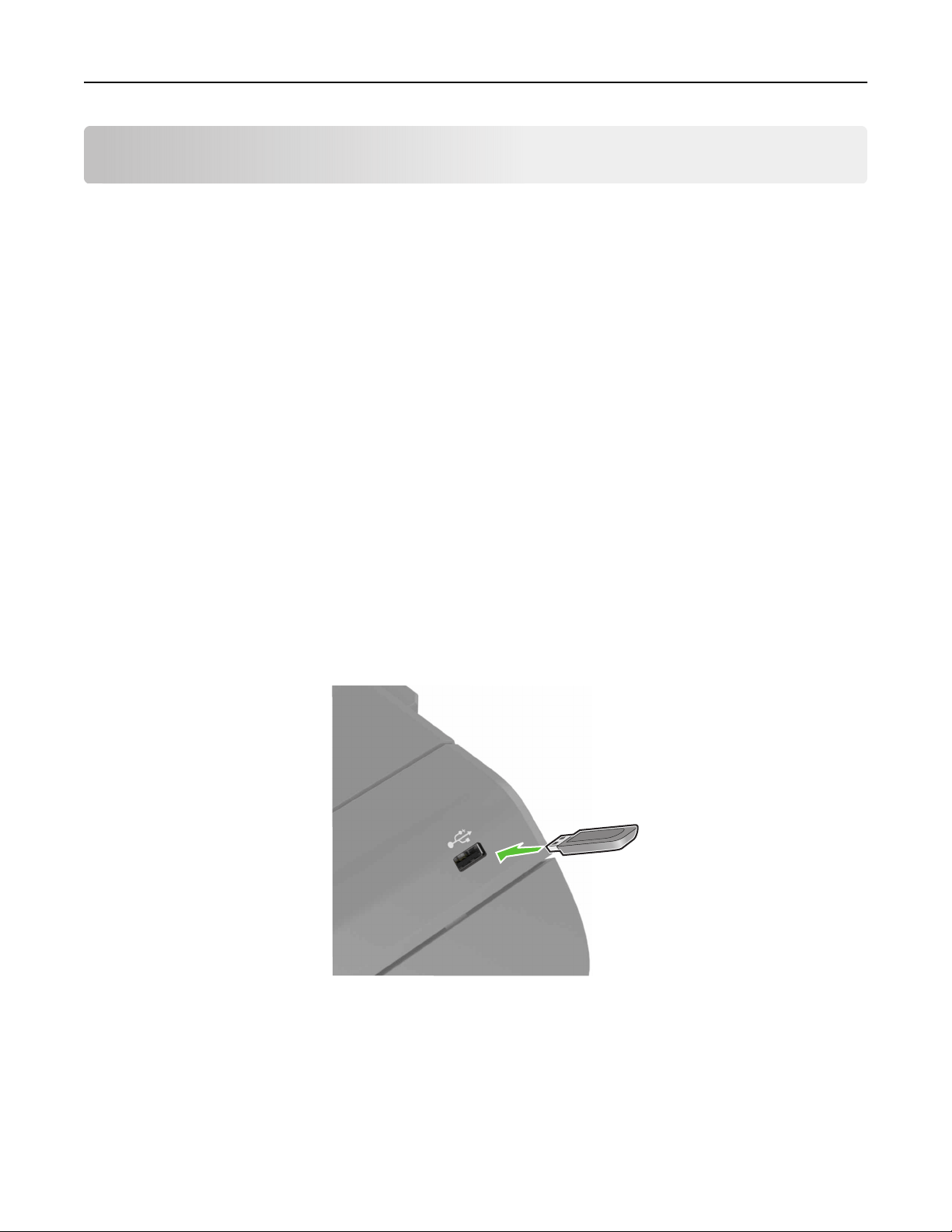
1 Insert a flash drive into the USB port.
Notes:
• If you insert the flash drive when an error message appears, then the printer ignores the flash drive.
• If you insert the flash drive while the printer is processing other print jobs, then Busy appears on the
display.
2 From the display, touch the document that you want to print.
If necessary, configure other print settings.
Printing 21
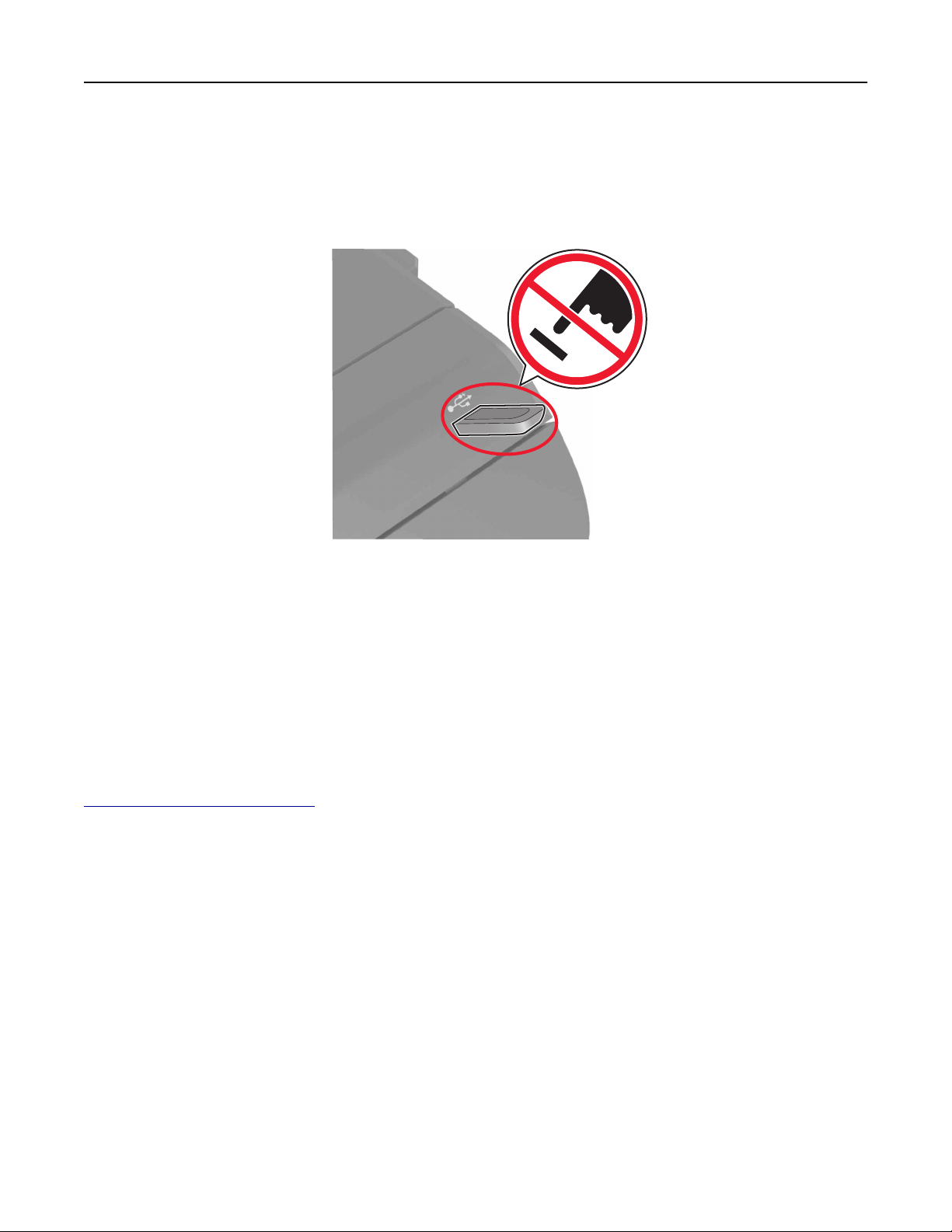
3 Send the print job.
To print another document, touch USB Drive.
Warning—Potential Damage: Do not touch the printer or the flash drive in the area shown while actively
printing, reading, or writing from the memory device. Loss of data or a malfunction can occur.
Supported flash drives and file types
Flash drives
Notes:
– The printer supports high‑speed USB flash drives with full‑speed standard.
– USB flash drives must support the File Allocation Table (FAT) system.
Many flash drives are tested and approved for use with the printer. For more information, go to
www.dell.com/support/printers.
File types
Documents:
• .doc or .docx
• .xls or .xlsx
• .ppt or .pptx
• .pdf
• .xps
Images:
• .dcx
• .gif
• .jpeg or .jpg
• .bmp
• .pcx
Printing 22

• .ti or .tif
• .png
Printing from a mobile device using Mopria Print Service
Mopria® Print Service is a mobile printing solution for mobile devices running on Android version 4.4 or later. It
allows you to print directly to any Mopria‑
certified
printer.
Note: Before printing, make sure that the Mopria Print Service is enabled.
1 From the home screen of your mobile device, launch a compatible application.
2 Tap Print, and then select the printer.
3 Send the print job.
Printing from a mobile device using Google Cloud Print
Google Cloud Print
TM
is a mobile printing service that allows enabled applications on mobile devices to print
to any Google Cloud Print‑ready printer.
1 From the home screen of your mobile device, launch an enabled application.
2 Tap Print, and then select the printer.
3 Send the print job.
Printing from a mobile device using AirPrint
AirPrint is a mobile printing solution that allows you to print directly from Apple devices to an AirPrint‑certified
printer.
Note: This application is supported only in some Apple devices.
1 From the home screen of your mobile device, launch a compatible application.
2 Select an item to print, and then tap the share icon.
3 Tap Print, and then select the printer.
4 Send the print job.
Printing from a mobile device using Dell Document Hub
1 From Google Play, download the Dell Document Hub application.
2 From the home screen of your mobile device, tap .
3 Select the item to print.
4 Tap Print.
Printing 23

Configuring confidential jobs
1 From the home screen, touch Settings > Security > Confidential Print Setup.
2 Configure the settings.
Use To
Max Invalid PIN Limit the number of times an invalid PIN can be entered.
Note: When the limit is reached, the print jobs for that user name are deleted.
Confidential Job
Expiration
Set the amount of time before confidential jobs are automatically deleted from the printer
memory.
Note:
Confidential
held jobs are stored in the printer until you log in and release or
delete them manually.
Repeat Job
Expiration
Set the amount of time before repeat jobs are deleted from the printer memory.
Note: Repeat held jobs are stored so extra copies can be printed later.
Verify Job Expiration Set the amount of time before verify jobs are deleted from the printer memory.
Note: Verify jobs print one copy to check if it is satisfactory before printing the
remaining copies.
Reserve Job
Expiration
Set the amount of time before reserved jobs are deleted without being printed.
Note: Reserve held jobs are automatically deleted after printing.
Printing held jobs
1 With a document open, select File > Print.
2 Select the printer, and then do the following:
• For Windows users, click Properties or Preferences, and then click Print and Hold.
• For Macintosh users, select Print and Hold.
3 Select the print job type.
4 If necessary, assign a user name.
5 Send the print job.
6 From the printer home screen, touch Held Jobs.
7 Send the print job.
Printing a font sample list
1 From the home screen, touch Settings > Reports > Print > Print Fonts.
2 To uc h PCL Fonts or PostScript Fonts.
Printing a directory list
From the home screen, touch Settings > Reports > Print > Print Directory.
Printing 24

Canceling a print job
From the printer control panel
1 From the home screen, touch Job Queue.
Note: You can also access this setting by touching the top section of the home screen.
2 Select the job to cancel.
From the computer
1 Depending on the operating system, do either of the following:
• Open the printers folder, and then select your printer.
• From the System Preferences in the Apple menu, navigate to your printer.
2 Select the job to cancel.
Printing 25

Securing the printer
Erasing printer memory
To erase volatile memory or buered data in your printer, turn o the printer.
To e r a s e n o n ‑volatile memory or individual settings, device and network settings, security settings, and
embedded solutions, do the following:
1 From the home screen, touch Settings > Device > Maintenance > Out of Service Erase.
2 Select the Sanitize all information on nonvolatile memory check box, and then touch ERASE.
3 Follow the instructions on the display.
Erasing printer hard disk memory
1 From the home screen, touch Settings > Device > Maintenance > Out of Service Erase.
2 Select the Sanitize all information on hard disk check box, and then touch ERASE.
3 Follow the instructions on the display.
Note: This process can take from several minutes to more than an hour, making the printer unavailable
for other tasks.
Configuring printer hard disk encryption
1 From the home screen, touch Settings > Security > Disk Encryption > Start Encryption.
Note: Enabling disk encryption erases the contents of the hard disk. If necessary, back up important data
from the printer before starting the encryption.
2 Follow the instructions on the display.
Notes:
• Do not turn o the printer during the encryption process. Loss of data can occur.
• Disk encryption can take from several minutes to more than an hour, making the printer unavailable
for other tasks.
• After encryption, the printer returns to the home screen.
Restoring factory default settings
From the home screen, touch Settings > Device > Restore Factory Defaults > Restore Settings > Restore all
settings > RESTORE > Start.
For more information, see
“Erasing printer memory” on page 26.
Securing the printer 26
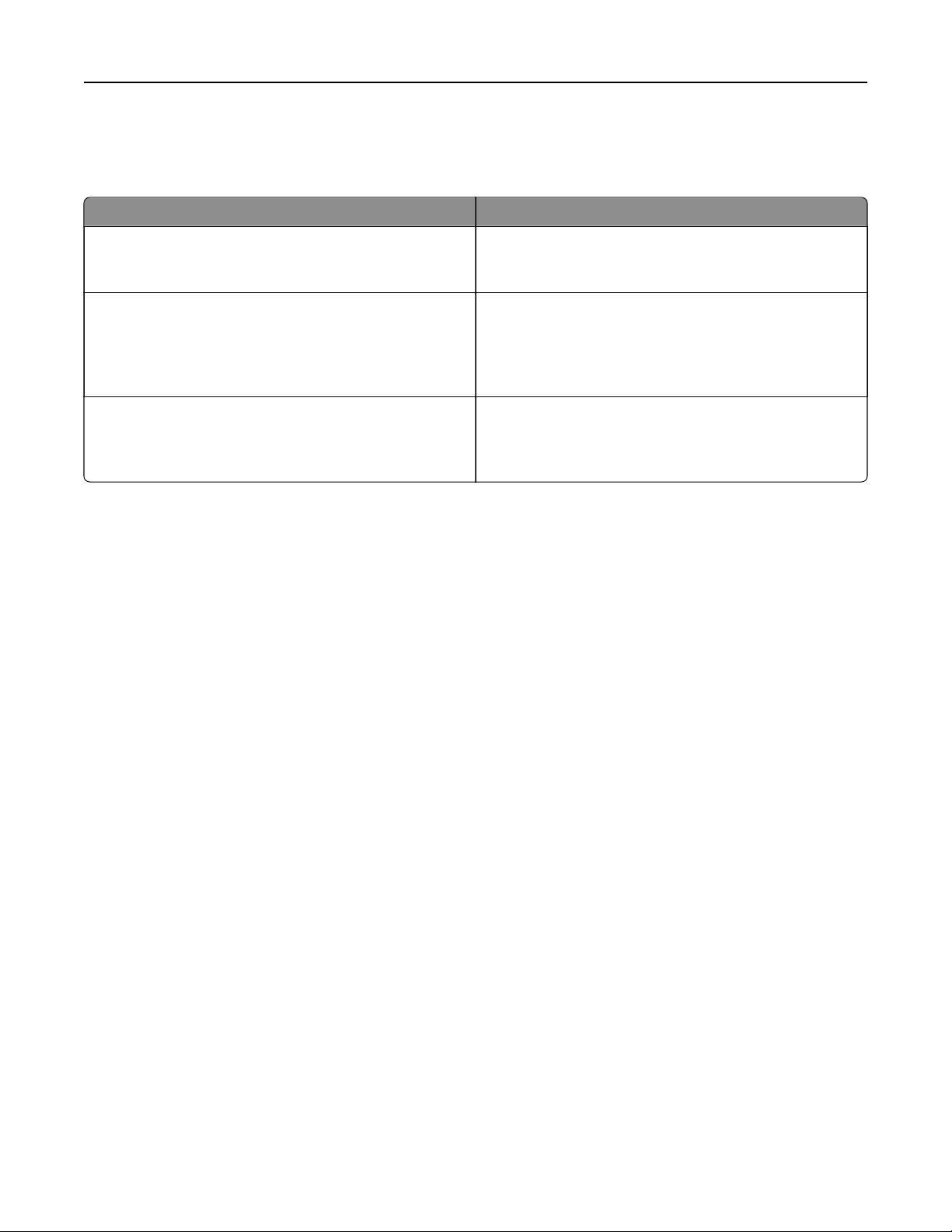
Statement of Volatility
Your printer contains various types of memory that can store device and network settings, and user data.
Type of memory Description
Volatile memory Your printer uses standard random access memory
(RAM) to temporarily buer user data during simple print
jobs.
Non-volatile memory Your printer may use two forms of non-volatile memory:
EEPROM and NAND (flash memory). Both types are used
to store the operating system, device settings, network
information and bookmark settings, and embedded
solutions.
Hard disk memory Some printers have a hard disk drive installed. The printer
hard disk is designed for printer-specific functionality.
This lets the printer retain buered user data from
complex print jobs, as well as form data, and font data.
Erase the content of any installed printer memory in the following circumstances:
• The printer is being decommissioned.
• The printer hard disk is being replaced.
• The printer is being moved to a dierent department or location.
• The printer is being serviced by someone from outside your organization.
• The printer is being removed from your premises for service.
• The printer is being sold to another organization.
Disposing of a printer hard disk
Note: Some printer models may not have a printer hard disk installed.
In high‑security environments, it may be necessary to take additional steps to make sure that
confidential
data
stored in the printer hard disk cannot be accessed when the printer—or its hard disk—is removed from your
premises.
• Degaussing—Flushes the hard disk with a magnetic field that erases stored data
• Crushing—Physically compresses the hard disk to break component parts and render them unreadable
• Milling—Physically shreds the hard disk into small metal bits
Note: Most data can be erased electronically, but the only way to guarantee that all data are completely
erased is to physically destroy each hard disk where data is stored.
Securing the printer 27

Maintaining the printer
Warning—Potential Damage: Failure to maintain optimum printer performance, or to replace parts and
supplies, may cause damage to your printer.
Networking
Connecting the printer to a wireless network using Wi‑Fi Protected Setup
(WPS)
Before you begin, make sure that:
• The access point (wireless router) is WPS‑
certified
or WPS‑compatible. For more information, see the
documentation that came with your access point.
• A wireless network adapter is installed in your printer. For more information, see the instructions that came
with the adapter.
Using the Push Button method
1
From the control panel, navigate to:
Settings > Network/Ports > Wireless > Wi‑Fi Protected Setup > Start Push Button Method
2 Follow the instructions on the display.
Using the personal identification number (PIN) method
1
From the control panel, navigate to:
Settings > Network/Ports > Wireless > Wi‑Fi Protected Setup > Start PIN Method
2 Copy the eight‑digit WPS PIN.
3 Open a Web browser, and then type the IP address of your access point in the address field.
Notes:
• View the printer IP address on the printer home screen. The IP address appears as four sets of
numbers separated by periods, such as 123.123.123.123.
• If you are using a proxy server, then temporarily disable it to load the Web page correctly.
4 Access the WPS settings. For more information, see the documentation that came with your access
point.
5 Enter the eight‑digit PIN, and then save the changes.
Maintaining the printer 28

Changing port settings after installing an internal solutions port
Notes:
• If the printer has a static IP address, then do not change the configuration.
• If the computers are configured to use the network name instead of an IP address, then do not change
the configuration.
• If you are adding a wireless internal solutions port (ISP) to a printer previously configured for an Ethernet
connection, then disconnect the printer from the Ethernet network.
For Windows users
1
Open the printers folder.
2 From the shortcut menu of the printer with the new ISP, open the printer properties.
3 Configure the port from the list.
4 Update the IP address.
5 Apply the changes.
For Macintosh users
1
From System Preferences in the Apple menu, navigate to the list of printers, and then select + > IP.
2 Type the IP address in the address field.
3 Apply the changes.
Setting up serial printing (Windows only)
1 Set the parameters in the printer.
a From the control panel, navigate to the menu for the port settings.
b Locate the menu for the serial port settings, and then adjust the settings, if necessary.
c Apply the changes.
2 From your computer, open the printers folder, and then select your printer.
3 Open the printer properties, and then select the COM port from the list.
4 Set the COM port parameters in Device Manager.
Notes:
• Serial printing reduces printing speed.
• Make sure that the serial cable is connected to the serial port on your printer.
Maintaining the printer 29

Cleaning the printer
CAUTION—SHOCK HAZARD: To avoid the risk of electrical shock when cleaning the exterior of the
printer, unplug the power cord from the electrical outlet and disconnect all cables from the printer before
proceeding.
Notes:
• Perform this task after every few months.
• Damage to the printer caused by improper handling is not covered by the printer warranty.
1 Turn o the printer, and then unplug the power cord from the electrical outlet.
2 Remove paper from the standard bin and multipurpose feeder.
3 Remove any dust, lint, and pieces of paper around the printer using a soft brush or vacuum.
4 Wipe the outside of the printer with a damp, soft, lint‑free cloth.
Notes:
• Do not use household cleaners or detergents, as they may damage the finish of the printer.
• Make sure that all areas of the printer are dry after cleaning.
5 Connect the power cord to the electrical outlet, and then turn on the printer.
CAUTION—POTENTIAL INJURY: To avoid the risk of fire or electrical shock, connect the power cord
to an appropriately rated and properly grounded electrical outlet that is near the product and easily
accessible.
Ordering supplies
Checking the status of parts and supplies
1 From the home screen, touch Status/Supplies.
2 Select the parts or supplies that you want to check.
Note: You can also access this setting by touching the top section of the home screen.
Ordering supplies using Printer Home
1 Use the Search command on the Start menu to locate Dell Printer Home.
2 Open the application, and then click Maintenance > Order supplies.
Maintaining the printer 30
Replacing parts and supplies
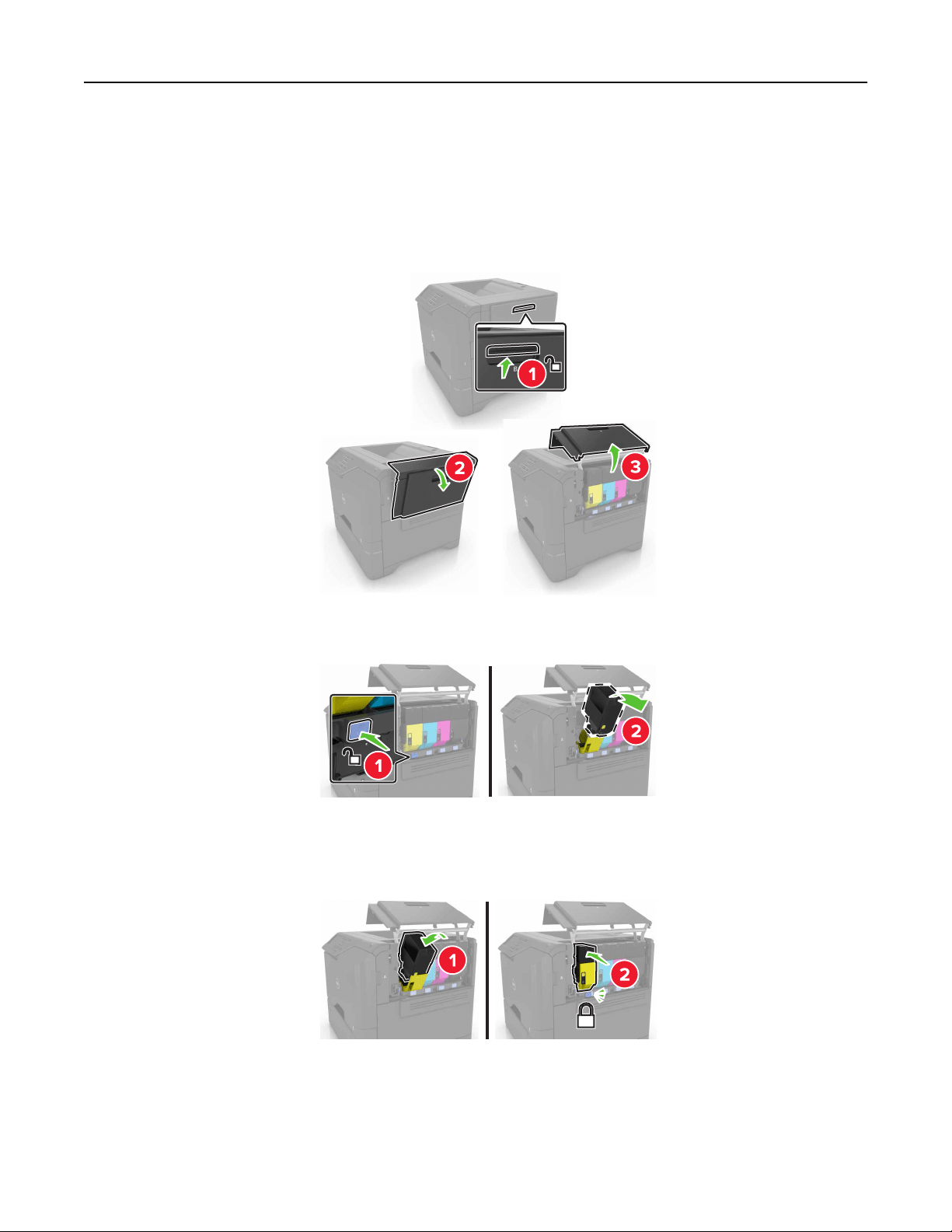
Replacing a toner cartridge
1 Open door B.
2 Remove the toner cartridge.
3 Unpack the new toner cartridge.
4 Insert the new toner cartridge.
5 Close door B.
Maintaining the printer 31
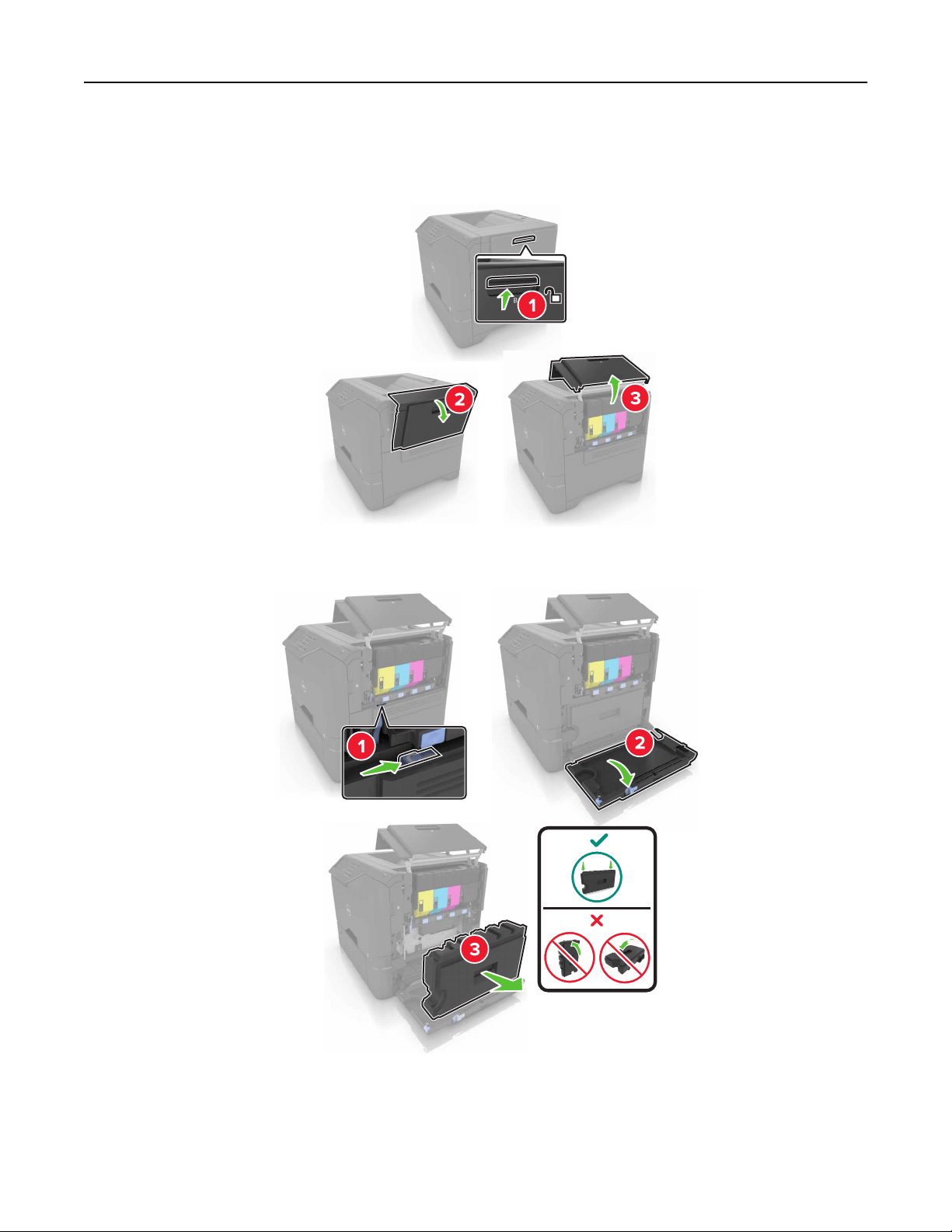
Replacing the imaging unit
1 Open door B.
2 Remove the waste toner bottle.
Maintaining the printer 32
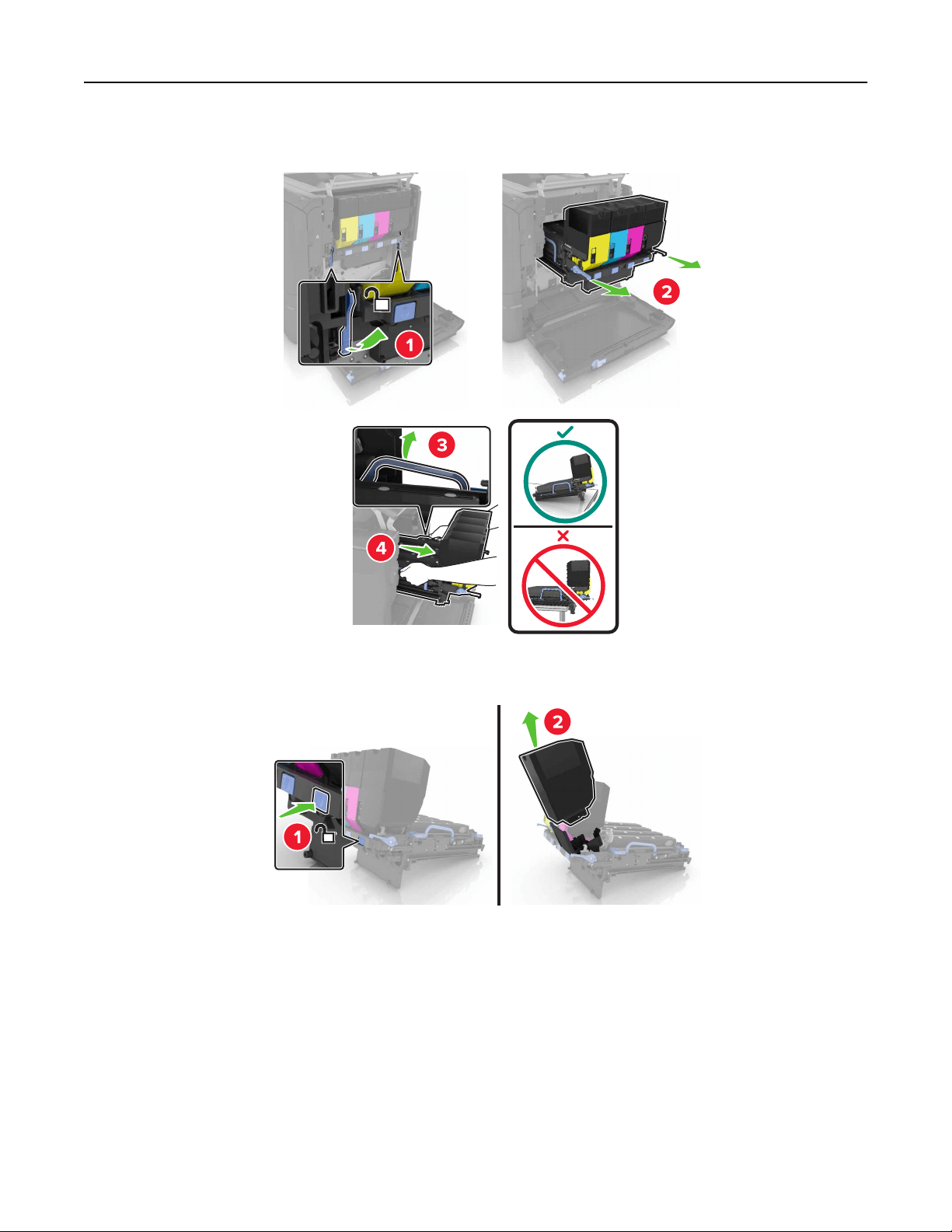
3 Remove the imaging kit.
4 Remove the black toner cartridge.
5 Remove the imaging unit.
Warning—Potential Damage: Do not expose the photoconductor unit to direct light for more than 10
minutes. Extended exposure to light may cause print quality problems.
Warning—Potential Damage: Do not touch the shiny photoconductor drum under the imaging kit. Doing
so may aect the quality of future print jobs.
Maintaining the printer 33
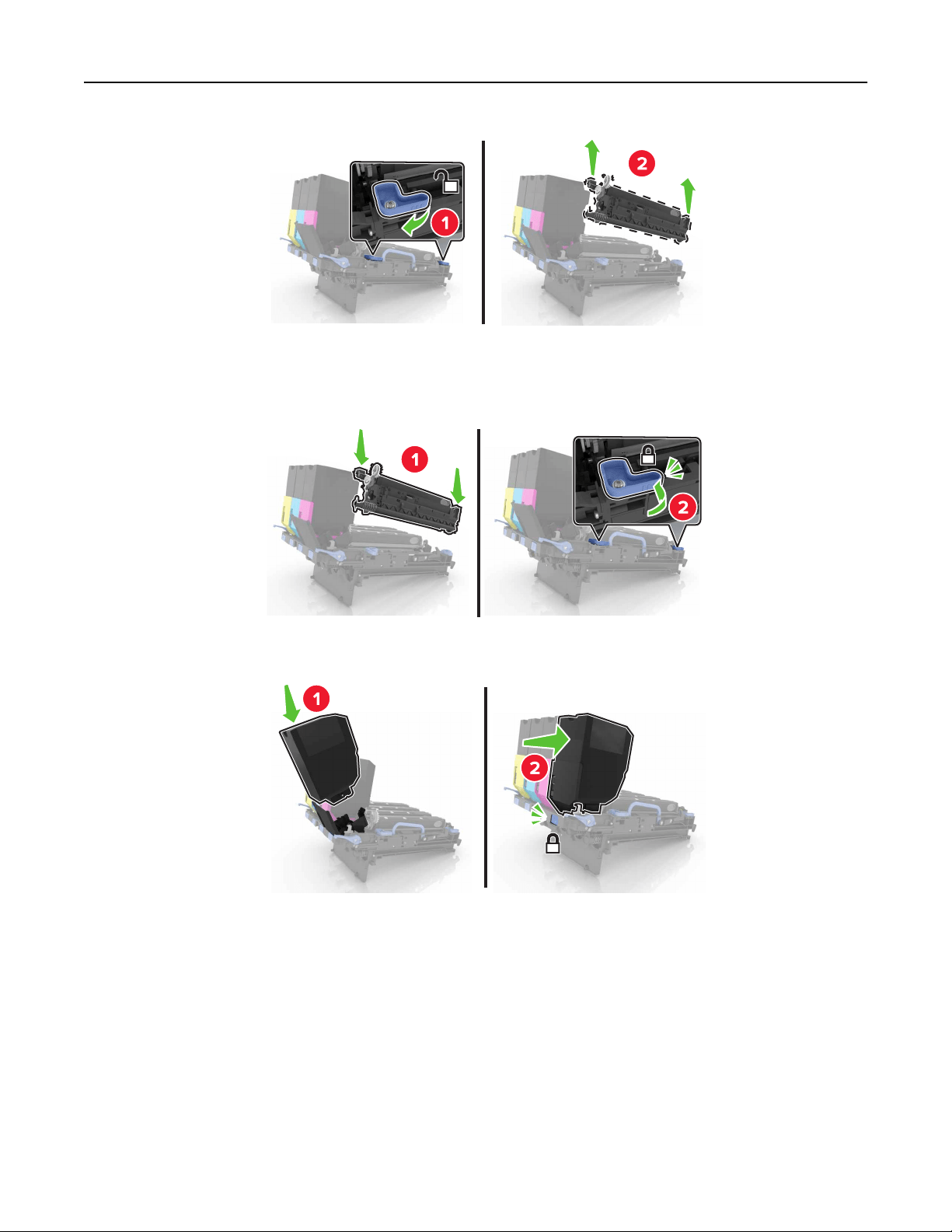
6 Unpack the new imaging unit.
7 Insert the new imaging unit.
8 Insert the black toner cartridge.
Maintaining the printer 34
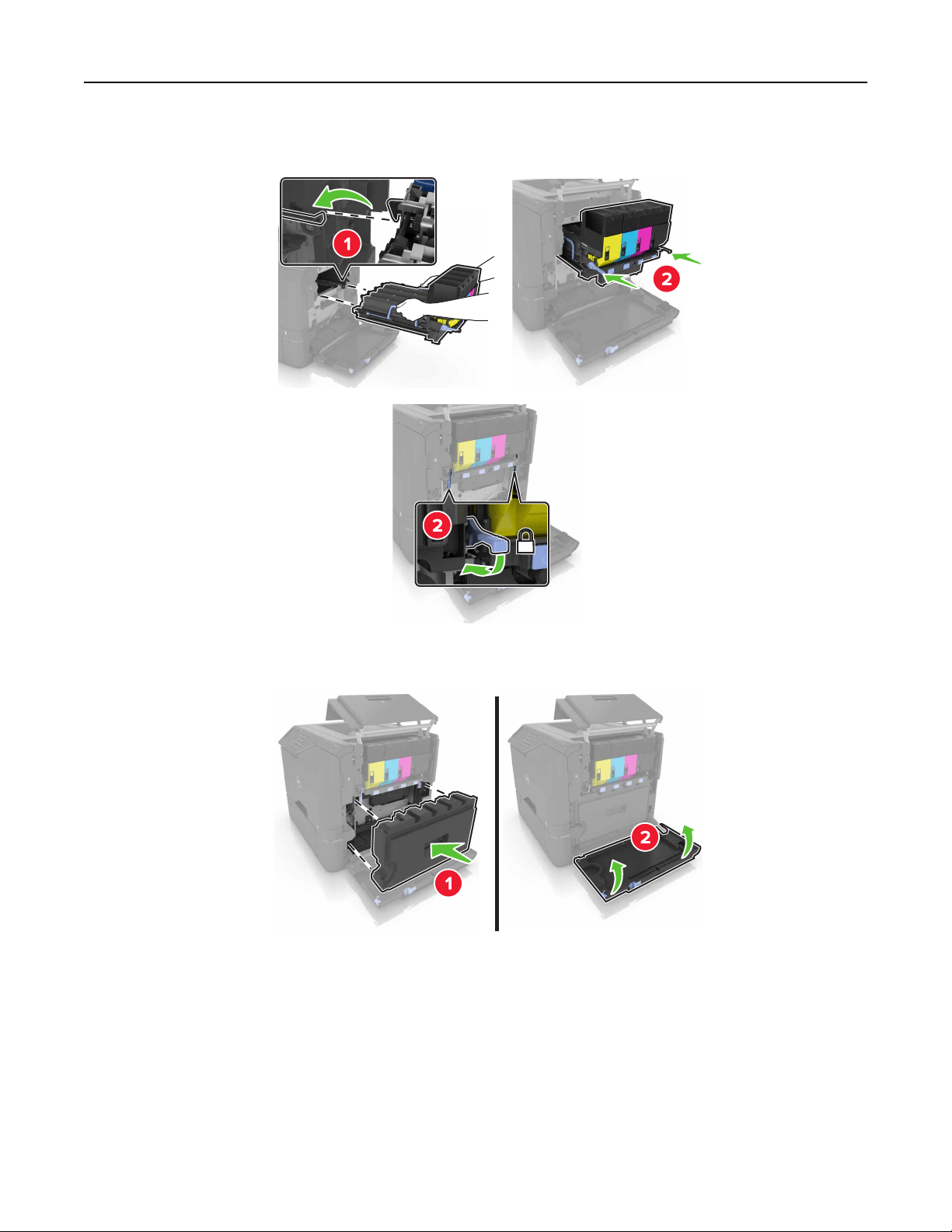
9 Insert the imaging kit.
10 Insert the waste toner bottle.
11 Close door B.
Maintaining the printer 35
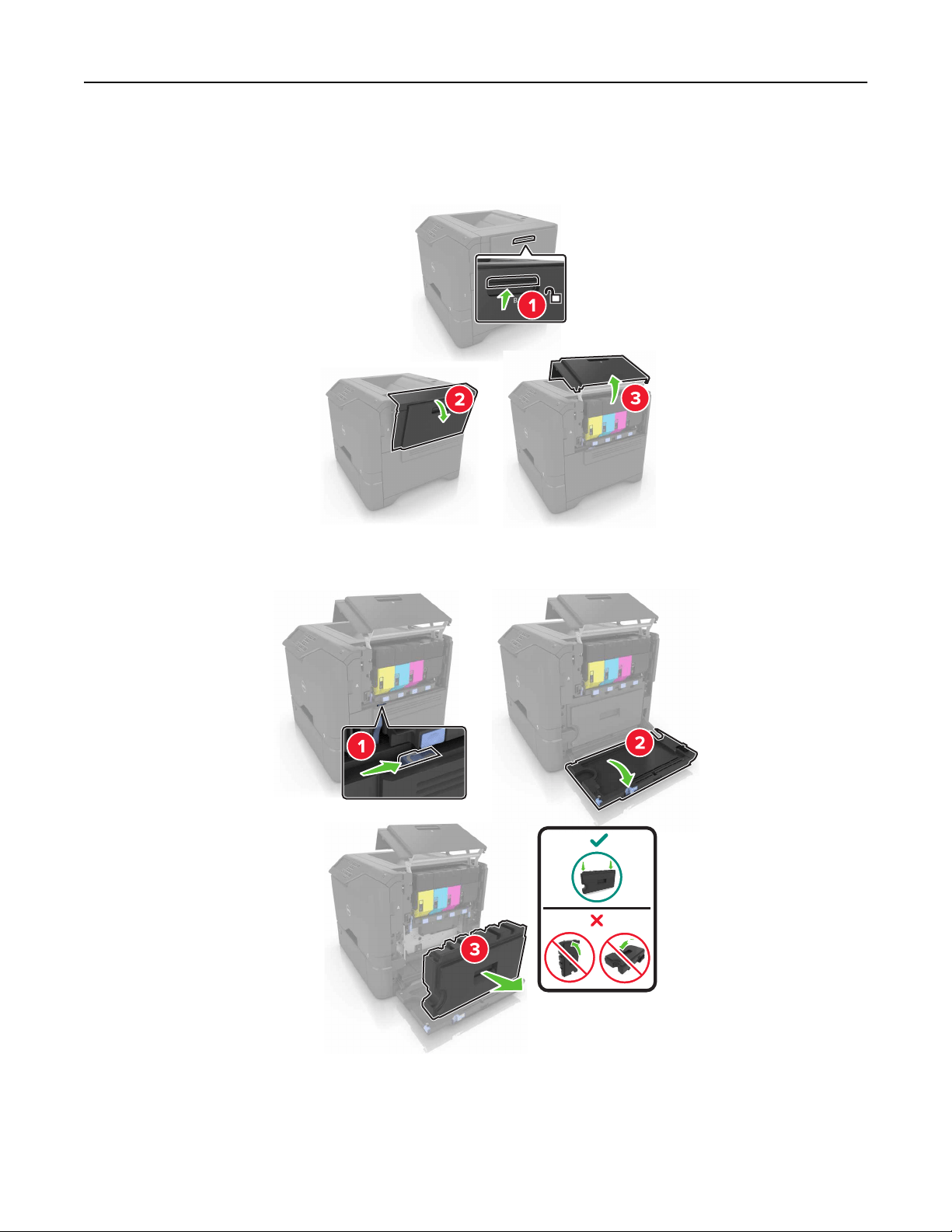
Replacing the imaging kit
1 Open door B.
2 Remove the waste toner bottle.
Maintaining the printer 36
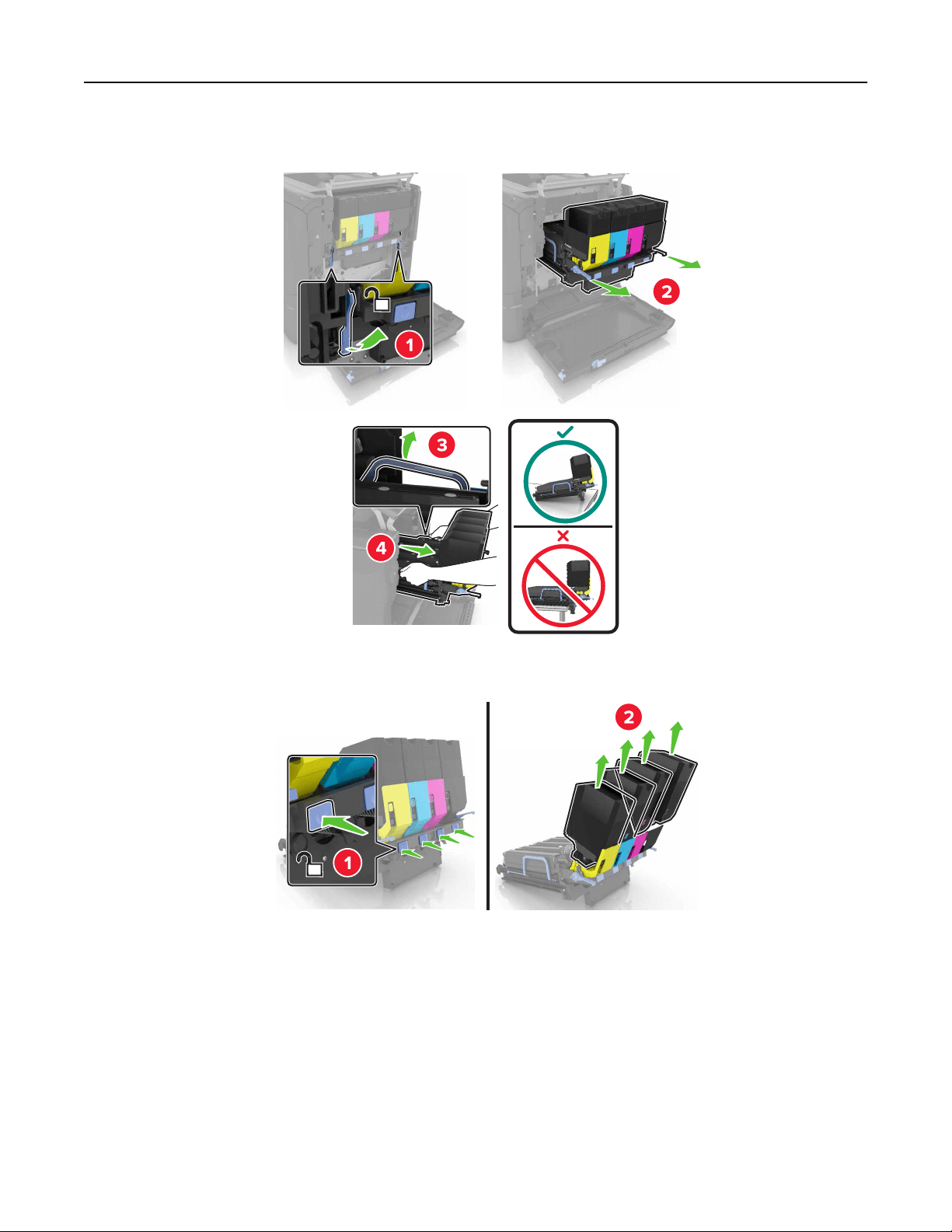
3 Remove the imaging kit.
4 Remove the toner cartridges.
5 Unpack the new imaging kit, and then remove the packing material.
Note: The imaging kit includes the imaging kit and the cyan, magenta, and yellow developer units.
6 Remove the black imaging unit.
Warning—Potential Damage: Do not expose the photoconductor unit to direct light for more than 10
minutes. Extended exposure to light may cause print quality problems.
Warning—Potential Damage: Do not touch the shiny photoconductor drum under the imaging unit.
Doing so may aect the quality of future print jobs.
Maintaining the printer 37
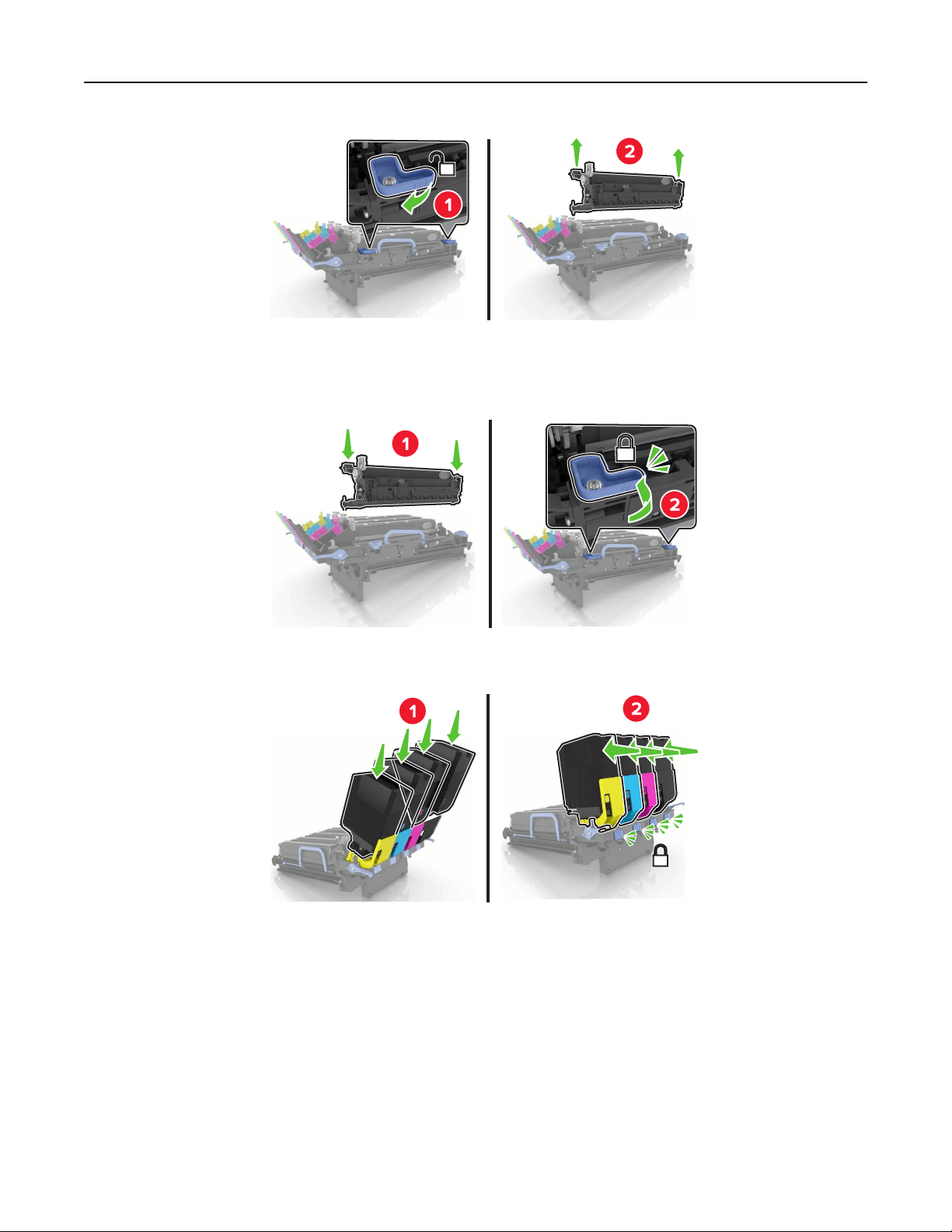
Note: The black imaging unit includes the black developer unit and photoconductor unit.
7 Insert the black imaging unit into the new imaging kit.
8 Insert the toner cartridges.
Maintaining the printer 38
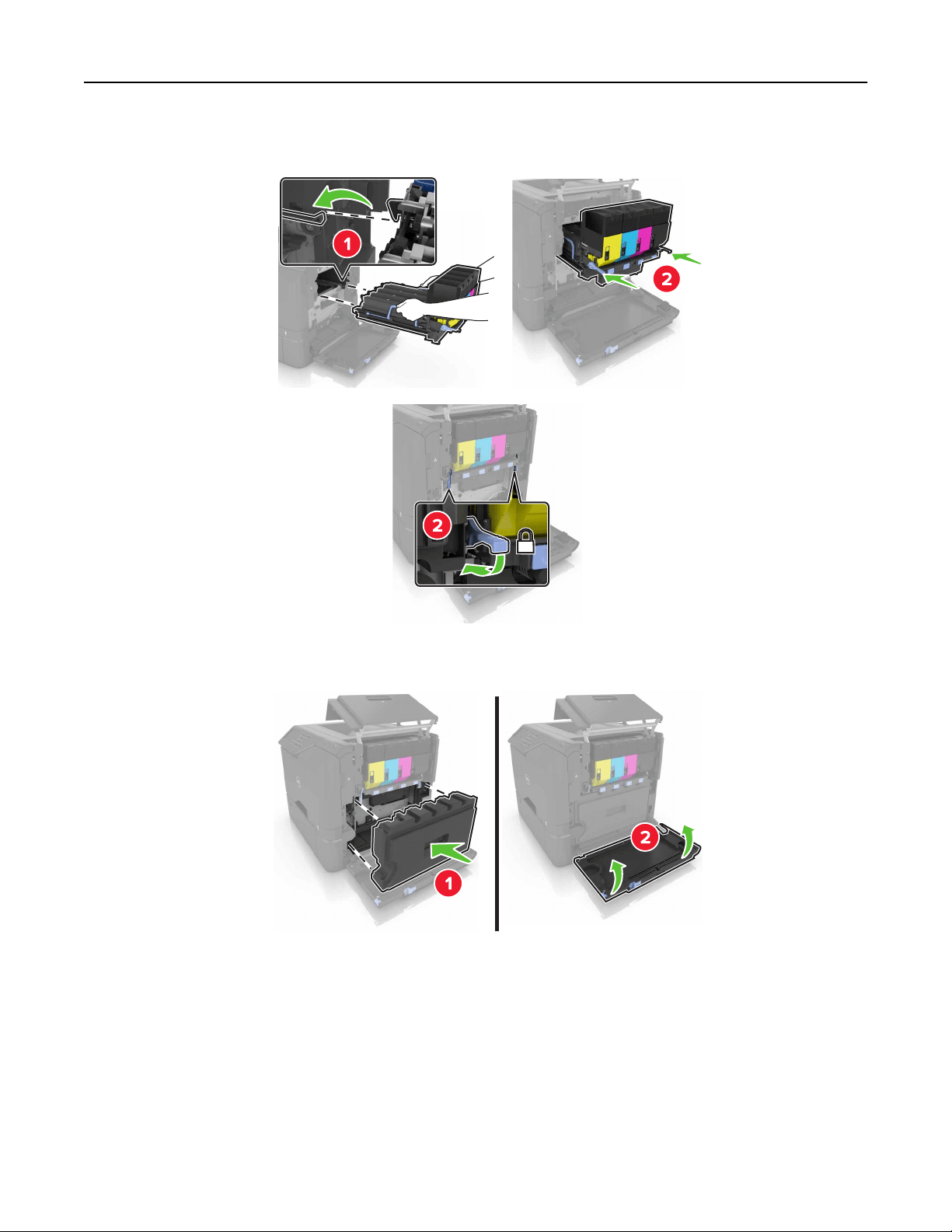
9 Insert the new imaging kit.
10 Insert the waste toner bottle.
11 Close door B.
Maintaining the printer 39
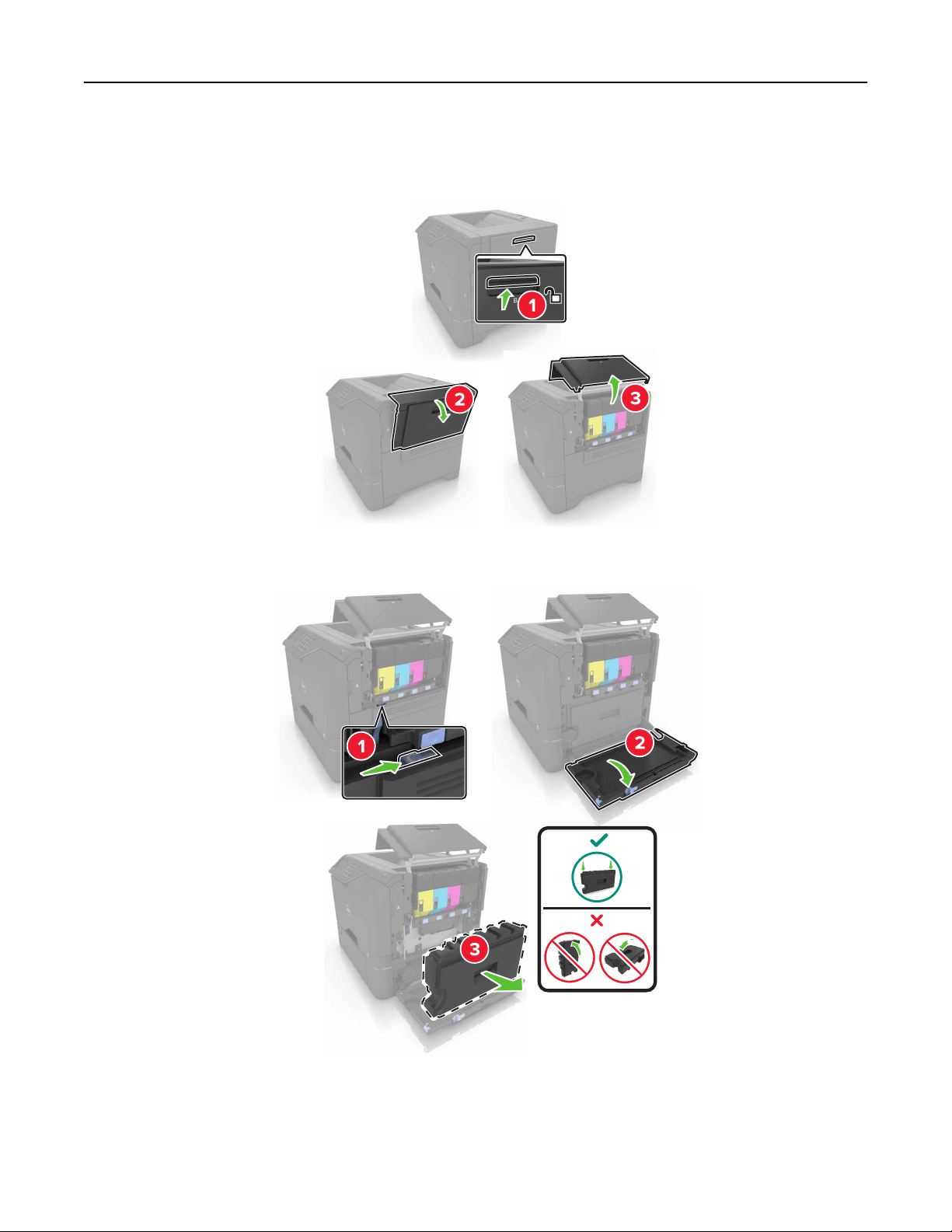
Replacing the waste toner bottle
1 Open door B.
2 Remove the waste toner bottle.
3 Unpack the new waste toner bottle.
Maintaining the printer 40
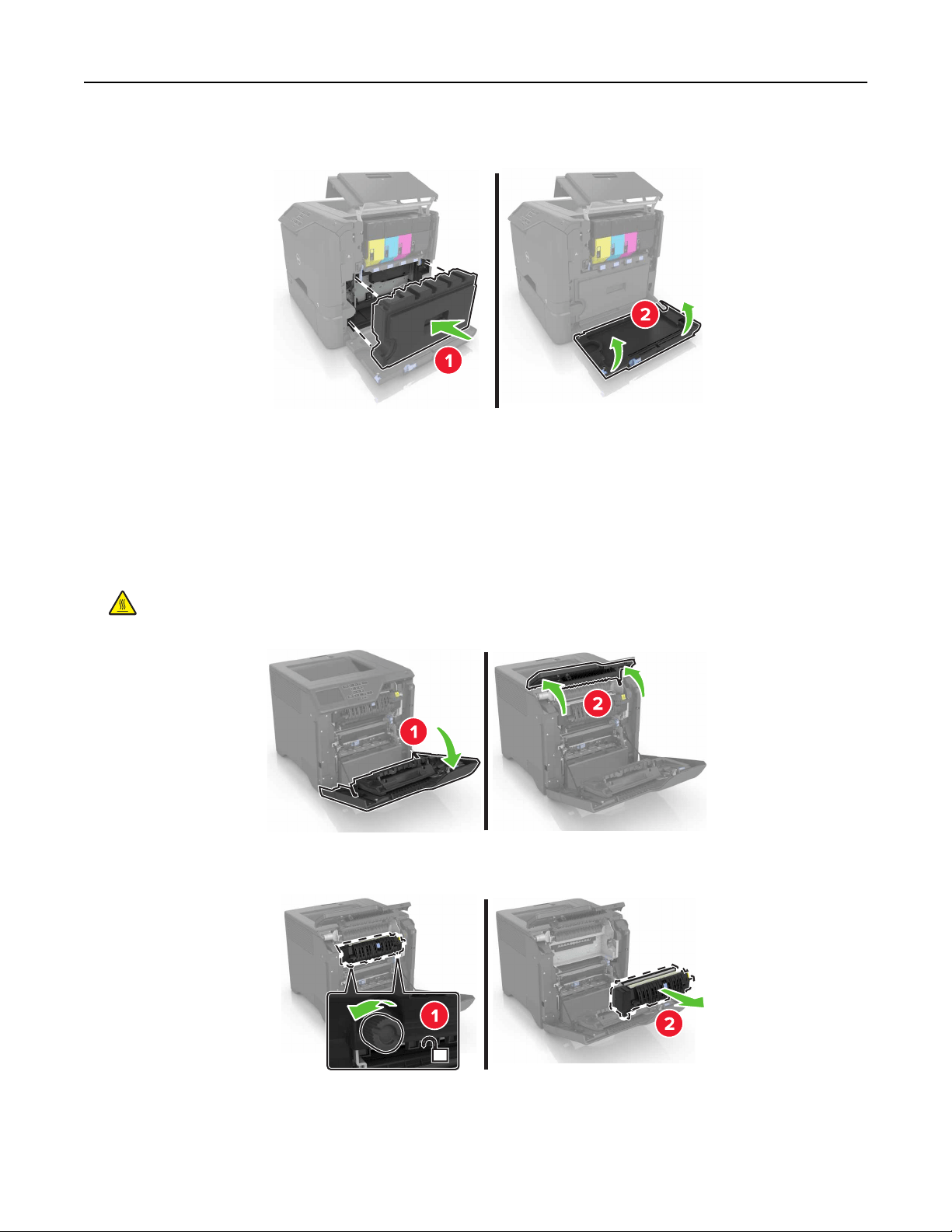
4 Insert the new waste toner bottle.
5 Close door B.
Replacing the fuser
1 Turn
o
the printer, and then unplug the power cord from the electrical outlet.
2 Open doors A and D.
CAUTION—HOT SURFACE: The inside of the printer might be hot. To reduce the risk of injury from a
hot component, allow the surface to cool before touching it.
3 Remove the fuser.
4 Unpack the new fuser.
Maintaining the printer 41
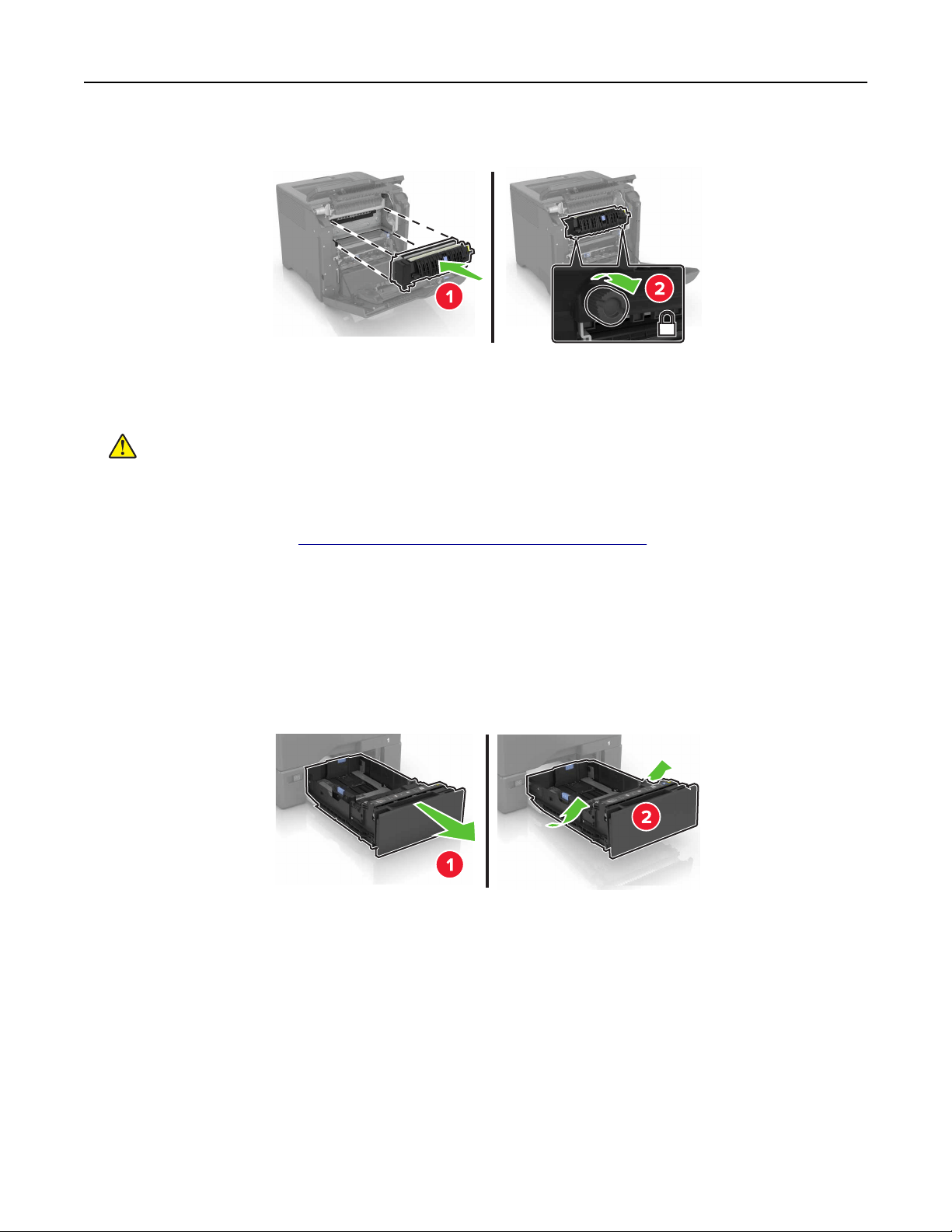
5 Insert the new fuser.
6 Close doors D and A.
7 Connect the power cord to the electrical outlet, and then turn on the printer.
CAUTION—POTENTIAL INJURY: To avoid the risk of fire or electrical shock, connect the power cord
to an appropriately rated and properly grounded electrical outlet that is near the product and easily
accessible.
8 Reset the fuser maintenance counter.
For more information, see
“Resetting the maintenance counter” on page 51.
Replacing the pick roller
Replacing the pick roller in the 550‑sheet tray
1
Turn
o
the printer, and then unplug the power cord from the electrical outlet.
2 Remove the tray.
Maintaining the printer 42
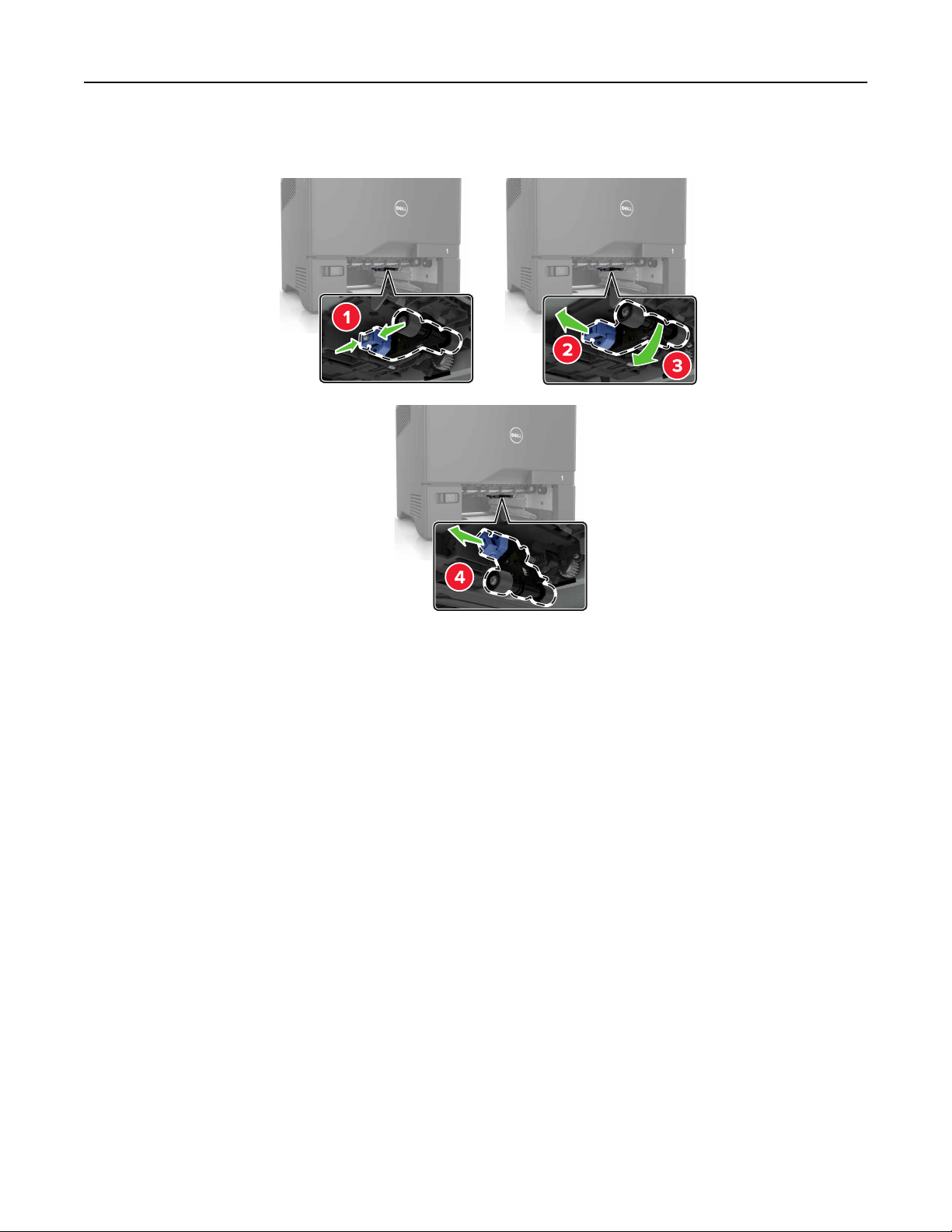
3 Remove the pick roller.
4 Unpack the new pick roller.
Maintaining the printer 43
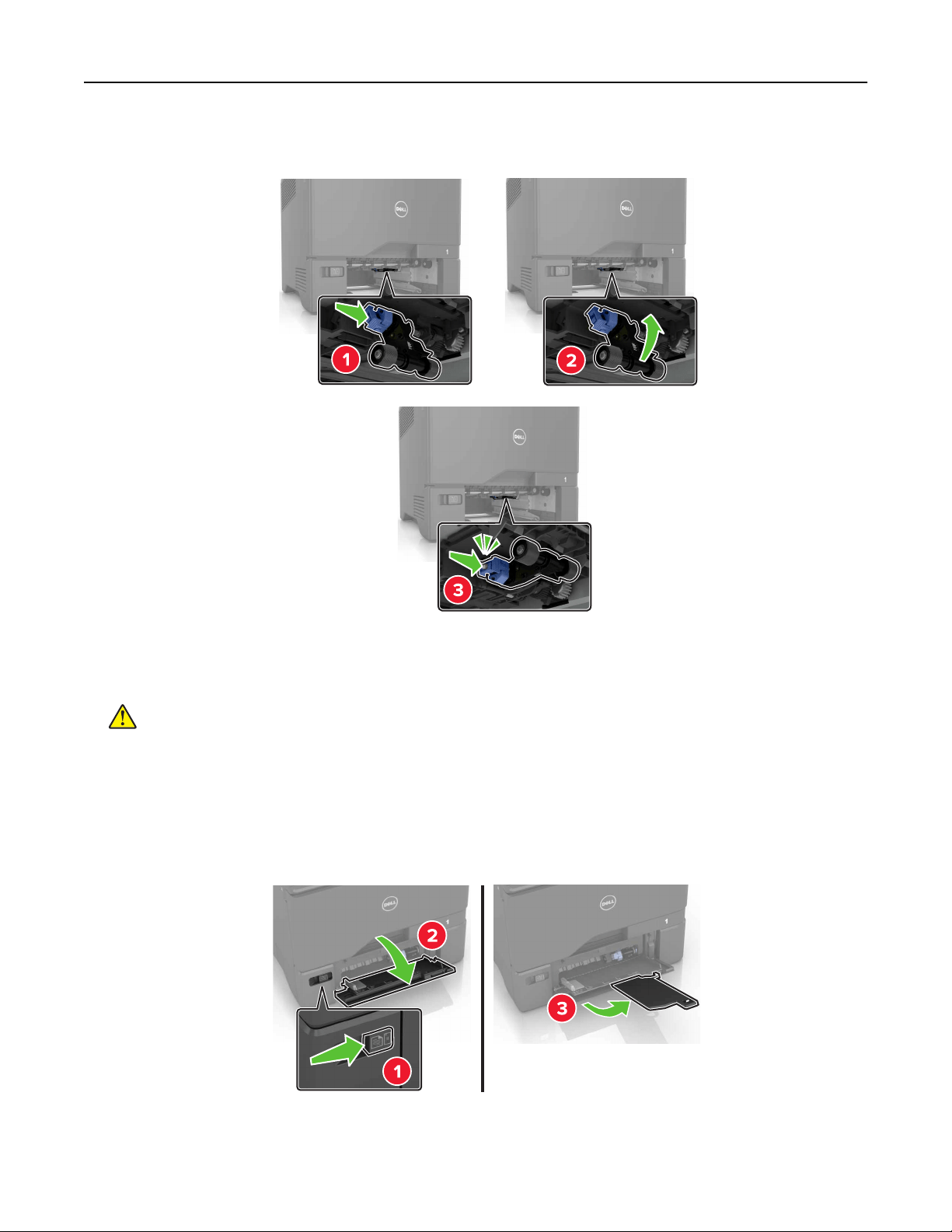
5 Insert the new pick roller until it clicks into place.
6 Insert the tray.
7 Connect the power cord to the electrical outlet, and then turn on the printer.
CAUTION—POTENTIAL INJURY: To avoid the risk of fire or electrical shock, connect the power cord
to an appropriately rated and properly grounded electrical outlet that is near the product and easily
accessible.
Replacing the pick roller in the multipurpose feeder
1
Turn o the printer, and then unplug the power cord from the electrical outlet.
2 Open the multipurpose feeder.
Maintaining the printer 44
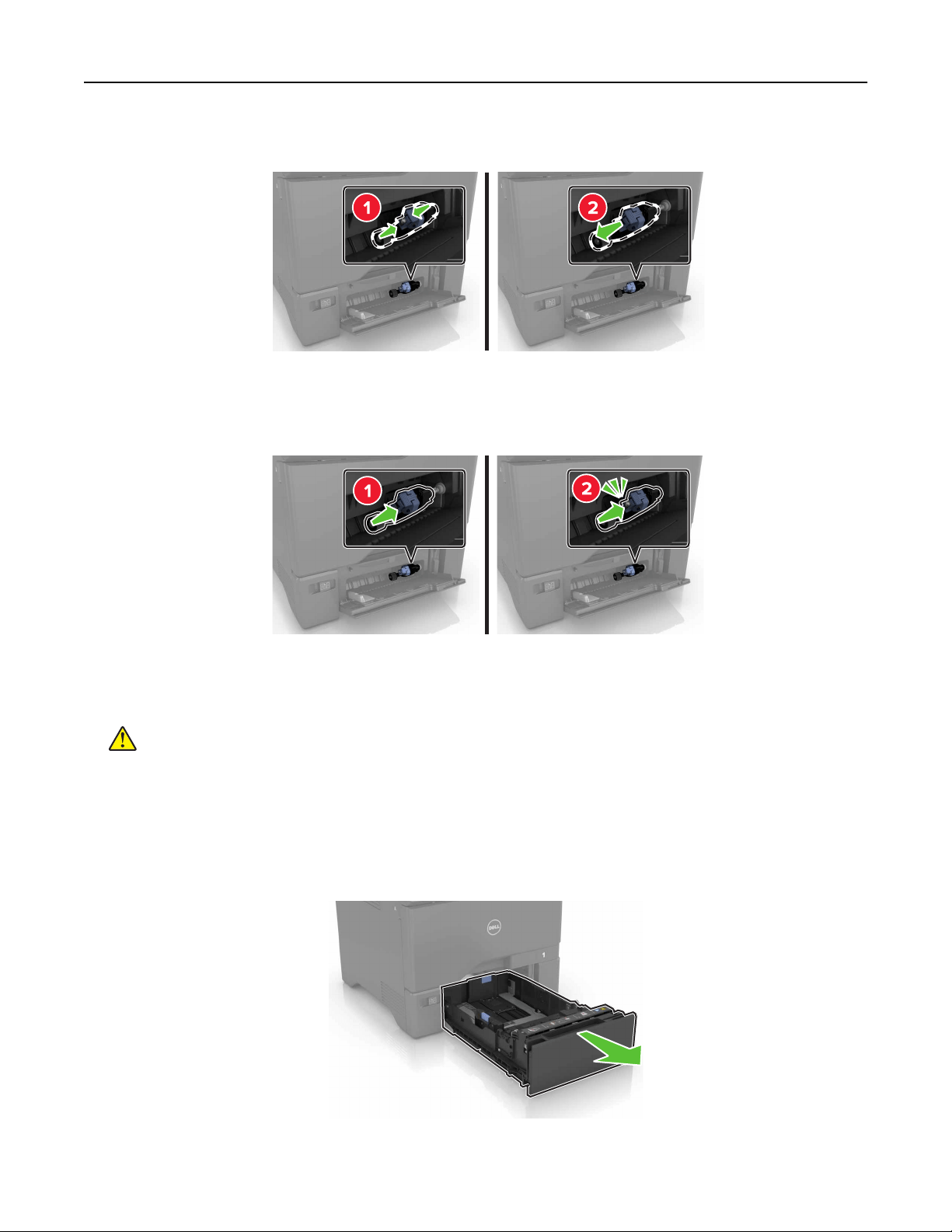
3 Remove the pick roller.
4 Unpack the new pick roller.
5 Insert the new pick roller until it clicks into place.
6 Close the multipurpose feeder.
7 Connect the power cord to the electrical outlet, and then turn on the printer.
CAUTION—POTENTIAL INJURY: To avoid the risk of fire or electrical shock, connect the power cord
to an appropriately rated and properly grounded electrical outlet that is near the product and easily
accessible.
Replacing the separator pad
1 Pull out the tray.
Maintaining the printer 45
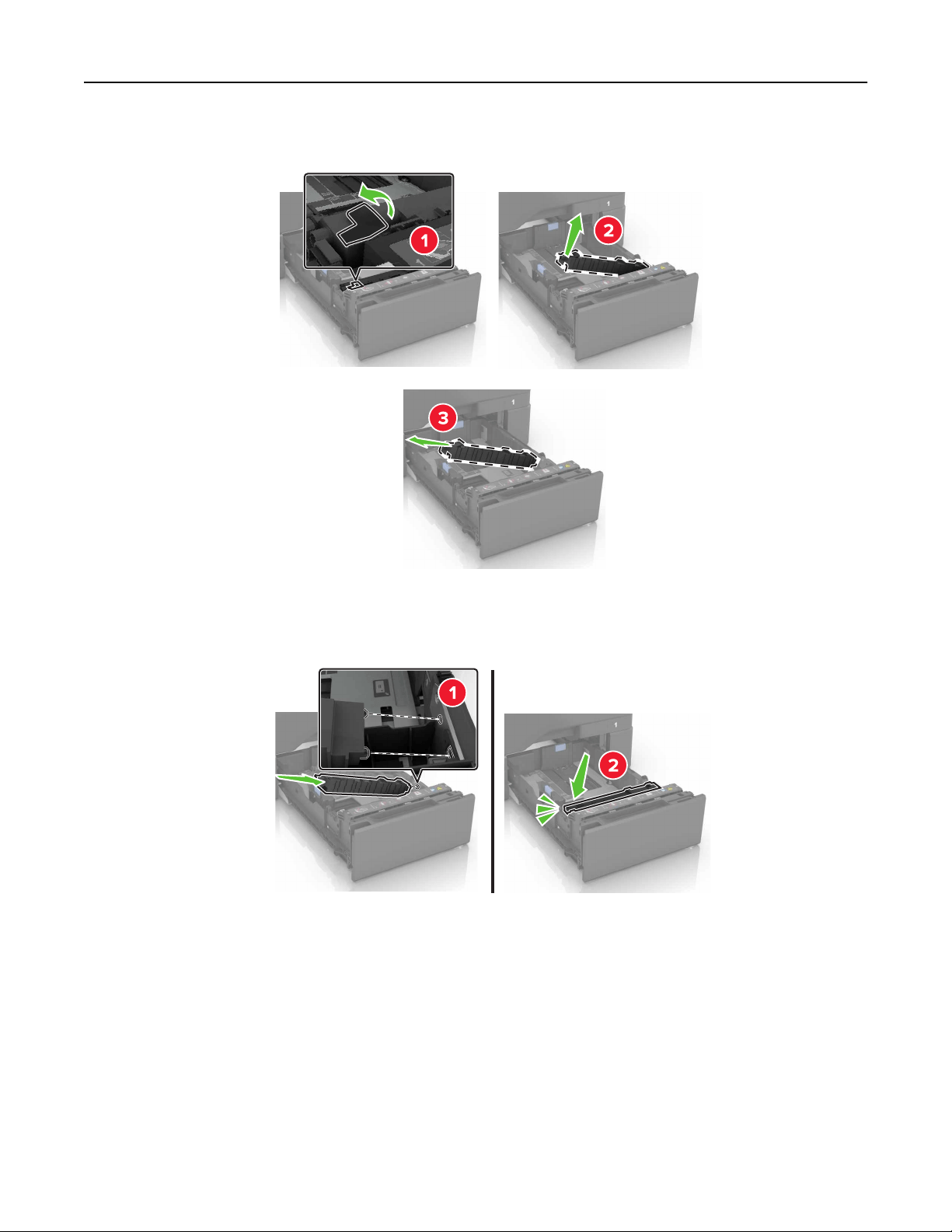
2 Remove the separator pad.
3 Unpack the new separator pad.
4 Insert the new separator pad until it clicks into place.
5 Insert the tray.
Maintaining the printer 46
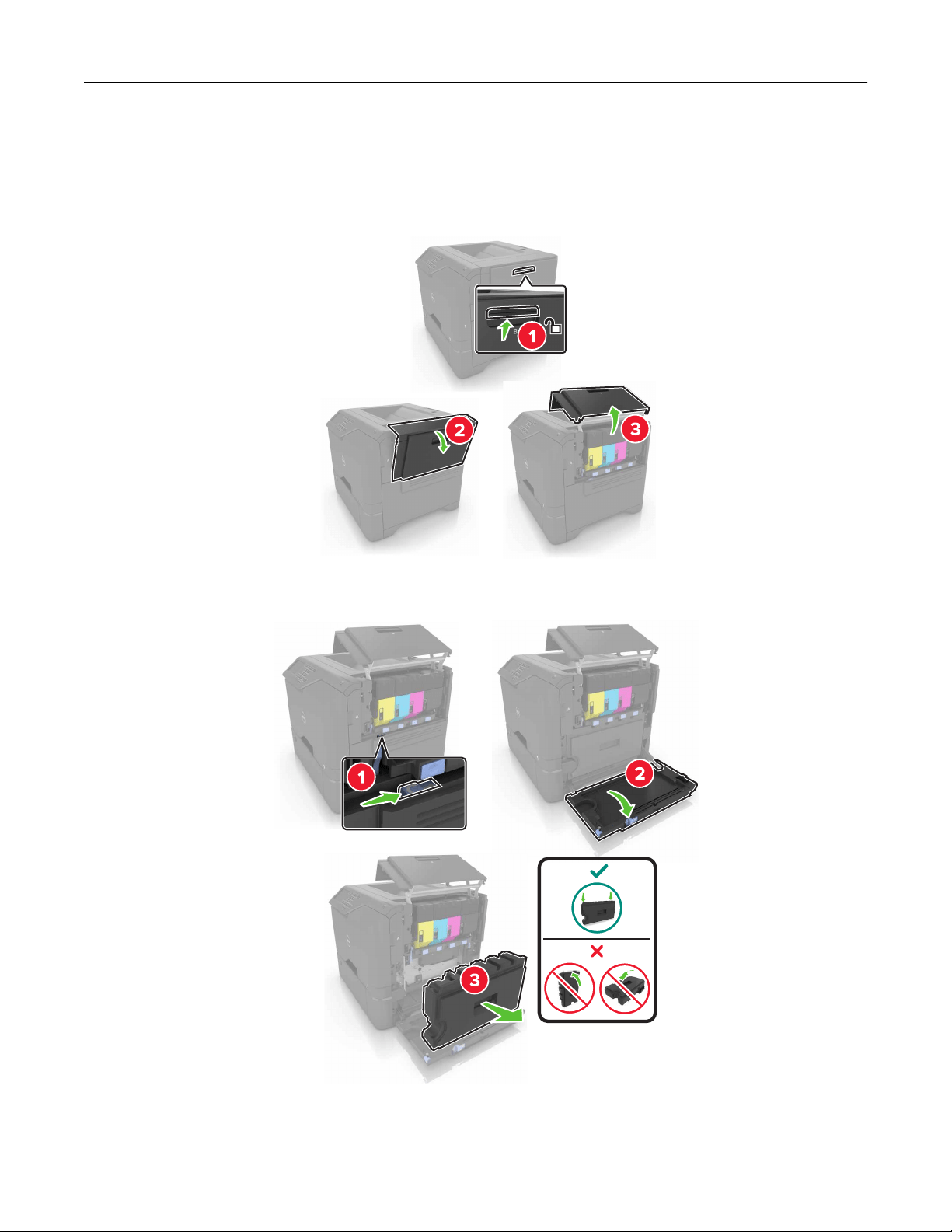
Replacing the transfer module
1 Turn
o
the printer, and then unplug the power cord from the electrical outlet.
2 Open door B.
3 Remove the waste toner bottle.
Maintaining the printer 47
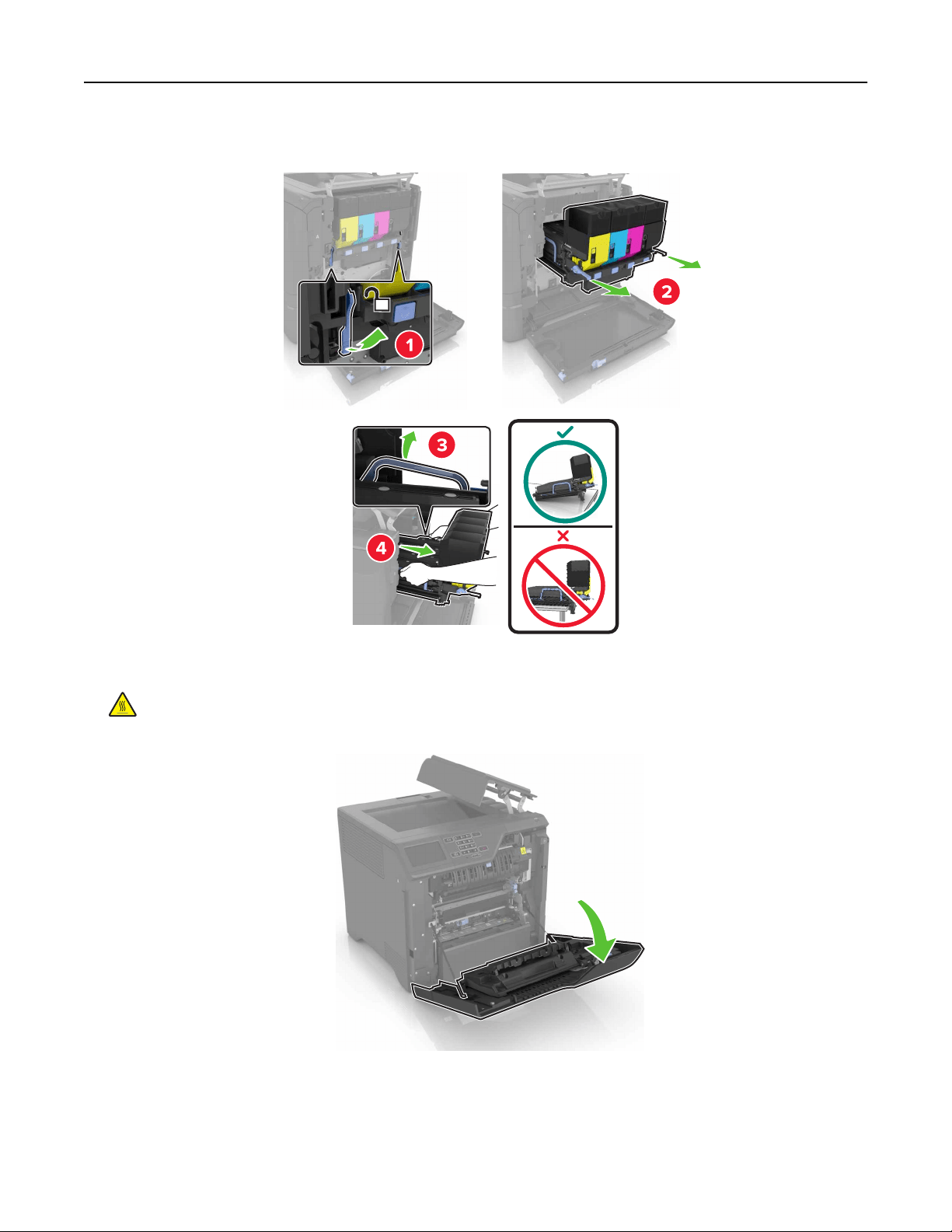
4 Remove the imaging kit.
5 Open door A.
CAUTION—HOT SURFACE: The inside of the printer might be hot. To reduce the risk of injury from a
hot component, allow the surface to cool before touching it.
Maintaining the printer 48
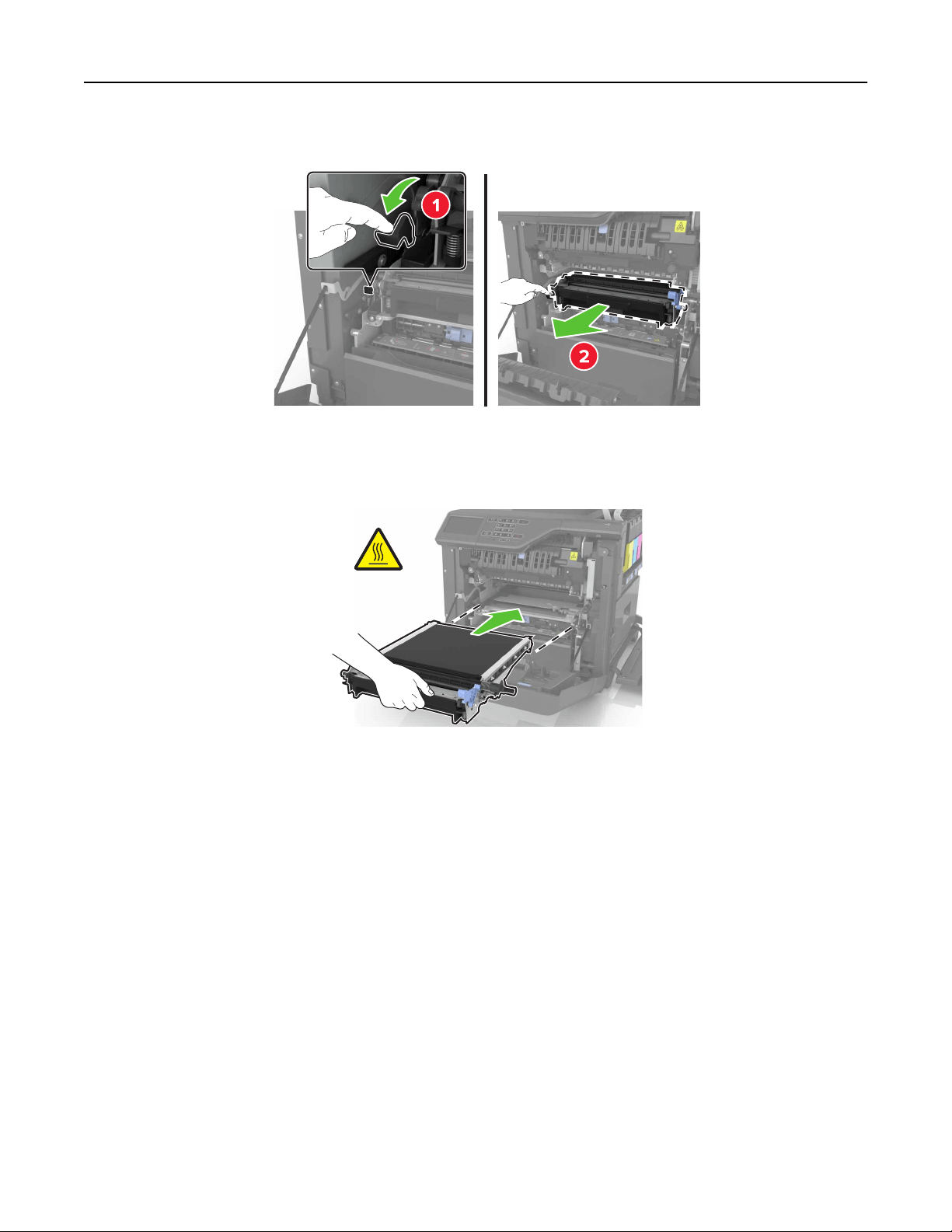
6 Remove the transfer module.
7 Unpack the new transfer module, and then remove the packing material.
8 Insert the new transfer module.
9 Close door A.
Maintaining the printer 49
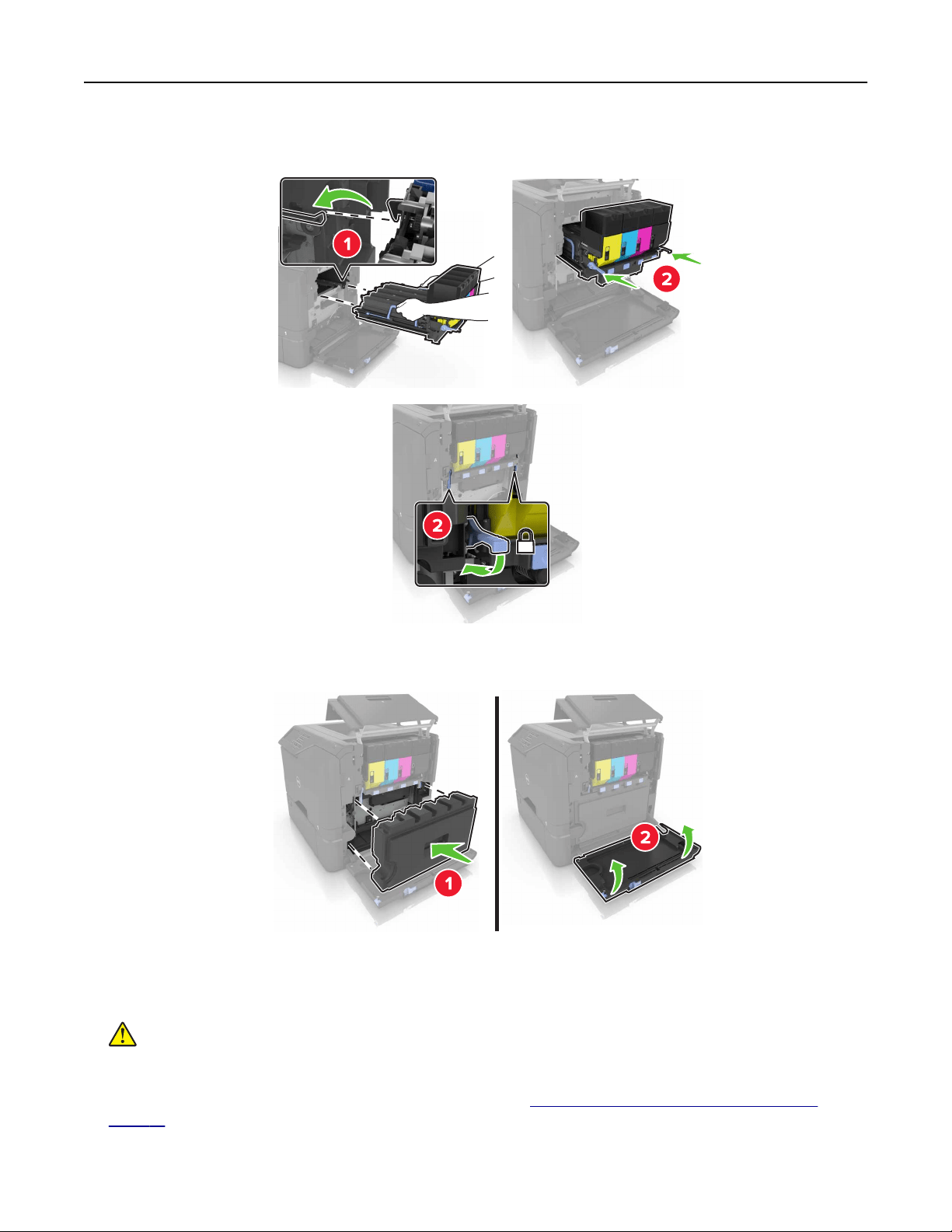
10 Insert the imaging kit.
11 Insert the waste toner bottle.
12 Close door B.
13 Connect the power cord to the electrical outlet, and then turn on the printer.
CAUTION—POTENTIAL INJURY: To avoid the risk of
fire
or electrical shock, connect the power cord
to an appropriately rated and properly grounded electrical outlet that is near the product and easily
accessible.
14 Reset the maintenance counter. For more information, see “Resetting the maintenance counter” on
page 51.
Maintaining the printer 50

Resetting the maintenance counter
1 From the home screen, touch Settings > Device > Maintenance >
Configuration
Menu > Supply Usage
And Counters.
2 Select Fuser Reset or ITM Reset.
Moving the printer
Moving the printer to another location
CAUTION—POTENTIAL INJURY: The printer weight is greater than 18 kg (40 lb) and requires two or
more trained personnel to lift it safely.
CAUTION—POTENTIAL INJURY: To avoid the risk of fire or electrical shock, use only the power cord
provided with this product or the manufacturer's authorized replacement.
CAUTION—POTENTIAL INJURY: When moving the printer, follow these guidelines to avoid personal
injury or printer damage:
• Make sure that all doors and trays are closed.
• Turn o the printer, and then unplug the power cord from the electrical outlet.
• Disconnect all cords and cables from the printer.
• If the printer has a caster base, then carefully roll it to the new location. Use caution when passing over
thresholds and breaks in flooring.
• If the printer does not have a caster base but is
configured
with optional trays, then lift the printer
o
the
trays. Do not try to lift the printer and the trays at the same time.
• Always use the handholds on the printer to lift it.
• Any cart used to move the printer must have a surface able to support the full footprint of the printer.
• Any cart used to move the hardware options must have a surface able to support the dimensions of the
options.
• Keep the printer in an upright position.
• Avoid severe jarring movements.
• Make sure that your fingers are not under the printer when you set it down.
• Make sure that there is adequate clearance around the printer.
Note: Damage to the printer caused by improper moving is not covered by the printer warranty.
Shipping the printer
When shipping the printer, use the original packaging or contact the place where you purchased the printer.
Maintaining the printer 51

Saving energy and paper
Setting up power saver modes
Eco‑Mode
1
From the home screen, touch Settings > Device > Power Management > Eco‑Mode.
2 Select a setting.
Sleep mode
1
From the home screen, touch Settings > Device > Power Management > Timeouts > Sleep Mode.
2 Enter the number of minutes the printer stays idle before it enters Sleep mode.
Hibernate mode
1
From the home screen, touch Settings > Device > Power Management > Timeouts > Hibernate Timeout.
2 Select the amount of time before the printer enters hibernate mode.
Notes:
• Make sure to wake the printer from hibernate mode before sending a print job.
• The Embedded Web Server is disabled when the printer is in hibernate mode.
Adjusting the brightness of the printer display
1 From the home screen, touch Settings > Device > Preferences > Screen Brightness.
2 Adjust the setting.
Conserving supplies
• Print on both sides of the paper.
Note: Two-sided printing is the default setting in the print driver.
• Print multiple pages on a single sheet of paper.
• Use the preview feature to see how the document looks like before printing it.
• Print one copy of the document to check its content and format for accuracy.
Recycling
Recycling Dell products
To return Dell products for recycling:
1 Visit our Web site at www.dell.com/recycle.
2 Select your country or region.
Maintaining the printer 52

3 Follow the instructions on the computer screen.
Maintaining the printer 53
Clearing jams
Avoiding jams
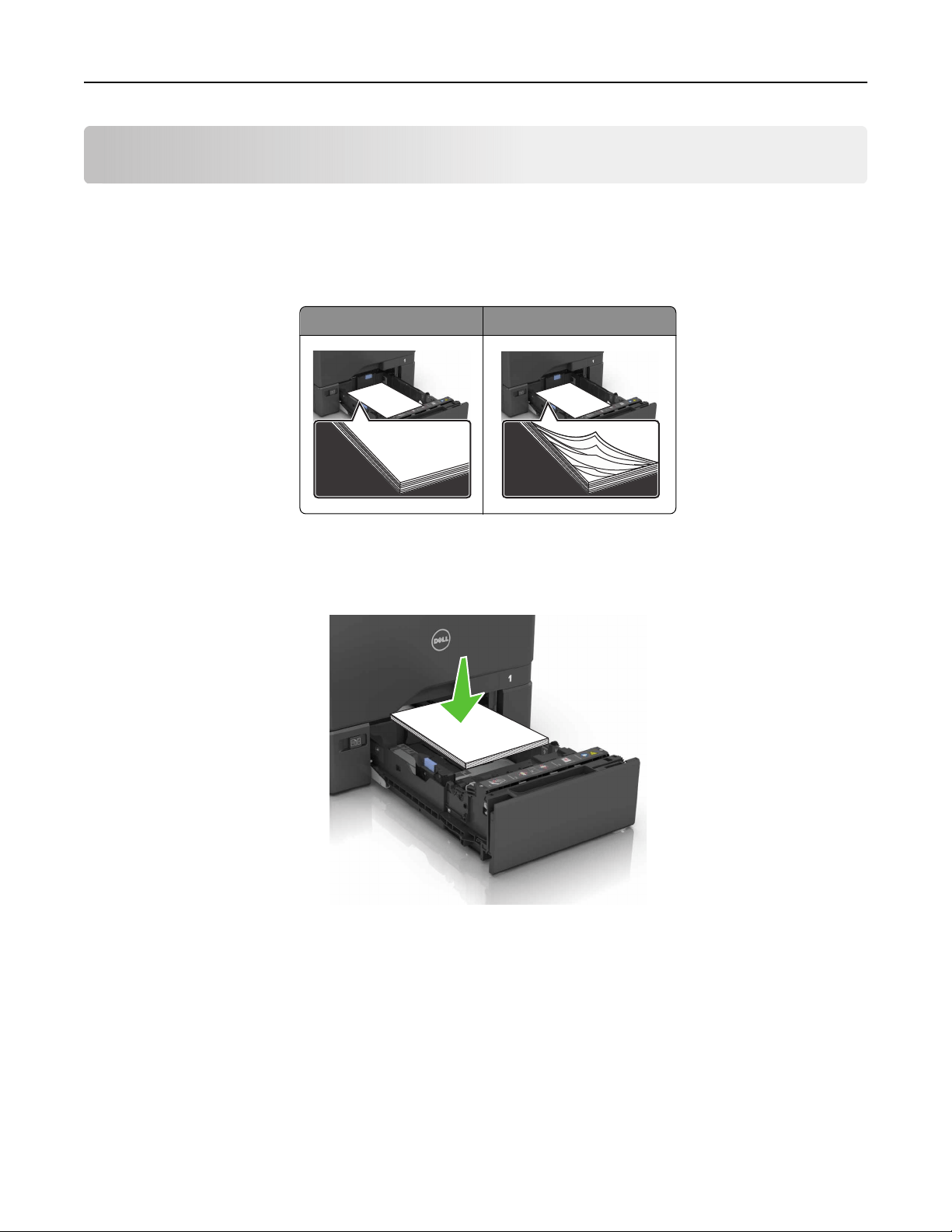
Load paper properly
• Make sure that the paper lies flat in the tray.
Correct loading of paper Incorrect loading of paper
• Do not load or remove a tray while the printer is printing.
• Do not load too much paper. Make sure that the stack height is below the maximum paper fill indicator.
• Do not slide paper into the tray. Load paper as shown in the illustration.
• Make sure that the paper guides are positioned correctly and are not pressing tightly against the paper or
envelopes.
• Push the tray firmly into the printer after loading paper.
Use recommended paper
• Use only recommended paper or specialty media.
• Do not load paper that is wrinkled, creased, damp, bent, or curled.
Clearing jams 54
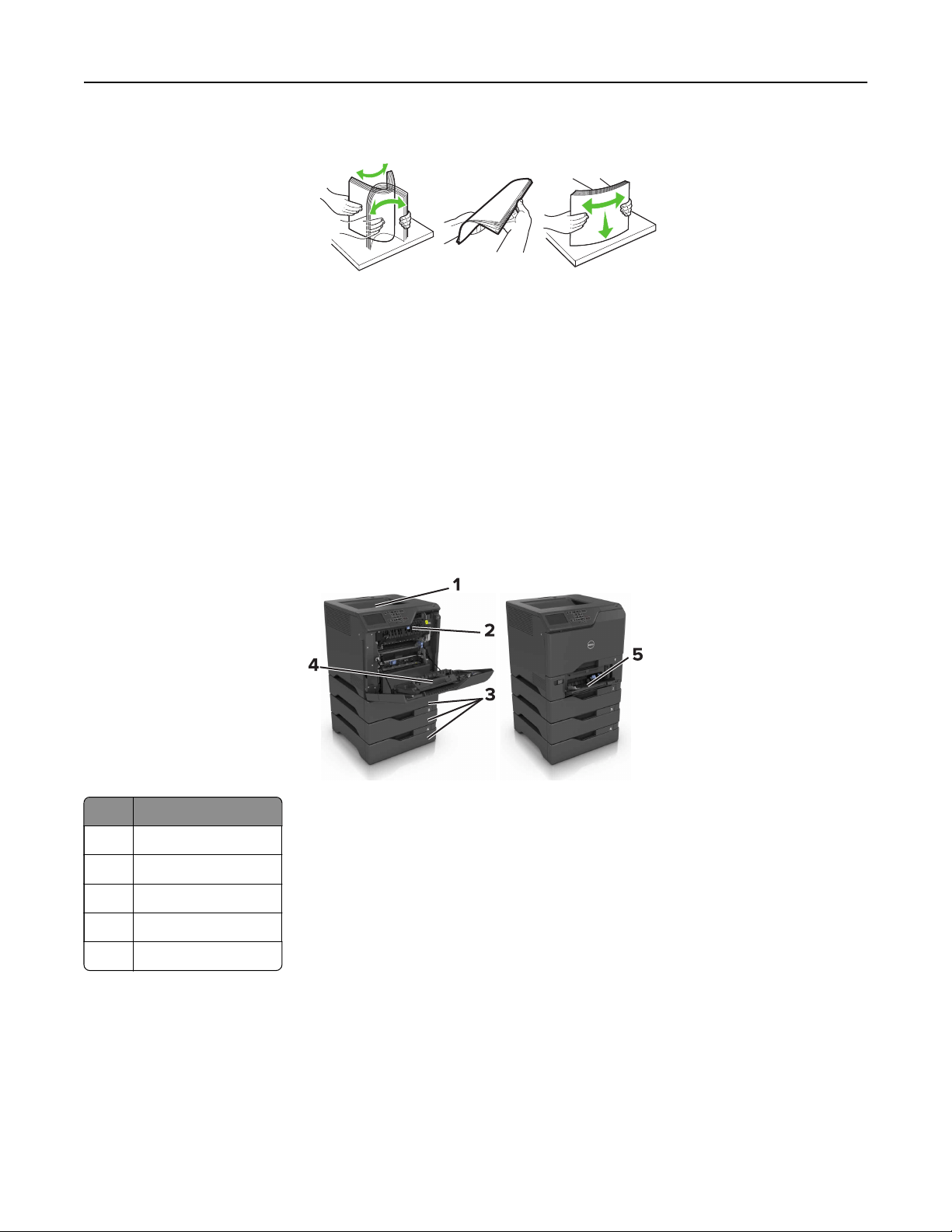
• Flex, fan, and align the paper edges before loading.
• Do not use paper that has been cut or trimmed by hand.
• Do not mix paper sizes, weights, or types in the same tray.
• Make sure that the paper size and type are set correctly on the computer or printer control panel.
• Store paper according to manufacturer recommendations.
Identifying jam locations
Notes:
• When Jam Assist is set to On, the printer flushes blank pages or pages with partial prints after a jammed
page has been cleared. Check your printed output for blank pages.
• When Jam Recovery is set to On or Auto, the printer reprints jammed pages.
Jam locations
1 Standard bin
2 Fuser
3 Trays
4 Duplex unit
5 Multipurpose feeder
Clearing jams 55
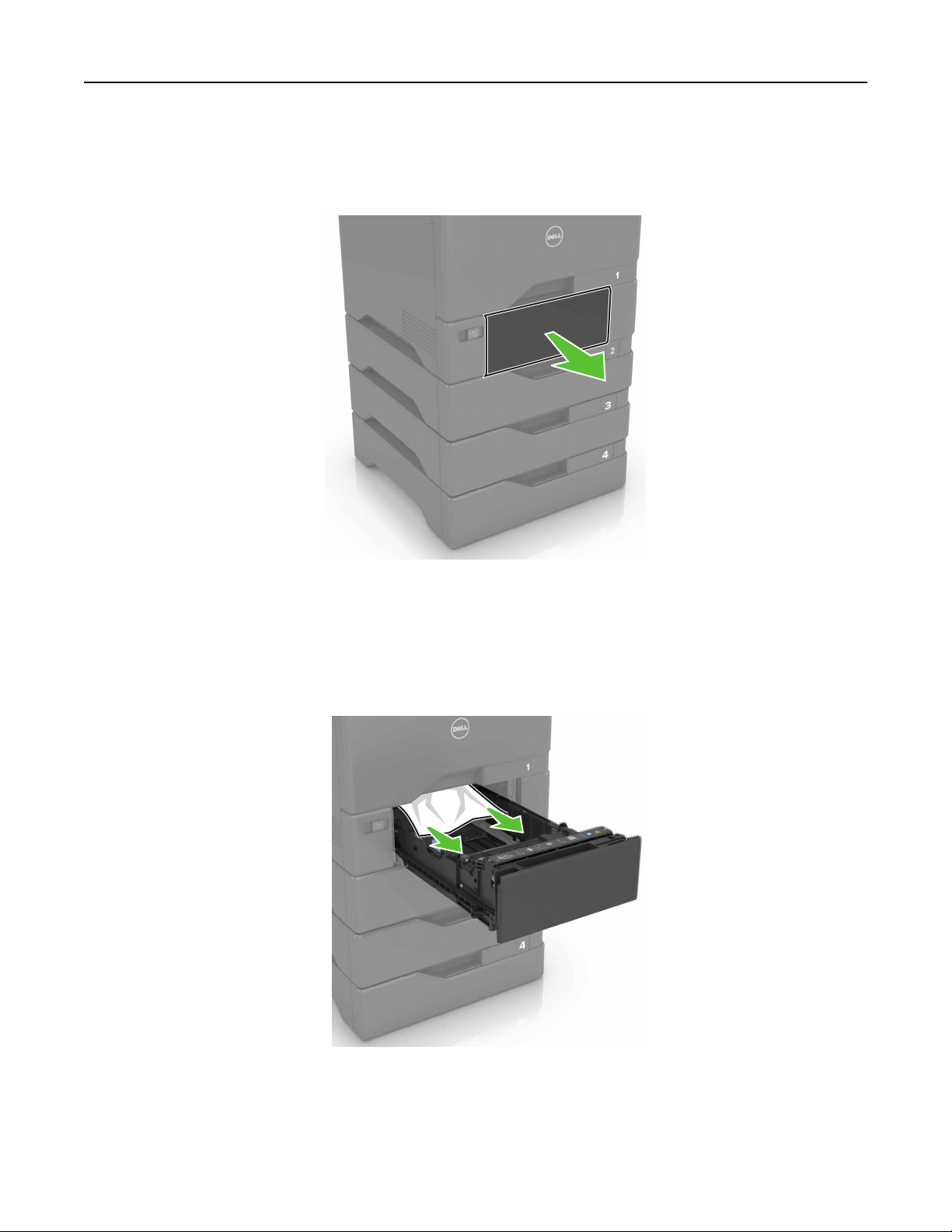
Paper jam in trays
1 Pull out the tray.
Warning—Potential Damage: A sensor inside the optional tray is easily damaged by static electricity.
Touch a metal surface before removing the jammed paper in the tray.
2 Remove the jammed paper.
Note: Make sure that all paper fragments are removed.
3 Insert the tray.
Clearing jams 56
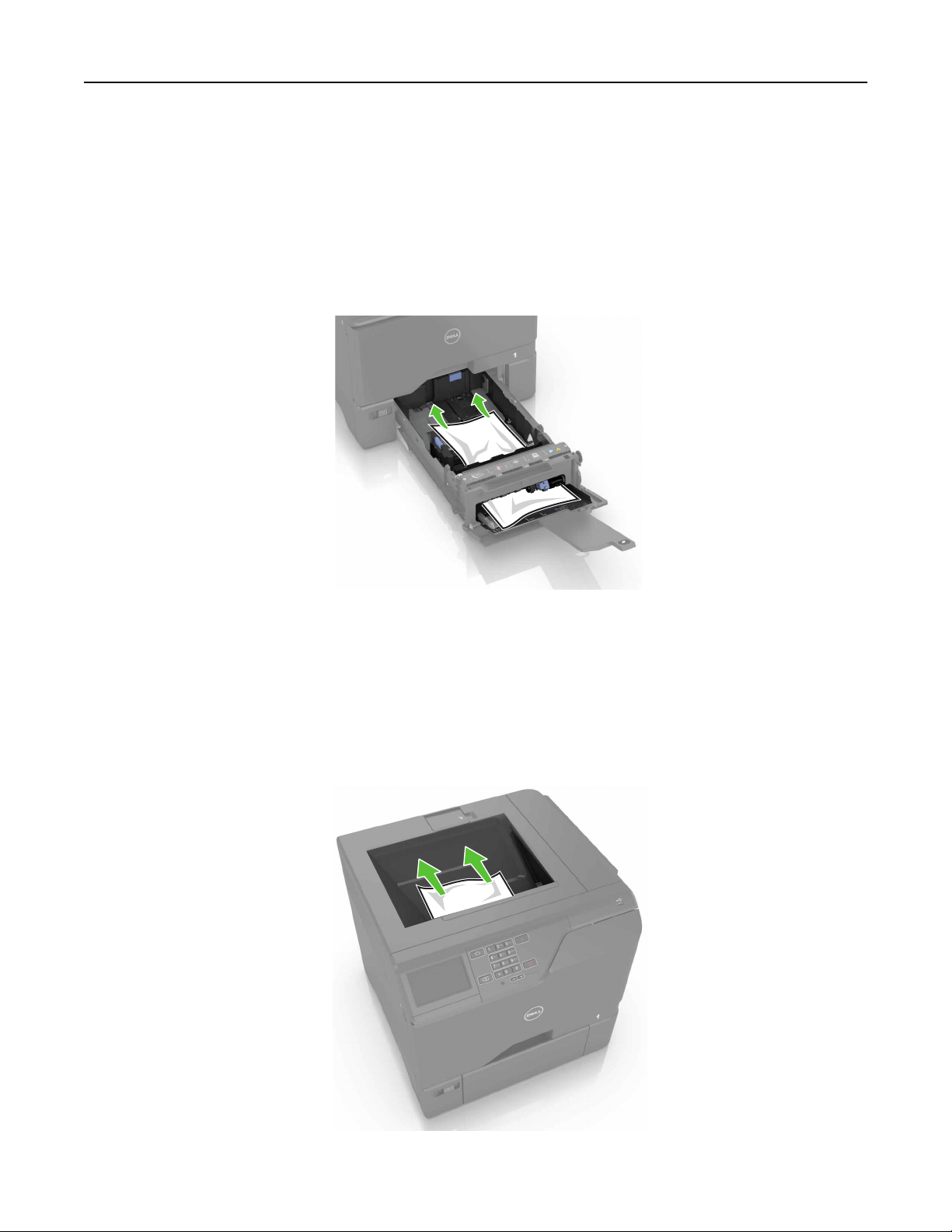
Paper jam in the multipurpose feeder
1 Remove paper from the multipurpose feeder.
2 Pull out the tray.
3 Remove the jammed paper.
Note: Make sure that all paper fragments are removed.
4 Insert the tray.
Paper jam in the standard bin
1 Remove the jammed paper.
Note: Make sure that all paper fragments are removed.
Clearing jams 57
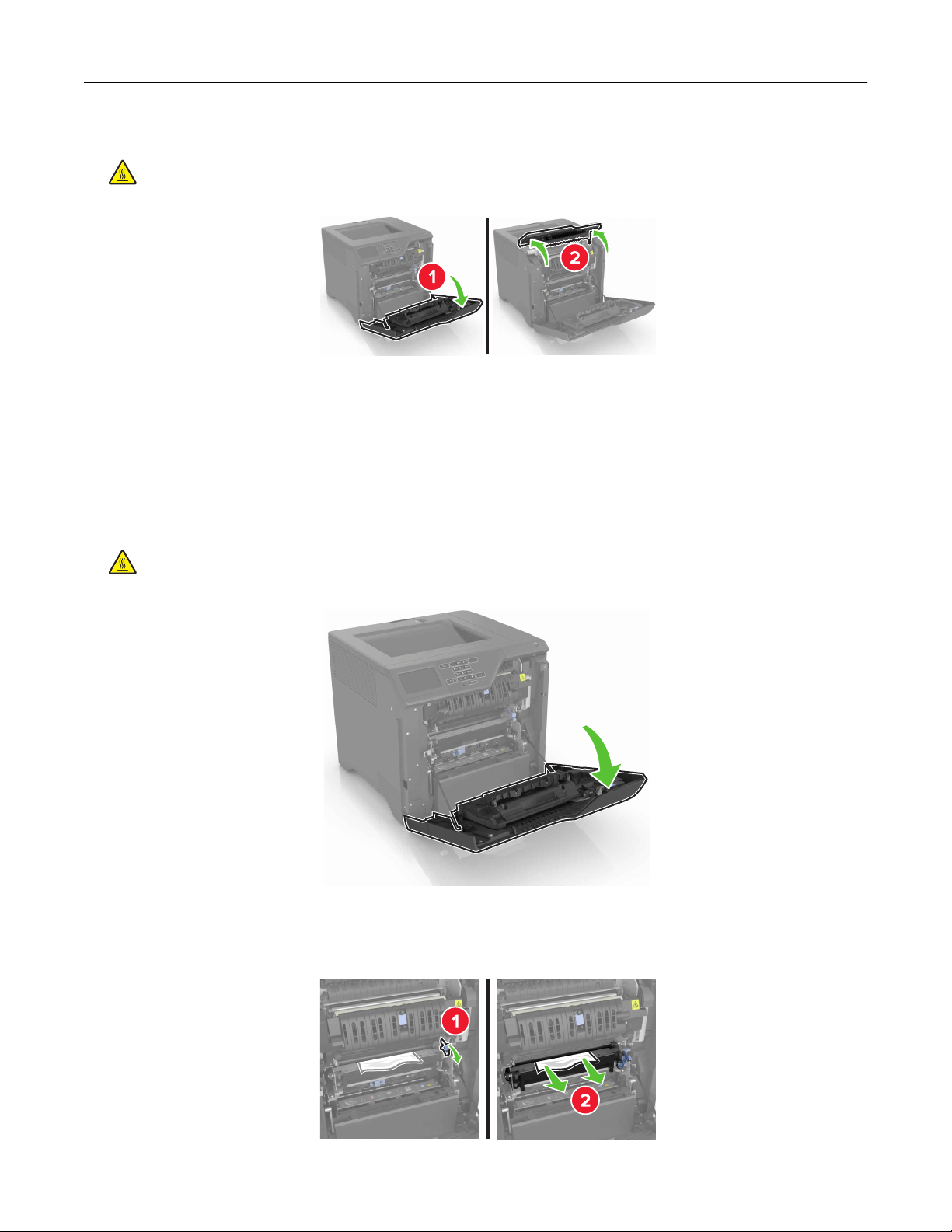
2 Open doors A and D, and then remove any paper fragments.
CAUTION—HOT SURFACE: The inside of the printer might be hot. To reduce the risk of injury from a
hot component, allow the surface to cool before touching it.
3 Close doors D and A.
Paper jam in door A
Paper jam in the fuser
1 Open door A.
CAUTION—HOT SURFACE: The inside of the printer might be hot. To reduce the risk of injury from a
hot component, allow the surface to cool before touching it.
2 Remove the jammed paper.
Note: Make sure that all paper fragments are removed.
Clearing jams 58
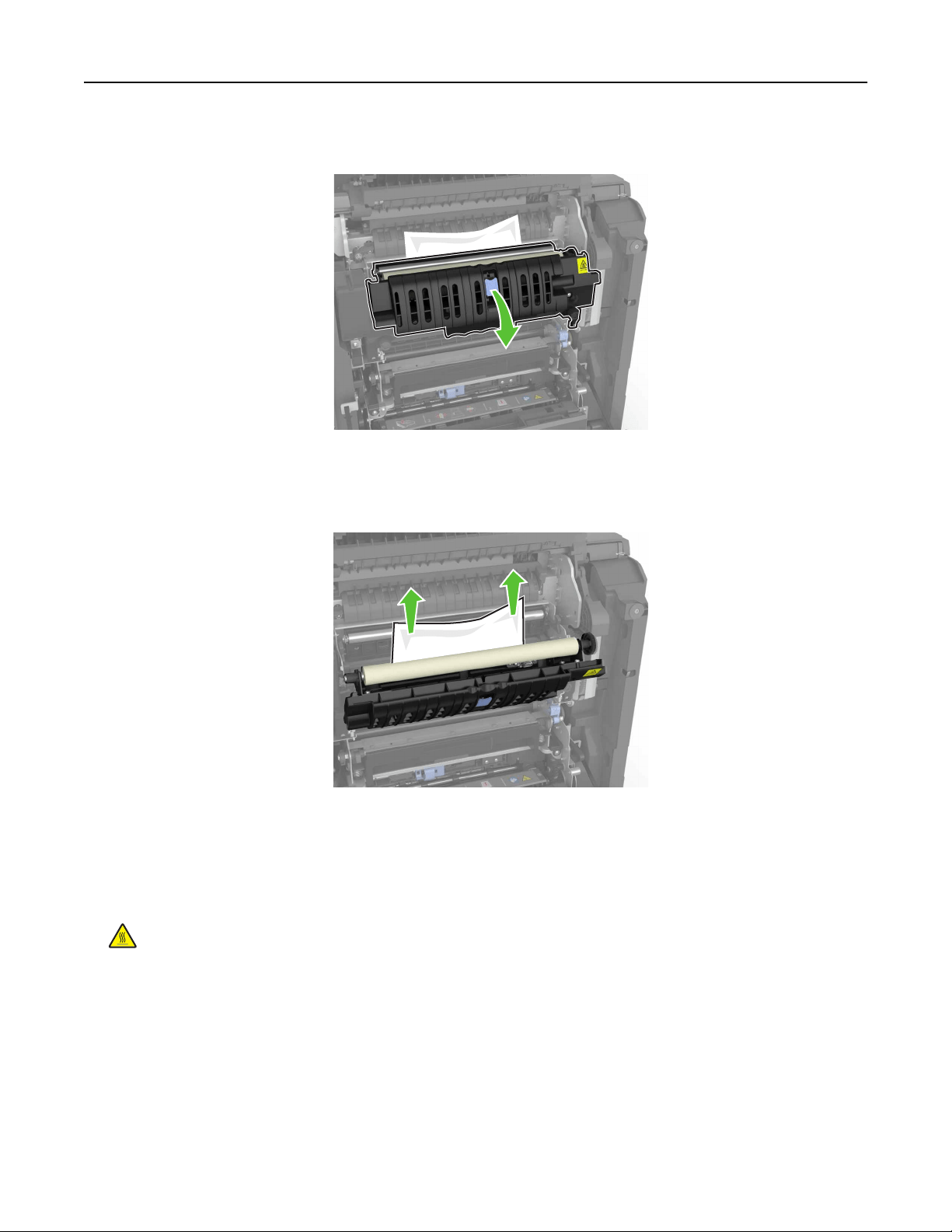
3 Open the fuser access door.
4 Remove the jammed paper.
Note: Make sure that all paper fragments are removed.
5 Close door A.
Paper jam in the duplex unit
1 Open door A.
CAUTION—HOT SURFACE: The inside of the printer might be hot. To reduce the risk of injury from a
hot component, allow the surface to cool before touching it.
Clearing jams 59
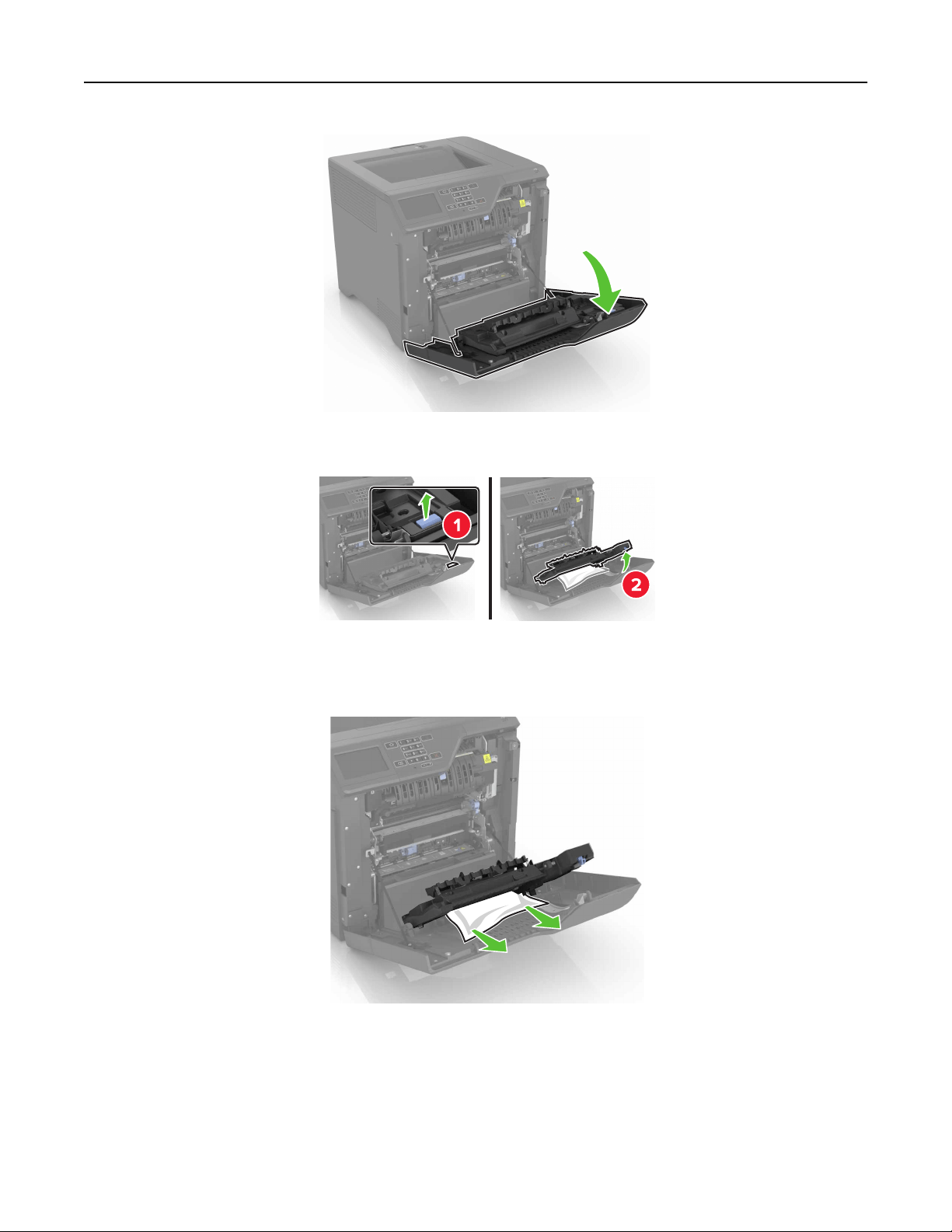
2 Open the duplex cover.
3 Remove the jammed paper.
Note: Make sure that all paper fragments are removed.
4 Close the duplex cover and door A.
Clearing jams 60

Troubleshooting
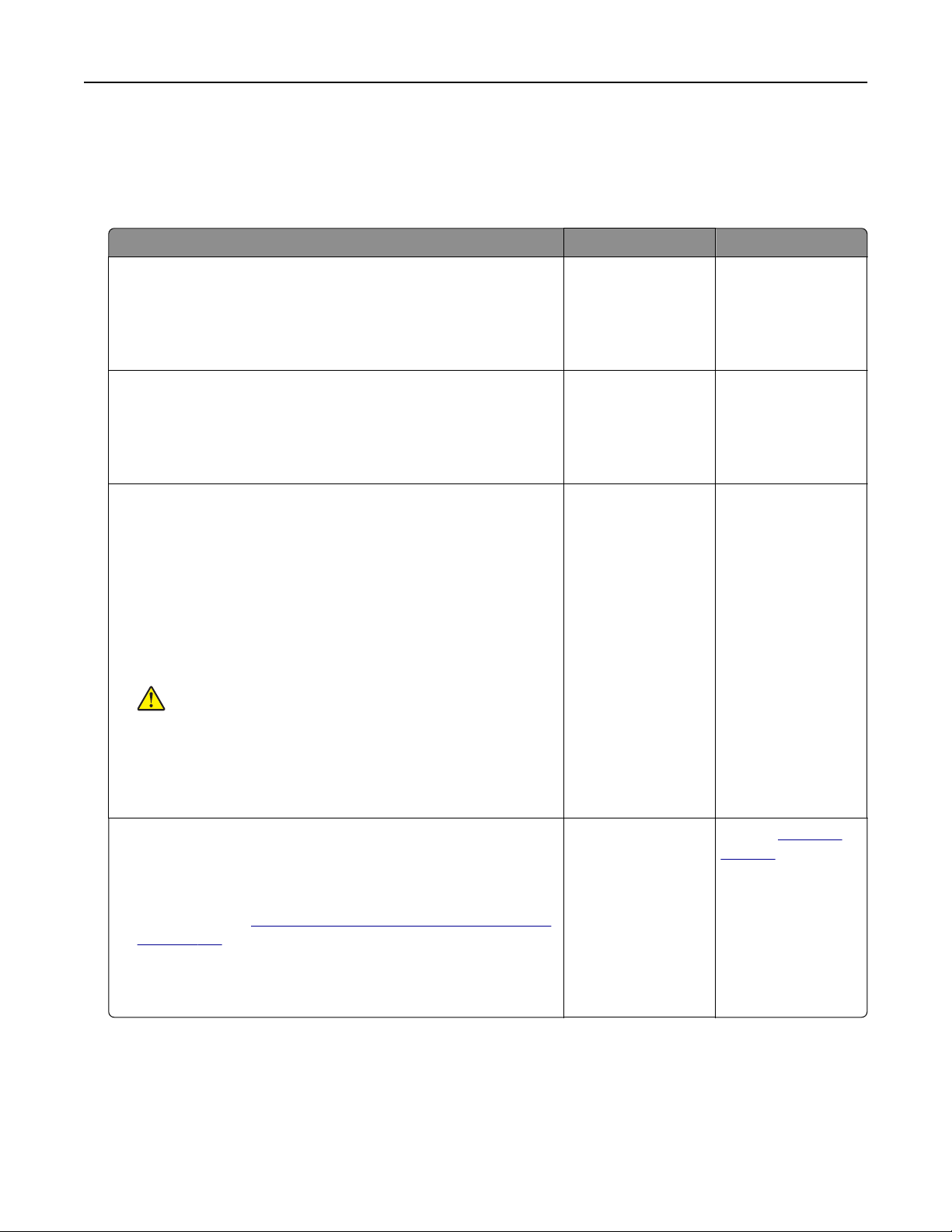
Network connection problems
Cannot open Embedded Web Server
Action Yes No
Step 1
Check if you are using a supported browser:
• Internet Explorer® version 9 or later
• Safari version 8.0.3 or later
• Google Chrome
TM
• Mozilla Firefox
Is your browser supported?
Go to step 2. Install a supported
browser.
Step 2
Make sure that the printer IP address is correct.
View the printer IP address:
• From the home screen
• From the TCP/IP section in the Network/Ports menu
• By printing a network setup page or menu settings page,
and then finding the TCP/IP section
Note: An IP address appears as four sets of numbers separated
by periods, such as 123.123.123.123.
Is the printer IP address correct?
Go to step 3. Type the correct
printer IP address in
the address
field.
Step 3
Check if the printer is on.
Is the printer on?
Go to step 4. Turn on the printer.
Step 4
Check if the network connection is working.
Is the network connection working?
Go to step 5. Contact your
administrator.
Step 5
Make sure that the cable connections to the printer and print server
are secure.
For more information, see the setup documentation that came with
the printer.
Are the cable connections secure?
Go to step 6. Secure the cable
connections.
Troubleshooting 61

Action Yes No
Step 6
Check if the web proxy servers are disabled.
Are the web proxy servers disabled?
Go to step 7. Contact your
administrator.
Step 7
Access the Embedded Web Server.
Did the Embedded Web Server open?
The problem is
solved.
Contact
technical
support.
Unable to read
flash
drive
Action Yes No
Step 1
Check if the flash drive is inserted into the front USB port.
Note: The flash drive does not work when it is inserted into the
rear USB port.
Is the
flash
drive inserted into the front USB port?
Go to step 2. The problem is
solved.
Step 2
Check if the flash drive is supported. For more information, see
“Supported flash drives and file types” on page 22
Does the error message still appear?
Go to step 3. The problem is
solved.
Step 3
Check if the front USB port is disabled. For more information, see
“Enabling the USB port” on page 62.
Does the error message still appear?
Contact
technical
support.
The problem is
solved.
Enabling the USB port
From the home screen, touch Settings > Network/Ports > USB > Enable USB Port.
Checking the printer connectivity
1 From the home screen, touch Settings > Reports > Network > Network Setup Page.
2 Check the first section of the network setup page, and confirm that the status is connected.
If the status is not connected, then the LAN drop may be inactive, or the network cable may be unplugged
or malfunctioning. Contact your administrator for assistance.
Troubleshooting 62
Hardware options problems
Cannot detect internal option
Action Yes No
Step 1
Turn o the printer, wait for about 10 seconds, and then turn it back
on.
Does the internal option operate correctly?
The problem is
solved.
Go to step 2.
Step 2
Print a menu settings page, and then check if the internal option
appears in the Installed Features list.
Is the internal option listed in the menu settings page?
Go to step 4. Go to step 3.
Step 3
Check if the internal option is properly installed in the controller
board.
a Turn o the printer, and then unplug the power cord from the
electrical outlet.
b Make sure that the internal option is installed in the appropriate
connector in the controller board.
c Connect the power cord to the electrical outlet, and then turn
on the printer.
CAUTION—POTENTIAL INJURY: To avoid the risk of fire
or electrical shock, connect the power cord to an
appropriately rated and properly grounded electrical outlet
that is near the product and easily accessible.
Does the internal option operate correctly?
The problem is
solved.
Go to step 4.
Step 4
a Check if the internal option is available in the print driver.
Note: If necessary, manually add the internal option in the
print driver to make it available for print jobs. For more
information, see
“Adding available options in the print driver”
on page 105.
b Resend the print job.
Does the internal option operate correctly?
The problem is
solved.
Contact
technical
support.
Troubleshooting 63

Internal solutions port does not operate correctly
Action Yes No
Step 1
Print a menu settings page, and then check if the internal solutions
port (ISP) appears in the Installed Features list.
Is the ISP listed in the Installed Features list?
Go to step 3. Go to step 2.
Step 2
Remove, and then install the ISP. For more information, see
“Installing an internal solutions port” on page 93.
Note: Use a supported ISP.
Does the ISP operate correctly?
The problem is
solved.
Go to step 3.
Step 3
Check the cable and the ISP connection.
a Use the correct cable, and then make sure that it is securely
connected to the ISP.
b Check if the ISP solution interface cable is securely connected
into the receptacle of the controller board.
Does the ISP operate correctly?
The problem is
solved.
Contact
technical
support.
Parallel or serial interface card does not operate correctly
Action Yes No
Step 1
Print a menu settings page, and then check if the parallel or serial
interface card appears in the Installed Features list.
Is the parallel or serial interface card listed in the Installed Features
list?
Go to step 3. Go to step 2.
Step 2
Remove, and then install the parallel or serial interface card.
For more information, see
“Installing an internal solutions port” on
page 93.
Does the parallel or serial interface card operate correctly?
The problem is
solved.
Go to step 3.
Step 3
Check the connection between the cable and the parallel or serial
interface card.
Does the parallel or serial interface card operate correctly?
The problem is
solved.
Contact
technical
support.
Troubleshooting 64
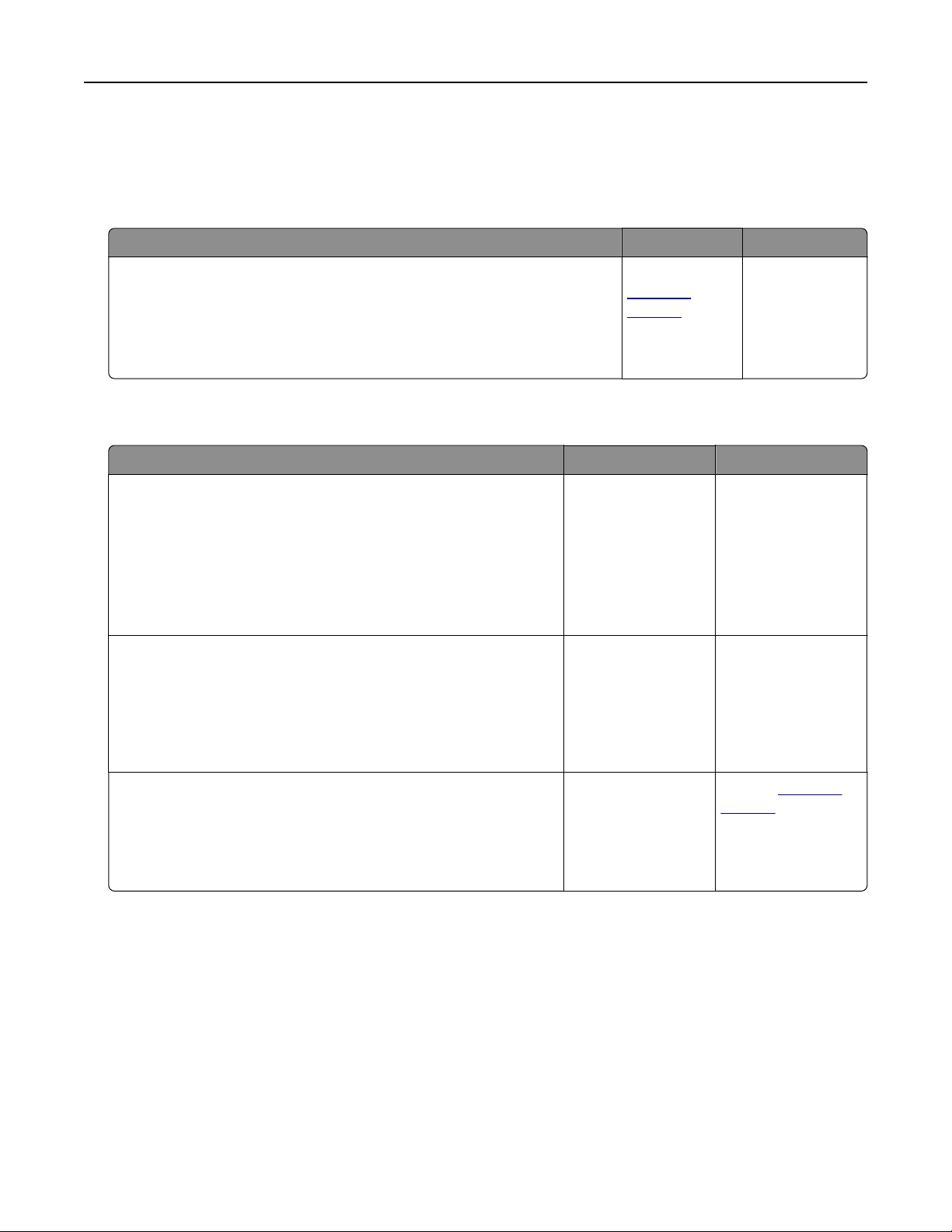
Paper feed problems
Envelope seals when printing
Action Yes No
1 Use envelopes that have been stored in a dry environment.
Note: Printing on envelopes with high moisture content can seal the
flaps.
2 Resend the print job.
Does the envelope seal when printing?
Contact
technical
support.
The problem is
solved.
Collated printing does not work
Action Yes No
Step 1
a From the home screen, touch Settings > Print > Layout >
Collate.
b Set Collate to On.
c Print the document.
Are the pages collated correctly?
The problem is
solved.
Go to step 2.
Step 2
a From the document that you are trying to print, open the Print
dialog, and then select Collate.
b Print the document.
Are the pages collated correctly?
The problem is
solved.
Go to step 3.
Step 3
a Reduce the number of pages to print.
b Print the document.
Are the pages collated correctly?
The problem is
solved.
Contact
technical
support.
Troubleshooting 65

Paper curl
Action Yes No
Step 1
Move the paper guides in the tray to the correct position for the
paper loaded.
Is the paper still curled?
Go to step 2. The problem is
solved.
Step 2
a Depending on your operating system, specify the paper type
and weight from the Printing Preferences or Print dialog.
Notes:
• Make sure that the settings match the paper loaded in
the tray.
• You can also change the settings on the printer control
panel.
b Resend the print job.
Is the paper still curled?
Go to step 3. The problem is
solved.
Step 3
a Remove paper from the tray, and then turn it over.
b Resend the print job.
Is the paper still curled?
Go to step 4. The problem is
solved.
Step 4
a Load paper from a fresh package.
Note: Paper absorbs moisture due to high humidity. Store
paper in its original wrapper until you are ready to use it.
b Resend the print job.
Is the paper still curled?
Contact
technical
support.
The problem is
solved.
Tray linking does not work
Action Yes No
Step 1
a Check if the trays contain paper of the same size and type.
b Check if the paper guides are positioned correctly.
c Print the document.
Do the trays link correctly?
The problem is
solved.
Go to step 2.
Troubleshooting 66

Action Yes No
Step 2
a From the home screen, touch Settings > Paper > Tray
Configuration > Paper Size/Type.
b Set the paper size and type to match the paper loaded in the
linked trays.
c Print the document.
Do the trays link correctly?
The problem is
solved.
Contact
technical
support.
Paper frequently jams
Action Yes No
Step 1
a Pull out the tray.
b Check if the paper is loaded correctly.
Notes:
• Make sure that the paper guides are positioned correctly.
• Make sure that the stack height is below the maximum
paper fill indicator.
• Make sure to print on recommended paper size and type.
c Insert the tray.
d Print the document.
Do paper jams still occur frequently?
Go to step 2. The problem is
solved.
Step 2
a From the Paper menu on the control panel, check if the printer
is detecting the correct paper size.
b Resend the print job.
Do paper jams still occur frequently?
Go to step 3. The problem is
solved.
Step 3
a Load paper from a fresh package.
b Print the document.
Do paper jams still occur frequently?
Contact
technical
support.
The problem is
solved.
Troubleshooting 67
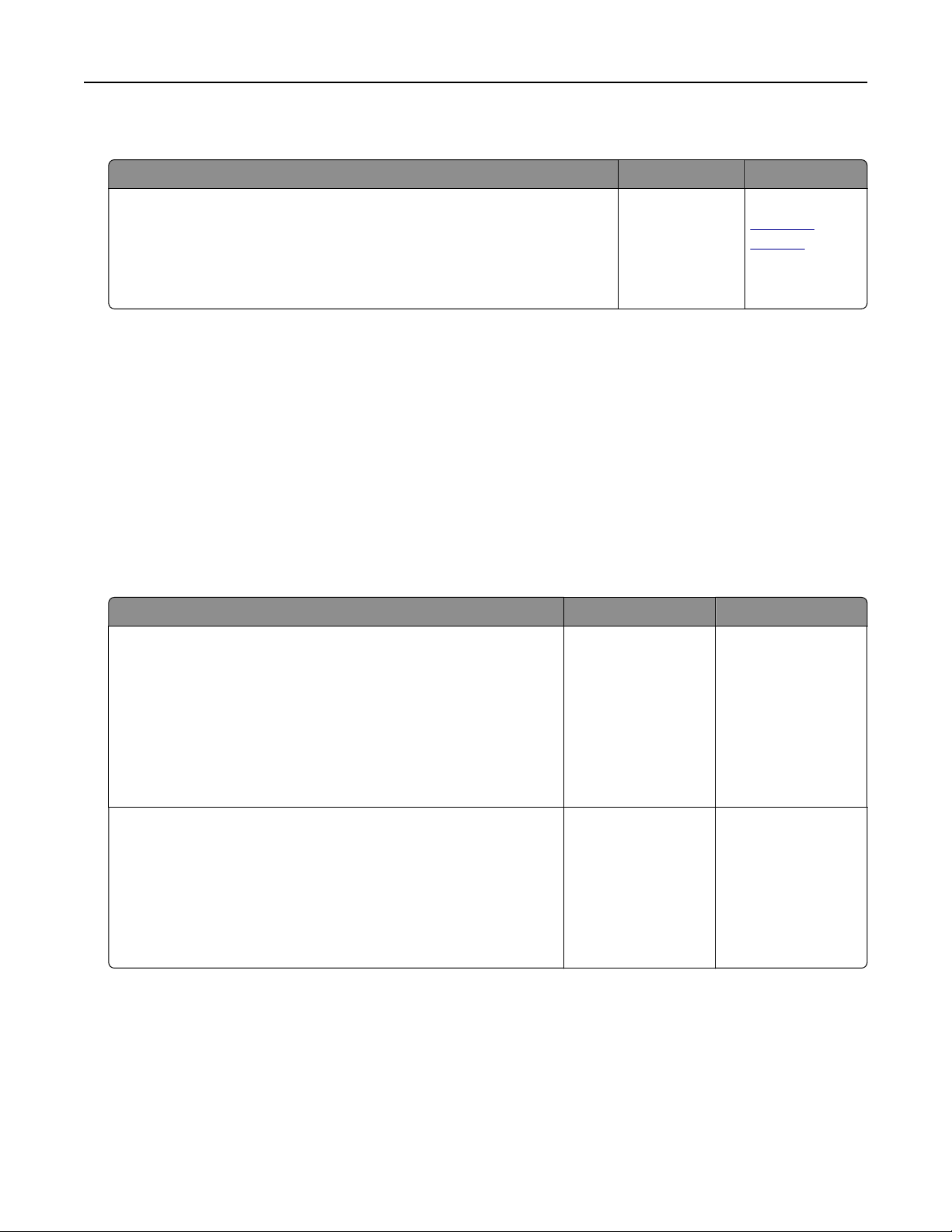
Jammed pages are not reprinted
Action Yes No
1 From the home screen, touch Settings > Device >
Notifications
> Jam
Content Recovery.
2 Select On or Auto.
3 Apply the changes.
Are the jammed pages reprinted?
The problem is
solved.
Contact
technical
support.
Printing problems
•
“Confidential
and other held documents do not print” on page 68
• “Slow printing” on page 69
• “Print jobs do not print” on page 71
• “Print quality is poor” on page 72
• “The printer is not responding” on page 85
• “Job prints from the wrong tray or on the wrong paper” on page 86
Confidential
and other held documents do not print
Action Yes No
Step 1
a From the control panel, check if the documents appear in the
Held Jobs list.
Note: If the documents are not listed, then print the
documents using the Print and Hold options.
b Print the documents.
Are the documents printed?
The problem is
solved.
Go to step 2.
Step 2
The print job may contain a formatting error or invalid data.
• Delete the print job, and then send it again.
• For PDF files, generate a new file, and then print the
documents.
Are the documents printed?
The problem is
solved.
Go to step 3.
Troubleshooting 68

Action Yes No
Step 3
If you are printing from the Internet, then the printer may be reading
the multiple job titles as duplicates.
For Windows users
a Open the Printing Preferences dialog.
b From the Print and Hold section, select Keep duplicate
documents.
c Enter a PIN.
d Resend the print job.
For Macintosh users
a Save and name each job dierently.
b Send the job individually.
Are the documents printed?
The problem is
solved.
Go to step 4.
Step 4
a Delete some held jobs to free up printer memory.
b Resend the print job.
Are the documents printed?
The problem is
solved.
Go to step 5.
Step 5
a Add printer memory.
b Resend the print job.
Are the documents printed?
The problem is
solved.
Contact
technical
support.
Slow printing
Action Yes No
Step 1
a Make sure that the printer is not in Eco‑Mode and Quiet Mode.
b Print the document.
Is the printer printing slow?
Go to step 2. The problem is
solved.
Troubleshooting 69

Action Yes No
Step 2
a Depending on your operating system, specify the paper type
from the Printing Preferences or Print dialog.
Notes:
• Make sure that the setting matches the paper loaded in
the tray.
• You can also change the setting on the printer control
panel.
b Print the document.
Is the printer printing slow?
Go to step 3. The problem is
solved.
Step 3
a Reduce the number of pages to print.
b Print the document.
Is the printer printing slow?
Go to step 4. The problem is
solved.
Step 4
a Remove held jobs.
b Print the document.
Is the printer printing slow?
Go to step 5. The problem is
solved.
Step 5
a Connect the printer cable securely to the printer and the
computer, print server, option, or other network device.
b Print the document.
Is the printer printing slow?
Go to step 6. The problem is
solved.
Step 6
a From the Quality menu on the control panel, set the Print
Resolution to 4800CQ.
b Print the document.
Is the printer printing slow?
Go to step 7. The problem is
solved.
Step 7
a Make sure that the printer is not overheating.
Notes:
• Allow the printer to cool down after a long print job.
• Observe the recommended ambient temperature for the
printer. For more information, see
“Selecting a location
for the printer” on page 10.
b Print the document.
Is the printer printing slow?
Go to step 8. The problem is
solved.
Troubleshooting 70

Action Yes No
Step 8
a Add more printer memory.
b Print the document.
Is the printer printing slow?
Contact
technical
support.
The problem is
solved.
Print jobs do not print
Action Yes No
Step 1
a From the document you are trying to print, open the Print
dialog, and then check if you have selected the correct printer.
b Resend the print job.
Is the document printed?
The problem is
solved.
Go to step 2.
Step 2
a Check if the printer is on.
b Resolve any error messages that appear on the display.
c Resend the print job.
Is the document printed?
The problem is
solved.
Go to step 3.
Step 3
a Check if the ports are working and if the cables are securely
connected to the computer and the printer.
For more information, see the setup documentation that came
with the printer.
b Resend the print job.
Is the document printed?
The problem is
solved.
Go to step 4.
Step 4
a Turn o the printer, wait for about 10 seconds, and then turn it
back on.
b Resend the print job.
Is the document printed?
The problem is
solved.
Go to step 5.
Step 5
a Remove, and then reinstall the printer software.
Note: For more information, visit
www.dell.com/support/printers.
b Resend the print job.
Is the document printed?
The problem is
solved.
Contact
technical
support.
Troubleshooting 71
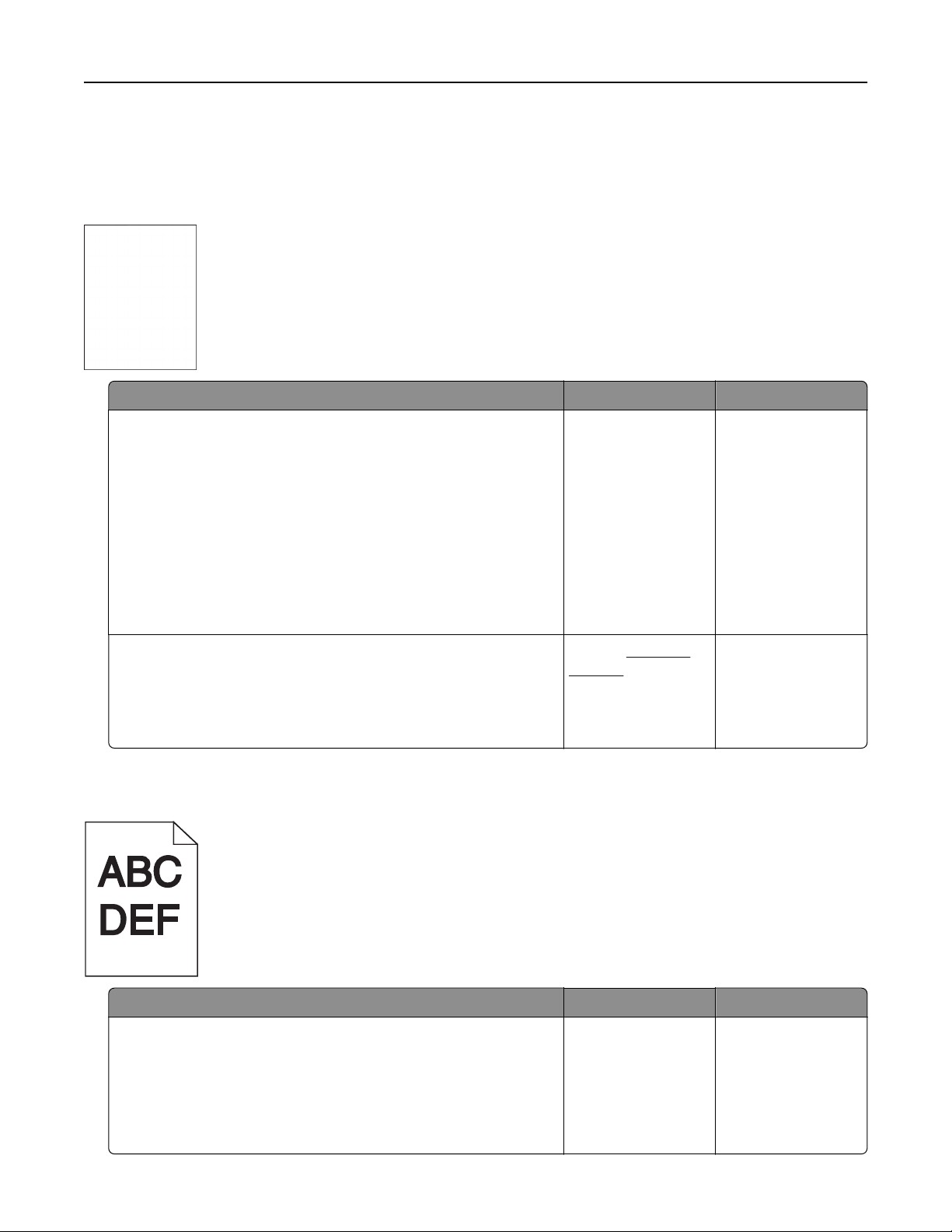
Print quality is poor
Blank or white pages
Action Yes No
Step 1
a Remove, and then reinstall the imaging unit or imaging kit.
Warning—Potential Damage: Do not expose the imaging unit
or imaging kit to direct light for more than 10 minutes.
Extended exposure to light may cause print quality problems.
Warning—Potential Damage: To avoid damage, do not touch
the underside of the imaging unit or imaging kit.
b Resend the print job.
Is the printer still printing blank or white pages?
Go to step 2. The problem is
solved.
Step 2
Replace the imaging unit or imaging kit, and then resend the print
job.
Is the printer still printing blank or white pages?
Contact
technical
support.
Dark print
Action Yes No
Step 1
a From the Quality menu on the control panel, select Color
Adjust.
b Resend the print job.
Is the print still too dark?
Go to step 2. The problem is
solved.
Troubleshooting 72

Action Yes No
Step 2
a Depending on your operating system, reduce the toner
darkness from the Printing Preferences or Print dialog.
Note: You can also change the settings on the printer control
panel.
b Resend the print job.
Is the print still too dark?
Go to step 3. The problem is
solved.
Step 3
a Depending on your operating system, specify the paper type,
texture, and weight from the Printing Preferences or Print
dialog.
Notes:
• Make sure that the settings match the paper loaded in
the tray.
• You can also change the settings on the printer control
panel.
b Resend the print job.
Is the print still too dark?
Go to step 4. The problem is
solved.
Step 4
Make sure that the paper has no texture or rough finishes.
Are you printing on textured or rough paper?
Change the texture
settings to match the
paper you are
printing on.
Go to step 5.
Step 5
a Load paper from a fresh package.
Note: Paper absorbs moisture due to high humidity. Store
paper in its original wrapper until you are ready to use it.
b Resend the print job.
Is the print still too dark?
Go to step 6. The problem is
solved.
Step 6
a Remove, and then reinstall the waste toner bottle.
b From the Quality menu on the control panel, select Color
Adjust.
c Resend the print job.
Is the print still too dark?
Contact
technical
support.
The problem is
solved.
Troubleshooting 73
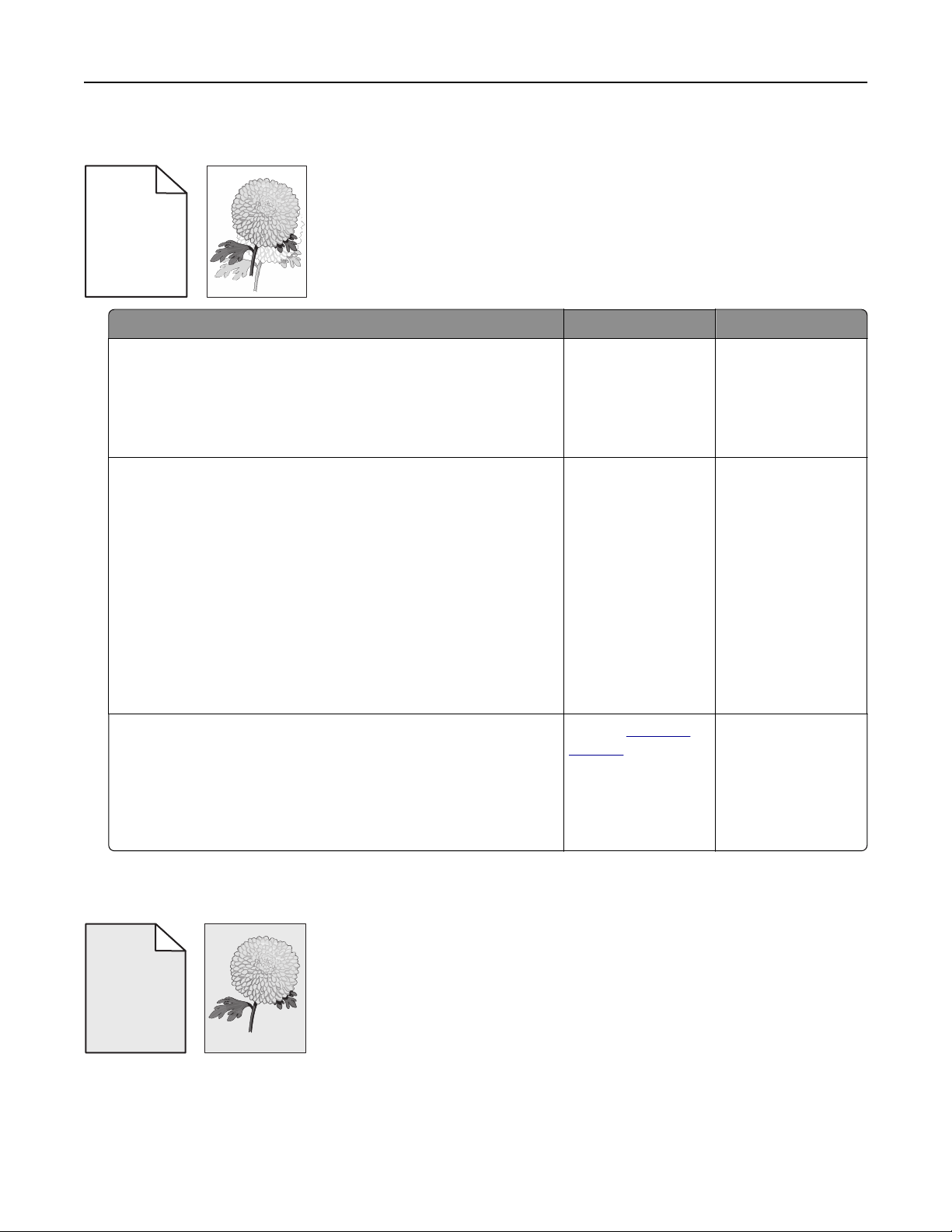
Ghost images
ABCD
ABCD
ABCD
ABCD
Leading edge
Trailing edge
Action Yes No
Step 1
a Load the tray with the correct paper type and weight.
b Resend the print job.
Do ghost images still appear on prints?
Go to step 2. The problem is
solved.
Step 2
a Depending on your operating system, specify the paper type
and weight from the Printing Preferences or Print dialog.
Notes:
• Make sure that the settings match the paper loaded in
the tray.
• You can also change the settings on the printer control
panel.
b Resend the print job.
Do ghost images still appear on prints?
Go to step 3. The problem is
solved.
Step 3
a From the Quality menu on the control panel, select Color
Adjust.
b Resend the print job.
Do ghost images still appear on prints?
Contact technical
support.
The problem is
solved.
Gray background
ABCDE
ABCDE
ABCDE
Leading edge
Trailing edge
Troubleshooting 74
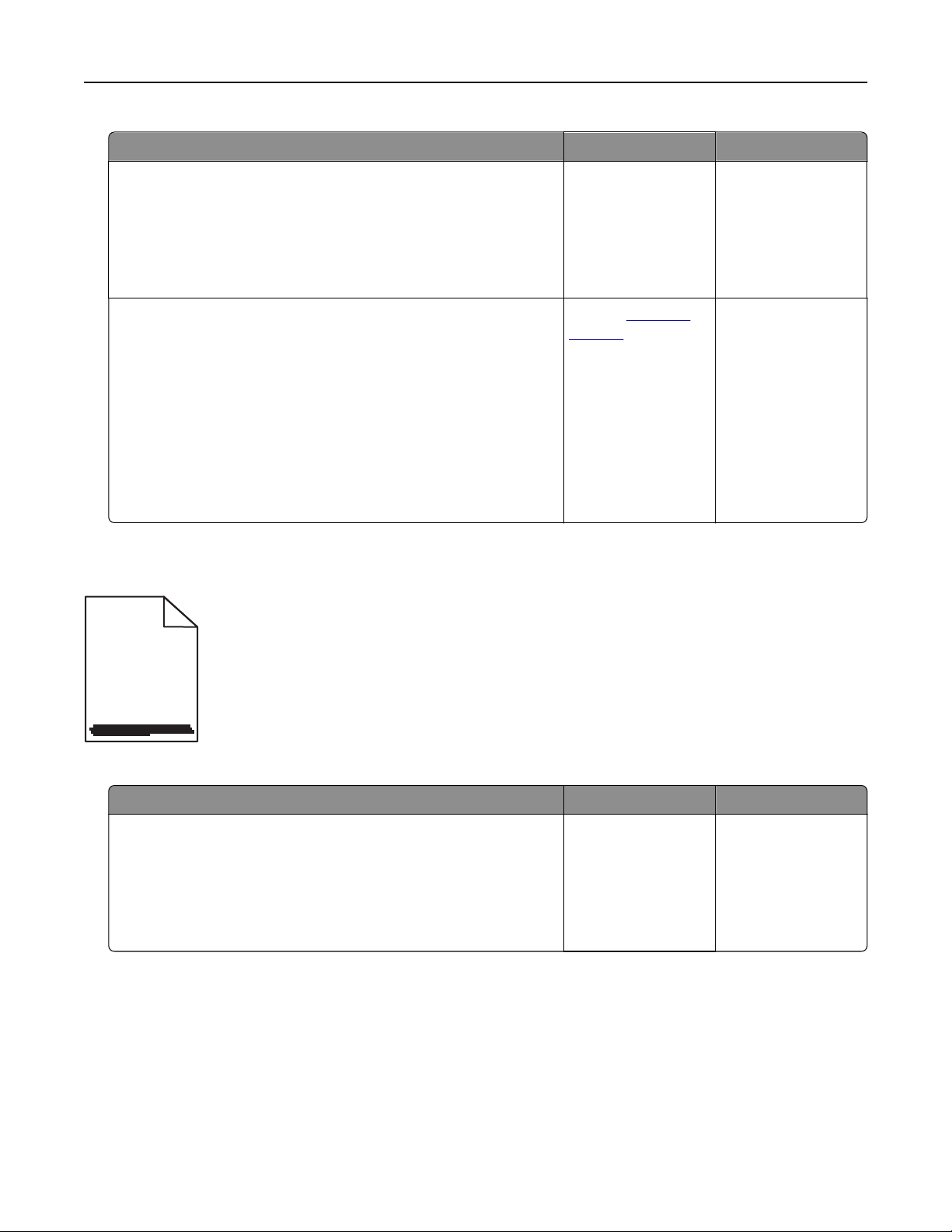
Action Yes No
Step 1
a From the Quality menu on the control panel, select Color
Adjust.
b Resend the print job.
Does gray background still appear on prints?
Go to step 2. The problem is
solved.
Step 2
a Remove, and then reinstall the imaging unit or imaging kit.
Warning—Potential Damage: Do not expose the imaging unit
or imaging kit to direct light for more than 10 minutes.
Extended exposure to light may cause print quality problems.
Warning—Potential Damage: To avoid damage, do not touch
the underside of the imaging unit or imaging kit.
b Resend the print job.
Does gray background still appear on prints?
Contact
technical
support.
The problem is
solved.
Horizontal dark lines
ABCDE
ABCDE
ABCDE
Note: If horizontal dark lines keep appearing on your prints, then see the “Repeating defects” topic.
Action Yes No
Step 1
a Depending on your operating system, specify the tray or feeder
from the Printing Preferences or Print dialog.
b Resend the print job.
Do horizontal dark lines still appear on prints?
Go to step 2. The problem is
solved.
Troubleshooting 75

Action Yes No
Step 2
a Depending on your operating system, specify the paper type
and weight from the Printing Preferences or from Print dialog.
Notes:
• Make sure that the settings match the paper loaded in
the tray.
• You can also change the settings on the printer control
panel.
b Resend the print job.
Do horizontal dark lines still appear on prints?
Go to step 3. The problem is
solved.
Step 3
a Load paper from a fresh package.
Note: Paper absorbs moisture due to high humidity. Store
paper in its original wrapper until you use it.
b Resend the print job.
Do horizontal dark lines still appear on prints?
Go to step 4. The problem is
solved.
Step 4
a Remove, and then reinstall the imaging unit or imaging kit.
Warning—Potential Damage: Do not expose the imaging unit
or imaging kit to direct light for more than 10 minutes.
Extended exposure to light may cause print quality problems.
Warning—Potential Damage: To avoid damage, do not touch
the underside of the imaging unit or imaging kit.
b Resend the print job.
Do horizontal dark lines still appear on prints?
Contact
technical
support.
The problem is
solved.
Horizontal white lines
Leading edge
Trailing edge
Note: If horizontal dark lines keep appearing on your prints, then see the “Repeating defects” topic.
Troubleshooting 76
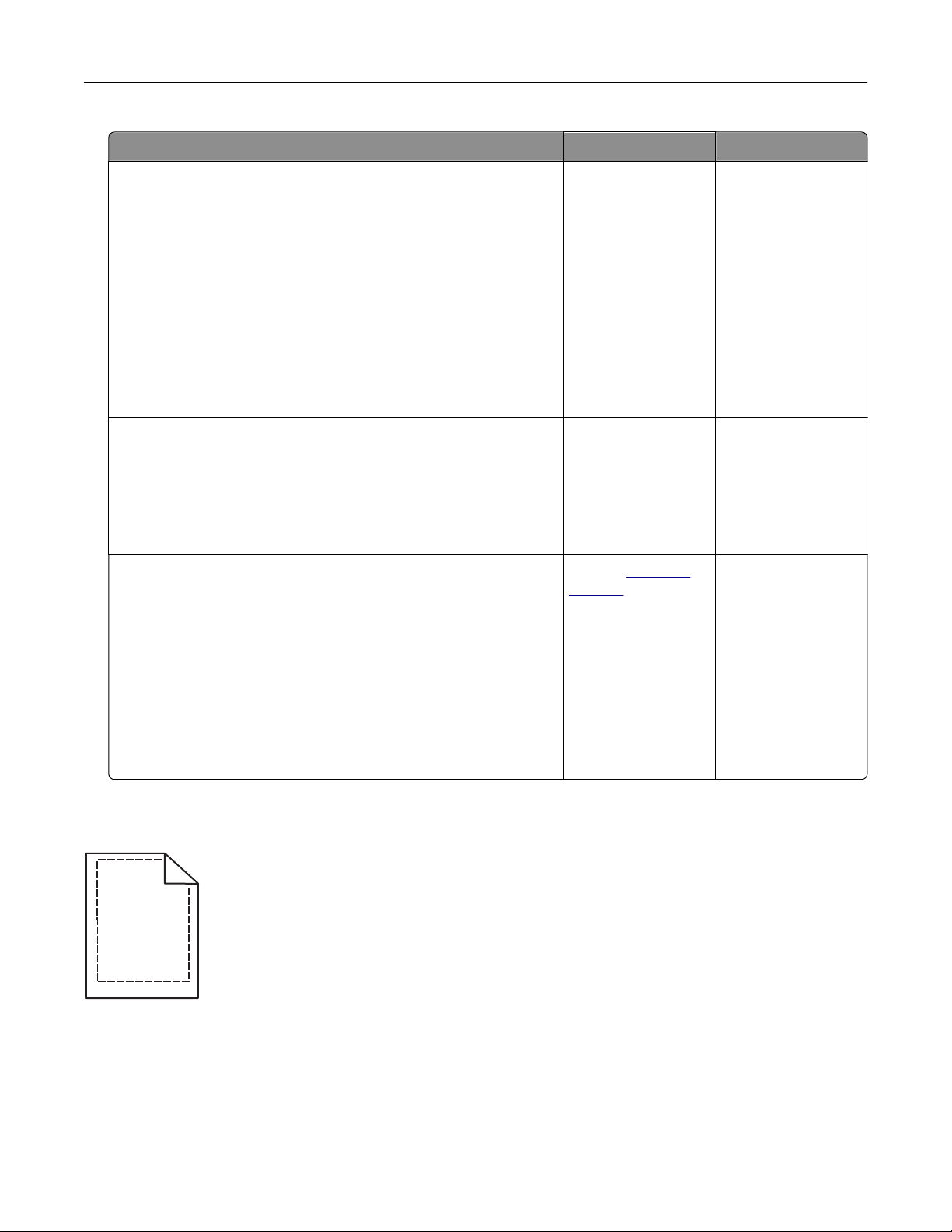
Action Yes No
Step 1
a Depending on your operating system, specify the paper type
and weight from the Printing Preferences or Print dialog.
Notes:
• Make sure that the settings match the paper loaded in
the tray.
• You can also change the settings on the printer control
panel.
b Resend the print job.
Do horizontal white lines still appear on prints?
Go to step 2. The problem is
solved.
Step 2
a Load the specified tray or feeder with the recommended paper
type.
b Resend the print job.
Do horizontal white lines still appear on prints?
Go to step 3. The problem is
solved.
Step 3
a Remove, and then reinstall the imaging unit or imaging kit.
Warning—Potential Damage: Do not expose the imaging unit
or imaging kit to direct light for more than 10 minutes.
Extended exposure to light can cause print quality problems.
Warning—Potential Damage: To avoid damage, do not touch
the underside of the imaging unit or imaging kit.
b Resend the print job.
Do horizontal white lines still appear on prints?
Contact
technical
support.
The problem is
solved.
Incorrect margins
ABCD
ABCD
ABCD
Troubleshooting 77

Action Yes No
Step 1
a Squeeze and slide the paper guides to the correct position for
the size of the paper you are loading.
b Resend the print job.
Are the margins correct?
The problem is
solved.
Go to step 2.
Step 2
a From the Paper menu on the control panel, check if the printer
is detecting the correct paper size.
b Resend the print job.
Are the margins correct?
The problem is
solved.
Go to step 3.
Step 3
a Depending on your operating system, specify the paper size
from the Printing Preferences or Print dialog.
Notes:
• Make sure that the settings match the paper loaded in
the tray.
• You can also change the settings on the printer control
panel.
b Resend the print job.
Are the margins correct?
The problem is
solved.
Contact
technical
support.
Jagged or uneven characters
Troubleshooting 78
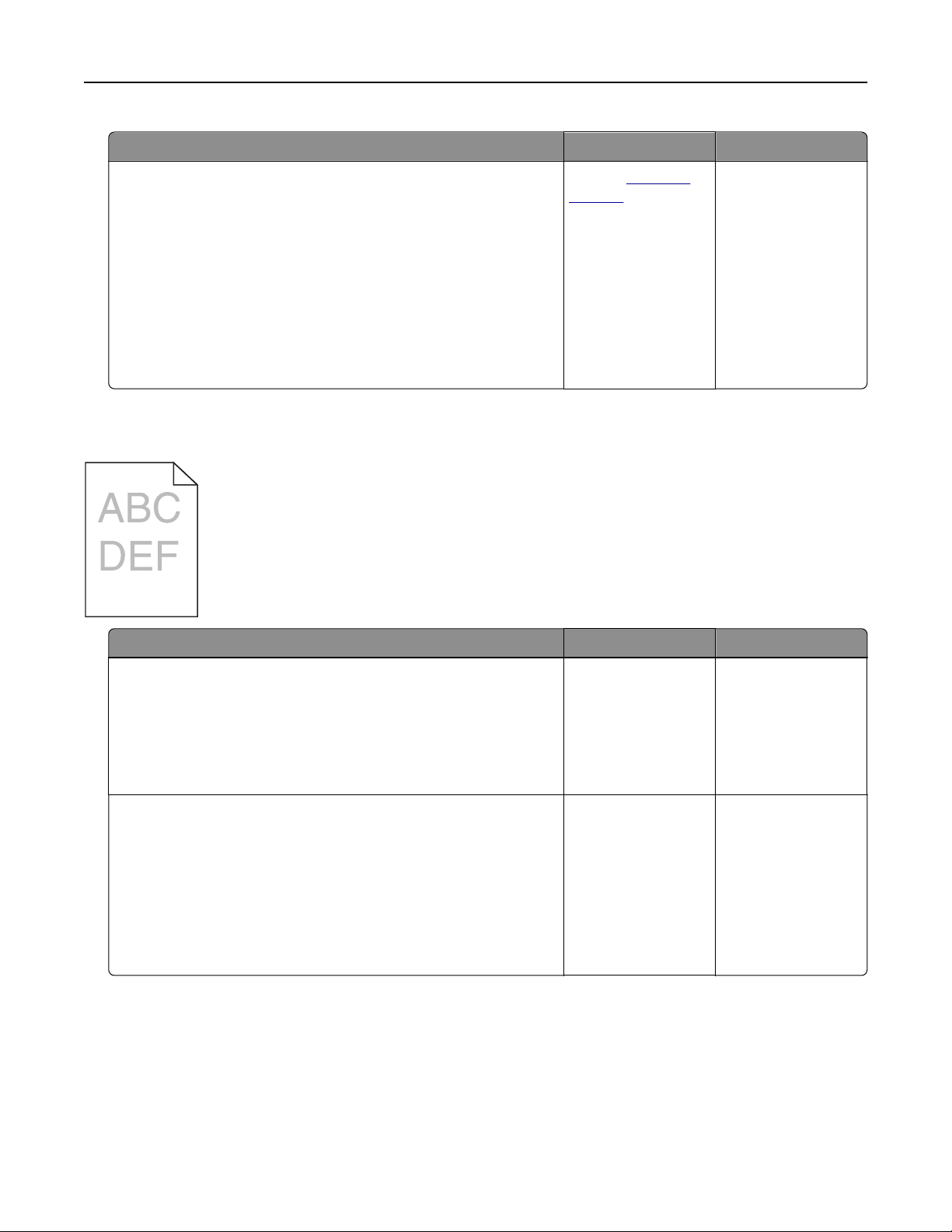
Action Yes No
a Check if the printer supports the fonts that are installed on your
computer.
1 From the control panel, touch:
Settings > Reports > Print > Print Fonts
2 Select PCL Fonts or PS Fonts.
b If the font is not supported, then install a supported font. For
more information, contact your administrator.
c Resend the print job.
Do prints still contain jagged or uneven characters?
Contact
technical
support.
The problem is
solved.
Light print
Action Yes No
Step 1
a From the Quality menu on the control panel, select Color
Adjust.
b Resend the print job.
Is the print still too light?
Go to step 2. The problem is
solved.
Step 2
a Depending on your operating system, increase the toner
darkness from the Printing Preferences or Print dialog.
Note: You can also change the settings on the printer control
panel.
b Resend the print job.
Is the print still too light?
Go to step 3. The problem is
solved.
Troubleshooting 79

Action Yes No
Step 3
a Depending on your operating system, specify the paper type,
texture, and weight from the Printing Preferences or Print
dialog.
Notes:
• Make sure that the settings match the paper loaded in
the tray.
• You can also change the settings on the printer control
panel.
b Resend the print job.
Is the print still too light?
Go to step 4. The problem is
solved.
Step 4
Make sure that the paper has no texture or rough finishes.
Are you printing on textured or rough paper?
Change the texture
settings to match the
paper you are
printing on.
Go to step 5.
Step 5
a Load paper from a fresh package.
Note: Paper absorbs moisture due to high humidity. Store
paper in its original wrapper until you are ready to use it.
b Resend the print job.
Is the print still too light?
Go to step 6. The problem is
solved.
Step 6
Remove, and then reinstall the imaging kit.
Is the print still too light?
Contact
technical
support.
The problem is
solved.
Print crooked or skewed
) )
ABCDE
ABCDE
ABCDE
Troubleshooting 80

Action Yes No
Step 1
a Remove the tray.
b Remove the paper, and then load paper from a fresh package.
Note: Paper absorbs moisture due to high humidity. Store
paper in its original wrapper until you are ready to use it.
c Squeeze and slide the paper guides to the correct position for
the size of the paper you are loading.
d Insert the tray.
e Resend the print job.
Is the print still crooked or skewed?
Go to step 2. The problem is
solved.
Step 2
a Check if you are printing on a supported paper.
b Resend the print job.
Is the print still crooked or skewed?
Contact
technical
support.
The problem is
solved.
Repeating defects
)
)
)
Action Yes No
1 From the control panel, touch Help > Supplies Guide.
2 Measure the distance between the defects.
• If the distance between the defects equals 43.90 mm
(1.73 in.), or 45.50 mm (1.79 in.), then call technical
support to replace the developer unit of the color
where defects are seen.
• If the distance between defects of a single color equals
94.20 mm (3.7 in.), 29.80 mm (1.17 in.), or 25.10 mm
(0.99 in.), then replace the imaging unit or imaging kit.
• If the distance between the defects equals 37.70 mm
(1.48 in.), 78.50 mm (3.09 in.), or 55.0 mm (2.17 in.), then
replace the transfer module.
• If the distance between defects of all colors equals
95.0 mm (3.74 in.), 110 mm (4.33 in.), or 34.60 mm
(1.36 in.), then replace the fuser.
Do the repeating defects still appear?
Contact
technical
support or your Dell
printer dealer.
The problem is solved.
Troubleshooting 81
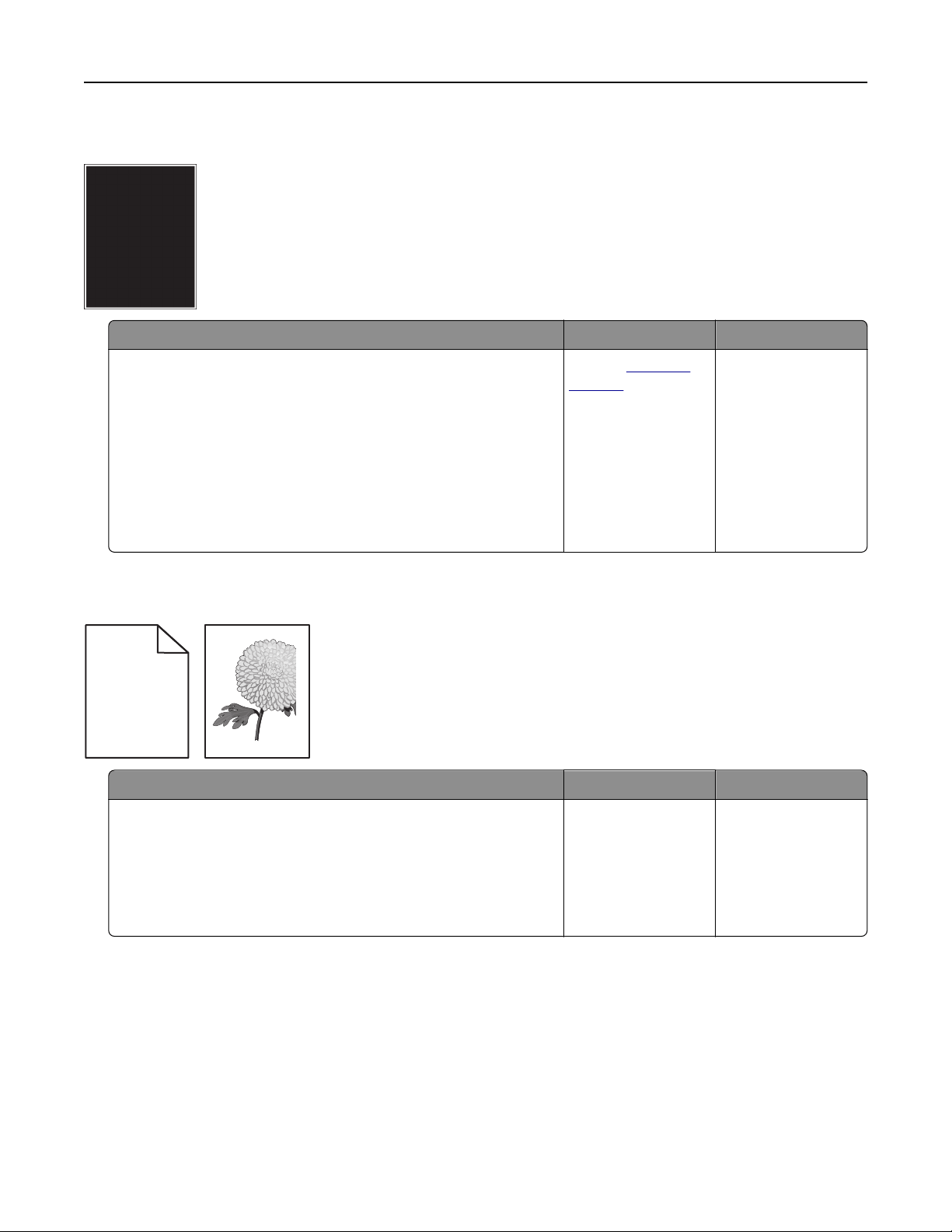
Solid color or black images
Action Yes No
a Remove, and then reinstall the imaging unit or imaging kit.
Warning—Potential Damage: Do not expose the imaging unit
or imaging kit to direct light for more than 10 minutes.
Extended exposure to light may cause print quality problems.
Warning—Potential Damage: To avoid damage, do not touch
the underside of the imaging unit or imaging kit.
b Resend the print job.
Is the printer still printing solid color or black images?
Contact
technical
support.
The problem is
solved.
Text or images cut o
Leading edge
Trailing edge
ABCDE
ABCDE
ABCDE
Action Yes No
Step 1
a Move the paper guides in the tray to the correct position for the
paper loaded.
b Resend the print job.
Is the page or image still clipped?
Go to step 2. The problem is
solved.
Troubleshooting 82
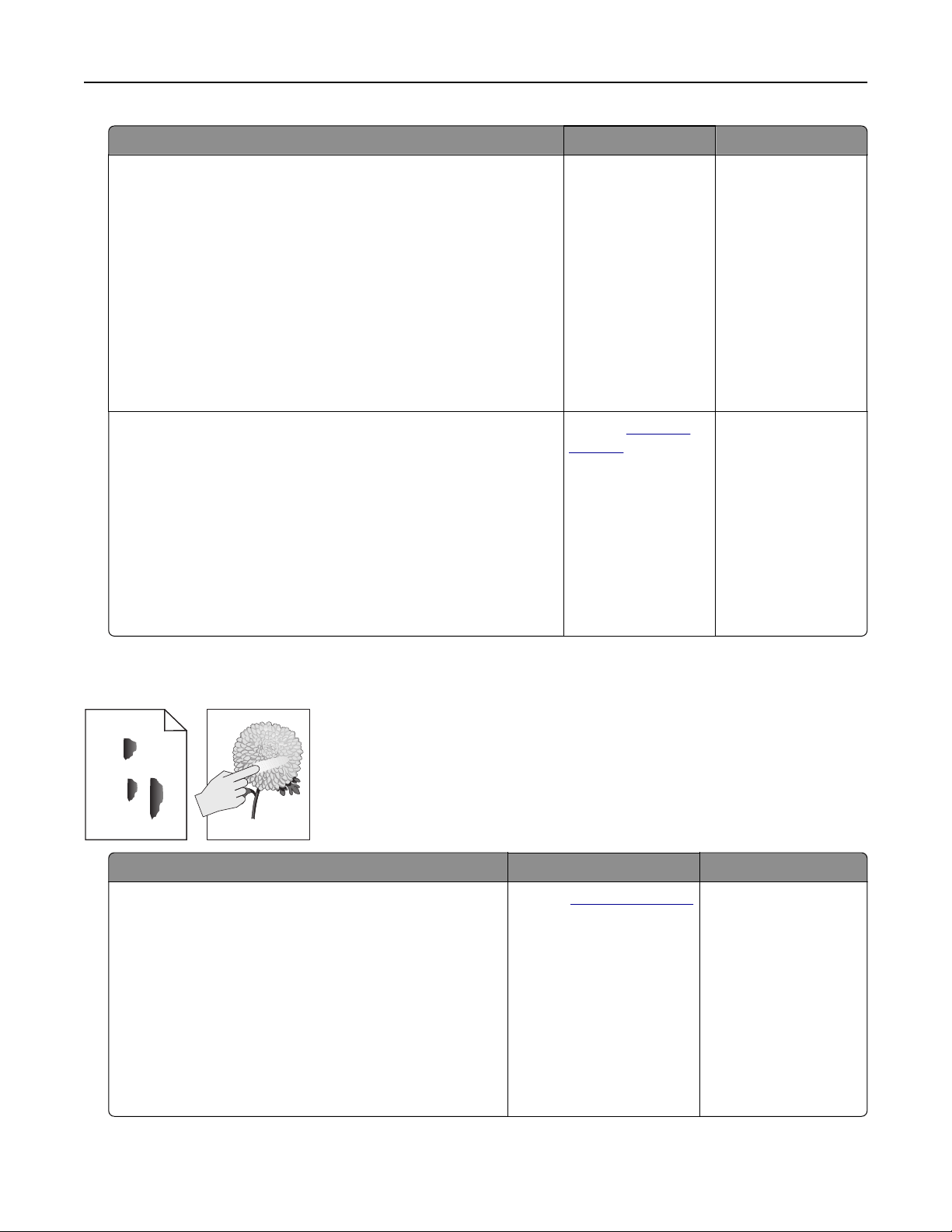
Action Yes No
Step 2
a Depending on your operating system, specify the paper size
from the Printing Preferences or Print dialog.
Notes:
• Make sure that the settings match the paper loaded in
the tray.
• You can also change the settings on the printer control
panel.
b Resend the print job.
Is the page or image still clipped?
Go to step 3. The problem is
solved.
Step 3
a Remove, and then reinstall the imaging unit or imaging kit.
Warning—Potential Damage: Do not expose the imaging unit
or imaging kit to direct light for more than 10 minutes.
Extended exposure to light may cause print quality problems.
Warning—Potential Damage: To avoid damage, do not touch
the underside of the imaging unit or imaging kit.
b Resend the print job.
Is the page or image still clipped?
Contact
technical
support.
The problem is
solved.
Toner easily rubs o
Leading edge
Trailing edge
ABC
DEF
Action Yes No
1 Depending on your operating system, specify the
paper type, texture, and weight from the Printing
Preferences or Print dialog.
Notes:
• Make sure that the settings match the paper
loaded in the tray.
• You can also change the settings on the printer
control panel.
2 Resend the print job.
Does the toner still rub o?
Contact
technical support
or your Dell printer dealer.
The problem is solved.
Troubleshooting 83
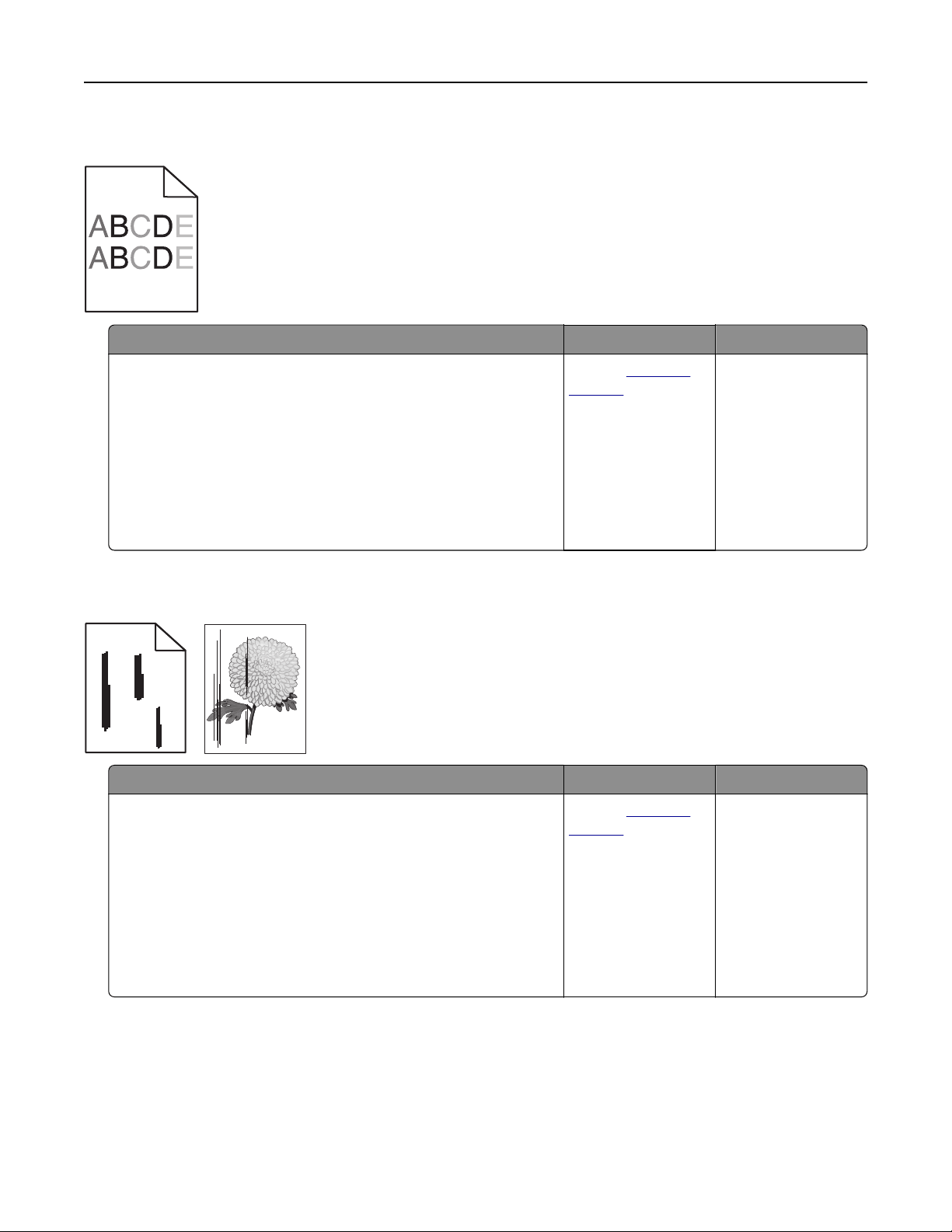
Uneven print density
Action Yes No
Replace the imaging unit or imaging kit, and then resend the print
job.
Warning—Potential Damage: Do not expose the imaging unit or
imaging kit to direct light for more than 10 minutes. Extended
exposure to light can cause print quality problems.
Warning—Potential Damage: To avoid damage, do not touch the
underside of the imaging unit or imaging kit.
Is the print density uneven?
Contact
technical
support.
The problem is
solved.
Vertical dark lines or streaks
ABCDE
ABCDE
ABCDE
Leading edge
Trailing edge
Action Yes No
a Remove, and then reinstall the imaging unit or imaging kit.
Warning—Potential Damage: Do not expose the imaging unit
or imaging kit to direct light for more than 10 minutes.
Extended exposure to light can cause print quality problems.
Warning—Potential Damage: To avoid damage, do not touch
the underside of the imaging unit or imaging kit.
b Resend the print job.
Do vertical dark lines or streaks still appear on prints?
Contact
technical
support.
The problem is
solved.
Troubleshooting 84
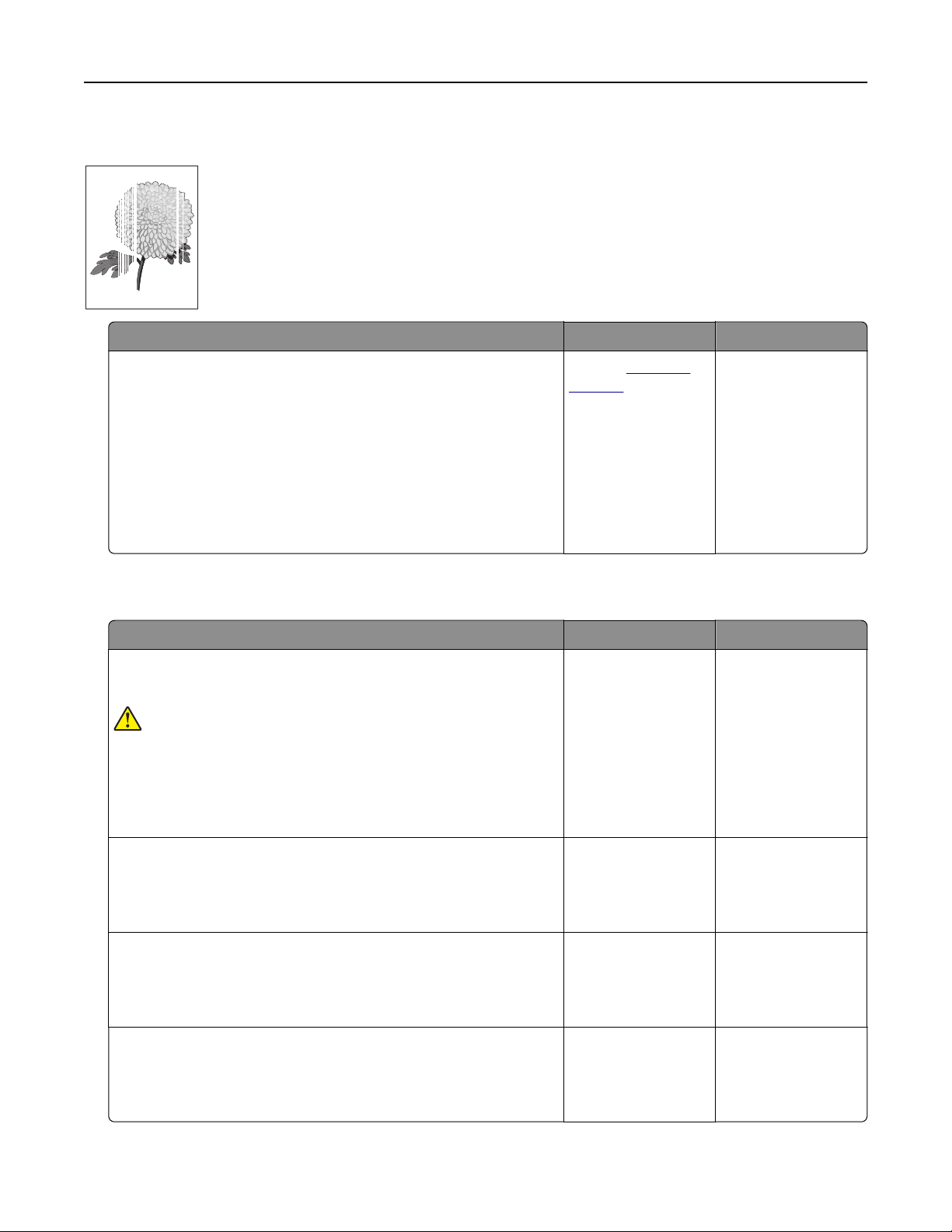
Vertical white lines
Leading edge
Trailing edge
Action Yes No
a Remove, and then reinstall the imaging unit or imaging kit.
Warning—Potential Damage: Do not expose the imaging unit
or imaging kit to direct light for more than 10 minutes.
Extended exposure to light may cause print quality problems.
Warning—Potential Damage: To avoid damage, do not touch
the underside of the imaging unit or imaging kit.
b Resend the print job.
Do vertical white lines still appear on prints?
Contact
technical
support.
The problem is
solved.
The printer is not responding
Action Yes No
Step 1
Connect the power cord to the electrical outlet.
CAUTION—POTENTIAL INJURY: To avoid the risk of fire or
electrical shock, connect the power cord to an appropriately
rated and properly grounded electrical outlet that is near the
product and easily accessible.
Is the printer responding?
The problem is
solved.
Go to step 2.
Step 2
Check if the electrical outlet is turned o by a switch or breaker.
Is the electrical outlet turned o by a switch or breaker?
Turn on the switch or
reset the breaker.
Go to step 3.
Step 3
Check if the printer is on.
Is the printer on?
Go to step 4. Turn on the printer.
Step 4
Check if the printer is in sleep or hibernate mode.
Is the printer in sleep or hibernate mode?
Press the power
button to wake the
printer.
Go to step 5.
Troubleshooting 85

Action Yes No
Step 5
Check if the cables connecting the printer and the computer are
inserted in the correct ports.
Are the cables inserted in the correct ports?
Go to step 6. Make sure to match
the following:
• The USB cable
with the USB port
on the printer
• The Ethernet
cable with the
Ethernet port on
the printer
Step 6
Turn o the printer, reinstall the hardware options, and then turn it
back on.
For more information, see the documentation that came with the
option.
Is the printer responding?
The problem is
solved
Go to step 7.
Step 7
Install the correct print driver.
Is the printer responding?
The problem is
solved
Go to step 8.
Step 8
Turn o the printer, wait for about 10 seconds, and then turn it back
on.
Is the printer responding?
The problem is
solved.
Contact
technical
support.
Job prints from the wrong tray or on the wrong paper
Action Yes No
Step 1
a Check if you are printing on the correct paper.
b Print the document.
Is the document printed on the correct paper?
Go to step 2. Load the correct
paper size and paper
type.
Troubleshooting 86

Action Yes No
Step 2
a Depending on your operating system, specify the paper size
and paper type from the Printing Preferences or Print dialog.
Notes:
• Make sure that the settings match the paper loaded in
the tray.
• You can also change the settings on the printer control
panel.
b Print the document.
Is the document printed from the correct tray or on the correct
paper?
The problem is
solved.
Go to step 3.
Step 3
a Check if the trays are not linked.
For more information, see
“Linking trays” on page 20.
b Print the document.
Is the document printed from the correct tray?
The problem is
solved.
Contact
technical
support.
Color quality problems
Adjusting toner darkness
1 From the home screen, touch Settings > Print > Quality.
2 Adjust the toner darkness.
3 Apply the changes.
Modifying the colors in printed output
1 From the home screen, touch Settings > Print > Quality > Advanced Imaging > Color Correction > Manual.
2 From the Advanced Imaging menu, select Color Correction Content.
3 Choose the appropriate color conversion setting.
Troubleshooting 87

Object type Color conversion tables
RGB Image
RGB Text
RGB Graphics
• Vivid—Produces brighter, more saturated colors and may be
applied to all incoming color formats.
• sRGB Display—Produces an output that approximates the colors
displayed on a computer monitor. Black toner usage is optimized
for printing photographs.
• Display‑True Black—Produces an output that approximates the
colors displayed on a computer monitor. This setting uses only
black toner to create all levels of neutral gray.
• sRGB Vivid—Provides an increased color saturation for the sRGB
Display color correction. Black toner usage is optimized for
printing business graphics.
• O
CMYK Image
CMYK Text
CMYK Graphics
• US CMYK—Applies color correction to approximate the
Specifications
for Web
Oset
Publishing (SWOP) color output.
• Euro CMYK—Applies color correction to approximate Euroscale
color output.
• Vivid CMYK—Increases the color saturation of the US CMYK color
correction setting.
•
O
FAQ about color printing
What is RGB color?
RGB color is a method of describing colors by indicating the amount of red, green, or blue used to produce
a certain color. Red, green, and blue light can be added in various amounts to produce a large range of colors
observed in nature. Computer screens, scanners, and digital cameras use this method to display colors.
What is CMYK color?
CMYK color is a method of describing colors by indicating the amount of cyan, magenta, yellow, and black
used to reproduce a particular color. Cyan, magenta, yellow, and black inks or toners can be printed in various
amounts to produce a large range of colors observed in nature. Printing presses, inkjet printers, and color
laser printers create colors in this manner.
How is color specified in a document to be printed?
Software programs are used to specify and modify the document color using RGB or CMYK color
combinations. For more information, see the software program Help topics.
How does the printer know what color to print?
When printing a document, information describing the type and color of each object is sent to the printer and
is passed through color conversion tables. Color is translated into the appropriate amounts of cyan, magenta,
yellow, and black toner used to produce the color you want. The object information determines the application
of color conversion tables. For example, it is possible to apply one type of color conversion table to text while
applying a dierent color conversion table to photographic images.
Troubleshooting 88

What is manual color correction?
When manual color correction is enabled, the printer employs user‑selected color conversion tables to
process objects. Manual color correction settings are specific to the type of object being printed (text,
graphics, or images). It is also specific to how the color of the object is specified in the software program
(RGB or CMYK combinations). To apply a dierent color conversion table manually, see
“Modifying the colors
in printed output” on page 87.
If the software program does not specify colors with RGB or CMYK combinations, then manual color correction
is not useful. It is also not eective if the software program or the computer operating system controls the
adjustment of colors. In most situations, setting the Color Correction to Auto generates preferred colors for
the documents.
How can I match a particular color (such as a corporate logo)?
From the printer Quality menu, nine types of Color Samples sets are available. These sets are also available
from the Color Samples page of the Embedded Web Server. Selecting any sample set generates
multiple‑page prints consisting of hundreds of colored boxes. Each box contains a CMYK or RGB combination,
depending on the table selected. The observed color of each box is obtained by passing the CMYK or RGB
combination labeled on the box through the selected color conversion table.
By examining Color Samples sets, you can identify the box with color closest to the color being matched.
The color combination labeled on the box can then be used for modifying the color of the object in a software
program. For more information, see the software program Help topics. Manual color correction may be
necessary to use the selected color conversion table for the particular object.
Selecting which Color Samples set to use for a particular color‑matching problem depends on:
• The Color Correction setting being used (Auto, O, or Manual)
• The type of object being printed (text, graphics, or images)
• How the color of the object is specified in the software program (RGB or CMYK combinations)
If the software program does not specify colors with RGB or CMYK combinations, then the Color Samples
pages are not useful. Additionally, some software programs adjust the RGB or CMYK combinations specified
in the program through color management. In these situations, the printed color may not be an exact match
of the Color Samples pages.
The print appears tinted
Action No Yes
Adjust the color balance.
a From the home screen, touch Settings > Print > Quality >
Advanced Imaging > Color Balance.
b Adjust the setting.
c Resend the print job.
Does the print still appear tinted?
The problem is
solved.
Contact
technical
support.
Contacting technical support
When you call technical support, describe the problem, the message on the printer display, and the
troubleshooting steps you have already taken.
Troubleshooting 89


Upgrading and migrating
Hardware
Available internal options
• Memory card
– DDR3 DIMM
– Flash memory
• Fonts
– Application cards
• Forms and Bar Code
• PRESCRIBE
• IPDS
• Internal solutions port (ISP)
Note: Some options are available only in some printer models. For more information, contact the place
where you purchased the printer.
Installing a memory card
CAUTION—SHOCK HAZARD: To avoid the risk of electrical shock, if you are accessing the controller
board or installing optional hardware or memory devices sometime after setting up the printer, then turn
the printer o, and unplug the power cord from the electrical outlet before continuing. If you have any
other devices attached to the printer, then turn them o as well, and unplug any cables going into the
printer.
1 Turn o the printer, and then unplug the power cord from the electrical outlet.
2 Using a flat‑head screwdriver, remove the controller board access cover.
Warning—Potential Damage: Controller board electronic components are easily damaged by static
electricity. Touch a metal surface on the printer before touching any controller board components or
connectors.
Upgrading and migrating 91
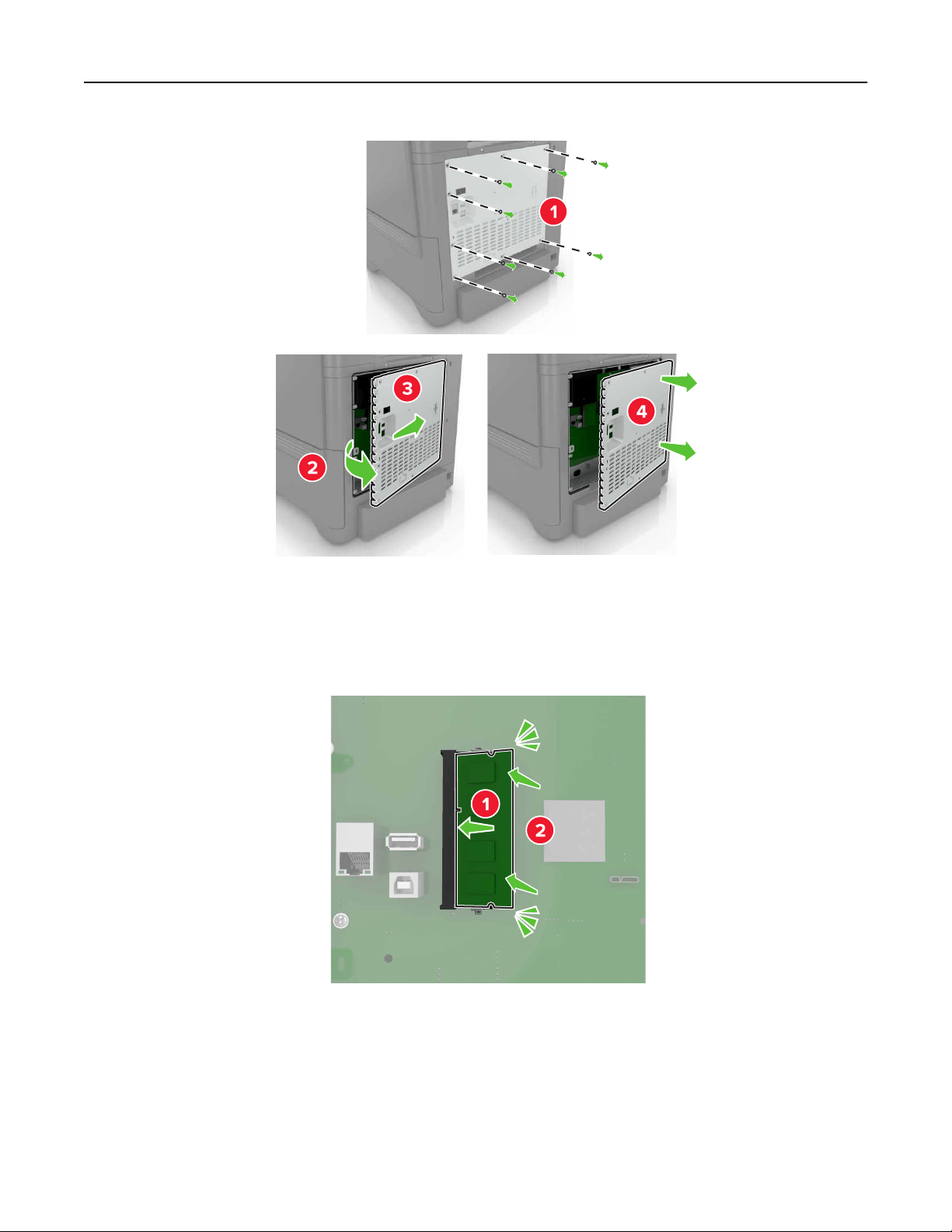
3 Unpack the memory card.
Warning—Potential Damage: Avoid touching the connection points along the edge of the card.
4 Insert the memory card until it clicks into place.
Upgrading and migrating 92
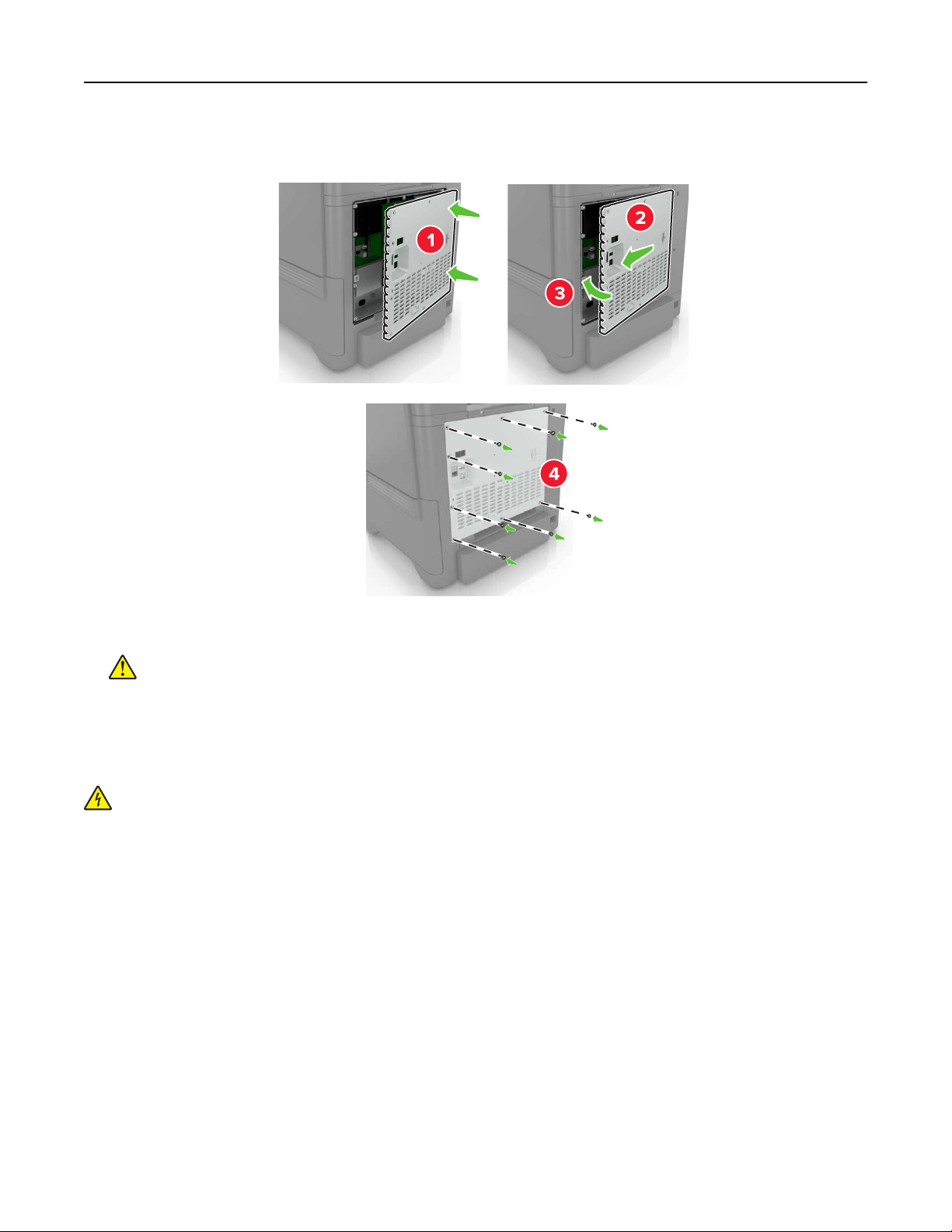
5 Reattach the access cover.
6 Connect the power cord to the electrical outlet, and then turn on the printer.
CAUTION—POTENTIAL INJURY: To avoid the risk of fire or electrical shock, connect the power cord
to an appropriately rated and properly grounded electrical outlet that is near the product and easily
accessible.
Installing an internal solutions port
CAUTION—SHOCK HAZARD: To avoid the risk of electrical shock, if you are accessing the controller
board or installing optional hardware or memory devices sometime after setting up the printer, then turn
the printer o, and unplug the power cord from the electrical outlet before continuing. If you have any
other devices attached to the printer, then turn them o as well, and unplug any cables going into the
printer.
1 Turn
o
the printer, and then unplug the power cord from the electrical outlet.
2 Using a flat‑head screwdriver, remove the controller board access cover.
Warning—Potential Damage: Controller board electronic components are easily damaged by static
electricity. Touch a metal surface on the printer before touching any controller board electronic
components or connectors.
Upgrading and migrating 93
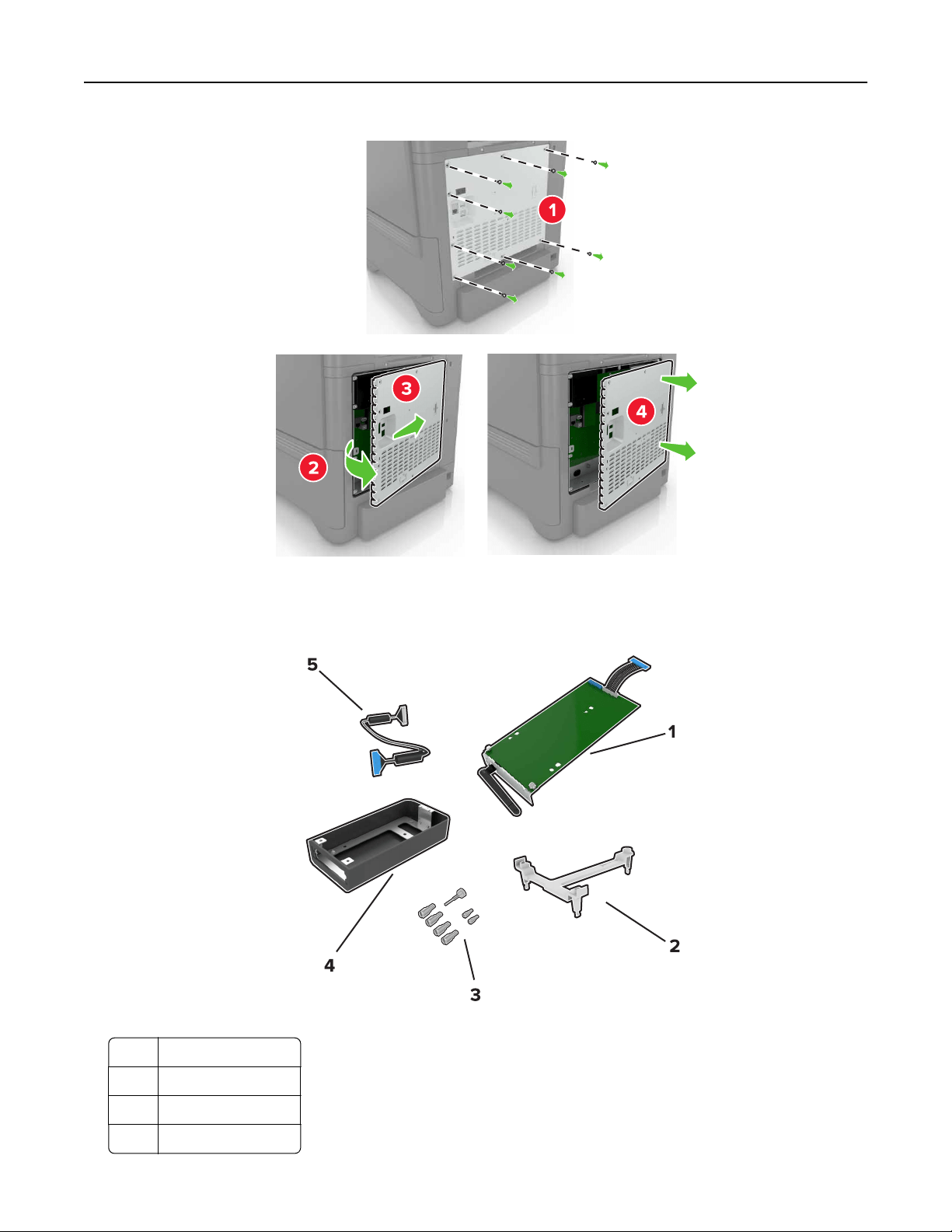
3 Unpack the internal solutions port (ISP) kit.
1 ISP
2 Mounting bracket
3 Thumbscrews
4 Housing
Upgrading and migrating 94
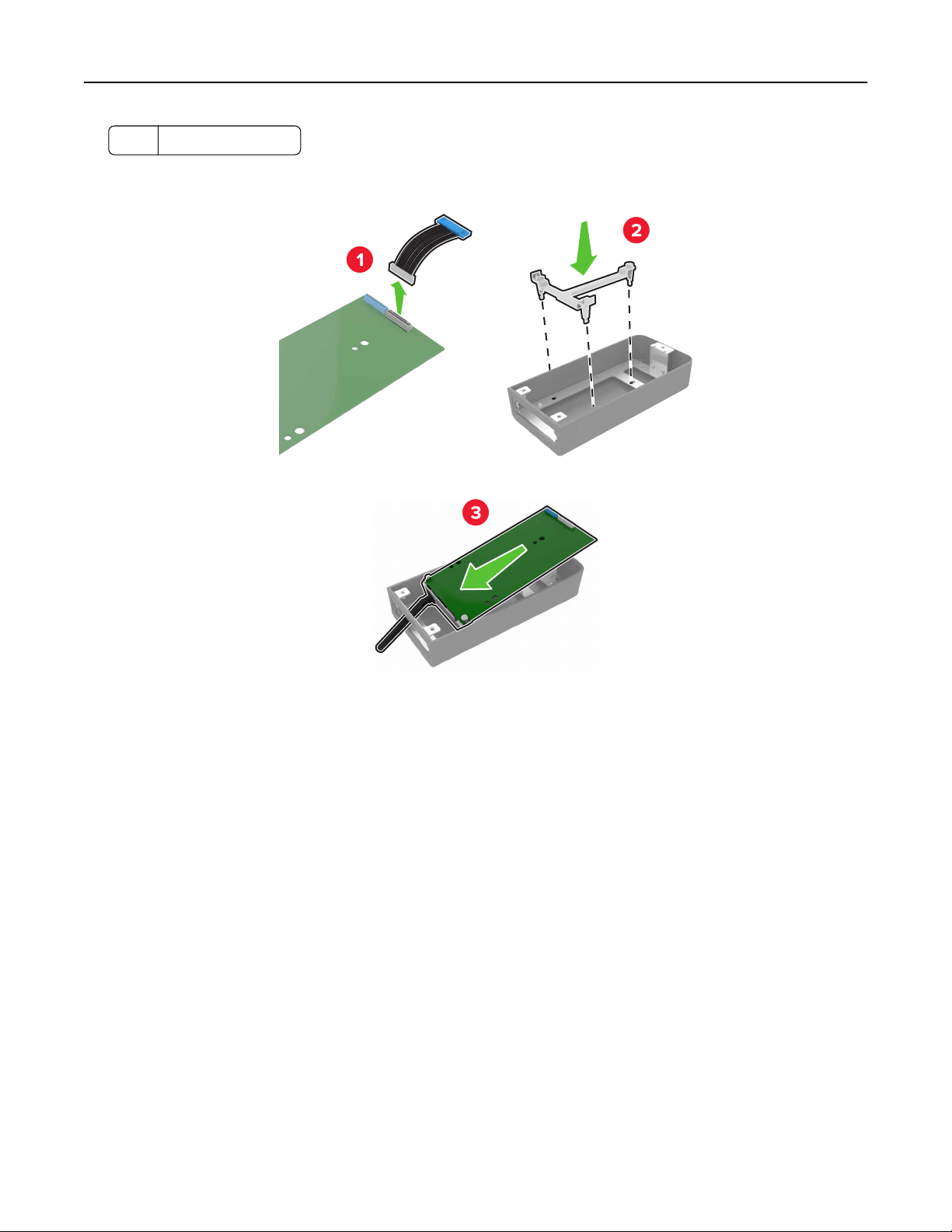
5 ISP extended cable
4 Install the ISP into its housing.
Upgrading and migrating 95
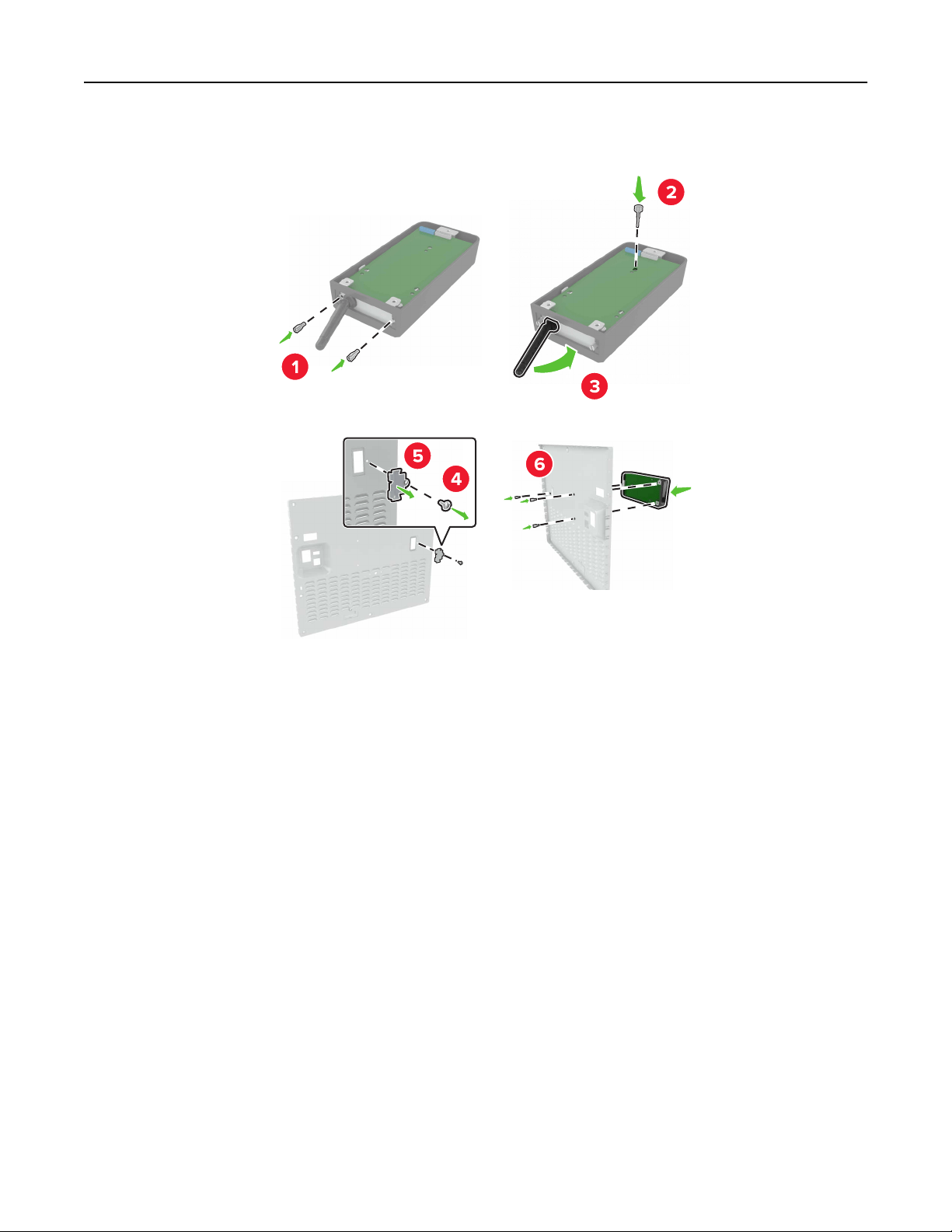
5 Attach the housing to the controller board access cover.
Upgrading and migrating 96
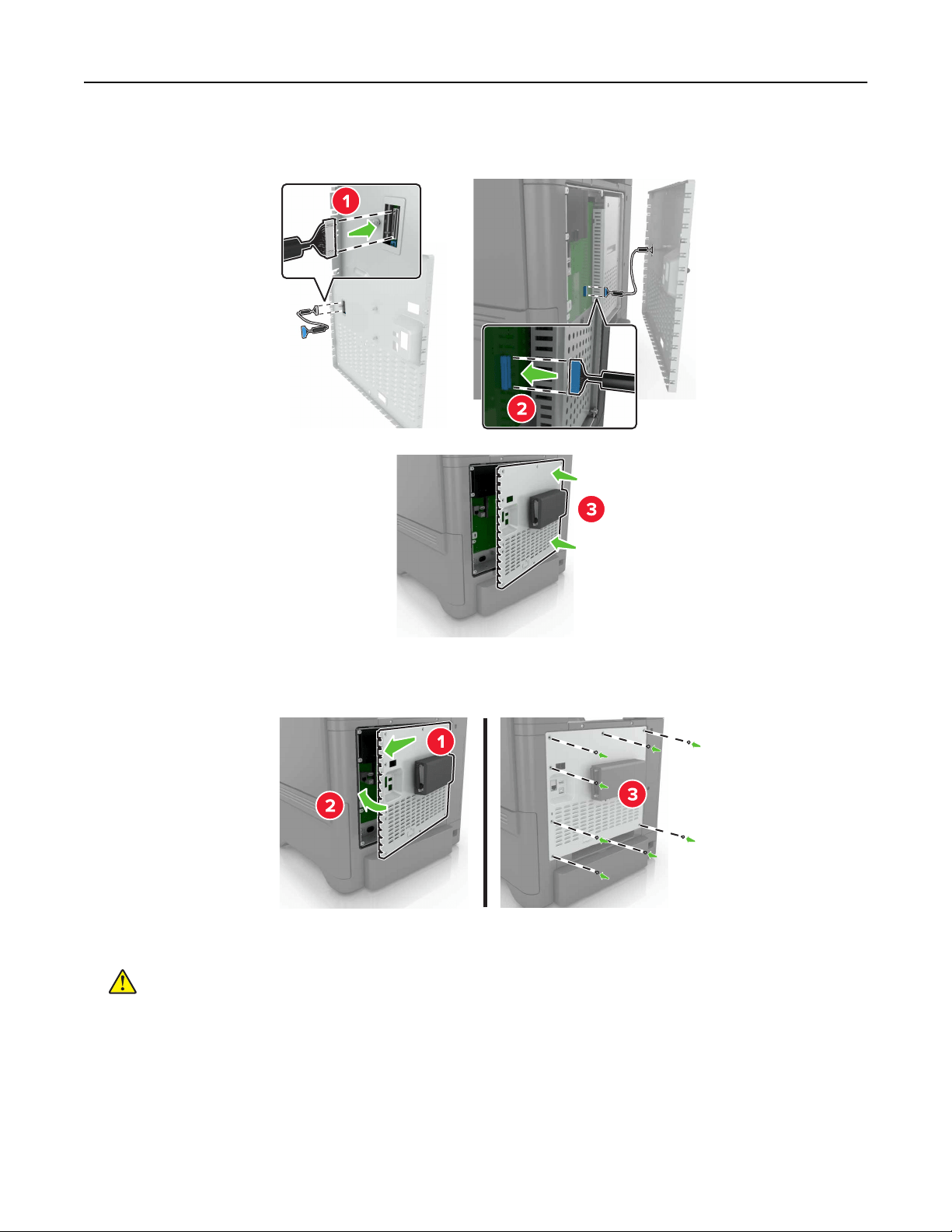
6 Connect the ISP extended cable to the ISP connector in the controller board.
7 Reattach the controller board access cover.
8 Connect the power cord to the electrical outlet, and then turn on the printer.
CAUTION—POTENTIAL INJURY: To avoid the risk of fire or electrical shock, connect the power cord
to an appropriately rated and properly grounded electrical outlet that is near the product and easily
accessible.
Upgrading and migrating 97
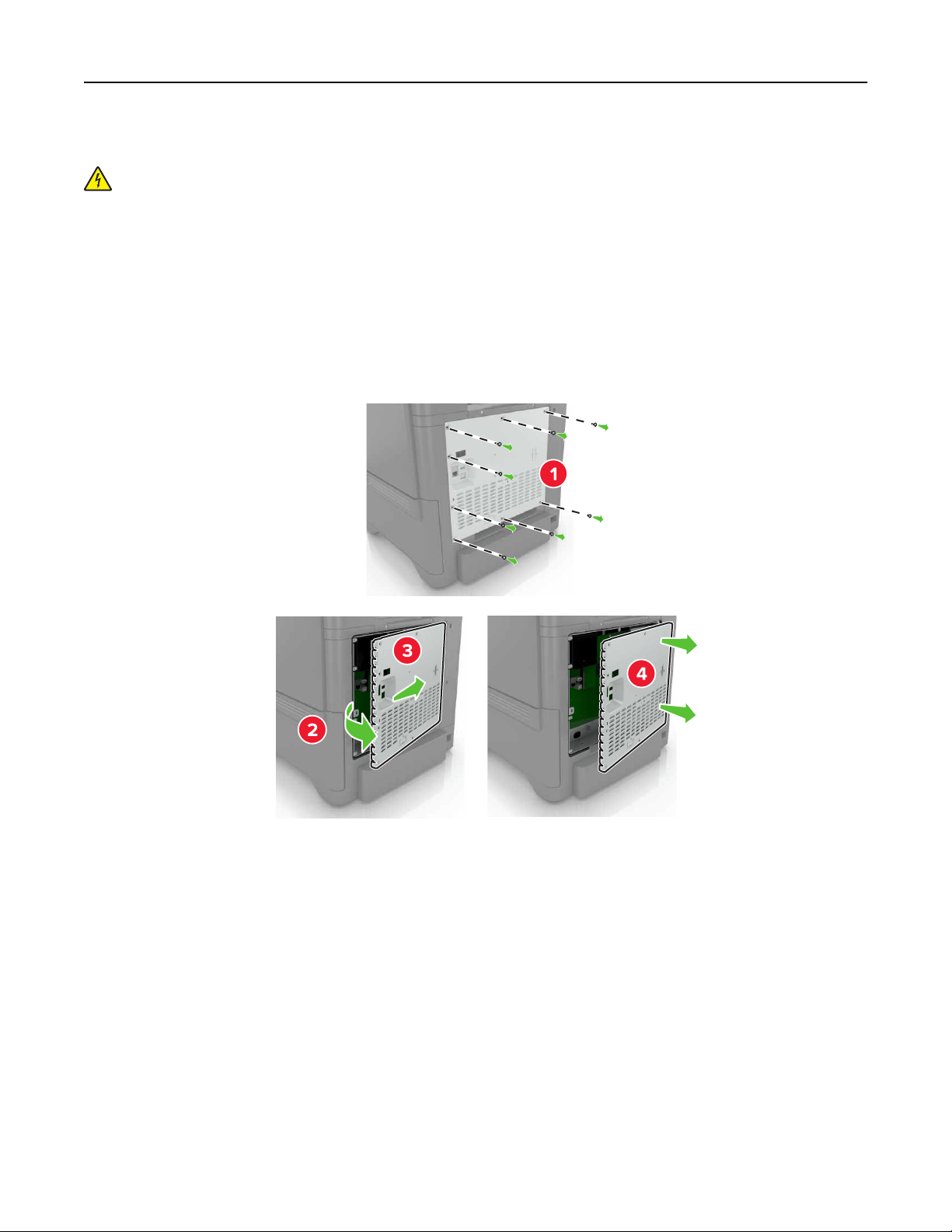
Installing an optional card
CAUTION—SHOCK HAZARD: To avoid the risk of electrical shock, if you are accessing the controller
board or installing optional hardware or memory devices sometime after setting up the printer, then turn
the printer o, and unplug the power cord from the electrical outlet before continuing. If you have any
other devices attached to the printer, then turn them o as well, and unplug any cables going into the
printer.
1 Turn
o
the printer, and then unplug the power cord from the electrical outlet.
2 Using a flat‑head screwdriver, remove the controller board access cover.
Warning—Potential Damage: Controller board electronic components are easily damaged by static
electricity. Touch a metal surface on the printer before touching any components or connectors.
3 Unpack the optional card.
Warning—Potential Damage: Avoid touching the connection points along the edge of the card.
Upgrading and migrating 98
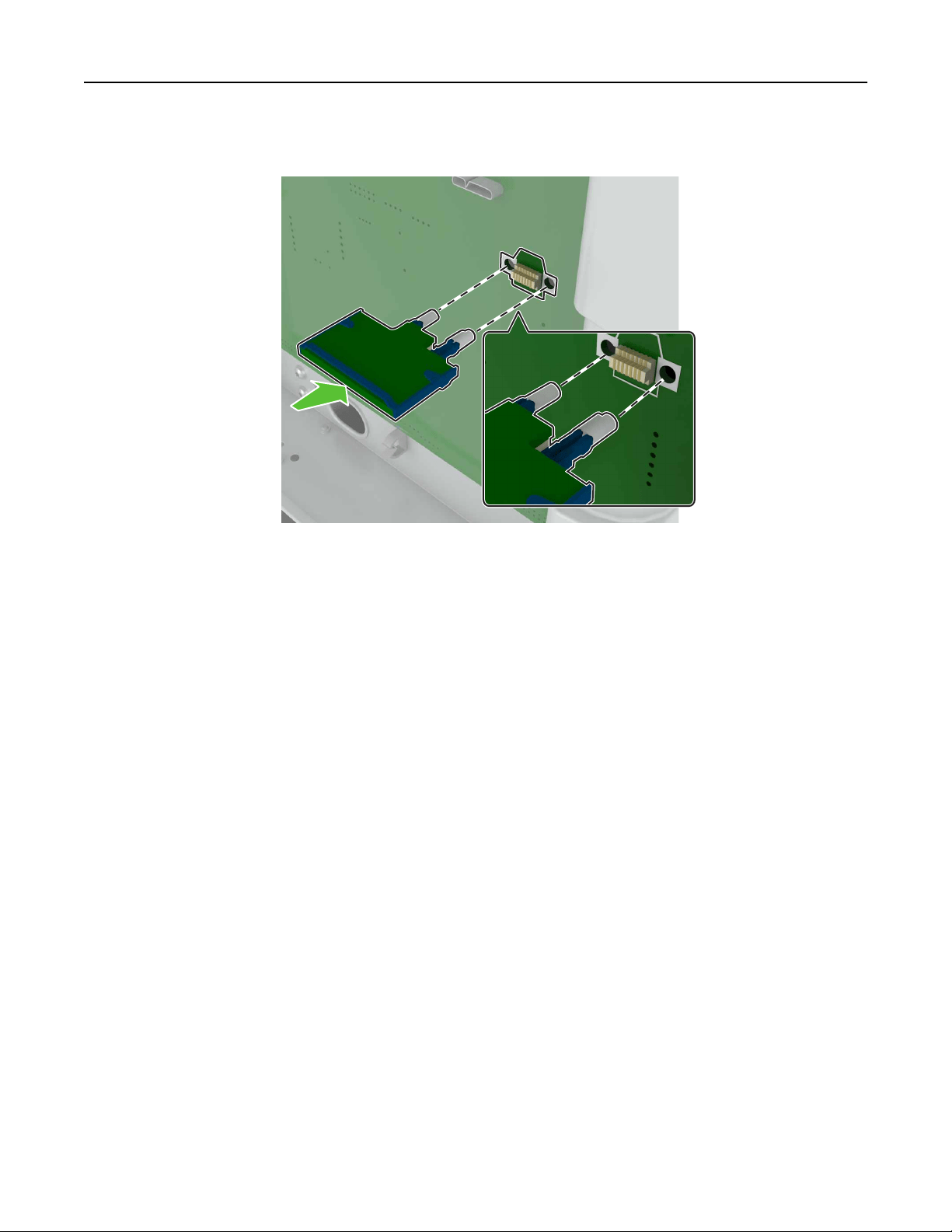
4 Push the card firmly into place.
Note: The entire length of the connector on the card must touch and be
flush
against the controller
board.
Warning—Potential Damage: Improper installation of the card may cause damage to the card and the
controller board.
Upgrading and migrating 99
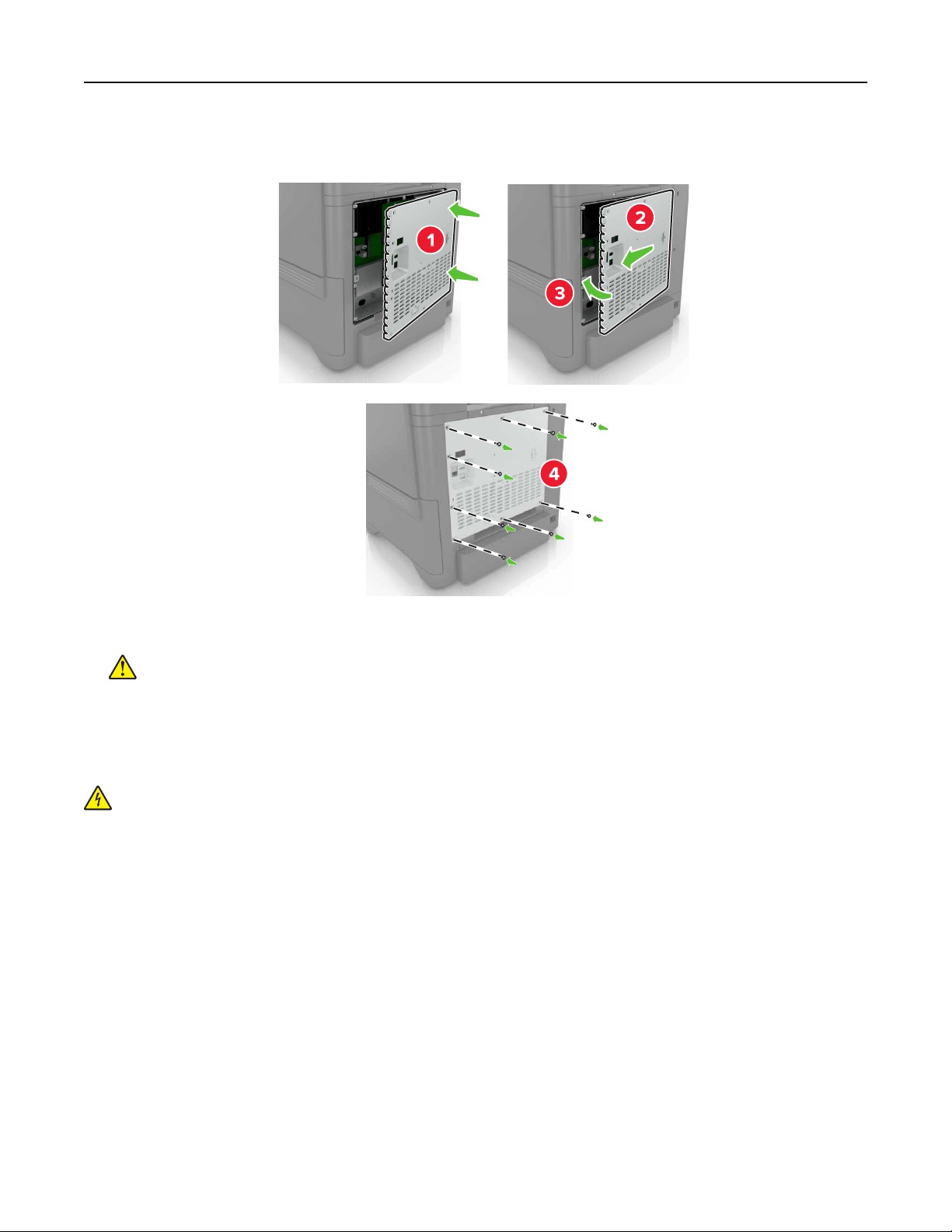
5 Reattach the access cover.
6 Connect the power cord to the electrical outlet, and then turn on the printer.
CAUTION—POTENTIAL INJURY: To avoid the risk of fire or electrical shock, connect the power cord
to an appropriately rated and properly grounded electrical outlet that is near the product and easily
accessible.
Installing a printer hard disk
CAUTION—SHOCK HAZARD: To avoid the risk of electrical shock, if you are accessing the controller
board or installing optional hardware or memory devices sometime after setting up the printer, then turn
the printer o, and unplug the power cord from the electrical outlet before continuing. If you have any
other devices attached to the printer, then turn them o as well, and unplug any cables going into the
printer.
1 Turn
o
the printer, and then unplug the power cord from the electrical outlet.
2 Using a flat‑head screwdriver, remove the controller board access cover.
Warning—Potential Damage: Controller board electronic components are easily damaged by static
electricity. Touch a metal surface on the printer before touching any controller board electronic
components or connectors.
Upgrading and migrating 100
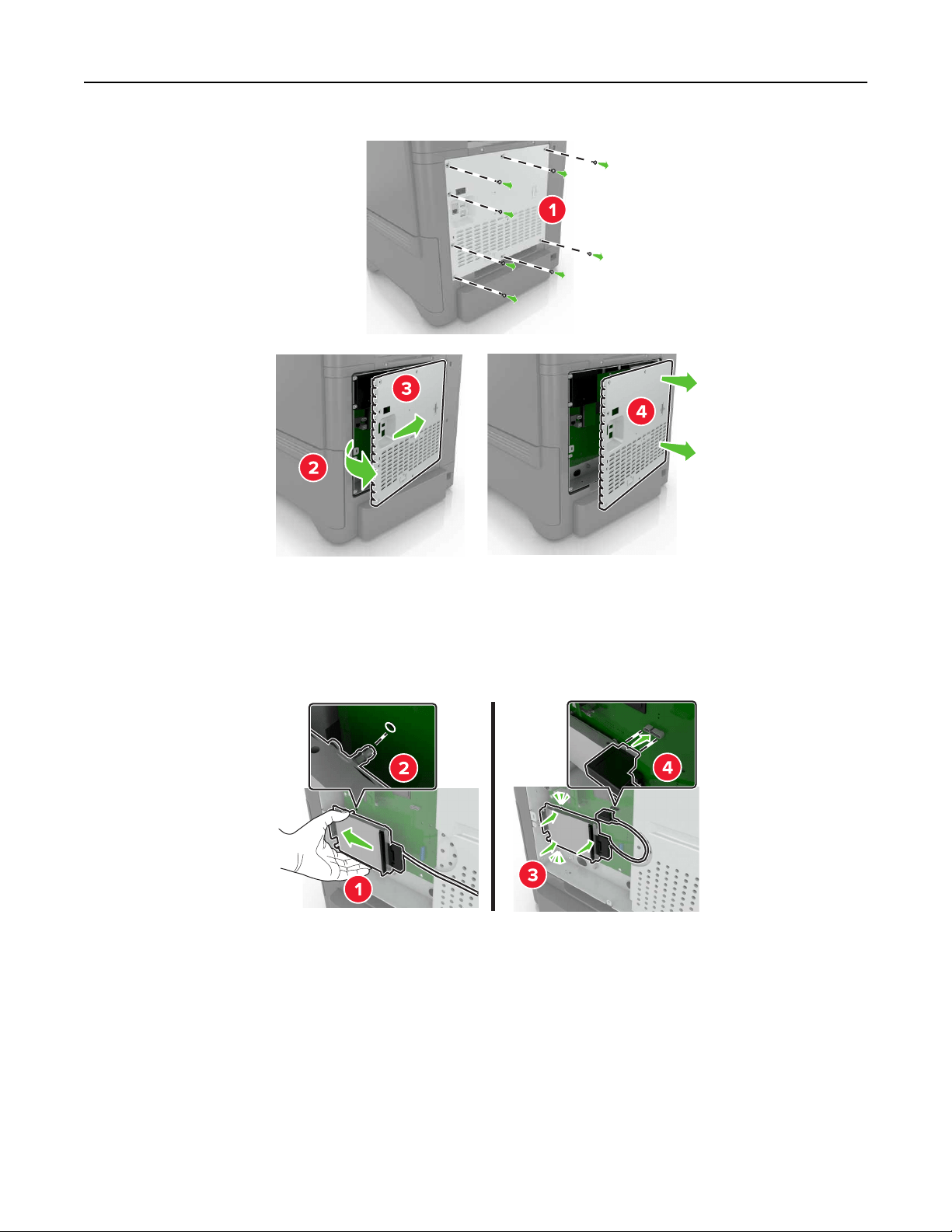
3 Unpack the hard disk.
4 Attach the hard disk to the controller board.
Warning—Potential Damage: Do not touch or press the center of the hard disk.
Upgrading and migrating 101
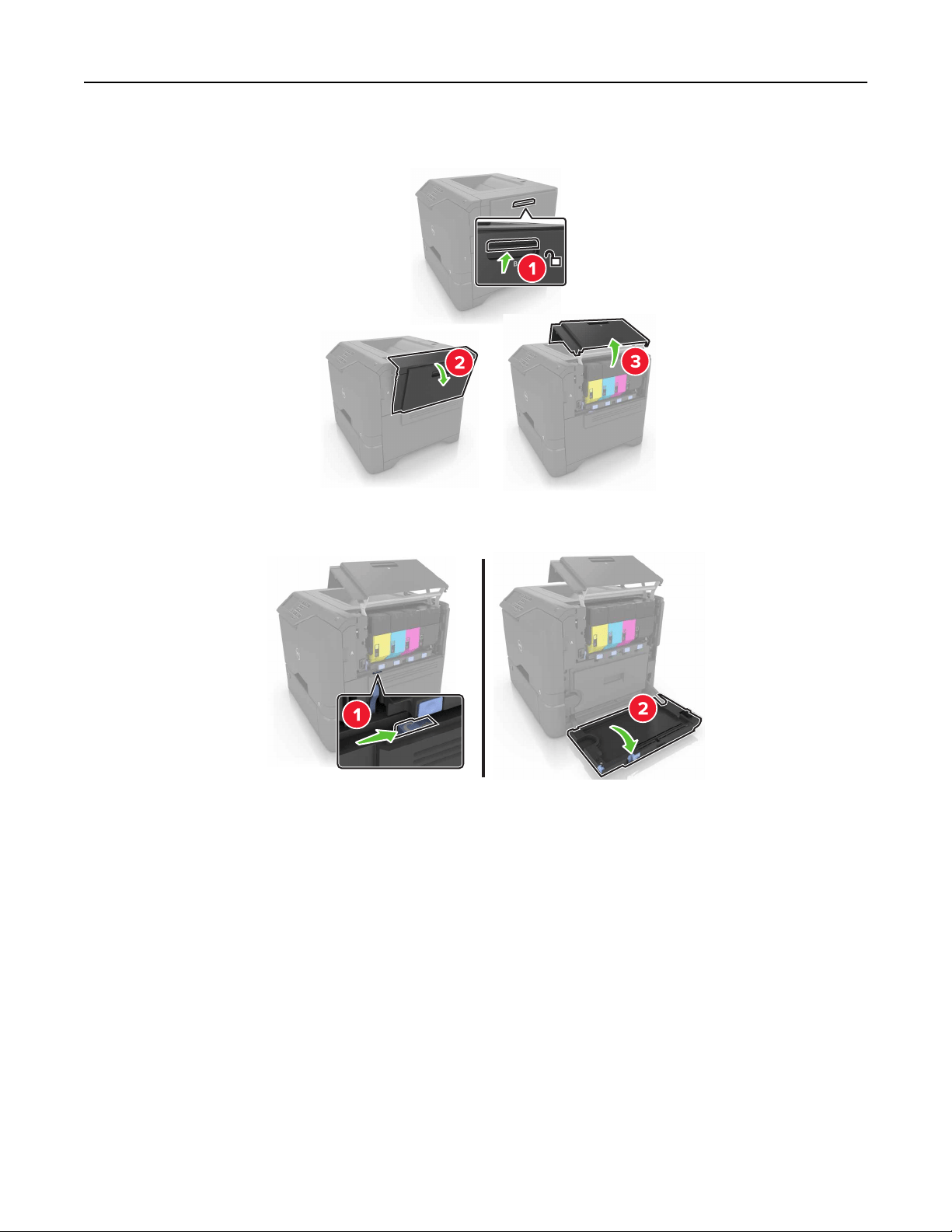
5 Open door B.
6 Open door C.
Upgrading and migrating 102
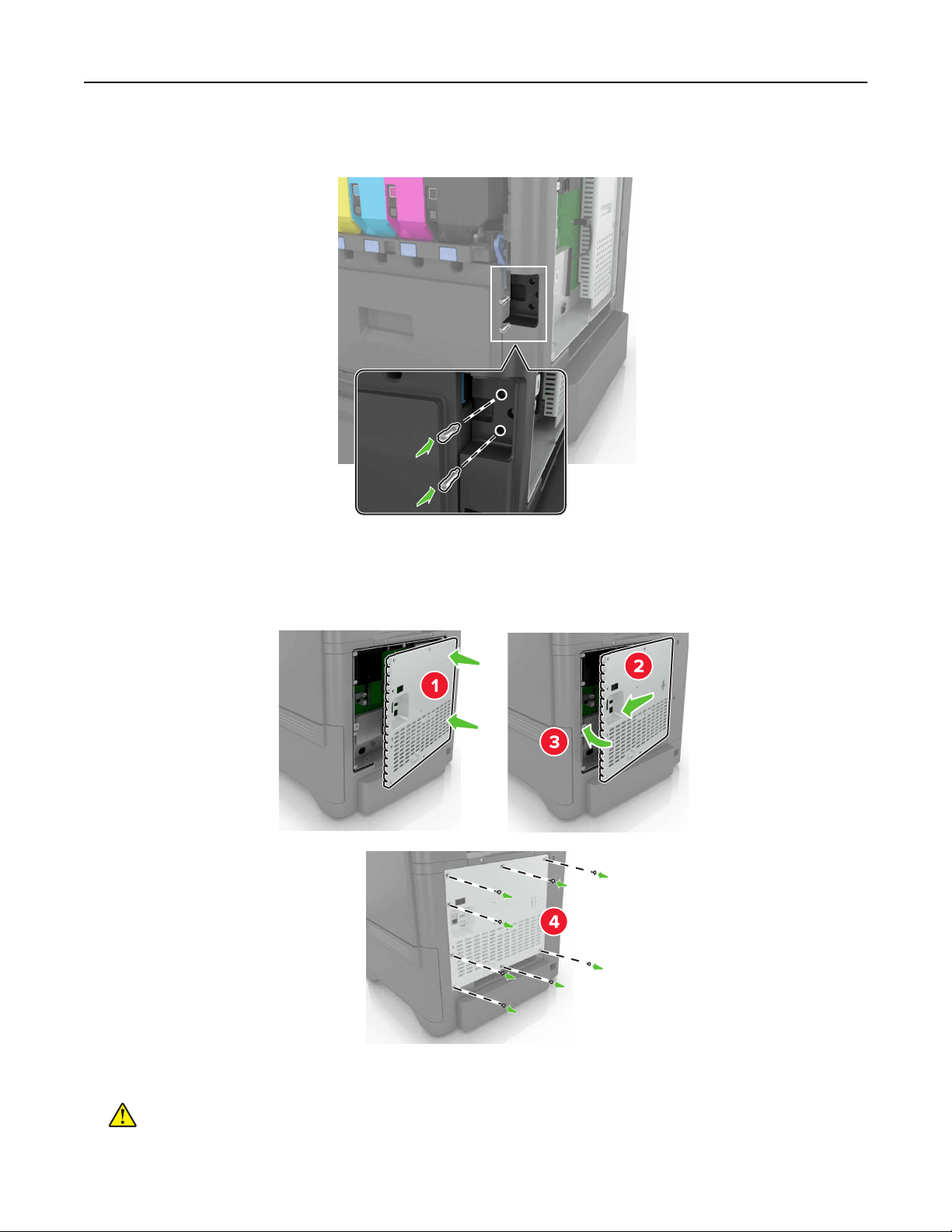
7 Secure the hard disk to the printer using the thumbscrews.
8 Close doors C and B.
9 Reattach the controller board access cover.
10 Connect the power cord to the electrical outlet, and then turn on the printer.
CAUTION—POTENTIAL INJURY: To avoid the risk of fire or electrical shock, connect the power cord
to an appropriately rated and properly grounded electrical outlet that is near the product and easily
accessible.
Upgrading and migrating 103
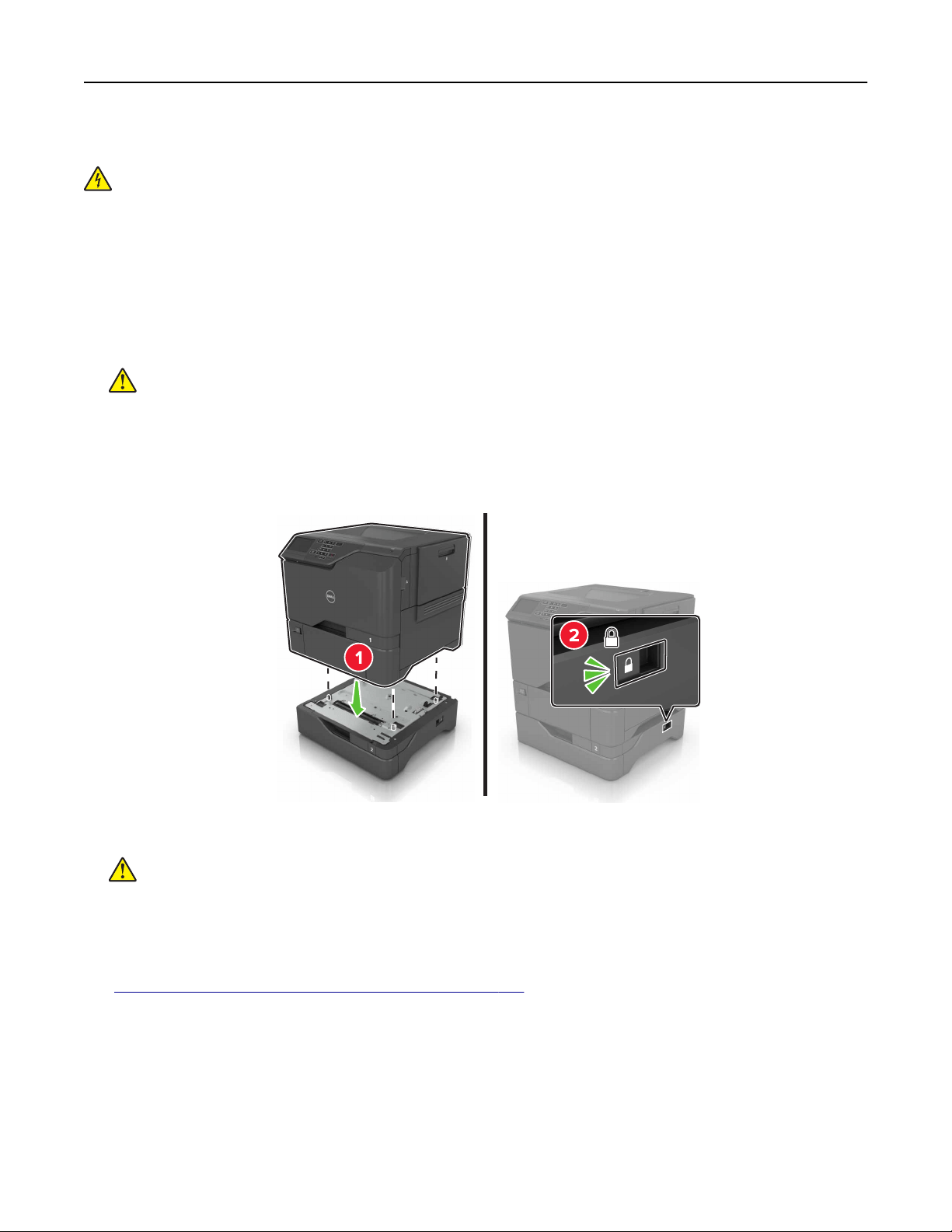
Installing optional trays
CAUTION—SHOCK HAZARD: To avoid the risk of electrical shock, if you are accessing the controller
board or installing optional hardware or memory devices sometime after setting up the printer, then turn
the printer o, and unplug the power cord from the electrical outlet before continuing. If you have any
other devices attached to the printer, then turn them o as well, and unplug any cables going into the
printer.
1 Turn
o
the printer.
2 Unplug the power cord from the electrical outlet, and then from the printer.
3 Unpack the optional tray, and then remove all packing material.
CAUTION—POTENTIAL INJURY: The printer weight is greater than 18 kg (40 lb) and requires two or
more trained personnel to lift it safely.
Note: If optional trays are already installed, then unlock them from the printer before lifting the printer. Do
not try to lift the printer and trays at the same time.
4 Align the printer with the optional tray, and then lower the printer until it clicks into place.
5 Connect the power cord to the printer, and then to the electrical outlet.
CAUTION—POTENTIAL INJURY: To avoid the risk of fire or electrical shock, connect the power cord
to an appropriately rated and properly grounded electrical outlet that is near the product and easily
accessible.
6 Turn on the printer.
If necessary, manually add the tray in the print driver to make it available for print jobs. For more information,
see
“Adding available options in the print driver” on page 105.
Install the printer and hardware options in the following order:
• Optional 550‑sheet tray
• Printer
Upgrading and migrating 104

Software
Installing the printer software
1 Obtain a copy of the software installer package.
2 Run the installer, and then follow the instructions on the computer screen.
3 For Macintosh users, add the printer.
Note: Obtain the printer IP address from the TCP/IP section in the Network/Ports menu.
Adding available options in the print driver
For Windows users
1 Open the printers folder.
2 Select the printer you want to update, and then do either of the following:
• For Windows 7 or later, select Printer properties.
• For earlier versions, select Properties.
3 Navigate to the Configuration tab, and then select Update Now ‑ Ask Printer.
4 Apply the changes.
For Macintosh users
1 From System Preferences in the Apple menu, navigate to your printer, and then select Options & Supplies.
2 Navigate to the list of hardware options, and then add any installed options.
3 Apply the changes.
Firmware
Exporting or importing a configuration file
You can export the configuration settings of your printer into a text file, and then import the file to apply the
settings to other printers.
1 Open a Web browser, and then type the printer IP address in the address field.
Notes:
• View the printer IP address on the printer home screen. The IP address appears as four sets of
numbers separated by periods, such as 123.123.123.123.
• If you are using a proxy server, then temporarily disable it to load the Web page correctly.
2 Export or import a configuration file for one or multiple applications.
Upgrading and migrating 105

For one application
a
From the Embedded Web Server, click Apps > the application that you want > Configure.
b Click Export or Import.
For multiple applications
a
From the Embedded Web Server, click Export Configuration or Import Configuration.
b Follow the instructions on the screen.
Updating firmware
Some applications require a minimum device firmware level to operate correctly.
For more information on updating the device firmware, contact your Dell representative.
1 From the Embedded Web Server, click Settings > Device > Update Firmware.
2 Browse to locate the required flash file.
3 Apply the changes.
Upgrading and migrating 106

Appendix
Dell Technical Support Policy
Technician‑assisted technical support requires the cooperation and participation of the customer in the
troubleshooting process and provides for restoration of the Operating System, application software and
hardware drivers to the original default configuration as shipped from Dell, as well as the verification of
appropriate functionality of the printer and all Dell‑installed hardware. In addition to this technician assisted
technical support, online technical support is available at Dell Support. Additional technical support options
may be available for purchase.
Dell provides limited technical support for the printer and any Dell‑installed software and peripherals. Support
for third‑party software and peripherals is provided by the original manufacturer, including those purchased
and/or installed through Software & Peripherals (DellWare), ReadyWare, and Custom Factory Integration
(CFI/DellPlus).
Contacting Dell
You can contact Dell electronically using the following address: www.dell.com/contactdell.
Product power consumption
The following table documents the power consumption characteristics of the product.
Note: Some modes may not apply to your product.
Mode Description Power consumption (Watts)
Printing The product is generating hard‑copy output from electronic inputs. One‑sided: 680
Two‑sided: 570
Copy The product is generating hard‑copy output from hard‑copy original
documents.
N/A
Scan The product is scanning hard‑copy documents. N/A
Ready The product is waiting for a print job. Ready 1: 80
Ready 2: 45
Sleep Mode The product is in a high‑level energy‑saving mode. 2.4
Hibernate The product is in a low‑level energy‑saving mode. 0.2
O The product is plugged into an electrical outlet, but the power switch
is turned o.
0.2
The power consumption levels listed in the previous table represent time-averaged measurements.
Instantaneous power draws may be substantially higher than the average.
Appendix 107

Sleep Mode
This product is designed with an energy-saving mode called Sleep Mode. The Sleep Mode saves energy by
lowering power consumption during extended periods of inactivity. The Sleep Mode is automatically engaged
after this product is not used for a specified period of time, called the Sleep Mode Timeout.
Factory default Sleep Mode Timeout for this product (in minutes): 1
By using the configuration menus, the Sleep Mode Timeout can be modified between 1 minute and 120 minutes.
Setting the Sleep Mode Timeout to a low value reduces energy consumption, but may increase the response
time of the product. Setting the Sleep Mode Timeout to a high value maintains a fast response, but uses more
energy.
Hibernate Mode
This product is designed with an ultra‑low power operating mode called Hibernate mode. When operating in
Hibernate Mode, all other systems and devices are powered down safely.
The Hibernate mode can be entered in any of the following methods:
• Using the Hibernate Timeout
• Using the Schedule Power modes
• Using the Sleep/Hibernate button
Factory default Hibernate Timeout for this product in all countries or regions 3 days
The amount of time the printer waits after a job is printed before it enters Hibernate mode can be modified
between one hour and one month.
O mode
If this product has an
o
mode which still consumes a small amount of power, then to completely stop product
power consumption, disconnect the power supply cord from the electrical outlet.
Total energy usage
It is sometimes helpful to calculate the total product energy usage. Since power consumption claims are
provided in power units of Watts, the power consumption should be multiplied by the time the product spends
in each mode in order to calculate energy usage. The total product energy usage is the sum of each mode's
energy usage.
Warranty and Return Policy
Dell Inc. (“Dell”) manufactures its hardware products from parts and components that are new or equivalent to
new in accordance with industry‑standard practices. For information about the Dell warranty for your printer,
refer to the Product Information Guide.
Appendix 108

Index
A
adding hardware options
print driver 105
adding internal options
print driver 105
adjusting the brightness
printer display 52
adjusting the brightness of the
printer display 52
adjusting toner darkness 87
AirPrint
using 23
attaching cables 11
available internal options 91
avoiding paper jams 54
B
blank pages 72
C
canceling a print job
from the computer 25
from the printer control
panel 25
cannot open Embedded Web
Server 61
card stock
loading 19
changing port settings
internal solutions port 29
checking the printer
connectivity 62
checking the status of parts and
supplies 30
cleaning
exterior of the printer 30
interior of the printer 30
cleaning the printer 30
collated printing does not
work 65
Color Correction
manual 87
Color Correction Content 87
color quality, troubleshooting
print appears tinted 89
confidential print jobs 24
configuring port settings 29
connecting to a wireless network
using PIN method 28
using Push Button method 28
conservation settings
Eco‑Mode 52
hibernate mode 52
sleep mode 52
conserving supplies 52
contacting technical support 89
control panel
using 13
D
Dell Document Hub
using 23
developer unit
replacing 36
directory list
printing 24
disposing of printer hard disk 27
documents, printing
from a computer 21
E
Eco‑Mode setting 52
Eco‑Settings
using 16
enabling the USB port 62
encrypting the printer hard
disk 26
envelopes
loading 19
environmental setting
Eco‑Mode 52
environmental settings
hibernate mode 52
sleep mode 52
erasing printer hard disk
memory 26
Ethernet cable 11
Ethernet port 11
exporting a configuration file
using the Embedded Web
Server 105
F
FAQ about color printing 88
finding
more information about
the printer 8
firmware
update 106
firmware
card 91
flash drive
printing from 21
font sample list
printing 24
forms
printing 21
Forms and Favorites
setting up 16
fuser
replacing 41
G
Google Cloud Print
using 23
green settings
Eco‑Mode 52
hibernate mode 52
sleep mode 52
H
hardware options
trays 104
hardware options, adding
print driver 105
held jobs 24
printing from a Macintosh
computer 24
printing from Windows 24
held print jobs
printing from a Macintosh
computer 24
printing from Windows 24
hibernate mode
setting 52
home screen
customizing 16
showing icons 16
home screen buttons
using 14
horizontal dark lines 75
Index 109

I
icons on the home screen
showing 16
imaging kit
replacing 36
imaging unit
replacing 32
importing a configuration file
using the Embedded Web
Server 105
indicator light
printer status 13
installing a memory card 91
installing a printer hard disk 100
installing an internal solutions
port 93
installing an optional card 98
installing options
printer hard disk 100
installing printer 105
internal options 91
installing 98
memory card 91
internal options, adding
print driver 105
internal solutions port
installing 93
troubleshooting 64
J
jam, clearing
multipurpose feeder 57
trays 56
jams
avoiding 54
locating jam areas 55
locations 55
jams, clearing
in the duplex unit 58
in the fuser 58
L
light print 79
linking trays 20
loading
card stock 19
envelopes 19
multipurpose feeder 19
loading trays 17
M
maintenance counter
resetting 51
manual Color Correction
applying 87
memory
types installed on printer 27
memory card 91
installing 91
menu settings page
printing 15
mobile device
printing from 23
Mopria Print Service
using 23
moving the printer 10, 51
multipurpose feeder
loading 19
N
non‑volatile memory 27
erasing 26
notices 107, 108
O
optional card
installing 98
options
firmware cards 91
internal solutions port 93
memory card 91
ordering supplies
using Printer Home 30
P
paper
Universal size setting 17
paper jam clearing
standard bin 57
paper jam in door A 58
paper jam in the multipurpose
feeder 57
paper jam in the standard bin 57
paper jam in trays 56
paper jam, clearing
multipurpose feeder 57
trays 56
paper jams
avoiding 54
paper jams, clearing
in the duplex unit 58
in the fuser 58
paper size
setting 17
paper type
setting 17
parallel interface card
troubleshooting 64
parts status
checking 30
personal identification number
method 28
pick roller
replacing 42
port settings
configuring 29
power button light
printer status 13
power cord socket 11
print driver
hardware options, adding 105
print job
canceling from the
computer 25
canceling from the printer
control panel 25
print quality
replacing imaging kit 36
print quality troubleshooting
blank pages 72
crooked print 80
dark print 72
ghost images appear on
prints 74
gray background 74
horizontal dark lines 75
horizontal white lines 76
jagged or uneven
characters 78
light print 79
repeating print defects 81
skewed print 80
solid color or black images 82
text or images cut o 82
toner easily rubs o 83
uneven print density 84
vertical dark lines or streaks
appear on prints 84
white pages 72
Index 110

print troubleshooting
confidential and other held
documents do not print 68
envelope seals when
printing 65
incorrect margins on prints 77
jammed pages are not
reprinted 68
job prints from the wrong
tray 86
job prints on the wrong
paper 86
paper curl 66
paper frequently jams 67
print jobs do not print 71
slow printing 69
tray linking does not work 66
unable to read flash drive 62
printer
basic model 11
fully configured 11
minimum clearances 10
moving 10, 51
selecting a location 10
shipping 51
printer configurations 11
printer display
adjusting the brightness 52
printer hard disk
disposing of 27
encrypting 26
printer hard disk encryption 26
printer hard disk memory
erasing 26
printer information
where to find 8
printer installation 105
printer is not responding 85
printer menus 15
printer options troubleshooting
internal option is not
detected 63
internal solutions port 64
parallel interface card 64
serial interface card 64
printer ports 11
printer settings
restoring to factory defaults 26
printing
directory list 24
font sample list 24
from a computer 21
from a flash drive 21
from a mobile device 23
from a mobile device using Dell
Document Hub 23
menu settings page 15
printing a directory list 24
printing a font sample list 24
printing a menu settings page 15
printing a network setup
page 62
printing forms 21
printing from a flash drive 21
printing held jobs
from a Macintosh computer 24
from Windows 24
publications
where to find 8
Push Button method 28
R
recycling
Dell products 52
repeat print jobs 24
printing from a Macintosh
computer 24
printing from Windows 24
repeating print defects 81
replacing imaging unit 32
replacing parts
pick roller 42
separator pad 45
transfer module 47
replacing the imaging kit 36
replacing the pick roller 42
replacing the separator pad 45
replacing the transfer module 47
replacing the waste toner
bottle 40
replacing toner cartridge 31
reserve print jobs
printing from a Macintosh
computer 24
printing from Windows 24
resetting the fuser page count 51
resetting the maintenance
counter 51
resetting the transfer module
page count 51
restoring factory default
settings 26
S
safety information 5, 6, 7
selecting a location for the
printer 10
separator pad
replacing 45
serial interface card
troubleshooting 64
serial printing
setting up 29
setting hibernate mode 52
setting sleep mode 52
setting the paper size 17
setting the paper type 17
setting the Universal paper
size 17
setting up serial printing 29
shipping the printer 51
showing icons on the home
screen 16
statement of volatility 27
storing print jobs 24
supplies
conserving 52
ordering 30
supplies status
checking 30
supported file types 22
supported flash drives 22
T
toner cartridge
replacing 31
toner darkness
adjusting 87
transfer module
replacing 47
trays
installing 104
linking 20
loading 17
unlinking 20
troubleshooting
cannot open Embedded Web
Server 61
contacting technical support 89
FAQ about color printing 88
printer is not responding 85
troubleshooting, color quality
print appears tinted 89
Index 111

troubleshooting, print
collated printing does not
work 65
confidential and other held
documents do not print 68
envelope seals when
printing 65
incorrect margins on prints 77
jammed pages are not
reprinted 68
job prints from the wrong
tray 86
job prints on the wrong
paper 86
paper curl 66
paper frequently jams 67
print jobs do not print 71
slow printing 69
tray linking does not work 66
troubleshooting, print quality
blank pages 72
crooked print 80
dark print 72
ghost images appear on
prints 74
gray background 74
horizontal dark lines 75
horizontal white lines 76
jagged or uneven
characters 78
light print 79
repeating print defects 81
skewed print 80
solid color or black images 82
text or images cut o 82
toner easily rubs o 83
uneven print density 84
vertical dark lines or streaks
appear on prints 84
vertical white lines 85
white pages 72
troubleshooting, printer options
internal option is not
detected 63
internal solutions port 64
U
unable to read flash drive
troubleshooting, print 62
understanding the status of the
power button and indicator
light 13
uneven print density 84
Universal paper size
setting 17
unlinking trays 20
updating firmware
flash file 106
USB cable 11
USB port 11
enabling 62
using the control panel 13
using the home screen 14
V
verify print jobs 24
printing from a Macintosh
computer 24
printing from Windows 24
vertical dark lines or streaks
appear on prints 84
vertical white lines 85
volatile memory 27
erasing 26
volatility
statement of 27
W
waste toner bottle
replacing 40
white pages 72
wireless network
Wi‑Fi Protected Setup 28
Wi‑Fi Protected Setup
wireless network 28
Index 112
