
,, qD
TABL E OF CONTENTS '
Table of Contents
Congratulations ............................................................ 3
Customer Record ....................................................... 3
Care and Cleaning ..................................................... 3
Specifications ........ :.................................................... 3
Installation .................................................................... 4
Television Location .................................................... 4
Optional Cable Connections ...................................... 4
AC Power Supply Cord .............................................. 4
Cable / Antenna ......................................................... 4
Cable Connection ...................................................... 4
Antenna Connection .................................................. 5
Optional Equipment Connections ............................... 5
To Audio Amplifier ...................................................... 6
Audio Adjustmerlts ..................................................... 6
Main Menu ..................................................................... 6
ACTION Button ................... :...................................... 6
CH / VOL Buttons ....................................................... 6
Picture in Picture (PIP) Operation ............................... 7
PIP Operation with a VCR and Cable Box ................. 7
PIP Operation with a VCR - No Cable Box ................ 8
Main Menu Feature Chart ............................................ 9
Special Features ......................................................... 11
Languages ............................................................... 11
Timer ........................................................................ 11
Sleep Timer .............................................................. 11
Program Timer ......................................................... 11
CH CAP (Channel Caption) ..................................... 12
LOCK ....................................................................... 13
Game Guard Lock and Unlock ................................. 13
Troubleshooting Chart ............................................... 14
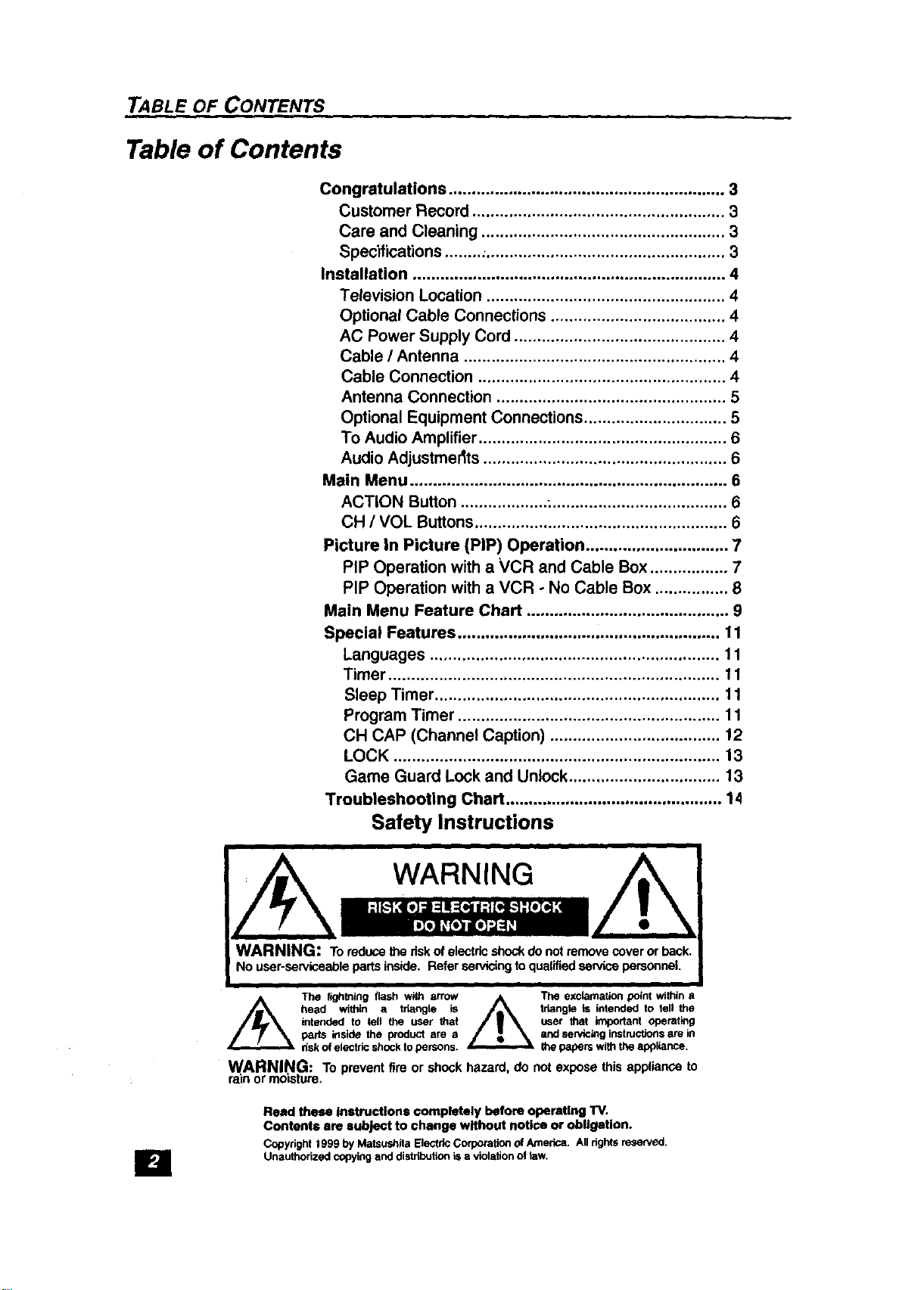
Safety Instructions
WARNING
B
The lightning flash with arrow The exclamation point within a
head within a thangle is triangle is intended to tell the
intended to tell the user that user that important Operating
parts inside the product are a and servicinginstructionsare in
riskof electricshockto parsons, the papers withthe applk_rtce.
WARNING: To prevent fire or shock hazard, do not expose this appliance to
rain or moisture_
Read these instructions oompletely before operating TV.
Contents ere subject to change without notice or obligation.
Copyright1999 by MaleushileElectricCorporati_'lof America. Allrights reserved.
Unauthorizedcopyingand distdburtonisa violationof law.
Congratulations
CONGRA TULA TIONS
YournewTV features a solidstate chassisthatis designedto giveyou many
years of enjoyment. It was thoroughlytested and tuned at the factory for
best performance.
Customer Record
The model and serial number of this productare locatedon the back of the
TV. You shouldnote the modeland serial numberinthe spaceprovidedand
retain as a permanent record ofyour pumhase. This willaid in identification
in the event of theft or loss. Product registrationis available for U.S,
customersat www.prodreg.condpanasonic.
Model
Number
Serial
Number
Care and Cleaning
Screen (Turn TV Off)
• Usea mildsoap solutionor windowcleaner witha softclean
cloth.DO NOT USE ABRASIVE CLEANERS.
• Avoid excessivemoistureand wipe dry.
Cabinet and Remote Control
• Use a soft clothdampened with water or a mild detergent
solution. Do not use benzene, thinner, or other petroleum
based cleaners.
• Avoidexcessive moistureand wipe dry.
Specifications
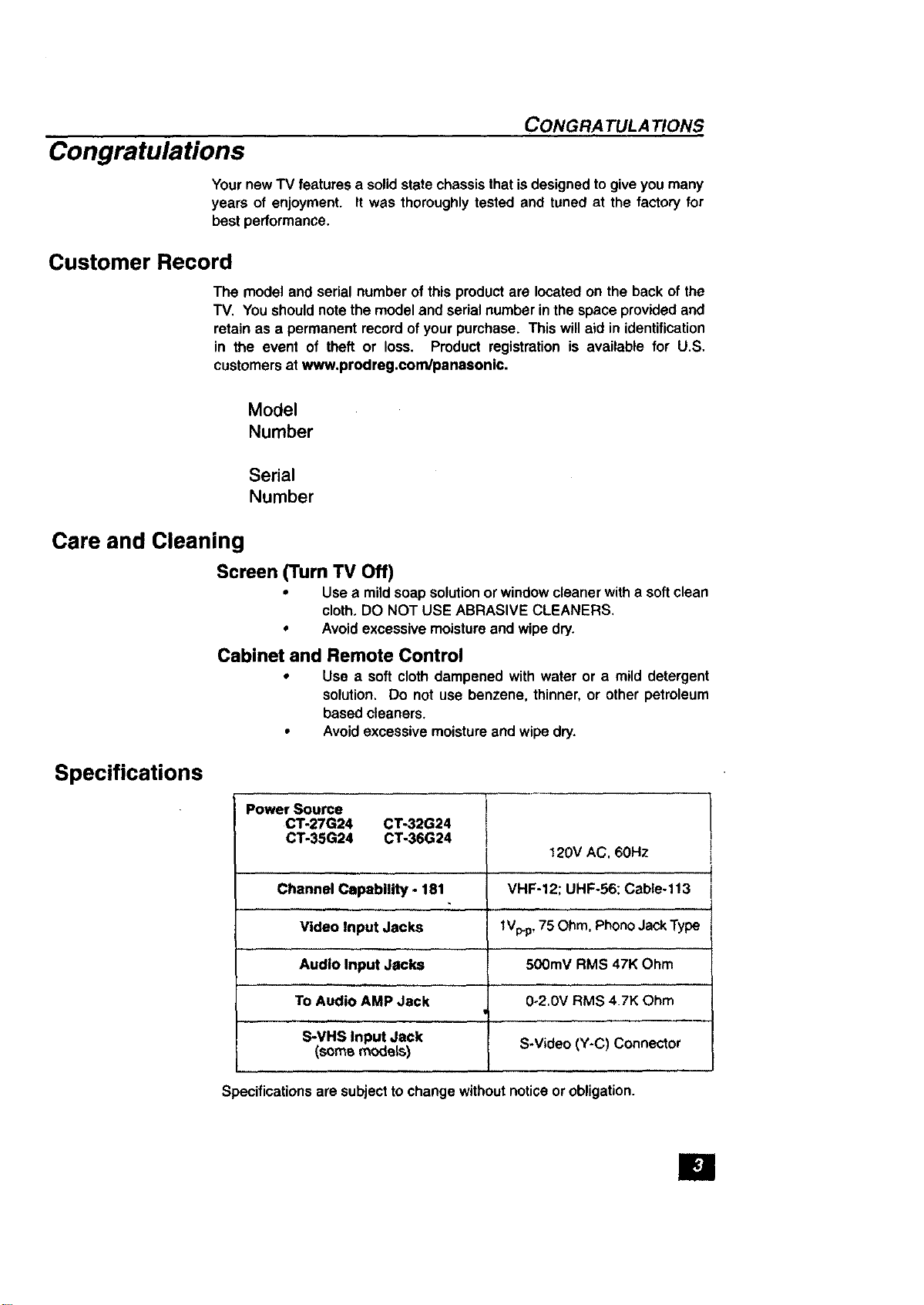
Power Source
CT-27G24 CT-32G24
CT-35G24 CT-36G24 I
120V AC, 60Hz
Channel Capability- 181 VHF-12; UHF-56; Cable-113
Video Input Jacks tVp.p,75 Ohm, PhonoJackType
Audio Input Jacks 500mV RMS 47K Ohm
,., H
To Audio AMP Jack 0-2.0V RMS 4.7K Ohm
.....,,,, ,,
S-VHS Input Jack S-Video (Y-C) Connector
(somemode_s)
Specificationsare subjectto changewithoutnoticeor obligation.
El
INSTALLATION
Installation
Television Location
This unit is intended to be used with an optional stand or entertainment
center. Consultyourdealer for available options.
[_ Avoid excessivesunlightor brightlights, includingreflections.
[] Keep away from excessive heat or moisture. Inadequate ventilation
may cause internalcomponentfailure.
[] Fluorescentlightingmay reduce remotecontroltransmittingrange.
[3 Avoid magneticequipment,including motors,fans, orexternalspeakers.
Optional Cable Connections
Shielded audio and video cables shouldbe used between components. For
best results:
O Use 75-ohm coaxialshieldedcables.
[] Use appropriate input and output connectors that match your
componentconnectors.
[] Avoidlongcables tominimizeinterference.
AC Power Supply Cord
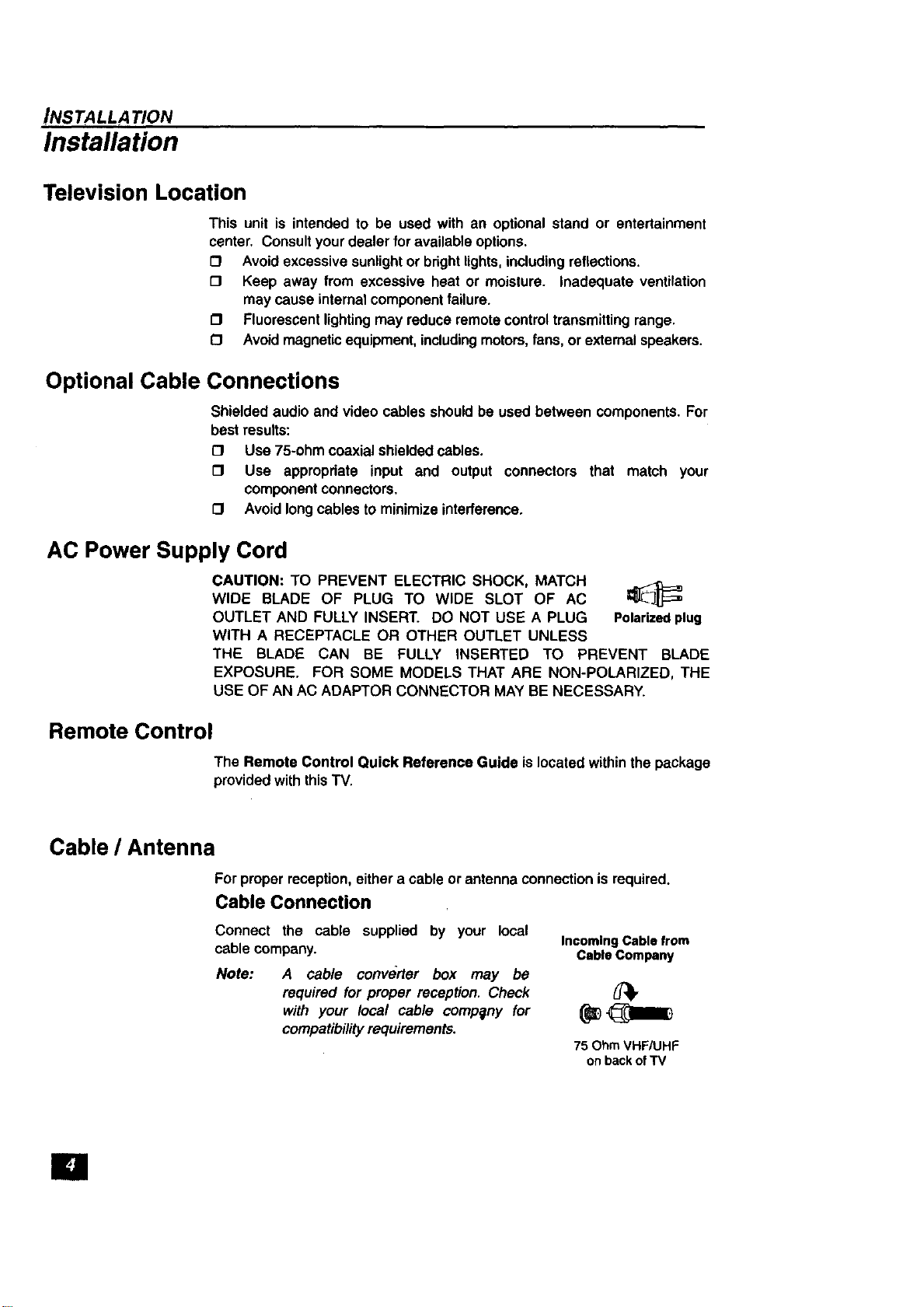
CAUTION: TO PREVENT ELECTRIC SHOCK, MATCH
WIDE BLADE OF PLUG TO WIDE SLOT OF AC _JL E_
OUTLET AND FULLY INSERT. DO NOT USE A PLUG Polarizedplug
WITH A RECEPTACLE OR OTHER OUTLET UNLESS
THE BLADE CAN BE FULLY INSERTED TO PREVENT BLADE
EXPOSURE. FOR SOME MODELS THAT ARE NON-POLARIZED, THE
USE OF AN AC ADAPTOR CONNECTOR MAY BE NECESSARY.
Remote Control
The Remote Control Quick Reference Guide is locatedwithinthe package
providedwiththis TV.
Cable / Antenna
Forproper reception,either a cable orantenna connectionisrequired.
Cable Connection
Connect the cable supplied by your local
cable company.
Note:
Incoming Cable from
Cable Company
A cable converter box may be
required for proper reception. Check {_,
with your local cable company for _1_
compatibilityrequirements.
75 Ohm VHF/UHF
onback ofTV
I
INS TALLA TION
Antenna Connection
• For proper reception of VHF/UHF IncomlngCablofrom
channels, an external antenna is HomeAntenna
required. For best reception an I_q t"_
outdoorantenna isrecommended.
• Antenna Mode mustbe set toTV.
\ I .....
_ Cable Preset
Cable Mode is preset at the factory. Antenna
users must change to Antenna Mode in the
Setup Menu.
Optional Equipment Connections
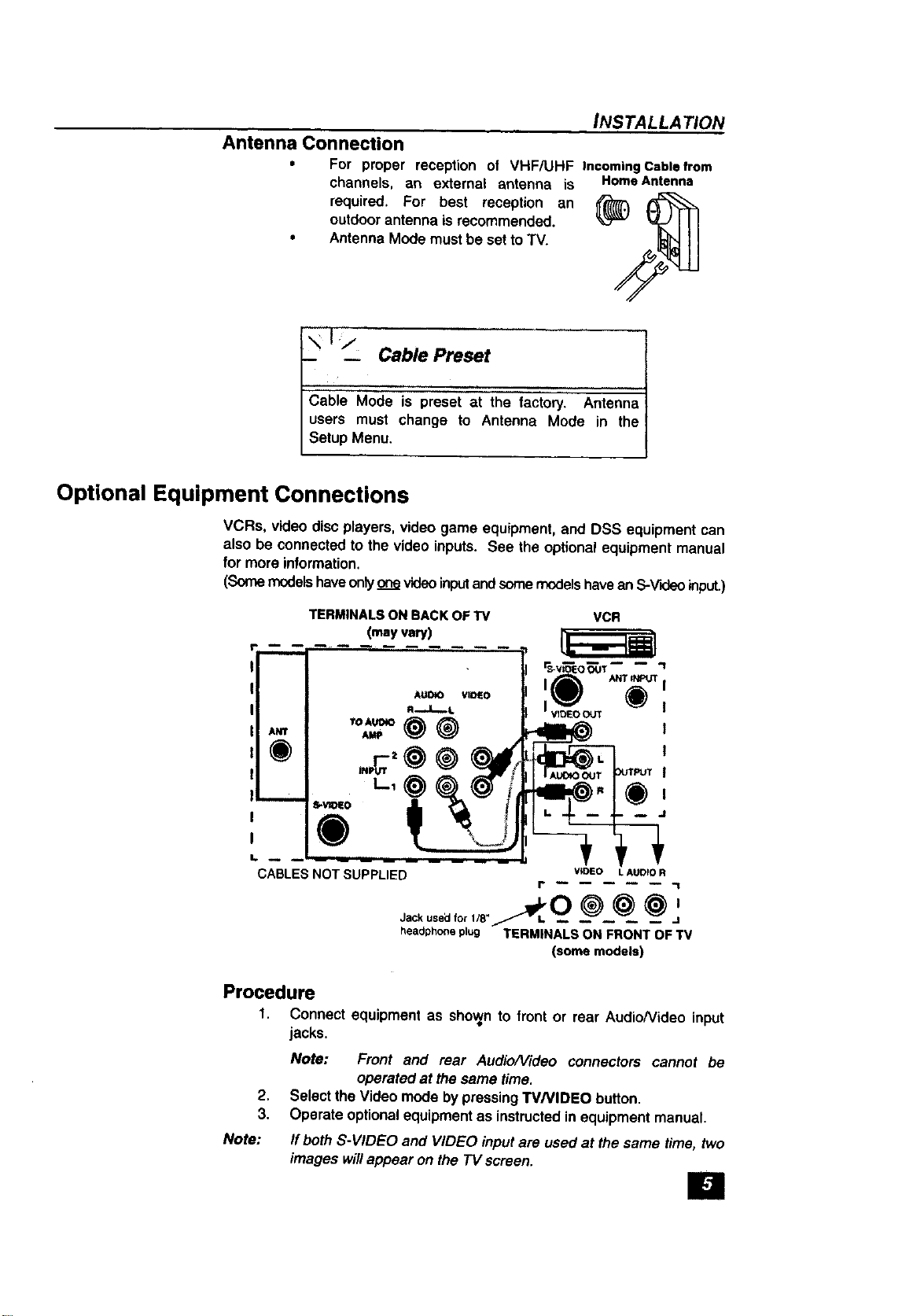
VCRs, video discplayers, video game equipment, and DSS equipment can
also be connected to the video inputs. See the optional equipmentmanual
for more information.
(Some modelshaveonlyonevideoinputandsome models havean S-V'_eoinput.)
TERMINALS ON BACK OF TV VCR
(may vary)
®
CABLES NOT SUPPLIED WDEO LAUD_OR
I" "1
Jack used for l/8- _L O _ _ _)/
headphoneplug TERMINALS ON FRONT OF TV
(some models)
Procedure
1. Connect equipment as shoranto front or rear Audio/Video input
2.
3.
Note:
jacks.
Note: Front and rear Audio/Video connectors cannot be
operated at the same time.
Select the Videomode by pressingTVNIDEO button.
Operate optionalequipmentas instructedinequipment manual.
If bothS-VIDEO and VIDEO input are used at the same time, two
images willappear on the TV screen.
E1
MA!N MENU
TO AUDIO AMPlifier
Connectto an external audio amplifierinputfor listeningtoa stereo system.
Note: Do not connect TO AUDIO AMP terminals directly to
externalspeakers.
Audio Adjustments
1, Select TV SPEAKERS ON fromthe AUDIO menu,
2. Set amplifiervolumetominimum.
3, AdjustTV volumeto desired level.
4. Adjust amplifiervolumeto matchthe TV.
5. Select TV SPEAKERS OFF&VAO from the AUDIO menu.
6, Volumeand Mute are now controlledby theTV.
Note: In OFF&FAO the volume iscontrolledby theexternal amplifier.
Main Menu
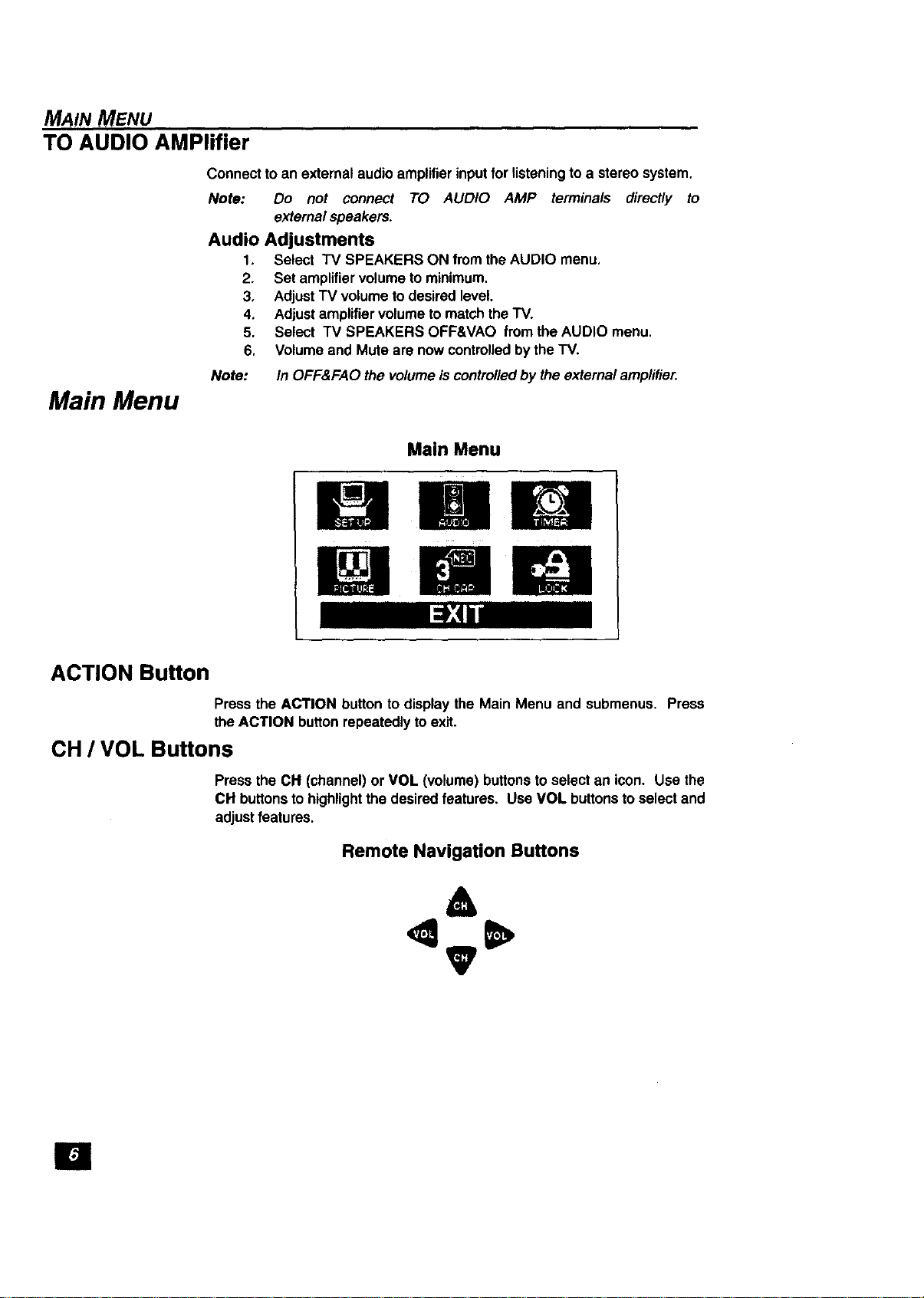
Main Menu
i mE!
ACTION Button
Pressthe ACTION button to display the Main Menu and submenus. Press
the ACTION buttonrepeatedly toexit.
CH / VOL Buttons
Press the CH (channel) or VOL (volume) buttonsto select an icon. Use the
CH buttonstohighlightthe desired features. Use VOL buttonsto select and
adjustfeatures.
Remote Navigation Buttons
&
V
El
PICTURE IN PICTURE (PIP) OPERA710N
Picture In Picture (PIP) Operation
PIP Operation with a VCR and Cable Box
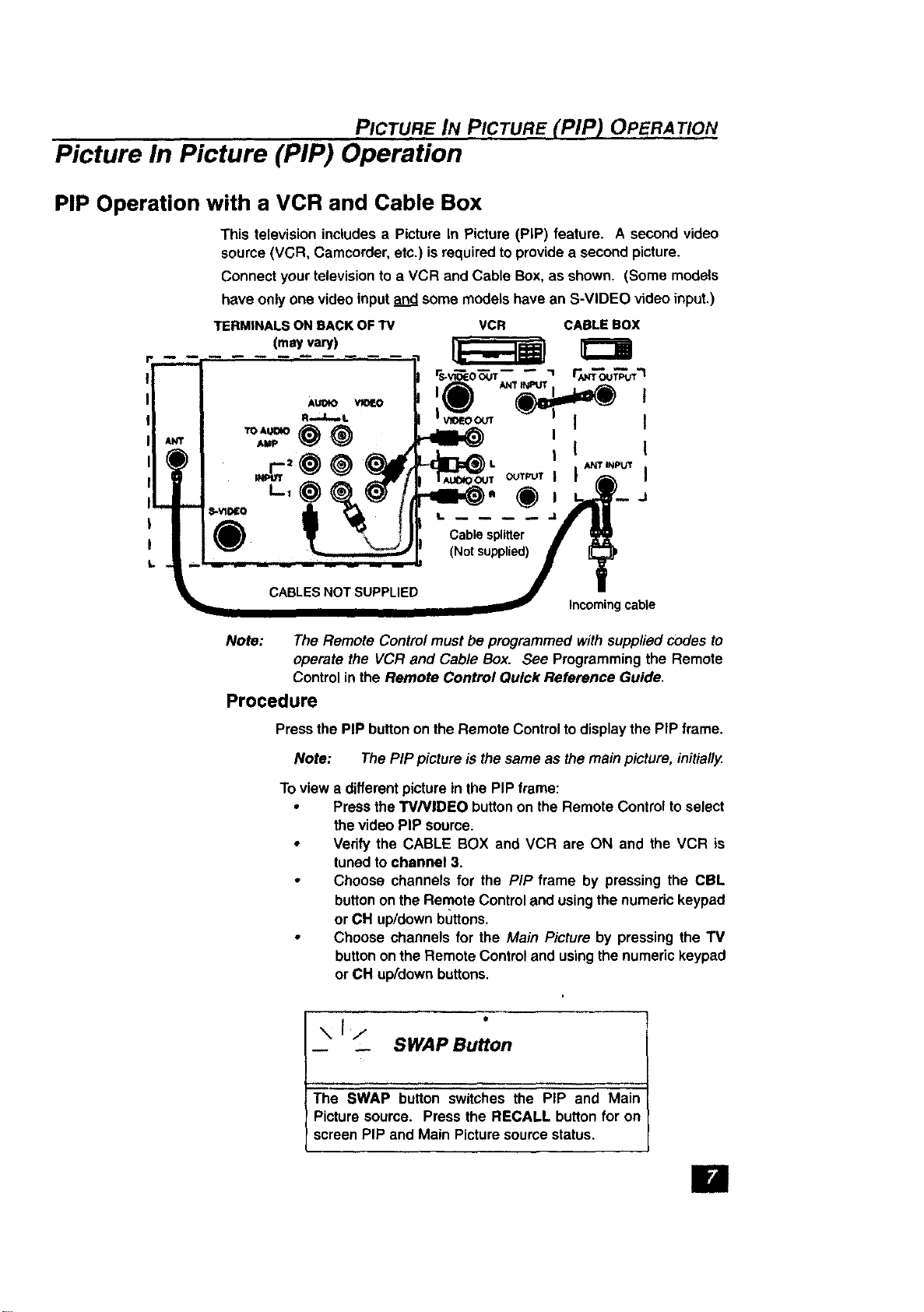
This television includesa Picture In Picture (PIP) feature. A second video
source(VCR, Camcorder, etc.) is requiredto providea second picture.
Connect your televisionto a VCR and Cable Box,as shown. (Some models
have only one video input and some models have an S-VIDEO video input,)
CABLES NOT SUPPLIED
Incomingcable
Note:
The Remote Controlmust be programmed with suppliedcodes to
operate the VCR and Cable Box. See Programming the Remote
Controlin the Remote Control Quick Reference Guide.
Procedure
Press the PIP buttonon the Remote Control todisplay the PIP frame.
Note: The PIP picture isthe same as the main picture, initia/ly
To view a differentpicturein the PIP frame:
• Pressthe W/VIDEO button on the Remote Control toselect
the videoPIP soume.
• Verify the CABLE BOX and VCR are ON and the VCR is
tunedto channel 3.
• Choose channels for the PIP frame by pressing the CBL
buttonon the Remote Controland usingthe numerickeypad
or CH up/downbuttons.
• Choose channels for the Main Picture by pressing the TV
buttononthe Remote Controland usingthenumerickeypad
or CH up/down buttons.
\i/
SWAP Button
The SWAP button switches the PIP and Main
Picture source. Press the RECALL buttonfor on
screen PiP and Main Picturesourcestatus.
Ha
PICTURE !N PICTURE (PIP) OPERA TION
PIP Operation with a VCR - No Cable Box
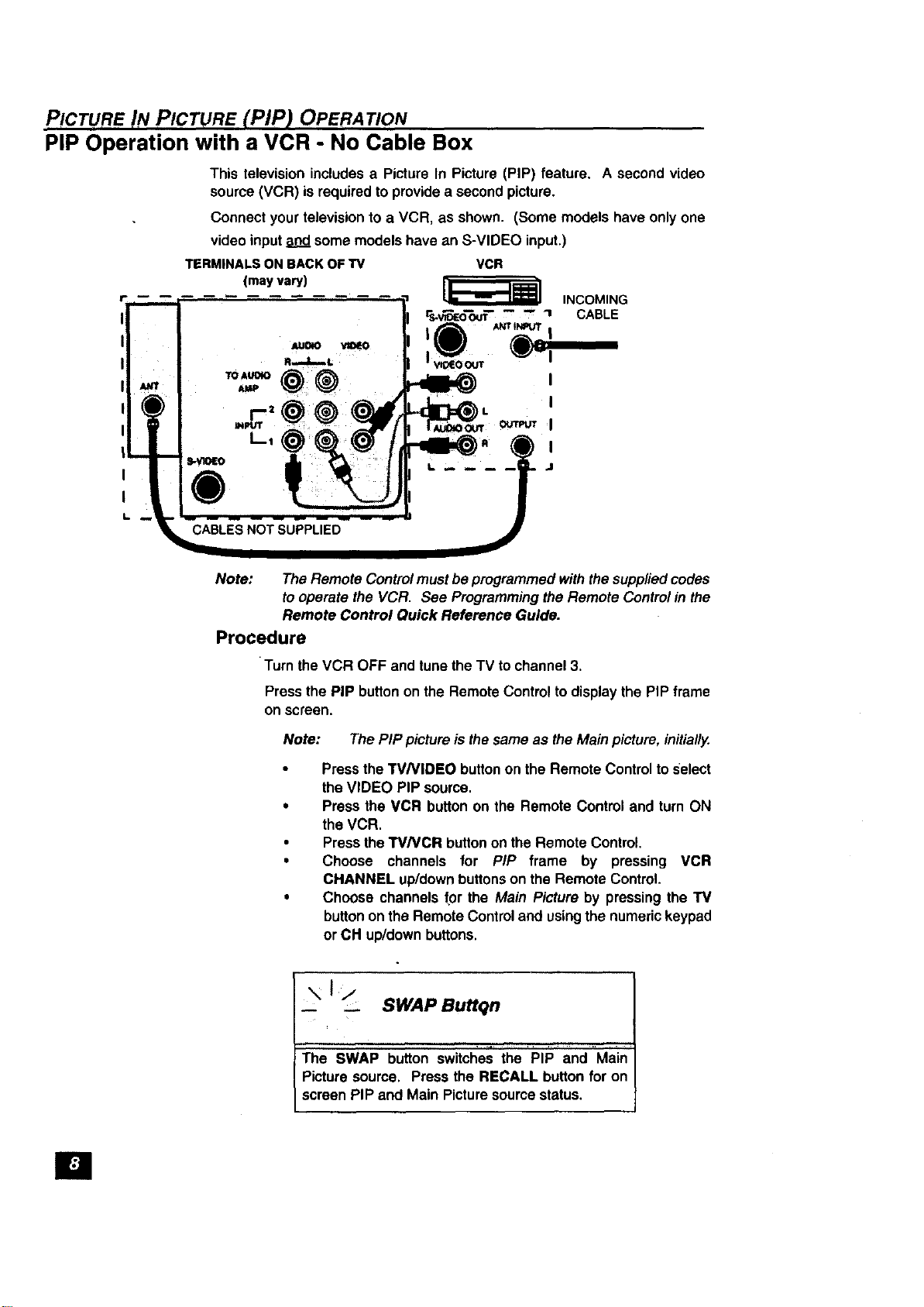
This televisionincludesa Picture In Picture (PIP) feature. A second video
source (VCR) is requiredto providea secondpicture.
Connect yourtelevisionto a VCR, as shown. (Some models have onlyone
videoinput_ somemodels have an S-VIDEO input.)
IPm
II
II
I
II
I| '
_L,,.
I
I
L
TERMINALSONBACKOF"IV
(mayvary)
w .... .._lllm _ --
_=..CABLES NOT SUPPLIED
VCR
Note: The Remote Controlmustbe programmed withthesuppliedcodes
tooperate the VCR, See Programmingthe Remote Controlin the
Remote Control Quick Reference Guide.
Procedure
•Turn the VCR OFF and tune the TV to channel 3.
Pressthe PIP buttonon the Remote Controltodisplay the PIP frame
onscreen.
Note: The PIP picture isthe same as the Mainpicture,initially.
Pressthe TV/VIDEO buttonon the Remote Controlto Select
theVIDEO PIP source.
Press the VCR button on the Remote Control and turn ON
the VCR.
Press theTV/VCR buttonon the Remote Control.
Choose channels for PIP frame by pressing VCR
CHANNEL up/downbuttonson the Remote Control.
Choose channels for the Main Pictureby pressingthe TV
buttonon the Remote Controland usingthe numerickeypad
or CH up/down buttons.
_ _ SWAP Buttqn
The SWAP button switches the PIP andMain
Picturesource. Press the RECALL button for on
screen PIP and Main Picturesourcestatus.
IB
Main Menu Feature Chart
MAIN MENU. FEATURE CHAR T
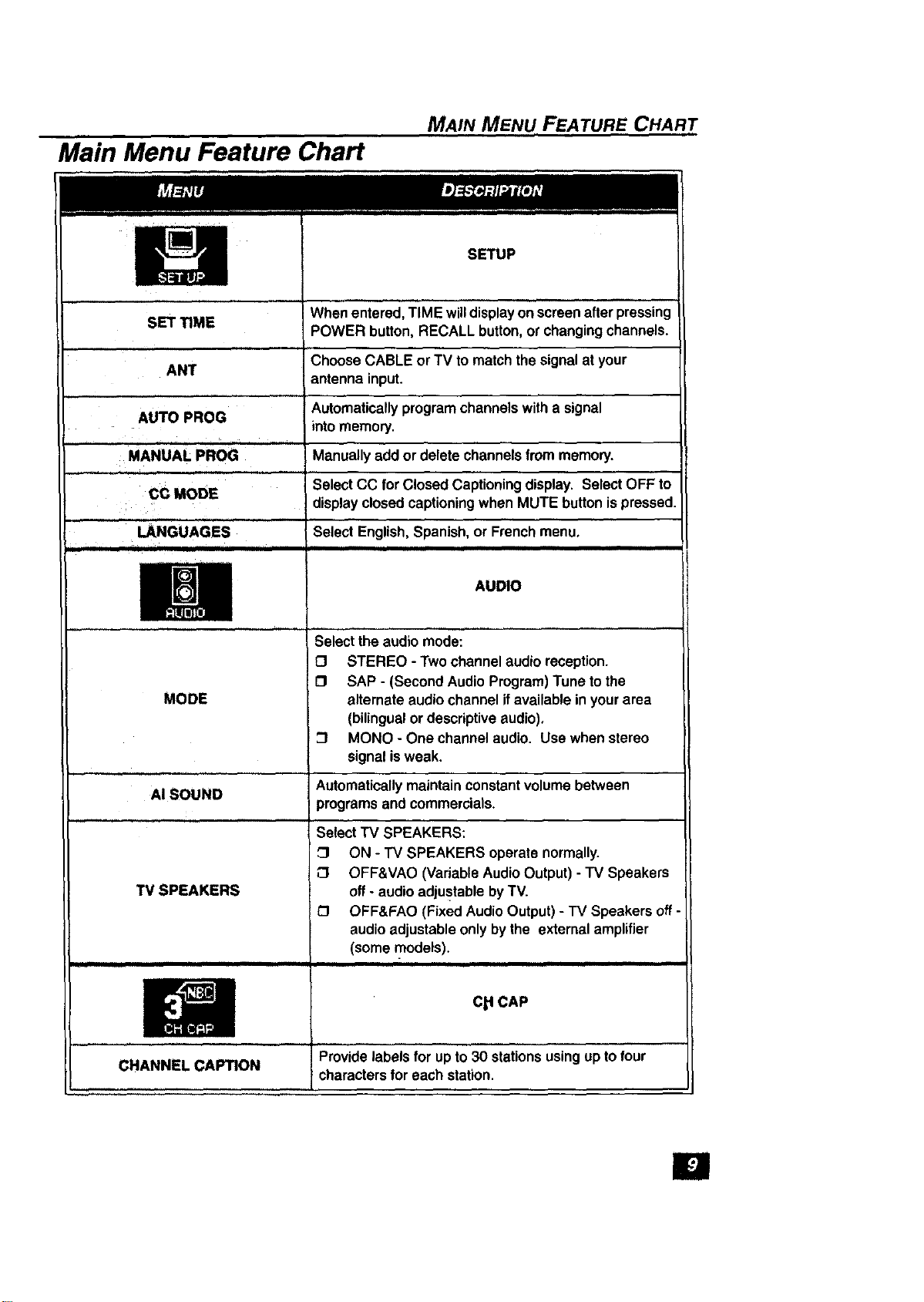
SET TIME
ANT
AUTO PROG
MANUALPROG
CC MODE
LANGUAGES
SETUP
Whenentered, TIME willdisplay on screenafterpressing
POWER button,RECALL button,or changingchannels.
Choose CABLE or TV to matchthe signalat your
antenna input.
Automaticallyprogramchannelswith a signal
intomemory.
Manuallyadd or delete channelsfrom memory.
Select CC for Closed Captioningdisplay. Select OFF to
displayclosedcaptioningwhen MUTE button ispressed.
Select English,Spanish,or French menu,
II II
AUDIO
MODE
AISOUND
TVSPEAKERS
iiii
CHANNEL CAPTION
Selectthe audio mode:
O STEREO - Two channelaudio reception.
[_ SAP - (Second AudioProgram)Tune tothe
alternateaudio channel ifavailable in yourarea
(bilingualordescriptiveaudio),
:_ MONO- One channelaudio. Use when stereo
signal isweak.
Automaticallymaintain constantvolumebetween
programsand commercials.
Select"IV SPEAKERS:
ON - TV SPEAKERS operate normally.
OFF&VAO (Variable Audio Output) - TV Speakers
off- audio adjustablebyTV.
OFF&FAO (Fixed Audio Output)- "IV Speakers off-
audioadjustableonlybythe externalamplifier
(somemodels).
Cp CAP
Providelabelsfor up to 30 stationsusingup tofour
charactersfor each station.
IB
MAIN MENU FEATURE CHART
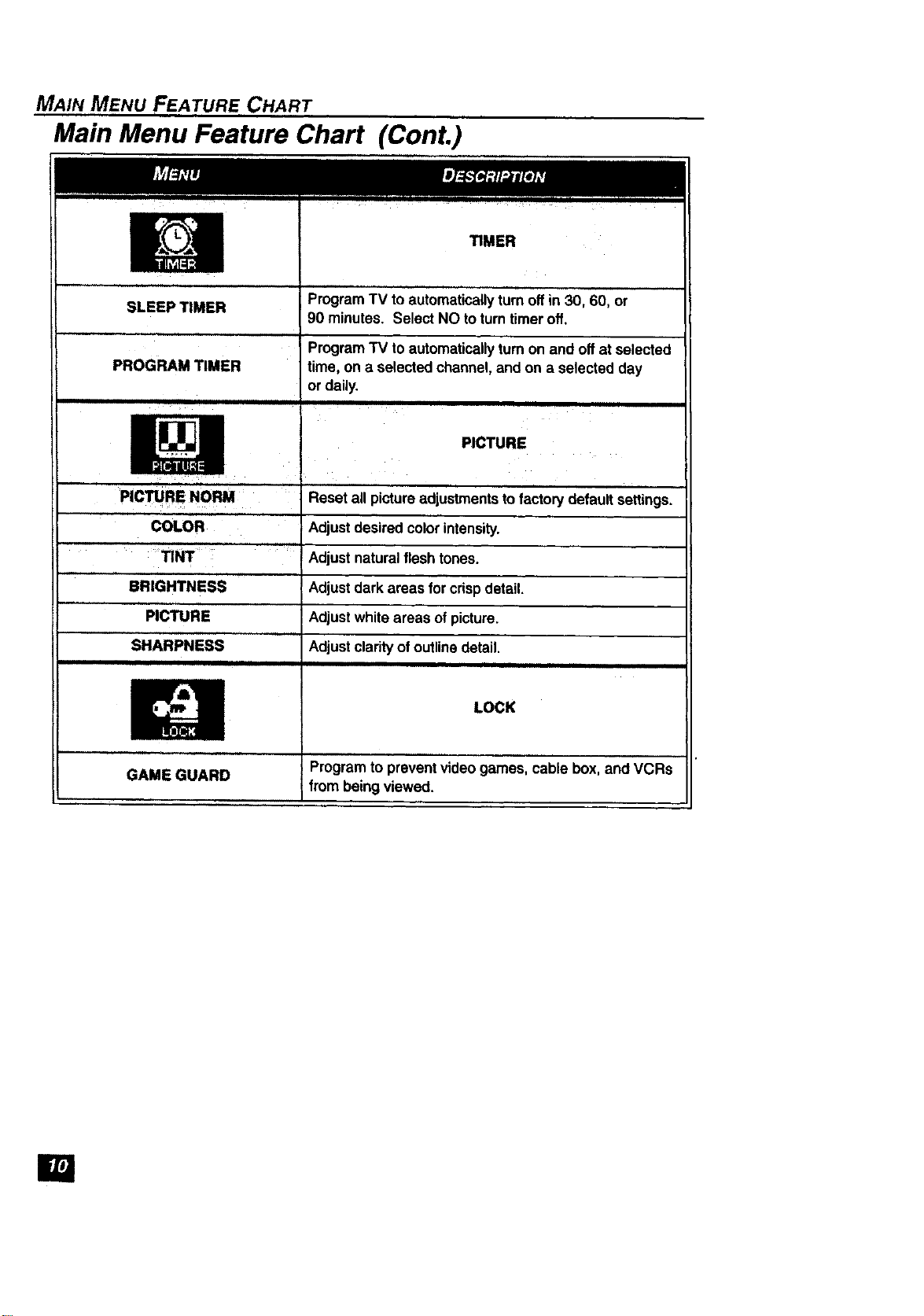
Main Menu Feature Chart (ConL)
TIMER
SLEEP TIMER
PROGRAM TIMER
PICTURE NORM
COLOR
TINT
Program TV toautomaticallyturnoff in 30, 60, or
90 minutes. Select NO toturntimer off,
ProgramTV toautomaticallyturnon and off at selected
time, on a selectedchannel,and on a selected day
or daily.
PICTURE
Reset all pictureadjustments to factorydefaultsettings.
Adjustdesired colorintensity.
Adjustnaturalflesh tones.
Adjustdark areas for crispdetail.
Adjustwhite areas ofpicture.
Adjustclarityof outlinedetail.
BRIGHTNESS
PICTURE
SHARPNESS
i .oc
GAME GUARD Programto preventvideogames, cable box,and VCRs
from being viewed.
El
Special Features
SPECIAL FEATURES
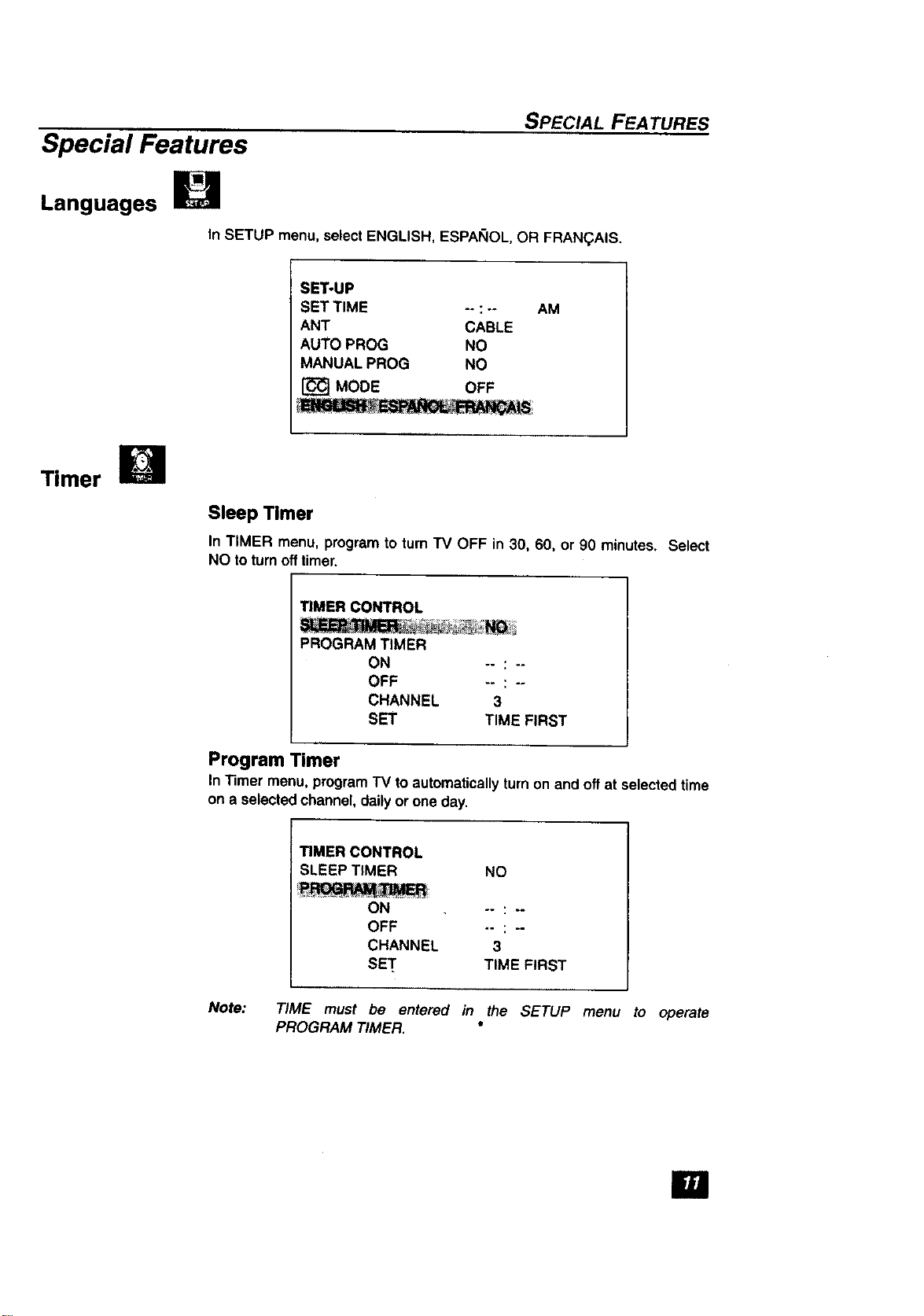
Languages
In SETUP menu, select ENGLISH, ESPANOL, OR FRAN(_.A$S.
SET-UP
SET TIME -- : --
ANT CABLE
AUTO PROG NO
MANUAL PROG NO
[_ MODE OFF
AM
Timer
Sleep Timer
In TIMER menu, programto turn TV OFF in 30, 60, or 90 minutes. Select
NO toturnofftimer.
TIMER CONTROL
PROGRAM TIMER
ON -- : --
OFF -- : --
CHANNEL 3
SET TIME FIRST
Program Timer
In Timer menu, programTV toautomaticallyturnon and offat selectedtime
on a selectedchannel, dailyor one day.
TIMER CONTROL
SLEEP TIMER NO
ON
OFF
CHANNEL
SET
-- _ --
3
TIME FIRST
Note: TIME must be entered in the SETUP menu to operate
PROGRAM TIMER. °
im
SPECIAL FEATURES
\11
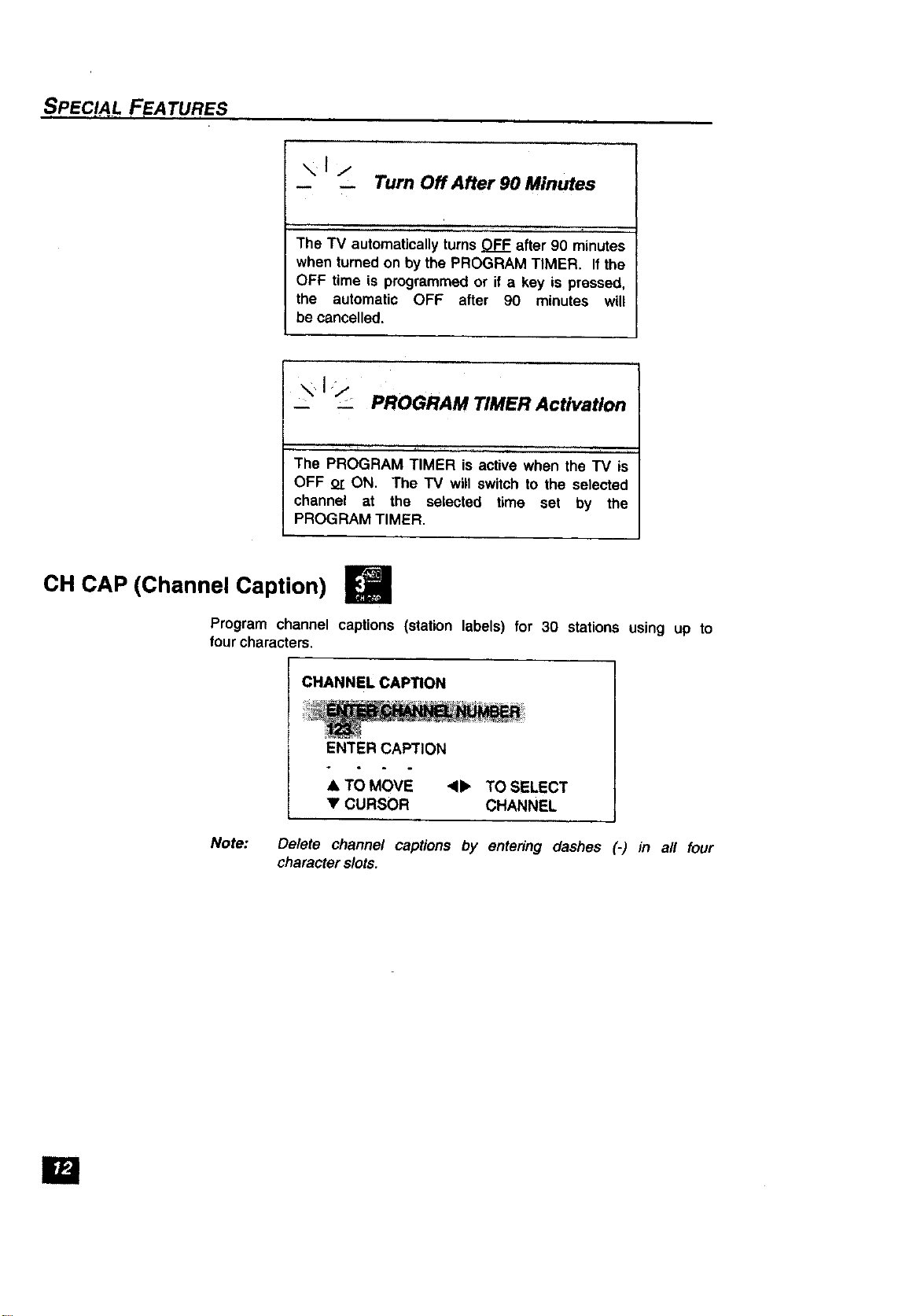
Turn Off After 90 Minutes
The TV automaticallyturns OFF after 90 minutes
when turned on by the PROGRAM TIMER. If the
OFF time is programmed or if a key is pressed,
the automatic OFF after 90 minutes will
be cancelled.
\ I/, PROGRAM TIMER Activation
The PROGRAM TIMER is active when the TV is
OFF or ON. The TV will switch to the selected
channel at the selected time set by the
PROGRAM TIMER,
CH CAP (Channel Caption) I_
Program channel captions (station labels) for 30 stations using up to
four characters.
Note:
CHANNELCAP_ON
ENTER CAPTION
A TO MOVE 4_ TO SELECT
• CURSOR CHANNEL
Delete channel captions by entering dashes (-) in all four
character slots.
ID
LOCK
SPECIAL FEATURES
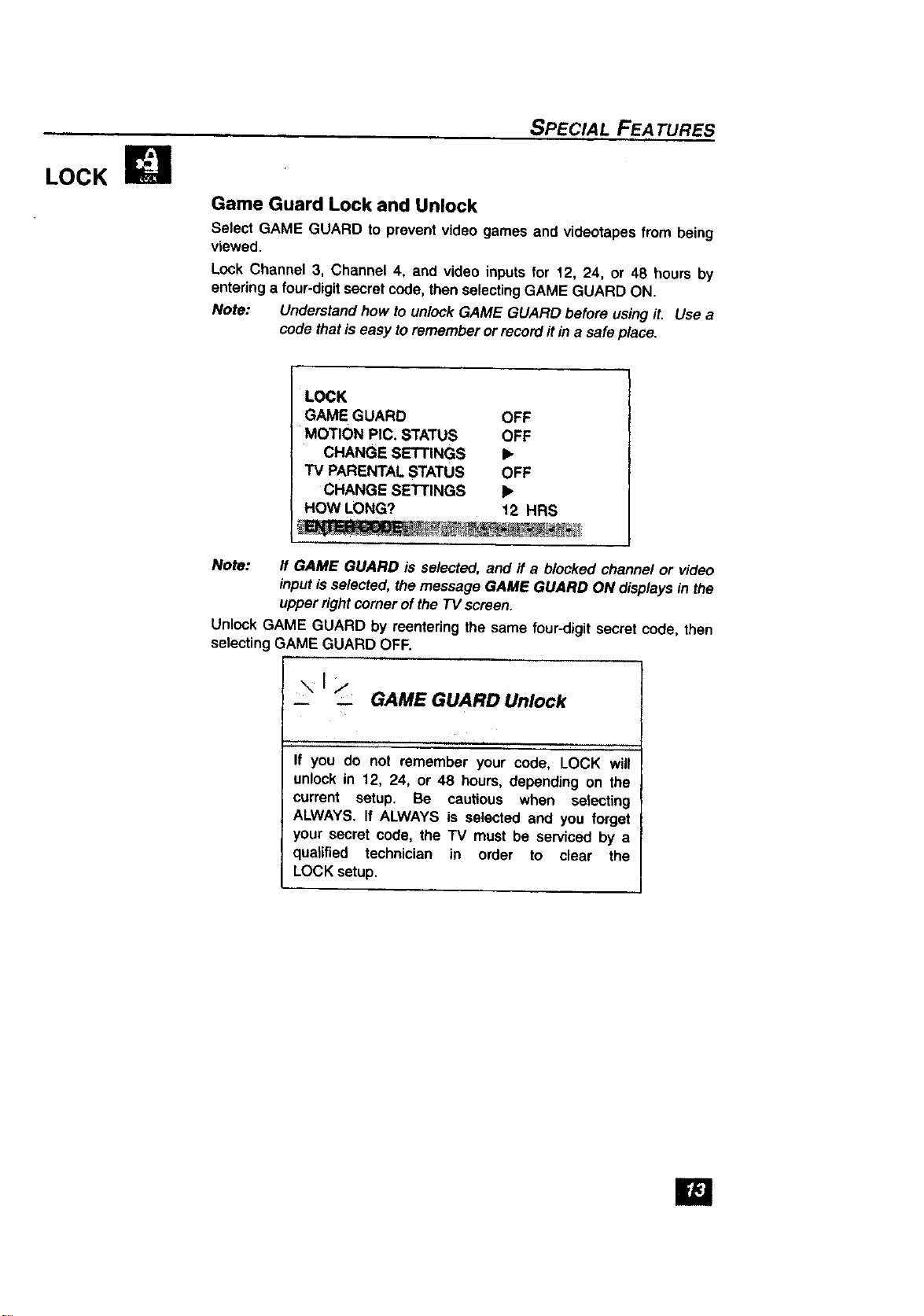
Game Guard Lock and Unlock
Select GAME GUARD to prevent video games and videotapes from being
viewed.
Lock Channel 3, Channel 4, and video inputs for 12, 24, or 48 hours by
enteringa four-digitsecret code,then selectingGAME GUARD ON.
Note: Understandhow to unlock GAME GUARD before using it, Use a
code thatis easy toremember or recorditin a safe place.
LOCK
GAME GUARD OFF
MOTION PIC, STATUS OFF
CHANGE SETTINGS I_
TV PARENTAL STATUS OFF
CHANGE SETTINGS I_
HOW LONG? 12 HRS
Note: If GAME GUARD is selected, and ff a blocked channel or video
inputisselected, the message GAME GUARD ON displays in the
upperrightcorner ofthe TVscreen.
Unlock GAME GUARD by reentering the same four-digitsecret code, then
selecting GAME GUARD OFF.
,,. I _,. GAME GUARD Unlock
If you do not remember your code, LOCK will
unlock in 12, 24, or 48 hours, depending on the
current setup. Be cautious when selecting
ALWAYS. If ALWAYS is selected and you forget
your secret code, the TV must be serviced by a
qualified technician in order to clear the
LOCK setup.
El
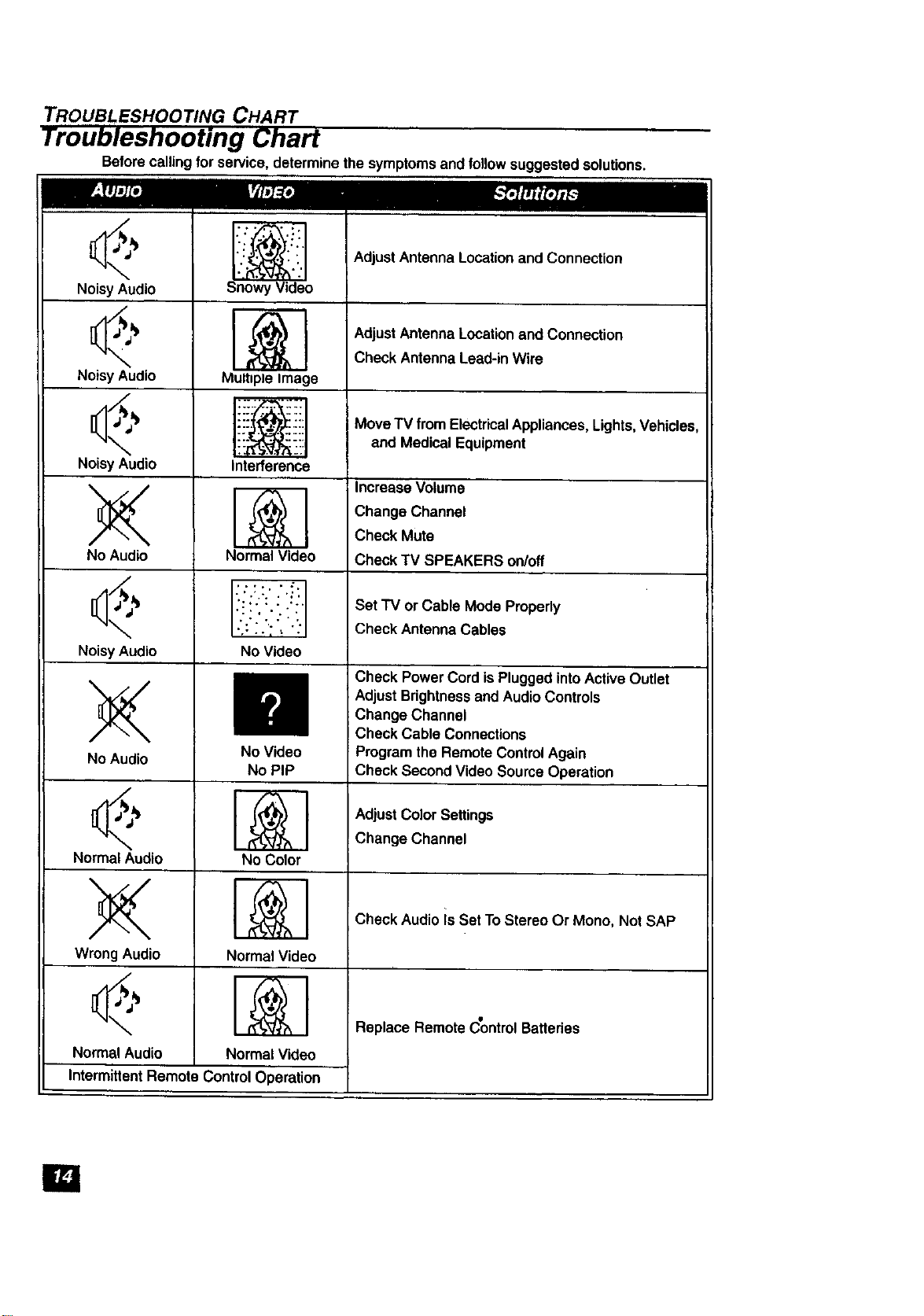
TROUBLESHOOTING CHART
Troubleshooting Chart
Beforecallingfor service,determine the symptomsand followsuggestedsolutions.
Noisy Audio
Noisy Audio
NoisyAudio
;<
No Audio
Noisy Audio
No Audio
Normal Audio
WrongAudio
Normal Audio
nowy Video
Mult=pleImage
Interference
Normal Video
:!!'i:.:.-:i'
No Video
No Video
No PIP
No Color
_ ta_
Normal Video
%,
NormalVideo
Adjust Antenna Location and Connection
AdjustAntennaLocation and Connection
Check Antenna Lead-in Wire
Move TV from ElectricalAppliances,Lights, Vehicles,
and Medical Equipment
IncreaseVolume
Change Channel
Check Mute
Check TV SPEAKERS on/off
Set TV or Cable Mode Properly
Check Antenna Cables
Check Power Cord is PluggedintoActive Outlet
AdjustBrightnessand AudioControls
Change Channel
Check Cable Connections
Programthe Remote ControlAgain
Check SecondVideo SourceOperation
AdjustColor Settings
Change Channel
Check Audio is Set To Stereo Or Mono, Not SAP
Replace Remote ControlBattedes
IntermittentRemote ControlOperation
I=i

NOTFR
lla

NOTES
Panasoflic Consumer Electronics Company,
Division of Matsushlta
Electric Corporation of America
One Panasonic Way
Secaucus. New Jersey 07094
www.panasonic.com
(800) 222-4213
El
Panasonic de Mexico, S.A, de C.V.
Amores No. 1120
Col. Del Valle C.P. 03100
M_xico, D.F.
Tel. (915 6 015) 488-1C00
Fax (915 _)015) 575-6763, 575-6765
Panasonlc Sales Company,
Division of Matlushlta Electric
of Puerto Rico Inc. ("PSC")
Ave. 65 de Infanteria, Km 9.5
San Gabriel Industrial Park
Carolina, Puerto Rico 00985
Tel. (787) 750-1300
Fax {787) 768-2910

