Panasonlc
Color Television
Operating Instructions
CT-27G33 CT-32G33
CT-36G33
TQB2AA0260
PRINTED IN MEXICO 80306
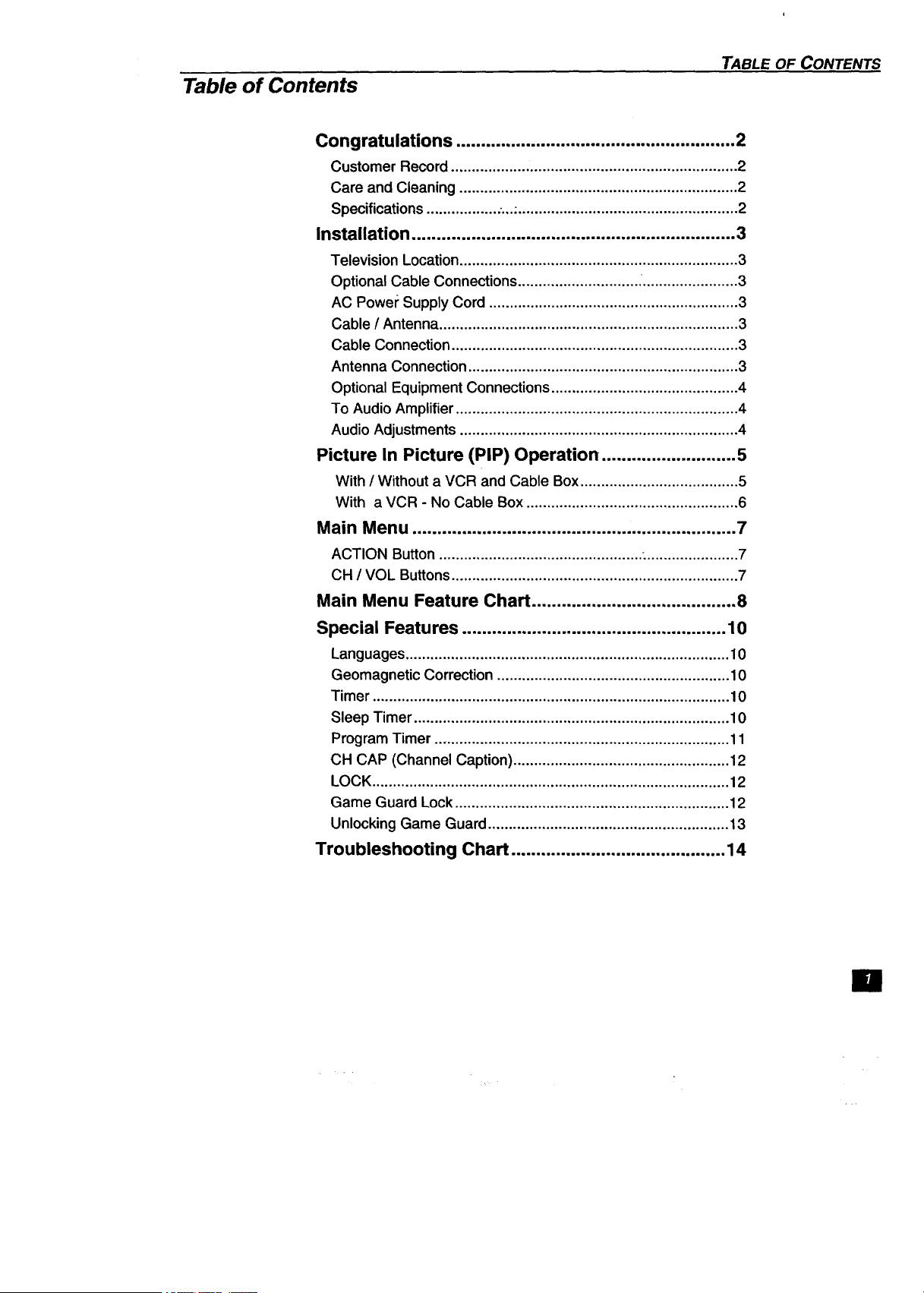
Table of Contents
TABLE OF CONTENTS
Congratulations ........................................................ 2
Customer Record ..................................................................... 2
Care and Cleaning ................................................................... 2
Specifications ................. ,.,....................................................... 2
Installation ................................................................. 3
Television Location................................................................... 3
Optional Cable Connections............................. :....................... 3
AC Power Supply Cord ............................................................ 3
Cable / Antenna........................................................................ 3
Cable Connection..................................................................... 3
Antenna Connection................................................................. 3
Optional Equipment Connections............................................. 4
To Audio Amplifier.................................................................... 4
Audio Adjustments ................................................................... 4
Picture In Picture (PIP) Operation ........................... 5
With / Without a VCR and Cable Box...................................... 5
With a VCR - No Cable Box ................................................... 6
Main Menu ................................................................. 7
ACTION Button ................................................. :...................... 7
CH / VOL Buttons..................................................................... 7
Main Menu Feature Chart ......................................... 8
Special Features ..................................................... 10
Languages.............................................................................. 10
Geomagnetic Correction ........................................................ 10
Timer ...................................................................................... 10
Sleep Timer ............................................................................ 10
Program Timer ....................................................................... 11
CH CAP (Channel Caption).................................................... 12
LOCK...................................................................................... 12
Game Guard Lock .................................................................. 12
Unlocking Game Guard.......................................................... 13
Troubleshooting Chart ........................................... 14
Ill
CONGRA TULA TIONS
Congratulations
Your new TV features a solid state chassis that is designed to give you many years of
enjoyment. It was thoroughly tested and tuned at the factory for best performance.
Customer Record
Themodelandserialnumberofthisproductarelocatedon thebackoftheTV. Youshouldnote
themodeland serialnumberinthe spaceprovidedand retainas a permanentrecordofyour
purchase. This willaid in identificationin the event of theft or loss.Productregistratienis
availableat www.prodreg.com/panasonic.
Model
Number
Serial
Number
Care and Cleaning
Screen (Turn TV Off)
• Use a mild soap solutionor window cleaner with a soft clean cloth. DO NOT USE
ABRASIVE CLEANERS.
• Avoidexcessivemoistureandwipedry.
Cabinet and Remote Control
D For plastic cabinets and Remote Control, use a soft cloth dampened with water or a mild
detergent solution. Avoid excessive moisture and wipe dry.
O For wooden cabinets, use a soft cloth and an occasional coat of furniture polish to preserve
the finish.
rl Do not use benzene, thinner or other petroleum based products.
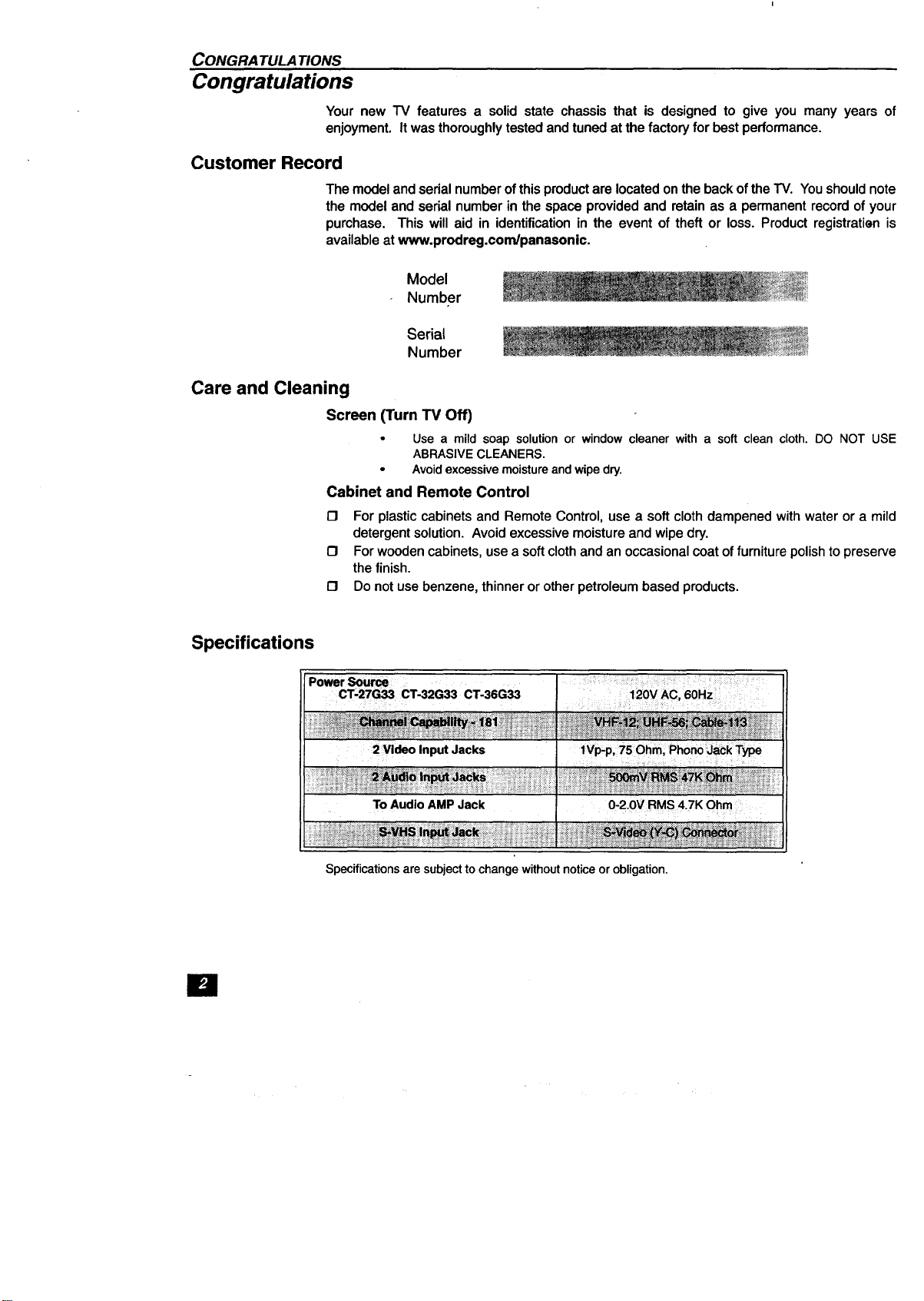
Specifications
PowerSou_
CT;27G33 CT-32G33 CT-36G33
i
2 Video InputJacks
=i
To AudioAMPJack
IVp,p,75Ohm; PhonoJack Type
Specifications are subject to change without notice or obligation.
Installation
INSTALLATION
Television Location
This unit is intended to be used with an optional stand or entertainment center. Consult y_
dealer for available options.
O Avoid excessive sunlightor brightlights,including reflections.
13 Keep away from excessive heat or moisture. Inadequate ventilation may cause internal
component failure.
13 Fluorescent lighting may reduce Remote Controltransmitting range.
C3 Avoid magnetic equipment,includingmotors,fans, or external speakers.
Optional Cable
Connections
Shielded audio and video cables should be used between components. For best results:
13 Use 75-ohm coaxial shielded cables.
13 Check type of output and input connectors on your components.
13 Determine required cable lengths.
AC Power Supply Cord
CAUTION: TO PREVENT ELECTRIC SHOCK, MATCH WIDE BLADE OF PLUG TO
WIDE SLOT OF AC OUTLET AND FULLY INSERT, DO NOT USE A PLUG WITH A
RECEPTACLE OR OTHER OUTLET UNLESS THE BLADE CAN BE FULLY
INSERTED TO PREVENT BLADE EXPOSURE. FOR SOME MODELS THAT ARE
NON-POLARIZED, THE USE OF AN AC ADAPTOR CONNECTOR MAY
BE NECESSARY.
Polarized plug
Cable / Antenna
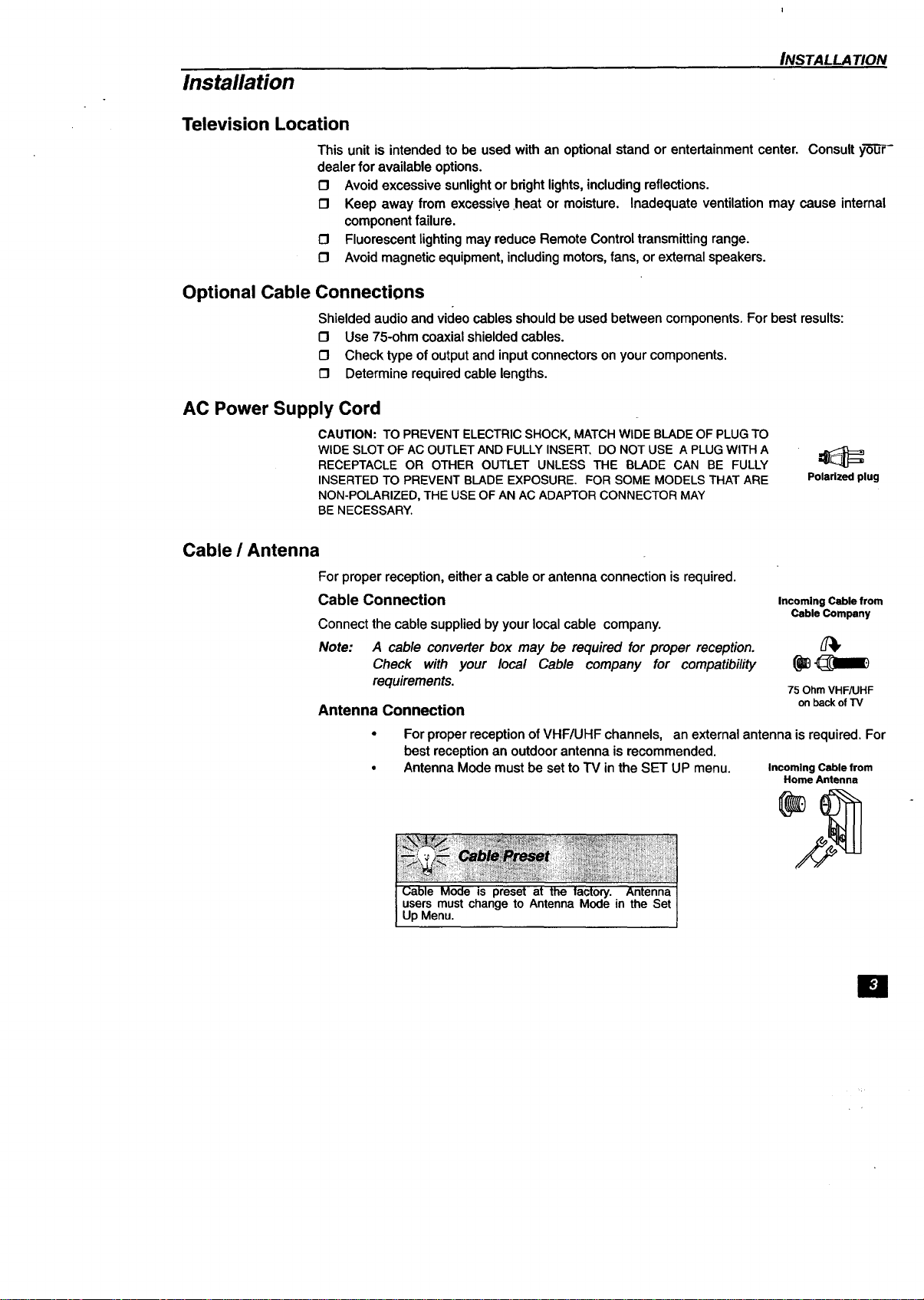
Forproper reception,eithera cable or antennaconnectionisrequired.
Cable Connection
Connectthecablesuppliedbyyourlocalcable company.
Note: A cable converterbox may be requiredfor proper reception.
Check with your local Cable company for compatibility
requirements.
Antenna Connection
Incoming Cable from
Cable Company
75 Ohm VHF/UHF
on back of TV
For proper reception of VHF/UHF channels, an external antenna is required. For
best reception an outdoor antenna isrecommended.
Antenna Mode must be set to TV in the SET UP menu. Incoming Cable from
Home Antenna
users must change to Antenna Mode in the Set
Up Menu.
m
INSTALLATION
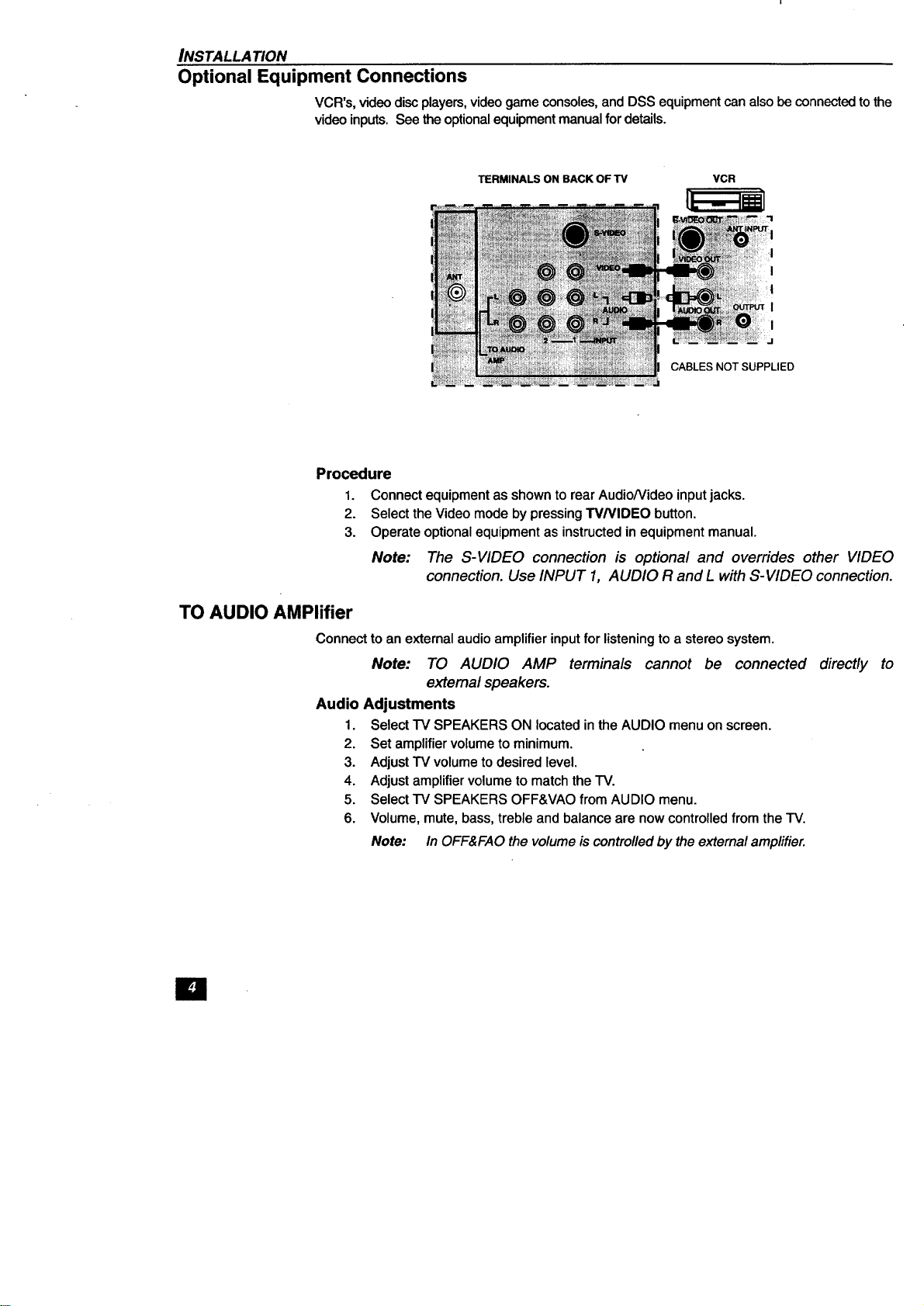
Optional Equipment Connections
VCR's, video discplayers,video game consoles,and DSS equipment can also be connectedto the
video inputs. See the optionalequipment manual fordetails.
TERMINALS ON BACK OF "rv VCR
I
i
J
CABLES NOT SUPPLIED
Procedure
1. Connectequipmentas shown torear Audio/Videoinputjacks.
2. SelecttheVideomode bypressingW/VIDEO button.
3. Operateoptionalequipmentas instructedin equipmentmanual.
Note: The S-VIDEO connection is optional and overrides other VIDEO
connection. Use INPUT 1, AUDIO R and L withS-VIDEO connection.
TO AUDIO AMPlifier
Connect to an external audio amplifier input for listeningto a stereo system.
Note: TO AUDIO AMP terminals cannot be connected
external speakers.
Audio Adjustments
1. Select IV SPEAKERS ON located in the AUDIO menu on screen.
2. Set amplifier volume to minimum.
3. Adjust TV volume to desired level.
4. Adjust amplifier volume to match the "IV.
5. Select TV SPEAKERS OFF&VAO from AUDIO menu.
6. Volume, mute, bass, treble and balance are now controlled from the TV.
Note: In OFF&FAO the volume is controlled by the external amplifier.
directly to
ml
Picture In Picture (PIP) Operation
PICTURE IN PICTURE (PIP) OPERATION
With I Without A VCR And Cable Box
This television includes a two tuner Picture In Picture (PIP) feature. This allows watching'_o-
(2) live broadcasts at the same time without or with an external video source (VCR).
Without A VCR (External Video Source)
Procedure
• Connect incomingcable to antenna (ANT) input on back of TV.
• Press the PIP button on the Remote Control to display the PIP frame.
Note: The audio is for the Main Picture, only.
• - Choose. channels for the PiP frame by pressing the Remote Control PIP
CHANNEL up/down buttons.
• Choose channels for the Main Picture by pressing the Remote Control CH
up/down buttons or by using the numedc keypad.
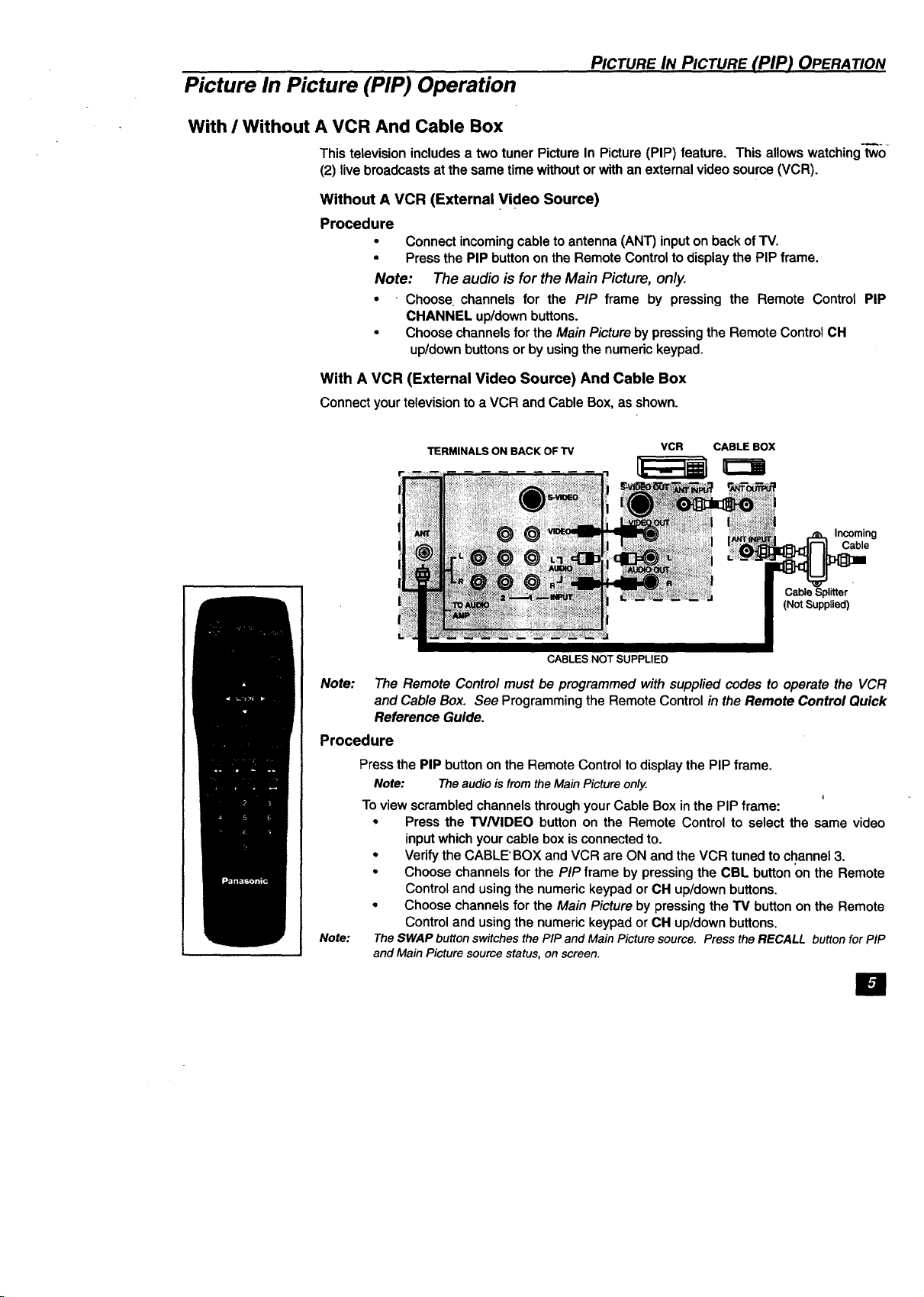
With A VCR (External Video Source) And Cable Box
Connectyourtelevisiontoa VCR andCableBox,as shown.
TERMINALS ON BACK OF TV
VCR CABLEBOX
Incoming
Cable
Cable Splitter
(Not Supplied)
CABLES NOT SUPPLIED
Note: The Remote Control must be programmed with supp/ied codes to operate the VCR
and Cab/e Box. See Programming the Remote Control in the Remote Control Quick
Reference Guide.
Procedure
Note:
Press the PIP button on the Remote Control to display the PIP frame.
Note: TheaudioisfromtheMain Pictureonly.
i
To view scrambled channels through your Cable Box in the PIP frame:
• Press the W/VIDEO button on the Remote Control to select the same video
input which your cable box isconnected to.
• Verify the CABLE'BOX and VCR are ON and the VCR tuned to channel 3.
• Choose channels for the PiP frame by pressing the CBL button on the Remote
Control and using the numeric keypad or CH up/down buttons.
• Choose channels for the Main Picture by pressing the TV button on the Remote
Control and using the numeric keypad or CH up/down buttons.
TheSWAPbutton switchesthePIPand MainPicturesource. PresstheRECALL button forPiP
andMain Picturesourcestatus,onscreen.
El
PICTURE IN PICTURE (PIP) OPERATION (CONT.)
Picture In Picture (PIP) Operation (Cont.)
With a VCR - No Cable Box
This television includes a two tuner Picture In Picture (PIP) feature. This allows watching two
(2) live broadcasts at the same time withoutor with an extemal video source (VCR).
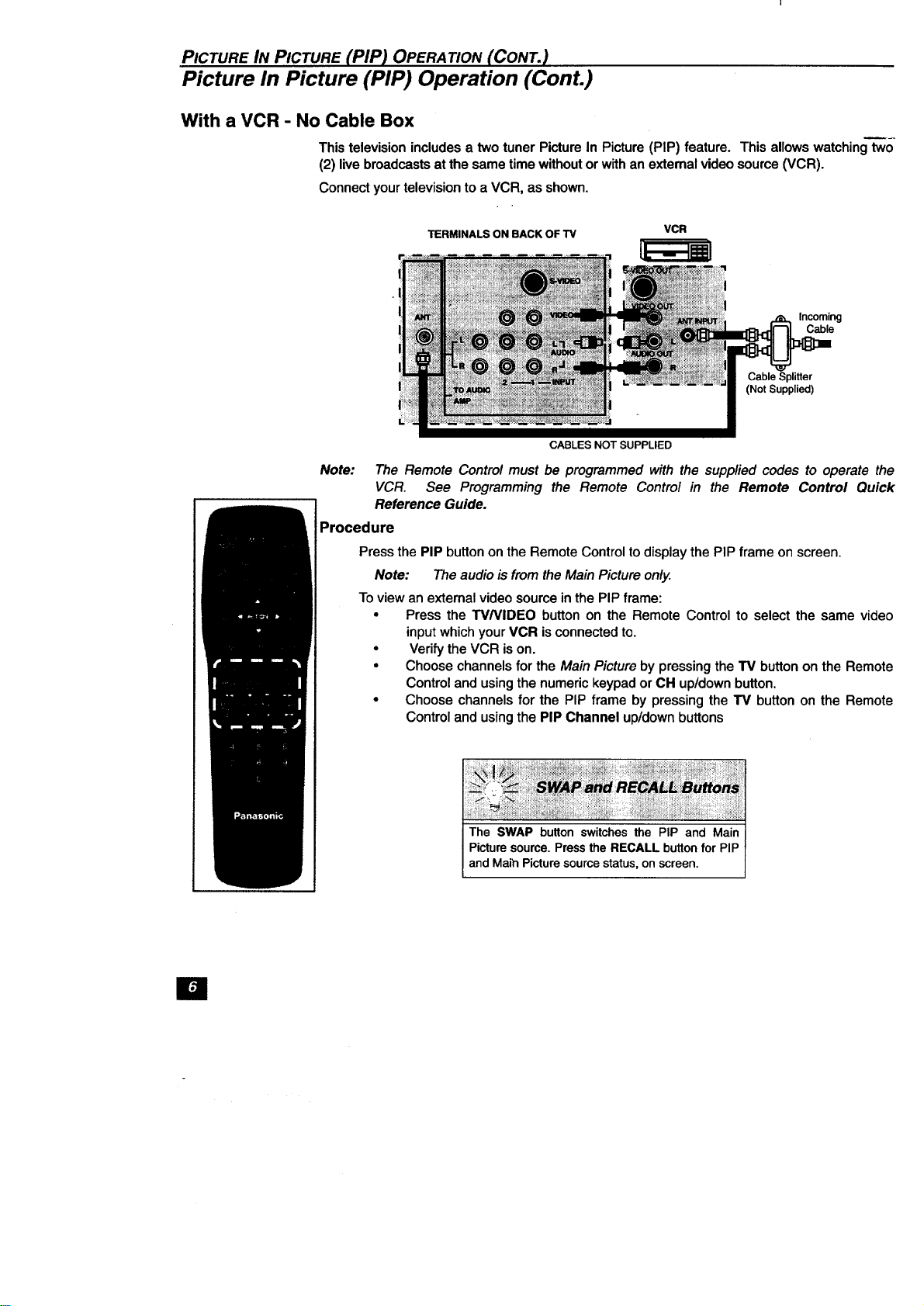
Connect your television to a VCR, as shown.
TERMINALS ON BACK OF TV
VCR
Incoming
Cable
Cable Splitter
(Not Supplied)
CABLES NOT SUPPLIED
Note: The Remote Control must be programmed with the supplied codes to operate the
VCR. See Programming the Remote Control in the Remote Control Quick
Reference Guide.
Procedure
Press the PIP button on the Remote Control todisplay the PIP frame on screen.
Note: The audio is from the Main Picture only.
To view an external video source in the PIP frame:
• Press the W/VIDEO button on the Remote Control to select the same video
inputwhich your VCR is connected to.
• Vedfy the VCR ison.
• Choose channels for the Main Picture by pressing the TV button on the Remote
Control and using the numeric keypad or CH up/down button.
• Choose channels for the PIP frame by pressing the TM button on the Remote
Control and using the PIP Channel up/down buttons
The SWAP button switches the PIP and Main
Picture source. Press the RECALL button for PIP
and Main Picture source status, on screen.
lal
Main Menu
MAIN MENU
Main Menu
I_111
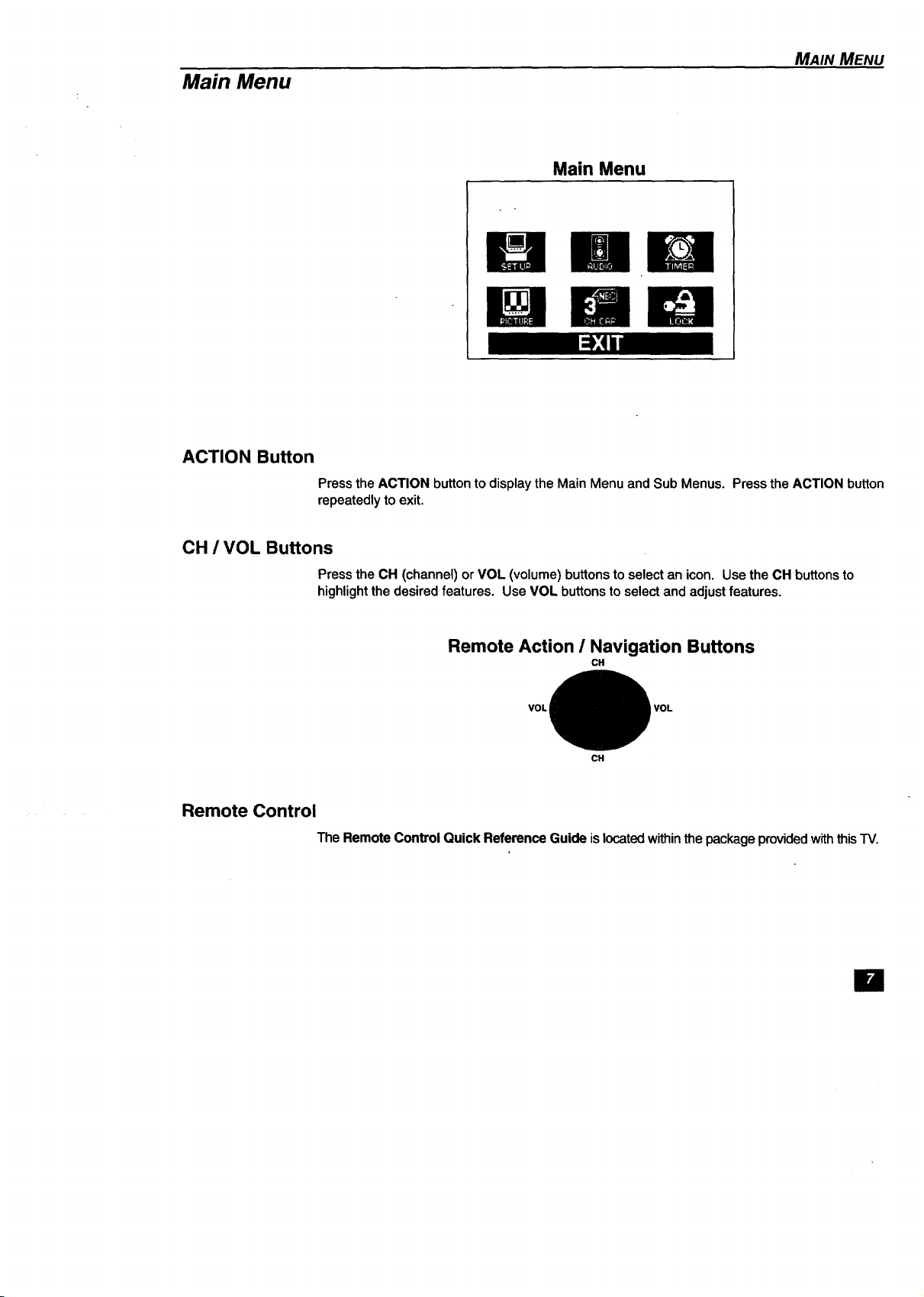
ACTION Button
Press the ACTION button to display the Main Menu and Sub Menus. Press the ACTION button
repeatedly to exit.
CH / VOL Buttons
Press the CH (channel) or VOL (volume) buttons to select an icon. Use the CH buttons to
highlightthe desired features. Use VOL buttons to select and adjust features.
Remote Action / Navigation Buttons
CH
VOL
CH
VOL
Remote Control
The Remote Control Quick Reference Guide is located withinthe package providedwiththis "IV.
IB
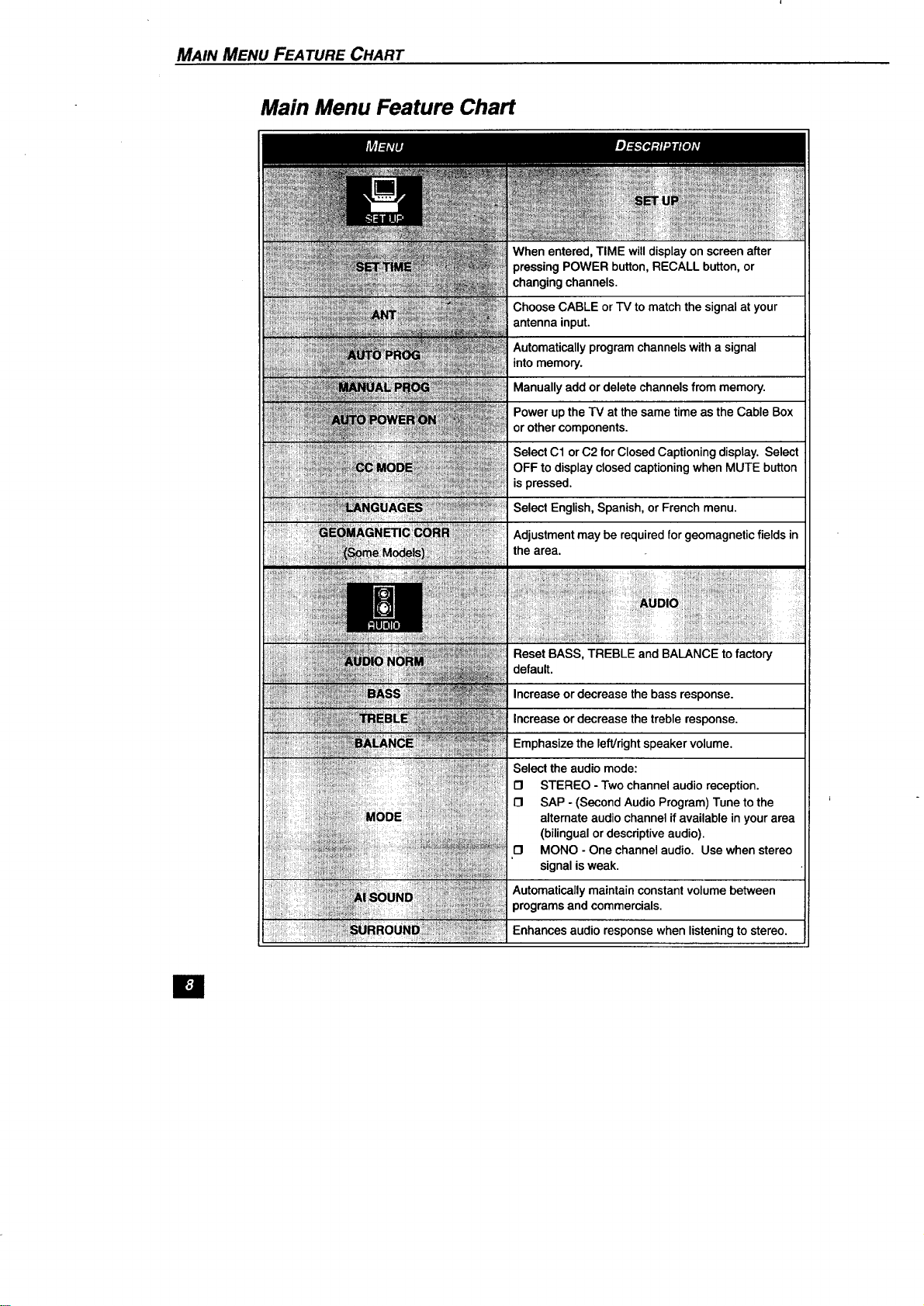
MAIN MENU FEATURE CHART
Main Menu Feature Chart
Reset BASS, TREBLE and BALANCE to factory
default.
Increase or decrease the bass response.
Increase or decrease the treble response.
Emphasize the left/right speaker volume.
Select the audio mode:
I"1 STEREO - Two channel audio reception.
13 SAP - (Second Audio Program) Tune to the
altemate audio channel if available in your area
(bilingual or descriptive audio).
13 MONO - One channel audio. Use when stereo
signal is weak.
Automatically maintain constant volume between
programs and commercials.
Enhances audio response when listening to stereo.
El
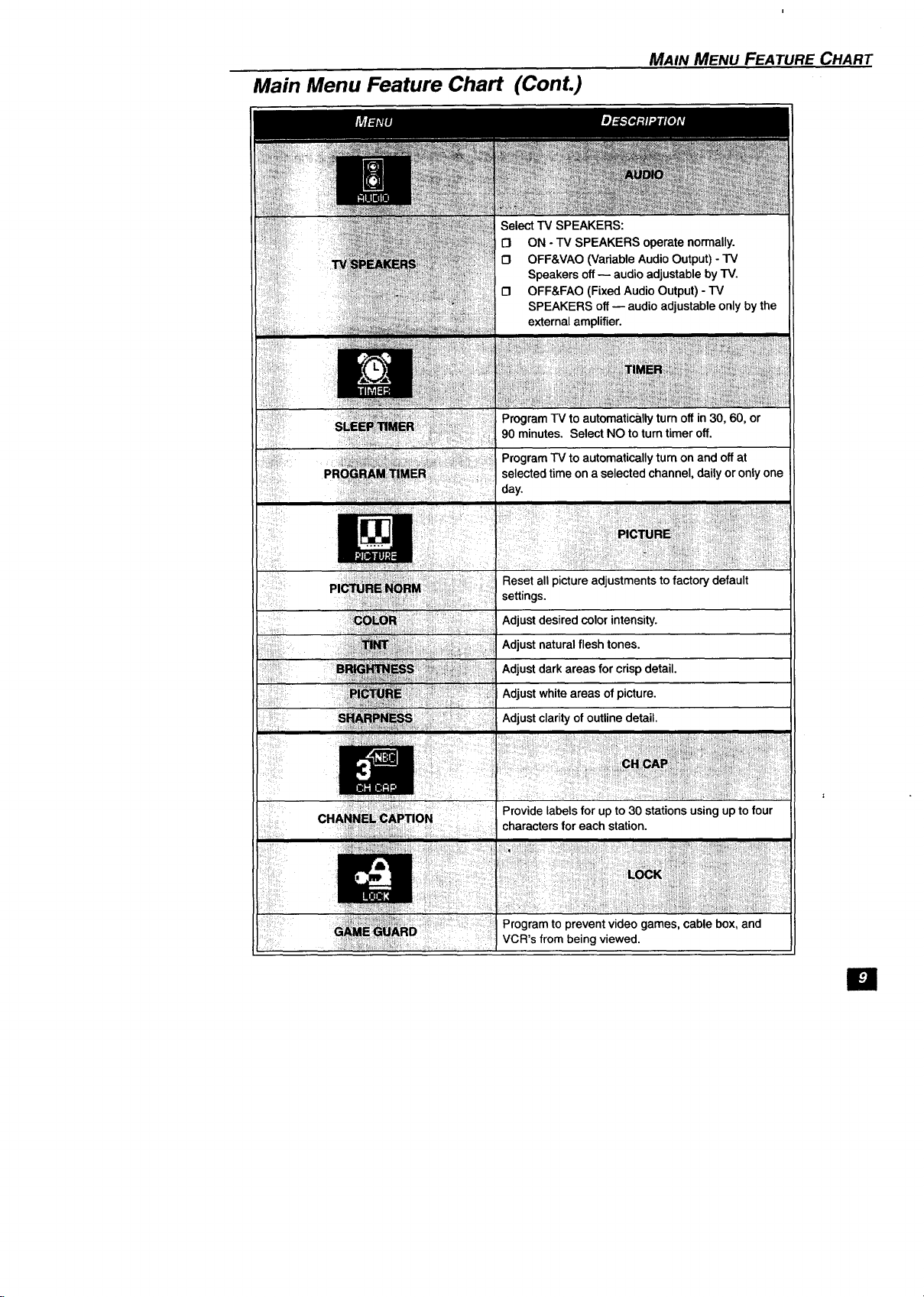
MAIN MENU FEATURE CHART
Main Menu Feature Chart (ConL)
Select TV SPEAKERS:
D ON - TV SPEAKERS operate normally.
O OFF&VAO (Variable Audio Output) - TV
Speakers off -- audio adjustable by -rv.
[3 OFF&FAO (Fixed Audio Output) - TV
SPEAKERS off -- audio adjustable only by the
external amplifier.
Program TV to automatically turn off in30, 60, or
90 minutes. Select NO to turn timer off.
Program TV to automatically turn on and off at
selected time on a selected channel, daily or only one
day.
Reset all picture adjustments to factory default
settings.
Adjust desired color intensity.
Adjust natural flesh tones.
Adjust dark areas for crisp detail.
Adjust white areas of picture.
Adjust clarity of outline detail.
;;!ii ! iiiiiiili!i!ii_i
Provide labels for up to 30 stations using up to four
characters for each station.
Program to prevent video games, cable box, and
VCR's from being viewed.
El
SPECIAL FEATURES
Special Features
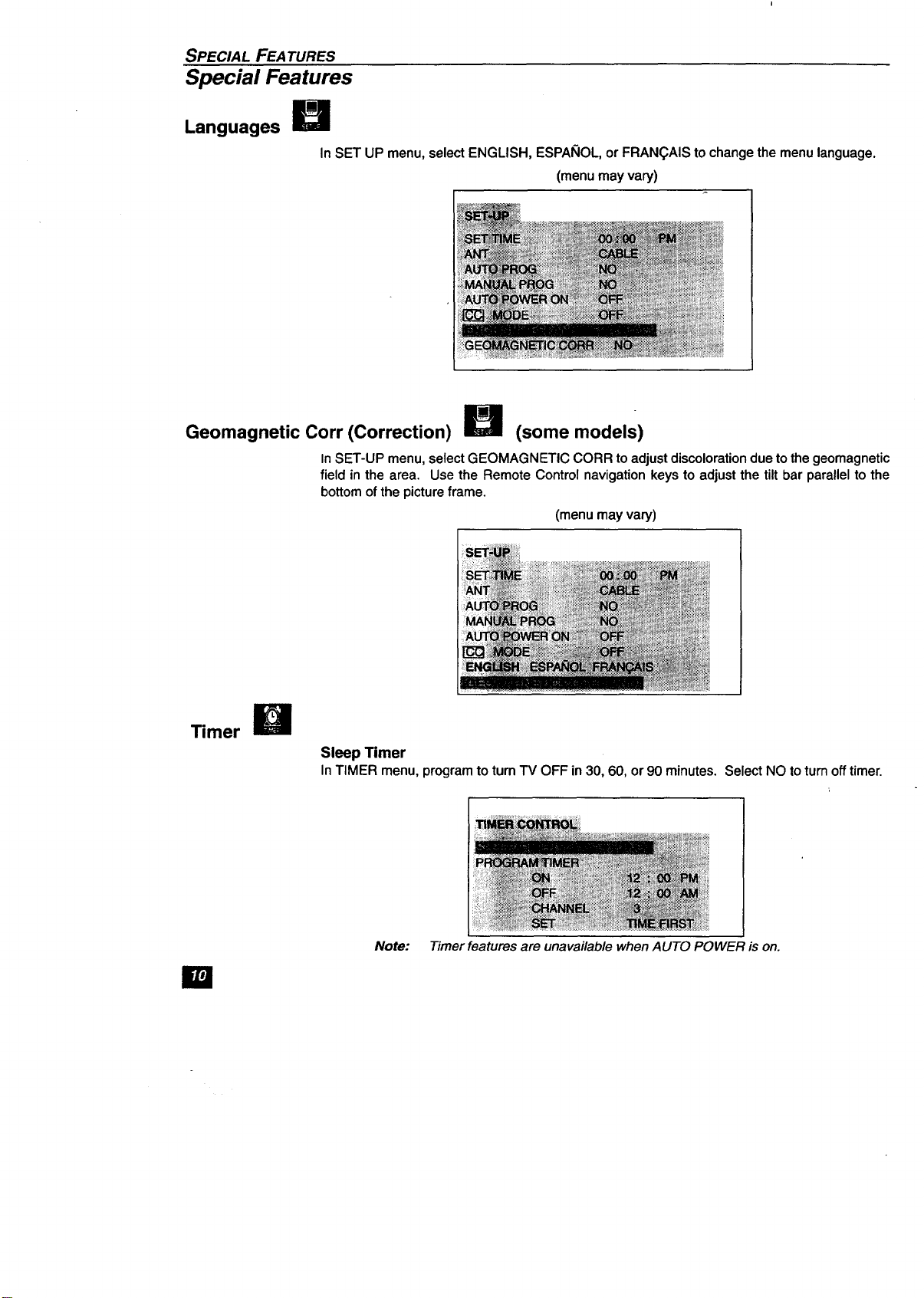
Languages
In SET UP menu, select ENGLISH, ESPAI_IOL,or FRAN(_AIS to change the menu language.
(menu may vary)
m
Geomagnetic Corr (Correction) M (some models)
In SET-UP menu, select GEOMAGNETIC CORR to adjust discolorationdue to the geomagnetic
field in the area. Use the Remote Control navigation keys to adjust the tilt bar parallel to the
bottom ofthe pictureframe.
(menu may vary)
Timer I_
Sleep Timer
In TIMER menu, program to tum TV OFF in 30, 60, or 90 minutes. Select NO to turnoff timer.
la
Note: Timer features are unavailable whenAUTO POWER is on.
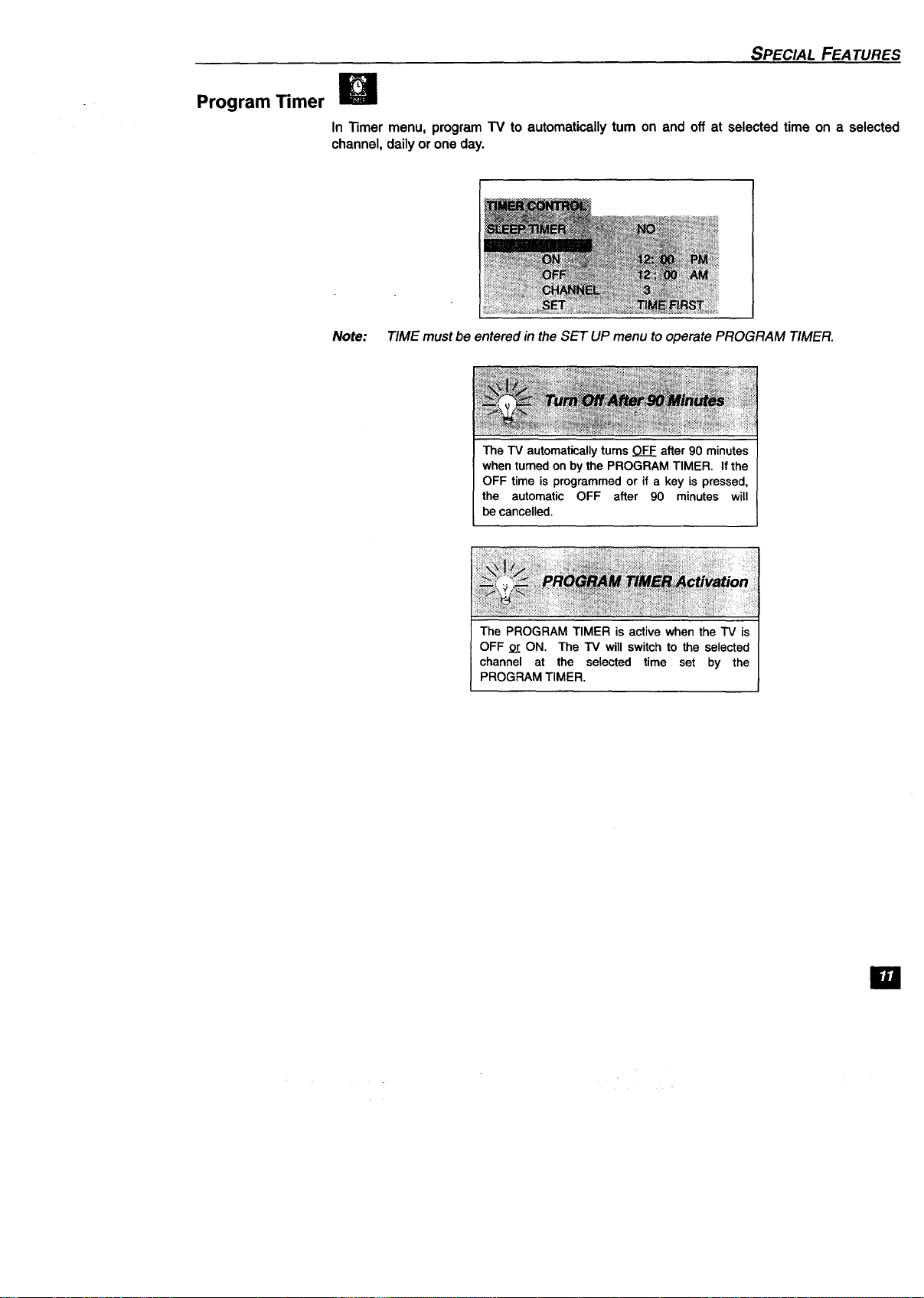
Program Timer
SPECIAL FEATURES
In "13mermenu, program TV to automatically tum on and off at selected time on a selected
channel, daily or one day.
Note: TIME must be entered in the SET UP menu to operate PROGRAM TIMER.
The TV automatically turns OFF after 90 minutes
when turned on by the PROGRAM TIMER. If the
OFF time is programmed or if a key is pressed,
the automatic OFF after 90 minutes will
be cancelled.
The PROGRAM TIMER is active when the TV is
OFF or ON. The TV will switch to the selected
channel at the selected time set by the
PROGRAM TIMER.
El
SPECIAL FEATURES
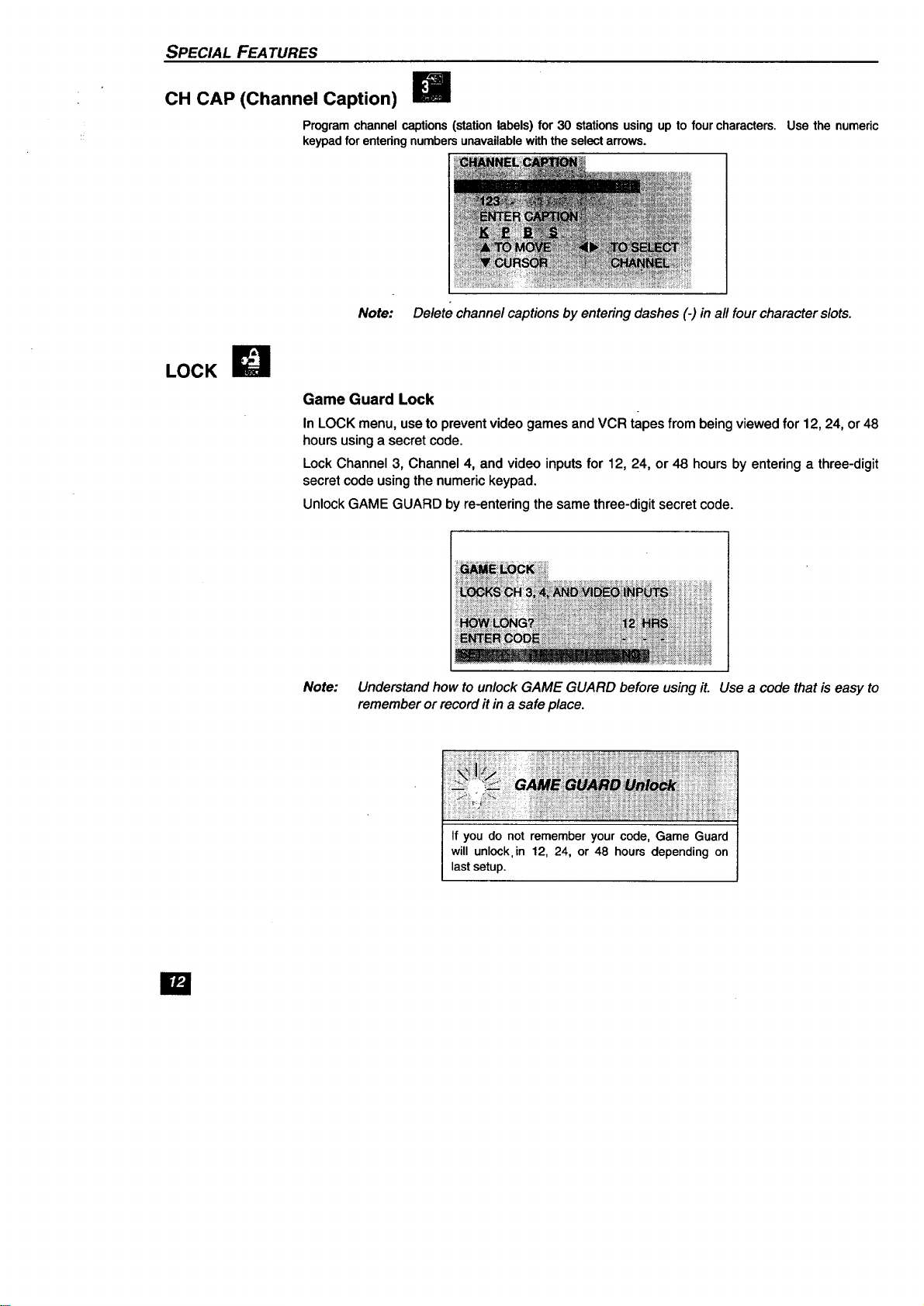
CH CAP (Channel Caption) I_
Programchannelcaptions(stationlabels)for 30 stationsusingup to fourcharacters,
keypadforentedngnumbersunavailablewiththeselectarrows.
Use the numeric
LOCK
Note: Delete channel captions by entering dashes (-) in all four character slots.
Game Guard Lock
In LOCK menu, use to prevent video games and VCR tapes from being viewed for 12, 24, or 48
hours using a secret code.
Lock Channel 3, Channel 4, and video inputs for 12, 24, or 48 hours by entering a three-digit
secret code using the numeric keypad.
Unlock GAME GUARD by re-entering the same three-digit secret code.
Note: Understand how to unlock GAME GUARD before using it. Use a code that is easy to
remember or record it in a safe place.
If you do not remember your code, Game Guard
will unlock,in 12, 24, or 48 hours depending on
last setup.
la
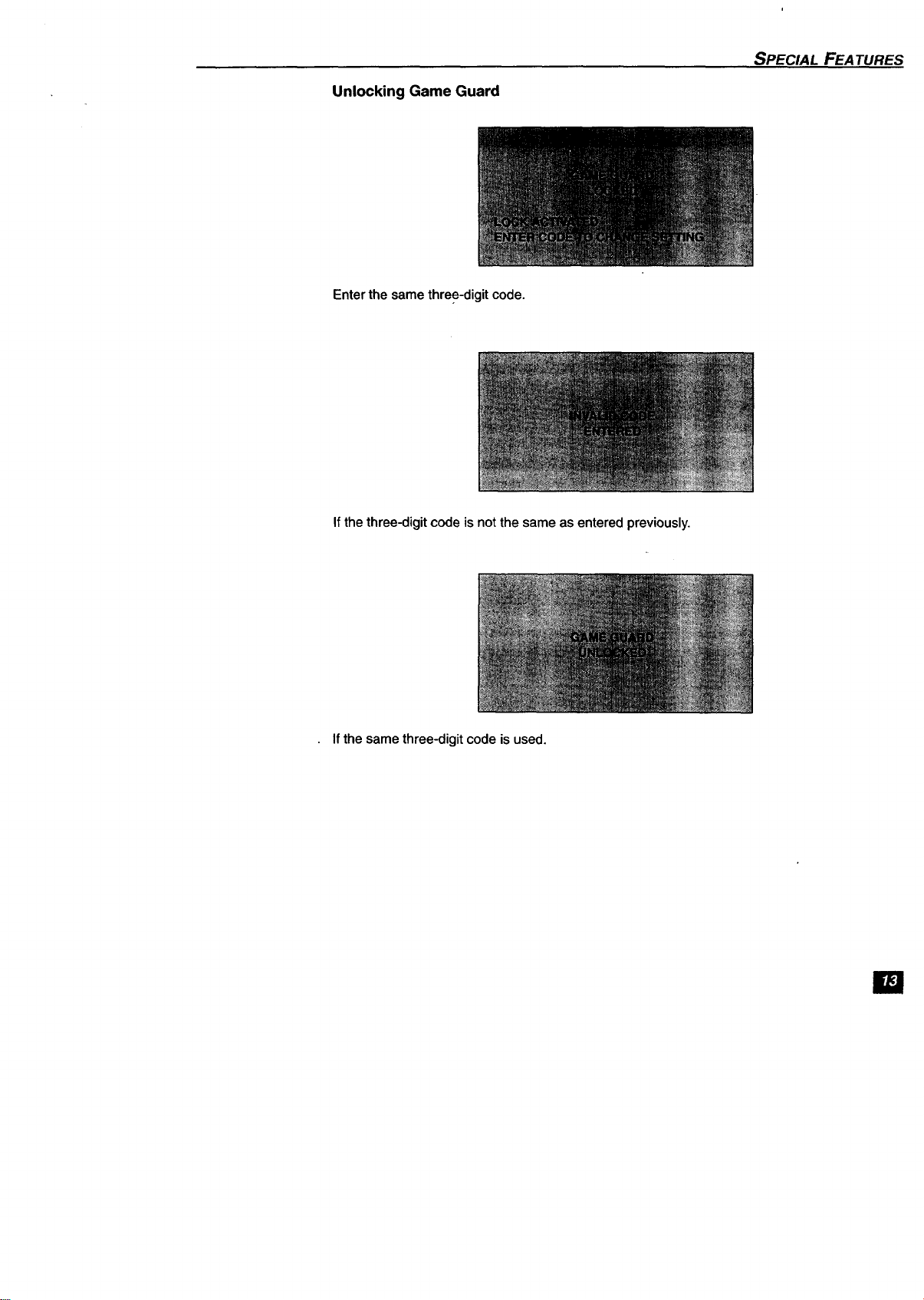
Unlocking Game Guard
SPECIAL FEATURES
Enter the same three-digit code.
If the three-digit code is not the same as entered previously.
Ifthe same three-digit code is used.
11
TROUBLESHOOTING CHART
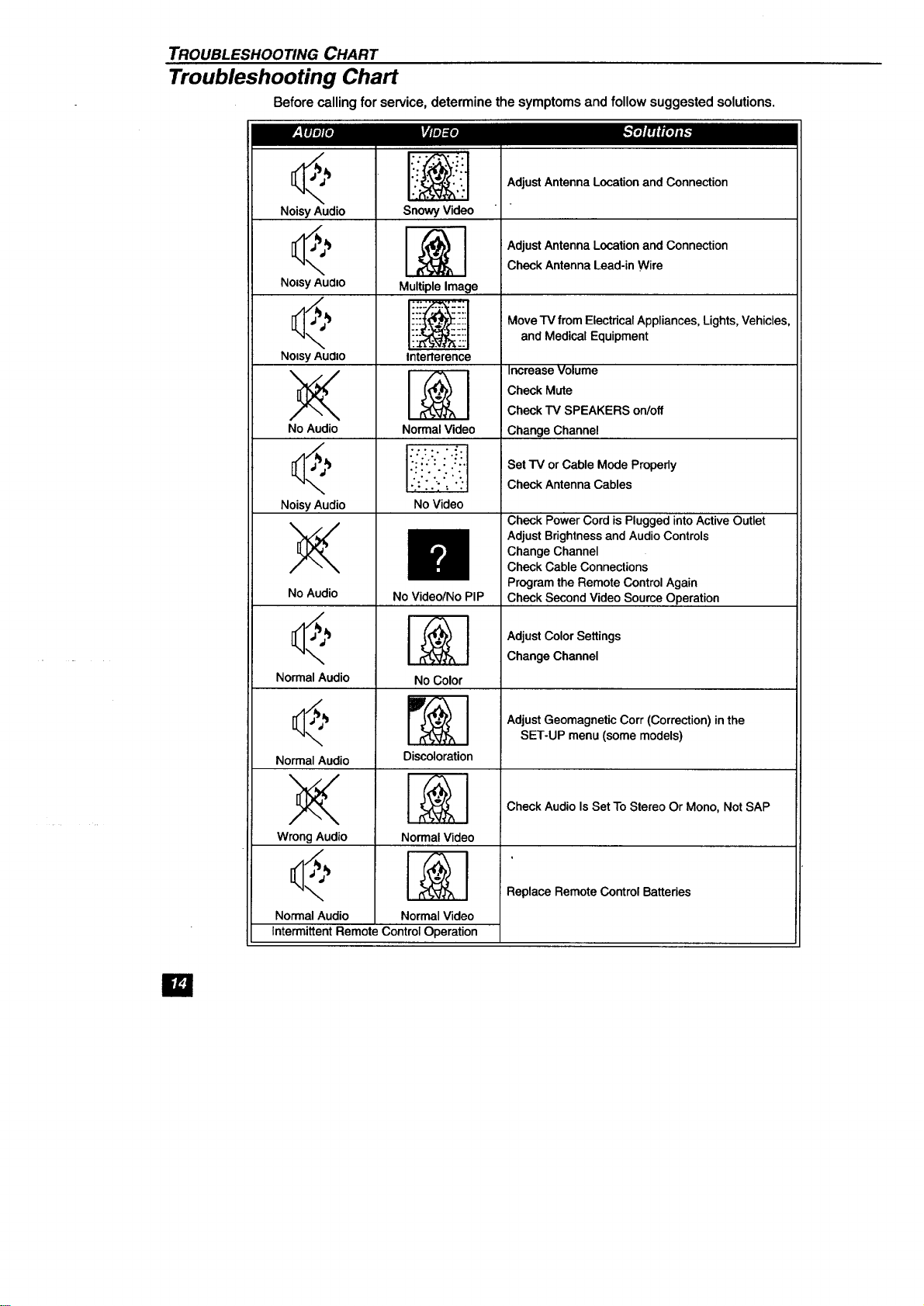
Troubleshooting Chart
Before calling for service, determine the symptoms and follow suggested solutions.
Noisy Audio
Noisy AudIO
Noisy AUdiO
No Audio
<,
Noisy Audio
No Audio
Normal Audio
Normal Audio
Wrong Audio
\
Normal Audio
Snowy Video
Multiple Image
,N
Intenerence
Normal Video
".':...::'.:.
• ;.o ....
.;:":.'.• '._.
No Video
No Video/No PIP
R
No Color
Discoloration
Normal Video
Normal Video
Intermittent Remote Control Operation
Adjust Antenna Location and Connection
Adjust Antenna Location and Connection
Check Antenna Lead-in Wire
Move TV from Electrical Appliances, Lights,Vehicles,
and Medical Equipment
Increase Volume
Check Mute
Check TV SPEAKERS on/off
Change Channel
Set TV or Cable Mode Propedy
Check Antenna Cables
Check Power Cord isPlugged into Active Outlet
Adjust Brightness and Audio Controls
Change Channel
Check Cable Connections
Program the Remote Control Again
Check Second Video Source Operation
Adjust Color Settings
Change Channel
Adjust Geomagnetic Corr (Correction) in the
SET-UP menu (some models)
Check Audio Is Set To Stereo Or Mono, Not SAP
Replace Remote Control Batteries
E!

NOTES
Im
NOTES
m
Read these instructions completely before operating TV.
Contents are subject to change without notice or obligation.
Copyright1998 byMatsushitaElectd¢CorporationofAmerica. All rightsreserved.
Unauthorizedcopyingand distributionisa violationoflaw.
Panesonic Consumer Electronics Company,
Division of Matsuahlta
Electric Corporation of America
One Panesonic Way
Secaucus, New Jemey 07094
www.panasonic.com
(800) 222-4213
Panesonlc de Mexico, S.A, de C.V.
Amores No. 1120
Col. Del Valle C.P. 03100
M6xico, D.F.
Tel. (915 6 015) 488-1000
Fax (915 6 015) 575..6763, 575,.6765
Paneaonie Sales Company,
Division of Matsushita Electric
of Puerto Rico Inc. ("PSC")
Ave. 65 de Infanteria. Km 9.5
San Gabriel Industrial Park
Carolina, Puerto Rico 00985
Tel. (787) 750-4300
Fax (787) 768-2910

