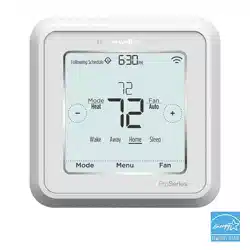
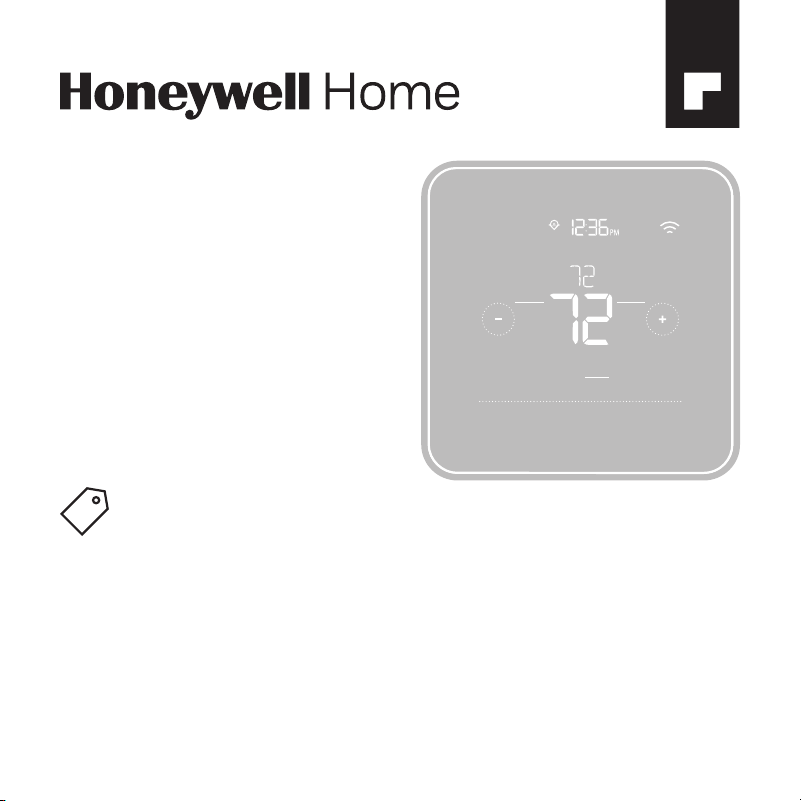
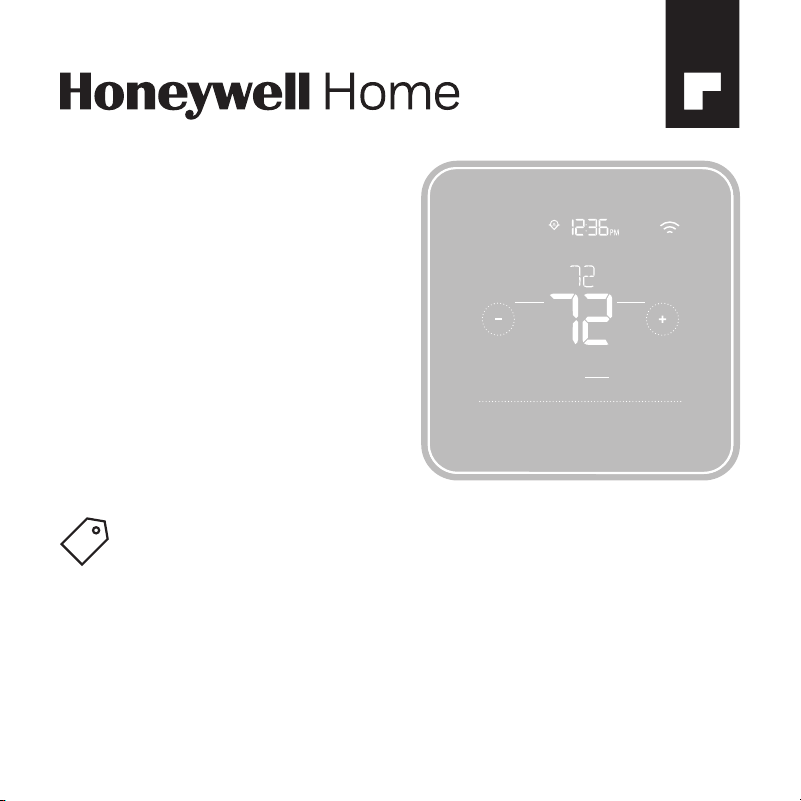
T5+ Smart
Thermostat
Programmable
Thermostat
Quick Install Guide
For more information visit resideo.com
Mode
Menu
Fan
Mode
Fan
Heat
Auto
Wake
Away
Home
Sleep
Following Schedule
Search for local rebates: HoneywellHome.com/Rebates
2
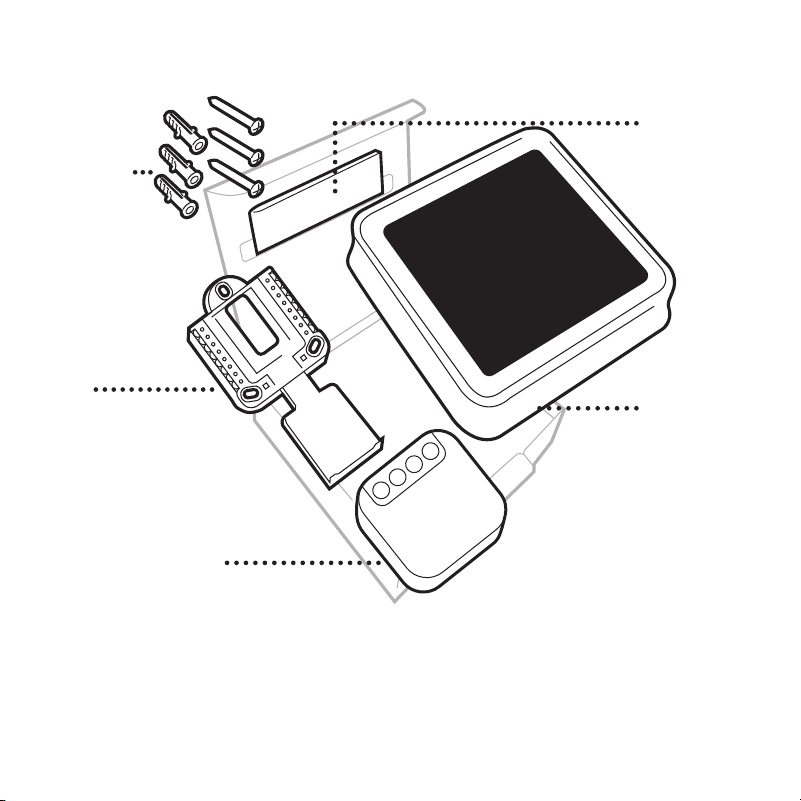
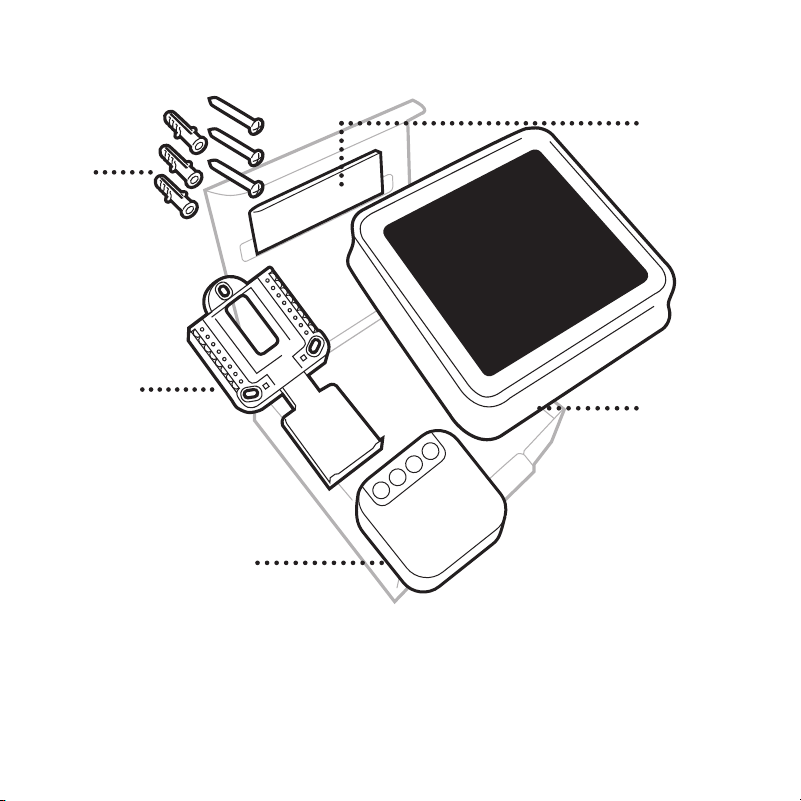
Included in your box:
Screws and
anchors
UWP™
Mounting
System
(UWP)
T5 Smart
Thermostat
Quick Install
Guide
C-Wire Power Adapter
(Located under thermostat.
Open end of box to remove it. T5
Smart Thermostat models that
don’t show a
+
on the package
after “T5” do not have the C-wire
adapter in the box.)
3
Get the most from T5 Smart Thermostat
Multiple programming options that fit your lifestyle:
1.
Location-Based scheduling – The thermostat uses your smartphone’s
location to know when you’re away, and saves you energy. Through
geofence technology, it senses your return and helps make you comfortable
upon arrival. You can always manually change your preset Home and Away
temperature either on the thermostat or on the Honeywell Home app.
2. Smart scheduling – Use a combination of geofencing and time scheduling
to fit your busy, active lifestyle.
3. Time-Based scheduling – Program your thermostat for one week; each day
(each day is a different schedule); Mon-Fri, Sat, Sun; or Mon-Fri, Sat-Sun.
All days with four adjustable periods per day.
4. No scheduling – Control your comfort manually by adjusting temperature
set points only.
Smart Alerts. Push notifications remind you of filter changes and warn you of
extreme indoor temperatures.
Smart Response. Learns your heating and cooling system to deliver the opti-
mal temperature at the right time.
Auto Change From Heat to Cool. Automatically determine if your home needs
heating or cooling to provide maximum comfort.
!
4
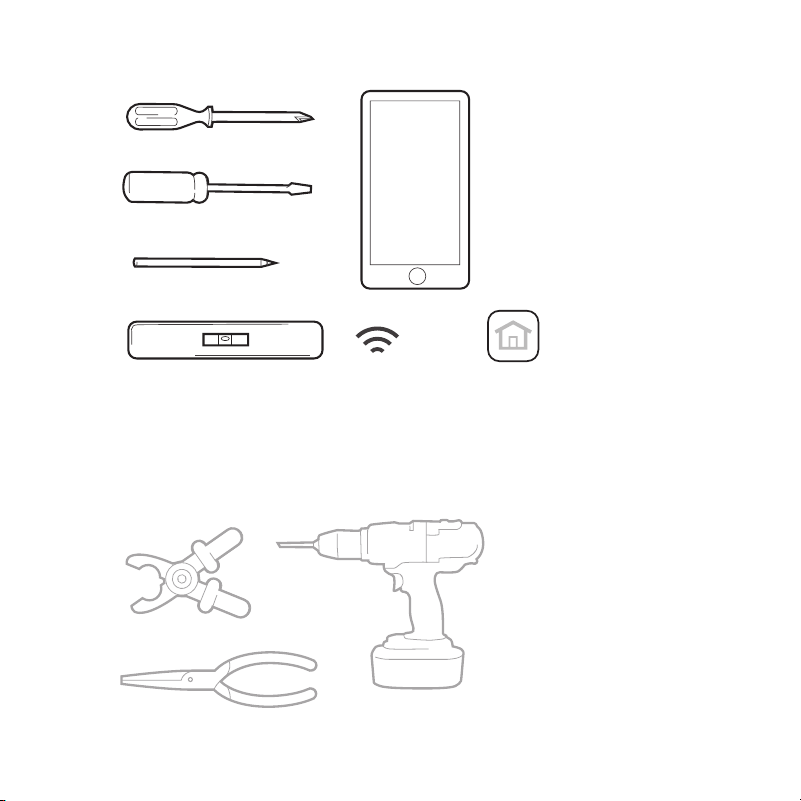
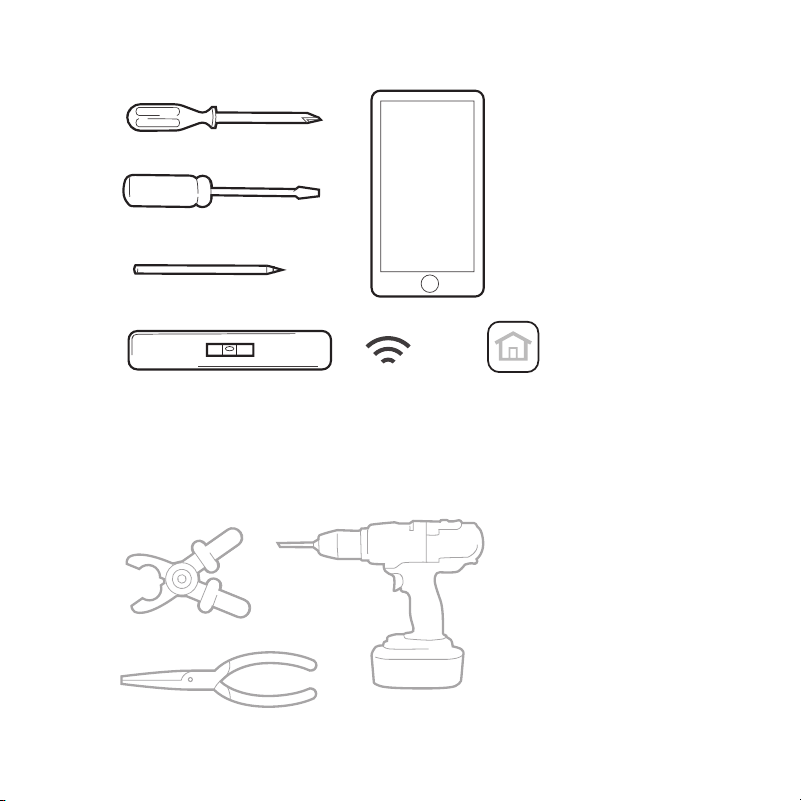
Tools you will need:
You may need:
Wire stripper
Needle-nose pliers Drill and
drill bit
Smartphone
To install your
thermostat and
photograph existing
wiring.
Honeywell Home app
To configure your
system and connect to
your smartphone.
Small flat head scr
ewdriver
Phillips scr
ewdriver
Pencil
Le
vel Home Wi-Fi
Password
5
Compatibility
• Compatible with most heating, cooling, and heat pump systems
• Required: 24 VAC power (“C” wire). C-Wire Power Adapter Included to provide
power if needed
• Does not work with electric baseboard heat (120-240V)
• Does not work with mV systems
• Does not support input (S terminals) for indoor and outdoor sensors
• Does not support relay (U terminals) for ventilation
• Android or iOS smartphone, tablet, or device
For help, contact:
WEB resideo.com
PHONE 1-800-633-3991
SOCIAL Twitter: @Honeywell_Home, Facebook: Honeywell Home
CAUTION: MERCURY NOTICE
If this product is replacing a control that contains mercury in a sealed tube, do not place the old
control in the trash. Contact your local waste management authority for instructions regarding
recycling and proper disposal.
CAUTION: EQUIPMENT DAMAGE HAZARD
Compressor protection is bypassed during testing. To prevent equipment damage, avoid cycling the
compressor quickly.
CAUTION: ELECTRICAL HAZARD
Can cause electrical shock or equipment damage. Disconnect power before beginning installation.
REQUIRED: 24 VAC POWER (“C” WIRE)
C-Wire Power Adapter Included to provide power if needed.
6
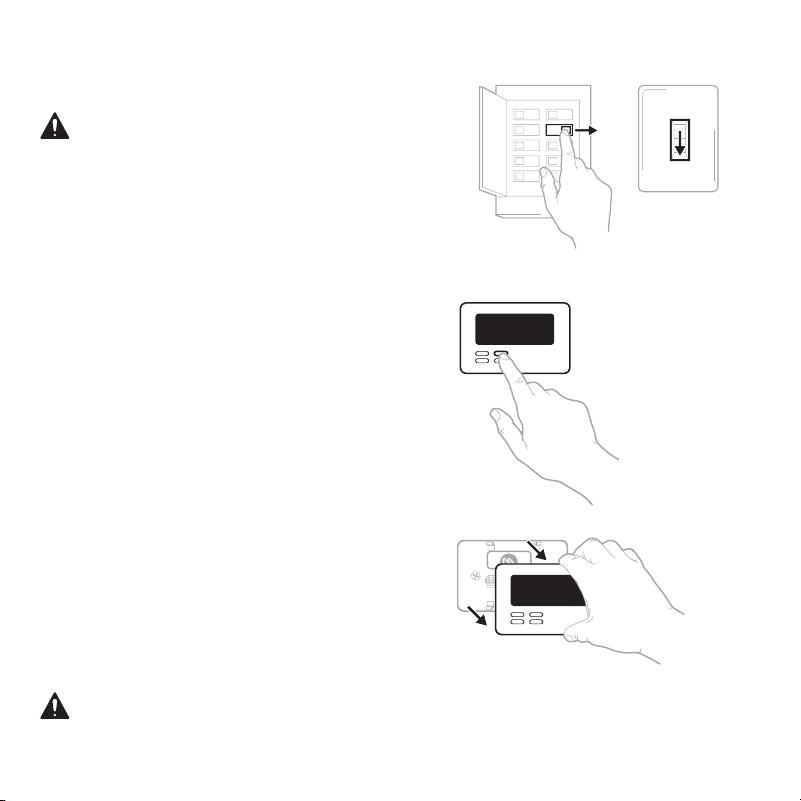
Removing your old thermostat
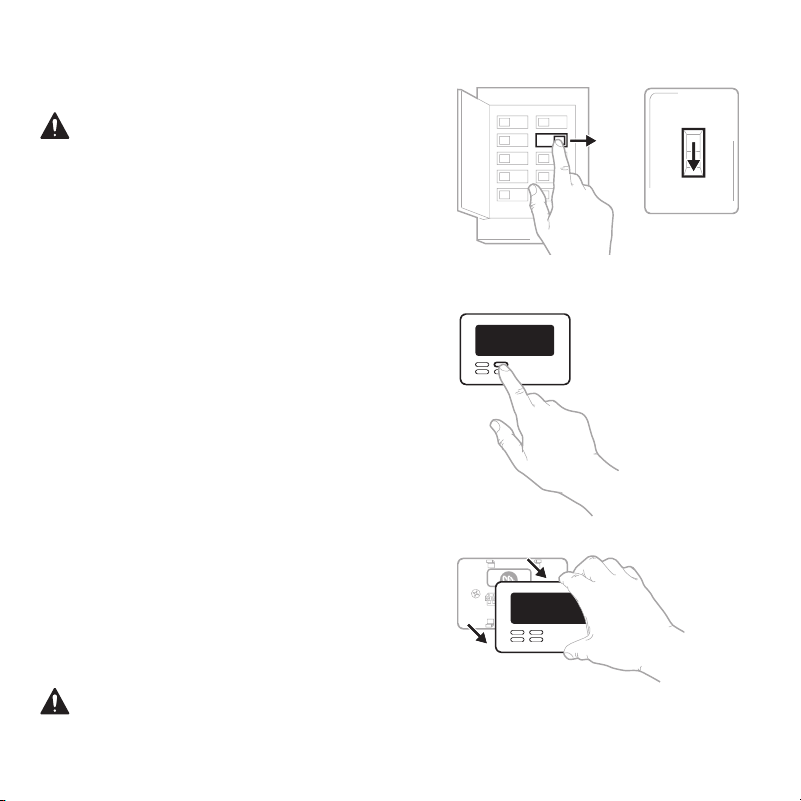
2 Check that your system is off
Change the temperature on your old
thermostat. If you don’t hear the system
turn on within 5 minutes, the power
is off.
Note: If you have a digital thermostat
that has a blank display, skip this step.
1 Turn power OFF
To protect yourself and your equipment,
Turn off the power at the breaker box
or switch that controls your heating/
cooling system.
3 Remove your old thermostat from the
wall plate
On most thermostats, you can take off
the thermostat by grasping and gently
pulling. Some thermostats may have
screws, buttons, or clasps.
Do not remove any wires from your
thermostat at this time!
OFF
OFF
ON
75
Breaker box
Switch
7
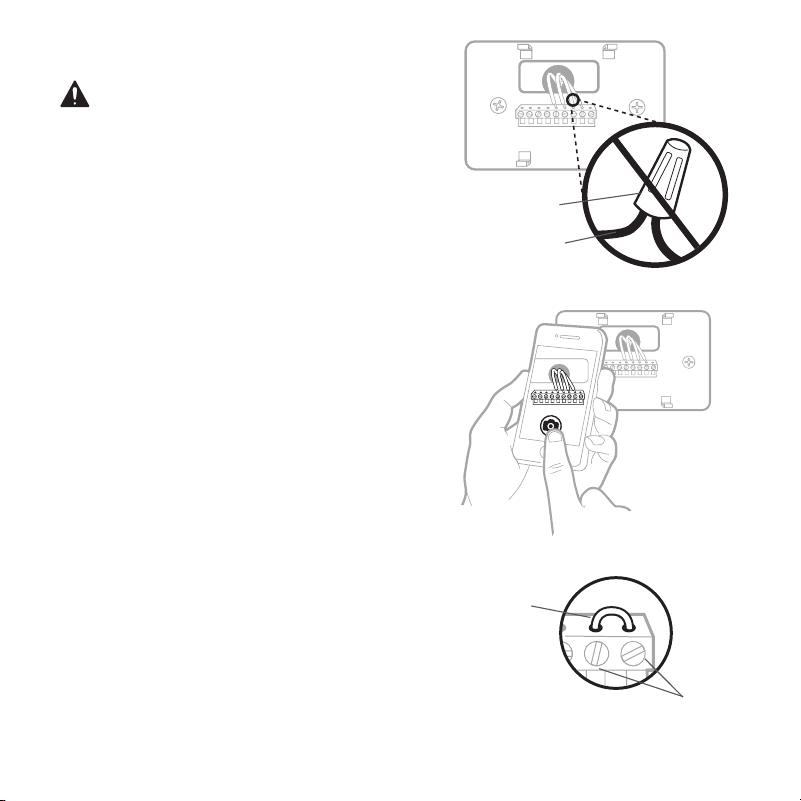
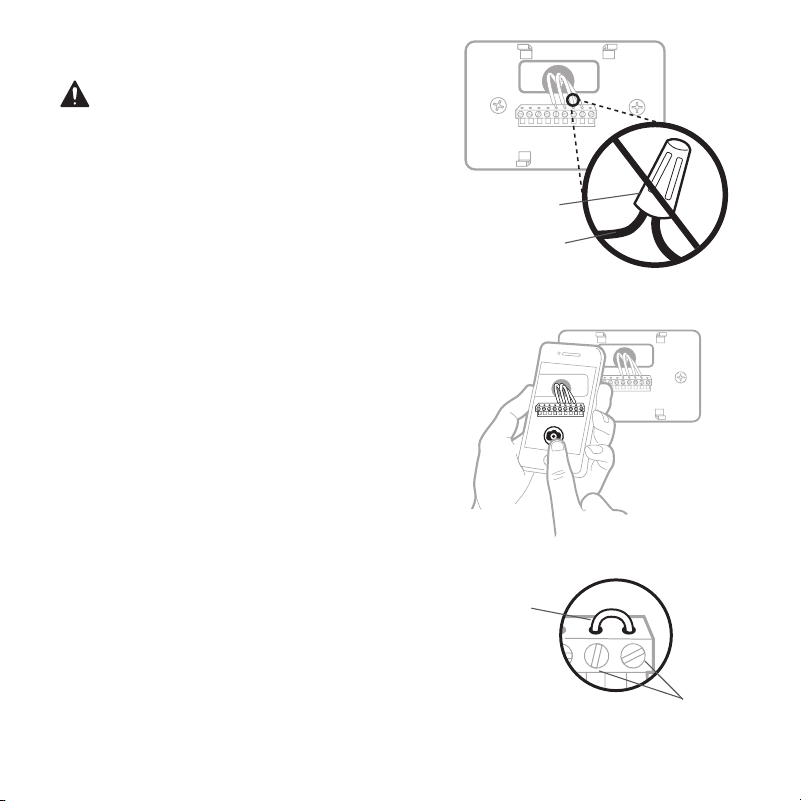
5 Take a picture of how your wiring
looks right now
Be sure to include the letters next
to the terminals where the wires
are inserted. This will be a helpful
reference when wiring your thermostat.
Tip: If the color of your wires has faded
or if 2 terminals have the same wire
color, use the wire labels provided in
the package to label each wire.
4 Make sure there are no
120/240V wires
Do you have thick black wires with
wire nuts?
Is your thermostat 120V or higher?
If you answered yes to either of these
questions, you have a line voltage
system and the thermostat will not
work.
If you are unsure visit:
resideo.com
6 Remove any jumpers
A jumper connects one terminal to
another terminal. It may look like a
small staple or even a colored wire and
must be removed before continuing.
Use a screwdriver to release wires from
terminals.
The thermostat does not
need jumpers.
Y
R RC
Example of
a jumper
Wire nut
Thick black wire
Terminals
8
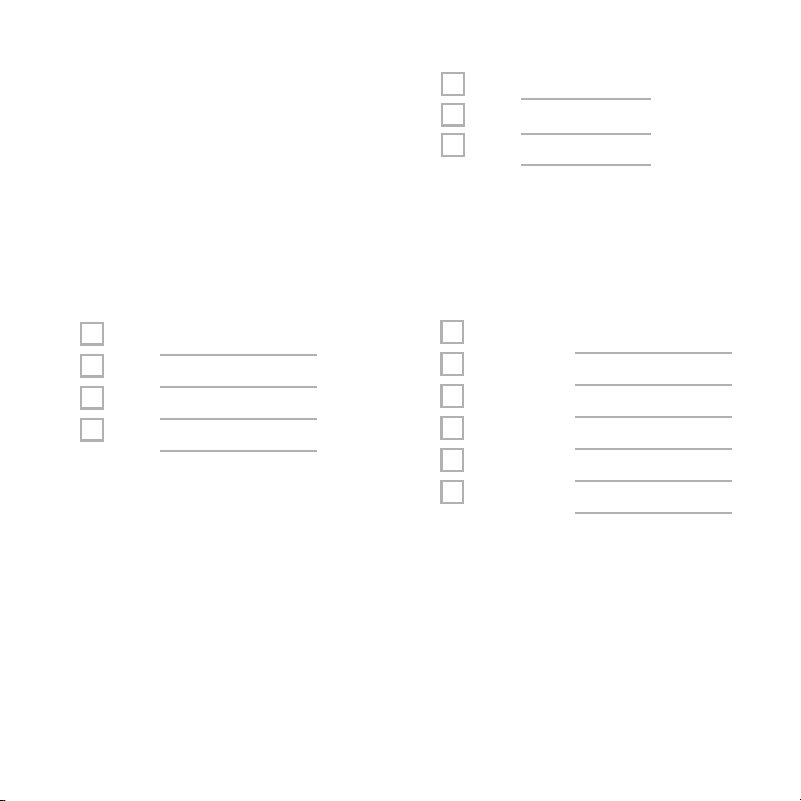
8 Write down the color of the wires
Check mark the wires that are connected to terminals. Next to the check mark,
write down the color of the wire. Do not include jumpers as a part of your count.
Check all that apply (Not all will apply):
Terminal Wire Color
Y
Y2
G
C
7 Record if you have wires in the
following terminals
Do not include jumpers as a part
of your count. The thermostat does
not need jumpers.
Terminal Wire Color
A or L/A
O/B
W2 or AUX
E
W
K
Terminal Wire Color
R
RH
Rc
S and U terminals are not supported with this thermostat.
If there are wires in terminals that are not listed, you will need additional wir-
ing support. Visit
resideo.com to find out if the thermostat will work for you.
Required (see step 9)
9
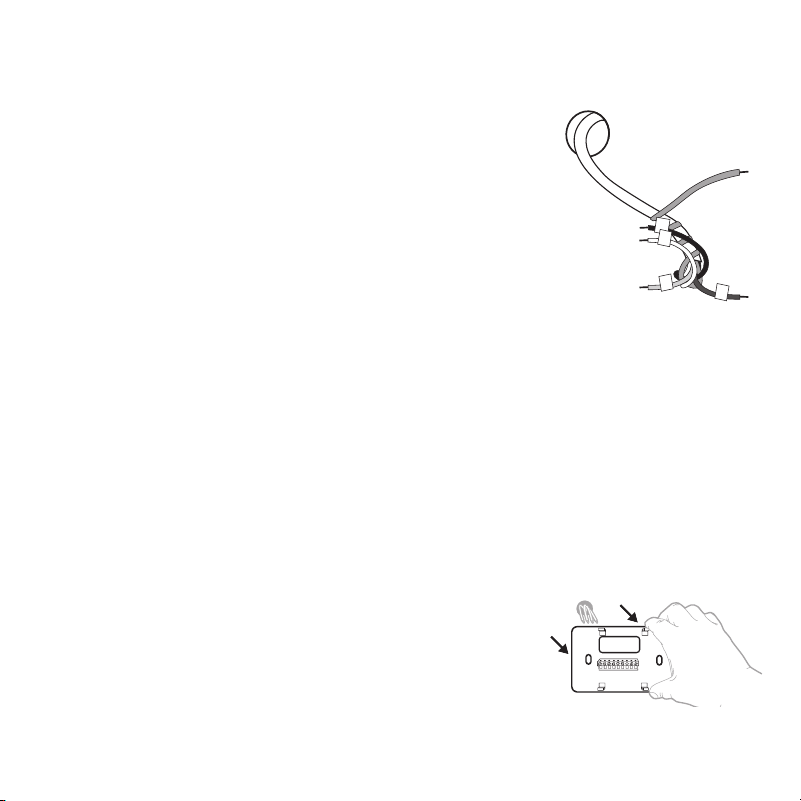
10 Disconnect the wires and remove the old wall plate
Use a screwdriver to release wires from terminals.
Tip: To prevent wires from falling back into the wall,
wrap the wires around a pencil.
9 Do you see a wire connected to the C terminal?
If yes, skip to step 10.
If you do not see a C wire, proceed with the options below:
Option A - Finding the C-Wire:
There might be an extra wire pushed into the wall or
wrapped around the wire bundle. Gently pull the wire
bundle out of the wall to check for unused wires.
If you have an unused wire, connect that wire to the C
terminal on your new thermostat in step 13.
Connect the other end of the unused wire to the C
terminal on your heating/cooling system (or the zone
panel if your home uses more than one thermostat to
control temperature). Be sure any other wire(s) con-
nected to the C terminal stay securely connected
when you re-tighten the terminal.
Not all heating/cooling equipment use the C label for the 24 VAC common wire.
If your heating/cooling equipment does not have a C terminal, check the system
manual or contact the manufacturer to find out which terminal is the 24 VAC
common.
Complete installation by following the remaining steps in this guide.
Option B - Using the C-Wire Power Adapter:
If you do not have an unused wire in the wall, see the C Wire Adapter Installation
Guide included in the box. Open the top or bottom flap of the box to locate the
C Wire Adapter.
10
Installing your T5 Smart Thermostat
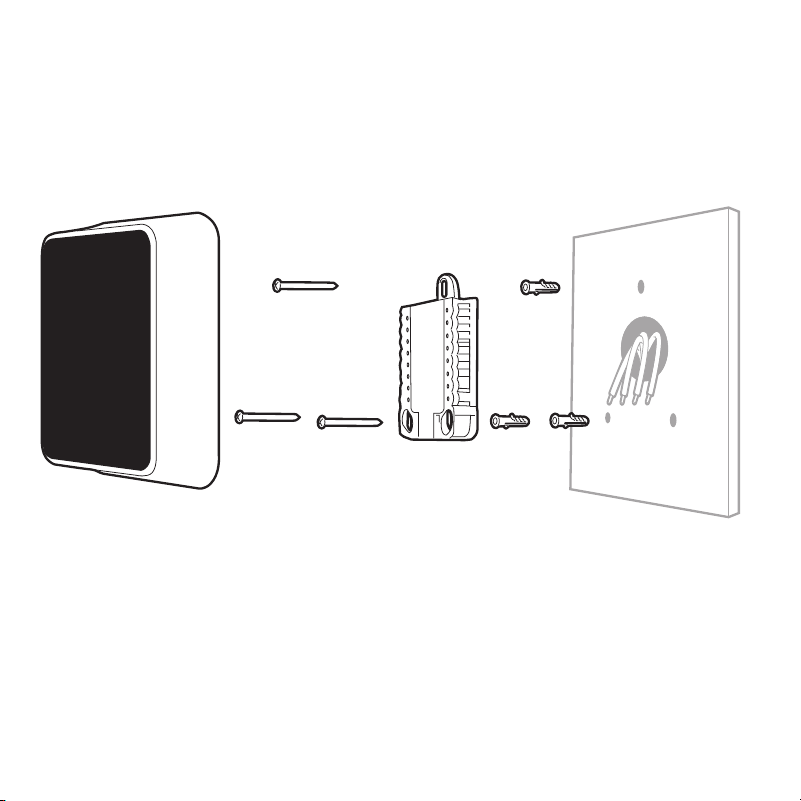
T5 Smart Thermostat Screws
UWP
Mounting
System
Anchors Wall
11
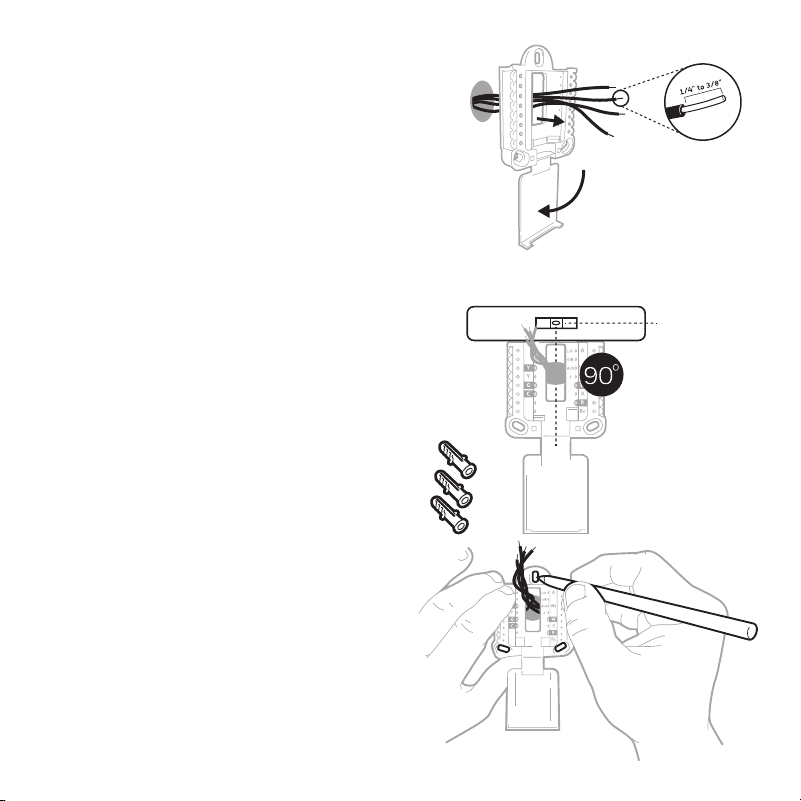
12 Insert the wall anchors
It is recommended that you use the
wall anchors included in the box to
mount your thermostat.
You can use the UWP to mark where
you want to place the wall anchors.
a) Level the wall plate.
b) Mark the location of the wall
anchors using a pencil.
c) Drill the holes.
d) Insert wall anchors.
e) Make sure anchors are flush with
wall.
Tip: If your box contains red
anchors, use a 7/32” (5.6 mm)
drill bit. If your box contains yellow
anchors, use a 3/16” (4.76 mm) drill
bit.
11 Bundle and insert wires through
the UWP
Pull open the UWP and insert the
bundle of wires through the back of
the UWP.
Make sure at least 1/4-inch of each
wire is exposed for easy insertion
into the wire terminals.
12
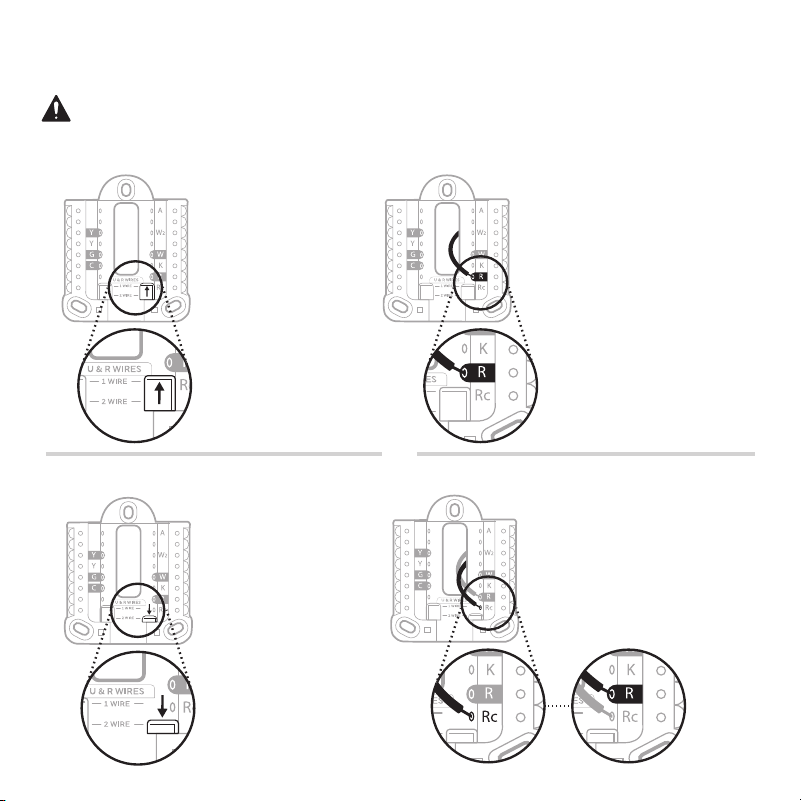
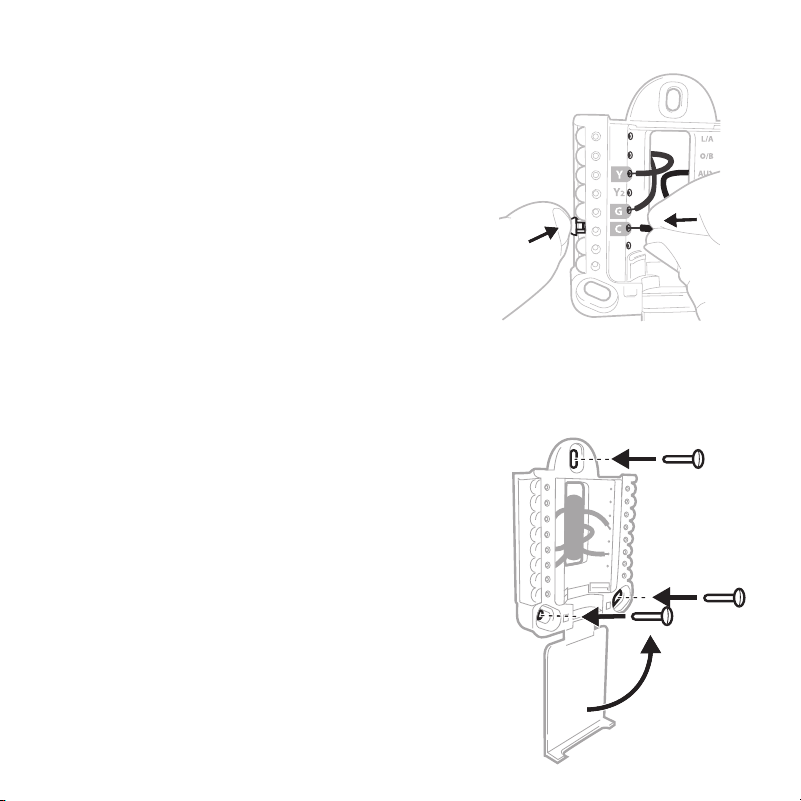
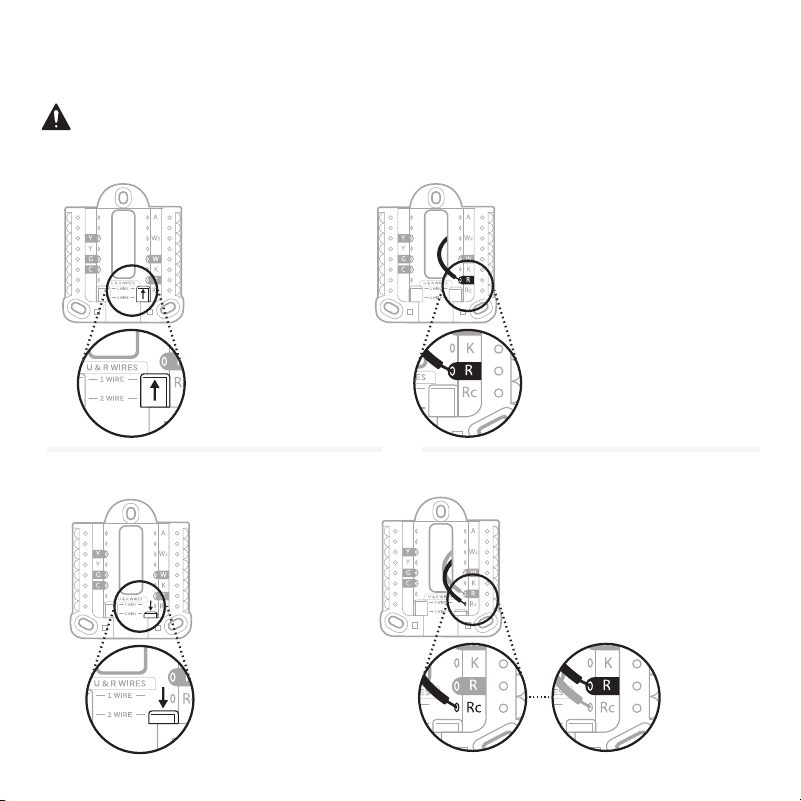
13 Set R-switch position and insert R-wire or wires
Set the R-switch up or down based on your wiring notes in Step 7.
Insert wires into the inner holes of the terminals on the UWP. The tabs will
stay down once the wire is inserted.
If you have 1 R-wire (R, Rh, or Rc)
If you have 2 R-wires (R or Rh, and Rc)
or
1. Set R-switch to
the up position.
1. Set R-switch
to the down
position.
2. Insert your R-wire
(R, Rh or Rc) into
R-terminal.
2. Insert your Rc wire
into Rc-terminal.
3. Insert your R or Rh
wire into R-Terminal.
13
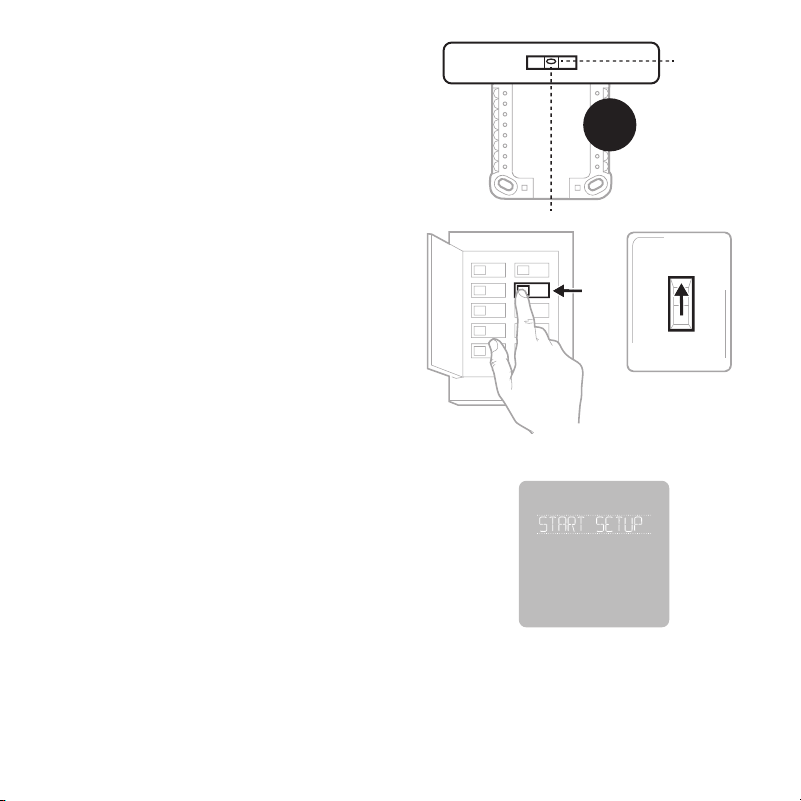
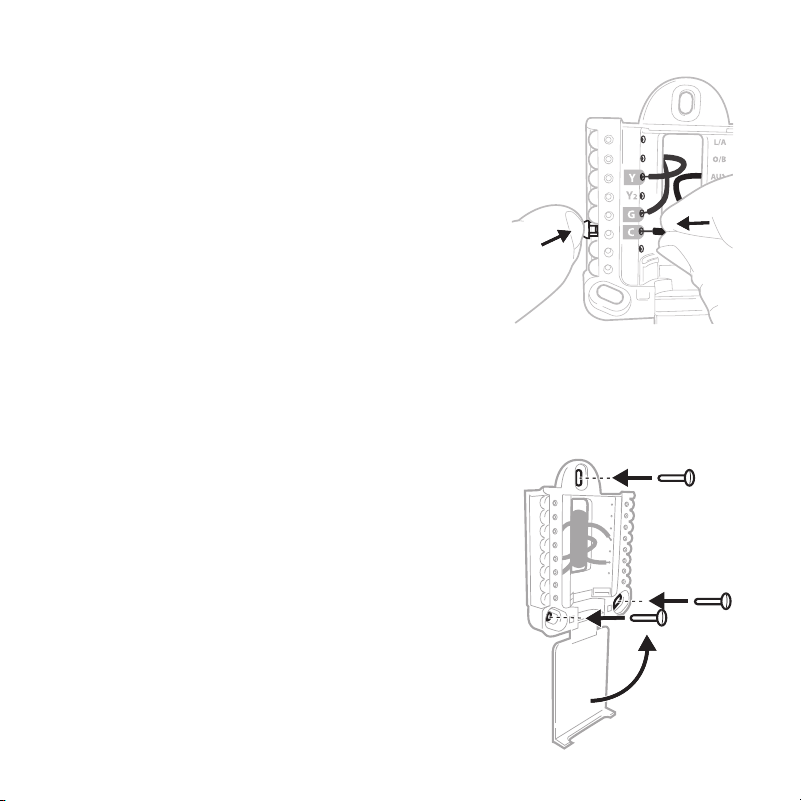
14 Connect remaining wires from Step 8
Tip: Do not mount the UWP to the wall
prior to connecting the wires.
Depress the tabs to put the wires into the
inner holes of their corresponding termi-
nals on the UWP (one wire per terminal)
until it is firmly in place.
Gently tug on the wires to verify they
are secure.
Tip: If you need to release the wires
again, push down the terminal tabs on
the sides of the UWP.
15 Mount the UWP and close the door
Mount the UWP using the provided
screws. Install all three screws for a
secure fit on your wall. Close the door
after you’re finished.
This wiring is just an example,
actual wiring may vary.
Use 3x supplied
screws
(#8 1-1/2 for red
anchors and
#6 1-1/2 for
yellow anchors)
14
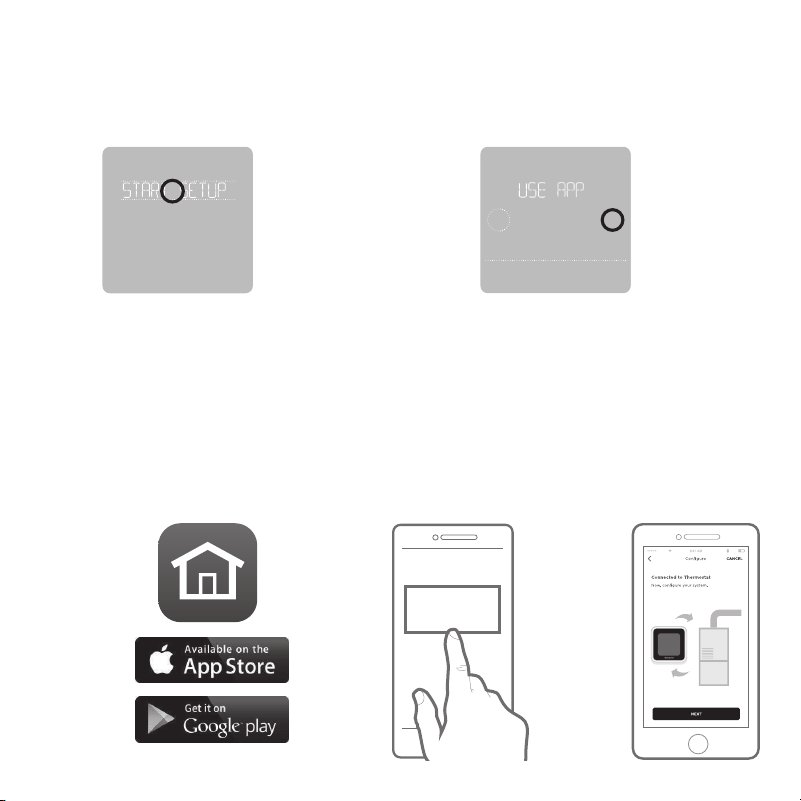
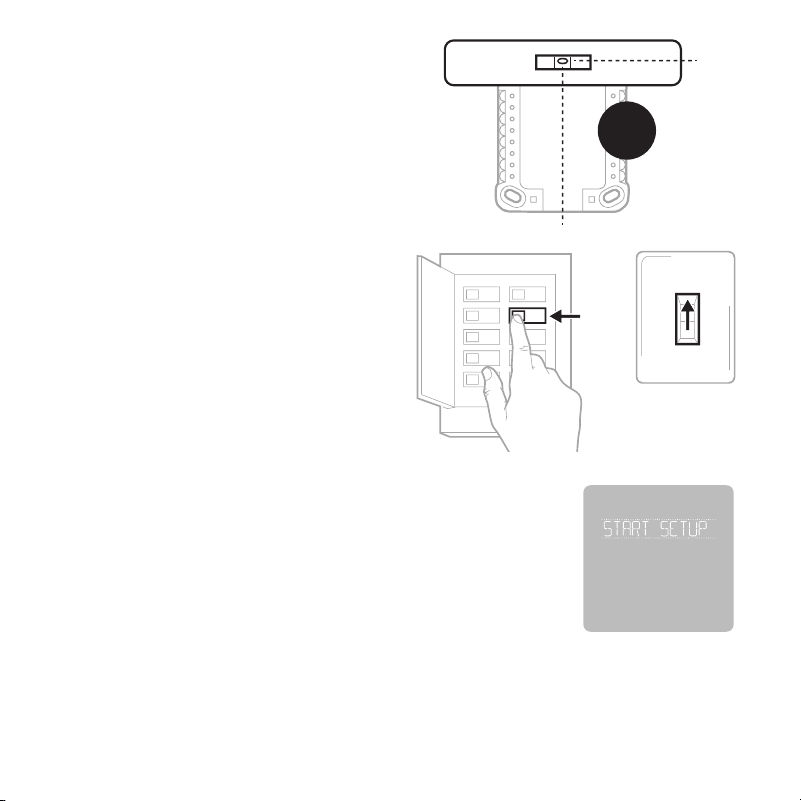
17 Turn your power ON
Turn on the power at the breaker box
or switch that controls the heating/
cooling system.
ON
OFF
ON
90
o
16 Attach your thermostat
Align the thermostat onto the
UWP and firmly snap it into place.
18 Return to the thermostat
Return to the thermostat. Confirm the
screen shows START SETUP. If it does,
continue to”Setup with Honeywell Home
App” on page 15.
If your thermostat does not show START
SE TUP, please contact Resideo support.
19 Search for local rebates
Your thermostat may now be eligible for
local rebates. Search for offers in your area
at HoneywellHome.com/Rebates
Breaker box
Switch
15
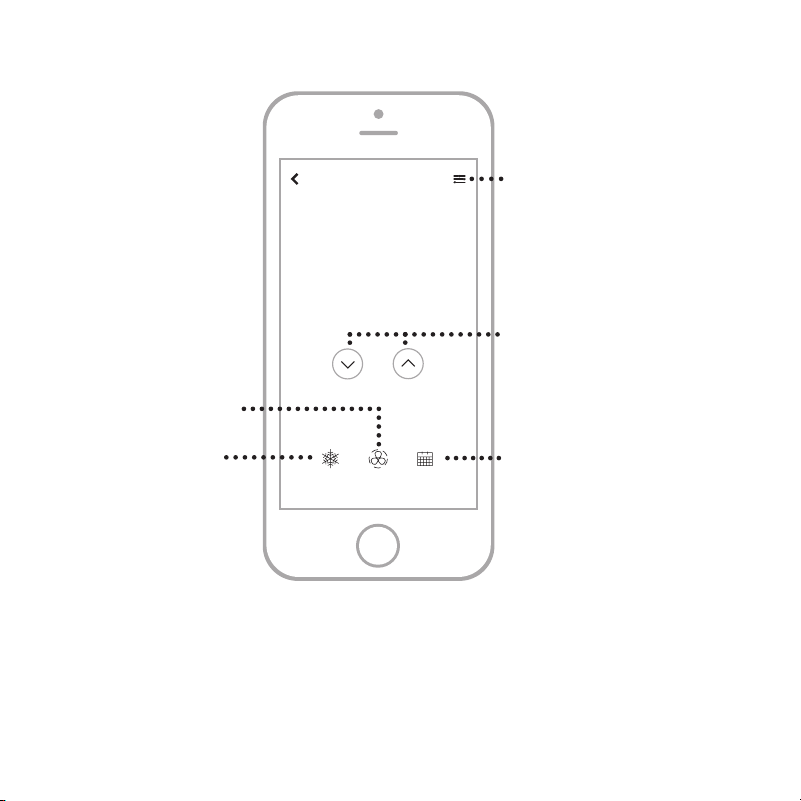
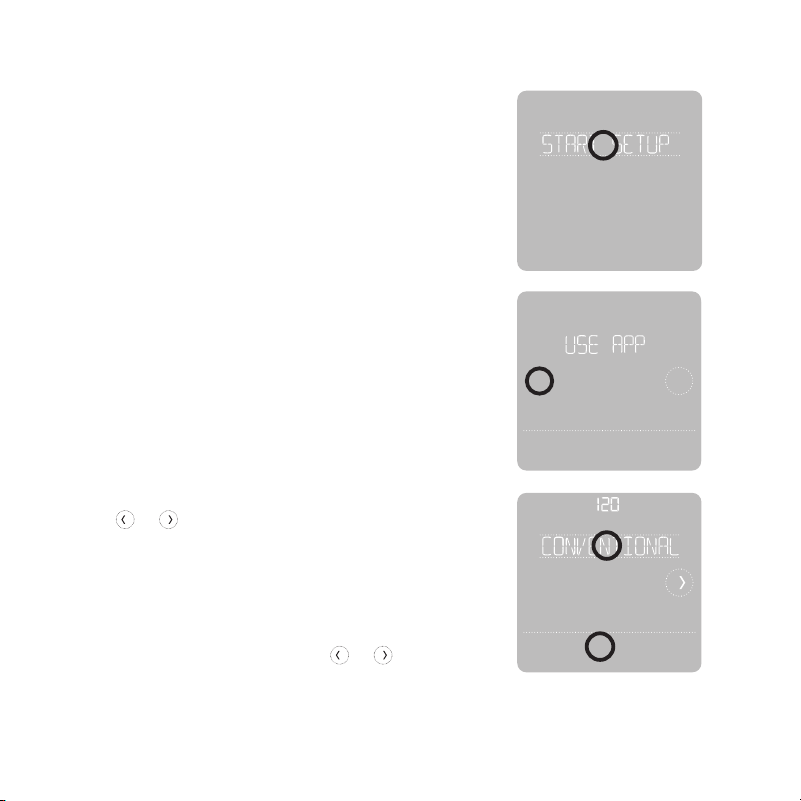
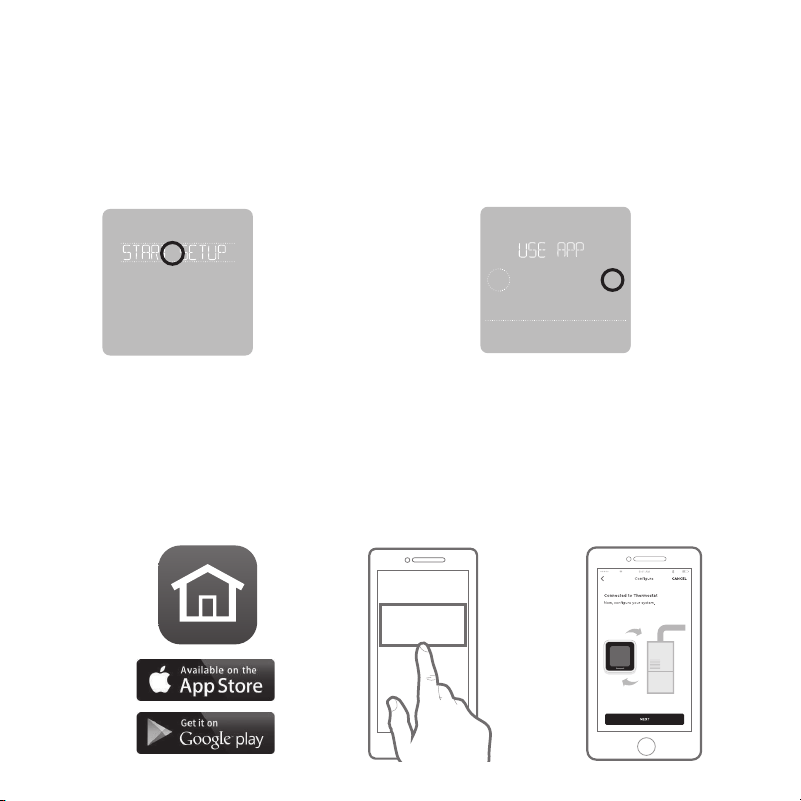
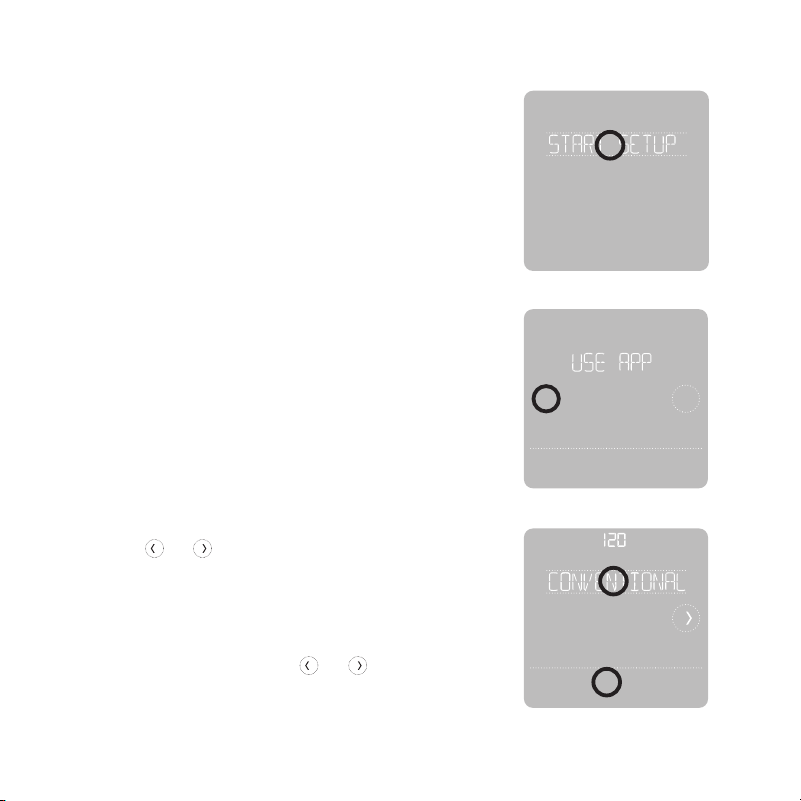
1 Start Setup with the app
Touch START SETUP on thermostat.
Setup with Honeywell Home App
No
Yes
Back
2 Select to setup with the app
Touch Yes on the USE APP screen.
3 Your thermostat is now ready to be configured using the Honeywell Home
app
a) Download the “Honeywell Home” app from the App store or Google play.
b) Open the Honeywell Home app. Your thermostat should appear under
Thermostat Found. Tap SET UP NOW as shown below to continue. If your
thermostat doesn’t appear, create an account (if necessary), or sign in to
your Honeywell Home account. Then select the T5 Smart Thermostat to
install.
c) The Honeywell Home app will walk you through the rest of setup.
A B
C
Thermostat Found:
SET UP NOW
16
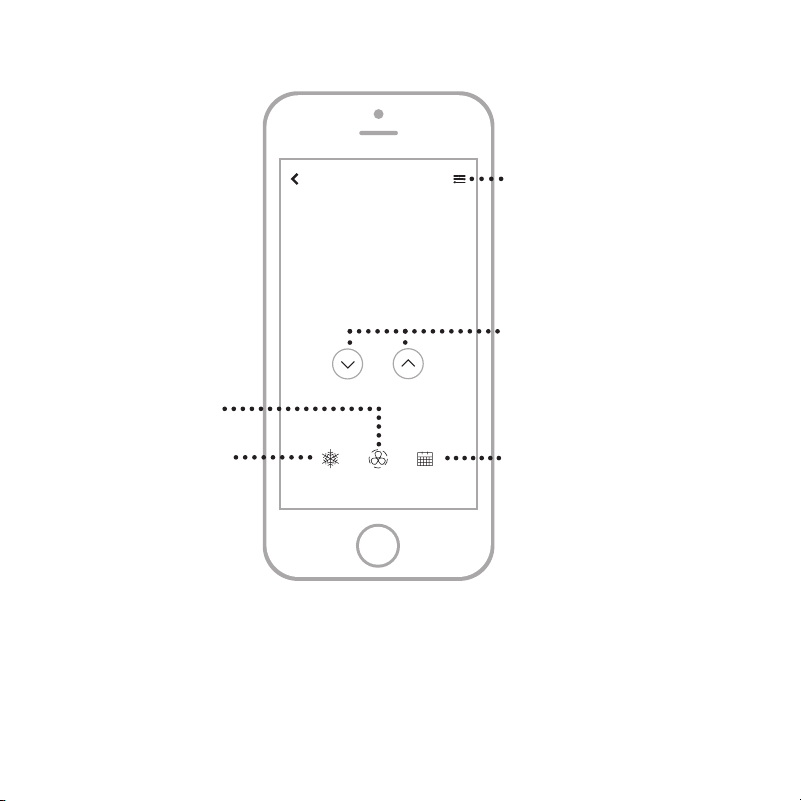
How to use your Honeywell Home App
SCHEDULEFANMODE
72˚
FOLLOWING SCHEDULE
72˚
MY HOME
Thermostat
Access the
menu
Set desired
temperature
Schedule your home
comfort
Select System
mode Auto/Heat/
Cool/Off/EM Heat
Select Fan mode
Auto/On/Circulate.
Interested in more Resideo products? Visit resideo.com to learn about all available
products connected by the Honeywell Home app.
App is regularly enhanced and may change.
17
Mode
Menu
Fan
Mode
Fan
Heat
Auto
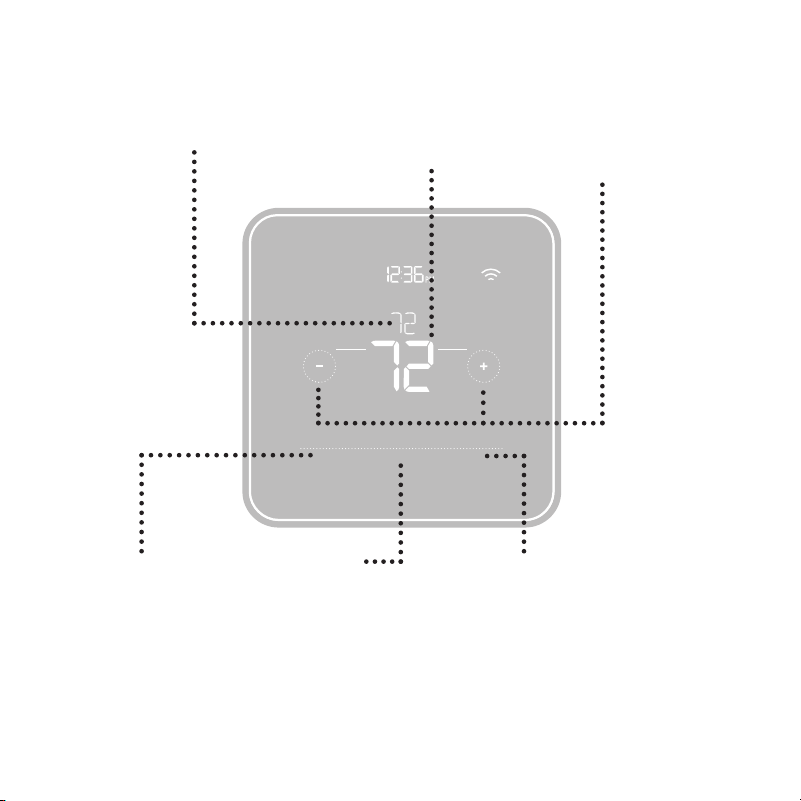
How to use your T5 Smart Thermostat
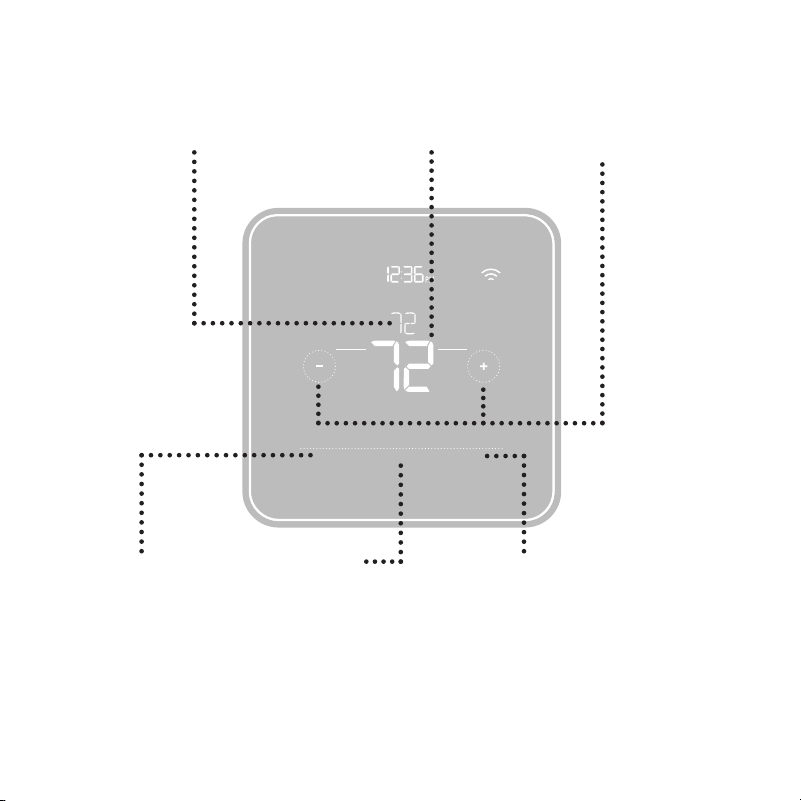
The screen will wake up by touching the center area of displayed temperature.
Mode
Select System mode
Auto/Heat/Cool/Off/
EM Heat (emergency
heat).
Menu
Contains features:
schedule, screen lock,
ventilation, Wi-Fi,
clean screen, and
other thermostat
settings.
Fan
Select Fan mode
Auto/On/Circulate.
Desired temperature
Displays desired
indoor temperature.
Indoor Temperature
Displays current
indoor temperature.
Adjust temperature
Touch + or - to set
your desired indoor
temperature.
18
If your Wi-Fi network is not working, you can
alternatively setup your thermostat manually
and connect your phone later.
1 Start manual setup
Touch START SETUP to begin.
Manual Setup
Edit
No
Yes
3 Navigate and edit setup options
Use or to navigate through all the
setup options. To see a list of all setup
options, go to pages 20-21.
To edit an option value, touch Edit or
touch text area.
The value is now blinking. Use
or to
select the correct value.
Touch Done or touch text area once the
correct value is selected.
2 Select manual setup
On the USE APP screen, touch No.
19
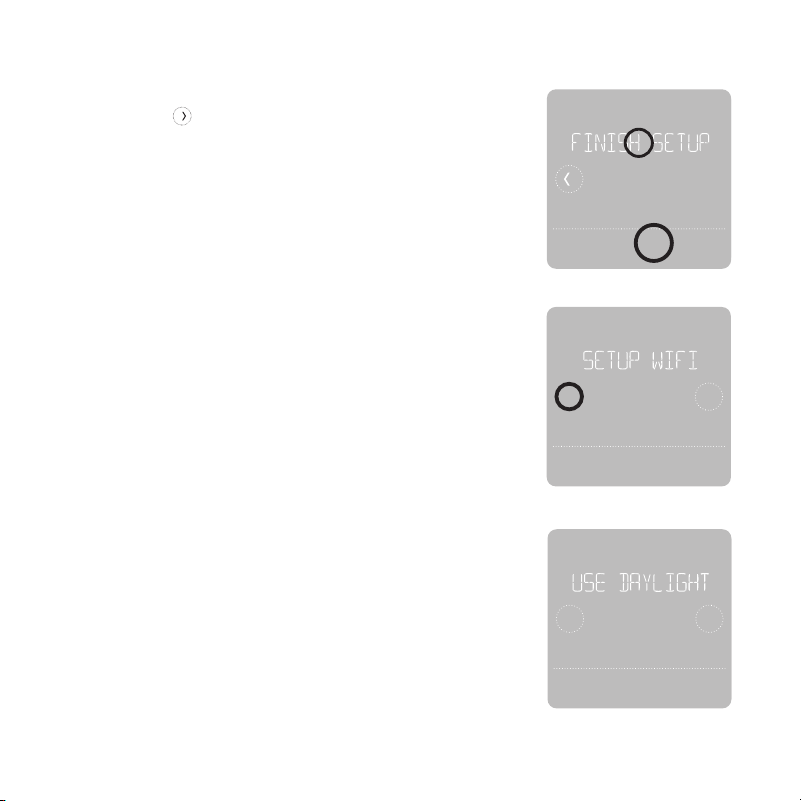
4 Finish Setup
Touch until you see Finish Setup.
Touch Select or touch text area.
Manual Setup (cont.)
Select
No
Yes
Back
No
Yes
Back
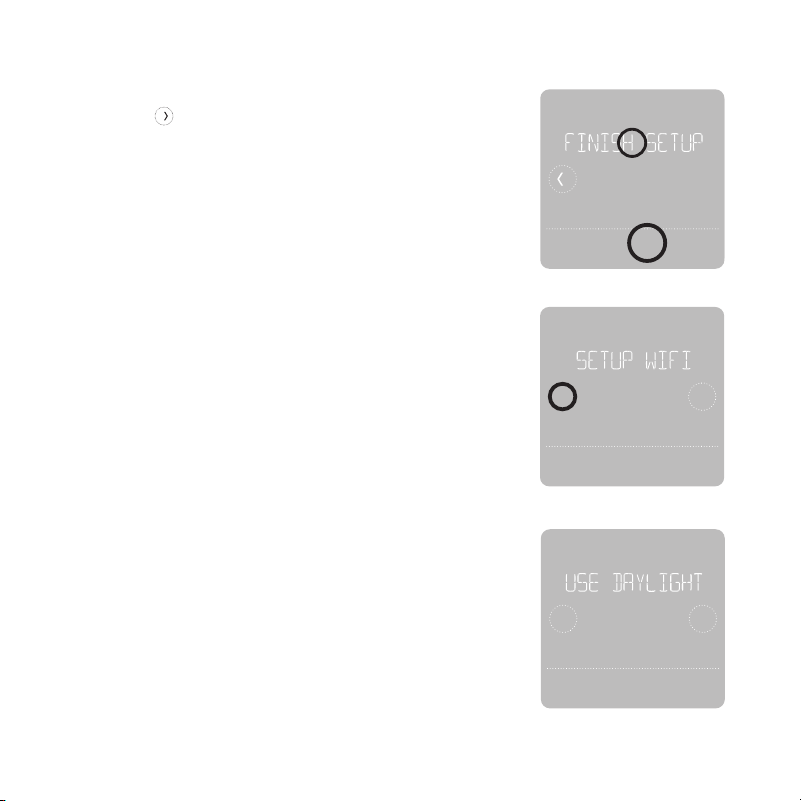
5 Setup Wi-Fi
At the end of setup process you will be
prompted to SETUP WIFI. If your Wi-Fi
is still not working, you have to manually
set the time and date. Select No on the
SETUP WIFI screen.
6 Set time and date
Set daylight saving time if you are in an
area that follows daylight saving time. Set
date, clock format and time on the next
screens.
7 Your thermostat is now setup
Refer to page 17 for more information
about basic operation.

20
Equipment Setup Options
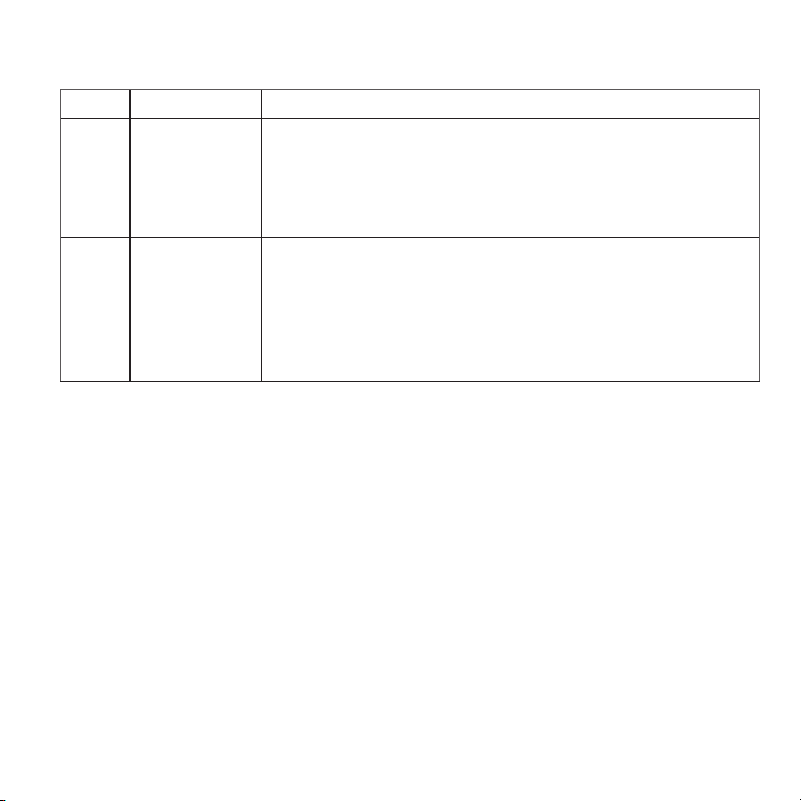
Option # Option Name Option Value (factory default in bold)
120 Schedule Type No Schedule
MO-SU = Every day the same
MO-FR SA SU = 5-1-1 schedule
MO-FR SA-SU = 5-2 schedule
Each Day = Every day different
Note: You can change default MO-FR, SA-SU schedule here. To edit
periods during days, temperature setpoints, or to turn Schedule On/
Off, touch MENU from the Home screen and go to SCHEDULE.
200 System Type Conventional Forced Air, Heat Pump, Boiler, Cool Only
Note: This option selects the basic system type your thermostat will
control.
205 Equipment Type
Conventional Forced Air Heat:
Standard Gas, High Efficiency Gas, Oil, Electric, Fan Coil
Heat Pump:
Air to Air, Geothermal
Boiler:
Hot Water, Steam
Note: This option selects the equipment type your thermostat will
control. Note: This feature is NOT displayed if feature 200 is set to Cool
Only.
218 Reversing Valve O/B on Cool, 0/B on Heat
Note: This option is only displayed if the Heat Pump configured. Select
whether reversing valve O/B should energize in cool or in heat.
21
Option # Option Name Option Value (factory default in bold)
220 Cool Stages/
Compressor
Stages
(#200=Conv./
#200=HP)
0, 1, 2
Note: Select how many Cool or Compressor stages of your equipment
the thermostat will control. Maximum of 2 Cool/Compressor Stages.
221 Heat Stages/
Aux/E Stages
(#200=Conv./
#200=HP)
Heat Stages: 0, 1, 2
Aux/E stages: 0, 1
Note: Select how many Heat or Aux/E stages of your equipment the
thermostat will control. Maximum of 2 Heat Stages for conventional
systems. Maximum of 1 Aux/E stage for systems with more than 1
heating equipment type.
Note: For a complete listing of the ISU setting options, please see the T5+
Smart Product data file at resideo.com
Equipment Setup Options

22
Frequently Asked Questions
Will the T5 Smart Thermostat still work if Wi-Fi connection is lost?
Yes, the temperature can be adjusted directly at the thermostat. However, some features,
including geofencing, are managed only through the Honeywell Home app and will not function
while the connection is down. The thermostat will automatically reconnect to Wi-Fi once the
network is restored.
The T5 Smart Thermostat is not finding the in home Wi-Fi network.
The thermostat operates in the 2.4GHz range. That may be why the thermostat does not see the
network but the smartphone, which operates in both the 2.4 and 5.0 GHz range, sees the network.
Most routers will broadcast two networks, one SSID on the 5.0 GHz radio and one SSID on the
2.4 GHz radio.
A change was made on the Honeywell Home app but it has not shown up on the T5 Smart
Thermostat.
There may be a short delay after making temperature and setting changes in the Honeywell
Home app.
Can there be multiple users for geofencing?
Yes, there can be multiple users. Geofencing will trigger based on the last person to leave and the
first person to return. To properly use geofencing with multiple users:
• Each user needs to create their own account.
• Each user should use their login ID and password across his or her devices, including
smartphones and tablets.
• No two users should share the same account.
How are multiple users set up with thermostat?
Access can be given to any or all thermostat locations through the Honeywell Home app. Start
by touching the three-line menu icon in the upper left-hand corner of the home screen. Select
Manage Users and touch Add User located at the bottom of the screen. Type in the email address
of the person to be invited. If they have an account set up, the location will be automatically added
to their account. If they don’t have an account, they will receive an email invitation prompting
them to download the Honeywell Home app and create their own account.
Note: All individuals with access to a thermostat share the same user privileges. Users added will
be able to change the thermostat’s settings, as well as add or delete other users.
Is there a way to extend the signal strength?
The range or distance of the Wi-Fi signal is determined by the router. Check the router’s manual
for additional information.

23
Regulatory information
There is an alert that says Wi-Fi Signal Lost. What does that mean?
The Wi-Fi signal to the thermostat has been lost. Wait for the thermostat to reconnect or select a
new network within the Honeywell Home app configuration menu. If the thermostat is unable to
reconnect, you will need to troubleshoot the router to determine the cause.
Why is the thermostat showing up as offline (strike-through Wi-Fi icon) on top of right corner
of thermostat display?
If the thermostat displays a strike-through Wi-Fi icon on its screen or shows up as offline on the
Honeywell Home app, it has lost connection to the network. Make sure the router is powered and
broadcasting. The home’s Wi-Fi network may need to be reset by power cycling the router. Consult
the router’s instruction manual for directions on power cycling. When the network has been
restored, the thermostat will automatically reconnect.
An activation email hasn’t been received.
An email will be sent from [email protected]. An activation email is needed to
complete the account setup. If an activation email is not received after five minutes, check the
Spam folder of the email account.
If you do not find it in the Spam folder, click on the Resend button and the activation email will be
resent. If you still do not receive your activation email, please contact the Technical Support team
at 1-800-633-3991 for help.
Frequently Asked Questions
FCC REGULATIONS
47 CFR § 15.19 (a)(3)
This device complies with part 15 of the FCC Rules. Operation is
subject to the following two conditions:
1. This device may not cause harmful interference, and
2. This device must accept any interference received, including
interference that may cause undesired operation.
47 CFR § 15.21 (USA only)
Changes or modifications not expressly approved by the party
responsible for compliance could void the user’s authority to operate
the equipment.
47 CFR § 15.105 (b)
See https://customer.resideo.com/en-US/support/residential/
codes-and-standards/FCC15105/Pages/default.aspx for additional
FCC information for this product.
IC REGULATIONS
RSS-GEN
This device contains licence-exempt transmitter(s)/receiver(s) that
comply with Innovation, Science and Economic Development Canada’s
licence-exempt RSS(s). Operation is subject to the following two
conditions:
1. This device may not cause interference.
2. This device must accept any interference, including interference
that may cause undesired operation of the device.
Wi-Fi® is a registered trademark of
Wi-Fi Alliance®
33-00386EF-09
www.resideo.com
© 2021 Resideo Technologies, Inc. All rights reserved.
The Honeywell Home trademark is used under license from Honeywell
International, Inc. This product is manufactured by Resideo
Technologies, Inc. and its affiliates.
Tous droits réservés. La marque de commerce Honeywell Home est
utilisée avec l’autorisation d’Honeywell International, Inc. Ce produit
est fabriqué par Resideo Technologies, Inc. et ses sociétés affiliées.
Resideo Technologies, Inc.
1985 Douglas Drive North, Golden Valley, MN 55422
33-00182EF—09 M.S. Rev. 03-21 | Printed in United States
Apple® HomeKit™ Setup Code
The T5 Smart supports Apple HomeKit. When prompted by the Honeywell Home app,
scan the code on the last page (back cover) of this guide.
2-Year Limited Warranty
For Warranty information go to resideo.com
Thermostat
intelligent T5+
Thermostat
Programmable
Guide
d’installation
rapide
Pour plus d’informations, visitez resideo.com
Recherchez des rabais dans votre région :
HoneywellHome.com/Rebates
Mode
Menu
Fan
Mode
Fan
Heat
Auto
Wake
Away
Home
Sleep
Following Schedule
2
Inclus dans cette boîte :
Vis et
ancres
Système de
montage
UWP™ (UWP)
Thermostat
intelligent T5
Guide
d’installation
rapide
Adaptateur d’alimentation
pour fil C
(Situé sous le thermostat.
Ouvrir l’extrémité de la boîte
pour le retirer. L’emballage
des modèles de thermostat
intelligent T5 ne comprenant
pas un + à la droite de la
mention T5 ne contient pas
d’adaptateur de fil C.)
3
Tirez le maximum de votre thermostat intelligent T5
Plusieurs options de programmation pour votre style de vie :
1. Programmation géodépendante – Le thermostat Il vous permet de réaliser
des économies d’énergie en surveillant vous allées et venues en utilisant
l’emplacement de votre téléphone intelligent. Grâce à la technologie de
géorepérage, il détecte votre retour pour assurer votre confort lorsque
vous rentrez chez vous. Vous pouvez changer manuellement votre réglage
de température Maison et Absent sur le thermostat ou dans l’application
Honeywell Home.
2. Programmation intelligente – Utilisez une combinaison de géorepérage et
de programmation horaire pour s’adapter à votre style de vie actif.
3. Programmation horaire – Programmez votre thermostat pour une
semaine, pour la journée (chaque journée possédant un programme horaire
différent), ou du lundi au vendredi avec un programme identique pour le
samedi et le dimanche, ou distinct pour ces deux jours de fin de semaine.
Tous les jours avec quatre périodes réglables par jour.
4. Pas de programmation – Contrôlez manuellement votre confort en réglant
uniquement les points de consigne de température.
Alertes intelligentes. Des notifications poussées vous rappellent d’effectuer
les changements de filtre et vous préviennent des températures intérieures
extrêmes.
Smart Response. Apprend le fonctionnement de votre système de chauffage
et de refroidissement pour fournir une température optimale au bon moment.
Passage automatique du chauffage au refroidissement. Détermine automa-
tiquement si le domicile nécessite d’être chauffé ou refroidi pour assurer un
confort maximum.
!
4
Outils requis :
Vous aurez besoin des outils suivants :
Dénuder de fils
Pince à bec effilé Perceuse et mèche
Téléphone intelligent
Pour installer le
thermostat et prendre
une photo du câblage
existant.
Application Honeywell Home
Pour configurer votre système
et connecter votre téléphone
intelligent.
Petit tournevis plat
Tournevis cruciforme
Crayo
n
Nivea
u Mot de passe
Wi-Fi de la
résidence
5
Compatibilité
• Compatible avec la plupart des systèmes de chauffage, refroidissement, et à
thermopompes
• Requis : Alimentation de 24 V c.a. (fil C). Adaptateur d’alimentation pour fil C; pour
fournir l’alimentation au besoin
• Non compatible avec les chauffages de plinthes électriques (120-240 V)
• Non compatible avec les systèmes à mV
• Ne prend pas en charge les entrées (bornes S) des capteurs d’intérieur et
d’extérieur
• Ne prend pas en charge le relais (bornes U) pour la ventilation
• Téléphone intelligent, tablette ou dispositif Android ou iOS
Pour obtenir de l’aide, veuillez contacter :
SITE WEB resideo.com
TÉLÉPHONE 1-800-633-3991
RÉSEAUX SOCIAUX Twitter : @Honeywell_Home, Facebook : Honeywell Home
MISE EN GARDE : AVIS RELATIF AU MERCURE
Si ce produit remplace un régulateur contenant du mercure dans un tube scellé, ne mettez pas
l’ancien régulateur à la poubelle. Contactez le responsable de gestion des déchets local pour les
instructions concernant le recyclage et l’élimination.
MISE EN GARDE : RISQUE DE DOMMAGES DE L’ÉQUIPEMENT
La protection du compresseur est annulée durant le test. Pour éviter d’endommager l’équipement,
évitez d’actionner le compresseur trop rapidement.
MISE EN GARDE : RISQUE DE CHOC ÉLECTRIQUE
Peut provoquer des chocs électriques ou endommager le matériel. Couper l’alimentation électrique
avant d’effectuer le raccordement.
REQUIS : ALIMENTATION DE 24 V C.A. (FIL C)
Adaptateur d’alimentation pour fil C; pour fournir l’alimentation au besoin.
6
Retrait de l’ancien thermostat
2 Vérifiez que le système est
hors tension
Modifiez la température sur l’ancien
thermostat. Si le système ne se met
pas en marche dans les 5 minutes qui
suivent, l’alimentation vers l’appareil est
coupée.
Remarque : Si vous avez un thermostat
numérique qui a un écran vierge, sautez
cette étape.
1 Coupez l’électricité
Pour vous protéger ainsi que pour
protéger votre équipement, coupez
l’alimentation au niveau du disjoncteur
ou de l’interrupteur contrôlant le
système de chauffage/refroidissement.
3 Retirez l’ancien thermostat de la
plaque murale
Avec la plupart des thermostats,
vous pouvez le retirer en saisissant le
thermostat et en le tirant doucement.
Certains thermostats peuvent avoir
des vis, des boutons ou des fermoirs.
Ne retirez aucun fil du thermostat à
ce stade!
75
Disjoncteur
Interrupteur
Marche
Marche
Arrêt
7
5 Prenez une photo du câblage existant
Veillez à inclure les lettres près des
bornes d’insertion des fils. Ceci
permettra une consultation plus facile
lors du câblage du thermostat.
Conseil : Si la couleur des fils s’est
estompée ou si deux bornes ont des
fils de même couleur, utilisez les éti-
quettes de fil fournies dans l’embal-
lage pour étiqueter chaque fil.
4 Assurez-vous qu’aucun fil de
120/240 V n’est présent
Y a-t-il d’épais fils noirs avec des
capuchons de connexion?
Votre thermostat est-il de 120 V ou
plus?
Si vous avez répondu oui à l’une ou
l’autre de ces questions, votre système
fonctionne sur tension secteur et le
thermostat ne fonctionnera pas.
En cas d’incertitude, visitez :
resideo.com
6 Retirez tout cavalier
Un cavalier connecte une borne à une
autre. Il peut ressembler à une petite
agrafe ou à un fil coloré, et il doit être
retiré avant de continuer. Utilisez un
tournevis pour dégager les fils des
bornes.
Le thermostat ne fonctionne pas
avec des cavaliers.
Y
R RC
Exemple de
cavalier
Capuchon de
connexion
Fil noir épais
Bornes
8
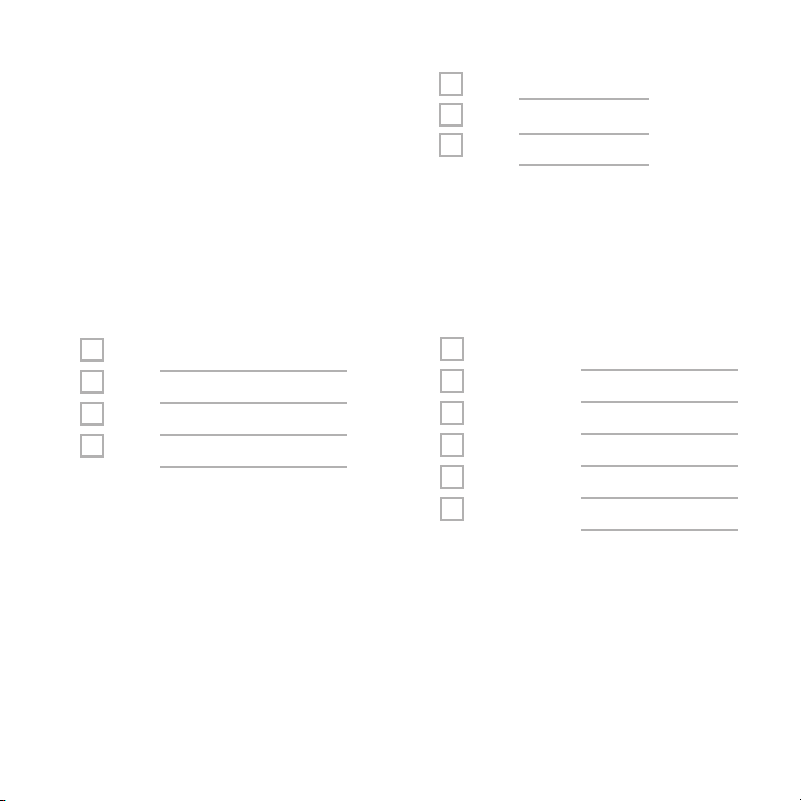
8 Notez la couleur des fils
Cochez les fils connectés à des bornes. Indiquez la couleur du fil à côté de la
coche. Ne comptez pas les cavaliers.
Cochez tous les éléments applicables (les éléments ne s’appliquent pas
tous) :
Borne Couleur de fil
Y
Y2
G
C
7 Notez la présence de fils dans les
bornes suivantes
N’incluez pas les cavaliers. Le
thermostat ne fonctionne pas avec
des cavaliers.
Borne Couleur de fil
A ou L/A
O/B
W2 ou AUX
E
W
K
Borne Couleur de fil
R
Rh
Rc
Les bornes S et U ne sont pas prises en charge par ce thermostat.
S’il y a des fils sont dans des bornes non énumérées, une assistance supplé-
mentaire sera requise pour le câblage. Visitez
resideo.com pour déterminer si
le thermostat fonctionnera dans votre configuration.
Obligatoire
(voir l’étape 9)
9
9 Voyez-vous un fil branché à la borne C?
Si oui, passez à l’étape 10.
Si vous ne voyez pas de fil, procédez avec les étapes suivantes :
Option A - Trouver le fil C :
Un fil supplémentaire pourrait être inséré dans le mur ou
enroulé autour d’un paquet de fils. Retirez délicatement le
paquet de fils du mur pour vérifier si des fils sont non utilisés.
Si vous disposez d’un fil inutilisé, branchez-le dans la borne C
de votre nouveau thermostat à l’étape 13.
Branchez l’autre extrémité du fil inutilisé à la borne C de votre
système de climatisation/chauffage (ou dans le tableau de
commande de zone si vous utilisez plus d’un thermostat pour
contrôler la température dans votre domicile). Assurez-vous
que tout autre fil branché sur la borne C reste bien en place
lorsque vous resserrez la borne.
Les équipements de chauffage ou de climatisation n’utilisent pas tous l’étiquette C pour le
fil neutre de 24 VCA. Si votre équipement de chauffage ou de climatisation ne possède pas
de borne C, consultez le manuel du système ou communiquez avec le fabricant pour savoir
quelle borne correspond au câble fil de 24 VCA.
Terminez l’installation en suivant les étapes restantes de ce guide.
Option B – Utiliser l’adaptateur d’alimentation pour fil C :
Si vous ne disposez pas d’un fil inutilisé dans le mur, consultez le guide d’installation de
l’adaptateur de fil C compris dans l’emballage. Ouvrir le dessus du rabat inférieur de la
boîte pour trouver l’adaptateur pour fil C.
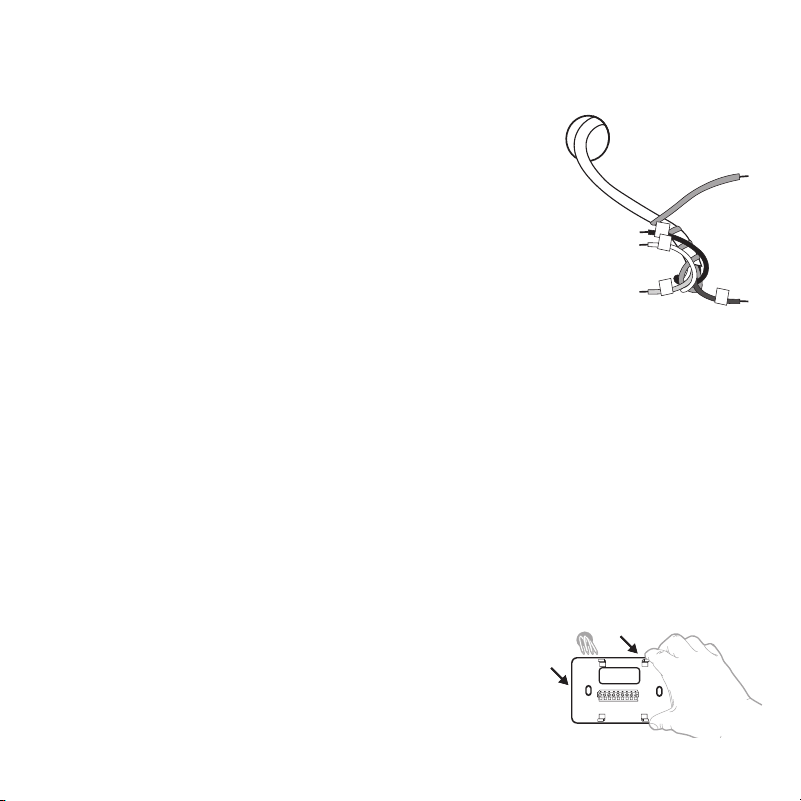
10 Débranchez les fils et retirez l’ancienne plaque
murale
Utilisez un tournevis pour dégager les fils des
bornes.
Conseil : Pour éviter que les fils ne tombent derrière
le mur, enroulez-les autour d’un crayon.
10
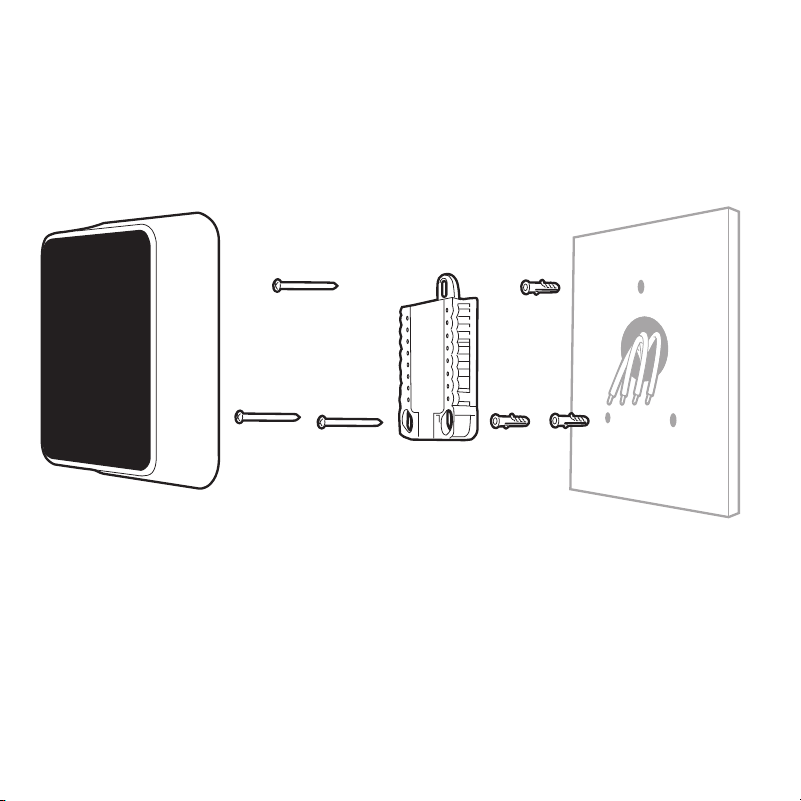
Installation de votre thermostat intelligent T5
Thermostat
intelligent T5
Vis
Système de
montage
UWP
Ancres Mur
11
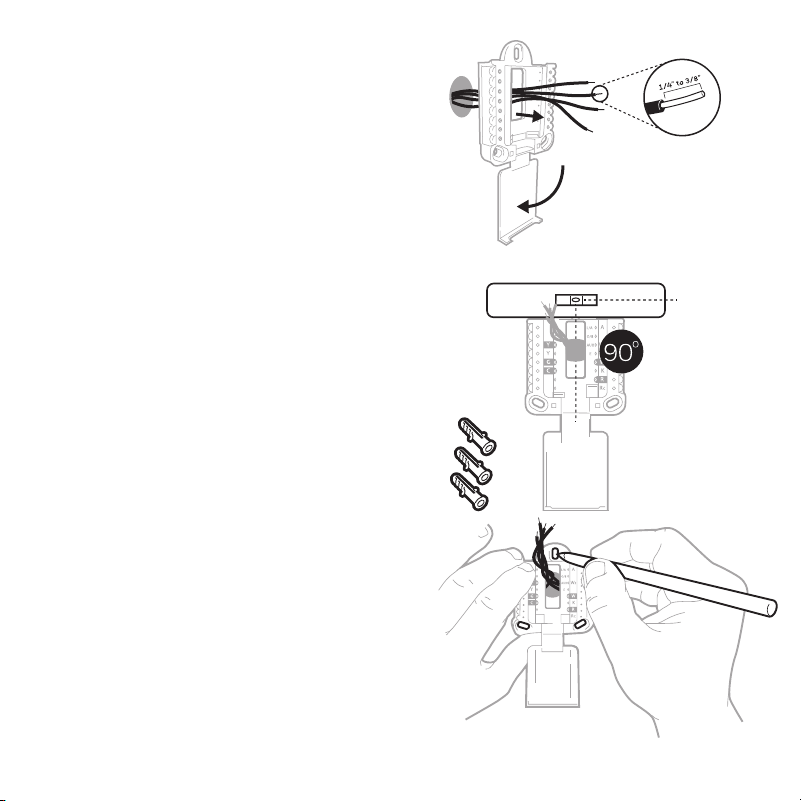
12 Insérez les ancres murales
Il est recommandé d’utiliser les
ancres murales fournies dans la
boîte pour monter le thermostat.
Vous pouvez utiliser le système
de montage UWP pour marquer
l’emplacement des ancres murales.
a) Mettez la plaque murale de
niveau.
b) Marquez l’emplacement des
ancres murales à l’aide d’un
crayon.
c) Percez les trous.
d) Insérez les ancres murales.
e) Assurez-vous que les ancres
affleurent au mur.
Conseil : Percez des trous d’an-
crage. Si votre boîtier est accom-
pagné d’ancrages rouges, percez
des trous de 7/32 po (5.6 mm). Si
votre boîtier est accompagné d’an-
crages jaunes, percez des trous de
3/16 po (4.76 mm).
11 Regroupez et insérez les fils dans le
système de montage UWP
Ouvrez le système UWP et insérez le
faisceau de fils à l’arrière du système
UWP. Assurez-vous qu’au moins
1/4 po de chaque fil est exposé pour
faciliter l’insertion dans les cosses
de câble.
12
13 Réglez la position du contacteur R et insérez le ou les fils R
Placez le contacteur R en position haute ou basse en fonction des notes de
câblage prises lors de l’étape 7.
Insérez les fils dans les trous internes des bornes du système UWP. Les
languettes resteront abaissées lorsque le fil est inséré.
Si vous avez un fil R (R, Rh, ou Rc)
Si vous avez deux fils R (R ou Rh, et Rc).
ou
1. Mettez le con-
tacteur R en
position haute.
1. Mettez le con-
tacteur R en
position basse.
2. Insérez le fil R (R,
Rh ou Rc) dans la
borne R.
2. Insérez le fil Rc dans
la borne Rc.
3. Insérez le fil R ou Rh
dans la borne R.
13
14 Connectez les fils restants de
l’étape 8
Conseil : Ne montez pas le système
UWP sur le mur avant d’avoir connecté
les fils.
Appuyez sur les languettes pour
insérer les fils dans les orifices
internes de leurs bornes correspon-
dantes sur le système UWP (un fil par
borne) jusqu’à ce qu’ils soient ferme-
ment placés.
Tirez délicatement sur les fils pour
vérifier qu’ils sont bien placés.
Conseil : Si les fils doivent être retirés
ultérieurement, appuyez sur les
languettes des bornes sur les côtés du
système UWP.
15 Montez le système UWP et fermez
la porte
Montez le système UWP à l’aide des
vis fournies. Installez les trois vis pour
assurer une installation ferme sur le
mur. Fermez ensuite la porte.
Ce câblage n’est qu’un exemple; le
câblage actuel peut être différent.
Utiliser les 3 vis
fournies (Nº 8 – 1 ½ po
pour les ancrages
rouges; Nº 6 – 1 ½ pour
les ancrages jaunes)
14
17 Rétablissez l’alimentation
Rétablissez l’alimentation au niveau
du disjoncteur ou de l’interrupteur
contrôlant le système de chauffage/
refroidissement.
90
o
16 Attachez le thermostat
Alignez le thermostat sur le
système UWP et emboîtez-le
fermement.
18 Revenez au thermostat
Revenez au thermostat. Vérifiez que l’écran affiche
START SETUP (Commencer la configuration). Si c’est
le cas, passez à « Configuration avec l’application
Honeywell Home » à la page 15.
Si le thermostat n’affiche pas START SETUP
(Commencer la configuration), veuillez contacter l’as-
sistance de Resideo.
19 Recherchez des rabais dans votre région
Votre thermostat pourrait maintenant être admissible
à des remises dans votre région. Recherchez les offres
de votre région sur HoneywellHome.com/Rebates
Arrêt
Marche
Arrêt
Interrupteur
Disjoncteur
15
1 Commencez la configuration
avec l’application
Touchez START SETUP
(Commencer la configuration) sur
le thermostat.
Configuration avec l’application Honeywell Home
No
Yes
Back
2 Sélectionnez l’option de
configuration avec l’application
Touchez Yes (Oui) sur l’écran
USE APP (Configuration avec
l’application).
3 Votre thermostat est prêt à être configuré avec l’application Honeywell Home
a) Téléchargez l’application « Honeywell Home » dans l’App Store ou Google Play.
b) Ouvrez l’application Honeywell Home. Votre thermostat devrait apparaitre sous
Thermostat Found (Thermostat trouvé). Touchez SET UP NOW (Configurer maintenant)
tel qu’illustré ci-dessous pour continuer. Si votre thermostat ne s’affiche pas, créez
un compte (si nécessaire) ou connectez-vous à votre compte Honeywell Home. Puis,
sélectionnez le thermostat intelligent T5 à installer.
c) L’application Honeywell Home vous accompagnera tout au long de la configuration.
A B
C
Thermostat Found:
SET UP NOW
16
Utilisation de votre application Honeywell Home
SCHEDULEFANMODE
72˚
FOLLOWING SCHEDULE
72˚
MY HOME
Thermostat
Accéder au
menu
Régler la
température
désirée
Programmer votre
confort
Sélectionnez le
mode de système
Auto/Heat/Cool/
Off/EM Heat
(Auto/Chauffage/
Refroidissement/
Arrêt/Chauffage
d’urgence)
Sélectionnez
le mode
ventilateur Auto/
On (Marche)/
Circulation
Vous souhaitez découvrir d’autres Resideo produits? Visitez la page
resideo.com pour en savoir plus sur tous les produits qui peuvent être connectés
avec l’application Honeywell Home.
L’application est constamment améliorée et peut être modifiée.
17
Mode
Menu
Fan
Mode
Fan
Heat
Auto
Utilisation de votre thermostat intelligent T5
L’écran s’active lorsque la zone centrale de la température af-
fichée est touchée.
Mode
Sélectionnez le
mode de système
Auto/Heat/Cool/
Off/EM Heat
(Auto/Chauffage/
Refroidissement/
Arrêt/Chauffage
d’urgence).
Menu
Contient les
fonctions :
programme,
verrouillage écran,
ventilation, Wi-Fi,
nettoyage écran et
d’autres réglages du
thermostat.
Fan (Ventilateur)
Sélectionnez le mode
ventilateur Auto/On
(Marche)/Circulation.
Température désirée
Affiche la température
intérieure désirée.
Température
intérieure
Affiche la température
intérieure actuelle.
Réglage de la
température
Touchez + ou - pour
régler la température
intérieure désirée.
18
Si le réseau Wi-Fi ne fonctionne pas, il est aussi
possible de configurer manuellement le thermo-
stat et de le connecter ultérieurement à votre télé-
phone.
1 Commencez la configuration manuelle
Touchez START SETUP (Commencer la
configuration) pour commencer.
Configuration manuelle
Edit
No
Yes
3 Pour modifier la valeur d’une option, touchez
Edit (Modifier) ou touchez la zone de texte
Utilisez ou pour naviguer parmi toutes
les options de configuration. Pour voir la
liste de toutes les options de configuration,
consultez les pages 20-21.
Pour modifier la valeur d’une option, touchez
Edit (Modifier) ou touchez la zone de texte.
La valeur clignote. Utiliser
ou pour
sélectionner la valeur correcte.
Touchez Done (Terminer) ou touchez la zone
de texte une fois la valeur correcte
sélectionnée.
2 Sélectionnez la configuration manuelle
Sur l’écran USE APP (Naviguez et modifiez les
options de configuration), touchez No (Non).
19
4 Terminez la configuration
Touchez jusqu’à ce que « Finish Setup »
(Terminer la configuration) s’affiche. Touchez
Select (Sélectionner) ou touchez la zone de
texte.
Configuration manuelle (suite)
Select
No
Yes
Back
No
Yes
Back
5 Configurez le Wi-Fi
À la fin du processus de configuration, une
invitation s’affichera pour la CONFIGURATION
WIFI (SETUP WIFI). Si le réseau Wi-Fi ne
fonctionne pas, réglez manuellement l’heure
et la date. Sélectionnez No (Non) sur l’écran
SETUP WIFI (Configurer le Wi-Fi).
6 Réglez l’heure et la date
Définissez l’heure d’été si vous vivez dans une
région qui respecte le passage à l’heure d’été.
Réglez la date, le format de l’horloge et l’heure
sur les écrans suivants.
7 Le thermostat est maintenant configuré
Consultez la page 17 pour plus
d’informations sur le fonctionnement de base.

20
Options de configuration de l’équipement
N° de l’option Nom de l’option Valeur de l’option (réglage d’usine en gras)
120 Type de programme No Schedule (Pas de programme)
MO-SU = Every day the same (LUN-DIM = Chaque jour identique)
MO-FR SA SU = 5-1-1 schedule (LUN-VEN SAM DIM = Programme 5-1-1)
MO-FR SA-SU = 5-2 schedule (LUN-VEN SAM-DIM = Programme 5-2)
Each Day = Every day different (Chaque jour = Chaque jour différent)
Remarque : Le programme par défaut LUN-VEN, SAM-DIM peut être modifié ici. Pour
modifier des périodes, des températures de point de consigne, ou pour mettre le
programme en marche/arrêt, toucher MENU sur l’écran d’accueil et aller à SCHEDULE
(programme).
200 Type de système Conventional Forced Air (Air pulsé conventionnel), Heat Pump (Thermopompe),
Boiler (Chaudière), Cool Only (Refroidissement uniquement)
Remarque : Cette option sélectionne le type de système de base contrôlé par le ther-
mostat.
205 Type d’équipement
Chauffage à air pulsé conventionnel :
Standard Gas (Gaz standard), High Efficiency Gas (Gaz haute efficacité), Oil
(Mazout),
Electric (Électrique), Fan Coil (Ventiloconvecteur)
Thermopompe :
Air to Air (Air-Air), Geothermal (Géothermique)
Chaudière :
Hot Water (Eau chaude), Steam (Vapeur)
Remarque : Cette option sélectionne le type d’équipement contrôlé par le thermostat.
Remarque : Cette fonction ne s’affiche PAS si la fonction 200 est réglée sur
Refroidissement uniquement.
218 Vanne d’inversion O/B on Cool (O/B sur Refroidissement), 0/B on Heat (O/B sur Chauffage)
Remarque : Cette option ne s’affiche que si la thermopompe est configurée.
Sélectionnez si la vanne d’inversion O/B doit s’activer lors du chauffage ou du refroid-
issement.
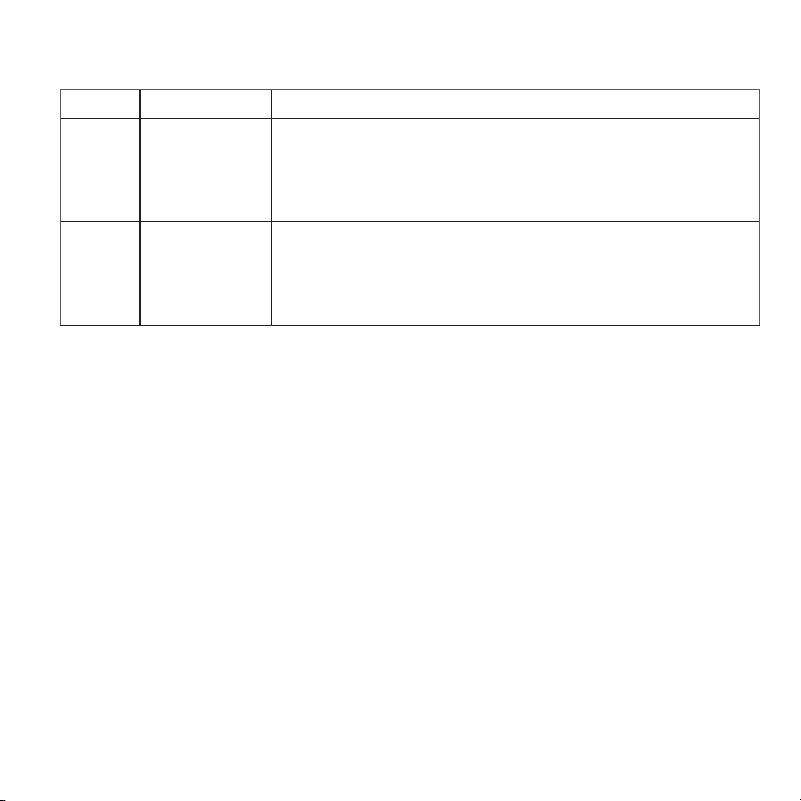
21
N° de l’option Nom de l’option Valeur de l’option (réglage d’usine en gras)
220 Étages de refroid-
issement / Étages
du compresseur
(200=Conv /
200=HP)
0, 1, 2
Remarque : Sélectionnez le nombre d’étages de refroidissement ou de compresseur
contrôlés par le thermostat. 2 étages de refroidissement/compresseur maximum.
221 Étages de chauffage/
aux./urgence
(200=Conv /
200=HP)
Heat Stages (Étages de chauffage) : 0, 1, 2
Aux/E stages (Étages Aux/E) : 0, 1
Remarque : Sélectionnez le nombre d’étages de chauffage ou Aux/E contrôlés par le
thermostat. 2 étages de chauffage maximum pour les systèmes conventionnels. 1 étage
Aux/E maximum pour les systèmes avec plus d’un type d’équipement de chauffage.
Remarque : Pour voir la liste complète des options de réglage ISU,
consultez la fiche de produit intelligent T5+ sur resideo.com
Options de configuration de l’équipement

22
Foire aux questions
Le thermostat intelligent T5 fonctionnera-t-il toujours, même si la connexion au Wi-Fi est
perdue?
Oui, la température peut être directement ajustée au niveau du thermostat. Cependant, certaines
fonctions, dont Geofencing, peuvent uniquement être gérées au moyen de l’application
Honeywell Home et ne pourront donc pas être utilisées sans connexion.Le thermostat se
reconnecte automatiquement au réseau Wi-Fi une fois la connexion au réseau rétablie.
Le thermostat intelligent T5 ne détecte pas le réseau Wi-Fi domestique.
Le thermostat fonctionne dans la plage de 2,4 GHz. C’est peut-être pourquoi le thermostat ne
détecte pas le réseau, et c’est pourquoi le téléphone intelligent (qui opère à la fois dans la plage
2,4 GHz et 5,0 GHz) détecte le réseau. La plupart des routeurs diffusent deux réseaux, un SSID
sur la radio 5,0 GHz et un SSID sur la radio 2,4 GHz.
Une modification a été apportée à l’application Honeywell Home, mais elle n’apparaît pas sur
le thermostat intelligent T5.
Il peut s’écouler un court laps de temps entre le moment où vous effectuez des modifications de
température ou de paramètres dans l’application Honeywell Home.
Le géorepérage est-il compatible avec plusieurs utilisateurs?
Oui, il peut y avoir plusieurs utilisateurs. Le géorepérage se déclenche en fonction de la dernière
personne à partir et de la première personne à revenir. Pour correctement utiliser le géorepérage
avec plusieurs utilisateurs :
• Chaque utilisateur doit créer son propre compte.
• Chaque utilisateur doit utiliser son identifiant de connexion et son mot de passe sur son
ou ses dispositifs, y compris ses téléphones intelligents et ses tablettes.
• Un compte ne doit appartenir qu’à un seul utilisateur.
Comment configurer plusieurs utilisateurs avec le thermostat?
L’application Honeywell Home peut accorder l’accès à tout emplacement de thermostat ou à
tous les emplacements. Commencez par appuyer sur l’icône de menu à trois lignes dans le coin
supérieur gauche de l’écran d’accueil. Sélectionnez Manage Users (Gérer les utilisateurs) et
appuyez sur Add User (Ajouter utilisateur) en bas de l’écran. Tapez l’adresse électronique de la
personne à inviter. Si elle possède un compte, l’emplacement sera automatiquement ajouté à son
compte. Si ces personnes ne possèdent pas de compte, elles recevront un courriel les invitant à
télécharger l’application Honeywell Home et à créer leur propre compte.
Remarque : Toutes les personnes qui ont accès à un thermostat partagent les mêmes privilèges
d’utilisateur. Les utilisateurs ajoutés pourront modifier les réglages du thermostat et ajouter ou
supprimer d’autres utilisateurs.
Y a-t-il un moyen d’accroître la force du signal?
La plage ou la portée du signal Wi-Fi est déterminée par votre routeur. Consultez le manuel du
routeur pour obtenir plus d’informations.

23
Informations réglementaires
Un message s’affiche indiquant que le signal Wi-Fi a été perdu. Qu’est-ce que cela veut dire?
Le signal Wi-Fi du thermostat a été perdu. Attendez que le thermostat se reconnecte ou
sélectionnez un nouveau réseau dans le menu de configuration de l’application Honeywell Home.
Si le thermostat ne peut pas être reconnecté, vous devrez dépanner le routeur pour en déterminer
la cause.
Pourquoi le thermostat s’affiche-t-il hors ligne (icône Wi-Fi barrée) en haut à droite de l’écran
du thermostat?
Si le thermostat affiche une icône Wi-Fi traversée d’une ligne ou s’il apparaît hors ligne dans
l’application Honeywell Home, cela signifie qu’il a perdu la connexion avec le réseau. Le réseau
Wi-Fi résidentiel peut nécessiter d’être réinitialiser en éteignant et rallumant le routeur. Consultez
la notice d’utilisation du routeur pour les instructions sur la réinitialisation du routeur. Lorsque le
réseau a été restauré, le thermostat se reconnecte automatiquement.
Le courriel d’activation n’a pas été reçu.
Un courriel a été envoyé de la part de [email protected]. Un courriel d’activation
est requis pour procéder à la configuration du compte. Si aucun courriel d’activation n’a été reçu
dans les cinq minutes, consultez le dossier des courriels indésirables de la messagerie.
S’il n’est pas présent dans le dossier des courriels indésirables, cliquez sur le bouton Renvoyer
et le courriel d’activation sera renvoyé. Si vous ne recevez toujours pas le courriel d’activation,
veuillez contacter l’équipe du soutien technique au 1-800-633-3991 pour obtenir de l’aide.
Foire aux questions
NORMES FCC
47 CFR § 15.19 (a)(3)
Cet appareil est conforme à la partie 15 du règlement de la FCC. Son
fonctionnement est soumis aux deux conditions suivantes :
1 Ce dispositif ne doit pas causer d’interférences nuisibles, et
2 Ce dispositif doit accepter toutes les interférences reçues, y
compris celles pouvant causer un fonctionnement non souhaité.
47 CFR § 15.21 (États-Unis uniquement)
Les modifications qui ne sont pas expressé-ment autorisées par la
partie responsable de la conformité peuvent annuler la capacité de
l’utilisateur à utiliser l’équipement.
47 CFR § 15.105 (b)
Voir https://customer.resideo.com/en-US/support/residential/
codes-and-standards/FCC15105/Pages/default.aspx pour plus
d’informations de la FCC sur ce produit.
RÈGLEMENT D’IC
RSS-GEN
L’émetteur/récepteur exempt de licence contenu dans le présent
appareil est conforme aux CNR d’Innovation, Sciences et
Développement économique Canada applicables aux appareils radio
exempts de licence. L’exploitation est autorisée aux deux conditions
suivantes :
1 L’appareil ne doit pas produire de brouillage;
2 L’appareil doit accepter tout brouillage radioélectrique subi,
même si le brouillage est susceptible d’en compromettre le
fonctionnement.
www.resideo.com
Resideo Technologies, Inc.
1985 Douglas Drive North, Golden Valley, MN 55422
33-00182EF—09 M.S. Rev. 03-21 | Imprimé aux États-Unis
© 2021 Resideo Technologies, Inc. All rights reserved.
The Honeywell Home trademark is used under license from Honeywell
International, Inc. This product is manufactured by Resideo
Technologies, Inc. and its affiliates.
Tous droits réservés. La marque de commerce Honeywell Home est
utilisée avec l’autorisation d’Honeywell International, Inc. Ce produit
est fabriqué par Resideo Technologies, Inc. et ses sociétés affiliées.
33-00386EF-09
Wi-Fi® est une marque déposée de
Wi-Fi Alliance®.
Apple® HomeKit™
Code de configuration
Le thermostat intelligent T5 est compatible
avec Apple HomeKit. Balayez ce code
lorsque l’application Honeywell vous invite
à le faire.
Garantie limitée de 2 ans
Pour obtenir des renseignements à propos de la garantie, visitez
resideo.com